Jitsi is a free voice and video conferencing software that’s open-source and compatible with web browsers for Windows, Linux, and Mac. Keep reading for our picks for the best browsers for Jitsi meetings that are fully supported.
Does Jitsi work in browser?
It’s recommended that users use the software in-browser. Jitsi supports Chromium-based browsers, Firefox, and Safari.
Which browser is the most compatible with Jitsi?
Users report that Chromium-based browsers work best with Jitsi, which is what many browsers are based on. For example, Google Chrome, Opera, Microsoft Edge, and more are all fully compatible with Jitsi.
Does Jitsi work with Firefox?;
Jitsi does support Firefox; however, users have reported some bugs when using Jitsi on Firefox with macOS.
Does Jitsi work on a mobile browser?
Jitsi supports Chromium-based browsers and Firefox for Android. For iOS devices, however, it supports Safari and browsers using WKWebView.
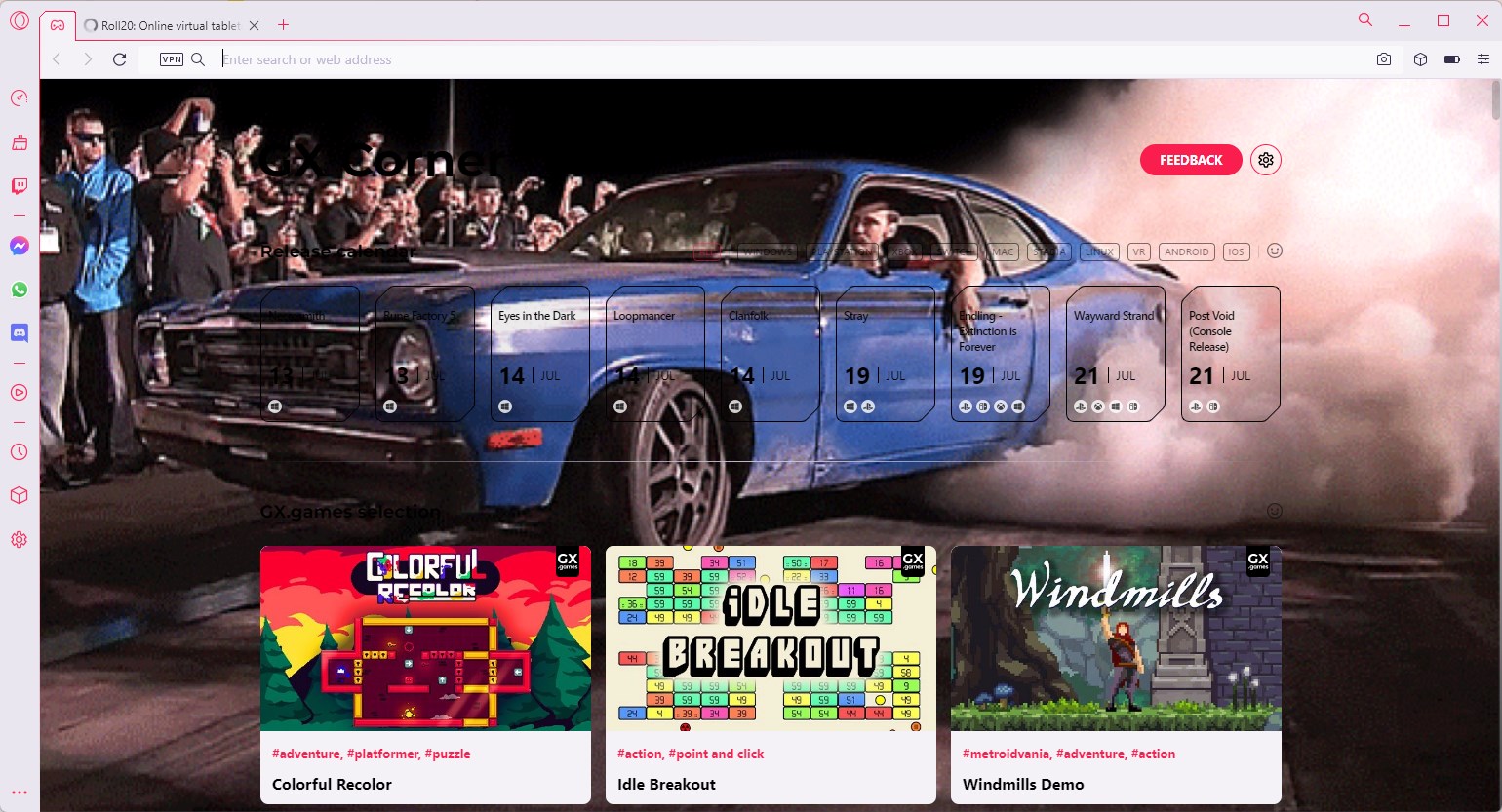
Opera is great for online video conferencing because of its integrated features like the messaging system that is easily accessed from the sidebar. This feature offers messaging from WhatsApp, Instagram, Discord, and more.
Users can easily take screenshots from the browser with a built-in snapshot tool. This can be really helpful for meetings and messengers.
Google Chrome is integrated with Google apps like Drive and Gmail so users can have everything in one place. In addition, with Chromecast, users can cast their meetings to their TV for a better meeting experience.
Tabs can be sorted into groups so users can easily manage web pages for streamlined browsing. Jitsi also offers an extension for the Chrome Web Store so users can join Jitsi meetings quickly.
Vivaldi is a Chromium-based browser that is designed for complete user autonomy without needing to install extensions. But if users do want addons, Vivaldi is compatible with the Chrome Web Store.
Users can create separate profiles on Vivaldi to keep browsing data separate for those with shared devices. The context menu includes a bookmark page and, in addition, allows users to add pages to their own panel for easier viewing.
Edge offers three levels of tracking protection that allows users to customize their level of privacy. This will enable users to rest easy when joining Jitsi meetings and sending messages.
The built-in assistant, Cortana, makes navigating the web much easier and faster. Cortana is the virtual assistant for Windows making Edge streamlined for Windows devices.
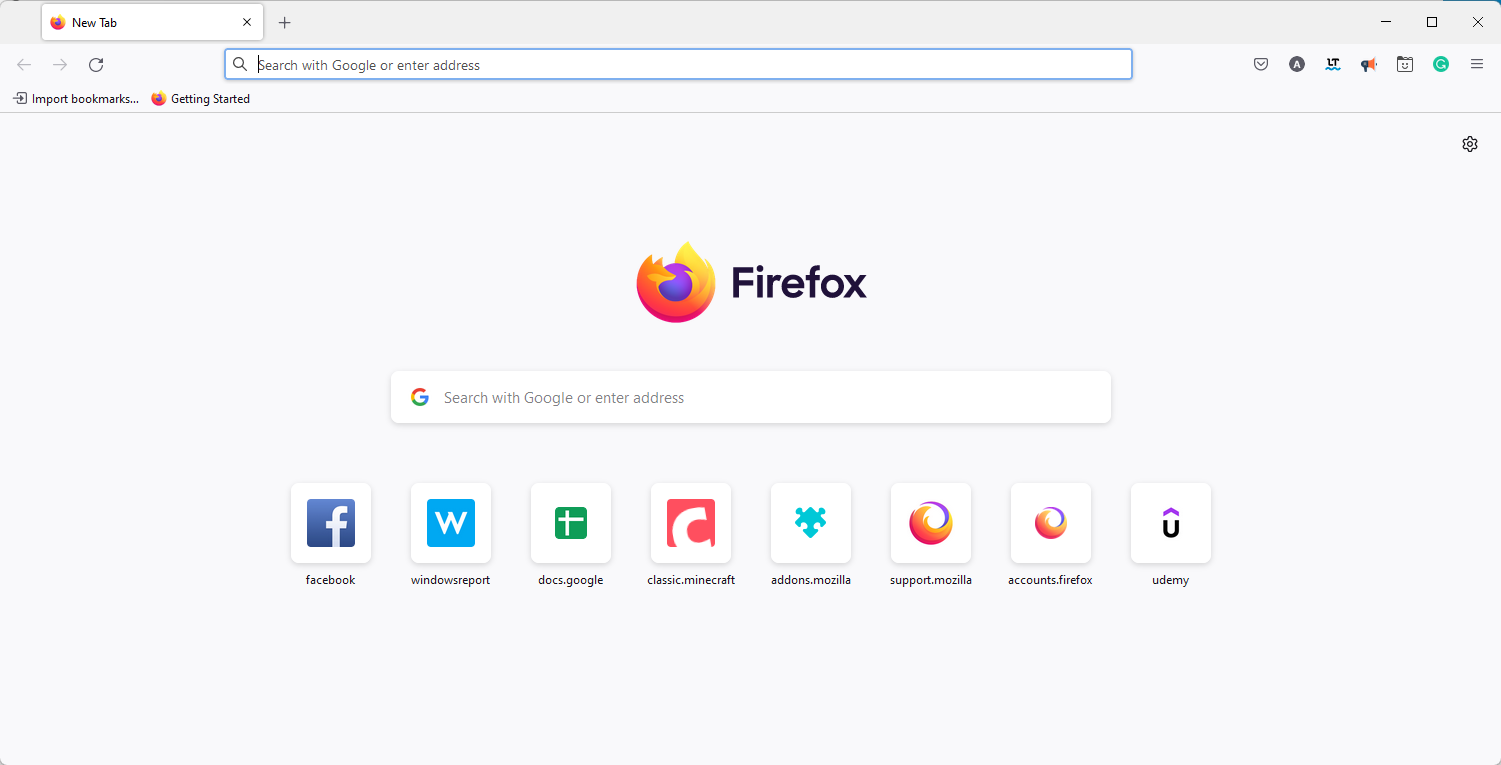
Firefox is a secure browser with ad and tracker blocking and fingerprinting protection. While not a Chromium browser, it has a great selection of addons and is open source.
In addition to being secure, Firefox has a user-friendly interface without sacrificing customization options. It also has a picture-in-picture feature that allows users to minimize videos in a floating frame while browsing.
Hopefully, you enjoyed our picks for the best browsers for Jitsi. If you’re interested in our recommendations for the best browsers for Zoom, we have a list for that. Let us know in the comments which browser you use for Jitsi.
The service, known as PlayStation Stars, will be free, and once users join they can start earning rewards points for completing activities such as earning specific game trophies, winning online tournaments, and in some cases, simply playing specific games. PlayStation Stars members will also automatically earn loyalty points for making purchases in the PlayStation Store.
The program seems very similar to Microsoft Rewards, which is available on Xbox. Xbox Gamers can already earn daily points for unlocking achievements, as well as completing quests, and earn bonus points for keeping a streak. Those points can then be redeemed for Microsoft or partner gift cards, and entries into sweepstakes. The Xbox Game Pass app on Xbox also offers ways to earn Microsoft Rewards points, too.
In Sony’s case, a monthly “check-In” campaign will reward users for simply playing any game. But what exactly are these rewards?, you may be wondering. According to the official PlayStation blog, “Points can be redeemed in a catalog that may include PSN wallet funds and select PlayStation Store products.”
Introducing PlayStation Stars, an all-new loyalty program celebrating players that’s free to join.
The blog also mentions the introduction of something it calls “digital collectibles.”
Also, as part of PlayStation Stars, we are unveiling a new type of reward called “digital collectibles.” Collectibles are as diverse as our portfolio of products and franchises. They are digital representations of things that PlayStation fans enjoy, including figurines of beloved and iconic characters from games and other forms of entertainment, as well as cherished devices that tap into Sony’s history of innovation. There will always be a new collectible to earn, an ultra rare collectible to strive for, or something surprising to collect just for fun.
Could they be actually talking about NFTs? In an interview with The Washington Post, vice president of network advertising, loyalty and licensed merchandise Grace Chen stated that
They aren’t non-fungible tokens, despite also being digital and collectible…it’s definitely not NFTs. Definitely not. You can’t trade them or sell them. It is not leveraging any blockchain technologies and definitely not NFTs.
Nevertheless, PlayStation Stars will no doubt be a welcome feature for PlayStation fans when it launches sometime in 2022.
Find below what you can try when Brave Browser has stopped working, isn’t opening, or keeps crashing. We looked into the main causes of these issues and addressed each and every one of them.
So, regardless if it’s a firewall issue, corrupt system files or just a full cache, just follow the step-by-step instructions below to get it back on track:
How to fix Brave Browser not working
1. Clear browsing data
Launch the Brave browser, and press Ctrl + Shift + Del to open the Clear browsing data window.
Click on the Time range dropdown menu, and select All time from the list of options.
Select all the three options here, and click on Clear data.
Many users confirmed that three or more days of browsing are sometimes enough to make the browser laggy and even cause freezes and crashes. So, in this case, the best solution is to remove your browsing history and get rid of the cache.
2. Run SFC scan
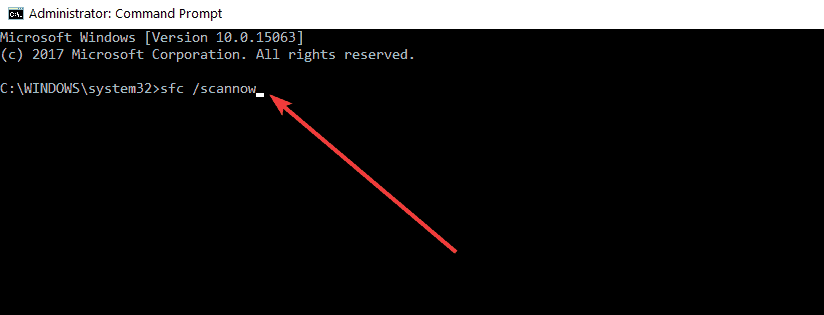
Press Windows + S to launch the Search menu, enter Terminal, right-click on the relevant search result, and select Run as administrator.
Click Yes in the UAC prompt.
Press Ctrl + Shift + 2 to open Command Prompt.
Paste the following command and hit Enter:sfc /scannow
Wait until the scanning process is complete and then restart your computer.
If the Brave browser stopped working on Windows due to file corruption, you can fix it using the System File Checker.
3. Re-install the Brave Browser folder
NOTE
Reinstalling will remove history, bookmarks, and saved passwords from your browser. Make sure to back up your information before you start.
Press Windows + R to launch the Run command, enter appwiz.cpl in the text field, and click OK.
Select Brave browser from the list, click on Uninstall, and follow the on-screen instructions to complete the process.
You now have to delete any leftover files. To do that, press Windows + E to launch File Explorer, and navigate to the following path. Make sure to replace Username with the actual account name.C:\Users\Username\AppData\Local
Select the BraveSoftware folder here, and hit the Del key.
Now, go to the following path:C:\Users\Username\AppData\Roaming
If you find a Brave folder here, delete it.
Delete all the copies of the installers to make sure all the files and folders have been removed
The Xbox console is undeniably one of the best in the industry, thanks to constant improvement and innovations. It is no surprise it is one of the most-used consoles.
However, there is no perfect machine, and Xbox is neither free from issues. One of the prominent issues is the Xbox home not working, which we have provided working solutions for.
Now, it is the Xbox error code 80153048 preventing gamers from purchasing items and downloading content. This guide will show you how to fix this problem and get back to buying games and redeeming your codes again.
What does the Xbox error code 80153048 mean?
The error code 80153048 occurs when you try to redeem a code, especially on Xbox 360. Also, you might experience an error if you try downloading content.
Some of the major causes of the error are:
Problematic billing info on Microsoft account
Existing subscription for the prepaid code to redeem
A temporary issue with Xbox Live
How do I fix the error code 80153048 on Xbox?
1. Check Xbox service status
The first thing to do when troubled by the Xbox error code 80153048 is to check if all Xbox services are running smoothly. The most reliable place to look is the Xbox status page.
If you notice any service with an alert, it might be the cause of the error code. You can set a notification for the service and wait till the issue is resolved.
2. Run Xbox Live Connection Test
Power on your Xbox console and select the Settings option.
Choose the System option.
Select the Network Settings option.
Choose your network.
Finally, select the Test Xbox Live Connection option.
If there is no service problem from Xbox and you are still getting the error code 80153048 when you want to download content, the issue might be with your network.
With this test, you will see if your internet connection speed is up to par with the required standard.
3. Verify the billing info for your Microsoft account
Choose the Payment & billing option in the top menu.
Select Payment options.
Check the information for your payment methods and update them where necessary.
Choose the Payment & billing option again and select the Address book option.
Verify and update the address on your account.
Now, sign in and out of your Microsoft account.
Finally, sign in to the Xbox Live and see if the error persists.
The payment and billing details on your Microsoft account must be active and updated to redeem any code or purchase an item. If your payment option has expired, you will get the Xbox error code 80153048 when trying to buy an item.
Also, you must not have an outstanding balance on your account if you are trying to use a prepaid code. Else, you will be troubled by the error code.
You should visit the Xbox support page if you have tried everything and couldn’t get past the Xbox error. This is because the issue might be beyond you and needs an expert’s intervention.
The Xbox error code 80153048 stops you from buying games, redeeming codes, and downloading content. Although the causes are diverse, you can fix the error easily by applying the solutions in this guide.
Are you facing other issues like Xbox sign in error 0x87dd0006? Then, check our well-detailed guide on how to fix it quickly.
Feel free to let us know the solution that helped you overcome the error in the comments below.
A new report from Windows Central’s Zac Bowden is revealing a change in the way Windows’s release schedule works. Per Bowden’s sources, new Windows versions are now set to release every three years, and current Windows versions like Windows 11, will get updated more frequently.
This is quite different from what Microsoft has officially stated about Windows 11 and Windows 10 getting once-a-year major updates. Instead, it seems as though Microsoft is now shifting to increase the frequency of updates for Windows 11 with feature drops. These feature drops are apparently dubbed as “moments” in the engineering team, where new Windows 11 experiences come throughout different points of the year outside of major releases. It’s unclear if Microsoft will call it that, however, and Zac isn’t sure what will happen to Windows 11 version numbers, either.
The frequency could be at every few months, and up to four times a year, starting next year, per Bowden. We’ve seen this already when Windows 11 got the weather widget in the Taskbar. So, you can expect Microsoft to group together different features in testing with the Windows Insider program for these drops. You can think of it how Google often does different software updates for Pixel phones with major Pixel feature drops bringing new features ever so often.
“Many of the features that were planned for the now-scrapped Sun Valley 3 client release will ship as part of one of these Moments on top of Sun Valley 2 instead of in a dedicated new release of the Windows client in the fall of 2023,” explained Bowden.
As for the next major Windows version, that’s still well off. Zac Bowden is not aware of a codename for the project, though he has heard some people calling it “Next Valley.” Microsoft did not officially comment on these rumors.
New to Game Pass and don’t know where to start? We’ve got you covered with these Game Pass recommendations for all you pugilists out there. There is a solid lineup of fighting games in the Game Pass library. So with no more delay let’s check out the best of them.
Dragon Ball FighterZ
This team-based 2.5D fighting game is a blast not only for fans of the anime series, but for fans of fighting games in general. The game takes much inspiration from – and is often compared to – the Marvel vs. Capcom series. Dragon Ball Fighterz has won several awards, including the Game Critics Awards for Best Fighting Game.
The fifth and final entry in the Fight Night series. This entry is a bit of a departure from its predecessors, which were strictly boxing sims. Champion Mode is the game’s story mode, a new addition to the franchise. It introduces a grittier tone which according to the developers “truly conveys the brutality of the sport of boxing.”
Also new to the series in Champions if the Full-Spectrum Punch Control scheme. It ties punch inputs to the right analogue thumbstick. All told, Fight Night Champions is a rock-solid fighting game that can appeal to any fan of the genre, boxing fans or otherwise.
Injustice 2
As the sequel to 2013’s Injustice: Gods Among Us, Injustice 2 doesn’t stray too far from what made its predecessor one of the best fighting games of the last decade.
It does introduce something new in the Gear loot system however. In this RPG-like system, player characters are awarded character-specific equipment following each match, based on how well certain pre-set conditions are met in the match.
It adds a lot of depth to the fighting game formula. This and a roster of 28 of the coolest DC characters make Injustice 2 a worthy successor to the original.
A 2013 reboot of the franchise and a launch game for the Xbox One. Killer Instinct still stands up today as a one of the best fighting games in the Game Pass library. It borrows from other fighting games such Street Fighter and Mortal Kombat.
It also brings more than a few ideas of its own, too. The most distinct of these is the Instinct Mode, new to this game. Ultra combos and combo breakers also serve to spice up the gameplay.
The eleventh mainline installment in the storied Mortal Kombat franchise. Mortal Kombat returns with all the elements fans love about the series: Fatalities, Brutalities, and more. It also sees the return of series mainstays like Sonya Blade, Johnny Cage and others.
Mortal Kombat 11 features a character customization system (called custom variation) similar to that of Injustice 2. Which isn’t too surprising considering the game was developed NetherRealm Studios, the same team behind the DC Comics game.
UFC 4 features well over 200 unique fighters across the four MMA (mixed martial arts) disciplines: boxing, kickboxing, wrestling and jujitsu. Take to the Octagon, Backyard and Kumite in career mode to become the greatest fighter of all time.
The controls have been tweaked to make the game more accessible than its predecessors, and there are several multiplayer modes including Online World Championships.
Wrap up
As you just saw, there is a pretty great selection of fighting games available on Xbox Game Pass. If you don’t already have a Game Pass subscription you can sign up here. If you would like to learn more about Game Pass you can visit the FAQ page. And don’t forget to check out our other “What to play on Game Pass” posts for other Game Pass recommendations for other types of games.
Today, we’ll explore alternatives to the Meta Quest Browser that offer enhanced performance, broader extension support, and smoother navigation in VR environments.
So, if you’re looking for a high-quality and fully compatible replacement, keep reading.
What is the best Meta Quest browser alternative?
1. Opera – VPN, adblocker & a lot of room for customization
Plus, its support for extensions gives you the possibility to customize your experience a whole lot more than Meta Quest Browser ever could.
Last but not least, the intuitive UI with a lot of personalization features lets you make the browser your own – you can optimize it for multitasking, gaming, video content watching, and more.
Key features:
Built-in VPN for enhanced privacy
Ad-blocker for uninterrupted browsing
Turbo mode for faster page loading
AI web assistant
Opera
Upgrade your Meta Quest browsing with Opera & get better speed, privacy, and customization.
2. Wolvic – open source and safe, with enhanced support for 360 video
Wolvic is an open-source web browser developed by Igalia. It is based on the source code of Firefox Reality. Mozilla is directing users who still wish to use a web browser in virtual reality to Wolvic.
It supports WebXR content, which means you can access immersive online experiences and watch 360-degree films, similar to Quest’s built-in Oculus Browser.
It has a Privacy mode, voice Search, a Movie mode, and the ability to resize tabs, and Igalia has plans to keep adding additional features.
These are some Oculus Browser/ Meta Quest Browser alternatives that you can use. If you need more options, check our guide on the best VR browsers.
Also, if you are a fan of gaming, connecting Xbox controllers to Quest 2 would spice things up, now that Xbox Cloud Gaming has arrived on the all-in-one VR.
Don’t hesitate to leave a comment in the section below and tell us what you think. Thanks for reading!
G4TV and TMNT have teamed up to give away an official Teenage Mutant Ninja Turtles: Shredder’s Revenge Xbox Series S console.
Unlike most limited edition consoles which just feature a recolored exterior, this new TMNT Xbox console boasts an actual 3D sculpt of Shredder bursting out of one of its sides with bricks exploding from an image of a wall and Shredder’s claws prominently popping out.
Here’s a video of the console posted on the official TMNT Twitter account that showcases the design.
GAME OVER DUDES! Comment #TurtlePowerSweepstakes for your chance to win this exclusive custom #TMNT Shredder Xbox!
To win this console, all interested gamers need to do is follow the TMNT Twitter account and reply to the above tweet with the #TurtlePowerSweepstakes hashtag.
All entrants must be over 18 and a resident of the US to be eligible.
Unique TMNT prizes will be given away on a monthly basis until October. While the prizes for August, September, and October have yet to be revealed, some sneaky silhouettes are up for analyzation on the Turtle Power Sweepstakes website.
Netflix has named Microsoft a partner for their newest consumer subscription plan. A dollar amount for the deal is not available, but the news comes via Microsoft which means Netflix will be using Microsoft’s sales technology to help power the upcoming ad-supported tier of the streaming service.
Under the partnership, all ads served on Netflix will be exclusively available through the Microsoft platform. Marketers looking to Microsoft for their advertising needs will have access to the Netflix audience and premium connected TV inventory. That’s all according to Mikhail Parakhin, President of Web Experiences at Microsoft who penned the blog post with the news.
As noted by CNBC, Microsoft apparently beat out (and was chosen) over rivals Google and Comcast. The deal was in the work for the last several months and the final ad-based plan on Netflix is expected to launch by the end of this year. In the words of Netflix COO Greg Peters.
Today we are pleased to announce that we have selected Microsoft as our global advertising technology and sales partner. Microsoft has the proven ability to support all our advertising needs as we together build a new ad-supported offering. More importantly, Microsoft offered the flexibility to innovate over time on both the technology and sales side, as well as strong privacy protections for our members
As you might recall, Microsoft actually acquired Xandr back in 2021, which is an ad marketplace for connected TV. Microsoft also has the Microsoft Audience Network and PromoteIQ. All of this is likely to come into play with this partnership.
Microsoft is beta testing changes to the camera app and media player in Windows 11. The camera app is getting a new look based on Windows 11’s user interface, and the media player is also getting support for CD ripping. Both updated apps should be rolling out now to Dev Channel Windows Insiders.
The updated camera app comes in at version 2022.2206.2.0. In addition to the visual redesign, it also has a new ability to scan a QR code or scan a barcode. Meanwhile, media player is getting updated to version 11.2206.30.0. This update brings support for CD ripping as well. Supported formats include AAC, WMA, FLAC, and ALAC. Check images out of these news apps below.
Other than these two apps, Microsoft is rolling out native ARM64 support to the Movies & TV app. Finally, Microsoft is migrating video file type associations from Movies & TV to Media Player. This migration will only impact file types that are already associated with Movies & TV and only after you open Movies & TV for the first time.
Steam is the most popular digital distribution platform for PC games, and millions of active users use it. Unfortunately, many reported that their Steam game won’t launch as often as it should. So, is there anything that you can do to fix this?
This is a big problem since you won’t be able to access any of the Steam games you bought, but if you notice that a Steam game won’t launch, there are a few things you can do.
Many Windows users play Steam games regularly, but sometimes issues with Steam can occur. Some users report they cannot play any game on Steam, while others struggle with a missing executable error. Here’s how to fix these problems:
What can I do if the Steam games are not launching?
1. Move your installed games to a different location
Start Steam.
Go to your game library and find the smallest game that you have installed and right-click it.
Go to the Local Files tab and click on Browse local files.
Verify that the games are installed under Steam.
Select steamapps, choose common, and click on [Title of the game].
If the game folder can’t be opened, you need to verify the integrity of the game files. This will re-download the game to the default location.
Once you have re-downloaded the games, use the Move Install Folder option to migrate your games to a different location.
Repeat the above steps for all the Steam games which are not launching.
NOTE
u003cstrongu003eOptional:u003c/strongu003e If your Steam games are not launching, you should move them to a different drive. This is a diagnostic step that will confirm whether the problem is with your storage solution.
2. Update your graphics card drivers
According to users, you might be able to fix this problem simply by updating your graphics card drivers.
Your drivers are a key component, and if there are any problems with them, the Steam games might be unable to run.
If this method is time-consuming, we recommend a reliable driver updater tool to scan your device for malfunctioning or missing drivers and update them with the newest driver options from an extensive database.
According to users, sometimes specific files can cause issues with Steam games and prevent them from launching. However, you can fix this issue simply by removing a problematic file.
In most cases, the problematic file is GameOverlayRenderer64.dll, which you need to remove to fix the problem.
Alternatively, you can move the file to a different location, which will give the same results. Keep in mind that this is just a workaround, but it works according to users, so be sure to try it out.
In some cases, Steam games can’t launch due to your antivirus software. To fix that problem, make sure that the game you’re trying to run and the entire Steam directory are added to your antivirus’s list of exclusions.
In addition, you can try disabling certain antivirus features or entirely disabling the antivirus and see if that helps.
Sometimes, you might have to completely uninstall your antivirus to fix the problem with Steam games.
5. Upgrade Rivatuner Statistics Server
If Steam games fail to launch on your Windows 10 PC, the issue might be related to third-party applications.
Many users claim that Rivatuner Statistics Server was the problem, but it was resolved after updating it.
In case you don’t know, this application is a part of MSI Afterburner software, and by updating the Afterburner software you’ll update Rivatuner Statistics Server as well.
This is a long-term solution, so if you’re having this problem, be sure to try it out.
6. Check for problematic applications
Users say that sometimes third-party applications cause this and other errors to appear. If you’re having issues with Steam games, the culprit might be a third-party application.
Users reported that Razer Synapse caused this issue to appear. To fix the problem, it’s advised to turn the application off before starting the game.
However, you can still use the software if you start it after starting your game. Logitech Joystick Utility is another application that can cause the problem, so you might have to disable it.
In some cases, the only way to fix the problem is to remove the problematic application.
There are several ways to do that, and the best one is to use an uninstaller software since it will remove all files and registry entries associated with the problematic application.
Once you remove the problematic application with reliable uninstaller software, the issue should be completely resolved.
This is relatively simple to do. Go to the game’s installation directory and look for the _CommonRedistvcredistfolder.
Once you are inside the vcredist directory, you’ll see two setup files. Run them both to install the necessary components.
After the necessary components are installed, the game should start without any issues.
8. Verify the integrity of game files
Open your game library, and locate the problematic game. Right-click it and choose Properties from the menu.
Navigate to Local files tab and click Verify integrity of game files.
The verification process will now start. Keep in mind that this can take a bit, so be patient and don’t interrupt the process.
After the verification process is finished, try to run the game again.
According to users, if Steam games won’t launch, you can fix the problem by verifying the integrity of game files.
Your files can get corrupted, which can cause issues with the game. However, you can fix the problem simply by verifying the integrity of game files.
If your Steam games still refuse to launch after verifying the files, check our complete guide on fixing Marvel Rivals not launching, since the same solutions often apply across multiple titles.
9. Run the game in Compatibility mode
Locate the game’s .exe file, right-click it and choose Properties.
Navigate to the Compatibility tab, and check Run this program in compatibility mode for.
Select the desired version of Windows, and click Apply and OK to save changes.
You can fix the problems with certain Steam games simply by running them in Compatibility mode.
In case you’re not familiar, by using Compatibility mode you can fix various issues with older games and run them on your PC.
Although this feature is intended for older games, it can also work well with newer games as well. After doing that, try to start the game again and check if the problem is resolved.
10. If your Steam games are not starting, start from scratch
Start Steam and go to your Library.
Right-click on a game, select Manage, and choose Uninstall.
Repeat for all installed games.
Open Control Panel, and go to Programs and Features.
25. Disable Third-Party Apps and Services That Might Interfere with Steam
Identify potential conflicting applications (e.g., screen recording or overlay software).
Disable or uninstall these applications.
Relaunch Steam and your game.
26. Run the Game in Compatibility Mode for Older Games
Right-click on the game’s executable.
Select ‘Properties’.
Go to the ‘Compatibility’ tab.
Choose an older version of Windows from the dropdown.
Launch the game.
27. Update Your Windows
Open the ‘Settings’ app.
Navigate to ‘Update & Security’.
Check for and install any available updates.
As drastic as this measure sounds, if there is something fundamentally wrong with your Steam library, the only way to fix Steam games not starting is to start over.
By reinstalling everything, you ensure that you are running the latest version of the Steam client, that all your games are installed in the correct folders, and that the latest patches are applied.
We hope that this solution has been helpful to you, but if you need more information, we have also covered what to do when you’re unable to run Steam games on Windows 11, so make sure that you check it out.
Also, for more suggestions or other questions, feel free to access the comments section below.
Are you getting a Firefox MIME video not supported error when attempting to play videos in your browser? When that happens, the videos display this error message: Video format or MIME type is not supported. Thus, the video doesn’t play in the browser. One Firefox user stated:
When attempting to watch any program on LiveGo.tv there is an error message across the screen where I would normally see the program. ‘Video format or MIME type is not supported,’ I have never had this before with Windows XP or Windows 10.
Mozilla, and other browser developers, have ditched plug-ins in favor of HTML5. As such, Firefox no longer supports most plug-ins. However, there are still quite a few websites that include media content that depends on antiquated plug-ins.
Consequently, videos on sites that haven’t been updated are returning Firefox MIME type not supported errors. Here are a few potential fixes for the MIME video format problem.
This issue appears when you try to play a certain video, but don’t have the necessary plugins. Installing them might fix the issue, but sometimes the plugins aren’t available.
Browser cache can also be responsible for this issue, so clearing the cache is advised if you want to fix this problem.
How do I fix no video with the supported format and MIME type found Firefox?
1. Switch to a different browser
If the MIME video format errors persist in Firefox, consider making the switch to Opera One. You must know that you will not be missing out on any features that you already like.
Video pop-out is available in Opera One as well. It was actually first introduced here and then other browsers copied it.
Support for extensions is also present and so are the Dark Mode or Built-in Snapshot options.
Besides, you’ll get to enjoy extra perks such as a free, unlimited VPN, built-in messengers, unit converters, and a lot more.
Opera One
Make the switch and enjoy the perks with editable MIME types for improved support.
First, click the Open menu button at the top right of Firefox. Select Settings to open the Options tab.
Click Privacy & Security. Next, click on Clear Data.
Press Clear to the clear the cache.
A corrupted cache can generate website errors. So clearing Firefox’s cache could feasibly fix Format is not supported or source is unavailable in Firefox.
If you need more info on how to clear Firefox’s cache, check out this handy article right away.
3. Clear Firefox’s cookies
Deleting corrupted cookies might also resolve the Firefox MIME type not supported error. To do that, click the Menu icon and select Settings.
Select Privacy & security and click on Manage data.
Press the Remove All button to erase the cookies. Then click Save Changes.
Performing these operations is safe, but a bit time-consuming. Fortunately, there are best practices to keep your computer in shape and remove old files, junk, cookies, and cache.
The most secure and time-efficient solution to erase cookies from your browser is using cookie cleaning software, that removes them efficiently.
This type of tool will scan your browser and give you an easy-to-follow report on all the clutter that can be deleted. Just select what you want to remove and let it complete.
4. Install the Media Feature Pack on KN and N Windows editions
Not all Windows editions include the media-related technologies Firefox needs to play media content. Windows KN and N editions don’t include Windows Media Player, WMP Active X, the Windows Media Device Manager, or Windows Media Format and are also missing a few audio codecs.
As such, missing media technologies can also be a factor behind video and audio playback errors in Firefox for Windows KN and N users. Installing the Media Feature Pack will restore many of the missing media features in KN and N editions.
With the add-on installed, open the web page that includes the video displaying the MIME type not supported message. Now the video might work in Firefox.
If the video still doesn’t play, press the Open content button to download the media content. Then you can play the video on a media player that supports the video format.
If the videos still aren’t playing in Firefox with the NoPlugin add-on, you may need to update the browser to a version that fully supports HTML5.
Click the Menu button. Select Help.
Now click About Firefox.
Wait for the updates to download.
Firefox embedded video not working
The most likely cause for this problem is the cache and its corruption. So clearing the cache is the first thing you should do.
Alternatively, you can use browser extensions that will allow you to play videos without having to rely on plugins.
Those are a few fixes for the video format or MIME type is not supported error that will restore video playback in Firefox. As the web continues to embrace HTML5, more and more sites will become HTML5 compatible.
That will reduce plug-in video errors, but for now, the NoPlugin add-on is a good remedy for websites that still rely on outmoded plug-ins.
That’s about it! We hope our solutions helped you get rid of the Firefox MIME type not supported error. If you have any other questions, don’t hesitate to leave them in the comments section below.
So what do you do if you want to know more about a series like the lead actors, show timings, etc.? You would either need to search on your mobile browser or ask Siri.
But why would you not rather browse on your TV if there is an option? Wouldn’t it be easier?
To your relief, there are quite a few web browsers for Apple TV that can help you watch 4K content in 2022 and we recommend the best in the category.
Is there a Web browser for Apple TV?
No, since there is no dedicated web browser for Apple TV, you cannot access or install any mainstream browsers.
For example, you cannot use Safari, Google Chrome, or any other browser because Apple TV does not support them.
The Apple casting device is not designed for browsers since it wants its users to use their phones to cast/stream content to the device itself.
However, the good thing is that the device can run a web browser if you install certain apps.
Below we have a list of the best browsers for Apple TV that can help you watch 4K content in 2022.
If you are looking for a third-party browser for your AppleTV that offers a seamless browsing experience, AirBrowser is undoubtedly one of them.
This app allows you to mirror the browser on the Apple TV with the help of your iPhone or iPad. You can control all browser activities through your iOS device.
The app offers you a complete desktop internet browser experience without downloading a browser on your TV and without a PC.
From streaming videos on YouTube to reading newspapers, you can do so much more with the real desktop-like feel.
Also, it offers a great experience for Facebook fans with smooth photo and video uploads, or the option to chat on full screen.
Below are some of its other significant features:
Intuitive touch and gesture controls
Option to bookmark sites and easy navigation
Multi-tab function to help you move tabs easily
Responsive pointer
Optimizes fonts on your TV for comfortable reading
AirPlay is neither a browser nor an app, but it’s a native Apple feature that helps you to stream content on Apple TV effortlessly.
Moreover, it can also help you stream content using your Apple devices like iPhone/iPad/iPod on any TV that supports AirPlay 2.
It’s a functionality that you can use within apps like Netflix, YouTube, etc. Simply look for the AirPlay icon, select your Apple TV and you are ready to cast content on your TV!
What’s more? This feature also allows you to share images or mirror your phone screen to a bigger screen and enjoy the enhanced experience.
Some more of its key features include:
Option to stream videos, images, music, etc. from an Apple device
Cast content from iPhone, iPad, or Mac to an Apple TV
Seamless streaming over Wi-Fi, Bluetooth, or ethernet
AirPlay by Apple is neither a browser nor an app, but a native feature that helps you to cast/stream content from iPhone/iPad to the device.
It basically mirrors the media from the mobile device screen and shows it on your Apple TV. In the same way, you can view your web browser on your Apple TV through AirPlay.
Follow the below instructions to know how to add an internet browser to your Apple TV:
Check if all your devices are connected to the same Wi-Fi network.
Open the Control Center on your iPhone/iPad and tap on the Screen Mirroring icon.
As the list of devices appears, select your Apple TV.
Now, hereon, all that you browse on your iPhone/iPad will directly appear on your TV via your Apple TV.
You can use the browsers like Opera One, Chrome, Safari, etc, on your mobile device as it gets cast on the big screen with Apple TV simultaneously.
How do I get Google on my Apple TV?
While you cannot use the Google Chrome browser directly as an Apple TV browser, you can use the Chromecast device to cast Apple TV content to your TV.
Starting in 2021, you can get Apple TV Plus on your Google Chromecast device with Google TV.
If you already have an Apple TV Plus subscription, you can easily install the app to your Chromecast with Google TV as shown below:
Launch Google TV and go to the Apps tab.
Next, click on Search for Apps and type Apple TV to search for the app.
As you find the app, click on Install.
Once the installation is complete, click on Open to launch the app.
Besides, the Chrome web browser has built-in support to cast content directly from a supporting device to the Apple TV.
So, you can also use your iPhone/iPad device or Mac to cast the Chrome browser to your Apple TV.
How can I install a web browser on Apple TV without Mac?
If you do not have a Mac, you can use the below methods to install a web browser on your Apple TV, and save time:
1. Use AirPlay
In most cases, the streaming website that you’re trying to cast to your Apple TV supports the native AirPlay function.
Firstly, make sure that you are on the same Wi-Fi network on both iPhone/iPad/Mac and Apple TV.
Now, open the video you want to cast, tap the AirPlay icon and select your Apple TV from the list of devices.
You should now be able to cast your media from your iPhone to your Apple TV.
NOTE
In some third-party apps, you’ll first have to tap the upload icon and then AirPlay.
2. Use 3rd party applications to surf the web on Apple TV
You can also use third-party apps on your iPhone/iPad to stream videos to your Apple TV, like, AirBrowser, etc. as explained above.
All you need to do is to install the AirBrowser app from iOS App Store at a small price, click on the screen mirroring option, and select your Apple TV.
You’ll now be able to cast the browser from your iOS mobile device to the big screen with Apple TV.
3. Use HDMI to connect your laptop
You can also cast the browser from your Mac by directly connecting it to your TV by using the HDMI cable.
Alternatively, you can also use AirBrowser or AirPlay to cast the Chrome browser on your Apple TV, or Opera One, Firefox, or Safari.
Whether you use the native feature or the browser apps for your Apple TV, our recommendations help you to enjoy surfing the web on your TV without any hassle.
But if you are looking for the best web browsers for AirPlay, then you can refer to our recommendations in this detailed list.
If you have any more queries related to Apple TV or its browsers, do leave a message in the comments box below.
ZEE5 is one of the leading online streaming platforms in India. It has a huge collection of movies and TV shows, which you can stream on multiple devices. However, some browsers provide better compatibility with ZEE5 than others.
In addition to a browser and internet connection, you will find that the content is geo-restricted if you are not in India. Luckily, you can easily bypass geo-blocking and enjoy unlimited content from ZEE5.
Now that you have all you need to start watching content, we’ve compiled a list of the best browsers for watching ZEE5.
Can I watch ZEE5 on a browser?
Yes. You can watch ZEE5 on a web browser, but it is only available in India. ZEE5 is available on various platforms, including Android and iOS mobile devices and your desktop or laptop.
You can stream ZEE5 on Amazon Fire TV Stick or any other smart TV with built-in browser support or download the ZEE5 app from Google Play Store.
When it comes to streaming apps, there are plenty of options. The two biggest players in the field are Hotstar and ZEE5. They both have their pros and cons, but which is better? Hotstar or ZEE5?
The answer to this question is quite different for every user. Hotstar has a much larger library than ZEE5. There’s no contest regarding user experience and service quality: Hotstar wins hands down. The app is very polished and responsive.
ZEE5 is a relatively new streaming service, but it still is a worthy contender and has an awesome collection.
Opera One is a versatile browser that offers a variety of features to help you get the most out of your favorite content. From ad-blocking and unlimited tabs to extensions and a VPN service.
It is an excellent choice for any type of user who wants to watch ZEE5 on a web browser. Opera One even has its own video player, allowing you to watch whatever you want without leaving the browser.
You will definitely have the best experience when watching ZEE5 using Opera One. This is because it has special features that make it easy for you to watch your favorite shows and movies.
Additional features:
Fast loading of videos
Built-in AI
Tab Islands
Safe browsing
Media player for Android devices
Opera One
Load your favorite ZEE5 shows super fast and enjoy high-quality video streaming!
Google Chrome cannot miss from this list as it’s one of the most popular browsers in the market today. It has over 1 billion users worldwide and is available for most operating systems, including Android, iOS, Linux, and Windows Mobile.
This should be your go-to option if you want an easy-to-use browser with great security features. Once you have decided to use Chrome, you might as well get one of the VPNs recommended for Chrome for the best streaming experience.
Additional features:
Incognito mode for private browsing
A new tab page that shows recently visited sites and highlights
Firefox is another very popular browser that comes with several add-ons that allow users to customize their browsing experience according to their needs.
This open-source browser also offers advanced security features such as Do Not Track option that lets users prevent websites from tracking them while they surf online. You can also install exceptional Firefox VPN extensions to bypass the location issue.
Another feature worth mentioning here is Tabbed Browsing which allows you to open multiple websites simultaneously in separate tabs instead of opening them one by one in new windows or tabs, making it ideal for watching ZEE5 on a web browser.
Sometimes watching ZEE5 on a web browser may present some issues. It could be because you are using an outdated or unsupported browser. If you are using any third-party software or extension affecting the ZEE5 website, it’s also possible that it’s causing the problem in your browser.
Firstly you need to remove these extensions and then refresh the page. If it still doesn’t work, you need to restart your Internet connection or your computer. You can also clear cache and cookies from your browser to remedy the situation.
If the problem persists, it could be an issue with your VPN. You can turn your VPN off and on again or switch to one of our recommended VPNs for streaming and observe whether there is a difference.
Although the recommended browsers are not exhaustive, they are the top contenders if you want uninterrupted viewing with no buffering.
There are plenty of Internet browsers to choose from nowadays, but picking the right one can be difficult. Those who chose Chrome reported they can’t make Chrome their default browser such in the following case:
I have uninstalled and reinstalled Chrome several times. Windows 10 used to let me use Chrome as default browser but now I cannot select anything for default. The icon keeps degrading which is when I uninstall and reinstall.
Some may look for looks, others may be interested in response times, while others are just happy if it won’t burden their PC too much.
If you do find your dream browser, then it is a good idea to make it your default browser. That way, any link you may click will open in that particular browser, making navigation much easier.
Why can’t I set Chrome as my default browser?
The term default browser refers to the browser that is selected automatically whenever a Web page or link is opened. It is also the web browser that is pre-installed on the computer when the operating system is purchased, such as Edge for Microsoft Windows or Safari for Apple’s Mac.
There can be various causes that render you unable to set Chrome as the default browser, but the common one is that Chrome’s installation met a bug along the way.
Another common cause is your OS not being able to detect Chrome’s installation. But don’t worry as we have addressed all kinds of scenarios in the solution list below. Keep on reading to find out what to do!
Quick Tip:
What if there’s something else out there, that feels familiar to Chrome but it’s much faster and more private? You can easily import all of your bookmarks and saved passwords to the Opera One browser instantly.
Setting up Opera One as your default browser is easy since it will prompt you to do so when you open it. The customization in the browser settings is even easier, thanks to the backend simple UI.
Opera One
Make it your default browser and experience an easy user interface and organized sidebar.
After you download and install Chrome for the first time, you will be asked whether to make it your default browser. When that happens, choose yes.
If you missed out on that chance, you will receive a message whenever you open a Chrome tab, asking you whether you want to set it as your default browser.
This is the simplest method that most users use, but if you can’t make Chrome the default browser, be sure to try our next solution.
2. Use Settings
Press Windows + I then navigate to Apps followed by Default apps.
Next, type Chrome inside the search bar and click on the result.
Finally, click on the Set default button.
By using this method, you can set different applications to be the default ones that your computer will use.
Open Chrome and click on the three-dot menu followed by Settings.
Next, click on Default browser from the left side followed by the Make default button from the right side.
By following each of these steps, you will be able to make Google Chrome your default Internet browser.
This method can help if Google Chrome cannot determine or set the default browser. After following these steps, all external links that will click will open in Chrome.
4. Update Chrome
Open the browser and click on the three-dot menu followed by Settings.
Next, click on About Chrome from the left side menu then wait to see whether Chrome is up to the most recent version available or if you need to update it. An Update button will appear in case it is not up to date.
5. Reset default apps
Open Settings by holding Windows and I together then navigate to Apps followed by Default apps.
Scroll down until you meet the Reset all default apps section and click on Reset.
Once you’ve done this, set Chrome as your default browser by following one of the above methods and see if it works now.
Can’t set Chrome as default browser Mac
For those who work on a Mac and can’t set Chrome as their default browser, they will need to reset the browser or uninstall and reinstall it again, thus open Chrome and click on the three-dot menu followed by Settings.
Next, go to Reset and clean up and click on Restore settings to their original defaults.
Click on Reset settings and wait for the process to finish.
Lastly, set Chrome as the default browser by going to the Default browser section from the left menu, and clicking on the Make default button.
Both in terms of appearance and functionality, Safari is a rather simple application. There is some room for personalization in the Mac browser’s appearance and behavior, but your choices are restricted.
For instance, you have the ability to alter the backdrop of the home screen for Safari, but you cannot alter the general color scheme or theme of the desktop.
Chrome is a somewhat better choice than Safari because of its extensive extension library and its ability to be customized. Safari is a good web browser, but Chrome has a larger extension library and more customization options.
Moreover, Chrome comes out on top when it comes to performance, giving superior speed and graphics execution than its competitors.
The one category in which Chrome falls short is privacy and the collecting of browsing data; as a result, using this browser in combination with a virtual private network (VPN) is strongly recommended.
What should I do if I can’t set Chrome as the default browser for Windows 10/11
There is one more way to solve the can’t make Chrome my default browser issue, and for that, we will need to open Command Prompt. You can do this by pressing Windows and typing cmd inside the search bar then clicking on the topmost result.
Next, copy-paste or type the following command inside the terminal and press Enter to run it: explorer.exe shell:::{17cd9488-1228-4b2f-88ce-4298e93e0966} -Microsoft.DefaultPrograms\pageDefaultProgram
If, after all this, you still can’t set Chrome as default browser, there might be some malware on your device that prevents you from making the changes permanent. Run a quick scan with Malwarebytes and see if it detects something.
The premium anti-malware solution Malwarebytes is compatible with Windows, Mac, Android, iOS, and Chromebook computers. It offers comprehensive protection for all of your electronic devices, making it one of the most effective products available in the cyber security sector.
No matter what operating system or platform you’re working on, there’s no getting around the undeniable fact that you need a powerful anti-malware solution.
When it comes to Windows 11, Microsoft has stepped up its game in recent years by finally releasing a competent competitor known as Windows Defender. However, an extra layer of protection is welcomed.
What other Internet browsers are you interested in making your default, but having trouble with? Let us know in the comments section below.
The YouTube player has its own volume controls. However, at times you may feel the YouTube volume to be too low on Windows 10 computers.
This can happen due to several reasons including having set the browser volume too low in the settings.
Other times, it could just be your headphone or speakers that are having issues with the volume hence why you’re getting no sound on YouTube or very low sound.
In this article, we take a look at a few troubleshooting steps to help you resolve YouTube volume too low on Windows 10 problem.
What can I do if my YouTube volume is too low on Windows 10?
1. Use specialized volume-boosting software
Boom 3D is a popular volume booster and audio enhancement software for Windows and Mac systems. The audio enhancements features offered by the apps help you boost your volume for any media or content-sharing platform like YouTube.
Apart from the audio boosting features, it also comes with 3D Surround technology to offer virtual surround sound without any special headphones.
You can use the Equalizer presets for precise audio tuning, apps volume controller to console volume for individual apps, and access over 20,000+ radiation stations over the internet.
It also comes with an audio player to play your locally stored song with Boom effects. You can create a playlist to organize your music collection as well.
Boom 3D
Customize the way YouTube sounds on your PC with this powerful equalization software.
Make sure your web browser’s Volume control is not low. Drag the slider upwards to increase the volume.
If you use multiple browsers, make sure to make the changes for all the browsers listed.
Use the slider for the browser to increase or decrease the volume.
At times, you may notice the YouTube volume to be too low because the Volume Mixer is not correctly configured. Once you have made the changes, open YouTube and check for any improvements.
Reset sound setting to default
Press the Windows key + I.
Go to System.
Open Sound from the left pane.
Click on App Volume and device preferences.
Scroll down and click the Reset button.
This should reset all the changes you made to the volume mixer. Open YouTube and check if the issue is resolved.
Run the Windows audio troubleshooter
Click Start and select Settings.
Open Updates & Security.
Select the Troubleshooter tab.
Click on Additional troubleshooters’ option.
Click on Playing Audio and then click on Run the Troubleshooter.
3. Disable audio enhancements
Right-click on the speaker icon in the taskbar.
Select Sound.
In the Sound window, open the Playback tab.
Right-click on your playback device and select Properties.
Open the Enhancement tab.
Check the Disable all enhancements box.
Click Apply and OK to save the changes.
In case you don’t find the Enhancements tab, do the following.
Open the Sound window.
Right-click on the Playback device and select Properties.
Open the Advanced tab.
Under Signal Enhancements, uncheck the ‘Enable audio enhancements’ box.
Disable spatial sound
Right-click on the Speaker icon in the taskbar.
Go to Spatial Sound.
Select Off.
Spatial sound in Windows 10 offers surround sound effects with your headphones. However, it can also conflict with your system volume, especially when streaming online.
4. Update browser
Launch your Chrome browser.
Click the Menu (three-dots) icon.
Go to Help > About Google Chrome.
Chrome will scan for pending updates. If there is an option to manually updated, proceed to update the browser.
After that, relaunch the browser and check for any improvements.
Reset browser settings
Click the Menu (three-dots) icon.
Select Settings.
From the left pane, expand the Advanced section.
Click on Reset and Clean up.
Select Restore settings to their original default.
Select Reset Settings.
Relaunch the browser and check for any improvements.
The YouTube volume low issue on Windows 10 can occur due to incorrect audio configuration. You can fix it by changing the volume mixer setting or using Boom 3D audio enhancement tool.
Explore our Audio Software section for more audio enhancement utilities for Windows. Also, check out our thorough YouTube webpage for more useful information on this topic.
Either way, which option did you choose? Let us know in the comment area below.
Omegle is a popular online chatting app that allows you to connect with millions of people. It also does not require a login and create an account, making it easy for anyone to chat.
Omegle is accessible on any device with a compatible web browser. It is also available for smartphone users.
If you are determined to use Omegle online, without the app, and have the best experience, it is essential to have a compatible browser.
What browsers work with Omegle?
All the major browsers are compatible with the Omegle chatting platform, but some will not allow the usage of the camera in the browsers.
Therefore, you will not be able to use the video feature on the Omegle browser version. In this article, we have listed the best browsers that work with Omegle video.
With built-in privacy features and an ad-blocker, the Opera One browser is one of the best for Omegle.
Thanks to the built-in ad blocker that helps load web pages faster, it uses way less processing capacity than other browsers.
Opera One browser also comes equipped with a decent VPN client that reduces online tracking and allows you to bypass region-restricted content without using third-party VPN clients.
Additionally, it also comes with built-in shortcuts to access your social media apps directly from the browser without the need to juggle multiple tabs.
It also has a whole new user interface with a modular design and tab islands that allow you to browse easier and multitask by selecting all your preferred sites on the first page.
Key features of Opera One browser include:
Faster web page loading speed
Built-in adblocker and VPN
Built-in messenger apps
Plenty of customization options
Opera One
Stay safe online with ease while using Omegle by using this powerful browser today.
If you are looking for something that is as customizable as Google Chrome without worrying about privacy, Firefox is an excellent option. The main focus of Firefox has been on user privacy and transparency.
For a browser focused on user privacy, Firefox features all the new features of a modern browser including PiP mode for video streaming on supported websites.
The new version of the browser comes with improved dark mode and an extra player of protection with DoH (DNS over HTTPS). The browser can block auto-playing videos as well.
Key features of Firefox include:
Excellent video streaming experience
Autoplaying blocking and built-in tracker blockers
Google Chrome needs no introduction as it is among the most popular browser on almost all platforms.
Being a Google product, Chrome is heavily focused on improving users’ search needs as it offers search results directly from its home page.
Similar to Firefox, Chrome also features the convenient PiP feature to watch videos in a overplay. Chrome automatically protects you from security issues like phishing and dangerous sites.
The Chrome Store features one of the most extensive collections of extensions that include everything from long screenshot-taking tools to note-taking tools like Evernote. You can further customize the browser with third-party and first-party themes as well.
Microsoft now offers the Chromium version of its Edge browser. The new browser brings all the goodies of a Chromium browser including the extension support from the Chrome store and some Microsoft exclusive features.
The newer version supports Profile allowing the users to create multiple profiles on a single PC/browser.
Its new Collection feature is another highlight of the browser. You can create a collection of web pages and organize them easily with tags.
Microsoft Edge has Microsoft security technology built directly into the browser. You can further customize the browser with Chrome themes and Microsoft’s own auto background change options.
Vivaldi browser is focused on user privacy. It offers built-in tools to protect the users from the trackers, block unwanted ads, and allow you to customize your privacy settings further.
You can sync your bookmarks, passwords, extensions, and more across all your devices. Data is encrypted on your device using a password and is not shared with Vivaldi.
Vivaldi gives full control of how you can group, display, and interact with tabs. You can select multiple tabs and assign a command to all of them, display tabs side by side, vertically, or stack on one another.
With a unique reward system and excellent privacy control features, Brave is one of the best Android browsers for browsing and streaming.
It comes with a built-in ad blocker, tracker blocker, and other usual browser features. Surf the web privately and safely on your phone thanks to this awesome app.
Moreover, you can select whichever ads you wish to see or not, and you may simply turn them off and on again with a few taps on the screen.
In addition, Puffin shifts the workload of your mobile’s hardware to their cloud servers, ensuring faster and more optimized browsing.
Puffin’s cloud isolation features protect your device from harmful software and adware that might try to steal your data. Moreover, it features a great data-saving algorithm that can reduce it by up to 90%.
There may be many reasons why you can’t see the person on the other side on Omegle:
➡ Blocked camera lens – One is that they simply covered their webcam lens and don’t want to be seen
➡ Slow connection – You probably have a slow connection and the system can’t stream the video stream efficiently
➡ No browser support – Not all browsers allow camera video streaming so you should go for the recommended programs above to make sure that everything works fine
These are the best web browser for Omegle to access the popular live chatting platform on your computer or Android device. You should also check our list of browsers for watching videos without buffering on PC.
Using the right browser improves your Omegle experience, but you can also try other platforms. Check our guide on Ome TV alternatives here.
What is your favorite browser for Omegle? Do let us know in the comments together with your insights.
Looking for a way to pass the time with some music-driven challenges? Rhythm games test your timing and reflexes, turning button presses into part of the beat.
These browser-based games run straight in your browser – no downloads needed. Here’s a look at some of the best ones out there.
Bemuse is a browser rhythm game. You have to tap the proper keyboard keys while listening to the music. You score higher by duplicating the playing music correctly.
In this game, there are more than 40 songs to pick from in various genres. It has ranking system and you have to fight for the top score with other players.
Rhythm Plus is another excellent option that is easy to learn and play. You play the game by tapping on the keys on your keyboard, and you will start with the keys F, D, K, and J.
It is categorized as a VSGR (vertical scrolling rhythm game) since the song notes are dropped from the top of your screen to the bottom.
To make the game more fun, you are allowed to import your songs and they will be used as part of the game.
Chainsaw Dance is yet another free rhythm browser game based on the manga series Chainsaw Man. To stay alive, you have to button-bash through various complex melodies while keeping your health meter filled up.
It is based on a popular game called Friday Night Funkin’, and the two games share similar music.
Because it is centered around your listening experience, the aesthetics are minimal yet incredibly appropriate for the game. The new soundtrack will keep you glued to your keyboard.
This free rhythm browser game is aimed at kids and allows them to learn rhythm while playing a digital taiko drum and old Japanese melodies.
You can choose whatever song you’d like to sing along to. You may either click the screen or use the keyboard’s M, V, N, and B keys to strike the right edge, left edge, right side, and left side of a virtual taiko drum as the notes approach the time marker. z
Geometry Dash is a relaxing rhythm browser game played on mobile devices and PC through your browsers.
The game’s principle is simple: the player must keep a block alive as it swerves through a labyrinth of rhythmically synchronized obstacles that should be avoided with increasing precision.
This game also has several peer materials, so there’s a lot to do for such a little game.
In Taiko Don-chan embarks on a grand journey that will take him across space and time, saving the earth from weird happenings throughout the globe!
In this rhythm game combat, you will face giant bosses, over 250 creatures, and enemy drums by linking your combinations to do severe damage.
You may grow your squad by analyzing the characteristics of the creatures you’ve vanquished and inviting them to join your team to assist you in taking on formidable adversaries.
Since the teams are better funded, you will probably have quicker access to support and material about the game online.
Some of the rhythm games have blocked levels and some don’t let you access some levels because the songs are not available for your country. You can bypass this with VPN.
The browser rhythm games on this list are written in no particular order; they are simply among our favorites to play, and now you can play them as well.
All you need is a modern browser, and you are good to go. In case you are interested in finding more games, visit our best itch.io browser games guide as well.
Let us know in the comments which of the games on our list are your favorites.
If Google Chrome is not as fast as it used to be, you can install a dedicated extension to speed it up.
But the problem is that there are several of these available, each claiming to be better than the other. And only installing the effective ones will help boost the performance.
In this article, we’ll list the best extensions to speed up Chrome and enjoy a better browsing experience.
Do Chrome extensions affect performance?
Extensions do affect the performance, they can both speed up Chrome or cause it to slow down. Besides, various extensions have been found to cause errors with Chrome or lead to crashes altogether.
This is why it’s imperative that you do thorough research before installing an extension. Check what others have to say about it and whether the extension performs the intended task effectively.
Why is my browser so slow but my Internet is fast?
This is generally the case when you have several extensions installed on Chrome. Though there have been instances where just one problematic extension slowed Chrome down considerably.
Also, it could be that Chrome is consuming high CPU which is affecting the overall performance of the system and slowing it down. And, this is a particularly common problem with Google Chrome. Besides, the presence of malware or conflicting program could also slow down Chrome.
Quick Tip:
What about switching to another browser? You can use Opera One which is much faster by default, without installing anything else.
You can add most of the extensions to Opera One while keeping your activity secure and safe across webpages thanks to its improved features.
Opera One
Give Opera One a shot and see how easy it is to make the switch forever.
1. Web Boost – Extension to speed up browsing in Chrome
If you need extensions to make Chrome faster, Web Boost is a must-have.
This tool works by blocking the elements that you don’t really need when surfing the Internet, such as ads and trackers.
In this manner, web pages load noticeably faster without damaging image quality. Web Boost is free and open-source software that you can download from the Chrome Store.
We recommend a fully-dedicated tool to secure 100% of all your Internet access. Get Private Internet Access VPN. It protects your PC from tracking while browsing, masks your IP address, and provides very fast servers.
2. FasterWeb – Chrome extension to speed up Blackboard
FasterWeb is one of the best extensions to speed up Chrome and get it to deliver optimal performance. It does so by employing a few unique techniques, for instance, preloading pages before you click on them.
The extension was previously called FasterChrome and is one of the preferred options amongst users. So, if you want the web pages to load faster, this would be a perfect choice.
If you haven’t cleared your browsing data for quite a while, Chrome becomes slow, but you can speed up Chrome with this extension.
OneClick Cleaner helps you quickly clean up Chrome and delete all the traces of your online activity.
With just one click, you can clear the browser’s cache, cookies, the list of downloaded files (but not the downloads), fileSystems, history, localStorage, pluginData, passwords, and webSQL data.
You can download OneClick Cleaner for Chrome for free from the Chrome Store.
There are many extensions that can make Chrome faster, but none are simple as this one.
This extension speeds up browsing by adding missing Cache-Control response headers. Downloaded images and scripts are used once again to load pages significantly faster.
If you’re on a slow or metered Internet connection, this one will work wonders for you and act as a perfect anti-lag extension.
Speed Up Browsing also lets you change the max-age value for images/scripts/css independently. However, it increases the disk space used in C: drive over time.
If you have limited drive space, you should install another extension. You can download Speed Up Browsing for free from the Chrome Store.
An open-source option, the AMP Browser Extension is of great help in cases when the Internet speed is slow, and the extension can considerably speed up Chrome.
It also allows users to easily switch between AMP (Accelerated Mobile Pages) and the web version of the website for an enhanced experience.
6. Speed Tweaks – Chrome extension to speed up download
One of the best extensions to speed up Chrome, Speed Tweaks offers seven different settings to boost the performance, lower the loading time, and block ads and images.
Another useful setting in Speed Tweaks is the extension’s ability to automatically discard inactive tabs from memory.
Besides, it will clear the browser’s cache thus reducing the likelihood of encountering errors. If you were looking for a faster Chrome extension, the search ends here!
While not really an extension to boost Chrome’s performance, SpeedUp: Netflix and Prime Videos surely comes in handy when trying to save time.
It allows modifying the playback speed of videos on Netflix, Prime Videos, YouTube, Facebook, and Reddit, amongst others. It has a simple interface and changes on one tab automatically reflect on all the others.
While in most cases it shouldn’t cause any problems, several extensions have been found to collect data or introduce malware or similar software to the computer.
That’s why experts recommend that you be extra cautious when adding extensions to Chrome to ensure safety, especially the ones where critical information is not available. Also, you could modify the permission granted to extensions for a safer experience.
These were the best extensions to speed up Chrome and you must try them out today. New ones are added to the Web Store regularly and will update the list when another effective extension is launched. So, make sure to bookmark it.
If you’ve used other extensions, list them in the comments section below.
Britbox is a subscription-based radio streaming service from top UK broadcasters, including BBC and ITV. This service operates in nine countries, including North America and Europe.
Using this online streaming platform, you can watch your favorite shows and movies that have expired on ITV Hub and BBC iPlayer. To start streaming, you only need a stable internet connection as no cable or satellite subscription is required.
You can access Britbox on your web browser with no additional software. All you need to do is open and log into Britbox.com and start watching.
So in this post, we have compiled a list of the Britbox browsers to stream your favorite movies and series.
Can you watch Britbox on a browser?
No additional software is required to watch Britbox on a web browser. First, you have to open Britbox.com and start watching. However, you can also download the Britbox app for your mobile, tablet, or TV.
Just search Britbox in your app store on your device and follow the instructions on the screen to install it.
Is Britbox free with Amazon Prime?
You’ll have to add Britbox to your prime subscription separately as it’s not a free channel. However, doing so is the same as adding any other channel like HBO or showtime.
All you need is an active Prime Video or Amazon Prime subscription with a relevant price for your channel.
Opera One is your go-to choice if you want something lightweight yet fast as your Britbox browser. This chromium-powered browser is often considered a much more refined version of Google Chrome.
One of its unique features is a hotlist that serves as both a directory to the web and a bookmark file. However, it can easily be removed according to the user’s preferences.
Other than that, Opera One offers keyboard as well as mouse controls as one of its features. Many plugins, including RealAudio, RealVideo, and ShockWave, are also available. This browser also includes free VPN, Ad Blocker and AI.
Opera One
Choose this browser confidently if you require uninterrupted UK radio content from Britbox.
Chrome is one of the most popular Britbox browsers. It provides a refined and private surfing experience. It also offers several add-ons, privacy settings, and a simple user interface.
Because Chrome is cross-platform, it is simple to sync data across all of your devices. It also provides a variety of add-ons to make your browsing experience more convenient. It also makes use of the data protection API integrated into the operating system to handle encryption sources.
Firefox is one of the best privacy-oriented web browsers to binge-watch Britbox movies. A stealth mode is offered by default with the browser that automatically disables trackers while browsing.
Firefox, among all browsers, offers the best sound quality with meatier mids and upper bass. Some other features offered are default ad blocking and tracking, a clean user interface, and Siri shortcuts to clear history with voice commands.
Firefox is one of the best Britbox browsers for watching movies and series. However, it consumes an extensive amount of memory to operate, but it is otherwise a good browser app.
If you don’t own a smart TV, you can still enjoy Britbox on it. All you need to do list connect your TV to your laptop using an HDMI cable and select the source using your remote.
Then open Britbox on your preferred browser, log into your account, and go to BritBox browse shows.
These were the best Britbox browsers. Among the above-mentioned, Firefox and Opera One are the two most recommended ones you can try.
If this guide was helpful, do let us know in the comments below.
Hackers can get into your computers without having access to your computer or smartphone, physically. All they need are a few key personal information.
Technology and, along with it, the ways of hacking have evolved so much that hackers and online scammers will lure you into not only providing but giving away your personal information yourself.
Phishing is an online fraudulent practice where hackers send out text messages, emails, social media posts, etc. to the target user to obtain sensitive information.
Reports regarding the Coinbase verification text scam have been reported by users across the globe on multiple platforms.
Users say that they have randomly received multiple verification text messages from Coinbase, several times a day.
Well, it is safe to say, if this had been an actual message from Coinbase, then you would have received it only once or twice, based on the number of activities you have performed that would trigger the verification message.
Not only text messages, but this Coinbase scam is also sent via emails as well. In this guide, we will explain to you the different ways this Coinbase scam is being operated and also the ways to safeguard yourself from giving away your personal information.
The Coinbase scam text has spread like a wildfire and has been reported by users across the globe. There is not one, but different ways hackers try to get users’ personal information in this Coinbase scam.
Let us take a look at the different examples of Coinbase phishing scams.
Quick Tip
Before digging into our following solutions, we recommend you try professional software like Incogni that can successfully remove your personal data from various databases.
It diminishes the risks of identity theft from cybercriminals and completely keeps your private information from being sold.
Incogni
Keep your private and financial details safe from phishing scams and other cyber threats.
What are the different examples of Coinbase phishing scam?
1. Via Email
Users have reported receiving an email apparently claiming to be from Coinbase saying that the platform has changed their user agreement and, in order to continue using their services, the user needs to review and accept the new user agreement.
The scam resides in the Review our new user agreement link. Because when you hover over the link, it will show you a link that redirects you to a website that is not related to Coinbase.
This is the red flag that you need to check, and if you come across one, you should not engage with such emails.
First, check the sender of the email. If the email does not have the suffix @coinbase.com, as this is the official email address ending, you will receive emails.
2. Via website
You should always check the website link that you are visiting. Hackers can set up a website that may look similar to the official website, but there will definitely be something fishy about the website link.
If you find a dash or any special character between www and coinbase.com then the URL is not an official one and is a fake website.
Coinbase.com is the only official website of Coinbase, and every other website is just a fake one waiting for you to give away your personal information.
3. Via SMS
If you have received a text message from Coinbase saying that you have received some digital currency or you need to send back your verification code or OTP, etc. then beware. Because it is a Coinbase text scam.
Coinbase does not and will never send out text messages to verify transactions or ask you about your personal information.
This Coinbase scam text will contain a link that will not redirect you to Coinbase.com but somewhere else. Do not click on such links, and simply delete such text messages.
Can you be scammed by opening a text message?
In simple words, no. You cannot get scammed by opening a text message. However, you can get scammed by opening the link in the message or replying to the message.
A hacker will send you a message saying that some amount has been transferred to your Coinbase account, and will ask you to verify your account on the attached link.
As soon as you click on the link, you will be taken to a website not related to Coinbase that will ask you to enter your information, and that’s it! You will be scammed.
Why do I keep getting Coinbase verification texts?
If you have received a text message from Coinbase that you weren’t expecting or haven’t triggered yourself, then you should understand that it is a scam text.
This also means that someone is trying to hack into your account using your password or other credentials.
Moreover, if you receive another text message following the previous one, or a call, then it is set up by a scammer and definitely not from Coinbase.
Now if you receive such a Coinbase scam text, then what should you do? We have a list of solutions that you can take note of to not get scammed in the next section.
How can I ensure the safety of my Coinbase account?
If you come across any of the unfamiliar sessions, you can either hit the Sign out all other sessions button or click on the X button to sign out of individual sessions.
You can also visit https://haveibeenpwned.com/ to check if your email address has ever been compromised in a third-party data breach.
If yes, then chances are someone who has got hold of your email address is trying to access your Coinbase account to get hold of it.
3. Enable 2FA
Sign in to your Coinbase account.
Open the Security Settings page.
Under the Other Options section, click on the Select button in the Authenticator App box.
Follow the onscreen prompts to complete your authenticator setup.
Do note that you can now not use the Authy authenticator app as it is no longer supported by Coinbase. So, if you face issues with the Authy authenticator, then it is advised that you switch over to Google or Duo two-factor authenticators.
When you enable the authenticator app for your Coinbase account, the SMS code delivery will be disabled. And when you disable the authenticator app, it will re-enable SMS code delivery.
If you want to try out some different alternatives, then we have a guide that lists down some of the best password managers with multifactor authentication, which you can use with Coinbase to add an extra layer of protection to your account.
4. Bookmark the official website
If you search Coinbase on your search engine every time you wish to access the platform, then there are more chances of you visiting a fake website than a person who has bookmarked the official website.
Bookmarking a website is a better way of accessing a much-visited website as it negates the need to manually search for it and also keeps you away from clicking and entering fake websites.
So, you can simply visit the official Coinbase website, and bookmark it on any of your favorite browsers. And when you wish to access it, simply tap the bookmark in the bookmark manager and you will arrive at your destination.
5. Use the Address Book feature
You can make use of the Address Book feature on Coinbase to add and store as many cryptocurrency addresses as you like on your account.
This makes it easier for you to search for and send crypto to the crypto addresses that you trust. Besides, allow listing/whitelisting is another feature inside the Address Book that lets you perform crypto withdrawals only with addresses that are in your Address Book.
In this way, you are avoiding sending your crypto to an unknown address.
6. Contact customer support
If you detect unknown activity or receive a Coinbase scam text message on your phone that is not triggered by your actions, then you should immediately contact customer support.
Although, Coinbase’s customer support isn’t known to be very prompt at handling customer grievances. However, they are the best ones to report any misdoing to your account so that if anything goes down south, they are at least aware of the issues that you have reported.
You can contact customer support by submitting a support ticket. Else, if you have submitted your Coinbase credentials to a fake website other than coinbase.com, then you should submit the link of the website with your report to [email protected].
That’s it from this guide. We hope that this guide helped you learn more about the Coinbase text scam which has been troubling users for quite a while.
Tabbed browsing enables users to open multiple web pages within a browser. Almost any browser has this feature but not all work best with multiple tabs.
However, opening lots of page tabs consumes more system resources and can slow down browsing speed. Using a browser that offers more optimization features would be a better idea.
The best browser for opening multiple tabs so that users can organize their web pages should include numerous built-in tab management options and have lots of tab management extensions for users.
These are some great browsers for opening lots of tabs without being a burden on your system’s resources.
How many tabs can 32GB RAM open?
The amount of tabs you can open with 32GB of RAM depends on a lot of criteria, including the other specs like CPU and even the hard drive.
On an average configuration PC, after opening 100 tabs, the system can start slowing down significantly and even go to a halt.
However, if we’re talking about a gaming PC with a top CPU and GPU, this number can go up to even 500 tabs.
Websites use a different amount of memory
It also depends on what websites are you opening. Some web apps can even use hundreds of MB of memory, while others under 1 MB.
What happens if you open 100 tabs?
As we’ve highlighted above, it mainly depends on what websites you’re visiting and on your PC configuration.
For high-end configuration PCs with 32 GB of RAM, opening 100 tabs can be a piece of cake while on the average PC it might even be impossible.
Opera One includes some advanced tab management options and features that users won’t find in most alternative browsers.
You can easily organize your tab groups according to their use, which will make navigating through your browsing history so much easier. It’s clean and simple.
The browser even allows you to choose specific icons for each workspace and if at any moment one of the workspaces becomes unnecessary you can simply delete it.
It includes a tab menu that displays recently closed pages, all open tabs, and expanded thumbnail previews of each selected page. Users can cycle through tabs with the browser’s Ctrl + Tab hotkey.
Opera One also includes a Task Manager that shows users the level of system resource utilization for each tab and add-on, which is a good tab management feature.
Opera One
Keep your work organized with Opera One’s amazing workspace option.
AVG browser is a worthwhile choice for homepage customization and lightweight tabs usage on multiple platforms.
If you’re tired of draining navigation usage and tracking cookies, this browser is your escape.
You can use groups of tabs entirely private and work on multiple tasks simultaneously and also customize your browsing with plenty of background or themes.
In terms of features, there are privacy-centered tools like automatic adblocker, HTTPS-required encryption, and privacy cleaners to remove history data.
Additionally, you can make use of ad-free browsing and extension shields to prevent threats, plus 4x quicker navigation.
AVG Secure Browser
Take advantage of this lightweight and high-productivity browser today.
UR is a new Chromium multi-tab browser that’s similar to Chrome in terms of UI design and tab management.
The browser’s tab context menu includes exactly the same options as Chrome for pinning, duplicating, and bookmarking tabs, which are handy page options.
One of the best things about the UR Browser is that its users can tap into Chrome’s vast tab management extension repository. Thus, UR users can utilize all the best Chrome extensions for tab management.
Furthermore, we can’t skip mentioning the main focus of UR Browser which is privacy.
But what makes the difference with UR Browser is that trackers and annoying cookies won’t bother you in any of them.
The built-in VPN will keep you anonymous, albeit you’ll sacrifice a bit of bandwidth speed when using it. Thanks to great built-in privacy features, page loading beats the competition without much of a fight.
There are no ads and other scripts loading in the background on web pages, which reduces the loading time substantially.
UR Browser
A reliable browser with great design and tab management that allows you to organize your tabs better and navigate easier through the Internet.
Google Chrome is the browser of choice for many, but it lacks some of the built-in tab management features and options found in a few alternative browsers.
Nevertheless, Chrome’s great tab management extensions make up for that and ensure it remains among the best browsers for opening lots of pages.
Using such Chrome extensions for multiple tabs reduces the impact on your system resources. Thus, those extensions give Chrome’s tab management a notable boost.
Mozilla Firefox is a more system resource-efficient browser than Chrome when it comes to having multiple page tabs open.
Mozilla claims Fox utilizes 30% less RAM than Chrome on Windows 10. Thus, Firefox is among the best browsers for PCs with lower system specifications.
Although it has lost a few notable tab management features, such as Tab Groups, it still includes some handy built-in tab management options. Mozilla users can pin tabs and send tabs to synced devices.
The browser includes a Ctrl+Tab key combination that enables users to switch between tabs. You can configure the browser to show thumbnail previews for all opened tabs on the Windows taskbar.
There are also plenty of decent tab management add-ons for Firefox. You may group and organize pages with Simple Tab Groups, OneTab, and Panorama Tab Groups.
Vivaldi incorporates some of the best browser tab management options and features you can currently find.
For starters, its Tab Stacks feature enables users to group tabs by dragging them over each other, an option more browsers should include.
You can view multiple pages in the same window with Vivaldi’s Tab Tiling. The browser displays thumbnail previews for tabs when users hover cursors over them.
Selecting the browser’s Hibernate Background Tabs option suspends pages to preserve RAM. Furthermore, Vivaldi users can search open tabs via the Quick Commands menu.
Vivaldi users don’t need any tab management extensions. However, you can still add plenty of additional tab management add-ons to the browser from Chrome’s extension repository.
These were our browser picks with reliable extensions and built-in options for tab management. Let us know in the comments section which one you liked.
Two weeks ago we shared information regarding Windows Exchange Server 2013 and how this version will be reaching its end of support early next year.
Now, we’re here to talk about a different version of Windows Server, which will also be taking its victory lap before the permanent end of support.
On that note, know that Microsoft reminded its users that Windows Server (version 20H2) will be reaching its End of Service (EOS) next month, on August 9th.
The company also stated, back in May 2022, that Windows Server 20H2 will reach the mainstream support end date for Standard Core and Datacenter Core users.
Windows Server 20H2 is set to reach EoS in August 2022
For those of you that really use this version of the OS, in order to continue receiving security and quality updates, Microsoft recommends updating to the latest version of Windows Server.
Keep in mind that this Semi-Annual Channel release of the Windows Server version (October 20, 2020) will not receive security/non-security updates after the EOS date is reached.
Redmond officials also revealed in its May notification that the Windows Server Semi-Annual Channel (SAC) would be retired on August 9.
Thus, users still running SAC releases are advised to switch to the Long-Term Servicing Channel (LTSC), which will become the primary Windows Server release channel.
As Microsoft stated, there will be no future SAC releases of Windows Server, and this product will no longer receive security updates at all after August 9, 2022.
The tech giant also specified that Windows Server is moving to the Long-Term Servicing Channel (LTSC) as the primary release channel.
As you surely know by now, Windows Server LTSC versions are released every two to three years, with their users entitled to 5 years of mainstream support with an extra five years of extended support.
Remember that you cannot upgrade or change from SAC to LTSC without doing a clean install because they are different servicing channels.
SAC is soon shutting down, so most of the features introduced in this servicing channel have already been rolled up into the next LTSC release of Windows Server.
In conclusion, users are advised to move to Azure Stack HCI for the same release cadence or make the switch to Windows Server 2019/2022 in the LTSC servicing channel.
If you need a bit of assistance upgrading to a new Windows version, you can follow Microsoft’s guide to fix any errors encountered during the update process or use this support document to troubleshoot update problems.
We know that you are already aware, but we have to remind everyone that the Redmond company also releases security updates for some of the obsolete operating systems, during Patch Tuesday.
Thus, not only Windows 10 and 11 users will receive new software. We’re also looking at Windows 7, Windows 8, and various Server versions as well.
We’ve already presented the 84 new updates that became available, along with the official download links, so all that remains is going a bit more in-depth.
Also, we’ve provided download links to the security updates that Adobe released for its suite of products during the same event.
However, now, let’s take a closer look at what Windows 7 and Windows 8 users were given to work with on this month’s Patch Tuesday.
What’s new during this Patch Tuesday?
As we said, Microsoft has just released Patch Tuesday updates for Windows 8.1, in the form of KB5015874, and Windows 7, in the form of KB5015861.
Needless to say, they each come with a whole host of improvements and known issues with some pretty neat workarounds.
All official support for Windows 8.1 will end in January, so Microsoft keeps urging users to upgrade to a later edition of the Windows OS.
And, the Patch Tuesday update for Windows 7 requires you to have purchased the Extended Security Update (ESU) support.
NTLM authentication through an external trust is unsuccessful when serviced by a domain controller that has the January 11, 2022 or later Windows update installed. This issue occurs if the DC is in a non-root domain and does not hold the global catalog (GC) role. Impacted operations may log the following errors:
The security database has not been started.
The domain was in the wrong state to perform the security operation.
0xc00000dd (STATUS_INVALID_DOMAIN_STATE)
Addresses a known issue that might prevent you from using the Wi-Fi hotspot feature. When attempting to use the hotspot feature, the host device might lose the connection to the Internet after a client device connects.
Addresses a known issue in which Windows Servers that use the Routing and Remote Access Service (RRAS) might be unable to correctly direct Internet traffic. Devices which connect to the server might not connect to the Internet, and servers can lose connection to the Internet after a client device connects.
NTLM authentication through an external trust is unsuccessful when serviced by a domain controller that has the January 11, 2022 or later Windows update installed. This issue occurs if the DC is in a non-root domain and does not hold the global catalog (GC) role. Impacted operations may log the following errors:
The security database has not been started.
The domain was in the wrong state to perform the security operation.
0xc00000dd (STATUS_INVALID_DOMAIN_STATE)
Addresses a known issue that might prevent you from using the Wi-Fi hotspot feature. When attempting to use the hotspot feature, the host device might lose the connection to the Internet after a client device connects.
Addresses a known issue in which Windows Servers that use the Routing and Remote Access Service (RRAS) might be unable to correctly direct Internet traffic. Devices which connect to the server might not connect to the Internet, and servers can lose connection to the Internet after a client device connects.
Known issues
After installing this update and restarting your device, you might receive the error, “Failure to configure Windows updates. Reverting Changes. Do not turn off your computer”, and the update might show as Failed in Update History.
Certain operations, such as rename, that you perform on files or folders that are on a Cluster Shared Volume (CSV) may fail with the error, “STATUS_BAD_IMPERSONATION_LEVEL (0xC00000A5)”. This occurs when you perform the operation on a CSV owner node from a process that doesn’t have administrator privilege.
Starting with this release, we are displaying a dialog box to remind users about the End of Support (EOS) for Windows 8.1 in January 2023. If you click Remind me later, the dialog box will appear once every 35 days. If you click Remind me after the end of support date, the dialog box will not appear again until after the EOS date. This reminder does not appear on the following:
Managed Pro and Enterprise devices.
Windows Embedded 8.1 Industry Enterprise and Windows Embedded 8.1 Industry Pro devices.
NTLM authentication through an external trust is unsuccessful when serviced by a domain controller that has the January 11, 2022 or later Windows update installed. This issue occurs if the DC is in a non-root domain and does not hold the global catalog (GC) role. Impacted operations may log the following errors:
The security database has not been started.
The domain was in the wrong state to perform the security operation.
0xc00000dd (STATUS_INVALID_DOMAIN_STATE)
Applications might not run after an AppLocker publisher rule is deployed.
Addresses a known issue that might prevent you from using the Wi-Fi hotspot feature. When attempting to use the hotspot feature, the host device might lose the connection to the Internet after a client device connects.
Addresses a known issue in which Windows Servers that use the Routing and Remote Access Service (RRAS) might be unable to correctly direct Internet traffic. Devices which connect to the server might not connect to the Internet, and servers can lose connection to the Internet after a client device connects.
Known issues
Certain operations, such as rename, that you perform on files or folders that are on a Cluster Shared Volume (CSV) may fail with the error, “STATUS_BAD_IMPERSONATION_LEVEL (0xC00000A5)”. This occurs when you perform the operation on a CSV owner node from a process that doesn’t have administrator privilege.
The MSI Afterburner is a very popular, resourceful, and reliable software. It is because it functions smoothly as one of the best graphic card software.
Likewise, it renders a quality service by providing precise and smooth access to your device’s graphic card configuration. An error people encounter with it is the MSI Afterburner no GPU temperature option.
More so, MSI Afterburner allows you to monitor, overclock, and control all your graphic cards. The software is only available for Windows. Some features of the MSI Afterburner are hardware monitoring, custom user skins, 64-bit support, and others.
There are several reasons why the MSI Afterburner on your computer isn’t displaying the GPU temperature option.
Nonetheless, you should not panic if you are facing this error. We’ll discuss the causes of the error and some easy fixes you can use.
Why is my GPU not showing up in MSI Afterburner?
1. Poor internet connection
MSI Afterburner may encounter issues while displaying the GPU temperature option if the network isn’t stable enough to run it. However, if your internet connection is poor, it’ll affect the services that depend on it.
2. Outdated Graphics Card drive
If your computer is on an outdated graphic card driver, it can impact the programs using its services, including the MSI Afterburner. These programs use the graphic card driver to access your PC’s graphic hardware. Hence, errors like the MSI Afterburner not displaying the GPU temperature option occurs.
3. Bad connection cable
A faulty cable connection can cause this error because it will prevent MSI Afterburner from connecting to its rightful source. Also, the cable may be faulty or your computer display isn’t connected to the right port.
4. Third-party app interference
Third-party apps like antivirus can be responsible for the MSI Afterburner issues. It mostly happens because the antivirus is blocking the activities of MSI, preventing it from functioning as expected.
If the antivirus detects a possible threat or illegitimate connection, it prevents it from loading. As a result, MSI Afterburner cannot detect the GPU status.
Does MSI Afterburner damage the GPU?
Like every other software, the MSI Afterburner has its features and requirements. However, it doesn’t damage the GPU. For instance, the Overclocking has a limit that is considered appropriate for your GPU. So, if you increase the voltage beyond what the GPU can operate, it’ll crash or close the app.
What can I do if MSI Afterburner is not displaying GPU?
1. Disable the low-level IO driver
Launch the MSI Afterburner app.
Click the Settings.
Select the General tab and go to Compatibility properties.
Uncheck the Enable low-level IO driver box.
Click Apply, then OK to save the changes.
2. Uninstall Riot Vanguard
Press the Windows + I key to open the Settings app.
Click on Apps, then select Apps & features.
Click on Riot Vanguard.
Press the Uninstall button and follow the prompts to complete the process.
Press the Windows key, input Device Manager, and launch it.
Locate Display adapters and expand them.
Right-click on the driver and select Update driver.
Choose Search automatically for drivers and follow the on-screen instructions.
There is another efficient way to update your drivers without any manual steps that take more time.
More exactly, the automated support of specialized driver updating software. These tools will scan your PC for outdated and missing drivers, and update them instantly.
It’s possible to update your graphics card driver in order to fix the issue of GPU not showing up in MSI Afterburner, and thus optimize your hardware devices for maximum performance.
4. Switch to a wireless network connection
Connecting your router to your devices with a cable can cause lagging or poor internet connection. The connection cables can be faulty. Also, you should check every port to ensure your display is connected to the right one.
Hence, you should switch to WLAN (Wireless Local Area Network) for a stable internet connection.
These are the best solutions to fix the MSI Afterburn no GPU temperature display. And if you are facing issues with OC Scanner, things are just as easy to fix!
Click the Settings button from the bottom-right side of the screen.
Click the Dark Theme button to deactivate it.
The theme should be changed now.
2. Select Light Mode in Windows 10
Click the Start menu button and select Settings to open that app’s window.
Next, click on Personalization.
Select Colors.
From Choose your color drop-down menu, click on Custom.
Selecting Light for Choose your default appmode enables Chrome’s Light Mode. Do note that the Light default app option disables Dark Mode for all software.
7. Turn off Dark Mode for Web Contents flag in Windows or macOS
To turn off Chrome’s Dark Mode for Web Contents flag, type chrome://flags/ in Google Chrome’s URL bar.
Enter dark in the search box.
Select Disabled on the drop-down menu for the Force Dark Mode for Web Contents flag.
Click the Relaunch button to restart Google Chrome. Thereafter, website pages will no longer have dark backgrounds.
You can disable the Surface control flag on some devices by following similar steps to disable the dark mode. Keep in mind that not all versions of Chrome have it.
Editor’s tip
How do I disable the Dark Mode in Chrome on Ubuntu?
Whatever your distro of choice, from Ubuntu to Mint, you can easily change Chrome from dark to normal theme or the other way around by tweaking the flags, as shown above.
8. Restore Chrome Settings in Windows or macOS
On Chrome, click on the three-dot icon at the top-right corner and select Settings.
Select Reset and clean up.
Now click on Restore settings to their original defaults.
Then click on Resetsettings to confirm.
By doing this you’ll reset the settings and Chrome should be back to its original light theme.
9. Disable Chrome Dark Mode on other devices/platforms
Google Chrome in Android
Start the Google Chrome app.
Tap on the three-dot icon at the top-right corner of the window.
Select Settings from the menu.
Look at the Basics section and tap on Themes.
You will have three options: System default, Light, and Dark. Make sure you check the Light one.
Android OS
Swipe down from the edge of the screen and tap the Settings icon (the cogwheel).
Tap the Display or Display & brightness option according to the version of your OS.
Toggle off the Dark mode option from the menu.
NOTE
By performing the steps above, you will turn off Dark mode in all Google apps, including Google Chrome.
iOS
Tap the Settings icon on your iPhone and select the Display & Brightness option.
Now tap the Light mode.
On iOS, the only way to change Dark Mode settings for Google Chrome is to access Settings for all apps, just like in the easy steps provided above.
Why is Dark Mode so popular?
According to a Twitter poll for the Google Chrome team, people use Dark Mode because it’s easier on the eyes, it’s elegant and beautiful, and it consumes less battery.
Study results reveal why people prefer to use Dark Mode (Medium)
Simply put, people often choose Dark Mode, especially for its low-light settings, as it could potentially reduce eye strain and dry eyes in low-light conditions.
Light Mode vs Dark Mode
With the arrival of CRT monitors that could emit brighter lights and colors and the advent of GUIs, Light Mode entered people’s homes, pockets, and hearts.
This until some extensive research on the side effects of a white screen turned giants like Google to offer their products in dark mode, i.e. Google Chrome Dark Mode.
Visual fatigue in both low-light and high-light environments (Researchgate)
So, as with any trend that comes and goes, Light Mode made room for its sibling, and people turned to Dark Mode for more comfort, aesthetics, and improved battery life for their devices.
What are the advantages of Dark Mode?
Besides the sleek look, people with light sensitivity or visual impairment can benefit from Dark Mode as it’s easier to read and look at a screen when the emitted light is low.
Recent studies also show that bright screens restrict melatonin production, allowing the human body to get a good night’s sleep.
With Dark Mode, when browsing on your device, the light from your screen will be easier on the eyes, and in the long term, that is something to consider, especially if you work in front of a screen all day.
This is thanks to the DOSBox Pure emulator and Retroarch frontend. Using these programs, the folks over at Digital Foundry were able to accomplish the feat and shared a video of it.
Just imagine all the great classic titles you could now play on your Series X|S alongside Halo Infinite: Starcraft, Myst, Baldur’s Gate, Micrsoft Flight Simulator 98, and the list goes on.
While it is uber-cool to see Xbox Series X|S running Windows 98 and all those classic games, the feature is likely to have more of a niche appeal. What are your thoughts on the Xbox Series X|S running Windows 98? Is it something you would be interested in? Let us know in the comments.
PC Matic is one of the best antivirus software that provides high-level cyber-security protection for your devices. It protects your computers and home network from cyber threats and malicious attacks.
With lots of users across the globe, PC Matic is one of the best users’ choice antivirus solutions. However, it doesn’t mean that PC Matic is free of downsides or errors plaguing it. Common issue users complain about is the PC Matic not working.
Super Shield is a tool that helps list apps and software into a Whitelist protection. It means any app or program that is not on the whitelist will not load and will be denied access to run.
Does PC Matic stop viruses?
The PC Matic whitelisting approach to protection can prevent viruses from gaining access to the user’s device. So, we can say PC Matic stops viruses by not giving access to unauthorized programs to run on your computer.
Even though there are complaints about the whitelisting approach like blocking legitimate sites, PC Matic still offers commendable protection.
It scans and scrutinizes the files on your computer for threats or intruders like ransomware, viruses, Trojans, and other malware.
Is PC Matic compatible with Windows Defender?
Because PC Matic doesn’t have its own firewall, it can work smoothly with Windows Defender to render more effective protection.
What causes issues between the Windows Defender and antivirus software is that only one firewall service can work. Hence, it can cause the Pc Matic not loading error.
However, PC Matic is compatible with Windows Defender because only one firewall is available on the computer.
What can I do if PC Matic won’t load/work?
1. Restart your computer
On your screen, navigate to the bottom left corner and click the Start button.
Press the Windows key, input the control panel, and launch it.
Choose Programs and Features.
Select Uninstall a program.
Right-click PC Matic, PC Matic Super Shield, and click Uninstall.
Restart your computer when the uninstall has been completed.
For a quicker process and to make sure you completely remove all PC Matic files from your computer, use IObit Uninstaller. It uninstalls apps in one click and uses a smart scanner to find and remove any leftovers.
3. Check if PC Matic is down
An easy way to do this is by going to PC Matic’s social platforms and forums to check for new updates about the current situation. If there is any information about the server’s breakdown, you can’t do anything else than wait till it is back up.
Alternatively, the server may be overworking with activities from different users. So, it can sometimes cause PC Matic not working error on some user’s device.
Also, PC Matic has a free version, where users can explore it in a free trial mode. Furthermore, it has an affordable paid version.
Note that there are also other antivirus apps you can download on your device. Check out the best free antivirus apps for Windows 11. Let us know your choice in the comments area below.
UiPath is a robotic process automation (RPA) software that allows businesses to create automated processes and office routines. Here’s a look at the five best browsers for UiPath that offers full support.
What browser types does UiPath currently support?
UiPath currently supports the latest versions of Google Chrome, Microsoft Edge, Firefox, Opera, and Safari. However, the UiPath Customer Portal no longer supports Internet Explorer.
Does UiPath work with Chrome; How do I automate Chrome in UiPath?
Yes, Google Chrome is among the supported browsers for UiPath. To automate Chrome in UiPath, users will need to use the Open Browser feature. Create a variable and add the URL for Chrome using UiPath Studio.
Opera is a great browser for accessing UiPath portals because of its speed, security, and unique features like Workspaces which allows users to separate their work and personal life.
With a built-in free VPN, users can rest easy knowing that their information is secure while browsing. There is also a built-in ad and tracker blocker that can be accessed from the address bar.
Key features of Opera:
Workspaces for separate profiles
Built-in VPN
Ad and tracker blocker
Opera
Keep your information and browsing data secure using Opera’s free VPN.
A big appeal of Chrome is the Google accounts integration and thus gives users easy access to apps like Calendar, Gmail, and more.
The profiles feature allows users to create different accounts on Chrome to keep browsing data separately. This is great for users that have a shared computer or use the same PC for work and personal affairs.
Microsoft Edge is known for productivity with its vertical and sleeping tabs option. Edge is the default browser for Windows and is therefore optimized for Microsoft products. Users have the ability to search on Edge from the PC’s search bar.
The Collections feature gives users the ability to save text from websites and sort them into categories.
Mozilla Firefox is one of the browsers supported by UiPath. Firefox has a primary password feature that keeps all stored passwords secure.
In addition to being a fast browser, Firefox is also highly customizable, with a great selection of addons and a customizable toolbar menu so users can make it their own.
When browsing with Safari, each tab is isolated from others. This means any malware in a tab cannot affect other tabs or apps outside of the source tab.
However, Safari is only available for Apple devices and isn’t compatible with Windows or Linux.
Attach Browser is a container in UiPath that allows users to enact activities from an open browser by attaching to it. When using the desktop web recorder, this feature is automatically activated.
So, these are our picks for the best browsers for UiPath that are fully supported. If you want to know how to install UiPath Orchestrator, we have a guide for that.
Let us know in the comments below which browser you prefer to use for UiPath portals and Automation Hub.
Twitch is a widely known interactive live-streaming platform. It houses content ranging from gaming, sports, music, entertainment, and lots more. Twitch has a few partners, the Prime and Twitch Turbo, which are used to stream on Twitch.
Most of these partners only have their broadcasts saved for 60 days, after which they are automatically deleted. However, this isn’t the same with users of other broadcasters because they only have a 14 days span to save their broadcasts. It is why users need to learn how to download Twitch VODs.
More so, a VOD (Video On Demand) is an archive of your previously streamed content on Twitch. However, it helps you to access your content without worrying about when the broadcast will delete. VODs help you build your channel. Also, it allows your audiences to catch up with content they have missed.
Furthermore, you can download Twitch VODs on your local device by following the steps in this article.
Can you edit Twitch VODs?
There are several options for your Twitch VODs like edit, download, watch, highlight, and lots more. However, clicking the Edit option allows you to access the edit panel, where you can alter some available features.
The Edit option allows you to edit features like the Title, Description, Language, and Category of your VODs. Also, there are different ways you can edit your VODs, either by yourself or by employing an editor you trust to do it for you.
Moreover, Twitch is available in the native app and web browser versions. Nonetheless, the edit feature is available for both the Twitch app and the browser app.
Can you cut a VOD?
Twitch has a feature known as Clip. It allows you to share the best moments of your twitch broadcasts. Also, a Twitch-integrated online video editor like Flixier, allows you to cut your VODs from anywhere you want.
How can I download Twitch VODs?
1. Use Twitch’s official site
Go to the Twitch homepage and select the Video Producer option.
On the Video producer page, click the three dots at the top right-hand corner of the screen to prompt the Menu drop-down.
Select the Download option from the drop-down. (Depending on the length of the video, the downloading process may take an extended period to start)
There are other ways by which you can easily download your twitch VODs. You can do this by visiting websites like Untwitch as an alternative for users to download Twitch videos.
Also, you can download Twitch Leecher as it allows you to download VODs (Videos On Demand) from Twitch. This means that you can watch your favorite content anytime you want without connecting to the internet.
However, some users complain about Twitch Leecher prompting error messages. This can happen for different reasons, which is why we have put together easy ways to fix the Twitch Leecher error in our guide here.
You can leave your suggestions and questions in the comments section below.
Are you getting the SSL_ERROR_RX_RECORD_TOO_LONGerror when trying to open a website in Firefox over a secure connection with the HTTPS protocol?
This means that the browser can’t verify the secure data, which is usually due to an SSL certificate that isn’t correctly configured.
When that happens, a Secure Connection Failed tab opens with the SSL_ERROR_RX_RECORD_TOO_LONG error code. This can be a big problem, and speaking of this issue, here are some similar issues reported by users:
Ssl_error_rx_record_too_long on Facebook, Wikipedia, YouTube, Onedrive, Pinterest, Spotify, Dropbox, Google, Gmail – This message can appear while visiting your favorite websites, and if you encounter this message, be sure to try some of our solutions.
Ssl_error_rx_record_too_long in Windows 10 – This error can appear on any version of Windows. Even if you use Windows 7 or Windows 8.1, be sure to try some of our solutions since they are fully compatible with all versions of Windows.
Ssl_error_rx_record_too_long in Kaspersky – According to users, your antivirus can cause this issue to appear. Many reported that Kaspersky caused this problem, but even if you don’t use Kaspersky, try disabling your antivirus and check if that helps.
Ssl_error_rx_record_too_long in VPN – Sometimes your proxy can cause this issue if it’s not properly configured. To fix the problem, check proxy configuration or try using a VPN.
Though you can ignore the SSL_ERROR_RX_RECORD_TOO_LONG Firefox error, and hit the Try again button a couple of times hoping that it would fix the issue, the easier way would be to identify and eliminate the underlying cause. Read the following sections to find out.
What does this mean SSL_ERROR_RX_RECORD_TOO_LONG?
The error message itself states that the authenticity of the received data could not be verified, and indicates a security issue, most likely, at the server’s end, which prevents you from accessing it.
This particular error message, limited to Firefox, could better be understood only by the website’s administrator since the underlying cause is not precisely listed.
What causes SSL_ERROR_RX_RECORD_TOO_LONG?
The error generally shows up when there’s a problem with the website’s SSL certificate and is indicative of poor security. And your browser is designed to protect you from accessing such sites, thus throwing the SSL_ERROR_RX_RECORD_TOO_LONG error in Firefox.
Also, if the browser doesn’t support the required version of TLS (Transport Layer Security), you are likely to come across the error. In addition to that, a misconfigured listing port too can lead to the SSL_ERROR_RX_RECORD_TOO_LONG error.
Quick Tip:
Before starting to struggle to fix this error, you should consider switching to a different browser. We recommend Opera One as it’s a safe and fast browser that is not affected by the error.
This browser comes with a lot of features like a Speed Dial, Ab Blocker, and Instant Search that cut distractions and make your browsing faster than on other browsers.
Opera One
Forget about random errors with this sleek browser that shields you from online threats.
How can I fix ssl_error_rx_record_too_long in Firefox?
1. Try using a VPN to fix SSL_ERROD_RX_RECORD_TOO_LONG with Facebook
If you’re having SSL_ERROR_RX_RECORD_TOO_LONG in Firefox, you might be able to fix the problem by using a VPN. In case you’re not familiar, a VPN is a useful tool that can help you protect your privacy online.
When it happens to experience network problems on your browser, you might need to use a virtual private network because it will enhance your browsing security.
Further, you can set up a VPN on your Windows manually, but this process takes longer and it requires some how-to knowledge. A third-party VPN is thus an excellent alternative to resolve browsing issues.
A robust VPN will hide your IP address and chance the geo-location to protect online privacy, secure your device from risky hacking, prevent websites to collect personal data for personalized ads, and so on.
Therefore, assure protection on your PC and repair SSL errors for good, use the best VPNs on Windows.
2. Select the no proxy setting to fix SSL_ERROD_RX_RECORD_TOO_LONG with YouTube
Click on the hamburger icon and then select Settings.
Scroll down to the Network Settings section, and click on the Settings button.
If the browser is configured with a non-essential proxy connection, select the No proxy option here, and click on OK to save the changes.
Once done, restart Firefox for the changes to come into effect.
Another simple fix that may work is to open the website with HTTP instead. All that’s required is to replace https:// at the beginning of the URL with https://.
3. Open Firefox in Troubleshoot Mode
Launch Firefox, click on the hamburger icon, and then select Help.
Select Troubleshoot Mode from the options here.
Click the Restart button to confirm the selected option.
Click Open in the confirmation prompt.
Now try to connect to the website again, and check if the problem is solved. In case it is, the next method will help disable the conflicting add-ons.
4. Switch off Firefox’s add-ons to fix SSL_ERROD_RX_RECORD_TOO_LONG with Synology
Launch Firefox in normal mode, paste the following path in the address bar, and hit Enter:about:addons
Select the Extensions tab from the left.
Click on the toggle on the right to disable the problematic extensions/add-on.
Restart the browser, and try opening the website again.
5. Reinstall Firefox
According to users, you might be able to fix the SSL_ERROR_RX_RECORD_TOO_LONGerror simply by reinstalling Firefox. Sometimes your installation can get corrupted and that can lead to this and many other errors.
However, several users reported that they fixed the problem simply by reinstalling Firefox. There are several ways to reinstall Firefox, but if you want to remove it completely, it’s advised to use uninstaller software.
In case you’re not familiar, uninstaller software is a special application that will remove the selected program along with all of its files and registry entries.
To find out more about uninstallers and try one to fix this Firefox issue, you have the best uninstaller software available out there.
By using one of these tools, you’ll completely remove the selected application ensuring that there are no leftover files.
You need to delete those leftovers not only because after a while they will clog your computer but also because some programs won’t run properly after you reinstall them.
Another advantage is that you will get to uninstall multiple applications at once, just by selecting them on a list. And yes, you can also remove some Windows preinstalled apps.
Once you remove Firefox with an effective uninstaller, download the latest version from Mozilla’s website and install it again. Several users also suggest using Beta or Nightly versions of Firefox.
These versions might not be as stable, but they should have the latest fixes available, so if you’re having this problem, the Beta or Nightly version might be just what you need.
6. Refresh the browser to fix SSL_ERROD_RX_RECORD_TOO_LONG with pfSense
Launch Firefox, paste the following path in the address bar, and press Enter:about:support
Now, click the Refresh Firefox button here.
Again, click Refresh Firefox in the confirmation prompt.
7. Check if your proxy settings are correct
According to users, this problem can appear due to your proxy settings. Your proxy can interfere with Firefox and cause the SSL_ERROR_RX_RECORD_TOO_LONG error to appear.
To fix the problem, it’s required that you configure your proxy properly. Once you configure the proxy, check if the problem is still there.
8. Set security.tls.version.max to 0 to fix SSL_ERROD_RX_RECORD_TOO_LONG with Nginx
Paste the following path in Firefox’s address bar, and press Enter:about:config
Click on Accept the Risk and Continue.
Enter security.tls.version.max in the search field, and then click on the Edit icon to change its value.
Now, enter 0, and click on the Checkmark icon to save changes.
We have to mention that some users are suggested changing both security.tls.version.min and security.tls.version.max to 2, so you might want to try that as well.
After doing that, check if the problem is resolved. Keep in mind that this is just a workaround, and changing this setting can sometimes affect your security, so be sure to use this method only as a temporary solution.
9. Check your antivirus to fix SSL_ERROD_RX_RECORD_TOO_LONG with Visual Studio
Sometimes SSL_ERROR_RX_RECORD_TOO_LONG error can appear due to your antivirus. Your antivirus can interfere with Firefox and that can lead to this and other similar errors.
To fix this problem, try disabling certain antivirus features related to SSL. If that doesn’t help, your next step would be to completely disable your antivirus and check if that solves the problem.
In a worst-case scenario, you might even have to remove your antivirus tool completely. If removing the antivirus helps, you should consider switching to different antivirus software.
There are many great security solutions on the market, but if you want the best security that won’t interfere with your system, there is compatible antivirus software that highly protects your system without affecting other services.
10. Install the latest updates to fix SSL_ERROD_RX_RECORD_TOO_LONG with Chrome
Open Firefox, click on the hamburger icon near the top-right corner, and select Help.
Now, click on About Firefox.
A new screen will now appear and you’ll see the current version of Firefox running on the computer. If any updates are available, they will be downloaded automatically.
Once the Firefox is up to date, the SSL_ERROD_RX_RECORD_TOO_LONG error would be fixed, and you should be able to access the website that was earlier throwing the error.
A USB-C hub is a device that serves as a central adapter for multiple devices. They’re also known as USB-C docking stations. You can plug in laptops, computers, keyboards, mice, and so many more.
As you can guess from the name, a USB-C hub supports USB-C connections which is something that not every hub can go so it’s important that they distinguish themselves that way.
For the purposes of this guide, we’re only going to focus on the USB-C that can output to two monitors. Again, not every hub can do this so it’s a rather unique feature.
What should I look for in a USB-C hub for dual monitors?
There’s no shortage of USB-C hubs out there on the market so it’s important that you choose the right one. The most important thing that you should consider is how many ports you’re looking for and what kind.
In addition to USB-C, many hubs have ports for HDMI, VGA, Ethernet, Micro SD, and more. It’s important to figure out which ones you need and which ones you don’t. Some hubs are massive towers.
It won’t do you any good to get someone that’s too big or has ports that you will never use. You should also check that the hub you want is fast. Make sure it has your desired data transfer speed such as having USB 3.0.
Starting off this list is the Anker PowerExpand Elite Docking Station. Elite is the most important word in that title because it truly exemplifies all of the things this hub can do.
You can connect your computer to two different monitors and output video at 4K resolution via the Thunderbolt 3 downstream port and the HDMI port. But if you stick to one monitor, the resolution goes up to 5K.
And it can do all of these resolutions at 60Hz. On top of that, Anker’s Docking Station can charge connected devices via the 15W and 85W Thunderbolt 3 port plus the one 18W USB-C port.
Be aware that the USB-C data port, which is where data is uploaded, doesn’t charge. For the other ports, you have one for Ethernet, one for audio, and a MicroSD slot to upload images from a phone.
Anker’s device is compatible with Windows laptops and Macbooks. However, it’s not compatible with Linux laptops, Chrome OS devices, or MacBooks with the M1 chip.
Right off the bat, this Kensington Thunderbolt 4 Docking Station is the most expensive entry on this list. That alone may deter people away from purchasing this product, but it’s worth the price.
This thing is jam-packed with features. You’re able to output to two monitors at a 4K resolution and 60Hz or one monitor for 8K resolution, but at a lower frame rate. It’s compatible with Windows laptops that have a Thunderbolt 4 port.
MacBooks are compatible as well if they have either a Thunderbolt 3 or Thunderbolt 4 port. But unlike the previous entry, Kensington’s hub supports Macbooks with the M1 chip, but even then only certain models.
If you have Macbook Pro with an M1 Pro chip and M1 Max CPU, you connect them to display onto two monitors. Another notable feature is the 180W power supply that can send 90W of power to charge devices.
It also sports WiFi Auto-Switch that ensures a reliable internet connection.
Going down in price, we have the more affordable USB 3.0 Dock Station from Plugable. It’s compatible with laptops that run Windows 10 and up plus Mac computers 10.14 or later.
If you connect this to a Windows laptop, it works right off the bat, but for Mac devices, it requires some driver installation. It also does not have the charging abilities the first two entries have.
The main purpose of this hub is for workstations, and as such, it isn’t as powerful as others. It’s a good middle option. Because of the workstation preference, it’s not great for video games as that requires more robust hardware. Something that can support resource-intense games is needed.
For two monitors, it can output at Full HD (1920×1200) at a refresh rate of 60Hz. If you decide to use a single monitor, that resolution goes up to Quad HD (2560×1440) with a refresh rate of 50Hz.
Now we have what may be the cheapest option on this list: the Docking Station to HDMI adapter from MOKiN. This device has a ton of ports in it for such a small hub. You get access to 12 different ports that include VGA, Etherport, audio jack, and two HDMI ports.
Those HDMI ports output at 4K resolution and can send video to two separate monitors. It’s also capable of sending video to three monitors, but only for Windows laptops that support Mirror and Extending Mode.
Without that mode, you can’t display video files on three monitors. Also displaying videos on three separate screens requires you to use the VGA port so you’ll need the right cable for that. The feature also doesn’t work for Mac OS.
Another notable feature is the device’s ability to fast charge devices via the USB-C PD port. And it’s Ethernet port can transmit data a full gigabyte.
And for the final entry, we have the robust USB-C Docking Station Dual Monitor from VVB. This is certainly one of the better options on this list in terms of features and price.
It may output to 8K resolution for a monitor, but it can do so much more. Using the HDMI port, you can output a signal at a 4K resolution and 30Hz or 2K at 60Hz. If you decide to use the VGA port, that resolution goes down to 1080p at 60Hz.
VVB’s hub works with Windows, Linux, Mac OS, and ChromeOS which is something that none of the other devices can do. Another noteworthy aspect involves all of the computers the dock station is compatible with.
The full list is massive, so just to give you an idea of the brands, you have the likes of Lenovo, Dell, Microsoft Surface, and HP. And if you’ll also enjoy the fast data transfer, part in due to the USB 3.0 support.
What should I do if I run into problems with USB ports?
Problems concerning USB-C ports can be easily fixed. A lot of times all you have to do is either update or reinstall your USB driver. This can be done by opening the Device Manager and locating the Universal Serial Bus option.
Other times, you may have to physically clean the ports if they’re clogged with dust. If you ever run into the problem of not having your USB-connected device recognized, make sure it’s plugged in correctly.
We also recommend that you check out a recent recommendations list that goes into detail about the best USB-C laptop chargers for your device. The Anker PowerCore made the list if you’re curious.
New to Xbox Game Pass and don’t know where to start? We’ve got you covered with these Game Pass recommendations for the sure-footed. These platform games on Game Pass feature a good blend of classics and next-gen titles.
Platform games have a uniquely universal appeal. They hearken back to the “golden age” of gaming, and no doubt every gamer has at the very least tried a platform game at some point.
And if you happen to be a fan of this genre, then you are in for a real treat with your Game Pass subscription. Without further ado, let’s check out what to play on Game Pass for platform gamers.
This classic platformer got an Xbox 360 remaster after legendary studio Rare was acquired by Microsoft in 2002. This is the first of the Banjo Kazooie series, and was originally released on the Nintendo 64 in 1998.
Banjo Kazooie follows the adventures of the titular bear-and-bird duo. Their quest is to foil the schemes of the witch Gruntilda to steal the beauty of Banjo’s sister Tooty. Players must make creative use of Banjo and Kazooie’s combined abilities to traverse nine nonlinear worlds.
See for yourself what makes this classic still worth playing today.
This original Xbox platforming classic was hailed as “The World’s First 4-D Action Game.” And what exactly is this fourth dimension we speak of, you may ask? In the case of Blinx: The Time Sweeper the fourth dimension is time.
You see, the game made use of the Xbox’s internal hard disk drive (it was the first console to have such) to allow for a variety of “time control” mechanics. These included the ability to rewind, fast-forward, pause in-game time, slow time, and even allowed players to record their actions. This meant players could use rewind to undo fatal screw-ups (if they have enough red hearts, that is).
And this repertoire of abilities is crucial since Blinx only has ten minutes to complete each level. It all made for some pretty novel platforming, and made Blinx: The Time Sweeper a unique game in its time. If you love platform games you owe it to yourself to check this out.
Ori and the Blind Forest
From Moon Studios, Ori and the Blind Forest was one of the most compelling platform games of the last generation of consoles. Taking inspiration from a variety of sources including animated films like The Lion King and The Iron Giant, as well as from games like Rayman and Metroid, Ori’s first outing was met with universal critical acclaim. One reviewer dubbed it “a new classic” upon its release.
It was also noted for its soundtrack and visuals, and is considered a prime example of video games as art. If you have a Game Pass subscription and haven’t tried this multiple award-winning platformer, then there is no better time than the present to experience this once-in-a-generation game.
The long-awaited follow-up to Double Fine’s Xbox cult classic platform game. When the Psychonauts sequel finally did arrive in August 2021, it made the 15+ year wait worth it.
The game is similar to its predecessor in terms of gameplay. Protagonist Raz has a repertoire of psychic abilities that wil feel familiar to fans of the first game: telekinesis, levitation, pyrokinesis, and so on. And he will need all of them as he explores the psyches of non-player characters in his quest to prevent the reawakening of the cruel hydrokinetic Maligula.
Psychonauts 2 is one of the best platformers of recent years, and many feel that it is a worthy sequel to its storied predecessor.
Also check out on Game Pass:
Pyschonauts
Raji: An Ancient Epic
Raji enjoys a unique setting steeped in Hindu mythology. Created by Maharashtra, India-based Nodding Head Games, the game has a visual style that evokes the Pahari school of painting. This lends the game a distinct look that is a perfect fit for the game’s narrative subject matter.
The titular hero Raji is an orphaned circus performer on a quest to rescue her brother Golu from the demon lord Mahabalasura.
Ragi: An Ancient Epic is surely one of the more distinct recent platformers out there. Game Pass platformer fans looking for something a little different will definitely find a winner here.
“Witness the birth of sapient AI in this sprawling atmospheric hacking adventure.”
Recompile might be one of the most underrated platformers out there. Its gorgeous minimalist visuals are even more stunning in motion as the player roams a sprawling digital wasteland that challenges them to “explore, fight, hack, and survive.”
Recompile tells a story that spans a mere second of real time…although the choices you make in the game will determine one of multiple endings for your sapient AI avatar.
One last jump
Are you as impressed by Game Pass’ platformer offerings as we are? Let us know down in the comments below.
If you don’t already have an Xbox Game Pass membership, you can sign up here. If you would like to know more about Game Pass you can visit its FAQ page. And don’t forget to check out our other “What to play on Game Pass” posts to find more Game Pass recommendations for other genres.
You found this article because you need the best free online gaming platform. Here is all you need to know.
We love online games because you don’t have to wait for them to download and install. So whenever our team has a spare moment and wants to relax, we play a few online games because why not?
We love how there’s a wide array of online games to choose from; many are free. So you can play challenging role-playing games, addictive strategy games, or exciting shooters – so many options!
Below is a list of the best free online gaming resources which need a browser and don’t require any sign-up.
There are a couple of excellent cloud gaming platforms, and you would be spoiled for choice. With these services, you will not need a download or high-end hardware. Also, you will be able to game anywhere and on various devices.
We will discuss a few in this article, but we also like to shout out to BlueStacks X. Even though it doesn’t make our list, it offers free streaming for mobile games through different devices and platforms.
What is the best free online game site?
While there are so many to pick from, we highly recommend Miniclip Games. It has one of the wealthiest game repertoires and millions of players to show for it.
We shall discuss this and other platforms to play games online later in the article. With all of them, you can play free games online without downloading.
Quick tip:
Yes, it’s all fun and games until your game gets stuck loading, or you can’t load it at all. So you can thank your browser for that, but it’s not even its fault because most of the browsers were not made for online gaming.
Opera GX, however, it’s perfectly designed for that because it’s incredibly light and can manage the system resources a lot better than any other browser.
This free browser comes with a separate tab where you will find the weekly freebies and discounts for all major gaming platforms, so you will always be aware of the best and newest titles.
Opera GX
Forget about buffering and loading problems with this dedicated gaming browser. It’s free!
The games available on Miniclip are challenging, addictive, and diverse. We’re sure you’ll find many games that will draw your attention and keep you playing for hours.
It offers hundreds of games organized into categories, from action and multiplayer to puzzle and empire games and so on.
It is worth mentioning that you might need to disable your ad blocker if you’re using one to play some games.
For some games, you’ll still have to watch some ads between various levels, but that’s the price to pay for playing free games. Interested in checking out Miniclip’s games?
ArmorGames is an excellent resource for free online games. There are many game types that you can choose from, such as action, adventure, puzzle & skill, strategy, sports, and many more.
Just like any other free online gaming platform, Armor Games displays various ads from time to time. The good news is that you can quickly get rid of them all by signing up.
Statistics confirm that millions of players worldwide have spent countless hours playing their favorite games on the platform.
In this case, we’ve got to warn you: Armor Games’ platform is so addictive that you won’t even notice how fast time flies.
Shockwave offers a wide range of games for you to play, and the game types are rigorously filtered.
They allow you to choose between playing puzzle games, word games, strategy games, matching games, time management games, adventure games, shooters, car racing games, sports games, and more.
You’ll find it on their online gaming platform if you’re looking for one particular game.
Mind Games is a gaming platform with a minimalist interface. As its name suggests, this platform focuses on games that challenge the brain in five categories: logic, math, puzzles, word, and sudoku.
There is also a download section where you can download a series of games.
Every game has a short description available, explaining to players what to expect. Mind Games also stands out in the crowd with its crystal-clear graphics.
Be careful! These free online gaming platforms have hundreds and even thousands of free addictive games, so you may lose yourself quickly in the fun realm.
All the free online game platforms we have discussed are great for playing with friends or even total strangers.
If you have other suggestions, we would be delighted to see them in the comments section below, Happy gaming!
Many Chrome users may sometimes encounter the error message “Error establishing a database connection” message when trying to open a WordPress page. This is a severe problem because they can’t access the websites they administrate.
Often, I have got an this kind of issues in my client website (Error establishing a database connection). Below, I have in the screenshot of this problem. Already, We have informed to go-daddy support team. But, they said that this problem is not coming from their side. So, we don’t know how to fix it. Kindly give any ideas to update this issues
If you have been in these shoes, we will show you how to fix this issue in a few easy steps.
What does it mean when it says Error establishing a database connection?
This means that you can’t access your website because its domain can’t contact, you and has lost the connection with the WordPress database.
Simply put, this database connection error will shut down your website and may cause significant data loss.
Your WordPress website information is stored on a database that contains every piece of data containing post data, metadata or login information, or plugins.
A corrupted database usually generates the error establishing a database connection in your website’s WordPress settings.
These are the most common related issues you can encounter on your website using different online services.
Error establishing a database connection WordPress
An Error establishing a database connection localhost
Error establishing a database connection GoDaddy
An Error establishing a database connection Cpanel
Error establishing a database connection Chrome
An Error establishing a database connection Xampp
Error establishing a database connection InfinityFree
Quick Tip:
We know that Chrome is the most popular browser out there. But we also know that it eats a lot of RAM and drains the battery quickly when multiple tabs are loaded.
So why not give OperaOne a chance? It will feel familiar in the settings area because it’s also based on the Chromium platform. But it also comes loaded with exciting features.
Opera One
Make the switch from Chrome to experience fewer errors and a faster, safer browsing experience.
How can I fix error establishing a database connection error in Chrome?
1. Update your plugins
Go to the three vertical dots from the upper-right corner of Chrome and select More tools.
Click Extensions.
On the Extension page, turn on Developer mode and select Update.
An outdated plugin may be causing this issue. You can solve this by following the steps below.
2. Disable plugins
Follow the same steps as above to open Extensions.
Click on the switch to disable extensions.
Try the connection.
If updating the plugins doesn’t work, disable every plugin and start again. Then, through the process of elimination, you can see which extension causes the problem and delete it.
3. Clear your browsing data
Open the menu and select More tools, then select Clear browsing data.
On the basic tab, select a Time range, tick the options for Browsing history, Cookies and other site data, and Cached images and files, then click the Clear data button.
Retry the connection.
Clearing your browsing data could sometimes solve the Error establishing a database connection issue
4. Check if Chrome is up to date
Click on the three dots at the top right and select the Settings option.
Select About Chrome.
Once the update is done, try establishing a connection again.
An outdated browser could cause many problems, including an error in establishing a database connection.
How is a database connection established?
The ability to communicate with database server software, whether it is running on the same computer or not, is provided by a database connection. Both sending instructions and receiving responses, often in the form of result sets, need connections.
By providing a connection string to an underlying provider or driver, connections are created. Once created, a link may be opened, terminated, and have its attributes changed after.
If a database error occurred on your browser and you are unable to connect, hopefully, you have resolved it.
If not, this problem is not generated on your side. The wrong credentials for connecting to the database are probably causing this error or insufficient permissions for the database user.
Fortunately, for the error in establishing a database connection, there are some easy solutions to solve the problem quickly. So basically, you must ensure your Google Chrome is running smoothly.
Get the best plugins and keep them updated, clear your browsing data, and keep your browser updated.
There are various database errors you can encounter, and we recently wrote a guide on what to do if the DBeaver driver download has failed, so you might want to visit it.
Did our solutions work for you? Do let us know in the comments section below!
Opera GX is our first recommended Pogo browser since this is a browser that has been created for gaming.
The browser has unique and dedicated integrations designed to enhance the gaming experience.
Opera GX allows CPU, RAM, and network control of your browser for better performance.
Moreover, the browser comes with a free VPN and a built-in adblocker designed to protect your online data and block all annoying pop-ups from interfering with your game.
Additional features:
GX Sounds
Video pop-out
CPU Limiter
Opera GX
Take advantage of this browser’s innovative features and enjoy a gaming experience like never before.
This browser is another excellent choice for Pogo enthusiasts that will not disappoint them.
Edge has been improved a lot over the years and is now much faster and more reliable than its predecessor.
The customizations included such as Privacy and Security page, Site permission page, and many offers more control over what the accessed websites can do.
Moreover, the browser has other valuable add-ons, such as a password manager, ad blocker, and VPN.
Vivaldi is a browser that is great in customizations that allows you to make pretty much all the changes you need, from how navigations work to the user interface design.
Chromium is also available here so that you can use the most helpful Chrome add-ons without worry.
When it comes to tab management, Vivaldi is on top of its game, allowing you to pin sites to the sidebar, stick toolbars, adjust pages’ fonts and colors, and many more.
And on top of it all, it’s an excellent browser for playing games, especially Pogo, allowing for a great gaming experience.
As you can see, you have some fantastic browser options to choose from when playing Pogo online. We have not made this list in any particular order and expect that your decision will boil down to your personal preferences.
Let us know in the comments section below which browser you have tried and what your experience was.

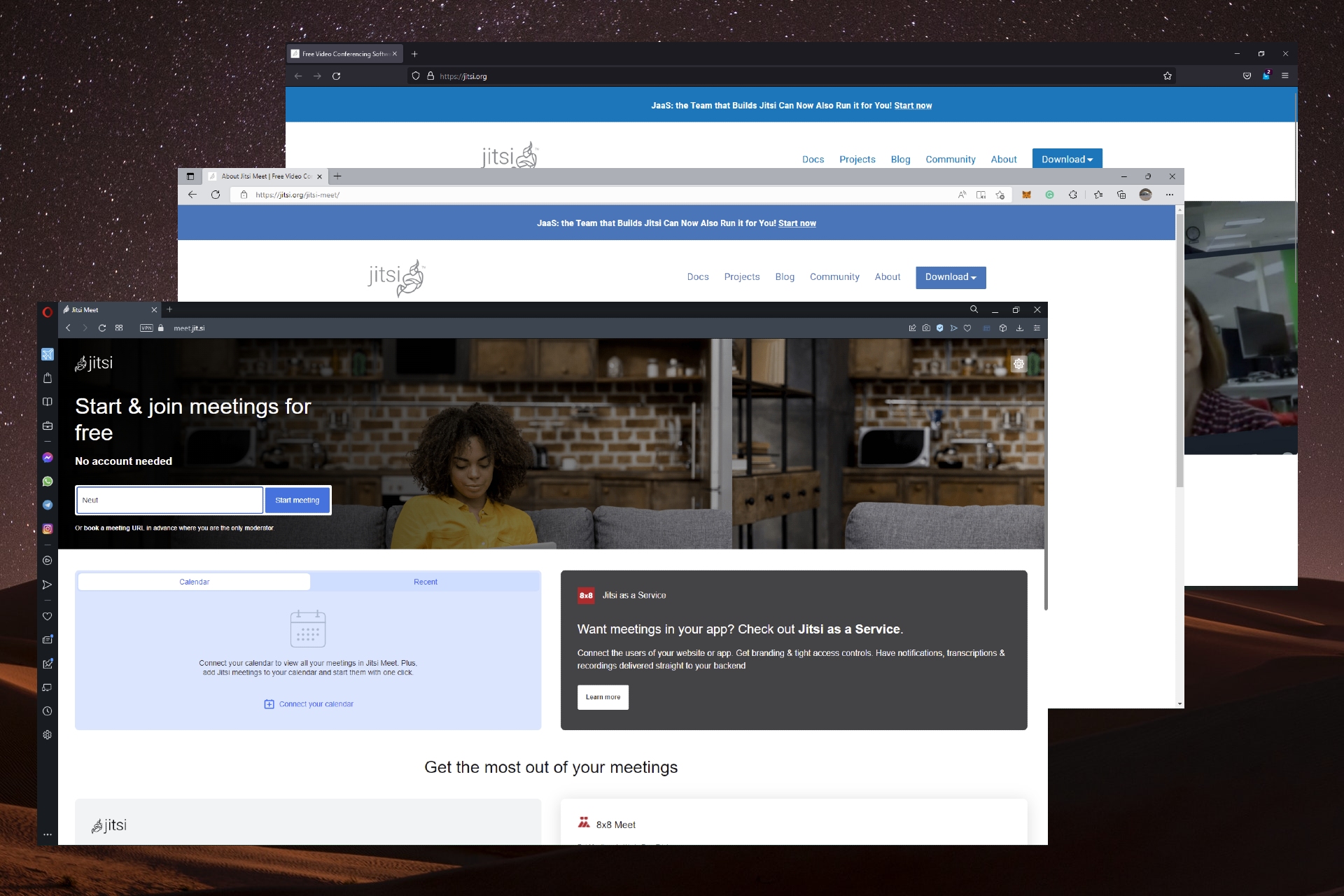
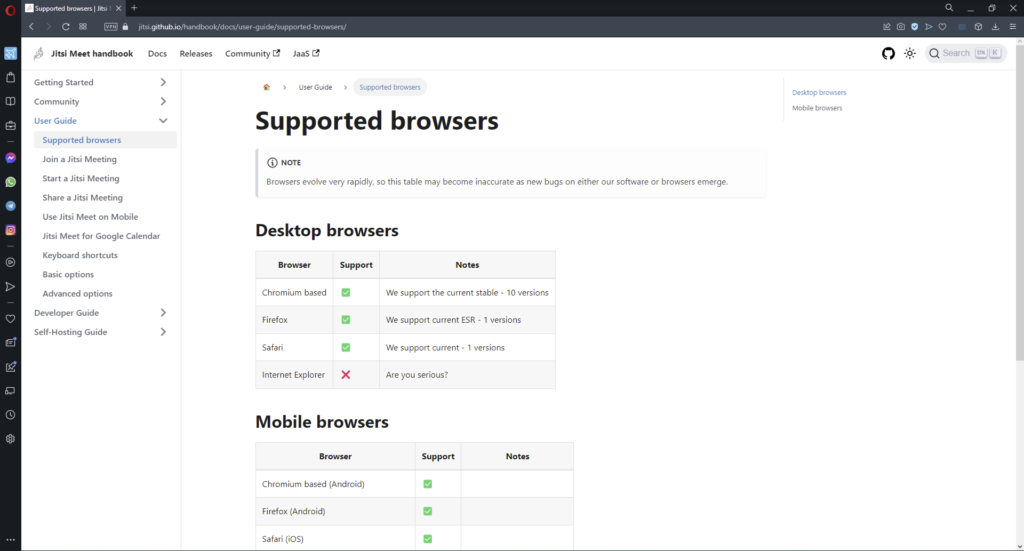
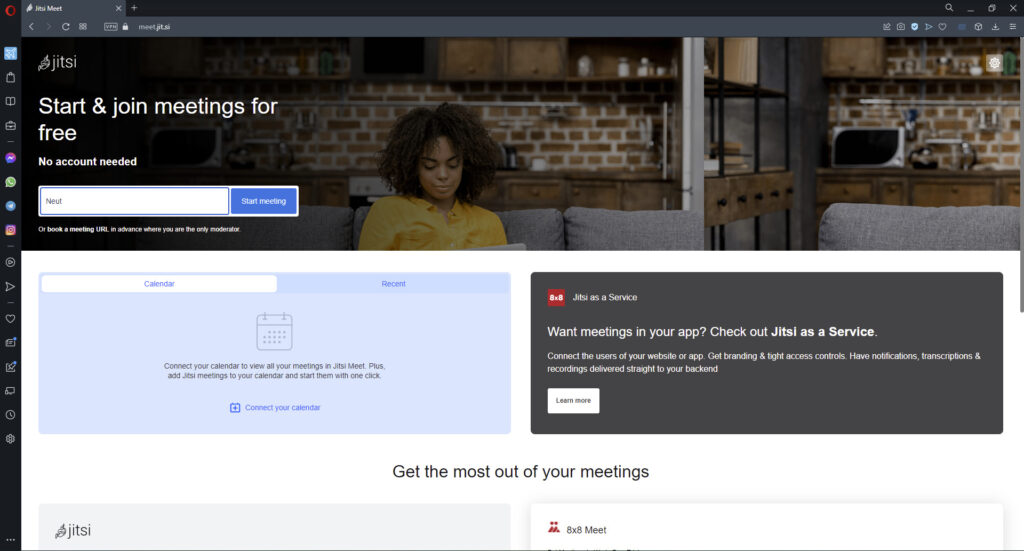
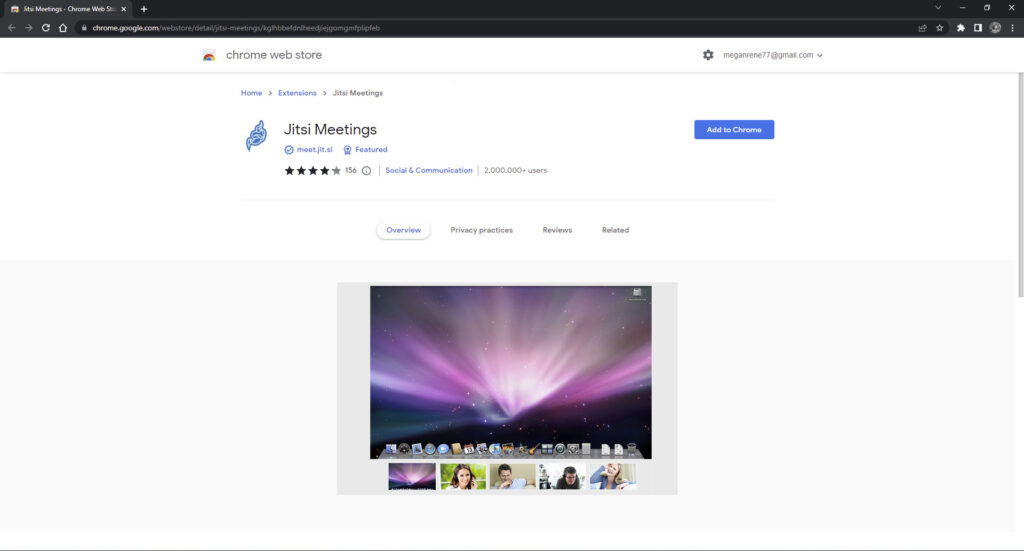

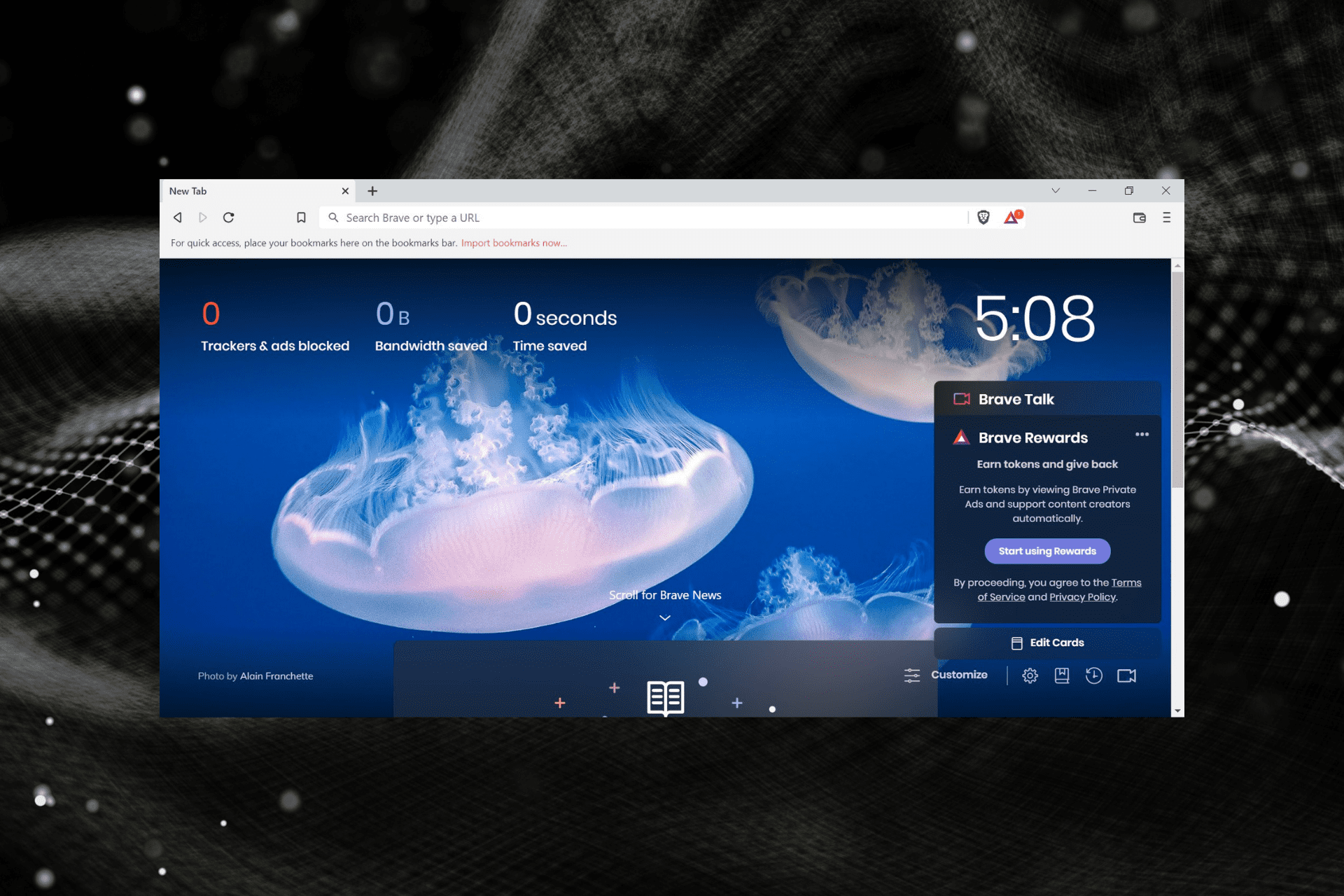


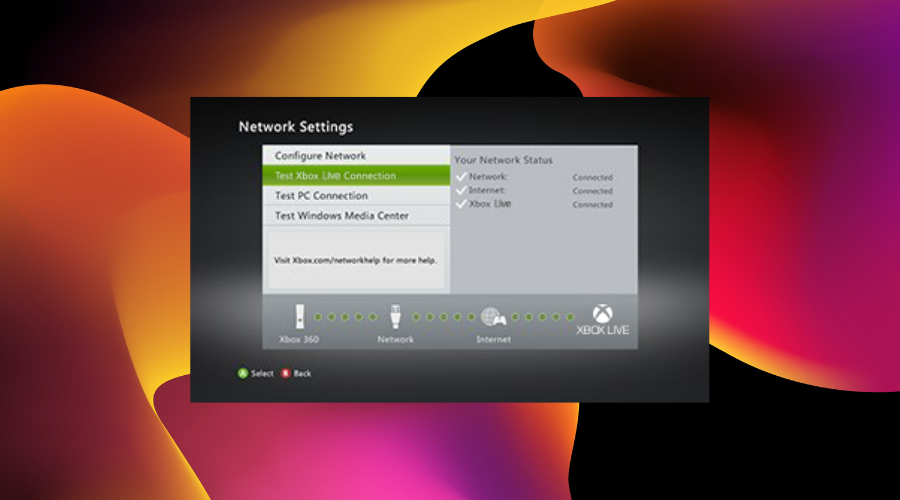
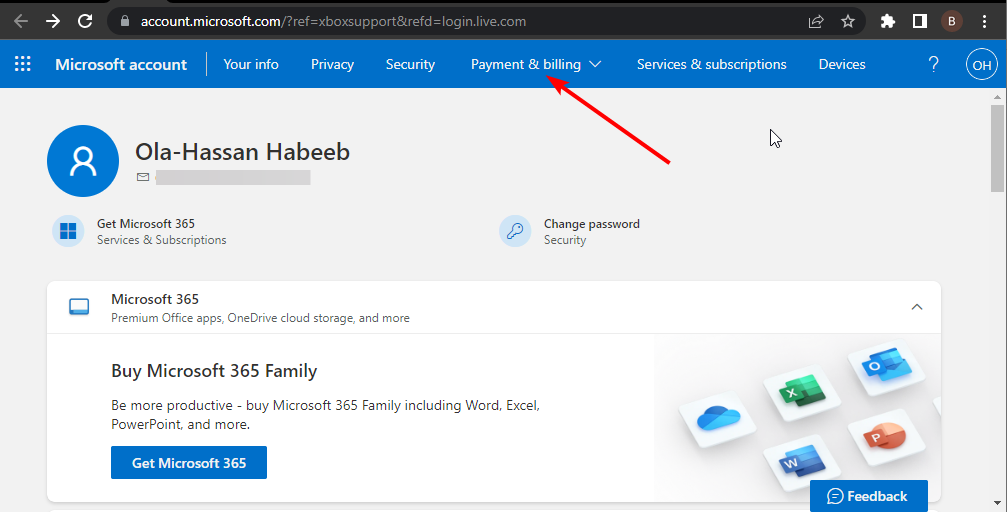
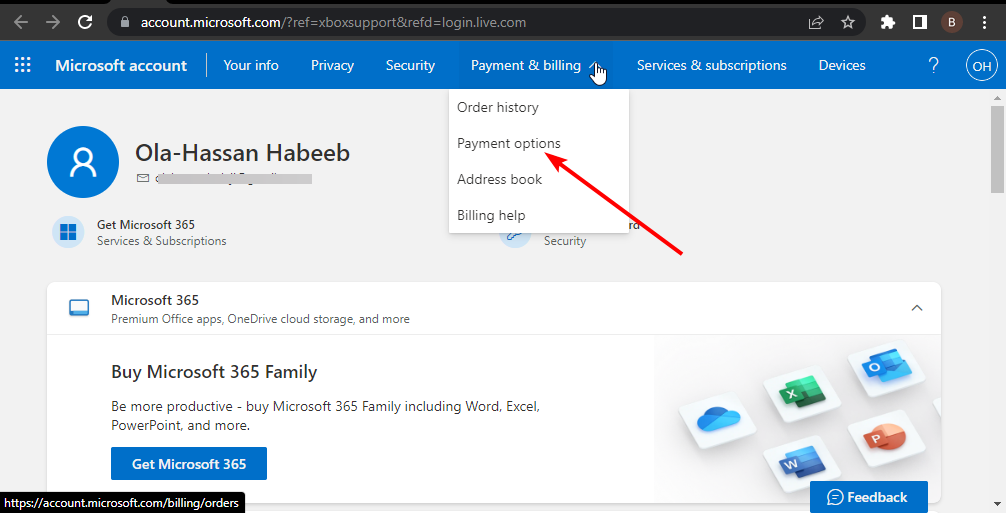
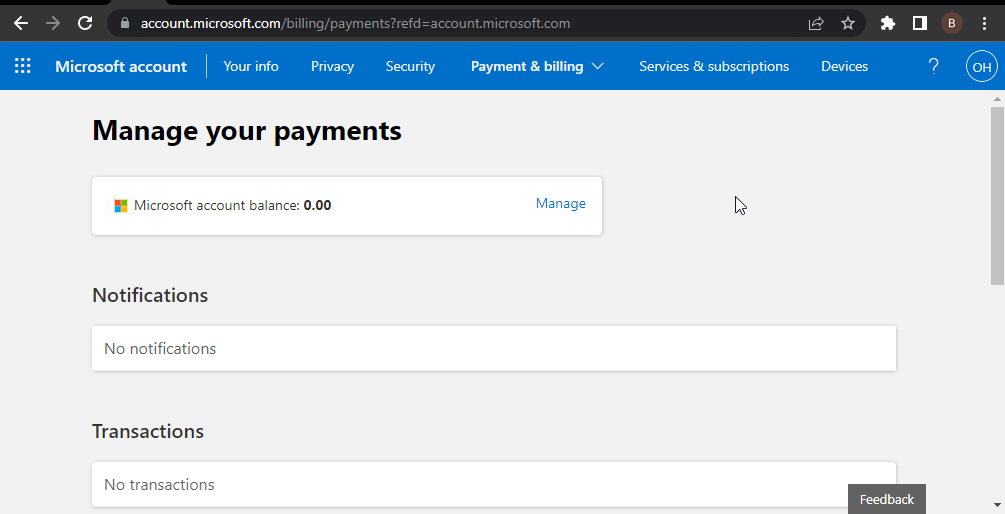
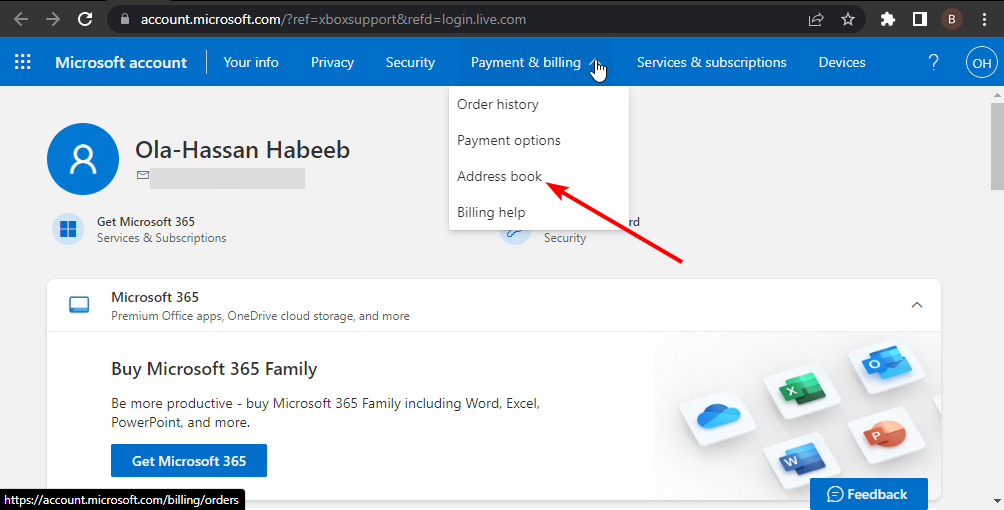
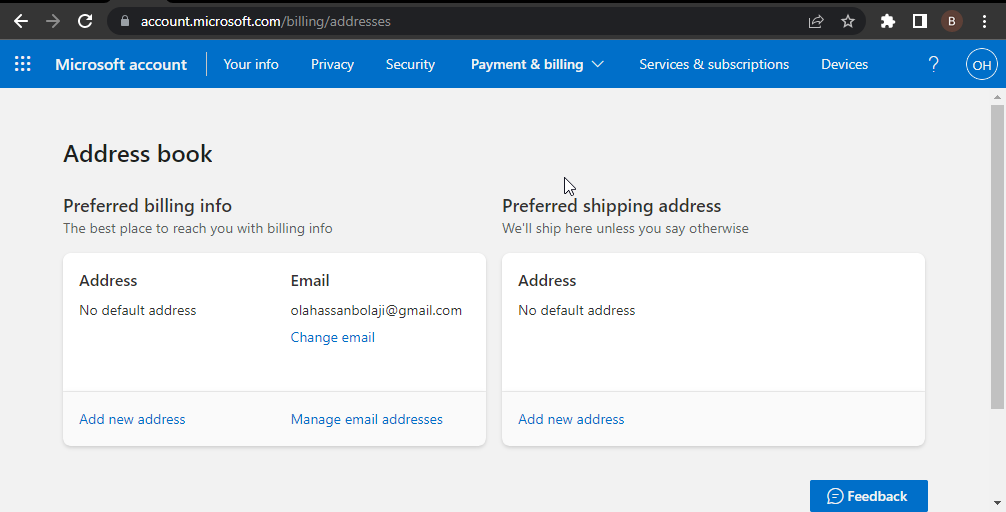










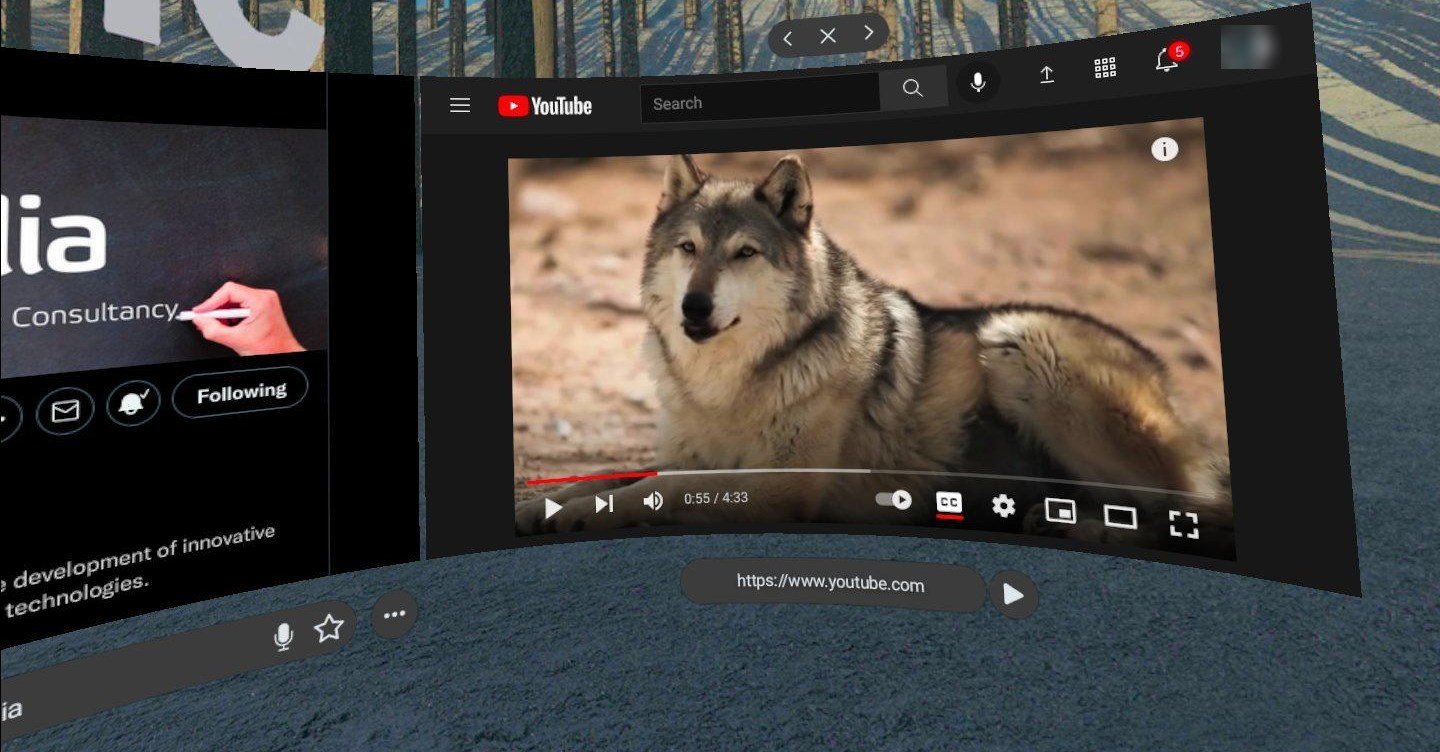
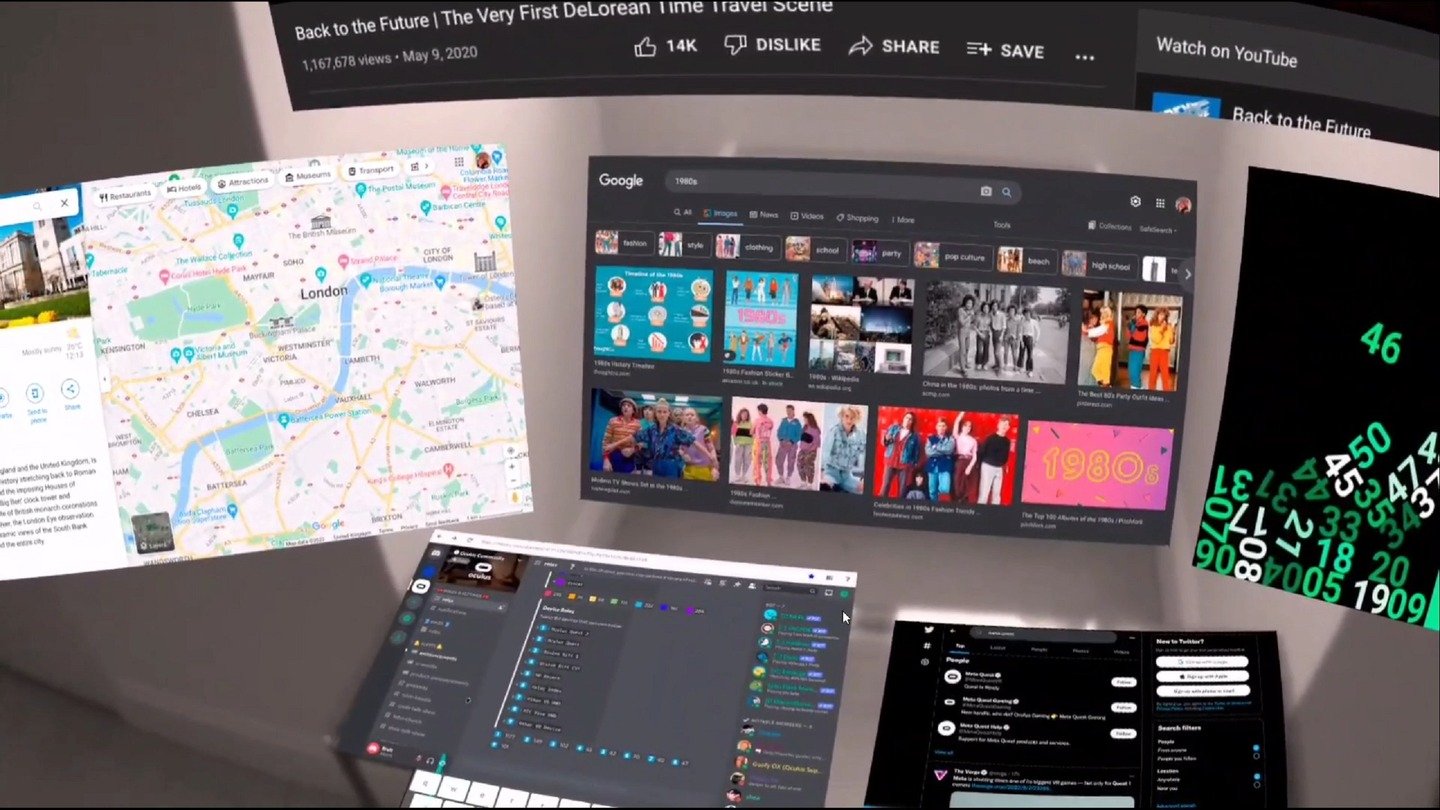

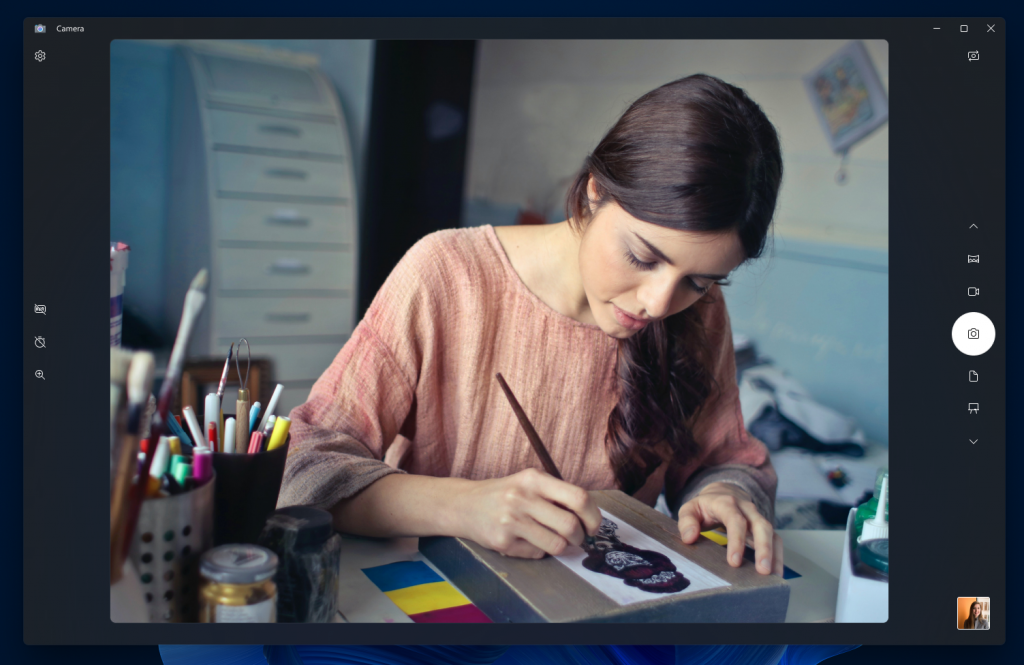
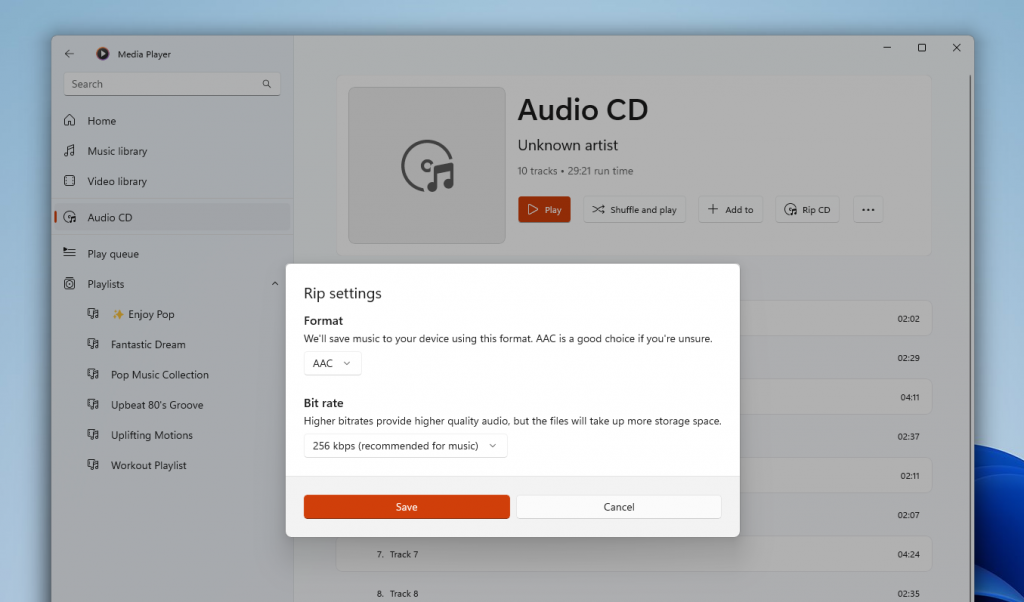
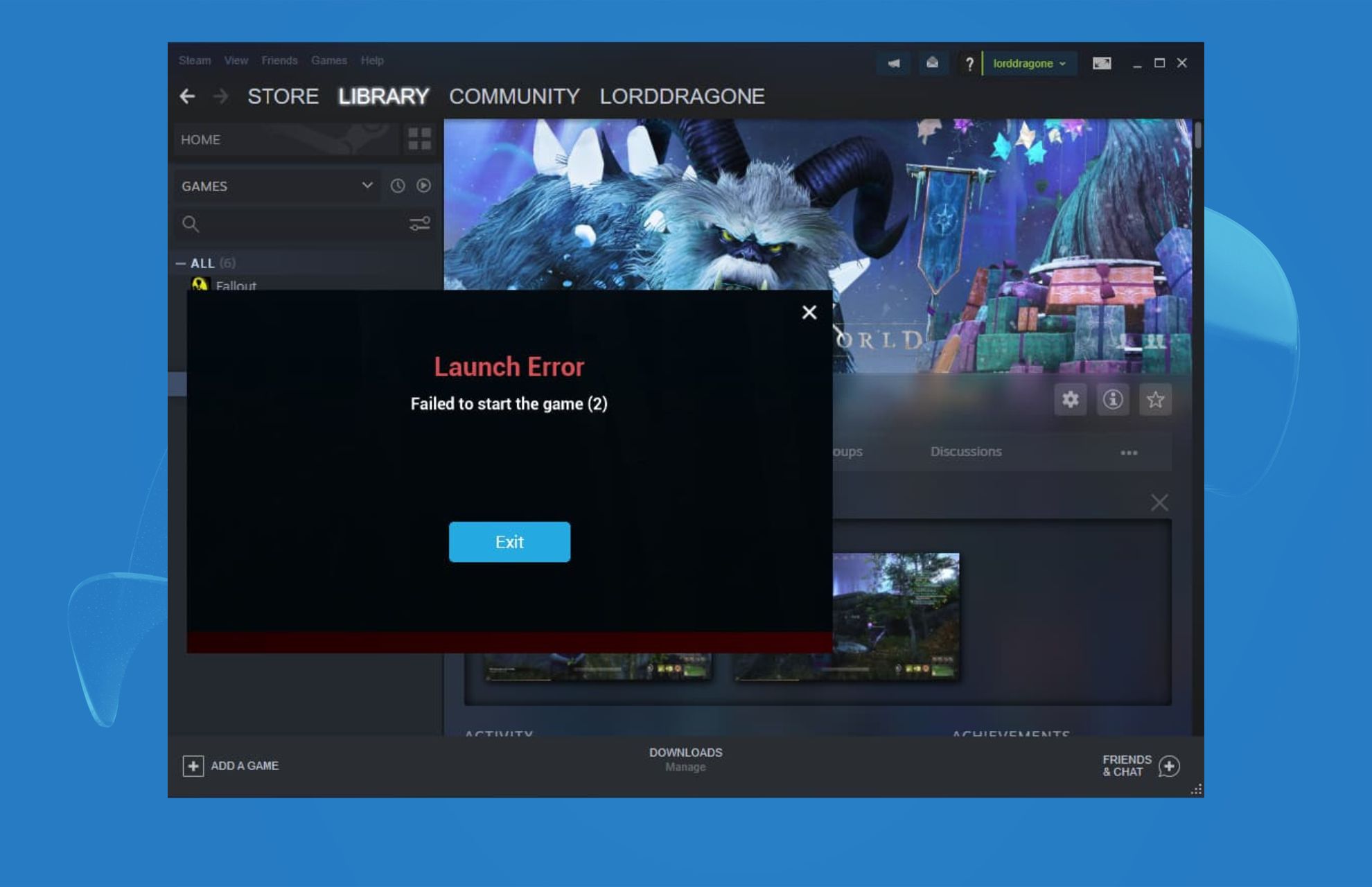
![Fix: No Video With Supported Format And MIME Type Found [Firefox]](https://windowsreport.com/wp-content/uploads/2021/04/firefox-mime-video-not-supported.jpg)



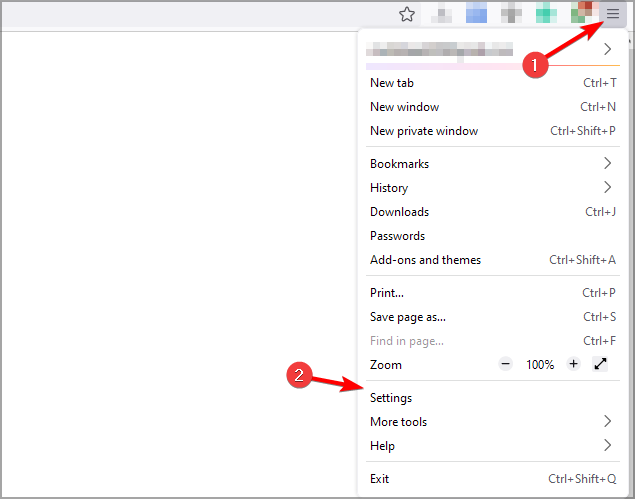





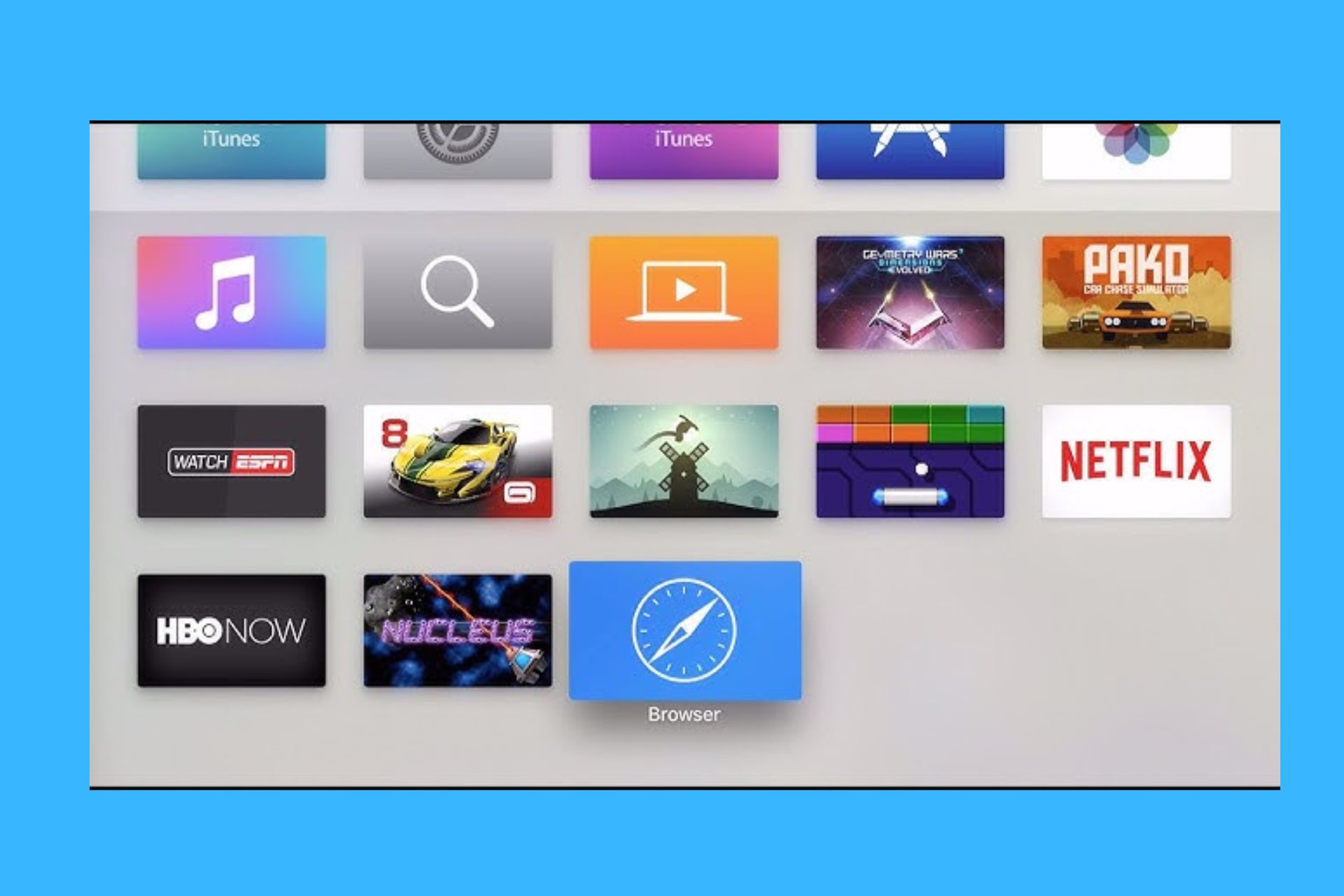


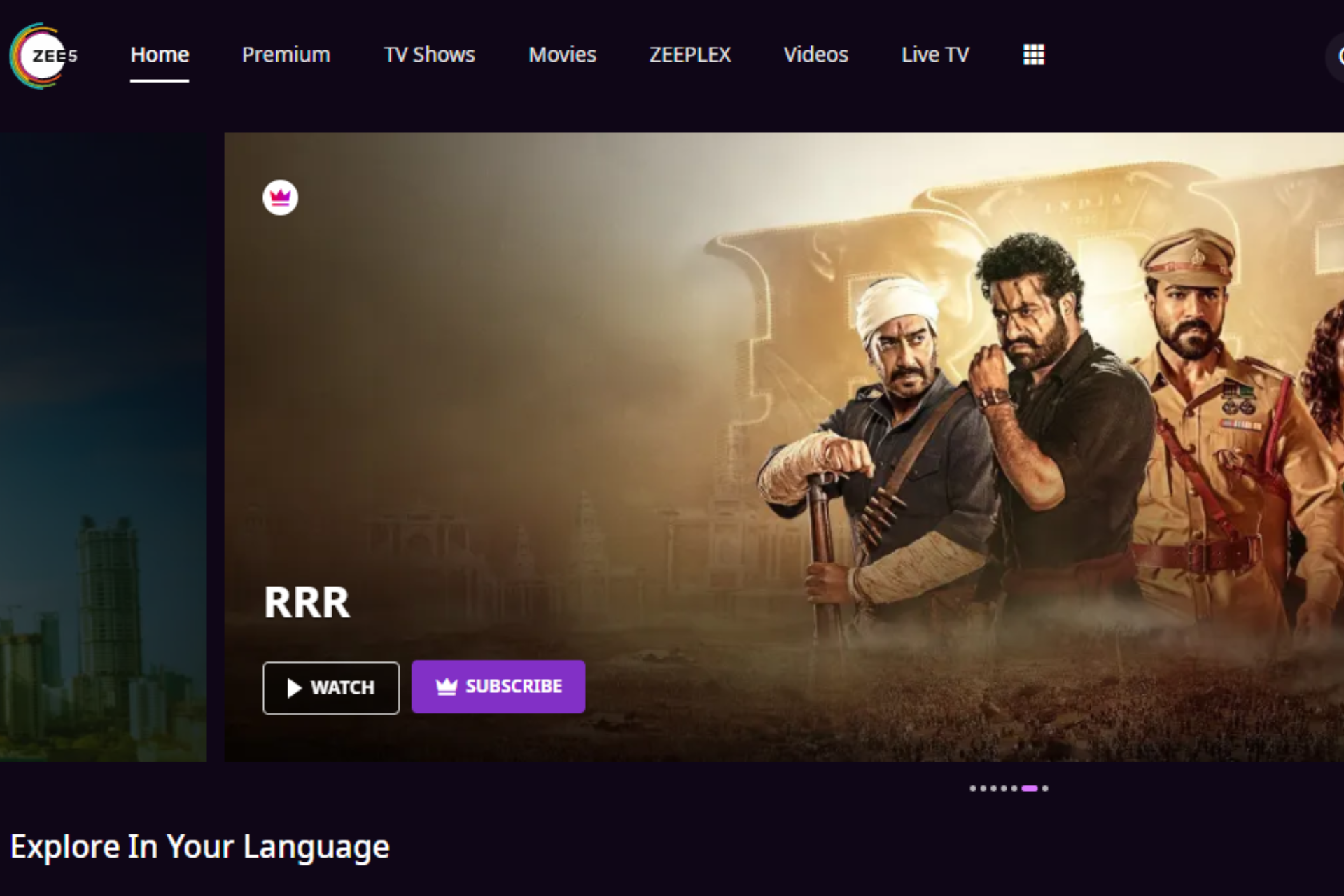


![Is YouTube Volume Too Low on Windows 10/11? [Full Fix]](https://windowsreport.com/wp-content/uploads/2020/09/YouTube-volume-too-low-on-Windows-10-Heres-how-to-fix-it.jpg)




![7 Best Browsers For Omegle In 2026 [Mobile & Desktop]](https://windowsreport.com/wp-content/uploads/2022/07/Best-Browsers-for-Omegle.jpg)


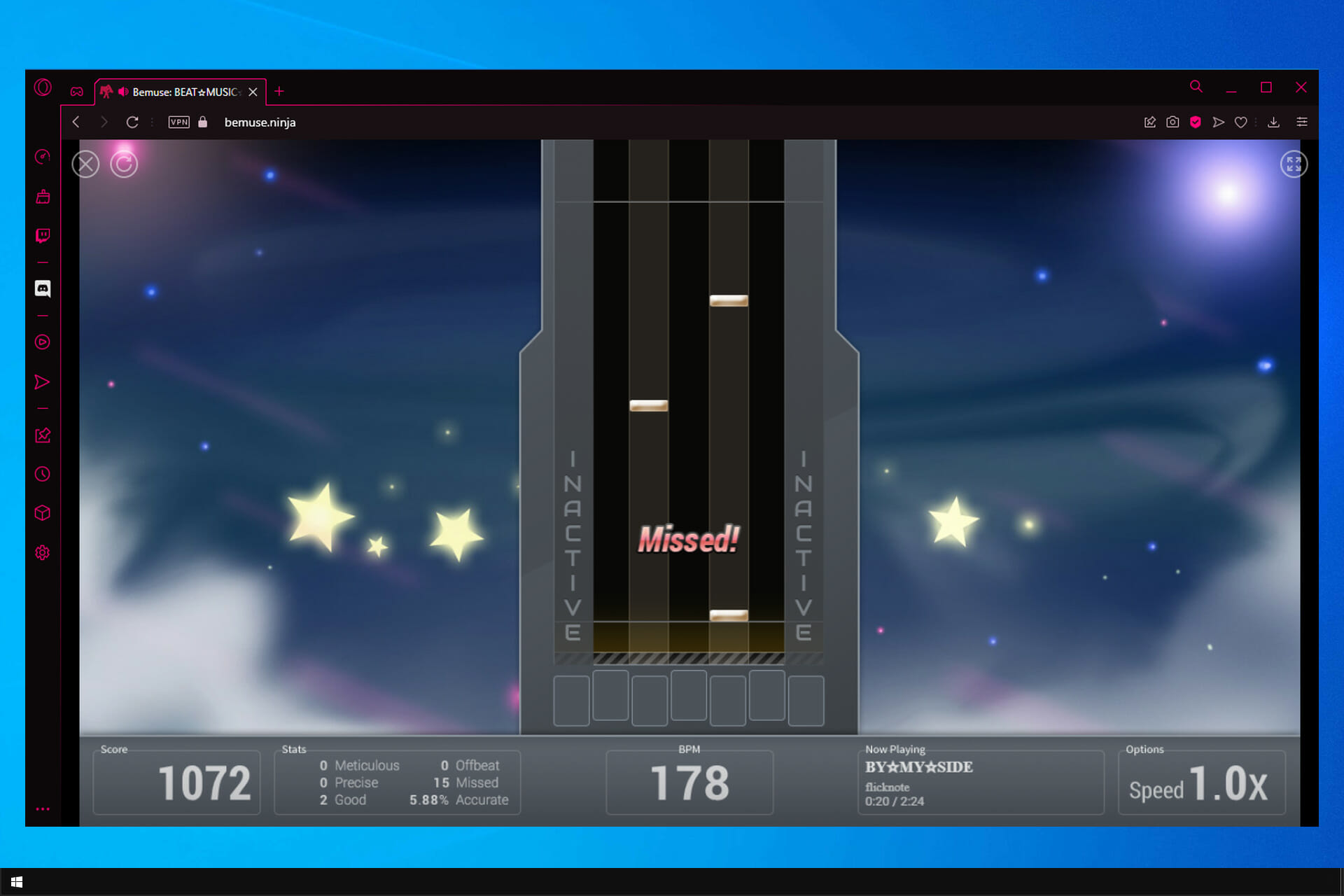

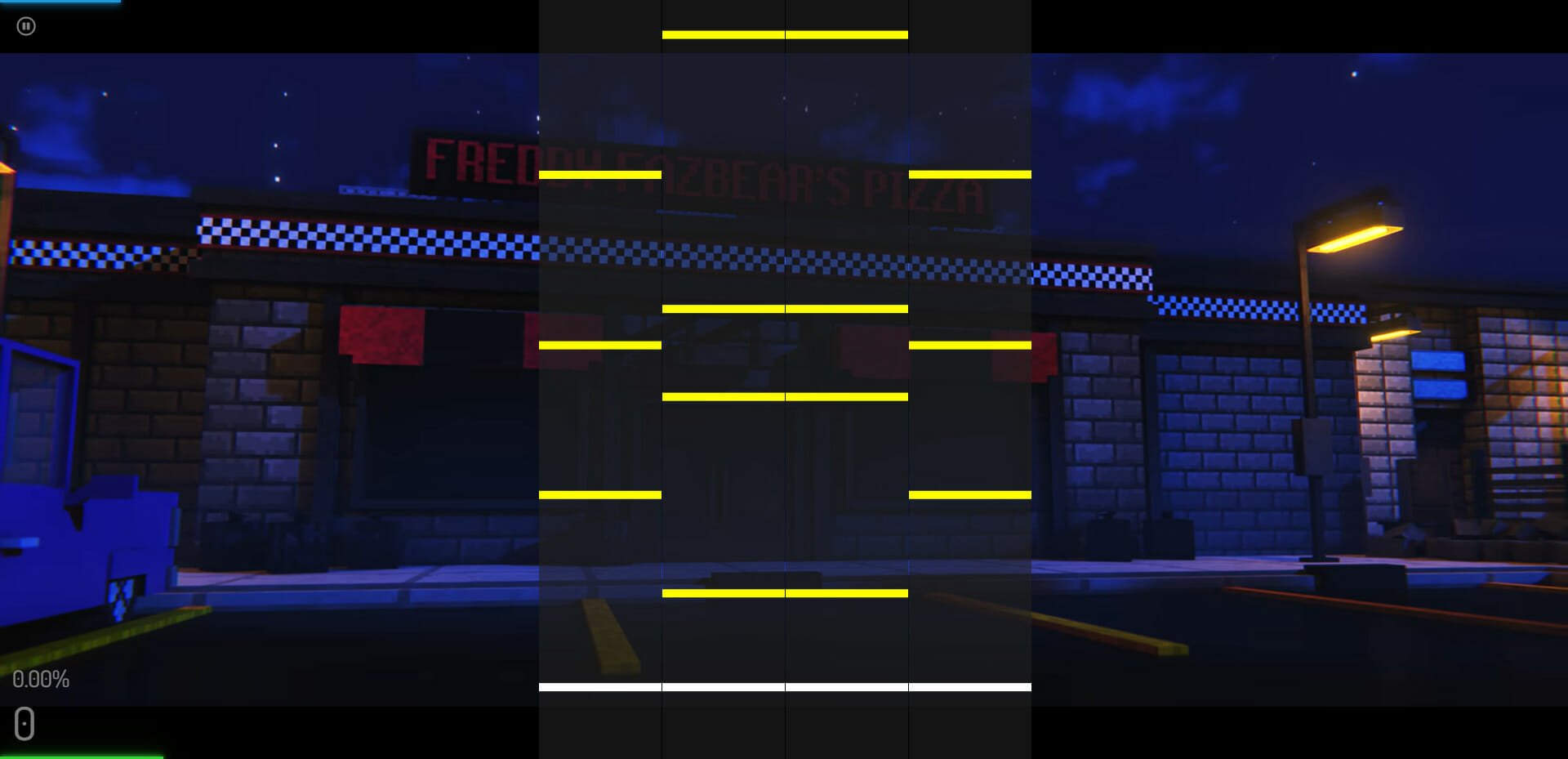
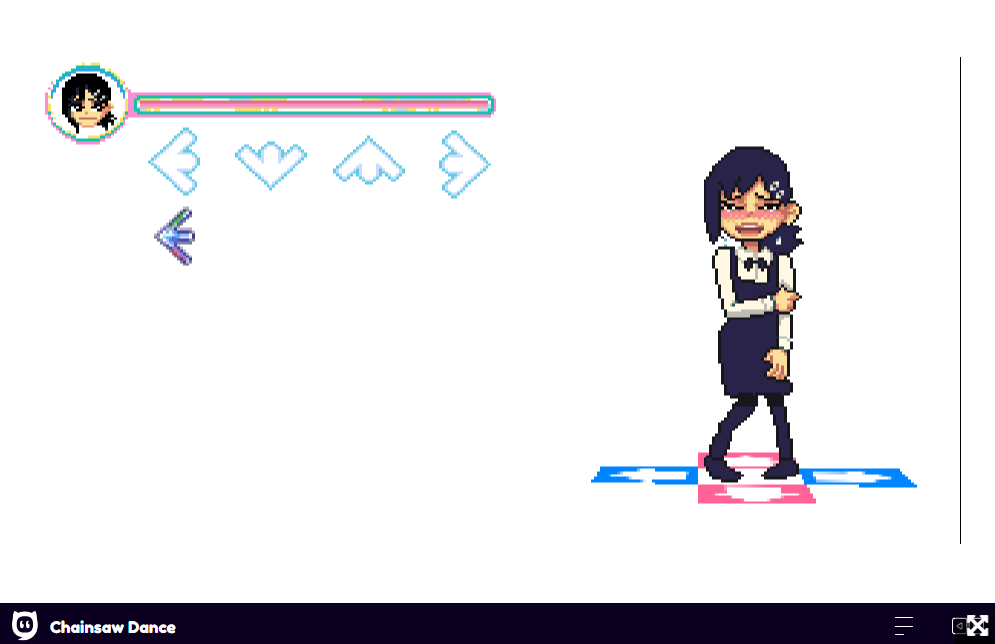




![7 Best Extensions to Speed up Chrome [Ranked by Performance]](https://windowsreport.com/wp-content/uploads/2021/02/speed-up-chrome-extension-1.png)




![6 Best Browsers For Multiple Tabs & Tab Groups [2026 List]](https://windowsreport.com/wp-content/uploads/2022/07/Best-Browsers-for-Multiple-Tabs-featured-img.png)








![[Fixed] MSI Afterburner Not Showing GPU Temperature Option](https://windowsreport.com/wp-content/uploads/2022/07/best-browser-for-google-workspace-9.jpg)


![Turn Off Dark Mode in Chrome With These Steps [+Video]](https://windowsreport.com/wp-content/uploads/2021/10/How-to-turn-off-Dark-Mode-in-Chrome.jpg)
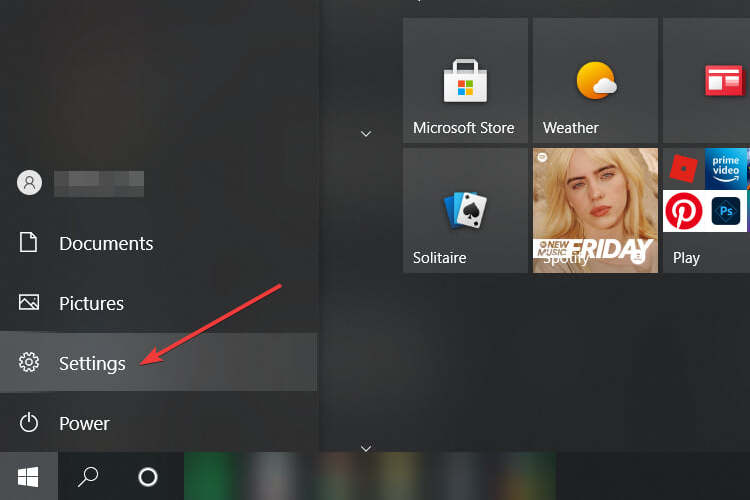
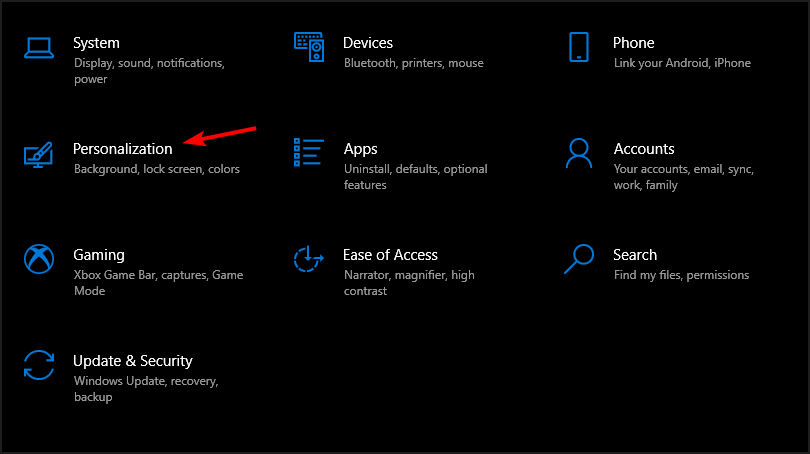
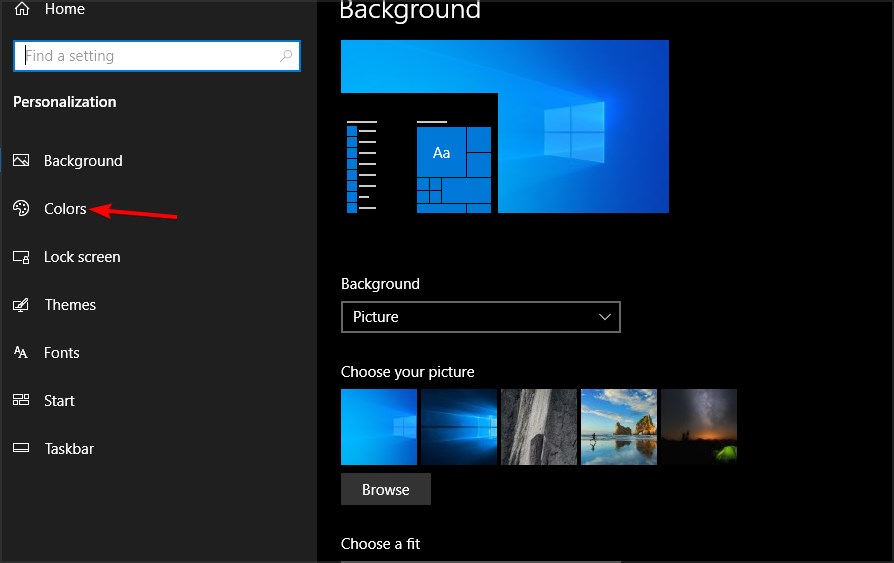
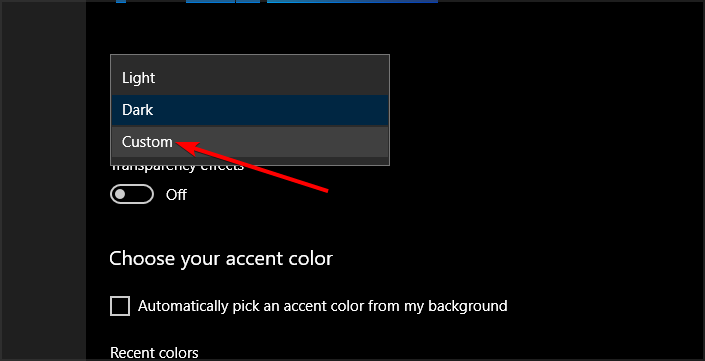
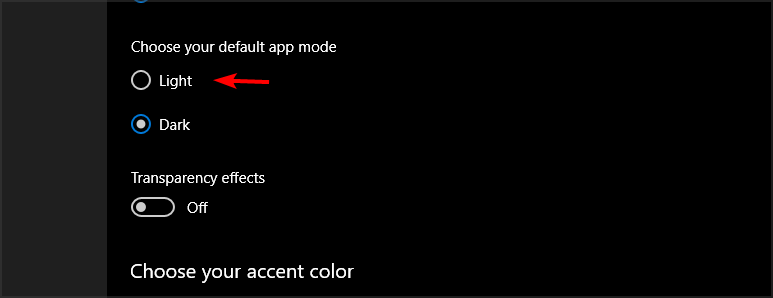
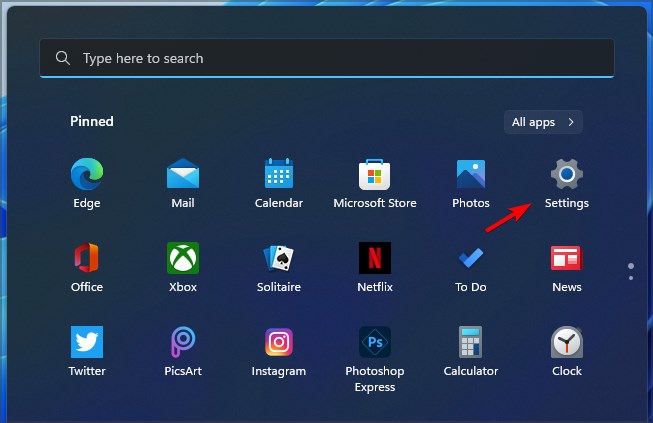
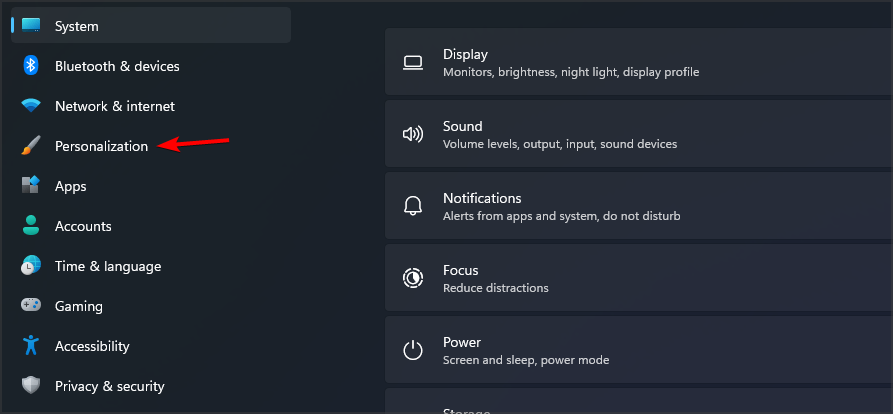
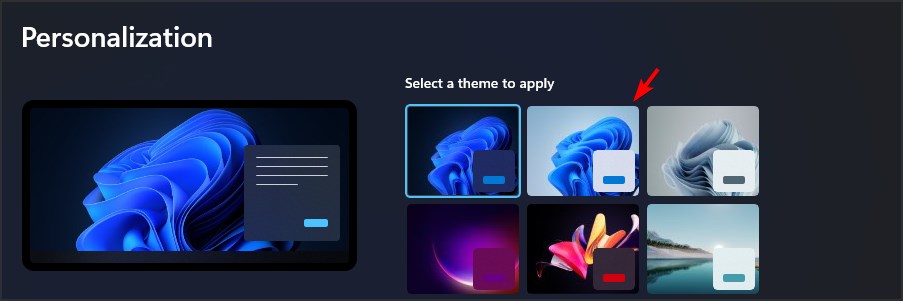
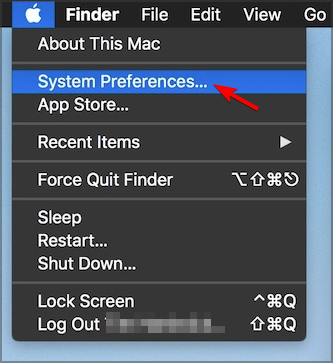
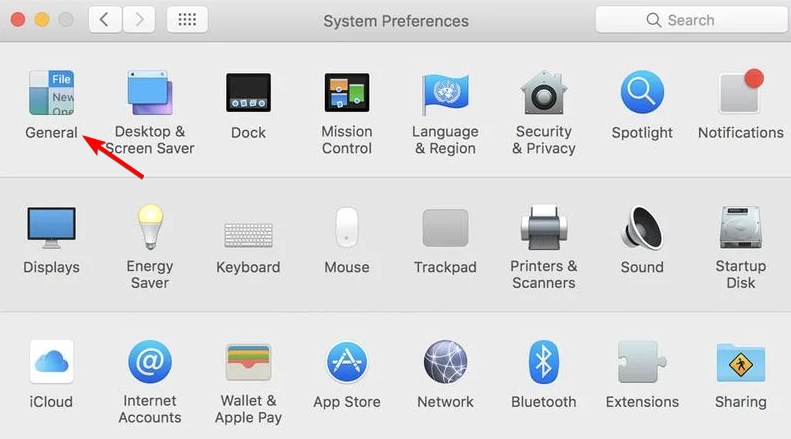
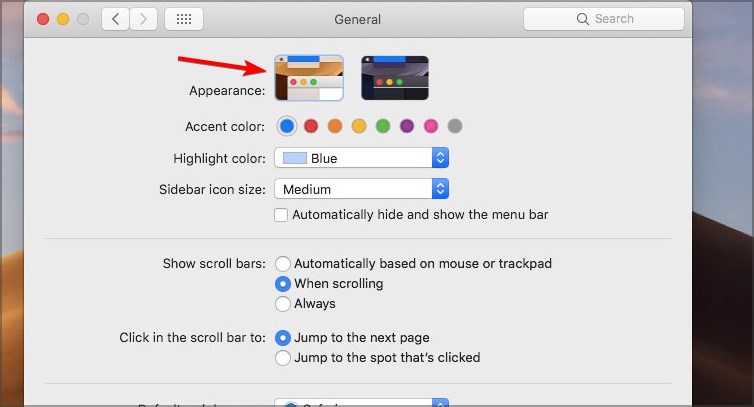
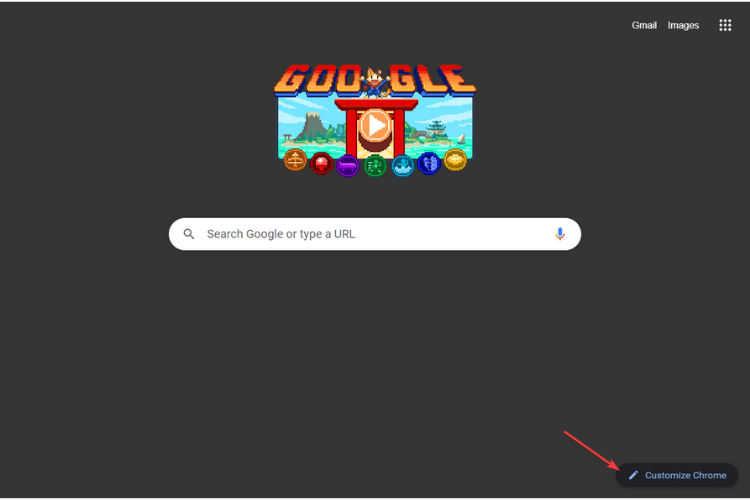
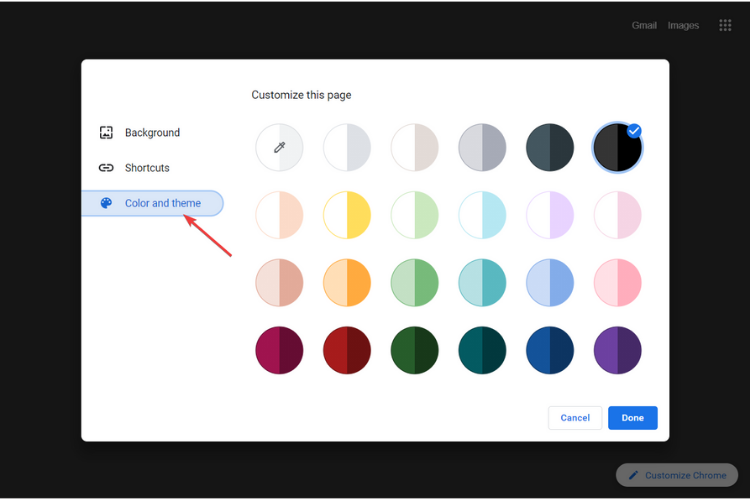
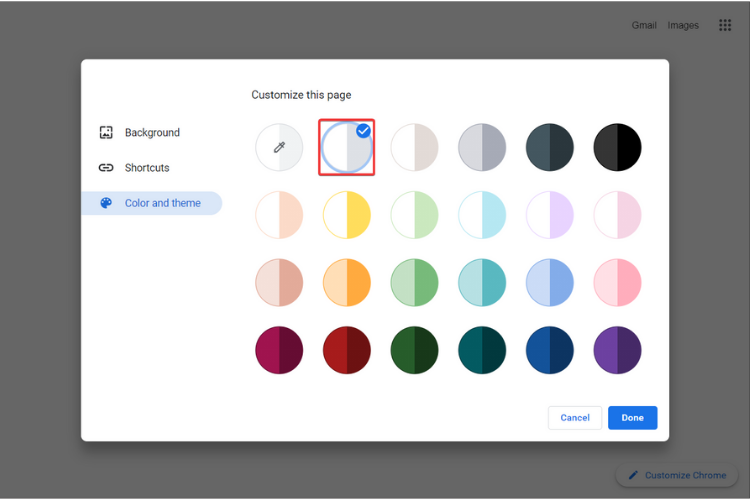


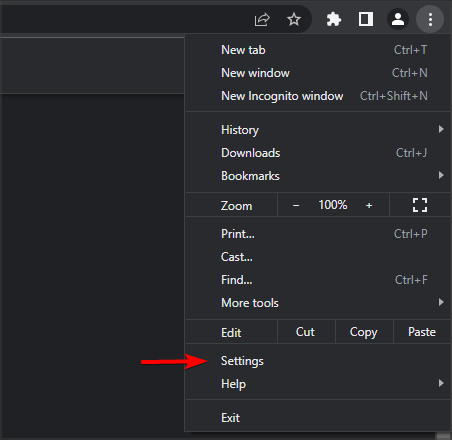
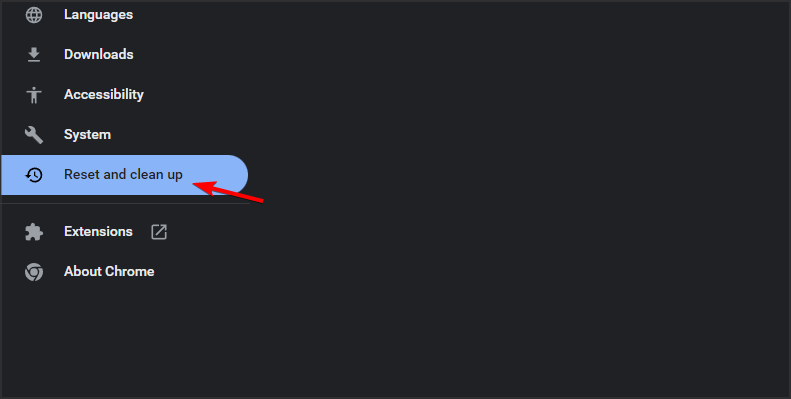
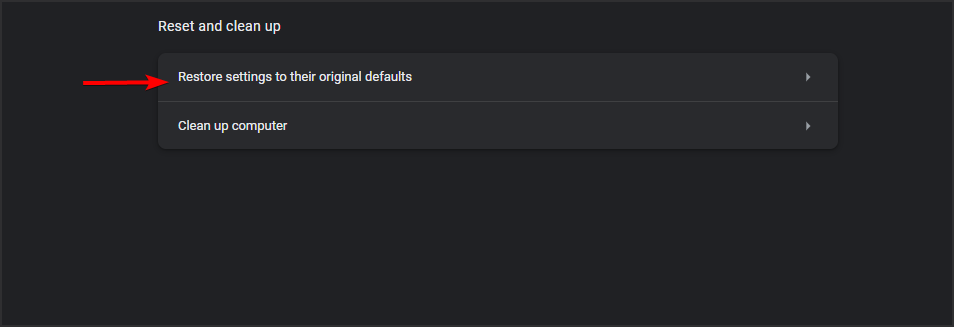

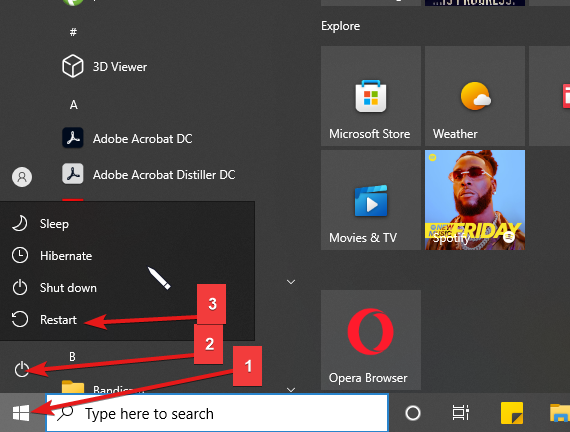
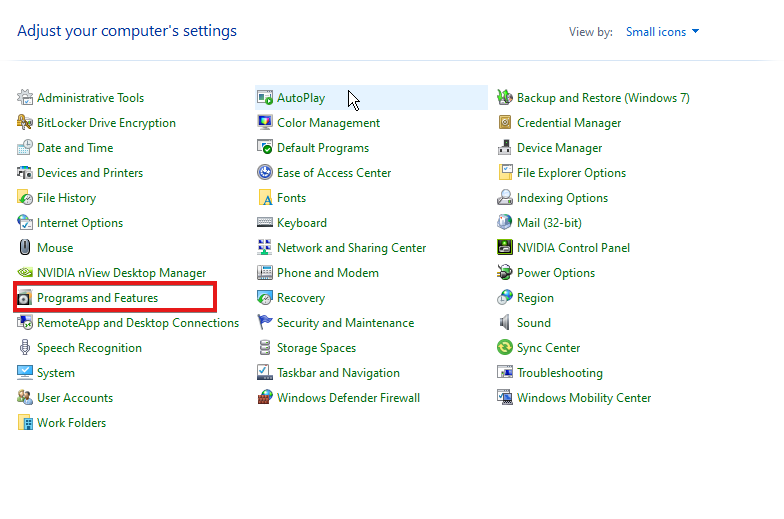
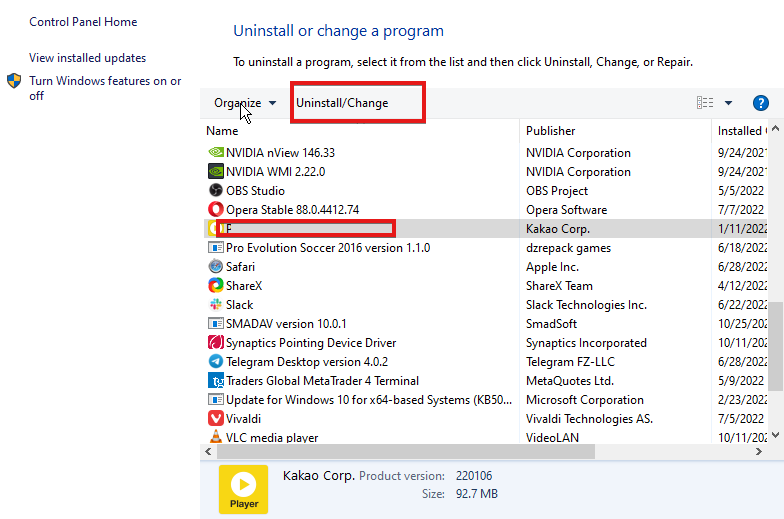
![5 Best Browsers Preferred by UiPath Users [Full Support]](https://windowsreport.com/wp-content/uploads/2024/02/feature-image-best-browser-for-uipath.jpg)
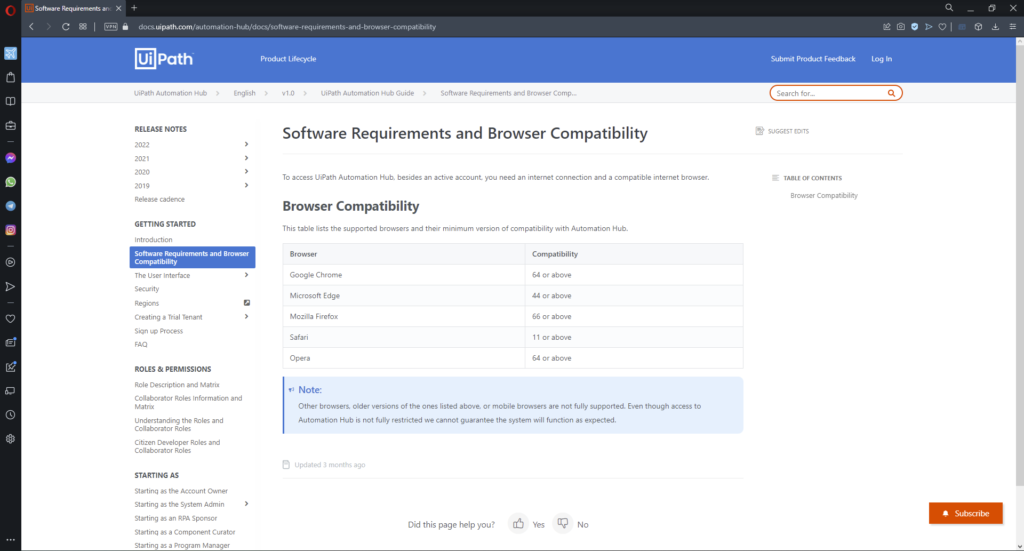

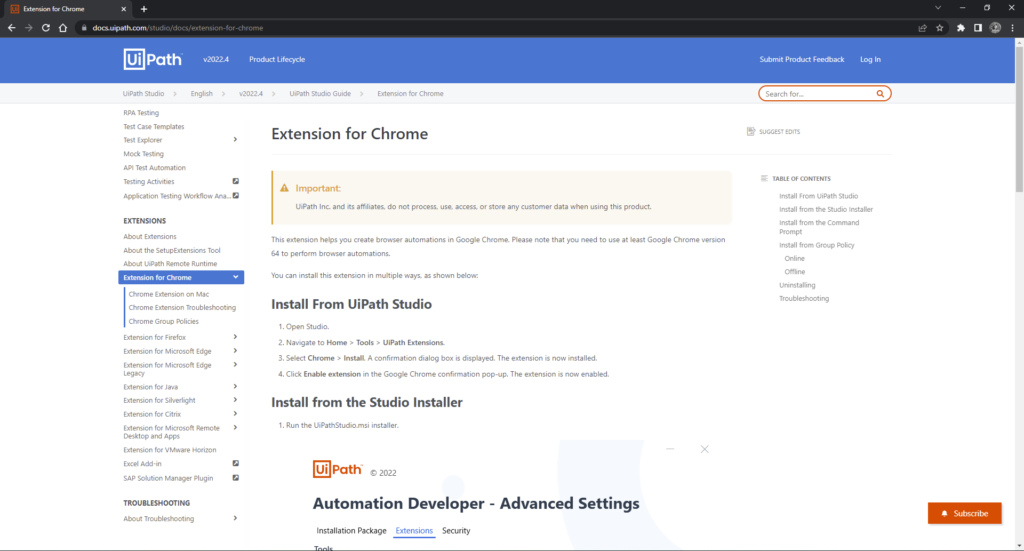

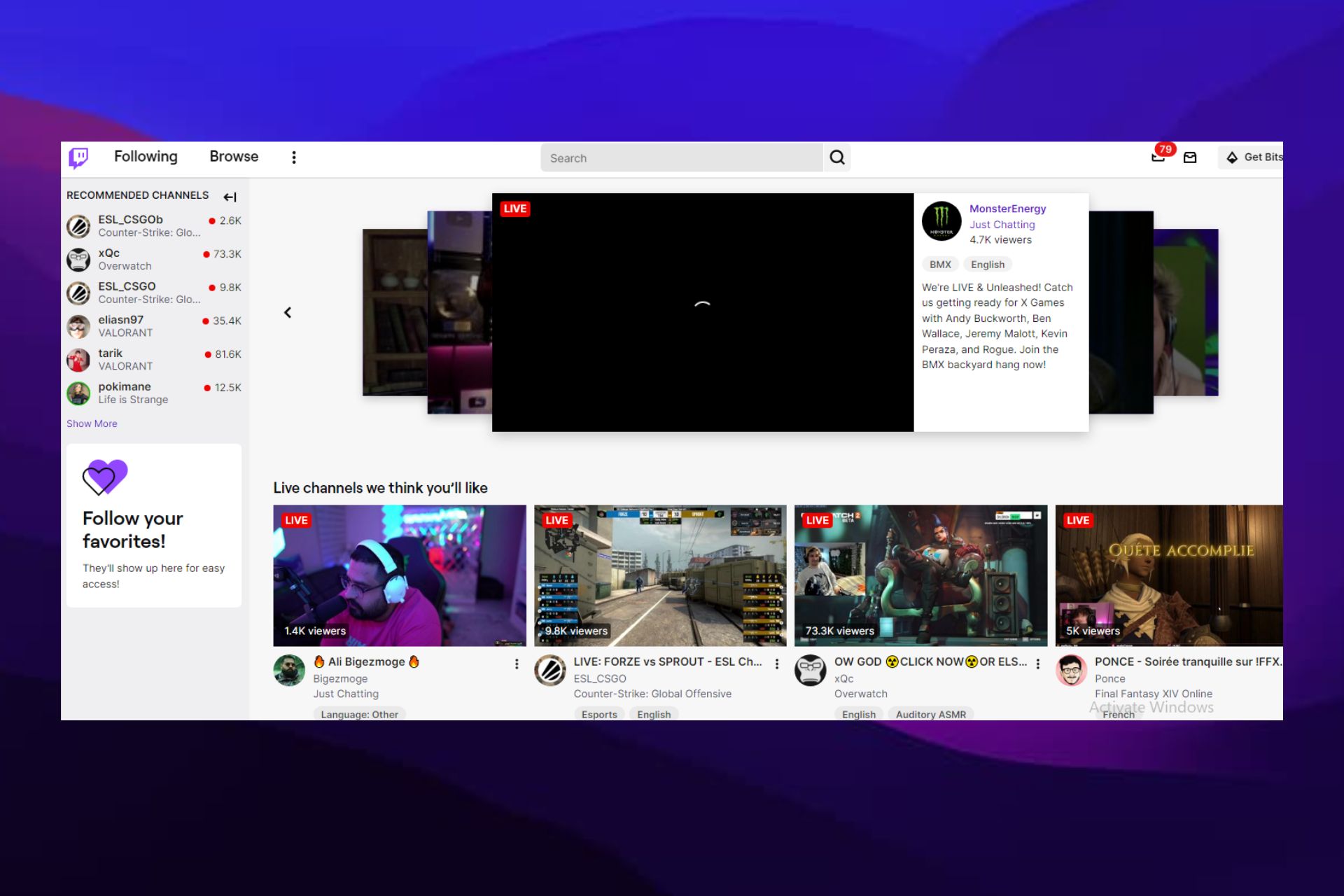
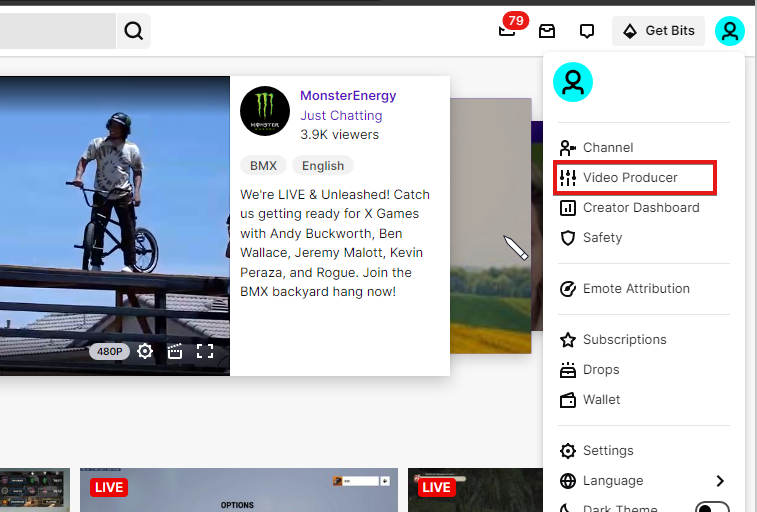
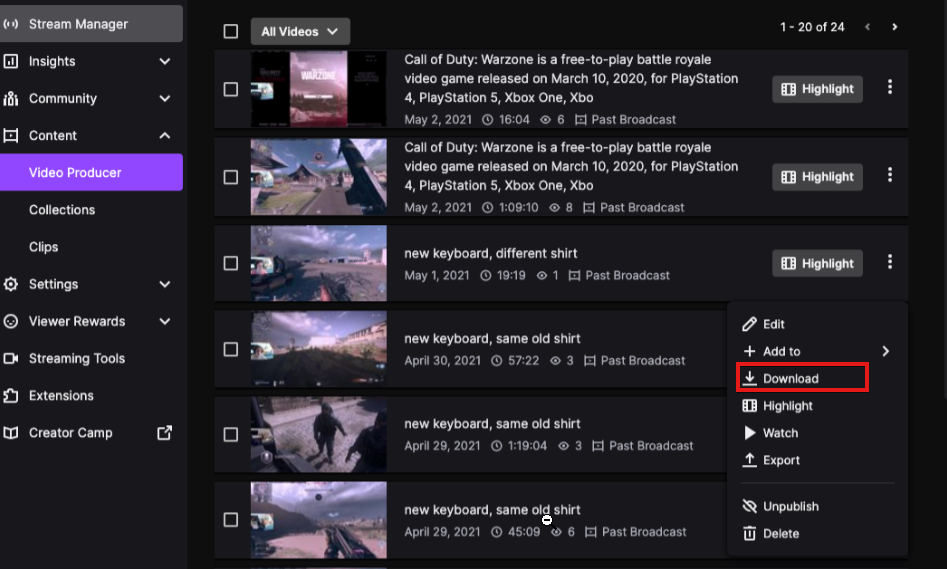
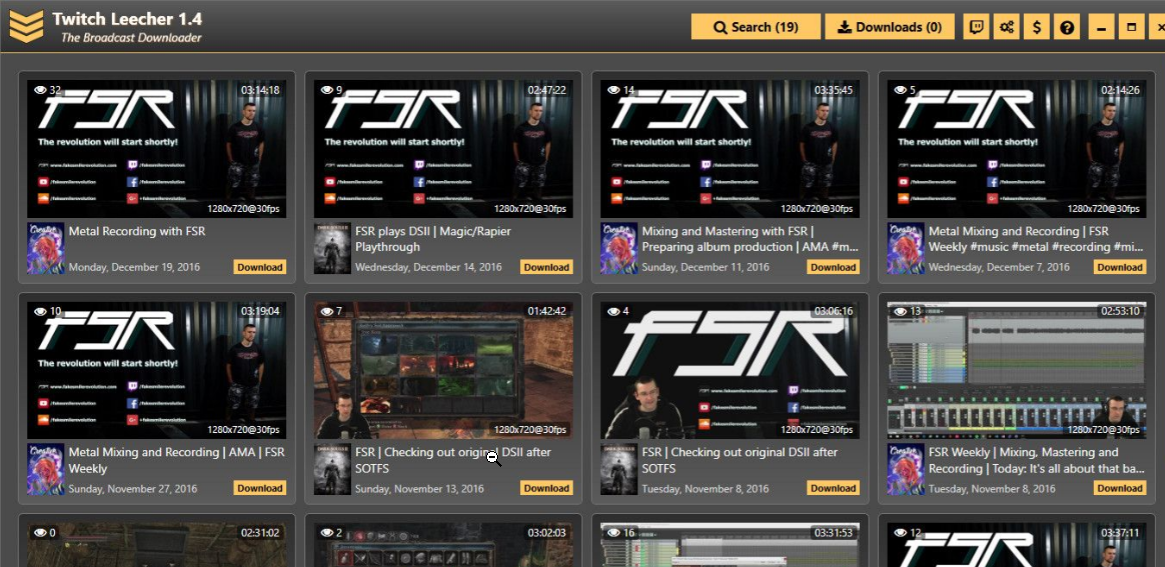
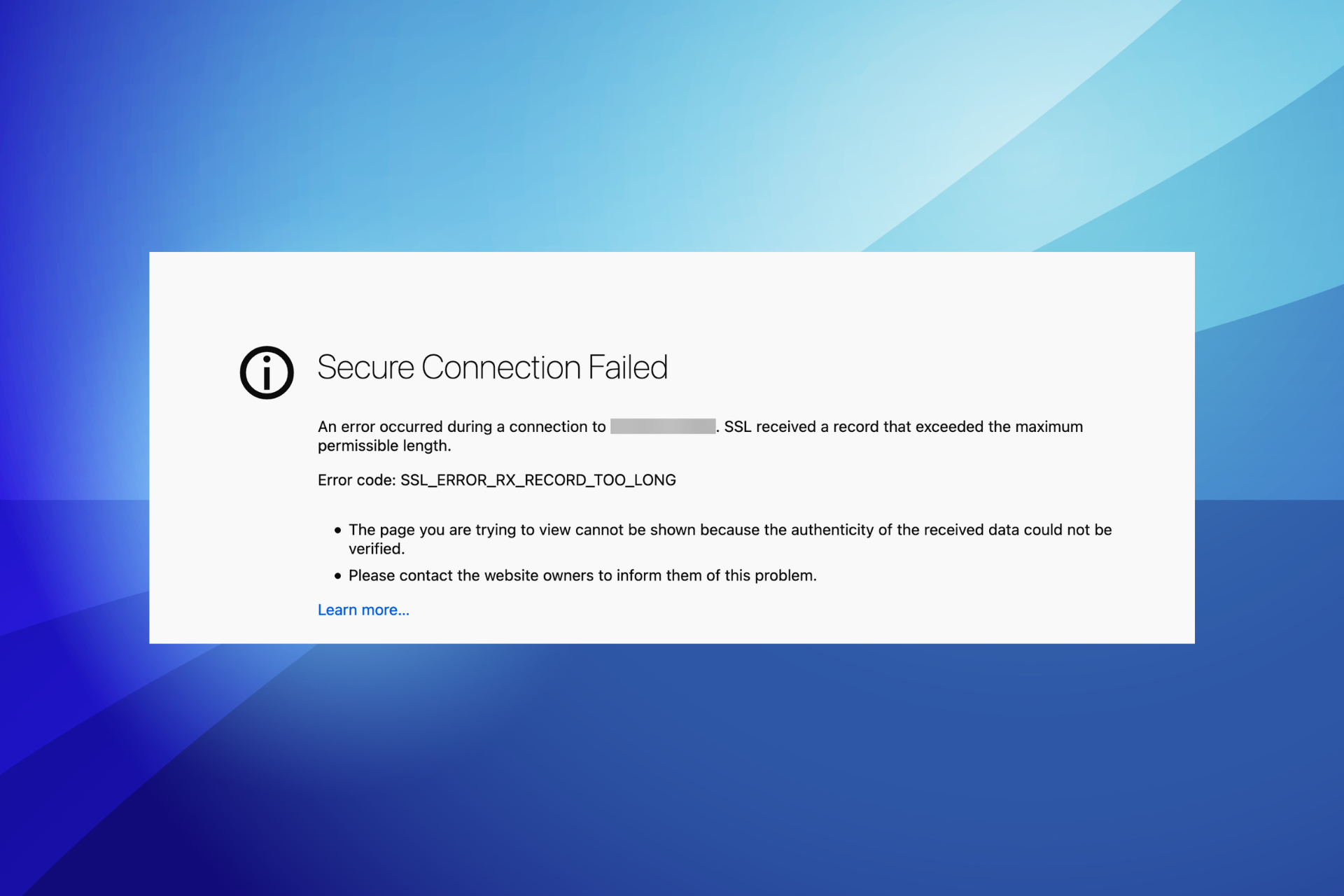


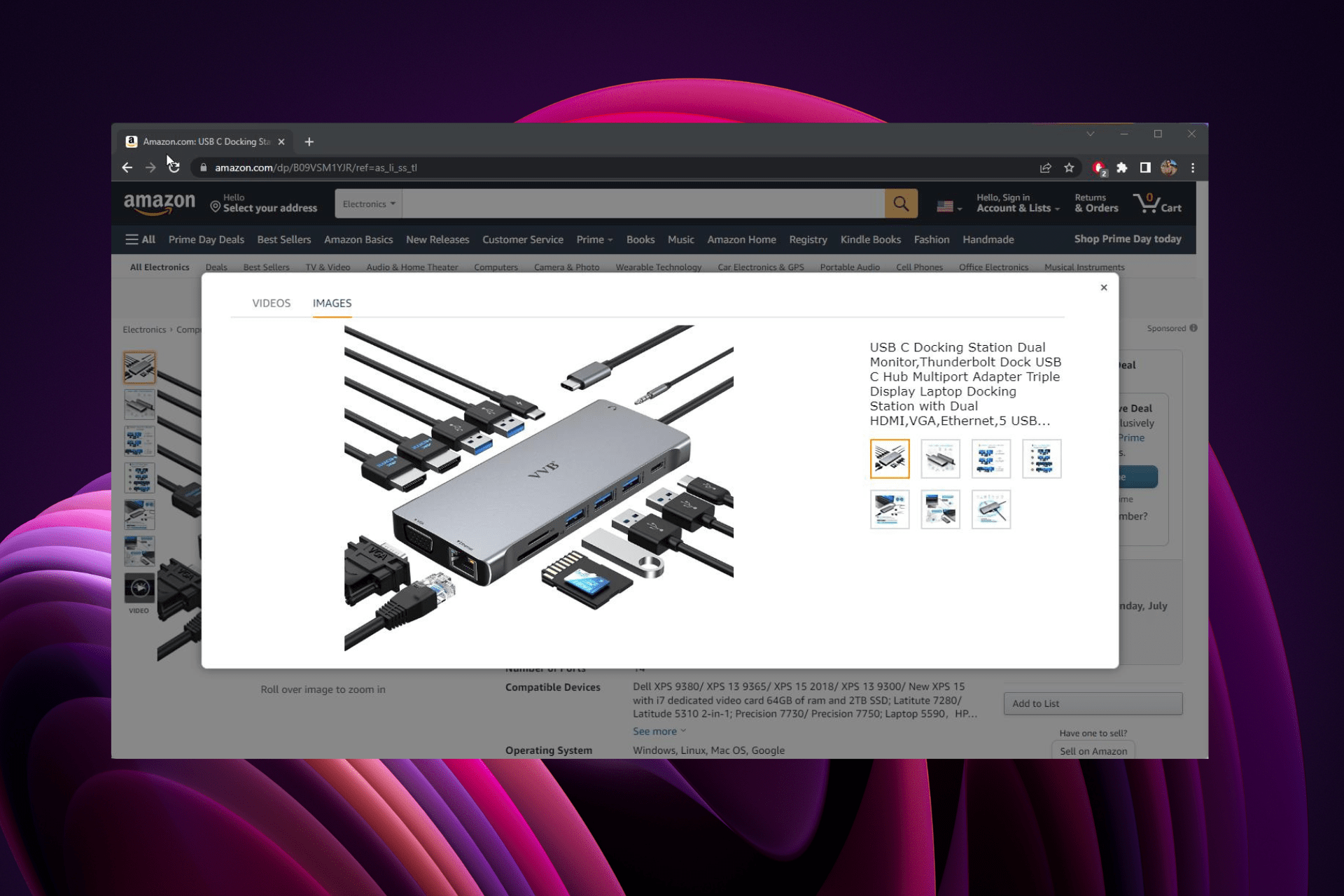




 The long-awaited follow-up to Double Fine’s Xbox cult classic platform game. When the Psychonauts sequel finally did arrive in August 2021, it made the 15+ year wait worth it.