We already know that many of you are waiting for the Patch Tuesday monthly batch of security updates and we’re here to make it a bit easier for you to find what you’re looking for.
It goes without saying that Microsoft isn’t the only company that has such a rollout on a monthly basis. So, in this article, we’re going to talk about Adobe and some of the patches for their products.
As we’re pretty sure you know by now, we will also include links to the download source, so you don’t have to scour the internet to find them.
Adobe releases a batch of fixes for 27 CVEs
As far as June 2022 is concerned, the company released six patches addressing 46 CVEs in Adobe Illustrator, InDesign, InCopy, Bridge, Robohelp, and Animate.
By far the largest update belonged to Illustrator, which addresses 17 total CVEs, with the most severe of these bugs allowing code execution if an affected system opens a specially crafted file.
Looking at this month’s release, you should know that Adobe addressed 27 CVEs in four patches for Acrobat and Reader, Photoshop, RoboHelp, and Adobe Character Animator.
For starters, we would like to mention that the Acrobat and Reader update addresses a combination of 22 different Critical- and Important-rated bugs.
It goes without saying that the most severe of these could allow code execution if an attacker convinces a target to open a specially crafted PDF document.
Product
Track
Affected Versions
Platform
Acrobat DC
Continuous
22.001.20142 and earlier versions
Windows & macOS
Acrobat Reader DC
Continuous
22.001.20142 and earlier versions
Windows & macOS
Acrobat 2020
Classic 2020
20.005.30334 and earlier versions (Win) 20.005.30331 and earlier versions (Mac)
Windows & macOS
Acrobat Reader 2020
Classic 2020
20.005.30334 and earlier versions (Win) 20.005.30331 and earlier versions (Mac)
Windows & macOS
Acrobat 2017
Classic 2017
17.012.30229 and earlier versions (Win) 17.012.30227 and earlier versions (Mac)
Windows & macOS
Acrobat Reader 2017
Classic 2017
17.012.30229 and earlier versions (Win) 17.012.30227 and earlier versions (Mac)
Windows & macOS
Keep in mind that, while there are no active attacks noted, Adobe did actually list this as a Priority 2 deployment rating.
For July 2022, the update designed for Photoshop only fixes one Critical- and one Important-rated bug, in case you were wondering.
The fix update for Character Animator addresses two Critical-rated code execution bugs, one a heap overflow and the other an out-of-bounds (OOB) read.
Before we conclude, we have to mention that the patch for RoboHelp corrects a single Important-rated cross-site scripting (XSS) bug.
Also, none of the bugs fixed by Adobe this month are listed as publicly known or under active attack at the time of release.
The popular company categorizes most of these updates as a deployment priority rating of 3, with the Acrobat patch being the lone exception at 2.
This is what you are looking at in terms of Patch Tuesday releases for Adobe for the month of July 2022, so hurry up and get the software.
What’s your take on this month’s release? Share your thoughts with us in the comments section below.
This article explores the Safari download for Windows 8.1 / how to download Safari for Windows 8.
Certain Windows users may utilize the Apple Safari internet browser on a Windows computer. These, in many cases, are devs who need to test for support and compatibility.
We will take you through all the steps and show you how it is installed. Let’s get right to it.
Is Safari available for Windows 8?
If the download and setup processes are successful and without errors, Safari may be utilized without difficulties on your Windows 8 and 8.1 computers.
The precise procedures needed to get Safari on your Windows 8 PC safely and securely will be discussed in this article.
Can you download Safari for Windows?
Yes, you can download Safari from Windows; you should, however, note that the browser is no longer supported for Windows users.
This means that you may no longer be able to download it officially, and if you have it before support ended, you will not have access to updates and upgrades.
Hence the best you can hope for is the Safari 5.1.7 version released for Windows before 2012; if this will suffice, you should keep reading.
Is Safari for Windows free?
Before support ended for Safari on Windows OS, it was free; if you have it, you can still use it for free.
Now you should have your Safari download for Windows 8.1 / the Safari download for Windows 8.
How do I install Safari on Windows 8 and 8.1?
Locate the downloaded file and double-click on it, or click on it on the download tray at the bottom of your browser for Chrome users.
Click on the Run button.
Click on the Next button.
On the next window, click on I accept the terms in the license agreement, then click the Next button. Before continuing the Safari download for Windows 8.1 / the Safari download for Windows 8 you may want to read through to understand the terms of use.
Tick the option for Install Safari Desktop shortcuts, then click the Next button.
Click the Install button.
The browser should open once the installation is complete. It is usually a quick installation, and within a few minutes, you should have your Safari browser up and running.
Note that if it does not look so much like the Safari browser you are used to, it is perfectly normal. There have been so many updates to the browser since the last Windows edition, and many things have changed from interface design to the seamlessness of the user experience.
If you like our guide on Safari download for Windows 8.1 / Safari download for Windows 8 you can follow very similar steps to download Safari for Windows 10.
Let us know how the procedure went for you in the comments area below.
As you already know, the seventh round of the monthly Patch Tuesday updates of 2022 have arrived, and they bring an entire array of changes for both Windows 10 and Windows 11, regardless of whether it is a newer or an older version.
As we announced earlier today, the July 2022 Patch Tuesday updates are expected to fix some of the issues that were still pending, and in the article below we will be looking to see exactly what we get.
We’ve included detailed changelogs for each cumulative update, and we will also be providing you with direct download links from Microsoft’s Windows Update Catalog, so you know that they are secure.
Alternatively, you can always use other methods to get the latest updates, including:
The Windows Update menu on your OS
The WSUS (Windows Server Update Service)
Group Policies set up by your admins if you’re part of a larger network.
Changes included in the May Patch Tuesday Updates
Windows 11
As most of you know by now, Microsoft released its latest operating system, Windows 11, on the 5th of October, 2021.
Five months after the general rollout, the new OS seems to become increasingly stable and far less buggy than we’ve gotten used to.
You might also like to know that the 22H2 version of Windows 11, the operating system’s first major update, has already been declared feature complete.
It will, most likely, come in the first half of the year, so we might just get it until the summer. Of course, there is a possibility that the Redmond tech giant could postpone to the third, or fourth quarter.
Addresses an issue that redirects the PowerShell command output so that transcript logs do not contain any output of the command. Consequently, the decrypted password is lost.
Known issues
After installing this update, some .NET Framework 3.5 apps might have issues or might fail to open. Affected apps are using certain optional components in .NET Framework 3.5, such as Windows Communication Foundation (WCF) and Windows Workflow (WWF) components.
After installing this update, IE mode tabs in Microsoft Edge might stop responding when a site displays a modal dialog box. A modal dialog box is a form or dialog box that requires the user to respond before continuing or interacting with other portions of the webpage or app.
Windows 10 v21H2 is the latest major version of Windows 10, and as such has the most experimental features on it.
Fortunately, most bugs that were first present when it was first made available have been weeded out, and this version of Windows 10 is far more stable.
Addresses an issue that redirects the PowerShell command output so that transcript logs do not contain any output of the command. Consequently, the decrypted password is lost.
Known issues
Devices with Windows installations created from custom offline media or custom ISO image might have Microsoft Edge Legacy removed by this update, but not automatically replaced by the new Microsoft Edge. This issue is only encountered when custom offline media or ISO images are created by slipstreaming this update into the image without having first installed the standalone servicing stack update (SSU) released March 29, 2021 or later.
After installing the June 21, 2021 (KB5003690) update, some devices cannot install new updates, such as the July 6, 2021 (KB5004945) or later updates. You will receive the error message, “PSFX_E_MATCHING_BINARY_MISSING”.
After installing this update, IE mode tabs in Microsoft Edge might stop responding when a site displays a modal dialog box. A modal dialog box is a form or dialog box that requires the user to respond before continuing or interacting with other portions of the webpage or app.
This version of the OS is outdated and will no longer receive any updates from the tech company. Users that are still running this old version on their devices are strongly advised to choose a more recent one to update to.
If you still want to use Windows 10 and are not willing to upgrade to 11, you don’t have to do so right away. After all, Microsoft announced that the support for Windows 10 will go on until 2025.
Addresses an issue that redirects the PowerShell command output so that transcript logs do not contain any output of the command. Consequently, the decrypted password is lost.
Known Issues:
After installing KB4493509, devices with some Asian language packs installed may receive the error, “0x800f0982 – PSFX_E_MATCHING_COMPONENT_NOT_FOUND.”
After installing KB5001342 or later, the Cluster Service might fail to start because a Cluster Network Driver is not found.
Windows 10, version 1607 has reached the end of service for all of its available editions. Update to the latest version of Windows 10 in order to keep your system protected.
Addresses a known issue that might prevent you from using the Wi-Fi hotspot feature.
Addresses security issues for your Windows operating system.
Addresses an issue that causes searchindexer.exe to stop responding during a dismount operation in the Remote Desktop setup environment.
Addresses an issue that redirects the PowerShell command output so that transcript logs do not contain any output of the command. Consequently, the decrypted password is lost.
Addresses a known issue that might prevent you from using the Wi-Fi hotspot feature. When attempting to use the hotspot feature, the host device might lose the connection to the internet after a client device connects.
Addresses an issue that prevents the use of Encrypted File System (EFS) files over a Web-based Distributed Authoring and Versioning (WebDAV) connection.
Addresses an issue that causes Microsoft NTLM authentication using an external trust to fail. This issue occurs when a domain controller that contains the January 11, 2022 or later Windows update services the authentication request, is not in a root domain, and does not hold the Global Catalog role. The affected operations might log the following errors:
The security database has not been started.
The domain was in the wrong state to perform the security operation.
0xc00000dd (STATUS_INVALID_DOMAIN_STATE).
Addresses an issue that causes the primary domain controller (PDC) of the root domain to generate warning and error events in the System log. This issue occurs when the PDC incorrectly tries to scan outgoing-only trusts.
Addresses an issue that might damage BitLocker virtual machine-based (VM) system files if you expand the BitLocker partition while the VM is offline.
Addresses a known issue that prevents Windows servers that use the Routing and Remote Access Service (RRAS) from correctly directing internet traffic. Devices that connect to the server might not connect to the internet, and servers might lose connection to the internet after a client device connects to them.
Have you noticed any issues after downloading and installing these security updates for your version of the Windows operating system? Let us know in the comments section below.
When it comes to Naruto online games, the anime series may be over, but the loyal fans can’t just let an era go. Starting as a weekly manga in Japan in 1999, the Naruto franchise has grown to be worldwide merchandise and a video game.
If this will be your introduction to Naruto games online, I strongly recommend that you first learn how to play Naruto browser games before going ahead with this article.
This guide will explore some of the best five Narutoonline games that will keep you entertained while exercising your brain to defeat all obstacles.
Is there any online Naruto game?
You will be able to play Naruto online. The most famous of the bunch is the naruto game by OAS Games. It is just like what you would expect from any Naruto console game and also carries some very cool graphics akin to the anime.
We will be talking about a handful of Naruto browser games in this article. Alternatively, you may try out some Naruto games online emulators.
Quick Tip:
With Opera GX, the most important aspect is its wide range of gaming features that will help you play famous Naruto games.
Beyond the fantastic gaming features, you can also find a built-in VPN service that will always keep you anonymous while playing games online or browsing.
Opera GX
Make the best use of this dedicated browser and relish in the Naruto universe with practical gaming features.
Taking the first spot is Naruto Online. This is a browser MMORPG where players dive into the tactical adventures found only in the Naruto Universe.
The game is just like the original series; you get to build your team with your favorite Ninjas.
Cinematic cut-scenes and unique dialogues exist between bonded characters, well-animated combo ninjutsu, and characters that evolve and grow the more you play.
This game is free to play, and there is plenty to do online.
Here is where the story kicks off. Since it is the first sequel of the storm series, a large shoe needed to be filled up.
Developers of the game ensured they fixed specific gameplay areas to meet fans’ expectations.
It starts with Naruto’s three-year gap from The Hurricane Chronicles. Also, you can jump right into the action or follow an older Naruto and Sasuke’s journeys in the Adventure mode.
This is one of the best Naruto Online games available out there.
Released in 2007, Rise Of A Ninja gave one of the best visually imperative worlds of Naruto available.
Like every other Naruto game, many missions make up a big part of the game, but unlike others, you have a free roam mode.
Rise of a Ninja is an excellent Naruto Online Game; it introduces you to the ambitious Ninja.
It gives you multi-playing platforms with a battle system that is easy to learn but enough for different series of battles. Walk in Naruto’s shoes by playing Rise Of A Ninja.
With an epic storyline, confront super-strong bosses, including the gargantuan-tailed beasts, in addictive battles defying time and death.
Also, the Ultimate Ninja STORM 3 comes with the highly anticipated Madara (Tailed beast mode) or the Jinchurikis.
Offering over 30 different costumes and 100 new missions, embark on a different series of missions and their unique, different challenges and objectives.
This Naruto Online Game will indeed sweep you off your feet.
Experience the STORM series like never before, with amazing fights, original animations, and increased action scenes.
Ultimate Ninja STORM Revolution has improved game mechanics, powerful Combo Ultimate Jutsu, and crazy attacks.
Available Online to battle with other players, this Never-Been-Seen roster offers 100 playable and supports Ninjas, including new, never-before-seen characters.
Go below to get this game with many new techniques and enhanced mechanics.
The above titles are the best 5 Naruto online games available online. We dug deep to get you the best options that are the closest possible to the original look and feel of the cartoons.
Nevertheless, it’s up to you to pick any option from our list, get your PC ready, and have great fun in the Naruto universe.
Visit our extensive Gaming Hub for more game guides, tips, and tricks.
Our thorough Online Games section is a helpful bookmark if you enjoy playing games online. And lately, we hope you enjoy playing these our recommended Naruto games.
A decade ago, website creation was an area reserved only for those of us who had solid programming skills. Nowadays, anybody can build their own website.
There is a variety of website design software online – Wix, SquareSpace, GoDaddy – that offer a wide range of options and templates, both free and paid, for your online businesses, galleries, blogs, etc.
But the most known is definitely WordPress. It is used by more than 60 million websites and it offers a free and open-source content management system (CMS) based on PHP and MySQL.
It includes plugin architecture, a template system, and it’s used even in domains such as pervasive display systems (PDS).
Using WordPress’s themes allows any user to change the look and functionality of a WordPress website without altering the site’s core code or site content which comes in very handy.
WordPress also offers a wide range of plug-ins (over 55,000 available), allowing you to extend the features of any website or blog with ease.
Using these plug-ins, the customization ability of your website is almost unlimited and you can use them for search engine optimization (SEO), client portals, content management, features of content displaying, and more.
Because of WordPress’s popularity, most website builders let you set up your WordPress site easily and usually give you a more visually pleasing experience with some added features.
So, let’s see what are the best website building software for WordPress.
How do web design software work?
Website design software aim to help users build their own websites without necessarily requiring a solid skillset when it comes to coding.
You can nowadays find fully beginner-friendly builders that work on a WYSIWYG basis. Users have a visual experience, most of the time based on blocks or drag-and-drop.
Website design software generally puts forward a set of pre-made templates. You pick your favorite and start customizing it to your own liking.
They let you integrate all sorts of features such as social media buttons, videos, contact forms, and more.
The integrations available may vary, so make sure to check multiple options so you can pick the best one for your requirements.
Which is the best website design software for WordPress?
Adobe Dreamweaver is the go-to web design software for WordPress. Creating and publishing web pages can be a hassle-free task with the help of this tool as it packs outstanding features.
If you happen to like the idea of flexible coding, then you need to know more about its smart coding engine. With access to useful code hints, mastering HTML, CSS, and other web standards will become possible.
Even beginners are helped to better understand what the coding does for their website. Apart from that, your coding is instantly checked.
To be more precise, Dreamweaver will highlight every single mistake you make, even if it’s just a typo.
Adobe Dreamweaver integrates Bootstrap which is a popular framework for developing websites for mobile.
It can be of great use if you want your website targets, mobile users, in the first place, but you can also use it to implement mobile-friendly features for your primarily desktop-oriented website.
Dreamweaver has a simple user interface that allows you to create a minimal workspace and only integrate the tools you need, as you use them.
Dreamweaver is a subscription-based solution that is part of the Adobe Creative Cloud. There are multiple plans available and you can try them for free for 7 days.
Some of the key features you’ll most likely appreciate:
Countless incorporated templates at your disposal
Live View editing accessible with just a click of the mouse
Word processing interface to make quick text changes
Incorporated tab functionality to make switching between files incredibly easy
Multi-monitor support for an extended workspace that meets your demands
New features are constantly added to Adobe Dreamweaver
Adobe Dreamweaver
Websites of all kinds will be easy to create from scratch with the help of this amazing tool, so get Dreamweaver today!
GoDaddy Inc. is one of the world’s largest web services companies. They were founded as a domain registrar but today they provide an entire range of services from web hosting to website builders.
Like many other companies, because of the popularity of using WordPress for setting up websites, GoDaddy created their own ‘WordPress Hosting product.
Even though GoDaddy’s specialty is not hosting (they started as a domain registrar) – their Website Builder for WordPress product competes with other companies on the market.
One of the biggest hurdles for new website owners is the learning curve of a new setup – dealing with drop-downs, settings, and jargon.
This WordPress web design software is a hosting product that has back-end design, usability, and onboarding to help you with potential issues.
GoDaddy provides SFTP ( Secure File Transfer Protocol) and staging areas on their upper plans and also provides WordPress-specific support.
The simplicity of setting everything up takes away some of the stress of actually running your website and makes the WordPress installation ‘a one-click experience’ while offering plenty of web designs to get you inspired.
Go Daddy website builder for WordPress gives you the opportunity to choose the best visual setup whether you’re using it for your business or passion.
GoDaddy website builder key features:
Professional imagery -great library of royalty-free photography and option to upload your own
Swipe-to-style interface – easy to create and update the look of your site
The ability to customize every part of your website’s pages with easily editable templates
Professionally designed styles and beautifully coordinated color sets
Easy set up to start selling online
Easy to manage inventory – supports adding over 5000 products with a few clicks
Support for all major credit cards, PayPal and even Apple Pay
Flexible shipping
Purchase e-mail reminders for customers that left something in their cart
Easy blog creation without the need to install plug-ins
GoDaddy
WordPress-based websites need services that focus on WordPress, and GoDaddy is one such tool that will surely deliver.
Elementor is a very powerful and easy-to-use option for WordPress design software. You can use this tool to create beautiful landing pages, design blogs, customize your online store, and more.
You can easily customize every part of your WordPress website using the build-in Theme Builder and create custom headers, footers, etc.
Elementor has over 80 design elements and other dedicated tools to help you easily generate more traffic, leads, and conversions without the use of any plug-ins.
It works perfectly with any theme & plugin in WordPress and it’s available in over 50 languages. The tool offers complete RTL (register-transfer level) and is fully compatible with translation plugins like WPML.
It offers pixel perfect design in WordPress producing 100% clean code allowing you to take your design vision and turn it into a stunning custom-made website
Elementor key features:
Drag & drop feature to create the perfect layout
Thousands of font options or the ability to upload your own custom font
CSS filters
18 different shape dividers
Hover & scroll animations to increase site interactivity
Text shadow
Custom color picker
Background gradient (BG)
Mobile visibility
100+ free and Pro WordPress templates
Elementor is available in 3 versions:
The Personal version can be used for only one site with features that include theme builder, premium support, WooCommerce Builder, 50+ Pro Widgets, 300+ Pro Templates and 1 year of updates
The Business edition offers all the ‘Personal’ features but can be used for 3 sites
The Unlimited version, as the name suggests, can be used for an unlimited number of sites.
Elementor
Elemetor provides you with all the tools you may ever need to build a website from the grounds up, so try it today!
Pinegrow is a Windows web editor that offers a quick solution for building responsive websites with live multi-page editing, CSS, SASS styling, CSS Grid Editor, and smart components for WordPress.
Pinegrow lets you create production-ready WordPress themes, and also exports the standard PHP WordPress files. You can preview PHP code, import WP content, and add 200+ WP actions.
Pinegrow comes in 3 types of licenses suiting different types of users – individuals, companies, and students with three subcategories for each one of them.
The Standard version of any of these 3 options is suitable for building one-page websites, the Pro version allows you to create multi-page websites with other added features like CMS.
The Pro with WordPress version can be used to easily create production-ready WordPress themes and all the futures included in the Pro edition.
Pinegrow key features:
Visual control for CSS gradients and an entire library dedicated to gradient presets
Smart drag & drop features
Page libraries
Element code edit support
Page code editor
Live editor for SASS and LESS without any external tools
Active rules
You can edit your pages for multiple device sizes
Custom breakpoints which Pinegrow can detect by analyzing stylesheets
Media queries
You can define templates by using master pages feature (Pro edition)
Artisteer 4.3 is an easy-to-use web design generator for Windows that offers hundreds of design options and the ability to export them to WordPress.
You can easily design awesome blogs and cool web templates in minutes without the need to learn Photoshop, CSS, or HTML, with the ability to include images and buttons in your newly created WordPress template.
Its powerful tools allow you to automatically solve any problems with image aliasing, web browser capability, and other details enabling you to learn how to create professional HTML and CSS codes.
Artisteer can help you instantly create professional WordPress themes without struggling with Photoshop, Dreamweaver, HTML, or CSS.
Other key features of Artisteer include:
Lets you fully customize design elements of WordPress themes
Easy import process
Library of pre-made templates
It’s a powerful option even for people without any artistic talent or technical skills.
Bold Grid makes it easier than ever for you to start using WordPress by making the experience intuitive, adding features like drag & drop design, free built themes, and more.
Bold Grid works as a suite of plugins for WordPress adding to its limited design choices and templates and offering more freedom regarding where you want your site to be hosted at a more accessible price.
Its built-in theme customizer makes it simple to change your layout or color scheme by using either pre-set color palettes or customizing your own.
This web design software for WordPress also allows you to choose background images and patterns to fit your taste.
The WordPress SEO plugin by BoldGrid analyzes the content on your page in real-time and makes recommendations in order for you to maintain the best SEO practices while writing content.
BoldGrid is compatible with almost any web host that works with WordPress and also offers a list of supporting hosting companies in order for you to choose the best option for your needs.
One of the best features BoldGrid has to offer is the ability to access Cloud WordPress without using your computer storage space.
You can use it to try new plugins, create temporary sites, and customize themes without modifying your primary WordPress website.
Web design software solutions are useful tools that can help pretty much any type of user that wants to build a website. They are especially useful if you have no prior knowledge or experience because they let you build intuitively.
However, experienced web designers can also benefit from these tools, because they are very time efficient and most of them let you integrate and combine actual coding with the visual editors.
It is also important to note that these tools are many times very cost-efficient, as opposed to the alternative of hiring a professional development team to build your website.
They can be a great choice if you are on a budget or just experimenting with website building and are not necessarily willing to invest too much for the time being.
Web design tools let you integrate pretty much everything you need and get professional-level results, without paying a fortune.
This article offers you an overview of the best options on the market regarding the most efficient web design software WordPress.
We tried to cover all your creation needs no matter if you’re an experienced web designer or if you just started using WordPress.
Let us know what your opinion is about the options listed here. If you have any other suggestions, feel free to use the comments section below.
Twitter is one of the most popular social media platforms and can sometimes be really addictive. And the experience is enhanced mainly if you use the best browser for Twitter.
Different users use it for different purposes. Some use it for work and business, while others use it to keep up-to-date with the latest trends in the world (also politics).
Twitter has a well-built smartphone app. However, the app is not feasible for Windows users whose work requires them to be on the computer all day. This leaves the user with the Twitter web client.
The Twitterweb client works flawlessly. However, depending on the browser, the user experience can be different. A good web browser with fast loading speeds and a solid UI can make a difference.
With so many good browser options, it can get confusing which web browser you should choose. To make it a bit easier for you, we have compiled a list of top browsers for Twitter to improve your overall experience.
Does Twitter have a web version?
Yes, there’s an official web version of Twitter that you can try, in case you are using a PC or prefer viewing content on a relatively bigger screen (compared to a mobile phone).
Also, you can download the official Twitter app from the Microsoft Store to easily access it without the need for a web browser. It has the same interface as the web version but is more accessible.
How do I use Twitter on an old browser?
Though Twitter should work just as fine on an old browser, if you encounter a problem, install the latest version. But we recommend using a practical browser like the ones listed here.
Also, in case you are wondering how to get the old look back, there are several Twitter browser extensions to have the classic Twitter website show up every time. GoodTwitter is one such extension available on all major browsers.
Let’s now find out which is the best browser for Twitter.
Opera One is a must-have Twitter-supported browser if you’re looking for fast web page loading speeds and quick access. Actually, the latest design brings Twitter directly into Opera One as a built-in tool integrated right in the sidebar.
You get a better view on the desktop to easily tweet, explore, chat, and effortlessly follow the topics of your choice without switching tabs or devices.
Opera One browser comes with an excellent Turbo mode that accelerates the web page loading speed by eliminating media content and the pop-ups and ads on the site.
The integrated ad-blocker helps block all the annoying ads, while the free VPN feature allows you to browse the web without any restrictions.
Let’s quickly look at its key features:
Support for Facebook Messenger and Whatsapp allows you to keep the chat head in the toolbar for easier access
Snapshot feature to capture a quick screenshot
VR player support for virtual reality on the web
Battery saver mode and newsreader mode to avoid distraction
Currency and time zone converts and tons of customization options
Opera One
Twitter integration and ease of access is the missing piece for efficient browsing.
UR Browser – Lightweight but doesn’t miss out on features
UR Browser is said to be one of the best browsers for Twitter. It comes with some unique features on the security and privacy front apart from offering a clean user interface while using comparatively fewer resources than Chrome.
We’re looking at a browser fully dedicated to privacy, which makes it perfect for social media. Social networks, like Twitter, feast on your private data to serve you ads. This is not the case with the UR browser.
On the security front, UR Browser offers a built-in virus scanner that scans the downloaded files for malware and adware infection and alerts the user if found.
Let’s quickly look at its key features:
UR browser also alerts the user when you visit a website suspected of phishing or malware attack
Redirects the websites to the secure HTTPS version automatically and uses 2048-bit RSA encryption
Built-in VPN with a variety of privacy-oriented modules that completely eliminate the necessity of extensions to block content you don’t want to see
Well-rounded browser with unique features and an intuitive interface
UR Browser
Enjoy fast, private, and secure tweeting with a top-range browsing solution.
A while ago, Mozilla released a major update for its Firefox browser with a complete overhaul. The latest browser comes with new tricks and better performance while remaining as stable as before.
The extension support in Firefox has always given the browser an edge. Now, the developers have given it the modern touch with features like password-free login and automatic blocking of ad trackers, improving user privacy.
Let’s quickly look at its key features:
You can choose a new look from Firefox’s theme categories or even create your own
The toolbar, too, can be customized depending on your use, and the user can drag and drop it where they want
If you use Chrome, you can switch to Firefox with a few clicks. Firefox allows you to import the bookmarks, passwords, and other data from the Chrome browser with ease
Powerful browser engine offering faster performance, less memory usage, and some great privacy features
Google Chrome is definitely among the first choice when it comes to the user preferred browser for the Windows user.
With a clean user interface, developer-friendly tools, and some modern safety standards, Chrome is on par with any modern browser and ahead in some areas like Extension support.
The latest version of Google Chrome has received a UI overhaul making the browser adapt to the Windows modern UI. While Chrome does not offer fancy features like a built-in VPN or ad-blocker, it does, however, take user safety seriously.
Let’s quickly look at its key features:
The browser blocks and notifies of any suspicious site that may spread malware or is hacked with malicious intent
Redirects the URL to the secure version (if available) automatically and notifies if the site tries to load scripts from unknown sources
VR support, improved developer tools, a decent password manager, and a clean UI
On the flip side, Chrome still struggles with the same problem of being resource hungry. In comparison, Chrome uses more resources to run efficiently than Firefox or Opera One browser.
What do I do if the Twitter browser is no longer supported?
The This browser is no longer supported error message on Twitter is encountered when the platform detects, generally mistakenly, that you are using an outdated version of the browser. It could be an extension or corrupt browser cache behind the issue.
These are some of the best web browsers you can use to tweet and retweet, add media files, or seamlessly like your favorite Twitter content. If you enjoy our privacy, you can protect your X posts and only show them to a select audience.
Which browser do you prefer the most? Let us know in the comments.
CCleaner is a well-known tool for removing junk and cache files, but did you know there’s also a CCleaner Browser available?
And it’s used by many who prefer a lightweight browser that doesn’t consume many system resources and slow things down. But there certainly are a lot of other aspects that you should know about.
In today’s article, we will review the CCleaner Browser and tell you how safe it is.
What is CCleaner Browser used for?
This is a web navigator created by Piriform. Just like their other product, CCleaner, the browser is packed with features, including the following:
Privacy – It has a tool that clears your history and a unique privacy browsing mode.
Security – It has essential security features like VPN, anti-tracking and anti-phishing features, and a password manager.
User-friendliness – Its design is clear and simple, making it easy to use even if it were your first time.
Customizability – You will be able to tweak it with a number of extensions, themes, and a range of search engines to pick from.
Is CCleaner Browser free?
Yes, the browser is free.
You can download the setup from the official website, but you will require a subscription for some advanced features like its Password manager and VPN.
Even though this browser may not be the most robust in the market, it is not a virus and is safe for use. Of course, it may not be your go-to for everything, but it could serve some purpose besides your main browser.
CCleaner browser vs. Chrome
Chrome is one of the fastest browsers, but it has its fair share of limitations, and the one that has troubled most users is the high resource consumption. This directly impacts the computer’s performance and other programs running simultaneously.
On the other hand, CCleaner wouldn’t be that much trouble, but it certainly won’t offer the same browsing speed and performance as Chrome.
Also, Chrome offers a plethora of extensions to customize the browser, and that’s something you would be missing with CCleaner.
Choosing the CCleaner browser or going with Chrome or Opera is an individual decision, but Opera has, time and again, proved to be the best browser of all time.
If you want to find out the other options, check the best browsers for Windows after extensive testing for speed and security.
What is your browser of choice? Let us know in the comments below.
AOL mail is one of the leading email services. It provides top-notch service with unlimited storage for all its subscribers.
As much as it has improved to compete with the leading modern-day email programs, it is still not free from errors and glitches. In the past, users complained about the AOL service error amidst other problems.
Now, the blerk error 5 prevents users from accessing their accounts. Fortunately, we have provided effective fixes to the problem, as we have done with some of the earlier issues.
Why do I keep getting the blerk error 5 on AOL mail?
The reasons for the blerk error 5 on AOL mail are diverse. From faulty browser files to problems with the mail service, there are many factors you can point fingers at.
Below are some of the common causes:
Corrupt browser data
Wrong bookmark addresses
AOL Desktop Gold technical error
Problematic browser settings
How do I fix the blerk error on the AOL mail?
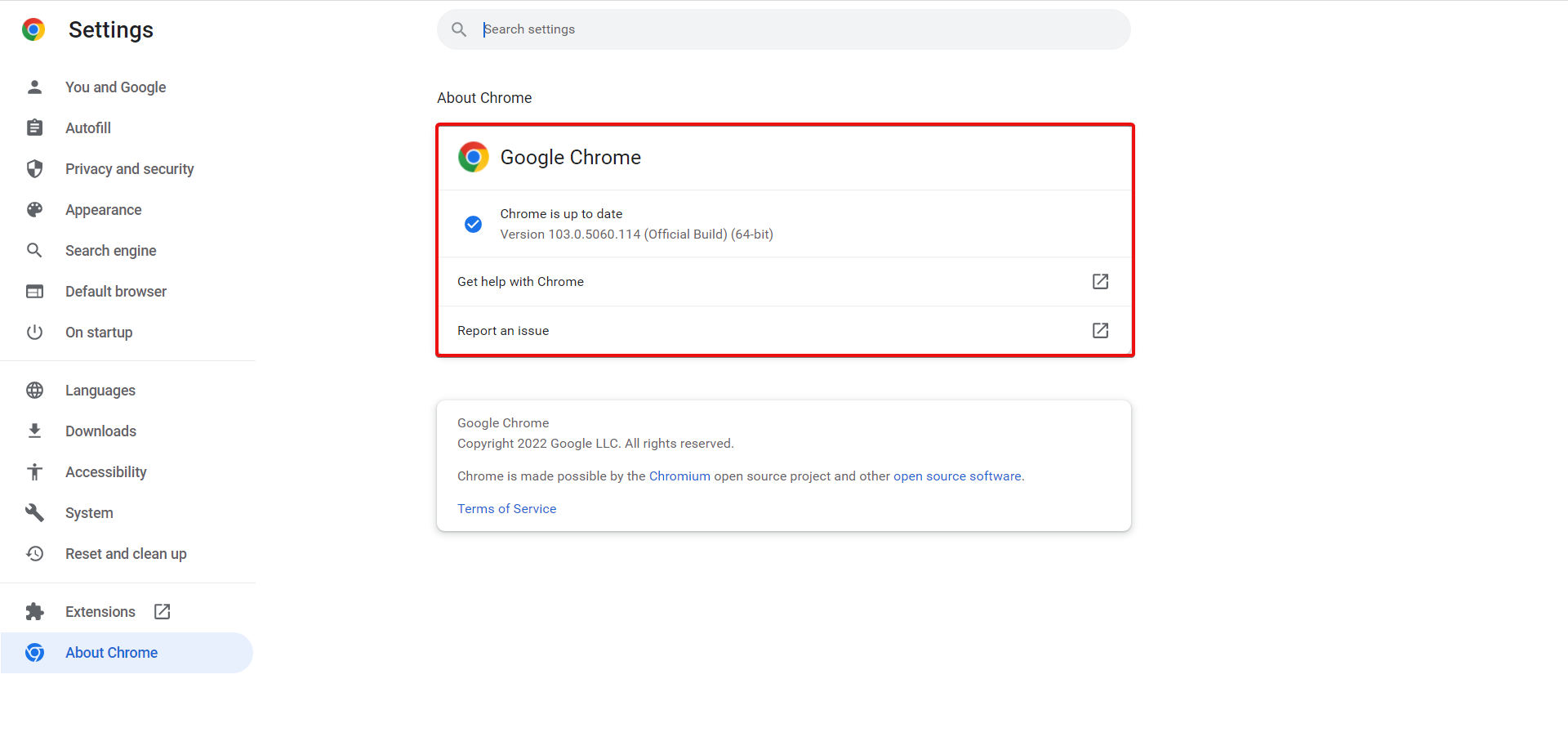
1. Update your browser
Launch your browser and click the Menu button.
Select the Settings option.
Choose About Chrome on the left pane.
It will show if there are any updates available to install.
Outdated browsers are a source of numerous problems and could cause the blerk error 5 on AOL mail. This is because they are mostly buggy and prone to issues that might have been fixed in the newer versions.
2. Update saved browser bookmarks
Open your browser and click the Menu button.
Select the Bookmarks option.
Choose the Bookmark manager option.
Click the more button (three vertical dots) in front of the AOL bookmark.
Choose the Edit option.
Finally, update the URL as necessary and click on the Save button.
AOL mail has changed its URL over time, which renders the old address useless. Hence, if you have bookmarked this address and tried to access the website with it, you will likely get the blerk error 5 on AOL mail.
Changing the URL should help solve the problem in this case.
3. Clear browser data
Click the Menu button and select the Settings option.
Select Privacy and security on the left pane.
Choose the Clear browsing data option.
Click the Time range dropdown at the top and select All time.
Mark the checkboxes for Browser history, Cookies and other site data, and Cached images and files.
Finally, click the Clear data button.
Despite the ease of use that browser data such as cache and history offer, they cause all sorts of problems when corrupt. The blerk error 5 on AOL mail has been traced to this data.
Ensure to restart your browser after clearing them to effect the changes.
Sometimes, the blerk error 5 might be due to a technical problem on AOL mail’s end. In this case, the only option is to contact AOL customer support for guidance and assistance.
Nothing could be more frustrating than being denied access to your mail portal due to issues like the blerk error 5. But with the detailed solutions above, you should be able to get past the error and get back to business.
Gaming is one thing that is common to almost every student, even adults. The use of consoles like PlayStation, Xbox, and the like is usually not convenient for students staying in dorms. Also, it is not affordable for some students.
So, it is necessary to improvise how to get a device that’ll serve as a studying laptop, likewise a gaming laptop. However, this article will discuss the best laptop for school and light gaming.
Also, we consider the price range of our recommendations to be pocket friendly for students. It is essential because gaming laptops are always more expensive than normal laptops. So, we’ll consider the ability of the laptops to work for both schooling and gaming. It is still of a reasonable price.
What to look for when buying gaming & studying laptop?
There are several types of laptops on the market. What makes them different from each other is their specifications. Some features to look out for are battery life, RAM & storage space, and some other software specifications.
Another key feature is the processor grade and GPUs that suits both graphically intensive games and curriculum-related apps.
Also, portability is for a student’s light gaming laptop. It ensures that you can move the system conveniently, as most gaming laptops are always heavy.
More so, the keyboard is an essential feature, likewise the touchpad. The features are important as they determine how productive and reliable the laptops are for your needs.
Which is the best laptop for student gamers?
The ASUS Zephyrus G15 is a powerful laptop for school and light gaming. It is the best choice for student gamers looking at multi-tasking their laptops.
It is our best pick because it offers the needed features of most other laptops on the market. Also, it comes for a reasonable amount considering how much it has to offer.
The ASUS Zephyrus G15 is a powerful laptop for school and light gaming. It is the best choice for student gamers looking at multi-tasking their laptops. It is our best pick because it offers the needed features of most other laptops on the market. Also, it comes for a reasonable amount considering how much it has to offer.
However, it comes with AMD’s latest Ryzen 5000 processors. Also, it is with VIDIA’s RTX 3000 GPUs. Likewise, it can judiciously manage its power for close to 5 hours, which is a pretty good battery life for a laptop of this grade.
Furthermore, it has a fast 165Hz 1440p screen that allows it to fit well as a gaming and schooling laptop. Although, the only downside of the ASUS Zephyrus G15 is that it doesn’t come with a webcam.
Alienware is one of the best companies with the best gaming laptops, and it’s been like that for years. Alienware M15 has a new feature, which is the R5 Ryzen Edition. Some are high-grade processors, with 512 GB SSD. Also, it has a fast screen that comes with graphic quality.
It is one of the best laptops for gaming and schooling. Also, it has good battery life and display quality which are necessary for students who need to study and play games.
A core quality of Dell laptops is strength. It is known for making some of the most reliable laptops for multitasking like gaming and schooling.
The Dell G5 15 has amazing specifications like a reliable battery and a clear graphic display. Although heavy, it can easily carry out any graphical work without affecting performance.
Razor Blade is a good laptop with stunning specifications that make it a good competitor to other laptops.
It is strong enough to power Intel’s latest 11th-gen processors. It allows it to function at a fast pace. Also, it has a reliable battery lifespan. It comes with keyboard lighting, which makes it durable for gaming and schooling.
The disadvantage to this laptop is its cost. However, its performance can cover up for all that.
The ASUS VivoBook student laptop is affordable and resourceful for gaming and schooling. It has a 15.6-inch FHD (1920 × 1080) LED and a 3500U processor.
It is lightweight and fast. Likewise, it comes with a 512 GB SSD and 8 GB RAM, making it a capable beast for most mid-ranged games.
Today we’ll show you how to sign up for and use Snapchat on your PC without downloading.
And because what you can view in the browser is somewhat limited, we’ll give you an alternative that’ll allow you to use all the features you have on your phone, but on PC.
Access Snapchat web. You can call, snap, and chat with your friends, get notifications, share your screen, create and customize your Bitmoji character, and share files.
The new Snapchat for Web offers a lot more features that closely resemble the mobile app. However, certain features, such as My AI are still only usable on Android and iOS.
As for what app to use to sign into Snapchat without downloading, we recommend Opera One.
Why?
It offers tracking protection and has a built-in VPN. This means you get an extra layer of privacy and security over your private conversations and snaps.
It’s also very fast and highly customizable, allowing you to create a quick-access bookmark for Snapchat.
Opera One
Cross-platform & fully integrated with social media apps like Snapchat or AI language tools.
If you’re getting the An error occurred while starting Roblox issue, chances are that there are some problems with your connection.
The solutions listed below are tested and they work in all cases when Roblox is not starting properly.
How to fix Roblox start errors?
1. Reset your router
Resetting the router is a straightforward fix that some Roblox users have confirmed to work.
As Roblox requires a net connection to run, it’s not entirely surprising that a router reset can fix the An error occurred while starting Roblox studio unable to open file for writing error message. So press the reset button on your router to reset it.
If encountering the Roblox Error Code E01, read the highlighted guide to fix the problem.
2. Deselect the Proxy Server Setting
Some Roblox users have got Roblox started by deselecting the proxy server setting in Windows. To deselect that option in Windows 10, press Cortana’s Type here to search button on the taskbar.
Enter the keyword Internet options to open the Network status window below.
Select the Connections tab.
Press the LAN settings button.
Deselect the Use a proxy serverfor your LAN option if it’s selected.
Then press the OK button to close the window
3. Reset TCP-IP with Netsh
Type cmdin the taskbar and open the Command Prompt.
Enter the following command: netsh int ip reset c:esetlo.txt and pressEnter.
Wait for the Command Prompt to finish and restart your PC.
This error can also be caused by a corrupt Internet Protocol Suite (TCP/IP). Use the command above and check if the An error occurred trying to launch the experience. Please try again later issue is fixed.
4. Turn off antivirus software
As mentioned, Roblox needs a connection to start. So, it might be the case that antivirus software is blocking Roblox. Switching anti-virus software off will ensure that doesn’t happen.
Numerous anti-virus utilities include disabling options on their system tray context menus that you can select to turn off the antivirus software temporarily.
Alternatively, you can select to disable most antivirus packages via their primary windows. Open the antivirus utility’s main window and browse through its settings menu, which will probably include a disable or turn-off option.
Once done, verify if the Roblox error 0x80072f06 is resolved. If not, head to the next method.
5. Add Roblox to the Windows Firewall’s Allowed Apps list
NOTE
First, note that you must modify the Windows Defender Firewall settings within an admin account. So log in to an admin account if required.
Type Windows Defender Firewall in the taskbar search box and open the panel.
Select Allow an app through Windows Defender Firewall to open the window in the shot directly below.
Press the Change settings button.
Press the Allow another app button to open the Add app window.
Click Browse and select to add Roblox.
Press the Add button to add Roblox to the apps list.
Make sure you’ve selected both Roblox’s checkboxes on the allowed apps list.
Then click the OK option.
The Roblox error occurred while starting error might also be due to Windows Defender Firewall. Some users have fixed the issue by adding Roblox to the Windows Defender Firewall’s allowed apps list.
6. Reinstall Roblox
Type add or remove in the taskbar to open the Add or Remove Programs settings panel.
Locate Roblox, select it, and then click the Uninstall button.
Please wait for the process to complete and reboot our PC.
Reinstalling Roblox can also fix a few of its error messages. The app may have become corrupt over time, so a fresh reinstall can overcome that.
If you want to make sure all files related to Roblox are gone, you can use a dedicated uninstaller software that will find and delete all registry entries and other junk files.
To reinstall the application, open the Microsoft Storeapp and search for Roblox.
Click on it and select Install. Wait for the process to complete and try to launch it again.
If you have other problems with the game, you can check our more in depth-guide that helps you fix common Roblox errors.
Why does Roblox keep saying an error occurred while starting?
This is a common error message that Roblox players get when they have a poor Internet connection. Problems with your ISP can cause it, but also network configuration issues.
Many users report having this problem after changing their router settings. We can only conclude that they may have mistakenly blocked access to Roblox, in which case a simple reset to default should help.
On the same note, it is also possible that your Proxy settings block the app or your Internet Protocol Suite (TCP/IP) is corrupt.
It is also possible that the Roblox servers are down, in which case you will have to be patient until they solve the problem. You can check the Roblox Downdetector page to see if there’s currently any outage.
Third-party applications such as antiviruses or firewalls may also interfere, so make sure you check and adjust your security settings.
Some error messages that you may encounter in this case are listed below:
Details httpsendrequest failed
Studio details failed to create key
Studio failed to deploy
Details createprocess
Unable to open file for writing
An error occurred while starting Roblox the requested operation requires elevation
Details version did not match
Studio failed to create key
Details unable to rename download file
Access is denied
Details error opening
Details version did not match
Share your experience of Roblox and what you love the most about it in the comments section below.
Are you on the hunt for a USB device-sharing switch for your USB peripherals? Worry not, as we have a quick guide for you to find the right one.
With a USB switch device, you can share one or more USB peripherals (printers, scanners, memory cards, etc.) between two or more computers.
The purpose of the USB sharing switch is to divert the connection of one set of USB devices from one PC to another effortlessly, by simply pressing the button once.
With 4 USB ports for 2 peripheral devices, this device is easily the best USB device-sharing switch.
It does not just allow you to share multiple devices like printers, scanners, keyboards, etc., but also works seamlessly with all platforms.
The one-button switch & LED indicator allows you to effortlessly alter between 2 PCs in just one click as the LED light indicates that the PC is active.
Moreover, you can also expect a stable connection using the separate micro USB female port for optional power.
Known for its ultra-fast USB 3.0 data transfer speed of up to 5 GB/s, this device sharing switch secures the second spot with its increased work efficiency.
This helps the switch work seamlessly with the high-bandwidth USB 3.0 devices, for example, with external hard disks, high-resolution webcams, multichannel audio, and more.
The switch allows up to 2 users to share up to 4 USB 3.0 peripheral devices and supports the sharing for multiple devices.
Its other major features include backward compatibility with USB 2.0 and USB 1.1 devices, a one-button switch with an LED option, and a separate micro USB female port.
If you are looking for a USB sharing switch that helps you share 4 USB devices between two computers and save your time and space, then this is it.
The separate micro USB female port helps optimize its compatibility with more devices, including HDD, SSD, video cameras, and so on.
Additionally, push one button, and the LED indicator allows you to switch between computers easily.
Whether you use it for PC tests or share computers and other connected devices within office space or home, it helps increase user productivity in any environment.
A USB device sharing switch is usually considered safe. It is not known to cause any damage to your PC since it does not use the power and data pins for USB 2.0 backward compatibility.
However, if you are using a USB A/B switch box with a USB-A port, there are chances that the cable may overheat and create a fire hazard.
Therefore, it’s advised not to purchase devices with USB-A input, unless urgent. In short, the best USB sharing switch saves you the expense and space for an additional USB device.
Moreover, it also makes it easy to connect the USB device to any computer at the press of a button. Best of all, it does not even require any software to be installed.
With more than one reason to use a USB device sharing switch, our recommendations make it even easier to pick the right one.
Today we’ll show you some of the best portable browsers for Windows so you can always explore the web even on machines where you have no admin permissions.
A portable browser allows you to install it on a USB Stick and use it on any computer. So, grab your flash drive, and let’s get started.
Google Chrome is the world’s favorite browser. You’ll enjoy its streamlined UI design, automatic page translation, incognito mode, and speedy performance.
NOTE
This is an unofficial download for the portable Chrome version. WindowsReport is not responsible for the download or the installer package.
Furthermore, Chrome is compatible with many platforms and has the best Android mobile integration.
Its users can seamlessly sync Chrome bookmarks and other saved preferences between PCs and mobiles via a Google Account.
Other useful features:
Built-in browser tab task manager
Built-in ad-blocker
Password manager saves passwords
Flexible URL bar that can be utilized as a calculator, translator, and currency converter
Vivaldi boasts some of the best customization and tab features of any browser. Its tab features also put most other browsers to shame.
Its innovative tab-stacking feature enables you to group tabs together. It also enables you to display four tabs simultaneously within a single window.
To use it as a portable browser, clickAdvanced on Vivaldi’s installer window. Then select the Install standalone option, and click Browse to choose a USB drive directory.
Other useful features of Vivaldi:
Page actions menu includes various page display options
Mozilla Firefox has everything you’ll need from a browser.
It includes an ad-blocker, password manager, text-to-speed mode and a screenshot utility. Even more, some handy page action options for copying links.
Fox also incorporates better customization options than Chrome which enable you to add and remove items from its URL toolbar and select three alternative built-in themes.
Other useful Firefox features:
Ctrl + Tab cycling with page thumbnail previews
Autoplay blocking stops videos and sound from playing automatically in tabs
Maxthon has minimal system requirements that pack in plenty of features. It offers device-syncing support across a wide variety of platforms.
Its users can save webpage content with the Maxnote Cloud feature, which can then be synced across devices.
Maxthon incorporates some novel tools you won’t find in many alternative browsers. For instance, its External Tools feature enables you to add software shortcuts to the browser.
Other useful features:
Includes a Night Mode option
The built-in screenshot tool enables users to capture snapshots
Sometimes it’s necessary to share your browser window with others, but unfortunately, many reported that Opera GX is not streaming on Discord properly.
This can be an inconvenience, especially if other browsers are working properly and they allow you to share your screen without problems.
Luckily, there are a couple of methods that you can use to fix this problem, so be sure to keep on reading to find out how to properly fix this problem.
Why can’t I stream Opera GX in Discord?
This issue is mainly caused by the hardware acceleration feature within the browser and below, you will find out how to disable it.
However, this problem can also occur because of other graphics-related problems. Don’t worry, we covered all the angles in our guide.
Does Discord work on Opera GX?
Opera GX is a dedicated gaming browser and has one of the most advanced integrations for Discord.
Although the web app offers the same features, you might encounter issues if you try streaming or sharing your screen, therefore it’s advised to use the desktop app instead.
4. Disable extensions
Click the Opera icon in the top left corner. Expand Extensions and select Extensions.
Click the switch icon next to the extension you want to disable.
Repeat this for all available extensions.
If disabling the extensions solves the problem, you need to enable extensions one by one until you find the cause of the problem.
How do I fix Discord’s black screen stream?
Most likely you need to change the graphics backend to D3D9 or OpenGL to fix this issue. For an unknown reason, the default setting causes problems with streaming.
Alternatively, disabling hardware acceleration on Opera GX can help with this issue, so make sure to try that as well.
If you have problems with Opera GX and streaming on Discord, following the instructions from this guide will surely help you fix the problem.
In ancestral times, the equalization process used to require massive and heavy instruments known as equalizers. But in this day and age, things can be effortlessly done via audio equalizer software. Or audio equalizer extensions if you are using Chrome.
Equalization involves the way of adjusting the balance between frequency components in order to get the most optimal sound output.
With the use of an audio equalizer, you will be able to modify the sound. So that it is more suited for a space that is sensitive to low-frequency noises. By increasing the bass or decreasing the treble.
Is there an equalizer for Chrome?
There are plenty of audio equalizer extensions in Chrome that allow you to adjust the volume of sound, the bass booster, the sound booster, and dim the highs. You can find them in Chrome’s web store.
We picked out the five best options, and we’ll introduce you to their nice sets of features below. Keep on reading!
Quick Tip:
There are browser alternatives like Opera One that is worth your time in terms of innovative navigation and useful extensions.
Using this browser can enhance your sound settings using the Addon section that supports Chrome extensions too. In addition, the plugins work smoothly without slowing down your browsing.
Opera One
Improve your navigation with better security and optimal sound with the best equalizers!
Audio Equalizer is a simple, lightweight, and aesthetically pleasing add-on for your web browser that gives you the ability to alter the audio on various websites so that it sounds just right.
You won’t be sorry if you give this equalization extension a try whether you’re viewing online movies or listening to your favorite music.
It will take your audio experience to a whole new level by providing a flexible audio tune. Moreover, Audio Equalizer will work well with any streaming video or audio website.
No matter what kind of music you gravitate toward, you can be certain that it has you covered in every aspect. From an acoustic track to a hip-hop track, its presets will be more than sufficient.
Adjusting the level of sound is one of the many functions that the Audio Equalizer provides. Other functions include reducing the loudness of the highs, increasing the volume of the voices, using a 12-band parametric EQ, and switching between stereo and mono.
EQ Audio Equalizer may be used on any web page, including videos on YouTube, live streams, television, and radio stations broadcast online.
This extension controls HTML5 audio and video tags, and it’s important to note that it does not control Flash or Silverlight audio.
It’s recommended that you install the HTML5 extension in order to force the popular sites that you’re hanging on to use HTML5 instead of Flash.
This Chrome extension works amazingly for YouTube, and we know that this is a place where most users hang around all the time.
This is an excellent and straightforward Chrome extension. If you experience any sound issues while you are using it, we recommend that you disable Core Parking because this is usually a Windows issue and not the extension itself.
The Sound Equalizer extension for Chrome gives you the ability to increase the sound quality of your browser, therefore enhancing your enjoyment of listening to music and viewing movies.
Secondly, the extension comes with the following features: a collection of 14 different music genres’ worth of presets, a 10-band equalizer, an audio filter that modifies the frequency envelope of the sound, and more
Moreover, this add-on is a straightforward and hassle-free music utility that will make your favorite songs sound better than ever before.
Using this extension, you will be able to equalize any audio that you can possibly find on the web. You will get the chance to crank the bass, up the vocals, dim the highs, and more.
With the help of this extension, you can alter the equalization of all tabs at the same time. All you have to do is navigate to any website that has audio, open Ears and drag the sliders in order to lower or raise the filters.
Clicking the Bass Boost button will instantly deliver a much more profound bass sound. If you like what you are hearing, you can save it as a preset for an easy recall for later, and if you don’t like the result, all you have to do is click Reset and start again.
Equalizer is an extension made by Doug Sheffer, and it’s really handy for Chrome users. It gives you the ability to control the sound of HTML5 audio and video with a ten-channel equalizer.
After opening a new web page with sound such as a YouTube video, all you have to do is to click on one of the equalizer band adjustments. The setting will be applied to the current tab. Note that this extension will not work with websites that use Silverlight and Flash.
If you play video or audio content on the web, you may have sometimes noticed that the audio playback may differ a lot between services and also between media on the same service.
We mean that some videos can be too loud or too quiet, other can have louder or quieter parts, and other can also come with ads that are usually played louder than the actual videos.
Operating systems include options to control the sound’s volume, but if you want something closer to an equalizer, Chrome extensions will definitely do the trick. Pick any extension of the five we listed above and you’ll see the difference.
What is the best way to record for YouTube?
Spending extra money on your recording gear is going to be necessary if you want your finished film to have a more polished and professional appearance. The same goes when choosing a good gaming recording software for Youtube streaming.
In addition to investing in a high-quality video camera, you should think about obtaining accessories. Such as extra lighting, microphones, and tripods. You could also opt to invest in YouTube recording software that also allows you to edit the content.
Built-in software such as iMovie and the Windows Photos app should be able to handle basic editing tasks.
However, if you want that extra level of polish, professional software such as Adobe Premiere Pro CC or Final Cut Pro may be a better option for you.
Yes, you called it! Yet another month has passed since we received the last batch of security updates from Microsoft. And the time is upon us again, so buckle up for another security software rollout.
Today marks the Patch Tuesday release for the month of July, which means that the major vulnerabilities and flaws will finally be fixed. Well, most of them at least.
While we wait for this rollout to begin. let’s take a look at last month’s patches and see what can expect from this release.
What were the highlights of the June Patch Tuesday release?
The Redmond-based tech giant has been hard at work on security improvements in pretty much everything that has to do with software security for the Windows operating system suite.
Last month, for example, the 55 new updates that were deployed during the Patch Tuesday rollout addressed CVEs in:
Microsoft Windows and Windows Components
.NET and Visual Studio
Microsoft Office and Office Components
Microsoft Edge (Chromium-based)
Windows Hyper-V Server
Windows App Store
Azure OMI
Real Time Operating System
Service Fabric Container
SharePoint Server
Windows Defender
Windows Lightweight Directory Access Protocol (LDAP
Windows Powershell
Also, Internet Explorer has reached the end of support in most versions of the Windows 10 operating system.
Furthermore, the Phase 2 update for CVE-2021-26414, the DCOM server security feature bypass was released.
Know that more than half of the patches last month deal with remote code execution, and 7 of these deal with LDAP vulnerabilities, which is at least a decrease from the 10 LDAP patches the month before.
What can we expect this month?
Its summertime and, as in other years, Microsoft won’t simply throw hundreds of fixes at as during these relaxed holiday months.
In truth, we saw a much smaller number of CVEs being addressed last month. so experts expect the trend to continue in July as well.
You can expect, as always, the standards updates for both Windows 10, 11, and the legacy operating systems that Microsoft still manages.
Also, keep in mind that only a handful of Office applications were updated last month so it’s safe to anticipate a full suite of Office updates.
The Something went wrong error message prevents you from accessing your inbox. Outdated account settings could be the cause, as well as incorrect passwords or problems on Google’s end.
Let’s see how you can get rid of this and sign into your email account.
How do I fix the Something went wrong Gmail error?
First, run a speed test to rule out slow internet (below 5 Mbps could become a problem)as the culprit. Then, check the Google Workspace Status Dashboard and see if there are any issues with Gmail.
But if you have a decent connection and Google is up and running and still get the error, try the options below:
1. Clear browsing data
NOTE
We used Google Chrome as an example, but the same logic applies even if you use a different browser.
Launch Google Chrome, and press Ctrl + Shift + Del to open the Clear browsing data box.
Make sure to select All time as the Time range.
Tick all the three checkboxes here, and then click Clear data.
2. Disable extensions
Open your browser, go to Settings/Options, and select Extensions/Add-ons.
Uncheck/toggle off all the extensions that are enabled.
If the issue is fixed, re-enable each extension one by one and check again until you find out which one caused the problem.
3. Reinstall your browser
Press Windows + R to launch the Run command, enter appwiz.cpl in the text field, and click OK.
Select Google Chrome from the programs listed here, and then click on Uninstall.
Follow the on-screen instructions to complete the process.
Once done, go to the official Chrome website, download it, and then install the browser all over again.
4. Flush DNS
Press Win + R, type cmd, and press Enter.
Type ipconfig /flushdns and press Enter.
Restart your browser and try accessing Gmail again.
5. Check firewall settings
NOTE
Firewalls/antivirus tools might cause this error if Gmail/Google is blacklisted. If you’re on your personal device, you can fix it from settings, as shown below. But if you’re on a work/school device with no admin permissions, try creating a hotspot with your phone or use a VPN/proxy to bypass network restrictions.
Press Windows key + R and typecontrol panel and press Enter.
Go to Security and Maintenance.
Click on the Allow app or feature through the Windows Defender Firewall option.
Click Allow another app and add the browser or email client you use to access Gmail. Check both the Private and Public boxes and save your settings.
6. Try a different browser
If all else fails, consider trying another browser and if it works out, maybe make a permanent switch. If we were to make a suggestion, we’d bet on Opera One.
Why?
It’s fast, safe, and has built-in features that could overcome online restrictions that can cause Gmail something went wrong errors – including a free VPN.
Plus, it’s highly customizable and makes multi-tasking way easier. You can check your emails and answer to messages on WhatsApp from the same tab.
Opera One
Manage emails easily, and stay safe with the ad-blocker and VPN for uninterrupted daily tasks.
We hope that one of these solutions helped you to fix this Gmail error message, and we have solutions even if your Gmail is not loading properly. Let us know if you need more help in the comments below.
You can learn more about the partnership in the video above, but it basically is the result of the designer Gavin Mathieu teaming up with Microsoft. The designer created a nine-piece collection of tees, hats, sweats, jackets, and pants featuring Microsoft products. There’s a shirt with Microsoft Paint, a shirt with the Windows XP wallpaper, a hat with the classic Microsoft Logo, and more.
You can buy these items if you please, and prices range from $60 to $150. Who knows, it might end up becoming collector’s items, just like the annual holiday sweaters.
Globoplay is a lesser-known video-on-demand streaming service that specializes in Brazilian content. The country has its fair share of quality content from comedies to dramas and even reality TV.
Globoplay works on every single browser, but there are some that work better than others. Certain browsers offer features that enhance the viewing experience. And this guide will show you the best three browsers for Globoplay.
Is Globoplay international?
Yes, Globoplay is available in a wide variety of countries around the world. Obviously, the service is available in Portugal and Brazil. Apart from that, you can watch if you live in the US, Italy, Germany, Spain, the UK, and more. It’s also available as part of a packaged deal with SlingTV.
SlingTV, as known simple as Sling, is a cheap streaming service that pulls together notable cable channels into one big service. It’s essentially a cheaper version of cable TV.
Part of the channels Sling incorporates include international channels like Globoplay for wider support. Sling is only available in the US and Puerto Rico, however.
All that said, this guide will show you the best browsers for Globoplay. We’ll even mention browsers that have unique compatibility with Sling.
Starting off the list is the Opera One web browser and it’s on here for one particular reason: it’s VPN. You see, Opera One actually comes with a free VPN for desktop and Android. It’s secure and you don’t even have to log in to use it.
It doesn’t collect data on your activity or any kind of personal information. The VPN ensures that your IP address is hidden at all times. Using a VPN is the best way to access Globoplay.
If the service isn’t available in your country, Opera One VPN can bypass that restriction. Other VPNs like Nord and Surfshark do work, but you have to pay for those. Apart from the VPN, Opera One is still a great browser.
One of the best features that Opera One has is its ability to support Chrome extensions to further enhance your browsing experience. There aren’t very many GloboPlay extensions but we did find one called GloboPlay TV.
It allows you to change your location according to certain Brazilian cities like Rio De Janeiro and São Paulo so you can watch local content.
Additional features
It comes with Tab Islands and Workspaces
Turbo Mode and battery saver
Integrated social media apps and messaging
Native AI and modular AI-ready design.
Opera One
Have qualitative streaming results on GloboPlay TV using this featured browser with effective VPN support.
The next entries are on here because of their unique compatibility with SlingTV. If you recall, GloboPlay is on SlingTV as part of a packaged deal. The vast majority of browsers support SlingTV, but these two do it better.
Case in point, Microsoft Edge. This browser has come a long way since the days of Internet Explorer and is much better. This is because Edge now supports HTML which allows the browser to support both video and audio codecs.
This translates to secure and high-quality videos. And it supports Microsoft PlayReady to further enhance GlobloPlay to enable 4K resolution. On top of that, Edge doesn’t take up a lot of CPU resources.
That way you can surf the internet or do other things while watching something on GloboPlay. Although be careful with the number of extensions you add to Edge as this can cause your computer to slow down.
As far as we can tell, Edge doesn’t have any unique extensions for GloboPlay or SlingTV.
Additional features
It sports Edge SmartScreen to block phishing scams.
You can sync the settings of your browser across other devices.
It can put tabs to “sleep” to save on CPU resources.
The last, and arguably the best, entry on this list is Google Chrome. The reason why Chrome is such a good fit for GloboPLay is its extensive video playback support. It ensures videos load quickly and stay at a high resolution.
On top of that, users benefit from the massive add-on library available on Google Chrome. Aside from GloboPlay TV mentioned in the Opera One section, there are tons of third-party extensions.
One of the famous video extensions is Turn Off the Lights which fades the page around a video so it feels like you’re watching a movie. It comes highly rated with over a million users who have downloaded and installed it on their copy of Chrome.
And if you have a Chromecast device plugged into your TV, you can transmit GloboPlay from your Chrome desktop onto the screen for you to enjoy.
It should be mentioned that Chrome is a bit of a resource hog and you may experience some slow down. If this happens, we recommend closing the other tabs and windows.
Additional features
For work, Chrome supports a variety of productivity features like organized tabs.
The browser has powerful protection for passwords.
You can synchronize Chrome settings across multiple devices.
Feel free to comment below if you have any questions on other Windows 11 apps or streaming services. Also, leave comments about reviews you’d like to see or information on other Windows 11 features.
You found this article because you are having Chrome scaling issues, so we will share with you all you need to know.
The Chrome 54 update introduced some minor modifications to Google’s browser. Now Google Chrome automatically detects your DPI (Dots Per Inch) settings.
This has scaled up Chrome’s UI so that it’s more zoomed-in for some users with Windows DPI settings above 100%. This is how you can restore the browser’s UI scaling back to what it was before the update on Windows 10 and 11.
Google Chrome is a great browser, but sometimes issues can appear.
Note that the issue is not exclusive to Chrome, and on Firefox, users have complained that the browser doesn’t fit the screen.
Quick Tip:
If you’re in a hurry and need a quick fix, then your best bet is to switch to another browser until you can figure out what’s wrong with Chrome.
Opera One is a great alternative that you should consider, having the same Chromium engine as Chrome, the same expansive add-on library, but with just a fraction of the resource requirements.
Opera One
A great alternative for when your current browser has run into issues – Get it now to level up your browsing.
Many users reported issues with scaling in Chrome. As we discuss it, we share with you some common causes. Here are a few to take note of:
Scaling settings on the computer
Chrome updates that use PC display settings
Changed Chrome page zoom settings
An outdated browser
Additionally, regarding scaling, here are some problems that users reported:
/high-dpi-support=1 /force-device-scale-factor=1 not working – If you want to make Chrome scale, you need to add a few parameters to its shortcut. However, sometimes these parameters won’t work correctly. If that’s the case, you might be able to solve the problem with one of our solutions.
Google Chrome zoom problem – Zooming problems can occur in Chrome and negatively affect your user experience. However, you might be able to solve the problem by manually adjusting the zoom level in Chrome. In addition, you can also try to change the scaling in the Settings app and check if that helps.
Google Chrome scaling Windows 8.1 – Although Windows 8.1 and 10 are different, they can be affected by the same issues. If you have any problems with scaling in Chrome on Windows 8.1, feel free to try some of our solutions, since they are fully compatible with Windows 8.1.
Chrome scaling blurry – Sometimes, Chrome can become blurry after scaling. This is a strange problem, but you should be able to fix it by keeping your browser updated.
Chrome window size problem – Sometimes, the web pages get distorted when manually adjusting the window size.
Google Chrome display issues – This includes all kinds of display issues that you may encounter with Google Chrome.
Now, let us help you fix Chrome scaling issues on Windows 11 and 10.
How do I solve Google Chrome’s scaling in Windows 10 & 11?
1. Reinstall Chrome
1.1 Uninstall Chrome
Click the Start menu and select the Settings app.
On the left pane select the Apps menu and the Apps & features option on the right pane.
Scroll down to Google Chrome, click its three dots and select Uninstall.
Double click on the downloaded files and follow the wizard to reinstall Chrome.
If the scaling issues are still present, you might consider reinstalling Chrome. Sometimes your installation might be corrupted, and that can lead to various problems such as this one.
It’s worth mentioning that there are several ways to remove Chrome from your PC, but the most effective might be to use uninstaller software.
In case you’re not familiar, uninstaller software is a unique application designed to remove other programs from your PC.
You can find plenty of options nowadays, but choose one of the best uninstaller software. Pick one that is proven to remove residual files without having an impact on any other files or apps on your PC.
After Chrome is uninstalled, restart your PC and launch Chrome again. Now check if the problem with scaling persists.
2. Adjust Google Chrome’s Target field
Right-click a Google Chrome shortcut you usually open the software with and select Properties to open the window shown below.
The Target field includes the path of the software, which could be something like;
Click Apply and OK to close the Google Chrome Properties window.
Note that you should also unpin and re-pin Google Chrome if you have a shortcut for the software pinned to the taskbar.
3. Switch off Display Scaling for Higher DPI Settings
Right-click a Google Chrome shortcut and select Properties from the context menu.
Click the Compatibility tab on the Google Chrome Properties window as below.
If you have a Disable display scaling on high DPI option, tick it.
Click Apply and OK to apply the setting.
Restart Google Chrome if you had the browser open before selecting the Disable display scaling on high DPI option.
4. Change the scaling setting in Windows
Press Windows Key + I to open the Settings app.
Now go to the System section.
In Scale and layout section set Change the size of text, apps, and other items to the desired value.
According to users, 100% works best, but feel free to try other values if you have a larger screen.
Once you change your scaling settings in Windows, the changes should be applied to Chrome, and the problem will be permanently resolved.
5. Change page zoom level in Chrome
Click the Menu icon in the top right corner and choose Settings from the menu. Alternatively, you can enter the link below on your Chrome address bar: chrome://settings/
When the Settings tab opens, locate Page zoom option and change it to the desired value.
After doing that, the size of your web pages will be adjusted accordingly. Keep in mind that the size of your UI will remain unchanged, and if this isn’t the desired result, you might want to skip this solution.
6. Check if Chrome is up to date
Click the Menu icon in the top right corner. Now choose Help > About Google Chrome.
Now you should see the version of Chrome you’re using, and the browser will check for updates. If any updates are available, they will be automatically downloaded and installed.
Once your browser is up to date, check if the problem persists.
Now scroll down and click Advanced to show advanced settings.
Select Reset settings. Now click the Reset button to confirm.
After a couple of moments, Chrome will be reset to default. After doing that, check if the scaling is working correctly.
8. Consider using Beta on Canary version of Chrome
Navigate to the Beta or Canary Chrome download page.
Click on Download Chrome Beta or Download Chrome Canary, depending on which you have decided to go with.
Click on the Setup file to start the installation and then follow the installation wizard.
If you have scaling issues in Chrome, you might consider switching to the Beta version. The Beta version is still in development, but it might bring new features, bug fixes, and improvements.
If you have issues with Chrome, switching to a Beta version might help you fix them. If you have sync enabled, all your extensions, history and bookmarks will be transferred to the Beta version allowing you to continue where you left off.
So that’s how you can fix Google Chrome scaling without adjusting the Windows DPI settings for all software. Then the browser’s UI elements will not be zoomed in.
If you followed the guide to the end, you should have successfully fixed all Google Chrome zoom or window size problems.
You are not obligated to try all the fixes; you should go according to what you feel is most appropriate to your situation.
If you have any other questions, feel free to leave them in the comments section below.
Microsoft has launched its annual back to school sales on the online Microsoft Store. Running through September 17, the deals cut prices down on the Surface Pro 8 bundle, the Surface Laptop 4, and so much more.
Elsewhere at the Microsoft Store, you can save up to 50% on select Windows 11 PCs, like the Lenovo Ideapad 5 Pro, which is now $500. Other interesting PC deals cover Acer gaming laptops ($100 or $250 off,) as well as Asus laptops, which are $150, or $170 off. Even PC Accessories like the Microsoft Bluetooth Ergonomic Mouse and the Bang & Olufsen Beoplay Portal Headset are on sale.
As a former college student, there are a couple of things that come to my mind when someone tells me they are shopping for a new laptop for the back-to-school season. I always mention five core themes.
First, you’ll need a laptop that will get you long battery life. You’ll also need a large and expansive screen for those times when you’re not near a monitor. Then, you’ll also have to enjoy touch and pen capability for note-taking. Finally, there’s the need for system performance for multitasking and even light gaming. That’s all on top of the usual “premium” Macbook-like feel that you expect when dropping close to $1,000 on a laptop.
Just so happens that back-to-school season is approaching, and Dell sent me over a system that checks all of those boxes. It’s the Inspiron 16 2-in-1 7620, which is available at Dell.com today for $1,225 as I reviewed.
Specs & Price
The unit I am reviewing today is powered by Windows 11 Home. It comes configured with an Intel Core i7-1260P series processor, 16GB of DDR4 3200 MHz RAM, and a 512GB M.1 PCIe NVMe SSD. You’re free to upgrade the RAM, or SSD if you want by opening the back of the unit, even the Wi-FI module can be swapped out. This is a huge plus, as competing systems from HP and LG don’t let you do this.
I do want to mention, though, that my model hasn’t been upgraded to a dedicated GPU, but the Nvidia Geforce MX550 can be added at checkout if needed for an additional cost. My unit also hasn’t been upgraded to the OLED UHD+ screen. Instead, it has a standard 1920 x 1200 resolution FHD+ 16-inch screen. All display options are tuned to the 16:10 aspect ratio.
Measurements come in at 14.05 x 9.91 x 0.72 inches, and the weight is 5 pounds. Again, the display upgrade to 4K OLED would be a huge price bump of $500 extra.
As far as the ports go, the mix includes 2 USB 3.2 Gen 1 Type-A ports, 2 USB-C Thunderbolt 4 ports, a headset jack, a full-size SD card reader, and an HDMI 1.4 port. Webcam is 1080p, without Windows Hello. Dell also included the optional Dell Active Pen- PN5122W for me as part of my review. The pen retails for $50 and is usually on sale for $37.
This Dell Inspiron 16 2-in-1 is not to be confused with the more powerful Inspiron Plus laptops that just launched. Those are much more expensive and feature Intel H-class processors, as well as RTX 3060 graphics.
Design
The Dell Inspiron 16 2-in-1 is built tough. The device’s exterior chassis is made out of aluminum and colored in your typical Dell “Platinum Silver” option. A “Dark Green” option is also available, but only on models with Nvidia MX graphics. This silver resembles what you’ll see on an HP Spectre x360 16, or LG Gram 16 2-in-1. Also, in terms of weight, all of those systems are about in the same size and weight class. There aren’t a lot of 16-inch 2-in-1s, but the main competitors are the LG Gram 16 2-in-1 and the HP SPecire x360 16.
What’s interesting though, is that Dell has managed to make its system a lot more rigid and has also tweaked the design between generations. Looking at photos of last year’s 7610 2-in-1, this year’s model looks a lot more like an older MacBook Pro would, with flatter edges, and sharper, somewhat rounded corners.
Elsewhere, when I pressed down on the keyboard deck, as well as flexed the lid, the Inspiron didn’t budge. This is a system that’s built strong. Even the hinges are quite strong, holding the 2-in-1 up at all angles without issues.
In addition to moving this device in between the tent, tablet, and stage modes, the hinge can lift the keyboard up at an angle when the 2-in-1 is in laptop mode, so you can type at a more comfortable angle.
Another cool design feature on this Inspiron? Dell has thought about moments where your palms might get sweaty or dirty. The palm rests have a smooth mylar layer, which can help prevent smudges and fingerprint build-up. This is important for a laptop that students might end up using that will go through wear and tear over the years.
Ports
The last thing a student wants with a laptop is to have to use dongles and carry around a USB-C hub. That’s something that is not of worry on this 2-in-1. Dell gives you a great mix of ports. As I mentioned at the top, there’s a lot on this machine.
On the left side, you get an HDMI 1.4 port, a USB-A 3.2 Gen 1 port, and 2 USB-C Thunderbolt 4 ports. Do note, though, that as HDMI 1.4, you can’t get 60 FPS 4K videos, which I don’t think students might need anyway. You do, though, get external GPU support, as Thunderbolt 4 is included. On the right, there’s the SD Card reader, a USB-A 3.2 Gen 1 port, and a headphone jack. The SD Card reader is limited to 30 Mb/s speeds max transfer rates.
I sometimes mention security in the ports section, and in this case, there’s a fingerprint reader on the power button on this machine. If you buy the model with the OLED display, you’ll also get Windows Hello. For this price, though, I do wish that it was standard.
Keyboard & Trackpad
Students will spend a lot of time on the keyboard and trackpad on this Inspiron, and the good news is that both are awesome to use for day-to-day tasks.
The trackpad on the Dell Inspiron 16 2-in-1 7620 is one of the largest I’ve seen on a laptop. While it is not haptic like on the new XPS 13 Plus models, it is smooth to use and scroll and gives some great “loud” feedback. For dimensions, it measures around 5.2 x 3.5 inches. There is no “top” part to the touchpad either, as it blends right in with the mylar palm rests. Such a cool look!
The touchpad leaves a lot of room for multitouch gestures, navigating Windows, and dragging and dropping. It also seems to pick up fewer fingerprints than my other laptops, mainly due to the mylar layer on top, that’s used in the palm rest. Again, this is great for students.
As far as the keyboard, it reminds me of a lot of other Inspiron laptops. The black chicklet-style keycaps have a soft feeling and aren’t quite as clicky as the keys on a MacBook Pro or Surface Laptop would be. Still, that soft feeling helps with speed typing. I got to 84 words per minute in a typing test. The keyboard is also backlit on two levels so you can type at night. Dell even claims it is spill-resistant, though this isn’t something I tested.
Display & audio
Dell’s XPS lineup pioneered the “Infinity Edge” display, where bezels are super slim. The display on this Dell Inspiron 16 2-in-1 7620 is clearly inspired by that, though toned down a bit. This is yet another win for students looking for a new laptop.
The bezels on the side of the display are slim, but along the top, a bit thick for the webcam. The same also applies to the bottom, where you’ll find a small black “chin.” This helps you hold the 2-in-1 as a tablet when folded so you don’t accidentally touch the screen.
In terms of quality, though, the 16:10 aspect ratio on this year’s Dell Inspiron 16 2-in-1 7620 is a huge boost for productivity. Along with the massive 16-inch panel you get, this means I’m able to stack two near full-size Microsoft Edge windows side by side and multitask to get more done.
16:10 allows for more vertical room on the screen. Black text looks super sharp, and white colors are very bright and vibrant. The glass glossy panel also helps reduce glare a bit, especially when under bright lights. I noticed on backlight bleed.
In terms of color accuracy, my colorimeter tells me that this display hits 95% of the sRGB spectrum. Brightness also hits 320 nits max. To try out that color accuracy outside of benchmarks, I watched episodes of Amazon’s The Terminal List. In this dark show, I accurately made out the details on Reec’s face after he came out of a fresh gunfight in San Francisco. Scars, his blood, and even black gunpowder were all visible and life-like That leads me to say that this display will be great for multimedia and that the 4K OLED option will only be better.
Dell says that the display uses DC dimming technology. This helps reduce flicker. The display even supports ComfortView Plus, to help reduce blue light emissions, without giving up on color.
As far as audio goes, there are quad speakers on board, with Waves MaxxAudio. A lot of the audio comes from the sides of the keyboard deck, which makes movies and YouTube watching immersive. All of the 4 speakers are 2 watts, so the sounds you hear will be really great. I felt that this applies to music, as well as audio calls.
Inking with Dell Active Pen
Dell provided me with the optional Dell Active Pen PN5122W as part of my review. Unlike the Surface Slim Pen 2, this pen doesn’t require pairing to work. You can just place the included AAAA batteries in, and get going.
Like many other styli, it supports 4,096 levels of pressure. It also has a cone-shaped nib, which can offer a more comfortable writing experience. Through the Dell Peripheral Manager (not pre-installed) you can tweak the tip sensitivity, and adjust the tilt sensitivity. You can change the functions of the buttons and map them to different actions. Pairing with Peripheral Manager to do all this is easy, and all you do is open the app, tap the pen on the screen, and you’re good to go. No need for Bluetooth!
I used the pen to ink in OneNote, as well as FreshPaint for basic drawing when holding the Inspiron in tablet and studio modes. I’m not an artist, but I did feel as though the pen is plenty accurate, always reflecting my strokes. It’s a very light-feeling pen, too, which means my hands didn’t feel “tired” after prolonged note-taking sessions during meetings.
The only downside to this new pen is that there’s no way to mount it to the Inspiron. The Dell Premium Active Pen (PN579X) sold with the XPS 13 had a magnetic side that let it attach to a tablet. Even Lenovo includes a USB-A holster for their stylus, and I wish Dell would have done the same.
Webcam & microphone
Students will likely be spending more time on Zoom and Teams calls which is why the Inspiron 16 2-in-1 is perfect for them. At the top of the display is a 1080p FHD webcam, which is the new normal on Windows laptops.
The webcam sports support for a high resolution wide dynamic range. This helps improve backlighting, on top of temporal noise reduction that can decrease pixelation in low light. Dual microphones also are onboard this device, and the system used AI to reduce background noises.
I usually use an external 4K webcam when I am in meetings, but this Inspiron’s webcam did the trick for me. My colleagues said I still looked great during my calls. Oh, and there even is a manual shutter on the webcam, that you can pull to hide your webcam feed. I used it a lot when I wanted to be heard, but not seen on calls.
Performance
Now, I get to the critical performance section. Intel’s P-series chips that are in this device are designed to run at low power (28 watts) but offer similar balanced performance when compared to 45-watt H-series chips. They’re found in thin and light laptops, as well as work laptops, and are mid-range in the 12th generation mobile lineup. Basically, think of it like this. U-series are at the very bottom for tablets and ultrabooks, P-series in middle for work laptops, and H-series up top for gaming machines.
Equipped with the Intel Core i7-1260p, with a total of 12 cores (4 performance and 8 efficient), that means this Dell Inspiron 16 2-in-1 7620 strikes the perfect balance of performance.
Here are the tests that I usually run to prove it. In Cinebench R23, the machine scored 10,752 on Multi-Core, and 1,668 on Single-Core. On Geekbench 5, the machine got to a 7,607 Multi-Core score, and a 1,683 Single-Core score.
In gaming at 1080p, GTA V played at 59FPS on low settings, around 70 frames on medium, and 15 frames on high. Do note that the system doesn’t get too hot during the use and running of these tests. Only the edges near the back pick up heat.
We don’t keep benchmarks like other publications for you to compare that to. Instead, we talk about real-life tasks. But, if a comparison is what you want, I think that this system easily comes close in performance to Lenovo’s Yoga 9i, which my colleague Kareem Anderson reviewed. That system has the same CPU. It is just that the Dell has a bigger, and better, design and overall package.
For office and school work like browsing Edge and using Office, this machine speeds through it without issues. For video editing, the Inspiron gets by, but very slowly, with an hour podcast taking roughly 20 minutes to encode. That’s not a surprise, though, as this is a P-series chip where raw CPU power and cooling for maximum efficiency don’t really come first. It’s still a big change from the 11th gen, however, where these tasks might be slower.
You obviously won’t be doing gaming or video editing on this machine, but you can get by if you’re patient enough and lower the settings. Or, get even better results if you opt for a model with dedicated Nvidia graphics.
Battery Life
Battery Life is the strong suit of laptops with Intel’s P-series chips so this Dell will exceed your expectations. For our daily tests, involving web browsing and Teams we got around 10.5 hours, with the screen at 25% brightness on the machine. Media playback loop with the system at idle, the Wi-Fi off, and the screen at 20% brightness, meanwhile, netted us a 17-hour result. I easily see this laptop lasting all day, and even if it doesn’t, you can charge up using a USB-C power bank. Dell isn’t using a generic barreled charger on this machine.
A laptop to be the student’s best friend
If you’re considering the Dell Inspiron 16 2-in-1 7620, then buy it. This laptop offers everything you might need, regardless if you’re a student or not. All-day battery life, support for the optional Dell Active Pen, and Intel-P series chips make this hard to pass.
The website you are trying to reach is unavailable due to security measures in place that restrict unauthorized access.
Default web restrictions set up by the account owner do not allow access to this category of website. Please contact the account owner for access.
Find below how to address regional restrictions, security measures, and other possible factors that cause this error.
What can I do if I get This website is not allowed error?
1. Switch to another browser
It’s really annoying when particular websites are blocked and you seem to be unable to access them. To correct the issue, install the Opera One browser.
To activate Opera One’s VPN for the first time, you need to enable it in Menu > Settings > Privacy. Up to this point, you will see an icon on the address bar showing the VPN status.
Press Windows + S to launch the Search menu, enter Windows Defender Firewall in the text field, and click on the relevant search result.
Check Windows Defender Firewall state to see if it is on or off.
Check the status of the browser you are trying to use to access the Internet by clicking Allow an app or feature through Windows Defender Firewall.
In case your browser is not listed here, click on the Change settings button.
Now, click on Allow another app to add the browser to the list.
Next, you can either paste directly paste the path or click on Browse to manually locate and select the browser’s launcher.
Select the launcher file, and click Open.
Now, click on Add.
Ensure that both the Private and Public options are checked for the browser, and then click on OK to save the changes.
The primary function of a firewall is to control how programs access the web.
4. Check DNS settings and clear the entire cache
Press Windows + R, type in wt in the text field, hold Ctrl + Shift, and then click on OK.
Click Yes in the UAC prompt.
Press Ctrl + Shift + 2 to open the Command Prompt tab.
Now, paste the following command and hit Enter:ipconfig/flushdns
This command will ensure that all DNS data for previously visited sites are flushed, and new connections are established.
5. Remove the site-blocking extensions
NOTE
The steps listed here are for Chrome, but the concept remains the same for all browsers.
Launch Chrome, click on the ellipsis near the top-right, hover the cursor over More tools, and then select Extensions.
Click on the Remove button under the extension that you want to delete.
Again, click Remove in the confirmation prompt.
Completely remove any suspicious additions that you think might be responsible for the This website is not allowed error, and see if that fixes the problem.
6. Review parental controls/browser exception list
Was any parental control installed at any point in time? Then, it is time to turn it off as it might be responsible for blocking some websites.
Or, try including in the browser exception list, the particular URL that is having connectivity issues.
The Exception List menu can be located under the advanced settings menu for most browsers (IE, Safari, Firefox, and Chrome).
Once done, the error will be fixed and you can access your favorite website seamlessly.
Why is my computer blocking websites?
The most common reason behind the error is that you are trying to access a website that’s not available or restricted in your region. It could be done by the developers or the regulatory bodies in your country.
Also, if you have reconfigured the network settings or are using a VPN, it too could lead to the This website is not allowed error. Remember that using a VPN can both cause and resolve the error as well. So, you will have to try out both scenarios.
Besides, certain restrictions can also be set at the computer or browser level. This can be done through an effective website blocker software or by installing an extension. Make sure to check for these as well.
Now that you have a fair understanding of the problem, let’s now head to the most effective solutions.
VPN/Proxy detected. Access to the website via Proxy is not allowed!
Certain websites can detect if you are using VPN or Proxy services and will restrict access. In this case, the best option would be to disable these, if they are actually in use. Or you may try an effective VPN that can easily bypass restrictions without being detected.
If you are not using either a VPN or Proxy service and still encountering the error, check that the date, time, and zone on your computer are set correctly.
Restarting the modem/router might also help in this case. Lastly, you can always contact the website administrator with your IP address for a resolution. This issue is similar to our This page has been blocked by your administrator, so be sure to check it out for more solutions.
That’s all there to the This website is not allowed and other similar errors, and by the time you are done with the solutions listed here, the problem will be eliminated.
Users often need to print web pages when browsing. Thus, browsers must include a good number of browser printing options.
The best browsers for printing will enable users to configure their page printouts in various ways with built-in options and additional extensions.
Then users can print more specifically what they need from pages and remove clutter along the way. Finally, check our list of top browsers for printing web pages effortlessly.
Select the More settings option on the right pane.
Finding the print settings will usually vary depending on the browser. In the example above we use Chrome. However, in most cases using the hotkeys Crtl + P opens up the print page and you should be able to access the browser printing settings.
Can I use a printer without installing it?
If you have your printer’s USB cord, you can often set it up without the need for an installation disc. For older or outdated printers, you often will be required to download software files online.
However, whatever the case may be, you are always technically running some installation so that your computer is compatible with the printer.
What are the best browsers for effortless webpage printing?
Opera One is one of the best browsers you can use if you often need to print text or entire web pages while surfing the internet.
The browser features excellent webpage loading speeds thanks to its ad and tracker blockers which block unnecessary scripts. In this manner, you can quickly access the content you need.
To further improve your printing experience in Opera One, you can install a dedicated Print add-on that offers additional printing options. Thanks to this add-on, you can print web pages with one click.
There are many more printing add-ons compatible with your Opera One browser. Some let you print in plain text, print to PDF, or print only images. Feel free to explore Opera’s collection of print add-ons.
If you don’t want to install add-ons, you can set a custom keyboard shortcut to print without a preview.
Additional features:
Search in tabs
Snapshot tool
Ad blocker
Opera One
New-age modular browser that offers many useful tools, including the ability to save and print your web pages.
A lot of users are unfamiliar with the UR browser. It’s a Chromium browser that has a similar UI design to Chrome.
From a printing perspective, UR is a good choice as users can add all Chrome’s printing extensions to the browser.
For example, users can add the Print Friendly & PDF extension to UR which enables users to remove redundant text, images, and other content from pages before printing.
UR users can also remove images, headers, and footers from pages, adjust margins, select alternative paper sizes, and configure scale with UR’s built-in printing options.
Additional features:
Ad blocker
Invisible tracker blocker
Virus scanner
UR Browser
A fantastic web browser that puts privacy above all else and also features the ability to save and print your web pages.
AVG Secure Browser is a fortunate solution if you need error-free printing or casting services, with high-end security navigation.
It’s more beneficial to navigate on this highly private browser to manage different tasks efficiently with its optimization tools.
You can also customize multiple tabs and edit the homepage as you need to, plus choose any privacy settings from the security board.
Plus, there are security tools included for the safest browsing, including adware protection, and Stealth mode to terminate tracking scripts or HTTPS encryption.
More than this, you have faster browsing speed and helpful utilities to help you print any web pages in minutes.
Additional features:
Privacy Cleaner
Hack-check feature
Automatic adblocker
AVG Secure Browser
Surf the web pages and print your content 100% privately with this solution.
Microsoft Edge is Windows 10’s default browser and PDF software. Edge is one of the best browsers for printing as it includes a built-in clutter-free printing option that removes extra page elements to save ink.
In addition, Edge users can remove headers and footers from pages before printing.
However, one of the best things about Edge is its Add notes option, which enables users to add notes to web pages and highlight them without any extra add-ons.
Then users can print the annotated web pages with Edge. Users can also open and print PDFs with Edge, which is a bonus.
Note that Edge is currently a browser transitioning from EdgeHTML to a Chromium engine. Users can already try out Beta versions of Chromium Edge.
The final stable version will be compatible with Chrome extensions. Therefore, users can also add Chrome’s printing extensions to Chromium Edge to extend the browser’s printing options.
Vivaldi packs in a plethora of options and tools for browsing and printing. This is an excellent browser for printing as users can customize page displays with its Page action options.
For example, users can select Filter Black and White to convert pages to black and white, saving users a lot of color ink. Vivaldi users can choose to remove images from pages, which saves even more ink.
Furthermore, Vivaldi incorporates a screenshot utility with which users can capture a smaller selection of a webpage in an image. Then users can print those screenshots instead of whole pages.
Vivaldi is another Chromium browser with similar printing options to Chrome and UR for paper size, layout, and margins. It includes the same settings for removing headers, footers, and background images.
In addition, users can select a Simplify page setting that strips down pages for printing. If that’s not enough, users can tap into Chrome’s vast extension repository to add some great printing extensions to Vivaldi.
Mozilla Firefox is another browser that includes a Simplify Page option for printing that strips away superfluous page content to save ink. You will easily print from the browser.
Users can adjust margins, headers, footers, and page backgrounds from Firefox’s Page Setup window. Unfortunately, this browser doesn’t include any built-in option for removing images from pages.
On the other hand, Firefox users can still do that by adding the Textiseadd-on to the browser. That extension converts pages to a text-only mode, which is ideal for printing purposes.
Firefox also includes its own screenshot utility. After capturing a screenshot in Fox, users can then add highlighting or text to webpage images before saving and printing them.
Thus, this browser incorporates additional annotation options much the same as Edge.
Google Chrome – Best for third-party feature expansion
Google Chrome is one of the best browsers for printing primarily because of its vast repository of extensions for printing and customizing page displays.
You will have your pick of the best Chrome print extension. PrintWhatYouLike and Print Friendly & PDF are add-ons that make up for Chrome’s lack of a built-in clutter-free printing option bearable.
Users can also customize page displays to save ink with the Text Mode extension for Chrome.
Aside from its extensions, Chrome also includes some handy printing options. For example, users can select a Two-sided setting to print on both sides of the paper and adjust the page scale from Chrome’s print preview.
Google Chrome provides two DPI print quality settings, and users can also remove headers and footers, and images from pages before printing.
Brave Browser – Best privacy against tracking or cookies
Like all the browsers listed, Brave has a simple print setup for your web pages. Besides printing, it has many excellent features that make it one of the best browsers to use on the internet.
By default, Brave filters all spooky advertisements on all websites. And what about that web-wide ad tracking thing? Brave also blocks it.
Extensions, bookmarks, and even stored passwords may be imported rapidly. It also offers onion routing with Tor, built-in IPFS integration, configurable filter lists, and other security features.
Any one or more of the following situations may result in this problem:
Your PC video driver or card is faulty or out-of-date. With Internet Explorer, outdated or damaged printer drivers might result in script issues.
You may not have print privileges on the network.
The website’s Internet security zone has Protected Mode activated.
Your user account’s temporary folders are malfunctioning, and the Low folder within the TEMP location is erased.
These browsers allow you to strip down and annotate pages for printing with their built-in settings and additional extensions to save ink and paper.
Also, Zebra Browser Printer, a collection of scripts, and an end-user app that enables websites to interface with Zebra Printers are available on certain printers. And a web page may connect with Zebra devices that are reachable from the client’s computer using the program.
Any of the mentions on this list will be a great option regarding browser printing. Also, you can take your pick or test web page printing in all of them since they are free.
This article shares our expert opinion on the best browser for Netflix. Here is all you need to know.
Netflix is currently one of the largest streaming platforms, and it services users from all locations of the world and gives options for the most in-demand movies.
That said, streaming can sometimes be demanding on your resources. A wise option is to use the web service rather than the application.
However, not all web browsers can handle multimedia streaming the same, and in this article, we’ll show you the best browsers for Netflix streaming.
Note that you can use any of the best VPNs for Netflix to view all on Netflix selections.
Which browser support Netflix 4k?
There are two stand-out browsers for Netflix 4k.
On Windows operating systems, the preferred 4K option is Microsoft Edge, while on Mac OS, the preferred choice is the Safari browser.
That said, more generally, across all platforms, you will be able to use Opera One, UR Browser, and Chrome for 4k streaming.
Is Netflix better on the browser?
Many users seem to have a reduced user experience on the Netflix App, but it comes with its advantages. It is the more portable way to stream. If you are traveling, it gives excellent options even for sub-par internet connections.
While we may lean slightly towards the web version, it is a close call, and there is a place for both versions. Hence it does not have to be exclusively either of the two.
Opera One has been present on the market for two decades and has undergone numerous changes. The browser has a built-in ad blocker that blocks all ads and ad-related scripts.
As a result, your multimedia and pages will load up to 90% faster, making your browsing experience more efficient.
Opera One isn’t demanding on your hardware resources, and with low RAM usage, it will easily handle Netflix and other multimedia content.
Another great feature is the battery saver, which will help you get an extra hour of battery life when you need it.
Speaking of streaming video content, Opera One has a video pop-out feature, so you can watch online videos in a mini window while performing other tasks.
It also has a redesigned interface with a modular design and tab islands which will help you a lot if you’re browsing multiple pages at once.
Other best features of Opera One:
Free and unlimited VPN
Availability on all major desktop and mobile platforms
Ability to sync browsing data
Screenshot tool
Opera One Flow feature that lets you share notes, links, and files between your devices
Note: The Opera GX version can offer high-quality streaming results due to CPU or Network usage limiters. Plus, you can force Dark mode on any website for a comforting experience.
Opera One
Enjoy fast and high-quality Netflix streaming with the help of this extremely modern and lightweight browser.
When it comes to popularity, Google Chrome is the heavyweight champion. The browser offers a wide array of themes, allowing you to customize your start page easily.
In addition to themes, Chrome also has support for thousands of different extensions and services.
As for performance, the browser frequently gets updates and is fully optimized to work simultaneously with multiple tabs.
Chrome also has a built-in password manager that will sync across all devices that use it. Regarding availability, Chrome is available on every major platform, both desktop, and mobile.
Notable Chrome features:
Ability to stream multimedia to Chromecast devices
Frequent security updates for maximum security
Secure browsing feature that can detect malicious websites
Another excellent browser for Netflix is Vivaldi. This browser offers great customization, and you can easily change the position of your tabs or group them to customize your workspace.
It’s also worth mentioning that you can pin your tabs to the sidebar for quick access, and thanks to the split-screen support, you can have two pages open in a single tab for maximum productivity.
Since the browser is privacy-focused, it doesn’t store or track your browsing data, so you can rest assured that your browsing information won’t be sold to third parties.
Notable Vivaldi features:
Advanced browsing history
Advanced search and ability to navigate through search results quickly
The last entry on our list is Microsoft Edge. You’re probably familiar with it since it’s the default browser on Windows.
The browser recently underwent massive changes, and now it carries an abundance of new features.
The new version of Edge offers 4K streaming support for Netflix and Dolby Vision support. It also has an Immersive Reader feature that will remove the unnecessary clutter from the pages for you.
Regarding privacy, a new Tracking Protection feature will prevent websites from tracking your browsing experience.
Regarding security, Microsoft Defender SmartScreen will detect malicious and phishing websites.
Notable Microsoft Edge features:
New user interface built on top of Chromium engine
Opera One with its many features is our top pick for streaming. On the browser, you have native integration for platforms like Twitch.
It has a clean and redesigned UI, that organizes all the important elements into tabs, and because it does not hog system resources, you will be able to enjoy a lag-free streaming experience.
We have not included the Safari browser despite its numerous features because these browsers in the list are generally better streaming options. However, on a more condensed list for Mac, it ranks well among the best browser options for Netflix on Mac.
There you go; these are the best browsers you can use to enjoy Netflix. So what is your favorite web browser? Let us know in the comments below.
In considering what browser to use for Jupyter Notebook, there are a few elements to explore. Here are the most important:
Browser speed – The speed at which websites load, movies buffer, and other elements of your experience directly affect how good a particular browser is.
Navigation capacity – A browser’s usability may be greatly increased by being able to manage both its UI and its settings with ease.
Privacy & Security – Fast online navigation is crucial, but also is the degree of security and privacy the browser provides you. The capacity to surf anonymously is affected, and having your bank information retained in the web browser for prepayments dramatically raises the danger.
Effects on system resources – Your device’s settings will impact how effectively your browser works. This is crucial since specific browsers will impact your CPU and RAM more than others.
With that said, since you will be creating and sharing documents with Live code, you want a very robust browser that gives you an easy interface to navigate and includes features for segmenting your work.
What are the best browsers for my Jupyter notebook?
Regarding the best browser you can use with your Jupyter Notebook, Opera One comes first on our list of recommendations.
Fast, lightweight, efficient, and highly customizable are some of the essential features that make Opera One the best choice.
The browser has an integrated messenger, an ad blocker, tracking protection, and most importantly, a free and unlimited VPN that will ensure your online security.
You can create workspaces that allow you to manage daily tasks with ease. Moreover, you have a feature available that can help you search for open tabs. This and more make it a great choice for the best browser for Jupyter Notebook
Opera One’s key features include:
Easy link and file sharing
Crypto wallet
Video pop-out player
Unit converter
QR scanner
Opera One
This amazing error-free browser offers the best browsing experience on your Jupyter Notebook. Try it out now!
UR Browser is our second recommendation that will make your Jupyter Notebook experience error-free.
This browser comes with an impressive set of features that will make anyone eager to give it a try.
UR Browser comes with a built-in VPN that will protect your privacy while surfing online. This will also make it a faster browser compared to others that don’t have it.
You can personalize your home screen, with a favorite theme or photo, either from the UR Browser gallery or locally from your device.
Additionally, the download manager that comes with this browser offers a higher downloading speed, which is another excellent selling point.
Some other useful features:
Highly customizable
Built-in for enhanced privacy
Fast download
Personalized home screen
Built-in VPN
UR Browser
You can navigate freely on the Internet, get amazing download speed, stay safe and protected with this fantastic browser.
Google Chrome is one of the most used browsers and competes for the best browser for Jupyter Notebook for good reason.
It is fast and reliable, with plenty of extensions and features, but most of all, it works perfectly with the Jupyter Notebook.
Thankfully, Google Chrome also benefits from regular updates, making it safe to browse the Internet knowing that your privacy is protected.
This browser is also efficient as well, as it allows you to go to your favorite sites directly from your tab page and have the option to use the tap search feature on almost all web pages.
Microsoft Edge is not an unfamiliar browser for most Windows users, as the browser has been revamped; it now comes with a Chromium engine.
With this new version of Microsoft Edge, you will get an improved speed as well as better privacy control. You will be able to see how your data is being collected and decide if you want to share and which.
The Microsoft Defender SmartScreen is developed to ensure your online privacy, and it’s a handy browser feature.
Your browser will immediately launch JupyterLab. If a notebook file isn’t in the current folder, you may launch JupyterLab by passing the path to your working folder as an option.
And, of course, any of the browsers listed in this article will make an excellent option for it. An incompatible browser could cause issues like Xsrf Argument Missing from POST error while saving a file on Jupyter Notebook, so it is important the one that suits your needs.
With this, we conclude our list of the best browsers that you can use for Jupyter Notebook. Please let us know in the comments section below if you have additional recommendations and suggestions.
YouTube channel, Sugar High Score, garnered a lot of attention this week on Twitter when its owner shared a quick clip of their latest creation, an Xbox video game cake.
The cake looks remarkably like a stack of Xbox One or Xbox Series X video game cases and could easily fool someone who was just giving it a quick glance. Not only is the base a cake but the printed labels and “plastic” covers are edible too.
Here’s the full video about the Xbox cake’s creation from the Sugar High Score YouTube channel.
Sugar High Score’s Xbox video game cake is the latest in a popular craze of cakes that don’t look like cakes that’s been relatively prominent on social networks for the past year or so. Unfortunately this Xbox cake seems to be purely a fan creation so those wanting one will need to bake it themselves or pay a professional to make one for them.
YouTube is watched by billions across the globe on a daily basis. You can watch a wide variety of videos on YouTube and it is one of the favorite past-times of many users.
However, YouTube users, especially iPhone and iOS device owners, have reported that they are facing a YouTube no stream tap to retry error.
This happens when they try to watch a video, and out of nowhere, this error pops up. Notably, when a similar video is played on another platform, for instance, an Android smartphone, it works with no issues.
Moreover, the problem doesn’t go away even if you tap on retry multiple times. Several iPhone users have reported this issue on various platforms, but there doesn’t seem to be a specific solution to fix this problem.
Thankfully, in this guide, we have compiled a list of effective solutions, after thorough research, that will help you fix the YouTube no stream tap to retry error and get back to streaming your favorite content.
Why am I facing YouTube no stream tap to retry error?
The YouTube no stream tap to retry error has been predominantly reported by iPhone and iOS users across the globe.
After research, we found out that there isn’t any specific reason for this issue to get triggered. However, there can be the below-mentioned reasons why you may come across this error:
The YouTube app on your phone isn’t up to date
There’s something wrong with your internet connection
Airplane mode is activated
Corrupt cache data is causing issues
There are some issues with official YouTube servers
The YouTube app isn’t allowed to use the mobile data
Now that you are aware of the common reasons that can give rise to YouTube no stream tap to retry error, let us check out in detail how you can resolve the problem at hand.
How can I fix YouTube no stream tap to retry error?
1. Check for the app update
Open App Store on your phone.
Select your profile picture.
Swipe down to see pending updates.
If a new YouTube is available then tap on Update.
Keeping all apps up to date lets you not only enjoy all the latest features but also fix all the bugs that were present in the previous version of the app.
So, in order to fix the YouTube no stream tap to retry error, you should check the App Store and install the latest update.
2. Check your internet connection
Almost all YouTube errors are triggered because of poor or faulty internet connections. If you are coming across a YouTube no stream tap to retry error, then you should check if your internet is working properly or not.
In order to check if you are getting appropriate internet speed as per your data plan, then you can use websites such as Fast or Speedtest.
If there are any issues, then you can contact your ISP and get the issue resolved, and then check if this fixes the issue or not.
3. Check if Airplane mode is enabled
Access the notification panel.
Tap on Airplane mode to disable it.
Connect to the internet and check if this fixes the issue or not.
Often because of your mistake, you will come across issues on your smartphone. So, it is better to check if by accident you enabled Airplane mode or not.
If yes, then simply disable the Airplane mode and check if this fixes the issue or not. Because if Airplane mode is enabled then YouTube won’t be able to connect to the internet, and hence won’t load any content.
Cache files are stored on your smartphone because they contain your personalized settings and other app-related files so that they function as per your needs when you access them later.
If the cache files get corrupt, then it can cause several issues, such as the YouTube no stream tap to retry error. So, simply follow the steps above, clear the app cache, and check if this resolves the issue or not.
5. Check YouTube server status
There is a good chance that the issue is not on your end but on YouTube. And the problem is mostly related to the server.
In such a case, you can visit websites such as Downdetector or IsItDownRightNow to check the YouTube server status. Moreover, you also check the official Twitter handle of YouTube or other platforms to know if the platform is going through maintenance.
6. Check if YouTube is allowed access to mobile data
Open Settings on your iPhone.
Tap on Cellular.
Scroll down and check if the toggle next to YouTube is green or not.
If not, then turn on the toggle for YouTube.
For some users, the YouTube no stream tap to retry error was appearing because by accident they turned off the mobile data toggle for YouTube.
Following the above steps, you can enable the mobile data toggle for YouTube and check if this fixes the issue or not.
What else can I do to fix YouTube no stream tap to retry error?
If none of the above solutions resolved the issue for you, then you can also check out some additional tips mentioned below and possibly fix the problem at your end.
Reset network settings
Open Settings.
Under General select Reset.
Tap on Reset Network Settings.
Restart your device
You can try restarting your iPhone. Restarting clears all temporary files and loads all system files from scratch.
Update your firmware
Connect to the internet with mobile data or Wi-Fi.
Go to Settings.
Select General.
Tap Software Update.
If there is a new software update available, download and install it.
There you have it from my side in this guide. Hopefully, the methods mentioned in this guide were good enough for you to fix the problem on your end.
Let us know in the comments section below, which one of the above solutions helped you fix the YouTube no stream tap to retry error.
If you’ve ever seen a Messenger sent but not delivered status, you know how confusing it can be. Messenger normally switches from sent to delivered quickly, but sometimes it gets stuck. Understanding what sent vs delivered on Messenger really means helps you figure out whether the issue is on your end or the recipient’s.
It might be a problem on the recipient side – a server problem, an Internet problem, a settings problem, or a data storage problem.
There might be some delays between when you send the message and when the recipient opens it (although they have received it).
A slow connection on your end will also cause a delay in updating the status of the message.
The recipient can be connected to Facebook but not actively looking through their messages to see yours.
The recipient might have quickly read your message from the notification or status bar. Still, the app will not mark it as delivered or seen until the recipient opens the conversation with you.
If you send a message to a person who is not your Facebook friend/ Messenger contact, your messages get in a Message Requests folder, and your message will be marked as delivered when the other person has accepted it.
Or it’s just that the recipient has deliberately ignored your message.
How to Fix Messenger Not Delivering Messages
1. Check Your Internet Connection
Switch between Wi-Fi and mobile data. A weak connection can leave messages stuck on sending.
2. Update or Reinstall Messenger
Open the Play Store or App Store and install the latest version. If Messenger is not delivering messages even after that, reinstalling often clears corrupted cache.
3. Log Out and Log Back In
Sometimes reauthentication fixes issues where Messenger cannot send messages properly.
4. Check Facebook’s Server Status
Visit Downdetector or Twitter to see if other users report problems. If servers are down, you can only wait.
5. Confirm You’re Not Blocked
If messages stay as sent not delivered for days while the person shows active now, it might mean you’re restricted or blocked.
6. Use the Web Version
If the Messenger app just says sending, try logging in via messenger.com.
Messenger sent vs. delivered
There are cases where the Messenger message was sent but not delivered. Here are the main differences.
The main difference is that a delivered message implies that the message has gotten to its destination. We break this down below.
When a message is delivered, there is some text transmission from the server to the receiver; when it is sent, there is a transmission of the text from a sender to a server.
The difference also affects notifications. For example, in the case of delivery, if the recipient activates “Message Get Receipt,” only then will they get a notice, and in the case of sent messages, you will always receive a notification.
Wrap up
We hope this guide helped you figure out why your Facebook messenger message was sent but not delivered and you were able to fix it.
If you encounter these, try clearing the app cache, reinstalling Messenger, or checking Facebook’s server status to resolve the problem and get your messages flowing again.
If you’re a Facebook fan, check out our special Facebook section for more exciting stuff. Get the latest info about the app’s new features, how to use them, and how to troubleshoot Facebook Errors.
Also, in our Web & Cloud Hub, you can find many valuable guides and recommendations.
Epiphany Browser, also known as GNOME Web is a Linux web browser. The browser has achieved massive popularity on the Linux platform over the years.
But many users still don’t know much about this popular browser and are unable to benefit from the plethora of features that it offers.
What is the Epiphany Browser, and what it can do? We’ll answer these questions in today’s article.
Is Epiphany a good browser?
Epiphany is one of the best browsers in case you are looking for simplicity and a straightforward interface. Along with that, its support for web apps makes things a lot easier for users.
It also offers a built-in Application Manager to remove the web apps that you have created earlier. And, the built-in features are at par with any modern browser. Besides, the security protocols employed by Epiphany keep you safe on the Internet.
Quick Tip:
Epiphany is a lightweight and reliable browser, but it lacks certain features. Opera One is a lightweight alternative and it can handle web pages and multiple tabs with ease.
At the same time, Opera One has an Ad blocker, so you won’t have to deal with ads anymore. VPN is also available, and it offers unlimited bandwidth for free as an extra layer of security.
Opera One
Have multi-tab management, organized integrations, or proxy VPN integrated with one browser!
Epiphany Browser is an open-source browser based on WebKitGTK and developed by The GNOME Project. The browser is the default web browser on GNOME, Debian, elementary OS, and Bodhi Linux.
Epiphany Browser is also a part of GNOME Core Applications, so it’s fully integrated with GNOME settings and GNOME’s password manager.
As for the features, the browser has a built-in reader mode and support for mouse gestures and smart bookmarks.
In addition, Epiphany Browser has a built-in ad blocker and support for Google’s Safe Browsing.
In 2012, the browser changed its name from Epiphany to GNOME, but the Epiphany name is still used by developers.
2. How to download Epiphany?
NOTE
There are several ways to download Epiphany but we would recommend Flatpak since it offers the latest updates, and is more secure and seamless.
Go to the GNOME Web official website to download the Epiphany browser.
Click on the Download button at the bottom.
Click Install on the FlatHub page that you redirected to.
Now, wait for the download to start.
3. How to install Epiphany?
Before you install GNOME Web or Epiphany, you will first need to install Flatpak by following the instructions listed on the official website.
Once done, just run the following command to install Epiphany:flatpak install flathub org.gnome.Epiphany
To open the browser, you will need to run the following command:flatpak run org.gnome.Epiphany
If you were wondering whether there’s a way to download the Epiphany browser for Windows, there actually is but it’s a lot more intricate, and we would recommend sticking to Opera One for now.
Also, before we bid adieu, it’s imperative to mention that the Epiphany browser doesn’t support extensions as of now, but it offers most of the commonly used features built-in.
If you have any other queries or would like to share your experience with the browser, drop a comment below.
Streaming services have provided excellent support to people across the globe by delivering personalized content. However, to access a streaming service like Viaplay, you may require a browser.
The good news is for Sports and film enthusiasts, Viaplay can now be accessed through browsers. However, Viaplay is only available in about 11 select countries due to international copyright rules.
Viaplay offers live premium sport, original series, documentaries and films, the latest international TV releases, as well as all-time classic series, films, and children’s most loved animation and series.
In this article, we recommend the best browsers for Viaplay in order to have a seamless viewing experience.
Can you watch Viaplay on your browser?
Yes, you can watch Viaplay on browsers. All you just need to do is use any of the supported browsers as well as the need to connect your laptop or mobile device to a decent WiFi network.
Better still, in the absence of a WiFi network, your mobile data should be available to stream your chosen content as Viaplay is not an offline application.
What browsers support Viaplay?
Though Viaplay is available on web browsers, you may have to use the primary browsers only to watch ViaPlay, such as Mozilla Firefox, Google Chrome, Microsoft Edge (on Windows), and Safari (on macOS).
Since you are likely to have one or more of the devices listed above, you won’t possibly face any trouble while accessing ViaPlay.
Firefox is an outstanding web browser for Viaplay because it has been around for a long time and was one of the most popular browsers before Chrome and others took over.
Regarding resource efficiency, Firefox is clearly superior to Chrome since it uses less memory and is less taxing on your computer’s operating system. Additionally, very little information about you is gathered on the browser.
You can perform address bar searches, access bookmarks, collect smart search recommendations and history, and do lots more using Firefox. This makes Firefox a feasible option for you to use Viaplay.
As a macOS user, you can also access Viaplay via Safari. It is the browser made specifically for the OS and works seamlessly on every MacBook Air device. You probably will find it hard to switch to any other browser after getting used to Safari.
Moreover, it is a leader in online privacy thanks to critical features like intelligent tracking avoidance and its privacy report.
Additionally, the Privacy Report displays information detailing how your online privacy is protected. Hence, you’ll notice a list of site trackers that the browser won’t let profile you.
Besides the aforementioned, if you have missing credentials, you can benefit from its password manager, which helps you store and manage your data.
This is by far the best browser you can use on Windows 11 since Microsoft makes it, and they are constantly trying to push users into using it.
Besides, it comes integrated into the system. During the Windows 11 reveal. It promises more privacy, secure browsing, and clear visuals on 1080p HD quality. For this, you need not bother to go hunting for another browser to use Viaplay.
Microsoft Edge has a new interface on the latest Windows and runs on the Chromium Engine.
This plug-in is not supported is an error message that various website media content, such as videos, might display whilst you’re browsing in Google Chrome.
Google Chrome, and other browsers, no longer supports NPAPI plug-ins; and media content on a website page that depends on unsupported plug-ins will display the error message in Chrome.
Since 2015, Google has been abandoning plug-in support for its flagship browser in favor of HTML5. As such, the browser no longer supports Java, Silverlight, and ActiveX plug-ins.
These are a few fixes that might help you with This plugin is not supported in Chrome message, so be sure to try it.
What does it mean when it says this plugin is not supported?
This message usually appears when you visit a website that requires a certain plugins that aren’t available in your current browser.
In the past, this message appeared when accessing a Flash website, but now it usually appears if you don’t have other components available.
Fixing this issue is easier than you think, and you just need to enable these plugins manually or install them.
Some variations of this issue include:
Plug-in not supported/This plug-in is not supported – Chances are you’re no stranger to this issue while using Chrome. As a quick tip, you may enable Flash in Google Chrome and check if this makes any difference.
Microsoft .net plug-in not supported – Countless users keep seeing this error message every time they try to log in to a bank account. An add-on is probably the culprit, so uncheck Enable third-party browser extensions from the Advanced tab or install a reliable browser such as Opera One to avoid these issues altogether.
Quick Tip:
To reduce the possibility of getting this error, consider switching to a more stable browser like Opera One. It supports most plug-ins and extensions that are available in Chrome.
It’s a modern browser and doesn’t support legacy (NPAPI) flash plug-ins, but other than that provides great functionality. Furthermore, it has extra benefits like a built-in ad blocker, an anti-tracking feature, and a free VPN.
Opera One
Solve this annoying error by simply using the Opera One browser.
Streaming online Live TV is quite more demanding than streaming, say, films or TV shows. Slow networks below 5.0 megabits per second will only take out of the thrill of the moment.
A browser streaming at 720p, below 1080p means it’s not the best High Definition quality for Hulu TV.
That’s where a good and reliable browser comes into play. In this article, we present the best browsers for Hulu Live TV streaming.
Does Hulu have a web browser?
Like any on-demand video platform, Hulu has its own content management system but you can hardly call that a browser.
However, you can watch Hulu on any major browser and you can see our recommendations below.
How do I update my browser for Hulu?
Hulu recommends keeping your browser updated at all times to make sure that you have an optimal viewing experience.
Nowadays, all the major browsers update automatically, but you can do that manually as well by following the steps below for each browser.
Opera One
Click on the Opera One menu button from the top-left corner and select Update & Recovery.
The app will automatically search for new updates, and if it finds any, it will automatically install them. Just click on the Relaunch now button afterward.
Edge
Click on the Menu button from the top-right corner (the three vertical dots) and select Settings.
After you click on About Microsoft Edge from the left pane, the browser will look for updates and install any new ones. If it installs a new update, you will need to restart the browser.
Chrome
Click the Chrome’s Menu button from the top-right corner (the three vertical dots), select Help, then choose About Google Chrome.
On the next screen, the browser will search and install any new updates and if it does, you will have to restart the browser for the changes to take effect.
We have shown you how to update the three browsers recommended by us below but the procedure is very similar on other browsers as well.
Opera One ranks as the best browser for Hulu Live TV due to innovative technology and simple design, and we’d also recommend that before anything else, you give it a try.
When you need an ad-free browser that loads videos fast without delays then Opera One is a perfect choice.
It can download heavy video files with advanced parallel downloading technology at 4 x faster downloads.
Opera One also ensures your browsing sessions are secure and private from phishing or hacking using a built-in VPN and a variety of blocking tools.
Opera One
The best browser when it comes to enjoying flawless Hulu Live TV streaming.
Google Chrome streams standard definition videos at 720p which does not give impressive HD quality. Hence, you might not be tempted to see it as one of the best browsers for Hulu Live TV.
The plus for Chrome, however, lies in its simple design that increases the speed of loading web pages. However, with the aid of the Chrome extension, you can experience better viewing quality.
The one drawback with using Chrome is, that it can be CPU-intensive, drawing so many system resources when opening multiple tabs.
Please note, that watching Hulu Live TV at 720p might not show much difference on your laptop.
So Hulu 1080p on Chrome is not possible on your laptop, but once you connect your laptop to beam signals to your TV the difference with 1080p visuals would become obvious.
The Windows 10 Hulu desktop version has clear advantages over browser viewing, at least function-wise.
You can make captions, use keyboard controls, and use the Hulu Watch Party to view the content with other subscribers.
However, if you’re out and you don’t have access to your PC, the best way will clearly be the browser.
Some of our readers have also mentioned that the Hulu app was not working for them at all and that can be a definitive tie-breaker.
Coming back to our subject, several factors besides the browser can further determine what the best browser for Hulu Live TV would be.
And they include speed, lagging or loading time, High Definition videos, battery drain for laptops, etc. The systems’ RAM, internet, or processor speed all combine to affect the browser performance.
We hope you found these suggestions helpful. Which browser have you tried from them? Leave us your answer in the comment section below.
USB cables are, without a doubt, a must-have for any professional office or home. USB is a universal tech standard with so many devices having a port supporting it.
The interface can be used to transfer data, charge your phone, or in the case of this guide, connect your webcam to your computer. But not all cables are created equally. You should look for the best possible USB cable for your webcam.
What should I look for in a USB extension cable?
The most important thing to look at is the length. People typically keep their webcam close to their monitors so it’s unnecessary to have a cable that’s long.
Having an extension cable that’s 10 feet in length behind your computer would only make a mess. Conversely, you also don’t want one that’s too short. You should look for cables that support USB 3.0.
This guide will showcase a list of the best USB extensions that you can use for your webcam. It should be mentioned that these are made out of durable material, and it’s unlikely they will use any sort of breakage.
Kicking off the list is the Pro Series USB 2.0 cable from Belkin. From the name, you can infer that this cable only supports USB 2.0 which is certainly a disappointment. USB 3.0 is one of the best standards we have now.
USB 2.0 is decent but isn’t ideal. That said, there are still a lot of benefits to using this cable. For starters, it’s the cheapest on this list, costing you just a few dollars. And if you can believe it, it goes on sale for even lower prices.
Besides the low price point, the Pro Series cable ends in a USB-A connector, and as such, works with the vast majority of USB-A devices. It’s also pretty durable, so you won’t have to worry about the protector ripping.
The Pro Series starts with a length of three feet and has a maximum of 16 feet. This cable is great if your webcam is close to the computer, or if it’s far away. The longer cable costs more, but not by much.
Next up is UGREEN’s USB Extender, also another cheap option. It, too, goes on sale for an even lower price. And like the previous entry, it comes in various lengths to suit your needs. You can get one that’s three feet long and up to 15 feet.
What makes this cable superior to the first is that it supports USB 3.0. The big deal about USB 3.0 is that it can transmit data at a maximum rate of 5 Gbps. There are some cables that support USB 3.2 which is slightly faster than 3.0.
Nevertheless, 3.0 gets the job done. You should also know that it’s compatible with a lot of different devices besides webcams, thereby giving the cable a great deal of versatility.
You can use the USB Extender to connect your computer to a mouse, hard drive, video game controller, and even an Oculus virtual reality headset.
Amazon actually has its own label for everyday products called Amazon Basics. The brand covers a lot of different products, including batteries, lifting straps, and even crayons. Basics products are pretty good quality and their USB cables are no different.
Because of their high quality, Amazon Basics’ USB 3.0 cable is often out of stock. They’re high-quality cables that support USB 3.0 so you can expect high-speed connectivity.
Amazon also sells these cables in packs. You can buy singles, two in a pack, or even 10. Length-wise, they go from a little over three feet to a bit under 10 feet. The connectors are gold-plated to protect against corrosion messing up the signal.
The cable itself is wrapped inside protective shielding to repel outside noise from interfering with the signal inside. If a USB-A to USB-A cable doesn’t work for you, Amazon has other options.
For example, there are USB-A to USB-C cables available. And there are even cables that have the USB-B connector for the few people who need it.
Now we have USB 3.0 extension cables from NIMASO. This particular entry is a two-for-one as this product is made up of two separate cables. The only difference between the two is their lengths.
One cable is 3.3 feet while the other is 6.6. With these two cables alone, you’re pretty covered in terms of lengths. Most setups don’t really require very long cables. But if you need something longer than six feet, then this cable isn’t for you.
That said, it’s still a high-quality product. It supports USB 3.0 while also being compatible with USB 1.1 and 2.0. This is a great feature to have for older devices.
Unique to this cable is the nylon braided covering that resists tangles and knots, no matter how often it’s twisted. Plus, it comes with layers of protection against outside interference and corrosion for a longer lifespan.
The official Amazon product listing claims the cable is able to last a decade without needing to buy a new one. It’s unknown if this is true, but you can’t deny the high-quality of NIMASO cables.
The last entry on this list is the USB Extension Cable from VCZHS. This cable has the most radical length out of the other entries. It can be as long as 30 feet. That long length is great for webcams far from the main computer.
For smaller setups, it’s pretty impractical. Fortunately, VCZHS has cables as short as a foot long, two feet, and five feet. On top of that, the cable is compatible with a variety of devices including printers, hard drives, and video game controllers.
Best of all, it supports USB 3.0 for those quick data transfer speeds. The product is compatible with older formats if you need that old support. It’s made out of a flexible and durable material to resist outside interference.
The connectors themselves are gold plated for corrosion resistance. The cable also comes in white, if you are interested in a different look. All in all, a solid extension cable that will surely meet all your needs.
Are there other USB products or fixes that I should know about?
When it comes to USB and products surrounding the interface, there is so much to know. For example, if you have multiple computers, you should look into getting a USB switch.
A USB switch is a device that lets you connect computers to other devices via a USB cable. This is especially helpful if you want to control multiple devices from afar. You should learn how to fix recognition issues.
Feel free to comment below if you have any questions on other Windows 11 apps. Also, leave comments about reviews you’d like to see or information on other Windows 11 features.
The use of secure browsers by government websites is essential to protect citizens and their data from cyberattacks. Secure browsers are used to encrypt information sent between a visitor and the website.
This means that if someone tries to intercept the data in transit, it will be unreadable. Government websites can use this to protect sensitive information like people’s tax returns or medical records from being hacked or stolen.
It is the government’s responsibility to protect its citizens’ information and data. The use of the Internet by federal, state, and local governments is increasing exponentially, hence the need to look for the best browser for government sites.
The browser is one of the most important software applications on your computer. It’s a gateway to the Internet, and it exposes you to all kinds of dangers.
Fortunately, most browsers are pretty good at keeping you safe from malicious websites and other threats. But which one has the highest security?
Chrome has an excellent track record when it comes to security. It automatically updates itself so that you’re running the latest version with all the latest security fixes.
Firefox also has built-in protection against malicious websites and other threats, as well as automatic updates that keep your browser secure without requiring any action on your part. It also allows you to install extensions that improve its functionality or add new features.
All in all, it depends on what you are looking for as each browser has its pros and cons so you need to prioritize your needs first and then select a browser fit for your activities.
Opera One is the most suited browser for government web pages because it guarantees the highest privacy and speedy navigation.
With this practical solution, you have security improvements from the start with an integrated Ad blocker to stop pop-up or tracking ads, plus free VPN protection to secure your digital presence.
You can also guard official websites with different customization tools for better performance, such as multiple workspaces or pinboards, unit time converter, file sharing utility, and many more.
Additional features:
Customizable newsfeed section
Data synchronization for all devices
Great performance on mobile devices
Cryptocurrency secure payments
VPN Pro benefits
Opera One
Create the most secure web environment with high-level privacy and skilled browsing tools.
If you’re using government websites regularly and need more security, this encrypted browser is all you can ask for.
AVG is famous for effective antivirus protection, so the browser also has privacy benefits like included ad-blocker, a private cleaner to erase browsing data, plus easy integration with the AVG AntiVirus.
For that reason, you are completely covered against phishing attacks or any attempts of stealing your confidential data.
In addition, the AVG browser assures anti-tracking technology and digital fingerprint protection for 100% private navigation.
Additional features:
Deficient extensions
Malicious websites shield
Integrated VPN connection
Adware security
Faster navigation
AVG Secure Browser
Navigate securely on any government websites out there with this high-secured browser.
Chrome is the most widely used browser in the world and for good reason. It’s fast, secure, and easy to use. The auto-updates help keep your version up-to-date with the latest security fixes as they become available.
It also has a ton of extensions that can help you do everything from block ads to control your data usage.
Additional features:
Built-in encryption that protects all communications
Sandboxed tabs that prevent one tab from affecting another tab or even accessing data
Built-in antivirus to scan websites for malware and phishing attacks
Mozilla Firefox is an open-source web browser with a strong focus on security, privacy, and user control. The browser has a very strong privacy policy and doesn’t track you for marketing purposes, which is great for government websites that want to protect their citizens’ privacy.
It also has a number of security features that help protect users from malware and phishing attacks.
Additional features
Has a private browsing mode that keeps your activities private
Firefox’s Tracking Protection feature allows you to block sites that track your online activity
Supports plugins and extensions that allow you to customize your browsing experience
Brave is an open-source web browser that prioritizes speed, security, and privacy. It is a welcome alternative to Google Chrome or Mozilla Firefox because it blocks ads and social media trackers.
The Brave browser is based on Chromium and also has some security features that make it ideal for government websites.
Additional features:
Blocks trackers automatically
Browse faster since it blocks most tracking scripts and popups
The browser doesn’t store your browsing history or any other private information on its servers
Microsoft Edge has some nice security features that make it ideal for government websites. The browser helps protect you from phishing scams and other threats thanks to SmartScreen Filter.
The filter uses community intelligence and machine learning to identify unsafe links and pages before they can cause damage to your device or personal information.
If you’re using Office 365 services, Microsoft Edge helps keep your data safe by automatically saving passwords and form entries so they’re not stored on your device in plain text.
Additional features:
Supports custom extensions from the Microsoft Store for added security
Has built-in support for technologies like fingerprint authentication
InPrivate Browsing lets you browse without saving any of your data on Microsoft servers
If you have been looking for a browser to securely access your personal details without worrying about cyberattacks, we hope our list has been able to meet your needs.
Are you done using Voicemod and want to cancel your subscription, but for some unknown reason, you can’t cancel your Voicemod subscription? If so, then you are in the right place.
Because this guide will give you some tips that have helped users facing the can’t cancel Voicemod subscription issue.
The solutions mentioned in this guide are carefully researched and have helped users get out of their Voicemod subscription.
While this is an issue that has been troubling users for quite some time, Voicemod hasn’t taken notice of it, and users are stuck with using the hit and trial methods to cancel their Voicemod subscription.
With that being said, let us check out the effective tips, that will help you fix the can’t cancel Voicemod subscription issue.
How can I cancel Voicemod’s subscription?
Open the Voicemod app.
Click on Settings on the homepage.
Select License from the top-right corner.
Below your license information, you have a button to Cancel the Renovation.
This will take you to a paddle process to Cancel your subscription.
While this is the default process of cancelling a Voicemod subscription, users have reported having issues cancelling their subscription following this process.
Users have reported that after hitting the cancel the renovation button, nothing happens. They even tried to send an email in response to which they were asked to cancel the renovation, not the subscription.
In such a case, we would suggest you follow the below tips and get done with cancelling your Voicemod subscription.
How can I fix the can’t cancel Voicemod subscription error?
If you have made payment to Voicemod using Xsolla then you can make use of Xsolla voice chat to cancel Voicemod subscription. Xsolla customer care will cancel your subscription pretty easily, using a few details.
2. Cancel autopayment
Open Voicemod app.
Click on Settings and select My account.
You will be redirected to a website where you will see your subscription information.
Hit the Cancel subscription button.
To confirm your selection hit the Cancel subscription button.
Once you do the above, your subscription will be cancelled and auto-renewal will also be removed. However, your license key will remain active till the expiration date.
If the above doesn’t work, then you can head to your payment method, such as PayPal or your credit card provider website, and simply deselect the Autopayment option.
For PayPal, here are the steps:
Open the PayPal app.
Click on your Wallet.
Scroll down and select Automatic payments.
Tap on Voicemod.
Hit the Remove PayPal as your payment method at the bottom.
You may be asked a few questions to confirm your subscription, and once you have provided all the information, your subscription will be removed. The subscription will continue on your website until the last date.
How to use Voicemod to sound like a singer?
Launch Voicemod (You will need Voicemod Pro for this to work).
On the homepage, click on Voicelab.
Activate Voicetune, located at the top of all effects.
Select Key as C and Major as Scale.
Toggle on Reverb.
Under the Reverberation window, set the Room Size between 70 and 80.
Toggle on the High Pass filter and set Mix to 100 and Frequency to about 15.
Turn on Stereo effect and adjust it accordingly.
Using the above mentioned settings is not some kind of a specific rule to use the above mentioned settings. However, using the above settings, you will definitely hear improvements in your voice and you will sound similar to one of your favorite singers.
If you are having trouble setting up your mic or Voicemod isn’t recognizing your mic, then you can check out our dedicated guide that will help you fix the error.
That’s it from this guide. Let us know in the comments below, which one of the above method helped you fix the can’t cancel Voicemod subscription problem.


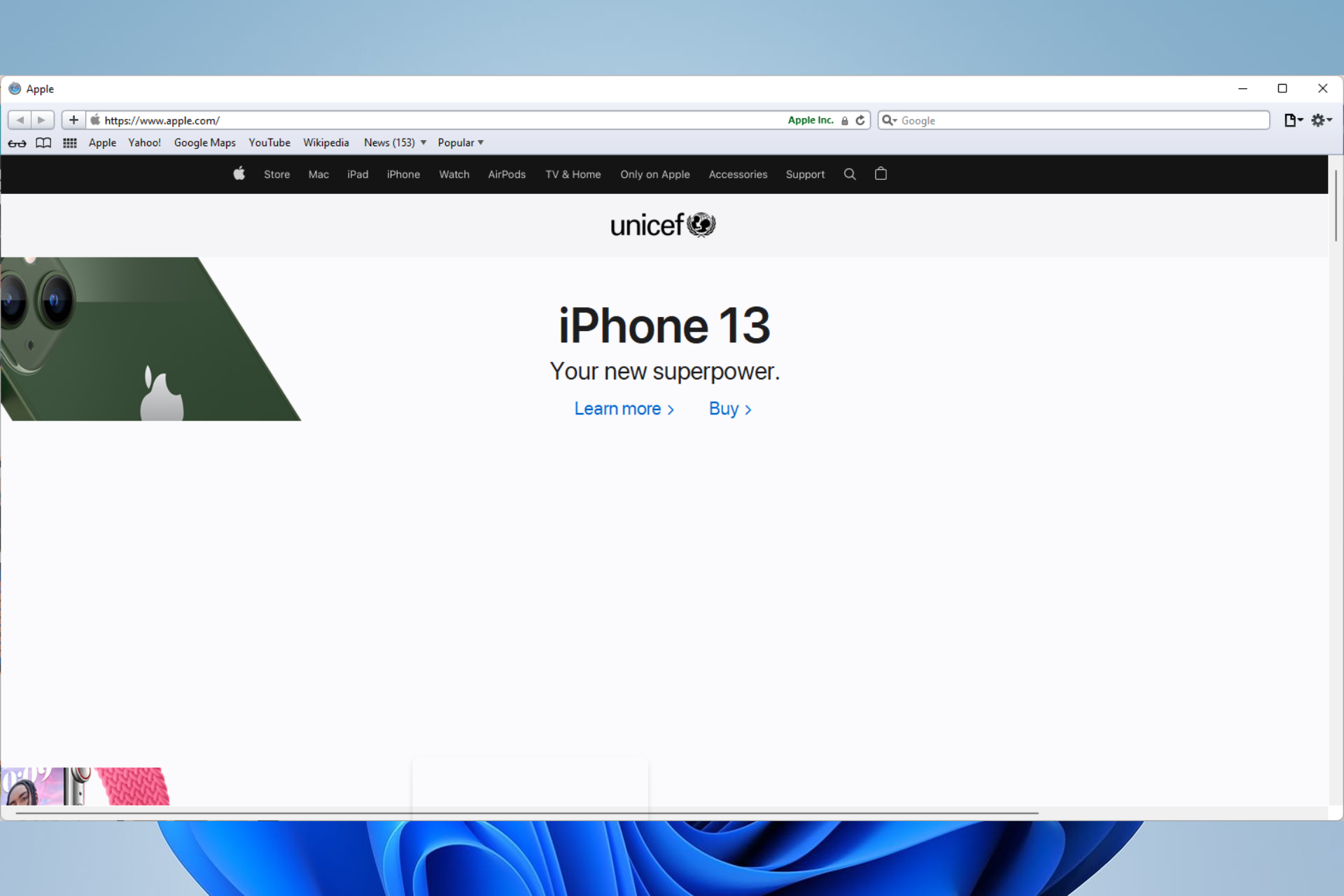
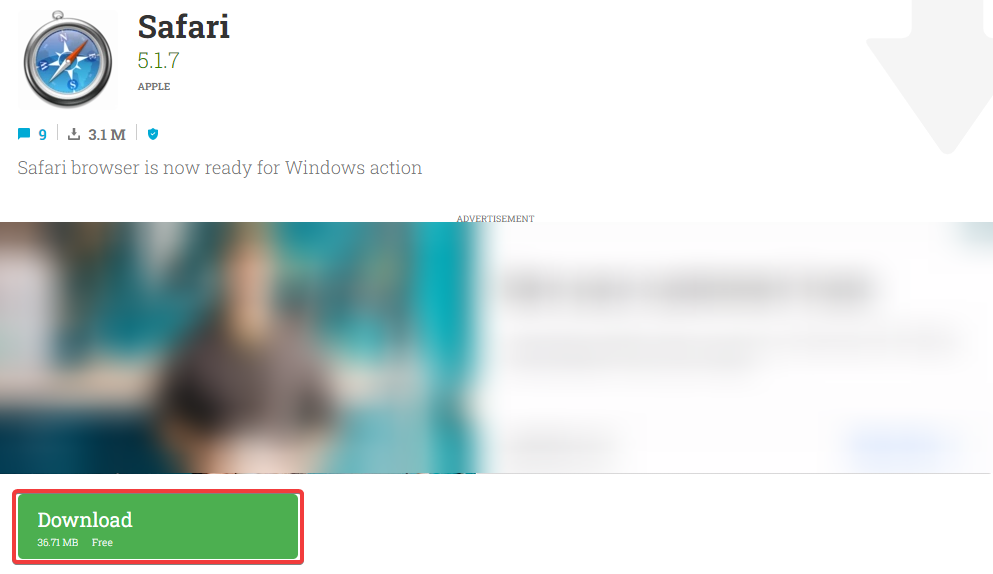
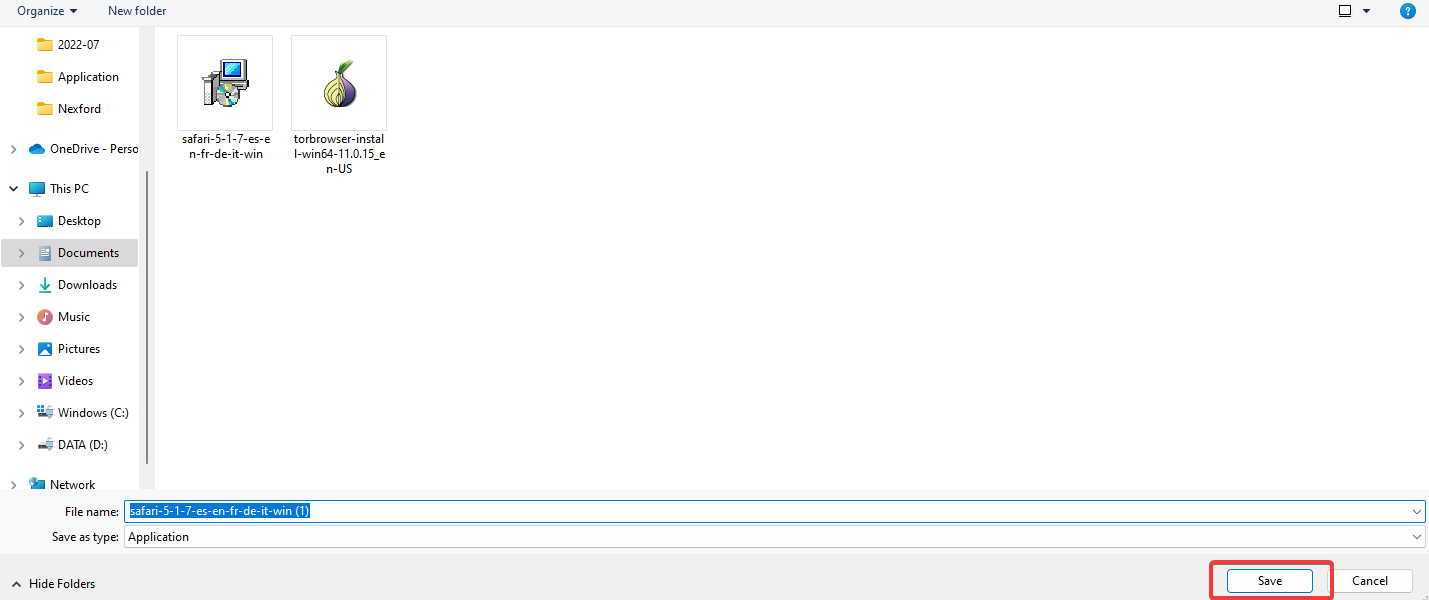
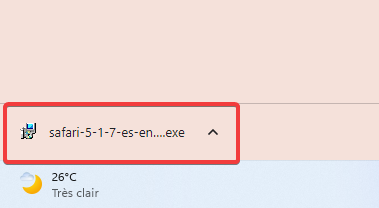
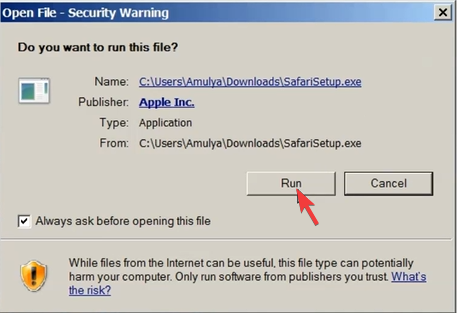
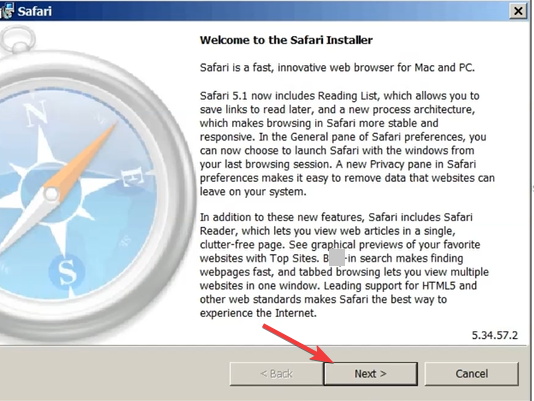
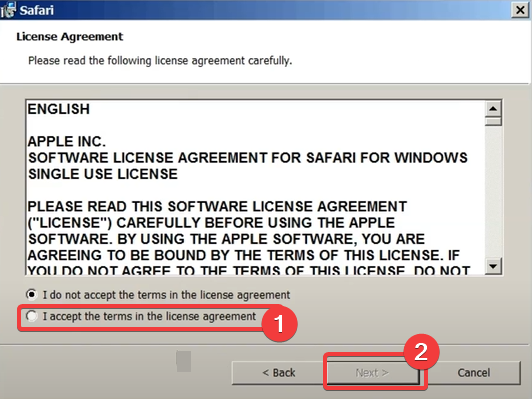
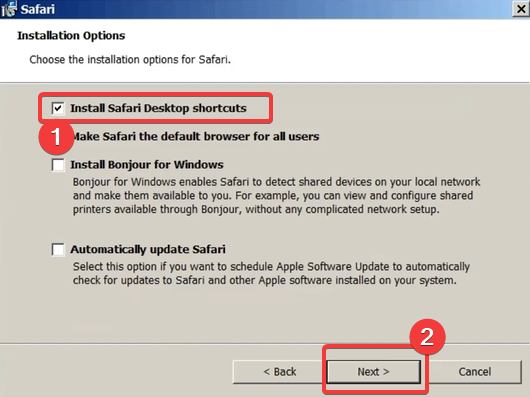
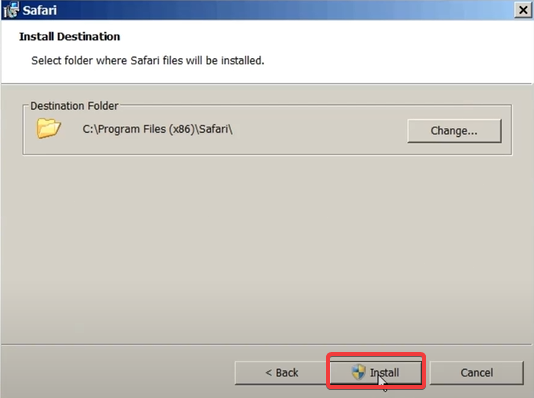
![Windows 10 & 11 July Patch Tuesday [DIRECT DOWNLOAD LINKS]](https://windowsreport.com/wp-content/uploads/2022/07/pt-download.jpg)

![5 Best Naruto Online Games to Play in Your Browser [2026 List]](https://windowsreport.com/wp-content/uploads/2020/07/naruto-online-game.jpg)



![6 Best Web Design Software For WordPress [2026 Guide]](https://windowsreport.com/wp-content/uploads/2022/02/Best-Web-Design-Software-for-WordPress.jpg)













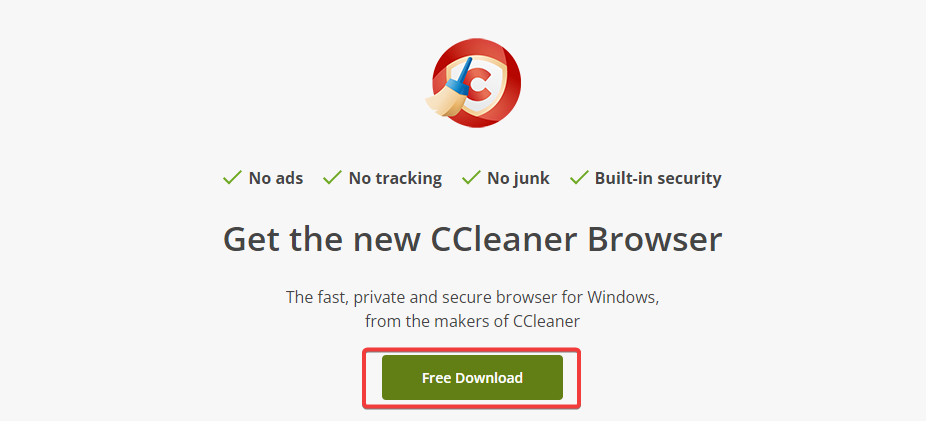
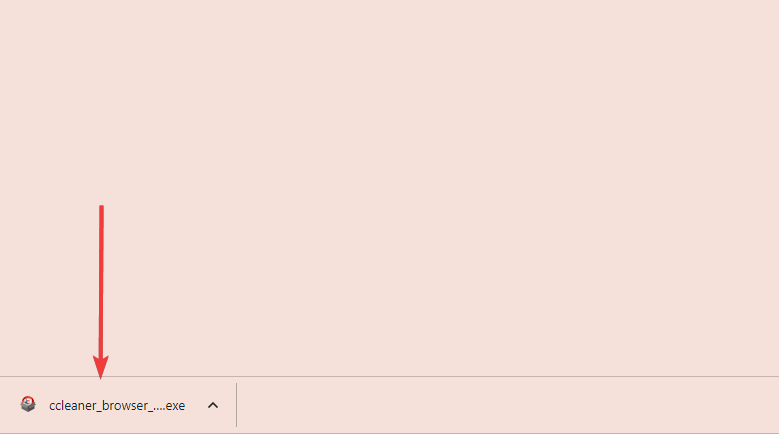
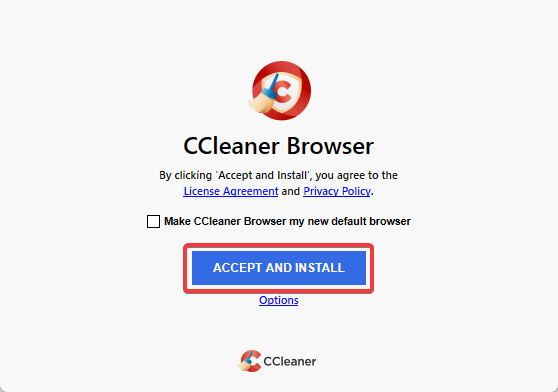
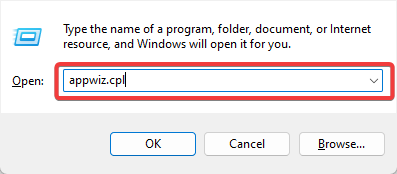
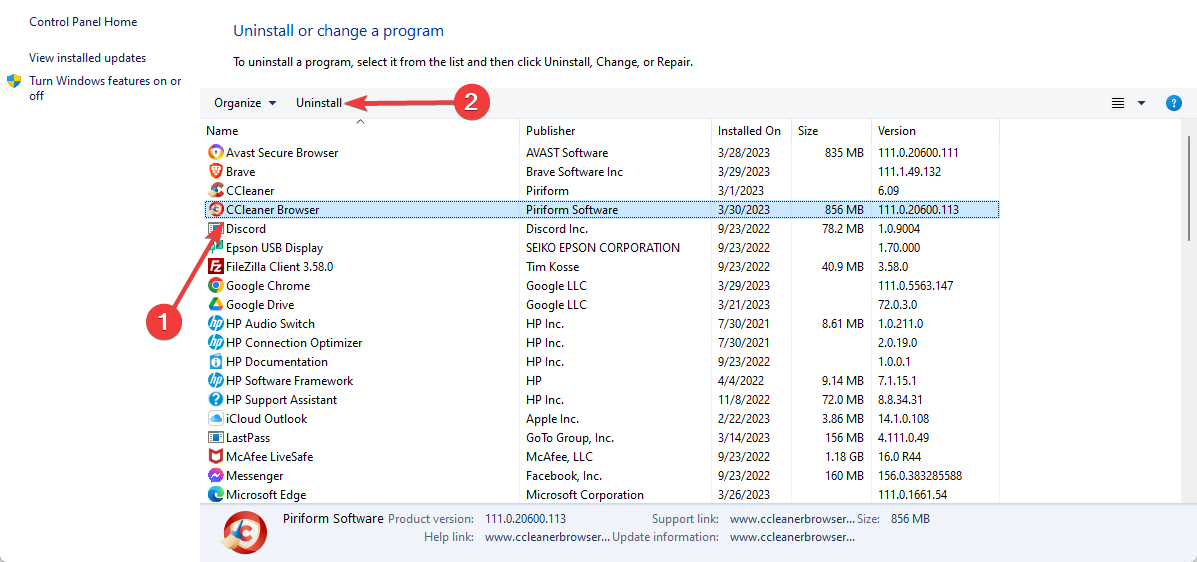
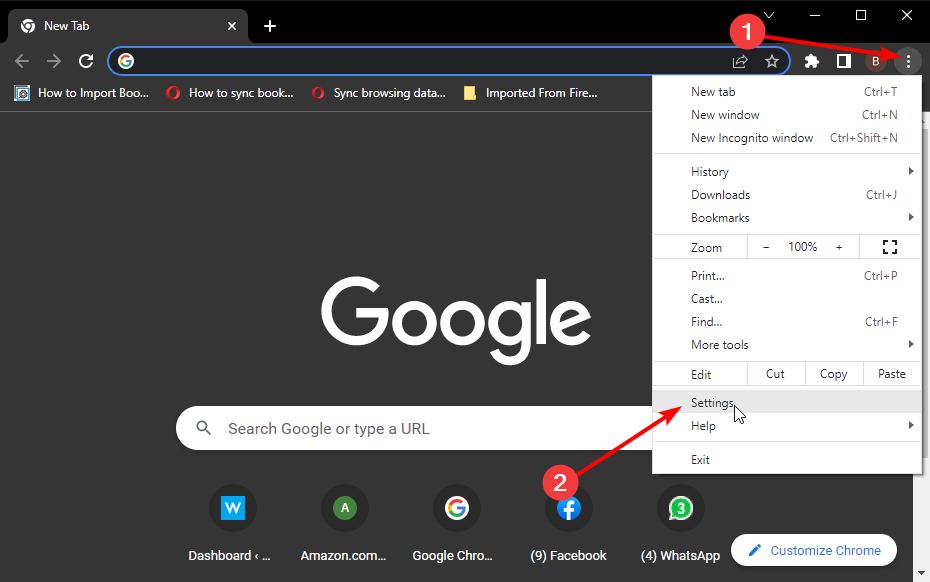
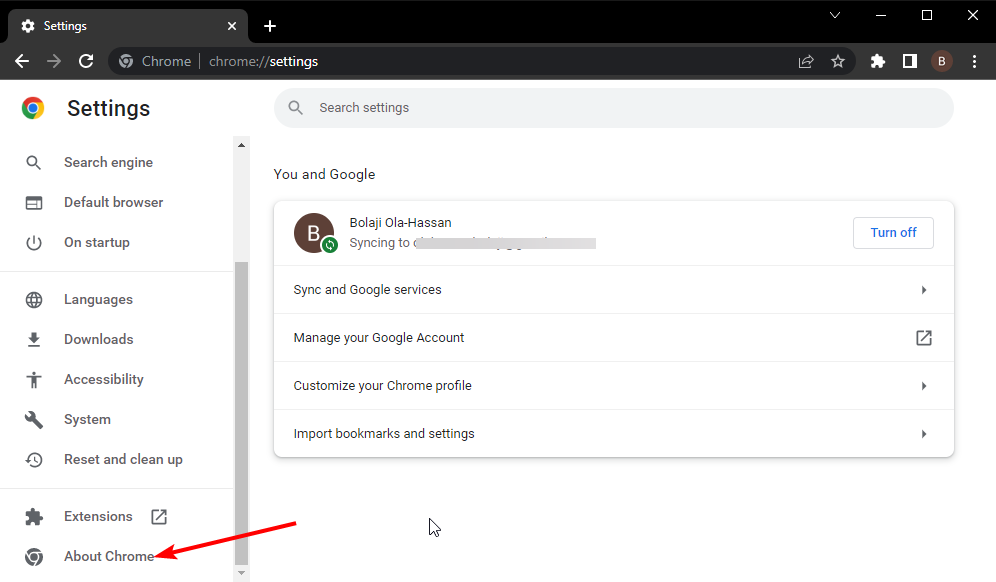
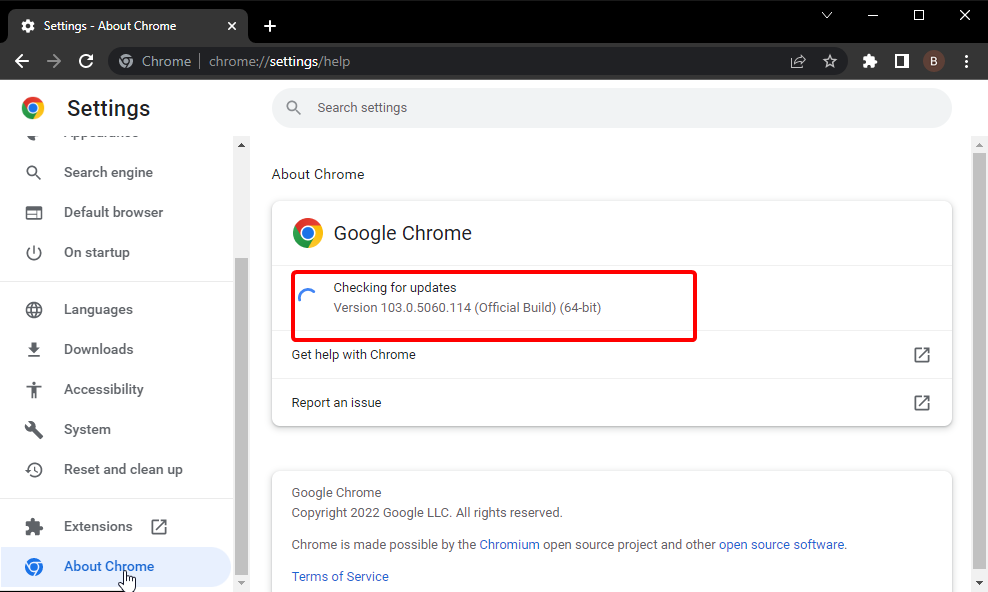
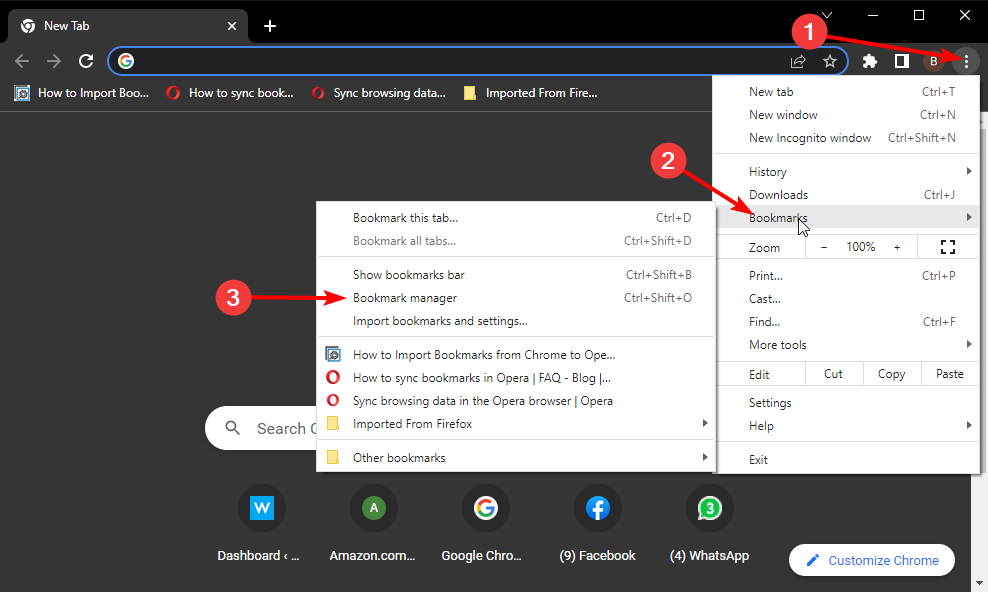
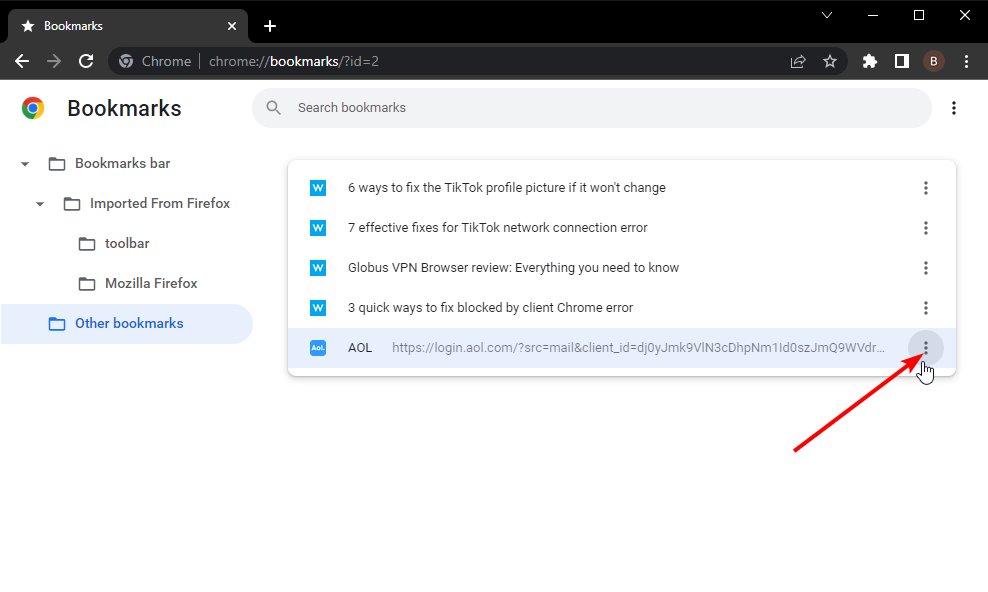
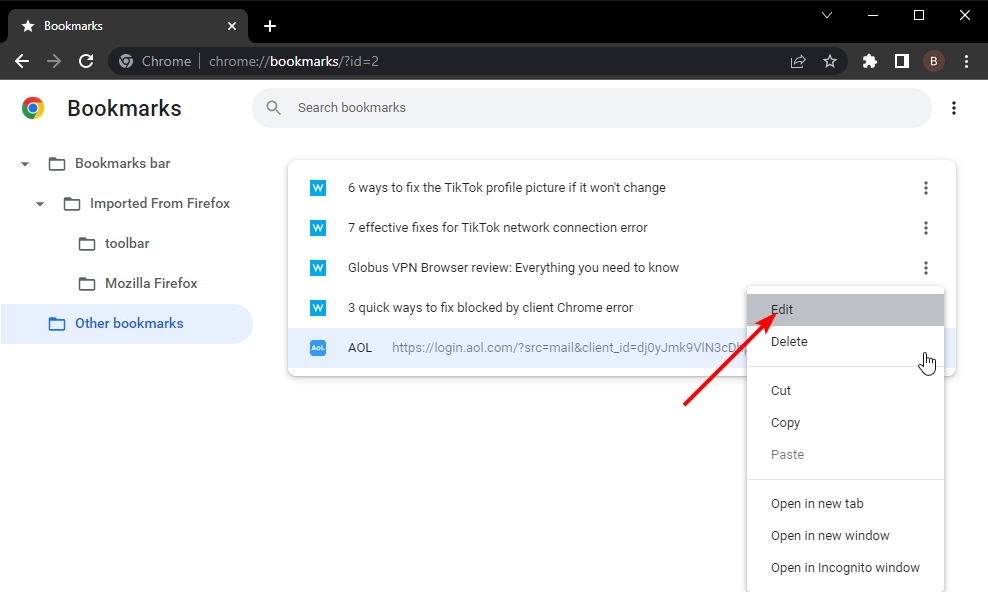
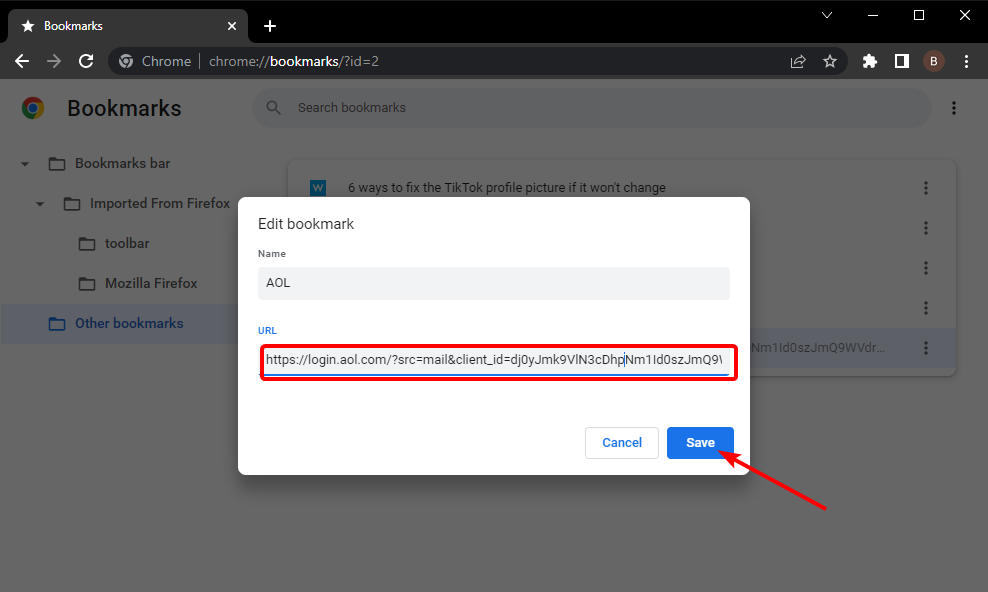
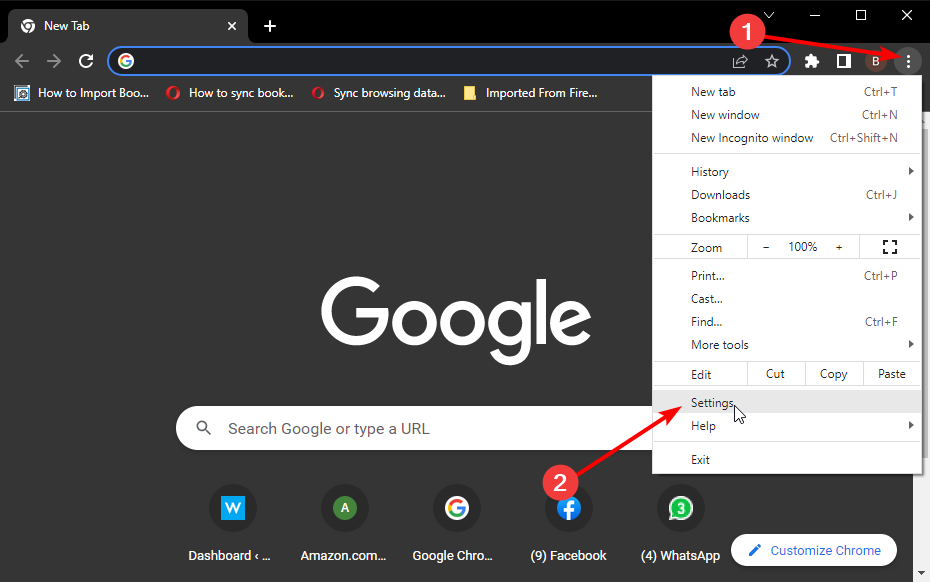
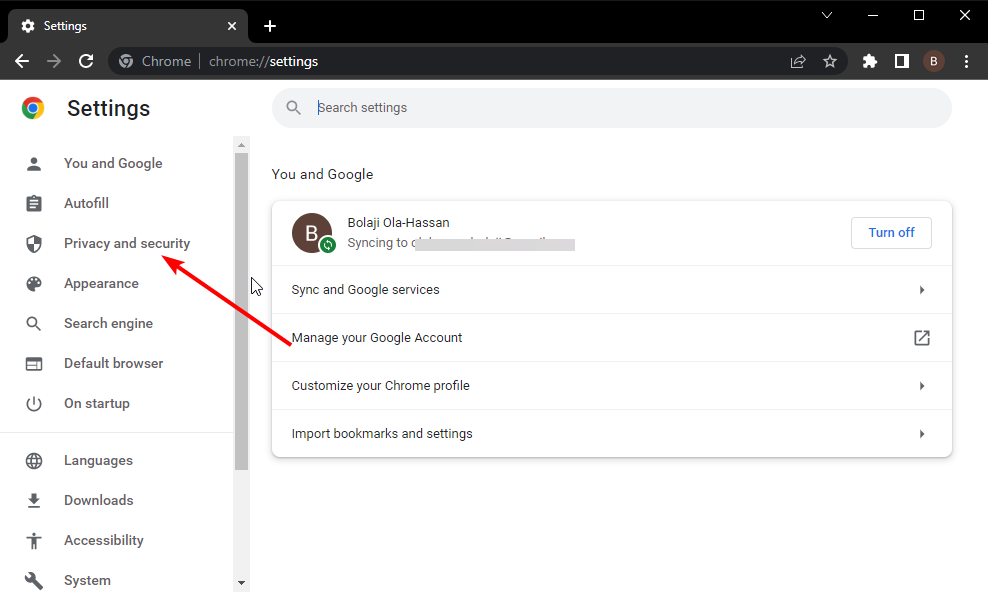
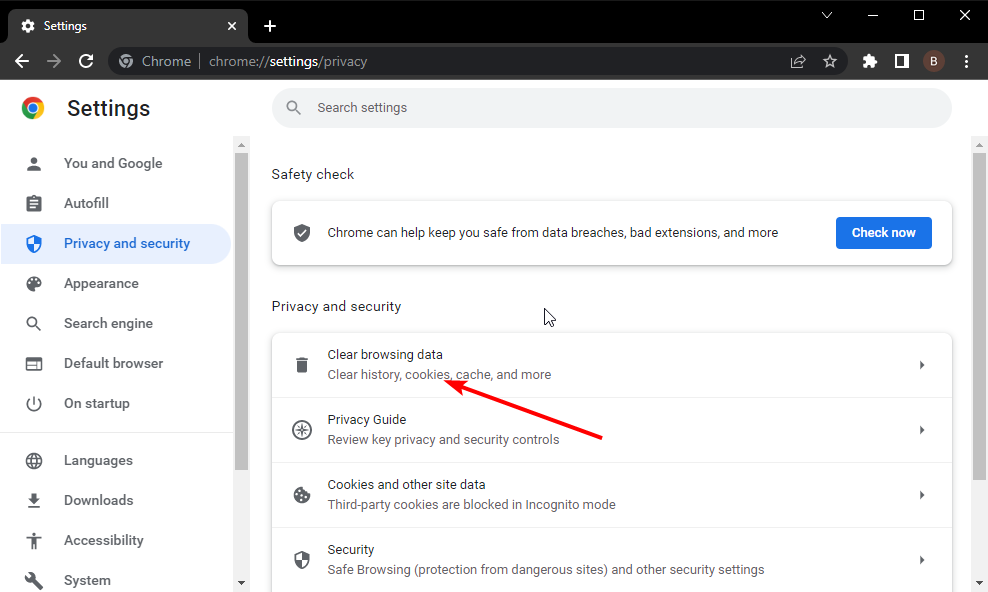
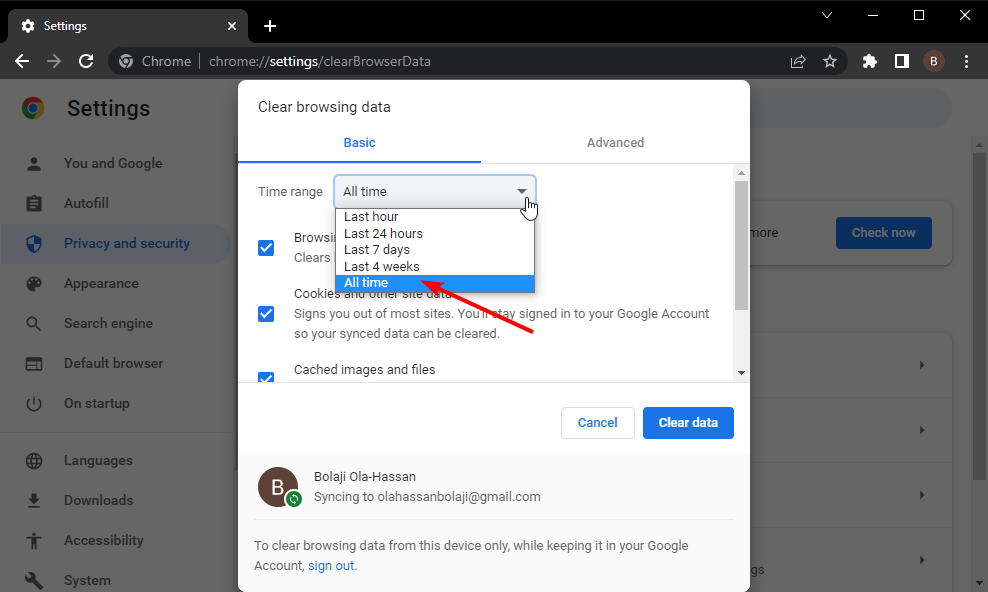
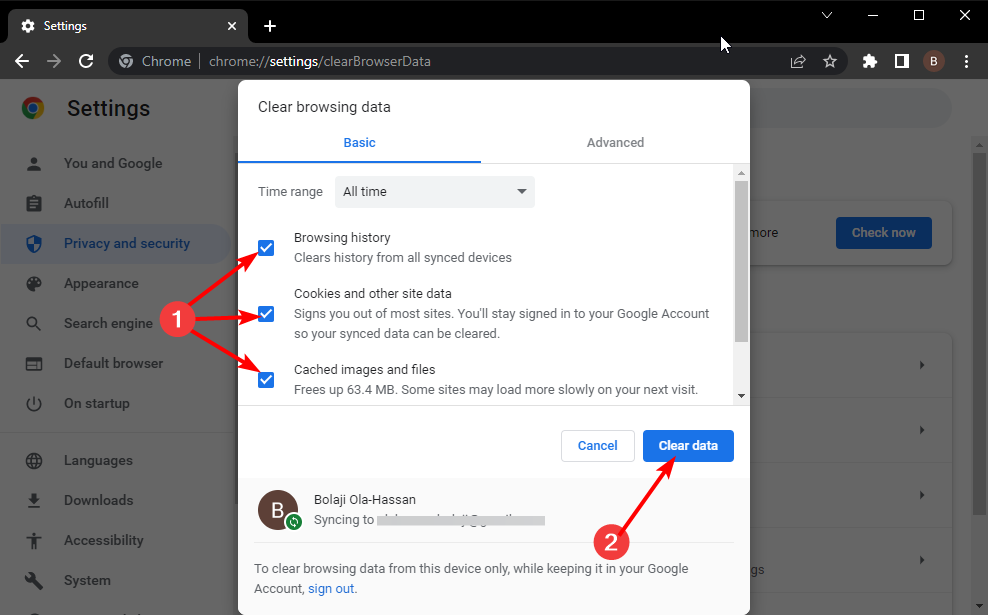
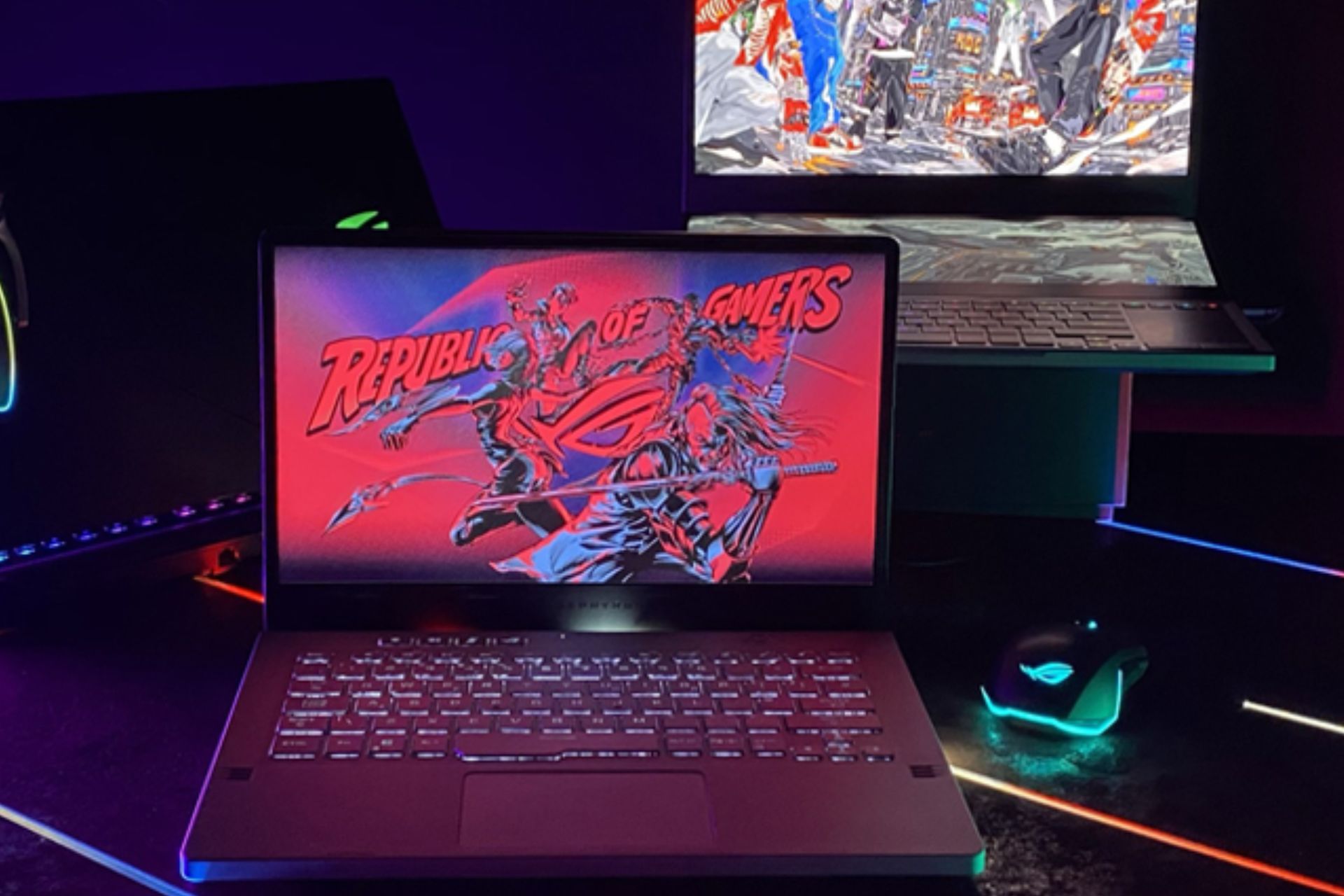
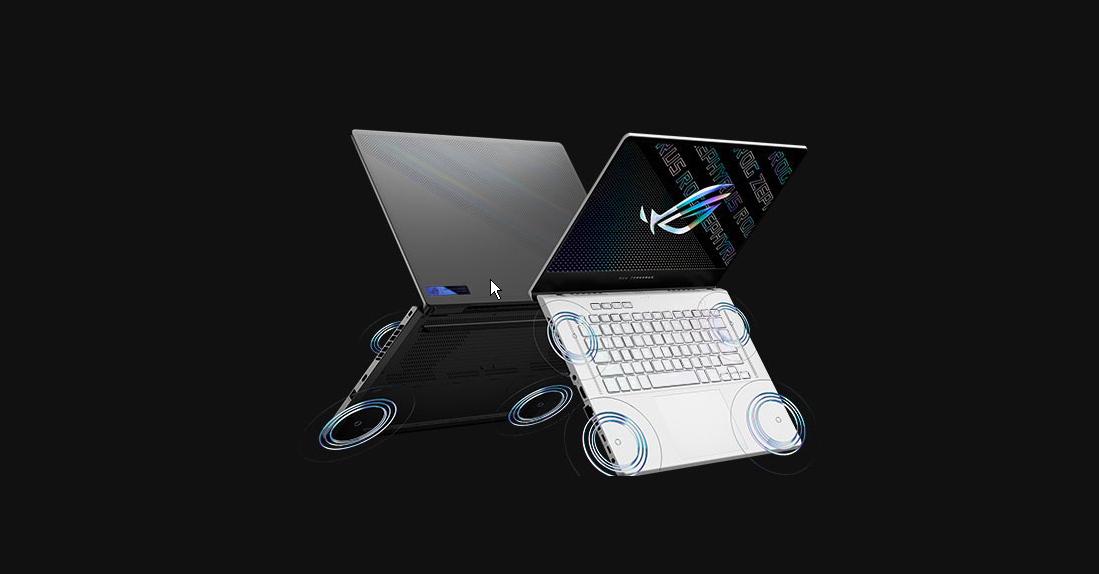
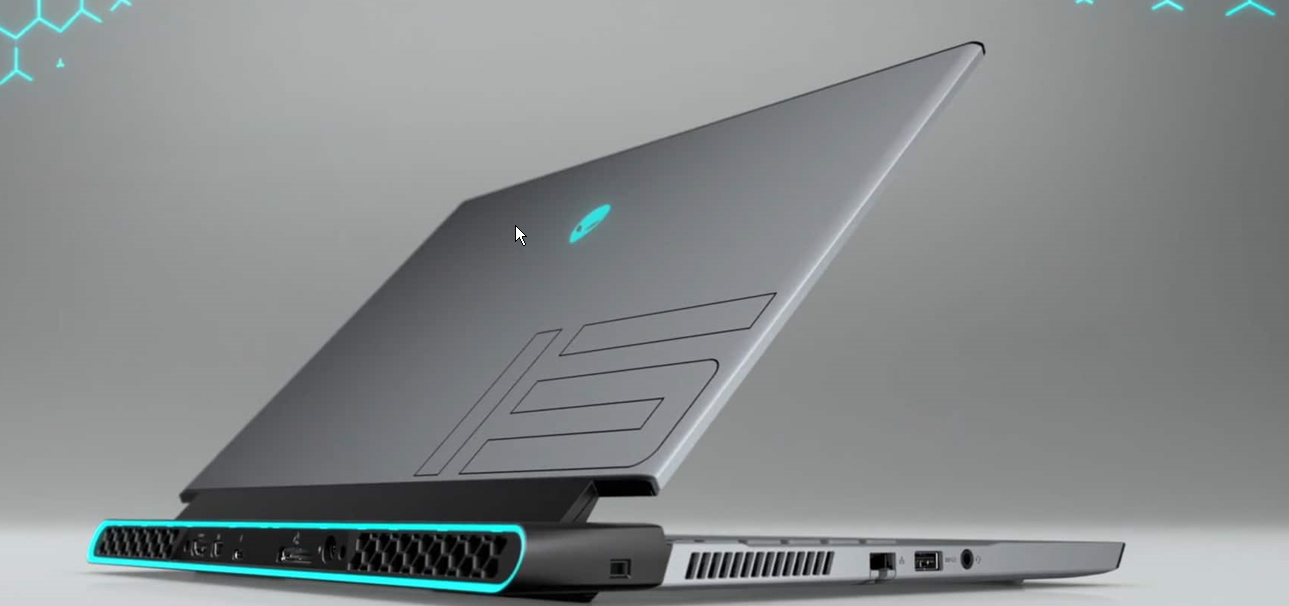
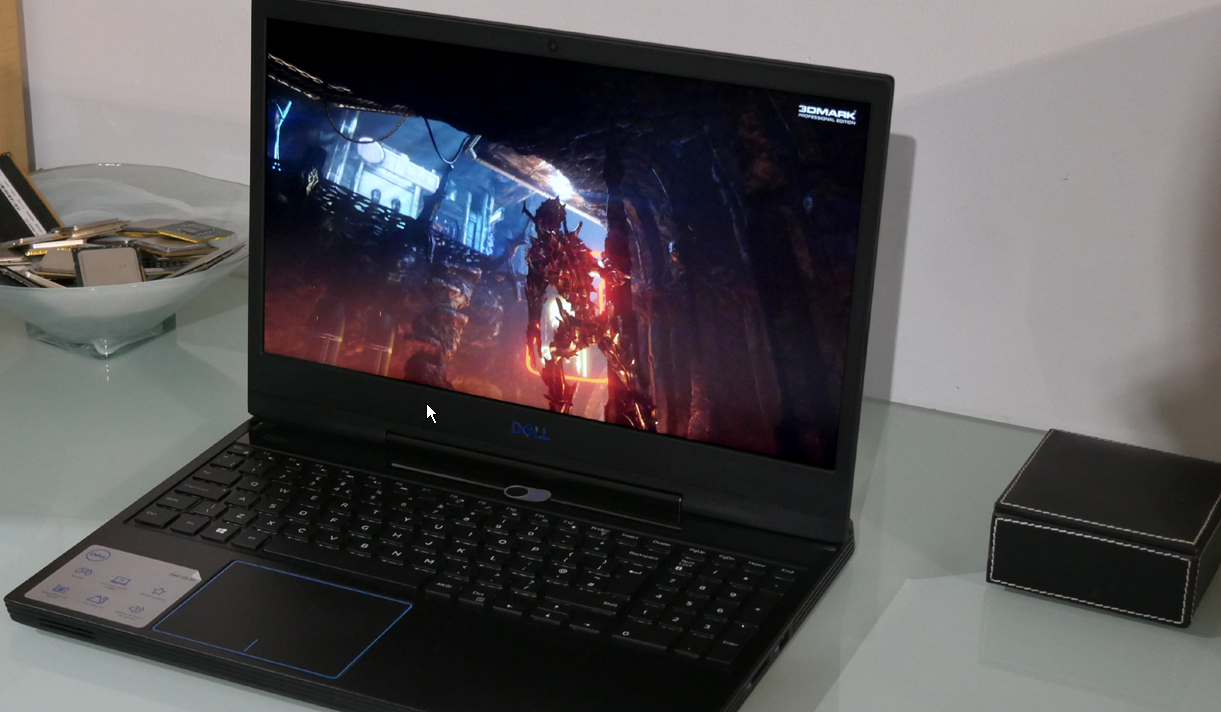
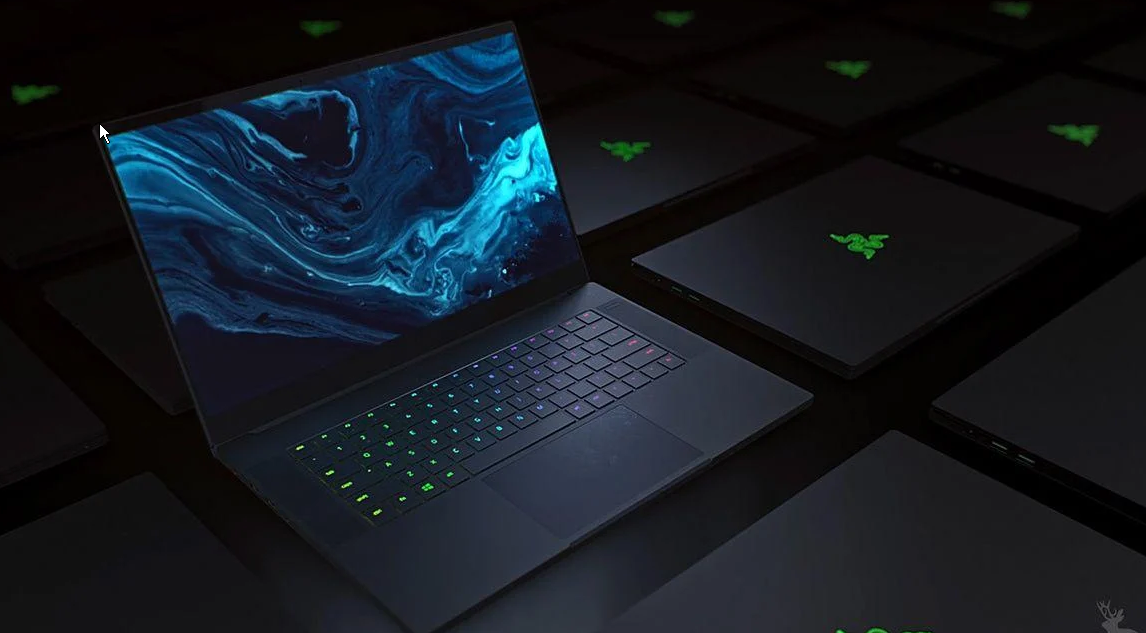
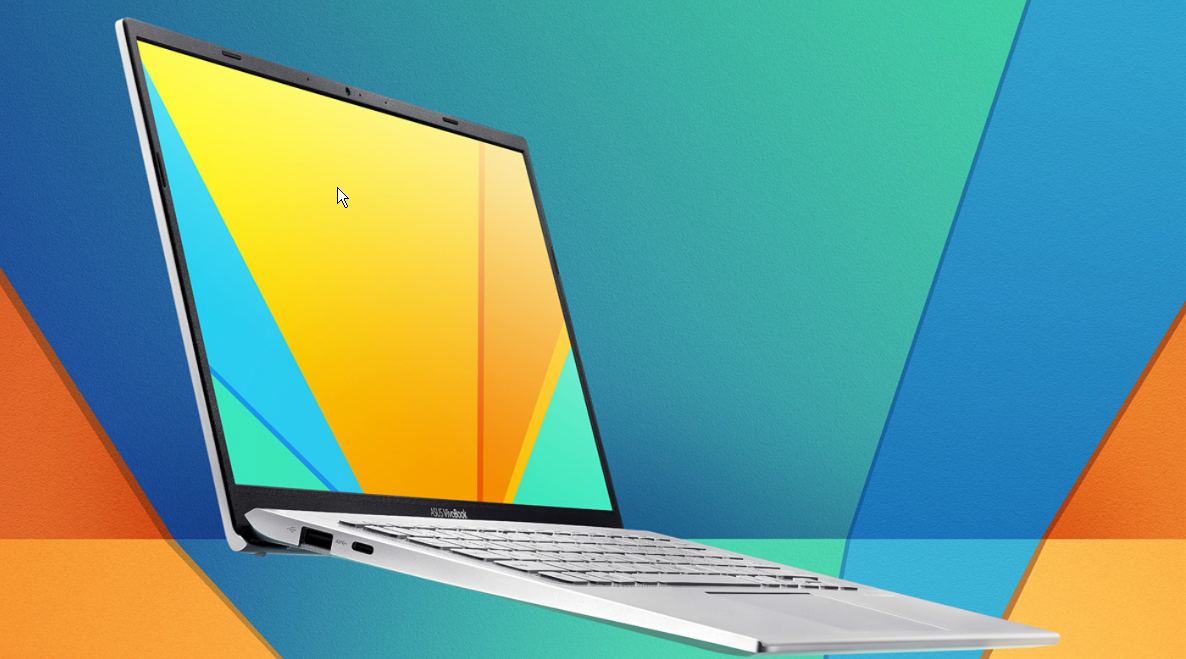



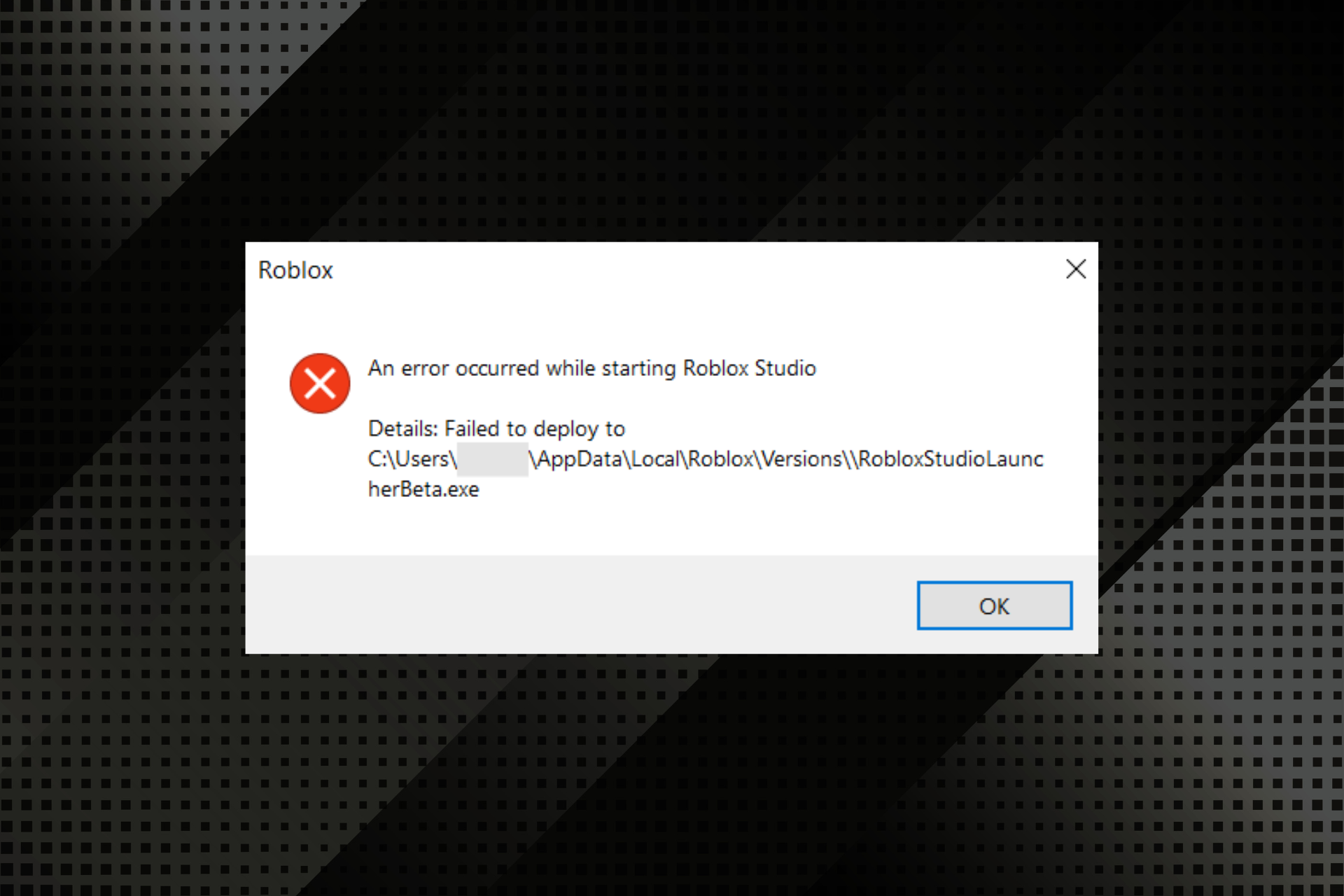


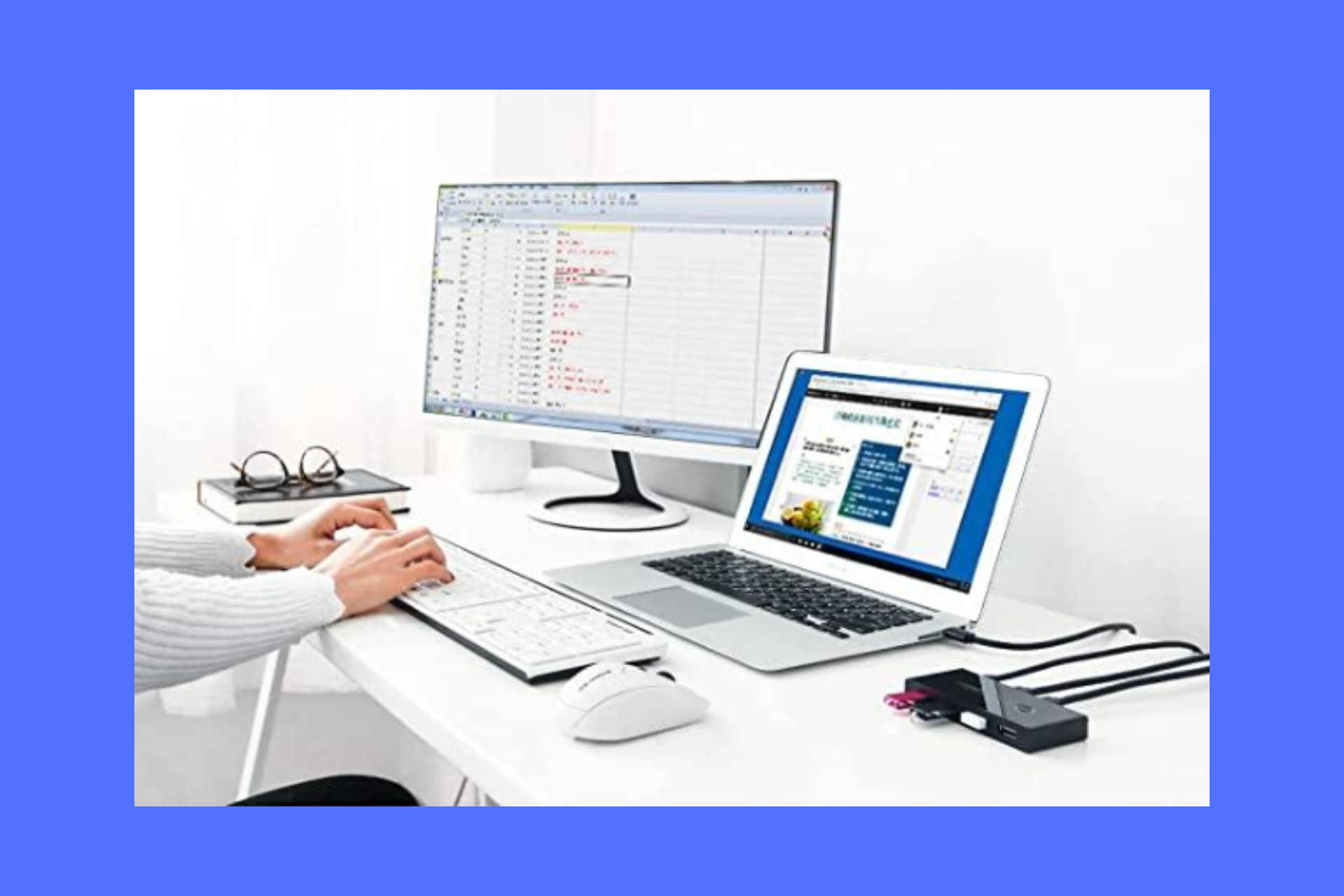


![Best 5 Portable Browsers Without Installation [2026]](https://windowsreport.com/wp-content/uploads/2022/07/Best-Portable-Browsers.jpg)
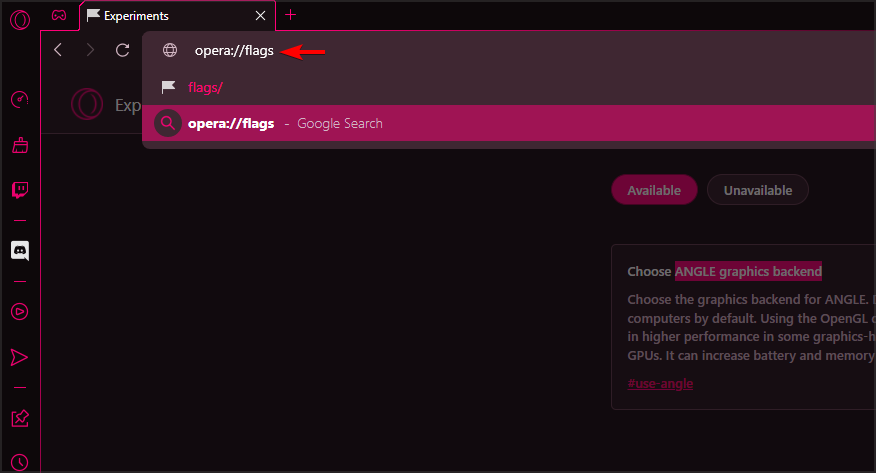
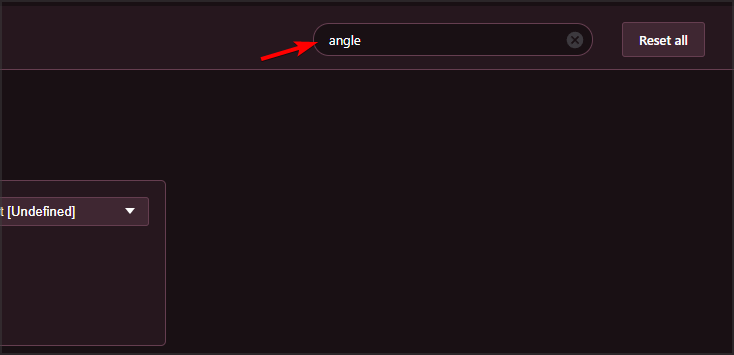
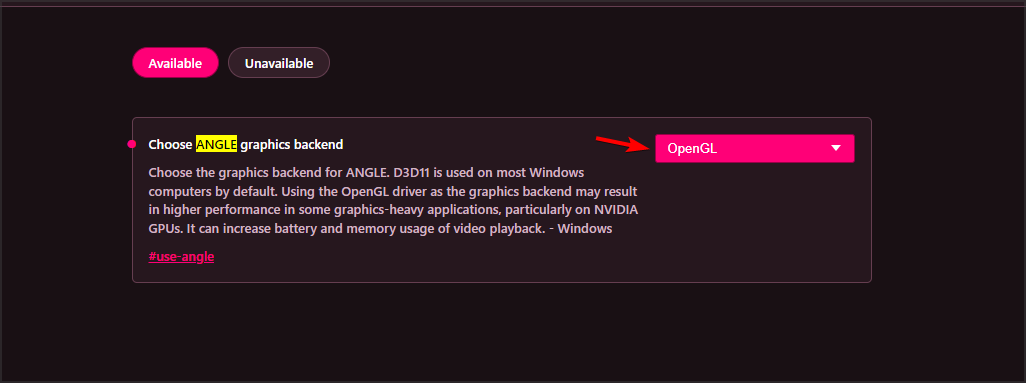
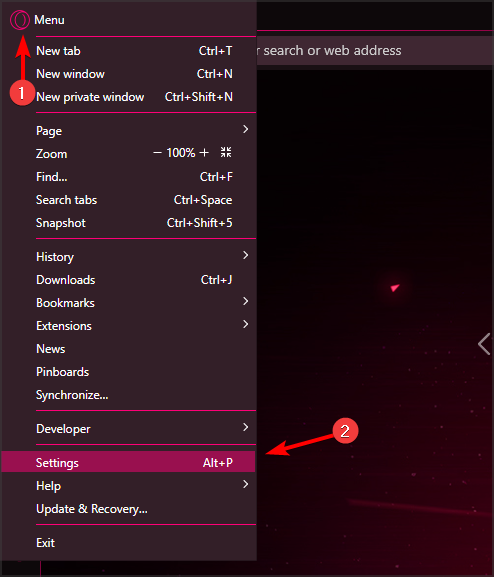
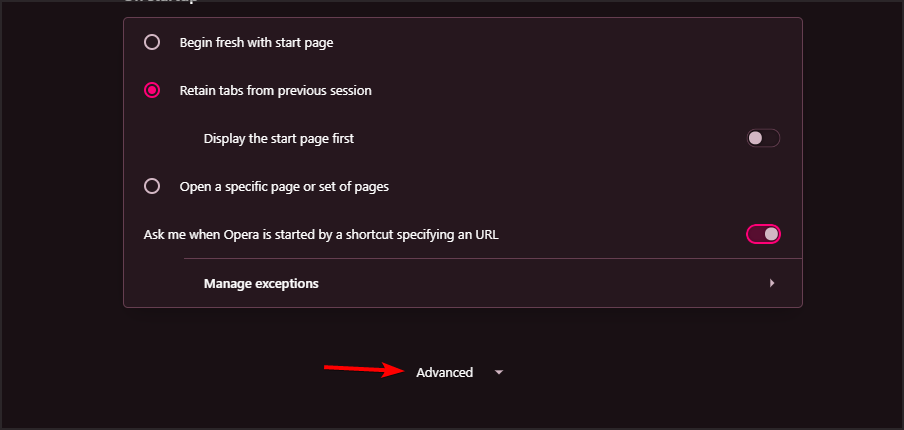
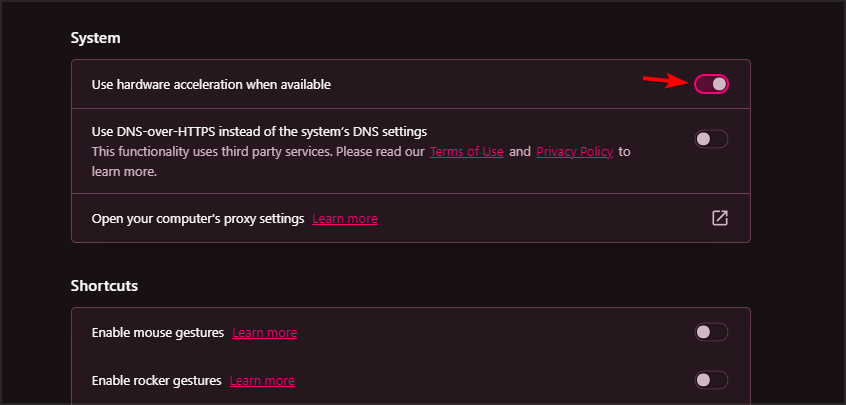
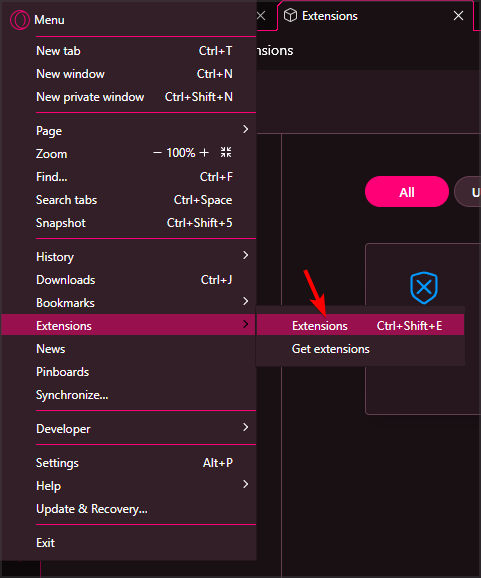
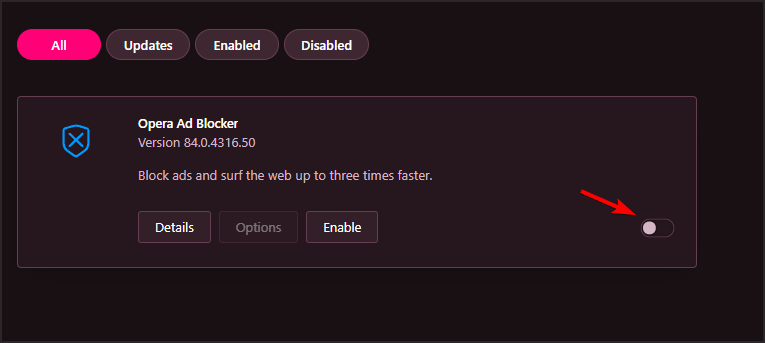
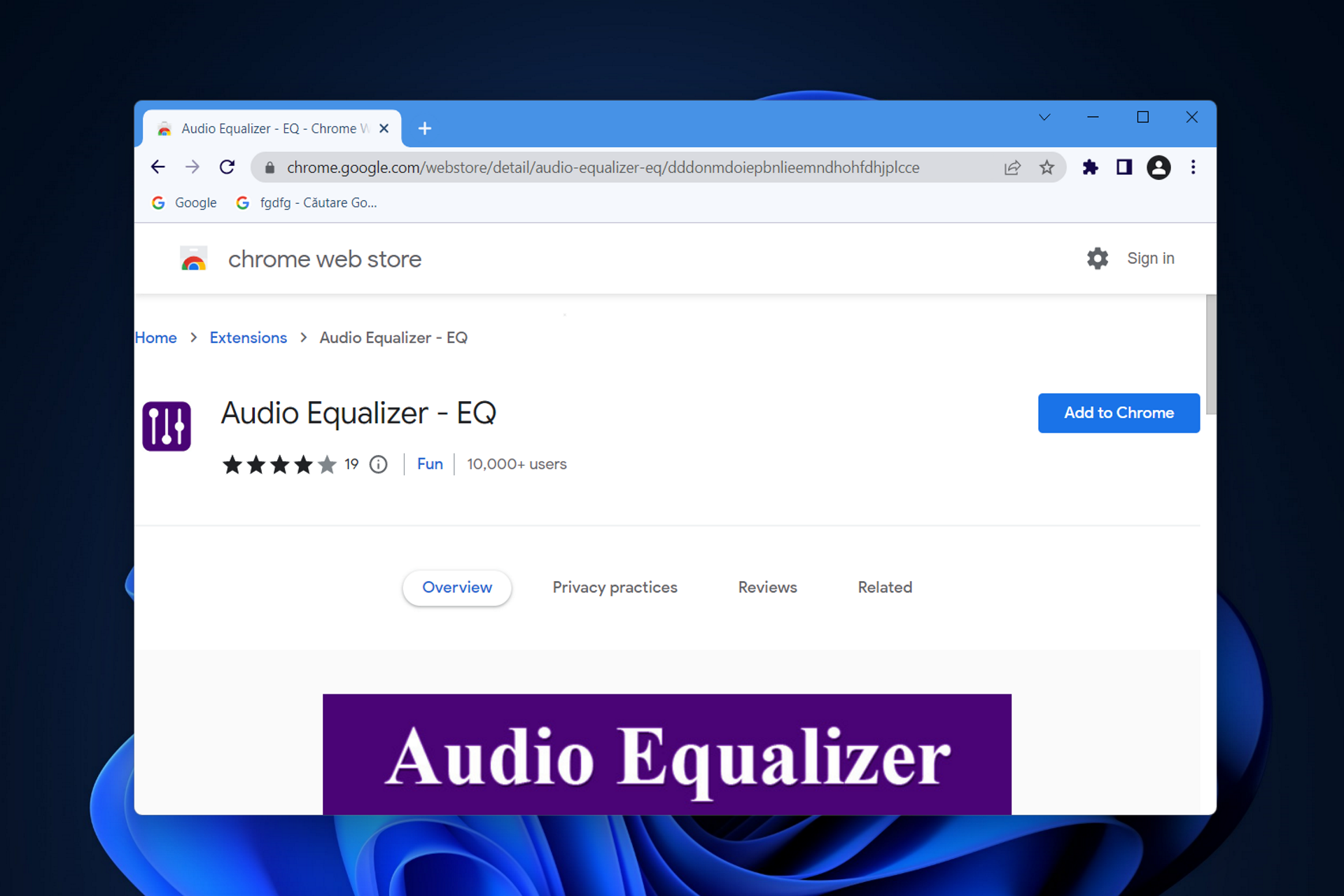


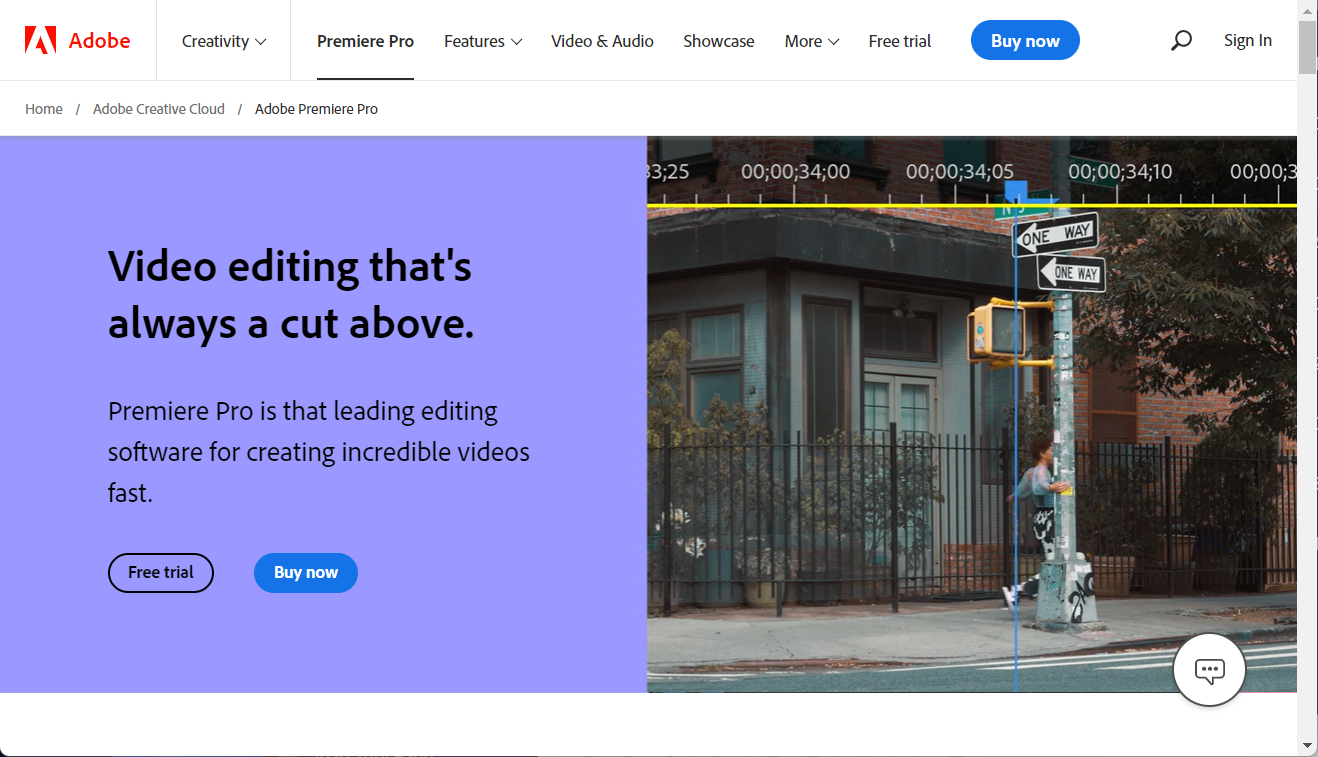

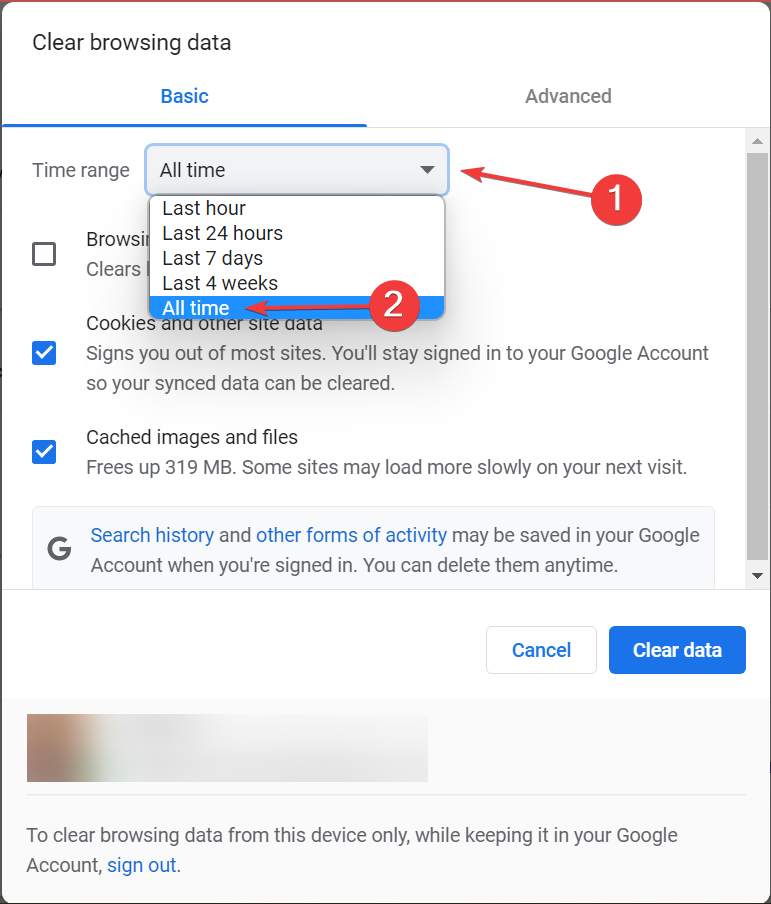
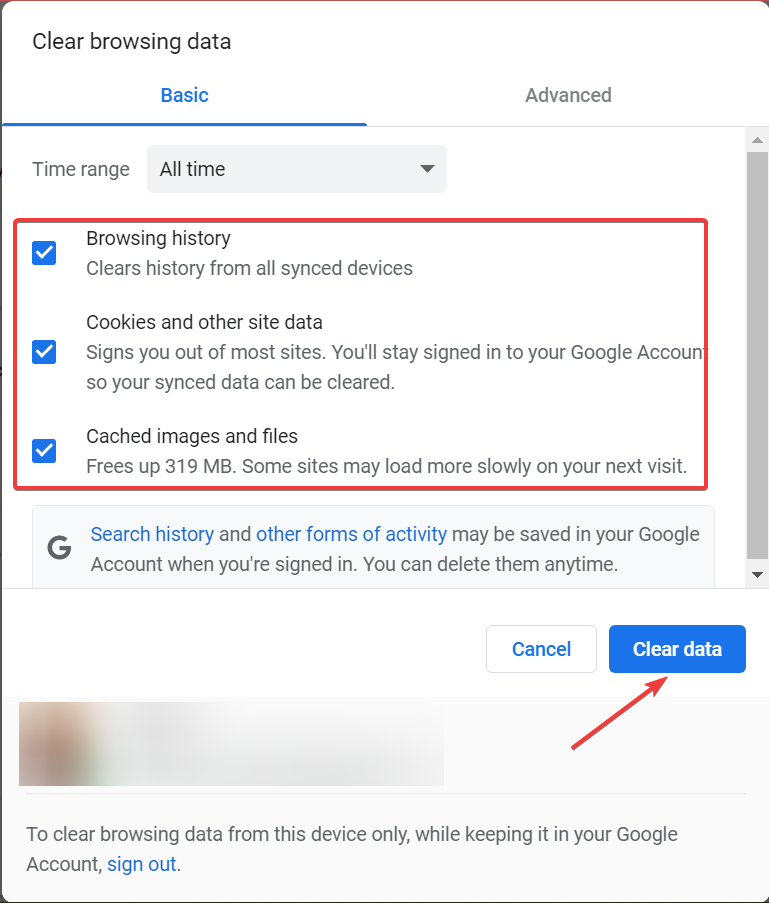
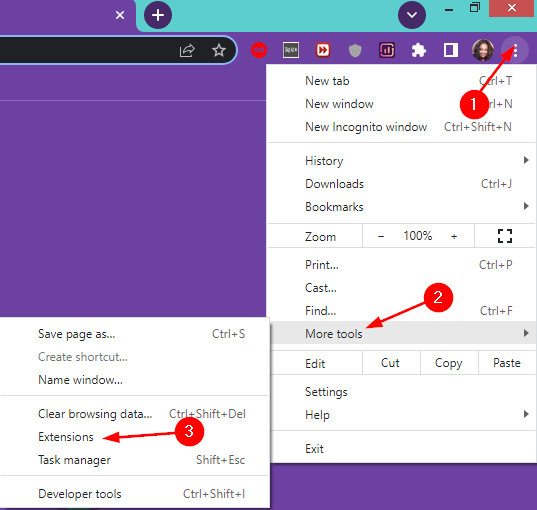
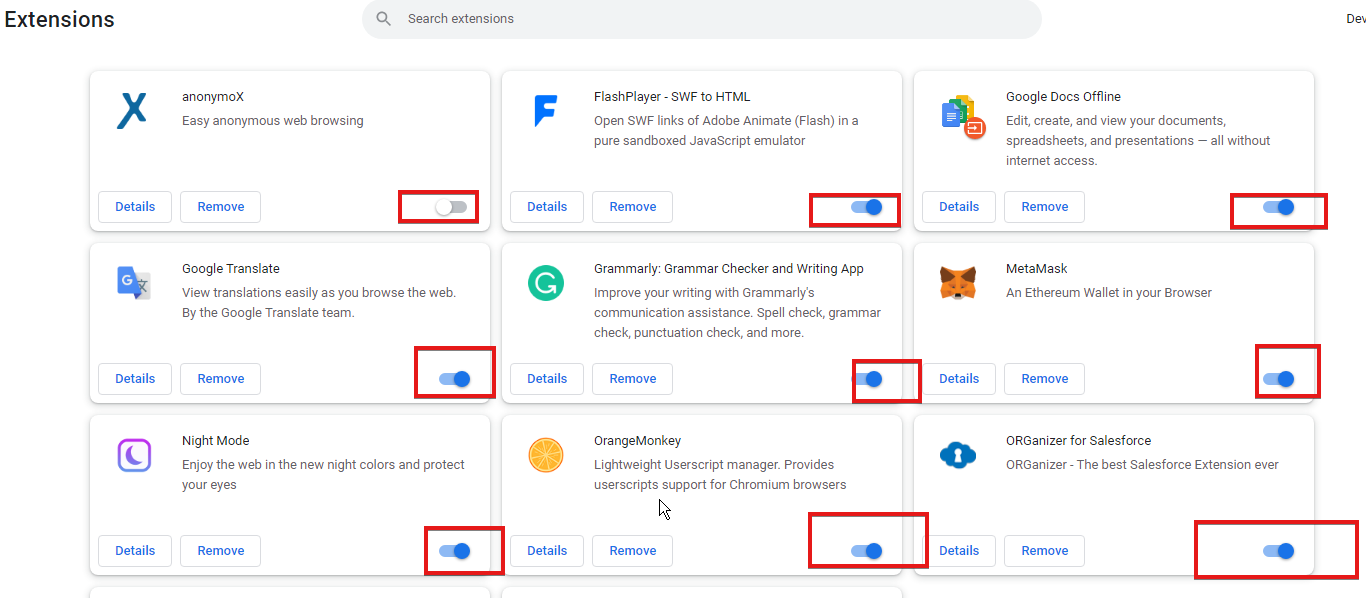


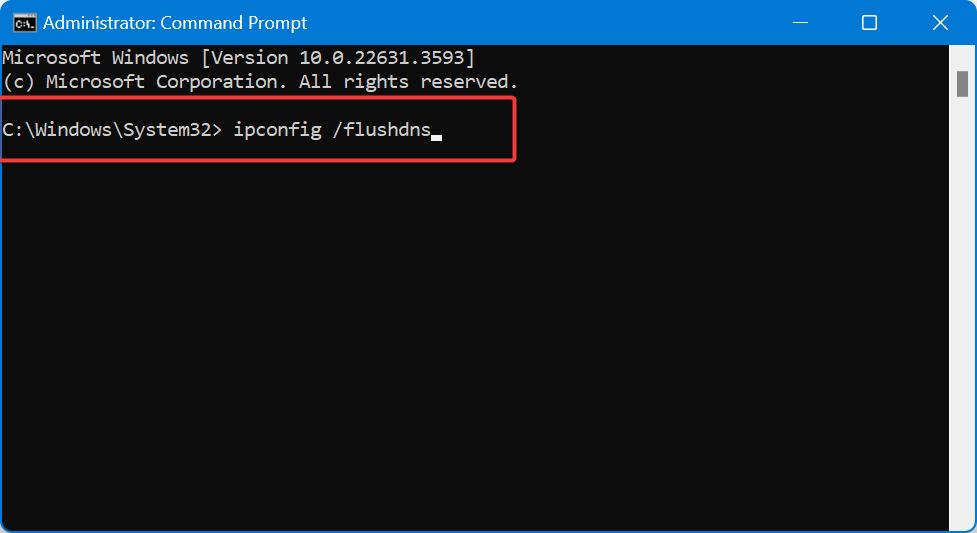
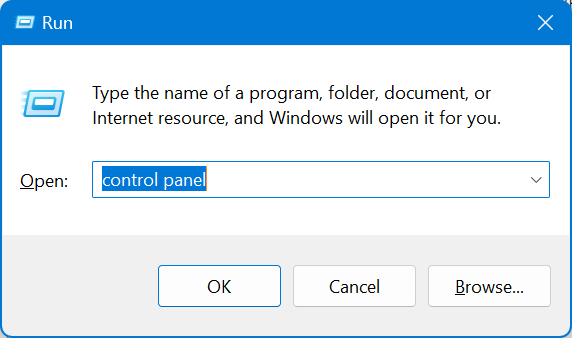
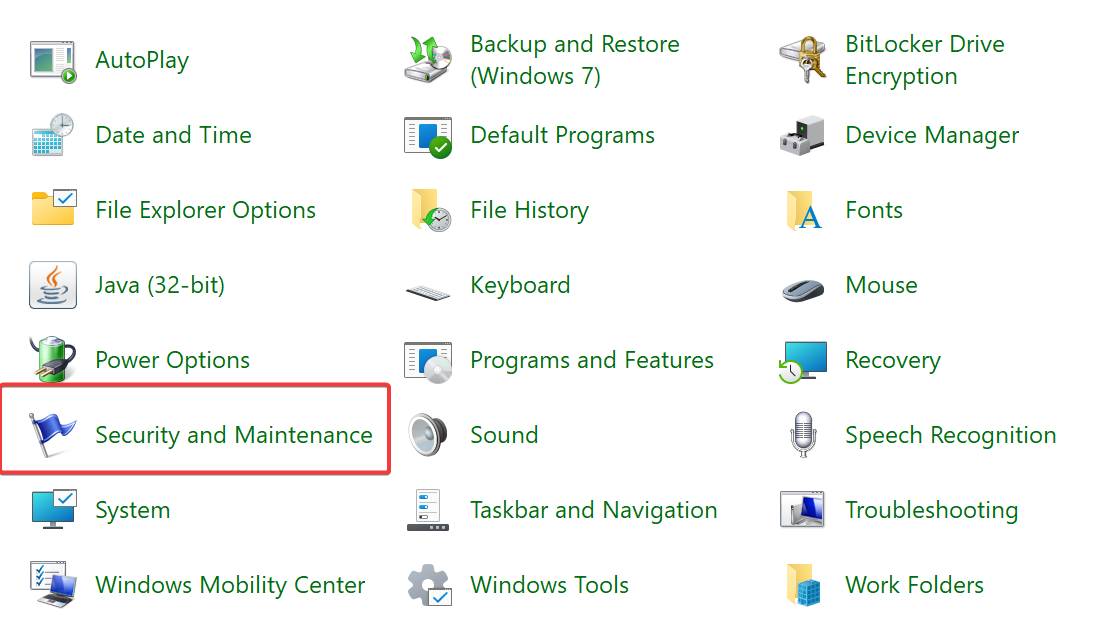
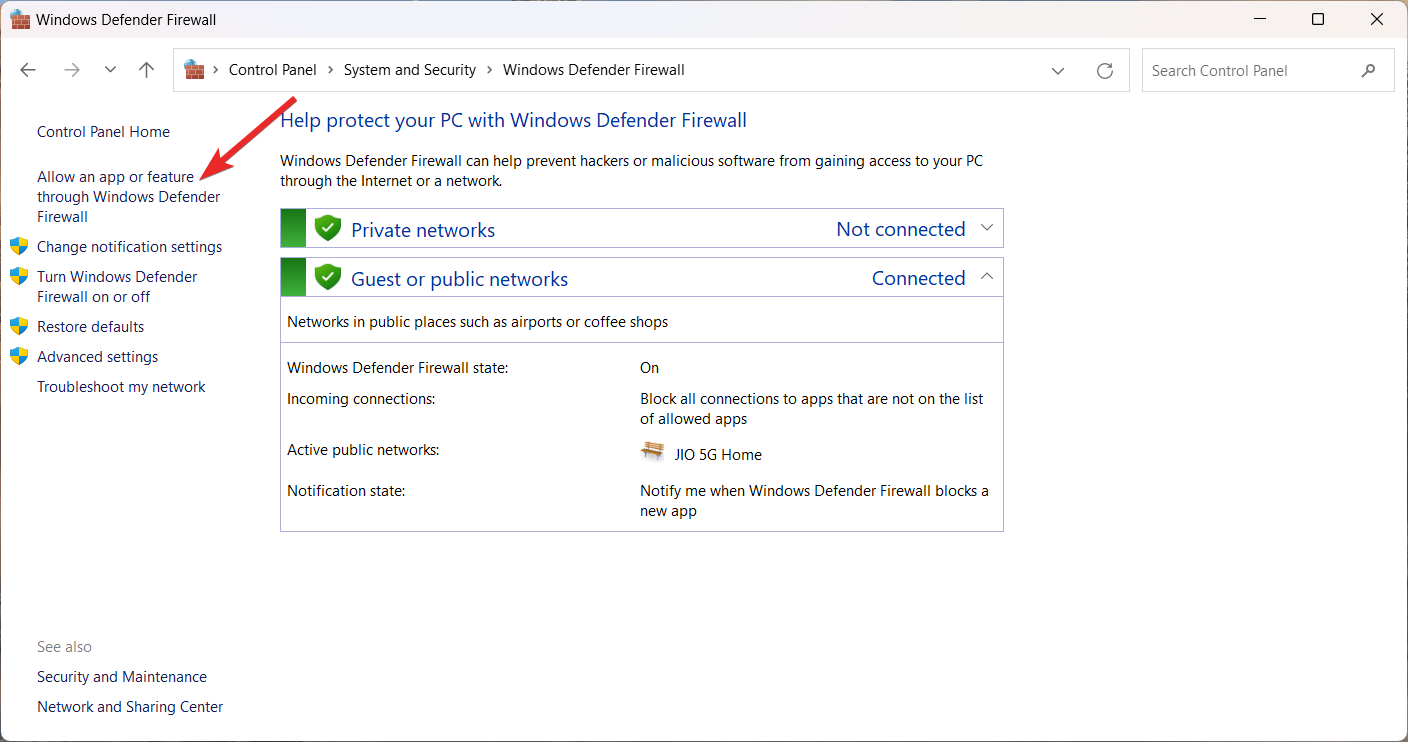

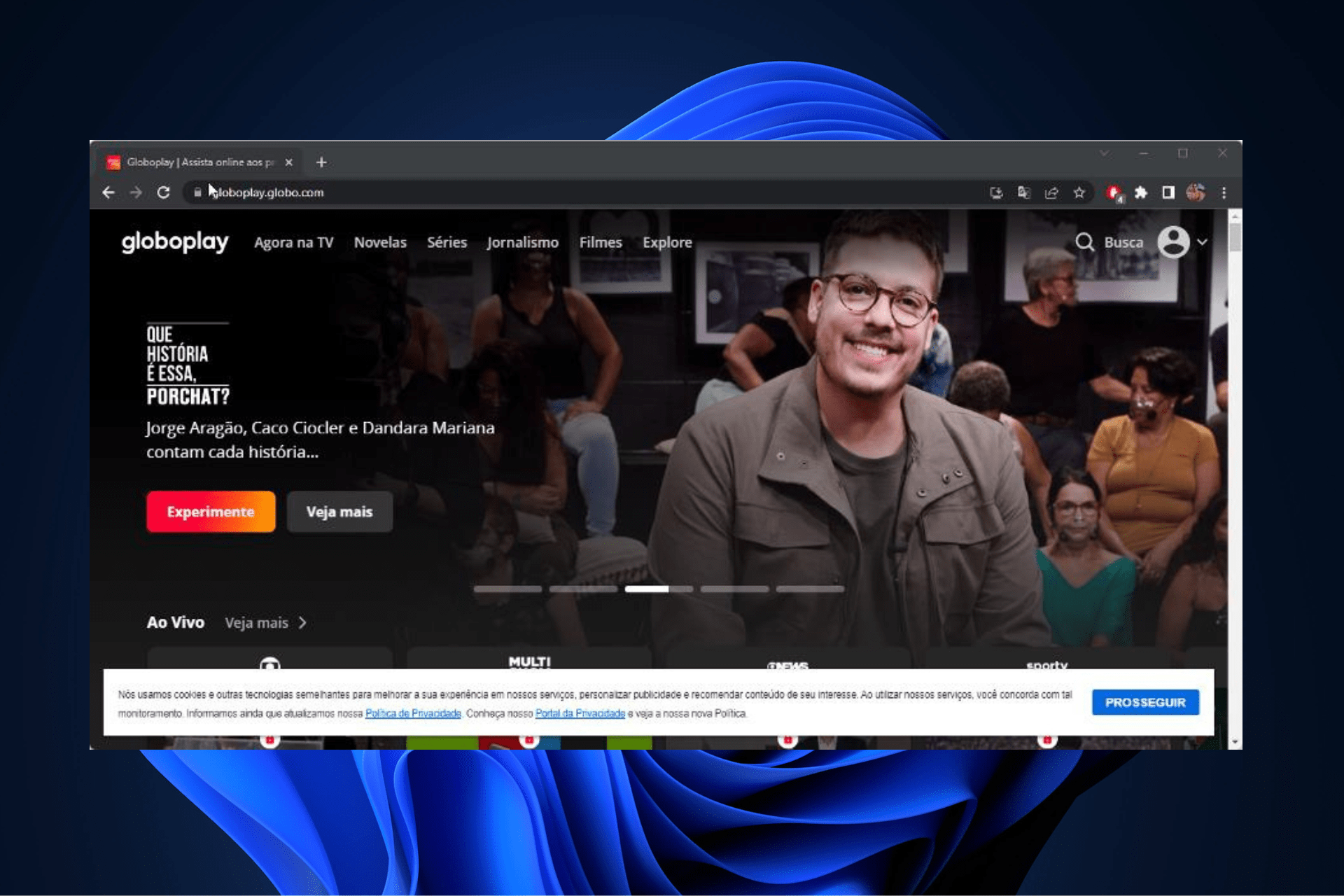



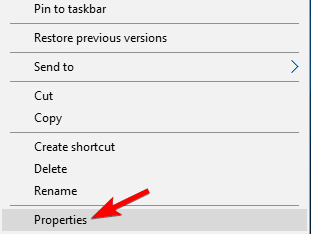
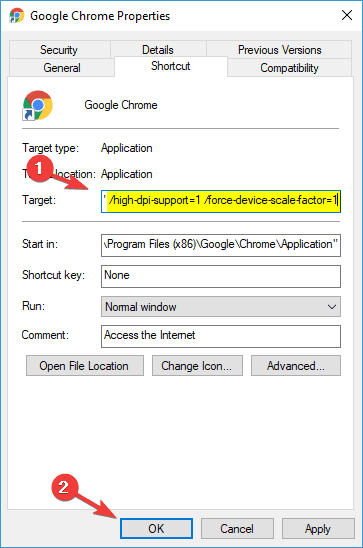


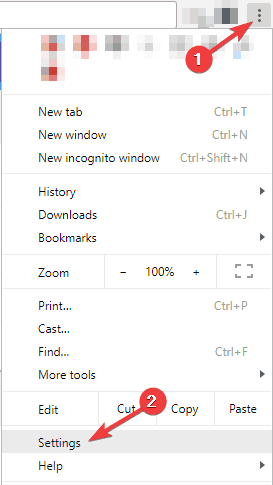
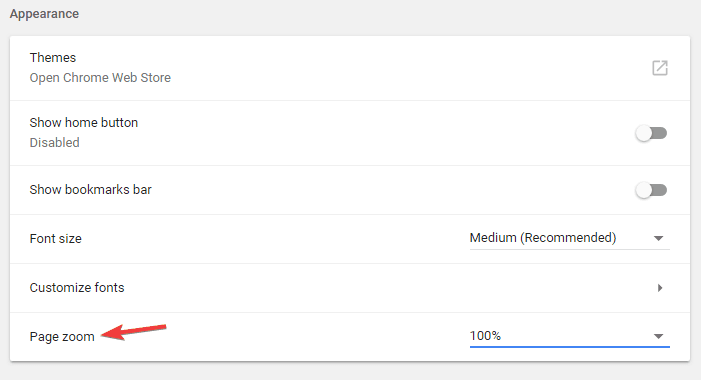
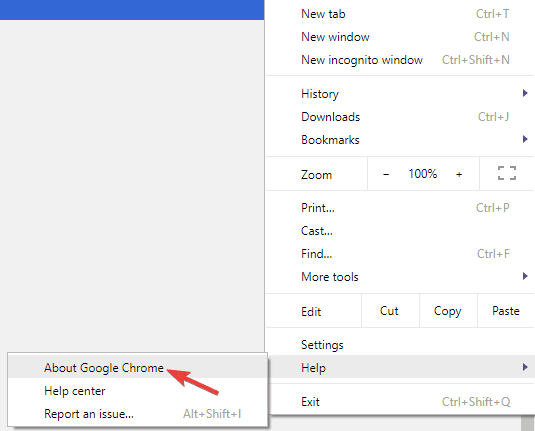
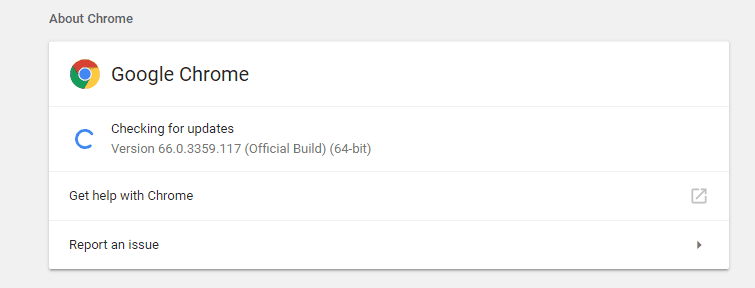


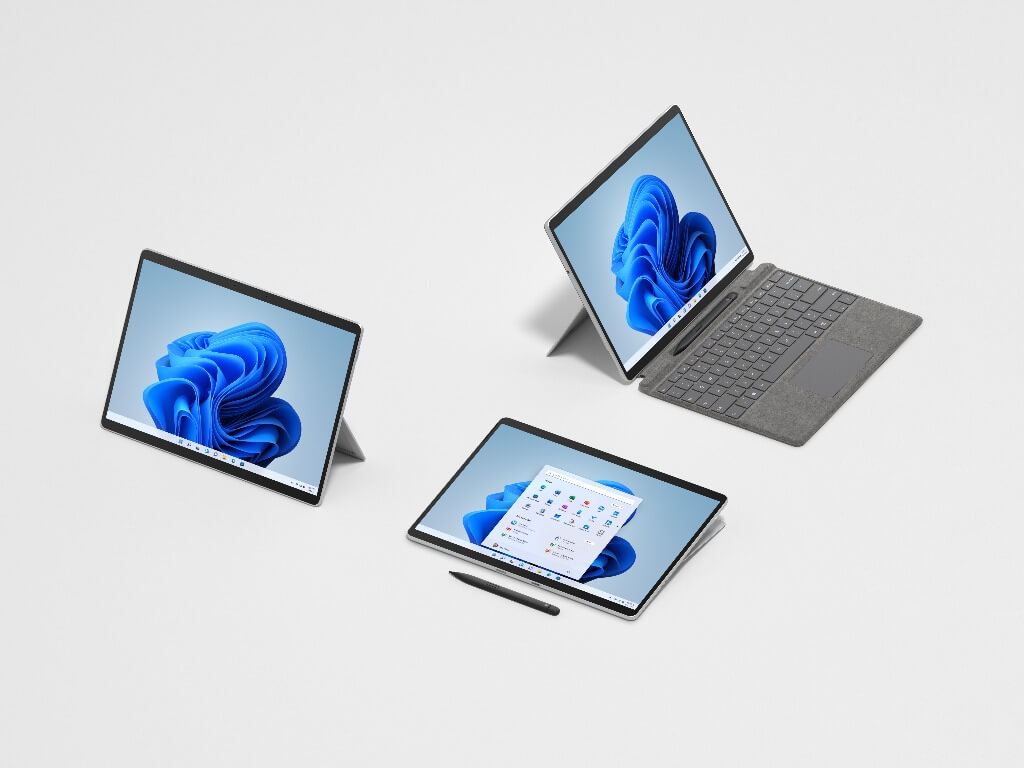
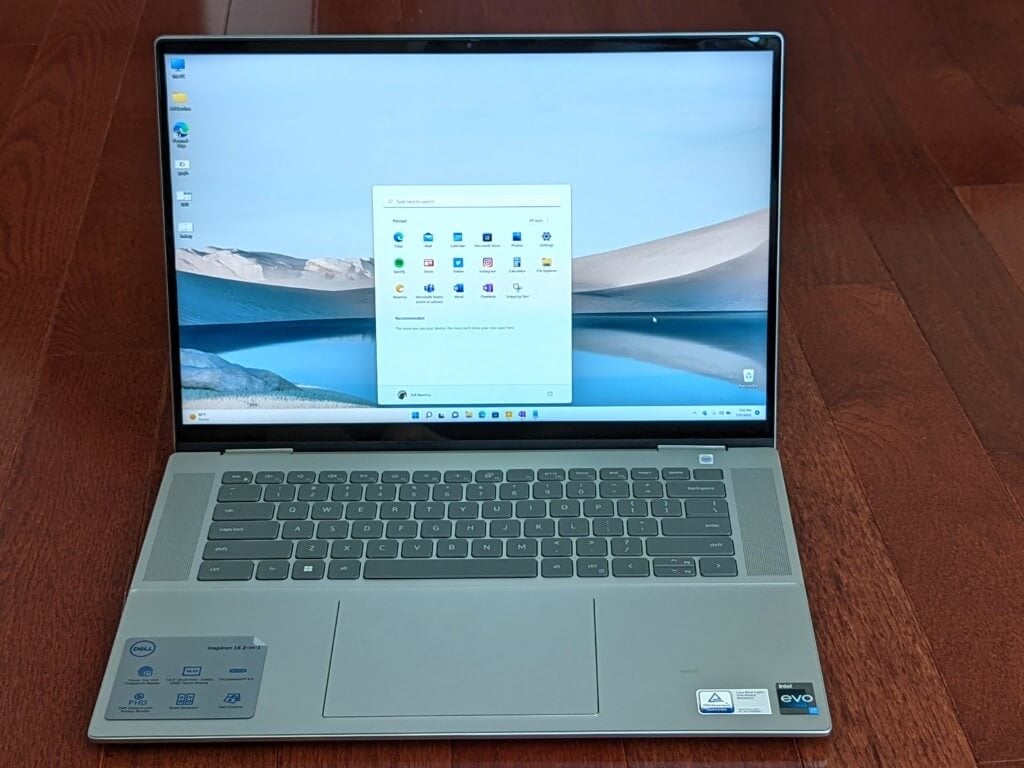
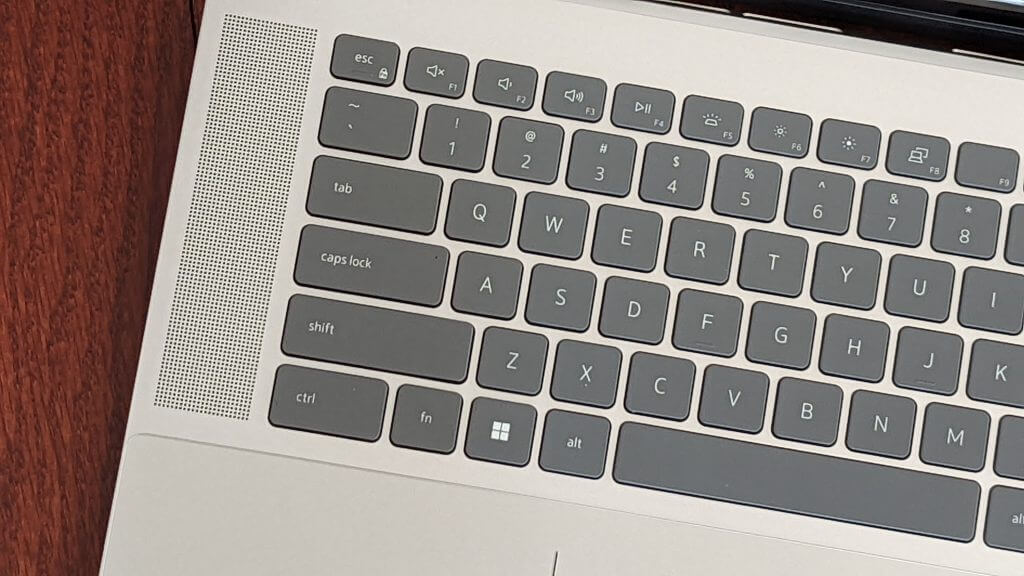
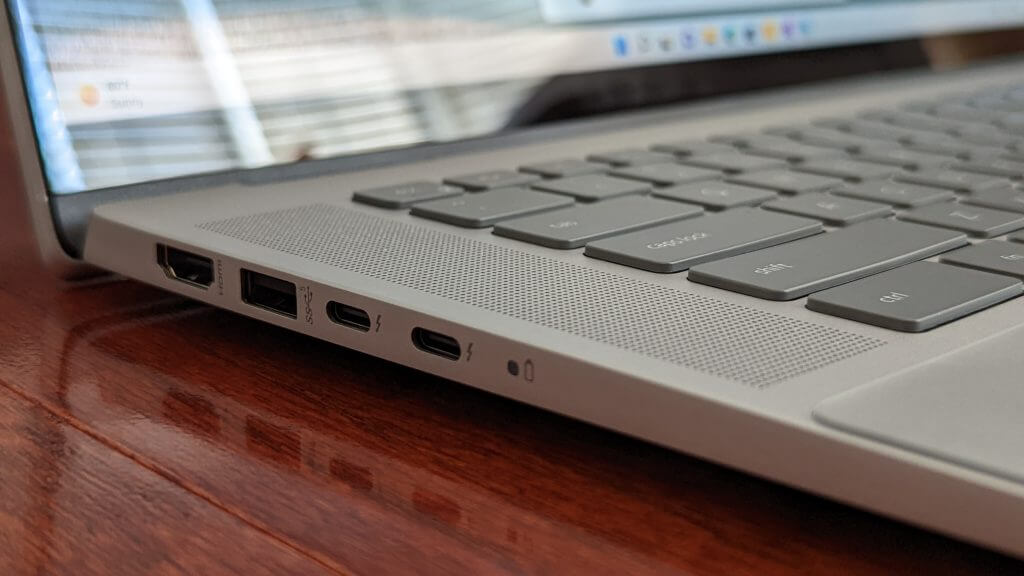
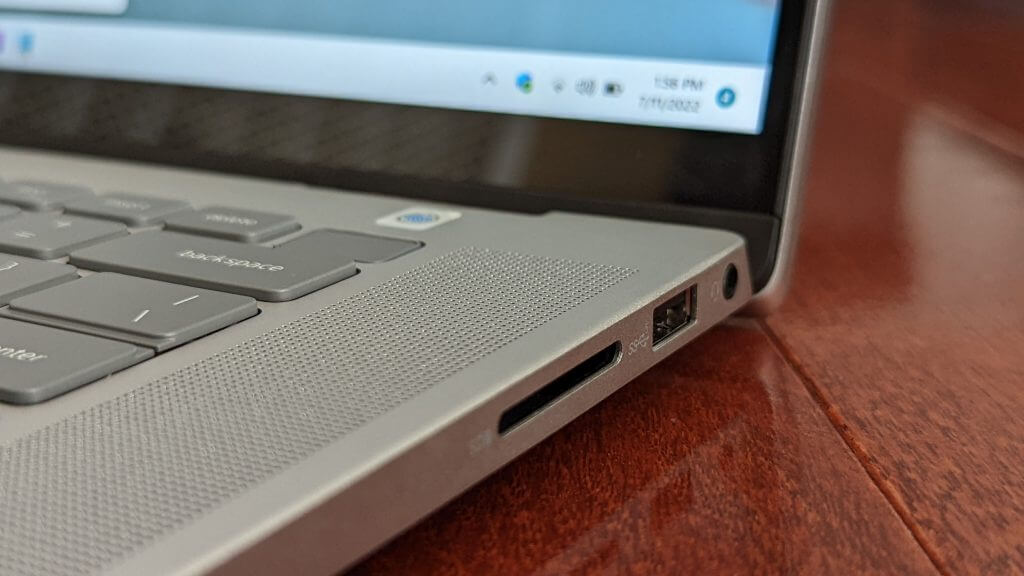
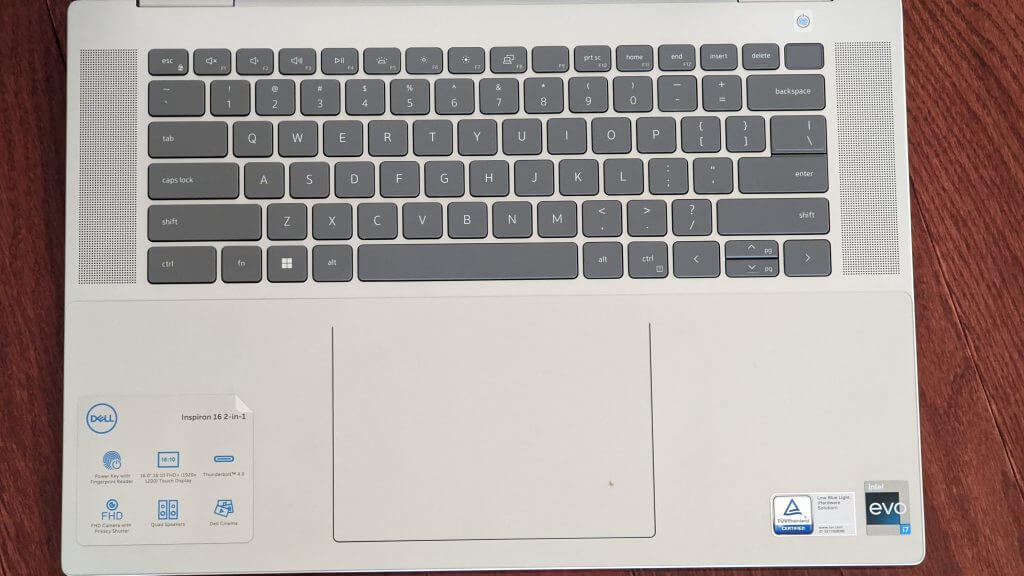
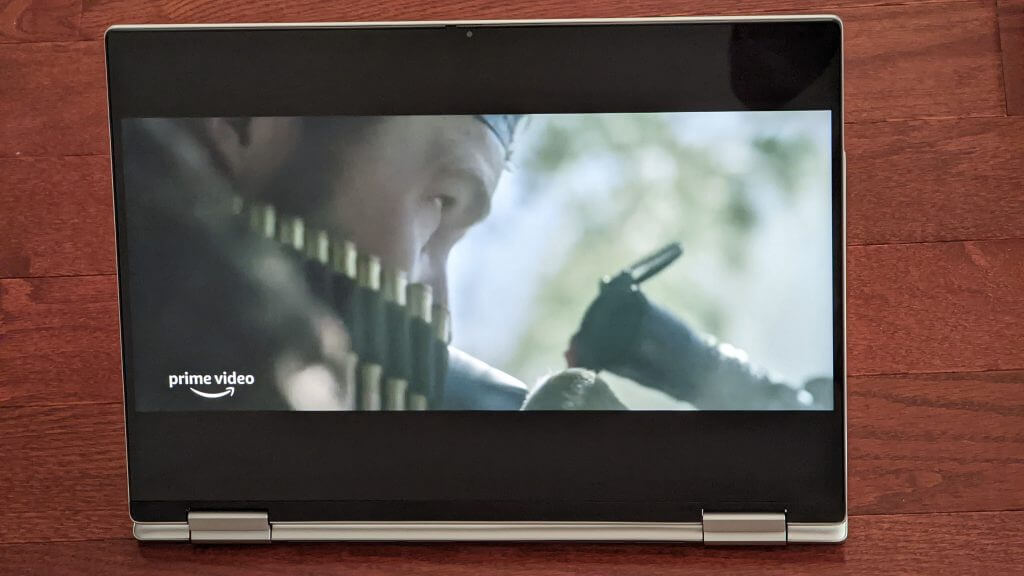
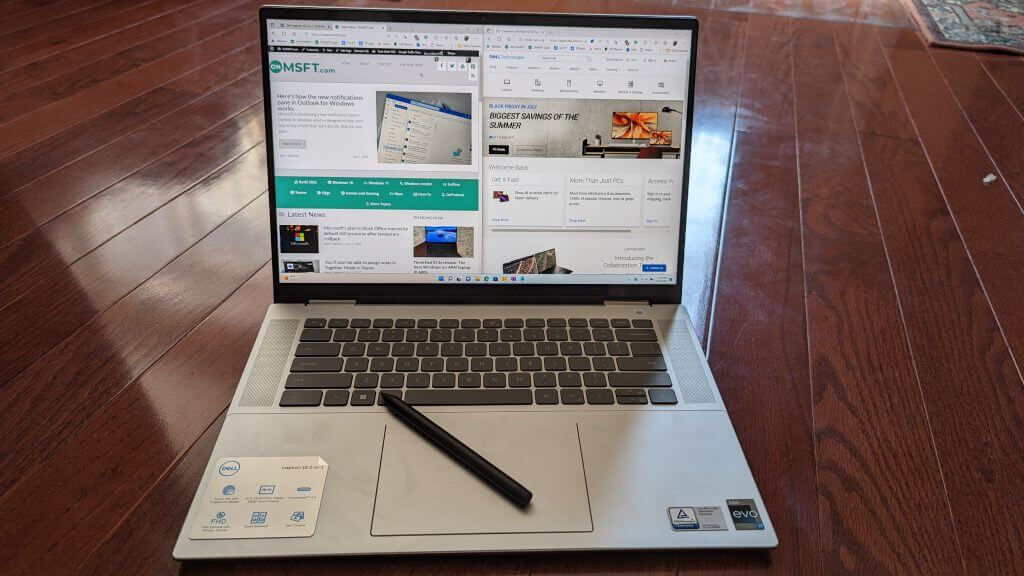
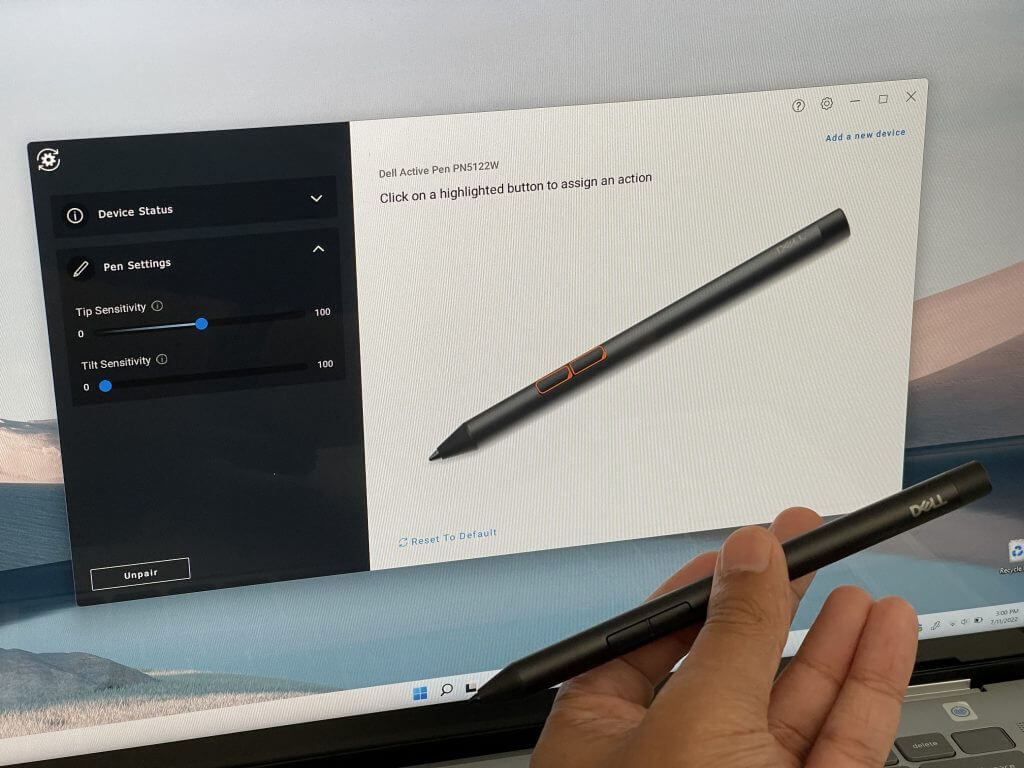
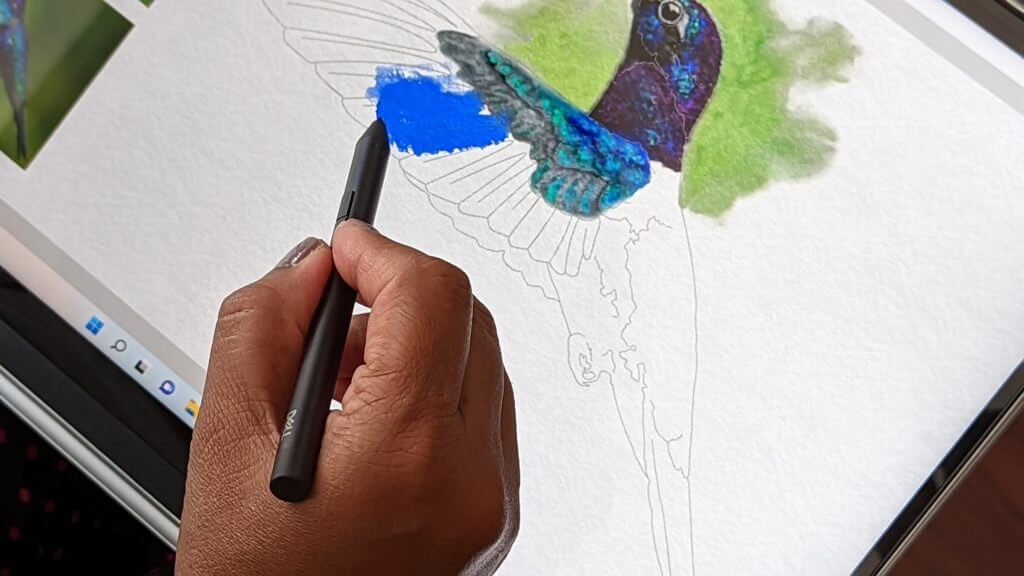

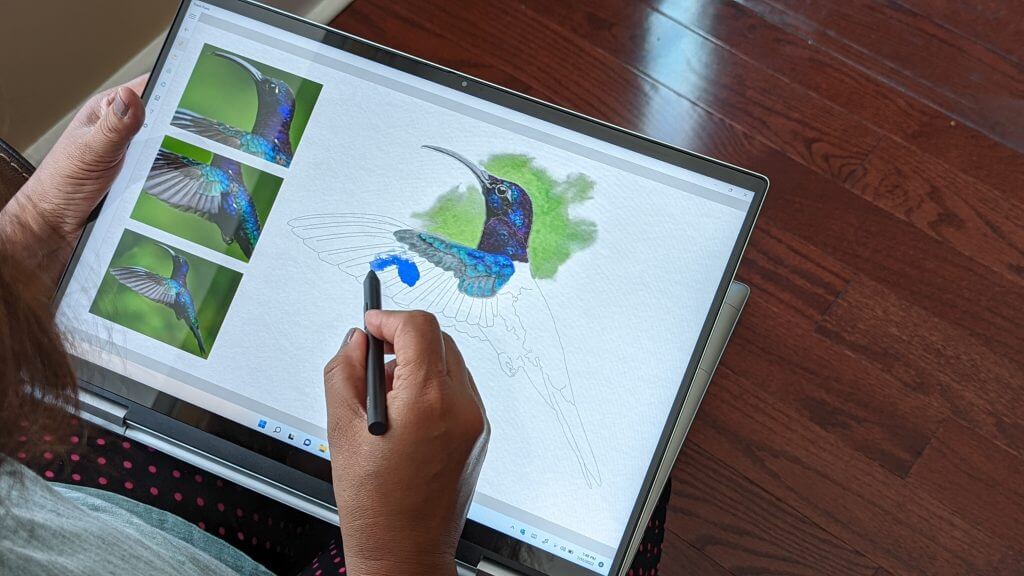
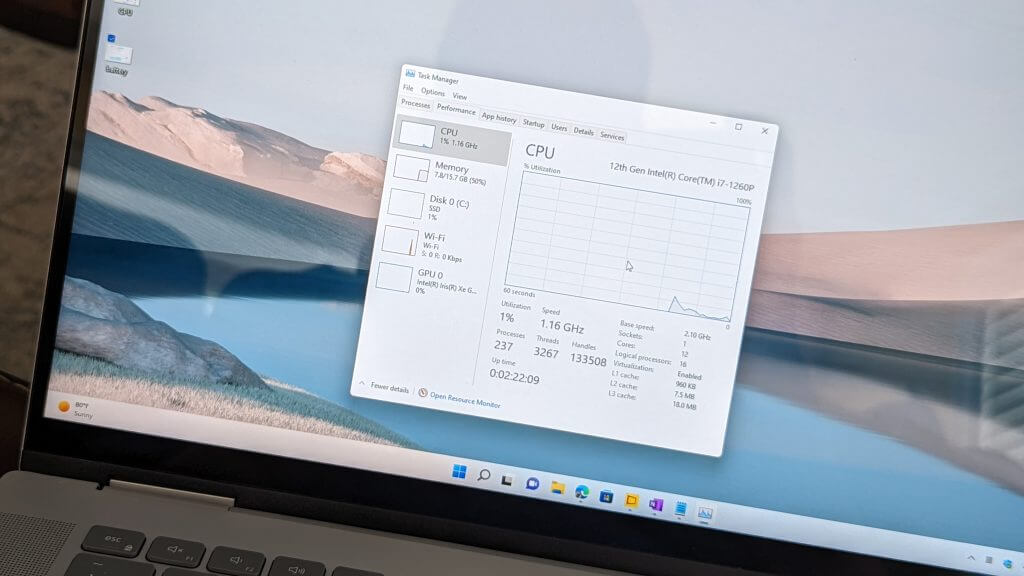
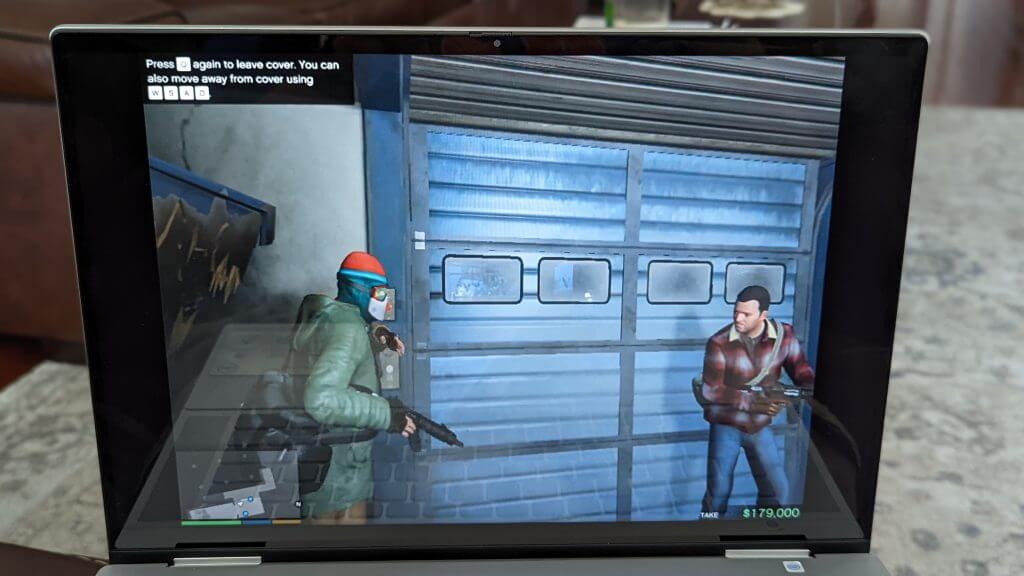


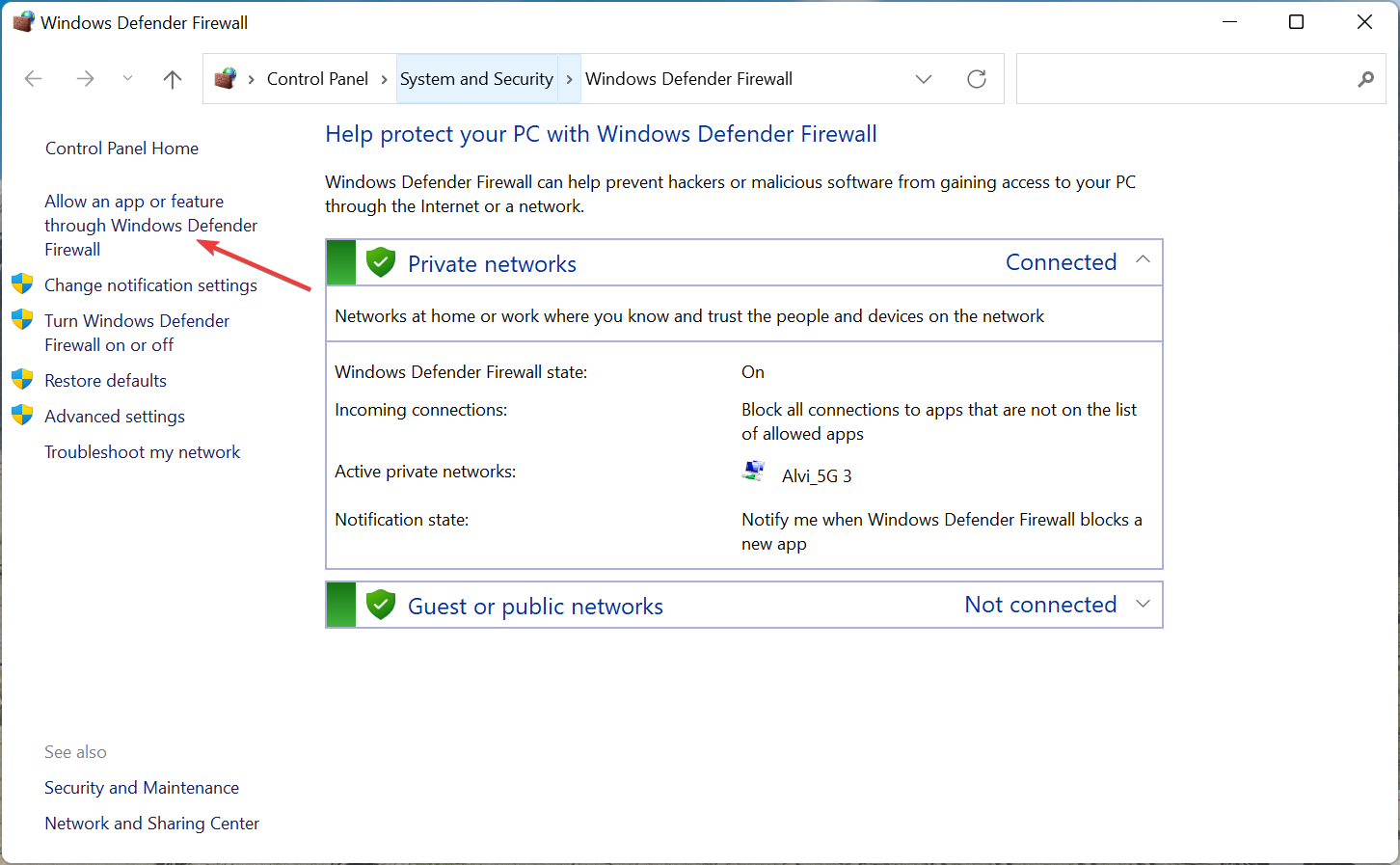



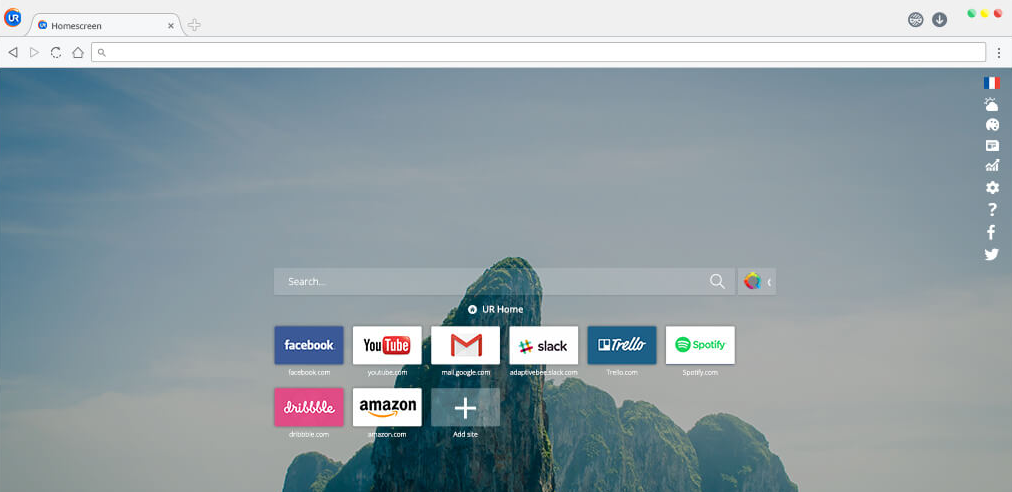


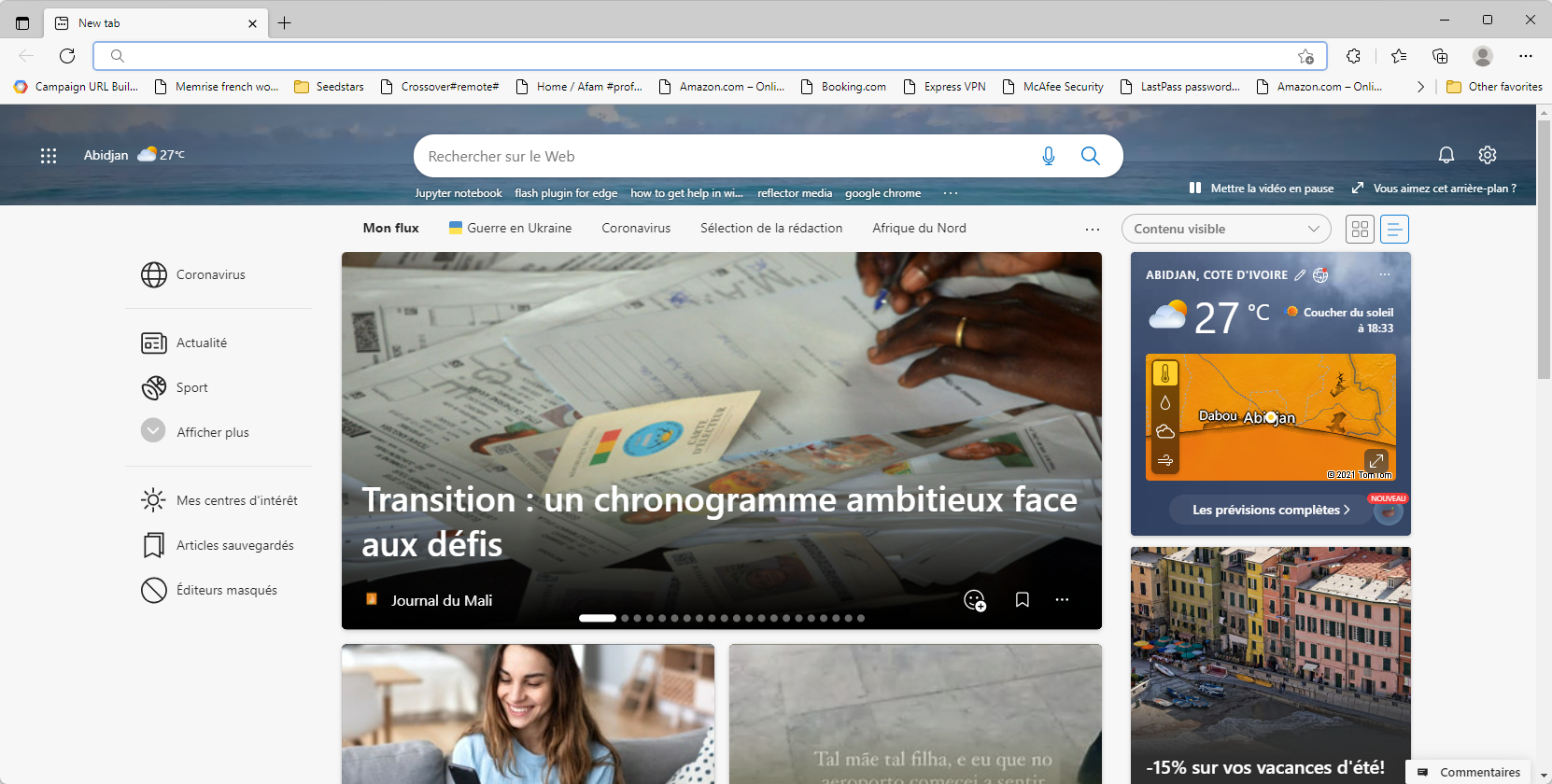

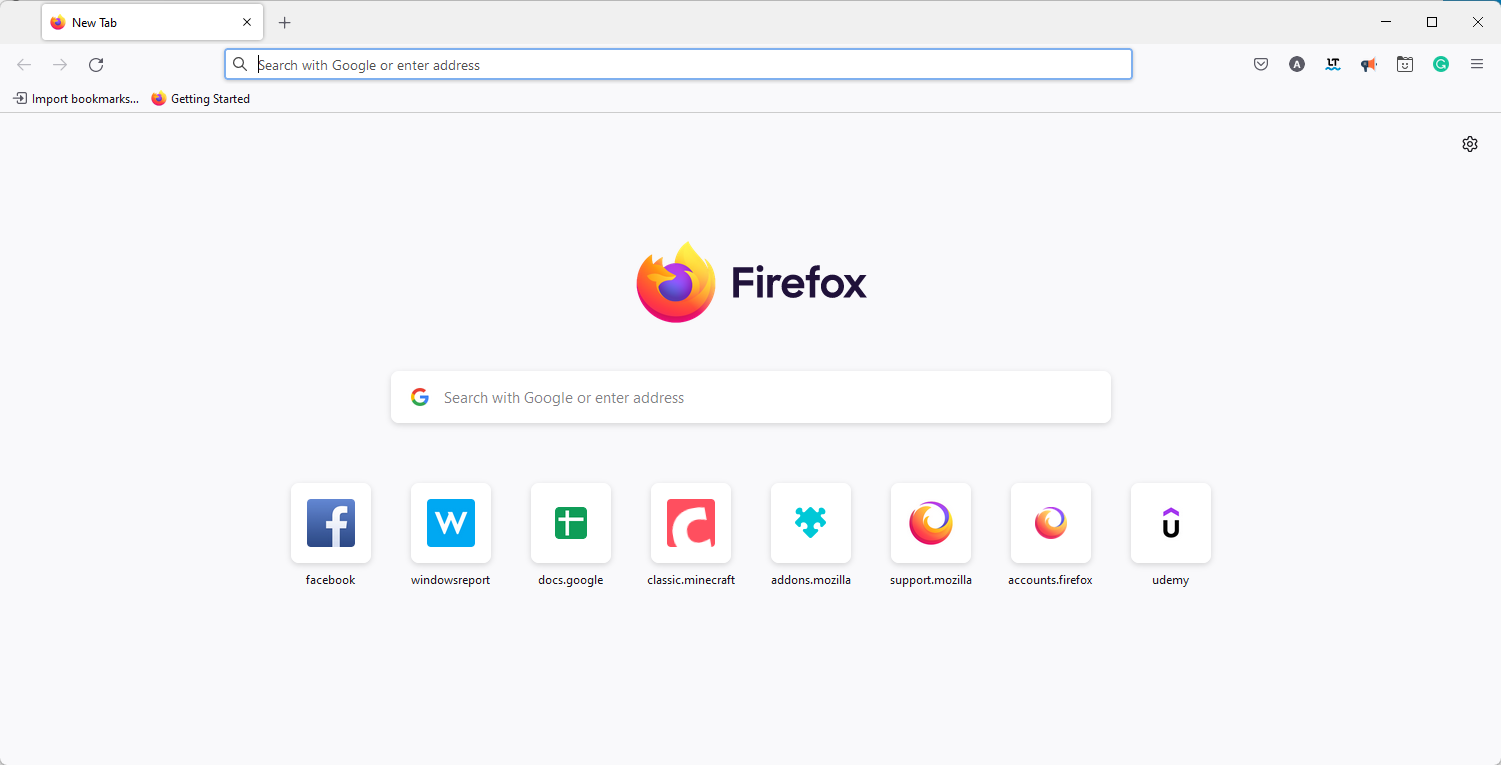
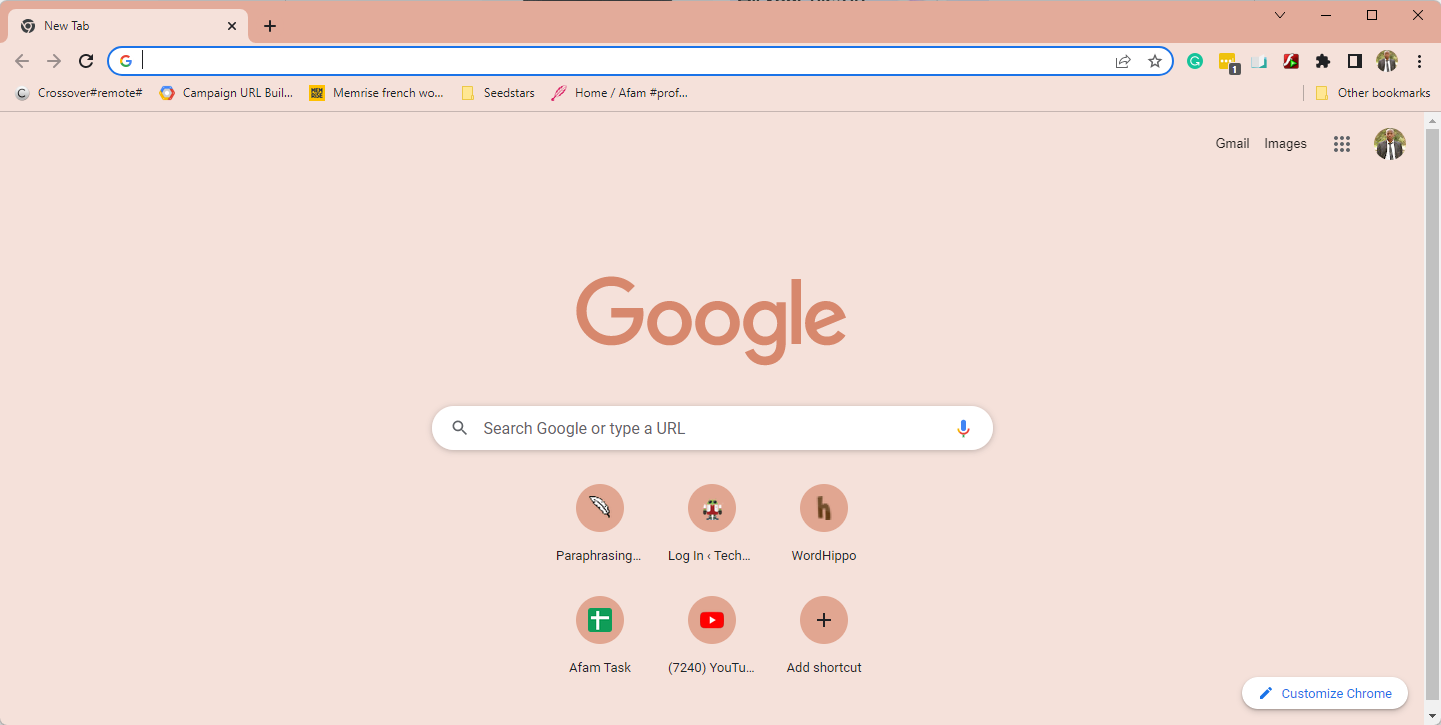



![5 Best Browsers for Jupyter Notebook [Ranked by Compatibility]](https://windowsreport.com/wp-content/uploads/2020/12/jupyter-network.jpg)
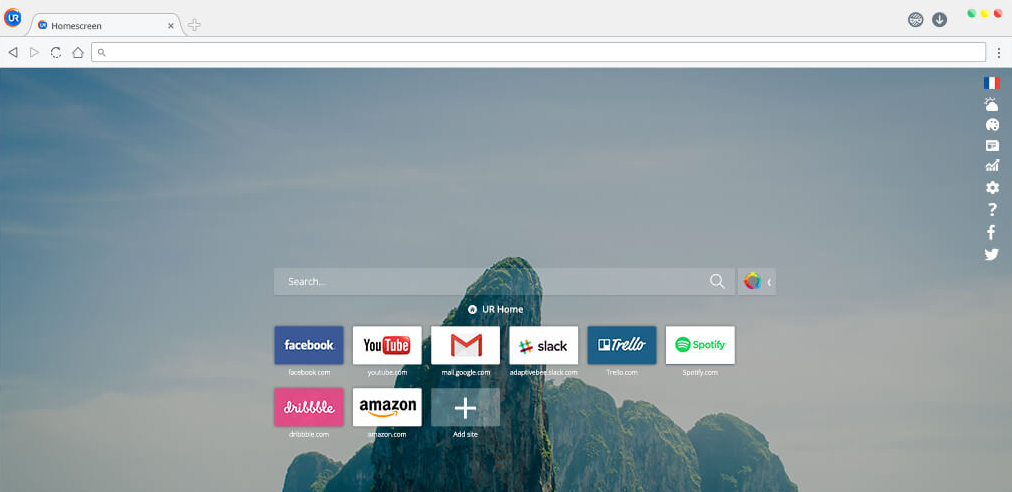



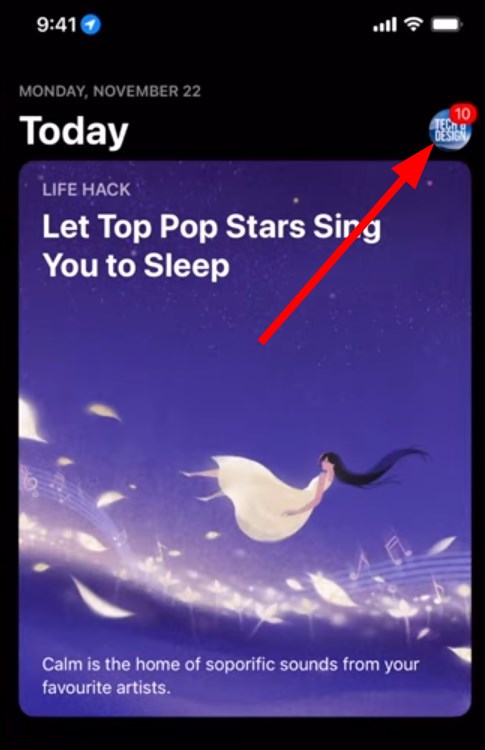
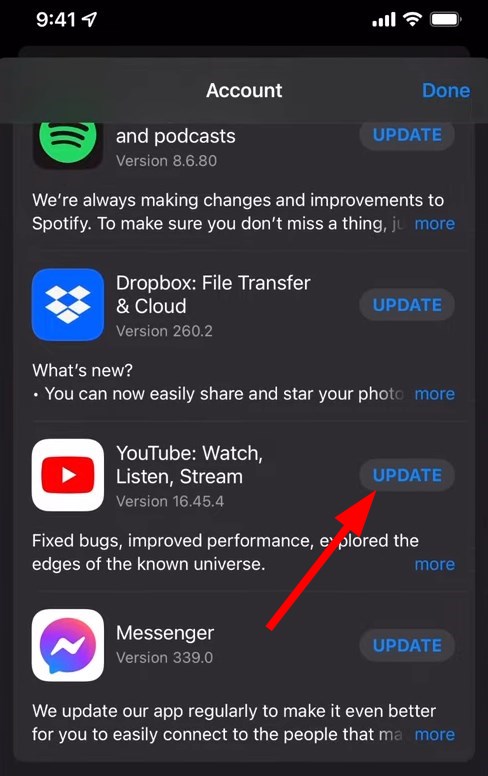
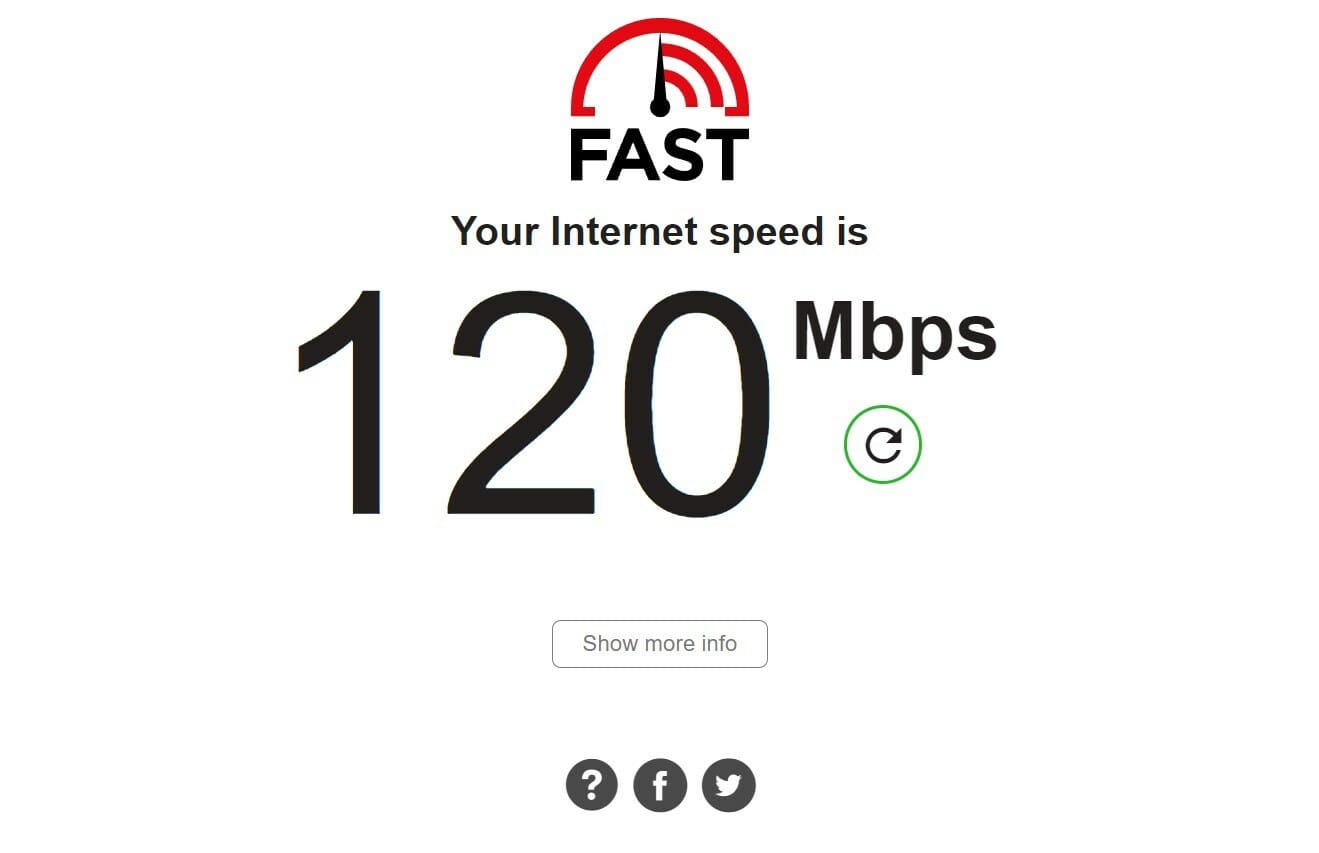
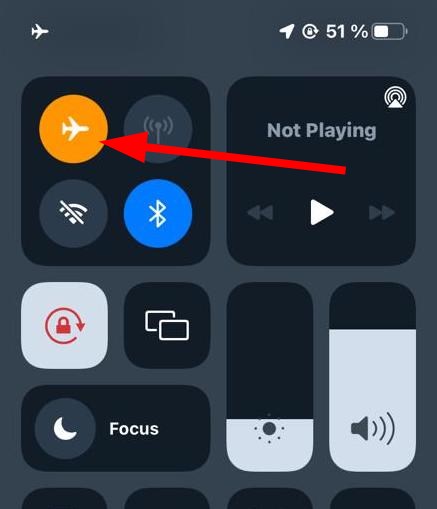
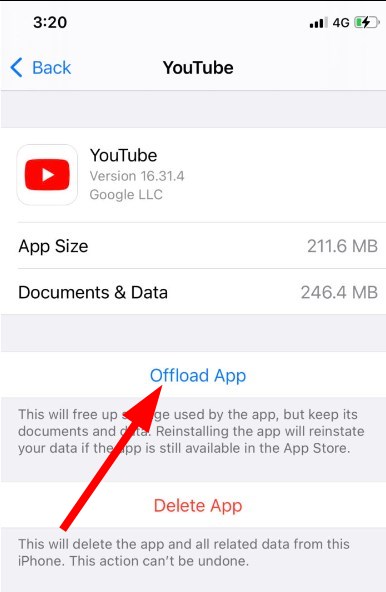
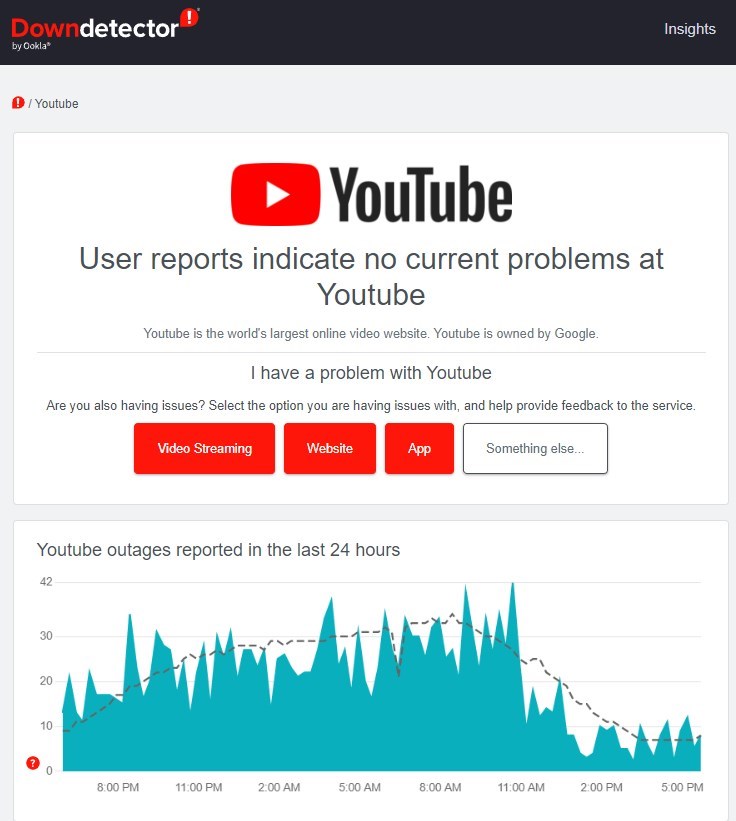
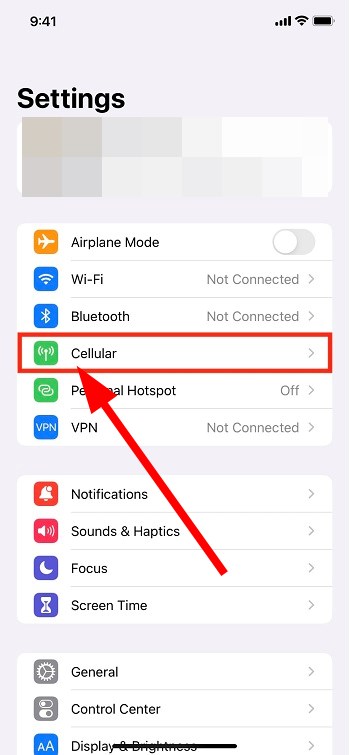
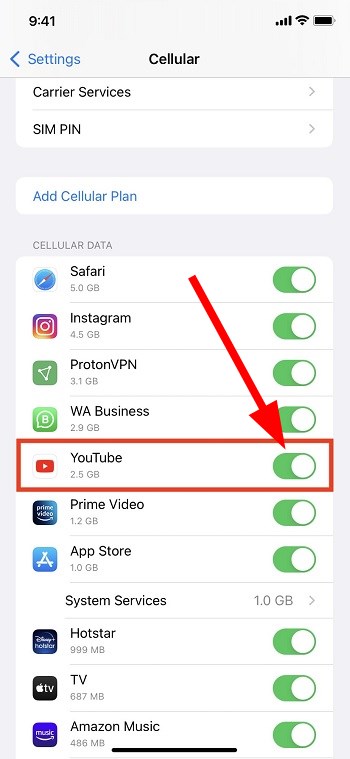
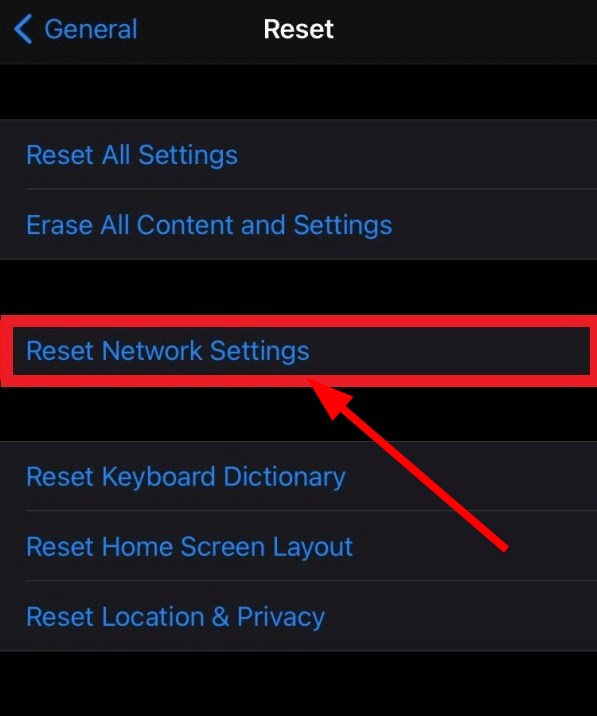





![This Plugin Is Not Supported: Meaning & How to Fix [Chrome, Edge]](https://windowsreport.com/wp-content/uploads/2022/06/this-plugin-is-not-supported.jpg)