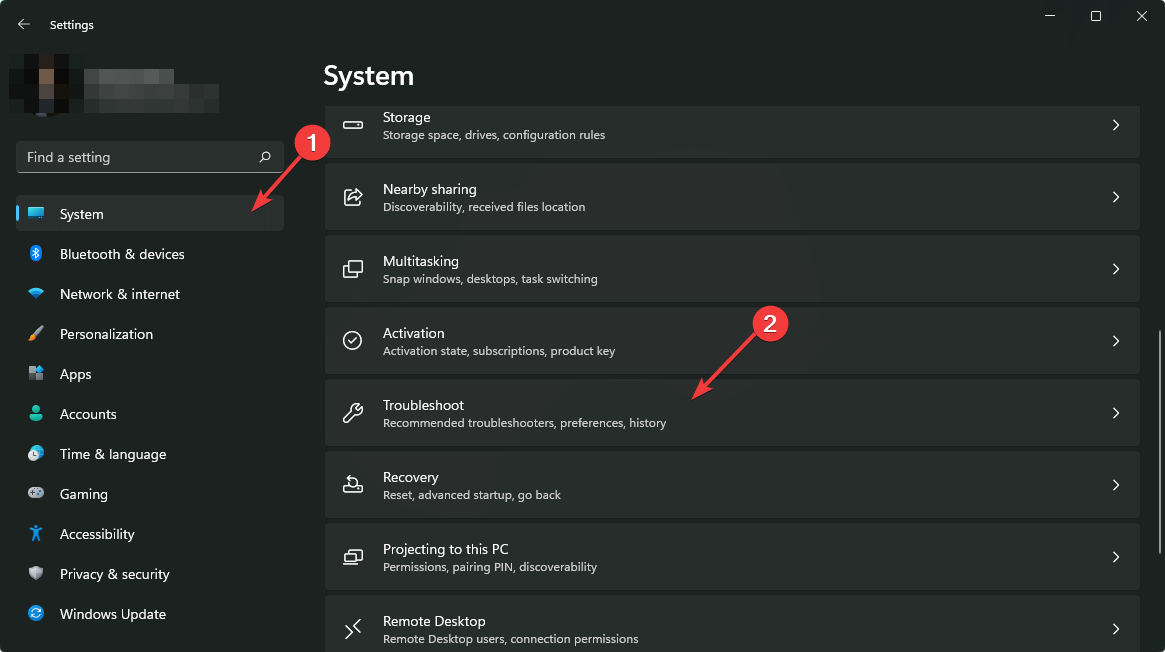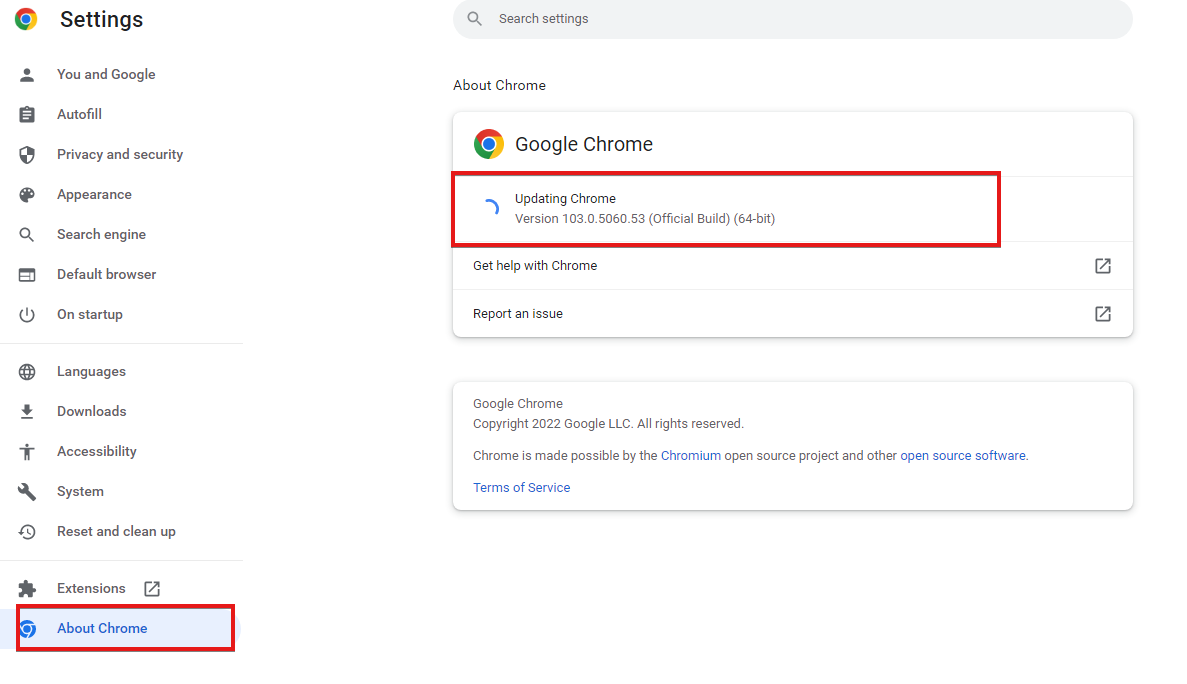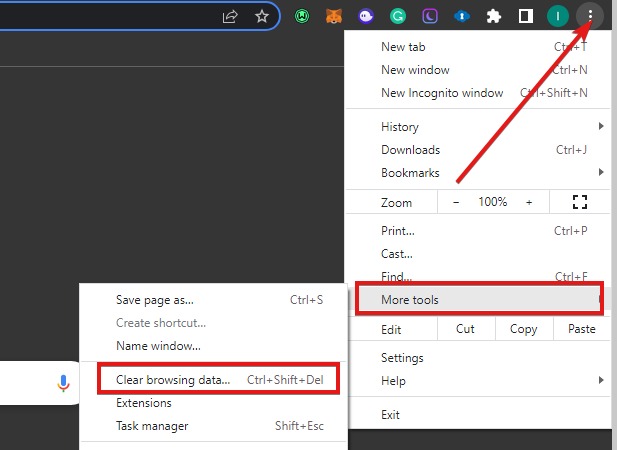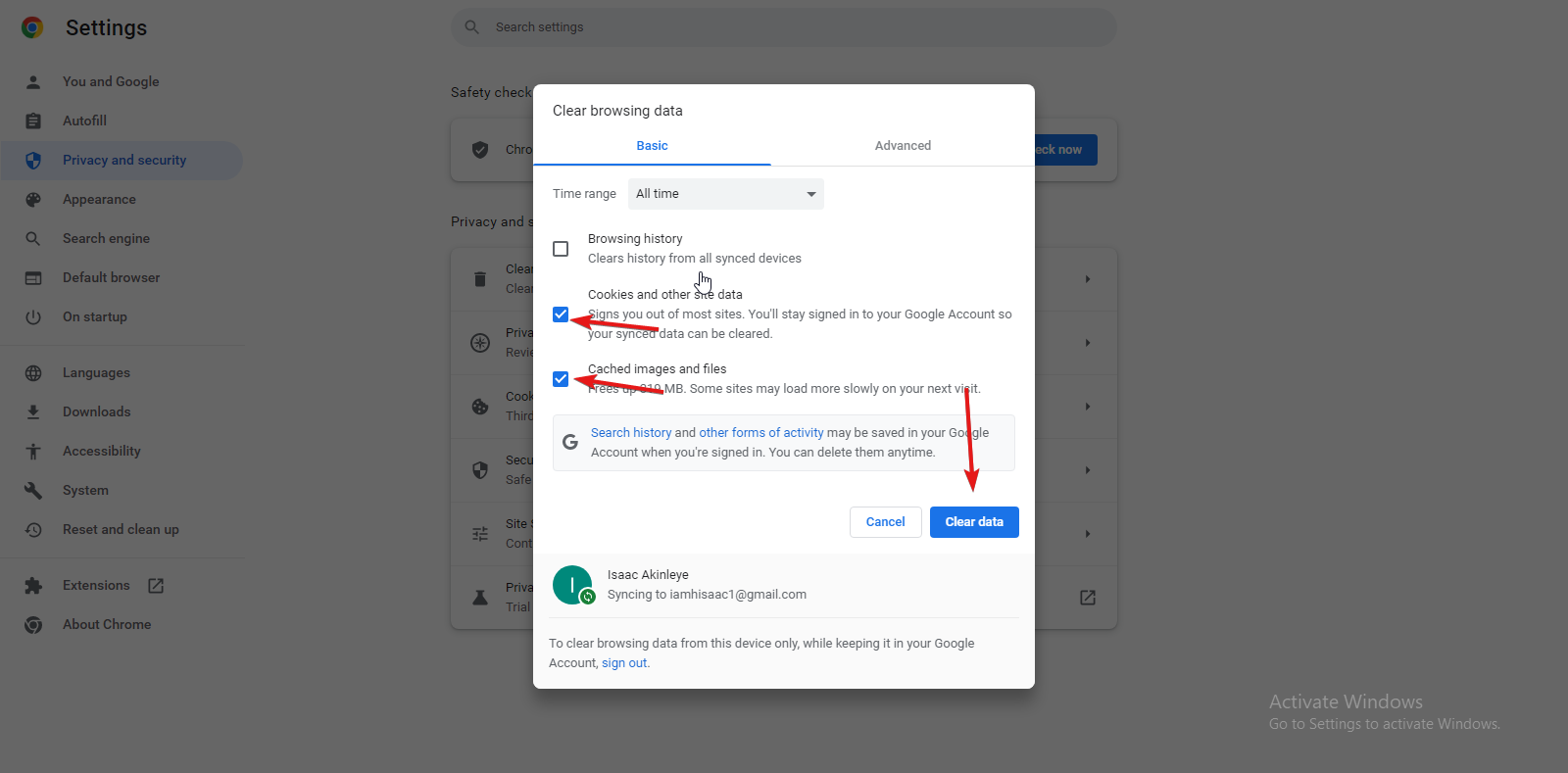
Stop Windows 10 From Blocking Chrome’s Install→ Remove Firewall

Some users have said that Windows 10’s Firewall blocks Chrome for no apparent reason. The Windows Firewall has blocked some features of this app error message appears for those users. One user stated in a forum post:

Every time I boot up my computer, I get pop up from Windows Firewall that some features have been blocked for the same apps: Chrome, Steam, and any steam game that I boot up.

Why is my computer blocking Chrome?

This Windows Defender blocking Chrome situation could appear if the system identifies malicious software or questionable behavior on the Internet.

Your computer’s built-in Windows Defender as well as any other antivirus software that you have installed will instantly prevent Google Chrome from installing.

How can I tell if my firewall is blocking something?

  1. Press Windows + R and type control in order to open Control Panel.run-cotrol windows 10 blocking chrome install
  2. Click on System and Security.system-security-w10 windows 10 blocking chrome install
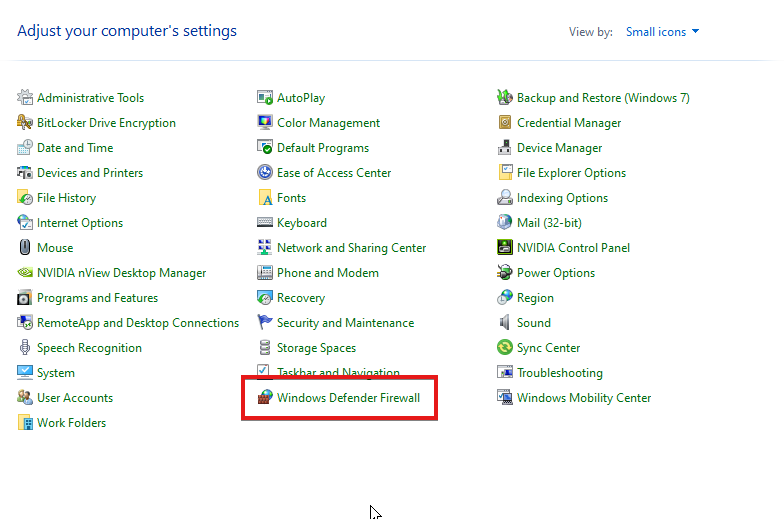
  3. Click on Windows Defender Firewall. defender-firewall windows 10 blocking chrome install
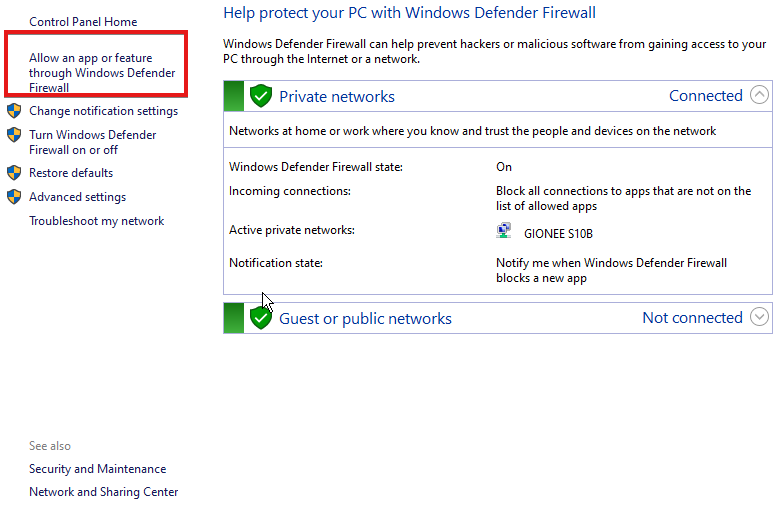
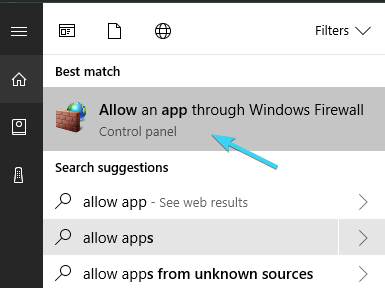
  4. From the left pane, select Allow an app or feature through Windows Defender Firewall.allow-app windows 10 blocking chrome install
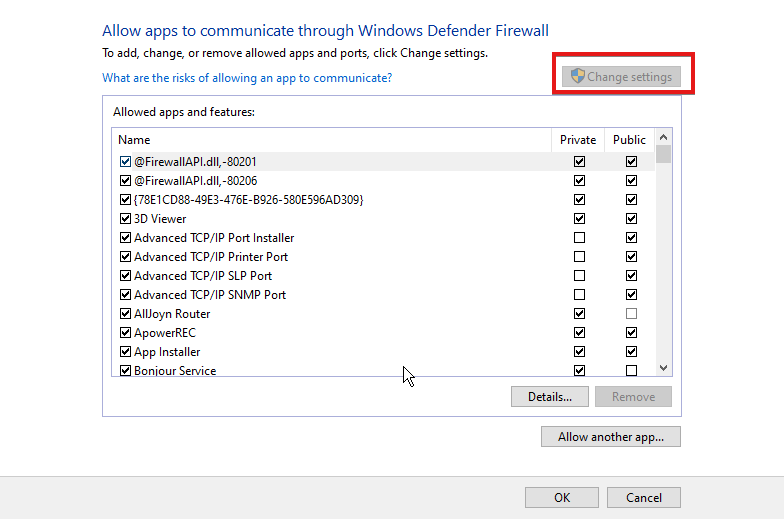
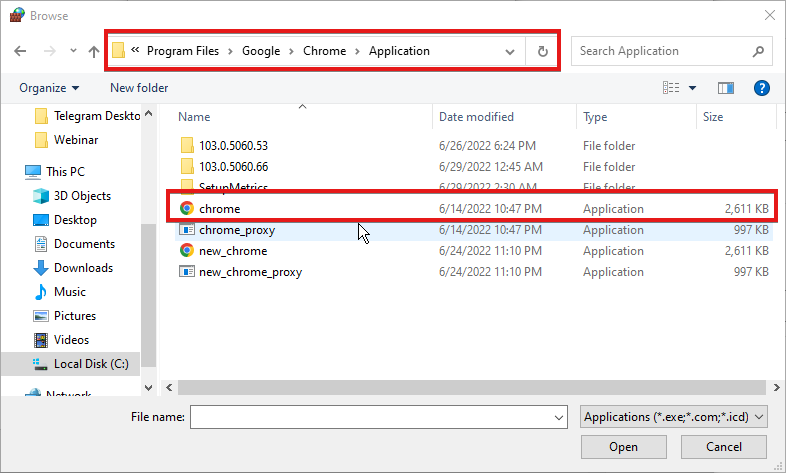
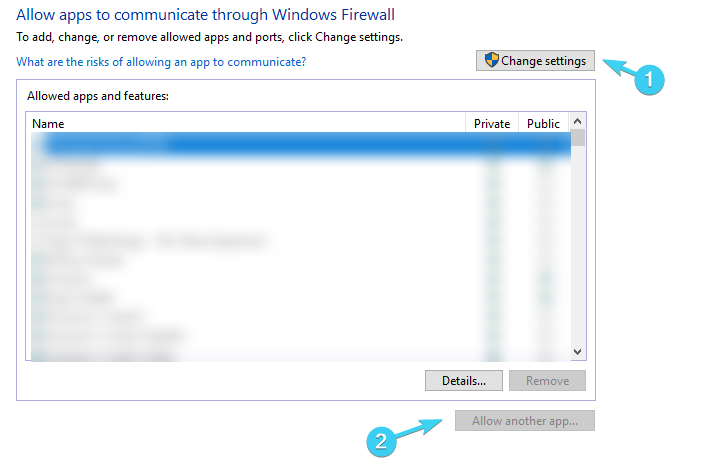
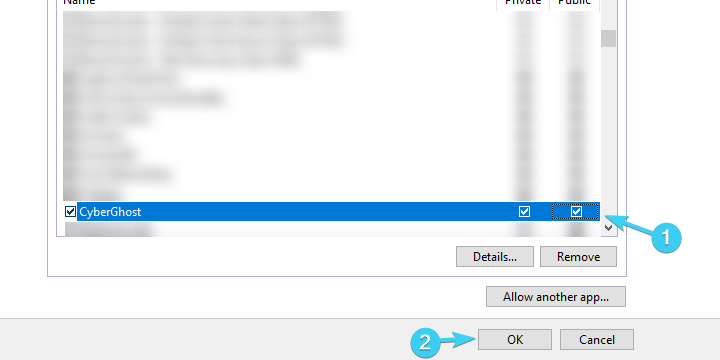
  5. Click on Change settings then scroll through all the apps and check those that you want to be allowed through your Firewall. If the box is unchecked then your Firewall will block the app. Don’t forget to click OK to save the changes.

Quick Tip:

The built-in proxy VPN of the Opera One browser can help you change your IP address, and does not conflict with the Windows firewall whatsoever.

It’s built on the Chromium engine, just like Chrome, and every saved password, bookmark, and other data can easily be transferred to Chrome so you can have at least a backup when something happens.

Opera One

Make the switch and use setup your Firewall settings, and have another reliable browser at hand.
Free download Visit website

How do I allow Chrome through my firewall in Windows 10/11?

1. Check the Windows Defender Firewall permissions

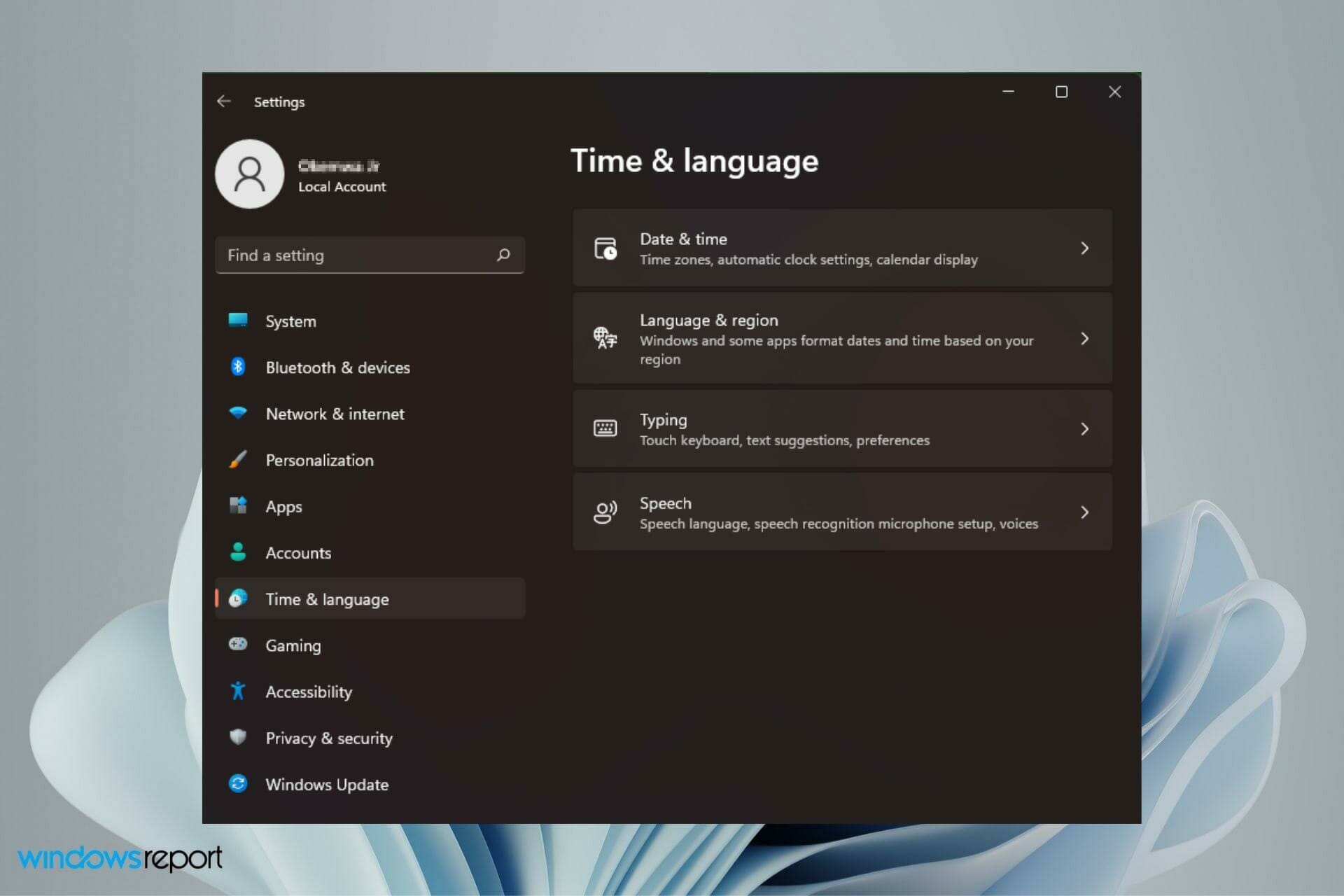
  1. If you wonder how to remove Chrome from Firewall, check the Windows Defender Firewall permissions for Google Chrome. Press the Windows key + S hotkey to open the search utility then enter Windows Defender in the search box and click on the topmost result.Windows Defender Firewall windows 10 firewall blocking google chrome
  2. Click Allow an app or feature through Windows Defender Firewall to open the options shown directly below.Allowed applications options windows 10 firewall blocking google chrome
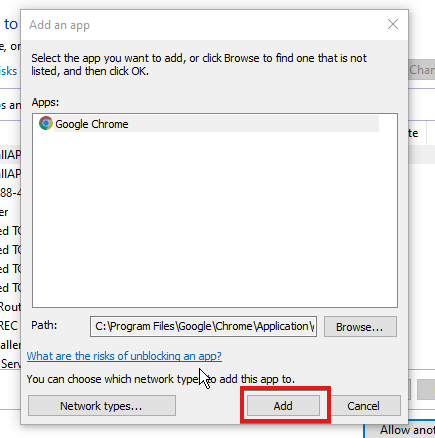
  3. Press the Change settings button and check all the boxes for Google Chrome if they’re not already selected and click the OK button.

If Windows Defender was blocking Chrome, the steps from above should fix it. In case you are wondering the process to allow Chrome to access the network in your firewall or antivirus settings are similar.

2. Disable Network adapters

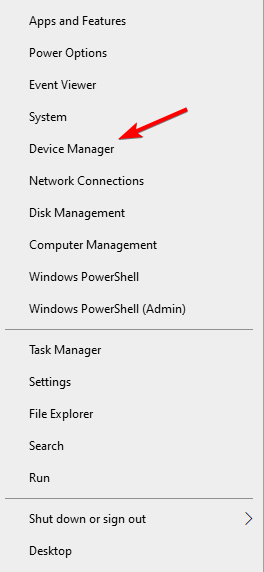
  1. Users have confirmed that they’ve fixed the firewall error by disabling network adapters. To do that, press the Windows key + X hotkey and select Device Manager to open that window.device-manager-w10 windows 10 blocking chrome install
  2. Click the Network adapters category to expand it and then right-click on the first option to choose Disable device. disable-device windows 10 blocking chrome install

3. Uninstall VPN software

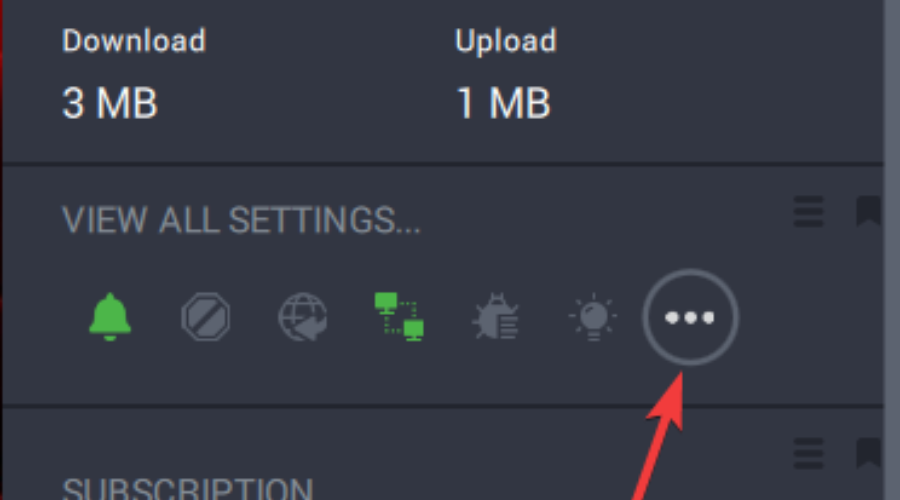
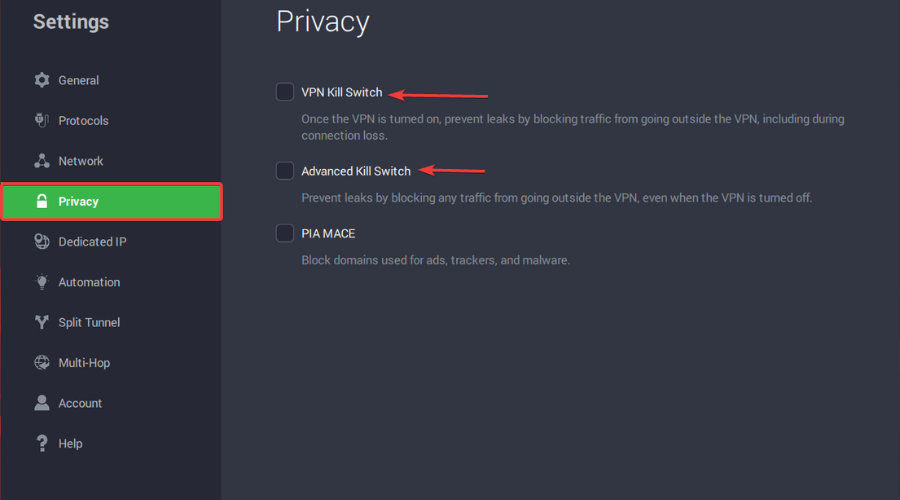
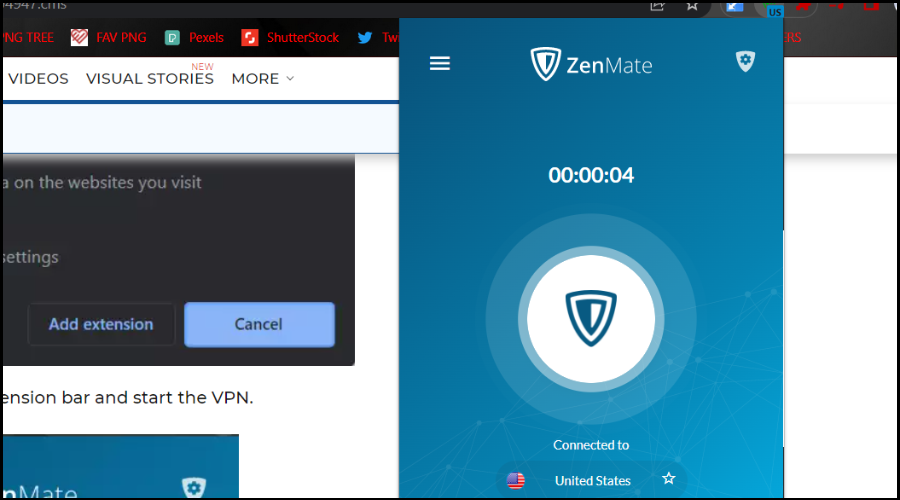
  1. The Chrome firewall blockage can be due to VPN software (especially Tunnelbear), and users have said that they’ve fixed the issue by uninstalling VPNs. To do that, open Run pressing Windows + R, and enter appwiz.cpl then click on OK.appwiz windows 10 blocking chrome install
  2. Select the VPN software listed within the uninstaller window and click Uninstall to remove the software.
  3. Restart the desktop or laptop after uninstalling the VPN.
  4. Some users might still need to delete a remaining VPN network adapter. To do so, enter ncpa.cpl inside the Run box and click OK.ncpa windows 10 blocking chrome install
  5. Then right-click the VPN connection and select the Delete option.Network connections Windows 10 firewall blocking Google Chrome

4. Turn off Chrome extensions

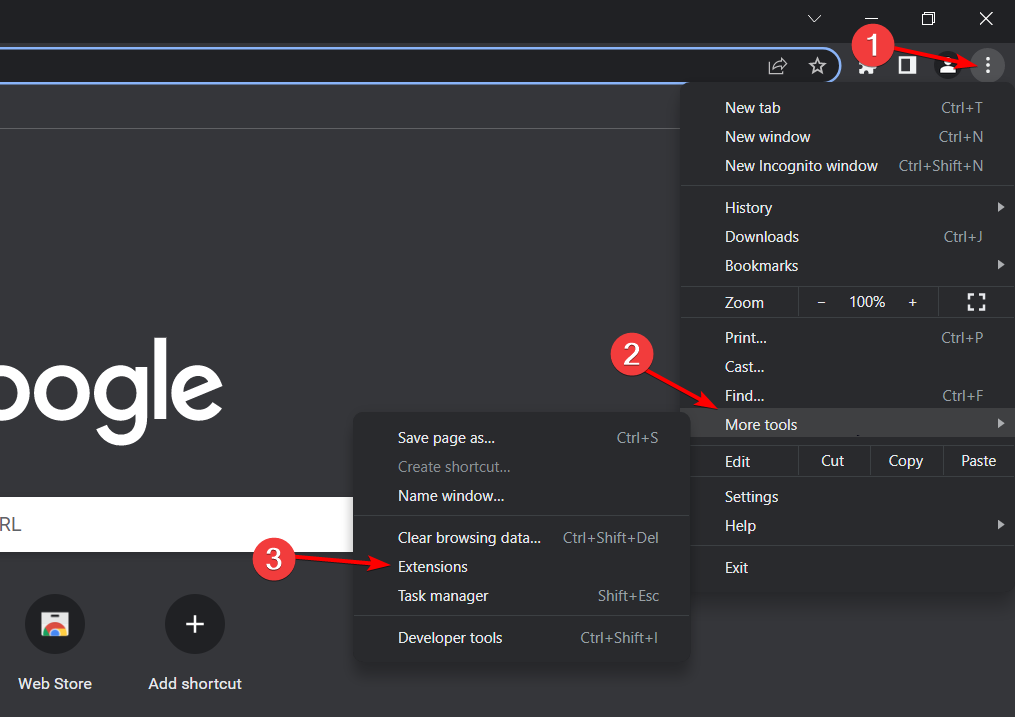
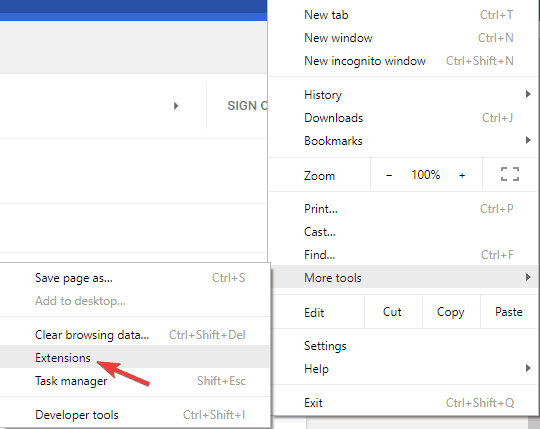
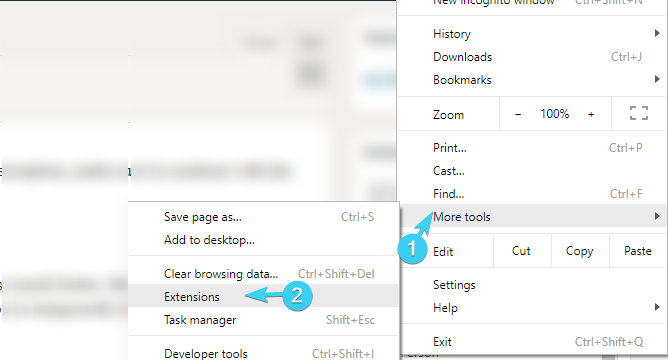
  1. In order to fix the Windows 10 blocking Chrome install error, start a new Chrome window and click on the three-dot menu followed by More tools and Extensions.extensions-chrome your connection was interrupteda network change was detected. err_network_changed
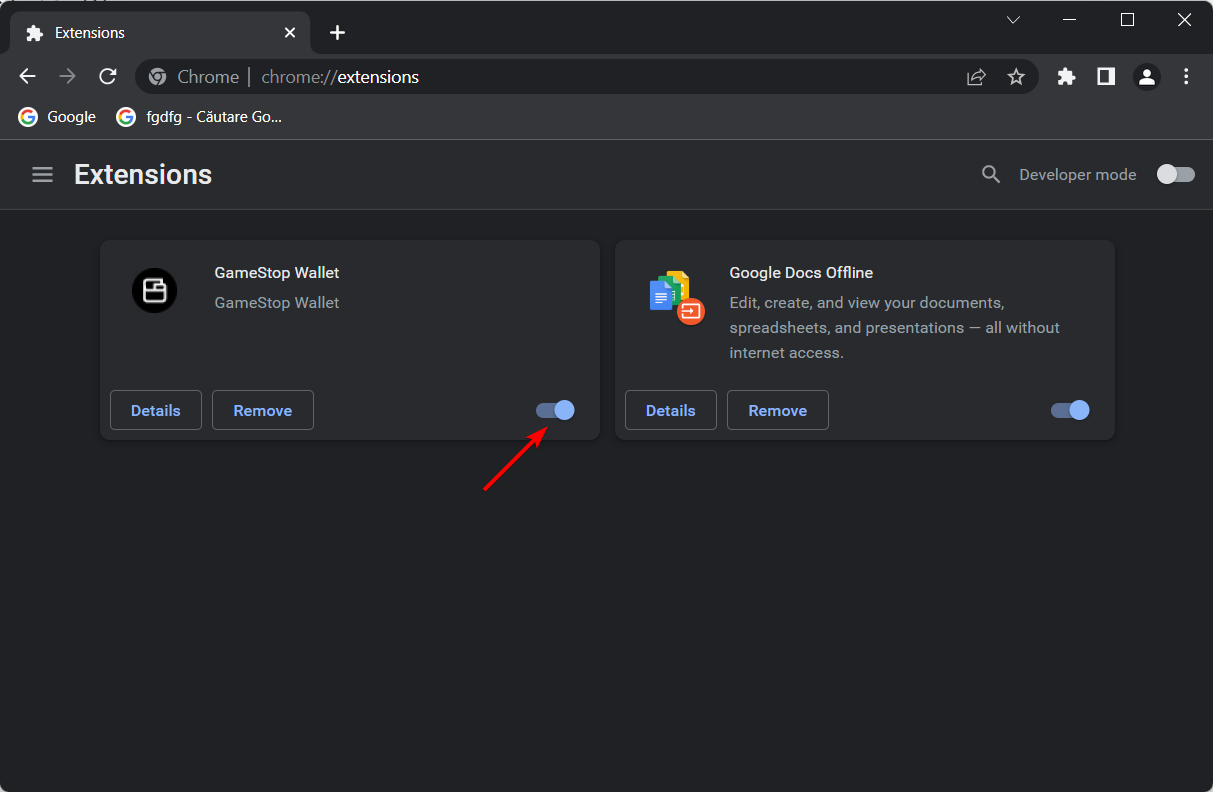
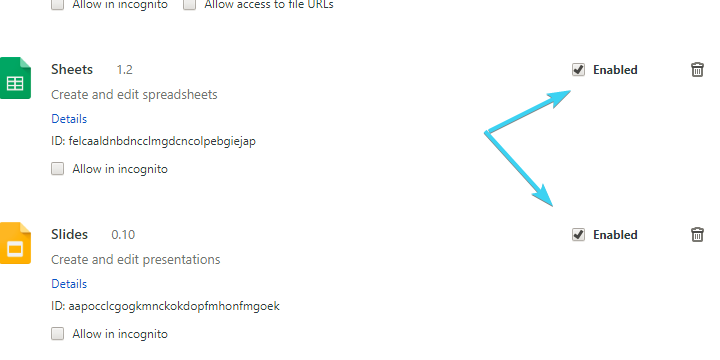
  2. Next, turn off the toggle next to all of your extensions.disable-ext your connection was interrupteda network change was detected. err_network_changed

5. Reset Google Chrome

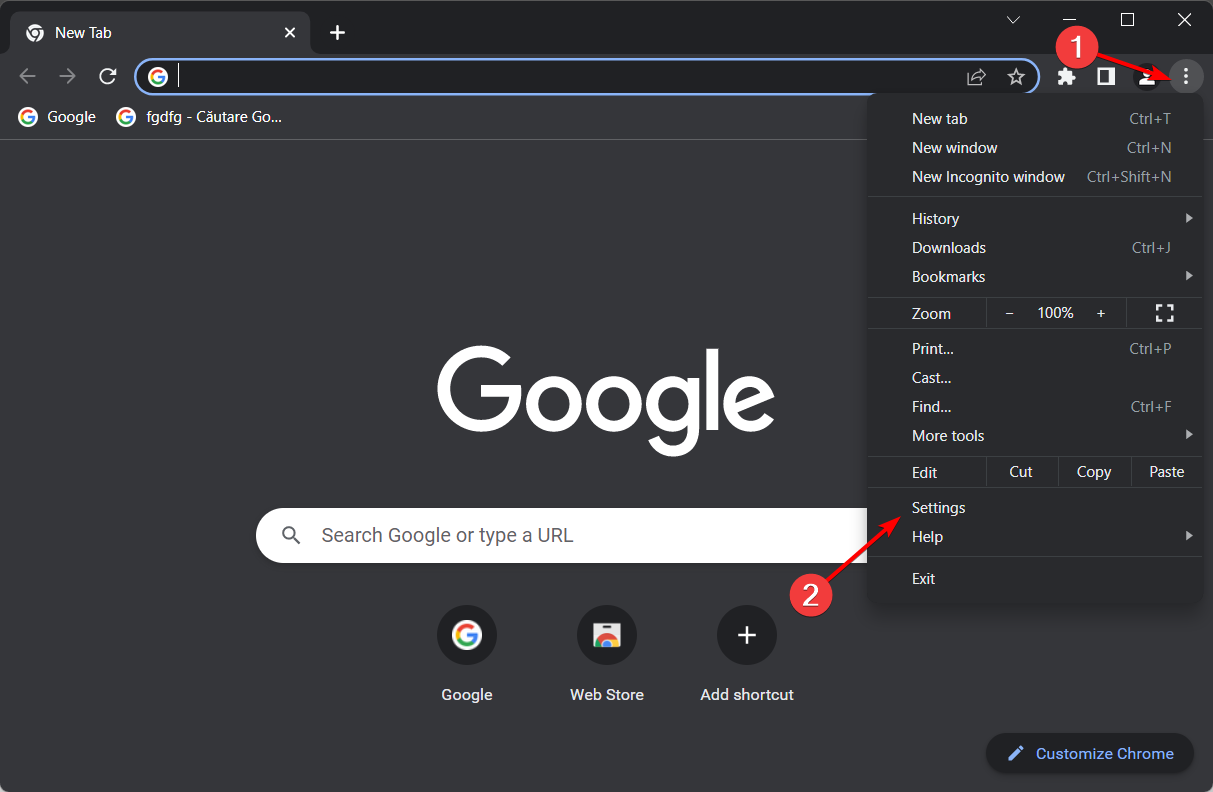
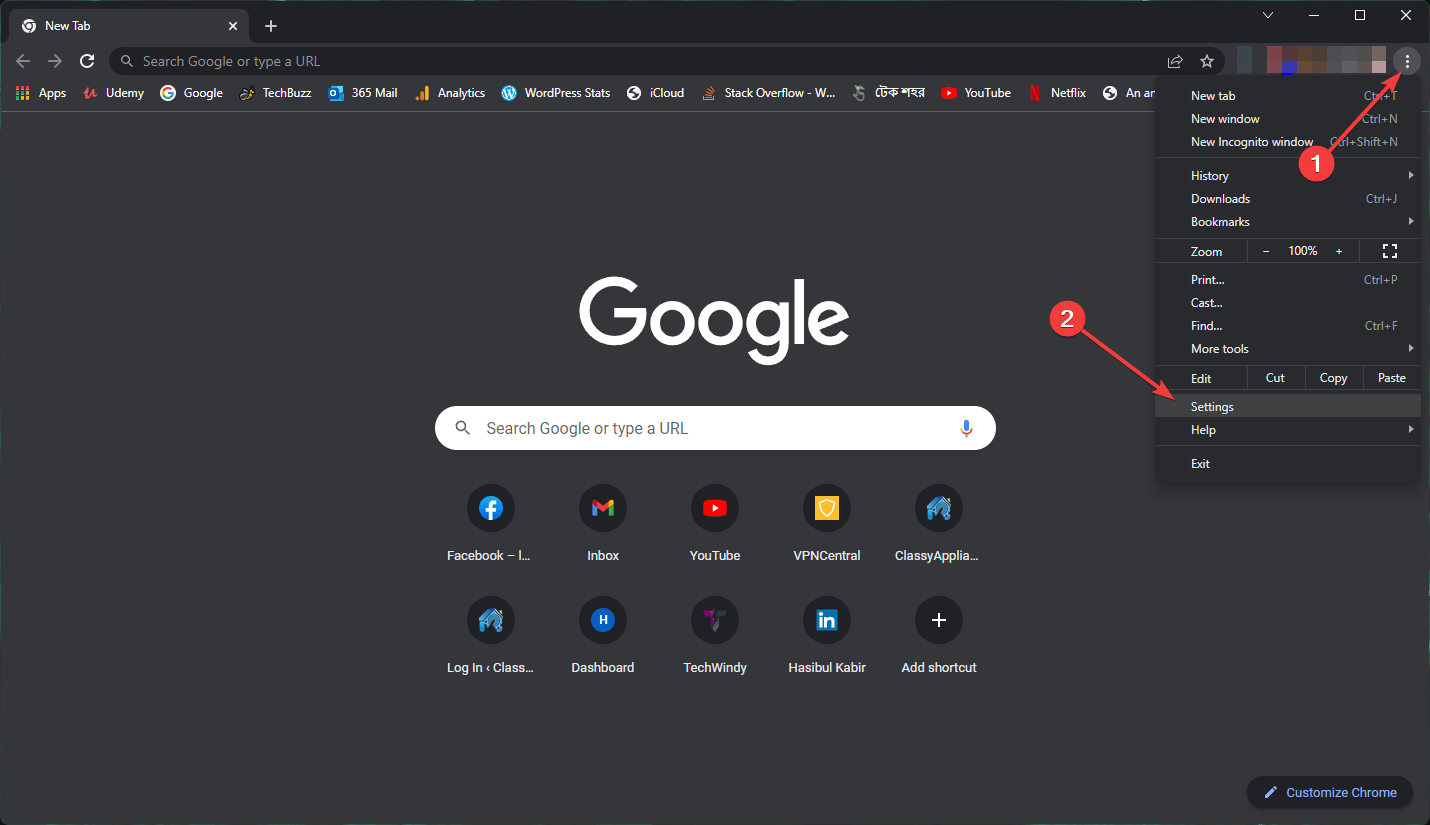
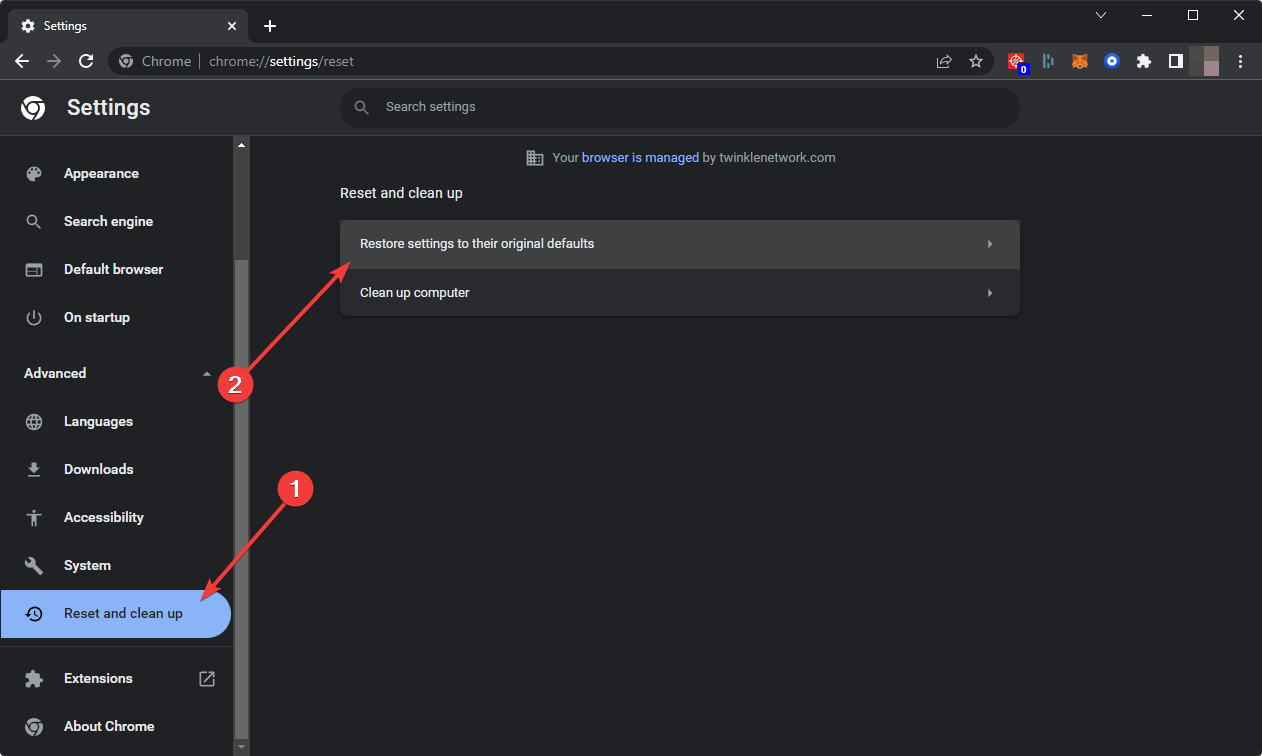
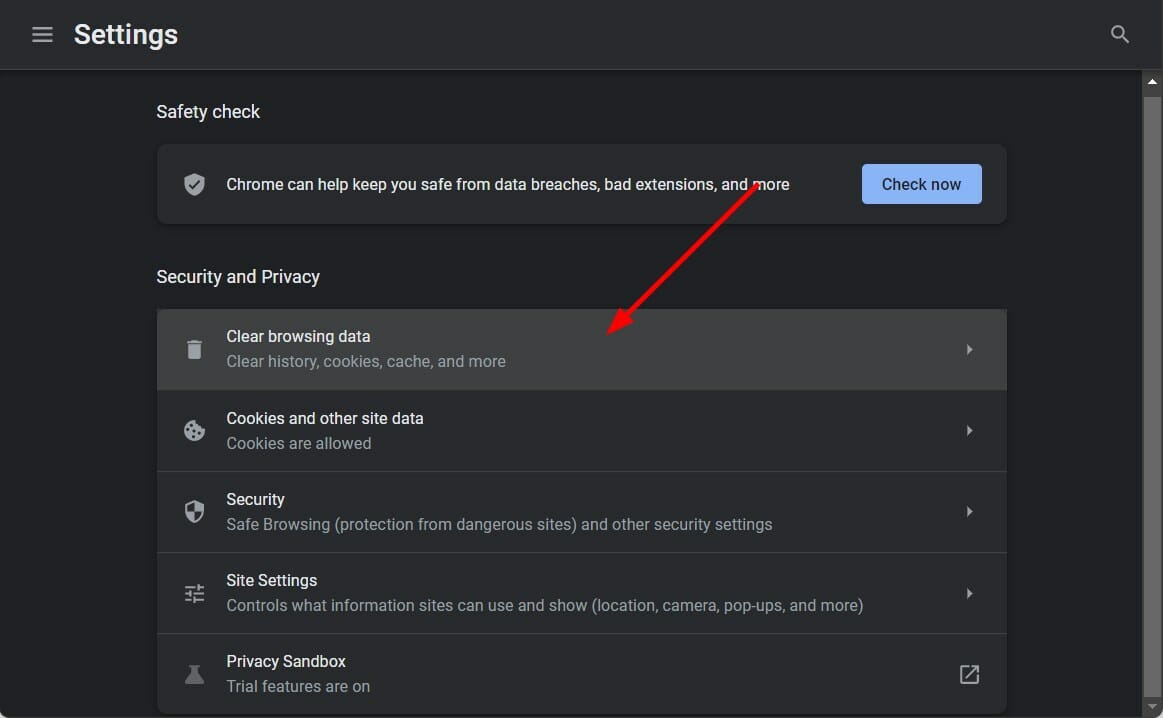
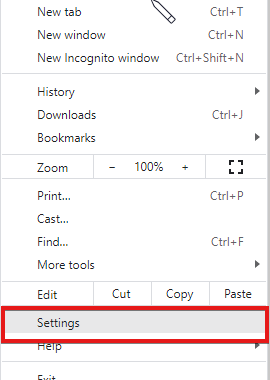
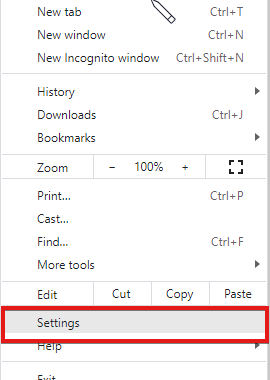
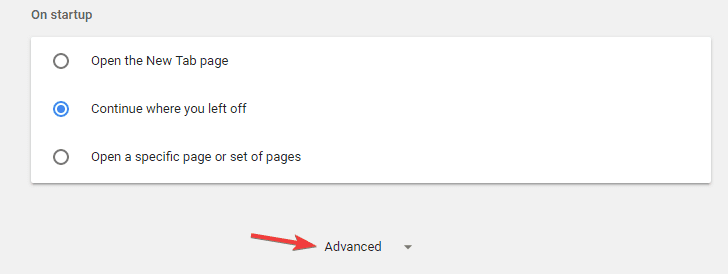
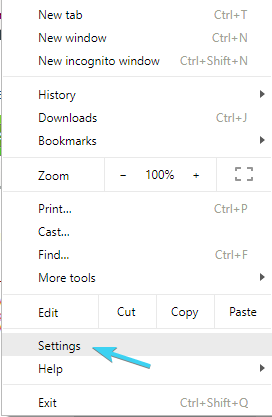
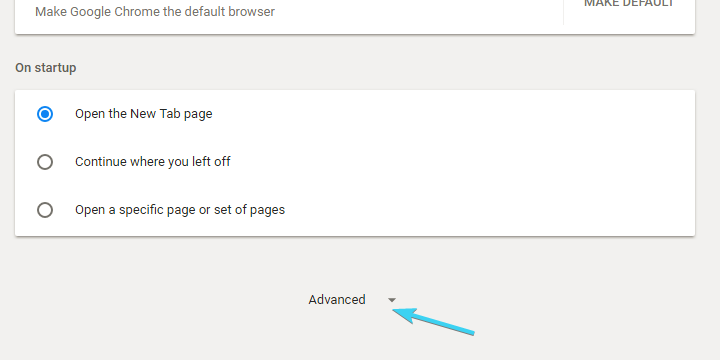
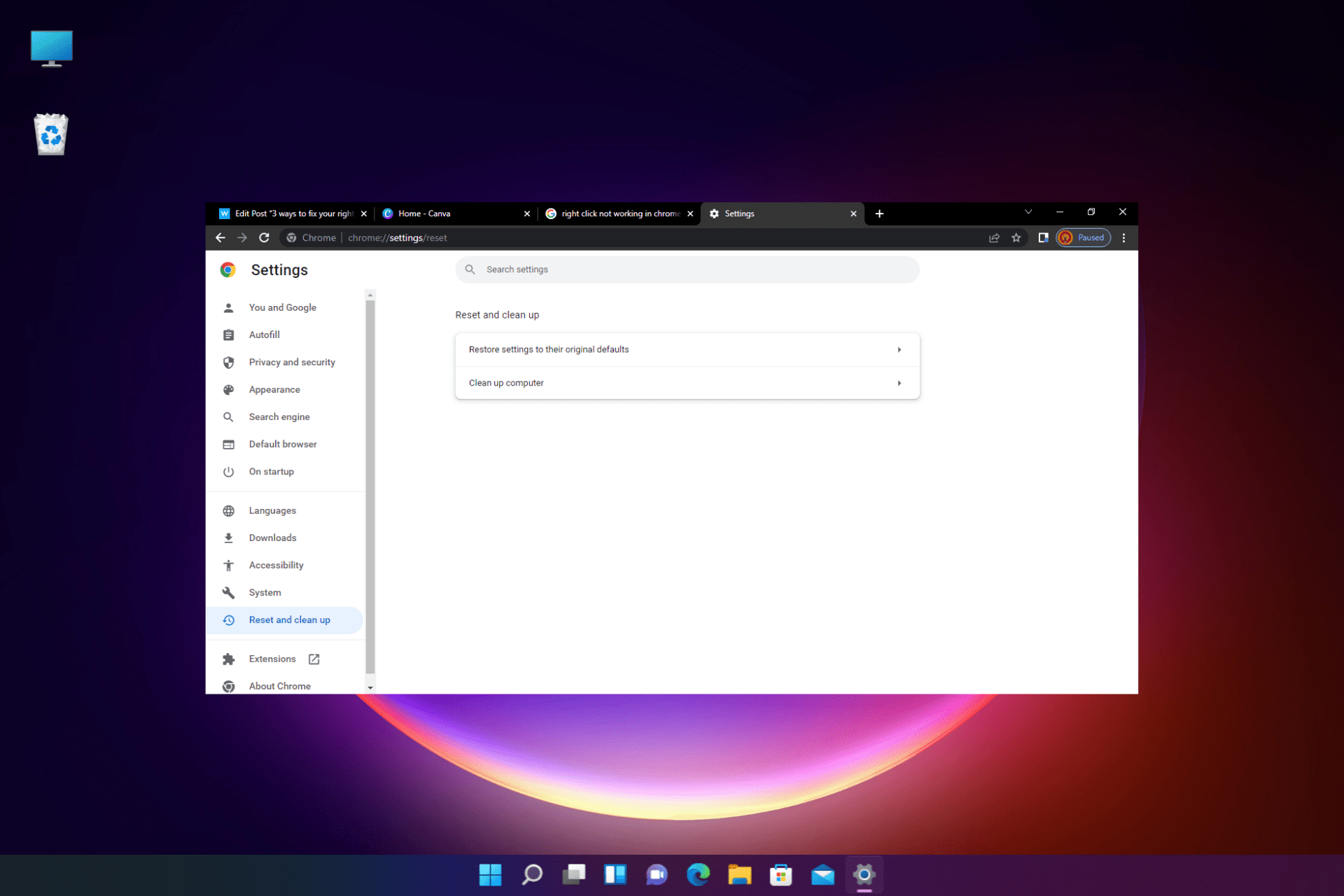
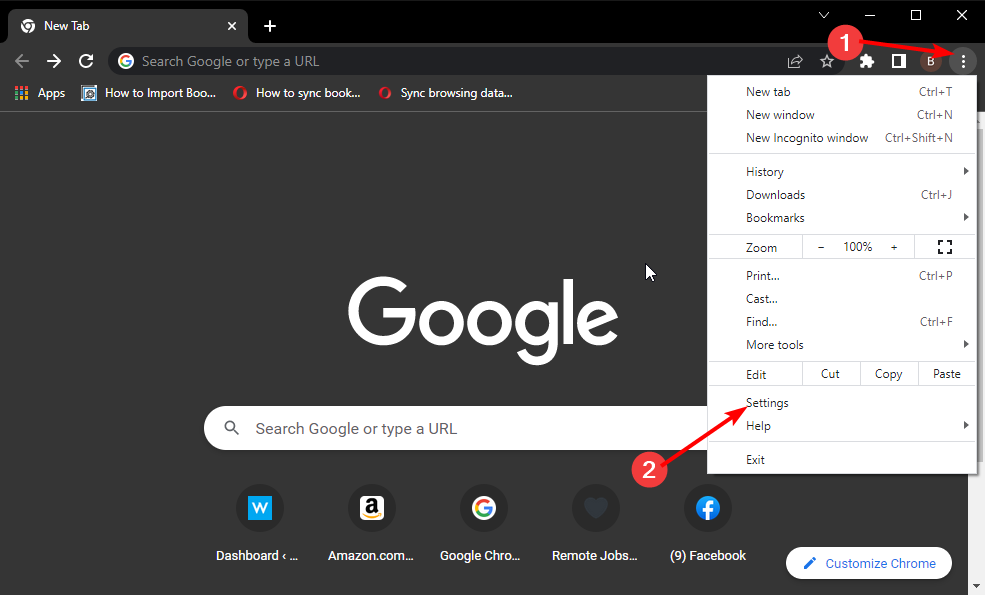
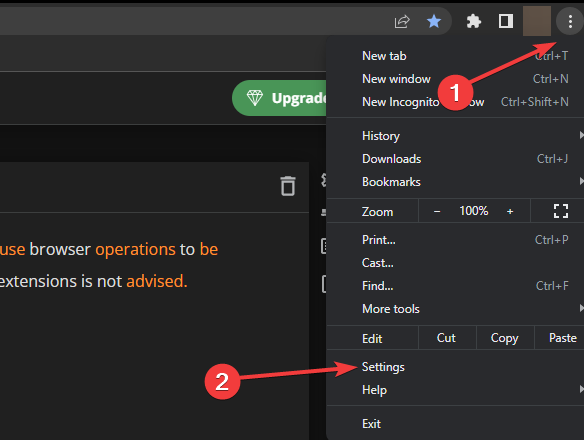
  1. Resetting Google Chrome will turn off all its extensions, which might fix the Windows Firewall has blocked some features of this app error. Users can reset the browser by clicking on the three-dot menu followed by Settings.chrome-settings windows 10 blocking chrome install
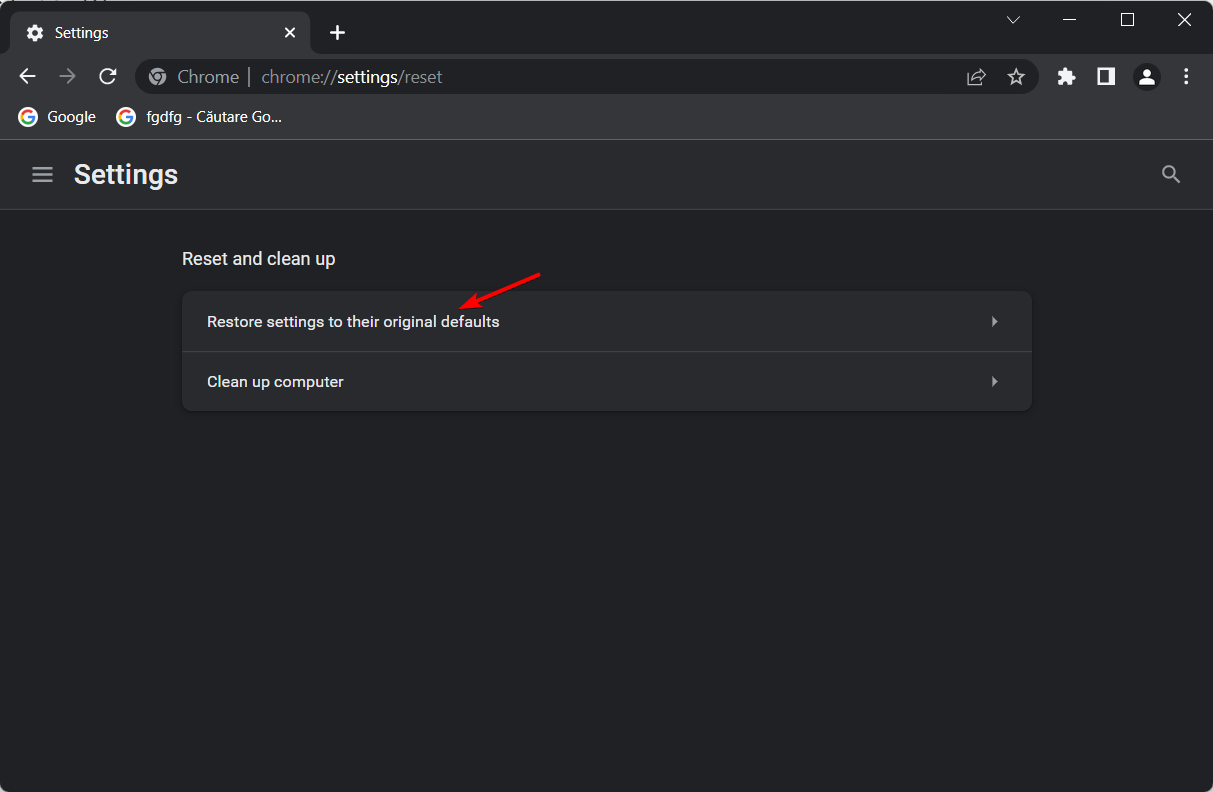
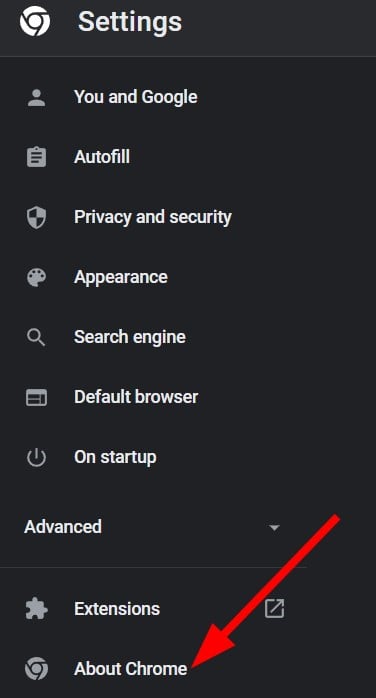
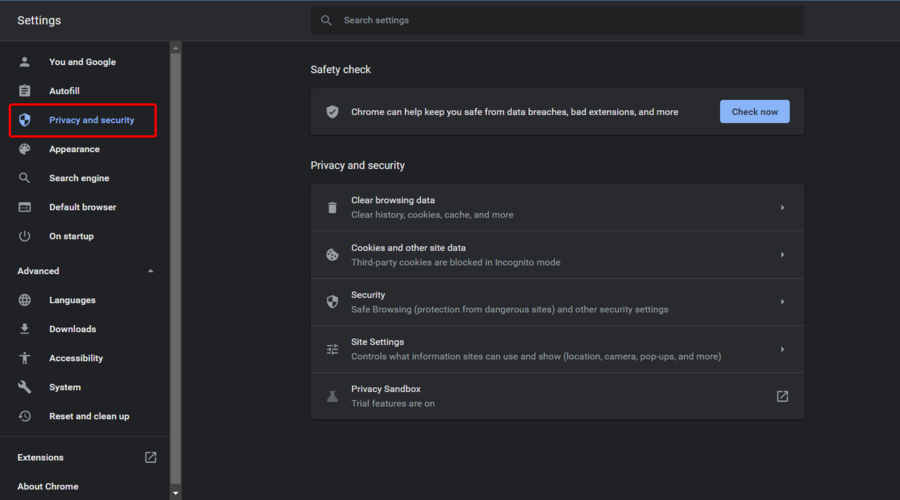
  2. From the left menu select Reset and clean up.
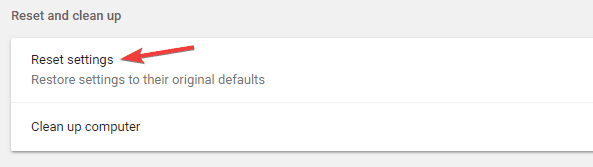
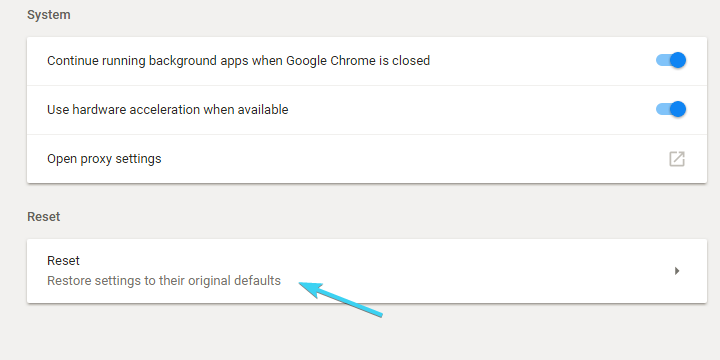
  3. Now click on the Restore settings to their original defaults option.restore-settings windows 10 blocking chrome install
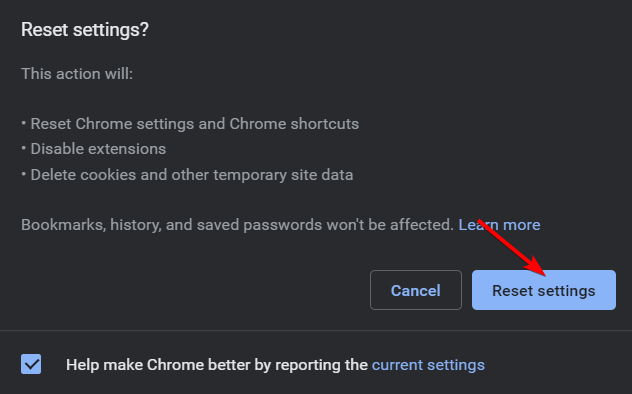
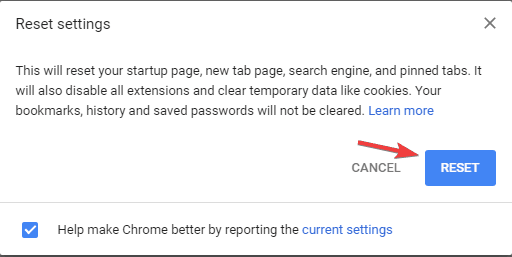
  4. And lastly, click on Reset settings. reset-settings-yes windows 10 blocking chrome install

After doing this, you should successfully reset Chrome firewall settings and the problem should be gone.

How to check if Chrome is blocked by antivirus

In order to check whether your antivirus is blocking Chrome or not, you need to open it and go to the Blocked apps section. In there you will see all of the files and apps that your antivirus deems unsafe.

By clicking on a specific app you will be shown options to unblock it and label it a safe app.

We also have a guide that shows you how to Allow Chrome to access the network in your firewall or antivirus settings, so don’t miss it.

Those are the most effective solutions users have confirmed to fix the Windows Firewall has blocked some features of this app Chrome error.

Don’t hesitate to share your thoughts with us in the comments section below.
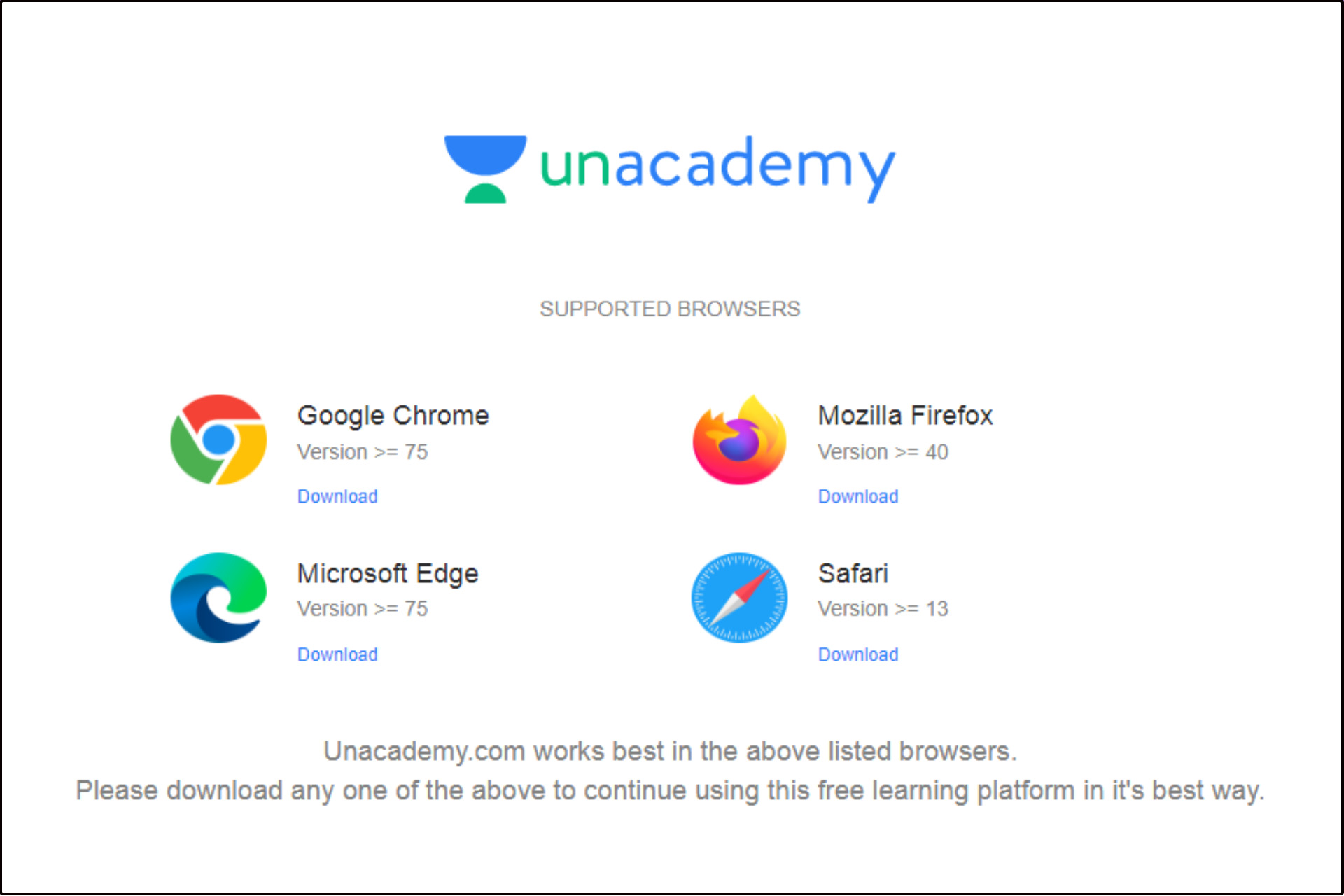
We Picked the 5 Best Browsers That Work With Unacademy

Unacademy is an online learning platform that offers free courses in various topics such as programming, marketing, UX design, and more.

The website also provides students with a lot of resources like videos and PDFs which can be used to learn new skills. However, not all browsers are compatible with this site.

For this, you will need a good browser that can save a webpage as a PDF among other things when the need arises. The best browsers will be fast, secure, and easy to use.

Does Unacademy work on Firefox?

Yes, Unacademy works on Firefox. All you have to do is download it from the Mozilla website and then install it on your computer or laptop. You can also access all courses on the mobile app for iOS and Android or get Unacademy App for PC.

Can I use Unacademy on my laptop and mobile?

Unacademy is a web-based platform so you can use it from anywhere in the world. You don’t have to install anything on your computer or mobile phone. All you need is a web browser and an internet connection.

What is the best browser for Unacademy? 

1. Opera – Most integrated

Opera offers a number of features that make it a great choice for anyone who spends a lot of time reading online.

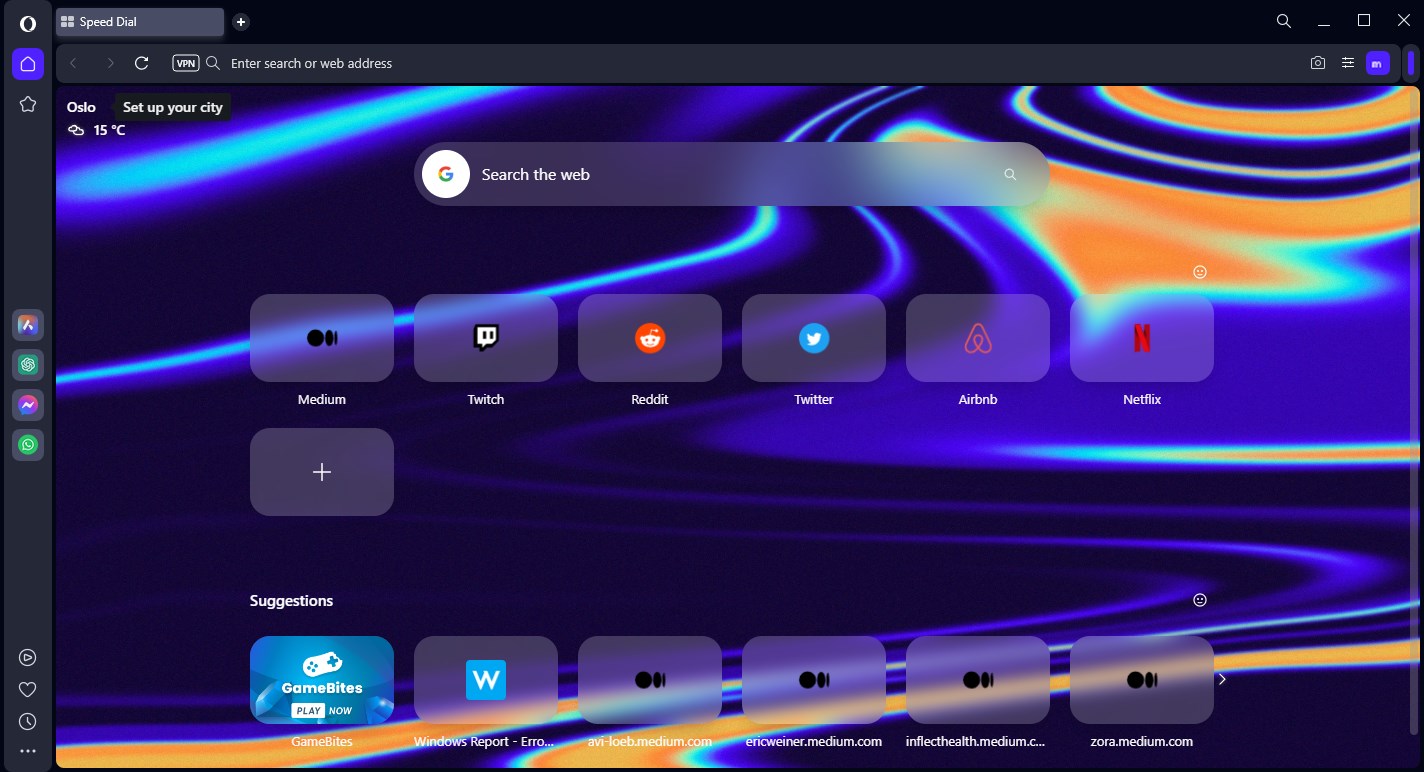
It has a Speed Dial feature that lets you create custom shortcuts for your favorite websites so you can access them easily the next time you launch your browser.

Additional features:

  • Reader mode is activated to allow you to concentrate
  • Built-in battery saver
  • Notes feature included
Opera

Opera

Get ready for meaningful exams or take courses on Unacademy from this upgraded browser.

2. Chrome – Fastest browser

Chrome is the most popular browser on Android phones and tablets, as well as on desktop PCs. It’s fast, smooth, and syncs with your Google account, which makes life easier if you use Chrome on multiple devices.

Another advantage is that it also has many extensions that add extra features like password management or ad blocking. 

Additional features:

  • Tabbed browsing
  • Voice search
  • Incognito mode

⇒ Get Chrome

3. Firefox – Most customizable

Firefox is one of the most popular web browsers out there and it works perfectly with Unacademy as well especially when it comes to customization. 

You will not face any issues while browsing or downloading files for later reading from Unacademy using the Firefox browser.

Additional features:

  • Block unwanted ads
  • Supports add-ons
  • Highly customizable

⇒ Get Firefox

4. Safari – Most intuitive

Apple’s browser isn’t as popular as Chrome or Firefox, but it’s still a solid option for browsing the web on Unacademy.

Safari is one of the most popular browsers on the Internet because it has a simple user interface and offers plenty of speed improvements over older versions of other browsers like Internet Explorer and Firefox. 

Additional features:

  • Quick downloads feature
  • Private Browsing allows you to browse without saving cookies or history
  • You can create a reading list by saving web pages

⇒ Get Safari

5. Microsoft Edge – Lightweight browser

Microsoft Edge browser has many features that make it a good option for Unacademy users. The browser is fast and lightweight, so it can handle your favorite websites without slowing down your computer. 

It also has a built-in reading mode that makes it easy to read the text without distractions, including ads allowing you to concentrate.

Additional features:

  • Advanced ad blocking
  • Reading View that lets you focus on the text without distractions
  • Pin tabs so they stay open while you browse other sites

⇒ Get Microsoft Edge

How do I open Unacademy in Chrome? 

To open Unacademy on your Chrome browser, follow the steps below:

  1. Launch your Chrome browser and open a new tab.
  2. Navigate to the Unacademy site.
  3. Log in and start learning.

Hopefully, you are able to find a browser that best meets your needs from our recommended list above. 

We also have a rich library of educational software to help you advance in your chosen career so don’t hesitate to check our guide on the same.

Let us know which browser you prefer when using Unacademy in the comments section below.

5 Best PC Privacy Screen Filters to Buy

PC privacy screen filters keep confidential data safe from wandering eyes. String passwords and encryption software help you keep your private work data private.

But such tools can’t stop someone from peering at your screen from over your shoulder or snapping a picture of what you are working on.

This is called visual hacking, and it is a serious security threat that businesses shouldn’t ignore anymore. Fortunately, the issue can be easily fixed with privacy filters that adhere to a machine’s display.

These filters severely restrict the viewing angle in such a way that only someone who is sitting in front of the screen can see what’s on it.

Anyone who tries to sneak a peek from the sides or the top will only get to see a blank screen.

Why should I use a privacy screen?

In addition to protecting your documents from being viewed by prying eyes, a privacy filter can also help eliminate excessive glare from your computer screen.

Did you know that glare causes all types of conditions ranging from chronic headaches to Presbyopia which is actually the weakening of your eye muscles?

When you are able to eliminate glare from your computer screen, you can work much longer house without feeling tired or getting a headache.

People who have complained of headaches at the end of every day found a significant improvement in their condition as soon as they installed an anti-glare filter on their computer screen.

How do privacy filters work?

Privacy screens are quite low-tech, and they consist of only a polarized plastic sheet. Polarization works as an optical filter that blocks out light from particular angles.

This is the same technology that is used for polarized sunglasses and some types of camera lenses.

What to look for in a high-quality privacy filter?

➡ Clarity of image

Privacy filters have the tendency of blocking some light from the PC’s screens making them appear dimmer. Dimming can be offset by turning out a screen’s brightness, on the other hand.

➡ Application

The way that you apply the filter to the screen varies from model to model, and you should look for a filter that is easily applied and removed over and over again.

The best filters adhere to using reusable micro-suction strips that will not leave any sticky residue.

➡ Matte finish

Some privacy filters can give glossy screens a matte look, and this will help ward off distraction reflections, but it can also make the display look pretty dull.

Some filters are reversible, and they let you choose between a matte or a glossy side before you apply them.

➡ Colors

Privacy filters come in more colors, and the basic ones will look black once you apply them when they are viewed from an angle.

You can also get filters that give off a gold sheen when they are viewed from the side.

Such gold filters will be a bit more expensive because they will not dim your screen so much but on the other hand, they also tend to be more reflective than black ones.

This means that they are not that good for people who are working outdoors. To make your task easier, we selected 4 of the best privacy filters for PC using the criteria listed above.

What are the best privacy filters for your Windows PC?

MOSISO 20-22 inch Computer Privacy Screen Filter

  • Anti-scratch properties
  • Fits monitors, LCDs measuring 20-22 inch diagonally
  • Reduces eye stress
  • Hanging attachment
  • Same instruction set for laptop and monitor

In case you fear that lots of people are prying around and snooping into your desktop screen, we have the perfect solution for you.

If you hesitate to enter the passwords or to read, view, or surf your desktop content in an office environment for the same reason, install this privacy filter from Mosiso and you can relax.

No more prying eyes, the screen is dark from the side (beyond 30 deg) but clear from the front.

  • Transparency over 85%
  • Reduces the blue light display transmission
  • Reduces eyestrain, dry eye, and insomnia
  • 2 attachment options for installation
  • Poorly fixed-to-screen tape

The advanced micro-replication technology and 12 layers of film make Privox Privacy Filter one of the best privacy screens on the market.

It is designed to fit all widescreen laptop LCD monitors (19.0″ screen and a 5:4 aspect ratio) and it has an extra slim, lightweight, and frameless design.

Vintez 24 Inch Computer Privacy Screen Filter

  • Perfect privacy protection
  • Suited for public and high-traffic areas
  • Fits any brand of monitors
  • Anti-glare and anti-scratch properties
  • The price can be considered a bit steep but it reflects the quality

The Computer Privacy Screen Filter provided by Vintez is designed for 24-inch 16:9 widescreen computer monitors.

However, they offer lots of such films for all sizes, from 19 to 32 inches providing anti-glare and anti-scratch protection besides the obvious confidentiality.

The screen is perfect for public and high-traffic areas and it can fit any brand of monitor, including HP, Samsung, Dell, Lenovo, Acer, Asus, LG, ViewSonic, and others.

After you apply the privacy filter, the monitor will appear dark when looked at from an angle higher than 30°- 60°, but bright when looking directly at it.

Kensington 22-24″ Privacy Screen

  • Fits 22-Inch to 24-Inch widescreen monitors
  • Spring-loaded mount
  • Reduces blue light by up to 30%
  • Hard-coated surface
  • Not anchored directly to the screen

This filter fits most 22 to 24-inch widescreen monitors with a 16:10 or 16:9 aspect ratio.

It manages to narrow the field of vision on the monitor to +/- 30 degrees, helping you keep the information on your screen to yourself.

The spring-loaded mount attaches to the screen without hassle or adhesives. The textured surface with a light tint minimizes glare and improves contrast, and it also reduces harmful blue light by up to 30%.

Its hard-coated surface protects the sensitive flat panel screen from smudges and damage.

  • Reversible privacy screen filter
  • Glossy or matte finish
  • Anti-glare and scratch-resistant
  • Extra installation kits
  • Visible application tape

The Vintez Computer Privacy Screen Filter limits the viewing angle of your screen to a straight position such that only you can see the contents of your monitor screen while everyone on either side of it sees only a darkened monitor screen.

It also helps improve the confidentiality of your information, your surfing details, and so on. In other words, it reduces the risk of any visual hacking or visual theft.

Users who access corporate networks from remote locations pose a potential danger to data confidentiality because they are in an unsecured and uncontrolled area.

The danger consists in allowing unauthorized people to view the data that you are accessing, and this is why you really need a privacy screen filter.

All the filters that we have presented are ideal for keeping your privacy as it should be, private.

You should also consider reading our list of the best privacy protector software for Windows 10/11 because it may protect you further.

Did you decide on any of the products? Tell us about your choice in the comments section below.

5 Best Dreamcast Emulator for Windows 10 PC in 2026: Top Picks

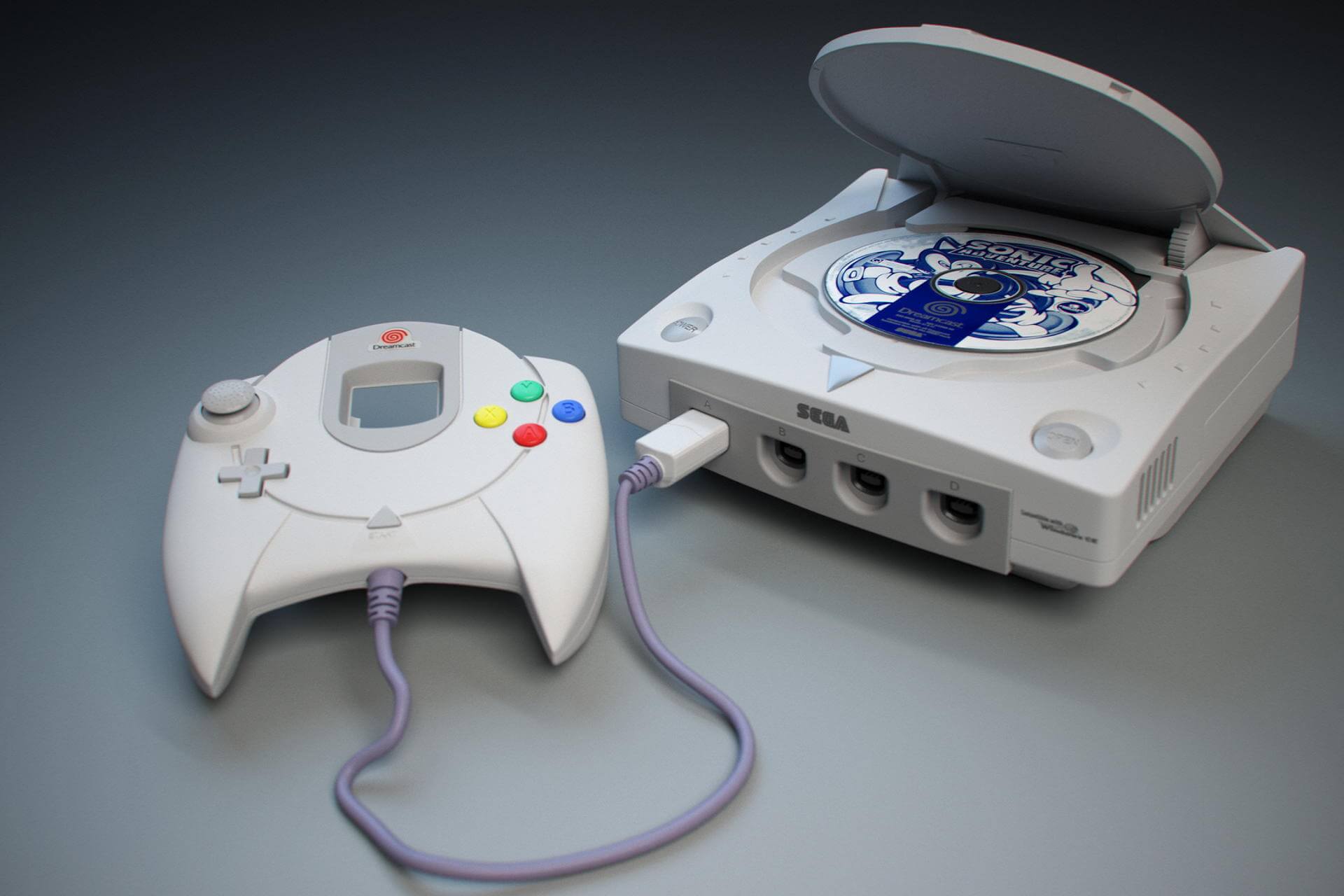
A Dreamcast emulator for PC lets you play classic Dreamcast games right on your Windows 10 computer without needing the original console.

If you’re looking for the best Dreamcast emulator in 2025 that’s free to download and offers the most accurate gameplay, this guide will help you find the right one. Whether you want smooth performance or the closest experience to the real thing, we’ll cover the top options for your Windows 10 PC.

What are the best Dreamcast emulators?

DEmul – The most popular choice

DEmul is a popular Dreamcast emulator for Windows that many players consider to be the best one. This emulator is compatible with basically any Dreamcast ROM out there, thus we recommend it as the best PC Dreamcast emulator.

Besides Dreamcast games, DEmul can also emulate arcade hardware, like Naomi 1, Naomi 2, Hikaru, and Atomiswave.

DEmul uses a plug-in system for video and audio outputs, to provide you with the best possible experience. And indeed, Dreamcast games work pretty well on DEmul, without any major bugs or lags.

The virtual memory card is also supported, which allows you to save the game progress at any time.

The developer of DEmul stopped supporting the emulator a long time ago. However, a Russian firm took over so the emulator still works perfectly in Windows operating systems, including Windows 10.

If you want to download the best Dreamcast emulator for Windows 10/11, you can do so for free from the link below.

Other useful features:

  • Customizable screen
  • Offers plugins support
  • Supports Multiplayer

⇒ Get DEmul

NullDC – Open-source emulator

NullDC is an open-source Dreamcast emulator for Windows. It is also considered another best PC Dreamcast games emulator on the market.

This emulator can run basically any Dreamcast game, including commercial games. This ability gives NullDC an instant advantage because very few emulators are capable of running commercial games.

According to users’ reviews, NullDC provides a great gaming experience. Graphics and sound are on an exceptional level.

NullDC uses a plug-in architecture for graphics, sound, memory cards, and reading games burned to CD-ROMs. Unfortunately, NullDC is no longer under active development, as the latest version was released in 2011.

However, despite the fact the developer doesn’t release an update for NullDC anymore, it should run without any problems on your Windows PC.

Other useful features:

  • Customizable FPS
  • Offers screen size customization
  • Cloud VMU

⇒ Get NullDC

Reicast – Great stability with regular updates

Building Reicast: A Dreamcast emulator for Your ODROID | ODROID Magazine

One of the leading Sega Dreamcast emulator in this category is most certainly Reicast.

Widely acknowledged as the best Dreamcast emulator for Android, it is also available for Windows 10/11. It brings to the table nice looking interface and a joyful experience.

One of the main traits of Reicast is great stability and relatively regular updates. Regular updates will also make sure this experience is available for Windows 10 users.

Beyond that, you just can sit in a time travel machine, relax and let the memories of the past get to you.

Other useful features:

  • Offers optimization options
  • Customizable graphics and audio
  • Controller support

⇒ Get Reicast

Chankast – Best for low-end PCs

Chankast is a simple and easy-to-use Dreamcast emulator. It was the first of its kind to run commercial games. It was initially designed for Windows XP/2003, but it runs without any problems on Windows 7/8/10.

The reason behind that is the minimum requirements you’ll need: Pentium 4 with at least 1.6 GHz, 256 MB Ram, Windows 10/8/7/XP/2003, latest DirectX, a dedicated graphics card such as Nvidia or Ati, DC Bios.

It’s a fun little emulator that can help you do your thing without any headaches.

Other useful features:

  • Support for CMU, LCD, and VMU
  • Support for Full-Screen Gaming
  • Supports self-bootable backups

⇒ Get Chankast

Redream – Renders games in HD

Redream is another great Dreamcast emulator that promises to be one of the, if not the best. Part of the reason is that Redream is an ongoing process that keeps evolving.

An important aspect of this emulator is that it can run Sega Dreamcast games on Windows 10/11 in HD.

Besides that, you can always render your games in 1080p or 4k to change the gaming experience completely.

Redream can support almost all of the Dreamcast’s library and unlike other emulators, you don’t have to configure your controller or your files.

You just have to add your favorite games and play them. Even more, keep in mind that there are two versions: a Lite one – that is free, and a Premium one – that costs $5.

The difference between them is that on the Premium one you have HD rendering and on Lite you don’t.

Other useful features:

  • Supports Mac OS X
  • Supports Ubuntu
  • Resizable screen

⇒ Get Redream

Dreamcast emulator pc requirements

DEmul

  • Dual core processor @ 3.0 GHz or above
  • 512 MB RAM or more
  • DirectX11

NullDC

  • 2.8Ghz Pentium 4 processor or a 2.0Ghz AMD Processor
  • 128 graphics card
  • 512 RAM

Reicast

  • CPU: AMD Athlon XP/64/Turion at 2 GHz or Intel Pentium D at 2.1 GHz or equivalent
  • Video Card: Nvidia GeForce 4 Ti or ATi Radeon 8500
  • RAM: 1GB
  • DirectX 9.0 or greater

Chankast

  • Pentium 4 with at least 1.6 Ghz
  • 256 MB Ram
  • Windows XP or 2003 (It won’t work under any other Windows)
  • Latest DirectX
  • Powerful Graphic Card such as Nvidia or Ati
  • DC Bios

Redream

  • Windows 7+ 64-bit, macOS 64-bit or Linux 64-bit
  • x86_64 compatible with AVX2 or SSE2 support
  • 512 MB RAM
  • OpenGL 3.1 graphics

Resident Evil: Code Veronica, The House of The Dead 2, Crazy Taxi 2, Sonic Adventure 1 and 2, and Virtua Tennis – these are a few games presented by Sega for this amazing console that ended way too soon.

How do you play Dreamcast games on PC?

You will need an emulator in order to play games designed for the Sega Dreamcast on a computer running Windows 10/11. This is a sort of program that transforms your personal computer into a Sega Dreamcast gaming console, enabling you to play any of the system’s games on it.

What is the most accurate Dreamcast emulator?

Demul is a well-known Dreamcast emulator for Windows that was developed by a variety of programmers, including Wind, DreamZzz, and ajax16394, among others. You may play a variety of video games by using this emulator, including Hikari, Naomi 1, and others.


This Dreamcast emulator makes use of the plug-in system for both visual and audio output, and it works faultlessly on Windows versions up to and including Windows 10.

Additionally, since it is compatible with memory cards, this emulator allows you to store your progress when playing games. This indicates that you will be able to pick up playing the game just where you left off.

Even though the maker of this fantastic Dreamcast emulator has ceased providing maintenance for it, another company in Russia has ensured that it continues to function without any issues whatsoever. You may get it by clicking the button that’s been provided below.

Wrap up

Maybe Dreamcast has lost the battle, but the legacy that made a mark in the gaming industry is still alive. Since you are looking for some fun, check out these all-in-one emulators with which you can play any old or arcade game.

Alternatively, take a look at the 6 best Android emulators on low-end PCs if your device specs don’t support the newer emulators.

If there is any other emulator you had in mind, please feel free to tell us in the comments section below.
10 Best Browser Audio Players to Enjoy for Free

Do you ever want to just play songs on your browser without being redirected to another app or audio player? That’s what browser audio players are for, and almost every browser is fitted with this feature. 

Audio and visual content capture the audience’s attention more than mere texts in the content market. While it was easy to integrate images and videos on web pages, adding audio files was still a mystery. 

After Internet Explorer broke the ice and became the first browser to support audio players by simply adding an audio tag, it was a long process of fine-tuning the feature. 

In 2015, HTML5 audio was introduced to simplify the process of adding audio to web pages.

The HTML5 audio allows users to tweak audio settings (pause, skip, play, etc.), but there were limitations with accessing the audio frequency and volume. 

However, web audio players have evolved with newer software that goes beyond the limitations of HTML5. Read on and find out some of the best browser audio players you can use. 

Can browsers play MP3? 

Almost all browsers can play MP3; however, there are modifications to which versions can support MP3 and which cannot.

Here are some browsers that support MP3: 

  • Google Chrome 4 to 6
  • Safari browser 4 to 11.1
  • Opera One browser version 15 to 53
  • Mozilla Firefox 22 to 60
  • Microsoft Edge browser 12 to 18

How do I play music files in my browser? 

  1. Open your browser app on your computer.
  2. Open a new tab.
  3. Press CTRL + O.
  4. Select an audio file from your file manager and press enter.
  5. You can control the sound from the top right corner of the screen by clicking the media control icon.

You can perform several functions such as pause, skip, and go to the next or previous song. Your audio will continue playing even if you leave the tab. 

How do I add audio to Chrome?

  1. Open the Chrome browser on your PC.
  2. Click on the Menu icon (the three dots) to access the options and select Settings. 
  3. Scroll down and click on privacy and security.
  4. Select site settings from the options. 
  5. Select Additional content settings.
  6. Click on Sound.
  7. Turn on the Allow sites to play sounds feature by clicking the toggle beside it.

It’s not enough to have a browser audio player. Finding the right one with the right tools for your website is just as important. Let’s check out some of the best free browser audio players: 

Quick Tip:

Before going in-depth with other players, consider a perspective shift with a new browser, Opera GX.

This browser is designed for gamers or regular users who need a player integration on the sidebar containing all your music services in one glance.

So enjoy your music from YouTube or Spotify readily from this full-featured browser choice.

Opera GX

Consider this option for an integrated player and many other unique browsing tools.

Which is the best browser audio player?

1. Audio Waveform Player – Great for playlists

The Audio Waveform player adopts some of the design concepts from SoundCloud and throws in some fantastic features, including start and end time, playback speed, playlists, sound download, social sharing, tooltips, and many more.

The Audio Waveform player with playlist is perfect for self-hosted audio like podcasts and bands hosted on Google Drive. The visual features are unique and can be easily customized to the user’s taste. 

Take a look at its key features:

  • Responsive layout
  • Multiple library icons
  • Multi-playlist option
  • Google Drive and SoundCloud integration

⇒ Get Audio Waveform

2. MP3 Sticky Player – Mixed playlist Audio Player

The MP3 Sticky Player is a customizable audio player that is compatible with mobile devices and many top browsers.

The MP3 sticky player supports many platforms that support MP3 access, such as Google Drive and Amazon S3. 

Other features of the MP3 Sticky player include the support for MP4, HTML, YouTube, MP3, SoundCloud, and podcasts.

This audio player allows optional deep linking and supports mixed playlists. It also has the ability to encrypt track paths. 

Let’s look at its key features:

  • Responsive layout
  • Support for custom post types
  • Google Analytics support

⇒ Get MP3 Sticky Player

3. HTML5 Audio Player – Audio Player for WordPress

The HTML5 Audio Player for WordPress consists of one radio player and two HTML5 audio players. This simple HTML5 audio player is highly customizable.

With it, you can play not only .mp3 file, but also .wav and .ogg files. It’s also got template files and widget areas.

Let’s review a few of its best features:

  • Support for play inline
  • Shortcut-driven
  • Very easy to use

⇒ Get HTML5 Audio Player

4. Disk Audio Player – Audio Player for WordPress

This audio player comes with a stylish design with a wide range of color options and playlists to choose from.

The Disk Audio Player for WordPress is very user-friendly and easy to navigate with several unique features, including an autoplay option, duplicate functionality, and keyboard control, among many others. 

Let’s see some of its most important features:

  • Multiple instances
  • Unlimited color options
  • Color scheme import

⇒ Get Disk Audio Player

5. Chameleon HTML Audio Player – Audio Player with or without Playlist

Integrating the Chameleon HTML Audio player into your website is straightforward. It is easy to customize and features a variety of color schemes and great audio features for your site, including the ability to create playlists from MP3 files. 

The software is compatible with mobile devices, supports multiple instances, and has 35+ JS options, among many other excellent features. 

Take a look at its key features:

  • Multiple instances
  • Multiple parameters
  • Mobile compatible

⇒ Get Chameleon HTML5 Audio Player

6. Amazing Audio Player – Audio Player with Playlist

The Amazing Audio Player uses a powerful API and has excellent features to give the best audio experience.

The software is a custom audio player HTML that supports multiple instances, flash fallback, database playlist, XML, and HTML.

It can be used for live streaming, podcasts, SoundCloud, and making YouTube videos. 

Here are some of its key features:

  • Playlist sorting
  • Automatic playlist generation
  • Multiple instances

⇒ Get Amazing Audio Player

7. Responsive HTML5 Audio Player PRO – Audio Player with Playlist

This audio player is very customizable and has a WordPress version for WordPress websites.

It has options to download, shuffle, and share audio. It has a user-friendly interface and can blend perfectly with your website design. 

The software permits sharing on social media and allows users to create playlists based on your folder organization using Google Analytics. 

You will benefit from these key features:

  • Lyrics button
  • Responsive design
  • Multiple parameters

⇒ Get Responsive HTML5 Audio Player Pro

8. Apollo – Customizable audio player

The Apollo – Sticky with Full-width HTML5 Audio Player is customizable and can be integrated to fit your website design.

It features standard and sticky audio player versions, a responsive interface, a pop-up window player, and a playlist search and buy button. 

One of the best things about this audio player is its extensive audio player controls and social media share options that make displaying and previewing your audio easier. Users can also download lyrics with this audio player. 

Here are some of its best features:

  • User-friendly interface
  • Popup window player
  • Highly customizable

⇒ Get Apollo – Sticky Full-Width HTML Audio Player

9. ZoomSounds – SEO-friendly Audio Player

This audio player’s design is similar to that of SoundCloud, and it features different schemes and themes that make it very customizable. 

It is SEO friendly, responsive to adobe flash backup, and touch-optimized. It also uses an API key that supports SoundCloud streams and YouTube audio streaming. 

Take a look at its key features:

  • CSS3 technology
  • Touch-optimized
  • SEO-friendly

⇒ Get ZoomSounds- Neat HTML5 Audio Player

10. Lono – Audio Player with Playlist

This audio player doubles as a compact audio player and an HTML5 audio player with extensive components.

It boasts an array of interesting features such as a volume slider, buffer, playlist background, timer, seek bar, and much more. 

Here are some of its key features:

  • Optional shortcode parameters
  • Mobile compatible
  • Customizable color scheme

⇒ Get Lono

We hope this article has answered all your questions on browser audio players and also helped you to find the best free HTML5 audio player for your website. 

If you’re looking for a way to boost your PC audio, here’s a list of sound volume booster software.

For any other suggestions or questions, you’re welcome to use the dedicated comments section below.

The Question Mark in Chrome: What Is It & How to Get Rid of It

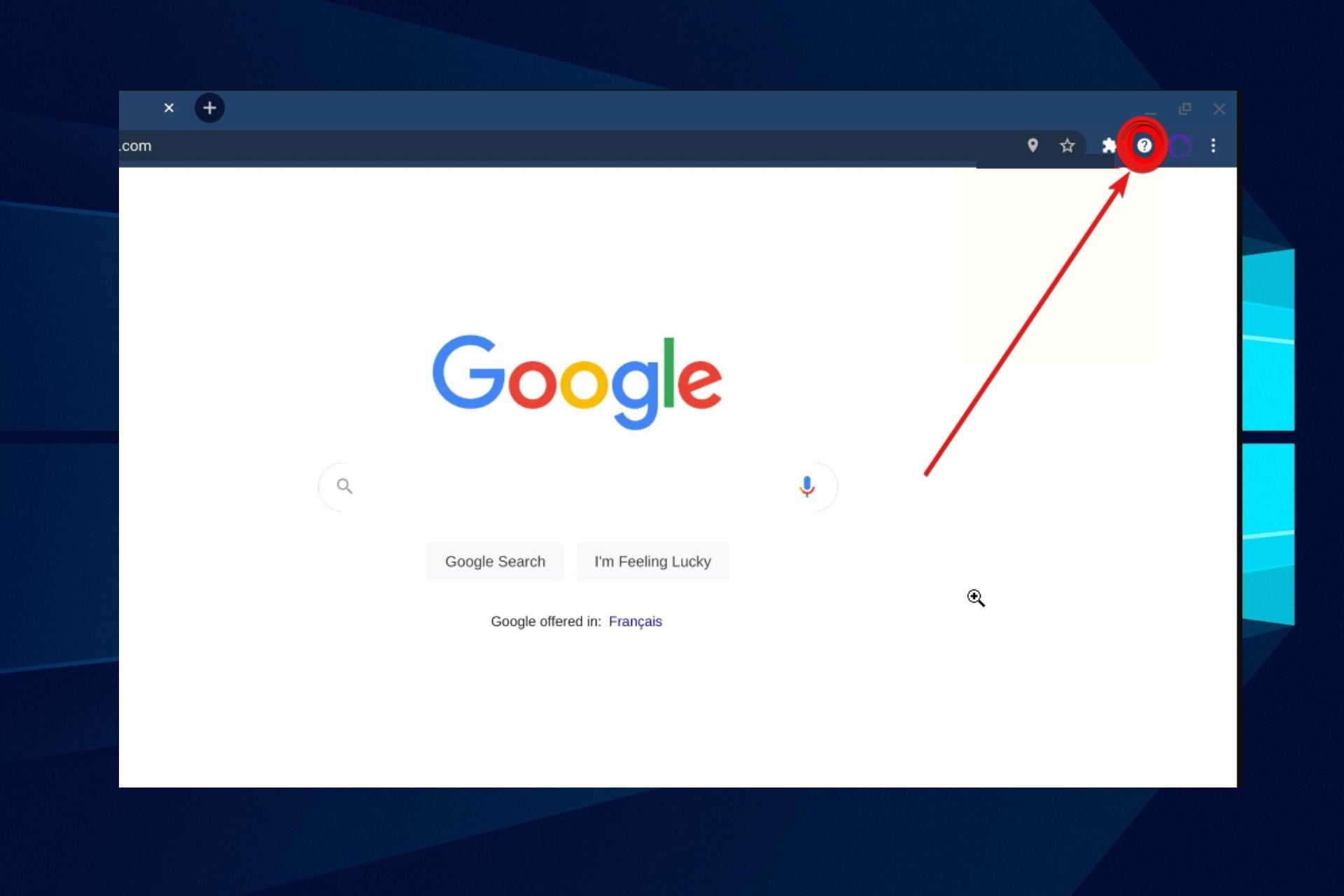
There are lots of errors and difficulties you can encounter on your browsers, specifically Google Chrome. Most times, they are not as complicated as they look. One of the errors users complain about is the question mark in chrome.

While trying to use the Chrome browser or in the process, a question mark can pop up. It signifies that something wrong with Chrome or the site you are working on.

Also, it can indicate that something is missing, e.g., an icon or some text. However, there are some effective fixes for the question mark in Chrome error.

What does it mean when Google Chrome has a question mark?

It means something is missing from the browser or the website you are trying to load. Also, it indicates uncertainty in the action you are performing, like downloads. This can range in the case of how much time is left, the size of your downloads, etc.

Another meaning is that your computer cannot display the character you want to load.

Why is there a question mark on Google Chrome? (common causes)

1. Chrome can’t display characters

You can get a question mark if chrome encounters an issue while loading contents for you. This error prompts the question mark.

2. Uncertainty in the action

Google Chrome can show a question mark while you are downloading documents or media files. It indicates that chrome can’t say the exact size of the file. Also, it can signify that the time left for action is indefinite.

3. Missing texts or thumbnails

When some content on your browser is missing, it can prompt the question mark. Also, the Chrome logo can show a question mark, which means it is inaccessible, or it’s been deleted.

4. Network issues

It means that your chrome can’t connect to its servers due to poor internet connection.

Quick Tip:

It’s no secret that Chrome uses quite a lot of system resources. You could try a Opera one for a change. it consumes much less resources as systems like VPN, Ad blocker and AI come already built in.

Opera One has its own system of alerting you whenever a webpage seems unsecured or malicious. That being said, it has way fewer errors, so you can trust that it won’t give you false positives.

Opera One

Browse the web freely and prevent slow connections, errors and high resource usage.
Free Download Visit website

How do I get rid of the question mark on Chrome?

1. Refresh your browser

  1. Press and hold the Ctrl key and press F5. (For Windows)
  2. Hold down Command + Shift keys and press the R key. (For macOS)

2. Check your Internet connection

Make sure your Internet connection is stable. You can do this by performing a power cycle on your router. Also, you can switch to a wired connection for a more stable internet connection.

3. Enable cookies in Chrome 

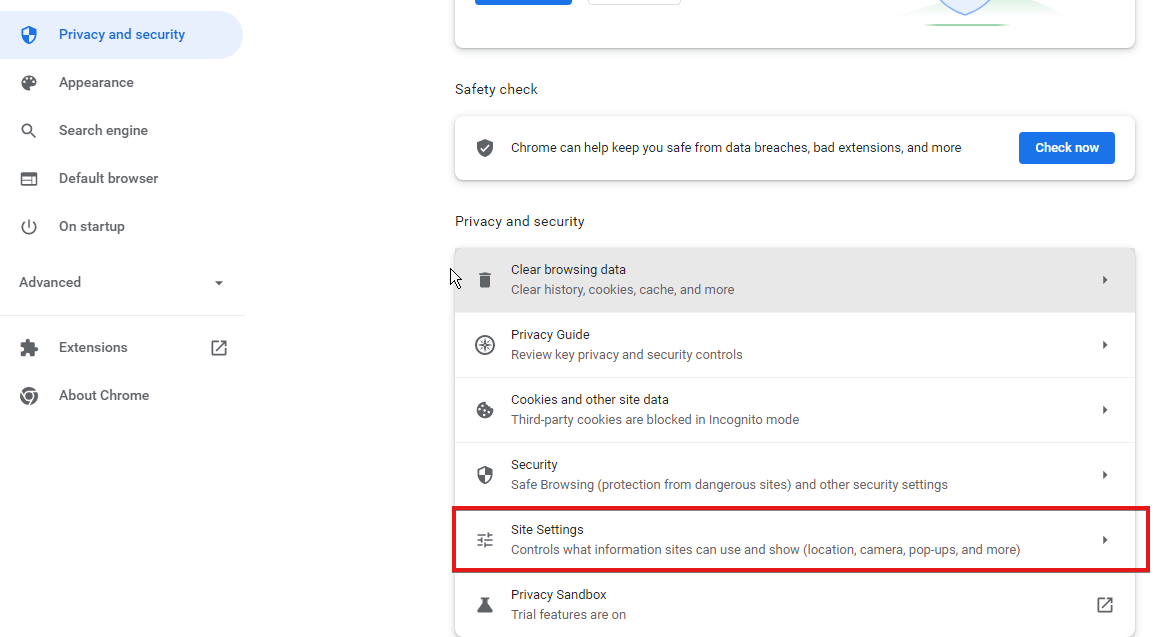
  1. Launch Chrome, click the More icon, and select Settings.
  2. Click Privacy and Security on the left pane.
  3. Select Site setting and tick the Allow sites to save and read cookie data box.

Another solution is to restart your PC. Restarting your computer will help it sync better and run smoothly.

Also, you can learn about easy fixes to use when Google Chrome isn’t responding or working. Let us know which of the above solutions worked for you in the comments area below.

Pinterest Not Working on Chrome: How to Fix it [4 Ways]

If Pinterest is not working on Chrome, you won’t be able to view your saved pages or even access the website. Today, we’ll show you how to fix it.

In most cases, third-party apps like Survey Junkey cause this error. Certain extensions, as well as adblockers, can also prevent Pinterest from working. Here’s how to stop them:

What can I do if Pinterest doesn’t work in Chrome?

First, check Downdetector to make sure Pinterest servers aren’t down.

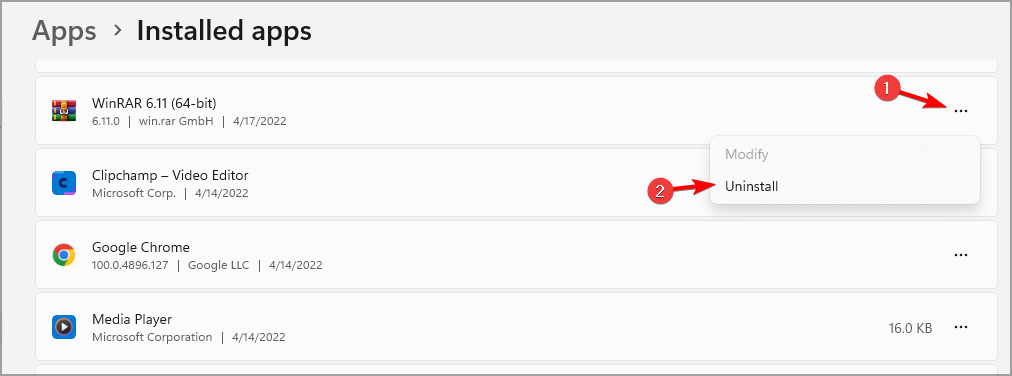
1. Remove interfering apps

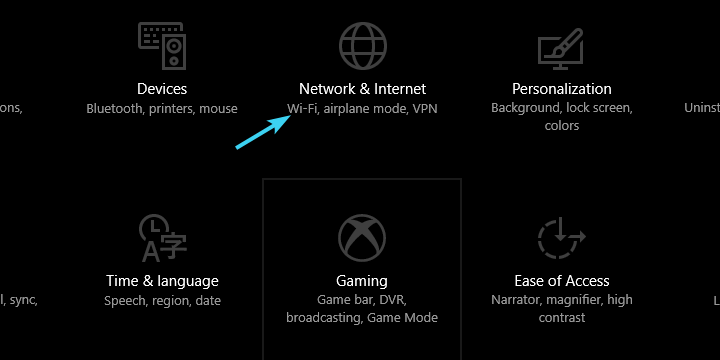
  1. Press the Windows key + I to open the Settings app.
  2. Go to Apps and choose Installed apps.
  3. Locate Survey Junkie Pulse software on the list.
  4. Click the three dots next to it and choose Uninstall.
  5. Follow the instructions on the screen to remove it.

Sometimes, other apps on your PC can interfere with your browser and stop Pinterest from working. The most common culprit we know of is Survey Junkie Pulse, but others could cause it to.

If you have this app, make sure to remove it.

And if Pinterest stopped working on Chrome after you installed something on your computer, order the Installed apps by date (most recent), and remove the latest ones you added.

2. Disable other extensions

  1. Launch the Chrome browser and click the extension icon.chrome extension icon
  2. Select Extensions Manager.
  3. Disable other extensions by toggling off the blue icon beside them.disable chrome extensions

Users reported that Vimego – Simple Video Downloader, OrangeMonkey, and MyJDownloader Browser extensions are the most common causes, but other ones can also cause this problem.

3. Add Pinterest to the whitelist in adblocker

  1. Open Pinterest in the browser.
  2. Next, open your adblocker.
    adblock open
  3. Disable it for Pinterest.

Alternatively, you can check if your adblocker is the issue by temporarily disabling it.

4. Try another browser

If the issue keeps occurring, consider using a better, more stable browser. For frequent Pinterest users, Opera One is a good choice.

It lets you integrate the Pinterest button within the browser so you can save any type of media without having to open new tabs.

Why am I blocked from Pinterest?

If you’re blocked from Pinterest, you most likely violated the terms of service. If that’s not the case, you should contact Pinterest support.

These are the most effective fixes for fixing Pinterest not working in Chrome. If you have managed to fix the problem, you might be interested in our guide that shows you how to save pictures from Pinterest to your computer.

Another thing that you should be cautious about while using the service is Pinterest privacy issues, but you can address them by changing Pinterest privacy settings.

If none of these fixes solve the issue, it may be related to your account or site verification. In that case, check this guide on fixing Pinterest validation error for more advanced troubleshooting steps.

Let us know which solution worked for you in the comments area below.

5 Best Browsers for Discovery Plus: No Buffering & Freezing

Discovery Plus is a streaming service for movies, shows, and other programs owned by Warner Bros.

Areas with accessibility include the United States, Brazil, Canada, parts of Asia, and Europe. Nevertheless, there are other ways to watch it outside of these locations.

Discovery Plus offers thousands of episodes of your favorite shows on the cable network, including cooking shows, true-crime series, dramas, and nature programs.

Can I watch Discovery Plus on a browser?

You can watch Discovery Plus on a browser. However, if you want an excellent viewing experience, downloading the Discovery Plus app is recommended.

Discovery Plus is an excellent value if you don’t have pay-TV service.

Does Discovery Plus work on Chrome?

Of course, you can stream Discovery Plus on Chrome. In fact, you can do that on almost any major browser.

After you sign up, download, and install it, you will be able to stream Discovery Plus with the browser and enjoy good speeds and an enhanced viewing experience.

What are the best browsers for Discovery Plus? 

1. Opera One – Most versatile browser

The Opera One browser stands out for its brilliant user interface, making it an ideal choice for web-based streaming. So, enjoying services like Discovery Plus is no issue.

Asides from its attractive interface, the browser boasts a host of top-notch security features to enhance users’ viewing experience. Opera One is truly one of the most versatile browsers around.

Key features:

  • Built-in Ad blocker, VPN, tracking blocker
  • Native AI and modular AI-ready design
  • Integrated messengers and social media
  • Workspaces and tab islands

Opera One

Watch your documentaries and favorite content from this integrated browser.
Free Download Visit website

2. Safari – Best browser for privacy 

Apple developed Safari web browsers as an alternative to Internet Explorer, Netscape Navigator, and Cyberdog for Mac computers. Safari versions 10 and above support Discovery Plus.

However, you should note that Apple has stopped developing the browser for the Windows Platform. Nevertheless, the old versions still work well with Discovery Plus.

Key features:

  • Speed and battery optimization 
  • Fingerprinting protection 
  • Intelligent tracking prevention 

⇒ Get Safari

3. Google Chrome – Strong browser performance 

Google Chrome web browser was developed by Google and launched in 2008 with features from Mozilla Firefox and Apple WebKit. 

Chrome Blink 51 and above supports Discovery plus but not all functions and features of the platform are available on the Google Chrome browser.

Key features

  • Many browser extensions 
  • Built-in security tools 
  • Excellent browsing speeds

⇒ Get Chrome

4. Mozilla Firefox – Fast web browser

The Mozilla Foundation and Mozilla Corporations developed the Firefox browser. It uses Gecko engines to display web pages. The Mozilla Firefox browser is a free and open-source browser. 

Discovery Plus supports Firefox versions 47 and above. Firefox gives a great Discovery Plus experience; however, not all functions are accessible. 

Key features:

  • Customizable themes 
  • Web standards  
  • Browser extensions 

⇒ Get Firefox

5. Android WebView – Safe browser 

Android WebView is a component of the Android operating system that permits users to view the contents of a webpage directly from an app.

The WebView allows users to view specified HTML strings inside the application, and you can stream Discovery Plus on Android WebView versions 70.0.3 and above.

Key features:

  • Safe browsing 
  • Increased UI control 
  • Advanced configuration options 

⇒ Get Android WebView

The first thing anyone notices when using any of these recommended browsers for Discovery Plus is how fast it is without buffering and freezing. 

You can also stream Discovery Plus on your Apple TV, Android TV, Roku, Amazon Fire TV, Samsung Smart TV, and Xbox. However, you may be inclined to try out the Discovery Plus app to access more features.

Thank you for reading this article, and please remember to share your thoughts in the comments section.

7 Best Free Web Browsers for Google TV [Adblock Included]

Google TV is a Smart TV interface from Google which runs on Android OS. It supports an inbuilt Chromecast that allows you to share content from your devices with the Google TV browser.

GoogleTV offers Google Assistant integration to give you access to streaming platforms like Netflix, YouTube, Hulu, Sling TV, and so on.

If you wish to use your browser to access streaming platforms, your smart TV can stream countless movies, documentaries, and TV series.

As far as Google TV browsers go, it’s important that you use one that has adblocking capabilities so that you can enjoy the browsing experience unhindered.

In this article, we’ll discuss the best browsers for Google TV that have this attribute.

Is there a web browser for Google TV?

As a Google product, it’s only natural that its line of smart TVs come with the native Chrome browser. It is easy to navigate on the web browser.

On the left-hand side of the screen, you can access your favorite search engines, bookmarks, and the settings menu.

Do any streaming devices have web browsers?

Roku has a couple of dedicated web browsers. Also, the Amazon FireStick has the Amazon Silk browser, while Chrome is available for Google TV.

However, devices like Apple TV have no dedicated web browser. However, you can still use the AirPlay feature on your iOS device to connect to Apple TV and then use its browser.

Can I install the Chrome browser on Google TV?

Yes, it is possible to install the Chrome browser on Google TV. There are two approaches available, both of which require some side loading on your TV to get the Chrome browser.

You can start by installing Aptoide on your Google TV. Afterward, launch the Aptoide app and run a search utilizing the search box at the top of the page for Google Chrome.

Click on the correct search result and select the Install button from the list of options at the top. Follow the on-screen prompts to confirm the installation, and leave the rest to Aptoide.

What browsers work best with Google TV?

1. Opera One – Excellent all-around browser

It has a straightforward, familiar, and beautiful renewed user interface that supports private browsing with its incognito mode feature.

This means Opera One won’t collect your information, leaving zero traces of your data or browsing history, plus it will block all annoying ads thanks to its advanced AdBlocker.

Key features

  • Google ad-block
  • Tab Islands
  • Dark Mode

Opera One

Download Opera One and enjoy ad-free, secure, and seamless browsing on your Google TV!

2. Google Chrome – Google native browser

Google Chrome is the default browser for Google TV. It’s one of the best cyber-secure browsers available and is designed to protect users from malicious sites.

One of the pros of Google Chrome is that it synchronizes your bookmarks, browsing history, and other synced content. It secures your data with advanced security features like sandboxing, and site isolation

Key features

  • Pop up windows
  • Tabs
  • Continuous synchronizing

 ⇒ Get Google Chrome

3. Mozilla Firefox – Great for privacy protection

Firefox is one of the top browsers for Google TV. It’s a popular solution for users that are concerned about secure internet use, particularly for its selection of privacy configuration and security add-ons.

You can get it on your Google TV by sideloading the file either sent from your phone or downloaded from alternative app stores for your TV like Aptoide. 

Key features

  • Web pages bookmark
  • Incognito mode
  • Collections to organize tabs, add-ons, etc.

 ⇒ Get Mozilla Firefox

4. Puffin TV Browser – Lightweight browser

This browser works with your Android TV’s basic remote, making it an excellent choice for all users. It works differently from other browsers in that it renders web pages via its own cloud, rather than directly.

This reduces the risk of infecting your device with malware and other undesirable elements. The Puffin TV browser is lightweight, fast, and has top-grade encryption protocols.

Key features

  • QR codes for adding your favorite sites to the app
  • Adobe Flash support when needed
  • Lightweight browser

 ⇒ Get Puffin TV browser

5. TV Bro – Versatile browser

TV Bro is a browser with a TV remote. It’s open-source, accessible, and works well. In addition, it has adaptive mouse speed and comprehensive remote control enabled.

A built-in download manager makes downloading photos, videos, movies, and other files easy. It also has a great user interface and advanced security features.

Key features

  • Tabs
  • Support for bookmarks
  • Voice search support via your TV remote

⇒ Get TV Bro

6. Kiwi browser – Fast browser

Kiwi Browser is an excellent browser for Google TV with one of the best page loading speeds. Its incognito mode is quite secure, and it has other extensive privacy attributes.

The Kiwi browser can manage downloaded files and adjust the search bar to any place on the screen for comfortable surfing. It can also block all types of ads and pop-ups on websites. 

Key features

  • The ability to switch to dark mode 
  • A built-in translator app that translates the pages on the go
  • Comes with an adblocker

⇒ Get Kiwi browser

7. TVWeb browser for TV – Customizable browser

TVWeb Browser for TV is made for smart TVs and has good performance on Google TV. The user interface is very intuitive, making it easy to perform different functions like accessing web history and using the search engine

It seamlessly operates entertainment, games, media, news, and sports websites and has a simple interface for easy usage.

Features of this browser include:

  • Integrated voice search
  • Bookmarks
  • Customizable search engines

⇒ Get TVWeb browser for TV

That’s it! We hope that you’ve installed one of the best browsers for Google TV and now you’re relaxing with your favorite clips.

If you want to learn more about blocking ads on Smart TVs, this article offers the relevant information.

We hope you’ve found this article an interesting read, and can’t wait to read your opinions in the comments section below.

Fix: Topaz Signature Pad Not Working In Google Chrome

You found this article because your Topaz Signature Pad is not showing signatures, but here is what you must know.

As far as electronic signature pads go, Topaz is one to look out for. While signing, these signature pads will display your signature on the pad and computer screen.

It is an excellent electronic signature solution that will work wherever you have to go for business.

That said, you may find it to bug every once in a while, especially on your browser. Hence we will be taking you through the process of what to do when Topaz Signature Pad is not working in Chrome.

You may also consider using any of the best Signature apps for Windows.

Quick Tip:

Try installing the Topaz Signature extension to Opera One instead. It’s a Chromium-based browser that fully supports all the Google Chrome extensions.

It’s fast and runs a modern UI packed with handy tools and features. Opera One even comes with a native AI, and support for other AI technologies through it’s modular AI-ready design.

Opera One

Say goodbye to annoying errors with this up-to-date browser that offers peak performance!
Free Download Visit website

Why does my Topaz Signature Pad not work?

When your Tropaz Signature Pad stops working, it could be any of the following reasons:

  • A bad connection
  • Outdated or corrupted software

How do I get my Topaz signature pad to work?

1. Check for an internet connection

You may have easily overlooked the fact that you are not connected to the internet. You should double-check your connection, either replug in your ethernet cable or restart your Wi-Fi.

Once you have the internet restored, you should try it again.

2. Enable the Chrome extension

  1. Launch your Google Chrome browser.
  2. Paste the Chrome extensions link below in the URL locator and hit Enter:
    chrome://extensions/
    topaz signature pad not working in chrome
  3. Lastly, search for the Topaz Signature extension and toggle on the switch.

3. Update the Chrome browser

  1. Launch your Google Chrome browser.
  2. Paste the Chrome Settings link below in the URL locator and hit Enter:
    chrome://settings/
    topaz signature pad not working in chrome
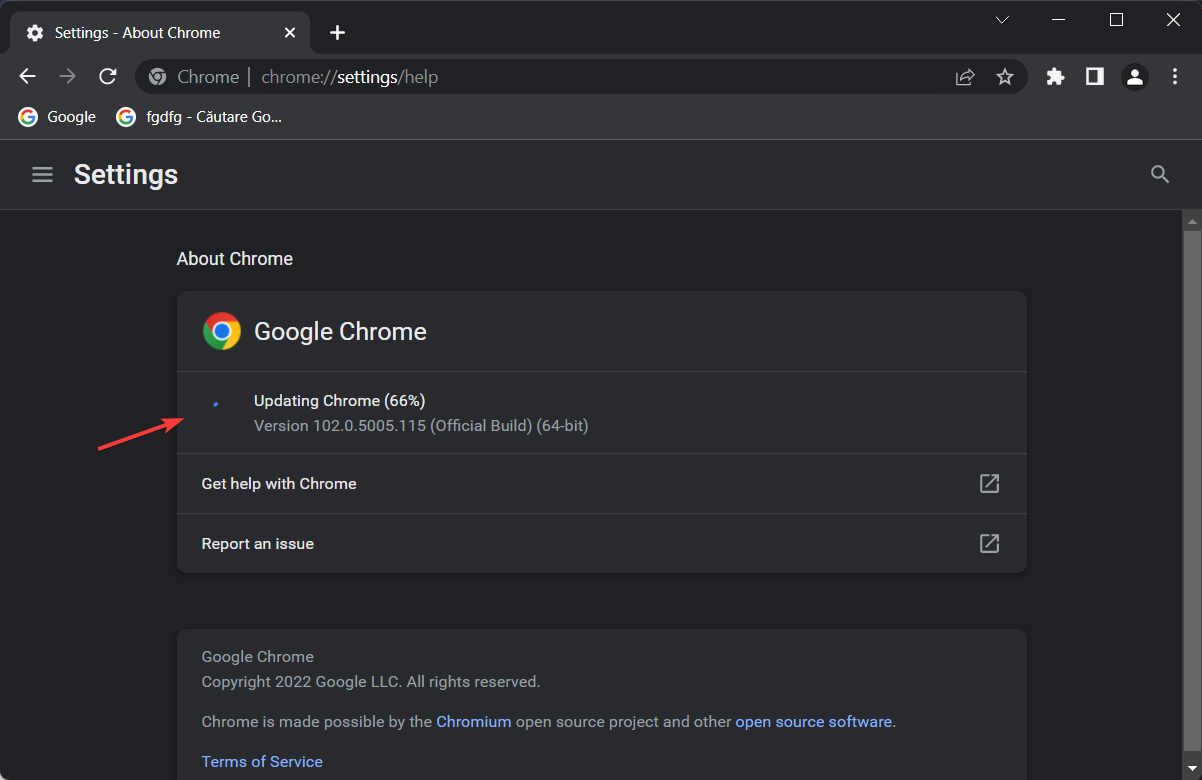
  3. On the browser’s left pane, click the About Chrome option.

How do I use Topaz signature pad in Chrome?

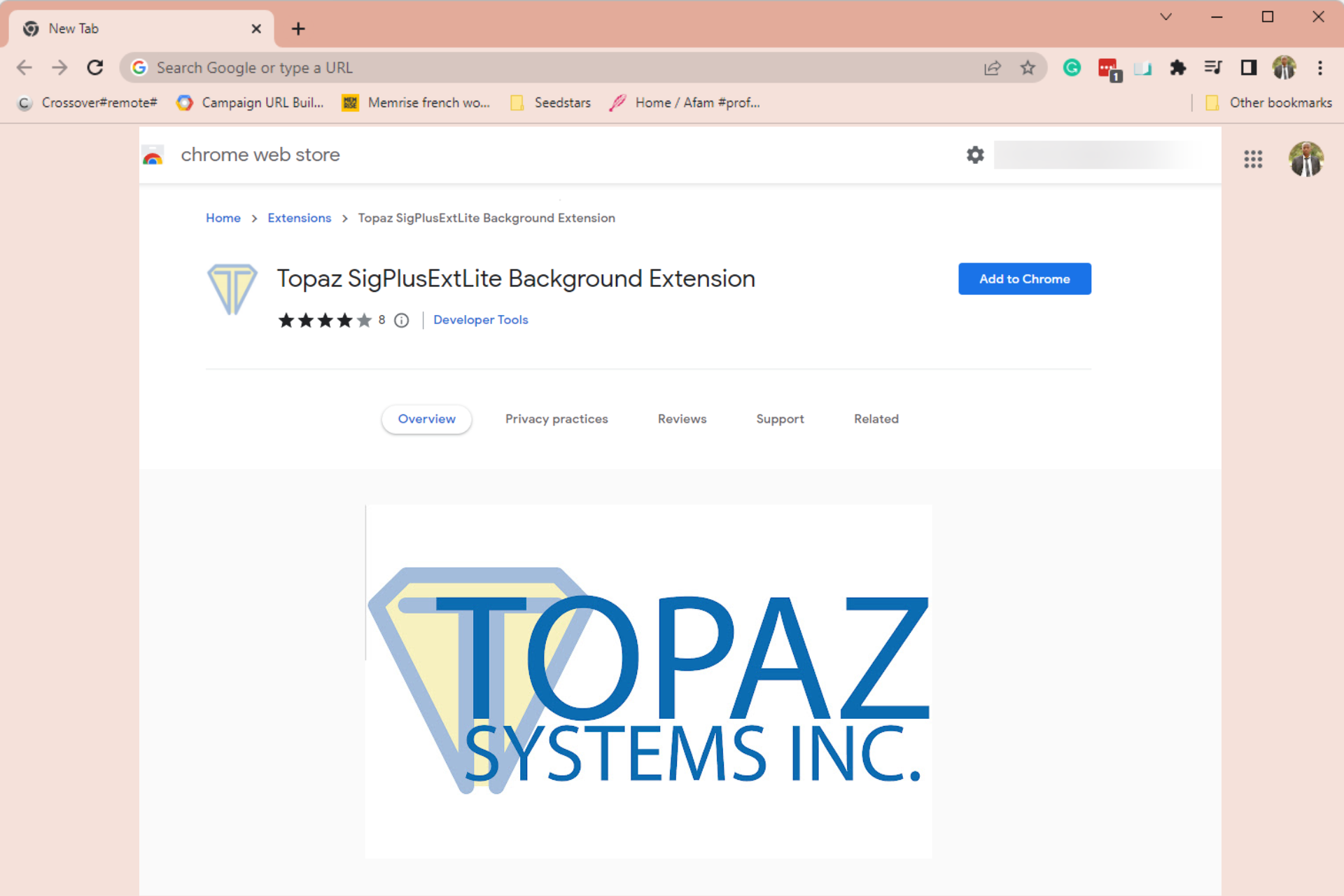
  1. Navigate to the Topaz Signature extension page.
  2. Click on the Add to Chrome button.
    topaz signature pad not working in chrome
  3. Click Add extension when prompted.
  4. Now you can connect the Topaz Signature pad and use it on your browser; you may want to start by running a Topaz Signature pad test.

With these fixes, you will be able to use your device on Chrome.

While we have focused on getting it to work on Chrome, some users have also experienced issues with the Topaz Signature pad not working on Windows 10/11. In such cases, you may consider reinstalling the drivers to get it running again.

Leave us a comment and let us know if this guide has been helpful.

Microsoft news recap: Outlook Lite app coming to Android, Xbox Game Pass comes to Samsung 2022 TVs, and more

Microsoft news recap is a weekly feature highlighting the top Microsoft news stories of the past week. Sit back, grab some coffee, and enjoy the read!

Hackers have been using a new piece of malware to back door Microsoft Exchange servers for the past 15 months

A new piece of malware is being used to back door into Microsoft Exchange servers, with Kaspersky reporting that 34 servers belonging to 24 organisations have been affected, and the malware has been used for the past 15 months.

Hackers Target WordPress Php

Microsoft working on Outlook Lite app for Android

An Outlook Lite app for Android has been added to the roadmap. Whilst details are limited, the new app is designed to bring the best bits of Outlook to low-end devices, using less storage space and being less network intensive.

Microsoft working on Outlook Lite app for Android - OnMSFT.com - July 1, 2022

Samsung Gaming Hub rolls out today, bringing Xbox Game Pass to Samsung 2022 smart TVs

Xbox Game Pass has officially arrived on Samsung 2022 smart TVs, after the company began rolling out its Samsung Gaming Hub. The new feature allows owners of 2022 smart TVs by Samsung to stream games via Xbox Game Pass directly to their TV, removing the need for an Xbox console.

Samsung Gaming Hub rolls out today, bringing Xbox Game Pass to Samsung 2022 smart TVs - OnMSFT.com - June 30, 2022

Collections in Microsoft Edge is getting the ability to save images and videos

Updates to the Collections feature in Microsoft Edge have been announced. In a future version of Microsoft Edge, it will be possible to save images and videos into Collections, providing a space to quickly store content that is useful or interesting, as well as share it with others in order to collaborate.

Collections in Microsoft Edge is getting the ability to save images and videos - OnMSFT.com - June 28, 2022

That’s it for this week. We will be back next week with more Microsoft news.

3 Ways to Make Your Browser Work Again on Trust Wallet

When you use a trading platform like Trust Wallet, it’s important to have a browser that works well with the platform.

Otherwise, you may run into problems accessing your account or sending and receiving funds. Here are three ways to make sure your browser is compatible with Trust Wallet.

Today we’ll look at the best ways you can make your browser work again on Trust Wallet if you’ve been having problems recently. So read this to find out more.

Can you use Trust Wallet on browsers?

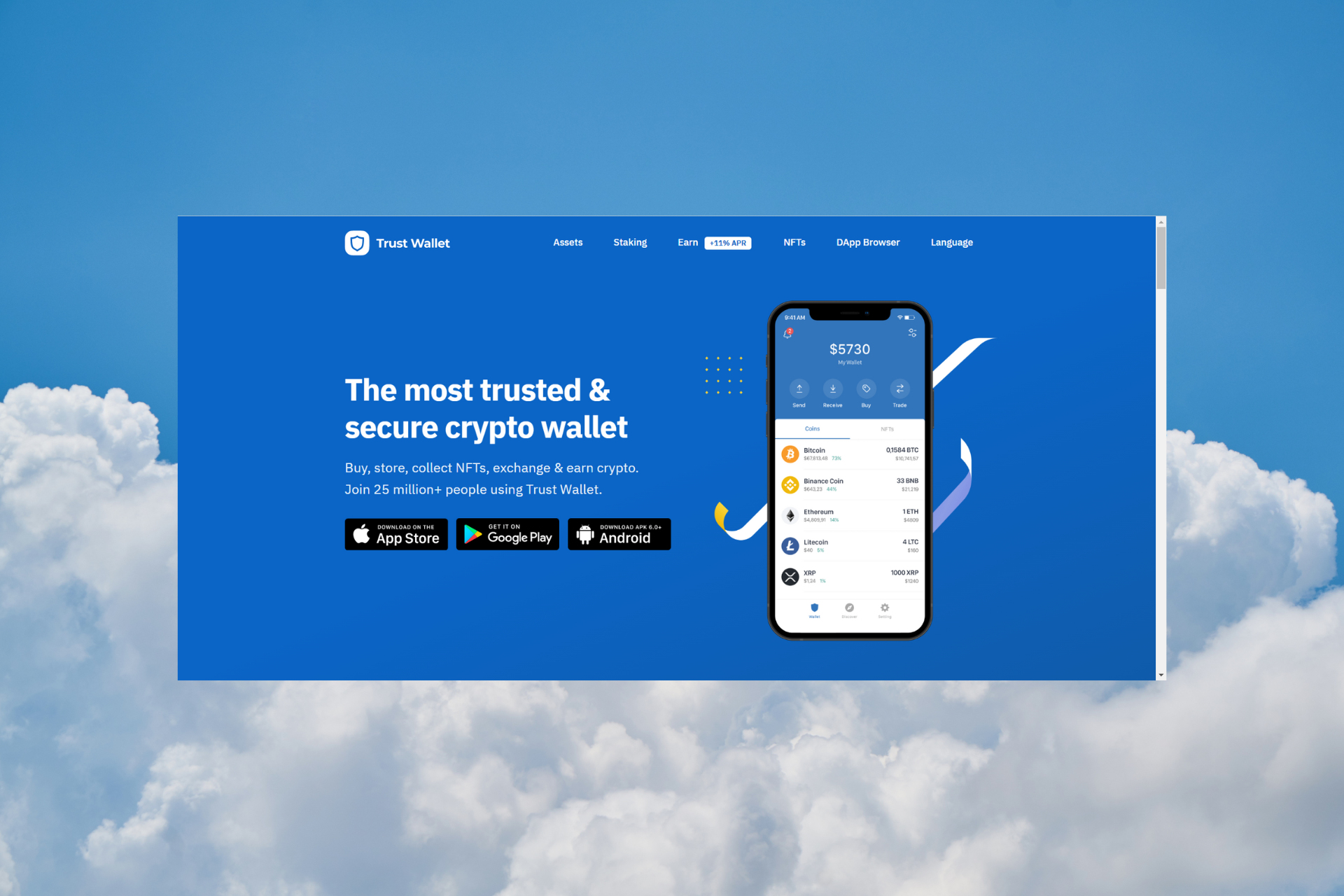
No, Trust Wallet can’t be used on a browser. It only works on your mobile device, within the app for Android and iOS.

The app has its own browser called DApp. As you will see below, sometimes, this browser is not activated on Android, and below we explain how to do that.

In June 2021, due to modified App store guidelines, Trust Wallet had to remove its browser from Apple iOS devices.

Why can’t I browse on Trust Wallet?

There are a few possible reasons why you may not be able to browse the Internet on Trust Wallet. The most common causes are:

  • DApp browser is not enabled in the Trust Wallet app
  • Your device is not connected to the Internet
  • The website you’re trying to access is down or experiencing technical difficulties
  • You’re using an outdated version of the Trust Wallet app

How do I enable my browser in Trust Wallet?

As we’ve explained above, Trust Wallet comes with its own in-built browser called DApp. This is for security reasons, and you can enable it from settings within the Trust Wallet app.

Unfortunately, you can’t even use Trust Wallet on your PC unless you’re using an Android emulator.

What can I do if my browser doesn’t work on Trust Wallet?

1. Check your browser settings

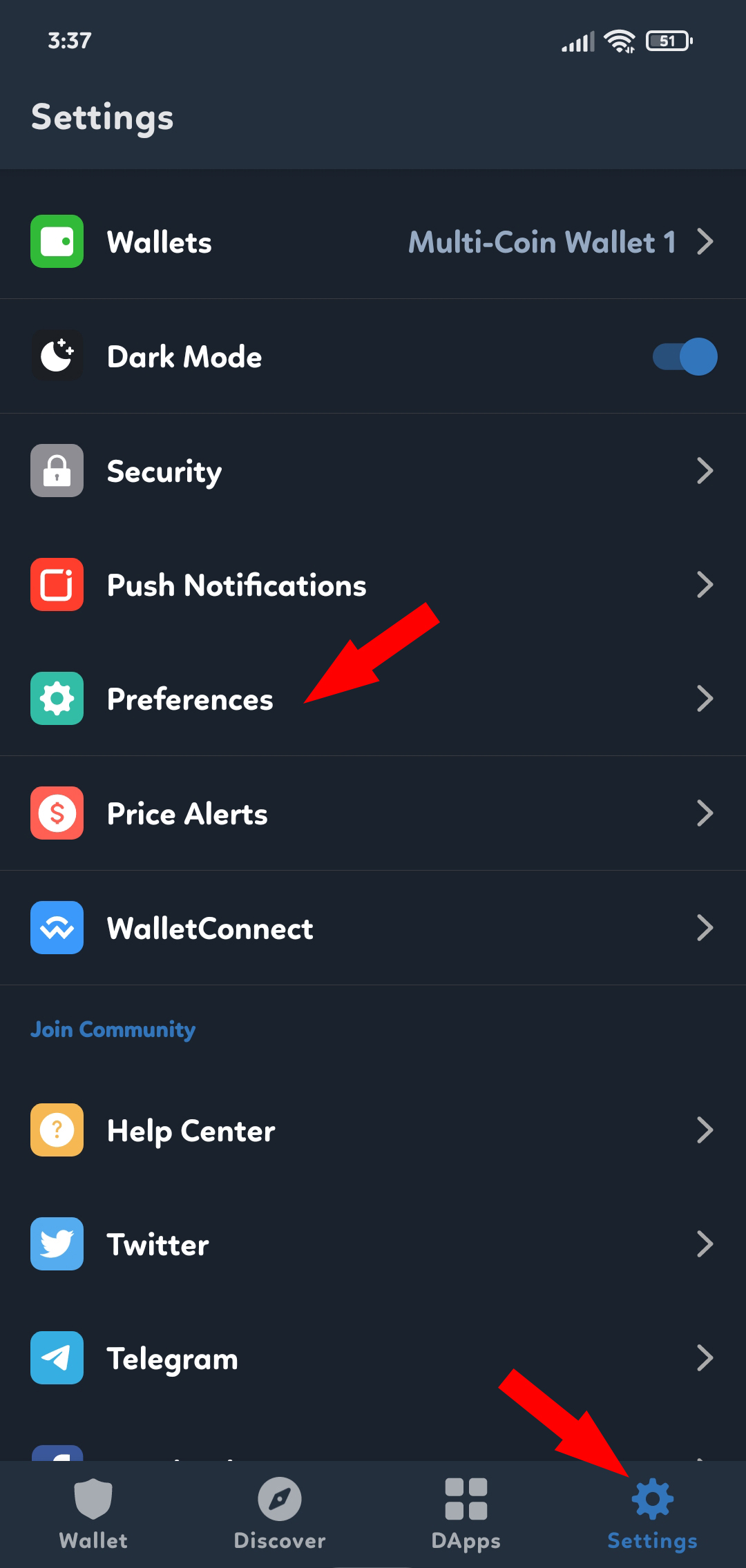
  1. Open Settings and tap on Preferences.browser not working on trust wallet
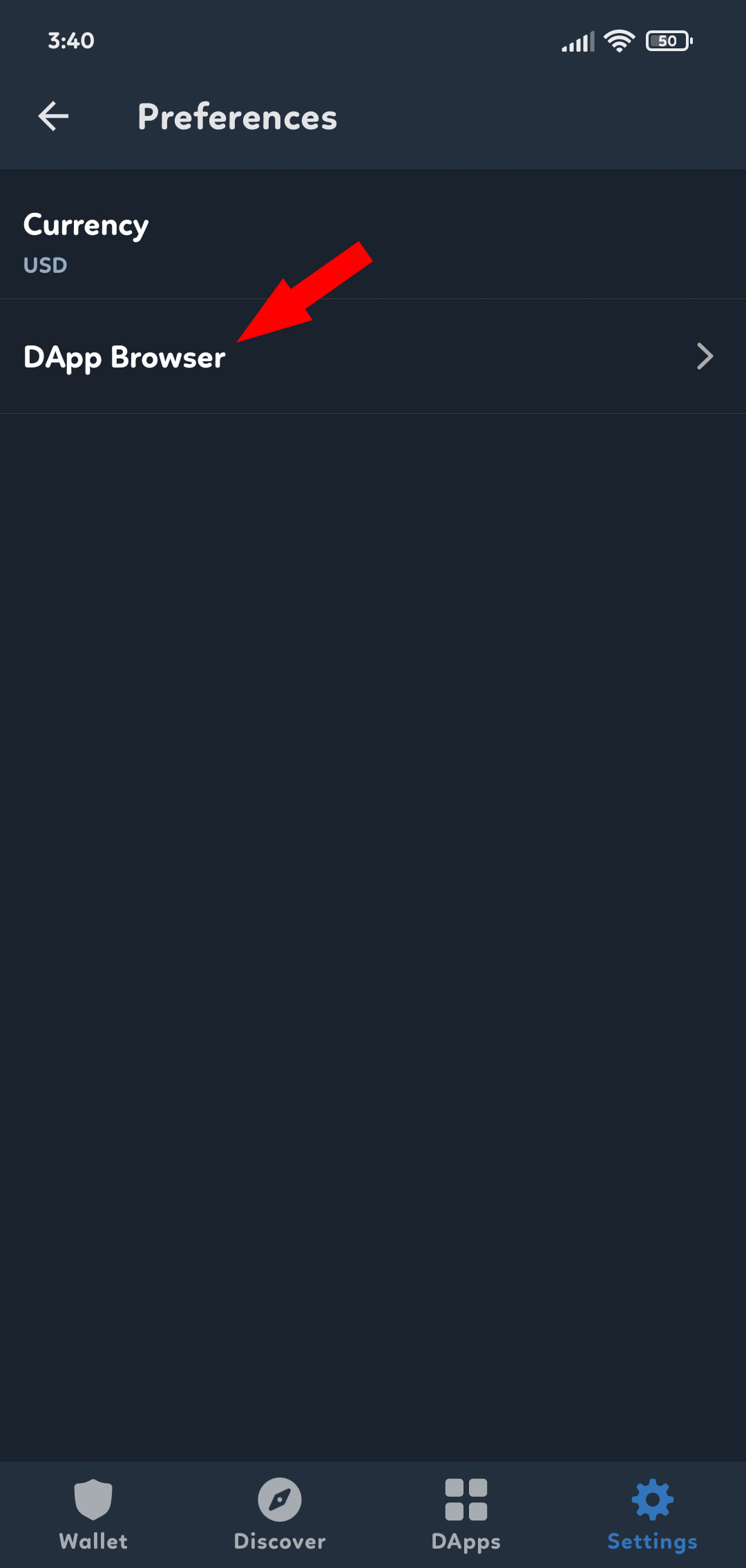
  2. Then tap on DApp Browser.browser not working on trust wallet
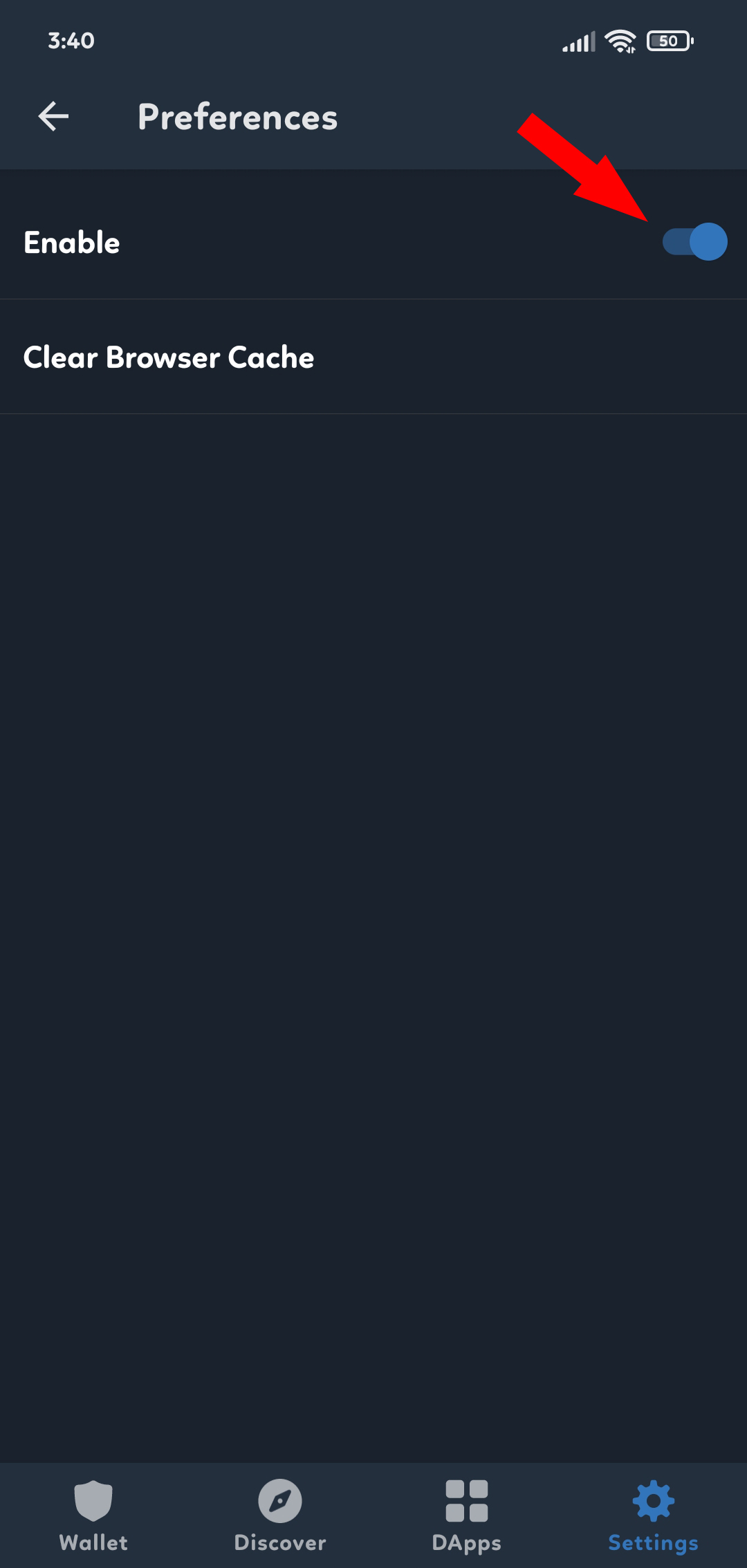
  3. Choose Enable.

2. Restart your device

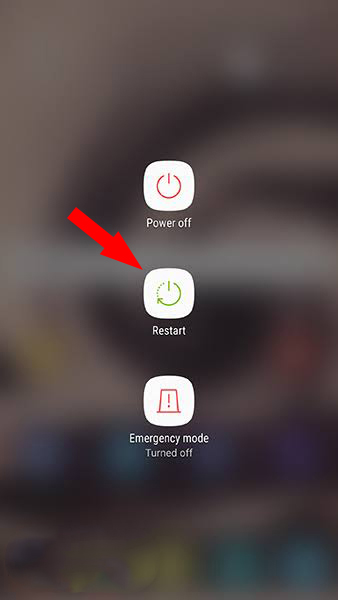
  1. Long-press the power button until you see options on the screen.
  2. Tap on Reboot/Restart and wait for the device to restart.

3. Update the Trust Wallet app

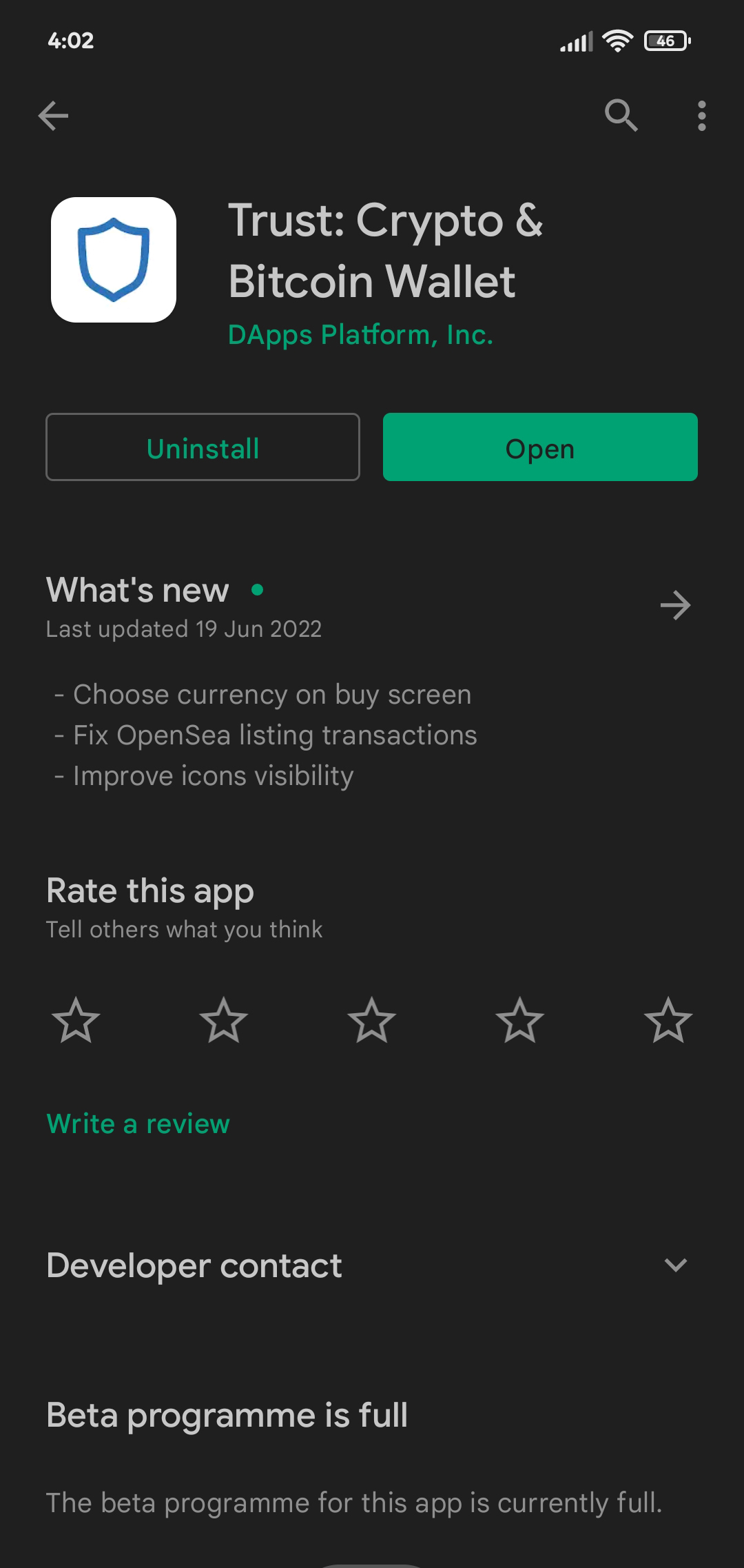
  1. Go to Play Store and search for Trust Wallet. If there’s an update available, you should see the option.browser not working on trust wallet

How do I use the Trust Wallet browser on iPhone?

As we’ve written above, Trust Wallet had to remove the browser on the iOS app but you can still use an open protocol called WalletConnect to fix that.

Here’s exactly what to do:

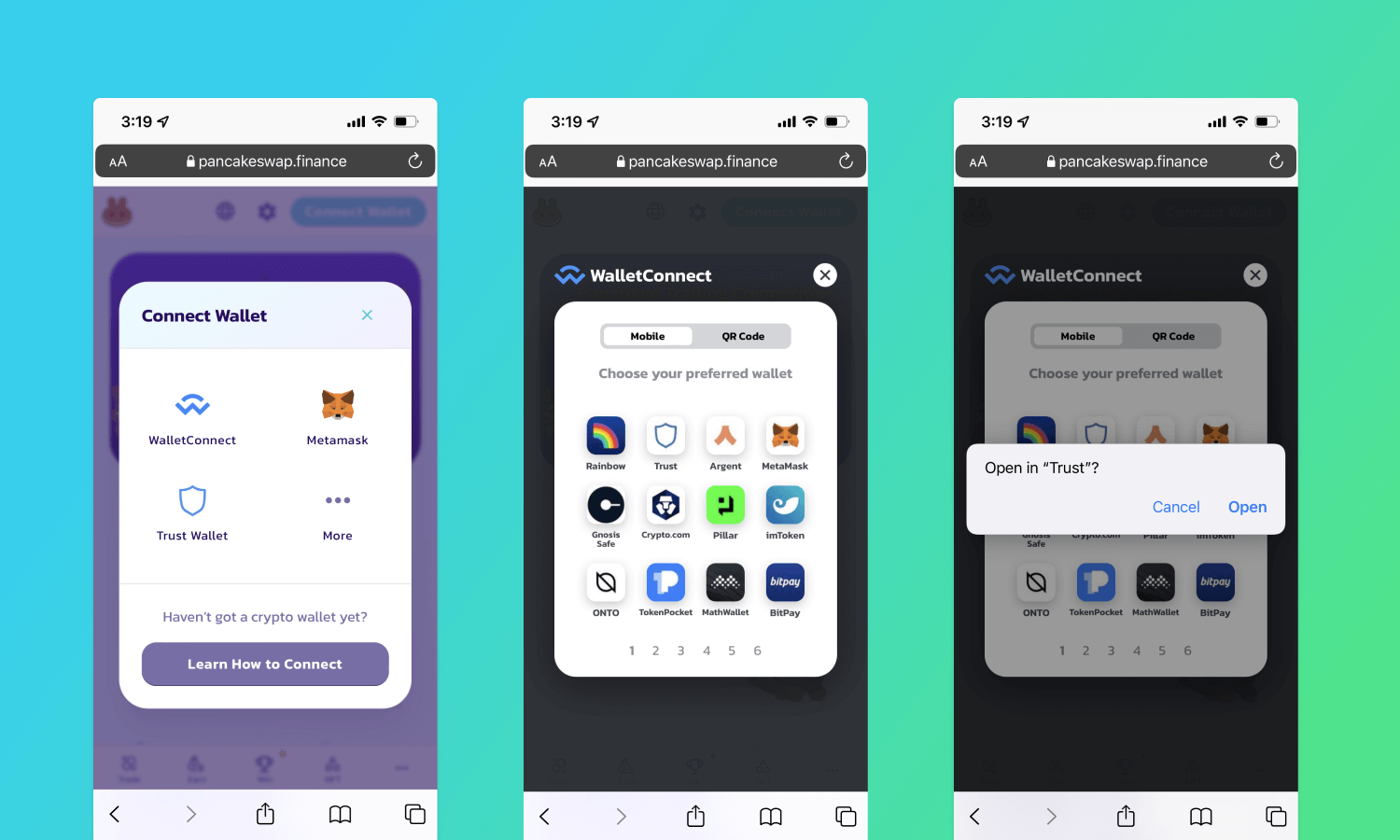
  1. Open your browser on your iPhone and go to a transaction website, for instance, PancakeSwap.
  2. Click on the Connect Wallet button at the top right-hand corner of your browser and choose the WalletConnect option.
  3. Now, click on Trust Wallet and click on Open when you’re prompted to use the Trust Wallet app.
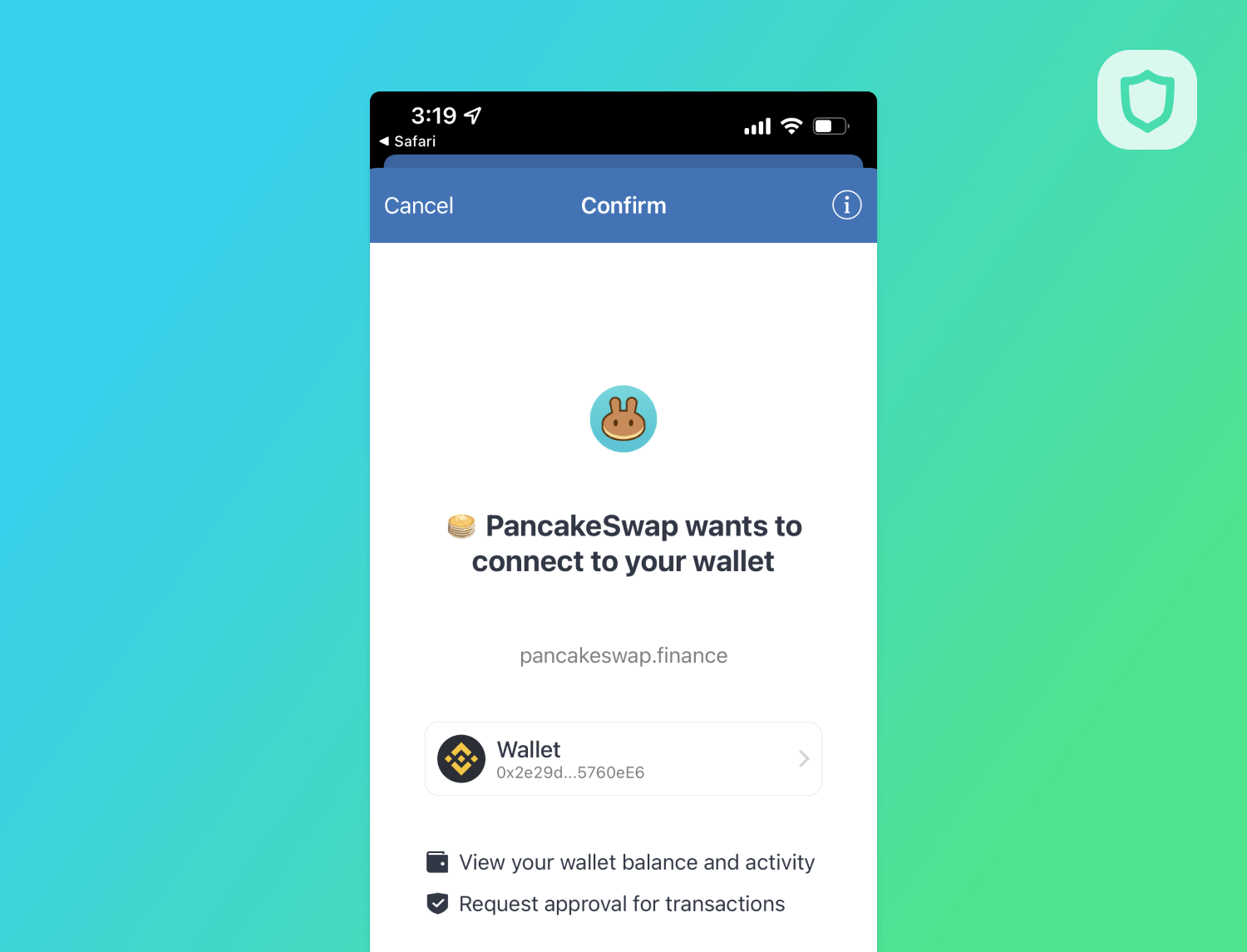
  4. The one thing left to do is to link your wallet to the DApp. The PancakeSwap site you opened before will show you are connected via browser and that means you are ready to make transactions.

We have shown you how to use the DApp browser on iPhone by using WalletConnect but there are lots of other options, including Opera Wallet, Metamask, and more.

Which is better, MetaMask or Trust Wallet?

There is no clear answer to this question as it depends on personal preferences. MetaMask is a popular Ethereum wallet that offers some unique features, such as the ability to access DApps directly from the browser extension.

Trust Wallet is also a popular Ethereum wallet that has been around for longer than MetaMask.

Trust Wallet offers a mobile app as well as a desktop app, which may be preferable for some users. Ultimately, it is up to the individual to decide which wallet is better for them.

So, there you have it, you should be able to handle any issues that come up when using Trust Wallet.

You might also be interested in our list of the best cryptocurrency price alert apps and services to help you make the best transactions.

If you have any other suggestions or questions, feel free to use our comments section below.

How to Fix QuickBooks when it’s Not Working in Google Chrome

Chrome is a popular browser with millions of users, and it is by Google. It uses the chromium code. With many features, it offers one of the best internet services.

QuickBooks is a tool for managing business and financial projects. It is an accounting software by Intuit. Some features help manage accounting, payroll, expenses, budgeting, payments processing, tax filing, invoicing, and inventory.

However, users complain about QuickBooks not working in Chrome. This issue can occur for different reasons, which we’ll discuss as we dive into this article.

Why is my QuickBooks Online not opening?

1. Browser cache and cookies

Cache and cookies can cause some issues because they can block the path of web pages from connecting to the server.

2. Browser compatibility

If some features are not available to help your browser run it, it can prompt QuickBooks to not work in chrome. Also, it means there are some browsers that QuickBooks supports.

3. Poor network connection

To be able to load QuickBooks smoothly on your browser, you must have a stable networking connection. A bad internet modem or router can make QuickBooks not work on your browser.

4. Outdated browser

Most times, not using an updated version of your browser can make you encounter issues with loading some sites. It is because these sites require some features that are not present in the current version.

Does QuickBooks work with Chrome?

Chrome is the best browser that QuickBooks supports and works with smoothly. It is because chrome has a lot of features that help it run web apps like QuickBooks.

What browser works best with QuickBooks?

Quick Tip:

The QuickBooks web app requires a responsive browser that’s able to load all its features properly. A good alternative to Chrome is Opera One because it’s light and fast.

With a very low error rate, this browser has crucial features to help you avoid such errors: a battery saver mode that uses fewer resources, an adblocker, a hardware acceleration option, and an AI.

Opera One

Focus on your finances without worrying about errors or connection problems with Opera One, the ideal browser for Quickbooks!
Free Download Visit website

How do I fix QuickBooks if it doesn’t work in Chrome?

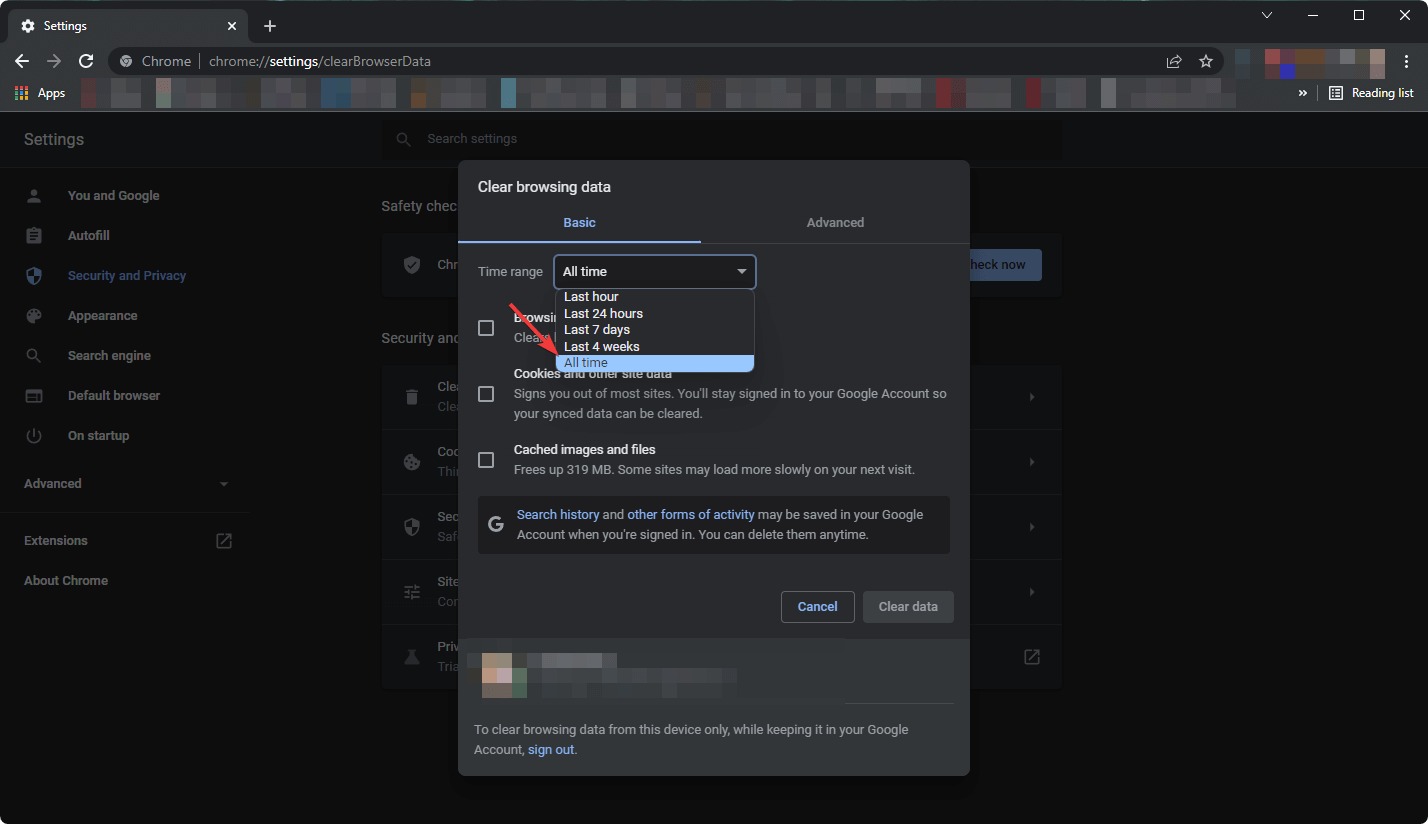
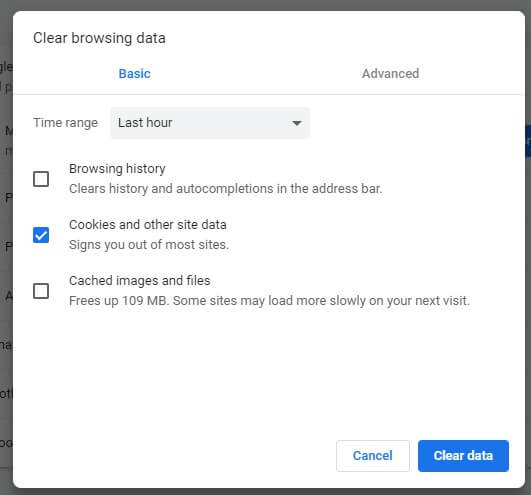
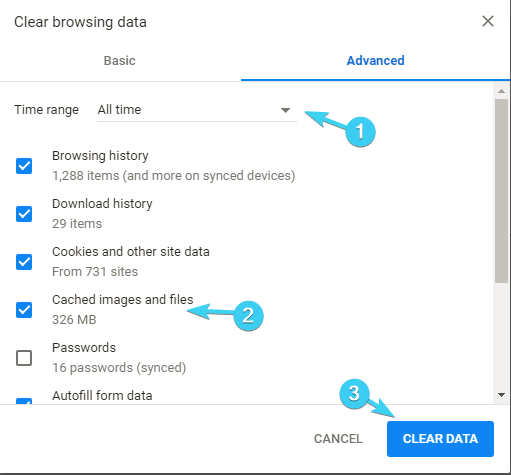
1. Clear your browser’s cache and cookies

  1. Launch Chrome and click More.
  2. Select More Tools and click Clear browsing data.
  3. Select All time under time range
  4. Tick the boxes next to Cookies & other site data and Cached images and files.
  5. Click Clear data.

2. Switch to a supported browser

To fix the QuickBooks not working in chrome issue, switch to another browser. It will help you detect if the issue is from Chrome or QuickBooks server.

3. Restart your router

It will help improve your network connection and also help your router receiver work better. It can help QuickBooks work on your browser.

4. Update the Chrome browser

  1. Launch Chrome and click the More button.
  2. Go to Settings and click About Chrome.
  3. Click Update Google Chrome.
  4. If there’s an update available, it’ll update automatically.

Chrome is the default browser for QuickBooks. Hence, it is recommended as the best option to use with the QuickBooks browser version.

You should also learn more about some interesting QuickBooks deals & sales. Your friends and family members might also want to organize their business finances from a dynamic platform.

Before you go, don’t miss our latest guide on what to do if Gmail not working with QuickBooks.

JavaScript is not Working In Safari: 3 Ways to Fix It

Is JavaScript not working on Safari? If you are a Mac or iPhone/iPad user and facing this problem, this article can help you.

Below, we’ll explore why this happens, but first, let’s see how we can fix it:

How do I fix JavaScript on Safari?

1. Disable third-party extensions

1.1 Disable third-party extensions on macOS

  1. Open Safari.
  2. Press Command + , to go to Safari preferences.
  3. Go to the Extensions tab and untick the extensions you want to disable.disabling extensions safari desktop browser

1.2 Disable on iOS

  1. Go to Safari Settings.
  2. Tap on Extensions.going extensions safari ios
  3. Toggle the switch off the extensions you want to disable.disabling extension safari ios

Last year, Apple brought extension support for Safari on both iPhone and iPad. Disabling some like ad script blockers may fix JavaScript not working on Safari on iPad or iPhone.

2. Clear browsing data

2.1 On macOS

  1. Go to Safari preferences.
  2. Go to the Privacy tab and click on Manage website data.clicking manage website data safari settings desktop
  3. Click on Remove all.removing safari browsing data mac

2.2 On iOS

  1. Go to Safari Settings.
  2. Tap on Clear History and Website Data.clearing browsing data safari settings ios

Clearing browsing data will not only fix the problem on macOS but also fix JavaScript not working issue on iPhone.

3. Update Safari

3.1 Update on Mac

  1. Click on the Apple icon on the menu bar and go to About This Mac.going about this mac
  2. Click on Software Update.clicking software update mac
  3. It will check for new updates and prompt if anything available.
  4. Install any available updates.

On older macOS, Safari gets an update with the OS. However, on any version of modern macOS, Safari gets separate updates.

3.2 Update on iPhone/iPad

  1. Go to iOS Settings.
  2. Go to General and tap on Software Update.going software update iPadOS

Updating the browser as well as the macOS and iPad OS will both help to get rid of JavaScript-related issues on Safari.

4. Try another browser

You can consider using a different web browser if the problem repeats itself. For this, we suggest Opera One, a very lightweight and fast browser with a lot of privacy and security settings.

Being based on Chromium, it is more compatible and robust than Safari. Opera One is available on both macOS and iOS, with the capacity of translating JavaScript language more accurately.

Opera One

Easily enable/disable Javascript using Opera’s simple settings menu!

Is JavaScript disabled on Safari?

By default, Safari and all other modern web browsers keep JavaScript enabled. In fact, JS is an essential component of any modern website.

If there is no JS, we would see less functional, less user-friendly websites out there.

Why is JavaScript not working in Safari?

If JavaScript doesn’t work on Safari, then there is something wrong. We have found the following reasons why JavaScript may not work on this browser:

  • Someone may have disabled JavaScript from the settings
  • The third-party extension may be causing the problem
  • JS file may not be loaded due to an internet connectivity issue
  • Outdated version of Safari

How do I make sure JavaScript is enabled?

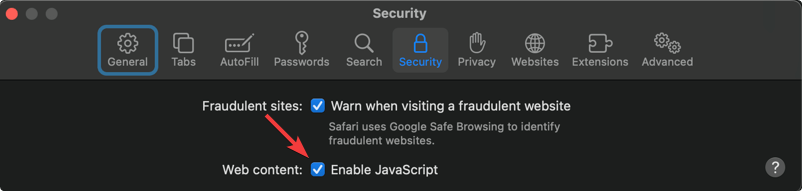
On macOS:

  1. Open Safari.
  2. Press Command + , on the keyboard.
  3. Go to the Security tab.
  4. Check if Enable JavaScript is ticked or not.enabling javascript safari desktop
  5. If not, tick it to enable JS.

On iOS:

  1. Open the Settings app on iPhone or iPad.
  2. Go to Safari and scroll down and go to Advanced.going advanced safari settings ipados
  3. Make sure the switch next to JavaScript is enabled.enabling javascript safari ios

You may notice that JavaScript is enabled on Safari, but it is not working. If it happens to you, the methods mentioned below will solve the problem.

These are the best ways to fix javascript not working in Safari. You can share any other methods in the comment box that can help others.

CSS Not Loading in Chrome: How to Force it to Work

Is CSS not loading in Chrome? This can be a big problem as it will cause your pages not to be rendered properly and make the website unusable.

Although this can be a major issue, fixing it is relatively simple, and in today’s guide we’re going to show you a couple of solutions that you can use.

Why is my CSS file not working on Chrome?

  • The web designer used different encoding for HTML and CSS.
  • Corrupted cache and cookies can sometimes cause this issue.
  • Internet connection problem.
  • CDN server that has hosted CSS may be down or going through errors.
  • Third-party extensions or outdated versions of Chrome browser.

There may be other reasons. But, in most situations, these are the ones you will see.

What can I do if CSS is not loading in Chrome?

Before we start fixing this issue, there’s one thing you need to check:

  • Check the name of your file. A few users reported fixing the issue after renaming the file from style.css to styles.css.

1. Update Chrome

  1. Open the Google Chrome.
  2. Click on three vertical dots and Settings.going settings chrome
  3. Go to About Chrome.
  4. Google will check for the update and install if any update is available.updating-chrome Google Chrome not responding
  5. Relaunch Chrome.

Quick Tip:

It may be a real nuisance to deal with CSS problems on your current browser, so won’t you consider a change?

For instance, Opera One brings enhanced navigation for advanced UI websites, integration features with popular apps, and even Web3 browsing technology.

Opera One

Don’t ever worry about broken CSS, and obtain smooth browsing today.

2. Clear cache and cookies

  1. Launch Google Chrome.
  2. Press CTRL + Shift + Del on your keyboard.
  3. Set All time as the time range. choose clear browsing data time range
  4. Check Cache images and files and then click on Clear data.clearing temp data chrome

3. Disable problematic extensions

  1. Type the following address in the Chrome address bar and press Enter. chrome://extensions/
  2. Toggle the switch off next to the extensions you want to disable.disabling extension chrome

4. Check if the web server has a problem or not (for designers/developers)

  1. Navigate to the web server provider and check if it’s working properly.
  2. If you’re using CDN, try to open the CSS file directly in your browser.
  3. In case that’s not working, check your links and ensure the CSS file is properly added.
  4. Alternatively, contact the web hosting provider.

5. Correct CSS encoding and format (for designers)

  1. Open the CSS and HTML files on the editor.
  2. Click on the encoding format name like UTF-8 on the right-bottom side and choose the correct format.changing encoding visual studio code
  3. Save changes.

6. Disable CSS minification and lazy loading (For developers)

  1. If you see WordPress is not loading CSS in Chrome properly, it may be because of CSS minification and combination.
  2. Try to disable it from your cache plugin.
  3. Also, disable Lazy loading and see if it helps.

7. Try a different network

If your internet connection fails to load all website resources, CSS may not work in Chrome or any other browser. So, you can try to use a VPN or a different network to check if everything is OK.

We suggest Private Internet Access (PIA) as it is the most stable-performing VPN due to its largest global network.

What to do if CSS is not working in Chrome but works in Firefox?

This issue is widespread. You may see that CSS is not working on Google Chrome but works on IE, Firefox, Edge, or any other browser.

The reason can be the corrupted temporary data, different CSS encoding, and a third-party Chrome extension that utilizes CSS stylesheets. The above methods are enough to solve this type of situation. You will not need to follow anything else.

This can be an inconvenient issue, but our fixes should be able to help you. Keep in mind that this can affect other problems, and many reported that CSS is not working in Firefox and CSS issues in Safari.

This article has shown the most effective ways to fix CSS not working on Chrome and similar problems. If you know other methods, write in the comment box.

7 Tested Ways to Fix your Webcam if It’s Not Working in Chrome

Is your webcam not working in Chrome? This article will explain all the details and solutions to fix this problem.

Google Chrome is the most compatible browser for any platform. It has all the necessary features and amazing privacy settings suitable for most people. However, sometimes, unexpected problems may occur.

Even though Chrome users may experience high CPU usage issues, they still continue to use this browser. But, If something else like the webcam not working occur, this is a very annoying problem.

Screenshot webcam not working on chrome

Fortunately, you can easily solve any webcam-related issues on Google Chrome.

Is Chrome blocking my camera?

Depending on your privacy preferences, Google Chrome can block the camera. It can be for a specific website or for all the websites.

By default, when someone first time wants to use the webcam on any website, Chrome will ask your permission. If somehow you disapprove, this browser will continue blocking the camera access.

This is not only the reason you may face webcam issues on Chrome. Whatever it is, in the next part of this article, you will get the seven most effective methods to fix the camera not working on Chrome.

How do I turn on my camera on my laptop for Chrome?

If your laptop has a working webcam, you will not need to do anything else to turn this on to open it on Chrome unless a third-party application is blocking the access.

Some laptops come with a physical button and a webcam cover. Turn it on by pressing the correct switch and un-covering the webcam.

If your laptop camera is not working in Chrome, follow these methods to solve all of your camera-related issues on Chrome.

Quick Tip:

In order to avoid a faulty webcam on your Chrome browser, it’s better to switch to another browser.

By choosing the Opera One browser, you have integrated webcam support and multiple integrated features with social media apps.

Opera One

Join your online calls from this browser for a sound experience with no failures.

How do I get my camera to work on Google Chrome?

1. Check if another app is using the webcam or not

If you have another app already using your webcam, a second application like Chrome won’t be able to use it simultaneously. So, double-check if Skype, Team, Camera, or any other app is using the webcam or not.

2. Restart your computer

Windows may have been going through some tasks that utilize your webcam. Sometimes, the process may be stuck at a certain stage. For this, a restart is always the safe choice to fix if the camera is not working on Chrome.

3. Give proper permission

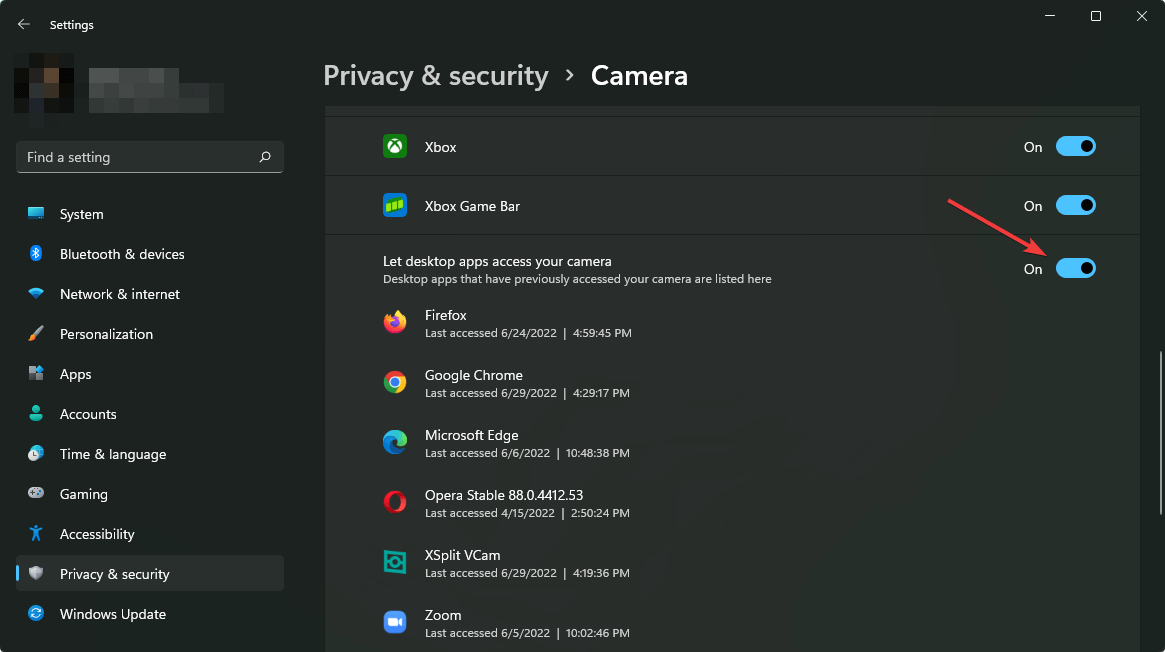
  1. Press Win + I to open Windows settings.
  2. Go to Privacy & Security and then Camera.going camera privacy settings windows 11
  3. Make sure that this option: Let desktop apps access your camera is enabled.enabling camera access desktop app windows 11

Windows has this amazing privacy setting. Doing the above things will fix if the webcam is not working in Chrome on Windows 10/11.

4. Check permission on Chrome

  1. Open Google Chrome.
  2. Type the following address on the address bar and hit enter to go to Chrome camera settings. chrome://settings/content/camera
  3. Make sure the proper webcam device is selected, and then tick Sites can ask you to use your camera.allowing camera chrome
  4. Delete any not allowed sites that were added by mistake.

After that, try to access the website where the camera was not working. It will ask for permission again. Allow and fix the webcam not working on Chrome.

5. Check if the antivirus is blocking camera access

  1. Open your antivirus or security program.
  2. Go to its privacy Settings.
  3. Go to Video & Audio Protection.clicking audio and video protection settings bitdefender
  4. Allow Chrome to use the webcam.enabling chrome camera access bitdefender

We have shown the instruction for Bitdefender Total Security. If you use any other security programs like TotalAV, certain steps may vary.

6. Disable suspicious extensions

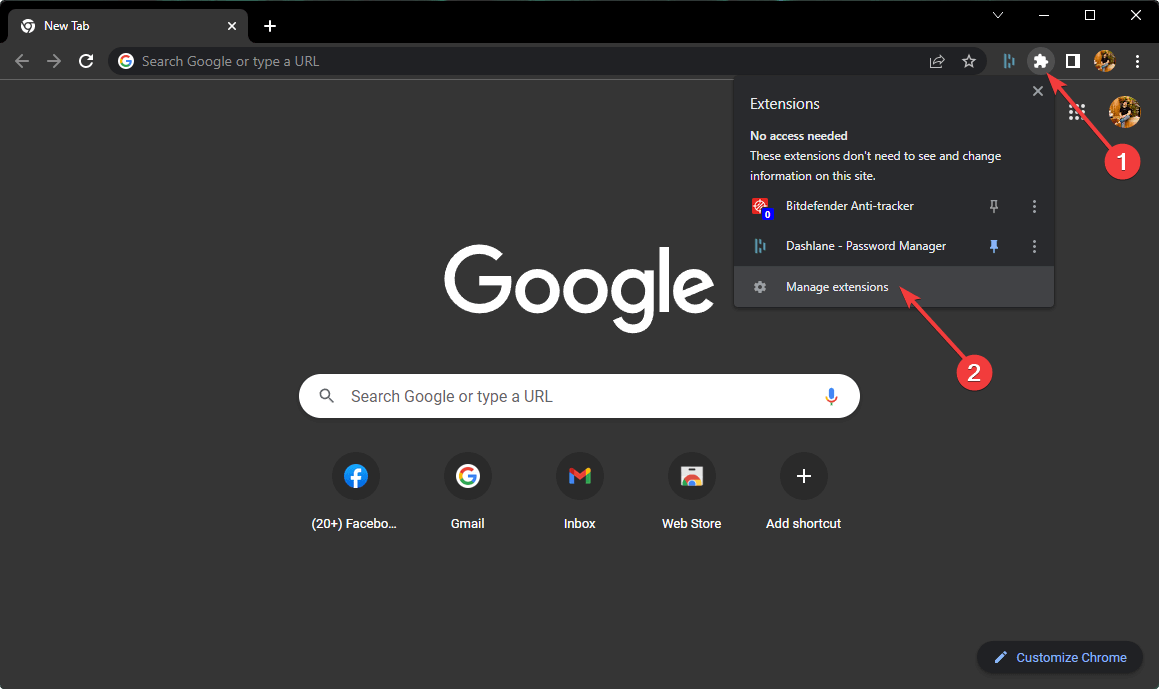
  1. Open the Chromium browser.
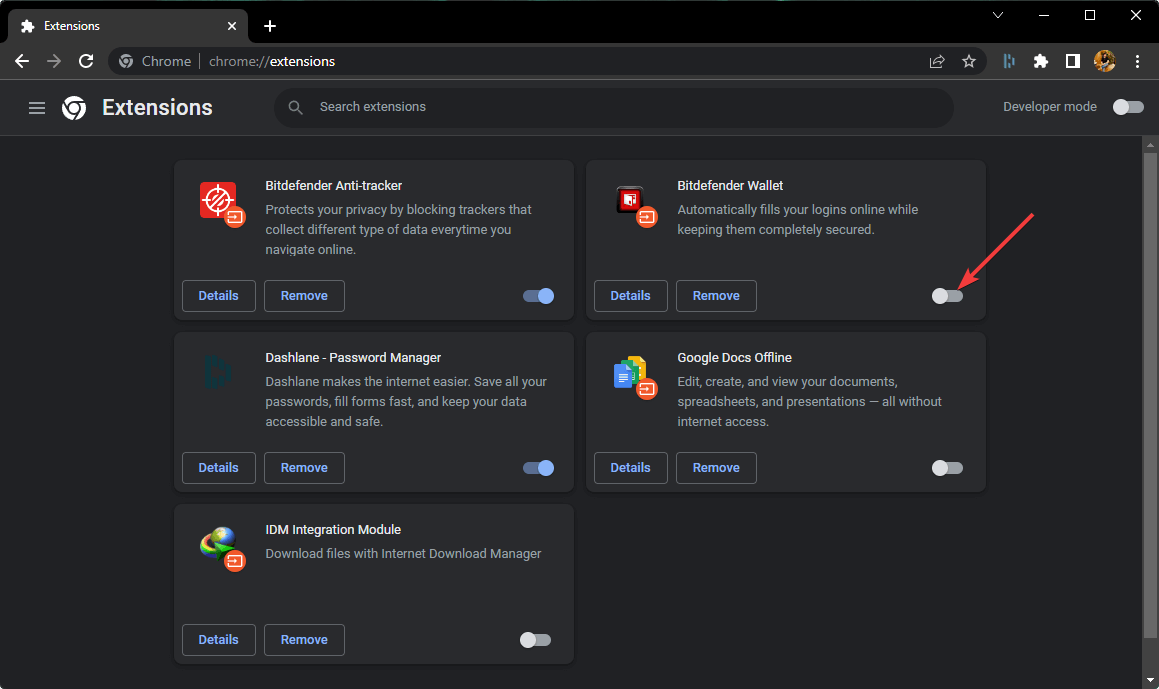
  2. Click on the extension icon and go to Manage extensions. clicking manage extensions chrome
  3. Toggle the switch off next to the extensions you want to disable.disabling extension chrome

Make sure you are disabling the problematic extensions, mainly which may utilize the Camera and Microphone.

7. Run the camera troubleshooter

  1. Open Windows Settings like before.
  2. Go to System and click on Troubleshoot.going troubleshoot windows 11 settings
  3. Go to Other troubleshooters.
  4. Click on Run next to the Camera.running camera troubleshooting windows 11 settings
  5. Follow on-screen instructions.

This method is a very effective solution if the webcam is not detected in Chrome. By applying the steps from this method, you will also know if your webcam is problematic or not.

How do I test my webcam?

After applying these 7 methods, if the problem persists, you may need to test if your webcam is functional or not. For this, follow these steps.

For Windows:

  1. Open the Start Menu, type camera, and open the application.
  2. If you don’t see anything, click on the Change camera button and see if it works.clicking change camera on camera app windows 11

For Mac:

  1. Press Command + Space on the keyboard to open the search bar.
  2. Type Photo Booth and open the application.opening photo booth app mac

If you don’t see anything, this may be the reason the webcam is not working on Chrome on Mac.

These are the ways to fix the webcam not working in Chrome issue. If you have another solution that can help others, let us know in the comment box.

Telegram Web Not Working in Chrome – How We Fixed It [Step-by-Step]

There are several issues you can encounter when using Telegam Web in Chrome. Your browser might be out of date. Or you have a poor internet connection. Or there are some Windows Firewall issues.

If Telegram is not working on your PC, chances are that it’s the same case on your browser. Whatever the case may be, you can find a few different ways to fix it below. We’ve outlined them using simple steps, so all you have to do is carefully follow them.

How do I fix Telegram web if it doesn’t work in Chrome?

1. Restart the Chrome browser

A simple fix for this issue is by restarting your browser. It allows it to sync better and load the Telegram web app faster. This is the first thing you should do and if the issues persist, proceed to the other solutions below.

2. Update the Chrome browser

  1. Launch the Chrome browser on your desktop, click the More button, and select Settings.
  2. Click the About Chrome option.
  3. Click Update Google Chrome.
  4. If there’s an update available, it’ll update automatically.

This solves compatibility issues that may prevent Telegram web from working on the Chrome browser.

3. Clear Chrome browser cache and cookies

  1. Launch the Chrome browser and click the More button.
  2. Select More Tools and then click Clear browsing data.
  3. Check the boxes next to Cookies and other site data and Cached images and files.
  4. Click Clear data.

As earlier stated, corrupted cookies and cache can affect the functionality of the Telegram web on chrome. Hence, this should fix the issue.

4. Add Chrome to Windows Firewall

  1. Press the Windows + R, type in the Control panel, and click OK.
  2. Open Windows Firewall Defender.
  3. Then click on Allow an app through Windows Firewall.
  4. Click Change Settings and select Yes.
  5. Click the Allow another app button.
  6. Press the Browse button.
  7. Go to the following path: C:Program FilesGoogleChromeApplication
  8. Select the chrome.exe file, then click Open.
  9. Click the Add button.
  10. Ensure you tick the Private and Public boxes, then click OK to save the changes.

5. Check for server information

Check Telegram social media groups for updates about the platform’s server. Although the server is rarely down, it could happen.

6. Use another browser

To quickly access Telegram and keep track of all your messages, connect using the Opera One browser. It has dedicated support for messenger apps, including Telegram.

You can send and read messages directly from the sidebar, without having to open a separate tab for Telegram or install any add-on. Also, Opera One comes with built-in AI.

Opera One

Use the Telegram integration to log in and get quick access to your channels in just a few clicks.
Free download Visit Website

What is the best browser for Telegram web?

For an optimal Telegram experience, it’s advised to use a secure browser that can protect your data and detect suspicious behavior. Good options include Firefox, Opera, Safari, and Google Chrome.

Telegram web also requires a stable browser. One of the best options that are lightweight, fast, and also very secure is Opera. It includes dedicated support for Telegram plus installable add-ons.

If there is anything you should know about server breakdown, it’ll be on their page. Hence, all you can do is wait till it’s resolved.

Let us know which solution worked for you in the comments area below. We’re eager to hear from you.

5 Easy Ways to Fix High CPU Usage in any Chromium Browser

Chromium browser high CPU usage issue is not rare. If you are having this problem, this article will guide you on how to fix it.

Chromium is right now the most popular and compatible browser engine. Many independent browser makers like Opera and even the tech giant Microsoft have given up on their browser technology and adopted Chromium.

If you look at the best web browsers, you will notice that most of them are based on Chromium.

The above statement proves how powerful Chromium is. Even though Chromium-based browsers can outperform all other browsers in terms of performance, speed, and compatibility, people still may face some problems.

High CPU usage is one of the most common and annoying limitations of Chromium that is creating problems for low-end device owners.

Why does Chromium use so much CPU?

There are many reasons Chromium-based browsers may use much CPU power on your computer. Here are the most significant ones:

  • The Chromium-based browser uses hardware acceleration and multi-threading by default
  • Third-party extensions and services may utilize more CPU power
  • Too many extensions can use too much computing power
  • Browsing unoptimized javascript-based websites
  • Operating system issues

Fortunately, you can reduce Chromium browsers’ CPU usage significantly by following the methods shown below.

How can I fix high CPU usage in Chromium browsers?

1. Disable unnecessary extensions

  1. Open the Chromium browser.
  2. Click on the Extension icon and go to Manage extensions.clicking manage extensions chrome
  3. Toggle the switch off for the extensions you want to disable.disabling extension chrome

2. Disable hardware acceleration and background tasks

  1. Go to Settings of Chromium browser.going settings chrome
  2. Go to the System tab and toggle the Continue running background apps when the browser is closed off.disabling chrome background activity
  3. Similarly, disable the button for Use hardware acceleration when available option too.
  4. Restart the Chromium browser.

3. Use a performance-boosting extension

Though excessive use of the extensions causes high CPU usage on Chromium browsers, some extensions come in handy to reduce the CPU usage and enhance your experience.

For example, extensions like The Great Suspender Original kills inactive tab and reduce CPU usage. This type of extension can improve the overall CPU usage status for any Chromium browsers.

Please note that some browsers have built-in features that automatically kill inactive tabs and reduce computing power usage. You don’t need such extensions for these browsers.

4. Reset the browser

  1. Go to Chromium browser Settings.
  2. Click on Reset, clean up, and then Restore settings to their original defaults.restore chrome settings to default
  3. Click on Reset Settings.

5. Limit CPU resources for Chrome

  1. Right-click on the Start icon on Windows and go to Task Manager.opening task manager windows 11
  2. Go to the Details tab.
  3. Right-click on the chrome.exe or any Chromium browser’s process.
  4. Set CPU priority to Below normal, as shown in the screenshot.lowering chrome CPU priority windows task manager

If you see multiple processes of the same browser, do the same for each of them.

These 5 methods can help you to reduce Chromium CPU usage. However, these will not work if the problem is something else. As internal operating system issues can also cause this type of problem, you should focus on that too.

Always keep Windows, Mac, and Linux OS up to date. Also, regularly update your browsers to avoid high CPU and memory usage issues.

The methods mentioned in this article will help you to fix the Chromium browser’s high CPU usage problem. If you know any other better methods, feel free to let us know in the comment box.

How to Bypass the Browser not Supported by Service Portal Issue

When using the Service Portal, you may often come across an error that says, This browser is not supported by Service Portal.

While sometimes the issue could occur due to an unsupported browser, mostly, it can show up even when you are using a supported browser.

However, if you are working on Windows 11 and looking for the best browsers that are fast and secure, you can read our guide for more details.

In this post, we have discussed a few solutions that may help you fix the issue when the browser is not supported by Service Portal.

What browsers does the Service Portal support?

The Service portal currently supports the following browsers:

  • Opera One
  • Google Chrome
  • Microsoft Edge
  • Mozilla Firefox
  • Apple Safari (Mac only)

They recommend that you either install or upgrade to a supported and updated version of the browsers mentioned in the above list.

Why isn’t my browser supported?

If you get an unsupported browser error on Chrome, it could be possible that you are either running an outdated version of the browser or an unsupported browser.

Alternatively, you could also come across the issue, if JavaScript is not enabled to use the feature.

But if you are using a supported browser, and you are still getting the error, you can try the below methods to troubleshoot the issue.

How do I fix a browser not supported by the Service Portal?

1. Enable JavaScript in the browser

  1. If you are using Chrome, then click on the three dots on the top right, and select Settings.
    Go to Chrome settings
  2. Next, click on Privacy and security on the left.
    Go to Chrome Privacy & Security in settings
  3. Now, click on Site Settings.
    Chrome site settings
  4. Next, under Content, click on JavaScript.
  5. On the next screen, under Default behavior, select Sites can use JavaScript.
    click on Sites can use JavaScript

Now relaunch Chrome and try accessing the Service Portal.

The process would be similar if you want to upgrade your Safari or Firefox browsers to the latest version.

The same method is applicable if you encounter this browser is not supported by the service portal on iPhone and you are using Chrome.

2. Check your browser configuration settings

  1. Open Firefox and type about:config in the address bar.
  2. As you see the Proceed with Caution warning, click on Accept the Risk and Continue.
    Accept the Risk and Continue
  3. Type media.peerconnection.enabled in the search field.
  4. Now, as you see the flag, click on the toggle icon to change it to True.
    change media.peerconnection.enabled to True

Now, restart Firefox and check if the Service Portal is working without any errors.

The same process is applicable even if you encounter this browser is not supported by the Service Portal issue on Samsung TV.

How do I switch to a supported browser?

You can follow the below instructions to switch to a supported browser like Opera One:

  1. Press the Win + I keys together to launch the Settings app.
  2. On the left side, click on Apps.
    go to app settings
  3. Next, select Default apps.
    go to default apps
  4. On the next screen, under Set defaults for applications, select Opera Stable.
    Select Opera stable
  5. Now, go to Make Opera Stable your default browser, and click on Set default.
    Make Opera Stable your default browser
  6. Close the Settings window.

Now, when you run the Service Portal on Opera One, check if you still receive the unsupported error.

Whether you are running the Service Portal on your PC, phone, or TV, the first thing to ensure would be to run the latest version of the browser.

However, if the website buttons are not working in the browser, you can refer to our detailed guide for solutions.

Sometimes, even official online services can experience downtime or unexpected glitches. If you’ve run into issues recently, you’ll be glad to know we also wrote a full guide on the IRCC portal not working, which covers the most common errors and fixes.

If you are still facing any issues with the browsers, do let us know in the comments box below.

Amazon Prime Video not Working in Chrome: 3 Ways to Fix it

Google Chrome, the world’s most popular web browser, is the default browser for millions of people who want to watch content on their favorite streaming platforms, such as Amazon Prime Video.

However, there are several users who have reported facing the Amazon Prime Video not working in Chrome issue. This prevents them from watching their favorite content on Amazon Prime.

If you are among such users looking for solutions, you are at the right place. This guide will give you 3 effective solutions to quickly resolve the Amazon Prime Video not working in Chrome issue. Let us learn more about it in detail.

Why is the video not working on Amazon Prime?

After careful research, we have deduced that the reasons mentioned below could very well be why you are facing the Amazon Prime Video not working in Chrome issue:

  • Amazon Prime servers are down
  • Google Chrome isn’t updated
  • Cache and cookie data is causing issues
  • Installed extensions aren’t compatible with certain websites
  • Your internet connection is jumpy
  • You are using a VPN

Does Prime Video work on Chrome?

Yes, you can use Google Chrome to stream content from Amazon Prime Video. However, there is a certain list of browsers that Amazon Prime Video is compatible with. You can check that out here.

The best part is that you don’t need to install an app to watch your favorite content. You can check out our list of best browsers for Windows PC to check out the details about compatible browsers.

Furthermore, when you want to make a switch to another Chromium browser, Prime Video runs smoothly on Opera One as well.

To optimize your Prime Video streaming, you can use Opera One’s integrated ad blocker to effectively remove annoying ads and load your pages faster.

If you want to get more out of Opera One, you may install add-ons that help you with Amazon for a better experience, that also works in Chrome.

How can I fix Amazon Prime Video when it’s not working in Chrome?

1. Check Amazon Prime servers

There are chances that because of some technical difficulties, the Amazon Prime servers are down, which is the reason why you are facing such an issue.

In such a case, you can make use of websites such as DownDetector to know if the servers are down or not and wait till they are back up.

2. Check for Google Chrome update

  1. Open Chrome.
  2. Click on the 3-dot menu icon.
  3. Select Settings.chrome settings
  4. From the right pane, select About Chrome.
  5. Chrome will automatically update the browser if it detects a new one, and will prompt you to restart to install the update.

3. Clear cookies and cache data

  1. Open Google Chrome.
  2. Click on the 3-dot menu.
  3. Select Settings.chrome settings
  4. From, the left pane, select Privacy, and Security.
  5. Click on Clear browsing data on the right side.clear-browsing-data-metamask-not-working
  6. Check the boxes next to Cached images and files and Cookies and other site data.
  7. Hit the Clear data button.

Clearing built-up cache can also resolve other streaming issues like error 7136.

Which browser is best for Amazon Prime Video?

While Google Chrome is good for streaming content, issues such as Amazon Prime Video not working in a browser can occasionally pop up. In such cases, we would recommend you use the Opera One browser for it.

Several unique features make Opera One a more versatile and feature-rich browser than Google Chrome, some of which are:

  • It includes a pop-up video feature.
  • Offers a Turbo Mode to save data while playing videos and speed up browsing.
  • Comes with a built-in VPN.
  • Also comes with an integrated and powerful ad-blocker to watch content without disturbance.

⇒ Get Opera One

There you have it from our side in this guide. We hope this guide helped you fix the Amazon Prime Video not working in Chrome issue. Let us know which solutions helped you resolve the issue in the comments below.

How to Fix Pokémon Showdown if it’s Not Working [Safari, Chrome]

Pokémon Showdown is an online battle simulator that allows users to play against others from their browser. However, users have reported Pokémon Showdown not working in Safari and Chrome. Follow our solutions to solve this issue.

Why is Pokémon Showdown not working in my browser?

Pokémon Showdown could be acting up for several reasons, one of which is a poor internet connection. If you’re in an area with an unstable or public connection, it could be causing loading issues.

Another reason could be the platform you’re using. If using a browser on a mobile device, it might not be supported like the desktop version.

Quick Tip:

Open Pokémon Showdown using Opera GX. It’s a dedicated gaming browser specifically optimized to load and support long hours of gaming without interruptions.

It includes performance-oriented features like a RAM and CPU limiter, built-in integrations for Twitch and Discord, and a wide range of gaming-related installable add-ons.

Opera GX

Take your gaming to the next level with dedicated support for peak performance!

What can I do if Pokémon Showdown is not working in my browser?

1. Play it in your PC browser

Users reported having issues when playing using a browser on their mobile device, mainly using Chrome or Safari.

The game may be getting stuck in loading mode as it would when offline, even when users have a stable internet connection. Try playing from a browser on your PC to see if this fixes the issue.

Pokemon Showdown in browser on PC.

2. Force refresh the game

  1. Go to Pokémon Showdown. Pokemon Showdown homescreen.
  2. If in Chrome on Windows hold down Ctrl and press F5. Force refresh the browser if Pokemon Showdown is not working on Chrome or Safari.
  3. In Safari on macOS press Cmd + Shift + R.

Doing this will force a full refresh and restart of the server, which may solve the issue. Remember that this does not clear the browser cache; follow the next step to see how to do that.

3. Clear browser cache

  1. In Chrome, click on the three dots in the top right corner and select Settings. Open Settings in Chrome.
  2. Under Privacy and security, select Clear browsing data. Clear browsing data.
  3. Click Clear data. Clear browser data if Pokemon Showdown not working on Chrome.
  4. Restart your browser.

If using Safari and Pokémon Showdown is not working, you can clear the browsing data by selecting clear history from the menu. Many users reported that clearing their browser cache helped get Pokémon Showdown working again, as it refreshes the game and gives access to any client changes.

We hope one of the above solutions helped solve Pokémon Showdown not working on Chrome or Safari. For a more detailed guide on how to fix Safari if the server stopped working, we have solutions for that.

Keep in mind that this isn’t the only issue you can encounter, and we covered Pokemon Home error code 400 and Pokemon TCG Live error 10099 in separate guides.

Let us know in the comments which step solved the issue for you or if a different solution worked that is not listed above.

Microsoft Edge Won’t Open: Why & What To Do When It Happens

Sometimes Microsoft Edge is not opening, displaying a message saying it’s taking too long to connect.

It’s most likely due to corrupt system files, misconfigured settings, or a problem with the current user profile. Below, we show you how to address these common causes to make your browser work properly.

How do I get Microsoft Edge to open?

1. Delete the Local State file

  1. Press the Windows key + F to open File Explorer.
  2. Type %LocalAppData%\Microsoft\Edge\User Data\ in the address bar and press Enter.microsoft edge local data
  3. Look for a file called Local State.local state file microsoft edge
  4. Right-click on it and click the bin icon to delete it.delete local state file microsoft edge

Deleting the Local State file forces Edge to create a new one. This could fix the issue if the file becomes corrupt and prevents Edge from opening.

2. Repair Microsoft Edge

  1. Press Windows + I to launch Settings, and select Apps from the tabs on the left.Apps
  2. Click on Apps & features on the right.Apps & features
  3. Now, locate Microsoft Edge, click on the ellipsis next to it, and select Modify from the menu.Modify
  4. Click Yes in the UAC prompt.Yes
  5. Finally, click on Repair.Repair

3. Clear cache and browsing history

  1. Launch Edge, click the Menu button in the top right corner, and choose Settings.Settings
  2. Select the Privacy, search, and services tab from the left, and then click on Choose what to clear under the Clear browsing data section.Choose what to clear to fix microsoft edge not opening
  3. Make sure the Time range is set to All time, all three options, Browsing history, Cookies and other site data, and Cached images and files, are selected, and then click on the Clear now button.Clear data to fix microsoft edge not opening

A crowded cache could also lead to bugs that prevent Edge from opening, so consider clearing it. As a rule of thumb, keeping tabs on your cache is good practice if you want good performance and no errors.

If all this looks like too much effort, you can automate it with a third-party cleanup tool.

4. Use a clean boot

  1. Log in with an administrator account on the computer.
  2. Press Windows + R to launch the Run command, type msconfig in the text field, and then click on OK.msconfig to fix microsoft edge not opening
  3. Go to the Services tab, select the Hide all Microsoft services check box, and then click on Disable all.
    disable all button Microsoft Edge opens then closes
  4. Go to the Startup tab and then click on Open Task Manager.
    startup tab Microsoft Edge won't run
  5. Select each item on the list, right-click on it, and then select Disable.
    disable Microsoft Edge won't open Class not registered
  6. Go back to the System Configuration window and click on Apply and OK.
    system configuration Microsoft Edge won't maximize
  7. Now, restart the computer.

After this, Windows will boot with minimum drivers, services, and programs. If Microsoft Edge is now opening, the underlying cause could be related to an interesting driver or app.

So, start enabling them one at a time and restart the computer after each to identify the problematic process, driver, or service.

Once done, make sure to keep it disabled until Microsoft Edge addresses the problem in the subsequent versions.

5. Run the System File Checker tool if Microsoft Edge won’t open from Taskbar

  1. Press the Windows + R to launch the Run command, type wt, hold the Ctrl + Shift keys, and then click on OK.Windows Terminal
  2. Click Yes on the UAC prompt that pops up.Yes
  3. Press Ctrl + Shift + 2 to open Command Prompt in a new tab.
  4. Type the following command, and press Enter to run the SFC scan:sfc /scannowSFC scan
  5. Do not close the Command Prompt window until the verification is 100% complete.

The SFC (System File Checker) scan is used to identify the corrupt system files and replace them with the cached copy stored on the PC.

6. Run PowerShell Command

  1. Press Ctrl + Shift + Esc to launch the Task Manager.
  2. Click the File menu at the top-right, and then select Run new task.
    run new task Microsoft Edge crashes on startup
  3. Enter powershell in the text field, check the Create this task with administrative privileges option, and then click on OK.powershell
  4. Type the following command in the Powershell window and hit Enter:Get-AppXPackage -AllUsers | Foreach {Add-AppxPackage -DisableDevelopmentMode -Register "$($_.InstallLocation)AppXManifest.xml"}paste command
  5. Wait for PowerShell to complete the process. Ignore the errors (in red) that might pop up.

If Microsoft Edge is not opening in Windows 10/11, this command would get things up and running in no time.

7. Close all other Edge processes

  1. Press Ctrl + Shift + Esc to start Task Manager.
  2. Right-click on processes related to Edge and choose End Task from the menu.
    end task Microsoft Edge won't maximize
  3. Do this for all of the Edge processes.

After ending all such processes, you should be able to start Microsoft Edge again without any issues. Keep in mind that you might have to repeat this solution if the issue reappears.

Also, find out how to speed up the Task Manager.

Create a batch file to end all Edge processes

  1. Open Notepad.
  2. Paste the following lines:

::

:: uses TaskKill (/F = Force, /IM = image name) to exit all Microsoft Edge Processes

::

@ECHO OFF

taskkill /F /IM microsoftedge.exe

taskkill /F /IM microsoftedgeCP.exe

3. Click on the File menu and select Save as.
save as Microsoft Edge stopped working

4. Set Save as type to All files and enter edge.bat as the file name. Choose Desktop as the save location and click on Save to continue.
save dialog Microsoft Edge keeps shutting down

5. Now just run edge.bat file and it will automatically close Edge processes that might be running in the background.

If the issue reappears, simply run the file again to close all the processes related to Microsoft Edge instantly.

8. Install the latest Windows version

  1. Press Windows + I to open the Settings app, and select Windows Update from the tabs on the left.Windows Update
  2. Now click on the Check for updates button.check for updates
  3. If updates are available, install them, and then restart your PC.

9. Make changes to the Group Policy

  1. Press Windows + R, enter gpedit.msc, and then click OK.
    gpedit Microsoft Edge keeps freezing
  2. In the left pane, navigate the following path:Computer Configuration > Administrative Templates > Windows Components
  3. Double click on Allow deployment operations in special profiles on the right.
    app package deployment Microsoft Edge crashes on startup
  4. Select Enabled and click on OK to save changes.
    enable policy Microsoft Edge not launching

After doing that, the Microsoft Edge not opening problem should be resolved and you’ll be able to use the browser without any issues.

Also, find out how to install Group Policy Editor in Windows 11, in case you running the Home edition of the OS.

10. Create a new user account

  1. Press Windows + I to open the Settings app, and go to the Accounts tab.Accounts
  2. Click on Family & other users.Family & other users
  3. Now, click on the Add account button next to Add other user.Add account
  4. Click on I don’t have this person’s sign-in information.click
  5. Now click on Add a user without a Microsoft account.select
  6. Enter the desired user name and a password for it though it’s not mandatory, and then click on Next.Next

11. Try an alternative browser

If Edge won’t load or crashes frequently, perhaps it’s time to try another browser. In this particular situation, we recommend using Opera One.

The tool comes with customized versions for PC, mobile (including older phones), Mac, or Linux. Besides, you can synchronize the Opera One browser across all your devices, to easily manage all the settings.

Starting from the basic version, you can bring your own flavor to the browser, adding icons, sidebars, workspaces, and bookmarks for ease of access and a better-organized workflow.

Opera One

Switch to Opera for better stability and up-to-standard browsing features!
Check price Visit website

After creating a new user account, switch to it and the problem will be fixed.

Before you go, you might be interested to learn what is Microsoft Edge WebView2 Runtime, so don’t miss our dedicated guide.

Tell us which method worked best for you.  As always, if you have any other questions or suggestions, feel free to leave them in the comments section below.

8 Best Cross-Platform Web Browsers To Use In 2026

Web browsers are among the most essential software for all device platforms. All users will need a browser to navigate the web on Android, Windows, iOS, or macOS devices. Thus today we will show you the best cross-platform browser to use.

There are quite a few browsers to choose from but most users are probably only familiar with a minority of them.

A lot of them only have a very small share of a software market increasingly dominated by Google Chrome.

Internet Explorer was once the king of the browsers, but that has steadily declined in the wake of more cross-platform browsers.

Today, users prefer to utilize cross-platform browsers that support various desktop and mobile platforms.

The advantage of utilizing the same cross-platform browser on multiple devices is that users can sync data between PCs and mobile devices.

For example, users can open page bookmarks bookmarked with their desktop browsers on their mobiles with bookmark syncing.

What is a cross-platform browser?

A piece of software that has been designed to run on more than one kind of computer platform is referred to as a cross-platform application. In a similar vein, a website that has been designed to work across several browsers is referred to as a cross-browser website.

If there were a single platform that developers had to focus on, the job would be much easier. However, since we all use more than two devices in our day-to-day life, such as a PC and a mobile device, cross-platform applications ensure that we have access to the same app on all of our devices.

How do I ensure cross-browser compatibility?

When you’re designing your website, make sure the code you use is straightforward and reusable. Write a reusable function that you can use whenever you need it, and you won’t have to waste time copying and pasting the same code into other files.

Incorrect HTML and CSS code might cause your website to behave incorrectly in a variety of different ways depending on the browser being used.


It may be difficult to locate the flaws. And even after doing so, the website will generally still build with a few minor issues that seem to be completely random. This, in turn, makes it difficult to debug.

In a perfect world, you would be able to do in-person testing of your website using a wide variety of browsers and computing platforms. On the other hand, this may not be feasible for organizations with smaller teams.

Hence, you may wish to investigate cloud-based browser testing. Which enables your website to be concurrently tested on a variety of various browser combinations.

Testing for compatibility across several browsers may be performed rapidly and effectively using LambdaTest, BrowserStack, and SmartBear, respectively.

What are the best multi-platform browsers?

Opera One – Great browser with VPN

Opera One is a reliable browser that matches many of Chrome’s and Firefox’s features and even surpasses them. Despite having embraced a Chromium engine, it retains a distinct look from Chrome and most other alternatives.

It is compatible with Windows, Linux, and macOS desktop platforms. Opera Mini and Mobile are two alternative versions that users can utilize on iOS and Android devices. Thus we regarded it as the best cross-platform browser.

When users first open the Opera One browser, it’s immediately apparent that this isn’t just some Chrome clone. The browser’s Speed Dial, which enables users to merge multiple page shortcuts together, is a more novel tab page.

Users can select to pin the Speed Dial’s sidebar which includes handy shortcuts to the browser’s bookmarks, page history, Speed Dial tab, extension tab, and more.

Among other Opera One key features is the snapshot for screen capturing and the Turbo Mode that speeds up browsing by compressing webpage images and graphics.

Thanks to a built-in adblocker you can further increase speed and remove distractions. The flow syncing function helps you sync images, links, text snippets, and notes with other devices.

Other useful features:

  • Snapshot tool
  • Workspaces
  • Pinboards

Opera One

Level up your Internet experience with an excellent browser that improves your workflow!

UR Browser – Offers 3 levels of privacy

The constant evolution of software development brings more and more quality browsers. UR Browser is something you shouldn’t sleep on.

Everything a user wants from a browser is reliability, speed, and obviously, these days, a seamless transition between platforms. Add the full privacy-oriented remarkableness and you have yourself a perfect browser.

UR Browser hits the sweet spot between these points with, obviously, being focused on privacy and speed.

Some of its key features include Windows and Mac compatibility making it the second best cross-platform browser. In addition, it offers 3 levels of Privacy dedicated to keeping your privacy untouched in the virtual world and preserving your virtual identity.

You can go as much as staying completely anonymous while browsing or go lighter on limitations while browsing a trusted website

There’s also the first-party VPN integration that comes with the browser to hide your digital tracks.

Other useful features:

  • Third-party cookie blocker
  • Virus scanner
  • Anti-fingerprinting

Ur Browser

Get your hands on a great browser that comes with advanced privacy features so you can feel safer online!

AVG Secure Browser – Multiple device compatibility

AVG browser is a privacy-first solution that can be used cross-platform and provide all the security services you need.

First of all, this browser earns its place due to anti-tracking assistance and digital fingerprint masking for smooth navigation on any of your devices.

If you’re worried about adware, it’s covered. AVG comes with an automatic ad-blocker that detects irritating ads from afar.

When it comes to functionality, you have useful tools such as Stealth mode for tracking cookies or a Privacy cleaner to erase every bit of browsing data.

Besides all, there is a smooth integration with AVG’s famous antivirus that will keep your devices safe regardless of platform.

In addition to that, you have VPN integration for anonymous navigation no matter your real location.

AVG Secure Browser

Surf on every website securely and don’t look back for unsecured browsing.

Vivaldi – Highly customizable

Vivaldi Technologies launched the browser in 2016 to revive the features of the old Presto-based Opera One, which is now Chromium-based software.

Thus, Vivaldi is similar to Opera One, and it is compatible with Windows (from Win 7 to Win 10), OS X, and Linux.

Vivaldi is among the best cross-platform browsers as it boasts a plethora of built-in customization settings that few others can match.

Its users can customize the browser’s tab and tab bar positions, address bar, window appearance, Start Page, and keyboard shortcuts.

Some key features you’ll enjoy are the page action settings that can help you customize the page display to your specific needs.

You can also further customize Vivaldi with the full repository of Chrome’s extensions. Another perk is the cutting-edge tab bar with 14 tab management options, page thumbnail previews, and more.

You can group tabs by stacking them and then tiling the stacks to display multiple pages within one window.

Other useful features:

  • Quick Commands
  • Fast Forward and Rewind
  • Web Panels

⇒ Get Vivaldi

Google Chrome – Fastest browser

Chrome is the world’s favorite cross-platform Internet browser developed by Google. This search engine didn’t climb to the top of the browser pile for nothing as it incorporates all the latest web tech, integrates neatly with Google’s services, and packs in handy options and features.

This browser is also compatible with a wide variety of platforms, such as Android, Windows, Linux, iOS, macOS, and Chrome OS.

You’ll love Chrome’s streamlined UI design, speed, and extensions. Benchmarks highlight that Chrome is at least among the fastest browsers.

With a vast repository of extensions and themes, you are free to customize the browser in many ways. It also provides in-built handy tools such as its profile manager, task manager, and a built-in ad-blocker,

Chrome features advanced sync settings such as the sync Chrome apps, bookmarks, open tabs, themes, settings, and extensions.

It is compatible with iOS and Android platforms, as well as Windows (users can sync browser data to most mobile devices). Thus, we recommend it as another best cross-platform browser.

Other useful features:

  • Automatic translation and spell check of web pages
  • High-speed browsing
  • Wide range of extensions

⇒ Get Google Chrome

Mozilla Firefox – Diverse extensions and themes

Firefox was the foremost browser for a while before the rise of Google Chrome. This browser’s user base might have declined, but Mozilla Firefox is just as good as it once was, if not better since its Quantum update back in 2017.

Firefox is open-source software that users can utilize on Windows, Linux, Android, iOS, and OS X platforms.

Today, Firefox is widely regarded as the best Chrome alternative, especially for laptops and desktops with lower system specifications.

Firefox is among the most system resource-efficient browsers that utilize less RAM than Chrome and other alternatives.

Thanks to its high adaptability you can add and remove buttons from the URL toolbar and select new themes for the browser.

A great feature you’ll like is the Options tab that includes customization settings for Fox’s New Tab page, fonts, tabs, and page scrolling. In addition, you also have a plethora of Firefox extensions available.

This is a great browser that provides bookmark sync, allows you to take a screenshot, copy a link, send a tab to a device and enables users to send tabs to Firefox on synced devices.

Other useful features:

  • Enhanced Tracking Protection
  • A plethora of add-ons and themes
  • Balanced memory usage

⇒ Get Mozilla

Brave – Safety is their priority

With Brave, it is possible to prevent advertisements from displaying on websites that you visit by using this browser, which, similar to other browsers, does not cost anything to download or use.

Chromium, an open-source project that is maintained by Google and others, serves as the foundation upon which Brave was created.

Brave is powered by the same back-end technologies that are used to power Chrome. These technologies include the Blink rendering engine and the V8 JavaScript engine. And of course, it is another best cross-platform browser to use.

Instead of relying on Apple’s Safari browser, Brave for iOS uses WebKit, an open-source foundation that also drives Apple’s Safari browser.

It supports Windows, Mac, Linux, iOS, and Android platforms thus making it another powerful option for those looking for the best cross-platform browser.

Other useful features:

  • Blocks invasive ads
  • Blocks cross-site trackers
  • Malware & phishing protection

⇒ Get Brave

Maxthon 6 – Based on blockchain technology

The worldwide Internet browser startup Maxthon has published Maxthon 6 browser, which has technologies based on blockchain to revolutionize the way the Internet is used.

Blockchain technology like Bitcoin SV (BSV) is the only one that can make this new Internet and the Maxthon 6 browser a reality. Since 2003, Maxthon has been offering a cutting-edge, multi-platform web browser that is one of the most popular in the world.

In fact, it is the default browser for more than 670 million users. Since its beginnings, Maxthon has achieved several top prizes in About.com’s Readers’ Choice Awards, a nomination for PCWorld’s 100 Best Products, a 5-star rating from CNET, and the title of Best Free Software.

The latest version of Maxthon, version 6, aims to be a fully-featured web browser. It incorporates the most interesting aspects of the widely used Maxthon 5 browser as well as the most useful aspects of Google’s open-source Chromium project. Such as cross-platform integration for Windows and Mac.

Other useful features:

  • Built-in Flash, Java, and ActiveX blocking capability
  • Multiple web pages may be seen side by side in the same window using split-screen surfing
  • An advertisement blocking tool named Ad Hunter

⇒ Get Maxthon 

So, these are the best cross-platform browser for users who use the web on multiple devices. They also include all the essential browser features along with additional novelties and extensive customization options.

What is the difference between native platforms and cross-platform?

Native applications are software that has been developed expressly for a particular operating system by making use of programming languages that are platform-specific.

The process of developing applications or software that must be used on certain devices and mobile app platforms such as Android and iOS is referred to as native app development.

Designing apps that are optimized for a particular platform assures that the apps will have a high level of performance.

Cross-platform apps are compatible with several platforms and will offer easy deployment, strong functionality, and cost-effective manufacturing.

In the long term, it is beneficial for both the owners of businesses and the developers of software to get reusable code that is supported by increased productivity and efficiency.

In this respect, a cross-platform app development framework has a distinct advantage over several other available options.

How do you keep your data synced across devices? Share your experience with us by reaching the comments section below.

How to Fix CSS When It’s Not Working in Safari Browser

CSS isn’t working in the Safari browser? It can be a real pain, especially if you’re trying to complete a project.

Safari is one of the most popular browsers in the world. It’s available on iOS, macOS, and even Windows computers. It is compatible with most website design software so you can always expect it to deliver efficiency.

However, if you are developing a website or web application and you want to use CSS to style it, then you might have come across a problem such as CSS not loading in Safari.

CSS stands for Cascading Style Sheet and is used to style your website. It is a powerful tool that changes the look and feel of your website.

Does Safari support CSS? 

Safari does support CSS and is compatible with most modern browsers. However, because it’s not as popular as Chrome or Firefox, users tend to ignore it.

Why does CSS not work on Safari? If your website is not working in Safari, that means a few things. You either have a CSS error that needs to be fixed or you have a browser compatibility issue.

Other reasons include:

  • Old web browser – If you have an old version of Safari installed, you should update it immediately. The older versions of the browser may have some bugs and glitches which can cause problems with CSS styles. In such cases, you may experience CSS not showing in Safari.
  • Wrong syntax code – Syntax refers to the way a code is written so that it can be read by machines or computers. If you are developing a website using HTML5 or XHTML5 then make sure that you have used the proper syntax code correctly and accurately otherwise it won’t work properly on any browser including Safari.
  • You’ve used an unknown/unsupported CSS – There are thousands of CSS properties and even more new ones being added all the time, but only a small subset is supported by any browser. If you’re using one that isn’t supported, it won’t work in any browser and you may get a message saying WebKit CSS not working in Safari.  

While there is no CSS hack code for Safari, there are some workarounds you can attempt to get it working again on your browser.

What can I do if CSS doesn’t work in Safari?

1. Update your browser

First, make sure you’re using the latest version of Safari. You can check for updates by opening the App Store app and looking for an option to update your software.

An updated browser ensures all the latest and stable tools are available at your disposal and that there are no limited functionalities when you try out your codes.

2. Clear cache and history

  1. Navigate to Safari on the menu bar and select Preferences.
  2. Click on the Advanced tab and check the Show Develop menu in menu bar box.
  3. Select Develop on the menu bar and hit Empty Caches.

3. Validate your CSS code

The CSS code that is copied from the web is not always correct. Sometimes this is because of a typo and sometimes it’s because of bad CSS coding practices. It’s easy to accidentally paste an invisible character such as a newline or tab, which can break the code. 

You can paste your code onto a CSS validator or an HTML editor with a built-in validator. Alternatively, you can type it manually and see if the problem persists.

How do I make CSS compatible with all browsers? 

CSS is not inherently compatible with all browsers, because there are many different ways to interpret the same CSS rules.

The best-case scenario to widen your reach is to use CSS as intended. That means using the correct syntax and naming conventions for your properties and values.

Hopefully, this article was able to shed some light on what to do if CSS is not working on your Safari browser.

While you are still here, we’d like to redirect your attention to our comprehensive list of web authoring software that you may find useful when building a website.

Let us know what solution worked for you in the comments section below.

Solved: Not Enough Memory to Open This Page in Chrome

Some Chrome tabs might display a Not enough memory to open this page or oogle Chrome ran out of memory while trying to display this page error messages when you try to open a webpage.

That usually means that there isn’t enough free RAM. Here’s how to fix it:

How do I fix Not Enough Memory to open this page?

1. Close tabs and disable the browser extensions

  1. Press the Customize Google Chrome button.
  2. Click on More tools, and select Extensions.
  3. Then click all the extension switch buttons to turn off the add-ons. Alternatively, users can press the Remove button to delete the extensions.
  4. Restart Chrome after turning the extensions off. Then try opening the page that didn’t open before.

Users should also close other third-party programs. To do that, right-click the taskbar to select Task Manager. Then, users can close listed programs on the Processes tab by right-clicking them and selecting End task.

If you’re getting not enough memory in Chrome messages, disabling the unused applications and extensions is the best way to fix them.

2. Expand page filing

  1. Open Cortana by pressing the Type here to search button on the taskbar.
  2. Enter advanced system settings in the search box. Then click View advanced system settings.
  3. Press the Settings button.
  4. Then click the Advanced tab on the Performance Options window.
  5. Press the Change button.
  6. Deselect the Automatically manage paging file size for all drives option.
  7. Select the Custom size radio button.
  8. Now enter a figure in the Initial size text that eclipses the Recommended and Currently allocated values shown at the bottom of the window.
  9. Users can enter the same number in the Maximum size text box as the one input in the Initial size box. Alternatively, enter a higher value in the Maximum size text box.
  10. Press the Set button, and then click OK  to close the window.

If you’re getting Not enough memory to open this page on Windows 10/11, adjusting the virtual memory settings can help.

Quick Tip:

You can also try a browser that has built-in features that help reduce memory usage in order to get the best performance.

We suggest you try Opera GX because it’s light and easy to use, and you can enable the CPU and RAM limiter by just toggling a button.

Opera GX

Use this lightning-fast browser with minimal resource usage to open any page!

3. Clear Chrome’s cache

  1. Clearing Chrome’s cache can often fix page display errors. To do that, click the Customize Google Chrome button.
  2. Select More tools, and choose Clear browsing data.
  3. Select the Cached images and files option.
  4. In addition, click the Cookies and other site data check box.
  5. Select All time on the Time range drop-down menu.
  6. Then press the Clear data option.

Clearing the cache is the fastest way to fix the low memory errors in Chrome, so be sure to try it.

4. Turn off the hardware acceleration

  1. Enter the following in Google Chrome’s URL bar: chrome://settings/

  2. Go to System in the left pane.
  3. Then toggle the Use hardware acceleration when available option off.
  4. Restart Google Chrome.

5. Disable extensions

  1. Click on the three vertical dots in the upper-right corner of the Chrome browser window.
  2. Hover over More Tools in the dropdown menu, then click on Extensions.Click on ellipsis, more tools, and extensions
  3. Toggle off the switch next to each extension to disable it. The switch will turn from blue (enabled) to gray (disabled).disable extensions

Doing this stops extensions that use too much memory or are unstable and interfere with performance.

How do I get more memory for Chrome?

To give Chrome more memory, disable unused extensions, close unneeded tabs, and shut down other applications. If memory issues persist, consider adding more RAM.

In case you’re still having problems, you should visit our article on high memory usage in Google Chrome for more solutions.

Did you manage to fix this problem? Let us know which solution did you use in the comments below.

5 Best Secure & Private Browsers for Army Websites

Some browsers don’t have the configuration option to access DOD or army websites. It is why you need to download the best browser for army websites. Many browsers are online, but only a few can unblock military websites.

The conduct of the military around the world is strict, with maximum security. Military websites require validation certificates like DOD root certificates before the browser can unlock them. Also, navy website certificates for validation are the SSL certificate. 

It would help if you had a secure and private browser before accessing any army websites. As we go through this article, we’ll examine the five best secure & confidential browsers for army websites.

How do I unblock military websites?

1. Use a VPN (Virtual Private Network)

The easiest way to unblock any website is by using a VPN. It can serve many purposes ranging from clearing sites that are geographical restrictions, keyword filters and blocked IP addresses, etc.

Also, VPN protects your browsing activities from intruders by encrypting your web traffic. So, use a VPN to unblock military websites and other restricted websites. It is, however, not illegal to unblock websites with a VPN.

If you are not planning to use a browser that can unlock the army websites, it is advisable to use a VPN.

2. Try using an open web proxy

Using a web proxy can quickly unblock some websites. In addition, it does not require any download or installation. All you have to do is to connect to a proxy server, then go to the website.

However, web proxy is a good way of unlocking sites, but there are some it can’t get by. Hence, the need for browsers for army websites.

3. Use the section of the Restricted site in your browser

In your browser, you need to do some troubleshooting to be able to unblock websites. So, check if the website you want to visit is on the restricted sites list. It is possible the website is not safe, so it is blocked.

Also, you may need to download a certificate on your browser to give it access to be able to access restricted sites. For example, the SSL certificate unblocks sites in your browser.

You don’t need to install a VPN if you have a good and reliable browser. The browsers listed below have an inbuilt security system that functions like a VPN. However, if the reason for you being unable to access a website is location related, the VPN is the best option.

How do I allow military sites on my browser?

  1. Launch Chrome on your device.
  2. At the top right, click Menu > Settings.
  3. Click Privacy and Security > Site Settings.
  4. Select the setting you want to update.

What are the best browsers for army websites?

Opera One – Best overall browser

Opera One is a fast browser with many features that allows you to navigate the Internet smoothly with an inbuilt VPN.

Apart from Chrome, we strongly recommend it as the best browser for army websites thanks to its security features.

Opera One

Vast customizable management features, secured and fast for an advanced browsing experience.
Free trial Visit website

Google Chrome – Most popular browser

Google Chrome is one of the best browsers for army websites. It has many features that make it easy to use and productive.

Features like the Incognito mode can help you get around blocked sites. Also, its versatility can prove very useful for this type of usage.

⇒ Get Google Chrome

Tor browser – Great for privacy protection

Tor is another strong browser for army websites. It has an inbuilt VPN that helps navigate the Internet without being noticed.

Also, Tor is efficient for unblocking sites but at the same time, it comes with enough security features to be sufficiently reliable.

⇒ Get Tor browser

UR Browser – Great customization features

It is a very productive browser and a good choice for unblocking websites. In addition, it has an SSL certificate which helps it unblock sites.

UR Browser is also very customizable. It’s not really a useful feature to access army websites but it helps you enjoy your experience and that’s important, right?

⇒ Get UR Browser

How do I access DOD sites from home?

  1. Install DOD root certificates on your computer through the InstallRoot utility.
  2. Install the DOD CA certificate.
  3. Launch Google Chrome and go to Settings.
  4. Click Privacy and security, then scroll down.
  5. Select Manage certificates and check if the CAC is there. (If it appears, restart your computer, and you are good to go)

However, there are different reasons why a website to blocked. It can be inaccessible without a particular certificate. It can be geographical, identity, etc.

So, depending on why one is, the list of the best browser for army websites will help access DOD sites.

You can also check our guide if you encounter certificate issues like there is a problem connecting securely to this website.

We have solutions for various security and privacy difficulties. Visit the above for more information.

How to Get Mac OS X El Capitan Theme on Windows 10

Windows 10 comes with a totally new look that is not only easy to use but also very well designed to work seamlessly on desktops as well as systems that have a touch-based interface. In this post, we will explain how to get Mac OS X El Capitan theme for Windows 10 with a free download

You get a bunch of new themes with the default Windows 10 installation but you can also download themes for Windows 10 if you want to try a new look.

But did you know that there are transformation packs available for Windows 10 that can make it look like some other operating systems?

There are numerous software and transformation packs available in the market today which can make your Windows 10 desktop look like Mac OS X – El Capitan. 

All these software and applications are easy to use and run. We shall discuss a handful of this software in this post below.

Mac OS X – El Capitan is the newest iteration of Mac OS X and comes with a better-polished UI for Macs. This look is loved by many people around the world.

El Capitan Transformation Pack will provide you with all new MAC OS X El Capitan user experience such as theme; system resources, wallpapers, and new OS X features combined working on Windows platform, from Windows XP to up to Windows 10.

In this combo, you’ll have the best user experience which greatly resembles the original OS X El Capitan from a Windows perspective.

Downloads & Features of the transformation pack:

  • Picture perfect installation and uninstallation giving users safe transformation
  • Easy to configure in a single click with intelligence Metro User Interface design
  • Designed for all versions of Windows XP/Vista/7/8/8.1/10 including Server Editions
  • Genuine OS X El Capitan/iOS 9 system resources
  • Auto-repair feature added and Windows update friendly
  • Ux Style memory patching
  • OS X El Capitan/iOS 9 themes, user’s pictures, wallpapers, and login screen
  • OS X Dock emulation optimized for stability/performance
  • Shortcut keys configured
  • Desktop corner with launch pad access
  • Dock configured experience

⇒ Download El Capitan Transformation Pack 2.0

Install El Capitan Transformation Pack 2.0 – Procedure

  1. Head over to the El Capitan download link and download the ZIP file that the transformation pack comes in.
  2. After the pack is downloaded, just extract the file and save it.
  3. Now double-click the extracted file and start the setup to start the installation of the El Capitan Transformation Pack.
  4. You will be asked to choose from a set of options so go ahead and choose the exact settings you want.
  5. After going through the installation wizard, the installation will be complete.

As soon as the installation is complete, you will notice that your PC now has similar looks as that of Mac OS X – El Capitan.

As mentioned in the features section above, you get to have looks that are similar to Mac OS X – El Capitan on Windows 10, and this even works on older versions of Windows i.e. Windows XP, Windows Vista, Windows 7, and even Windows 8/8.1.

So go ahead and install this transformation pack if you want to have a Windows 10 system that has El Capitan looks. If you are facing any issues or have any doubts regarding the procedure feel free to drop a comment below.

How to Disable Windows Ink Workspace on Windows 10/11 PC

If you’re not a great fan of Windows Ink Workspace, you might want to disable it on your Windows 10 PC. In this guide, you will find out step-by-step solutions on how to do that.

In Windows 10 Anniversary update Microsoft introduced a new Windows Ink workspace feature to improve the pen experience. With the help of this feature tablet users whose stylus or pen can write on their device just like on paper.

If the supported pen or stylus is identified by your Windows 10 device, the Windows Ink icon will automatically appear in the system tray or in the notification area on the taskbar.

Windows Ink Workspace offers you a variety of features like you can create sticky notes, write notes on the web pages,  take a screenshot of the Windows screen using screen sketch or sketchpad, create reminders using Cortana, you can draw anything on the whiteboard, edit any image and more.

Even on the Microsoft surfaces device, it is integrated with Microsoft Office, Edge, and Maps. It is really a useful feature for those whose devices are supported by a stylus or pen.

How can I disable Windows Ink Workspace on Windows 10?

In case, your device does not support a pen or stylus, then you will not find it useful and definitely want to disable Windows Ink Workspace on your Windows 10. Here is how to do it:

    Disable Windows Ink Workspace using Group Policy Editor

    A good method to disable Windows Ink Workspace is to use Group Policy Editor. It is a built-in administration tool which allows you to configure settings on your PC.

  1. 1. Press the Windows Key to open the Start Menu and type gpedit.msc in the search box.

  2. 2. Click on the result to launch the Group Policy Editor.

    group policy editor launch shortcut
  3. 3. When the UAC pop-up appears, click Yes to continue.

  4. 4. Navigate to the following path: Computer Configuration ->Administrative Templates ->Windows Components ->Windows Ink Workspace

  5. 5. On the right pane, look for Allow Windows Ink Workspace Settings and double-click on it.

    windows ink workspace allow
  6. 6. Another window will open where you need to switch from “Not configured” to “Enabled” settings.

    group policy editor settings
  7. 7. Under action settings, switch from ON to Disabled.

  8. 8. After that, click on Apply and then OK to save the changes.

Disable Windows Ink Workspace on Windows 10 (Home Edition)

  1. Launch Registry Editor by typing regedit in the Windows 10 search bar. When you see Regedit run command at the top of the result, click to run it. 
    registry editor cmd
  2. In the Registry Editor navigate to the following Registry key:
    HKEY_LOCAL_MACHINE\SOFTWARE\Policies\Microsoft\WindowsInkWorkspace
    Note: If there is no WindowsInkWorkspace Registry Key, Simply create one manually.
    windowsinkworkspace registry key create
  3. Select WindowsInkWorksapce Key.
  4. Here on the right panel make a right-click and select New-> DWORD (32-bit Value) to create a 32-bit DWORD value and name it AllowWindowsInkWorkspace.
    dword value new
    Make sure its Value Data is set to be 0, confirm this by making a right-click on the same value.
    windows ink workspace value settings
  5. Once done, you need to Sign out and Sign-in back to your Windows account to apply the changes.
    signout windows 10

Some users reported that they noticed the changes after restarting their devices. So if Signing out and Sign-in didn’t work for you, then you can also reboot your device.

That’s it.

By applying the above registry hack, you can disable the Windows Ink Workspace feature from your Windows 10 PC.

In case, you want to enable the Windows Ink Workspace feature back, then you simply need to delete the AllowWindowsInkWorkspace parameter from the Registry Editor.

Let us know in the comments, if you’re a great fan of Windows Ink Workspace or not?

How to Fix Google Chrome Black Screen (Step-by-Step)

Encountering a Google Chrome black screen can be frustrating, especially if it happens when opening the browser or during regular browsing. This issue can occur on both Windows 10 and Windows 11 and may show as a completely black page, a flashing black window, or Chrome opening to a blank screen.

The problem is often linked to GPU hardware acceleration, outdated browser data, incompatible extensions, or conflicts with your graphics drivers. Below are effective ways to fix the Google Chrome black screen and get your browser working normally again.

How can I fix the black screen in Google Chrome?

1. Disable Chrome’s hardware acceleration

  1. Create a Google Chrome shortcut on Desktop (in case you don’t have it).
  2. Right-click the shortcut, and select Properties.Properties to fix chrome black screen
  3. In the Target text field, add the following text: “[space]–disable-gpu” (so the path should look like chrome.exe” –disable-gpu”).disable Gpu
  4. Click on Apply and then on OK to save the changes.click Apply
  5. Now, open Chrome, paste the following in the address bar, and hit Enter:chrome://settings/system
  6. Next, just disable the Use hardware acceleration when available option.
    Google Chrome screen went black
  7. Restart Chrome.

The most common workaround for black screen issues in Google Chrome is to disable GPU compositing on all pages.

This solution proved to be the right one in most of the cases, and for the majority of users. However, if you’re still experiencing the black screen issues in Google Chrome, move on to another solution.

2. Disable plugins to fix Chrome flashing black screen

  1. Click the Menu icon and choose More tools > Extensions.
    Google Chrome screen went black
  2. A list of all extensions will now appear. Disable all extensions by clicking the switch icon next to the extension’s name.
    Google Chrome new tab black screen
  3. After disabling all extensions, restart Chrome and check if the problem is still there.

If you’re wondering why has your google screen gone black, the issue might be related to extensions.

A plugin might not be fully compatible with your version of Chrome or it might be buggy causing the issue to appear.

To fix the problem, you need to find and disable the problematic plugin.

If the issue doesn’t reappear, you can start enabling extensions one by one until you find the one that is causing the issue. Once you find it, you can keep it disabled or remove it from Chrome.

3. Disable Chrome flags to fix the Chrome black screen after sleep

If Google turned black on your PC, you can disable some Chrome flags, in order to fix this problem. Flags are experimental features and can introduce instability. So, it’s recommended that you proceed with extreme caution when enabling these.

Now, if the problem started after enabling a flag, disable it right away. To view all the flags available on Chrome, paste this in the address bar and hit Enter:chrome://flags/

This solution proved to be helpful only to some users, as others reported it as unsuccessful. Nevertheless, you should try it, and see if disabled flags make any difference.

4. Resize the window to fix Chrome’s black screen when playing videos

According to users, you might be able to fix this problem simply by resizing Chrome. To do that, just click and hold Google’s title bar in order to resize it.

After doing that, restore Chrome back to the original size and check if the problem is still there.

Keep in mind that this is just a workaround, so it won’t permanently solve this issue. If the black screen reappears, simply resize your browser again and the problem will be temporarily solved.

5. Run in Compatibility mode to fix Chrome black screen when scrolling

  1. Locate the Chrome shortcut, right-click it and choose Properties from the menu.
    Google Chrome black window
  2. When the Properties window opens, navigate to the Compatibility tab and check Run this program in compatibility mode for.
  3. Now select the desired version of Windows. Many users recommend using Windows 7, so you might do that.
  4. Lastly, click Apply and OK to save changes.
    Google Chrome black screen Windows 8

Compatibility mode is a useful feature of Windows that allows you to run older applications.

Speaking of which, many users reported that they fixed black screen issues in Google Chrome simply by enabling Compatibility mode.

After enabling Compatibility mode, try starting Chrome again. If the issue reappears, repeat the same steps, but this time click Change settings for all users button.

In addition, you might want to try different versions of Windows and check if that helps. Also, this method would come in handy if you find the Chrome black screen to flicker continuously.

6. Add -no-sandbox launch parameter

  1. Right-click Chrome’s shortcut. Choose Properties from the menu.
  2. Navigate to the Shortcut tab and in the Target field add –no-sandbox at the end. Now click Apply and OK to save changes.
    Google Chrome screen went black

According to users, you might be able to fix Chrome black screen issues on Windows 10 by adding a -no-sandbox parameter to Chrome’s shortcut.

In case you don’t know, Google Chrome uses a Sandbox mode in order to separate its processes.

This means that even if your browser encounters malware, the malware will be contained thanks to the Sandbox mode.

As you can see, Sandbox mode is a useful security feature, but sometimes it can cause Google Chrome display issues. To fix the problem, some users are suggesting disabling Sandbox mode.

7. Reinstall Chrome

According to users, sometimes in order to fix the black screen in Chrome, you need to reinstall it completely. Reinstalling Chrome might remove all your bookmarks and history, so you should export them or enable syncing.

There are several ways to uninstall Chrome, but the best one is to use uninstaller software. In case you’re not familiar, uninstaller software is a special application that will remove the selected application along with all of its files and registry entries.

There are many great uninstaller applications for Windows 10, so go over the list and use the one suitable for your PC. Once you remove Chrome with one of the tools, install it again, and check if the problem is resolved.

Furthermore, a professional uninstaller application will do complete scans of your PC after uninstallation to eliminate excess data. As a result, you get a clean PC, as if Google Chrome had never been installed on your computer.

How do you reset Google Chrome?

  1. Click the Menu icon in Chrome and choose Settings from the menu.
    Google Chrome new tab black screen
  2. When the Settings tab opens, scroll down and click Advanced.
    Google Chrome black window
  3. Navigate to Reset and clean up section and click Reset settings.
    Google Chrome new tab black screen
  4. Click the Reset button to confirm.
    Google Chrome black screen after minimize

If you’re having problems with Chrome, you might be able to solve them simply by resetting Chrome to default. By doing that you’ll reset all its settings and remove all extensions.

Keep in mind that this will remove all your bookmarks and history, so be sure to enable syncing or exporting your data. You can do that easily with a few efficient tools.

By following these steps, you should be able to fix the Google Chrome black screen in Windows 10 issue.

Let us know which solutions worked best for you by leaving us a message in the comments section below.

Having Chrome VPN Issues? Here’s How to Fix Them for Good

A VPN is only as useful as it can work in a seamless manner with your browser of choice. For some, this seems to be the problem since they’re unable to use both Chrome and the VPN of choice.

Chrome is indeed a memory hog but it’s still far and beyond the most used browser out there. So, the possible effects of VPN incompatibility can deem it completely redundant.

Now, since the issues are, arguably, instigated by VPN itself, it’ll be hard to cover hundreds of them in one article. Therefore, we offer general troubleshooting to avoid all other possible accomplices in the crime.

For the rest, the premium support of a given VPN should provide a solution. So, make sure to check the steps below before you send a ticket to VPN.

The solutions listed below will also work if you need help with the following issues:

  • Google not working with VPN
  • NordVPN Chrome extension not working
  • Chrome not working with VPN (most likely you are using a proxy or a VPN that prevents proper playback)
  • Chrome VPN extension is not working

Therefore, if you value online privacy, the guide below will give you step-by-step instructions for all of these scenarios.

On condition that you use a reputable VPN and take care of your Internet settings, you should be able to re-establish a connection in Chrome in just a few minutes.

Why is my VPN not working with Chrome?

Before we get to the troubleshooting process, in order to better understand the problem, it’s important to know why such things happen in the first place.

Issues such as the setup VPN not working on Chrome, the NordVPN Chrome extension not working, not being able to access the Internet when connected to VPN, or the VPN is connected but not working are pretty common.

They can be the result of conflicts with your system’s security (Firewall) or proxy servers, the Internet not working, other extensions getting in the way, or other security limitations.

Which browser has a built-in VPN?

There are a few browsers that offer users a built-in VPN service, among which we can include the UR browser, Avast Secure, Aloha, Epic, and Opera One.

If you really need a VPN to work, then maybe you should use an alternative browser until you are done fixing Chrome. Opera One is a great option since it has precisely what you need: a free, built-in VPN.

Opera One’s VPN gives access to several locations, plus it places no limits on traffic data. You can keep it enabled all the time.

Opera One

Surf the Internet in complete privacy thanks to Opera Oneand the built-in VPN that it brings completely free!

What can I do if my VPN doesn’t work on Chrome?

  1. Check the connection
  2. Switch servers
  3. Disable add-ons
  4. Disable Proxy
  5. Update Chrome
  6. Turn off antivirus/firewall
  7. Disable VPN network lock

1. Check the connection

  1. Restart your router and/or modem.
  2. Use a wired connection instead of Wi-Fi.
  3. Restart the PC.

Now reset Chrome:

  1. Open Chrome.
  2. Click on the 3-dot menu in the upper right corner and open Settings.chrome vpn issues chrome settings
  3. Scroll down and click on Advanced to expand the advanced settings.chrome vpn issues chrome advanced settings
  4. Scroll to the bottom and click on Reset settings.chrome vpn issues reset chrome browser

Run the dedicated Windows Troubleshooter:

  1. Press Windows key + I to open Settings.chrome vpn issues update & security
  2. Open Update & security.
  3. Select Troubleshoot from the left pane.
  4. Highlight Internet Connections and click on the Run the troubleshooter button.chrome vpn issues run the internet troubleshooter

Reset native IP address:

  1. Type cmd in the Search bar, right-click on Command Prompt, and run it as an administrator.
  2. In the command line, copy and paste the following lines and press Enter after each:
    netsh winsock reset
    netsh int ip reset
    ipconfig /release
    ipconfig /renew
  3. Close the elevated command line and try again.

If that doesn’t help, try the following:

  1. Update the modem’s/router’s firmware.
  2. Check Ethernet and Wi-Fi drivers.

These guidelines can be helpful if the VPN setup is not working in Chrome, so be sure to try them.

2. Switch servers

For better geolocation, we strongly recommend using the Private Internet Access tool. It covers over 2500 servers in 47 different countries, so you have plenty of choices as far as connections are concerned.

Most VPN solutions offer at least a dozen different servers on different geolocations. Now, there’s always the slightest chance that an individual server won’t work or it’s down at the moment.

Or that’s too far from you, so the latency is ultra-high and the bandwidth suffers.

So, make sure to switch between the servers and look for changes. There’s a small difference between the slow connection and the complete absence of connection.

As a side note, you can try to change the encryption protocol, too. It’s an unwritten rule that the more powerful the encryption protocol, the slower the connection.

If Google is not working with VPN, be sure to switch to Private Internet Access to fix the problem for good.

⇒ Get Private Internet Access

3. Disable add-ons

  1. Open Chrome.
  2. Click on the 3-dot menu and then More tools > Extensions.chrome vpn issues chrome extensions
  3. Disable all extensions individually and restart Chrome.chrome vpn issues disable Chrome extensions

This method can be helpful if the NordVPN Chrome extension isn’t working, so be sure to check your extensions for interference.

If Chrome is still unable to connect, make sure to move on to the alternative steps.

In addition, you can clear the cache. Sometimes the piles of the cache can affect overall usability.

This might not be the exception. Here’s how to clear cache in Chrome:

  1. Open Chrome.
  2. Press Ctrl + Shift + Delete to open the Clear browsing data dialog box.
  3. Select Advanced.
  4. Under Time range, select All time.
  5. Uncheck (or don’t, it’s your choice) other boxes but keep checking Cached images and files.chrome vpn issues clear chrome browsing data
  6. Click on Clear data.

4. Disable proxy

  1. Press Windows key + I to open the Settings app.
  2. Select the Network & internet option.chrome vpn issues network and internet win 10 settings
  3. Click on Proxy at the bottom of the left pane.
  4. Make sure everything is disabled for both manual and automatic configurations.chrome vpn issues disable proxy
  5. Exit and try using Chrome in combination with VPN again.

Sometimes your proxy can cause issues with VPN and Chrome. If you’re using VPN, there’s no need for a proxy whatsoever.

A built-in proxy is usually off by default, but you can always disable it by following the instructions above.

5. Update Chrome

  1. Open Chrome.
  2. Click on the 3-dot menu, then Help > About Google Chrome.
  3. This should automatically update Chrome and you should see the final version installing.
  4. Restart the browser and look for changes.

After updating Chrome, check if Google is still not working with VPN.

6. Turn off antivirus/firewall

  1. In the Windows Search bar, type Firewall, and open Allow an app through Windows Firewall.how to speed up vpn connection windows 10 allow an app through windows firewall
  2. Click Change settings.how to speed up vpn connection windows 10 allow another app windows firewall
  3. Choose to Allow another app
  4. Browse for VPN in Program Files and add EXE file.
  5. Click Add.how to speed up vpn connection windows 10 add VPN to Windows Firewall exceptions list
  6. Let the VPN communicate through both Public and Private networks.how to speed up vpn connection windows 10 check Public and Private networks in Windows Firewall
  7. Click OK to confirm changes.

7. Disable VPN network lock

  1. Open the VPN you use.
  2. Access the VPN’s Settings.PIA VPN settings button
  3. Go to the Privacy tab and disable the VPN and Internet kill switches. VPN kill switch

The kill switch is a feature that’s offered by reliable VPN providers, that disconnects you from the internet if your VPN connection drops to ensure that your real IP isn’t leaked online.

How to turn on VPN in Chrome on Windows 10/11?

  1. Open Google Chrome.open Chrome
  2. Search for Chrome Web Store.chrome web store
  3. Enter VPN in the search box and press Enter.chrome store vpn
  4. Click on the VPN you want to install and press the Add to Chrome button.VPN add to Chrome
  5. Access the installed VPN from the Extensions button.access chrome vpn extension
  6. Activate or deactivate the VPN according to preferences.chrome zen mate

Finally, the collab between a VPN solution and a third-party anti-malware isn’t always as functional as expected.

Most antivirus suites come with a dedicated firewall that tends to block VPN solutions and prevent them from communicating through the PC’s network freely.

Therefore, you can choose to either disable the firewall completely while using the VPN or create a firewall exception for the affected VPN.

Our article should provide you with enough details, you should be able to find a way to create exceptions for all major antivirus solutions.

That should do it. If you’re still unable to resolve your problems, we advise you to contact VPN’s technical support. In addition, make sure to share alternative solutions or questions with us. The comments section is just below.

Gap not Working in Safari: 3 Ways to Easily Fix it 

Who doesn’t appreciate it when browsers implement new CSS features? However, sometimes certain features, such as the column gap, are not working in Safari.

The gap property is an effort to provide a property similar to the CSS grid and flexbox. It will be in charge of the space (gutters) between columns and rows. 

However, certain browsers, including Safari, do not enable the gap property when using the flex layout. This isn’t the only issue with the browser, and many reported that Safari cannot download a file, but we covered that problem in a separate guide.

Does gap work in Safari?

If the column gap or grid gap is not working in Safari, it is most likely because you are using a Safari version less than 14. 

Row-gap and column-gap are now supported in Flexbox containers in Safari 14.1. This update makes it feasible for flexbox to be used in web design without the need for awkward margin hacks.

But if the column-gap is not working in Safari, there are ways to fix it.

Is Flexbox Gap supported in all browsers?

Most modern browsers support flexbox. Several web browsers have an experimental implementation of flexbox. Using a vendor prefix was the standard procedure for developing experimental implementations.

Gap Flexbox support in various browsers (Source: CanIUse)

This issue affects only Safari before version 15.4, but if you’re using this or any newer release, you don’t have any problems.

Now that you know more about this feature, let’s see what we can do if grid-gap is not working in Safari.

Quick Tip:

Simply put, you can resolve this website issue with gap columns or rows by simply switching your browser to Opera One.

This workaround doesn’t fix the problem on Safari but still delivers optimized navigation with gap property support and lots of integration features, even a native AI.

Opera One

Navigate without errors on any webpage using advanced features and accessibility.
Free Download Visit website

How do I fix the gap if it doesn’t work on Safari?

1. Update your Safari to the latest version

  1. Select System Preferences from the Apple menu in the corner of your screen.
  2. Click on Software Update.
  3. Wait for the Mac to do an update check.
  4. Click Upgrade Now if there are any accessible updates.
  5. Check the option labeled Automatically keep my Mac updated to get macOS and Safari upgrades automatically.
  6. Wait for any updates to be installed on your Mac.

This solution isn’t a Safari flex gap workaround, and it will permanently fix the problem on your computer.

2. Flex gap workaround

  1. Open your CSS file.
  2. Now add to the desired element the following code:
    display: grid;
    grid-gap: 8rem;
    gap: 8rem;

  3. Save changes.

If CSS flex gap not working, you can fix this issue is by using a workaround. There is no support for Flexbox in Safari less than 14.

Grid gap is supported in previous Safari versions; therefore, switching from display flex to grid would be preferable.

3. Employ the lobotomized owl selector

  1. Open the CSS file in your favorite editor.
  2. Now add this line of code: .parent_div>*+* { margin-left: 8rem;}
  3. Save changes.

An unusual three-character CSS selector exists in the form of the lobotomized owl selector. Because it bears an uncanny likeness to an owl’s vacuous look, it is called the lobotomized owl selector. 

What can I use instead of gap in CSS? 

Instead of using gap in CSS 3, you can use margin-right in CSS 3. If gap is not working at all in Safari, you can follow the abovementioned solutions to fix this issue.

However, the gap issue seems to be fixed in the newer versions of Safari, so you won’t have to resort to workarounds anymore.

If the gap is not working in Safari, the best option would be to update your browser, but if that’s not an option, then you’ll have to resort to workarounds.

This is a client-side issue, but many had server-side issues, such as the server stopped responding Safari messages, but these can be fixed as well.

Did you manage to fix the gap issue in Safari? Let us know which solution worked for you.

7 Best Browsers for Roku in 2026 [Ranked By Popularity]

Roku is a media player that works great with a wide range of streaming services. Even though Roku supports various services, many are wondering if they can use Roku as a web browser.

Roku used to have a web browser called Web Browser X. However, it didn’t come included with the device, but as a separate app that the user had to pay for.

In the meantime, Roku has removed all browser apps for some time now. Since the device has been designed as a streaming tool, the need for an integrated browser has been ignored.

Even so, a lot of users would like to use Roku as a fully-featured streaming device and surf the web as well.

While there are two or three text-based browsers that work on Roku, the use of regular browsers is limited to the situation when you cast one from Windows to your Roku device.

To see how to do that, visit our how to cast Windows on Roku guide for more information.

Does Roku have a web browser?

Roku doesn’t have an official built-in native web browser. However, some browsing applications from third-party developers are available in the Roku store. Unfortunately, not all of them are powerful enough. Also, it is not very comfortable to use all of them.

What browser can I use on Roku?

Even though there are several options, we think Opera One is the best web browser for Roku. According to our real-world tests, it performed exceptionally better than other Roku browsers.

Opera One is the best-performing browser on Roku. It can do everything you can do in a standard browser.

Else, if you are curious enough to learn more about the best web browsers that you can use on Roku, we suggest you go through the following list.

What is the web browser for Roku?

Opera One – Best compatibility

As mentioned, Opera One (or any other traditional browser) can be used on Roku only when you’re connecting the streaming device to your Windows laptop or PC and using the regular keyboard to search.

We’re recommending Opera One because of the few resources it needs and for the fast response time to search queries.

The unlimited integrated VPN will allow you to stream any show you want, from anywhere in the world, while also protecting your online identity.

Besides, the video pop-out feature for YouTube is extremely handy when you want to watch a video while searching for other things on the Internet.

Furthermore, Opera One has a brand-new user interface with a built-in AI assistant that can help you with all kinds of information.

Opera One

Use this blazing-fast, responsive, and extremely lightweight browser to stream your favorite shows on Roku.

Google Chrome – Wide array of extensions

Google Chrome

Google Chrome is the most popular browser in the world, and rightfully so. It comes with Google integration, allowing you to access various Google tools quickly.

This allows you to access Gmail or Google Docs even if you’re offline. In addition, thanks to the integration, you can use the built-in translate option to translate pages and text that’s not in your native language.

The browser has a wide array of extensions and security features that protect you from fraudulent websites.

Chrome browser on Roku isn’t available natively, but you can work around this by using the casting option.

⇒ Get Google Chrome

Mozilla Firefox – Privacy-oriented

mozilla-firefox-browser

If you’re looking for a light and secure web browser, there’s no better option than Firefox. The browser will automatically block third-party tracking cookies and social trackers.

In addition, the browser will block ad trackers, so you’ll see fewer ads while browsing the web. The browser can also stop autoplay so it won’t have random videos playing automatically anymore.

It’s important to mention that the browser is highly customizable, and you can change its look or enhance it with various extensions.

Overall, Firefox is an excellent browser for advanced users, and with the casting support, you can also use it on your Roku.

⇒ Get Mozilla Firefox

Vivaldi – Highly customizable

Vivaldi web browser

Vivaldi browser comes packed with features, and it will block ads and tracking cookies out of the box. The browser also has advanced tab management, allowing you to have two websites open side by side in the same tab.

The interface is highly customizable, and you can change the look of almost any UI element. In addition, there are features such as mouse gestures and macros for advanced users.

Vivaldi comes with a built-in mail client, notepad, calendar, and feed reader, making it one of the most versatile browsers on the market.

Vivaldi might be a perfect choice if you need a reliable and free web browser for Roku.

⇒ Get Vivaldi

Microsoft Edge – Minimalistic and secure

microsoft edge

Microsoft Edge is the default browser on the Windows platform, and it runs on Chromium, so it’s pretty similar to Google Chrome.

It’s optimized for performance, and your PC will keep a few of its processes running in the background, allowing you to start it every time quickly.

Performance optimization is also available, and it will put unused tabs to sleep to keep resources free for other tasks.

The browser also has tracking, malware, phishing protection, and casting support, so it’s perfect for other devices such as Roku.

⇒ Get Microsoft Edge

Safari for Roku – A native Roku browser for Apple fans

Apple Safari browser

Safari is the only actual native Roku browser on our list. It means you can install it directly from the Roku channel store. It works well, better than our expectations.

Even though you can cast the standard Safari browser from a Mac or iOS device to Roku, there are some limitations. First, it is only possible for Roku TV. So, the native one you find in the store is the only choice for most users.

The native Safari browser is not as robust as other browsers in our article, like Opera One.

Otherwise, Safari would get a better position on our list. To experience a native browsing experience and do basic tasks, Safari is a desirable option for Roku.

⇒ Get Safari for Roku

Media Browser – The entertainment browser

Media Browser is another native application for Roku that you can use to browse media content. However, that is not possible if you want to use it as a standard web browser. But, if you want to use it as an entertainment browser, it is a perfect option.

This browser allows you to play all of your supported local content. In addition, if you have a TV tuner, you can watch live TV on it.

Even though it is not a perfect choice compared to any of the browsers you use daily, Media Browser for Roku still can give you a good experience for particular purposes.

⇒ Get Media Browser

How to get Opera One on Roku

As Opera One is the best web browser for Roku, but it is not a native application, you must take some extra steps to use it on this platform.

How to download Opera One on Roku?

As Opera One or any other standard web browser is not available on Roku Channel Store, there is no way you can download Opera One on Roku directly. Likewise, Roku doesn’t allow you to install or download anything outside of its official store.

You cannot even add an internet browser as a private channel on Roku.

However, we have the trick. Download Opera One on your Android Phone or PC/Mac. Then, take additional steps.

⇒ Get Opera One

How to install Opera One browser on Roku TV?

You will not need to install Opera One on Roku. There is no way to install any powerful browser on this platform. But, you can easily use it by casting from Android or a desktop computer. Here are the instructions.

  1. Open Opera One browser on your PC or Mac.
  2. Right-click on anywhere and go to Cast.
  3. It will now look for the available device.
  4. opera-roku
  5. Choose Roku from there.
  6. Follow any additional on-screen instructions if needed.

You also can use Opera One on Roku by using screen mirroring and other ways from PC and Android. For this, we have another article with proper instructions. Read: How to can I use a web browser on Roku TV/Stick.

If you’re a Roku user looking for a Roku TV web browser, you’re out of luck because there are no powerful native browsers available for that platform.

However, you can circumvent this limitation, and we already have several guides on Roku, so be sure to them out.

Are you a Roku user, and did you have the chance to use a browser on your device? If so, share your experiences with us and let us know which one is the best browser for this platform, in your opinion, by using the comments section below.

7 Best VPNs for Microsoft Rewards: Get Deals Anywhere

Today we’ll show you the best VPNs for Microsoft Rewards so you can cash in on prizes even if the service is not available in your current location.

But is this legal and what are the consequences of using a VPN to collect Microsoft Reward points.? We’ll cover all of that too. Keep reading.

Which are the best VPNs for Microsoft Rewards?

ExpressVPN – Best overall

ExpressVPN is a top choice for accessing Microsoft Rewards due to its combination of performance and privacy features. Its easy-to-use interface and strong security protocols ensure a smooth experience.

With servers in 100+ countries, ExpressVPN helps you bypass regional restrictions effectively.

The advanced split tunneling feature allows you to route specific apps through the VPN, ensuring seamless access to Microsoft Rewards while keeping other activities unaffected.

Here are the key features of ExpressVPN:

  • No-log policy
  • Advanced split tunneling
  • Kill-Switch
  • Servers in 90+ countries
  • Private DNS on every server

ExpressVPN

Access Microsoft Rewards from anywhere without being tracked/blocked!
Free trial Visit Website

Private Internet Access (PIA) – No-logging policy

pia ui

PIA or Private Internet Access is one of the best VPNs that you can download. This VPN comes with multiple features, such as a no-logging policy, 24×7 live chat support, no IP/DNS/WebRTC leaks, etc.

Its advanced split tunneling allows for selective VPN use, which is useful for accessing Microsoft Rewards while managing other traffic.

The speeds of private internet access servers are decent and reliable, and you get to choose the encryption level to stay protected online.

What else should you consider PIA for:

  • 3000+ VPN servers in 84 countries
  • 10 simultaneous connections at once
  • Advanced split-tunneling
  • Ad and malware blocking
  • Advanced encryption
  • WireGuard protocol

Private Internet Access

Remove restrictions with no effort with this highly encrypted and fast VPN!
Check price Visit Website

NordVPN – Unlimited bandwidth support

NordVPN is an extremely popular and widely used VPN app across the globe. This is all thanks to its high-end security features, streaming and torrenting capabilities, and ultra-fast servers.

It comes with some unique features compared to its competitors. This includes a Double VPN feature that routes your internet traffic via two servers, making your internet presence safer than ever.

You can connect up to 6 devices to one account. There is reliable 24/7 support to tackle all of your troubleshooting needs.

Some of the notable features of NordVPN are:

  • Unlimited bandwidth support
  • Features include Kill Switch, auto-connection, etc.
  • 5600+ servers in 60 countries
  • No logs policy
  • Double VPN feature

NordVPN

Spoof your location and surpass geo-blocks from any device!
Check price Visit Website

Surfshark – GPS-spoofing feature

SurfShark has become quite popular, thanks to all the usability features it offers right off the bat. It is priced competitively and offers unlimited simultaneous connections with 3000 servers in 65 countries.

If you are not sure to commit, you can take the 30-day trial to test the waters. SurfShark VPN offers features such as split tunneling, SmartDNS, GPS spoofing, WireGuard protocol, and P2P-optimized servers.

It gets updated very often with new features and bug fixes, blocks ads and malware, unblocks streaming websites, and much more.

Here are some of the key features of SurfShark:

  • Strong security features
  • Unblocks streaming platforms
  • GPS-spoofing feature
  • 3000 servers in 65 countries

Surfshark

Connect all your devices & get fast Internet with unlimited bandwidth!
Check price Visit Website

CyberGhost – Built-in Kill Switch

CyberGhost is another popular option that is user-friendly and is designed well for Windows PCs. Notably, it has over 9,000 VPN servers across 91 countries, giving you extensive coverage.

You also get features like one-click to connect, fast and reliable servers, unlimited torrenting, a 45-day money-back guarantee offer, and much more.

CyberGhost VPN also comes with ad-blocking, supports multiple platforms, offers a no-logs policy, a kill switch to protect your data when your PC disconnects from the VPN, impressive 34/7 customer support, etc.

Check out some of the key features of CyberGhost VPN:

  • Offers 256-AES encryption
  • Built-in Kill Switch
  • Fast and stable servers
  • Robust features such as ad-blocking, unlimited torrenting, etc.
  • Over 7,900 servers in over 91 countries.

CyberGhost VPN

Bypass any geo-block and stay untraceable with powerful encryption and security features!
Free Trial Visit Website

IPVanish – Multiple VPN Protocols support

IPVanish is another decent option in our list of best VPNs for Microsoft Rewards. It has 2,000+ high-speed servers in over 75 countries.

With the shared IP addresses feature, it easily masks your online presence with over 40,000 IPVanish IP addresses.

It comes with 24/7 customer support, LAN blocking, IPv6 Leak Protection, comes with encrypted web browsing, a no-log policy, and also a 30-day money-back guarantee for you to decide if IPVanish is your VPN or not.

Here are some notable features of IPVanish:

  • Split tunneling
  • VPN Kill Switch
  • Multiple VPN Protocols support
  • DNS Leak protection
  • 2,000+ servers in over 75 countries

IPVanish

Quickly connect to a fast server and access Microsoft Rewards restriction-free!
Check price Visit Website

7. PrivateVPN – user-friendly and cheap

PrivateVPN is a strong contender for accessing Microsoft Rewards with its focus on high privacy and security standards.

With servers in 63 countries, it gives you access to various locations to bypass geo-restrictions on the rewards platform.

The VPN includes a kill switch to protect your data if the connection drops and offers good speeds for seamless reward access.

Key Features:

  • No-Logs Policy
  • Servers in 63 Countries
  • Kill-Switch
  • Strong Encryption
  • User-Friendly Interface

PrivateVPN

Try PrivateVPN now for robust privacy and easy access to Microsoft Rewards!
Check price Visit Website

We hope that the above guide gives you all the information regarding whether or not you should use a VPN to gain more points in Microsoft Rewards. Even if you wish to go ahead using a VPN, you can take a look at the above list and try your luck.

5 Best Drawing Games to Play Online [Browser Games]

Drawing games can be fun and a learning experience for children. If you are an adult, playing drawing games allows you to show your imagination and creativity in your art.

Some drawing games allow you to work with your friend or even players from other parts of the world.

The players can draw something on the screen, and their teammates would guess the object in the drawing and type it in the given box; you are basically drawing with friends.

This article explores the top 5 best drawing PC games found online that you can play using the web browser. We also suggest online multiplayer drawing games.

Quick Tip:

While you can play online games on any modern browser, Opera GX is a special version of the Opera browser explicitly built to complement gaming.

It has unique features to help you get the most out of gaming and browsing.

Using the Opera GX browser allows you to set a network limiter to decide how much data the browser can use. It also comes with a RAM and CPU limiter to control resource usage.

Opera GX

This browser offers you incredibly useful gaming features and high-speed internet browsing.

What kind of drawing games are there?

There are a few excellent drawing game options. The main categories are:

  • Guessing games – Usually, a player tries to draw a shape while others guess what it is.
  • Puzzle games – These are like your regular puzzles but with an element of drawing.
  • Pixel-based – In these games, you will build images by placing and arranging pixels.

Is there a way to draw with friends online?

There are many applications and games that are great for collaborative drawing. For example, most of the games we will discuss fall under this category and will be perfect for friends and families.

What are the best drawing games to play on the web?

Drawize – Best multiplayer drawing game

drawing games online

Drawize is one of our favorite fun little online drawing games to play with friends.

All the team members get a chance to draw one of the pre-selected objects, and other team members should correctly guess the drawn object to score points.

If you are playing alone, use the Play Online feature that matches you up with other players to form a team.

Use the Play with Friends feature to create a new room and play with your friends. It would help if you shared a URL with your friend to invite them into your room.

Additional features:

  • Custom personalized avatars
  • Multiple game modes
  • Daily challenges

⇒ Get Drawize

Skribbl.io – Best for guess drawing

drawing games online

Skribble.io is a popular free multiplayer drawing and guessing game online. It is similar to Drawize where you draw, and your friend can guess the object in the drawing.

To play the game, enter your name and click Play. If you want to play with your friends, create a private room, and send them invites to join your team.

The updated version of Skribble now features additions of new languages that include Italian, Estonian, Korean, Hungarian, and Tagalog.

It also features more player support, custom words, and drawing time in private rooms.

Additional features:

  • Chatroom integration
  • A votekick button
  • Character personalization

⇒ Get Skribble.io

Quick Draw – Most useful for AI

Quick Draw is an initiative from Google that focuses on teaching a neural network to recognize doodling. But is it possible?

This is where you come in. The Quick Draw from Google is an online drawing game where you are tasked with drawing an object given to you in advance.

You help the company’s initiative by adding your drawings to the world’s most extensive doodling data set, shared publicly to help with machine learning research.

Additional features:

  • Timer integration
  • Public image sharing
  • Extensive image repository

⇒ Get Quick Draw

Color Pixel Art Classic – Best pixel-based drawing game

drawing games online

Color Pixel Art Classic is a fun pixel-based drawing game where you can choose from different pre-made objects and try to stack them using the given colors.

You can choose one of the objects in the library. The objective is to find and apply the right colors while drawing.

You can zoom in to the canvas to view the drawing pane easier. Let your imagination go wild and create a masterpiece with Color Pixel Art Classic.

Additional features:

  • Several game categories
  • Downloadable animal pictures
  • An easy set of rules

⇒ Get Color Pixel Art Classic

Let’s Draw It – Best multiplayer puzzle game

For 60 seconds, try to guess whose photo it is. Then, you will alternate taking turns being the one who conjures up pictures so that others may comprehend what you want to say.

The enjoyable competition is free to enter. Players all around the globe display their skills in Let’s Guess It, either by painting an image that illustrates a word or by duplicating an image.

You may play it for fun if you don’t enjoy keeping score. The outcomes are scored, and the one with better abilities wins points. Let’s Sketch It provides sophisticated bots to battle against or pits you against players scattered globally.

Additional features:

  • Timer
  • Multiple game rooms
  • Private and public games

⇒ Let’s Draw It


There you have it. Some of the most fun drawing games to play with friends online. Note that we have not written this list in any particular order and expect that your personal preferences determine what games you play.

By advancing in some of these games, you may have multiplayer drawing games unblocked and readily available.

If you play on a Chromebook, you should explore our recommended gaming browsers for Chromebook.

Please give us your thoughts in the comments and let us know your favorites on the list.

Windows 11 Display Language Not Changing: 3 Quick Fixes

Perhaps you have the computer you bought, but now upgrading to a new operating system changes your default system language, and you want to remove the unwanted display language in Windows 11.

Whatever your reasons, changing the Windows 11 display language should be easy. However, when you upgrade to the OS, you can encounter an issue where it is not correctly set. 

You might see the language change, but it still displays what you originally had on your system even after a reboot.

How do I change the display language in Windows 11?

  1. Press Windows + I in order to open Settings and navigate to Time & language followed by Language & region.time-language-w11 cant change display language windows 11
  2. Next, click on the Add a language button.add-language cant change display language windows 11
  3. Now, search for the desired language, click on it and select Next.choose-lang cant change display language windows 11
  4. Check the Set as my Windows display language and select Install.set-lang cant change display language windows 11

For related ways to tweak your system, check out our post on how to change display language in Windows 10.

Why can’t I change my Windows display language?

The inability to change your display language can be a frustrating experience since you need to understand what you are doing on your device. If you can’t maneuver, you can be stuck for a while.

It might seem like a small issue at first glance, but it’s pretty important if you want to use your computer in multiple languages.

Some of the reasons you may be unable to change the display language are:

  • You don’t have administrator privileges – If your user account doesn’t have administrator privileges, or you are logging in as a guest, you may not be able to make any changes. You need to sign in to your Microsoft account to make any changes.
  • Note that you need to enable additional languages for your country/region – You can only change the display language in Windows if you have set multiple languages for your country or region.
  • You need to download and install the language pack – The pack contains several languages you can choose from. Without it, you can only access the default language on your device. You can install the language pack and choose one from the list so that you can be able to toggle between languages.

If the Alt + Shift is not working to change the language, the highlighted guide will offer the right solutions.

What can I do if I can’t change the display language?

1. Install the language pack

  1. Press the Windows + I keys to open Settings.
  2. Select Time & language on the left pane.
  3. Choose the Language and region option.
  4. Click the Add a language button.
  5. Select your preferred language and press Next.
  6. Check the box for Set as my Windows display language then press Install.
  7. Restart your PC to effect the changes.

2. Adjust the region settings

  1. Press the Windows + I keys to open Settings.
  2. Click on Time & language.
  3. Click the Language and region page on the right side.
  4. Under Country or region, update your location if applicable.
  5. Next, go back to the Administrative language settings.
  6. Select Change system locale button then press OK.
  7. Specify the new language, check the Beta: Use Unicode UTF-8 for worldwide language support box and then click the OK button.
  8. Restart your PC and try changing your display language again.

3. Disable sync for language settings

  1. Press the Windows + I keys to open Settings.
  2. Click on Accounts.
  3. Click the Windows backup page on the right side.
  4. Click Remember my preferences and toggle it on.
  5. Clear the Language preferences option.
  6. You should now be able to change your display language.

How do I add a display language in Windows 11?

  1. Hit the Windows key to open Settings.
  2. Click on Time & language.
  3. Select Language and region on the right pane.
  4. Under the Language section, press the Add a language button.
  5. Select your preferred language from the drop-down list and click Next to install.

How do I add the language bar to my taskbar in Windows 11?

Having the language bar floating on your taskbar is the most efficient way of switching between languages while you’re working on your computer. Once you add it, you’ll be able to change your keyboard layout with a single click instead of navigating through the Control Panel.

To add it to the taskbar, follow the steps below:

  1. Press the Windows + I keys simultaneously to open Settings.
  2. Select Time & language.
  3. Select Typing option on the right pane.
  4. Click on Advanced keyboard settings option.
  5. Check the Use the Desktop language bar when it’s available box and select Language bar options.
  6. On the Language Bar tab, select Floating On Desktop.
  7. Also, check the Show additional Language bar icons in the taskbar and  Show text labels on the Language bar boxes.
  8. The language bar should now appear on the taskbar.

How do I change the Welcome screen language in Windows 11?

To change your Welcome screen language, follow the steps below:

  1. Press the Windows key to open Settings.
  2. Select Time & language.
  3. Select Language and region on the right pane.
  4. Scroll down and go to Administrative language settings.
  5. Under the Administrative tab, select Copy settings.
  6. Check the Welcome screen and system accounts box, and proceed to saving the changes by clicking OK and restart your computer.
  7. Your Welcome screen is now changed.

What can I do if my Windows license supports only one display language?

If your edition of Windows is not licensed to support multiple display languages but you have already added another during installation, you can still keep using that new language pack.

This will give you enough time while evaluating whether you want to purchase a product key that will enable all of its features going forward.

Alternatively, you can refer to our guide on how to fix the language not supported error to easily bypass this issue and prevent it from appearing again.

Once you are ready and have selected your preferred system language, you can proceed to uninstall and install language packs for a fresh start and avoid errors.

If you experience difficulties and your language pack does not work, we have an excellent guide to help you solve the problem.

Additionally, your system language is not the only setting you can tweak to select your preferred choice. You can also change your keyboard language.

Although you may rarely need to change your display language, knowing how to do so will be useful when you travel to a new region and desperately need to use your PC. And if the Windows lock screen language is different, you could re-enable Windows Spotlight and solve the issue in no time.

That’s it for this article, and we hope you can change your system language successfully.

Remember that language packs take up a lot of drive space, so you might want to exercise some limitations in installing multiple languages you don’t need.

If you have further comments, suggestions, or queries on this subject, share them in the comment section below.

3 Ways to Fix Your Right-Click When it’s Not Working in Chrome

Google Chrome is an undisputed winner in terms of features and speed, but it’s also prone to many problems that include the right-click not working issue.

This issue could occur while browsing the web, and there could be different reasons why the right-click context menu does not open.

But if it’s the mouse right-click that’s not working on your Windows 10 PC, we have some possible solutions for you.

Fortunately, there are a few workarounds that may help you fix the right-click not working issue on Chrome.

Why does my right-click not work on Chrome?

If the left-click of the mouse is working fine, but the right-click is not, it could be due to:

  • A virus or malware that must be exploiting the web browser
  • Interference by the browser extensions
  • A website glitch disabling the right-click
  • Modified browser settings
  • Known software bugs
  • Corrupted browser files
  • The website has disabled the right-click

In such cases, before you proceed with any other troubleshooting methods, you can try updating Chrome to the latest version.

This will install any software patches that the manufacturer releases to fix the specific bug.

You can now try the below methods to possibly fix the right-click not showing in the Chrome issue.

Quick Tip:

A great way to resolve this unpleasant case is to simply change your browser. For that, you can rely on Opera One.

This solution improves your browsing with integrated features, such as mouse gestures tools or rocker gestures that can sweeten your navigation today.

Opera One

Waste no more time with other browsers and fix mouse navigation issues right now.

What can I do if the right-click doesn’t work in Chrome?

1. Open the browser in Safe Mode

  1. Launch Chrome.
  2. Click on the three dots on the top right. chrome three dots (more)
  3. Select New Incognito window from the menu. New Incognito window

The Incognito window disables all the added extensions, thus, allowing you to browse in the Safe Mode.

This helps you to bypass the right-click not working issue on Chrome.

2. Inspect the Element

  1. Launch Chrome and press the Ctrl + Shift + I keys together to open the DevTools pane.
  2. Select the Elements tab and press Ctrl and move the mouse wheel at the same time to zoom in. use shortcut key and move mouse wheel to zoom in
  3. Make sure to zoom past 100%.

Many users have found this fix useful and hence, you will notice that the right-click not working in the Chrome inspect element issue is fixed.

3. Reset Google Chrome

  1. Open Chrome, and click on the three dots at the top right. chrome three dots (more)
  2. Now, click on Settings in the menu. go to chrome settings
  3. Next, click on Reset and clean up on the left of the Settings pane. Reset and clean up
  4. On the right, click on Restore settings to their original default. Restore settings to their original default
  5. In the Reset settings prompt, click on Reset settings again. reset settings prompt

Once the reset process is over, relaunch Chrome and check if the right-click on Chrome is working.

How do I change the right-click menu in Chrome?

Chrome is a multi-dimensional browser that allows you to meet most of your requirements through its wide collection of extensions.

Likewise, you can install an extension that allows you to customize the Chrome right-click menu.

For example, you can install extensions like the Custom Right-Click Menu, Context Menu Search, and more from its web store.

To make the right-click work again on Chrome, you can also try launching the browser in Incognito mode.

Additionally, you can also disable any browser extensions, or exit the webpage that might be blocking the right-click function.

You can also use an antivirus solution to remove any malware and viruses from your system, or simply reinstall Chrome.

However, if the right-click spell-check is not working on Chrome, you can refer to our detailed post on how to make Chrome’s spell check work again.

Do you face any other issues with Chrome? You can let us know in the comments box below.