There has been endless talk about Windows 11 lately, and mostly about people upgrading to it from its predecessor, Windows 10.
This has been a topic has caused joy at first, because a new operating system was born, although heavily criticized, while immediately turning into outrage, since a lot of users can’t actually upgrade.
This is due to the system requirements that Microsoft imposed for the latest OS, rendering the vast majority unable to perform this upgrade.
However, in the meantime, workarounds on taking the leap to Windows 11 have been found and published, and even the tech giant gave users a little nudge in the right direction.
But what about the people that still use unofficial versions of Windows 10? Will they be able to upgrade to the newest operating system or will they be stuck too?
If your pirated Windows 10 is pre-activated, you’re good to go
Just to make sure we get this out of the way before we start, we do not, in any way, shape, or form, encourage the usage of unofficial, pirated products, for security reasons, mainly.
Now, coming back, this is entirely possible, and all you need to have in order to make this work, is a pre-activated version of Windows 10, to complete the upgrade.
Needless to say, it’s not even worth trying if the criteria we mentioned above are not met, so don’t even waste your time.
There’s been a lot of talk about this topic recently, on forums and social media platforms, where more and more users are trying to get their hands on the new OS by using this method.
And if you’re thinking that you need some sort of special activator for your Windows 10 before you can actually start the upgrade process, that is not the case here.
Any activator will do, as long as it does its job well. So, if your version of Windows 10 is not an official product purchased from Microsoft, this is your chance to get a taste of the future.
The ones that did take this leap aren’t complaining about any major issues, in particular, just the same bugs and problems we all encounter while using the new operating system.
You can also upgrade even if you don’t have the mandatory TPM 2.0 installed, by following the steps listed in our guide.
You can activate Windows 10 permanently with MAS
Windows 10 users are now sharing a new tool used to activate unofficial copies of the operating system, so if you were also on the look for such software, this is your lucky day.
It’s called Microsoft Activation Scripts (MAS) 1.4, and apparently, it was a success among the users that already dared to try it.
On the off-chance you still needed to activate your pirated version of Windows 10, you can get you’d hands on this tool if you head on over to GitHub.
It basically works like any other activator out there, so there’s really no rocket science involved in using it. You simply run the file extractor, input the password, and run the executable.
It will automatically install where your operating system is also installed and you’re good to go. Pretty easy, right?
However, for security reasons, we highly recommend that you use certified copies of the OS. Remember that Windows 10 will still receive security updates until 2025.
Have you also upgraded to Windows 10 from an unlicensed Windows 10 copy? Share your experience with us in the comments section below.
During the process of trying to launch your computer normally or recovering it using a recovery tool, you may notice the message Error Code 0xc00000e displayed on your screen.
Whenever the BCD on your machine becomes corrupt, you will experience this issue. There are a lot of reasons why this problem may manifest itself, but disk-write difficulties and faulty system files are two of the most common ones.
There are also numerous approaches to resolving this issue. Because we are unable to pinpoint the exact cause of the issue, we will use a trial-and-error approach to correct it. Any one of the solutions listed below may be effective in resolving your problem.
Before we jump into the list of solutions, let’s first understand what could be the cause of this 0xc00000e error. Follow along!
What causes the 0xc00000e error?
The 0xc000000e error code is referred to as a Blue Screen of Death (BSOD) problem, in most cases. It occurs as a result of a failure in the hardware of your computer or as a result of system file corruption that has an impact on any of the components in your PC.
In rare cases, the error explanations on some devices are unclear, leading some users to conclude that the printer or another accessory was to blame for the issue.
This error, on the other hand, is most often caused by an issue with the Boot Configuration Database itself. Consider the boot configuration data (BCD) as a checklist that a computer must follow in order to start up and make Windows accessible for usage.
These files may be corrupted or misconfigured for a variety of reasons. It will not work if there is no accurate list and if there are no items mentioned in that list. This is why, no matter how many times you restart your computer, you continue to receive the error.
How can I fix the 0xc00000e error code in Windows 11?
1. Check your hardware
The corruption of the BCD (Boot manager) is the most common cause of the Windows error code 0xc00000e. However, it is not uncommon for hardware upgrades to result in a major system error of this nature as well.
To prepare for advanced software troubleshooting, make sure to remove or unplug any peripheral devices that you have recently attached to your computer.
Furthermore, restart your computer a couple of times to see whether any changes have occurred. We believe that hardware may also be a source of this issue, but we cannot be certain owing to the wide range of conceivable configurations and scenarios.
You can also try removing RAM and non-system hard disks for a short period of time and then reinstalling them. This may necessitate the use of some tools, and it is also recommended that the power cord be disconnected.
After you’ve deleted everything and attempted to boot again, use the procedure of elimination to try to identify the source of the boot problem.
2. Rebuild the system boot configuration data
You need to completely switch off your system, then switch your system back ON. Once your system is booting up, just press and hold the power button again to force shutdown your system.
You need to repeat this action for 1-2 more times more and for the 3rd time, let your computer boot up normally. Your system will go to the Automatic Repair mode automatically.
Once the Automatic Repair screen appears, tap on the Advanced options, then click on the Troubleshoot option.
Now click on Advanced options and choose Command Prompt.
Just select your administrative account and click on Continue to finally get access to the terminal.
Now type the following commands and press Enter after each. This will fix the Master Boot Record: bootrec/ fixmbr bootrec/ fixboot bootrec/ scanos bootrec/ rebuildbcd
Once you have completed this, you can exit the terminal and your system will boot into the screen that you previously saw. Choose Continue and let your computer start up normally.
3. Use the Startup Repair
Completely switch off your system, then switch your system back ON. Once your system is booting up, press and hold the power button again to force shutdown your system.
Don’t hesitate to repeat this action for 1-2 more times more and for the 3rd time, let your computer boot up normally. Your system will go to the Automatic Repair mode automatically.
Once the Automatic Repair screen appears, tap on the Advanced options, then click on the Troubleshoot option.
Now click on Advanced options and choose Startup Repair.
Your system will take care of the remaining phases and will automatically resolve the issue that was encountered during the installation process. Another highly efficient method to solve this issue is by using a third-party repair tool that scans your PC for corrupted files and then automatically repairs them.
4. Run the CHKDSK utility
Start by switching off your system, then switch your system back ON. Once your system is booting up, just press and hold the power button again to force shutdown your system.
Repeat this procedure for 1-2 more times more and for the 3rd time, let your computer boot up normally. Your system will go to the Automatic Repair mode automatically.
Once the Automatic Repair screen appears, tap on the Advanced options, then click on the Troubleshoot option.
Now click on Advanced options and choose Command Prompt.
Just select your administrative account and click on Continue to finally get access to the terminal.
Now type in the following command and press Enter: chkdsk c: /r /f
Another alternative is to use Check Disk to search for corrupt files. Because it is more thorough it takes longer to complete. Once the process has been completed, restart your computer to finalize it.
What does Startup Repair do?
A Windows recovery program known as Startup Repair can be used to fix some system faults that may prevent Windows from booting up completely or at all. The feature checks your computer for problems and then attempts to resolve them so that your computer can start properly.
The feature is found under the Advanced Options menu that shows up when you reboot your PC in recovery mode. This collection of tools can be found on your computer’s hard disk (recovery partition), on Windows installation discs, and on a recovery drive, among other places.
Note that the tool can only correct specific problems, such as missing or damaged system files, and is not a general solution. It is unable to repair hardware faults, such as a failing hard disk or unsuitable RAM, and it is also unable to defend users from viral attacks.
Also, it is not intended to resolve Windows installation issues, nor is it intended to serve as a backup tool, therefore it will not be able to assist you in recovering personal files such as photographs or documents.
Xbox and Adidas have just taken the wraps off a new pair of Xbox sneakers inspired by Microsoft’s Xbox Series X console. With a $140 price tag, the Adidas Forum Tech Boost are the first-ever Xbox-inspired sneakers to be available to purchase globally, and the sportswear brand worked hard to create a “timeless” design.
This is actually the third pair of sneakers coming from a collaboration between Xbox and Adidas to celebrate the 20th anniversary of the Xbox brand. The first Adidas Originals by Xbox sneakers were unveiled in October but didn’t go on sale, and they were followed by the Xbox 360 Forum Mid which were available to purchase exclusively in the US and Canada.
You may need to take a close look at them, but these new Adidas Forum Tech Boost sneakers try to imitate some of the traits of Microsoft’s Xbox Series X console. “Draped in black netting against a green liner, the inside of the shoe resembles the iconic green vents of the Xbox Series X. The sneaker also includes our modern Xbox sphere logo with subtle highlights, to represent our console power button and the elegant style of the Xbox Elite Wireless Controller,” the Xbox team explained today.
The Adidas Forum Tech Boost are available to purchase for $140 USD on adidas.com, but you can also find them at partner stores worldwide including the US Microsoft Store. Let us know in the comments if you think these Xbox-inspired sneakers could be a cool last-minute holiday gift for Xbox fans.
The European Commission has just approved Microsoft’s $16 billion acquisition of Nuance Communications, the AI and speech tech company known for its Dragon Software (via Reuters). The acquisition was announced back in April, and it has already received antitrust approval in both the US and Australia.
Microsoft plans to leverage Nuance’s technology to bolster its Microsoft Cloud for Healthcare and use the company’s expertise and relationships with EHR systems providers to improve its reach in the healthcare provider space. The Redmond giant already announced that Mark Benjamin will remain CEO of Nuance, who will report to Scott Guthrie, executive vice president of Cloud & AI at Microsoft.
In its decision, the European Commission explained that Microsoft and Nuance offered “very different products” and that this acquisition wouldn’t threaten the competition. “While Nuance offers mostly out-of-the-box solutions to end-users, Microsoft provides application programming interfaces (‘APIs’) as part of its Azure Cognitive Services that developers can use to integrate speech recognition technology into their programmes. Furthermore, the Commission considers that the combined entity will continue to face strong competition from other players,” the decision reads.
According to a press release from AT&T, Microsoft is now the proud owner of its former digital media advertising solution, Xandr.
While the price and terms have not yet been disclosed, the overall deal has become public and puts an exclamation point on AT&T’s bid to become a digital advertising platform.
Back in 2018, AT&T acquired AppNexus, which went on to become Xandr, for $1.6 billion in an attempt to compete with the Facebook and Google’s of the advertising industry.
AT&T looked to leverage its wireless subscriber base and its TV ad space with content produced from brands such as CNN, TNT and Warner Media as a way to gain a foothold in the advertising space.
However, the initiative was mismanaged and ultimately become a financial albatross on the AT&T’s finance sheets to the tune of $50-90 million in losses annually.
The move to drop Xandr follows Verizon’s shedding of its Yahoo media unit to private equity firm Apollo Global after a similarly botch effort to become an advertising platform.
For Microsoft’s part, it will be taking on Xandr as an addition to its current advertising platform and perhaps, a replacement of its $6.2B aQuantive write down from 2012.
As of now, it’s unclear how exactly Microsoft plans to leverage Xandr, but the company has released a statement laying out some broad applications of the acquisition that include accelerating its current digital advertising platform as well boosting its retail media capabilities.
“With Xandr’s talent and technology, Microsoft can accelerate the delivery of its digital advertising and retail media solutions, shaping tomorrow’s digital ad marketplace into one that respects consumer privacy preferences, understands publishers’ relationships with consumers and helps advertisers meet their goals,” said Mikhail Parakhin, President of Web Experiences at Microsoft.
Microsoft has once again put itself under the gun of managing an acquire advertising platform, however, Microsoft CEO Satya Nadella appears poised to extract much better value out of Xandr than former CEO Steve Ballmer did out of aQuantive.
Starcraft 2 is one of the most popular RTS games for PC, but it’s not free of bugs. The gaming experience on Windows 10 is sometimes spoiled by game crashes, black screens, slow menus, screen tearing, and low frame rate.
All these issues can make Starcraft 2 almost unplayable for players, but there are few things that you can do to fix these issues on Windows 10.
How do I fix Starcraft 2 launch crash/lag on Windows 10?
Go to Starcraft 2 installation directory and locate Starcraft 2 exe file. It should be called SC2.exe.
Right-click it, choose Properties and go to the Compatibility tab.
Choose Run this program in compatibility mode for and choose Windows 7 or Windows 8 from the dropdown menu.
Click Apply and OK to save changes.
Try running the game again.
Although this is a simple solution, it has been confirmed by users that it fixes the crashes for some of them.
2. Turn off EVGA Precision X
EVGA Precision X is a popular overclocking tool for Nvidia graphic cards. Although this tool can unlock the full power of your graphic card, it has been reported that EVGA Precision X can cause crashes with Starcraft 2.
In order to avoid Starcraft 2 crashes on Windows 10, make sure that you turn off EVGA Precision X before starting the game.
3. Update your graphic card drivers
It has been reported that some users are getting a fatal error that crashes Starcraft 2 every time they start a game. The game runs great for 30 seconds and then crashes to the desktop.
This issue has been caused by Nvidia drivers, and in order to fix it, you need to update your Nvidia drivers to the latest version.
Hence, if you need to update your graphic drivers fast and without affecting your PC functionality, it’s advised to use dedicated driver update software as Outbyte Driver Updater.
4. Run Starcraft 2 as administrator
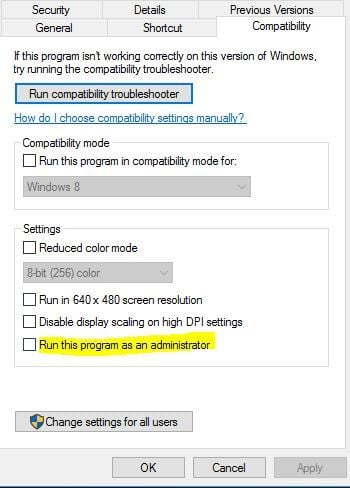
Go to Starcraft 2 installation directory, find Starcraft 2 .exe file and right-click it.
Go to the Compatibility tab.
Check Run this program as administrator.
Click Apply and OK to save changes and try to run the game again.
5. Set Affinity for Starcraft 2
Start Starcraft 2.
When the game starts press Alt + Tab to switch back to Windows 10.
Now find the Starcraft 2 process in the list, right-click it and choose Set Affinity.
When the new window opens make sure that you disable one CPU by unchecking it.
Click OK to save the changes and go back to the game.
Users have reported that setting Affinity for Starcraft 2 fixes menu lag, but unfortunately, you’ll have to repeat this solution every time you start the game.
If you don’t want to repeat this step every time you start Starcraft 2, there’s a way to do that, but it’s a bit advanced, so if you can’t understand it maybe it’s better to skip it.
Find out how many cores do you have. The easiest way to do that is to go to the Details tab, right-click any application and choose Set Affinity. Now simply count the number of CPUs on the list. Remember to count CPU 0 as well.
In our example, we’ll assume that you have 4 cores. Each running core is represented by number 1, so if you have 4 cores, all four running cores would be represented by number 1111. If you have 8 cores, that number would be 11111111, or if you have 2 cores that number would be 11.
Now, if you want to deactivate one core, you just have to replace one number with zero, so if you have 4 cores and you want to disable one of them the number would change from 1111 to 0111 for example. In our example, we’ll use 0111.
Now you need to convert the binary number from the previous step, in our case 0111, to a decimal number. There are many free online converters online that can do this for you. In our example, binary number 0111 is decimal number 7. Remember this number, you’ll need it for later.
Open Battle.net Launcher and click Starcraft 2 > Options > Game Settings.
Find Starcraft 2 on the list and check Additional command-line arguments.
Add -affinity 7. Remember to use the number that you got at the end of Step 3. In our case, it was 7.
Save the changes and now Starcraft 2 will run always with one core disabled.
Once again, if this seems too complicated for you, keep to the first part of our solution and manually set the affinity every time you start Starcraft 2.
6. Disable Windows DVR
Open the Xbox app.
Open Settings.
Go to Game DVR tab and turn off Record game clips and screenshots using Game DVR.
7. Check your firewall
Users have reported that the game is unable to start and that it freezes during the authentication process. Due to this issue, users can’t even access the main menu.
To fix this issue you need to start the game and wait for the game to load properly, press Alt + Tab to switch back to Windows.In the firewall popup message allow Starcraft 2 to bypass your firewall.
In addition, you might want to check your firewall settings and to make sure that Starcraft 2 isn’t blocked.
If this doesn’t help, you might want to temporarily disable your antivirus and your firewall.
Start Battle.net desktop application, go to Starcraft 2 tab,and choose Options > Game Settings.
Check Additional command-line argument and add -Displaymode 0 as an argument for every Starcraft game you wish to run in windowed mode.
Save the changes and try running the game again.
When thegame starts, switch back to fullscreen mode and check if the issue persists.
9. Disable Vsync and reinstall Battle.net desktop app
If you’re having black screen crashes while playing Starcraft 2, try disabling Vsync from Nvidia Control Panel or Catalyst Control Center for Starcraft 2.
If that doesn’t help, try reinstalling Battle.net desktop app.
10. Check your ports
If you’re getting BLZBNTAGT00000BB8 error as soon as you launch the game, you need to make sure that ports TCP: 6112 and UDP:6112 are open.
To do so, you can use many of the free services available online. If these ports are blocked, you should check your firewall settings in order to open them.
11. Delete the Battle.net and Blizzard Entertainment folders
Users have reported BLZBNTAGT0000096A error, and in order to fix it you need to go to C:ProgramData folder and delete Battle.net and Blizzard Entertainment folders from it.
Before deleting these folders you can try disabling the all non-Microsoft services from the Startup.
12. Disable SLI or Crossfire
Owning two graphic cards and using them in SLI or Crossfire mode can give you better performance sometimes, but SLI or Crossfire mode can cause some graphical issues in Starcraft 2 such as flickering textures.
If you want to fix these visual glitches in Starcraft 2, it’s advised that you disable SLI or Crossfire and try running the game again.
13. Use the 32-bit client instead of the 64-bit client
Open Battle.net launcher.
Click Starcraft 2 tab.
In Starcraft 2 tab, click Options.
In Options, click on Game settings.
When Game settings open, click the checkbox next to the 32-bit client for Starcraft 2 games.
Click Done, and try starting your game again.
After doing that you’ll start Starcraft 2 in 32-bit mode, and according to users, get better performance.
Besides improved performance, using 32-bit client also fixes error 0xc0000142 for some players. This error occurs every time user tries to launch the game, and switching to 32-bit client fixes it.
Although 32-bit client has its advantages, some users report that 32-bit client is causing fatal errors for them.
So if you’re using a 32-bit client and getting fatal errors, maybe you should switch to the 64-bit client instead.
We need to mention that you can’t switch to 64-bit version of Starcraft 2 if you are using 32-bit version of Windows 10.
14. Update your OS/ game
Installing the latest Windows 10 and Starcraft 2 updates may fix many issues affecting the game.
Updating your machine is essential for enjoying a smooth gaming experience as all the games that you run depend on the OS to run properly.
To download and install the latest Windows 10 patches on your computer, go to Start > type ‘settings’ and open the Settings page. Navigate to Update & Security > Windows Update and check for updates.
Install the available updates, restart your computer and launch the game again to check if the problem persists.
Circut Expression is a great tool if you want to create scrapbooks, learning materials, and even art projects.
The electronic cutter machine can save you a lot of time and remove the risk of messing up your designs. Some users, however, may not be able to get the machine to work.
Is your Cricut Expression not working? Although this machine is superb and rugged, you may get errors here and there, which you can fix quickly based on the specific error message.
However, if the Cricut Expression is not working, try using a different browser and then reset it if changing browsers does not also work.
My Cricut Expression is not working. How do I fix it?
1. Use a different browser
Cricut works with most web browsers, but its level of compatibility varies from browser to browser. While this is not always the reason why your Cricut Expression is not working, we recommend that you first use Cricut with a browser they recommend before proceeding.
The internet browsers recommended to use with Cricut are Opera One, UR Browser, Mozilla Firefox, and Edge. For an in-depth comparison of these browsers, check out our best browsers for Circut guide.
Once you have the incompatibility issue figured out, we also suggest you look into how well your browser performs in general. We recommend you use a browser with high-speed rates such as Opera One.
The tool is modern and easy to use and you can really make it your own by using one of its many themes, incorporating the add-ons you need, and integrating your email and social media platforms.
The browser also includes a free VPN that helps you keep your browsing activity and identity private. Plus, you will be able to access geo-restricted content. Another free feature integrated into this browser is an adblocker that will make for a more seamless experience.
Power on the device and ensure that you do not load a cartridge.
Roll all the gray dials – speed, pressure, and size – down to their lowest settings.
Next, using two fingers, pull the gray carriage car unit using the gold or green cylinder blade.
Locate a red button around where the gray carriage car sits. Press and hold the button for a few seconds.
Release the buttons and return the gray carriage to its original position.
Next, to eliminate bugs, roll every dial to the top and then back down. For all the dials, repeat this procedure three times.
Finally, press Cut and power off the machine and allow it to prepare for around 20 minutes.
After that, load a cartridge, power the machine back on.
When your Cricut Expression is not working, try using a different web browser – preferably a recommended one. The solution is to reset the machine; you can do this following the steps in the guide above.
If you reset the Cricut machine, and it still does not work, your device may be faulty, and so, you may have to reach out to the support team.
If resetting the machine does not solve the issue, you may also want to follow our full Cricut Design Space not working guide, which includes additional fixes for software and connection problems that often affect Cricut Expression models as well.
You can call the toll-free line at 1-877-727-4288 or discuss it with the community at us.cricut.com/forum.
Linux exploits are no more than urban legends. Hence, there is no need to get an antivirus for Raspberry Pi.
We are pretty sure you heard this more than once and the more you think of it, the more it makes sense. We’re here to tell you otherwise. Whoever told you Raspberry was virus-immune was lying to you and is not your friend.
Hear us out. Except for a screen, ultra-compact Raspberry Pi is a full-scale PC with which you can perform a wide range of tasks and engage in a variety of activities.
From robotics to computing and server hosting, no challenge is too big for this versatile and capable little device that you could easily fit in the palm of your hand.
Portable, inexpensive, and highly modulable, this single-board computer can accommodate all your peripherals to become the powerful machine that every tech enthusiast and science geek dreams of.
Multiple USB ports are but a perk as its true curve appeal comes from the fact that it not only runs a variety of Linux distributions, but it can just as easily adapt to Windows 10 or other systems.
With such an impressive portfolio under its belt, there is no way hackers could have turned their eyes from this tiny, yet prodigious device with almost larger-than-life capabilities. In fact, in conjunction with Kali, it’s pretty much the standard initiation recipe into hacking techniques.
Ranging from rookie-fit brute force attacks to penetration testing and sophisticated repository-based wireless network exploits, Raspberry Pi is truly a device of many skills.
Of course, catching a hacker’s eye is a two-edged sword. Thus, Raspberry can just as easily turn from perpetrator to victim itself. And this applies now more than ever since Linux users are thickening.
With the launch of the 4th version, the Pi gets more RAM and performance, delivering almost full-scale Linux consumer versatility and power.
This popularity boost can only be closely followed by an equally dramatic befall. As it becomes more profitable, it also paves its way into the eye of the storm.
Raspberry Pi has a lot to offer and there’s no denying it, but where does security fit here? Is Raspberry Pi safe? And most importantly, just how secure is a Raspberry Pi?
Can my Raspberry Pi be hacked?
What better way to tackle Raspberry Pi security vulnerabilities than by evoking a notorious case back in 2017 that sent a wave of shock and a well-deserved wake-up call to Pi enthusiasts all over the world?
Soon after, a trojan specifically design to exploit Raspberry Pi via open SSH connections emerged.
The trojan Linux.MulDrop.14 had Pis mining cryptocurrency and even though it was promptly stopped in its tracks, it managed to plant the seed of distrust.
Is Raspberry Pi secure? It’s only as secure as you make it. Having the best antivirus for Raspberry Pi is a good way to start. But before we dig into that, let’s see some more interesting facts regarding Raspberry Pi’s increasing need for virus protection.
1. Raspberry Pi malware and cross-platform viruses
As Raspberry Pi’s popularity increases and more users embrace Linux as a less prone-to-attacks OS alternative, hackers see it as an increasingly attractive target.
What is a Pi virus? It’s a malicious type of code designed to exploit Linux-specific vulnerabilities. And they are on the rise.
Now, threats specifically programmed to plague Linux distributions are less common for now, but they do exist and they are intensifying. Even if there is no Linux-specific virus involved, your Raspberry Pi can just as well fall victim to Windows-based threats.
Linux systems do integrate Windows code and hybrid viruses will try long and hard to exploit whatever vulnerabilities they can find in it in order to infiltrate. It’s only a matter of time before they succeed unless you use adequate protection such as a good antivirus for Raspberry Pi.
2. Unsafe settings
The most common backdoors are default usernames and passwords. If you add an unsecured SSH connection to the mix, you get the perfect recipe for disaster with SSH ports widely opened to the great pool of nastiness crawling on the Internet.
3. Physical security glitches
Removable media is easy to damage and SD cards are not particularly reliable pieces of equipment. Instead, unencrypted, power fluctuation-sensitive SD cards are prone to hacking, tampering, theft, and more.
Besides, the device itself cannot perform secure booting, which is another thing to consider. If not properly stored in an armored box, your Raspberry Pi can give you a lot of headaches.
Does Raspberry need antivirus?
As shown above, Raspberry Pi is not virus-exempt unless properly secured. More and more capable, this device is no different than an average PC with the capacity to go online.
Can Raspberry Pi get viruses? If you find yourself asking this question, the fact that your device can and will require an Internet connection for specific tasks should be enough an answer.
All entry points into your network can be exploited in order to sniff up information and inject unwanted programs, so the regular suspects – trojans, keyloggers, viruses, malware, and so on – can just as easily hit your Raspberry Pi unless you go the extra mile security-wise.
Together with a few security awareness rules that we will elaborate on a little later, a good virus scanner will keep your nifty device safe.
Now, we know that Raspberry Pi is special and that’s why we developed an equally particular set of criteria to help us pick the most suitable security software for your needs.
Tip
Here’s how we chose the best antivirus for Raspberry Pi:
➡ Versatility (your antivirus should be just as modulable and flexible as your Raspberry Pi and serve more than a single purpose) ➡ Cross-platform functionality to detect both Linux-specific and Windows-based viruses and malware ➡ Multi-layered protection (against viruses, worms, trojans, but also against digital fraud, ransomware, spyware, keyloggers, etc.) ➡ Uninterrupted real-time protection and on-demand scans with extensive customization options ➡ Network exploit prevention and security enhancing tools and modules ➡ Regular, automated updates to keep you safe against known and emergent threats alike ➡ Easy to install and to use (Intuitive interfaces with easily accessible features)
Bitdefender GravityZone Business Security delivers a complete security suite for Linux-based networks, with desktop and servers coverage to meet all your needs.
Intrigued by our first choice? We know that ClamAV is all over the place when it comes to Linux defense solutions and we totally understand why. (That’s why we added it to our list!)
It has an enormous virus inventory constantly fed with updates, not to mention the fact that it’s open-source, just as Linux. But its GUI can be a handful, especially if you’re somewhat of a newbie when it comes to this OS.
Since ease of use is of utmost importance to us, we found that Bitdefender provides the perfect balance between solid protection against Linux-specific viruses, extensive customization options, and user-focused, intuitive commands.
While it is tailored to cater to small and medium-sized businesses, Bitdefender GravityZone will deliver the same unrivaled protection on all Linux-based machines, which is what recommends it as the best antivirus for Raspberry Pi.
As you know, there are numerous Linux distributions out there and not all antiviruses have what it takes to achieve perfect detection rates across all of them.
Bitdefender GravityZone tackles the most popular Linux distros without skipping a beat and this includes Debian, Mint, Fedora, Ubuntu, Suse, and more.
If you’re only scratching the surface as far as Linux is concerned and merely exploring it to see if it could make a good OS alternative to the good old Windows, you probably won’t go straight for these giants.
But your Pi is versatile enough to run more than Linux. Regardless of the OS you choose to deploy, this best antivirus for Raspberry Pi will take care of your data and deliver impenetrable protection for all your assets on Windows, Mac, and Linux alike.
We have already established that malware is not contained to Windows alone and Linux machines are an increasingly enticing prey to hackers.
Nevertheless, Linux and Windows users do not face the same challenges, nor do they have identical protection needs.
For instance, Linux users are more vulnerable to infections if they choose to download files outside their software repository. Browser-targeted attacks are another popular method used by hackers to damage Linux machines.
Propelled by a unique blend of heuristics, virus signatures, and machine learning, GravityZone bulks up security to harden your device against all digital threats.
It incorporates a Process Inspector, Vulnerabilities scanner, advanced network monitoring tools, and sophisticated detection algorithms to identify and promptly neutralize any suspicious activity.
Sophos Anti-Virus for Linux is our favorite antivirus for Raspberry Pi due to its focus on home users.
It’s completely free for one device, easy to deploy and it delivers impeccable protection against Linux-specific threats as well as Windows-based malware.
Another appealing characteristic of this software is its lightweight infrastructure, with low CPU consumption rates, smooth updates that occupy well under 50 KB, and stealthy scans.
Speaking of scans, you can do pretty much anything you want here, with as many customization options as you can think of.
On-demand scans allow you to select the items you wish to verify with granular precision, from specific archives to boot sectors and much more.
The eternal quarrel between rookies and knowledgeable Linux users ends here. F-Secure Linux Security provides CLI as well as GUI versions to accommodate all needs.
However, there is a catch. If you go for the command-line edition, you will not be able to run real-time protection.
Other than that, this is a solid contender for the title of the best antivirus for Raspberry Pi and we promise you will not be disappointed with what it has to offer. We certainly weren’t.
Once you’ve chosen the type of interface that best suits your skills and your needs, you will be able to access a plethora of security tools.
The graphical interface integrates real-time protection and a full-scale intrusion detector system paired with a smart firewall that will keep your network safe.
Should you pick the CLI Edition, you can expect the same benefits, except for the real-time protection feature and of course, the graphical design.
Whatever you fancy in terms of usability and appearance, F-Secure will deliver robust malware protection across various Linux distributions including Suse, Debian, Ubuntu, and more.
Bottom runners
Besides the products that made the list after our rigorous testing process, there have been other antiviruses that proved their capabilities.
Even though they will most likely not with an award for the best antivirus for Raspberry Pi anytime soon, they could still make good options to consider.
More than an antivirus for Raspberry Pi, Kaspersky Endpoint Security is a hybrid security suite that can easily adapt to the most heterogenous of IT environments without compromising on detection rates.
From Linux to Windows, stretching to servers, Cloud infrastructures, terminals, and more, this powerful antivirus delivers machine learning-propelled protection with multiple layers without straining performance.
The collaboration-focused Linux community alone is enough to make one consider this OS and ClamAV takes full advantage of its precious support.
Open-source end to end, ClamAV relies on an enormous virus directory that is constantly fed by contributors all over the globe. Plus, it’s completely free.
While it does a great job at scanning your Linux machine for viruses and malware, its CLI-powered scanner can be a bit difficult to use, especially if you’re a newcomer to this operating system.
How do I harden my Raspberry Pi?
The first thing you need to do is to install a good antivirus for Raspberry Pi. Don’t procrastinate, it’s always better to be safe than sorry. With that out of the way, here are some more tips to secure your Raspberry Pi:
Keep your device up to date. How do I update Raspberry Pi? Don’t run obsolete versions and install every upgrade as they come along.
Don’t run default account credentials and secure your SSH connection. Replace the default Pi user with a customized ID and secure your SSH connection with 2-factor authentification and SSH keys in order to harden your device against brute force and man-in-the-middle attacks. If you don’t need to remotely access your Raspberry Pi’s terminal, disable SSH altogether.
Make sure you do not open ports on the Internet or allow port forwarding via your router with default Pi credentials.
Does Raspberry Pi need a firewall? It sure does, so make sure you add one along with additional traffic protection such as Fail2ban to secure your network.
Finally don’t forget to physically secure your Raspberry Pi. Infected or compromised hardware, including SD cards are among the top causes behind compromised devices.
Does Raspberry Pi need virus protection? It does and you should deploy it proactively to avoid painstakingly manual reconfigurations of your motherboard. All it takes to keep intruders at a safe distance is a good antivirus for Raspberry Pi.
If you are getting the bdredline.exe error, Windows Report is the best solution for you.
According to BitDefender, Bdredline.exe is “BitDefender redline update” file which is part of the BitDefender application package. In addition, bdredline.exe is usually located in the C:program filescommonfilesbitdefendersetupinformationbitdefender redline folder.
However, some Windows users reported several errors related to bdredline.exe which halts normal computer processes. Some of these error messages include:
bdredline.exe is not a valid Win32 application
End Program – bdredline.exe. This program is not responding
bdredline.exe – Application Error. The application failed to initialize properly (0xXXXXXXXX). Click OK to terminate the application.
Bitdefender redline update has stopped working.
bdredline.exe has encountered a problem and needs to close. We are sorry for the inconvenience.
bdredline.exe – Application Error. The instruction at “0xXXXXXXXX” referenced memory at “0xXXXXXXXX”. The memory could not be “read/written”. Click on OK to terminate the program.
However, bdredline.exe error is related to corrupt system files, virus infection, missing/corrupt Registry entries, malware disguising as bdredline.exe, and incomplete BitDefender installation.
This error can also occur if you recently installed Windows Defender on your computer and you forgot to remove all software leftovers from your previous antivirus.
Meanwhile, Windows Report has compiled a working solution to fix the bdredline.exe error problem.
How can I fix bdredline.exe errors?
1. Run a full system scan
A quick fix for bdredline.exe error problem is to run a full system scan on your PC so as to remove every possible malware/virus corruption. However, if bdredline.exe error persists after this method, proceed to the next step.
2. Repair PC Registry
Some Windows users reported being able to fix bdredline.exe problem by running an SFC scan on their Windows PC. SFC verifies the integrity of all system files and repairs files with problems when possible. Here’s how to run an SFC scan on all Windows versions:
Go to Start > type cmd > right-click Command Prompt > select Run as Administrator.
Now, type the sfc /scannow command.
Wait for the scanning process to complete and then restart your computer. All corrupted files will be replaced on reboot.
However, if the error persists, you may proceed to the next step.
3. Repair Windows Registry with third-party software
There is also the option to use dedicated software to fix your registry. Along with making the task quicker and easier for you, these tools may be able to fix and recover more files than a regular SFC scan.
That is because they are built for this exact purpose and they use various methods to ensure your registry is as good as new. Some of these tools search online for system files and replace all problematic ones, others use their database.
Most of these tools have a built-in PC scanner that is able to detect problems within your whole PC. They display in-depth reports on what was found and what can be done about it.
Registry cleaners come with other optimization features such as detecting security threats, malware infections or malware damage, stability issues, and more.
There are various types of utilities, it all depends on your specific needs. Some of them are full-featured PC repair and optimization utilities, while others only focus on your registry.
If you use multiple devices, note that some registry cleaners are portable and require no installation. Just add them to a removable media device and run them immediately.
4. Reinstall Bitdefender
Incomplete installation of the BitDefender program may generate into bdredline.exe error problem. However, another way of fixing bdredline.exe error is by reinstalling BitDefender Antivirus.
To do this, you have to uninstall the BitDefender program from Programs and Features, and then reinstall it from scratch afterward. Here’s how to do this:
Click the Start button, and then click Control Panel.
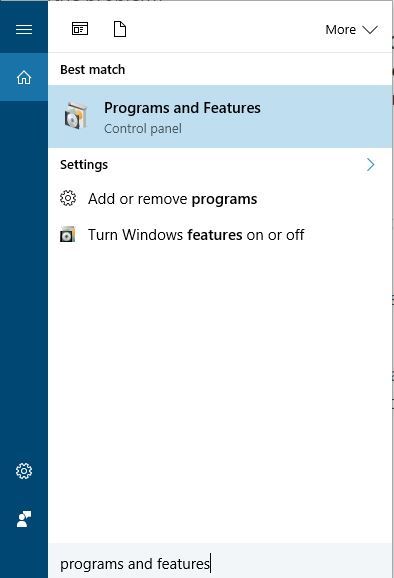
Click Programs and Feature, or Uninstall a Program under the Programs category.
In the list of installed programs, search “BitDefender”.
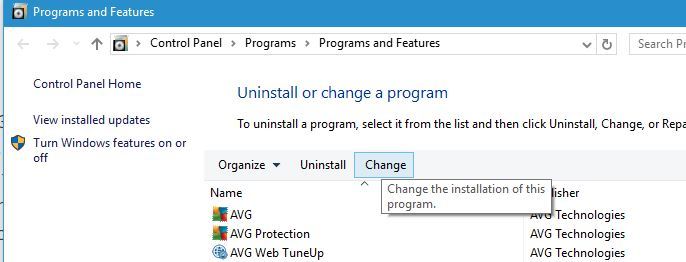
Click on BitDefender afterwards.
Now, Click Uninstall button which appears at the top of the program list and follow the instructions to uninstall BitDefender program.
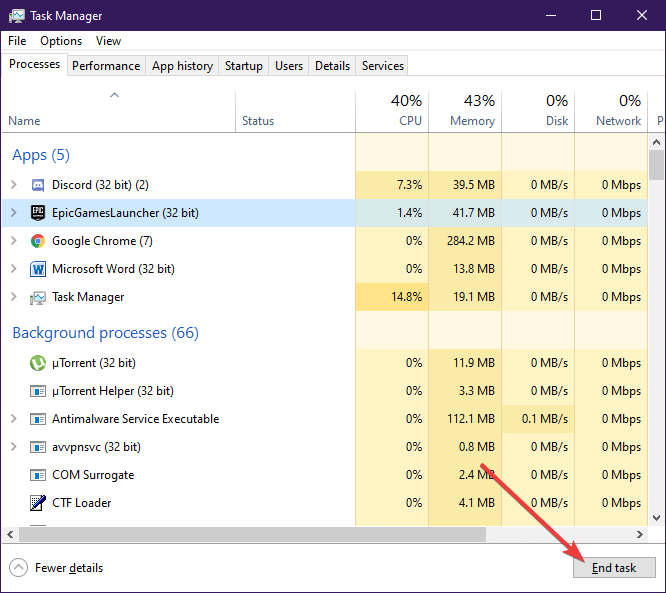
After uninstalling BitDefender program, close all active programs on “Task Manager” except for Windows Explorer
Now, locate the BitDefender executable file, double-click on it, and follow the prompts to complete fresh installation
Alternatively, you can update BitDefender from the main program menu to fix bdredline.exe error problem.
However, if this method does not fix the problem, you may proceed to the next step.
5. Run DISM RestoreHealth
RestoreHealth performs repair operations automatically and then records those in the log file. By performing DISM RestoreHealth, bdredline.exe error can be fixed.
Click Start
In the search field box, type CMD
Click Command Prompt in the search results list
Type DISM /Online /Cleanup-Image /RestoreHealth to scan and correct PC errors.
Press Enter
Reboot your PC afterwards
6. Scan for malware
You can also remove bdredline.exe error with a good anti-malware security tool. Up-to-date antiviruses will help you get rid of PUPs and malware disguising bdredline.exe.
When it comes to cybersecurity, we recommend you look for the best tools available because they really do make a difference and security is not the area where you want to compromise.
For a thorough and accurate scan, we suggest you use Eset HOME SecurityEssential. The tool uses a huge threat database and can detect attacks before they get a chance to infect your PC.
It is light and easy to use. To scan your PC with Eset, you just have to access the main page in the UI, select Computer scan, and wait for the process to complete.
If the scan detects any threats, make sure to quarantine or remove them. Then restart your PC and see if you still have the bdredline.exe issue.
Eset HOME Security Essential uses multi-layered protection to secure your device on all fronts. It includes plenty of useful features such as webcam protection, a download scanner, parental controls, and more.
7. Install latest Windows Update
Finally, you can run Windows Update to fix bdredline.exe error. Microsoft consistently releases Windows updates to improve the system’s stability and fix various issues and errors on your Windows PC.
Besides, the Windows Report team recommends that you constantly perform Windows updates on your PC.
Here’s how to do this:
Go to Start>type “update” in the search box and then click on “Windows Update” to proceed.
In the Windows Update window, check for updates and install the available updates.
Any of the solutions we mentioned above are applicable in fixing the bdredline.exe error. We also have a guide that explains what is DLADiag.exe, so you don’t want to miss it.
Did any of these solutions help you? Let us know in the comments section below.
If you have tried to use a command line in order to extract your files, only to get an error or see that the command is not being recognized, rest assured you are not the only one.
Many users report not being able to use the 7z command and the number of reasons for which this is happening can vary.
In this article, we’ve put together the best solutions in order to fix this error and get you on track with unzipping your files as soon as possible.
How do I fix 7-Zip not working from the command line?
1. Update 7-Zip
The next step in solving this issue is to make sure that you are using the latest version of 7-Zip.
Most of the time, the newer version of the program comes with improved stability and with additional reported issues solved.
The easiest way to update the software is to access the 7-Zip official page and select from the presented list the corresponding version for your Windows 10 device.
Once you downloaded and installed it on your device, make sure to restart your PC as well and run the 7 zip from the command line again.
2. Modify the System’s path
Right-click on the Start button.
Select System and click on Advanced system settings.
Go to the Advanced tab and select Environment Variables
Click on Path and next choose Edit.
Click New and enter the following path SET PATH=%PATH%;"C:Program Files7-Zip"
Click OK.
3. Scan your device for malware
The most common reason for encountering a 7-zip.exe missing can be due to having the device infected with certain malware that will definitely cause this type of issue to appear.
In order to clean your device and restore full functionality on decompressing archived files, we would recommend that you download and install TotalAV to your device.
Once installed, make sure to select Run as administrator and start scanning. When the process is complete, all threats should be removed from your PC, you can check and see if the issue persists.
4. Use an alternative program
Before moving forward in detailing our recommendations for fixing the 7-Zip not working from the command line, we suggest using WinZip as an alternative.
First of all, WinZip is a highly reliable and efficient software, and you are less likely to be bothered by errors when using it.
It offers the best file compression feature along with other important options, such as a versatile file management system, and easy sharing by email, cloud, and even social media features.
Thanks to Dropbox, Google Drive, and OneDrive integration, you get instant access to cloud storage accounts.
Let’s have a look at some of its key features:
Supports all major file formats including Zip, RAR, 7Z, and GZIP.
Strong encryption level.
Signature of new and existing PDF.
PDF conversion, watermarking, and easy sharing features.
File deletion for duplicate files.
This is about all. We hope that one of our solutions helped you solve the 7z command not recognized.
If you have additional suggestions and recommendations, let us know in the comments section below.
Don’t forget to check out our Fix Hub and explore more related articles and guides written by our experts.
Make sure to bookmark our dedicated PC Software section to explore even more information.
If the audiodg.exe is using a high CPU, rest assured the problem is easily fixable. But before we head to that, let’s first understand what the process is all about.
Why is the audiodg.exe process consuming high CPU?
The audiodg.exe or the Windows Audio Device Graph Isolation process plays a critical role in audio enhancement, apart from digital signal processing.
It’s isolated from the Windows Audio service to allow hardware producers to use their own enhancement service. Isolating reduces the likelihood of conflicts and prevents the OS from crashing.
The process is configured to run in the background for the best audio output. However, it’s found to be consuming high CPU values at times. This could be due to one or more of the following reasons:
Running an outdated version of the sound card driver
Enhanced audio effects
Malfunctioning external peripherals
After understanding the underlying causes, you are in a far better position to start troubleshooting the audiodg.exe high CPU error. Let’s now walk you through the most effective fixes.
What can I do if Windows 11’s audiodg.exe is using a high CPU?
1. Remove external peripherals
Your primary approach when dealing with high CPU usage by audiodg.exe is to remove any external microphones or headsets. After disconnecting, verify if the resource consumption changes.
If it does, reconnect the peripheral and check the effects. In case the CPU usage continues to be under normal levels, the error is fixed.
But if it spikes again, the issue most likely lies with the device or its configured settings. In which case, try the methods listed below and if they don’t work, replace the device itself. Also, check our curated list of headphones, in case you plan to purchase one.
2. Update drivers (both sound card and devices)
Press Windows + S to launch the Search menu. Enter Device Manager in the text field at the top, and click on the relevant search result that appears.
Locate and double-click on the Sound, video, and game controllers entry.
Right-click on the sound card, and select Update driver from the context menu.
Select Search automatically for drivers from the two options that appear in the Update Drivers window.
Windows will now scan for the best available drivers on your system and install it.
Running an outdated driver is also known to cause high CPU usage by the audiodg.exe process. This can be resolved by updating the driver to the latest version. Though Windows takes care of the updates, there’s no harm in checking for it manually.
The Device Manager method listed above only looks for newer driver versions on the computer, thus acting as an offline update.
Similarly, update the drivers for the external audio devices connected to the PC. In case that sounds like too much trouble, you can always go with a third-party app. We recommend using Outbyte Driver Updater, a dedicated tool that will scan the web for updates and keep the installed drivers up-to-date.
3. Disable audio enhancements
Press Windows + S to launch the Search menu. Enter Change system sounds in the text field at the top, and click on the relevant search result that appears.
Navigate to the Playback tab in the Sound window.
Right-click on the device currently in use, and select Properties from the context menu.
Now, navigate to the Enhancement tab in the Speaker Properties window, tick the checkbox for Disable all enhancements, and click on OK at the bottom to save the changes.
4. Reduce the audio sample rate
Press Windows + S to launch the Search menu. Enter Change system sounds in the text field at the top, and click on the relevant search result that appears.
Go to the Playback tab from the top.
Right-click on the currently used speaker and select Properties from the context menu.
Next, navigate to the Advanced tab from the top in the Properties window.
Click on the Sample rate dropdown menu and select a lower value from the ones listed.
Click on OK to save the changes and close the window.
A higher sample rate will consume more system resources, thus leading to the high CPU usage by the audiodg.exe process. Therefore, reducing the sample rate can work as an effective fix.
In case your speakers don’t support other sample rates, skip this method and head to the next one.
5. Disable volume adjustment
Press Windows + S to launch the Search menu. Enter Change system sounds in the text field on the top and click on the relevant search result that appears.
Navigate to the Communications tab from the top.
Next, select the Do nothing option and click on OK to save the changes.
What are the other processes that consume high CPU in Windows?
Apart from audiodg.exe, there are various other processes and services that are known to consume high CPU in Windows 11. Though similar to the audiodg.exe process, this spike is also momentary until the underlying issue is fixed.
That’s all there’s to high CPU usage by the audiodg.exe process and the most relevant fixes for the problem. The methods listed here work on all iterations of the OS, including fixing the audiodg.exe high CPU in Windows 7.
If you were wondering what is next in store for your favorite conferencing app, know that Redmond officials announced user experience improvements coming to Teams Rooms on Windows.
Yes, Microsoft is actually aligning the Meet Now and calling experiences to Teams desktop and replacing the New meeting control on the app’s room console with Meet.
Also, the tech giant will replace the Dial pad control on the Teams room console with Call. And don’t forget that you can now create and use Breakout Rooms on Teams as well.
By using Meet, Teams users can start an ad-hoc meeting with a single tap and invite the desired participants.
Teams will allow users o dial PSTN calls, if available, and enable entry points for P2P Teams calls, group Teams calls and P2P federated user calls.
Just by heading to the home page, you can see the new Meet and Call buttons, replacing New meeting and Dial pad buttons.
But what if you have a domestic or international calling plan assigned to your Teams Rooms account, or have a direct routing setup for your tenant with the number assigned to the room account?
The answer is very simple. The Dial pad will become available for users that need dialing a number.
You can also search for users in your organization or a federated organization for P2P calls and start a group call by searching and adding multiple people.
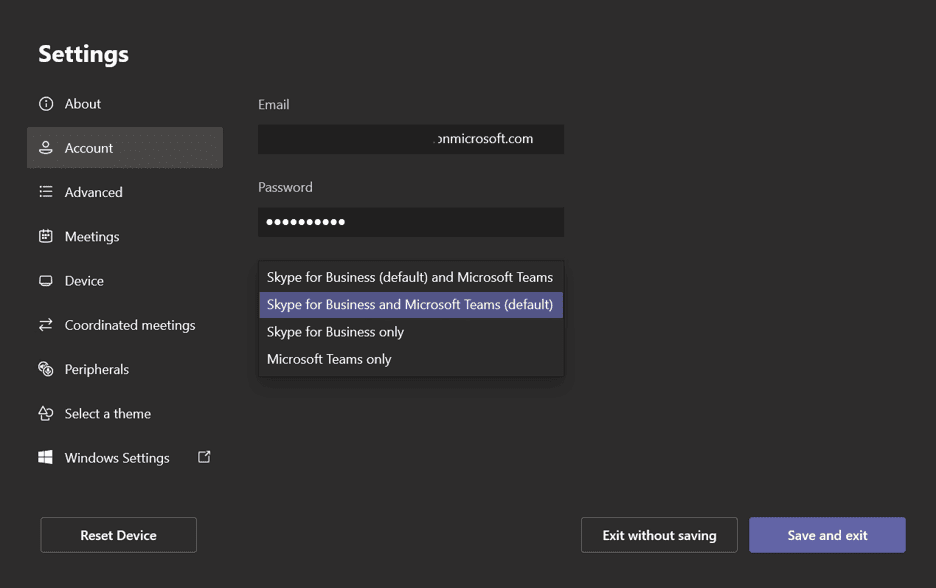
If you were wondering about SIP URI calls, this feature is not yet available in Teams only mode, however, you can set your device to Skype for Business and Microsoft Teams mode to have SIP URI entry point in the app.
Keep in mind that this change is only applicable if the Teams rooms are running in Microsoft Teams only or Skype for Business and Microsoft Teams modes.
All P2P and group calling functionality previously under the New meeting button are moved under Call.
To conclude, know that all of the changes mentioned above and improvements coming to Teams shortly will begin rolling out in mid-January and are expected to be complete by mid-February 2022.
What else do you think Teams is missing? Share your opinion with us in the comments section below.
Ad blocking appeared as a consequence of the unending waves of commercials that invaded online content and app usage.
And although some ads are displayed without obstructions and pop-up distractions there are a lot of annoying listings that really take their toll on our concentration.
There are a lot of add-ons that can take care of commercial blocking on our browsers, but some are detected, and you end up disabling them just to see the website content.
Recently, Google has made some updates to Chrome in order to stop some ad blocker extensions to do their job so it’s a continuous fight between the big players and developers for ad blocking.
That’s why today we’re talking about a more powerful app called AdLock for Windows that promises to get a more general approach to ad blocking and circumvent this kind of problem.
How can AdLock for Windows help you get rid of ads?
The ad blocker AdLock for Windows claims to be a game-changing tool designed especially for Windows that will work systemwide.
That means it will block all pop-ups, banners, autoplay video ads on all modern browsers (Google Chrome, Opera, Microsoft Edge, Mozilla Firefox) but also on apps like Skype, KMPlayer, uTorrent, you name it.
And that’s not all! It doesn’t just hide the commercial banners, but it disables their code, so it also removes their placeholders, so you won’t even see the empty boxes where they used to be!
That finally leads to a lot quicker page loading and browsing speed for a great navigation experience.
You will get an installer file and once you run it, choose language and click OK to proceed with the installation.
Read the license agreement, check the box, then select the Next button.
Select a target installation folder, we recommend installing it in Program Files, as it is.
Check the boxes if you want to create a desktop or a Start menu icon and click Next.
Once the installation is done, hit the Finish button.
The app will start automatically and within 20 seconds after, we got the message that we already have 378 blocked requests, and we saved traffic in the process.
However, you might have noticed that we downloaded the Free trial version that is only available for a limited time and after that, if you enjoy the product, you will have to click on the Buy now button to get the unlimited version.
If you want to see when and on what page were the ads blocked, just click on the Adblocking Statistics tab.
That’s it! The only thing left to do is to enjoy that counter rise from a moment to another and enjoy the ad silence on your browser and the apps you’re running.
That’s the beauty of this app, that you don’t need to do any tweaking or setting up and it just works. And you don’t even see where the ads were in the first place.
What are the other important features of AdLock for Windows?
As we’ve mentioned above, AdLock for Windows just works as it is but there are also a lot of features that you can activate to make it even more efficient.
For instance, from its main window, you can activate the SafeBrowsing that will enable AdLock to check through Google’s updated list of unsafe websites and block them.
Advertising providers keep updating the type of ads and trackers to push through ad blocking apps and add-ons but AdLock will be always ready to counter.
Turn on the filters in the Ad Filters tab and get you the latest filters to track down new ads and online counters to eliminate them efficiently.
If you click on the Allow List tab in the Ad blocking menu, you will be able to create exceptions for websites and apps that you don’t want to filter for ads.
Also, you can activate the filters for your native language if you access the Advertising filters. You will even find the Social media and Spyware filter there which are activated by default.
That’s it! Now you know how to use AdLock for Windows to block all the ads from all your browsers and apps with just a few clicks.
We hope that you found this guide useful and now you only see the content that you really want, and you are no longer bothered by such distractions.
Are you searching for the best antivirus for HP laptops? Good for you! According to Statistica.com, HP claimed no less than 20.9 % of the global PC shipments market share, thus becoming the second most prolific vendor of 2021’s third quarter, right after its archnemesis, Lenovo.
Most HP devices run on Windows and everybody’s sweetheart in terms of operating systems requires a fair share of cyber protection. While computing equipment producers step up the defense game on their end, we are still ages away from trusting a laptop’s built-in security with our most sensitive data.
And this brings us to the next big topic.
Does the HP laptop have antivirus software?
Hewlett Packard products are globally cherished and there is no denying it. Nevertheless, there is virtually no difference between an HP laptop and other Windows-based portable PCs when it comes to security.
Microsoft Defender comes pre-installed, thus providing built-in antivirus protection for your HP laptop.
While the famous Defender boasts decent protection that could suffice for occasional use of the internet, tech-savvy users who rely on their computers for heavy-duty research, web browsing, remote work, emailing, shopping, gaming, banking, and any other activity you can think of will most likely not be particularly impressed with its protective skills.
Whether you choose to stick to basic protection, combine Microsoft Defender with a malware scanner or go for an entirely different, all-around security solution, it is essential to get yourself a good antivirus for your HP laptop.
Speaking about security choices, some users are more preoccupied with the topic than others. If you choose to combine two top tools to cover the entire spectrum of cyber nastiness out there, you might want to take a look at these best antiviruses to use in conjunction with Malwarebytes and seal your PC against viruses and malware altogether.
Having established that HP laptops are only as safe as you decide to make them and that they can be just as vulnerable to attacks as any other device, let’s move on to the next big question.
Does HP sell antivirus software?
HP is a tech company specialized in PC development along with other solutions and services such as computing systems, imaging and printing systems, and so on. Hardware is their game and they are good at playing it.
Antivirus software is not on HP’s agenda. While they do not deliver in-house security programs, the HP laptops will integrate some form of protection upon purchase.
It can be the Microsoft Defender found inside the Windows suite or a different solution that comes pre-installed and will be available for a limited amount of time. McAfee is a good example.
Is McAfee free with HP?
It’s not. If you happened to land a pre-installed McAfee deal upon purchasing your HP laptop, you should know that you will benefit from a free trial at the end of which payment will be requested to preserve your subscription.
The same goes for software updates and renewals. As a side note, McAfee is recommended and endorsed by HP, so we would not hurry to ditch it. It’s one of our top recommendations when it comes to choosing the best antivirus for an HP laptop.
Which antivirus is best for HP and how did we choose it?
Driven by the goal to download an antivirus for HP laptop that is truly worthy, our QA started comparing and compiling specs from the most trusted cybersecurity software vendors on the market.
We were quick to test each antivirus on our HP Envy 13 with an i5-1135G7 processor (8 GB of RAM and a modest 256 GB worth of storage (fully free since this is new equipment especially acquired for these tests) and we came up with a solid selection which will not disappoint you.
Tip
Here’s what you need to be on the lookout for when searching for the best antivirus for HP laptops:
➡ Flexible and lightweight (in terms of policy transparency, device coverage, compatibility, resource consumption rates, customization options, and conjunction with other security applications) ➡ User-focused functionality (intuitive interface, clear reports, well-built menus, centralized management, discreet and non-pestering notifications) ➡ Airtight real-time protection (proactive defense and prevention, high detection rates with as few false positives as possible and instant threat reaction) ➡ Multiple-layered defense with strong quarantine and removal capabilities ➡ Automatic updates ➡ Privacy-oriented features, network security modules, and additional tools (built-in VPN, privacy monitors, traffic filtering, etc.)
Flexible and lightweight
From auto-renewal to terms and conditions and up to privacy policies, full disclosure is essential for building a trust-based relationship with your security software provider.
At Windows Report, we have always been and will be adamant transparency advocates. After all, why bother securing your data against breaches and exposure when the ones supposed to protect it in the first place are liable to sell it to third parties for their gain?
Compatibility
Compatibility is the next step in our journey and thus, you need to make sure your antivirus of choice will work with your device and will comply with its specs.
If online materials and indications are not enough to cast out all doubts as far as compatibility goes, don’t be shy to reach out and engage tech support on both ends for further clarification.
While cross-platform compatibility is preferred along with multiple device coverage for one license, there is more to it. Incompatibility issues extend to software conflicts, which can further degenerate into full unserviceable devices, PC freezes, and Blue screen errors.
Make sure your antivirus of choice can seamlessly cohabitate with other security solutions you currently deploy or intend to activate at a later time.
As a side note, Blue Screen of Death errors are not so uncommon and we are all bound to stumble upon such a nuisance at some point or another. You might want to have reliable BSoD repair software at hand for when disaster strikes to swiftly mitigate the risks and recover your data.
Low impact on resources and no interference
The best antivirus for HP laptops will not interfere with your other apps just as it will not strain your CPU and/or GPU. We suggest you privilege antiviruses with small system footprints and further resource-saving addons that will not hurt your performance or noticeably hinder your activities.
Flexibility is a mainstream concept but we would not say it’s overrated. Thus, you should focus on antiviruses with lightweight infrastructures and stealthy scans that will not drain your system or require compromising on processing speed, performances, multitasking, and so on.
Finally, another important aspect that will ensure your antivirus carries on with its chores without monopolizing your computing power is customization.
For this purpose, we only selected antiviruses with scan scheduling features that allow for greater control when it comes to virus and malware checking.
We recommend you pick an antivirus for an HP laptop that allows you to rule out specific items and choose with granular precision the files, folders, sectors, and removable media so that you don’t have to run full system scans every single time.
User-focused functionality
GUI design is quintessential and we’re talking about more than just looks. Sure, esthetics is a big deal not just for shallow reasons, but a polished, visually pleasant interface will appeal more to modern users than an obsolete and bland one.
Functionality, menus organization, and an arborescent infrastructure with nested features neatly regrouped under tabs with universally understood icons increase useability.
An intuitive interface with simple scanning options, comprehensive and easy-to-digest reports with clear action recommendations, and centralized management, all incorporated in a friendly dashboard that will not intimidate users is highly appreciated.
Easy installation with no hidden bloatware, time-saving execution, and preferably an interactive deployment wizard are no less important.
Finally, a truly user-focused antivirus will include no disturbing modes, be it for gaming, movie watching, presentations, and so on, with discreet, even invisible notifications that do not monopolize your screen.
Along with effective on-demand scans, you need an antivirus that can run quietly in the background and deliver airtight real-time protection with on-the-spot threat identification and instant reaction.
Detection rates should be as close to 100% as possible with equally satisfying false-positive rankings. On-access scans should be able to check all files for signs of infection while advanced cybersecurity monitors should be able to proactively identify threats before they infiltrate your system.
As you can imagine, the best results come from combining fast reactions (identification, quarantine, and neutralization capabilities) with early detection and prevention techniques.
Multiple-layered defense
Antiviruses have outgrown their initial purpose and they gradually move beyond the traditional virus definition-based model to incorporate state-of-the-art, innovative detection technologies.
The best antivirus for HP laptops should combine at least 3 different detection methods and techniques and there are plenty to choose from.
Some boast heuristic and behavioral-based analysis, others rely on Cloud technologies, advanced machine learning and/or artificial intelligence-built algorithms, and so on.
A top-rated antivirus engine is still a big part of the equation. However, we advise you to consider multi-layered defense software that can eradicate more than common viruses.
As far as we are concerned, the best antivirus for HP laptops should also provide anti-ransomware, anti-malware, and anti-spyware protection, in addition to trojan, worms, and rootkits defense.
A comprehensive threat detection suite should be able to protect your device both online as well as offline against known viruses and emergent, polymorphic, sophisticated malware alike.
Automatic updates
Automatic updates are equally important for your antivirus for an HP laptop. To successfully block the latest cyber threats and prevent exploits, your antivirus needs to be up to date in terms of virus signatures.
Your best bet is to choose software that relies on an extensive network and automatically updates itself whenever a new threat is discovered. By working with the latest definitions, your program will be able to guarantee solid, undisrupted protection.
Scans will only be effective as long as they rely on updated virus databases to compare, detect and eradicate viruses.
TotalAV is an easy fit for an HP laptop. It installs in minutes, runs real-time protection against malware, ransomware and spyware, and blocks phishing sites through WebShield.
The part laptop owners tend to like is the tune-up side: a junk cleaner, a startup manager and a browser cleanup tool, which help a laptop boot faster and run cooler. The higher plans add a Safe Browsing VPN for cafe and hotel Wi-Fi, and one subscription also covers your phone.
Real-time protection against malware and ransomware
Boasting a plethora of prestigious awards, Bitdefender will not only talk the talk but also walk the walk impeccably.
While the majority of vendors reserve their most interesting features for their flagship versions and onwards, Bitdefender is one software security developer that keeps it real and goes all in without holding back. And that’s what we love about it.
Thus, even the basic Antivirus Plus plan delivers undefeated multi-layer defense that will keep malware, ransomware, spyware, and adware at bay without draining your system’s resources.
For years now, this best antivirus for HP laptops has been monopolizing the highest rankings both in terms of protection and system impact. Users’ needs always come first and we cannot get enough of this approach.
Not to spoil the fun, but here’s a heads-up: along with TotalAV, Kaspersky, and VIPRE (all present in our selection as well), Bitdefender got the best scores.
With next-generation cybersecurity, Bitdefender provides a lot more than essential real-time protection, stretching its powerful defense across your personal information, online privacy, and network traffic.
Whether you browse, make payments, work, or game, you can count on a comprehensive security suite that will keep you safe and as speedy as your gear allows it.
Bitdefender Antivirus Plus has a small system footprint and a globally lightweight infrastructure that will allow you to always make the best of your specs and unleash your HP laptop’s entire potential without slowdown.
We deployed this best antivirus for HP laptop on our i5-1135G7 processor HP Envy 13 with 8 GB of RAM and 200 GB free space and opened around 50 URLs (both HTTPS and HTTP), installed games and run VLOOKUP matches on 10000 lines excel sheets and we are more than happy with the results both in points of speed and CPU consumption.
McAfee is one cybersecurity vendor that needs very little introduction. It has been around for a long time and it does a fine job at protecting your devices, your data, and your identity with a comprehensive defense suite designed to block anything and everything from prying eyes to malicious code.
Why settle for mediocre tools when you can get above-average internet security? You shouldn’t and this is precisely why McAfee makes for a good option to consider if you’re looking to download an antivirus for your HP laptop.
Since it seems to be HP’s preferred weapon of choice, we decided to play along and install McAfee Total Protection. And we can see why it’s so popular a choice.
We particularly appreciated its proactive defense that privileges prevention over repair. The complexity of the tools designed to guarantee early detection is overwhelming but in a good way.
McAfee has what it takes to be the best antivirus for HP laptops if it weren’t for a small drawback. It’s a bit on the pretentious side when it comes to resource consumption.
Whether you’re running a full system scan or simply carrying on with your daily flows while McAfee’s real-time protection runs in the background, chances are you will notice some drag and even some spikes in your CPU usage occasionally.
Nevertheless, we would not say it’s an unbearable computing power drainer. What’s more, its integrated performance optimization tools will improve your PC’s overall responsiveness by detecting resource-intensive programs and freeing up bandwidth during your browsing incursions.
We already mentioned its proactive defense that we simply love, but here’s another bonus. McAfee Total Protection’s monitoring covers more than personal information.
It also takes care of your network in a similar manner and secures your wireless connection on all your devices and gadgets, including mobiles and tablets.
Regardless of the plan you choose, you can expect award-winning protection along with a series of additional tools that will not fail to impress you.
Here’s what you’ll get with this best antivirus for HP laptops:
Top-rated antivirus protection with instant virus neutralization and proactive defense to block threats before they infiltrate your system
Identity Protection Service (with up to 10 email addresses monitoring, including Dark Web surveillance, this innovative feature will prevent or reverse identity fraud cases)
Network Security features designed to secure your firewall and instantly detect traffic-targeted attacks
Browser security enhancements
Built-in password manager, file shredder, and performance optimization tools
McAfee’s unshaken trust in their award-winning defense suite goes to such an extent that they even made a public pledge which will entitle you to a full refund should they fail to remove all viruses from your devices. This is another big plus as far as we’re concerned.
To top it all, you have premium technical assistance and expert support around the clock at your fingertips to answer whatever query you may have.
Norton has a strong portfolio to display when it comes to successfully defending users against both online and offline threats.
Even though it does not incorporate the same amount of sophisticated privacy-focused tools, Antivirus Plus does not fall short of comprehensive defense layers and innovative technologies to block out complex malware.
Well equipped to deliver efficient real-time protection against spyware, ransomware, malware, and viruses alike, this best antivirus for HP laptops will do its job admirably, fighting cybercrime across iOS, Windows and Android.
Similar to McAfee’s pledge, Norton makes a 100% virus protection promise that will put cash back into your wallet should they fail to remove a virus from your device.
But we wouldn’t worry about that since its AI-powered security technology is more than capable to repel both common and emergent threats way before they get the chance to sneak up on you and your data.
Its powerful online threat protection also covers your network thanks to a smart firewall that monitors your traffic and blocks any suspicious connection attempts to protect your files and your device from hackers.
To further enhance your privacy, this best antivirus for HP laptops includes a password manager that will allow you to generate, store and manage sensitive information with great ease.
Finally, you will never have to worry about ransomware and other fraud-like attempts since Norton Antivirus Plus comes with dedicated, automatic cloud backup worth up to 2 GB to secure your files against hardware failure, theft, and hacking.
With over 30 years of experience in protecting millions of users worldwide, F-Secure has had plenty of time to understand security trends and build its SAFE suite accordingly.
These deep comprehension mechanisms were put to good use. Thus, the best antivirus for HP laptops powered by F-Secure combines both undefeated protection and top speed for a truly compromise-free digital experience.
With a Best Protection award from AV-TEST under its belt, F-Secure SAFE can successfully block out viruses, trojans, malware, spyware, keyloggers, and ransomware.
What better software to deserve your money than the one that protects your money? This antivirus completes its real-time protection with top-rated safe banking and payment tools designed to guard your connection to sites and shield you against the most vicious ransomware attacks.
Phishing is more and more common and the best way to avoid these scams is to have a reliable partner at your side that can easily spot and block unsafe or harmful websites and web pages.
This is exactly what the Secure Browsing module does and we have tested it to its limits with impeccable threat detection scores each time.
This best antivirus for HP laptops also includes a Gaming Mode that delivers unspoiled performance and uninterrupted gameplay, just as you like it.
Last, but not least, F-Secure SAFE takes all security matters extremely seriously. We all know that disturbing content is just as present as useful information. To keep your children protected online, you can trust the advanced parental controls F-Secure has to offer.
Besides the products that made the list after our rigorous testing process, there have been other antiviruses that proved their capabilities.
Even though they will most likely not with an award for the best antivirus for HP laptops anytime soon, they could still make good options to consider.
25 years is enough time to perfect any product. Vipre played its cards well and is now able to deliver top-rated antivirus protection against known and emergent threats alike.
Their Antivirus Plus edition is as easy to use as it is customizable. With a free trial available at your fingertips and a professional US-based support team no further than a click away, you should definitely give this best antivirus for HP laptops a closer look.
Essential virus protection? If we’re talking about Kaspersky, you don’t need more to block out viruses and malware in real-time.
Should you choose to test this antivirus, you can expect seamless collaboration with other security programs and overall uncompromised performance to fully enjoy your HP laptop.
Unlike malware, viruses aim to divide and conquer. In other words, they are meant to infiltrate your system and start replicating with repercussions that are often not instantaneous.
Since your PC is not taken hostage right away, it might be difficult to tell if you have caught a virus. However, the signs will be there. You just need to know where to look.
Connection instability is a good place to start. CPU spikes or screen-monopolizing advertising is warmer. Finally, unresponsiveness, unbearable slowness, freezes, crashes and Blue Screen of Death errors are flaming hot hints that your system is most likely under attack.
Of course, there can be numerous other causes behind each of these problematic scenarios, so further investigation is required. While we’re at it, take a look at these common BSOD causes to establish if you can rule out virus infection.
How do I remove a virus from my HP laptop?
One basic troubleshooting method is to put your HP laptop in Safe mode and run Microsoft Defender offline. Not sure how to go about it? Say no more! You can find all the information you need in our extensive guide on how to scan your PC offline with Windows Defender.
If the good old Defender fails to solve your problem or if activating Safe Mode is too much of a bother, we suggest a simpler and more effective way. Get yourself the best antivirus for HP laptops from our list and run a full system scan without the hassle.
Why not make things easier with end-to-end security software that can prevent, detect, isolate and instantly neutralize all threats to keep your HP laptop in tip-top condition?
In a recent interview with the publication Protocol, Xbox’s Phil Spencer talked about Minecraft and the new virtual 3D iteration of the internet that’s come to be known as the metaverse. The Microsoft executive spent time discussing the openness of Minecraft, and how it’s been critical to what the game has become.
In other areas of the interview, Spencer talks about how Minecraft’s success shows where gaming needs to go in the future. He also mentioned that the virtual worlds created by players in Minecraft could help make the metaverse feel more open. It’s something that Microsoft is apparently thinking about seriously. But it sees the metaverse more for the creator, rather than for the company. Per the executive.
But more fundamental to me is why Microsoft? Like, why is this metaverse that a lot of people are focusing on, why is it better for players? Why is it better for creators?
Interestingly, Spencer also reveals that teams at Microsoft, from HoloLens, and other mixed reality experiences, and even Azure have meetings weekly. Particularly, the meetings are about how there could be new games to make use of Microsoft Mesh, the company’s own gateway to the metaverse.
On this matter, Spencer also said that the metaverse isn’t a business thing, but is something companies should try and be creative, work together on, and have freedom with. He pointed to Xbox, and how it’s both first-party and third-party with titles like Roblox, Fortnite, and more. Even things like Game Pass, cross-play, cloud-play, come into the picture, too, according to Spencer.
“We will go at this on the metaverse side with the same sensibilities that we’ve had in gaming, that people should be able to play the games they want, where they want to play them, with the people they want to play with. Because we’ve actually thought that in the end that opens up the largest experience for creators and for players.”
Overall, the interview is a solid read for Xbox fans, and it shows how Microsoft is thinking about the future of the metaverse. It seems as though Microsoft is thinking about players and creators first, which could give it a unique stand as more players enter the metaverse space. Let us know what you think in the comments below.
Welcome back to our Windows news recap, where we go over the top stories of the past week in the world of Microsoft’s flagship operating system.
TikTok starts testing new desktop streaming app on Windows PCs
TikTok Live Studio is a new desktop streaming app for Windows PCs that is being tested by TikTok. The Windows app will allow users to stream to TikTok Live from their PC.
It's super basic in its current state.
Has both Landscape and Portrait Scenes.
Sources include Game Capture, Mobile Capture, Video Capture, Program Capture, and some text/images. No browser sources, or alerts.
Adobe launches freemium Creative Cloud Express app on the web and the Microsoft Store
Creative Cloud Express is a new freemium app from Adobe, available on the web and the Microsoft Store. Describing the new app, Adobe says:
Creative Cloud Express offers access to literally millions of photos, fonts, templates, graphics, and other assets that give you a head start on any project. Finding what you need is easy through intuitive, intelligent search. And our assets are easy to remix. If you find a graphic you love, you can swap in your own image and Creative Cloud Express will automatically apply all the filters and effects from the original graphic.
That’s it for this week. We’ll be back next week with more Windows news.
Xbox Countdown Sale offers big saving on over 900 digital games
The Xbox Countdown Sale started this week, and Microsoft is offering discounts of up to 50% on over 900 digital games. The sale will run until January 3.
That’s it for this week. We will be back next week with more Microsoft news.
If you’re planning to start recording your very own podcasts, you need a powerful and reliable tool to record your voice. If the respective software comes with a built-in audio editor, that’s even better.
You can use a single tool to record and edit your podcast. Windows Report wants to support you in your endeavor and did the homework for you.
In this article, we’ll list the best podcast recording software that you can use on your Windows computer to get the message out as soon as possible.
What are the best free podcast recording software for PC?
Audacity is a well-known sound recording software that allows you to record, as well as edit your podcasts.
The tool is free to use and also supports cross-platform usage. So, if you start recording your podcast on your Windows PC, and you want to edit it on your Mac computer, later on, you can do that.
Some of its key features:
Record live audio: If you want to record a debate, Audacity can help you do that.
Record computer playback on any Windows, Vista or later machine. So, if you don’t want to upgrade to Windows 10, you can use this tool without any problem.
Convert tapes and records into digital recordings or CDs.
If you already have some podcast recording experience, then you may want to try Hindenburg.
This cross-platform tool is very versatile and comes in several variants, each suitable for a particular activity: journalists, educators, podcasters, narrators, and more.
As far as podcast recording goes, Hindenburg supports multitrack recording, so you can record on more than one track at a time.
In simple terms, this means that you can use more than two microphones to record your ideas. Simply plug in any USB microphones and begin recording.
You can add a multi-input sound card to your computer and select the channels you want to record from.
If you often use Skype to record your podcasts (for example, your interviewees can’t come to the studio), you can use Hindenburg to add a Skype call while recording.
Once you make the call, the tool will open a new track to record the Skype call. When you hang up the Skype call, the software will continue the studio recording.
At the same time, you can also record from the Internet and through a microphone, so there are no limitations to that.
You can choose which tracks you want to monitor in your headphones while recording using the monitoring system, and switch between them at any time.
Some of its key features:
Hindenburg is complex, feature-rich software. Apart from the options listed above, it also brings the following top features:
It automatically sets the correct level for your imported audio.
Built-in effects: reverb, delay, pitch, echo and more.
Noise reduction to help you reduce noise in your audio recording.
A special clipboard to organize your audio material.
Voice Profiler: this feature automatically sets your ideal on air voice.
ZenCastr is an interesting podcast recording software that can be used by beginners as well as advanced users.
If you often have guests on your podcasts, this is the right tool to record a guest’s voice in high audio quality.
Here are some key features:
Each guest has their separate track: Thanks to this feature, each and every voice is recorded in crystal clear audio quality.
Record in lossless WAV: You can record your guests in lossless 16-bit 44.1k WAV to get the best possible audio.
Soundboard for live editing: Post production editing is much easier since the tool allows you to insert a series of elements live as you record, including intros, ads, listeners’ testimonials, etc.
Voice chat with your guests: There is no need to install a third-party VoIP software to talk with your guests. Zencastr has everything you need to do that.
Dropbox integration: All your podcast recordings are saved in the cloud to your Dropbox account. In this manner, you can quickly share them with your colleagues.
Cast is a simple, yet powerful podcasting software. You can use it to record, edit and publish your audio creations.
You can use this tool to record high-fidelity audio, whether by yourself or alongside guests. The recordings are automatically stored in the cloud.
Once you finished recording your podcast, you can go to the next step: the editing part. Powerful presets are available, allowing you to get the job done in no time.
Once you’re happy with the end result, you can publish your podcast with a single click.
Cast is perfect for beginners and podcasters who don’t have a lot of time to spend recording and editing audio.
We live in the age of podcasts and vlogging, that’s for sure. And if you want to record your own podcasts for yourself or to share with the world, then you definitely need a reliable tool to record your voice.
For that, you need not the only software that comes with a built-in audio editor, but you need to consider several relevant aspects in the choice you make.
Pay attention to the features that the app provides
Of course, you want the tool you’re about to use to have as many features as possible to support your podcast recording work, and for a good reason.
First of all, make sure it supports as many formats as possible, it should also allow you to cut, copy, splice or mix sounds together.
Another feature worth considering is noise reduction. This will definitely help you reduce noise in your audio recording and will give you a higher quality recording, like real studio quality.
These are some of the best software that you can use on your Windows PC to record podcasts.
As you can see, these tools are very versatile. We tried to vary the list to include programs that are suitable for beginners as well as advanced users.
We hope that these recommendations from our list were helpful. For more suggestions or other questions, please access the comments section below.
If we’re talking malware, Malwarebytes is hard to beat. But there is more than malware out there that you need to watch out for. And this is what drives us to find the very best antivirus to use with Malwarebytes.
Now, we feel obliged to make a conceptual distinction here as there are two versions of the software and each has its own agenda. There is Malwarebytes Free, also known as the malware scanner we all know and love, and also Malwarebytes Premium.
The latter aims to deliver a complete antivirus alternative with multiple layers of protection, including web protection, system vulnerability detection, real-time defense, and a plethora of extras.
But is Malwarebytes good enough alone? That’s only the icebreakerquestion, so brace yourselves, the myriad of queries is yet to come. Does Malwarebytes detect spyware? Can Malwarebytes detect keyloggers? Does Malwarebytes detect ransomware? Does Malwarebytes detect all viruses?
While Malwarebytes Premium technically has a lot of the tools required to fight back widespread viruses, its detection rates fall short of recognition, compared to other premium antiviruses.
Real-time protection is also not the best money can buy, not to mention the recurrently high resource consumption instances that we simply cannot ignore. While there is a lot to be said here, we will settle with just a few examples that seem to come up a lot:
Why does Malwarebytes use so much CPU? Can Malwarebytes cause problems? Why is Malwarebytes taking so long? Does Malwarebytes use a lot of memory?
Speaking of memory shortage, if it is something with which you struggle in connection to Malwarebytes, you can have a go at this nifty troubleshooting guide. Now let’s see who does what exactly.
What is the difference between Malwarebytes and antivirus?
Not so long ago, things were simpler and rather straightforward. Traditional antiviruses dealt with common viruses and they pretty much stuck to the virus signature database that required regular updating, while anti-malware tools focused on more advanced, emergent threats.
As malware grew polymorphic and ever more sophisticated, vendors were forced to retaliate. Consequently, their products grew more complex, with features often overlapping.
Nowadays, it’s not uncommon to see antiviruses with integrated VPN capabilities, for instance, just as much as you can get your hands on VPN with virus-blocking technologies embedded. NordVPN with its CyberSec technology makes a good example.
The same goes for antiviruses and anti-malware tools. While their main focuses remain different, a lot of their functionalities are more and more similar as modern AVs incorporate more malware-blocking mechanisms and techniques, gradually moving beyond the conventional virus definition-based model.
In an effort to regain momentum, Malwarebytes Premium relies on newer technologies that eradicate the dreaded zero-day exploits, thus claiming to take antiviruses out of business.
While we salute progress, we also believe that some tools are better at specific tasks than others. It’s not that we’re reluctant to change or worried about disturbing the status quo, it’s simply an observation based on firsthand experience using both.
Do I need another antivirus with Malwarebytes?
Now, we know that traditionally, it is not recommended to use 2 security programs simultaneously. We just don’t buy it.
The way we see it, each software has its own role to play and both antivirus and anti-malware tools should stick to what they do the best so that you can make the most of their conjunction.
There, we said it! The big question is not whether to go for an antivirus or anti-malware program such as Malwarebytes but rather what best antivirus to use with Malwarebytes.
Can you combine Malwarebytes with another antivirus?
You can and you should, but as one would expect, there are things to consider. Malwarebytes is coded and designed to collaborate with antivirus software without interference. This makes it compatible with most major cybersecurity programs. There is a catch, nonetheless.
If you want to run both, it is important to keep in mind that this seamless cohabitation only applies to the malware scanner (Malwarebytes Free). On the other hand, Malwarebytes’ real-time protection can and will engage in software conflicts if deployed alongside a different antivirus.
Tip
What antivirus should I use with Malwarebytes?
You will be pleased to know that most major antivirus vendors provide flexible solutions that can transparently work with third-party products in order to reach a common goal: strengthened security.
The extent to which they engage in non-conflictual conjunction is nevertheless influenced by some specific criteria. Here’s our recipe for a hassle-free Malwarebytes + primary antivirus combo:
➡ Activate real-time protection at the singular app level (We recommend you set your primary antivirus to run permanently in the background and only perform occasional malware scans with Malwarebytes). ➡ Disable Malwarebytes as your default security program from the Windows Action Center in order to allow parallel usage. ➡ Make sure you run the latest versions of both installed software.
Real-time protection vs. malware scans
So, here’s the very first thing that requires some decision-making: the tool you want to permanently run for real-time protection.
Needless to say that we strongly encourage you to keep your primary antivirus on the lookout for prevention purposes and proactive detection, and stick to Malwarebytes for its malware-removal capabilities.
In other words, running manual Malwarebytes scans once in a while should suffice if you don’t have an already infected PC.
Software setup
If you do run Malwarebytes Premium, you should know that it declares itself as the default security program on your system, thus preventing other antiviruses from running in the background.
In order to use it alongside a different antivirus, you should take the time to disable this option. Don’t sweat it, it’s easy!
All you need to do is launch Malwarebytes and open its Settings.
From there, switch to the Security tab situated on the horizontal bar at the top.
Locate the Windows Security Center section.
Now, toggle the button next to Always register Malwarebytes in the Windows Security Center to off.
Finally, restart your PC and you’re all set!
Latest versions
Regular updates are essential for keeping your programs up and running, fully functional, and in pristine condition. In order to successfully pair Malwarebytes with the best antivirus to use with Malwarebytes, you need to make sure you run the latest builds for both software.
While updates are important, so is having the latest version available for the software you run. From security patches, new functionalities releases, and virus definition updates to solving incompatibility issues, vendors improve their products with each version launched.
Make sure you upgrade to the latest version of both your primary antivirus and Malwarebytes in order to eliminate conflictual legacy configuration and maximize your security.
Undisputed leader in cybersecurity, Bitdefender has been monopolizing top positions in worldwide users’ preferences and certified audit laboratories alike for years now. There must be a good reason for the praise, right? There sure is.
Of course, this cherished vendor provides multiple plans, but the Total Security version is no less than the pinnacle, incorporating cutting-edge protective technologies that work across all platforms, and devices and team up nicely with third-party security solutions.
So we figured, why not go big? We have been using this solution for over a year now on several machines in our office and we are not disappointed one bit.
You wanted to know if it works well with Malwarebytes and we hear you! Can I use Bitdefender and Malwarebytes together? Yes, and you can expect a seamless and fruitful collaboration.
The build we’re currently running, 26.0.3.29 allows for a transparent parallel usage with other apps serving the very same purpose, Malwarebytes included. Not to mention that both teams are prompt to remove incompatibility causes, thus the potential for conflict is as low as it gets.
Propelled by artificial intelligence and cloud-based innovative technologies, it not only detects threats with the highest precision and blocks them instantly but also anticipates potential dangers in a proactive manner.
Its defense stretches across multiple layers including zero-day exploits, ransomware attacks, antispam, with online threats prevention and advanced defense, firewall, and antispam.
Privacy does not fall short either and you get an entire dashboard dedicated to confidentiality alone with premium features such as microphone and webcam protection, password manager, secure VPN and anti-tracker tool for safe browsing, Safepay banking mode, and advanced parental controls.
Leat but not least, there is a dedicated Utilities screen whose primary focus is to boost your system’s performance.
The uniqueness of this best antivirus to use with Malwarebytes can be attributed to its dual nature. It’s ruthless when it comes to e-threats, but gentle with your system.
In fact, Bitdefender Internet Security has repeatedly achieved the highest rankings in both top-rated protection and the lowest impact on performance.
As if minimal resource usage and uncompromised speed were not enough, you get a comprehensive suite of optimization-focused tools that will enhance your responsiveness to its full potential.
The OneClick Optimizer will improve your overall speed, while the Profiles feature will adjust notifications according to the mode you assign to each profile, allowing you to play, stream or work without interruptions or distractions.
Autopilot and Photon, both patented Bitdefender technologies will take care of the security setup that is just right for your hardware and software configuration in order to further save computing resources.
TotalAV is a simple, lightweight antivirus with real-time protection, WebShield browsing protection and built-in clean-up tools. One licence covers Windows, Mac, Android and iOS.
Our quest to unveil the best antivirus to use with Malwarebytes would not be complete without Kaspersky, another heavy name in the cybersecurity industry that gathers numerous awards under its belt.
Can I use Kaspersky and Malwarebytes together? You wanted to know and we tested it for you with satisfactory results.
Shaped to protect with less drag and interference, Kaspersky will scan off your devices in order to reduce its impact on your resources.
Alongside its Do Not Disturb mode, you can count on airtight protection against all threats while you simply get on with your daily routine unhindered.
What goes for you, also applies to your CPU and other apps you are running, including Malwarebytes.
Kaspersky relies on impressive technologies to keep you protected starting with its full-scale three-layer engine that detects, anticipates and blocks, or quarantines and instantly neutralizes any danger from malware, crypto lockers, network vulnerabilities, and more.
With real-time protection including an automatic Trojan remover and instant threat detection that guards your data, device, and network against exploits you will never have to worry about hackers again.
Whatever scam and scheme come your way, be it adware, ransomware, keyloggers, or other types of sophisticated spyware, your home network is prepared to retaliate and block out cyber thieves thanks to a 2-way firewall and dedicated safe payment mode.
High-tech end-to-end, this best antivirus to use with Malwarebytes also sees that your private life remains private.
With an integrated VPN, webcam defense, encrypted browser for payments, anti-phishing, anti-keylogger, and adware-removal tools, Kaspersky leaves nothing to chance and enhances security and confidentiality to the maximum.
Our saga continues with Norton. The 360 Deluxe plan has the right amount of protection and privacy-oriented tools to secure your digital experience.
Before we go any further, let’s see if it makes a good match for your anti-malware scanner. So, does Malwarebytes work with Norton antivirus?
We are thrilled to announce it does. Both boast cross-platform compatibility and can work side by side on any device from Windows to Mac, all the way to mobile gadgets running on iOS and Android.
Combining AI and advanced machine learning, this best antivirus to use with Malwarebytes unleashes its multiple layers of defense to form a close to impenetrable shield against viruses, spyware, ransomware, and malware ranging from common bugs to sophisticated polymorphic threats that emerge now or are yet to appear.
Its comprehensive real-time online threat prevention is doubled by an equally impressive suite of privacy-focused tools designed to guard your identity, sensitive data, and financial information every time you turn on your device.
What better instrument to guarantee discretion than your very own privacy monitor? This unique feature will scan public sites in search of any personal information listed in order to give you more control over these details.
Needless to say, the Internet is not an entirely friendly place to hang around. You know it, we know it and Norton does too, which is also why they included a Dark Web Monitor to keep an eye on any potential data leaks reaching the digital underworld.
Advanced AV parental controls are incorporated for the very same reason, helping you keep an eye on your kids offline as well as online. We already mentioned cross-platform compatibility, but we cannot think of a better use of this facility than positive parenting.
If you choose to deploy this best antivirus to use with Malwarebytes on PC, you will be able to extend its protection over mobile gadgets as well and monitor your kids’ whereabouts thanks to the GPS location feature available on both Android and iOS.
Obviously, no privacy suite would be complete without a VPN and you can say we saved the best for the last.
Norton 360 Deluxe also integrates a secure no-logs VPN that will not only facilitate anonymous browsing but will also encrypt your traffic to keep it out of sight.
Combined with the built-in password manager that allows you to generate strong codes and store them together with other confidential credentials such as banking details and more in a secure online vault, the VPN acts as a guardian against theft, extorsion, and scams.
McAfee completes the inner circle and makes it to our shortlist of chosen ones after rigorous tests.
As far as we’re concerned, reputation alone does not make the cut and we had to see for ourselves if McAfee and Malwarebytes were truly a match made in heaven or if this alliance was predestined to fail.
So here goes. Is it OK to run McAfee and Malwarebytes at the same time? You asked, we tested and we stick to our general advice above: if you wish to run Malwarebytes alongside a primary antivirus, only activate real-time protection on one of the apps.
We did manage to run both premium security software in parallel, but it takes a bit of filter and settings tweaking to allow the necessary updates for each program, and the potential for conflict will always be there.
However, we had no problem at all running McAfee Total Protection and Malwarebutes’ malware-scanner seamlessly and we are quite impressed with the results.
You also wanted to know this: Do I need McAfee and Malwarebytes? You need it just as much as any other antivirus tool that can handle an extensive array of threats, not just malware-based.
It’s always a good idea to deploy a complete internet security suite that provides everything you need to stay safe online.
McAfee Total Protection offers solid protection against malware and numerous other online threats and its award-winning defense is particularly skilled at proactive, early detection, and infestation prevention.
This is one security solution that prefers to prevent rather than repair and we cannot get enough of this healthy approach.
In addition to its top-rated antivirus engine, it includes a plethora of advanced security tools such as optimization modules, a built-in password manager and shredder, a secure VPN with increased safe browsing capabilities, encrypted storage for your data, and a Home Network Security feature that monitors your traffic and prevents network-based exploits.
One particularly interesting feature that caught our attention is the Identity Protection Service included in all McAfee products.
Similar to Norton’s Dark Web Monitoring, this service scans the dark web for data leaks, with a focus on personal information such as email addresses and passwords, and helps you swiftly remediate any confidentiality violation or data/identity theft.
In their own terms, this best antivirus to use with Malwarebytes provides multi-faceted privacy protection that does not slow you down.
And it’s not just a manner of speaking, you have some serious gear to rely on when it comes to performance optimization with automated tools that spot resource-hogging programs and processes and keep them in check to save bandwidth for more important activities.
Bottom runners
Besides the products that made the list after our rigorous testing process, there have been other antiviruses that proved their capabilities.
Even though they will most likely not with an award for the best antivirus to use with Malwarebytes anytime soon, they could still make good options to consider.
Award-winning internet security that requires no compromising on speed or performance? It’s now tangible thanks to F-Secure SAFE, an all-around defense suite that covers your browsing and banking needs on top of a bug-free guaranteed digital experience.
It’s an excellent antivirus with gaming mode that also works well with third-party software, including Malwarebytes.
Puzzled by the fact that we praise a free antivirus? Don’t be, we cannot help it as long as it’s worth praising. But do give it a go and let its premium defense and privacy features speak for themselves. After all, you don’t have anything at all to lose, right?
We rely on Avira on a daily basis and it gets along flawlessly with third-party malware scanners. And this is why we do not hesitate to recommend it as the best antivirus to use with Malwarebytes.
➡Microsoft Defender
Finally, the good old Microsoft Defender will do the trick and will allow you to use Malwarebytes either as a malware-removal tool or as a complete security suite with its premium version.
You just need to make the right decisions when it comes to configuration. So make sure you allow both of them to run in parallel without resisting or overriding each other.
Is Malwarebytes enough for antivirus? While owning a truly capable malware-removal tool is an important part of the cybersecurity equation, we believe that a primary antivirus with a multi-layer defense cannot be omitted.
If airtight security is your goal, then you cannot go wrong with a balanced, well-rounded combination between the two of them.
What next? All that is left for you to do is to pick out the best antivirus to use with Malwarebytes and enjoy a conflict-free, transparent, and fruitful software collaboration that works for you rather than against you.
Cyber criminality has been around for a long time now. Even though viruses — here used as a general term covering a wide range of digital threats — have kept pace with tech evolution and have grown more sophisticated and more cunning, their core purpose has not changed.
In short, hackers are still out to get your assets for their financial gain. In Canada just as much as anywhere else in the world, home users need to deploy strong virus protection software on their PCs in order to stay one step ahead of cybercriminals.
But there are still a few dots to connect before we can tackle the best antivirus Canada can buy. Reversing the damages caused by virus infections is not only technically challenging but also highly expensive.
After all, that’s the big idea behind ransomware, right? While businesses are more prone to be targeted, personal users are not off the hook either.
Confidential data such as credit card credentials, banking details, social security numbers, passwords, and so on represent an increasingly appealing target for scammers set to make a quick buck from unsuspecting users browsing the Internet from the comfort of their homes.
Fortunately, the best antivirus software Canada will keep you safe from intrusions. As long as you get one, that is. Now, do you need an anti-malware tool or virus protection software? What’s the difference between them, if any?
Is malware protection the same as virus protection?
Yes and no. A bit confusing, right? Don’t worry, we’ll get to the bottom of it right away. While all viruses can be considered malware, not all malware are actually viruses.
In other words, viruses will replicate if uncontained with or without immediate impact whilst malware infects your system with ill-intended code that will damage your PC, your network, or both.
The trend is for modern antiviruses to slowly move beyond threats identification through conventional virus definition comparison and incorporate more advanced mechanisms that are able to detect, prevent and block complex malicious attacks.
Consequently, the best antivirus for PC in Canada will combine impenetrable protection against viruses and strong malware removal capabilities along with numerous additional features.
Options are far from scarce and choosing the best antivirus Canada users can buy can be a herculean task if you don’t know what to look for.
So why not take it from there? Let’s see what is it that makes a virus protection software the very best AV money can buy. Of course, your personal requirements will heavily influence the choice ultimately, but our tips will deliver the proper foundation for you to build your own selection process upon.
How did we pick the best antivirus for Canada?
Once again our expert testers have combined research with empirical expertise to come up with the best antivirus Canada users can get.
To achieve this, the QA team here at Windows Report compiled information from various sources including, but without limitation to:
official software specifications
hands-on full-stress tests implying installation, configuration, and performance measurements in various scenarios
results from independent virus testing laboratories such as AV-Test and/or AV-Comparatives, and more
Pricepoint, cross-platform compatibility and simultanious connections
Price is obviously an important decision factor. While budget limitations differ, it’s safe to say that the average yearly AV subscription stays at $70.
Of course, it can be more just as well as it can be less than that depending on the features integrated by your antivirus. A full-scale, well-rounded and well-balanced cybersecurity product will always make you dig deeper into your pockets and there is no surprise there. After all, you get what you paid for.
While pricing and configuration are codependent, providers usually offer 3 versions: a basic antivirus, a flagship Internet security edition, and a high-end edition. Adding features as they go along, prices go from $30-$60 on average all the way up to $80-$100 for premium versions.
AV Provider
Duration + Device
Basic
Flagship
Premium
ESET
1 year, 1 device
$39.99
$49.99
$59.99
Bitdefender
1 year, 3-5 devices
$24.99 (1st year only) – 3 devices
$29.99 (1st year only) – 3 devices
$34.99 (1st year only) – 5 devices
Kaspersky
1 year, 3 devices
$18.00
$24.00
$27.00
Norton
1 year, 1-5 devices
$9.99 (1st year only) – 1 device
$19.99 (1st year only) – 5 devices
$79.99 (1st year only) – 5 devices
Avast
1 year, 1 device
Free Download
$69.99
$99.99
But bonus features are just one way to look at it. Multiple device protection is also important. And this includes cross-platform compatibility as well as the possibility to use one license on more than one device.
If you own multiple pieces of equipment running on different operating systems, you will benefit from a hybrid antivirus that caters to Windows, Mac, Linux, iOS, and/or Android infrastructures (fixed and mobile alike). In other words, flexibility is key for the best antivirus Canada.
Even if you tend to remain loyal to one OS, let’s say Windows, you would want to be able to make full use of your antivirus subscription in order to protect all the gadgets you possess such as PC, tablet, smartphone, and so on.
The same goes for households in which family members own individual devices. In this case, the best antivirus software Canada searches for would have to deliver bundle packages that allow multiple devices to be protected with one license.
Finally, free antivirus options do exist and we dare say, they improved a lot recently. Nevertheless, you are more likely to stay protected online with premium software.
However, this does not mean that free versions or free trials are less important and this is exactly what we focused on next.
Free trial or version for extensive testing
While free antiviruses deliver decent protection and are able to scan your system, they will not keep more sophisticated and more stubborn malware at bay.
Having already established this, we do privilege paid versions. But more importantly, we attributed higher importance to those providers that also offer free versions of the same software or at least free trial AV.
We believe that while having guidance is important and it gives you a bit of context, you should be able to have a go by yourself and try your hand at the various products listed here.
Personal requirements, expectations, and overall experience are highly subjective, thus nothing compares to a hands-on session that allows you to test all the features, capacities, and global functionality of antivirus tools to their limits.
We also believe that you should be able to do so cost-free and risk-free, before engaging in long-term commitments.
Easy set-up and friendly interface
No one likes time-consuming tasks and that’s a fact. Time is an increasingly rare commodity in this high-paced era, thus the best antivirus Canada can buy should take no more than a few minutes to install and set up.
Installation wizards, interactive start kits, and detailed instructions are highly appreciated.
Once deployment is covered, the interface is what sets excellent antiviruses apart from the rest. The GUI needs to be user-focused, friendly, and intuitive.
And it’s not all about esthetics – even though a modern, polished look will definitely be a plus – it’s about functionality as well. Clearly organized menus that are both easy to locate and easy to navigate are essential.
An overall good display with uncluttered elements and a nested-like infrastructure that unfolds gradually are less likely to overwhelm or intimidate, so it’s a win-win situation.
High virus and malware detection + low false positives rates
As previously suggested, the best antivirus Canada users can get will have to do a little better than simply comparing viruses against a database.
Not that there is anything wrong with the traditional method. On the contrary, it is important that you pick an antivirus that ensures regular and automatic updates for its virus signatures and definitions database.
However, the best antivirus for PC in Canada will have to include more advanced technologies as well and there are plenty of options out there.
In addition to real-time protection, you should consider a program that allows both on-access and on-demand scans, and completes its security suite with heuristics, machine learning or AI-based detection, behavioral analysis, and so on.
The tool you need will ideally combine the traditional defense delivered by the antivirus engine with at least of these sophisticated techniques.
Needless to say that detection rates must be as close to 100% as possible with little to no false positives. For this purpose as well as for malware-removal rankings, we relied on the scores provided by independent tests conducted by AV-Test and AV-Comparatives.
Since they specialize in running advanced tests involving countless malware samples, we trust their results to be as accurate as they get and so should you.
Check out the latest results, dating as far as October 2021, for our top 5 picks, from AV-Test: ESET, Bitdefender, Kaspersky, Norton, and Avast.
Little to no impact on performance
While we were a bit reluctant to voluntarily inject our system with malware – for obvious reasons – we thoroughly tested various antivirus options in terms of impact on performance, resource consumption, and overall reactivity at the system level.
Our favorite part was to measure the impact during a scan and we initiated one using each and every antivirus ranked here.
NOTE
Some of our tests were conducted on a breezy ASUS SonicMaster notebook with the following specs:
➡ Windows 10 Home ➡ 64-bit operating system ➡ Intel Core i7-8565U CPU processor with overclocking 1.80GHz-1.99 GHz ➡ 8.00 GB of RAM ➡ 500 GB HDD with 118 GB worth of files already occupied
Don’t be shy to explore the individual results for each antivirus listed below.
Obviously, you will want a program that does not strain your device’s capacities, hinders your daily activities, and drains your system’s resources.
In order to benefit from impeccable defense and not sacrifice your performances, processing speed, or reactivity along the way, we strongly advise you to consider a lightweight antivirus, that is both stealthy and discrete.
The best antivirus software Canada needs is one with a light, almost invisible system footprint that does not demand a lot from your computer.
Additional features
We already discussed multiple device protection and anti-malware capabilities but this is merely the tip of the iceberg when it comes to security extras.
If you want iron-cast, top-notch, in-depth protection, there are countless additional features that can deliver it. Of course, you are likely to find them in comprehensive bundles, from Internet security versions onwards and the price will spike accordingly.
However, you might actually save money in the long run by investing in an end-to-end security suite rather than purchasing all the bits and pieces separately.
Here’s what you need to be on the lookout for, according to your needs and preferences, of course :
PC optimisation and tune-up AV, cleaning utilities
Backup facilities to secure your data
Customization options
If you’re willing to go the extra mile as far as bonus features, you will most likely enjoy a versatile antivirus that can cater to your needs.
While clean-looking interfaces are a big plus, the best antivirus software Canada will have to provide enough tweaking options to keep more advanced users satisfied.
As far as customization goes, we were mainly interested in practical things such as the possibility to schedule scans and choose which elements to include or exclude from this process (specific file types, sectors, and so on).
What better way to describe this best-rated security suite than by answering one of your questions? You wanted to know: Is Bitdefender still the best? And we unbiasedly can say it is.
As far as protection goes, this industry-leading antivirus thicks every single box, leaving no stone unturned when it comes to keeping you safe.
Real-time protection against viruses cleverly combines with multi-layer ransomware protection, anti-phishing, anti-spam, anti-fraud, and vulnerability assessment tools to deliver iron-cast defense.
Privacy is also a major preoccupation and features like anti-tracking, VPN, microphone and webcam, social media, online banking protection, and parental controls are all included and ready to shine bright.
With numerous performance optimization addons, Bitdefender manages to combine traditional antivirus engines with sophisticated network threat prevention and privacy firewalls while keeping a low impact on your resources.
Bitdefender real-time protection before the scan
Our expert testers launched a full system scan on one of our test machines, the ASUS SonicMaster notebook (see specs above).
Bitdefender real-time protection during the scan
Here are the results as far as impact on resources goes:
CPU values ranged from around 1 to 12% (there were a couple of spikes at <10%, no more than 12 but the percentage stayed under this value generally)
Memory spiked at 42.8 MB twice, with average values going from 30 MB to 40 MB
There were no changes at Disk and Network levels
GPU ranged between 3 and 8% but remained on 5% on an average with 2 spikes at < 9%
There were 834168 scanned items, with an average scan speed of 604 files per second
Items included in the scan: 51 archives, 28 boot sectors, 4621 processes, 3252 registry keys
Logs show 2 infected items were detected and disinfected and 2 passwords protected
Threats included in the scan: adware, spyware, apps, dialers, rootkits, keyloggers
There were 10634767 threat information updates
The total time elapsed for the scan was 23 minutes
TotalAV is a simple, lightweight antivirus with real-time protection, WebShield browsing protection and built-in clean-up tools. One licence covers Windows, Mac, Android and iOS.
Kaspersky takes pride in its prestigious cybersecurity solutions and we love what they have to offer. Versatility and generous customization offers meet efficiency at its best, delivering the best antivirus Canada users can buy these days.
Triple-layered protection stops both common viruses and complex malware on their track before they get the chance to infiltrate your system.
Thanks to its real-time protection and proactive detection, you can set your mind at ease knowing that the digital environment is made safe for you.
Needless to say, the powerful AV engine Kaspersky relies on does more than keep viruses and trojans at bay.
It guards your entire online persona with anti-hacking, privacy-focused, and exploit prevention tools that cover your data, your network as well as your devices and peripherals.
Some of its most interesting features include, but without limitation, 2-way firewall, payment protection, Apps lock and manager, Smart VPN, ads blocker, private browsing, network defender, anti-phishing, ransomware, spyware, keylogger, and rootkit removal tools.
When it comes to impact on performance, Kaspersky applies less drag on your PC than most of its competitors and it even includes a dedicated gamer mode to make sure you get as immersive as you like, without distractions.
A full system scan is nevertheless likely to slow you down a bit (as it did for us), you can also choose to run scans in idle mode or even offline, which is a big plus as far as we are concerned.
Here are the results as far as impact on resources goes:
CPU values ranged from around 2 to 5% (there were a couple of spikes at <8% but the percentage stayed under this value generally)
Memory spiked at 105.2 MB twice, with average values going from 85 MB to 100 MB
There were no changes at Disk, GPU, and Network levels
There were 657055 scanned items and no threats detected
The total time elapsed for the scan was 41 minutes and 7 seconds
Norton 360 Deluxe delivers top-notch protection against numerous cyber threats, ranging from common viruses to complex nuisances that can seriously damage your system.
Cherished all over the globe, it sets out as the best antivirus software Canada residents can deploy thanks to its family-oriented features.
Here’s what recommends Norton at a glance: protection for up to 5 different devices across Windows, Mac, Android, and iOS, comprehensive parental controls, and School Time feature to help your young ones stay focused and undistracted online.
Protection-wise, it combines multiple layers of AI-based defense to keep viruses, malware, spyware, and ransomware at bay, while keeping your private and financial information safe.
Speaking about privacy, you will definitely enjoy the anonymous and traffic encrypted browsing provided by the secure Norton VPN.
The Privacy Monitor tool takes it to the next level, showing you exactly how your personal information can be tracked and targeted.
A particularly useful feature is PC SafeCam, which will block unauthorized access to your webcam.
Should your confidential data ever be breached, this best antivirus for PC in Canada will come to the rescue once again, searching the infamous Dark Web for potential matches to help you retrieve your email address or any other detail that got exposed.
A built-in password manager and smart firewall close the circle, leaving no place for vulnerabilities and closing the door to hackers at both network and data levels.
Norton goes the extra mile and provides automatic cloud backup for you to secure 50GB worth of files in case of hardware failure.
As far as scanning is concerned, we did notice some slowness during a full system scan, which is why Norton only makes it to the 4th position in our top.
With widespread virus attacks on the rise, it is only natural to settle for nothing less than the very best antivirus for PC in Canada.
The Premium Security suite delivers the ultimate protection against viruses, hackers, and exploits for a whopping number of devices.
With just one subscription, you can protect up to 10 devices and the best part is that there is no limitation as to the OS you’re running or even the platform.
This basically means that whatever is your weapon of choice (metaphorically speaking, of course) – PC, Mac, smartphone on iOS, Android, iPad – you can activate your protective shield instantaneously and set an impenetrable barrier between your data and all cyber threats, no matter how sophisticated or stubborn.
From malware to ransomware and network vulnerabilities, nothing escapes the scrutiny of this best antivirus for Canada.
Malware is a piece of code so cleverly engineered that it can just as easily hide in plain sight, on unsafe websites, flashy advertising, or even apparently harmless services.
It’s this ability to disguise itself that makes it so dangerous in the first place even for the most tech-savvy of users. With Avast, you can forget all about phishing or ransomware attempts, and go on with your daily browsing, banking, and shopping carefree.
It’s worth mentioning that the full Avast Premium Security version took no more than 2.09 KB on our drive and the scanning options did not fail to impress us.
Here are the results as far as impact on resources goes:
CPU values ranged from around 0.5 to 5% (there were a couple of spikes at <7% but the percentage stayed under this value generally)
Memory spiked at 178 MB a few times, with average values going from 140 MB to 160 MB
There were no changes at Disk, GPU, and Network levels
There were 1317688 scanned items, 151715 folders, 213.7 GIB of data and 2 threats detected
The total time elapsed for the scan was 37 minutes
App size is around 2.14 KB (disk space required)
Bottom runners
Besides the products that made the list after our rigorous testing process, there have been other antiviruses that proved their capabilities.
Even though they will most likely not with an award for the best antivirus for PC in Canada anytime soon, they could still make good options to consider.
This is one comprehensive bundle that you will want on your team as it not only includes next-gen antivirus defense but also a full-scale VPN to encrypt your traffic and take care of confidentiality-related matters end to end.
You would expect this combination – further elevated by strong malware detection capabilities- to have a rather hefty system footprint, right? It turns out that Avira Prime will also speed up your PC and even handle software updates as it goes, which is a big plus.
With real-time antivirus protection and complete security management including parental controls, web filtering, and anti-malware plus anti-ransomware tools, Sophos is not easy to set aside.
While it does not include a VPN, it boasts numerous privacy-focused features to compensate for it. Considering its 30 days free trial on the table that does not even require a credit card, there is no reason not to try it for yourself and see how good a match it can be.
McAfee has been around for a long time and is still going strong. Its most basic version, the MAV, is still one of the best options to consider for multiple devices as it covers up 10 different PCs with just one license.
Prices go up as you add more features, of course, but the Antivirus Plus edition offers the right amount of security, combined with safe Web browsing and performance optimization to keep you covered.
Did you find the best antivirus software in Canada? We sure hope so! Keep in mind that expert knowledge is just enough to lead you on the right path. You will still have to make it to the end by determining your priorities, your specific needs, and of course, a budget to stick with (or to break).
Whether you go for a fully geared security bundle or a basic antivirus engine, you should be able to use your PC at its fullest, without significant slowness and without compromising your security.
For a long time, the Control Panel has been the go-to user hub for Windows, but it seems its work is done.
In Windows 11, Microsoft is taking further steps to eliminate the Control Panel. The company has been gradually moving functions formerly housed within the Control Panel into other parts of the operating system.
In a recent Windows 11 Insider build (22509), Microsoft has made advanced network settings more accessible through the Settings app.
The new changes are designed to keep users from depending on the Control Panel too much.
More options in the Settings app
Users can now find options previously in the Control Panel on the Settings app. You can now find options for sharing printers, folders, and others that were from the Control Panel.
The links that used to lead to the uninstall function in the Control Panel have been moved to the Settings app.
If you are a new user of Windows, the Settings app has taken over the Control Panel functions while the older generation remembers when the Control Panel was the hub of all settings.
The two have been co-existing, but it seems that the Settings app has replaced the Control Panel in Windows 10 and soon Windows 11. This is a clear indication of what the future is for the Control Panel.
Long time coming
Microsoft has been shifting Control Panel settings to the Settings app to streamline features. However, the company has never been able to fully decommission the Control Panel.
Now, when you select a Control Panel setting, you’re redirected to its corresponding page in Settings meaning Microsoft has been successful in its effort to cut off the Control Panel.
The company’s announcement makes clear that these changes are part of an ongoing effort to move people’s preferences out of the Control Panel and into the Settings app.
Which one is your preferred user hub? The Control Panel or the Settings app? Share your thoughts in the comment section below.
The big day has come: Microsoft has started rolling the Windows 10 Creators Update out to the general public.
The latest version of Windows 10 includes a set of interesting features and improvements that will definitely impress you.
Before you test out the new OS, you need to overcome a bevy of obstacles consisting of various technical issues and errors.
For example, many users have reported that they can’t upgrade to the Creators Update due to an endless install loop.
Here’s how one user describes this issue:
I saw I could manually download and install the creators update so I downloaded it and ran it. […] I run the file and it asks if I want to update, click to update. It verifies my RAM, etc, I continue.
Then it does the following:
Downloads (1 – 100% indicator)
Verify file (very quick)
Then “Updating Windows 10” (1 – 100% indicator)
Once it gets to 100%, it refreshes the page and I’m back at the initial screen to ask if I want to update. If I click next, It verifies RAM, continue, then it downloads, verifies, and updates all over again. I have done this now six times.
How to fix endless Windows 10 Creators Update install loop
Make sure you’ve installed the latest Windows 10 OS and driver updates before you hit the upgrade button.
Outdated or corrupt hardware drivers are known to cause various install issues. You can use the Device Manager to locate problematic drivers.
Go to Start, type Device Manager, and click the first result. Expand the list of devices. The culprit(s) will appear with a yellow exclamation mark.
Right-click the problematic driver and select Update Driver Software to install the latest updates.
Another way is to let a third-party tool update your drivers automatically. It will help you to do it automatically and prevent the risk of downloading and installing the wrong driver versions.
The third-party driver updater we recommend is also able to find and repair damaged drivers. Along with that, it will detect whether you have any missing drivers and install them right away.
The utility is simple and light and you can let it run in the background and keep your drivers in check on a regular basis.
Sometimes, your antivirus program may block the upgrade process. Many users have confirmed that turning off an antivirus solution fixed the endless update loop issue.
3. Unplug your peripherals
Sometimes, the peripherals connected to your computer can trigger various technical issues, including update problems.
Unplug all peripherals, restart your PC, and try to upgrade to the Creators Update again.
4. Run an SFC scan
Go to Start, type cmd, select Command Prompt, and run as Admin
Type the sfc/ scannow command, hit Enter, wait for the scan process to complete.
5. Refresh the Windows Update Service
Launch Command Prompt as an Admin
Copy and paste the following commands all at once and hit Enter:
net stop wuauserv net stop cryptSvc net stop bits net stop msiserver ren C:WindowsSoftwareDistribution SoftwareDistribution.old ren C:WindowsSystem32catroot2 catroot2.old net start wuauserv net start cryptSvc net start bits net start msiserver pause
3. Exit Command Prompt and try installing the Creators Update again.
6. Run DISM
If the aforementioned SFC doesn’t work, you can run a more advanced tool called Deployment Image Servicing and Management or shorter DISM.
You can re-run SFC as well as they work the best when combined. If you’re not sure how to run it on Windows 10, follow the steps we provided below:
OpenCommand Prompt as admin.
In the command line, copy-paste the following lines and press Enter after each:
sfc /scannow
DISM /online /Cleanup-Image / ScanHealth
DISM /Online /Cleanup-Image /RestoreHealth
After it’s done, reboot your PC.
7. Use the Media Creation Tool
If you’ve tried all the solutions listed above and you’re still experiencing install reboot loops, try using the Media Creation Tool to complete the upgrade process.
Go to the Windows Upgrade page and download the tool. You’ll also find a step-by-step guide on how to use the Media Creation Tool and ISO file on the same page.
We hope one of the workarounds listed above helps you stop Creators Update install loops. If you’ve come across other solutions, feel free to list the troubleshooting steps in the comment section below!
Defragmenting and checking your hard drives for errors on a regular basis is recommended since it’s good for the health of your device. But even these useful operations have their bugs and bad sides.
Some users have reported that their drive scan stopped at a certain point, and they didn’t know what to do. And if you’re one of them, here’s a solution to your problem.
What do I do if my hard drive scan freezes?
1. Run a disk cleanup
Temporary files and junk files may cause your PC to freeze or crash during hard drive scan. Make sure to eliminate this possible cause off your list by using the Disk Cleanup feature.
To do this, you need to right-click the problematic hard drive and go to Properties. Click on the General tab and select Disk Cleanup. Follow the on-screen instructions to complete the process.
2. Use System Configuration
Go to Search
Type msconfig in the search box, and then click on msconfig.
On the Services tab of the System Configuration dialog box, click on Hide all Microsoft services checkbox, and then choose Disable all.
On the Startup tab of the System Configuration dialog box, click on Open Task Manager.
On the Startup tab in Task Manager, for each startup item, select the item and then click Disable.
Close Task Manager.
On the Startup tab of the System Configuration dialog box, tap or click OK, and then restart the computer.
Restart the computer, and let Windows perform the complete disk check. Windows will repair all possible file system errors automatically. After that, manually run the Chkdsk command from Command Prompt to check the drive for any further errors.
Type Command Prompt in the search bard and open as administrator.
Type the following command, and then press Enter: chkdsk /scan
After cmd completes the scan, you’ll be notified about the found errors. If any errors are found, run the following command in the next line to fix the errors: chkdsk /spotfix
Make sure you save all your work before performing this action in Command Prompt because the chkdsk command sometimes requires you to restart your computer, or even restarts it automatically.
We hope that these three solutions helped you fix the problem. If so, tell us in the comments section below.
The Windows operating system has many unknown files, and WpcMon.exe is one such file. Like the rest, the file is considered somehow mysterious and has even been blamed for a number of faults. Well, this article is dedicated to WpcMon EXE and its known issues, but first, let’s learn a bit more about this file.
What is WpcMon EXE?
WpcMon.exe is part of Windows and runs as part of the Family Safety Monitor tool, the parental control and monitoring program that helps kids remain safe online. The program usually registers itself in your PC’s Task Scheduler as MicrosoftWindowsShellFamilySafetyMonitor.
Originally named WpcMon.exe.mui, it, however, mainly runs as a background process. The file has had several versions to date.
Is WpcMon EXE safe?
The WpcMon.exe is published as a system file by Microsoft so it’s not a virus.
It’s actually a signed file and a crucial part of Windows, especially for parents who want to keep an eye on what their children are doing with their PCs.
Is it safe to delete wpcmon?
Unless under special circumstances, it’s not advisable to erase the WpcMon.exe and its supporting elements (folders and subfolders) as it may make some other programs inaccessible.
Even if you are experiencing a wpcmon.exe high CPU usage issue, it’s better to try other solutions (more on this later).
Where is WpcMon EXE located?
The feature is found in the folder C:WindowsSystem32wpcmon.exe. Nevertheless, the icon for this process is not normally shown on the Taskbar.
Common Causes of the errors associated with WpcMon.exe
WpcMon.exe troubles can be caused by a host of events including missing (or corrupt) program files, bad registry keys, or malware infections.
Conflicts with other recently installed software, an outdated Windows version, and apps not installing properly might also trigger WPCMON.exe difficulties.
An infection could generate numerous wpcmon.exe errors. You can thus commence by scanning your machine for possible infiltration by a virus using any antivirus software.
To ensure that your PC is free from malware, we encourage you to scan it completely using high detection antivirus that will find and remove any malware types.
If you want to proceed with this method, it’s a good idea to use the best antivirus solutions you can find out there.
2. Repair Corrupt Files Using SFC /scannow
A corrupted file system could be messing with the WpcMon.exe tool. Try to run the SFC (System File Checker) utility to repair faulty files and get rid of the issue at hand:
Look for the search box (it’s on the Taskbar) and type cmd.
Then right-click on the cmd option (from the results). Click Run as administrator.
Once the command Window loads, type DISM.exe /Online /Cleanup-image /Restorehealth (observe the spaces ) then press Enter and wait.
Now type sfc/scannow.
3. Update Windows
An outdated operating system can also bring up issues related to wpcmon.exe. Update your Windows and see how it goes.
Once the Task Manager opens, locate and right-click on WpcMon.exe process then select End Task.
6. Halt the wpcmon.exe from the Task Scheduler
If stopping the process doesn’t help, control the program’s starting/stopping by disabling the tasks connected to the family monitor (WpcMon) in the Task Scheduler.
Click on the Start button.
Type Schedule Tasks into the search box.
Select Task Scheduler then Run as administrator.
Look for the FamilySafetyMonitor task, right-click then choose Disable.
Close Task Scheduler and reboot.
Ultimately, you can delete the ParentalControls folder from its usual location in C:Windows SystemApps in order to fully heal any lingering WpcMon.exe hiccups. We recommend that you rename the file as you may need it in the future.
We hope that this article helped to understand and fix any potential WpcMon.exe issues.
When you click or tap on a certain app inside the Start panel in Windows 10, you might get the message Required applications are not installed correctly, and the app fails to start.
This error message might occur when you change the Windows 10 operating system, affecting the registry keys from a specific application. Irrespective of the cause of this issue, we will show you how to fix it in this guide.
What does Required applications are not installed correctly message mean?
The following are some of the potential causes of the Required applications are not installed correctly issue:
Corrupt system files: Sometimes, this issue can be caused by faulty or missing system files. The solution to this is to repair these corrupt files.
Antivirus interference: In some cases, you might get this error message because your antivirus is blocking the app you want to happen. It would be best if you disabled the antivirus temporarily to solve the problem.
How can I fix the Required applications are not installed correctly?
1. Disable antivirus
Press the Windows key, type virus, and select Virus & threat protection.
Click the Manage settings link.
Now, toggle the switch for Real-time protection backward to disable it.
If you are getting the Required applications are not installed error correctly, it might be due to your antivirus software. You can fix this by disabling your built-in and third-party antivirus.
If you are using a third-party antivirus, you can disable it by right-clicking the icon on your taskbar and selecting Disable or something equivalent.
2. Perform a system restore
Press the Windows key + R, type rstrui.exe, and click OK.
Click the Next button on the page that pops up.
Now, select a restore point and click the Next button.
Finally, click the Finish button and follow the onscreen instructions to complete the process.
If you started facing the Required applications are not installed correctly error after making some changes to your PC, you can fix it by restoring your PC to a time when it was working well.
3. Reset the Microsoft Store cache
Press the Windows key + R to open the run utility.
Type WSReset.exe and click OK.
After about 30 seconds, the command prompt will automatically close, and the Microsoft Store app will open.
Sometimes, this issue might be due to a corrupt Microsoft Store cache. Resetting the cache should do the trick here.
4. Disable development mode
Press the Windows key, type cmd, and select Run as administrator under Command Prompt.
Type the command below and hit Enter: powershell -ExecutionPolicy Unrestricted Add-AppxPackage -DisableDevelopmentMode -Register $Env:SystemRootWinStoreAppxManifest.XML
Finally, restart your PC.
Some users have found the Required applications are not installed correctly due to the development mode. Therefore, you need to disable the feature to solve the problem.
Type the command below and hit Enter to run it: Dism /Online /Cleanup-Image /RestoreHealth
Now, wait for the command to finish running and run the line below: sfc /scannow
Finally, wait for the command to finish running and restart your PC.
Often, you can get the Required applications are installed correctly error because of corrupt system files. Thankfully, Windows has two built-in options to fix this.
6. Reset your PC
Press the Windows key + I and select Update & Security.
Choose Recovery in the left pane and click the Get started button under Reset this PC.
Now, choose whether to keep or remove your files and follow the onscreen instructions to complete the process.
If the solutions above prove abortive in fixing this issue, you must reset your PC. Fortunately, you have the option to keep or remove your files.
These are the solutions to fix the Required applications are not installed correctly error message. All you need now is to follow the instructions carefully.
Outlook error 0x8004210A can arise when users try to send or receive emails within the Outlook client application. The 0x8004210 error message states:
The operation timed out while waiting for a response from the receiving server.
The connection to your mail server timed out. Please check your mail settings.
As a consequence, users can’t receive or send emails. Do you need to fix that same issue? If so, check out these potential resolutions for error 0x8004210A.
How do I fix Outlook error 0x8004210A?
1. Uninstall third-party antivirus software
Error 0x8004210A or The connection to your mail server timed out. Please check your mail settings can be due to third-party antivirus firewalls blocking Outlook.
To uninstall a third-party antivirus utility, right-click the Start button in Windows 10 to select Run.
Open Windows 10’s uninstaller by entering appwiz.cpl in Run and clicking OK.
Select your antivirus utility listed within the Programs and Features applet.
Click the Uninstall button.
Select the Yes option to provide further confirmation.
Restart Windows after removing the antivirus utility.
If you prefer to keep your third-party antivirus utility, try disabling it first. You can usually do that by right-clicking the utility’s system tray icon and selecting a disable option of some kind.
However, deactivating the shield might not always be enough to disable the antivirus utility’s firewall (if it has one).
If you notice that your antivirus keeps interfering with other apps on your PC, we recommend switching to a different one.
Please make sure to get security software with a strong firewall and multiple layers of protection. Another important thing to look for is a strong and transparent privacy policy.
2. Repair corrupted PST file
Some users might need to repair a corrupted PST file to fix error 0x8004210A.
To do so, click the File Explorer button on Windows 10’s taskbar.
Then open your Office folder.
The default path for an Office folder will be something like:
C:/Program Files (x86)/Microsoft Office/Office16
Next, click scanpst.exe to open the window shown directly below.
Click Browse and select your Outlook PST file.
If you’re not sure where it is, try entering .PST in Windows 10’s search box.
Click Start to initiate a scan.
Press the Repair button.
You can also opt for a third-party Outlook email recovery software that will do the job much faster and without much work on your behalf.
These tools will help you fix your PST files and also recover any lost data such as attachments, contacts, calendars, and more.
Outlook recovery tools are for the most part compatible with all versions of the software. They support export in various formats for all recovered data.
3. Uninstall third-party firewalls
Some users might also have separate third-party firewalls. Software such as Comodo Firewall, Glasswire, and ZoneAlarm are standalone packages that could block Outlook.
If you have software like that, uninstall it as outlined above. Alternatively, add Outlook to a third-party firewall’s software exclusion list.
4. Increase the server timeouts period
Click Account Settings on Outlook’s File tab.
Click Account Settings on the menu.
Select your Outlook profile on the Email tab, and click the Change button.
Press the More Settings button.
Select the Advanced tab.
Then drag the Server Timeouts bar further to the right.
Click OK to save settings.
Restart Windows 10 after increasing the server timeout period.
Cortana is a digital assistant that supports both Windows Phone 8.1 and Windows 10 on your PC. Cortana is able to do many things including managing and providing you reminders.
To avoid forgetting important things, you can just command Cortana and it sets a reminder like Hey Cortana! Remind me to send the email at 7 PM and she will set a reminder for you.
On the other hand, no innovation is entirely perfect. While Cortana reminders are explicitly awesome, they have some issues such as:
Once you have set a reminder, it is not possible to edit it. You have to delete it and set it all over again.
If you try to set a reminder by giving complex statements like locations, it ends up saying, Couldn’t create the reminder. Please try again later.
Sometimes due to the constant background listening, you might choose to turn Cortana off. When you turn it back again you might find the reminders are not working. This can be solved by restarting or by signing out and in of the device.
And the least bothering issue is that the reminder doesn’t show up in Cortana’s History after completion.
Apart from these, there might be issues where you can’t figure out why your Windows are not working. Even after the reminder is not, we don’t get any notification regarding and sometimes we get the notification when we next set it up. As a solution, there is something that you can try and fix this issue.
What to do if Windows 10 Cortana reminders stop working
You need to check is if you really have saved any reminders or not. To do that, just open Cortana and then open the reminders section. This will show you the list of reminders that you have set.
If the list is empty, then there were no reminders set at all.
2. Turn the Calendar on
If you are not receiving notifications based on the date and time, it is a possibility that your reminders calendar is off.
Go to Calendar, search for the settings. In the display, go to Remind me, and tick the checkbox beside Reminders.
3. Check the antivirus configuration
It’s already known that Windows 10 features and third-party antivirus programs can sometimes interfere.
Consequently, it is possible that your antivirus has actually disabled Cortana. To see if that’s indeed the case, disable your antivirus for a couple of minutes, and see if Cortana works now.
On the other hand, we recommend using an antivirus with little to no impact upon the system configuration or processes. BullGuard would be just the best solution in this case.
With BullGuard, not only do you get the toughest protection against malware; the tool is also designed to optimize PC performance and processes, which it does from the first minutes after installation.
It’s worth mentioning that, at the latest tests in the industry, BullGuard scored almost impeccably when it comes to interference with other processes that run simultaneously with a full system scan, for instance. And it definitely scored better than other competitors on the market.
Couple this with the top scores at detection rates and protecting against malware, and you get the perfect antivirus program.
4. Check your Account Settings
Open the start menu and open Settings.
Now go to the Accounts section and open it.
Now open the Family & Other Users settings and then click on Add someone else to this PC.
This will help you in adding a new user to your PC with their Outlook account.
This is necessary since, in the case of person-based reminders, you might have accidentally deleted the contact or used an account without the contact’s name.
5. Turn Location on
Open the start menu and then open Settings.
Now open the Privacy section inside Settings and now you will be on a new screen.
Now click on Location and turn it on from the slider shown in the image above.
When it comes to a location-based reminder, the error occurs because either you are not connected to the internet or your location is off, so this solution should be helpful.
6. Check Regional settings
First things first, let’s make sure Cortana is supported in your region. Because if it’s not, well, you won’t be able to use it.
This is the list of supported regions and languages:
Australia: English
Brazil: Portuguese
Canada: English/French
China: Chinese (Simplified)
France: French
Germany: German
India: English
Italy: Italian
Japan: Japanese
Mexico: Spanish
Spain: Spanish
United Kingdom: English
United States: English
If you were able to use Cortana seamlessly before the update, and now it’s not available, there’s a great chance that something with your Region settings is wrong.
Either you have installed an unsupported language by mistake or the installation changed the settings on its own. In both cases, you can resolve this issue in a few easy steps.
Open Settings.
Go to Region & Language.
Under the Country or Region drop-down menu, select one of the supported regions/countries.
Now, go to Speech.
Under the Speech language drop-down menu, select one of the supported spoken languages.
Restart your PC and the Cortana should be placed on the taskbar after the system is up.
7. Run the Apps Troubleshooter
Go to Settings.
Head over to Update & Security, then Troubleshoot.
Find Windows Store apps, and click Run the troubleshooter.
Follow further on-screen instructions.
Restart your computer.
Although Cortana comes integrated with Windows 10, it still counts as an app. This is why we can use Windows 10’s built-in troubleshooter to resolve potential problems with it.
8. Reset Cortana
Go to Search, type powershell and run Windows PowerShell as administrator.
When PowerShell starts, run the following command: Get-AppXPackage | Foreach {Add-AppxPackage -DisableDevelopmentMode -Register “$($_.InstallLocation)AppXManifest.xml
9. Tweak Registry
Go to Search, type regedit, right-click regedit and choose Run as Administrator.
Navigate to HKEY_CURRENT_USERSOFTWAREMicrosoftWindowsCurrentVersionSearch.
Change the BingSearchEnabled value from 0 to 1.
Make sure all of the Cortana flags are set to 1 instead of 0.
Restart PC and check out Cortana again.
There’s a chance something inside your system actually disabled Cortana. So this would be the best way to re-enable Cortana.
10. Run the SFC
Right-click on the Start Menu button, and open Command Prompt (Admin).
Enter the following line and press Enter:sfc/scannow
Wait until the process is done (it may take a while).
If the solution is found, it will automatically be applied.
Now, close the Command Prompt and restart your computer.
The SFC scan is a command-line tool that scans your computer for potential problems and resolves them (if possible). So, maybe it will be helpful in this case.
11. Run DISM
Open the Command Prompt as shown above.
Enter the following command and press Enter:
DISM.exe /Online /Cleanup-image /Restorehealth
Wait for the process to finish.
Restart your computer.
In case the DISM can’t obtain files online, try using your installation USB or DVD. Insert media and type following command:
Make sure to replace the ”C:RepairSourceWindows” path of your DVD or USB.
Follow further on-screen instructions.
This is an alternative to the previous solution. DISM stands for Deployment Image Servicing and Management, and as its name says, it deploys the system image all over again, including Cortana.
If you still experience any other errors other than those regarding the reminders, feel free to contact us in the comment section so that we will help you solve them and add them up to the above list.
If you want to read more about Cortana, see our dedicated Cortana section.
A great way to customize your Windows 10 computer is to change the default fonts and add custom designs, that you can use in any graphics program, like Art Text.
Or course, it won’t change your creations as dramatically as a photo effect or another visual customization, but it will complete the effect you want to achieve and make it more flowing.
Even if Windows versions have changed over time, the process of installing custom fonts has remained the same.
As you will see here, installing and deleting fonts can be done with great ease by anyone and it doesn’t require much training.
Installing new fonts on Windows 10 isn’t hard, and in this article, we’re going to cover the following topics:
Fonts folder windows 10 – Fonts folder is located in Control Panel in Windows and it holds all your fonts. You can install new fonts simply by moving them to the Fonts folder
How to install fonts Windows 10 – Installing new fonts on Windows 10 is same as on any other version of Windows
Adding fonts to Windows 10 – Adding new fonts to Windows 10 is relatively simple, and you can do that with just a couple of clicks
What are Windows font packs and how to change them?
1. Use third-party fonts software
For customizing your system as well as content creation, you will need to find quality fonts.
This task isn’t complex as it seems because you have great support from third-party fonts tools capable of changing your Windows fonts in a few clicks.
Hence, you have creative options for updating fonts on your operating system. The process is fairly simple so you only have to install new fonts in the Windows 10 fonts folder.
With the right tool, you can get lots of qualitative fonts ready to be applied to your device. Plus, new ones coming out regularly so you can diversify.
Lastly, the installation can be done in a few steps so you personalize your OS or other projects exactly how you prefer.
2. Download from font repositories
If you are particularly interested in one font, chances are you will find them on one of the many font databases. I’ll give you a few websites, where you can download fonts for your computer.
Keep in mind that most of them are free, so be sure to check all of them before you decide to buy a font. Here are some great font databases to help you download fonts:
You can easily find any font simply by entering its name in the search bar. You can also find the desired font simply by using many available filters or by selecting the appropriate font category.
If these websites don’t have the font that you are looking for, then you are in a tough position. Here, you can find thousands of fonts that are compatible with your Windows computer.
Also, keep in mind, if you come across font packs, they might be somewhat different than regular fonts. We’ll talk about them in a moment.
3. Download from Microsoft Store
Go to Windows Settings > Personalisation > Fonts > Get more fonts in the Microsoft Store.
Browse the selection of fonts available.
Click on the font you want and select Install.
The font will be downloaded and automatically installed.
4. Installing Fonts in Windows 10
Locate and open the downloaded archive.
Unzip the font file (you can recognize it by .ttf, .otf, or .fon extension).
After extracting the font file, simply double click it to open it.
Click the Install button and the font will be automatically installed.
After extracting the font file, you’ll see some basic information regarding the selected font. In addition, you can preview your font and see how it looks like in different sizes.
You can also install a font simply by dragging and dropping it to the Fonts section. Fonts section is located in the Windows Settings app, under Personalisation.
In almost all cases fonts are distributed in .zip archive, so you can easily open them without using a third-party tool.
However, if you want a dedicated tool for archiving, we advise you to check out the list of best archiver tools that we covered recently.
5. Uninstalling Windows 10 Fonts
Uninstal from Windows Settings
Open the Settings App by pressing the Windows+I keys combination.
Go to Personalization, then select Fonts.
Click on the font and then select Uninstall.
Uninstal from Control Panel
Additionally, you can do the same by navigating to Control Panel > Fonts. You can delete a font file using two methods:
Select the font you want to delete and click on Delete option from the menu on the top.
Locate the font you want to delete, right-click it and choose Delete from the menu.
After choosing the Delete option the confirmation message will appear. Now you just have to click Yes to remove the font from your PC.
Note: Keep in mind that this action is irreversible, so you won’t be able to restore your font. If you want to restore a deleted font, you’ll have to download and install it again.
Installing new fonts on Windows 10 isn’t that hard, and after following our guide you should be able to install font packs and fonts on your Windows 10PC without any problems.
Please leave us a comment if our guide helped you, or if you have any suggestions or solutions that we should include in our article.
Sometimes you might encounter Your computer has a memory problem error message on your PC. This message usually comes after a system crash, and in today’s article, we’re going to show you a few methods you can use to fix this problem.
How do I know if my computer has a memory problem?
1. Use a third-party Windows repair tool
This type of error message might be related to Windows registry issues or problematic hardware.
An all-in-one PC repair tool can help tackle these issues with a complex scan and advanced features that aim to optimize your OS and prevent your device from crashing.
2. Use Driver Verifier
Press the Windows Key + the R buttons together.
Type verifier in the search box.
Select Create custom settings then all the checkboxes.
Choose the Select Driver from the list.
Now, choose all the drivers except the ones by Microsoft.
Choose the Finish option then restart your computer.
Once the PC restarts, start Command Prompt as administrator.
Run verifier or verifier /querysettings command in the Command Prompt.
If there’s an issue with your drivers, this process should let you know. If a specific driver is the problem, update it or reinstall it.
3. Use MemTest86+
Connect a USB flash drive to your PC.
Download the MemTest86+ and run it.
Select the USB flash drive and then click on the Create button.
Once the process is finished, restart your PC and boot from the flash drive.
Keep scanning your RAM for at least two hours. In order to pinpoint the faulty module, it’s advised to remove all but one module and scan it for 2 hours. Repeat this step until you find the faulty module.
Once you find the faulty module, remove it or replace it.
4. Use BSOD Viewer
Download the BSOD Viewer.
After the download, run the software and locate the latest error on the list.
Now examine the files involved in the crash as well as the name of the error name.
With this information, you need to do research on your own to find out the root cause of the problem.
The blue screen of death error in Windows 10 can occur for several reasons, and the error message can vary depending on the issue the system encounters. For example, the invalid push lock flag is a BSOD error that causes the screen to flash and crash.
Searching on the tech forum, you may find the reason for this error can vary. Usually, this error occurs due to a corrupted or incompatible graphics driver, corrupt system files, and problems with the storage device.
Diagnosing and fixing the problem can be a time-consuming task. Fortunately, we have compiled all the possible tried and tested fixes to resolve the Invalid push lock flags error in Windows 10.
Why does Invalid Push Lock Flags error occur?
The error typically occurs on Windows computers when it encounters a hardware device or software driver problem. The error message indicates the system has trouble accessing a specific device, usually a hard drive or a USB drive.
Here are a few triggers:
Corrupted or outdated drivers – If the drivers for a hardware device are corrupted or obsolete, it can lead to communication errors between the device and the operating system, resulting in the error.
Malware or virus infections – Malware or viruses can cause various system errors. It may interfere with system files, device drivers, or other critical components of the operating system, causing errors and instability.
Hardware problems or faults – Problems such as bad sectors on a hard drive or physical damage to a USB drive can interfere with the system’s ability to access and use the device.
Issues with the Registry – If it becomes corrupted or damaged, it can cause the invalid push lock flags error.
How do I fix the Invalid push-lock flags BSOD Windows 10 error?
1. Update your drivers
Press Windows + X, and select Device Manager.
Expand any category with outdated drivers, right-click on the driver, and select Update driver.
Select Search automatically for drivers.
Follow the instructions to complete the update.
Incompatible or outdated GPU drivers are a known cause of the Blue Screen of Death error. Check for missing and outdated drivers and update them.
Outbyte Driver Updater is a popular Windows utility that automatically scans and updates missing and outdated drivers. In addition, you can update induvial or multiple drivers simultaneously.
Using the built-in driver backup feature, you can restore old drivers with a single click. It also has a schedule and backup manager to automate the backup and scanning process.
Another aspect is the simple automated functionality of quickly finding the correct drivers for your system devices.
Thus, you can benefit from essential driver management and optimize your PC with the latest driver versions.
Outbyte Driver Updater
Optimize your computer and get the latest driver updates with Outbyte Driver Updater.
Press Windows + X, and select Command Prompt (Admin).
In the Command Prompt window, type the following command and hit Enter to execute: DISM.exe /Online /Cleanup-image /Restorehealth
Wait for the tool to scan the system for issues.
The DISM command uses Windows update to provide the files required to fix file corruption causing the BSOD error. However, if your Windows Update client is broken, Microsoft recommends using a Windows installation drive for repair.
Once the tool has completed running, close the Command Prompt and restart your computer. After the restart, check if the invalid push lock flags BSOD error is resolved.
If the issue persists, try running the System File Checker tool to fix corrupted system files.
3. Run the System File Checker Tool
Press Windows + X, and select Command Prompt (Admin).
In the Command Prompt window, type the following command and hit Enter to execute: Sfc /scannow
Wait for the tool to complete the scan and until you see a verification 100% complete message.
Note: Do not close the command prompt until the verification is 100% complete. If the scan is stuck at 20% or 40%, that’s normal behavior. The process will complete in a few minutes. Leave the device idle if it is taking longer to complete.
The SFC /scannow command will scan all the protected system files for corruption issues and replace the files with a cached copy that is saved in a compressed folder WinDir at System32 DLLcache.
4. Check your storage drives for error
Press Windows + X, and select Command Prompt (Admin).
In the Command Prompt window, type the following command and hit Enter to execute: Chkdsk /scan
Wait for the scan to complete 100%. This process can take several hours, depending on disk size.
The above command will scan the integrity of the file system and file system metadata on your disk volume. Then, depending on the result, it will try to fix the errors.
While using the Check Disk Utility is time-consuming and requires you to wait patiently, the tool can help you prevent more significant problems and data loss in the future.
After completing the process, reboot the computer and check if the invalid push lock flags Windows 10 error is fixed.
Many users encountered an annoying problem when trying to access websites. When some people open a page, the following pop-up message appears: “This webpage wants to run the following add-on: ‘Adobe Flash Player’ from ‘Microsoft Windows Third Party Application Component’.”
One user described the issue on the Microsoft official forum:
Issue: This message continues to pop up after selecting both ‘Allow’ and ‘Allow for all websites’ while on MSN using Internet Explorer.
Also, the user tried many methods to remove the pop-up message, such as running an SFC scan, resetting Internet Explorer 11, or running the DISM tool.
None of these solutions worked. Luckily, there are other solutions available, and today, we will show you how to fix this problem.
Fix this webpage wants to run the following add-on pop-up
1. Clear cache files
Sometimes, a cache file can cause this pop-up message to appear. Clear these junk files manually or install a third-party tool to remove them automatically.
In Internet Explorer, go to the Menu (…) in the upper-right corner of your browser window.
Select Settings.
Go to Clear browsing data and click on Choose what to clear.
Check the first four boxes and select Clear.
2. Try another browser
We all know that Internet Explorer is not a very popular browser. It is slow and plagued by many issues, some of which are severe, such as security problems.
Luckily, this article is about a minor but annoying issue, namely “this webpage wants to run the following add-on” pop-up message.
However, users want a solution that will solve the issue permanently.
So, the simplest method is to install another browser. We recommend Opera for enhanced privacy and security. Also, this browser is a very user-friendly and lightweight tool for surfing the Internet.
Opera is amongst the most trusted browser worldwide. It has very high response rates. Plus, it has a free, built-in VPN that you can use for increased browsing privacy and also to surpass geo-restrictions as well as ISP restrictions.
The browser also has a built-in ad blocker that will allow you to have a more seamless online experience, without intrusive apps and popups.
For those of you that use your browser in a very specific way and need to create your own workspace, this tool is very suitable. It is highly customizable, with themes, add-ons, and other integrations that will help you quickly access your most-used apps and platforms.
As you can see, “this webpage wants to run the following add-on” pop-up message can be removed quickly. Moreover, if you install UR Browser, your Internet experience will improve considerably.
So, this article offers more than some simple solutions. Now you’ll have a better alternative to Internet Explorer, fixing this annoying issue in the process.
Did you find our guide helpful? Do let us know in the comments section below!
Most errors on your Windows 10 PC are relatively harmless, but Blue Screen of Death errors can cause your computer to crash and lose unsaved work.
Blue Screen of Death errors can be difficult to troubleshoot and diagnose. Anyway, they can damage your computer, so you have to solve them as soon as you encounter such problems.
Since these types of errors can cause so many problems, today we’re going to show you how to fix DRIVER UNMAPPING INVALID VIEW error.
How do I fix the DRIVER UNMAPPING INVALID VIEW error?
1. Use a dedicated tool for BSoD errors
Discovering the possible causes and then the solutions to solve computer errors such as BSOD can be a difficult task. Fortunately, there are powerful repair solutions that can help identify and replace the files that cause the error.
2. Download the latest updates for Windows 10
To make sure that your system is running without any problems, be sure to download the latest Windows 10 updates frequently.
Windows 10 might have certain issues with both hardware and software, and these issues can cause Blue Screen of Death errors, such as DRIVER UNMAPPING INVALID VIEW to appear.
In order to prevent these errors from appearing it’s important that you download the latest Windows 10 updates. Microsoft is frequently releasing new updates through Windows Update.
Many of these updates address both hardware and software issues, therefore if you wish to keep your PC safe and free from BSoD errors, we advise you to download these updates frequently.
3. Run the Hardware troubleshooter
Open the Settings app and go to Update & Security section.
Select Troubleshoot from the menu on the left.
Select BSOD from the right pane and click Run the troubleshooter.
Follow the instructions on the screen to complete the troubleshooting.
If updating Windows and drivers didn’t get the job done, we’re going to try Windows 10’s built-in troubleshooter. This tool can be helpful when dealing with all sorts of issues, including BSOD error.
If the Windows troubleshooter has stopped working or is freezing, you can check our comprehensive guide with solutions for this problem!
4. Download the latest drivers
Your operating system relies heavily on drivers in order to work with your hardware, and if certain drivers are out of date, you won’t be able to use your hardware properly.
Moreover, you’ll encounter a DRIVER UNMAPPING INVALID VIEW error. To fix this error, it’s important that you find the driver that is causing it and update it.
Users reported certain issues with Intel wireless adapter, and after updating the wireless adapter drivers the issue was resolved, so be sure to update your wireless adapter first.
Searching for drivers on your own can be time-consuming. So, we advise you to use a tool that will do this for you automatically.
Using an automatic driver updater will certainly save you from the hassle of searching for drivers manually, and it will always keep your system up to date with the latest drivers.
Open the Windows search bar and type cmd and open Command Prompt as administrator.
Enter the following line and press Enter:sfc/scannow
Wait until the process is done (it may take a while).
If the solution is found, it will automatically be applied.
Now, close the Command Prompt and restart your computer.
The next troubleshooter we’re going to try is the SFC scan. This tool scans your system for potential issues and resolves them. If the solution is possible, of course.
6. Run the DISM tool
Follow the first two steps from the above solution to open Command Prompt as admin.
Paste the following command and press Enter:
DISM /Online /Cleanup-Image /RestoreHealth
Wait until the scan is finished.
Restart your computer and try updating again.
And the third troubleshooter we’re going to try is DISM. Deployment Image Servicing and Management is a tool that deploys the system image all over again.
However, sometimes the DISM tool fails on Windows 10. If this happens, make sure to check our dedicated guide to fix the problem.
7. Remove / disable problematic applications
Press Windows Key + R to open Run dialog.
Type msconfig and press Enter or click OK.
When System Configuration window opens, click Selective startup and uncheck Load startup items.
Go to Services tab and check Hide all Microsoft services. Press the Disable all button.
Click Apply and OK to save changes.
Start Task Manager by pressing Ctrl + Shift + Esc on your keyboard.
Right click each item on the list and select Disable from the menu.
After you disable all startup applications close Task Manager and restart your computer.
Sometimes third-party applications can cause these types of errors to appear, therefore it’s crucial that you find the application that is causing this error and remove it.
We have to mention that you should uninstall any applications that you installed or updated recently because they might be the cause for DRIVER_UNMAPPING_INVALID_VIEW error.
One of the simplest ways to find problematic applications is to perform a Clean boot. To do that, just follow the above steps.
After disabling all startup applications and services, check if the BSoD error is fixed. If the error doesn’t appear anymore, it means that it was caused by one of the disabled applications or services.
To find out which application is causing this error you need to repeat these steps and enable applications and services one by one until you find the one that is causing this error to appear.
8. Perform a Windows 10 reset
Restart your computer a few times during the boot sequence to start Automatic Repair.
. You can also do that by holding theShift key and clicking theRestart button.
Select Troubleshoot > Reset this PC > Remove everything. You might be asked to insert Windows 10 installation media, so be ready to do that.
Select Only the drive where Windows is installed > Just remove my files.
ClickResetto start the Windows 10 reset and follow the instructions on the screen in order to complete it.
If the DRIVER UNMAPPING INVALID VIEW error is caused by software, you can fix it by performing a Windows 10 reset. To perform Windows 10 reset, you might also need a bootable USB flash drive.
We have to warn you that Windows 10 reset is similar to clean install, and it will delete all files from your C partition, so be sure to back up your important files.
Once the Windows 10 reset is done, you’ll have a new installation of Windows 10. If the Blue Screen of Death error appears again, it means that it is caused by a hardware problem.
9. Check for faulty hardware
DRIVER UNMAPPING NVALID VIEW can be caused by faulty hardware, so it’s crucial that you remove any recently installed hardware since it might not be fully compatible with your PC.
If the recently installed hardware is not the problem, be sure to check your RAM, motherboard, hard drive, and all other major components.
Few users reported issues with Intel wireless adapter, and after removing the adapter and updating its drivers, the issue was resolved.
DRIVER_UNMAPPING_INVALID_VIEW error can be problematic, but we hope that you managed to fix this error by using one of our solutions.
If you have any suggestions that we should add to this guide or have another issue, please let us know in a comment below.
Countless users describe a similar situation: they get a random automatic download from the URL domain cdn.districtm.io when browsing the page of a certain website they frequently visit.
If you’re in this position too and ask yourself What is cdn.districtm.io Firefox?, then rest assured that we can help you out.
You’re worried that you could be dealing with a pop-up, a potential virus, or malware, so let’s make things a bit easier for you.
Cdn.districtm.io is a browser hijacking app that silently integrates with Microsoft Edge, Opera, Chrome, Firefox, and pretty much any other browser you might use these days.
Is it dangerous or not? What sort of changes does cdn.districtm.io imply? Keep on reading the lines below to find the correct answers to these security questions.
What does cdn.districtm.io do?
As described by Windows 10 users and not only, the URL usually says cdn.districtm.io with some alphanumeric text followed by that domain.
The picture for the automatic downloaded under discussion seems to have the usual Windows hard drive icon you’re used to seeing in File Explorer, so it doesn’t offer too many useful clues.
Unlike ransomware crypto viruses and Trojan Horses, there are no actual malicious features involved when talking about cdn.districtm.io.
However, it is a form of unwanted software that can easily modify the web browser’s settings without your permission and lead to further security concerns.
Its behavior is rather unpredictable: it can replace the existing home page, it can change the search engine with its own, lead to error pages when least expecting them, and not only.
What is cdn.districtm.io used for?
In order to get a better grasp of the reasons behind all these changes, do note that cdn.districtm.io is used for a precise purpose.
It injects unwanted advertising into your browser with the idea to turn it into an online advertising tool.
Even if it doesn’t literally affect the system, it does spam your browser with annoying advertisements, pop-up ads, and paid site redirects.
The same thing seems to happen with MacBook users. They claim to get frustrating pop-up windows that let them know that Safari can’t verify the identity of the website cdn.districtm.io.
Don’t hesitate to force quit Safari and restart the browser by holding the Shift key. After doing so, do keep in mind that Vipre is a reliable security solution for both PCs and Mac OS, so give it a try.
Use a good third-party antivirus
Even if it’s part of your current issues, cdn.districtm.io is not entitled to interfere with any of your daily browsing habits.
To overcome these issues and prevent similar ones from appearing in the future, we suggest you use a good antivirus that offers real-time protection.
A good antivirus utility should have multiple types of shields and leave no weak points in your system. Cyber attacks can happen through an unsafe connection, malicious links and software, and more, so make sure to use a tool that is able to block all threats.
TotalAV protects your PC against malware, ransomware, phishing attacks, script-based attacks, and more.
It has a strong firewall and a network inspection feature to ensure you have a secure connection. On top of that, it includes parental controls, support for safe online payments, and antispam solutions.
TotalAV
Run a full PC scan with this powerful tool with a high detection rate and remove all threats within minutes.
A common issue that users face after upgrading to Windows 10 is that they stop hearing the system sounds.
This problem is created by a faulty driver that doesn’t allow the IDT High Definition Audio Codec to run optimally, thus causing this error message to appear:
Windows found driver software for your device but encountered an error while attempting to install it. IDT High Definition Audio CODEC
A device attached to the system is not functioning.
If you are getting this error, you should know that the problem is from the driver for IDT HD Audio CODEC. Read this guide to the end to find out how to fix this problem.
How do I fix IDT High Definition Audio Codec?
1. Use the Device Manager
Click the Start Menu button.
Inside the Search box, type in Device Manager.
From the results, click on Device Manager.
Once the manager is up, navigate to Sound, video, and Game Controllers.
Expand the category’s contents.
Right-click on IDT High Definition CODEC.
Then, select Update Driver from the results.
A new window will appear.
From the options, choose to Browse my computer for driver software.
Then, choose Let me pick from a list of available drivers on my computer.
Go for High Definition Audio Device.
Then, hit Next.
A warning message will pop up. Click Yes to proceed.
The IDT HD Audio CODEC driver will be reinstalled successfully.
2. Install the driver in compatibility mode
Locate the installed driver’s setup file.
Right-click on it.
From the options, choose Properties.
Go to the Compatibility tab.
Mark the box beside Run this program in compatibility mode.
Select an older version of Windows from the drop-down menu (7 or 8).
Click OK.
Double-click on the setup files to start installing.
On-screen instructions will appear. Follow them.
Restart your computer.
3. Update the driver with Outbyte Driver Updater
When your IDT High Definition Audio Codec has a driver problem, the easiest way to fix it is using Outbyte Driver Updater.
This specialized tool helps you avoid installing the wrong drivers and keep the associated risks at bay.
The application scans your machine and matches the devices with their respective driver updates. In a matter of two to three clicks, you would pick the drivers you want to install and get them working on your computer.
With Outbyte Driver Updater, you enjoy the following features:
Updates all your drivers, irrespective of the age of your computer
Keeps you updated about how your download is progressing once an issue is found
Performs a pre-update backup as an accessible zip archive in case things go sideways
You do not need additional tools, as the entire update is carried out within the application
Easily schedule updates so you don’t have to every time
Despite these professional features, Outbyte Driver Updater also has a simple and intuitive user interface that allows both non-advanced techies and professionals to easily use it.
Outbyte Driver Updater is also able to take care of other driver-related issues. If you decide to use the software, you will not have to worry about having corrupt or missing drivers.
The tool detects any issues and informs you right away. Upon your approval, it will repair your drivers and increase your device’s overall performance.
Under the General tab, set the Startup type to Automatic (Delayed Start) or Automatic.
Hit Start.
Click on the OK button.
Repeat from step 5 to step 9 above for these two services: Multimedia Class Scheduler and Windows Audio Endpoint Builder.
Restart your computer.
The system sounds alert us of processes, notifications, errors, etc. in the Windows system, and when you experience the IDT High Definition Audio Codec has a driver problem, you miss out on all of these.
The above solutions will get rid of the error and bring back your system sounds. You can use them in any order, not necessarily as they’ve been presented here.
Vanquish is a revolutionary sci-fi action shooter where legions of future-tech enemies battle against one another for supremacy. As it often happens with many newly launched games, Vanquish is affected by a series of issues that sometimes limit the gaming experience.
In this article, we’re going to list the most common Vanquish bugs reported by gamers, as well as their corresponding workarounds, whenever available.
Vanquish reported bugs, and how to fix them
Vanquish is a great game, but it has a couple of big issues. Speaking of issues, here are some common problems that users reported:
Vanquish black screen – Many users reported black screen in Vanquish. This can occur due to G-Sync feature, so if you want to fix the problem, be sure to disable this feature.
Vanquish PC not launching – In some cases, the game might not launch if its installation is corrupted. To fix that, simply verify the integrity of game files and check if that solves the problem.
Vanquish low fps – Sometimes you might encounter FPS issues while playing Vanquish. If that happens, be sure to check your drivers and update them to the latest version.
Solution 1 – Check your antivirus
If you can’t run Vanquish due to Failed to create save data error, the problem might be your antivirus software. Sometimes your antivirus can interfere with your game and prevent you from running it, but you can fix that by adding the Steam folder to the exclusions list.
In case that doesn’t work, you can disable certain antivirus features and check if that helps. Alternatively, you can try disabling your antivirus altogether. If these solutions don’t work, you might have to uninstall your antivirus.
If removing the antivirus solves the issue, you should consider switching to different antivirus software that won’t cause this issue to happen in the first place.
The market offers plenty of good security software that is frequently updated in order to offer maximum protection and also avoid causing any errors and detect false positives.
The most important features to look for are multi-layered protection, a strong firewall, a large threat database, and a transparent privacy policy.
Gamers report that the game’s audio settings won’t work. The volume is stuck to zero, leaving them unable to play the game with sound.
I recently bought vanquish and I am unable to raise the volume sliders in the systems menu. They are stuck in zero and are unable to move at all.
Other players complain that the characters’ voices can be a little too low, while the gunfire and the cutscenes are too loud. If you’re also experiencing poor audio balance, check your audio settings. If it’s on 5.1, set it to stereo.
So, im getting an issue where ill either get just the music/soundeffects and no dialoge. Or ill get all three, but the dialoge is so low that the the other sounds overide it. Have messed with sliders etc to no avail.
Solution 3 – Disable your controller driver
There are many mouse, KB and controller bugs affecting Vanquish. For example, gaming keypads are identified as controllers. This causes the camera not to work unless players hold the right button down.
Mice are also detected as controllers. It appears that the controller driver is constantly interfering with the mouse and keypad input. To fix this problem, go to the control panel and disable the controller driver.
Solution 4 – Verify the integrity of game files
According to users, sometimes you might encounter Vanquish issues due to corrupted installation. Your installation and its files can get corrupted for various reasons, and if that happens, your only solution is to verify the integrity of game files.
This is quite simple, and you can do it by following these steps:
Locate Vanquish, right-click it and choose Properties from the menu.
Now go to Local Files and click Verify integrity of game files.
The verification process will now start. Keep in mind that the process can take about 15 minutes, sometimes more.
Once the process is finished, your game will be repaired and the issue should be completely resolved.
Solution 5 – Run the game as administrator
Sometimes issues with Vanquish can occur if you don’t have the necessary privileges to run the game. To fix the problem, you can try running the game as administrator. To do that, just follow these steps:
Go to Vanquish installation directory, and locate its .exe file.
Right-click the .exe file and choose Run as administrator from the menu.
After starting the game as administrator, check if the problem is still there. If not, you’ll have to repeat this workaround every time you want to play Vanquish. Alternatively, you can set the game to always run with administrative privileges. To do that, just follow these steps:
Navigate to Vanquish installation directory. Right-click the game’s .exe file and choose Properties from the menu.
Navigate to the Compatibility tab and check Run this program as an administrator. Now click Apply and OK.
After doing that, the game will always start with administrative privileges, so you shouldn’t have any more issues.
Solution 6 – Run the game in Compatibility mode
According to users, sometimes problems with Vanquish can occur due to certain compatibility issues. However, you can fix that simply by running the game in Compatibility mode. This mode is designed to run older games, but it can sometimes help with newer software as well. To run the game in Compatibility mode, do the following:
Go to Vanquish installation directory, locate the game’s .exe file, right-click it and choose Properties from the menu.
Go to Compatibility tab and check Run this program in compatibility mode for. Select any older version of Windows from the drop-down menu.
Now click Apply and OK to save changes.
After doing that, try to start the game and check if the issue is resolved. Keep in mind that you might have to try several different compatibility modes before you find the one that works for you.
Solution 7 – Disable overlay programs
In some cases, overlay programs can interfere with your game and prevent you from running it. If Vanquish won’t start, disable Steam Overlay and any other overlay software that you might have installed. Now try to start the game again.
If that doesn’t work, it might be necessary that you remove the overlay software from your PC. There are several ways to do that, but the best method is to use uninstaller software.
In case you’re not familiar, uninstaller software is a special application that will remove the selected application along with all of its files and registry entries from your PC.
By doing so, you’ll ensure that the application is completely removed and prevent any potential interference with your system.
Dedicated uninstallers are very simple and easy to use. They display a list of all the apps and programs on your PC, you select what you want to remove, and wait for the process to complete.
These utilities are also able to remove stubborn and malicious apps that you won’t be able to uninstall otherwise.
Solution 8 – Disconnect all peripherals
According to users, sometimes USB peripherals can cause issues with the game to occur. It’s not certain which USB device can cause the problem, so to be on the safe side, it’s advised to disconnect all USB devices before starting the game.
To check which device is the problem, it’s advised to keep only your USB and mouse connected before you start the game. If the game works without other USB devices, you can try connecting USB devices one by one and restarting the game until you find the cause of the problem.
Solution 9 – Install the necessary components
If you have problems launching Vanquish on your PC, perhaps you don’t have the necessary components installed. To fix the problem, you just need to go to the DirectX and vc_redist directories in the Vanquish’s installation directory and install the necessary components.
After doing that, the game should start working without any issues. If you can’t find the setup files, you can always download them from Microsoft’s website.
Solution 10 – Turn off G-Sync
Many users reported black screen while trying to exit Vanquish. This can be an annoying issue, and it’s usually caused by a G-Sync feature. To fix the problem, simply turn off G-Sync feature from Nvidia Control Panel and the issue should be permanently resolved.
Solution 11 – Keep the game up to date
According to users, the best way to fix Vanquish issues on your PC is to keep the game up to date. The developers are working hard on the game, and they are addressing many community issues.
If you’ve encountered a bug or an issue, be sure to update the game to the latest version and check if that solves the problem.
These are the most common Vanquish issues reported by gamers. If you encountered other bugs, tell us more about your experience in the comment section below.
Different applications can sometimes use the same files and cause The file is in use…error on your Windows 10 PC. This error can prevent you from accessing files, but fortunately, there are few ways to solve this problem.
In this article, we’ll be looking at various error messages based on the mentioned message, plus their troubleshooting steps.
Users reported this error with Dropbox while trying to sync their files. Dropbox can’t sync files that are currently used by a different application, and if you try to do that, you might get this error.
This is normal behavior for Dropbox, and to fix this problem all that you need to do is to save the file that you’re trying to sync and close the application that is using the file.
After that, Dropbox should be able to sync the file without any problems.
2. The file is in use by another application or user
1. Disable problematic Add-ins
According to users, they are experiencing this error when they close a Microsoft Word. Apparently, this problem is caused by installed add-ins, and in order to fix it, you need to find and disable the problematic add-in.
Open Word.
Go to the Developer tab and click on Add-ins.
A list of installed Add-ins will appear.
Locate any Add-ins that are related to Bluetooth and disable them. If you see any suspicious Add-ins you can disable them as well.
After doing that, restart Word and check if the problem is resolved.
Another way to disable installed Add-ins is to do the following:
Click the Office / File button and select Word Options.
Click Add-ins.
In the Manage list select COM Add-ins and click Go to open COM Add-ins dialog.
Disable the problematic Add-ins.
If the problem still persists, you might want to disable all Add-ins and check if that fixes the issue. If that helps, enable Add-ins one by one until you find the one that is causing this problem.
Users reported that sometimes certain Add-ins won’t remain disabled, and if that’s the case, you need to uninstall the application related to that Add-in.
2. Check your antivirus
When you create a file in Word or in any other Office tool, your computer will save its copy on your hard drive as a temporary file. When you choose to save your document, the temporary file will be deleted and the document will be saved.
This is how saving should work, but your antivirus can sometimes scan the temporary file as you try to save it and that will cause The file is in use error to appear. One way to fix this problem is to use unobtrusive antivirus software or one that tests with the fewest false positives.
Also, be sure that you have the latest version of Office installed. If there are any Hotfixes available, be sure to install them as well.
Users reported that this error can occur if the file mentioned in the error message is locked, so be sure to check it. If it’s locked, you can unlock it by right-clicking it and choosing the Unlock option from Properties.
To make this process a bit more straightforward, you can also use third-party tools that will display all locked files on your PC so you can easily find them and unlock them.
4. Close Raiser Edge / Education Edge
Software such as Raiser’s Edge / Education Edge can sometimes interfere with Word and other Office tools and cause this problem to appear. To fix this issue, sign out and close Raiser’s Edge / Education Edge and restart your PC.
After your PC restarts, check if the problem is resolved.
When Task Manager starts, go to the Processes tab.
Locate any processes that might be related to Outlook, select them and choose End task. You should look for Outlook, Communicator, Lync, or ucmapi processes. If you find any of them, select them and choose End task.
After ending all processes that are related to Outlook, close Task Manager and try to start Outlook again.
Users reported this error while using Outlook, and according to them, they would get this error message every time they try to start Outlook. The mentioned steps should be helpful.
Select the email account that is causing this problem and choose Change.
Locate Use Cached Exchange Mode option and disable it.
After that, click Next and Finish.
After disabling this feature, try to start Outlook again.
3. Repair your .pst file
There can also be a problem with some corrupted Outlook files. In this case, we recommend using a dedicated file recovery tool – StellarPST Recovery Tool.
The tool is just the perfect thing to restore your Outlook mailbox data – including deleted and missing emails – lost due to PST file corruption.
The installation is pretty easy and using the tool, similarly simple. What’s more, the recovery process is done in just 3 simple steps, indicating the PST file that should be scanned.
Sometimes you can fix this problem simply by restarting your computer. According to users, this error appears because Office Communicator is running alongside Outlook while using certain .dll files.
To fix this problem, simply restart your PC and try to start Outlook again.
5. Run ScanOST.exe
Go to Outlook installation directory, locate ScanOST.exe and run it.
If the tool asks you for the profile name be sure to enter it.
Choose the Connect option.
Select Scan all folders, check Repair errors and click Begin Scan.
After the scan is completed, check if the problem is resolved.
6. Convert the OST file to PST
Open Outlook and choose File > Open > Import.
Select Import from another program or file and click Next.
Select Outlook data file (.pst) and click Next.
Click on Browse and locate the file.
Select the desired option regarding the duplicated entries and click Next.
After you’re done, check if the problem still persists.
7. Create a new Outlook profile
Go to Control Panel and click on Mail.
When Mail Setup window opens, click Show Profiles.
Now click on Add.
Enter the name for the profile and click OK.
Follow the instructions on the screen to configure your email account.
8. Make sure that Run as administrator option isn’t checked
Locate the Outlook shortcut. Right click it and choose Properties.
When Properties window opens, go to Compatibility tab.
Locate Run this program as an administrator option and make sure that it’s not checked.
Click Apply and OK to save changes.
After turning off this option, try to start Outlook again and check if the problem is resolved.
9. Close Microsoft Lync or Skype
According to users, both Microsoft Lync and Skype can interfere with Outlook and cause The file is in use error to appear. To fix this problem, be sure to close these applications completely and try to start Outlook again.
10. Delete the .ost file
If you’re still getting this error, you might want to consider deleting your .ost file. It’s safe to delete the .ost file if you’re connecting to your email account via Microsoft Exchange or IMAP because the .ost file will be recreated the next time your start Outlook. To delete the .ost file, do the following:
Press Windows Key + R to open the Run dialog. Enter %localappdata% and press Enter or click OK.
When Local folder opens, navigate to MicrosoftOutlook. Locate your .ost file and delete it. Do not delete any .pst files.
After that, restart Outlook and your .ost file will be created again thus fixing this error.
11. Repair the Office installation
According to users, Outlook 2013 and Lync 2013 can’t run at the same time. Whenever you try to start Lync you’ll get The file is in use error message. One way to fix this problem is to repair your Office installation, and to do that, you need to follow these steps:
Use Task Manager to close Outlook and Lync completely. In addition, make sure that any Office processes aren’t running.
Press Windows Key + S and enter programs and features. Select Programs and Features from the list.
When Programs and Features window opens, locate Microsoft Office and choose Change from the menu.
Select Quick Repair option and then click the Repair button.
If you’re asked to close all programs, be sure to click Close All button.
After the process is completed, start Outlook and then start Lync and check if the problem is resolved. If the problem still persists, repeat the process but instead of using the Quick Repair select the Online Repair option.
12. Check if the CNAME record is set properly
Users reported that this issue is caused by autodiscover CNAME record. If your CNAME record isn’t properly configured for the domain, you’ll most likely encounter this error. To fix this problem you need to change the CNAME record autodiscover to autodiscover.outlook.com. After making the necessary changes, the error should be completely resolved.
4. The file is in use by another program
1. Move the files to a different folder
Users reported this error while trying to attach a file using Outlook Web App. According to them, this issue appears to be related to a certain folder on their PC and all files from this folder couldn’t be attached to an email message.
Users tried using different browsers, but the issue remained. One of the simplest ways to fix this problem is to open the problematic folder and move your files to a different location. After doing that, try to attach them to an email message again.
2. Delete the PDF files from tmp folder
According to users, this problem sometimes appears when you try to open certain PDFfiles, but you can fix the problem by deleting the PDF files from the tmp folder. To do that, navigate to C:wfx32tmp folder and delete all PDF files from this folder.
Be sure not to delete any files that are currently print previewed. After deleting the files, check if the problem is resolved. If you don’t want to delete the files, you can simply move them to a different folder and check if that solves the issue.
The file is in use error usually affects Office applications, but you should be able to fix it by using one of our solutions from this article.
If you’re an Outlook user, you might be interested in our guide on Mail Merge in Outlook. It’s a great feature for sending personalized emails that you should use.

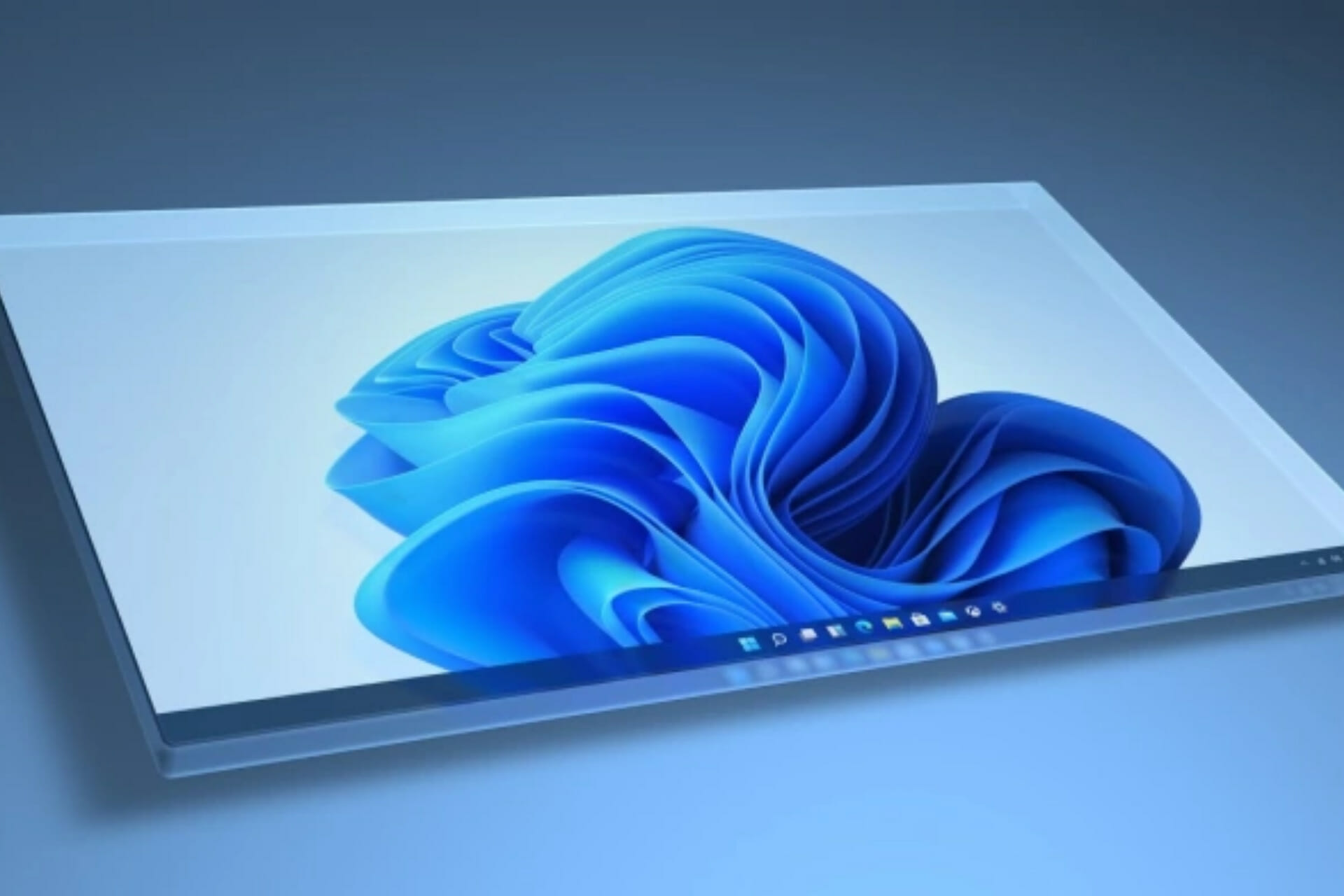
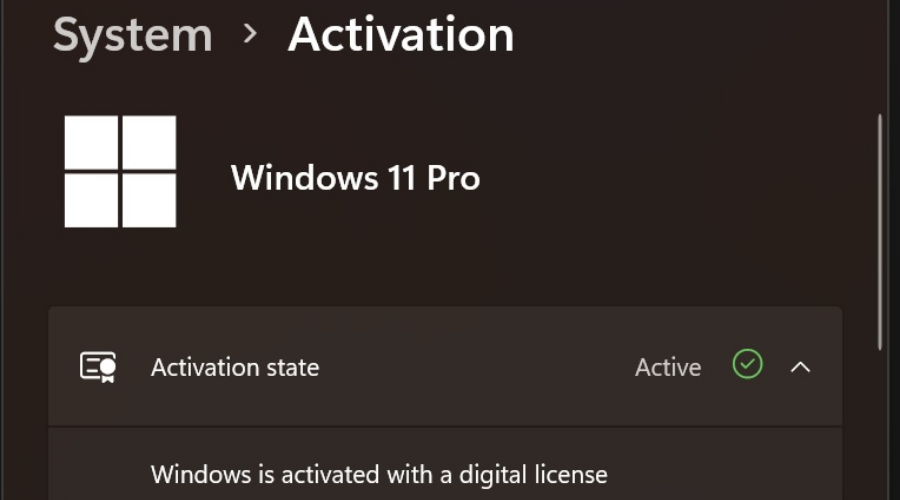
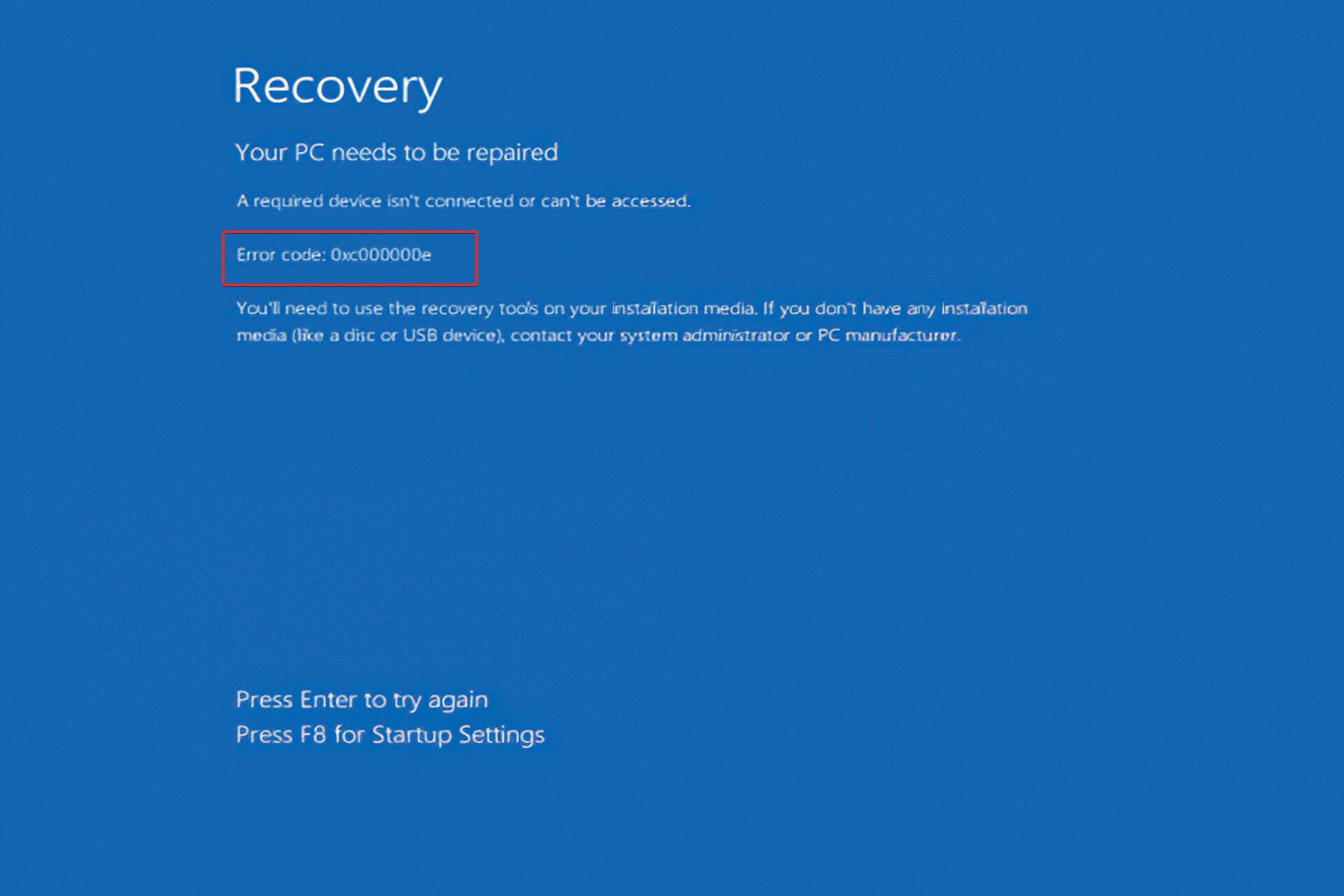










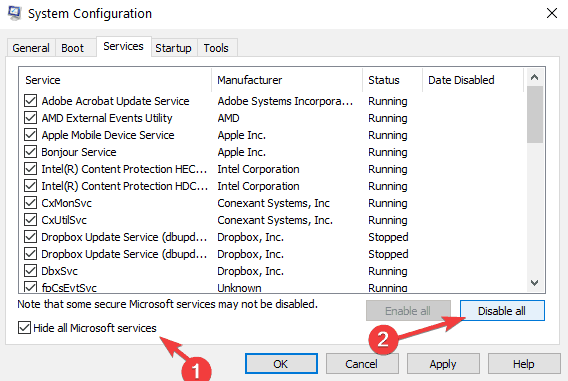







![[Solved] 7z command not recognized / 7z.exe missing](https://windowsreport.com/wp-content/uploads/2020/09/7-Zip-Not-implemented-error.jpg)
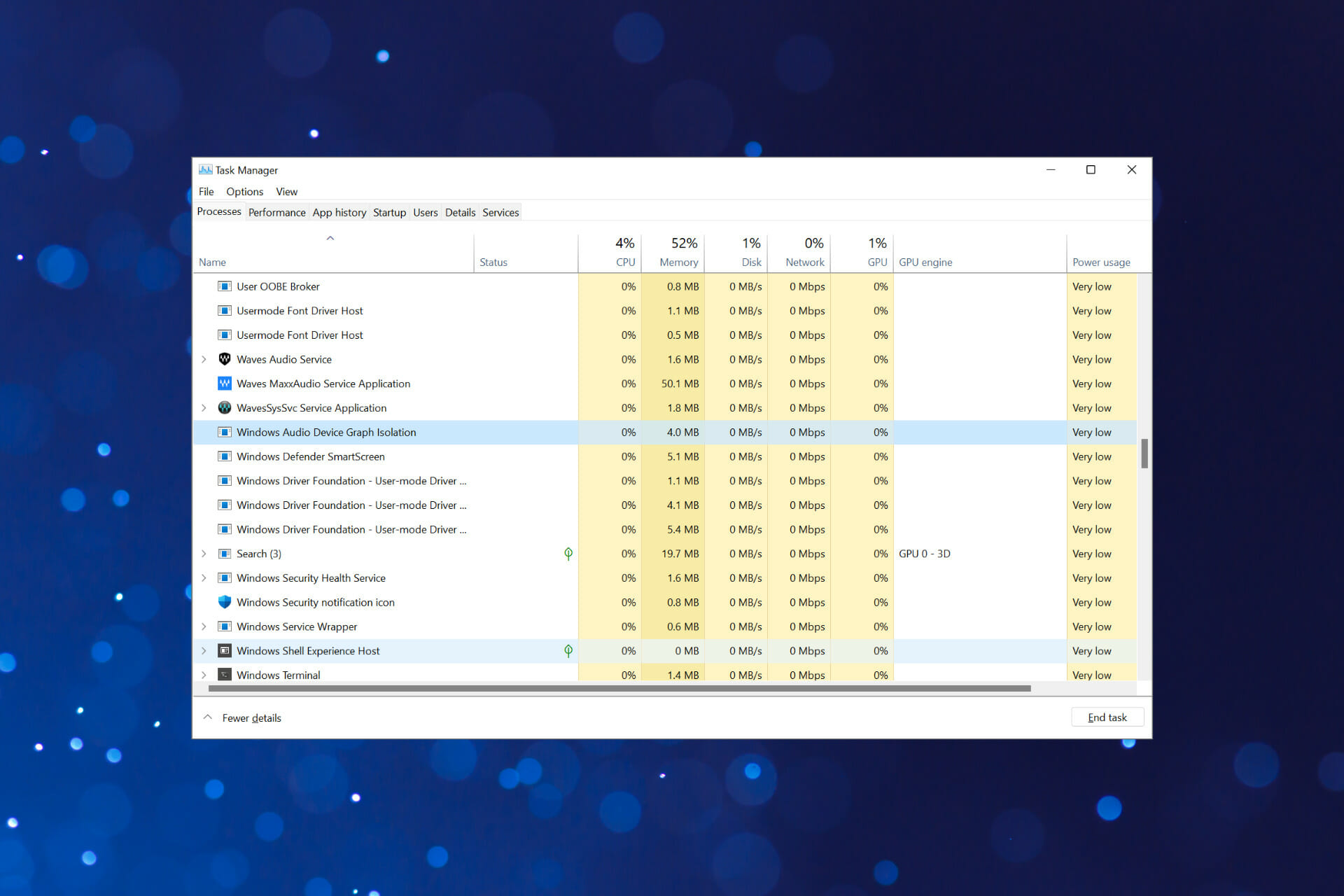
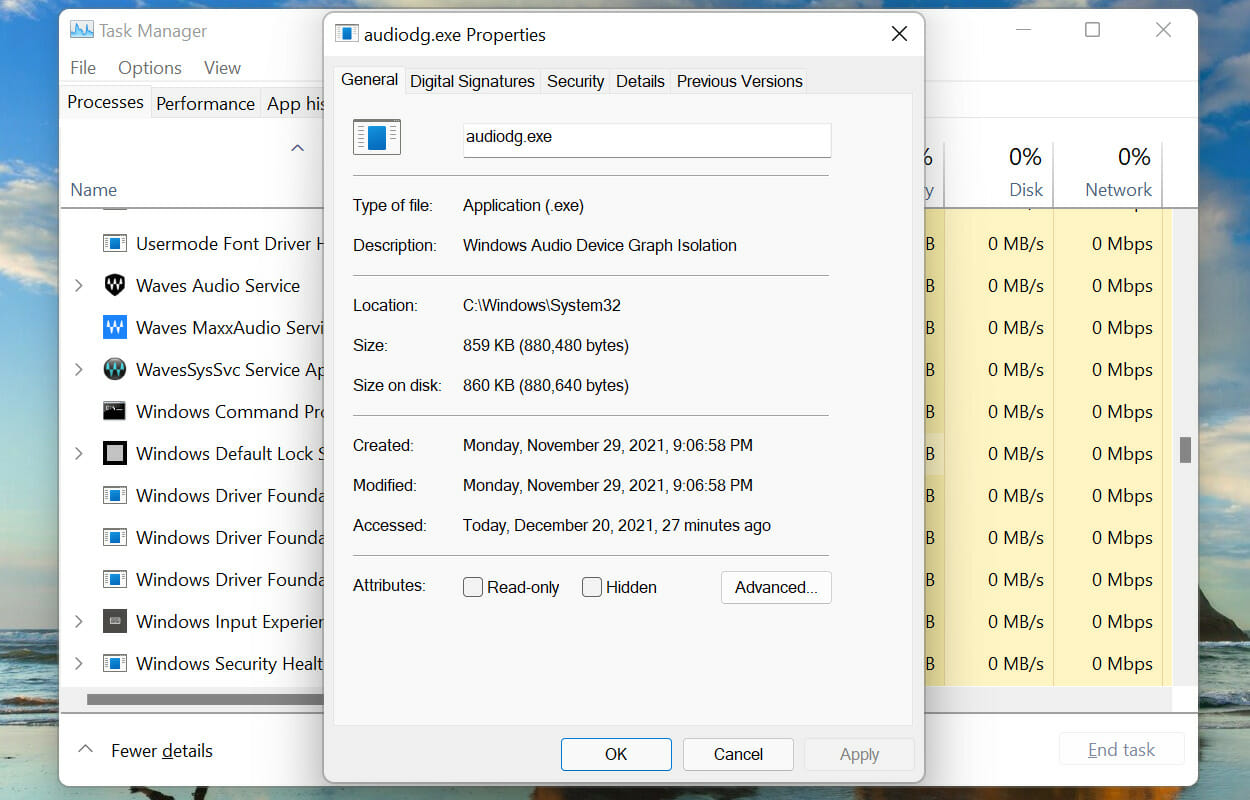
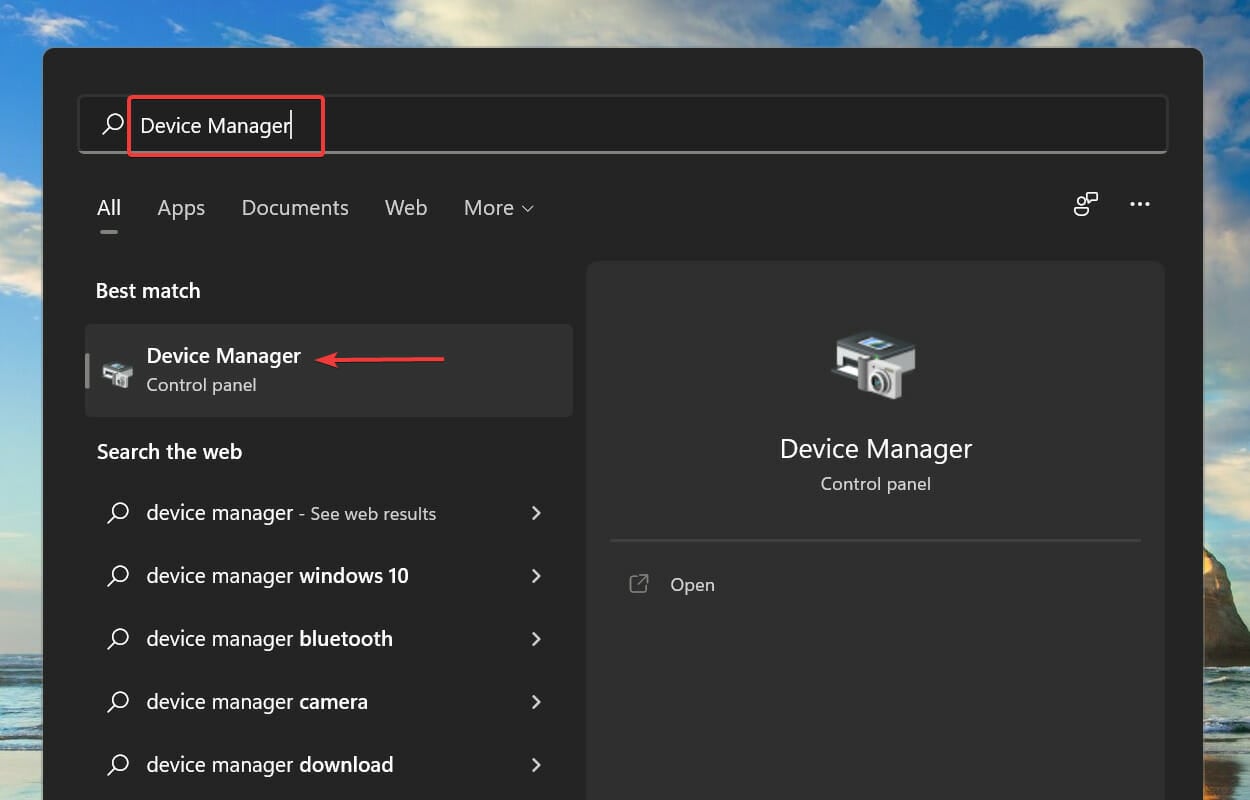
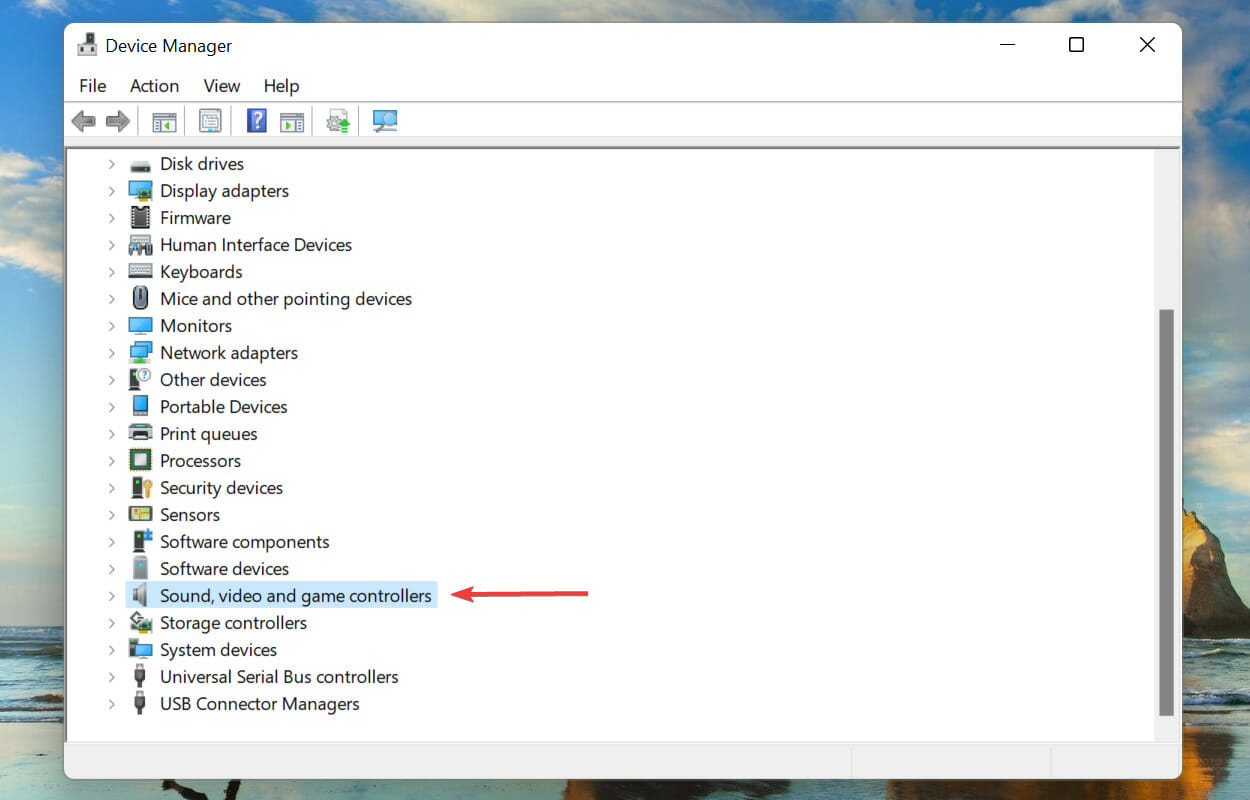
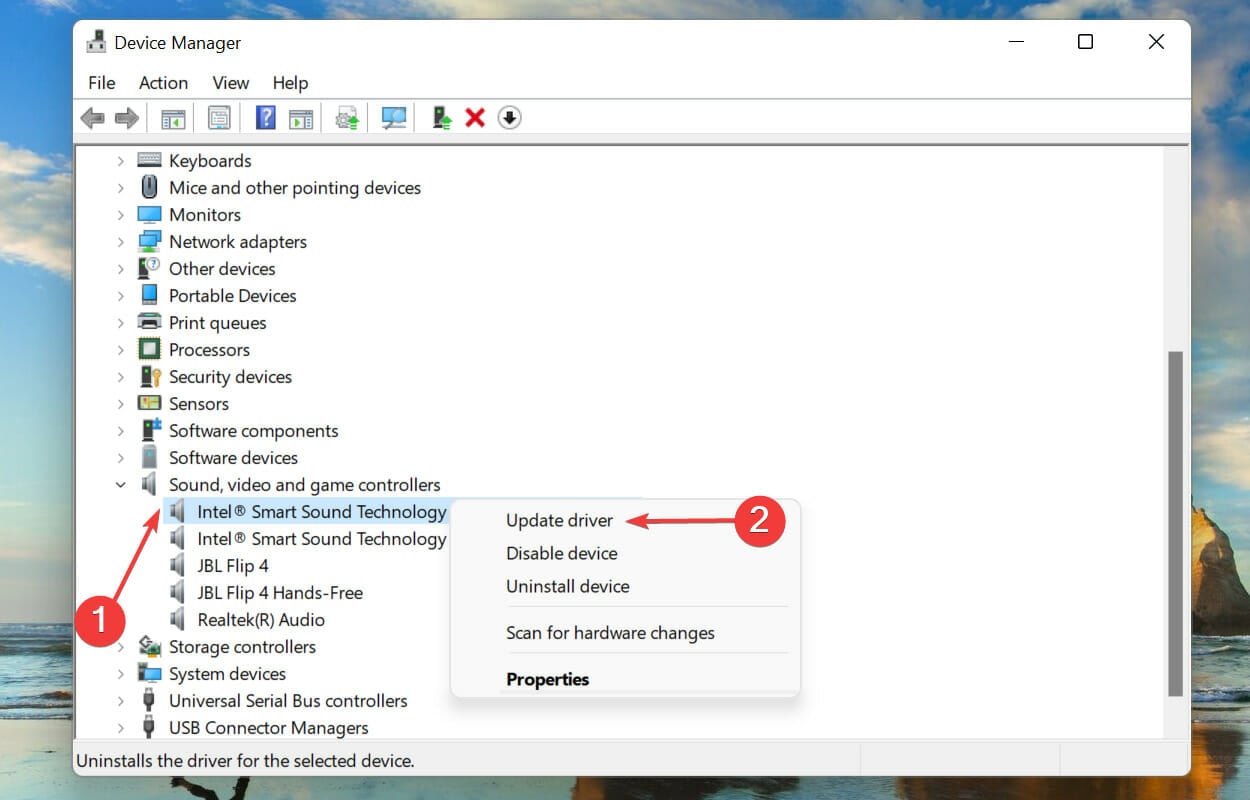
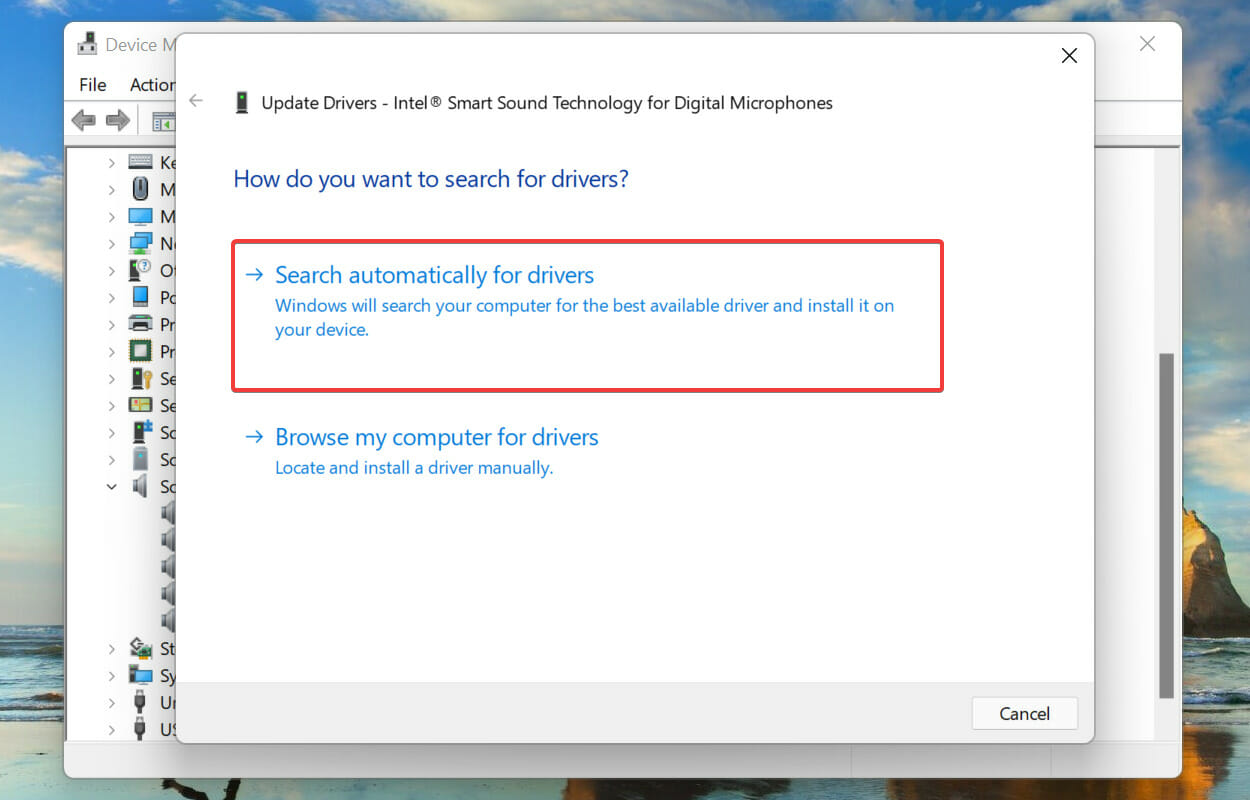
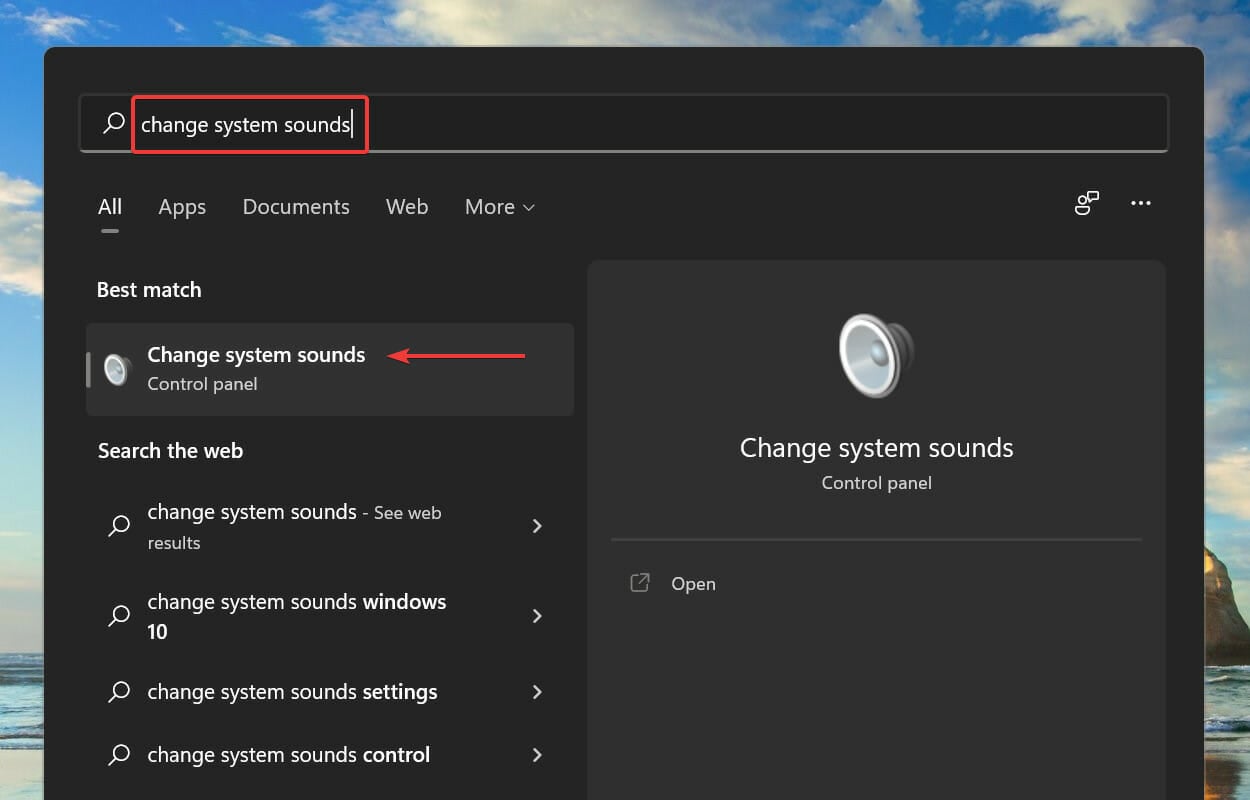
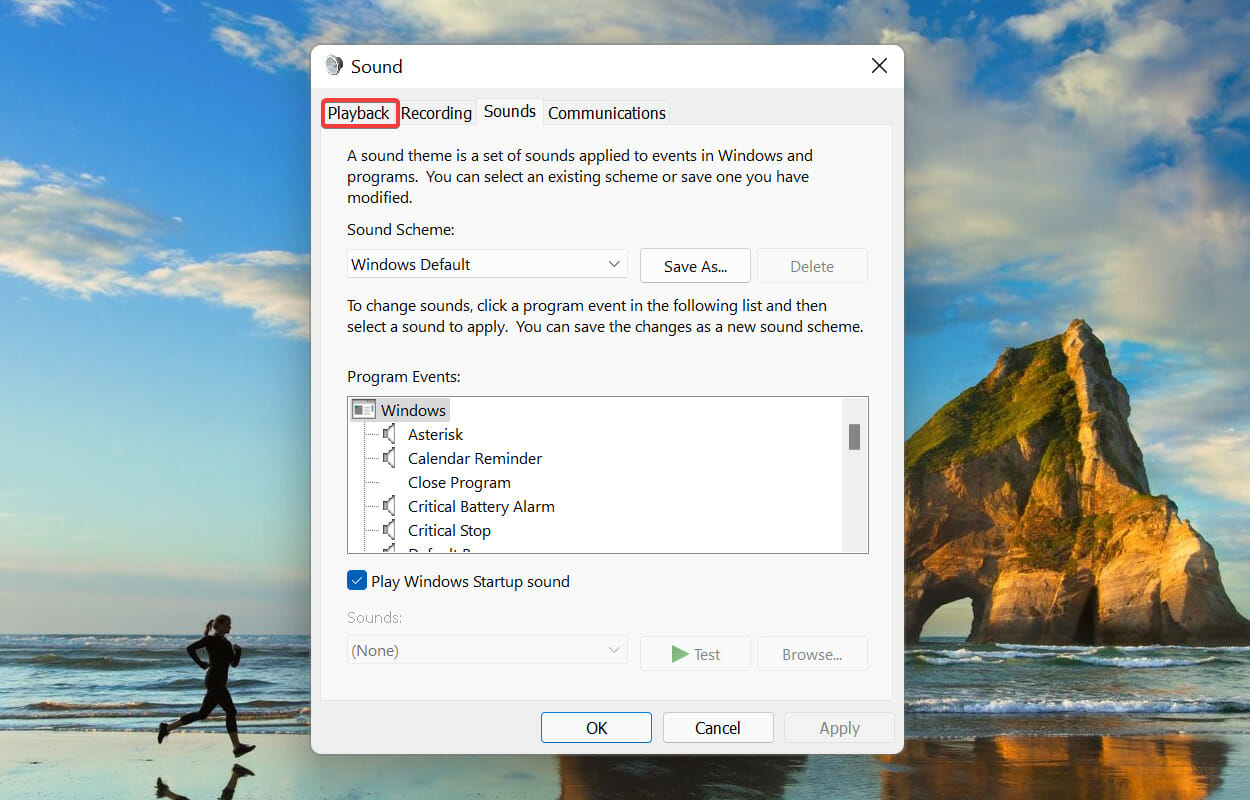
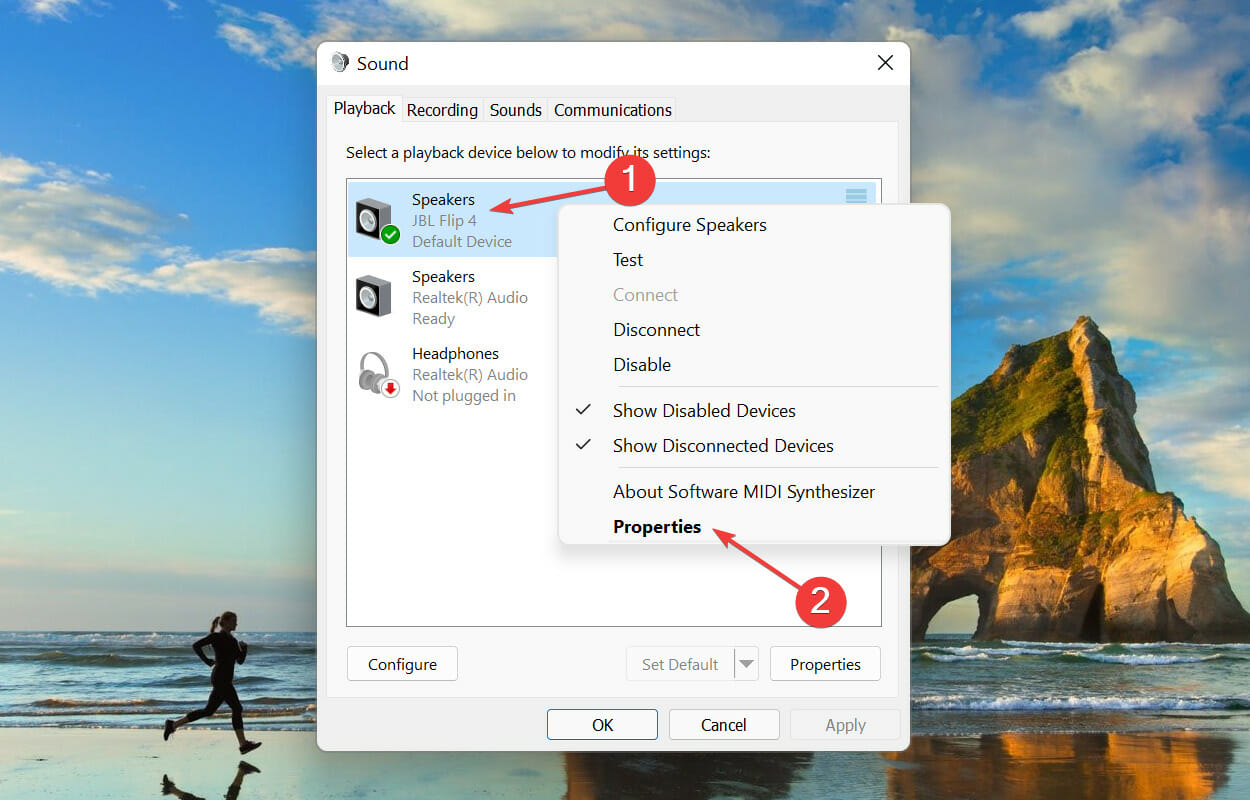
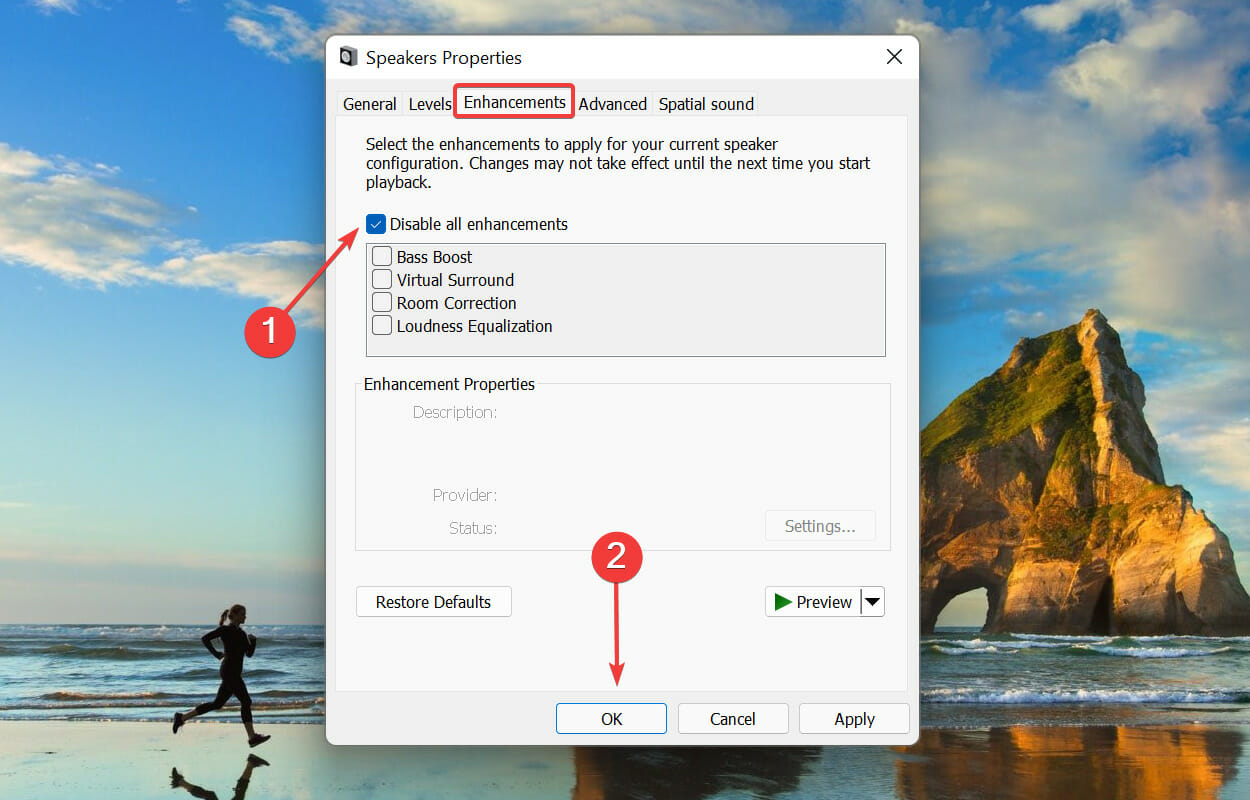
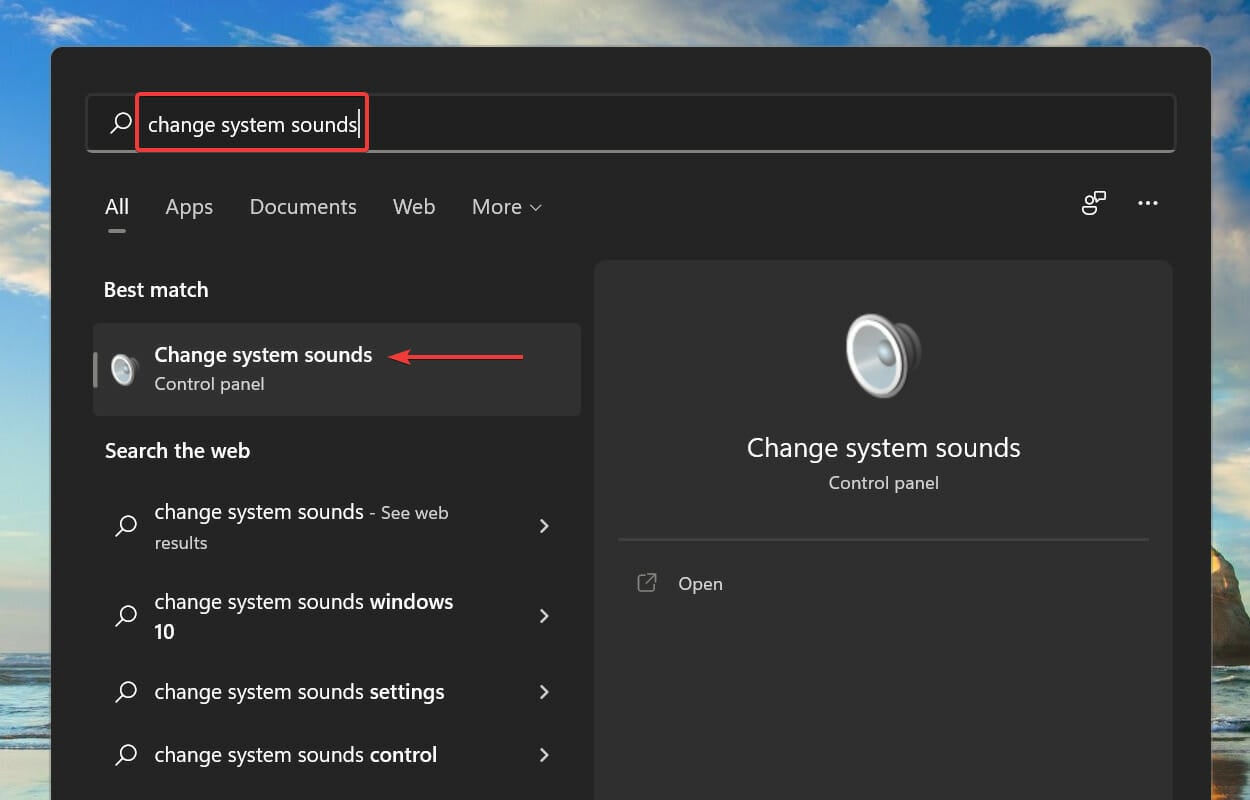
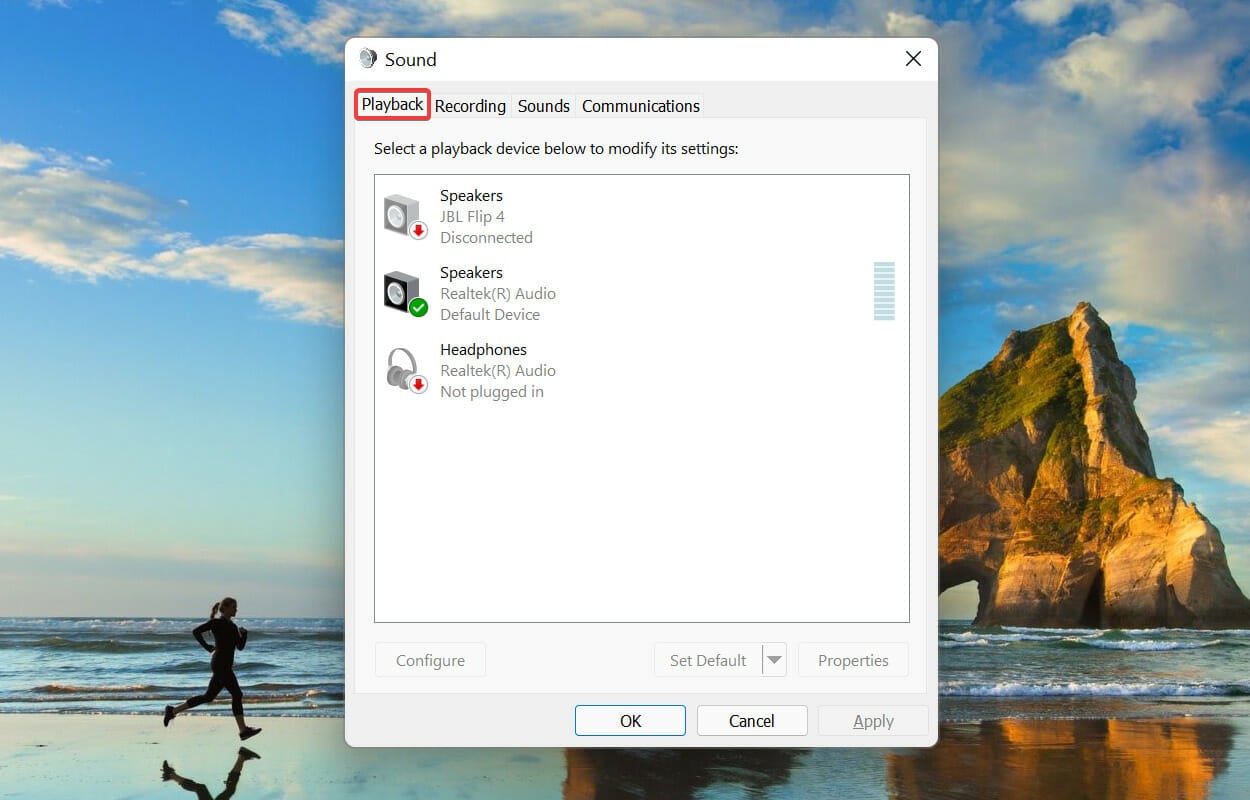
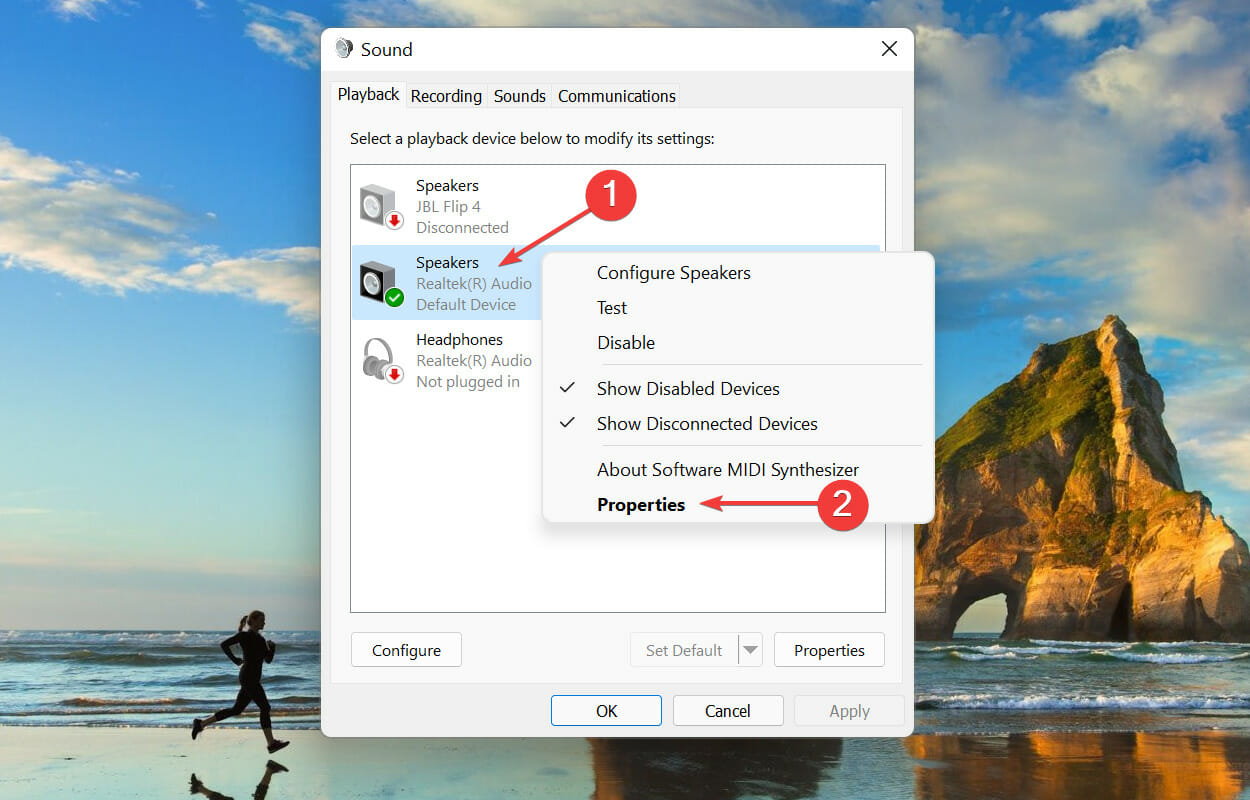
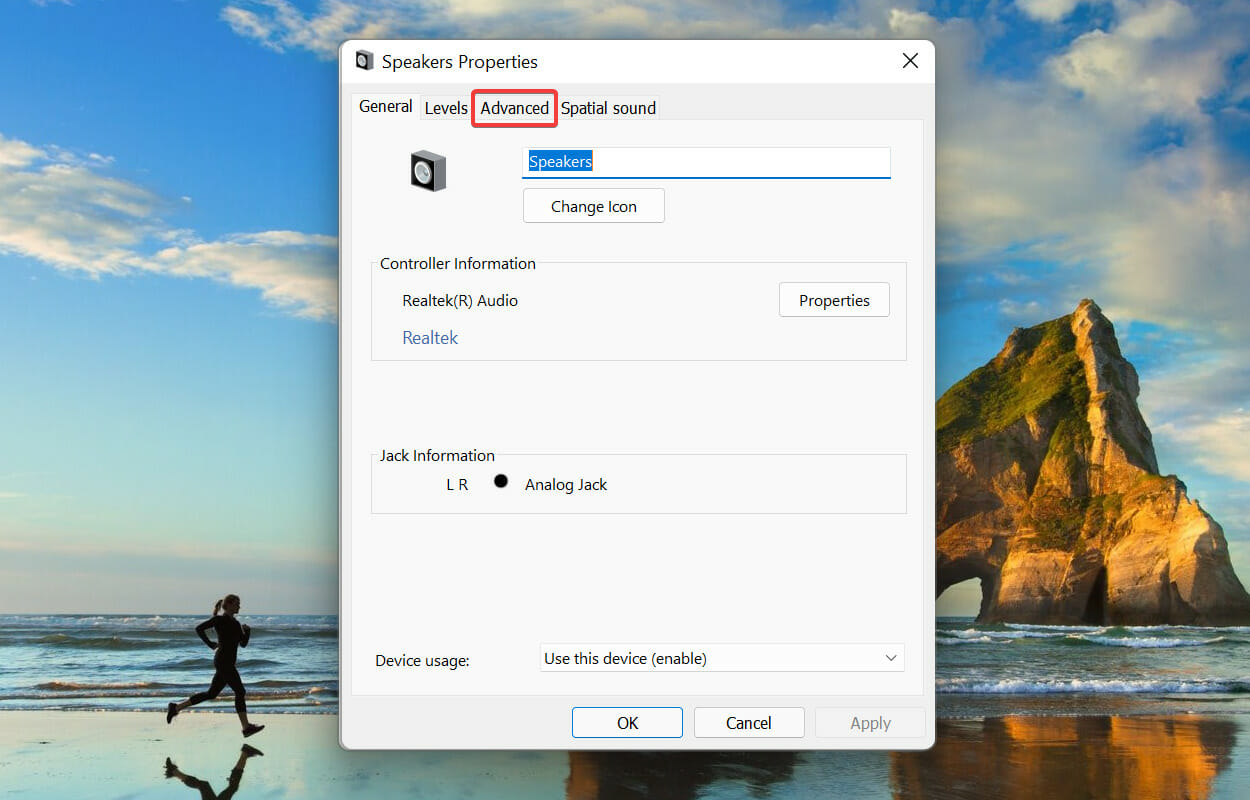
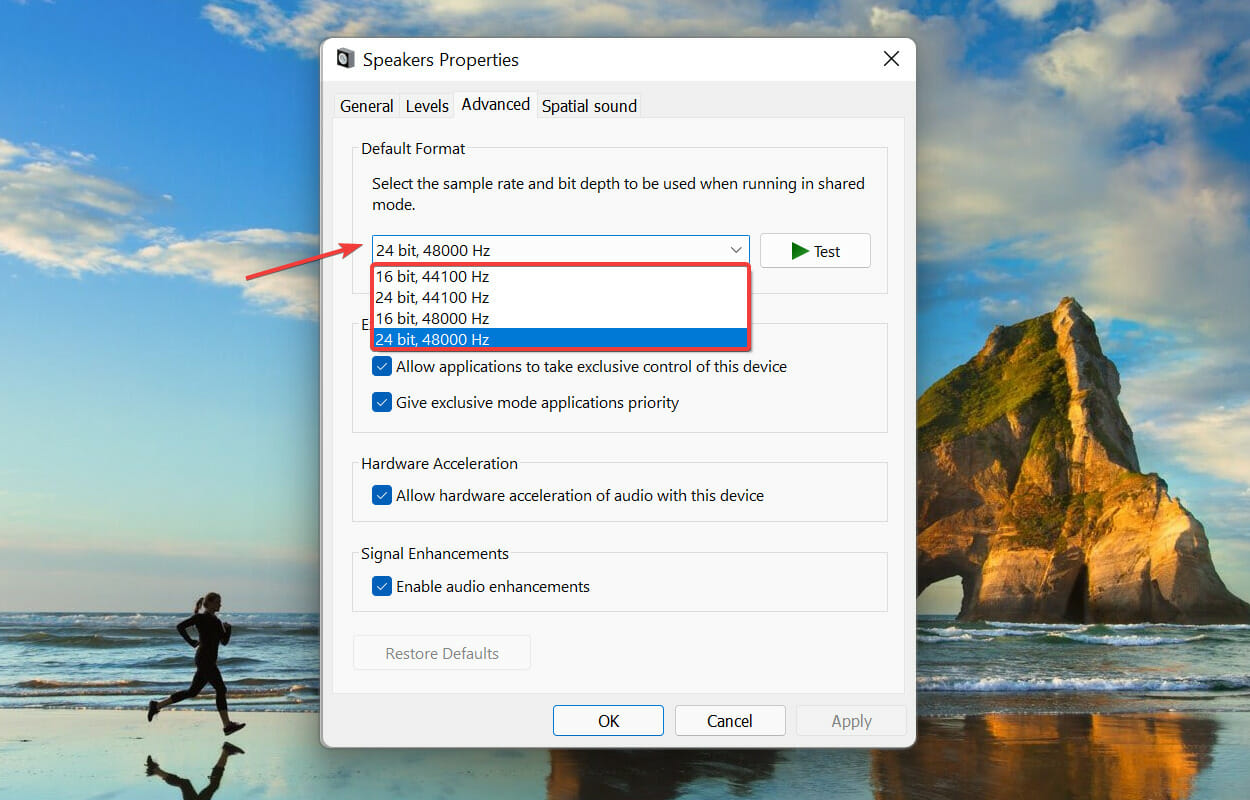
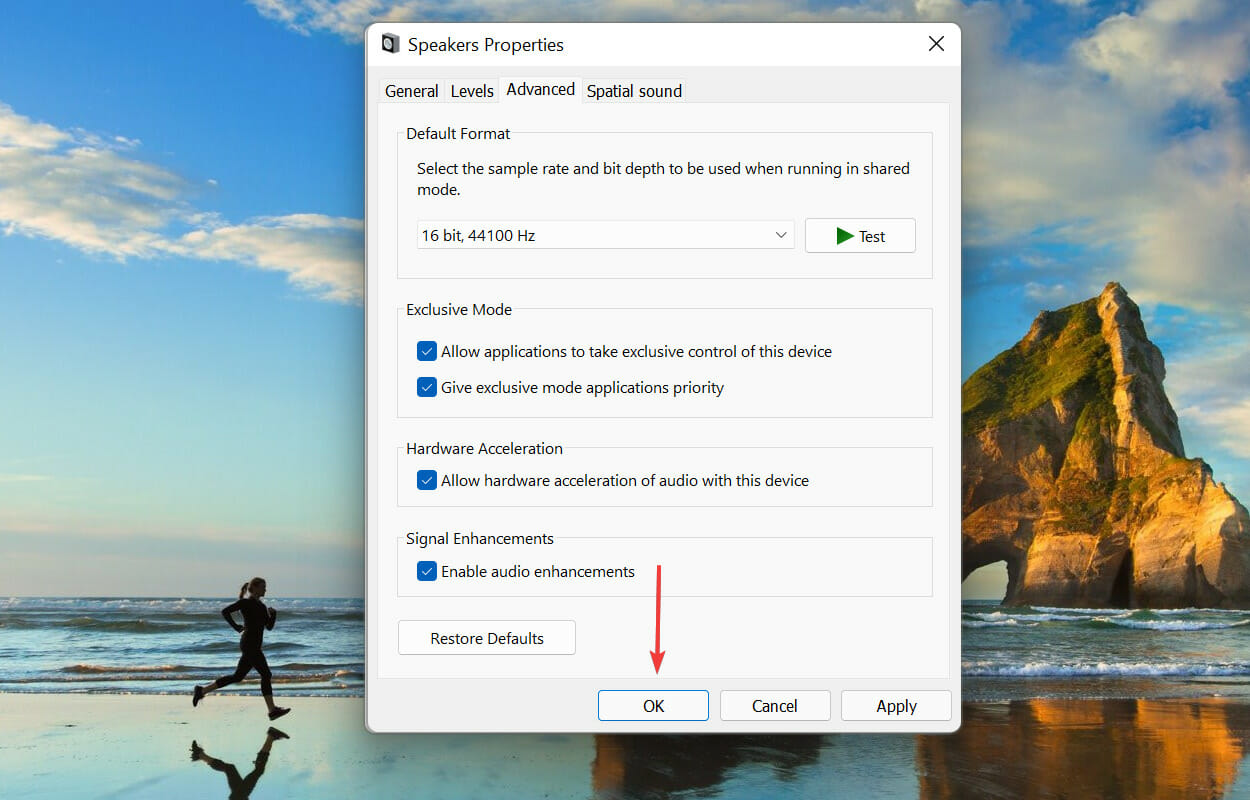
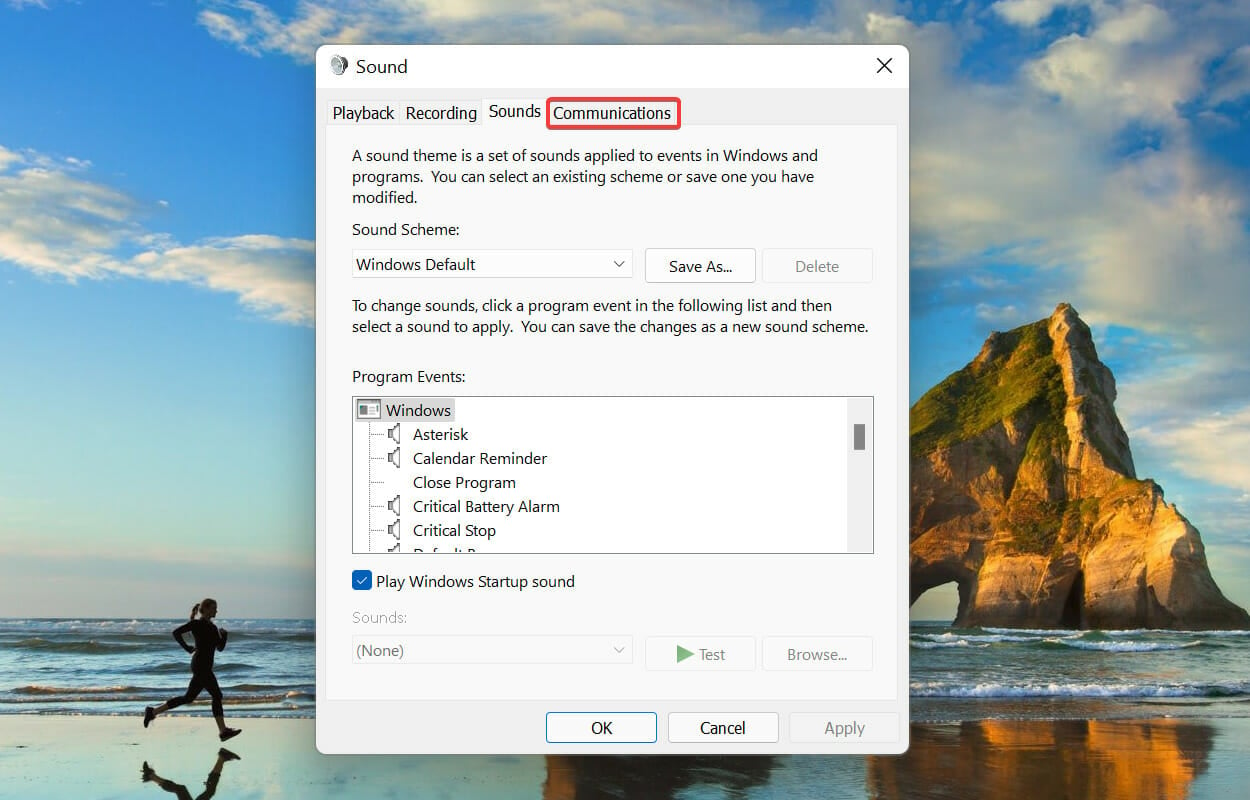
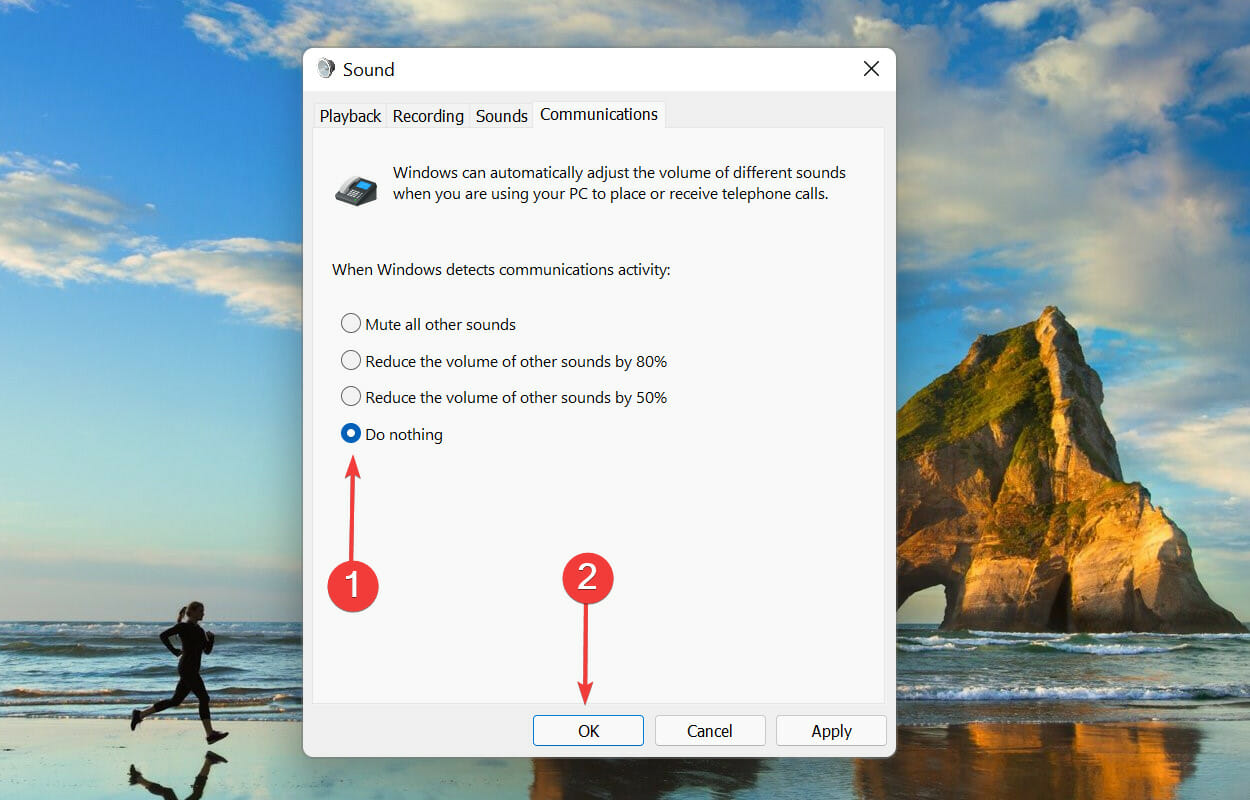
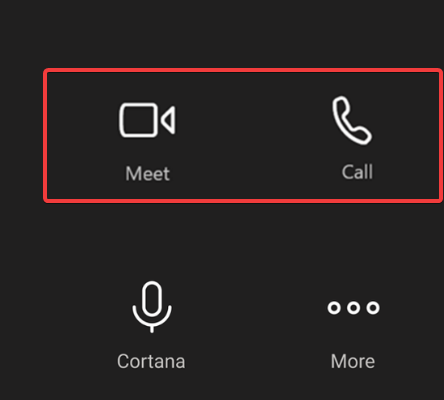
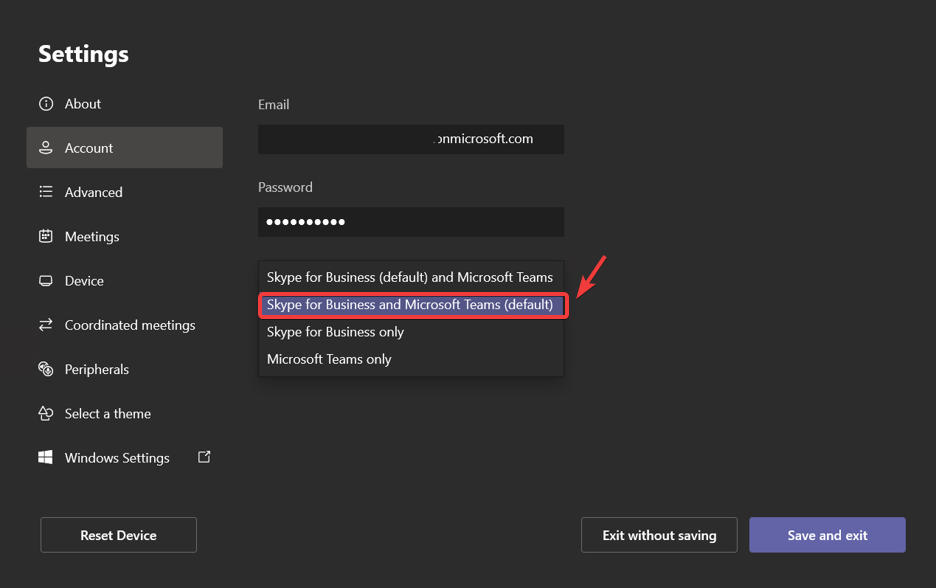
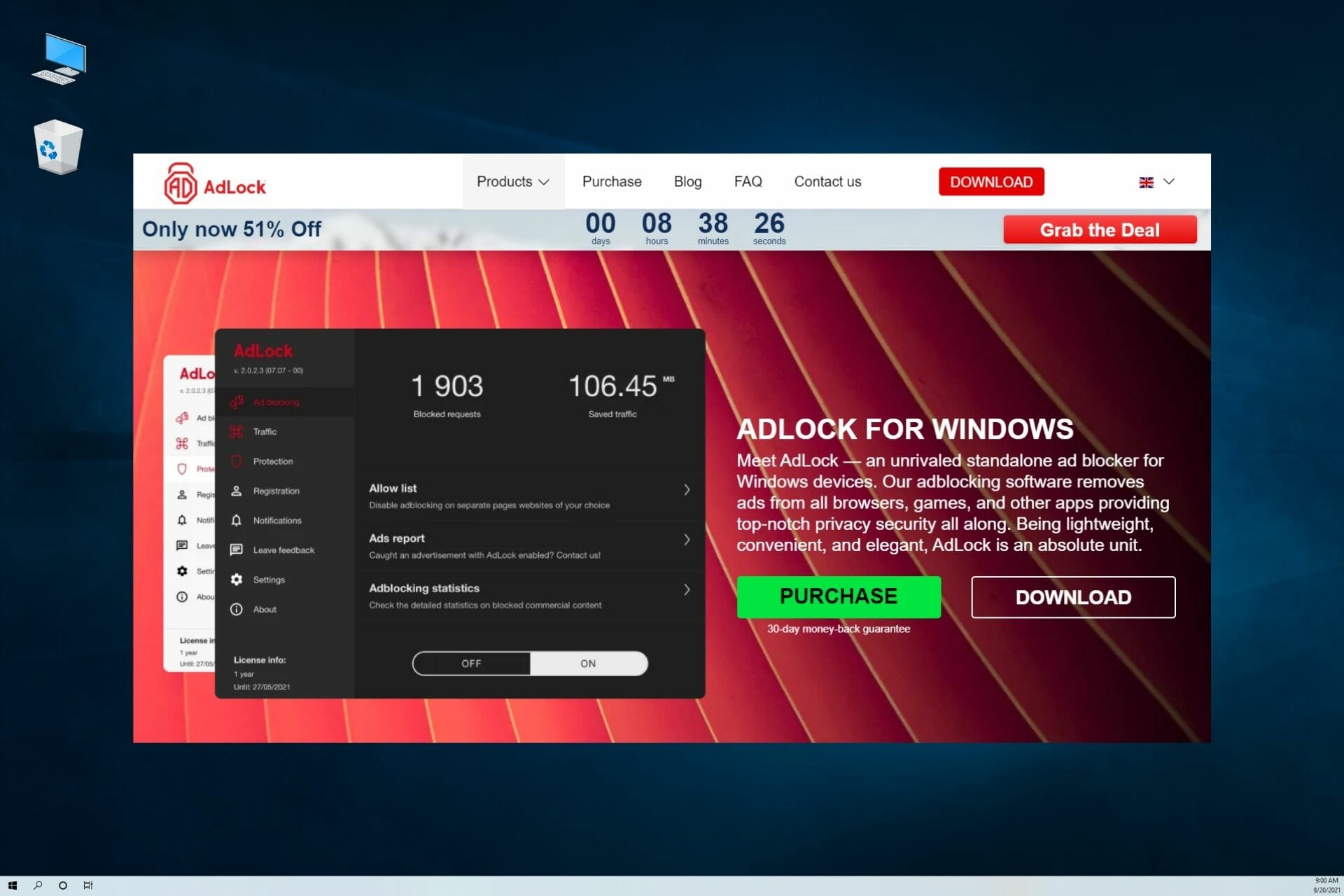
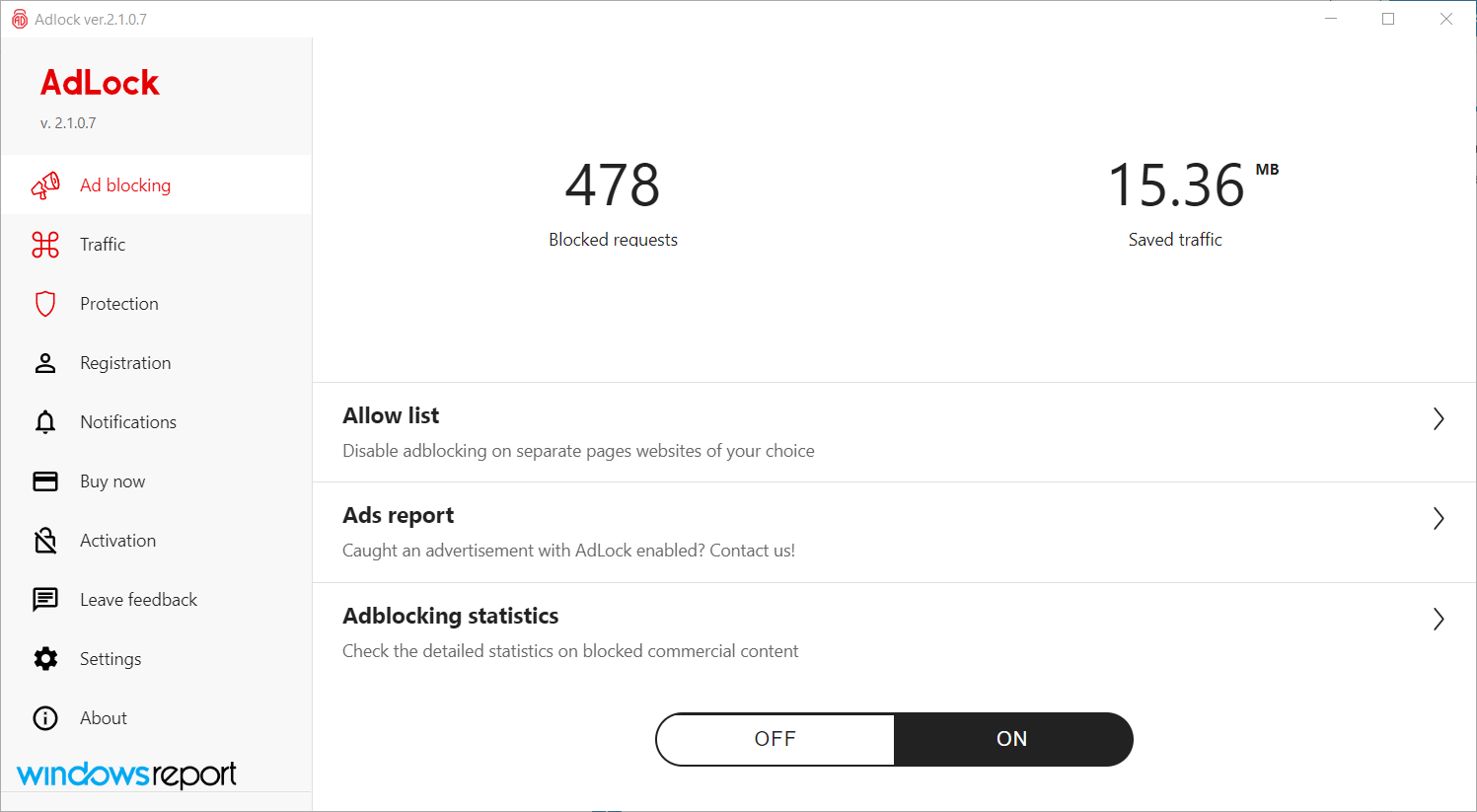
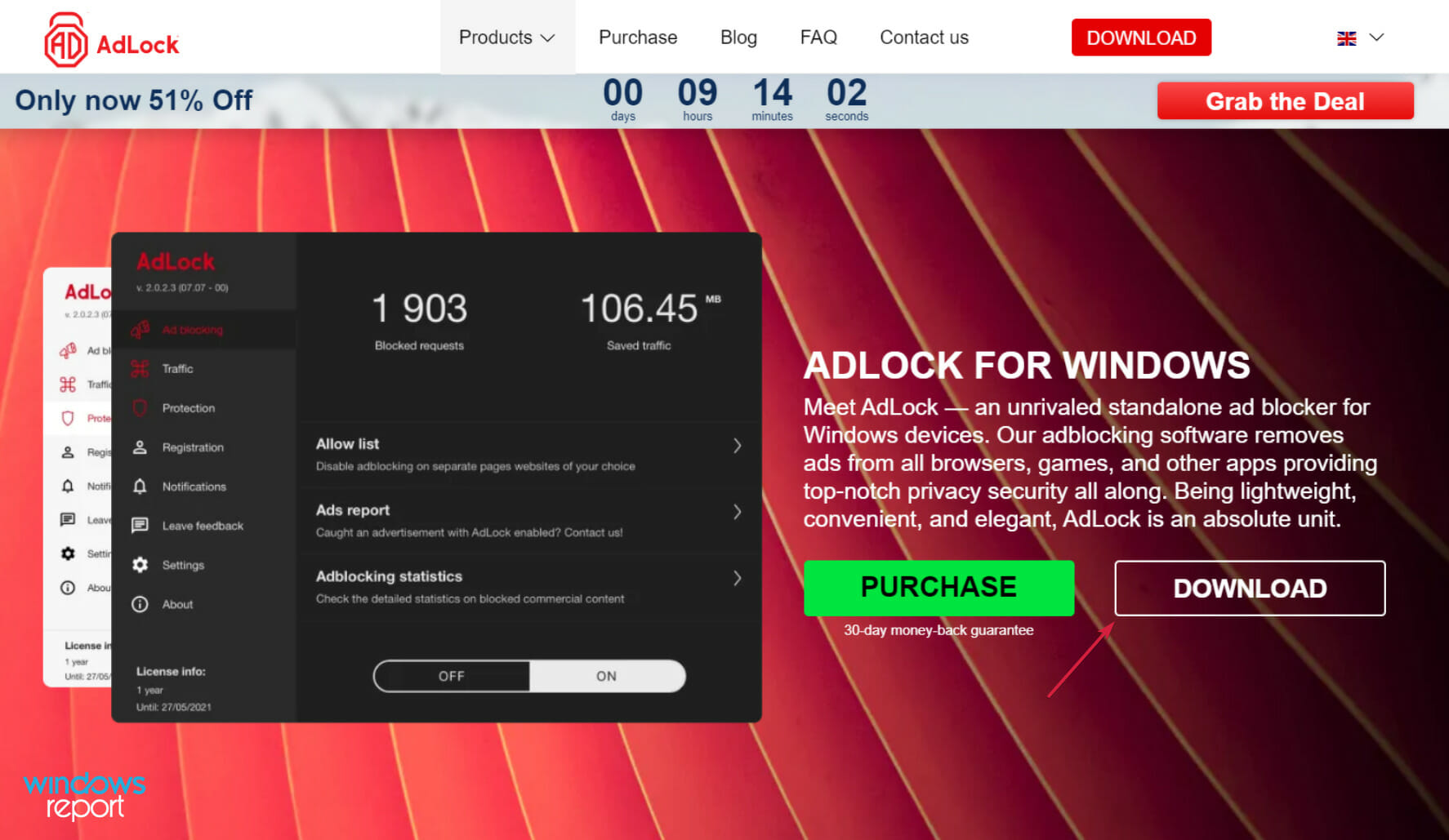
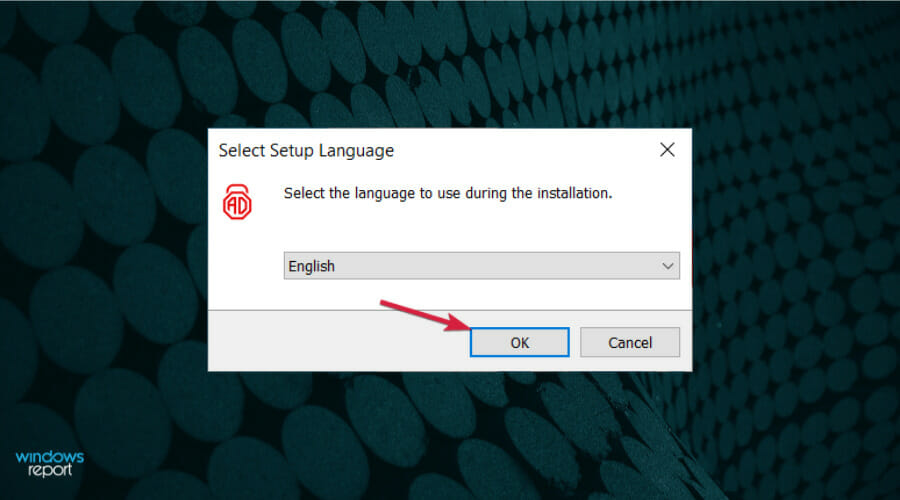
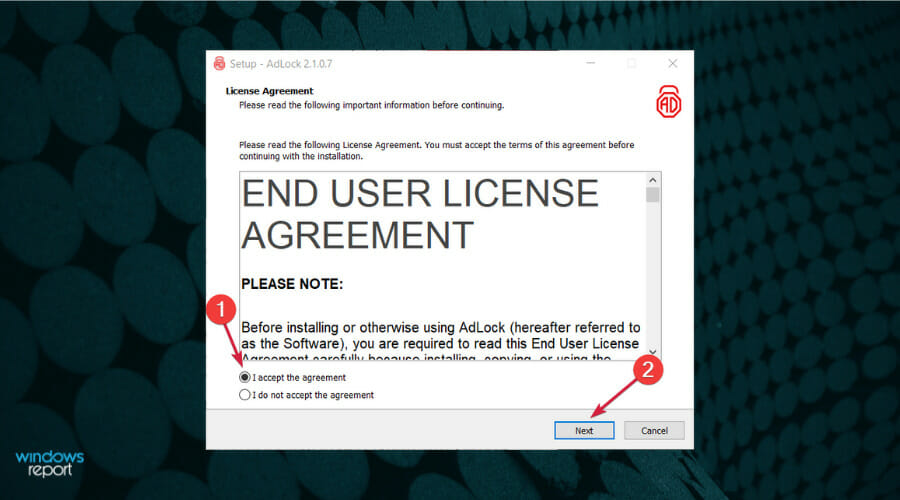
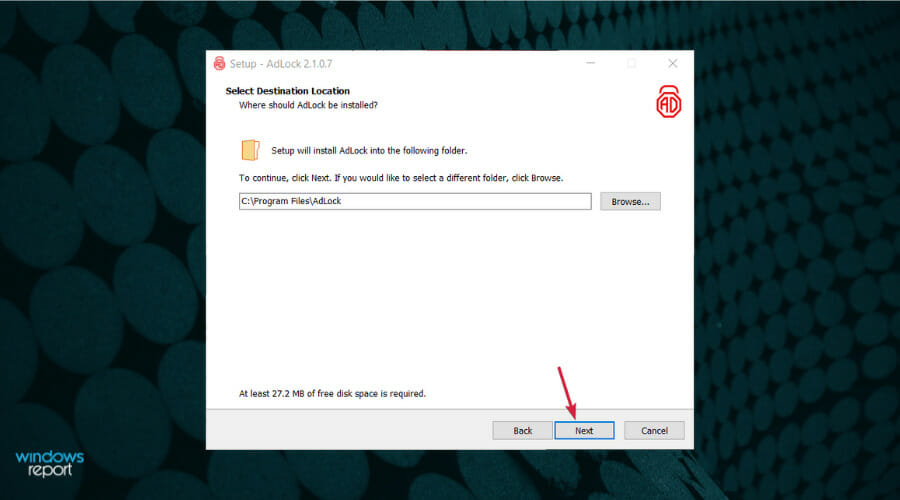
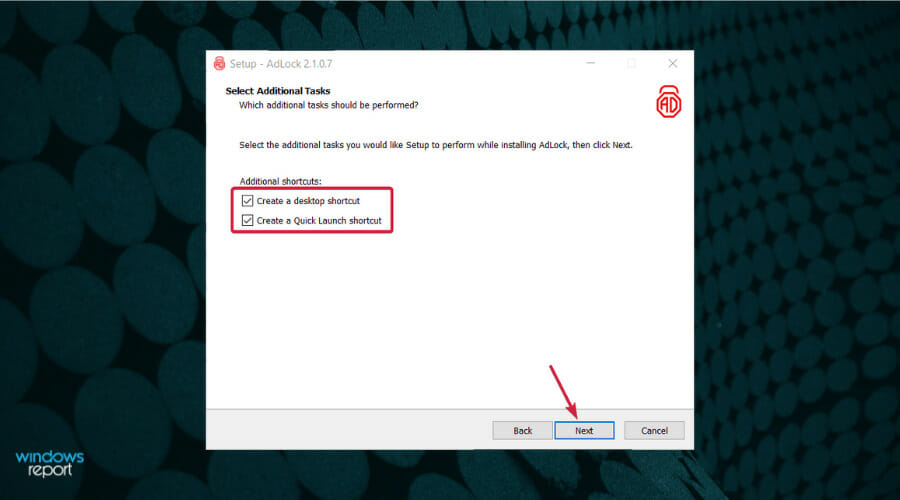
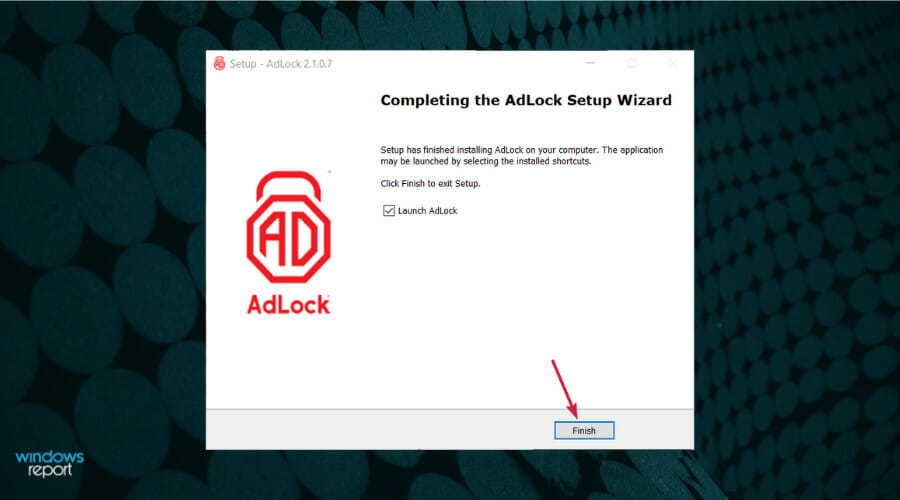
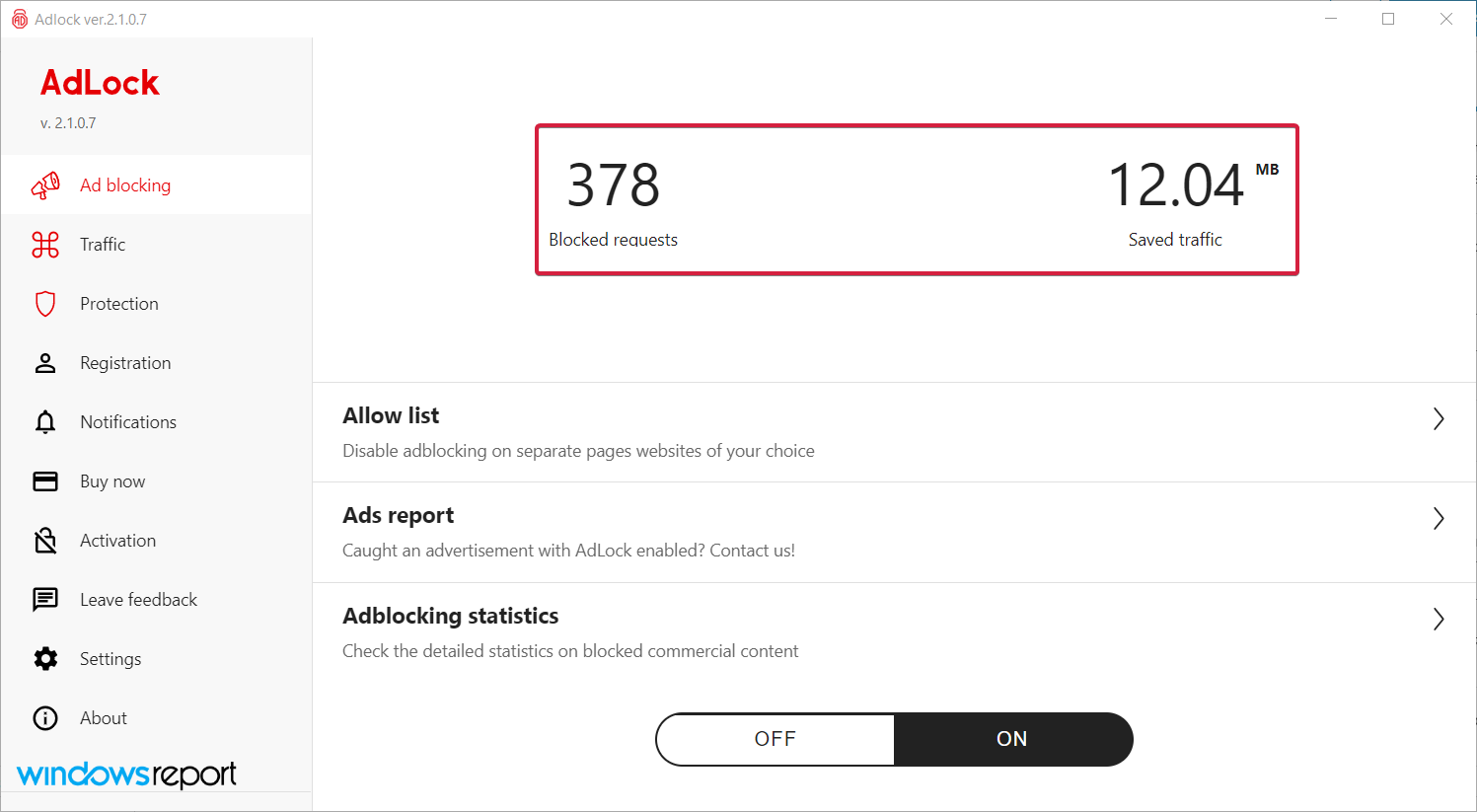
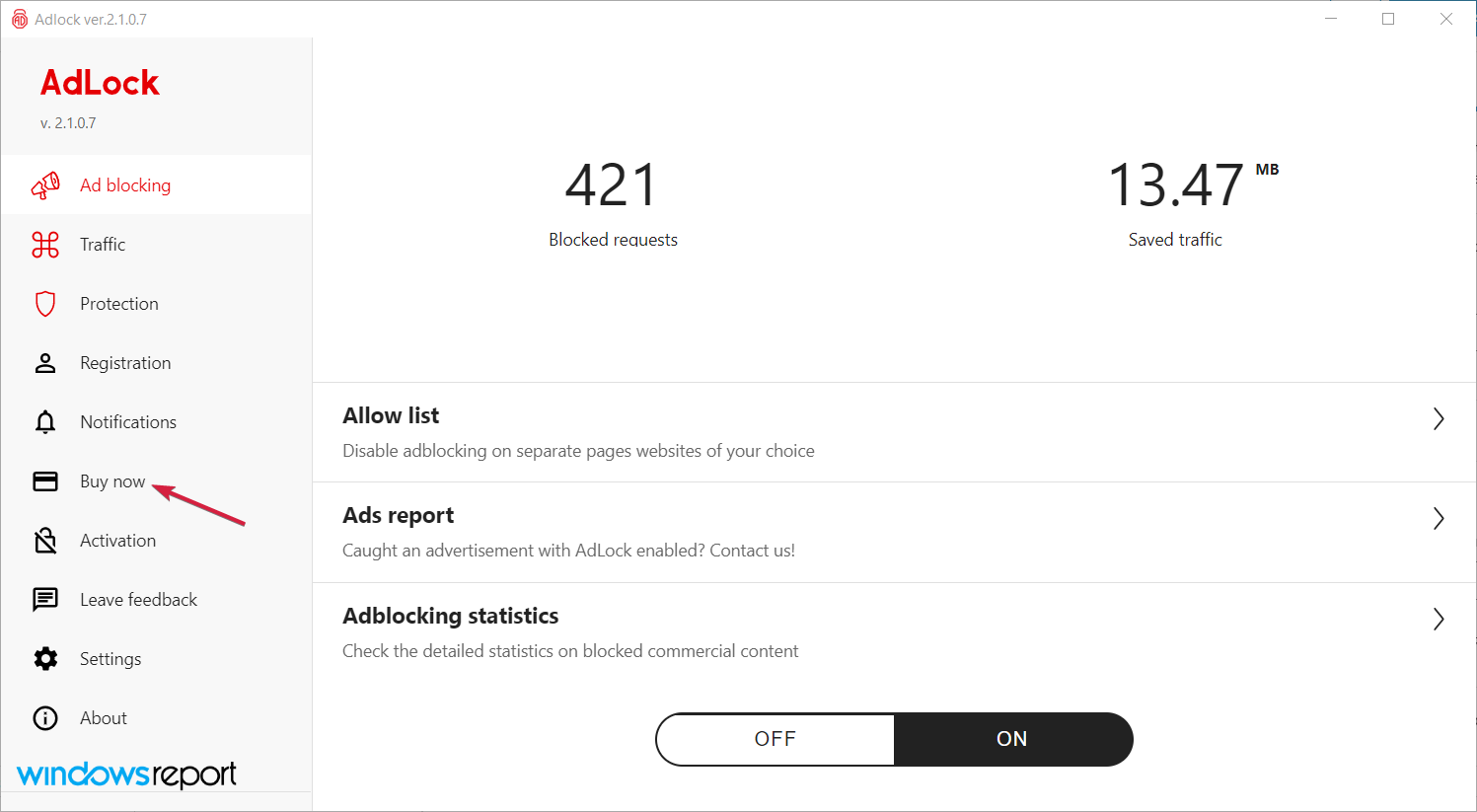
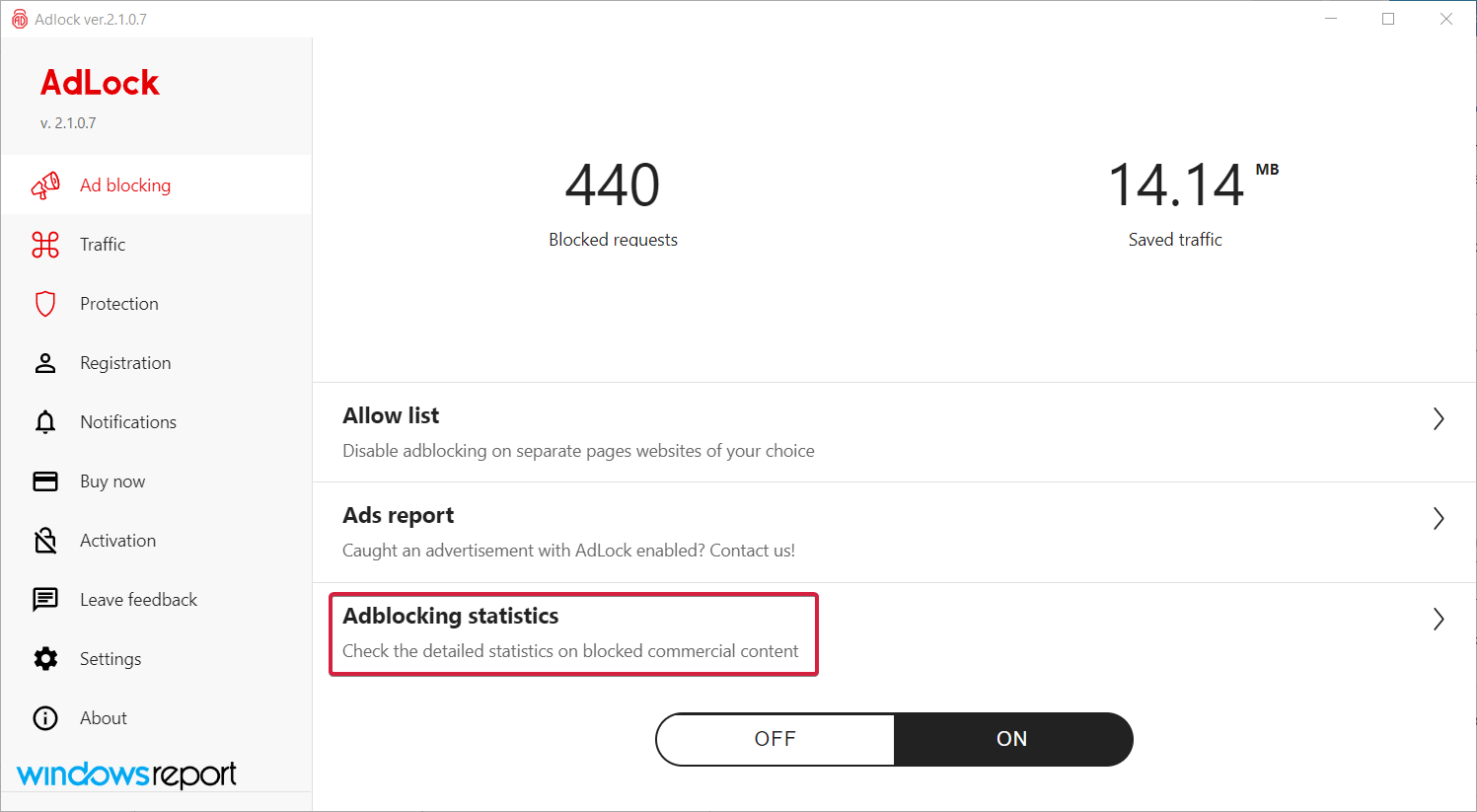


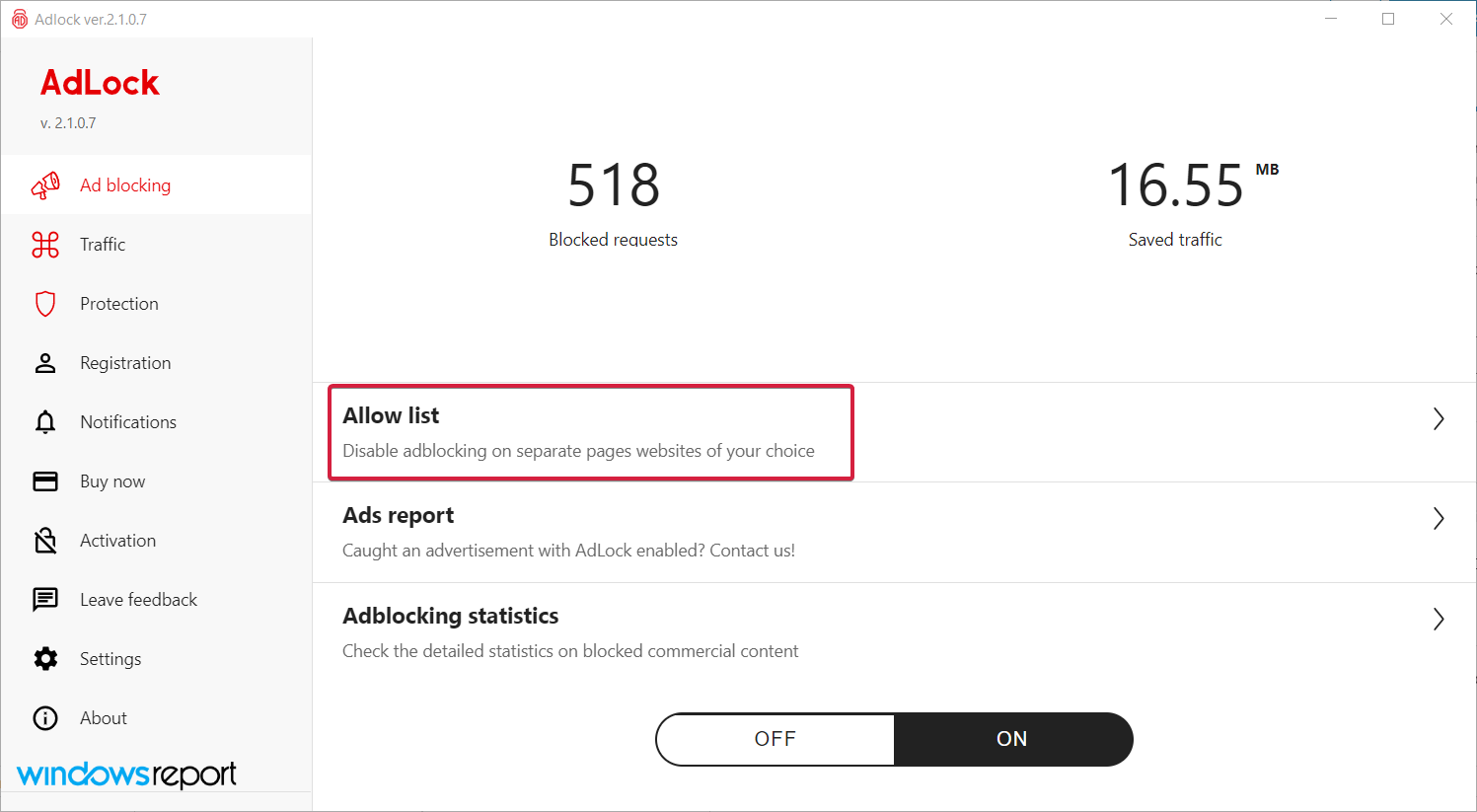
![Change title to Best Antivirus for HP Laptop [2026 Ranked & Reviewed]](https://windowsreport.com/wp-content/uploads/2021/12/best-antivirus-for-hp-laptop.jpg)

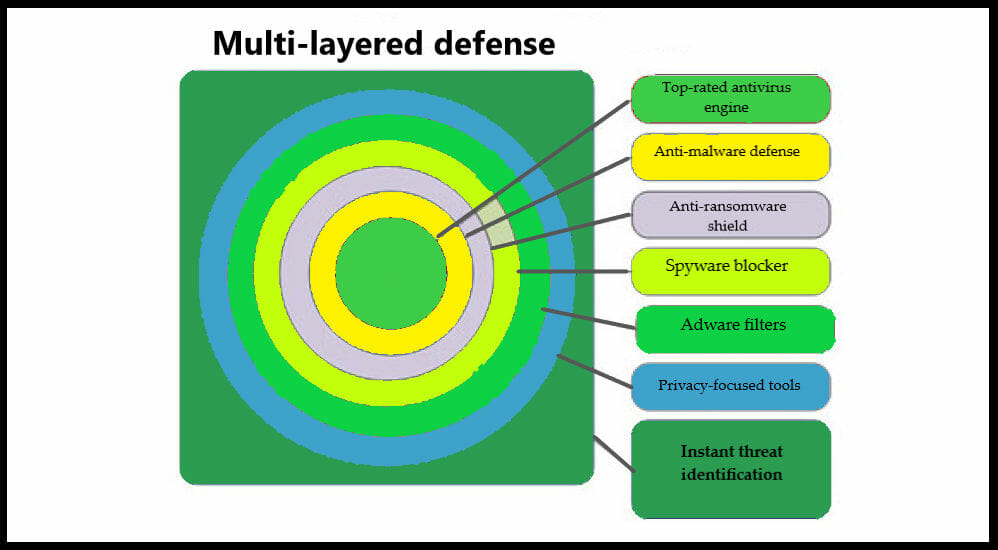
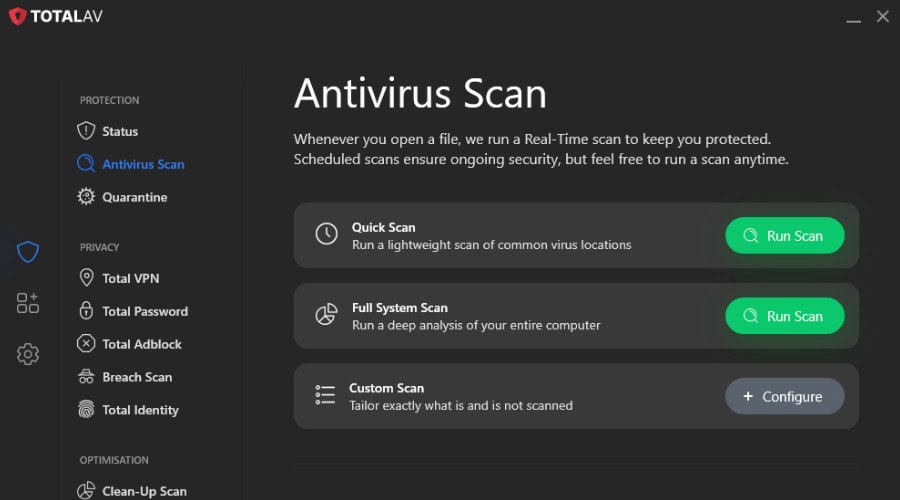

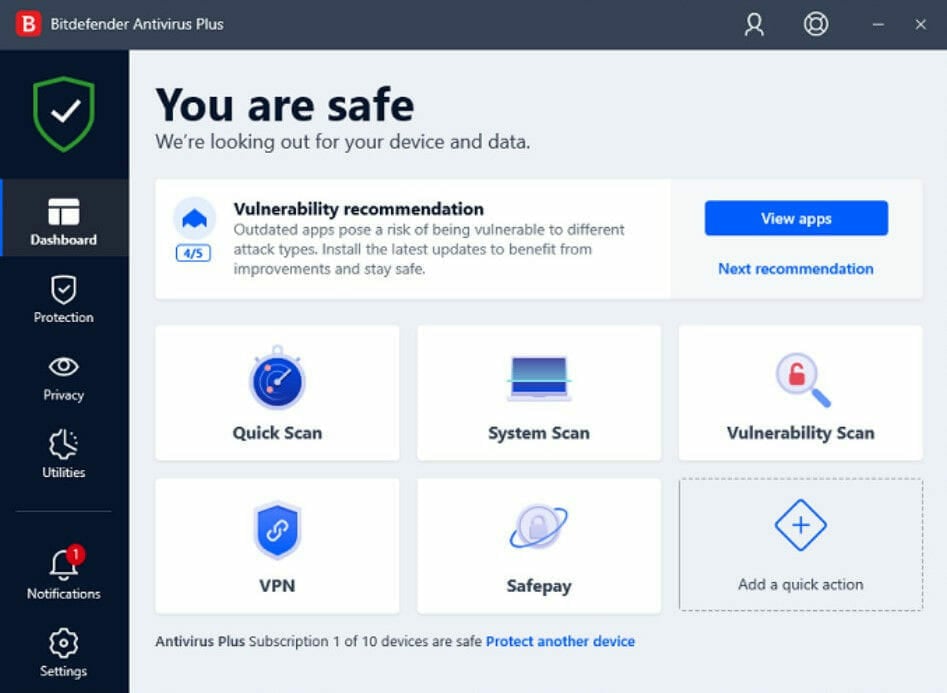
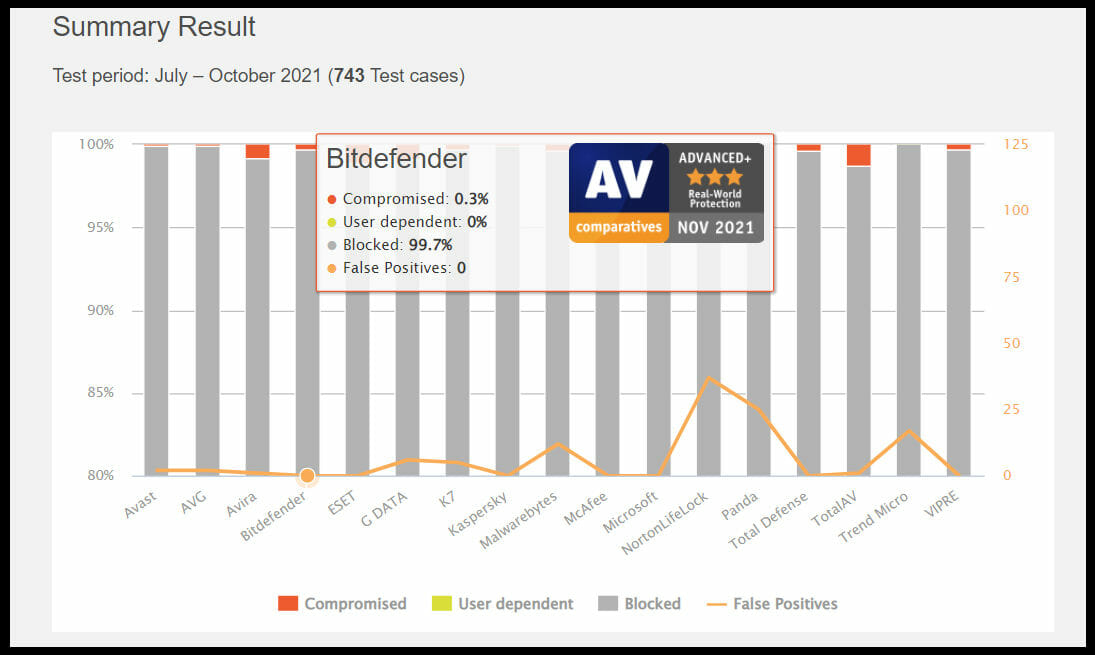
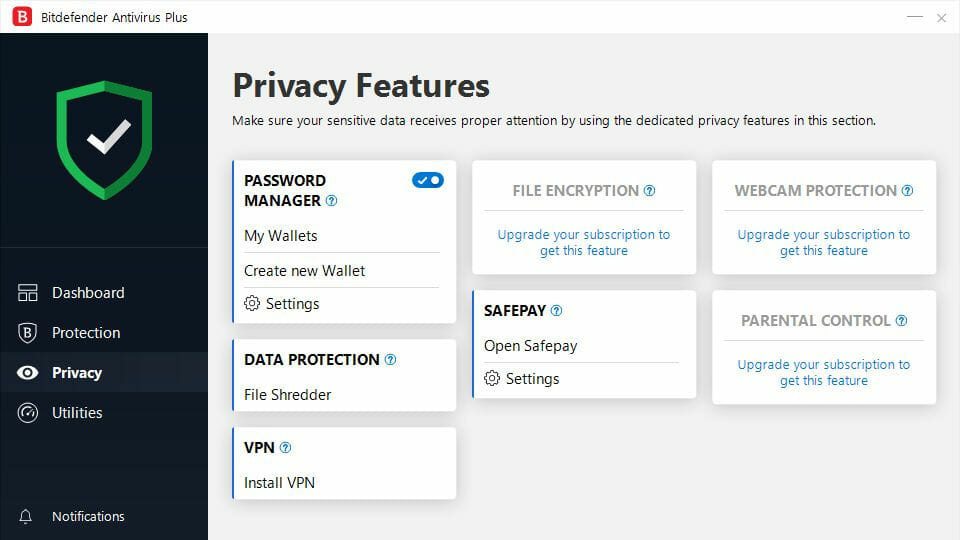
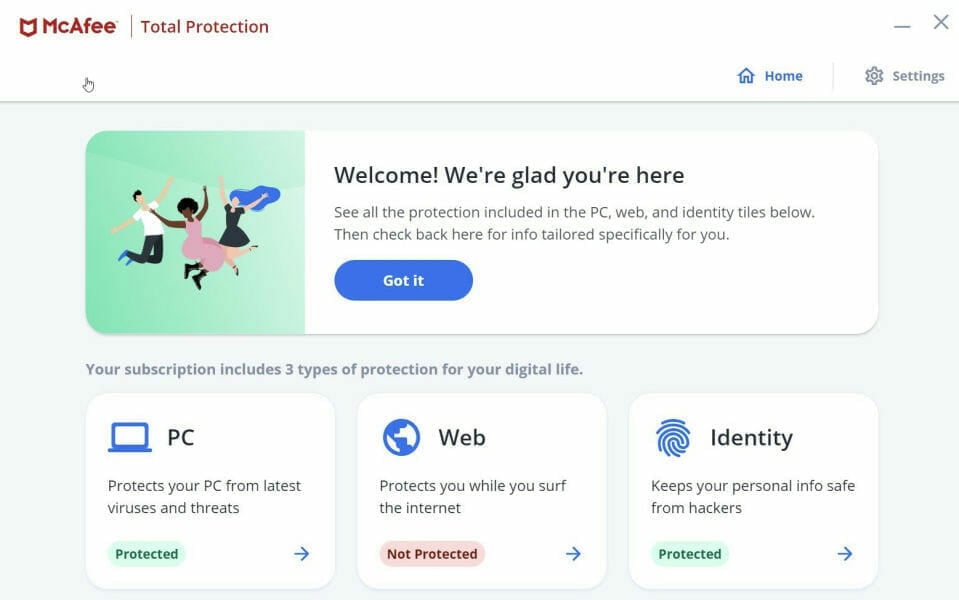
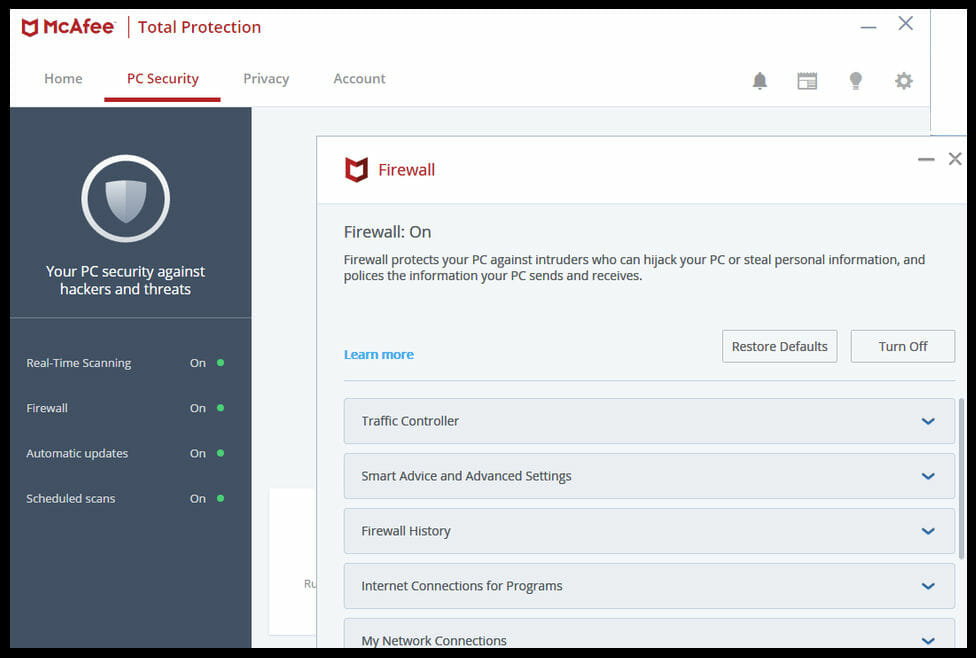
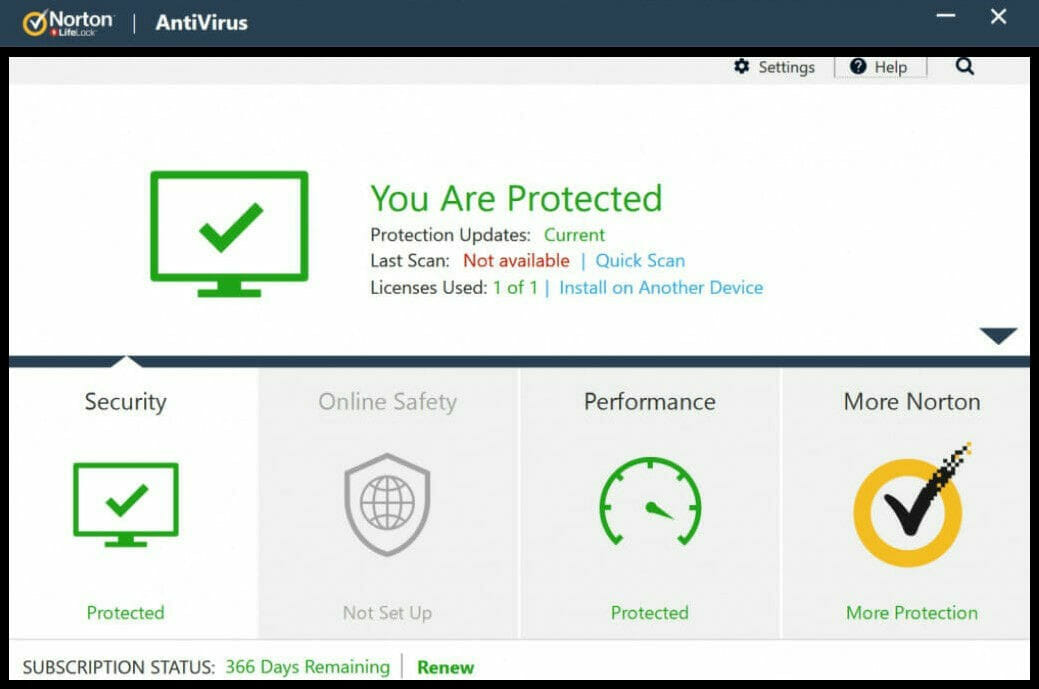
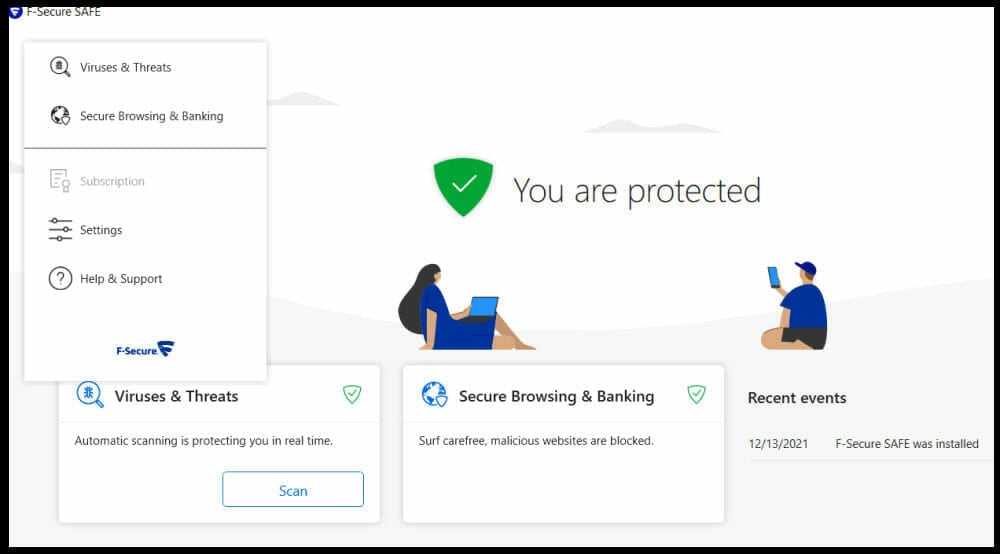
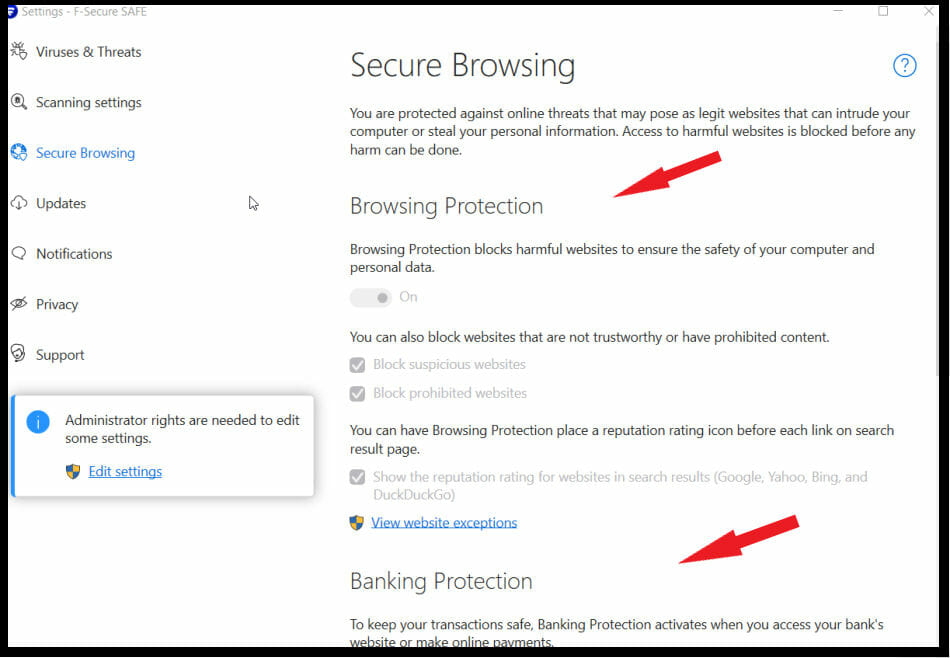
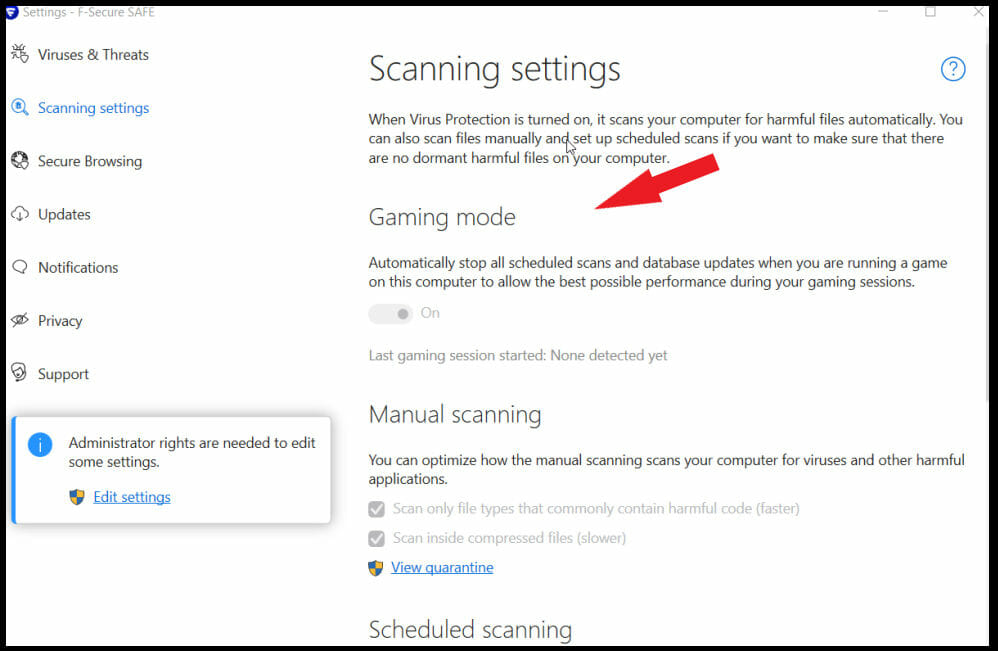


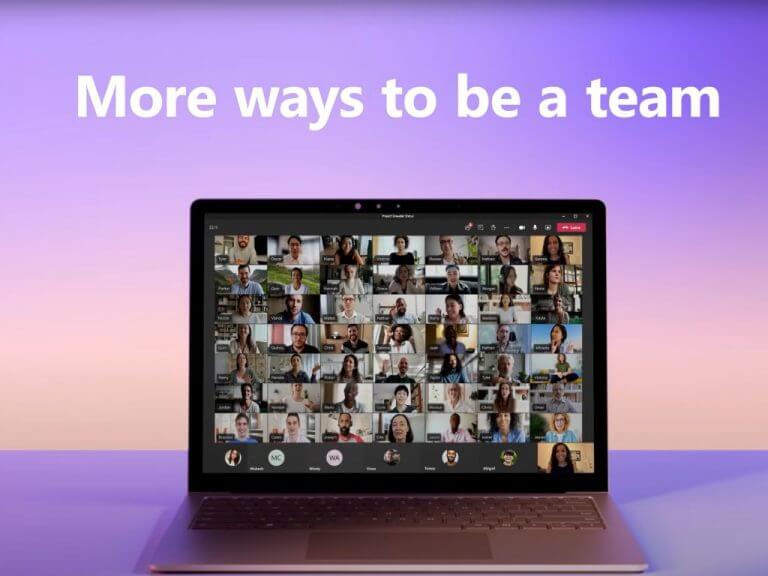






![Best Antivirus to use with Malwarebytes [Conflict-Free]](https://windowsreport.com/wp-content/uploads/2021/12/best-antivirus-to-use-with-Malwarebytes.jpg)

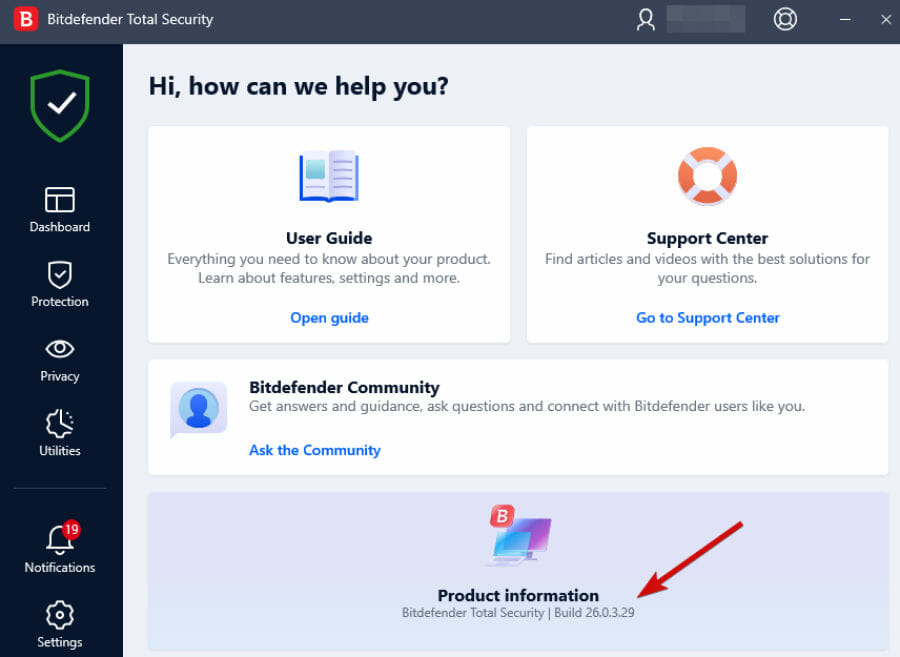
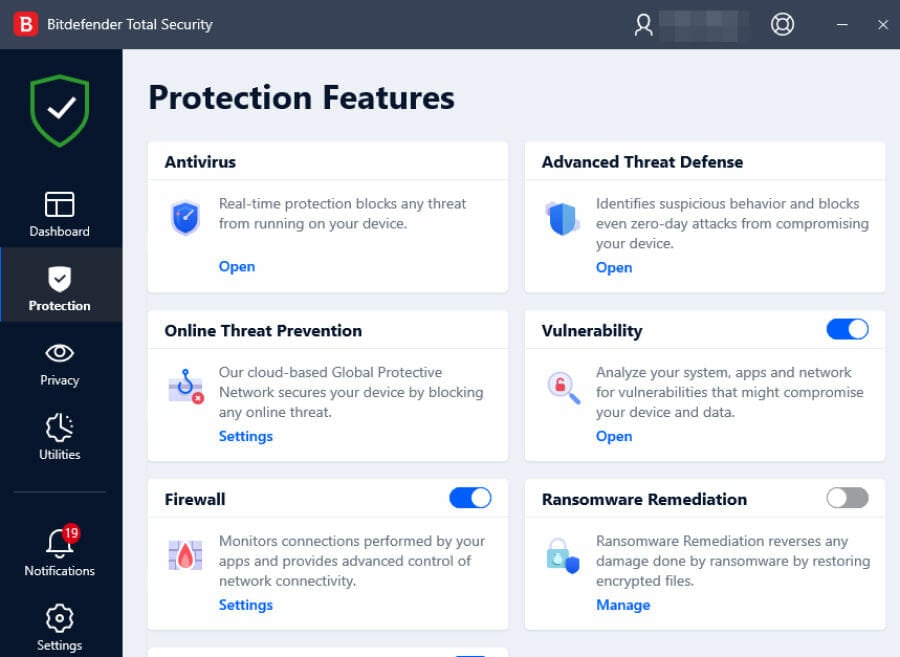
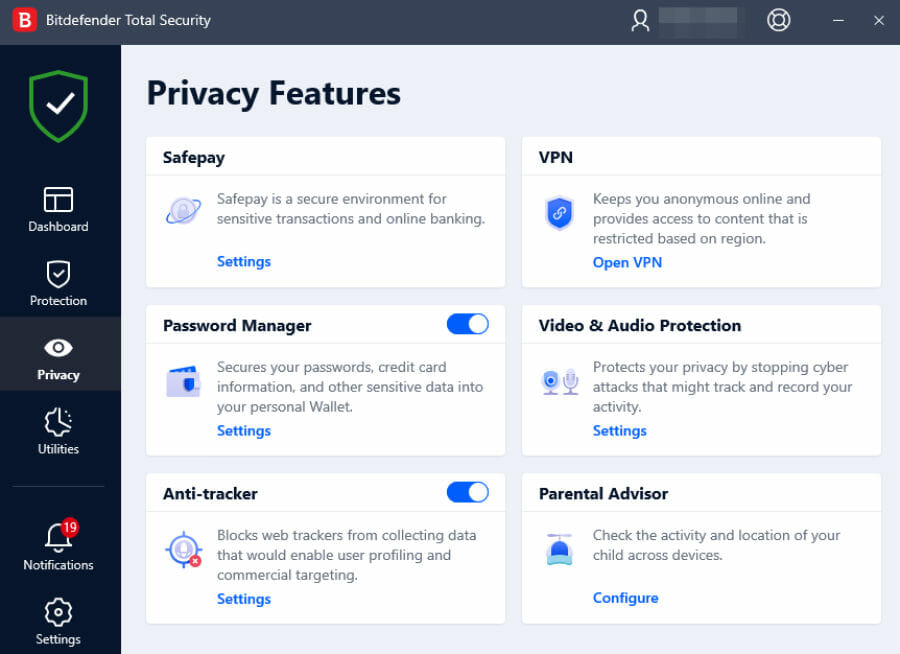





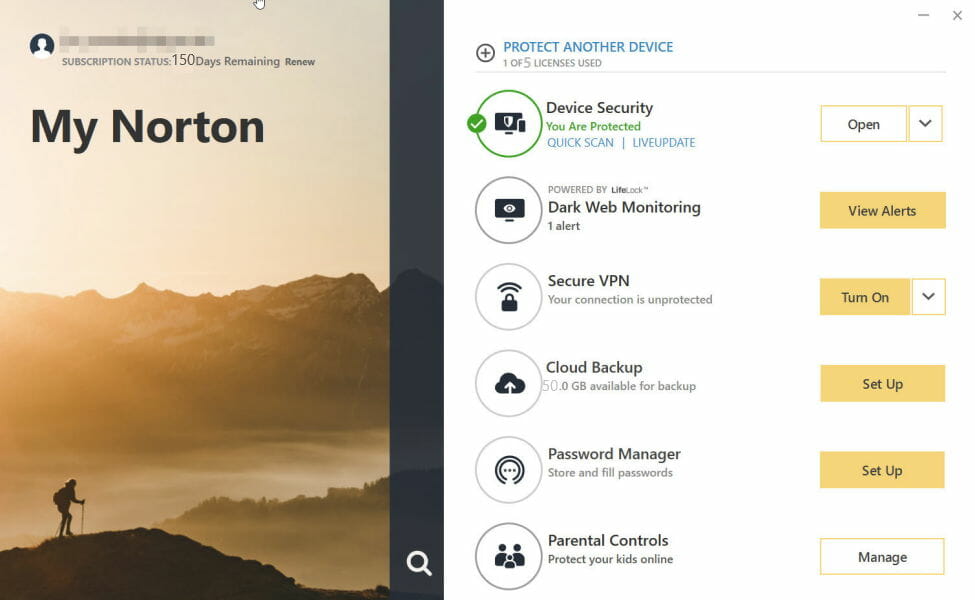








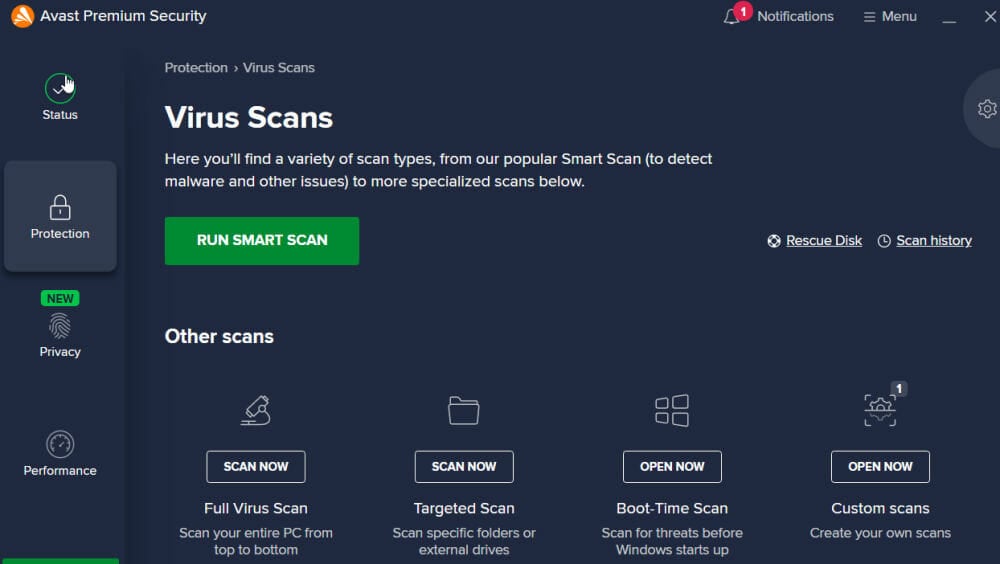
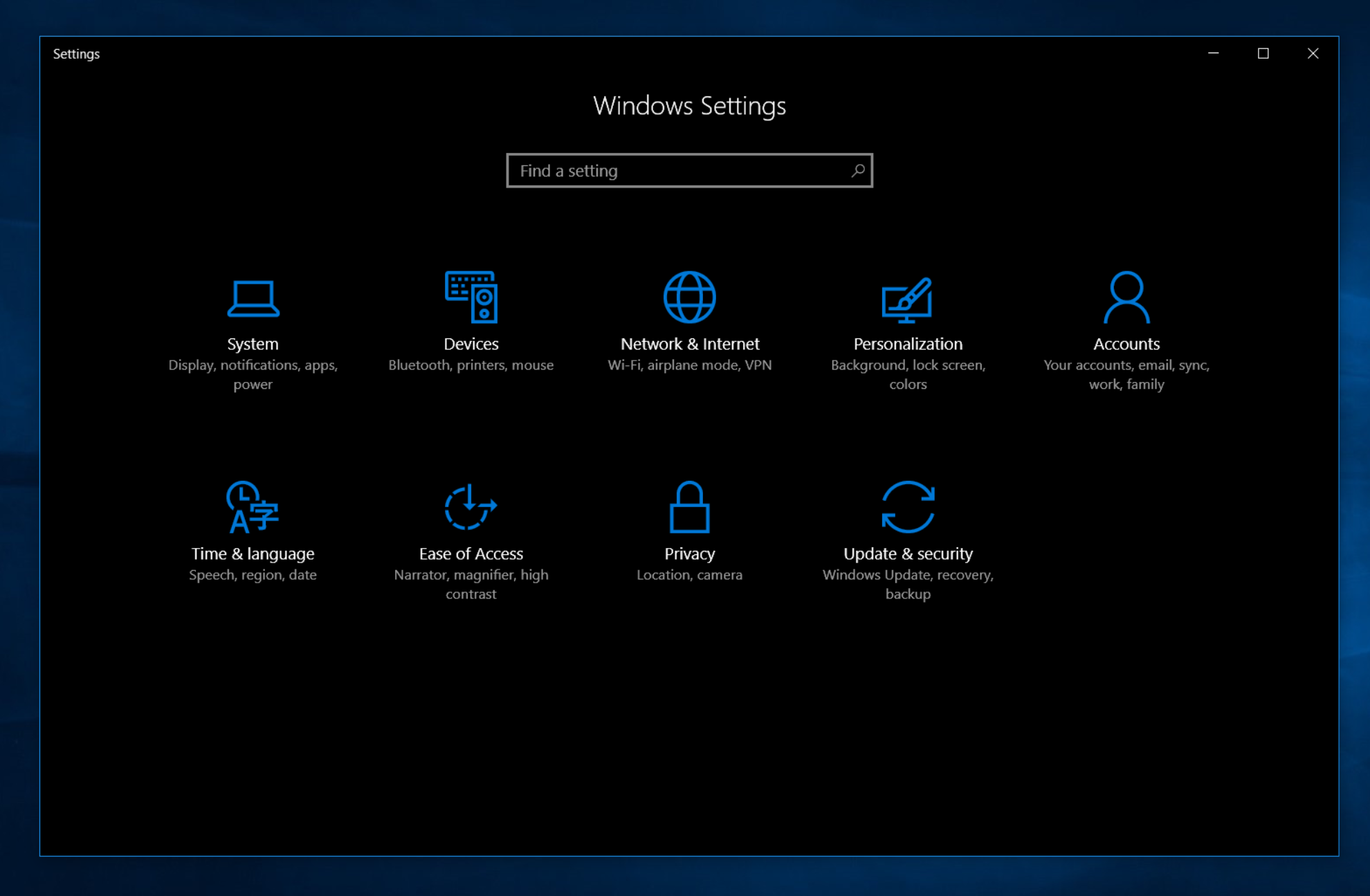

![Windows 10 Creators Update stuck in endless upgrade loop [FIX]](https://windowsreport.com/wp-content/uploads/2017/10/windows-10-cover.jpg)
![Scan and repair hard drive stuck on Windows 10/11 [Quick Fix]](https://windowsreport.com/wp-content/uploads/2018/10/Windows-10-app-off-screen.jpg)
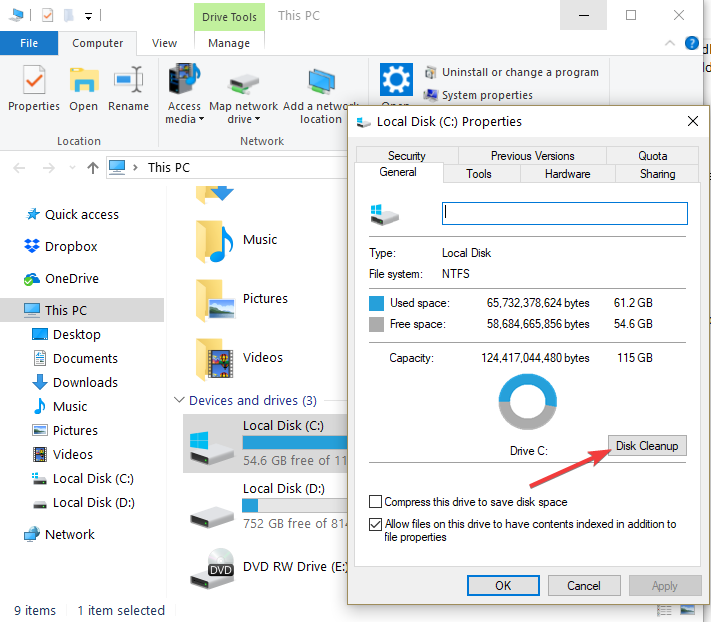
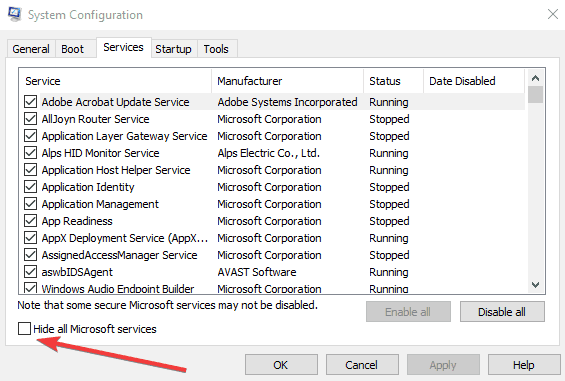
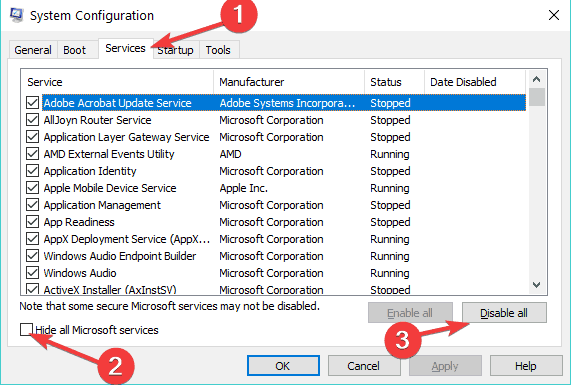


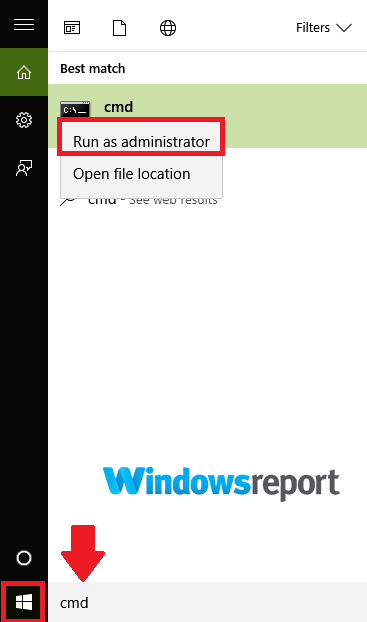
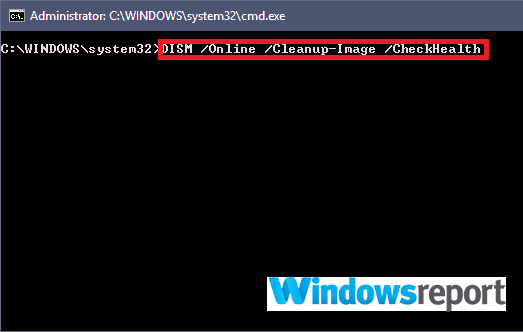

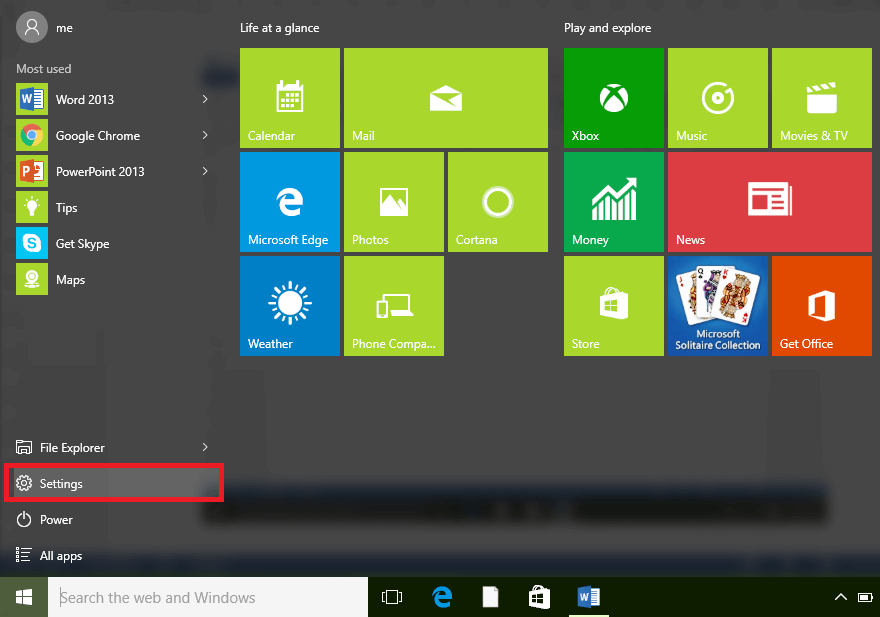
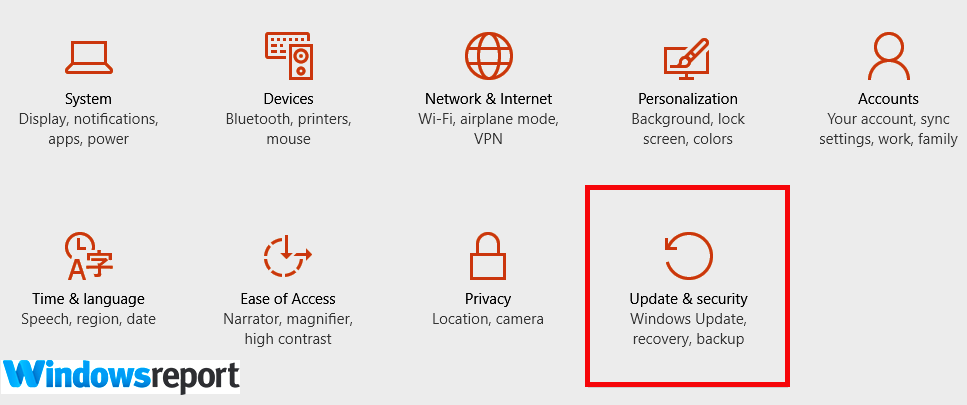
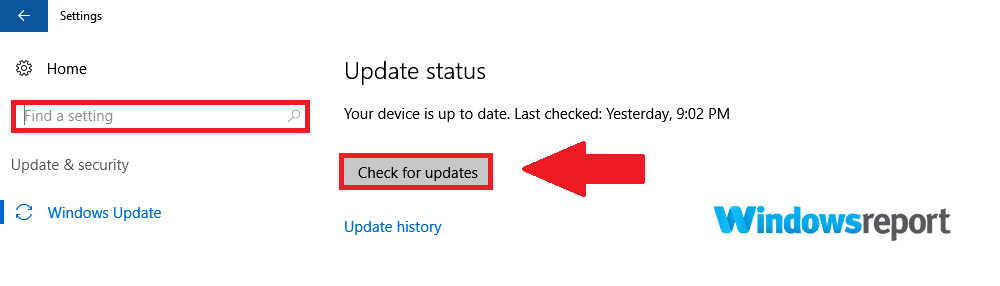
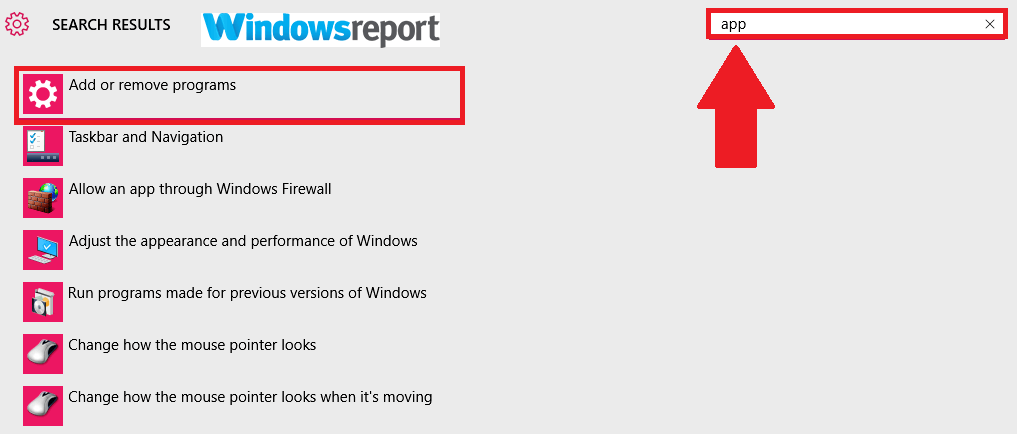
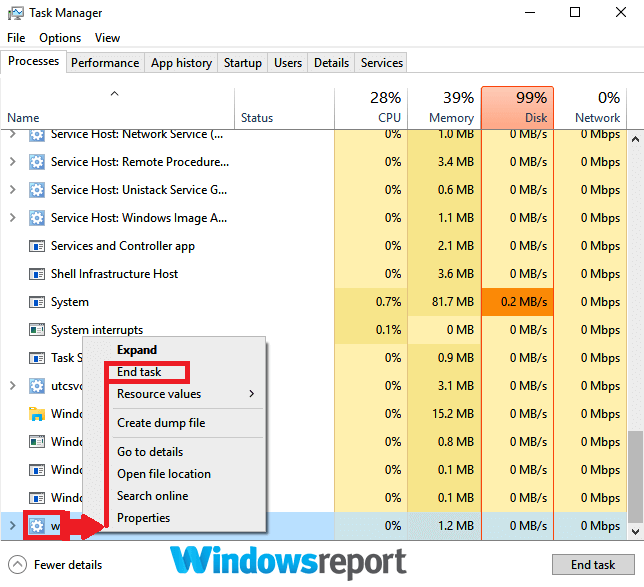
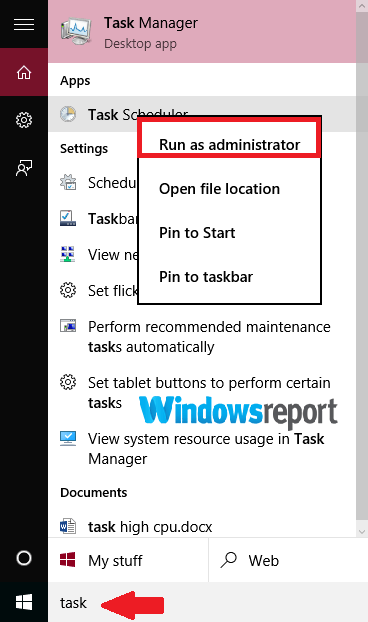
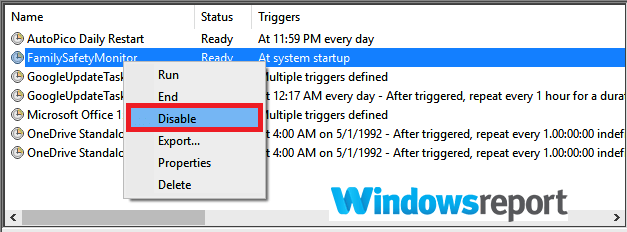
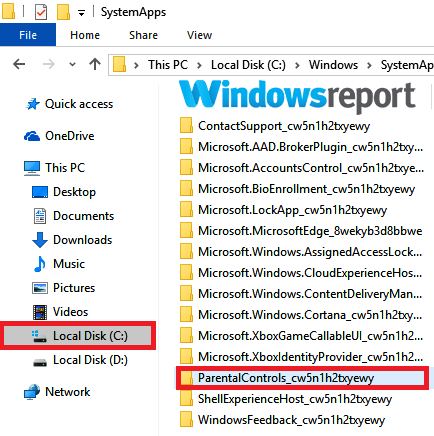
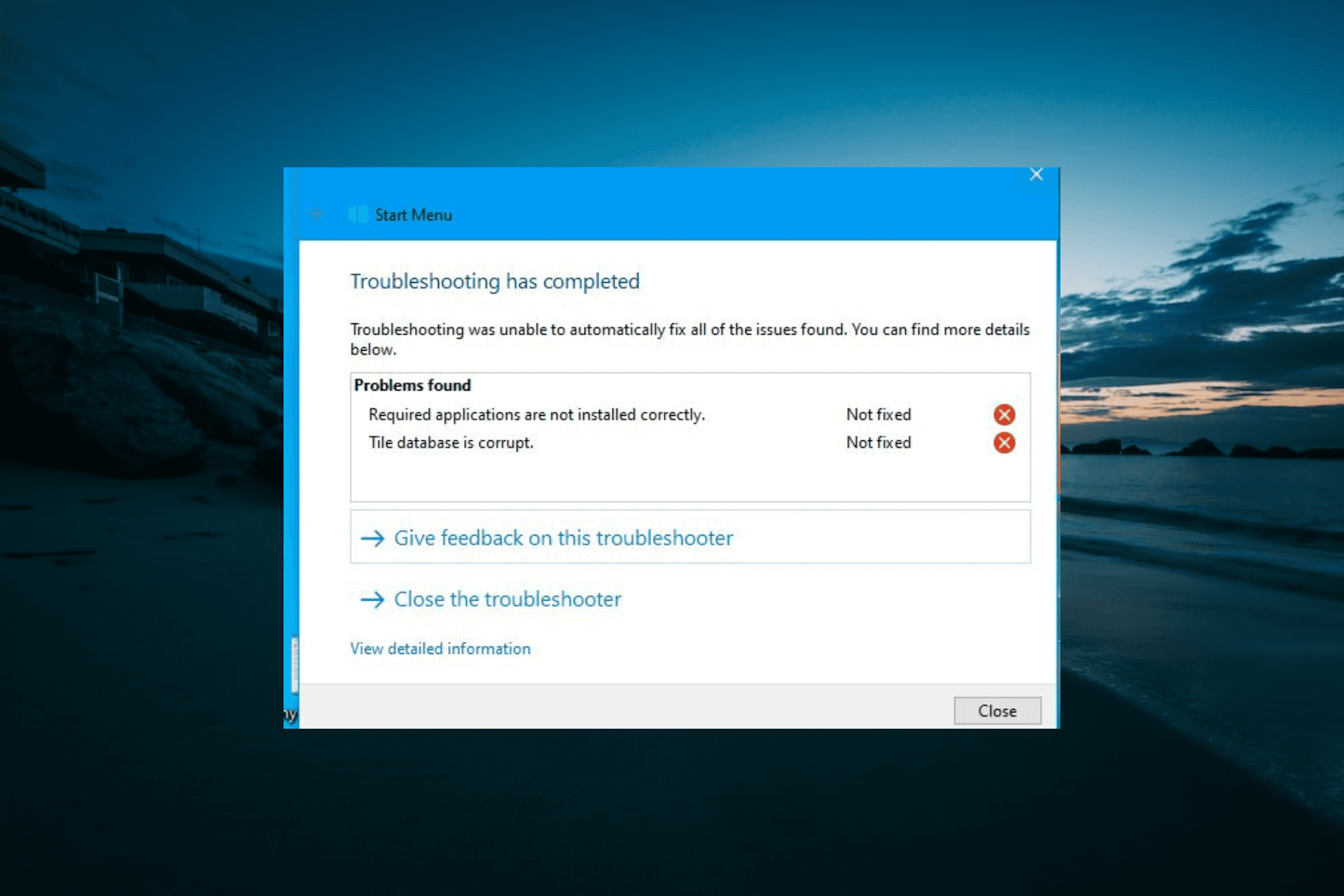
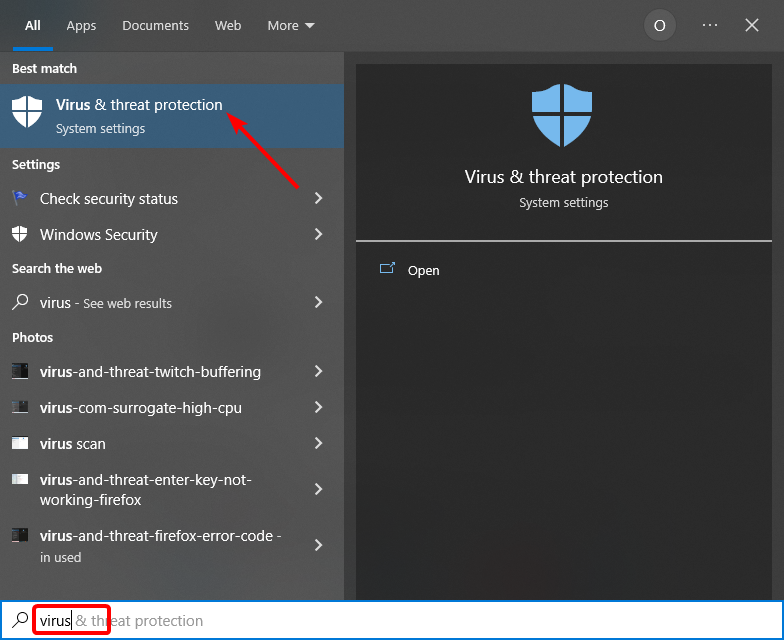
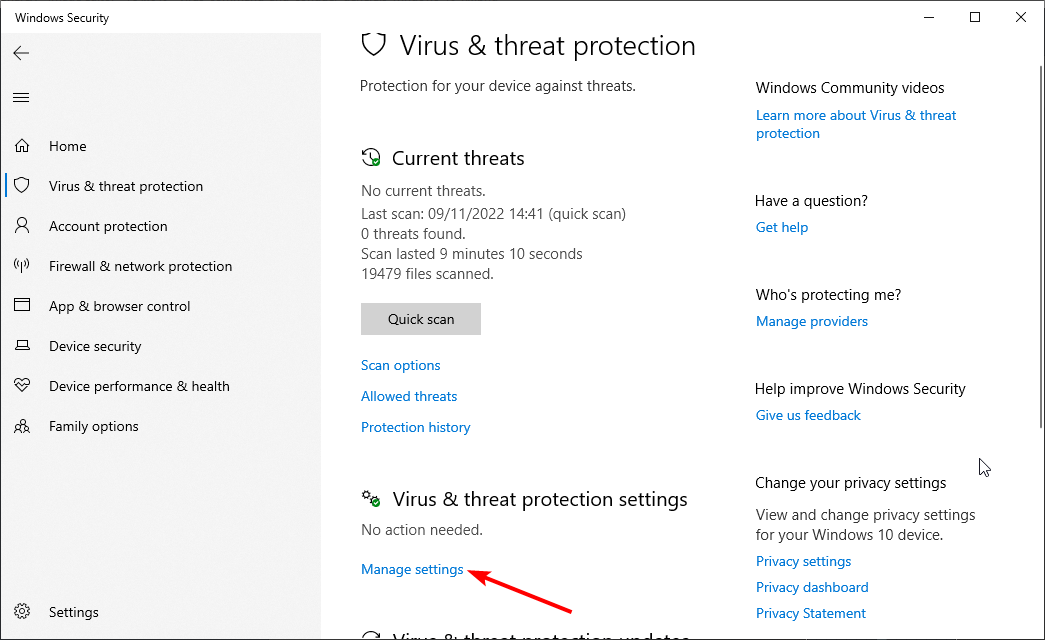
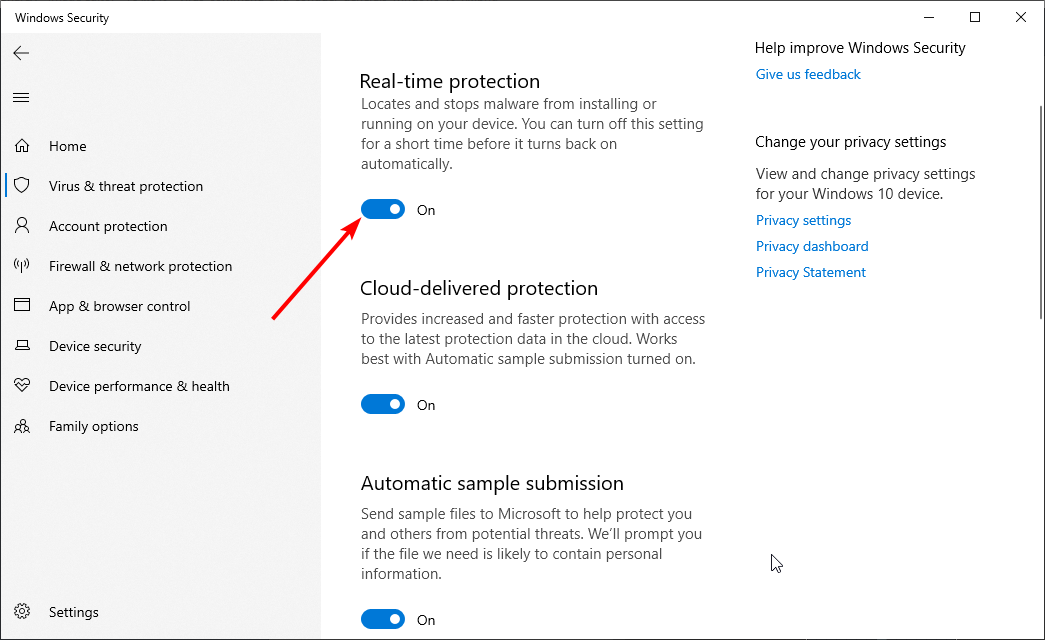
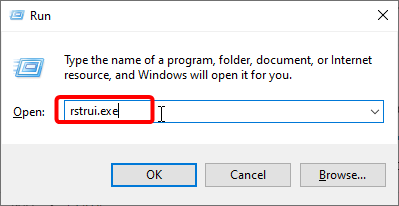
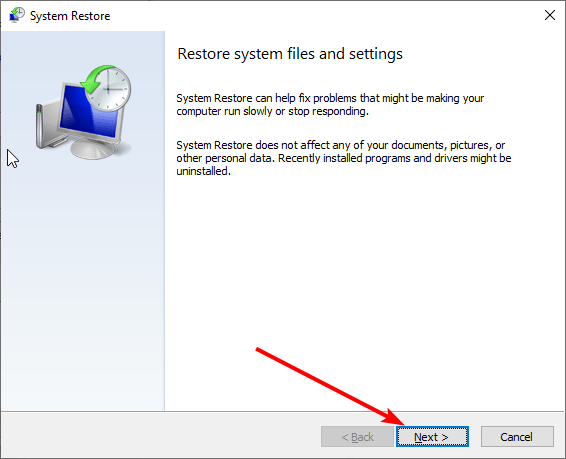
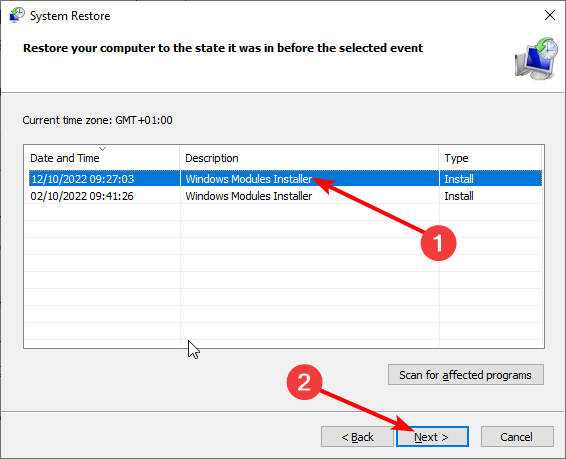
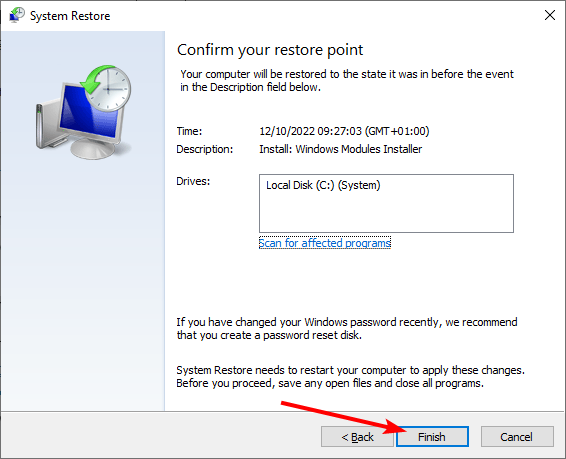
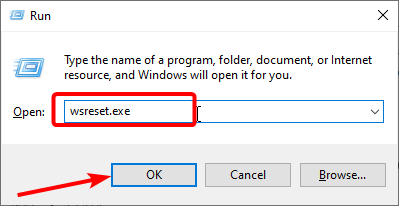
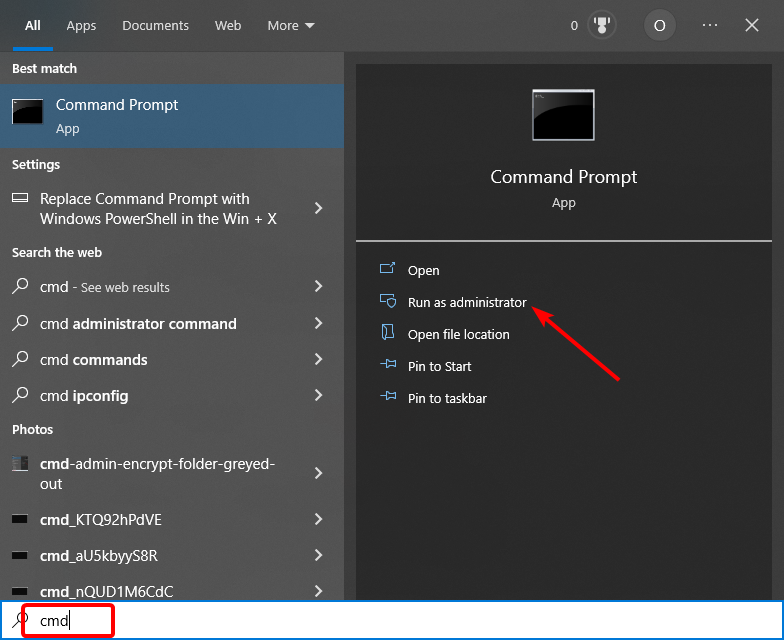
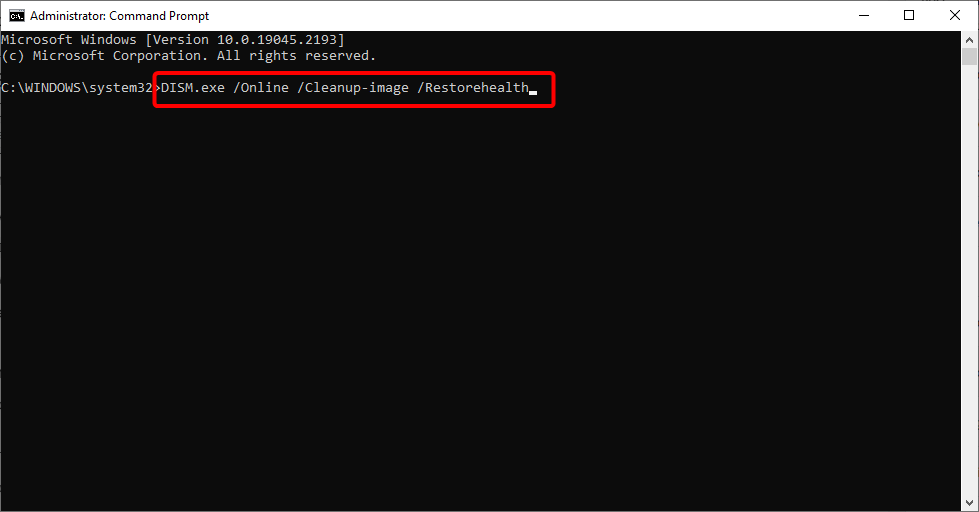
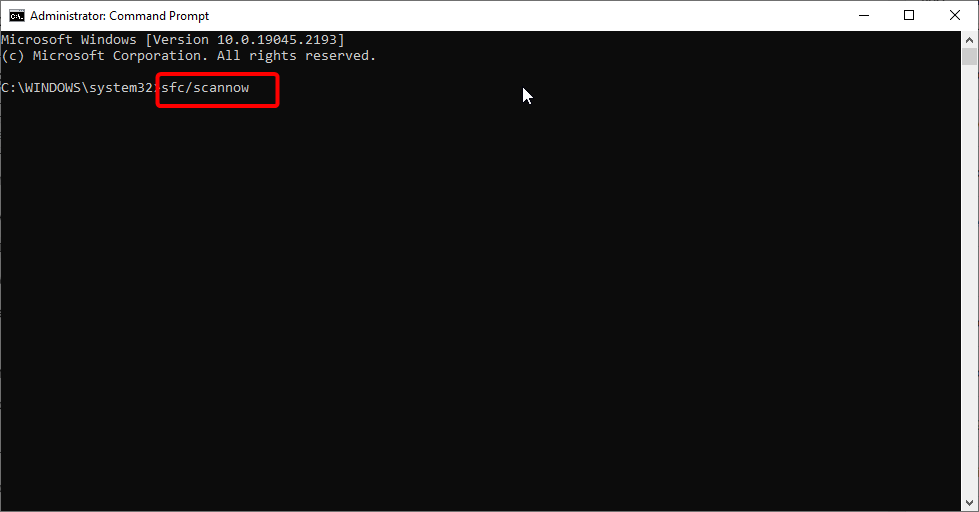
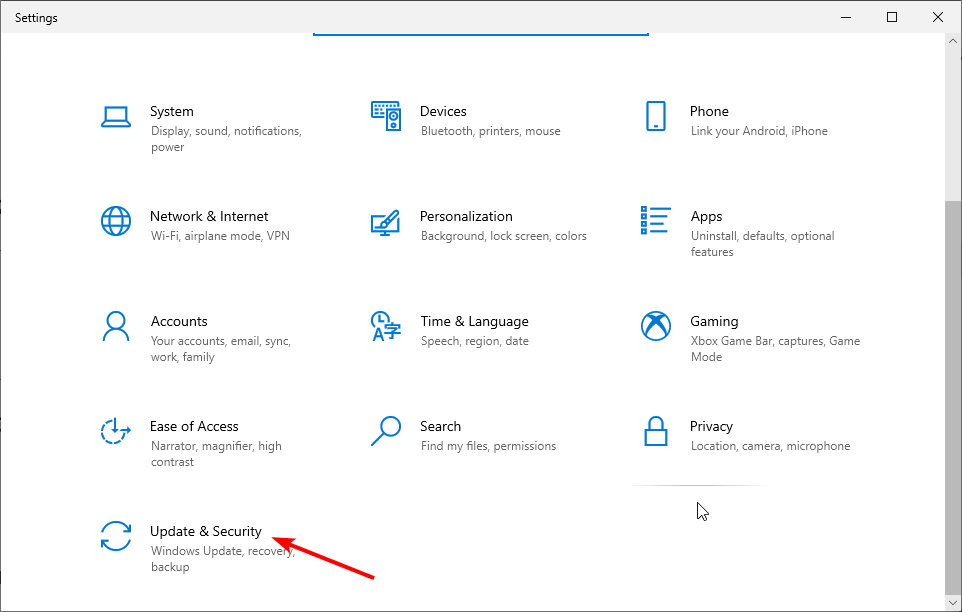
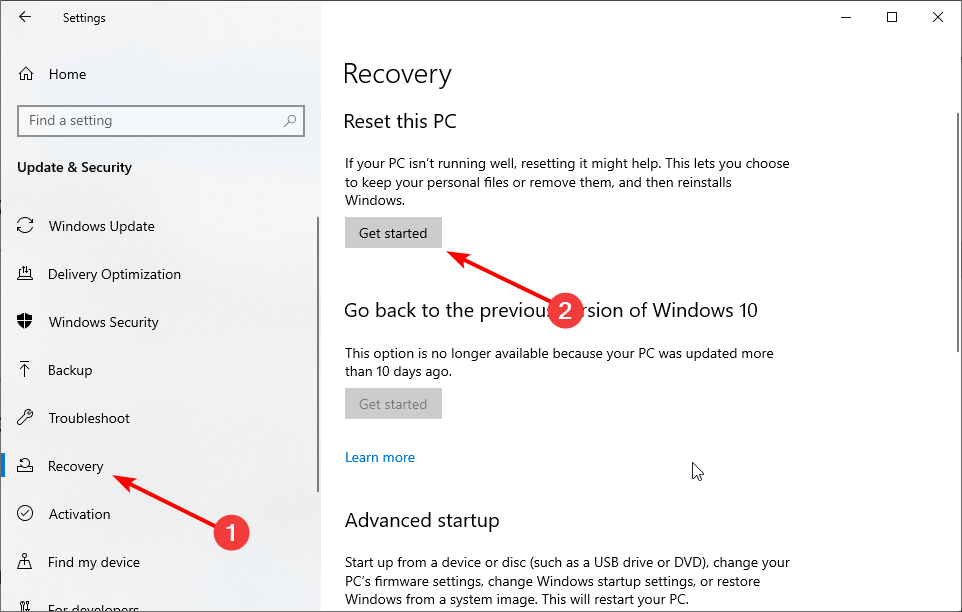


![Cortana Reminders not working in Windows 10/11 [Fixed]](https://windowsreport.com/wp-content/uploads/2018/07/Cortana-Reminders-not-working-in-Windows-10.jpg)
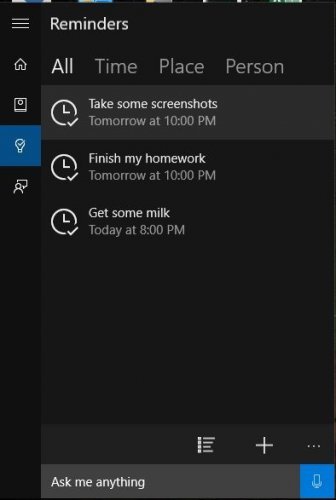
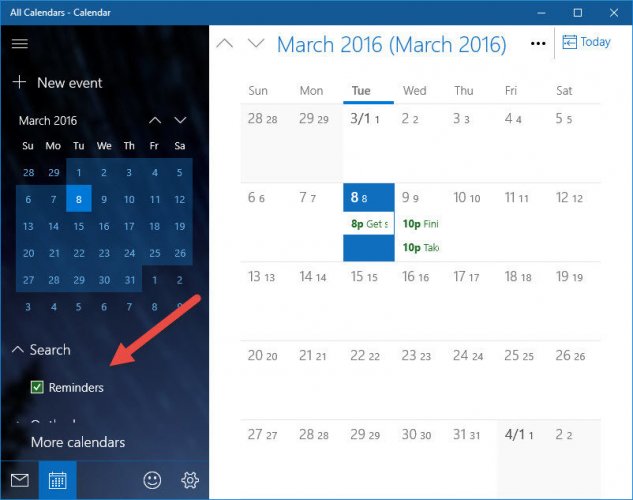
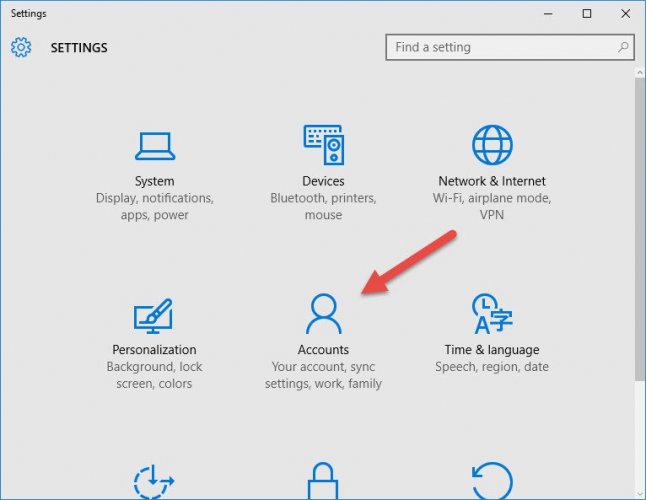
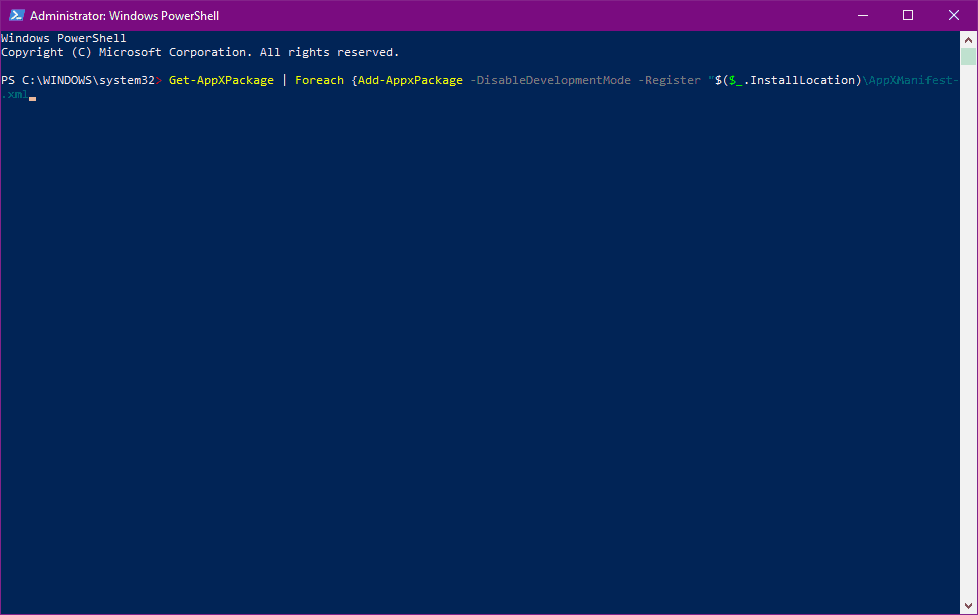
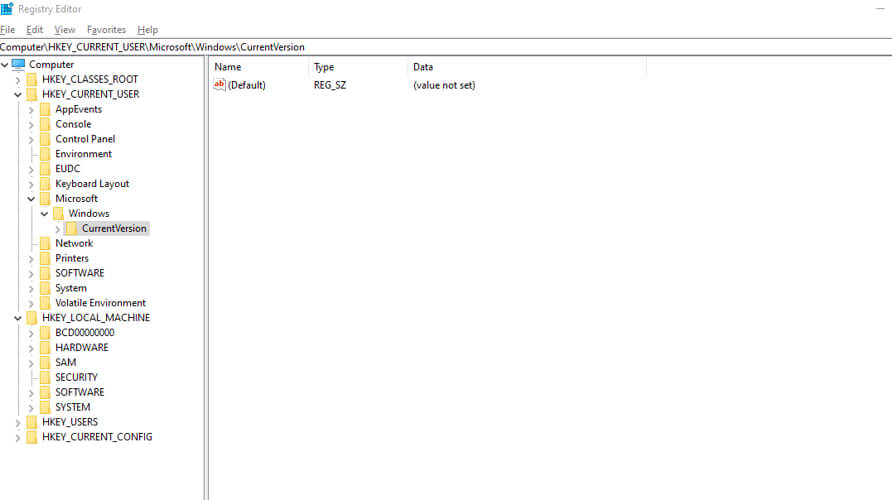
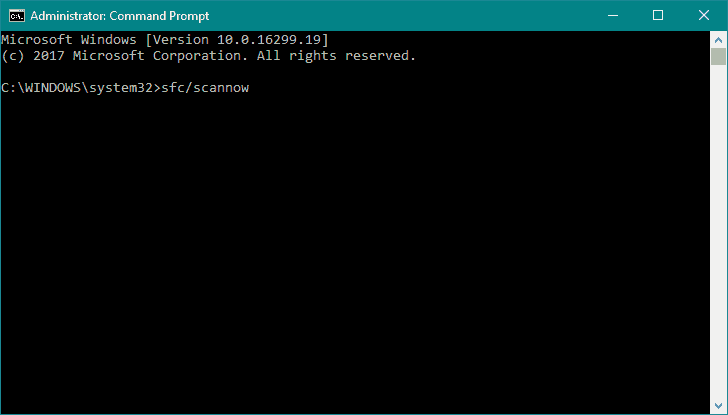
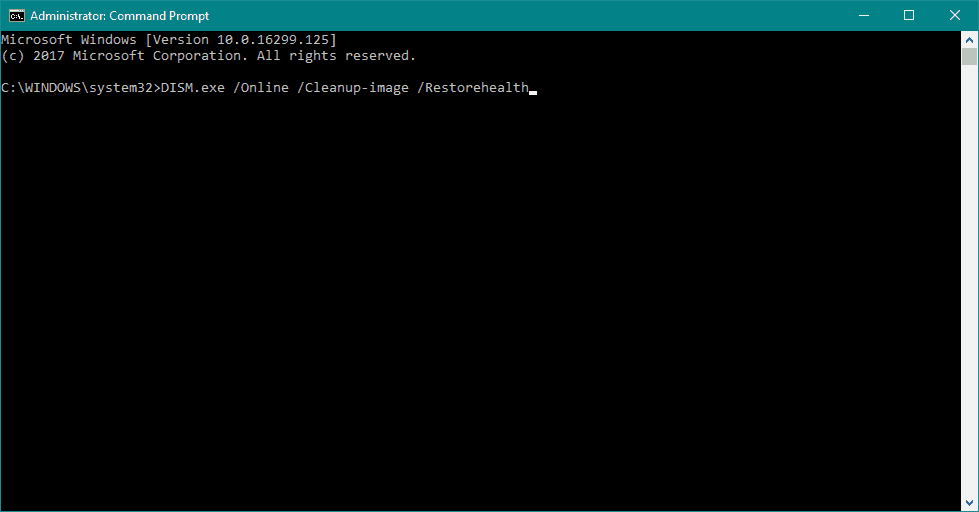



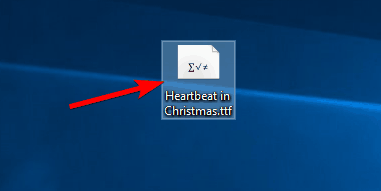

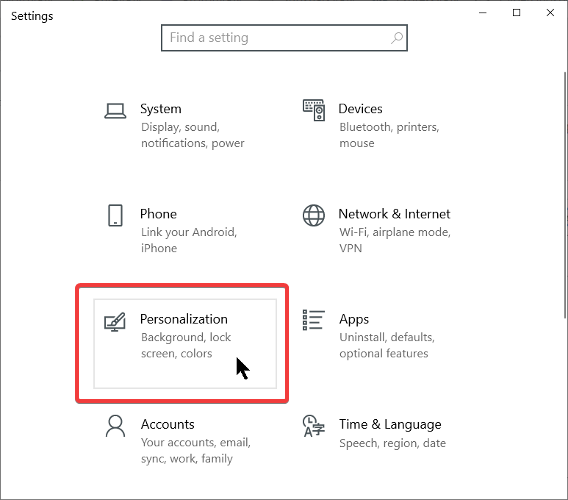

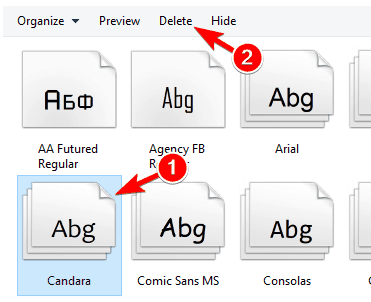

![Your computer has a memory problem [EXPERT FIX]](https://windowsreport.com/wp-content/uploads/2019/07/your-computer-has-a-memory-problem.jpg)


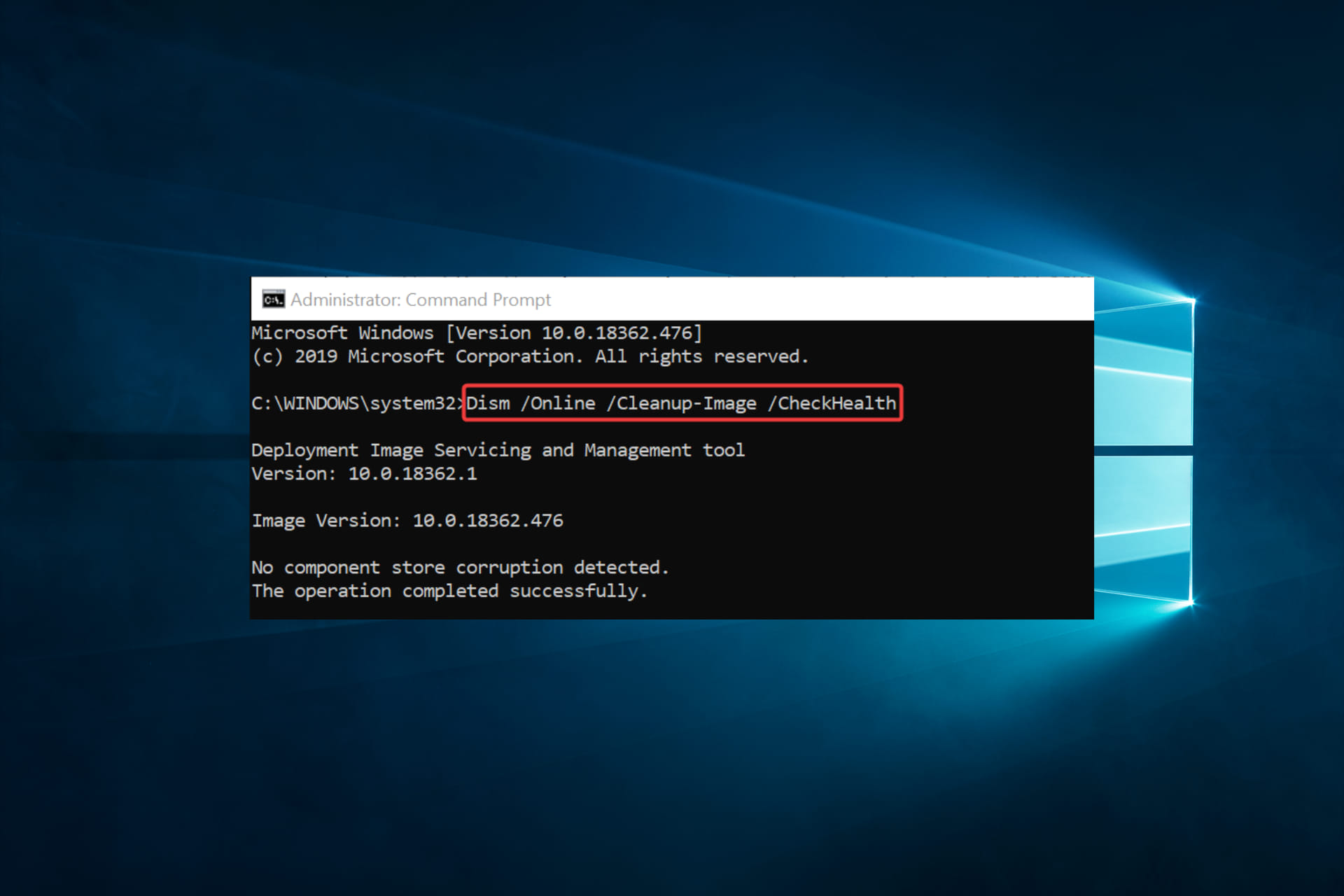





![This webpage wants to run the following add-on [FIX]](https://windowsreport.com/wp-content/uploads/2019/08/browser-pop-up-1.jpg)

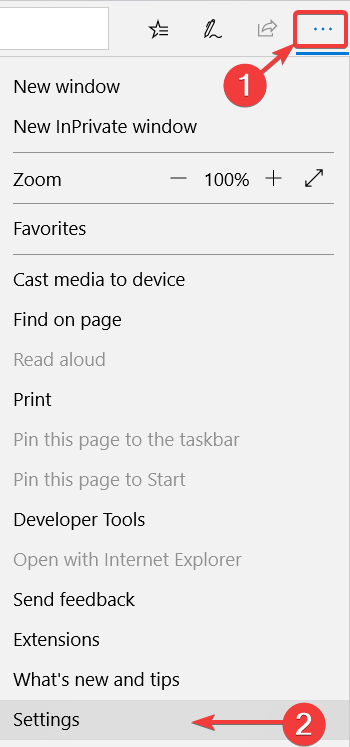
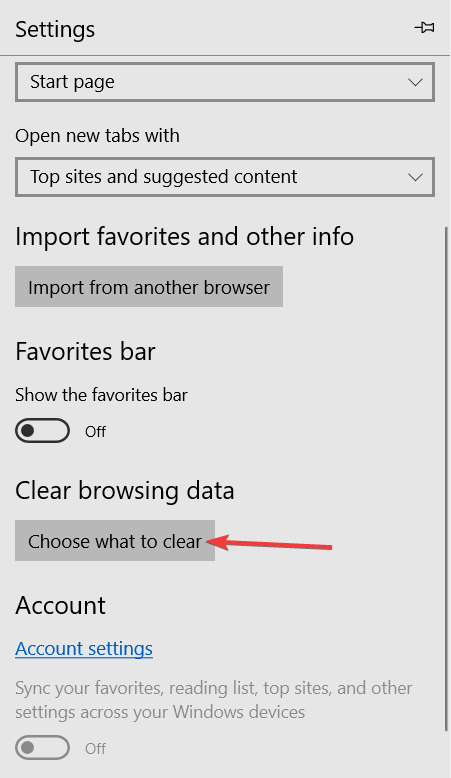
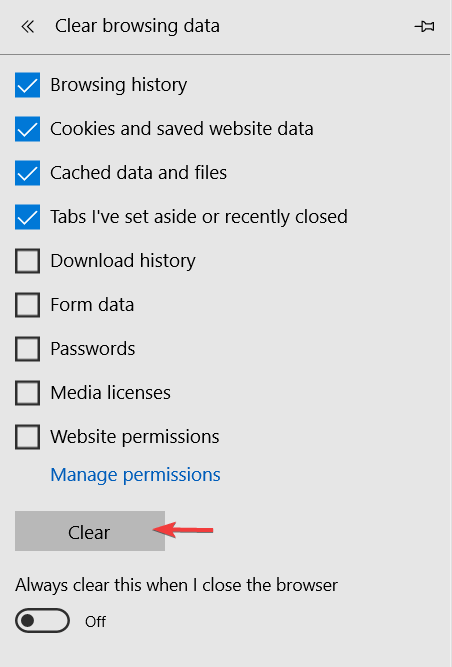



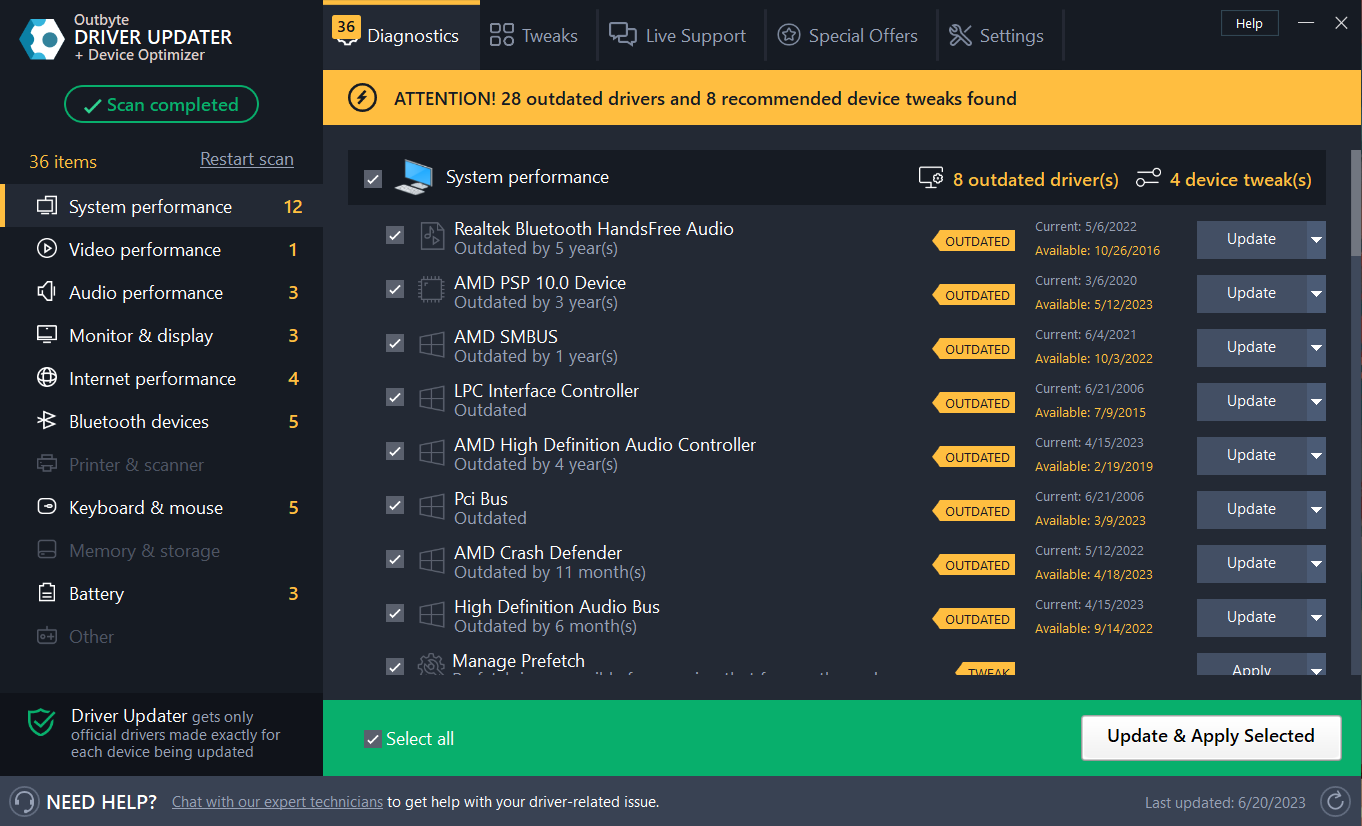
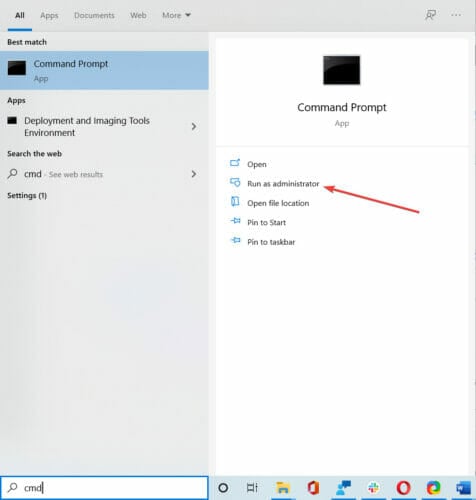
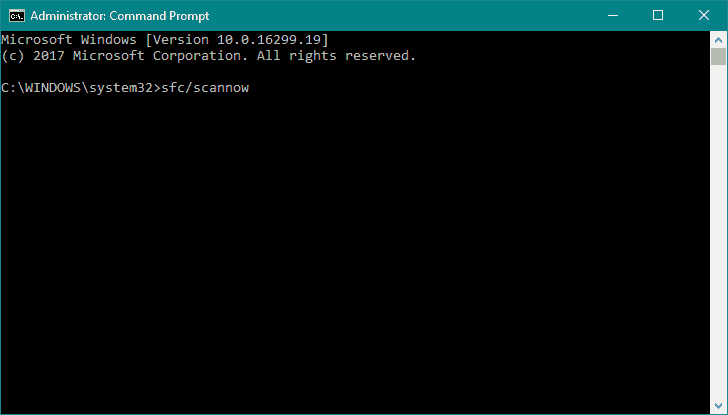


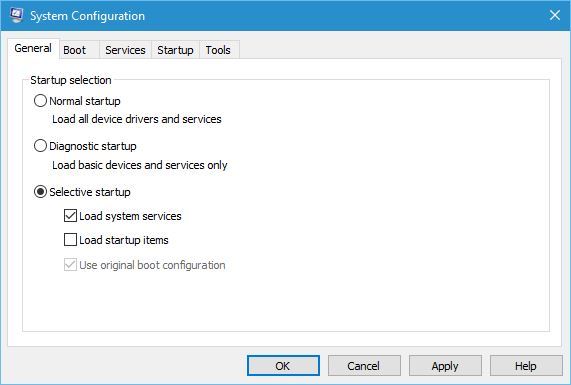
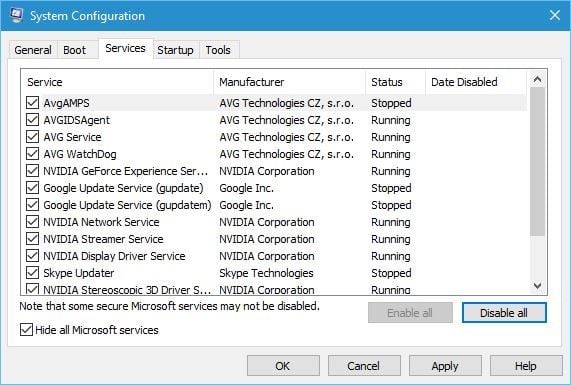
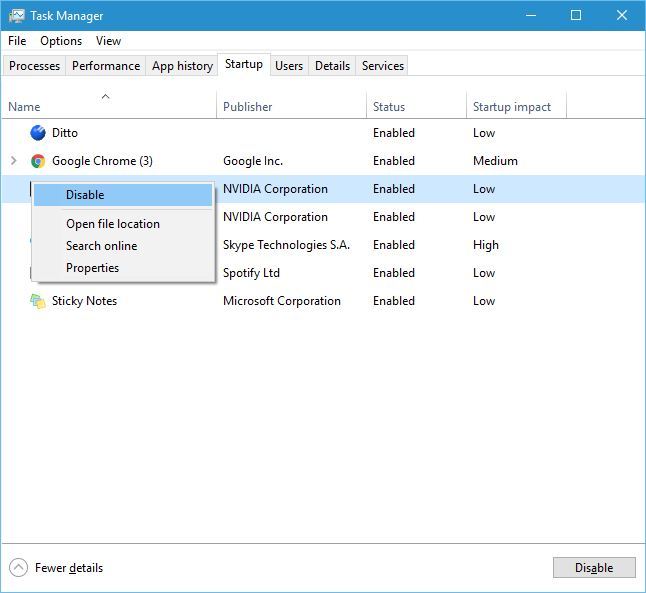
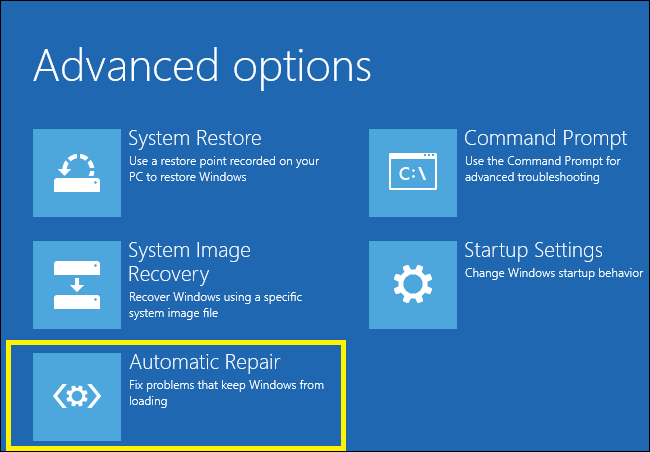
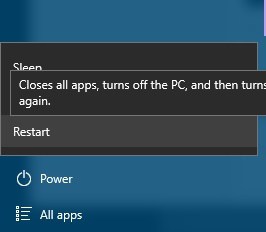
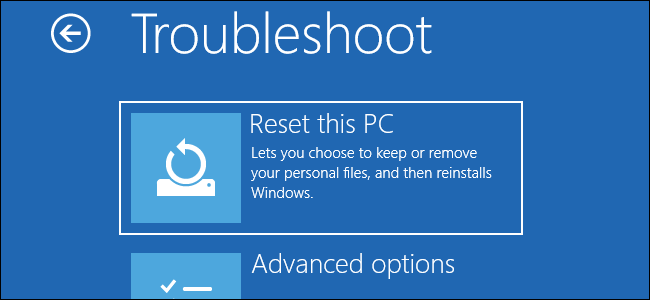





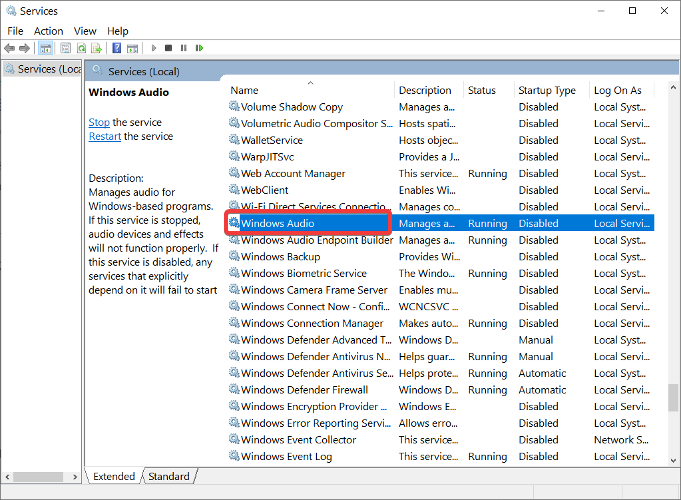


![This File Is in Use by Another Application or User [Fix]](https://windowsreport.com/wp-content/uploads/2016/10/The-file-is-in-use.jpg)