Surface Book 2 Keyboard is Not Working: How to Fix it

The Surface Book 2 is a powerhouse of a device, but many claim that the Surface Book 2 keyboard not working. This can be a major issue, making your device almost unusable, so it’s important to fix it.

Sadly, this isn’t the only issue, and Surface Book 2 CPU throttle is well documented. However, today we’ll focus solely on keyboard issues.

Why is my Surface Book 2 keyboard not working?

  • Software issues – Sometimes, these can be fixed with a simple restart, but sometimes you need to use specialized software.
  • System issues – A bad update or BIOS settings can sometimes cause this problem to appear.

How can I fix Surface Book 2 keyboard if it’s not working

Before we move to the more advanced solutions, you might want to try these simple solutions instead:

  • Use the two-button shutdown – Press and hold Power and Volume up button for about 45 seconds until nothing is shown. After that, power on your device normally.
  • Clean the contacts – Disconnect the keyboard and clean the contacts with rubbing alcohol. Wait while the contacts are completely dry, and connect it to your device again.
  • Use Surface Diagnostic Utility – Microsoft has specialized software for Surface that can help you diagnose and fix issues.

1. Remove recent updates

  1. Start Control Panel. The easiest way to do this is type Control Panel in the taskbar search box.
  2. Select Programs followed by Programs and Features. Lastly, choose View installed updates.
  3. Select recent update and click on Uninstall.

You can also prevent the same update from installing on your Surface Book device again. Here is how:

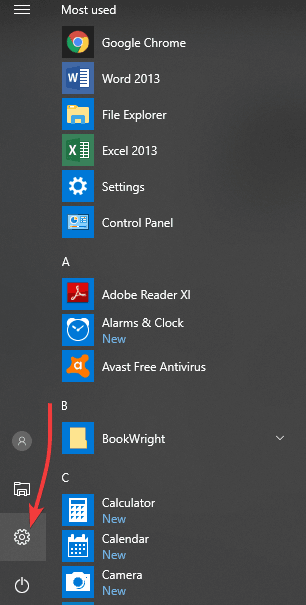
  1. Open the Settings app and go to Update & Security.
  2. Select Advanced options.
  3. Here, set Pause update setting to the On position.

This is the simplest solution you can use if Surface Book 2 keyboard and trackpad are not working, so be sure to try it.

2. Save BIOS settings

  1. Shut down the Surface Book.
  2. Press and hold on to the Power button until it starts.
  3. Press and hold on to the Volume up button until you enter the BIOS.
  4. Do not make any changes in the BIOS settings. None of that is needed.
  5. Just click on the Exit button to move out of BIOS. However, make sure you consent to save the changes even though none has been made.

  6. This will make the Surface Book to restart.

If some keys not working on Surface Book 2 keyboard, then be sure to give this solution a try.

3. Reset your Surface Book

  1. Open Settings and go to Update & Security.
  2. Click on Recovery from the left hand panel.
  3. Next, click on Reset.
  4. You will be presented with two options before Windows is installed afresh: Keep my files which will remove apps and setting but personal files will be intact and Remove everything which will remove everything from your device, including all your personal files.
  5. Choose wisely. If you choose to remove everything, ensure you have backed up all your data.

Once the process is complete and the device restarts, check if the keyboard is responding again.

However, if nothing seems to work, the keyboard might be dead. Get in touch with Microsoft support in that case.

Ever wondered which Surface Book is the best? Our Surface Book 3 vs Surface Book 2 guide might be able to answer that question for you.

Did you find a different solution? If so, share it with us in the comments section.
Windows 10 news recap: solar-powered Surface Pen patent, Video Editor app gets added to Windows 10, and more

Welcome back to our Windows 10 news recap, where we go over the top stories of the past week in the world of Microsoft’s flagship operating system.

Microsoft files patent for a solar-powered Surface Pen

Microsoft’s vision for a future Surface Pen that doesn’t require the changing of batteries could include a solar-powered Surface Pen, removing the need both for changing batteries and recharging, placing it a step above the Apple Pencil, according to a new patent filed by Microsoft.

Microsoft adding ability to remotely install apps to any of your Windows 10 PCs from the Microsoft Store website

Taking a feature from Windows phone and recreating it to work for Windows 10 PCs, Microsoft is adding the ability to install apps to your other Windows 10 PCs from the Microsoft Store website, providing you’ve installed that app elsewhere before.

Microsoft Store - remotely install apps on Windows 10 PC

Microsoft adds a surprising new Video Editor app to Windows 10 PCs

A new Video Editor app has been quietly added to Windows 10 PCs without users’ knowledge. The app is an official app by Microsoft, but appears to be a shortcut for accessing the video editing features of the built-in Photos app.

Video Editor Windows 10 app

Official Realtek app spotted in the Windows 10 Microsoft Store

Realtek looks to be releasing its own official app to the Microsoft Store on Windows 10, after it was spotted in the listings. It provides the ability to adjust audio effects and other audio settings.

That’s it for this week. We’ll be back next week with more Windows 10 news!

Unravel Two video game announced and is already playable on the Xbox One

Unravel Two was officially announced during EA’s conference this morning and it’s also now immediately available to buy, download, and play on Xbox One consoles. The game is a sequel to the popular original Unravel title and features a strong emphasis on local two-player co-op. Here’s the official description and trailer.

When you cut ties to the past, new bonds form. In Unravel Two, create a Yarny of your very own. Then build relationships with other Yarnys in local co-op or as a single player, fostering friendship and support as you journey together.

Begin your adventure in a cold and imposing land, then watch your surroundings blossom with new life as you chase the spark of adventure. Dive into an immersive story filled with energy, exuberance, inspiration – even monsters. Approach every challenge with positivity and fearlessness to awaken the world around you, and discover an unbreakable bond between friends.

Are you excited for an Unravel sequel? Let us know in the comments below and like us on Facebook for more Xbox One video game news.

Unravel Two
Unravel Two
Developer:
Electronic Arts
Price:
Free

Download VEVO app on your Windows 10/11, 8 computer

Many think that VEVO is limited only to Youtube, but it’s actually available as a standalone service. And, it’s also available in the Windows Store as a Windows 10, 8 app. We go through its features below.

Not many Windows 10, 8 users know that there is an official VEVO app available in the Windows Store that they can download on their Windows 10, 8 tablets, and other devices and listen to music without having to go on YouTube.

vevo app windows 10

As a matter of fact, it’s been there for quite a while, but we’re doing a short review of it, in case you didn’t know it was there. Here’s how its app description goes:

VEVO TV is a 24/7 channel of music videos, live performances, and original shows from VEVO’s massive library – made by music lovers for music lovers, no algorithms allowed. Turn it on, relax and enjoy a full HD music experience that covers everything from the latest premieres to the best classics. Pop, rap, rock, R&B, country – the choices are endless. VEVO TV: Always On.

By using the Windows 10, 8 VEVO app, you will be able to watch music videos, stream live concerts, and discover new artists all on your Windows 10, 8 device. VEVO has a catalog of 75,000 music videos from more than 21,000 artist, so there’s a lot of music to be discovered and listened to. VEVO for your Windows 10, 8 tablet will work over your cellular network connections, but it will work much better over a Wi-Fi network.

Download the VEVO app for Windows 10, 8 by following the link from below to start enjoying free high-quality music videos. You will also find in the app exclusive videos, premieres, and select live performances. It is available in the following languages – German, French, Italian, Spanish, Dutch, Polish, and Portuguese.

Download VEVO app for Windows 10, 8

It is worth mentioning that sometimes, due to some particular licenses from the content owners, some features and videos may not be available in your region. Also, some users reported that the video quality is not that good when expanded on the whole screen, so do keep these two pieces of information in mind in case you encounter any issues.

Install third-party Windows 10 with Uxtheme Multi-Patcher

Microsoft has a huge collection of free and paid Windows 10, 8 and Windows 8.1 themes available for download, but if you want to download third-party themes, then Uxtheme Multi-Patcher is perhaps the best software to use.

There are many available free Windows 10, 8 and Windows 8.1 themes that you can install right now. Recently, we have also shared with you some Windows 10, 8.1 winter and Christmas themes. But if you have found a great third-party Windows 10, 8.1 theme that you really like, there’s a software that can easily help you deploy it. And it has recently just received full Windows support.

Download Uxtheme Multi-Patcher

Uxtheme Multi-Patcher

Uxtheme Multi-Patcher can patch system files so it could support customization items that are not developed by Microsoft. Here are the changes packed in the latest Uxtheme Multi-Patcher version:

  • Added Windows 10/8/8.1 support for both x86/x64
  • Completely based on UxStyle memory patching so any obsolete file patching method won’t be restored with this version
  • Refreshed UI to represent Windows 10, 8.1 support
  • Added clearing services before installing UxStyle that should solve common issues
  • Fixed patch execution bug in Windows 10
  • Added startup launcher to handle glass configuration
  • Added verifying that theme engine works properly on startup
  • Added Glass transparency support for Windows 10/8/8.1
  • Changed applying permissions program to cacls instead of icacls
  • Fixed theme changing to Classic occasionally on some systems
  • Improved service configuration for better compatibility with Windows 10/7/8/8.1

Of course, you can use Uxtheme Multi-Patcher for all the other supported Windows versions. Download it from the below link.

Download Uxtheme Multi-Patcher for Windows 10, 8.1

For more information about the best themes that you can install on your Windows 10 computer, check out the guides listed below:


Windows Randomly Minimizes Everything: 8 Ways to Fix it

Some users complain that Windows randomly minimizes everything, including apps and games. This can be frustrating, as it just takes away whatever you are doing.

If you are also facing this issue, the solutions in this guide will help you restore normalcy quickly.

Why do all my windows minimize randomly?

Below are some of the reasons Windows randomly minimizes everything:

  • Malware infection – One of the reasons your apps and programs automatically minimize in Windows 10 is the presence of malware on your PC. You need to perform a deep malware scan to get rid of the virus.
  • Corrupt system files – At times, all your windows minimize randomly because some system files are broken or missing. Repairing these files should restore normalcy here.

How can I fix Windows if it randomly minimizes everything?

Before proceeding to the fixes in this section, below are a couple of troubleshooting steps to try:

  • Perform a deep malware scan
  • Check your USB ports, as sometimes a faulty USB connecting and re-connecting could cause this.

1. Turn off Tablet mode

  1. Open Start and select Settings
  2. Click System
  3. Click Tablet Mode
  4. Now, under When I sign in, select Use Desktop mode then close the window
  5. Under When this device automatically switches tablet mode on/off, select Don’t ask me and don’t switch
  6. Under Hide app icons on the taskbar in tablet mode, slide to select OFF
  7. Finally, under automatically hide the taskbar in tablet mode, slide to select OFF

Windows 10 has the Tablet Mode or Continuum feature, which is specially designed for touch-enabled devices like a tablet and others.

Tablet Mode works like a bridge between your computer and the touch-enabled device, so when it is turned on, all modern apps open in full window mode such that the main apps window is affected.

This causes the automatic minimizing of windows if you open any of its sub-windows. So, you need to disable it to fix the Windows randomly minimizes everything issue.

3. Boot in Safe Mode with networking, then perform an SFC scan

  1. Restart your computer
  2. When the sign-in screen is displayed, hold down the Shift key while you select Power, then Restart
  3. After the computer restarts to Choose an option screen, select Troubleshoot.
    Windows Defender is not removing Trojan
  4. Click Advanced options.
  5. Open Startup Settings.
  6. Click Restart.
  7. Once it restarts, you will see a list of options. select 5 or F5 for Safe Mode with Networking

Once you’re in safe mode with networking, perform an SFC scan to fix the Windows randomly minimizes everything issue. To do this:

  1. Click Start and type CMD in the search bar.
  2. Right-click Command Prompt in the search results and select Run as administrator.
  3. Now, type the command below and hit Enter: sfc /scannow
  4. Wait for the command to finish running and restart your PC.

If there are no errors from the scan, restart your computer and see if Windows 10 still randomly minimizes everything..

4. Run the Microsoft Safety Scanner

This is a free downloadable security tool for on-demand scanning, which helps remove malware and collaborates with your existing antivirus software. However, you need to use it within 10 days after downloading it, after which it will expire.

In order to rerun a scan with the latest antimalware definitions, download and install it again. If you run the virus scan without reinstalling Microsoft Safety Scanner, the program will be deleted, and any infected files and folders can also get deleted.

5. Create a new user profile

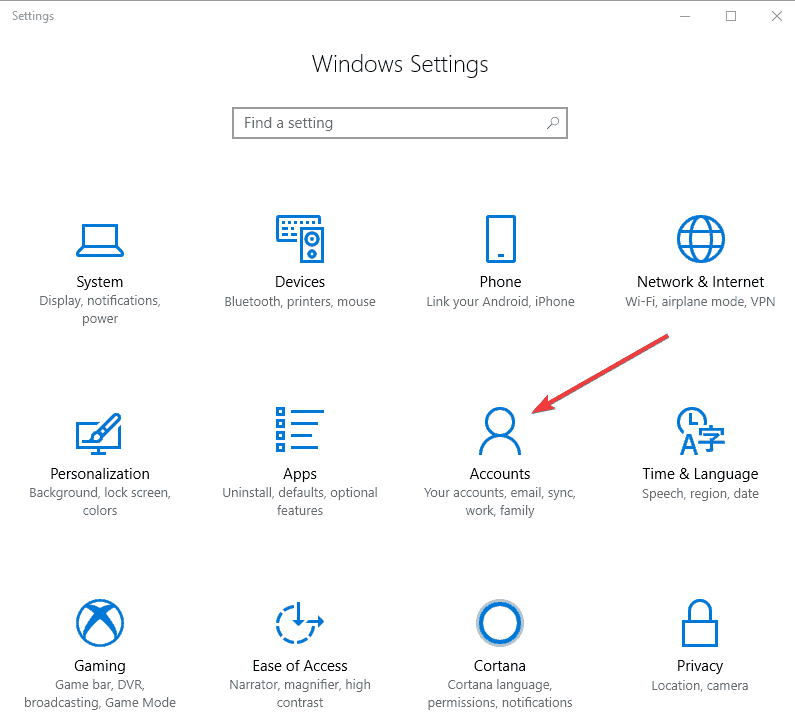
  1. Click Start and select Settings.
  2. Select Accounts.

  3. Click Family and Other people.
    Windows 10 error applying security
  4. Click Add someone else to this PC.
    windows 10 error applying attributes
  5. Fill in the form with the username and password. Your new user account will be created.
  6. Click on Change account type.
  7. Click the dropdown arrow to set the account to the local user level.
  8. Restart your computer.

A corrupt user profile can cause Windows 10 to prevent any access to files or folders, hence randomly minimizing everything. You need to create a new user account (local) to resolve this.

Login to the new account you just created and see if the problem goes away. If it does, you can set your new account as an administrator and downgrade the old account. You can later return it to its admin level and check if the issue persists.

6. Uncheck the Interactive services detection setting

  1. Right-click Start and select Run.
  2. Type msconfig and press enter or click OK.
  3. Press ALT + D together and press enter so as to configure the system for a diagnostic startup.
  4. Reboot and check if the issue is gone.
  5. Right-click Start again and select Run.
  6. From the menu bar, select Services.
  7. Find Interactive services detection and uncheck its box.
  8. Click Apply and OK.
  9. Go to Task Manager and click Show processes from all users.
  10. Look for the same Interactive services detection and end the process.
  11. Restart your computer

7. Disable Aero Shake using Registry Editor

  1. Right-click Start button.
  2. Click Run.
  3. Type regedit in the Run box.
  4. Click OK.
  5. If a password or administrator permission is required, click Yes or Allow.
  6. Find and select this registry subkey: HKEY_CURRENT_USER\SOFTWARE\Microsoft\Windows\CurrentVersion\Explorer\Advanced
    Windows 10 won't open jpg files
  7. Create a new value in the Advanced key by right-clicking the Advanced key.
  8. Select New > DWORD (32-bit) Value.
  9. Name the new value DisallowShaking.
  10. Double-click the new DisallowShaking value to open its properties window.
  11. Change the value from 0 to 1 in the Value data box.
  12. Click OK and close Registry Editor. The changes should reflect immediately.

The steps outlined here for Registry Editor must be followed carefully because any incorrect modifications to the registry may cause serious damage to your computer. Before making any changes, backup the registry for restoration in case of any problems.

If you want to reverse the change later, you can go back into Registry Editor and either set the DisallowShaking value back to 0 or delete the value altogether.

8. Disable the Microsoft Consumer Experience with the Local Group Policy Editor

  1. Click Start, and in the search bar, type gpedit.msc and press Enter.
  2. In Local Group Policy Editor, go to the left pane and find User configuration.
  3. Click and select Administrative Templates.
  4. Click Desktop.
  5. Find Turn off Aero Shake window minimizing mouse gesture and double click on it.
  6. In the properties window that opens, select the Enabled option and click OK.
  7. Exit the Local Group Policy Editor.

To enable Aero Shake again, just follow the same procedure and set the Turn off Aero Shake window minimizing mouse gesture option back to Disabled or Not Configured.

To better understand how window controls are supposed to work and how to manage your app layout, check this step by step guide on how to minimize and maximize windows in Windows.

We can now conclude this detailed guide with this solution. Similarly, if Windows 10 closes apps when minimized, check our detailed guide to fix it.

Were you able to fix the Windows randomly minimizes everything issue with these solutions? Let us know in the comments section below.

The Best Cheap Wireless Keyboard and Mouse to Use

There are many wireless keyboards and mice to choose from for your Windows 8 or Windows 8.1 device, but it’s hard to choose the best one. I have recently bought a wireless keyboard and mouse for a very good price from Logitech that I’m very pleased with. Find below my short review.

Yep, I keep my laptop on an old Scrabble game box... Yep, I keep my laptop on an old Scrabble game box…

I have been looking for quite a while now to buy a wireless keyboard and a wireless mouse for my Windows 8 computer. Having missed the sweet Black Friday period, I thought that I’ll have to pay a heavy price once the promotions have ended. Luckily for me, the biggest retailer in my country had a very hot sale for a day – 2 peripheral Logitech devices for the price of one. I took my chance and brought the Logitech Wireless keyboard K230 and the Logitech wireless mini-mouse 187. And it has been one of my best hardware investments yet.

Currently, the Logitech Wireless keyboard K230 retails for less than $30 on Amazon and the Logitech wireless mini-mouse 187 for less than $20. So, for $50 you get two peripheral wireless devices that will seriously improve your productivity and work on your Windows 8, Windows 8.1 or any other computer you might be using. Here are my impressions.

The Logitech Wireless keyboard

What you need to understand is that these wireless devices can’t compete with those from higher leagues, so you need not to forget what prices they have. So, judging at what price they come with, that’s why I said they are the best wireless keyboard and mouse combination for Windows 8 that I could’ve possibly found. I don’t claim they are the best, just that at this price range, they are definitely among the best choices to be used.

The Logitech Wireless keyboard K230 feels plasticky, there’s no doubt about it, and if you will have made the change from a laptop, it will feel too sturdy and robust and annoying at first. Actually, I had to look at they keypads for a few good times before getting the hang of it. I guess it took me less than one hour to start writing without having to look at the keyboard at all.

windows 8 wireless keyboard

All in all, I have ended up liking the plastic feel more than I did the one on my old laptop. However, I tend to think that there was a good layer of grease on my laptop’s keyboard, so that’s why it felt a little bit slippery. That’s now the case with my new Windows 8 wireless keyboard. Another big bonus that you get from switching to this wireless keyboard is its small size and ergonomic design. Albeit they keypads have been “crammed” to fit on a smaller size, it doesn’t bother you while typing. Logitech actually says that it is smaller by 36% than most standard keyboards.

The version that I have bought had three swappable corner battery covers – there was white, blue and a grena. It’s nothing too fancy, but it’s still better than complete dark, so this is something that I enjoyed. Actually, my wife found it to be much nicer than I did. The wireless keyboard is very lightweight so you can carry it with you anywhere you go, if you want to.

Read Also: 8+ Best Windows 8 Tablets Under $400

As for its wireless capacities, it comes with the Logitech Advanced 2.4 Ghz connection that ensures your keyboard will work up to 10 meters (33 feet). Another awesome feature that Logitech claims is the fact that its battery life will last for up to 2 years, but it does mention that “battery life may vary based on use”. Since I am a heavy user, I will let you know how much it will take until complete depletion.

Other keyboard options for Windows 10, 8.1 and 8 [2018 update]

Since the article was written, many models appeared on the market. Now you can choose between gaming keyboards, spill-resistant keyboard, mini keyboards, virtual keyboards, etc. Even though Logitech is one of the best keyboard constructors, some users might prefer other labels. Here are some of the newest lists that we have created so you can choose the right keyboard to use:

Choose wisely as it will be a part of your daily work for a long period.

The Logitech Wireless mini-mouse

The Logitech Wireless mouse is my first mini-mouse to use and it was a small shock for me, but I got used to it in a few hours. It feels small and doesn’t fill up your palm, as I was used to with all my previous mice. But I found it perfect for my Windows 8 laptop. Also, I was lucky enough to get my hands on a trendy model, with blue and orange color cues, which is in perfect concordance with the above mention keyboard. And, as you can see from pictures, they do look good together.

windows 8 wireless mouse

Some of you might not like its colors, as black seems like the best option, but I find it to be playful and everytime I put my hand on it, I feel like I am using a toy. Despite being so small, it’s not as lightweight as you’d expect it to be, which is a good thing, in my opinion. It makes it feel robust and let you know that you hold something in your hand. If you are used to bigger mice, then I suggest you to carefully analyze whether you want to switch to a smaller one.

If you are looking for portability, then this Windows 8 wireless mouse is perfect. What I also liked about it is that it is quite silent. I am not sure how well does it fare against mice that are considered to be really silent, but this one is much quieter than the one I had before. The single annoying thing is the fact that that pressing the middle button will make a rather annoying sound. A sound that is far too loud than the sound the left and the right click does.

Also, scrolling on it seems to be very fluid, if I can say so. For a mouse of its price range, I can definitely recommend it to anybody interested to get a cheap, but reliable Windows 8 wireless mouse. I don’t use a mouse pad per se, but this doesn’t mean you shouldn’t use one, either. I found it to have a good accuracy and to be quite smooth at use when used on my wooden desk.

Best mice to use on Windows 10, 81. and 8 PCs [2018 update]

Until 2018, there were many mouse models released. The most of them now are big with a futuristic design, and they are for (that’s right!) gaming. Business models are smaller, but very handy and can be carried with ease everywhere. We will not show here a list of mice model-by-model as the article is not about this, but we will leave here a list of dedicated articles so you can consult them and choose. Here it is:

Skyrim not Working in Windows 10/11 for Some Players

According to multiple forum postings, The Elder Scrolls V: Skyrim is reportedly crashing and not working in Windows 8 and Windows 8.1 for some users. Below are more details.
skyrim windows 8.1
Recently, new complaints have appeared related to games crashing in Windows 8.1. This time, players are complaining about The Elder Scrolls V: Skyrim not working. Previously, we have reported many other problems with games in Windows 8.1, such as the following:

Now, here’s what one frustrated user is saying about The Elder Scrolls V: Skyrim crashing in Windows 8.1:

While using windows 8 skyrim worked amazing, i switched to the preview and it still worked perfect. EVer since the full release of 8.1 skyrim literally launches to black screen then never does anything, no waiting for application, no auto close, just sits and never changes, ive gone though my settings configured them the right way with my monitor and my computer can easily handle this game it just seems to be windows 8.1. I even tried to play it using compatibility mode. I have also tried to re install it, launch w.o mods and dlc with no prevail. Ive also noticed a lot of 8.1 users having major issues with this game as well as similar games.

So, first of all, before upgrading to Windows 8.1, you need to know that there’s a high chance your saved games will be deleted. Secondly, you need to make sure you have ALL the latest drivers in place. Personally, for me, the game was flickering all the time in fullscreen, but not in window mode, so when I downloaded the latest graphics drivers, the problem has been fixed.

Also, you might get an error like this – “Failed to initialize renderer. Unknown error creating renderer.“. I suggest you to get the latest Nvidia drivers for this matter and you should be fine. If the issue persists, leave your comment below and we’ll try to find together a solution.

Various Skyrim errors and their fixes [2018 update]

Through the years, Skyrim received many updates and add-ons, but nothing is perfect, as you should know. Different errors and malfunctions have been reported and we managed to gather them and to search for fixes. We have prepared a list of errors and their fixes so you can play your favorite Skyrim version in Windows 10, 8.1 an 8 whithout any problem. Here are the guides:

If you search for more fixes for Skyrim, we recommend you take a closer look at all our list by using ‘search’ feature on our Home Page.

Windows 10 Microsoft Camera Codec Pack Updated

As part of its latest Patch Tuesday security update that Microsoft release once per month, the Redmond company has also issued an update for the Microsoft Camera Codec Pack in Windows 8.1. Below are more details.

The latest Patch Tuesday for December, 2013 released by Microsoft has brought quite a lot of updates and changes. We’ve already covered SkyDrive improvements, the new Microsoft AntiMalware Removal tool, as well as updates with printing issues found with the Windows Photo Viewer tool. Now, it seems that a new updated for Windows 8.1 has been made available and it covers the Microsoft Camera Codec Pack.

This update enables you to view many camera-specific file formats in various experiences in Windows. The update enables supported RAW camera files to be viewed in Windows Explorer, the built-in photo applications, and other Windows-based applications that use Windows Imaging Codecs.

Read Also: Bing Translator Translates Text in Real Time from Camera

So, as we can see, Microsoft has updated the Microsoft Camera Codec Pack and now RAW camera files can be viewed with dedicated photo applications and other Windows proprietary tools. On top of the many formats supported, now the Microsoft Camera Codec Pack comes with support for the file formats of the following devices:

  • Canon: EOS 1DC, EOS-60Da, EOS 70D, PowerShot S100V
  • Fujifilm: XF-1
  • Nikon: Coolpix 5400, Coolpix 8700
  • Olympus: E-PL5, E-PM2, XZ-10, XZ-2
  • Panasonic: DMC-FZ200, DMC-GH3
  • Pentax: K-5 II, K-5 IIs
  • Samsung: Galaxy NX, NX2000, NX300
  • Sony: A-99, Cyber-shot DSC-RX100 II, Cyber-shot DSC-RX1R, NEX-3N, NEX-5R, SLT-A58

Camera software for Windows 10, 8.1 and 8

In case your Windows 10, 8.1 or 8 PC is still not opening some image files, especially the files from different camera models, you can fix this problem by following the steps from this guide. It helped already thousand of our readers and it’s quite simple. If you have some specific features on your camera, feel free to choose other software. Here’s a quick list of handpicked software to open different camera file formats:

Don’t forget to mention in the comments section how did our article help you.

Download iCloud Control Panel on Windows 10/11, 8.1

Windows 10, 8.1 users that were looking for Apple to release support for their iCloud Control Panel can finally rejoice as Cupertino has made this available in the latest iCloud Control Panel version. Below are more details.

Windows 10, 8.1 users that have been using Apple’s products have been plagued with a lot of issues, a recent one being with iTunes crashing in Windows 10, 8.1. But now comes some good news for those of you who where complaining that there was no support for the iCloud Control Panel software.

iCloud Control Panel windows 10

iCloud keeps mail, contacts, and calendars up to date between your iPhone, iPad, iPod touch, Mac, and Windows PC, and lets you share calendars and task lists. iCloud also keeps your Internet Explorer, Firefox, or Google Chrome bookmarks on Windows in sync with your Safari bookmarks on iPhone, iPad, iPod touch, and Mac.

With My Photo Stream, iCloud automatically downloads the photos you take with your iPhone, iPad, or iPod touch to your PC, — and any photos you add to My Photo Stream are automatically available on your other devices set up with iCloud. You can also share photos and videos with just the people you choose, and invite friends to add their own photos, videos, and comments with iCloud Photo Sharing.

The latest iCloud Control Panel version finally brings support for Windows 10, 8.1, as well as the fact that signing into the iCloud Control Panel will now automatically sign you into Outlook, as well. You can use the iCloud Control Panel software in Windows 10, 8.1 to view and manage your iCloud account, such as e-mails, bookmarks, photos, and more, as well as see the available storage space. Download it following the link from below.

Download iCloud Control Panel for Windows 10, 8.1

iCloud storage space

Many iCloud users usually need more than the 5GB of storage space that they get when signing up. You can increase your storage plan, starting at 50GB for $0.99. if you’ve got many photos, videos and documents to store, then you should definitely consider upgrading your storage space.

Here are the steps to follow to get more iCloud storage from your PC:

  1. Open iCloud > navigate to  Storage > View Account.
  2. Enter your  Apple credentials >  Follow the on-screen instructions.

RELATED STORIES TO CHECK OUT:


Toshiba Encore vs Dell Venue 8 Pro: Which one wins the fight?

If you are looking to gift a Windows 10, 8 tablet to someone, or, why not, buy it for yourself,  you’ve come to the right place. In this post, we’ll put the Toshiba Encore and the Dell Venue 8 Pro to the fight.

You are probably looking to buy a Windows 10, 8 tablet these days, but you are not sure what to choose. To help you with that, we have create the “What Windows 10, 8 Tablet to buy today?” guide that I gladly recommend it to you. This time, we are comparing the 8 inch Windows 10, 8 tablets Toshiba Encore and the Dell Venue 8 Pro. In the past, we have compared others, as follows:

Toshiba Encore vs Dell Venue 8 Pro: specs battle

Toshiba Encore tablet

Before getting down to the specs, what you need to know is that by buying a new Windows 10, 8 tablet, you will get a $25 gift card that you will be able to use in the Windows Store only.

  • Price – for a long while, Toshiba’s Encore 8 inch Windows 8.1 tablet was losing many battles with other competitors price-wise just because it was more expensive by $30. Now, it has been discounted and it retails for the same entry-level price as the Dell Venue 8 Pro – $299.
  • Display – Toshiba Encore comes with a 8.0 in LED (1280 x 800), 5-finger multi-touch support while the Dell Venue 8 Pro has the same 8.0 in IPS LED (1280 x 800) but it has a 10-finger multi-touch support, so it is slightly better, but nothing very important here.
  • Processor – when it comes to the processor, again, the difference is very small, as Dell Venue 8 Pro comes with Intel’s Atom Z3740D processor with a frequency of up to 1.80 GHz while Toshiba Encore has a Intel Atom Z3740 that can be clocked up up to 1.86 GHz. Toshiba wins, but it’s something that shouldn’t matter that much. And actually, if you look at the memory specs from below, you realize that Dell’s tablet makes up for the small loss.
  • Memory – As I said, Dell Venue 8 Pro has a 2 GB DDR3L-RS 1333 MHz which is slightly better than Toshiba’s 2 GB LPDDR3 1066 MHz
  • Storage – no differences here with the built-in storage, as both come in 32 and 64 GB version, but where the Dell Venue 8 Pro wins is Micro with the SD card reader it accepts – SD/SDHC/SDXC whereas the Toshiba Encore only with a Micro SD card slot
Dell Venue 8 Pro tablet
  • Audio and Video – no differences here, as both Windows 8 tablets come with integrated audio and Intel HD Graphics with shared graphics memory.
  • Ports – Toshiba’s Encore claims a small win as it comes with Micro USB 2.0, Micro HDMI, Headphone output/Microphone input combo while Dell’s Venue 8 Pro lacks the Micro HDMI port and only comes with Micro USB.
  • Battery – Toshiba’s Encore is said to have a 2-cell lithium-ion battery that will last up to 7 hours while Dell’s will last up to 8 hours. Albeit it seems that Dell wins here, the early reviews have proved that they have similar battery life spans.
  • Camera – Here, the Dell Venue 8 Pro loses big, as it comes with only a 1.2 MP HD webcam front camera and 5 MP in the back while Toshiba’s Encore comes with a 2 MP front webcam and a 8 MP rear camera.
  • Dimensions – Toshiba Encore’s dimensions are 8.40 x 5.40 x 0.43 in (213.36 x 137.16 x 10.92 mm) and when compared to Dell Venue 8 Pro’s 8.50 x 5.12 x 0.35 in (215.90 x 130.04 x 8.89 mm), we can see that the 8 inch Dell tablet is thinner by more than 1 mm.
  • Weight – Dell’s Venue 8 Pro is thinner and also lighter as it has a 0.87 lbs (394.62 g) weight and when compared to Toshiba’s 0.98 lbs (0.44 kg), we can see that is lighter by almost 50 grams.

User review

When it comes to deciding which of the two devices is better, you should also take into consideration the average user review score. Amazon is one of the most popular e-commerce platforms and we’ll use the information available on their website.

So, Toshiba Encore got 3/5 star review (over 200 reviews), while Dell Venue 8 Pro got 3.5/5 star review (over 2,000 reviews). Clearly, when it comes to user experience, Dell Venue 8 Pro wins the crown.

As you can see, each of these two is winning in a section and losing in another one. If camera is important for you, then you should go for the Toshiba Encore, if you’re looking to buy something lighter, than Dell Venue 8 Pro should be your choice. What will you choose?

RELATED STORIES TO CHECK OUT:

Windows 8, 10 App Check: MusiXmatch Lyrics Player


If you are looking for a Windows 8 app that could have the function of a music player with lyrics, then look no further than MusiXmatch lyrics player. Below are more details about it.
windows 8 music player lyrics
MusiXmatch Lyrics Player is one of the best Windows 8 music players with song lyrics to be used. By using the app you can find and match lyrics to your favorite songs, absolutely for free. You won’t have to search anymore for lyrics to a certain song online as this app will be your savior. It comes with more than 6 million officially licensed lyrics that localized in 18 languages.

Featuring a fully integrated music player, song tracker, and powerful lyrics search engine, musiXmatch is the best way to find lyrics on your device. Users can browse the top viewed lyrics by country, and even purchase music directly from the app.

Read Also: Shazam for Windows 8 Review: Song Recognition at its Best

MusiXmatch for Windows 8 claims to provide access to the largest lyrics database in the world. You can also buy music tunes from Amazon, iTunes and 7-Digitaland play songs within the app, with the following file types being supported: mp3/wma/m4a. The app has also received a number of recent updates, bringing the ability to recognize music on-air at radio/TV through the MusicID; bigger cover arts, faster startup, after the first scan and the option to play full albums simply tapping on the album name.

Download musiXmatch lyrics player for Windows 8

MusiXmatch in Windows 10

MusiXmatch is working now only on Windows 8 platform, as shown on the official Microsoft Store page. This is not great news for users that upgraded recently from Windows 8 to Windows 8.1 or 10. However, we have a great alternative to propose you: Deezer app for Windows 10. This app supports lyrics but also will help you with song recommendations.

Here are some music-related software lists that may interest you:

Xbox ‘Official Gear’ Store pops up on the eve of E3

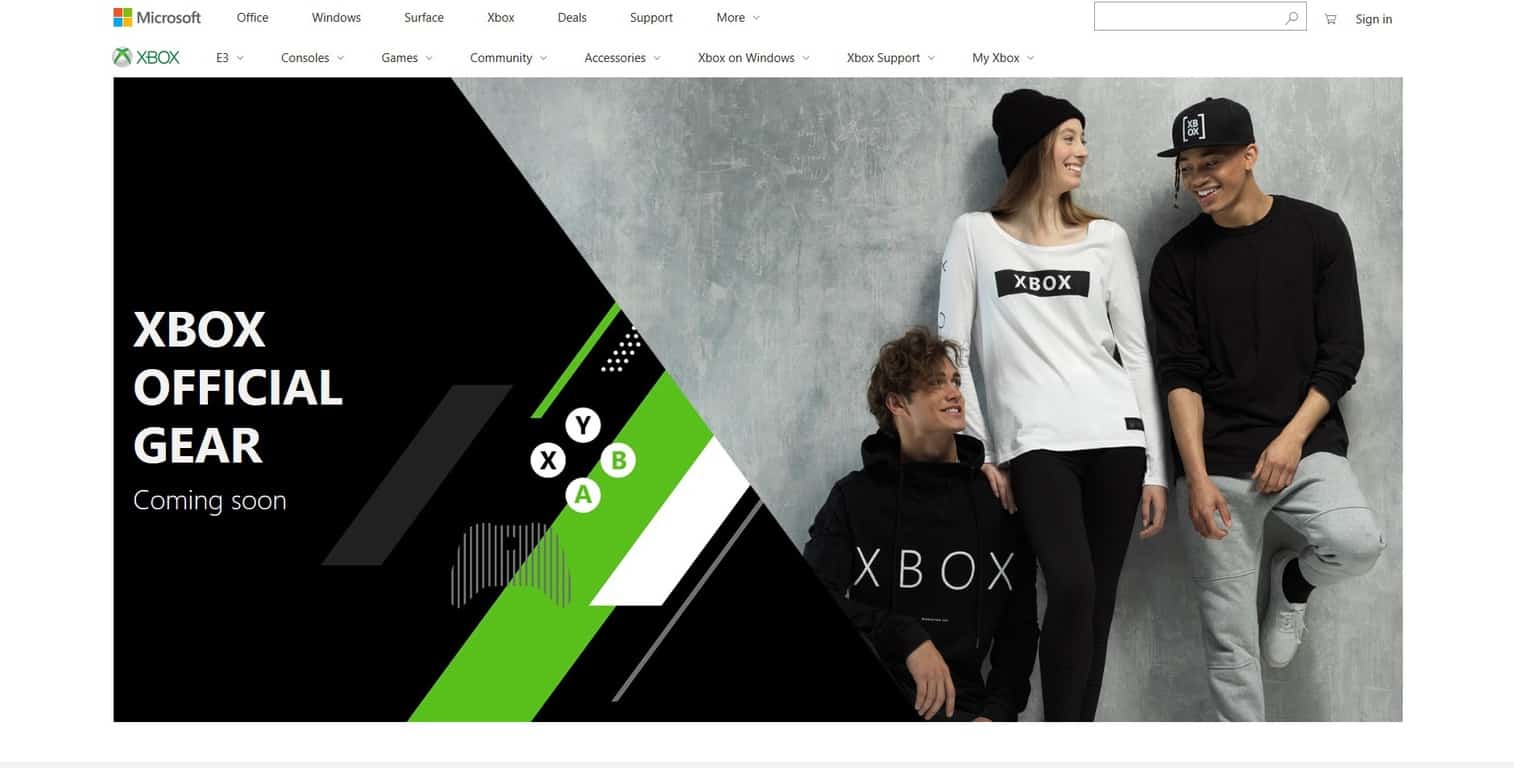
While publications continue to fan the flames of this console generations rabid fanboy and fangirl fervor over chosen gaming hardware options, Microsoft is seemingly starting its own simmering campfire across town by opening up an online storefront to enable fans to champion their pride of the Xbox brand.

The first mention of this new store came from a post on Major Nelson blog about upcoming E3 announcements from Microsoft.

Visit the Xbox Official Gear Shop

For the first time, come and visit the Xbox Official Gear Shop by Microsoft Stores in the Xbox Experience at E3. Fly your gaming colors and show off your fandom for Xbox and award-winning franchises like Halo, Forza Motorsport, and Gears of War as well as limited edition designer collaborations. We will have more information on this exciting new initiative over the coming weeks.

However, there were no links or any further details about the Official Gear Shop until recently.

A few days ago, notorious Microsoft leaker, WalkingCat reiterated the potential of an online store similar in function to the Microsoft Store that could sell all types of Xbox branded “gear”.

https://twitter.com/h0x0d/status/1004534160696856576

At the time, the link redirected to Microsoft’s homepage with no indication of an Xbox Gear shop even being contemplated by the company, however, today, the link now opens a holder page with several people donning various clothing with Xbox branding and the tag, “coming soon.”

Perhaps, this new Xbox Official Gear store will be part of Microsoft’s E3 announcements or become supplemental news this weekend for fans who are left feeling reinvigorated by their choice of gaming on the console. However revealed, the timing seems to be lining up with Microsoft officially taking the wraps off sometime in the next few days.

We’ll update once the page is live.

Best 9 Windows 10/11, 8.1 Gamepads for Playing Games

When it comes to Windows 8 games you can no longer use the mouse, so you need a nice gamepad. Now, frequently asked questions are about gamepads that are compatible with Windows 8 and Windows 8.1 . There are not many of them yet and we made a list of those available.
gamepad windows 8
The market of gamepads for Windows 8 is definitely evolving and prepared for new requests. Although, you will have to be patient and a little bit more selective when choosing a gamepad for your Windows 8 PC or tablet that will perform at its best. We listed below a number of 8 gamepads compatible with Windows 8 and Windows 8.1 m but if you already chose a gamepad you can do a quick check-in at Microsoft’s compatibility center to see if it will work with your system.

When you set up your Windows 8 game controller, after you will have found the needed drivers, you can get on with your favorite games. If Windows 8 doesn’t automatically find the drivers when you plug in your controller,  you will need to download drivers for your gamepad that are compatible with Windows 8. You can use Windows Update to check for the needed gamepad drivers.

Windows 8 compatible gamepads

Cordless Rumblepad 2 (recommended)

logitech windows 8 gamepadIt looks like this Windows 8 gamepad works like it’s supposed to. Many Windows customers are happy with it – good vibration, batteries lasting up to a couple of months – but you should be aware that it takes some extra-time to set up the controller, so arm yourself with patience. You can also opt for the wired version of Logitech RumblePad 2.


Dual Action Gamepad (suggested)

logitech dual action usb controller

This Windows 8 gaming controller is a classic and perfectly functional gamepad to be used with your many games that are installed on your Windows 8 laptop, computer or even tablet. The layout of 12 programmable buttons makes it a very suitable gaming device and for less than $80, it’s quite the bargain.


Gamepad F310

This one is number 3 in top best sellers on Amazon.com with a special offer listed price of less than $20. This is one of the cheapest Windows 8 gamepads currently available and when it comes from such a brand like Logitech, you shouldn’t have any second thoughts about it.


Rumble Gamepad F510, F710

windows 8 controllerThe F510 is a good choice if you prefer your controller to be wired and it currently retails for less than $70. You can customize its button controls and functions by using the Profiler software. The Gamepad F710 is cheaper, having a listed price of less than $50.

Read also: 10 best Windows 10 gaming controllers for a perfect play


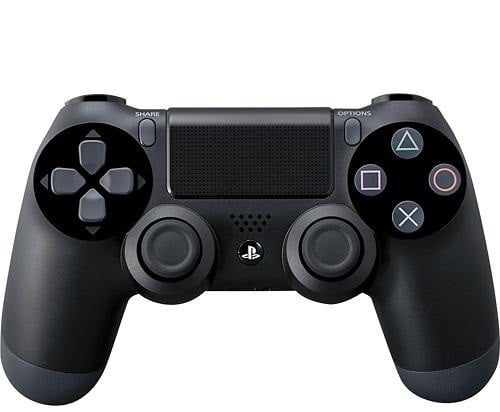
Sony DualShock 4

As we have previously told you, Sony’s DualShock 4 new controller will also work with your Windows 8 and Windows 8.1 systems. You can buy it from Amazon, Sony, Walmart, BestBuy or Gamestop for a price around $60.


Microsoft Xbox Wireless Game Controller

xbox windows 8 controllerOf course, Microsoft had to make the Xbox gaming controller compatible with Windows 8 and Windows 8.1, but at the moment the Xbox One controller drivers are yet in the works.

Read also: Best PC gaming controllers for Windows 10 to use in 2018


Razer Wildcat

razer wildcat controller for windows 8 windows 10

This is an amazingly well-designed controller. You can enjoy its amazing visual design as well as its great construction which is created for people who pass many hours in front of their console. From its most notable features, we have to mention the built-in control, carbon steel analog necks, optional palm grips for a better control.

Read also: XBox One SmartGlass App realeased in Windows Store

Magic Jigsaw Puzzles for Windows 10/11 brings fresh games

Magic Jigsaw Puzzles for Windows 10, 8 is one of the best puzzle games for Windows 10, 8 users in the Windows Store. Now, it has received a fresh updated that makes the app faster and more stable. Below are more details.

Here, at WindowsReport, we absolutely love puzzle games for Windows 10, 8 and have featured quite a lot of them – Animated Puzzles, Picture Logic, PuzzleTouch and also a collection of the best Windows RT puzzle games.

Magic Jigsaw Puzzles windows 10 puzzle game
Now, it’s time to talk about Magic Jigsaw Puzzles for Windows 10, 8, which recently  received a fresh update in the Windows Store.

Magic Puzzles is a constantly updated collection of original puzzles for the true lovers of brainstorming! Colorful themed pictures, new opportunities and pleasant music will help you to forget about everyday worries and will bring a fascinating pastime.

The release note says that the developer has fixed the bug with partly or fully disappeared puzzle pieces. But it seems that the app is also faster and more stable, as performance improvements have been put in place.

Magic Jigsaw Puzzles game description

Magic Jigsaw Puzzles
The app comes with 5 levels of difficulty, consisting of up to 630 pieces and the puzzle rotation makes up for a greater challenge. According to Magic Puzzles’ devs, the app has been downloaded more than 50 million times. Magic Jigsaw Puzzles is one of the the largest jigsaw puzzle game available online.

It features over 20,000 HD pictures and photos curated from National Geographic, Cartoon Network and many other sources. You can choose from various puzzle categories, including: animals, paintings, nature landscapes, portraits, and more. Moreover, the app also offers free daily updated puzzle galleries.

You can also create your own puzzle games using the pictures stored on your computer and then share your creations with your friends. If you’re an absolute puzzle beginner, don’t worry about it, you can quickly polish your skills in Quick Puzzles mode.

Follow the link from below to download the app on your Windows 10, 8 device.

RELATED STORIES TO CHECK OUT:


USB Tethering in Windows 10 is Not Working [Fix]

Several Windows 10 users reported encountering USB tethering issues; in some cases, it was not working in Windows 10. The problem appears to affect users who recently upgraded the iteration.

We have seen many USB-related issues in the past. We have reported problems with the Belkin Network USB Hub, slow USB 3.0 problems, and the infamous USB Code 43 Error.

But all these are easily fixable, including when Android and iPhone USB tethering in Windows 10 is not working. Keep reading to find out the solutions!

How do I enable USB Tethering in Windows 10?

Tip icon Tip
Before we proceed with the slightly complex solutions, make sure the connections are in order. Also, check for any damages to the cable. Replace it if needed.

1. Run the dedicated troubleshooter

When faced with a problem, a quick solution is to run the built-in troubleshooters. These offer an easy way to identify and eliminate issues behind USB tethering not working in Windows 10.

Start with the Network and Internet troubleshooter, and if that doesn’t work, run the Hardware and Devices troubleshooter.

For a complete walkthrough of setup and basics, check our USB tethering guide before trying the steps below.

2. Update the drivers

Often outdated drivers are why you face USB tethering issues in Windows 10 with iPhone or Android devices. And in this case, it’s best that you update the drivers.

Device Manager

Besides, when Windows can’t find an update automatically, you can always head to the manufacturer’s website, download the latest version, and then manually install the driver.

In case this process is taking too much time, there is a way to do it skyrocket fast. Updating any drivers from your PC can be done automatically with a tailored software solution for managing any driver issues.

⇒ Get Fortect Driver Updater

3. Perform a system restore

When nothing else works, and the tethering worked fine in Windows 10 until recently, you can perform a system restore.

System Restore

This will revert any recent changes to the PC, including the one that’s triggering the problem. Once done with the restore, you wouldn’t, anymore, find USB tethering not working in Windows 10.

4. Use a mobile hotspot

When the wired connection fails, you can always switch to the wireless one. Though we prefer a wired setup, there’s no harm in going for a wireless one in case of issues.

Just turn on the hotspot on the mobile, and connect your Windows 10 device to it, as you do with a regular Wi-Fi network.

By now, you should have fixed things when USB tethering is not working in Windows 10. Before you leave, find out how to increase the Internet speed in no time.

For any queries or to share more solutions with us, drop a comment below.

Download WinReducer for Windows 11 to Customize Your ISO

The wait is finally over! The WinReducer software is finally available for Windows 11. This software allows you to modify Windows ISO and reduce its size.

It can be pretty valuable software; if you use it, today’s guide will give you all the necessary information.

What is WinReducer?

This software allows you to configure Windows ISO files, and it can do the following:

  • Customize the appearance of Windows with new wallpapers, mouse cursors, and more.
  • Ability to integrate or remove certain components from the installation.
  • It can add various updates, drivers, or features to the installation.

How can I download WinReducer for Windows 11?

Use the official website

  1. Go to the WinReducer download page.
  2. Scroll all the way down and click on Download.
  3. Once the download is finished, run it to start the software.

It’s important to mention that the free version of the software is only valid for 6 months, and if you want to continue using it, you’ll need to obtain a license.

WinReducer sounds like interesting software. However, it’s important to be extra cautious when modifying Windows 11 ISO since that might cause compatibility issues in the future. To start using it, download Windows 11 ISO and run the software to modify it.

After that, just create a Windows 11 bootable drive and install Windows 11 on your PC.

Have you ever used software such as this before? If so, share your experience in the comments section below.

Windows 8 Lync App Updated with Windows 8.1, 10 Support

Microsoft Lync, formerly known as Microsoft Office Communicator, is an instant messaging client used with Microsoft Lync Server or Lync Online. Microsoft has also released an official Windows 8 app in the Windows Store that has now received Windows 8.1 support
windows 8 app lyncWindows 8 and Windows 8.1 users that have installed the official Lync app use it to communicate with other Microsoft Lync Server or Lync Online user and they work as replacements for Windows Messenger in Microsoft Exchange Server. Now, I’ve noticed that the Lync app has received an updated that makes it compatible with Windows 8.1.

You can use the Lync Windows Store app to join a Lync Meeting, but you must have a Lync account already to enjoy all the advanced features and capabilities of the Lync app. Keep in mind that some features might not be available to you, depending on your Lync server and your account settings. For more information about your Lync account, please contact your support team. Lync Windows Store app is reimagined for the new Windows Experience and optimized for touch, providing fast and natural communication and collaboration tools. You can easily make audio and video calls, run online meetings, check your colleagues’ presence status, and send instant messages.

The release note brings the following new features, besides full Windows 8.1 support

  • Take control of shared screens, apps, or PowerPoint decks uploaded in Lync Meetings
  • Run Lync side-by-side with another app at any window size, when you need to work with another app at the same time
  • Answer audio and video calls quickly when your device is locked, without having to unlock it
  • Find your contacts faster, with a simple, in-app contact search
  • Enjoy the performance improvements of all the features

Read Also: Windows Live Messenger for Windows 8: Where is it?

The Windows 8.1 Lync app is used by professional and is considered like a “business instant messenger service”. By using the app, you can join Lync Meetings and take control of PowerPoint decks. Follow the link from below to download it on your Windows 8.1 tablet.

Download Lync for Windows 8

Lync alternatives for Windows 8.1, 10 users

Lync messenger can be found on Microsoft Store but it works only on Windows 8 right now (at least this is specified in its download page). However, if you were using it a lot, and upgraded to Windows 8.1 or 10, we have great news: this isn’t the only instant messaging app that you can use. We have some lists of various messaging software that might replace you Lync. Here are some of them:

Flixster app brings your favorite movies to your Windows 10 PC

Flixster is one of the best Windows 10, 8 and 8.1 movie apps for film fans from all over the world.It has recently received a fresh update in the Windows Store that takes care of some previous annoyances.

Flixster windows 10 app

We have included the Windows 10, 8 app Flixster in our list of the Best Windows 10 movie apps to download  right now. The Windows 10, 8.1 Flixster app was recently updated with several bug fixes and now we’ve seen a new update that takes care of some other things.

Watch movie trailers, get showtimes and stream movies from your UltraViolet movie collection. Browse the top box office movies and movies opening soon. Look up showtimes at nearby theaters. Get critics’ reviews from Rotten Tomatoes. Watch high quality trailers. Stream full-length movies from your UltraViolet collection. Create your own “Want to See” list.

The release note for the Windows 10, 8.1 Flixster app update informs us that fixes for playback issues and general bug fixes have been put in place. Download the latest update as soon as you can, to ensure that you have the latest version running.

We also recommend a third-party tool to automatically download all the outdated drivers on your PC.

⇒ Get Outbyte Driver Updater

Flixster key features

If you’re looking for an app to watch movies on your Windows 10 computer, here are some of the key features that make Flixster an option worth considering:

  • You can use it to look up showtimes at nearby theaters
  • You can also check out critics’ reviews from Rotten Tomatoes to get an idea about the movies that you’re planning to watch
  • Watch high quality trailers
  • Stream full-length movies from your UltraViolet collection
  • Create your own “Want to See” list to make sure that you don’t forget about any of the movies that caught your attention.

If you already used Flixster, tell us more about your user experience in the comment below.

RELATED STORIES TO CHECK OUT:


Don’t forget, Microsoft kicks off this year’s E3 on Sunday with a big Xbox event

It’s finally almost here, and if you’re a gamer, this is the Super Bowl. Just like last year, Microsoft will be kicking off the festivities on Sunday with a big show starting at 1pm, showcasing everything Xbox. Xbox chief Phil Spencer promised that things would be a little different this year, and while early indications were that breaking news was going to be scarce, tech pundits recently have become a little more optimistic, so it sounds like it will be well worth tuning in.

The Xbox show will take place at the Microsoft Theater at L.A. Live in the downtown Convention Center/Staples Center complex, much more convenient than last year’s venue, which was at the Galen Center at USC.

We’ll be at E3 again this year, looking to bring you all the latest news and insights, fighting the crowds, and enjoying the sights and sounds of Los Angeles. Can’t wait to get this show started!

Check out this official Jurassic World Xbox One X console

E3 2018 begins next week, and it will be exciting to see what new Xbox One and Windows 10 games are in the works.  As noted in a post on Vamers.com, Frontier, the developer behind the upcoming Jurassic World Evolution game for Xbox One and Windows 10 PC, is offering a chance to win a special edition Jurassic World Evolution-branded Xbox One X.

Microsoft, Xbox One, Xbox, Xbox One X, Jurassic World Evolution

Besides a new paint job, the Jurassic World Evolution Xbox One X console doesn’t have a bigger hard drive or any other noticable feature. Jurassic Park Evolution will be released on June 12 and allow you to create your own Jurassic World, creating your dream park with 40 dinosaurs, managing park operations, and dealing with any unforseen disaster that can (and will) disrupt the park and try to contain the ensuing mayhem.

Jurassic Park Evolution features the voices of actors from Jurassic World and the upcoming Jurassic World: Fallen Kingdom, including Jeff Goldblum as Dr. Ian Malcom, Bryce Dallas Howard as Claire Dearing, and D. Wong as Dr. Henry Wu. Jurassic World: Fallen Kingdom will be in theaters on June 22, 2018.

Pre-order Jurassic World Evolution for Xbox One.

Jurassic World Evolution

Need for Speed Payback joins EA Access on Xbox One

Need For Speed Payback has just joined EA Access only seven months after its initial release.

EA Access is a video game subscription service which grants subscribers full access to a library of EA titles for a monthly fee. It works in pretty much the same way as Netflix or Microsoft’s own Xbox Game Pass service and can be good value for those that would usually buy a lot of EA video games.

Set in the underworld of Fortune Valley, you and your crew were divided by betrayal and reunited by revenge to take down The House, a nefarious cartel that rules the city’s casinos, criminals and cops. In this corrupt gambler’s paradise, the stakes are high and The House always wins. Play a varied and challenging world of events as Tyler; the Racer, Mac; the Showman and Jess; the Wheelman. Each driver must take on races, missions and challenges to earn the respect of the Valley’s underground and compete in the ultimate race to finally take down The House. From insane heist missions to devastating car battles to jaw dropping set piece moments, Need for Speed Payback delivers an edge of your seat, adrenaline-fueled action-driving fantasy.

Are you an EA Access subscriber and would you recommend it to other Xbox One owners? Let the community know in the comments below and don’t forget to like us on Facebook for more Xbox One news.

Need for Speed™ Payback


EA Play
EA Play
Developer:
Electronic Arts
Price:
$5.99

Microsoft adds a surprising new Video Editor app to Windows 10 PCs

Over the last 24 hours, a mysterious new app, Video editor, was installed on most Windows 10 computers without anyone’s permission.

This app is a Microsoft creation and it’s not really a new app at all. It actually appears to be a basic shortcut to the video edition features in the Windows 10 Photos app. There’s been no official reason for this release though a likely motivator is that most Windows 10 users are unaware that there’s video editing tools in the Photos app. This is understandable though as very few people would think to open a photo or image app for editing a video. It’s not exactly an intuitive design choice.

One benefit of this new non-app is that it can be pinned to the Start Menu for easy access. Of course, anyone can still just open the Photos app and navigate to the editing tools like usual.

Were you confused by the sudden appearance of this app and do you think it’s a good idea? Share your thoughts with the community in the comments below and make sure to like us on Facebook for more Windows 10 news.

FIX: New partitions appear in File Explorer after Windows update

Many users who installed the Windows 10 April Update on their computers noticed that new partitions appeared in File Explorer. In this post, we’ll explain you why this issue occurs and how you can fix it.

But first of all, let’s see how one user describes this situation:

After installing the April 2018 Update to upgrade to Windows 10 version 1803, a new partition appears in File Explorer. I’m also constantly getting warnings that the partition is low in space, and there are no options to delete this partition.

Due to a code bug, Windows 10 v1803 now assigns drive letters to previously hidden partitions. In other words, these partitions are now visible in Disk Management and File Explorer. Most of these partitions are actually recovery partitions.

Keep in mind that deleting them might limit your ability to recover Windows in case something goes wrong with your computer. So, it’s best to simply keep them on your machine.

New partitions appear after Windows update [FIX]

Microsoft already fixed this problem via an update, so all you need to do is install the latest Windows 10 v1803 updates on your machine and those strange partitions should disappear. However, the solution works only for those devices that install the Windows 10 April 2018 Update after the hotfix is released.

If you’ve already installed Windows 10 v1803 and your are experiencing this issue, follow the steps listed below:

  1. Go to Start > launch Command Prompt as administrator.
  2. Type diskpart > hit Enter.
  3. Type list volume > hit Enter.
  4. Note the volume number of the drive letter you want to remove (example: Drive E).
  5. Type this command > hit Enter:
    • select volume <volume number>
  6. For <volume number>, insert the volume number of the drive you want to remove (example: if the volume number for drive E is 3, then type select volume 3).
  7. Type this command > hit Enter:
    • remove letter=<drive letter>
  8. For <drive letter>, insert the drive letter you want to remove (example: remove letter=E)

That’s it, this quick workaround should help you fix the problem in no time.

RELATED STORIES TO CHECK OUT:

Alpha Ring Xbox Insiders get a Skip Ahead option, gives access to new features early

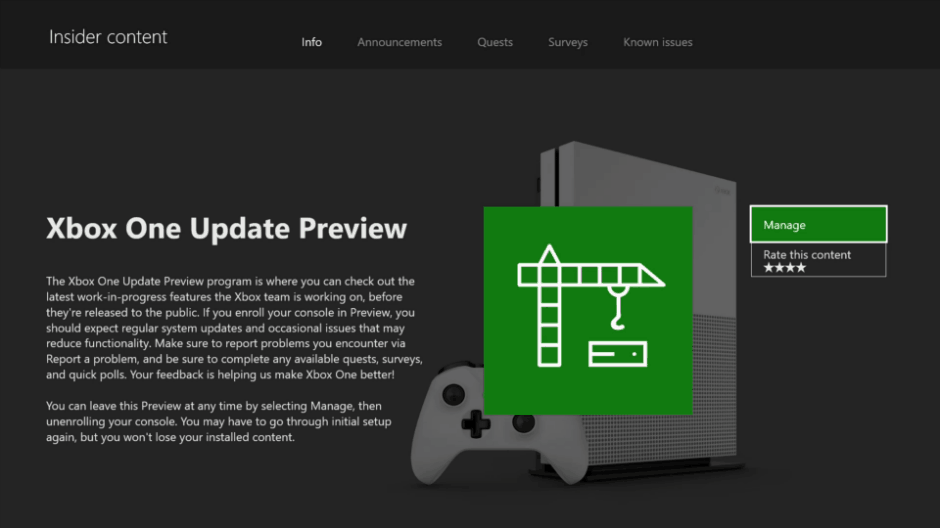
Microsoft today announced they have added a new Skip Ahead option for Xbox Insiders who are enrolled in the Alpha Ring. This new “Alpha- Skip Ahead” ring will give select gamers early access to new Xbox features and takes inspiration from the Skip Ahead feature of the Windows Insider Program.

The new Skip Ahead option will branch the Alpha RIng to preview so gamers can preview both Redstone 4 and Redstone 5 builds simultaneously,  It will become open to all Alpha members in the current weeks, and by invitation for other Xbox Insiders. Importantly, Alpha members will still have the chance to decide if they want to stay on Redstone 4 or continue ahead to Redstone 5, and can always change back their enrollment status instantaneously 

Microsoft says that Alpha-Skip Ahead builds will typically come months before it releases to the general public. Gamers with Alpha-Skip Ahead builds will also see new features, apps, and experiences before everyone else. This all means they should have a bigger role in shaping the future of Xbox and suggesting new changes to members of the Xbox Feature Team via Quests and Surveys.

According to Savannah, an Xbox Program Manager, Microsoft came to this decision after noticing that Xbox Insiders eager to preview new features, apps, and games. Skip Ahead Redstone 5 builds will be less stable than previous Alpha builds, so gamers might want to choose at their own will. Microsoft also says that some Skip Ahead features will be announced and others may not be announced at all. It is all part of Microsoft’s plans for working with teams across Xbox to find ways to better introduce new experiences in Xbox Insider builds.

Download Spending Tracker App on Windows 10, 8

Spending Tracker is a very useful Windows 10, 8 app to help you track your expenses. Now, it has received a new update that takes care of some bugs and improves the overall app performance.

Expenses can be tracked easy and smart in Windows 10, 8 with the right app, and in this case we’re talking about Spending Tracker, one of the most used and positively rated expense tracking apps from the Windows Store. Now, the Windows 10, 8.1 app has received a new update in the Windows Store that we’re going to talk about.

spending tracker windows 8

Spending Tracker is the easiest and most user friendly Personal Finance App in the store. And best of all, it’s free! The simple fact is, by tracking your spending you will be able to stick to a budget and therefore SAVE MONEY. So give it a try and have instant control over your spending!

Track your expenses with Windows 10, 8

Spending Tracker for Windows 10, 8 and Windows 8.1 has been improved with bug fixes that have been reported by users in the Windows Store. The user interface is great looking and comes flexible time periods. Here are some other great features that it comes with. Some of these features can be unlocked in the Pro version.

— RELATED: 8 best personal finance and accounting Software

Spending Tracker App

Spending Tracker key features:

  • Overview of your current spending progress
  • Log Expense and Income quickly and easily
  • Budget Mode allows you to set a fixed budget amount
  • Repeat transactions daily, weekly or monthly (Pro Upgrade required)
  • Editable spending and income categories
  • Reports give you easy visualisation of where your money goes
  • Live Tiles keep you up to date with your latest balance
  • Keep your data safe with Dropbox Backups (Pro Upgrade required)
  • Export transactions to CSV (Pro Upgrade required)
  • Sync your data between devices with Dropbox Sync (Pro Upgrade required)

Download Spending Tracker for Windows 10, 8

Overall, Spending Tracker has a very simple and easy to use UI that will speed up the learning process considerably. You’ll quickly get the hang of this app after only a few minutes of use. So, if you’re looking for a simple and reliable personal finance app, then this is the right choice for you, as this user confirms:

It does everything I want and more. I don’t really like the budget apps that require your bank info. Yes they track your spending a lot better, but they do not count the cash you have in hand. Or in your change jar at home. This app lets me customize titles and accounts perfectly.

If you want to better organize your budget and keep track of your expenses, here are a few additional tools that you can use:


Download DirectX Happy Uninstall on Windows 10

The DirectX Happy Uninstall software, just like the name suggests, is a management and maintenance tool for Microsoft DirectX. Now, it has Windows 10, 8.1 support with the latest version. Below are more details.

By using the DirectX Happy Uninstall software, you can backup your Windows 10, 8 DirectX and even restore DirectX from this backup. Also, you can use the Disc-Rollback Feature that lets you fix all the most comment DirectX problems in Windows 10, 8. Now, version 6.2 of DirectX Happy Uninstall finally brings Windows 10, 8.1 support with the latest updated.

A large number of facts have proved that DirectX Happy Uninstall can fix all the PC problems raised by DirectX error. DirectX Happy Uninstall easy to use, with a few easy steps it can help you uninstall current DirectX and reinstall DirectX to a correct & original version! In order to maintain the Windows DirectX core components, DirectX Happy Uninstall provides Backup Feature to backup the DirectX core components from your Windows and Restore Feature to restore the DirectX core components from a backup.

DirectX Happy Uninstall have a Magic Feature, that is call Disc-Rollback. It will first uninstall the current DirectX core components from your Windows, then install a original core component of DirectX on your PC from the Windows Setup Disc. This can make your DirectX just like the first installed.

No more DirectX errors with DirectX Happy Uninstall

So, now you can identify and repair any issues concerning DirectX in Windows 10, 8.1, as well.  Of course, support for all the other Windows versions that are still on the market is ensured.  DirectX Happy Uninstall is a very popular software and has had over 3,000,000+ downloads so far from users from more than 100 countries.

The trial version will let you use it for one month and to purchase it, you will have to invest 20$ in this program. But, at least you know you will never get any other DirectX related problems in Windows 10, 8 or Windows 8.1.

DirectX is extremely useful for gamers as well. If you’re getting strange DirectX errors while launching or playing your favorite games, then this tool may help you.

If you haven’t used DirectX Happy Uninstall before, go to this support page and check out the official guide on how to install and use the tool.

WindowsReport also compiled a series of DirectX troubleshooting guides that you can check out by clicking on the links below:


Where is Microsoft Office Communicator in Windows 10/11, 8?

Microsoft Office Communicator has been used Windows XP, Windows Vista and Windows 7 users. But with Windows 8 and Windows 10, this has changed. Read below to find more details.
microsoft office communicator windows
Many have been wondering where has gone the Microsoft Office Communicator tool in Windows 10, 8. Unfortunately, it has the same fate as Outlook Express or Windows Live Messenger.

Microsoft Office Communicator 2007 R2 is a unified communications client, enhanced with the high quality VoIP platform on Office Communications Server 2007 R2 and equipped to help users achieve new levels of productivity. Users can initiate conversations, conduct live video or audio meetings and share desktop applications with Web-connected colleagues worldwide.

Microsoft Office Communicator in Windows 10

The good news is that Microsoft Office Communicator isn’t 100% extinct as it has been replaced with the official Lync app for Windows 8 and Windows 8.1 users. Follow the above link to get more information about the Lync app and how it can replace your need for the good ol’ Microsoft Office Communicator. And you can download it by following the download link from below.

Download Lync app for Windows 10, 8

If you’re looking for a reliable Microsoft Office Communicator alternative, you can also install Microsoft Teams on you computer. This instant messaging app allows you to stay in touch in your colleagues, team and business partners. For more information about Microsoft Teams, go to Microsoft’s official webpage.

RELATED STORIES TO CHECK OUT:


FIX: Windows 10/11 problems with laptop backlight keyboard

Windows 8.1 laptop users have been struck with backlight problems on their keyboards. Issues with backlit keyboards have been more present in Windows 8 but they are now back in Windows 8.1

I have recently bought a new Windows 8 laptop and it comes with a backlight-powered keyboard, so when I heard that problems with this kind of keyboards have been reported online, I started analyzing them with care. Actually, a good friend of mine has been complaining that after the Windows 8.1 update,  the backlit keyboard seems stuck in battery mode. Here are some more problems reported.

I bought a MacBook Air today. Installed Windows 8.1. Installed all the drivers. Everything is workign great – but no backlit keyboard functionality.

Somebody has problems with their MacBookAir, as we can see, and this is not a first for Apple users. We have previously reported that Windows 8.1 Install Fails on New 2013 Retina MacBook and there were reported several iTunes crashes with Windows 8.1, as well. This time, an Asus owner is complaining:

I’m having issues with my Asus g73jh and the keyboard. Also other issues but I am guessing it starts with the keyboard not able to use the FN hot keys. I tried installing the drivers etc. Also just to throw in, I did a dual boot since I have 2 hard drives I have windows 7 on one and 8 on the other. Anyone have this kind of issue? I can’t get the keyboard lights to turn on, can’t dim the screen or use any other function. Everything else seems to be working fine.

And the problem is also affecting a Dell user. Recently, Dell XPS 15 owners have been reporting Shutdown Problems in Windows 8.1.

I bought this laptop few days ago, and I noticed that my keyboard doesn’t light up, and it is written on the laptop’s box that it should have “backlit en kb”. I have quickset app installed, and I’m using windows 8.1. In the windows mobility center I can adjust keyboard’s backlit slider (off – dim – bright) but it doesn’t do anything. Any idea what problem am I facing ? or how should I know if my keyboard is really a backlit capable, how can I check, like if there’s additional cable for backlit or something like that ? Thanks in advance to everyone who might try to help.

Read Also: Install Windows 8.1 on SSD – Steps to Follow

From what I’ve read and all the solutions I’ve seen, it seems that updating the BIOS should have the desired effect and your problems with they backlight on your keyboard should be fixed. Also, what I’d suggest is to check your power settings, as there’s a chance your laptop might be going in idle mode. Besides this, if you know any working fixes, do let us know and we will share it with the community.

Try to switch to a separate keyboard [Update]

If you cannot fix the issue you might seriously think about getting a new, separate keyboard. I had the same problem and right now I am writing from a Logitech K780 and must say that it’s even better for my laptop since I don’t have to tap directly on its surface thus not producing any vibrations, which are bad for HDD. I chose this path because I am too lazy to search for a fix, and bought this keyboard model. If you see the things as I do, here are some handpicked keyboard lists for specific purposes:

We hope that you will find the right solution for you. Let us know in the comments section how did you solve this problem.

Headphones Don’t Work in Windows 8, 10 for Some Users

Some users have been recently reporting in the Microsoft Community support forums that they have been noticing problems with their headphones in Windows 8. We go a little deeper

A while ago we were reporting that some Linux users have been detecting problems with their headphones in Windows 8. Now, some new forum postings suggest that the problem is also expanding to Windows 8 users, as well. If you happen to own Parrot Zik headphones, stay calm as they will work in Windows 8 and Windows 8.1 since Parrot has made available compatible drivers. Here’s what three users have been saying:

When playing any type of audio, sound will come out perfectly fine from the speakers, but when i plug in the headphones the sound will keep coming out from the speakers. How do i change the settings so that i can use my headphones?

i just got a toshiba laptop with windows 8 on it, it went fine until i want to use my headphones and somehow the sound is not the usual one. it still have sound, but its like it doesnt have the bass, or more clearly if you didnt put your headphones on something throughly. i tried, like when people said to check the disabled on playback and the headphones will appear, but in my case it wont. so how to make my headphone work like its usual sound?

I recently updated my Inspiron 15R to Windows 8.1 and since then, the headphone/audio out jack does not seem to function. When headphones are plugged in, it does stop using the speakers but no audio comes out of the headphones. They are a known working pair and the problem does not happen when I boot into Ubuntu, so it is definitely a software issue specific to Win8. I’ve installed the IDT drivers, re-installed them, deleted everything from the device manager and restarted so it would reset, and nothing seems to change.

Maybe a simple solution could fix the headphones problem

As we can see, the problem isn’t limited only to a single OEM, as more have been reporting problems with the headphones in Windows 8 and Windows 8.1. If you are experiencing similar problems, try reinstalling the headphone driver, if it isn’t USB-based. Or you can try the follow fix suggested by a Dell user:

  1. Make sure you run as admin
  2. In the start screen, type “Computer”
  3. Right click on “This PC” and click on “Properties”
  4. On the left hand side click on “Device Manager”
  5. Scroll down until you see “Sound, video and game controllers” and click on the drop-down arrow
  6. Right click on “Realtek High Definition Audio” and click on “Disable”
  7. Right click on it again, but this time click on “Enable”

Read Also: Realtek Card Reader Drivers Still not Updated for Windows 8.1

I know it might sound dumb and very basic for some, but this might actually work for those of you who are looking for a workaround. I’ve tried looking for other solutions, but didn’t find. If you happen to know a working fix, do let us know by leaving your comment.

Other headphones issues in Windows 10 and their fixes

This isn’t by far the only issue that could appear while using headphones in Windows 10, 8.1 or 8. There is also the simple no-sound ‘phenomenon’ and it’s quite annoying when it appears. But you can easily get rid of this by following the steps from this guide.

Windows can also give you the ‘won’t recognize headphones’ error. In this case, you should disable front panel jack detection (only if Realtek software installed). If it’s not the case, you can follow up with the rest of solutions from this article. The last big problem that you might encounter is ‘no speaker or headphones are plugged in‘.

Let us know in the comments if you solved your headphones malfunctions in Windows and don’t forget to mention which solution worked for you.

Download Project Spark on Windows 10/11 to create your games

Project Spark is an exciting upcoming game by Microsoft Studios that lets you create actual games from it. Now, it seems that the app is already available in the Windows Store, as it has leaked.

There’s been a lot of fuzz around Project Spark, a “game maker” video game for the Xbox One, Xbox 360, Windows 10, 8 and Windows 8.1. Microsoft initially announced the game during the E3 2013 press event which Redmond attended after quite an absence.

project spark app windows 10

Create your own games with Project Spark

Basically, Project Spark is a “digital canvas which can be used to make games, movies and other experiences”. But now, thanks to leak, it seems that the app has already been included in the Windows Store. Here’s a part of the description:

The ultimate interactive playground for gamers of all ages, delivered as a free digital download with many options for enhancing your creative experience, it’s a place where you can walk in the world’s collective imagination and start playing. See how a creator did what they did, and when you’re ready, become a creator yourself. Project Spark is a powerful, yet simple way to build and play your own worlds, stories, and games. Share all of your creations to a dynamic community, and play what the community makes. Project Spark brings creation to life and presents endless opportunities for play.
Discover the world’s next best game…or create it yourself! Project Spark is a powerful yet, simple way to build and play your own content, stories and games. Even better, it’s completely free!
PLAY HUNDREDS OF THOUSANDS OF GAMES!
• A multitude of games are at your fingertips – everything from epic questing in Celestial Quest to racing galactic superstars in X-Zero. Hundreds of genres, new games and play mechanics are available for immediate and unlimited free access. Play them right now!
• Stun the world with your very own game! Thought you could make it better? Had an idea you’ve never seen before? Quickly and easily turn your idea into a game with Create and Start from Scratch.
• Have you ever wanted to change something about a game as you play it? Now you can with Crossroads! Change the whole game as you play, or just choose your own missions and objective and then take down the bad guys to save the day. Easily mix things up to make the adventure different every time!
• Project Spark is completely free! No in-game purchases! No Marketplace! No ads! All content is available right out of the box to play and create with. With over 2,000 assets to use, what will you create?

However, the recommended specs aren’t that entry-level:

  • Core i7 CPU
  • Nvidia GT640M or AMD HD8850M or better
  • 8GB RAM
  • 2GB hard drive space
  • Minimum:
  • Core i5 CPU
  • Intel HD4000 video card
  • 4GB RAM

— RELATED: 10 best game making software for PC users

The link to the app in the Windows Store can be found below. It initially pointed to a page for users from Kazakhstan, albeit the description was in English. Meanwhile, Microsoft fixed the problem and released the app to all users. Should you encounter any download issues, try changing your country. Also, you will need an invitation code that you can get from the official page of Project Spark.

Here are some of Project Spark’s key features

  • Play virtually unlimited games with direct access to tens of thousands of games created by a global community.
  • Remix games you download from the community to add your own touch or to use it as a foundation for your own creation!
  • Access to Champions Quest: Void Storm, a popular game created within Project Spark itself!
  • Pre-made “brains” make it easy to put behavior on virtually any object.
  • Create anything you can imagine with simple tools and a powerful, yet simple, visual programming language.
  • Project Spark is available for Windows 10, 8 and Xbox One, and the games created and played on one platform are available on the other.
  • Project Spark requires a connection to Xbox Live for initial login.
  • Compatible with Xbox 360 and Xbox One controller.
  • Supports mouse, keyboard and touch controls.

RELATED STORIES TO CHECK OUT:


Need a Moon phase app? Download Lunar Phases on Windows 10/11

Astronomers that own a Windows 10, 8 tablet or just sky lovers definitely need to download this awesome Windows 10, 8 moon phase app. Lunar Phases is an interesting Windows 10, 8 visual tool that you can use to view the phase, age, and stage of the Moon. Below are more details.

We at WindowsReport looooooove to discover new, original Windows 10, 8 and Windows 8.1 apps and one such app is Lunar Phases. The title of the app explains what Lunar Phase is all about – you get to view the phase, age, and stage of the Moon. Even more, you can watch the surface of the Sun change with a near real time image, which looks quite cool on a Windows 10, 8 tablet.

windows 8 moon phase app

Use the astrological view of the solar system and constellations to see how the Earth & Moon align with it all. Ever wonder where the planets or moon were in relation to the earth at your birth? Or where they were during some event? Or maybe where they might be in the future? Well now you can know the answer to them all.

Explore the Moon and see its phase with Lunar Phases

The Windows 10, 8 Lunar Phases app comes with constellation alignments, different moon phases. Albeit it is targeted at analyzing the moon with your Windows 10, 8 tablet, there’s also the ability of seeing the sunrise and sunset and also the position of planets. This Windows 10, 8 Moon Phase app has been updated quite a lot in the Windows Store, which shows that the developers look after the users. Here are the updates it has received:

  • Refresh Button
  • Small error with Pluto has been fixed
  • Tile Updates are now enabled when “Remove Ads” is purchased
  • Cstom coordinates, 24 hour clock, and constellation chart time of day layer

The app has excellent graphics and offers lots of information in a clean manner suitable for both beginners and experienced astronomers.

— RELATED: Top 100 free Windows 10 store apps to download

You can further discover the sky with the awesome SkyMap Free app for Windows 10, 8 and Star Chart. Follow the link from below to download and install Lunar Phases on your Windows 10, 8 device.

Speaking of the Moon, there is also another sky app that might interest you. The SunAndMoon app calculates local times for sunrises, sunsets, moon rises, moon sets, dusk and dawn times. You can either use your computer’s location services to accurately pinpoint your location or manually select it using Bing maps.

RELATED STORIES TO CHECK OUT:


Zillow App for Windows 10: Availability and Other Info

Zillow is an online real estate database used by millions in the United States. Now, the company has finally decided to release an official Windows 10 app in the Windows Store. We go through its features in the article below.

Buying, selling, or renting a place from your Windows 10 tablet becomes a breeze with the official Zillow app.

Without a doubt, one of the most known names in the real estate business, Zillow, now wants to attract those of you who own a Windows 10 device, as well, with the launch of their official app in the Windows Store.

Is Zillow a software?

Yes, Zillow is a web-based real estate platform that offers a variety of features related to buying, selling, renting, and financing properties. While Zillow offers software applications for Android and iOS devices, its primary offering is its website.

Some key features of Zillow include the following:

  • Property search – Zillow allows users to search for properties based on multiple criteria, such as location, price range, number of bedrooms/bathrooms, and property type.
  • Home value estimates – Zillow provides estimated home values for properties based on a proprietary algorithm known as the Zestimate. This feature is intended to estimate a home’s value but should not be relied upon as a substitute for a professional appraisal.
  • Real estate listings – Zillow offers a wide range of real estate listings, including homes for sale, apartments for rent, and new construction properties.
  • Mortgage Calculator – The service offers a mortgage calculator that can help users estimate their monthly mortgage payments based on the purchase price of a property, down payment amount, and other relevant factors.
  • Neighborhood information – Zillow provides neighborhood information, including schools, crime rates, and local amenities.
  • Zillow Offers – This feature allows homeowners to request an offer on their property from Zillow, eliminating the need to list the property on the market.

Can I get the Zillow app for Windows 10?

Yes, you can get the Zillow app on Windows 10. However, you may have to run it using an Android emulator.

Please note that the Zillow app is designed for mobile devices, so it may not provide the optimal user experience on a Windows 10 device. 

However, if you prefer to use Zillow on your Windows 10 device, you can access the Zillow website through your web browser. The Zillow website is optimized for desktop and mobile devices so you can use it seamlessly on your Windows 10 device.

To access the Zillow website, open your browser and go to www.zillow.com. You can search for properties, view listings, and use all the other Zillow features.

Zillow real estate windows 10 app

How to run a Zillow app on my desktop?

  1. Download and install an Android emulator on your desktop. BlueStacks and NoxPlayer are popular choices.
  2. Once you have installed the emulator, open it and sign in with your Google account.
  3. Open the Google Play Store app and search for Zillow in the emulator.
    zillow app for windows 10
  4. Click on the Zillow app and then click on the Install button to download and install the app.
    zillow app for windows 10
  5. After installation, you can open it and use it just like on a mobile device.

Is there a Zillow app for Windows?

For desktop devices, unfortunately, there is no app. However, you may enjoy it on your PC using an emulator, as described in the section above.

And that will be as much as we will discuss in this guide.

Besides the downside for PC users who cannot directly benefit from a desktop application, the service is fantastic and has helped many people in the USA.

So, Let us know your thoughts below in the comments section.

FIX: Can’t update spyware protection on Windows 10/11/7

Having everything up-to-date is paramount. One could justify moving from Windows 7 to Windows 8 or Windows 10 by up-to-date protection updates which subdue virus and spyware threats. However, even the most distinctive advantage sometimes fall short. Namely, a moderate number of users wasn’t receiving any Windows Defender update on Windows 10 or Windows 8/8.1, respectively.

In order to address this, we provided the list of the most viable solutions. If you’re not seeing any definition updates for Windows Defender, move gradually through the list.

What to do if Windows 10 won’t update virus and spyware protection?

  1. Check for updates
  2. Make sure there’s no a third-party antivirus installed
  3. Restart services
  4. Run SFC
  5. Use CMD to enforce the updates
  6. Check Group Policy
  7. Download updates manually
  8. Reset PC to factory values

1. Check for updates

All chances are that you already tried this. As you already know, the Defender’s updates for virus and spyware protection come via Windows Update. However, as we already saw so many times before, these updates tend to misbehave. In order to surpass the automatic distribution (which is obviously failing in this case), you can navigate to Windows Defender Security Center and check for updates by hand.

Follow these steps to update Windows Defender via Security Center:

  1. Open Windows Defender Security Center from the Notification area.
  2. Choose Virus & threat protection.fix update spyware protection windows 10/8, 8.1
  3. Open Virus & threat protection updates.fix update spyware protection windows 10/8, 8.1
  4. Click on the Check for updates button.fix update spyware protection windows 10/8, 8.1

If the error is persistent, follow the additional steps we provided below.


2. Make sure there’s no a third-party antivirus installed

Now, you already know that there’s no place for two antimalware solutions on Windows 10. Or any Windows iteration, for that matter. If you decide to place your trust in a third-party antivirus, Windows Defender will be disabled automatically. Now, if you, in the meantime, decide to use Windows Defender instead, it’s really important to delete all traces of the third-party antivirus which preceded it.

So, a thorough clean up is necessary in order for Windows Defender to work without any issues. You can navigate around and clean the associated files on your own, or use a third-party tool which will do it for you. There’s a huge list of available Uninstallers and Cleaners, so we recommend checking our list of the best available tools.

These tools will clear all remaining files and, after a restart, Windows Defender should work fine. However, if that’s not the case, there are a few more things you can do.


3. Restart services

Restarting the dedicated service for Security Center might help, as well. If Windows Defender is active, this service should automatically start with the system. However, due to a minor bug, certain system services tend to stop. Also, by restarting the service at hand, you’ll restart the system application, and this just might get Windows Defender going.

Here’s where to find the service and how to restart it:

  1. Type services in the Windows Search bar, and open Services from the list of results.fix update spyware protection windows 10/8, 8.1
  2. Navigate to “Security Center” service and make sure it’s running.fix update spyware protection windows 10/8, 8.1
  3. If it isn’t running, right-click on it and click Start.

4. Run SFC

When the built-in system resources start failing, the troubleshooting steps we commonly use on third-party applications are out of the reach. What we can do instead is employing the built-in tools. One commonly-used tool for addressing system errors is System File Checker also known as SFC. This tool runs through a command line and it verifies the integrity of system files.

Here’s how to run SFC in Windows 10:

  1. In the Windows Search bar, type cmd, right-click on the Command Prompt and run it as admin.
  2. In the command-line, type sfc/scannow and press Enter.fix update spyware protection windows 10/8, 8.1
  3. Wait until the procedure ends and restart your PC.
  4. Try updating Windows Defender‘s virus and spyware definition again.

5. Use CMD to enforce the updates

Command Prompt comes into play in the scenarios when you need to take complete control of your system. Clearing updates with caused stuck and restarting the update process can be easily done with a few commands. Once you’ve done it, the update cycle should continue working as intended — without errors and on time.

Follow these steps to enforce Windows Defender updates with Command Prompt:

  1. In the Windows Search bar, type cmd, right-click on the Command Prompt and run it as admin.
  2. In the command-line, copy-paste the following lines and press Enter:
    • cd %ProgramFiles%Windows Defender
      MpCmdRun.exe -removedefinitions -dynamicsignatures
      MpCmdRun.exe -SignatureUpdatefix update spyware protection windows 10/8, 8.1
  3. After that, press Enter again to update signatures and restart your PC.

6. Check Group Policy

As we already said, when you install a third-party antivirus, Windows Defender automatically disables. The system will see to it. However, if you’ve changed your mind, getting back to Windows Defender can, for some users, be quite a chore. Namely, in order to re-establish Windows Defender, you’ll need to confirm that the feature is enabled in the Group Policy Editor.

Here’s what you’ll need to do:

  1. Type group policy in Windows Search, and open “Edit group policy“.fix update spyware protection windows 10/8, 8.1
  2. Navigate to: Computer Configuration/Administrative Templates/Windows Components/Windows Defender Antivirus.fix update spyware protection windows 10/8, 8.1
  3. Make sure the “Turn off Windows Defender Antivirus” is disabled or not configured.fix update spyware protection windows 10/8, 8.1

If you can’t access the GPE, there’s still a way to re-enable Windows Defender. You can navigate to Registry Editor and make some needed changes. However, please do be careful, as these are the risky grounds and a misuse can lead to critical system damage.

Follow these steps to tweak Defender-related Registry settings:

  1. Type regedit in Windows Search, right-click on Regedit and open it as an administrator.
  2. Navigate to: HKEY_LOCAL_MACHINESOFTWAREPoliciesMicrosoftWindows Defender.
  3. If there’s an entry DisableAntiSpyware, right-click on it and open Properties.
  4. Change its value to 0 (zero) and exit Registry Editor.

7. Download updates manually

If the issue is persistent and Windows just won’t comply, you can try to update the virus and spyware database manually. Namely, all latest definitions are stored online, on a dedicated website. You can navigate there and download fitting definition updates, depending on your OS version (Windows 10 or Windows 8/8.1) and the system architecture.

Follow these steps to install updates for Windows Defender manually:

  1. Navigate to the official site with definition updates, here.fix update spyware protection windows 10/8, 8.1
  2. Scroll down and download the proper version suiting your system’s version and architecture.
  3. Install it like any other application and restart your PC.

8. Reset PC to factory values

Finally, if you’re still unable to resolve the issue at hand after all previous steps, we suggest restoring Windows to its default values. This is much better than the reinstallation, as you get to keep your files. This is more of a refresh for the system and it’s a viable last resort if system features are giving you a hard time.

Follow these steps to reset your PC to factory settings:

  1. Press Windows key + I to open Settings.
  2. Choose Update & Security.fix update spyware protection windows 10/8, 8.1
  3. Select Recovery.
  4. Click ”Get started” under Reset this PC.fix update spyware protection windows 10/8, 8.1
  5. Choose to keep the files and continue with the resetting procedure.fix update spyware protection windows 10/8, 8.1

That’s it. We hope this was an informative read and that you’re now able to update Windows Defender without issues. You need that definition up-to-date at all the times, so it’s quite dangerous to neglect it.

Also, don’t forget to speak your mind about this issue and provide alternative solutions. The comments section is just below.

RELATED STORIES YOU SHOULD CHECK OUT:

Windows 8, 10 App Check: SkyMap Free

If you’ve got yourself a nice Windows 8 or Windows 8.1 tablet and you also happen to be in love with the night sky, then, obviously, what you need to download is a great SkyMap application
windows 8 skymap
SkyMap is a very popular Windows Phone application, which has been downloaded by more than half of million users. Now, the developer has brought the app for Windows 8, Windows RT and Windows 8.1 users. The SkyMap Free app for Windows 8 displays the sky in 3D, showcasing a collection of over 110,000 stars that you get to explore.

SkyMap Free is an amazing planetarium for your device. It enables you to point your device at the sky and see what stars, constellations, planets or deep space objects are out there in real time. It’s very easy to use for any viewpoint, time and location on Earth: it determines your location automatically, supports pinch to zoom for more details and provides a highly customizable map. SkyMap Free has a full set of features in order to help both casual stargazers and amateur astronomers to explore and locate the objects in the sky.

The first time you will open the SkyMap Free app for Windows 8, you will be require to input your location that it needs to determine where you are in order to “fetch” you the stars that are just above you. But you can move anywhere you want, and there is also pinch to zoom which allows you to see even more stars as the SkyMap is customizable. You can also have a look at the Star Chart app for Windows 8, which is basically an astronomer’s guide to the universe.

Here are some features that make it stand apart:

  • Interactive zoom
  • Night mode
  • Realistic Milky Way image and horizon
  • Constellations with beautiful Johannes Hevelius’s artwork
  • Fast loading and initialization
  • Point to sky mode
  • Improved sky map graphics: planet images, star colors, diffraction spikes
  • alt/az grid

Read Also: The Windows 8 Periodic Table App Helps to Learn Chemistry

When using the SkyMap Free app you will see that the stars actually twinkle. Also, thanks to Wikipedia integration, you can get information on any constellation, star, deep space object, planet, on the Sun and the Moon. Compass and accelerometer sensors are required for the “point to sky” mode. There is also a paid SkyMap app that comes free of advertising.

Update: SkyMap has been closed actually, and even if its download page might be available on Google Play, you will see from the comments that it’s not working anymore. Many star-discovers and explorers can switch to another great app: Star Chart. This app works perfectly fine in Windows 10, 8.1 and 8 versions so you won’t have any problems while using it. Though it is a paid app, you can try it for free as it has a 1-day trial period. I know, it is not so much, but don’t throw rocks at me – at least you can try it.

Download Star Chart for Windows 8, 8.1 and 10

Download Windows 10/11, 8 Nes Emulator App Nesbox

nesbox windows 8 app

The Nesbox app is one of the best apps from the Windows Store that you can use to play your favorite NES, Super Nintendo and Sega Genesis games on any device working running Windows 10, Windows 8.1 or Windows RT. And now it has received a fresh new update.
UPDATE: Unfortunately, Microsoft decided to block game emulators in the Store, banning developers from submitting game system emulators to Windows PCs, tablets, phones, Hololens, or the Xbox One console. For this reason, the Nexbox app is no longer available for download in the Microsoft Store. However, you can still run the browser version of the Nexbox Emulator or install one of these NES emulators for Windows 10.

You can read the original report below.

The Windows 8 Nesbox app has been featured in our list with the best Windows 8 apps from the past week in the Windows Store. A true Windows 8 Nes Emulator tool, Nesbox read NES (.nes), Sega (.gen) and Super Nintendo (.smc) game types, letting your relive the nostalgia of those times when these games seemed awesome.

Nesbox is a video console emulators’ hub. You can play your favorite NES, Super Nintendo and Sega Genesis games on any computer working under Windows 8.1/RT. Nesbox brings you to the magic world of games of the XX century.

Who doesn’t long for a game of Mario in Windows or even Pacman? I know I do. The Windows 8.1 Nesbox app has received an update that I’ve spotted in the Windows Store. Although a release note hasn’t been yet made public, I’ve noticed that the app loads quicker now and it’s safe to assume that a lot of bug fixes has been put in place as well as performance improvements.

Inside the Nesbox app for Windows 8 you can also search for games online and add them in your library. There’s also screen gamepad and keyboard support. Get one of the best NES emulator tools for your Windows 8 tablet and computer by following the link from below.

⇒ Download Nesbox for Windows 8