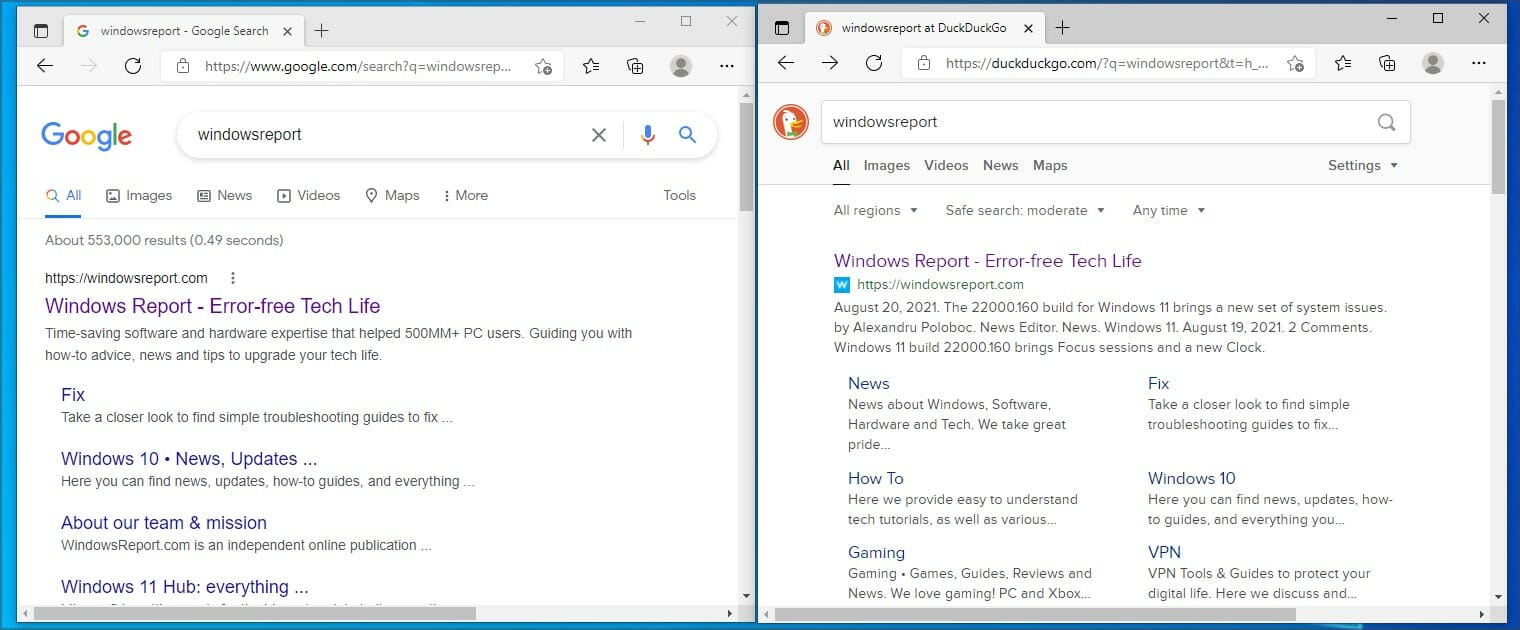
Microsoft gives you a few ways to customize Windows 11 with themes and colors, but one of the best ways to go beyond what Microsoft offers is with Stardock software. From Start11, Fences 4, Deskscapes 11, there are a lot of great Stardock apps that are available to download. We’ve put together this guide for you to check them out. Of course, these are all paid apps, and you can buy them all directly from Stardock.com.
At the top of our list is Start11. This is one of the best ways to customize the Start Menu and Taskbar in both Windows 10 and Windows 11. As we noted when we reviewed it, the app lets you bring back a Windows 7-style Start Menu in Windows 11, and even a Windows 10-style one, too. On top of that, you’ll be able to move the Taskbar to the top of the screen. It’s one of the most powerful customization apps in Windows 11.
Have a lot of apps and folders on your Windows 11 desktop? That’s what Fences 4 is for. This app lets you automatically organize your desktop shortcut icons and running tasks. You can create shaded areas to organize your desktop, and use a peek features to bring the fences on top of the app you’re working on. Other features include the ability to define rules to organize your desktop icons and swipe between multiple pages of fences.
Want to add animated videos and pictures to your Windows 11 desktop? This isn’t possible in Windows 11 natively, but DeskScapes 11 Beta helps fix that. With this Stardock app, you can create your own animated backgrounds with pictures and videos. You also can use drawing tools, and add logos, and effects to wallpapers. There are 60 different effects you can use, and you can even share your creations, and browse through other creations from fellow Windows users. The sky is the limit!
Remember when Microsoft tested tabs in Windows 10 apps with a feature known as Sets? And also tabs in the Windows 11 File Explorer? Well, if you’re not a Windows Insider and never had a chance to try out either of those two features, this is what Groupy is for. The Stardock app lets organize multiple applications into grouped tabs on your Windows desktop. You can group apps under a common tabbed interface, save groups of applications together, mouseover tabs to preview contents, and automatically group instances of the same app together.
Want to spice up your cursor in Windows 11? Well, you can download cursors manually and follow our guide to change them, but that’s a very complex process. Stardock’s CursorFX lets you create your own cursors, animate cursors with special effects, listen to custom mouse click sounds, and more. You can choose from a great set of designs, and apply skins and shadows to cursors, and make your desktop look less generic.
Buying all of these Stardock apps we mentioned individually could add up to a lot of money, which is why we suggest the Object Desktop suite. It comes with all the apps we’ve mentioned so far, and so much more. If you found this guide helpful, let us know in the comments below.
The YubiKey is a device developed by a company called Yubico for hardware authentication to protect access to online services, networks, and computers using protocols such as FIDO2, Universal 2nd Factor, public key cryptography, and one-time passwords, among others.
This has led to much debate about YubiKey browser support among users.
So, what are the best browsers that support and are fully compatible with YubiKey? What should you look for when choosing a browser to use with YubiKey? Do you know the YubiKeys that are compatible with the browser that you choose to use?
What is a website security key?
Website security keys are considered the best ways for seamless authorization and authentication, especially when users have to prove their identity.
Using website security keys allows users to add security layers instead of just passwords. This ensures that the right people have access to information as required.
It is important to note that we live in a technologically changing world where cybercriminals continuously learn new tricks and tips to gain an advantage over legitimate users. Therefore, implementing a comprehensive security protocol is essential, especially when accessing anything on the internet.
What browsers support security keys?
Different browsers support different security keys. One of the most common keys is the YubiKey. Browsers that support security keys include Google Chrome, Microsoft Edge, Opera One, Firefox, Brave, Safari, and Maiar.
Depending on your favorite browser, you can easily find a security key that it supports. Just ensure that the supported key comes with all the requirements you need.
The Opera One browser is one of the most popular browsers we have today. Its popularity has grown in the past few years, fueled by its measures regarding its users’ security. But did you know Opera One is one of the few browsers with an in-built VPN and AI?
The Android and desktop versions of the Opera One browser come with YubiKey browser support for the U2F, WebAuthn/FIDO2, and OTP authentication protocols. This ensures users can use the YubiKey for secure authentication when using Opera One services.
Opera One browser compatible YubiKeys include Security Key C NFC, Security Key NFC, YubiKey 5 NFC, YubiKey 5 NFC FIPS, YubiKey 5 Nano, YubiKey 5 Nano FIPS, YubiKey 5C, YubiKey 5C FIPS, YubiKey 5C NFC, YubiKey 5C NFC FIPS, YubiKey 5C Nano, YubiKey 5C Nano FIPS, YubiKey 5Ci, YubiKey 5Ci FIPS, YubiKey Bio – FIDO Edition, and YubiKey Bio C – FIDO Edition.
Opera One
It uses certificates and security keys to validate site owners and website integrity.
Although not popular like some of the browsers discussed in this article, the Brave browser is giving them a run for their money, especially regarding convenience, security, and privacy.
Brave, the company behind the browser, has been working with Yubico, the company behind YubiKeys, to protect and deliver online privacy. As a result, they have provided one of the best YubiKey browser support we have today.
Google has developed one of the most popular browsers today – Google Chrome. Its goal is to provide users with a fast, secure, and simple experience when browsing the internet. Features such as smart built-in, security, and productivity make Google Chrome stand out from other browsers.
In addition, Google Chrome is one of the few browsers that protects its users automatically from threats such as dangerous websites and phishing. It also has native support for YubiKeys, including WebAuthn and U2F APIs.
Google Chrome compatible YubiKeys include Security Key C NFC, Security Key NFC, YubiKey 5 NFC, YubiKey 5 NFC FIPS, YubiKey 5 Nano, YubiKey 5 Nano FIPS, YubiKey 5C, YubiKey 5C FIPS, YubiKey 5C NFC, YubiKey 5C NFC FIPS, YubiKey 5C Nano, YubiKey 5C Nano FIPS, YubiKey 5Ci, YubiKey 5Ci FIPS, YubiKey Bio – FIDO Edition, and YubiKey Bio C – FIDO Edition.
Safari – Automatic protection from security threats
Developed by Apple for use in iPads, iPhones, and Macs, Safari is one of the most secure browsers we have today. It comes with support for YubiKey backed by hardware for use with web-based applications.
With Safari, users can browse seamlessly with automatic protection from security threats. This means that just like Google Chrome, Safari also has built-in security features for its users.
You can also leverage YubiKey when using the Safari browser. Safari compatible YubiKeys include Security Key C NFC, Security Key NFC, YubiKey 5 NFC, YubiKey 5 NFC FIPS, YubiKey 5 Nano, YubiKey 5 Nano FIPS, YubiKey 5C, YubiKey 5C FIPS, YubiKey 5C NFC, YubiKey 5C NFC FIPS, YubiKey 5C Nano, YubiKey 5C Nano FIPS, YubiKey 5Ci, YubiKey 5Ci FIPS, YubiKey Bio – FIDO Edition, and YubiKey Bio C – FIDO Edition.
Maiar is a browser used in iOS, Android, Mac, and Windows operating systems focusing on speed and privacy. It is also one of the few browsers with ad-blocking features enabled by default.
In addition to its security features, the Maiar Browser does not share, collect, or track your browsing data. Furthermore, when users activate private browsing, Maiar not only deletes all their browsing history but also removes cookies, auto-fill information, and searches.
Maiar comes with YubiKey browser support, including support for Security Key C NFC, Security Key NFC, YubiKey 5 NFC, YubiKey 5 NFC FIPS, YubiKey 5 Nano, YubiKey 5 Nano FIPS, YubiKey 5C, YubiKey 5C FIPS, YubiKey 5C NFC, YubiKey 5C NFC FIPS, YubiKey 5C Nano, YubiKey 5C Nano FIPS, YubiKey 5Ci, YubiKey 5Ci FIPS, YubiKey Bio – FIDO Edition, and YubiKey Bio C – FIDO Edition.
The Brave browser is the most private browser among the browsers discussed in this article. This is because of the in-built security features that it comes with. These protocols ensure that users cannot be tracked or any of their information accessed illegally.
Other browsers are also considered private. For instance, the Tor Browser comes with multiple encrypted routes that make it impossible for another party to identify you. It even provides more privacy than using a VPN.
Privacy is paramount when accessing the internet. Depending on your browser, you must ensure that you have implemented the proper security protocols. This protects you from cybercriminals.
Microsoft Reward has now expanded to 38 new countries, bringing the total to 58 countries (Via Windows Central). Microsoft Rerwards is a platform that “rewards you for doing the stuff you already do every day”. For instance, conducting your web searches on Bing or when buying things from Microsoft Store.
Here’s the list of countries that have been added to the Microsoft Rewards Program:
Albania
Andorra
Armenia
Australia
Austria
Azerbaijan
Belgium
Bosnia and Herzegovina
Brazil
Bulgaria
Canada
Croatia
Czech Republic
Cyprus
Denmark
Estonia
Finland
France
Georgia
Germany
Greece
Holy See (Vatican City state)
Hong Kong
Hungary
Iceland
Ireland
Italy
Japan
Kazakhstan
Latvia
Liechtenstein
Lithuania
Luxembourg
Macedonia
Malta
Mexico
Moldova
Monaco
Montenegro
Netherlands
New Zealand
Norway
Poland
Portugal
Romania
San Marino Republic
Serbia
Singapore
Slovak Republic
Slovenia
Spain
Sweden
Switzerland
Taiwan
Turkey
Ukraine
United Kingdom
United States (Available in all 50 states and in Washington D.C. Not available in Puerto Rico.)
However, it seems that the program might not be available for Xbox in some countries though Xbox’s Loyalty Marketing Lead, Daniel Martins has indicated that they working on improving the efficiency and effectiveness of the platform. In the meantime, you can sign up for the program to enjoy the benefits.
According to @Xeno Panther on Twitter, all you need to do to get Internet Explorer running in Windows 11 is to search for Internet options in the Start Menu, which will launch the control panel applet. Then, select the Programs tab by clicking on manage add-ons then select the Learn more about toolbars and extensions option. And voila, this apparently launches Internet Explorer which “still functions normally”.
you thought Internet Explorer was dead, didn't you? muahahaha ????
This is quite surprising because whenever you try to launch Internet Explorer in Windows 11 you are automatically redirected to Microsoft Edge. If you intend on testing this out, you should be aware that you will be susceptible to security breaches as the browser is no longer in support.
Microsoft has just released the latest Edge Dev build, which comes in at 105.0.1336.2. The build features some tweaks as well as the usual reliability fixes, and a couple of new features.
As for the added features, first up is a Narrator announcing banner on the Learn more link in Microsoft Edge. The build also comes with enhanced support for a management policy from Chromium to control if Unthrottled Nested Timeout is Enabled.
Here are the full details of this release:
Improved reliability:
Performance improvements to IMap properties
Improved iOS tooltips
Improved Android shared device support
Optimized read aloud voice options page for Android
Improved Android shared device support
Changed behavior:
Fixed an issue where the profile popup sometimes is cut off
Fixed various crashes
Fixed Diagnostic button layout
Fixed Drag and Drop for Collections
Fixed a crash when clicking the Tab Actions Menu button
Toolbars are a common part of many applications, but it seems that modern browsers are slowly but surely removing them in order to streamline the user interface.
Even though developers are removing toolbars, there’s still a way to use a toolbar in your web browser, and today we’re going to show you how to manage toolbars in your browser.
What kind of customization can you do to toolbars?
A toolbar, sometimes known as a bar or a standard toolbar, is a row of buttons that controls the functionality of the software. Toolbars are often located towards the top of an application window.
On these toolbars, you have the ability to add, delete, and rearrange buttons. You may also modify the size of the buttons on these toolbars, as well as display or conceal the text labels and tooltips associated with each button.
The Customize dialog box contains all of the available choices for changing the toolbar as you would wish it to be.
Without further ado, let’s see how you can enable your browser toolbar and customize it as per your liking. Follow along!
How do I customize my browser toolbar?
1. Opera One
To reveal the bookmarks toolbar, do the following: open the Opera One menu and go to Bookmarks, and select Show bookmarks.
Opera One doesn’t have a standard toolbar, and the only toolbars that it has are the bookmarks toolbar and extensions toolbar.
Opera One
Enhance your web experience with Opera One’s amazing features today!
Managing the extensions’ toolbar is simple, and you can drag and rearrange extensions easily. You can also hide certain extensions from the toolbar by doing the following:
Open the Opera One menu and go to Extensions followed by Extensions.
Locate the extension that you want to hide from the toolbar and click on Details.
Now enable Hide from toolbar option.
Another great feature that you will find in Opera One is the option to organize your tabs into Workspaces. You can name the workspace based on categories or various topics such as family, work, shopping, etc.
Managing toolbars in Opera One is simple, but it has many other features. The browser has a built-in ad blocker that will make pages load faster and a free unlimited VPN for an extra layer of security.
Additional features such as pop-out video player, messenger and Instagram integration, support for workflows, and even comes with built-in AI and support for integration of other AI tech.
2. Firefox
Press the Alt key then select View and select Toolbars.
From there you can choose which toolbars you want to keep visible.
To customize the toolbar, do the following:
If you wonder where the customized toolbar is, press the Alt key then select View and select Toolbars.
Next, select Customize toolbar in Firefox then drag and drop any icons that you want to be displayed in your Toolbar.
3. Edge
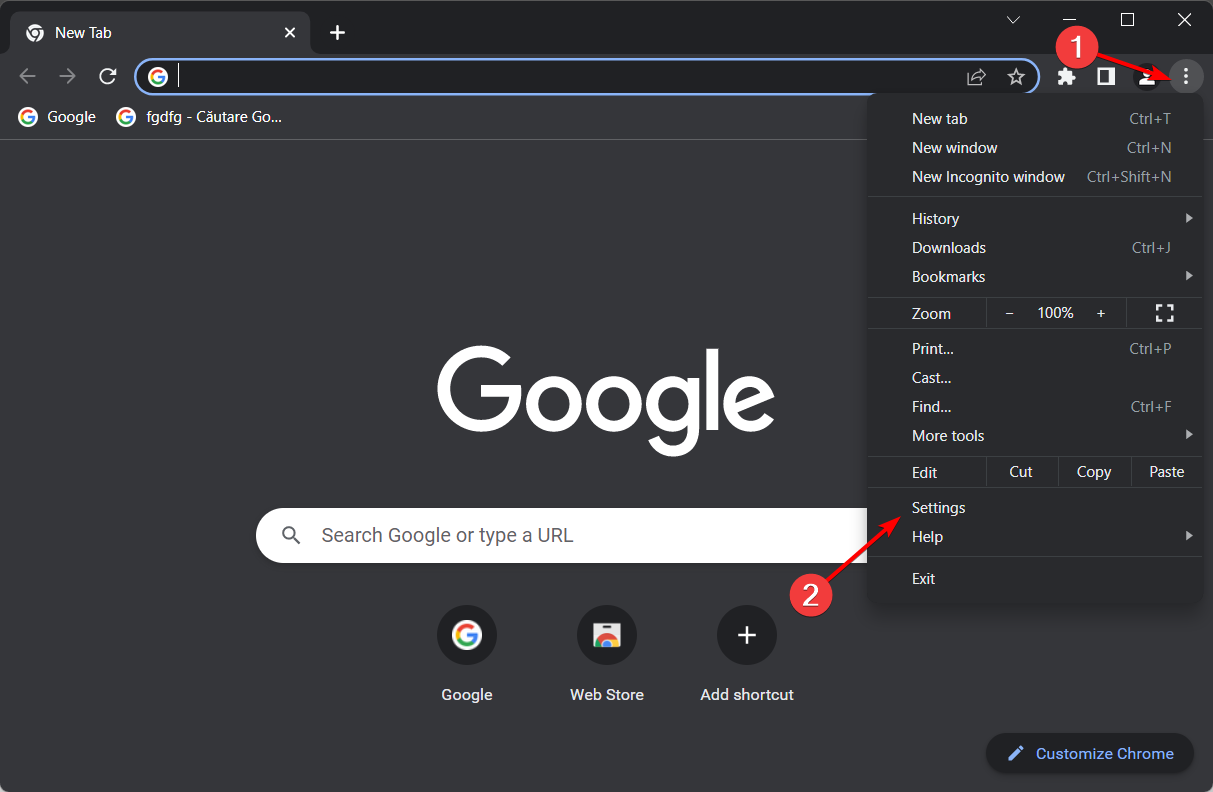
Click the Menu button in the top right corner and select Settings.
Here, type toolbar then select all the buttons that you want to be displayed in your toolbar.
4. Chrome
Click the Menu icon in the top right corner then select Bookmarks.
Click the puzzle icon from your toolbar and click the pin next to an extension to display it.
Click again on the pin next to the extension in order to stop displaying it. Pretty simple to customize the Chrome toolbar, right?
Where is the enhanced browser toolbar?
Providing easy access to functionalities that are often used inside the software is typically the purpose of a toolbar.
For instance, a formatting toolbar in Microsoft Excel provides you with access to a variety of buttons that allow you to perform tasks such as making text bold or adjusting the alignment of text.
In the last section, we demonstrated how to activate the toolbar in each of the four most popular browsers for Windows 10/11 and other operating systems.
After you have activated the toolbar, it will be placed at the very top of the window that is displayed in your browser.
The delight of the hunt is not something we all get to experience in real life. Not all of us are privileged to have thickets and dense woodlands in our backyards populated with deer and caribou species ready for harvest.
That doesn’t mean we are badly off; we have online hunting games that bring the experience right to the comforts of our rooms.
With an excellent laptop for gaming, you can roam the great outdoors and feel the thrill as you watch the doe-eyed deer enter your crosshair, and bask ready to be taken down as the next meal.
And the good thing is that you must not download and install apps to play these games. So, how good are you with a hunting rifle? Your hunting skills are just about to be tested as you set out for a hunting adventure of a lifetime with these online hunting games.
Let’s introduce you to the best online hunting games.
Are there any multiplayer hunting games?
Hunting games are a well-developed gaming niche; you will find almost every type, ranging from single to multiple-player games.
One that stands out is The Hunter. We will discuss in detail this game and a few other multiplayer hunting games in this article.
What is the most realistic hunting game?
There is now no better game available than The Hunter: Call of the Wild for those who really like realistic hunting. Its enormous, realistic surroundings are a visual feast, and you’ll struggle to cover every square inch of them.
What is the best browser for gaming?
Most modern browsers are great fits for most online games; however, we love to recommend Oprea GX for good reason.
Yes, being the first fully developed alone is not enough. However, this browser takes it many steps further, providing some of the most incredible sound effects that put you in the gaming mood right from launch. In addition, you will enjoy sound effects for startups and keystrokes.
It also has native integration with services like Twitch and Discord; hence, you can do your gaming, streaming, and chatting seamlessly.
It also carries over all the cool features of the Opera browser, making it a great all-around browser.
Opera GX
Enhance your gaming results and navigation at once using this optimized browser.
Hailed as the most realistic hunting game ever produced, The Hunter aims to recreate the stealth and tactics of real-life hunting by creating a tracking and hunting experience not found in other games. It is a great hunting simulator.
Its simplicity is remarkable. Just create a free account and set up an online avatar. You will be sent to an Evergreen Hunting Reserve, where your hunting expedition begins. The Hunter’s website manages all the tasks, including what you are authorized to hunt and the stats, so your work is pretty simple.
The game uses a PDA called the HunterMate. This helps to keep track of your location and the prey’s location. It uses the footprints and the game’s droppings to analyze where the target is.
As the player gets more experience at shooting and tracking, the game updates the avatar with the appropriate stats, making the shots taken more accurate. The game also features realistic graphics that replicate a real-life scenario.
If you love deer hunting, then Deer Hunter 2016 will put you right amid rush woodlands populated by deer so you can hunt and improve your shooting skills.
This online free deer hunting game gives you a lot of hunting options so you can feel the excitement that hunting brings. In addition, you will exercise your hunting skills in different geographical locations, from the deepest recesses of African forests in Zimbabwe to Alaska.
Deer Hunter 2016 come with difficult challenges to complete and a huge number of trophies. You will not only need skills to take perfect shots but also strategy.
You will sometimes have to take out predators first before they attack you. The game brings real weapons, which can also be upgraded to match the player’s taste.
Playing Supreme Deer Hunting online lets you become a supreme deer hunter. This online classic hunting game allows you to challenge your hunting skills and earn points for reaching the set goals.
It also gives you the option to upgrade your weapons for better shots which result in better aim, more significant scores, and maximum damage.
Your task is to kill 100 does, 50 small bucks, and 5 big bucks. Realistic shooting with range allows you to hone your aiming skills and shoot accurately.
Note that this game uses Flash, so you must install the SuperNova SWF Chrome Extension to play it.
Deer Sniper 2014 is a free online deer hunting game that enables you to master the trigger of your sniper as your prepare to hunt as many deer as you can.
Your task is to aim and kill any moving object (as many as you can) before your time runs out. An astute move is to shoot in the head, as headshots earn more scores.
Use the right mouse button to zoom in on the object and the right mouse button to shoot. The game has ultra-realistic graphics and a lot of animals to shoot.
It is one of our favorite deer hunting games online.
Big Hunt is another online game that lets you master your hunting skills. This time, you will have to roam about looking to stock up on food for the cold season. Your goal is to hunt as many animals as you can within the set time limit.
The Big Hunt is not only about the deer; each level gives you 35 seconds to hunt as many rabbits, deer, or wolves as possible.
In the first level, you need to shoot down at least 20 deer, at least 10 wolves in the second level, and at least 10 rabbits in the third level.
You will only have a certain quantity of ammunition to fire at animals in this beautiful hunting game, and the goal is to score as many points as you can.
This game will test your precision, endurance, and hunting prowess. Get the best score you can with only 20 bullets.
In the game, you shoot the deer’s lung or head regions using the mouse, and you zoom in on your victim with the space bar.
The score of shooting distant animals will be greater but don’t miss or you’ll lose points!
Unaware animals will award you additional points. Your score or life will be reduced if animal attacks or flees when startled; bears are dangerous and should be avoided.
Duck Shoot is an online arcade hunting fun game. Your task is to hunt and shoot as many ducks as you can within the given time.
You will realize that certain areas are overpopulated with ducks which only exist to damage nature and wildlife.
Your goal is to eradicate them without letting even a single one of them escape. Use the space bar to reload your gun, the mouse to aim the weapon, and then click the mouse button to shoot.
Lion Hunting 3D is another brand new 3D online hunting game. You take the role of a lion, and to survive in the jungle, you have to hunt savannah animals like zebras, rhinos, sheep, chickens, rabbits, and even larger animals like elephants.
You gain experience with each animal you kill, but you have to be careful as some animals might hunt you too. Each level contains different animals, and your goal is to hunt and kill them. Your skill points will help you upgrade your speed and strength.
This is one of the best free hunting games you can play.
Online hunting games can keep you engaged for hours. You can hunt various animals, from deer to rabbits, zebras to elephants, and more. Also, you may even try unblocked bow hunting games which are equally so much fun.
You also get to use real-life weapons, which for the better part, help you hone your aiming and shooting skills. Most online hunting games also feature photo-realistic graphics, which make you feel like you are in the scene.
And if you want a more thrilling experience from your hunting adventures, you can also grab some of the best hunting games available on consoles.
Windows tablets have become extremely popular in recent years, with many ditching regular computers for them. And it only makes sense to use the best browser on Windows tablet for the best experience.
If you have an entry-level tablet with low performance, you can encounter low storage or memory issues. An effective solution is to use only lightweight apps.
In this article, we have listed 5 of the best lightweight browser apps you can download for the Windows tablet.
Which browser is best for Surface Pro?
Surface Pro is a series of advanced tablets, and most popular browsers are compatible with it. However, if you were to look for the best browser for the Surface Pro Windows tablet, we recommend Opera One.
The browser’s functioning is flawless, and you will not likely encounter lags or performance-related issues. Also, Opera One is not a resource hog, so it wouldn’t slow down the tablet or affect the functioning of other apps.
Besides, Opera One offers a wide range of built-in features to enhance security and deliver a seamless browsing experience. It comes with a built-in VPN and Adblocker. We recommend giving it a try!
Does a mobile browser work better on a tablet?
Most browsers designed for mobile would work perfectly fine on a tablet and are almost identical. You may notice a few minor differences in the UI or other components.
And whether a mobile browser would work better on a tablet depends on the one you go with. But, we would recommend sticking with the tablet version, if one is available, to stay clear of compatibility and other trivial issues.
What are the best lightweight browsers for your tablet?
When using an Operating System developed by Microsoft, why not try their browser as well? Microsoft Edge is one of the best browsers for Windows tablets.
It doesn’t consume as many resources as Chrome, offers several built-in features, and you can always rely on Add-ons for the ones that don’t come built in.
Also, it lists the best coupons and discounts available on websites and can help you solve mathematical problems, in addition to a bunch of other useful functions.
Brave is the first choice for those concerned with privacy and security on the web. Major corporations rely on it to achieve secure communication and transactions.
It is one of the best browsers for Windows tablet mode, blocks all ads, and is one of the fastest available options. Also, it offers rewards for viewing curated ads that can easily be redeemed. If it’s security and privacy that concerns you, Brave Browser should be your first choice.
If you are used to Firefox’s regular version or the PC version, there is a Firefox Quantum version you can use as a lightweight browser.
Firefox Quantum is one of the best browsers for slow tablets, and if you have one, this particular browser would be a great choice.
It comes with enhanced privacy measures, is super fast, and is constantly adding new features. Though the browser is only available in certain regions, so make sure to check if you qualify.
Avast Secure Browser being mentioned in the list of the best browser for Windows tablets list might come as a surprise to many, but it seems to have gotten all the critical aspects right.
It comes with a built-in ad blocker for a fast and uninterrupted browsing experience, prevents websites from tracking your activity, and offers a Bank Mode to keep your banking data secure. Besides, the security and privacy settings are all placed together for easy access.
Drawing on your PC is great, but not everybody has expensive software that allows them to do that.
Fortunately, you don’t need expensive software to draw, and you can do it free from your web browser. Today we’re going to show you how to do it.
Can I draw in my browser?
With the assistance of the online apps outlined in the following paragraphs, you can sketch directly in your browser.
Simply select one of the available options below, then go to their website and follow the instructions on the screen.
You will need some imagination and maybe an electronic sketching tablet, in addition to having an account. Besides the dedicated websites, you can also go with the Draw n Guess multiplayer game.
Is there a website that lets you draw?
Canva is, without a doubt, the greatest online professional graphics tool for novices with little to no prior knowledge. The drag-and-drop user interface makes for a steep learning curve due to its complexity.
If you wish to draw images on your web browser, one of the most user-friendly tools is Sketchpad, an interface for sketching in web browsers.
The online app provides users access to around 18 distinct sketching tools, each of which may be personalized to get optimal results.
So the answer is a clear YES. Many websites let you draw something inside your browser without buying other software.
In which browser can I draw without any input lag?
Many browsers let you draw or sketch doodles on any web page, but a recurrent issue can be the high lag.
Fortunately, you have a fast navigation browser that includes featured drawing addons, extremely easy to use and integrate on the homepage.
If you want to draw, text, or doodle in a browser, why don’t you try Opera One? Besides, it’s best for playing the Guess the drawing game or similar games.
This amazing browser allows you to customize it by choosing from the extensive library of over 1000 add-ons.
You will find many drawing extensions in there, but if none stand out, you can still explore the Chrome web store and install one from there.
The add-ons can help you a lot, but you can also use the web apps from our list below. Try Opera One now for free, and you won’t regret it.
Opera One
Drawing, sharing data, and customization are just a few of Opera One’s abilities.
Canva is by far the best online professional graphics tool for inexperienced users. The learning curve is steep thanks to its drag & drop interface.
You also use the myriad of templates from multiple categories you can choose from. You’ve got infographics, posters, business cards, and many more.
You can use this tool for free, for your personal use, and Canva comes with many versions tailored to your needs.
You can try the Pro version, which comes with over 60 million photos and elements and 100GB of storage, or the Enterprise version for your company’s needs.
But Canva also has free but powerful versions for education and non-profit organizations. Don’t worry because even if you chose a paid version, you will have a 30-day trial version available.
Overall, Canva is a great web app if you want to draw on a web browser, so be sure to try it out.
Canva
Design fantastic patterns straight from within your browser with the help of this online graphic design platform.
Sketchpad is a web browser drawing interface, and it is one of the easiest tools to use if you want to draw in your browser. The web app has about 18 different tools for drawing, and each tool can be customized in order to get the best results.
The app also supports various shapes, text, stickers, and blending modes, so it’s perfect for all your drawing needs.
JSPaint – Direct copy of Paint, but in your browser
This web app is a direct copy of Paint, and it has the same features as the desktop counterpart on your PC. All the standard tools are there, but it has a few features of their own.
First off, you can edit files in collaboration mode, you can export files to Imgur as well as the ability to view all your previous steps in the history mode.
If you want to draw over a web browser, JSPaint is the right web app for you, so be sure to try it.
This web app has more tools than other major drawing applications. The app supports working on multiple projects and even has layers and alignment features.
Everything you draw is saved as vector graphics, so you can easily adjust every line as you wish, just like in other similar applications.
If you want to draw in a web browser, YouiDraw Drawing is one of those services you must try.
Kleki is optimized for painting and drawing, and no shapes are available in this tool. You can choose between several brush types and customize each to your needs.
The web app supports layers and basic image editing, allowing you to customize your drawings any way you want.
To draw on a PDF file in your browser, you will need an extension on your browser that allows you to draw anything anywhere.
Suh is Page Marker. With this straightforward add-on, you can add text, draw on, and highlight virtually any online page or PDF.
You may also select from a wide range of colors and brush sizes to accommodate a wide range of requirements, and you can save your work directly to your computer at any time. Moreover, we recommend you look at the best drawing apps for Windows 11.
Drawing in your browser is incredibly simple, and many great web apps can help you with that, so feel free to try any web app from this article.
Don’t hesitate to share your thoughts with us in the comments section below. Thanks for reading!
Pinterest is a social media service that lets you share images and other content from the Web. The service is incredibly simple to use, especially if you have a dedicated Pinterest button.
In today’s article we’ll show you how to add a Pinterest button to your favorite web browser, so let’s get started.
What Pinterest buttons can I add to my browser?
Extensions for Pinterest may be found on a variety of browsers and websites and are used to Pin visual items to the Boards.
Pinterest is a website where users may pin pieces of material that pique their interest, as the name of the website suggests. If the website in question has a Pin It button, then these visual components can be saved from that particular website.
Thus, the Pin It button is the most popular and common button you can add to your browser and use it freely.
How do I pin to Pinterest from my browser?
After you add the extension button to your browser, click the Pinterest icon at the top of your browser then click anywhere under it in order to sign up with your account.
When you find something to pin, click the Pinterest icon, and select Save on the top-left corner of a Pin you want to save. Then select the board to which you want the Pin to save.
Without further ado, let’s see how you can easily add the Pinterest browser button to your favorite browser. Follow along!
The Pinterest browser button for Opera One will be added.
Opera One is built on Chromium which means that it supports Chrome extensions. In addition, this browser comes with a built-in ad blocker, so you won’t have to deal with ads anymore.
The ad blocker will also block tracking scripts and make your web pages load faster. There’s also a free built-in VPN that offers unlimited bandwidth.
More so, its Pinterest integration can be greatly increased via add-ons like Pinterest Panel.
Opera One
A web browser that specializes in adding buttons and integrations to various web apps and social media platforms.
Wait for the extension to install. The Pinterest browser button for Edge will be added.
5. Safari
Open the Safari browser and browse to the Extensions section.
Here, search for Pinterest browser button for Safari and click Add next to the extension.
Installing the Pinterest browser button is incredibly simple, you just need to download its extension for your web browser and you’re good to go.
What can I do if the Pinterest browser button is not working?
In most cases, there are no errors on the platform; nonetheless, there may be occasions in which customers may need to address some problems. There is a connection between this issue and the button on the browser.
There are a number of potential causes for the malfunctioning of the Pinterest button on your browser. The good news is that it is not a very large circle, as the potential causes can almost entirely be traced back to problems with your browser.
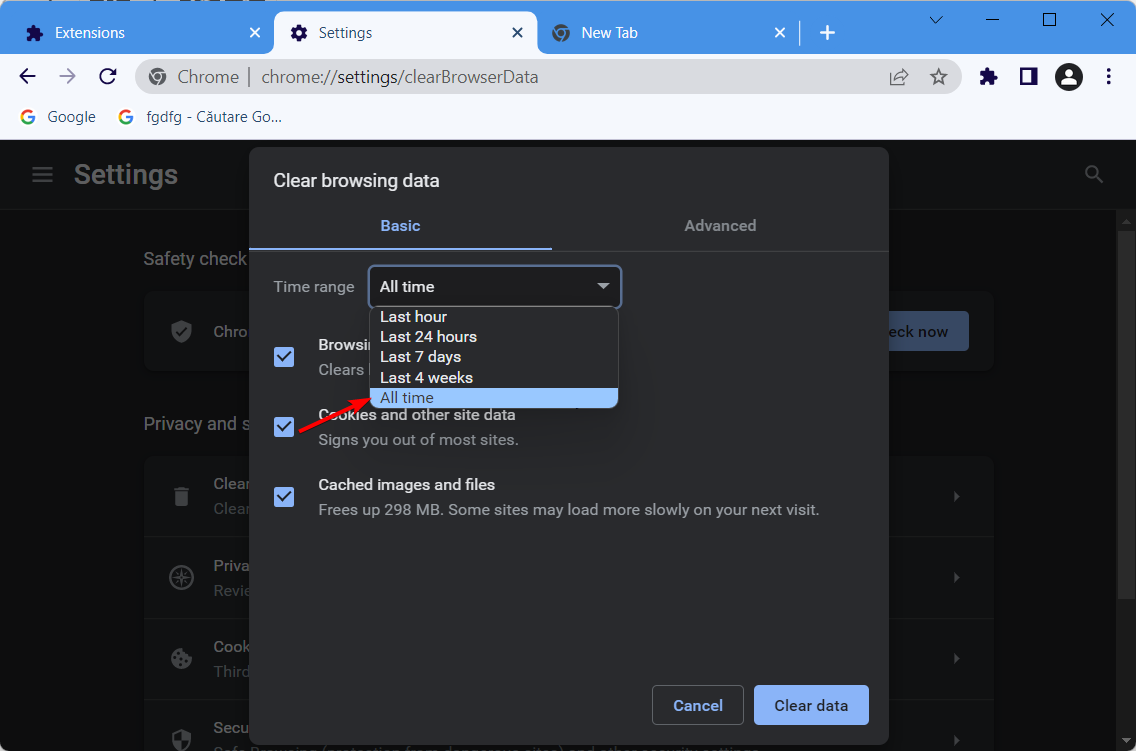
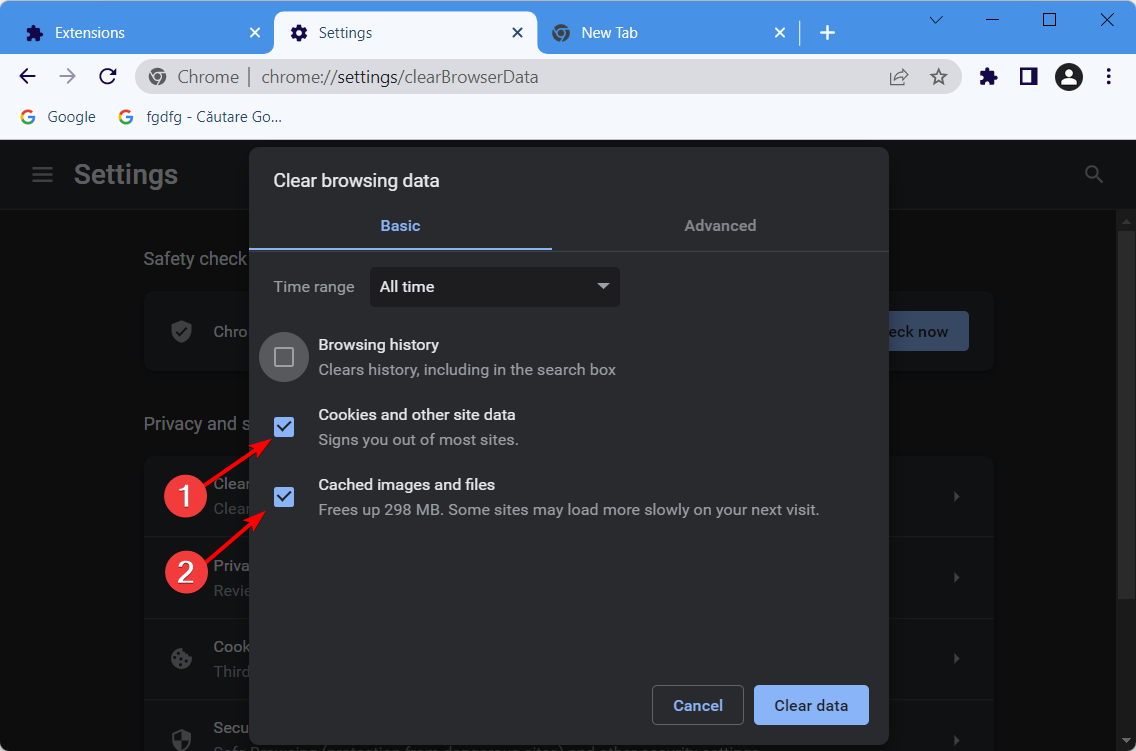
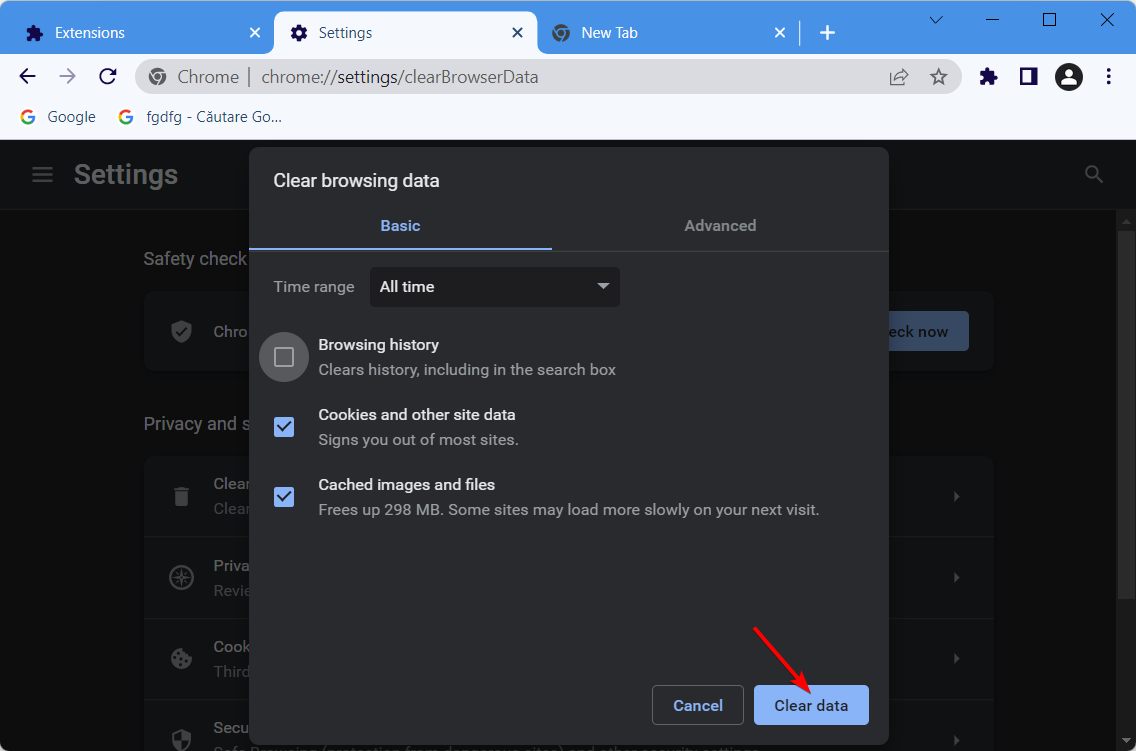
It’s possible that you’ll have this problem if you haven’t cleared the cache and cookies from your browser in quite some time. These temporary Internet files have a risk of becoming damaged, which will cause your browser to malfunction.
The hit video game, Far Cry 6, will be free to play on both Xbox One and Xbox Series X console generations for all Xbox Gold Live subscribers from tomorrow, August 4th, through to the end of Sunday, August 7th.
Far Cry 6 came out just last year and was met with generally positive reactions from both players and video game critics.
BLOCKBUSTER Free Weekend on Far Cry 6 will happen August 4-7. Find below all the details from different timings across the globe. And preload is available on all platforms RIGHT NOW! More info: https://t.co/Koeho7SIhj#FarCry6pic.twitter.com/Nr3F0MjOAR
Here’s Far Cry 6’s official game description and trailer:
Welcome to Yara, a tropical paradise frozen in time. As the dictator of Yara, Antón Castillo is intent on restoring his nation back to its former glory by any means, with his son, Diego, following in his bloody footsteps. Their oppressive rule has ignited a revolution.
Play as Dani Rojas, a local Yaran, as you fight alongside a modern-day guerrilla revolution to liberate Yara!
Fight against Castillo’s regime in the most expansive Far Cry® to date, through jungles, beaches, and Esperanza, the capital city of Yara.
Employ an arsenal of resolver weapons, backpacks, and vehicles to take down Castillo’s ruthless regime.
Far Cry 6 will likely be joined by a couple of other free-play Xbox video games on Friday night for the usual Free Play Days weekend promotion. We’ll report on those as soon as they’re announced so make sure to follow us on Twitter and Facebook to stay in the loop.
Goat Simulator 3 is set to launch on Microsoft’s current gen Xbox Series X console family, which includes the Xbox Series X and Xbox Series S consoles, just three months from now on November 17th. The game will not be playable on the last gen Xbox One consoles.
Goat Simulator 3 will be very similar to its predecessor, Goat Simulator 2, and will allow up to four players to explore a number of open-world areas as several different types of goats (and a goldfish) to explore and cause all kinds of humorous chaos.
“That’s right – we’re doing this again. The baa has been raised, and Pilgor is joined by other goats too,” the game’s official description reads. “You can invite up to three friends in local or online co-op, create carnage as a team, or compete in mini-games and then not be friends anymore. Get ready for another round of udder mayhem. Lick, headbutt, and ruin your way through a brand new open world in the biggest waste of your time since Goat Simulator! We won’t tell you how to play (except in the tutorial), but merely provide the means to be the goats of your dreams.”
Here’s the full list of official game features:
You can be a goat
Three of your friends can be goats too, and join you in local or online co-op
No really, there are so many goats. If you want to be fancy you can wear the skins of tall goats, stripey goats, and many more. There’s a goat for everyone!
Or dress up your goat in all kinds of nonsense, from toilet rolls to tea trays. Put on a jetpack for all we care.
This time we actually hired ‘game designers’ and we’re told they’ve added ‘an ok amount of content’; events, NPCs to mess with, physics, status effects, collectables, easter eggs, lies, betrayal, heartbreak
They’ve added mini-games too, lots of mini-games (seven is a lot, right?)
Who said anything about a musical?
You can be Keanu Ree… (jk, wanted to check you were still reading)
While using a VPN for gaming may sound strange, there are several reasons for having one to play games online, like unrestricted access through unblocking geo-restricted games or access to region-locked servers.
You get to play any game from any location in the world – for free. One of the major reasons for getting a VPN for online gaming is security.
A VPN protects you not just from snooping eyes that track your online activity, but also from DDoS attacks, especially when it comes to competitive gaming like GTA 5.
Grand Theft Auto V is an action-adventure video game whose online version, GTA 5 Online, was launched a few years ago and lets players create custom jobs, and band together in crews (player teams).
The great thing about using a VPN for GTA 5 Online is that it reduces lags and latency, plus you can connect with different locations all over the globe and play outside your own country, as it hides your IP.
If you’re looking for the best VPN for GTA 5 Online, consider the number of servers the VPN has as this increases your chances of getting fast connections, speed performance, and DDoS protection.
You can get a good VPN for GTA 5 Online from our favorites listed below. Therefore, waste no more time and take a closer look.
Can I use VPN for GTA 5 Online?
In a nutshell, you can use a VPN to play GTA 5 online, and the best VPN for GTA online performance is the Private Internet Access (PIA).
Of course, this is what we found in our tests with other VPNs. What can we say, we just love testing VPNs on every gaming platform.
What we noticed about PIA and why we believe it is a perfect match for GTA 5 is that you will be able to spin the lucky wheel, which is prohibited in some countries.
If you’re a gaming aficionado, PIA VPN is impossible to match when it comes to unblocking restricted content.
GTA 5 makes no exception, thusbypassingspecific game restrictions is perfectly achievable by pairing your gameplay with this well-rounded VPN.
Also, PIA masters IP cloaking so that your real location will never be exposed, and this is important not only for security reasons but also for unblocking otherwise geo-restricted content or features in your gameplay.
You can connect with different locations all over the globe (and you have 65+ locations to choose from spread over 45 countries) and play outside your own country effortlessly and without leaving any trace.
Another essential aspect that gamers will particularly enjoy about this VPN is its strong network that guarantees top speeds and unlimited bandwidth.
The more speed you have thelower your pingis and isn’t that what it’s all about when it comes to Grand Theft Auto action?
PIA VPN is indeed your best bet if you’re looking for a tool that reduces both lags and latency without compromising on security or privacy.
Let’s quickly look at itskey features:
Bypass censorship and unblock sites and geo-restricted content
Lowers ping in gaming by reducing lags and latency
High-standard privacy and a no-logs policy
Secure VPN Protocols (PPTP, OpenVPN, and L2TP/IPSec)
Supports 10 devices simultaneously
Top connection and download speeds, plus unlimited bandwidth
Secure Protection on Public Wi-Fi
30-day money-back guarantee
Private Internet Access
Unblock geo-restricted GTA 5 content and eliminate gaming lags and latency with PIA right away!
This VPN has over 3500 servers in more than 60 locations across the world, with support for up to 6 devices in one single connection, simultaneously. This provides for a more reliable, faster, and stable connection.
Its benefits include a dense network of servers, tight security, and impressive performance levels, despite its expensive monthly billing for subscribers.
NordVPN is strong in terms of security with double VPN capability in the case of traffic sent via two different VPN servers, plus a dedicated IP, DDoS protection on select servers, and a zero logs policy.
It has a free trial though it isn’t expressly stated on the VPN’s website, and while monthly billing may seem expensive, you can get good value for money with their three-year subscription. Otherwise, it is a robust VPN with great features.
NordVPN
Enjoy safe access to games from 5400+ ultra-fast servers worldwide! Get the best NordVPN deal now!
Surfshark is one of the most reliable VPN services. It has great server coverage all across the globe and offers fast speed rates with a very very low risk of latency issues.
It checks all boxes when it comes to performance, security, and ease of use, all while retailing at a very competitive price.
When it comes to gaming, you must know that Surshark VPN guarantees performance with its private DNS on each server.
Not only that, but you can also use the Bypasser to prioritize your traffic towards GTA 5. This way, you will connect to your local provider, while also connecting to the best server for GTA.
It is also important to note that this VPN removes any risk of ISP restrictions. It fully protects your identity and browsing activity, so there’s no way your provider will be able to place any traffic restrictions. You can enjoy gaming as much as you like with no worries.
Surfshark uses powerful AES-256 GCM encryption, keeping all your data away from any third party. Plus, they have a very well-implemented no-logs policy.
Other key features of Surfshark include:
OpenVPN
Changes your IP address
NoBorders mode
Kill switch
Ad Blocker
Surfshark is subscription-based. With one account, you can connect as many devices as you like. Plus, if you are undecided, you can try it out for free for 7 days.
Surfshark
Enjoy the fastest speed and play GTA 5 with no restrictions.
This is one of the most popular VPN providers in the market, known for its security, reliability, and great connection, as well as being the best for mobile gaming.
It features over 1500 servers in 148 locations across the world and supports only a maximum of three devices at a go.
The good thing about this VPN for GTA 5 Online is the extensive server network and locations, quality mobile app, and solid speeds which means it delivers very good performance levels.
Although it costs a bit more than most other VPNs, and it has no free trial for you to test run, you can opt to sign up for the one-year plan and get a bonus of three months to enjoy the VPN while you play.
ExpressVPN
Keep your personal information more secure and private at ultra speeds all around the globe.
For passionate online gamers, CyberGhost VPN can improve the gameplay experience more than you can imagine.
If you’re familiar with DDoS attacks, which enable other users to remove you from a server, making the game inaccessible to you, CyberGhost helps by hiding your IP so that you’re not discoverable or vulnerable to such attacks, and instead the attacks are directed to the DDoS protected servers.
Internet speed is an advantage in online gaming, so while playing GTA 5 Online with CyberGhost, the ping rate is lowered by connecting to the CyberGhost server that is closest to the gaming server so it improves the speed and gameplay.
Gamers may also make online payments at one point or another to buy tokens or a new game, which exposes them to risks like cyber fraud. CyberGhost forces HTTPS to enable you to place safe online payments.
The accounts you create can also expose you to identity theft, so this VPN hides your IP making it hard for people to steal your real one.
If you’re traveling, and need to play your game, CyberGhost protects your Wi-Fi connection by encrypting all traffic with its 256-bit AES algorithm.
It also protects you from trolls in gaming forums as your IP will be hidden, plus you get 690 servers to choose from to improve gameplay.
You can also access geo-restricted games and enjoy the first-hand experience.
CyberGhost
Discover the joy of gaming with this amazing VPN. Don’t hesitate to claim the best deal!
This is one of the best VPN for GTA 5 Online when it comes to great server coverage, excellent performance, and affordability.
IPVanish has more than 1000 servers in over 60 locations, with more than 40,000 IP addresses available for you to use. It also supports up to 5 devices simultaneously in one single connection.
This VPN runs its own network and infrastructure which makes it much faster than some rival VPNs, with excellent download speeds, and you get to sort the servers by ping time and usage, so you can pick whichever is tailored for online gaming.
The downside is in terms of pricing because there’s no free trial, plus it is a little bit more expensive than average VPNs, though it gives a 7-day money-back guarantee upon subscription.
IPVanish secures your Internet traffic from online snoops, and though it isn’t as cheap, its features are powerful enough to enhance your online gaming experience.
IPVanish VPN
Get unlimited P2P traffic, 256-Bit encryption, and multiple VPN protocols.
This is one of the fastest VPNs you can use for online gaming, with over 700 servers in more than 70 locations globally, and over 200,000 IP addresses to choose from.
It also allows you to use up to 5 devices with one single connection, at the same time. Among its benefits include fast speeds, a free trial, and it is highly secure, with a worldwide server network.
It also has a NAT firewall that blocks unsolicited inbound traffic, and great easy-to-use apps for almost every device you can think of.
However, VyprVPN has no refunds, but it gives a three-day free trial with 500MB per month (free plan), though for gaming this is very little.
There are two plans you can choose from – basic or premium – or you can subscribe monthly or annually. The basic plan has three connections, while the premium has five, which ideally is a better option, especially playing online.
Otherwise, it supports a variety of platforms, including Windows, and advanced features with its robust service. It also has a friendly interface, so you’ll enjoy using it while gaming.
Other features include an integrated Kill Switch to block connections when tunnels are compromised thus preventing unencrypted data from being sent, plus a zero log of your activity.
VyprVPN
Benefit from Chameleon-Stealth mode, NAT Firewall, and unlimited server switching on GTA 5 gameplay.
However, there are many factors that can affect your ping, such as the physical distance to servers or your Internet speed, among others.
In order to get information from your PC to the game server you’re playing faster and more freely, you definitely need a reliable VPN service.
That’s why, as you’d expect in a free market where you enjoy diversity, some VPN services work better than others.
Best free VPNs for GTA Online:
You can find a few free VPNs that can help you bypass restrictions on GTA 5, and those may come with a free trial period. For instance, ExpressVPN or CyberGhost are two options that work perfectly for gaming.
It’s not recommended to consider free VPN software due to a number of reasons. Firstly, the server locations are limited and you benefit from advanced features like geo-blocking security or dedicated IP addresses.
Can you get banned for using a VPN in GTA 5 Online?
Your IP address is not hidden or undetectable whatsoever. It’s similar to a license plate on a car in that anyone can see it and obtain the same basic information about where you’re from. They cannot obtain specific information such as your actual address, name, basically your personal information.
If you choose to use ExpressVPN to play GTA 5 online, make sure you get an IP address from the correct region you live in, as people have been banned for not configuring it properly, and it’s also likely to cause lag because all information is routed through a 3rd party server. Bless the VPN that is set up properly.
You can find some well-resourced VPN clients here that can definitely improve your online game ping, protect your online identity, and hide your browsing activity, among other things.
Do you have a favorite VPN for GTA 5 Online? Share it with us, along with other questions, in the comments section below.
If you found yourself wondering how to resize an image in Paint 3D, you clicked on the right link. Whether you need a specifically sized image for your website, email signature, or your PCs wallpaper, being able to resize an image is very important.
Even though we shouldn’t judge a book by its cover, having crisp-looking images in your project will look a lot better than modified photos with the edges showing.
Considering this, no matter what the environment in which you want to use your image is, presenting a professional and clean look is always recommended.
For this reason, in today’s How to article we will discuss the best way to resize any image inside Paint 3D. Read on to find out how to do it.
Want to resize an image in Paint 3D? Follow this method
Resize an image in Paint 3D using canvas
You can quickly resize an image in Paint 3D using its dedicated canvas feature. This allows you to edit the image to your preference, modifying its width and height.
1. Right-click the image you want to resize and then select Edit with Paint 3D from the menu.
2. Select the Canvas option from the top of your screen.
3. Check theResize image with canvas option inside the sidebar (if you can’t see this option simply press the M key on your keyboard to activate it).
In this How-to article, we explored the fastest way to resize an image inside Paint 3D. This simple and straightforward method will allow you to modify the size of your image to fit any desired size.
You can resize images for use in art, for your desktop, or for that PowerPoint presentation you’ve been working on.
If you found this guide helpful, please let us know by using the comment section found below this article.
Albion Online is a popular medieval fantasy game you can play in sandbox mode. It’s an MMORPG where you can fight others in PVP mode.
But plenty of PVE content is available for laid-back players who don’t engage in battles. For example, you can build a home or a farm, customize characters, and explore an immersive world with hellish demons.
If you’re experiencing lags and delays while playing the Albion game, you can improve your ping with a VPN. The Albion server is located in Washington DC, USA, so you can connect to a VPN server close enough to increase your ping time.
However, the first step is finding a VPN that works since not all applications perform equally.
Is VPN allowed in Albion online?
Using a VPN to play Albion and improve your Internet connection is possible.
We know that using your VPN in this game shouldn’t be a problem. According to other players, it’s actually recommended by the developer SBI (Sandbox Interactive GmbH) to reduce lag.
If you need more insights about VPN usage in this fantastic game, find out from real players in this Albion forum thread.
How can I reduce ping and lag in Albion Online?
If you want to tackle Albion Online ping fix, the first step would be to use a leading VPN software, assuring the highest server speed for better game results.
According to some players, the ping level can get really high depending on location and raises to 400 or higher.
Hence, connecting to different servers worldwide might reduce in-game lag and lower your ping score.
Express VPN is one of the best VPN software on the market. Besides the high speed it ensures, it has built its good reputation on its first-class security and highly involved customer support.
This software is oftentimes reported to be one of the fastest, if not the fastest, VPN services out there. It ensures smooth access to restricted or problematic services with the help of its built-in speed test feature, which scans for the best-suited server location for your network and automatically connects you to it.
This most definitely means that the Albion Online lag spikes you experience can be improved by this software. Finding the optimal speed guarantees a lag-free online gaming session.
Moreover, it can be used on any device, so as long as your games are supported on your machine of choice, ExpressVPN ensures they run flawlessly.
It is also important to note that ExpressVPN makes a point of ensuring that all browsing experiences are completely anonymous and safe. They use AES-256 encryption algorithms, which are considered to be the safest ones.
Other important features include:
No activity or connection logs
160 server locations in 94 countries
IP address masking
Can be used on 5 different devices at the same time
24/7 live chat support
Unlimited bandwidth
ExpressVPN is subscription-based. You can pay monthly, once every 6 months, or once every 15 months. Each plan has a special deal, and no matter which one you choose, you can always get the 30-day free trial beforehand.
ExpressVPN
Immerse yourself into the stories of your favorite online games lag-free with ExpressVPN.
Made by Kape Technologies, Private Internet Access (PIA) is the best VPN app that can improve your ping time when playing Albion Online. It has more than 3,200 servers in 46 countries, so there are plenty of options to explore to enhance your gaming experience.
PIA can automatically choose the nearest VPN server to your location to ensure the best possible speed. However, you can connect to the Washington DC server to make it seem like you’re playing the Albion game from the same city. This should decrease your ping.
What else you should know about PIA:
Boosts your gaming experience using private DNS
Great reputation in the gaming community
Encrypts your gaming traffic with OpenVPN or WireGuard
Port forwarding and split tunneling
No traffic logs
PIA doesn’t have a free trial, but if it’s not the Albion ping fix you need, it offers a 30-day money-back guarantee.
Private Internet Access
Reduce ping while playing Albion Online by connecting to a PIA server in the US.
We can’t talk about the best VPN without mentioning NordVPN, one of the most popular and trusted ones at the moment.
You might have noticed that many content creators on YouTube or Twitch promote this software through sponsorships. There’s a reason they all like it.
Besides keeping you safe while browsing, NordVPN will let you access sites, games, and other region-restricted content.
Most people use this VPN for work, but its connection is so good, and the ping is so low in games that many gamers worldwide started utilizing it.
Moreover, it protects your data traffic without dips in speed. This makes it the ideal VPN choice for multiplayer games, as you’ll be able to enjoy a fast connection and advanced data traffic security with no buffering. That’s why it might be just the Albion Online mobile lag fix you’re looking for.
Additionally, NordVPN has many servers worldwide, which will help keep a smooth connection with no disconnects. This makes the tool really great for streaming.
Here’s a list of its main features:
Secure internet
Fast speeds
No-logs policy
Smooth connection
Split tunneling support
Dedicated IP
Malware and ad blocker
NordVPN
Play your favorite games securely and uninterrupted, from anywhere in the world, thanks to this trusted VPN.
If you want a budget-friendly option covering all your devices, you should look into what Surfshark offers.
This VPN service has a large server coverage of 3200+ servers across 65 countries, ensuring that you will be able to enjoy Albion Online without lag.
For even greater performance, this VPN has a split tunneling feature that allows you to prioritize your traffic for a specific app or process. In this case, you can do so with Albion and remove any risk of latency.
If you connect to Albion via a VPN, you will also remove the risk of getting any ISP restriction on your traffic.
Surfshark has a transparent privacy policy. They do not log any of your online activity. This means there is no risk of any third party accessing your data.
Plus, this VPN service offers private DNS on each server, which makes it very stable and secure.
Other key features include:
Powerful AES-256-GCM encryption
Changes your IP address
Secure IKE V2/IPsec protocols
OpenVPN
Surfshark is compatible with all platforms and you can connect unlimited devices. It is available in three types of subscription plans.
Surfshark
Get the best server configuration and enjoy Albion Online to the fullest.
Also made by Kape Technologies, CyberGhost VPN is an excellent choice for Albion Online gamers. You can connect to over 6,400 servers in 89 countries, including Washington DC, to reduce ping and enjoy the game with your friends.
You can even configure CyberGhost VPN to start and automatically connect to a preferred server. This way, you don’t have to worry about finding it on the list whenever you want to play the Albion game while staying connected to the VPN.
What else you should know about CyberGhost VPN:
Enable private DNS to reduce ping while gaming
Protects your device from DDoS attacks
Guards your Wi-Fi router from hackers
Enable port forwarding to bypass firewalls
No identifying logs
CyberGhost VPN offers a 1-day free trial with a 45-day money-back guarantee.
Cyberghost VPN
Improve your Albion Online experience by reducing lag with this VPN app.
You can significantly reduce ping and improve your Albion game with a fast VPN app. You have to connect to a US server, whether it’s in Washington DC or a nearby state.
Of course, your VPN connection speed also depends on where you are physically located. So make sure to try different US servers until you find the fastest one.
If you encounter any VPN errors like Albion online failed to connect to the server, don’t worry since you can easily fix them. Even more, if you want to make VRChat less laggy, feel free to use a powerful VPN with high-speed servers to reduce high ping.
And, if you can’t decide what VPN is the best for you, we suggest using Private Internet Access.
Does ping matter in Albion Online?
Yes, just like with any online title, the ping determines the quality of your gameplay.
If your Internet connection is slow, it will lead to lag spikes, inevitably disrupting your experience.
How do I fix high ping on Albion?
The best way to improve ping is with a VPN. It will ensure a stable and secure connection, and you can hop on a server in any country you want.
You must connect to a VPN location geographically close to the game server you play on.
FIFA is the most popular soccer video game developed by Electronic Arts (EA). The game uses realistic effects to produce brilliant gameplay.
EA releases new FIFA editions every year. Since the first title appeared in 1993, more than 325 million copies have been sold worldwide, making it the highest-selling soccer game in the world.
It runs on Microsoft Windows, Nintendo Switch, PlayStation 4 & 5, Xbox One, and Xbox Series X.
The most popular FIFA feature is the FIFA Ultimate Team (FUT, UT, or FIFA UT) mode. It allows players to build and manage their own clubs.
You get football players, and managers, as well as various types of cards. The club items you can use to play offline. You can also play online and earn rewards.
Unfortunately, there are situations in which players will experience lag during their FIFA online gaming sessions.
Lag can be very frustrating, especially when you’re competing against your rivals. It can put you at a great disadvantage due to constant delays.
If you find yourself in this situation or want to prevent it, ➡️ this is where a VPN comes into play. A VPN can help you bypass speed throttling and reduce lag.
It does that by hiding your IP address and allowing you to connect to optimized game servers.
Therefore, continue reading to find out which are the best VPNs for FIFA to reduce game lag. Make up your mind and choose the one that suits your needs, and start playing FIFA carefree.
Does a VPN reduce game lag?
Yes, a VPN can potentially reduce game lag. That’s because it can stop ISP speed throttling. It can also virtually reduce the distance between you and your game’s servers which in turn decreases lag.
Now, VPN encryption and routing may slow down your speed a little bit. However, if you have a fast and stable Internet connection, you shouldn’t worry. It won’t increase your lag.
➡️ The main causes of game lag include poor internet speed, ISP throttling, and a big distance from the game’s servers.
As mentioned before, if you have a fast connection, you should feel free to use a VPN service. It will only lead to lags on an already bad connection.
Then we’re left with the other two important factors that are responsible for lag: throttling and server distance.
Since a VPN hides your IP address and encrypts your data, your ISP can’t monitor you. Therefore, it won’t be able to slow down (throttle) your speed while gaming.
Last but not least, the distance between your physical location and the FIFA servers may lead to lag.
Nonetheless, by connecting to a VPN server that is closer to the FIFA servers, you can reduce it significantly.
In addition, there are VPN services that have servers that are specifically optimized for gaming. Connecting to them will result in better speeds, without latency.
Private Internet Access (PIA) is owned by Kape Technologies and is based in the USA. It’s one of the best VPN products currently available on the market, and that is for good reason.
Its reputation and top-notch performance are confirmed by more than 15 million worldwide users who trust it on a regular basis. So it shouldn’t be a surprise that it made the top of our list for FIFA.
PIA has a very user-friendly interface. You can use it on multiple devices and browsers, including Windows, macOS, Linux, Android, iOS, Chrome, Firefox, and Opera.
Also, you can protect every single device on your WiFi network by installing PIA VPN directly on your router. By protecting your network at the source, you no longer need to set up the VPN on each device separately.
Private Internet Access has more servers than any other rival. They are very fast anddistributed across multiple locations worldwide.
This will significantly help you reduce lag. You have the opportunity to connect to a VPN server that is closer to the FIFA game servers than your physical location.
Moreover, PIA will hide your IP address by rerouting your traffic via a secure tunnel. This way your ISP will no longer be able to throttle your speed.
If security and privacy are also a main concern, then Private Internet Access is the real deal for you.
The service uses AES-128 or AES-256 military-grade encryption along with the OpenVPN and WireGuard VPN protocols. This guarantees full online anonymity as well as anti-tracking and anti-hacker protection.
PIA also comes packed with a lot of features, including VPN Killswitch, PIA MACE (ads and malware blocker), Split Tunnel, port forwarding, connection automation, dedicated IPs, and torrenting support.
The kill switch is a very useful feature that stops all your network connections in case the VPN connection drops unexpectedly, thus preventing data leaks.
More about PIA:
35,000+ servers in 101 locations across 78 countries
No traffic or request logs
Unlimited simultaneous connections
Risk-free 30-day money-back guarantee
24/7 live chat customer support
If you like what PIA offers and want to play FIFA in the FIFA Ultimate Team mode without lag and interruptions, check this popular and reliable VPN out and you won’t regret it.
Private Internet Access
Team up with PIA VPN to forget about server lagging and slay your opponents in FIFA.
NordVPN is headquartered in Panama, a country that does not have mandatory data retention regulations. It does not participate in international surveillance alliances like the Five Eyes or the Fourteen Eyes.
Because of that, you can entrust it with your data 100%. This VPN provider is not required by the government to surrender any information related to your online activity.
When it comes to good reputation and performance, NordVPN is one of the best on the market. The fact that more than 14 million subscribers use it is proof that you can trust it while playing FIFA online.
In addition to helping you lower ping times and reduce game lag, NordVPN will also allow you to easily circumvent geo-blocking.
With an easy-to-use interface, you will manage to use NordVPN on all major devices and platforms. The most popular ones include Windows, macOS, Linux, Android, iOS, Chrome, and Android TV.
Moreover, it has very comprehensive configuration guides if you wish to set it up on your WiFi router as well. This way, all your devices connected to the router will have direct access to the VPN connection.
NordVPN takes your online privacy and security to the next level. It employs the industry-standard AES with 256-bit key encryption and the OpenVPN, IKEv2/IPsec, and NordLynx VPN protocols. The latter is its proprietary protocol that was built around WireGuard.
When you connect to a NordVPN server, you will be protected from hackers, trackers, and third-party surveillance. Also, its vast network of fast servers will provide you with plenty of locations to connect to in order to optimize your FIFA gaming experience and get rid of the annoying lag.
In terms of features, NordVPN is unparalleled, as some of them can hardly be found with other VPN products. The main features provided are Kill Switch, NordVPN CyberSec (ads and malware blocker), Split tunneling, Obfuscated Servers, Double VPN (multi-hop), Onion over VPN, and Dedicated IPs.
Obfuscation is a very unique feature that allows you to bypass censorship in heavily-restricted environments by hiding the fact that you’re using a VPN, that is, not even your IPS will know that. Double VPN or multi-hop adds extra protection by routing your data via two VPN servers.
More about NordVPN:
5,400+ servers in 59 countries
Strict no-logs policy
Up to 6 devices connected simultaneously
30-day money-back guarantee
24/7 live customer support
As you noticed above, NordVPN has all you need for a smoother and lag-free FIFA online gaming experience as well as for protection and privacy, so we encourage you to give it a shot and see for yourself whether it’s a good bang for your back or not.
NordVPN
Enjoy a fast and stable connection with NordVPN while playing FIFA with your friends from anywhere.
Coming up next, we have Surfshark – a very reliable and high-performance VPN service that is also among the best in the VPN industry based on very positive reviews and multiple tests.
Developed by Surfshark Ltd., this VPN is based in the Netherlands, a country that has great rules in terms of privacy, namely, no obligatory data retention laws and no logging requirements.
Surfshark is a good investment both for FIFA if you want to get rid of lag and also for protecting your devices while using the Internet in general.
It is also very effective at circumventing geo-blocks. By replacing your IP address and encrypting your data, it will allow you to visit websites, access streaming services, download apps, or play games regardless of your physical location.
The service has very user-friendly apps that can be easily configured on your device. You can download the VPN client for Windows, macOS, Linux, Android, iOS or you can get a VPN extension for Chrome and Firefox.
Surfshark is among the fastest VPNs we reviewed so far, which is very important if you’re playing FIFA in FIFA Ultimate Mode since a good connection speed implies a quality gaming session.
This VPN service has more than enough servers across many locations worldwide. This will allow you to select the best ones for FIFA in order to lower ping times, which are the cause of lag.
Moreover, speed throttling, which also causes lag, should be a thing of the past when using Surfshark.
Additionally, if you’re concerned about online security and privacy – and you should be – then Surfshark is all you need.
It will ensure that you’ll get AES-256 encryption combined with the WireGuard, IKEv2, OpenVPN, and Shadowsocks VPN protocols.
Surfshark has some very unique features that you don’t find with the typical VPN service. These include Kill Switch, Whitelister (split tunneling), Camouflage mode (obfuscation), MultiHop (double VPN), NoBorders mode, CleanWeb (ads and malware blocker), Private DNS, and leak protection.
The NoBorders mode is a special feature that allows you to bypass government or ISP censorship and use the Internet in restrictive regions.
The feature will be activated automatically if someone is trying to restrict your network.
More about Surfshark:
3200+ servers in 65 countries
Strict no-logs policy
Unlimited devices connected simultaneously
30-day money-back guarantee
24/7 friendly customer support team
What’s unique about Surfshark is the fact that it allows you to use it on as many devices as you wish. As such, if you want to reduce lag and enjoy fast speeds while playing FIFA on more than one platform, then Surfshark is the right choice for you.
Surfshark
Give Surfshark a shot if you want to play FIFA without worrying about bandwidth throttling.
CyberGhost VPN is owned by Kape Technologies, the same company that owns Private Internet Access. It is located in Bucharest, Romania, which has a privacy-friendly jurisdiction.
With CyberGhost VPN you can enjoy the best in terms of online security and anonymity for all your connected devices. If you’re tired of slow connections and lag during your FIFA online gaming sessions, then this VPN option is the right choice.
Its impressive number of users – more than 36 million – represents proof that this VPN service is among the best on the market not only based on reviews but also on the fact that it’s trusted by so many worldwide.
CyberGhost VPN can be used on many operating systems and devices, such as Windows, macOS, Linux, Android, iOS, Chrome, Firefox, Amazon Fire TV, Android TV, Apple TV, Samsung Smart TV, LG Smart TV, Roku TV, Google Chromecast.
You can play FIFA on your Xbox and PlayStation gaming consoles as well while connected to CyberGhost by either sharing the connection from your PC or by configuring CyberGhost VPN on a VPN-compatible router.
If you choose CyberGhost VPN, not only will you be able to play FIFA in the FIFA Ultimate Mode lag-free, but you’ll also manage to easily get around geo-blocks in no time.
So, if you want to access restricted content, just connect to one of its servers and you’ll be all set.
CyberGhost VPN has a state-of-the-art VPN server infrastructure that is entirely operated by its team.
In addition, it has dedicated servers that are optimized for gaming, so you can play FIFA while connected to a gaming server to enjoy faster speeds.
As far as security and privacy are concerned, CyberGhost VPN uses AES 256-bit military-grade encryption as well as the OpenVPN, IKEV2, WireGuard, and L2TP/IPSec VPN protocols, which will ensure total online protection and anonymity.
This VPN will keep you away from cyberattacks, mass surveillance, or any kind of third-party meddling, including hackers, trackers, ISPs, or governments.
To top it all off, CyberGhost VPN also comes bundled with the following useful features: Kill Switch, App Split Tunnel for Android only, Dedicated IPs, access to NoSpy servers, and torrenting support.
More about CyberGhost VPN:
7,200+ servers in 91 countries
No-logs policy
Up to 7 devices connected simultaneously
45-day money-back guarantee
24/7 email & live chat customer support
CyberGhost VPN offers a 1-day all-premium features free trial. So, just use this trial and start playing FIFA online to see the difference. If you see improvements in terms of reducing lag and increasing speeds, do not hesitate to purchase a premium subscription.
CyberGhost VPN
Are you tired of lagging and slow speeds while playing FIFA? Use CyberGhost to see the difference.
Operated by ExpressVPN International Ltd, ExpressVPN is another household name in the VPN industry that you can rely on to play FIFA in the Ultimate Team mode at fast speeds and without worrying about lag.
The service functions under the jurisdiction of the British Virgin Islands, which also does not have any kind of data retention laws, so you have nothing to be concerned about when it comes to online privacy and anonymity.
Its servers are distributed globally across many locations and countries, which means that you can connect to VPN servers closer to FIFA game servers in order to lower ping and reduce latency.
Also, ExpressVPN will allow you to bypass ISP speed throttling – which is also a cause of lag – as well as geo-blocks if you want to enjoy online content that is restricted in your location.
The VPN applications and browser extensions provided by this service are user-friendly and can be easily set up on your device even though you’re not a tech-savvy person.
You can use this VPN on almost any important operating system, device, or browser, namely, Windows, macOS, Linux, Android, iOS, Chrome, Firefox, Edge, and Amazon Fire TV. It also supports router configuration.
ExpressVPN masks your IP address so you can browse the web under full anonymity and also encrypts all of your network traffic so no one can intercept your activity or steal your sensitive data such as passwords or online banking credentials.
To guarantee the best privacy and security, it uses AES with 256-bit key bank-grade encryption and the Lightway, L2TP/IPsec, OpenVPN, IKEv2, PPTP, WireGuard, and SSTP VPN protocols.
Among the most important features it includes are the kill switch, split tunneling, private DNS, speed test for Windows and Mac.
Split tunneling allows you to determine which apps or part of your network traffic will use the VPN connection and which ones will have direct access to the Internet. You can easily set the rules from within the app, as shown in the screenshot above.
More about ExpressVPN:
3,000+ servers in 160 locations across 94 countries
No activity or connection logs
Up to 5 devices connected at the same time
Risk-free 30-day money-back guarantee
24/7 live chat support
If you want a well-reputed and powerful VPN service that will help you reduce lag during your online FIFA gaming sessions and also access restricted online content from anywhere, then look no further than ExpressVPN.
ExpressVPN
Use ExpressVPN for high-speed and no lags and enjoy the smoothest FIFA gaming experience.
PrivateVPN – unlimited bandwidth for seamless gaming
Next, we have another reputable VPN with high-speed servers that is great for FIFA. This Swedish-based VPN lets you access over 200 servers from 63 countries.
This means you can pick your favorite FIFA server and enjoy lag-free and unlimited gaming sessions.
Like any worthwhile VPN service, PrivateVPN doesn’t keep any user data logs. It stores no information about your activity and the actual location.
This means that even if the VPN is hacked, the attacker won’t be able to obtain much information about the users.
We must mention that this VPN is capable of overcoming ISP throttling. This is an essential requirement if you want to enjoy gaming to the fullest.
The PrivateVPN app is intuitive and easy to use. You can automatically connect to the best VPN for your configuration, or manually pick a server from a list.
Many ISPs restrict traffic when they detect you are gaming. They do this to maintain an overall good connection for all their uses, but it results in lower speed rates.
PrivateVPN encrypts your traffic with 2048-bit encryption with AES-256 to prevent just that.
It supports port forwarding so you can torrent freely and securely without being tracked or restricted.
With this VPN you will be able to secure all your devices because it allows 10 simultaneous connections.
The VPN can also help you unblock geo-locked websites such as certain streaming platforms, or even some games.
Other key features of PrivateVPN include:
Public Wi-Fi protection
High-quality network for high-speed servers
Multi-protocol support including OpenVPN, L2TP/IPsec, and PPTPDedicated apps for Windows, Mac, iOS, or Android
PrivateVPN
Play FIFA uninterrupted with this fast and secure VPN!
Packed with powerful privacy and Internet performance features, VyprVPN is another great option if you want to play FIFA lag-free.
It encrypts your traffic and secures your DNS so the risk of experiencing DDoS attacks is very low.
The VPN lets you connect to multiple VPN protocols like OpenVPN, but it also has its own proprietary protocol named Chameleon.
This protocol is built to make you untraceable online, even when you access highly restrictive and monitored websites or platforms.
It will help you bypass geo-blocks so you can access FIFA from anywhere. It’s even capable of fighting censorship in countries with advanced web monitoring like China.
It includes a smart IP feature that automatically changes your IP in one session. This is making it very difficult for detection algorithms to track the fact that you use a VPN.
We must also mention that VyprVPN uses private DNS and has dedicated DNS protection for any server, avoiding the risk of man-in-the-middle attacks.
Moreover, it includes a secure killswitch option that will make sure you don’t send any traffic data online in case the VPN connection temporarily drops.
Other key features of VyprVPN include:
Available in multiple languages
Compatible with all major operating systems
30-day money-back guarantee
Easy configuration
Manual and automatic connection
VyprVPN
Make the best of your FIFA sessions with this advanced VPN!
You probably know that free VPNs are more limited and not always as secure as premium ones. That being said, a good option that has a mobile app and unlimited bandwidth is ProtonVPN.
Many users praise this client for its high speed. Just like a premium VPN, it doesn’t keep any data logs. The only downside is that the free version only has 3 VPN server locations, but they seem to work really well for most users.
Wrap up
In conclusion, we hope this list makes it easier for you to choose the best VPN for playing FIFA, as we understand how frustrating lag can be while playing your favorite game.
You definitely need a reliable and fast VPN service for the best FIFA gaming experience, and the ones recommended above certainly make the cut.
They all provide an extensive network of fast and gaming-optimized VPN servers that are distributed all over the world, so you have plenty of server locations to connect to.
If – by any chance – you don’t see improvements in terms of lag or speeds right away, just go on with different servers and try to connect to those who are as close to the FIFA servers as possible.
Feel free to share with us your experience in using any of the VPN service providers we mentioned above by commenting below.
Today, we’ll show you how to set up VPN split tunneling on Windows 10.
This feature lets you secure important data with your VPN while keeping your internet fast for gaming and streaming on Netflix or other international platforms.
It’s great for managing bandwidth and ensuring smooth gameplay without slowdowns. Let’s get started.
How do I set up split tunneling in Windows 10?
1. Edit the VPN connection properties
Right-click the Windows 10 Start button and go to Network Connections.
Click Change adapter options.
Right-click your VPN connection and open Properties.
In the Networking tab, select Internet Protocol Version 4 (TCP/IPv4).
Click Advanced.
In the General tab, click Advanced.
Disable Use default gateway on remote network.
Restart your VPN connection.
To disable split tunneling, go to the same place and enable Use default gateway on remote network.
This method can be used to remotely connect to another PC, in order to access files through VPN and use the remote LAN resources while also staying connected to your home network.
2. Use PowerShell
Right-click Start and select Windows PowerShell (Admin).
If you don’t know the VPN connection’s name, use Get-VPNconnection.
To enable VPN split tunneling in Windows 10, paste:Set-VPNconnection -name YourVPNconnection -SplitTunneling $true
Replace YourVPNconnection with the actual name and press Enter.
To disable VPN split tunneling, paste:Set-VPNconnection -name YourVPNconnection -SplitTunneling $false
This method uses the L2tp split tunnel and is identical to the first one but faster for Windows 10 users familiar with PowerShell.
Furthermore, it’s possible to create and run PowerShell scripts that automatically execute commands like enabling or disabling split tunneling.
You can also configure split tunneling at the router level if the firmware supports this feature.
It’s an excellent way to share your VPN connection with devices that don’t have native support for VPN clients, such as gaming consoles.
If you’re worried about security, you shouldn’t. Split tunneling doesn’t take anything away from the VPN’s safety features, as long as you use a secure protocol with strong encryption, such as OpenVPN with 256-bit AES.
At the same time, split tunneling doesn’t hamper the connection speed or add any latency. There are only perks to enabling split tunneling on Windows 10 PCs, so feel free to try it yourself.
Split tunneling is perfectly safe to set up and use. You don’t have to worry about any security vulnerabilities when setting up a VPN between two networks.
Does OpenVPN support split tunneling?
Yes, OpenVPN supports split tunneling. You can exclude IP addresses using route IPaddress netmask net_gateway. For example, route 192.168.1.0 255.255.255.0 net_gateway
Conclusion
To sum up, you can set up split tunneling by editing the Windows 10 VPN connection properties or by using PowerShell. You can also use a VPN that has split tunneling features.
A fourth alternative is to set up split tunneling mode at the router level if your router firmware supports this feature. It will divert network traffic for all devices connected to your home Wi-Fi.
Did you manage to set up a split tunnel through VPN? Let us know how you did it in the comment section below.
You are probably wondering why Chrome keeps opening old tabs, especially when you launch the browser.
While the problem is not major, it will force you to close the tabs manually before you can start working again. Some users experienced the reverse of this issue, i.e., Chrome automatically opens new tabs.
In this article, we’ll examine why Chrome keeps opening old tabs and how to stop the browser from doing that.
Why does Google Chrome keep opening old tabs?
Google Chrome keeps opening old tabs on startup, most likely, because of a setting called Continue Where You Left Off. It aims to preserve your last browsing session to enable you to start off from where you left, in the next session.
Also, certain extensions and other misconfigured settings in Chrome too can lead to the problem. Though in most cases, troubleshooting things shouldn’t take much time.
Let’s now find out how you can stop Chrome from opening old tabs.
Quick Tip:
Use a customizable browser like Opera One. Using a Chromium engine as well, it lets you set up exactly what you want it to display on startup. You can create workspaces, integrate social media, and more.
It also has a built-in adblocker which makes your browsing experience seamless without annoying ads and pop-ups interfering.
Opera One
Create the perfect workspace with intuitive customization features!
Paste the following path in Chrome’s address bar and hit Enter:chrome://settings/onStartup
Select the Open the New Tab page option.
You can also use the Open a specific page or set of pages option if you want Chrome to start a particular website, for instance, Google.
2. Disable Chrome from running in the background
Launch Chrome, paste the following path in the address bar, and hit Enter:chrome://settings/system
Toggle off the Continue running background apps when Google Chrome is closed switch.
Restart Chrome for the changes to come into effect.
If Chrome keeps reopening tabs from previous session, head to the last method.
3. Remove the Google Hangouts extension
Click on the ellipsis near the top-right, hover the cursor over More tools, and select Extensions from the menu.
Find the Google Hangouts extension, and click on the toggle to disable it.
Restart the browser and check the problem is resolved. In case it is, hit the Remove button for the Google Hangouts extension.
Again, click Remove in the confirmation prompt to confirm.
What was intended to be a feature turned out to be annoying for many users. From now on, Chrome wouldn’t keep opening old tabs, and you can enjoy the seamless experience Chrome was designed to deliver.
All browsers include reloading buttons to refresh the page. However, most don’t include auto-refresh page settings to configure those browsers to refresh webpages at specified time intervals automatically.
Nevertheless, there are various extensions for all browsers that provide auto-refresh page features.
In today’s guide, we will explore some of the best extensions for Chrome, Firefox, Edge, Safari, and Internet Explorer browsers. Read on to find out more.
How can I auto refresh pages in my browser?
How to automatically refresh a page in Chrome?
Open Chrome, go to the Page Refresh extension, and click on Add to Chrome.
Click Addextension in the confirmation prompt.
Now, click on the Extensions icon in the Toolbar, and select Page Refresh.
Set the timer for auto refresh, and then click on Start.
If you were wondering how to keep refreshing a page automatically in Chrome, the Page Refresh extension would perfectly do the job. Also, there are several other auto refresh extensions in Chrome that you can give a try.
Click on Add extension in the confirmation prompt.
Now, click on the Extensions icon in the Toolbar and select Refreshless for Microsoft Edge.
Enable the Refresh Automatically toggle, set the intervals either from the dropdown menu or manually set it, and then click on Apply.
Also, you may toggle the Persistent setting On if you want the extension to remember the setting.
The Refreshless extension for Edge is one of the best to automatically refresh a page. So, if you are using Edge as the primary browser, install it. Also, there are a bunch of other auto refresh Edge extensions that you may check out.
How to automatically refresh a page in Firefox?
Go to the Tab Reloader extension, and click on Add to Firefox.
Click Add in the confirmation prompt.
Next, open a webpage to automatically refresh.
Now, click on the Tab Reloader extension in the Toolbar.
Select the frequency for auto refresh and click on Start Reloading.
The particular page will now automatically refresh in Firefox after the set time period. Also, you can check the various settings to customize the extension.
How to automatically refresh a page in Safari?
As was the case earlier, you will find a wide range of extensions for Safari which will allow you to auto-refresh the page. Simple Refresh is a great choice for Safari users.
It offers a straightforward interface, and you should be able to get things up and running in no time. Automatically refreshing pages in Safari wouldn’t have been this easy!
How to automatically refresh a page in Internet Explorer?
While Internet Explorer has, to a large extent, become obsolete, there are still ways you can automatically refresh a page on it. One of the easiest ways is to use a dedicated third-party software like Auto Refresh for IE.
It’s easy to use and provides a set of instructions for the setup in a text file. So, you can always refer to it if you are stuck with a step. The tool gets integrated into Internet Explorer and allows a bunch of auto-refresh frequency options in addition to setting it up manually.
What is the best auto-refresh extension?
There are hundreds of auto-refresh extensions if you were to look through all major browsers, and one can’t refer to a particular extension as the best. Some offer a user-friendly interface while others provide more customizations.
In the end, it all boils down to your requirements. But the ones we have listed for each browser should work well for most users.
Can I set a tab to auto-refresh?
Yes, you can set a tab to auto-refresh in the browser with a custom-defined frequency. But, browsers don’t come with a built-in option for it.
Users generally rely on third-party apps or extensions to auto-refresh a tab or particular website in their browser. In the following section, we will focus on auto-refresh extensions (except for IE) since these are easy to install and operate.
Can websites detect auto refresh?
Most website administrators wouldn’t care if you auto-refresh a website using a tool or do it manually. But, for websites that categorically deny using such tools, there are ways to identify it.
For instance, websites can identify the extensions installed on your browser if you are using an older version. For newer versions, though, websites can rely on the refresh rate to monitor things. So, the likelihood of a website detecting auto-refresh is bleak, but one can’t deny the possibility.
Wrapping up
So if you had been wondering how to automatically refresh a page until now, the extensions and tools here would help. These will come in handy for automatically refreshing dynamic website pages that frequently change and will allow you to do it automatically.
In today’s visually driven world, having a captivating logo is essential for businesses, organizations, and even individuals looking to make their mark.
Facebook has its minimalistic F, Apple has its elegant half-eaten apple, Nike has its tick mark, and Windows has its window tiles.
We understand that choosing the right logo design software can be a daunting task, especially with the abundance of options available in the market.
In this article, we meticulously tested and curated a list of the top 12 logo design software options available for PC users in 2026.
What’s the best logo design software for PC?
Design.com – Overall Best Logo Design Tool
With an easy-to-use online interface, the largest logo template library in the world, and advanced AI tools, Design.com is our current pick for best logo maker.
Unlike traditional software, there is zero learning curve and no need for prior editing skills. You get access to 360,000+ exclusive logo templates and 1 million+ total designs, all expertly crafted by professional designers.
The process is simple, enter a business name or description, and its powerful AI will use the library to instantly create a whole collection of suitable logos and variations.
Sort through the styles and colors or click through to the editor to modify with hundreds of exclusive fonts and 62,000+ custom vector shapes.
Finished logos are 100% commercially safe and Design.com is the only logo tool to offer extended licenses, so you can remove logo templates from its library to ensure 100% exclusivity.
BrandCrowd combines a powerful logo maker and a comprehensive selection of design and branding tools, making it one of the best all-round brand solutions on the web.
There are no software downloads or complicated editing interfaces. It takes just a description and a few design choices, and its AI does all the hard work for you!
More than just a generative AI logo generator, BrandCrowd is backed by hundreds of thousands of professionally designed logo templates, as well as exclusive fonts, shapes, and icons.
You can save logos for later or share a poll to help you pick. When satisfied, download high-res logo files or choose from all popular branding materials:
Business cards, Social media, Websites, Presentations, QR codes, Flyers, Posters, Letterheads – the possibilities are endless.
Here are more important BrandCrowd features:
350,000+ exclusive logo templates for all industries.
AI logo generator + business name generator and background remover.
Apply logo seamlessly across social, print, and web templates.
Export logo and brand designs in PNG, JPG, SVG, PDF and EPS.
Free design process and download select designs completely free.
Unique, commercially safe, and the option to exclusively license logo templates.
One cannot compile a list of the best logo designing tools without including Adobe Illustrator on it. Part of Adobe’s Creative Suite, Illustrator is the tool of choice for most professional logo designers.
Its interface can be a bit daunting for a beginner, but we can affirm that this software has more features than any other entry on this list.
Since it is a generic design software, its interface/process can seem confusing to someone just looking to design a logo.
But rest assured, its range of features, such as pixel grid, precise shape-building tools and brushes, gradients, perspective grids, rich typography, and visual effects, among others, make it an incredibly powerful software.
Without a doubt, Adobe Illustrator is the best logo design software for PC.
Let’s quickly look at its key features:
Unlimited fonts collection available
Seamless integration with other Creative Cloud apps like Photoshop, InDesign, XD, and After Effects
Your artwork is saved in the cloud and updated in real-time
100X canvas (more room to scale your design as much as you want)
Step-by-step interactive in-app tutorials
Adobe Illustrator
Create the most accurate rendition of your vision of your logo with the most popular vector graphic design software!
Assuming that your intention is to create memorable logos, LogoBee is a perfect online logo maker as well as a custom logo design solution.
Even if you have little to no design experience, it won’t be an issue when using this intuitive tool.
There are literally thousands of logo design templates waiting for you, as well as countless options to change the logo name, customize fonts, and easily edit the designs.
That’s why professional logos are guaranteed, and you can rest assured that you don’t have to settle for a low-quality logo, even if you’re on a tight budget.
Moreover, there’s even a custom logo design option. Logobee’s in-house designers can create a custom logo from scratch based on your unique design preferences.
These are some key features that Logobee brings to the table:
Flexible user interface
You can customize logos to your liking
Easily save multiple designs
Download social media-ready files
Enjoy logos made from scratch
Logobee
Assured constant high-quality work and exceptional attention to detail on the designers’ part for logo development
Looka provides a user-friendly and intuitive design interface, making it easy for anyone to create stunning logos without prior design experience.
It offers a vast library of professionally designed logo templates covering a wide range of industries and styles.
This logo design software provides a comprehensive set of customization tools, which allows you to adjust colors, fonts, sizes, layouts, and more to create a logo that perfectly aligns with your brand vision.
Looka enables you to download your logo in file formats, such as SVG and EPS, which make the logo scalable and can be resized without losing quality.
The platform provides additional branding assets, such as social media kits and business card designs, to help you maintain a consistent and professional visual presence.
These are some key features that Looka brings to the table:
Offers a mobile-friendly design interface
Facilitates seamless feedback and collaboration
Provides excellent customer support
Comes with flexible pricing plans to suit different needs
Provides seamless integration with popular social media platforms
Looka
Unlock your brand’s visual potential with Looka: The ultimate logo maker.
Adobe Express – Best web-based general-purpose graphics
If you’re starting to believe that Adobe has taken over the graphic design market, you could not be more right.
The lesser-known but no less impactful Adobe Express is your free logo design software available on all platforms.
This unprecedented mobility can only mean more time for you to start shaping your logo whenever inspiration strikes.
If we’re talking about things that you can do on the go, this logo design software is a natural choice, and you can use it to create much more than logos.
Design an entire web page, jaw-dropping posts with stunning graphics, and compelling videos in just minutes.
Let’s quickly look at its key features:
Extensive collection of free professionally designed fonts
Generous photo library
Best-in-class layouts, colors, and fonts
Powerful shareware features (to share your project via social media or email)
Your work is automatically saved on the cloud and updated across devices
Adobe Express
Don’t hesitate to create stunning logos and share your artwork instantly with this creative editor!
Canva Logo Maker is a fantastic place to design logo online. It has a large collection of templates, established styles, animations, backgrounds, and many other aspects to make it simple and enjoyable.
You may begin your work online, with or without expertise. Its drag-and-drop feature helps you to spend less time searching for the ideal image for your business. After all, your logo is the public main contact.
After you have finished the content, you may download and share it on cards, websites, and social media. The possibilities are limitless.
Those are the main features of Canva Logo Maker:
Predefined logo templates with color schemes approved by designers
A large selection of icons and images to pick from
PNG file format for a clear image and the best quality
Add animations, effects, and timing on how your logo appears when shared
Apps integrations like Giphy, Instagram, QR Codes, Pixabay, and more
Canva was created to assist you in growing your brand. If you’re starting a company, growing a small business, or dreaming large, having a Canva logo on hand may help your team produce elegant, on-brand designs with shareable brand color palettes, logos, and components within the editor.
Canva
Create a one-of-a-kind logo with simple drag-and-drop functionality, mood-setting with appropriate color palettes and iconic templates.
CorelDraw – Best tool for experienced graphics specialists
Powerful graphic design features, next-generation collaboration tools, and productivity-focused options – this is what you can expect from CorelDraw.
This is a professional app for vector illustration, layout, photo editing, and typography that gives you everything you need and more to create stunning artwork, from single logos to complex web design projects.
Also, CorelDraw comes with a complete set of typography tools (fine-tune fonts, variable font support, fit text to paths, etc.).
Let’s quickly look at its key features:
Cloud-based collaboration tools to comment directly on your design files
Workspace customization options
Powerful vector-based shaping and drawing tools and effects like Contour, Blend, Mesh Fill, etc.
Color management tools to adjust color and tone, remove imperfections, and correct perspective
Another powerful tool for logo creation is the worldwide cherished Adobe Photoshop and that should not be surprising at all since we are dealing with the world’s best imaging and graphic design software.
It’s more than logo design software. From photo editing to digital painting, animation, and graphic design, there is nothing that you cannot do with the almighty Photoshop.
The best part is that it does not confine you to a specific environment – follow your inspiration and unleash your creativity across desktop, tablet, and iPad to craft gorgeous logo designs.
Let’s quickly look at its key features:
Crop, remove objects, retouch, and combine photos
Unlimited colors, effects, layers, and masks
Fonts auto-activation feature
Rotatable patterns to easily change the orientation of any pattern
Object Selection tool to create fast and precise selections
Adobe Photoshop
That’s your chance to harness the creative power of Photoshop to craft show-stopping logo designs!
If you want a free logo maker, then DesignEvo is just that: a free logo-making tool.
You don’t even have to know much about logos because you have over 10,000 original templates to choose from and get inspired.
Choose from the list of categories from the left side of the screen or search through the database with your keyword, then look at the available designs.
And when you find one you like, you can fully customize it with your own fonts and graphics to your desired outcome.
There is a huge array of fonts, backgrounds, shapes, and symbols available, and the interface is so friendly that anyone could design an excellent logo.
Creating the logo is absolutely free, but to download it, you will have to sign in with an account. You can only download it for free with a 300×300 pixels resolution. For a higher resolution, you need to pay for a license.
Let’s see some of its best features:
Friendly, easy-to-use interface
Over 10k templates to choose from
Large database of symbols, fonts, backgrounds, and other graphical elements
Web-based, too, accessible from anywhere and on almost any device
Save your logo in high-resolution vectorial format
DesignEvo
Produce an outstanding logo quickly and easily with this web-based tool that offers over 10k templates.
ZillionDesigns offers a versatile and user-friendly free logo maker that caters to both entrepreneurs and established businesses.
With an extensive library of pre-designed templates and an intuitive interface, creating a professional logo is a breeze.
Users can easily customize their designs by selecting from a wide range of fonts, colors, and icons, ensuring a unique and visually captivating result.
ZillionDesigns also offers the option to collaborate with skilled designers from around the world through their design contests, providing clients with an opportunity to receive a variety of creative concepts and choose the best one for their brand.
Here is the list of main features of ZillionDesigns:
Provides high-resolution logo files
Offers to download logos in different sizes
Crisp & clear loog vector files
Excellent customer support
ZillionDesigns
A free online logo maker to customize and download logo designs without even signing up!
Turbologo, as the name implies, is a quick and easy approach to creating your first logo.
You may acquire professional logos for your organization with a variety of backgrounds depending on the sort of presentation you want to send out on social media. Cards, posters, t-shirts, and notebooks with your design will awe your followers.
Turbologo allows you to accomplish everything immediately on your browser, from the company name and slogan to color palettes and pictures with icons relevant to your field of activity.
It gives you a collection of outcomes that are created automatically based on your selections at the start of the creation.
After you’ve created the logo, you may select a plan based on the level of quality you desire for your design.
The Lite bundle has 1024-pixel resolutions. The Standard and Business plans feature a 2048-pixel resolution and a vector download option, allowing you to resize your logo to whatever size you want.
Here are the main features of Turbologo:
Free logo maker within the browser
Intuitive user interface that generates logos on the spot
Tens of thousands of logo and template ideas, patterns, layouts, and symbols
Excellent items and distinct, easily identifiable graphics for your brand
Unique combinations of styles, colors, and fonts
Turbologo
Create a business logo online using a unique design and easy tools to dazzle your followers.
Summitsoft’s Logo Design Studio Pro comes with an astonishing 1500 pre-designed templates, ranging from pretty much every industry, from food and finance to cleaning and construction.
In addition to this huge collection of templates, there are well over 5000 logo objects that you can add to your designs.
Add to this the ability to tweak colors, fonts, and shapes, and what you get as an output is pretty much any design you can imagine.
With this logo design software, you can also import your own graphics or use the in-built tools to draw your own shapes/design.
Let’s quickly look at its key features:
Familiar interface design
Slogan/tagline generator, which can actually come up with great slogans
Full ownership of your designs, meaning you can sell them to others
A basic introduction to the trademark process so that you can secure your brand identity
Summitsoft Logo Design Studio Pro
Build your brand identity while delivering your work under intellectual property protection.
In case you need to design a logo quickly, then this service is just what you need. Simply enter the brand name and select the desired color profile, and that’s it.
After that, just pick the desired font and 3 different logo styles that you like. After doing that, the service will generate different logos that you can choose from.
Of course, each design is customizable, so you can make basic changes, adjust the colors and move the elements as you please.
LogoDesign is an incredible and simple-to-use service, and you don’t need any design knowledge to use it.
LogoDesign
LogoDesign.net: Empowering your brand identity through stunning and customized logo designs
Hatchful is a free logo creator tool that allows you to create custom design logos in minutes. To create your own logo, you may use free vectors, fonts, and icons.
The solution integrates a designer’s creative thinking talents into a smooth and simple-to-use method that generates millions of options.
This sophisticated logo creation tool includes all of the color and text editing capabilities required for your company to create and update a distinctive logo for YouTube, Facebook, Twitter, Pinterest, LinkedIn, or Instagram pages.
Regarding mobile devices, Hatchful requires iOS 11.0 minimum or Android 5.0 or higher. Because Shopify is an eCommerce platform, its logo creator is geared toward business owners.
Whether you’re a Shopify customer or not, you can get it for free on iOS or Android.
Check out Hatchful’s distinctive features:
Edit layouts, add icons, alter colors, and change fonts
Customize logos that are specially adapted to your business niche
Available app logo creator for Android and iOS devices from Spotify
Different formats suited for the pages you want to share your logo on, directly in your email
Top-notch categories and color patterns to make your logo stand out
Hatchful
Explore hundreds of distinct logo templates before customizing your choice to create a one-of-a-kind brand.
If you’re looking for a fast, simple, and free online logo creation tool, Free Logo Creator hits the spot on all the criteria.
All you need to do is write the name of your brand and the industry, and the AI-infused tool will create a batch to choose from.
Then on, you can select the one you like and customize it further with your slogan, different images, shapes, and text as you see fit.
After you’re satisfied with the result, you can even preview the logo in different instances such as on banners, invitations, cards, and more.
Of course, at last, you may download the logo to edit it further. While Free Logo Creator is free, you still need to create an account to finalize the download.
Also, keep in mind that with the free account, you may only download the low res version of the logo in JPG and PNG formats.
For a small fee, you can upgrade your license and get the high res version in vectorial form or in PDF format. You will also be able to create email signatures and a lot more.
Take a look at its best features below:
Fast and easy logo creation
Built in logo editing tool
Access to an extensive database of free graphical elements to add
Change fonts and colors to match your brand specifications
Free to use with a free account (no credit card needed)
Free Logo Creator
Use this fast and simple tool for free to generate a unique logo for your business!
This brings us to the end of our list. Download the logo creation software that best suits your needs.
As you could have seen, there are a lot of apps for professionals, but also some that everyone can handle without any prior knowledge.
How can a logo design tool help me?
Your logo needs to be professional and clean. However, businesses resort to hiring professionals to do this part of the work for them.
Fortunately, if that’s beyond your budget, there are plenty of design software tools that can help you do this for a fraction of the price.
Some of them still require some graphical and technical skills, while others have a simple, drag-and-drop interface, so it’s up to you to decide the approach.
And while on the subject, you could also be interested in our list, including the best poster and banner design software that might also help you with your business.
If you have any suggestions or questions, don’t hesitate to leave them in the comments section below.
The most common warning related to network connections that aren’t adequately secured is the NET::ERR_CERT_AUTHORITY_INVALID error in Windows 10, a message that comes with the Your connection is not private error.
However, that doesn’t necessarily mean you are about to navigate towards a risky website, as that might be a general error issued by your web browser or by the Windows 10 system.
These websites might not have an SSL certificate, the certificate might not be updated, or the server-created credentials or certificates your web browser cannot rely on. Since this error message is usually prompted when using Google Chrome, we will focus on listing the troubleshooting steps for this particular web browser.
How do I fix NET::ERR_CERT_AUTHORITY_INVALID?
1. Check the Date and Time settings
As a security measure, Chrome and all the other web browser clients will let you access webpages only if the Date and Time are set properly. You need to check if your date and time settings are correct.
If, for some reason, you rolled back the time or the date on your Windows 10 computer, you will receive the NET::ERR_CERT_AUTHORITY_INVALIDerror each time you try to access a page through the Internet.
This means that your browser’s date and time settings are directly synced with your PC and need to match each other (the different time zones do not affect this).
Therefore, you should start the troubleshoot initiative by correctly setting the date and time on your device.
Press Ctrl + Shift + H to launch the Clear browsing data utility.
Select All time from the Time range dropdown menu.
Check all the three options here, and then click on the Clear data button.
Once done, check if the NET::ERR_CERT_AUTHORITY_INVALID LocalHost error on Chrome in Windows 10 is fixed.
5. Assign DNS Settings
Press Windows + R to open Run, enter ncpa.cpl in the text field, and then click OK.
Right-click on the adapter that’s currently active and then select Properties.
Pick Internet Protocol Version 4 (TCP/IPv4) and then click on Properties.
Click on Use the following DNS server address and then type Google’s Public DNS servers in the provided fields:
Preferred DNS server: 8.8.8.8
Alternate DNS server:8.8.4.4
Click on OK to save the changes, and then restart your Windows 10 machine.
The solutions above also solve the following issues:
ERR_CERT_AUTHORITY_INVALID
ERR_CERT_AUTHORITY_INVALIDon Chrome in Windows
NET::ERR_CERT_AUTHORITY_INVALID
NET::ERR_CERT_AUTHORITY_INVALIDin Windows 7
ERR_CERT_AUTHORITY_INVALIDin Chrome
NET::ERR_CERT_AUTHORITY_INVALIDin Windows 10
NET::ERR_CERT_AUTHORITY_INVALID in Windows 11
What is the meaning of ERR_CERT_AUTHORITY_INVALID?
The error indicates a problem with the website’s security certificate. Since the browsers are designed for maximum security, you will be prevented from accessing the website, leading to an ERR_CERT_AUTHORITY_INVALID error.
This could be the case if the website used an expired certificate or it came from an untrusted source. Remember, all the websites throwing the error are not unsafe, but you should, as a precaution, never submit any critical data on these.
Also, the problem may lie at the user’s end. It could have to do with the installed antivirus or network settings. So make sure to check those all well.
If you encountered the ERR_CERT_AUTHORITY_INVALID problem due to an issue with your DNS server, this method would help fix things.
These methods are all valid solutions that can fix the NET::ERR_CERT_AUTHORITY_INVALID warning error displayed by your web browser client in Windows 10.
If the problem persists, we will try to find more solutions to your problem. To that matter, don’t hesitate to get in touch with us by writing your observations in the comments field below.
A superset of JavaScript, TypeScript is developed mainly by Microsoft and has a single open-source compiler.
With a type system, TypeScript aims to speed up JavaScript development and aid in the early detection of errors.
Since you can convert TypeScript to JavaScript, which is supported by most browsers, TypeScript is theoretically supported by all of them.
Now, what matters most is which browsers are best to use TypeScript.
Do browsers ever support TypeScript?
There are no plans for browsers to implement browser-native TypeScript support, but it can be converted to JavaScript so that browsers can read it.
However, HTML supports TypeScript. TypeScript Compile, a JavaScript library that enables TypeScript to be integrated into HTML, was previously created for this purpose.
Another developer-friendly browser, Blisk, enables you to arrange many viewports in a single app. The URL synchronization and scrolling make it simple to test interactions and animations.
Blisk provides a fantastic sample of a responsive design. Additionally, it supports most programming languages, giving you the necessary tools that you need to develop your intended website.
A browser that prioritizes privacy called Brave is up to three times quicker than Chrome.
The most significant advantage of Brave for developers is that it allows Chrome extensions while keeping privacy.
This means that you can use the TypeScript compiler to work much faster and efficiently. There are several helpful Chrome extensions, but if privacy worries prevent you from using Chrome, Brave is the answer.
Even if Chrome is dull, it continues to be the most widely used browser worldwide. Any website you create must function effectively on Chrome.
Chrome developer tools are not only the gold standard for page rendering, but They also make it easy to access your Lighthouse scores, which may help you identify problems that might be preventing you from ranking well in Google’s search results.
Sizzy – Features an innovative synchronized inspect tool
Another software that lets you view many viewports simultaneously is Sizzy. This browser offers synced interactions, and like many rival applications, it enables you to screenshot various perspectives.
Sizzy also comes with an innovative synchronized inspect tool that allows you to concentrate on some aspects across several viewports.
It’s a tremendous debugging alternative, especially if you look over someone else’s codes.
To use typescripts in the browser console, you need to convert typescripts to native languages such as JavaScript.
However, developers that wish to test their TypeScript code immediately in the browser without needing to compile after each change can use the TS-Console extension.
Embed TypeScript into your website
Because most browsers cannot understand TypeScript, you must first translate it to JavaScript to be recognized by browsers.
Additionally, because they support JavaScript, traditional browsers may also use TypeScript.
Aside from this, the recommended programs and browsers are ideal for developers to review and use their scripts in the appropriate language.
An iFrame or inline frame is an HTML element that lets the website load another HTML page within the document. In simple words, an extra page gets loaded on the parent page.
You can understand this with a few examples, such as advertisements, embedded videos, web analytics, and other interactive content that you see on a web page. Basically, a parent page lets all these page layers appear on top of it.
The iFrame is supported by all major web browsers. Notably, when a browser encounters an iFrame, it creates a new HTML document to load it within the web page.
The name Inline Frame comes from the fact that to the user, all content is available on a single page. Moreover, the iFrame loads its own JavaScript and CSS separate from the parent frame.
This means that you can interact with the child iFrame, refresh it, or even change the size and position of the child iFrame within the parent iFrame.
However, web page administrators are advised not to use more than one iFrame because they require additional memory and processing power, which may cause the website to crash or load pages very slowly.
In this guide, we will give a list of browsers that support iFrame. Let us get right into it.
Do iFrames work on all browsers?
Yes, all modern web browsers support iFrame since it’s included in the latest HTML5. Google Chrome being the father of Chromium browsers support iFrame.
Other Chromium browsers also support iFrame. The ability is called lazy loading of iFrame content in Chrome and other Chromium-based browsers.
This new feature lets you properly balance the loading speed of the web page by scheduling the loading of web content.
A web browser that supports iFrame will let you embed a YouTube video or Google Maps content on a web page. Web analytics tools also make use of the iframes that are hidden to monitor the user without them noticing.
In short, all modern desktop and smartphone browsers support iFrame, but not all of them are capable of responding to the new attributes from HTML5.
Does HTML5 support iFrame?
Yes. HTML5 supports iFrame or inline frame. In fact, the iFrame is the only type of frame allowed in HTML5. The <iframe> element is still valid in HTML5.
HTML uses the <iframe> tag to specify an inline frame, or as referred to in HTML5, a nested browsing context. Let us go through the list of the best browsers that support iFrame. </p>
Opera One hasn’t been around for long time but Opera has, and it has evolved to be one of the best-packaged and well-rounded web browsers.
There are tons of features, both security and functionality wise that will make you switch over to it and enjoy them.
For instance, you get a built-in VPN, ad blocker, a sidebar with pinned Facebook, Instagram, WhatsApp, and Twitter, several customization options, paste protection, currency converter, battery saver, pop-out video player, and even a built-in AI.
In this guide’s context, yes Opera One browser supports iFrame. It in fact comes with lazy loading of iFrames, which saves data when an iFrame loads on a web page.
Opera One
Arguably the best web browser that comes with plenty of good-to-have features.
Well, the father of all Chromium-based browsers, Google Chrome, which also happens to be the most used web browser across the globe does support iFrame.
It supports the lazy loading of iFrame, that not only saves data while opening embedded content but also speeds up the loading of the web page.
Although Google Chrome, does not offer a wide variety of features as compared to other modern browsers, you can expand its features by adding an extension from the Chrome web store, which is just a few clicks away.
While Chrome supports iFrame, if you are experiencing issues, where iFrame isn’t working on Google Chrome, then you can check out our dedicated guide that lists five working solutions.
The next browser choice offers great versatility and it’s compatible with multiple platforms like Mac, Android, or Windows.
You can use AVG Browser to choose from various themes or wallpapers in order to customize it according to your browsing needs.
This solution can deliver useful web page customization and privacy settings to easily navigate the web without encountering threats.
All in all, it’s likely to use this browser for iFrame customization and personalize your browser while being secured against risky cyber threats or tracking scripts.
AVG Secure Browser
Have a go with this cross-platform browser with maximized web privacy.
If you are looking for the best compatibility with the Windows OS, and where you don’t have to go through the hassle of installing, then you would be happy to know that the Microsoft Edge browser supports iFrame.
Since the overall base of the Microsoft Edge browser has been changed and is a Chromium browser, you can install Chrome extensions on it, and get others from the Microsoft Edge Store.
Microsoft Edge comes with lazy loading of iFrame natively, without needing to install an extra add-on.
Brave browser is a Chromium-based browser that supports iFrame. There are a ton of features that Google Chrome does not offer.
For instance, it loads web pages faster than other browsers, imports settings from your old browser, ad blocker, fingerprint prevention, built-in password manager, custom backgrounds, etc.
Just like Google Chrome, Brave browser also supports lazy loading of iFrame to save data, and also gives you a snappy browsing experience.
The feature is supported natively, and you do not need to turn on any toggle or a flag in order to enable the iFrame in the Brave browser.
Mozilla Firefox is one of the best alternatives to Google Chrome and Opera One if you are looking for a powerful web browser.
It has been the choice of many power users for years, and it has evolved from being a barebones browser to being a browser that offers great customization options and a plethora of add-ons.
Firefox is not a Chromium-based browser and but it supports iframe content. Some of the best features of Firefox include the usage of DNS instead of HTTPS for more secure browsing, loads pages faster, picture in picture feature, available in more than 90 languages, and much more.
Well, there is no straight answer to this question. Notably, if you are using an iFrame on a properly developed site, then that is a bad practice. However, sometimes, you can get away with it.
The reason for considering it as a bad practice is the fact that iFrames are now getting abused as well. It shouldn’t be used as an integral part of the website, but just as a piece of content within a site.
Moreover, using iFrame content doesn’t make your website more or less secure than other websites. So, web admins should be very careful in selecting an iFrame that is trusted and reliable.
What disadvantages does using iFrames involves?
Some of the disadvantages of iFrames are:
It is memory and processor extensive
There is no control over third-party websites
Impacts SEO
iFrame could phish your user’s data without your knowledge, by adding a submittable form.
Could run a malicious plug-in
Change the source of the URL
Often breaks the browser’s back button
May suddenly open an iFrame content in a new browser window
Navigation of websites stops because of malicious iFrame
One of the major impacts that iFrames could cause is SEO problems. Besides, Google has clearly stated at their Webmasters Help Forum:
IFrames are sometimes used to display content on web pages. Content displayed via iFrames may not be indexed and available to appear in Google’s search results. We recommend that you avoid the use of iFrames to display content. If you do include iFrames, make sure to provide additional text-based links to the content they display, so that Googlebot can crawl and index this content.
What replaced iFrames?
You can use embed tag as an alternative to iFrames. Because of the fact that embed tag is used for the same purpose as the iFrame, and has some advantages over it such as letting you embed various external resources in a web page, embed media like PDF, image, audio, video, etc. embed tag is widely used in place of iFrames.
Moreover, embed tag is supported by all major browsers including Google Chrome, Internet Explorer, Microsoft Edge, Mozilla Firefox, Apple Safari, and Opera One browser.
What can I use instead of iFrames in HTML5?
The list mentions all the alternatives that you can use instead of iFrames in HTML5:
Object tag: Lets you embed multimedia components and even set the height and width of the container.
Embed tag: Lets you embed media like PDF, image, audio, video, and web pages. It can also set the height and width attributes of the container like the Object tag.
That is it from us in this guide. We hope that you learned in detail about what iFrame is in HTML and what are the browsers that support iFrame.
XPS (XML Paper Specification) files are Microsoft’s competitor to Adobe’s PDF files. Maybe this format isn’t as popular as PDF, but it could be useful to know something about XPS and the way they work.
Since the XPS format retains the layout of electronic documents down to the finest details be it for printing, editing, or simply viewing, using the right tool is essential.
While Adobe allows you to tweak your PDF documents independently from its software, things are a bit different when it comes to the XPS document management software.
How can I open XPS files in Windows 10?
In this article, we’re going to show you how to handle XPS files in Windows 10 using 2 different methods. The first one obviously involves Adobe.
While the program does not support opening XPS files, it offers a nifty feature, allowing you to convert your first into a more digestible format with great ease.
1. How to convert XPS to PDF with Adobe Acrobat DC Pro
XPS files are one of the many formats supported for direct file conversion in Adobe AcrobatDC Pro. Simply use this path to convert XPS documents into fully-editable PDFs: File > Create PDF > From File.
Even if the option is disabled by default, you can still create a registry key on your Windows 10 PC that will allow you to convert XPS files to PDFs.
Simply open the Registry Editor.
Make sure to right-click it and select Run as Administrator.
Then type in the following command: HKEY_LOCAL_MACHINE\SOFTWARE\Wow6432Node\Adobe\Adobe Acrobat\DC\Feature\State
Finally, close the registry editor, and you’re all set.
2. How to open XPS file using XPS Viewer
XPS Viewer used to be Microsoft’s default app for opening and managing XPS files, and it offered some basic functions like reading XPS files, zooming, printing, searching, etc.
You can still use it nowadays to open XPS files, but you need to manually download and install it.
1. Press the Windows Key and type Settings. Click on the result.
2. Select Apps from the options.
3. Click on Optional features.
4. ChooseAdd a feature.
5. SelectXPS Viewerfrom the list. You can use the search box to find it.
6. Click theInstallbutton.
7. After the installation is complete, open your XPS file. It will automatically open with XPS Viewer.
Microsoft changed the way you get XPS Viewer. In Windows 10, version 1709, and earlier versions, the app was included in the installation image and this is no longer the case.
Thus, you will need to install/reinstall XPS Viewer in the following instances:
If you install Windows 10, version 1803, on a new device
Install Windows 10 as a clean installation
If you had XPS Viewer in Windows 10, version 1709, but manually removed it before updating
The quickest way is from Apps and Features in the Settings app or through Features on Demand.
There you go, these are the most common methods of viewing XPS files. What software are you using for the job?
Share your experience with the rest of the Windows community via the comments section below.
Keeping your passwords saved is great if you want to log in quickly, but many users reported that Google Chrome is not saving passwords at all.
Keeping your passwords saved is the fastest way to log in to a website, and with issues arising, it becomes imperative that you fix things at the earliest.
Regarding Chrome not asking to save passwords, here are some problems that users also reported:
Chrome asks to save password but doesn’t – Sometimes, this problem can occur if your user account is corrupted. To fix the issue, simply create a new user account, and the problem should be resolved.
Chrome won’t remember password for site – According to users, this problem can occur if the password saving feature is disabled. To fix the problem, check your settings and make sure password saving is enabled.
Google Chrome won’t offer to save password, ask to save password, save my passwords anymore, let me save passwords – These are various issues that can occur in Chrome, but you should be able to solve most of them by using our solutions.
Chrome not saving passwords for Gmail– In some cases, users found that Chrome was not saving passwords only on Gmail, while the feature worked fine on other websites.
Chrome offer to save passwords greyed out – Many found the option to save passwords available but greyed out. Resetting Chrome did the trick for most users.
Chrome not saving passwords after update– Several users started encountering the problem after updating the browser.
Why are my passwords not saving on Chrome?
There are various reasons why Chrome is not saving passwords in Windows 10/11, but it’s mostly the case when you have disabled the feature itself.
Also, the browser version installed on the computer may be outdated, and as a result, some of its features are not functioning. Besides, issues with the browser profile or conflicting extensions can lead to Chrome not saving passwords.
How do I turn on Autofill in Chrome?
Launch Chrome, paste the following path in the address bar, and hit Enter:chrome://settings/autofill
You will now be presented with three Autofill options. Choose the relevant category to proceed. We choose Payments.
Now, enable the Save and fill payment methods option.
That’s how you can easily enable Autofill for Passwords, Payment methods, and Addresses.
Tip
A good solution is to try another browser. This is the fastest way to solve password management problems. We recommend OperaOne, another Chrome-based browser. Secure and private, will store all your passwords securely.
How do I force Chrome to remember a password?
1. Create a new user account
Press Windows + I to open the Settingsapp, and head over to the Accounts section.
Select Family & other people from the menu on the left. In the right pane click Add someone else to this PC button.
Pick I don’t have this person’s sign-in information.
Now choose to Add a user without a Microsoft account.
Set the username and password for the new account and click Next.
Now you’ll have a new user account ready. Keep in mind that your new account doesn’t have administrative privileges, but we can easily fix that by doing the following:
Go to the Family & other people setting as you did earlier.
Now locate your newly created account, select it, and click the Change account type button.
Set Account type to Administrator and click OK.
After doing that, you’ll have a new administrative account ready. Now simply switch to the new account and check if Chrome is still not saving passwords on some sites.
If the issue doesn’t appear, you should move your personal files to the new account and start using it instead of your old account.
2. Try a password manager
Password managers are useful tools since they allow you to generate strong and hard-to-guess passwords automatically.
If Google Chrome isn’t saving your passwords, it might be time to consider a password manager. It’s also best practice that you do not store passwords directly in your browser.
We recommend a password manager that focuses on security and features for its users. RoboForm makes it all easy with an intuitive interface that you’ll get used to in minutes.
RoboForm
A powerful tool that will help you keep all your passwords safe and secure.
3. Make sure that Google Chrome is allowed to save passwords
Paste the following path in Chrome’s address bar and hit Enter:chrome://settings/passwords
Make sure that Offer to save passwords feature is enabled.
After enabling this feature, Google Chrome should ask you automatically to save passwords, and the problem should be resolved.
4. Sign out of your Google Account and sign back in
Click on your Profile icon near the top-right corner and select Manage your Google Account.
Again, click on the Profile icon, and select Sign out.
Now, restart the browser, click on the Profile, and select Sign in again.
Enter your login credentials to sign in.
This is a simple solution, and it might not always work, but it’s still worth checking out.
5. Reset Google Chrome to default
Open Chrome, paste the following path in the address bar, and hit Enter:chrome://settings/reset
Click on Reset settings to their original defaults.
Now click the Reset settings in the confirmation prompt that appears.
After resetting the browser to the default, check if Chrome not saving passwords for LocalHost problem is still there.
6. Disable problematic extensions
Click the ellipsis near the top-right corner, hover the cursor over More tools, and select Extensions.
List of installed extensions will now appear. Click the little switch next to the extension’s name to disable that extension. Do this for all extensions on the list.
After you disable all extensions, restart Chrome and check if the issue is still there.
If the issue doesn’t appear, you might want to enable extensions one by one until you find the cause of the problem.
Once you find the problematic extension, remove it and the problem should be completely resolved.
7. Update Chrome to the latest version
Paste the following path in Chrome’s address bar and hit Enter:chrome://settings/help
You’ll see the current version of Chrome you’re using and the browser will check for updates. If any updates are available, they’ll be installed automatically.
Once the browser is up to date, check if the Chrome not saving passwords problem is still there. In case it is, head to the last method.
8. Reinstall Chrome
If Google Chrome won’t save passwords, the issue might be your installation. Sometimes your installation can get corrupted, and that can lead to this and many other problems.
To fix this issue, it’s advised that you reinstall Chrome completely. This is relatively simple to do, and you can do it using several different methods.
You can uninstall Chrome like any other application, but that will leave certain leftover files that might still interfere with Chrome after you install it again.
To completely remove Chrome, we recommend that you use uninstaller software. By using uninstaller tools you’ll completely remove Chrome from your PC, along with all of its files, traces and leftovers.
The important difference when using this tool is that after the default uninstallation, it will also look for other leftover files and delete them as well.
This means that if you decide to reinstall Chrome, you will benefit from a completely fresh install. This reduces the chance of having the same issues reappearing.
Now, you just have to install Chrome again, and the issue should be resolved. If you want, you can try the Beta or the experimental Canary version since they have the latest updates and fixes available.
What do I do if Chrome is not saving passwords on Mac?
The solutions listed here should work just as well on Mac, and would help you resolve the problem in no time.
If these don’t work, you can try clearing the browser cache or creating a new user profile on Chrome, in case it’s the corrupt data leading to the problem.
That’s it! You now know how to fix things when Chrome is not saving passwords in Windows 10/11 or Mac.
Getting a This page has been blocked by Chrome message with an error code ERR_BLOCKED_BY_CLIENT? We’ll show you how to fix it.
It is mostly caused due to an extension that is incompatible with the web browser. Other reasons can be outdated Chrome version and too many bookmarks in the Bookmark Manager.
Let’s see how you can fix it.
How to get rid of “This page has been blocked by Chrome” errors
1. Disable and delete the problematic extension
Open Google Chrome and click on Menu.
Go to More Tools > Extensions.
Here you need to disable the most recently installed extension first. Disable the extension and restart Chrome. Check if the error occurs again.
If the issue persists and if you don’t have any recently installed extensions, start disabling all the extensions one by one.
Start with VPN, security, online service, or account-based extension.
Restart the browser and check for improvements after disabling each extension.
Once you have confirmed the issue is with one of the Google Chrome extensions, you need to disable it.
2. Update Google Chrome
Open Google Chrome.
Click on the Menu (three horizontal bars) icon.
Go to Help and select About Google Chrome.
Check if you are running the latest version of Chrome. If not, click on the Update now button and wait for the installation to complete.
Relaunch the browser and that should fix the webpage blocked by extension error.
An outdated version of Google Chrome may be incompatible with the extensions as well as the web pages. Try updating Google Chrome and check for any improvements.
3. Open the webpage in Incognito Mode
Open Chrome and press Ctrl + Shift + N to open the Incognito Mode.
Open the webpage that was giving the error. If the error does not occur in Incognito Mode, it is possible that the issue is with one of the Google Chrome extensions.
Google Chrome extensions don’t work in Incognito Mode. By opening the webpage in Incognito Mode, you can check if the issue is due to an extension.
4. Remove unnecessary bookmarks
Open Google Chrome.
Click on the Menu.
Select Bookmarks > Bookmark Manager.
Browser through the bookmarks and start deleting unnecessary bookmarks.
Restart Chrome and check for any improvements.
Bookmarking web pages is common with most internet users. What’s more common is not cleaning the bookmarks. If you have more than 1000 bookmarks in the Bookmark Manager, try to clean some of them to fix this error.
5. Use a different browser
If the issue persists, use an alternate browser. The issue with Chrome is that it occasionally generates false positives. So, if you need better stability and fewer errors, consider switching to another browser.
A good alternative to Chrome that’s not only easy to adjust to (because it’s built on Chromium), but also less likely to display site errors is Opera.
It has some of the best privacy features: built-in VPN, adblock, and tracker blocker. And, as opposed to Chrome, when it detects a potentially harmful site, it doesn’t completely stop you from accessing it.
It tells you it might not be safe, and gives you the possibility to continue.
Opera
Uses certificates to verify the identity of the site owners and if websites are legitimate.
So, in case this page has been blocked by an extension, Google is blocked by an extension, or this page has been blocked by chrome err_blocked_by_client, now you have a better understanding of the issue.
Remember that there is a solution for everything and, most of the time, that solution will be found here. Share with us any further issues you came across in the comments section below.
Many people tend to take pictures in order to keep their favorite memories, and in most cases, they store these pictures on their PCs.
Photos app is a default app for photo viewing on Windows 10 and speaking of which, Photos app will get new features with the upcoming Windows updates in the future.
Microsoft is working to improve the Photos app and released updated versions for Windows Insiders. Meanwhile, it still is a rather simple photo viewing application, therefore it lacks some key features that advanced users might miss.
If you’re not pleased with Photos app and you’re looking for an alternative, today we’re going to show you the best photo viewers for Windows 10.
What happened to Windows Photo Viewer?
Firstly, you should know that Windows Photo Viewer it’s still available on Windows 10. Yes, it’s possible to restore the previous version and use this photo viewer as a default on your PC.
Microsoft upgraded the Windows Photo Viewer with the launch of Windows 10 OS, replacing the old photo viewing app with the in-built app, Photos.
It’s also stated that Microsoft Photos comes with many improvements and features like editing, sharing, and even photo saving.
Besides all that, you can find different ways to get back the photo viewer and manage your image files much easier.
Why can’t I open a JPG file?
In case you are unable to see JPG format images on your PC, you should look for some reasons that generate the issue.
For instance, it might be due to an outdated Photos or Photo Viewer application version. So, be sure you have the latest version of your app, and if not, upgrade it from the Windows settings.
If you’re using Windows Photo Viewer, another reason can be that you don’t have the app set as a default program.
For sure multiple reasons are causing this issue, but you can resolve it quite efficiently. However, many skilled photo viewers are in the following list for you to use on Windows 10 devices.
You would usually have to use multiple applications to manage all your photos, documents, and archives. It’s convenient to choose one that can handle at least most of the formats you are going to need opening.
File Viewer Plus is a universal file viewer for Windows that can open and display over 300 different file types.
The new version brings extra features and focuses on support for viewing and converting over 50 new file formats, including over 25 additional image, audio, and video formats.
The new batch conversion feature works at great speed, and you can save settings to use it again for different jobs.
Raw files are well supported with this program, and you can open photos from 600 different camera models. You can also view EXIF data for digital photos and camera raw files.
The application has a simple, smart layout and is as easy as drag-and-drop files. You can download a fully-functional free trial or buy it at an affordable price.
File Viewer Plus 4
If you need to open a file, not just an image, but any format, then your need File Viewer Plus 4!
Movavi Picverse is an ideal photo management software that permits you to organize, view, and edit your images with one glance.
This complete photo solution certainly covers your need for organizing the entire collection of photos. No matter the photo format, you can view RAW, JPEG, or PNG files in seconds.
You can thus manage your digital shots with a simple-to-use interface that displays all the images in one panel. In this way, you have every picture organized and labeled to find specific ones with 1 click.
More so, there are advanced features you can use for better optimization and user experience. To organize it smart, you have to make use of the facial recognition option, geolocation, or automatic album.
These functionalities are a life-saver for photographs or simple users who need to sort the images based on different filters like faces or locations.
Movavi Photo Editor can also organize your images by the GPS address or date so you stay on top of any album size or project.
If that’s still not enough, you have creative editing tools. You can remove unwanted objects, modify color palettes, and many other AI technologies.
Movavi Picverse Photo Editor
Choose this image management software for intuitive yet advanced photo organizing and editing results.
Adobe Lightroom is an advanced photo editing software, that includes a photo viewing feature with support for a wide range of image editing tools. Its interactive interface makes it a friendly user for beginners as well.
Speaking of the image editing process, you can change the color properties of your photo by adding tones and color mixers. As well you can add more creativity to your photos by cropping, resizing, adding more texture, or removing elements from your picture to have an outstanding result.
Adobe Lightroom offers more possibilities to manage, view, compare, and sort photos with the Library panel. You can view your photos using more tabs like Grid View, Loupe View, Compare View, and survey View.
Grid view allows you to manage, organize, and sort your pictures and view the images in different size formats.
You can view a single photo or zoom photos up to 11:1 using the Loupe panel.
For the option of displaying photos separately so you can compare and evaluate you can go for Compare view tab.
The survey view is a perfect choice if you want to evaluate more photos at the same time by displaying the selected active images.
As you can see, Adobe Lightroom gives the opportunity from where to choose the perfect way of viewing the images. Moreover, if you have a second monitor, you can view the picture due to the Library module in your second window.
As well, Adobe Lightroom is adapted to collaboration and Teamwork, so it can be great to use it when you want to invite your friends to see your images and to download them from bowser or directly from Lightroom We assure you that this software provides confidentiality for the displayed content.
Adobe Lightroom
Manage your image stock using this market-leading photo managing and editing software.
This one comes in different types for different users, such as the home user or professional as it is like a full photo studio suite for use in viewing, editing, and creating unique images.
It supports more than 60 image formats including GIFs, Plus, you not only get to view crisp quality images on a super platform, but you also can edit, organize, manage, and even share your digital photos with your loved ones or friends, or workmates from your desktop.
Many photo viewer software can be slow regarding scrolling, listing, and selecting. ACDSee is optimized so well that all its features cannot slow down your user experience.
You will feel real pleasure scrolling through your photo collections. Even if it comes at a $59.99 price, a trial version is available with all you need for photo viewing.
Install it on your computer and give it a try.
ACDSee Photo Studio
Photography has evolved to the point of becoming art. use ACDSee Photo Studio to be an artist!
PhotoStage makes photo viewing on Windows 10 incredibly easy. Well, it has everything you hope to get packed in just one simple program. Whether you are looking to make slideshows from photos and videos, or you need to add music tracks or narration, PhotoStage might be perfect for you.
You don’t need to be a pro to use it. Simply drag and drop images to arrange the slides as you please or turn a folder of images into a slideshow from the very start.
PhotoStage also specializes in being a stylish photo viewer since it’s a storehouse of valuable effects. It includes panning and zoom, fade for a professional touch, crop, Ken Burns effect, and a wide range of transitions.
Besides the fact that it has more editing capabilities than many similar programs, you may always preview the effects in real time.
Finally, use the app to share photos with friends, family, or followers. Waste no more time and upload them directly to Vimeo, Flickr, or YouTube and share them online or save them for other portable devices. Burning slideshows to DVD and watching them on your TV is another option.
If this is a photo viewing and editing tool that seems to meet your needs, don’t hesitate to install it.
PhotoStage
View your photos with ease and edit them with the PhotoStage software.
WildBit Viewer is another lightweight photo viewing solution for Windows 10 that supports over 70 image formats.
One of the main features of this application is its speed, and thanks to the shell toolbar, you can drag and drop your picture folder into WildBit Viewer and use it as an organizer.
As for additional features, WildBit Viewer allows you to compare two images side by side.
If you are a fan of slideshows, you’ll be pleased to know that you can create custom slideshows with 176 different transition effects by using this application.
If you’re looking for an image viewer for Windows 10 that supports a wide range of formats, XnView is what you need.
This application supports more than 500 file formats, therefore it will open almost any type of image that you have on your computer.
XnView allows you to view images in several ways, such as standard Thumbnail view or FullScreen view, but there’s also a FileStrip view and SlideShow with FX option as well. In addition, there’s support for image comparison and basic image editing.
One feature we must mention is the Duplicate File Finder, which searches your hard drive for duplicated images.
Additional features include metadata support, batch processing, and batch renaming. We also have to mention that this tool comes with eleven resampling algorithms, allowing you to make RGB color adjustments. There’s also support for special effects such as shadows, framing, sketching, oil painting, and lens effects.
As for editing options, there’s an advanced Red-Eye removal tool and the ability to add text, annotations, or callout objects to images. If you’re not pleased with your edits, a multi-level Undo/Redo option is available.
XnView has an option to acquire images directly from a scanner along with support for batch scanning and PDF, TIFF, JPEG, and PNG formats.
A side-by-side image comparison is available that allows you to compare up to 4 images at a time.
If you’re a fan of slideshows, you’ll be pleased to know that XnView allows you to create slideshows using 150 different transition effects.
In addition to transitions, you can even add music to your slideshows with XnView.
IrfanView is another lightweight photo viewer for Windows 10 that supports a wide array of image formats along with digital camera RAW formats.
Like many other tools on our list, this program supports batch conversion and advanced image processing. In addition to viewing images, this application can also work as a simple multimedia player.
IrfanView comes with basic editing features, so you can crop or rotate your images, draw lines, circles, and arrows on them.
This photo viewer supports Adobe Photoshop Filters and it comes with a wide range of effects such as Blur, Sharpen, etc. In addition to photo viewing, IrfanView comes with a screen-capturing feature which you can use to create screenshots.
Another feature that we would like to mention is the ability to save your slideshows in EXE or SCR format in order to share them easily with others.
Unlike other tools, IrfanView doesn’t make changes to your registry without your permission, and if you wish to enhance the functionality of this tool, you can do so by using many available plug-ins.
Pictomio Image Management works as a photo viewer/image organizer, and like many other tools on our list, it allows you to create and view slideshows.
This tool allows you to manage both pictures and videos, and with the EXIF editor included, you can easily edit and save the metadata of your images.
Thanks to the advanced Library feature, you can easily sort your pictures by date taken, camera, or any other EXIF value.
Pictomio Image Management might not have all the advanced features of other tools on our list, but it makes up for its visually appealing UI.
One of the features that sets it apart from other photo viewers is the visually engaging 3D Carousel and straightforward drag-and-drop slideshow editor.
The APNG or animated png format provides reduced file sizes, richer color depth, 24-bit transparency, and compatibility for browser support APNG, with a static first frame fallback for those that don’t.
GIF and APNG are lossless, but APNG is smaller and of higher quality. Unfortunately, this format is mainly unsupported. However, this may change in the future.
Most popular browsers, such as Chrome and Firefox, support this format. You may need extensions to open APNG files from your computer via browsers.
With that explained, let us get back to the question: What are the top 5 browsers that support APNG?
Do browsers support APNG?
Most browsers natively allow viewing APNG images on webpages.
To open a file with this format, right-click any APNG file, select Open with, and then Choose another app. Choose Chrome and tick the box that says Always use this app to open *.APNG files.
What are the best browsers that support APNG?
Opera – Offers speed, privacy, and user experience
Opera was one of the best browsers in 2020 and is keeping pace. No other browser offers the same combination of speed, privacy, and user experience.
Considering the Animated PNG (APNG) options, you should know that the functionality has been fully supported since Opera 75.
Additional features:
Social Media Side Bar
Snapshot Tools
Ad Blockers and Protective Measures
Opera
View APNG formats with no errors using this reliable and secure browser!
Firefox – One of the earliest browsers to support APNG
Firefox was one of the first browsers to identify the necessity for APNG support, and the compatibility capabilities have been included in the software from the 3.6 version.
It also has a sizable development community and offers a variety of developer tools and assistance.
Since Chrome 59, the browser has supported APNG files. The developers were the first to disclose Chrome support for APNG.
They also underlined the need for alternative file types, which Google welcomed. Google added support for APNG and other file formats to the browser in version 59.
Microsoft Edge Dev tweeted in 2015: We have no plans to add any other image formats in Microsoft Edge at this time. The post received negative feedback from people, and they were dismayed to learn that they would not add APNG support.
However, the 79th version of the app included support for APNG files, and you can now use Edge to interact with this file type.
Safari is a good choice for working with APNG files. Since version 8, it has supported APNG files. It has a good appearance, typical surfing capabilities, and useful toolbar functionality.
If you want a clean web browser that allows you to navigate across tabs seamlessly, choose Apple Safari.
APNG files were designed to be viewed on the web rather than stored. You may save them as GIF files, which will be animated if your photo viewer application supports GIFs.
EZGIF is a fantastic website that provides free conversions. You put the APNG file address into the relevant field, and the website will convert it to GIF for you to save.
Apple made the APNG format the preferred format for animated stickers in iOS 10 iMessage applications in 2016.
This was the first step toward PNG file extension widespread recognition.
Following this, Chromium browsers were convinced that users required APNG browser support since more people would be utilizing this file type.
As a result, most browsers now accept APNG without needing third-party plugins or other apps.
Keeping your documents safe is important, but what if you forget your password? If that happens, you’ll need to use the password recovery tool for Microsoft Word.
Microsoft Word has a Document Protect feature that allows you to protect your document or restrict access with read-only and digital signature options.
So, you wrote an exceptional piece of article or story and proceeded to secure it with a super-secure password. However, it happens that, by trying to make the password extra secure, you forget it.
Microsoft Word doesn’t have any built-in feature that can help you to recover the password. Fortunately, there are third-party programs that can remove the password from a protected Word document.
In this article, we take a look at the best software to recover Microsoft Word passwords in no time.
Can you open a Word document if you forgot the password?
No, if you forget the password you won’t be able to open the Word document. However, there are tools that can help you with that.
In today’s guide, we’re going to take a look at some of the best software to recover Word passwords, so be sure to keep on reading.
What’s the best software to recover your Word password?
Stellar Password Recovery is one of the best software in the industry when it comes to password recovery for Microsoft Word.
This tool is compatible with almost all Windows OS versions, starting with Windows 2003 up to Windows 10. It can also be used on Windows Server OS 2000 up to 2008.
The password finder feature of this software includes Microsoft Office products such as Word. Thus, it is great for recovering important documents where you’ve lost the password.
Additionally, you can reset your Windows login password and all other user’s accounts with the Admin/User Password option. Basically, the password is set to blank and you can log in without the password.
Stellar Password Recovery
Recover your Word documents and Windows password, with one of the greatest software you can find.
Passware Kit Basic is a multi-purpose tool that can help you to recover passwords for over 50+ file types including MS Excel, MS Word, Windows administrators, email accounts, and websites.
The tool is perfect if you need to unlock password-protected Word 2010 documents or any other file type.
It uses different types of attack modes to recover the forgotten password for your word document. You can begin with the most common Dictionary attack and then proceed to Xieve, Brute-force, and Known and Previous Password and their combinations.
To recover the Windows administrator password, Password Kit Basic needs to be installed on a bootable flash drive or CD using the ISO. You can read more about creating a bootable flash drive and multiboot flash drive here.
Once the password is recovered, the software will save them in a separate file to be used again to open locked documents.
The user interface is simple and easy to use. Once installed, launch the Passware Kit Basic and click on Recover File Password option. Now you need to select the Word document that is password locked.
There are three modes to recover the password that includes Run Wizard, User Predefined Settings, and Advanced Customized Settings.
Begin with User Predefined settings recovery mode option. The tool will start the recovery process and will show the result in a few minutes depending on the complexity of the password.
Passware Windows Kit Basic is an effective solution and can recover from administrator to encrypted file passwords with some user help.
Passware Windows Kit
Recover your Word document password with one of the best password recovery tools.
PassFab for Microsoft Office is an excellent solution that helps you with Microsoft Word password recovery.
The tool will recover your password without losing, damaging, or modifying your data. As per the attack methods, there are three available to ensure complete Office document deciphering.
Based on your own access, you can select one of the right attack types. The Dictionary attack will find the password from frequently-used ones. If you have some clues about the password you can use the Brute-force with Mask Attack option.
Furthermore, if none of the above types helps you, there is Brute-force Attack method that will try all possible password combinations.
PassFab Toolkit
Manage your documents safely using passwords without the forgetting issue. Check out PassFab for more.
The Office Password Rescuer from IseePassword is another option you can consider. It is a great tool that can help you with password recovery in Microsoft Word.
However, as of now, it is only compatible with MS office 2.0 to 2015. So, if you are on a newer version of Office, you probably have a hard time cracking the password with this tool.
The password cracking method is identical to other recovery programs as it comes with 3 Attack modes Brute-force, dictionary, Mask, and Smart attack. The user interface is not the most modern we have seen but it is simple and gets the job done.
To decrypt the Word document, launch the program. Click on the Open button and select the encrypted Word document. You can customize the attack with multiple options like changing length, range, dictionary, etc. Click on the Start button to proceed.
The process may take some time depending on the complexity of the password. The recovery password is displayed on the result page.
This software supports multiple Office suites and not just the latest version of Microsoft Office. This means that it works with documents created in OpenOffice or LibreOffice.
Compatibility with older versions is also there, and you can work with Word 97-2003 files. The application uses three different methods including brute force, mask, and dictionary.
As such, it’s a great tool if you need to break Word file passwords. The software offers great performance and it uses GPU technology to recover passwords.
There’s also a micro language for adding password mutation rules to dictionary attacks. As for supported apps, you can use this software with Access, Excel, and PowerPoint files, so it’s worth checking out.
Another interesting program to recover MS Word document passwords is Word Password Recovery Lastic. It works with Word 97 to 2013 formats.
The tool can automatically find all the encrypted documents in your local hard drive and also enables you to copy the recovered password to the clipboard.
It has a very basic user interface. Click the Open button to load the Word document, or you can let the program search for it automatically. Next, click on the Crack button to begin the recovery process.
The process does take some time and if found the password is displayed on the screen.
Word Password Recovery Lastic is a paid program and does not offer too many features to crack the password.
Unlocking files that are encrypted with the latest AES-128 key can be hard to crack for free password recovery programs. However, the premium tools are usually compatible with the latest version of Microsoft Word and you have better chances of recovering the password.
Although it is important for you to protect your documents due to their confidentiality or plagiarism issues, it is advised to use a password manager to store all of your account passwords in a single place.
Press the Settings button on the left of the screen.
On the Opera Settings page, scroll down until you find VPN settings.
Move the slider next to Enable VPN to activate it.
Restart your browser.
Now that you’ve performed these changes, you should be able to see an extra utility button called VPN appear next to the URL search box whenever you open a new tab.
Whenever you want to access an otherwise restricted location, simply toggle on that button and select a location:
Optimal location
Europe
Americas
Asia
After choosing the continent you can go ahead and be more specific with your actual location.
Once you’re done, just refresh the page. You should be able to browse using the VPN’s IP and bypass any potential blocks or geo-restrictions.
Remember that you have unlimited traffic when using Opera’s VPN, so don’t worry about the traffic log that it features, it is just there to inform you how much data was used, nothing else.
Access Opera’s in-app settings by tapping the Opera icon located in the bottom-right corner.
From the menu that pops up, select Settings.
Toggle the VPN on and off by tapping the VPN slider.
3. How to use Opera VPN on Android?
Access Opera’s in-app settings by tapping the Opera icon located in the bottom-right corner.
From the menu that pops up, select Settings.
Select VPN.
Turn it on by tapping the VPN slider.
Does Opera VPN hide my IP address?
Yes Opera VPN is a highly secure proxy service that actually spoofs your location by hiding your IP address. In our experience, it’s better than most free proxies, thanks to the fact that it also uses encryption.
To put it to the test, we connected to a European server and ran an IP test. Here are the results:
As you can see, the VPN successfully hid our IP address and replaced it with one from the selected location.
Is Opera VPN free?
Yes, Opera’s built-in VPN is completely free. However, the company also offers a paid VPN as a standalone app. The paid version features enhanced encryption and provides access to more servers. It also tends to offer faster speeds, particularly during peak usage hours.
Opera’s built-in VPN is one of the best free options out there. Now you should be able to know how to use it on your device for better data privacy and fewer online restrictions.
Let us know what you think about this VPN and don’t hesitate to ask if you have any questions about it.
Like most popular browsers, Microsoft Edge also comes with built-in PDF tools that allow Windows users to access PDF files without using third-party software. But, several users reported receiving the Something’s keeping this PDF from opening error.
You can find a variety of reports on the matter online.
I can’t figure out how to get it to force this PDF to open. I have to use a database system that was built for use with IE9. To pull some of the data, I have to have this database generate a PDF report. When I tell the database to generate that report using Microsoft Edge, it gives me the error message I have used as a title here.
If you’re stuck with a severe case of PDF not opening in Edge, here’s all you need to know about the problem and the most effective solutions for it.
Why can’t I open a PDF in Microsoft Edge?
A few years ago, several users reported encountering the Something’s keeping this PDF from opening error when opening a file with an apostrophe (‘) in its name. But, it was fixed in the subsequent version of Edge.
Also, installed extensions are often found to conflict with the functioning of the browser and lead to Microsoft Edge PDF issues. Disabling or removing them did the trick for many.
Besides, corrupt browsing data or misconfigured Edge settings too can lead to the Something’s keeping this PDF from opening error.
Quick Tip:
If you’re tired of Microsoft Edge causing issues with opening PDF files, consider switching to Opera One. The browser has all the best traits: workspaces and tab islands that help you easily organize your work.
You can easily open PDFs with your Opera One browser and can also use the snapshot tool to save important bits and pieces of your documents. Moreover, you get free, VPN, adblock, and AI.
Opera One
Easily read your PDFs with this responsive and modern browser!
How do I fix Something’s keeping this pdf from opening in Edge?
1. Install Adobe Reader from the official source
Before blaming your browser for the Something’s keeping this PDF from opening on Edge error, remember that you need to download a reliable PDF tool.
Adobe Reader is a feature-reach PDF tool known for its comprehensive set of tools that let you easily edit PDFs, create and convert PDFs, annotate them, and more.
The software can convert and ready pretty much any type of document. It even has an advanced OCR feature that converts scans into editable text.
Adobe Acrobat Reader
Get the best PDF experience with Adobe’s fully-featured editing tools.
Launch Microsoft Edge and press Ctrl + Shift + Del to open the Clear browsing data tool.
Select All time from the Time range dropdown menu.
Now, select all the options here, and then click on the Clear data button.
You can use the above procedure to clear Microsoft’s Edge cache or give a try to a dedicated cookie cleaner tool for quick and accurate results.
Once done, check if the We can’t open this file. Something went wrong error with PDF on Edge is fixed.
3. Check for Windows Updates
Press Windows + I to launch Settings, and select Windows Update from the tabs on the left.
Click on Check for updates.
If an update is listed after the scan, click on Download & install to get it.
Once done installing the latest version of the OS, check if the Something’s keeping this PDF from opening error is fixed.
4. Activate UAC
Press Windows + S to launch the Search menu, enter Change user account control settings, and click on the relevant search result.
Now move the slider for Choose when to be notified about changes to your computer to the bottom, and click OK to save the changes.
Click Yes in the UAC prompt that appears.
Relaunch Microsoft Edge and try to open the PDF document. It should open without any error. In case you still see the Something’s keeping this PDF from opening error, head to the last method.
Press Windows + S to launch the Search menu, enter Terminal in the text field, right-click on the relevant search result, and select Run as administrator.
Click Yes in the UAC prompt.
In the PowerShell window, paste the following command and hit Enter: Get-AppXPackage -AllUsers -Name Microsoft.MicrosoftEdge | Foreach {Add-AppxPackage -DisableDevelopmentMode -Register “$($_.InstallLocation)AppXManifest.xml” -Verbose}
Close the Windows PowerShell window and relaunch Edge. This should fix things if the Edge PDF plugin is not working. Try to access the PDF document again, and it should open without throwing any errors.
There you go! These are some simple methods to fix the Something’s keeping this PDF from opening error. Also, find out what to do if PDFs are not opening in Chrome.
Which fix worked for you? Let us know in the comments section below.
Also known as High-Efficiency Video Coding or HEVC, H265 is a video compression standard that is a follow-up to H264. What’s special about H265 is that it offers high-quality video at a lower bit rate than the lower standard.
With the advent of 4K video, there needed to be a new standard that could more efficiently compress video while keeping the high quality. From that need rose H265.
On the surface, a new encoding standard sounds really good and it should be widespread but unfortunately, it really isn’t. You only really see H265 on 4K Blu-Ray where it’s the main codec for those devices.
It’s possible to play it on your PC, but you’ll need a special playback app like VLC.
Is H265 supported in all browsers?
H265 is not supported by all browsers. In fact, the majority of browsers don’t support the compression standard and you’d be hard pressed to find one that actually does.
If you look through Mozilla’s web video codec guide, it states that [Firefox] will not support HEVC while it is encumbered by patents. It’s possible that someday Firefox will support the standard, but don’t hold your breath.
Some video platforms do support H265. YouTube is one of those websites. If you look at the supported file formats on YouTube Help, HEVC (H265) is listed there alongside WebM, ProRes, and MP4 files.
That said, there are a few browsers that do support the standard.
Starting off the list is Microsoft Edge, but there are some caveats to this support. You need to have a specific version of Edge to watch H265 video.
Currently, the latest version is Edge 103 and H265 support is only available on devices with the right hardware. The same goes for older versions of Edge from 2020 and 2015: the support is only available on certain hardware.
On Windows 10, you can download the HEVC Video Extension to your Edge browser to watch content in the H265 format. But be careful which extension you download because Microsoft has two.
They’re the same but are available in different countries. You’ll have to pay for the US one, but the international version is totally free. Save your money and get the free version.
Internet Explorer – Ideal for those who still prefer this browser
Yes, we know that Internet Explorer has been discontinued and will no longer see official support, but hear us out. The fact is that there are still many people around the world who strongly prefer to use Internet Explorer.
In fact, it’s a bit of a crisis in certain nations like Japan which still heavily rely on using Internet Explorer and the advent of losing support. Regardless of business problems, the latest version of Internet Explorer has partial support for H265.
Like Edge prior, it’s only available on certain hardware with the right support. Looking through old Microsoft forum posts, an employee confirms that hardware like the Nvidia GTX 960 graphics card.
That is out of date GPU, so if you have something more recent, there’s a good chance it supports H265.
Now we have Apple’s Safari browser which happens to be the only desktop browser that fully supports the H265 standard. The full system support first started on Safari 13 back in 2019.
Before that, support was similar to Microsoft Edge; only available on supporting hardware. Now you will need to have a Mac computer that runs on macOS High Sierra which is the fourteenth major release of the operating system.
Macs were and still are ahead of their time in terms of H265 support. Because of this, Safari’s video playback is notably high quality. Support will continue in Safari 16 whenever that releases. Currently, it’s in beta which you can try out.
As for the final entry, we have the only mobile browser that supports the H265 standard with Safari on iOS. There are reports on the internet that claim Google Chrome on iOS supports H265 but we were unable to verify if this is true or not.
But looking at Google forum posts, it doesn’t look like Chrome will support it in the near future. Regardless of whether or not Chrome can display the standard, Safari has been able to do that for much longer than the desktop browser.
Support goes as far back as later 2017 on iOS 11 and continues to this day. The highly anticipated iOS 16 is slated to continue the trend. Fortunately, you don’t need any special features or do anything to watch H265 videos.
If the website can run the standard, it’ll display natively on Safari.
Both of the standards are good in their own way. It ultimately comes down to what’s more important: quality or quantity. H265 is the superior of the two in terms of quality thanks to its better compression tech.
You can get higher-quality videos with a smaller filer size than with H264. However, H265 isn’t very widespread as evidenced for the small number of browsers that support it.
H264 is better because of how widespread it is. Every single browser supports this particular standard even if the quality isn’t as good. So if there has to be a winner, it’s H264 solely because of the support it has.
Feel free to comment below if you have any questions on H265 or other video standards. Also, leave comments about guides you’d like to see or information on other Windows features.
Tabletop games have always been popular, but with the development of technology, many tabletop games are moving online.
In today’s article, we’re going to show you the best virtual tabletop services that you can use to play tabletop games with your friends.
Is virtual tabletop free?
Roll 20 is a quick and easy way to generate characters, roll dice, and manage any kind of game. It is completely free to use and can be accessed through any web browser. Playing tabletop roleplaying games online on Roll20 is by far the most popular way to do it.
Astral is yet another free virtual tabletop service that has built-in support for well-known gaming systems like Pathfinder, Call of Cthulhu, and Vampire: The Masquerade, amongst a great many more.
So yes, there are free virtual tabletop games that you can play, as well as paid ones.
Quick Tip:
When it comes to browser games, some search engines handle them better than others. If you want a tested solution for this type of gaming, be sure to try Opera GX.
Opera GX allows you to allocate your system resources and easily close tabs that are slowing down your PC. Also, the browser has full Twitch and Discord integration, which is perfect for gamers.
Opera GX
Play virtual tabletop games online without any slowdowns using the Opera GX gaming browser.
If you’re a fan of tabletop games, you’ve most likely heard about Roll20. This service allows you to play Dungeons & Dragons, Pathfinder, Call of Cthulhu, and other games with your friends. It is the best online tabletop RPG platform that you can use.
The service runs completely in your browser, and you just need to create a free account and join a game, or you can create your own game and invite your friends.
Moreover, it is quite customizable allowing you to create your artwork or purchase it from the Marketplace. There are also character sheets available and there’s even scripting support.
Overall, Roll20 is one of the most popular virtual tabletops on the market, with the best virtual tabletop games and if you haven’t tried it already, you should do so.
Other great features include that it can run in any web browser, is available for iPad and Android, and has many popular tabletop games available.
Astral is another virtual tabletop service that has built-in support for popular game systems such as Pathfinder, Call of Cthulhu, Vampire The Masquerade, and many others. It is another best virtual tabletop option for Pathfinder fans.
The service is available in your browser, and you can easily create your adventures from scratch. To make this process faster, the service offers over 16,000 assets to choose from.
Of course, the service is available in your browser, and you can easily access it from any browser. There are also tools available for your phone, tablet, or desktop computer.
Astral is a solid virtual tabletop service, and you can use it for free in any web browser, so there’s no reason not to try it out.
Some key features you may like include the built-in support for various gaming systems, over 16,000 assets that you can use, and many more, making it another best virtual tabletop software.
Foundry Virtual Tabletop is a virtual tabletop service that allows you to create your adventures, and play them with others through the web browser. Moreover, it is the best virtual tabletop for D&D players.
Unlike other entries on the list, Foundry Virtual Tabletop requires you to purchase a one-time license, but once you do, you own the application and all your created content.
The service relies on the latest modern web technology, and there’s a large community of developers available, as well as support for home brewing.
Foundry Virtual Tabletop has its advantages, but if you’re not a developer, then this service might not be for you. This smart tool uses modern web technologies and you own all created content.
Another interesting virtual tabletop service is Tableplop. Just like other entries on our list, this is a browser-based virtual tabletop that allows you to create your adventures.
The service can work in any browser, but you can also access it through your phone or tablet. Tableplop offers its own tools and built-in tokens, but you can also upload your artwork if you want.
We have to mention that Tableplop is free and still under development, but it doesn’t come with ads or any other limitations except for 100MB of storage space for uploaded art.
Tableplop looks promising, and although it might not be as extensive as our previous entries, it’s still worth checking out.
Other great features include that is browser-based, available on phones and tablets, and has no annoying ads.
If you’re looking for a virtual tabletop service, then Let’s Role might be just what you need. The service is browser-based and free, so you can use it without any restrictions.
While there are no locked features, certain cosmetics are locked and you can purchase them with microtransactions, but that doesn’t affect the core features in any way.
The interface is simple to use, and you can easily create your adventures from scratch and enjoy them with your friends.
Let’s Role is designed for beginners and professionals alike, so if you’re looking for a virtual tabletop, you might want to try it out.
Among the key features is that this app is browser-based, incorporates a simple-to-use interface, and is good for both beginners and older players.
AboveVTT is an add-on for Google Chrome that can transform D&D Beyond into a digital tabletop. When the extension has been successfully installed on your browser, it will provide virtual tabletop facilities by utilizing the DnDBeyond.com website.
It provides over 500 different battle maps drawn out by Dice Grimorium and Neutral Party, in addition to hundreds of animated VIDEO maps.
Finding the best virtual tabletop service isn’t an easy task, but we hope that our guide has helped you pick the right service for your future quests.
We’d like to hear more from you on this subject so drop us a comment in the dedicated section below.
Some Windows users have encountered The printer requires your attention error when printing in Windows 10. The error dialog window states: Printer requires your attention. Go to desktop to take care of it.
If you are also troubled by this issue, here are a couple of troubleshooting tips to help you resolve the printer attention error in Windows 10.
Why does my printer always say attention is required?
When you notice the message that reads The printer requires your attention, you should understand several factors may trigger it.
The following are the most common causes:
Paper jams – Once a paper is stuck, the printer cannot continue functioning and will display the attention message.
Low toner or ink – Here is another reason the printer may call your attention. It does this because subsequent prints may appear faded or empty.
Connectivity issues – In the case of a network printer, it may not be connected to the network; in other cases, it may not be connected to your PC.
Driver – You may be working with corrupt or outdated drivers, and this will trigger the message.
Here are some common problems that users reported along with The printer requires your attention:
Epson printer attention required – This issue can affect almost any printer brand, and most of our solutions are universal, so they will work with nearly any printer brand.
User intervention required printer Windows 10 – This message is common on Windows 10; if you encounter it, ensure your drivers are up to date.
Attention required printer Lexmark – This issue can appear with Lexmark printers, and if you encounter this problem, you might want to try reinstalling your printer.
Printer needs user intervention – Another way to fix this problem is to check the ink levels on your printer. If the ink levels are low, replace the cartridges and check if that solves the problem.
HP printer attention required – This problem can occur with virtually any printer brand; however, most of our solutions are universal, meaning they will function properly with almost every printer brand.
HP DeskJet attention required – You will need to restart the service if you are using an HP printer and see the warning attention needed.
Ricoh printer attention required – The Ricoh printer is no exception from this error. Follow the solutions below to fix it.
Without further ado, let’s see how you can fix The printer requires your attention error message and go back to printing your papers. Follow along!
What can I do if the printer requires attention?
Before jumping into solutions, you may consider using an alternative browser if you are trying to print from the web. Some have found this workaround very time-saving.
In addition to Firefox, Google Chrome, and IE, another browser solution is often forgotten, with which you can print pages without any error:OperaOne offers comfort functions like no other program.
To further improve your printing experience in Opera One, you can also install a dedicated Print addon that offers you additional printing options, and you can print webpages with only one click.
If you don’t want to install add-ons, you can set a custom keyboard shortcut to print without a preview.
Apart from that, Opera One offers all the essential functions of a modern browser and enhances them with valuable extras, such as native AI and modular AI-ready design.
Opera One
Opera One is a great web browser that helps you to save and print your favorite web pages with only one click.
Press Windows + R, then type services.msc. and click OK.
Locate the Print Spooler service, right-click it, and choose Restart.
This service spools print jobs and handles interaction with the printer. Unfortunately, sometimes it no longer works correctly, and you have to restart it.
2. Update the drivers
Press Windows + R, type dev, and hit Enter.
Expand Print queues, right-click on your browser, and select Update driver.
Select Search automatically for drivers.
Sometimes the driver can be outdated, leading to this and many other issues. However, you can fix the problem simply by updating your drivers.
There are several ways to do that, but the best method is to visit your printer manufacturer’s website and download the driver for your printer model.
Although this is the best method, some users might want a more straightforward solution.
If you want to update drivers automatically, you might want to use a third-party tool such as Outbyte Driver Updater. This tool is simple to use, and you should be able to update your drivers with just a single click.
To keep your PC, including hardware components, safe and efficient, the latest drivers should permanently be installed, like printer drivers.
The tool was developed so you do not have to download and install your drivers manually.
The program scans your hardware, such as the printer drivers, and offers to update them. Refresh all drivers only take a few clicks, and the tool does the rest automatically.
Open the Settings app by pressing the Windows + I keys and go to the Update & Security section.
Click the Check for updates button, then restart your computer once the process is completed.
Windows 10 updates can bring new features to your system or solve numerous bugs or security leaches. That is why it is essential to have your OS up to date.
5. Check the ink levels
In several instances, users reported that The printer requires a low ink level caused your attention.
If you suspect your ink levels are the problem, remove and shake the ink cartridges.
After doing that, the issue should be at least temporarily resolved. However, you might want to replace your cartridges if you want a permanent solution.
6. Properly install the printer
Sometimes The printer requires your attention message can appear if you do not correctly install the printer.
To make sure that everything is working correctly, be sure to reinstall your printer properly and follow every step.
Even using a wireless printer, follow the most basic steps, such as connecting the printer to your PC. However, sometimes the minor steps can make a difference, so follow them all.
Angular is a component-based framework development program that’s built on TypeScript that allows users to create scalable web apps. Here are our picks for the best browsers that support Angular.
Users can scale apps from single-developer to business-level projects. Angular uses a JavaScript framework and allows users to create and deploy web apps and native mobile apps.
Does Angular support mobile browsers?
Angular does support browsers on the two most recent versions of iOS and Android. For Android, Angular supports OS 12 and OS 11. For Apple devices, the latest versions supported are iOS 15 and iOS 14.
However, browsers compatible with the latest versions of Android and iOS will be compatible with Angular.
Is Angular supported by Google?
Angular is supported by Google Developers and was originally created by a couple of Google engineers prior to its release in 2010. Today, Angular is the re-written version of AngularJS. As of December 2021, Angular JS is no longer by Google, but Angular is.
Opera One is the leading alternative browser and for a good reason. It’s loaded with unique features that set it apart from other browsers, like the sidebar function where users can access their bookmarks, news, messaging, and more.
Because Opera One is a Chromium-based browser, it has access to the Chrome Web Store in addition to the Opera One library of add-ons. This means that the Angular DevTools add-on will work with Opera One. The useful built-in features for Opera One make it so users don’t need to resort to third-party addons to improve the browser’s functionality.
Opera One offers synching across devices so users can have all their browser data on their mobile device and PC. The My Flow feature allows users to send links, files, photos, videos, and more between their linked devices seamlessly.
Key features of Opera One:
Access to Chrome Web Store
Cross-device compatibility
My Flow, Workspaces and Tab Islands
Built-in AI and modular AI-ready design
Opera One
Maintain all your browser data across multiple devices using Opera One Browser.
Since Google supports Angular, it’s only fitting that it works seamlessly with Google Chrome. Chrome is a highly convenient and easy-to-use browser with simple developer tools like the Google lighthouse tool that points out any bugs.
With constant maintenance and updates, Chrome is one of the smoothest and best-performing browsers for web or app development. It also provides easy access to the Google ecosystem and offers cross-device support.
Mozilla released Firefox Developer Edition to provide more features and functions to web and app developers. One of these features is the Web IDE which allows users to develop and debug web apps right from the browser. There is also a JavaScript Debugger.
Firefox Developer Edition includes Firefox Hello, which is a tool that allows users to call or chat with others from within the browser. This makes it convenient to collaborate with others without needing to exit the browser.
Internet Exploders’ successor, Microsoft Edge, has built-in web development tools, known as Microsoft Edge DevTools. Users can use the DevTools features for many things including debugging JavaScript and fixing accessibility issues.
Angular supports the latest two versions of Microsoft Edge and users can access the Angular DevTools extension from the Chrome Web Store because Edge is a Chromium-based browser.
For many Apple users, Safari is the default browser because of its speed and sleek design. It also has web developer tools WebKit integration and is compatible with Angular. Safari is not a Chromium-based browser but it does have access to its own library of extensions.
Safari also claims to have the fastest browser with an optimized JavaScript engine. Apple also states that Safari doesn’t consume as much battery power as other browsers and will last up to three hours longer than its competitors.
With syncing across Apple products, users can access their browser data and tabs across their devices. However, the latest version of Safari is only compatible with macOS and iOS devices.
Users have reported cross-browser compatibility issues in Angular, and even more so with Angular JS. This could be occurring if using browsers that are outdated or not supported by Angular. Users report issues with CSS reset and files not rendering completely.
Depending on the browser, some do not support newer CSS functionalities. One way to fix this issue is by manually entering styles in CSS records instead of using a bootstrap style tag. With new CSS functionalities, prefixes should be used to avoid issues in cross-browser compatibility.
We hope you enjoyed our picks for the best browsers supported in Angular. If you’re interested in our recommendations for the best front-end development software, we have a list for that as well. Let us know in the comments which browser you prefer to use for Angular.
DuckDuckGo not working in Chrome leaves those of us who are privacy-conscious with a tough choice -do I go on Google or do I try to fix it?
Well, we suggest you go with the latter because it’s not a difficult thing to do. Fixing interfering cookies, DNS cache issues, and interfering security software usually does the trick.
How do I fix DuckDuckGo if it’s not working?
1. Check if DuckDuckGo is down
Go to the DuckDuckGo DownDetector webpage. If there’s mention of a current outage, you’ll just have to wait it out. In the meantime, you can try using another private search engine such as Qwant or Start Page.
2. Clear Chrome’s browser data
Open Chrome.
Access the Clear browsing data menu by pressing the following shortcut:Shift + Ctrl + Delete then select All time as the time range.
Select the Cookies other site data and Cached images and files options.
Lastly, click Clear Data. This is another effective way in troubleshooting DuckDuckGo if it’s not working.
Bring up the search utility by pressing the Windows key type firewall in the search text box. Click Windows Defender Firewall.
Next, click Turn Windows Defender Firewall on or off to open those options.
Select both the Turn off Windows Defender Firewall public & private network options.
Press the OK button to confirm options.
Thereafter, try opening DuckDuckGo in Google Chrome with the firewall off.
If this method fixed the issue, there is probably a firewall rule blocking the connection. You’ll need to disable that rule if you turn the firewall back on.
4. Disable any third-party antivirus software
Right-click your antivirus icon from the Windows Taskbar and select Disable for 10 minutes. In the case of Avast, select Avast shields control followed by Disable for 10 minutes.
No matter what antivirus software you use, the steps should be similar in disabling your antivirus.
Resetting Google Chrome will turn off all its extensions, which might fix the DuckDuckGocan’t load this page error. Users can reset the browser by clicking on the three-dot menu followed by Settings.
From the left side menu select Reset and clean up.
Next, click the Restore settings to their original defaults option.
Finally, click Reset settings. The DuckDuckGo is not working in Safari, or Tor issue will be resolved.
6. Flush the DNS cache
Press Windows to open Search then enter cmd and select Command Prompt.
Once the extension is installed, you will see the DuckDuckGo icon (a small, round icon with a duck) in the top-right corner of your browser, next to the address bar.
Click on it and type your search query in the Search DuckDuckGo bar.
Now, you should be able to use the search engine through the extension, even though duckduckgo.com won’t work in the browser.
⚠️ Keep in mind that this is a temporary fix. It won’t address the underlying causes that made the error happen, but if you need to access DuckDuckGo no matter what, it’ is one of the quickest fixes that you can do in about 3 minutes.
8. Use another browser
Ultimately, if all else fails, consider switching to another web browser that won’t interfere with DuckDuckGo.
If you care about privacy, we suggest you take a look at Opera. It has built-in adblockers and a free VPN so it should be right up your alley.
Opera
Use DuckDuckGo hitch-free on this privacy-concious browser!
To begin, it’s possible that an issue within DuckDuckGo’s system is preventing its servers from working properly. There is also the possibility that the data stored in your browser or the DNS cache will conflict with the search engine.
It’s also possible that the problem is caused by your antivirus software or the Windows Firewall, both of which have the potential to disrupt the operation of DuckDuckGo.
Is DuckDuckGo better than Google?
If your main concern is privacy, then yes, DuckDuckGo is better than Google. The latter keeps track of your searches but it also uses various trackers to follow you on other websites.
Another advantage lies in results filtering, so even if other search engines remove certain results, you’ll still be able to find them on DuckDuckGo.
Lastly, Google’s search results are filled with ads that tack you, so if you’re not using a browser with a built-in adblocker, you’re probably going to see them.
Wrapping up
DuckDuckGo is a great privacy-oriented search engine, but as you can see, sometimes you can’t access it. If that happens, we encourage you to try all the solutions from this guide.
In most cases, clearing the cache in the browser helps, but if that fails, make sure that you check your antivirus and firewall settings.
Did you find a solution to this problem on your own? Share it with us in the comments section below.

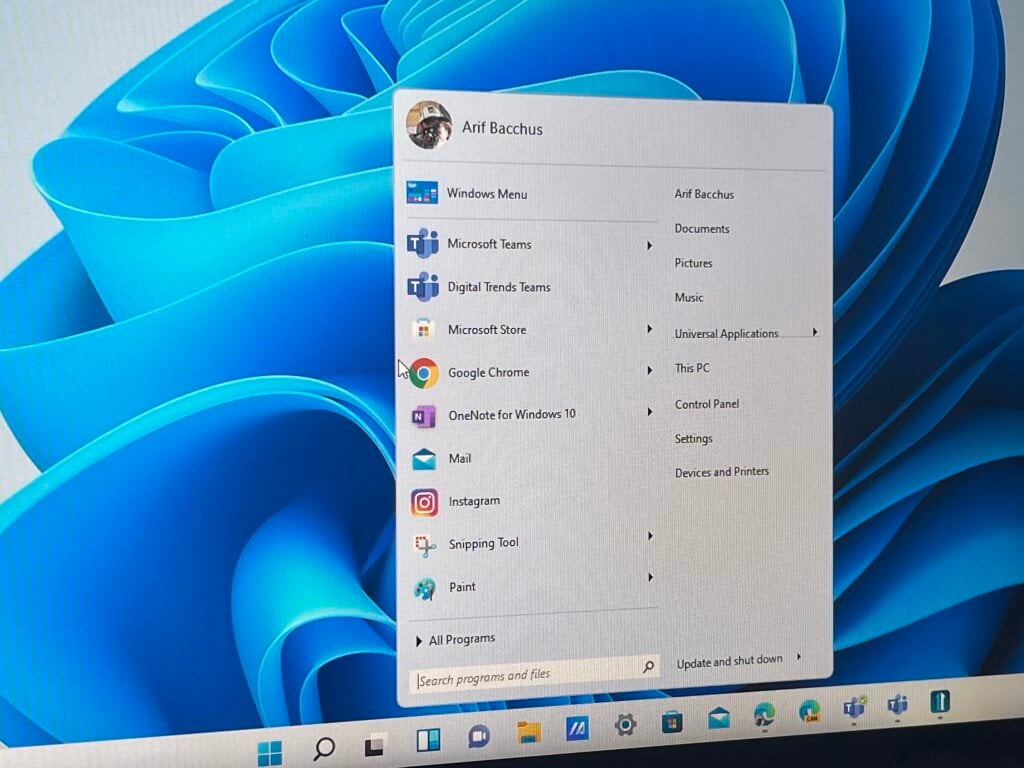
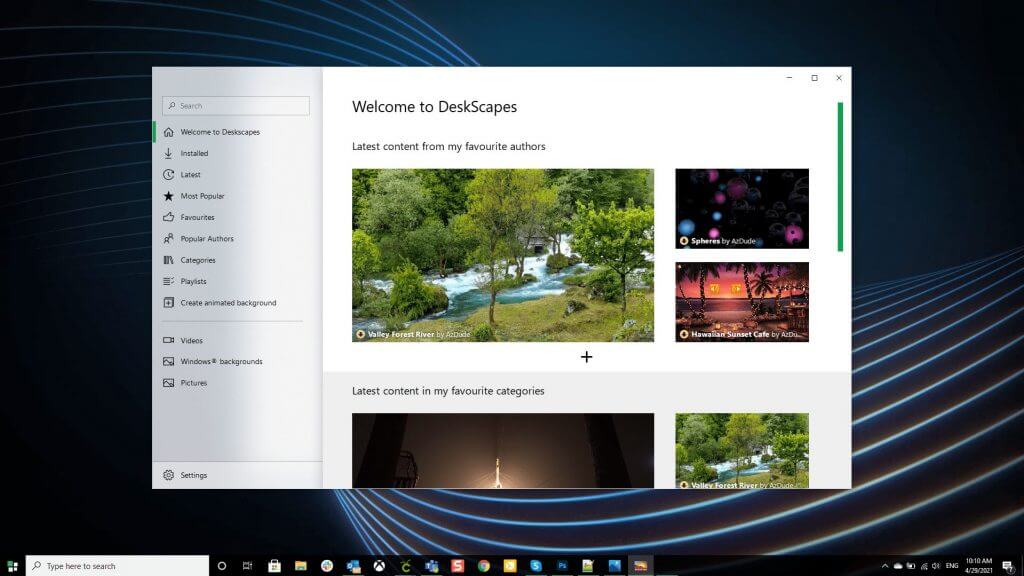
![5 Best Browsers that Support YubiKey [Ranked by Compatibility]](https://windowsreport.com/wp-content/uploads/2022/08/Yubikey-browser-support.png)


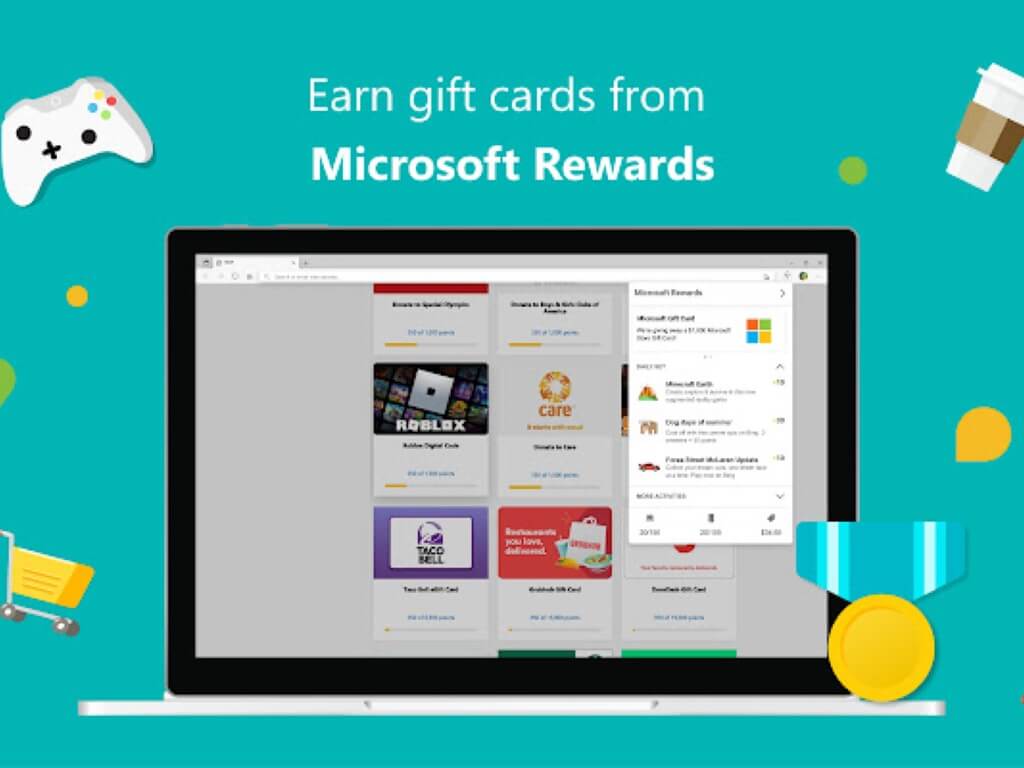


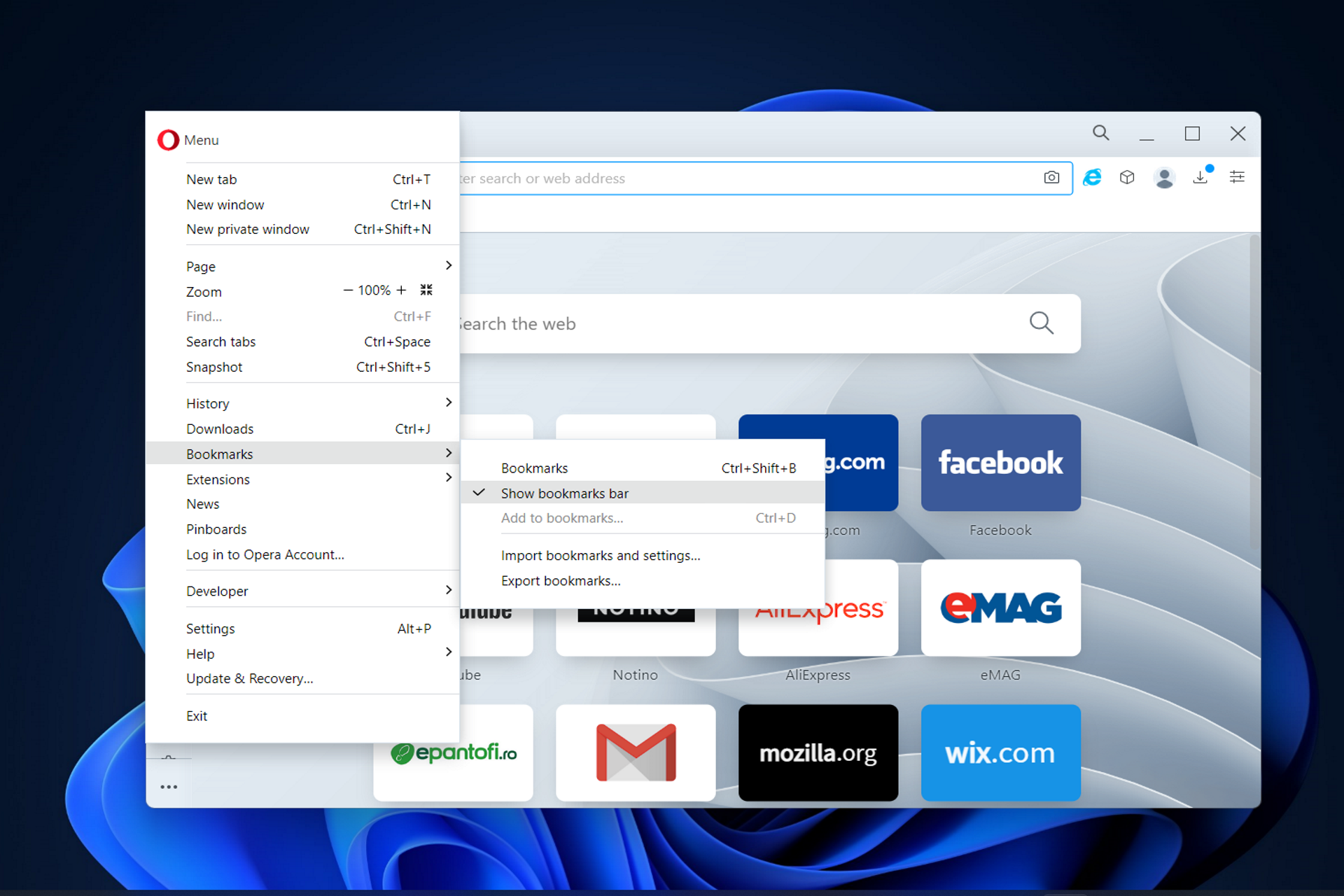






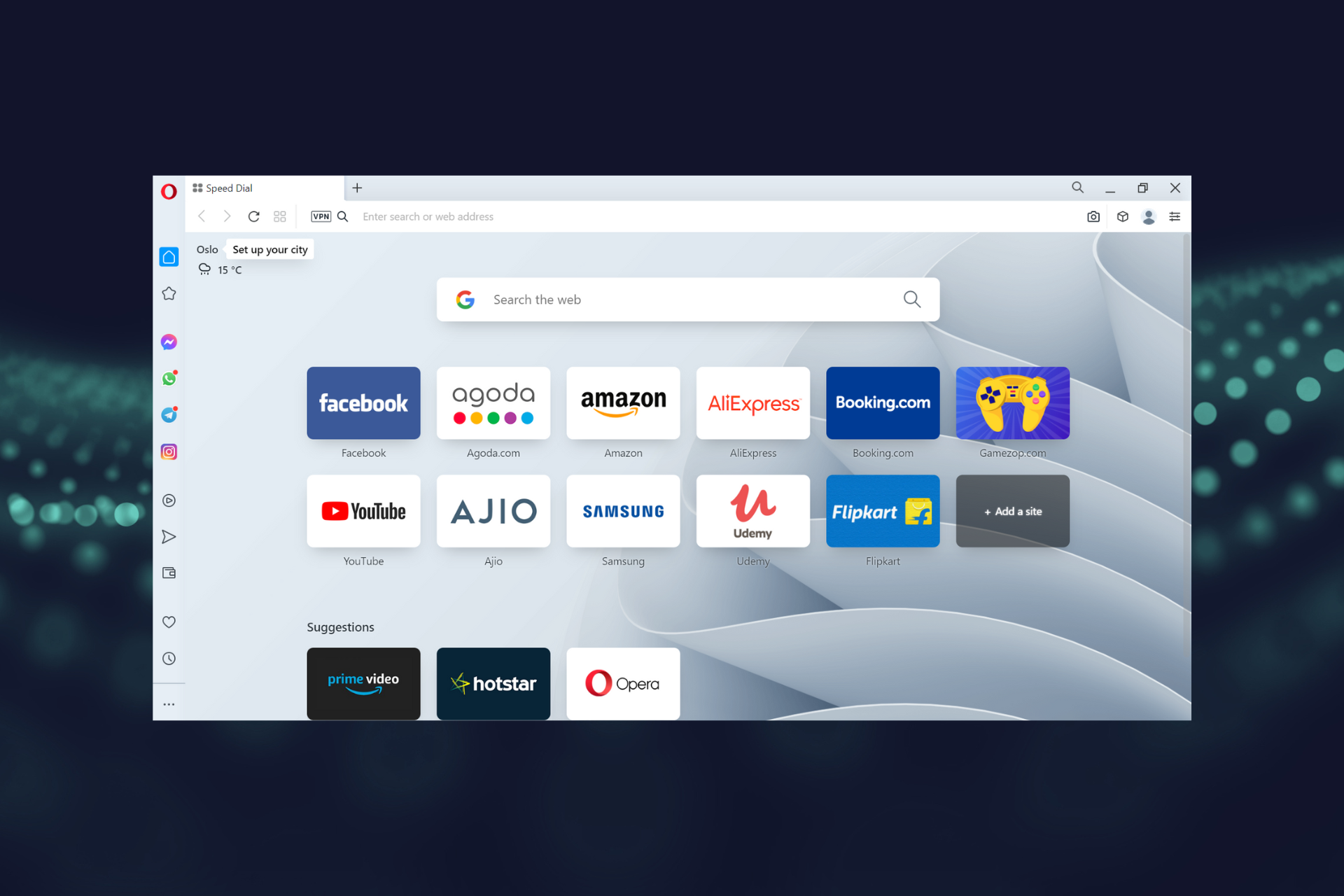


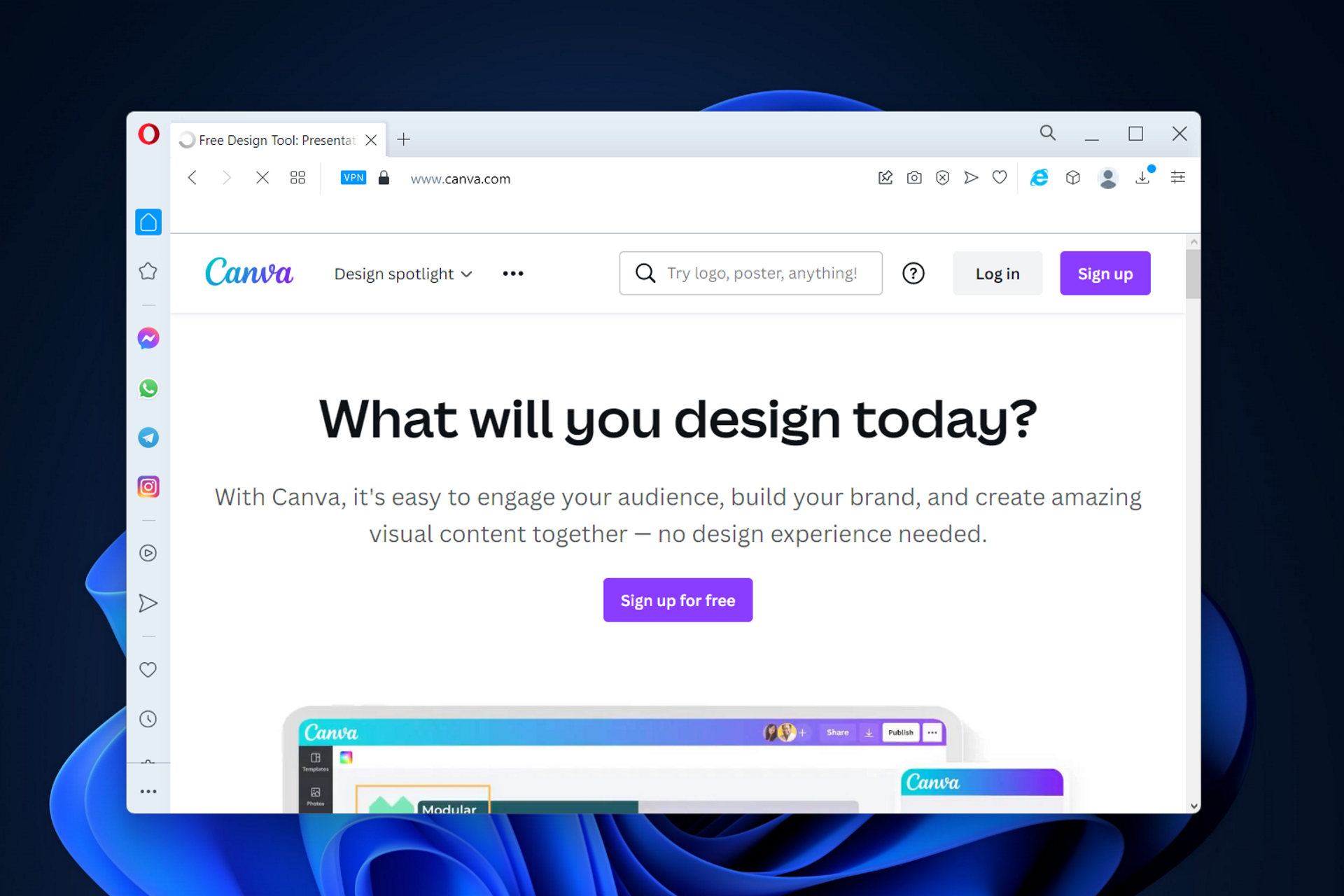











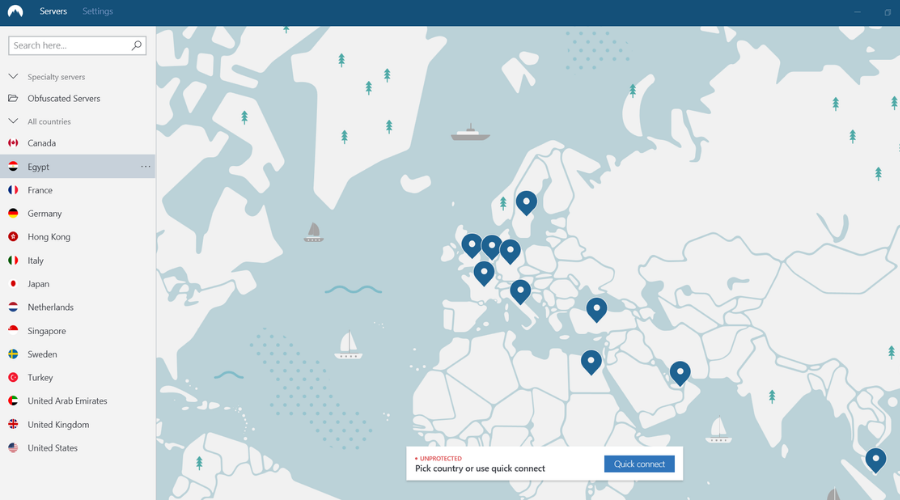

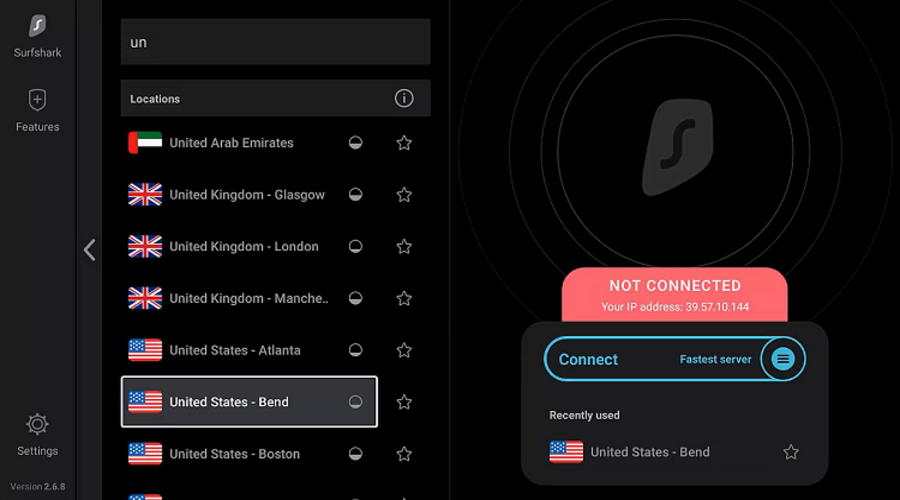

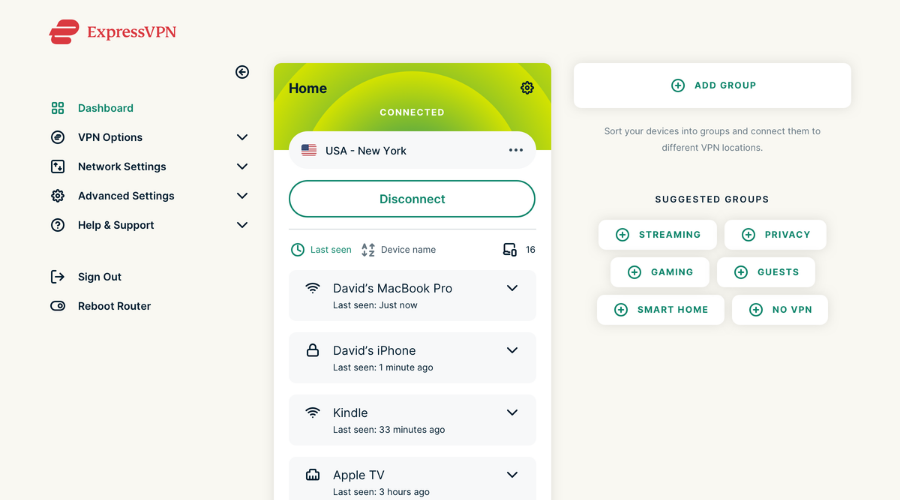

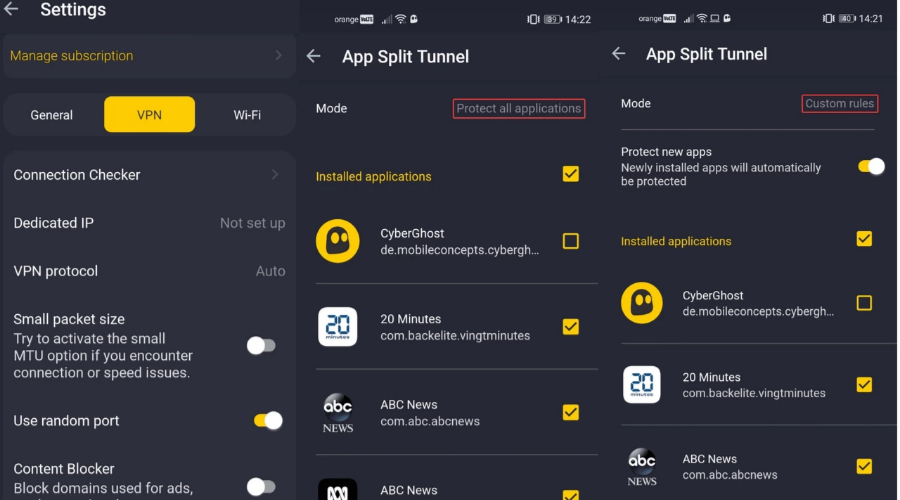

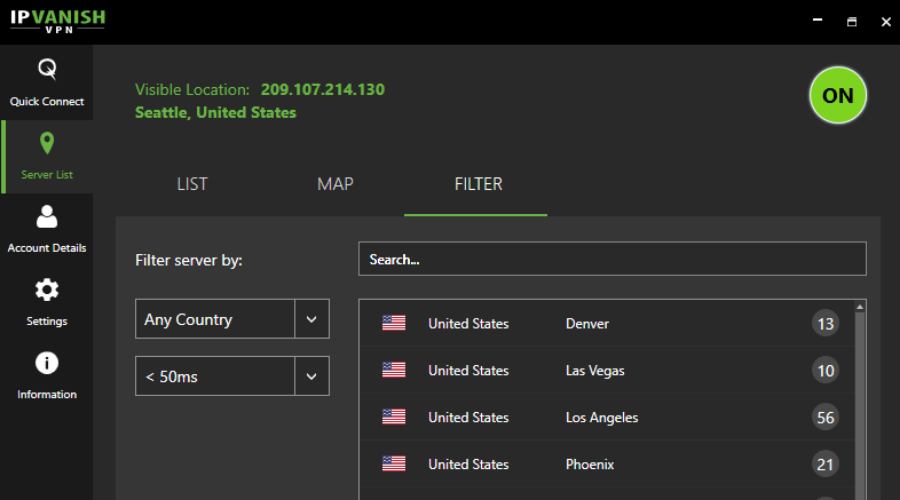

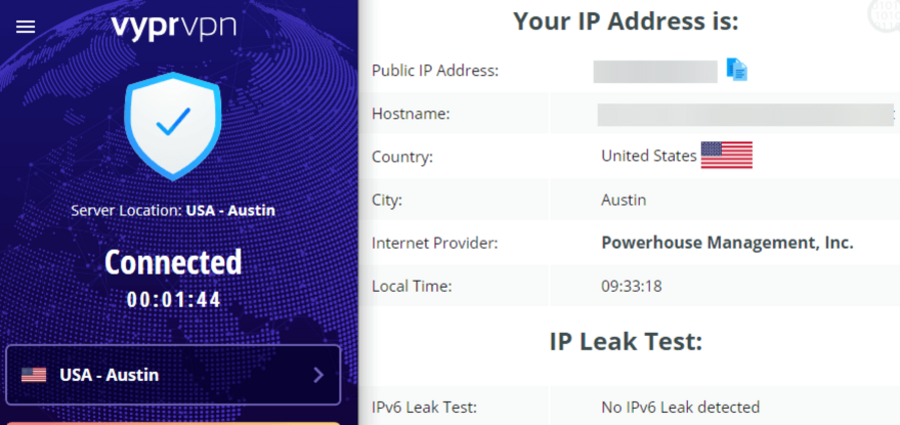




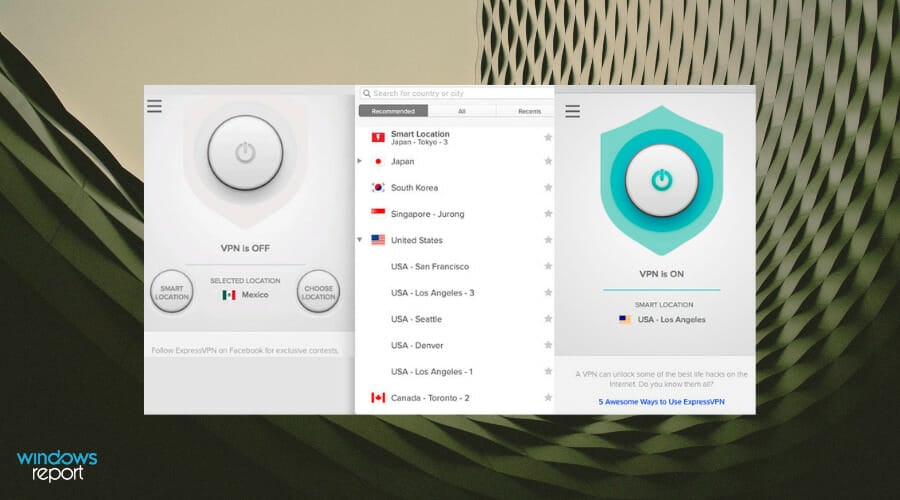

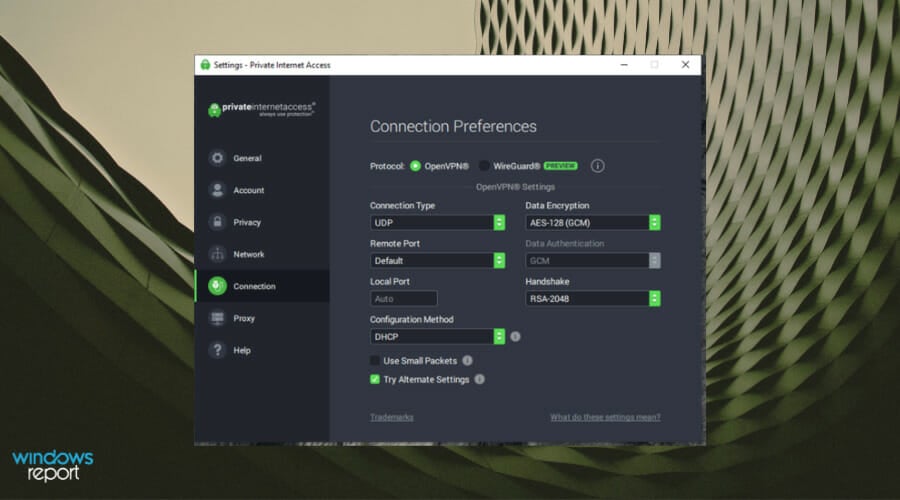

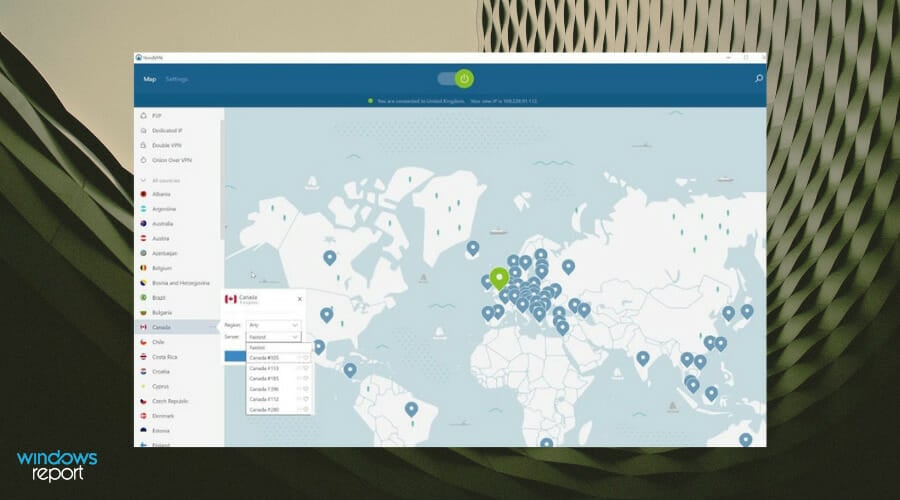
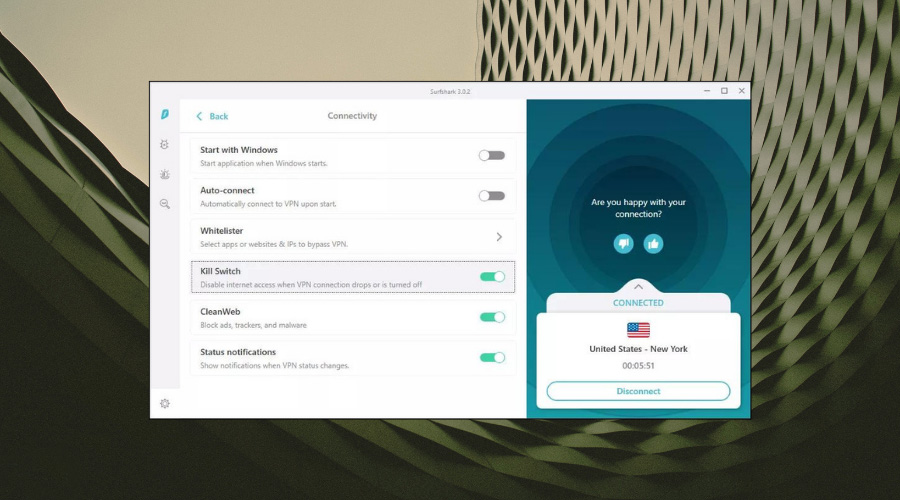
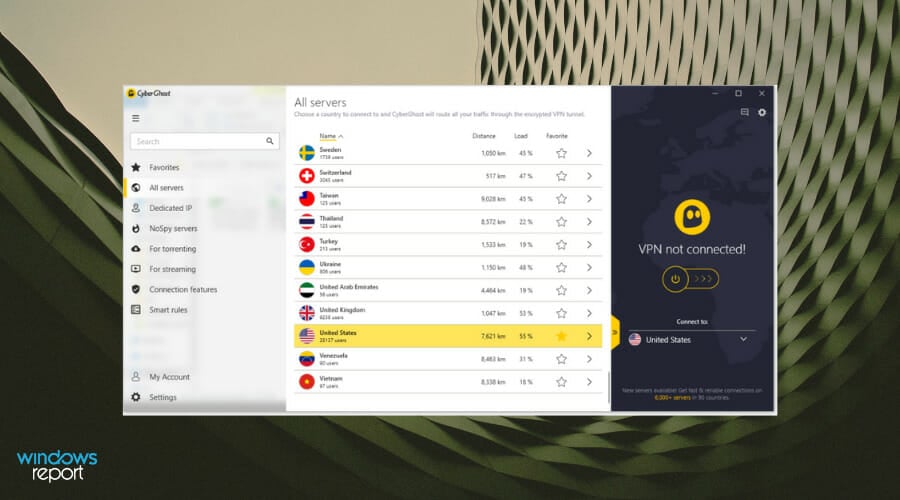

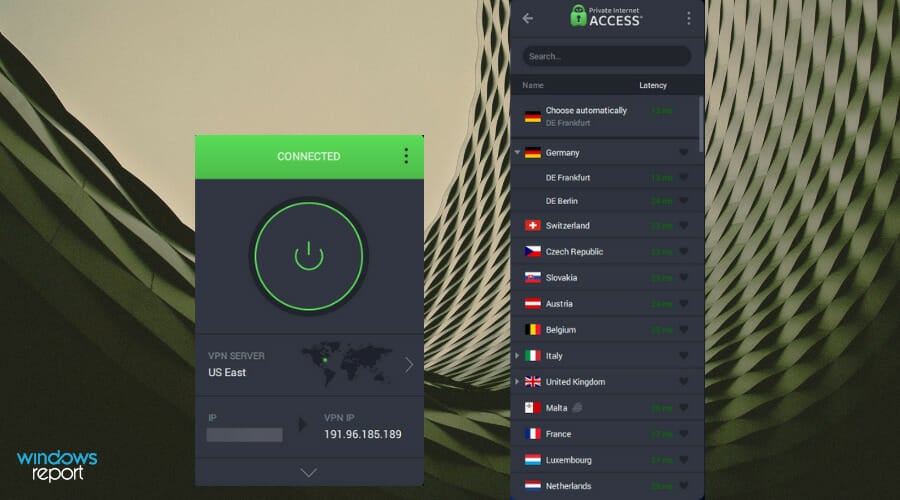
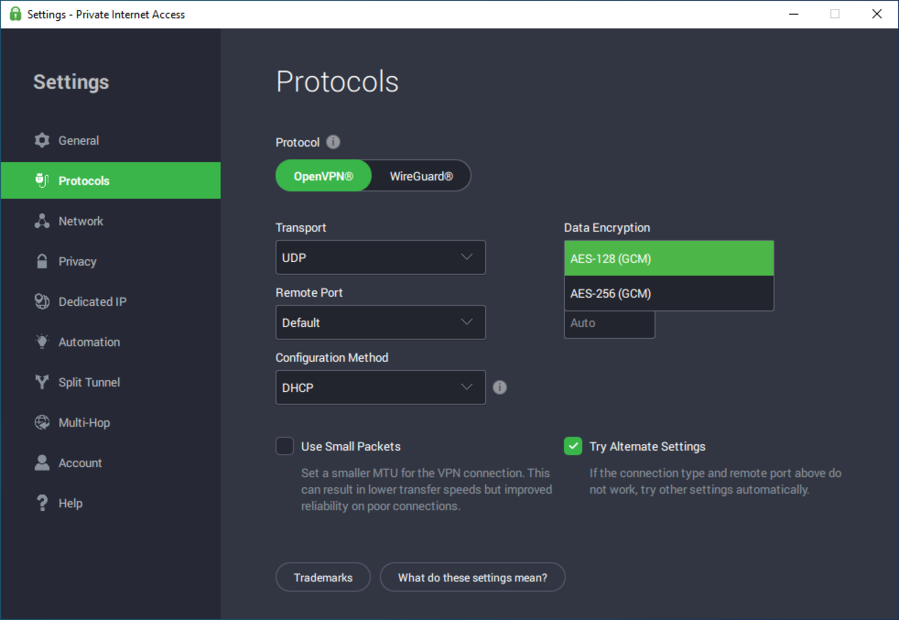

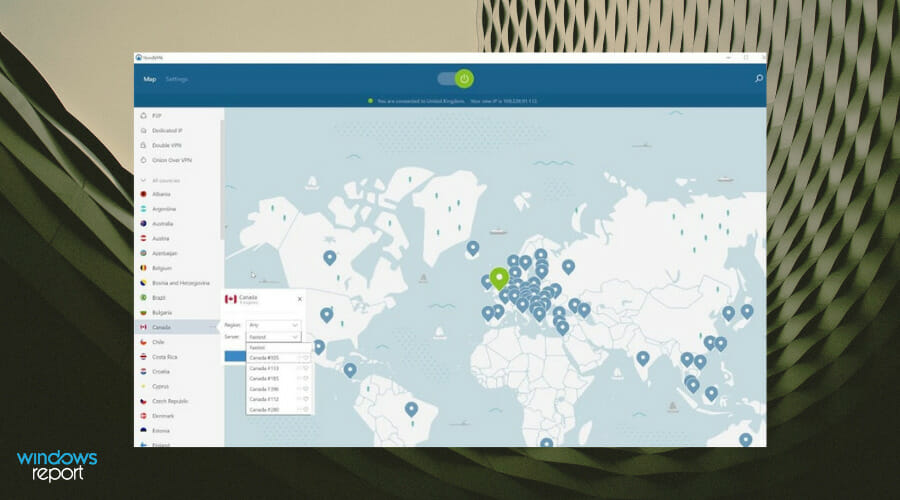
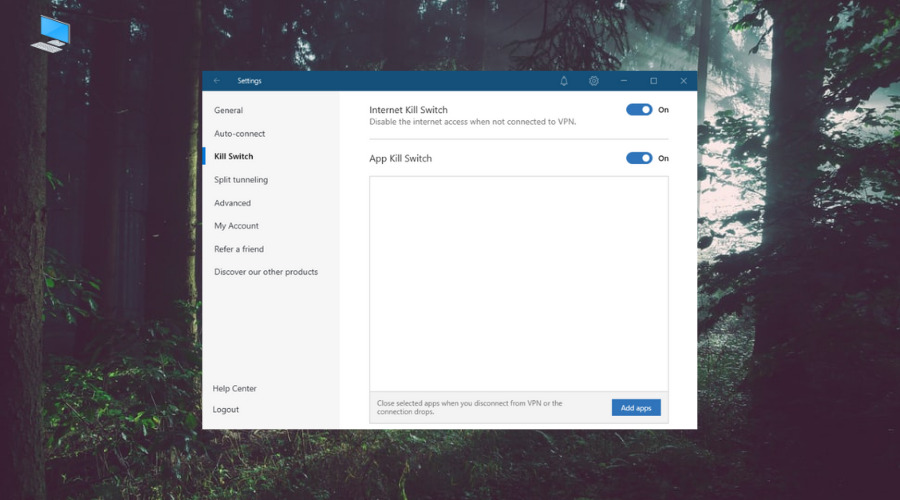


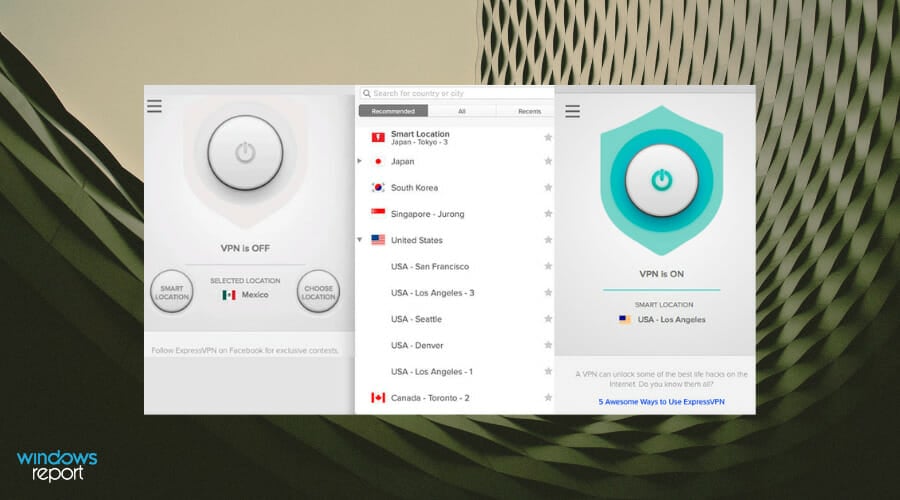
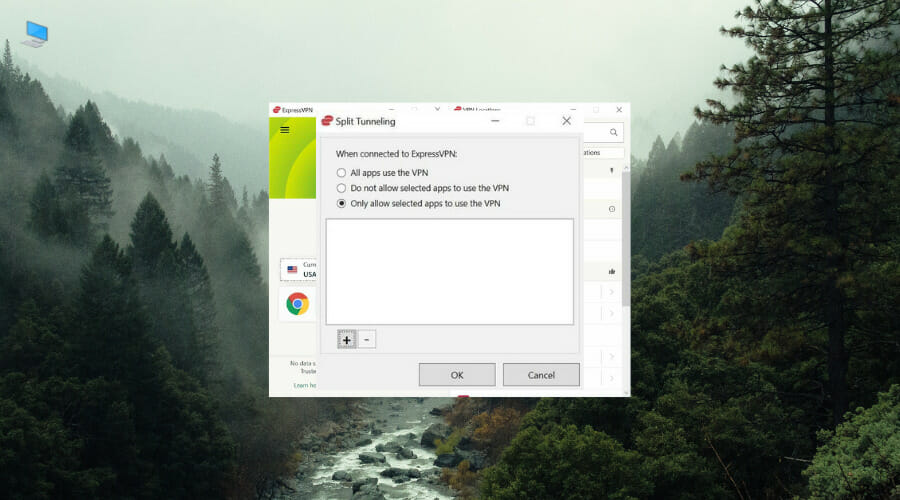
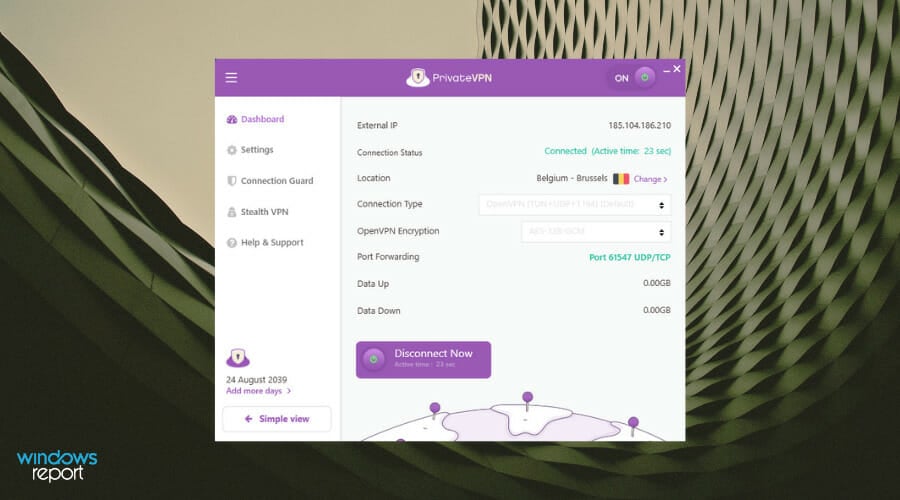
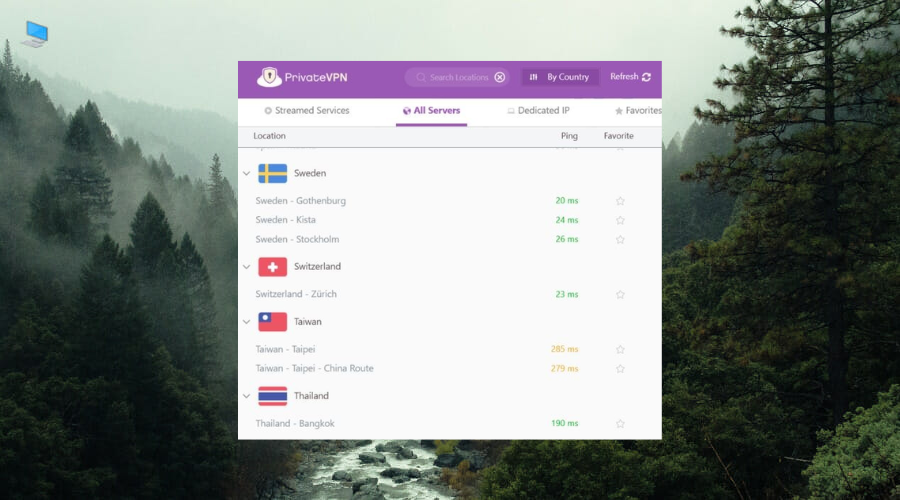

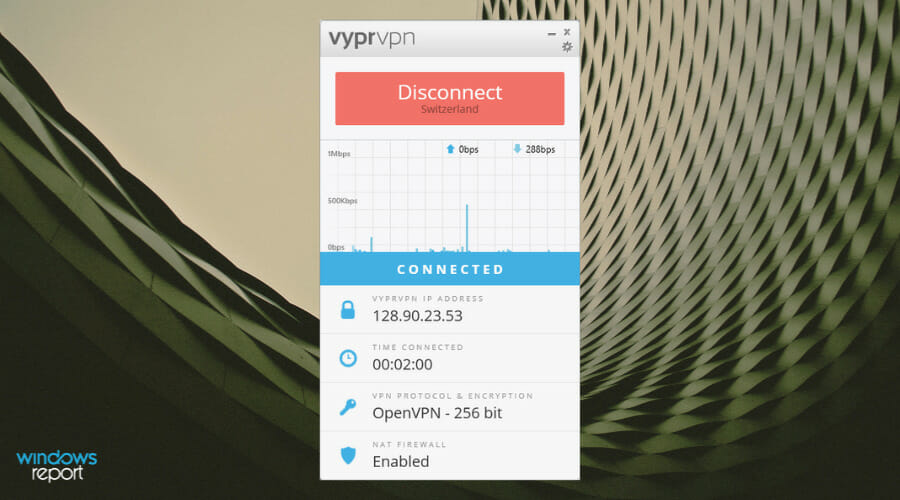
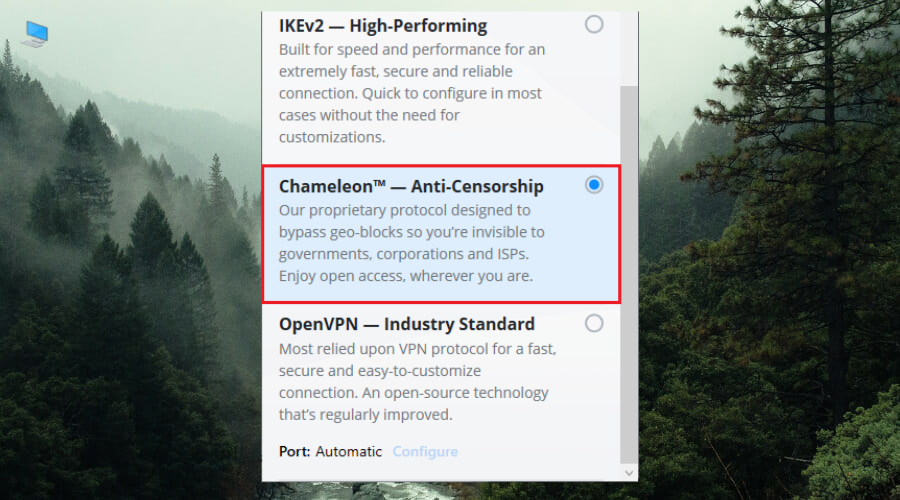

![How to Enable VPN Split Tunneling in Windows 10 [4 Ways]](https://windowsreport.com/wp-content/uploads/2020/07/VPN-split-tunneling-Windows-10.jpg)
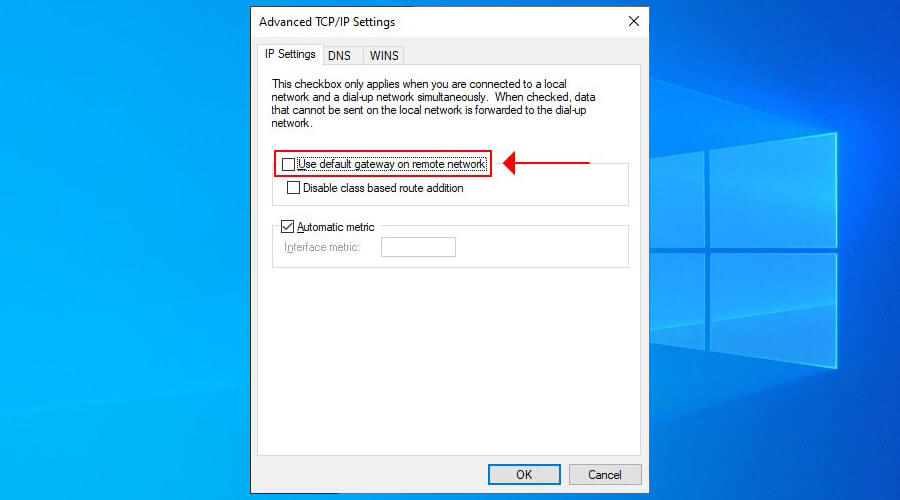
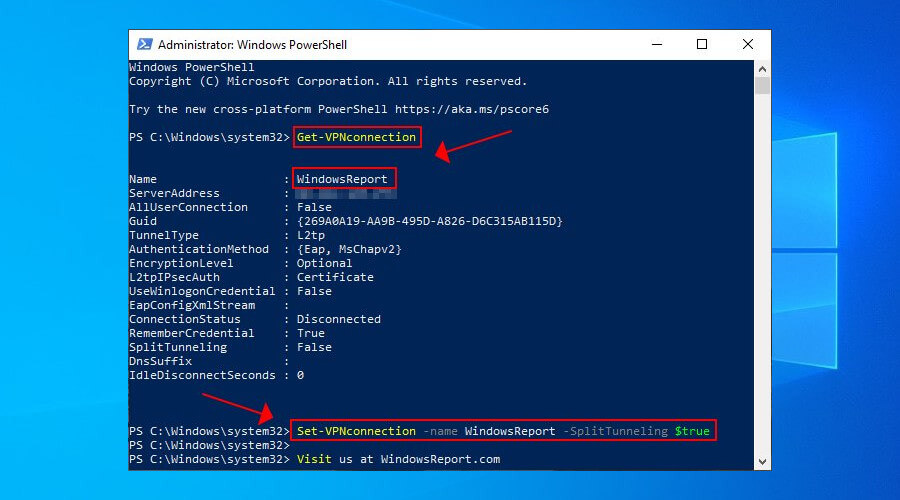




![How to Automatically Refresh a Browser Page [Edge, Chrome, Safari & More]](https://windowsreport.com/wp-content/uploads/2020/07/how-to-automatically-refresh-a-page.png)


![What’s the Best Logo Design Software for PC? [Free & Paid]](https://windowsreport.com/wp-content/uploads/2022/05/best-logo-design-software-for-PC.jpg)

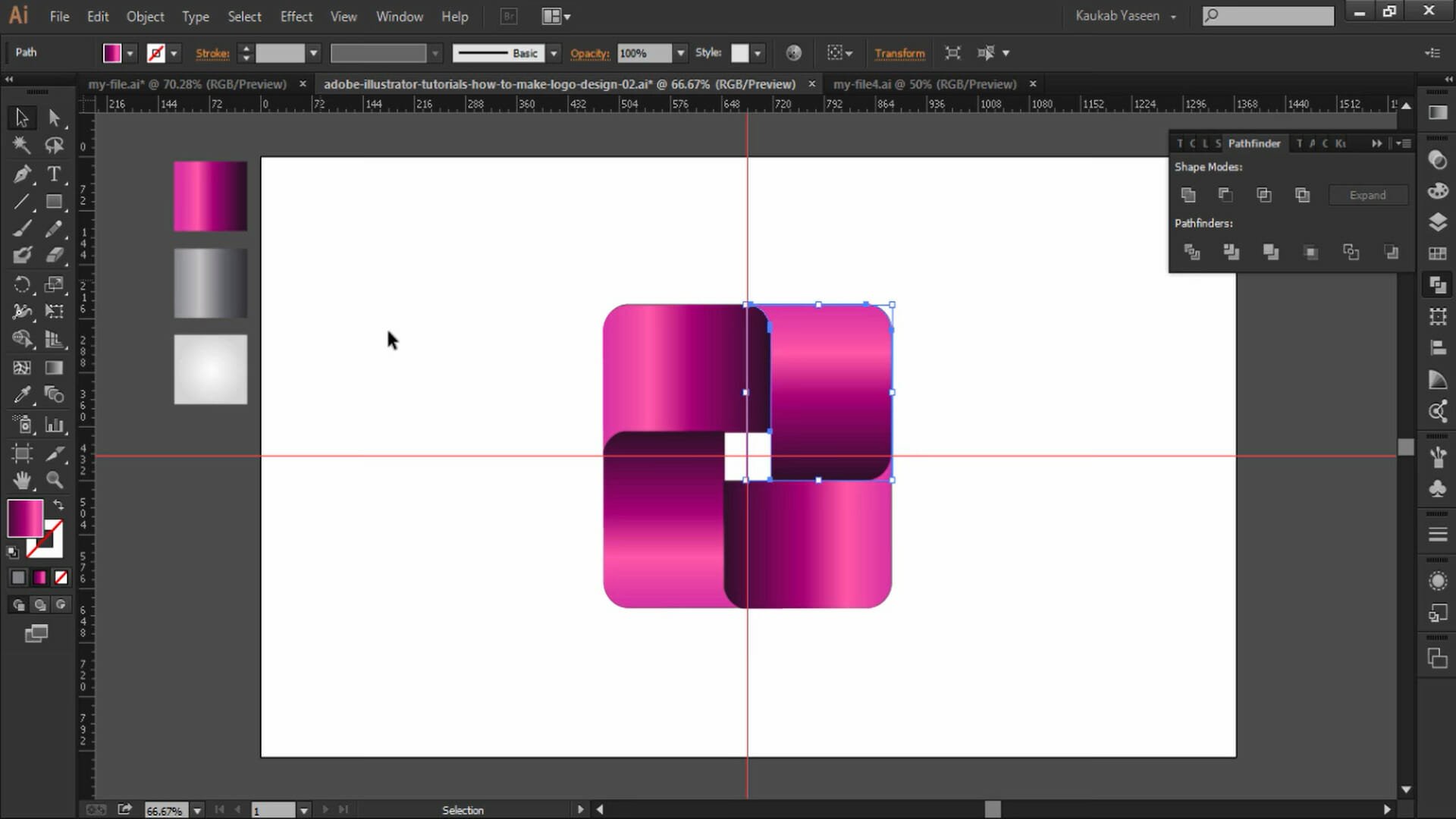


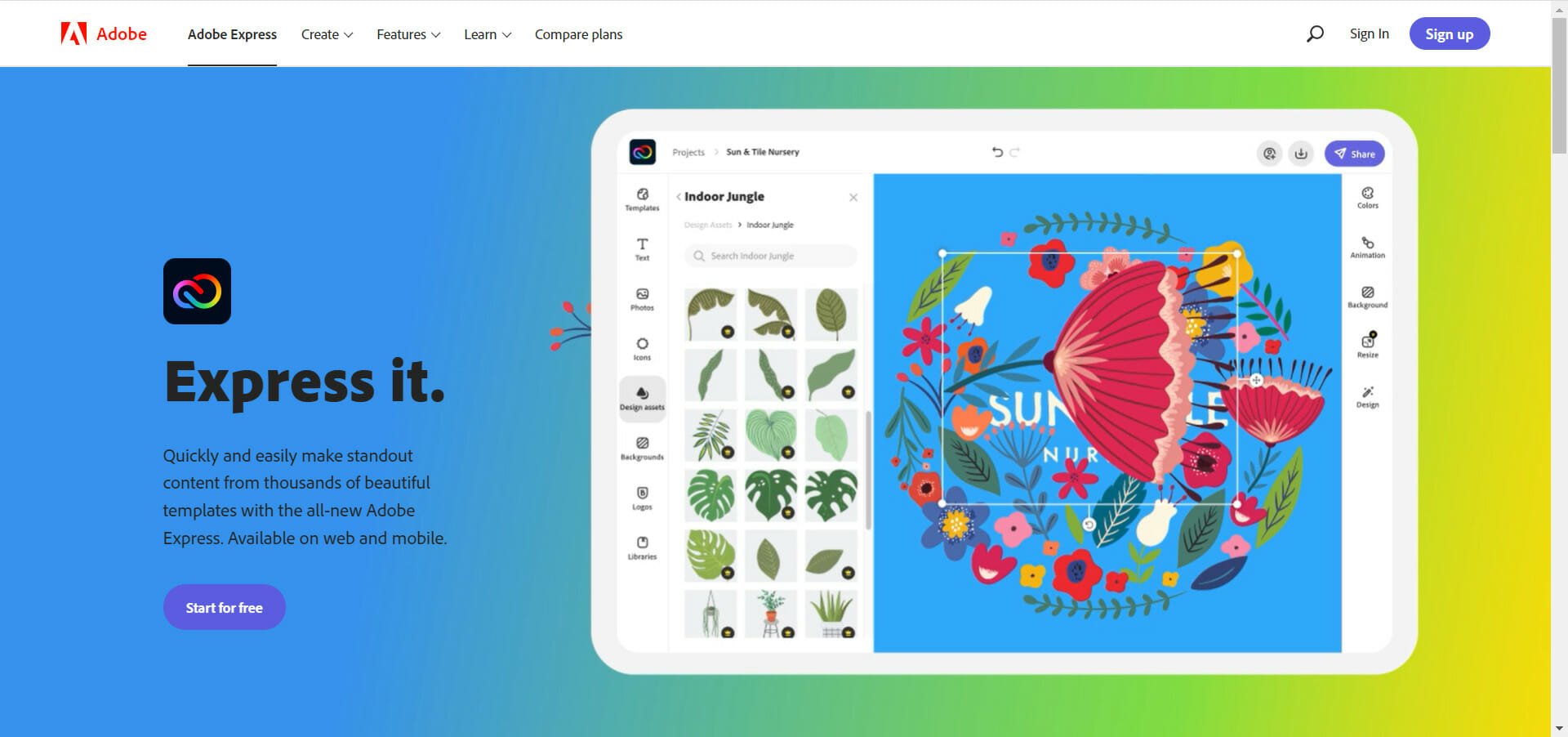




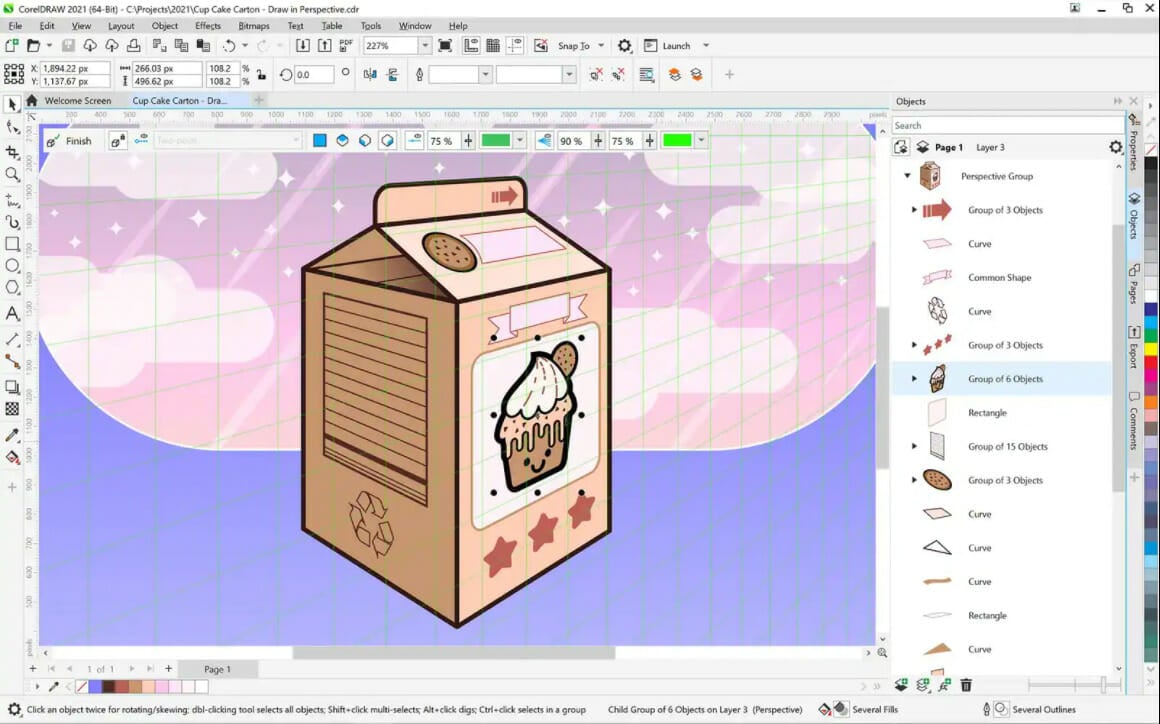










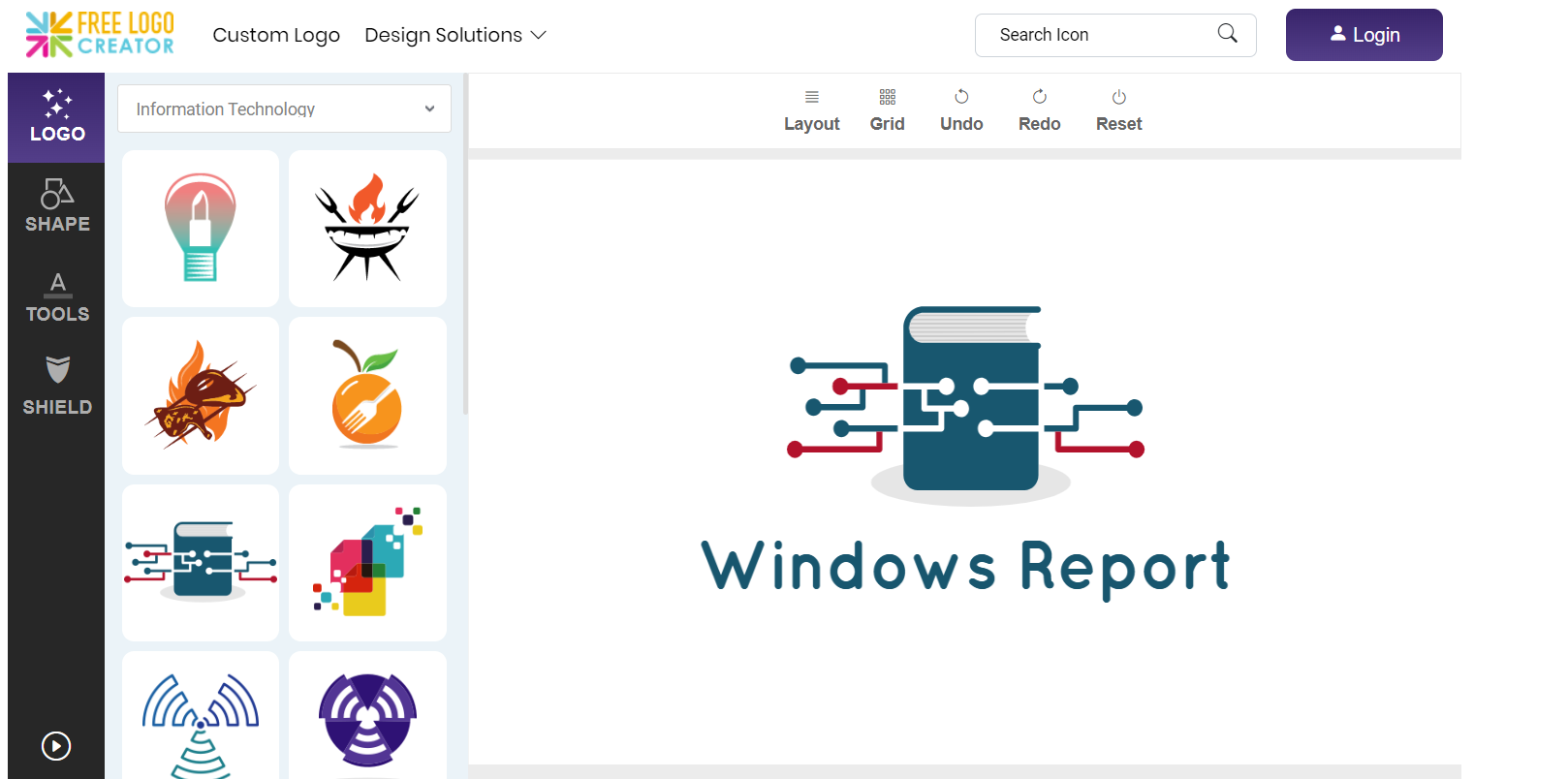


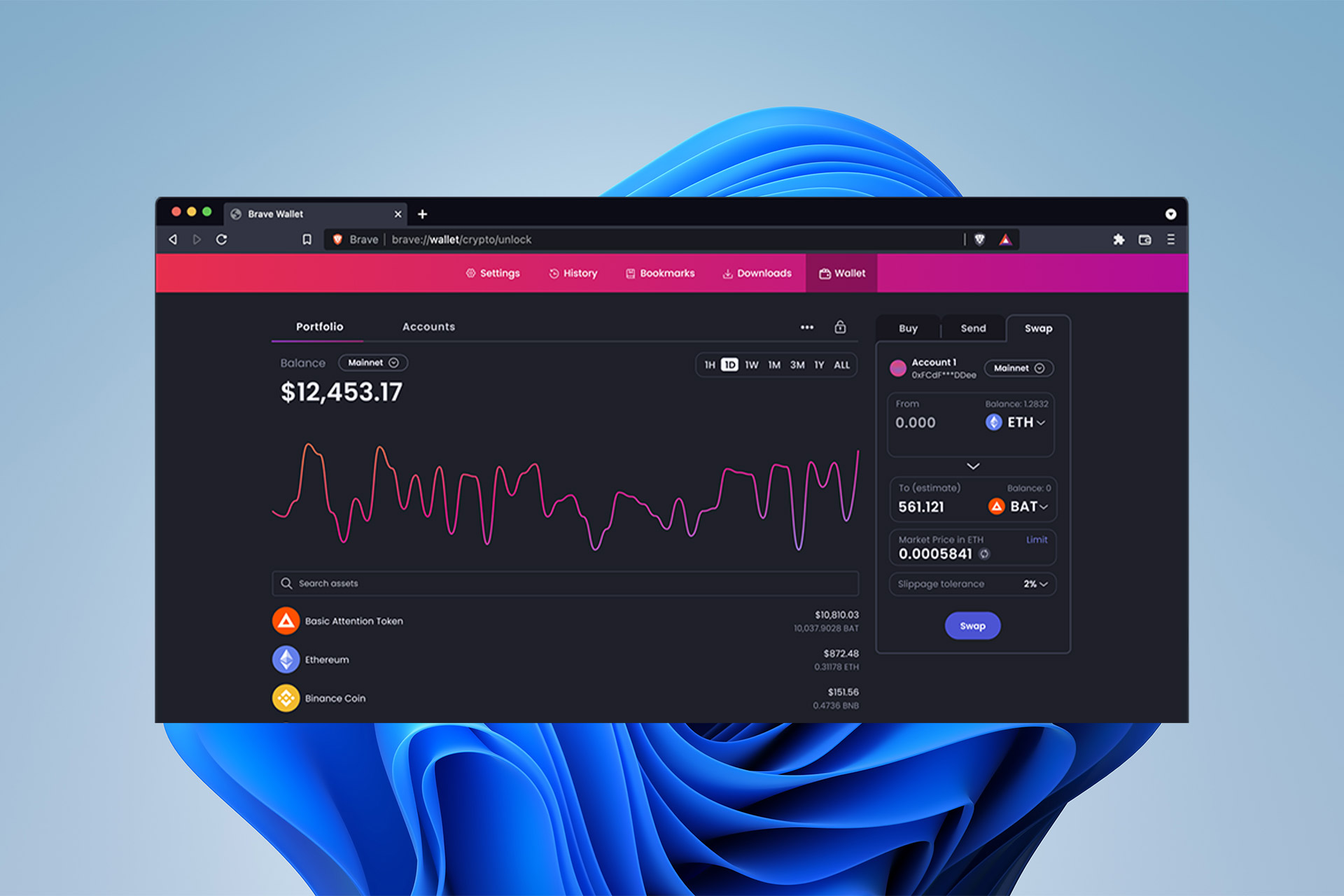


![6 Best Browsers that Support iFrame [Ranked by Consistency]](https://windowsreport.com/wp-content/uploads/2022/08/browser-support-iframe.jpg)





![How to Open XPS Files in Windows 10 [2 Easy Methods]](https://windowsreport.com/wp-content/uploads/2020/04/File.jpg)

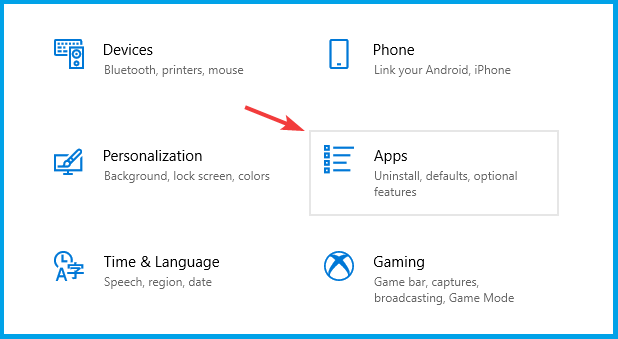





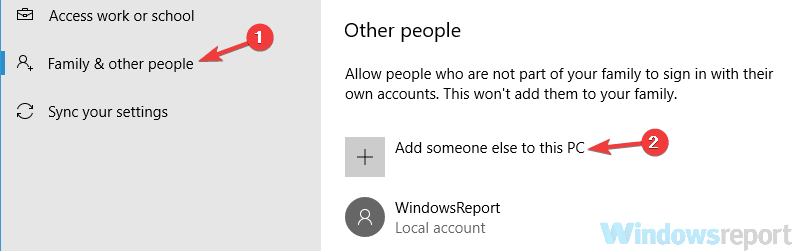
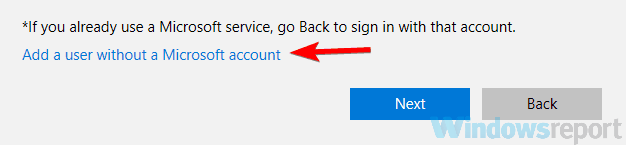
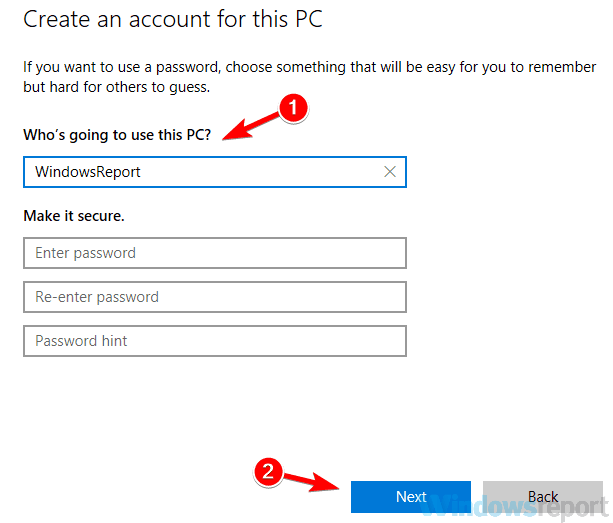
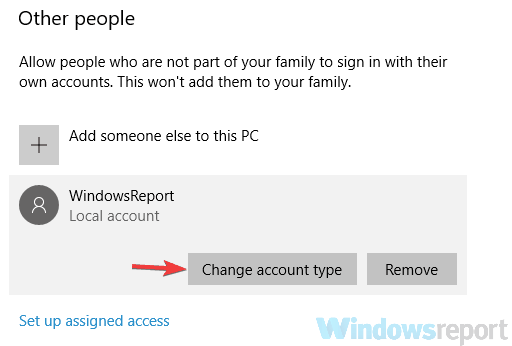
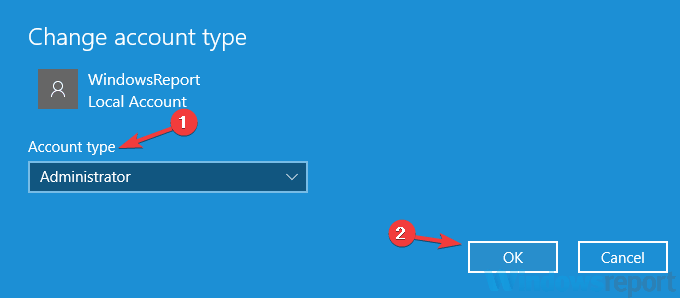





![Best Photo Viewer for Windows 10 in 2026 [We Tested 15]](https://windowsreport.com/wp-content/uploads/2020/03/Photo-Viewer.jpg)
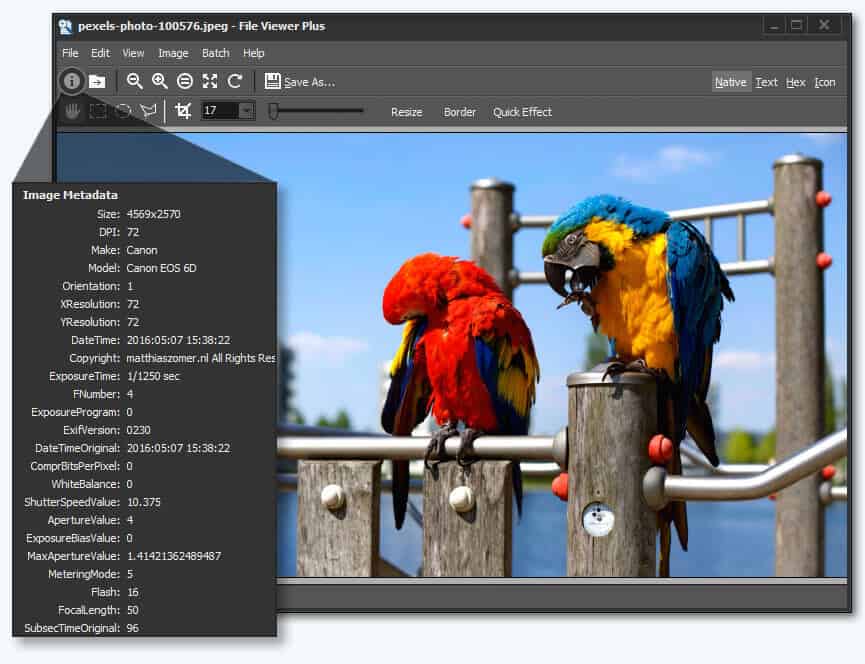









![5 Best Browsers that Support APNG [Ranked by Consistency]](https://windowsreport.com/wp-content/uploads/2022/08/Opera.jpg)
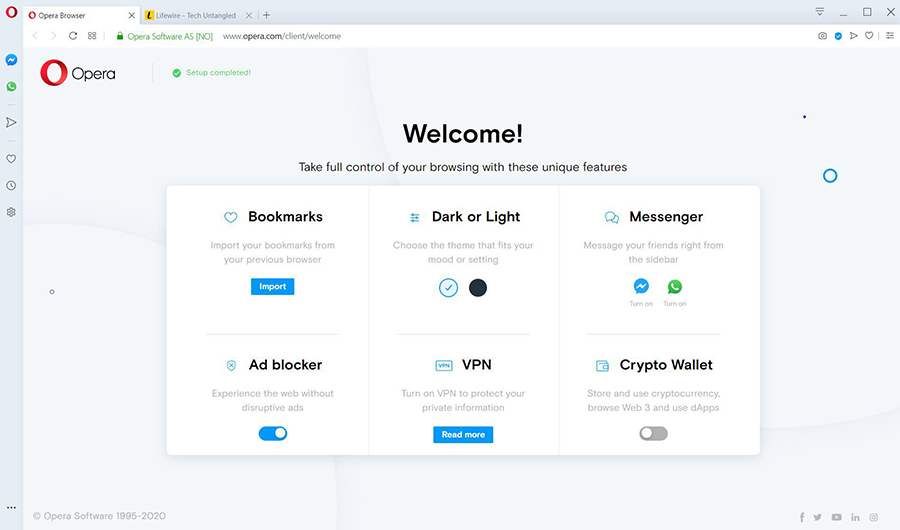










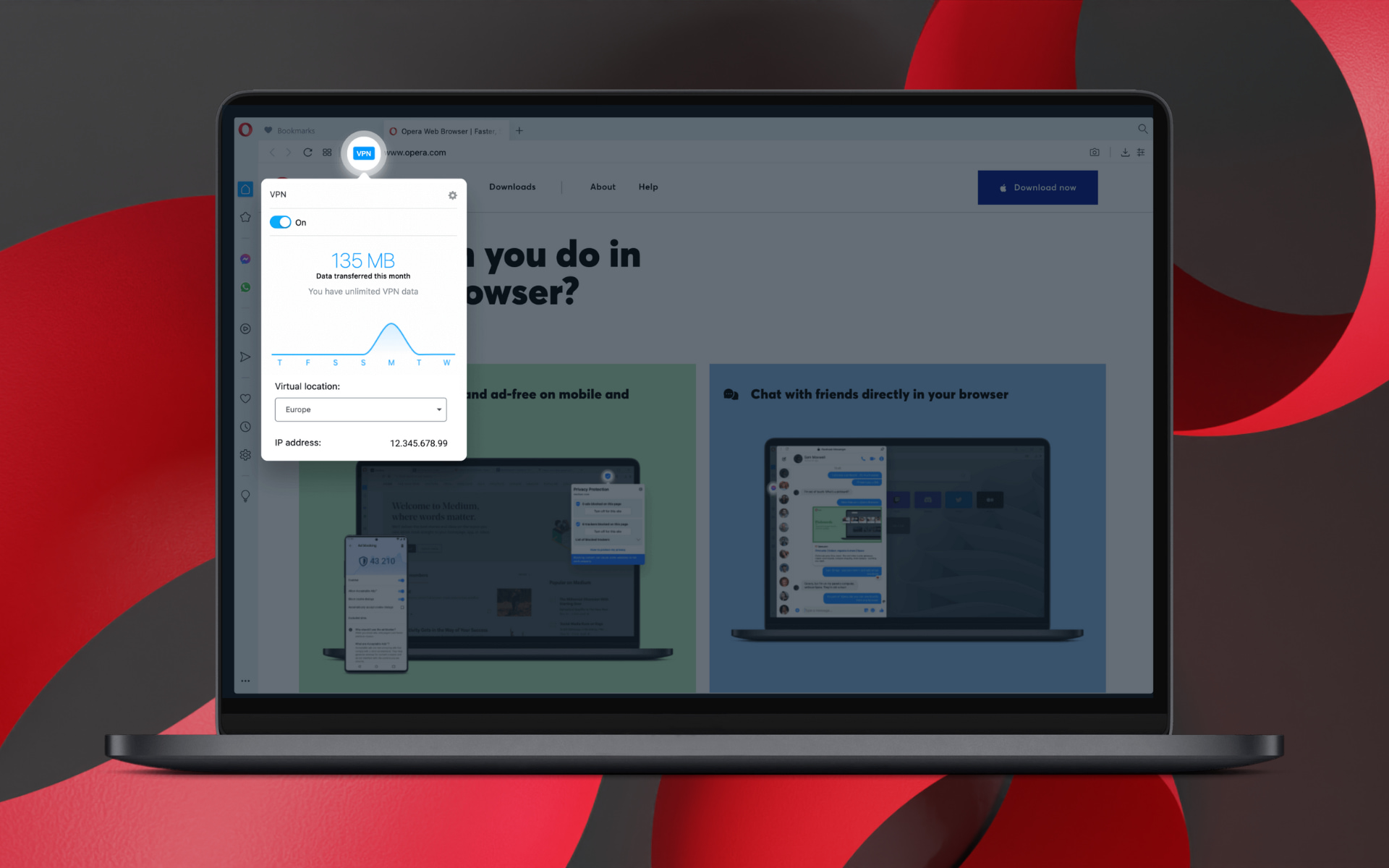
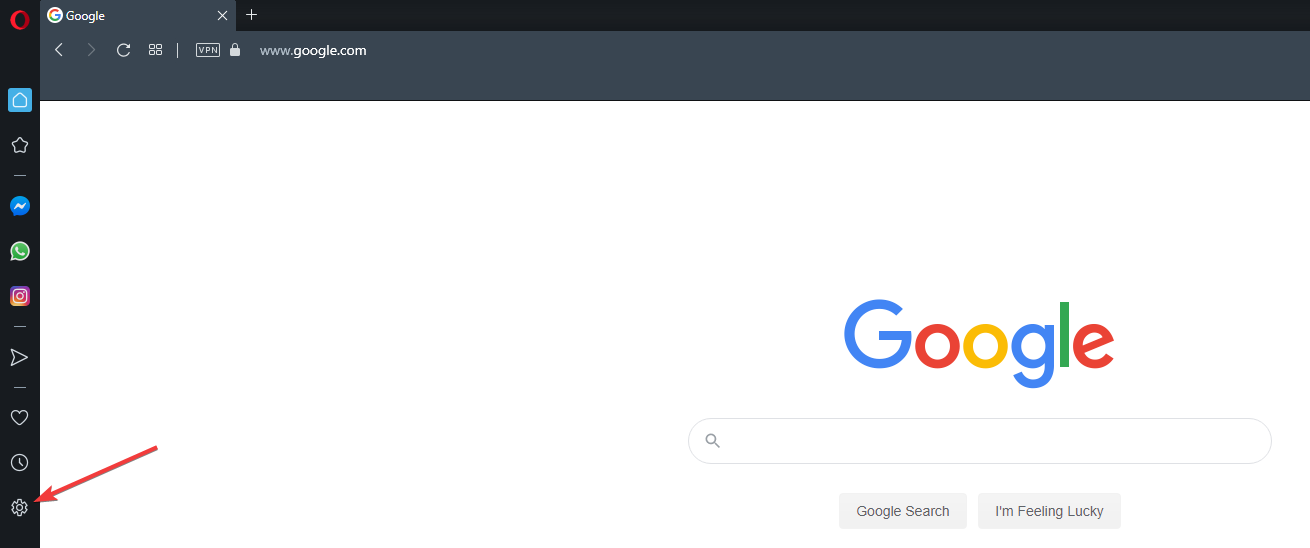
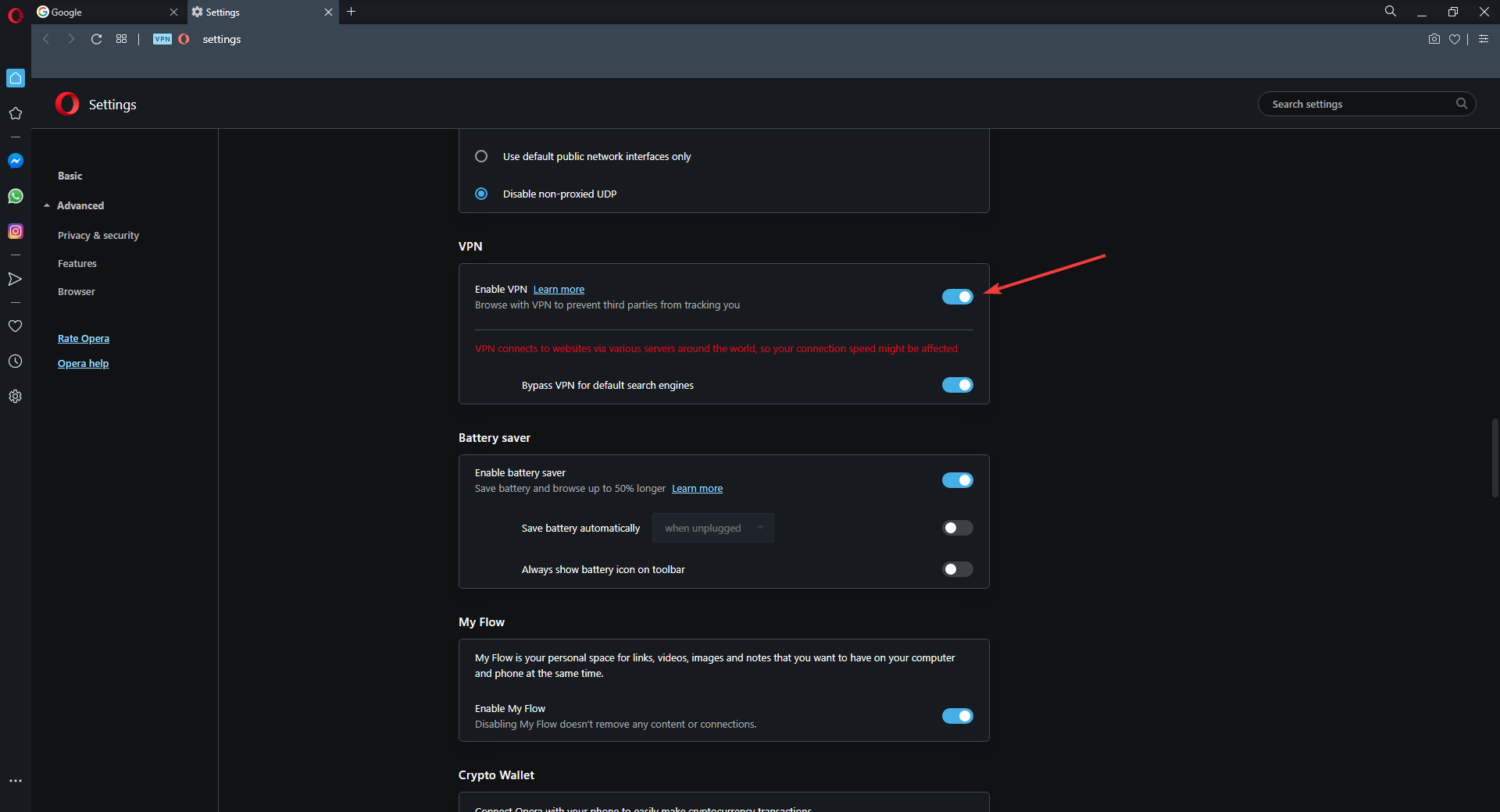


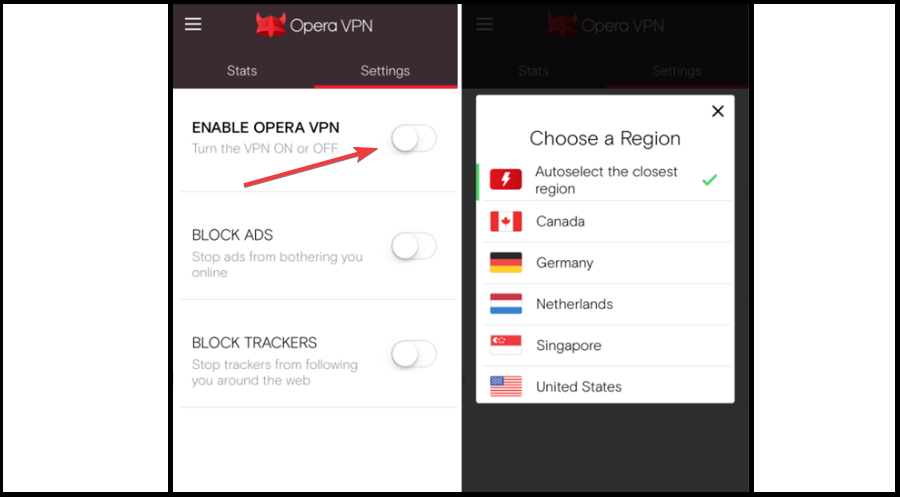
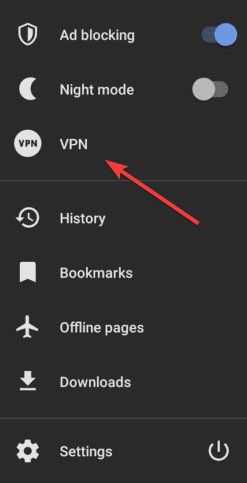
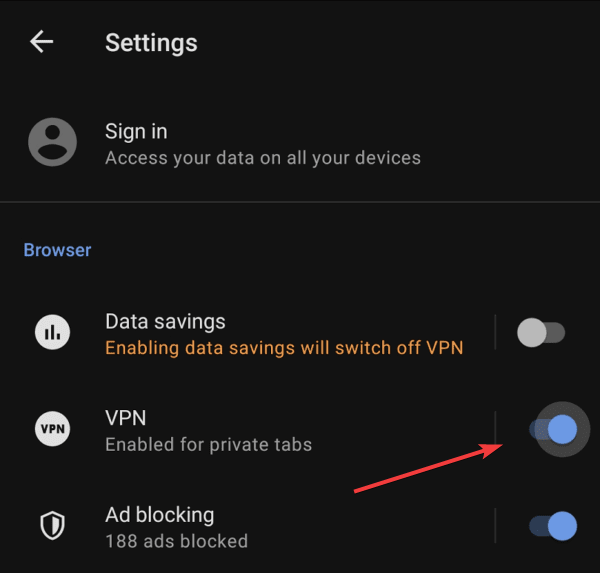


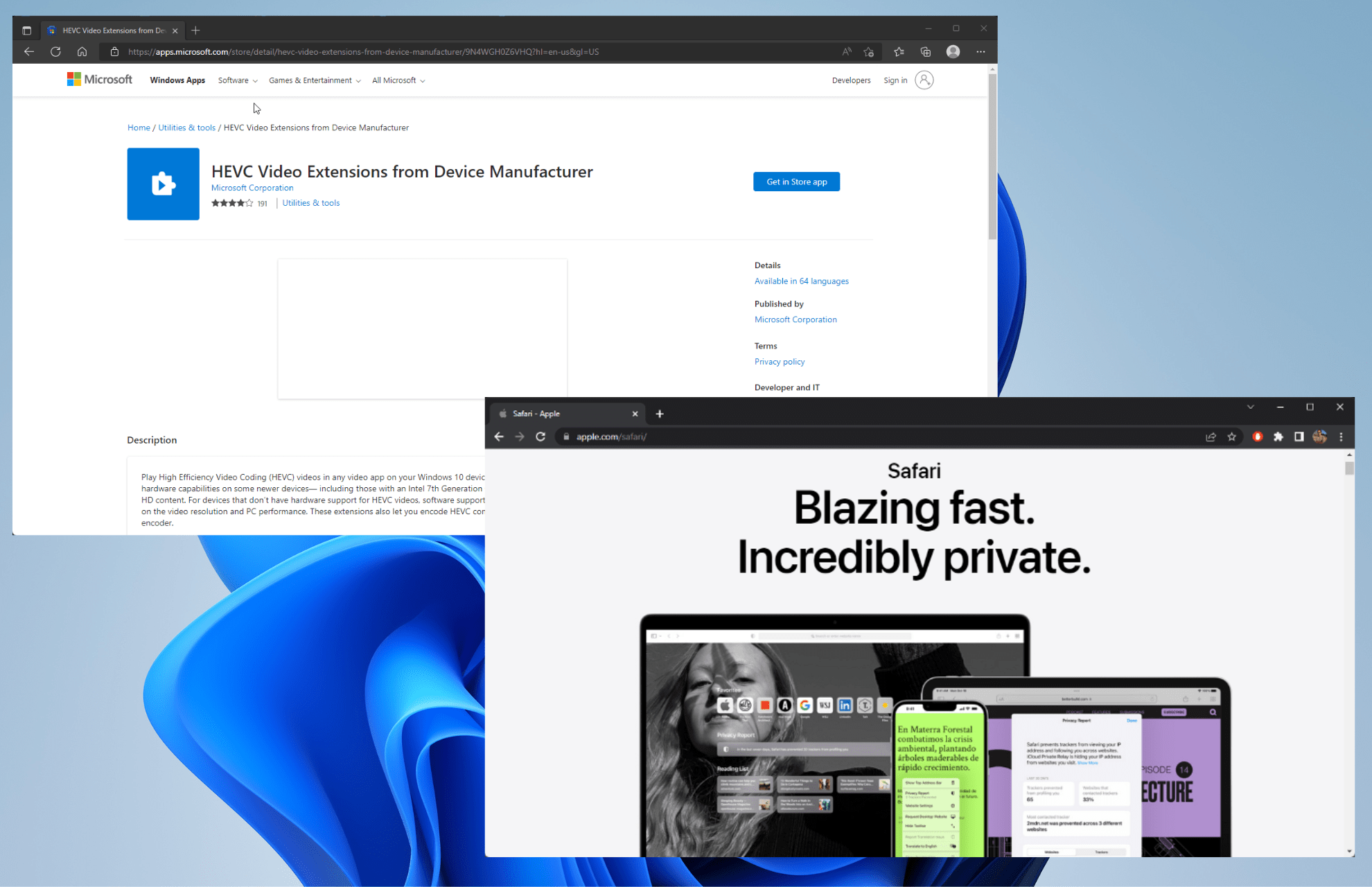


![5 Best Virtual Tabletops To Use In 2026 [Game With Friends]](https://windowsreport.com/wp-content/uploads/2021/02/tabletop.jpg)