In a recent interview with the publication Protocol, Xbox’s Phil Spencer talked about Minecraft and the new virtual 3D iteration of the internet that’s come to be known as the metaverse. The Microsoft executive spent time discussing the openness of Minecraft, and how it’s been critical to what the game has become.
In other areas of the interview, Spencer talks about how Minecraft’s success shows where gaming needs to go in the future. He also mentioned that the virtual worlds created by players in Minecraft could help make the metaverse feel more open. It’s something that Microsoft is apparently thinking about seriously. But it sees the metaverse more for the creator, rather than for the company. Per the executive.
But more fundamental to me is why Microsoft? Like, why is this metaverse that a lot of people are focusing on, why is it better for players? Why is it better for creators?
Interestingly, Spencer also reveals that teams at Microsoft, from HoloLens, and other mixed reality experiences, and even Azure have meetings weekly. Particularly, the meetings are about how there could be new games to make use of Microsoft Mesh, the company’s own gateway to the metaverse.
On this matter, Spencer also said that the metaverse isn’t a business thing, but is something companies should try and be creative, work together on, and have freedom with. He pointed to Xbox, and how it’s both first-party and third-party with titles like Roblox, Fortnite, and more. Even things like Game Pass, cross-play, cloud-play, come into the picture, too, according to Spencer.
“We will go at this on the metaverse side with the same sensibilities that we’ve had in gaming, that people should be able to play the games they want, where they want to play them, with the people they want to play with. Because we’ve actually thought that in the end that opens up the largest experience for creators and for players.”
Overall, the interview is a solid read for Xbox fans, and it shows how Microsoft is thinking about the future of the metaverse. It seems as though Microsoft is thinking about players and creators first, which could give it a unique stand as more players enter the metaverse space. Let us know what you think in the comments below.
Welcome back to our Windows news recap, where we go over the top stories of the past week in the world of Microsoft’s flagship operating system.
TikTok starts testing new desktop streaming app on Windows PCs
TikTok Live Studio is a new desktop streaming app for Windows PCs that is being tested by TikTok. The Windows app will allow users to stream to TikTok Live from their PC.
It's super basic in its current state.
Has both Landscape and Portrait Scenes.
Sources include Game Capture, Mobile Capture, Video Capture, Program Capture, and some text/images. No browser sources, or alerts.
Adobe launches freemium Creative Cloud Express app on the web and the Microsoft Store
Creative Cloud Express is a new freemium app from Adobe, available on the web and the Microsoft Store. Describing the new app, Adobe says:
Creative Cloud Express offers access to literally millions of photos, fonts, templates, graphics, and other assets that give you a head start on any project. Finding what you need is easy through intuitive, intelligent search. And our assets are easy to remix. If you find a graphic you love, you can swap in your own image and Creative Cloud Express will automatically apply all the filters and effects from the original graphic.
That’s it for this week. We’ll be back next week with more Windows news.
Xbox Countdown Sale offers big saving on over 900 digital games
The Xbox Countdown Sale started this week, and Microsoft is offering discounts of up to 50% on over 900 digital games. The sale will run until January 3.
That’s it for this week. We will be back next week with more Microsoft news.
If you’re planning to start recording your very own podcasts, you need a powerful and reliable tool to record your voice. If the respective software comes with a built-in audio editor, that’s even better.
You can use a single tool to record and edit your podcast. Windows Report wants to support you in your endeavor and did the homework for you.
In this article, we’ll list the best podcast recording software that you can use on your Windows computer to get the message out as soon as possible.
What are the best free podcast recording software for PC?
Audacity is a well-known sound recording software that allows you to record, as well as edit your podcasts.
The tool is free to use and also supports cross-platform usage. So, if you start recording your podcast on your Windows PC, and you want to edit it on your Mac computer, later on, you can do that.
Some of its key features:
Record live audio: If you want to record a debate, Audacity can help you do that.
Record computer playback on any Windows, Vista or later machine. So, if you don’t want to upgrade to Windows 10, you can use this tool without any problem.
Convert tapes and records into digital recordings or CDs.
If you already have some podcast recording experience, then you may want to try Hindenburg.
This cross-platform tool is very versatile and comes in several variants, each suitable for a particular activity: journalists, educators, podcasters, narrators, and more.
As far as podcast recording goes, Hindenburg supports multitrack recording, so you can record on more than one track at a time.
In simple terms, this means that you can use more than two microphones to record your ideas. Simply plug in any USB microphones and begin recording.
You can add a multi-input sound card to your computer and select the channels you want to record from.
If you often use Skype to record your podcasts (for example, your interviewees can’t come to the studio), you can use Hindenburg to add a Skype call while recording.
Once you make the call, the tool will open a new track to record the Skype call. When you hang up the Skype call, the software will continue the studio recording.
At the same time, you can also record from the Internet and through a microphone, so there are no limitations to that.
You can choose which tracks you want to monitor in your headphones while recording using the monitoring system, and switch between them at any time.
Some of its key features:
Hindenburg is complex, feature-rich software. Apart from the options listed above, it also brings the following top features:
It automatically sets the correct level for your imported audio.
Built-in effects: reverb, delay, pitch, echo and more.
Noise reduction to help you reduce noise in your audio recording.
A special clipboard to organize your audio material.
Voice Profiler: this feature automatically sets your ideal on air voice.
ZenCastr is an interesting podcast recording software that can be used by beginners as well as advanced users.
If you often have guests on your podcasts, this is the right tool to record a guest’s voice in high audio quality.
Here are some key features:
Each guest has their separate track: Thanks to this feature, each and every voice is recorded in crystal clear audio quality.
Record in lossless WAV: You can record your guests in lossless 16-bit 44.1k WAV to get the best possible audio.
Soundboard for live editing: Post production editing is much easier since the tool allows you to insert a series of elements live as you record, including intros, ads, listeners’ testimonials, etc.
Voice chat with your guests: There is no need to install a third-party VoIP software to talk with your guests. Zencastr has everything you need to do that.
Dropbox integration: All your podcast recordings are saved in the cloud to your Dropbox account. In this manner, you can quickly share them with your colleagues.
Cast is a simple, yet powerful podcasting software. You can use it to record, edit and publish your audio creations.
You can use this tool to record high-fidelity audio, whether by yourself or alongside guests. The recordings are automatically stored in the cloud.
Once you finished recording your podcast, you can go to the next step: the editing part. Powerful presets are available, allowing you to get the job done in no time.
Once you’re happy with the end result, you can publish your podcast with a single click.
Cast is perfect for beginners and podcasters who don’t have a lot of time to spend recording and editing audio.
We live in the age of podcasts and vlogging, that’s for sure. And if you want to record your own podcasts for yourself or to share with the world, then you definitely need a reliable tool to record your voice.
For that, you need not the only software that comes with a built-in audio editor, but you need to consider several relevant aspects in the choice you make.
Pay attention to the features that the app provides
Of course, you want the tool you’re about to use to have as many features as possible to support your podcast recording work, and for a good reason.
First of all, make sure it supports as many formats as possible, it should also allow you to cut, copy, splice or mix sounds together.
Another feature worth considering is noise reduction. This will definitely help you reduce noise in your audio recording and will give you a higher quality recording, like real studio quality.
These are some of the best software that you can use on your Windows PC to record podcasts.
As you can see, these tools are very versatile. We tried to vary the list to include programs that are suitable for beginners as well as advanced users.
We hope that these recommendations from our list were helpful. For more suggestions or other questions, please access the comments section below.
If we’re talking malware, Malwarebytes is hard to beat. But there is more than malware out there that you need to watch out for. And this is what drives us to find the very best antivirus to use with Malwarebytes.
Now, we feel obliged to make a conceptual distinction here as there are two versions of the software and each has its own agenda. There is Malwarebytes Free, also known as the malware scanner we all know and love, and also Malwarebytes Premium.
The latter aims to deliver a complete antivirus alternative with multiple layers of protection, including web protection, system vulnerability detection, real-time defense, and a plethora of extras.
But is Malwarebytes good enough alone? That’s only the icebreakerquestion, so brace yourselves, the myriad of queries is yet to come. Does Malwarebytes detect spyware? Can Malwarebytes detect keyloggers? Does Malwarebytes detect ransomware? Does Malwarebytes detect all viruses?
While Malwarebytes Premium technically has a lot of the tools required to fight back widespread viruses, its detection rates fall short of recognition, compared to other premium antiviruses.
Real-time protection is also not the best money can buy, not to mention the recurrently high resource consumption instances that we simply cannot ignore. While there is a lot to be said here, we will settle with just a few examples that seem to come up a lot:
Why does Malwarebytes use so much CPU? Can Malwarebytes cause problems? Why is Malwarebytes taking so long? Does Malwarebytes use a lot of memory?
Speaking of memory shortage, if it is something with which you struggle in connection to Malwarebytes, you can have a go at this nifty troubleshooting guide. Now let’s see who does what exactly.
What is the difference between Malwarebytes and antivirus?
Not so long ago, things were simpler and rather straightforward. Traditional antiviruses dealt with common viruses and they pretty much stuck to the virus signature database that required regular updating, while anti-malware tools focused on more advanced, emergent threats.
As malware grew polymorphic and ever more sophisticated, vendors were forced to retaliate. Consequently, their products grew more complex, with features often overlapping.
Nowadays, it’s not uncommon to see antiviruses with integrated VPN capabilities, for instance, just as much as you can get your hands on VPN with virus-blocking technologies embedded. NordVPN with its CyberSec technology makes a good example.
The same goes for antiviruses and anti-malware tools. While their main focuses remain different, a lot of their functionalities are more and more similar as modern AVs incorporate more malware-blocking mechanisms and techniques, gradually moving beyond the conventional virus definition-based model.
In an effort to regain momentum, Malwarebytes Premium relies on newer technologies that eradicate the dreaded zero-day exploits, thus claiming to take antiviruses out of business.
While we salute progress, we also believe that some tools are better at specific tasks than others. It’s not that we’re reluctant to change or worried about disturbing the status quo, it’s simply an observation based on firsthand experience using both.
Do I need another antivirus with Malwarebytes?
Now, we know that traditionally, it is not recommended to use 2 security programs simultaneously. We just don’t buy it.
The way we see it, each software has its own role to play and both antivirus and anti-malware tools should stick to what they do the best so that you can make the most of their conjunction.
There, we said it! The big question is not whether to go for an antivirus or anti-malware program such as Malwarebytes but rather what best antivirus to use with Malwarebytes.
Can you combine Malwarebytes with another antivirus?
You can and you should, but as one would expect, there are things to consider. Malwarebytes is coded and designed to collaborate with antivirus software without interference. This makes it compatible with most major cybersecurity programs. There is a catch, nonetheless.
If you want to run both, it is important to keep in mind that this seamless cohabitation only applies to the malware scanner (Malwarebytes Free). On the other hand, Malwarebytes’ real-time protection can and will engage in software conflicts if deployed alongside a different antivirus.
Tip
What antivirus should I use with Malwarebytes?
You will be pleased to know that most major antivirus vendors provide flexible solutions that can transparently work with third-party products in order to reach a common goal: strengthened security.
The extent to which they engage in non-conflictual conjunction is nevertheless influenced by some specific criteria. Here’s our recipe for a hassle-free Malwarebytes + primary antivirus combo:
➡ Activate real-time protection at the singular app level (We recommend you set your primary antivirus to run permanently in the background and only perform occasional malware scans with Malwarebytes). ➡ Disable Malwarebytes as your default security program from the Windows Action Center in order to allow parallel usage. ➡ Make sure you run the latest versions of both installed software.
Real-time protection vs. malware scans
So, here’s the very first thing that requires some decision-making: the tool you want to permanently run for real-time protection.
Needless to say that we strongly encourage you to keep your primary antivirus on the lookout for prevention purposes and proactive detection, and stick to Malwarebytes for its malware-removal capabilities.
In other words, running manual Malwarebytes scans once in a while should suffice if you don’t have an already infected PC.
Software setup
If you do run Malwarebytes Premium, you should know that it declares itself as the default security program on your system, thus preventing other antiviruses from running in the background.
In order to use it alongside a different antivirus, you should take the time to disable this option. Don’t sweat it, it’s easy!
All you need to do is launch Malwarebytes and open its Settings.
From there, switch to the Security tab situated on the horizontal bar at the top.
Locate the Windows Security Center section.
Now, toggle the button next to Always register Malwarebytes in the Windows Security Center to off.
Finally, restart your PC and you’re all set!
Latest versions
Regular updates are essential for keeping your programs up and running, fully functional, and in pristine condition. In order to successfully pair Malwarebytes with the best antivirus to use with Malwarebytes, you need to make sure you run the latest builds for both software.
While updates are important, so is having the latest version available for the software you run. From security patches, new functionalities releases, and virus definition updates to solving incompatibility issues, vendors improve their products with each version launched.
Make sure you upgrade to the latest version of both your primary antivirus and Malwarebytes in order to eliminate conflictual legacy configuration and maximize your security.
Undisputed leader in cybersecurity, Bitdefender has been monopolizing top positions in worldwide users’ preferences and certified audit laboratories alike for years now. There must be a good reason for the praise, right? There sure is.
Of course, this cherished vendor provides multiple plans, but the Total Security version is no less than the pinnacle, incorporating cutting-edge protective technologies that work across all platforms, and devices and team up nicely with third-party security solutions.
So we figured, why not go big? We have been using this solution for over a year now on several machines in our office and we are not disappointed one bit.
You wanted to know if it works well with Malwarebytes and we hear you! Can I use Bitdefender and Malwarebytes together? Yes, and you can expect a seamless and fruitful collaboration.
The build we’re currently running, 26.0.3.29 allows for a transparent parallel usage with other apps serving the very same purpose, Malwarebytes included. Not to mention that both teams are prompt to remove incompatibility causes, thus the potential for conflict is as low as it gets.
Propelled by artificial intelligence and cloud-based innovative technologies, it not only detects threats with the highest precision and blocks them instantly but also anticipates potential dangers in a proactive manner.
Its defense stretches across multiple layers including zero-day exploits, ransomware attacks, antispam, with online threats prevention and advanced defense, firewall, and antispam.
Privacy does not fall short either and you get an entire dashboard dedicated to confidentiality alone with premium features such as microphone and webcam protection, password manager, secure VPN and anti-tracker tool for safe browsing, Safepay banking mode, and advanced parental controls.
Leat but not least, there is a dedicated Utilities screen whose primary focus is to boost your system’s performance.
The uniqueness of this best antivirus to use with Malwarebytes can be attributed to its dual nature. It’s ruthless when it comes to e-threats, but gentle with your system.
In fact, Bitdefender Internet Security has repeatedly achieved the highest rankings in both top-rated protection and the lowest impact on performance.
As if minimal resource usage and uncompromised speed were not enough, you get a comprehensive suite of optimization-focused tools that will enhance your responsiveness to its full potential.
The OneClick Optimizer will improve your overall speed, while the Profiles feature will adjust notifications according to the mode you assign to each profile, allowing you to play, stream or work without interruptions or distractions.
Autopilot and Photon, both patented Bitdefender technologies will take care of the security setup that is just right for your hardware and software configuration in order to further save computing resources.
TotalAV is a simple, lightweight antivirus with real-time protection, WebShield browsing protection and built-in clean-up tools. One licence covers Windows, Mac, Android and iOS.
Our quest to unveil the best antivirus to use with Malwarebytes would not be complete without Kaspersky, another heavy name in the cybersecurity industry that gathers numerous awards under its belt.
Can I use Kaspersky and Malwarebytes together? You wanted to know and we tested it for you with satisfactory results.
Shaped to protect with less drag and interference, Kaspersky will scan off your devices in order to reduce its impact on your resources.
Alongside its Do Not Disturb mode, you can count on airtight protection against all threats while you simply get on with your daily routine unhindered.
What goes for you, also applies to your CPU and other apps you are running, including Malwarebytes.
Kaspersky relies on impressive technologies to keep you protected starting with its full-scale three-layer engine that detects, anticipates and blocks, or quarantines and instantly neutralizes any danger from malware, crypto lockers, network vulnerabilities, and more.
With real-time protection including an automatic Trojan remover and instant threat detection that guards your data, device, and network against exploits you will never have to worry about hackers again.
Whatever scam and scheme come your way, be it adware, ransomware, keyloggers, or other types of sophisticated spyware, your home network is prepared to retaliate and block out cyber thieves thanks to a 2-way firewall and dedicated safe payment mode.
High-tech end-to-end, this best antivirus to use with Malwarebytes also sees that your private life remains private.
With an integrated VPN, webcam defense, encrypted browser for payments, anti-phishing, anti-keylogger, and adware-removal tools, Kaspersky leaves nothing to chance and enhances security and confidentiality to the maximum.
Our saga continues with Norton. The 360 Deluxe plan has the right amount of protection and privacy-oriented tools to secure your digital experience.
Before we go any further, let’s see if it makes a good match for your anti-malware scanner. So, does Malwarebytes work with Norton antivirus?
We are thrilled to announce it does. Both boast cross-platform compatibility and can work side by side on any device from Windows to Mac, all the way to mobile gadgets running on iOS and Android.
Combining AI and advanced machine learning, this best antivirus to use with Malwarebytes unleashes its multiple layers of defense to form a close to impenetrable shield against viruses, spyware, ransomware, and malware ranging from common bugs to sophisticated polymorphic threats that emerge now or are yet to appear.
Its comprehensive real-time online threat prevention is doubled by an equally impressive suite of privacy-focused tools designed to guard your identity, sensitive data, and financial information every time you turn on your device.
What better instrument to guarantee discretion than your very own privacy monitor? This unique feature will scan public sites in search of any personal information listed in order to give you more control over these details.
Needless to say, the Internet is not an entirely friendly place to hang around. You know it, we know it and Norton does too, which is also why they included a Dark Web Monitor to keep an eye on any potential data leaks reaching the digital underworld.
Advanced AV parental controls are incorporated for the very same reason, helping you keep an eye on your kids offline as well as online. We already mentioned cross-platform compatibility, but we cannot think of a better use of this facility than positive parenting.
If you choose to deploy this best antivirus to use with Malwarebytes on PC, you will be able to extend its protection over mobile gadgets as well and monitor your kids’ whereabouts thanks to the GPS location feature available on both Android and iOS.
Obviously, no privacy suite would be complete without a VPN and you can say we saved the best for the last.
Norton 360 Deluxe also integrates a secure no-logs VPN that will not only facilitate anonymous browsing but will also encrypt your traffic to keep it out of sight.
Combined with the built-in password manager that allows you to generate strong codes and store them together with other confidential credentials such as banking details and more in a secure online vault, the VPN acts as a guardian against theft, extorsion, and scams.
McAfee completes the inner circle and makes it to our shortlist of chosen ones after rigorous tests.
As far as we’re concerned, reputation alone does not make the cut and we had to see for ourselves if McAfee and Malwarebytes were truly a match made in heaven or if this alliance was predestined to fail.
So here goes. Is it OK to run McAfee and Malwarebytes at the same time? You asked, we tested and we stick to our general advice above: if you wish to run Malwarebytes alongside a primary antivirus, only activate real-time protection on one of the apps.
We did manage to run both premium security software in parallel, but it takes a bit of filter and settings tweaking to allow the necessary updates for each program, and the potential for conflict will always be there.
However, we had no problem at all running McAfee Total Protection and Malwarebutes’ malware-scanner seamlessly and we are quite impressed with the results.
You also wanted to know this: Do I need McAfee and Malwarebytes? You need it just as much as any other antivirus tool that can handle an extensive array of threats, not just malware-based.
It’s always a good idea to deploy a complete internet security suite that provides everything you need to stay safe online.
McAfee Total Protection offers solid protection against malware and numerous other online threats and its award-winning defense is particularly skilled at proactive, early detection, and infestation prevention.
This is one security solution that prefers to prevent rather than repair and we cannot get enough of this healthy approach.
In addition to its top-rated antivirus engine, it includes a plethora of advanced security tools such as optimization modules, a built-in password manager and shredder, a secure VPN with increased safe browsing capabilities, encrypted storage for your data, and a Home Network Security feature that monitors your traffic and prevents network-based exploits.
One particularly interesting feature that caught our attention is the Identity Protection Service included in all McAfee products.
Similar to Norton’s Dark Web Monitoring, this service scans the dark web for data leaks, with a focus on personal information such as email addresses and passwords, and helps you swiftly remediate any confidentiality violation or data/identity theft.
In their own terms, this best antivirus to use with Malwarebytes provides multi-faceted privacy protection that does not slow you down.
And it’s not just a manner of speaking, you have some serious gear to rely on when it comes to performance optimization with automated tools that spot resource-hogging programs and processes and keep them in check to save bandwidth for more important activities.
Bottom runners
Besides the products that made the list after our rigorous testing process, there have been other antiviruses that proved their capabilities.
Even though they will most likely not with an award for the best antivirus to use with Malwarebytes anytime soon, they could still make good options to consider.
Award-winning internet security that requires no compromising on speed or performance? It’s now tangible thanks to F-Secure SAFE, an all-around defense suite that covers your browsing and banking needs on top of a bug-free guaranteed digital experience.
It’s an excellent antivirus with gaming mode that also works well with third-party software, including Malwarebytes.
Puzzled by the fact that we praise a free antivirus? Don’t be, we cannot help it as long as it’s worth praising. But do give it a go and let its premium defense and privacy features speak for themselves. After all, you don’t have anything at all to lose, right?
We rely on Avira on a daily basis and it gets along flawlessly with third-party malware scanners. And this is why we do not hesitate to recommend it as the best antivirus to use with Malwarebytes.
➡Microsoft Defender
Finally, the good old Microsoft Defender will do the trick and will allow you to use Malwarebytes either as a malware-removal tool or as a complete security suite with its premium version.
You just need to make the right decisions when it comes to configuration. So make sure you allow both of them to run in parallel without resisting or overriding each other.
Is Malwarebytes enough for antivirus? While owning a truly capable malware-removal tool is an important part of the cybersecurity equation, we believe that a primary antivirus with a multi-layer defense cannot be omitted.
If airtight security is your goal, then you cannot go wrong with a balanced, well-rounded combination between the two of them.
What next? All that is left for you to do is to pick out the best antivirus to use with Malwarebytes and enjoy a conflict-free, transparent, and fruitful software collaboration that works for you rather than against you.
Cyber criminality has been around for a long time now. Even though viruses — here used as a general term covering a wide range of digital threats — have kept pace with tech evolution and have grown more sophisticated and more cunning, their core purpose has not changed.
In short, hackers are still out to get your assets for their financial gain. In Canada just as much as anywhere else in the world, home users need to deploy strong virus protection software on their PCs in order to stay one step ahead of cybercriminals.
But there are still a few dots to connect before we can tackle the best antivirus Canada can buy. Reversing the damages caused by virus infections is not only technically challenging but also highly expensive.
After all, that’s the big idea behind ransomware, right? While businesses are more prone to be targeted, personal users are not off the hook either.
Confidential data such as credit card credentials, banking details, social security numbers, passwords, and so on represent an increasingly appealing target for scammers set to make a quick buck from unsuspecting users browsing the Internet from the comfort of their homes.
Fortunately, the best antivirus software Canada will keep you safe from intrusions. As long as you get one, that is. Now, do you need an anti-malware tool or virus protection software? What’s the difference between them, if any?
Is malware protection the same as virus protection?
Yes and no. A bit confusing, right? Don’t worry, we’ll get to the bottom of it right away. While all viruses can be considered malware, not all malware are actually viruses.
In other words, viruses will replicate if uncontained with or without immediate impact whilst malware infects your system with ill-intended code that will damage your PC, your network, or both.
The trend is for modern antiviruses to slowly move beyond threats identification through conventional virus definition comparison and incorporate more advanced mechanisms that are able to detect, prevent and block complex malicious attacks.
Consequently, the best antivirus for PC in Canada will combine impenetrable protection against viruses and strong malware removal capabilities along with numerous additional features.
Options are far from scarce and choosing the best antivirus Canada users can buy can be a herculean task if you don’t know what to look for.
So why not take it from there? Let’s see what is it that makes a virus protection software the very best AV money can buy. Of course, your personal requirements will heavily influence the choice ultimately, but our tips will deliver the proper foundation for you to build your own selection process upon.
How did we pick the best antivirus for Canada?
Once again our expert testers have combined research with empirical expertise to come up with the best antivirus Canada users can get.
To achieve this, the QA team here at Windows Report compiled information from various sources including, but without limitation to:
official software specifications
hands-on full-stress tests implying installation, configuration, and performance measurements in various scenarios
results from independent virus testing laboratories such as AV-Test and/or AV-Comparatives, and more
Pricepoint, cross-platform compatibility and simultanious connections
Price is obviously an important decision factor. While budget limitations differ, it’s safe to say that the average yearly AV subscription stays at $70.
Of course, it can be more just as well as it can be less than that depending on the features integrated by your antivirus. A full-scale, well-rounded and well-balanced cybersecurity product will always make you dig deeper into your pockets and there is no surprise there. After all, you get what you paid for.
While pricing and configuration are codependent, providers usually offer 3 versions: a basic antivirus, a flagship Internet security edition, and a high-end edition. Adding features as they go along, prices go from $30-$60 on average all the way up to $80-$100 for premium versions.
AV Provider
Duration + Device
Basic
Flagship
Premium
ESET
1 year, 1 device
$39.99
$49.99
$59.99
Bitdefender
1 year, 3-5 devices
$24.99 (1st year only) – 3 devices
$29.99 (1st year only) – 3 devices
$34.99 (1st year only) – 5 devices
Kaspersky
1 year, 3 devices
$18.00
$24.00
$27.00
Norton
1 year, 1-5 devices
$9.99 (1st year only) – 1 device
$19.99 (1st year only) – 5 devices
$79.99 (1st year only) – 5 devices
Avast
1 year, 1 device
Free Download
$69.99
$99.99
But bonus features are just one way to look at it. Multiple device protection is also important. And this includes cross-platform compatibility as well as the possibility to use one license on more than one device.
If you own multiple pieces of equipment running on different operating systems, you will benefit from a hybrid antivirus that caters to Windows, Mac, Linux, iOS, and/or Android infrastructures (fixed and mobile alike). In other words, flexibility is key for the best antivirus Canada.
Even if you tend to remain loyal to one OS, let’s say Windows, you would want to be able to make full use of your antivirus subscription in order to protect all the gadgets you possess such as PC, tablet, smartphone, and so on.
The same goes for households in which family members own individual devices. In this case, the best antivirus software Canada searches for would have to deliver bundle packages that allow multiple devices to be protected with one license.
Finally, free antivirus options do exist and we dare say, they improved a lot recently. Nevertheless, you are more likely to stay protected online with premium software.
However, this does not mean that free versions or free trials are less important and this is exactly what we focused on next.
Free trial or version for extensive testing
While free antiviruses deliver decent protection and are able to scan your system, they will not keep more sophisticated and more stubborn malware at bay.
Having already established this, we do privilege paid versions. But more importantly, we attributed higher importance to those providers that also offer free versions of the same software or at least free trial AV.
We believe that while having guidance is important and it gives you a bit of context, you should be able to have a go by yourself and try your hand at the various products listed here.
Personal requirements, expectations, and overall experience are highly subjective, thus nothing compares to a hands-on session that allows you to test all the features, capacities, and global functionality of antivirus tools to their limits.
We also believe that you should be able to do so cost-free and risk-free, before engaging in long-term commitments.
Easy set-up and friendly interface
No one likes time-consuming tasks and that’s a fact. Time is an increasingly rare commodity in this high-paced era, thus the best antivirus Canada can buy should take no more than a few minutes to install and set up.
Installation wizards, interactive start kits, and detailed instructions are highly appreciated.
Once deployment is covered, the interface is what sets excellent antiviruses apart from the rest. The GUI needs to be user-focused, friendly, and intuitive.
And it’s not all about esthetics – even though a modern, polished look will definitely be a plus – it’s about functionality as well. Clearly organized menus that are both easy to locate and easy to navigate are essential.
An overall good display with uncluttered elements and a nested-like infrastructure that unfolds gradually are less likely to overwhelm or intimidate, so it’s a win-win situation.
High virus and malware detection + low false positives rates
As previously suggested, the best antivirus Canada users can get will have to do a little better than simply comparing viruses against a database.
Not that there is anything wrong with the traditional method. On the contrary, it is important that you pick an antivirus that ensures regular and automatic updates for its virus signatures and definitions database.
However, the best antivirus for PC in Canada will have to include more advanced technologies as well and there are plenty of options out there.
In addition to real-time protection, you should consider a program that allows both on-access and on-demand scans, and completes its security suite with heuristics, machine learning or AI-based detection, behavioral analysis, and so on.
The tool you need will ideally combine the traditional defense delivered by the antivirus engine with at least of these sophisticated techniques.
Needless to say that detection rates must be as close to 100% as possible with little to no false positives. For this purpose as well as for malware-removal rankings, we relied on the scores provided by independent tests conducted by AV-Test and AV-Comparatives.
Since they specialize in running advanced tests involving countless malware samples, we trust their results to be as accurate as they get and so should you.
Check out the latest results, dating as far as October 2021, for our top 5 picks, from AV-Test: ESET, Bitdefender, Kaspersky, Norton, and Avast.
Little to no impact on performance
While we were a bit reluctant to voluntarily inject our system with malware – for obvious reasons – we thoroughly tested various antivirus options in terms of impact on performance, resource consumption, and overall reactivity at the system level.
Our favorite part was to measure the impact during a scan and we initiated one using each and every antivirus ranked here.
NOTE
Some of our tests were conducted on a breezy ASUS SonicMaster notebook with the following specs:
➡ Windows 10 Home ➡ 64-bit operating system ➡ Intel Core i7-8565U CPU processor with overclocking 1.80GHz-1.99 GHz ➡ 8.00 GB of RAM ➡ 500 GB HDD with 118 GB worth of files already occupied
Don’t be shy to explore the individual results for each antivirus listed below.
Obviously, you will want a program that does not strain your device’s capacities, hinders your daily activities, and drains your system’s resources.
In order to benefit from impeccable defense and not sacrifice your performances, processing speed, or reactivity along the way, we strongly advise you to consider a lightweight antivirus, that is both stealthy and discrete.
The best antivirus software Canada needs is one with a light, almost invisible system footprint that does not demand a lot from your computer.
Additional features
We already discussed multiple device protection and anti-malware capabilities but this is merely the tip of the iceberg when it comes to security extras.
If you want iron-cast, top-notch, in-depth protection, there are countless additional features that can deliver it. Of course, you are likely to find them in comprehensive bundles, from Internet security versions onwards and the price will spike accordingly.
However, you might actually save money in the long run by investing in an end-to-end security suite rather than purchasing all the bits and pieces separately.
Here’s what you need to be on the lookout for, according to your needs and preferences, of course :
PC optimisation and tune-up AV, cleaning utilities
Backup facilities to secure your data
Customization options
If you’re willing to go the extra mile as far as bonus features, you will most likely enjoy a versatile antivirus that can cater to your needs.
While clean-looking interfaces are a big plus, the best antivirus software Canada will have to provide enough tweaking options to keep more advanced users satisfied.
As far as customization goes, we were mainly interested in practical things such as the possibility to schedule scans and choose which elements to include or exclude from this process (specific file types, sectors, and so on).
What better way to describe this best-rated security suite than by answering one of your questions? You wanted to know: Is Bitdefender still the best? And we unbiasedly can say it is.
As far as protection goes, this industry-leading antivirus thicks every single box, leaving no stone unturned when it comes to keeping you safe.
Real-time protection against viruses cleverly combines with multi-layer ransomware protection, anti-phishing, anti-spam, anti-fraud, and vulnerability assessment tools to deliver iron-cast defense.
Privacy is also a major preoccupation and features like anti-tracking, VPN, microphone and webcam, social media, online banking protection, and parental controls are all included and ready to shine bright.
With numerous performance optimization addons, Bitdefender manages to combine traditional antivirus engines with sophisticated network threat prevention and privacy firewalls while keeping a low impact on your resources.
Bitdefender real-time protection before the scan
Our expert testers launched a full system scan on one of our test machines, the ASUS SonicMaster notebook (see specs above).
Bitdefender real-time protection during the scan
Here are the results as far as impact on resources goes:
CPU values ranged from around 1 to 12% (there were a couple of spikes at <10%, no more than 12 but the percentage stayed under this value generally)
Memory spiked at 42.8 MB twice, with average values going from 30 MB to 40 MB
There were no changes at Disk and Network levels
GPU ranged between 3 and 8% but remained on 5% on an average with 2 spikes at < 9%
There were 834168 scanned items, with an average scan speed of 604 files per second
Items included in the scan: 51 archives, 28 boot sectors, 4621 processes, 3252 registry keys
Logs show 2 infected items were detected and disinfected and 2 passwords protected
Threats included in the scan: adware, spyware, apps, dialers, rootkits, keyloggers
There were 10634767 threat information updates
The total time elapsed for the scan was 23 minutes
TotalAV is a simple, lightweight antivirus with real-time protection, WebShield browsing protection and built-in clean-up tools. One licence covers Windows, Mac, Android and iOS.
Kaspersky takes pride in its prestigious cybersecurity solutions and we love what they have to offer. Versatility and generous customization offers meet efficiency at its best, delivering the best antivirus Canada users can buy these days.
Triple-layered protection stops both common viruses and complex malware on their track before they get the chance to infiltrate your system.
Thanks to its real-time protection and proactive detection, you can set your mind at ease knowing that the digital environment is made safe for you.
Needless to say, the powerful AV engine Kaspersky relies on does more than keep viruses and trojans at bay.
It guards your entire online persona with anti-hacking, privacy-focused, and exploit prevention tools that cover your data, your network as well as your devices and peripherals.
Some of its most interesting features include, but without limitation, 2-way firewall, payment protection, Apps lock and manager, Smart VPN, ads blocker, private browsing, network defender, anti-phishing, ransomware, spyware, keylogger, and rootkit removal tools.
When it comes to impact on performance, Kaspersky applies less drag on your PC than most of its competitors and it even includes a dedicated gamer mode to make sure you get as immersive as you like, without distractions.
A full system scan is nevertheless likely to slow you down a bit (as it did for us), you can also choose to run scans in idle mode or even offline, which is a big plus as far as we are concerned.
Here are the results as far as impact on resources goes:
CPU values ranged from around 2 to 5% (there were a couple of spikes at <8% but the percentage stayed under this value generally)
Memory spiked at 105.2 MB twice, with average values going from 85 MB to 100 MB
There were no changes at Disk, GPU, and Network levels
There were 657055 scanned items and no threats detected
The total time elapsed for the scan was 41 minutes and 7 seconds
Norton 360 Deluxe delivers top-notch protection against numerous cyber threats, ranging from common viruses to complex nuisances that can seriously damage your system.
Cherished all over the globe, it sets out as the best antivirus software Canada residents can deploy thanks to its family-oriented features.
Here’s what recommends Norton at a glance: protection for up to 5 different devices across Windows, Mac, Android, and iOS, comprehensive parental controls, and School Time feature to help your young ones stay focused and undistracted online.
Protection-wise, it combines multiple layers of AI-based defense to keep viruses, malware, spyware, and ransomware at bay, while keeping your private and financial information safe.
Speaking about privacy, you will definitely enjoy the anonymous and traffic encrypted browsing provided by the secure Norton VPN.
The Privacy Monitor tool takes it to the next level, showing you exactly how your personal information can be tracked and targeted.
A particularly useful feature is PC SafeCam, which will block unauthorized access to your webcam.
Should your confidential data ever be breached, this best antivirus for PC in Canada will come to the rescue once again, searching the infamous Dark Web for potential matches to help you retrieve your email address or any other detail that got exposed.
A built-in password manager and smart firewall close the circle, leaving no place for vulnerabilities and closing the door to hackers at both network and data levels.
Norton goes the extra mile and provides automatic cloud backup for you to secure 50GB worth of files in case of hardware failure.
As far as scanning is concerned, we did notice some slowness during a full system scan, which is why Norton only makes it to the 4th position in our top.
With widespread virus attacks on the rise, it is only natural to settle for nothing less than the very best antivirus for PC in Canada.
The Premium Security suite delivers the ultimate protection against viruses, hackers, and exploits for a whopping number of devices.
With just one subscription, you can protect up to 10 devices and the best part is that there is no limitation as to the OS you’re running or even the platform.
This basically means that whatever is your weapon of choice (metaphorically speaking, of course) – PC, Mac, smartphone on iOS, Android, iPad – you can activate your protective shield instantaneously and set an impenetrable barrier between your data and all cyber threats, no matter how sophisticated or stubborn.
From malware to ransomware and network vulnerabilities, nothing escapes the scrutiny of this best antivirus for Canada.
Malware is a piece of code so cleverly engineered that it can just as easily hide in plain sight, on unsafe websites, flashy advertising, or even apparently harmless services.
It’s this ability to disguise itself that makes it so dangerous in the first place even for the most tech-savvy of users. With Avast, you can forget all about phishing or ransomware attempts, and go on with your daily browsing, banking, and shopping carefree.
It’s worth mentioning that the full Avast Premium Security version took no more than 2.09 KB on our drive and the scanning options did not fail to impress us.
Here are the results as far as impact on resources goes:
CPU values ranged from around 0.5 to 5% (there were a couple of spikes at <7% but the percentage stayed under this value generally)
Memory spiked at 178 MB a few times, with average values going from 140 MB to 160 MB
There were no changes at Disk, GPU, and Network levels
There were 1317688 scanned items, 151715 folders, 213.7 GIB of data and 2 threats detected
The total time elapsed for the scan was 37 minutes
App size is around 2.14 KB (disk space required)
Bottom runners
Besides the products that made the list after our rigorous testing process, there have been other antiviruses that proved their capabilities.
Even though they will most likely not with an award for the best antivirus for PC in Canada anytime soon, they could still make good options to consider.
This is one comprehensive bundle that you will want on your team as it not only includes next-gen antivirus defense but also a full-scale VPN to encrypt your traffic and take care of confidentiality-related matters end to end.
You would expect this combination – further elevated by strong malware detection capabilities- to have a rather hefty system footprint, right? It turns out that Avira Prime will also speed up your PC and even handle software updates as it goes, which is a big plus.
With real-time antivirus protection and complete security management including parental controls, web filtering, and anti-malware plus anti-ransomware tools, Sophos is not easy to set aside.
While it does not include a VPN, it boasts numerous privacy-focused features to compensate for it. Considering its 30 days free trial on the table that does not even require a credit card, there is no reason not to try it for yourself and see how good a match it can be.
McAfee has been around for a long time and is still going strong. Its most basic version, the MAV, is still one of the best options to consider for multiple devices as it covers up 10 different PCs with just one license.
Prices go up as you add more features, of course, but the Antivirus Plus edition offers the right amount of security, combined with safe Web browsing and performance optimization to keep you covered.
Did you find the best antivirus software in Canada? We sure hope so! Keep in mind that expert knowledge is just enough to lead you on the right path. You will still have to make it to the end by determining your priorities, your specific needs, and of course, a budget to stick with (or to break).
Whether you go for a fully geared security bundle or a basic antivirus engine, you should be able to use your PC at its fullest, without significant slowness and without compromising your security.
For a long time, the Control Panel has been the go-to user hub for Windows, but it seems its work is done.
In Windows 11, Microsoft is taking further steps to eliminate the Control Panel. The company has been gradually moving functions formerly housed within the Control Panel into other parts of the operating system.
In a recent Windows 11 Insider build (22509), Microsoft has made advanced network settings more accessible through the Settings app.
The new changes are designed to keep users from depending on the Control Panel too much.
More options in the Settings app
Users can now find options previously in the Control Panel on the Settings app. You can now find options for sharing printers, folders, and others that were from the Control Panel.
The links that used to lead to the uninstall function in the Control Panel have been moved to the Settings app.
If you are a new user of Windows, the Settings app has taken over the Control Panel functions while the older generation remembers when the Control Panel was the hub of all settings.
The two have been co-existing, but it seems that the Settings app has replaced the Control Panel in Windows 10 and soon Windows 11. This is a clear indication of what the future is for the Control Panel.
Long time coming
Microsoft has been shifting Control Panel settings to the Settings app to streamline features. However, the company has never been able to fully decommission the Control Panel.
Now, when you select a Control Panel setting, you’re redirected to its corresponding page in Settings meaning Microsoft has been successful in its effort to cut off the Control Panel.
The company’s announcement makes clear that these changes are part of an ongoing effort to move people’s preferences out of the Control Panel and into the Settings app.
Which one is your preferred user hub? The Control Panel or the Settings app? Share your thoughts in the comment section below.
The big day has come: Microsoft has started rolling the Windows 10 Creators Update out to the general public.
The latest version of Windows 10 includes a set of interesting features and improvements that will definitely impress you.
Before you test out the new OS, you need to overcome a bevy of obstacles consisting of various technical issues and errors.
For example, many users have reported that they can’t upgrade to the Creators Update due to an endless install loop.
Here’s how one user describes this issue:
I saw I could manually download and install the creators update so I downloaded it and ran it. […] I run the file and it asks if I want to update, click to update. It verifies my RAM, etc, I continue.
Then it does the following:
Downloads (1 – 100% indicator)
Verify file (very quick)
Then “Updating Windows 10” (1 – 100% indicator)
Once it gets to 100%, it refreshes the page and I’m back at the initial screen to ask if I want to update. If I click next, It verifies RAM, continue, then it downloads, verifies, and updates all over again. I have done this now six times.
How to fix endless Windows 10 Creators Update install loop
Make sure you’ve installed the latest Windows 10 OS and driver updates before you hit the upgrade button.
Outdated or corrupt hardware drivers are known to cause various install issues. You can use the Device Manager to locate problematic drivers.
Go to Start, type Device Manager, and click the first result. Expand the list of devices. The culprit(s) will appear with a yellow exclamation mark.
Right-click the problematic driver and select Update Driver Software to install the latest updates.
Another way is to let a third-party tool update your drivers automatically. It will help you to do it automatically and prevent the risk of downloading and installing the wrong driver versions.
The third-party driver updater we recommend is also able to find and repair damaged drivers. Along with that, it will detect whether you have any missing drivers and install them right away.
The utility is simple and light and you can let it run in the background and keep your drivers in check on a regular basis.
Sometimes, your antivirus program may block the upgrade process. Many users have confirmed that turning off an antivirus solution fixed the endless update loop issue.
3. Unplug your peripherals
Sometimes, the peripherals connected to your computer can trigger various technical issues, including update problems.
Unplug all peripherals, restart your PC, and try to upgrade to the Creators Update again.
4. Run an SFC scan
Go to Start, type cmd, select Command Prompt, and run as Admin
Type the sfc/ scannow command, hit Enter, wait for the scan process to complete.
5. Refresh the Windows Update Service
Launch Command Prompt as an Admin
Copy and paste the following commands all at once and hit Enter:
net stop wuauserv net stop cryptSvc net stop bits net stop msiserver ren C:WindowsSoftwareDistribution SoftwareDistribution.old ren C:WindowsSystem32catroot2 catroot2.old net start wuauserv net start cryptSvc net start bits net start msiserver pause
3. Exit Command Prompt and try installing the Creators Update again.
6. Run DISM
If the aforementioned SFC doesn’t work, you can run a more advanced tool called Deployment Image Servicing and Management or shorter DISM.
You can re-run SFC as well as they work the best when combined. If you’re not sure how to run it on Windows 10, follow the steps we provided below:
OpenCommand Prompt as admin.
In the command line, copy-paste the following lines and press Enter after each:
sfc /scannow
DISM /online /Cleanup-Image / ScanHealth
DISM /Online /Cleanup-Image /RestoreHealth
After it’s done, reboot your PC.
7. Use the Media Creation Tool
If you’ve tried all the solutions listed above and you’re still experiencing install reboot loops, try using the Media Creation Tool to complete the upgrade process.
Go to the Windows Upgrade page and download the tool. You’ll also find a step-by-step guide on how to use the Media Creation Tool and ISO file on the same page.
We hope one of the workarounds listed above helps you stop Creators Update install loops. If you’ve come across other solutions, feel free to list the troubleshooting steps in the comment section below!
Defragmenting and checking your hard drives for errors on a regular basis is recommended since it’s good for the health of your device. But even these useful operations have their bugs and bad sides.
Some users have reported that their drive scan stopped at a certain point, and they didn’t know what to do. And if you’re one of them, here’s a solution to your problem.
What do I do if my hard drive scan freezes?
1. Run a disk cleanup
Temporary files and junk files may cause your PC to freeze or crash during hard drive scan. Make sure to eliminate this possible cause off your list by using the Disk Cleanup feature.
To do this, you need to right-click the problematic hard drive and go to Properties. Click on the General tab and select Disk Cleanup. Follow the on-screen instructions to complete the process.
2. Use System Configuration
Go to Search
Type msconfig in the search box, and then click on msconfig.
On the Services tab of the System Configuration dialog box, click on Hide all Microsoft services checkbox, and then choose Disable all.
On the Startup tab of the System Configuration dialog box, click on Open Task Manager.
On the Startup tab in Task Manager, for each startup item, select the item and then click Disable.
Close Task Manager.
On the Startup tab of the System Configuration dialog box, tap or click OK, and then restart the computer.
Restart the computer, and let Windows perform the complete disk check. Windows will repair all possible file system errors automatically. After that, manually run the Chkdsk command from Command Prompt to check the drive for any further errors.
Type Command Prompt in the search bard and open as administrator.
Type the following command, and then press Enter: chkdsk /scan
After cmd completes the scan, you’ll be notified about the found errors. If any errors are found, run the following command in the next line to fix the errors: chkdsk /spotfix
Make sure you save all your work before performing this action in Command Prompt because the chkdsk command sometimes requires you to restart your computer, or even restarts it automatically.
We hope that these three solutions helped you fix the problem. If so, tell us in the comments section below.
The Windows operating system has many unknown files, and WpcMon.exe is one such file. Like the rest, the file is considered somehow mysterious and has even been blamed for a number of faults. Well, this article is dedicated to WpcMon EXE and its known issues, but first, let’s learn a bit more about this file.
What is WpcMon EXE?
WpcMon.exe is part of Windows and runs as part of the Family Safety Monitor tool, the parental control and monitoring program that helps kids remain safe online. The program usually registers itself in your PC’s Task Scheduler as MicrosoftWindowsShellFamilySafetyMonitor.
Originally named WpcMon.exe.mui, it, however, mainly runs as a background process. The file has had several versions to date.
Is WpcMon EXE safe?
The WpcMon.exe is published as a system file by Microsoft so it’s not a virus.
It’s actually a signed file and a crucial part of Windows, especially for parents who want to keep an eye on what their children are doing with their PCs.
Is it safe to delete wpcmon?
Unless under special circumstances, it’s not advisable to erase the WpcMon.exe and its supporting elements (folders and subfolders) as it may make some other programs inaccessible.
Even if you are experiencing a wpcmon.exe high CPU usage issue, it’s better to try other solutions (more on this later).
Where is WpcMon EXE located?
The feature is found in the folder C:WindowsSystem32wpcmon.exe. Nevertheless, the icon for this process is not normally shown on the Taskbar.
Common Causes of the errors associated with WpcMon.exe
WpcMon.exe troubles can be caused by a host of events including missing (or corrupt) program files, bad registry keys, or malware infections.
Conflicts with other recently installed software, an outdated Windows version, and apps not installing properly might also trigger WPCMON.exe difficulties.
An infection could generate numerous wpcmon.exe errors. You can thus commence by scanning your machine for possible infiltration by a virus using any antivirus software.
To ensure that your PC is free from malware, we encourage you to scan it completely using high detection antivirus that will find and remove any malware types.
If you want to proceed with this method, it’s a good idea to use the best antivirus solutions you can find out there.
2. Repair Corrupt Files Using SFC /scannow
A corrupted file system could be messing with the WpcMon.exe tool. Try to run the SFC (System File Checker) utility to repair faulty files and get rid of the issue at hand:
Look for the search box (it’s on the Taskbar) and type cmd.
Then right-click on the cmd option (from the results). Click Run as administrator.
Once the command Window loads, type DISM.exe /Online /Cleanup-image /Restorehealth (observe the spaces ) then press Enter and wait.
Now type sfc/scannow.
3. Update Windows
An outdated operating system can also bring up issues related to wpcmon.exe. Update your Windows and see how it goes.
Once the Task Manager opens, locate and right-click on WpcMon.exe process then select End Task.
6. Halt the wpcmon.exe from the Task Scheduler
If stopping the process doesn’t help, control the program’s starting/stopping by disabling the tasks connected to the family monitor (WpcMon) in the Task Scheduler.
Click on the Start button.
Type Schedule Tasks into the search box.
Select Task Scheduler then Run as administrator.
Look for the FamilySafetyMonitor task, right-click then choose Disable.
Close Task Scheduler and reboot.
Ultimately, you can delete the ParentalControls folder from its usual location in C:Windows SystemApps in order to fully heal any lingering WpcMon.exe hiccups. We recommend that you rename the file as you may need it in the future.
We hope that this article helped to understand and fix any potential WpcMon.exe issues.
When you click or tap on a certain app inside the Start panel in Windows 10, you might get the message Required applications are not installed correctly, and the app fails to start.
This error message might occur when you change the Windows 10 operating system, affecting the registry keys from a specific application. Irrespective of the cause of this issue, we will show you how to fix it in this guide.
What does Required applications are not installed correctly message mean?
The following are some of the potential causes of the Required applications are not installed correctly issue:
Corrupt system files: Sometimes, this issue can be caused by faulty or missing system files. The solution to this is to repair these corrupt files.
Antivirus interference: In some cases, you might get this error message because your antivirus is blocking the app you want to happen. It would be best if you disabled the antivirus temporarily to solve the problem.
How can I fix the Required applications are not installed correctly?
1. Disable antivirus
Press the Windows key, type virus, and select Virus & threat protection.
Click the Manage settings link.
Now, toggle the switch for Real-time protection backward to disable it.
If you are getting the Required applications are not installed error correctly, it might be due to your antivirus software. You can fix this by disabling your built-in and third-party antivirus.
If you are using a third-party antivirus, you can disable it by right-clicking the icon on your taskbar and selecting Disable or something equivalent.
2. Perform a system restore
Press the Windows key + R, type rstrui.exe, and click OK.
Click the Next button on the page that pops up.
Now, select a restore point and click the Next button.
Finally, click the Finish button and follow the onscreen instructions to complete the process.
If you started facing the Required applications are not installed correctly error after making some changes to your PC, you can fix it by restoring your PC to a time when it was working well.
3. Reset the Microsoft Store cache
Press the Windows key + R to open the run utility.
Type WSReset.exe and click OK.
After about 30 seconds, the command prompt will automatically close, and the Microsoft Store app will open.
Sometimes, this issue might be due to a corrupt Microsoft Store cache. Resetting the cache should do the trick here.
4. Disable development mode
Press the Windows key, type cmd, and select Run as administrator under Command Prompt.
Type the command below and hit Enter: powershell -ExecutionPolicy Unrestricted Add-AppxPackage -DisableDevelopmentMode -Register $Env:SystemRootWinStoreAppxManifest.XML
Finally, restart your PC.
Some users have found the Required applications are not installed correctly due to the development mode. Therefore, you need to disable the feature to solve the problem.
Type the command below and hit Enter to run it: Dism /Online /Cleanup-Image /RestoreHealth
Now, wait for the command to finish running and run the line below: sfc /scannow
Finally, wait for the command to finish running and restart your PC.
Often, you can get the Required applications are installed correctly error because of corrupt system files. Thankfully, Windows has two built-in options to fix this.
6. Reset your PC
Press the Windows key + I and select Update & Security.
Choose Recovery in the left pane and click the Get started button under Reset this PC.
Now, choose whether to keep or remove your files and follow the onscreen instructions to complete the process.
If the solutions above prove abortive in fixing this issue, you must reset your PC. Fortunately, you have the option to keep or remove your files.
These are the solutions to fix the Required applications are not installed correctly error message. All you need now is to follow the instructions carefully.
Outlook error 0x8004210A can arise when users try to send or receive emails within the Outlook client application. The 0x8004210 error message states:
The operation timed out while waiting for a response from the receiving server.
The connection to your mail server timed out. Please check your mail settings.
As a consequence, users can’t receive or send emails. Do you need to fix that same issue? If so, check out these potential resolutions for error 0x8004210A.
How do I fix Outlook error 0x8004210A?
1. Uninstall third-party antivirus software
Error 0x8004210A or The connection to your mail server timed out. Please check your mail settings can be due to third-party antivirus firewalls blocking Outlook.
To uninstall a third-party antivirus utility, right-click the Start button in Windows 10 to select Run.
Open Windows 10’s uninstaller by entering appwiz.cpl in Run and clicking OK.
Select your antivirus utility listed within the Programs and Features applet.
Click the Uninstall button.
Select the Yes option to provide further confirmation.
Restart Windows after removing the antivirus utility.
If you prefer to keep your third-party antivirus utility, try disabling it first. You can usually do that by right-clicking the utility’s system tray icon and selecting a disable option of some kind.
However, deactivating the shield might not always be enough to disable the antivirus utility’s firewall (if it has one).
If you notice that your antivirus keeps interfering with other apps on your PC, we recommend switching to a different one.
Please make sure to get security software with a strong firewall and multiple layers of protection. Another important thing to look for is a strong and transparent privacy policy.
2. Repair corrupted PST file
Some users might need to repair a corrupted PST file to fix error 0x8004210A.
To do so, click the File Explorer button on Windows 10’s taskbar.
Then open your Office folder.
The default path for an Office folder will be something like:
C:/Program Files (x86)/Microsoft Office/Office16
Next, click scanpst.exe to open the window shown directly below.
Click Browse and select your Outlook PST file.
If you’re not sure where it is, try entering .PST in Windows 10’s search box.
Click Start to initiate a scan.
Press the Repair button.
You can also opt for a third-party Outlook email recovery software that will do the job much faster and without much work on your behalf.
These tools will help you fix your PST files and also recover any lost data such as attachments, contacts, calendars, and more.
Outlook recovery tools are for the most part compatible with all versions of the software. They support export in various formats for all recovered data.
3. Uninstall third-party firewalls
Some users might also have separate third-party firewalls. Software such as Comodo Firewall, Glasswire, and ZoneAlarm are standalone packages that could block Outlook.
If you have software like that, uninstall it as outlined above. Alternatively, add Outlook to a third-party firewall’s software exclusion list.
4. Increase the server timeouts period
Click Account Settings on Outlook’s File tab.
Click Account Settings on the menu.
Select your Outlook profile on the Email tab, and click the Change button.
Press the More Settings button.
Select the Advanced tab.
Then drag the Server Timeouts bar further to the right.
Click OK to save settings.
Restart Windows 10 after increasing the server timeout period.
Cortana is a digital assistant that supports both Windows Phone 8.1 and Windows 10 on your PC. Cortana is able to do many things including managing and providing you reminders.
To avoid forgetting important things, you can just command Cortana and it sets a reminder like Hey Cortana! Remind me to send the email at 7 PM and she will set a reminder for you.
On the other hand, no innovation is entirely perfect. While Cortana reminders are explicitly awesome, they have some issues such as:
Once you have set a reminder, it is not possible to edit it. You have to delete it and set it all over again.
If you try to set a reminder by giving complex statements like locations, it ends up saying, Couldn’t create the reminder. Please try again later.
Sometimes due to the constant background listening, you might choose to turn Cortana off. When you turn it back again you might find the reminders are not working. This can be solved by restarting or by signing out and in of the device.
And the least bothering issue is that the reminder doesn’t show up in Cortana’s History after completion.
Apart from these, there might be issues where you can’t figure out why your Windows are not working. Even after the reminder is not, we don’t get any notification regarding and sometimes we get the notification when we next set it up. As a solution, there is something that you can try and fix this issue.
What to do if Windows 10 Cortana reminders stop working
You need to check is if you really have saved any reminders or not. To do that, just open Cortana and then open the reminders section. This will show you the list of reminders that you have set.
If the list is empty, then there were no reminders set at all.
2. Turn the Calendar on
If you are not receiving notifications based on the date and time, it is a possibility that your reminders calendar is off.
Go to Calendar, search for the settings. In the display, go to Remind me, and tick the checkbox beside Reminders.
3. Check the antivirus configuration
It’s already known that Windows 10 features and third-party antivirus programs can sometimes interfere.
Consequently, it is possible that your antivirus has actually disabled Cortana. To see if that’s indeed the case, disable your antivirus for a couple of minutes, and see if Cortana works now.
On the other hand, we recommend using an antivirus with little to no impact upon the system configuration or processes. BullGuard would be just the best solution in this case.
With BullGuard, not only do you get the toughest protection against malware; the tool is also designed to optimize PC performance and processes, which it does from the first minutes after installation.
It’s worth mentioning that, at the latest tests in the industry, BullGuard scored almost impeccably when it comes to interference with other processes that run simultaneously with a full system scan, for instance. And it definitely scored better than other competitors on the market.
Couple this with the top scores at detection rates and protecting against malware, and you get the perfect antivirus program.
4. Check your Account Settings
Open the start menu and open Settings.
Now go to the Accounts section and open it.
Now open the Family & Other Users settings and then click on Add someone else to this PC.
This will help you in adding a new user to your PC with their Outlook account.
This is necessary since, in the case of person-based reminders, you might have accidentally deleted the contact or used an account without the contact’s name.
5. Turn Location on
Open the start menu and then open Settings.
Now open the Privacy section inside Settings and now you will be on a new screen.
Now click on Location and turn it on from the slider shown in the image above.
When it comes to a location-based reminder, the error occurs because either you are not connected to the internet or your location is off, so this solution should be helpful.
6. Check Regional settings
First things first, let’s make sure Cortana is supported in your region. Because if it’s not, well, you won’t be able to use it.
This is the list of supported regions and languages:
Australia: English
Brazil: Portuguese
Canada: English/French
China: Chinese (Simplified)
France: French
Germany: German
India: English
Italy: Italian
Japan: Japanese
Mexico: Spanish
Spain: Spanish
United Kingdom: English
United States: English
If you were able to use Cortana seamlessly before the update, and now it’s not available, there’s a great chance that something with your Region settings is wrong.
Either you have installed an unsupported language by mistake or the installation changed the settings on its own. In both cases, you can resolve this issue in a few easy steps.
Open Settings.
Go to Region & Language.
Under the Country or Region drop-down menu, select one of the supported regions/countries.
Now, go to Speech.
Under the Speech language drop-down menu, select one of the supported spoken languages.
Restart your PC and the Cortana should be placed on the taskbar after the system is up.
7. Run the Apps Troubleshooter
Go to Settings.
Head over to Update & Security, then Troubleshoot.
Find Windows Store apps, and click Run the troubleshooter.
Follow further on-screen instructions.
Restart your computer.
Although Cortana comes integrated with Windows 10, it still counts as an app. This is why we can use Windows 10’s built-in troubleshooter to resolve potential problems with it.
8. Reset Cortana
Go to Search, type powershell and run Windows PowerShell as administrator.
When PowerShell starts, run the following command: Get-AppXPackage | Foreach {Add-AppxPackage -DisableDevelopmentMode -Register “$($_.InstallLocation)AppXManifest.xml
9. Tweak Registry
Go to Search, type regedit, right-click regedit and choose Run as Administrator.
Navigate to HKEY_CURRENT_USERSOFTWAREMicrosoftWindowsCurrentVersionSearch.
Change the BingSearchEnabled value from 0 to 1.
Make sure all of the Cortana flags are set to 1 instead of 0.
Restart PC and check out Cortana again.
There’s a chance something inside your system actually disabled Cortana. So this would be the best way to re-enable Cortana.
10. Run the SFC
Right-click on the Start Menu button, and open Command Prompt (Admin).
Enter the following line and press Enter:sfc/scannow
Wait until the process is done (it may take a while).
If the solution is found, it will automatically be applied.
Now, close the Command Prompt and restart your computer.
The SFC scan is a command-line tool that scans your computer for potential problems and resolves them (if possible). So, maybe it will be helpful in this case.
11. Run DISM
Open the Command Prompt as shown above.
Enter the following command and press Enter:
DISM.exe /Online /Cleanup-image /Restorehealth
Wait for the process to finish.
Restart your computer.
In case the DISM can’t obtain files online, try using your installation USB or DVD. Insert media and type following command:
Make sure to replace the ”C:RepairSourceWindows” path of your DVD or USB.
Follow further on-screen instructions.
This is an alternative to the previous solution. DISM stands for Deployment Image Servicing and Management, and as its name says, it deploys the system image all over again, including Cortana.
If you still experience any other errors other than those regarding the reminders, feel free to contact us in the comment section so that we will help you solve them and add them up to the above list.
If you want to read more about Cortana, see our dedicated Cortana section.
A great way to customize your Windows 10 computer is to change the default fonts and add custom designs, that you can use in any graphics program, like Art Text.
Or course, it won’t change your creations as dramatically as a photo effect or another visual customization, but it will complete the effect you want to achieve and make it more flowing.
Even if Windows versions have changed over time, the process of installing custom fonts has remained the same.
As you will see here, installing and deleting fonts can be done with great ease by anyone and it doesn’t require much training.
Installing new fonts on Windows 10 isn’t hard, and in this article, we’re going to cover the following topics:
Fonts folder windows 10 – Fonts folder is located in Control Panel in Windows and it holds all your fonts. You can install new fonts simply by moving them to the Fonts folder
How to install fonts Windows 10 – Installing new fonts on Windows 10 is same as on any other version of Windows
Adding fonts to Windows 10 – Adding new fonts to Windows 10 is relatively simple, and you can do that with just a couple of clicks
What are Windows font packs and how to change them?
1. Use third-party fonts software
For customizing your system as well as content creation, you will need to find quality fonts.
This task isn’t complex as it seems because you have great support from third-party fonts tools capable of changing your Windows fonts in a few clicks.
Hence, you have creative options for updating fonts on your operating system. The process is fairly simple so you only have to install new fonts in the Windows 10 fonts folder.
With the right tool, you can get lots of qualitative fonts ready to be applied to your device. Plus, new ones coming out regularly so you can diversify.
Lastly, the installation can be done in a few steps so you personalize your OS or other projects exactly how you prefer.
2. Download from font repositories
If you are particularly interested in one font, chances are you will find them on one of the many font databases. I’ll give you a few websites, where you can download fonts for your computer.
Keep in mind that most of them are free, so be sure to check all of them before you decide to buy a font. Here are some great font databases to help you download fonts:
You can easily find any font simply by entering its name in the search bar. You can also find the desired font simply by using many available filters or by selecting the appropriate font category.
If these websites don’t have the font that you are looking for, then you are in a tough position. Here, you can find thousands of fonts that are compatible with your Windows computer.
Also, keep in mind, if you come across font packs, they might be somewhat different than regular fonts. We’ll talk about them in a moment.
3. Download from Microsoft Store
Go to Windows Settings > Personalisation > Fonts > Get more fonts in the Microsoft Store.
Browse the selection of fonts available.
Click on the font you want and select Install.
The font will be downloaded and automatically installed.
4. Installing Fonts in Windows 10
Locate and open the downloaded archive.
Unzip the font file (you can recognize it by .ttf, .otf, or .fon extension).
After extracting the font file, simply double click it to open it.
Click the Install button and the font will be automatically installed.
After extracting the font file, you’ll see some basic information regarding the selected font. In addition, you can preview your font and see how it looks like in different sizes.
You can also install a font simply by dragging and dropping it to the Fonts section. Fonts section is located in the Windows Settings app, under Personalisation.
In almost all cases fonts are distributed in .zip archive, so you can easily open them without using a third-party tool.
However, if you want a dedicated tool for archiving, we advise you to check out the list of best archiver tools that we covered recently.
5. Uninstalling Windows 10 Fonts
Uninstal from Windows Settings
Open the Settings App by pressing the Windows+I keys combination.
Go to Personalization, then select Fonts.
Click on the font and then select Uninstall.
Uninstal from Control Panel
Additionally, you can do the same by navigating to Control Panel > Fonts. You can delete a font file using two methods:
Select the font you want to delete and click on Delete option from the menu on the top.
Locate the font you want to delete, right-click it and choose Delete from the menu.
After choosing the Delete option the confirmation message will appear. Now you just have to click Yes to remove the font from your PC.
Note: Keep in mind that this action is irreversible, so you won’t be able to restore your font. If you want to restore a deleted font, you’ll have to download and install it again.
Installing new fonts on Windows 10 isn’t that hard, and after following our guide you should be able to install font packs and fonts on your Windows 10PC without any problems.
Please leave us a comment if our guide helped you, or if you have any suggestions or solutions that we should include in our article.
Sometimes you might encounter Your computer has a memory problem error message on your PC. This message usually comes after a system crash, and in today’s article, we’re going to show you a few methods you can use to fix this problem.
How do I know if my computer has a memory problem?
1. Use a third-party Windows repair tool
This type of error message might be related to Windows registry issues or problematic hardware.
An all-in-one PC repair tool can help tackle these issues with a complex scan and advanced features that aim to optimize your OS and prevent your device from crashing.
2. Use Driver Verifier
Press the Windows Key + the R buttons together.
Type verifier in the search box.
Select Create custom settings then all the checkboxes.
Choose the Select Driver from the list.
Now, choose all the drivers except the ones by Microsoft.
Choose the Finish option then restart your computer.
Once the PC restarts, start Command Prompt as administrator.
Run verifier or verifier /querysettings command in the Command Prompt.
If there’s an issue with your drivers, this process should let you know. If a specific driver is the problem, update it or reinstall it.
3. Use MemTest86+
Connect a USB flash drive to your PC.
Download the MemTest86+ and run it.
Select the USB flash drive and then click on the Create button.
Once the process is finished, restart your PC and boot from the flash drive.
Keep scanning your RAM for at least two hours. In order to pinpoint the faulty module, it’s advised to remove all but one module and scan it for 2 hours. Repeat this step until you find the faulty module.
Once you find the faulty module, remove it or replace it.
4. Use BSOD Viewer
Download the BSOD Viewer.
After the download, run the software and locate the latest error on the list.
Now examine the files involved in the crash as well as the name of the error name.
With this information, you need to do research on your own to find out the root cause of the problem.
The blue screen of death error in Windows 10 can occur for several reasons, and the error message can vary depending on the issue the system encounters. For example, the invalid push lock flag is a BSOD error that causes the screen to flash and crash.
Searching on the tech forum, you may find the reason for this error can vary. Usually, this error occurs due to a corrupted or incompatible graphics driver, corrupt system files, and problems with the storage device.
Diagnosing and fixing the problem can be a time-consuming task. Fortunately, we have compiled all the possible tried and tested fixes to resolve the Invalid push lock flags error in Windows 10.
Why does Invalid Push Lock Flags error occur?
The error typically occurs on Windows computers when it encounters a hardware device or software driver problem. The error message indicates the system has trouble accessing a specific device, usually a hard drive or a USB drive.
Here are a few triggers:
Corrupted or outdated drivers – If the drivers for a hardware device are corrupted or obsolete, it can lead to communication errors between the device and the operating system, resulting in the error.
Malware or virus infections – Malware or viruses can cause various system errors. It may interfere with system files, device drivers, or other critical components of the operating system, causing errors and instability.
Hardware problems or faults – Problems such as bad sectors on a hard drive or physical damage to a USB drive can interfere with the system’s ability to access and use the device.
Issues with the Registry – If it becomes corrupted or damaged, it can cause the invalid push lock flags error.
How do I fix the Invalid push-lock flags BSOD Windows 10 error?
1. Update your drivers
Press Windows + X, and select Device Manager.
Expand any category with outdated drivers, right-click on the driver, and select Update driver.
Select Search automatically for drivers.
Follow the instructions to complete the update.
Incompatible or outdated GPU drivers are a known cause of the Blue Screen of Death error. Check for missing and outdated drivers and update them.
Outbyte Driver Updater is a popular Windows utility that automatically scans and updates missing and outdated drivers. In addition, you can update induvial or multiple drivers simultaneously.
Using the built-in driver backup feature, you can restore old drivers with a single click. It also has a schedule and backup manager to automate the backup and scanning process.
Another aspect is the simple automated functionality of quickly finding the correct drivers for your system devices.
Thus, you can benefit from essential driver management and optimize your PC with the latest driver versions.
Outbyte Driver Updater
Optimize your computer and get the latest driver updates with Outbyte Driver Updater.
Press Windows + X, and select Command Prompt (Admin).
In the Command Prompt window, type the following command and hit Enter to execute: DISM.exe /Online /Cleanup-image /Restorehealth
Wait for the tool to scan the system for issues.
The DISM command uses Windows update to provide the files required to fix file corruption causing the BSOD error. However, if your Windows Update client is broken, Microsoft recommends using a Windows installation drive for repair.
Once the tool has completed running, close the Command Prompt and restart your computer. After the restart, check if the invalid push lock flags BSOD error is resolved.
If the issue persists, try running the System File Checker tool to fix corrupted system files.
3. Run the System File Checker Tool
Press Windows + X, and select Command Prompt (Admin).
In the Command Prompt window, type the following command and hit Enter to execute: Sfc /scannow
Wait for the tool to complete the scan and until you see a verification 100% complete message.
Note: Do not close the command prompt until the verification is 100% complete. If the scan is stuck at 20% or 40%, that’s normal behavior. The process will complete in a few minutes. Leave the device idle if it is taking longer to complete.
The SFC /scannow command will scan all the protected system files for corruption issues and replace the files with a cached copy that is saved in a compressed folder WinDir at System32 DLLcache.
4. Check your storage drives for error
Press Windows + X, and select Command Prompt (Admin).
In the Command Prompt window, type the following command and hit Enter to execute: Chkdsk /scan
Wait for the scan to complete 100%. This process can take several hours, depending on disk size.
The above command will scan the integrity of the file system and file system metadata on your disk volume. Then, depending on the result, it will try to fix the errors.
While using the Check Disk Utility is time-consuming and requires you to wait patiently, the tool can help you prevent more significant problems and data loss in the future.
After completing the process, reboot the computer and check if the invalid push lock flags Windows 10 error is fixed.
Many users encountered an annoying problem when trying to access websites. When some people open a page, the following pop-up message appears: “This webpage wants to run the following add-on: ‘Adobe Flash Player’ from ‘Microsoft Windows Third Party Application Component’.”
One user described the issue on the Microsoft official forum:
Issue: This message continues to pop up after selecting both ‘Allow’ and ‘Allow for all websites’ while on MSN using Internet Explorer.
Also, the user tried many methods to remove the pop-up message, such as running an SFC scan, resetting Internet Explorer 11, or running the DISM tool.
None of these solutions worked. Luckily, there are other solutions available, and today, we will show you how to fix this problem.
Fix this webpage wants to run the following add-on pop-up
1. Clear cache files
Sometimes, a cache file can cause this pop-up message to appear. Clear these junk files manually or install a third-party tool to remove them automatically.
In Internet Explorer, go to the Menu (…) in the upper-right corner of your browser window.
Select Settings.
Go to Clear browsing data and click on Choose what to clear.
Check the first four boxes and select Clear.
2. Try another browser
We all know that Internet Explorer is not a very popular browser. It is slow and plagued by many issues, some of which are severe, such as security problems.
Luckily, this article is about a minor but annoying issue, namely “this webpage wants to run the following add-on” pop-up message.
However, users want a solution that will solve the issue permanently.
So, the simplest method is to install another browser. We recommend Opera for enhanced privacy and security. Also, this browser is a very user-friendly and lightweight tool for surfing the Internet.
Opera is amongst the most trusted browser worldwide. It has very high response rates. Plus, it has a free, built-in VPN that you can use for increased browsing privacy and also to surpass geo-restrictions as well as ISP restrictions.
The browser also has a built-in ad blocker that will allow you to have a more seamless online experience, without intrusive apps and popups.
For those of you that use your browser in a very specific way and need to create your own workspace, this tool is very suitable. It is highly customizable, with themes, add-ons, and other integrations that will help you quickly access your most-used apps and platforms.
As you can see, “this webpage wants to run the following add-on” pop-up message can be removed quickly. Moreover, if you install UR Browser, your Internet experience will improve considerably.
So, this article offers more than some simple solutions. Now you’ll have a better alternative to Internet Explorer, fixing this annoying issue in the process.
Did you find our guide helpful? Do let us know in the comments section below!
Most errors on your Windows 10 PC are relatively harmless, but Blue Screen of Death errors can cause your computer to crash and lose unsaved work.
Blue Screen of Death errors can be difficult to troubleshoot and diagnose. Anyway, they can damage your computer, so you have to solve them as soon as you encounter such problems.
Since these types of errors can cause so many problems, today we’re going to show you how to fix DRIVER UNMAPPING INVALID VIEW error.
How do I fix the DRIVER UNMAPPING INVALID VIEW error?
1. Use a dedicated tool for BSoD errors
Discovering the possible causes and then the solutions to solve computer errors such as BSOD can be a difficult task. Fortunately, there are powerful repair solutions that can help identify and replace the files that cause the error.
2. Download the latest updates for Windows 10
To make sure that your system is running without any problems, be sure to download the latest Windows 10 updates frequently.
Windows 10 might have certain issues with both hardware and software, and these issues can cause Blue Screen of Death errors, such as DRIVER UNMAPPING INVALID VIEW to appear.
In order to prevent these errors from appearing it’s important that you download the latest Windows 10 updates. Microsoft is frequently releasing new updates through Windows Update.
Many of these updates address both hardware and software issues, therefore if you wish to keep your PC safe and free from BSoD errors, we advise you to download these updates frequently.
3. Run the Hardware troubleshooter
Open the Settings app and go to Update & Security section.
Select Troubleshoot from the menu on the left.
Select BSOD from the right pane and click Run the troubleshooter.
Follow the instructions on the screen to complete the troubleshooting.
If updating Windows and drivers didn’t get the job done, we’re going to try Windows 10’s built-in troubleshooter. This tool can be helpful when dealing with all sorts of issues, including BSOD error.
If the Windows troubleshooter has stopped working or is freezing, you can check our comprehensive guide with solutions for this problem!
4. Download the latest drivers
Your operating system relies heavily on drivers in order to work with your hardware, and if certain drivers are out of date, you won’t be able to use your hardware properly.
Moreover, you’ll encounter a DRIVER UNMAPPING INVALID VIEW error. To fix this error, it’s important that you find the driver that is causing it and update it.
Users reported certain issues with Intel wireless adapter, and after updating the wireless adapter drivers the issue was resolved, so be sure to update your wireless adapter first.
Searching for drivers on your own can be time-consuming. So, we advise you to use a tool that will do this for you automatically.
Using an automatic driver updater will certainly save you from the hassle of searching for drivers manually, and it will always keep your system up to date with the latest drivers.
Open the Windows search bar and type cmd and open Command Prompt as administrator.
Enter the following line and press Enter:sfc/scannow
Wait until the process is done (it may take a while).
If the solution is found, it will automatically be applied.
Now, close the Command Prompt and restart your computer.
The next troubleshooter we’re going to try is the SFC scan. This tool scans your system for potential issues and resolves them. If the solution is possible, of course.
6. Run the DISM tool
Follow the first two steps from the above solution to open Command Prompt as admin.
Paste the following command and press Enter:
DISM /Online /Cleanup-Image /RestoreHealth
Wait until the scan is finished.
Restart your computer and try updating again.
And the third troubleshooter we’re going to try is DISM. Deployment Image Servicing and Management is a tool that deploys the system image all over again.
However, sometimes the DISM tool fails on Windows 10. If this happens, make sure to check our dedicated guide to fix the problem.
7. Remove / disable problematic applications
Press Windows Key + R to open Run dialog.
Type msconfig and press Enter or click OK.
When System Configuration window opens, click Selective startup and uncheck Load startup items.
Go to Services tab and check Hide all Microsoft services. Press the Disable all button.
Click Apply and OK to save changes.
Start Task Manager by pressing Ctrl + Shift + Esc on your keyboard.
Right click each item on the list and select Disable from the menu.
After you disable all startup applications close Task Manager and restart your computer.
Sometimes third-party applications can cause these types of errors to appear, therefore it’s crucial that you find the application that is causing this error and remove it.
We have to mention that you should uninstall any applications that you installed or updated recently because they might be the cause for DRIVER_UNMAPPING_INVALID_VIEW error.
One of the simplest ways to find problematic applications is to perform a Clean boot. To do that, just follow the above steps.
After disabling all startup applications and services, check if the BSoD error is fixed. If the error doesn’t appear anymore, it means that it was caused by one of the disabled applications or services.
To find out which application is causing this error you need to repeat these steps and enable applications and services one by one until you find the one that is causing this error to appear.
8. Perform a Windows 10 reset
Restart your computer a few times during the boot sequence to start Automatic Repair.
. You can also do that by holding theShift key and clicking theRestart button.
Select Troubleshoot > Reset this PC > Remove everything. You might be asked to insert Windows 10 installation media, so be ready to do that.
Select Only the drive where Windows is installed > Just remove my files.
ClickResetto start the Windows 10 reset and follow the instructions on the screen in order to complete it.
If the DRIVER UNMAPPING INVALID VIEW error is caused by software, you can fix it by performing a Windows 10 reset. To perform Windows 10 reset, you might also need a bootable USB flash drive.
We have to warn you that Windows 10 reset is similar to clean install, and it will delete all files from your C partition, so be sure to back up your important files.
Once the Windows 10 reset is done, you’ll have a new installation of Windows 10. If the Blue Screen of Death error appears again, it means that it is caused by a hardware problem.
9. Check for faulty hardware
DRIVER UNMAPPING NVALID VIEW can be caused by faulty hardware, so it’s crucial that you remove any recently installed hardware since it might not be fully compatible with your PC.
If the recently installed hardware is not the problem, be sure to check your RAM, motherboard, hard drive, and all other major components.
Few users reported issues with Intel wireless adapter, and after removing the adapter and updating its drivers, the issue was resolved.
DRIVER_UNMAPPING_INVALID_VIEW error can be problematic, but we hope that you managed to fix this error by using one of our solutions.
If you have any suggestions that we should add to this guide or have another issue, please let us know in a comment below.
Countless users describe a similar situation: they get a random automatic download from the URL domain cdn.districtm.io when browsing the page of a certain website they frequently visit.
If you’re in this position too and ask yourself What is cdn.districtm.io Firefox?, then rest assured that we can help you out.
You’re worried that you could be dealing with a pop-up, a potential virus, or malware, so let’s make things a bit easier for you.
Cdn.districtm.io is a browser hijacking app that silently integrates with Microsoft Edge, Opera, Chrome, Firefox, and pretty much any other browser you might use these days.
Is it dangerous or not? What sort of changes does cdn.districtm.io imply? Keep on reading the lines below to find the correct answers to these security questions.
What does cdn.districtm.io do?
As described by Windows 10 users and not only, the URL usually says cdn.districtm.io with some alphanumeric text followed by that domain.
The picture for the automatic downloaded under discussion seems to have the usual Windows hard drive icon you’re used to seeing in File Explorer, so it doesn’t offer too many useful clues.
Unlike ransomware crypto viruses and Trojan Horses, there are no actual malicious features involved when talking about cdn.districtm.io.
However, it is a form of unwanted software that can easily modify the web browser’s settings without your permission and lead to further security concerns.
Its behavior is rather unpredictable: it can replace the existing home page, it can change the search engine with its own, lead to error pages when least expecting them, and not only.
What is cdn.districtm.io used for?
In order to get a better grasp of the reasons behind all these changes, do note that cdn.districtm.io is used for a precise purpose.
It injects unwanted advertising into your browser with the idea to turn it into an online advertising tool.
Even if it doesn’t literally affect the system, it does spam your browser with annoying advertisements, pop-up ads, and paid site redirects.
The same thing seems to happen with MacBook users. They claim to get frustrating pop-up windows that let them know that Safari can’t verify the identity of the website cdn.districtm.io.
Don’t hesitate to force quit Safari and restart the browser by holding the Shift key. After doing so, do keep in mind that Vipre is a reliable security solution for both PCs and Mac OS, so give it a try.
Use a good third-party antivirus
Even if it’s part of your current issues, cdn.districtm.io is not entitled to interfere with any of your daily browsing habits.
To overcome these issues and prevent similar ones from appearing in the future, we suggest you use a good antivirus that offers real-time protection.
A good antivirus utility should have multiple types of shields and leave no weak points in your system. Cyber attacks can happen through an unsafe connection, malicious links and software, and more, so make sure to use a tool that is able to block all threats.
TotalAV protects your PC against malware, ransomware, phishing attacks, script-based attacks, and more.
It has a strong firewall and a network inspection feature to ensure you have a secure connection. On top of that, it includes parental controls, support for safe online payments, and antispam solutions.
TotalAV
Run a full PC scan with this powerful tool with a high detection rate and remove all threats within minutes.
A common issue that users face after upgrading to Windows 10 is that they stop hearing the system sounds.
This problem is created by a faulty driver that doesn’t allow the IDT High Definition Audio Codec to run optimally, thus causing this error message to appear:
Windows found driver software for your device but encountered an error while attempting to install it. IDT High Definition Audio CODEC
A device attached to the system is not functioning.
If you are getting this error, you should know that the problem is from the driver for IDT HD Audio CODEC. Read this guide to the end to find out how to fix this problem.
How do I fix IDT High Definition Audio Codec?
1. Use the Device Manager
Click the Start Menu button.
Inside the Search box, type in Device Manager.
From the results, click on Device Manager.
Once the manager is up, navigate to Sound, video, and Game Controllers.
Expand the category’s contents.
Right-click on IDT High Definition CODEC.
Then, select Update Driver from the results.
A new window will appear.
From the options, choose to Browse my computer for driver software.
Then, choose Let me pick from a list of available drivers on my computer.
Go for High Definition Audio Device.
Then, hit Next.
A warning message will pop up. Click Yes to proceed.
The IDT HD Audio CODEC driver will be reinstalled successfully.
2. Install the driver in compatibility mode
Locate the installed driver’s setup file.
Right-click on it.
From the options, choose Properties.
Go to the Compatibility tab.
Mark the box beside Run this program in compatibility mode.
Select an older version of Windows from the drop-down menu (7 or 8).
Click OK.
Double-click on the setup files to start installing.
On-screen instructions will appear. Follow them.
Restart your computer.
3. Update the driver with Outbyte Driver Updater
When your IDT High Definition Audio Codec has a driver problem, the easiest way to fix it is using Outbyte Driver Updater.
This specialized tool helps you avoid installing the wrong drivers and keep the associated risks at bay.
The application scans your machine and matches the devices with their respective driver updates. In a matter of two to three clicks, you would pick the drivers you want to install and get them working on your computer.
With Outbyte Driver Updater, you enjoy the following features:
Updates all your drivers, irrespective of the age of your computer
Keeps you updated about how your download is progressing once an issue is found
Performs a pre-update backup as an accessible zip archive in case things go sideways
You do not need additional tools, as the entire update is carried out within the application
Easily schedule updates so you don’t have to every time
Despite these professional features, Outbyte Driver Updater also has a simple and intuitive user interface that allows both non-advanced techies and professionals to easily use it.
Outbyte Driver Updater is also able to take care of other driver-related issues. If you decide to use the software, you will not have to worry about having corrupt or missing drivers.
The tool detects any issues and informs you right away. Upon your approval, it will repair your drivers and increase your device’s overall performance.
Under the General tab, set the Startup type to Automatic (Delayed Start) or Automatic.
Hit Start.
Click on the OK button.
Repeat from step 5 to step 9 above for these two services: Multimedia Class Scheduler and Windows Audio Endpoint Builder.
Restart your computer.
The system sounds alert us of processes, notifications, errors, etc. in the Windows system, and when you experience the IDT High Definition Audio Codec has a driver problem, you miss out on all of these.
The above solutions will get rid of the error and bring back your system sounds. You can use them in any order, not necessarily as they’ve been presented here.
Vanquish is a revolutionary sci-fi action shooter where legions of future-tech enemies battle against one another for supremacy. As it often happens with many newly launched games, Vanquish is affected by a series of issues that sometimes limit the gaming experience.
In this article, we’re going to list the most common Vanquish bugs reported by gamers, as well as their corresponding workarounds, whenever available.
Vanquish reported bugs, and how to fix them
Vanquish is a great game, but it has a couple of big issues. Speaking of issues, here are some common problems that users reported:
Vanquish black screen – Many users reported black screen in Vanquish. This can occur due to G-Sync feature, so if you want to fix the problem, be sure to disable this feature.
Vanquish PC not launching – In some cases, the game might not launch if its installation is corrupted. To fix that, simply verify the integrity of game files and check if that solves the problem.
Vanquish low fps – Sometimes you might encounter FPS issues while playing Vanquish. If that happens, be sure to check your drivers and update them to the latest version.
Solution 1 – Check your antivirus
If you can’t run Vanquish due to Failed to create save data error, the problem might be your antivirus software. Sometimes your antivirus can interfere with your game and prevent you from running it, but you can fix that by adding the Steam folder to the exclusions list.
In case that doesn’t work, you can disable certain antivirus features and check if that helps. Alternatively, you can try disabling your antivirus altogether. If these solutions don’t work, you might have to uninstall your antivirus.
If removing the antivirus solves the issue, you should consider switching to different antivirus software that won’t cause this issue to happen in the first place.
The market offers plenty of good security software that is frequently updated in order to offer maximum protection and also avoid causing any errors and detect false positives.
The most important features to look for are multi-layered protection, a strong firewall, a large threat database, and a transparent privacy policy.
Gamers report that the game’s audio settings won’t work. The volume is stuck to zero, leaving them unable to play the game with sound.
I recently bought vanquish and I am unable to raise the volume sliders in the systems menu. They are stuck in zero and are unable to move at all.
Other players complain that the characters’ voices can be a little too low, while the gunfire and the cutscenes are too loud. If you’re also experiencing poor audio balance, check your audio settings. If it’s on 5.1, set it to stereo.
So, im getting an issue where ill either get just the music/soundeffects and no dialoge. Or ill get all three, but the dialoge is so low that the the other sounds overide it. Have messed with sliders etc to no avail.
Solution 3 – Disable your controller driver
There are many mouse, KB and controller bugs affecting Vanquish. For example, gaming keypads are identified as controllers. This causes the camera not to work unless players hold the right button down.
Mice are also detected as controllers. It appears that the controller driver is constantly interfering with the mouse and keypad input. To fix this problem, go to the control panel and disable the controller driver.
Solution 4 – Verify the integrity of game files
According to users, sometimes you might encounter Vanquish issues due to corrupted installation. Your installation and its files can get corrupted for various reasons, and if that happens, your only solution is to verify the integrity of game files.
This is quite simple, and you can do it by following these steps:
Locate Vanquish, right-click it and choose Properties from the menu.
Now go to Local Files and click Verify integrity of game files.
The verification process will now start. Keep in mind that the process can take about 15 minutes, sometimes more.
Once the process is finished, your game will be repaired and the issue should be completely resolved.
Solution 5 – Run the game as administrator
Sometimes issues with Vanquish can occur if you don’t have the necessary privileges to run the game. To fix the problem, you can try running the game as administrator. To do that, just follow these steps:
Go to Vanquish installation directory, and locate its .exe file.
Right-click the .exe file and choose Run as administrator from the menu.
After starting the game as administrator, check if the problem is still there. If not, you’ll have to repeat this workaround every time you want to play Vanquish. Alternatively, you can set the game to always run with administrative privileges. To do that, just follow these steps:
Navigate to Vanquish installation directory. Right-click the game’s .exe file and choose Properties from the menu.
Navigate to the Compatibility tab and check Run this program as an administrator. Now click Apply and OK.
After doing that, the game will always start with administrative privileges, so you shouldn’t have any more issues.
Solution 6 – Run the game in Compatibility mode
According to users, sometimes problems with Vanquish can occur due to certain compatibility issues. However, you can fix that simply by running the game in Compatibility mode. This mode is designed to run older games, but it can sometimes help with newer software as well. To run the game in Compatibility mode, do the following:
Go to Vanquish installation directory, locate the game’s .exe file, right-click it and choose Properties from the menu.
Go to Compatibility tab and check Run this program in compatibility mode for. Select any older version of Windows from the drop-down menu.
Now click Apply and OK to save changes.
After doing that, try to start the game and check if the issue is resolved. Keep in mind that you might have to try several different compatibility modes before you find the one that works for you.
Solution 7 – Disable overlay programs
In some cases, overlay programs can interfere with your game and prevent you from running it. If Vanquish won’t start, disable Steam Overlay and any other overlay software that you might have installed. Now try to start the game again.
If that doesn’t work, it might be necessary that you remove the overlay software from your PC. There are several ways to do that, but the best method is to use uninstaller software.
In case you’re not familiar, uninstaller software is a special application that will remove the selected application along with all of its files and registry entries from your PC.
By doing so, you’ll ensure that the application is completely removed and prevent any potential interference with your system.
Dedicated uninstallers are very simple and easy to use. They display a list of all the apps and programs on your PC, you select what you want to remove, and wait for the process to complete.
These utilities are also able to remove stubborn and malicious apps that you won’t be able to uninstall otherwise.
Solution 8 – Disconnect all peripherals
According to users, sometimes USB peripherals can cause issues with the game to occur. It’s not certain which USB device can cause the problem, so to be on the safe side, it’s advised to disconnect all USB devices before starting the game.
To check which device is the problem, it’s advised to keep only your USB and mouse connected before you start the game. If the game works without other USB devices, you can try connecting USB devices one by one and restarting the game until you find the cause of the problem.
Solution 9 – Install the necessary components
If you have problems launching Vanquish on your PC, perhaps you don’t have the necessary components installed. To fix the problem, you just need to go to the DirectX and vc_redist directories in the Vanquish’s installation directory and install the necessary components.
After doing that, the game should start working without any issues. If you can’t find the setup files, you can always download them from Microsoft’s website.
Solution 10 – Turn off G-Sync
Many users reported black screen while trying to exit Vanquish. This can be an annoying issue, and it’s usually caused by a G-Sync feature. To fix the problem, simply turn off G-Sync feature from Nvidia Control Panel and the issue should be permanently resolved.
Solution 11 – Keep the game up to date
According to users, the best way to fix Vanquish issues on your PC is to keep the game up to date. The developers are working hard on the game, and they are addressing many community issues.
If you’ve encountered a bug or an issue, be sure to update the game to the latest version and check if that solves the problem.
These are the most common Vanquish issues reported by gamers. If you encountered other bugs, tell us more about your experience in the comment section below.
Different applications can sometimes use the same files and cause The file is in use…error on your Windows 10 PC. This error can prevent you from accessing files, but fortunately, there are few ways to solve this problem.
In this article, we’ll be looking at various error messages based on the mentioned message, plus their troubleshooting steps.
Users reported this error with Dropbox while trying to sync their files. Dropbox can’t sync files that are currently used by a different application, and if you try to do that, you might get this error.
This is normal behavior for Dropbox, and to fix this problem all that you need to do is to save the file that you’re trying to sync and close the application that is using the file.
After that, Dropbox should be able to sync the file without any problems.
2. The file is in use by another application or user
1. Disable problematic Add-ins
According to users, they are experiencing this error when they close a Microsoft Word. Apparently, this problem is caused by installed add-ins, and in order to fix it, you need to find and disable the problematic add-in.
Open Word.
Go to the Developer tab and click on Add-ins.
A list of installed Add-ins will appear.
Locate any Add-ins that are related to Bluetooth and disable them. If you see any suspicious Add-ins you can disable them as well.
After doing that, restart Word and check if the problem is resolved.
Another way to disable installed Add-ins is to do the following:
Click the Office / File button and select Word Options.
Click Add-ins.
In the Manage list select COM Add-ins and click Go to open COM Add-ins dialog.
Disable the problematic Add-ins.
If the problem still persists, you might want to disable all Add-ins and check if that fixes the issue. If that helps, enable Add-ins one by one until you find the one that is causing this problem.
Users reported that sometimes certain Add-ins won’t remain disabled, and if that’s the case, you need to uninstall the application related to that Add-in.
2. Check your antivirus
When you create a file in Word or in any other Office tool, your computer will save its copy on your hard drive as a temporary file. When you choose to save your document, the temporary file will be deleted and the document will be saved.
This is how saving should work, but your antivirus can sometimes scan the temporary file as you try to save it and that will cause The file is in use error to appear. One way to fix this problem is to use unobtrusive antivirus software or one that tests with the fewest false positives.
Also, be sure that you have the latest version of Office installed. If there are any Hotfixes available, be sure to install them as well.
Users reported that this error can occur if the file mentioned in the error message is locked, so be sure to check it. If it’s locked, you can unlock it by right-clicking it and choosing the Unlock option from Properties.
To make this process a bit more straightforward, you can also use third-party tools that will display all locked files on your PC so you can easily find them and unlock them.
4. Close Raiser Edge / Education Edge
Software such as Raiser’s Edge / Education Edge can sometimes interfere with Word and other Office tools and cause this problem to appear. To fix this issue, sign out and close Raiser’s Edge / Education Edge and restart your PC.
After your PC restarts, check if the problem is resolved.
When Task Manager starts, go to the Processes tab.
Locate any processes that might be related to Outlook, select them and choose End task. You should look for Outlook, Communicator, Lync, or ucmapi processes. If you find any of them, select them and choose End task.
After ending all processes that are related to Outlook, close Task Manager and try to start Outlook again.
Users reported this error while using Outlook, and according to them, they would get this error message every time they try to start Outlook. The mentioned steps should be helpful.
Select the email account that is causing this problem and choose Change.
Locate Use Cached Exchange Mode option and disable it.
After that, click Next and Finish.
After disabling this feature, try to start Outlook again.
3. Repair your .pst file
There can also be a problem with some corrupted Outlook files. In this case, we recommend using a dedicated file recovery tool – StellarPST Recovery Tool.
The tool is just the perfect thing to restore your Outlook mailbox data – including deleted and missing emails – lost due to PST file corruption.
The installation is pretty easy and using the tool, similarly simple. What’s more, the recovery process is done in just 3 simple steps, indicating the PST file that should be scanned.
Sometimes you can fix this problem simply by restarting your computer. According to users, this error appears because Office Communicator is running alongside Outlook while using certain .dll files.
To fix this problem, simply restart your PC and try to start Outlook again.
5. Run ScanOST.exe
Go to Outlook installation directory, locate ScanOST.exe and run it.
If the tool asks you for the profile name be sure to enter it.
Choose the Connect option.
Select Scan all folders, check Repair errors and click Begin Scan.
After the scan is completed, check if the problem is resolved.
6. Convert the OST file to PST
Open Outlook and choose File > Open > Import.
Select Import from another program or file and click Next.
Select Outlook data file (.pst) and click Next.
Click on Browse and locate the file.
Select the desired option regarding the duplicated entries and click Next.
After you’re done, check if the problem still persists.
7. Create a new Outlook profile
Go to Control Panel and click on Mail.
When Mail Setup window opens, click Show Profiles.
Now click on Add.
Enter the name for the profile and click OK.
Follow the instructions on the screen to configure your email account.
8. Make sure that Run as administrator option isn’t checked
Locate the Outlook shortcut. Right click it and choose Properties.
When Properties window opens, go to Compatibility tab.
Locate Run this program as an administrator option and make sure that it’s not checked.
Click Apply and OK to save changes.
After turning off this option, try to start Outlook again and check if the problem is resolved.
9. Close Microsoft Lync or Skype
According to users, both Microsoft Lync and Skype can interfere with Outlook and cause The file is in use error to appear. To fix this problem, be sure to close these applications completely and try to start Outlook again.
10. Delete the .ost file
If you’re still getting this error, you might want to consider deleting your .ost file. It’s safe to delete the .ost file if you’re connecting to your email account via Microsoft Exchange or IMAP because the .ost file will be recreated the next time your start Outlook. To delete the .ost file, do the following:
Press Windows Key + R to open the Run dialog. Enter %localappdata% and press Enter or click OK.
When Local folder opens, navigate to MicrosoftOutlook. Locate your .ost file and delete it. Do not delete any .pst files.
After that, restart Outlook and your .ost file will be created again thus fixing this error.
11. Repair the Office installation
According to users, Outlook 2013 and Lync 2013 can’t run at the same time. Whenever you try to start Lync you’ll get The file is in use error message. One way to fix this problem is to repair your Office installation, and to do that, you need to follow these steps:
Use Task Manager to close Outlook and Lync completely. In addition, make sure that any Office processes aren’t running.
Press Windows Key + S and enter programs and features. Select Programs and Features from the list.
When Programs and Features window opens, locate Microsoft Office and choose Change from the menu.
Select Quick Repair option and then click the Repair button.
If you’re asked to close all programs, be sure to click Close All button.
After the process is completed, start Outlook and then start Lync and check if the problem is resolved. If the problem still persists, repeat the process but instead of using the Quick Repair select the Online Repair option.
12. Check if the CNAME record is set properly
Users reported that this issue is caused by autodiscover CNAME record. If your CNAME record isn’t properly configured for the domain, you’ll most likely encounter this error. To fix this problem you need to change the CNAME record autodiscover to autodiscover.outlook.com. After making the necessary changes, the error should be completely resolved.
4. The file is in use by another program
1. Move the files to a different folder
Users reported this error while trying to attach a file using Outlook Web App. According to them, this issue appears to be related to a certain folder on their PC and all files from this folder couldn’t be attached to an email message.
Users tried using different browsers, but the issue remained. One of the simplest ways to fix this problem is to open the problematic folder and move your files to a different location. After doing that, try to attach them to an email message again.
2. Delete the PDF files from tmp folder
According to users, this problem sometimes appears when you try to open certain PDFfiles, but you can fix the problem by deleting the PDF files from the tmp folder. To do that, navigate to C:wfx32tmp folder and delete all PDF files from this folder.
Be sure not to delete any files that are currently print previewed. After deleting the files, check if the problem is resolved. If you don’t want to delete the files, you can simply move them to a different folder and check if that solves the issue.
The file is in use error usually affects Office applications, but you should be able to fix it by using one of our solutions from this article.
If you’re an Outlook user, you might be interested in our guide on Mail Merge in Outlook. It’s a great feature for sending personalized emails that you should use.
Sometimes Google Chrome might not start due to DLL (Dynamic Link Library) errors. One of Chrome’s most common DLL error messages states:
The program can’t start because chrome_elf.dll is missing from your computer. Try reinstalling the program to fix this problem.
That’s an error message numerous users have posted about on support forums. If the elf.dll error arises when you try to launch Chrome, check out some of the potential resolutions below.
How do I fix Chrome’s elf.dll error?
1. Use a third-party dll fixer
A dedicated tool can repair and replace corrupted files on your PC, including those from other software or crucial OS files, thus keeping your system up and running.
You can quickly fix any .dll error by allowing a professional app to search, scan, and if the case, repair the malfunctioning file. Moreover, the program will also download those missing files for you.
2. Run a System File Checker scan
Open Run with the Windows key + R hotkey.
Enter cmd in the Open box, and click the OK button.
In the Prompt’s windows, input: DISM.exe /Online /Cleanup-image /Restorehealth
Then, press the Return key.
In the Command Prompt, input: sfc /scannow
Then press the Enter key.
If Windows Resource Protection repairs something, restart the desktop or laptop.
System File Checker is among the most reliable tools for DLL errors as it can repair corrupted DLL files, and comes with your Windows OS, which is great.
3. Copy elf.dll into Chrome’s Application folder
Click the File Explorer taskbar button.
Open Chrome’s Application folder in File Explorer.
The default path for that will be something like this:
C:/Program Files(x86)/Google/Chrome/Application.
Then click the folder with the version number title, which will be something like 79.0.3945.130.
Right-click chrome_elf.dll and select Copy. If you can’t find an elf.dll there, you can get a replacement from DLL-Files.com as outlined in the next resolution.
Return to Chrome’s Application folder.
Right-click an empty space within the Application folder and select Paste.
Click Download Chrome on the browser’s page to get the installer for the latest version. Then reinstall the browser.
Those resolutions will probably be enough to fix the elf.dll error for a lot of users. Which of the above procedures worked for you? Leave your answer and any other questions or suggestions in the comments area below.
Here at WindowsReport, we have shared several guides on dealing with different types of Blue Screen of Death errors.
The timer or dpc invalid is another BSOD error is another annoying problem that results in forceful reboots of the system.
The bugcheck value of 0x000000C7 indicates that a kernel timer or delayed procedure call is found somewhere where it is now allowed in the memory.
It can be triggered due to a problematic driver, outdated system file, or even disk issues.
In this article, we have compiled a list of possible solutions to help you effectively resolve the timer or dpc invalid error in Windows 10.
How do I fix the timer or dpc invalid BSOD error in Windows 10?
1. Update drivers with specialized driver updater
The timer or dpc invalid mmcss.sys blue screen of death error can occur due to a broken or faulty driver. Try updating the concerned driver manually or using a specialized driver updating utility.
The powerful and comprehensive tools are created specifically for updating drivers and so they are equipped with features that allow them to identify the driver needed by your computer, download it and install it in just a few moments.
2. Perform a full scan for virus threats
Click Start and select Settings.
Choose Update & Security.
Open the Windows security tab from the left pane.
Under the Protection areas section, click on Virus & threat protection.
A new window will open. Scroll down and click on Scan Options.
In the Scan Options window, choose Full Scan.
Scroll down and click the Scan Now button. The full scanning process usually takes more time than the Quick Scan option. Wait till the scan is complete and then proceed to take the necessary action.
Windows Defender will scan the system for adware and malware infection. When the scan completes, remove any threat by clicking on Clean threats.
Malware or virus attacks are one of the common reasons for the timer or dpc invalid BSOD error in Windows 10 computers. Make sure to run a full scan frequently to keep your system clean.
If you’re running a third-party antivirus, check the steps below.
2.1 Close third-party antivirus
If you are running a third-party antivirus program, temporarily disable the app. The timer or DPC invalid error can be triggered if the third-party antivirus is creating conflict with the functioning of the system files.
To disable the app temporarily, expand the System Tray icon. Right-click on your antivirus program and select the option to disable it temporarily.
Open the Task Manager. Go to the Startup tab, right-click the third-party antivirus program and select Disable. Reboot the computer and check if the BSOD error occurs again.
If you deduce the issue to be triggered due to your antivirus program, consider uninstalling the app. We recommend you switch to another antivirus solution that will not interfere with your system
You will be happy to know that the antivirus market doesn’t lack good options for all types of users. Just make sure to get an antivirus that is up to date so it works well with your OS and is able to detect and block all emerging threats.
It is also recommended to use a security tool that uses several types of shields to protect your device. This is why we recommend multi-layered protection tools that are able to detect malware, ransomware, phishing attacks, and all sorts of new and old security threats.
Also, make sure that the system requirements of your AV of choice match your device. This shouldn’t be an issue for most users because modern-day antiviruses are designed to offer full protection while being very light on the system.
3. Install pending Windows updates
Click Start and select Settings.
Go to Update & Security and choose Windows Updates.
Click on Check for updates. Windows will scan for pending updates.
Click the Download button to download pending updates. Some updates may require you to restart your computer to install the updates.
Keeping your Windows up to date is an excellent way to prevent the blue screen of death error due to hardware incompatibility and file corruption.
Windows updates usually offer minor glitch and bug fixes that may trigger BSOD errors.
4. Run a SFC scan
Click Start, type cmd and right-click on Command Prompt.
Select Run as Administrator to open Command Prompt as admin.
In the Command Prompt window, type the following command and hit enter: Sfc /scannow
The System File Checker tool will scan all protected system files. This process may take some time, so wait till it is 100% complete.
The SFC command will scan the protected system files and replace corrupted files with a cached copy located in a compressed folder.
As discussed earlier, do not close the command prompt window till the process is complete. Once done, reboot the computer and check if the timer or DPC invalid error is resolved.
Open the Command Prompt as Administrator. Type cmd in the search, right-click on Command Prompt and select Run as Administrator.
In the Command Prompt window, type the following command and hit enter: Chkdsk C: /f /r /x
The check disk tool may take hours to complete. So, feel free to leave the PC idle for the process to complete.
Once the process is complete, reboot the computer and check for any improvements.
If you have a PC with traditional hard drives, the disk may create bad areas over a longer period of usage. Disk errors are among the common reasons for the blue screen of death error.
There are many reasons why you would encounter the timer or DPC invalid BSOD error in Windows 10.
To help you diagnose and fix the problem, we have listed all the practical solutions to help you make the diagnosis easy.
Photoshop is without a doubt one of the best photo editing software, but it seems that Windows 10 users are having problems with Photoshop.
According to users, they are getting Kernel security check failure error screen in Photoshop, so let’s see how to fix this problem.
Kernel security check failure error can prevent you from running Photoshop, and speaking of this error, here are some similar issues that users reported.
Photoshop CC Kernel security check failure
According to users, this problem can affect Photoshop CC, but you might be able to fix it by finding and moving sniffer.exe file.
Kernel security check failure when opening Photoshop
Several users reported that they are unable to open Photoshop due to this error.
However, rolling back your drivers might fix the problem.
Kernel security check failure Photoshop Windows 10, BSOD
This error is usually followed by a blue screen, and if you encounter it, be sure to uninstall your graphic card driver and check if that helps.
Kernel security check failure Windows 8.1 Photoshop
This issue can appear on any version of Windows, but if you encounter this error on Windows 8.1, you should be able to fix it with some of our solutions.
Sometimes your graphics card drivers can be the problem, and to fix the issue, simply update them and check if that solves the problem.
How do I fix the Kernel security check failure in Photoshop?
1. Get the latest version of Adobe Photoshop
Before going ahead with any troubleshooting steps, make sure that the problem isn’t just the fact that your current Photoshop installation is old.
Thus, before proceeding with the steps below, simply get the latest version of Adobe Photoshop and see if that doesn’t solve your problem all by itself.
You should be aware that if you wish to benefit from the latest security patches, bug fixes, and latest features, you have to update Photoshop regularly.
2. Start Photoshop in Safe Mode
Press the Windows Key + I to open the Settings app.
When Settings app opens, navigate to the Update & Security section.
Go to the Recovery tab, and click the Restart now button.
Choose Troubleshoot, go to Advanced options, select Startup Settings, and click the Restart button.
After your computer restarts, you’ll see a list of options.
Press the appropriate key to choose Safe Mode.
You can use any version of Safe Mode for this process.
After you enter Safe Mode, try running Photoshop.
Safe Mode is designed to run with only default services and drivers enabled, so you might to try starting Photoshop in Safe Mode.
If the error doesn’t appear in Safe Mode, it means that is caused by your drivers or some other third-party software.
3. Rollback your Nvidia drivers
Press the Windows Key + X to open Power User Menu.
Select Device Manager.
When Device Manager opens locate your display adapter and double click it to see its properties.
Go to the Driver tab and click the Roll Back Driver button.
After the rollback procedure is completed, restart your PC and check if the problem is resolved.
Photoshop utilizes your graphic card for processing, and it seems that there’s an issue with the latest Nvidia drivers and Photoshop.
According to users, you can fix this problem by rolling back to the previous version of Nvidia drivers. So far, only Nvidia users reported this issue, and AMD users shouldn’t be affected by this problem.
If you have an AMD graphic card, and you’re having this problem, you might want to try this solution. You can also try to uninstall your Nvidia drivers completely and install the older version of the drivers.
After removing the driver, simply download the older version and install it, and Photoshop should start working without any problems.
4. Update your graphic card driver
If the Kernel security check failure error keeps appearing whenever you try to run Photoshop, the issue might be your graphics card. Several users claim that their graphics card wasn’t detected by Photoshop at all.
Although many users reported that installing the older version of Nvidia drivers fixed the problem for them, few are claiming that installing the latest drivers fixes the problem on their PC.
To update your drivers simply visit Nvidia’s website and download the latest drivers for your graphic card. After installing the latest drivers, check if the problem was resolved.
Updating drivers manually is very annoying, so we recommend you use a third-party tool (100% safe and tested by us) to do it automatically.
The tool in question will scan your whole device and detect all driver-related issues, be it outdated, corrupt or missing drivers. Using its own database, it will find the best version for your graphic card hardware and install it within minutes.
If you still have this problem, even after trying all of our solutions, it’s possible that your graphics card just isn’t compatible with Photoshop, so you might have to replace it.
This usually happens with older or low-end graphics cards, but if you’re using mid-range or high-end graphics, the issue is probably something else.
5. Move or delete sniffer.exe
Go to Photoshop installation directory.
This directory is usually C:Program > Files> Adobe> Adobe Photoshop CC
It can be different depending on the version of Photoshop that you’re using.
In the Photoshop directory locate sniffer.exe or sniffer_gpu.exe and move it to your Desktop or any other folder.
You can also delete this application, but we suggest that you keep it in case you need it.
Sniffer.exe is a small application in the Photoshop folder that is designed to use your graphic card.
Apparently, there’s a problem with this application that is causing Kernel security check failure error to appear, and the only solution is to move or delete this application.
After moving the sniffer.exe file, Photoshop should start working without any problems.
Keep in mind that moving this file will disable GPU processing in Photoshop, so if you use this feature heavily you might want to try something else.
6. Use your dedicated Nvidia card with Photoshop
Start Nvidia Control Panel and go to Manage 3D settings.
Select the Program Settings tab and choose Photoshop from the list of applications.
Set High-performance Nvidia processor as the preferred graphics processor for this program.
Click Apply to save changes, and check if the issue is resolved.
If you have both integrated and dedicated graphics cards, you need to use your dedicated Nvidia card with Photoshop in order to avoid this error.
Some users are also recommending enabling Triple Buffering feature for Photoshop in Nvidia Control Panel, so be sure to try that as well. After doing that, try to start Photoshop again.
7. Disable your graphic card
Open the Device Manager.
When Device Manager opens, locate your dedicated graphics card, right-click it and choose Disable from the menu.
This solution applies if you have both a dedicated and integrated graphic card. According to users, after disabling the dedicated graphic card the issue with Photoshop was fixed.
After disabling the dedicated graphic card there shouldn’t be any more issues with Photoshop. Keep in mind that you’ll have to repeat these steps every time you want to start Photoshop.
Another way to disable your graphics card is to use the graphics card driver software. Sometimes these applications allow you to pick which graphics card you want to use as your graphics processor.
Alternatively, you can enter BIOS and disable your dedicated graphics from there.
8. Switch to 32-bit version
According to users, Kernel security check failure error affects only 64-bit versions of Photoshop, while 32-bit versions remain unaffected.
If you’re having this problem, perhaps you should temporarily switch to the 32-bit version until the issue is resolved.
Bear in mind that you might experience reduced performance with the 32-bit version, but if you can deal with slightly reduced performance, be sure to try this workaround.
Before you install the 32-bit version, perhaps it would be best to remove the 64-bit version from your PC. There are several ways to do that, but the best is to use uninstaller software.
By using uninstaller software, you’ll completely remove the desired application, including its files and registry entries. After the 64-bit version is removed, install the 32-bit version and use it instead.
Kernel security check failure error screen can be a big problem, but you can fix this problem in Photoshop by downgrading your drivers or by moving the sniffer.exe file to a different location.
We hope these solutions were helpful for you to fix this issue. For more suggestions, please access the comments section below.
The process is incredibly simple, and you have to select the videos that you want to use and choose the desired background music.
Music is sorted into several categories, so you should be able to find the right music for your videos with ease.
You can also choose between several available transition effects and add opening and ending titles to your video.
The whole product’s interface has been completely revamped, and designers also brought a few new and important features to the table.
Besides its fresh new look, Movavi now offers high resolution in the preview mode, intro templates, a new filmstrip view, and a revamped audio effects panel, among others.
The Movavi crew also added a Media Bin, which is technically a folder in the program where you can store all project files.
So, the ones you’ve already used will be ticked in the Media Bin, and you will know exactly where to find them.
What does Movavi Video Editor offer?
Friendly and sleek user interface
The first thing you’ll notice about Movavi Video Editor is its sleek and friendly user interface. The bottom of the application is reserved for the Timeline, and you’ll use it to add clips, music, and effects.
It’s worth mentioning that the Timeline can support up to 99 different video/audio tracks, so you should be able to create complex videos.
The Timeline supports multitrack editing, allowing you to change the order of tracks easily. You can also unlink overlay tracks and add clips anywhere you want.
Each clip on your Timeline can be edited manually, and you can easily crop, split or rotate clips, each option more accessible now after the revamp.
Less is more
Movavi Video Editor has a very simple and intuitive UI. All the options and tools are right at your fingertips. Don’t you hate it when you waste precious minutes looking for editing options hidden beneath infinite layers of tabs and menus?
Well, Movavi doesn’t follow this approach which eliminates steep learning curves. And this exact characteristic makes Movavi Video Editor one of the best video editors for beginners.
The application allows you to perform various color adjustments, add animations, use Pan and Zoom effects, or use a video stabilization feature to optimize shaky videos.
There’s also a Highlight and Conceal feature allowing you to focus on certain segments or to censor certain parts of the video.
Chroma key is also available, allowing you to use Movavi Video Editor with a green screen. As for audio editing, you can easily adjust the volume and speed of audio, but you can also fine-tune it thanks to the built-in equalizer.
Furthermore, audio synchronization will make the process so much easier with just one-click synchronizing audio streams from multiple sources.
How, you ask? Well, that’s simple to explain. It’s an algorithm that finds the same waveforms and merges them.
Let’s not forget about the automatic audio enhancement that fixes the volume and removes noise, the new manual adjustment tools, and new audio effects, such as overload, oscillation, and vibrato. Sound level visualization:
As for additional features, there’s Noise Removal, Beat Detection, sound level visualization, and several audio effects that you can add.
The right pane holds the preview player allowing you to preview your project in real time. You can also change the aspect ratio or view the preview player in a separate window if you want.
As for the left pane, it works as your library, and you can use it to add various effects, transitions, videos, and sounds.
Wide array of transitions, filters, and effects
As previously mentioned, the right pane works as a library, and here you can add the desired files you want to use in your project.
Movavi Video Editor comes with sample sounds, music, backgrounds, and videos, but you can download additional videos and music from Movavi Store.
Regarding the available filters, there are about 160+ different filters that you can add to your clips. All filters are neatly organized so you can easily find the ones you need.
Of course, you can also download additional filters from the Effects Store. The Movavi Video Editor also offers features such as:
Glitch and Retro filters
Parallax transitions
LUTs – Use ready-made color-schemes
Overlay presets: logos, triple split-screen
Text adjustment tools: add shadows and backgrounds
Transitions are available for secondary video tracks too
Motion tracking – Place a mask on the object to highlight or conceal it in motion (works with stickers and titles too)
The application also supports various transitions, and there are about 100+ transitions available to choose from. Each transition can be customized individually, allowing you to achieve the perfect results.
In addition, there are various titles you can add; the Movavi Video Editor comes with 40+ titles to choose from. If you need more titles, you can easily download them from the Effects Store.
It’s worth mentioning that titles support a solid amount of customization, so you can easily rearrange text, change its font or color. The application also has about 70+ stickers to add to your videos.
Support for animation is also available, and you can choose between several presets or create your unique animations using keyframes. In addition, there’s a Pan and Zoom feature that allows you to add various effects.
Another feature that might come in handy, especially if you don’t use tripods for recording, is video stabilization. Thanks to this feature, you can easily adjust shaky videos and try to improve their quality.
File Export and supported formats
After you’re done with video editing, it’s time to export your video. The export feature is quite simple to use, and there’s support for 15 different video formats.
You can customize the video quality by using one of the three available presets, but you can also change the video codec, resolution, framerate, bitrate, sample rate, and a number of audio channels.
It’s easy to save your videos with no watermark right after you activate the program, with no restart required.
If we are talking about only partial project export, now you can edit and save different project parts separately. Lastly, you can also directly upload files to YouTube, Google Drive, or Vimeo.
Conclusion
You can also optimize your videos for iOS and Android devices, PlayStation, Xbox, or various HDTVs.
Movavi Video Editor offers a straightforward user interface and a wide array of transitions, effects, and titles.
The application is quite fast, and thanks to the hardware acceleration support, you won’t encounter any performance issues while editing videos.
Overall, Movavi Video Editor is a simple-to-use video editor that allows you to create professional videos in a matter of minutes, and it’s one of the best video editors on the market.
First things first: Is there such a thing as a dedicated antivirus for Xbox One? You guessed it, there isn’t. But that does not mean you should not deploy airtight protection while gaming and this includes console gameplay.
Here comes the million-dollar question. Do you need antivirus for Xbox One? A unanimous opinion is no more than a utopian concept, so we figured the best way to help you make an informed decision is by presenting both sides of the story. After all, information is power and we are here to place control back into your hands.
Consoles have come a long way since their early days and they are much like standalone computers now. A rather widespread misconception is that Microsoft’s popular gaming concoction, aka the Xbox One runs on Windows.
Thus, it’s only normal to imagine it is prone to viruses and malware commonly found on Windows-based devices.
In reality, consoles run on their specific OSs and the famous Xbox One is no different. While it’s no secret that the Xbox OS incorporates core Windows functionalities, Xbox One does not run on Windows.
Does Xbox have virus protection?
Ignorance is bliss more often than not. While Xbox One incorporates security features, we dare say it’s the penury of Xbox-specific viruses that makes it so safe. Don’t worry, further clarification is on its way.
Here’s what makes an Xbox One less susceptible to attacks:
1. Consoles (including Xbox One) run on different operating systems than conventional PCs. Hence, a console-targeted attack would require specific coding.
Since viruses tend to exploit very specific system-based vulnerabilities, it is less likely to encounter cross-platform bugs. It will take a great amount of technical prowess to develop an Xbox-specific virus and any other kind of nuisance will simply not affect your console.
2. Money makes the world spin, hence profitability is a major hacking criterion. Is going after Xbox One users profitable enough?
It turns out, Xbox does not represent such an enticing target for hackers as there is simply not that much to gain except for maybe payment details and game-based rewards. Instead, targeting PCs makes much more sense in regard to their popularity and larger audiences.
In addition to extensive client databases, PC-associated habits such as storing sensitive data, shopping, banking, and so on are more lucrative and thus, more appealing to hackers searching to enhance their profits.
3. Last, but certainly not least, Xbox One is packed with Microsoft-owned security technologies. To begin with, it is impossible to access system files, by yourself or by anyone or anything else, including viruses.
Here’s one thing that seems to plague users’ thoughts often: Microsoft Edge virus on Xbox One. While you can browse the Web via the Internet Explorer app, it is impossible to use it to download or run files on your Xbox.
You cannot download custom programs at all. Your console is designed to run only executable files from the Microsoft Store to make sure software is not counterfeited.
In other words, you will only be able to install digitally signed Microsoft-approved programs and the OS on your Xbox will always verify that a specific cryptographic signature is associated with a legitimate retail certificate before allowing it to successfully download.
At least, that’s how the legend goes. How does all of that apply in the real world?
Can you get viruses on an Xbox One?
All this considered, one must ask: does Xbox need virus protection? We’re here to tell you that you will need a good antivirus for Xbox One, yes. But before we help you pick one out, we should also explain why you need it in the first place.
Despite all the security measures, all it takes is the right combination between time, skills, and incentive to burst the Xbox’s closed environment bubble.
Even if Xbox One runs programs in a locked environment and can technically detect code tempering which ultimately leads to signature invalidation, we must not forget that just as much as any other device going online, consoles can get infected.
Can an Xbox get malware? Can Xbox be hacked? Yes and yes. The infiltration method may not be conventional just as the viruses can be different from threats usually found on Windows. But that does not mean Xbox One is not vulnerable to hacking attempts.
A common tactic implies disguising malicious code into apparently harmless files or links so that it can bypass your console’s security protocols and run undetected.
Here are the most frequent methods hackers use in order to infect your Xbox One:
Deceitful or malicious links in forums and other gaming platforms containing viruses that will access your traffic upon clicking
Devices linked to your Xbox accounts such as PC or smartphone, infected removable media such as USB sticks, or other corrupted storage media, pirated discs with counterfeited games, and even connecting cables
Speaking of piracy, discounted games, free prizes, and giveaways are common phishing-based methods designed to lure you on malicious websites and steal your credit card details
Man-in-the-middle attacks disguised as game updates
DDoS attacks plaguing the gaming servers with ill-intended network traffic
Catfishing schemes, phishing, and social engineering techniques (infected messages on forums or via the in-game chat, requests disguised as genuine notifications from the manufacturer, and so on)
Further fraud attempts based on behavior observation including sniffing communications via the service provider’s network
Any malicious code tailored to match your Xbox’s OS that can infiltrate undetected
Do I need antivirus for Xbox One?
As you can see, your Xbox is just as vulnerable to infections and attacks as any other device intended to connect to the Internet and it can be hacked via both software and hardware components.
With this in mind, our experienced QA team here at Windows Report worked long and hard to come up with an antivirus selection that will not only keep you safe during gameplay but will also enhance your overall experience.
As always, high virus detection rates are quintessential, but the device itself called for an entirely different testing methodology. The famous Xbox One is once again a game-changer, in more than one way.
Conventional protection was downgraded in regards to the device’s particular operating system which implies that your Xbox is immune to Windows-based viruses.
The fact that the console is overall less prone to catching viruses since downloading is strictly controlled also influenced our selection a lot. So, how did we choose the best antivirus for Xbox One?
An Xbox itself does not run antivirus, so the protection that matters is on the Windows PC that shares your network, your account and your downloads. TotalAV covers that PC with real-time protection, WebShield for phishing links that turn up in chat, and automatic scans of downloads.
Its tune-up tools help before a session: the startup manager and junk cleaner free up resources, and the browser cleanup clears clutter. The higher plans add a Safe Browsing VPN, useful on shared networks, and one subscription covers the phone you use for the Xbox app.
Real-time protection on the gaming PC
WebShield blocks phishing links from chat and forums
Startup manager and junk cleaner to free resources
Bitdefender has it right – the combination between the best virus detection rates and a lightweight, feather-easy infrastructure is the key to unlocking gamers’ hearts.
You probably don’t need us to tell you how effective Bitdefender is. After all, its reputation as a worldwide trusted and security experts’ endorsed solution speaks for itself. So we will focus on its gaming-oriented features instead.
You guessed it, the Gaming Mode tops our list. Under the Utilities screen, you will find dedicated profiles. Once you activate the Game Profile, you can sit back and relax. We’re just kidding.
It’s the precise moment you will go all-in, sweat, blood, and tears included, and enjoy uninterrupted, fully immersive, intense gameplay.
Everything else from notifications to background activities will be suspended to remove all distractions and any other resource-hogging processes and apps.
The Battery Mode completes this gaming-friendly environment by further adjusting display settings, system updates, and cooling, as well as Bluetooth connectivity to concentrate your entire processing power into your gaming session and allow you to enjoy your rig to the maximum.
Now, this best antivirus for Xbox One is designed to be as lightweight as possible by default. It takes no more than 2 KB on our drive.
We run a complete scan on our breezy ASUS SonicMaster notebook with i7-8565U CPU, 8.00 GB of RAM, and 500 GB HDD (out of which 118 GB worth of files already occupied).
A full system scan will take a little over 20 minutes (depending on your specs and storage occupancy rates, of course) with no drag whatsoever.
Resource consumption numbers during a full scan with Bitdefender Total Security
Heavy scans run directly in the cloud to maintain your system resources unspoiled. This uncompromised performance is possible thanks to the Global Protective Network feature.
As if it weren’t enough, you can further improve your performance with a series of optimization tools that are both highly effective and easy to use.
The OneClick Optimizer, just as its name implies, only requires one single click to speed up your device and enhance its bootup time as well as its overall performance.
The patented Bitdefender Photon technology then takes over to make sure your system’s configuration is fine-tuned for a minimal impact on computing resources.
With the built-in Vulnerability scanner, you are bound to unleash your device’s full potential and never miss a beat during gameplay.
To make sure you will never fall victim to phishing attacks, this best antivirus for Xbox One delivers top-rated anti-fraud tools such as web filters to block harmful websites, and advanced anti-phishing protection when you shop, bank, or browse.
Speaking about banking and browsing, there is even a dedicated secure browser called Safepay that you can use in conjunction with the built-in Bitdefender VPN to encrypt traffic and secure your most sensitive credentials against hacking.
The anti-tracker tool is a nice addon to make sure your data is beyond interception or collection, be it for marketing purposes or more ill intentions.
Advanced audio-video protection for your mic and webcam completes this impressive privacy suite and allows you to regain control over your devices.
Finally, your network will also benefit from a well-deserved protection shield in the form of a privacy firewall designed to block intrusions. Last, but certainly not least, the Network Threat Prevention feature will block network-level exploits, brute force attacks, and more.
Many gamers are vulnerable to vicious online attacks because they would rather sacrifice security to boost up performance. So, does antivirus affect gaming? It used to be like that.
Let’s face it, where there’s smoke, there’s fire, or at least it has been at some point in time. But technology evolved and antiviruses have come a long way.
Thus, the two are no longer exclusive and you can enjoy the outstanding performance together with airtight defense without compromise. To help you make the most of both worlds, F-Secure delivers an antivirus solution that is fully optimized for gaming.
Its impressive Gaming mode will make sure your PC is sealed against digital threats without slowing you down. If smooth gameplay is what you’re after, you can set your mind at ease.
Does antivirus affect FPS? Not if it’s F-Secure Safe.
When you activate the Gaming mode, all notifications, as well as updates and other settings and functionalities, are automatically pushed back to create the perfect premises for uninterrupted and unhindered gaming sessions.
With distractions out of the way, you can now fully immerse into combat and give 100% to vanquishing your enemies, knowing that your computing resources will do the same.
Thanks to SAFE’s Gaming mode, you will be able to free up bandwidth, CPU, and memory and pump them into your gameplay to boost performance and enjoy the uncompromised speed with no lag.
Smooth gameplay is crucial, but an overall satisfying gaming experience requires multi-faceted protection.
Since gaming-targeted threats are intensifying, this best antivirus for Xbox One steps up its own game with suitable, multi-layered defense.
Gaming-specific ransomware, in particular, is on the rise, and phishing and social engineering-based attacks increase their presence across all gaming devices, Xbox included.
As shown above, hackers will even infiltrate in-game chats to distribute infected messages or trick you into clicking malicious links or downloading harmful content disguised as discounted games, service updates, mods, and so on.
And the numbers are staggering! Just a have look at these statistics from Securelist that indicate the number of files corresponding to the top 10 games used as bait to pave the way for malware distribution.
F-Secure SAFE stays one step ahead of threats with a powerful browsing protection module that will block harmful websites and prevent you from walking into phishing traps.
Similar to TotalAV’s Safe Browsing mode, this feature will secure the communication between your keyboard and the sites to which you connect to prevent keystrokes registration.
Banking credentials represent a particularly appealing prize for keyloggers that will try to exploit anything from gaming purchase history to Xbox account information to steal valuable content both in-game and out of it.
However, F-Secure SAFE’s banking protection module should be able to provide the right amount of security for shopping, banking, and payments.
Common sense leaves us no choice but to admit when we simply cannot say it better. Norton nailed it with its special antivirus edition designed for PC gamers, by PC gamers.
Multi-layered defense is becoming more and more of a trend in cybersecurity, but as we already mentioned, gamers are a different breed of users.
They require protection against common cyber threats along with specific mechanisms tailored to secure gaming information, accounts, devices, tags, and assets.
What makes this antivirus for Xbox One stand out from the crowd is more than a Gaming Mode. It’s an end-to-end security suite that covers real-time virus protection, network, privacy, and more while focusing entirely on gaming-specific needs.
Let the first power combo come into play: Full-screen detection Mode and PC Notification optimization. Norton will automatically detect when you are using full-screen mode and silence all notifications (except for critical alerts) to remove all interruptions.
You can minimize distractions while you’re gaming and even customize the notifications you want to permanently silence for better control.
But notifications are far from being the only thing that is optimized here. Just as it automatically engages silence mode when you activate the full-screen layout, Nortin 360 for Gamers will automatically detect games and adjust its entire configuration to pump power into your gameplay.
The Game Optimizer feature will quickly identify resource-intensive processes and gaming-related programs and optimize them to free your system’s capacity.
Just as it enhances the capacity for gaming-focused apps, Norton will be quick to pinpoint and isolate non-essential system functions to a single core, thus optimizing your CPU as it goes.
Faster, boosted gaming performance with smooth graphics, no lag, and no slowdown is guaranteed. Nevertheless, performance is merely the tip of the iceberg.
Gaming assets are particularly vulnerable to hacking and Norton knows it very well. Its interruptions-free gamer booster accommodates a suite of features specifically designed to protect gamers.
Here’s what is included in Norton 360 for Gamers at a glance. First of all, the Dark Web Monitoring feature will keep an eye on your personal information as well as gamer tags, usernames, and email addresses associated with your gaming accounts.
More privacy-focused tools come to the rescue including a secure no-log VPN to repel DDoS attacks, webcam protection for safe streaming, anti-phishing, and proactive exploit protection to block fraudulent websites and zero-day attacks.
From OS or apps-based vulnerabilities, in-game security flaws, phishing attacks via email, fraudulent websites, and malicious links to prying eyes, no threat can defeat Norton’s unrivaled security.
Kaspersky’s Gaming Mode is all about full immersion and performance optimization. Thus, it takes all distractions out of your way to help you achieve it.
This great antivirus for Xbox One does not run scans or display notifications and most importantly it’s not resource-intensive, so it will not slow you down.
It also boasts a comprehensive anti-hacking suite that will prevent cybercriminals from breaching your network and stealing your data.
This includes powerful protection modules against spear phishing, man-in-the-middle attacks commonly targeting gaming consoles, anti-keylogger, anti-adware, and anti-ransomware defense.
To top it all, you also get webcam protection, a built-in VPN, and a safe browser for payments to make sure your Xbox transactions history is beyond grasp.
Backed up by state-of-the-art real-time virus detection technologies and PC-optimization tools, Avira Prima is gamers’ best friend.
To begin with, it includes an unlimited VPN that will encrypt your traffic, unblock streaming and anonymize your web browsing to make tracking obsolete.
It also boasts a PC cleaner, software updater, and privacy settings optimizer that combines their skills to reduce lag, speed up your boot time, and free up space and memory on your device for more games to comfortably settle in.
Along with your drivers, it also improves system processes to allow you to make the most of your CPU and enjoy smooth, fast, and dynamic gameplay.
How to tell if your Xbox has a virus
If anything, hackers are highly resourceful specimens that always come up with new ways to exploit whatever vulnerabilities they can spot. And they are relentless.
While your Xbox One is less an attractive target for cybercriminals, there is still good profit to be made out of gaming and console hacking, including user account credentials or game purchase transactions that further open the door to credit card details theft or in-game inventory theft.
Look out for these signs if you suspect your console has been hacked:
Ads and pop-ups taking over your screen or frequently interrupting your gameplay
Sudden and unprovoked shutdowns
Frequent crashes and system glitches
Unauthorized changes noticed at settings, homepage or account levels
Unknown applications launching at startup
Device memory erased
If you notice any of these signs or more of them in conjunction, your console has likely been compromised. Of course, there can be other manifestations depending on the code of the virus, so make sure you do not disregard any suspicious activity or odd behavior.
To regain control of your Xbox, the first thing you need to do is to perform a factory reset. It will delete all the information associated with your Xbox, but that’s a small price to pay considering.
Here’s how to reset your Xbox to its defaults settings:
Press the Xbox button to open the main menu.
From the Settings menu, select System and then Console info.
Now, press Reset console and go for the Reset and remove everything option.
Finally, make sure you deploy a good antivirus for Xbox One from our list above to secure your device against further attacks. Precaution is key and sticking to basic internet security awareness guidelines will most likely keep you out of trouble.
Are you tired of all the invitations you are receiving via your Calendar and would like to also impede malicious third parties from setting you up for failure?
Well, Google now makes it easy to block unwanted calendar invitations, commonly used by threat actors in phishing and malicious campaigns, from being added to your Google Calendar.
In order for this to be achieved, the company improved the Automatically add invitations setting in the Calendar options.
Now, you can choose between having invitations automatically added to your calendar or only having them added if you have responded to the email event invitation.
Google modifies Calendar settings to prevent phishing
Google explained that these additional controls can help you manage your calendar with less manual work by ensuring unwanted events don’t appear, and you see only the events that are important to you.
The new feature started gradually rolling out at a Rapid Release pace to Google Workspace customers, G Suite Basic and Business customers, and users with personal Google Accounts.
About time, considering that Google has been working on a solution to block spammers from automatically spamming Google Calendar users with malicious invitations for some time now.
Many didn’t even notice this issue at first, while at the same time, some of these spam events were redirecting potential victims to phishing landing pages via malicious URLs.
The end goal of these attacks is to harvest the targets’ credentials or infect them with malware via malicious sites.
Such actions can actually reach millions of people, given the fact that Google Calendar is available on all desktop platforms as a web app and for mobile platforms via Android and iOS mobile apps.
To have an idea of the scale, the Google Calendar Android app alone has been downloaded 1,000,000,000 times, according to its Play Store entry.
So, imagining the magnitude of such an internet catastrophe isn’t really that hard. So make sure you are taking all security measures and keeping your sensitive information protected.
Have you ever received some sketchy Google Calendar invitations? Share your experience with us in the comments section below.
Released back in 2009, Zorin OS is no longer the new kid on the block. While steadily improving with each version launched, Zorin has remained faithful to its goal which is to simplify the transition process toward Linux.
To put it bluntly, it aims to provide a friendly alternative to Windows and Mac, without the hassle usually associated with switching operating systems. How come, you may ask.
It all boils down to the graphical interface. It’s similar enough to the Windows GUI so that it does not overwhelm or intimidate newcomers.
While fingers have been pointed (implying the OS is little more than a Windows wannabe), we believe Zorin has stumbled upon the magic formula, perfectly balanced to allow anyone to enjoy Linux features even if they never used it before.
Purists and Linux veterans alike can rejoice. With every iteration, Zorin is more and more an authentic Ubuntu-based Linux distribution without sacrificing the ease of use that appeals to the majority familiar with Windows.
The Wine compatibility layer together with PlayOnLinux allow you to run Windows apps and compatible Windows software seamlessly.
This is possible thanks to the Zorin Software Center that allows installing .exe files and even NVIDIA drivers in order for users to enjoy familiar functionalities and layouts.
In fact, the Windows GUI is preserved as the default layout upon deploying Zorin OS, which makes the transition smoother while the intuitive graphical installer makes sure everything falls in place. Pretty cunning, right?
Nevertheless, if preserving the Windows format unspoiled is such a big deal, we cannot help wondering what makes users switch to other platforms in the first place.
Is Zorin better than Windows 10?
Since it’s really not a popularity contest, we will refrain from making assumptions and affirmations that are hard to take back. Is Zorin better than Windows?
There is no universally miraculous formula that caters equally to all needs since users are (thankfully) different and thus, what suits one like a glove will not necessarily present much interest for the other. It ultimately depends on your personal taste, preferences, and expectations.
Is Zorin OS any good? That’s what it all comes down to. As far as ongoing product support, processing speed, and stability are concerned, it delivers and there’s no denying it.
Is Zorin OS stable? Is Zorin OS fast? If you find yourself wondering about any of these topics, then you’ll be pleased to know it provides uncompromised functionality and is overall snappy to retrieve information.
Generally speaking, Linux caters to more advanced users. While it does not necessarily imply technical prowess, it tends to house more niched users. However, the one thing that consistently stands out when it comes to picking one OS over another is security.
Is Zorin OS secure? Linux implemented a privileges-based access control multi-user environment on all its iterations and Zorin makes no exception. The big idea behind this infrastructure is to prevent malware from infiltrating into the system without root access.
Therefore, infection is contained at the binary level and the extent to which it can harm the system depends on the type of privileges associated with the user that runs a particular binary.
The open-source code on which Zorin is based is another security plus. This basically means that any qualified third party can snoop around, audit, review, and pinpoint vulnerabilities, which leads to a quicker resolution.
Security patches are regularly delivered and Zorin OS relies on both long-term Ubuntu releases as well as its own software repositories.
All these advanced security-focused features strengthen Zorin OS’s resistance to malware. But is it malware-proof from end to end?
Does Zorin OS need antivirus?
Linux has the reputation of being more secure and more reliable than other operating systems such as Windows or Mac. Some believe that it’s the root access-based infrastructure that keeps malware at bay, while others tend to give more credit to the boosted security Linux patches.
Then, there are those who believe that the minimal risk can be solely attributed to the fact that Linux claims a smaller market share compared to its main rivals, which makes it an uninteresting target for exploits, with less profit to gain.
While it’s true that some devices need protection more than others and that Linux is less prone to widespread virus attacks, you probably still need a good antivirus.
In fact, no operating system is entirely secure against viruses and malware. However well-protected, Zorin is not immune to viruses. Hence, you will benefit from deploying the best antivirus for Zorin.
Can you get viruses on Linux? Rare as they are, the Linux viruses still exist and Linux servers are just as appealing a prey as any other.
The best way to maximize your defense is to add an additional layer of protection. As always, it is tricky to find the right tool for the right job.
Here’s where our team of expert testers comes in to dissect features and come up with real and reliable information that will help you pick the best antivirus for Zorin.
Tip
Editor’s tip:
In order to ensure that you choose the best antivirus for Zorin, these are some elements you need to take into consideration:
➡ GUI versus CLI interface ➡ Malware-removal capabilities and real-time protection ➡ On-access and on-demand scans ➡ Virus signature updates ➡ Easy deployment and straightforward configuration ➡ Lightweight infrastructure with low CPU consumption ➡ Affordable prices and best value ratio
How to pick the best antivirus for Zorin?
Since Linux and Windows are utterly different, our Quality Assurance team developed an entirely different methodology for the sole purpose of ranking the best antivirus for Zorin.
Needless to say, Linux is not our standard cup of tea, thus we privileged a particular set of qualities that antivirus software must possess in order to stand out. Given the context, we attributed particularly high importance to the usability and to those antiviruses that excel in this department.
If you’re anything like us and just beginning to scratch the surface when it comes to the mysteries of Linux, you will probably appreciate most the ease of use. So here goes!
Ease of use
Having established that Linux caters mostly to advanced users, it is fair to assume that the installation and configuration of a Zorin antivirus is not a breeze.
As it turns out, most Linux antiviruses run on command lines via a terminal. However, there are options that come equipped with graphical user interfaces to make things easier.
While both CLI and GUI are acceptable, we suggest you pick the latter if you’re a beginner. ESET is one strong contender for the title of the best antivirus for Zorin as it provides an installation wizard that is similar enough to the good old Windows interface that we all know and love.
NOTE
Support for ESET NOD32 Antivirus for Linux Desktop will be terminated by August 2022. Instead, you will be able to download and enjoy ESET Endpoint Antivirus for Linux as a standalone product or as part of ESET Protect Entry.
If you would rather not tackle long lines of commands and prefer a more straightforward approach that does not require typing, a GUI-based Zorin antivirus is probably a better choice for you.
On the other hand, CLI antiviruses offer a plethora of advantages as well. If you’re brave enough to take on uncharted territories, make sure you pick software that provides a streamlined installation process as well as Linux repositories that allow downloading software packages directly from the Linux Terminal.
Since you will be required to type your commands in the Terminal in order to execute scans or updates, make sure your CLI-based antivirus is easy enough to deploy, friendly enough to properly use, and that it does not demand huge amounts of navigation.
Affordability
The budget is somewhat relative, nevertheless, we can all align behind some general numbers. The environment and range also influence the price and the type of plan.
As expected, enterprise software will often cost more than products designed for home usage. Nevertheless, business antiviruses often come with bonus features and cover multiple devices.
Speaking about bonus features, it may be healthy to look for an antivirus with integrated additional security options to avoid further investments.
As it turns out, you are more likely to get more bang for your buck by spending a bit more on a singular, comprehensive security suite rather than making more individual purchases as you go.
Security Features
Cross-platform viruses and social engineering-based malware are a Linux user’s worst nightmare. And both are on the rise and determined to trick the most knowledgeable of users into opening the gate to infection through advanced and sophisticated threats, cleverly disguised as harmless services.
The cross-platform trend is also not something you would want to ignore security-wise since it can enable uncontrolled virus propagation through mailboxes and vulnerable file formats.
Your best bet is to choose an antivirus with scan capabilities that apply to all known viruses for all computer platforms.
The best antivirus for Zorin should be able to run both on-access and on-demand scans and provide real-time protection to prevent viruses from penetrating your system in the first place.
If despite all odds, your Linux machine still gets infected, you will benefit from an antivirus that not only boasts high detection rates but scores nicely in the malware-removal section as well.
In other words, the best antivirus for Zorin should be able to promptly neutralize any threats. In addition to strong anti-malware capabilities, your antivirus must deliver the highest possible value.
Bonus features boost the price/quality ratio, therefore you should keep an eye on options such as automatic virus signature and malware database updates, adaptive AI-based detection, firewalls, email scanners, and so on.
Resource consumption rates
Owning a state-of-the-art security product does not mean much if you have to sacrifice performance. The best antivirus for Zorin should not interfere with other processes, nor cause CPU spikes, which will, in turn, cause freezes and unbearable slowness.
We recommend you look for alternatives that are both efficient as well lightweight. Bear in mind that some popular Linux antiviruses are quite resource-hogging and they might hinder your productivity in the long run.
Our tests show that Sophos provides one of the most interesting options on the market when it comes to low consumption rates, so make sure you find out more about this product.
If you mean business, you will definitely need a security solution to not only talk the talk but deliver impenetrable protection for all your assets.
Bitdefender GravityZone Business Security is as good an antivirus as they get. What’s more, you don’t have to take our word for granted!
You can see for yourself and not spend a single dime while doing so thanks to the free trial version graciously provided by the developer.
Sector-leading and award-winning Gravity Zone will take care of your entire infrastructure, covering workstations running on Windows, Mac, and Linux alike.
Unlike ESET, it does not focus on desktop alone but also covers Linux servers, both virtual and physical. In fact, it can protect up to 100 devices, which makes it the perfect choice for small to medium-sized businesses.
If your needs exceed the 100 licenses included, you can always go for a more tailored formula, by unlocking the Enterprise Security version.
Perfectly adapted to house the most popular Linux distributions including Ubuntu, Debian, Fedora, Suse, and more, Gravity Zone is also the best antivirus for Zorin.
Propelled by a unique blend of heuristics, virus signatures, and machine learning, Gravity Zone takes protection one step further.
It incorporates a Process Inspector, Vulnerabilities scanner, advanced network monitoring tools, and sophisticated detection algorithms to identify and promptly neutralize any suspicious activity. Comprehensive reports and prompt notifications are implicit.
F-Secure Linux Security promises solid malware defense across numerous Linux distributions from 32-bit to 64-bit iterations such as Debian, Ubuntu, Suse, and more.
Needless to say, it manages to climb to the success ladder, qualifying as the best antivirus for Zorin.
F-Secure made sure every single aspect of your defense is tackled appropriately, client and server-wise. In fact, you can configure this antivirus as Client or Server Edition and even pick the type of interface that best suits your need, GUI or CLI.
Let’s take a closer look at what each edition has to offer. If you prefer using a graphical interface, then the Full Edition is probably best for you.
Besides the straightforward configuration, you will also enjoy robust real-time protection against malware and unified management over the entire lot of terminals having the F-Secure security agent deployed.
Furthermore, this best antivirus for Zorin incorporates cutting-edge intrusion-detection technology to identify any file or kernel modifications. As a result, it will send alerts and also provide full reports on all system activities.
The Integrity Checking function is paired with an intelligent firewall that will keep your entire network safe from intruders and prevent hackers from gaining access to sensitive information on your corporate servers.
On the other hand, the CLI Edition runs on command lines only, which makes it a less appealing choice for Linux newcomers, not to mention that there is no real-time protection.
If this best antivirus for Zorin runs discreetly in the background with the Full Edition, you will not enjoy the same uninterrupted protection in the CLI version. The latter only provides on-demand scans.
When it comes to popular choices for Linux antiviruses, Sophos is a strong contender. And we dare say, it’s for the right reasons.
To begin with, it provides unrivaled protection against Linux-specific malware as well as threats commonly associated with other OSs such as Windows, Mac, or Android.
Its cross-platform functionality is only matched by its comprehensive defensive mechanisms, which will successfully eradicate any nuisance (trojans, viruses, all types of malware, worms, etc.) from both Linux desktop and servers.
This best antivirus for Zorin relies heavily on heuristics to prevent malware from infiltrating your Linux machine. Thus, it executes potentially dangerous programs in an isolated environment, which brings Sophos a bit closer to sandbox software rather than to traditional antiviruses.
Sophos Anti-Virus for Linux boats both on-access and on-demand scans. This means that you basically have real-time protection and can only access a repository as long as it is safe.
Looking to step up your game? On-demand scans – the ones that you initiate – are also available and the configuration choices here are endless.
Highly customizable, Sophos allows you to choose the file types you want to scan, exclude specific items from the scanning process, scan the entire machine, a boot sector, remote computers, archives, and more.
One particular aspect that we enjoyed is its lightweight infrastructure that has little to no impact on your resources. Execution-wise, the process is also very discrete and the software updates claim no more than 50 KB.
With this kind of stealth going on, Sophos is not only the best antivirus for Zorin, but also an excellent protection choice to deploy on lower specs machines since it will run quietly in the background without slowing you down.
Thelastbut certainly not the leastsoftwaretomake itat ourtopis Kaspersky Endpoint Security for Business Advanced.
If you’re looking for a hybrid solution that can easily adapt to all major platforms, this best antivirus for Zorin will not fail to deliver.
It provides centralized, yet flexible management in the most heterogenous of environments that house Linux, Windows, and macOS running workstations alike.
Its high efficiency against ransomware attacks will allow you to manage cybersecurity at a wide scale and the best part is that it covers all your assets: applications, Web and device, terminal servers, mobile, and cloud, on Windows, Mac, Linux, iOS and Android.
Kaspersky boasts multi-layered protection propelled by a unique combination of behavior detection, remediation engine, and machine learning.
This impressive suite is completed by exploit prevention and deep vulnerability assessment, making it the best antivirus for Zorin money can buy.
Additional features such as defense for servers and cloud-enabled controls will protect your data on every endpoint without straining performance.
Bottom runners
Besides the products that made the list after our rigorous testing process, there have been other antiviruses that proved their capabilities.
Even though they will most likely not with an award for the best antivirus for Zorin anytime soon, they could still make good options to consider.
Designed for Linux systems, this solution provides the much-needed on-access and real-time scans to keep your enterprise assets secure at all times.
It runs quietly but effectively in the background and makes use of behavioral detection to swiftly pick up on both Linux-specific threats as well as Mac or Windows viruses.
Highly praised throughout the Linux community, ClamAV identifies as free and open-source software, just like Zorin itself.
Since cross-platform compatibility is going strong, this antivirus supports Linux as well as Windows and macOS infrastructures, and its versatility appeals to an increasing number of enthusiasts.
Finally, you will not operate a graphical interface in ClamAV anytime soon, which is a major plus for those who prefer running directly on the terminal. However, if you’re not a CLI aficionado, this may not be the best option out there.
A fairly decent option to consider in order to strengthen your defense, Comodo will work just as well on numerous other Linux distributions from Ubuntu, Fedora, Mint, Debian, or Suse in both 32-bit and 64-bit infrastructures, clients, and servers.
Its scanning offer is particularly appealing and it includes a real-time on-access scanner tool, convenient scan scheduler options, and customizable scans of files, folders, drivers, and even removable devices.
Still not convinced? There is no pressure whatsoever. The best part of this best AV is that it is available for free and up for grabs as long as you own a compatible Linux distribution.
With its practical Windows and Mac preset layouts and overall strong security, Linux is steadily attracting more and more newcomers.
If its rather tiny market share used to act as a protective shield in itself, the popularity boost now makes Linux distributions increasingly attractive targets for cyberattacks. And Zorin OS makes no exception.
It’s still up to individual users like you or us to protect our assets as best as we can. What better way to immunize your machine against malware or Linux-specific viruses than by using the best antivirus for Zorin?
Do check our options above to make sure you choose wisely.
Microsoft has kicked off its massive Xbox Countdown Sale today, with up to 50% discounts on over 900 Xbox digital games. The sale will last through January 3, 2022, and Xbox gamers can save big on various triple A games including Battlefield 2042, Far Cry 6, or Resident Evil Village.
You can check out the full list of discounted games on xbox.com, but you can find a couple of highlights below:
If you’re looking to purchase an Xbox console during the holidays, the Xbox Series X still remains very hard to find, but Amazon recently announced that it would give Prime members in the US priority access to upcoming stock. The Xbox Series S, however, is currently available on the Microsoft Store and other retailers, and it’s a nice little machine that can play all the latest games with decent performance and graphics.
Sharing files is rather simple in a local network, but sometimes all sorts of issues can occur. For example, users reported that Peer Networking Grouping Service isn’t running.
If that’s also the problem you’re experiencing, fear not. Today we’re going to show you how to fix this Windows 10 problem with ease.
What can I do if Peer Networking Grouping Service isn’t running?
Before trying to fix this issue:
Ensure that you have the latest updates installed. If you’re using a third-party antivirus, temporarily disable it.
1. Check if Peer networking services are running
Press Windows key + R and enter services.msc. Press Enter or click OK.
When the Services window opens locate Peer Name Resolution Protocol, Peer Networking Identity Manager, Peer Networking Grouping, and PNRP Machine Name Publication services and enable them. To do that, simply right-click a service and choose Enable from the menu.
A few users suggested enabling Windows Search service as well since these ones depend on it, so be sure to do that as well.
Moreover, don’t forget about the importance of also updating your drivers. Outbyte Driver Updater is a tool that will easily keep all your computer’s drivers up to date.
Install it right away and there’s literally one click that stands between your current situation and the one of downloading the latest versions of all your out-of-date device drivers.
Go to this folder: C:\Windows\ServiceProfiles\LocalService
Go to the AppData folder. If that folder is missing, you need to show hidden files. To do that go to the View tab and check Hidden items.
Now go to the following folder: Roaming\PeerNetworking
Once you enter PeerNetworking folder locate and remove idstore.sst file.
Some users are suggesting to delete all files from PeerNetworking folder, so you might want to try that as well.
3. Edit the registry
Press the Windows key + R shortcut and enter regedit.
Go to the following key in the left pane: HKEY_LOCAL_MACHINE\SOFTWARE\Policies\Microsoft\Peernet
Locate Disabled DWORD in the right pane and double-click it.
Make sure the Value data is set to 0. Click OK to save changes.
In addition to editing the registry, users are also suggesting using Local Group Policy. To do that, follow these steps:
Press Windows key + R and enter gpedit.msc. Press Enter or click OK to run it.
In the left pane go to Computer Configuration and expand Administrative Templates. Next, go to Network and choose Microsoft Peer-to-Peer Networking Services.
In the right pane, double-click Turn off Microsoft Peer-to-Peer Networking Services.
When the properties window opens make sure that Not Configured option is selected.
4. Delete all files from the MachineKeys directory
Go to C:\ProgramData\Microsoft\Crypto\RSA\MachineKeys
Delete all files from it. If you want, you can copy them to a safe location in case you need them for backup.
After deleting the files restart your computer.
5. Change the security permissions for the MachineKeys folder
Go to this folder: C:\ProgramData\Microsoft\Crypto\RSA
Right-click the MachineKeys folder and choose Properties.
Go to the Security tab and click Edit.
Select Everyone and check the Full control option.
Click Apply and OK to save changes.
6. Use PowerShell
Press Windows key + S and enter Powershell. Right-click Windows Powershell from the list of results and choose Run as administrator from the menu.
Now enter the following command: PowerShell Get-NetConnectionProfile.
Close PowerShell.
7. Change Peer Name Resolution Protocol settings
Open Services window.
When the Services window opens, double-click Peer Name Resolution Protocol to open its properties.
Navigate to Log On tab and select Local System account. Now click Apply and OK to save changes.
After doing that, the problem should be resolved. Alternatively, you can use the Local Service. To do that, follow these steps:
Repeat the previous steps, but instead of selecting the Local System Account, enter Local Services as the account name and clear the password fields. Click Apply and OK to save changes.
After doing that, restart Peer Name Resolution Protocol service.
After the service restarts, check if the problem is resolved.
8. Make sure that all required services are running properly
Peer networking error 1068 can appear if the required services aren’t running, so be sure to enable the following services:
Application Layer Gateway Service
Network Connections
Network Location Awareness (NLA)
Plug and Play
Remote Access Auto Connection Manager
Remote Access Connection Manager
Remote Procedure Call (RPC)
Telephony
Keep in mind that you might not be able to enable all services that are on the list such as Remote Access Connection Manager.
This service is dependent on Windows Event Log service, and if Windows Even Log service won’t start, you’ll need to change certain permissions by doing the following:
Navigate to this directory: C:\Windows\System32\winevt
Locate the Logs directory, right-click it, and choose Properties from the menu.
Navigate to the Security tab and click the Edit button.
Now click the Add button.
In the Enter the object names to select, enter Local Service. Now click Check Names and OK.
Now repeat steps 4-5 but instead of Local Service enter Network Service.
Now Select Local Service, and check Full Control in the Allow column. Do the same for Network Service. Now click Apply and OK to save changes.
After doing that, restart your PC. Once your PC restarts, go back to the Services window and start Windows Event Log along with other services that weren’t able to start before.
Once you enable all the required services, the issue should be resolved, and everything will start working again.
If the Peer Networking Grouping Service isn’t running, be sure to try removing idstore.sst file or our other solutions.
How can I fix the INVALID FLOATING POINT STATE error?
1. Update Windows 10
Windows updates are important for your system stability and safety. Therefore, we strongly advise you to download the latest patches by using Windows Update.
New patches are released frequently. Many of them offer security improvements, new features, and various bug fixes related to both hardware and software. Therefore, be sure that you download them.
2. Download the latest drivers
Press Windows Key + X to open Power User Menu, and Select Device Manager from the list.
When Device Manager opens, locate the driver that you wish to update, right-click it and select Update Driver Software.
Select Search automatically for updated driver software and let Windows 10 download and install the new driver.
Repeat these steps for all drivers that you want to update.
Windows 10 requires drivers in order to work with your hardware. If your drivers are outdated or not compatible with Windows 10, you’ll encounter a Blue Screen of Death error such as INVALID FLOATING POINT STATE.
To fix this any many other BSoD errors, it’s important that you update your drivers.
You can do that simply by visiting your hardware manufacturer’s website and downloading the latest drivers for your device. Bear in mind that you might have to update all drivers on your PC to fix this problem.
You can also use Device Manager to update your drivers, but we have to mention that Device Manager doesn’t always download the latest drivers.
So, it’s usually better to search and download the necessary drivers manually. This solution shows you how to download drivers by using Device Manager.
2.1 Update drivers automatically
Searching for drivers on your own can be time-consuming. So, we advise you to use a tool that will do this for you automatically.
Choose a professional driver solution so you won’t have to manually search for your drivers. This software will always keep your operating system updated with the newest drivers available. It does an excellent job when it comes to missing, outdated, and corrupted drivers.
It uses a large driver database and is able to find the exact driver version you need. This will remove the risk of major issues that may occur when you install faulty drivers.
Outbyte Driver Updater is easy to use. Just let it scan your drivers and repair/update them as you take care of other tasks. You can leave it running in the background as it has a very small footprint.
Make sure to change an X value with the letter of the mounted drive with Windows 10 installation.
After the procedure is finished, restart your computer.
6. Reinstall your audio drivers
Open Device Manager.
Locate the driver that you want to remove, right-click it, and choose Uninstall from the menu.
If available, check Remove driver software for this device and click OK.
After uninstalling the driver, Windows 10 will install the default driver instead. If the default driver works well and your PC is stable, you can continue using it, or you can update the driver with the newer version.
Drivers can often cause these types of errors, and sometimes updating the drivers doesn’t help, so you’ll have to find and reinstall the problematic driver.
Few users reported that their audio drivers were causing the INVALID FLOATING POINT STATE error, but the problem was fixed after reinstalling those drivers.
7. Remove problematic applications
Third-party applications can often cause this error to appear, and in order to fix this problem, you need to find and remove the problematic applications.
Your antivirus or firewall can cause this problem, therefore we recommend that you temporarily remove your antivirus program. Uninstalling the antivirus might not fix the problem.
So, it’s recommended you download and use a dedicated removal tool to remove all files associated with your antivirus. Many antivirus companies offer these tools for download, so be sure to use them.
8. Reset Windows 10
Restart your PC few times during the boot sequence to start Automatic Repair.
Select Troubleshoot > Reset this PC > Remove everything. Be sure to have Windows 10 installation media ready, because you might need it for this step.
Select Only the drive where Windows is installed > Just remove my files and click the Reset button.
Follow the instructions to complete the reset.
After Windows 10 reset is completed, you’ll have a fresh installation of Windows 10 without any third-party applications.
If the INVALID_FLOATING_POINT_STATE error is caused by software, you can fix it easily by performing a Windows 10 reset.
Resetting Windows 10 is fairly simple, and in order to complete it you might need a bootable USB flash drive.
We also have to mention that Windows 10 reset will remove all files from your C partition, so be sure to back up your important files.
If the error appears again, it means that it is caused by your hardware.
9. Check your hardware
Blue Screen of Death errors are often caused by hardware, and if you installed any new hardware recently we suggest that you remove it or replace it.
If new hardware is not the problem, we advise you to check your RAM and all other major hardware components.
INVALID FLOATING POINT STATE BSoD error can be a big problem, but we hope that you managed to fix this error by using our solutions.
Also known as Bad Request error, the 400 error is an HTTP response status code that just means you made an incorrect request, or it was corrupted and the server was unable to find the requested URL.
The error is usually caused when you enter the wrong URL in the address bar, which is known as invalid syntax. This can be frustrating and a challenge when it comes to fixing the problem, as the codes represent complex relationships between the client and web app, web server, and multiple third-party web services.
Usually, status codes in the 4xx category are client-based error responses, and when you get one, it doesn’t necessarily mean it’s a client-related issue i.e. your web browser or device you’re using to access the web.
However, because the 400 Bad Request error usually stems from the client-side, the issue has to be resolved from therein.
Before trying the solutions below, make a thorough backup especially if you were making modifications to your site or app so that you have a clean ground from which to test if the solutions below helped resolve the 400 Bad Request error.
How do I fix the Error 400 URL was not found error?
Sometimes, the quickest way to fix some errors is by switching browsers. It will not guarantee a fix for HTTP error 400, but it’s still a smart choice.
Our recommendation is the Opera One browser. A top choice that offers more benefits than Chrome, Firefox, or others.
For example, you get crypto mining protection, which is not available in Chrome. If the website you want to visit has been highjacked with a hidden crypto-miner, it might prevent you from being able to run the page. Opera One stops that hidden process.
You also get a good ad-blocker and an unlimited VPN. The VPN is also free. It might be useful if the page is geo-restricted. For your personal IP, it might return an HTTP error 400, while for other users in a different country it might show the content.
Of course, you can easily import your bookmarks from the current browser and make the switch permanently. You will also get access to some interesting features like sidebar integration with Facebook Messenger or WhatsApp, Workspaces, Tab Islands and AI.
Opera One
Try Opera One as an alternative and convince yourself it’s the better choice.
An invalid or duplicate local cookie can cause 400 Bad Request Error to display when it is conflicting with another session token for a different user, so one of you gets the error. In this case, check for cookies relevant to the site or app that is bringing up the issue.
We will show you how to clear cache and cookies if you’re using Google Chrome, Microsoft Edge (IE), or Firefox browsers. If you don’t want to follow this tedious process, you can also choose to clear the cookies, cache, and more with one click using third-party software.
Google Chrome
Open Chrome and click More
Click More tools
Select Clear browsing data
Choose a time range
Select All time to delete everything
Go to Cookies and other site data and Cached images and files, then check both boxes
Click Clear data
Microsoft Edge
Open Microsoft Edge
Click Hub>History
Select Clear all history
Choose what you want to remove then select Clear
To clear cloud browsing history if you use Cortana, select Change what Microsoft Edge knows about me in the cloud, and click Clear browsing history.
Firefox
You can delete cookies for one website or delete all cookies altogether. For one website, do this:
Click Menu and select Options
Click Privacy & Security
Go to Cookies and Site Data
Click Manage Data button
In the Search websites field, type the name of the site you want to remove cookies for
Click Remove all shown to remove all cookies and storage data. Click Remove selected to remove selected items
Click Save changes
In Removing cookies and site data confirmation box, click Remove
To remove all cookies, do this:
Click Menu and select Library
Click History
Click Clear Recent History
Set Time range to clear to Everything
Click the arrow next to Details to expand the list
Select Cookies
Click Clear Now and exit
So these are the complete steps for the most common browsers.
Alternatively, you have the option of using practical tools that can wipe out browser cookies completely, freeing up your memory in a few moments.
If you need to erase potential harmful cookies from your browser easily, this tool helps you to refresh your system by getting rid of unnecessary files.
Plus, delete your browsing history regardless of what browser you’re using. Such a method can as well help you repair registry issues that may cause system errors.
The 400 Bad Request error usually happens when you type a wrong or incorrect URL, so the first step would be to check if the URL is correct. Check for spellings, cases, path, query, or fragment portions after the domain name, and ensure they’re correct. Also, check for improper special characters.
4. Upload smaller files
The 400 Bad Request error could also be caused when you try to upload large files. Try and upload a smaller file and see if it helps.
This includes uploads that aren’t from your computer or files sent to other computers that are deemed uploads from the server in your web app.
5. Sign out and sign in again
If the web app has user authentication, try signing out and then signing in again. If you cleared cookies, you should be automatically logged out when you try loading the page again.
The 400 Bad Request error could be coming up due to a string from the previous session sent from the server to the client to identify it for future requests.
6. Check common software packages on the server
You could be running some software or content management systems that once modified could result in 400 bad error requests. To resolve this, do the following:
Rollback recent upgrades of the software to a time before the error appeared and things worked fine
Revert also to previous versions of extensions or modules you recently upgraded
Uninstall new extensions, modules or plugins
Check for database and manually look through records modified by extensions or plugins.
7. Troubleshoot your server
Check for invalid HTTP headers
Look through server-side logs of what the app did like requested pages, servers the app connected to and database results it provides.
Debug application code or script. Do this manually and make a copy of the app to a local development machine before performing a debug process so you can recreate the exact scenario before the 400 Bad Request error happened
8. Reset your browser (Chrome)
Open Chrome
Click More
Click Settings
Click Advanced
Under the Reset section, click Reset
Confirm by clicking Reset
NOTE
This process resets the default search engine back to Google, the homepage and tabs, new tab page, pinned tabs, content settings, cookies and site data, extensions, and themes.
The new settings will also apply across all devices you’re signed into.
Let us know if the solutions above helped resolve 400 – that’s an error – the requested URL was not found on this server, by leaving a comment below.
As you can see from the number of solutions, it’s hard to pinpoint exactly what causes this particular BSoD error, and trying them all is time-consuming.
However, with third-party PC cleaners, most of these solutions are performed all at once, saving you time, headaches, and the possibility of making things worse because of a lack of experience
2. Uninstall Dell Sonic Global VPN
VPN software is useful, but certain VPN software, such as Dell Sonic Global VPN, has issues with Windows 10.
It was confirmed by the users that this software can cause BAD_POOL_HEADER BSoD error to appear.
If you have this VPN tool installed, we urge you to remove it in order to fix this error.
3. Remove your antivirus software
In some cases, BSoD errors, such as BAD_POOL_HEADER can be caused by your antivirus software. Users reported that Malwarebytes, as well as other security software, can cause this error.
In order to fix it, it’s advised that your remove your antivirus software and reinstall it. Bear in mind that certain antivirus software needs to be removed completely before this error can be fixed.
To do that, you can download specific uninstallers designed to completely remove certain antivirus software. If you’re using McAfee, you can use the MCPR tool to remove it.
AVG also has its own tool, and you can download it from here. Many antivirus companies provide you with special uninstallers, and you can download them directly from the company’s website.
Alternatively, you can switch to different antivirus software, and if you’re looking for new security software, we did a list of the best antivirus programs for Windows 10, so make sure to check it out.
4. Reinstall your wireless card drivers
Press Windows Key + X and choose Device Manager from the menu.
Once the Device Manager opens, locate your wireless network adapter, right-click it and choose Uninstall.
After you’ve uninstalled the driver, restart your computer.
BAD_POOL_HEADER is often caused by outdated or incompatible drivers, and users reported that the issue was fixed after uninstalling and reinstalling their wireless network card.
It’s always a good idea to update your network adapter driver, and in order to do that, make sure you visit your network adapter manufacturer’s website and download the latest drivers.
Update drivers automatically
Searching for drivers on your own can be time-consuming. So, we advise you to use a tool that will do this for you automatically.
Using an automatic driver updater will certainly save you from the hassle of searching for drivers manually, and it will always keep your system up to date with the latest drivers.
5. Run the BSOD Troubleshooter
Open the Settings app and go to Update & Security section.
Select Troubleshoot from the menu on the left.
Select BSOD from the right pane and click Run the troubleshooter.
Follow the instructions on the screen to complete the troubleshooter.
If none of the previous solutions managed to resolve the BAD_POOL_HEADER BSOD issue, let’s try with the troubleshooting tools.
The first one we’re going to try is Windows 10’s built-in troubleshooter. This troubleshooting tool can resolve all kinds of system issues, including BSOD errors. So, it might be helpful in this case.
6. Run the SFC scan
The SFC scan is a command-line tool that scans your system for potential issues and resolves them on the way (if the solutions are possible, of course).
So, it might be helpful when dealing with the BAD_POOL_HEADER BSOD error, as well.
Here’s how to run the SFC scan in Windows 10:
Right-click on the Start Menu button, and open Command Prompt (Admin).
Enter the following line and press Enter:sfc/scannow
Wait until the process is done (it may take a while).
If the solution is found, it will automatically be applied.
Now, close the Command Prompt and restart your computer.
7. Run DISM
7.1. Standard way
Right-click Start and open Command Prompt (Admin).
Paste the following command and press Enter: DISM /Online /Cleanup-Image /RestoreHealth
Wait until the scan is finished.
Restart your computer and try updating again.
7.2. With the Windows installation media
Insert your Windows installation media.
Right-click the Start menu and, from the menu, choose the Command Prompt (Admin).
In the command line, type the following commands and press Enter after each:
Make sure to change an X value with the letter of the mounted drive with Windows 10 installation.
After the procedure is finished, restart your computer.
The final troubleshooting tool we’re going to try here is DISM. Deployment Image and Servicing Management freshly deploys the system image, so it’s possible it will wipe away the potential BSOD issues.
8. Disable Nvidia Streamer Service
Press Windows Key + R and enter services.msc. Press Enter or click OK.
Once the Services window opens, locate Nvidia Streamer Service and double click it.
Set the Startup type to Disabled and click the Stop button. This should stop the service from automatically starting.
Click Apply and OK to save changes.
A number of users reported BAD_POOL_HEADER error while using Nvidia graphic card.
According to them, the error was caused by an Nvidia Streamer Service, and in order to fix this error, you’ll have to disable this service.
9. Remove overclock settings
Overclocking is an advanced procedure that allows you to change the settings of your hardware in order to achieve the best performance.
In our list of 10 best overclocking software for Windows 10, we briefly mentioned that overclocking can lead to system instability and cause BAD_POOL_HEADER BSoD error to appear.
If your hardware is overclocked and you’re getting this error, be sure to remove any overclocking settings that you have and the error should be resolved.
Few users reported that the issue with BAD_POOL_HEADER was caused by their audio driver, and in order to fix this issue, it was required to uninstall the problematic driver.
Uninstalling a driver is rather simple and you can easily uninstall it from Device Manager. For detailed instructions on how to uninstall your driver, check Solution 4
11. Check your network adapter driver
According to users, BAD_POOL_HEADER can occur due to a network adapter driver conflict.
Few Netgear users reported that Realtek PCIe GBE Family Controller driver was installed on their system, and that driver caused a conflict with a Netgear driver.
According to users, removing the Realtek PCIe GBE Family Controller driver fixed the BSoD error.
12. Disable Fast Startup
Press Windows Key + S and enter Power Options. Choose Power Options from the menu.
Once the Power Options opens, click the Choose what power button does.
Click Change settings that are currently unavailable and scroll down to the Shutdown settings section.
Uncheck Turn on fast startup (recommended) and click on Save changes.
If you have a problem with BAD_POOL_HEADER BSoD error, you can fix it by disabling Fast Startup.
After disabling Fast startup, your computer might start a bit slower, but the issues with BAD_POOL_HEADER should be resolved.
13. Check for faulty hardware
BSoD errors are commonly caused by faulty hardware, most notably RAM memory, and many users reported that replacing their RAM memory fixed the BAD_POOL_HEADER error.
Other components can also cause this error, and users reported that sometimes the problem can be fixed by replacing your wireless card or your motherboard.
14. Reset Windows 10
If BAD_POOL_HEADER error still persists, you can fix it by resetting Windows 10.
Bear in mind that resetting Windows 10 will delete all your installed applications and you’ll have to download and install them again. To reset your PC, do the following:
Restart your computer a few times while it boots. After you do that your PC should enter Automatic Repair mode.
Click Repair your computer and choose Troubleshoot.
Select Reset this PC.
Select Keep my files option and follow the instructions.
Optional: If the problem still persists, repeat the entire step and choose Remove everything > Only the drive where Windows is installed > Just remove my files.
By performing this step all files file be deleted from your C partition so keep that in mind.
BAD_POOL_HEADER BSoD error can create all sorts of problems on Windows 10, but you can easily fix this issue by using one of our solutions.
If your Wi-Fi connection is dropping constantly without any particular reason, we’re going to show you a few workarounds in order to solve this connection problem. We hope that at least one of the following solutions will be helpful.
Why is Windows 10 dropping Wi-Fi?
There are a lot of reasons why Windows 10 is dropping Wi-Fi connection, but we will highlight the most important:
Router issues – If Wi-Fi keeps disconnecting and reconnecting, that’s a sign that your router has hardware problems or it’s not configured properly. Try to restart your router and reconfigure it with the instructions from your ISP.
The adapter is disconnected to conserve power – If you have this issue on a laptop running out of battery, the system may be disconnecting the Wi-Fi to save power.
Now that we know why Windows 10 is dropping the Wi-Fi connection, let’s try to fix this issue.
What can I do if Windows 10 is dropping Wi-Fi?
Before getting into more complicated tweaks, let’s perform a few basic steps to fix or circumvent the problem:
Restart your PC and see if that changes the situation.
Make sure you are close to the Wi-Fi hotspot and that there are no major obstructions in the way.
Try to install the latest firmware for your router. The highlighted link will bring you to our complete guide on how to perform that action.
If possible, switch to a wired connection until you fix the Wi-Fi issue using the solutions below.
If the problem persists, let’s perform the solutions below, one by one.
1. Run the Windows Network troubleshooter
Click the Start button and choose Settings.
Now, pick Update & Security.
Click on Troubleshoot from the left pane and select Additional troubleshooters from the right.
Select the Internet Connections options to expand it and click on Run the troubleshooter.
Follow the on-screen instructions to debug Internet connection problems.
Check for any changes. If there aren’t any, scroll down in the Additional troubleshooters list, click on Network adapter, and hit the Run the troubleshooter button.
The troubleshooters will scan your computer and will provide you with fixes if it finds anything wrong.
2. Update, uninstall, or roll back the network adapter driver
2.1 Update or uninstall the driver
Right-click the Start button and select Device Manager from the list.
Select the Network adapters section to expand it, right-click the Wi-Fi adapter, and select Update driver from the list of options.
Choose the Search automatically for drivers option.
If the system finds any new drivers for your adapter, it will install it.
Also, if you find more Wi-Fi adapters in the section, right-click the ones you don’t recognize and select Uninstall device.
If you’re not sure which one is the right one, you may uninstall all of them and restart your PC because the system will automatically install a default driver for your adapter.
Updating your drivers is one of the most common solutions for almost any Windows-related problem, especially if you’re using Windows 10, because it’s still not compatible with a lot of drivers and other software.
You might also receive an update for your wireless drivers through Windows Update, because Microsoft is releasing new updates to its users every day, so just in case, check for Windows Updates once again.
2.2 Roll back the network driver
Right-click the Start button and pick Device Manager from the list.
Click on the Network adapters section to expand it, right-click on the Wi-Fi network adapter, and select Properties.
Click on the Driver tab and hit the Roll Back Driver button from the options below.
Restart your PC after the process is finished.
If Windows 10 starts dropping the Wi-Fi connection after an update, you may also roll back the previous driver as shown in the solution above.
We also recommend a third-party tool to automatically and safely download all the up-to-date drivers for your PC.
Not only will it save you a lot of time, but it will find the perfect driver version for your hardware. This eliminates the risk of permanent damage caused by a faulty driver.
The tool we suggest you try can also fix any damaged or missing drivers on your device. You can set it up to run in the background and regularly update your drivers whenever necessary.
Click on the Network icon on your taskbar, select your Wi-Fi connection, and click on Properties.
Now, scroll down and you should see the Network channel for your Wi-Fi connection.
3.2 Change the channel in the router settings
Launch the browser of your choice and log into your router with the correct credentials. You can find that info on the router itself or on the manual of the router.
Go to the Wireless settings of your router and change the channel to a different one from the default. If you’re using a dual-bound router, make this setting for both of your bands (2.4GHz and 5GHz).
4. Reset the DHCP server settings
Click the Start button, type cmd, and select Run as administrator to open Command Prompt with full privileges.
Enter the following command and press Enter: ipconfig.exe/release
After that, enter this command line and press Enter: ipconfig.exe/renew
If your wireless connection connects, then disconnects, and connects again only for a few seconds, maybe your PC is trying to find an IP address, and DHCP server is not cooperating properly. The solution above helps you reset the network settings and fixes this problem.
If none of the previous solutions worked for you, try to reset your router to factory defaults. You can reset your router by pressing a miniature button on the back. But since this button is placed in the little hole, you’ll have to use some pin (like a toothpick or the end of a paper clip) to press the button.
Hold it down for 10 seconds, and your router will reset. After you reset your router, you’ll have to re-configure its settings and set a new password.
6. Change your Power Management settings
Click the Start button, type control panel, and select Control Panel from the results.
Navigate to the Network and Sharing Center
Select Change adapter settings.
Right-click your Wi-Fi adapter and go to Properties
Select Configure.
Go to the Power Management tab, and uncheck the box Allow the computer to turn off this device to save power and click OK.
If you allowed your computer to turn off your Wi-Fi device in order to save power, this may explain why you’re having intermittent Wi-Fi connection issues.
7. Reset WLAN AutoConfig
Press the Windows key + R to start the Run console, type services.msc, and hit Enter or click OK.
Locate the WLAN AutoConfig feature, right-click on it select Properties.
Go to Startup type and change it to Automatic, then hit Apply and OK to make the changes.
Restart your computer and check if your Wi-Fi connection is still dropping out.
There you go! We hope that at least one of these solutions solved your problem and that now, the Wi-Fi connection doesn’t drop on your Windows 10 device.
Genshin Impact is a great RPG for Windows and mobile devices. However, there have been plenty of complaints issued against that game regarding account security.
Numerous players have posted on forums about Genshin Impact’s email not yet registered error.
How come the email not yet registered error arises?
The email not yet registered error arises for some players when they try to log in to their Genshin Impact accounts.
Players can’t log in to their accounts when that issue occurs. The error message means that the email address entered for the account is not recognized (registered).
In some cases, that error arises simply because the user hasn’t entered an email address correctly or because Mihoyo has terminated the account for some reason. However, it often means an account has been compromised (hacked) by somebody who has unlinked its email address.
Reports about compromised accounts users can’t log in to because of Genshin Impact’s email not yet registered error have not been uncommon. Players have been critical of the game’s account security shortcomings.
That was especially the case before Mihoyo added 2FA to the game in spring 2021.
What is 2FA?
2FA is the Two-Factor Authentication security method for accounts. It enables users to better secure their Genshin Impact accounts by establishing verification code login methods for other devices. Therefore, 2FA gives users a secondary way to verify themselves with codes.
Mihoyo has received some slack about delaying 2FA implementation for Genshin Impact until 2021. Although the game now has 2FA, players still need to enable that feature. Players can activate 2FA by linking mobile phone numbers and email addresses with Genshin Impact accounts.
There are a few things you can do to better secure your Genshin Impact account and avoid the dreaded email not yet registered error. These are the best ways to avoid Genshin Impact’s email not yet registered error.
How can I avoid Genshin Impact’s email not yet registered error?
Hover the cursor over the account user name near the top right of the Genshin Impact page.
Click Account to bring up Account Management.
Then click Account Security Settings to open the options shown directly below.
Press the Switch button for change password.
Then select Email Verification on the first drop-down menu.
Click the Send code button.
Next, open your email software or page to check messages.
Then open the verification code email you should have received.
Copy the verification code in the message with the Ctrl + Chotkey.
Paste the copied code, and click the Next button.
Thereafter, enter a new password for your Genshin Impact account.
Press the Confirm button.
NOTE
Make sure you set up a stronger password than the one you’re replacing. Consider utilizing a web app like Strong Password Generator to create the new password. Or you can use password generator software instead.
2. Don’t purchase cheap Primogems from unofficial sites
There are numerous shady website sources where you can purchase cheap Primogems from. It might be tempting to snap up Primogems from such websites.
However, doing so can compromise your account when you have to share account info with sellers. So, don’t purchase Primogems from unofficial sites.
Also, be wary of websites that claim to provide free Primogems for players. There aren’t many websites that organize legitimate giveaways for Primogems.
Do not log in to any unofficial site offering free Primogems with your Genshin Impact account details.
3. Link your mobile and email with account
First, start the Genshin Impact game.
Press the Settings (cog) button on the game’s main menu.
Next, select Account on the Settings menu.
Then click User Center on the Accounts submenu.
Click the mobile Link button to link your account with a mobile number.
Then click the Link option for email.
What to do if your Genshin Impact account has been compromised
If you’ve already encountered an email yet registered error, there might not be that much more you can do other than contacting Mihoyo support about the issue. You can contact that service at this email address: [email protected]
Be prepared to provide these Genhsin Impact account details:
The email address you registered for the account
The UID for the accounts
Last time you logged into your account
Approximate account registration date
Devices you logged in to the account with
Try to gather as much information for your Genshin Impact account as you can before contacting Mihoyo’s customer support service.
Mihoyo will no doubt investigate the issue further after you contact them. If your account has been deleted for some reason, Mihoyo will explain why also.
However, you probably won’t encounter Genshin Impact’s email not yet registered error if you take the precautions above to better secure your account.
Also, be careful not to fall foul of any potential scams that might compromise your account.


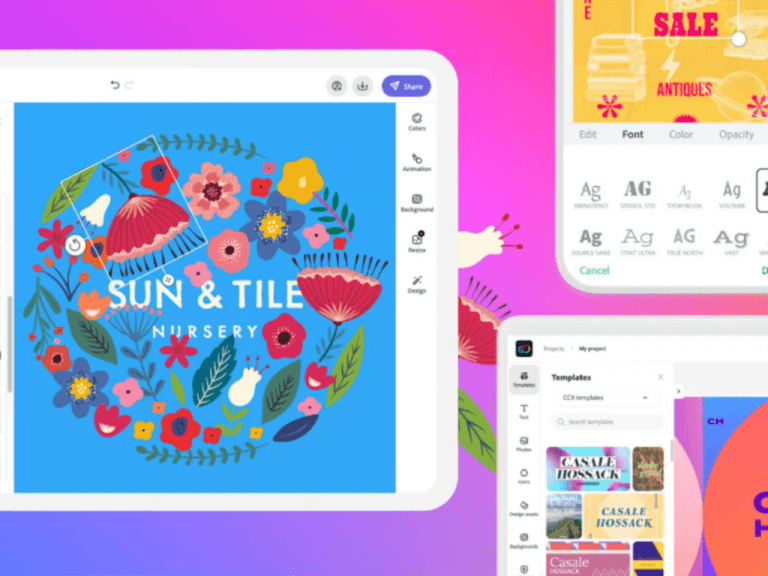




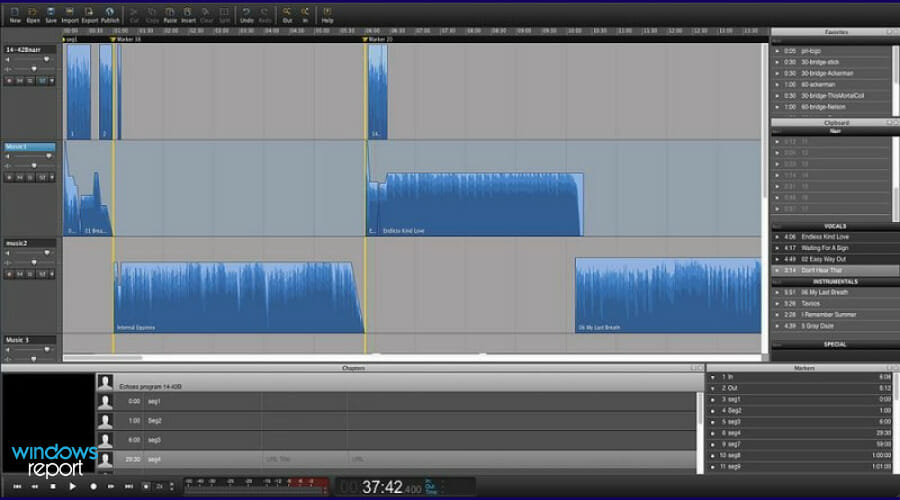
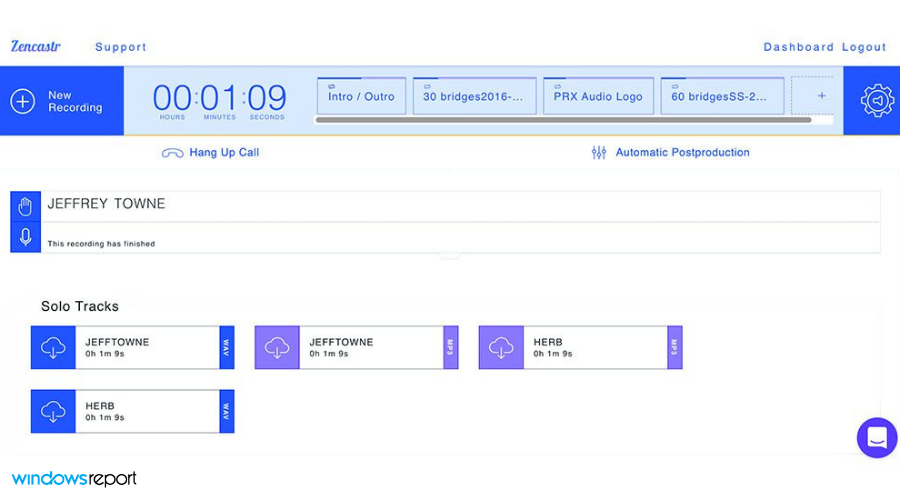

![Best Antivirus to use with Malwarebytes [Conflict-Free]](https://windowsreport.com/wp-content/uploads/2021/12/best-antivirus-to-use-with-Malwarebytes.jpg)


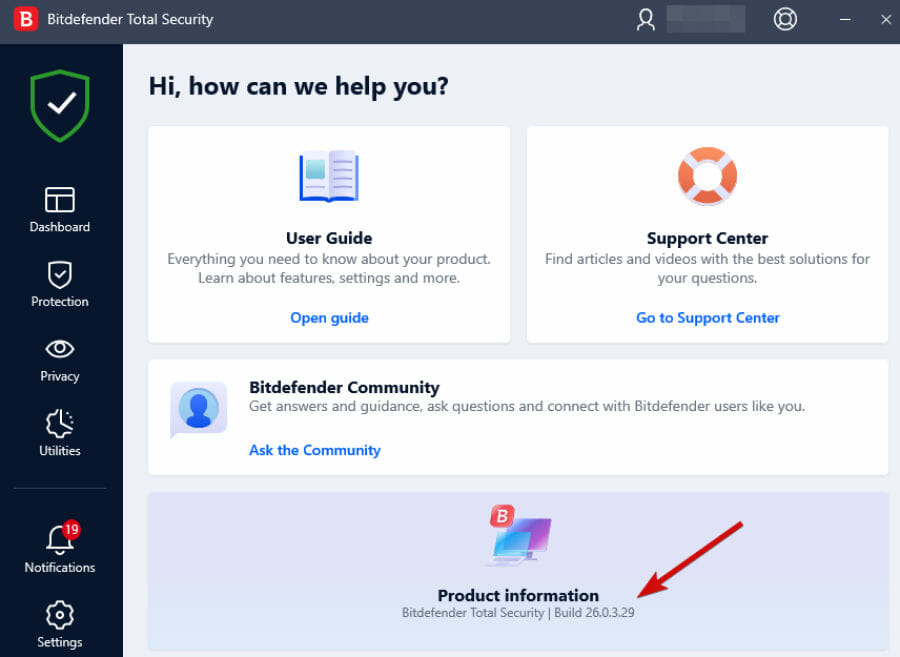
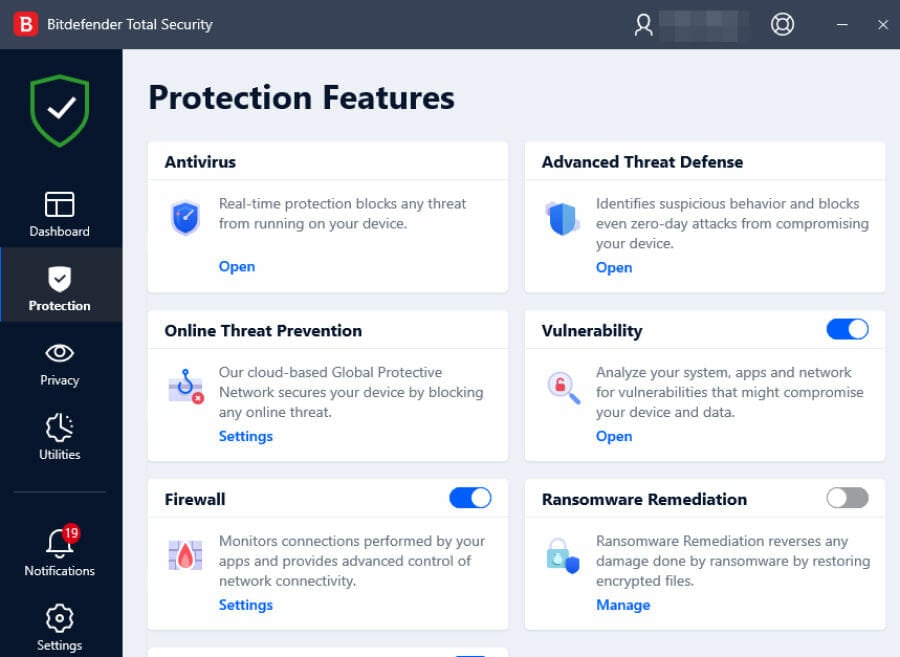
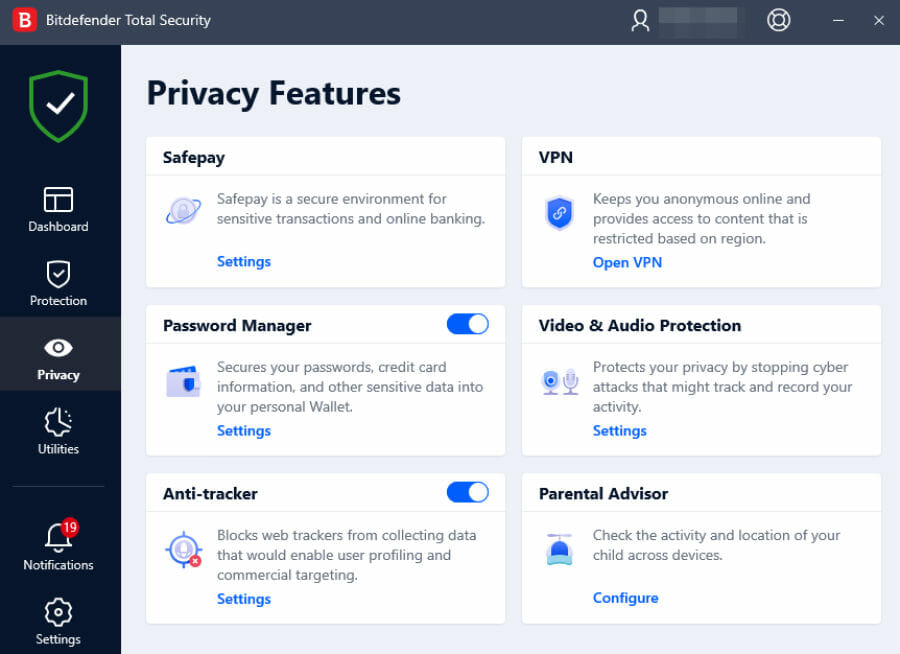


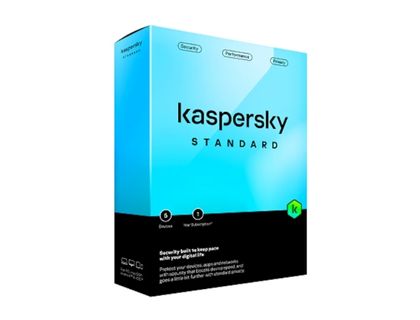

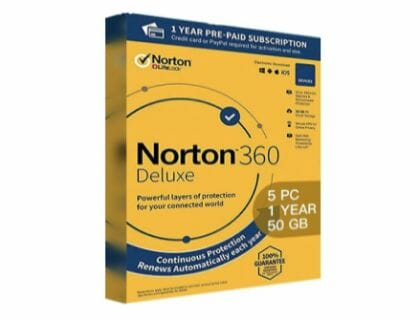


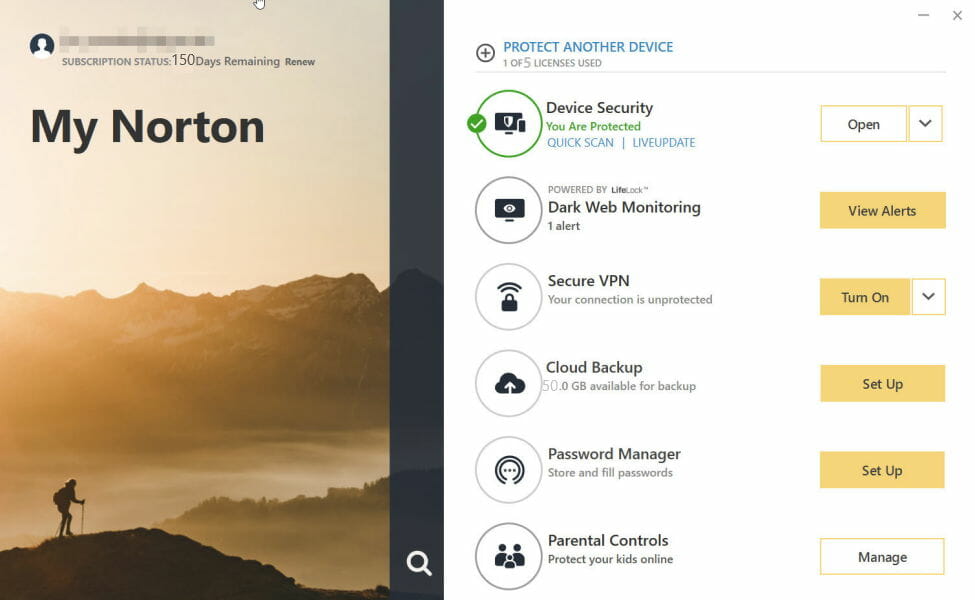
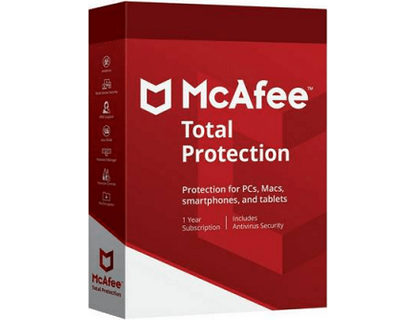








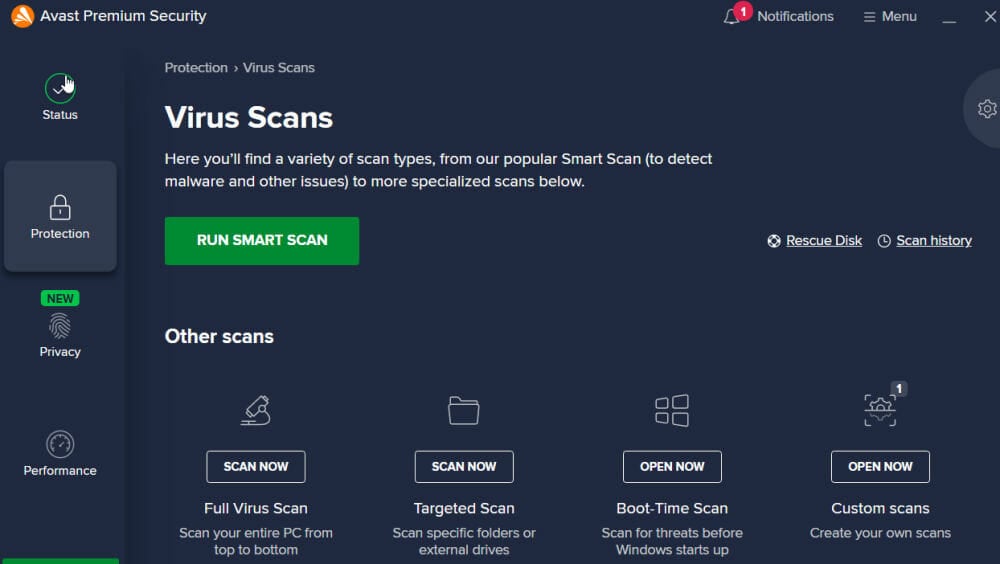
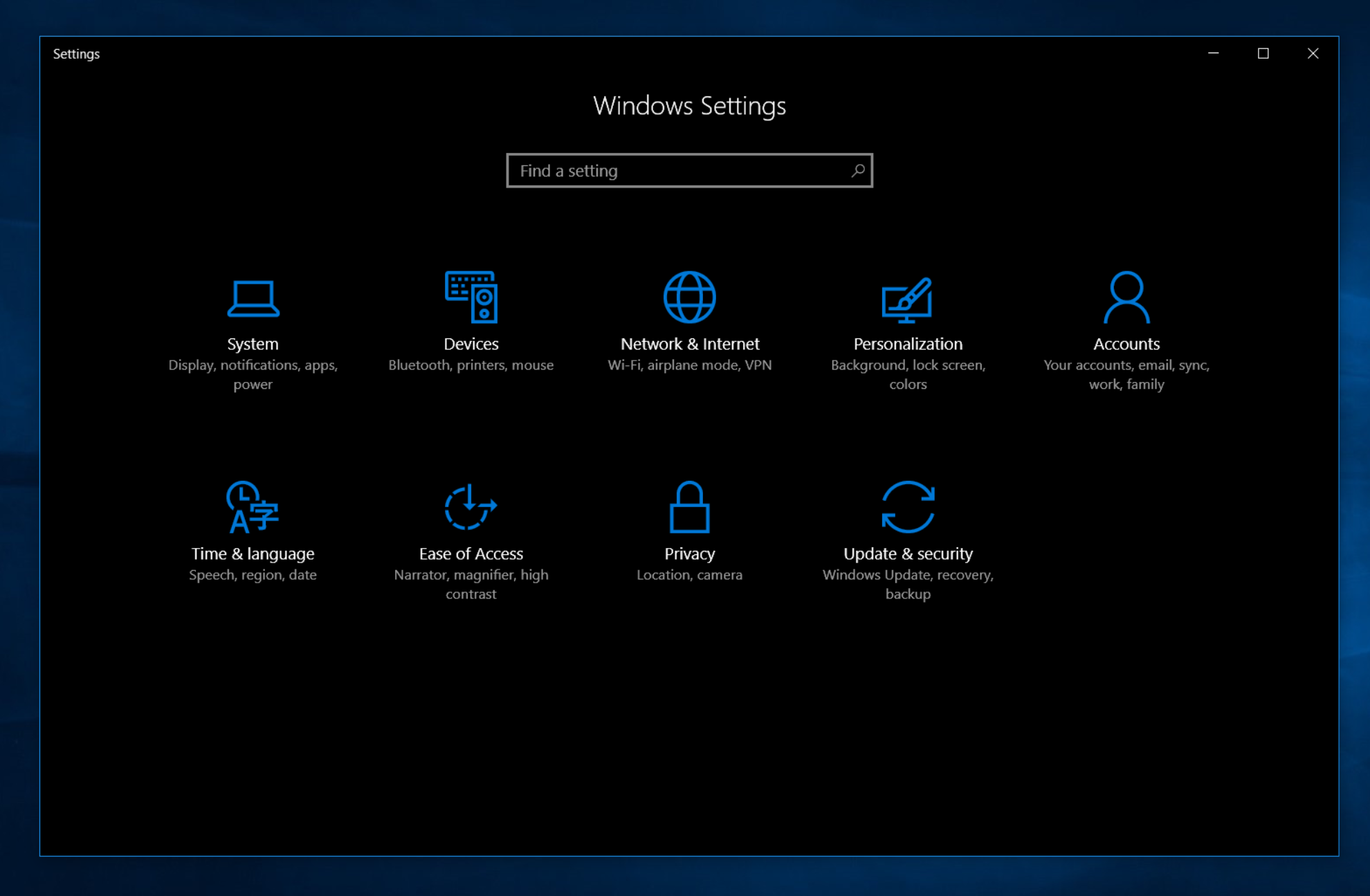

![Windows 10 Creators Update stuck in endless upgrade loop [FIX]](https://windowsreport.com/wp-content/uploads/2017/10/windows-10-cover.jpg)
![Scan and repair hard drive stuck on Windows 10/11 [Quick Fix]](https://windowsreport.com/wp-content/uploads/2018/10/Windows-10-app-off-screen.jpg)
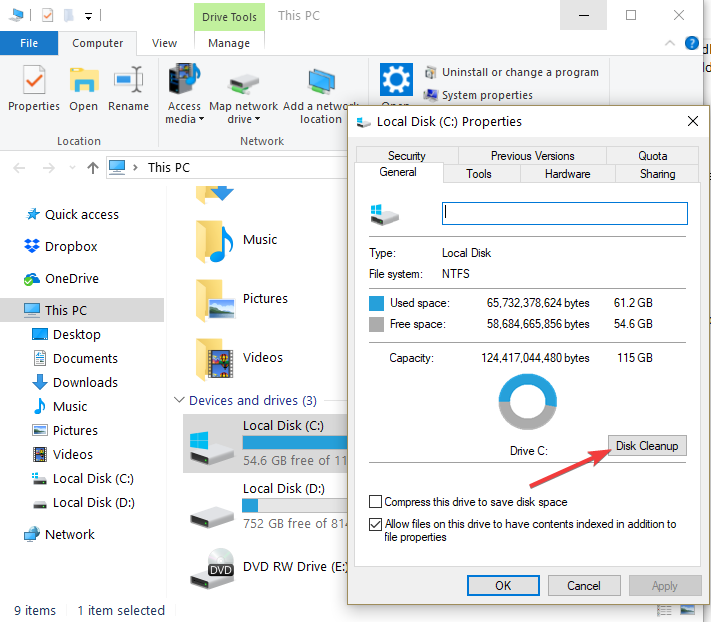
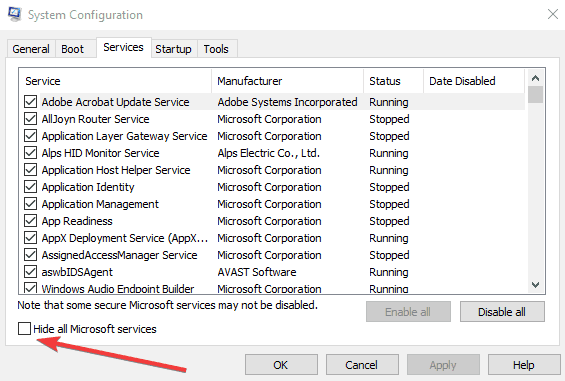
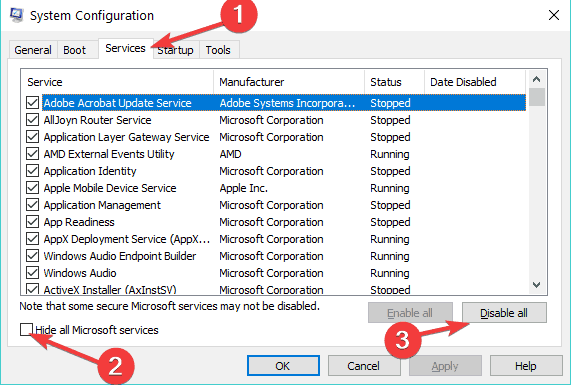


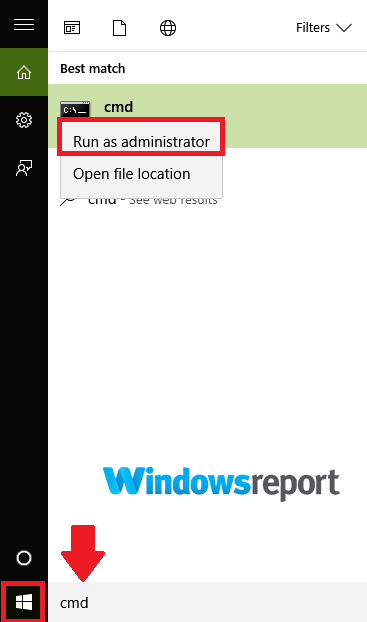
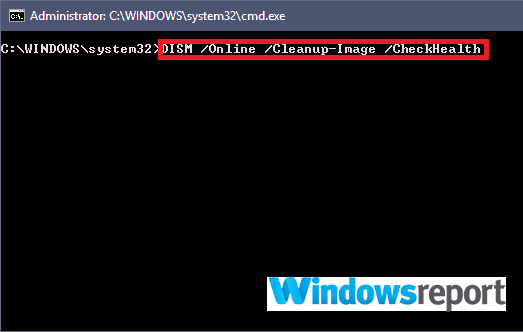
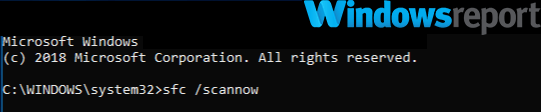
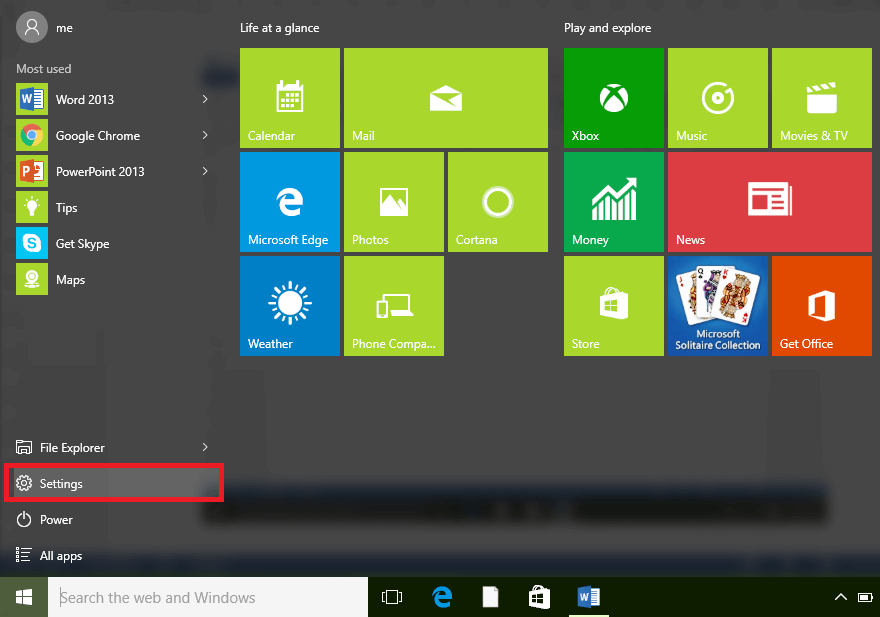
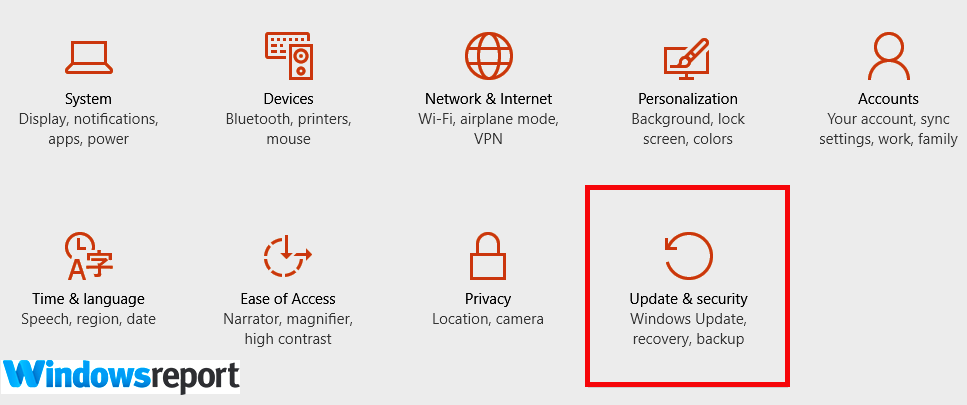
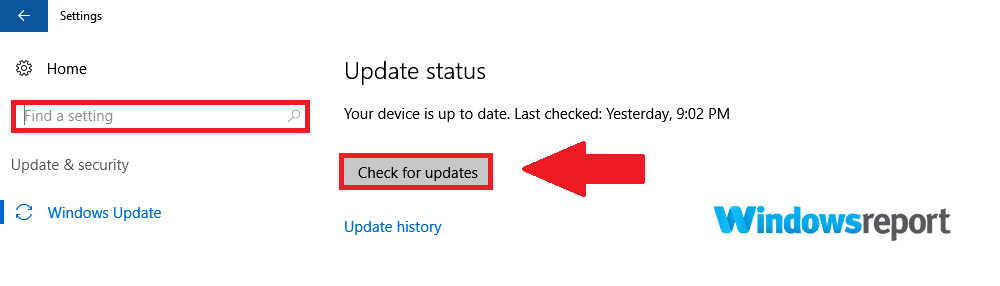
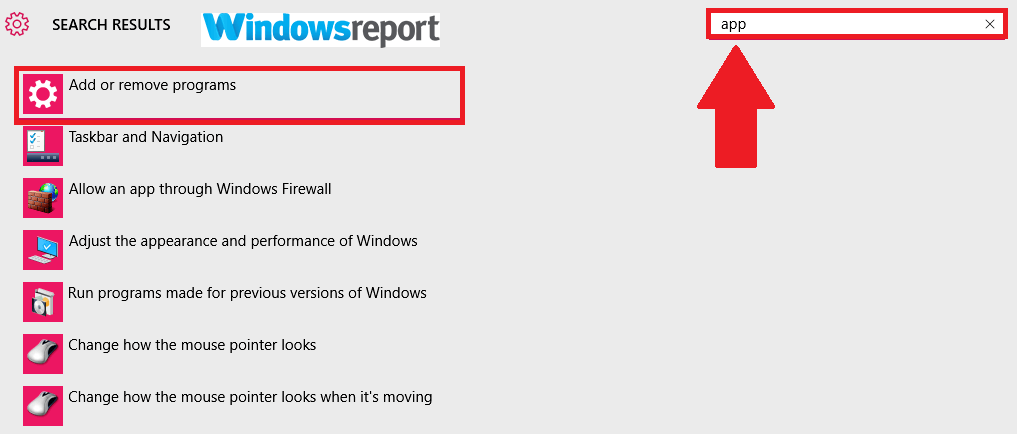
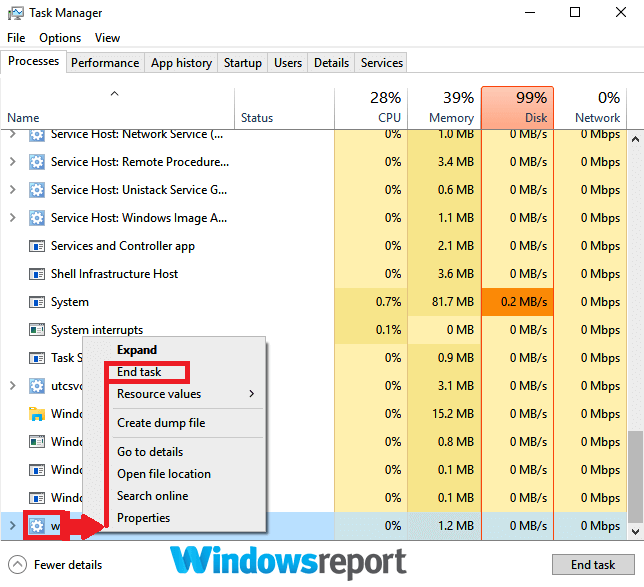
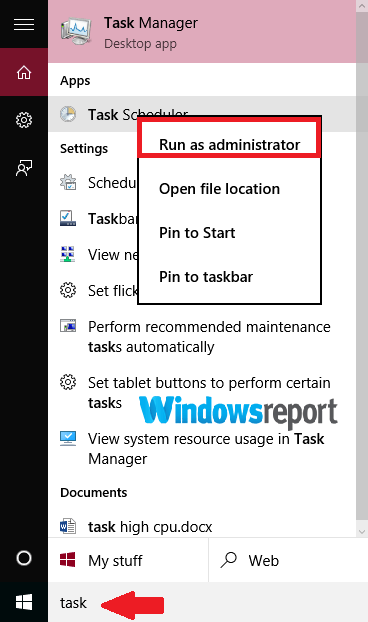
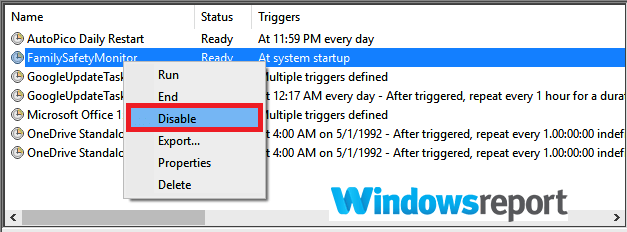
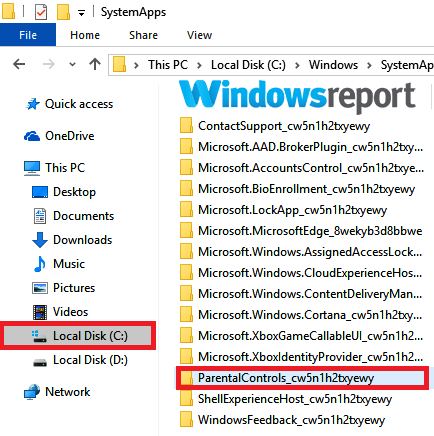
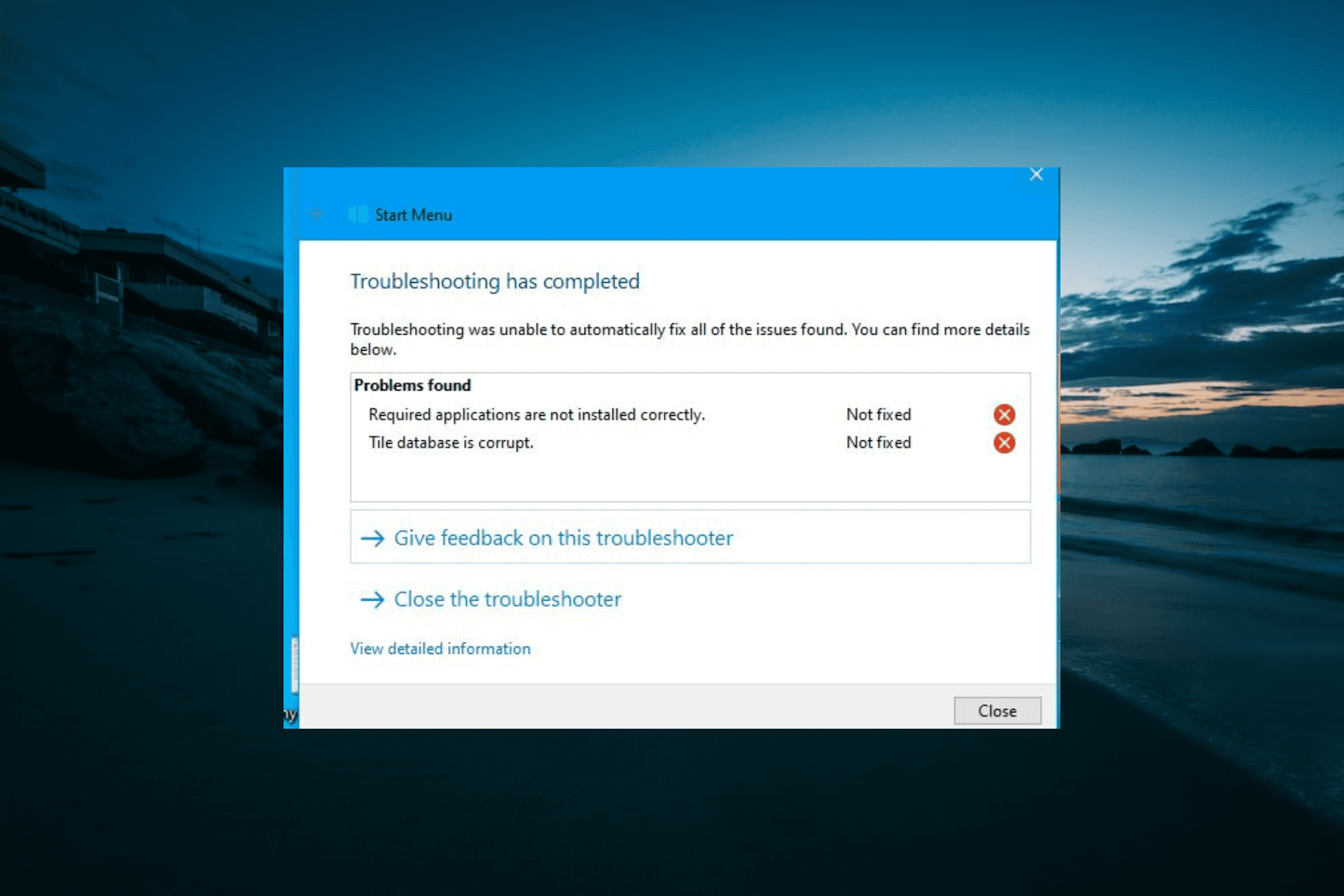
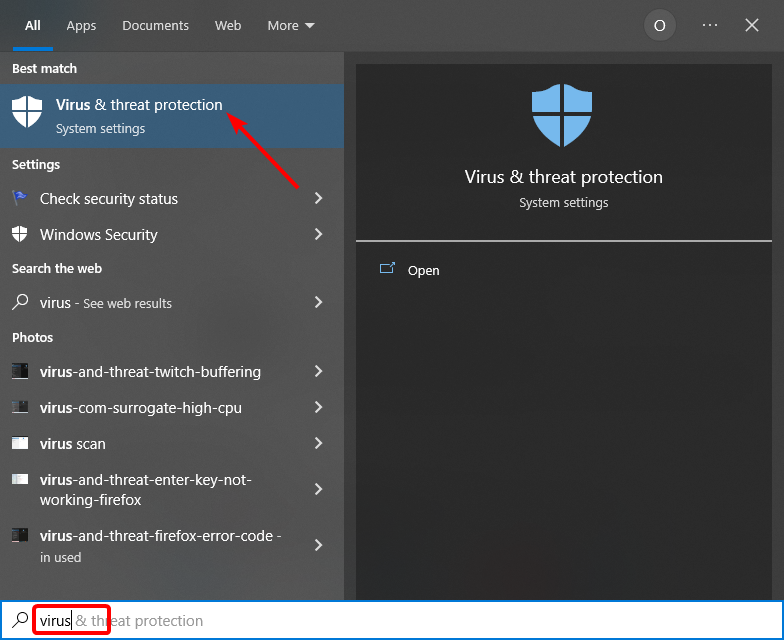
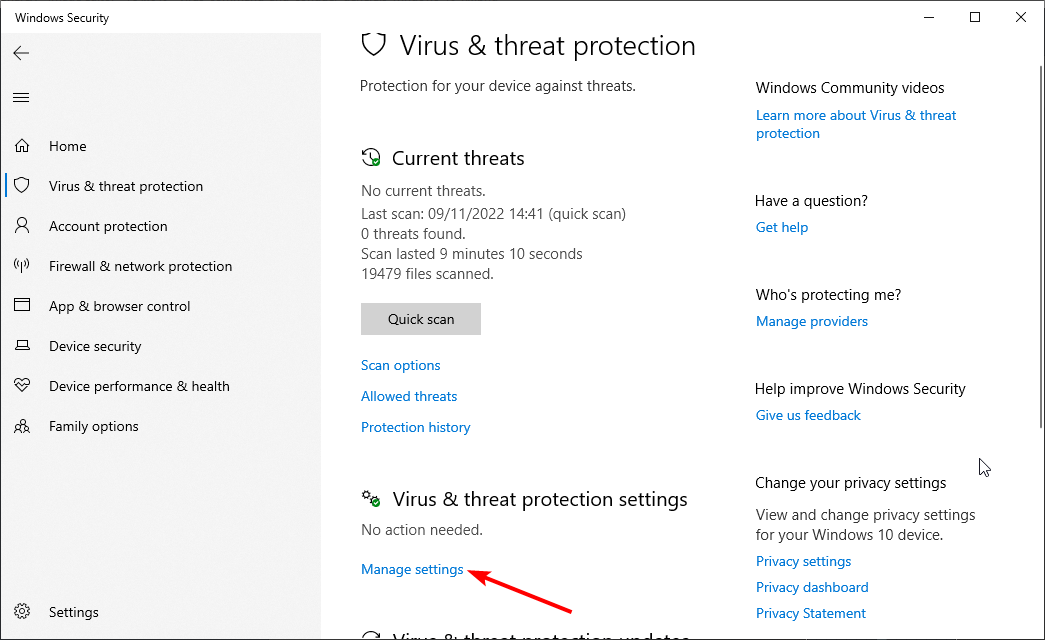
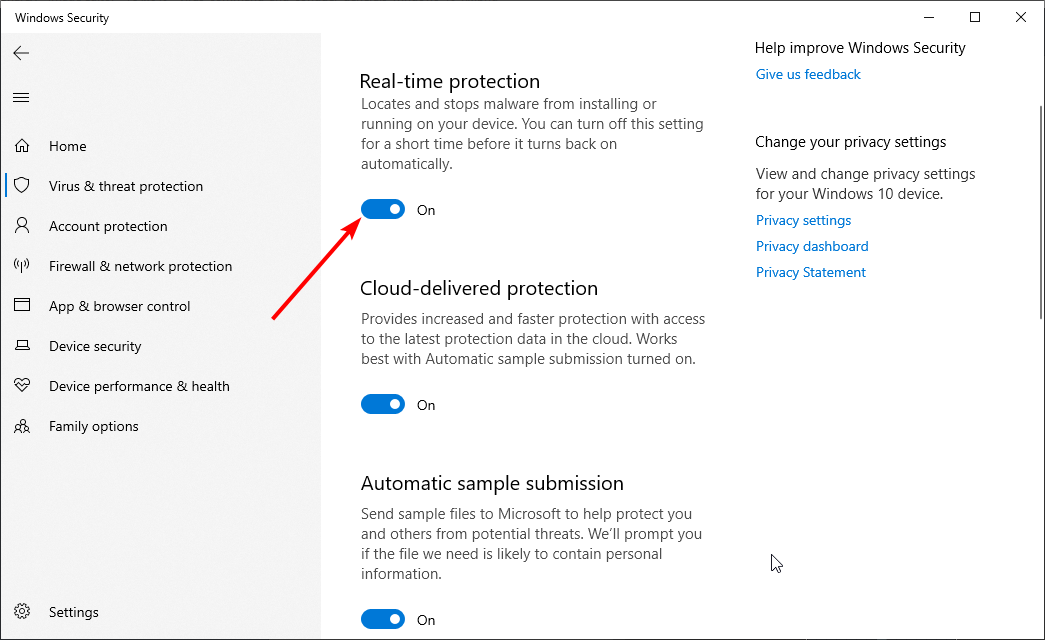
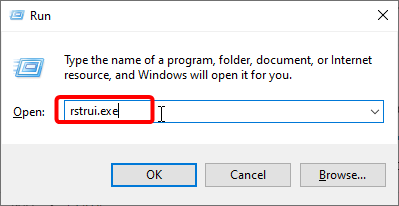
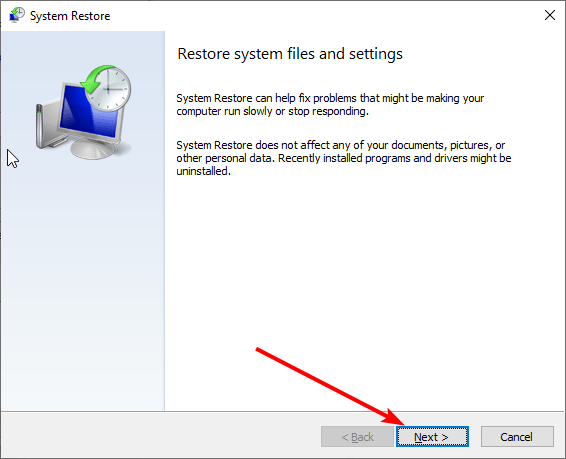
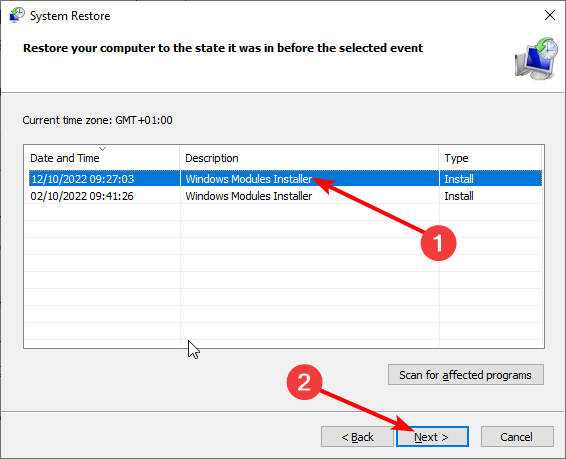
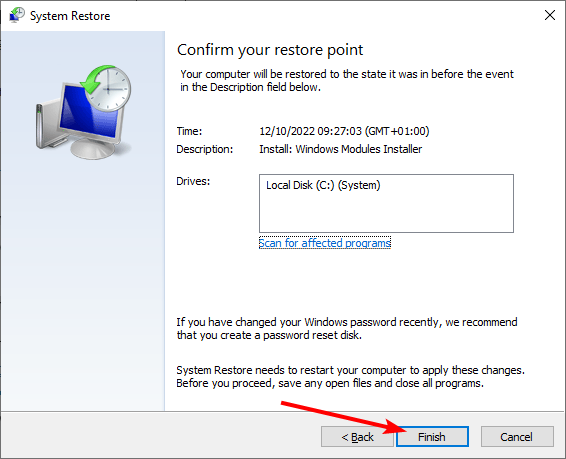
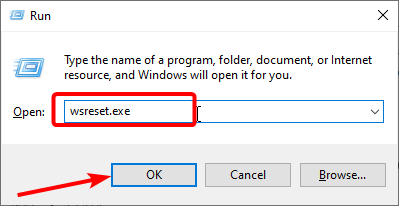
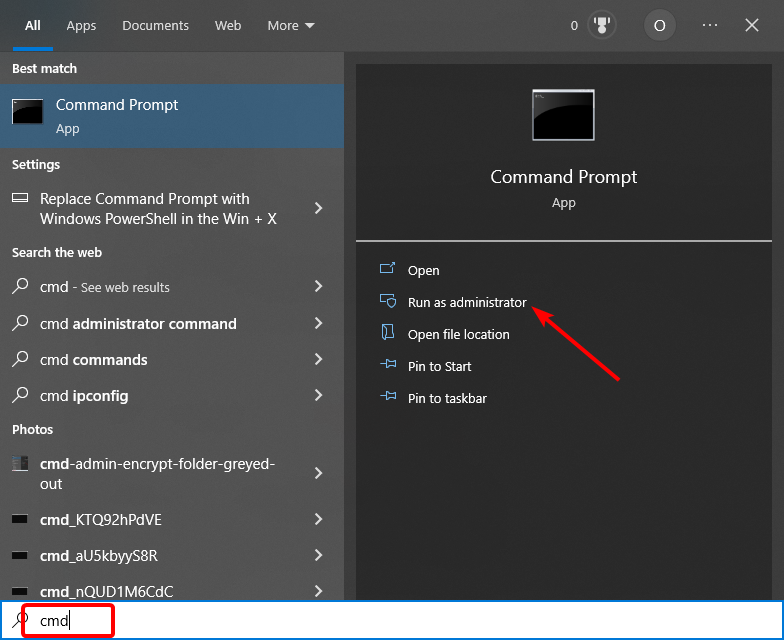
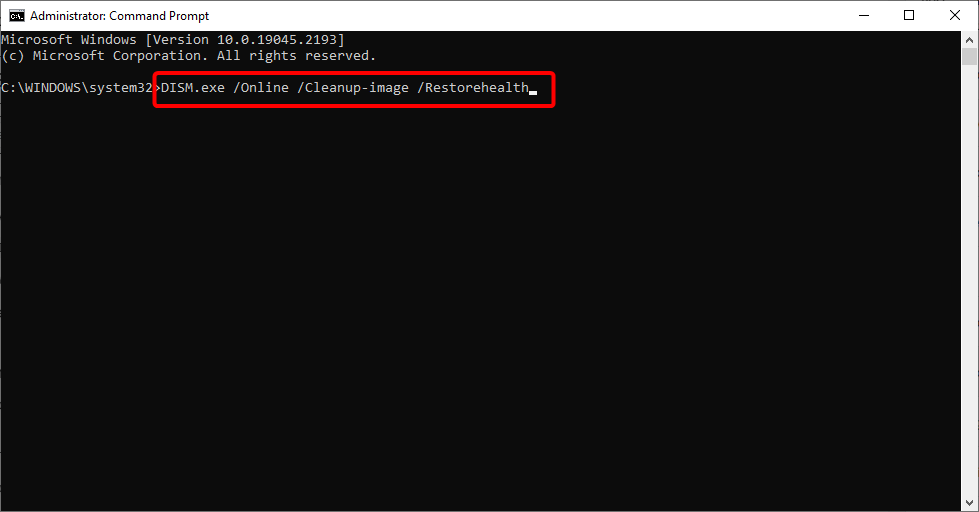
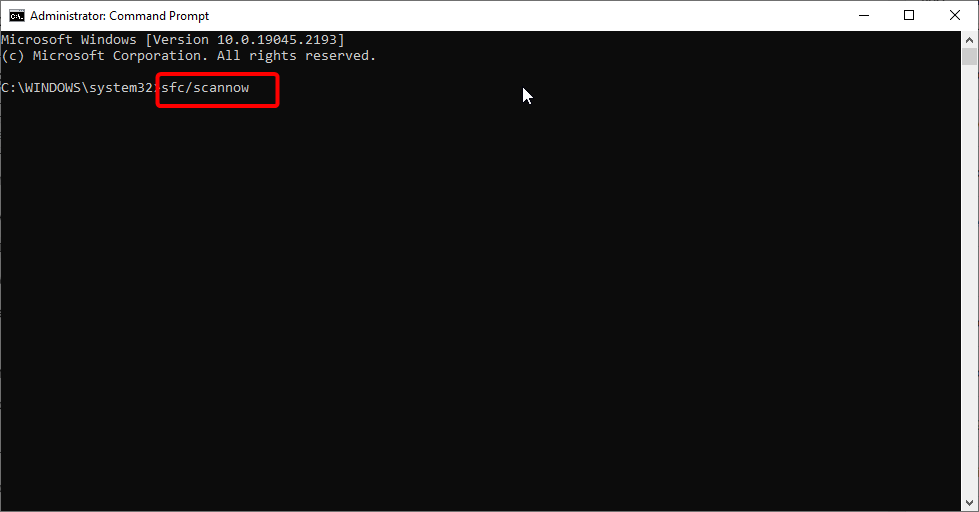
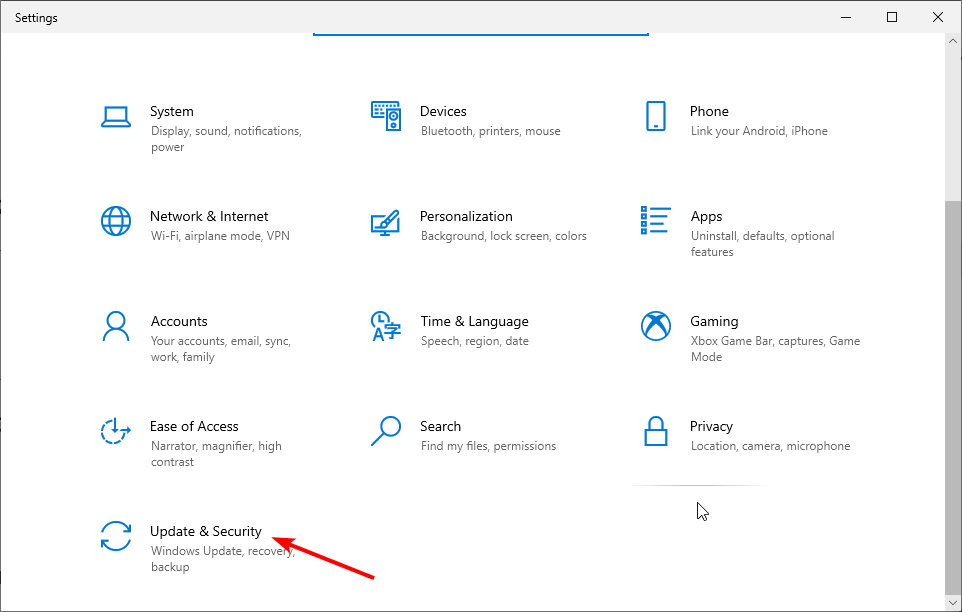
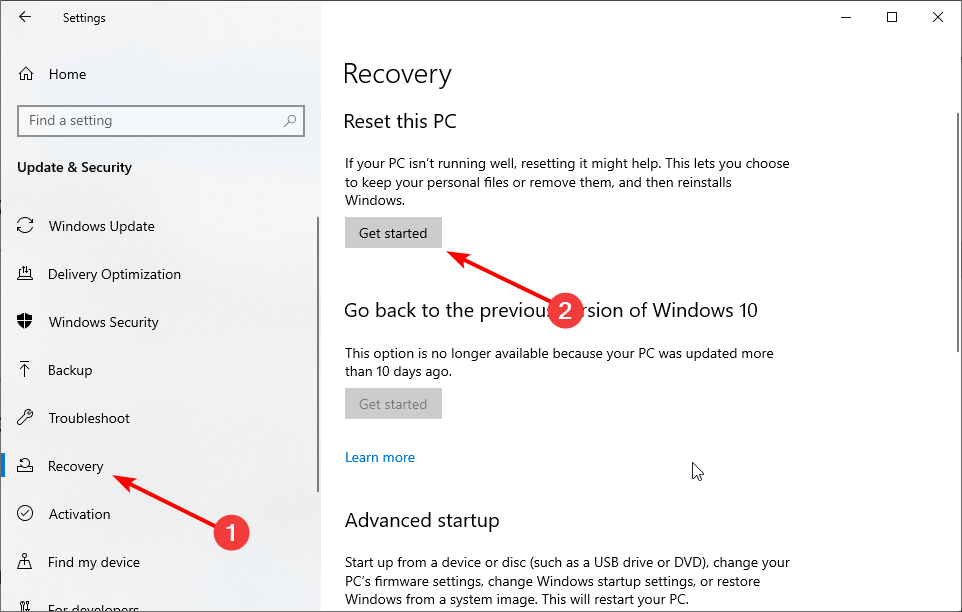


![Cortana Reminders not working in Windows 10/11 [Fixed]](https://windowsreport.com/wp-content/uploads/2018/07/Cortana-Reminders-not-working-in-Windows-10.jpg)
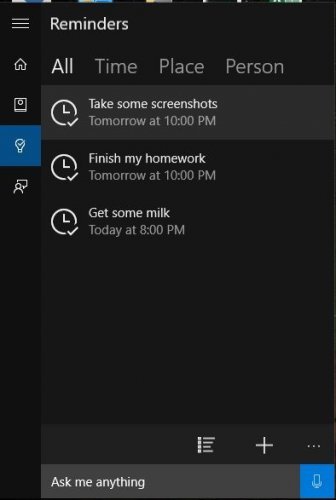
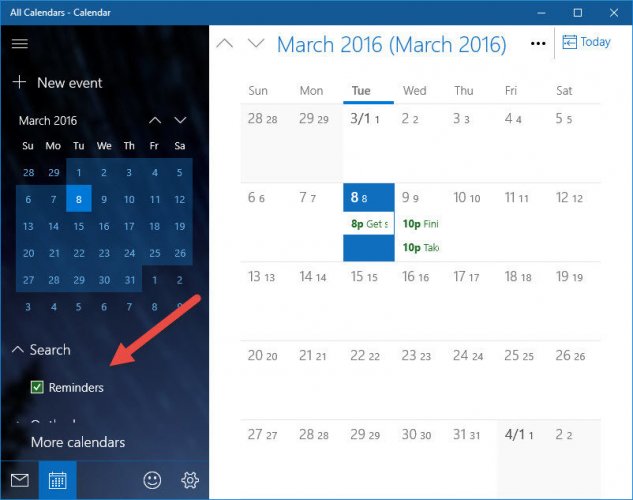
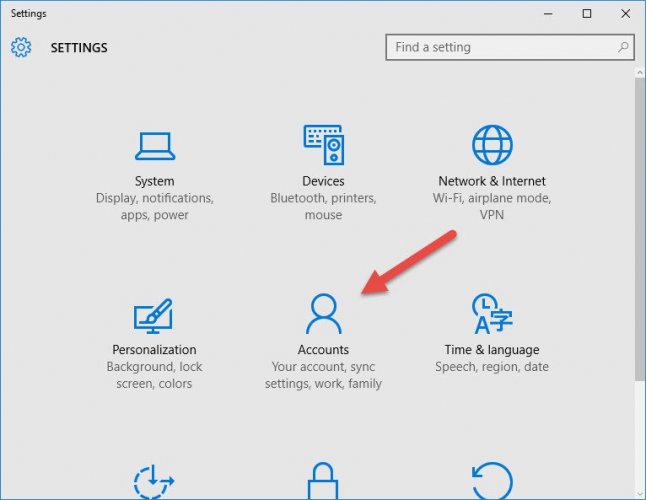
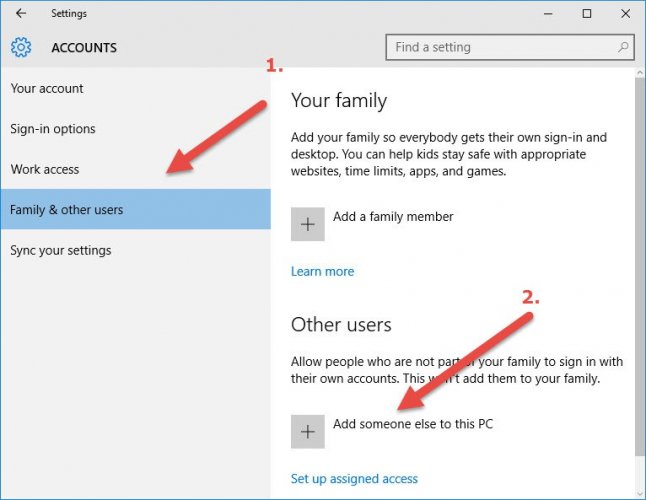
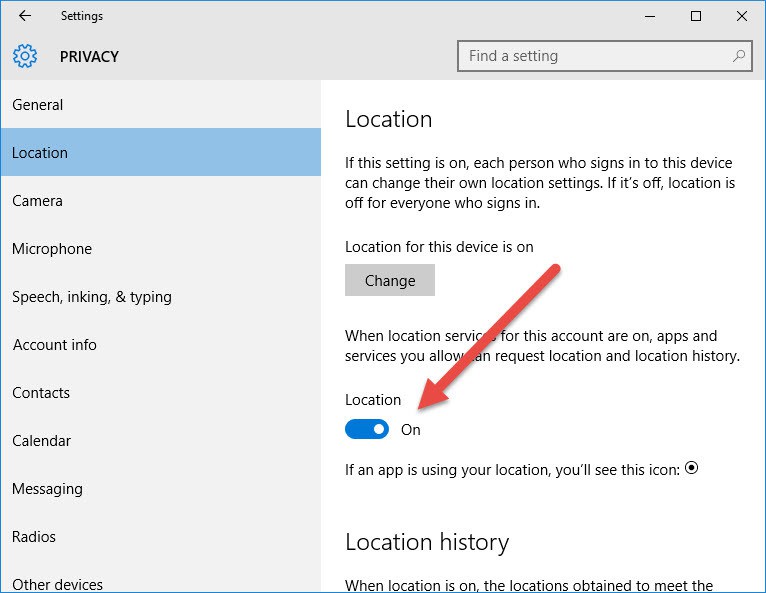
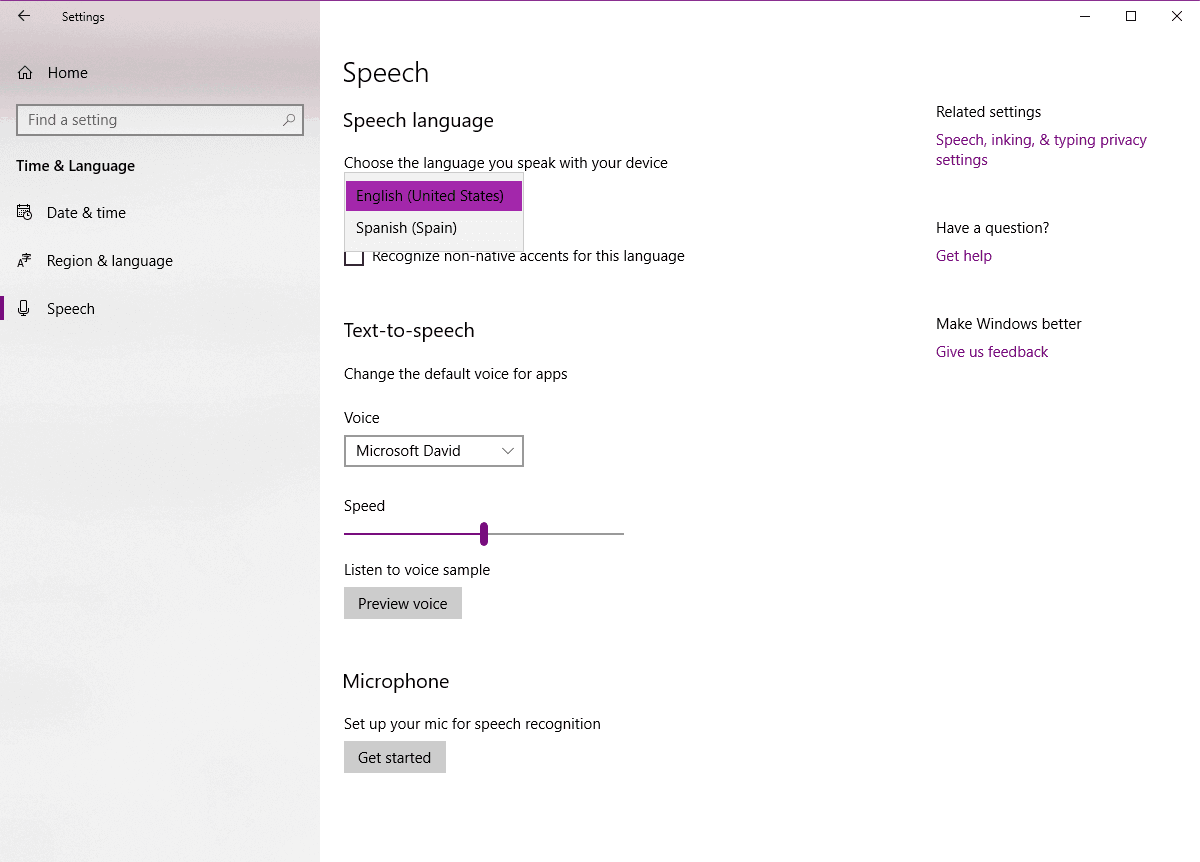
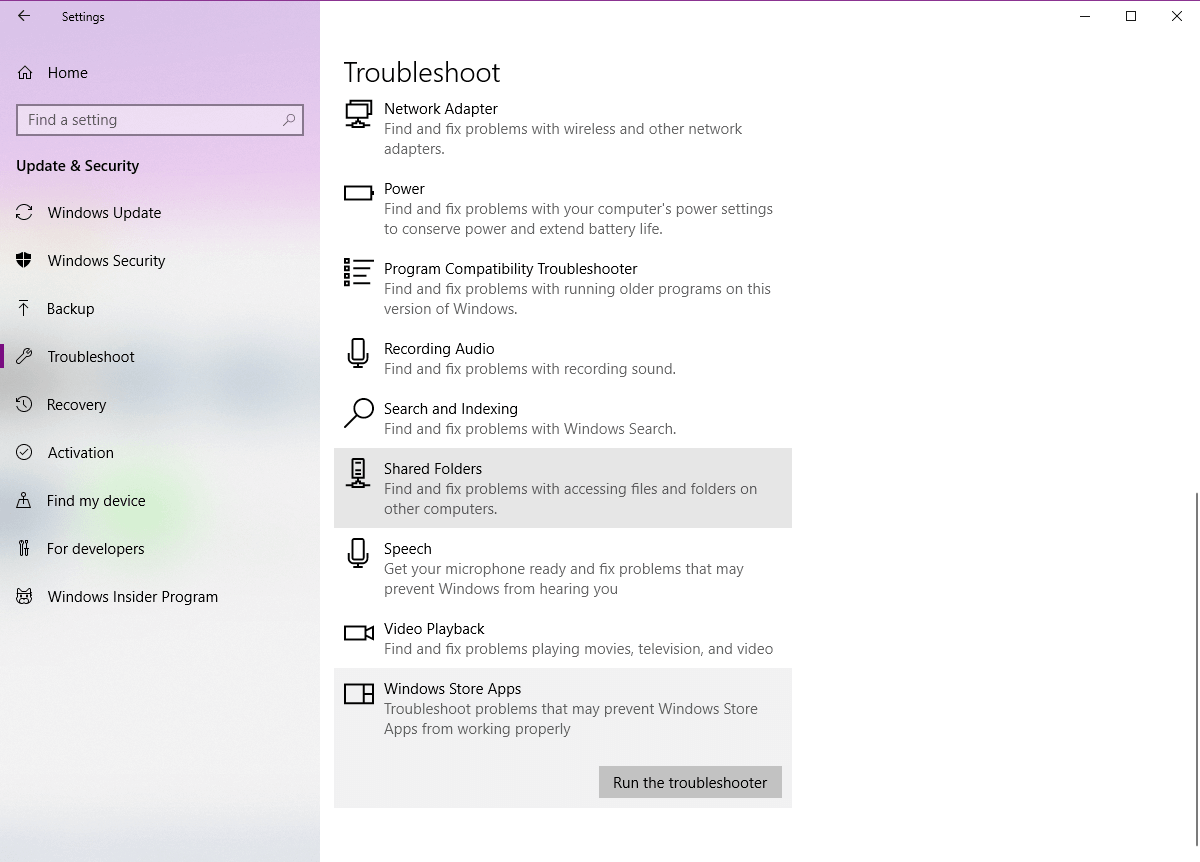
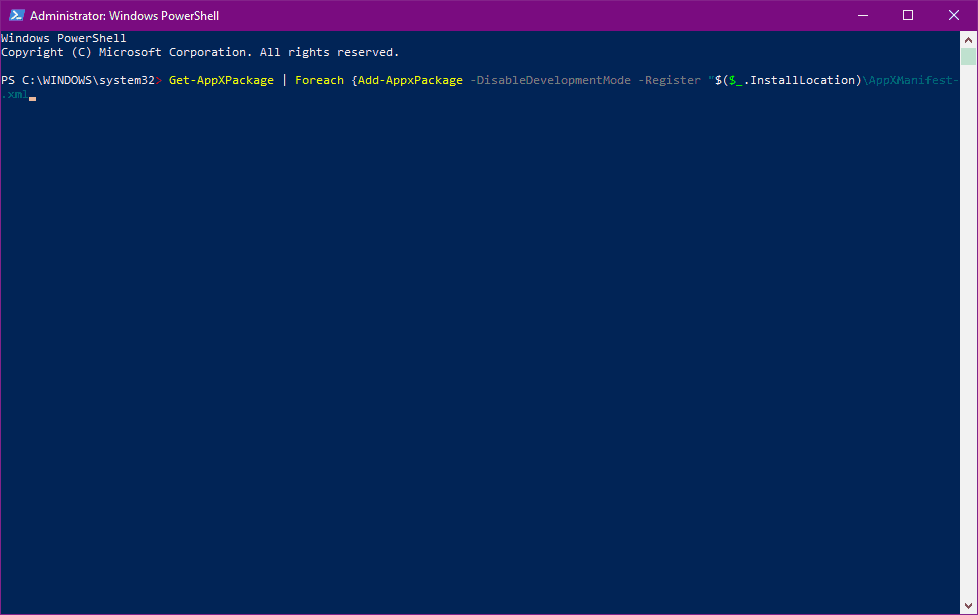
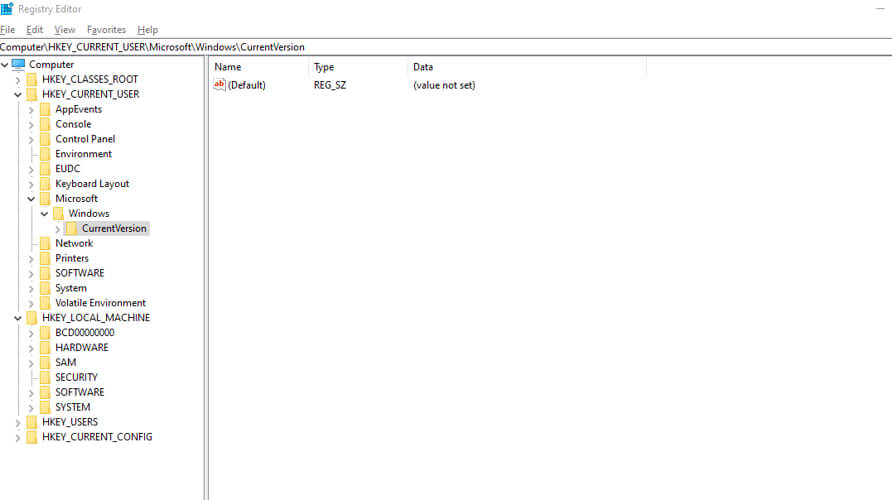
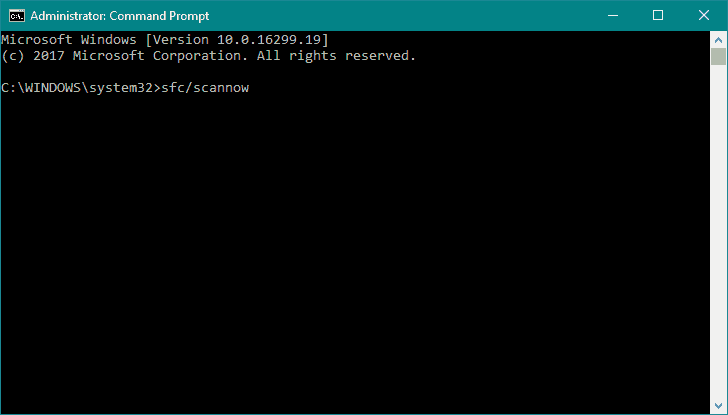
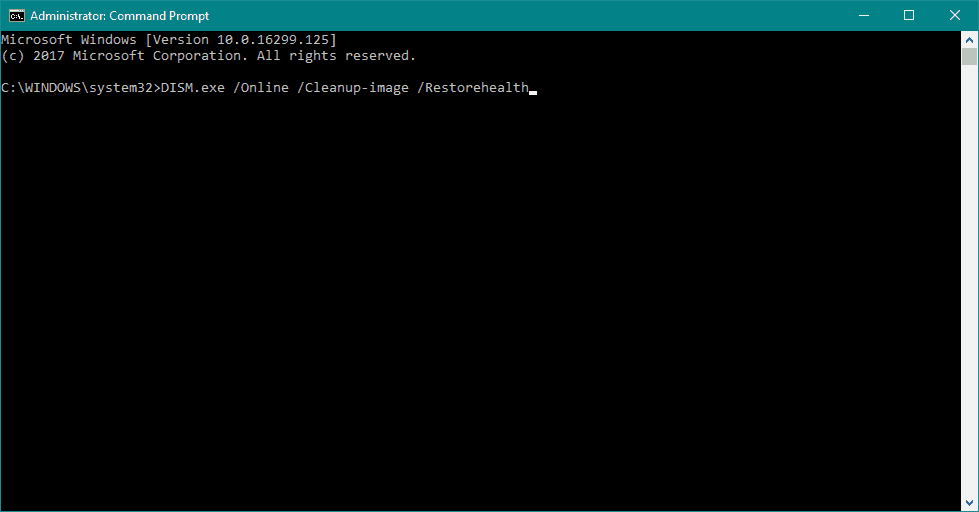


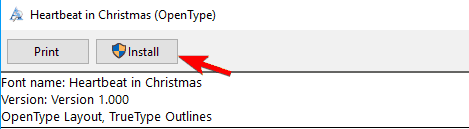
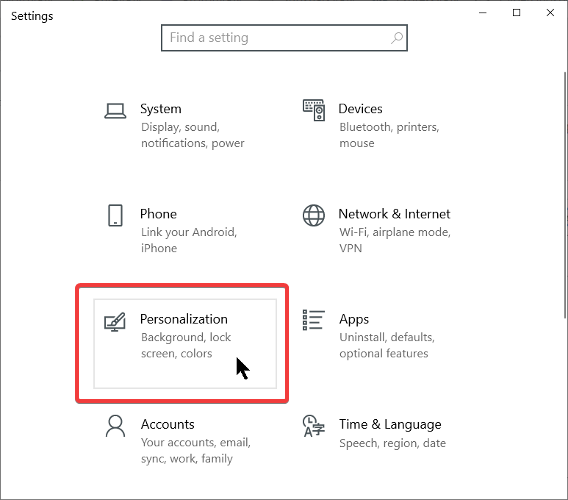

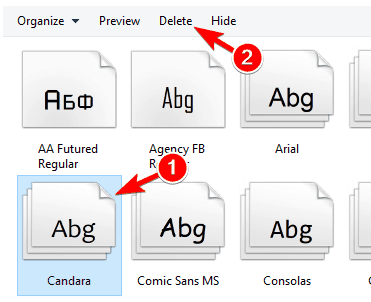
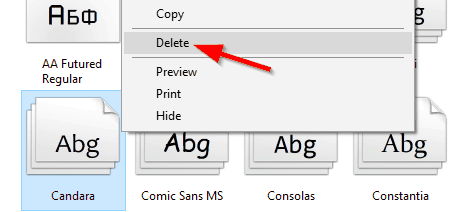
![Your computer has a memory problem [EXPERT FIX]](https://windowsreport.com/wp-content/uploads/2019/07/your-computer-has-a-memory-problem.jpg)


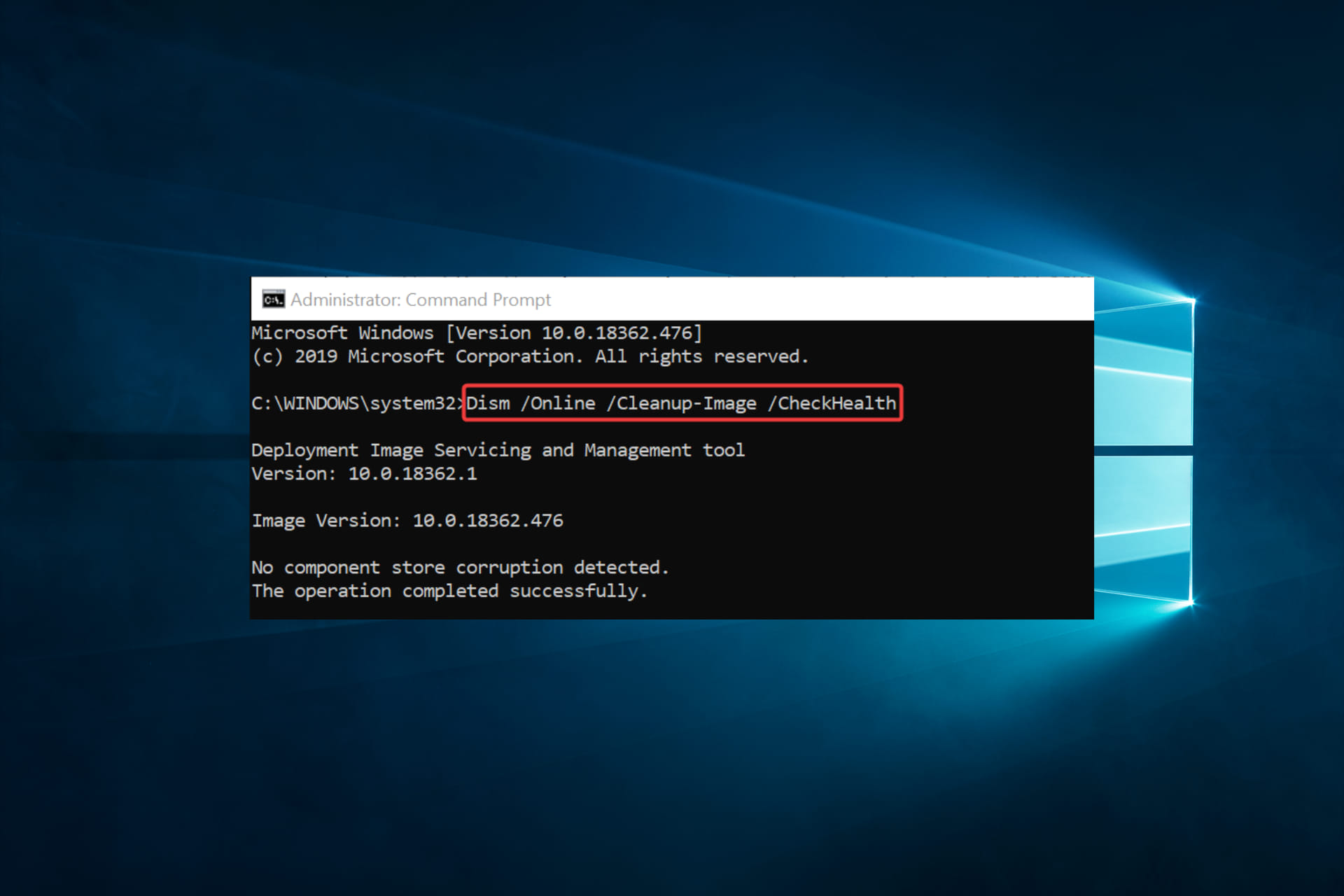





![This webpage wants to run the following add-on [FIX]](https://windowsreport.com/wp-content/uploads/2019/08/browser-pop-up-1.jpg)

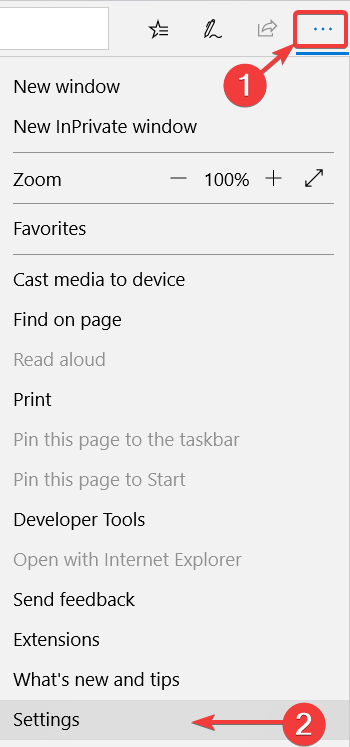
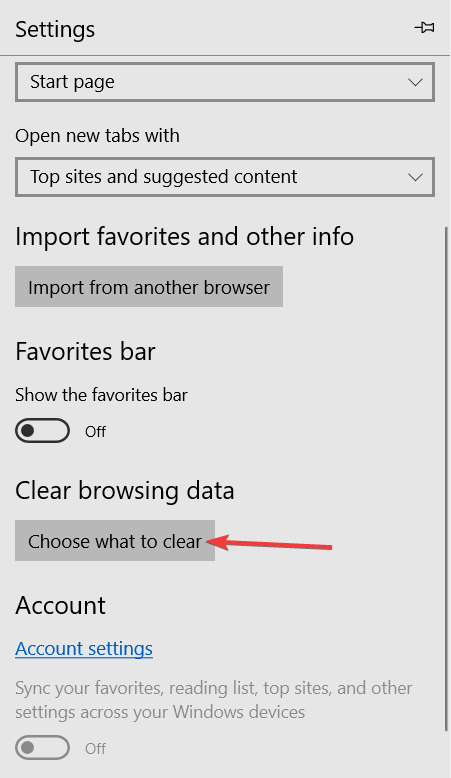
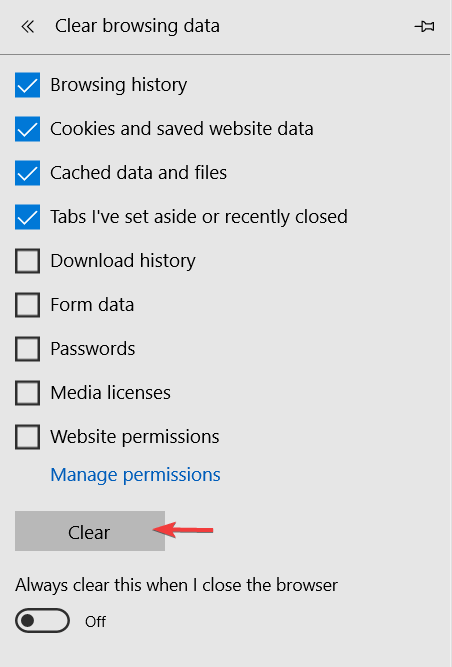



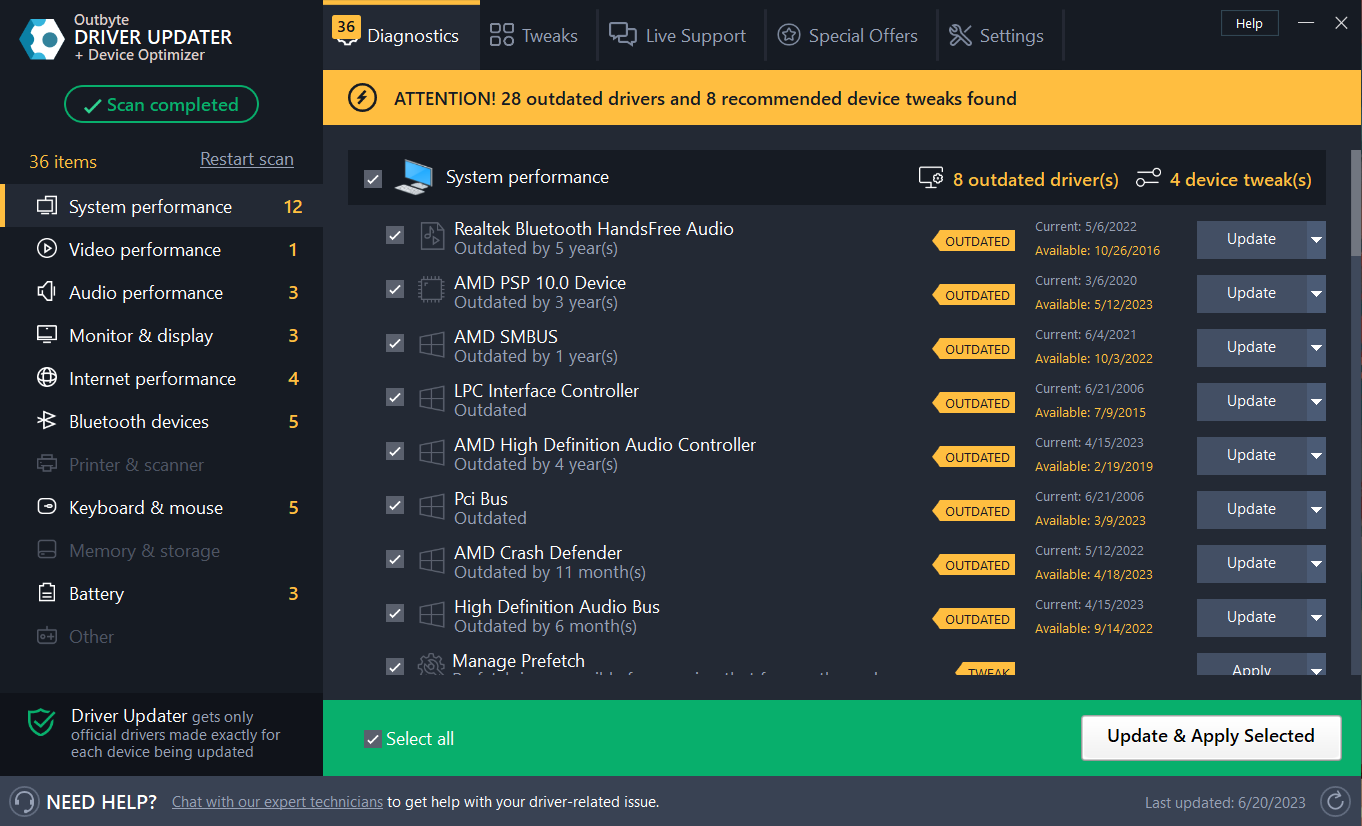
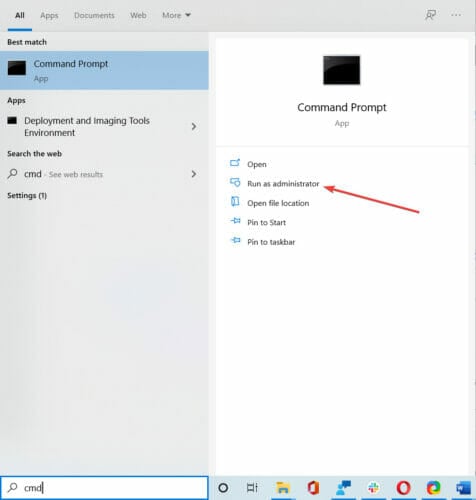
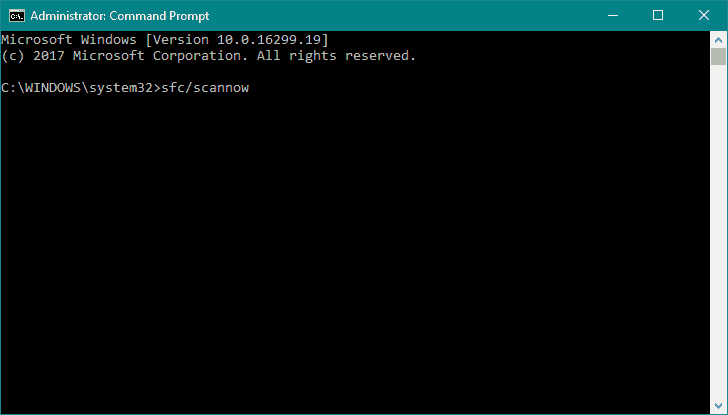


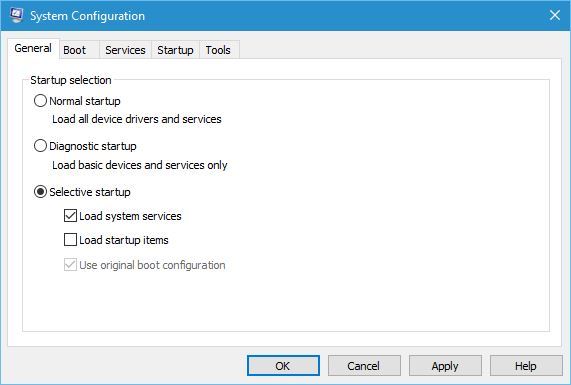
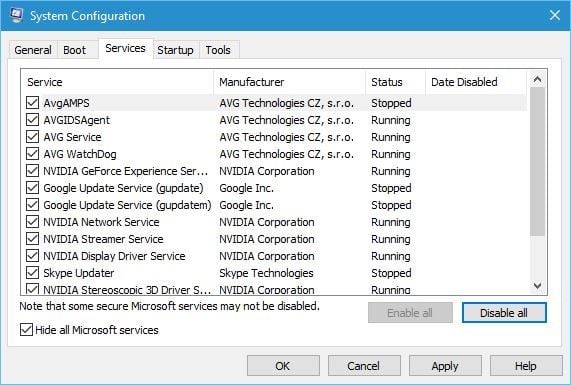
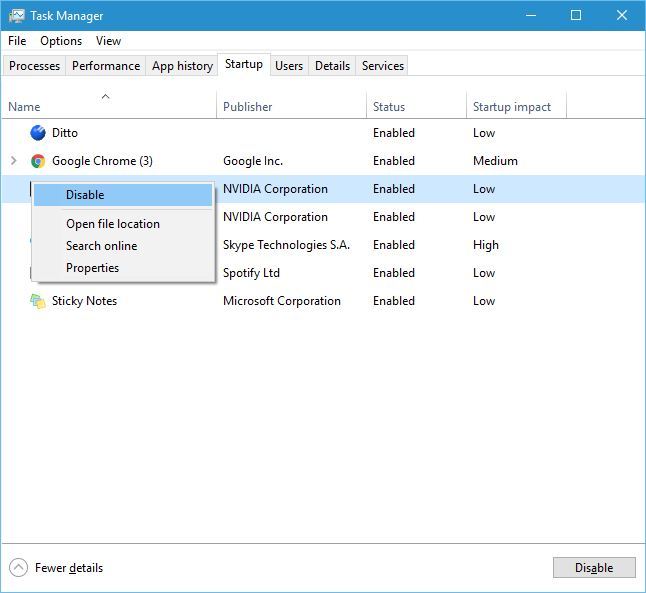
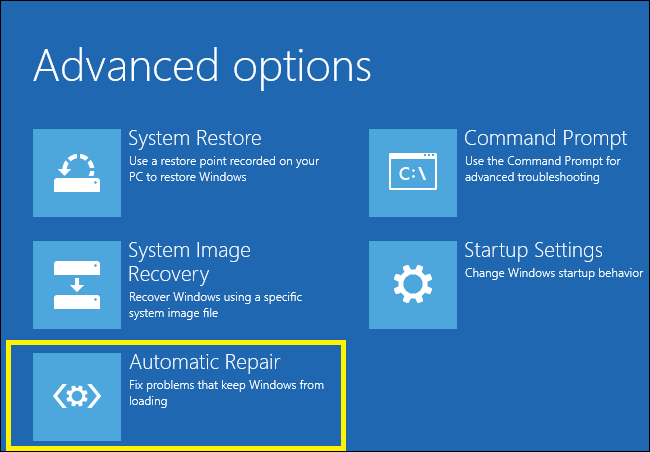
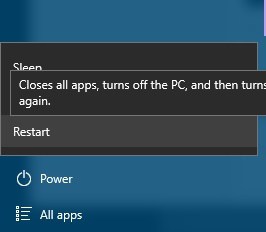
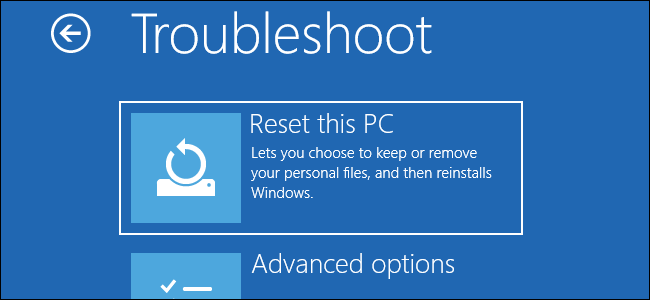





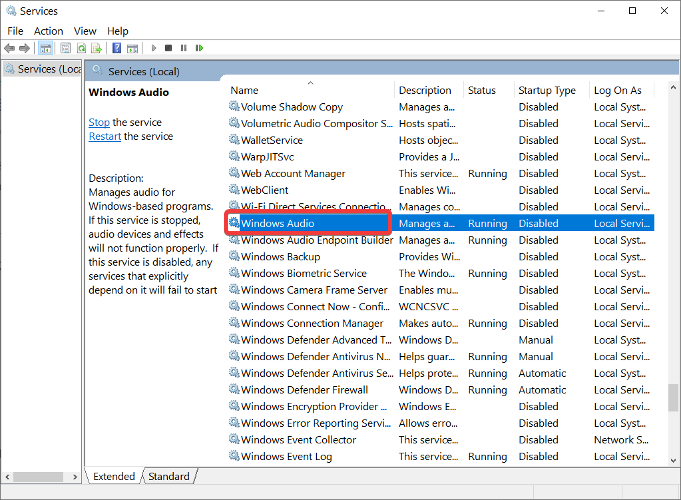


![This File Is in Use by Another Application or User [Fix]](https://windowsreport.com/wp-content/uploads/2016/10/The-file-is-in-use.jpg)

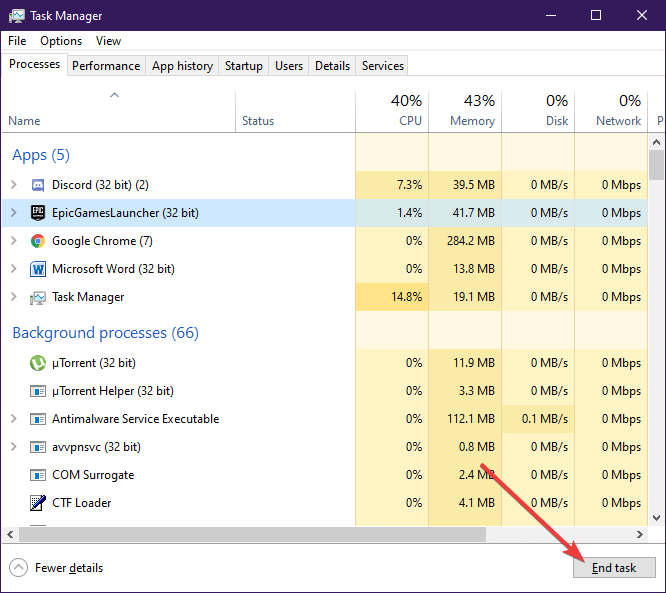
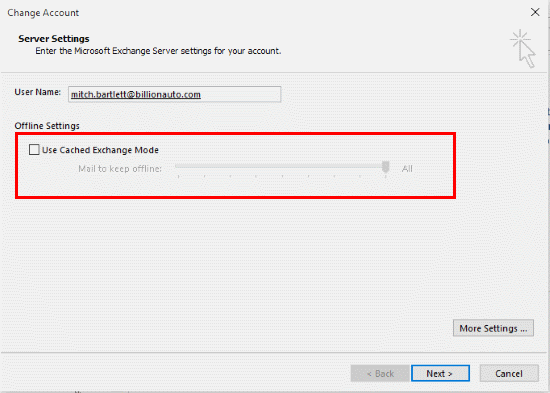

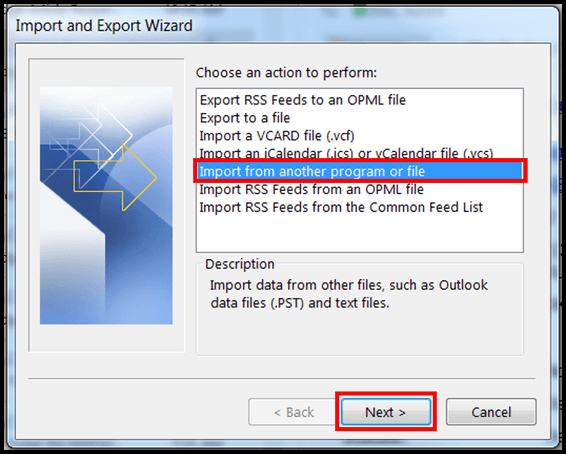

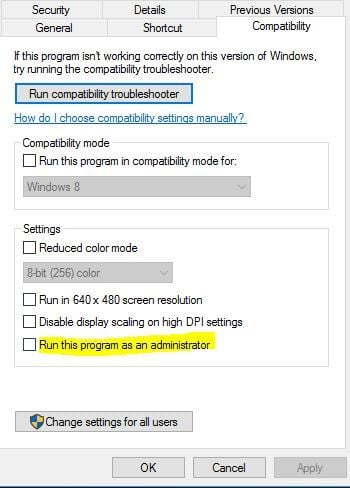
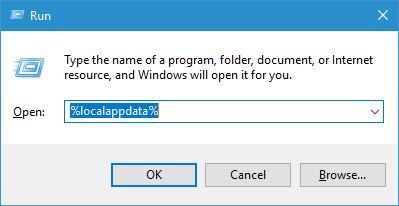
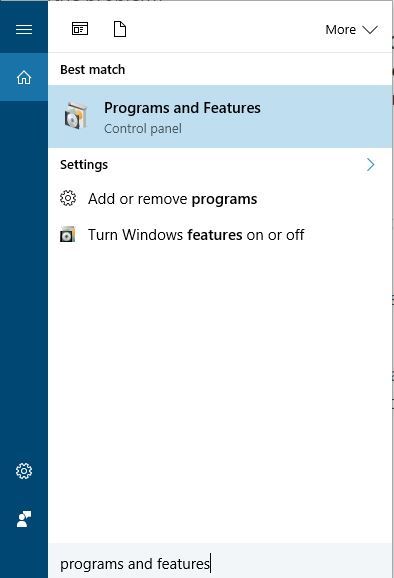
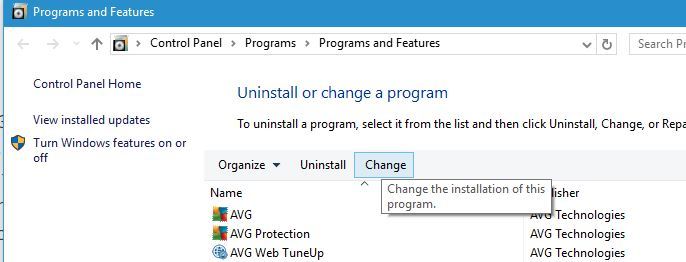

![Chrome Unable to Load elf.dll [Fix]](https://windowsreport.com/wp-content/uploads/2020/03/chrome-google.jpg)
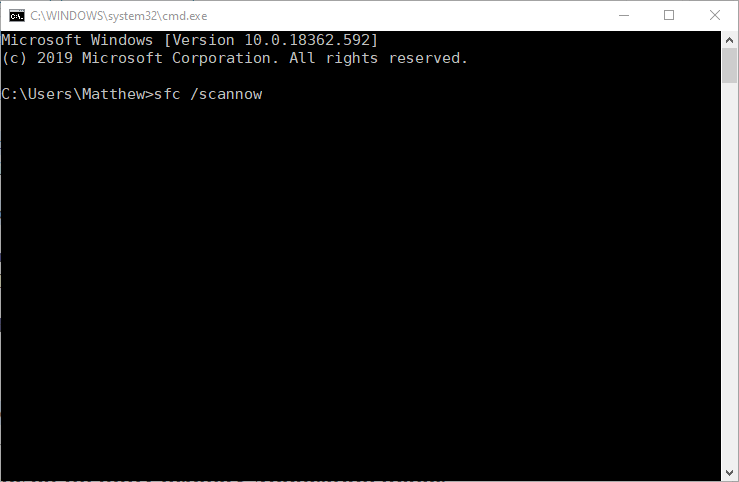
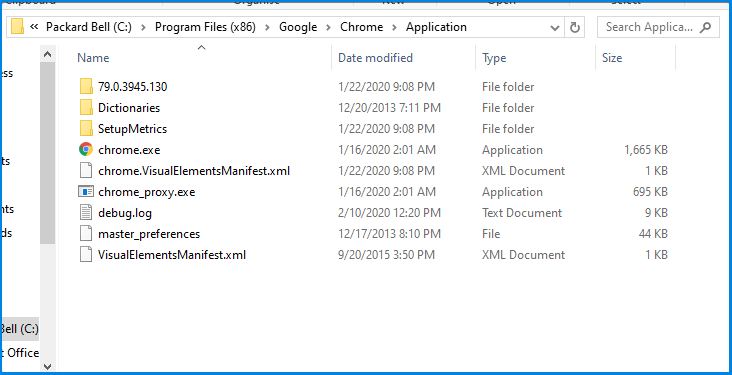


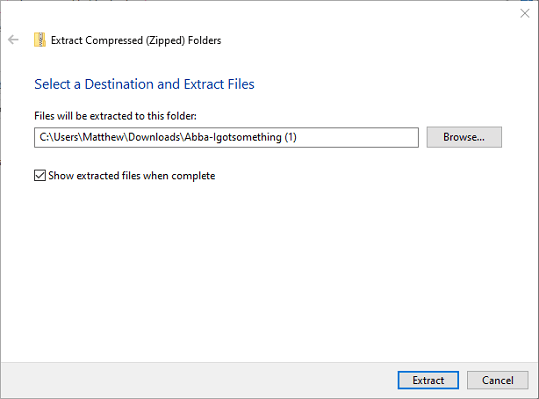
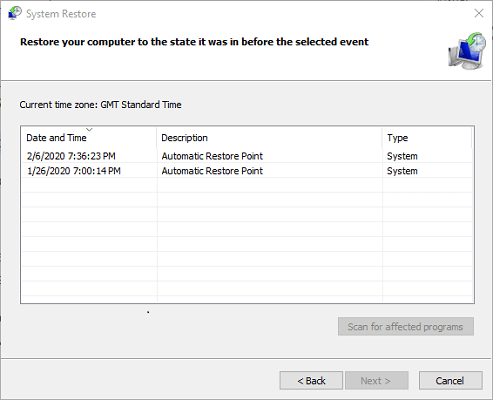
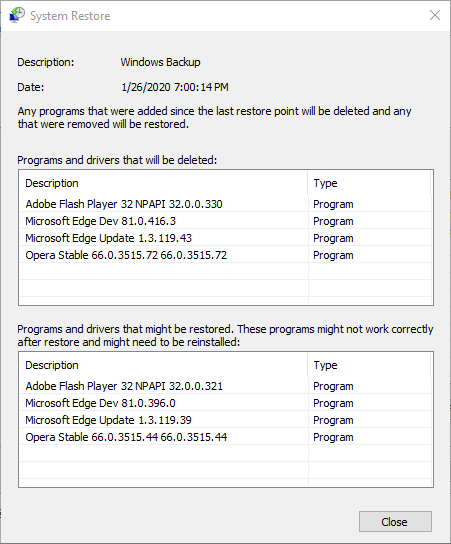
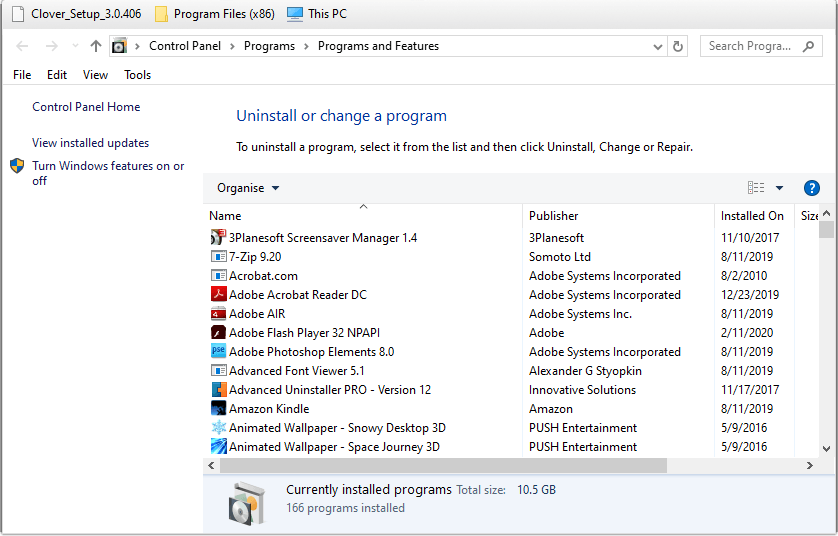
![Timer_or_dpc_invalid BSOD in Windows 10/11 [Complete Fix]](https://windowsreport.com/wp-content/uploads/2021/02/Timer_or_dpc_invalid-BSOD-in-Windows-10-Complete-Fix.jpg)











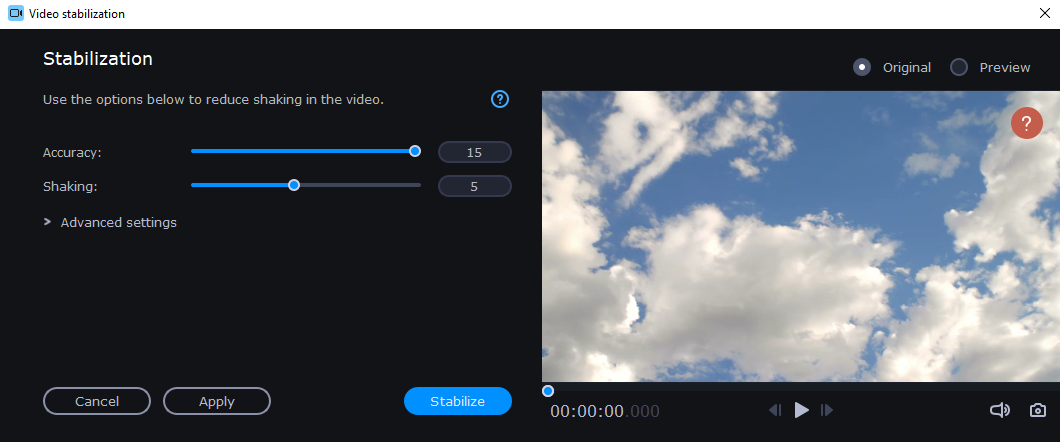
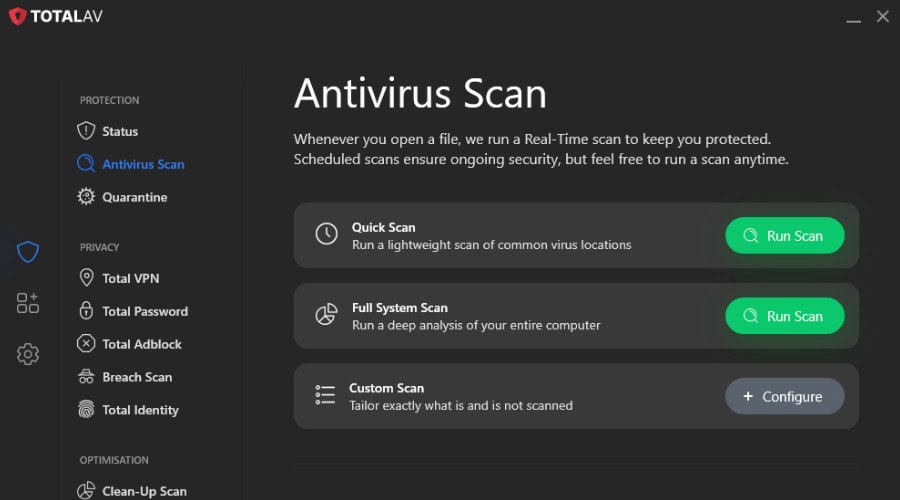


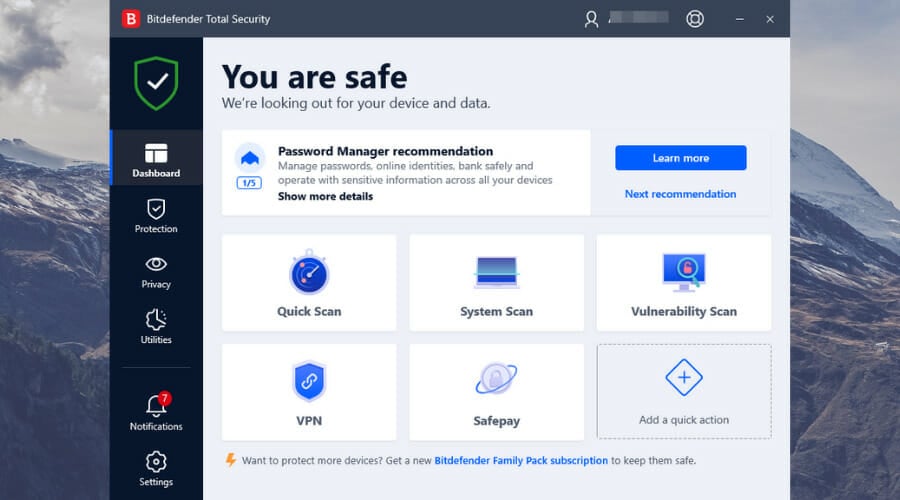
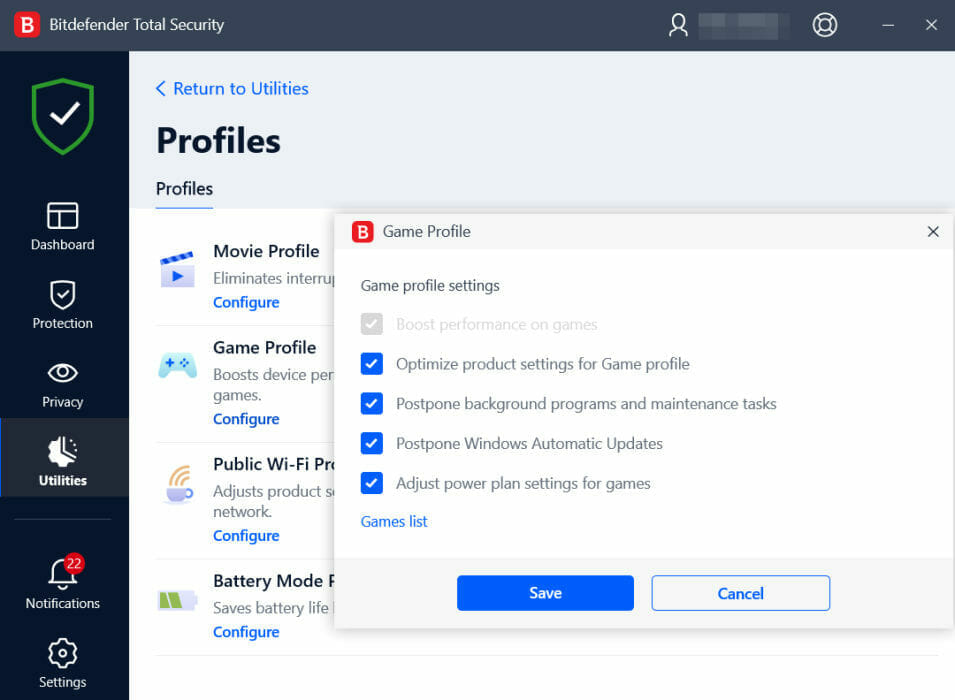
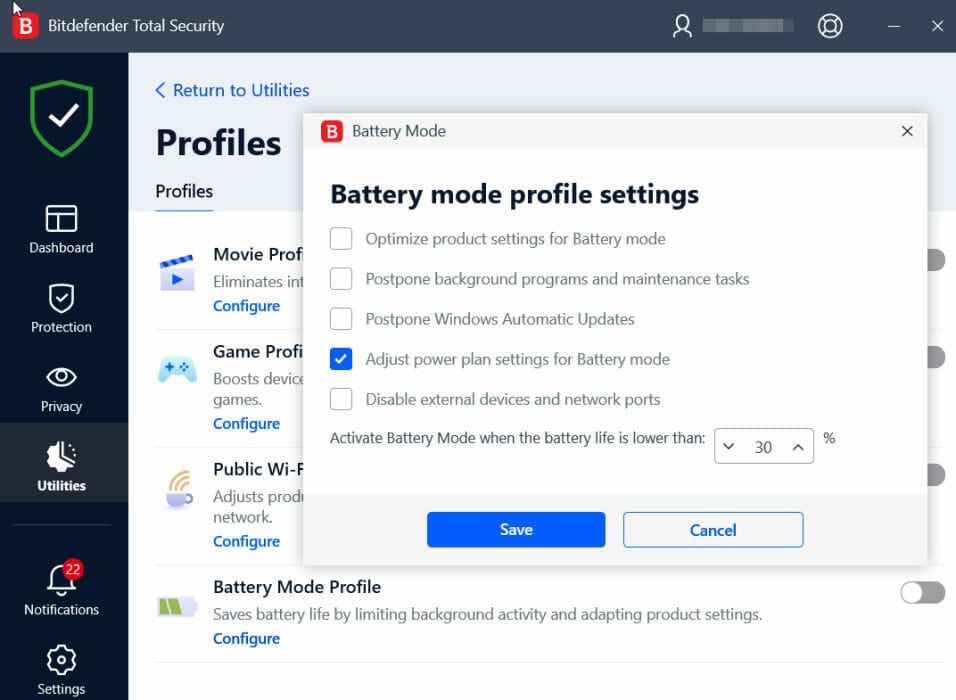
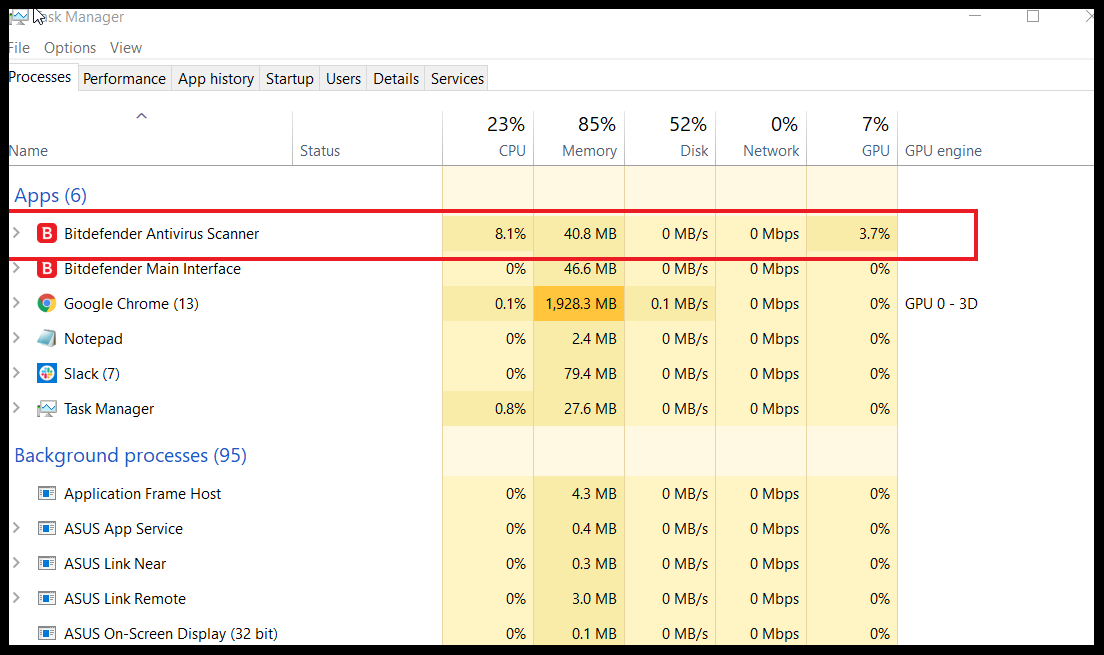
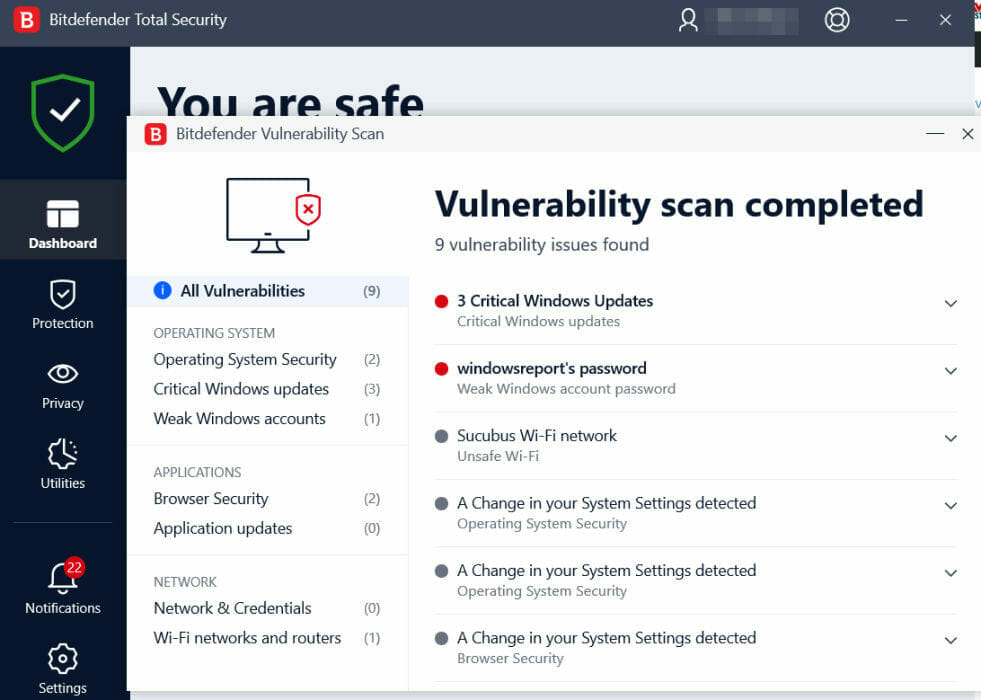
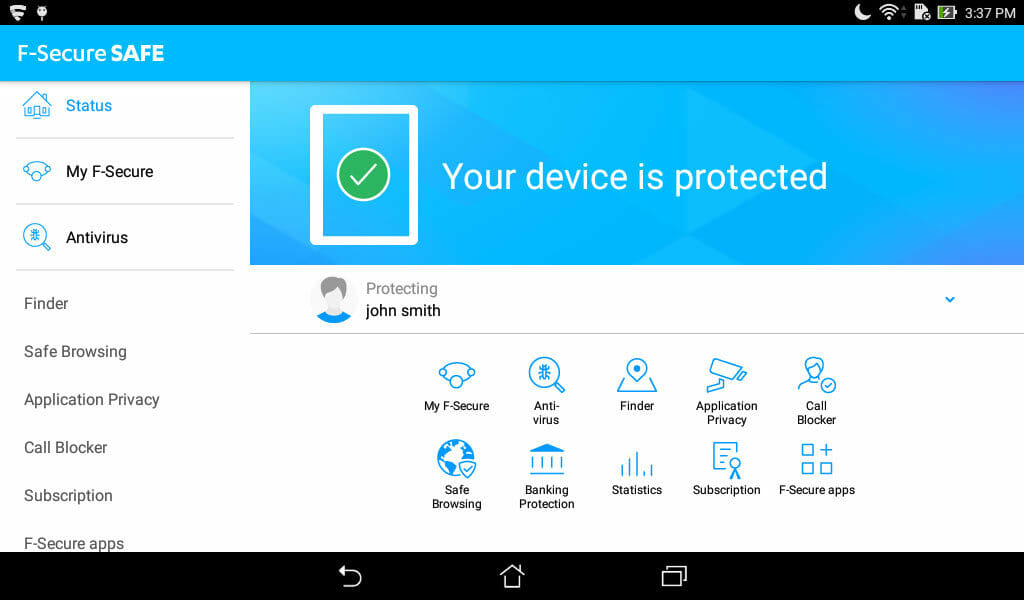
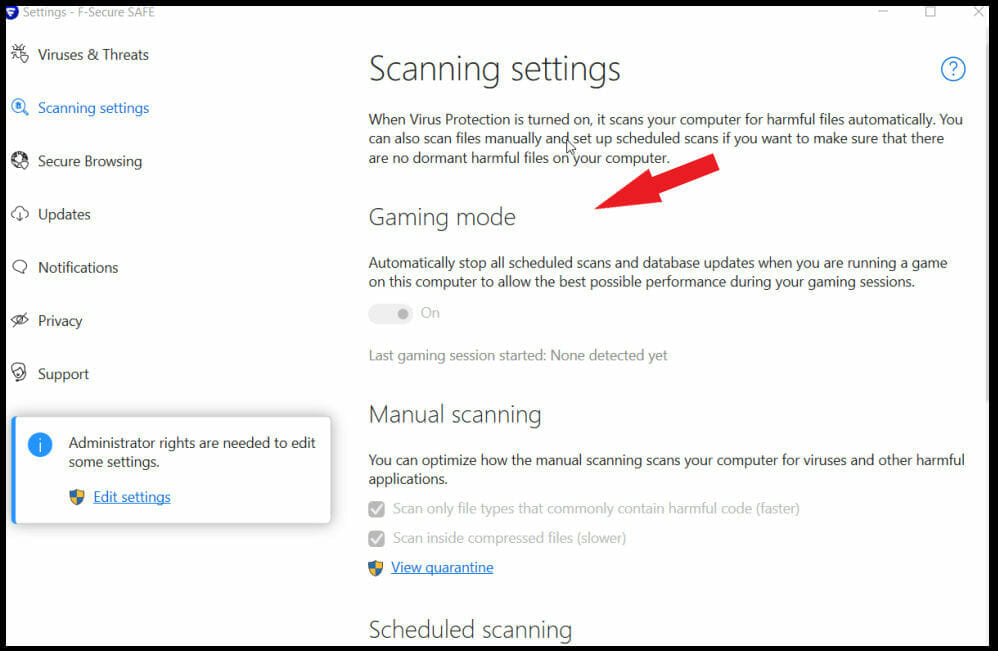
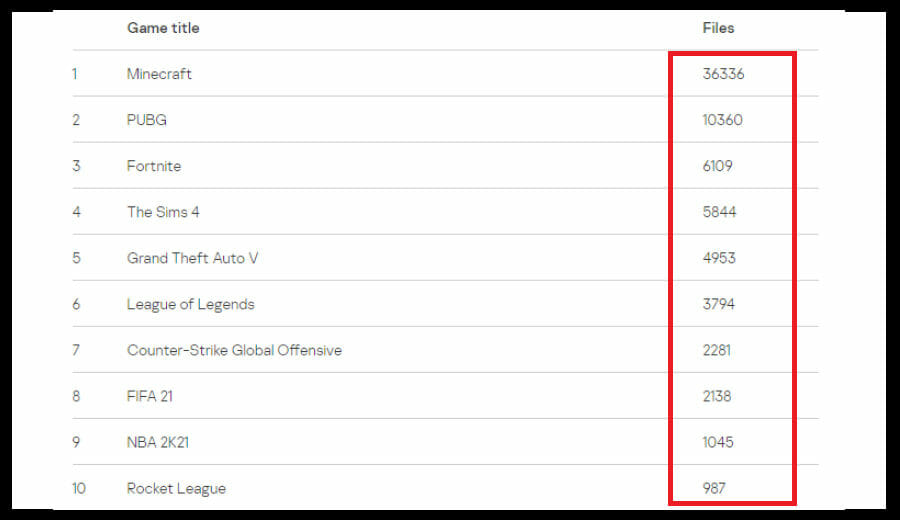
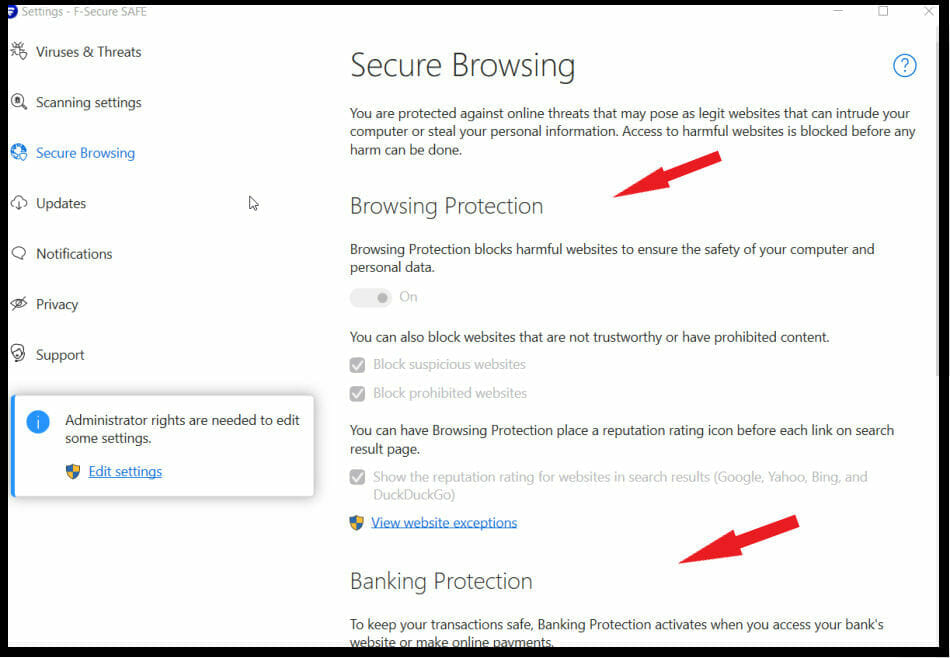
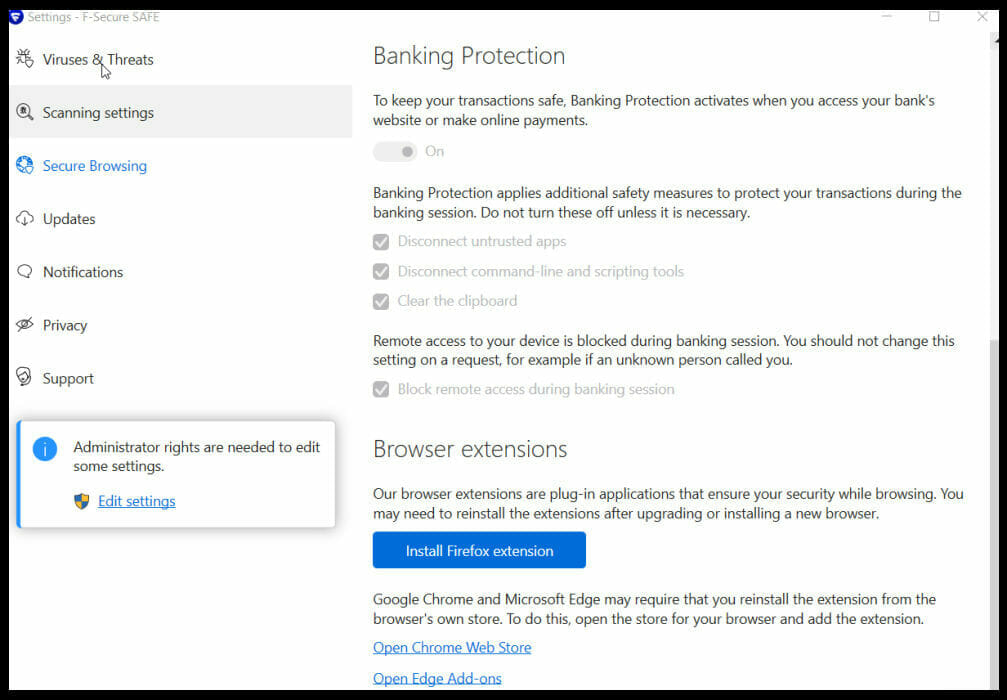
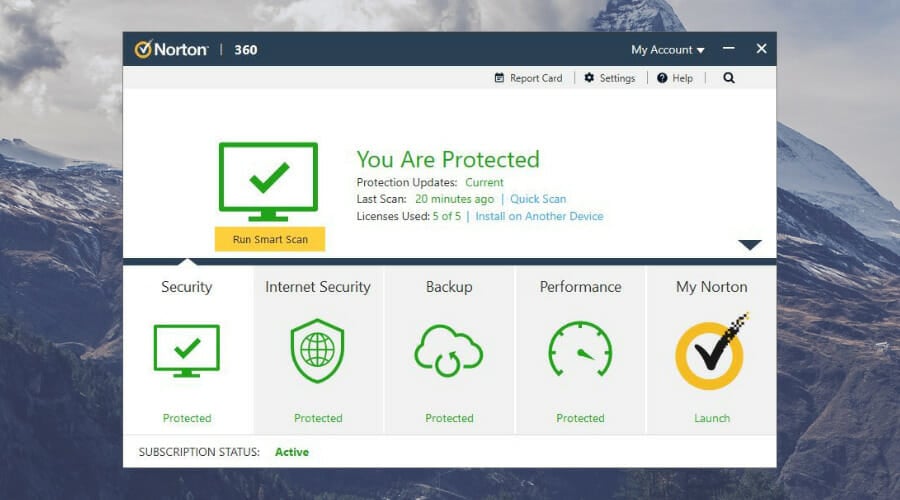
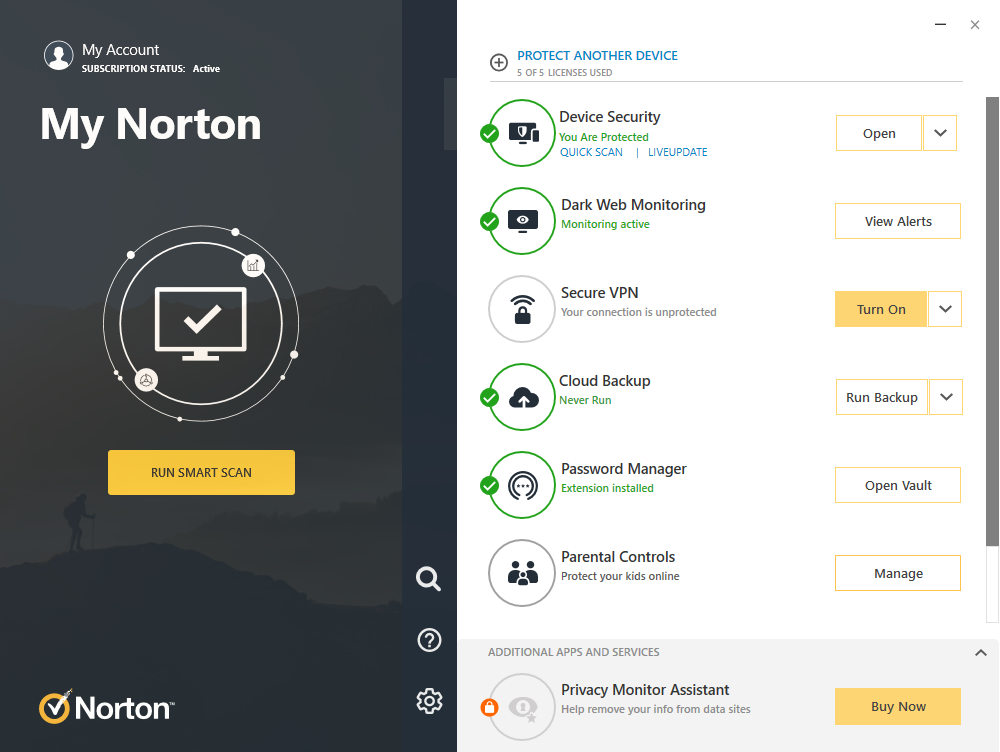
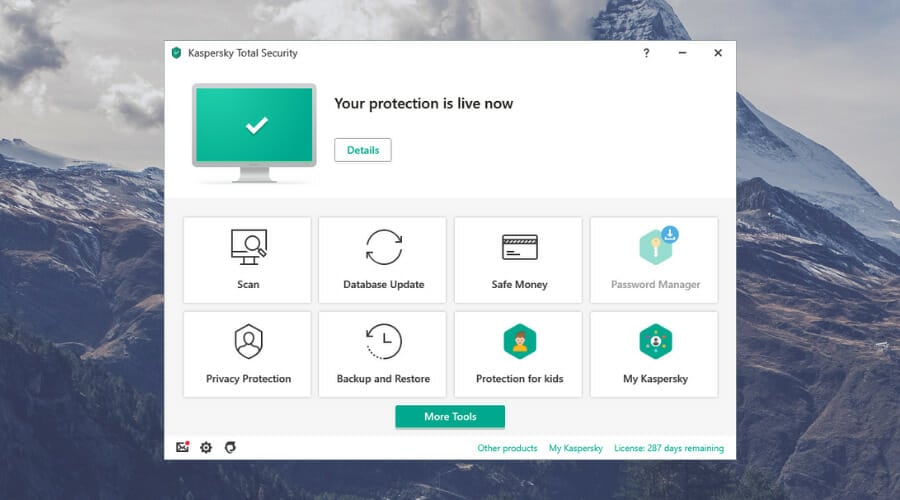
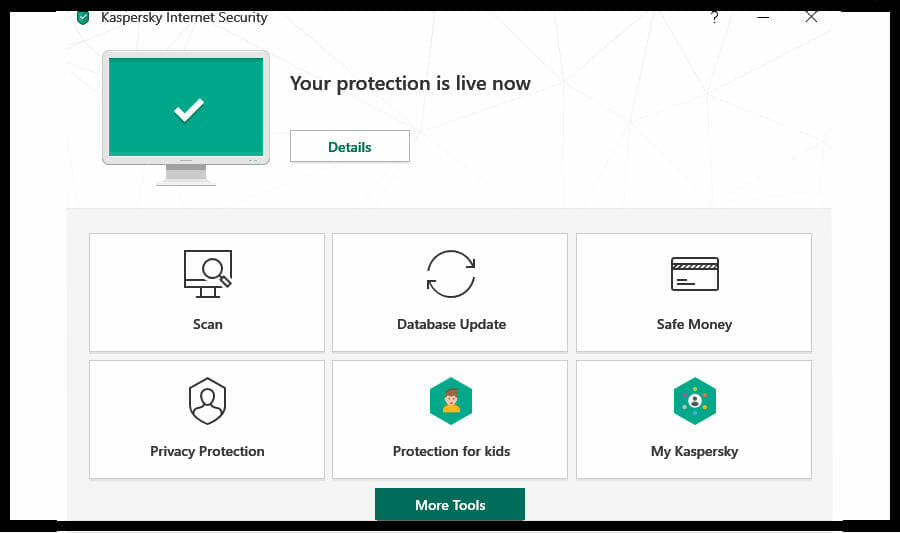
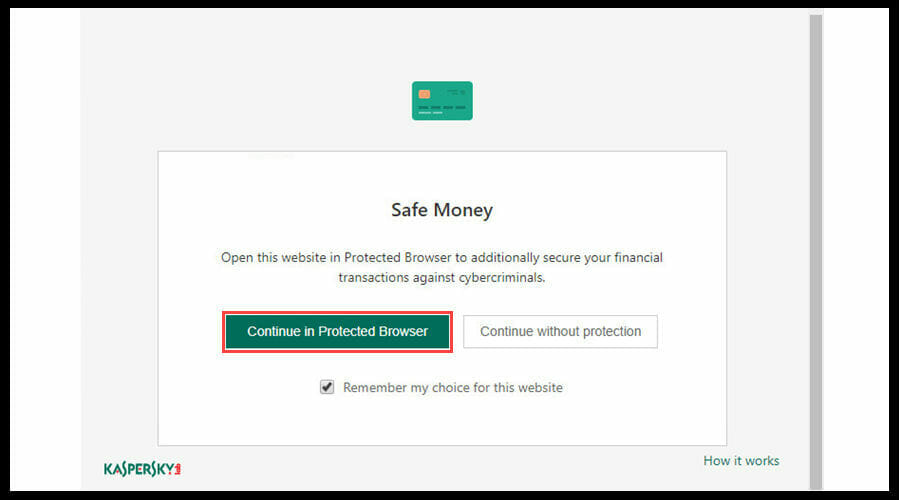
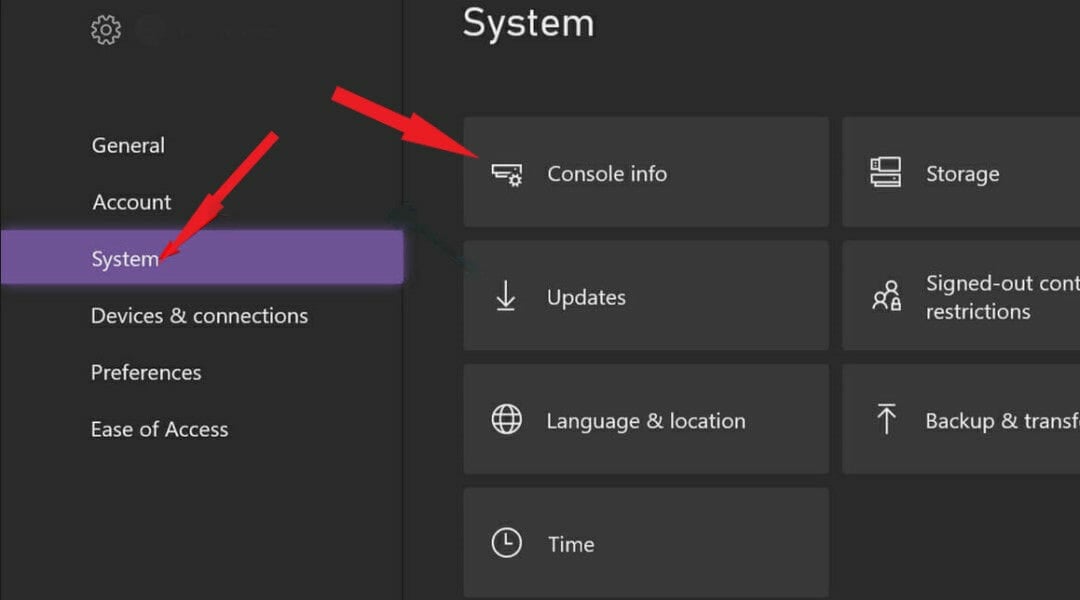

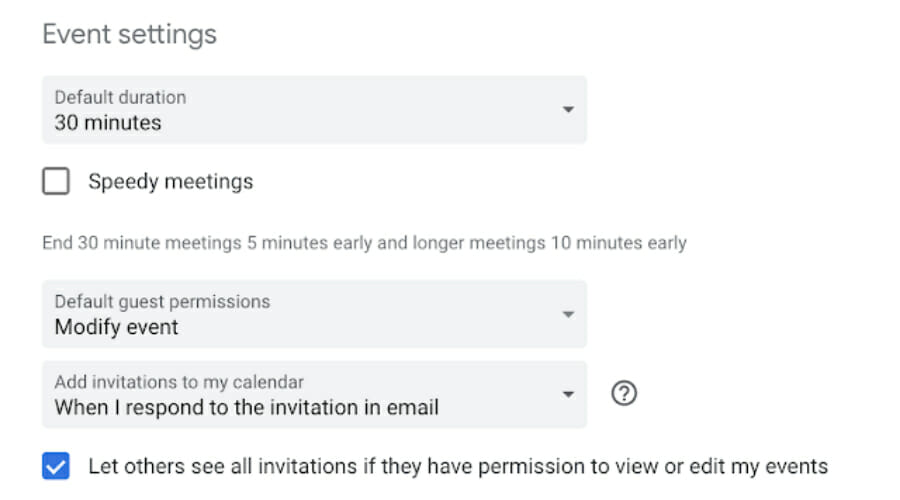

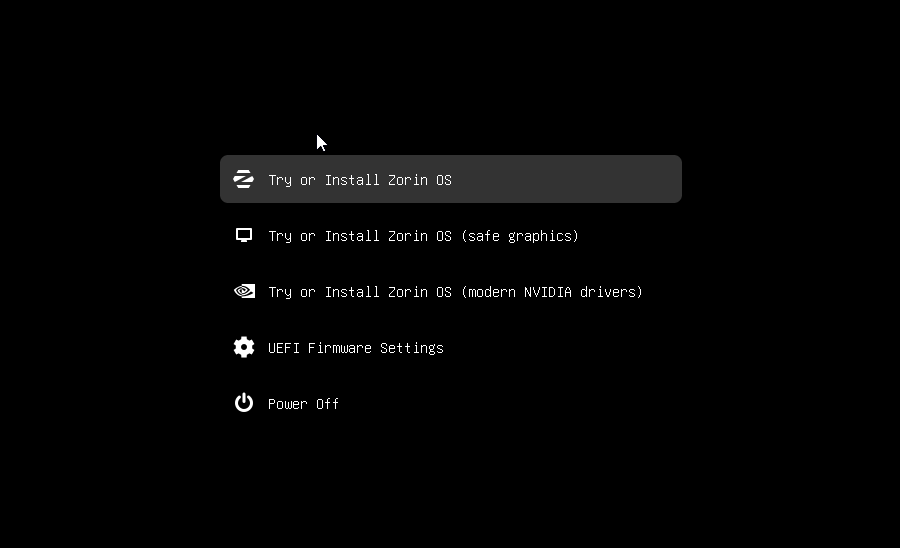
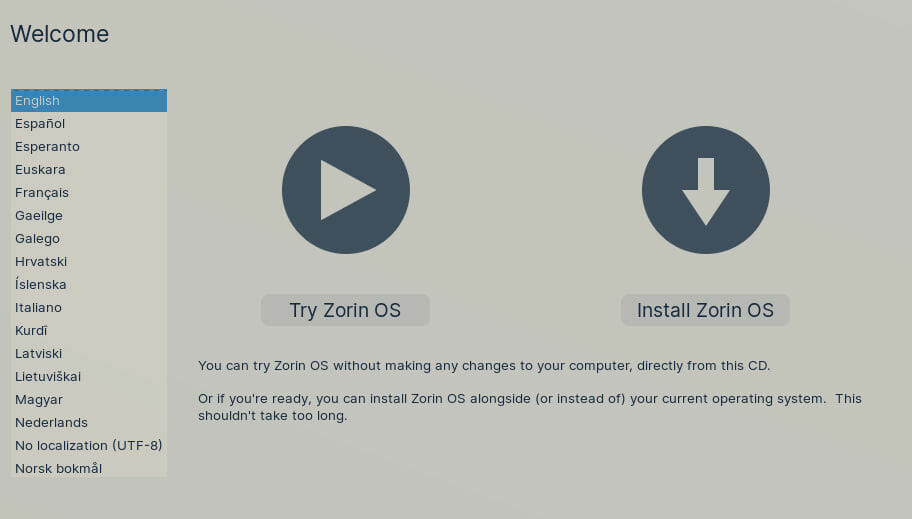
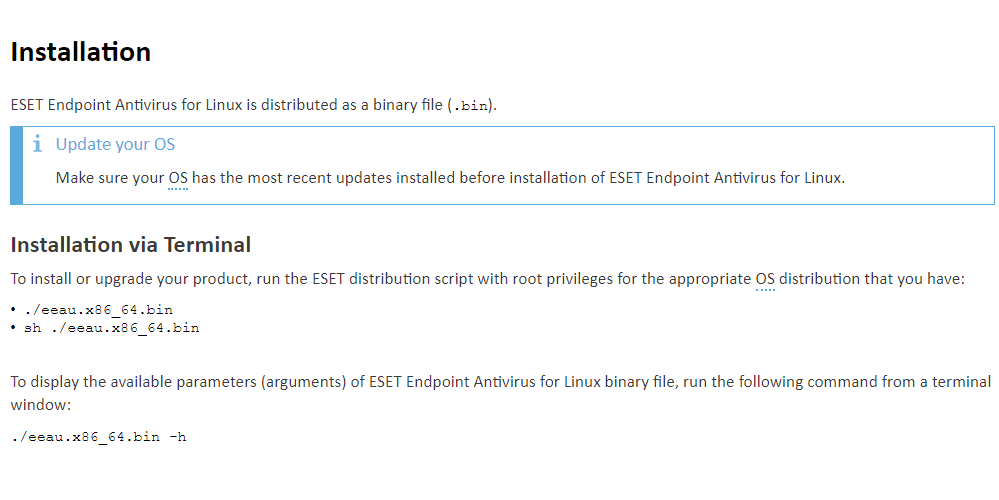
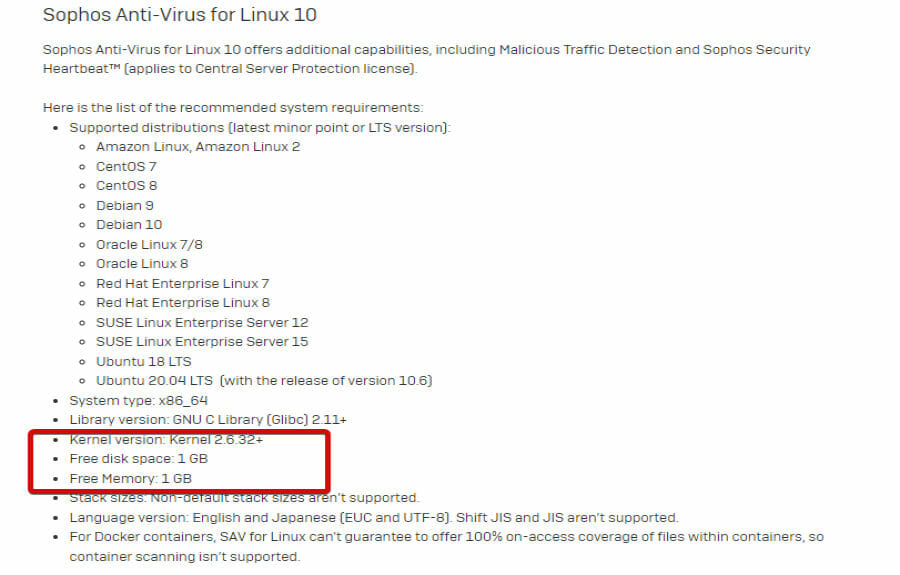



![Peer Networking Grouping Service Isn’t Running [Fix]](https://windowsreport.com/wp-content/uploads/2024/01/peer-networking-grouping-service-isnt-running.jpg)
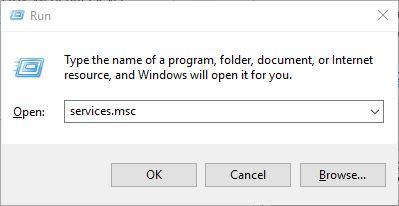
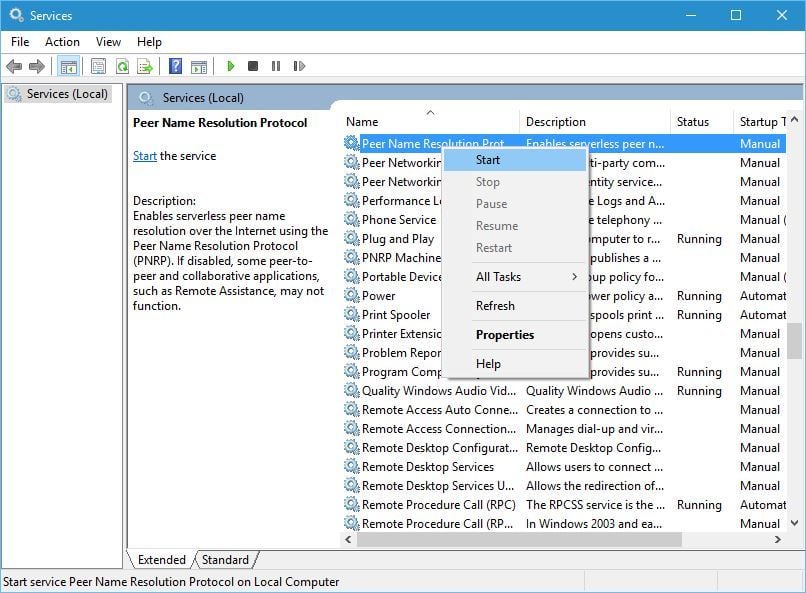

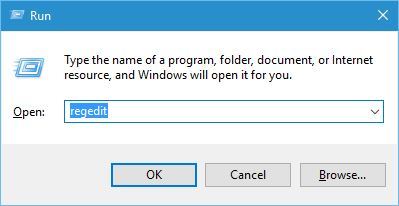
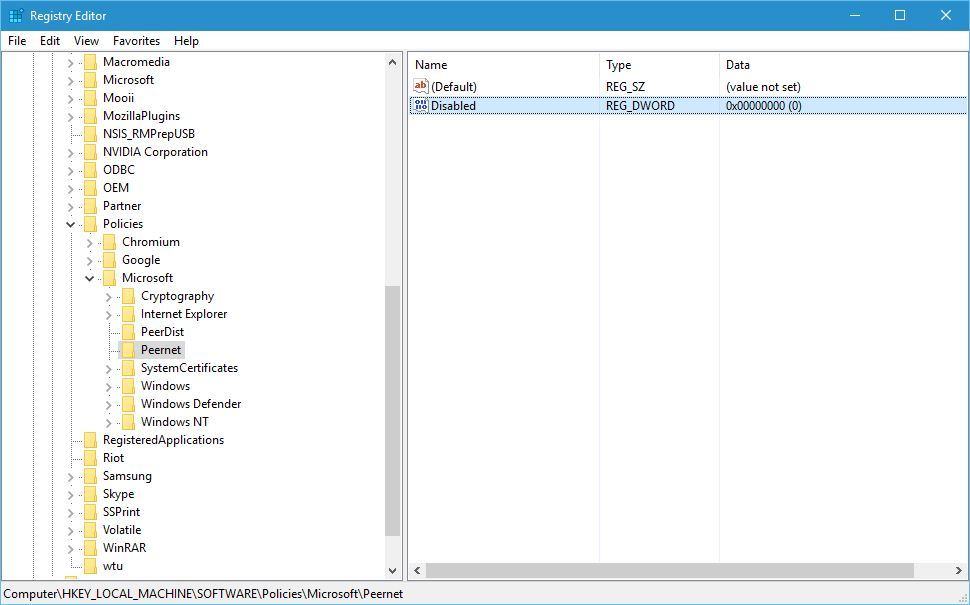
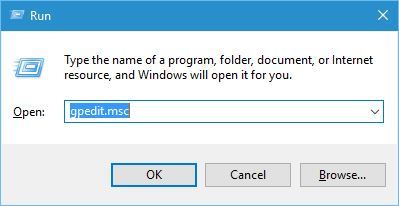
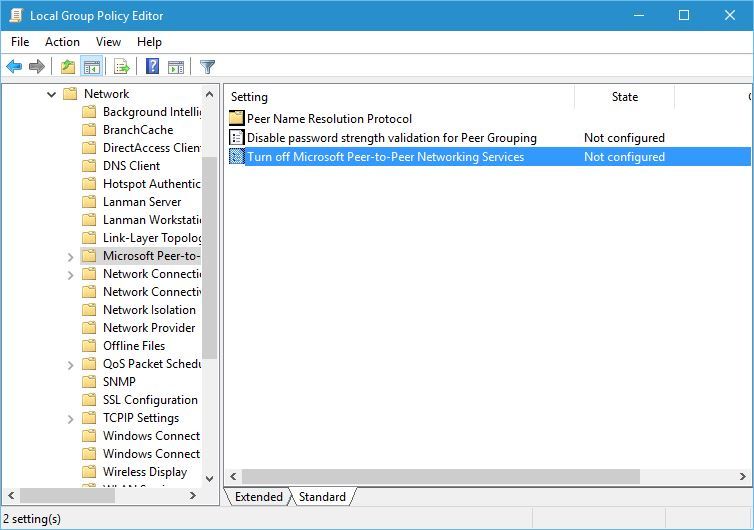
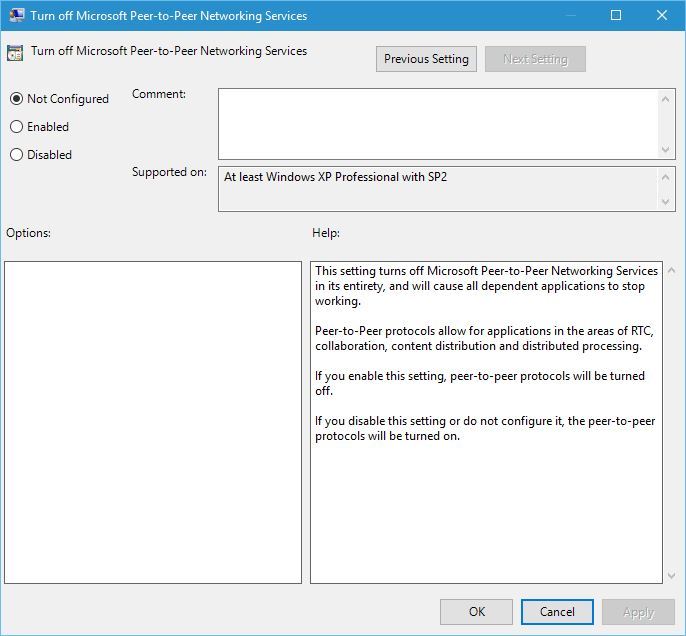
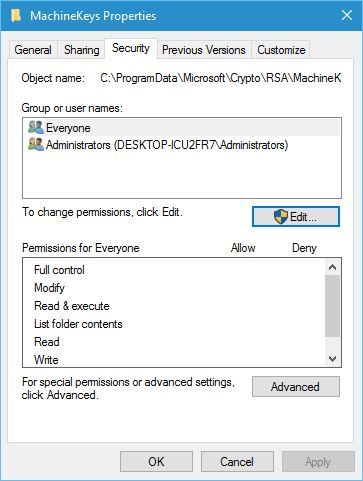
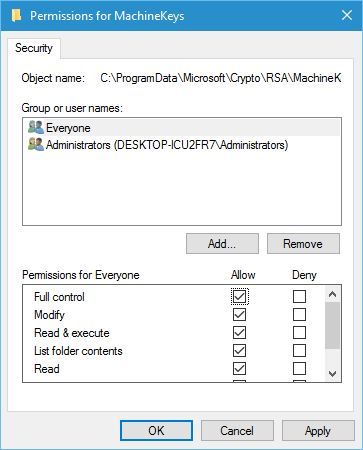
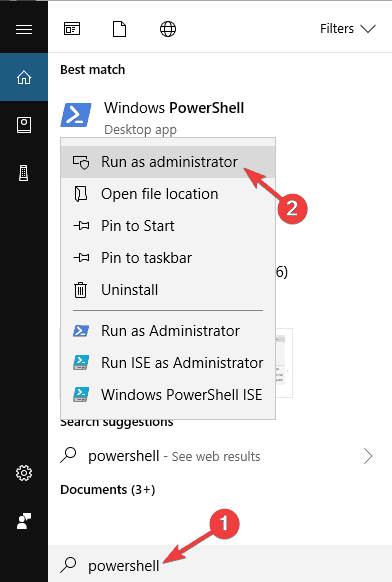
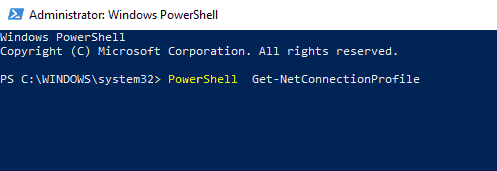


![INVALID FLOATING POINT STATE error in Windows 10/11 [Fixed]](https://windowsreport.com/wp-content/uploads/2018/09/INVALID-FLOATING-POINT-STATE-error.jpg)