Many users report getting the sfl.dll is missing/error which can cause some of the associated software to not work properly.
There are multiple reasons why this error can appear but most often is associated with Windows registry issues, faulty applications, or malicious software.
What is sfl.dll used for?
The sfl.dll file with the dll extension is associated with Paint Tool SAI and is usually used to run this application.
Also, specific or more sophisticated video games and software applications use the sfl.dll file in order to get access to certain API functionalities that are provided by Windows 10.
In this article we will explore how you can best handle the sfl.dll error with just a few easy steps, so make sure to keep on reading.
How can I fix the sfl.dll is missing error message?
1. Restore the sfl.dll file
Before trying any solution, the easiest thing to do is try and restore the sfl.dll file.
You can do this manually but we would recommend using a dedicated third-party tool which will also ensure that other damages won’t be made during the process.
It is highly recommended to utilize specialized tools to find missing DLL files on your system and therefore repair your PC securely without taking any risks.
Hence, you can resolve this efficiently with DLL support offered by automated tools that will find missing or broken software files and replace them with functional ones.
2. Update Windows
As you have probably noticed already Windows 10 is regularly releasing new updates, sometimes several times a month.
Make sure to check if your Windows is up to date and if is not performing the update is our next recommendation.
This will ensure that there is no incompatibility between an older version of the sfl.dll file and your current Windows 10 version.
Select Create a restore point and click on the System Restore button.
Next, select Choose a different restore point and click Next.
Select a date for restore then click on Next.
Enter your password if asked and follow the on-screen steps to choose a restore location
Reset your device.
4. Reset your device
Write reset this PC in the Windows search box.
Click on Reset this PC and press on the Get started button.
From the displayed list select the Keep my files option.
Finally, press on the Next button and Reset to confirm.
5. Scan your device
Most of the time, the sfl.dll error is prone to happen due to a malware infection or a virus on your device.
It’s not uncommon for a malicious program to cause this sort of error to the DLL file, and for this reason, using specialized software like Malwarebytescan make a huge difference.
Not only that you can remove any malware that’s already on your system, but if you choose to do so, you can also prevent any other malware from being able to infect your OS.
This powerful software offers quick resolution to any malware problem, and many other useful features while presenting you with an easy-to-understand UI.
Hence, you can trustfully use Malwarebytes to entirely scan your PC and find harmful malware anytime or block ransomware attacks or malicious websites.
Problematic applications or malicious files can cause the sfl.dll error and you can easily fix this problem by following the steps indicated in this article.
We definitely hope that following the steps shown in this guide has managed to help you resolve the sfl.dll error.
Please share with us in the comments section below any other recommendations or suggestions you may have or which one from the above solutions helped you solve the error.
Dragon Age: Inquisition is the third installment game of the Dragon Age series which was released in 2014.
The game involves players choosing a player character known as inquisitor through a quest to close a mysterious hole in the sky known as the Breach.
The role-playing action game was developed by BioWare Edmonton and released by E.A games. At the start of the game, you choose from various races as your inquisitor character.
This includes Human, Elf, Dwarf, and Qunari. There are also three classes you have to select from – warrior, mage, and rogue – with each class having special abilities and weaknesses.
The game is critically acclaimed by millions of gamers worldwide. The Windows version has an open-world multiplayer which is accessed by eager gamers daily.
This could make some players experience connection problems which could cause gameplay performance problems. Hence, the use of a VPN would reduce connection problems.
This post highlights five of the best VPN programs that are perfect for Dragon of Age: Inquisition gaming with their major features to help guide you in picking the right one for your gaming needs.
Security-conscious gamers can’t find a better VPN solution for countless hours of Dragon Age: Inquisition fun. Owned by Kape Technologies, Private Internet Access promises military-grade security.
It never keeps logs of your activities and even if you’re not willing to explore its advanced features, it will still keep your connection secure.
Private Internet Access provides IP cloaking servers and grade firewalls with every account. Remember that it protects up to 10 devices simultaneously – which is certainly enough to cover all of your devices.
Ultra high-speed servers are also part of the package, therefore slow loading times are out of the question when you’re ready for another Dragon Age: Inquisition round.
As if these weren’t tempting enough, you’ll most likely appreciate this VPN if you want to use P2P file sharing. Torrenting is unlimited now and always will be.
On top of that, no DNS or WebRTC leaks will ever disrupt your experience.
Check out the best features that are packed in Private Internet Access:
Excellent privacy policy without any record of past data breaches
Masking, DNS leak protection, and data encryption are all included
Easy-to-use interface for casual gaming use
Allows P2P and streaming services
Supports all popular platforms – Windows, Mac OS, Linux, and Android
Private Internet Access
Eager to play Dragon Age Inquisition? Use PIA to reduce connection problems. Now available at a major discount!
CyberGhost is an all-round VPN that has lots of useful features for playing Dragon Age: Inquisition. CyberGhost offers a full VPN service for a variety of purposes.
It offers over 6400 servers across different locations in 89 countries. In addition, CyberGhost is one of the best VPN available for playing games online and secure web browsing.
This VPN service provider also gives a strong performance as their servers have fast speed and reliable connections which makes it a must-have for online gaming and streaming.
Moreover, there is the free version of the VPN but it comes with limited features and annoying pop-up ads.
To enjoy the full capabilities of CyberGhost, you’ll need to upgrade to premium which costs $44.99 for a single device and $70 per year for up to seven simultaneous connections.
This makes it one of the expensive options, but it gives good value for money.
CyberGhost VPN
Discover the joy of playing Dragon Age: Inquisition with this amazing VPN. Don't hesitate to claim the best deal!
NordVPN may not offer the fastest VPN speeds. However, its secured connection and friendly interface make it a must-have.
The Panama-based VPN developed by Tefincom & Co., S.A. is known for having one of the most secure connections which bypass many geolocation blocks and firewalls.
In addition, NordVPN is a good choice of VPN for Dragon Age in regions where internet use is highly curtailed by the government.
The VPN offers 5400 servers+ in over 50 countries; this gives gamers diverse options to connect to the game servers.
Also, the VPN can also allow up to six simultaneous connections on a single connection and is secured by 256-bit encryption which keeps your data secured and private.
However, order to use the NordVPN costs $5.75 per month which is billed annually and allows for up to six devices connected simultaneously.
NordVPN
Dragon Age: Inquisition has high ping? NordVPN could fix it for you.
Developed by GZ Systems Limited, PureVPN places more emphasis on performance and is one of the most reliable VPN services available with secured connections.
This Hong Kong-based GZ Systems Limited VPN offers over 2400 servers in 140+ countries worldwide.
This enables gamers to access servers anywhere in the world. Even more, the VPN supports up to five simultaneous devices which makes it handy for home devices.
When it comes to gaming speed, PureVPN does not disappoint and holds some of the fastest server speeds recorded in VPN tests.
You also get secure encryption of your information and a great kill switch option that keeps you safe from hacks.
PureVPN subscription comes in various packages with the cheapest coming at $2.95 billed biannually, while the yearly subscription costs $10.95 billed monthly.
PureVPN
In need of a VPN that can lower ping in Dragon Age: Inquisition? Check out PureVPN.
VyprVPN is geared toward maximum speed as they own fast servers which make it a popular choice among heavy Internet users, and most especially Dragon Age: Inquisition game players.
Also, this Golden Frog GmbH VPN offers a secure connection for your browsers and keeps your information safe.
Using this VPN is highly recommended for gamers in locations with poor Internet connection speeds.
It also has an intuitive and user-friendly interface that allows for connection to the fastest connection close to you with one click.
However, VyprVPN offers both basic and premium subscription service, with the basic $5 billed annually. The premium one costs $6.67 billed annually.
VyprVPN
VyprVPN can lower your ping in Dragon Age: Inquisition and keep your privacy safe.
This highly-rated VPN for Dragon Age: Inquisition offers a blend of performance and security with a nice user-friendly interface.
Developed by Express VPN International Ltd., it offers numerous servers in 160 locations in over 90 countries worldwide, with unlimited bandwidth.
Gamers are assured of reliability when connected to Dragon Age servers. Connections are rerouted through ExpressVPN servers; this keeps them safe while maintaining fast server speeds.
ExpressVPN adheres to a no-log policy and has other advanced security features like the useful kill switch and DNS leak protection which enable safe gaming.
To enjoy the full benefits of ExpressVPN, note that it comes at a monthly cost of $8.32 billed annually and comes with a 30-day money-back guarantee.
ExpressVPN
Check out ExpressVPN if you want to lower your ping in Dragon Age: Inquisition and protect your privacy at the same time.
Warframe is a third-person shooter video game with a huge fan base which was released in 2013. The game is free to play and was developed and published by Digital Extremes.
Players control characters from the race Tenno which are warriors awaken from centuries at war with the Grineer race, Corpus, the Infested, and the scientists.
Meanwhile, the Tenno race uses special biochemical suits to generate their special ability called the eponymous Warframes. Players can choose missions scattered over several planets from Pluto to Sedna.
In addition, players collect Warframes but can only use a single Warframe at a time with each Warframe possessing 4 active and a passive ability.
The game has huge followership with thousands of players logging into the game servers daily which could cause lagging for some players with poor connection and lead to connection problems.
Hence, VPN can resolve these connection problems as they offer secured browsing and reliable connection.
In addition, VPN also protects gamers from DDoS attacks which are used by rival gamers to gain an unfair advantage which could reduce your progress in gameplay.
This post highlights five of the best VPNs that are perfect for Warframe gaming with their major features to help in choosing the right one for your gaming needs.
Topping off our list is a VPN service developed by Kape Technologies called Private Internet Access, or PIA for short.
Not only has this VPN proven itself to be great for playing Warframe, but it has shown great potential with all online games for that matter.
More precisely, whenever you want to use a VPN for an online game, you’re most likely looking to play on a server that is far away. However, this usually comes at the cost of latency issues.
However, this is not the case with Private Internet Access, since it allows you to connect to over 3400 servers located in 46 countries so that you get the best speeds no matter where you are.
Here are some of the perks of using Private Internet Access:
You get unlimited bandwidth
100% no-log policy
3400+ servers
P2P support
One subscription gives you support for 10 devices
Easy-to-use interface
Encrypted Wi-Fi
and more…
Private Internet Access
PIA can help you play Warframe without experiencing high ping.
This popular VPN has many features which make it one of the most used VPN services worldwide. CyberGhost, also developed by Kape Technologies, offers subscribers over 1200 servers in 50 locations spread in over 40 countries.
You get lots of options to connect to gaming servers and the user-interface of the game enables for a quick connection without hassles. CyberGhost offers fast server speeds and comes with DDoS protection as well as a killswitch option.
CyberGhost VPN
Want to lower online ping while playing Warframe? Check out CyberGhost VPN.
The Panama based VPN developed by Tefincom & Co., S.A. is known for its secure connection which bypasses many geolocation firewalls and is popularly used for streaming websites. NordVPN enables you secure access to Warframe servers from any location in the world.
The best VPN for Warframe offers over 2500 servers which are located in over 60 countries; this enables gamers diversity in the choice of the server coupled with the easy to use interface which automatically picks the fastest server available.
NordVPN
Check out NordVPN if you want to play Warframe and other online games without high ping.
PrivateVPN focuses mostly on the security aspect of VPN services and is known for its secure encryption. It has numerous servers that enable subscribers which make it an ideal VPN for Warframe.
In addition, PrivateVPN servers give decent server speeds and enable for a stable connection to Warframe online. However, PrivateVPN runs its own server infrastructure which enables them to have zero server downtime and increased performance.
Furthermore, PrivateVPN has a very cheap subscription plan. The VPN pricing starts with the basic plan coming at $3.22 which is billed annually.
Private VPN
Not only can Private VPN protect your privacy, but it also lowers ping in online games like Warframe.
PureVPN is a popular name in the VPN industry developed by GZ Systems Limited that has an excellent blend of good customer support and good VPN features. The VPN has over 500 servers in over 100 countries; this enables gamers of numerous choices when connecting to Warframe servers.
Meanwhile, PureVPN owns its servers which ensure a maximum server speed which enables seamless gameplay and ensures no lags while playing Warframe.
In addition, PureVPN protects your privacy with their kill switch options and DNS leak protection; this enables you to access Warframe servers without fear of cyber hacks or DDoS attacks.
Lastly, PureVPN’s basic subscription costs $5 a month which is billed annually and the three-year plan gives the best value as it equates to $1.47 a month.
PureVPN
Check out PureVPN if you want to lower ping in Warframe.
ExpressVPN, developed by the eponymous Express VPN International Ltd. has been in the industry for a while and is renowned for its excellent security and performance features. This best VPN for Warframe has over 2200 servers in 90 countries located in 148 cities across the world.
Unlike other VPN services, Express offers unlimited bandwidth which is cool as you are not restricted during browsing or while playing Warframe.
Your connections are routed through their servers which enable you to have steady and reliable connections devoid of lags when gaming. The 256 military-grade encryption makes your connections extra secure from snoops, hacks, and detection from your ISP.
Although, ExpressVPN is quite expensive with the basic pricing plan costing $8.32 a month which is billed annually with a 30-day money-back guarantee; but, this gives you ample time to test their service.
ExpressVPN
ExpressVPN can protect your privacy and boost your Warframe experience by lowering ping.
Another great VPN for gamers is VyprVPN that was developed by Golden Frog GmbH, and this software comes with over 700 servers located in over 70 different countries. As a result, you should be able to access any geo-restricted content using VyprVPN with ease.
VyprVPN is located in Switzerland, and as such it has to comply with strict privacy laws. This means that your online activity won’t be logged or sold to third-parties. Unlike some other VPN providers, VyprVPN doesn’t impose any restrictions, so you will always achieve maximum speed and unlimited bandwidth.
As for encryption, VyprVPN uses PPTP, L2TP/IPsec, and OpenVPN protocols. There’s also Vypr’s Chameleon technology that uses OpenVPN 256-bit protocol in order to scramble metadata and prevent VPN blocking or throttling.
In order to keep your online activity protected from third parties, VyprVPN has its own VyprDNS that is basically an encrypted DNS server. Thanks to this feature, your online activity will become almost impossible to log. As for security, VyprVPN has a built-in NAT firewall, so it will block unrequested inbound traffic while using a VPN.
As for availability, this VPN is available on many platforms including Windows, Mac, iOS, Android, and routers. Overall, VyprVPN is a great VPN and it’s a perfect choice if you want to protect your privacy online.
Overview:
700+ servers located in 70+ countries
No log policy
PPTP, L2TP/IPsec, and OpenVPN protocols
Encrypted VyprDNS server
NAT firewall
Cross-platform availability
VyprVPN
High ping disrupting your Warframe experience? Check out VyprVPN.
The VPN for Warframe listed above gives you optimal gaming experience for Warframe. However, you can always take advantage of the money-back guarantee to test the best VPN for your needs.
Share your experience with us in using any of the best VPN for Warframe by commenting below.
Fallout 4 is an action role-playing game developed by Bethesda Game Studios.
The triple-A title is set in a post-nuclear war world, filled with mutants and unforgiving places.
You start your journey as one of the few survivors of this apocalyptic war, and as you play, you become stronger by acquiring better weapons, increasing your strength, and as with any other RPG, upgrading your stats.
Fallout’s character progression is done through a special perk tree which you can upgrade.
The tree consists of a talent system, filled with various abilities that you can acquire by using special perk points.
The game can be unforgiving, therefore having lots of those abilities is mandatory to progress through the story.
How can I add perk points in Fallout 4?
1. Use console commands
Add a specific perk
Change your system language to EU (US).
Start Fallout.
Find the name of the specific perk you’d like to add.
Press the ~ key on your keyboard to open the console.
Type help “perk_name” 4 in the console.
You will get the ID code of that specific perk.
Type player.addperk ID_code then hit Enter.
Add perk points
Change the system language to EU (US).
Start Fallout.
Open the console by pressing ~.
In the console, type CGF “Game.AddPerkPoints <desired_number>
Note: The desired_number from step 4 is the number of perk points you’d like to add, therefore if you replace it with 10, for example, 10 perk points that you can spend will be added to your character.
2. Use Cheat Engine
Another more intricate way to modify the in-game numbers is by using Cheat Engine.
The software doesn’t only allow you to change your perks, it allows you to change everything regarding the game. From the power of the enemies to your stats and the number of items you have.
The program is pretty straightforward, but it takes a while to get used to its interface and the way it works.
It scans the command values of your game and allows you to modify them through scripts. In addition, you can use Cheat Engine with any single-player game.
Note: Do not use this software to cheat in multiplayer games, because it will probably get you banned or in trouble.
If you don’t feel like cheating, and you want to do things legitimately, in the old fashioned way, you can. Here is a list of the best and fastest ways to level up your character to gain the perk points faster.
Use the Barter Skill.
Fight and kill enemies.
Lockpick everything you can.
Modify your equipment.
Build settlements
Do the Learning Curve quest.
Maximize your intelligence stat.
Join the Brotherhood of steel.
Farm Side Quests.
These easy solutions will get you all the perks you want, so you can finally defeat that powerful foe that stopped you from progressing and unfolding the awesome story of this game.
You can also use Fallout 4 Mods if you want more customization options, enhanced graphics, unique gameplay experiences.
If you have anything new to add to the subject, please feel free to discuss it in the comment section below.
If you are looking for the best greeting card apps for your Windows tablet or desktop device, then you have arrived at the right place.
Few people still make and send physical greeting cards today, which is a real pity. Many are turning to greeting card apps, and this is true not only for iOS or Android users but also for owners of Windows 10 tablets and computers.
We have selected the most interesting and easy-to-use greeting card apps that we want to show you. If you know of other reliable ones, do let us know by leaving your comment at the end of the article.
One of the most appreciated photo editors when it comes to greeting cards is inPixio. With complete graphics and photomontages, any user can express one-time moments to their peers.
It is extremely easy to design and edit photos or card templates with this AI-powered solution. More so, you can enhance and create the best quality of your products.
There are other worthwhile features that will bring never-seen photomontages, creative designs made of original images, and many more editing tools.
You should also know about the modern functionalities for editing cards and images from the smallest details, with brightness, sky removal, or background replacing features.
All having been said, benefit from high-end graphics and photo studio editing for outstanding greeting cards.
Here are some other features:
Original pictures and photomontages
Inspiring text and image graphics
Advanced AI functionality
Object editing tools
Cut-out photo backgrounds
InPixio
Create state-of-the-art greeting cards using this professional Photo Studio solution.
Adobe Creative Cloud Express is our top pick when it comes to software to be used for creating amazing greeting cards.
The main feature that separates Creative Cloud Express from all the others is the almost unlimited amount of templates to choose from. This feature simplifies the process enormously, and also allows you to focus more on the design of your project, and not on technicalities.
Even more than this, Adobe Creative Cloud Express allows you to edit any template to fit your needs and provides other useful features as well.
Here are some other features offered by Adobe Creative Cloud Express :
A very easy-to-understand and use interface that enables fast image processing
Low system impact compared to other software options
Crisp and simple design
Works great for creating a variety of greeting cards
Unlimited number of fonts and themes to choose from
CorelDRAW needs to be mentioned among the top graphic editors for creating amazing greeting cards, although this suits more advanced users.
The software is well-known and widely used in the graphic design industry for the vector illustration, layout, and typography tools it includes.
Even more than this, CorelDRAW allows you to follow up on the changes you make with a new PowerTRACE™ feature, as well as collaborate with your team, family, and clients, as you move forward into your graphic design projects.
Surely, when designing holiday greeting cards you might not need all those professional features, but CorelDRAW is a suite to be used in the long run.
Here are some other features offered by CorelDRAW:
Image editing and pixel-based design program
Font exploration and management tool
RAW photo editor
7,000 clipart, digital images, and vehicle wrap templates
Canva is a popular graphics design editor suitable for both amateurs and professionals. It can be used for free, for the most part, and it suffices for basic greeting card design.
However, account creation is necessary (without the need to also provide credit card details).
The Pro account unlocks a great variety of patterns, templates, GIFs, and other perks to experiment with, for even more creative ideas.
For the winter holiday season, Canva offers a lot of templates that you can work on. You can freely personalize the existing templates with photos, images, or objects of your own choice.
When you think your card is done, download it in jpeg, pdf, or other available formats and prepare it for sending.
If you’re looking for a simple greeting card application, you might want to consider Hallmark Card Studio 2022 Deluxe. This version has more than 19,000 Hallmark cards available, so you can easily customize them to create your own greeting cards.
In addition to cards, there are over 21,000 premium images that you can add to your cards. The application also has more than 16,000 Hallmark sentiments available to choose from.
Another useful feature of this application is a built-in photo editor that you can use to edit and customize your photos.
We have to mention that this tool isn’t limited to greeting cards, and you can create envelopes, photo projects, scrapbook pages, calendars, and all sorts of other graphics right from this tool.
Overall, Hallmark Card Studio 2022 Deluxe is a simple tool that will allow you to easily create various greeting cards with ease.
Thanks to the extensive amount of available graphics and templates, you should be able to create beautiful greeting cards without any problems.
By using the Windows 10 app Greeting-Cards you will be able to make your birthdays, holidays, or other events special and easy to remember.
Among the most important features of the app, we enlist the following – upcoming events cards, 15+ occasions cards, the ability to schedule greeting cards, and even to download the latest greeting cards added from the server.
Unfortunately, the app is not free and you’ll have to invest $1.49 to get it on your Windows 10 tablet.
The new project is available as an app in the Microsoft Store and is designed to be a lot more personal than existing apps like OneNote, or Microsoft Whiteboard. Indeed, as developed by Microsoft’s Applied Sciences Group, the app can help you do things that physical paper or pen, or most inking applications can’t.
There are several AI features, which can be seen below. Again, all of these are designed with Surface and Windows tablets in mind. It’s unlike your typical inking app.
An ink-first experience for those who write with a digital pen
A page-based canvas for easy scrolling, optimized for tablet and 2-in-1 devices
New intuitive Ink Gestures to erase and select ink that don’t require mode switches
Use touch to scroll pages, or tap ink to select words, sentences, and more
Drag and drop selected content between pages, or to your favorite applications
Microsoft 365 integration to access your Calendar for faster meeting notes*
Import and markup PDF and images
Search and recall using keywords or filters
Overall, this app is pretty solid on Surface devices. We tried it out, and all the gestures and interactions with Surface Pen are quite smooth and the user interface is really fluent. It’s also nice to see that you can use the app as a way to mark up PDFs and other documents, too. Check it out now via the link below, and let us know your thoughts in the comments.
If you’re having issues with Microsoft Teams right now, you’re not alone. The company has acknowledged that Teams users may experience delays in receiving chat messages or be unable to join live events, and it’s currently investigating.
We've determined that Teams live events may also be impacted by this issue, and we've confirmed that users located in South America may also experience impact. Additional information can be found in the admin center under TM240228.
According to the company, the issue is currently impacting users in North and South America. “We’ve identified a potential networking issue that may be causing the problem. We’re working to confirm our findings while simultaneously exploring the optimal solution to remediate impact,” the company said a couple of minutes ago on the Microsoft 365 Twitter account.
It’s certainly not the first time that Teams is having issues, and you may want to try using the Teams web app instead of the desktop app to see if this changes anything. We’ll keep you informed when the company shares some new information about the outage, so stay tuned to OnMSFT for more updates on this Teams outage.
Update 3PM PT: Microsoft says that things should now go back to normal. “A majority of the impact has been mitigated. We’re monitoring the service to ensure full restoration and will take any necessary action if impact persists,” the company said on Twitter.
Microsoft Teams already allows users to open their one-to-one or group chats, meetings, and calls. The ability to pop out personal apps in Microsoft Teams has been one of the top requested features. It enables users to open their Teams apps pinned in the app bar in a separate window and easily switch between them.
There are multiple ways to pop out an app in Teams. Users can navigate to the app bar on the left rail, right-click on the specific app, and select the “Pop out app” option. There is also a dedicated small icon in the app window itself that lets users pop out the personal app.
Secondly, Microsoft has also added a new pop out tabs functionality in Teams. Thanks to this feature, users can now pop out tabs pinned in their chats and channels. To do this, simply select the particular tab and then the “pop out tab” icon available on the right corner of the header. The desired tab will then instantly open in a dedicated window.
The ability to open apps and tabs in a separate window is a welcome change for first-line workers, and it should help them to focus on important tasks without jumping between windows. Keep in mind that these options are available only for the Windows and macOS desktop apps, and they are not yet enabled on the Web client.
Blue Screen of Death errors such as DRIVER_CORRUPTED_EXPOOL can cause many problems on Windows 10 since they tend to frequently restart your PC.
Since these errors are rather serious, today we’re going to show you how to fix DRIVER_CORRUPTED_EXPOOL error.
DRIVER_CORRUPTED_EXPOOL error can be a big problem, and users reported the following issues related to this problem:
Driver_corrupted_expool Cisco Anyconnect, VPN – This error message can appear due to third-party applications and many users reported it while using Cisco Anyconnect. However, other VPN applications can also cause this error to appear.
Driver corrupted expool blue screen – This is a Blue Screen of Death error, and as such it will cause your PC to restart as soon as it appears in order to prevent damage to your computer.
Driver corrupted expool Windows 10, 8, 7 – This error is common and it can appear on any version of Windows. However, you should be able to fix this problem on any version of Windows using one of our solutions.
Driver corrupted expool RAM – Blue Screen errors such as this one are often caused by your hardware, most likely your RAM, and if you’re experiencing this problem, be sure to check your RAM and replace it if needed.
Driver_corrupted_expool rdyboost.sys, tcpip.sys, usbport.sys, usbccgp.sys, afd.sys, acpi.sys, ataport.sys, ntfs.sys, netio.sys, nvlddmkm.sys, ndis.sys, dxgmms1.sys, hal.dll, halmacpi.dll, ntoskrnl.exe – Usually this error message is followed by the name of the file that caused it allowing you to easily find the problematic device, application or hardware.
Driver corrupted expool when connecting to Internet – Many users reported this issue when connecting to the Internet. If you have the same problem, be sure to check your network adapter or network driver.
Driver_corrupted_expool Windows 10 install – This problem can also appear while installing or upgrading Windows 10. This usually happens if Windows 10 isn’t fully compatible with your drivers or installed applications.
Driver corrupted expool on startup, after overclock – Many users reported that this error appears as soon as their PC boots. This can be caused by incompatible driver or software, but it can also be caused by overclocking.
Driver corrupted expool Avast, Kaspersky – Your antivirus tool can also cause this error to appear. Many users reported this issue with Avast and Kaspersky, but other tools can also cause it.
How can I fix the DRIVER_CORRUPTED_EXPOOL BSoD error?
1. Use a repair tool
Using specialized repair tools is by far the safest and fastest way to fix system files that cause these kinds of errors. Professional tools are able to scan your computer find the broken files and quickly replace them with fresh ones from their databases.
Even though these tools offer amazing protection, sometimes they can cause certain issues, such as DRIVER_CORRUPTED_EXPOOL BSoD error.
In order to fix this problem, you need to remove all third-party antivirus programs that you have installed.
Bear in mind that uninstalling the software might not fix this error, so you’ll have to use a dedicated removal tool to remove any remaining files associated with your antivirus program.
Many security companies offer these tools for download, so be sure to download and use one.
Users reported that Emsisoft Internet Security can cause these errors, and if you’re using this tool, you’ll have to remove it to fix this problem.
Bear in mind that almost any antivirus program can cause this error to appear, so be sure to remove all third-party antivirus programs from your PC.
3. Remove problematic applications
DRIVER_CORRUPTED_EXPOOL error can be caused by certain applications, and in order to fix this problem, you’ll have to find and remove those applications.
It’s worth mentioning that almost any installed application can cause this error to appear, therefore be sure to remove any recently installed or updated applications.
Few users reported that VirtualBox can cause these types of problems, so if you’re using this tool be sure to remove it or to update it.
Another problem can be Radeon software, and many users reported that DRIVER_CORRUPTED_EXPOOL BSoD error was fixed after removing this program.
When Device Manager opens, locate the driver that you wish to update, right-click it and choose Update Driver Software.
Select Search automatically for updated driver software. Windows 10 will now download the best driver for your device.
Repeat this step for all drivers that you want to update.
Blue Screen of Death errors can be caused by both hardware and software issues, but fortunately Microsoft is working hard on improving Windows 10.
By using Windows Update to download the latest patches you’ll ensure that your system is safe from malicious users and software.
We also have to mention that these updates bring many fixes related to hardware and software compatibility, and if you want to ensure that your PC doesn’t get a BSoD error, be sure to download the latest updates.
Although Windows updates are important for your system stability and safety, it’s also important that you update your drivers regularly.
Downloading drivers is fairly simple, and you can download all the necessary drivers right from Device Manager by following the above steps.
Downloading drivers by using Device Manager is quick and simple, but some users argue that this method isn’t the best.
According to them, Device Manager doesn’t always download the latest drivers, therefore if you want to install the latest drivers, you’ll have to manually download them.
Downloading drivers is fairly easy, and you can download the necessary drivers from your hardware manufacturer’s website.
Users reported that DRIVER_CORRUPTED_EXPOOL error was fixed after updating the chipset drivers, so be sure to update those first.
Update drivers automatically
If that doesn’t fix the issue, be sure to update all drivers on your computer.
Downloading drivers manually is a process that carries the risk of getting the wrong driver installed, which may lead to serious malfunctions.
The safer and easier way to update drivers on a Windows computer is by using an automatic tool.
Outbyte Driver Updater automatically identifies each device on your computer and matches it with the latest driver versions from an extensive online database.
If any of your hardware components aren’t fully compatible with your motherboard that can lead to Blue Screen of Death errors.
Several users reported that they managed to fix DRIVER_CORRUPTED_EXPOOL error by updating BIOS, so you might want to try that.
Updating BIOS is an advanced procedure, and if you don’t perform it carefully you can cause permanent damage to your PC, therefore be extra careful if you decide to update BIOS.
6. Reset Windows 10
Restart your computer a few times during the boot sequence to enter Automatic Repair.
Choose Troubleshoot > Reset this PC > Remove everything. You might get asked to insert Windows 10 installation media, so be ready to do that.
Select Only the drive where Windows is installed > Just remove my files and click the Reset button.
Follow the instructions to complete Windows 10 reset.
Error DRIVER_CORRUPTED_EXPOOL can be caused by certain software, and you can fix most software related issues by performing a Windows 10 reset.
We have to warn you that resetting Windows 10 is similar to clean install, so be sure to back up all important files from your C partition before you start this process.
If the issue still persists, it’s most likely that you have a hardware problem, so be sure to check your RAM and all other major hardware components.
DRIVER_CORRUPTED_EXPOOL BSoD error can cause certain problems on Windows 10, but we hope that you managed to fix this problem by using one of our solutions.
Chroma Keying or popularly known as Green Screen technology is commonly used in video production.
Be it your favorite superhero flying in space or the news channels showing a giant weather forecast map behind the presenter on Live TV.
Much of this is achieved with the help of Chroma keying using green screen software. If you are into video production, you already know how useful green screen is.
Irrespective of the size, almost every production house uses a green screen to record the videos as it gives the flexibility to edit and add visual effects in the video production stage while keeping the cost low.
How does a green screen work?
Have a look at the image above. A person is standing in front of a green screen. In the first phase, production houses shoot the videos using the green screen as shown in the image.
The next phase involves a process called Keying.
Keying is the process of isolating a single color from a still or multiple frames (videos) and replacing it with a new image (commonly backgrounds). To achieve this, you need a video editing tool or green screen software.
Note that, Chroma keying does not necessarily involve green screen but any color and mostly blue apart from Green.
Companies use Chroma keying to produce professional-looking marketing and informative videos about the products, and product updates quickly without overspending on the production cost.
In this article, we will explore the best free green screen software as well as paid Chroma key software for Windows 10 which will help you choose the right software for your next video project.
What is the best green screen software for Windows 10?
Green screens are all about special effects, be it for cinematography or just your typical YouTube video, and in this day and age, you cannot talk about videos with special effects without mentioning Adobe After Effects.
This program was specially created for digital visual effects, motion graphics, and compositing. Its popularity made it a must-have in the post-production process of film making, video games, and television production.
In short, describing it as the Photoshop of videos would be an understatement, but it surely does act as a very relevant summary.
Of course, you don’t have to settle just for the base program. Getting Adobe After Effects you are now open to using the many plugins that it can handle.
A variety of plug-in styles exist, such as particle systems for realistic effects for rain, snow, fire, etc.
All these together with the typical green-screen setting of creating videos means that editing and post-production will be a piece of cake, without actually needing any prior experience with similar tools.
All in all, if you want to bring your videos to life in a whole new way by making images brighter, colors more vivid, and transforming an otherwise boring presentation into something ripped out of a sci-fi movie.
How do I remove green screen in Adobe After Effects?
Click once on the green screen video footage.
This will make it active in Adobe After Effects.
Click on Effect, Keying, and Keylight.
This is a plug-in effect for Adobe After Effects that comes pre-installed
Go to the Effect Controls tab.
Choose the Eyedropper icon.
It is next to the Screen Color option.
Select a section of the green screen somewhere around the middle of your video.
Click on View and then choose Status.
You can use it to see any parts of the green screen that were not removed.
These areas will appear white and gray around the object.
Increase the Screen Grain until the outer edges of gray and white disappear and all you see is the shape of the object.
Adobe After Effects
Let your imagination roam free with this fantastic tool that allows you to create movie titles, add sensational effects to clips or remove objects.
Adobe Premiere Pro is the industry standard when it comes to video editing software. Adobe is not new to the digital editing software game.
Like its other tools, Adobe Premiere Pro shines with its state-of-the-art tools, collaboration capabilities, and the support for 360 VR and 4K content despite our love-hate relationship with its signature nonlinear user interface.
The latest iteration of Premiere Pro comes with a more polished user interface and adds more tools to its already huge arsenal.
The Chroma keying is not new to Adobe Premiere Pro and those who can go through the learning curve involving the use of Premiere Pro can do miracles in the digital world.
How do I remove green screen using Adobe Premiere Pro?
The Chroma Keying process with Adobe Premiere Pro is not as easy it is with Camtasia. But, Adobe is a professional video editing tool and has robust green screen footage editing tools on offer.
Once you have a green screen video imported to the editing screen (sequences), go to Videos Effect and select Keying. All the tools required to edit a green screen video is available under the Keying tab.
Begin with adding the Ultra Key effect onto your clip; You can use either Color Key or Ultra Key effect. For this guide, we are using the Ultra Key effect. Use the eyedropper tool and select the green area in the video.
Fine-tune the selection by using the settings option to set the best effect and also adjust numbers under Matter Generation to reduce noise.
There are multiple settings here, play with the options and numbers until you get the desiring result.
After removing the green screen from the video, you can add any object (image) to the background of the video to create a clean and professional-looking video.
The only bitter part is Premiere Pro’s pricing which may not be affordable for everyone. But, if you are a professional with a budget, the Pro in Adobe Premiere Pro indeed holds to its name.
Adobe Premiere Pro
As one of the best video editing software out there, this tool will bring all your projects to a professional level.
Camtasia has been my go-to video editor ever since I started making YouTube videos. I may not have been a great video editor, as my post-production videos speak for themselves, but Camtasia is undoubtedly one of the best video editors to start with for any beginner content creator.
Even for professionals who find the sophistication of Adobe Premier suite a little too much, Camtasia has enough tools in its arsenal to help you produce a clean, professional-looking video in no time. The learning curve is simple as drag, drop, edit, and render.
Talking about the green screen bit in Camtasia, the tool offers a “remove a color effect” in the software. The users can remove any color from a video by following a simple procedure.
How do I remove green screen using Camtasia?
The working of Remove a color effect is simple. The user needs to drag the Remove a Color effect on any video on the timeline. From the properties panel, select the effects and pick a color that you want to replace with the green screen.
After the selection is made, make sure to fine-tune the properties like tolerance, softness, and defringe to make the video look as real as possible.
Once done, proceed with adding a new background that will replace the green screen by adding the background below the edited clip.
Camtasia is an excellent tool particularly for new content creators who want to create eLearning courses and how-to videos for their audience as it offers screen recording and web capturing features as well.
It is also less expensive than other sophisticated tools like Adobe Premiere Pro, and the vast collection of how-to videos makes it a go-to tool even for a novice.
Camtasia
Create videos like a pro with this easy to use tool, without spending countless hours with complex commands.
Vegas Pro (formerly known as Sony Vegas Pro) now owned by Magix is a professional video editor with tons of editing features for the professionals. The latest iteration of Vegas Pro has put the tool right back in competition with Adobe Premiere Pro and other premium video editing software.
Vegas Pro now offers an improved user interface along with excellent import and export format support.
It also comes with support for motion tracking, video stabilization, HDR and 360-degree videos. In addition, Vegas Pro now supports Bézier masking OFX plug-in and Boris FX Continuum Lights Unit for applying masks to multimedia files.
Like any other Professional-grade video editors, Vegas Pro can be used to remove green from a video. The Chroma keying process in the tool is straightforward for beginners.
For the pros, Vegas Pro does have the option to fine-tune green screen videos to achieve Hollywood grade results.
Our only complaint about Vegas Pro is with its performance which can be improved with the update and also the media library that doesn’t look as robust as Premiere Pro.
How do I remove green screen using Vegas Pro?
Launch Vegas Pro. Import the green screen clip and drop it on the video track in the Timeline. Also, import the background-clip or image that you want o to replace with the green screen and drag it to Track 2.
Click on Video Fx drop-down menu, select Chroma Keyer and drag and drop it on the green screen video in the video track. Use the eyedropper under the Color section and select the green color.
On the preview window, click on the green screen to remove the green screen from the video and the background image will become visible.
Magix Vegas Pro
A powerful editing tool that offers features based in artificial intelligence that will help get your work done faster.
Blackmagic Design has done real magic with the launch of Davinci Resolve 15. The updated version of the ever-popular Davinci Resolves video and audio editor is more or less on par with premium video editing tools like Apple’s Finalcut Pro and the Adobe Premiere Pro with its stunning list of features and an unbeatable price of 0$.
The biggest addition to the DaVinci Resolve 15 is the integration of the Fusion app used by Hollywood studios. The software is easy to learn and looks better optimized than the Adobe Premiere Pro when it comes to importing media files. In the exporting process, Premiere Pro still takes the lead, though.
DaVinci Resolve 15 also has impressive chroma key features that let you edit any green screen video with precision. You can import visual effects from After Effects to DaVinci Resolve for chroma keying as well.
How do I remove green screen using DaVinci Resolve?
Launch DaVinci Resolve. Import the background-clip or image and place it on Track 1. Also, import the green screen video and place it on Track 2.
Go to the Color tab and select the eyedropper. Select the green background in the video. Use the highlight visualizer to see if the background is selected correctly.
You can further fine-tune the keying from the qualifier tab. Also, the use of the blur radius effect will smoothen the edges to make the precise transition between the subject and the background.
DaVinci Resolve 15 is the best free video editor available for Windows. If you are looking for serious video editing software with a green screen removal feature, DaVinci Resolve well worth the time you would spend learning it.
HitFilm is one of the best free green screen software for Windows 10. This free utility is brimming with features, and with some trade-offs, HitFilm is said to be the best free Adobe Premier Pro alternative.
It also comes in a pro version, but we will keep this discussion to the free version of the popular video editor.
HitFilm offers a clean user interface with a good selection of tools. The playback option in the tool can help the user in faster editing. One can also edit the videos when the export is in progress.
In addition, the latest versions add new features from the pro version, including animation keyframing, motion blur, improved layout panel, masking options, additional workspaces, etc.
For those wondering, HitFilm does offer Chroma Keying functionality to remove the green screen and blue screen from videos and images.
Just like Adobe Premiere Pro, the keying effects are placed under the Visual Effect tab. There are multiple options, but the one we need is the Color difference key to remove the green screen.
Tip: HitFilm has video tutorial guides explaining all the features of the tool, including the use of Chroma Keying. You can find it in the Video Tutorials tab.
How do I remove green screen using HitFilm?
To remove the green screen, import the green screen video clip. Right-click on the video and create a new composite shot.
In the effects library’s search box, search for green screen / blue screen. Or directly go to Visual Effect,select Keying, and choose Color Different key.
Find the Color Key difference effect from the result and drag the effect onto your video clip. Next, you need to adjust the gamma slider to remove the major part of the green screen.
Once it goes black, drop Spill Removal and Matter Cleaner effects onto the video to clean the mess, I mean green.
Finish the video by adding a new video clip or image to the background of the edited clip replacing the green screen.
Lightworks is one of the most ALSO free video editors available for Windows. The software comes in free and paid versions. While the free version has almost all the features of the paid version, the exporting process is what makes it a difficult choice despite having excellent importing support.
Lightworks offers a good number of visual effect tools to fine-tune any image or video to its perfection. However, using these effects requires more than just drag and drop work.
Using the free version one can export videos in 720 HD (max) and only in MPEG4/H.264 format. But, for YouTube creators, the videos can be directly uploaded to the streaming platform including Vimeo.
Lightworks also offers Chroma keying to edit green screen videos on Windows computers. The keying process in Lightworks is a little more tedious than other video editors mentioned earlier.
How do I remove green screen using Lightworks?
Launch Lightworks and create a new project. Select a frame rate and import an image or video that you want to use as the background. Click the Edit tab and import your green screen clip onto the V1 track of the timeline.
In the preview window, right-click and select Tracks and add video. Now drag the green screen video onto V1 track and background video/image onto the V2 track. Make sure to match the length of the background video with the original video.
Go to VFX tab. From the timeline select V1 track and click + icon on the left pane. Click the favorite button and select Key and choose Green Screen. Click Add Effects.
Use the eyedropper tool to select the green screen background you want to remove. The auto-selection does a pretty decent job.
However, you still need to do some fine-tuning to get a 100% result. Adjust Saturation and Luminance sliders to achieve the best effect while minimizing the spill.
In the Reveal box, you can preview the video before proceeding with the export. The marked white areas are the parts that will be removed and replaced with the background image.
Grand Theft Auto 3 was one of the most iconic and popular games of its time. Everyone who got to play the game has fond memories of it.
In fact, the game was so successful and well-made that people still play it today.
We could argue that only those who had the chance to play GTA 3 during its prime want to revisit it today, but there are lovers of retro games out there who did not get the chance to enjoy this masterpiece back then.
However, it seems that Windows 10 users are having trouble getting it to work because it is a 20-year-old game, made for older versions of Windows.
Thankfully, there are solutions that will fix your problem and allow you to see experience gaming as it was in the 2000s.
How can I get GTA 3 to work on Windows 10?
1. Install the GTA 3 patch
Navigate to the GTA 3 installation folder on your system and open it.
Find your gta3.exe file, right-click on it, then select Properties.
Then click on Compatibility.
Check the box saying Run this program in compatibility mode for, then select Windows XP (Service Pack 2).
Check Run in 640 x 480 screen resolution.
Click Apply, then hit Okay.
Start your game, then go to Options, then Display Settings.
Hover over Screen Resolution, and change it to your display resolution.
Afterward, go back to the gta3 executable, Properties, then Compatibility.
Uncheck Run in 640 x 480 screen resolution, hit apply, then okay, and start your game.
2. Install DirectX
Almost all games require one of the many DirectX versions available, including GTA 3.
If you just installed Windows 10, you probably don’t have DirectX 11 installed in your system, so you need to download and install it.
Note: Windows 10 comes with DirectX 12 preinstalled. However, some older games are not compatible with the newest version of DirectX, so installing a previous version of the software is a good choice.
3. Reinstall the game
Go to the Windows Search Bar.
Type in Control Panel.
Under Programs, select Uninstall a Program.
Find GTA3, right-click on it, and select Uninstall.
After the game has successfully uninstalled, install it via CD, Steam, or Rockstar Games Launcher.
4. Verify Game Data (For Steam users)
Start Steam.
Go to Library, then select Home.
Find Grand Theft Auto III, right-click on it then select Properties.
Navigate to Local Files, then select Verify Integrity of Game Files.
Follow the steps and wait for steam to verify your data and do the necessary updates.
Note: This only works for those who bought Grand Theft Auto III on the Steam store.
These solutions will fix your GTA 3 problems, making it launch and fixing any possible resolution mismatching you could get. Go ahead and enjoy one of the most precious jewels of the game industry.
If you feel like adding anything to the discussion, write a message to us in the comment section below.
Amateur enthusiasts have never been closer to professionals when it comes to video recording.
Once upon a time, the technology to record a good video was remarkably expensive, but nowadays everyone can afford film studio-like equipment and processing tools.
You can now record 4k videos with your mobile phone, on the move with unlimited possibilities. The only thing that is in question is the available storage space and will to film.
Nevertheless, half of the recording job is done with the camera. The other half is done with the PC while editing and improving your videos to suit your needs.
As the way of filming has evolved, the options that are presented in editing software followed closely. Instead of a complicated interface, nowadays it is easy to adapt to even the most complex solutions.
We brought to you a roundup of the most used software for video editing, montage, and improvement of your videos.
Most of them are paid solutions. There is an abundance of free software but it is lackluster in almost every category in comparison to the paid options.
What are the best programs for improving your videos?
Now we are talking about the monumental program residing in the video editing world for quite some time. Adobe Premiere Pro is one of the best solutions in the matter.
Nowadays, it is obtainable through a subscription with the monthly or yearly plan with Creative Cloud. Even though the past system was better for customers, you can’t be wrong with Adobe Premiere Pro.
Adobe Premiere Pro is a professional tool and the step-up in video editing category. By unifying all previous editions, the latest version is created for the customers best experience.
The interface is fully customizable and you can set it to follow your unique preferences. In addition, importing videos from your PC or external source is newer been easier.
Timeline options are versatile and work in your favor. The time consumption of complex editing operations is dynamically solved with template bins.
Once created, template bins can be loaded into the next project. The majority of options are clear and most of the newcomers to the program will find it understandable.
Nevertheless, this is a professional tool and it is recommended to advanced users or know-how enthusiasts.
Adobe Premiere Pro
The industry-leading video editing software, Adobe Premiere Pro is a great tool to have for improving the quality of your videos.
Corel Video Studio implements professional options in an easy-to-understand package. It kind of sums up the best of the advanced usage while making your editing experience simple.
It offers only one video line with 32 editing tracks. For many advanced users, this is an underwhelming option but for undemanding ones, it will serve the purpose.
With a library of over 1500 viable effects for improving your videos, so you are not really in need to create them by yourself.
With the Project Tab option, you ‘ll get it working in no time and even upgrade your knowledge for more advanced operations.
Things can go even faster with the FastFlick option, which is most viable to express the creating of favorable video content. Insert video, edit, and share within the minutes.
Additionally, there are all of the professional processes like multi-cam, motion tracking, Chroma Key (video background selection), and others.
You can try out or buy Corel VideoStudio’s latest version on the link below.
Corel Video Studio
Edit and improve your video quality with one of the best software for movie making and video editing.
CyberLink PowerDirector is probably the best video editing solution for newcomers. If you are willing to start from scratch, learn basic things and move up the ladder, this is the best program for you.
One would assume that this may lead to a lack of premium tools, but that is not the case. Power Director has all the tools and approaches needed to make a novice create premium content in no time.
You can use more than 500 different effects and transitions in a linear timeline or storyboard. And every step you take is going to help you upgrade your knowledge.
While this is available in Full Feature Editor mode, the simplistic Express Mode will generate the best solution for your video editing in just a few minutes.
It also has a brilliant option called Magic Movie Studio that will help you creating premium clips in a few minutes. You’ll just have to import video, background music and do little tweaks at the end.
The main purpose of this generated option is to teach you how to use more advanced ones without fear of complex commands and editing software.
You start with the elementary things, advance through the editing till you reach full knowledge. Even people without basic knowledge of the surroundings are going to find it familiar and forgiving.
PowerDirector 365
The best video editing solution if you are a beginner. It will definitely help you to give a better quality to your videos.
Wondershare Filmora is one of the best video editing software solutions for novices. It lacks options for advanced users, especially editing tracks.
The 8 editing tracks are quite enough for someone who is a beginner. The learning graph will swiftly rise since Filmora has a convenient interface and all the options are available on the main screen.
As you would expect, there aren’t so many effects and tools. Filmora Wondershare is simple but, it can do the job. You can select between 2 modes, Easy or Full Feature Mode.
The Easy mode will get you started in no time, with plenty of video or audio tweaks. The Full Feature mode is more similar to the superior editing solutions.
Wondershare offers 300 different effects that can be used in video editing, with motion path, Chroma Key, and screen recorder available. You’ll learn to use this software in no time.
Magix Movie Edit Pro falls under the same list as the many of the previously listed programs.
Its goal is to offer premium options that are used by editing professionals in a way that is understandable to casual users. In that way, everyone can be a film-maker if enough time is invested.
Magix Movie Edit Pro has a distinguished timeline that makes workflow better, presenting operations clearer to beginners. There are no separate tracks for different media so you’ll adjust to your liking.
The Storyboard mode is flexible and simple until the end when only small tuning is needed to get the job done. It is well adjusted for novice users and will lead them through the learning process.
An interesting novelty is proxy-editing. Proxy-editing lowers video resolution while you are editing. After the editing is finished, it restores it to an original resolution.
This way you’ll spend less time on rendering operations. It has a special database of effects and transitions that need to be separated from downloading.
Most of the options available on advanced editing applications are presented here. Color corrections, chroma-key, framing and captions tools are all implemented.
If you want to buy Magix Movie Edit Pro, follow the link below.
VSDC is making a bold move by offering a large array of options that are normally available only with paid versions. And it gets better and better with every update.
While the abundance of the options is certainly rewarding, the complex interface is not newbie-oriented so some initial problems may occur.
However, when you get into the workflow, everything will work like a charm.
The first thing to get to know is a specific non-linear track editor that can be confusing for newcomers. It lets you position video, audio, and effects in the timeline without an order.
That makes this program probably the best free solution for advanced users who are not willing to pay for a video editing application.
Nero Video is a good video editing solution from the once-leading burning software developer, Nero. The main flaw is its interface, which is a bit confusing.
While others have compelling usability, Nero Video is complex where there is no need for complexity. Nevertheless, it is a viable option because of over 400 effects and transitions available.
Advanced Editing is based on more complex, timeline editing. In the Advanced Editing, you can insert an unlimited number of editing tracks, which is great for more complicated tasks.
On the other hand, even though it is more simple editing-wise, Express Editing mode isn’t without its benefits. In a rather small amount of time, you can make great video and audio tweaks.
The problem that got our attention is the incompatibility between the two modes. If you start editing a project with Advanced Editing mode, you won’t be able to use it on Express Editing mode.
Nero is somewhere in the middle when it comes to editing solutions. You’ll need a few hours before you get to know it, but once you do, you’ll have all the tools you need to enhance your videos’ quality.
Lightworks is best described with the phrase: customizable underdog. Why is that so? Well, there is no video editing program with an interface as optimizable as Lightworks.
And the underdog part is because of the lack of recognition this software gets when compared to other well-known solutions.
And there are not many reasons for that. It is good enough to do all the work while offering remarkable innovations.
Additionally, there is a free version that doesn’t lack options compared to the paid ones. The only difference lies in export file size in format, which is not that big of a deal.
The program is rather small and it is a viable option for low storage devices. It is somehow obscure when it comes to complex movie editing since it doesn’t support closed captions.
While this can be a problem, it is solvable with third-party apps. The best thing about this light program is undemanding versatility and customization far beyond expectations.
AVS Video Editor is a video editing solution levitating between great walkthrough interface with an abundance of effects and overlays and a bit obscure exported quality.
It sticks out itself with remarkable video tutorials well implemented for novice or casual users.
From the beginning, you’ll interact with different modules while learning their use. If you are new to this complex world, this software will introduce you to all the basics and much more.
Besides that, most of the related options are present in a simplified manner so you’ll get into the matter relatively easily. Both the timeline and storyboard modes are available.
However, there’s only one editing track, which can be an issue for more advanced work, but a number of effects and transitions kind of compensate for that.
AVS also has a vast number of templates of titles, scrolling credits, and adjustable letters.
To summarize it, AVS Video Editor is software that punches above its weight. If the export video quality could be a bit more refined, it would be one of the best solutions in the category.
VideoPad Video Editor is the free solution for editing software while upgrading your knowledge in the matter.
Most of the best-equipped programs are often expensive and advanced, this program will move you through elementary editing with more than a few premium tools. And it is free.
Lightworks is a leader in freeware video editors. And all those features are presented in a simplistic and understandable way so even newcomers can start editing with little to no experience.
Most of the effects and transitions that are standard in video editing are implemented in VideoPad, also.
You can add templates or create your own effects, edit a diversity of formats and then export videos, upload them online or burn them on the DVD storage.
This small but surprising editor will suit well to all beginners and casual users.
The video editing software market is full of different solutions for various customers’ tastes and experience levels.
If you are new in editing, you may want to think twice before paying for an application that is too complicated to use. On the other hand, professionals are best suited to leading expensive but rewarding software.
One way or another, we hope you’ll find something for your likeness. What is your favorite video editor and why would you recommend it? Do tell us in the comments.
Advertisers, marketers, and business communicators want to use more animation, motion, and doodle videos in order to attract views’ attention more than ever.
Doodles can help them pass on their messages more powerfully and efficiently. Without using the right tool, this is really tough to obtain.
This is the reason for which we picked some of the best choices for doodle creation that are on the market right now. Check out these doodle creations software and see which one works best for you.
What are the best tools for creating doodles on Windows PCs?
Explaindio is one of the best animation, doodle sketch, and motion video creation software that you can currently find. It will allow you to create attention-grabbing professional-looking 2D and 3D videos.
The software is all about freedom, and it’s not cloud-based. You will have all that you need right on your computer without having to be connected to the Internet.
Take a look at the best features packed in Explaindio:
It comes with an easy and intuitive interface
You just have to pick the object and action from the tool’s library and combine them with your very own videos, audio, and images
This tool includes eye-catching custom transitions and on-screen effects
It also provides unlimited commercial use, and you can get the commercial license option to create videos for your clients
Explaindio allows you to combine 2D and 3D animations, whiteboard sketch elements, and also full-motion videos
Explaindio
With Explaindio you can combine 2D and 3D animation but you can also doodle sketch to your own desire.
Doodly is a simple drag-and-drop doodle video creator. Using this tool, anyone can create doodle videos that are proven to increase conversions and sales as well.
With Doodly, you’ll be able to create videos that everyone will adore and enjoy and it will help you increase your engagement and turn all your visitors into buyers.
Have a look at a few of its essential features listed below:
Doodly is easy to use, and it’s available for Windows systems
After you download the program, you will be able to create your very first video in a minute
The program allows high customization, and all you have to do is tap into the royalty-free library of scenes, props, characters, and sounds
You can also upload your own media
After the video is complete, you will get the chance to export it in either HD or SD format
Adobe Premiere Pro is a great product when it comes to video editing. This professional program has all the tools and features needed to create and compile a video from scratch.
The end result is usually Hollywood-level production that can be created from the comfort of your own desk.
The time-line based editing makes it so that anyone with a minim experience editing videos can understand the UI immediately.
In fact, those used to other Adobe products such as Photoshop or Illustrator will have an even easier time getting used to it.
After the video is compiled, you can export it to add additional special effects in other tools such as Adobe After Effects with which Adobe Premiere Pro is perfectly compatible.
Of course, this entire toolset can just as well be used to create video doodles too, so why not get a video editor that can do both?
Here are some of the main features of Adobe Premiere Pro:
It can support simultaneous Projects
comes with several motion graphics templates
The ability to share projects
Supports VR Editing, VR rotate sphere, and VR audio editing
Perfectly compatible with other Adobe products
Adobe Premiere Pro
If you want to deliver Hollywood-level productions, Adobe Premiere Pro has all the possible features that you will require.
Adobe Illustrator is targeted more towards those who want to create image doodles.
This vector-based image editor comes with the same complete set of tools that you need to create art from scratch, ranging from photorealistic wallpapers to the common free-hand doodles.
More so, those of you that are used to working with photoshop will find that this program’s UI is strikingly similar, to the point where you would mistake the two.
Pretty much anything you may ever need to create a drawing is at your disposal, from layer support and brushes to masks and extensive plug-in support.
While everyone knows that most Adobe products are subscription-based, you should know that you can apply for a 7-day trial so you can test out any product included in the Adobe Creative Suite.
Here are some of the main features that you should expect from Adobe Illustrator
A professional-level vector-based graphics editor
An extensive toolset that can be expanded via plug-ins
Libraries are filled with brushes, templates and presets
Compatible with most other Adobe products
Easy-to-use for veteran Photoshop users
Adobe Illustrator
This is a better match for doodle lovers as it offers all the brushes and tamplates for complete success.
Using this tool, you will be able to create doodles and animation videos easily, quickly and inexpensively. The program is used by more than 2 million people in the world in over 150 countries.
This is used by various companies in order to grab attention on social media. Just take a look at the most important features and functionalities that are packed in this software:
You can create doodles and animation effortlessly even if you’re just a beginner
VideoScribe provides business solutions, allowing you to engage prospects, educate employees, launch products and build your brand
VideoScribe is the education tool of both kindergartens and global leaders
EasySketchPro is another great tool for creating doodles. Animated doodle sketch videos are one of the best ways to boost conversion rates, and this software makes use of this advantage.
With EasySketchPro, you can upload any video, and the software will sketch out the opening scene and then make a mind-blowing effect from Sketch to Live Video.
Take a look at the best features that are included in EasySketchPro:
You will also be able to set the drawing time sketch before it transitions to Live Video
EasySketchPro lets you add your own music and voice-over to both live video and sketch
You can also add your own text with the drag-and-drop interface
This tool allows you to add images from your computer or its extended source of royalty-free images
With Moovly Studio, you can create video animation and doodles with ease even if you are just a beginner.
This animation and doodle maker has a core focus on enabling everyone to create engaging multimedia content by making it intuitive and simple.
Thanks to Moovly’s extensive library, including full Shutterstock integration, and easy drag-and-drop interface, you will be able to create doodles, and more animation graphics.
Check out the main features that are included in this tool:
It provides robust solutions to promote, educate and entertain
With Moovly, you will be able to tell your story using video
Shutterstock is now integrated into Moovly Studio
You can create, customize and share all your videos effortlessly and all you have to do is select your favorite objects, add and edit the animation, and your video is done
Moovly’s library consists of more than 175 million video clips, sound effects, images, and music files
As a part of your subscription, you will get 500,000 items royalty-free
You don’t have to be previously trained to be able to use this tool
These seven tools for creating doodles are all compatible with systems running Windows and no matter which one you decide to get, you’ll be able to enjoy easy, fun doodle creation.
Let us know in a comment below, what software do you use to create amazing doodle.
Many users report that the Avchrome.dll is missing which in turn is causing their system to stop working properly.
Trying to find what has caused it can be time-consuming and frustrating at the same time so we made sure to simplify the process for you.
What is avchrome.dll and what does it do?
Avchrome.dll is an important and essential file that is associated with and used for running-based applications.
For example, sophisticated video games and software applications are using this file to work properly.
We will explore in this article a few easy steps to restore the avchrome.dll file so make sure to keep on reading.
How can I fix the avchrome.dll is missing?
1. Restore the avchrome.dll file
Since the avchrome.dll is completely missing from your system, or you simply cannot find it, then the first and easiest thing to do would be to restore the file.
If you deleted it by mistake or due to any other reason, we recommend that you use a dedicated repair tool that will help you restore the file.
Thanks to the libraries this kind of software uses to compare the files found in your device, once the scan is finished, it will simply download and replace the faulty registries.
3. Run a malware scan
The avchrome.dll issues are often associated with an existing virus or malware in your device that has caused damage to the avchrome.dll file.
Performing a simple scan on your device could help you solve this issue quickly by detecting and removing any possible threats or infections, and we recommend that you try out Malwarebytes.
Using specialized software like this not only gives you quick results but also ensures that no harm is caused to your system.
Malwarebytes does all this at the click of a button and also protects your PC from future possible intrusions.
Malwarebytes
Prevent issues with the avchrome.dll file from happening again by using this great tool today.
Most often, reinstalling the program that is generating the avchrome.dll file is an easy approach to solving this problem.
If the avchrome.dll error appears only when you are trying to run a specific program, then uninstalling it and then reinstalling it on your device would be recommended.
In doing that you will substitute the program’s file, registry entries, and the avchrome.dll file that is required in order for the program to run.
4. Perform a system rollback
In the search bar type System Restore.
Now select the Create a restore point option.
Next, click on the System Restore button.
Select Choose a different restore point and click Next.
Enter a date for restore before the avchrom.dll error, then click on Next.
Enter your password if asked and follow the on-screen steps to choose a restore location
Reset your device.
5. Update Windows
Thankfully, Windows 10 updates are always coming with multiple updates being delivered monthly event.
It can be possible that there have been changes in the operating system that are not compatible with the old version of the avchrome.dll file.
If this is the situation, then simply updating Windows will deliver the updated avchrome.dll version of the file.
We hope that one of the solutions presented here helped you solve the avchrome.dll missing file or any other dll-related issues for that matter.
If you have additional recommendations or suggestions we would love to hear about them in the comments section below.
The Windows 10 October 2018 Update introduced clipboard history. That’s a somewhat overdue addition to Windows 10 which enables users to copy multiple items to the clipboard.
Thus, users are no longer restricted to copying just one item to the clipboard. Furthermore, users can also sync items copied to their clipboard histories with other Win 10 devices.
So, the clipboard history is pretty cool. However, some users have posted on the Microsoft forum about clipboard history not working for them. Thus, some users need to fix clipboard history, or its cloud syncing at least.
How can I fix Windows 10’s clipboard history?
1. Check clipboard history is Enabled in Settings
First, check that Clipboard history is turned on in Settings.
Open Windows 10’s search box with the Windows key + S keyboard shortcut.
Input clipboard in the search box.
Click Clipboard history to open the Settings window as in the snapshot directly below.
Toggle the Clipboard history setting on if it’s off.
2. Sign in with a Microsoft account to enable clipboard history syncing
Users also need to sign in to Windows 10 with a Microsoft account to sync the clipboard across devices. To do that, click Sign in just below the Sync across devices subheading on Settings’ Clipboard tab.
Then users can select a Sign in with a Microsoft account instead option. After signing in with an MS account, users can select an Automatically sync text that I copy option in Settings.
3. Enable clipboard history with Group Policy Editor
Some users might need to enable clipboard history with Group Policy Editor within Windows 10 Pro or Enterprise.
To do that, open Run’s window by pressing the Windows key + R keyboard shortcut.
Enter gpedit in Run and click OK to open Group Policy Editor.
Click Computer Configuration on the left of Group Policy Editor’s window.
Then click Administrative Templates, System, and OS Policies on the left of Group Policy Editor.
Double-click Allow Clipboard History to open an Allow Clipboard History window.
Click Enabled if that setting isn’t configured.
Press the Apply button, and select the OK option to exit the window.
Users who also need to enable clipboard syncing can double-click the Allow Clipboard synchronization across devices Group Policy setting.
Then click the Enabled radio button on the Allow Clipboard synchronization window.
Users have confirmed they’ve fixed clipboard history by restarting Windows (or File) Explorer. Right-click the taskbar and select Task Manager.
Scroll down to the Windows Explorer process on the Processes tab.
Select the Windows Explorer process, and then click the Restart option.
5. Edit the Registry to enable Clipboard history
Users can also fix clipboard history by editing the registry. Enter regedit in Run’s Open text box, and click the OK button.
Then open this registry path in the Registry Editor: ComputerHKEY_LOCAL_MACHINESOFTWAREPoliciesMicrosoftWindowsSystem.
Select the System key on the left of the window.
Users who don’t see a AllowClipboardHistory DWORD should right-click an empty space and select New > DWORD 32-bit Value.
Enter AllowClipboardHistory as the new DWORD.
Double-click AllowClipboardHistory to open an Edit DWORD window.
Enter 1 in the Value data box, and click the OK button.
If there isn’t an AllowCrossDeviceClipboard DWORD for the System key, right-click a space on the right and select New > DWORD 32-bit Value.
Then enter AllowCrossDeviceClipboard, and press the Return button.
Double-click AllowCrossDeviceClipboard, and then enter ‘1’ in its Value data box.
Press the OK button to close the window.
Thereafter, close the Registry Editor; and restart the desktop or laptop.
Those are a few of the potential resolutions for fixing Windows 10’s clipboard history and syncing.
Remember, however, that there are numerous third-party clipboard managers users can utilize that are just as good, if not better, than Windows 10’s clipboard.
Clipboard management can be greatly enriched if you use third-party tools, and many related issues can also be fixed if you use such tools as alternatives to the conventional Copy/Paste procedure.
That is why we recommend that you give Comfort Clipboard a try, especially since its main feature is an expanded clipboard history at your disposal.
This concludes our article on how to fix clipboard history issues in Windows 10. If you know of any other solution we may have missed out on, let us know by leaving your feedback in the comments section below.
Videos have become an important part of the way we choose to share information online as a society.
Thanks to the latest advancements in technology, now almost everybody has a video camera with 10 times more processing power than the first Apollo Space Shuttle mission.
You can now use slow-motion videos to review sports events, optimize the strategy of your sports team, collect surveillance data, create video tutorials and guides, create music videos with great-looking effects, etc.
There is a wide range of software options on the market that allow you to apply slow-motion effects to your videos.
In this article, we will explore some of the best video slow-motion software for PC. This list contains powerful professional video editing tools, and also some user-friendly easy to use options that can be used by beginners.
What are the best slow-motion video editing tools?
Adobe After Effects is another great software option that allows you to easily slow down or speed up your videos and offers a wide range of other useful video features.
After Effects is part of the Adobe Creative Cloud pack but can be bought as a stand-alone version.
The tool is a bit harder to get used to than the other software options presented in this article, as it requires a bit of a learning curve.
If you find the wide range of features and options in this software to be a bit overwhelming, you can always visit the Adobe tutorials page.
Key features include:
Access to mask and shape points
Wide range of motion graphics
Data-driven animation tools — you can easily animate charts, graphs, etc.
Great range of optimization tools
Professional editing features
3D pipeline with Cinema 4D Lite R19
Multiple effects
Adobe After Effects CC
Add effects, edit videos, create compositions, import from Photoshop and many more with this fantastic tool.
Corel VideoStudio is a well-designed and powerful video editing software that comes with support for 4K and 360-degree video.
Additionally, the affordable price tag makes this tool a top choice for professional and home users.
Although the user interface is clean and simple, so regardless if you are a beginner or not, there will be no problems in using this tool, Corel Visual also brings a set of features that will allow you to edit all your videos in a professional manner.
The multi-cam editing, motion tracking support, 4K, and 360-degree video support, as well as video masking, are just some of the features that Corel Video Studio comes with
Let’s have a look at some of the key features:
Intuitive user interface
Support for 4K Ultra HD videos
360-degree video
Motion tracking support
Editing tools
Corel Visual Studio
Create movies with this award winning tool that will make all your dear memories come to life. Get the best deal now!
Movavi Video Editor is another great tool that can be used to apply slow-motion effects to your videos with ease.
This software is designed to be easy to use, with just 20 minutes required for you to master it, can quickly import and export into all popular formats, and bolsters intuitive drag-and-drop controls.
Movavi offers an incredible range of effects in the Movavi Store:
Buy titles, transitions, and other extras designed by the Movavi team
Media files import – from your camera, smartphone, or computer hard-drive, support all popular formats
Easily remove unwanted segments of your video clip, move segments around, add titles and transitions, filters, etc.
Ability to save the video clip on your hard-drive or export it directly to YouTube or your 4K TV
Multi-track editing
Built-in media – video clips, backgrounds, sound, music
Video stabilization features – removes distortion without affecting the video quality
Can combine multiple videos on one screen
Audio tools – frequency, remove noise, normalize audio, special effects
Movavi Video Editor also allows you to use your web camera to record video, can automatically detect the audio rhythm and syncs it to the tempo of your project, and also has support for Intel hardware acceleration.
Movavi Video Editor has been released in 3 different versions, each catering to the needs of different users:
Video Editor 15
Basic video editing tools
Filters, transitions, titles, effects
Montage wizard – helps you set everything up
Up top 6 tracks on the Timeline
5 ready-to-use intros and outros
10 sample video clips
27 songs built-in
10 stickers
Fast processing of large HD videos
Video Editor 15 Plus has everything from Video Editor 15 edition and adds:
Up to 99 tracks on the Timeline
Keyframe animation of titles, overlay video, etc.
Highlight and conceal tool
16 ready-to-use intros and outros
20 sample video clips
39 built-in songs available
86 stickers
Fast processing of Full HD and 4K videos
Movavi Video Editor Business Edition contains all the features found in the two previous versions and also adds:
Can use one key on 2 PCs
Free minor updates
Priority support
Personal account manager
Easier screen recording
Improved recording frame – allows you to choose the capture area of your screen by click and drag
Can schedule recordings to capture the screen at any time, even remotely
New titles, stickers, music, backgrounds, etc.
Fast Track HD Technology – offers you great processing speeds
The Business Edition of Movavi Video Editor was designed to be used either in the business sector, but it can also be used by teachers, marketers, developers, and bloggers.
Teachers can provide more comprehensive and immersive teaching sessions can create presentations by the use of captions, call-outs, etc., and can also be used to highlight actions performed by a keyboard or mouse.
Bloggers can use Movavi to create high-quality content for their video blog, and can also easily edit, remove unwanted parts of the video, and even apply filters. You can also add background music and voiceover, and you can upload your video directly to YouTube.
If you feel like you need a bit of guidance regarding how to start using Movavi Video Editor, use the official how-to guide.
Movavi Video Editor
Create engaging and high-quality videos with this fantastic tool and the built-in features that come with it.
Videopad by NCH is an amazingly powerful software that allows you to create slow-motion videos with ease. This software has a user-friendly UI (user interface) that allows you to easily create professional-looking videos.
This software has a wide range of video transitions and effects, digital audio tools, and also good video optimization tools :
Allows 3D video editing and 2D to 3D conversion
Can add text, effects and overlays
Can customize the way the applied transition reacts
Can import and export music tracks
Audio effects – choral, echo, distortion, etc.
Can record your own narration easily
Customize color and other visual effects
Slow down or speed up videos
Video stabilization – reduces camera shake for crisp-looking videos
Transition effects – cross fade, fade to black, dissolve, etc.
You can import video (avi, mpeg, wmv, divX, Xvid, etc.), images (bmp, gif, jpg, png), and also audio files (wav, mp3, m4a, mid, flac, etc.).
You can export your project directly by burning it to a disc (DVD, CD, Blu-ray), or by exporting it to video files (avi, wmv, mpg,etc.), that can be on your hard-drive or you can directly post to YouTube, Facebook, and Flickr.
VideoPad was released in two editions – Home and Master’s, each with different features.
VideoPad
Create professional videos within minutes with this amazing software and apply all the effects that you can imagine.
Ashampoo Video Optimizer Pro is another great software option that allows you to easily apply slow-motion effects to already recorded videos, and you can also choose from a wide range of video editing features.
This software can help you improve the quality of your videos, has stabilization for shaky videos, and you can use it to optimize colors and contrasts.
Another great feature of Ashampoo Video Optimizer, is the fact that you can easily remove digital noise.
After you applied all the effects needed to your clip you can also use slow motion or time lapse effects to make your creation stand out even more.
It also has the standard toolset of almost every video application, you can rotate, crop, and also merge your videos at the click of a button.
Some other notable features of Ashampoo Video Optimizer Pro:
Compatibility with smartphones, digital cameras, and drones
High-performance image stabilization
Automatic fisheye remover
Great color sharpness for crisp-looking images
Great exposure and contrast settings for optimum setup of your scene
Tilt-shift, noise reduction and deflickering
Batch-processing
Ashampoo Video Optimizer Pro
Edit your videos with just a few clicks and without spending a lot of time with this powerful video editing software.
Wondershare Filmora is another great software option that allows you to create, edit and process all aspects of your video creation.
You can easily add a wide range of effects, from slow-motion, to fast-forwarding any part of your clip.
This software contains hundreds of presets of different types that, with the ease of use of the user interface, offer great customization tools, no matter how experienced you are in the field of video editing.
You can easily add filters, overlays, elements, transitions, and can also mix multiple layers of effects and audio into one.
In Wondershare Filmora, you can find extremely rich effects rack that enable you to edit the colors in your videos, add image overlays and text, etc. This software also has a good range of royalty-free music that allows you to create the perfect soundtrack for your video project.
All the changes done to your project can be saved as presets, allowing you not to repeat the process of creation too often. Why re-create a video from scratch when you can use the presets that you saved ? This allows you to save time and be more productive.
The software’s rich effects library enables you to enhance the colors in your videos, add text or image overlays.
Wondershare Filmora also offers royalty-free music you can use to create a perfect soundtrack for your videos that can be exported to YouTube directly from the editor.
You can add text with animations and save it as preset to use in the future, or make some creative videos with the split-screen video or Chroma keying feature.
Other notable features of Wondershare Filmora include:
Extremely intuitive
Simple color correction and audio editing
Advanced features like PIP, Green Screen, Tilt-shift, Mosaic, etc
Compatible with the most commonly used formats like MP4, MKV, MOV, FLV, etc
BeeCut is a great light-weight software option that allows you to play video in slow motion. You can find all the basic video editing options in this software that allows you to cut, crop, merge, zoom in, adjust colors, and speed of playback.
This software also enables you to be able to add mosaic effects, text, audio and video files, etc. You can easily import your video with its user-friendly interface and edit them as you wish.
Some other notable features include:
Drag and drop overlays and filters
Great range of pre-made templates
Can edit audio files by adjusting speed and volume
Ability to add mosaic effect – this allows you to disguise any aspect of your video
Can customize video parameters – contrast, saturation, hue, etc.
Picture-in-picture options
Allows multi-track usage – can simultaneously edit footage on video, audio, PIP, overlay, filter track
Can add a wide range of masks to your video for a professional look
BeeCut licenses can be bought for personal or business use. Both of these options come with a monthly, yearly, and a lifetime subscription options.
You can find a good step-by-step tutorial regarding how to use BeeCut to play slow motion videos, on the Official Apowersoft website.
These are our picks for the best video editing software that allows you to slow down or speed up your video recording with ease.
Some of the software options presented in this list are suitable for professionals with a good range of experience in video editing, and other options can be used by anybody, without needing to go through a learning process.
If you can’t find your favorite video software with slow motion capabilities in this list, please feel free to share your suggestions in the comment section below.
Nowadays everybody can easily record a video using their smartphone camera. However, sometimes a video can be shaky especially if you don’t hold your phone steadily while recording.
If your recorded video is shaky, you can stabilize it by using special software for video editing. Now we’re going to show you the best video stabilization software for Windows 10.
What is the best video stabilization software for Windows 10?
Adobe Premiere Elements is one of the most popular video editing and video stabilization tools on the market. This is a powerful tool and it allows you to create dynamic collages with your pictures and videos. The tool also supports audio, and you can easily add any song to your videos.
We have to mention that the tool allows you to remix your songs so they can match the length of your video perfectly. Adobe Premiere Elements also supports the Guided Edit feature that allows you to apply effects across multiple clips in your video simultaneously.
This tool supports face detection features and it allows you to center your videos around specific people thus speeding up the creation process. The tool uses a tagging system that allows you to sort videos by places, events, and albums in order to access them quickly.
We have to mention that this application is optimized for touchscreen computers, so you can easily perform simple editing and organize your videos without using a mouse.
This tool supports a motion to text, so you can easily create attractive titles for your videos. Regarding the text, you can even add videos inside your text thus getting some attractive results.
Adobe Premiere Elements supports color adjustment and playback control so you can easily speed up your videos or create slow-motion effects.
Of course, just like any advanced video editing tool, Adobe Premiere Elements supports Shake Reduction so you can easily fix shaky videos. We have to mention that you can also add various artwork to your videos.
The application has 50 different music tracks and 250 sound effects that you can add to your videos. Regarding effects, there’s also a photo-blending feature that allows you to use the color and textures of another clip on your current clip.
After you’re done editing your videos, you can easily burn them to a DVD or upload them directly to YouTube, Facebook, Vimeo, or your own website. Adobe Premiere Elements is a great video editing tool that also supports a video stabilization feature.
This tool is available as a free trial, but if you want to continue using it, you’ll need to purchase a license.
Adobe Premiere Elements
Create the best dynamic collages with sound by using the most popular software for photo and video editing.
Another professional video editing tool with video stabilization is VideoStudio Ultimate. This tool has a Mask Creator feature that allows you to apply effects only to the selected area of the video.
The tool also supports video transparency and it allows you to combine two or more videos in order to create some interesting results.
The application supports multi-camera videos so you can create videos using 6 different angles. There’s also stop motion animation as well as motion tracking support.
VideoStudio Ultimate also supports various effects, animated titles, transitions as well as picture-in-picture effects. Of course, there’s an ability to enhance the color of your video as well as support for Green Screen.
Regarding the additional features, this tool supports video stabilization and fisheye removal. We have to mention that this tool is fully compatible with a wide range of cameras, so you can easily import your videos.
VideoStudio Ultimate supports the Time Remapping feature so you can easily slow down or speed up the video playback in order to create some impressive results.
The program also supports audio normalization and audio ducking. Of course, the application comes with royalty-free music that you can add quickly to your projects.
VideoStudio Ultimate offers easy video editing and support for 360-degree videos. The tool also allows you to record your screen or to burn your videos directly to discs.
If you want, you can also upload videos directly to social media and video-sharing sites right from the application.
VideoStudio Ultimate is a professional video editing tool and it comes in several different versions, but keep in mind that only the Ultimate version supports video stabilization.
Corel Video Studio Ultimate
Create the videos of your dreams using stabilization and other of Corel’s awesome features!
Vegas Movie Studio is a professional video editing software that supports a wide range of features, including video stabilization. It supports simple and advanced editing modes, perfect for both basic and advanced users.
There’s support for 3D editing and 4K resolution, which should be more than enough for most users.
There are various video and audio effects along with text animations. We have to mention that this tool supports color matching so you can easily match the colors from two clips in order to achieve the best results quickly.
Of course, just like any other professional video editing tool, this one also supports the video stabilization feature.
In addition to video editing, you can also create slideshows using VEGAS Movie Studio. The tool also supports advanced audio editing, so you can have full control over audio effects.
It’s worth mentioning that this tool supports élastique Pro technology so you can perform time stretches and pitch-shifts of your audio without reducing its quality.
Of course, there’s support for surround sound as well as support for live audio recording. Regarding the file output, the tool supports a wide range of file formats.
In addition, you can also burn your videos right to DVD or Blu-ray discs. If you want, you can even preview your DVD movie and see how its menus work in action.
Of course, you can directly upload your videos to Facebook or YouTube with just a few clicks.
Vegas Movie Studio is a professional video editing software and it’s available as a free trial.
Keep in mind that there are three different versions available, and not all versions support video stabilization or other advanced features.
Vegas Movie Studio
Go professional by using Vegas Movie Studio, top software for video editing and stabilization.
This video editor supports a wide range of audio and video formats. The application allows you to add files from your computer, but it also supports video and audio capture.
Of course, you can easily transfer files from your digital camera or phone. In addition, you can also digitize old VHS tapes or record videos from TV tuners.
After importing the desired clips, you can trim them, rotate them and remove unwanted segments. Of course, you can edit your clips by adding one of 20 available transitions.
Movavi Video Editor supports various video improvements and you can adjust the sharpness, brightness, contrast, and other color settings. In addition, you can stabilize your videos or improve quality automatically by using the Magic Enhance feature.
We have to mention that this tool supports a wide range of effects, and you can choose between 160+ different video effects.
We also have to mention that this application supports background removal and audio normalization. There’s also an audio equalizer and various audio effects that you can add to your videos.
Regarding the additional features, Movavi Video Editor also supports slideshows, so you can easily create slideshows using the dedicated wizard. The tool allows you to save your videos in different formats and optimize them for different devices.
Of course, you can also optimize your videos for social networks and video websites.
Movavi Video Editor is a great video editing tool that supports various audio and video formats as well as video stabilization. The tool is available as a free trial.
Another professional video editing software with video stabilization is Pinnacle Studio. This tool supports unlimited tracks as well as 4K and 3D video.
We have to mention that this tool supports live screen capture, so you can easily create video guides with it.
There’s also support for the Audio Ducking feature that will ensure that your foreground and the background sound is balanced.
Pinnacle Studio supports over 2000 2D and 3D effects, and it also supports the Stop Motion Animation feature.
Another useful feature that content creators will like is the Green Screen effect. The application supports 360 video editing and it allows you to combine up to 6 cameras in Multi-Camera Editor.
There’s also a Motion Tracking feature that allows you to track, label, or blur objects with ease. Regarding the effects, the application also supports 75 different plugins from NewBlue.
The plugins include new transitions, video stabilization, new effects, etc. We also have to mention that this tool supports track transparency so you can easily control the opacity of each track.
Pinnacle Studio allows you to create DVD discs and add menus, sub-menus, and chapters to your videos. The tool supports drag and drops HD video editing.
We also have to mention that you can export your videos in formats such as FLV, MPEG-G, and DivX. Of course, you can also add videos directly to social networks right from this tool.
Pinnacle Studio is a professional video editing tool, and it offers advanced features as well as video stabilization. It is available in three different versions, so keep in mind that not all features are available in all versions.
The tool isn’t available for a free trial, so if you want to use it, you’ll have to purchase it first.
Unlike most video stabilizers, this one supports 6 degrees of motion on 3 axes thus offering 3D stabilization. The tool also allows you to rotate your video at any time, which can be rather useful.
Turbo Video Stabilizer also supports Rolling Shutter Correction so you can easily fix slants and tilts that are caused by CMOS sensors.
We also have to mention that this tool supports video up to 4K resolution, which is more than enough for basic users. The tool supports a wide range of formats so it can read almost any video file.
In order to achieve maximum performance, this tool offers multi-core and multi-threaded support. The application is simple to use, and it offers an attractive user interface.
We also have to mention that there’s support for YouTube and Facebook so you can easily upload your videos right from the application.
Turbo Video Stabilizer isn’t a video editing software, so you won’t make any impressive videos with it, but it will allow you to stabilize your videos and edit them in different third-party tools.
The tool is available as a free trial, but you need to purchase a license if you want to continue using it.
Since this tool doesn’t support video editing, it’s a lot cheaper than some other entries on our list.
If you’re looking for affordable and user-friendly video stabilization software, we highly recommend that you try out Turbo Video Stabilizer.
If you’re looking for advanced video editing software that also supports video stabilization, Filmora Wondershare might be perfect for you.
The first thing you’ll notice about this application is its modern and sleek user interface. In addition to a great user interface, this tool offers a wide range of video editing features.
Using this tool you can add filters and overlays, text and titles, and graphics. In addition, there’s wide range of transitions available, and you can also add your own music to the videos.
Regarding the music, the application allows you to download and add royalty-free songs right from it.
The tool can work with high-resolution videos up to 4K, so it will be perfect for content creators.
In addition, the tool fully supports GIF files and you can easily import, edit and export GIF files right from Filmora Wondershare.
The tool also has a Noise Removal feature, so you can easily remove background noise and make your videos crystal clear.
Additional features include speed control, frame-by-frame preview, color tuning, and pan and zooming. Of course, this tool supports some advanced features as well.
A list of advanced features includes the picture in picture, audio mixer, advanced text editing, screen recording, and green screen support. There’s also a split-screen feature, 3D lut, video stabilization, and tilt-shift.
The tool also allows you to separate the audio from your video clips and edit it separately. If you want to fine-tune your audio, there’s an audio equalizer available.
We also have to mention that this tool has a scene detection feature that will analyze your video for different scenes thus saving your time.
Filmora Wondershare is a great video editing tool, and just like every advanced tool, it supports a video stabilization feature.
The tool offers a beautiful user interface and amazing features, so it will be perfect for basic and advanced users alike.
We have to mention that this tool isn’t free, and if you want to continue using it, you’ll need to purchase a license.
Arcsoft Video Stabilizer is a simple video stabilization software that will be perfect for basic users. This tool offers a humble user interface and it works with AVI, MPG and MPEG formats.
Arcsoft Video Stabilizer is simple to use, and you just need to add the video that you want to edit and select the part of the video that you want to fix. In addition, you can also select and fix the entire video if you want.
After selecting the parts of the video that you want to stabilize, click the Stabilize Video button and the program will start the stabilization process.
This is an extremely simple video stabilization software, so it is perfect for basic users that want to quickly fix their videos.
We have to mention that this tool doesn’t support any advanced options, and it only works with few file formats which is its biggest flaw.
If you’re a basic user and you’re looking for a simple tool for video stabilization, feel free to try Arcsoft Video Stabilizer.
Probably one of the best-known free video editing software is Windows Movie Maker. This tool was a core component on previous versions of Windows, but Microsoft decided to remove it.
The tool is still available for download as a part of Windows Essentials suite, and you can download it and use it for free.
Regarding the tool, it supports a wide range of formats and it allows you to easily capture video. The tool offers basic video editing and you can cut your video, add music, titles or captions to it.
Just like many other video editing tools, Windows Movie Maker supports different transitions and visual effects. Regarding the number of effects, there are about 50 different transition effects and 20 different visual effects.
The tool also allows you to create a fade-in and fade-out effects and control the speed of playback. Of course, Windows Movie Maker also supports a video stabilization feature.
Regarding stabilization, you can choose between Anti Shake, Anti Shake and Wobble Correction (low), and Anti Shake and Wobble Correction (High).
If you’re not sure which setting you need to use, you can always preview it and see the results.
Windows Movie Maker is a decent video editing tool and it offers basic video stabilization features. Older users are probably familiar with this tool, and if you want to use it, you can download it and install it for free.
Deshaker is a video stabilizer plugin for Virtual Dub. Virtual Dub is a free capturing and encoding tool for Windows. This tool can be enhanced by many different plugins and one of those plugins is Deshaker.
This tool stabilizes horizontal and vertical panning, rotation, and zooming. In order to provide optimal simulated camera motion, the tool works in two passes.
We have to mention that this tool can also fill black areas during the stabilization process with future and previous frames.
Deshaker also supports motion vector video output on its first pass and a wide range of options for advanced users. If you want, you can even edit the video on a frame per-frame basis in order to achieve the best results.
Deshaker is a great plugin for Virtual Dub and it’s available in 32-bit and 64-bit versions. We also have to mention that this tool is available for free, so you can use it without any limitations.
Deshaker offers a wide range of features when it comes to video stabilization, so it’s perfect for advanced users. Keep in mind that you need to download Virtual Dub before you can use Deshaker.
This video editing tool offers support for some of the most popular video formats. The tool supports AVI, VOB, MP4, DVD, WMV, 3GP, MOV, MKV formats as well as H.264, MPEG-4, H.263, and many other codecs.
We also have to mention that this tool supports various resolutions up to 4K Ultra HD which should be more than enough for most users.
Just like most video editing tools, AVS Video Editor allows you to trim, cut, split, and merge your videos. There’s support for various video effects and you can choose between 300 different video effects and transitions.
In addition to effects, you can also add menus, audio, text, and subtitles to your videos. We also have to mention that there’s a video stabilization feature that you can use to fix shaky videos.
The tool has integrated video cache technology, thus making editing of high-definition videos faster than before. AVS Video Editor also allows you to record video from DV cameras, web cameras, and VHS cameras.
The application supports screen recording, so you can use this tool to create video guides and tutorials.
In addition to video editing, this tool allows you to create slideshows from images. Regarding slideshows, you can add audio and voice narration to it. We also have to mention that this tool allows you to create Blu-ray videos.
There’s also support for social networks, so you can publish the video right from this application.
AVS Video Editor supports a wide range of features as well as video stabilization, so it will be perfect for both basic and advanced users.
This tool isn’t free, but you can download and use the trial version without limitations.
Keep in mind that the trial version will add its watermark to all your videos, so if you want to remove the watermark you’ll need to purchase a full version.
If you’re an outdoors person and you tend to record videos, you might want to use this application. This application allows you to improve your videos that are recorded by action cameras such as GoPro.
This tool can remove fisheye, rolling-shutter, and perspective distortion, but it can also stabilize your video. In addition, the tool allows you to rotate your video or to reduce noise, which is a useful feature to have.
ProDRENALIN allows you to compare the original video and your edited video so you can easily see the improvements. Regarding stabilization, it uses award-winning stabilization technology, so it offers amazing results.
Of course, you can also adjust color correction, brightness, and contrast right from this tool.
As for supported resolution, this tool can easily work with 4K and 2.7K videos. We also have to mention that this tool supports a wide range of formats, and it will work with almost any video format.
If you’re looking for a simple tool that allows you to stabilize your videos, ProDRENALIN might be perfect for you. This tool doesn’t support any advanced options or video editing, and it only provides video stabilization.
If you’re a basic user and you want to stabilize your videos, we strongly recommend that you check this application out.
Recording a video using a hand camera or an action camera will usually produce a shaky video, but you can fix that by using this tool.
This video stabilization software doesn’t require a stationary point in order to work, and you can choose to focus on different regions or objects in your video.
The tool also has a built-in stabilization engine, so you can easily emulate Steadicam. Of course, you can fine-tune the amount of stabilization as well as strength and motion control.
This is a professional video stabilization software, and it offers a wide range of features. Unfortunately, it doesn’t support video editing, but it offers amazing results when it comes to video stabilization.
The tool is available for a free trial, but you need to purchase it if you want to continue using it.
Video stabilization feature is usually included in video editing software, but there are also a few dedicated tools that only offer video stabilization.
If you use an action camera or create videos using your smartphone, be sure to try some of the video stabilization tools from our list. If you have any suggestions, don’t hesitate to point them out in a comment below.
Having the right 3D design software is crucial to help you create the perfect 3D model.
A 3D model portrays an object in a 3Dgraphical plan and the corresponding development process is known as 3D modeling.
Used in industries like 3D printing, interior design, architecture, film, gaming, and animation, 3D models are essential components of digital production.
As you all know, 3D modeling has immensely evolved with the advancement in technology. Consequently, its use has now transcended to more industries including medicine and architecture.
If you are in the search for good 3D modeling software, you will soon realize that there are tons of 3D design apps for PC.
Part of the Creative Cloud suite, Adobe Dimension is the way to bring new dimensions into your design and it’s the perfect example of what features are important for 3D design software.
High-quality models, materials, and lighting allow you to craft engaging 3D content fast by simply dragging and dropping a vector graphic or image onto a 3D model.
Integration is everything and the Dimension delivers impeccably seamless integrations to help you create photorealistic images with depth, texture, and perfect lighting.
Composite 2D designs from Illustrator, import models from Adobe Stock and other third-party apps or export your scenes as layers to further refine them in Photoshop.
Let’s quickly go through its key features:
Drag and drop function (apply 2D graphics and images created in Photoshop or Illustrator onto 3D models)
Perfect lighting (apply multiple light sources, change the color, size, shape, and positioning of lights)
Scenes with photorealism (automatically match your 3D design with any background image)
360 and AR (360-degree views and immersive AR experiences in Adobe Aero, XD, and InDesign)
High-quality images and 3D interactive content from a single Dimension file
Adobe Dimension
Create the perfect 3D model with all the cutting-edge tools you need to be integrated into a unified workflow!
You can’t possibly try talking about professional image editing, design, and 3D modeling, and don’t mention the Photoshop CC by Adobe.
Now, you might be asking, is there a difference between free and paid 3D animation tools? Of course, it is, and you also might be asking what’s this paid solution doing on this list and one of the first too. It’s simple.
If you need the best tool, look no further than Photoshop. For a beginner in 3D design, this tool might come off as too complex but, once you get a hold of it, it will most certainly be a joy to work with.
Photoshop is, with all intents and purposes, a beginner tool when it comes to 3D modeling and design, especially when compared to some other professional and industrial tools out there.
It’s not AutoCAD in regard to features as its 3D design features are rather limited, but it allows for (versions past PS CC 14) importing of external files and adapting them for 3D manipulation and printing.
There’s a 7-day free trial and, afterward, you need to purchase the license.
Adobe Photoshop CC
Adobe Photoshop is a professional photo editing software but it’s also a great 3D designing tool for your PC.
Daz Studio is a free and feature-rich 3D modeling software that might not go easy for beginners but offers advanced functionalities for professionals.
Is it for engineering or design purposes? Well, it enables users to create fantastic 3D art with GPU accelerated real-time rendering and lifelike results. so you can go either way.
Can you use it for movie/animation production? Besides 3D Morphing, posing, animation, and rendering functionalities, Daz Studio offers in-app interactive tutorials for a higher learning curve.
The software supports Windows and Mac OS X and is available as freeware.
Let’s quickly go through its key features:
3D Morphing, posing, and animation functionalities
Detailed and interactive tutorials
Compatible with major operating systems
GPU accelerated real-time rendering
Daz Studio
Make beautiful 3D art and learn advanced drawing techniques from Daz Studio freeware tutorials.
3DS Max is a modeling and rendering program that offers a ton of 3D modeling tools and even you can animate characters for games.
The tool offers more features like modeling hard surfaces, texturing in order to create outstanding designs, creating animations for a realistic effect.
There are also a lot of amazing learning tools that you can use if you want to start from scratch to learn 3D modeling. AutoDesk 3DS Max is available for Windows, Linux, and iOS.
Which file formats does it support? AutoDesk 3DS Max supports all major CAD file formats including. SLDPRT, .SLDASM, .MODEL, MDL, SESSION, EXP, DLV, DLV3, DLV4, Adobe file formats, and many more.
Let’s quickly go through its key features:
Wide range of 3D modeling tools available
Compatible with major operating systems
Detailed and interactive guides and tutorials to get started in 3D
Autodesk 3DS Max
With 3D modeling and animations for characters, this program offers a complete design toolset.
SketchUp is one of the best and top-rated 3D design software although it’s not so popular as the ones from the upper part of our list.
Available in both free and paid versions, SketchUp can be used for a wide range of drawing applications such as film, video game designs, interior design, architecture, civil, and mechanical engineering.
What type of modeling can you use? This 3D design software supports third-party plugins programs, allows surface modeling in various styles, and also offers drawing layout functionalities.
There is also an open-source library called 3D warehouse where users can collaborate and contribute models.
Let’s quickly go through its key features:
SketchUp for Web (core 3D modeler that runs in your browser, no downloading necessary)
Cloud storage (10 GB of Trimble Connect cloud storage)
We’ll end our list here. We hope that the information listed above helped you to decide which 3D design software to download on your computer.
It is worth mentioning that running animation tasks on your computer requires powerful hardware.
Make sure that your computer is equipped with a reliable GPU card so that it can properly run 3D animation software.
In choosing the right 3D modeling software, it is important to first determine the purpose for which you want the program. This is because most of these programs are geared towards engineering or art.
File conversion is also a very important factor to consider. If you intend to 3D print the part you design, bear in mind that 3D printing uses the STL file type.
Though with cost come more features, there are so many free 3D design tools that can precisely get the job done.
Most of these free tools are best suited for beginners since they come with inbuilt apps and tutorials for learning.
The list above highlights some of the best free 3D design software available on the internet. Additionally, if you need specific design tools for your aquarium, we’ve got you covered.
Movie-making has become nowadays something almost anyone can do thanks to the variety of movie-making software out there.
Tasks such as editing raw footage whether from your camera or phone, are as simple as a drag-and-drop command, not to mention many other features used with expensive software that is now at your disposal.
Some factors to consider when looking for the best movie-making software include your specific needs, formatting and sharing capabilities that you can show off on social networks, a user-friendly interface, and free trials.
What are the best movie-maker programs for Windows 10?
Adobe Premiere Pro is an industry-leading movie making software which adds that touch of professionalism to your film editing process, so you can craft your videos according to your creative vision.
This remarkable tool allows you to edit footage in any type of format from 8K to virtual reality. Thanks to features like native file support, lightweight proxy workflows and fast ProRes HDR, you can work on your videos even from a mobile work device.
With the Premiere Rush app, you are able to edit complex footage on your phone and then share it to social media. You can also get the right video framing for social posting by using Auto Reframe.
Download the Audio Stack app directly from the Essential Sound panel so you can choose the best music for your footage.
Don’t let any idea slip away, make adjustments, add cuts with the Scene Edit Detection tool that automatically identifies original edit points.
Adobe Premiere Pro
Refine your movie making craft and try your skills virtual reality with this state-of-the-art video editor!
This is a trusted, innovative, and sound movie making software with so many benefits from helping you organize your videos with ease, to step-by-step guided edits, intelligent editing, and creating stunning yet shareable video memories.
You can sort your clips by date, tag and find videos by people, places and events, freeze frames with motion titles, create fun bounce-back effects, fix action camera footage, make animated posts for social media, create cool titles with dramatic effects, create a signature look, and add a pop of color for an instant wow effect on your videos.
What’s more, you can create slow-motion effects, extract photos from your video’s raw footage, use the Smart Trim feature to carve out the bad parts and leave the good, clear hazy portions, remix music from the library, and tell dazzling stories with your content.
You can also enhance clips with textures and colors from another clip, add signature and copyright lines as a watermark, and even create collages.
Adobe Premiere Elements
Make the best of your video editing process and create exciting visual stories using a versatile software!
Features include ability to capture scenes from multiple angles using the MultiCam Designer, Disc authoring and online sharing to social media, TrueVelocity rendering engine for smoother previews and faster production.
Its Intelligent Color Correction analyzes your video and adjusts lighting, saturation and color for a consistent look across the entire footage in case you shot it in different settings.
The Express Color Grading with Look-up tables is a quick way to match your video footage from different sources to achieve a certain effect all through.
Use the Video Collage Designer to combine up to seven different clips into one collage, or enhance video colors using the TrueTheater Color feature that optimizes hues and vibrancy to deliver a true-to-life video appearance.
Other tools include a designer for transition, title, mask, and themes, as well as PiP (Picture in Picture) designer to overlay animated objects on your video, create 360º videos, and seamlessly add titles to them, plus use the View designer to use 360º footage in standard video projects.
Choose from including Ultimate Suite, Travel pack, Wedding pack and Holiday Pack packages this festive season to capture your holiday videos with festive effects and fast templates.
CyberLink Power Director
Transform your footage into high-quality entertaining videos using this great editing program!
Features include complete 360-degree editing, support for portrait videos, enhanced stop-motion animation, effects to selected areas with masks, layer effects, playing with speed and reverse clips effects, you can create the best videos like a pro.
Express your creativity with over 2000 customizable effects, with HD precision editing, 4K editing, intuitive workflow from templates to timeline editing, and get support for popular video formats.
You can also combine photos, videos and audio, add effects, enhance your graphics and clips, customize effects, create high-quality videos, and still share on social media or burn to discs.
Corel Video Studio
Create amazing videos and enhance your editing skills with a powerful software!
This movie making software’s name matches its qualities –the peak of movie making and video authoring perfection.
Features include an advanced video editor, creative control with unlimited possibilities to enhance color and add effects, caliber tools for multi-camera editing and split-screen video, royalty-free music, and voiceovers that offer powerful audio options, plus you can burn your video to discs, or upload it to social media and export to most major file formats.
Newer versions come with a new user intuitive user interface to streamline your video editing workflow and quick access to the tools with power and precision, split screen video, drag and drop functionality.
Other tools like paint effects can transform your video into a storybook-like motion animation, drag and drop filters, plus you can morph transitions between clips, with enhanced 360-degree editing, and NewBlue effect to add emphasis with selective focus, color, and tint.
You can also capture live screens, use over 2000 effects, remove distortions, straighten the horizon, and add 3D text to your videos with tilting options.
Pinnacle Studio
Test the limits of your imagination by customizing the most amazing videos with this smart editor!
Filmora simplifies movie making with features such as camera shake, precision speed controls, PiP Blend and opacity, frame overlays, and an effects store with lots of filters, animated elements and other modern video effects.
It is contemporary, easy to use and has a charmingly intuitive design that will turn you into a great movie maker.
Creative features include filters, graphic overlays, text, titles, motion elements (drag and drop), transitions, and royalty-free music from the library.
Other features or tools you can use to create amazing video stories include GIF support, noise removal, color tuning, pan and zoom, 4K editing support, reverse for playing clips backward, and importing photos and clips from social media.
Advanced features include PiP, audio mixer, green screen to change your background and create special effects using the Chroma key tool, screen recording for your computer screen and webcam, split-screen to play multiple clips at a go, 3D Look-up tables, video stabilization to eliminate camera shake effects, audio separation to detach audio from your video and edit separately, and tilt-shift, among many others.
Filmora
Start creating amazing videos in an instant with the help of this advanced software!
This movie making software lets you create unique yet stunning video content, what with its high quality effects, easy operation, and features you cannot resist.
Features include color optimization, camera shake stability, adding background music with over 200 multimedia tracks from real musicians, and effects to use, superfast performance and precision control, quick and easy storyboard, scene selection, and transitions.
You can add recordings from smartphones, digital cameras, or camcorders.
It also supports most major video formats, and has a host of effects such as slow motion, color explosion, movie titles, and over 1500 effects at its core, plus an in-app store if you want more.
Other features include pans and zooms, noise and wind removal, Mercalli image stabilization for shaky video footage, changing speeds, incidence angle definition, Shot Match tool to give videos the look of your favorite films, or you can also add uniform look to all your videos no matter the lighting you took them in.
Magix Movie Edit Pro
Give your videos a touch of innovation with a movie making software that can do it all!
If you don’t want to download any third-party tool to edit your Christmas videos, you can use Microsoft Photos.
This tool is the successor to Windows Movie Maker. If you’ve used it, you’ll quickly get the hang of Microsoft Photos as well.
Microsoft Photos allows you to view and edit your photos and videos, as well as create movies based on the footage stored on your PC.
This tool has everything you need to create albums or videos from photos, including the options to change camera motion, add audio to your video footage, add 3D effects, and more.
Don’t see your favorite movie making software here? Or have you used one of these before? Share with us your recommendations and/or experiences in the comments section below.
Creating art needs patience and a lot of inspiration, but with the advent of AI, now all you need to do is jot down your thoughts, and the rest can be taken care of by AI art generator software.
AI art generator tools can help you create images, logos, paintings, and more for your social media, brand, or personal use.
If you are not sure which one to use, this guide can help! We will explore some of the best computer generated art software to help create visuals that you like.
What are the best computer-generated art software?
Illustrator is part of the Creative Suite, & it remains the kingpin of graphic design software, and for good reasons. The program packs a lot of features that will give users control over their design.
To begin, the pixel grid will make it very easy to align objects while the precise shape-building tools and brushes cleanly. The advanced path controls will give you the freedom to create almost anything graphically.
The perspective grids will help you create distance and also realistic depths. Gorgeous typography, visual effects, and the new tracking engine that is able to convert raster images to editable vectors.
When you need to use color sparingly, you will find out that gradients can be extremely efficient. The program enables interactions with gradients straight on an object.
More features of Adobe Illustrator include:
Allows you to apply gradients to single strokes
Enables you to control placement and opacity
Can create logos, packaging designs, & web graphics
Lets you transform complex data into simple graphics
Adobe Illustrator
Generate art like it was nothing and bring your imagination to life with the help of the best raster-based image editor!
Corel Painter promises to be the world’s most authentic digital painting software, as it allows you to express your creative vision in the most original ways.
Painter features new physics-inspired Particle Brushes that will allow both brush control and chaos, and that will give you the ultimate freedom to create work from scratch.
Corel Painter is the most responsive and fastest version of the software, which allows users to experience speed and brush accuracy performance.
You can take advantage of the new brush tracking utility to control pressure-sensitive memory for each variant of the brushes.
More notable features of Corel Painter:
More intuitive new user interface
Allows you to create your workspace
Works on Windows Real-Time Stylus and a Tablet PC user interface
Preserve colors and layers when transferring files between Painter and Photoshop
Corel Painter
Art should be more about your imagination and not your ability to use a PC. Corel Paint makes creating digital art as easy as it can get.
The program visually looks something along the lines of Microsoft Office, and it also offers a free trial to test it and check out all of its features.
The program features 1500 pre-designed templates that will match any industry, from food to finance, from cleaning to construction, and so on. It also includes more than 5000 objects to pull from.
You can personalize your logo with colors, shapes, and lots of effects, or you can even import your own graphics.
You will be able to use the shape tools to draw your own logo and snap them into place with the alignment option.
More features of Summitsoft Logo Design Studio include:
Allows to print your logo in high resolution
Secure your brand identity and generate ideas for slogans
Helps with taglines to go with your logo
Layered canvas enables you move parts of the log from front to back
Summitsoft Logo Design Studio
Summitsoft Logo Design Studio will make creating digital art a walk in the park, so get it at a special price today!
Artweaver is a full-featured painting tool that includes a full set of predefined realistic brushes to paint creatively or just to experiment. The software is perfect for both beginners and advanced users.
It has a powerful and highly configurable brush system to stimulate a broad palette of brushes. The program also features an intuitive and easy-to-use interface, and it is also fully configurable.
Artweaver allows you to work together with other artists over the Internet, and it is powered by a potent core that supports lots of layers, tools, and filters.
It includes a few natural media brushes and tools such as chalk, pencils, charcoal, oil paint, felt markers, crayons, airbrushes, acrylic, sponges, pastels, and cloners.
Some notable features of Artweaver are:
Records the whole painting process as events
Demonstrate to other users your painting style
Free to use and compatible with Windows
Allows you to together on the same document with other artists using the Internet.
Pixarra features software from natural media, photo editing, and also illustrative styles. From the very beginning, TwistedBrush has had a primary focus on digital fine arts.
It was developed to have one of the strongest and most versatile brush engines in the world. The flagship edition of the product is Pro Studio, with more than 9000 brushes.
There are more focused editions for TwistedBrush that include the Paint Studio, which focuses on digital painting, andTree Studio for the creation of 2D trees.
Your photos will become masterpieces with the help of hundreds of blenders, filters, tracing features, cloners, drawing guides, layers, and RAW camera support.
Liquid Studio features an original way of painting and constructing art, and Blob Studio can be considered a 2.25D painting. All these tools are available for all Windows versions.
Other important features of the app are:
Avoid bad oils, chemicals, and dust that come from real art materials when you use the realistic natural media brushes
Take advantage of the immense versatility and various brushes to develop concept art for film
Create manga using the diverse set of sketching, inking tools, and drawing
Comes with the graphic qualities of the Liquid and Blob brushed
Laughingbird – Best for making professional-looking logos
You can start off by creating some amazing logos using the 300 built-in templates. You will be able to map them onto some of your business card templates and have them all printed and shipped right to your door.
There is no need to draw anything in Laughingbird’s Logo Creator, but on the other hand, you will have to download the computer-generated art software, which is available for both Mac and Windows, with a free trial.
The program features lots of graphic elements, and you can drop them straight into the canvas. There’s a range of special effects and text options on the menu as well.
You can choose the alternative and upload your own graphics or import custom graphics from the Internet to make sure that you are not violating copyrights of any kind.
Notable features of Laughingbird are:
Able to export your logo
Save the file as a jpg, gif, bmp, tiff, or transparent gif/png
GIMP is described as the GNU Image Manipulation Program, and it is a cross-platform image editor that is available for GNU/Linux, OS X, Windows, and more.
The software is free and open-source, which means you can change its source code and distribute it after that.
You will be able to increase your productivity with the software thanks to various customization options and third-party plugins.
The only limit will be your imagination, as the program provides tools for retouching, restoring, and creative composites.
The software offers artists the power and the flexibility to transform images into original creations, producing icons, graphical design elements, and also art for mockups and user interface components.
More features of GIMP include:
Offers high-fidelity color reproduction across digital and printed media
Extensibility through integration with more programming languages such as Python, Perl, Scheme, and more
Multi-language support, including C, Perl, C++, Scheme, Python, etc.
Allows use of layer masks to modify the opacity of a layer
ChaosPro lets you create 2D and 3D fractal types, true colors, and animated images. The software is the perfect choice for you in case you want to create computer-generated art or if you are interested in fractals, or if you want to experiment with novelties.
The program can create almost any kind of fractal using the integrated compiler, and it will be up to you to decide what formula you will use.
There are already lots of methods that have been written by other people. They include IFS fractals, bifurcation diagrams, Plasma fractals, dynamic systems like the Lorenz attractor, and more.
More features of this computer-generated art software include:
Supports several fractal types/rendering algorithms
Allows to calculate several fractals at the same time in different windows without needing to close them
Real-time fractal exploration, which means any change can place instantly
Enables you to create Zoom movies by just mentioning where it starts from, where it ends, and the number of frames to calculate
This is a very versatile program that features painting tools for users of all kinds of levels and is specifically for artists who like anime and manga-style graphics.
Deleter CGillust comes with a trial version of the software available for download, & the full version involves a fee and works for Windows only.
Aside from the basic drawing features, the tool is also designed to provide high-end illustration utilities such as pens and brushes.
One of its most exciting features is the Work in Progress feature, and with the help of this particular function, users can view the work as it progresses from start to finish.
Notable features of Delete Cgillust are:
Comes with various pen and brush tools, line tools, color options, and more
Offers more than 200 tone patterns that they can choose from
Records every stroke and every modification so that you can see the journey later
Offers a vast range of masks and layers for their projects
This is a great drawing app targeted at kids, which is available on Windows for free. You may think that any basic drawing app for kids is perfect and they don’t need very complicated things.
But there is more to this app than this, as its tools and features that have been included in it offer a broad range of ways for users to draw.
They are not complicated, but they have various options for changing the way a tool works. The app will turn out to be fantastic for children due to its many effects and colors.
Check out all these tools for generating art and stick with those that best suit your needs and your art-creating process.
More important features of the app include:
Simple and easy to use
Comes with interesting features, including colors, shapes, and effects
A YouTube intro is a short clip that precedes a YouTube video that introduces the vlogger and the topic he or she intends to cover.
Intro videos include details like the name of your channel, a logo, brand colors, some jingle or music, and graphics, all of which work together in the theme and tone of your video or vlog.
This is your chance to make a brilliant first impression while letting viewers of your channel content know what experience they’ll expect should they continue watching or even subscribe to your channel.
Moreover, your vlog will look professionally done, not just shot in front of your webcam or phone.
In order to make such great intros, there is a variety of YouTube intro software you can use, a lot of it free to use, and plenty of video templates and editing tools.
Now, remember, your intro should tell the story and be branded so viewers can recognize and remember it. Without further ado, here are the best video editors to make YouTube intros.
With this software, you can create your own YouTube intros for free in minutes, without the need for design, programming or other technical skills.
Adobe Express Video, formerly Adobe Spark, can be used by anyone while giving you full control of the design process to create descriptive, engaging, and unique YouTube intros that’ll persuade viewers to stay on.
This best software to make YouTube intros comes with standard video software, a huge selection of customization options to create a stunning video.
Plus, you will have tools to let you play around with design features to your heart’s pleasure, with changes updated immediately.
In as little as under two minutes, you can create your YouTube intro, unlike when you use complex video production packages.
Adobe Express’s user-friendly interface lets you master video intro making in a matter of minutes with professional results in a few mouse clicks.
Features include beautiful and professionally designed fonts for free, iconic imagery, and professional themes with best-in-class layouts, colors, and fonts you can easily tweak to your preferences.
Adobe Express
Create impactful video intros and get inspired by the latest video content trends with this professional software.
Renderforest is great for personal, educational, or even business use as it provides a simple yet easy-to-use online video editing platform.
It is a cloud-based video maker for creating great YouTube intros, or you can do explainer videos, kinetic typography, product or service promo videos, music visualizations, and much more.
The benefits of using Renderforest include powerful animation packs for making animations and promo videos, mobile app toolkits, powerful intro templates for impressive videos and parallax slideshows.
You can also benefit from Sci-Fi space for advanced typography videos and trailers, a whiteboard animation pack, and much more.
Your projects get saved in your dashboard and you can edit or download them anytime you wish.
Whether it’s for commercial or personal use, Renderforest will produce an impressive effect for it. Everything is in the cloud so you’re assured of using it wherever you go at any time.
Renderforest
Start creating your YouTube intros today using hundreds of stock videos and music tracks to personalize them for your audience.
Filmora is a well-established video editor software and extremely popular with beginners since it is very easy to learn and use.
The editor has a simple, all-comprising interface, where you can upload and adjust the videos with handy settings and tools that you can find in the menu.
To a plain, unattractive video, you will easily add effects, apply color correction and color enhancer, add a video or animation effects, split screens, or fast-forward/slowdown certain scenes.
The result will be a fresh-looking video that you can combine with other video content that you have and share on social media.
Filmora even encourages you to better your video editing skills by submitting videos in seasonal contests and winning prizes.
Wondershare Filmora
Give your YouTube intros the fresh, cinematic look they deserve and share them with the community.
If you are into graphic design, then you have certainly heard of, if not used, Canva at least once.
It is a very popular, and partially free graphic editor, suitable for beginners and pros alike, and extremely resourceful in terms of templates for personal, business, educational or marketing purposes.
You can further use your creations on various social media channels, in print or to deliver professional presentations.
With Canva, you cannot create YouTube intro videos per se, but you can personalize your YouTube channel with crisp-looking customized art templates that you can download for free.
Or you can also edit them as you please with your own photos or graphic elements. Using Canva is intuitive, free, and utterly fun.
This is another free online YouTube intro maker that lets you create intro videos with customized text and images. You also get to make high-quality videos and preview them once they’re done.
While the standard mp4 format is available, you can also get any other format you want so it can work for you on each video you create.
This is probably the most popular site as you can even add your own text into a pre-made template, choose from a huge variety of animated intros, and most videos are less than $5, while the majority are free for use.
However, once you monetize your channel, the rules change. You can customize images, text, upload audio or video, and use multi-layout templates plus a 3D objects library and live actors, among others.
With this best software for YouTube intros, you can make an intro video professionally by inserting your brand identity, credits, business cards, and anything else you deem important, then preview it later.
It is one of the popular YouTube intro makers, plus the world’s simplest video maker such that you can make animations online in a few minutes and then download and publish them to your website or social networks.
It is perfect for YouTube intros for your channel or vlog as you get a variety of video styles and effects to choose from, and then add your brand identity or look and feel styles.
This name sounds like it was built for YouTube – a whole arsenal of tools for creating stunning YouTube videos from intro to outro.
It is a free and easy online YouTube intro maker which you can create custom intros, brand your YouTube channel and social networks plus much more, without the need for software to create them.
All you do is choose a template, change text, images, and colors, and then download.
Gamers and YouTubers or hobbyists and another film/video producers will find this a unique software with unique and awesome templates suitable for every need.
Ready to create your YouTube intro today? Let us know your favorite pick from these best software to make YouTube intros, or if there’s one you used and it was great, share with us by leaving a comment in the section below.
His tweet also reminds gamers that the Xbox Series S console was also hidden in plain sight in another video well before its official reveal as well.
“Xbox Series S – on Phil’s shelf,” his tweet begins. “Xbox Wireless Headset – in October Power Your Dreams. ??? – ???”
While he does seem to tease other future Xbox tech being shown in this or other Microsoft videos, he followed up his tweet with another clarifying that he has no idea if this is the case or not. “Literally have no clue if anything else is hidden,” he said plainly. “But I won’t mind as someone on the social team if everyone goes back and drops views on content.”
Microsoft’s new Xbox Wireless Headset is designed to work with Xbox One and Xbox Series S and X consoles in addition to Windows 10 PCs though it also supports other devices such as smartphones and tablets as well. It’s set to launch on March 16th for $99.
Have you ever recorded a video with your smartphone and then play it on your computer just to find that the video is upside down?
If you ever go through this, you will have to manually fix the video with the help of various third-party software.
Of course, there is also the solution that involves a quick and simple fix: a keyboard shortcut. If you want to rotate the video clockwise, you have to push Alt + 3.
To turn it anti-clockwise, push Alt + 1, to flip it horizontally, press Alt + 2 or 8 and to flip it vertically, push Alt + 4 or 6.
If you are still having problems, then your best bet is a video editor, and the advantage of using such a tool is that it comes with more functionalities included.
That’s why we picked out five of the best available solutions to fix upside-down videos in Windows 10.
Make sure you check them out before making the ideal decision for your video editing needs because these come with many more features and functionalities included.
What are the best tools for fixing upside-down videos on PC?
Decide on the length of your footage by making videos shorter or longer using the precise trimming feature.
You can also choose from a variety of motion graphics in order to enhance your videos and make them even more entertaining.
One of the most important things is the fact that Adobe supports many file formats, so you can edit videos from H264, H265 (HEVC), ProRes as ProRes HDR – on both macOS and Windows.
You have to convince yourself of Adobe’s editing power, especially if you have 7 days free trial.
Adobe Premiere Pro
Test the limits of your imagination with a video editor that can help you create entertaining quality videos !
The Movavi Video Editor will allow you to flip videos, edit and enhance their quality easily, adding stylish titles, transitions, filters and so much more.
Just take a look at the most exciting functionalities that you will be able to enjoy while using this software:
Get rid of the shaky camera movement, thanks to this editor you can stabilize and even reverse videos.
With the amazing audio features, you can make a great soundtrack for your footage or equalizes the sounds of the video.
This editor makes flipping and mirroring videos a breeze, so you can let your creativity run wild.
After checking out the manual that comes with the software, you will be able to manage your videos really quickly and effortlessly.
All you need to do is install the video flipper and launch the app to get started with flipping your video that way you want to.
Movavi Video Editor
Have a great time editing your clips and turning them into captivating videos with this great software!
VideoPad Video Editor is an entry-level video editing app that is really powerful for creators who want to publish their videos to YouTube or Facebook.
This is easy to use, and it makes the workflow of social publishing easier. You can flip your video the way you want, and in addition, you also get a variety of other interesting functionalities.
Fill out the description, tags and more metadata for your video and upload it online straight from the app.
VideoPad comes with a vast library of tools and plug-ins that makes it really effective at specific tasks.
This tool is ideal for content creators who want to export their videos on YouTube and other social platforms.
VideoPad Video Editor
Create high-quality videos and make the best of your editing skills with a complex and user-friendly software!
The Any Video Converter software allows you to convert your videos to any type of format available without spending a dime.
You can extract audio files from CDs and convert video into audio. Thanks to this feature you’ll be able to extract your favorite background music from movies, so you can create your own playlist if you want.
One of the most awesome characteristics is that you can download videos and music directly from YouTube, Facebook, VEVO, Vimeo, SoundCloud, Dailymotion, and many other streaming platforms.
With this video editor you get the highest HEVC/H.265 video coding efficiency, this means that you can compress a video to half the size of AVC, without losing any of the quality.
Any Video Converter
Have a great time editing your clips and turning them into captivating videos with this great software!
Using Windows Movie Maker, it will be straightforward to rotate a video to its correct orientation. This tool also comes packed with lots of other features as well.
To rotate a video you need to the load the clip into the program, you should see a preview on the left and the scenes on the right side.
Click on the Home tab, and there you will see a Rotate Left and Rotate Right option. In order to save this fix for good, you have to save your file out: click on File and Save Movie.
Windows Movie Maker comes with lots of other options for saving your movie file depending on what device you are planning to view it on.
There are also lots of other features included in this handy tool such as photo transition effects, filters for image enhancement, lots of fonts for your subtitles, background music, HD video quality and many more.
This is a free and open source cross-platform multimedia player and framework that is able to play most multimedia files and DVDs, CDs, and more.
VLC Media player is obviously able to play damaged video files, and this is why we include it in our list. It also comes with pretty much every video codec already built-in.
To rotate a video in VLC, you have to open the video so that it’s playing, then click on Tools and then Effects and Filters.
On the Adjustments and Effects dialog, you will have to click on the Video Effects tab and then press the Geometry tab.
Now, you will be able to adjust the video’s orientation in two ways; the easiest one is to check the Transform box and choose Rotate by 180 degrees from the drop-down menu.
These are our five picks for the best software that can quickly flip your upside-down videos.
No matter which one you’ll go for, you will see that there are more functionalities included in each and every one of them that you will be able to enjoy if you want to edit your video.
We want to keep in touch with you so don’t shy away from the comment section and drop us a comment.
The next gen update for the Marvel’s Avengers video game is now officially set to launch on March 18th, almost exactly a month from today.
While the Xbox One version of Marvel’s Avengers is playable on Microsoft’s new Xbox Series S and Xbox Series X consoles, this update will enhance the game to improve its framerate, character details, loading times, and other aspects when played on this new hardware.
This update is completely free for current owners of the Xbox One version of the game and full cross-save functionality will be supported after it launches which means that progress will be able to be transferred between the Xbox One and Xbox Series S/X version.
Also launching on March 18th will be the free Hawkeye downloadable content (DLC) which adds the popular Avengers character and a variety of new story and in-game content for players to consume.
While it’s always good to see a major video game get new free content, one does have to wonder if this update will be enough to renew interest in Marvel’s Avengers whose playerbase has decreased dramatically since launch.
To give an idea of just how low the game’s playerbase is, the third-party SteamCharts website currently shows a daily average of just 402 global players for the past 30 days for the PC version available via Steam while PSNProfiles shows only 243 recent players. Xbox stats are a little harder to track though we can see that Marvel’s Avengers isn’t even in the Top 50 most played games right now.
Needless to say, that’s not good at all.
It’s hard to pinpoint why exactly Marvel’s Avengers has failed to maintain momentum though the general consensus amongst players and critics seems to be that it’s due to a combination of unimpressive graphics and gameplay, odd character designs choices, and an assumption by the developers that all players love to grind. Spider-Man being made a PlayStation exclusive character probably didn’t help matters either.
There’s also been an odd lack of synergy with other Marvel properties that has ruined any chance of building cross-promotion buzz. For example, everyone’s talking about Wanda and Vision right now due to the mega-successful WandaVision series on Disney Plus yet those characters aren’t even playable yet in Marvel’s Avengers (they could be coming in the future though according to a leak). Meanwhile, Hawkeye and Kate Bishop will be sharing their own series on the same streaming service a year or so from now yet they’re being added to the game first.
Do you think Marvel’s Avengers will make a comeback or do you see it being put out of its misery in the near future? Why do you think it’s failing? Share your thoughts with the community in the comments below and then follow us on Twitter and Facebook for more Xbox gaming news.
If you’re an online publisher or blogger, you know the importance of image optimization software. Size limits on social networks and the impact on webpage loading times make them vital.
Balancing file size with quality is essential, and today we’ll take a look at the best software that can do just that:
Photoshop Elements is an excellent choice for photo optimization, offering a wealth of features to enhance your images.
It includes innovative photo and video effects, automated editing, and a variety of templates for slideshows and collages. The Automatic Colorization tool allows you to adjust or enhance colors effortlessly.
With step-by-step guidance from Adobe Sensei, you can create stunning edits like borders, memes, and watercolors.
Features like Smooth Skin and Open Closed Eyes help perfect portraits. It also includes powerful search and auto-curation tools to keep your workspace organized.
Adobe Photoshop Elements
Get all image optimization functions in one application!
This tool optimizes your JPEG images but also your Word, Excel, or PowerPoint documents. It reduces them to a fraction of their original size.
Files remain in their original format and there is no need to unzip before using them. It also allows you to customize the balance between quality and compression ratio, a very useful feature for images.
It’s very user-friendly: just select the file you want to compress, choose your compression level and click the ‘Optimize’ button.
You can also optimize files from within Windows Explorer and Microsoft Office programs, or choose to automatically optimize email attachments as they are sent.
This tool can be tried for free, but, if it fits your long-term needs and the features from the trial are not enough to accomplish your work – you can buy the full version.
With ShortPixel’s Online Image Compressor, you can can compress batches of up to 50 images.
The tool has three levels of compression called Lossy, Glossy, and Lossless, the first one providing the best archival rate.
But that’s not all, Online Image Compressor also has some interesting advanced settings. For instance, you can set up the exact dimensions for the images, keeping the EXIF data or not, generating Webp and Avif, and even removing the background.
The only restrictions are the file size (maximum 10 Mb) and the fact that you may only upload JPG, PNG and GIF images.
Lastly, with this tool you can also compress the image on a whole webpage by just inserting the link! Pretty awesome, right?
Compressor.io is a great online image/photo compressing tool. It lets you choose between two compressing modes: Lossless or Lossy.
Lossless will optimize the size of your photos while maintaining the image quality at the same. Lossy will compress the photo more but will reduce its quality.
The lossless mode supports only JPEG and PNG formats, while Lossy works out with the following 4 formats:
JPEG
GIF
PNG
SVG
The Compressor is simple to use. You select a preferred optimizing mode, upload your image and it gets automatically optimized. A nice addition is a split-screen preview that lets you see the exact difference in transition.
A tool supports only one file per compression up to 10 MBs of size.
JPEG Optimizer is a simple and reliable online tool for both compressing and resizing images. It kind of lacks the advanced features, but it gets the basic job done.
Furthermore, the files can be compressed from 1 up to 99 percent, but have in mind that photos will lose a lot of original quality.
Optimizilla is a well-designed online tool for image optimizing. The interface is great and easy to use.
It supports only 2 file formats: JPEG and PNG, but since these are the most common formats, you shouldn’t have any major problems.
Even though some other solutions support more formats, most of them don’t have the drag-and-drop option. To optimize your photo using this tool, do as follows:
Choose up to 20 files, drag-and-drop them in a marked area.
Once uploaded, select an individual file in the queue.
Use sliders to choose optimization level (more quality – less compression).
Compare images to find wanted optimization.
Download files in the standard manner or in a ZIP archive.
Kraken.io – effective optimization with cloud storage
Kraken.io utilizes similar features as most of the other optimization tools. But it goes one step further. It has a premium version called KrakenPro. In addition, it supports cloud store input.
Same as Optimizilla, you can drag and drop files in the marked area. However, a free version is limited to 1 MB per file so this may be a deal-breaker for some users. In addition, there is no image preview on the site.
Nonetheless, there are Lossy and Lossless compression modes and Expert mode for advanced tweaks. To optimize your photo with Kraken.io, do as follows:
Select an optimization model.
Drag photos from desktop or import from Box/Google Drive/Dropbox.
Resize Photos trades interface simplicity for an abundance of options. Yes, you can just select simple optimization and resize the selected image. But there is much more you can do. For start, you can modify output format.
Once the photo is uploaded, there is a variation of different features. Some of them are shadows, effects, and captions. It supports only one file per conversion which can be JPEG, PNG, GIF, BMP, or PSD format, respectively.
To optimize your photo/image with Resize Photos, follow the instructions:
Convert Image is a simple, but quite useful online compression tool. Its distinctive feature is multiple input-output file choices, with most of them unavailable with other online solutions.
You can compress only one photo per conversion up to 24 MB. A tool offers tips about compression levels and preview images.
That way you’ll get full insight into the image export quality. However, switching between the output formats is somehow complicated and confusing.
To compress photos/images with Convert Image, do as follows:
The default output format is JPEG. To choose other extensions, scroll to the bottom of the page.
Upload photo and Agree to the Terms of Use.
Click Send this image.
Select the preferred compression level and click Validate.
TinyPNG is one of the simplest online optimization solutions that offer great compression without quality loss.
It merely decreases the number of colors in the image without reducing its quality. However, you can’t tweak anything compared to some other available solutions.
It supports only 2 main formats: JPEG and PNG. Per conversion, you can compress up to 20 files with 5 MB as a single file limit. After the conversion, the file-bundle is downloaded as a ZIP archive.
Additionally, it offers premium service and WordPress and Photoshop plugins for a modest price. Finished photos can be directly downloaded or transferred to a Dropbox.
To optimize photos/images with TinyPNG, do as follows:
Drag and drop preferred files in the marked area(up to 20).
Wait until the automatic optimization is done.
Download compressed files or export them to Dropbox.
RIOT supports all basic image/photo formats with the addition of PSD, RAW, HDR, and even a few more niche formats.
Besides compression, you can use RIOT as a full optimization tool for all the operations needed (cropping, rotating, adjusting brightness, or gamma). On the other hand, we are here for the automatic optimization feature.
It works fast and your photos will be as good as they were before the size reduction. The automatic preview will let you see all the changes, with both dual or single view.
Additionally, multiple compressions can be done parallelly, and you can choose the output size threshold. RIOT also comes as a plugin for GIMP, IrfanView, or XnView.
If you are keen to move from browser to desktop, you can find RIOT, here.
No matter what option you choose, optimizing your photos for online implementation is imperative. On the other hand, images you upload must maintain a certain quality and be a valid addition to your site.
So, trying to balance between those two is the key.
What is your favorite image/photo optimization tool? Tell us your impressions and experience in the comments section.
Time-lapse photography is a technique where the frequency at which film frames are captured is much lower than the frame rate used to view the particular sequence.
When it’s played at average speeds, time looks as if it were moving faster, therefore lapsing. Time-lapse photography can be considered the opposite technique of high-speed photography or slow motion.
There are lots of techniques for assembling a time-lapse movie from still images and lots of tools to help effect these techniques.
Check out the list of software for time-lapse movies that we’ve prepared for you below and choose your favorite.
What are the best time-lapse software tools to use?
Topping out our list is a software tool that can handle pretty much all of the basic video editing features that you can imagine, and time-lapsing is one of them.
Adobe Premiere Pro is the first and also the last program you may ever need for video editing since as long as you have the raw footage, you can compile and cut it in any way you want.
The extensive toolset and versatility in terms of supported file formats makes it so that you can work with pretty much any type of video from any type of camera, and then export your work to any type of medium.
More so, this otherwise premium program is now available for free for 7 days if you opt to register your Adobe account for a 7-day trial.
Not only that, but the trial will also grant you access to all other Adobe programs included in the Creative Suite.
Here are some of the main features of Adobe Premiere Pro:
A professional-level toolset that covers all basic video editing needs
Works best when paired with other Adobe products such as Adobe After Effects
Highly compatible with all video formats, both in terms of importing and exporting
Tutorials for it are easy to find
It can be texted out for free for a 7-day period
Adobe Premiere Pro
The industry-leading video editing software, Adobe Premiere Pro is a great tool to have if you need to create time-lapse videos.
Adobe After Effects is a great software capable of producing stunning works of visual art. It is part of the Adobe Creative Cloud suite’s tools and is the video industry standard for visual effects and motion graphics.
However, it isn’t ideal for editing footage like Adobe Premiere Pro. You should use Adobe After Effects to apply effects after your footage has been roughly edited. At this point, you can use it to create a time-lapse.
Speaking of effects, there is nothing you can’t do with this program. For instance, you can start a fire or make it rain, and animate a logo or character. You can even navigate and design in a 3D space.
The most important feature of Adobe After Effects:
Comes with many simulation effects that can be used to create anything from rain to hair
The new 3D Transform Gizmo allows you to scale, position, and rotate 3D layers; with visual guides and multiple modes, this multifunctional gizmo offers more power when navigating 3D
Roto Brush 2 uses Adobe Sensei to make rotoscoping easy, intuitive, and accurate
Besides all the great built-in features, there are hundreds of free plugins available that can be installed and used inside of After Effects
Adobe After Effects
With After Effects you can take any idea and make it move. That’s why this time-lapse software is worthy of your attention.
This is a freeware time-lapse and motion detection app for Windows, and you can use it to capture time-lapse movies with the help of almost any capture device or webcam.
Take a look at the most important features of this app:
As the tool also features motion detection, you will be able to set it to record movie clips each time motion is detected
You can also use the tool to make stop-motion movies by taking manual snapshots of a certain scene; you can use the SkyStudioPro VideoCompliler to make a compressed movie from your previously saved images
You can also use the tool to monitor your camera for motion and then trigger a recording with audio and video when the software detects motion
There’s a unique feature included in the tool as well, and it’s the option to slow down time-lapse on the motion; when motion is detected, the frame rate of your time-lapse movie will be temporarily increased in real time
When you playback the video, you’ll be able to see the time-lapse suddenly slowing down to show the moving object
The software is free
You should also take a look at the key features included by the Video Compiler (beta) which is a tool for making movies from bitmap sequences:
It offers support for two video devices
You can use any capture device or webcam
You can capture a video at any size and frame rate
You will get enhanced night vision by using a lower frame rate
You can create time-lapse movies using the codec of your choice
Chronolapse includes everything you will ever need to capture still images from your webcam or desktop automatically, then process them (rotating, scaling, PiP) and then combine them into complex time-lapse videos.
The software is an image sequence maker that includes features and solutions for creating still images from the web or desktop-based cameras.
Check out its main features below:
First, it takes the screenshots, or the webcam captured images, and you’ll be able to schedule them for processing and also combine them into time-lapse videos
You can also share your work with others when it’s completed
After the tool takes screenshots from one or multiple monitors and still images from webcams, you will be able to crop, scale, and create picture-in-picture effects
You can create a video from your still images with a custom frame rate
You’ll also be able to add audio to your completed videos
Chronolapse is the tool with enough features and instruments that you will need for automatically capturing the still images from the camera/webcam/desktop and process them after you have finishing combining them to create your time-lapse videos.
This Windows software builds HD or 4K time-lapse videos from digital photos. The tool includes a great variety of effects that make it unique and incredibly easy to use to create amazing videos.
Take a look at the key features of this app:
You can render your time-lapse video to major video formats (Windows Media, Apple TV, H.264, and others)
You will be able to experiment with different frame rates
You can emulate camera move and zoom
You will be able to save your video with FullHD – or even 4K resolution -and different aspect ratios
You can apply image effects with just a few clicks
The tool lets you publish the video you create to YouTube directly from the application
You will also be able to use photos with an extra high resolution from your DSLR camera
You can create as many videos as you need from the same files; the time-lapse maker does not change any of the input photographs
With this tool, you can create a GIF in a few clicks
With the help of this tool, you can add motion to timelapse videos. The tool uses perspective correction to create real-world rotational panning through the scene.
Check out the main features of this software below:
Panning – it simulates rotational panning with perspective correction
Zooming – it animates a lens zoom in or out of your scene
Blend frames with RAWBlend – it can interpolate RAW metadata like exposure, contrast, white balance, saturation, and more
Deflicker – you can smoothen changes in brightness
Autoexposure – you will be able to get the perfect exposure, no matter what camera settings you’re at, analyzing changes in aperture, shutter speed, and ISO
Combine JPG images into a video – you can export to high-quality pictures or video (jpg, mp4, mov)
Fisheye Lens support – the tool works with both standard lenses and fisheyes
Fisheye Effect – you can convert time-lapses to fisheye perspective for added artistic effect
The software also supports the camera, and it will allow you to set the crop factor, lens focal length, and lens type (normal, fisheye, stereographic, equidistant, equirectangular), so the program works with all cameras (full-frame, crop-sensor, point-and-shoots, GoPro).
What’s more interesting is that RAWBlend works with dozens of RAW file formats, as well as JPG.
The tool offers the most comprehensive solution for time-lapse editing, grading, key-framing, and also rendering.
The program is currently being used by most of the known time lapse producers and by lots of beginners and amateurs as well.
Here is a list of its key features:
It allows key-framing and grading of time-lapse sequences in an all-raw-file-based workflow, and it uses the Adobe Camera RAW develop engine implemented in Lightroom (Versions CC, 6, 5 and 4) and Adobe Camera Raw
You can create day-to-night and night-to-day time-lapse transitions very easily wits the tool’s feature which is called Holy-Grail-Wizard
You can render the final sequences in professional video formats such as Prores 4:4:4 and 4:2:2 and resolutions up to 8K and beyond; the tool also supports consumer formats like MP4/H.264/H.265/HEVC
It offers you the opportunity to use your favorite photographic software (Lightroom or the Adobe Creative Suite) to produce time lapses with all the advantages and power that those programs offer for editing images
It also lets you quickly deal with time lapse specifics, like getting rid of the tedious flicker-effect
It will also help you to achieve the so-called holy grail of time-lapse photography: smooth day-to-night transitions
More features include the following: Animate and Keyframe Exposure, White Balance, and any other Lightroom/ACR editing tool over time
You will be able to use the full potential of Lightroom / ACR for color grading and even animate Graduated-, Radial- and Paint-Brush-filters
This is a very sophisticated tool for more experienced users, and it will definitely be worth your while.
With the help of this tool, you will be able to create a time-lapse movie from a pre-existing collection of pictures which usually are JPEGs.
Take a look at the tool’s most important features listed below:
The program can write the .avi file using various compression codecs, or it can also make it uncompressed for later editing (you will have zero loss of quality from picture to movie)
The video’s resolution will be determined automatically from the loaded images, and the video will easily be resized; the original images will not be touched, and the whole resizing process is an instant one
The tool offers you the opportunity to make a great time-lapse as easy as possible, and it will only take two clicks and three seconds with the default settings to create your movies
The app is user-friendly, portable, quick, and nimble
The software needs no installation, (as the folder is portable) and the program is about 23 MB in size on HDD
The program is also stable, and it will never use more than 125 MB of your RAM
This software has been stress-tested with 50.000 files at once, and it should be able to take more
Here are the potential output codecs: MPEG4 MPEG2 MSMPEG4v2 MSMPEG4v3 FLV1 H263P WMV1 WMV2 Raw Movie format: *.avi
The supported operating systems include the following: any x32 or x64 Windows above and including Windows XP. For this software to work, you first have to install .NET4 from Microsoft.
This is a straightforward tool, and at the same time, it is a capable image to video assembler that will allow you to assemble a series of JPG based images or images of other formats into a video that is based on the format of the AVI file.
It will allow the conversion of images of almost any formats into AVI video files. Here are the key features offered by the program:
It provides various editing supports JPG, BMP, PNG, and more formats
Its interface is straightforward, and you will be able to understand the program very easily
Every tool that we have included and described above will turn out to be great, and after you browse through the features of these programs, you will be able to decide which one is the most appropriate for your specific needs.
If you have any other suggestions or questions, feel free to reach for the comments section below.
Looking for reliable software to enhance your photo projects with stock images? We’ve got you covered!
Whether you’re making layouts, editing images, or creating vector art, the tools below will help. Not only do they let you edit and create stunning visuals, but also offer access to libraries of royalty-free stock images.
Let’s check them out.
What is the best software to get and create stock photos?
Photoshop is one of the best graphic design software for beginners and pro alike. You can use it to edit your best photos and create royalty-free images with ease.
It comes with a lot of smart tools designed to help you edit your images and get the best version out of them.
Here are other key features of Photoshop:
Cropping, straightening, rotating, and flipping.
One-click auto-adjustment.
Blemish removal – removing spots or dirt from the image.
Slide controls to improve the colors of the image.
Lots of eye-catching effects you can select from.
Panoramic image option.
Give a personal touch to photo borders.
RAW photo support
Sharing: on social media sites like Facebook, Revel, Twitter, Tumblr, and more.
Adobe Photoshop
Get professional stock photos for personal use with the industry’s leading photo editing tool.
Adobe InDesign is ideal for layout design usage. For example, this software can be used for online magazines, printed books, brochures, or digital magazines most especially to create a royalty-free image.
You can improve your InDesign project with more than 60 million creative images, graphics, 3D photos at a high quality and resolution by using Adobe Stock’s templates.
The fact that Adobe Stock is integrated into the InDesign platform will ease considerably your work, so you can search for the images by going to the Select File tab and then clicking on Search Adobe Stock.
Key features:
Find images directly from the Select File tab in InDesign
Integrated with Creative Cloud Libraries for easy access
Visit Adobe Stock’s official website to search for watermarked images
Adobe InDesign
Use Adobe’s stock templates, but bring your own touch to create the most amazing layouts!
This is the right tool for vector art to create logos, sketches, icons, typography or even complex illustrations for videos or mobile is an illustrator.
In order to use the best creative assets in Adobe Illustrator, you can search for images, 3D assets, graphics and illustrations in Adobe Stock, that is integrated into Adobe Illustration Platform.
As well, you can download a single asset or you can choose a subscription plan for more Adobe Stock illustrations. For a start, you can download 10 images for free in order to bring more color to your projects.
Key Features:
Access Adobe Stock for vector images and graphics
Create and edit logos, illustrations, and more
Download images for free to start your projects
Adobe Illustrator
Make a statement out of your ideas and bring them to life!.
Corel‘s photo editors couldn’t have missed from such a list. With a brand new interface and enhanced tools, PaintShop Pro is more powerful than ever.
The entire photo editing workspace has been redesigned to offer users a modern, thrilling experience and AI-powered tools.
Despite the many tools, the software is quite intuitive to use. Besides, users have access to 100+ royalty-free backgrounds that they can borrow for their designs.
Key features:
It has professional tools that can be used easily by both professionals and newbies
Video tutorials and other forms of support forums to understand the software better
Over ninety creative filters can be used to enhance the image texture and color
RAW editing support with Corel AfterShot 3
PhotoMirage Express feature for mesmerizing effects on regular photos
Painter Essentials 7 included if you want to also hone your digital painting skills.
Xara Photo & Graphic Designer is an all-inclusive photo editing software, specially designed for Windows PC. and one of the best parts is that it supports older Windows OS versions as well.
Xara Photo & Graphic Designer boasts some very dynamic features, many of which are highly optimized to facilitate and speed up photo editing.
Some of these features include customizable templates, background eraser, magic erase, photo grids, photo heal (to remove spots, blood- eye or wrinkles), filters, photo resize, and many more.
Key Features:
Access a large collection of royalty-free stock photos and illustrations
Use customizable templates and advanced photo editing tools
Enjoy a user-friendly interface optimized for speed
Stock photos can be used on designs, multiple promotional campaigns, and digital media.
It is cheap and very fast to use.
It saves time and money.
You can search, find and use international stock photos very fast without any added costs.
Many benefits can be received from stock agency-free memberships.
Downloading and creating your own royalty-free images is easy. As you have seen, a lot of software comes with its own collection of stock content that can be used for inspiration.
Do you have a favorite software among the listed ones? Tell us in the comments below.
There is a wide range of Blue Screen of Death errors that you can get on Windows 10, and although these errors are rare, it’s common to restart your PC in order to prevent any damage.
Since BSoD errors can be a serious problem, today we’re going to show you how to fix the ATTEMPTED_SWITCH_FROM_DPC error, so keep reading.
How can I fix the ATTEMPTED_SWITCH_FROM_DPC BSoD error?
The ATTEMPTED_SWITCH_FROM_DPC Blue Screen of Death error can be problematic, and since a faulty driver usually causes this error, it can be easily fixed by using specialized repair tools.
2. Run the Hardware Troubleshooter
Open the Settings app and go to the Update & Security section.
Select Troubleshoot from the menu on the left.
Select BSOD from the right pane and click Run the troubleshooter.
Follow the on-screen instructions to complete the troubleshooter.
The Troubleshooting tool is a universal tool that basically deals with all sorts of issues within Windows 10. And it might also be helpful with the BSOD issues, so be sure to try it out.
3. Update Windows 10 and all your drivers
Windows 10 might have a few issues with certain older hardware and software, and in order to fix those issues, it’s important that you download and install the latest patches by using Windows Update.
Many of these patches offer security improvements and various bug fixes related to both hardware and software, therefore if you want to fix BSoD errors such as ATTEMPTED_SWITCH_FROM_DPC, it’s important that you keep Windows 10 up to date.
In addition to Windows updates, it’s also important to keep your drivers up to date.
Outdated or incompatible drivers can often cause stability issues and BSoD errors, so it’s crucial that you update them as often as you can.
Updating drivers is fairly simple, and you can download all the necessary drivers right from your hardware manufacturer.
According to users, your Wi-Fi adapter can often cause these types of errors, and there are reports that outdated touchpad drivers can cause these issues on Windows 10 laptops.
Almost any driver can cause these types of problems, and in order to fix them, it’s highly recommended to update all your drivers.
Update drivers automatically
Searching for drivers on your own can be time-consuming. So, we advise you to use a tool that will do this for you automatically.
Using an automatic driver updater will certainly save you from the hassle of searching for drivers manually, and it will always keep your system up to date with the latest drivers.
Right-click on the Start Menu button, and open Command Prompt (Admin).
Type the following line, and press Enter: sfc/scannow
Wait until the process is done (it may take a while).
If the solution is found, it will automatically be applied.
Now, close the Command Prompt and restart your computer.
If the troubleshooter failed to resolve the problem, we’re going to run the SFC scan. This is a command-line tool that scans your system for potential issues, and resolves them, if possible.
So, it might be helpful with the ATTEMPTED_SWITCH_FROM_DPC error, as well.
5. Run DISM
Standard way
Right-click Start and open Command Prompt (Admin).
Paste the following command and press Enter:
DISM /Online /Cleanup-Image /RestoreHealth
Wait until the scan is finished.
Restart your computer and try updating again.
With the Windows installation media
Insert your Windows installation media.
Right-click the Start menu and, from the menu, choose the Command Prompt (Admin).
In the command line, type the following commands and press Enter after each:
Make sure to change an X value with the letter of the mounted drive with Windows 10 installation.
After the procedure is finished, restart your computer.
Deployment Image Servicing and Management is a command-line utility that reloads the system image. Reloading the system image can eliminate various problems, including the BSOD errors.
We walked you through both the standard and the procedure that utilizes the installation media as above explained.
6. Uninstall the problematic drivers
Press Windows Key + X to open Power User Menu. Select Device Manager from the list.
When Device Manager opens, locate the problematic driver and right click it. Choose Uninstall from the menu.
If available, select Deletedriver software for this device and click OK.
After the driver is uninstalled, restart your PC.
In some cases, certain drivers just aren’t compatible with Windows 10, and the only solution is to remove them completely.
Users reported that Qualcomm Atheros or all-in-one card reader drivers can cause ATTEMPTED_SWITCH_FROM_DPC error to appear, so be sure to uninstall these drivers.
After uninstalling the problematic drivers, Windows 10 will automatically install the default driver, and you can continue using it if your device is working well, or you can try and find the newer version of the driver.
7. Uninstall the problematic applications
If a certain application isn’t fully compatible with Windows 10 that can cause Blue Screen of Death error such as ATTEMPTED_SWITCH_FROM_DPC.
According to users, tools such as WiseCleaner can cause these types of errors, so you might have to remove them in order to fix this problem.
In addition, many users reported that BitRaider is the common cause for this BSoD error, and in order to fix it, you’ll have to completely disable BitRaider.
Few users also reported that Acronis software can sometimes cause these types of errors, but you can easily fix this problem by updating to the latest version of the Acronis software.
Another common cause for these types of errors can be your antivirus software, and according to the users, the only solution is to remove all third-party antivirus programs.
Bear in mind that removing the antivirus programs might not fix this issue since many antivirus programs tend to leave certain files behind once you uninstall them.
To completely remove an antivirus program from your system, we kindly encourage you to consider the most efficient uninstaller programs you’ll find right now.
8. Disconnect your DVD drive
Several users reported that they managed to fix the ATTEMPTED_SWITCH_FROM_DPC error by disconnecting their DVD drive.
Disconnecting your DVD drive might not be the most elegant solution, but it’s a solid workaround according to users.
Just to be sure, you can also try replacing your DVD drive, in case your current one is faulty.
9. Slow down your SSD drive
Few users reported that the ATTEMPTED_SWITCH_FROM_DPC error can be caused by your SSD. According to the users, it seems that Windows 10 has certain issues with fast SSDs, and the only solution is to slow down your SSD.
Users reported problems with Samsung SSD, and by using the Samsung Magician Software they managed to slow down their drive a bit and fix this BSoD error.
ATTEMPTED_SWITCH_FROM_DPC Blue Screen of Death error can be problematic, and since this error is usually caused by a faulty driver or some minor hardware issue, it can be easily fixed by using one of our solutions.
We hope that these recommendations from our list were helpful. For more suggestions, please access the comments section below.
A stress test for systems like desktops, notebooks, and laptops usually puts the hardware components under exaggerated levels of usage, in order to test the performance.
In other words, stress testing your device should tell you how stable and performant it is.
There are various types of tests, most of them include huge workloads and tasks, memory usage, thermals, clock speeds, and more.
In this guide, we’ll present you with 5 best tools to stress test your system’s components: CPU, RAM, and GPU.
Before starting any test, close all your non-essential programs like Office programs and browsers. We want the PC to focus all the resources on the test, in this way we obtain the best and most accurate results.
These software tools will rise up your CPU/GPU temperature, so make sure your system is properly ventilated.
What are the best laptop stress test software tools?
Prime95 was originally designed by George Woltman to find Mersenne prime numbers.
A Mersenne prime is defined as a prime of the form 2P-1 and there are only 40 known Mersenne primes. From here we have the logo of the tool.
A feature of Prime95, Torture Test, makes it suitable and very popular for stress testing.
The software puts a heavy load on the computer making the CPU and/or memory overclock, meaning that the computer will be put past its limits and then slow down a little bit.
This freeware tool that is compatible with most Windows platforms, includes options that let you focus the test on the CPU, memory, or both.
The software does not require an installation, you only need to download, unzip the archive, and double click on the Prime95 application.
You’ll be prompted with a small options window from which you can customize the test.
Used for CPU stress tests, it is freeware made available by AgentGOD for Windows systems.
What makes this software a good choice is that it uses the same stress-testing engine used by Intel to test their products before getting out of the factory and being sold.
It also claims to run all the necessaire tests in about 8 minutes, which makes it faster than other related tools.
Try to set the limit for the memory test to the one you have on your laptop, otherwise, the time for the test might be greater than 8 minutes.
Don’t worry if your laptop came with an AMD CPU, this tool works for both AMD and Intel CPUs.
If you bought a laptop for gaming or video editing purposes, use this tool. It is designed to test and analyze your GPU performance.
It’s an incredibly user-friendly option because it automatically scans your hardware and recommends the best tests to run.
The software includes a lot of tests, but you can choose to install only the tests you need.
It also includes hardware monitoring that lets you see charts with different GPU parameters and customs settings from where you can change some quality settings for your test.
This tool is available for home and business use. The good news is that you can download a free version for home use, but of course, with fewer features.
MemTest86 is the original, standalone, free memory testing software for X86 systems. It is an old industry standard, been used by various producers since 1994.
Having issues with PC memory is nothing out of the ordinary. MemTest86 boots from a USB flash drive and tests RAM memory using comprehensive algorithms.
It can detect faulty memory or rule out any RAM issues. Even more, the newest version of the software supports all current technologies.
The list includes DDR4 RAM, UEFI, Graphical interface, mouse support and logging of results to disk, Network PXE boot, and more others.
All these software tools work great, are easy to use, and will give you an accurate idea about your laptop performance.
Even if you have an overview of your laptop capabilities by reading its specifications, perform stress testing to know exactly how far you can push the limit of your device without damaging its component.
If you’re into online chatting and social media platforms, then you are definitely familiar with the meme phenomenon.
Memes tend to pop up a lot on platforms like Facebook or Twitter but are not exclusively reserved for those particular social networks.
In fact, memes are pretty much everywhere nowadays and have taken over pop culture. Some are funny, others educational or motivational, and a great deal is all about trolling.
Regardless of their nature, memes are totally in and maybe you thought of making one (or more) for yourself. If so, then you should not miss our tips for choosing the best meme creator out there.
Got a great idea? Pair with a catchy image and let the meme generator of your choice put everything together. Then, go viral!
Create lots of awesome and funny memes thanks to inPixio, one of the best photo editing software on the market. The program comes with a plethora of editing options for you to choose from.
On top of that, it is actually easy to use, which makes it perfect for both novices and experienced people, thanks to its comprehensive and intuitive UI.
Some of inPixio’s key features include:
Remove background and objects
Photo effects
Photo resize and crop
Red-eye corrector
One-click image correction
Color effects
Text and stickers tool
inPixio has a free meme generator online, but if you want to make further changes to optimize your memes you need to download the desktop version of Photo Studio Pro 12.
Photo Studio Pro 12
Create the funniest images and show them to your friends on Facebook and Twitter.
As the world’s best imaging software, it’s no wonder that Adobe Photoshop is a hugely popular choice when it comes to designing memes.
Its numerous brushes and special effects paired with the fact that it gives you complete control over the lettering through pixel-by-pixel editing lead to impressive meme creations in no time at all.
Let’s quickly go through its key features:
Play with color and effects using custom or Photoshop preset brushes
Your work is automatically saved to the cloud for quick access, no matter where you are
Lens Blur to offer a more natural and realistic look when blurring an object in the foreground
Improved Content-Aware Fill
Object Selection tool (create fast and precise selections by drawing a simple rectangle)
Adobe Photoshop
Create the best designs and the most astonishing photos thanks to Adobe Photoshop!
Part of the Creative Cloud suite, Adobe Creative Cloud Express is a powerful app for desktop and mobile that allows you to transform your ideas into stunning visual stories in no time.
Simply pick a design template, add your photo and text, and resize your composition to fit your favorite social network in just seconds.
Needless to say, there are countless options for you to customize your meme such as color palettes, changing the appearance and alignment of your text, and backgrounds, and picking themes.
Let’s quickly go through itskey features:
Attractive fonts with stunning typography
Text embellishments
Powerful imagery (countless options available for image selection across the Adobe Creative Cloud)
Professional-looking themes
Generous color palettes to choose from
Adobe Creative Cloud Express
Digitalize your mind and ideas by creating awesome meme images thanks to this feature-rich Adobe tool!
If you want to take to meme creation at a professional level, there is no way to beat Adobe After Effects. In terms of graphics and visual effects, there is practically nothing you can’t achieve with it.
Combine techniques, images and apply killer effects to create a jaw-dropping meme that will conquer the online environment as soon as you press (or tap) the share button.
Let’s quickly go through itskey features:
Graphics and text enhancements (new dropdown menu expression controls, templates that are easier to update in Premiere Pro, etc.)
Pixel-perfect selections
Stunning effects
Custom font design (serif or sans serif fonts, handwriting, tattoos and many more)
Custom letterforms that fit your unique layout and design
Adobe After Effects
Let your ideas loose! Adobe After Effects allows you to express your artistic self!
There are, of course, free solutions for making memes and Filmora Online Meme Maker is one of the best options out there, made available to you courtesy of Wondershare software.
Blending videos, GIFs, and images, this easy-to-use tool allows you to create your own memes directly from your browser. All you need to do is upload a file and enter the URL for your video, GIF, or image.
Then you are all set for customizing your creation to reflect your brilliant meme idea.
Let’s quickly go through its key features:
Quick online access with no installation setup
Drop a file or upload it (image, GIF, or video from your PC or paste in a link)
Font editor included (you can easily edit the text font, size, color, and position)
Various export formats available (PNG, GIF, JPG, or MP4 file)
In order for a meme to be shared throughout the online community, it has to have a strong message and an appealing look.
Keeping this in mind, if you’re feeling inspired, don’t procrastinate and start creating your own memes today with dedicated meme maker software. What will be the meme generator of your choice? Let us know in the comments section below.
Today, we’re going to show you the best software to use with your Huion tablet. Whether you want to create amazing digital art, perfect your photo edits, or dive into 3D design, the tools below will help you get the best of your tablet.
What drawing software can I use with the Huion tablet?
Adobe Photoshop has become synonymous with graphic designing, and we can’t help but think about it whenever the words drawing software come to mind.
It has a long history of being efficient, and it is available on a wide range of devices, including graphics tablets, making it a great drawing app for Huion tablets.
Take a look at thesekey features:
The most popular graphic design software in the world
Thousands of tutorials are available online
Easy to master
Compatible with Adobe Illustrator
Adobe Photoshop
Bring your ideas to life and use all the editing software of this amazing software before sharing your pictures with friends,
Corel Painter is a neat graphics design tool that comes with pretty much all the tools you may need for image editing.
You can use it for simple tasks such as photo retouching, or you can use it to design a drawing from scratch. It has a blank canvas mode where you can use the entire tablet to work, with no distractions.
The interface is pretty simple to master, especially if this is your first Huion sketch app and drawing app that you have ever tried.
Take a look at these key features:
Color mixing and canvas control
Tons of composition tools from layer tools to perspective guides and proportions
Edit photos, manage fonts, and layout multi-page designs
Learn quickly in a user-friendly design environment
Corel Painter
Create detailed and immersive concept art with Corel Painter’s advanced digital painting tools!
Probably not as known or as popular as Adobe Photoshop, Adobe Illustrator is still a great tool if you’re considering graphic design.
The interface is neatly arranged so that all the most common tools are at your disposal, and it features plenty of instruments that make it perfect for precision work.
Take a look at these key features:
Compatible with all systems
Can be used seamlessly with Adobe Photoshop
Great for professionals doing precision work
Adobe Illustrator
Use all the amazing features of this complex tool in order to make your pictures or web exactly the way you envision them!
If you bought a Huion tablet to get in touch with your artistic side, then digital drawing is probably where you want to start. A no better software application is better at that than Clip Studio Paint.
This neat little tool has everything you need to create beautiful drawings, comic books, manga, and more. Additionally, the interface is customizable and can fit anyone’s drawing style.
Take a look at thesekey features:
Great for digital drawing
Customizable interface
Comes with plenty of tutorials
Clip Studio Paint
Create stunning digital art and comics with Clip Studio Paint’s versatile tools and features!
Krita is a versatile digital art software with a large enough toolset to cater to any type of artist.
You can use it to create sketch art, and digital paintings. It has a canvas-only mode that allows you to work on the whole screen without distractions.
It has multiple sets of brushes and is in fact suitable for photo editing as well.
Take a look at Kitra’s key features:
Brushes for sketching and painting
Freehand support
Masking tools, selection tools
Layer styles
Support for all popular formats
Krita
Start creating beautiful digital art with Krita’s versatile and beginner-friendly tools today!
Autodesk Maya – Best for sketch and technical drawing
Maya is built for professional painters and animators; it allows you to bring your models to life and draw 3D scenarios and sketches in the most fluid way imaginable.
Yet, you can customize every inch of skin tone or tiny traces on your sketch. Palettes can be turned on or off, and icons are identifiable for their purposes.
Even as a novice or intermediate, you won’t be let down by its outstanding features.
Take a look at thesekey features:
Intuitive interface
The Scan Sketch feature imports your line art with a transparent background, ready for inking and coloring
Compatible with all devices
Maya Autodesk
Bring your 3D models and animations to life with Autodesk Maya’s powerful and intuitive tools!
Yes. Huion tablets offer up-to-date drawing tools and features that perform really well. They’re good both for beginners and advanced graphic designers and illustrators.
Users are satisfied with the performance of the stylus which offers a very realistic drawing experience.
While it is true that you could use any drawing software on a Huion tablet, the entries on our list are the ones that can fully take advantage of all that the tablets have to offer.
It doesn’t matter if you are retouching your selfie to look perfect, or if you are creating the next best fantasy wallpaper, these programs are here to help you along the way.
We truly hope that this list aids in your selection to get reliable software for your Huion tablet. Please leave your comments in the section below so that we can keep this list up to date.
Nowadays, the menace of cyberthreats appears to be expanding towards unfathomable lengths. Naturally, the need for self-preservation becomes more and more obvious, especially when the stakes are high.
If you run a business, you probably understand and appreciate the importance of having a reliable security tool. More so one that could keep your corporate communications private with zero compromises.
A popular example is Cisco AnyConnect, but today we’re taking a look at SonicWall Global VPN Client.
What is SonicWall Global VPN Client?
SonicWall Global VPN Client is a popular corporate VPN client that can provide your organization with the security level it needs. It’s crucial to establish a secure work environment, especially if you have more than just a few remote employees.
Currently, there’s no better way than creating a VPN between your employees and the corporate network. Using a solution such as SonicWall Global VPN Client can make sure that your employees can access corporate network resources without jeopardizing their or the network’s security.
Additionally, this tool supports a wide range of devices. Thus, it’s possible that your employees can connect to your network in more than just one way. You can use SonicWall Global VPN Client from Mac, iOS, Chrome OS, Android, Windows, and even Kindle Fire.
In the following sections, we’re going to show you how to download and install this tool.
QUICK TIP: If you’re looking for excellent security, simplicity, reliability, and a great cost-benefit ratio, we suggest you give PIA a try. It did amazing on all our tests and we recommend it.
Private Internet Access
This VPN secures your connection and keeps your online activity private and away from prying eyes.
Click the download button that matches your selection
How do I install SonicWall Global VPN Client on Windows 10?
Launch the 32-bit or 64-bit installer you downloaded
Hit the Next button
Accept the SonicWall End User Product Agreement
Set a destination path on your computer
Hit the Next button
That’s it, you’ve successfully downloaded and installed SonicWall Global VPN Client on Windows 10. Note that this program isn’t just any standard VPN client, and you’ll soon understand why.
How do I use SonicWall Global VPN Client?
In order to use this program, you must have a corporate network that it can connect to. As opposed to free VPNs like Turbo VPN, this one doesn’t come with a bunch of preloaded servers. In other words, you can’t use it if you don’t already have a server.
Assuming that you do, launch the app and follow the wizard’s instructions to establish your connection. You must define a hostname or IP address for the server and assign it a name. After doing so, you’ll be able to see the app’s main window.
Here you can manage your connections (if there’s more than just one), enable or disable them, and configure them properly. Note that closing the window will minimize the app to the systray instead of shutting it down.
An easy-to-use VPN client for your corporate needs
To wrap it up, SonicWall Global VPN Client is a good choice if you need to establish a secure link between your remote employees and your company’s intranet, in order to redirect all network traffic through VPN.
Downloading and installing it are quite effortless processes and not even using the app should be difficult. Assuming that you already configured a network it can connect to, that is.
However, if you’re looking for a VPN solution for casual usage, we suggest checking out the best VPNs for Windows 10.
Microsoft previously introduced a feature known as “quiet notification requests” in Edge 84, to help reduce notification permission requests from websites. That might have been a while ago, but turns out the company has learned from the past and is actively testing “adaptive notification requests” in the latest version of Edge.
This new feature allows websites and Edge to prompt users with either a full notification permission request or a quiet request, based on actual data acquired from users. Microsoft says they run these suggestions with consideration to the user’s context and timing after users have engaged with sites. According to Microsoft:
Sites that follow good practices and earn a high user acceptance rate will begin to show the full prompt without being “quieted.” . Based on the collective score of users, we provide quiet requests to the websites whose scores are higher than the threshold.
Microsoft developed a score element as part of this for the buttons you see in Edge when you get a notification request. Clicking “Block” will yield a high score and a negative impact on a website, and clicking “Ignore” and “Dismiss” will be a week negative signal. “Allow,” meanwhile will give the lowest score, and appear as “positive” to Edge.
Of course, data is updated regularly, and Microsoft believes sites can provide the full prompt to their users when they get better acceptance rates from their users. This can be seen as a motivator for sites to follow best practices when it comes to requesting notifications.
This feature will be found under Settings, Cookies and site permissions, and Notifications.
Nowadays, Internet Explorer is the only browser with support for Java plugins and applets (NPAPI). Many java issues are related either to the Java version installed on your PC or to the cache.
Anyway, JavaFX is not really an applet and doesn’t use a browser plugin to run. It is a set of graphics and media packages used by programmers to create and design Java applications.
Therefore, errors related to the JavaFX application may appear in your browser. Is this the issue that bothers you too?
Here’s how to fix the Internet Explorer error that says JavaFX application could not launch due to system configuration.
How to fix the JavaFX application could not launch error?
1. Clear browser’s cookies and cache
Close any Internet Explorer page.
Search for Internet Options on Windows search bar.
Look for Browsing history and then click on the Delete button.
Tick all the boxes and click Delete.
Go to the Advanced tab and click on Reset.
Tick the box in front of Delete Personal Settings and click Reset.
Once you have performed the steps above, close the Internet Options window and open your browser again.
If you had Favorite Bar active, you will have to activate it again by right-clicking below the address bar and selecting the FavoriteBar.
2. Use another browser
JavaFX does not run into your browser but runs from a browser. When you click the link, the app using JavaFX should be downloaded and then run on your desktop, like any other standalone Java application.
There are multiple web browsers available besides Internet Explorer. Windows 10 comes with Microsoft Edge but you can also download and install Opera One, Chrome, Firefox, etc.
It is always a good idea to have more than one browser available. They should do the same thing, but there are Internet services that are supported only by a particular browser.
3. Check Java Security settings
Go to Control Panel.
Adjust the view to Small Icons from the upper right side.
Click on Java.
Go to the Security tab.
Change your security level from High to Medium or from Very High to High, depending on your Java version.
Click on Edit Site List to add the website to the Exception Site List.
Use Add button and type the complete link to the website.
Click again on Add.
On the Security Warning windows, click on Continue.
You can close the Java Control Panel and lunch the website again. If a security warning pops up, make sure to click on Run.
Open Java Control Panel. Follow the steps 1-3 from the above solution.
From the General tab, click on Settings.
Click on Delete Files.
Tick all the boxes and hit OK.
Click the OK button to close the Java Control Panel.
If you still continue to encounter the same issue, the last thing to do is to check the application requirements.
There might be older applications that need to use an older version of Java. If this is the case, you have to uninstall your version and install the recommended version.
You can use these steps for any other Java-related issues that pop up in your Internet Explorerbrowser. It will solve your problems in most cases.
Have you applied the above procedures too? Let us know which one worked for you by using the comments area below.
Plenty of gamers have faced the following frustrating situation with their PlayStation 4 console: after updating the system firmware, the console got stuck when booting, showing an error message.
The full message reads: A serious error has occurred in the system software. The PS4 will restart.
The same happened to users who, accidentally or not, unplugged their PS4 before it was fully powered down.
There aren’t many options to explore here, since the console is almost impossible to use, however, we’re trying to shed some light into the matter in this article.
How can I fix the serious error has occurred on PS4?
1.Restore to factory settings
Plug your controller to the console using a USB cable.
Press the PS4 power button until the console beeps twice.
The press the PS4 button on the controller to enter Safe Mode.
Here, scroll to the Restore Database option and proceed.
Allow the process the finish and then try to reboot the console as you usually do.
This will clear the system of any corrupt files but will also restore the database and will also clear anything you have saved up until that point. So make sure you have a backup of your files prepared.
On a FAT32 USB created a folder named PS4. Inside that folder, create another folder named UPDATE.
Download the installation file from the PlayStation official page, and save it in the UPDATE folder as PS4UPDATE.PUP. (The PS4 has to be at the root of the USB storage device, and not contained in another folder.)
Follow the first 3 steps mentioned in the previous solution to enter Safe Mode.
Here, select Initialize PS 4, then Update from USB Storage Device and OK.
This applies only if you have a USB with the PS4 software on it; and hopefully, the console will read it. On some occasions, the users complained that the console took a very long time until it recognized the file.
Hopefully, one of these solutions is of use in your situation, as these recommendations have proven useful for other users.
This isn’t the only error you can encounter, and many reported An error has occurred message on PS4, but we have a separate guide that addresses it.
This isn’t the only update error, and we already covered SU-41350-3 in a previous guide, so don’t miss it.
Feel free to share your experience with us or suggest another way of fixing this problem by using the comment section below.
With good HDR photography software, you can get more control over your high-dynamic range shots.
HDR cameras typically come with some photo manipulation features, but they’re not enough. If you want precise results and a lot of freedom to adjust every single detail, consider the tools below.
Aurora HDR features a powerful HDR Tone Mapping tool. It’s a slider that can increase or decrease the HDR effect.
Its Quantum HDR Engine is able to process millions of pixels to build high-quality images.
Aurora HDR offers several other options, such as adding custom textures and bracketing the HDR mode. It also allows you to selectively include or exclude areas that will be affected by these adjustments.
Aurora HDR
Use this award-winning HDR image editor and give your photos a crisp, stunning new look within seconds.
EasyHDR simplifies HDR creation with a straightforward interface and supports multiple formats including JPEG, TIFF, PNG, and RAW.
It features effective tone mapping, deghosting, and alignment controls. While it may load slower compared to other tools, EasyHDR excels in integrating various editing options for high-quality HDR images.
Key features include tone mapping options, deghosting, a fast and responsive editing tool, and alignment control.
HDR Projects 4 offers advanced HDR processing with Ultra HDR technology, supporting up to 33 images in an exposure series.
It provides extensive post-processing effects, interactive ghosting removal, and various HDR algorithms.
The software is available in Standard and PRO versions, with the PRO version offering additional features like an add-on system and more post-processing effects..
Picturenaut 3.2 is an effective HDR editor known for its automatic alignment, deghosting, and tone mapping.
It supports multiple HDR formats including TIFF float, OpenEXR, and Radiance RGBE. The software features a multi-threaded architecture for efficient processing, high-quality resizing, and various HDR plugins.
Picturenaut offers a wide range of plugins, including format plugins such as HDR and LDR. You can also create plugins such as 32-bit floating-point image buffers.
In this article, we presented you with a wide array of HDR software options for your image post-processing on Windows 10.
Note that the most professional options with an incredible user interface require more system resources.
Depending on your specific needs, you can also choose HDR software solutions with a lower impact on your system resources that have a lower number of features and still offer a powerful image creation and post-processing program.
Better yet, you can easily calibrate HDR on Windows for better picture quality without looking for a professional tool.
Tell us what you think about the options presented in this article, and let us know if we missed anything in the comment section below.

![FIX: sfl.dll is missing / error [Complete guide]](https://windowsreport.com/wp-content/uploads/2021/02/MSVCR90.DLL-missing-or-not-found.jpg)
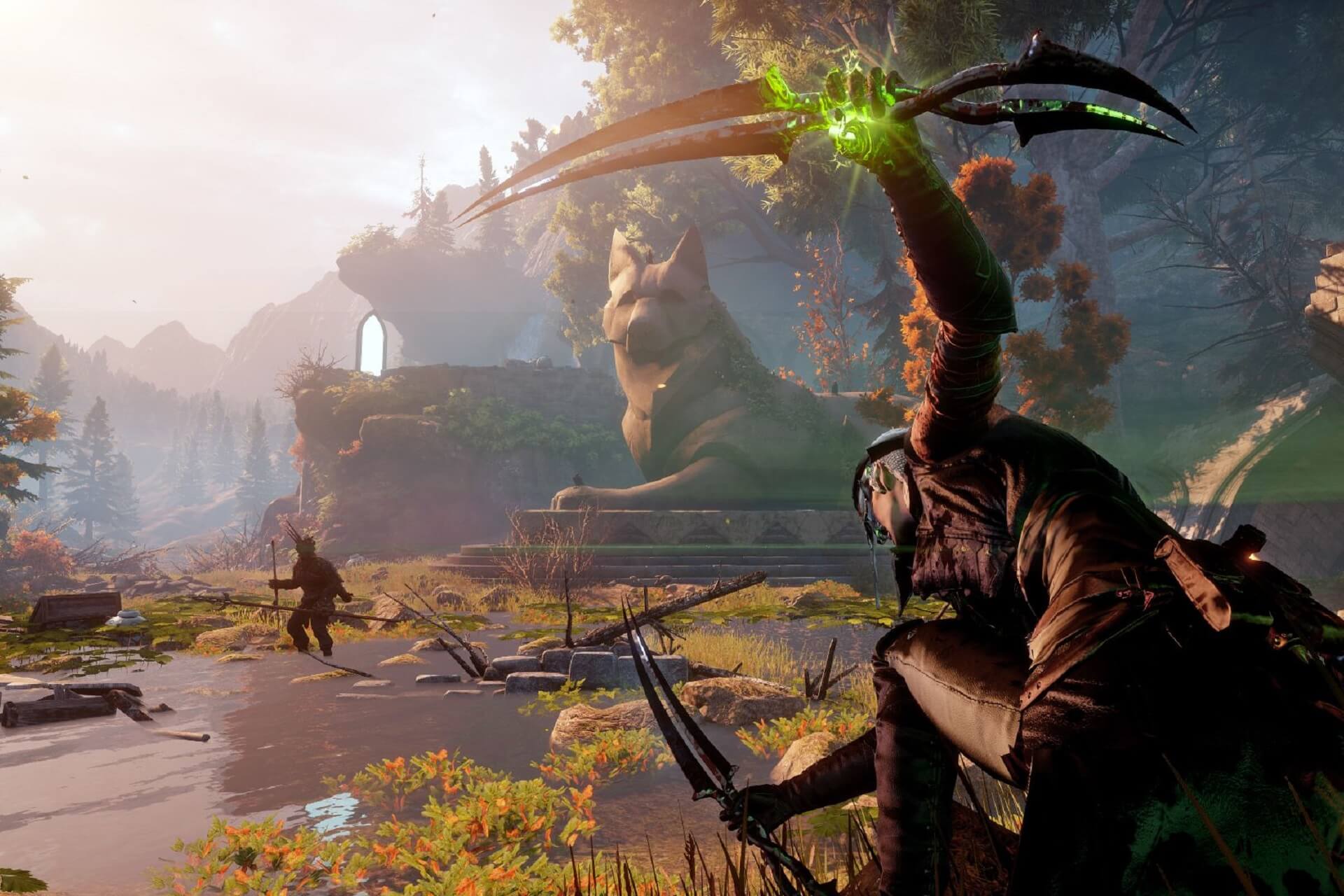

















![7 Best Greeting Card Software for Windows 10/11 [2026]](https://windowsreport.com/wp-content/uploads/2020/12/6-best-greeting-card-maker-software-Templates-Included.jpg)
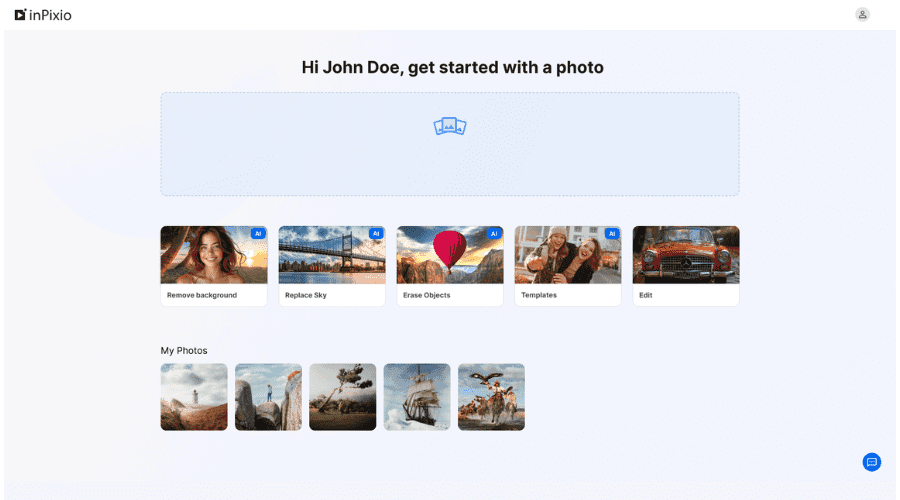
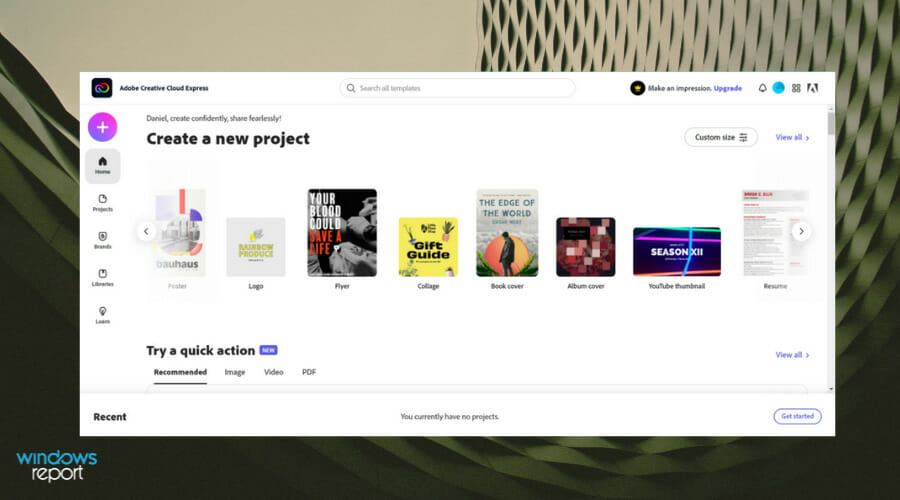
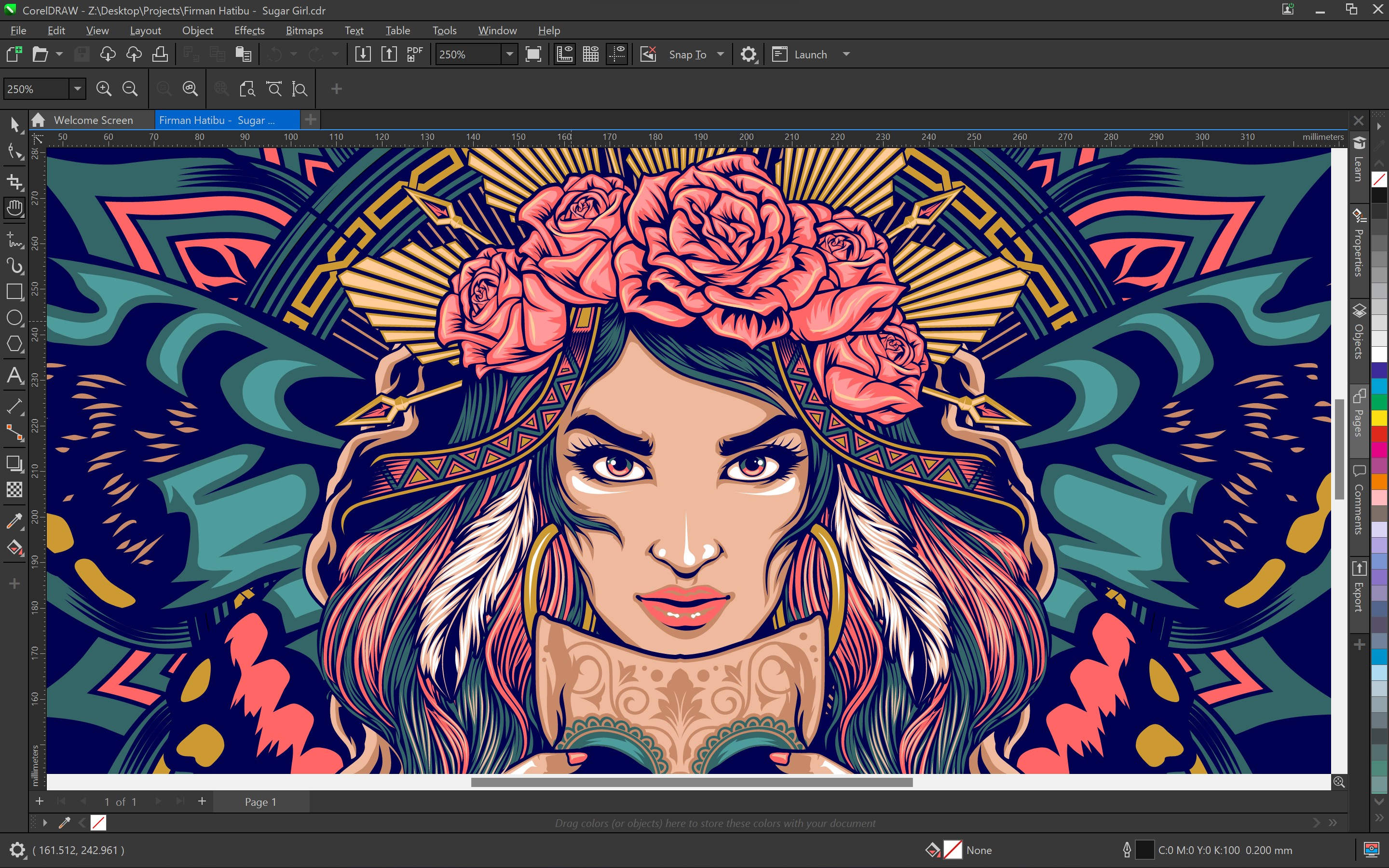
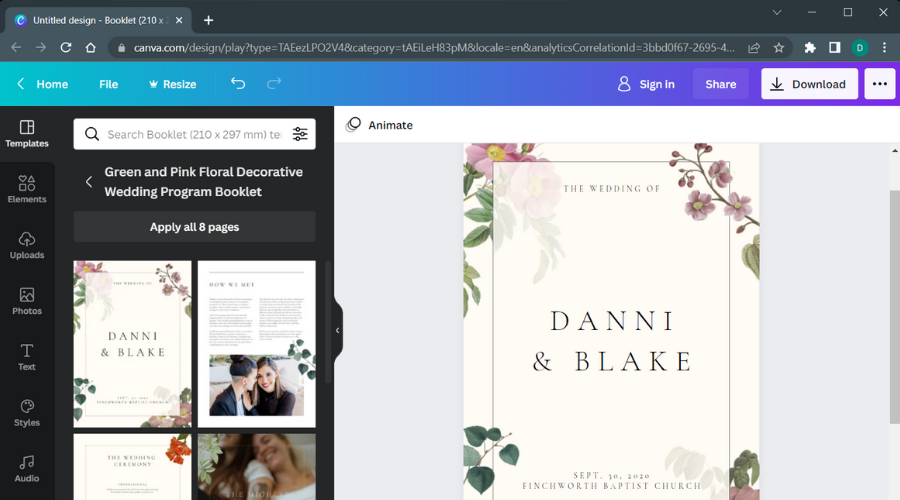



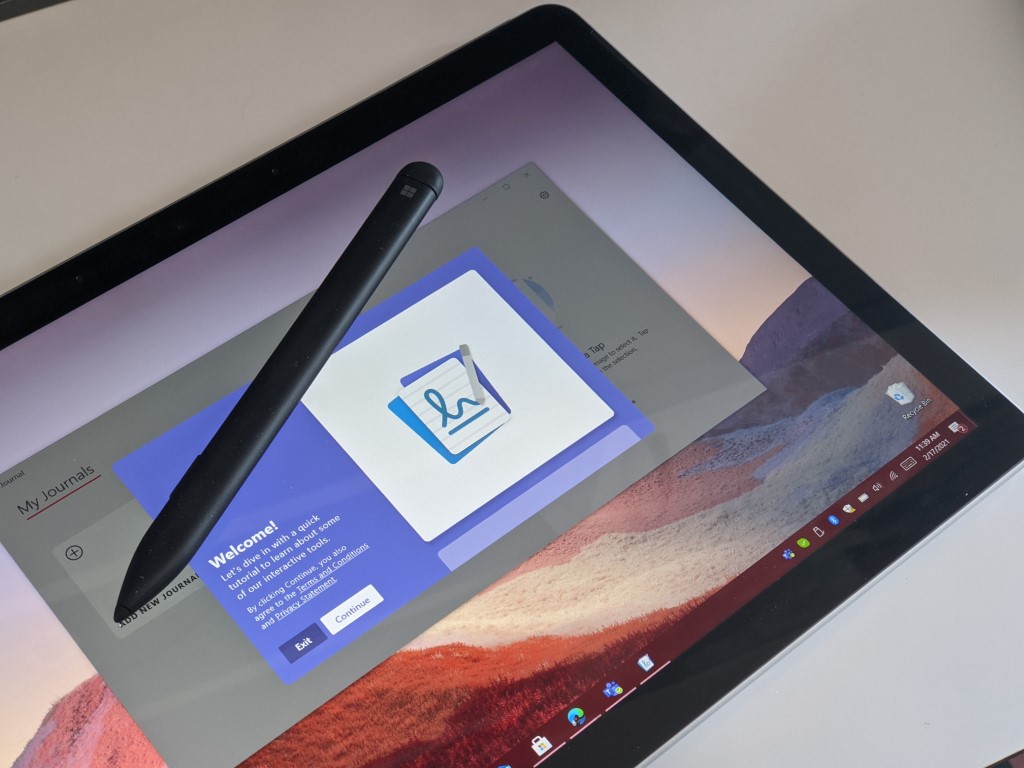
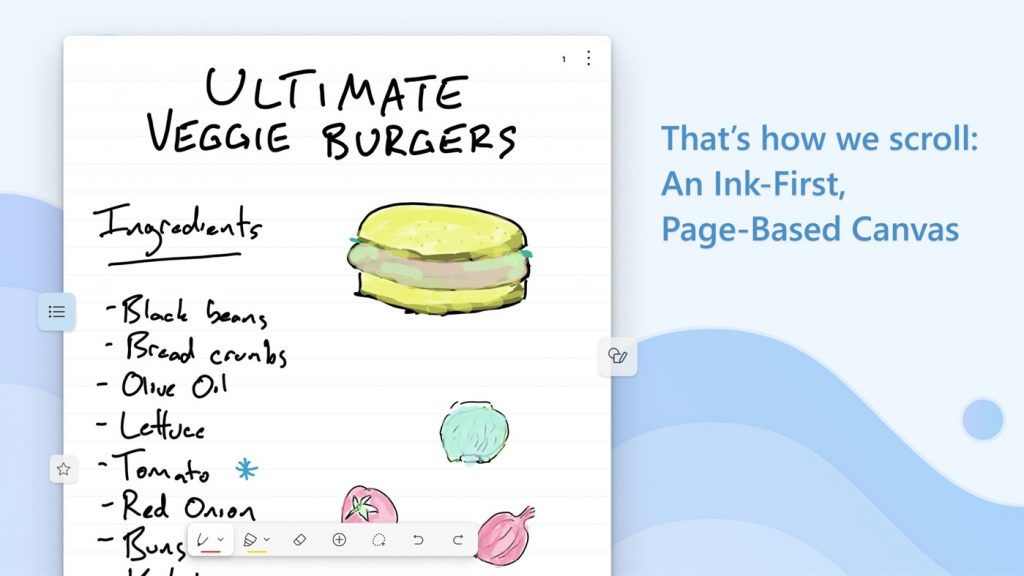
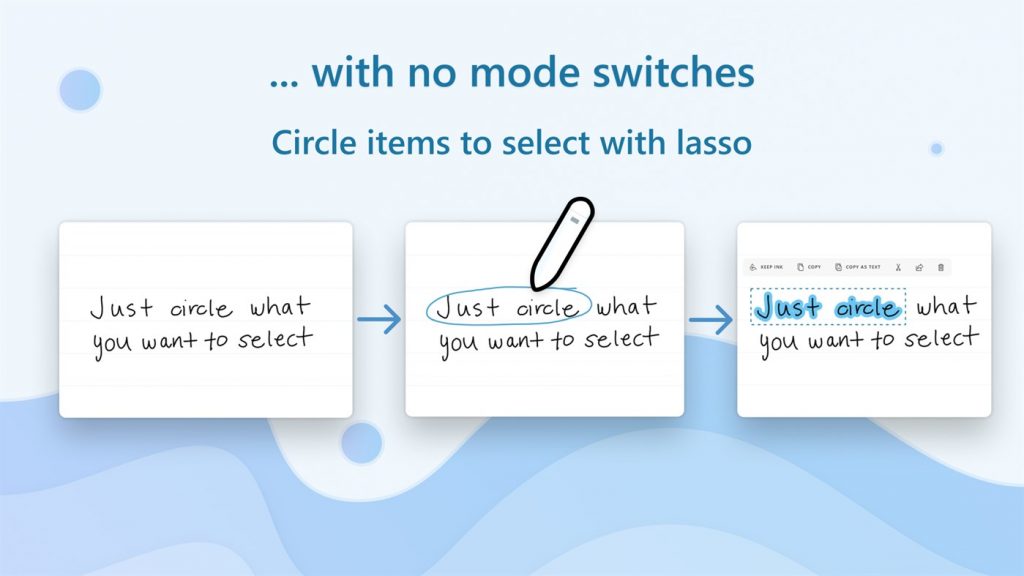
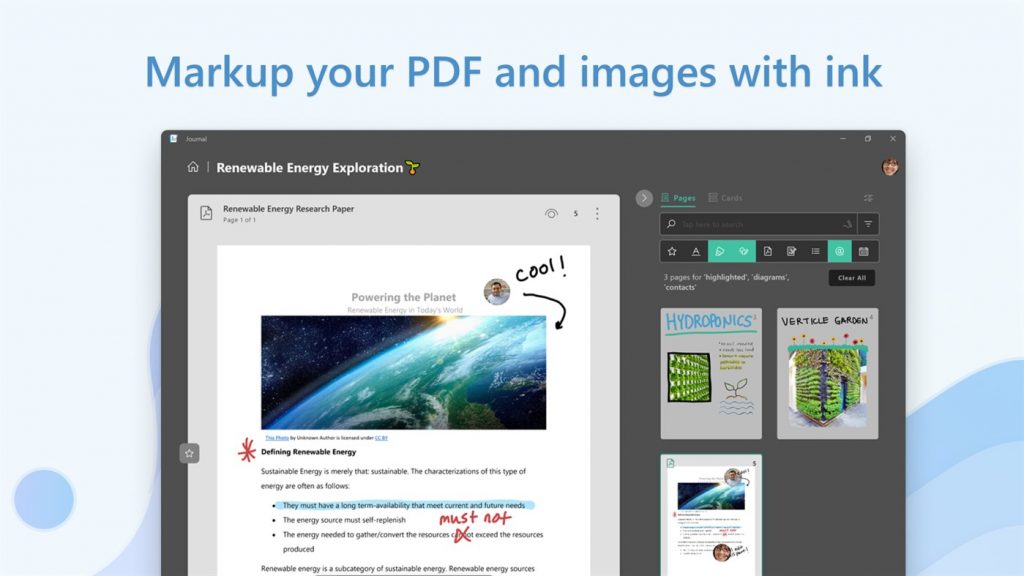

![[Updated] Microsoft is investigating Teams outage affecting chat messages and Live events](https://windowsreport.com/wp-content/uploads/2024/04/microsoft-teams-11.jpg)
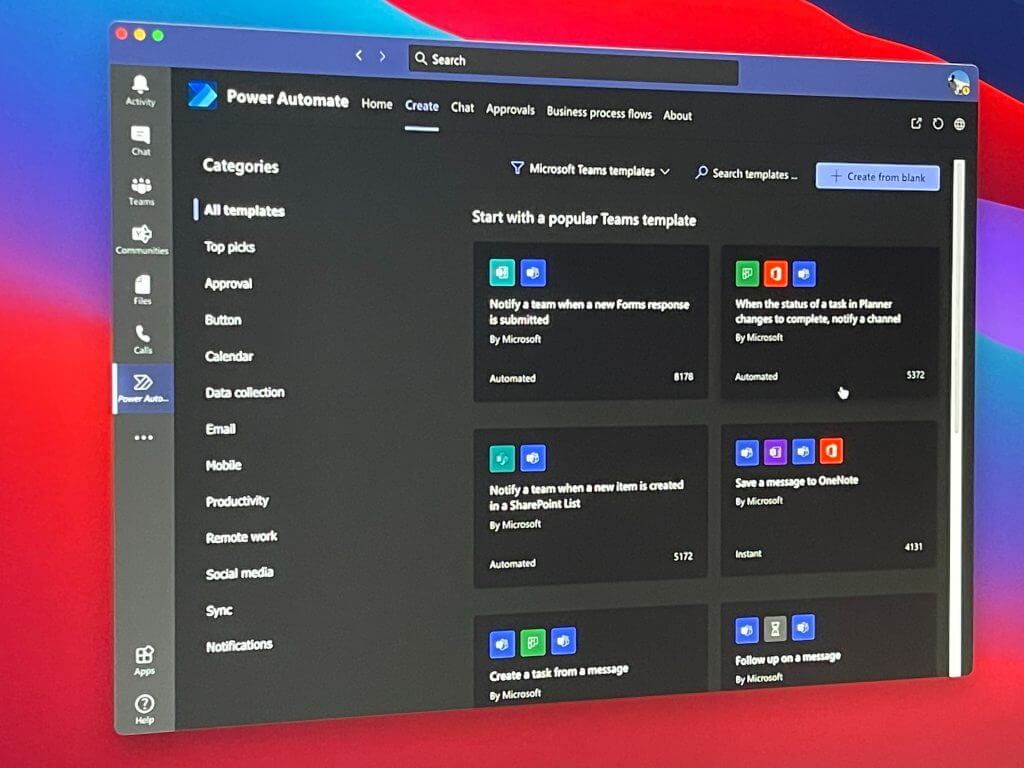










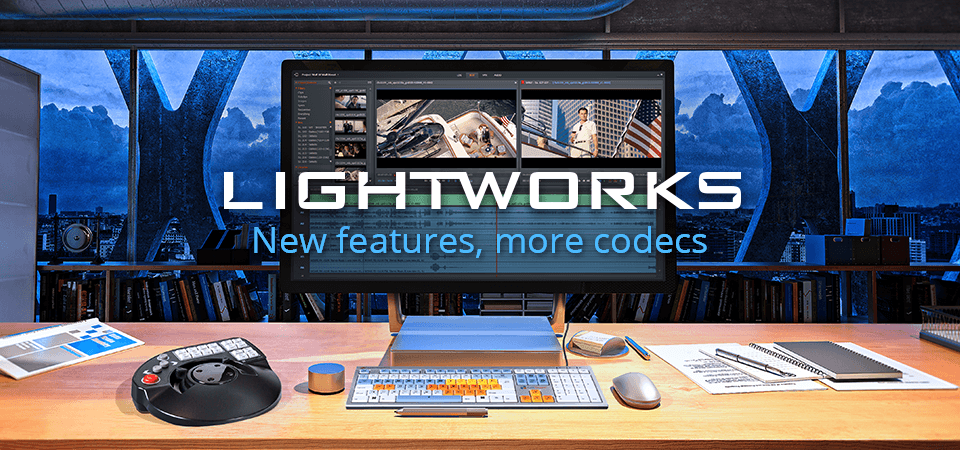
![GTA 3 not working on Windows 10/11 / won’t launch [Fixed]](https://windowsreport.com/wp-content/uploads/2020/12/gta13-1.jpg)




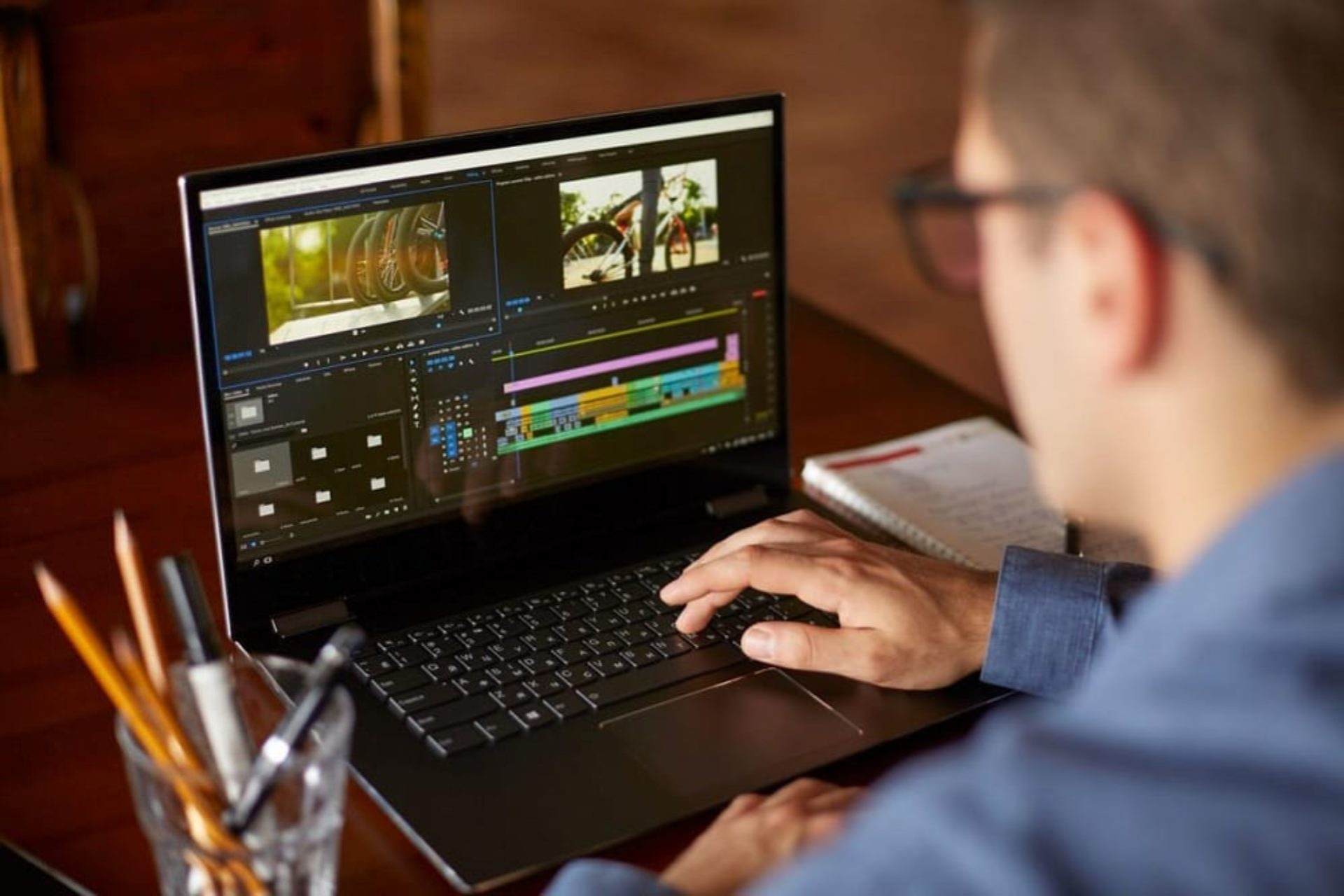

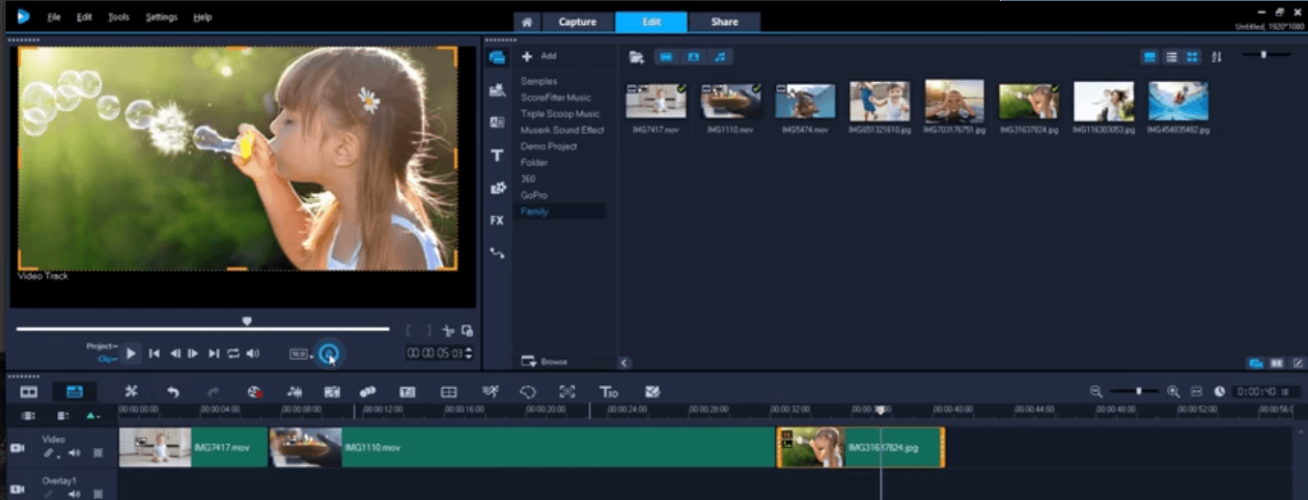


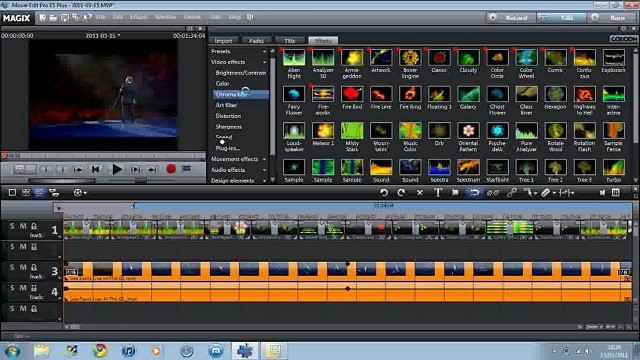
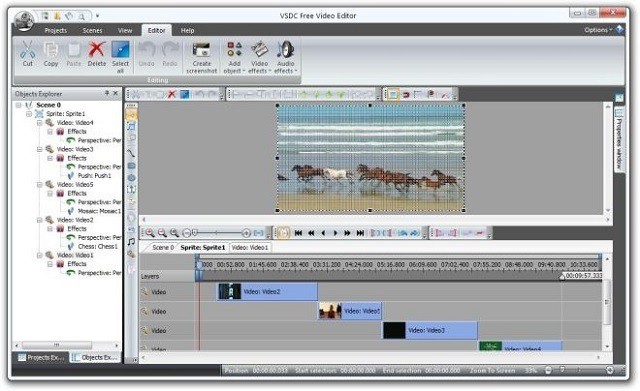
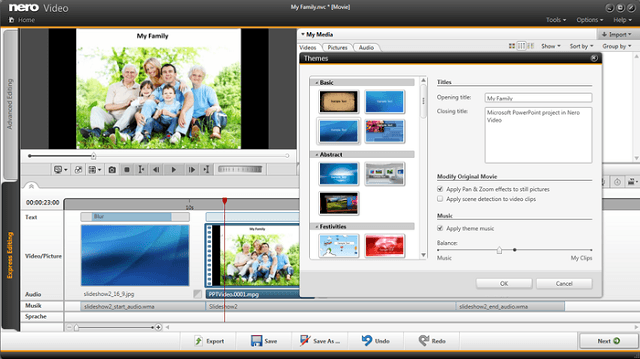
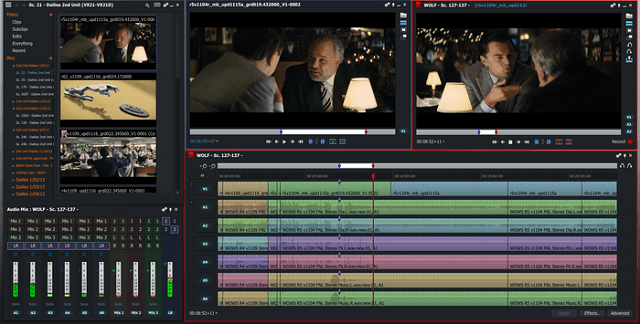
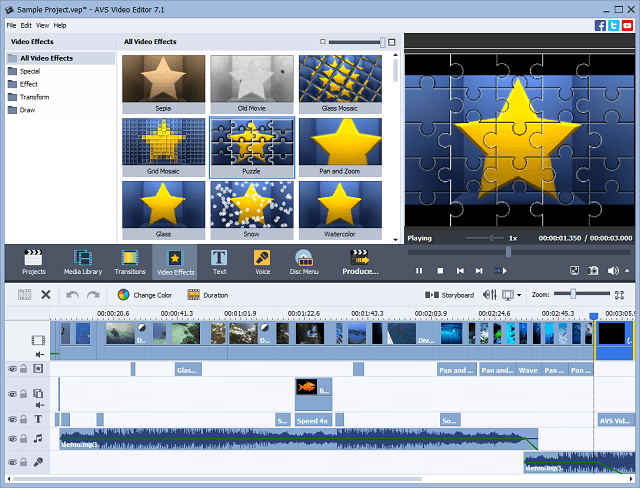
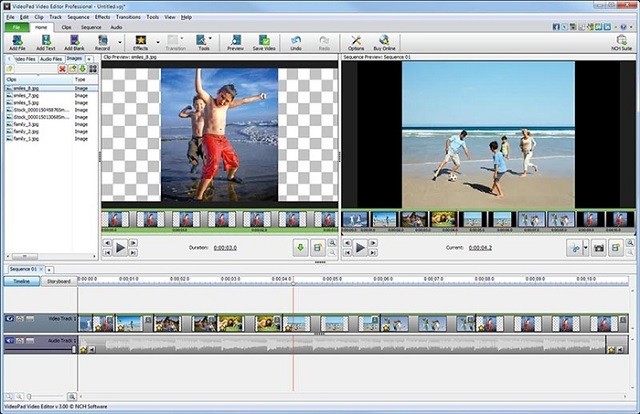
![Doodle Drawing Software for Windows [2026 Guide]](https://windowsreport.com/wp-content/uploads/2020/12/My-Post-11.jpg)



![Avchrome.dll is Missing [Error Fixed]](https://windowsreport.com/wp-content/uploads/2021/02/Backgroundcontainer-dll-not-found-error-in-Windows.jpg)


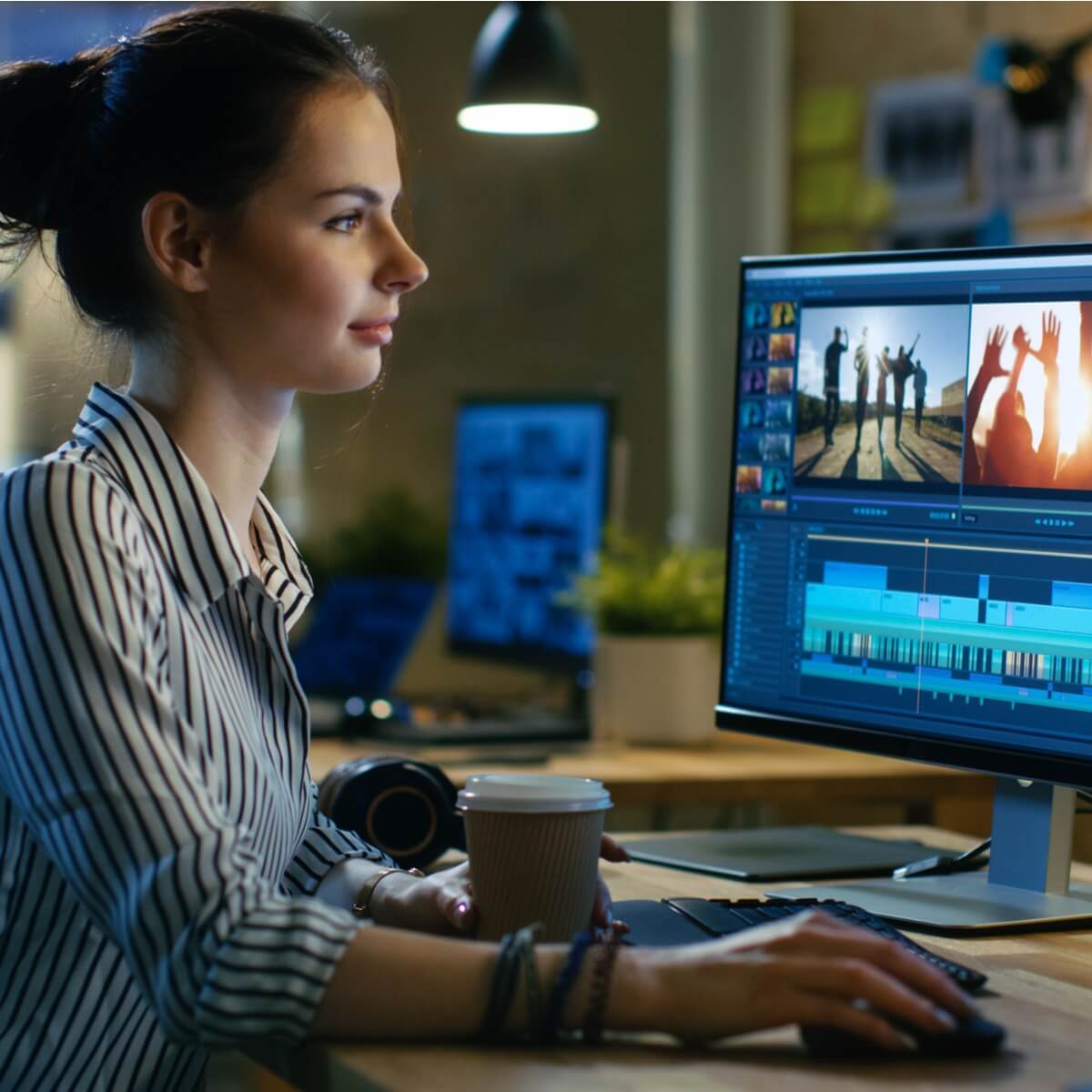
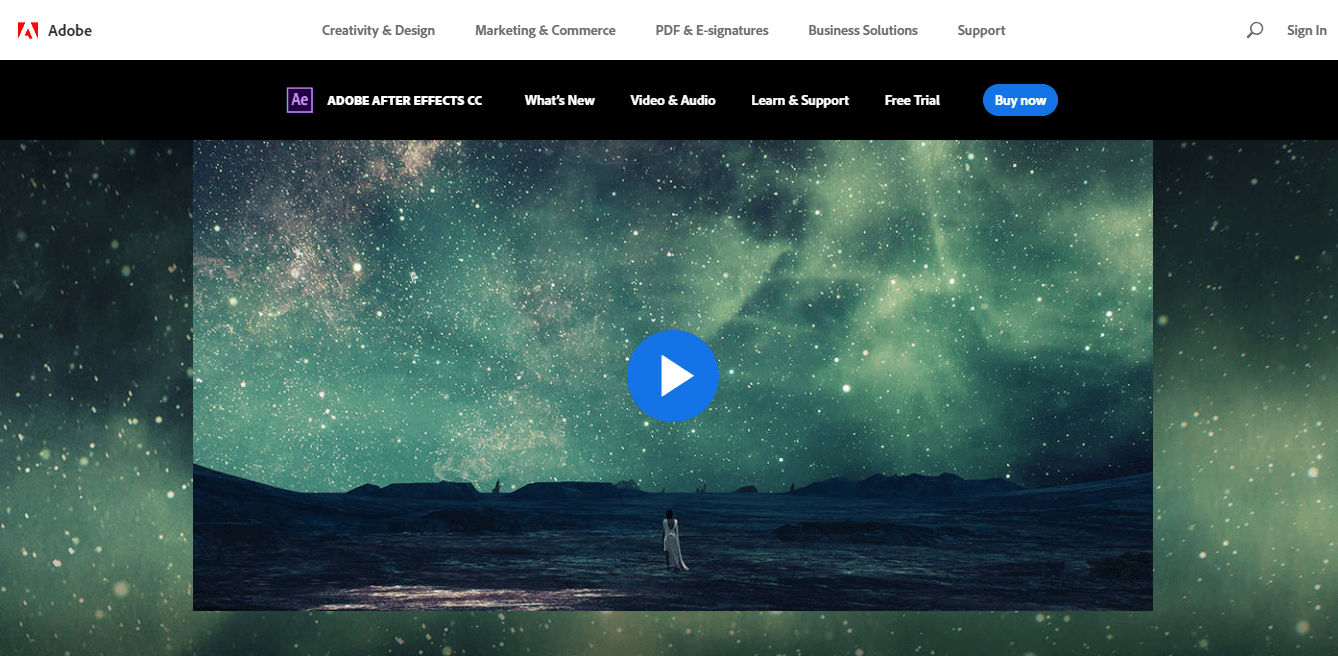




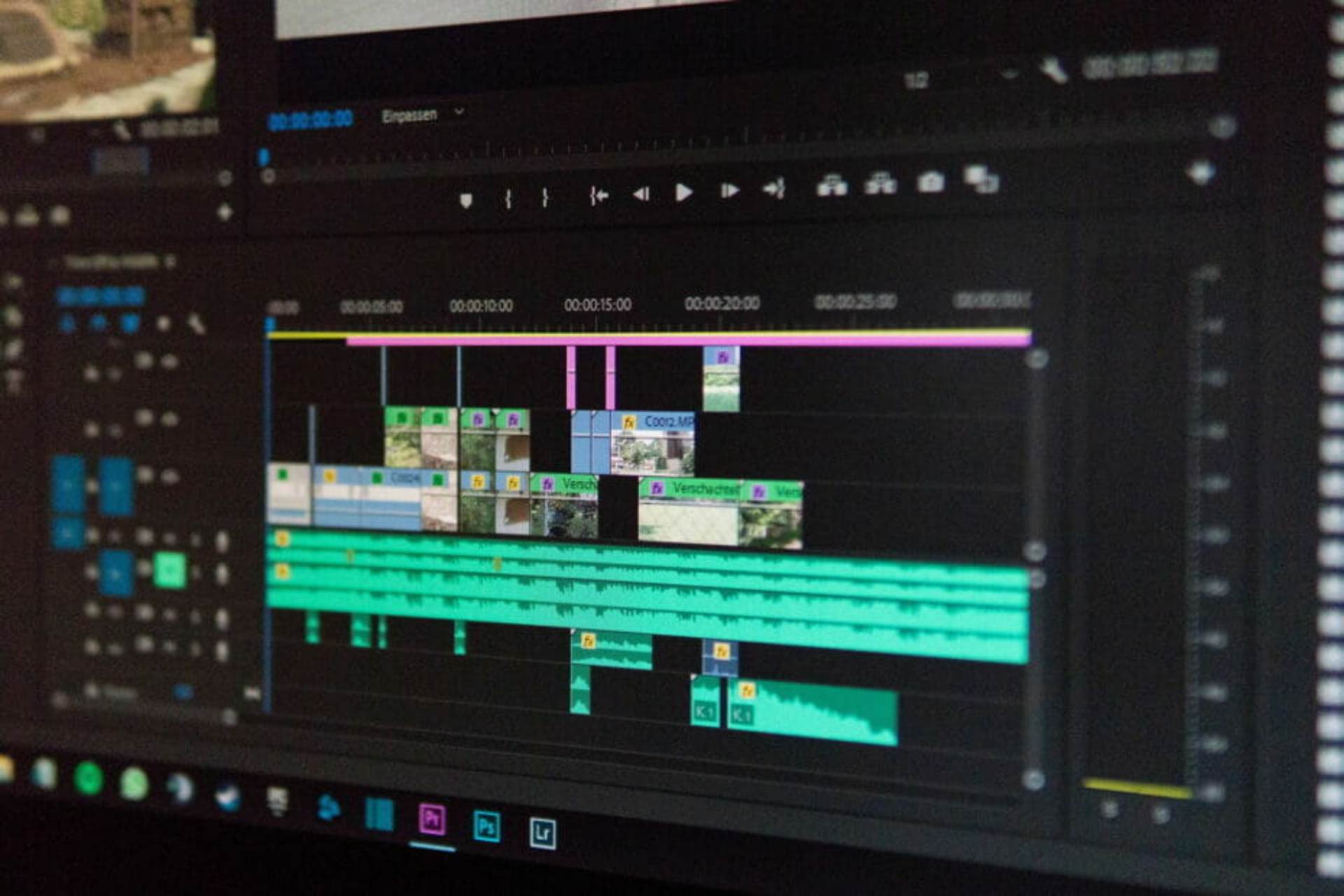




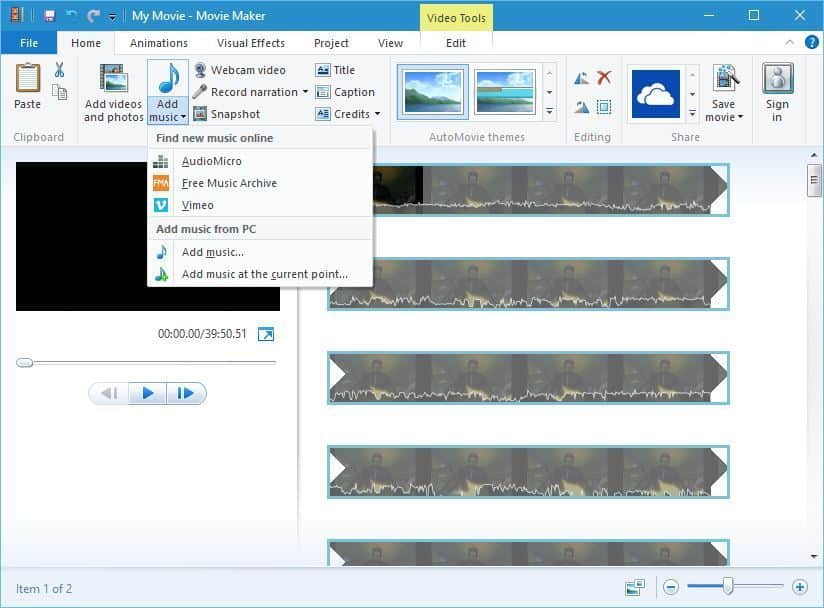
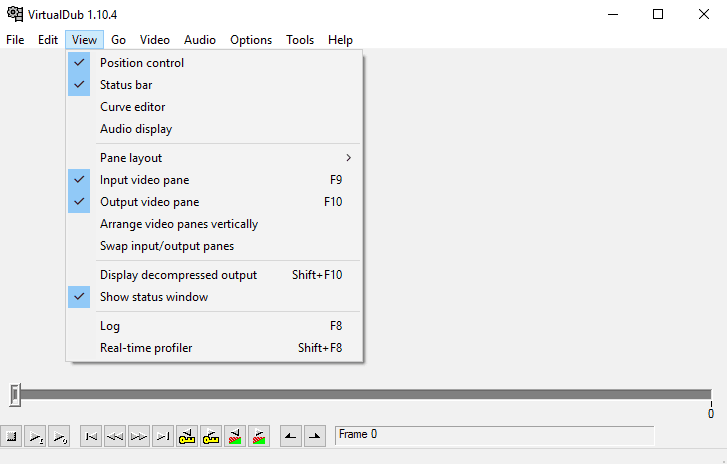
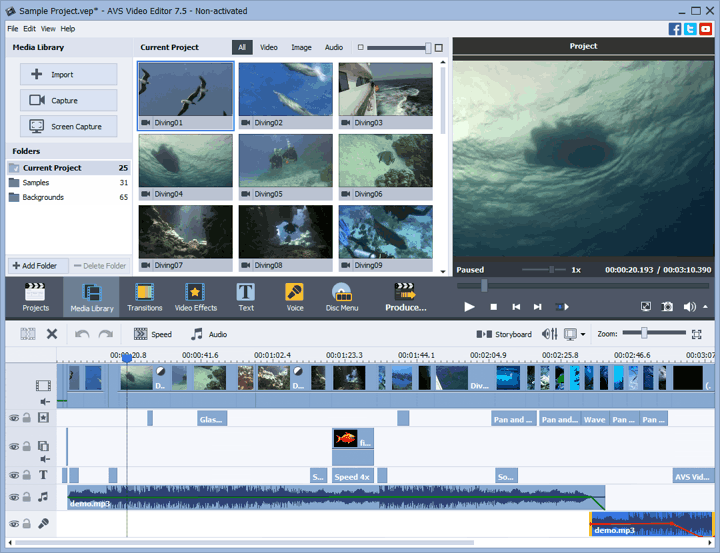

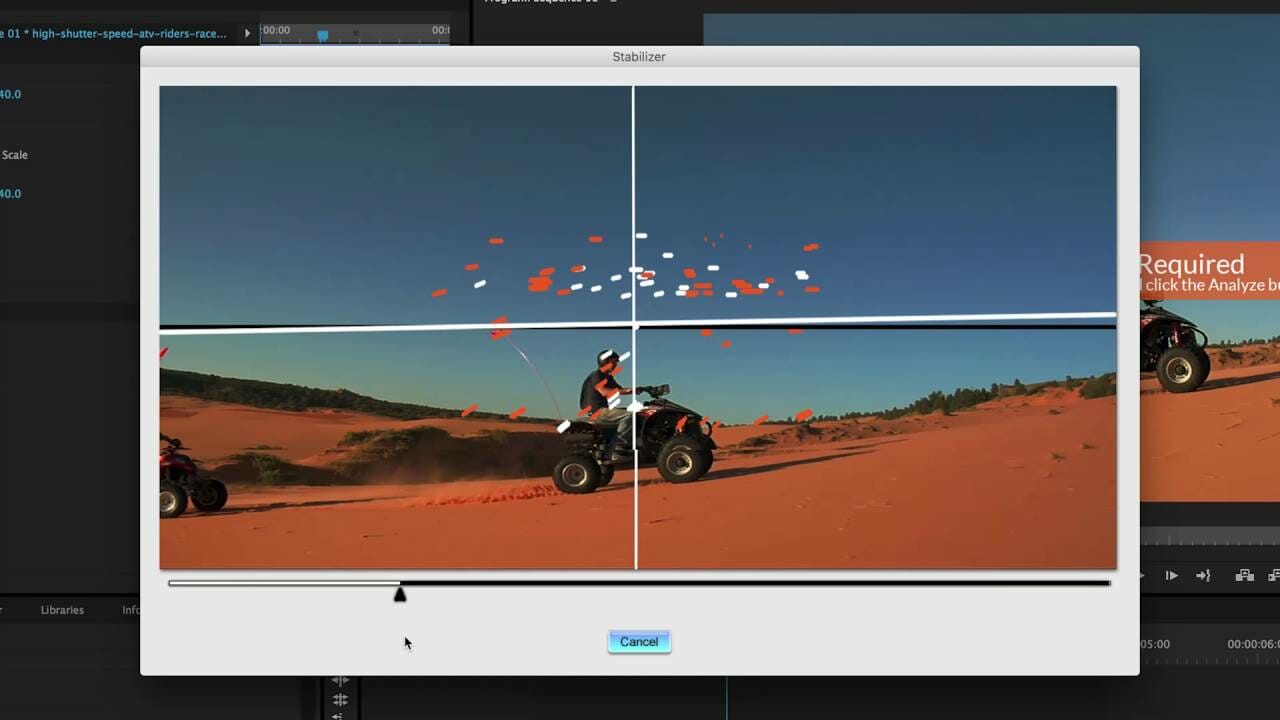






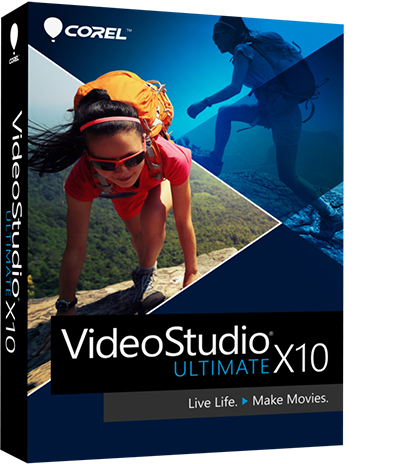



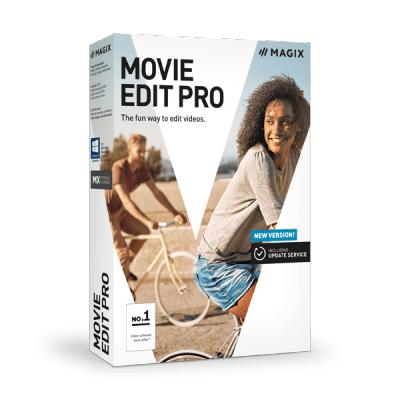

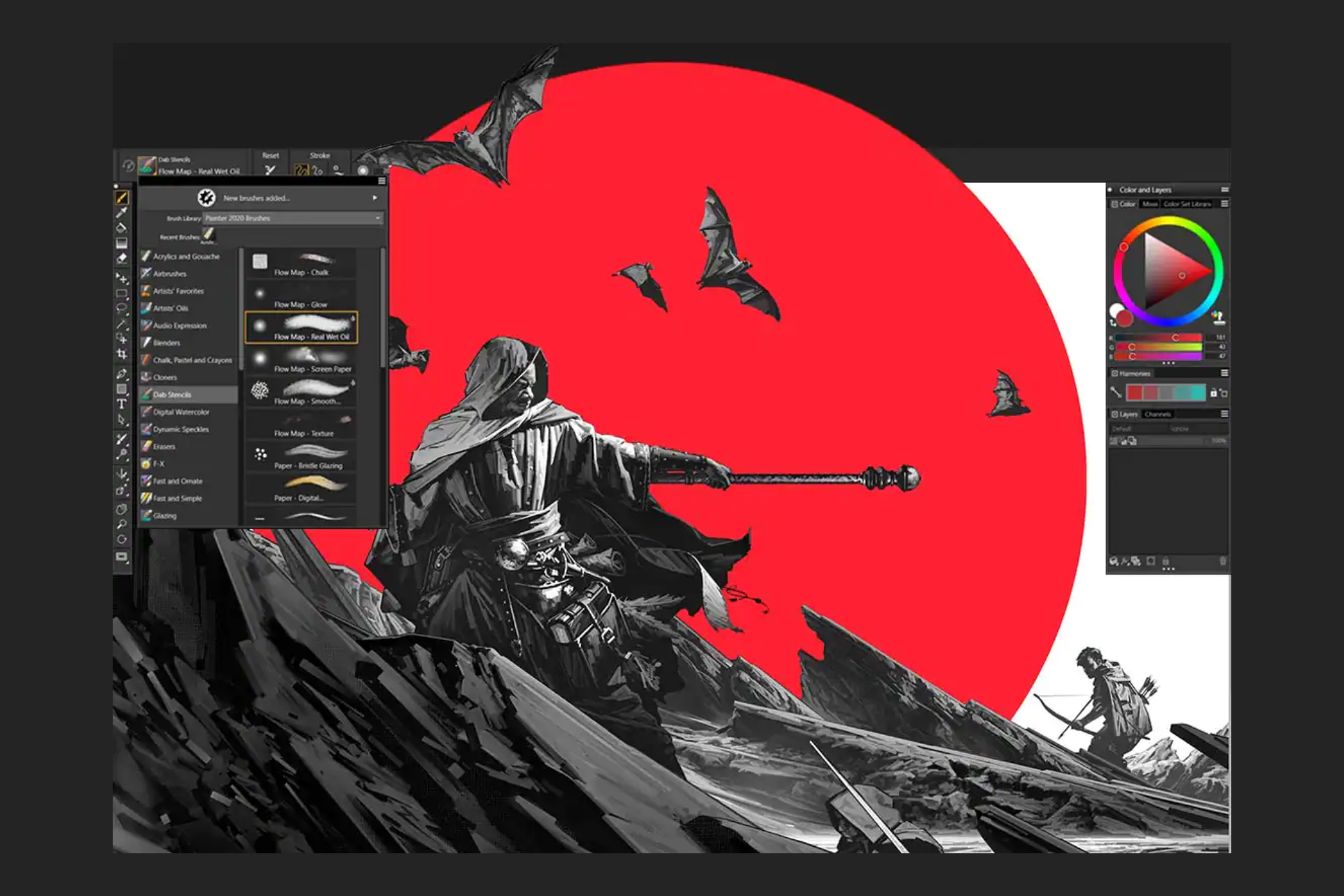


![Best Youtube Intro Maker [We Tested 15 in 2026]](https://windowsreport.com/wp-content/uploads/2020/04/YouTube2-930x620-1.jpg)





![How to Flip Video Horizontally in Windows 10 [Best Tools]](https://windowsreport.com/wp-content/uploads/2020/12/fix-upside-down-videos.jpg)







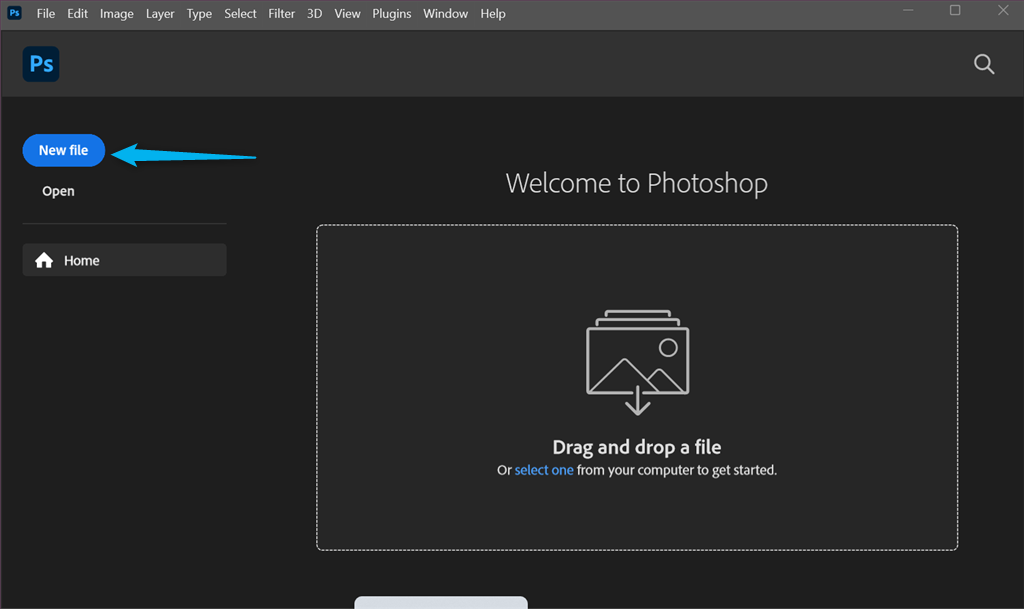








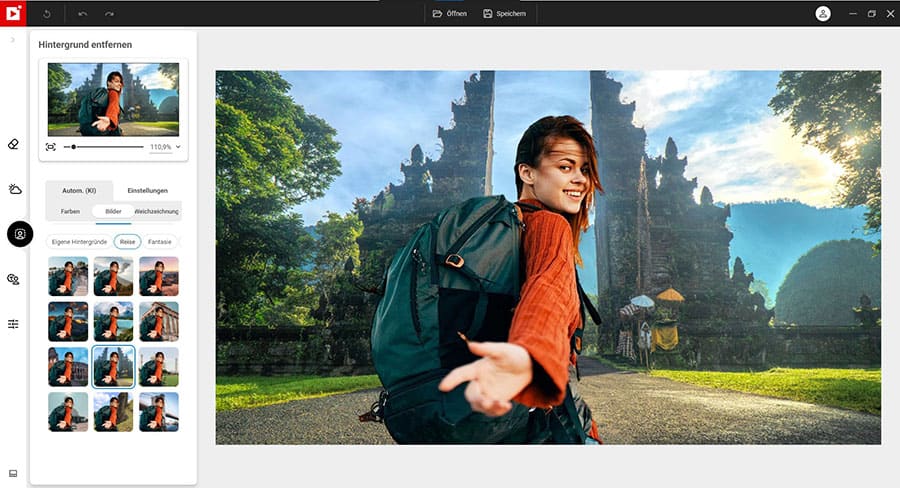


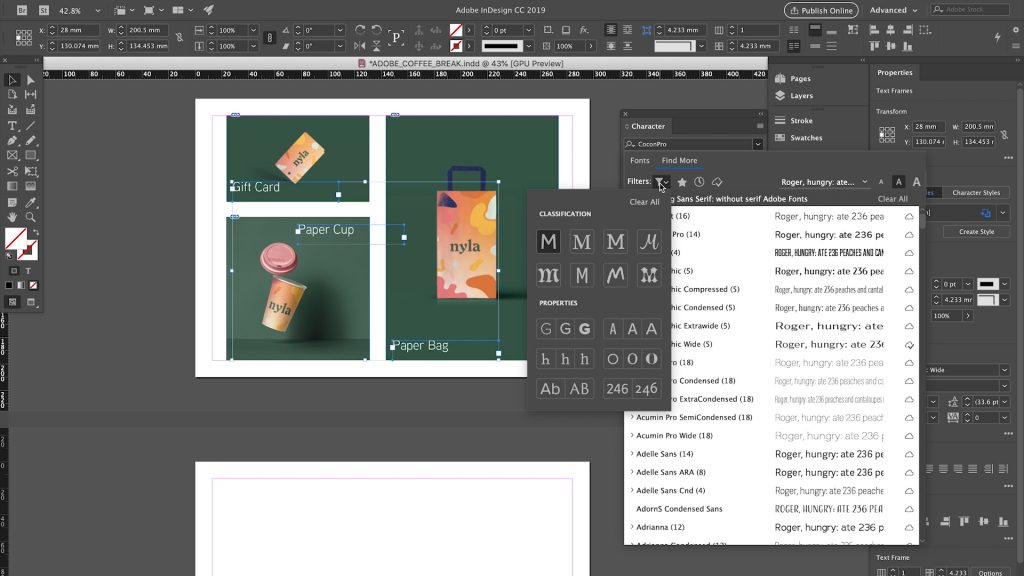
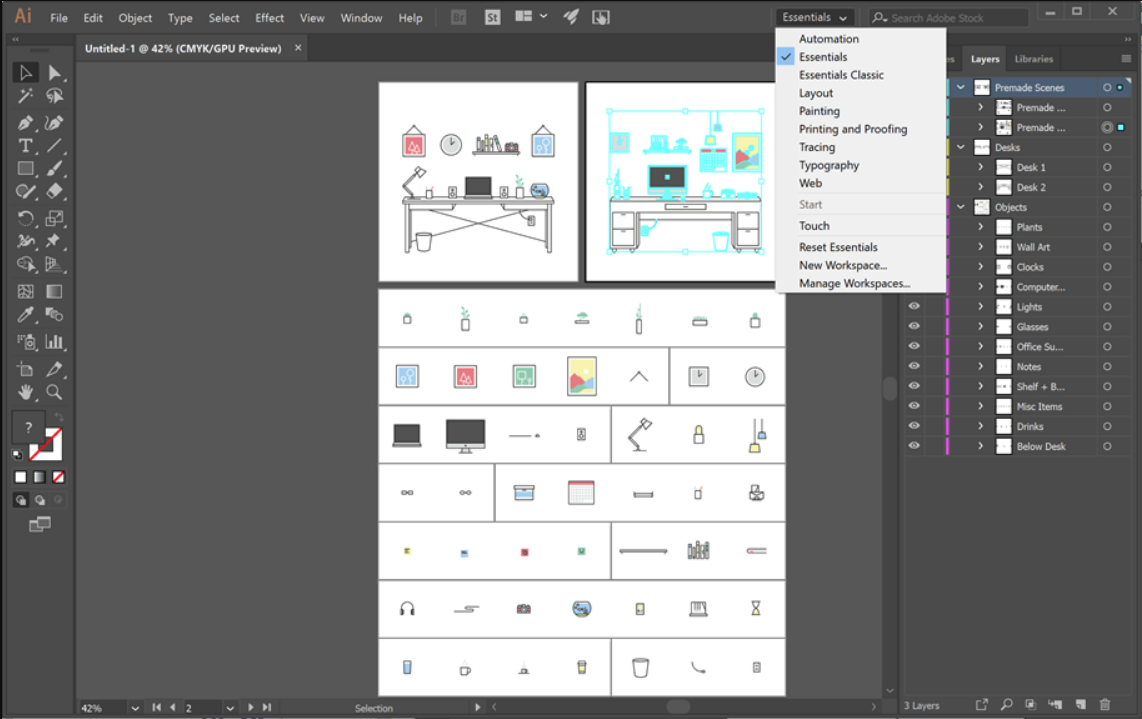

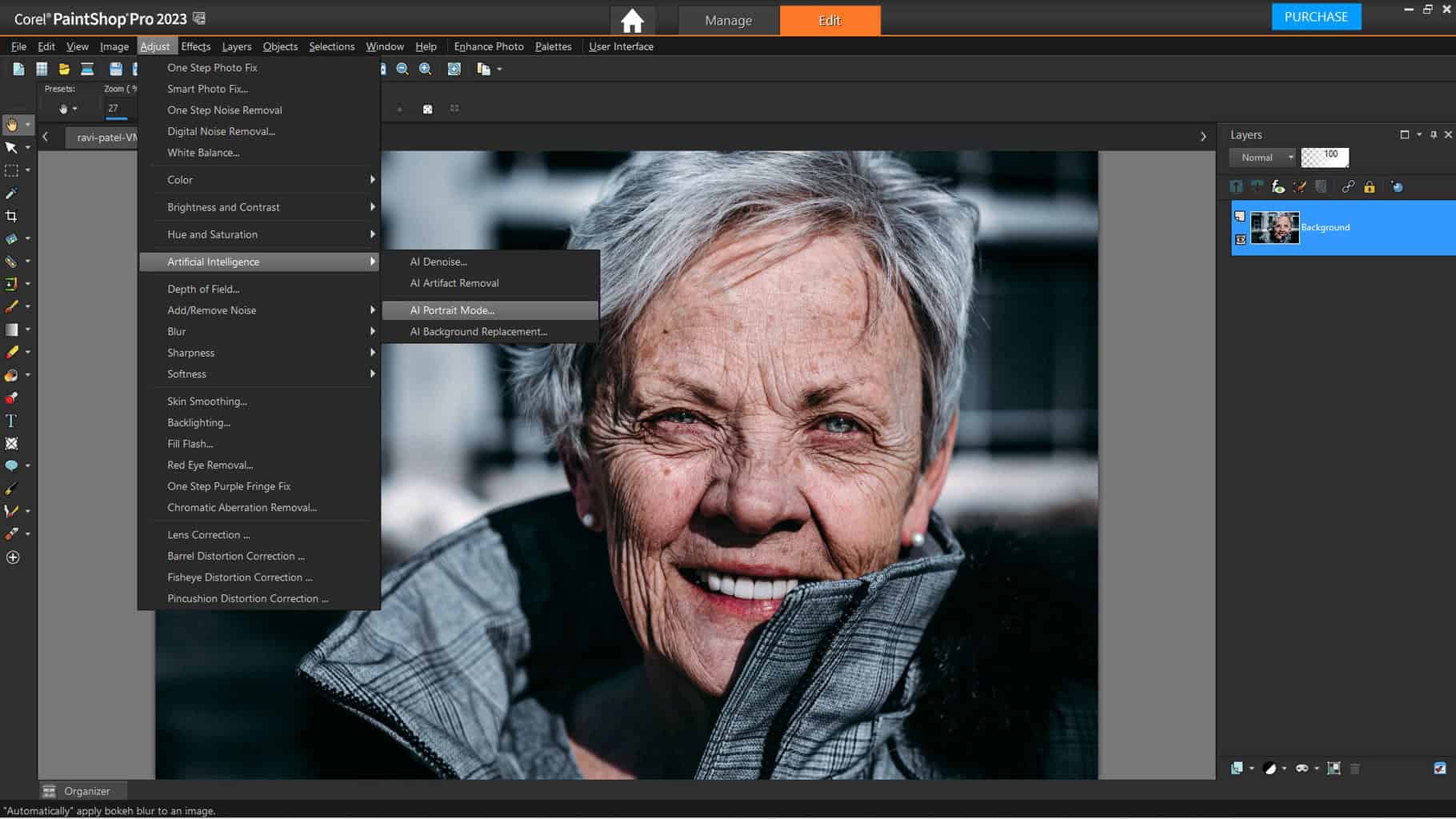

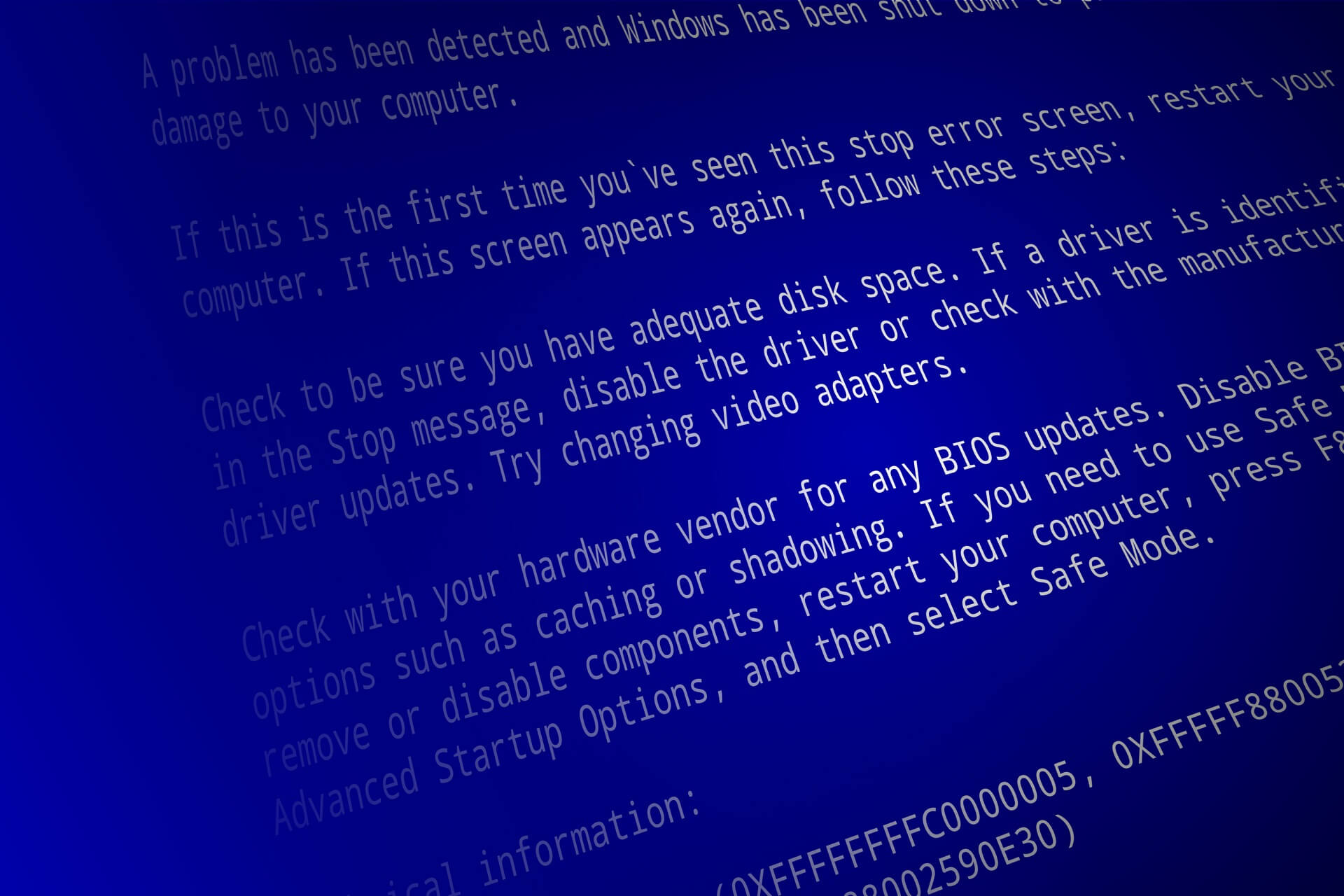

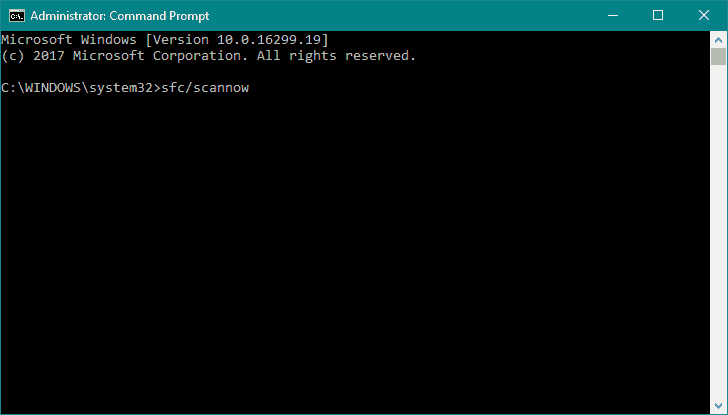

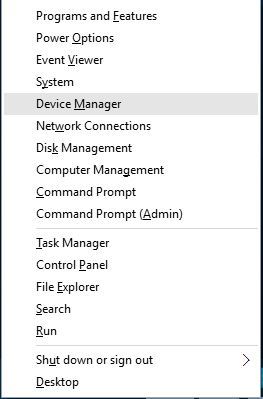
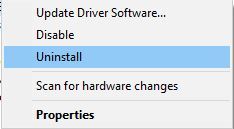
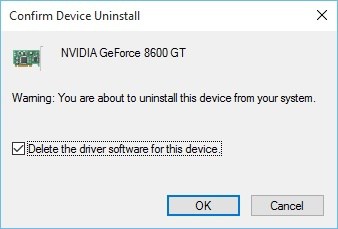
![5 best laptop stress test software [Safety Guide]](https://windowsreport.com/wp-content/uploads/2021/02/Best-laptop-stress-test-software.jpg)


![6 Best Software for Meme Making [2026 List]](https://windowsreport.com/wp-content/uploads/2020/04/meme-maker-app.jpg)
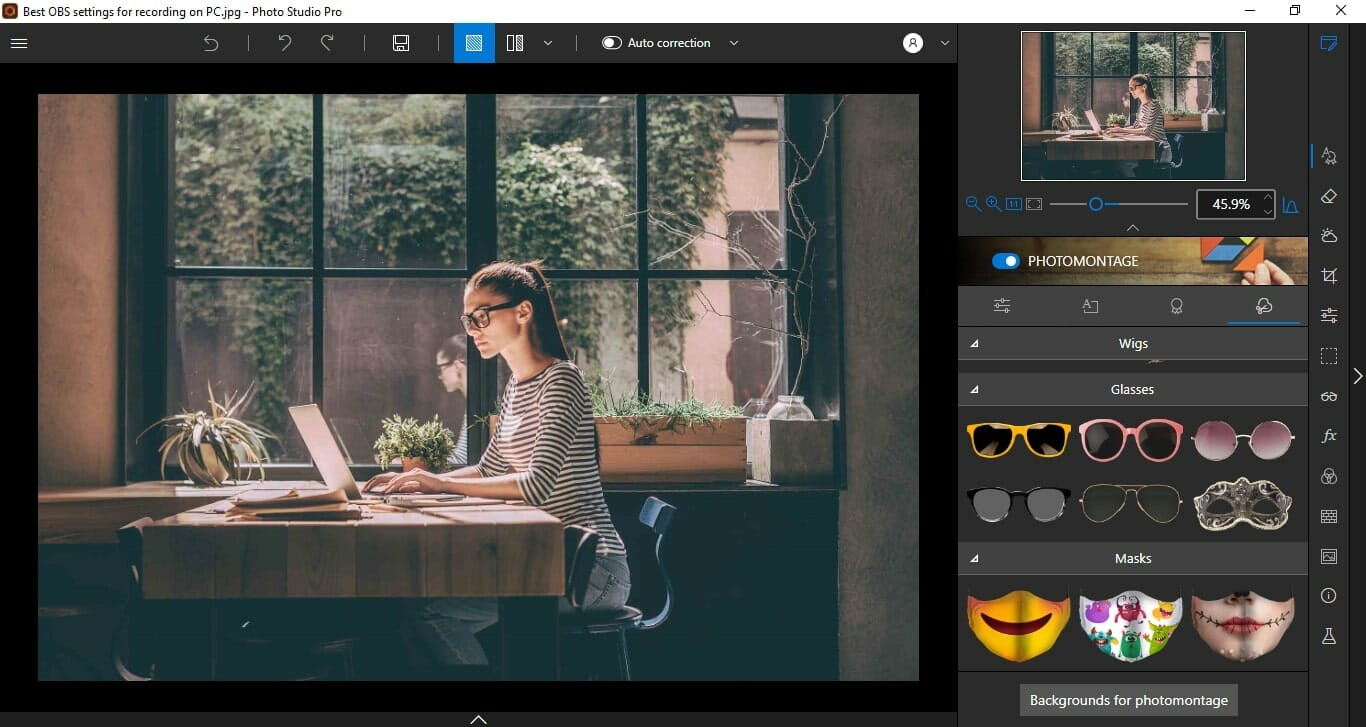
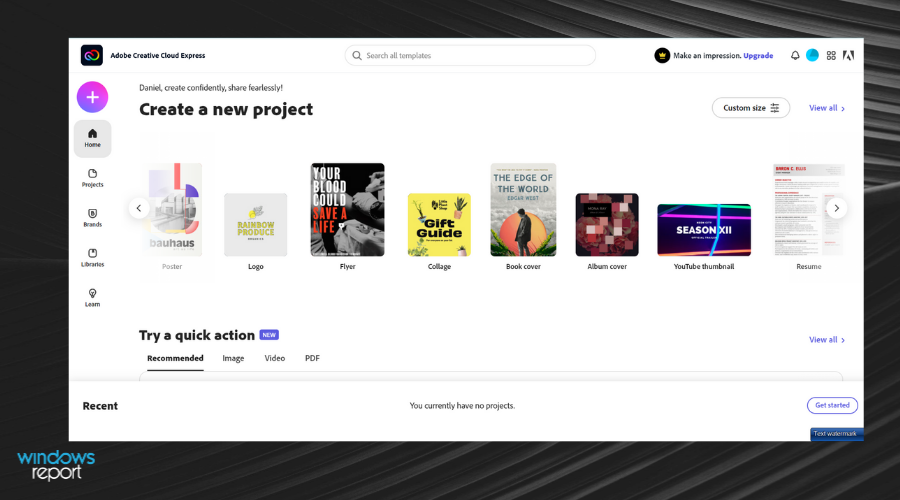
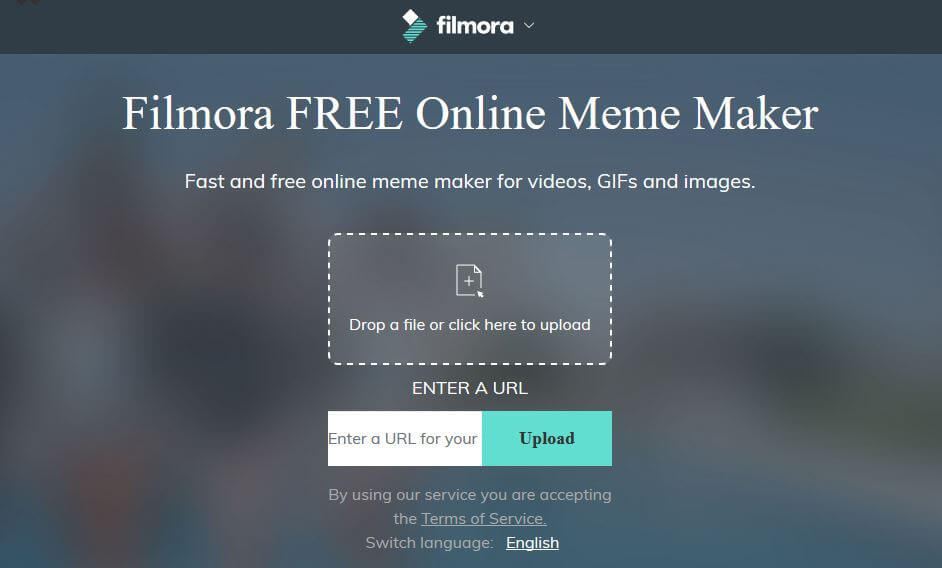

![6 Best Drawing Software for Huion Tablet [2026 Guide]](https://windowsreport.com/wp-content/uploads/2021/02/huion.jpg)
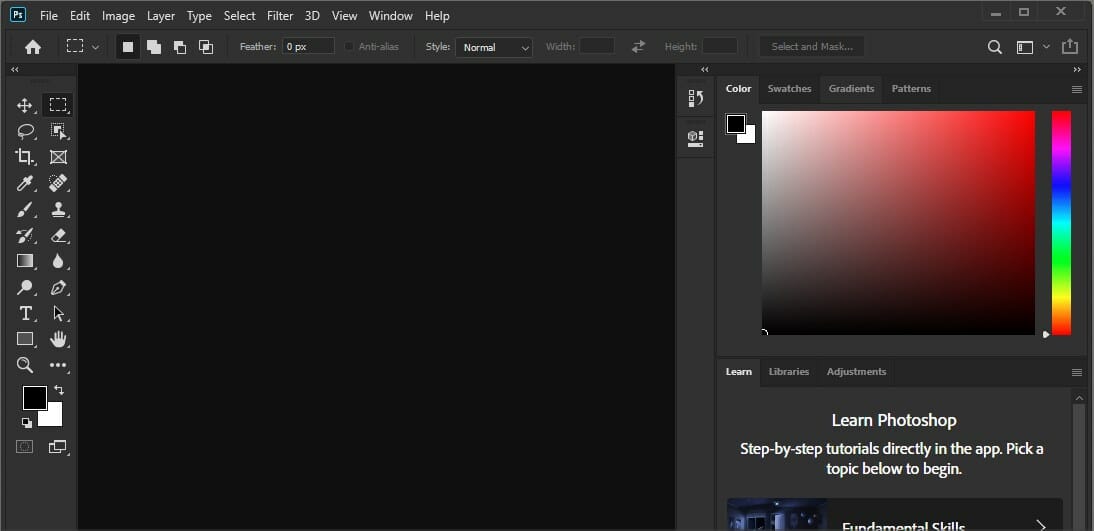
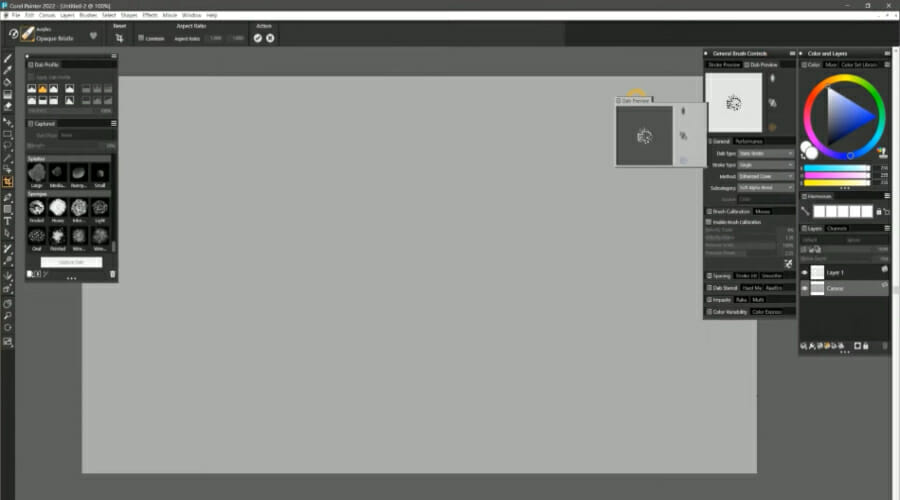
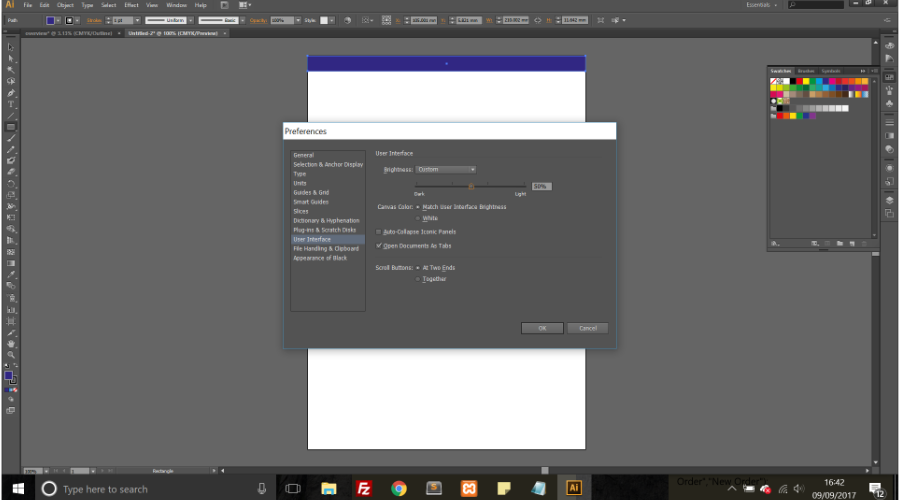
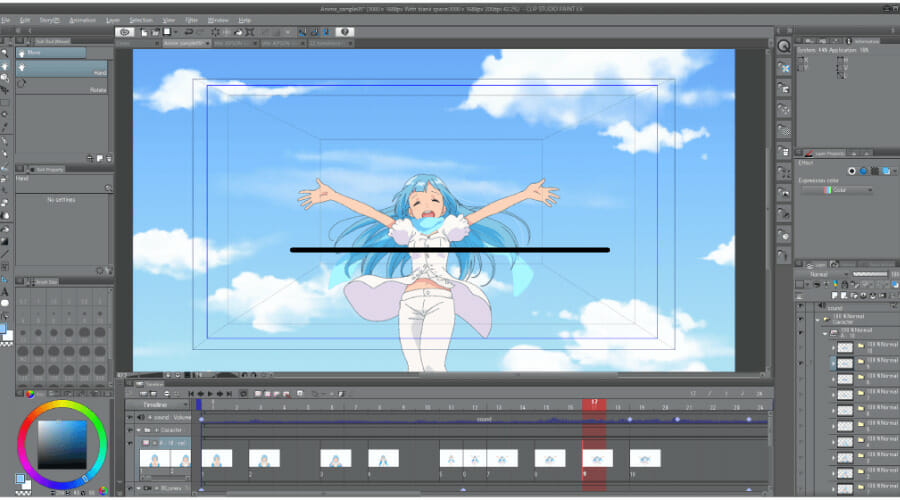

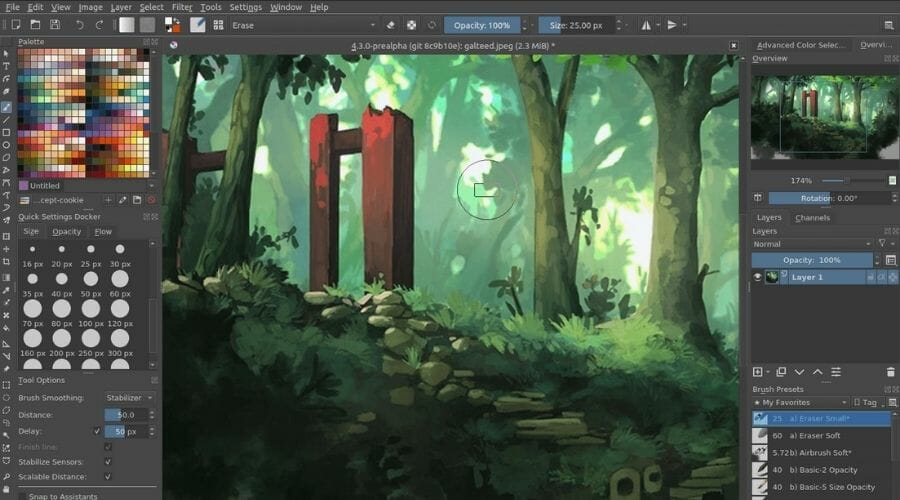
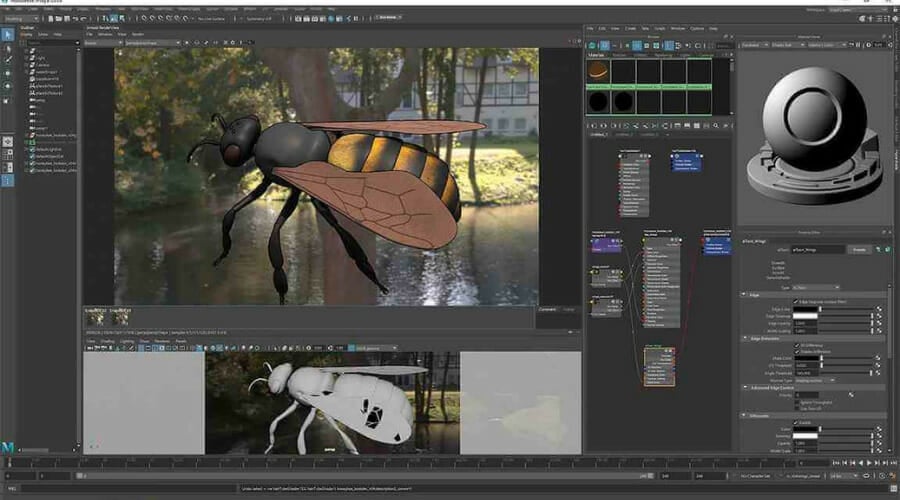




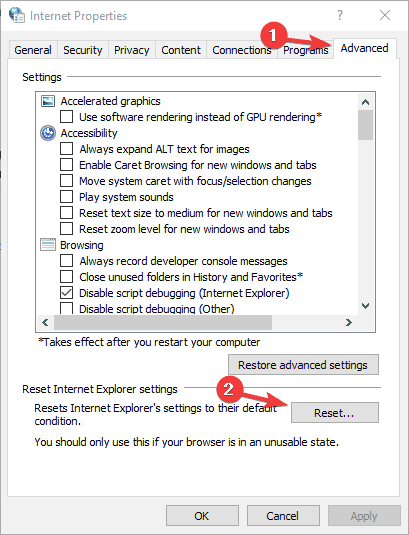
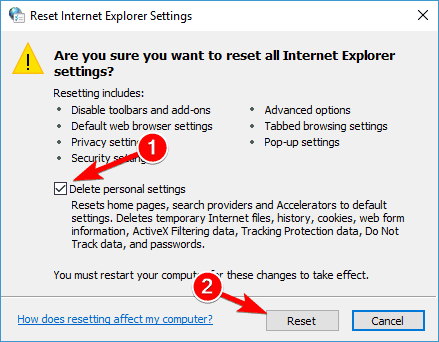


![A Serious Error has Occurred on PS4 [Solved]](https://windowsreport.com/wp-content/uploads/2020/07/playstation2.jpg)