Microsoft has begun rolling out a new Shared Audio (preview) feature with Windows 11 Insider Preview Build 26220.7051 (KB5067115) for Dev and Beta Channels. The update adds support for Bluetooth LE Audio broadcast, allowing users to share sound with two wireless devices at once.
Built for Copilot+ PCs, Shared Audio enables one system to transmit the same audio stream to two connected Bluetooth accessories simultaneously. Microsoft says the feature can make study sessions, flights, or movie nights more convenient. It allows two users listen together without splitting earbuds.
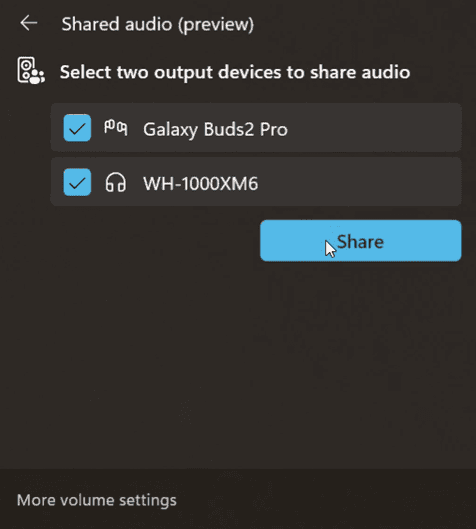
You can try it out by pairing two Bluetooth LE Audio–compatible accessories and use the new “Shared audio (preview)” tile in Quick Settings. You can stop sharing anytime with a single click.
Image: Microsoft
Currently, the feature is available on Surface Laptop (13.8” and 15”) and Surface Pro models powered by Snapdragon X chips, with broader support coming to Samsung Galaxy Book5 and Book4 Edge devices soon. Here’s the full list of devices for which the support will be coming soon:
Samsung Galaxy Book5 360 | Intel Core Ultra Series 200
Samsung Galaxy Book5 Pro | Intel Core Ultra Series 200
Samsung Galaxy Book5 Pro 360 | Intel Core Ultra Series 200
Samsung Galaxy Book4 Edge | Qualcomm Snapdragon X
Surface Laptop, 13-inch | Qualcomm Snapdragon X
Surface Laptop for Business, 13-inch | Qualcomm Snapdragon X
Surface Pro, 12-inch | Qualcomm Snapdragon X
Surface Pro for Business, 12-inch | Qualcomm Snapdragon X
Shared Audio works with popular LE Audio headsets, including Galaxy Buds3, Sony WH-1000XM6, and ReSound hearing aids. The preview rollout continues over the coming weeks, with more Copilot+ PCs expected to join as driver updates land through Windows Update.
As the company notes, this will significantly improve app compatibility and performance. This upgrade means many desktop apps that previously struggled on Arm-based PCs.
So, if you are among those who have the Surface Pro X or Lenovo ThinkPad X13s, more 64-bit x86 (x64) apps should now run more smoothly by default. If you wish to read more about how emulation work on Arm, this guide is best for you. Give it a read.
Developers can also toggle emulation behavior for 32-bit apps via the new Emulation Settings in Properties. As with every new feature, Microsoft encourages Insiders to report performance issues or compatibility bugs through Feedback Hub > Apps > [Specific App Name].
Microsoft has released Windows 11 Insider Preview update KB5067115, which bumps system on version 25H2 to Build 26220.7051. And this one expands the Full Screen Experience (FSE) to more handheld gaming PCs.
Following its debut on the ASUS ROG Xbox Ally and ROG Ally X, the new preview now extends to MSI Claw models. Microsoft says that additional OEMs expected to follow in the coming months.
For the uninitiated, the Full Screen Experience (FSE) is a console-style interface built around the Xbox PC app. It’s designed for clean, distraction-free navigation on portable gaming devices. Once enabled, users get smoother task switching, improved performance, and reduced background activity. In short, it’s quite handy for handheld play.
Microsoft says this setup “keeps gameplay responsive and uninterrupted,” effectively turning Windows handhelds into mini-Xbox consoles.
How to enable Full Screen Experience
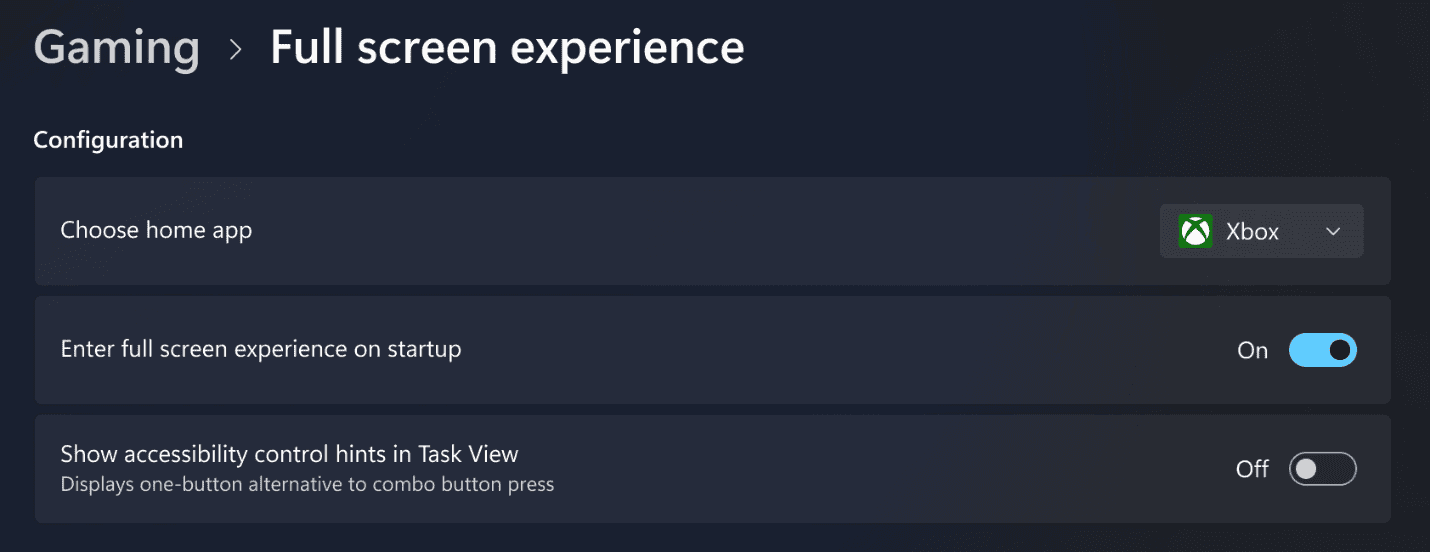
Go to Settings > Gaming > Full screen experience.
Select Xbox as your home app.
You can then launch FSE from Task View or the Game Bar.
To streamline startup, set your device to boot directly into FSE.
Image: Microsoft
The update also comes alongside other notable improvements in KB5067115, including Ask Copilot integration in the Windows taskbar. With Microsoft expanding FSE support, Windows 11 handheld gaming is evolving from a niche experience into a full-fledged, console-like platform.
Microsoft is making Copilot a core part of Windows 11, not just a sidebar experiment. With the latest Insider Preview Build 26220.7051 (Dev and Beta Channels) under KB5067115, the company has introduced a new “Ask Copilot” shortcut right inside the taskbar, bringing AI to your fingertips for everyday use.
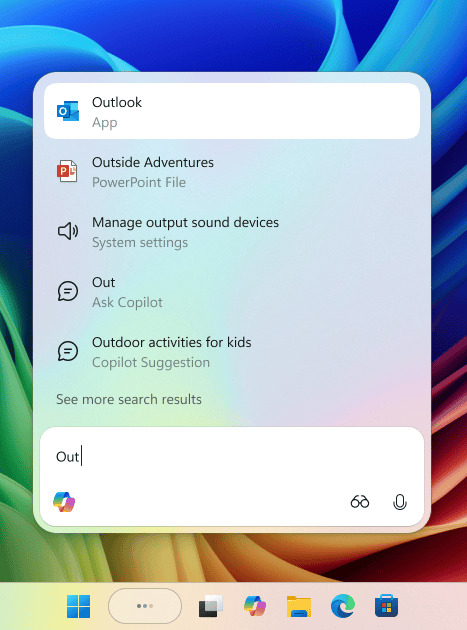
Once enabled, Ask Copilot lets you search for apps, files, settings, or even chat directly with Copilot using voice or text. Think of it as the evolution of Windows Search, but smarter.
When you start typing, results instantly adapt, pulling from your device and Copilot suggestions in one unified view. Microsoft explicitly says that the feature is opt-in. Microsoft notes that the feature “complements the familiar Windows Search experience.” This way, you can “continue using Search as you always have from Start while trying out this new experience,” the company added.
Image: Microsoft
You can head to Settings > Personalization > Taskbar > Ask Copilot to enable it. You can also set Copilot to auto-launch at sign-in from the Copilot app settings. More importantly, Ask Copilot runs on existing Windows APIs, meaning it doesn’t access your private files unless you ask it to.
The company notes, “Ask Copilot uses existing Windows APIs to return apps, files, and settings—just like Windows Search—and does not grant Copilot access to your personal content. For more details, you can learn about privacy and control options for Microsoft Copilot here.”
Artificial intelligence is indeed booming, and it has been staple for many of us in our daily lives. However, Microsoft’s co-founder and philanthropist, Bill Gates, believes the excitement around the technology may have gone too far (via Business Insider). Speaking on CNBC’s “Squawk Box,” Bill Gates said that the world is in an AI bubble, one that reminds him of the late 1990s dot-com boom.
According to Gates, the current the hype around AI mirrors the era when internet startups were overvalued before the 2000 crash. “Some companies succeeded, but a lot were kind of me-too, burning capital,” he said. Gates added that while AI’s potential is real, the frenzy has attracted massive spending that won’t always pay off. He subtly warned:
In the end, something very profound happened. The world was very different. Some companies succeeded, but a lot of the companies were kind of me-too, fell behind, burning capital companies.
Interestingly, this skepticism lines up with a story Microsoft CEO Satya Nadella shared recently. On The TBPN Show, Nadella revealed that Gates was wary when Microsoft first invested $1 billion in OpenAI back in 2019. “Bill even said, ‘You’re going to burn this billion dollars,’” Nadella recalled. That same stake, now valued around $135 billion, turned out to be one of Microsoft’s successful bets in the AI industry.
Still, the boom is straining balance sheets of the Remond giant. While Microsoft’s FY26 Q1 revenue bumped 18% in the same period as last year (to $77.7 billion),” the latest filing showed $11.5 billion loss tied to OpenAI.
Having all that said, Gates doesn’t deny AI’s power, but his comparison to the dot-com era feels like a reality check. Much like the 1990s internet wave, the winners will emerge stronger, after the bubble bursts.
If you have opened Task Manager and noticed several instances of svchost.exe running, you might think your PC is infected. In most cases, this is normal behavior in Windows. However, understanding what svchost.exe does can help you troubleshoot high CPU usage or performance problems more effectively.
svchost.exe (Service Host) is a core Windows system process that runs background services. Instead of starting each service individually, Windows groups them together under svchost.exe to reduce memory usage and make service management more efficient.
2. Purpose
This process handles key functions such as:
Windows Update (wuauserv)
Windows Defender Antivirus (WinDefend)
Themes and User Interface (Themes)
Networking and Internet Connections (Dhcp, Dnscache)
By hosting multiple services in one process, Windows improves performance and stability. You can read more about how this works in our detailed guide on Windows Image Service (imgsvc).
Why Are There Multiple svchost.exe Processes?
1. Service Isolation
Each svchost.exe process handles different system components. For example, one may run network services, while another manages Windows Update or system themes. This design prevents one service from crashing the entire operating system.
2. Performance and Security
Separating processes increases both security and stability. If a background service fails or becomes corrupted, it will not affect others. If you see unusually high resource usage, check out this troubleshooting guide on svchost.exe high CPU usage.
How to Check What svchost.exe Is Doing
Understanding what svchost.exe is running helps you find which services may be slowing your PC.
Press Ctrl + Shift + Esc to open Task Manager.
Go to the Details tab.
Locate svchost.exe entries.
Right-click one and choose Go to Service(s).
The related services will be highlighted in the Services tab.
Use Command Prompt
You can also use Command Prompt to see all services tied to svchost.exe.
Press Windows + R, type cmd, and press Enter.
Type:
tasklist /svc /fi "imagename eq svchost.exe"
Press Enter to see all services linked to each svchost.exe.
Use the Services Console
If you want to manage services directly, open the Services Console.
Press Windows + R, type services.msc, and press Enter.
Match the service names you saw in Task Manager with those listed here.
How to Detect if svchost.exe Is Malware
Checking the file location and signature helps confirm if svchost.exe is legitimate or not.
1. Verify File Location
Open Task Manager.
Right-click an svchost.exe process and choose Open File Location.
If the file is not located in C:\Windows\System32, it might be malicious.
2. Run Windows Defender Scan
Run a scan to rule out malware hidden behind svchost.exe.
Press Windows + I and go to Privacy & Security > Windows Security > Virus & threat protection.
Click Quick scan or Full scan to check for infections.
3. Use Process Explorer
Process Explorer helps verify the digital signature of each svchost.exe file.
Download Process Explorer from Microsoft’s official site.
Open it and hover over svchost.exe.
Verify that the file has a valid Microsoft digital signature.
How to Reduce svchost.exe Memory Usage
If svchost.exe uses too much memory or CPU, one of the hosted services might be misbehaving. You can learn more about related bandwidth spikes by checking this guide on high network usage caused by Service Host Network Service, which helps you troubleshoot cases where background processes slow the system.
1. Disable Unnecessary Services
You can stop non-essential background services to improve performance.
Press Windows + R, type services.msc, and press Enter.
Double-click non-essential services such as Fax or Remote Registry.
Change Startup type to Manual and click OK.
2. Run Windows Update Troubleshooter
This tool fixes background services that consume resources excessively.
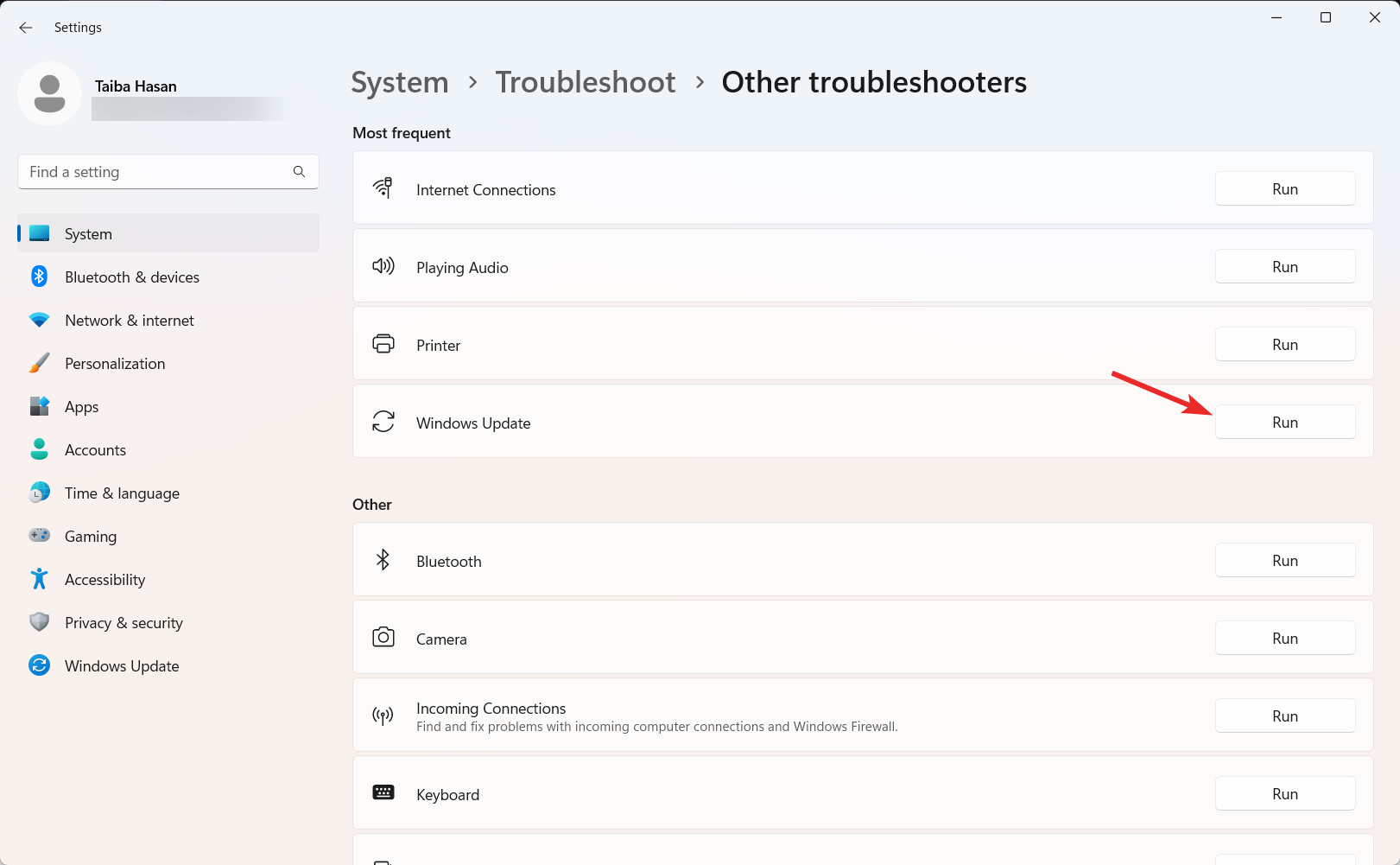
Go to Settings > System > Troubleshoot > Other troubleshooters.
Find Windows Update and select Run.
Follow the instructions to fix service errors.
3. Restart Windows Update Components
Restarting core update services can stop svchost.exe from using high CPU.
Open Command Prompt as Administrator.
Enter these commands one by one:
net stop wuauserv
net stop bits
net stop cryptsvc
del %systemroot%\SoftwareDistribution /Q /S
net start wuauserv
net start bits
net start cryptsvc
You can also review this guide on svchost.exe netsvcs issues if you notice constant resource spikes tied to background Windows services.
Why It Works
Knowing how svchost.exe operates allows you to isolate and fix Windows performance problems more easily. Since this process hosts critical system functions, identifying which service is responsible for errors or CPU spikes is the key to keeping your PC stable.
FAQs
Is svchost.exe a virus?
No, svchost.exe is a legitimate Windows process. However, malware can disguise itself with the same name, so it is important to verify its location.
Why is svchost.exe using so much memory?
This typically happens when a Windows service, such as Update or Superfetch, runs continuously or becomes stuck.
Can I delete svchost.exe?
No. Removing or stopping it can break essential Windows functions and cause system instability.
How do I stop svchost.exe from running multiple times?
You cannot fully stop it, but you can reduce the number of running services by disabling non-critical background tasks.
Does svchost.exe affect internet speed?
Yes, certain services running under svchost.exe, such as Windows Update or telemetry, can temporarily consume bandwidth. Disabling non-essential services can improve connection performance.
Conclusion
svchost.exe is one of the most important background components in Windows. It hosts dozens of essential services that keep your system secure and responsive. If it uses too much CPU or memory, identify which service causes the issue and apply targeted fixes to maintain a stable and efficient system.
Microsoft is expanding what its Researcher agent in Microsoft 365 Copilot can do. The company announced a new Computer Use feature that allows Researcher to perform hands-on tasks inside a secure Windows 365 virtual machine, giving it the ability to navigate websites, log in to restricted sources, and pull verified insights from premium databases.
That means if you need a report based on, say, Gartner or Forrester data, Researcher can now safely access those gated portals, with your consent, and include those insights in its output. This bridges a critical gap between AI reasoning and real-world web interaction, something Microsoft calls “trusted, controlled autonomy.”
When you enable Computer Use, Copilot spins up a temporary, isolated virtual environment, a cloud-based computer that exists only for the session. Inside this sandbox, Researcher has a visual browser, text browser, and terminal to read content, execute commands, and analyze data. Each action it takes is screened by network safety classifiers that block unsafe or unrelated activity before it happens.
What’s interesting is that users can actually watch the AI’s process unfold. Through a live “Visual Chain of Thought,” Researcher shows each step in real time. And if the task requires a password or manual input, you can securely take control of the virtual desktop to complete the step.
Microsoft says the feature is now rolling out to Microsoft 365 Copilot Frontier program customers, with enterprise-level safeguards baked in by default. It’s another sign that Copilot’s agents are moving closer to functioning like real digital co-workers.
Microsoft is making life easier for Apple users who rely on Outlook. The company has rolled out a major update that enables native iCloud integration in the new Outlook for Windows, Mac, iOS, and Android. And, it eliminates the need for app-specific passwords altogether.
Instead of juggling around extra credentials, users can now sign in directly with their Apple ID using OAuth 2.0, Apple’s modern authentication protocol. Once signed in, Outlook will automatically sync your iCloud Mail, Calendar, and Contacts, bringing everything under one unified experience.
This change ensures smoother cross-platform connectivity. Whether you’re scheduling meetings from your iPhone or checking mail from your Windows PC, Outlook now ensures your iCloud data stays seamlessly connected and secure.
How to Access iCloud in Outlook
Here’s to access iCloud in Outlook:
Open Outlook on your Windows, Mac, or mobile device.
Navigate to Settings > Add Account > iCloud.
When prompted, sign in with your Apple ID.
A browser window will open for OAuth authentication and follow the on-screen instructions.
Grant Outlook access to your iCloud Mail, Calendar, and Contacts.
Once confirmed, Outlook will automatically sync your iCloud data.
If you already had iCloud set up previously, Outlook will soon prompt you to re-sign in using the new OAuth 2.0 flow for added security.
Availability
The new iCloud authentication experience is now rolling out globally across Outlook for Windows, Mac, iOS, and Android. If you still see the old Basic Authentication screen asking for an app-specific password, update to the latest Outlook version and restart the app.
For users on the classic Outlook for Windows, Microsoft recommends switching to the new Outlook for Windows to enjoy full iCloud support without any add-ins or manual setup.
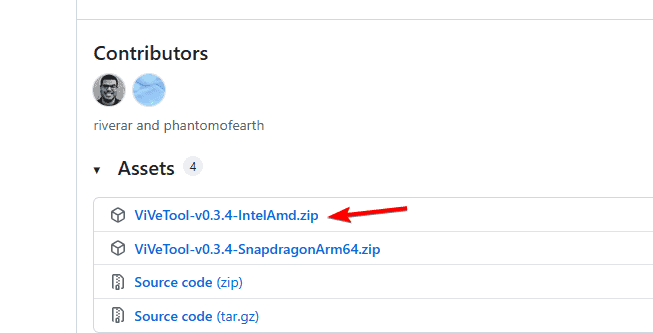
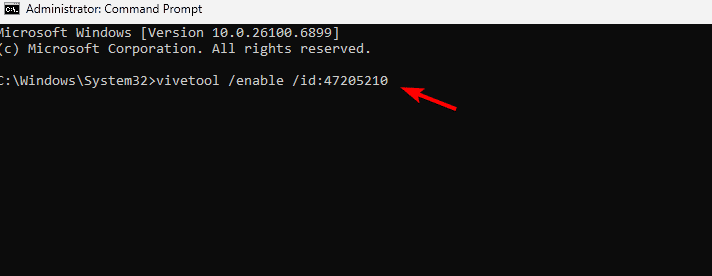
Windows 11 KB5067036 introduces a redesigned Start menu with layout and visual improvements. If it’s hidden, you can enable it manually using ViVeTool. Follow the steps below to unlock the new Start experience.
If you prefer the older Start layout, you can easily switch back.
Open Command Prompt as admin.
Type the following command and press Enter: vivetool /reset /id:47205210
Restart Windows.
Why Use the New Start Menu?
The updated Start menu provides smoother animations, improved search integration, and better grouping for pinned apps. It’s part of Microsoft’s continued effort to modernize Windows 11’s interface.
FAQs
Is KB5067036 safe to install?
Yes. It’s an official cumulative update released by Microsoft for Windows Insider and stable channels.
Do I need to reinstall ViVeTool after every update?
No. Once applied, the feature remains active until you manually reset it or install a major version change.
Why don’t I see the new Start menu after reboot?
If the new layout doesn’t appear, double-check that your Windows build is 26100.7019 or newer. If needed, re-run the ViVeTool command and restart again.
Conclusion
Enabling the new Start menu in Windows 11 only takes a few minutes. Once you install KB5067036 and activate the feature with ViVeTool, you’ll enjoy Microsoft’s latest design improvements.
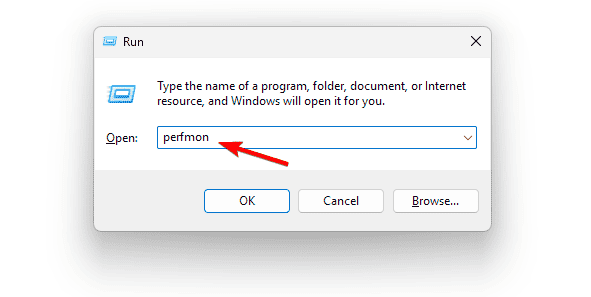
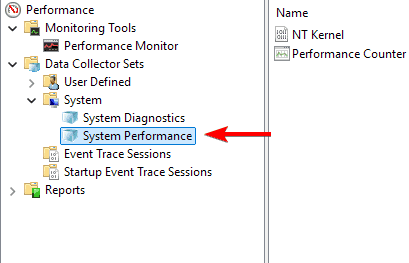
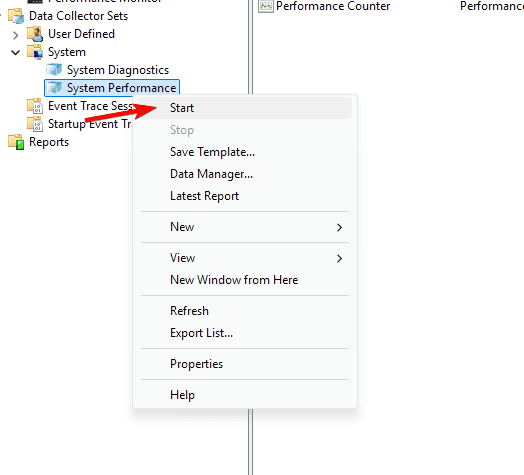
Checking your PC’s performance is essential if your computer feels slow, freezes, or struggles with heavy apps. A computer performance test helps you identify which part of your system is holding it back and what to fix.
In this guide, you’ll learn how to run detailed performance tests on Windows using built-in tools and reliable third-party benchmarks.
Before re-running benchmarks, use the Core Temp application to watch CPU temperatures and spot throttling during tests.
You can also explore advanced diagnostics and monitoring in our AIDA64 Extreme benchmark guide for more detailed insights.
5. Test Disk Speed with Command Prompt
Disk speed affects how quickly your PC boots or loads programs.
Press Windows + R, type cmd, and press Ctrl + Shift + Enter to open as admin.
Type:
winsat disk
Review the read and write speed results.
6. Use Your Manufacturer’s Diagnostic Tool
Manufacturers like Dell, HP, Lenovo, or ASUS offer their own utilities.
Visit the brand’s support website.
Download the official diagnostic app.
Run a full hardware test to detect issues.
What Is a Computer Performance Test?
A computer performance test measures how efficiently your hardware runs under different workloads. It evaluates your CPU, memory, GPU, and storage to identify weak spots that could slow down your system.
Why Run a Performance Test?
Detect slow or failing hardware before it causes problems.
Compare performance before and after system updates.
Optimize settings for gaming, editing, or productivity.
Confirm that your PC performs at its advertised level.
FAQs
Can I use my PC during the test?
No. Close other programs for accurate results and avoid interference.
Are benchmarks safe for my computer?
Yes. They temporarily stress hardware but do not damage components if cooling is adequate.
How often should I run a performance test?
Run one every few months or after installing major updates or new drivers.
What should I do if my scores are lower than expected?
Update drivers, apply best Windows settings, and retest. Consider the RAM and FPS optimization guides linked above.
How long does a performance test take?
Quick tests take a few minutes, while full benchmarks can take up to 20 minutes.
Summary
Running a computer performance test helps you identify issues and maintain top speed. Use Windows Performance Monitor, Memory Diagnostic, Task Manager, and reputable benchmarks. Apply the linked settings, RAM checks, and FPS improvements to keep your PC fast and reliable.
NOTE: This article was published yesterday (30/10/2025), but due to some technical issues it went offline.
As Xbox wraps up October, it’s rolling out one of its biggest monthly updates yet across PC, handhelds, and consoles. The highlight of this update is the new Advanced Shader Delivery system, which is now rolling out for ROG Xbox Ally and Xbox Ally X.
With this update, supported titles can now preload shaders during download, making them launch up to 10 times faster on first play. It also helps conserve battery by optimizing how graphics data is processed. Here are all the games to initially support Advanced Shader Delivery:
Supported Titles
Supported Titles
Ark Survival Ascended
Avowed
Call of Duty: Black Ops 6
Clair Obscur: Expedition 33
Control
Dead Island 2
Deep Rock Galactic
Farming Simulator 25
Forspoken
Final Fantasy XVI
Forza Horizon 5
Forza Motorsport
Gears of War: Reloaded
Gears Tactics
Grounded 2
Grand Theft Auto V Enhanced
Lies of P
Metro Exodus
Microsoft Flight Simulator 2024
Monster Hunter Rise
Persona 3 Reload
Resident Evil 2 (2019)
Resident Evil 3
S.T.A.L.K.E.R. 2: Heart of Chornobyl
Sea of Thieves
Sniper Elite: Resistance
South of Midnight
The Elder Scrolls: Oblivion Remaster
Ninja Gaiden 4
The Callisto Protocol
The Outer Worlds 2
Silent Hill f
Keeper
Hogwarts Legacy
Microsoft says more games will soon join the list as it works with developers to expand support.
Faster downloads
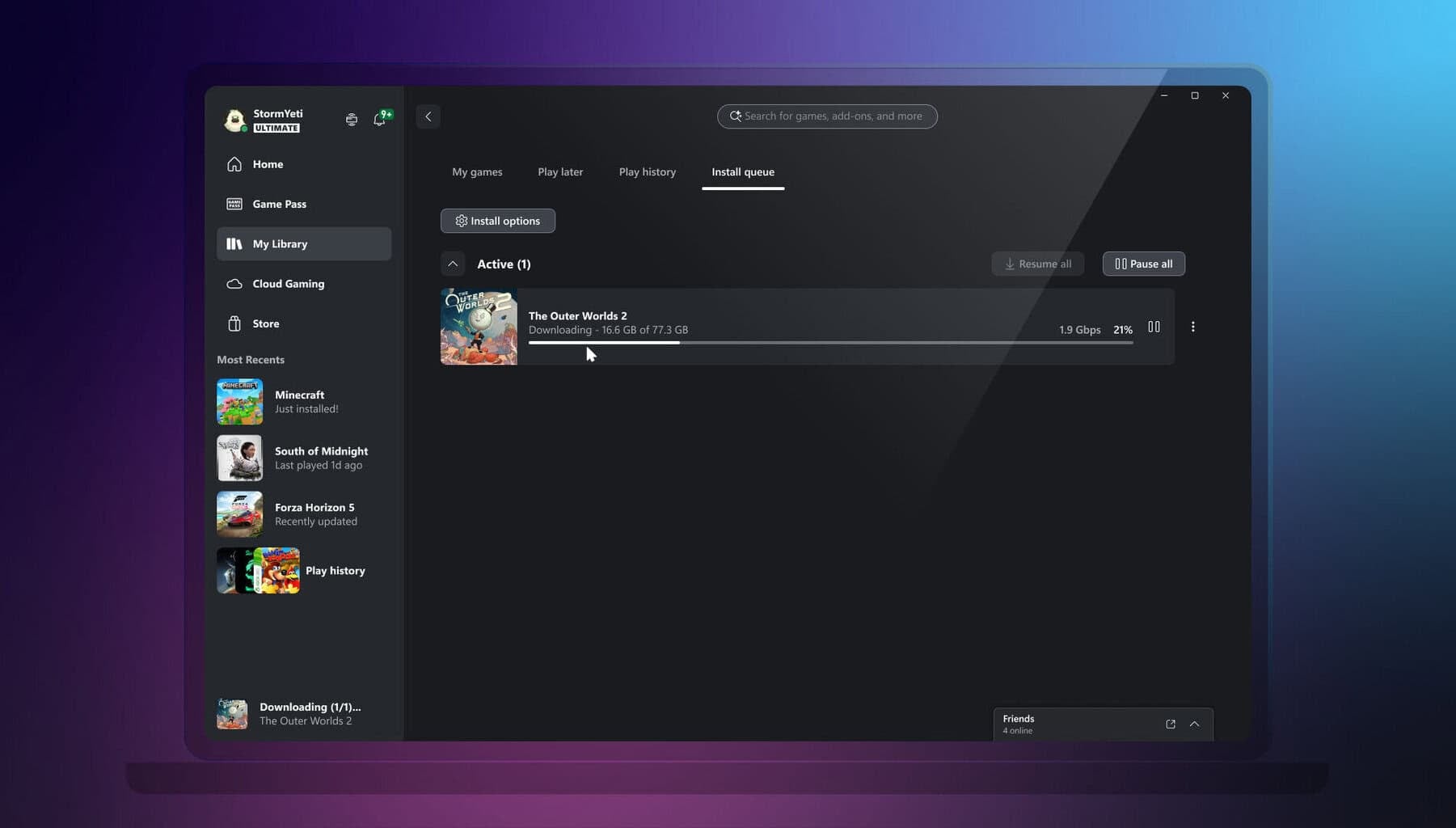
On the PC front, the Xbox app now offers faster download speeds and smarter bandwidth management. According to Microsoft, improvements to the app’s download engine let it better utilize your internet connection, which reduces slowdowns and improving overall responsiveness.
Console players aren’t left out either. Xbox Game Hubs now feature two new modules, one showing the latest official updates from developers, and another surfacing Game Pass in-game perks. These additions make it easier to stay connected with game news and exclusive content.
USB mice and keyboard support
Next up, Xbox now supports wired USB mice and keyboards across more titles, alongside over 230 games with touch controls and 130 with mouse and keyboard support on the cloud.
Mouse & Keyboard Support
Touch Support
ABRISS – build to destroy
Keeper
Cozy Designer
Immortals of Aveum
Hatsune Miku – The Planet of Wonder
Tales of Kenzera: ZAU
Pool Slide Story
Meow Moments: Celebrating Geeks & Athletes
The Thaumaturge
Post Trauma
Newly added titles
Last but not least, Xbox’s Stream Your Own Game library continues to grow, now crossing 1,000+ supported titles. Check the list of newly added games below:
MyASUS is a built-in management tool that helps you keep your ASUS laptop running smoothly. You can update BIOS and drivers, optimize performance, connect your phone, and contact ASUS support directly from one interface. Follow this guide to learn how to make the most of it.
Click the Start menu, type MyASUS, and select the app.
Right-click it to Pin to Start or Pin to Taskbar for easy access.
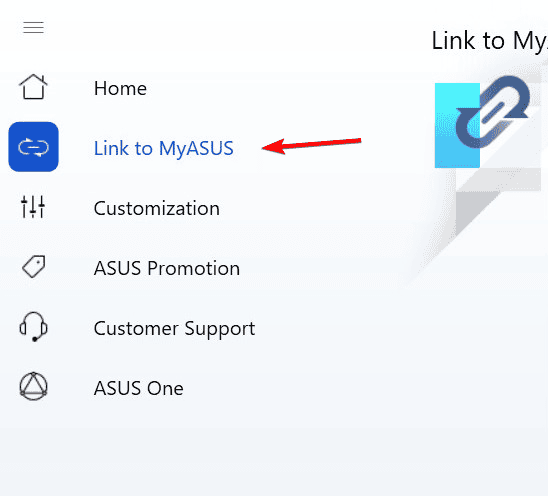
Browse sections such as Home, Customer Support, Customization, and Link to MyASUS.
If you also use Armoury Crate to adjust BIOS and performance settings, both utilities can complement each other. Learn more in the ASUS Armoury Crate BIOS Update guide.
Install the Link to MyASUS mobile app on your phone.
Scan the on-screen QR code to pair both devices.
Grant permissions for notifications, contacts, and file sharing.
Use the feature to transfer files or manage phone calls from your PC.
How to Optimize Performance with MyASUS
Open MyASUS and go to Customization.
Click System Settings to access performance controls.
Choose Performance, Balanced, or Silent mode.
Enable Battery Health Charging to reduce battery wear.
Modify display color and brightness using Splendid Display.
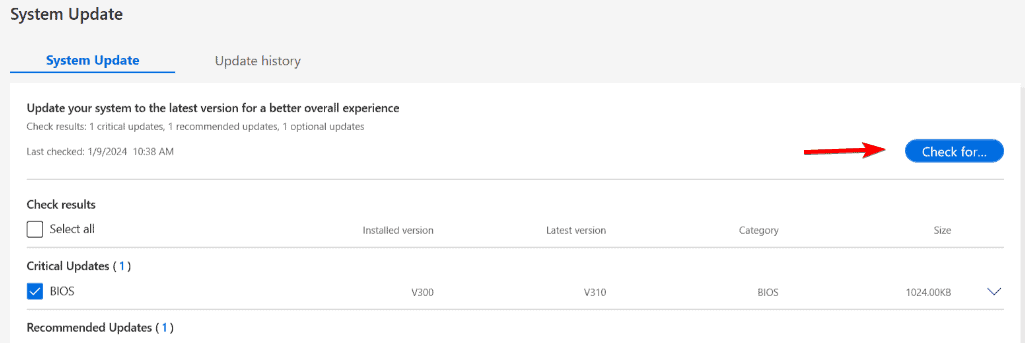
For best performance, ensure all hardware drivers are current. The latest versions are available in the ASUS Drivers for Windows 11 resource.
How to Contact ASUS Support via MyASUS
Go to Customer Support in MyASUS.
Choose the category of your issue, such as software, hardware, or warranty.
Run built-in diagnostic tests.
Submit a service request or locate a nearby ASUS repair center.
What Is MyASUS?
MyASUS is an all-in-one control center for ASUS laptops, combining driver management, diagnostics, and device customization. It integrates with Windows 10 and 11 to help users maintain system health, monitor performance, and connect with ASUS support more efficiently.
FAQs
What does MyASUS do?
It manages updates, adjusts performance settings, monitors battery health, and connects your PC with your smartphone.
Can I remove MyASUS from my system?
Yes, but doing so removes access to quick updates and diagnostics, so keeping it installed is recommended.
Does MyASUS support older laptops?
Most ASUS devices running Windows 10 or 11 are compatible, but older models might not support all features.
How do I reinstall MyASUS if it is missing?
Search for MyASUS in the Microsoft Store and reinstall it from there.
Summary
MyASUS provides essential tools for managing your ASUS device, from driver updates and BIOS management to battery optimization and smartphone connectivity. Using it alongside tools like Armoury Crate and regularly checking for driver updates helps keep your laptop fast, efficient, and reliable.
NOTE: This article was published yesterday (30/10/2025), but due to some technical issues it went offline.
Microsoft is updating the foundation of its Azure App Service for Linux by moving new code-based runtimes to Ubuntu. The update, announced today, will apply to all upcoming major versions, including .NET 10, Python 3.14, Node 24, PHP 8.5, and Java 25. Microsoft says that it expects to roll it out over the next few months.
Existing Debian-based stacks will continue to function as-is, meaning developers won’t face any forced migrations. Microsoft says the change to Ubuntu will offer a more stable and forward-compatible foundation. This helps operational parity across deployment and scaling tools like Oryx, GitHub Actions, and Azure CLI.
Why Microsoft Is Moving to Ubuntu
According to Microsoft, Ubuntu provides faster upstream updates and inherits Debian’s extensive package ecosystem. This allows Azure to adopt modern toolchains and libraries more predictably, improving compatibility and unlocking access to newer dependencies. Additionally, Ubuntu’s Long-Term Support (LTS) releases offer a five-year maintenance cycle.
What Developers Need to Know
For developers running existing apps, no action is required. However, new apps or upgrades to the mentioned runtimes will automatically use Ubuntu-based images. Microsoft advises teams to double-check any native packages installed during builds or startup, as Ubuntu may offer newer versions or slightly different package names.
NOTE: This article was published yesterday (30/10/2025), but due to some technical issues it went offline.
Microsoft has officially added Python 3.14 to Azure App Service for Linux. Developers can now create new apps using Python 3.14 through the Azure portal. On top of that they can automate deployments with the Azure CLI, or use ARM and Bicep templates.
Additionally, App Service manages the OS, runtime updates, and security patches, allowing developers to focus fully on code. Python 3.14 was released on October 7th and it offers meaningful performance and runtime improvements.
The interpreter now handles common call paths more efficiently and optimizes memory usage, which results in lower latency and less CPU usage. High-throughput web apps and APIs benefit from faster execution and smoother handling under load.
Worth noting that concurrency is also enhanced in Python 3.14. The release expands sub interpreters and free-threaded builds, eliminating the Global Interpreter Lock for many workloads. Multi-core parallelism is easier to achieve now, with CPU-bound tasks running more efficiently.
Developers can now expect significantly better multi-threaded performance compared with earlier Python versions. Python 3.14 also improves developer experience with a more helpful interactive REPL, cleaner type annotations, and new template string syntax called “t-strings.”
These features make coding safer, more structured, and less error prone. Developers can now write and test Python code more quickly without losing focus. Existing App Service users are encouraged to try Python 3.14 in a staging app or deployment slot.
They should test request latency, CPU, memory, and compatibility with any native wheels or pinned dependencies. Most applications only require minor adjustments to take full advantage of the faster, more capable runtime.
Microsoft’s latest optional non-security update KB5067036 has addresses an underlying issue that caused Windows Update installations to fail with error 0x800f0983.
The error 0x800f0983 typically occurred after a download succeeded but installation stalled or aborted and rolled back. Many suggested that running DISM and SFC didn’t always resolve it, and manual in-place upgrades had become common workarounds.
Besides that, Microsoft has also addressed a bug where choosing “Update and shutdown” didn’t actually power off the PC after updates completed. Instead, affected devices would stay powered on, frustrating users who expected an automatic shutdown after update installation.
While the full feature set of KB5067036 also includes a redesigned Start menu, new accessibility and on-device AI features, and File Explorer enhancements, the fix for error 0x800f0983 is especially handy for users and admins who had been stuck waiting for a clean install path.
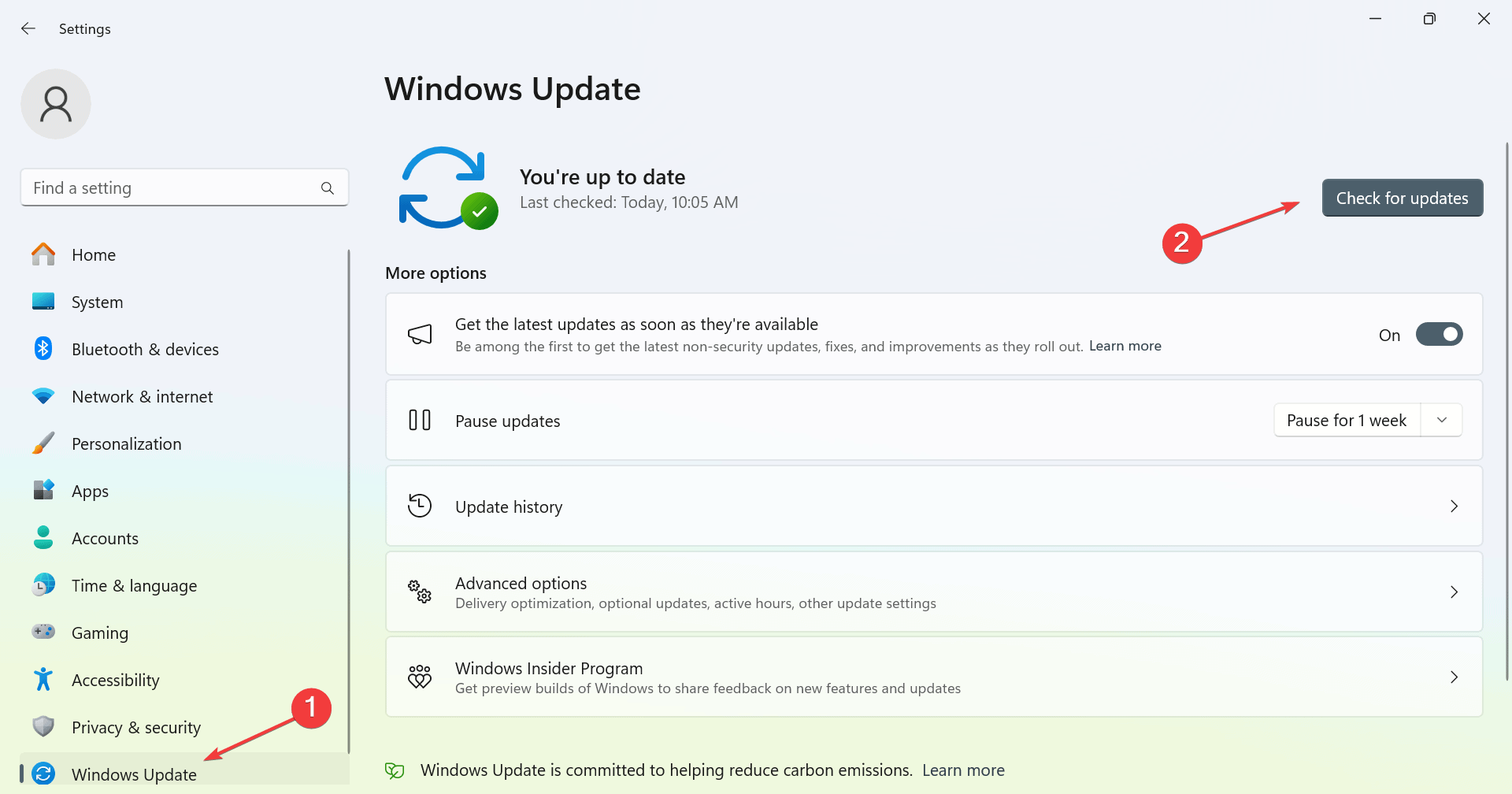
If you’re seeing repeated update failures tied to 0x800f0983, installing KB5067036 would fix it. You can download the update by navigating to Settings > Windows Update and check for available updates. Alternatively, you can download it from Microsoft Update Catalog.
NOTE: This article was published yesterday (30/10/2025), but due to some technical issues it went offline.
Many Windows 11 users are reporting problems installing the Preview Update (KB5067036), which is rolling out to devices running version 25H2 build 26200.7019. Users come across error code 0x800f0983, which prevents successful installation for some Windows 11 25H2 systems, even after repeated attempts.
Affected users say the update downloads normally but fails during the final installation phase, showing the message “Install error – 0x800f0983.”
Some have tried running SFC and DISM scans, while others have used the Windows Update Assistant, only to be told their system is “up to date” even though the update still appears pending in Settings > Windows Update.
Microsoft has not yet officially acknowledged the cause behind the issue, but it could be due incomplete update packages or component store corruption. If you’re also affected by this issue, try resetting Windows Update components and clear the SoftwareDistribution and Catroot2 folders. Alternatively, download the standalone update package from the Microsoft Update Catalog.
Fortunately, we were able to update our Windows 11 25H2 (Release Preview) system with the KB5067036 update (Build 26200.7019) without any hiccups.
Image credit: Rishaj Upadhyay | Windows Report
Earlier this week, Microsoft also pushed a fix in the same KB5067036 update addressing issues where Windows Update failed to install with error 0x800f0983. It also fixed a separate bug causing “Update and shutdown” to not fully power off PCs. For now, users affected by the problem have to wait for an official fix or a patch release from Microsoft.
If your Xbox can’t connect to the internet or the update keeps failing, you can still install the latest system version using an offline update. This process works for both Xbox Series X|S and Xbox One consoles.
Follow this guide to learn how to update your Xbox offline safely and fix any stuck updates.
Format and load the update so the console recognizes it during recovery.
Insert the USB drive into your PC.
Right click the drive and choose Format, then select NTFS and start.
After formatting, extract OSU1.zip on your PC.
Copy the $SystemUpdate folder to the root of the USB drive.
3. Start the Xbox in Troubleshooting Mode
Use the hardware button combo to open the Startup Troubleshooter.
Turn off the Xbox and unplug it for 30 seconds.
Press and hold Pair and Eject buttons (on Series S use Pair and the Xbox button).
While holding, press the Power button once.
Release after two startup tones to load the Xbox Startup Troubleshooter.
4. Plug in the USB Drive
Point the troubleshooter to the update files on your USB drive.
Insert the prepared USB into a USB port on the Xbox.
Wait a few seconds for detection.
Select Offline system update in the menu.
Confirm to begin the installation.
Managing related components on Windows? Here is how to keep Game Bar updated: Update Xbox Game Bar.
5. Wait for the Update to Finish
Let the console complete the process without interruption.
The update can take up to 30 minutes.
The console may restart several times.
Do not remove the USB or power off the Xbox.
When complete, the console boots to the home dashboard.
What Is an Xbox Offline Update?
An Xbox offline update lets you manually install the latest firmware using a USB drive instead of downloading it through Wi Fi. This method is ideal when the console cannot connect or repeatedly fails to update online.
Why This Works
Offline updates bypass network problems and corrupted downloads. Using Microsoft’s official OSU1 package ensures a clean system refresh that fixes most update errors without data loss.
FAQs
Can I update my Xbox without the internet?
Yes. Download the OSU1 package on a Windows PC, copy it to a USB, and install from the Startup Troubleshooter.
Will an offline update delete my games or saves?
No. Your games and saves remain unless you perform a full factory reset.
What if the console does not detect the USB?
Reformat as NTFS and ensure the $SystemUpdate folder is at the root, not inside another folder.
What if the update stops midway?
Wait a few minutes. If it does not resume, power cycle the console and repeat with a freshly formatted USB and a new OSU1 download.
Can I use a Mac to prepare the USB?
Use a Windows PC for reliable NTFS formatting and file extraction compatible with the Xbox updater.
Summary
If your Xbox will not update online, the offline USB method is a reliable solution. Download OSU1, prepare the USB, enter the Startup Troubleshooter, and install. This approach resolves most update failures and gets your console running again quickly.
Bluetooth is handy for connecting wireless accessories, but sometimes you may want to turn it off. Whether you are saving battery, troubleshooting a device, or protecting your privacy, disabling Bluetooth on Windows 11 only takes a few clicks. Below are all the effective ways to do it.
The fastest way to disable Bluetooth on Windows 11 is from Quick Settings.
Click the Network, Sound, and Battery icon on the taskbar.
In the Quick Settings panel, find the Bluetooth icon.
Click the icon to turn Bluetooth off.
When the icon turns gray, Bluetooth is disabled.
This method is ideal if you frequently switch Bluetooth on and off. If you later need to reconnect your headset or controller, you can turn Bluetooth back on just as easily.
2. Disable Bluetooth via Settings
If Quick Settings does not appear or you want finer control, open the Settings app.
Press Windows + I to open Settings.
Select Bluetooth & devices from the left panel.
Locate the Bluetooth toggle at the top.
Switch it to Off.
Your computer will stop discovering or connecting to nearby Bluetooth devices once this option is disabled. The same menu is also where you can enable Bluetooth on older Windows versions.
3. Disable Bluetooth Through Device Manager
If you prefer to stop Bluetooth hardware from running completely, you can do it from Device Manager instead of Settings.
Press Windows + X and choose Device Manager.
Expand the Bluetooth category.
Right-click your Bluetooth adapter, such as Intel Wireless Bluetooth.
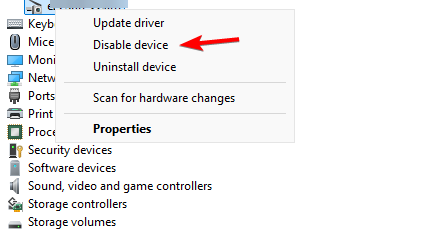
Select Disable device and confirm your choice.
This ensures Windows will not automatically re-enable Bluetooth until you manually turn it back on.
4. Turn Off Bluetooth Services (Advanced)
For full control, you can stop background Bluetooth services entirely. This option is more advanced but useful when you want to avoid automatic connections.
Press Windows + R, type services.msc, and press Enter.
Scroll down to Bluetooth Support Service.
Right-click it and choose Properties.
Under Startup type, select Disabled.
Click Apply, then OK.
After restarting, Bluetooth will remain off until you enable the service again. Afterward, you can still pair multiple Bluetooth devices later when the service is restored.
Why Disable Bluetooth on Windows 11
Turning off Bluetooth helps conserve battery life, limits background pairing requests, and enhances privacy. It is especially useful when you are traveling, working in public spaces, or simply not using wireless peripherals.
FAQs
Why should I disable Bluetooth on Windows 11?
Disabling Bluetooth saves power, reduces interference, and helps protect against unauthorized connections.
Does turning off Bluetooth disconnect my devices?
Yes. All connected devices are immediately disconnected and remain inactive until you turn Bluetooth back on.
Can I turn Bluetooth back on later?
Yes. You can easily toggle it on again from Quick Settings or the Settings app.
Does disabling Bluetooth affect Wi-Fi?
No. Wi-Fi and Bluetooth use separate radio systems, so disabling one will not interfere with the other.
Conclusion
Disabling Bluetooth on Windows 11 is quick, reversible, and effective. Whether you prefer using Quick Settings, the Settings app, or Device Manager, each method lets you regain control over your wireless connections. When you need to use your accessories again, you can re-enable Bluetooth in seconds.
If you are using a Windows laptop without an external mouse, right clicking can seem confusing at first. You can still access context menus like copy, paste, and properties using built in touchpad gestures or simple keyboard shortcuts.
This quick guide explains all the ways to right click on a laptop and what to do if it does not work.
Use a two finger tap on the touchpad or press Shift + F10.
Where is the right click button on a laptop?
It is usually the bottom right corner of the touchpad or the Menu key on your keyboard.
Why does two finger tap not work on my laptop?
You may need to enable it in Settings > Touchpad > Taps or reinstall your touchpad driver.
Can I customize how I right click on my laptop?
Yes. In Touchpad settings, you can change gestures or assign the corner tap function to right click.
Conclusion
Right clicking on a Windows laptop is simple once you know the gestures and shortcuts. Whether using the touchpad or keyboard, you can access context menus as easily as with a regular mouse.
DirectAccess allows remote users to securely access internal network resources without a traditional VPN. This guide explains how to install and configure it on Windows Server.
Choose which devices in your organization can use DirectAccess.
Select security groups that contain computers to enable DirectAccess.
Review defaults or customize IPsec and DNS policies.
Click Finish to apply the configuration.
6. Verify Configuration
Confirm the deployment is healthy before onboarding users.
Open the Remote Access Management Console.
Check the Operations Status tab for Working on all components.
Test client connectivity from an external network.
What Is DirectAccess?
DirectAccess is a Microsoft remote access technology that automatically connects domain-joined clients to the corporate network. It uses IPv6 and IPsec to create a secure, always-on connection between the client and internal resources.
Why Use DirectAccess?
Always-on connection without manual login.
Seamless access to corporate resources.
Centralized management through Group Policy.
Enhanced security using IPsec encryption.
Troubleshooting Installation Issues
Check these items if the wizard fails or clients cannot connect.
Confirm each NIC has a unique IP address and correct routing.
Verify DNS and Active Directory replication are healthy.
Ensure the SSL certificate is trusted and not expired.
Run Get-DAStatus in PowerShell to locate configuration issues.
FAQs
Is DirectAccess still supported on Windows Server 2022?
Yes. Microsoft supports DirectAccess, and Always On VPN is also available.
Can I use DirectAccess on Windows 11 clients?
Yes. Windows 11 Enterprise and Education editions can connect to a DirectAccess server.
Can DirectAccess work behind a firewall?
Yes. Configure required ports, including 443 and 62000, to allow traffic.
What is the difference between DirectAccess and VPN?
DirectAccess connects automatically without user action, while VPN requires manual sign in and sessions.
Conclusion
DirectAccess can deliver secure, seamless access for remote users when DNS is prepared, roles are installed correctly, and required ports are open.
Google is preparing a visual redesign of the Chrome browser, internally known as “Chrome Next.” Chrome has already begun testing design changes to the search box and the New Tab Page. The new layout is now under test in Chrome Canary behind a flag.
Get Ready for Chrome’s Next Look
Google has started work on a new layout for Chrome, though it doesn’t change how the browser looks just yet. The current work prepares Chrome’s layout system for what’s coming next. A new flag found in Canary helps developers test the setup, with the description reading:
“Use the new Tabbed Browser Layout. Visually nothing should change.”
Flag for “Tabbed Browser Use New Layout” in Chrome Canary. It notes that visually nothing should change for now. Image Credit: Venkat | WindowsReport.
That’s exactly what users will see for now, no visible change. But this is the first move toward a layout that may look and behave differently in future versions.
From commit messages we learnt, it seems the main aim is to enable side panels (like bookmarks or reading lists) to extend all the way up to the toolbar at the top of the browser, rather than just appear next to the web content.
Google has redesigned how Chrome’s interface is put together. The new setup is simpler and better organized, and the side panel will open with smooth sliding motion.
Chrome User Interface evolution
When Chrome launched in 2008, its clean and minimal interface set it apart from other browsers. The focus was always on the web content, not the browser itself.
Over the years, Chrome gradually evolved through Material Design revamps, rounded tabs, and refreshed icons that gave it a softer, more modern appearance.
If your PC is slow, crashes, or shows random errors, you can repair Windows 11 with built-in tools. This guide covers quick troubleshooters, SFC, DISM, Startup Repair, System Restore, and Reset PC so you can restore stability without a full reinstall.
Yes. SFC, DISM, Startup Repair, and System Restore can fix most issues without a clean install.
What if these tools do not work?
Back up your data and consider a clean installation using a Windows 11 USB installer.
Will resetting Windows 11 remove my apps?
Yes. Reset removes installed apps, but you can keep personal files with the Keep my files option.
Should I run DISM before or after SFC?
Run DISM if SFC reports unrepairable files, then run SFC again to confirm repairs.
How long does repair usually take?
SFC and DISM commonly take 15 to 30 minutes. A reset can take an hour or more, depending on hardware.
Conclusion
Start with troubleshooters and SFC for quick fixes. Use DISM for deeper corruption, then try Startup Repair or System Restore if problems persist. Reset PC is your last step to restore stability while keeping personal files.
Microsoft has started fiscal year 2026 on a strong note, posting $77.7 billion in revenue for the first quarter. It saw a jump of an 18% jump from the same period last year. Operating income soared to $38 billion, up 24%, while net income rose 12% to $27.7 billion.
The company’s ongoing success is largely driven by rapidly expanding cloud business. Microsoft Cloud revenue stand at $49.1 billion, up 26% year over year.
But while the cloud is thriving, Xbox hardware sales continue to tumble. Per the latest earnings report, sales fell by 29% year over year. That’s another tough quarter following a 22% drop last quarter and a 42% decline in Q4 2024.
Well, there are multiple reasons to it. Microsoft has raised console prices and Xbox division was hit by mass layoffs earlier this year, possibly because Microsoft pushed it to bring in 30% profits.
While, the company is trying to change the narrative by hinting at premium Xbox experience and first-party consoles, the damage has been done. Adding to that Xbox content and services revenue was flat this quarter, up just 1% year over year.
That said, commercial remaining performance obligations also surged 51% to $392 billion, showing the growing demand for long-term cloud commitments. Moreover, Azure and other cloud services have also helped Microsoft to keep the momentum, as they saw an increase of 40% year over year.
For decades, the humble computer mouse has remained largely unchanged. Sure, we’ve seen refinements like ergonomic tweaks, wireless connectivity, adjustable DPI. But the core experience of pointing and clicking hasn’t evolved much. Diver-X, a Tokyo-based XR interface startup that’s best known for ContactGlove, its series of XR haptic gloves, thinks that’s about to change. Through its new consumer brand, Melt Interface, the company has launched Melt Mouse on Kickstarter to reimagine what a mouse can be.
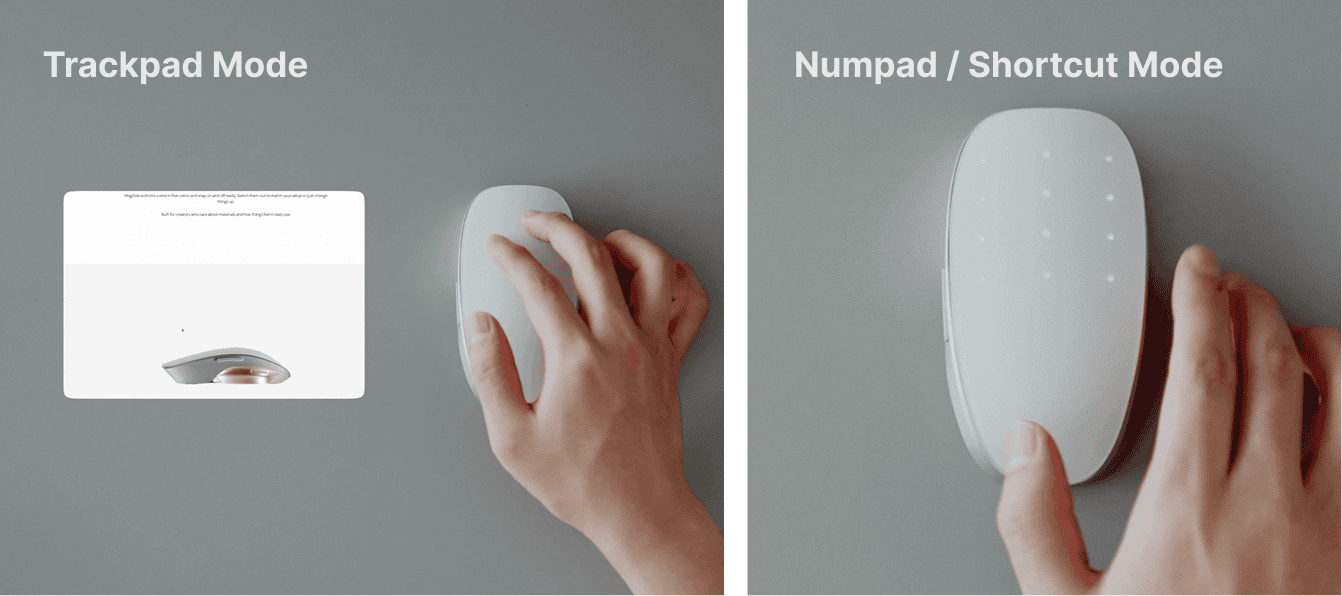
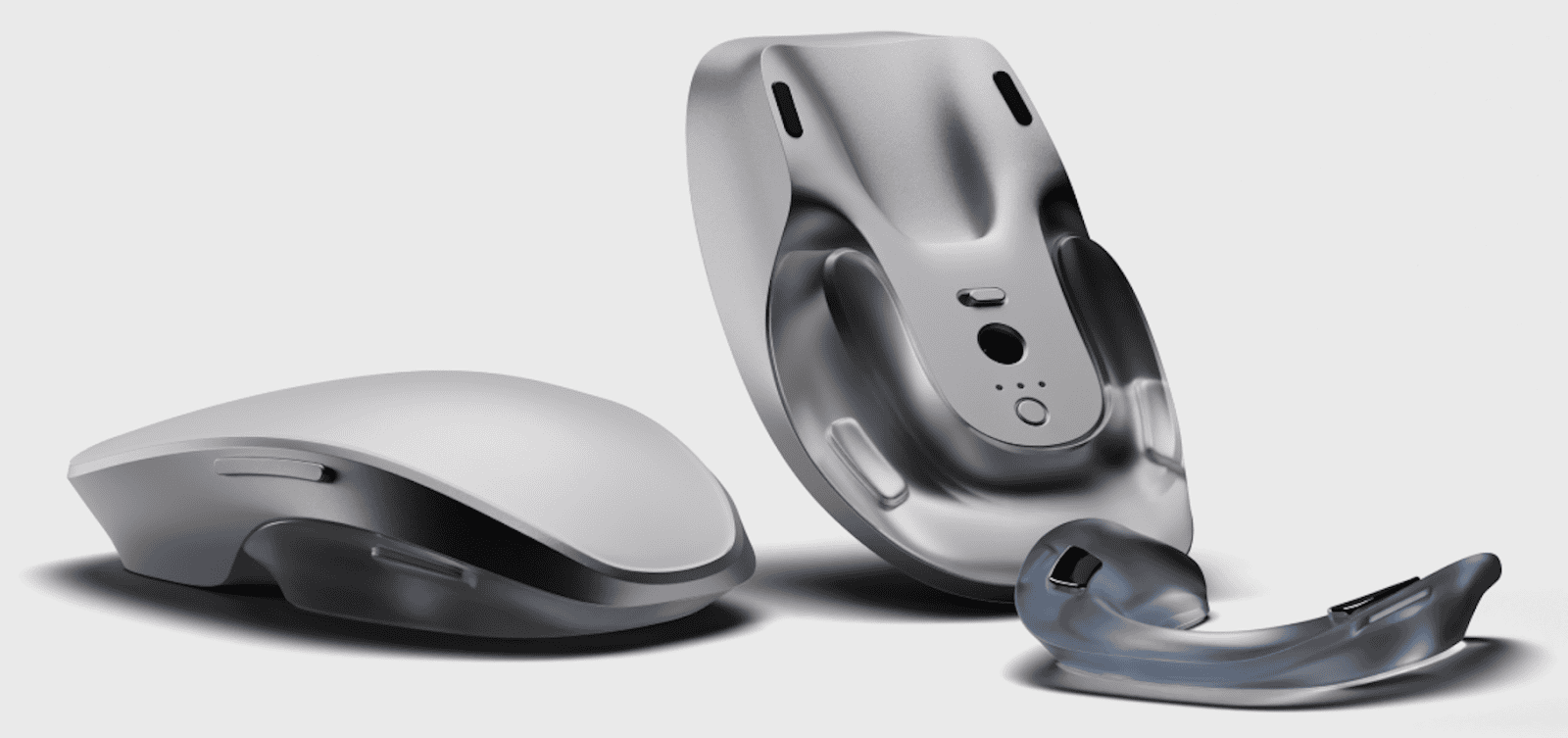
Melt Mouse is no ordinary pointer. Instead, it packs a trio of functions into a sleek, minimalist form factor: a precision mouse, a trackpad, and a customizable digital numpad that doubles as a macro keypad.
In other words, this is not just another peripheral. It’s a bet on the future of human-computer interaction.
From ContactGlove to Melt Mouse
Melt Mouse is the brainchild of Diver-X co-founders Yamato Sakoda and Kei Asano, who previously made waves with the ContactGlove, the first haptic, flex sensor–based glove system for social VR. That background in immersive technologies gave them a strong foundation in haptics. And now they’ve distilled it into a far more accessible form.
Where ContactGlove pushed VR boundaries, Melt Mouse is aiming to take those ideas mainstream. By building in haptic feedback, gesture-based commands, and multi-mode functionality, the team hopes to make everyday PC work feel more natural, intuitive – and dare we say – future-proof.
More Than Just a Mouse
What sets Melt Mouse apart is its ability to shift seamlessly between roles. At its core, it works as a precision mouse, but users can also switch into trackpad mode or bring up a customizable numpad that doubles as a macro keypad. For designers, that means assigning shortcuts for creative software without breaking workflow. For streamers, it offers an easy way to control their setup on the fly. Office users might simply appreciate having a numpad for spreadsheets, without the need for extra accessories.
The hardware design is equally ambitious. Melt Mouse is crafted from a single aluminum block and topped with reinforced curved glass that resists fingerprints but maintains a smooth, comfortable texture for the palm. Its ergonomic contour is sculpted to fit the natural resting position of the hand, and an optional MagSole magnetic base adjusts friction levels, allowing the mouse to glide effortlessly across the desk while still stopping with precision.
Customization runs deep through the Melt Studio companion app. Users can tweak everything from click weight to scroll speed, map commands to gestures, and assign macros tailored to different workflows. This transforms Melt Mouse into a versatile input hub that adapts to the individual rather than forcing users into a one-size-fits-all mold.
Perhaps the boldest innovation is the absence of mechanical switches. Melt Mouse relies entirely on haptic feedback powered by an internal actuator. Each tap or click is met with a vibration that simulates the tactile confirmation of a button press. The result is a device that feels responsive and modern, while sidestepping the mechanical wear and tear of traditional mice.
Rethinking Interaction in the AI Age
What’s especially intriguing is how Diver-X frames the Melt Mouse as more than just a productivity booster. The company sees it as a step toward new forms of digital connection particularly as AI becomes more personal and companion-like.
Imagine using a PC mouse not just to click icons, but to feel subtle haptic responses from an AI assistant. Diver-X envisions scenarios where the Melt Mouse becomes a discreet tactile channel, conveying sensations that make interactions with AI companions feel tangible. While that may sound speculative today, it reflects broader trends in the industry: hardware is increasingly tasked with humanizing the machine experience.
A Device for Work, Play, and Beyond
For now, the most immediate appeal of Melt Mouse lies in its ability to streamline everyday tasks. Graphic designers may use the trackpad mode for precision input, streamers could assign macros to manage overlays or transitions, and office workers might simply enjoy having an integrated numpad. At the same time, its minimalist design and premium materials ensure it doesn’t look out of place on a modern desktop setup.
And crucially, it doesn’t abandon the familiar. At its core, Melt Mouse still looks and feels like a regular mouse. You can plug it in and start using it right away. But once you begin experimenting with its alternate modes and haptic-driven customization, the device reveals itself as something far more ambitious.
Melt Mouse is the first product under the Melt Interface brand, but Diver-X has bigger ambitions. With fresh funding secured, the company plans to expand its lineup of consumer hardware, while continuing to explore advanced haptic systems and XR technologies under the Diver-X umbrella.
Whether Melt Mouse becomes a niche Kickstarter darling or sparks a new wave of hybrid input devices remains to be seen. But it’s hard not to be intrigued by a product that asks a simple, yet powerful question: why hasn’t the mouse evolved in decades. And what if it could?
For now, Melt Mouse is live on Kickstarter, inviting early adopters to test-drive this bold rethink of the most essential tool on our desks. The company has also unveiled a $1.3 million Pre-Series A funding round led by PKSHA Capital, Toyota Boshoku, Iyogin Capital, and DEEPCORE.
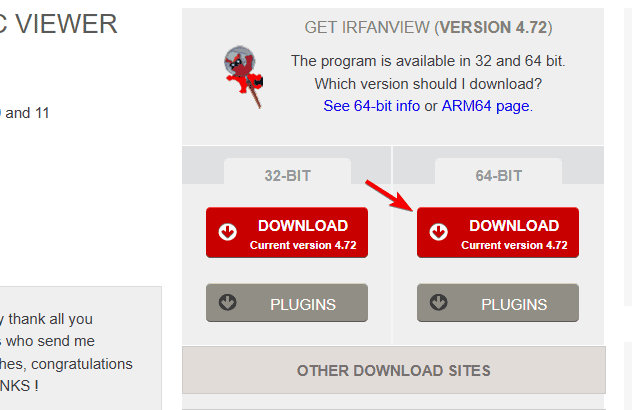
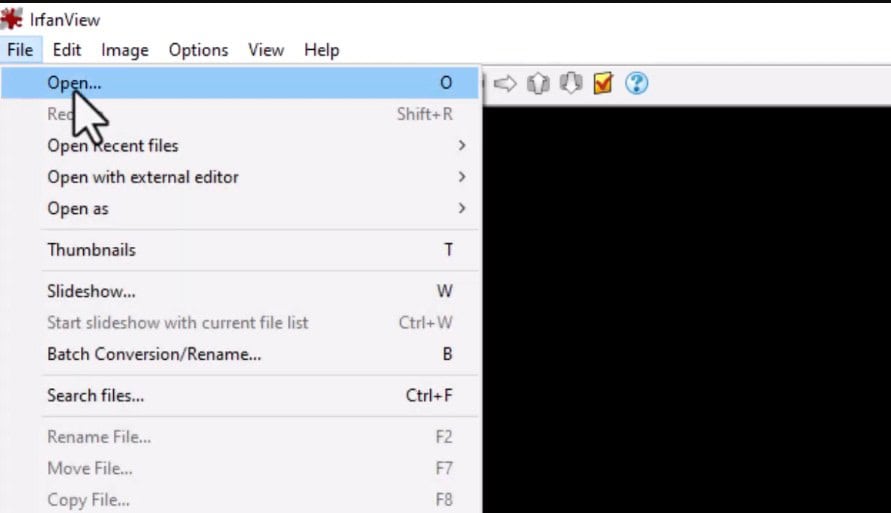
IrfanView is a lightweight, free image editor for Windows that makes basic photo editing simple and fast. It’s perfect for tasks like cropping, resizing, adding text, or applying filters without needing heavy tools like Photoshop. Follow these steps to start editing images with IrfanView today.
No. It’s free for personal and educational purposes, but commercial users need a license.
Can IrfanView edit RAW images?
Yes, once you install the optional plugin pack.
How do I set IrfanView as my default image viewer?
Open Options > Set file associations, select your preferred formats, and click OK.
Does IrfanView support layers like Photoshop?
No, it focuses on fast, single-layer image editing.
Where does IrfanView save edited files?
By default, it saves them in the same folder as the source image unless you choose a different path when saving.
Conclusion
IrfanView remains one of the best lightweight editors for Windows users. It’s simple enough for beginners yet powerful enough to handle everyday editing tasks quickly and efficiently. If you want more Windows editing options, explore other related tutorials at WindowsReport.
NVIDIA has officially surpassed Microsoft and Apple to become the world’s most valuable company, hitting a record-breaking $5.03 trillion market cap. The milestone cements its position as the undisputed leader of the AI revolution and shows just how much Wall Street believes in the company’s future.
The company’s shares jumped more than 3% on Wednesday, with growing confidence of investors in its next-gen Blackwell AI chips and the growing demand from cloud providers, startups, and governments racing to build AI infrastructure.
The semiconductor giant’s valuation now exceeds the GDP of nearly every country on the planet and is only behind the United States and China. It’s a jaw-dropping momentum, given that just over two years ago the company had valuation of $1 trillion, and now stands at $5 trillion today.
The latest milestone comes three months after the company hit the $4 trillion valuation. Talking of recent developments, NVIDIA has announced to “build seven new supercomputers for the U.S. Department of Energy and had $500 billion in bookings for advanced chips,” according to Reuters.
To give you an idea how big this feat is, NVIDIA’s $5 trillion valuation now exceeds the combined worth of AMD, Intel, Broadcom, TSMC, and Qualcomm, despite being its immediate rivals. Another thing to note is that the company’s stock is up more than 50% this year and a staggering 1,500% over the past five years.
Managing stored user names and passwords in Windows 11 keeps your accounts secure and helps you log in faster. This guide explains how to view, edit, and organize saved credentials in Windows and Microsoft Edge.
How do I stop Windows from saving passwords automatically?
Open Settings > Privacy & security > Sign-in info, then turn off password-saving options.
Is it safe to store passwords in Windows 11?
Yes, as long as you protect your device with a strong PIN or Windows Hello and keep encryption enabled.
Can I export saved passwords from Windows 11?
You can export passwords from browsers like Edge or Chrome, but not directly from the Windows Credential Manager.
What is the best way to organize multiple saved logins?
Use a dedicated password manager for secure organization and easy access, and keep entries labeled clearly.
Conclusion
Managing your stored user names and passwords in Windows 11 ensures convenience and safety. Regularly update or remove unused credentials, enable syncing for consistency across devices, and consider a password manager for better control over your digital security.
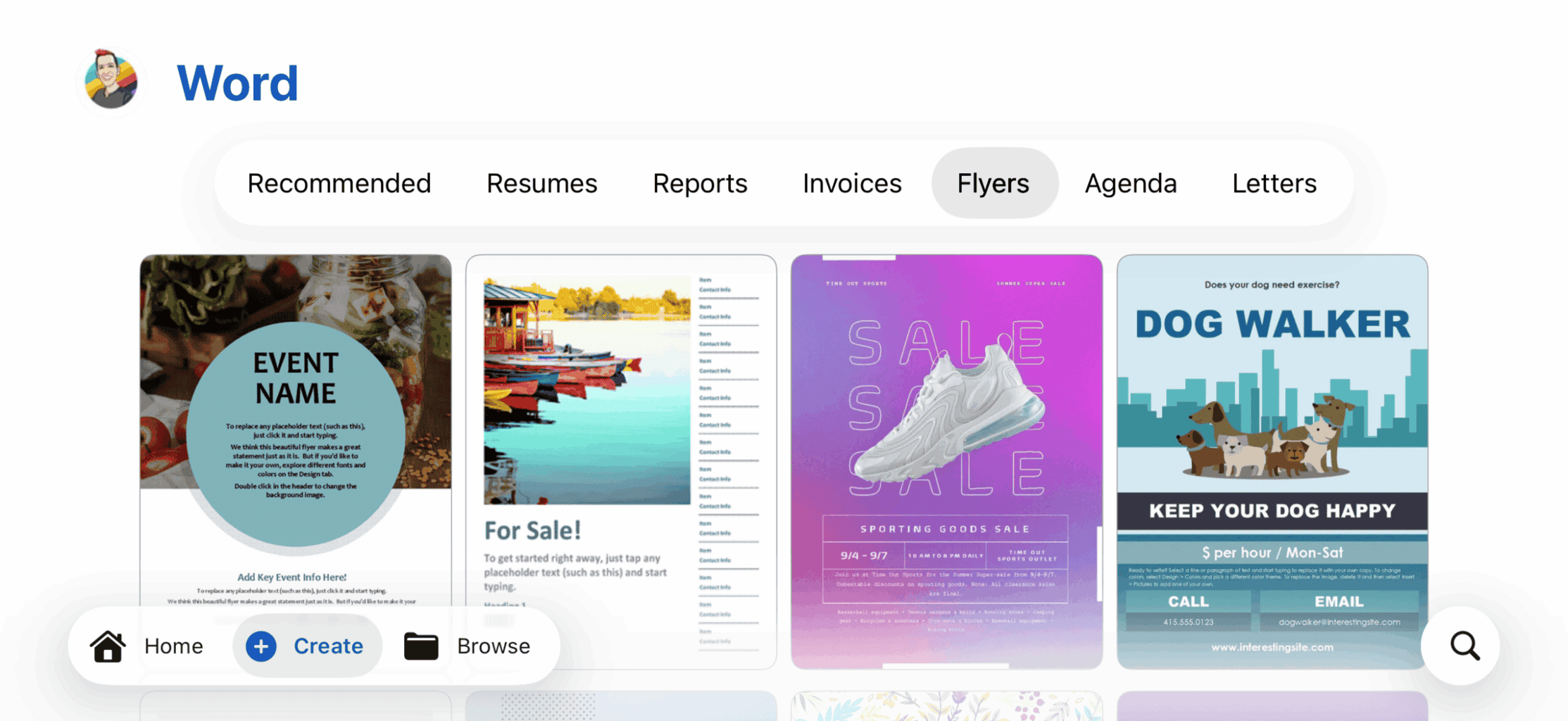
Microsoft, in its latest announcement, said that Office apps on iPhone, iPad, and Apple Vision Pro with a redesigned home experience. The latest version of Word, Excel, and PowerPoint for iOS brings a new Liquid Glass design and template category filters for faster document creation.
The update brings a modern interface that mimics iOS 26’s system layout. The navigation bar now appears at the bottom of the screen, making it easier to reach search and create options with one hand.
Microsoft has also made it easier to browse templates. When you tap Create, you’ll now see quick filter buttons, such as Flyers, Resumes, and Invoices, to narrow down results instantly instead of scrolling through one long list.
Image: MicrosoftImage: Microsoft
The revamped experience is available in Version 2.102 (Build 25101016) of the apps. Once updated, users can explore the new navigation and filter tools by opening Word, Excel, or PowerPoint on iOS 26 or later.
Earlier this month, Microsoft also rolled out Copilot-inspired icons across its Microsoft 365 suite. The new icons feature cleaner shapes, richer colors and a connected design system that reflects the AI-led future of the apps.
While Microsoft shared the redesigned icons for Microsoft 365 apps, it also gave a sneak peek at rejected icon concepts. Those include some early prototypes featured bold, experimental visuals such as Word icons without letters, Excel grids turned abstract, and PowerPoint designs with ribbons and pie charts.
Microsoft started fiscal year 2026 with strong first-quarter results. According to the latest earnings report, revenue stands at $77.7 billion, up 18% from last year. Operating income bumped up by 24% to $38 billion.
GAAP net income stands at $27.7 billion, up 12%. On a non-GAAP basis, net income hit $30.8 billion, a 22% increase. Diluted earnings per share climbed 23% to $4.13.
“Our planet-scale cloud and AI factory, together with Copilots across high-value domains, is driving broad diffusion and real-world impact,” said Satya Nadella, chairman and CEO. “It’s why we continue to increase our investments in AI across both capital and talent to meet the massive opportunity ahead.”
Microsoft Cloud revenue led the growth. Revenue from Cloud stands at $49.1 billion, up 26%, with commercial remaining performance obligations jumping 51% to $392 billion. Intelligent Cloud revenue is up by 28% to $30.9 billion.
Azure and other cloud services have also helped Microsoft, as they saw an increase of 40%. Productivity and Business Processes revenue rose 17% to $33 billion. Microsoft 365 Commercial climbed 17%, Microsoft 365 Consumer up 26%, LinkedIn up 10%, and Dynamics 365 up 18%.
More Personal Computing revenue was $13.8 billion, up 4%. Windows OEM and Devices grew 6%. Xbox content and services were flat at 1%, and Search and News Advertising rose 16%. Microsoft returned $10.7 billion to shareholders through dividends and share buybacks.
Investments in OpenAI have impacted earnings. The company reported $3.1 billion in losses for the quarter, reducing GAAP net income and EPS by $3.1 billion and $0.41, respectively.
“We delivered a strong start to the fiscal year, exceeding expectations across revenue, operating income, and earnings per share,” said Amy Hood, executive VP and CFO. “Continued strength in the Microsoft Cloud reflects the growing customer demand for our differentiated platform.”
For now, Cloud and AI are the key areas, with Azure and Microsoft 365 are leading growth. Overall, it’s a great start for the FY26.
Microsoft doesn’t seem to have answers for its string of recent outages. After a major Microsoft 365 disruption earlier this month, the company has now confirmed yet another widespread incident, and this time it is caused by a DNS failure affecting both Azure and Microsoft 365 services globally.
The latest outage has quickly spread across regions. Users reported being locked out of company networks and unable to log in to key portals such as Azure, Intune, and Exchange Admin Center. Microsoft later acknowledged the issue on its service status page, blaming it on a faulty configuration.
“Starting at approximately 16:00 UTC, we began experiencing Azure Front Door issues resulting in a loss of availability of some services,” the company said. “We suspect that an inadvertent configuration change was the trigger event for this issue.”
Microsoft added that it had “taken action to block all configuration changes” and was “rolling back to the last known good state” while continuing recovery efforts. The company also advised administrators to use PowerShell or the Azure CLI as a temporary workaround for accessing resources.
The outage has had ripple effects across industries. Customers, including healthcare and transport networks, have reported widespread authentication failures disrupting internal systems and user access.
This is the latest in a growing pattern of reliability issues for Microsoft’s cloud ecosystem. The company’s previous Microsoft 365 outage earlier this month left many users unable to send emails or access Teams for hours, raising new concerns about service stability.
Character.AI has announced that by November 25, users under 18 will no longer be able to engage in open-ended conversations with AI Characters. In a blog post from earlier today, Character.AI said it wants to build a “safer, creative experience” for younger users.
During the transition, teen users will have a daily chat limit of two hours, which will gradually decrease before the full restriction takes effect. The company plans to replace chat-based interactions with creative tools that let teens make videos, stories, and streams with AI Characters instead.
To ensure the right experience for each age group, Character.AI will also introduce new age assurance tools. It will combine the company’s in-house verification model with third-party services like Persona. These tools will identify under-18 users better and apply appropriate safeguards.
Besides these safety measures, the company is also launching the AI Safety Lab. That’s an independent nonprofit focused on developing safety frameworks for AI-driven entertainment. The lab will collaborate with researchers, academics, and policymakers to explore new techniques and share findings across the industry.
Character.AI says the decision comes after growing scrutiny from regulators and safety experts over how teens interact with AI chatbots. While acknowledging that most young users follow content rules, the company says it is “prioritizing teen safety over convenience.”
Hyper-V isn’t included by default in Windows Home editions, but you can still enable it manually. This guide explains how to install Hyper-V on Windows 10 or Windows 11 Home safely and use it to create virtual machines.
Before proceeding, make sure your system supports virtualization.
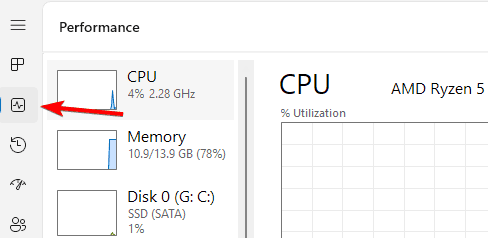
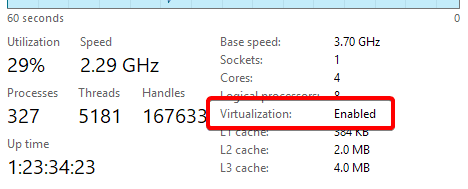
Press Ctrl + Shift + Esc to open Task Manager.
Go to the Performance tab.
Under CPU, verify that Virtualization is set to Enabled.
You’ll also need Windows 10/11 Home (64-bit) and at least 4 GB RAM.
If virtualization is disabled, enable it in your BIOS or UEFI settings before continuing.
2. Download the Hyper-V Enabler Script
Hyper-V can be unlocked in Windows Home through a PowerShell script.
Open Notepad.
Copy and paste the following command:
pushd "%~dp0"
dir /b %SystemRoot%\servicing\Packages\*Hyper-V*.mum >hyper-v.txt
for /f %%i in ('findstr /i . hyper-v.txt 2^>nul') do dism /online /norestart /add-package:"%SystemRoot%\servicing\Packages\%%i"
del hyper-v.txt
Dism /online /enable-feature /featurename:Microsoft-Hyper-V-All /LimitAccess /ALL
pause
Save the file as hyperv_install.cmd on your desktop.
3. Run the Script as Administrator
Now you’ll execute the script to install the Hyper-V components.
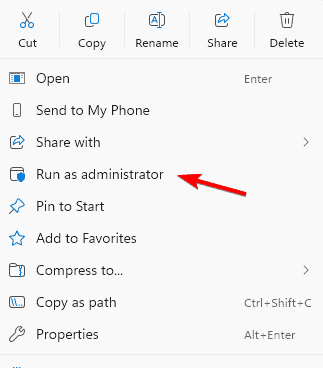
Right-click hyperv_install.cmd and choose Run as administrator.
Wait for the installation to complete.
When prompted, press Y to restart your computer.
After rebooting, Windows will finalize the Hyper-V installation process.
4. Enable Hyper-V Features via Windows Settings
Next, ensure all Hyper-V features are active through the Windows interface.
Press Windows + R and type optionalfeatures.
In the Windows Features window, check Hyper-V, Hyper-V Management Tools, and Hyper-V Platform.
Click OK, then restart your PC if required.
Follow these simple steps to activate Hyper-V manually on Windows Home. Learn more about different installation methods in this complete guide on how to install Hyper-V on Windows 11.
5. Open Hyper-V Manager
Once installed, you can start using Hyper-V immediately.
Press Windows + S, type Hyper-V Manager, and open it.
From here, create and manage virtual machines using your existing ISO files.
Hyper-V offers several advantages for developers and advanced users:
Test software in isolated environments
Run Linux or older Windows versions
Manage multiple virtual servers on one machine
Improve security through sandboxed testing
It’s a lightweight and reliable way to virtualize without installing third party tools. You can also expand your setup by following this tutorial on how to use Hyper-V USB passthrough on Windows 11.
Troubleshooting Hyper-V Installation
If Hyper-V isn’t appearing after setup, try these fixes.
Run Windows Update to ensure all dependencies are installed.
Re-enable virtualization in BIOS > Advanced > CPU Configuration.
Can I install Hyper-V on Windows 11 Home for free?
Yes. The steps above unlock the built in Hyper-V components at no cost.
Is Hyper-V better than VirtualBox?
Hyper-V integrates deeply with Windows and offers faster performance, though VirtualBox supports more host platforms.
Does Hyper-V slow down Windows?
No, but it reserves system resources for virtual machines. Disable it temporarily if you notice performance issues.
Can I remove Hyper-V later if I don’t need it anymore?
Yes. Go to Windows Features, uncheck Hyper-V, and restart your PC to remove it completely.
Conclusion
You can install Hyper-V on Windows Home using a simple script and the Windows Features tool. Once activated, you’ll have access to a full virtualization environment for running multiple systems safely and efficiently. If you want to dive deeper into managing your network and external devices, refer to the linked guides above for a complete setup.
It was back in September when broken Media Creation Tool caused havoc among users trying to upgrade to the latest version. Devices running Arm64 processors faced an error when launching the tool, with the message that read, “We’re not sure what happened, but we’re unable to run this tool on your PC.”
The issue affected version 26100.6584 of the Media Creation Tool, released on September 29, 2025, and left many unable to create bootable installation media. This was a known issue for Windows 11 25H2 devices.
Microsoft has now addressed the issue with the latest non-security update, KB5067036, which is available for both 24H2 and 25H2 users.
Besides fixing the Media Creation Tool issue, KB5067036 brings loads of new features and imorovements. Windows 11 users on 24H2 and 25H2 can now access the redesigned Start Menu, which simplifies navigation and improves overall usability.
For those with Copilot+ PCs, KB5067036 further enhances productivity with improvements to Click to Do, Voice Access, and File Explorer. You will come across better dictation support, and quick actions for managing files. Most of these new features are rolling out gradually.
However, the partnership between the two tech giants dates back to 2019, when Microsoft first invested $1 billion in the then-startup AI lab. However, according to CEO Satya Nadella, securing the deal was far from simple.
From the outside, it might have looked like a straightforward investment. But, behind the scenes, convincing the board to approve the deal posed a significant challenge.
“Even at Microsoft, you kind of got to have to get a board approval to just go throw a billion dollars out there,” Nadella said in a recent TPBN interview. “But I must say it was not that hard to convince anyone that this is an important area and it’s going to be risky.” He added
Adding to that, Bill Gates, Microsoft’s co-founder, reportedly expressed was quite skeptical about the investment. Nadella shared that Gates warned him, “Yeah, you’re going to burn this billion dollars,” primarily because OpenAI operated as a nonprofit at the time and its long-term viability was unproven.
Despite the warning, Nadella and his team convinced of the potential in AI and its applications for Microsoft’s ecosystem. Reflecting on the decision, Nadella added, “I didn’t put in a billion dollars saying, ‘Oh yeah, this is going to be a hundred bagger.’ We kind of had a little bit of high risk tolerance, and we said we want to go and give this a shot.”
Looking at that decision now, the calculated risk has since paid off significantly, as OpenAI-Microsoft partnership is seen as an example in the AI industry these days, and rightly so. Microsoft’s partnership with OpenAI is now valued at $13.5 billion and has fueled major products such as ChatGPT, Microsoft 365 Copilot, and other AI-powered tools across the company.
If your laptop dock isn’t being detected, checking Device Manager is the quickest way to troubleshoot it. This guide will show you how to locate your docking station, update its drivers, and confirm that it’s working correctly on Windows 10 or Windows 11.
Why Docking Stations Might Not Appear in Device Manager
If the dock doesn’t show up, it’s often related to connection or driver issues. Here’s what to check:
Outdated USB or Thunderbolt drivers: Use Windows Update > Optional Updates.
Faulty port or cable: Try a different USB C port or cable.
Dock not powered properly: Verify that the power adapter is connected.
Firmware issue: Update your dock’s firmware from the manufacturer’s site.
How to Confirm the Dock Is Working Properly
Once your dock appears in Device Manager, test it to ensure it’s functioning as expected.
Connect a USB flash drive, mouse, or external monitor to the dock.
Check that Windows detects the connected devices.
If it still doesn’t work, restart your PC and reconnect the dock.
FAQs
Why can’t I see my docking station in Device Manager
It might be hidden under another category, disabled, or missing drivers. Enable View > Show hidden devices to reveal all hardware.
How do I reinstall a docking station driver
Right click the dock in Device Manager, choose Uninstall device, then disconnect and reconnect it. Windows will reinstall the driver automatically.
Can I use one docking station for multiple laptops
Yes, but compatibility depends on the dock’s connection type such as USB C or Thunderbolt and your laptop’s supported drivers.
Do I need special software for my docking station to work
Some brands like Dell, HP, and Lenovo offer companion apps or driver packages for advanced features. Check your manufacturer’s support page to install them.
Conclusion
Checking your docking station in Device Manager helps you pinpoint most connection issues quickly. Make sure you explore the USB, Network, and Display categories, reinstall drivers if needed, and verify functionality with connected peripherals. If the issue persists, use the linked fixes for detection problems, display issues, and Ethernet failures.
You can easily locate your dock using the built in Device Manager tool in Windows by follow the steps from above. If your computer doesn’t recognize the dock at all, you can also check this guide on Windows 11 not detecting docking station.
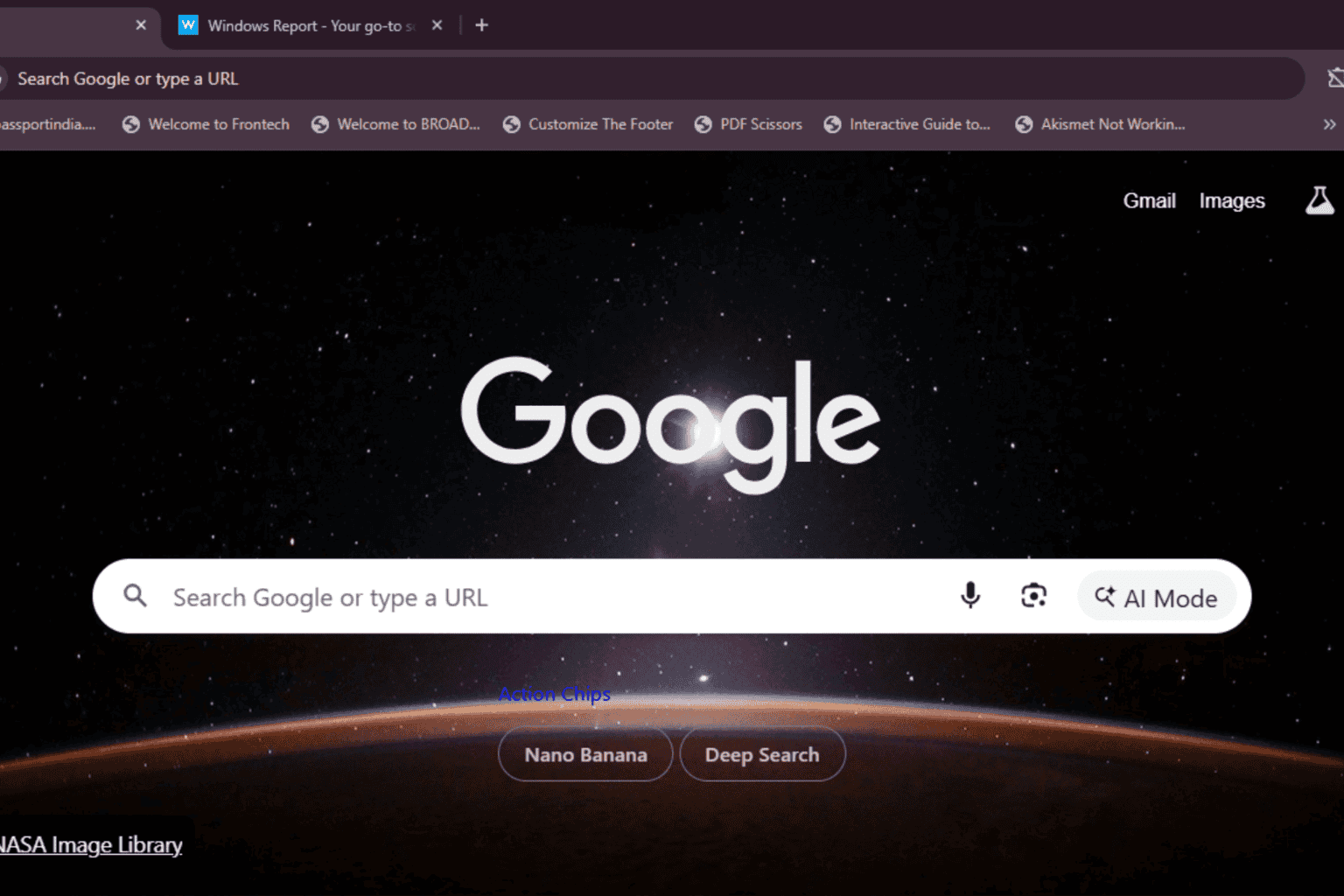
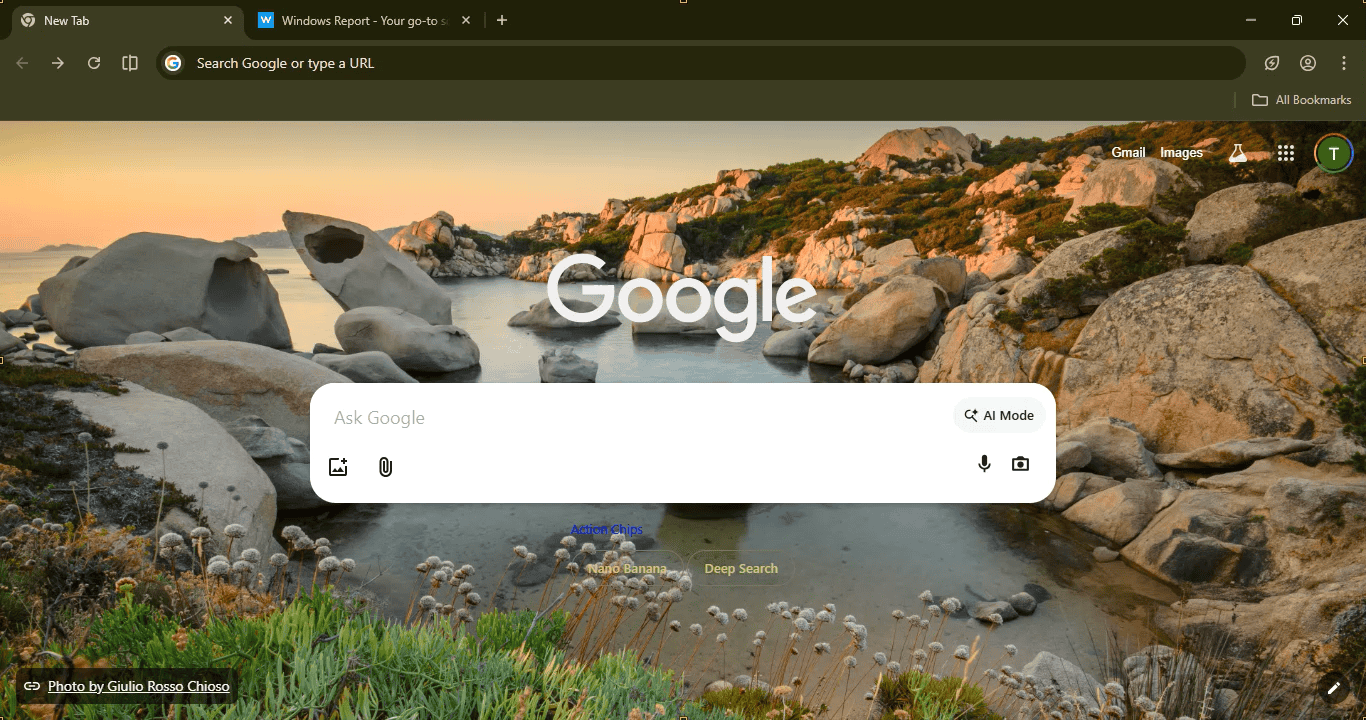
Google’s latest version of Chrome’s New Tab Page is adding two new buttons powered by its Gemini AI in Canary: “Nano Banana” and “Deep Search”. You’ll find these under the “Ask Google” search box. They are made to help you start creative or research tasks right away, without going anywhere else.
Right now, in Canary, Chrome’s New Tab Page already includes an AI Mode button inside the search box. This button lets you ask tough questions, get short and useful answers, and keep chatting for more information.
Under the box, there are now two new buttons, aka AI Action Chips: Nano Banana and Deep Search. When you click either one, it fills the box with some starter text, depending on what you want to do.
Chrome Canary shows Nano Banana and Deep Search buttons under the Ask Google box on the New Tab Page | Image Credit: Venkat | Windows Report
Nano Banana: This button connects to Google’s newest image-making AI. When you click it, you see “Create an image of…” in the box, and you can type what you want a picture of. This feature has just appeared in the Chrome Canary version, so it may not be finished or may not fully work yet.
Clicking Nano Banana changes the input box to “Create an image” for starting an image prompt | Image Credit: Venkat | Windows Report
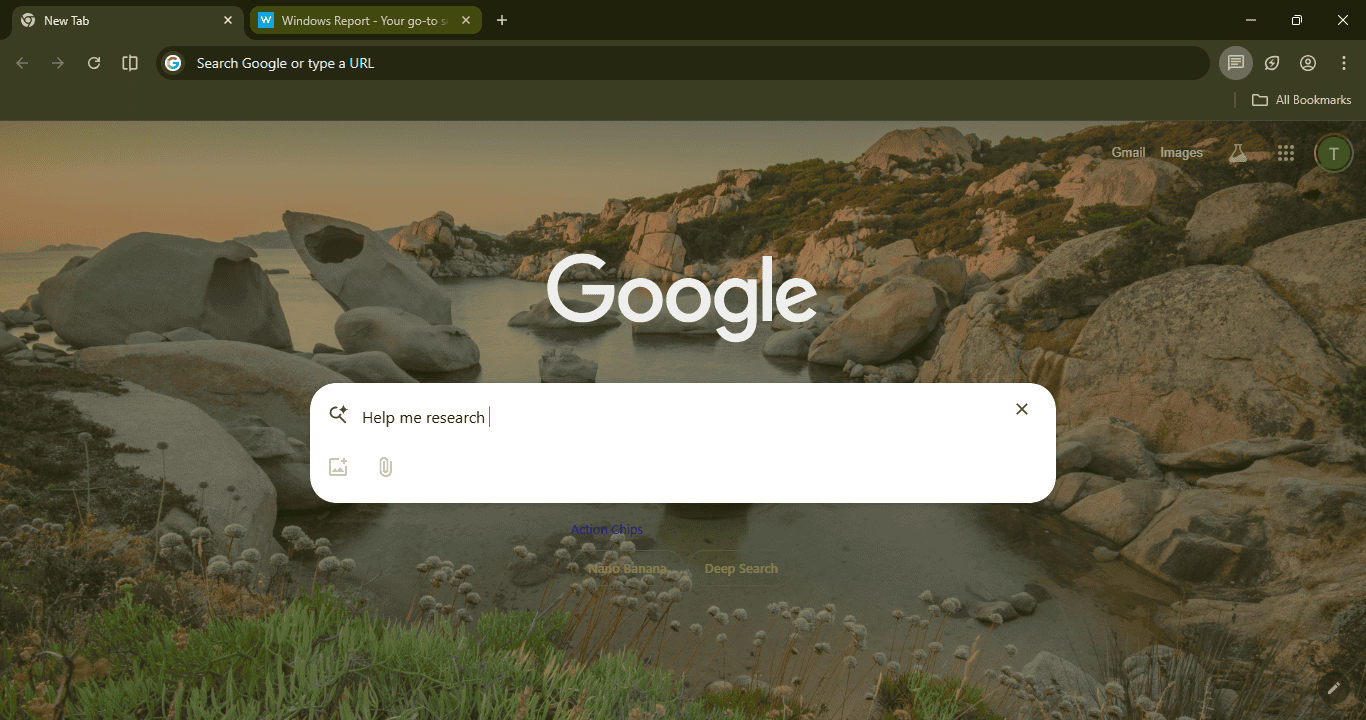
Deep Search: This button is for when you want to look up detailed information. Click it, and you see “Help me in researching…” appear in the box. For example, you can ask about “vaccines for children in India” and get a quick breakdown of the key details.
Clicking Deep Search updates the box with “Help me research…” for detailed AI queries.
At the moment, Chrome is still crashing while using these prompts, so we may need to wait a bit longer to try them properly.
Recently, we reported that Chrome is turning the New Tab Page into an AI Starter Screen, and the + icon inside the search box lets you add open tabs, images, or files to your question so you can include more context. Together, they make the New Tab Page a space where you can plan, create, or research, all without opening extra tabs.
Nano Banana and Deep Search work with Google’s Gemini AI. The first helps with images, and the second helps with finding and organizing information. Instead of being just a search bar, the New Tab Page is now a place to start whatever you want to do.
The New Tab Page in Chrome Canary now brings these new features into one layout with AI Mode, helpful prompts, and special buttons. You can ask, create, or research right from the start screen when you open your browser.
What’s your take on Chrome adding Google Gemini AI features to the New Tab Page? Share your thoughts in the comments below.