FlexiSpot has been making a name for itself in the custom standing desk industry with its wide variety of offerings that range from L Shaped standing desk to single use height adjustable mobile desks.
Anyone looking to upgrade their home or fleet office setups couldn’t start at a better business than FlexiSpot which expands its customization offerings into the fit and finish of each desk order that include chipboard, bamboo, fiberboard and solid wood desktop options, various frame colors, differing keypad arrangements and more.
As someone who has self-diagnosed as suffering from analysis paralysis, the Pro Plus E7 Standing Desk from FlexiSpot hit the right balance of a premium experience for a minimalist office aesthetic.
Look and Feel
Despite the moniker of Pro Plus, the E7 is among the most straightforward offering at FlexiSpot. Unlike other desks that offer discrete drawers and shelving options, duplex desktops, and adjustable drafting tops, the Pro Plus is a basic single top desk arrangement.
For anyone looking to begin a minimalistic office revamp, the E7 is a great option that comes with a discrete cable management tray built in and a wide 43.4″ to 66.99″ canvass to be arranged to content.
The other standout feature of the FlexiSpot E7 is the thicker leg columns used in the assembly. While it adds a lot of weight to the packaging of the E7, the wider leg arrangement led to the smoothest height adjusting experiences I’ve had with an adjustable standing desk.
There were no stutters or snags as it moved up and down the columns and the carbon steel material used for the legs doesn’t seem likely to bend, warp, or deteriorate any time soon.
No matter the height, the E7 remained strident and as immovable as a solid oak desk from the 70’s, where I was able to use make use of the old too-much-coffee-in-the-coffee-mug test.
As described, I was able to place an overpoured cup of coffee on the desk and watch as not a single drop breached the top rim while adjusting the height or even during heavy handed typing.
I got the smallest E7 that’s offered at 43.4″ x 22.8″ and it fits snugly in my small home office. Other options include the E5 and E1 which represent difference in load capacity, monitor support and height range with the E7 being the top tier frame at 355lbs load capacity, the E5 at 220lbs and the E1 at 154lbs.
Lastly, there is the LCD keypad panel to discuss. In addition to its clear and easily readable monochrome digital numbering, the keypad is also programmable with 4 height presets and houses a USB-A charging port on the premium keypad options.
I do wish it was a USB-C port rather than the USB-A but it’s will probably not be a deal breaker for most people who still use USB-A for most devices or own a USB-C converter.
As a parent of two 3-foot-tall children who think button pressing is the bee’s knees, there is fortunately a child-lock button to keep your desk from being a barbie elevator.
Summary
There are plenty of standing desk options that come in under the relatively steep price for the Pro Plus E7 and fortunately, FlexiSpot makes many of them, however, FlexiSpot does not live in a vacuum and some of the lesser-known Amazon competitors can lean on their lower prices to seem competitive.
Fortunately, FlexiSpot is constantly putting the E7 on sale for various holidays and seasonal discounts.
However, if you value quality material, customization, and a 15-year warranty, I doubt you’ll find a better standing desk out there.
My only gripe would be that it would be nice to see a Pro Plus with a starting width smaller than 48×24.
You probably enjoy streaming and are wondering what the best browser for Sling TV is. So let’s give you all the info you need.
Since the 90s, browser tech has evolved, increasing its use case. From gaming to streaming, there is just so much utility they afford.
Streaming platforms like Sling TV have taken advantage of this tech. Sling TV is a fantastic streaming service; no wonder is so popular since it offers access to more than 30 channels of cartoons, movies, TV shows, and many more.
Your viewing experience will be enhanced on the right browser, and we will give you our top recommendations.
Can I watch Sling TV on a web browser?
Yes, you can watch Sling TV on your browser without doing anything more than using a browser that offers good quality streaming.
The process is simple. Launch your browser and navigate to the Sling TV service. Once you log in, you can start viewing.
Moreover, in this article, you will find a list of the best browsers for watching Sling TV to get enhanced stream quality.
Which browser is best for streaming?
There are a lot of excellent streaming browsers. Users may love using the new and improved Edge on Windows, while on Mac, you may use iOS.
However, we generally recommend Opera One for streaming. It has many great features, and we will discuss them more deeply in the article.
Google Chrome – Huge number of extensions and add-ons
Today, Google Chrome has a huge user base. It often offers the most comprehensive HTML5 support and combines the most recent web technologies to provide the finest video playback.
One of the quickest browsers for streaming videos is Chrome. Users may also install a variety of fantastic streaming video extensions to Chrome, like Magic Actions, YouTube Plus, Turn Off the Lights, and others.
The downside is that the browser is infamous for being a memory hog, so you must plan for adequate memory and a modern device to get the best of Sling TV streaming on this browser.
It is, however, a very fast browser and one we also love to recommend.
We hope one of the browsers mentioned above will also be your choice when watching Sling TV online. Of course, these are not the only Sling supported browsers, but they are about the best browser for TV streaming.
Opera GX is the go-to browser for gaming, featuring exclusive and high-quality titles. In fact, Opera GX has a ton of exclusive browser games on GX.games website. Many of them are free to play.
Today, we look at the best games you can play on Opera and Opera GX, from addictive arcade classics to immersive RPGs and competitive multiplayer games.
Starting off the list is Operius, a game that you can play right now on Opera GX. All you have to do is enter opera://operius into the address bar of Opera GX and hit Enter on your keyboard.
It’s a lot like the old Atari game, Tempest. You’re a spaceship just shooting 3D shapes as you go through a tunnel at high speeds and collecting powerups. It is simple, but really addicting.
Friday Night Funkin’ GMR is a remake of the original game from Newgrounds.
It’s a rhythm game where you control a character named Boyfriend from a bunch of guys that try to steal his Girlfriend. The game resembles Dance Dance Revolution a lot.
If you’ve ever played Plants vs Zombies, you’ve essentially played this game. Notice me Leena-senpai is a tower defense game where you have to help the princess named Leena defend the castle from monsters.
You got a swordswoman slicing zombies, mages shooting magic from the back, and archers firing at ghosts. Winning is simple. Defend the castle from zombies, dragons, and ghost samurai.
Trial by Night is a mix between a tower defense game and a survival horror game. You play as a mage and you’re tasked with defending a village at night from a horde of ghouls, zombies, and other monsters.
The goal is to reach 15 nights of survival. During the daytime, you buy all the defense you’ll need to survive the monsters. And you can unlock special abilities by buying certain buildings.
GX.games has a decent amount of rouge-like titles. Treasures of Tristenwald is one of the best. If you’ve ever played Hollow Knight or a Metroid game, you’ll feel right at home here.
You play as a vampire lady traversing the forest of Tristenwald looking for treasure. Wielding a giant purple sword, you hop from platform to platform, exploring caves, and looking for treasure.
Rounding out the list of the best free games on Opera GX’s browser is BlastNet.
The game has you play as a green diamond trying to destroy the enemy’s red shapes; that’s it. That’s all you have to do: survive multiple waves to try and get a high score. But it’s so addictive.
There are different versions of this game available on the internet, but this is more of a remake.
The music nor the graphics are as good as the base game, but it still brings over the fun gameplay. But what is it? It’s Metroid-style RPG title where you play as a cute robot who finds himself stuck in a cave.
You can’t have a list of classic games without mentioning the big granddaddy of all first-person shooters: Doom. You can play the title on Dos.zone and you don’t have to pay a single dollar.
Unfortunately, there is no multiplayer with this version of Doom. That said, it’s still one of the best versions of Doom you play on the internet.
There are several ways you can play Pac-man including a Google Doodle version. But we recommend the Pacman.live version.
You can play the original Pac-man plus Ms. Pac-man. And there’s a new game starring a character named Cookie-man. Not sure who this other character is, but it’s still fun.
A reimagining of the classic arcade game Snake, Slither.io has you play as a brightly colored worm who needs to eat these pellets.
The goal of the game is to create the biggest possible worm and get the highest score. Like some of the other entries on this list, it’s simple yet addicting. What we find the most fun is competing with other people.
In Spelunky, you play as an unknown treasure hunter descending underground trying to collect as much treasure as you can while avoiding traps and enemies. Each level is randomly generated meaning everyone has a unique experience.
No two playthroughs are the same and it keeps the game fresh no matter how many times you play.
Worlde is easy to play. You have six guesses to figure out a five-letter word. Each time you incorrectly guess a word, you’ll get a clue as seen by highlighted letters. If the letter is green, you got it in the right place.
If the letter is yellow, it means that the letter is the word but located somewhere else. When Wordle first came out, it exploded in popularity. While the hype has settled, the game still has a ton of fans.
If you want to play an MMORPG without paying a cent for a subscription, you should try out Hordes.Io.
You can play as either a warrior, mage, shaman, or archer. Player vs player combat is a major draw as it can happen at any time. Don’t let the simplistic style fool you; it’s anything but easy.
Quick, Draw! is a pretty interesting game created by Google. It’s similar to Pictionary where an AI has to guess what you’re drawing. It can be as simple as an object or more abstract like an idea.
You only have 20 seconds to complete a drawing according to a random prompt given to you by the website. Unfortunately, you can’t pick your own word. And each time you play, the AI gets smarter.
Doomed to Hell is a shooter where you play as Rose, a skeleton trapped in hell who needs to fight off a horde of demons to escape.
It’s a lot like Treasures of Tristenwald where you fight off against a bunch of monsters trying to get a high score. You get money to buy weapons to get demons faster. By killing demons faster, you get more money for more weapons and it goes on forever.
Granblue Fantasy is a turn-based RPG that has a group of adventurers go on a globe-trotting journey to defend the evil empire and save the world from giant monsters. You don’t have a cent to play this game, but spending money does speed up the process.
The meaningful process can be rather slow if you don’t pay. But if you pay, you’re rewarded with a fantastic story and beautiful art.
If you liked Hordes.io but are looking for something more, you should try out Runescape. It’s 20-plus years since its launch, the title has grown to house over 200 million accounts.
The game itself is free, but you can pay for an optional membership that unlocks more content like skills and new quests.
Forge of Empires is an epic free-to-play browser game that’s like a mix between SimCity and Clash of Clans. You start with what essentially are cavemen and you begin to create an empire them, hence the name of the game.
The world goes through all of the major eras of human history and into a fictional future. You go through the Middle Ages to the Industrial Age and into the far-off future of colonizing space.
It’s similar to Forge of Empires. You start off with a settlement that you’re tasked with growing. And with that settlement, you are off and conquer the other players.
The game can be pretty tricky and require some luck, but nothing is more satisfying than managing that total conquest.
What is the best browser to use for gaming?
Well, Opera GX is certainly the best browser for gaming. As we just showed you, GX.games has a massive library of games exclusive to the browser. On top of that, the browser comes with features that enhance gaming such as reducing CPU usage.
Besides Opera GX, Chrome is also pretty good. It’s not a gaming browser but does have features that gamers would like. For example, it has a built-in password manager for protecting your Runescape account and you can sync passwords to other devices.
Firefox is also pretty good thanks to its security features. Vivaldi is recommended for its advanced tab management.
Feel free to comment below if you have any questions on Opera, other browsers, and video games. Also, leave comments about reviews you’d like to see or information on other web browsers.
Many users might install some of the best emulator software to play retro games from the 1980s and 1990s. However, you don’t need to install any software to play games these days.
With the improvement in technology, virtually everything is available online. This includes sites with a game emulator that allows you to enjoy your classic games on your browser.
The gaming option available includes a plethora of NES, Master System, Genesis, SNES, DOS, Game Boy, and arcade retro games. So, you are not short of options for retro games online unblocked.
This guide has gathered the best retro games you can play with your friends online for absolutely nothing.
Can new computers play old games?
New computers can play old games effectively. Some old games have been improved to work with modern computers.
However, if the game cannot work natively, you can use an emulator. Lastly, some of these old games are now available on emulator websites to play online.
What is the best browser for gaming?
Playing games within your browser, no matter how retro or simplistic they may look, will always feel better when the interface through which you’re doing it has an intense gaming vibe.
The best browser for gaming is undoubtedly Opera GX. Being the first browser specially created for gamers, Opera GX boasts features that will take your gaming experience to the next level.
This browser has everything from a clean and high-quality interface to gaming-centered integrations like Twitch and Discord. Lastly, it excels in all the features that make a modern browser. So, you can always use it as your default.
Opera GX
Opera GX is the world’s first and only gaming-oriented browser, so use it to play your online games in style!
Pac-Man is a points-scoring game originally launched in the arcades during the 1980s. This is one of the highest-grossing arcade games in history that won the hearts of players worldwide.
It’s a simple maze chase game in which players clock up scores by gobbling up all the dots and fruits on its levels. The simplicity of Pac-Man, like other retro games, is in many respects its beauty.
There are loads of websites and retro games online stores you can play Pac-Man games on. To play the original Pac-Man, check out the Original Pac-Man site. Or you can play a Google doodle variation of Pac-Man.
The Legend of Zelda: A Link to the Past was one of the best games on the 16-bit SNES console.
This is one of the RPGs of Nintendo’s Zelda series, and for many fans, it remains one of the best additions to the franchise. Many Zelda fans can now play this epic RPG all over again online on retro games websites.
You can play Zelda: A Link to the Past at numerous retro game sites that include SNES emulators. Play Emulator is one of the good websites to play A Link to the Past at. That website also consists of many other Zelda games for fans of the series to play.
Super Mario World was the launch title for the SNES console, and it’s one of the best 2D platform games ever. This Mario game introduced Yoshi, the dinosaur for players to ride on through levels.
The game includes a map with 96 levels for players to discover and play through. It was a big leap forward from the more linear platform games of its time.
Doom defined the 3D first-person shooter genre on Windows and consoles and the best multiplayer online retro game. This is a first-person shoot ’em up in which players blast through demonic hordes throughout a series of levels.
It was one of the first games that seriously embraced online multiplayer gaming during the earlier years of the web. So, Doom was the game that redefined PC gaming a few years before Microsoft launched Windows 95.
Doom got released on lots of gaming platforms. You can play the original DOS Doom at Legendary videogames ONLINE. Play Emulator includes five of the Doom games for consoles.
This is a 1980s arcade game in which players jump barrels tossed down levels by Donkey Kong to rescue the princess. Donkey Kong has its place in the gaming hall of fame primarily because it was the first game to include Mario in it, and is currently the best free online retro game.
This was one of Nintendo’s very earliest game titles from the big N’s foremost game designer Mr. Miyamoto. Aside from being the first game with Mario in it, it also started the Donkey Kong game series.
Sonic the Hedgehog was the first game in SEGA’s Sonic series, launched in the early 1990s.
This is a 2D side-scrolling platform game comparable to the early Mario titles. However, Sonic the Hedgehog has faster-paced gameplay than many of the alternative platform games of its time.
This was the game that sold the SEGA Genesis. The original Sonic the Hedgehog online game will provide a lot of nostalgia for fans of the series.
Tetris is another of the most widely played games in gaming history. This is a game of Russian origin in which players rotate falling blocks into lines to amass points and stop them from stacking up.
The game’s designer originally released Tetris on the Electronika 60 in the 1980s. However, the golden age of Tetris was when Nintendo had rights to the game and distributed it with the Game Boy.
Tetris was an ideal game for gaming with the portable Game Boy.
There are many variants of Tetris you can play online. If you want to play the classic Tetris Game Boy game, check it out on the arcade spot (linked in a subheading).
You can also play a color variant of the game on the Tetris website.
There are some online multiplayer retro games you can play with your friends on your browser. A good example is the PiePacker game which can be played with up to three friends.
On the other hand, some other retro online games require you to download an emulator software before you can play with friends. If it is just for fun, playing from one of the emulator sites should do the job.
Those are just a few of the great retro games online. You can have loads of fun on your browser with your friends playing the classic games we have listed in this guide. So, be sure to explore all the options there.
Google Chrome is one of the best browsers for all devices, with millions of users. It excels in the aspects that matter most to users, boasting ease of use, security, and browsing speed.
However, it is not free from the occasional error. One of such is the Chrome not showing most visited sites issue.
This problem comes in different variations, as reported by users. Below are some of the issues users face with their most visited sites:
Google Chrome most visited thumbnails not showing: This might can happen if Chrome clears off your browsing data when you exit the browser.
Chrome new tab page not showing most frequently visited pages: This issue can occur if Chrome is set not to store any cookies on your PC.
GoogleChrome frequently visited sites disappeared, not showing, sites missing – Sometimes this issue can occur due to your graphics card drivers.
Chrome most visited gone – According to users, this can happen if Chrome is out of date.
Irrespective of the cause and the variation of the problem, we have gathered the proven solutions that will help you get your favorite websites back.
Why does Chrome not show frequently visited sites?
The Google Chrome frequently visited sites missing issue can be caused by varieties of factors. It revolves around issues with your browser and not the sites.
Below are some of the popular causes:
Outdated browser
Wrong browser settings
Buggy browser
Quick Tip:
While there are many Chrome alternatives, none comes close to the Opera One browser, based on the same Chromium engine. Even so, Opera One boasts more customizations when setting up most visited sites, without loosing it’s speed.
This browser automatically adjusts its most visited website preview page as your habits change. It also allows to better organize your browsing with Workspaces, Tab Islands, built-in AI and a great modular AI-ready design.
Opera One
A lightweight browser that cleverly displays your most visited websites on the launch tab and let’s you resume your browsing.
How do I make Google Chrome show the most visited websites?
1. Update Chrome
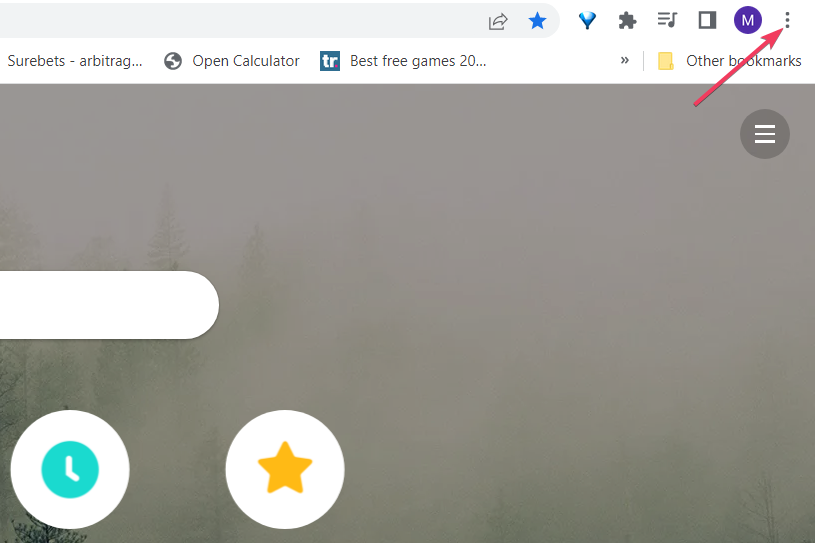
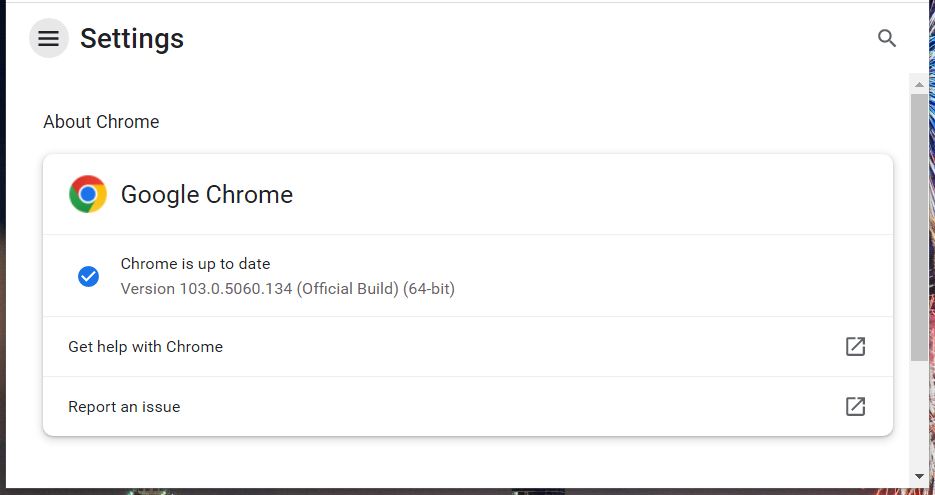
Click the menu button in the top-right corner.
Now, choose the Help option.
Select About Google Chrome.
It will show if there is any update to install.
If Google Chrome is not showing your most visited sites, the problem might be related to an issue with your outdated browser version.
Although Chrome automatically installs updates when you restart your browser, you can easily miss out on some if you don’t close your browser often. So, updating and relaunching your browser should fix the issue.
2. Ensure Chrome isn’t clearing your history
Launch Chrome and click the menu button in the top right corner.
Choose Settings from the menu.
Click the Privacy and security option on the left pane.
Select Site settings.
Choose the Cookies and other site data option.
Finally, toggle the switch for Clear cookies and site data when you close all windows backward to disable it.
After disabling this option, Google Chrome will store cache and history on your PC and you’ll be able to see the most visited websites once again.
3. Visit one of the websites on the Most visited list
Sometimes, it is not that the top sites Google Chrome doesn’t show most visited websites properly. Users reported that websites are on the list, however, no the websites don’t have any thumbnails.
Simply visit any website with a missing thumbnail by clicking it from the Most visited list. When the website opens, use it for a couple of seconds.
After doing that, that website’s thumbnail should be updated in the most visited list. Do this for all websites on the list in order to update all of their thumbnails.
4. Check the new page zoom in level
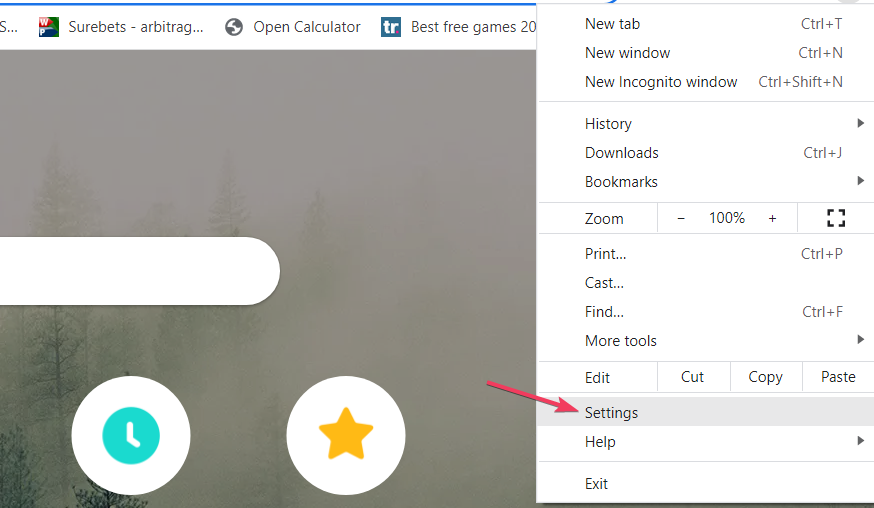
Open Chrome and click the menu button.
Ensure that the Zoom option is at 100%.
Click the + or – sign to increase to set the zoom level.
According to users, if Google Chrome is not showing the most visited sites, the issue might be your zoom level. Sometimes users zoom their pages in order to see better or simply by accident.
In this case, just set your zoom level back to normal. Aside from the steps above, you can press Ctrl and +/- keys to zoom in or out the page faster.
5. Reset Google Chrome
Click the menu button on Chrome and select Settings.
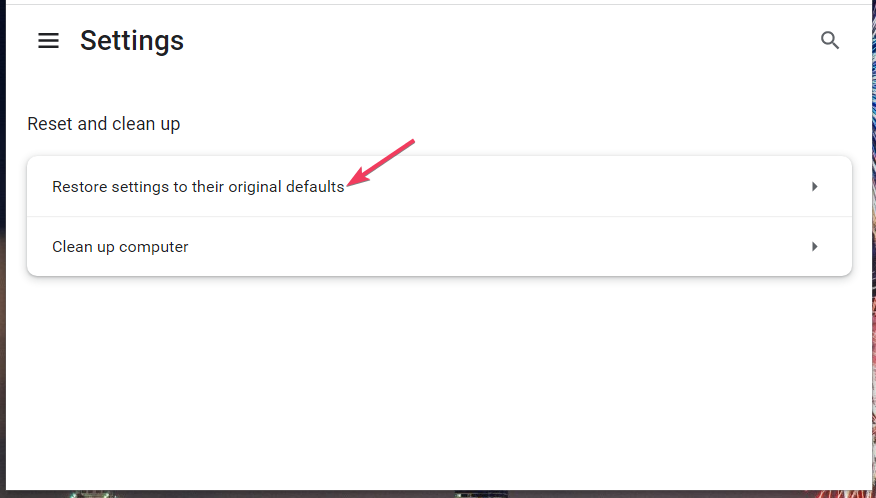
Click the Reset and clean up option.
Select Reset settings to their original defaults.
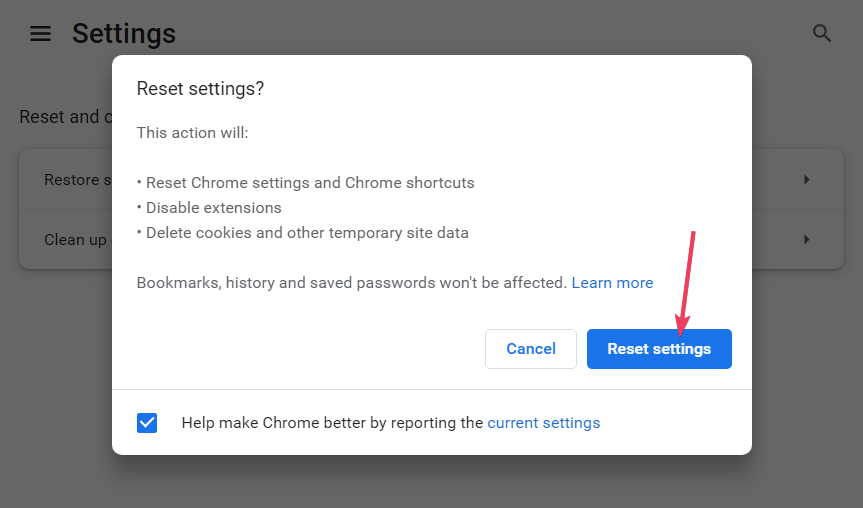
Click the Reset settings button to confirm the action.
After Chrome resets to the default, your extensions will be disabled, cookies and cache will be cleared, and settings will be returned to normal. With this, you will be able to remove the browser data that could be causing your favorite sites not to show.
It is important to note that your important data like passwords, bookmarks and history will not be affected. So, you have nothing to lose.
6. Reinstall Google Chrome
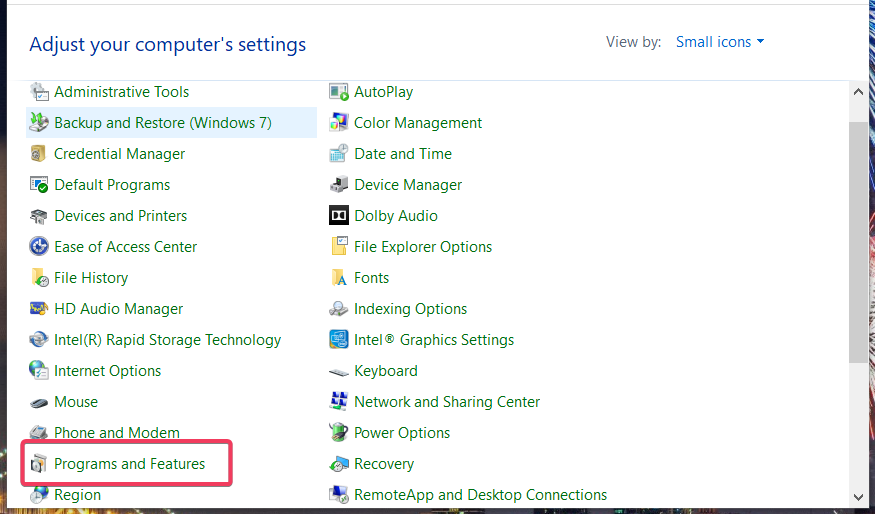
Press the Windows key + I to open the Settings app.
Select the Apps option.
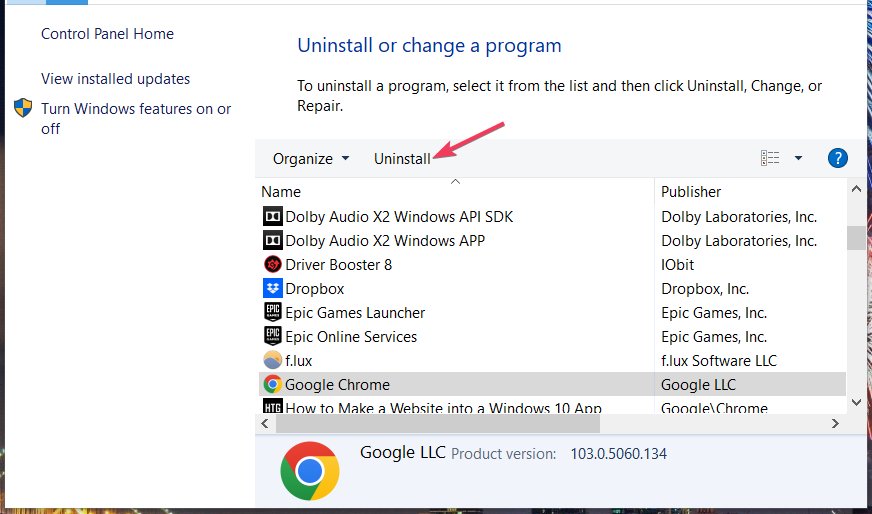
Scroll down to locate Google Chrome and right-click on it.
Click the Uninstall button.
Now, go to the official website to download the Chrome installer.
Click the Download Chrome button.
Finally, click on the downloaded file and follow the simple onscreen instruction to complete the installation.
If Chrome is not remembering your most visited sites, it might be due to a buggy browser. While the Windows uninstaller does a good job, using one of the best uninstaller software makes the process faster and more effective.
How do I save frequently visited sites on Google Chrome?
The easiest way to add a frequently visited site to the list of thumbnails on the Chrome new tab page is to delete one of the icons there. This is because when you delete one of the thumbnails, the next most visited site on the list replaces it.
Another way is to bookmark the site. This is more preferable, as you can access the site from various devices.
Not being able to see your most visited websites can be frustrating. But with the right information such as this, you should be able to solve it easily.
If you’re a web developer, you’ve probably heard about HTTP2 and its benefits. But how do you know if your browser supports HTTP2? The protocol has been around for years but only recently began to gain traction with web browsers and server software providers.
Most users are familiar with HTTPS, so is there a difference between HTTPS and HTTP2? HTTP2 is a protocol designed to improve web performance by enabling faster connections, more streamlined data delivery, and reduced latency.
It is the latest version of the HTTP protocol, which is the language web browsers and servers use to communicate with each other. In simple terms, it makes your web browsing experience faster, more secure, and more efficient.
This is a common question for developers interested in trying out HTTP2. There are no universal tests that prove that your browser supports HTTP2 because it’s not a standard feature.
It’s only supported by some browsers and servers, so you’ll need to check whether your client software and the servers you want to access support it.
Is HTTP2 faster than HTTP?
Yes, HTTP2 is faster than HTTP. The protocol allows for multiplexing and header compression, which results in fewer round-trips and less data transfer overall. HTTP stands for Hypertext Transfer Protocol, and it’s how computers send data over the internet.
When you click on a link on your browser, it sends a request to the server that hosts that website and asks for the website’s HTML code — the code that makes up what you see on the screen when browsing a site.
The server then sends back all those pieces of code in one big file called a response. This process can take time: The more information your browser needs from the server (for example, if there are many images), the longer it will take for everything to load completely on your screen.
HTTP2 is a major upgrade to HTTP. The main goal for this new version of HTTP was to reduce page load times by increasing speed, efficiency, and security.
A browser that supports the HTTP2 protocol can establish a single connection to a server, send multiple requests, and receive multiple responses.
This means that pages load faster than before because there’s less overhead involved in establishing new connections for every request. Opera One is supported by all major operating systems, including Windows, macOS, and Linux.
It is, however, important to note that not all versions of Opera One are compatible with HTTP2. Earlier versions are incompatible so ensure your version is anywhere between version 28 to 53.
Additional features:
The browser comes with a built-in ad blocker and VPN feature
Battery saver option that allows users to reduce CPU usage and save battery life
Built-in AI and modular AI-ready design
Opera One
Browse fast and error-free and get up-to-date features for quick social media access, customized workspace, and more!
Chrome’s biggest advantage over other browsers is its speed and performance. Users can expect faster page loading times and better overall performance when using this browser.
If you’re looking to increase performance and reduce latency, Google Chrome is your best bet from version 41 and above. Chrome also has a great developer toolset that lets you easily monitor performance, debug and test your site with ease.
Microsoft Edge is an excellent choice for users who want a reliable web browser without worrying about security issues or privacy concerns. From version 12 upwards, you can enable HTTP2.
Edge was released as part of Windows 10 and was designed to be an alternative to Internet Explorer. In fact, Microsoft has stopped updating Internet Explorer and recommends that users switch to Edge instead.
Its High-Performance Mode allows Microsoft Edge to use a higher number of concurrent TCP connections per hostname than other browsers do.
This can give Microsoft Edge an advantage when loading large images or other media-heavy content from websites that take advantage of HTTP/2’s multiplexing capabilities.
Firefox is also a very popular browser, especially among developers. It is constantly evolving and is one of the few browsers that support HTTP2, starting from version 36.
If you’ve ever been frustrated by slow-loading pages or sites that don’t work properly on your computer, then you’ll love the memory usage improvements in Firefox.
Safari is already one of the fastest browsers on iOS devices, so it makes sense that Apple would want to make it even faster with HTTP/2 support but only from version 9 upwards.
It also uses less memory and fewer system resources than other browsers, so you never have to worry about lagging or high CPU usage.
Some browsers support HTTP2 by default, but you will have to enable it manually in other browsers. To enable HTTP2 on your web browser, you’ll need to check browser support for HTTP2 first. In most cases, this is as simple as updating your browser to the latest version.
If your browser already supports HTTP2, you should see a green padlock icon on the left side of the address bar. If not, you can either update to the latest version or use an alternative browser that supports HTTP2.
You may also be interested in browsers that support HTML, so don’t hesitate to check our article for more recommendations.
Let us know your preferred browser for HTTP2 in the comments section below.
There are many web browsers available that you can download, and each one serves the needs of different people.
Notably, there are browsers for more privacy-focused people. You can also download browsers that facilitate productivity and offer many features but are not that good at securing your data.
Google Chrome is one of the most widely used web browsers across platforms. It has various features, but it isn’t regarded as one of the privacy-focused browsers.
However, questions might arise about what if you use Google Chrome with a VPN, and will it be safe as the Incognito mode? What is the difference between Google Chrome Incognito mode and a VPN?
If you have the same question and are looking for a comprehensive guide on Chrome Incognito vs VPN, then you are in the right place. Because here, we will try to answer all the questions you might have regarding this topic. Let us check it out.
Do Chrome VPNs work on incognito?
There are a few different VPNs you can use on Chrome. Some are extensions found on the Chrome extensions store; others are the regular cross-platform VPNs you will usually use on your device.
Each of these options may work differently on Chrome incognito. But generally speaking, a VPN that works well on Chrome will work regardless of your browsing mode.
And if you need a VPN, we encourage enabling it even if you are browsing in incognito since private mode does not offer total privacy.
What is private browsing mode or Incognito mode?
Private browsing mode, otherwise known as an incognito mode in Google Chrome, lets you surf the internet without allowing other people using your device to see your browsing history.
Google Chrome Incognito mode does not store your history or the websites you visit. But several users have reported that their web searches in Incognito mode are being stored and showing up as suggested searches in the Omnibox.
There are some benefits of using Chrome Incognito mode:
It doesn’t store the websites you visit.
It does not store cookies. So, if you are logged in to a website in normal mode, you won’t see yourself logged in to the website when you browse through Incognito mode.
None of the extensions work. This gives you a great environment to test and resolve specific issues with the browser if an extension is causing the problem.
Information entered in the forms will not be saved. So, Incognito mode comes in handy when using a payment gateway or banking website.
Permissions you have given to the website won’t be saved.
That is it when it comes to the benefits of using Google Chrome Incognito mode. Do note that Incognito mode doesn’t make you visible to everyone.
Your IP and online activities are still visible to others, including your Wi-Fi network administrators or people sharing a Wi-Fi network with you.
Additionally, the Incognito mode does not hide locations or sites visited by your ISP, search engines, employers, or schools. Incognito mode just hides you from those who have physical access to your PC or laptop. Downloads and bookmarks are also saved.
Tip
The comparison between Chrome Incognito vs VPN is that Google Chrome Incognito mode isn’t a full-proof method of securing your data or presence when browsing the internet.
There are a few caveats that we have listed above and will list in appropriate sections, which make using a trusted and premium VPN the best option if you are privacy-focused.
However, Chrome Incognito mode isn’t worthless altogether. For example, suppose you are looking to browse the internet casually but do not want your internet traces to be viewed by anyone using your PC or laptop.
In that case, you can use the Incognito mode and avoid investing in a premium VPN service that would cost you a monthly or annual subscription.
Chrome Incognito vs. VPN
How does Chrome Incognito keep your browsing private?
As already mentioned, Google Chrome Incognito mode is a feature that helps you keep your browsing history and data private from other people that use your device.
The functionality of Chrome Incognito mode is pretty simple. For example, when you switch to an incognito tab, Google Chrome creates an Incognito browsing session.
You will notice that when you open an Incognito tab, it takes you to a new tab, away from the regular tabs you might have left open. All the new tabs you open within the Incognito tab will be part of the same session.
All the corresponding tabs will be closed when you close the Incognito tab.
In Google Chrome Incognito mode, the browser does not keep track of your browsing history, cookies, or site data. Even the permissions that you give to a particular website aren’t saved.
Besides, using the Incognito mode also means you will not be signed into any of your accounts. Therefore, you will have to manually enter your credentials to log in to the websites in Incognito mode.
On the other hand, your activity is still visible to your employer, ISP, or parental tracking software if it is in use.
What are the benefits of Google Chrome Incognito mode?
Let’s take a look at the advantages of using Google Chrome Incognito mode:
When you use Google Chrome Incognito mode, your activity isn’t saved to the browser, on your device, or in your Google account.
After you close the Incognito window, all your browsing sessions, including site data, will be deleted.
You are not prone to the code-injection technique. For example, hackers can inject a code (a JavaScript tag) when you visit a website to hack information about your account or get inside your PC.
It saves you the pain of clearing your browser history every time you hand over your PC to another person.
When you use Incognito mode, you will see fewer fluctuations in the price of flight tickets or other booking sites.
You will not see targetted ads in Incognito mode, which you see based on your searches, cookies, or saved website data in normal mode.
None of the data you enter in a form or on a baking website will be saved by the browser.
You also get the option to block third-party cookies that track you across the web.
What are the disadvantages of Google Chrome’s Incognito mode?
Let us discuss the disadvantages of using Chrome Incognito mode:
Incognito mode hides your internet activity locally and not on a network level. Anyone physically accessing your device won’t have access to your browsing history, etc. However, someone monitoring your networks, such as your ISP, employer, or school, can still view your activity.
To use Incognito mode, you need to enable it. By enable, we mean that you need to follow a few steps to open a special window for the Incognito mode, which is unavailable when you open the default window.
Advertisers can still track you based on your searches while in Incognito mode. For example, if you search for a pillow, you will be shown ads for pillows throughout your Incognito browsing session.
You cannot get the Incognito tabs back when closed. This is one of the main disadvantages of using Incognito mode.
All the downloaded files are not saved within the browser but inside a folder, the Downloads folder by default. So, anyone with access to your PC can view or open the files that you have downloaded using Chrome Incognito mode.
Anyone who queries your DNS can get the hang of all the websites you have opened, even with the Incognito mode.
How to use Incognito mode in Chrome?
Open the Google Chrome browser.
Click on the menu or 3-dot iconnext to your profile picture at the top-right corner and select the New Incognito window option.
Alternatively, you can press Ctrl + Shift + N keys on your keyboard to open a new Incognito tab in Chrome.
How does a VPN protect your privacy?
We are connected to the internet in almost every walk of our lives. Right from shopping, to booking tickets, to payments, to entertainment, everything is done online.
Whenever you visit a website, it stores cookies as website data. This allows advertisers to target you with ads based on your searches.
But this can be avoided if you use a trusted and good VPN app or service. A VPN stands for Virtual Private Network. Unlike the Incognito mode, which provides online safety on a local level, it also adds a security layer on a network level.
Using a VPN allows you to access restricted websites, download apps or software that aren’t available in your region, access your files from anywhere in the world securely and privately and use torrents for all the stuff you already know.
The advertisers will have a hard time tracking you. However, your location is practically impossible to track since a VPN encrypts your connection.
When VPN is enabled, it connects to the internet through a private server. This makes it appear that a private server is trying to access a website rather than an individual, hiding your IP address.
If you use Windows, you can also use the built-in VPN that comes with Windows 10 and 11. We have a dedicated guide that details it and how you can use the Windows built-in VPN.
What are the benefits of using a VPN?
Apart from the brief benefits of VPN mentioned above, below is a comprehensive list of the benefits of using a Virtual Private Network, i.e., VPN.
A VPN encrypts your network. Whether you use your home or public internet, your privacy and anonymity must be maintained by encrypting the traffic with AES 256-bit encryption.
It is also beneficial for remote workers who download and use the company’s essential files on their preferred network. A VPN encrypts the traffic, making it nearly impossible for anyone to hack the files.
You can bypass any geo-restricted content. This means you can download restricted apps, software, TV shows, movies, etc.
VPNs can also prevent bandwidth throttling, which ISPs and administrators might do to keep users under their download limits. Since the network traffic is encrypted, no one can throttle the bandwidth.
A VPN can bypass firewalls. It becomes difficult for the firewall to know if the connection needs to be blocked or not. In addition, people in regions like China can also stream Netflix and Amazon Prime Video where the services aren’t accessible.
VPNs are suitable for gamers as well. It shields them from DDoS attacks, swatting, or doxxing attempts, and can help download region-locked DLCs or add-ons.
What are the disadvantages of VPN?
After looking at the different benefits of using a VPN, let us check out the downsides of using a VPN.
A VPN may decrease your network speed. A VPN sends your internet traffic via an encrypted tunnel and connects you to a server anywhere in the world. For long-distance travel, the traffic can result in slow internet speeds. For this reason, you may need to opt for a premium VPN.
If you use a free VPN, you will encounter a dropped connections issue. This small window is enough for hackers to breach the security of your device since your actual IP address is exposed. It can be avoided by using a paid VPN service that comes with a Kill Switch feature.
Some countries do not allow the usage of a VPN app.
You have to be very careful while selecting a VPN app because several imposter VPN apps look legit but give hackers a gateway to your device.
Not every VPN provides you with the best features. So, to avail yourself of the top-of-the-line features and security, you have to shell out money for the subscription cost of a premium VPN.
A VPN cannot protect you from outside intrusion. This means that a virus, trojan, or malware can still enter your PC or smartphone if you are unaware of which websites you should access and which ones you should not.
Download and install PIA from the official website on your PC.
Launch the Private Internet Access VPN app.
Log in with your credentials.
Press the power button to connect to a VPN server.
Private Internet Access is one of our recommended VPNs that you can opt for. It comes with servers in over 77 countries, is 100% open-source, and does not store VPN logs or leaks.
If you are encountering issues with the PIA VPN, you can connect with its world-class 24/7 customer support, and if you do not like the VPN services, there is a 30-day money-back guarantee.
For a list of other trusted and some of the best VPNs available, you can check out this guide on the 5 best VPNs for Windows 11, selected after three months of usage and tests.
Why should you use Incognito mode with a VPN?
Be it Chrome Incognito mode or any VPN, there are certain drawbacks or disadvantages attached to both; however, there is a way to fill this gap.
You can use a VPN with the Chrome Incognito mode. In doing so, the gaps in the VPN can be filled by the Incognito mode and vice-versa.
And for those who are wondering whether VPNs work with the Incognito mode, the answer is yes. VPNs work with Chrome’s Incognito mode and other browsers.
When you use a VPN with Chrome Incognito mode, all your internet traffic will be routed via the encrypted channel by the VPN, and the no-logging policy gives you total privacy.
So, for example, when you use private browsing mode, you are not logged in to Google or any other services. This will prevent the service providers from storing the cookies and targeting your ads based on your searches.
On top of this, the VPN will reroute your network traffic to a different location, not allowing the websites to see your actual IP address.
Duckduckgo vs Chrome incognito
Cookies, history, and any data you’ve input into forms are deleted from your computer when you use the incognito mode to browse.
This deleting only happens after you close all your open tabs to conclude your session. Therefore, even if you keep the incognito tabs open for days or hours, that information will continue accumulating.
DuckDuckGo is unique in that it prevents trackers while you browse and doesn’t keep any of the information about your surfing.
Is a VPN better than incognito mode?
Every major browser has some incognito mode, whether it goes by the name InPrivate, Private Window, or anything else. However, a VPN is more efficient than the incognito mode in protecting your online identity.
In contrast to VPNs, incognito mode is perfect for keeping your online activity hidden from other users of the device.
Apart from this, if you are experiencing Chrome VPN issues, you can check out our guide on how to fix it, and if you are facing VPN not working with Google Chrome, then we have a guide that will also resolve the issue.
The next featured update for Windows 10, known as Windows 10 22H2, is now out for testing in the Release Preview channel, but there’s a bit of story beyond that. As spotted by Thurrott.com, Microsoft quietly updated the original blog post for that Windows 10 22H2 news to tease some possible new features for the operating system in the future.
To be clear, Microsoft didn’t officially list or get into any new features up for testing in Windows 10 22H2. This specific 22H2 build is still only for validating servicing technology, and Microsoft specifically mentioned IT admins when talking about this Windows 10 22H2 build. Yet a note from Microsoft’s Brandon LeBlanc at the top of the page gets into the tease. Here’s what he says.
“Windows 10, version 22H2 has a scoped set of features and Microsoft will share more details on this update later this year.”
Beyond that simple quote, it is not apparent what these scoped sets of features might be. If we use Windows 11 as an example, Microsoft might enable new Windows 10 22H2 features via enablement packages. That, though, is also doubtful. Windows 11 is the future for Microsoft, getting new features like a tabbed File Explorer. Windows 10, version 22H1 was also a minor update, mainly coming with IT-centric features, so we expect more of the same. Either way, this is a story worth watching and we’ll do our best to update you on all the latest news and rumors.
If you wonder how to fix the most common following issues on Twitch, you are not the only one. A large number of users have encountered problems with their following. A common one is the Twitch follower count not updating.
Twitch became one of the most used streaming platforms in the world, with the increase in the number of users, the number of issue reports has also increased.
In today’s article, we will find out how to fix the most common following issues on Twitch. Read on to find out the details.
What are the most common follower-related issues on Twitch?
Before discovering the best solutions to solve them, it is essential to take a look at the most common issues you can encounter on Twitch:
Followers are not getting notifications – In most cases, this one appears due to some wrong Twitch settings. Fortunately, you’ll find how to enable them quickly and get notifications without any problem.
Twitch following is not working – Many users reported that this issue occurs because of Twitch servers’ glitches. In addition, keep in mind that the app can also get into trouble, so reinstalling it might be efficient.
Followers are not updating – In this situation, you’ll probably need to update your software.
Twitch followers are not showing up – Even if some people are not considering it, you should ensure that your browser isn’t zoomed in.
Why is my Twitch not updating followers?
Since this is a widespread error among users, it is good to know why you may be faced with it.
Sometimes it takes 24 to 48 hours for your achievement statistics, like your follower count, hours streamed, and average viewers, to sync with your dashboard data. So, if that hasn’t been updated yet, don’t worry!
Also, your follower count may be hidden because the browser is zoomed in.
Let’s see what you can do to solve these annoying issues in less than five minutes.
What browser can I use to avoid the most common issues on Twitch?
Here comes Opera GX, the world’s first gaming web browser and the best one yet. It features a fantastic-looking UI that can be customized in various ways, just like the Opera browser.
More so, it features dedicated integrations with services such as Twitch, and the homepage takes you to the best gaming deals and freebies you can get at that moment.
Thanks to this browser, you can finally enjoy your favorite gaming streams, which were meant to be error-free.
Check out these other amazing features of Opera GX:
Free VPN
Built-in AdBlocker
Easy to use and friendly user interface
Opera GX
Get quick access to Twitch and enjoy high-speed streaming with this performance-oriented browser.
In the upper-right corner of the window, click on Log In.
Enter your credentials, then click on Log In.
Click on your profile image.
Navigate to Settings.
Select the Notifications tab, then enable the Smart Notifications box. This will get you notified when a channel you follow goes live.
Now, expand the On Twitch section, then enable the All Notifications on Twitch option.
Relaunch your browser.
Because of a large number of users complaining that they didn’t get a notification when their favorite streamers came online, Twitch has reacted.
They created a Google Chrome and a Mozilla Firefox notification service. Once connected, it will show you all the notifications available, even if you don’t have the Twitch site or app opened on your PC.
If all systems are operational as indicated in the image, you will have to wait it out.
If you can’t follow any new channels or people, it might be due to a glitch in Twitch servers. In this case, we recommend checking the Twitch servers’ status.
2.2 Reinstall Twitch
Uninstall Twitch by long tapping on the Twitch app, then selecting the Uninstall option in Android or Remove app in iOS.
Open your Play Store.
Search for Twitch in the search box.
Click the Install button.
We recommend that you uninstall your software and download the latest version. This is a valuable fix if the Twitch follow button is not working, Twitch followers are not showing up, or when your Twitch following list is gone.
Even though this is not an official fix, it helped some users solve their issues, so it is worth a try.
3. Twitch followers not updating
Open your Play Store.
Search for Twitch in the search box.
If there is an update, you will have an Update button rather than the Open button. Click on it, and the update should start.
Even though this issue occurred relatively often in the previous years, the Twitch developers have declared that they identified the problem and solved it by releasing an update.
If your Twitch software is already updated, then it might be the case that the number of Twitch followers that you gained unfollowed your account.
Also, you should try an update if Twitch is not sending notifications to followers or Twitch can’t follow a channel.
4. Twitch follower count not updating
Launch your browser.
Navigate to the Twitch service.
Use keyboard hotkey Crtl and + to zoom out.
Several users have complained about this issue, saying that the sidebar showing followers suddenly disappeared.
This issue is caused by changes that the Twitch developers are rolling out. The update allows you to toggle on and off the sidebar and show extended details about your followers.
To work around this issue, please check that your browser is not zoomed in too much.
With the Lenovo Chromebook Duet 3 (2022) update, the company continues to nail the cross section between budget and value.
Representing a sequel to the Chromebook Duet 3 from 2020, the Duet 3 (2022) updates its processor, speaker placement, 2K resolution screen, thinner kickstand back, sturdier keyboard and stronger magnets, all for around $350.
With component shortages still lingering, getting the “perfect” laptop for school may be a bit of a timing issue for some students, but getting solid computing experiences are fortunately easier than ever these days thanks to devices such as the Duet 3 (2022).
For just $350, students and casual users alike can grab the Duet 3 (2022) and have versatile computing experiences that span binge watching on the couch to processing Office docs.
10.1″ FHD (1920 x 1200) IPS
Glossy touchscreen
400 nits
11.0 2K (2000 x 1200)
Glossy multi touchscreen
400 nits
TUV Rheinland low blue certification
Storage
64GB
Up to 128GB eMMC 5.1
Graphics
Qualcomm Adreno GPU
Camera
Front: 5.0mgp RGB, fixed focus
Rear: 8.0mpg RGB auto focus
Front: 5.0mgp RGB, fixed focus
Rear: 8.0mpg RGB auto focus
Memory
4GB RAM LPDDR
Up to 8GB LPDDR4x
Dimensions
258.04x 164.55x 7.90mm10.16x 6.48x 0.31inches
Audio
1W x 2Stereo Speakers, Dual Array microphone: supports Google Assistant
1W x 2Stereo Speakers, Dual Array microphone: supports Google Assistant
Weight
Starting at 0.99 lbs/ 450g
Tablet: around 516.6g(1.14 lbs)Folio: around 429.3g (0.95lbs)Total(Folio + Tablet): around 945.8g (2.09lbs)
Color
Color: MistyBlue, Storm Grey
Color: MistyBlue, Storm Grey
Ports/Slots
1 x USB-C 3.2 Gen 1 (support data transfer, Power delivery 3.0 and DisplayPort 1.4)1 x Pogo pin connector
2 x USB-C 3.2 Gen 1 (support data transfer, Power delivery 3.0 and DisplayPort 1.4)1 x Pogo pin connector
Battery
29Wh supports Rapid Charge
29Wh supports Rapid Charge
What’s in the box
Full keyboard/ Kickstand Pack included
Dock with non-backlit keyboard, anti-pry, water-resistant
Full keyboard/ Kickstand Pack included
Dock with non-backlit keyboard, anti-pry, water-resistant
Look and Feel
The Chromebook Duet 3 (2022) may look an awful lot like its predecessor but Lenovo has made some incremental but meaningful changes that evolve the feel of the overall device nicely.
This time around Duet 3 (2022) comes with a sturdier kickstand attachment which addressed my concerns from my previous review. The magnetic connection to the back of the tablet is much stronger so there is much less incidental movement of the piece during use.
Perhaps in an effort to shave off some ounces, the kickstand attachment is also a bit slimer than the one used in 2020 which has led to me leaving it attached more often than not and just incorporating it into the average weight of the tablet when in use.
While Lenovo hasn’t added backlighting to the keyboard, it did manage to make the underneath plating feel more rigid than the 2020 model with much less flex resulting in a more solid typing experience on the lap.
Lenovo added an additional USB-C port which can now serve as a connection to a secondary monitor while also charging the device or connecting a external hard drive simultaneously.
The display on the Duet 3 (2022) got an upgrade from 10.1 at 1920 x 1200 panel from 2020 to 11.0 at (2000 x 1200) for a slightly crispier viewing experience. The bezels on Duet 2022 feel roughly the same as before and continue to glide into the rounded display aesthetic.
I’ve spoken about the keyboard experience in my previous review of the Duet (2020) as,
“…the keyboard is limited in space and the compromises Lenovo chose to accommodate the placement of keys can be felt when typing or using the trackpad for extended periods. Another nitpick is the lack of ergonomic positioning that comes with Microsoft’s magnetic Surface Type Cover connection to the bottom of the screen allowing for a raised typing experience. “
In 2022, the experience remains roughly unchanged. While the plate underneath the keyboard offers less flex and is water resistant treated, it’s still a cramped typing experience and one that’s exacerbated by the fact that the device is a pleasure to use for longer periods of time.
Everyday Use
In 2020 the overall experience of the ChromeOS felt disjointed and less cohesive than it is today. The improvements brought on by two more years of ChromesOS development have refined the user experience a great deal for me and has made my use go from the answering the occasional email and binge-watching shows to binge watching shows and writing long form articles, processing data in Excel, creating PowerPoint presentations and the occasional light image editing.
Perhaps, much of the credit in my change of opinion might stem from the switch to the Snapdragon 7c Gen Qualcomm processor over the performance throttling MediaTek one from 2020.
While it’s not a silver bullet to address various other annoyances I’ve had with ChromeOS, it is definitely a great addition on a sub $400 computer that can serve as a go to device for many people.
As for everyday use, Duet (2022) lasted about 10 hours of use on the battery for most days, and depending on the workload, I could squeeze out a day and half.
The 29-Watt hour battery paired with a 45W charging brick meant I was up and going after about 30 mins if and when the Duet (2022) happened to be on its last leg.
From a sheer performance stand point the Duet (2022) serves best as a single task device. Trying to load it up with Android games while simultaneously trying to sort through “Desks” (virtual desktops) will confuse the device at times and result in black screens while background music plays.
However, if you manage to play well in the sandbox of Chrome tabs and the occasional casual mobile game you would be hard press to identify any issues.
Summary
For $350, there are few complaints this time around from me on the Duet 3 (2022). Not that price is an overwhelming factor in my use-case scenarios, but for many budgets are a real constraint, and Lenovo has addressed many of the complaints I had with the hardware and performance of the original Duet.
Going into school season this year, Duet 3 (2022) is definitely recommended for anyone who lives and breathes Google and Android.
With the addition of a second port, users can now enable the Duet (2022) to power their home office, or dorm room setup for as little as $300.
Video conferencing is something we’re all still doing in 2022, even with the pandemic restrictions easing up. You might buy an external webcam to help boost your calls or even an external monitor, so you can multitask, but what if we told you there’s a solution you can use on your desk that does both?
This time around it’s the Dell Ultrasharp 32 4K Video Conferencing Monitor, which was sent to me for review. After using one in my setup for two weeks, I think it’s now officially the best monitor you can use for your Teams, Zoom, or Skype Calls. It even can help you work better. Here’s a little more on why.
Specs & Price
The Dell Ultrasharp 32 4K Video Conferencing Monitor retails for $1,600 at Dell.com or around $1,280 when on sale. For that price, there are a lot of specs for your buck. Generally speaking, the screen size is 31.5 inches. The resolution comes in at 4K 3840 x 2160 at 60 hertz, and this is a 3-sided narrow bezel panel, like most of Dell’s monitors.
For the first time on one of Dell’s conferencing displays, the technology being used onboard is IPS black. It comes with a response time of 8ms under normal operation and 5ms gray-to-gray. The contrast ratio is rated at 2000:1, according to our colorimeter. Brightness is rated at 400 nits. Oh, and this is a 16:9 aspect ratio screen. You’ll also get 100% of the Rec 709 spectrum, 100% of the sRGB spectrum, and 98% DCI-P3 spectrum. Viewing angles are rated at 178 degrees.
Ports include the following. HDMI (HDCP 2.2) DisplayPort 1.4 (HDCP 2.2) USB-C 3.2 Gen 2 upstream, USB-C 3.2 Gen 2 upstream/DisplayPort 1.4 Alt Mode (power up to 90W),USB 3.2 Gen 2 downstream (power up to 15W), 4 x USB 3.2 Gen 2, USB 3.2 Gen 2 downstream with Battery Charging 1.2, and DisplayPort out for daisy-chain. You’ll also get a headphone jack.
Dimensions come in at 28.1 in x 9.1 in x 19.6 in with the stand in the lowest position as we reviewed. Weight is around 26.23 lbs. Typical power consumption is 240 watts.
Design & Teams functionality
If you’ve ever seen a Dell monitor before, then the design of this monitor should feel familiar. The rear is colored in Dell’s signature silver colorway, as is the stand. As I’ve said many times before, it’s a welcome design that isn’t overly distracting and is quite welcoming for your desk when compared to black-colored displays.
Other than that, this monitor has a lot of great ways to be positioned on your setup. My desk has low clearance, and I was able to bring it down to eye level. It’s one of the things I always appreciate about Dell’s displays. You can tilt and pivot this one between -5/+21 degrees. The swivel angle is rated at 60 degrees. And, the height is rated at up to 5.9 inches. You even get compatibility with a VESA mounting interface.
Outside of the normals, there are two signature things about this design. Unlike most monitors, this one has a speaker var up top, instead of the bottom. I’ll have more on that later, but the two speakers in the bar are rated at 14 watts. The speakers work across all inputs, too, which is huge for me, as I used this monitor with my Xbox.
As for the second thing? It’s the Microsoft Teams buttons and controls. These touch controls are on the lower left of the display. You can click the Teams icon here with your finger to launch Microsoft Teams, You also can answer calls, too, and control the volume of your speaker. The final two buttons let you disable the monitor’s microphones and activate the electronic shutter on the webcam.
I really liked these quick controls, as it meant I spent less time touching buttons and reaching for sliders and triggers on my PC. Instead, I ended up using these buttons on the fly, right within hand reach. It’s also nice to see them lit up during a call, in red or white, knowing when your mic and webcam are off.
Ports & buttons
We touched on the ports at the top of our piece, but we’ll mention them again here in a more specific order. The spoiler, though, is that I’m very pleased with the number of ports and the types of ports. No matter which type of device you own, I think you’ll be able to connect it to this display.
From left to right on the display are the following ports. On the main ports, there’s a Kensington lock and a power connector. That’s then followed by the HDMI port, a DisplayPort In (for daisy chaining), and a USB-C upstream port. Other main ports include the DisplayPort out, and USB-C upstream. The hub of ports includes three USB-A ports, a USB-A Superspeed port, and an ethernet jack.
Under the lip of the display, you’ll find a Superspeed USB-A 10GBps port, another USB-C downstream port, and a headphone jack. These extra ports on the lip are appreciated, great for plugging in dongles for keyboards and mice. Your monitor becomes the hub, in this case.
I connected my Mac Mini up via Display Port, my Surface Laptop Studio via USB-C, as well as my Xbox Series X via HDMI. That’s three devices getting one use out of a video conferencing monitor, which is honestly not what I expected!
As for buttons, you’re getting joystick controls. This is my favorite part of Dell monitors as it makes menu navigation and switching inputs easy. It really needs to be a standard across all of Dell’s products.
Webcam, Speaker, Microphone performance
The signature part of this monitor is the webcam, speaker, and microphone. In these three cases, we have some really good news. All three perform excellent, making this monitor better than any typical external mic, webcam, or speaker you can buy for productivity. Check it out in the video above, where I used the monitor for my podcast.
I’ll start first with the webcam. In concept, this monitor takes the Dell Ultrasharp 4K webcam and fits it into the top bezel of the display. All the same great features from that webcam, including Windows Hello, are now built into this display. You can see my full review of that webcam for more, but it boils down to a few things.
You get AI auto framing, a 4K sensor, true color, HDR, and video noise reduction. The webcam on the monitor though has an automatic shutter, that comes on when not in use, helping protect your privacy. The other difference is that you can position the tilt adjustable camera to the angle you want and customize how much you want to show your surroundings.
In software, you also can change the resolution, and adjust the field of view to 65°, 78°, or 90°. If you use USB-C to connect your monitor to your PC, the webcam works without extra cables. If you don’t you’ll need to use one USB-C to USB-A cable, provided in the box. Note you can’t use the webcam on MacOS, as the Dell Peripheral Manager app is Windows-only.
During my time with this monitor, my colleagues said I looked really good on calls, not grainy or blurry at all even in direct sunlight or under the LED lights from the fan in my room. During the heatwave when I was sitting in my warm room. one of my colleagues even noticed my beads of sweat. That’s how good this webcam is! It really depicts you in the most human way possible, even down to the exposure.
The audio and microphones are great, too. With the speakers being top-facing, the audio sounds much more natural, almost as if the people on the other end of the call are in the room with you. I do want to mention that most monitors have 10-watt speakers, so this is a great change to see the upgrade to 14 watts.
The microphones, meanwhile, picked up my voice quite well, though some of my colleagues felt like they heard echoes when I was speaking. Most people, though, had no issues hearing me.
Display quality
Now, for the most important part, display quality. It should be noted that this is the first time that Dell is using IPS black technology on board one of their conferencing displays. It is also in use on other products, including the Ultrasharp 4K monitors.
IPS black technology is supposed to bring a better contrast ratio and higher color accuracy than regular IPS, and I will say that this is true, as according to my colorimeter, I got nearly double the contrast than the typical 1,000:1 on other monitors I’ve previously reviewed. This puts new meaning to the term “UltraSharp.”
I shared my numbers at the top of this review, but generally speaking, this is one of the most vibrant and accurate-looking displays I’ve used, outside of OLED displays. Webpages look very bright, and in windows that use grayer or creamy or bluer colors for backgrounds (say WhatsApp and ArsTechica), the content looked a lot more alive than what I’m used to on my regular IPS display. Pair that up with the peak 400 nit brightness, and things look really alive on this display. It is part of the reason why this display is HDR 400 certified.
And watching TV shows like Family Guy brought all the animations to life. Peter’s dog, Byran, looked brighter than usual, and so did the orange-red outfit in Stewie’s clothes. Even in video conferencing, this display lights up people’s faces more. Everyone on my calls looked a lot less dull when compared to what I usually get on my laptop display.
And for multimedia? Well, it’s almost a TV-like performance, especially when gaming. Playing Microsoft Flight Simulator on my Xbox with this display felt life-like due to the accurate colors and contrast. Flying over Citi Field in New York, I made out the greens of the trees in Flushing Meadows Corona Park.
In terms of resolution, 4K is also a jump from the QHD on Dell’s other conferencing monitors, meaning more fits on the screen. I stacked 3 Microsoft Edge Windows side by side, and still had room for other apps. For this price, 4K is appreciated.
Extra features
This Dell monitor sports some extra features. The first of those is support for Dell Easy Arrange and Dell Display Manager, which lets you tile your applications in multiple ways and allows IT admins to manage displays.
There’s also support for daisy chaining monitors, or hooking up more than one PC and using it in PIP mode and PBP mode. You can connect up to two PCs, and intelligent Auto KVM detects a second PC and seamlessly switches controls over.
The final extra feature comes with Dell Peripheral Manager. This app is really sophisticated and lets you control the webcam in a lot of different ways. You can change resolution, toggle HDR, switch the field of view, autofocus zoom, image quality, use it as a recording studio, or weak other things like brightness, sharpness, contrast, and flickering. This is one of the most in-depth webcam solutions out there.
Buy it for the best video conferencing experience
The Dell Ultrasharp 32 4K Video Conferencing Monitor has everything you need to be a proper video conferencing solution. The display is bright and vibrant thanks to IPS Black technology. The display also has really amazing built-in webcam and speakers, daisy chain support, a USB hub, and even can work with game consoles.
It can be a bit tricky to find out the right browser that still offers support for RC4, a stream cipher that is no longer supported by the major browsers.
RC4 was once widely supported by all major browsers and online services for encryption.
However, in 2015, Chrome, Edge, IE 11, and Firefox dropped support for this outdated technology.
But people using legacy devices still feel the need to run RC4 and hence, they have been looking for browsers that still support the encryption technology.
The original RC4 (Rivest Cipher 4) encryption used an outdated security technology that became increasingly vulnerable to attacks.
But, even after RC4 support was stopped, there were still many people using legacy devices like the old phones (Nokia 6210 classic), or older browsers like iCab, with RC4-based requests.
Hence, despite being outdated, encryption technology still remains prominent even in the current times.
Does TLS 1.2 support RC4?
Yes, TLS 1.2 supports RC4, because enabling it along with TLS 1.1 on servers and in browsers can alleviate the risk of BEAST attack.
But, if you fail to enable TLS 1.1 and TLS 1.2, you can configure SSL to insist on RC4 ciphers than block-based ciphers.
Therefore, thanks to TLS 12. support, you can still enable the encryption in some browsers.
But, if you are wondering which browsers support RC4 ciphers, here we have a list of some of the best browsers where you can enable the feature.
When talking about secured browsing, the first name that pops into your mind is the Opera One browser.
Promising absolute privacy and security online, the browser offers one of the safest browsing experiences of all.
Therefore, when you think of enabling the RC4 encryption in Opera One, you can be assured that even with the deprecation, you can still be safe with the added browser security.
From blocking advertisements, or trackers to a free built-in VPN and easy access to privacy and security controls, the browser is a safe haven for all Opera One fans.
Its other major features include:
Sidebar shortcuts for social media like Twitter, Instagram, etc.
Allows to save web content in Pinboards
Integrated messages for social media
Floating videos on top of webpages
Battery saver, data syncing, and crypto wallet
Opera One
Get the best browsing experience with advanced support for RC4 as well as tons of modern features.
The next best browser in the list would be Microsoft Edge which can support RC4 and is known for offering improved security features.
Apart from its Super Duper Secure Mode which is an instant hit with the users, it also boasts the control-flow Enforcement Technology (CET) and Arbitrary Code Guard (ACG).
Besides, it also supports both forward and backward control-flow protection which, in combination with the other security features can prevent JIT attacks and beyond.
Moreover, it also features browser sandboxing that safeguards your PC from the after-effects of browsing by blocking websites with malicious codes.
Here are some of its other important features:
Clear privacy options (Basic, Balanced, Strict)
SmartScreen feature protects from phishing attacks
Identifies and blocks known trackers
Manage which extensions should be allowed
Stay safe online with Password Monitor, InPrivate search, and Kids Mode
If you are looking for a browser that not just offers support for RC4 encryption, but is also fast and consumes fewer resources, Firefox can be a great choice.
While it offers extensions that are useful yet fun, it also offers a smooth experience by using only as much memory as required.
At the same time, it boasts a strong password management system that helps you create strong passwords for the complete protection of your accounts.
Best of all, you can also use containers to stay organized and keep trackers off while you are surfing the web.
Below are some of its other significant features:
Blocks third-party trackers
Private browsing for smaller digital footprints
Firefox Monitor to stay protected from a data breach
Apple Safari – iCloud Keychain for secure passwords
Safari is Apple’s proprietary browser that’s only available on Mac and its M1 chip brings a shared architecture for security.
From protecting your login credentials or ensuring file-level encryption to automatically encrypting your data, Safari boasts powerful security capabilities.
Talking about enabling RC4, TLS 1.1 and TLS 1.2 are automatically enabled in Safari version 7 or beyond.
But, since RC4 is deprecated in iOS 10 and macOS 10.12, the services or apps that require RC4 should be upgraded to utilize secure cipher suites.
Here are some of its other major features:
Built-in antivirus with strong malware protection
Stay in control of your data with app permissions
Safe and secure data with FileVault 2
Intelligent Tracking Prevention to detect and block trackers
iCloud Keychain securing passwords across all devices
Instead of RC4, you can use Triple Data Encryption Standard (3DES) and the Advanced Encryption Standard (AES) which also provide built-in support for many RC4-based programs.
As an alternative to symmetric encryption, you can use a public key or asymmetric algorithm, where each user of the communicating parties has pair of keys (one private and one public key).
How do I enable RC4?
Fortunately, you can still enable the RC4 encryption technology in some of the major browsers due to the TLS 1.2 protocol and the supported cipher suites.
Here’s a list of the RC4 cipher suites that are supported in TLS 1.2 and TLS 1.3:
Supported Cipher Suites in TLS 1.2
Supported Cipher Suites in TLS 1.3
TLS_ECDHE_ECDSA_WITH_AES_128_GCM_SHA256
TLS_AES_256_GCM_SHA384
TLS_ECDHE_ECDSA_WITH_AES_256_GCM_SHA384
TLS_CHACHA20_POLY1305_SHA256
TLS_ECDHE_ECDSA_WITH_AES_128_CBC_SHA256
TLS_AES_128_GCM_SHA256
TLS_ECDHE_ECDSA_WITH_AES_256_CBC_SHA384
TLS_AES_128_CCM_8_SHA256
TLS_ECDHE_RSA_WITH_AES_128_GCM_SHA256
TLS_AES_128_CCM_SHA256
TLS_ECDHE_RSA_WITH_AES_256_GCM_SHA384
–
TLS_ECDHE_RSA_WITH_AES_128_CBC_SHA256
–
TLS_ECDHE_RSA_WITH_AES_256_CBC_SHA384
–
TLS_ECDHE_RSA_WITH_AES_128_CBC_SHA256
–
TLS_ECDHE_RSA_WITH_AES_256_CBC_SHA384
–
TLS_DHE_RSA_WITH_AES_128_GCM_SHA256
–
TLS_DHE_RSA_WITH_AES_256_GCM_SHA384
–
TLS_DHE_RSA_WITH_AES_128_CBC_SHA
–
TLS_DHE_RSA_WITH_AES_256_CBC_SHA
–
TLS_DHE_RSA_WITH_AES_128_CBC_SHA256
–
TLS_DHE_RSA_WITH_AES_256_CBC_SHA256
–
TLS_ECDHE_ECDSA_WITH_CHACHA20_POLY1305_SHA256
–
TLS_ECDHE_ECDSA_WITH_CHACHA20_POLY1305
–
TLS_ECDHE_RSA_WITH_CHACHA20_POLY1305_SHA256
–
TLS_ECDHE_RSA_WITH_CHACHA20_POLY1305
–
If you are wondering how to check if RC4 is disabled, here’s how you can:
Press the Win + R keys together on your PC to launch the Run console.
Type regedit in the search bar and hit Enter.
In the Registry Editor, navigate to the below path: HKLM\System\CurrentControlSet\Control\SecurityProviders\SCHANNEL\Ciphers
Now, check that the RC4 40/128 does not exist. If it does, then go to the right side, and double-click on the Enabled entry.
This will open the Edit DWORD (32-bit) Value dialog. Here, set the Value data field to 0. Press OK.
If you see other keys like RC4 56/128, RC4 64/128, and RC4 128/128 exist, then repeat steps 3 through 5 for them as well.
But if you want to enable RC4 in Chrome, Opera One
, Edge, and Firefox, you can follow the below instructions.
1. Enable RC4 in Chrome, Edge, and Opera One using Internet Options
Press the Win + R keys together to open the Run console.
In the search bar, type inetcpl.cpl and hit Enter to open the Internet Properties dialogue.
Here, go to the Advanced tab, and under Settings, scroll down to the Security field.
Now, check the boxes next to Use TLS 1.1and Use TLS 1.2. Press Apply and then OK.
Your Chrome, Edge, or Opera One browsers are now compatible with the RC4 encryption.
NOTE
If your PC supports even the TLS 1.3 protocol, make sure to enable that as well.
2. Enable RC4 in Firefox through about:config
Open Firefox and navigate to the below path: about:config
Next, click on Accept the Risk and Continue.
Now, search for security.tls.version.min and change it to 0.
Next, look for security.tls.version.fallback-limit and change the value to 0.
Again, search for security.tls.unrestricted_rc4_fallback and set it to true.
Finally, look up security.tls.version.max and set the value to 3.
Now, your Firefox browser should support RC4 encryption.
If you are using a legacy device and you are in utter need to enable RC4 cipher, you can try the above methods to turn on the TLS protocols that help a browser support the feature.
Apart from that, it’s recommended to steer clear of the deprecated cipher suite to avoid any attacks or exploits.
Microsoft uncovers group that used previously unknown zero days, spyware to target Windows
A group that used previously unknown zero day vulnerabilities and spyware to target Windows has been discovered by Microsoft. The group used the exploits to develop malware to attack banks, consultancy, agencies and law firms in European and Central American regions.
iCloud for Windows can now generate two factor authentication codes
One of the frequent questions we get from users is what browser supports ServiceNow. Since the software can be accessed over the browser, it has become easier to use.
ServiceNow deals with systems that help organizations automate, organize, manage, and improve work efficiency. Also, using the ServiceNow tool allows employees to perform their duties in any way they want. ServiceNow is a cross-browser and cross-platform tool.
Although not all browsers are perfect for using ServiceNow, there are a few that fit well into the preferences of the software.
How do I know if my browser supports ServiceNow?
Most browsers are supported by ServiceNow. However, only a few browsers like Internet Explorer (some versions) and some others are not supported.
More so, only the IE version 11 and up. Edge mode of Internet Explorer is supported. ServiceNow now has requirements it looks for in browsers before giving them the permits to run the software.
Nevertheless, you can go to the official website of ServiceNow to read more about the browsers that are supported and their requirements.
Does ServiceNow work on Mac?
ServiceNow works perfectly on Mac but not with all browsers. However, users can only access ServiceNow on their Mac computer through Firefox (24.6 and up), the latest public release of Google Chrome, and Safari (5.0 and up).
Furthermore, we recommend that users check the ServiceNow FAQ page for more details.
Opera One is one of the fastest browsers on the market, with up-to-date features that will help you browse safely. Moreover, it’s one of the browsers with the smallest system footprint, making a great candidate to carry out tasks on ServiceNow.
The browser lets you organize your tabs in customized workspaces and tab islands, it also includes advanced features like a an adblocker, battery saver and even a native AI.
Opera One
Stay on top of your work with this intuitive and performance-oriented browser!
Google Chrome – Fast and reliable browsing performance
It is a Chromium-based browser by Google. Hence, it has lots of advanced features that help users get the best browsing experience. However, it is one of the best browsers to use for ServiceNow because of its speed and reliability.
Also, there are lots of extensions users can download to improve their productivity online. These extensions are tailored to help with the smooth organization and optimization of the team’s performance.
You can even take advantage of the intuitive interface and fast browsing speed for improved workflow.
Another browser that supports ServiceNow is Mozilla Firefox. Though ServiceNow doesn’t support Firefox on all operating systems, it is one of the best and most reliable browsers for it.
Likewise, it has a great browsing speed and user privacy. These make the Firefox browser to be one of the best options that support ServiceNow.
Also, the plug-ins available are similar to the Google extensions and as such, can be utilized for improved workflow.
Safari is the default browser for Apple devices. It is a fast, secure, and reliable browser. More so, it comes with advanced features like extensions and customization.
Further, user privacy is at the forefront of Apple’s hard-centric data protection program. Hence, the Safari browser will ensure your team’s data is protected while using the browser for ServiceNow.
Microsoft Edge is a fast browser that is available across different operating systems. It is one of the best in the market. Some of its features are speed, privacy, multimedia content features, etc.
Being a Chromium-based browser, it can also support ServiceNow without hassles. From the extensions available to improve workflow to the data tracking and user data protection services, it is a good browser for your team.
Nowadays, application development companies are making different versions of their products, for instance, having a native app version and a web browser app.
However, web applications like Silverlight require a fast, stable, and reliable browser to support them. Likewise, not all browsers support Silverlight. Therefore, we have this article to help you choose the best browsers for it.
Silverlight is an application by Microsoft corporations. It is a development tool that helps you write, utilize, and run web browser apps and native applications. It is available over different operating systems like Windows, macOS, and Linux. Also, it can be used for streaming videos, viewing graphics, and media content online.
Furthermore, it is a cross-browser & cross-platform plugin. Also, Silverlight was discontinued in early May 2022. It is causing some issues with users accessing it. However, there are ways you can still use Silverlight after discontinuation.
How do I use Silverlight after June 2022?
After June 2022, the only official option that Silverlight recognizes to use is Microsoft Edge’s IE mode. The IE mode of Microsoft Edge is an integrated mode that allows you to access the services of Silverlight.
Although Silverlight has limited access to a few means through the web, browsers like Internet Explorer 10/11 and Microsoft Edge’s IE mode are authorized.
What is replacing Silverlight?
Most devices across different operating systems depend on advanced media systems that help you get the best experience. However, they don’t necessarily need Silverlight because of the fast developments in the browser app industry. After Silverlight was retired, lots of alternatives came up.
Furthermore, several alternatives can successfully replace Silverlight. Software like Blazer, Adobe AIR, React JS, and HTML5 are replacements for Silverlight after its discontinuation.
However, HTML5 is one of the most reliable technologies for web browser media. After Silverlight was retired, companies like Netflix switched to using HTML5 video, and it’s been working fine till now. Also, Adobe AIR is a good alternative for Silverlight. It is one of the best for building cross-platform applications like apps for desktops and mobile.
Opera One is one of the best browsers in the market. It has been around for a long time and has lots of users. Its major features are a customizable browsing interface, fast action, smooth internet connection, and secure browsing session.
However, it has features that make it a perfect browser that support Silverlight. Likewise, Opera One can access multimedia content easily across different operating systems.
Opera One
Access Silverlight without errors with this reliable and secure browser!
Internet Explorer is one of the best browsers in the market. It is fast and flexible to use. Also, it comes with a simple user interface that makes it accessible to every user.
Some features of Internet Explorer are browser security, fast and reliable internet access, customizable user interface, and user privacy. Also, the IE browser is one of the few browsers that support Silverlight.
Silverlight doesn’t support all versions of Chrome browser. However, old browser versions can run the software smoothly because they were certified before discontinuation.
Nevertheless, there are ways to configure your Chrome browser to support Silverlight. Likewise, Chrome has the best extensions for online streaming. It means it has the best Microsoft Silverlight plug-in for Netflix and other streaming platforms.
Mozilla Firefox is another amazing browser that supports Silverlight. As said earlier in Chrome, the latest versions of browsers don’t work smoothly with Silverlight.
So, to use Silverlight properly on your device, you need to download any version of Firefox before 2022. It’ll help you work smoothly with the software because it supports and works well with it.
Some features of Mozilla Firefox are speed, user data protection, and privacy. Also, it is Chromium-based and has a vast repository of extensions and plugins.
Edge is the default browser for Windows devices. It is available across different operating systems like macOS, Linux, etc. Likewise, it comes with lots of features that make it one of the best choices of browsers to use for Silverlight.
Also, it has a host of extensions users can download and install. Furthermore, it has a very customizable interface that permits the users to configure their browser how they want.
Silverlight requires a browser with a fast browsing speed and a high protection system to support it. Hence, Microsoft Edge fits into the preference of the browser for Silverlight. It also supports it. Officially, the IE mode of Microsoft Edge supports Silverlight, unlike other browsers that were affected after it was retired.
Silverlight is a unique software that is available across different operating systems like Windows. However, it is not accessible to all versions of Windows because of its requirements. Although Silverlight is not necessary for Windows 10/11, its need can’t be neglected.
There are some platforms and sites that require Silverlight to play multimedia content. So, it is an additional feature to have on your computer as it’ll help you enjoy more convenience in accessing different content.
Nevertheless, we recommend that users get the Silverlight that is compatible with their devices and operating systems. Also, using the browser that supports Silverlight is essential which is why we have discussed them earlier.
Likewise, installing Silverlight can be difficult for some users. Hence, we have put together a simple guide to put you through how you can install Silverlight on Windows 10.
Leave your comments and suggestions below in the comments section, we’d like to hear from you.
Starting in 1998, the Yu-Gi-Oh! the franchise released a number of online multiplayer card games based on the same name Japanese Maga series that used to be issued until 2004.
Until now, there are 56 official video games, that can be played on various gaming consoles (Playstation, Nintendo, XboxOne), and certain games were also made available for PC, iOS, and Android.
What is the best online Yu-Gi-Oh game?
Yu-Gi-Oh! Duel Links
Characters from across the entirety of the Yu-Gi-Oh! Duel Monsters anime series are included in Duel Links. Seto Kaiba developed the virtual reality platform known as Duel World with the intention of bringing together the most skilled duelists for a match.
To begin, players can choose whether they want to take on the role of Yami Yugi or Seto Kaiba. As the player continues to win duels, more playable characters, including the character they did not select at the beginning of the game, become available for selection.
Yu-Gi-Oh! Dueling Nexus
Dueling Nexus is a Yu-Gi-Oh! online game that is completely free to play. Because Dueling Nexus is automated, it is the ideal online platform for testing cards and learning the game.
Not only is it difficult to perform a move that is considered to be invalid, but it is also impossible for your opponents to cheat.
Yu-Gi-Oh! Master Duel
Yu-Gi-Oh! Master Duel is a free-to-play digital collectible card game that was developed and released by Konami for Microsoft Windows, Nintendo Switch, PlayStation 4, PlayStation 5, Xbox One, Xbox Series X/S, Android, and iOS. The game is based on the Yu-Gi-Oh! Trading Card Game.
The card game Yu-Gi-Oh! has been faithfully recreated in this video game adaptation, which keeps all of the more recent game concepts presented up to the year 2021.
The game strictly adheres to the actual OCG ban list, but with a few minor tweaks here and there owing to the fact that not every card is currently accessible.
What is the best browser for gaming?
For the best experience, we recommend using Opera GX as the main browser. Apart from the main Opera browser, Opera GX brings a couple of exclusive features to enhance the gaming experience.
Namely, it comes with a built-in panel to limit RAM and CPU usage for better performance. It also includes a free ad blocker and VPN, to secure your activity while online.
Opera GX
Take advantage of the amazing set of gaming features that this browser has to offer.
If you’re not convinced yet, maybe the fact that Opera GX was awarded for its interface and user experience design will convince you.
Yu-Gi-Oh! Duel Arena
Yu-Gi-Oh! The Duel Arena was the official Yu-Gi-Oh! Trading Card Game simulator that could be played online. It came equipped with an automated dueling system that allowed users to compete against one other via the internet.
The virtual cards in the game were regularly updated to reflect the most recent additions to the collectible card game that they were modeled after.
How can I play Yu-Gi-Oh on my computer?
The latest release is Yu-Gi-Oh! Duel Links, which was initially available for PCs and smartphones; it was also released for Nintendo and this year it’s time for Playstation 4 and Xbox One.
The game falls into the same category of strategy collectible card games as any other previous launches.
And, similarly to other versions, this one is also for free, so you can duel with players all around the world. On all available platforms, the game contains in-app purchases of card packs to allow one to advance in the game. This way, the game can continue endlessly.
The game brings newly designed, intuitive controls optimized for PC and is user-friendly enough for beginners, although some users say that one should have a little knowledge of the gameplay to enjoy it fully.
Veterans, on the other hand, have found the new game somehow nostalgic, but they appreciate the stunning 3D animations and the sound effects featuring the voices of the characters from the original shows.
You can easily download it from Steam, or search it in your Android’s Google Play app or App Store for iPhone users.
The best way to play the Yu-Gi-Oh! game online with no download is to follow a website that offers emulators for the specific game. Such are emulator games that offer a plethora of Yu-Gi-Oh! games.
There, you will find one of the best Yu-Gi-Oh browser games that have been archived and kept for fans around the world.
In Yu-Gi-Oh, players follow the speed duels card games format, starting with a 4-card hand, and playing from the main deck of 20-30 cards.
In successive duels and stages, players have to win against regular players to access the Gate where they can duel legendary characters such as Yugi, Kaiba, Joey, or Mai.
The new game also brings the possibility to build your very own deck with cards you collect in the game and take on opponents, as well as a PvP mode where players can duel in real-time with friends or take part in random matches.
Have you played this version of Yu-Gi-Oh! online yet? Leave us your feedback in the comments section below.
Settlers of Catan was originally a table-top board game invented by Klaus Teuber in 1995. Much like the Age of Empires game, it’s a strategy game where the objective is to establish a settlement that’s more prosperous than your opponent(s)’s.
Its concept and design make it prime for online play. But is there a browser-based version of the game and if so, how do you play it with your friends? In this guide, we’ll answer this question and more.
However, before you continue with the rest of this article, you need to ensure that you’re optimized to run online games.
Is there a way to play Catan online with friends?
There are indeed ways to accomplish what you want. Catan Universe is the definitive, digital, cross-platform adaptation of the classic board game CATAN.
You can play the classic board game, the card game (Rivals for CATAN), and use the most essential extensions all in one convenient app, whenever and anywhere you choose.
Moreover, you can participate in thrilling duels against other players from all around the world as you travel across the universe of CATAN. Your computer screen will feel just like a genuine game table thanks to the accurate graphics that have been faithfully recreated from the original.
How can I play Catan online with friends?
The best way to play the modern game of Catan online is through Catan Universe. It seems to have the best graphics and features.
Furthermore, browser players can compete against mobile players. Catan Universe allows up to six players.
The base multiplayer version of the game is completely free. You can create your own avatar and change the theme of the board. All you have to do is sign-up and register an account.
However, Catan Universe does allow you to test the game without registering an account. Its features a bit more limited if you decide to play account-free.
Unfortunately, like most computer games, it does come with a set of system requirements. Make sure that your PC meets them before trying to play the game.
Quick Tip: Use a gaming-optimized browser. We recommend Opera GX because it’s built primarily with gamers in mind. Like the base version of Opera, it comes with a built-in VPN and adblock.
Moreover, Opera GX lets you monitor your RAM and CPU in order to avoid performance problems. The browser has quick access to social apps for gamers like Discord and Twitch.
Opera GX
Get the best out of the Catan Universe with this fast and modern browser!
Close any dialogs that appear and wait for the game to load.
Click the Register button.
Enter your details on the next screen and accept the terms of use and privacy policy, then click the Register button.
Catan Universe will send you an activation code via email. Fish for it and enter it into the Catan Universe activation screen. This is how to play Catan online.
Once your account is successfully activated, Catan Universe will give you a virtual tour and tutorial to help you familiarize yourself with the game.
All your friends need to create accounts before you can play with them. If you find that you don’t like Catan Universe very much, there is an alternative.
Catan Universe is the best way to play Catan online, however, there is another outstanding option. Colonist.io is a less graphically taxing alternative to Catan Universe. It is by no means better than Catan in terms of design or execution but some players appreciate its simplicity.
It doesn’t require as much power to run as Catan Universe so it’s compatible with more systems. You get the settler’s board, dice, and figures. There are no fancy avatars here.
Up to four players can play at a time and chat with each other. If your friends are too busy to play with you, you can play against bots or fish for people to play against in the lobby.
In addition to this and most importantly, it’s completely free. It has a thriving community behind it. All of these points make it one of the best online games.
In this guide, we demonstrated how you can play the Catan game online. Games like Catan Universe can be resource-heavy at times, so make sure you play it using Opera GX for the best experience.
How do you prefer to play Catan, virtually or on an actual physical board? Please let us know down in the comments section. As always, thank you for reading.
It can be pretty annoying to download the WebP format when trying to download images. Although the WebP was meant to replace other image files, it hasn’t gained the support of other browsers.
The WebP image format was meant to ease compression without losing image qualities for site owners. Further, most site owners still maintain JPEG or PNG as their go-to format.
So, if you were to mistakenly download the WebP, how do you relate to them or view them? This is what this article will seek to expatiate on.
Is WebP supported on all browsers?
Primarily, Google Chrome supports the WebP format. You are more likely to download it from Chrome than other browsers. Also, you need the latest versions of Chrome for you to load them.
Furthermore, browsers like Opera One, Firefox, Edge, Safari, and brave are among the early adopters also.
These browsers also support WebP and the lossless, lossy, and animated formats. It is important to note that all these browsers require their latest versions.
Opera One is one of the best light browsers for Windows, offering an unprecedented number of features and customization tools. Together with Chrome, Opera One is the earliest adopter of the WebP.
Although its support is still limited as some parts of its versions do not support it. However, the ones that do harnesses the turbo mode for faster loading.
Also, there are extensions to help access the images easily without having decompressed or converted them. Plus, this browser comes with a built in AI.
Opera One
Check this practical browser and get into its features or integrations with WebP format.
UR Browser is a modern web browser, renowned for its flexibility, ease of use, privacy protection, and more significantly, its fast download speed.
Although not among the early adopters, the UC browser has shown support for WebP image format. You can simply download and view it as intended on the browser.
Also, its privacy protection and malware scanner features give confidence in data protection while viewing the WebP.
Its lightweight and clutter-free interface also contributes to its success in viewing WebP files.
UR Browser
Go with this high-speed browser that offers unbreakable privacy and support for WebP files.
Chrome is widely seen as the best browser today concerning its loading/download speed, interface quality, and, more importantly, its relative ease of use.
Its unmatched flexibility to support all platforms makes it one of the worthy browsers for WebP. It can decompress without affecting the original quality of the WebP images.
You can swiftly view the images without hassles once they are downloaded.
Firefox has always been the perfect alternative to Google Chrome. They share a lot of similar features and supporting WebP is one of them.
Also, Firefox is also very secure with automatic updates and protection against any malware. Hence, you cannot be afraid of downloading the WebP files.
Microsoft Edge is also among the great browsers that support WebP images. This browser has tracking protection and security that screens websites and downloads for suspicious activity.
Also, since it is chromium based, it can easily view the images in their original format.
Further, the simple and clutter-free interface makes everything else worthwhile. This helps the loading speed and image viewing as meant to be in the gallery.
Most image editors are capable of opening the WebP file. Just load the image with the editor and you can view them. Also, you can open WebP files on Windows 11 in no time.
Besides, browsers like Opera One, Google, Firefox, and others can open the WebP files. Since they are primarily web pictures, so it is easy for browsers to access them. Alternatively, Microsoft Paint and Apple preview can also be used to open the WebP files.
These are the best browsers that support WebP files. You can easily download and open the files without needing to convert them to other image formats.
Although the adoption of the WebP format is still in the early stages, it is considered the ideal go-to for the future.
Google Chrome is a great web browser, but even great browsers encounter issues from time to time. Speaking of issues, many users reported that they can’t find the Chrome menu button in Chrome.
This is a minor but inconvenient problem, and in today’s article, we’re going to show you how to fix it properly.
Where is the menu button in Google Chrome?
The Google Chrome menu button can be found in the top-right corner of any Chrome window. It looks like a three-dot vertical icon that you can access to get Chrome’s settings and options.
Why is the menu button missing in Google Chrome?
There is a possibility that Google Chrome may soon receive an upgrade. The user interface of Chrome does not conceal any buttons since an update is in the works; nonetheless, getting the update may resolve whatever issue is bothering users.
Just like any other software, Chrome might experience issues from time to time; however, restarting the browser can cure any issues. First ensure that all instances of the program have been terminated, and then restart your computer.
You might try turning off extension support. It is possible that you have an extension loaded that alters the user interface of Chrome to the point that the menu button is no longer visible.
Note that the solutions presented below will prove useful if you were looking for the following as well:
Chrome settings button is missing
Can’t find Chrome settings button
Chrome settings button is gone
Google Chrome buttons missing
Chrome menu button is missing
Chrome menu button is gone
Chrome menu button lost
Without further ado, let’s see how to get back the Chrome menu button and start browsing the Internet again. Follow along!
Quick Tip: Instead of using Chrome, consider a more stable browser like Opera One. With its built-in adblocker, it will certainly load pages faster. Regarding security and privacy, it has a free unlimited VPN.
As for additional features, it has a pop-up video player, built-in messengers, and social media apps as well as advanced tab management that lets you group tabs into individual workspaces.
Opera One
Improve your work efficiency with dedicated features for productivity!
Open Chrome and paste the following address in the search bar: chrome://settings/help
Wait for Chrome to check whether there are any updates available.
If you get an Update button, press it and restart your browser afterward.
This usually occurs if there’s a new update that needs to be installed, and as soon as you install the update, the button will appear and you will have access to Chrome’s menu of advanced settings.
In Google’s address bar enter the following location and press Enter: chrome://extensions/
Disable your extensions by clicking the toggle button next to them. You might want to disable them one by one and check whether the button reappeared to see which one is the culprit.
The missing menu button in Chrome can be a problem, but the issue can be fixed simply by following the above three solutions.
Chrome does not have a standard menu bar; nevertheless, you may access Chrome’s menu by clicking the three vertical dots in the top-right corner of the Chrome browser.
Many users remember Opera email client, and they are wondering if it’s possible to run Opera Mail in Windows 11. Today we’re going to answer this question, so let’s get started.
Is Opera Mail still available?
Both Opera Mail software and service have been discontinued. However, the client is still available for download.
There are third-party downloading websites that provide the link to install Opera Mail for Windows and macOS. However, be sure that the site you are downloading from can be 100% trusted. There are many scam websites that may seem reputable but are full of malware.
Make sure to research a site before downloading anything from it to avoid cyber-attacks. It’s recommended to get a program directly from its source if you can.
Is Opera Mail good?
Opera Mail was a decent client back in its day, but since it’s not in development for 8 years, it’s not safe to use, so we wouldn’t recommend using it on daily basis or any important work.
What is the alternative to Opera Mail?
Any other modern email client is a superior alternative to Opera Mail. If you can’t pick the one, don’t miss our guide on the best email clients for Windows 11.
We also have a great guide on Opera GX privacy error that can occur when checking emails, so don’t miss it.
If your microphone is not working in Opera GX, you won’t be able to participate in any voice calls, and this can be a major issue. However, fixing this is simpler than you think.
Why is my microphone not working on Opera?
This issue occurs if the websites don’t have the permission to access your microphone. Your privacy settings can also cause this issue.
How do I fix the Opera browser if my microphone is not working?
If you’re having this issue only when using the Discord sidebar, try removing and adding it again. Also, check if your microphone isn’t muted.
1. Grant permissions to use Microphone to the site you are accessing
Make sure that you clicked allow when accessing the site that wants to use the microphone.
If not, click on the microphone icon on the address bar of the Opera browser.
Select Clear this setting and reload.
Click Allow when asked if the site can use your microphone, as shown above.
2. Make sure website microphone access isn’t blocked
Open Opera and navigate to: opera://settings/content/microphone
Next, make sure websites are allowed to access the microphone.
Lastly, remove all websites from the Not allowed to use your microphone section.
3. Change privacy settings
Press the Windows key + S and type microphone. Choose Microphone privacy settings.
Click Change in the Allow microphone access to this device and enable it.
Lastly, enable Allow apps to access your microphone.
Click the Windows start icon and then click on the Settings gear.
Select System on the menu icons.
Click on Sound and then scroll down to Input.
Using the dropdown button, ensure the correct input microphone is selected.
5. Set the default Microphone on Opera browser
Click the menu icon on the top right corner and then select Go to full browser settings.
Select Privacy and security on the left-hand side.
Click on Site settings.
Scroll down and click on Microphone.
Under Microphone, click on the dropdown menu and select the same microphone set on the system settings in solution 4 above.
How do I enable my mic in Opera GX?
This is pretty simple to do, and we explained how to do it in our Solution 2.
As you can see, you can easily fix the Opera browser when the microphone is not working. This isn’t the only audio problem and many reported that Opera has no sound as well as that Opera GX sound is not working.
If you found a different solution, please share it with us in the comments section below.
The default browser for Chromebook is Chrome, but if you’re more of a gamer, Opera GX is the browser for you. Now available in the Google Play Store, users can download Opers GX for Chromebook.
Opera GX is available for Chromebook, users can get it from the Google Play Store. If you’re interested in installing Opera Browser for Chromebook, we have a guide for that. Opera GX is great for Chromebooks because of its speed and lightweight performance.
It has all of the fantastic productivity features that the regular Opera Browser has with some added features designed specifically for gamers.
With keyboard shortcuts, quick mouse input, and integration on your laptop, Opera for Chromebook provides the finest performance on a big Chromebook screen.
Opera GX
With resource control settings and built-in privacy tools, is an excellent match for your Chromebook.
Now you can explore all the Opera GX has to offer with your Chromebook. If you want to know how to install Opera GX for Windows 11, we have a guide on that as well.
What are the best features of Opera GX for Chromebook
➡Performance
Opera GX is undoubtedly one of the best browsers for gaming. It can support in-browser gaming without compromising on speed or performance. One feature that makes it perfect for Chromebook, is the GX Control panel.
The GX Control can be accessed from the sidebar and allows users to keep an eye on how much RAM, CPU, and memory the browser is using. Users can take it a step further and limit the number of computer resources Opera GX uses. This makes it perfect for a lightweight PC like Chromebook.
In addition to the RAM and CPU Limiter, there is also the Hot Tabs Killer which will slash any tabs that are consuming high amounts of resources to make your Chromebook run faster and allows users to play games lag-free.
This is great for users who have a lot of tabs open and want to see which are stealing resources.
In addition to its game-enhancing speed and performance, Opera GX has an amazing gaming interface. Users can customize the browser colors to match their gaming setup or personal preference. There are a number of unique themes and wallpapers users can choose from.
Many users prefer dark mode because it is less straining on the eyes, but for those that prefer light mode, Opera GX offers it. Users can easily switch between light or dark mode from the setup panel conveniently located on the menu bar.
The GX Corner is a haven designed especially for gamers. Here, users can keep up with gaming releases and news with the gaming calendar. There are also free games for users to try and the latest deals displayed here.
If you’re a gamer, then you’re probably familiar with Twitch and Discord. Opera GX makes it easy to never miss a live stream with Twitch integration. Users can access Twitch straight from the sidebar where users can see the channels they follow and who are currently streaming.
Similarly, Discord chats are available from the sidebar so users can stay in touch with friends and communities. Opera GX also offers chats from Facebook Messenger, Telegram, WhatsApp, and more.
If you enjoy listening to music or podcasts while gaming, then the player feature is for you. Users can connect to their favorite music service from the Player and access it from the sidebar so users can switch songs without needing to leave their current tab.
➡Security
Like Opera Browser, Opera GX has a built-in ad blocker that prevents ads from weighing down pages. There is also tracking protection that prevents third-party trackers from following you around the internet and monitoring your online activity.
The free, unlimited VPN offers three regions to choose from so users can browse safely and securely. The VPN can impact speed depending on the location, choosing a region closer to your location can help the speed.
➡Productivity
Opera GX is a gaming browser first and foremost, but because it has all of the handy features from Opera, it’s also ideal for organization and productivity. Workspaces is a feature that allows users to separate tabs by subject to keep work and personal life separate.
Users can create up wot five workspaces and have as many tabs as they like in each.
With Opera Sync, users can keep all of their browser data synced up between devices. That means any bookmarks made on the desktop Opera GX will also be on the Opera GX app on your mobile device. Simply sign in to activate it.
Similarly, to Sync, Flow is a feature that allows users to send links, photos, videos, files, and more between devices. If on the go, users can send the link to whatever web page they were on to their mobile device to continue browsing without interruption.
How do I make Opera GX the default browser on Chromebook
Click on the Opera GX icon in the top left corner and select Settings.
Scroll down to Default browser.
Select Make Default.
After setting Opera GX as your default browser, you can import any bookmarks and browser data from another browser under Synchronization. Opera GX makes it easy and hassle-free to switch browsers.
We hope this article helped detail the great features of Opera GX and how to download it for Chromebook. Let us know in the comments down below what you think of Opera GX or what browser you prefer to use for gaming.
Not all browsers support the same audio and video features. Some don’t work well with devices like speakers or webcams, and that can affect Dolby Atmos support.
Dolby Atmos gives you clear, rich, and layered sound. It’s designed to make audio feel more real and immersive.
This article covers the best browsers for Dolby Atmos and what to look for when picking one.
Safari browser versions from 10 upwards support and can play Dolby Atmos. Also, Safari is equipped with advanced audio features, making it a perfect browser that supports Dolby Atmos.
Furthermore, Safari allows users to download extensions and add-ons that help them get the best browsing experience.
However, not all macOS versions are compatible with this audio technology. Hence, Mac laptops were released in 2017 or later, and macOS Catalina upwards worked with Dolby Atmos. So, the Safari browser in the earlier said Mac laptops support and can play Dolby Atmos.
Another pick of the best browsers that support Dolby Atmos is the Microsoft Edge. Edge is a Chromium-based, fast browser that comes as the default browser for Windows devices.
However, during the release of Windows 10 Microsoft Edge, Windows announced that it would be able to support Dolby Atmos audio. Likewise, it’ll be able to play Dolby Atmos on websites that support HTML5, MSE, and EME audio formats. It allows users to experience the best sound production on their computers.
Other features of the Microsoft Edge are smooth & fast, and secured connection between the servers and the clients. Also, it is available across different operating systems. More so, it is a reliable browser for playing audio content like Dolby Atmos because of its improved sound system.
Google Chrome is a Chromium-based browser. It allows users to browse the internet smoothly with a good speed.
However, Google Chrome does not support surround sound formats by default. Hence, users need to get the 5.1 audio in Google Chrome to be able to play sorrowing sounds like Dolby Atmos.
Although many users complain about not being able to access this audio feature in their browser, it’s not a problem. Hence, updating your browser to the latest version or any version released in 2020 upwards will add the features you need to play advanced audio formats.
Likewise, the multichannel access in the update of Google Chrome makes it a useful option for playing Dolby Atmos sounds. However, multi-channeling allows the surround sound feature to expand its sounds across different channels.
Amazon Silk is one of the newest browsers in the market. It was developed by Amazon and launched in 2011. However, it is a browser for the Kindle Fire & Fire phone.
Likewise, it is one of the few browsers that support and is recognized by Dolby Atmos. It has many features that help users stream and play the best audio formats online.
Mozilla Firefox supports HDR and other features that make it a good pick for Dolby Atmos. It is a Chromium-based browser, and it comes with several features like a fast and reliable browsing experience.
However, updating your browser to the latest version can help you add new features to it. Furthermore, we recommend Firefox 28.0 because it has the best audio features.
Click on Target, then move your cursor to the end of the quotation mark and paste: --try-supported-channel-layouts
It allows your browser to support multiple-channel and be able to get 5.1 audio.
Does Dolby Atmos work on browsers?
Dolby Atmos comes with lots of features that were at a point not available in browsers. Recently, the company announced that users enjoy its features in their browsers. It is because of advances like high-definition and high-resolution in computer visuals.
However, to match up the visual qualities in your computer’s browser, Dolby Laboratories made a web version of Dolby Atmos. It means you can enjoy and experience Dolby Atmos sound technology on your browsers.
Although not all browsers work perfectly with Dolby Atmos, users can still enjoy it on some browsers we’ll discuss today.
Can YouTube play Dolby Atmos?
Unfortunately, YouTube does not support any surround sound audio format like Dolby Atmos. However, it is because every video uploaded on YouTube has 2.0 stereo sound. Hence, streaming on YouTube does not guarantee you can use Dolby Atmos.
Furthermore, we recommend that users learn about the easy way to install Dolby Atmos on your Windows 11 computer. It will take you through how to install the drivers for Dolby Atmos and other things that you need to do.
You may access Opera News and your own personalized news feed directly from the Opera browser start page. In Opera’s news reader, you may select sources from a variety of categories and languages.
Furthermore, the fast speeds and built-in VPN can give you access to geo-blocked content. Combining Opera News and the Opera browser is much more efficient than you can imagine.
Opera
Read Opera news straight in your browser and personalize the feed however you want.
That is it from us in this guide. Let us know if you were able to run and download Opera News for Windows 10 and Windows 11. Also, do let us know which emulator you used to run Opera News.
Are you looking for a safe way to browse the Internet? Do you want to go online without worrying about the gazillion ads in your face?
Well, it’s time to stop your search because the answer to those questions and many others is UR Browser. You can download UR Browser in no time!
UR Browser: The safest browser out there
What is UR Browser, you may ask? The simple answer is that UR Browser is a cross-platform web navigator or web browser based on Chromium and created by AdaptiveBee, with security, privacy, and a friendly user interface in mind.
Another way to look at it is that UR Browser is more than a simple navigator. It won’t just help you browse the web seamlessly.
UR Browser
Navigate freely by having anti-tracking and advanced privacy tools in the most private browser.
As UR developers state: We believe in giving users back control over their online privacy. In the goal of full transparency, we believe the following points are important to highlight. Our Commitments:
We will not sell your data
We collect a small amount of data
We are very strict about who we accept as a partner
It will always be up to you what you choose to share
You can download UR Browser on the following Windows iterations:
Windows XP
Windows Vista
Windows 7
Windows 10
Windows 11
Let’s dive right in and see how this awesome browser can take your browsing experience to the next level.
A secure and powerful browser
On the security side, UR Browser has an integrated virus scanner that verifies every download you make and alerts you about potentially harmful files. Any unknown source files are flagged, but you can delete or keep them.
This applies to websites as well. If you visit websites known for phishing or malware attacks, the browser immediately triggers a warning to let you know that the security level of that site isn’t good enough.
Because the database of the suspicious files is stored on UR Browser’s servers, none of your browsing histories is collected or shared.
Another great security feature is that UR will automatically redirect you to the encrypted version of a website. Unlike HTTP, which exist since the beginning of the Internet, HTTPS is a newer, better, and more secure standard. This protocol is used to encrypt your data when browsing.
User privacy comes first
An important feature of UR is the blocking of third-party cookies and invisible trackers. This is especially useful because websites and ISPs can no longer track you and use your data without your consent.
Have you ever wondered how it would be to open a new tab, do your thing, and then when you close it, all your browsing history, searches, password, and cookies disappear along with it? Well, UR’s Ninja Mode can do that for you.
With this private browsing mode, all your data is erased as soon as you’re done navigating. Furthermore, you can use certain sites only in Ninja mode, if you choose to.
The team behind UR thought of everything, so you don’t have to worry about anything. Although UR was developed on the Chromium platform, all the built-in trackers from Google were removed. Third parties cannot keep or share your user data.
Automatic password filling, prediction text on web searches, automatic updating, and battery-level reporting are just a few of the features that UR automatically disables to protect your privacy.
Use a privacy-focused search engine for peace of mind
Search engines were also carefully selected with the best user privacy intentions in mind. The default one is Qwant, but you also have the option to change it to Lilo, Ecosia, and StartPage for a safe and satisfying experience.
Choose what ads to see or block them altogether
Along with it comes a powerful ad blocker that helps you keep things in check. Of course, you can modify the level at which the ad blocker functions. Our UR browser test showed that their ad blocker is one of the most efficient out there.
Want more? Here’s a built-in VPN
If this isn’t enough for you, if you feel the need for even more security and privacy then know that UR Browser got you covered with the implementation of a VPN. The UR browser VPN doesn’t need a review. It is everything a user needs.
Unlike other browsers that use a VPN and Proxy extension, UR’s solution comes as a powerful and multi-faceted privacy tool that combines the utility of a browser with the protection of a VPN.
OK, UR Browser is a safe browser. Your web browsing experience is as secure and private as it can be.
But what about the looks? Can you create a browser with a plethora of security options, add an ad blocker and VPN tools, and still look cool?
With UR Browser, yes, you can. The home screen is the face of a browser, so to speak. With that in mind, the development team created a unique and handy interface designed with one thing in mind: the best possible user experience.
That’s why your home screen gathers all the news, weather, searches, and other information that interests you in a single, fancy, and simple screen.
You can take it a step further and change the background wallpaper from UR’s extensive HD gallery, or even put a 3D parallax wallpaper to show off to your friends.
Of course, there is the option to upload your pictures for a unique look that you can be sure no one else has.
Absolutely zero fake news
To keep you up-to-date with the latest and greatest, the UR home screen has a news section organized strictly and with content quality in mind. That’s why only the biggest agencies like Reuters, BBC, Agence France Presse, and more will always keep you informed.
Download files 4x faster
Also included is a neat and well-organized Download Manager that’s only one click away at any time.
Unlike other browsers you may know, UR uses advanced parallel downloading technology. This means that files are split up into smaller parts and downloaded at the same time resulting in some download speeds 4x faster than usual.
All your saved sites can be accessed directly from the Homescreen. Websites are grouped together in Moods.
To better help you organize your workload, UR created some customizable profiles that you can organize to suit your own needs. Some pre-made ones include UR Home, UR Work, and UR Shopping.
UR browser vs Chrome
Chrome’s innovative approach to protecting user data has set a new standard. The whole program architecture is enclosed within a sandbox on the host computer to prevent code from the website from spreading to other parts of the system.
Just as Google is the leader in a variety of other industries, like search, online video, mapping, and more, the Chrome web browser is taking the lead in the category of software that we use for consuming information on the web.
Along with a dependable download manager and an excellent ad blocker, UR provides users with bulletproof security and privacy options that can satisfy even the most demanding users.
And compared to Chrome, it might even block more trackers that otherwise Chrome would let use your data for monetary interests.
Bottom line
Even though UR Browser is competing with giants like Google Chrome and Microsoft Edge, the fight is not as unevenly matched as it seems.
UR brings bullet-proof security and privacy settings that satisfy even the most demanding users, alongside a good ad blocker and a reliable download manager.
If you are concerned about your online footprint and want a worry-free browsing experience in a free package, then UR is the best choice.
What? You didn’t know? Yes, UR Browser is free, and you can download it from the link below.
Twitch is one of the best streaming services currently available. It is a platform that creates a strong connection between content creators and their viewers.
The live streams on Twitch depend on notifications to bring avid followers to watch certain content at a point in time. But, occasionally, Twitch notifications are not working.
Users have a variety of notification issues where they are not coming through no matter what they try.
Today, we’ll try and address all notification-related issues users encountered on Twitch. Check below for the solutions to common problems.
Why are my alerts not working on Twitch?
There are various reasons your Twitch notifications can stop working. From browser issues to wrong account settings, there are certainly many things you can point at.
Below are some of the common causes:
Corrupt browser data
Disable Twitch notification
Inactive email
Quick Tip:
Sometimes changing the browser might help you fix this problem. Try using a different browser to log in to Twitch and change your settings.
This browser is similar to Chrome but has advanced tracking, phishing, and malware protection, so if you need a reliable browser, this is the go-to solution.
Opera GX
Enjoy your gaming browser and interact with streamers and gamers on Twitch with no issues.
Alternatively, you can try and disable the Smart notifications option from the top of the same Notifications page.
2. Twitch Push notifications are not working
Visit the Twitch official website and log in to your account.
Click on your avatar in the top right corner.
Navigate to Settings.
Select Notifications.
Disable the Smart Notifications option.
While the Smart notifications is a good option, it can sometimes malfunction and lead to the Twitch notifications not working issue. And since disabling it has no effect, you have nothing to lose.
3. Twitch Sub notification not showing
3.1 Clear browser’s cache and cookies
Press on the Windows key, search for Chrome and open it.
Use the following keyboard shortcut to open the Clear browsing data window: Shift + Control + Delete.
Checkmark the Cached images and files and Cookies and other site data options.
Click on the Clear data button.
3.2 Reset your browser
Use the following keyboard shortcut to open Windows Search: Windows + S.
Search for Chrome, then open it.
Click on the three dots menu from the upper-right corner of the page.
Navigate to Settings.
Navigate to the bottom, expand Advanced, and click on Restore and clean up.
Choose to Restore settings to their original defaults.
Click Reset settings.
If Twitch Sub alerts are not working, it is usually down to issues with your browser. Resetting it to default should return all changed settings to normal.
4. Twitch Resub notification not showing
4.1 Clear browser cache and cookies
If Twitch Resub notifications are not showing or working, the first fix is to clear your browser cache and cookies. This is because the accumulation of corrupt browser data can make Twitch malfunction.
We have shown how to clear your browser data in Solution 4 above. So, make sure you follow the steps and restart your browser when you are done.
If you are still not getting the Twitch Resub notification after clearing your browser data, the issue might be beyond you. in this case, you need to contact Twitch support for help.
Click on your profile image from the upper-right corner of the page.
Choose Settings.
Select Notifications.
Scroll down, then expand the By Email section.
Toggle the All Emails option.
The email notification should be enabled by default once you are verified. But you need to reactivate the notification if the Twitch alert is not working and you are not getting any email either as the host or viewer.
5.2 Reset your email address
Log in to your account on the Twitch website.
Look at the upper-right corner of the page, then click on your avatar.
Go to Settings.
Choose Security and Privacy.
Look at the Email section, then click on the edit pen on the right.
Change your email address to an alternative address, click Save, and verify it.
Get back and re-enter your old email address and verify that.
Now, in your email client, ensure that Twitch emails aren’t under spam.
How do I set up alerts on Twitch Studio?
Select an existing scene and click the Edit Scene button.
Click the + button next to the Layers option in the left pane.
Select the Twitch alerts option under the Add Layer section.
Click the Add button.
Finally, make changes to the alerts on the right side of the app.
Depending on what you want, you can customize the Twitch Alert to your taste.
Here you are at the end of this article with a complete guide on the best solutions to try if Twitch notifications are not working. As you can see, they are diverse. Fortunately, each of them can be solved in just a few minutes.
Are you facing other issues like Twitch chat not loading? Then, go through our detailed guide for the steps to follow to solve it easily.
If you face additional questions about the Twitch app, use the comment section below.
Back in 2017, Opera announced a concept browser called Opera Neon. This browser claimed to be a different browser from any other browsers available for Windows OS.
Well, in reality as well, you will notice it right away from the homepage, as it shows you your desktop wallpaper as the background, which can be changed if you want.
There are bubbles of website shortcuts arranged at the center, and all of your saved bookmarks will appear as bubbles. These are just a few things about how different it is from other browsers. We will talk about its features and other things more in the below sections.
But if you are looking for a new browser or want to experiment, then you can give Opera Neon a try. In this guide, we will explain how you can download the latest version of Opera Neon for Windows 10 and 11. Let us get right into it.
What is Opera Neon?
As already mentioned, it is a concept browser that Opera introduced back in 2017. There is a search bar on the homepage which uses the Google search engine by default.
Below are some of the outstanding features of Opera Neon:
Split-screen mode: Let’s you browse two web pages at the same time. So, if you want to watch a YouTube video and work on Google Docs, you can use the split-screen mode and enhance your productivity.
Pop-up video player: You can watch the video player in a pop-up window and continue your other tasks in the browser.
Snap-to-gallery: You can crop, snap and save images without needing a third-party tool.
Efficient management of tabs: All of your tabs are placed on the right side, at the top, bringing a fresh take on it.
Built-in Task Manager: It comes with a built-in Task Manager, letting you know the running background processes, memory usage, CPU usage, etc.
Does Opera Neon work on Windows 10 and 11?
Yes. You can download Opera Neon for your Windows 10 and Windows 11 PCs. It works smoothly without any issues.
As of writing this post, the latest available version of Opera Neon that you can download and install on your Windows 10 and Windows 11 PC is Version 1.0.2531.0.
Double-click on the installer file and after a few seconds, you will see a web browser interface showing the wallpaper of your homescreen.
You can now enjoy a concept browser that brings a new take to the world of web browsers that we already use.
Can I use Opera Neon as my default web browser?
However, there are a few things that you should keep in mind before you think to completely switch over to Opera Neon from your default web browser.
First things first, it is a concept browser, meaning you may or may not find several features you usually find in your default web browser.
Opera Neon isn’t made to be used as an everyday browser, as you could come across multiple issues using it.
Opera Neon will not receive security updates. This puts your online data and information at risk if you are using Neon for financial transactions or social media platforms.
It cannot block ads or install extensions to expand its production. All you can use are the default features that the Opera Neon browser offers you out of the box.
Opera Neon does not feature an in-built VPN like the Opera browser.
Overall, Opera Neon is a laboratory experiment from the house of Opera and isn’t meant for everyday use. You can use it though if you do not care about the above-mentioned drawbacks of Opera Neon.
Let us know in the comments below, if you liked the Opera Neon browser or not. Also, do share your experience if you come across any issues with the browser.
Do you want to switch to Bing search engine from Google or any other ones? The primary step should be making some changes to your web browser. This article will show you how to do it.
Bing is a search engine made by Microsoft, and it was launched in 2009.
Despite the popularity of Bing, Microsoft never made a Bing browser, however, some browsers use Bing as their default search engine.
It’s worth mentioning that all web browsers fully support Bing, and today we’re going to show you how to change your default search engine to Bing in your favorite browser.
Which search engine comes as a default?
Different web browsers have different default search engines. For example, Chrome, Firefox, and most web browsers come with Google as the default search engine. Microsoft Edge comes with Bing by default.
Some web browsers use their own search engines based on Google or Bing.
What is the best-unbiased search engine?
It is not possible to tag a search engine as unbiased. It is because these work based on their algorithms. Each search engines have a different type of algorithm which give ranking to the web contents according to some criterias.
Right now, Google is the most popular search engine. Microsoft Bing is the second most popular option. It is not from Google and handles users’ data and search results differently. DuckduckGo is a privacy-focused option.
However, people who want to use something other than Google prefer Bing. And believe me, it is an awesome search engine.
How do I change my search engine to Bing?
1. Switch to Bing in Opera One
Open the Opera One browser.
Press ALT + P on the keyboard to open the Settings.
When the Settings tab opens, scroll down to the Search engine section.
Click the dropdown box and choose Bing.
After doing that, your search engine should be changed to Bing. Opera One is great for Bing due to its low hardware requirements, built-in ad blocker, and malware and tracking protection.
Speaking of protection, Opera One has a built-in VPN with unlimited bandwidth for an extra layer of security and comes with a native AI.
And if you happen to want a list of search engines, you just need to enter into Settings > Basic > Search engine and click Manage search engine.
Opera One
Search engines are essential for easily navigating the Internet. Even more, it’s so easy to switch to Bing when using Opera One!
Type edge://settings/search in the address bar and hit Enter.
Now, set Bing as your default search engine, as shown in the screenshot.
Microsoft Edge is a Bing browser. It means Bing is the default search engine here out of the box. But if you’ve changed the settings, you can use these methods to switch back to Bing from Google.
3. Switch to Bing in Mozilla Firefox
Open Firefox.
Go to the appropriate settings page by using the following address: about:preferences#search
Set Bing as the default search engine.
After doing that, your search engine will be changed to Firefox.
4. Switch to Bing in Google Chrome
Go to the following location using the address bar: chrome://settings/search
Under the Search engine section, select Bing as the default search engine.
After making these changes, your search engine in Chrome should be changed to Bing.
Bing vs. Google
Both Bing and Google are great search engines. Though Google is the most popular doesn’t mean Bing is far behind.
Bing has just a 3.2% market share, and Google has a massive 91.86%, according to the latest data. Microsoft Bing focuses on on-page optimization and social signals more to rank web content. On the other hand, Google uses links, Social Signals, E.A.T, and some other deep factors.
Both are great search engines. Bing does better in some places, and Google also does better in many places. It is just a personal choice nowadays as Bing has improved a lot.
Bing browser lost some of its popularity, but it’s still a great browser, and if you already haven’t, you might want to give it a try. Let us know if you like it in the comments area below.
Once you set Bing as your default, you can also keep your preferences, history, and favorites aligned across all platforms by following this guide on how to sync Bing across devices. To protect your privacy further, you can delete your Bing search history permanently and remove past queries from your account.
After setting Bing as your default, explore AI features like the Bing Video Creator to turn your text into short videos.
If you’re keeping Bing as your default search tool, you may also want to adjust its filters. Here’s how to turn off SafeSearch on Bing for unrestricted results.
Twitch is one of the best streaming services for watching and streaming digital video broadcasts. At first, it focused on video game streaming, but it has expanded a lot, and now it offers various live streams.
The aim is to appeal to a broader audience: streams dedicated to music, artwork creation, talk shows, and the occasional TV series.
It seems, though, that many Twitch fans are facing a black screen issue when using Google Chrome.
We’ve got you covered if you are also encountering the same struggle. In this article, we’ve put together a list of solutions you can use to solve this issue.
Why is Twitch showing a black screen?
There are various factors that can cause Twitch to give a black screen on Chrome. The major culprits are outdated browsers and wrong browser settings. Below are some of the other causes:
Corrupt browser data
Faulty extensions
Hardware acceleration activity
What can I do if Twitch is giving me a black screen?
1. Use another browser
If you constantly have issues opening Twitch in Chrome, we recommend using Opera GX. Based on these browsers’ amazing key functionalities, we believe you will not have the same problems with Twitch.
The features that Opera brings will surpass other known browsers, such as Chrome or Mozilla, in many cases. One of the key improvements that were brought to Opera GX is the video experience.
You can now continue to browse through other pages while your video will remain open and running at the bottom of the page.
The new design that Opera brings is amazing. It has many built-in packages such as creating workplaces, battery-saving functions, free VPN, managing tabs, and all in an easy-to-navigate interface.
Due to the built-in ad blocker, your pages will load faster, and your browsing experience will not be interrupted by unwanted ads or videos.
And keeping in touch with your social life cannot be any easier. Opera has integrated all social media apps, so you can send a quick message on LinkedIn or Facebook without navigating to another tab.
Moreover, you can share files between your device and phone once you download Opera Touch on your phone.
Check out the most amazing Opera GX features:
Built-in AdBlocker
Free VPN
Easy customizable
Safe and privacy-focused
Opera GX
Access your Twitch content fast without experiencing black screen troubles in this gaming browser.
Hit the Windows key, type Chrome, then open the first result.
Use the following hotkey to open a new incognito window: Ctrl + Shift + N.
3. Clear browsing data
Press on the Windows key, type Chrome, and click on the first result.
Use the following keyboard shortcut to open the Clear browsing data window: Ctrl + Shift + Delete.
In the Time range section, drop down the menu, and select All Time.
Checkmark all the boxes.
Click on Clear data.
It is a good idea to clear the Google Chrome cache every once in a while. Users have reported that doing so could help fix the black video screen issue.
The software market offers lots of options, but CCleaner is still one of the best cookie cleaners you can get. The tool is very well-optimized and up-to-date.
It scans your browser and removes all junk that takes up space and causes it to work improperly. After cleaning your browser with CCleaner, it will certainly run faster and have much fewer errors and problems.
Use the following keyboard shortcut to open the Run application:Windows + R.
Type cmd, then press the Enter key.
Type the following command, then hit the Enter key: ipconfig /release
Once the prompt returns, type the next command, and press again on Enter: ipconfig /renew
Exit Command Prompt.
5. Disable all extensions and plugins
Hit the Windows key, type Chrome, then open the browser.
From the upper-right corner, click on the 3-dots menu.
Hover the mouse over More tools, then navigate to Extensions.
In order to disable them, turn the shown button on Off.
Third-party extensions and plugins installed in your browser include firewall, antivirus, accountability tools, or ad-block services. These might block certain activities, so you might want to disable them.
If the black screen problem gets fixed after taking this action, then you can activate your extensions and plugins one by one. In this way, you will know which extension or plugin is responsible for the black screen problem.
6. Allow Flash player and JavaScript
Type chrome://settings/content and press Enter.
Locate JavaScript and Flash in the list of Content settings.
Click on JavaScript and choose Allowed by clicking the switch button.
Click on Flash to open Flash Player settings.
Change Block sites from running Flash to Ask first.
Click Add in front of Allow and add https://twitch.tv.
Restart your browser.
7. Update your browser
Hit the Windows key, type Chrome, then open the browser.
From the upper-right corner of the window, click on the 3-dots menu.
Hover the mouse over Help, then click on About Google Chrome.
Wait for Chrome to update.
Restart your browser.
You can check the status of your Chrome browser by revisiting the About Google Chrome page and looking for the Google Chrome is up-to-date message on the left side of the page.
8. Check hardware acceleration settings
Hit the Windows key, type Chrome, then open the first result.
In the address bar, type chrome://settings/system, then press Enter.
Disable Use hardware acceleration when available (make sure this is set to off).
Relaunch your browser.
The hardware acceleration helps to improve graphics processing on your browser. However, it can cause Twitch to give a black screen with sound or just a dip blank page. This happens if your graphics card does not have what it takes to use the feature.
Follow the on-screen instructions to reinstall the browser.
11. Do not use VPN or Proxy server
Sometimes, if you are using some proxy server or VPN to access Twitch, it might be possible to see the black screen on Twitch while streaming. If this is the case, we recommend you access Twitch without a proxy or VPN.
How I can fix Twitch if it’s giving a white screen on Chrome?
The Twitch white screen on Chrome issue is usually caused by your browser. The first and most effective fix is to clear your browser cache and cookies
You can also disable your extensions and restart your browser. We have shown the steps for these fixes in this article. So, ensure you apply them accordingly.
Twitch black screen on Chrome can be really frustrating, but we are sure that you will manage to fix this error after you follow one of the methods described above, as we tried to explain all possible solutions one by one.
Instagram is one of the most popular social media platforms we have today. However, just like any other software or web application, users have encountered challenges when using Instagram. One of the most common errors users is Instagram.com redirecting you too many times.
Fortunately, you do not have to worry when you get such an error. It does not mean that you have a problem with Instagram or maybe the platform is not accessible. This is a problem that you can solve easily without any problems.
What does redirected you too many times mean?
Too many redirects on a browser often mean that there might be recent changes on the website you are trying to access, wrong settings with services offered by third-party providers, or server redirects misconfigurations. However, you can fix the problem easily.
The reason for this error is basically what it says. There is an issue causing a lot of redirects, sending Instagram into an infinite redirection loop, and some users getting a err_too_many_redirects notification. This means that Instagram is stuck and cannot proceed from there.
Unfortunately, unlike other errors that resolve themselves, this error requires users to personally resolve them to continue using Instagram on a browser. Depending on the browser you are using, you might get a different variation of this error.
On some browsers, you might get a request exceeding the limit of 10 internal redirects due to a probable configuration error.
It is basically the same error, and the solutions shared below will help you resolve it.
How do I fix instagram.com redirected you too many times?
1. Delete cookies on instagram.com in Google Chrome
Launch Google Chrome, click on the three dots on the top right corner, and then select Settings.
On the left-hand panel, select Privacy and Security.
Scroll down and click on Cookies and other site data.
Scroll down again and then select See all cookies and other site data.
Search for instagram.com and then click on the delete icon on the right-hand side to delete the site’s cookies.
2. Clear browser cache
Launch Google Chrome, click on the three dots on the top right corner, and then select Settings.
On the left-hand panel, select Privacy and Security.
Select Clear browsing data.
Ensure that Cached images and files checkbox is checked and then click on the Clear data button at the bottom.
3. Visit instagram.com in incognito without extensions
Launch the Google Chrome browser.
Press Ctrl + Shift + N to open a new Incognito instance without browser extensions.
Visit instagram.com and the instagram.com redirected you too many times error will be gone.
Is redirect a virus?
Sometimes, a browser redirect is known as a browser redirect virus or a browser hijacker. This is because it redirects the link you are visiting other malicious websites. Most cybercriminals do this to generate revenue from fraudulent advertising. Others do this to collect users’ information for fraudulent use.
Hijackers can also redirect you to other links for you to click on them. Doing this will generate income for them. They can even ask you to provide some of your personal information for their use. If you are not careful, you might have to deal with impersonation.
instagram.com redirected you too many times is a very common error. As you can see above, it does not mean that there is a problem with the social media platform. Rather, it is an issue that you can fix easily by following one of the steps discussed above.
Chrome Incognito is a private browsing mode that allows users to surf the web without saving their history, cookies, and login data. This means browsing activity done in Incognito mode won’t appear in browser history.
Users have reported that their searches and websites visited in Incognito mode are remembered and show up as suggested searches in the Omnibox while browsing normally. Keep reading to find the solution to this issue.
Why is Chrome Incognito saving my search history?
The Chrome Incognito mode saves and remembers your browsing history as long as you are still in the window. But immediately you close the tab, it deletes your history and other data like cookies and login details.
However, while this history is not saved on your computer, it is still available on the Google servers and can be seen by network providers.
Also, if you have the sync feature active and visit a site you have previously used on another device, it will be suggested in Chrome incognito when you type something related.
How does private browsing work in Chrome?
The purpose of Incognito mode is to allow users to browse without others who use the same device seeing browser history and data. While in Incognito mode, cookies and data are remembered but deleted after closing the private browsing window.
Chrome clarifies that Incognito mode does not save history, cookies, permissions, and login information. However, it does not hide locations or sites visited by network providers, search engines, employers, or schools.
Any downloads or bookmarks made in Incognito mode will still be visible on the device after exiting private browsing.
Quick Tip:
If you require a more secure browsing experience, the best method is to use the Opera One browser.
This browser has a built-in VPN with a no-logs policy so users can surf the web with peace of mind. Opera One also has a private browsing mode so users can browse safely.
How can I stop Chrome Incognito from remembering the sites I visit?
1. Turn off autocomplete
Open Chrome, click on the three dots in the top right-hand corner, and select Settings.
Under You and Google, select Sync and Google services.
Under Other Google services, toggle Autocomplete searches and URLs to off.
Autocomplete is designed to make searching and filling data more convenient for users and increase browsing speed. However, this may be causing the searches made in Incognito mode to show up when browsing normally.
2. Clear browser data
Open Chrome, click on the three dots in the top right-hand corner, and select Settings.
Click Privacy and security, then Clear browsing data.
Adjust the time range, check all the boxes, and click Clear data.
Clearing browser data is a quick way to get rid of your history and cache and will remove data from the time range you select. Doing this might also speed up browsing if you haven’t cleared it in a while.
Go to Google.com, and click on Settings in the bottom right-hand corner.
Click Search history.
Select Delete and choose a time range of history to delete.
Choose which activity you want to delete. If you only wish to delete search history, then only check the box next to Search.
Click Next, then Delete.
Click OK.
If Google is your main search engine and Incognito shows previous websites, clearing your search history will remove all previous searches permanently.
If you don’t want to do this often, you can set up auto-delete in the search history settings, which will automatically delete search history every 3, 18, or 36 months.
4. Turn off Web & App Activity
Go to Google.com, and click on Settings in the bottom right-hand corner.
Click Search history.
Select Saving to Web & App Activity.
Click Turn off.
The Web & App Activity feature saves your activity on Google and associates apps to provide faster searches and recommendations. Turning this feature off may prevent Google from suggesting searches made in Incognito mode.
How do I permanently delete Incognito history from Chrome?
Open Chrome and type the command below in the address bar: chrome://net-internals/#dns
Press the Enter key.
Click the Clear host cache button.
This solution helps to clear all your browser data on Chrome on mobile and PC.
These methods offer the solution to Chrome Incognito remembering the websites you visit. The purpose of Incognito is to browse discretely, so it can be frustrating if you are seeing searches made while private browsing in Omnibox.
You shud also consider disabling incognito mode if this poses a challenge and switch to private browsers.
Surfing is one of the biggest beach sports, yet it’s still among the smallest sports game genres. There are precious few surf games on consoles and even fewer available for Windows.
Climax Studios’ announcement of the Surf World Series in 2016 was the first time a major publisher has confirmed the launch of a serious surfing game for consoles since 2002. But more have followed suit, with the genre now gaining traction.
Thankfully, there are still some top online and offline surfing games you can download on your PC. And we gathered the best of them for you in this guide as we did with the list of best games to play without downloading.
Are there any good online surfing games?
There are a series of excellent online surfing games you can play. You have the option of some free games and others that are paid.
Also, you can play many browser-surfing games online without downloading them. So, there are many superb choices available to you.
What is the best browser for gaming?
The best browser for gaming is undoubtedly Opera GX. This is the first browser of its kind specifically designed for gamers.
Everything about Opera GX is centered around giving gamers optimal satisfaction, from its design and interface to the integrations and features. It also excels in the qualities that matter in a browser, as it has all the features of the Opera browser.
Opera GX
Surf on a fully integrated browser for gaming to enjoy famous surfing games.
Kelly Slater’s Pro Surfer has been rated the best surfing game ever. It made a ‘splash’ on the Xbox, PlayStation 2, Windows XP, and GameCube in 2002/2003.
This is the best surfing game probably because world-surfing champion Kelly Slater provided his design input to make Pro Surfer the most realistic surfing gaming yet. No two waves are the same in Pro Surfer, which has fluid water waves for players to pull surf tricks.
The game features Kelly Slater’s narrative and eight other pro surfers for players to select from. It includes real-world events and various exotic locations such as Hawaii, Australia, South Africa, North America, Spain, and even Antarctica across 30 levels.
Surprisingly, Pro Surfer didn’t kick-start the genre as it’s still one of the most recent surf game titles.
Virtual Surfing offers you a realistic surf simulation created with stunning 3D graphics. Immersive elements like the real-time foam generation, breaking waves, and the water splash effects make it possible for you to experience the adrenaline of this sport.
The game allows users to customize their surfboard and characters and enter the wave at the desired position. It features medium size and big waves, so it’s easy to perform various surfing maneuvers by changing the weight distribution of your body on the board.
Moreover, you can enter competitions or admire the scenery by paddling around and changing the camera to see the surroundings.
The Virtual Surfing game is compatible with Windows 10 PC, and the minimum system requirements include a 2.5 GHz processor and 4 GB RAM.
Surfingers is an arcade game, and it was developed by the producers of the successful Timberman game.
The game allows you to surf in various environments, including snow, desert, caves, or even hell. The goal is to bypass obstacles like ships or pyramids by changing the height of the wave using up-and-down movement.
There are over 20 characters you need to unlock, and surfing sounds and charming arcade graphics enhance the progressive gameplay.
Surfingers is compatible with Windows 7/10, and it requires a processor of 1.0 GHz
This game includes five of the most iconic shorelines, from Bell’s Beach, Australia, to Waimea Bay, Hawaii, and six surfers for players to select from.
Surf World Series also has three multiplayer modes and online play that supports up to 15 players. This game has arguably the best graphics ever seen in a surfing game. It is just the joy of every serious surfer out there
There are many surfing games to play on Xbox. You have games like Surf World Series on Xbox one, Surf’s Up on Xbox 360, and Transworld Surf on Original Xbox, among other excellent options.
So you are not short of options to choose from.
Those six games bring all the thrills and spills of surfing to Windows PC. the options provided in this guide are diverse and should give different gameplay styles. o, you can try your hand at them all.
Are you looking for other gaming lists like the best offline games for Windows 10/11? Then, check our article for the compelling options to choose from.
We’re quite fond of your opinion, so tell us about your favorite titles in the comments below.
When I got my gaming PC, Need for Speed – Most Wanted was the most hyped racing game that one could play at that time.
However, with the new generation of consoles, racing games now offer life-like graphics and the ability to race all the supercars that you ever dreamed of. Well, at least in the virtual world.
While there are tons of choices when it comes to racing games for PC and consoles, what if you are a casual gamer looking for something that is lightweight and can be played on your browser?
In this article, we explore some of the best online racing games that you can play on your browser, as we did with the best online surfing games. Race through the city, desert, and snow while dodging obstacles to lead the leaderboard.
Can I play racing games in my browser?
Gone are the days when racing games were only available on expensive consoles. Now, you can play high-quality online racing games on your browser.
In the past, flash games were the order for racing games. Things are now a bit different with browsers ending support for flash. You can now enjoy HTML racing games on different gaming websites.
What is the best browser for gaming?
While most browsers can be used to play games, using a browser built for that purpose gives you an edge. And, there is no better specially built browser for gamers than Opera GX.
This is because it packs a series of features targeted at giving gamers an optimal gaming experience. One of the endearing features is the GX Control which allows you to limit the PC resources used by your browser.
With this, you can make sure your browser does not use the valuable resources meant for gaming. Add the integration of gaming-related platforms like Discord and Twitch, and you know Opera GX has the complete package for you.
Quick Tip:
While you can play games on any web browser, some web browsers such as Opera GX are tuned explicitly for gamers, offering an incredible array of game-related features and fast browsing speeds.
Opera GX comes with GX Control that allows you to access your favorite apps from the sidebar and also manage PC resources using the Network, RAM, and CPU limiter.
Opera GX
Check this browser out for high-speed web-browser gaming features that will blow your mind!
The popular die-cast toy carmaker also has some fun little racing games hosted on their website.
The Hot Wheels Race Car Rush is one of the best online racing games you can play on your browser for free. In this game, you race through the city, desert, and snow while dodging obstacles and other cars to grab power-ups & coins.
Use your coins to add upgrades and unlock more races and cars. You can earn extra coins by creating an account to use in the game. Hot Wheels Race Car Rush has three maps, with City Cruising being the first one and is unlocked.
The other two maps unlock when you reach 1000 and 2500 coins in the game. You can also choose one of the three unlocked cars in the beginning. Add more cars to your garage by advancing to the next stage.
In Double Loop Dare, you race through the Double Dare Loop, trying to break the world record.
Double Loop Dare uses the standard game controls to control the car. Use the spacebar to shift the gear or activate the booster in the Boost section.
Follow the on-screen instructions on when to shift the gears, and in the last leg, make sure to hit the spacebar to boost the car speed in the Boost section.
Madalin Stunt Cars 2 is one of the best 3D car driving games, with 34 racing cars to choose from. The game offers both single and multiplayer modes to compete with other players online.
This game’s car selection includes Huracan, LaFerrari, Pagani, and Veneno that you can drive at dazzling speed while performing breathtaking stuns.
Playing this game offers an open-world environment with realistic driving physics with tons of stunt opportunities using the props.
SocCar is a fun sports arcade game in which you control an RC car as part of a soccer team. You can play both as a guest or create an account to save your progress.
It is one of the best browser racing games as it consists of RC cars controlled by players and bots. The objective is to score the most goals within the time limit to win. The game requires you to master the controls and the mechanics.
As the speed of the gameplay is fast-paced, you need to adjust accordingly. Your RC car is fitted with a machine gun that you can use to shoot at opponents that stand in your way.
Motor Wars 2 is the sequel to the popular Motor Wars game. It is one of the fun multiplayer racing games in which you take to the battlefield against other players worldwide.
Motor Wars 2 features 3D graphics and excellent gameplay with intense motor fights. Join the game, pick a team, and enter the fray. The objective is to destroy the opposing team’s vehicles and capture their flag.
There are a series of online browser racing games you can play with friends. An example is the Motor Wars 2 game, a fun multiplayer game in the list above.
You can also play the Madalin Stunt Cars 2 game, among other options. So, nothing is stopping you from racing against your friends online.
Whether you like to take your car to the tracks in real life or are simply a racing game enthusiast, online racing games offer plenty of action even if you don’t have a gaming laptop. With our curated list, you have enough options to try your hand at.
If you are looking for other browser games like the best tower defense games, check our detailed guide for the top options available.
Check out the games in the article, and let us know your favorite online game in the comments.
In case the problem persists, you can try using a different browser temporarily, or a download manager software to handle your downloads.
Errors such as this or download error: download interrupted with reason: server_bad_content, are usually caused by issues with your browser, and keeping it up to date usually prevents them.
That’s it from us in this guide. We hope that the above solutions helped you fix the Opera download interrupted because of a network error. Let us know which one of the above tips fixed the problem at your end.
Some Google Chrome users have reported a curious issue: Google’s flagship browser keeps displaying a Download is in progress message. However, no download is in progress when they see that message.
Users who need to fix that Chrome issue will typically see the Download is in progress message every time they select to close the browser. That message includes a Quit and Continue download option.
This might sound like a relatively minor browsing issue. Yet, it’s not ideal when users must select a confirmation option to exit the browser.
A few users have found ways to fix this download error. If you must fix Chrome’s Download in progress error, try applying the tested methods below.
Why does Chrome keep trying to download?
This issue can sometimes occur because of a corrupted or failed download. In such a scenario, you might be able to fix it by discarding a failed download within Google Chrome’s Downloads tab.
However, the Chrome team has said this issue primarily arises from stuck Chrome background updates. One comment on a bug report page for this issue stated:
This behavior appears when Chrome updates items in the background, such as machine-learning models for certain features. This has likely always been the case.
Quick Tip: Try downloading files using a different browser. We recommend Opera One because it’s very responsive and less likely to cause errors due to its very low system impact.
Just like Chrome, Opera One is built on a Chromium engine and includes all standard browsing features plus some. It comes with built-in AI, Ad Blocker, VPN and also has integrated social media and messaging.
Opera One
Download files quickly, with no bugs, with this easy-to-use and light browser.
Press the Ctrl + Alt + Del key combination to select Task Manager.
Look for and select google update.exe background processes in Task Manager’s Processes tab.
Click End task to terminate background Google update processes.
Input chrome://settings/help in Chrome’s URL bar, and hit the Return button.
Press the Update Google Chrome button if that option is available.
To restart Chrome, select the Relaunch option.
4. Refresh (reset) Google Chrome
Press the Alt + F keys simultaneously.
Click Settings on Chrome’s navigation menu.
Then select Resetand clean up in Settings.
Click Restore settings to their original defaults to bring up a dialog box for that option.
Press the blue Reset settings button in the dialog box.
5. Reinstall Google Chrome
Press the Windows + S keyboard buttons at the same time, and enter Control Panel within Type here to search box.
Click Control Panel to open it up.
Select the Programs and Features applet.
Then select Google Chrome, and click its Uninstall button.
You can reinstall Google’s browser by clicking Download Chrome on its webpage. Then double-click the downloaded ChromeSetup.exe file.
Where does Chrome store downloads in progress?
Chrome stores downloads in progress within whatever folder you selected that browser to download files to. The browser will store downloads in progress in your user Downloads folder by default.
That folder will include incomplete CRDOWNLOAD file downloads. Any file there with a CRDOWNLOAD format is a download in progress.
How do I stop a download in progress?
Chrome displays a download bar at the bottom of its window when a download starts. You can stop a download in progress by clicking the down arrow and selecting Cancel. This was recently changed, and you will have to manually move the download bar to the bottom.
A lot of users have fixed Chrome’s Download is in progress error with the above resolutions. So, maybe one of them might also resolve that issue in your Chrome browser.
If you can’t download files with Chrome, you might need to fix a different issue. Our download failed: network error guide tells you how users can fix one of Chrome’s most prevalent download errors.
You can drop any questions about the Download is in progress issue in the comment box below this page. If you’ve found another method to fix that issue, feel free to tell us below.


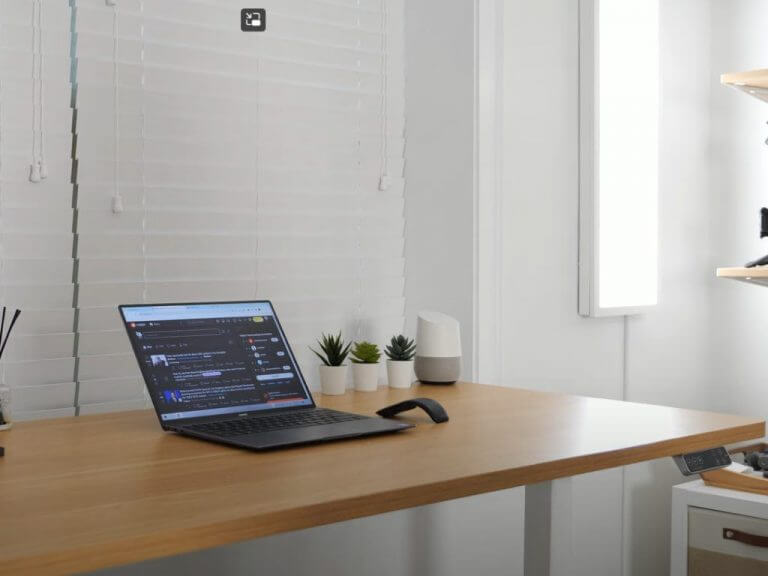
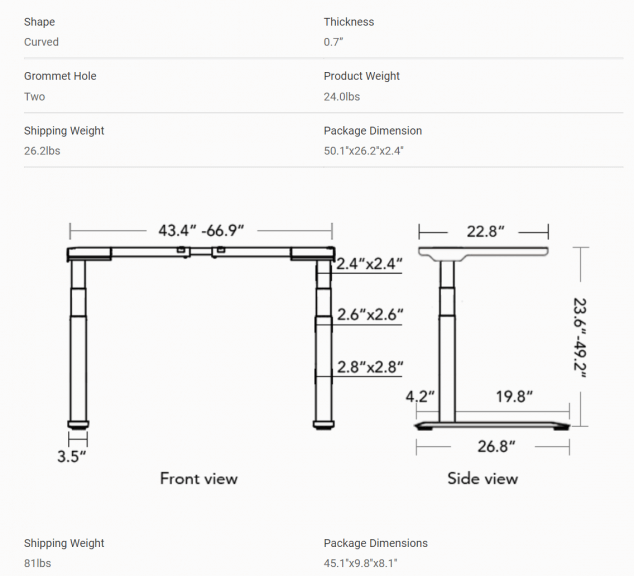
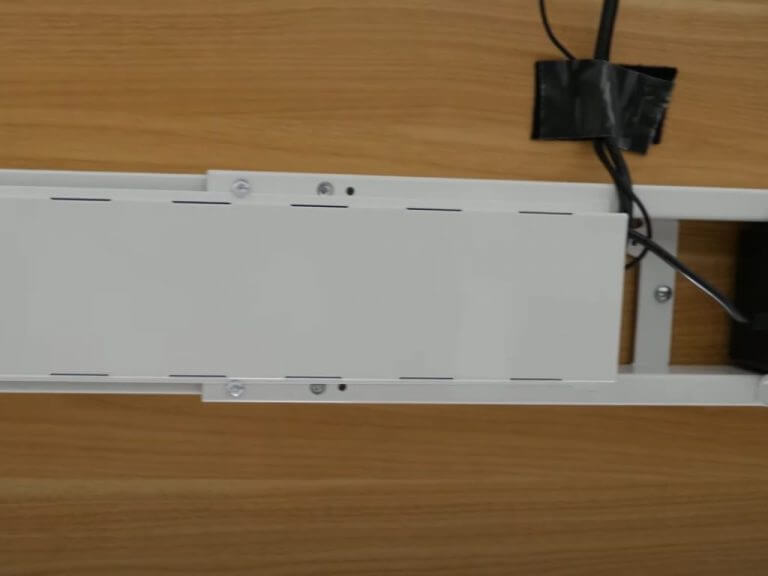
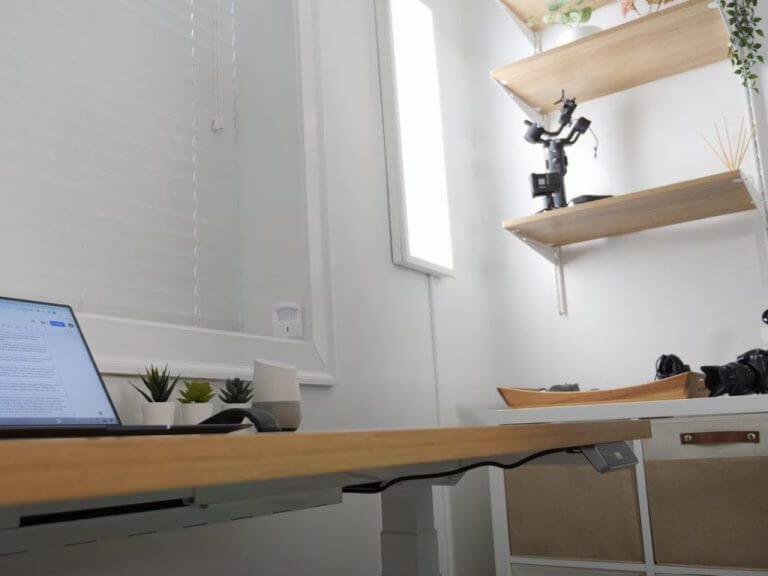
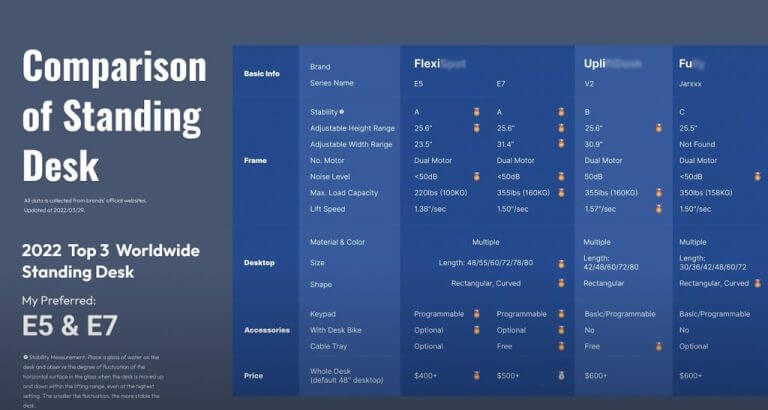
![5 Best Browser for Sling TV [Stream Quality Enhanced]](https://windowsreport.com/wp-content/uploads/2022/07/sling-TV.png)


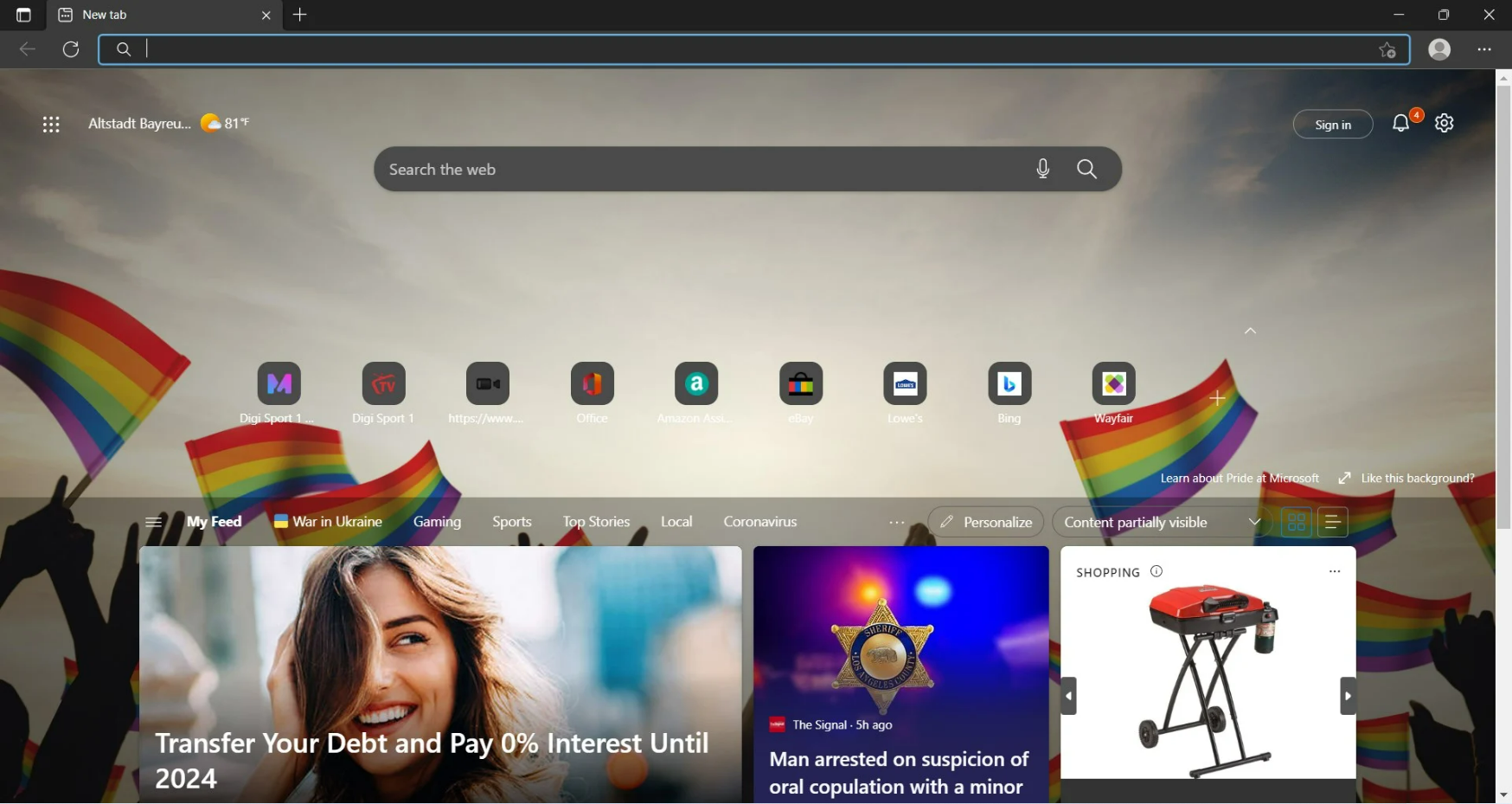
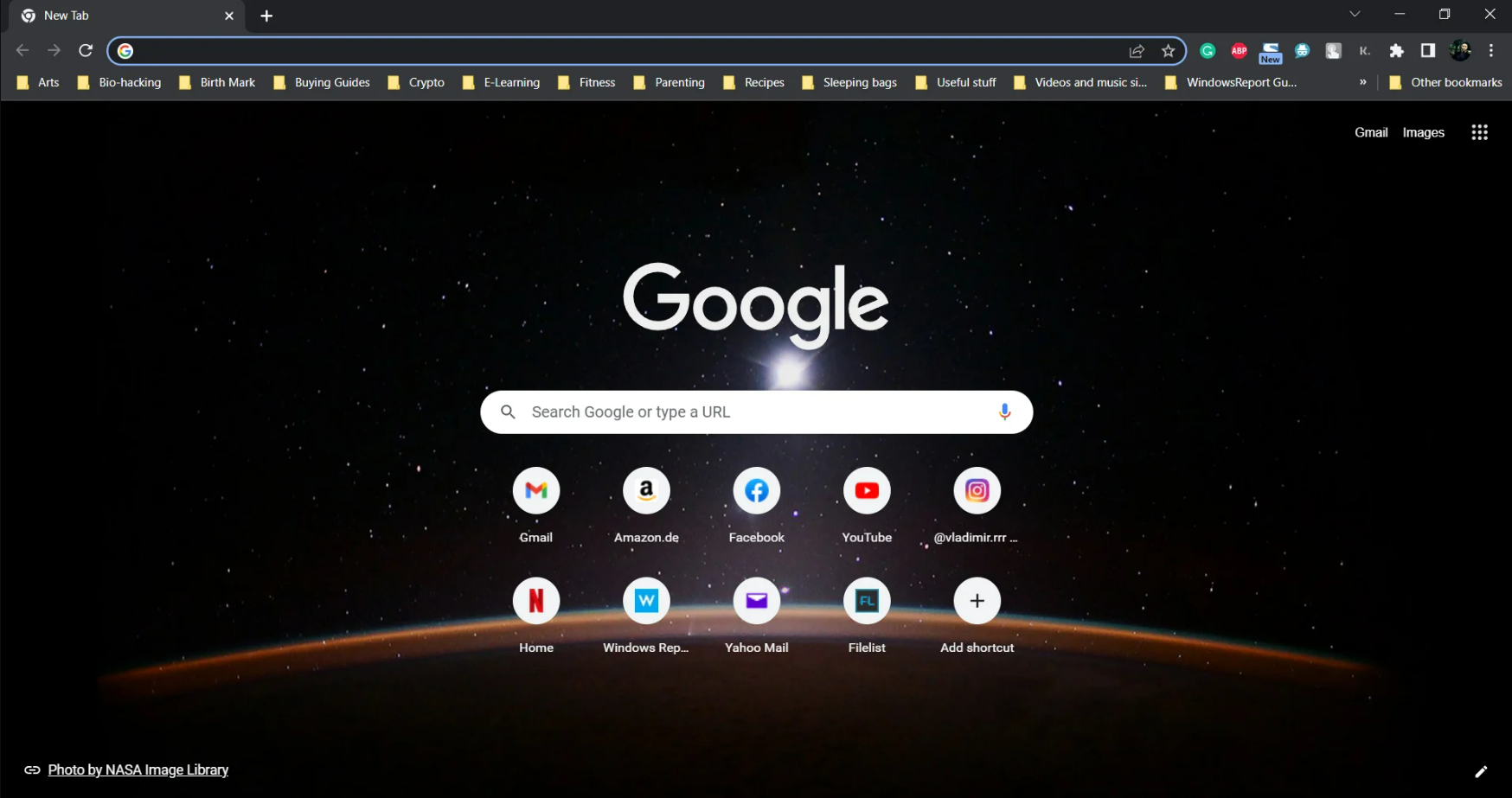
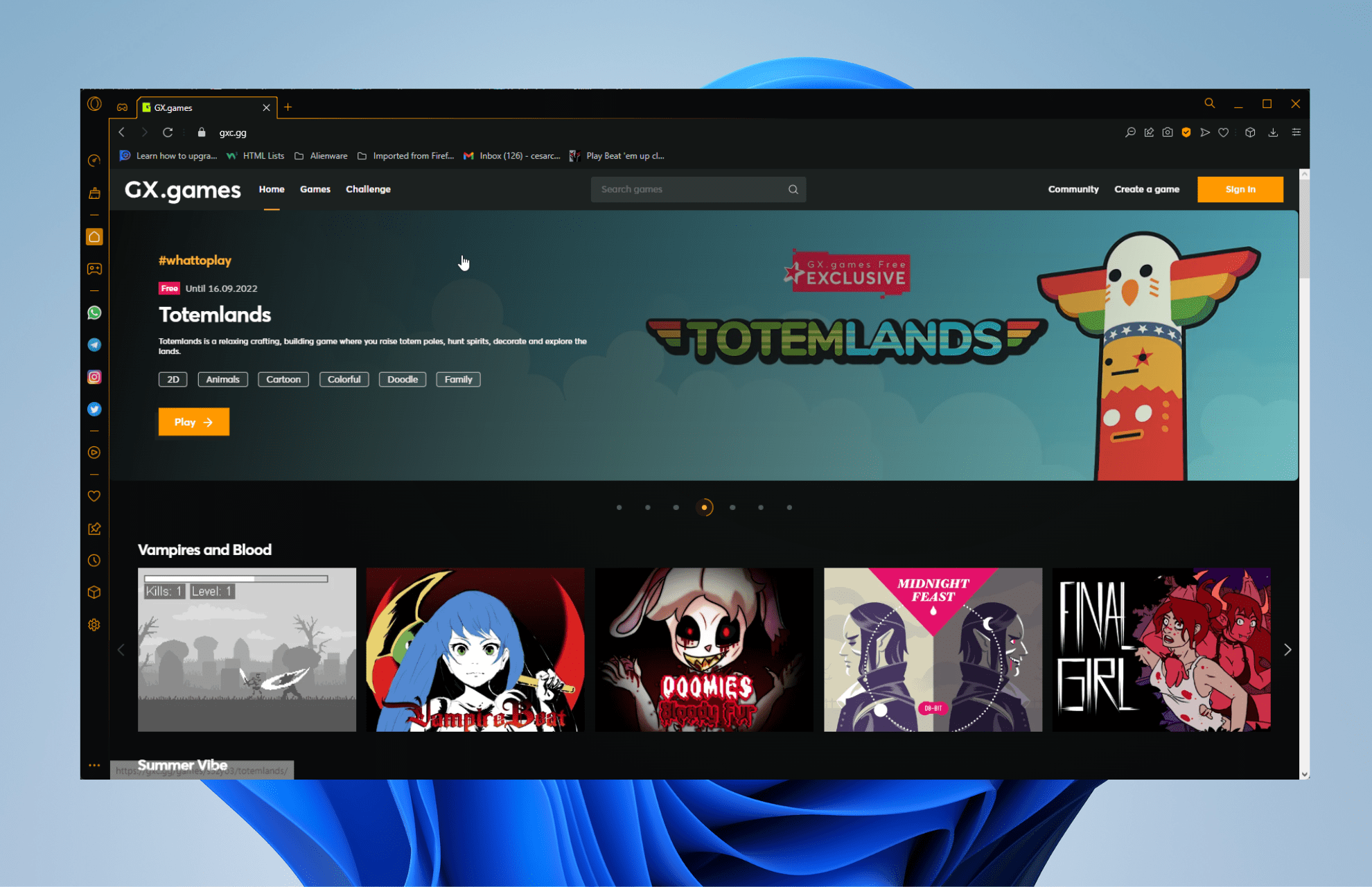

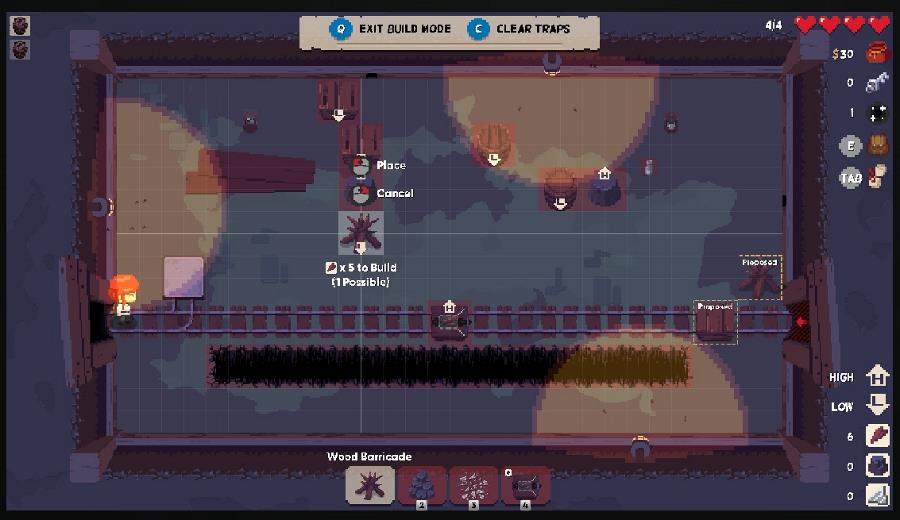


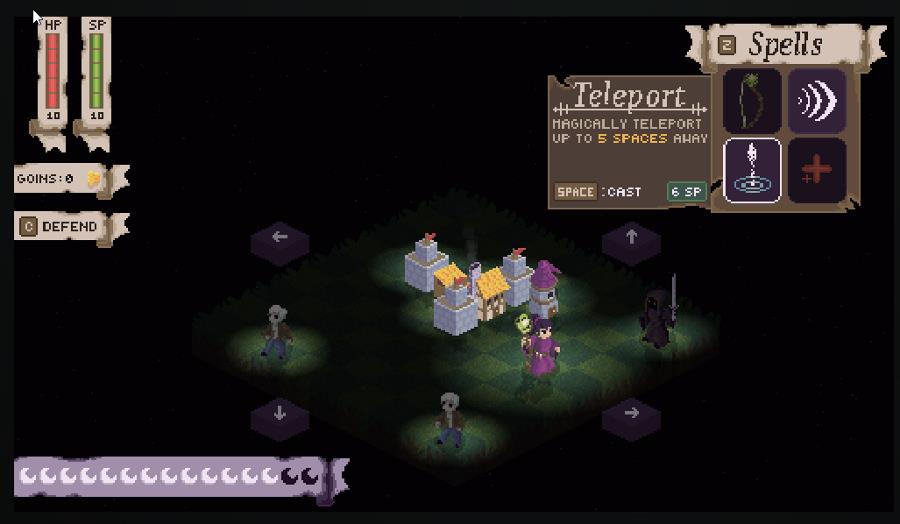
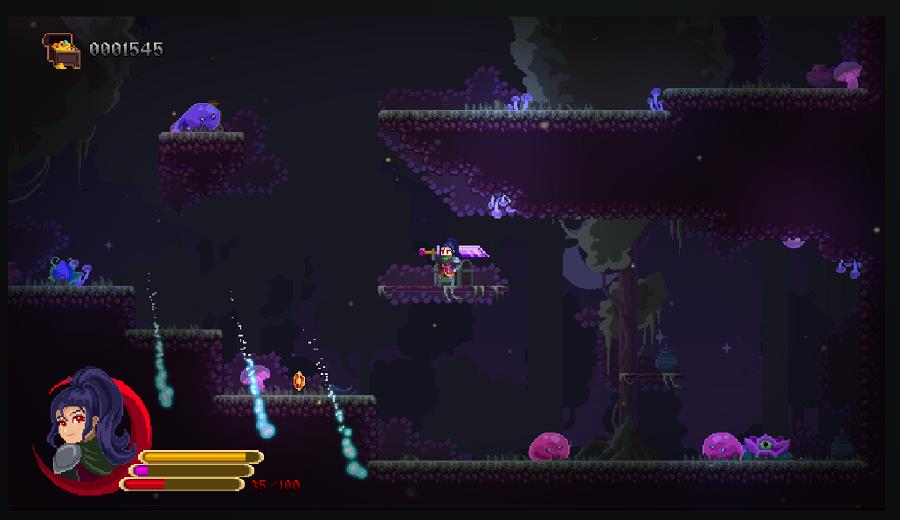

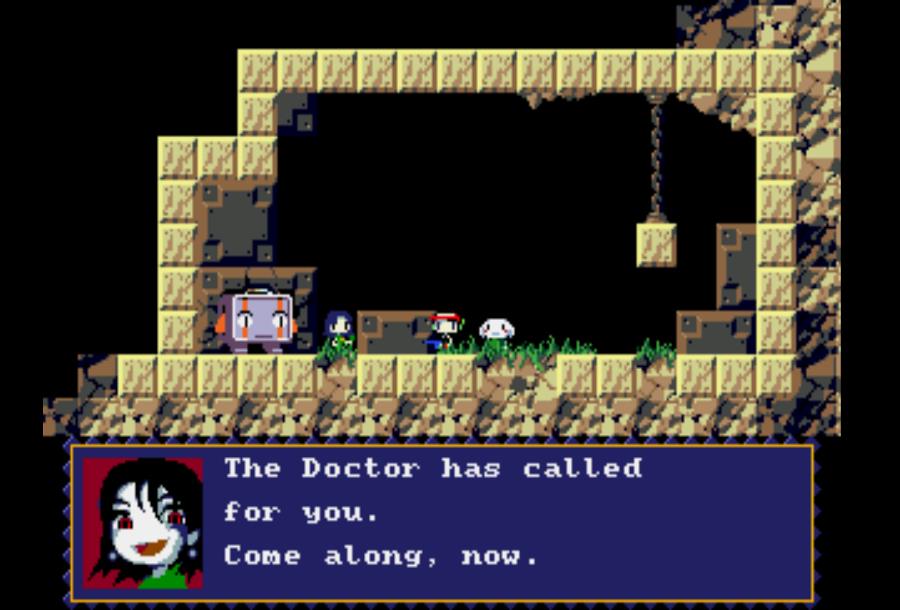
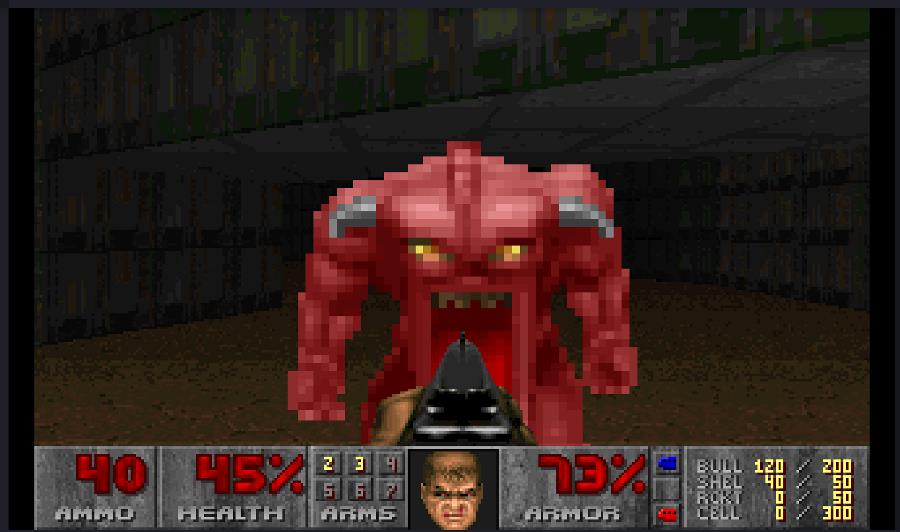


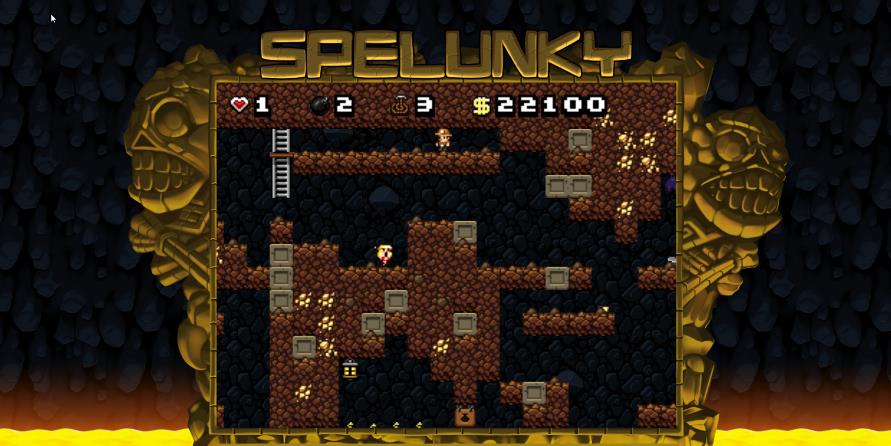
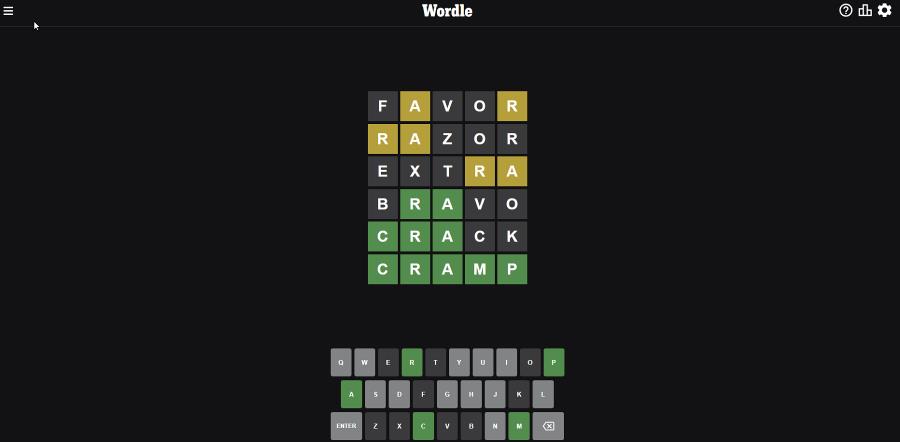
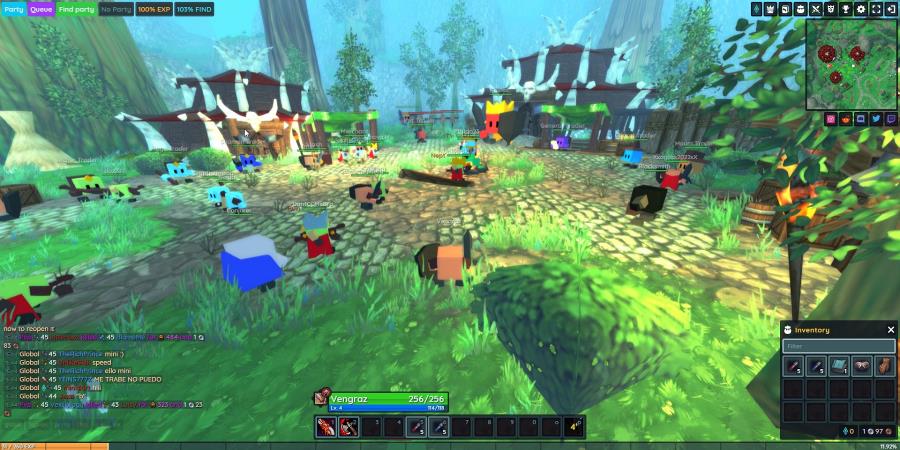
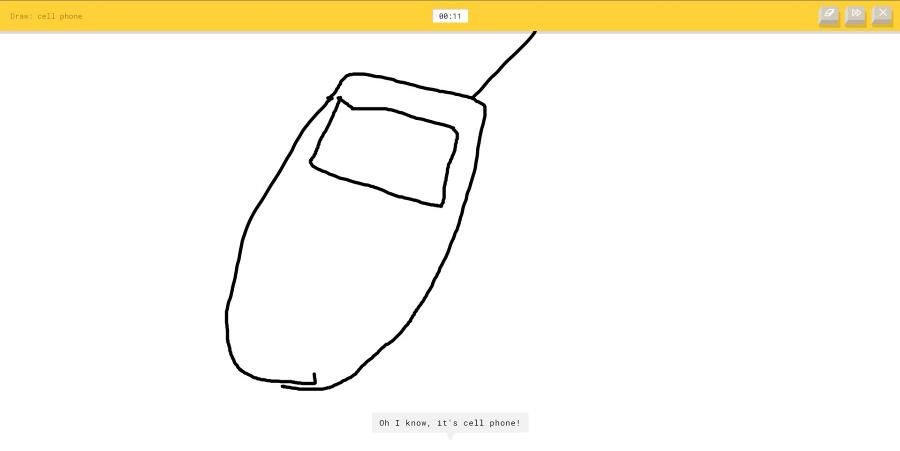
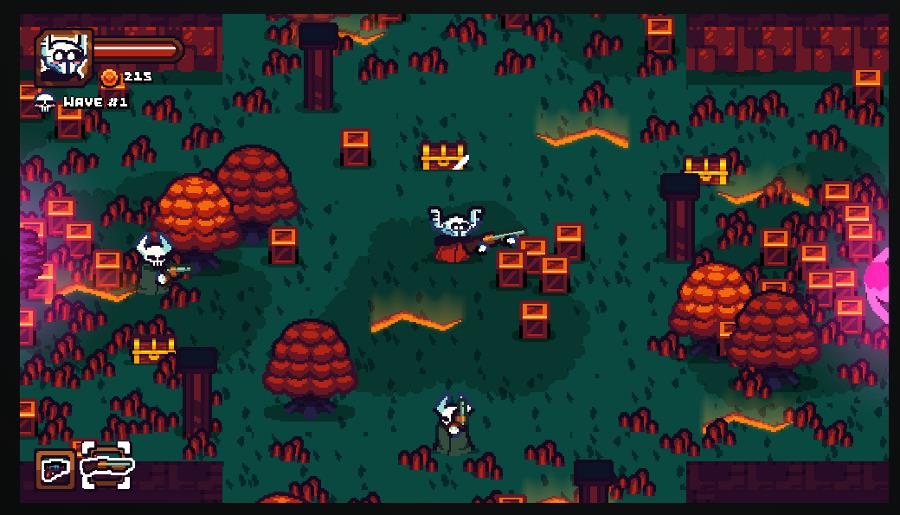

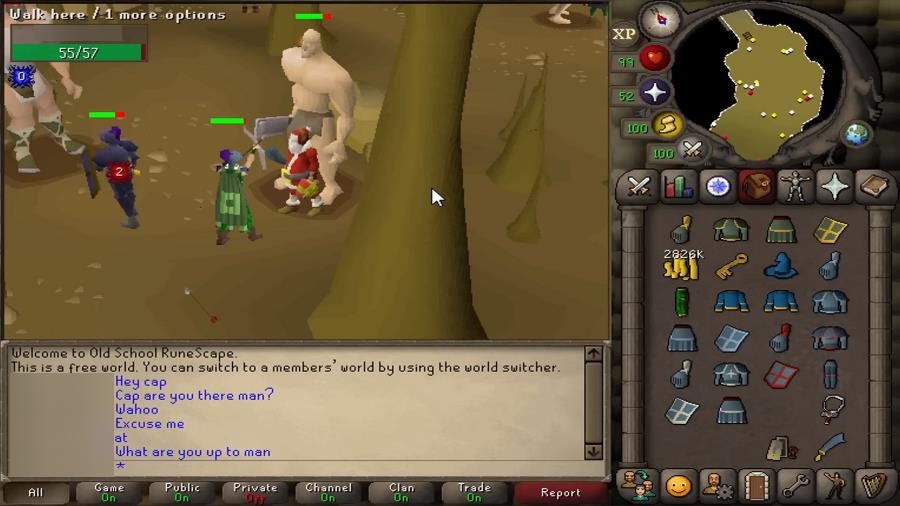

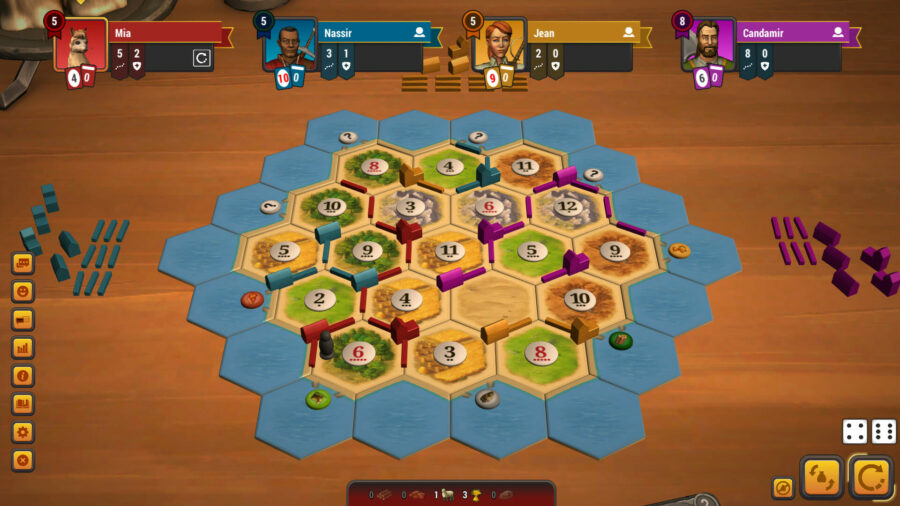
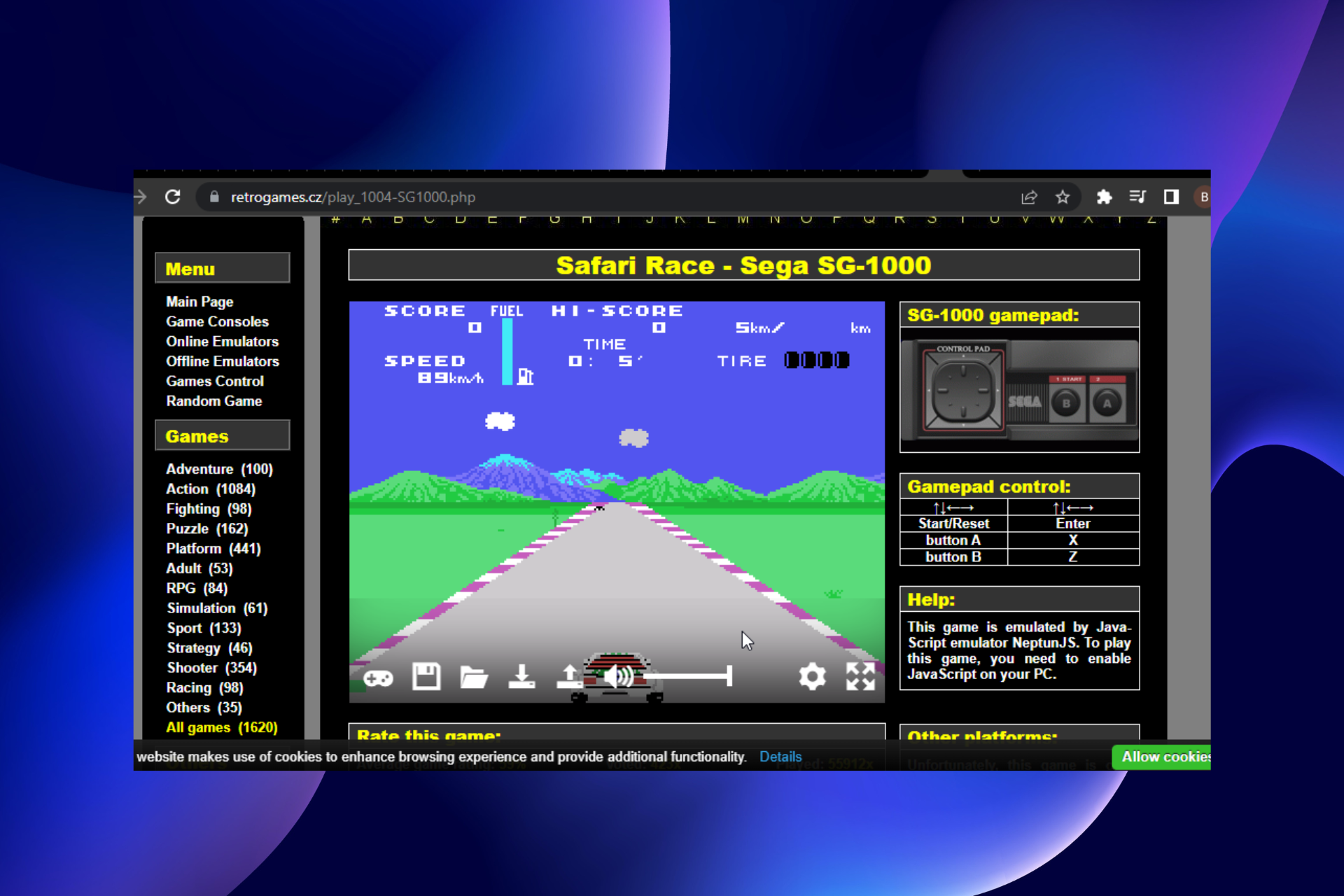





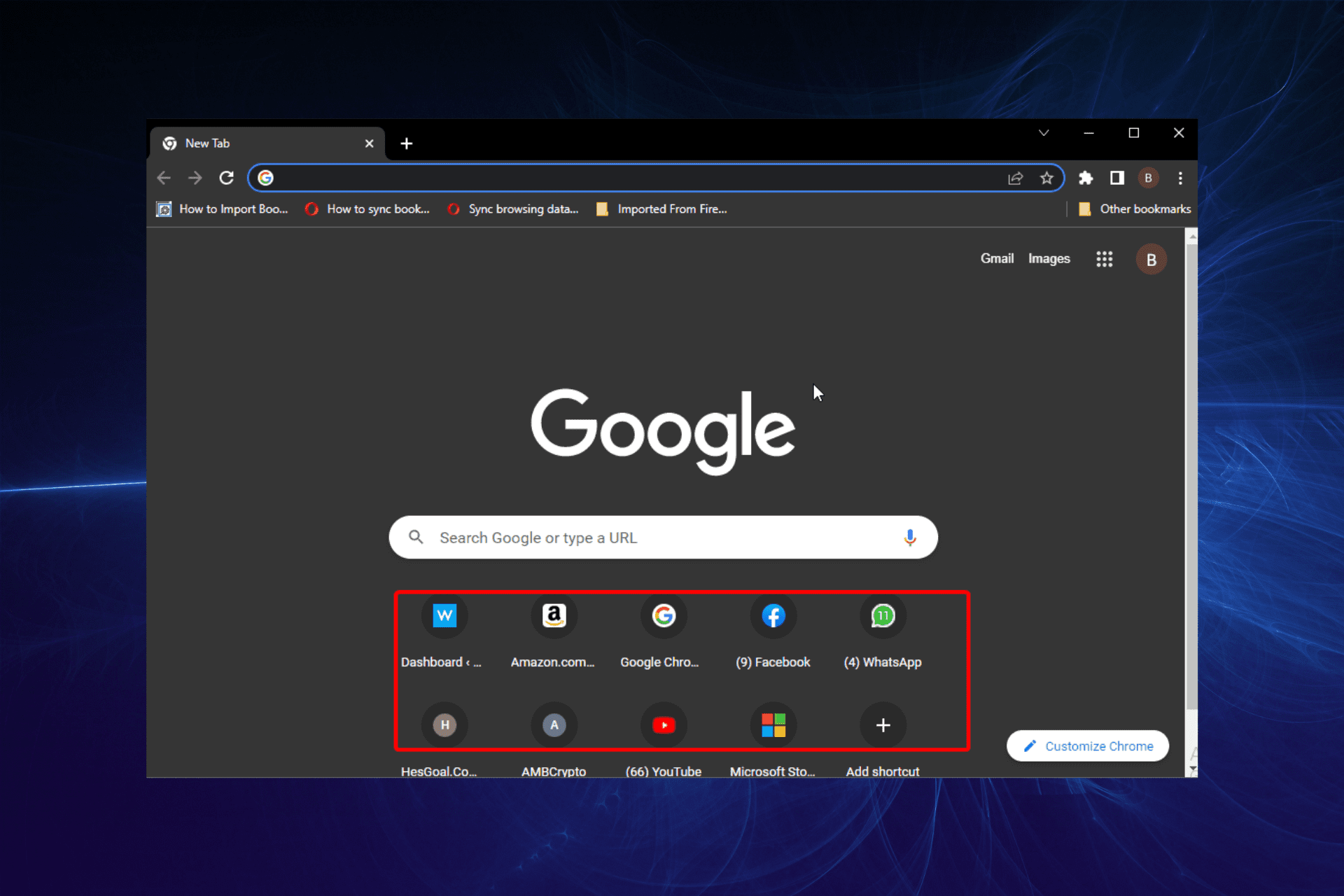


![5 Best Browsers That Support HTTP2 [Compatibility Tested]](https://windowsreport.com/wp-content/uploads/2022/07/HTTP2.jpg)



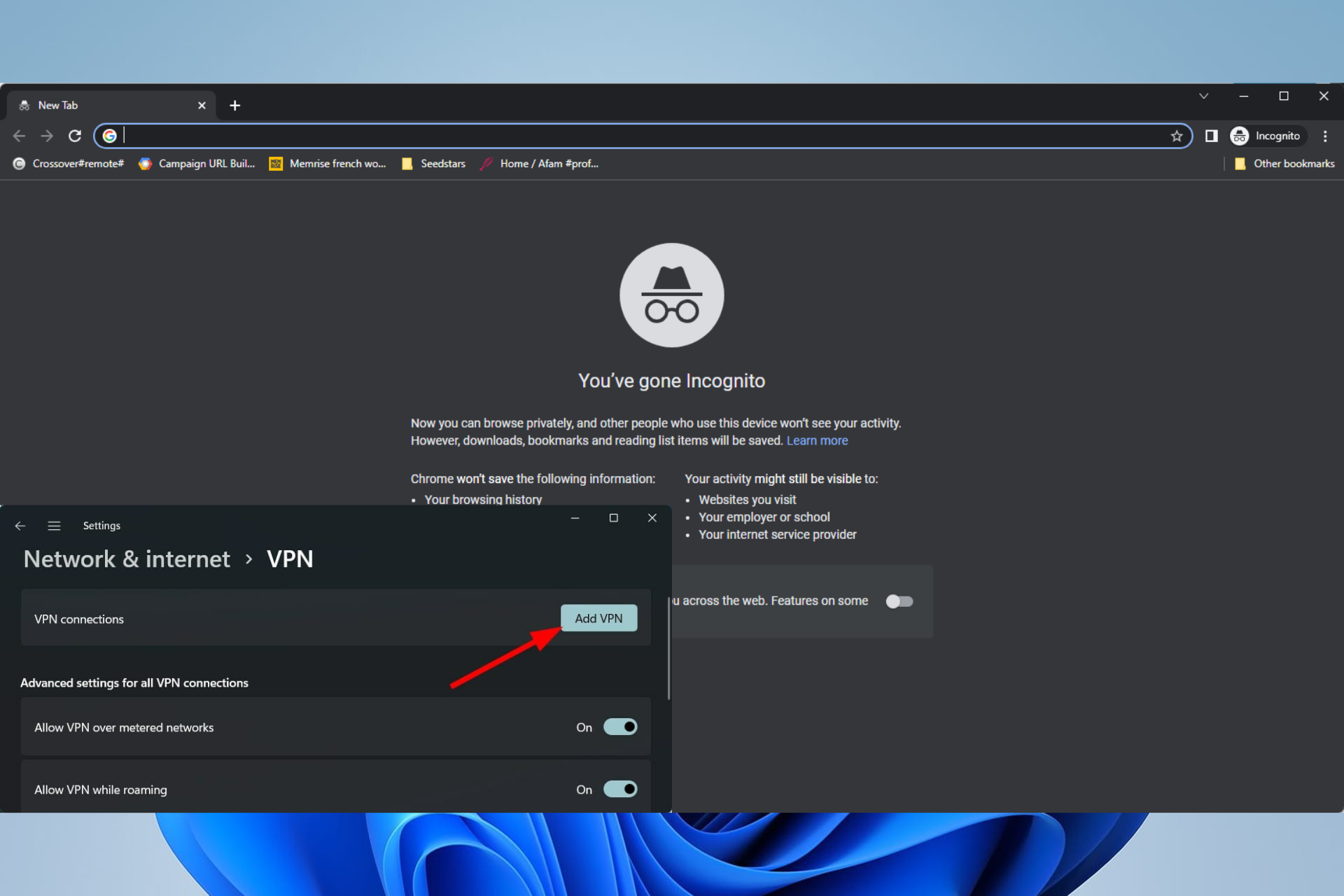

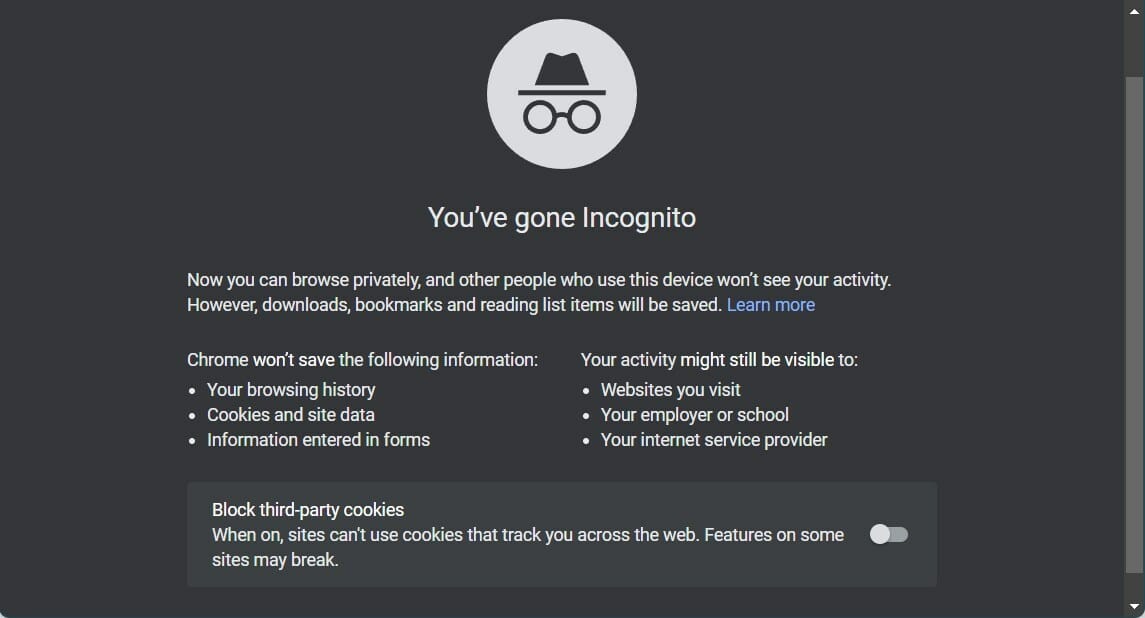
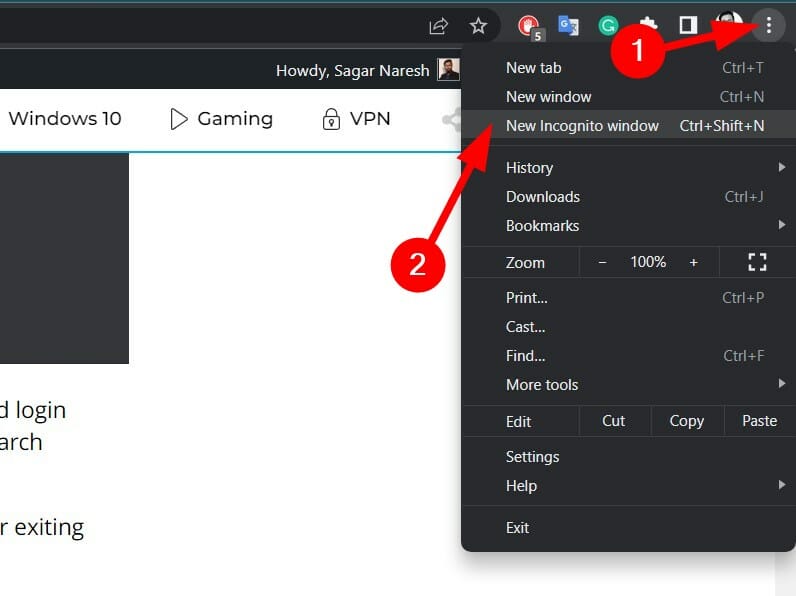
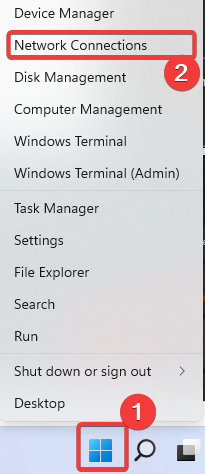
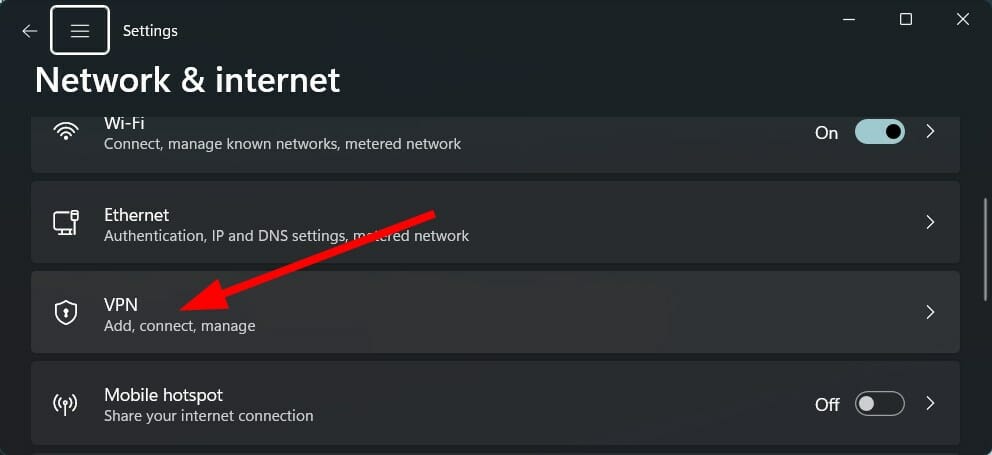
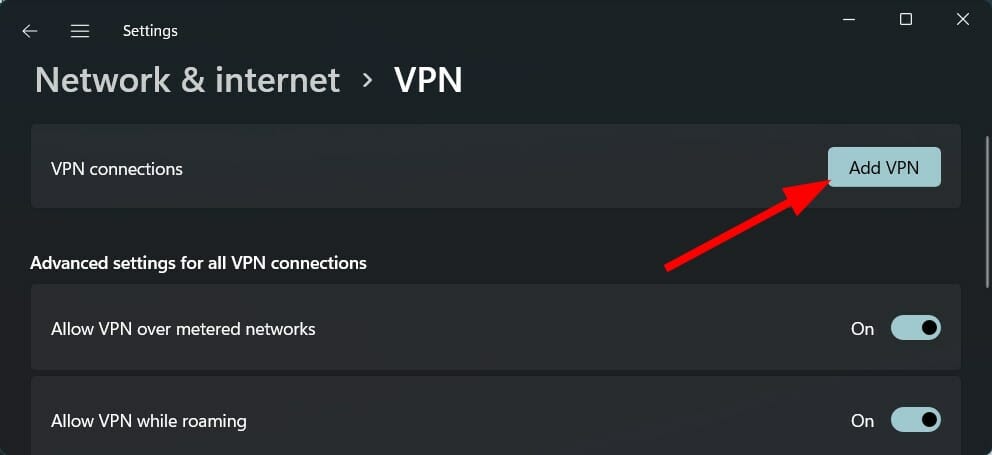
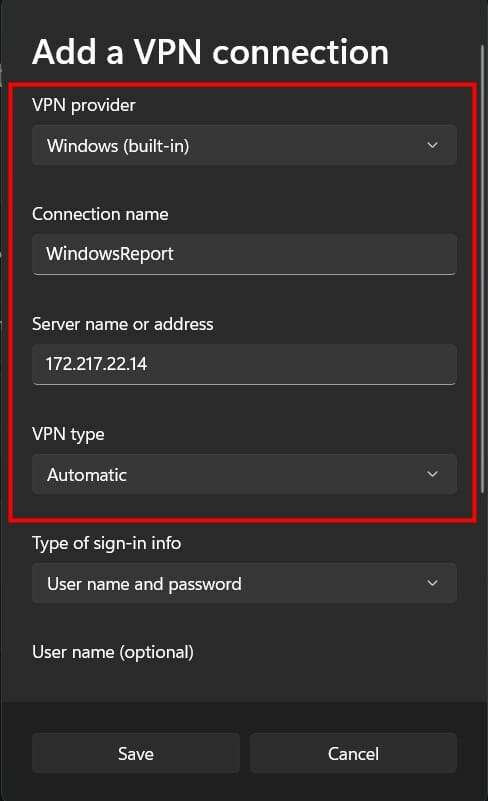
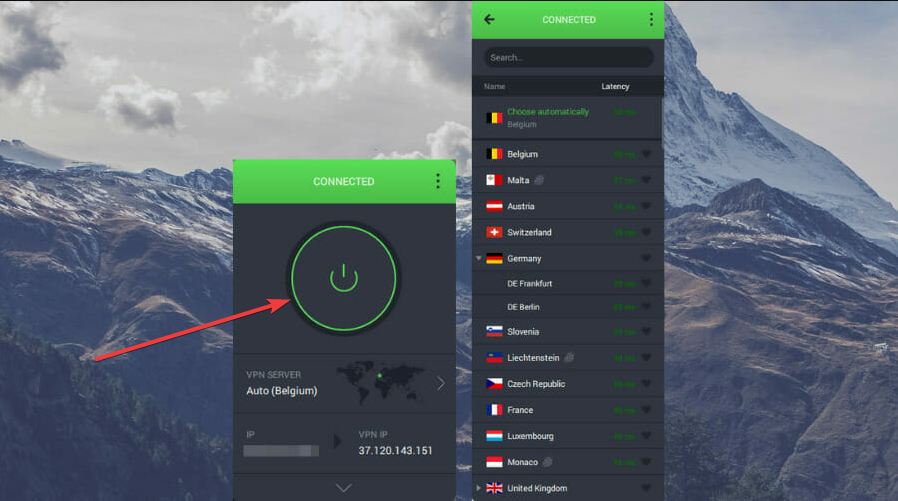
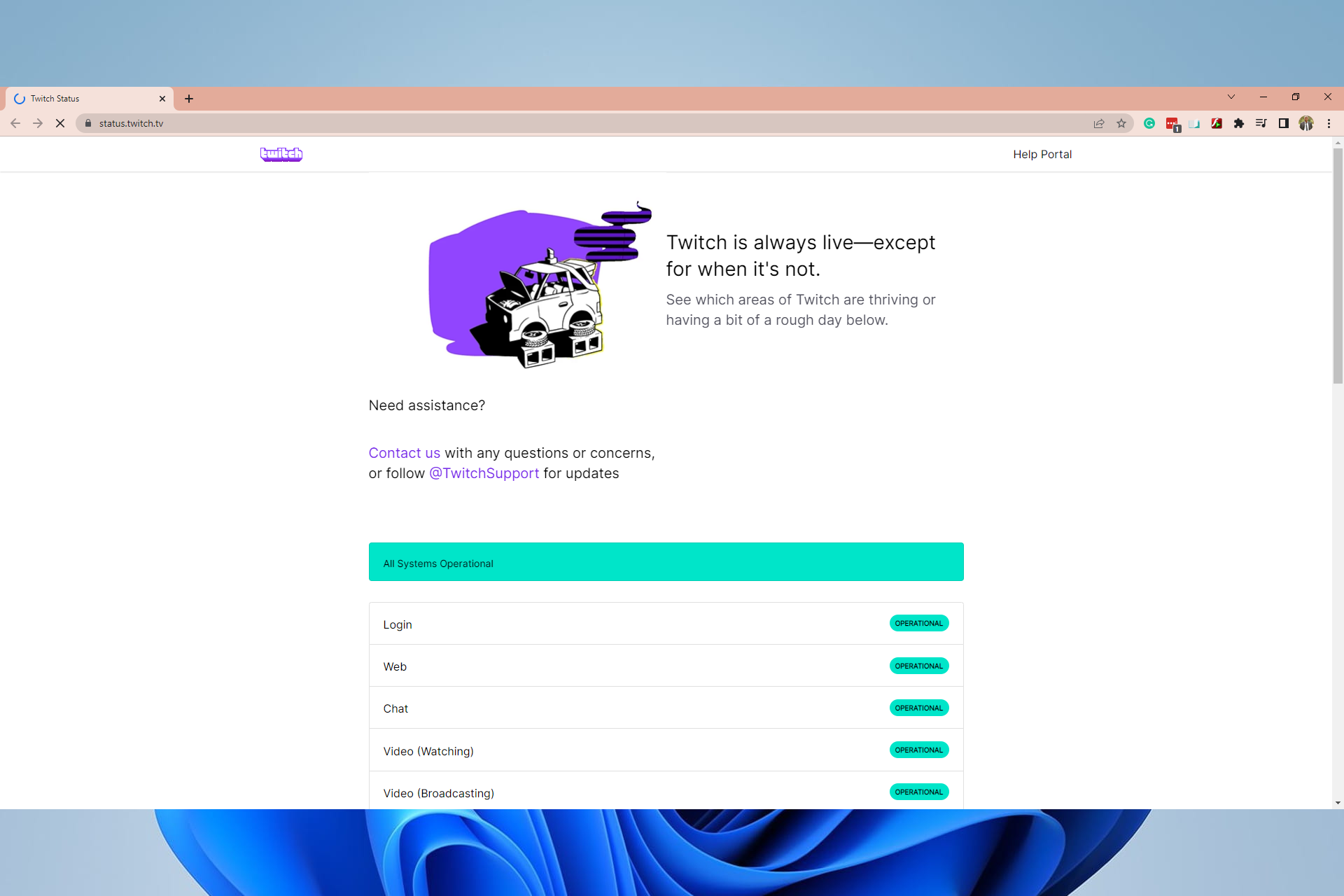
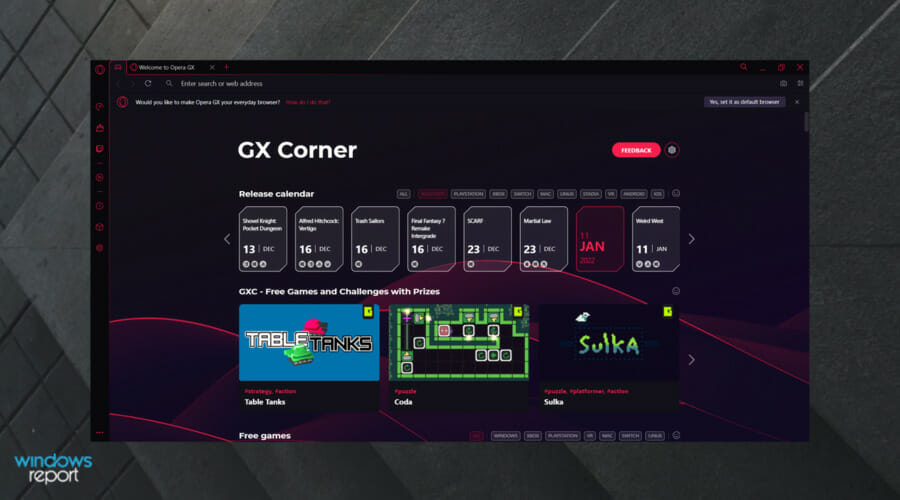


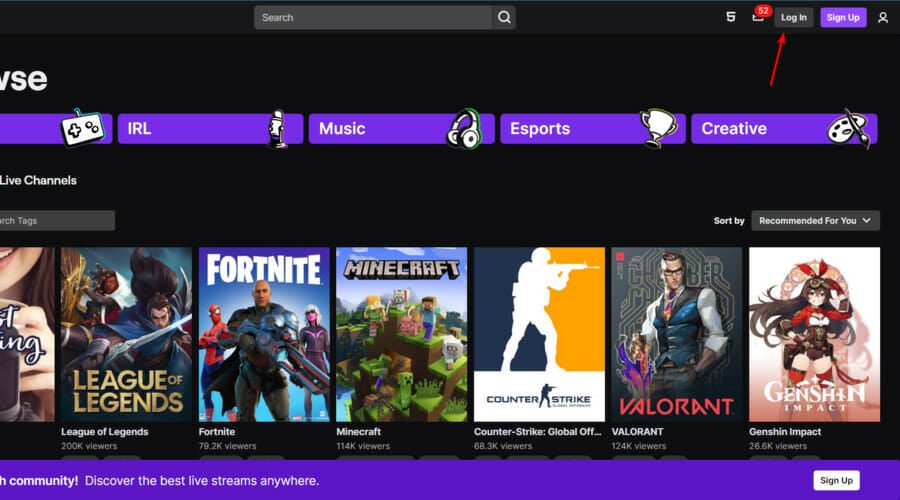
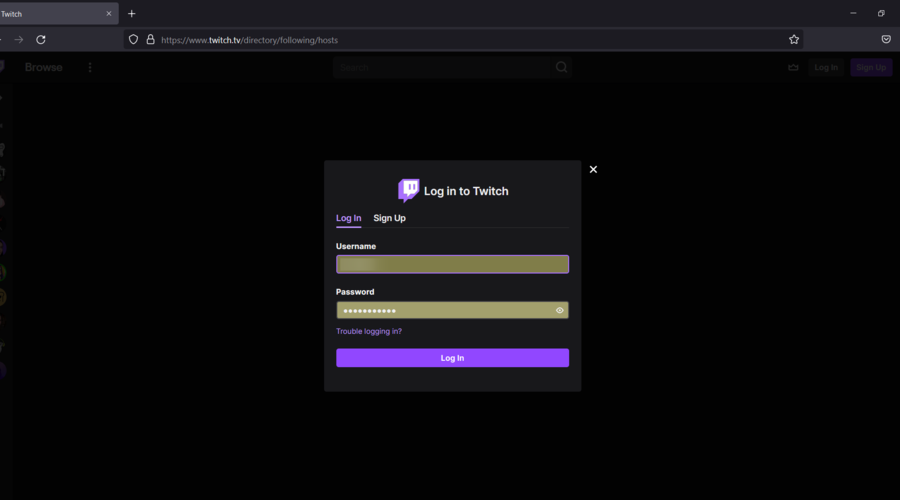
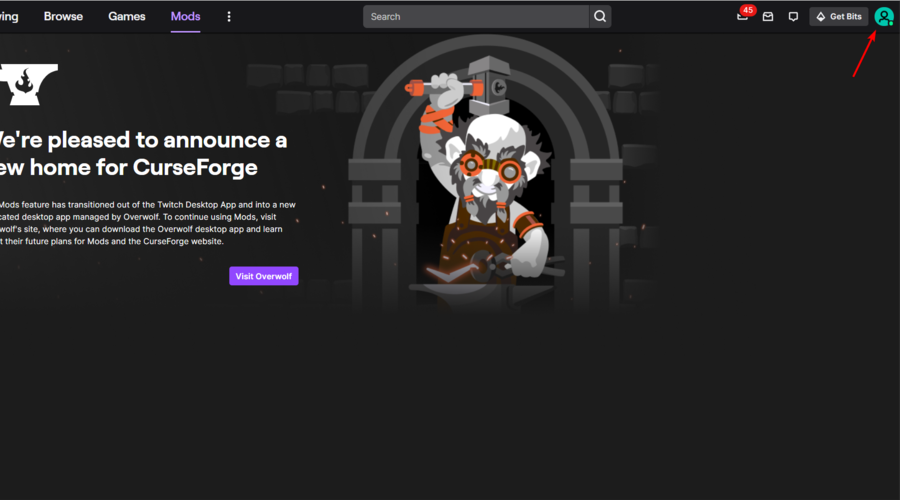
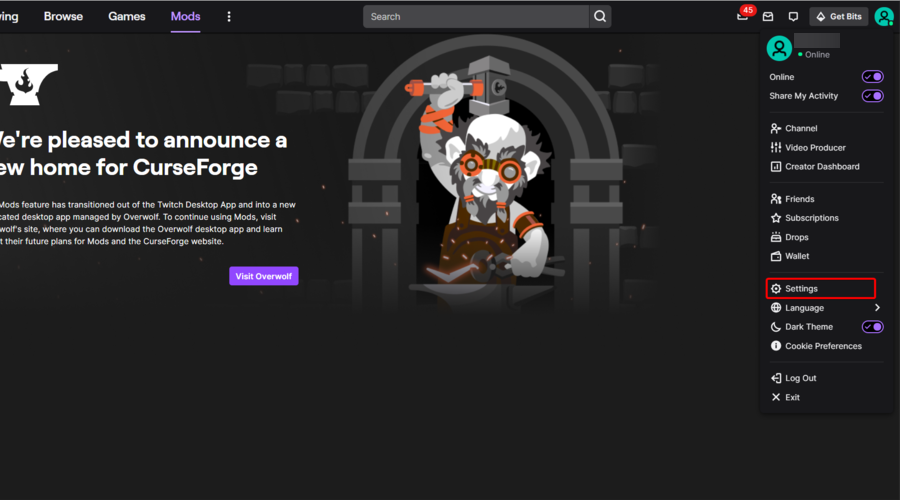
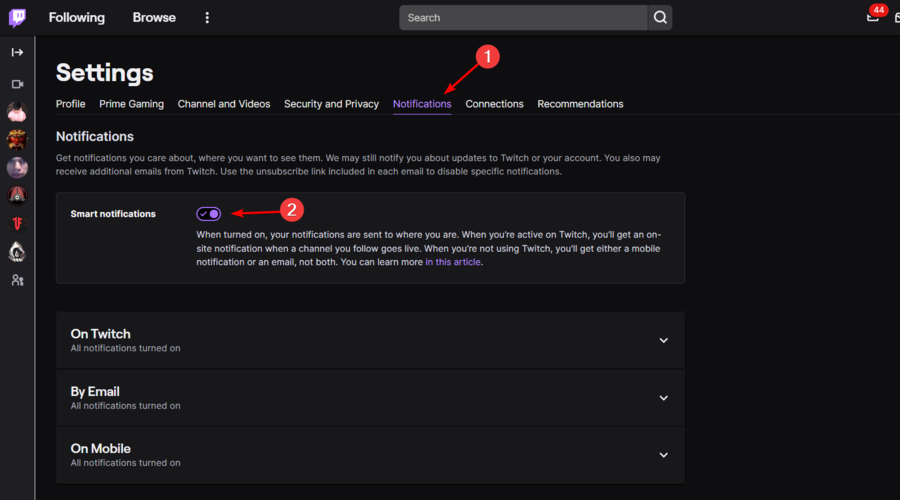
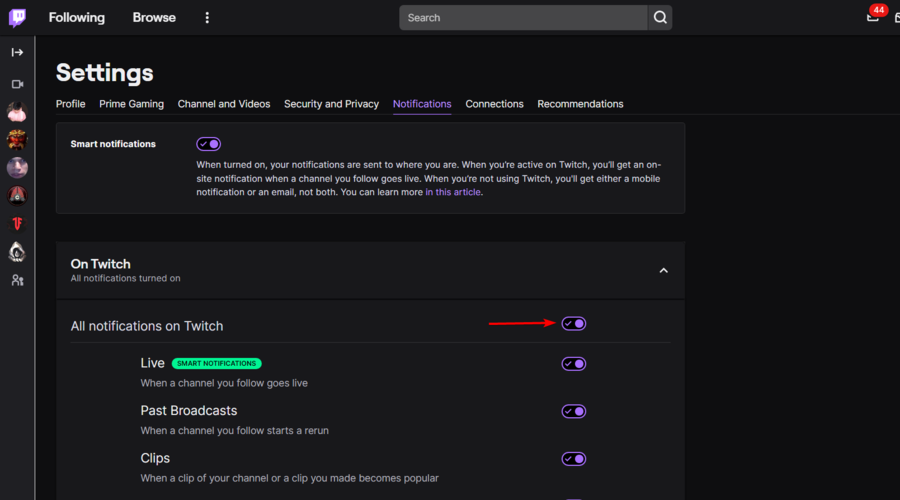
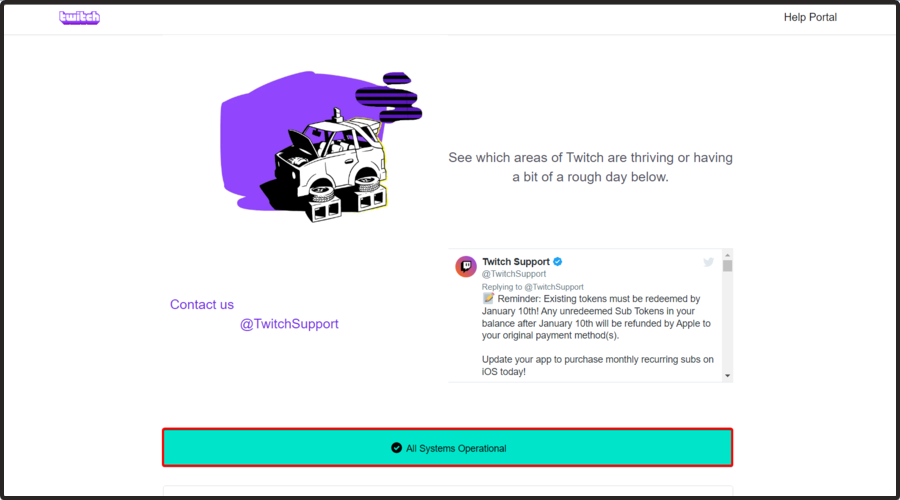
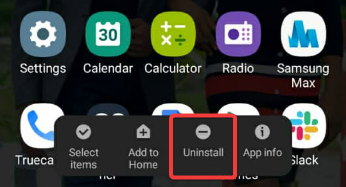
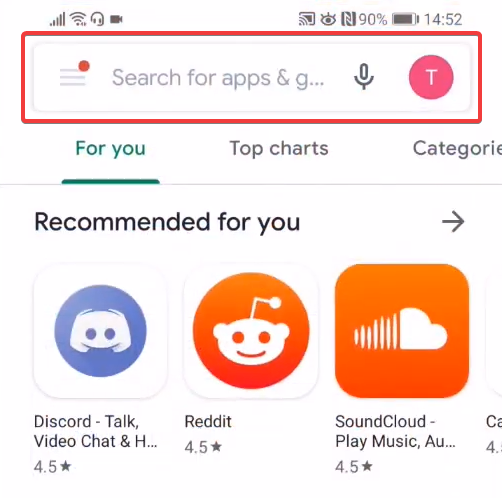
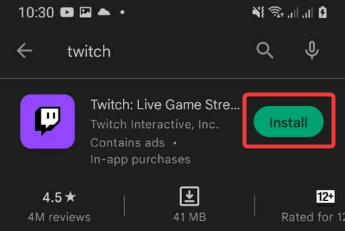
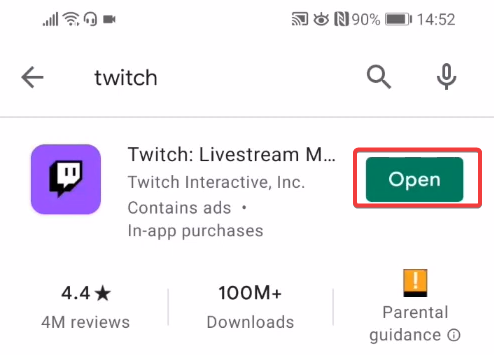
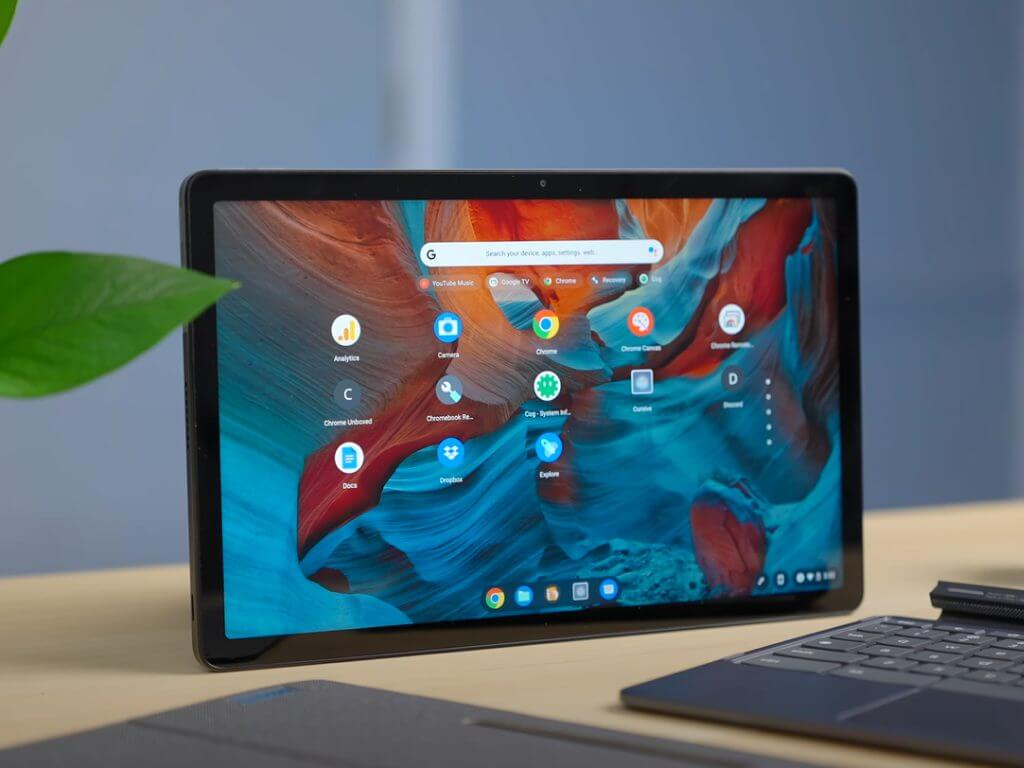
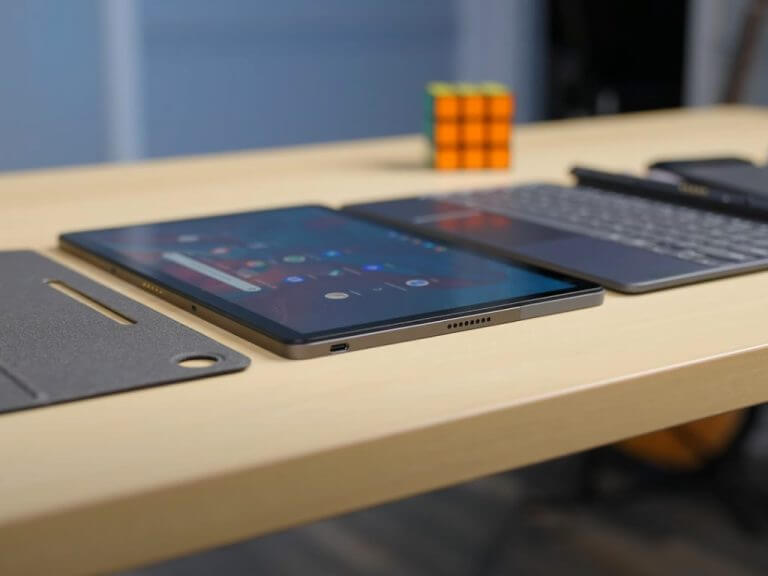
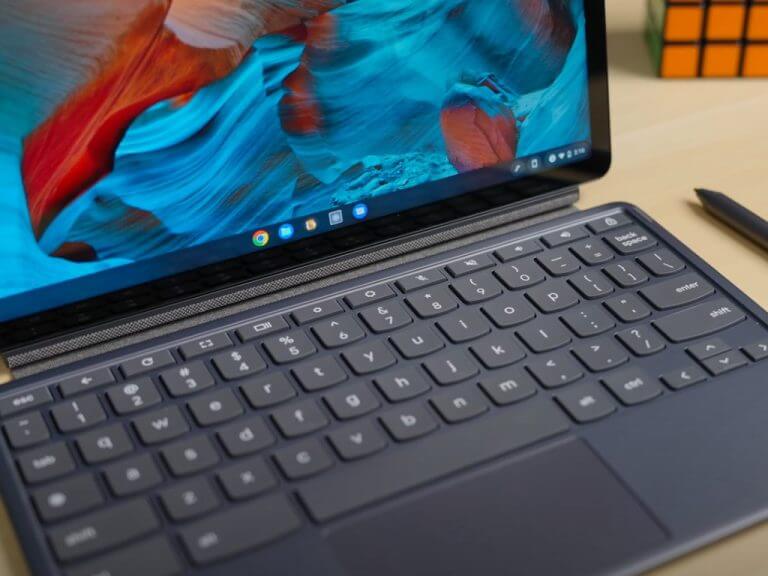
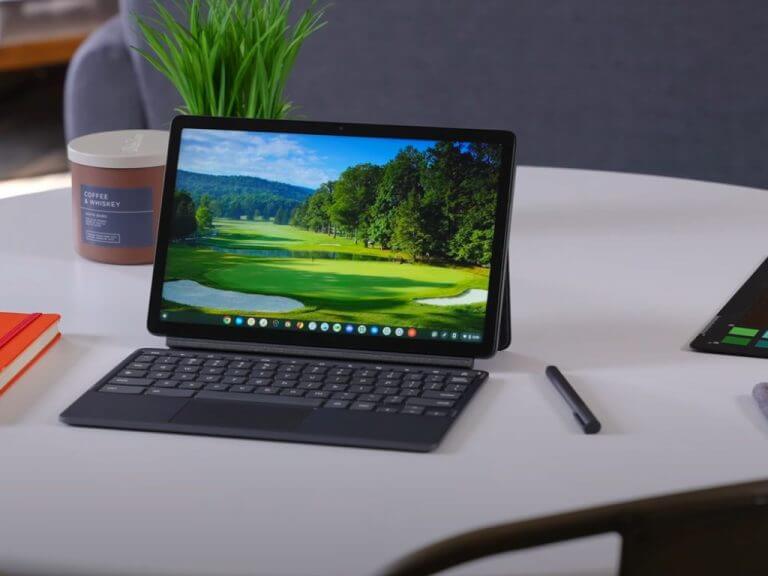
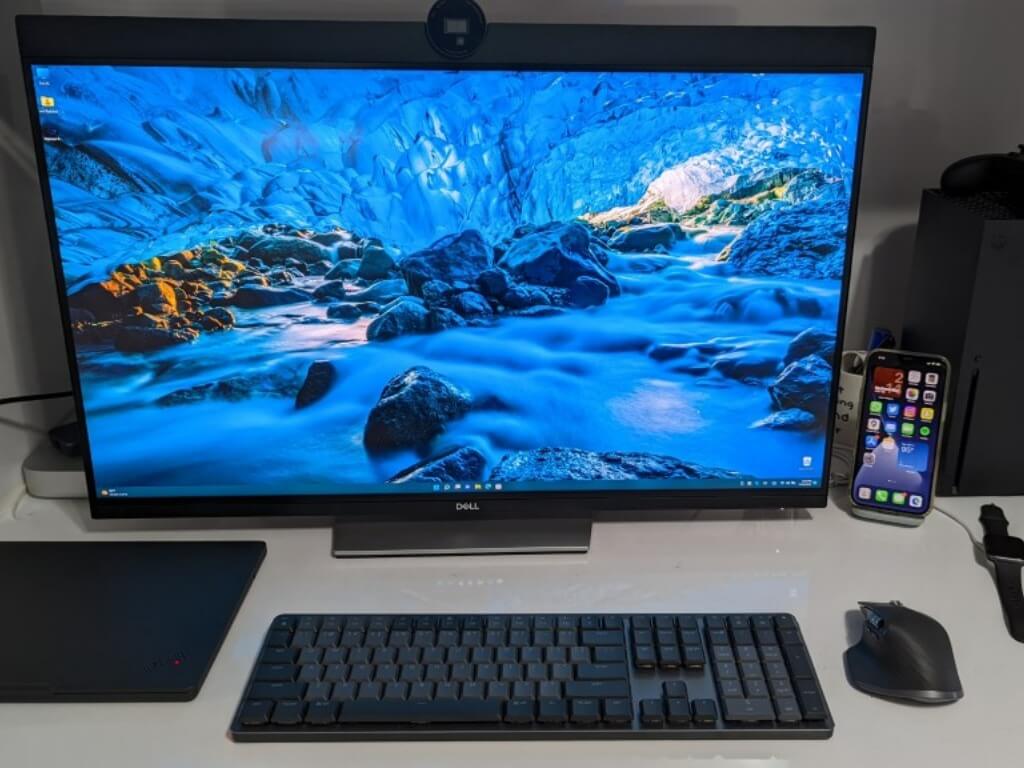
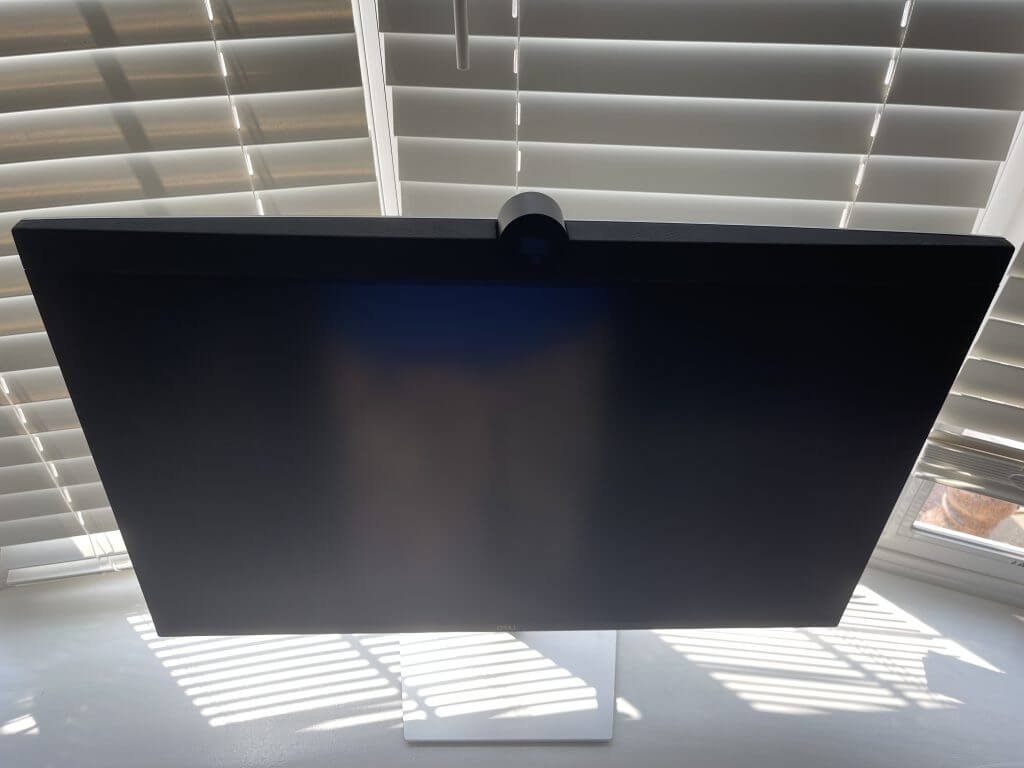
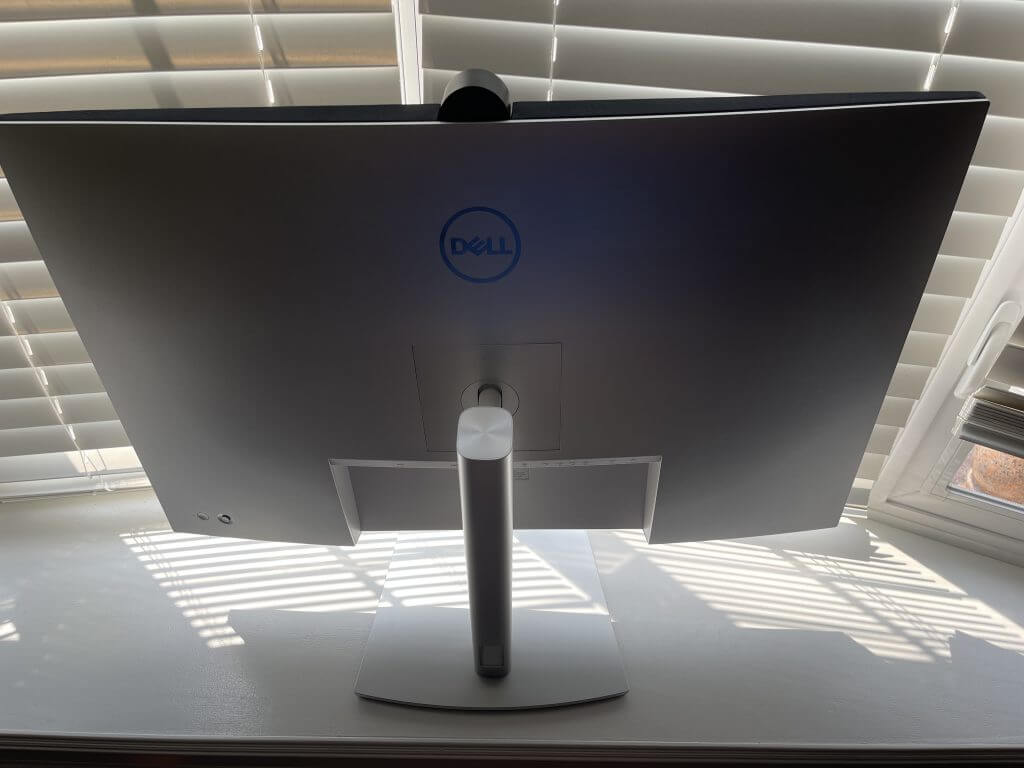
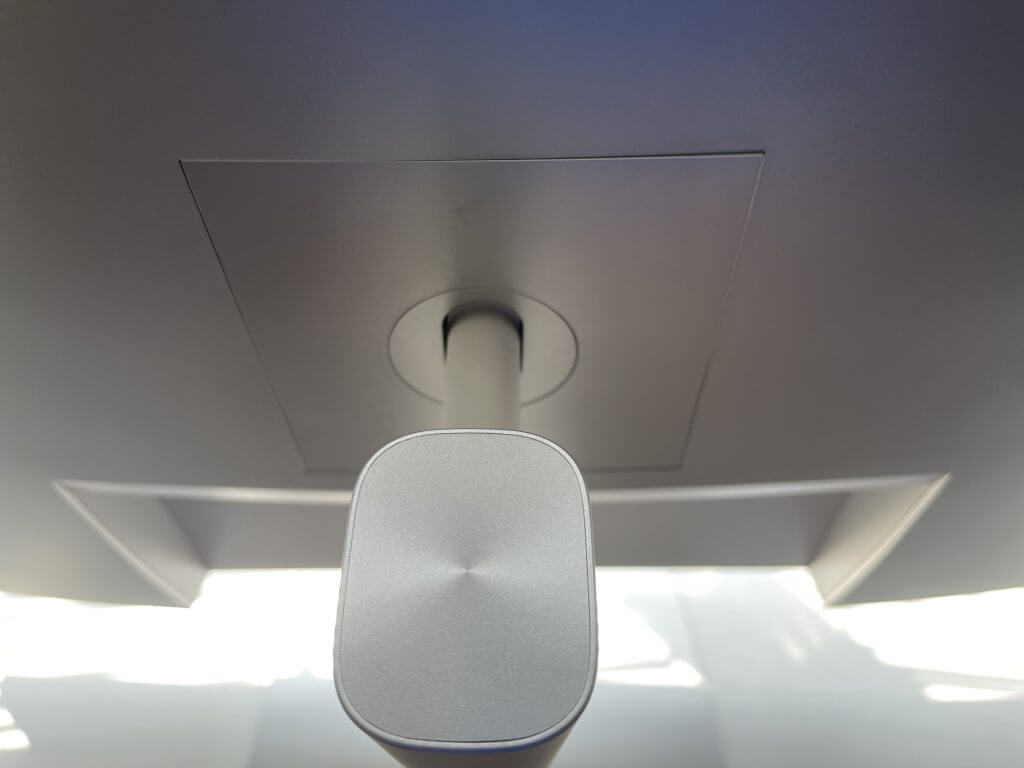
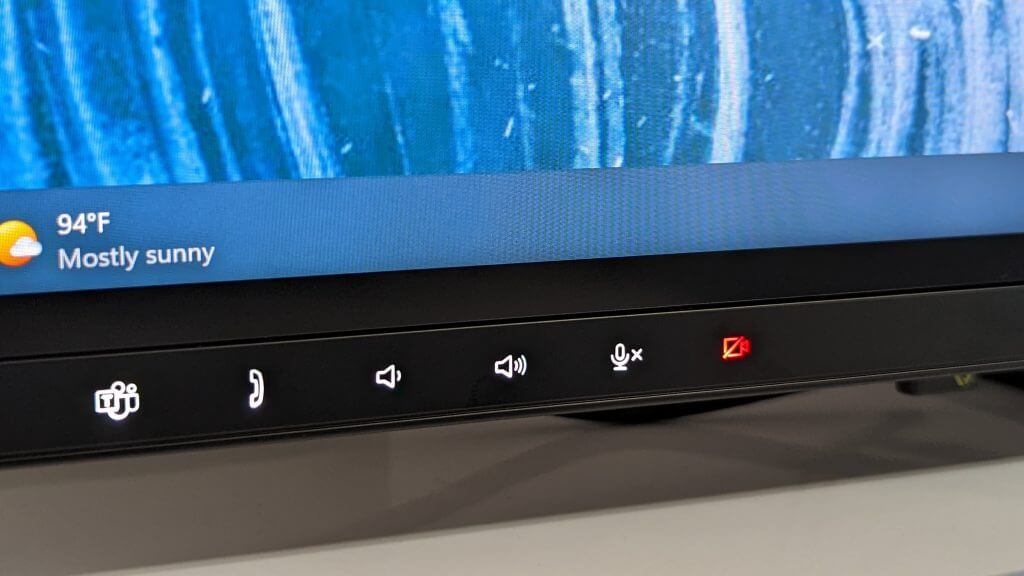
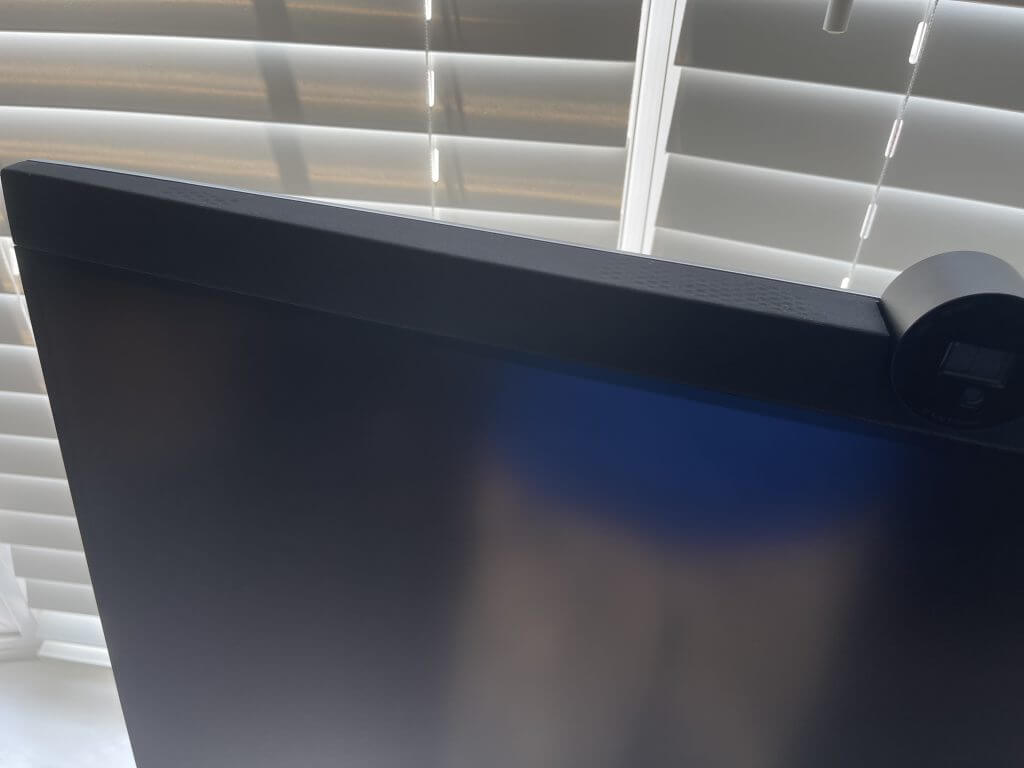
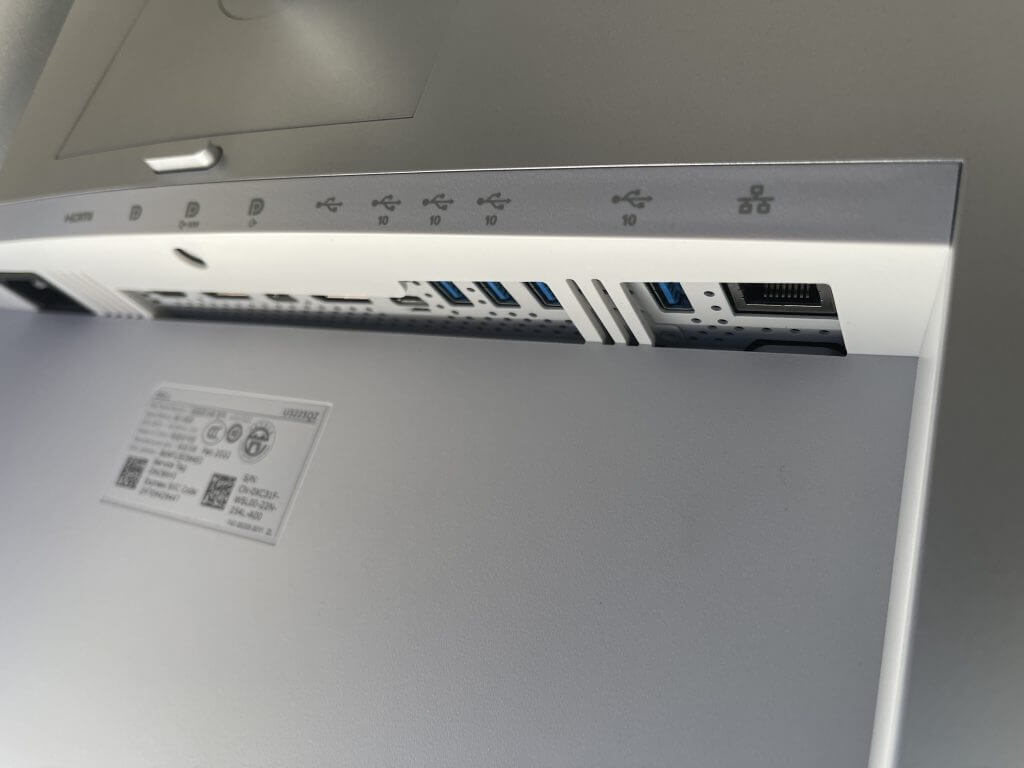
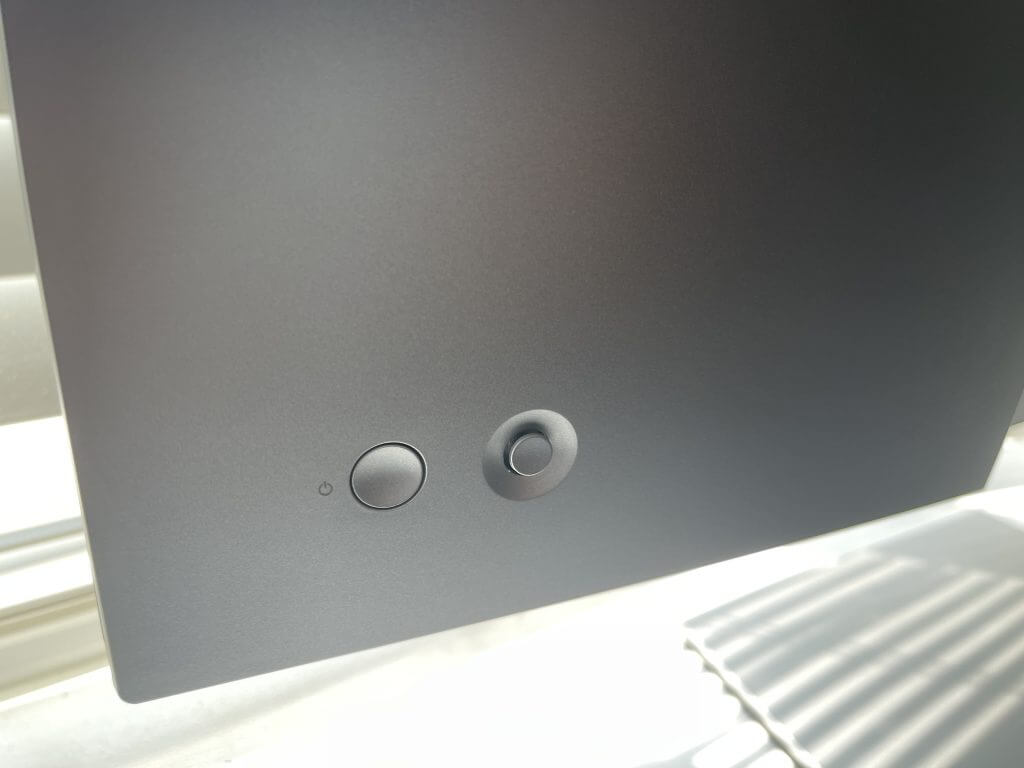
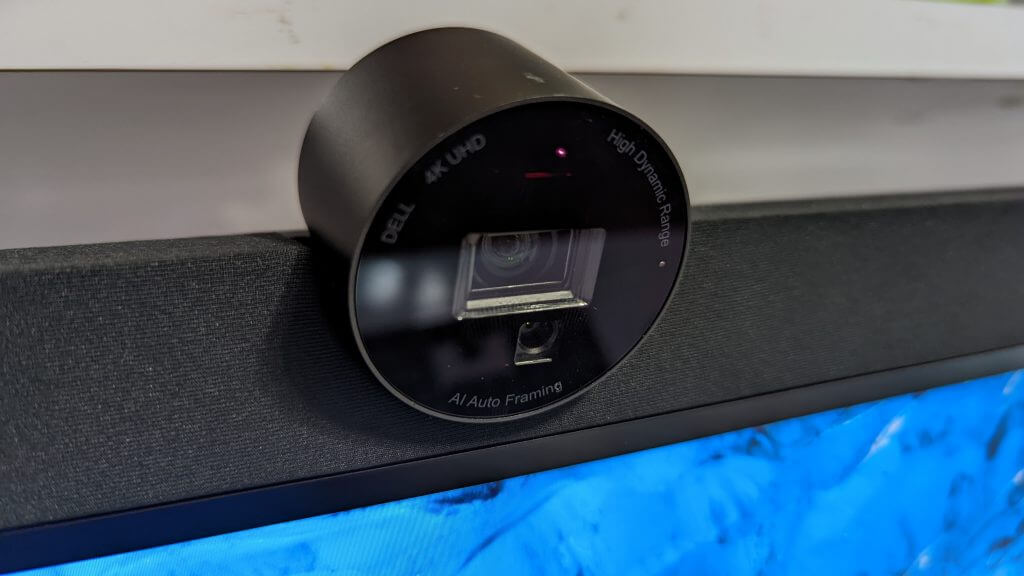
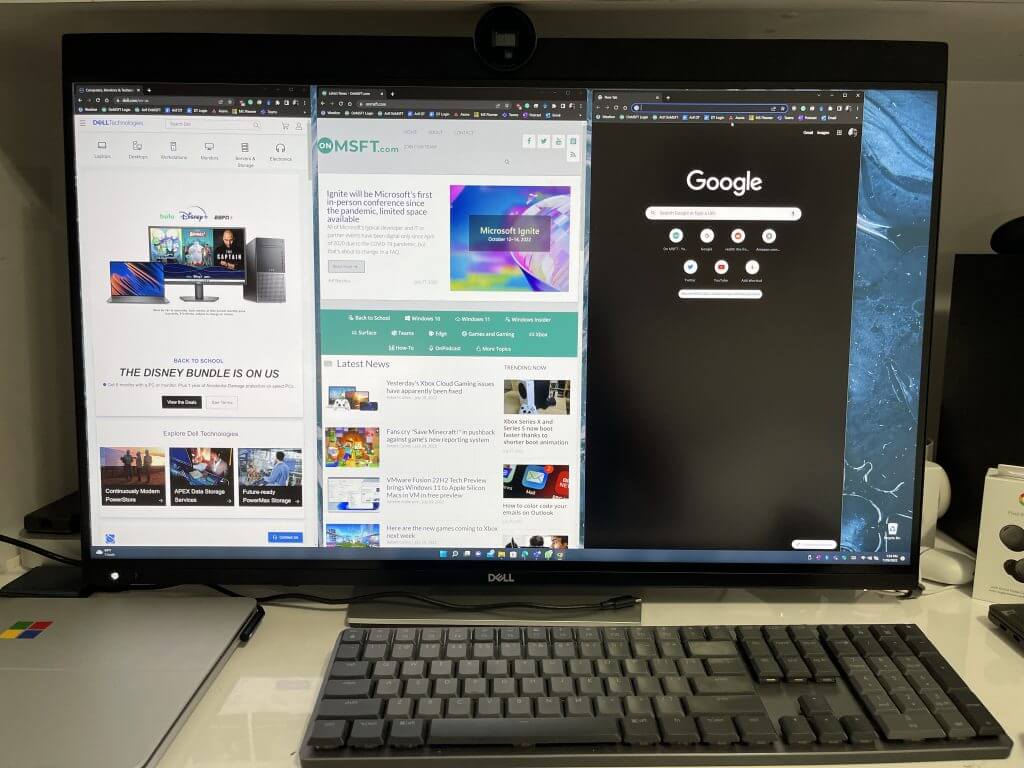
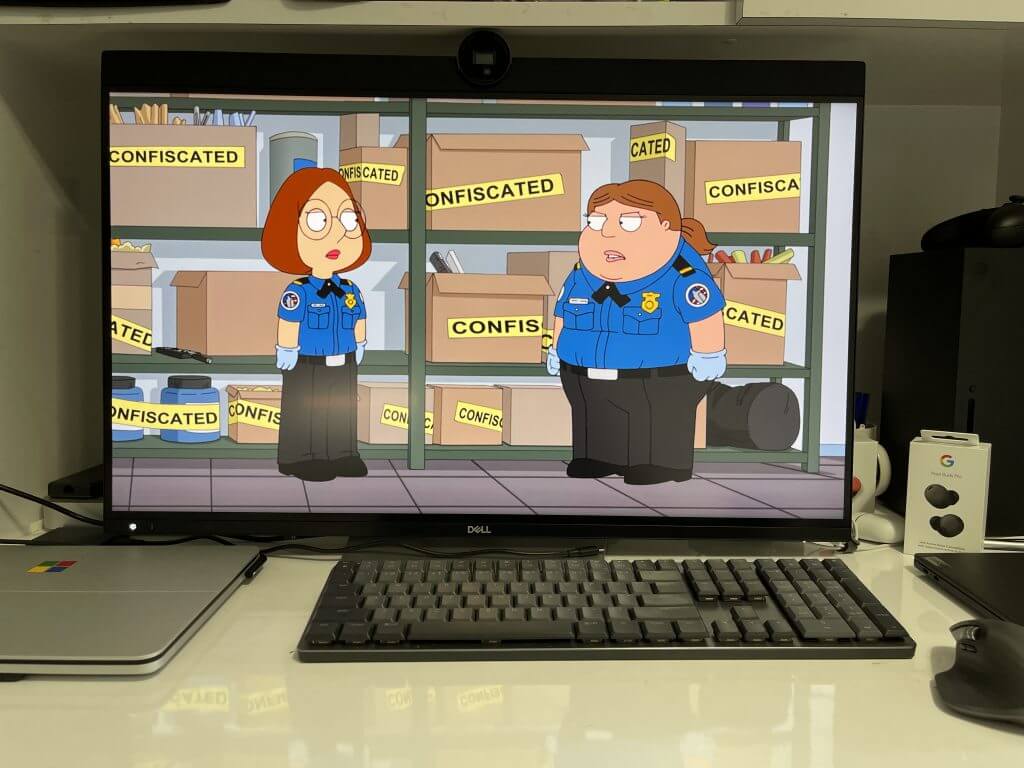
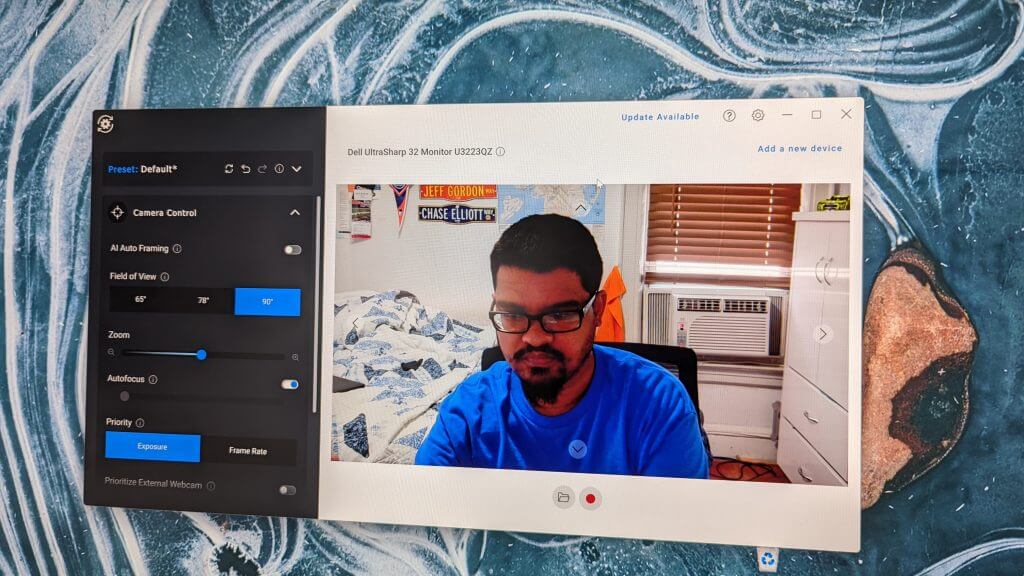
![5 Best Browsers that Support RC4 Encryption [Legacy Devices]](https://windowsreport.com/wp-content/uploads/2022/07/Untitled-design-2022-07-30T175143.815.png)
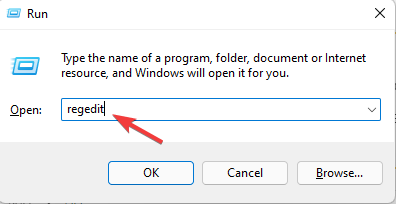
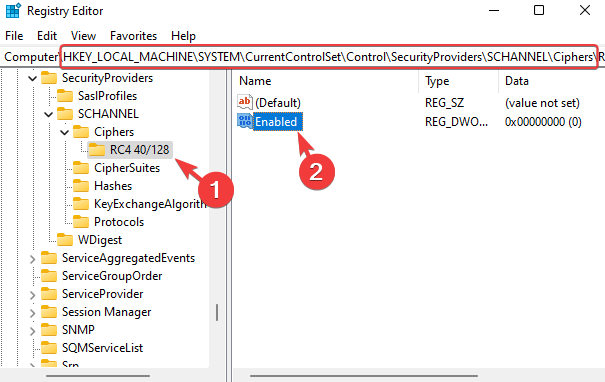


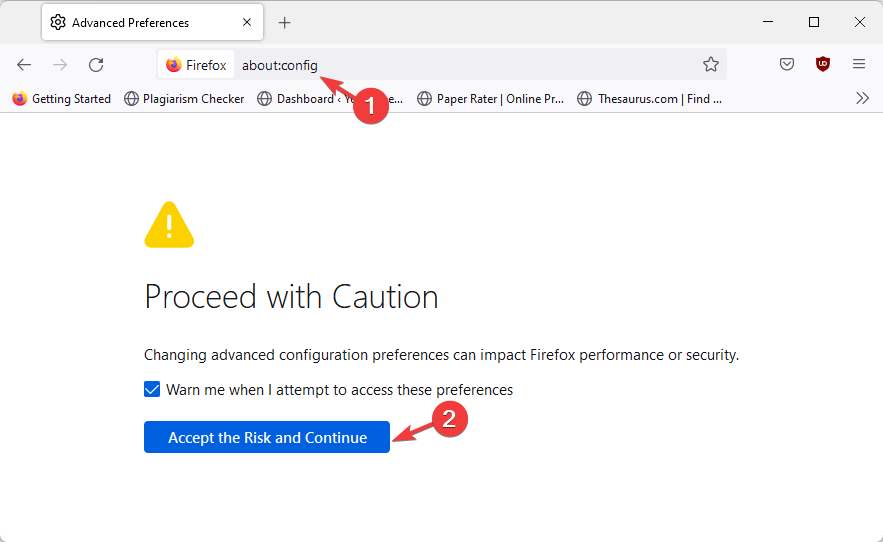


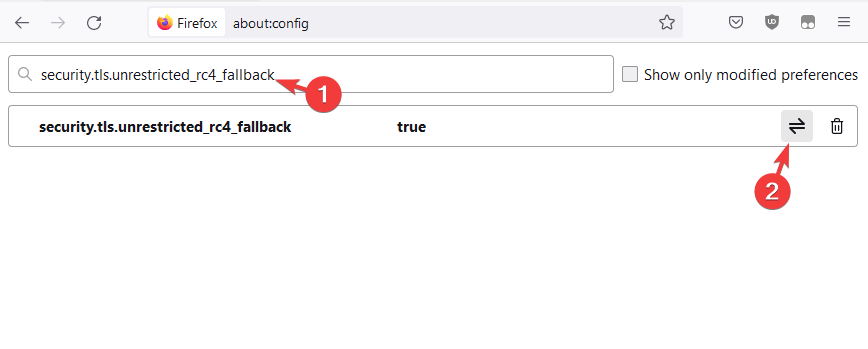
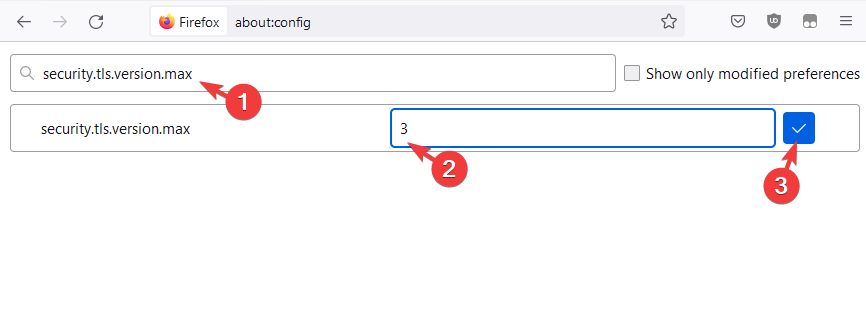



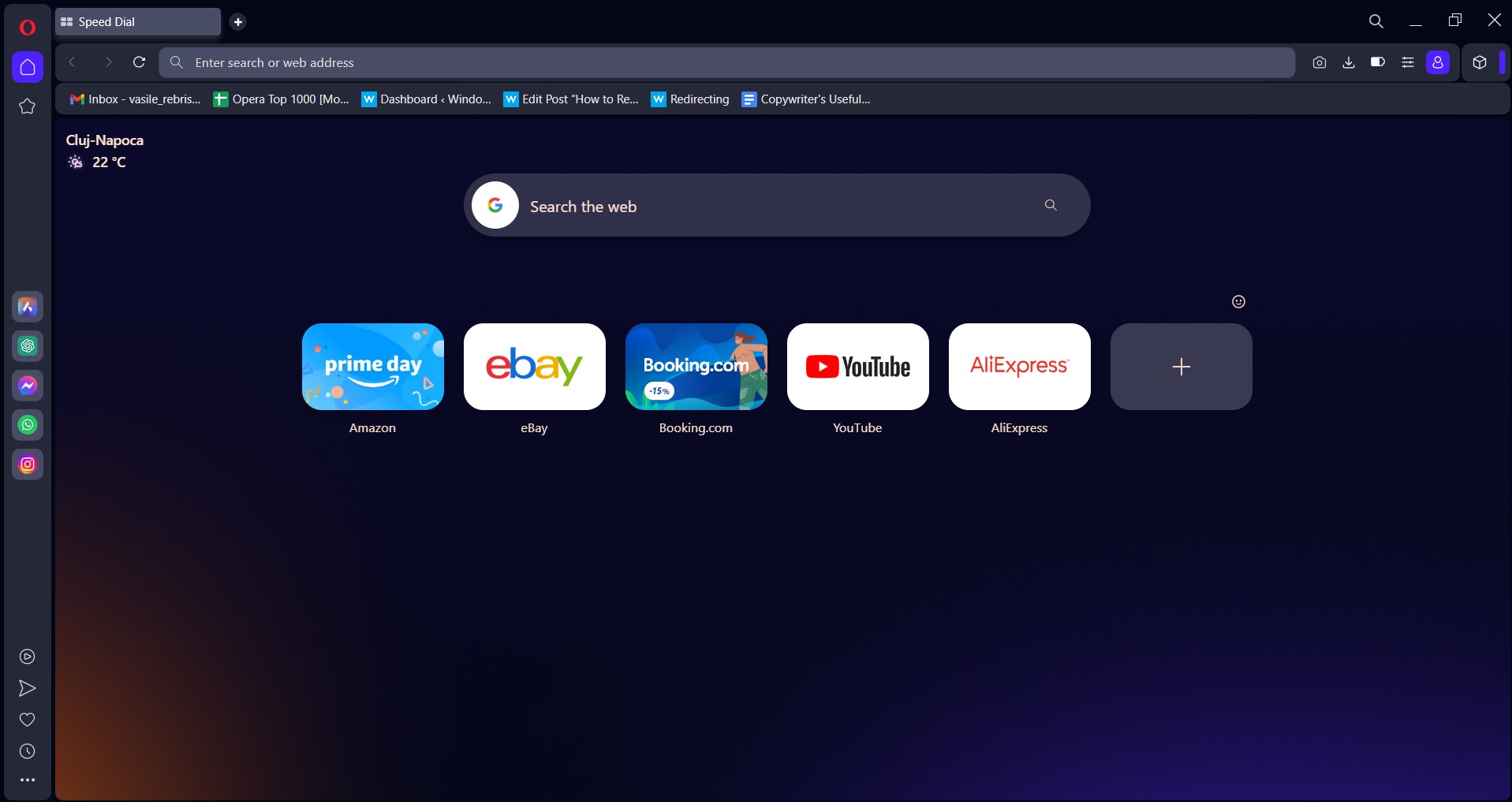






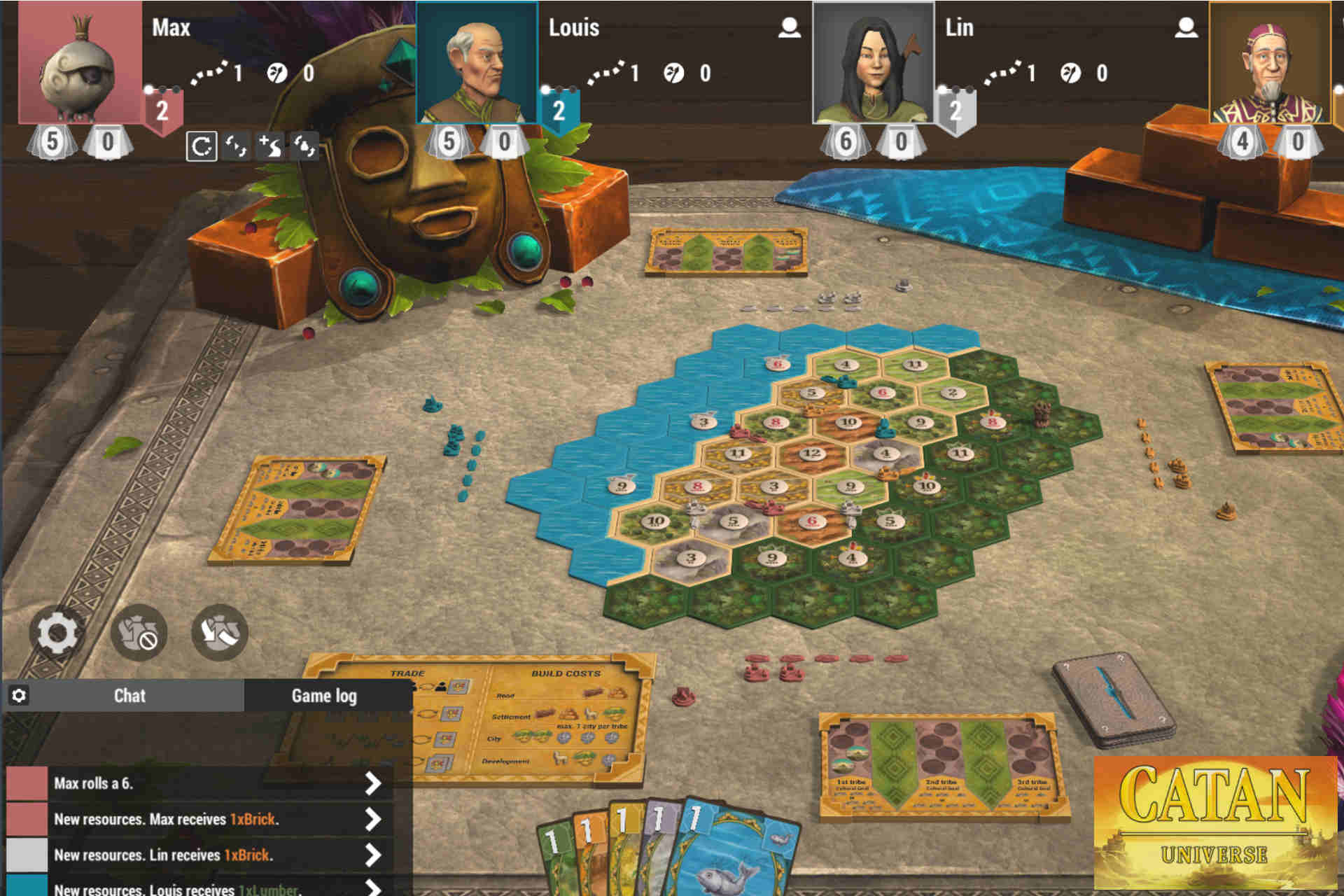







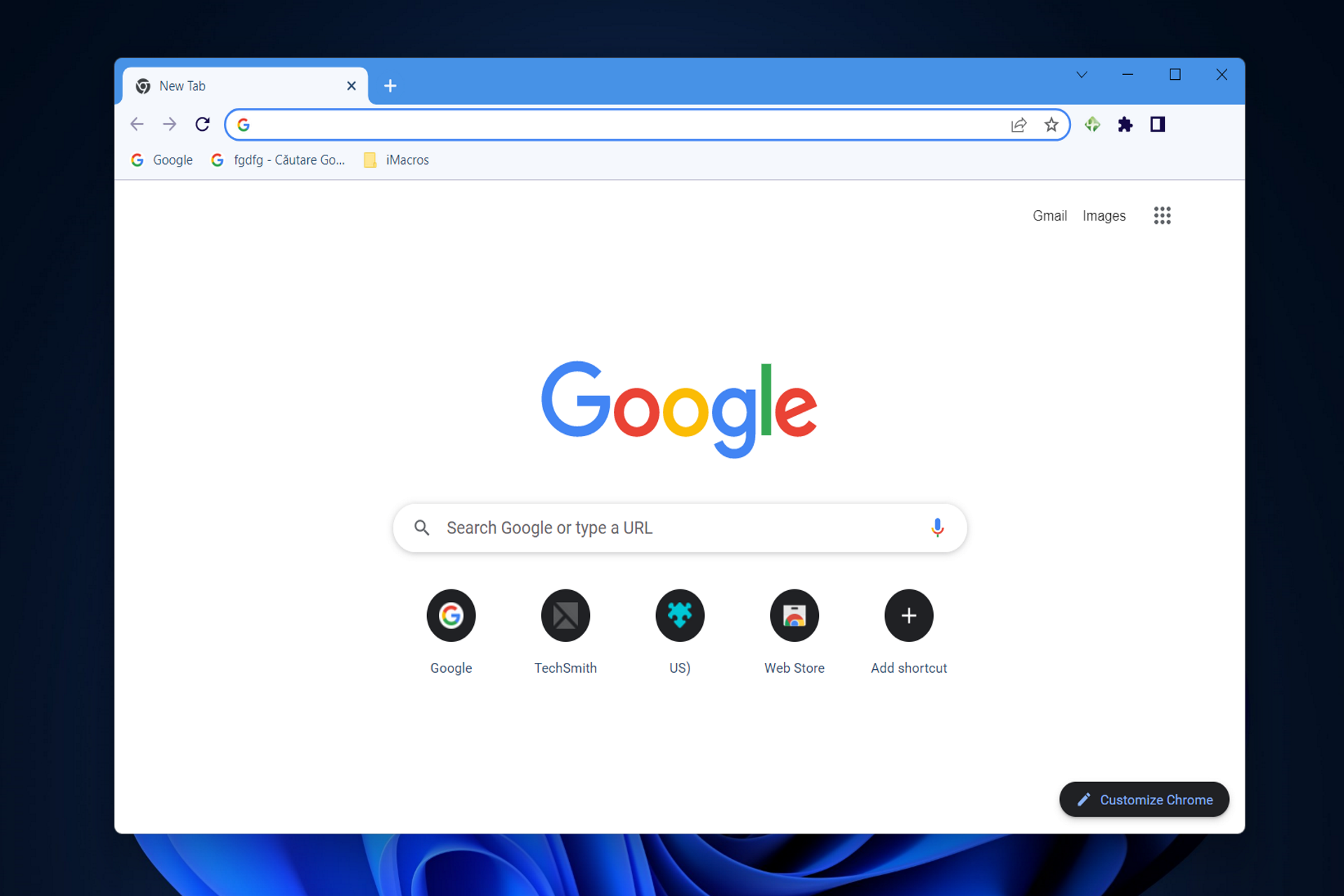

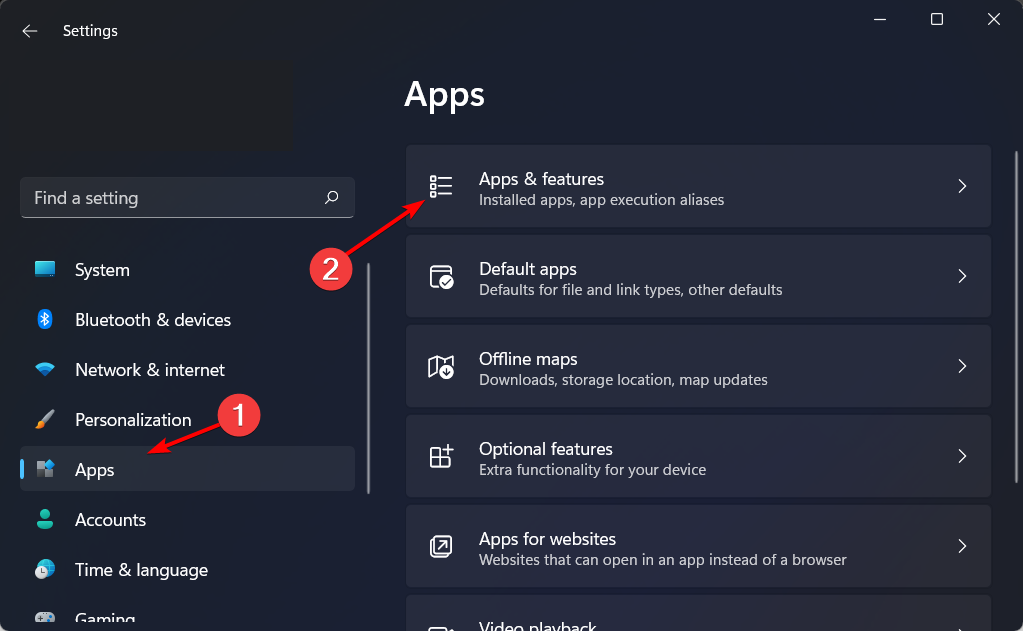

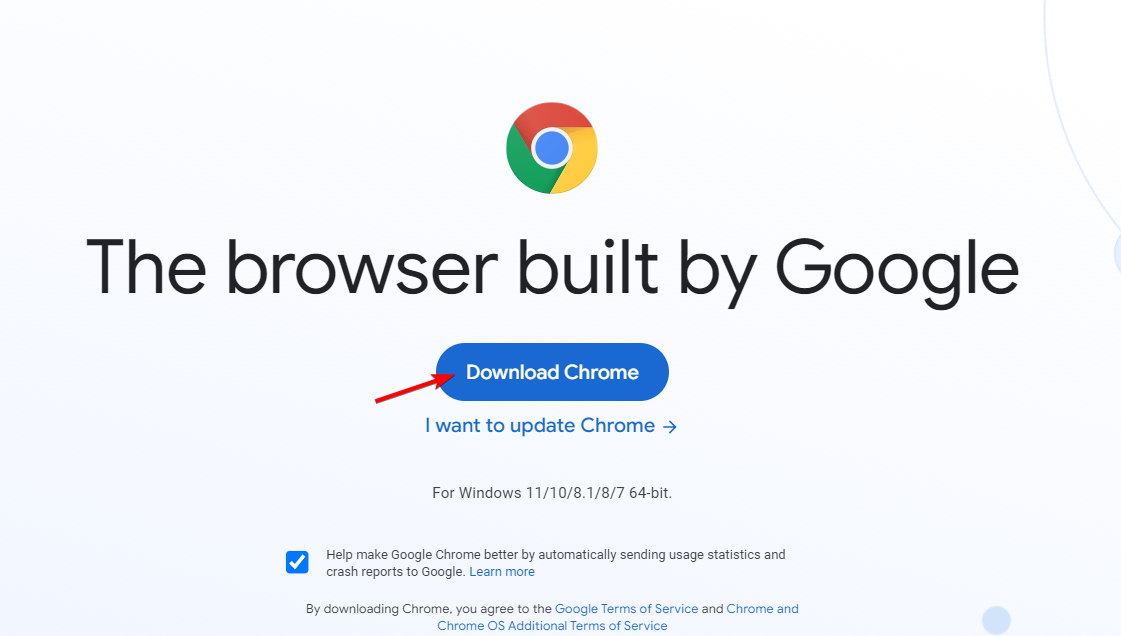


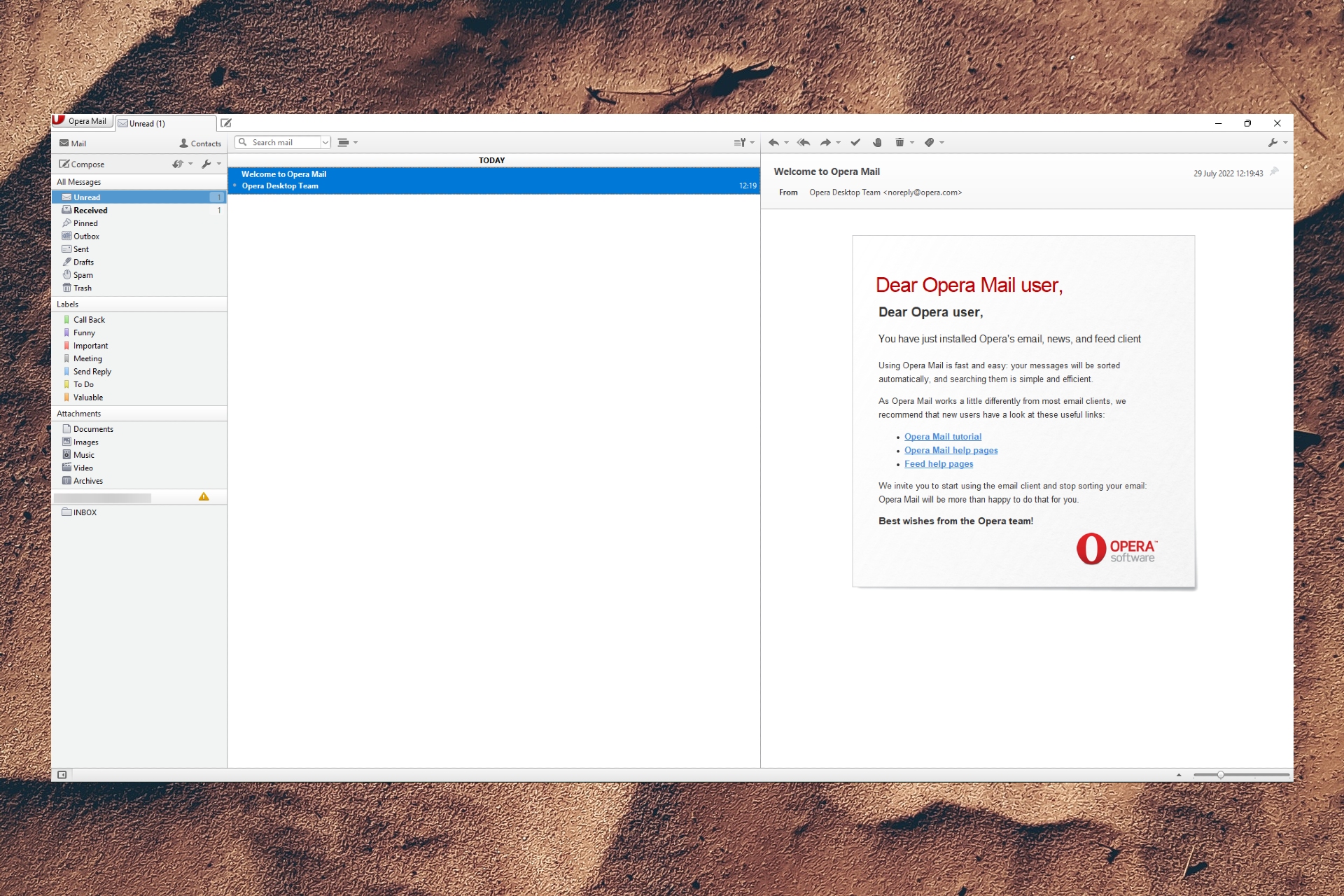


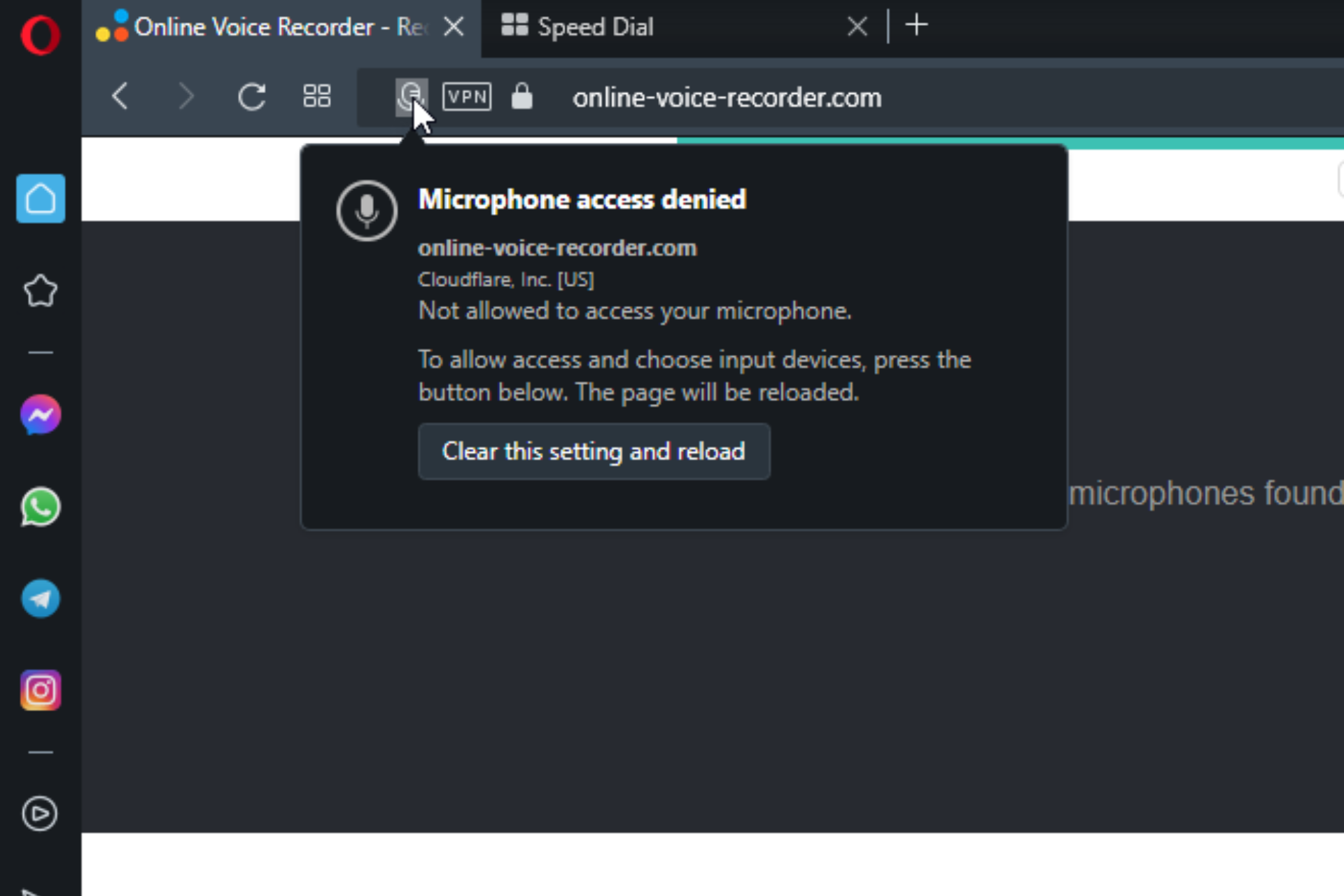





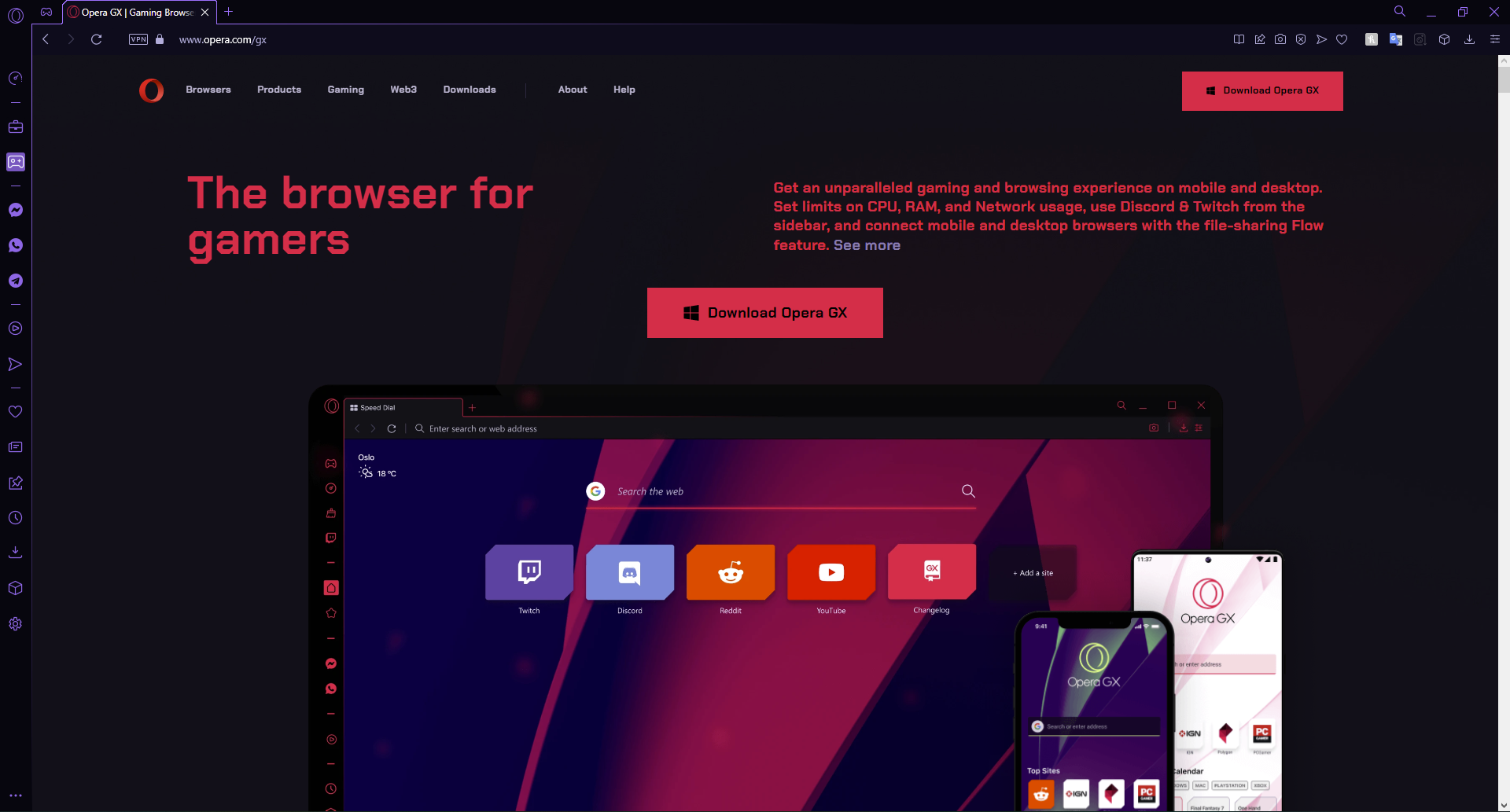

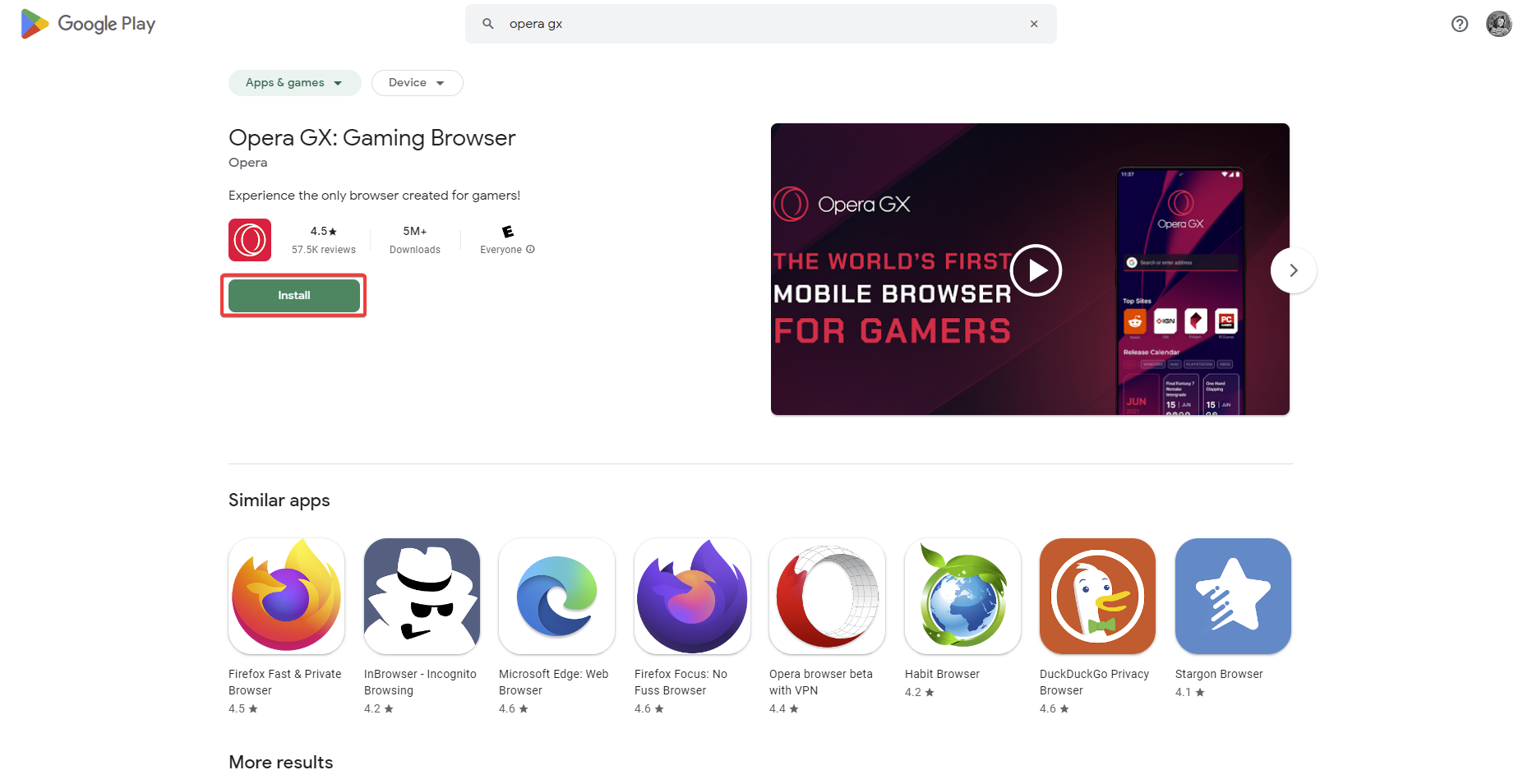
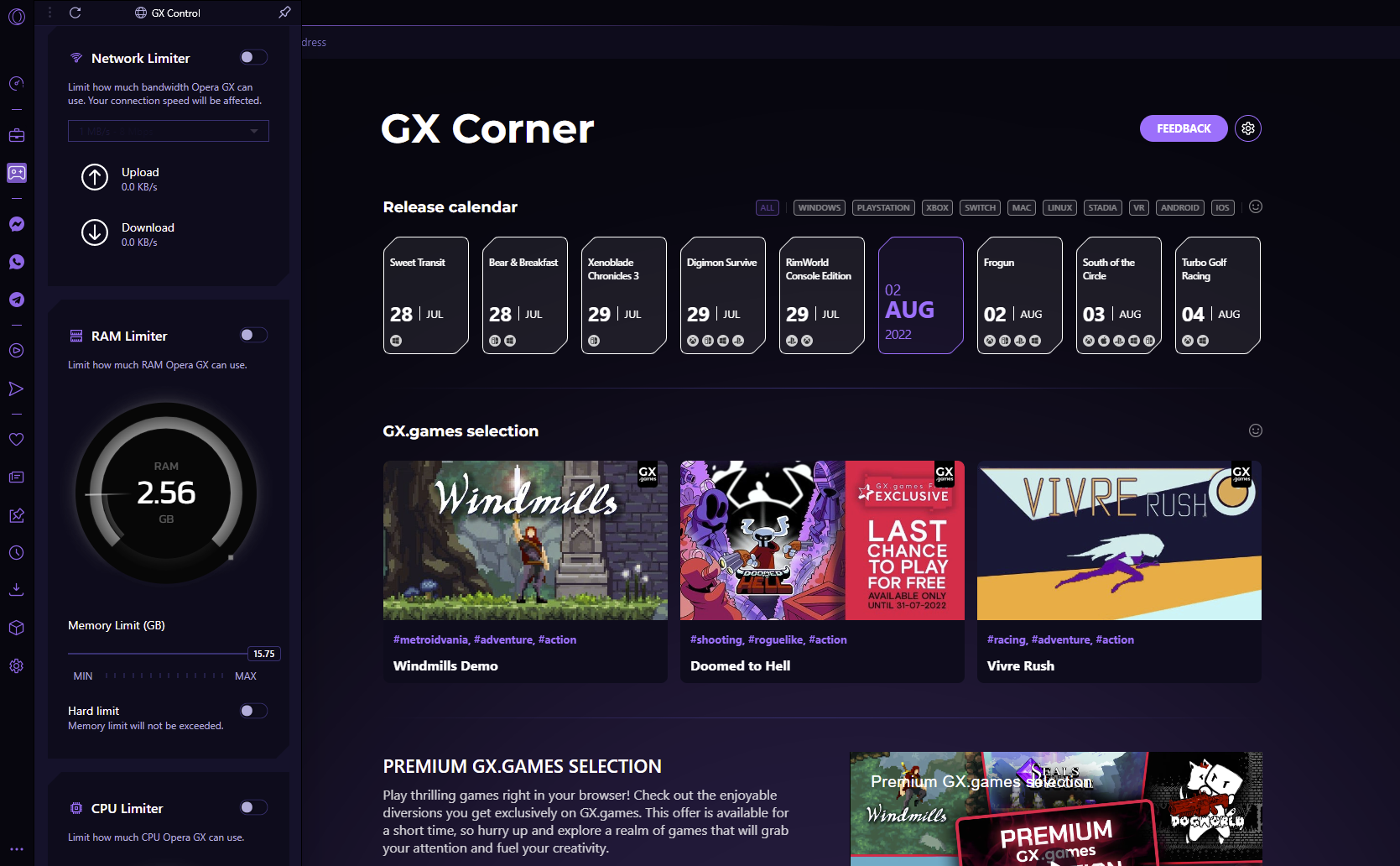
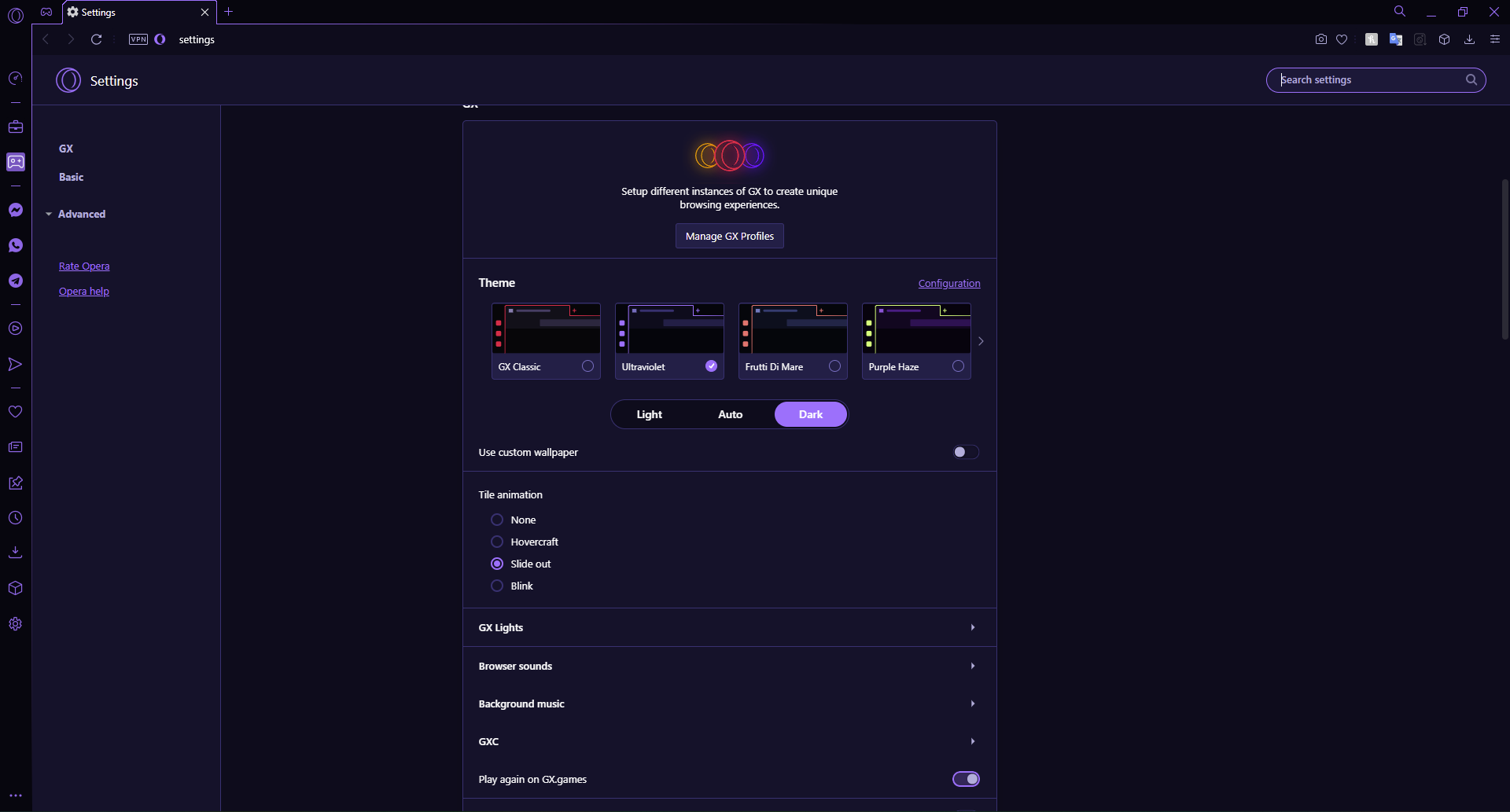
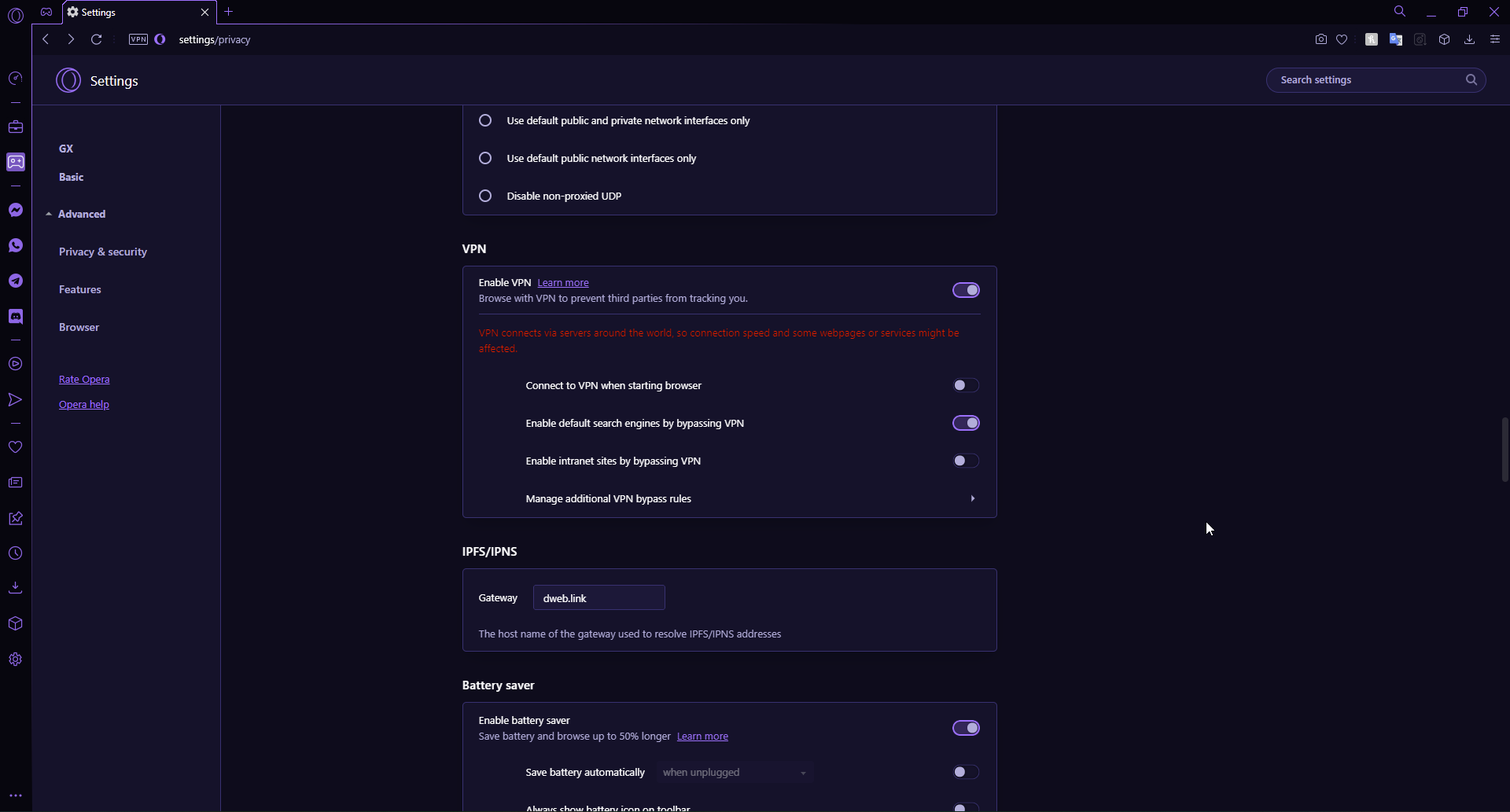
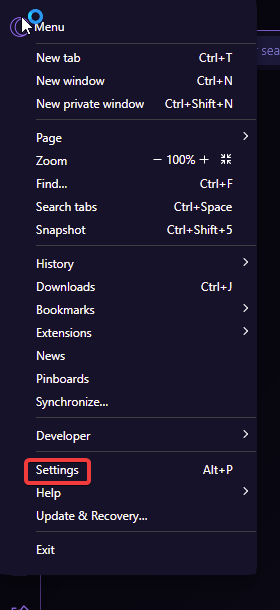
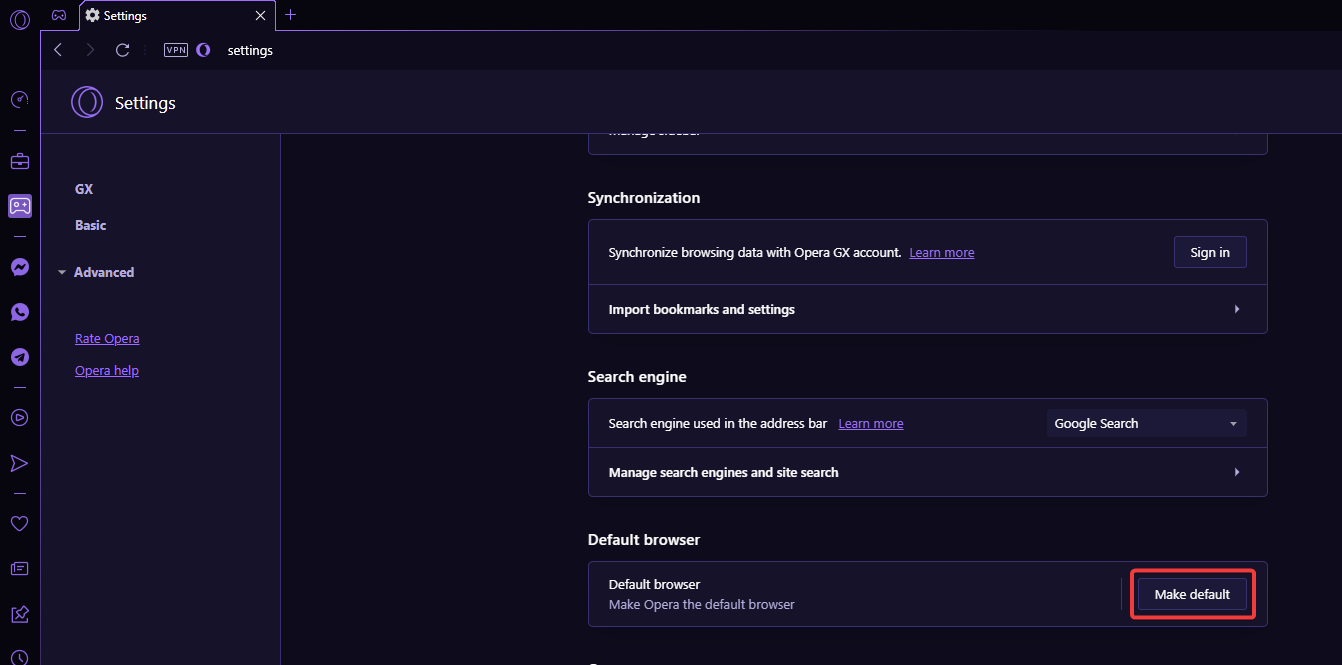



![Download Opera News App For PC [How to]](https://windowsreport.com/wp-content/uploads/2022/07/opera-news-app-download-for-pc.jpg)
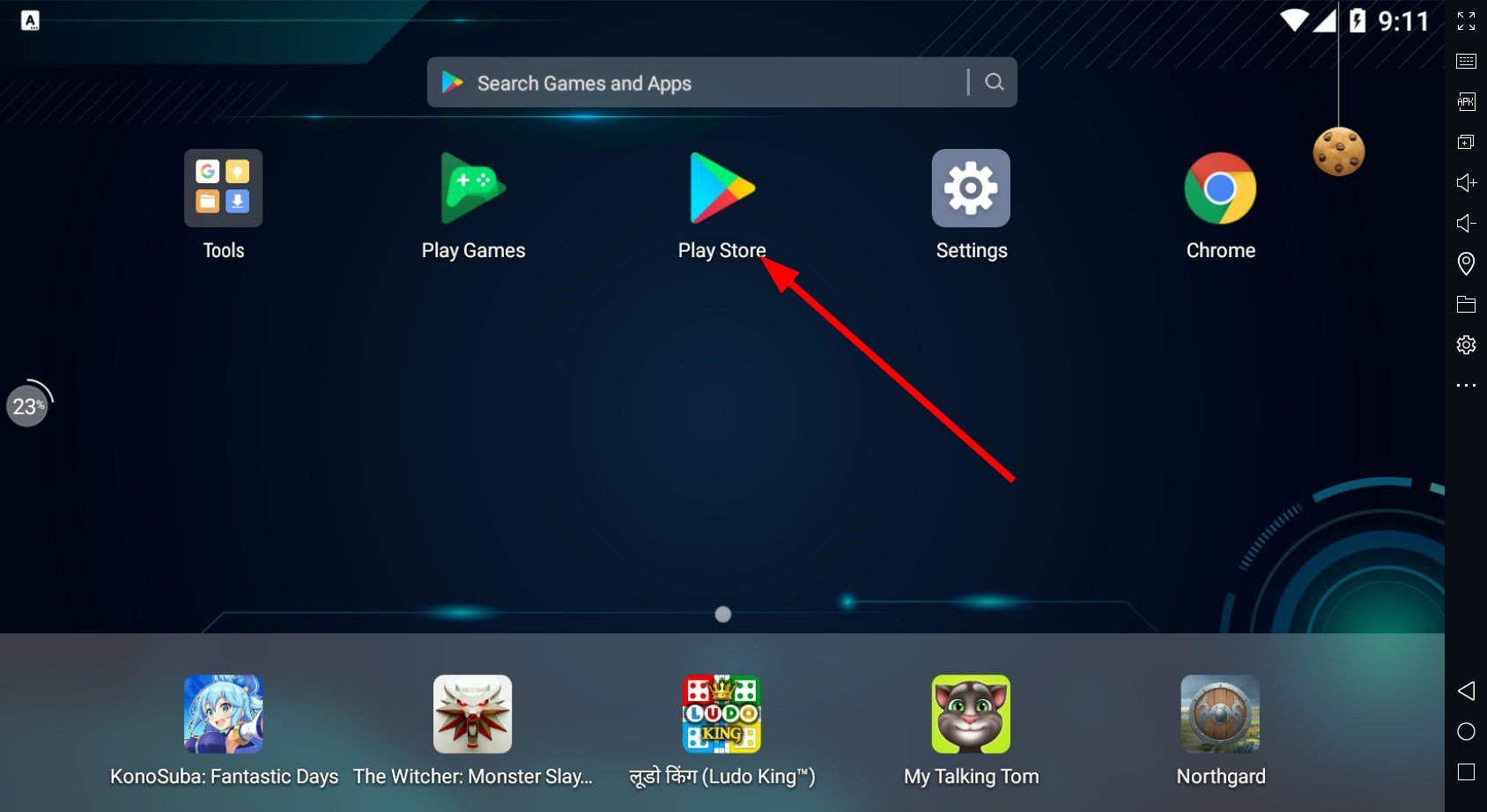
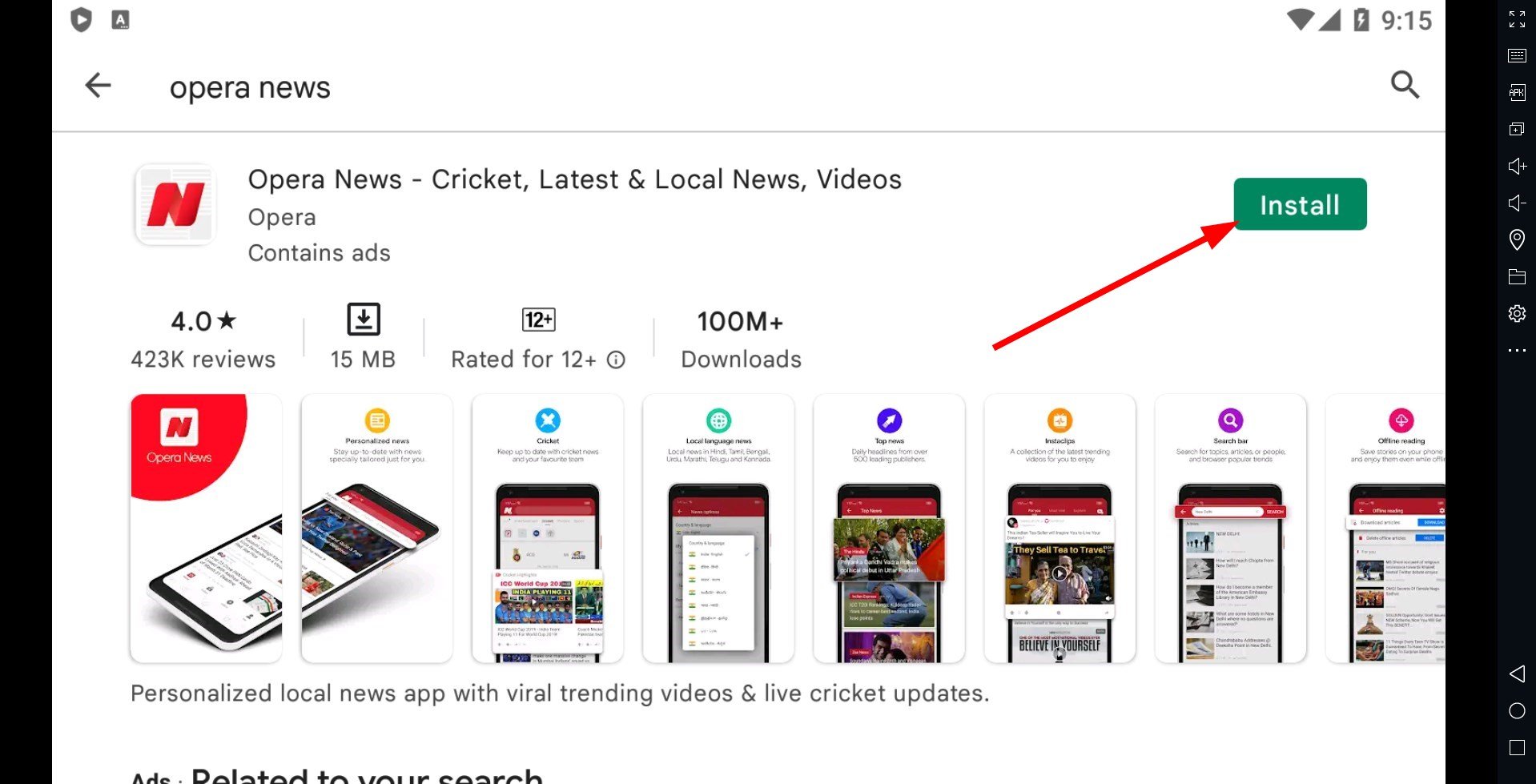
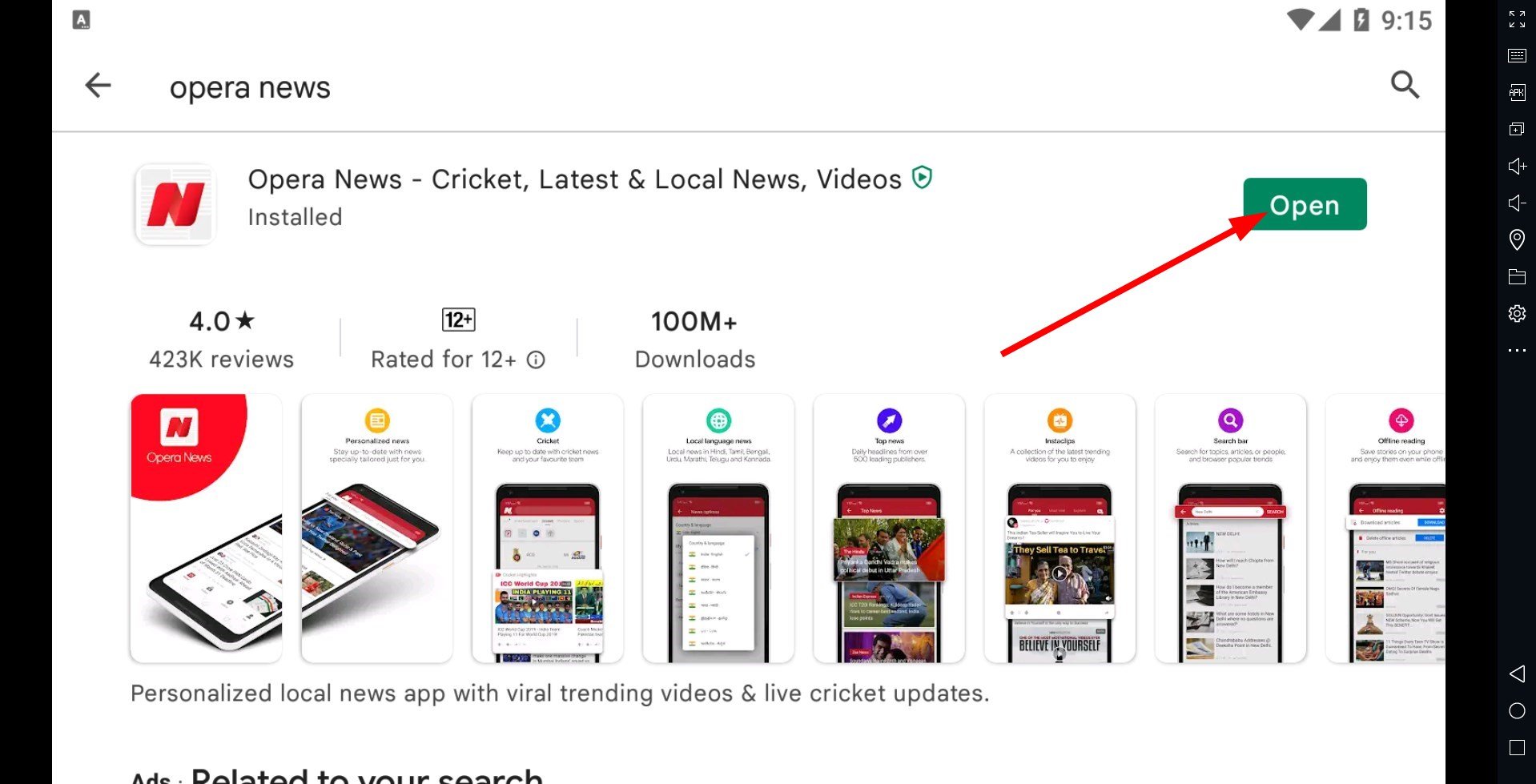



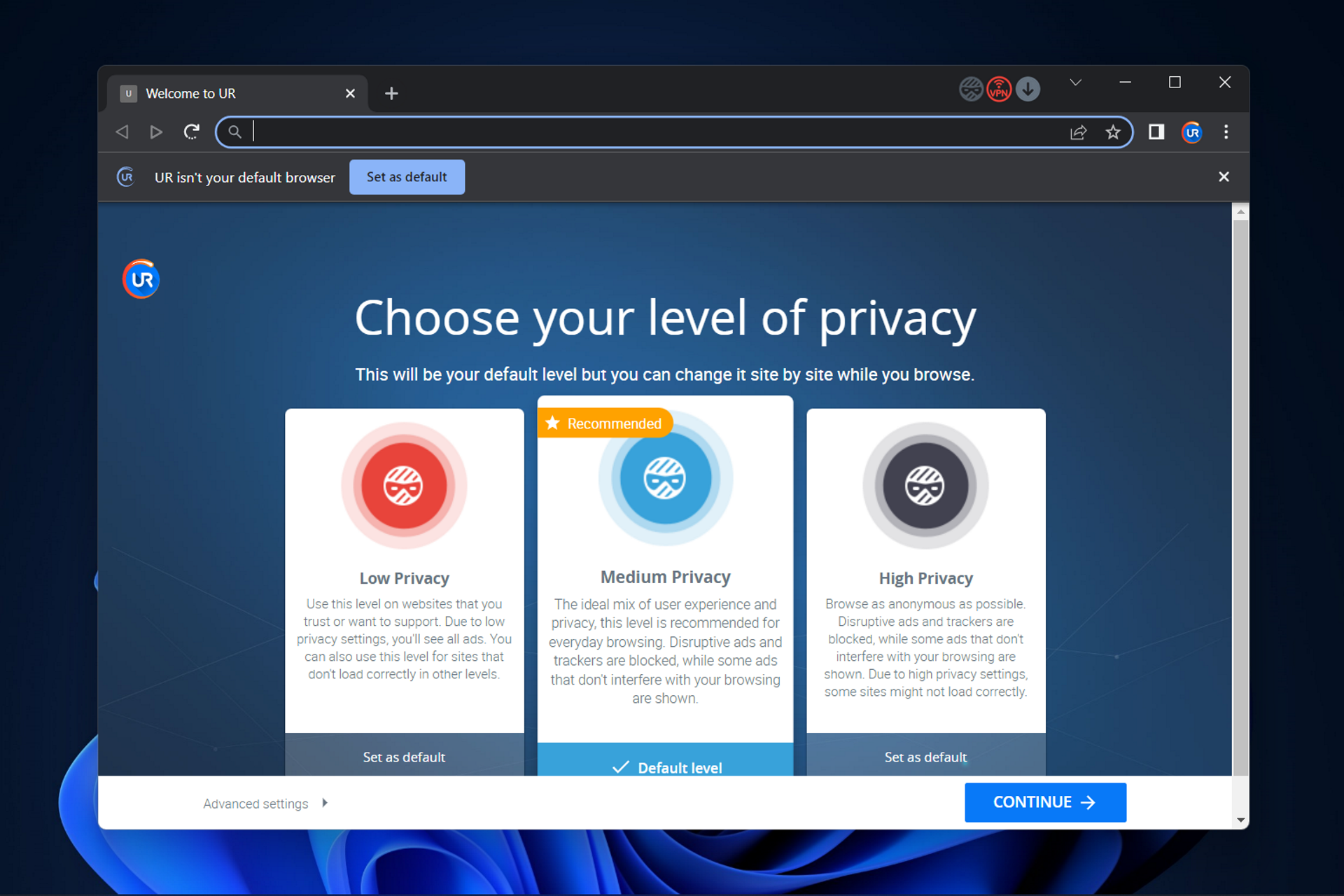





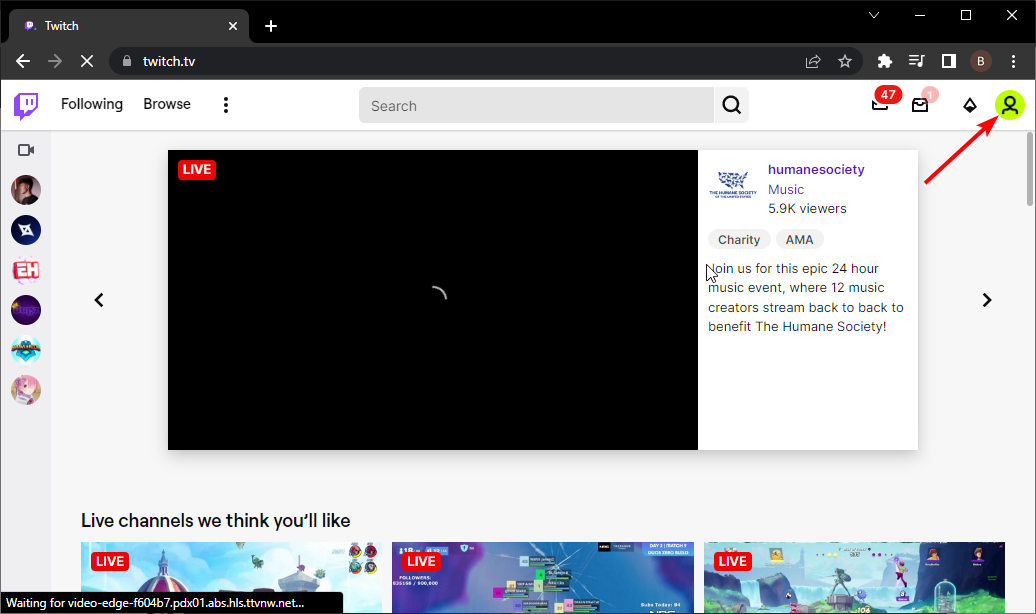
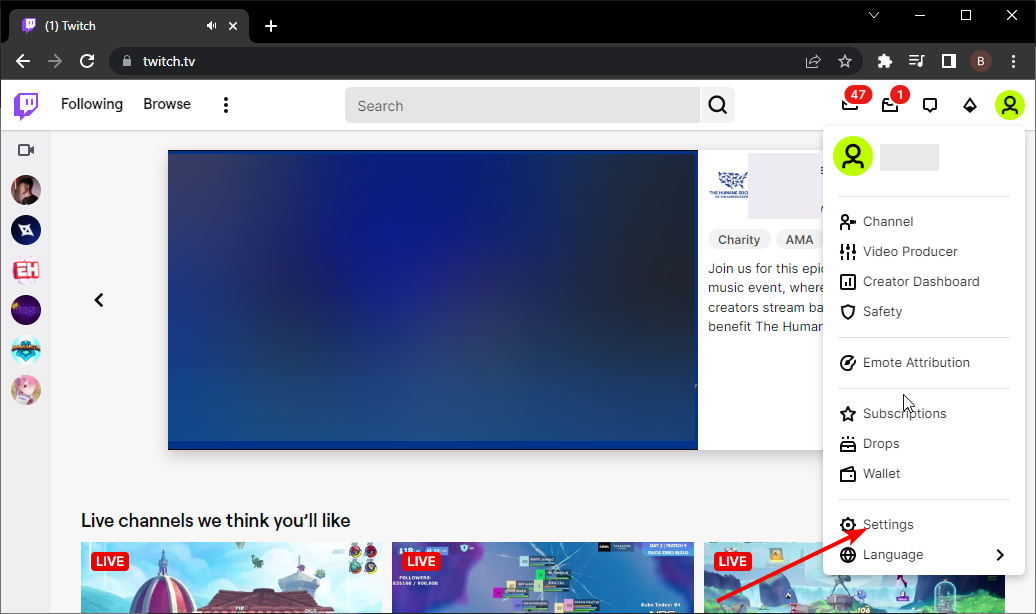
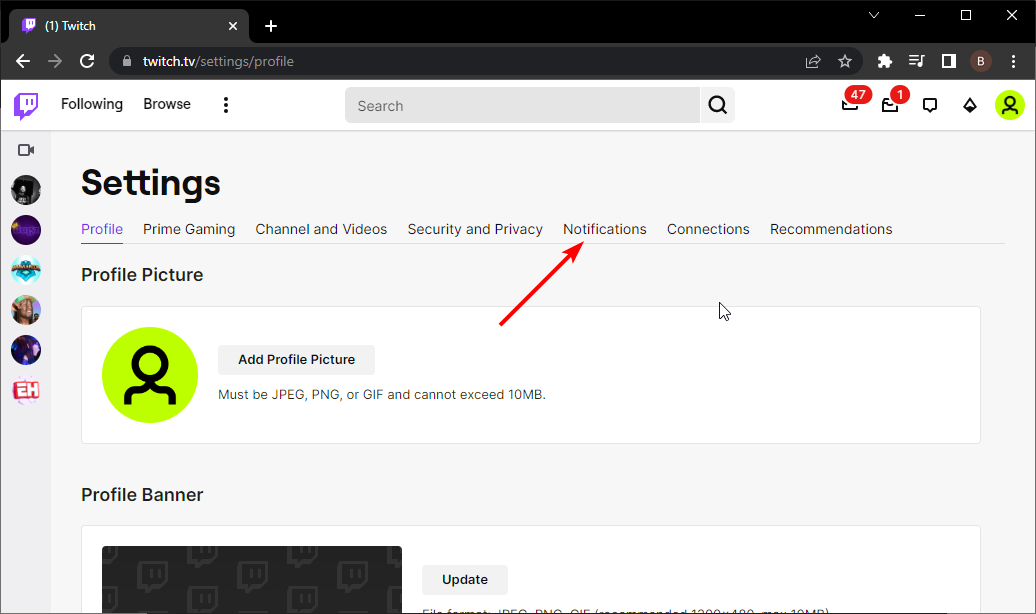
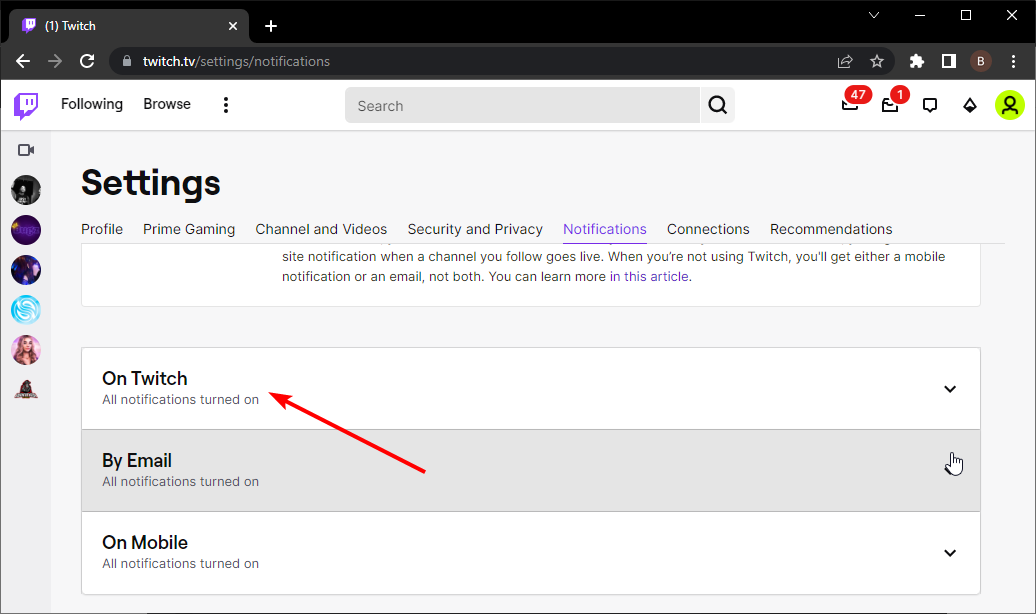
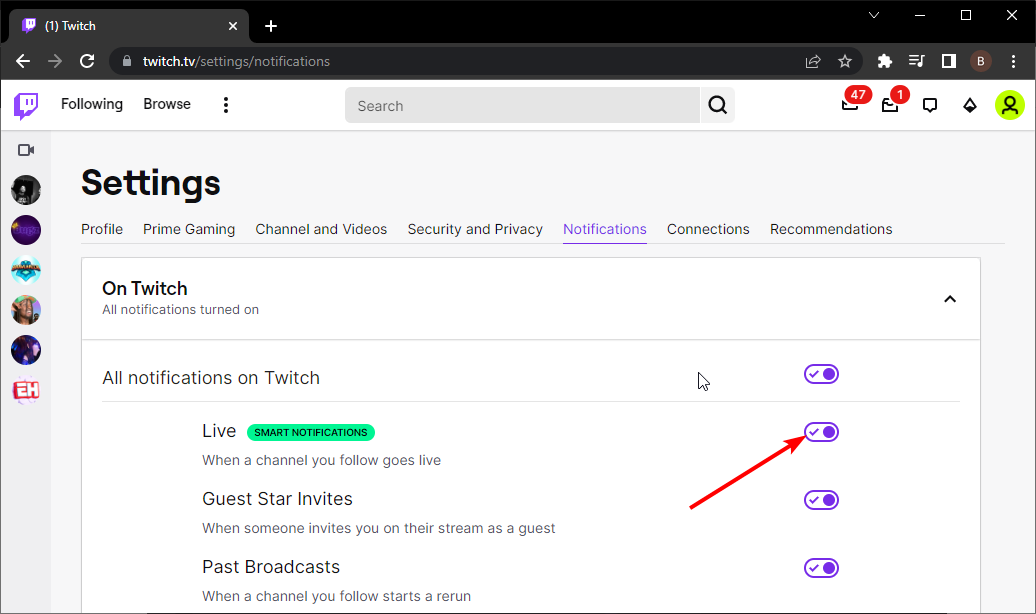
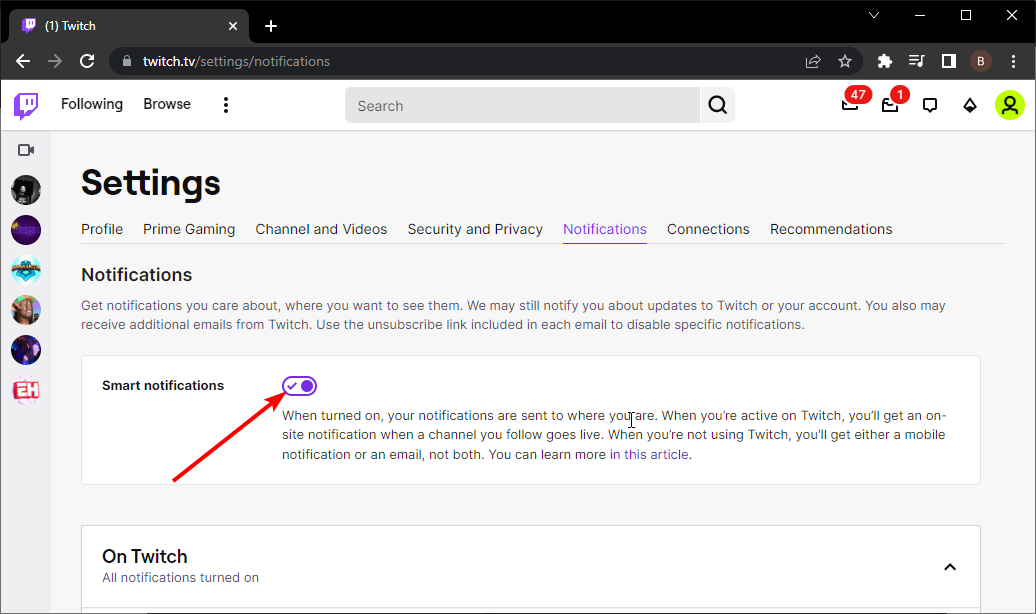
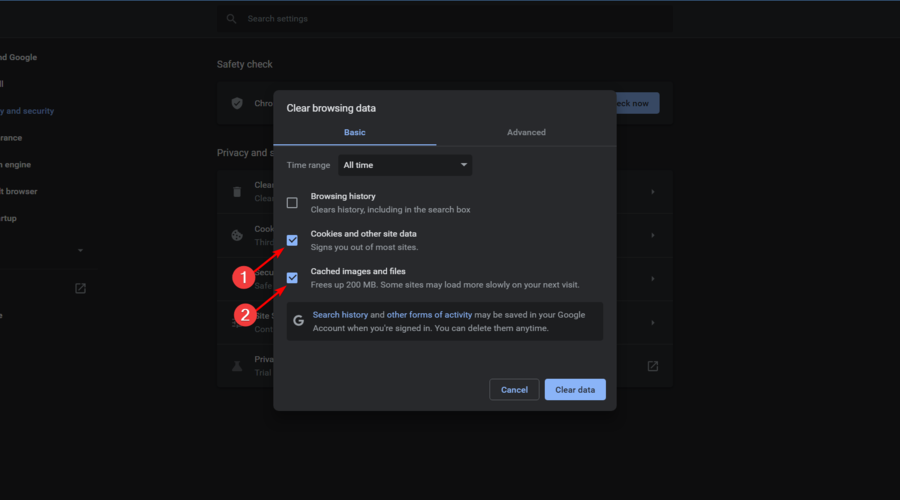

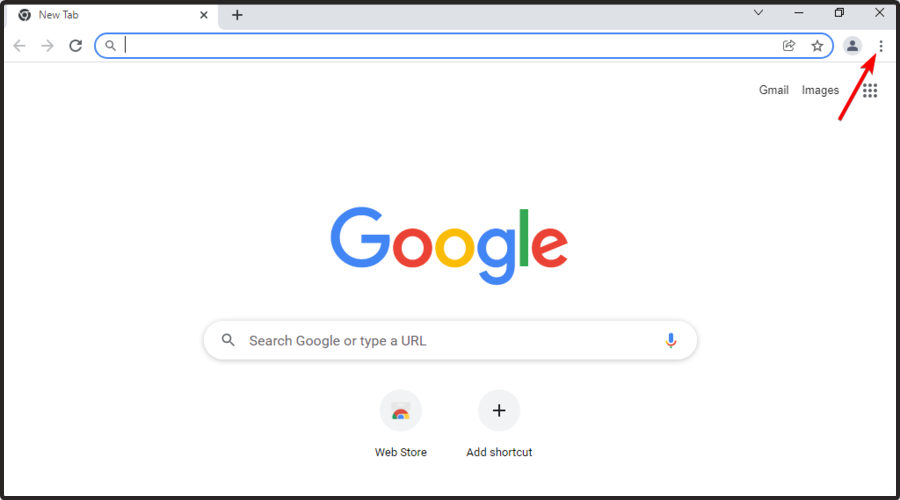
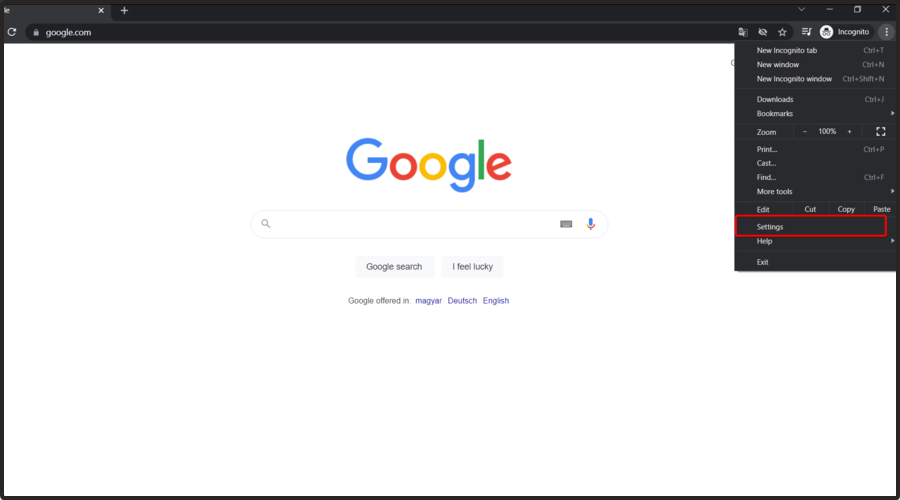
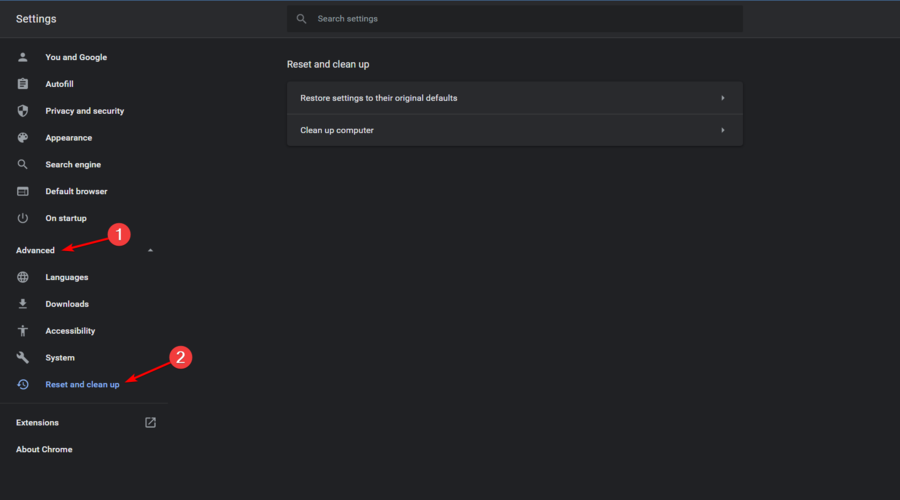


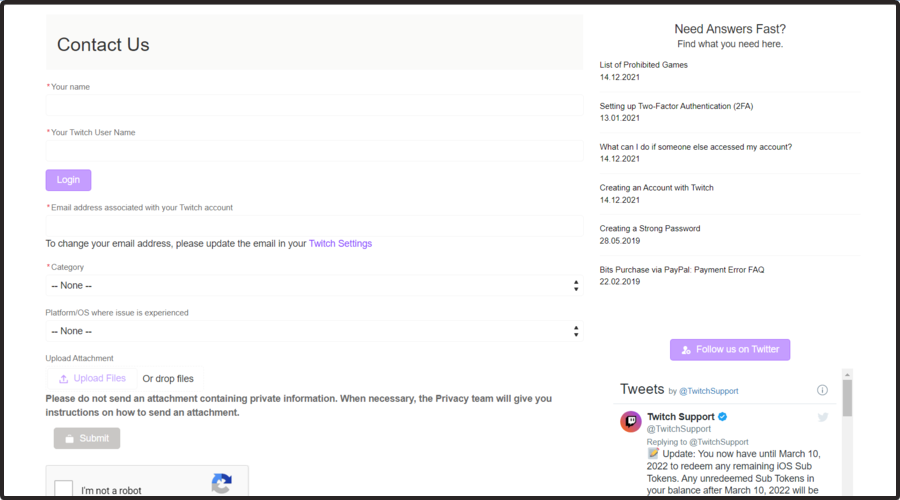
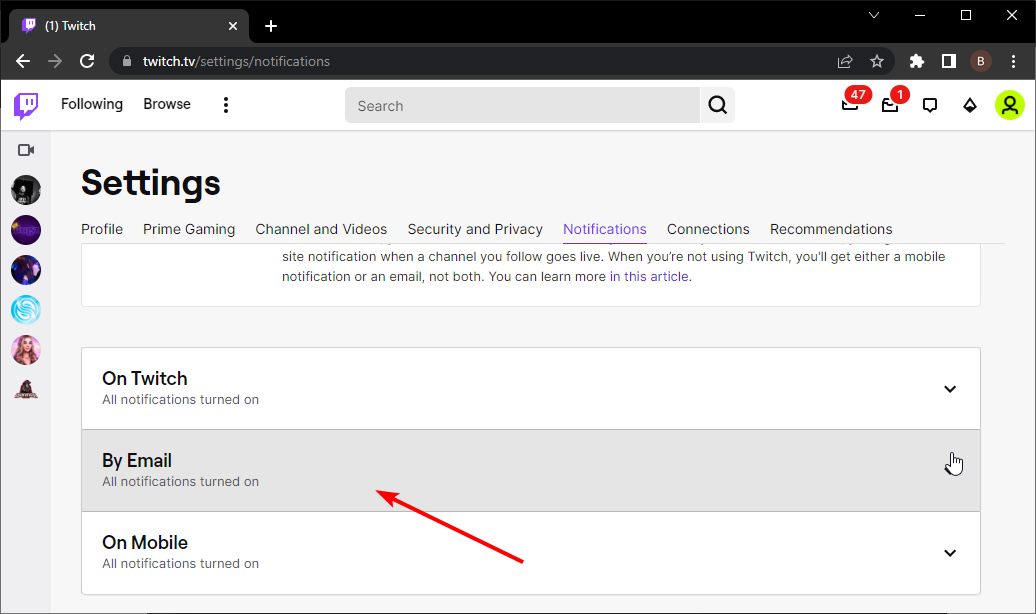
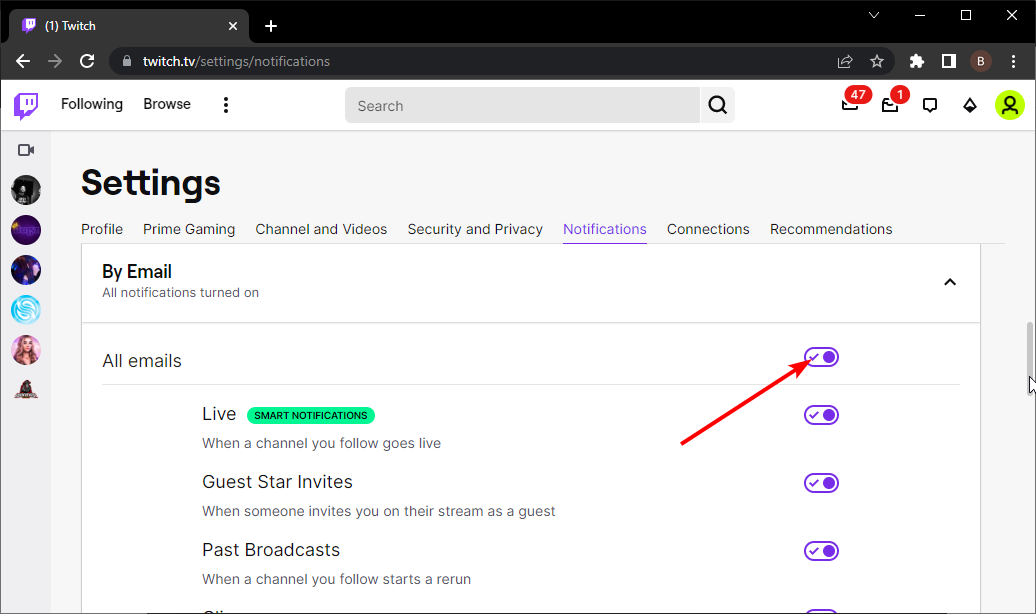

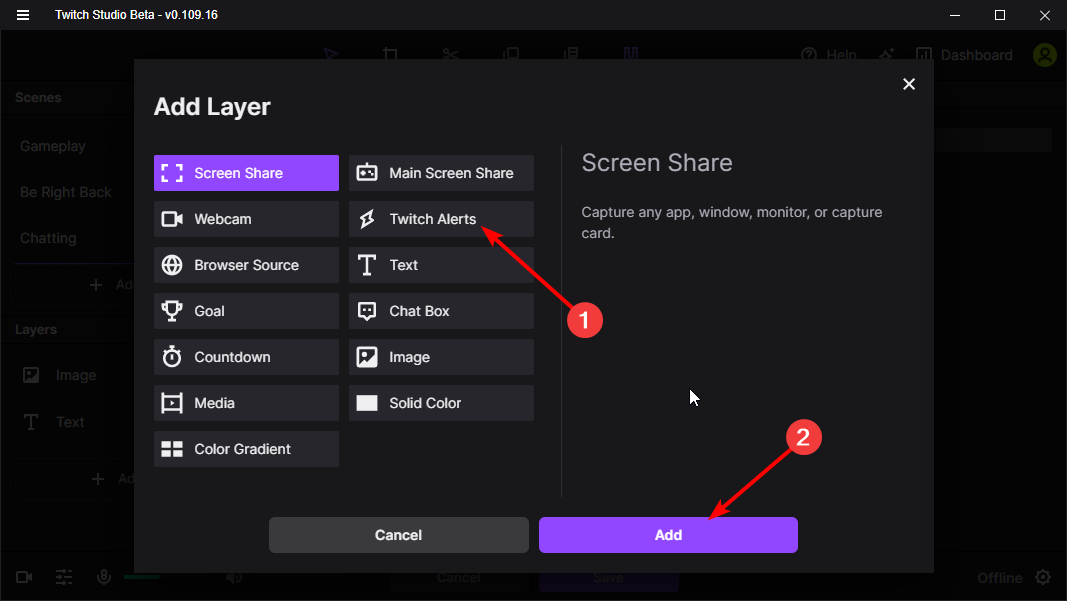
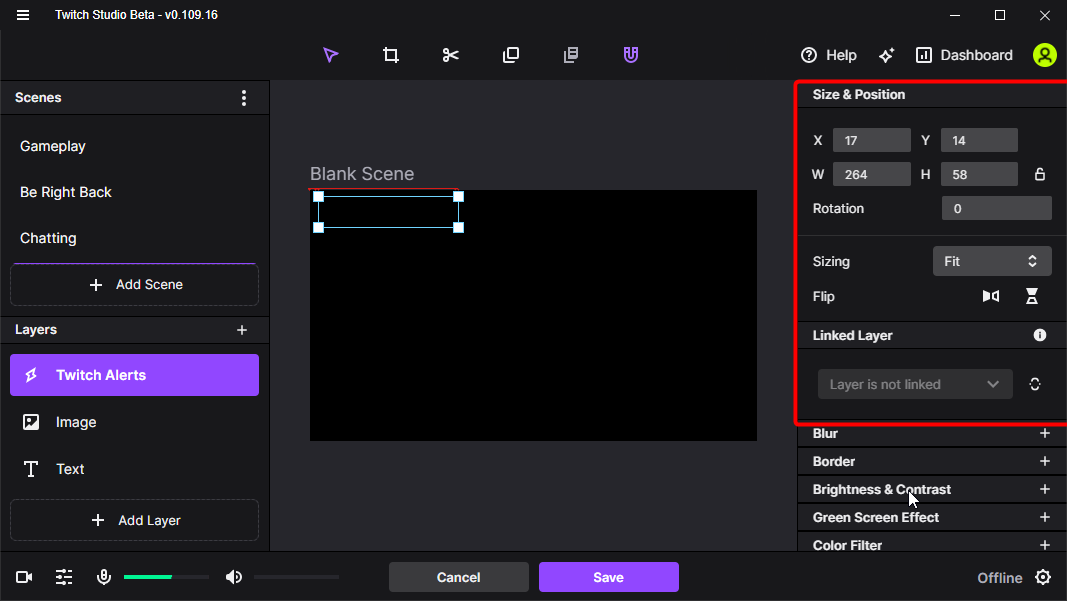
![Download & Install Opera Neon for Windows 10/11 [Latest Version]](https://windowsreport.com/wp-content/uploads/2022/07/opera-neon-featured.jpg)


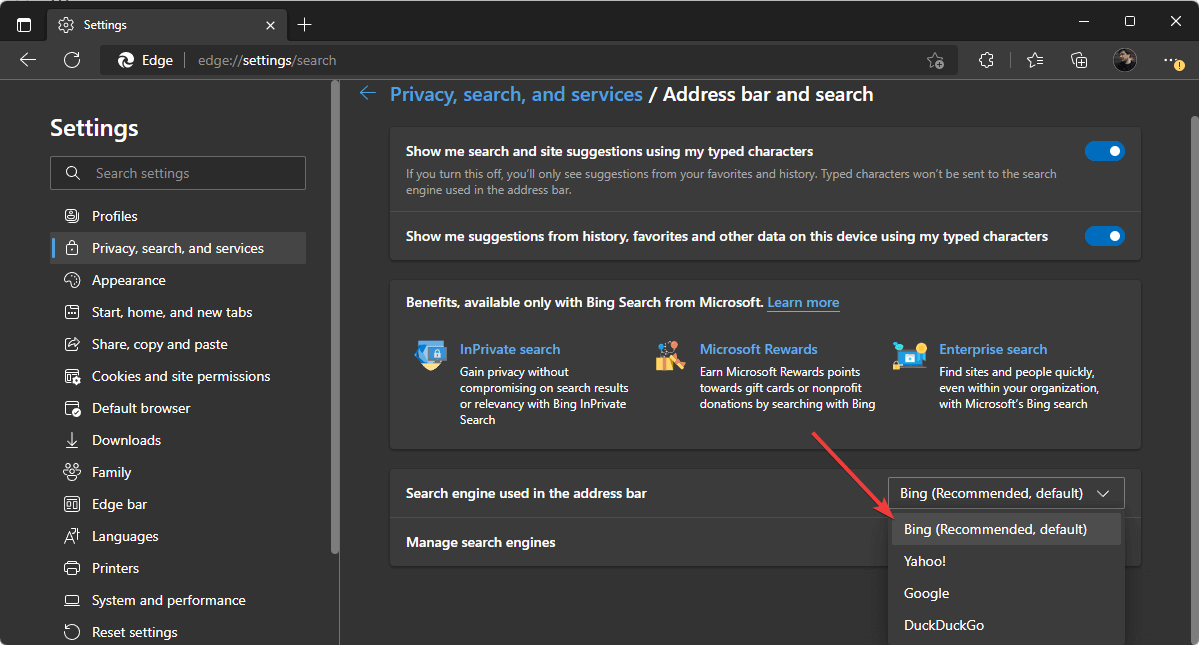


![How to Fix Twitch Black/White Screen on Chrome [With Sound]](https://windowsreport.com/wp-content/uploads/2022/07/twitch-black-screen-chrome.png)

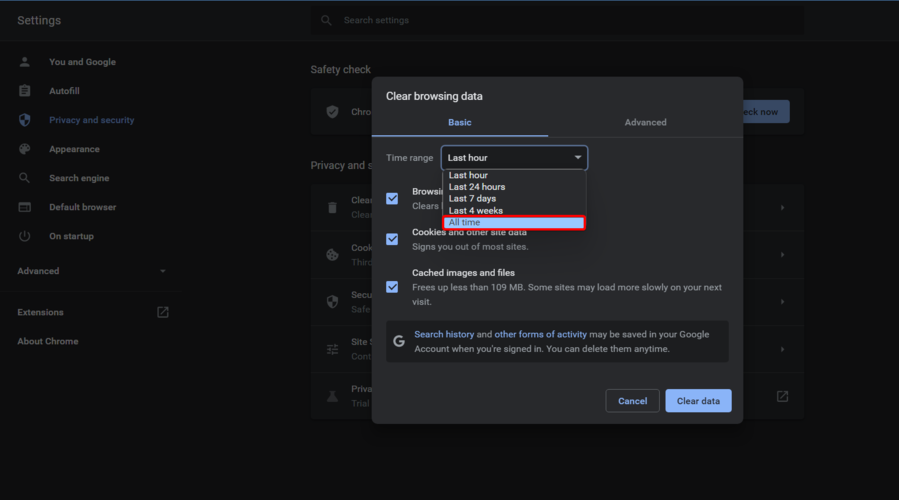


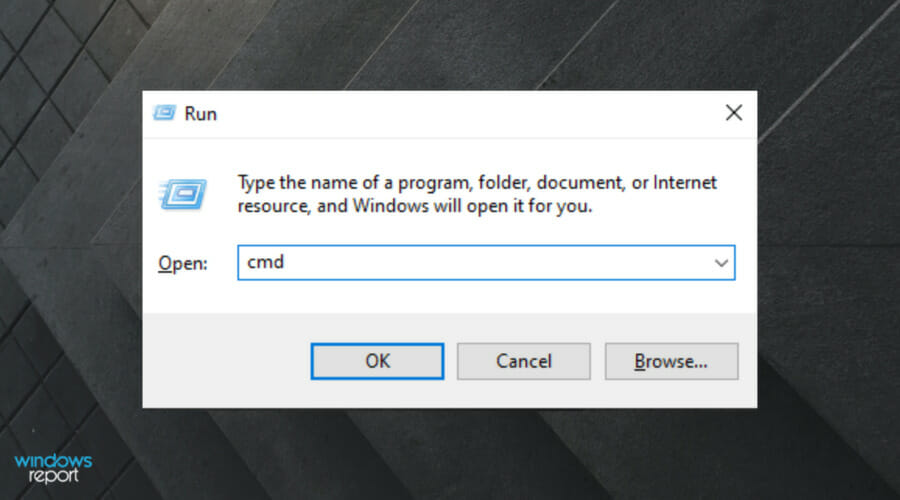
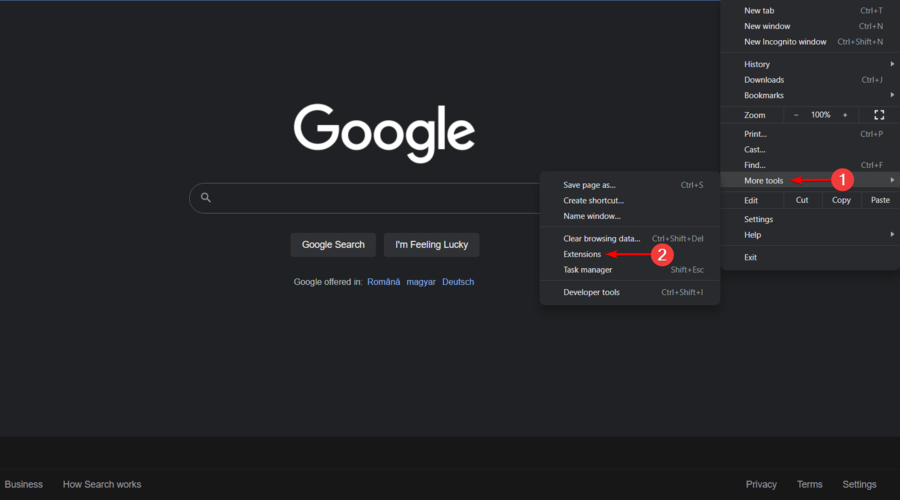


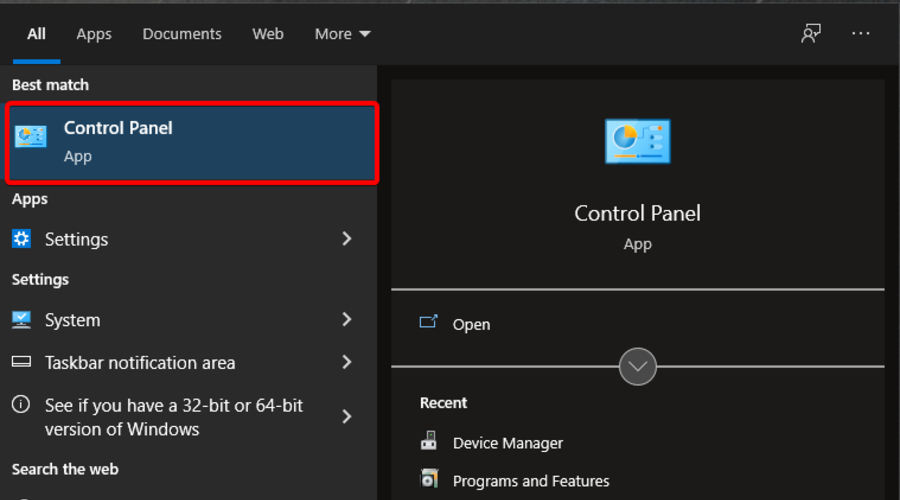
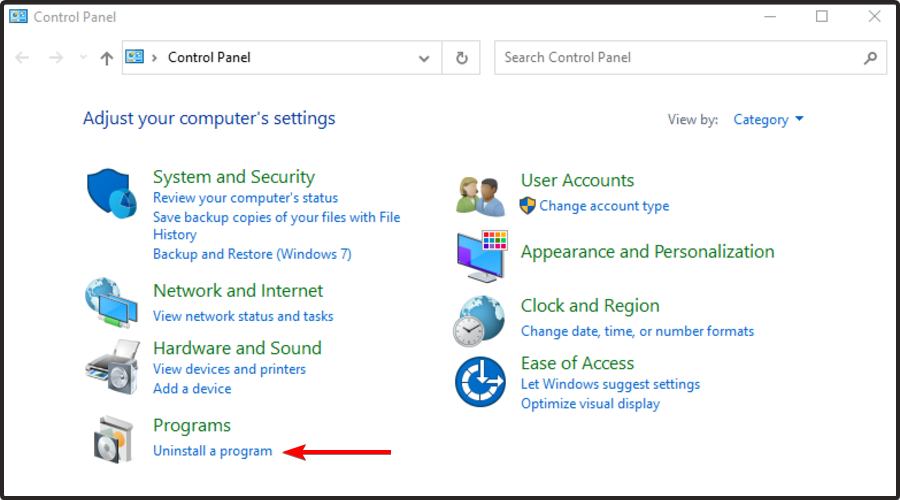


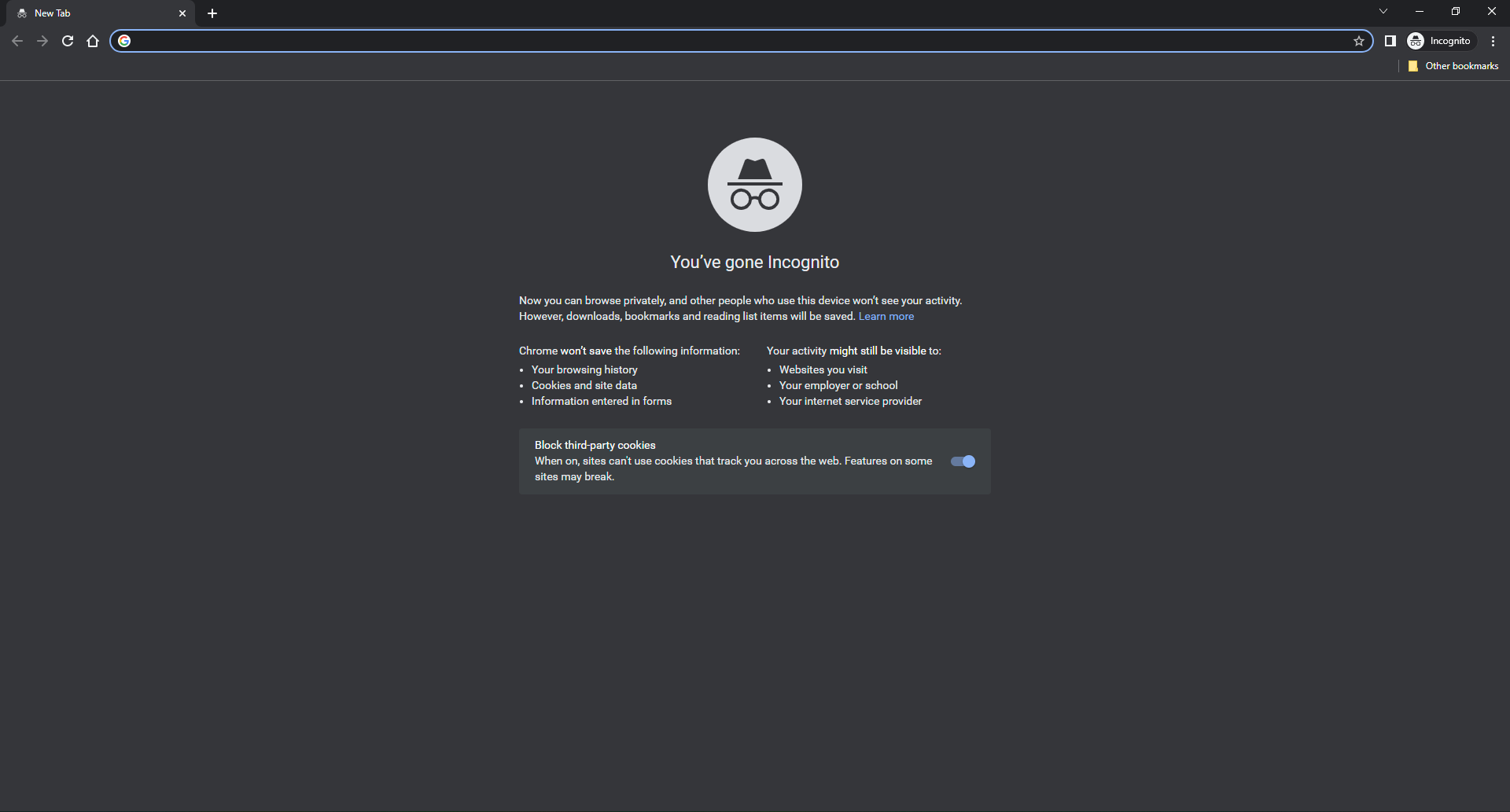
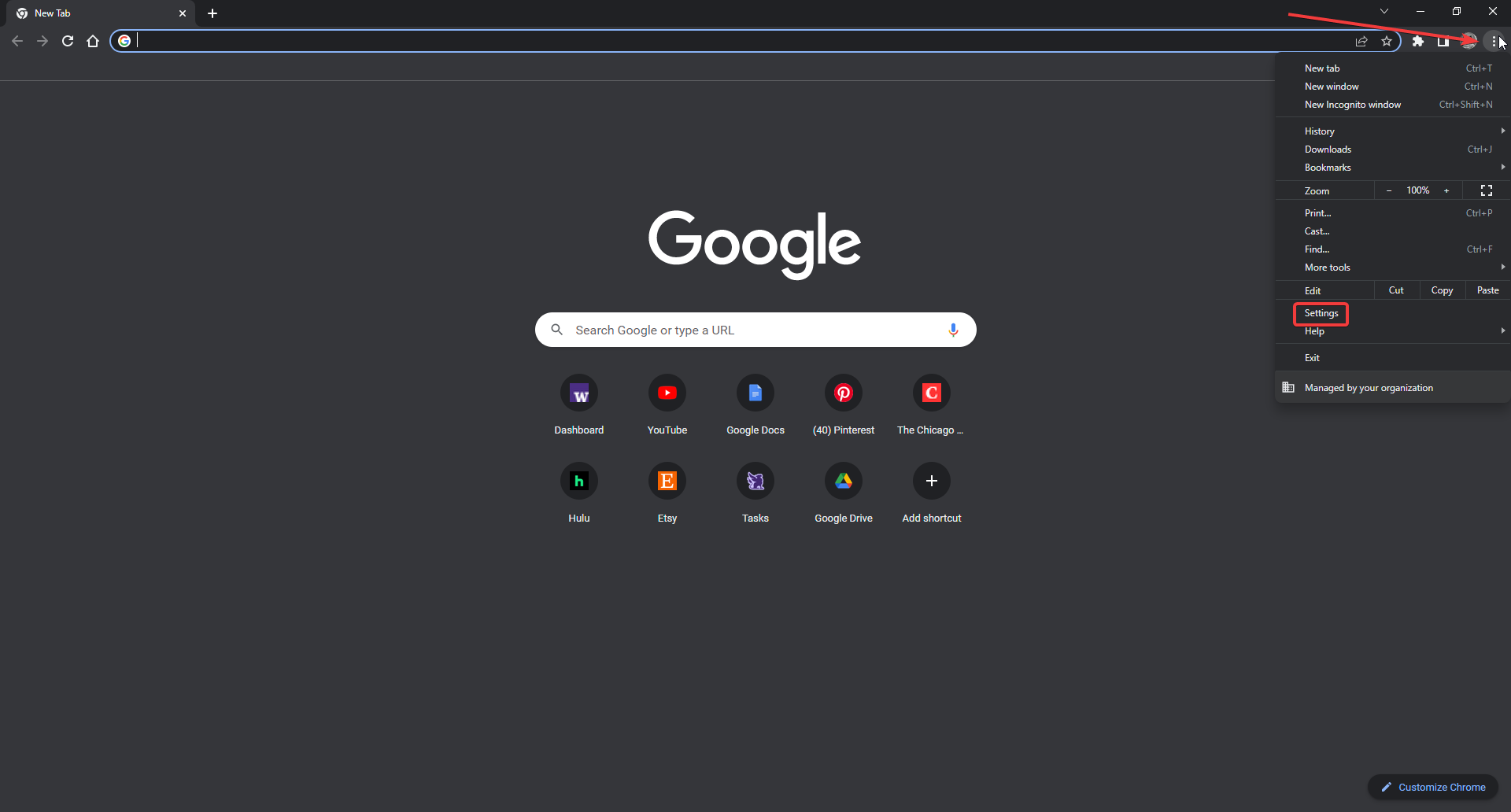
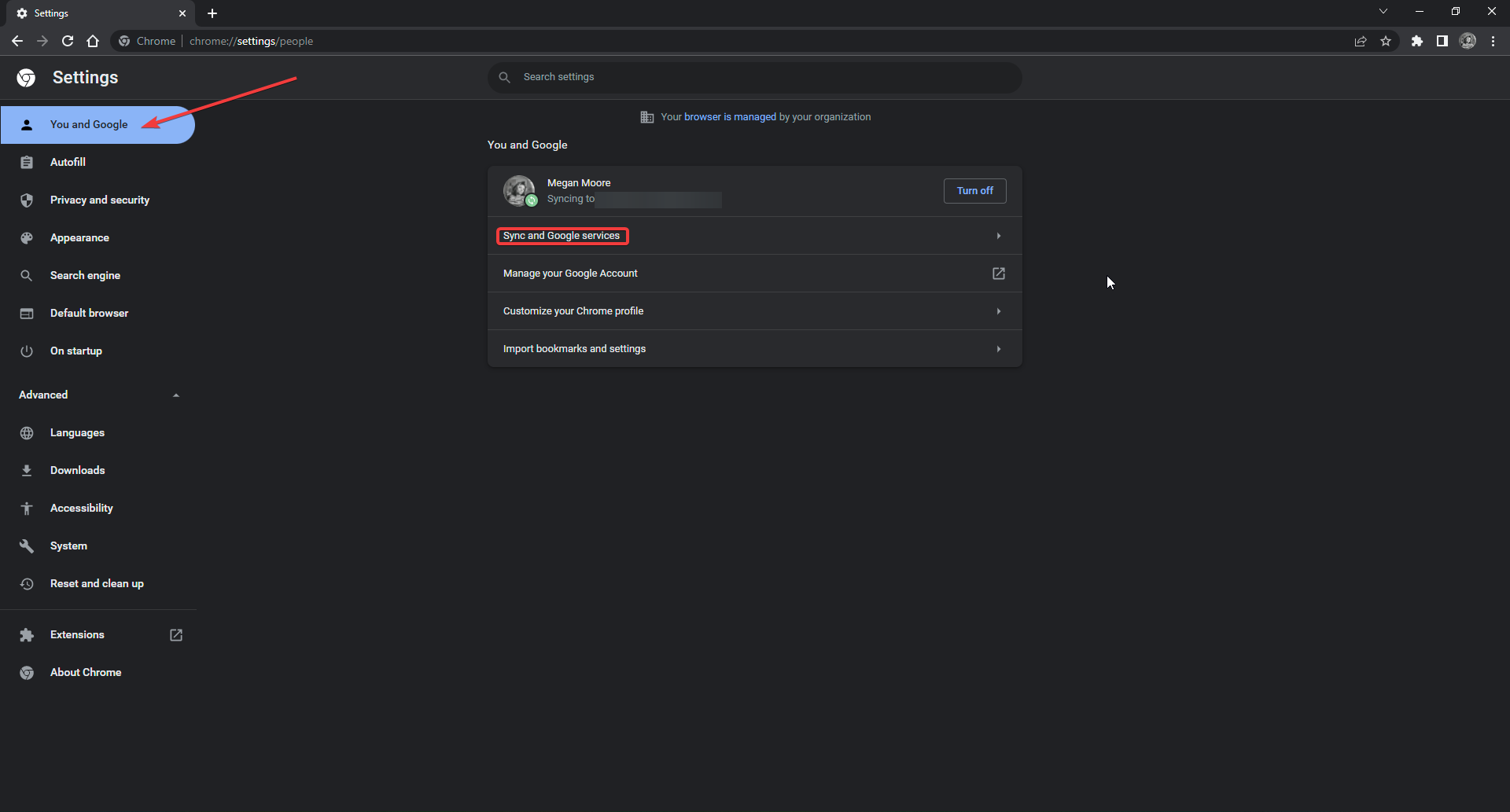
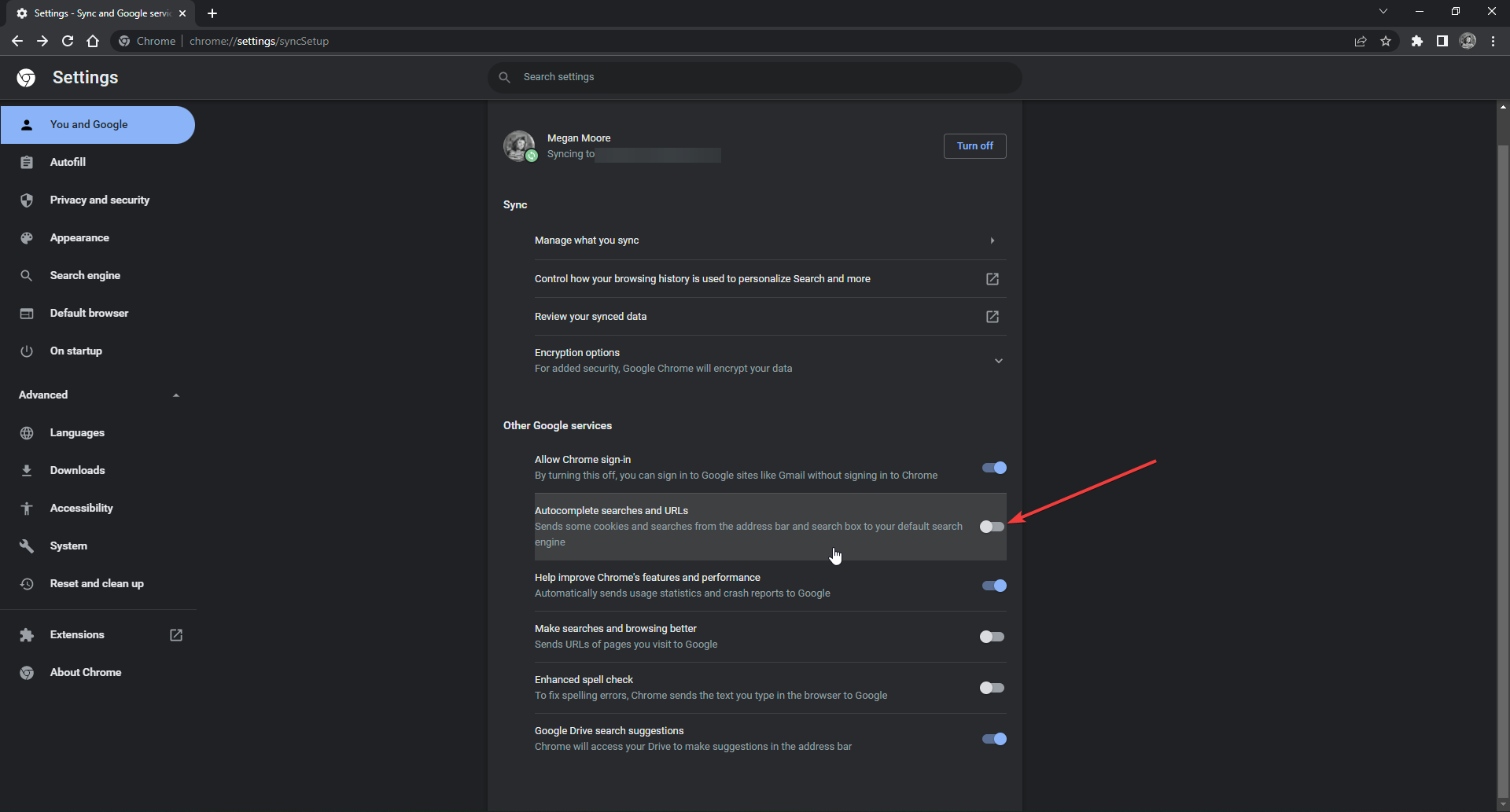
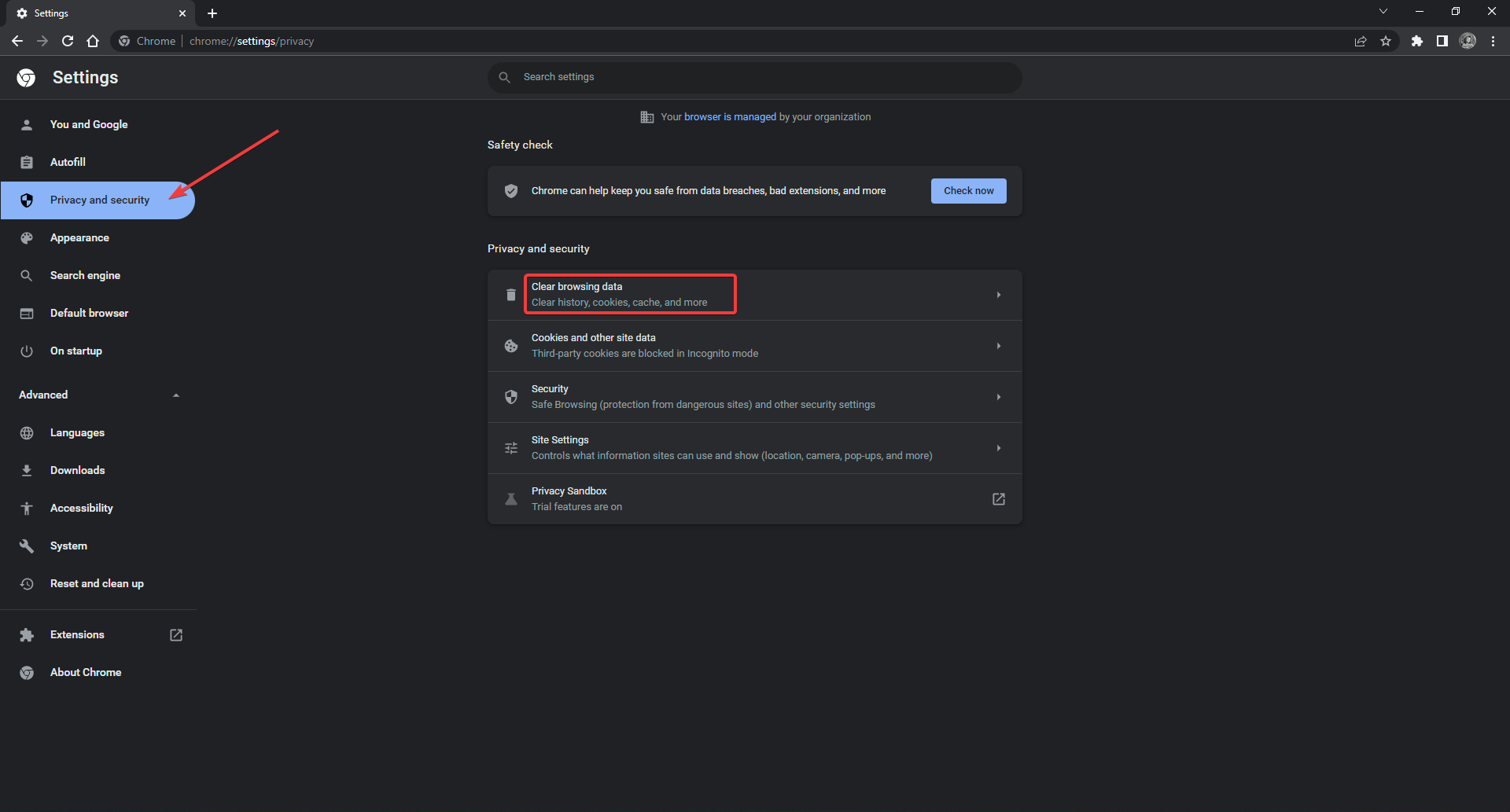
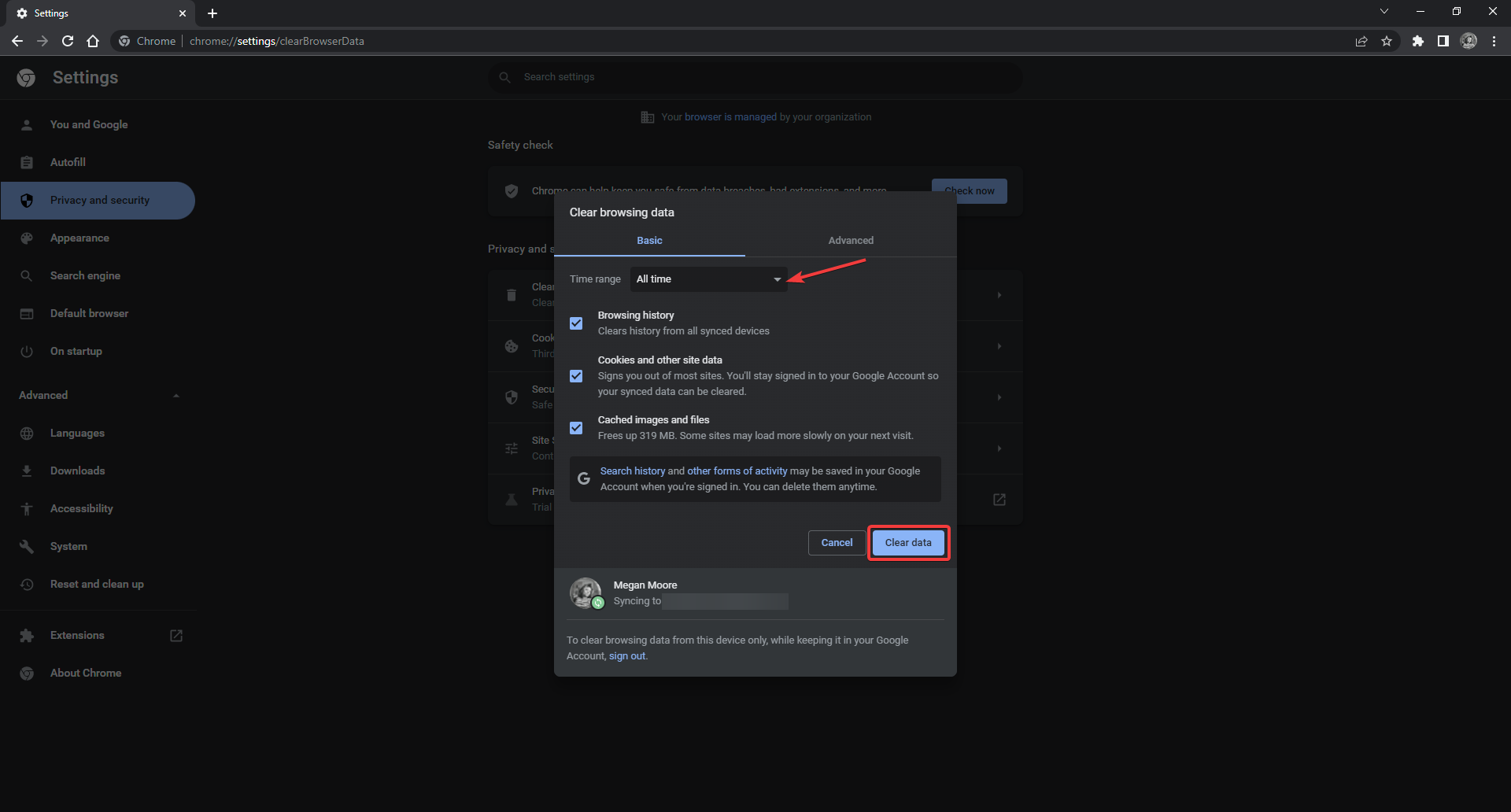
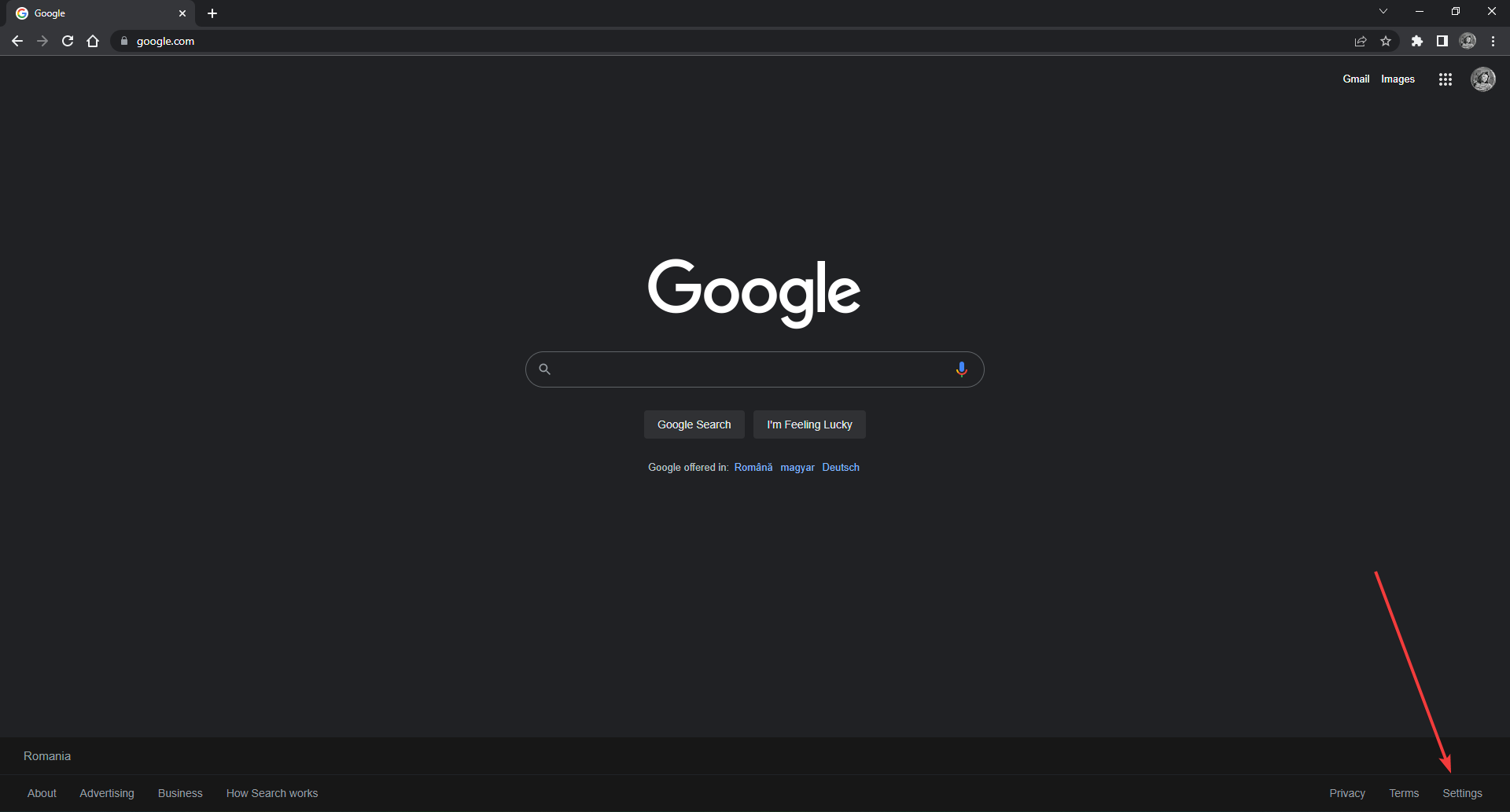
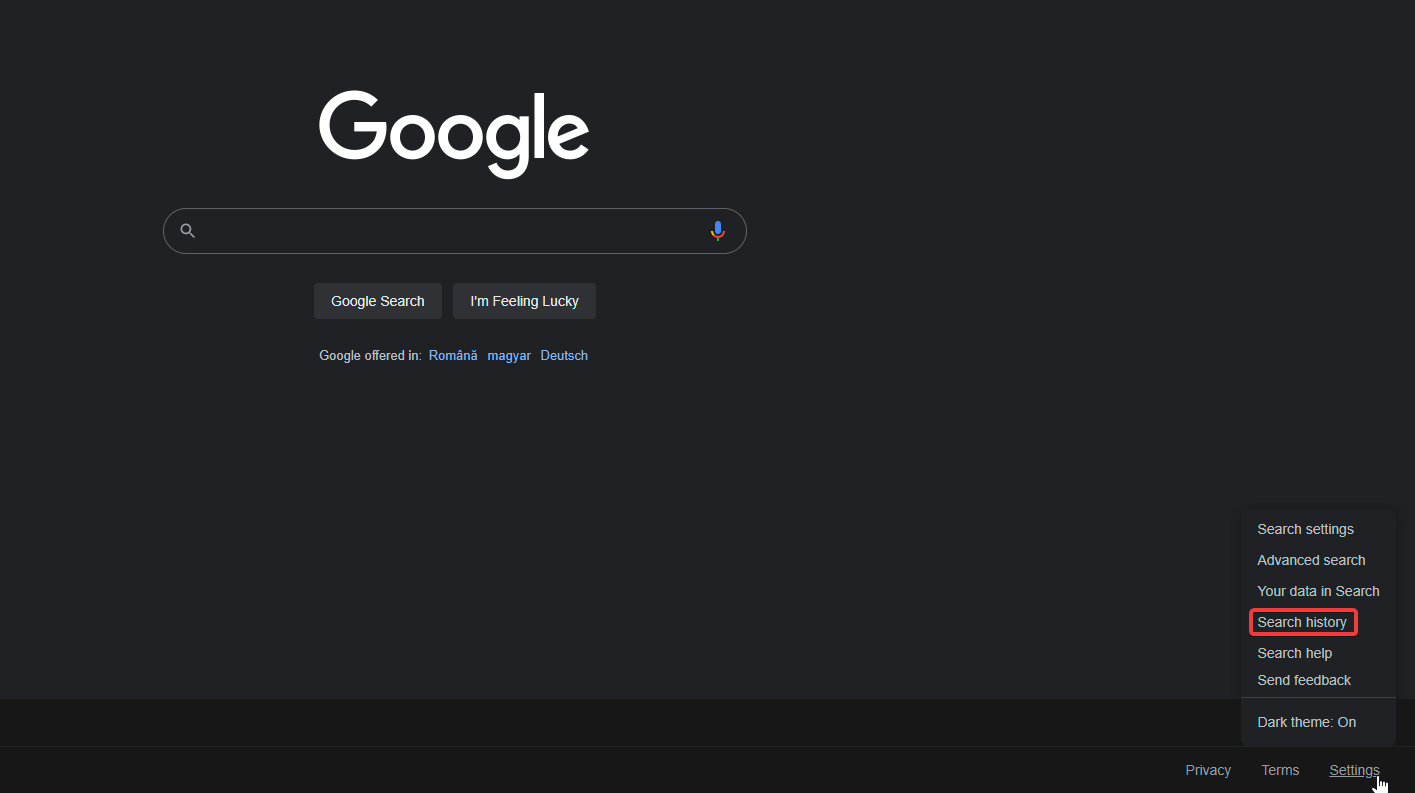
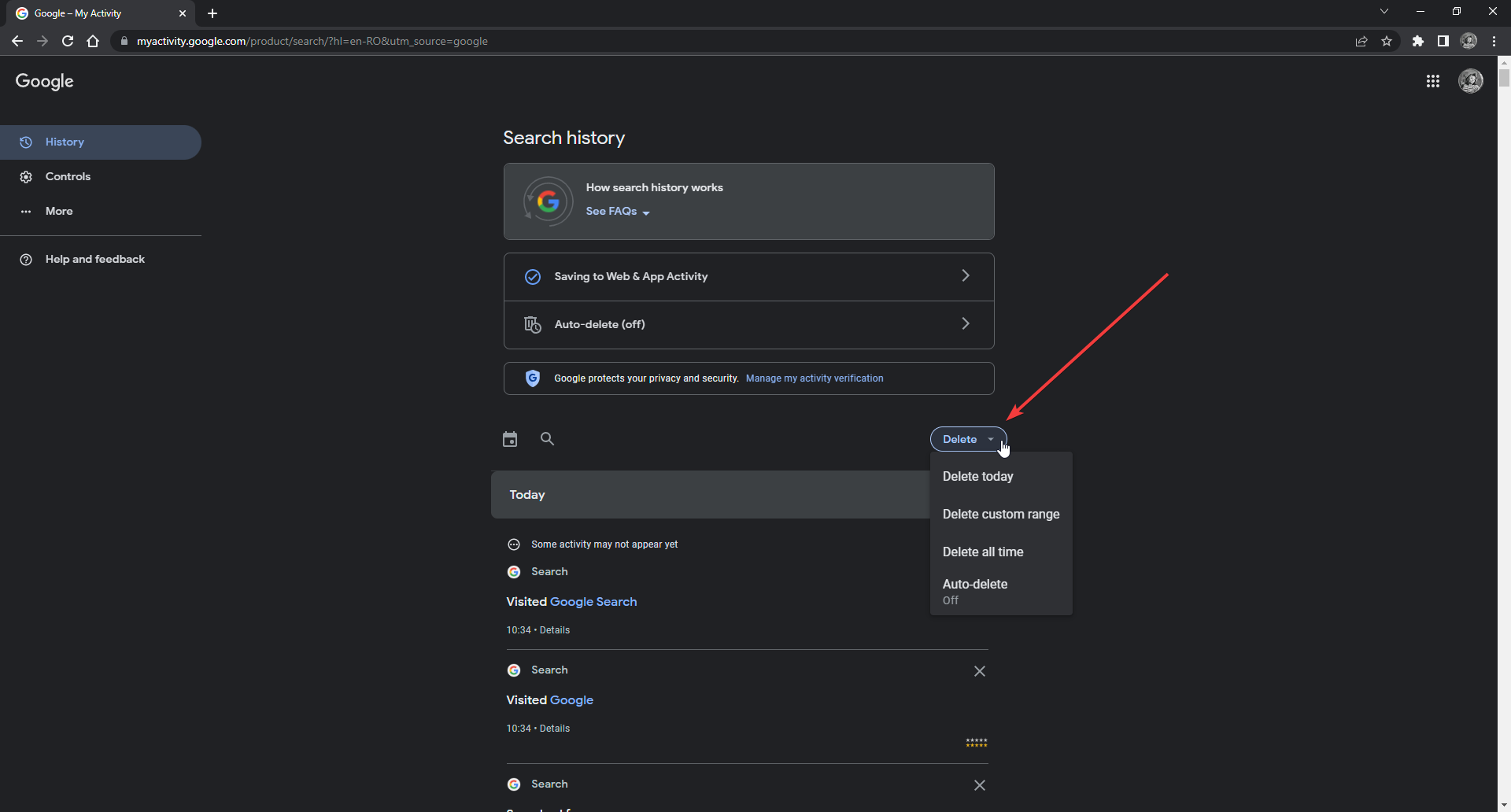
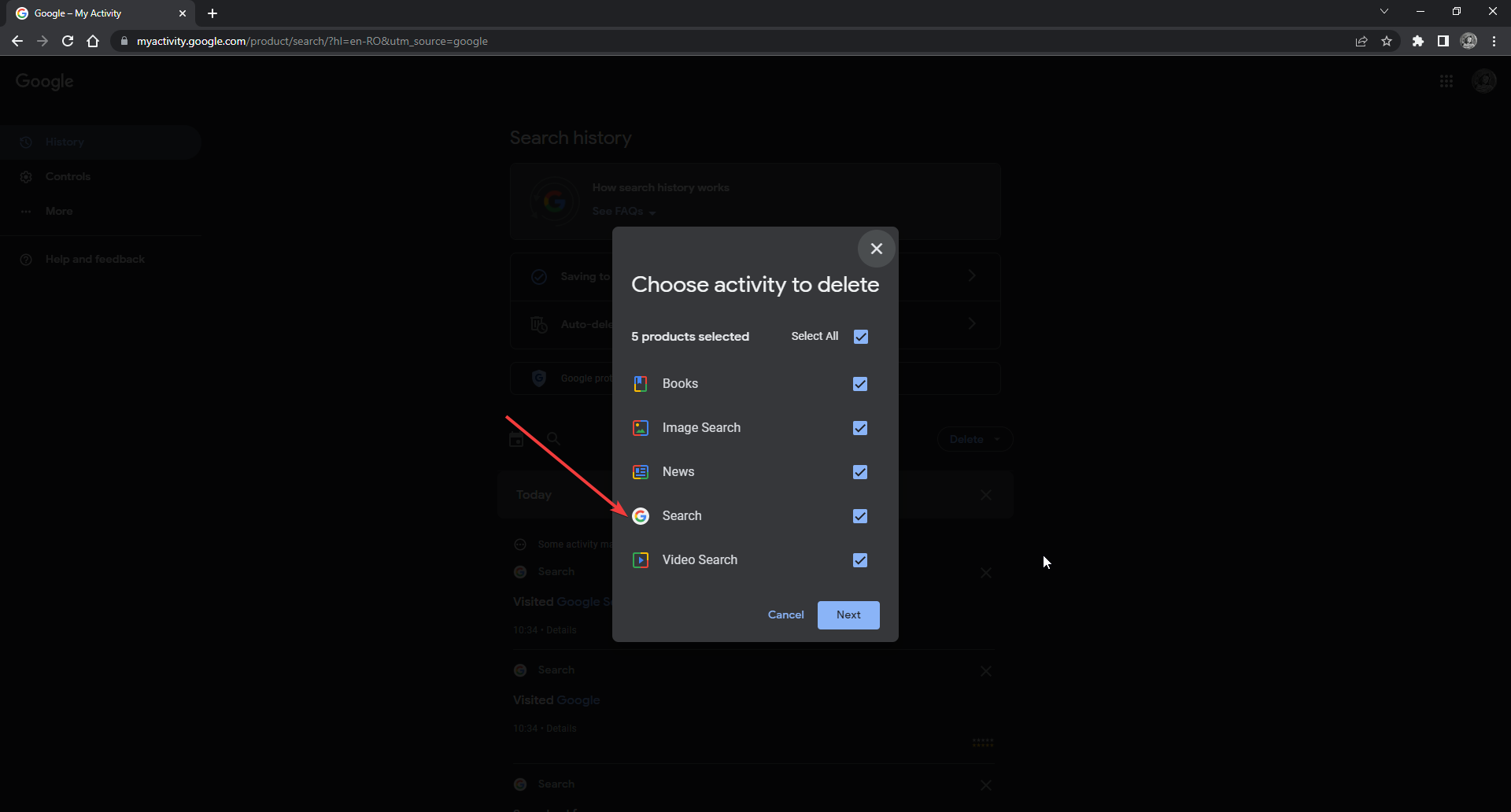
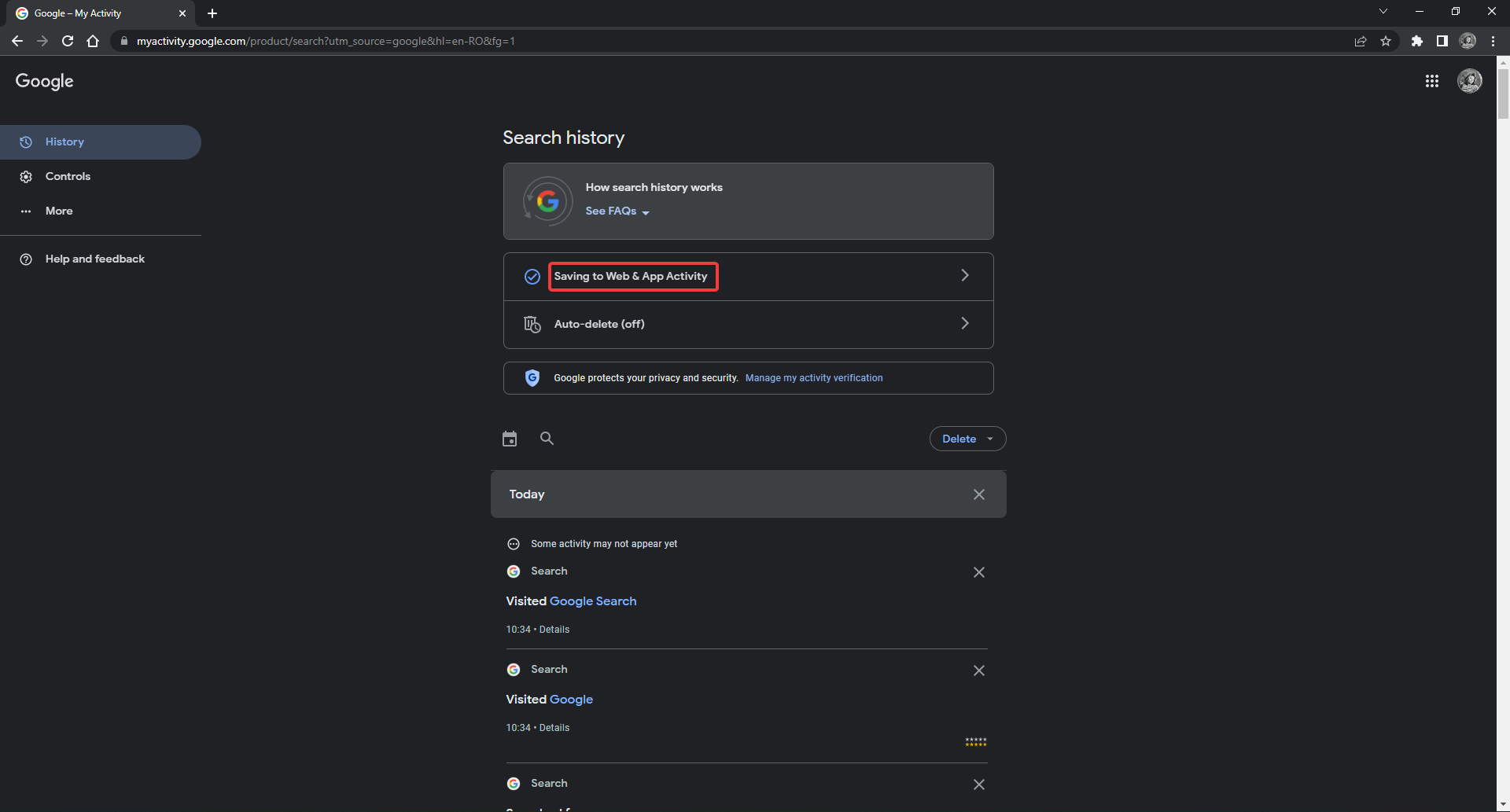
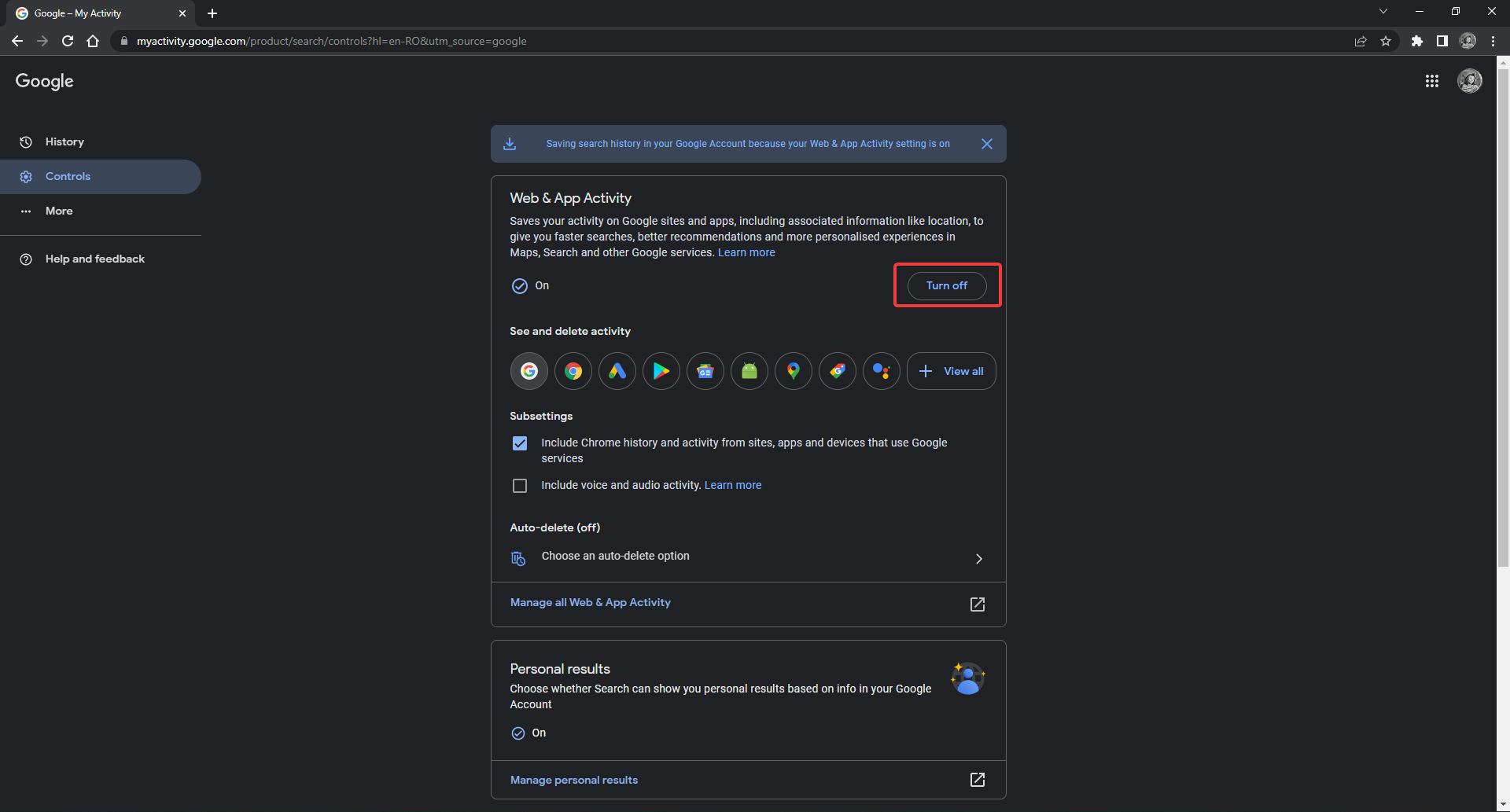
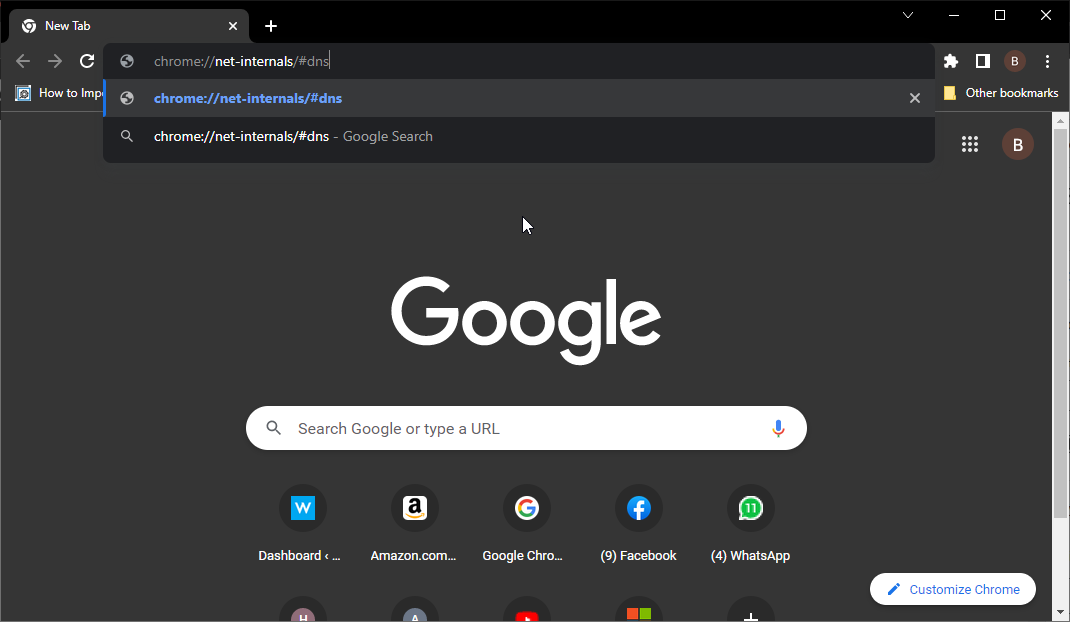
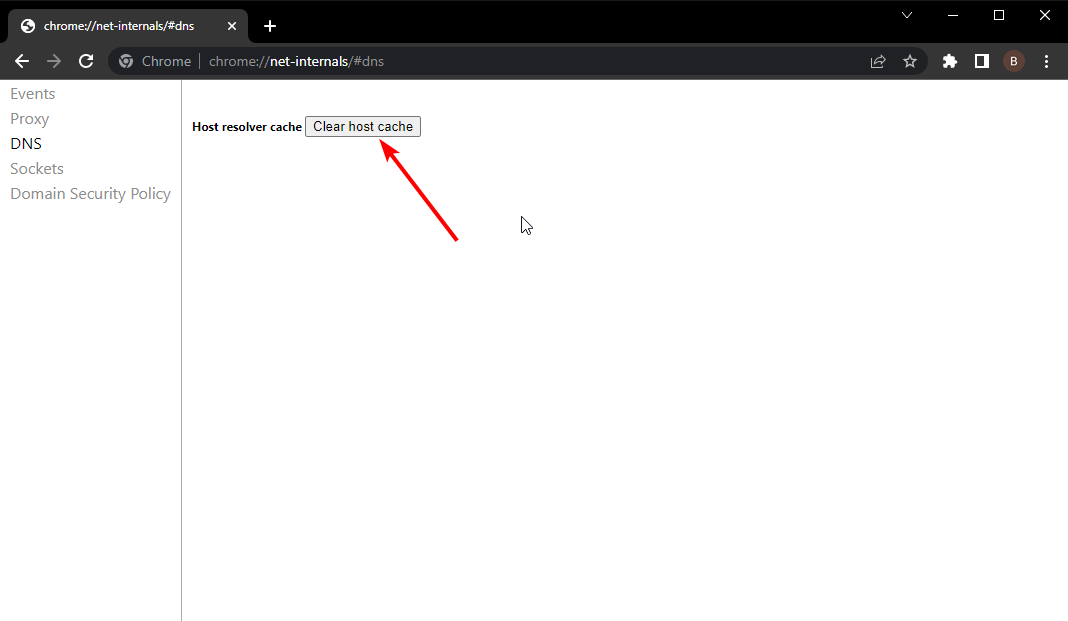
![4 Best Surfing Games To Play On PC In 2026 [Online & Offline]](https://windowsreport.com/wp-content/uploads/2017/02/surf-games-pc.jpg)






![Interrupted Network Error When Downloading in Opera [Fix]](https://windowsreport.com/wp-content/uploads/2022/07/interrupted-network-error-when-downloading-opera.jpg)