7 Best Aluminum Mousepads To Pick From

Aluminum mousepads give your mouse a smooth, uniform surface on which it may move swiftly and accurately, capturing your hand movement.

These products reduce friction because there will be no friction holding the mouse back from moving if there is no material catching on the bottom of the mouse.

Additionally, aluminum mousepads could make a noticeable difference in your gameplay by making your mouse movement faster if you know you can maintain precise handling without the help of friction.

Are aluminum mousepads good?

The answer is yes. Having a flat surface for your mouse guarantees that your motions are monitored precisely, which aluminum mousepads can do.

There are different types of aluminum mousepads, some are intended to protect your desk, while others include luxurious features such as RGB lighting and wireless charging.

These are the best mousepads for home, office, and even gaming, which we’ve included in this list.

What are the best aluminum mousepads?

Satechi Aluminum – Stylish choice

  • Solid aluminum plate, so it will not bend easily
  • The massive, rubber backing prevents the pad from moving
  • Stylish appearance
  • Get decolored after some time
  • The surface can be noisy

The Satechi aluminum mousepad is an excellent product that does its job well and costs far less than you might expect.

Moreover, the slanted and polished to a mirror-like reflective trim of the surface, as well as the rounded corners, give the product a fashionable appearance.

An aluminum mousepad is nothing but a plate of aluminum, and it will, unfortunately, make noise as the mouse moves across it.

Also, the scratching sound of plastic against metal can be distracting at first, but after applying tape to the mouse feet, the user will be pleased with the result, as well as the cleaner surface.

HONKID – Different texture and design on each side

  • Two-sided, modern
  • Easy to keep clean
  • The leather side offers good friction and is smooth
  • Can be noisy without mouse stickers
  • Silver side can make the mouse hard to control

A two-sided mouse with a different texture and design on each side. The hard mousepad’s silver metal aluminum side has a sleek and stylish design that complements desk computers and laptops. 

The other side has a black PU leather texture that has been meticulously designed with tiny lines; either side can be used.

You can use the non-slip stickers that come with the mousepad to make it less slippery.

Vaydeer ‎Xunli-0007 – Sturdy and noiseless

  • Noiseless
  • Good underside texture
  • Stylish
  • Harsh on the wrist

This aluminum metal mousepad was created to work with the majority of gaming mice currently available.

The leather is well-knit, and the mousepad does not have an unpleasant odor. It’s a sturdy, thin gaming mousepad that’s suitable for both gaming and everyday use. 

Furthermore, the textured underside keeps it stable on a variety of surfaces. This one looks great on any business desk, and it performs as well as it looks.

Qcute FB-216-GD – Ideal for small mouse models

  • Great for a small mouse
  • Comfortable for wrist
  • Can be noisy
  • Doesn’t stick to the surface well

Qcute is a great gaming aluminum mousepad for small mouse models. If you have a smaller gaming setup and don’t mind having a smaller gaming mouse, Qcute is a great fit.

The mousepad maintains a comfortable wrist angle and is soothing to the wrist, resulting in a pleasurable gaming experience.

Additionally, the pad makes scratching noises because it is made of metal and does not adhere to the table as well as one might expect.

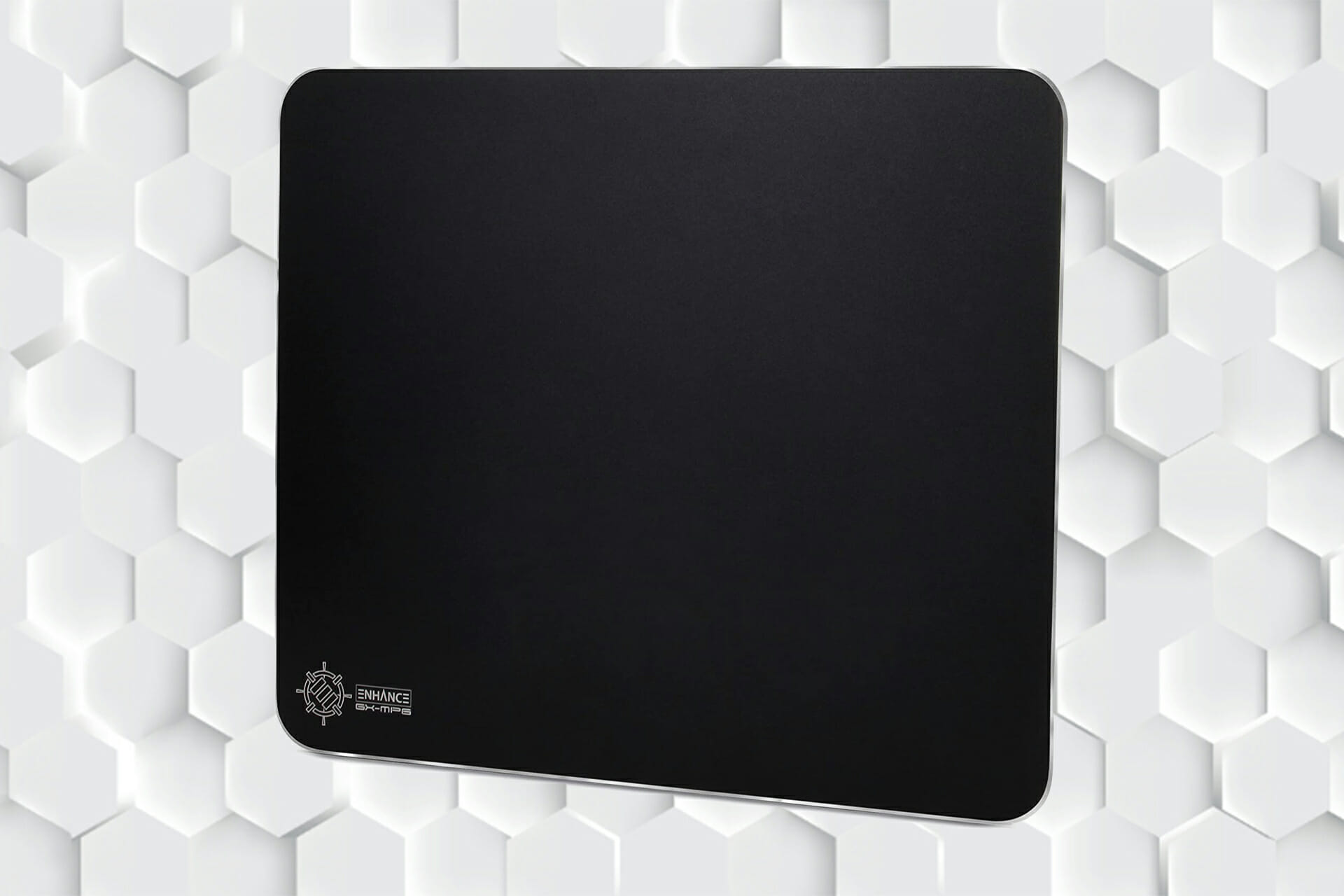
ENHANCE 8541655950 – Non-slip surface

  • Durable
  • Great design and appearance
  • Bigger than standard mousepads
  • Lesser-known brand

ENHANCE 8541655950 is a lesser-known brand in the industry, but the company’s products have excellent aesthetics and performance.

After all, these pads will not necessitate the installation of any additional software. It makes no difference who made them as long as they are well-made.

Also, the surface is completely non-slip and works perfectly with optical and laser mice.

MSI THUNDERSTORM – Premium choice

  • From a popular brand
  • Frictionless surface
  • Great adherence to the surface 
  • Expensive than most mousepads
  • L-shape design

One of the most awkward yet interesting designs among the best aluminum mousepads, MSI Thunderstorm’s unique keyboard-friendly edge design allows for maximum positioning flexibility. 

Moreover, it allows gamers to position their keyboard and mousepad in the most comfortable and appropriate battle position without having to worry about seam transitions.

A solid aluminum base with a conversion coating and a hairline finish ensures a tough pad that won’t bend while still providing a low-friction gaming surface.

Razer Invicta – Top grade material

  • Suitable for everyday use
  • Increased speed and accuracy in games
  • Top grade material
  • Expensive
  • Minimalistic appearance

The Razer Invicta is a dual-sided gaming mouse mat that rests on an Aluminum base with a rubber backing to keep it from sliding around on your desk.

Also, this product is a brand-new, lab-tested coating on both sides with a specially selected finish to improve the surface’s reflective quality.

The Razer Invicta is a symbol of quality design and manufacturing, with an aircraft-grade aluminum base for extra durability and to keep the mouse mat from shifting no matter how hard you swipe.

What’s the difference between cloth and aluminum mousepads?

Cloth mousepads provide more friction, which slows the mouse down but improves the handling. Aluminum mousepads reduce friction, which can help you move faster.

Furthermore, an aluminum mousepad is usually better if you want to free your speed and skillful accuracy, and if you want something that is easy to clean on a regular basis.

Because of the huge variety of items available in stores, choosing a mousepad based on your preferences might be difficult.

Customer reviews can be extremely useful because the majority of them highlight both the positive and negative aspects of the product.

The best aluminum mousepads list was created to assist people in identifying excellent mousepads on the market.

In the end, it is up to you to decide whether or not a product will meet your requirements.

If you’re looking for the best computer mice for Windows 11, check out this article.

In the comments section below, let us know which of these aluminum mousepads you think is the best and which one you prefer.

Email productivity solution Superhuman now available for Outlook

Time conservation has been Superhuman’s ultimate goal since its inception. The email productivity tool features a “visually gorgeous” interface, insights from LinkedIn, Facebook, and Twitter built in, an Undo Send feature, AI powered important mail detection, built in read statuses, follow up reminders, email send scheduling, and the ability to “snooze” conversations.

In the initial stages, they focused on Gmail, but over time, the demand for Outlook has grown tremendously.

A huge chunk of these requests came from organizations that heavily rely on Office 365. Microsoft translates this to 345M paid seats, which is 6 times more than Google Workspace’s usage in organizations.

Today, Superhuman announced the official launch of Superhuman for Outlook. They built Superhuman for Outlook from the ground up since Gmail’s API is quite different from Outlook, and Superhuman has been tailored to specifically serve Outlook.

Superhuman told us that,

Superhuman for Outlook will feature the same famous keyboard shortcuts and features that our Gmail users know and love, including the emphasis on speed, with every interaction taking less than 100 milliseconds. In fact, Superhuman actually works faster than Outlook, thanks to our constant optimizations, hybrid architecture, and specialized rendering pipeline. Outlook users will also be able to do the same actions they’re used to, including flagging important messages and organizing messages into folders. And in a feature that our beta users really loved, they can instantly toggle their Gmail and Outlook accounts.

Try out Superhuman for Outlook, which costs $30/mo., to experience the array of features it provides like its relentlessly refined design, and the ability to recall emails with grammatical errors and block strangers who keep on spamming your inbox.

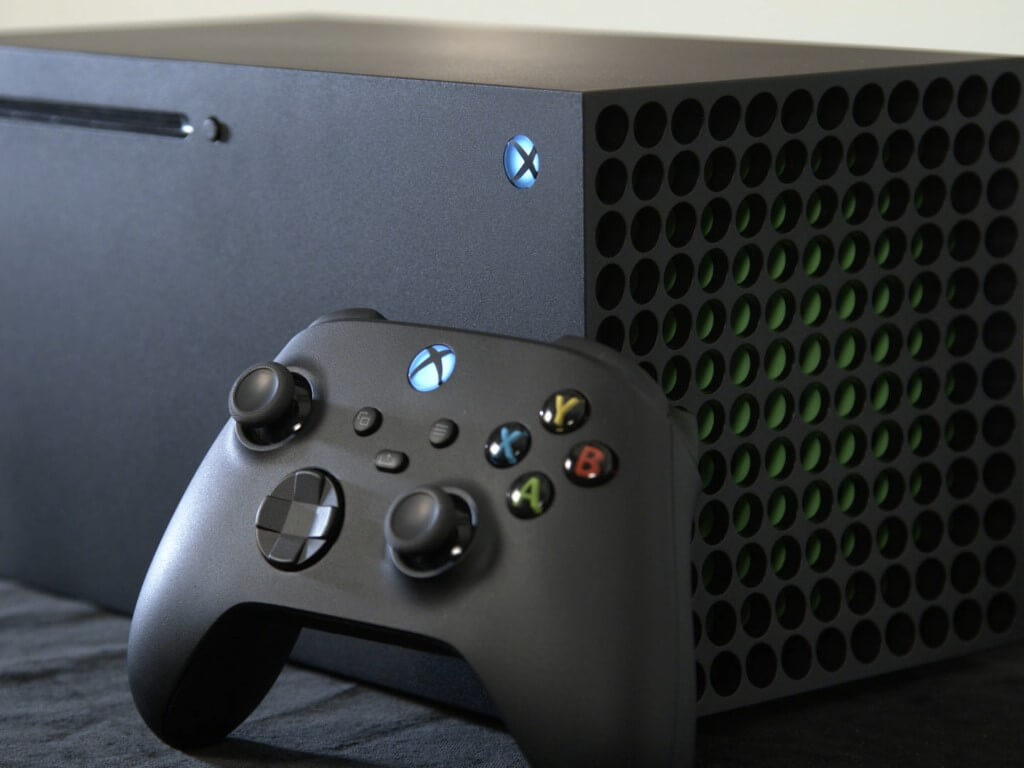
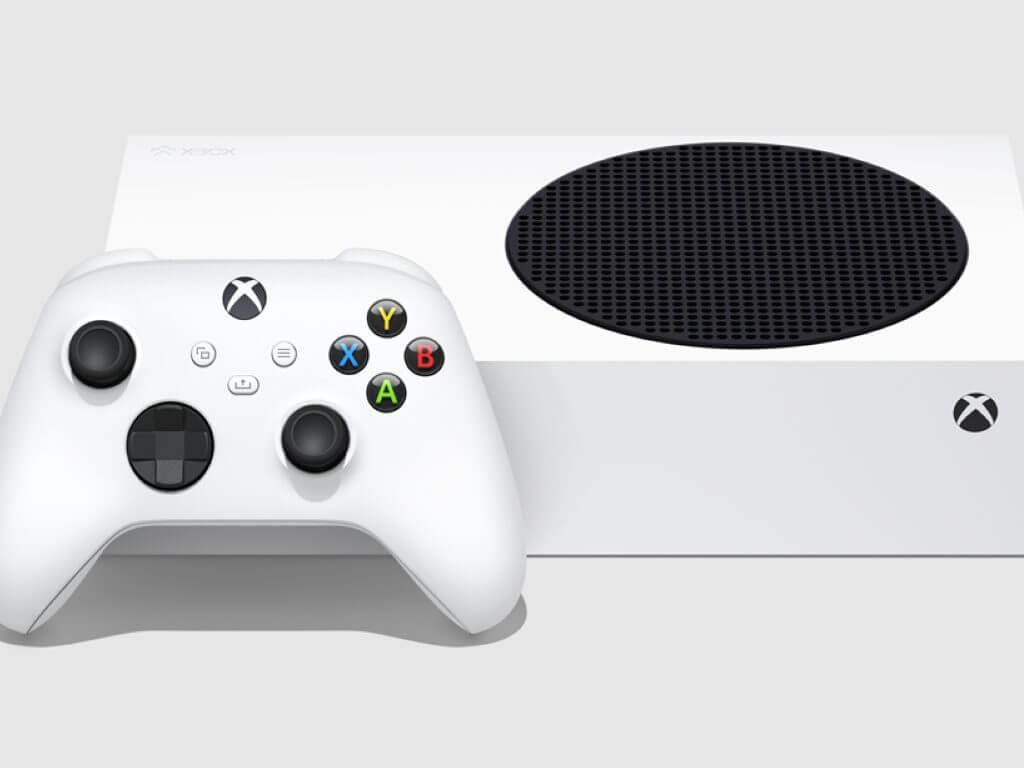
New Microsoft patent may allow users to convert Xbox game discs to digital versions

Microsoft has created a new patent that demonstrates a method for validating physical Xbox game discs to digital game entitlements. This disc-to-digital patent seems to have been created recently, though the concept is not a new one: as far back as 2018 (two years before the Series X|S was released) it was reported that such as disc-to-digital scheme would be implemented for the digital-only iteration of the next-gen Xbox.
Digital distribution of games is becoming more and more common, with both Sony and Microsoft releasing digital-only versions of their next-gen hardware. And even in the case of some physical releases (Halo Infinite being one well-known example), a digital download is required to fully install and play the game.

How exactly the disc-to-digital conversion would work remains unclear, but it seems that the process would begin with users uploading a physical game’s licensing details to a server network to gain access to a digital version of the game. The patent information doesn’t seem to address whether the game disc would be usable from there, though it would be likely that if so, users would be required to check in from time to time.

No doubt this would be a very exciting feature for Xbox Series S users and those who haven’t made the next-gen leap from Xbox One as of yet. Though many patent ideas don’t see the light of day, it seems highly likely that Microsoft would want to implement such a feature. Love it or hate it, it appears that the future is digital when it come to gaming.


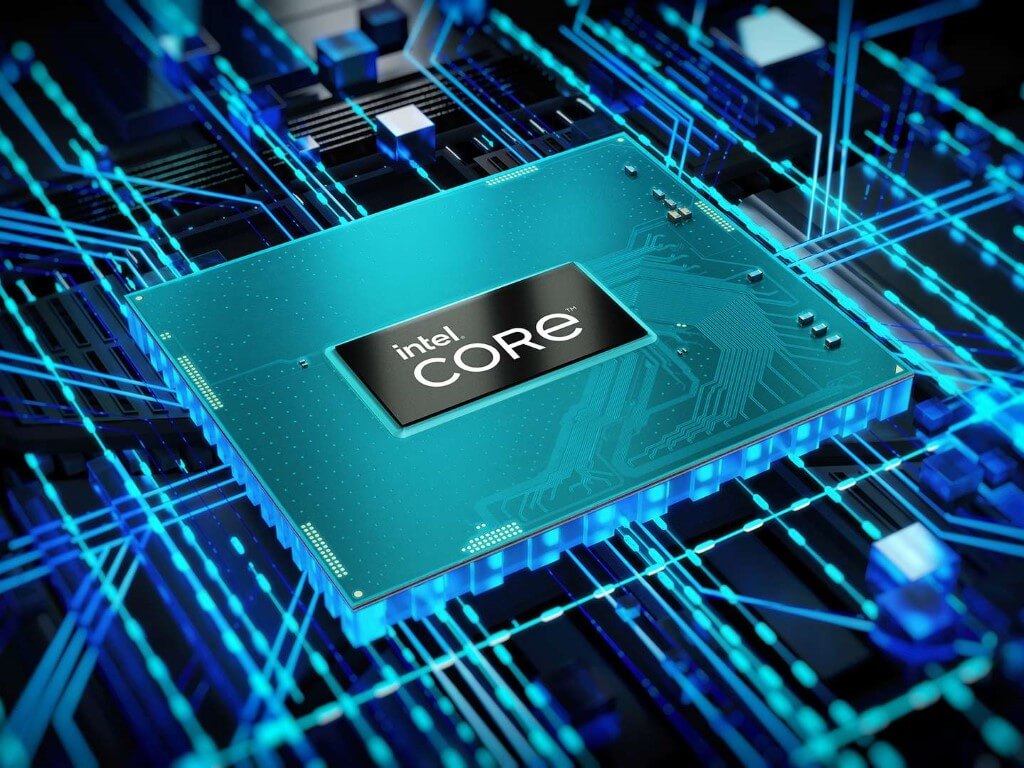
Intel’s 12th generation family of mobile processors expands with HX series that has up to 16 cores

Intel’s 12th-generation mobile processor line is expanding. The chipmaker recently announced the addition of a new “HX” series of CPUs, which are targeted at higher-end machines utilized for CAD, animation, and visual effects.

As you’d expect, these new chips come in Core i5, Core i7, and Core i9 variants. Per Intel, the HX series processors can provide 65 percent more performance in multi-threaded workloads with more cores, more memory, and more I/O while utilizing Intel Thread Director technology to leverage high-power Performance-cores and Efficient-cores. The mobile processors are also unlocked, and overclockable, which is an industry first.

The HX chips go up to 16 cores, with 8 performance cories and 8 efficiency cores, and 24 threads. It also includes access to x16 PCIe Gen 5.0 via the processor and 4×4 PCIe Gen 4.0 from a dedicated platform controller hub (PCH) for increased bandwidth and faster data transfers. Other features include Memory support for up to 128GBs of DDR5/LPDDR5 and DDR4 with Error Correcting Code (ECC) capability.

“With the new core architecture and higher power limits of 12th Gen Intel Core HX processors, we’re enabling content creators to tackle the most demanding work flows like never before,” said Chris Walker, Intel corporate vice president and general manager of Mobility Client Platforms.

More importantly, these chips offer up to 55 watts of power delivery, or 157 watts under heavy load. Intel worked with different laptop makers on this new chip, and 10 workstation and gaming designs powered by 12th Gen Intel Core HX processors are expected to be launched this year.

With the new HX series of processors, you’ll now find four different 12th-generation chips from Intel. There’s the U-series for budget devices, the P-series for thin and light laptops, the H-series for gaming machines, and now the HX-series for high-end workstations, replacing the W-series of the past.

Microsoft rolls out second Xbox update for May, with unspecified improvements

For the first time this year Microsoft has bucked its trend of releasing one update per month for its Xbox consoles. The newest update (OS version: 10.2.22000.4558) released on May 10 for Xbox One and Xbox Series X|S, less than a week following the usual monthly update that released on May 4.

According to the patch notes section, the update features “General stability and performance improvements” that are otherwise unspecified. One has to wonder if the new update has anything to do with the recent Xbox Network outage that occurred over the weekend, though as stated no real details have been given on what actual fixes and improvements the second May update brings.

Users can install the update manually by pressing the Xbox button, then navigating to Profile & system > Settings > System > Updates. On the Updates page you will be able to see available updates that have yet to be installed, and opt to install them now.

Microphone not Showing up in Device Manager: 3 Ways to Fix

If microphone not showing up in Device Manager, you won’t be able to use it at all, and this can be a problem. However, this can be fixed by following the steps from this guide.

Why is my microphone missing from Device Manager?

This is caused by faulty or outdated drivers. Also, this can happen if your Microphone is disabled.

What can I do if the microphone is not showing up in Device Manager?

1. Re-enable your microphone from Control Panel

  1. Go to Control Panel by typing its name in the Windows Search function.
    control-panel-search microphone not showing up in device manager
  2. Click on Sound and then go to the Recording tab.
    recording microphone not showing up in device manager
  3. Right-click on the window and click on Show Disabled Devices.
    show microphone not showing up in device manager

If your laptop microphone is not showing up in Device Manager, it’s possible that your microphone not working.

A few users also reported that a built-in microphone is not working, so check this guide if you own a laptop.

2. Reinstall microphone drivers

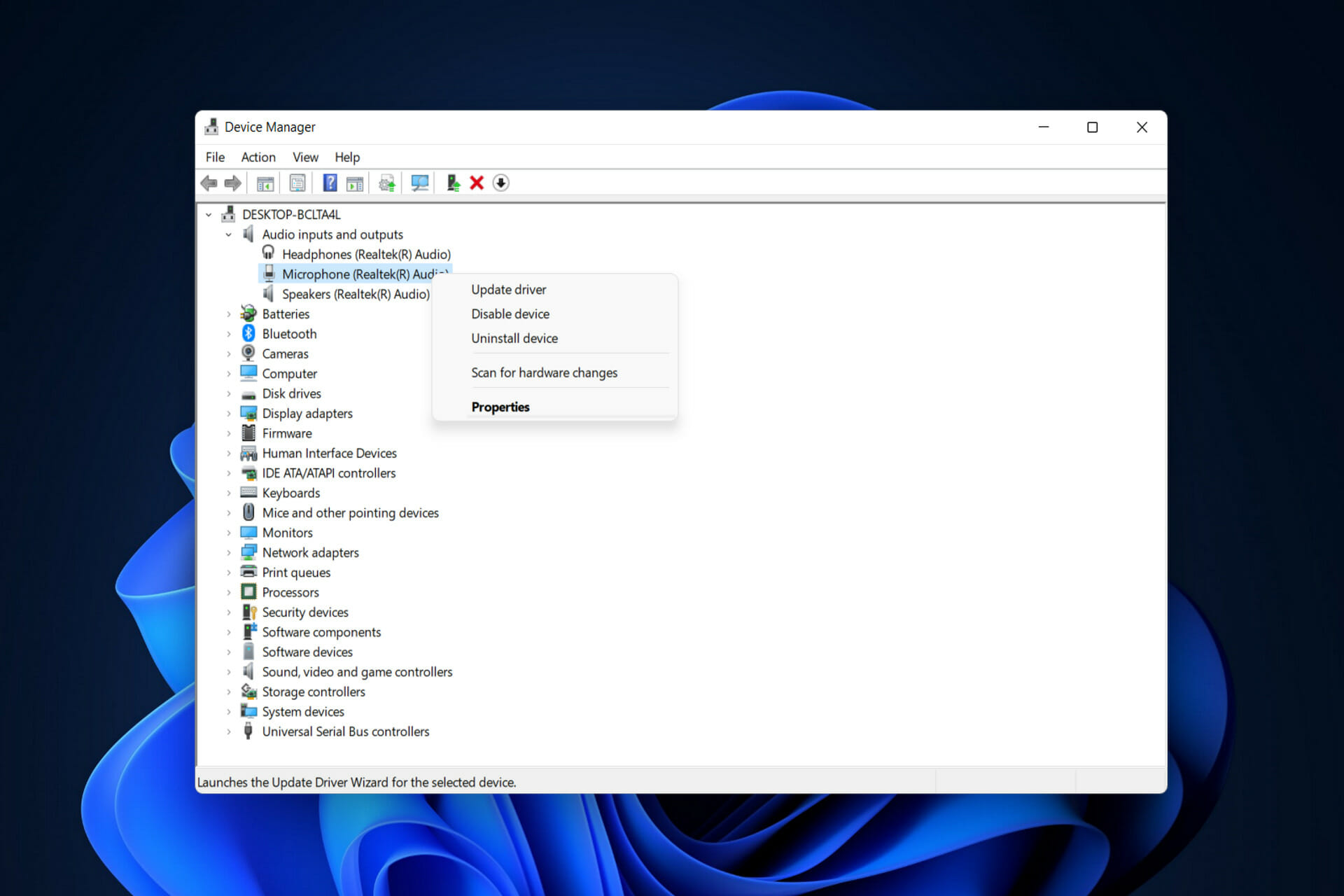
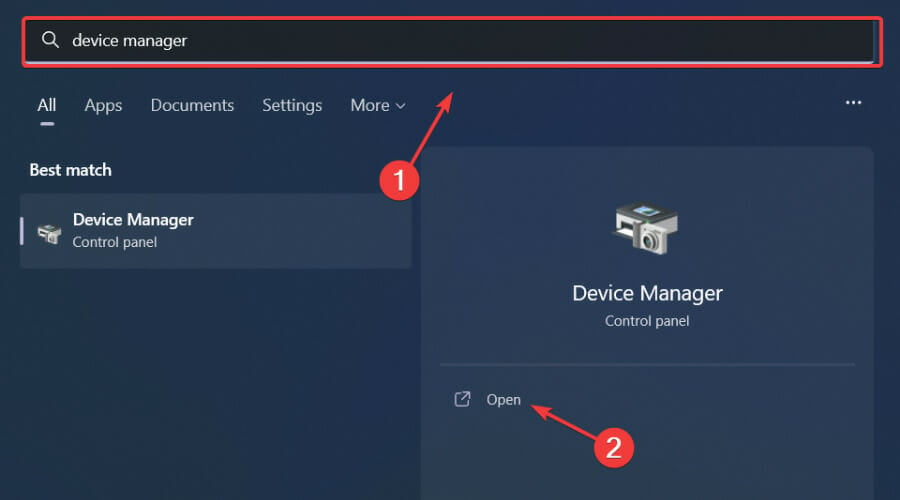
  1. Right-click on the Windows Search bar and select Device Manager.
    device manager
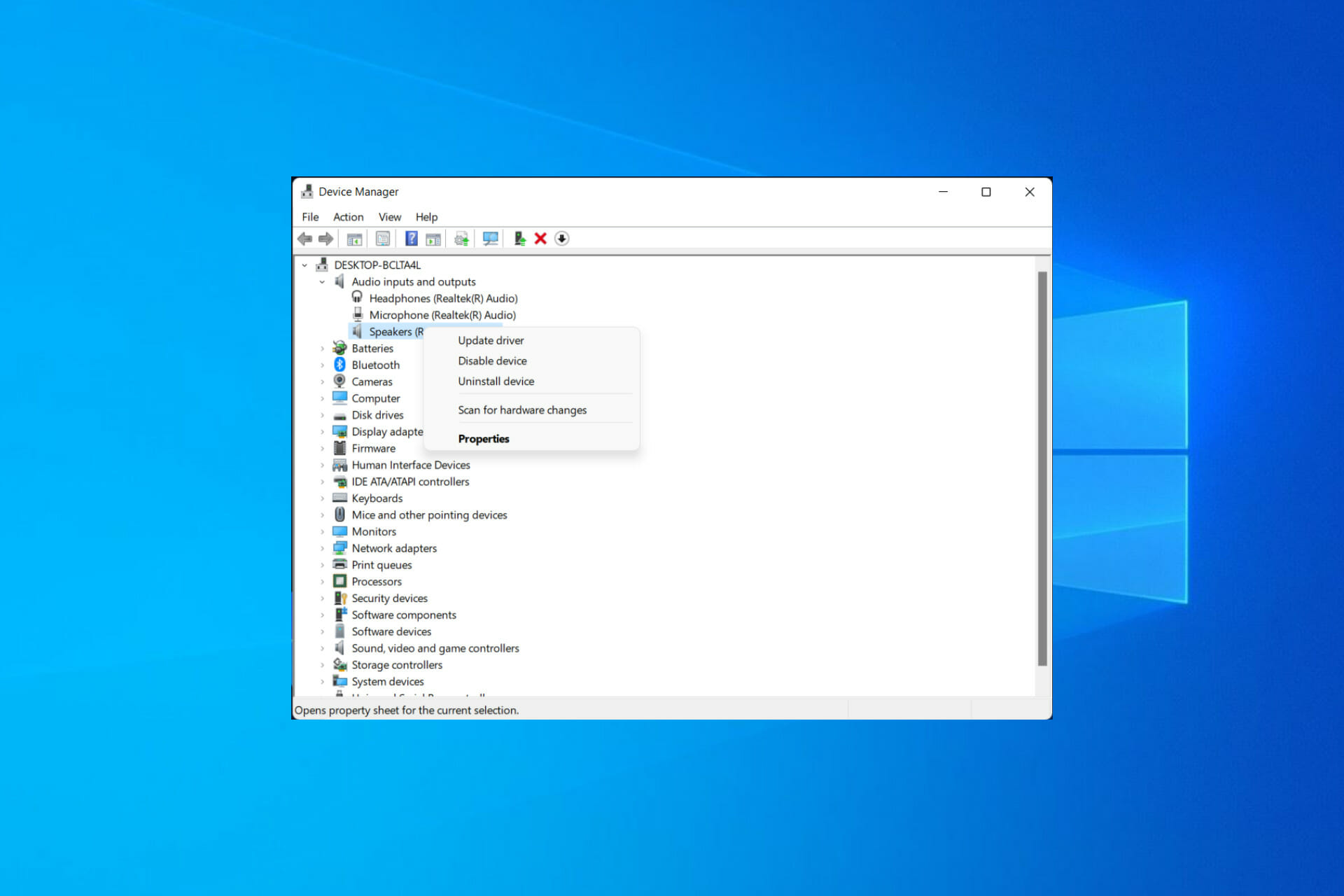
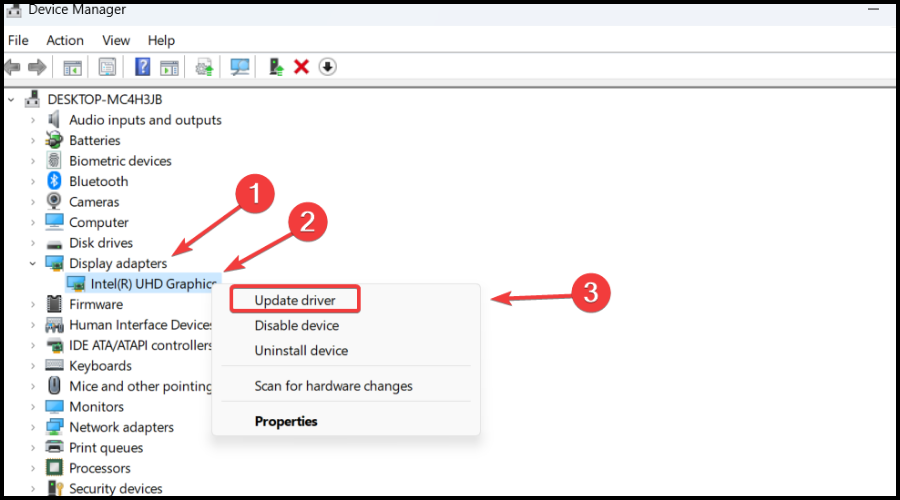
  2. Double-click the Audio inputs and outputs option to expand it. Right-click on the Microphone driver option and press Uninstall device.
    uninstall device
  3. Restart your computer to reinstall the driver automatically.

3. Run the Recording Audio troubleshooter

  1. Press the Windows key + I and select Troubleshoot in the right pane.
    troubleshoot
  2. Select the Other troubleshooters option.
    other troubleshooters
  3. Finally, click the Run button before Recording Audio and follow the onscreen instructions.
    recording audio

That’s about it for this issue. With the solutions in this guide, the microphone not showing up in the Device Manager problem should now be history.

If no microphone works on your Windows 11 PC, check our detailed guide to rectify the issue quickly. We also have a great guide on how to set up mic on Windows 11, so don’t miss it for more information.

Feel free to let us know the solution that helped you fix this issue in the comments below.

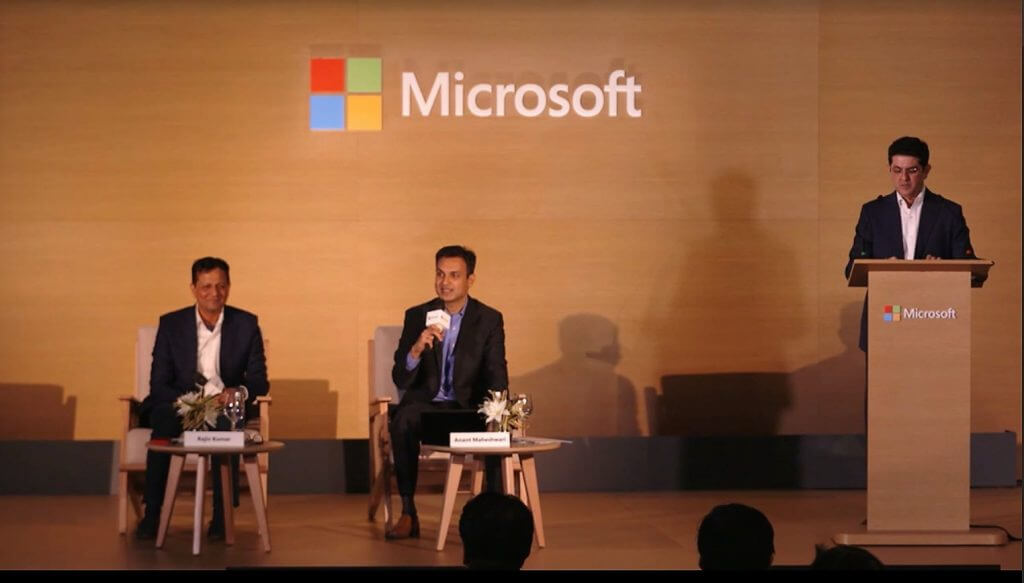
Microsoft opens new headquarters in Canada

On May 3, Microsoft officially launched its new headquarters in Canada. The launch also coincided with the launch of new research from EY about Microsoft’s impact on the Canadian economy.

The move will help Microsoft further its cause, helping Canada grow its innovation economy. “With the launch of our new headquarters, the official opening of our Data Innovation Centre of Excellence, and expansion of our regional presence, even more organizations of all sizes and sectors can leverage the power of cloud and data to accelerate their organization’s growth and drive new economic opportunity for Canada,” said Kevin Peesker, President of Microsoft Canada.

An Economic Impact Study by EY revealed that Microsoft, through its vast investments that spread over 40 years contribute more than $37 billion to Canada’s GDP. Furthermore, Microsoft has collaborated with the Digital Technology Supercluster, the company has been able to support 30 projects currently valued at $190 million with the aim of enhancing technological advancements and industry growth. All this is geared toward better preparing the Canadian workforce for the ever-evolving digital economy.

Microsoft specifically chose Toronto to be the center where its headquarters will be situated because of “its strong technology ecosystem”, the depth of multicultural talent, and the large number of internationally recognized institutions. The headquarter houses Microsoft’s Data Innovation Centre of Excellence and an Envisioning Centre which build upon the company’s inclusive hybrid culture which goes a long way when it comes to empowering employees.

The headquarters in Toronto will be able to provide adequate space for startups, students, and community organizations, thus, allowing them to unlock their full potential at the innovation hub due to the availability of vast resources.

Top 6 EPUB Readers for Windows 10 [Free & Paid]

The ability to read is one of the traits that propel humans on top of the trophic pyramid. Reading has been part of the human culture for millennia, but the way it is done has changed significantly.

Today’s generation prefers to read from the comfort of their screens – and why wouldn’t they, it removes the bulk of heavy books and adds infinite options that enhance the experience of reading.

Being able to read from whatever screen you like is the key though, so you need a good ePub reader. This is a list with some of the best epub readers for Windows 10 and other previous versions.

Editor’s Note: if you don’t prefer reading, below you will find a video quickly describing our top 5 choices when it comes to finding a good eBook reader for your Windows PC. However, in order to learn more about each product, we suggest you check out the overview for each one of them.


Which are the best EPUB readers for Windows 10?

Icecream Ebook Reader

Icecream Reader is much less of a sore to the eyes in terms of its UI design. It features a full-screen mode, a night mode, the ability to add bookmarks – things that are essential to an eBook reader for your Windows PC.

While it might not be as light or as simple as some of the other options on this list, it does look a lot more intuitive than some of its competition.

Among its special features, we will find a fullscreen mode, bookmarks that allow you to revisit the most memorable parts of your book, night mode that enables lecture in low light or no lighting at all.

There’s also a book mode where your screen virtually becomes a real book.

Let’s quickly look at its key features:

  • Library (Manage your digital ebook library in FB2, EPUB, PDF, MOBI, and other formats
  • Reading progress (Check how many pages are left to read and continue from where you left off)
  • Book search (Find a book that you’re looking for either by author or title)
  • Copy, Translate, Search (Select eBook text to copy, translate, or search Google)
  • Annotate (Add notes or highlight text with our EPUB reader)
  • Better navigation (Use navigation scrollbar to browse pages faster)

The best way to see if this eBook reader is indeed what you’re searching for is to try it out.

Go ahead and download it following the link below (no strings attached), and you will be able to decide for yourself if this is the software you would like to have on your PC or not.

Icecream Ebook Reader

Icecream Ebook Reader

Transform your PC screen into a cutting-edge ebook-reader instantly with this awesome software.
Check priceView website

Adobe Digital Editions

Now also available on the App Store & Google play, the very best eBook reader is unbeatable when it comes to optimizing your reading experience and the best part is that it works seamlessly across any platform.

Borrow and purchase digital content, which can be read both online and offline, proof-read, make bookmarks and highlights, and better organize your files across all the devices with Adobe Digital Editions.

Let’s quickly look at its key features:

  • Cross-platform functionality (download and transfer books between devices)
  • EPUB 3 support (render audio and video content; support for right to left reading; dynamic image resizing and more)
  • Full-text search functionality and better navigation
  • Various screen readers (including JAWS, Window-eyes, and NVDA)
  • Bookmarking, Highlights & Notes
  • Borrow eBooks from many public libraries
  • File Organization (create custom bookshelves sorted by title, author, and publisher)
  • Multiple File formats (EPUB, EPUB3, and PDF)
Adobe Digital Editions

Adobe Digital Editions

Read your favourite books, articles, and content online in the easiest possible way with Adobe Digital Editions.
Check priceVisit website

Soda PDF

With its modern interface and useful cloud-computing component, Soda PDF has become a popular choice among users, even when it comes to eBook reading.

The software has enhanced editing abilities and unique features designed to give you a more immersive experience, such as the 3D viewing technology. Plus, the numerous viewing options allow you to zoom into the page for clearance, or even change the orientation of the eBook.

Using the sticky notes feature, you can make notes as you go or highlight your favorite passages. Bookmarking and the ability to jump backward or forward to any part of the book by entering the page number will make your experience more enjoyable.

Here are the key features of Soda PDF:

·         Unique 3D page-flipping technology.

·         The Read Out Loud function.

·         Various import options.

·         Adjustable layout and font size.

·         EPUB support.

·         In-built Optical Character Recognition (OCR) system.

·         Cross-platform functionality.

Soda PDF offers two cloud-based pricing packages, but there is also a free version that gives you access to the software’s standard tools.

Soda PDF

Soda PDF

Convert your ePub files into readable, editable PDF files with Soda PDF!
Check priceVisit website

Calibre

Calibre is more than just an eBook reader – it is a complete solution.

It is a full package that can do your library management, convert your eBooks into different formats, sync with your eBook reader devices; it even helps you to find the cheapest price for whatever books you want to buy.

Let’s quickly look at its key features:

  • News feature – which allows it to fetch news from different websites all over the world in many major languages and pack the news as a book
  • One-stop solution for all of your eBook needs
  • Library management tools
  • Conversion and sync tools for different devices

⇒ Get Calibre


Bookviser

Bookviser has a unique interface that looks like a book, it supports not only bookmarking but also highlighting certain text – even with different colors.

It supports various formats such as FB2, TXT, and EPUB. You can also get any book from the library at Project Guttenberg for free.

It is one of the few very modern eBook readers for your Windows PC with features that will suit the generation obsessed with Twitter.

The app comes with a really simple and clean interface and a realistic page-turning animation that will make you feel that you’re reading a real book.

Let’s quickly look at its key features:

  • Set color themes for day and night and to set font type and size
  • Adjust margins and line spacing
  • Select page-turning animation for landscape and portrait modes
  • Add/remove on-page indicators (battery, time, page number and reading progress bar)
  • Easily adjust brightness while reading
  • Easily switch between day/night mode
  • Block/unblock automatic screen orientation

⇒ Get Bookviser


EpubReader

EpubReader – as the name suggests – is an EPUB reader, however a premium one. It lets you manage your local library of ebooks as well as download ebooks from various online repositories like Project Gutenberg.

You can also fully customize everything in the reader itself from font size to the font itself and if you own a Windows tablet – this app also has full touch screen support.

⇒ Get EpubReader


These are 5 of the best Windows 10 EPUB readers for all your eBook needs. There are of course hundreds of other readers to choose from, but these are surely going to please you.

Some of the readers are full of features for power users, but some like to keep it simple and opt for a basic eReader. We hope you have found the right one for your lecture.

If you want to share other EPUB readers for Windows 10 or your experience with one of the already mentioned ones, feel free to reach for the comments section below.


  • What opens EPUB on Windows?

By default, Windows cannot open ePub files. Take a look at our detailed article dedicated to ePub file conversion software to solve your problem.

4 Fast Fixes for Error 0x8000000b in Mail App [+Video]

You’ve got an important email to send, but you receive the error 0x8000000b while trying to send your email. What now? To first understand why this happened, we have to understand the nature of this error.

This error is related to syncing issues, and it appears when you’re trying to set up your email app. Whether you use Gmail or Yahoo, this can happen when you’re configuring them in the Windows 10 email app.

When you click on that Send button, your email app will try to connect with the email server automatically to get the server settings, but sometimes this error occurs. But fear not, we’ve created a list of tips and fixes for you. So let’s get to solving.

How can I fix error 0x8000000b?

  1. Setting up your mail in Windows 10
  2. Resetting Windows apps
  3. Allow access through Firewall
  4. Disable your Firewall

1. Setting up your mail in Windows 10

Let’s try adding your proffered email account into the Mail app. This should help you solve error 0x8000000b. To do this, follow these steps:

  1. Launch your Mail app and click on the Settings icon.
    error 0x8000000b mail app
  2. Select Manage accounts, and then click Add account and then click on the Advanced setup option.
  3. Next, in the same Add an account section, click the Internet email option.
  4. On the next screen, provide your desired email account details.
  5. Now, click Sign in and wait for a few minutes, your email account will be added successfully to the Mail app.

2. Reset the Mail app

You might be able to fix error 0x8000000b by resetting the Windows 10 apps which are not working properly. When you’re done, check if the Mail app works for you.

  1. Press the Windows logo + I keys on the keyboard, and open the Settings.
  2. Click on System and then click on Apps & Features, and select the Mail app.
  3. You will see Advanced options, click on it.
  4. In the Advanced options, click on Reset.
    error 0x8000000b reset mail app
  5. Click once more on the Reset button to confirm.
  6. You can now close the Settings app and return to your desktop.

3. Allow access through Firewall

In the event that you are using an antivirus or your Windows Defender is enabled, they can potentially be the cause for error 0x8000000b. So let’s get on it.

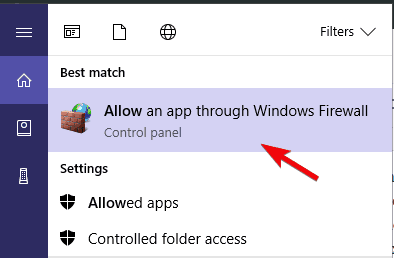
  1. Open Start and type Windows Defender Security Center.
  2. Select the Firewall and network protection.
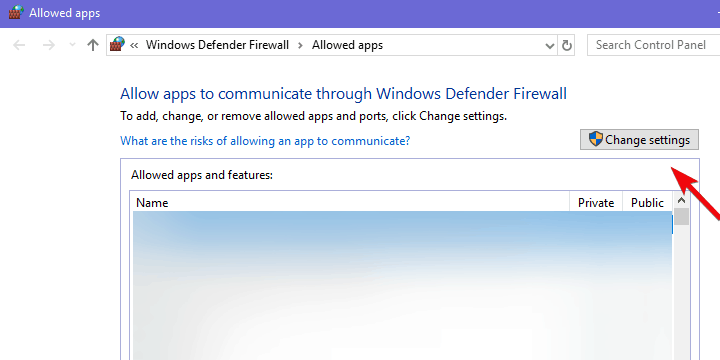
  3. Now choose Allow an app through firewall, and click on Change settings.

    change firewall settings error 0x8000000b

  4. You will see a list of allowed applications, make sure to select both Private and Public boxes for Mail.
  5. Click OK, and you’re all set.

4. Disable your Firewall

In the event that you’re still having error 0x8000000b, you can try to disable your Firewall, and see if that works. To do this, follow these steps:

  1. Open your Windows Defender Center again.
  2. Head to the Firewall and network protection section.
  3. Now select a network profile and turn off Windows firewall for it.
  4. Try running your Mail app now.

You can remove and add your account if it doesn’t sync at first. In order to do this, follow these steps:

  1. Type Mail in your Start Menu.
  2. Once you’ve clicked on the app, you should head over to the Settings icon.
  3. Choose your account and select Delete account.
  4. After this, add your account back in.

We hope that these solutions were of use to you and that you’ve managed to fix error 0x8000000b.

RELATED STORIES TO CHECK OUT:


Gotham Knights game cancelled on Xbox One, Xbox Series X pre-orders now open

Digital pre-orders just went live for Gotham Knights and it’s now been confirmed that the last-gen Xbox One version of the video game has been completely shelved and that the title will now only release on Microsoft’s current-gen Xbox Series X generation of Xbox consoles.

This decision was reconfirmed in a new video released on the official Warner Bros Games YouTube channel that made a brief mention of the new focus on current-gen consoles only where the usual rationale of wanting to give gamers the best possible version of the game was used.

For the most part, the video focuses on Gotham Knights’ gameplay though so it’s also worth a watch if you’re interested in how Robin, Nightwing, Batgirl, and Red Hood will move.

Gotham Knights will release in both a regular version and a special Deluxe Edition version on the Xbox Series X. The Deluxe Edition of Gotham Knights includes the base game and all of the following content:

  • Exclusive ‘’Knightwatch by Jim Lee’’ Transmog
  • Beyond Suitstyle, inspired by Batman Beyond universe
  • Salvage to build new Gear
  • Boosted Gear
  • Exclusive Emote
  • 3 Exclusive Suit Colorways
  • Ultra Zur-En-Arrh
  • Chroma Frost
  • Tribute Asylum

Pre-orders for both versions also include a 233 Kustom Batcycle skin.

Are you excited for Gotham Knights and are you disappointed by the canning of the Xbox One version? Let us know in the comments below and then follow us on Pinterest, Twitter, and Facebook.

Download the May 2022 Adobe Patch Tuesday updates

No doubt, many of you are waiting for the Patch Tuesday monthly batch of security updates and we’re here to make it a bit easier for you to find what you’re looking for.

It goes without saying that Microsoft isn’t the only company that has such a rollout on a monthly basis. So, in this article, we’re going to talk about Adobe and some of the patches for their products.

As we’re pretty sure you know by now, we will also include links to the download source, so you don’t have to scour the internet to find them.

Adobe Framemaker needed the most work this month

Although many didn’t foresee it, last month was a pretty busy one for Adobe, with four updates addressing 70 CVEs in Acrobat and Reader, Photoshop, After Effects, and Adobe Commerce.

May is a lot more light in terms of updates volume, so there really wasn’t that much to fix this time around.

This month, Adobe only released five updates addressing 18 CVEs in Adobe CloudFusion, InCopy, Framemaker, InDesign, and Adobe Character Animator.

Out of all the updates in this rollout, the largest one is the fix for Framemaker, with 10 CVEs in total, out of which nine are Critical-rated bugs that could lead to code execution.

Security experts explained that this could be the case mostly due to Out-of-Bounds (OOB) Write vulnerabilities.

Vulnerability CategoryVulnerability ImpactSeverityCVSS base score CVSS vectorCVE Numbers
Out-of-bounds Write(CWE-787)Arbitrary code executionCritical7.8CVSS:3.0/AV:L/AC:L/PR:N/UI:R/S:U/C:H/I:H/A:HCVE-2022-28821
Out-of-bounds Write(CWE-787)Arbitrary code executionCritical7.8CVSS:3.0/AV:L/AC:L/PR:N/UI:R/S:U/C:H/I:H/A:HCVE-2022-28822
Use After Free (CWE-416)Arbitrary code executionCritical7.8CVSS:3.0/AV:L/AC:L/PR:N/UI:R/S:U/C:H/I:H/A:HCVE-2022-28823
Use After Free (CWE-416)Arbitrary code executionCritical7.8CVSS:3.0/AV:L/AC:L/PR:N/UI:R/S:U/C:H/I:H/A:HCVE-2022-28824
Out-of-bounds Write(CWE-787)Arbitrary code executionCritical7.8CVSS:3.0/AV:L/AC:L/PR:N/UI:R/S:U/C:H/I:H/A:HCVE-2022-28825
Out-of-bounds Write(CWE-787)Arbitrary code executionCritical7.8CVSS:3.0/AV:L/AC:L/PR:N/UI:R/S:U/C:H/I:H/A:HCVE-2022-28826
Out-of-bounds Write(CWE-787)Arbitrary code executionCritical7.8CVSS:3.0/AV:L/AC:L/PR:N/UI:R/S:U/C:H/I:H/A:HCVE-2022-28827
Out-of-bounds Write(CWE-787)Arbitrary code executionCritical7.8CVSS:3.0/AV:L/AC:L/PR:N/UI:R/S:U/C:H/I:H/A:HCVE-2022-28828
Out-of-bounds Write(CWE-787)Arbitrary code executionCritical7.8CVSS:3.0/AV:L/AC:L/PR:N/UI:R/S:U/C:H/I:H/A:HCVE-2022-28829
Out-of-bounds Read (CWE-125)Memory LeakImportant5.5CVSS:3.1/AV:L/AC:L/PR:N/UI:R/S:U/C:H/I:N/A:NCVE-2022-28830

Moving on, the software fixes for InDesign address three Critical-rated bugs that could also lead to code execution, out of which two are due to OOB Writes while one is an OOB Read.

Adobe also issued fix patches for InCopy. In this case, we’re talking about three Critical-rated code execution bugs.

Two OOB Writes plus a Use-After-Free (UAF), just in case that was going to be your next question on this subject.

We also got a patch for Character Animator, one that fixes a single, Critical-rated OOB Write code execution bug.

And, last but not least, the ColdFusion patch corrects an Important-rated reflected cross-site scripting (XSS) bug.

It’s also important to know that none of the bugs fixed by Adobe this month are listed as publicly known or under active attack at the time of release.

What’s your take on this month’s release? Share your thoughts with us in the comments section below.

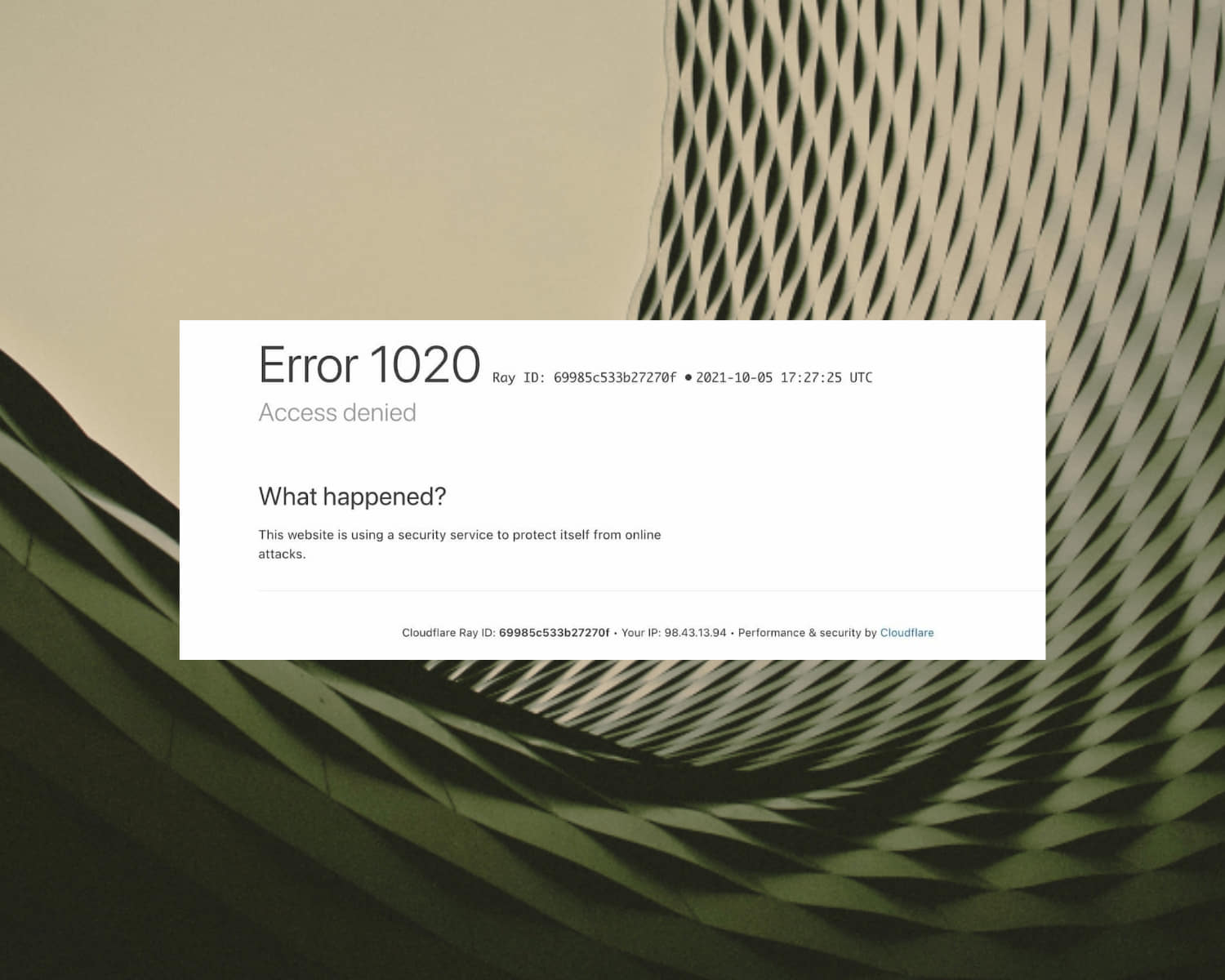
Error Code 1020 Crunchyroll Access Denied: 7 Ways to Fix it

The error code 1020 Crunchyroll Access Denied can block you from accessing the content on the website. The error can frustrate you because the website does not recognize your IP address.

This is similar to error code 1005 Access Denied when trying to access some websites, but fixing this issue is easier than you think.

Join us while we take a closer look at this issue and explore all the available solutions.

Why does the error code 1020 occur in Crunchyroll? This issue occurs when the internal settings block your IP address. This means Cloudflare does not allow connecting your computer and the desired website.

You can also experience Crunchyroll error code 1020 on your Xbox console. It may be because you turned off the console without closing the app properly.

Another reason is a conflict between the cookies stored on your computer and the current version of the website.

How do I fix error code 1020 on Crunchyroll?

1. Restart your internet router

  1. Press the Power button on.
  2. When it turns off, unplug the power cable from the power source.
  3. Insert the power cable into the power source and turn it on.

Sometimes, the router may be why the Crunchyroll website blocks your computer from accessing its content.

2. Restart your computer

  1. Press Alt + F4 to open the Windows shutdown pop-up menu.
  2. Use the arrow keys to highlight the restart option.error code 1020 crunchyroll
  3. Press Enter to restart your computer.

3. Disable Adblockers on the Chrome browser on your PC

  1. Open the Chrome browser on your PC.
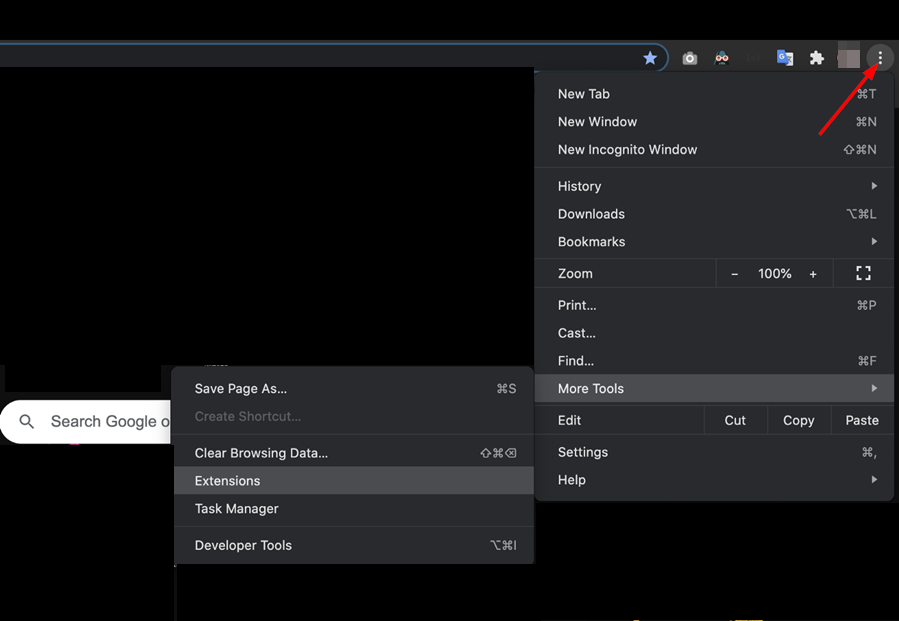
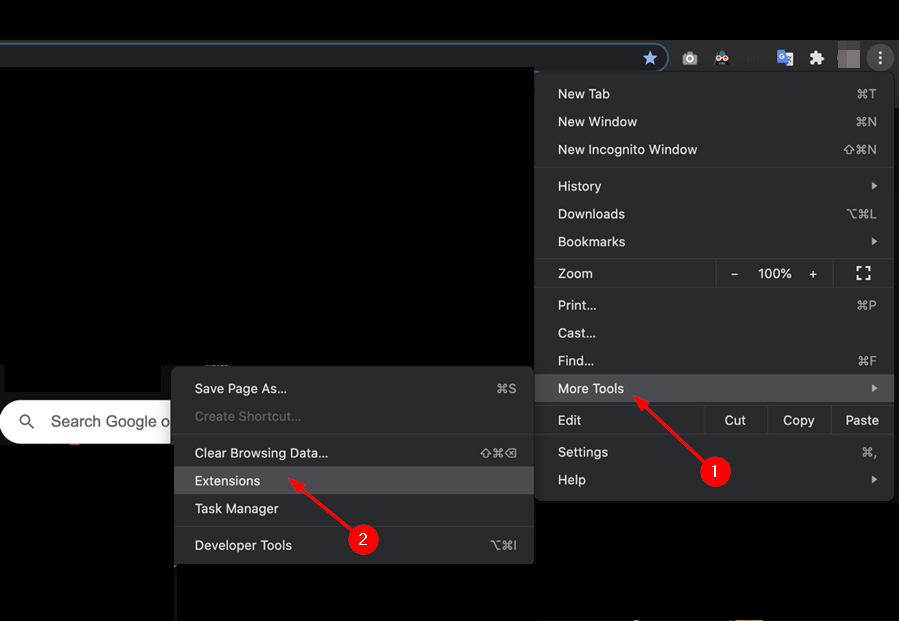
  2. Click on the Extension icon.
  3. Select Manage Extensions.error code 1020 crunchyroll
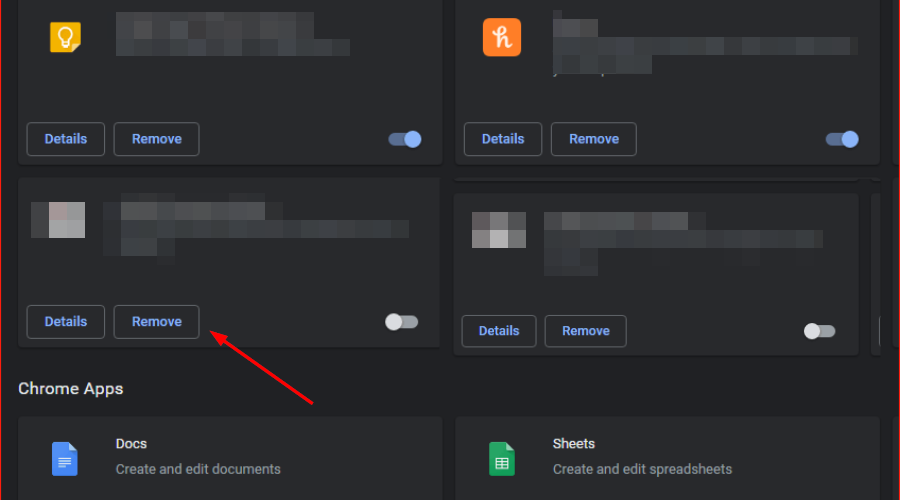
  4. Highlight the adblocker extension.error code 1020 access denied
  5. Toggle off the adblocker extension.error code 1020 crunchyroll
  1. Toggle off other extensions.error code 1020 crunchyroll
  2. Reload the Crunchyroll website.

Some browser extensions can block access to a particular website without you knowing. It’s, therefore, essential to disable the extensions you’ve installed one after the other to see if you can re-access the website.

Crunchyroll is a freemium streaming platform that provides 1000s of anime for users worldwide. People who use the premium version have no problem with ads.

The free version of Crunchyroll has ads turned on. Suppose you have an ad blocker extension installed on your browser; it might cause the app to malfunction. In most cases, when you disable the ad blocker alone to resolve the error code 1020.

4. Clear your browsing data

  1. Open the Chrome browser on your PC.
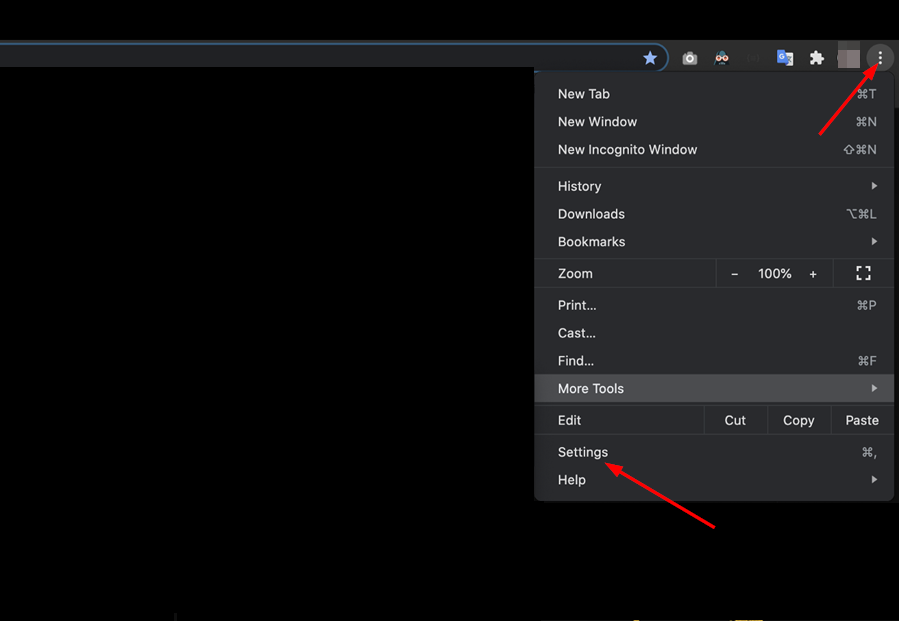
  2. At the top right, click on More.error code 1020 access denied
  3. Click on More Tools.
  4. Under Privacy and security, select Clear browsing data or press Ctrl + Shift + Del. error code 1020 crunchyroll
  5. Select the Advanced tab.error code 1020 access denied
  6. Choose a time range, such as Last hour or All time.
  7. Select the type of information that you want to remove.error code 1020 crunchyroll
  8. Click on the precise data you want to delete, including the browser cache.
  9. Click on Clear data.error code 1020 crunchyroll

The Crunchyroll website uses cached data and cookies to provide optimal performance and a personalized viewing experience.

When you don’t have the latest saved cookies on your browser, it can cause the error code 1020 anytime you open the website.

Clearing the browsing data will refresh the website and help you fix issues like Crunchyroll Error P-DASH-114. Removing the browsing data can delete your saved data, like passwords, depending on the information you choose to delete.

To have more control over what type of data you remove and keep, use CCleaner. This application breaks down your browser data into multiple categories, allowing you to pick exactly what you want to delete.

5. Turn off the Microsoft Defender Firewall

  1. Press Win + I to open the Settings app.
  2. Select Update & Security.windows update & security
  3. Click on Windows Security, and select Open Windows Security.
  4. Select the Firewall & network protection option.
  5. Select any network profiles: Domain network, Private network, or Public network.windows firewall network profile
  6. Under Microsoft Defender Firewall, switch the settings to off.turn off firewall

6. Check your VPN settings

Many Crunchyroll content is available only to the US audience. Users outside the US ‌use a VPN service to access some of their favorite anime.

The Crunchyroll server can block your VPN IP address from watching the videos on the website. If Crunchyroll blocks your VPN’s server, you can resolve the issue by changing the location.

7. Contact Customer Support

If none of the above solutions work, you can contact the customer support of Crunchyroll. It will be best if you send a screenshot of the error.

To contact the Crunchyroll support team, head over to the official forum. Fill out a form detailing the issues you have. And someone from their support team will reach out to help you.

You may see the error code 1020 when you try to create an account on Crunchyroll. Any of the troubleshooting methods above can help you resolve the problem.

The solutions outlined above will help access the content on the Crunchyroll website. Sometimes, the error code 1020 isn’t the only error you’ll face when accessing the web.

One of the most common errors is a website not allowed, but we covered that one in a separate guide. Sadly, this isn’t the only issue, and many reported Crunchyroll Error Code Shak-6007-Generic as well.

Which of the solutions helped you to solve the error code 1020? Let us know in the comment section below.

Microsoft finally lists all the Build 2022 sessions

Microsoft Build 2022 is now about two weeks away, and Microsoft has just updated its webpage for the developer conference with session lists. First noted by Walking Cat, there are now a total of 524 different sessions available across the three-day event.

Unlike years past, there do seem to be a lot of different sessions this year specifically mentioning WIndows, with a search on the site showing 51 different Windows-themed sessions across various different languages. There’s even one that specifically features Panos Panay titled “Create next-gen experiences at scale with Windows.”

Other than that, from our quick search, there are also 7 different Android-themed sessions and plenty of sessions dedicated to Microsoft Teams. As spotted by Thurrott.com, these might be some of the most interesting if you’re registered for Build.

Due to the pandemic, Microsoft Build 2022 is again virtual, and you don’t need to pay to attend. It’s free, and a signup link is available right here. You can even plan your Build experience by adding things to your schedule or saving it to a virtual backpack.

Microsoft Build will be the second major tech conference of this year. Google I/O is set to kick off tomorrow on May 15. After Google, comes Microsoft Build, and then Apple has its own WWDC on June 6. Some Build 2022 sessions previously leaked, but Microsoft was quick to take them offline, only for them to return today.

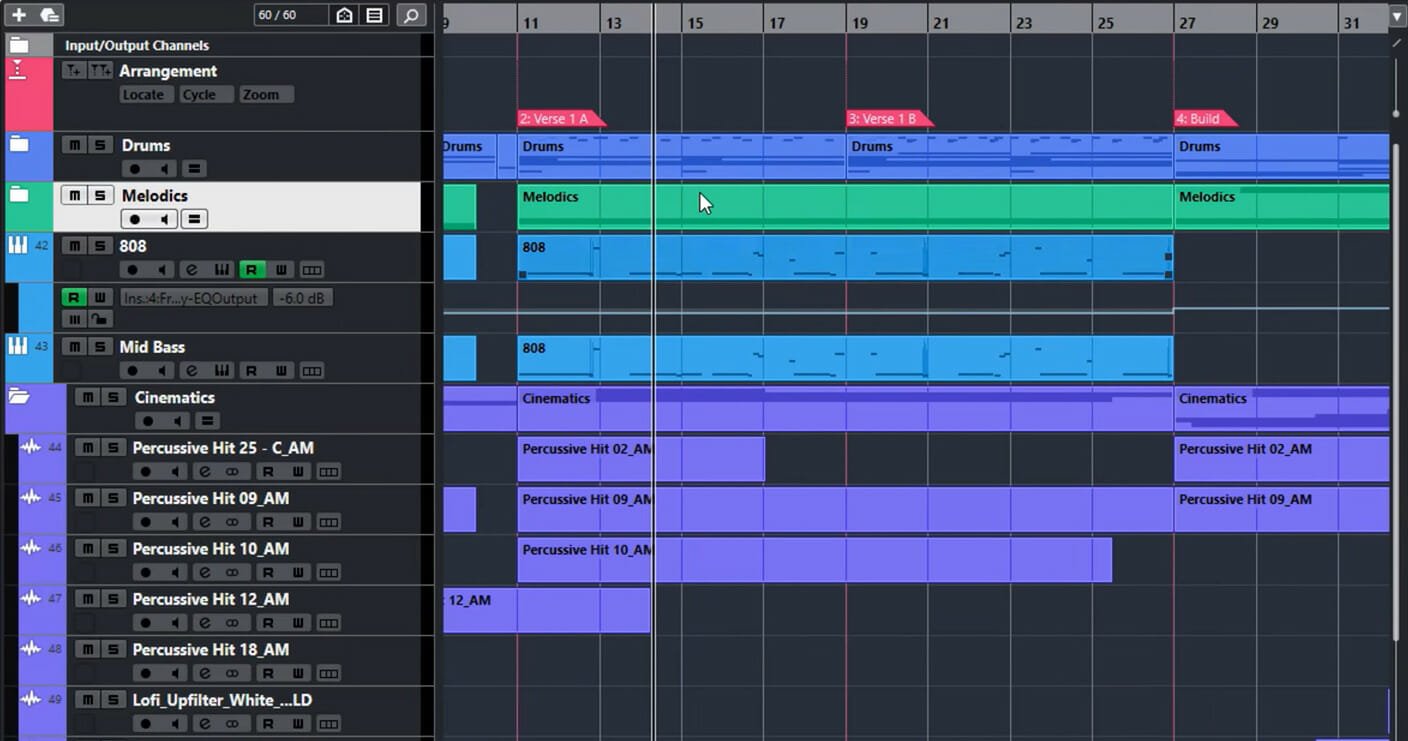
Music Software for Windows: 30 Best Programs to Use

Making music is a passion, and with scores of applications accessible on the internet, it’s no longer a difficult task. You will however need music software for Windows to begin with.

Because Windows is the most widely used operating system on the planet, we’ve compiled a comprehensive list of the best music production software for Windows in this article.

While some are free to download and use, others provide a free trial version before purchasing the paid version.

You will be able to enjoy the sounds you’ve created using the best music players for Windows 11. So keep reading to find out which app will be most suitable for you.

How do I record music directly on my computer?

Before recording your music, you will need to acquire the proper gear. Some musts haves are:

  • A digital audio workstation or your music production software. We will discuss many of these in this article.
  • An audio interface unit for recording midi, vocals, and instruments.
  • A microphone to aid the capture of vocals or an acoustic instrument.
  • Vocal isolation shields for recording when there is so much noise.

With these tools in hand, you will usually follow these steps to record music on your PC:

  1. Connect the different devices.
  2. Launch and preset the music production software.
  3. Click on the record button.
  4. Repeat the recording process for all tracks.
  5. Save your work.

What software do most musicians use?

As a musician, the tool you use will depend on what you are trying to achieve. There is software, for recording, editing audio, automatic composition, beat making, as well as music analysis, etc.

Additionally, we have software that combines more than one of these functions. So, what a musician hopes to achieve will determine the tools that they use.

That said, in this article, we have covered all the popular ones used by musicians, so anyone you choose to go with will be a good option.

What is the best software for making music on PC?

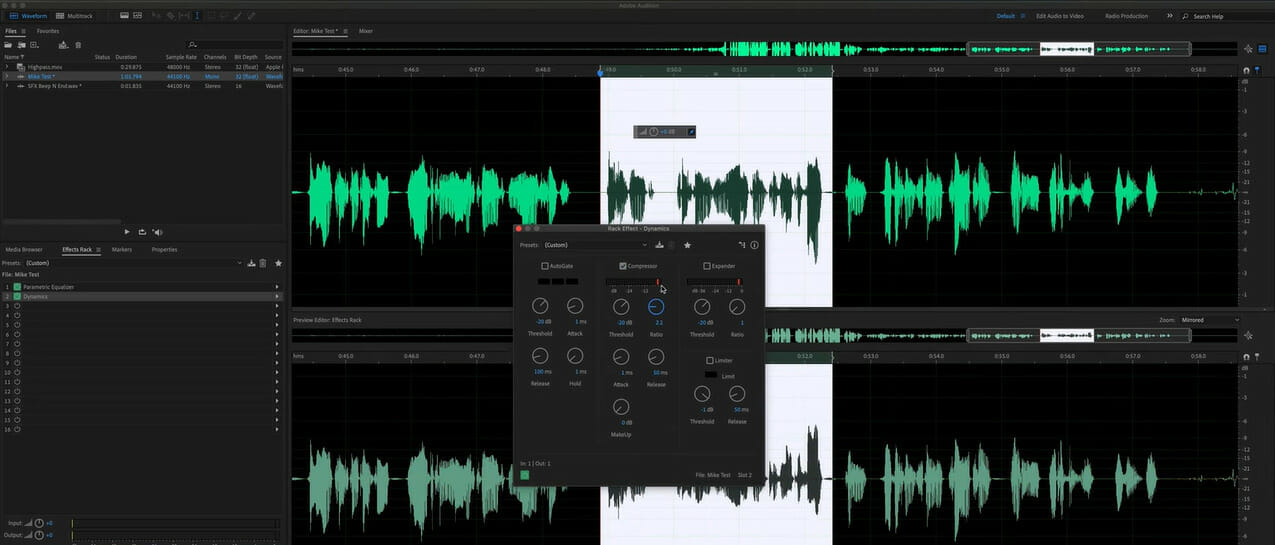
Adobe Audition – The most advanced

Audition is a complete suite of tools for editing, mixing, generating, and recovering audio files, including waveform, multitrack, and spectral display.

This powerful DAW is designed to speed up your video and audio production workflows and your audio post-production so you can have the highest quality mix with crystal-clear sound.

Additional features:

  • Smart track colors
  • Custom channelization
  • Professional multitrack UI

It includes DeNoise and DeReverb effects and powerful playback and recording capabilities. You will also be able to restore audio as well as experience real-time clip stretching.

Adobe Audition

Learn how to utilize the spectrum frequency display, Diagnostics panel, effects, and other tools for audio correction.
Check price Visit website

Avid Pro Tools – Optimized for after production

Using this app, you’ll have all you want to create songs, produce beats, and record instruments as well as vocals on major platforms.

You can quickly produce songs and realistic-sounding effects and tracks with simple MIDI tools.

It’s also simple to integrate loops that adapt to the speed of your session, and you may freely develop and explore without having to stop the playback.

Additional features:

  • mixing automation
  • Extensive plugin list
  • Pitch and audio timing

We like it because it features a Cloud Collaboration, so, you will be able to exchange ideas and collaborate on projects with anybody, wherever.

Avid Pro Tools

Thousands of instrument sounds are included, including GrooveCell, SynthCell, Boom, Mini Grand, Xpand, and more.
Check price Visit website

Sound Forge Pro – Great for sound engineering

For many users, this program has been the go-to audio editing software of choice for almost 30 years.

Many sound engineers and producers across the globe use it because of its vast set of professional capabilities.

You can now edit, record, master, and restore with ease thanks to new workflow enhancements. You will love that it allows you to mix, create, as well as design sound effects.

Additional features:

  • Analog modeling suite
  • Vintage effects suite
  • Celemony Melodyne

And finally, its audio finishing, quicker video production procedure, and finished mix with clean sound are all features you will enjoy.

Sound Forge Pro

True-peak analysis in dbTP, which may be set up using simple presets, supports EBU R 128 and ITU-R BS.1770-4 formats.
Free trial Visit website

NCH WavePad Audio – Most basic audio recorder

NCH WavePad Audio is a recording program with many valuable features included in the free version.  Its UI may not be as pretty as many others on this list, but it’s simple to set up and use.

It supports an extensive range of audio file formats, giving you more creative flexibility. Also, you can use it to record and edit audio tracks for movies and podcasts, and it’s a dependable and productive tool.

NCH WavePad Audio is available in three versions: a free version with restricted functionality, a Standard version, and a Master’s version. 

Additional features are available for $60 in the Standard Edition, while complete exposure to all the possible features is available for $99.

Additional features:

  • DirectX and virtual studio support
  • Batch processing
  • Spectral Analysis

NCH WavePad Audio

You may record and edit music, and voice, as well as cut, copy, and paste sections of recordings and apply effects.

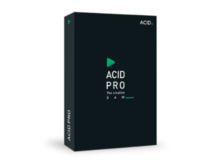
Acid Pro 10 – Simple to use

Magix Program now develops Acid Pro, a professional audio software.

Sonic Foundry first released it as Acid pH1, then it was acquired by Magix in April 2018.

It isn’t the fanciest tool, but it includes all of the essential functions. There’s also the ability to record, MIDI support, and track looping.

The tool comes with roughly 90 VSTs to play around with, and this is great to use with your MIDI controller. In addition, it has nice track series loops.

Additional features:

  • Morph pads
  • Brainworx Plug-in suite
  • Multitrack recording

It’s pretty inexpensive, so if you’re searching for a low-cost music app that’s existed for a long time, you should give it a try.

Acid Pro 10

Its game-changing technology automatically matches loops to the tempo and key of your project and paints loops straight into your timeline.
Free trial Visit website

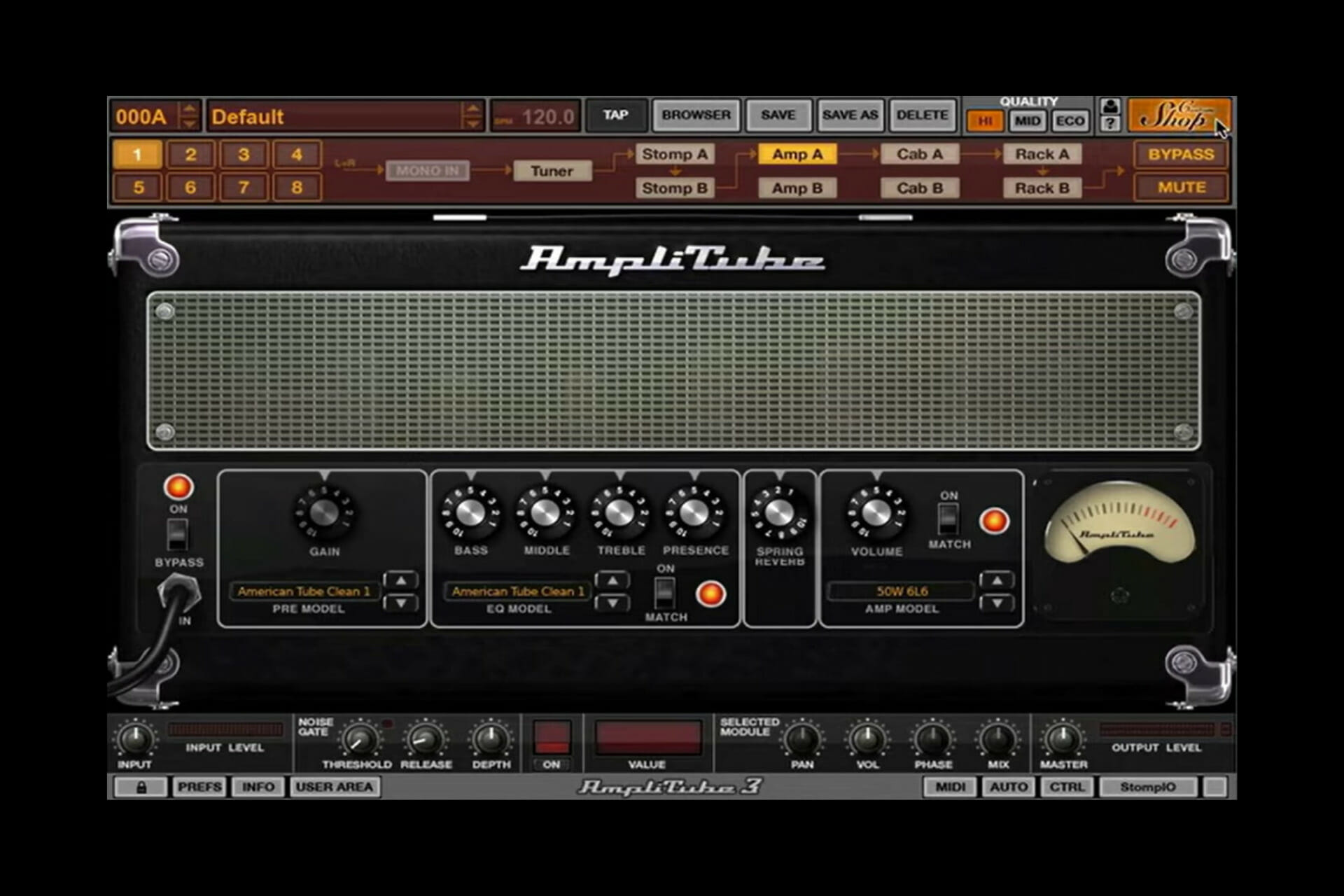
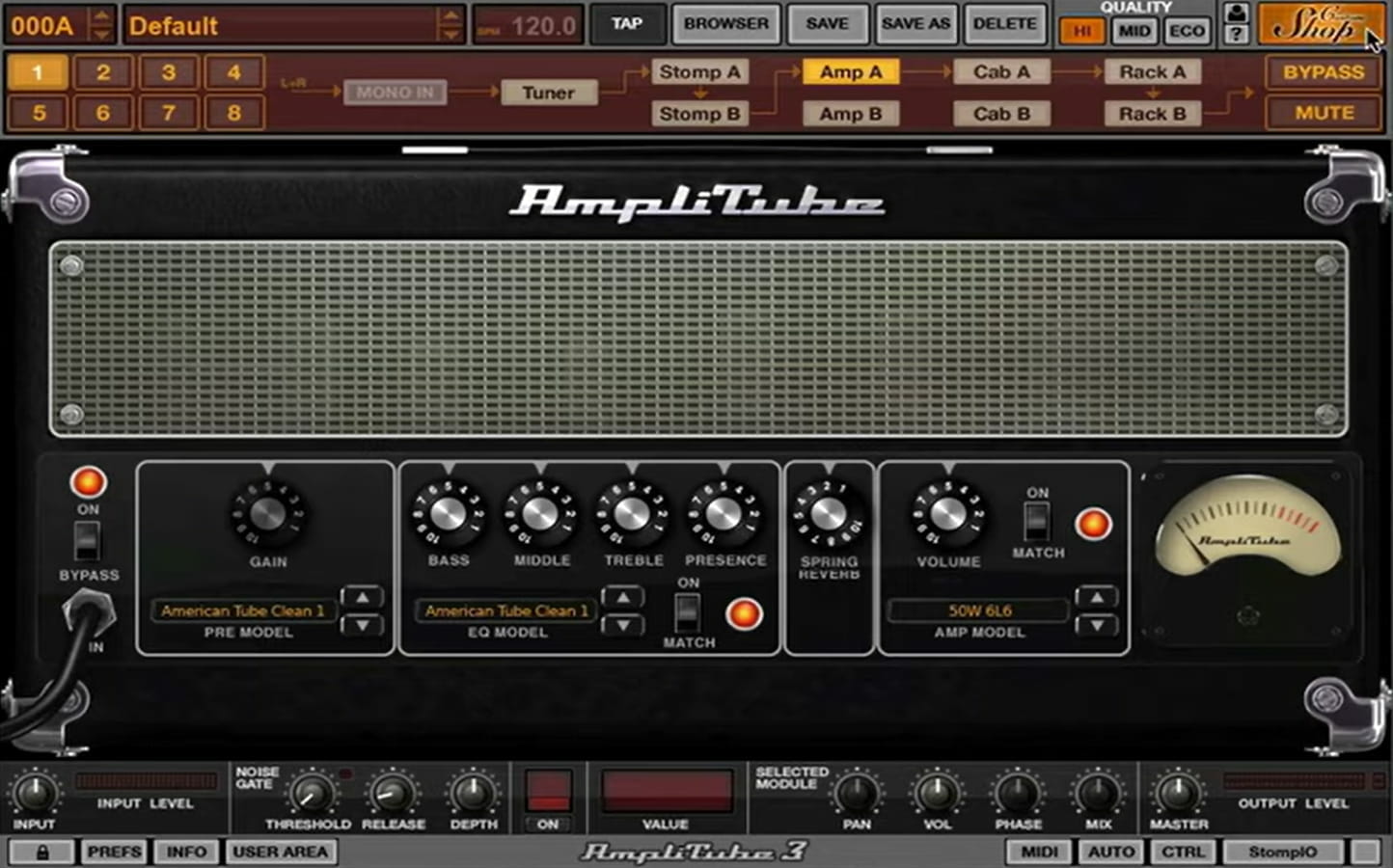
AmpliTube Custom Shop – Amazing guitar rig

This music software is a guitar rig modeling program that is fully functional.

It has nine stompboxes, three microphones, a digital chromatic tuner, five cabs, four amps, as well as two rack effects, among other features.

Furthermore, when recording straight into a laptop, there are sufficient features to keep any guitarist satisfied. The tones are realistic, and the range of customization is astounding.

Additional features:

  • Several effects
  • Several models
  • Fully developed guitar rig

However, if you want to extend your collection of stompboxes, amp models, and cab simulators, you’ll have to spend extra.

Amplitube Custom Shop

You’ll get the most authentic tone possible, as well as strong workflow tools to allow you play, practice, and record directly on your PC.

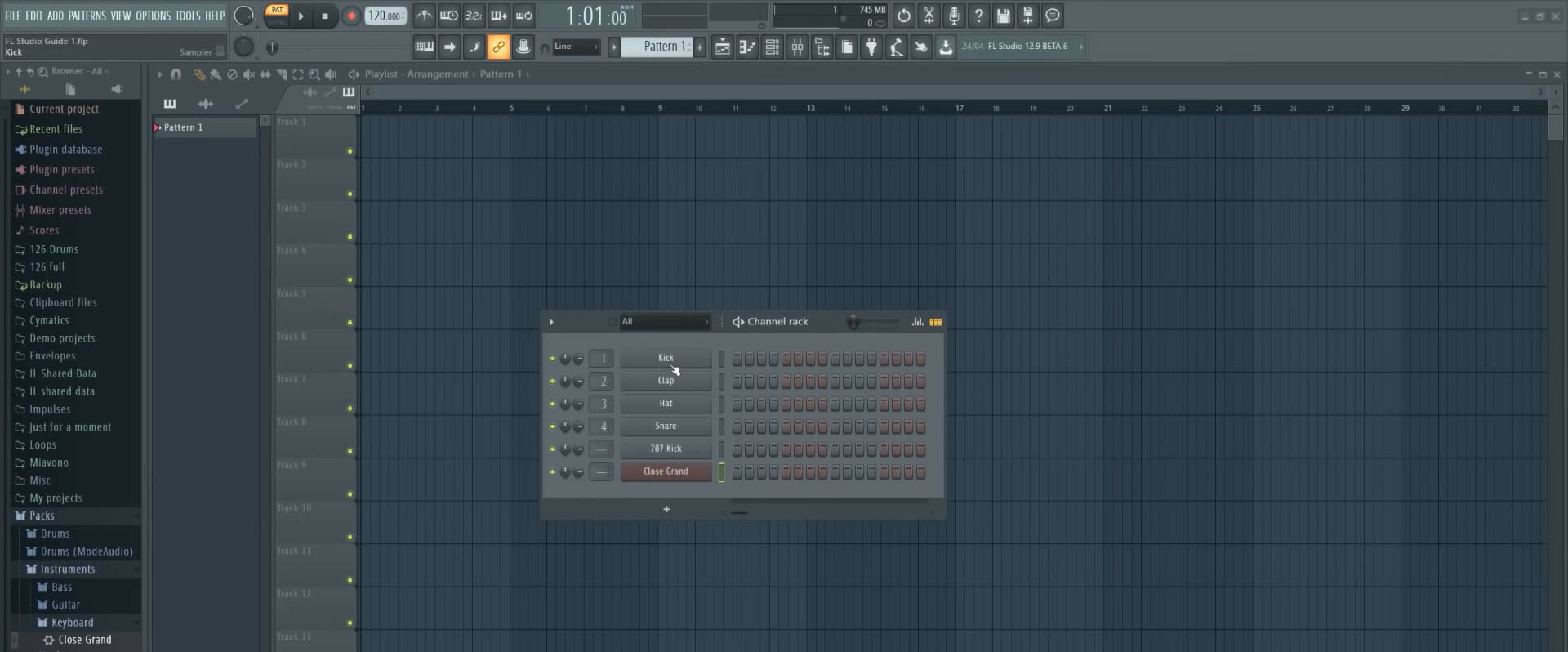
FL Studio – Perfect for music production

30 best music software for windows

FL Studio is one of the biggest digital audio workstations, but is FL Studio worth it? Well, here is what you should know.

If you’re a newbie seeking to get started with music production software, FL Studio is an excellent place to start.

It uses standard protocols, such as cut and paste, sound correction, stretching, and pitch shifting. However, the most appealing feature is its UI, which was created with novices in mind.

In addition to that, you receive 30 out-of-the-pack synth software, and it has so much learning material distributed to get you up to speed.

So, if you’ve just purchased a controller and would like to check out some sounds right away, you won’t have to invest the extra money.

It meets all the main criteria of a music tool, whether you want to record with a microphone, use MIDI keyboards, or conduct standard mixing and editing.

Additional features:

  • Beat slicing
  • Up to 125 simultaneous audio track recording
  • Mobile compatibility
  • Easy and pretty UI

FL Studio

Get the best music experience with this fully-featured music software.
Free Trial Visit Website

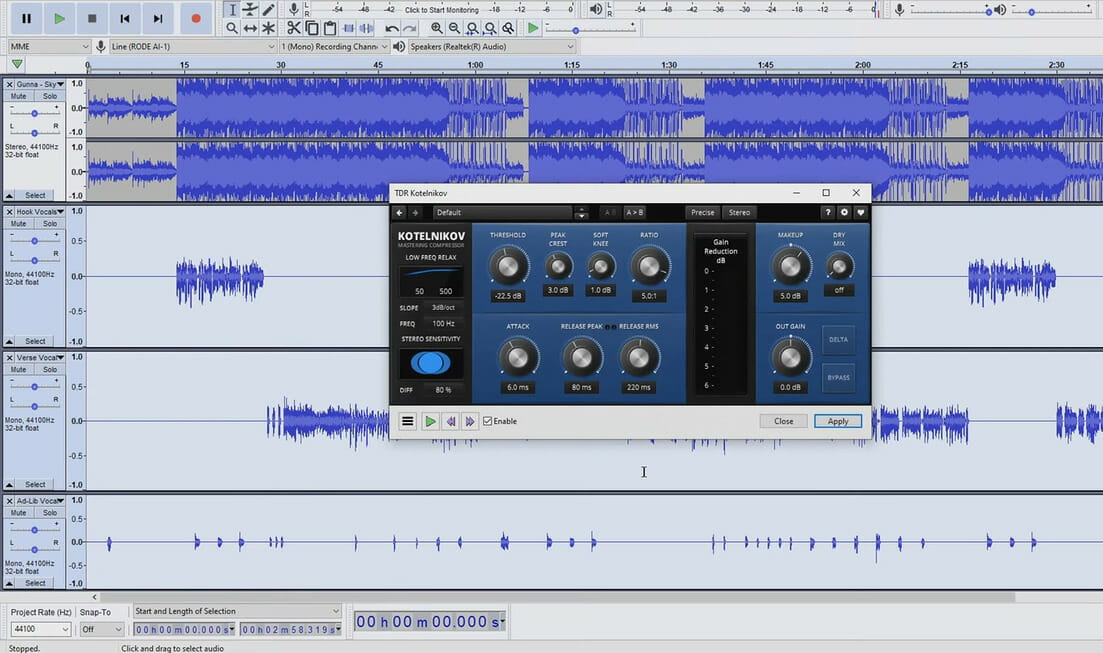
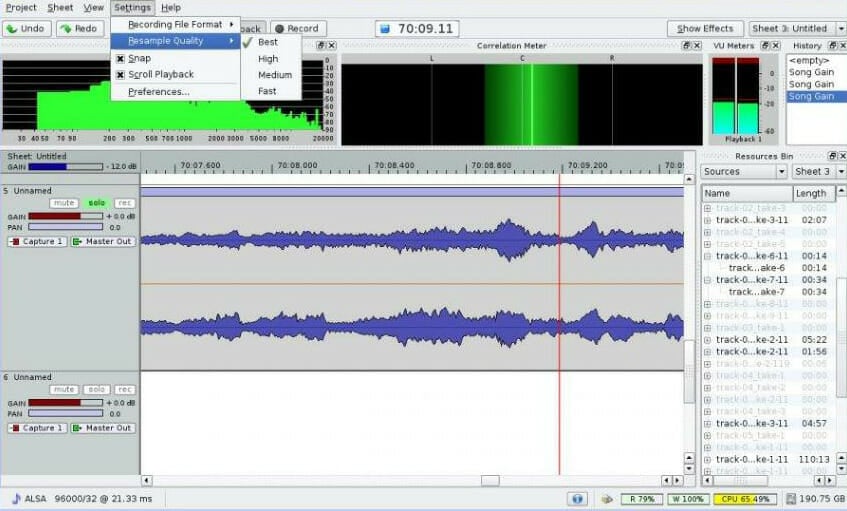
Audacity – Versatile and open-source

30 best music software for windows

Audacity is an audio recording and editing open-source music software that works across different platforms, including Windows, Linux, and macOS.

This tool enables you to record music from a variety of sources as well as post-process almost any sort of audio format.

Furthermore, using its frequency analysis tool, you can apply various music effects, treble, bass, fine-tune the pitch, and evaluate files.

The program displays your music as editable waveforms that anyone may manipulate.

You can also use the copy and paste to change the music track, and the extra plug-ins to enhance the sequence of effects.

Additional features:

  • Extensive plug-ins
  • Keyboard manipulation support
  • Spectrogram view mode

⇒ Get Audacity

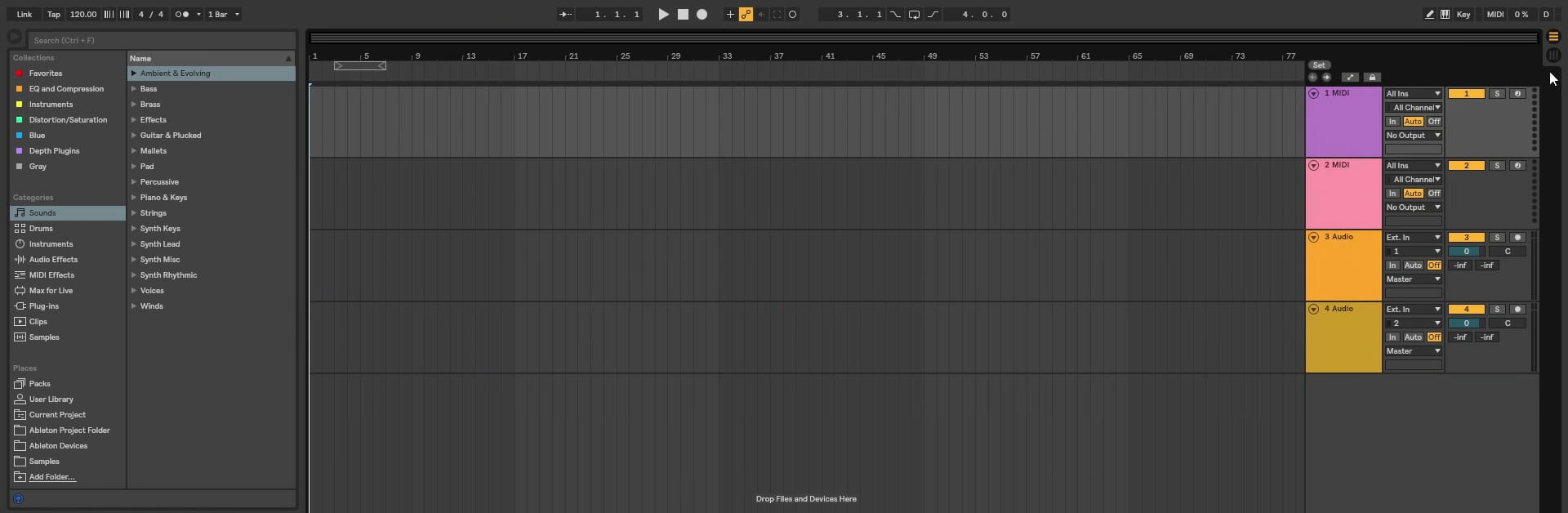
Ableton Live – Extensive recording features

30 best music software for windows

The typical design rules were discarded when the initial edition of Ableton Live was published in 2001.

Now, it is recognized as being more than a recording software for composers, but also as a performing tool in its own right. 

Ableton Live’s popularity has skyrocketed, and it has encouraged the creation of a slew of additional mobile and desktop applications.

It has a new Live 11 version and while some of the improvements may take some getting accustomed to, Ableton has improved Live’s capabilities without adding baggage.

We believe that it maintains its position as one of the most advanced music programs for Windows.

Additional features:

  • Multitrack recording
  • Powerful MIDI sequencing
  • Advanced warping

⇒ Get Ableton Live

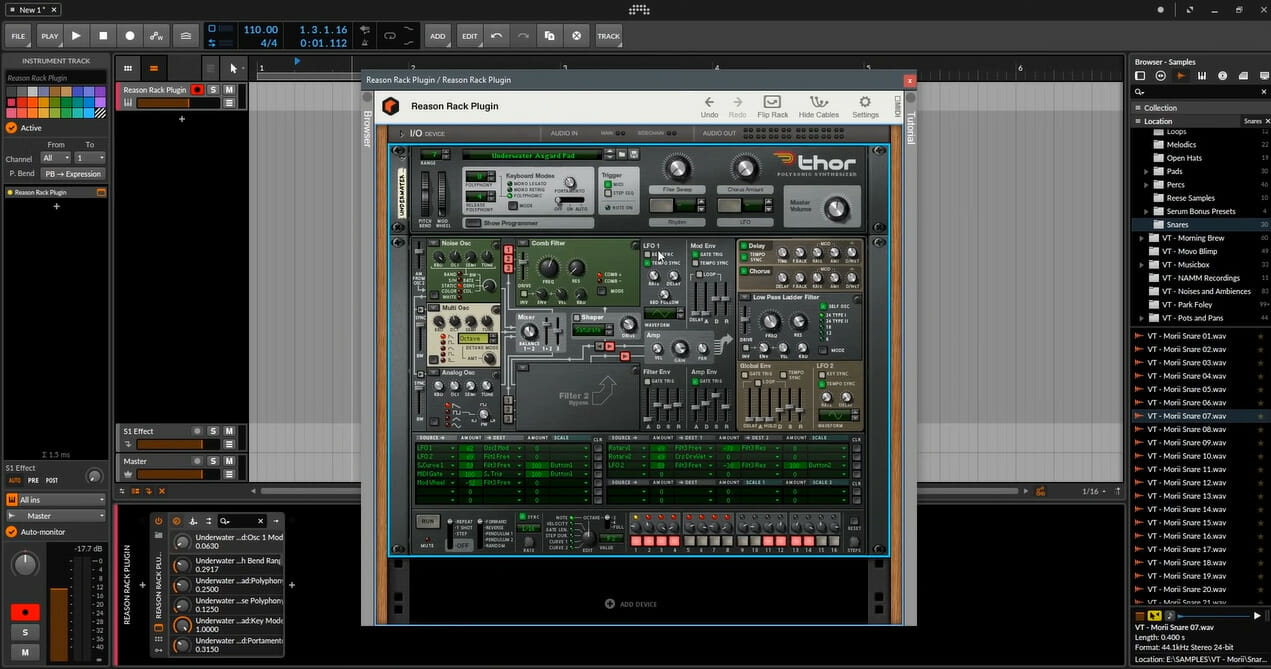
Reason Studios – Advanced rack-based DAW

Reason has experienced significant adjustments. For example, the rack-based digital audio workstation’s creator, Propellerhead Software, changed its name to Reason Studios in 2019.

Reason’s Rack Plugin was produced due to this, allowing the digital audio workstation’s main tools to be used as an AU plugin or VST 3 inside other DAWs.

However, Reason can still be used as your primary DAW, but with the standard effects and instruments now accessible for cross-software use, it is even more appealing as a third-party integration.

Additionally, it features a powerful and versatile Combinator, a new sampler, and high-res visuals, making it even more appealing.

Additional features:

  • SSL mixer
  • Rack-modeled workflow
  • Multiple plugins

⇒ Get Reason Studios

Steinberg Cubase – Music production veteran

30 best music software for windows

For nearly 30 years, Steinberg has been at the forefront of the development of music software.

Cubase, which began as a MIDI sequencer, was responsible for introducing a generation of screens with a block-based arrangement.  that is now found in the majority of music software. 

Despite rising competition, Cubase remains at the top of the market. Cubase 11, the most recent edition, is a great upgrade that improves on a lot of fronts.

For example, the enormous sound library, several outstanding plugins, and vast functionality make it well worth its value for new buyers.

Additional features:

  • Refined workflow
  • MIDI Remote integration
  • FX Modulator

⇒ Get Steinberg Cubase

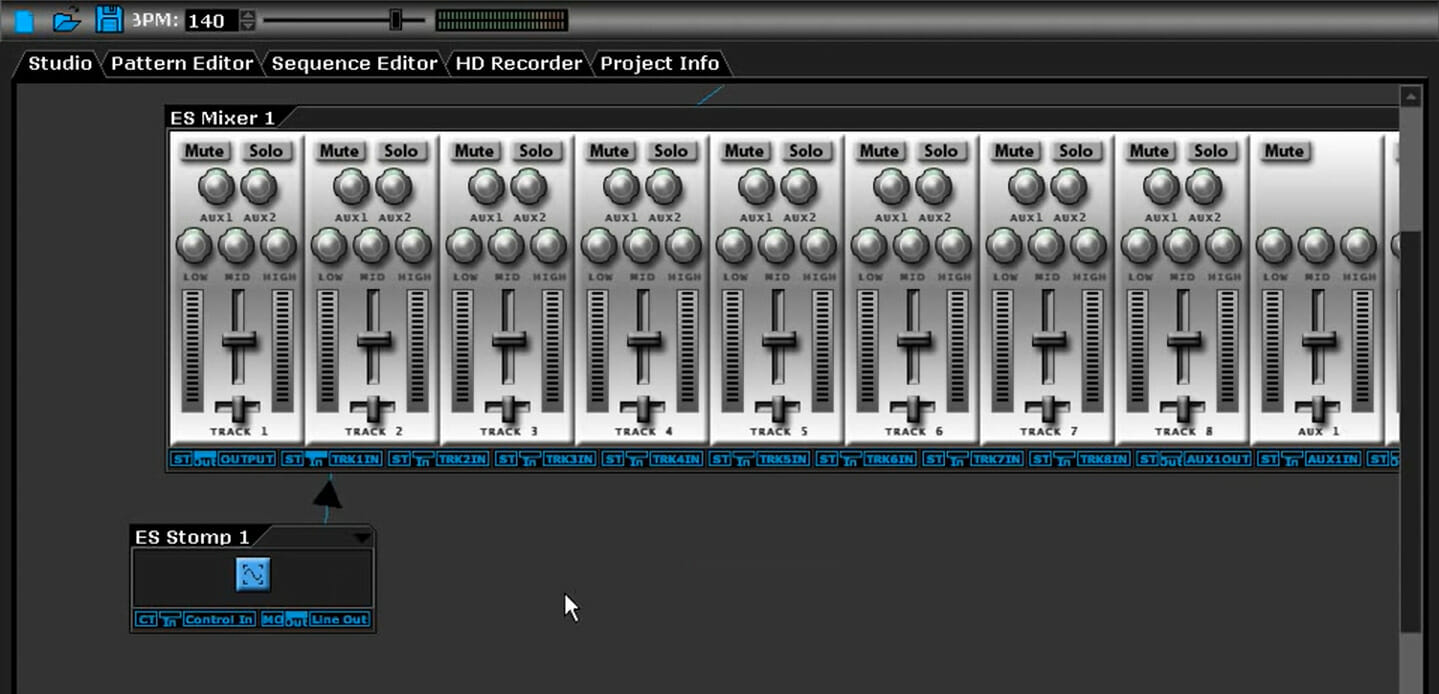
DarkWave Studio – Lightweight and easy to use

This application takes up very little space on your computer compared to other music-making tools for Windows PC.

Its Pattern Editor allows you to pick and alter digital music patterns. On top of that, the Sequence Editor lets you blend songs and put up patterns to play in any order. Also, Live audio is recorded using the Hard Disk Recorder. 

This music app also comes with 19 special plug-ins that you may use to enhance your songs with virtual effects.

The different features may create a learning curve, but several courses and resources are available online.

And finally, it is free music software for Windows but you will have to put up with the constant advertisements.

Additional features:

  • Multitrack hard disk recorder
  • Multi-core and multi CPU support
  • DirectSound full duplex support

⇒ Get DarkWave Studio

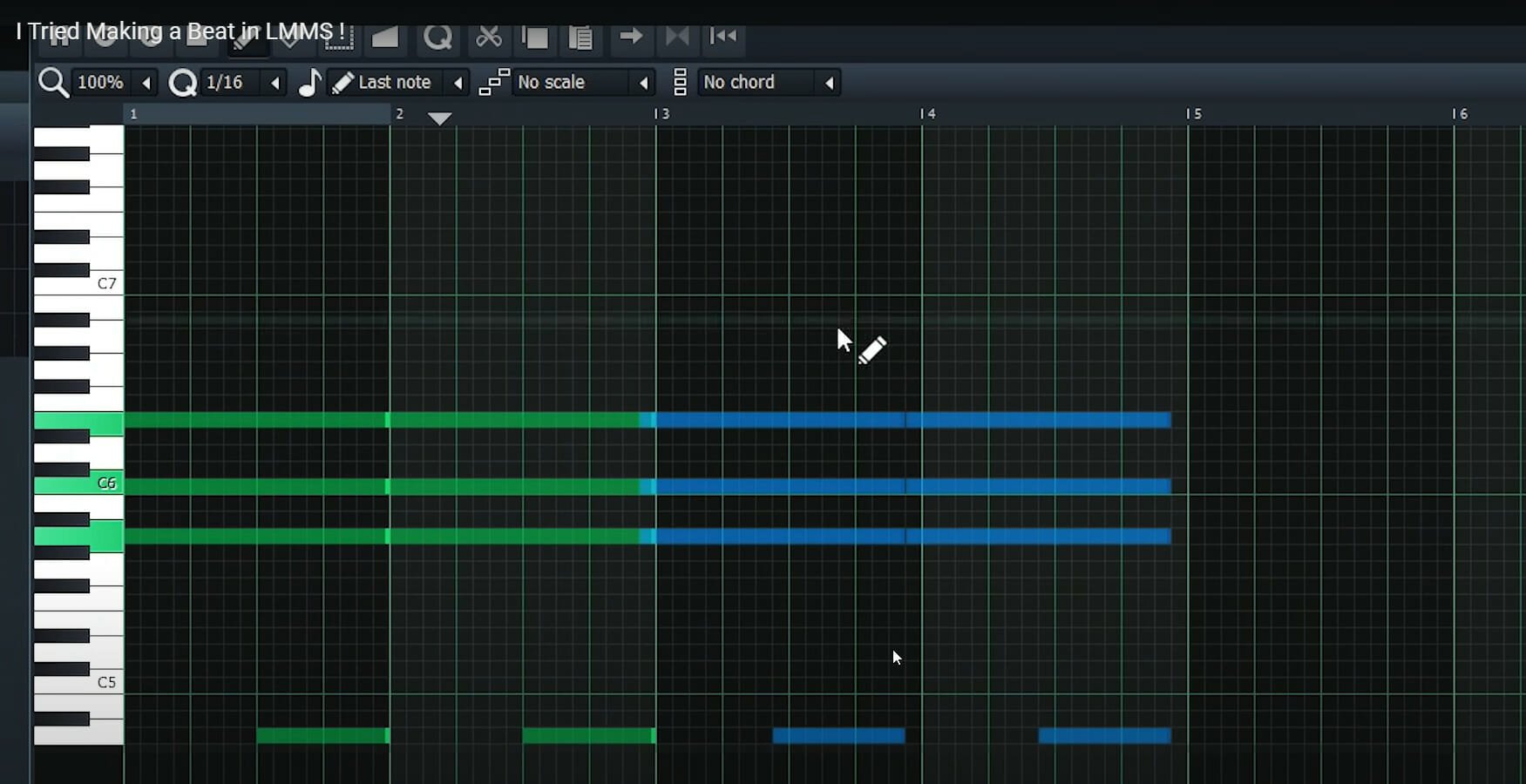
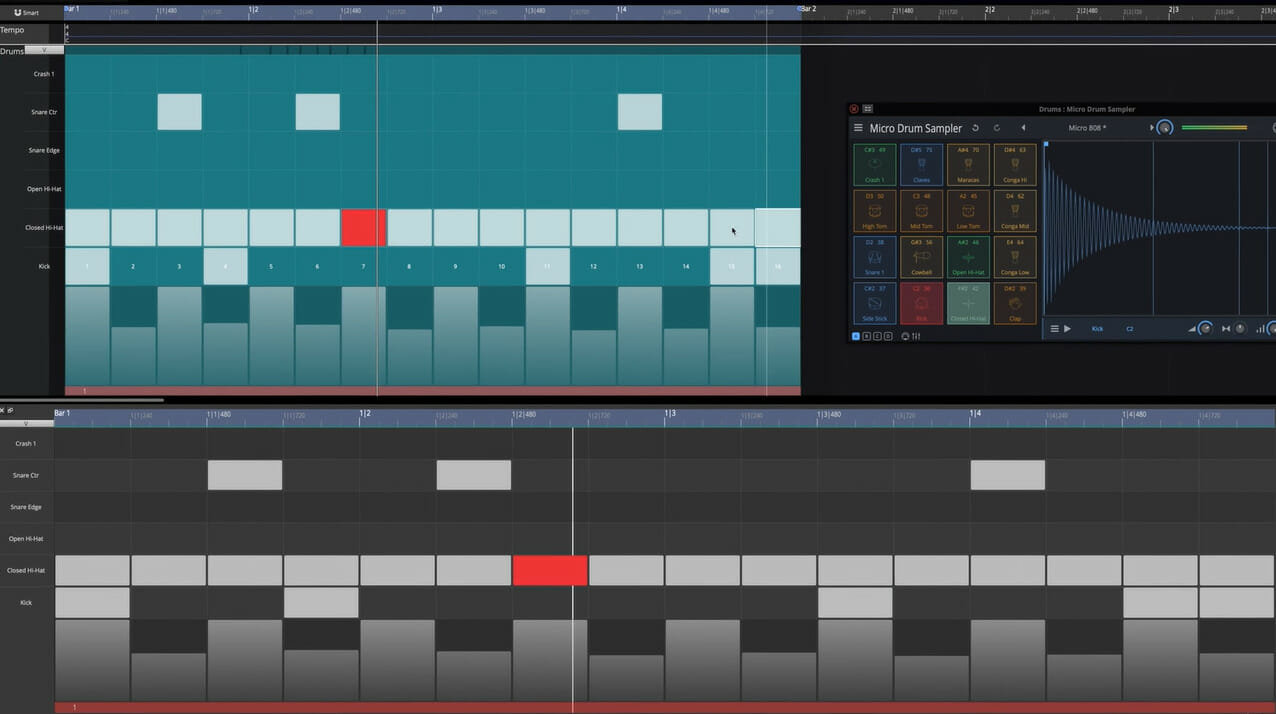
LMMS – Beginner-friendly

Linux MultiMedia Studio (LMMS) is a Linux and Windows-based cross-platform music creation program. It’s appropriate for all types of music creation and is an excellent free software alternative for novices.

To assist you in creating music, LMMS employs numerous windows. For example, the Piano Roll may be used to alter tunes, while the Beat/Bassline Editor can be used to construct a rhythm section.

Also, the Song Editor will provide you with a summary of the audio structure, and the FX Mixer will bring it all together. You may even use the Automation Editor to automate multiple effects and loudness.

Additionally, it has many instrument synthesizers, making it an excellent tool for creating music using MIDI controllers for free.

Additional features:

  • Bassline-Editor
  • Full automation support
  • 64 effect channels

⇒ Get LMMS

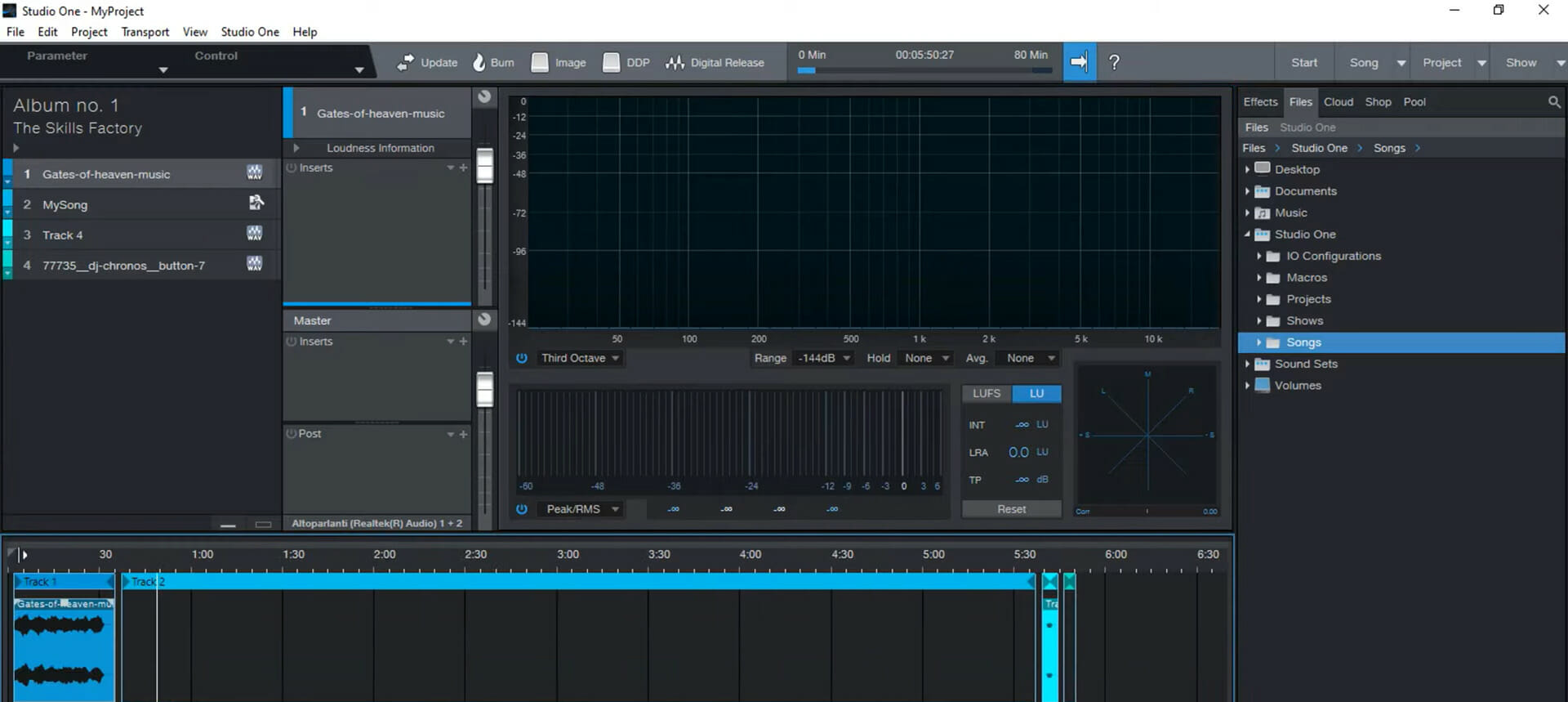
PreSonus Studio One – Designed for singer-songwriters

This music app has kept gaining traction for many years and is now a powerful digital audio workstation.

With a fully developed Clip Gain Envelopes and Score Editor that enables precise volume automation, version 5 marks the software’s true maturation.

In reality, it’s rated as one of the greatest DAWs available, and whether you’re a long-time fan or a newbie, you will find it a handy app.

Studio One genuinely reflects modern virtual studio design with its seamless workflow, contemporary interface, responsiveness, and innovative feature set.

Additional features:

  • Export multiple formats
  • Backup and archive support
  • Drum notation

⇒ Get PreSonus Studio One

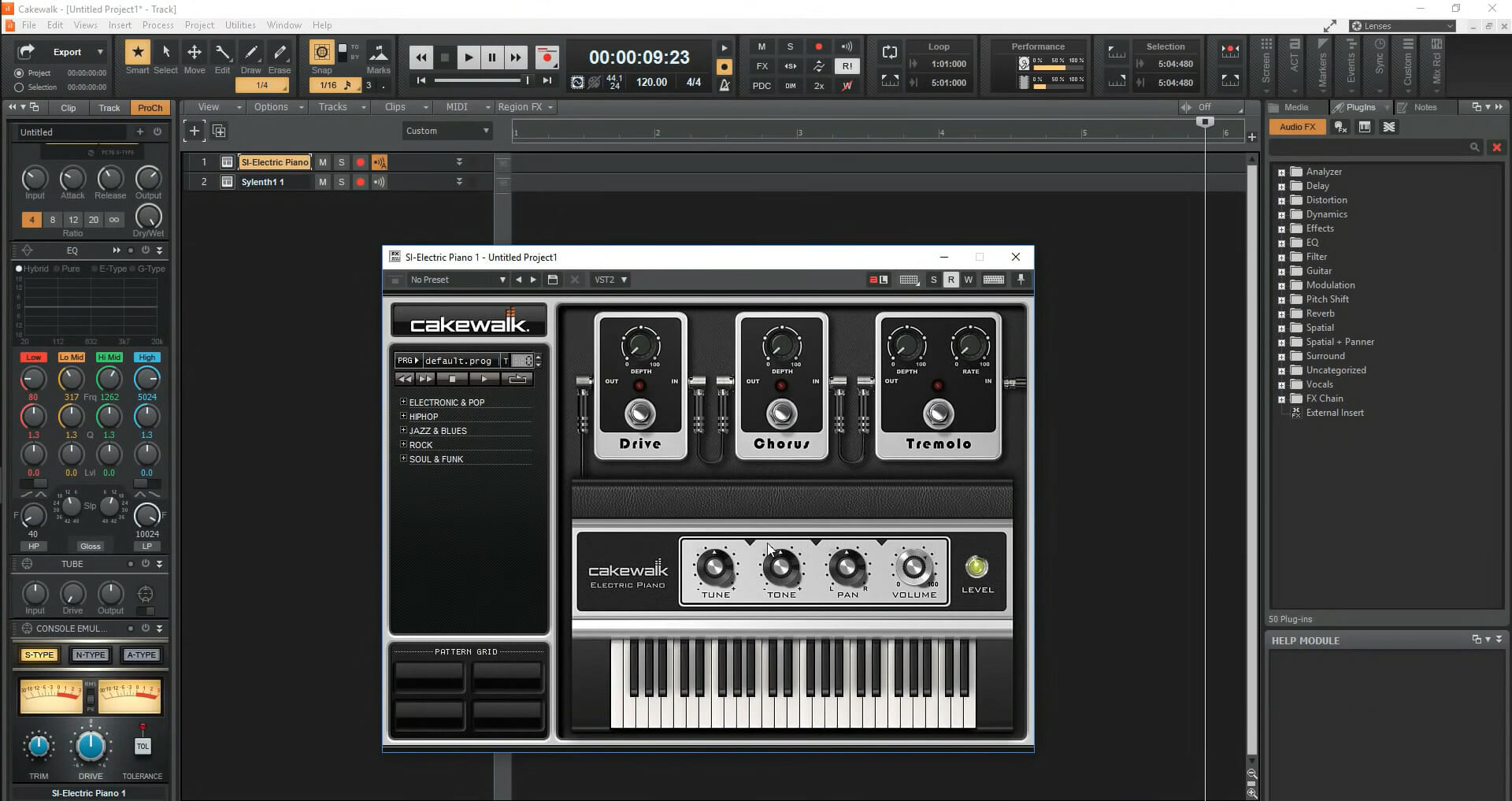
Cakewalk – All in one production package

Cakewalk – originally called Cakewalk SONAR – was among the earliest DAWs, but development was suspended by its owner.

Fortunately for musicians, BandLab, a cloud music composition platform, purchased the program and offered it free to download.

Cakewalk is a full-featured music production suite that includes extensive mixing and mastering capabilities, as well as instruments and songwriting tools.

Also, it gives you access to audio tracks, limitless MIDI, and comprehensive editing tools. After you’ve completed your work, you may upload it to Youtube, SoundCloud, Facebook, and various other platforms.

Additional features:

  • Real-time collaboration
  • Tip jar
  • Studio-quality effects

⇒ Get Cakewalk

Waveform – Feature-packed DAW

Waveform is different from other music software and has more features than most of them. Hence, it is ideal for even the professional producer. 

There are no limitations of any kind, and you may use popular plugins as well as the extensive feature set to get more out of it. 

This tool is compatible with Windows, Linux, and Mac OS X, and a Subtractive Synthesizer, and Groove Doctor are included in the Pro version.

What we like the most is that you could get a Waveform free download and enjoy the app without any payment.

Additional features:

  • No timeouts
  • Unlimited track count
  • Unrestricted rendering

⇒ Get Waveform

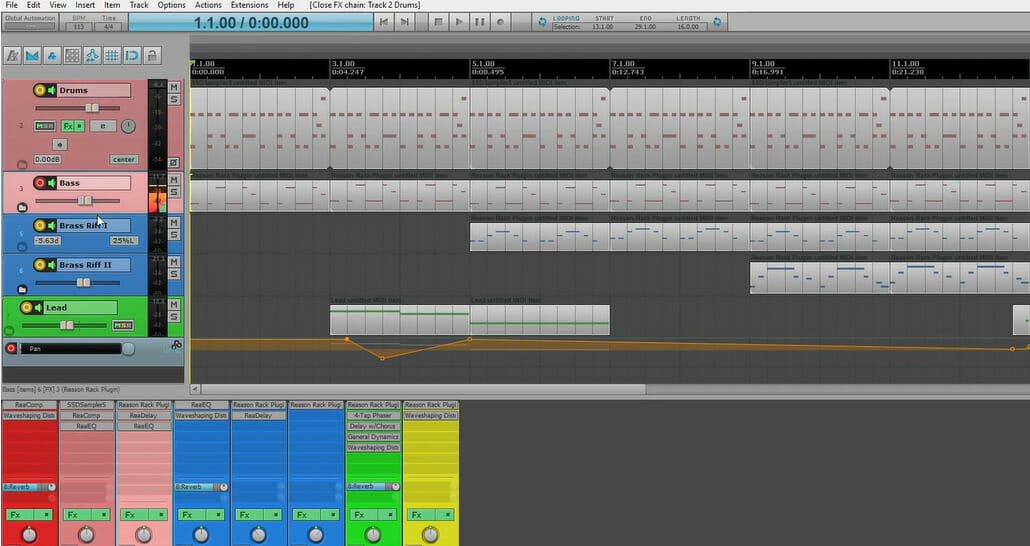
Cockos Reaper – Complex audio workstation

Reaper is a complex digital audio software, but the capability it can provide if you put in the effort to understand it is unrivaled.

A small group of people created it to provide you with the basics of music software without a slew of other features you’ll probably never use. However, it turned out to be very feature-rich.

You can easily map your MIDI controllers, drag and drop FX and VSTs, use plug-ins from various developers, as well as edit individual songs. Additionally, it supports most audio interfaces, effects, and plug-ins.

You have a 60-day window to try it before paying, which is enough time to decide if it is the tool for you.

Additional features:

  • Audio and MIDI routing
  • Several third-party plug-in effects
  • Custom skins and layouts

⇒ Get Cockos Reaper

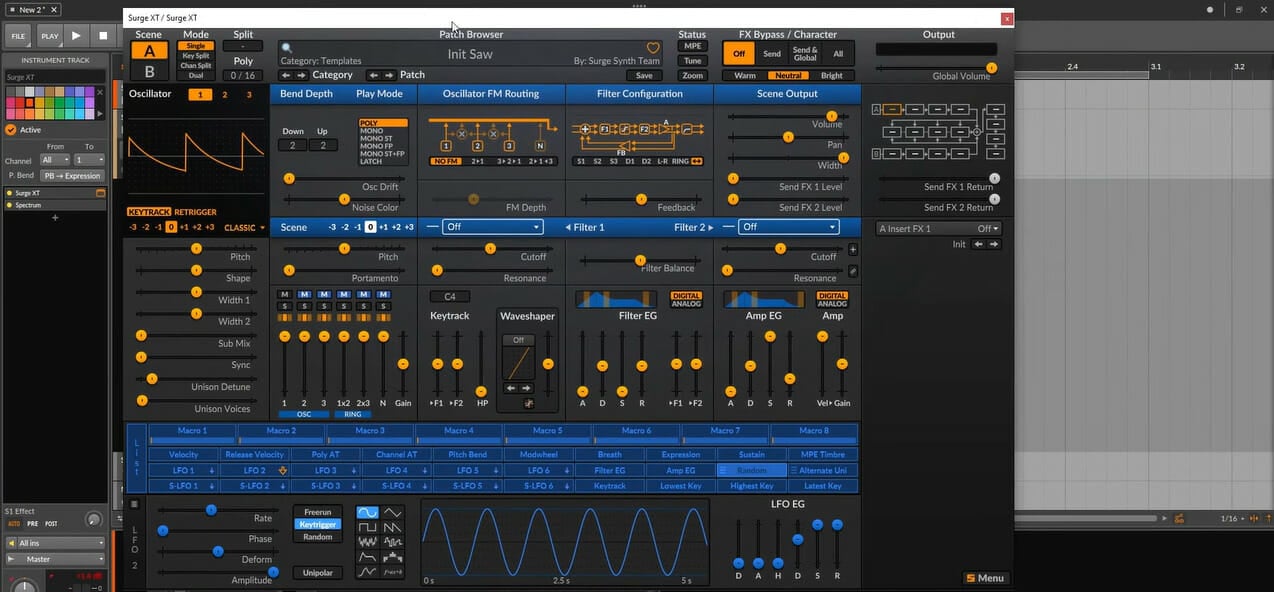
Surge XT – Advanced synthesizer features

We believe this is the best free synthesizer available because it is very versatile and adaptable.

It is open-source and was created based on the discontinued Vember Audio’s Surge virtual instrument. Surge XT was made public, and this made the open-source community improve the program.

For example, they added three oscillators with built-in effects, sophisticated modulation, several synthesis methods, and many presets.

Surge XT now has a more straightforward UI than earlier versions, making it ideal for novices.

Additional features:

  • 27 effect algorithms
  • Cross-platform
  • Enhanced modulation options

⇒ Get Surge XT

TDR Nova – Parallel dynamic equalizer

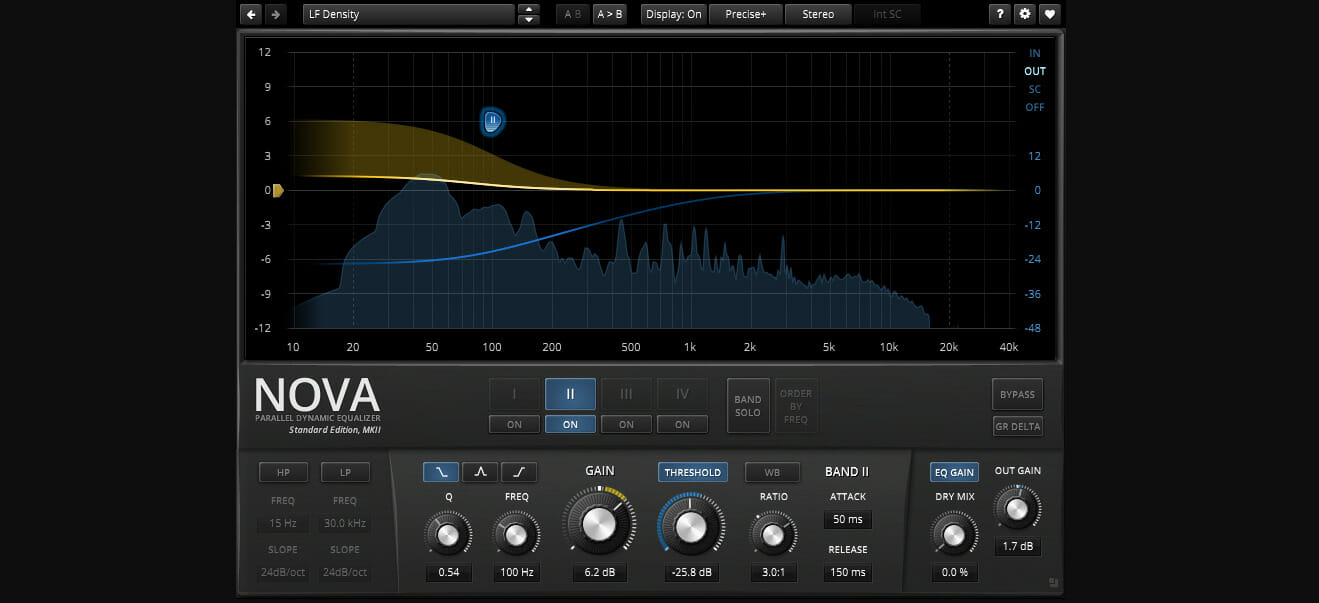
TDR NOVA is a dynamic equalizer that works in parallel. Each band has a robust dynamics section; this means its processor can handle an extensive range of functions. 

The tool offers an easy solution for different problems, for example, a master missing depth, a drum bus requesting more crispness, or a sibilance issue in your ideal take.

In addition, it gives quick and easy access to different settings controlling NOVA’s outstanding processing features. For example, a WYSIWYG drag-and-drop interface is mixed with a conventional knob interface.

NOVA can handle even the most unusual requests with its extra high and low-pass filter and four dynamic EQ bands.

In conclusion, equal loudness features are intuitive and let you select the best setting without being distracted by loudness discrepancies.

Additional features:

  • Multi-band compression
  • Dynamic equalization
  • Wideband compression

⇒ TDR Nova

Ohm Studio – Optimized for collaboration

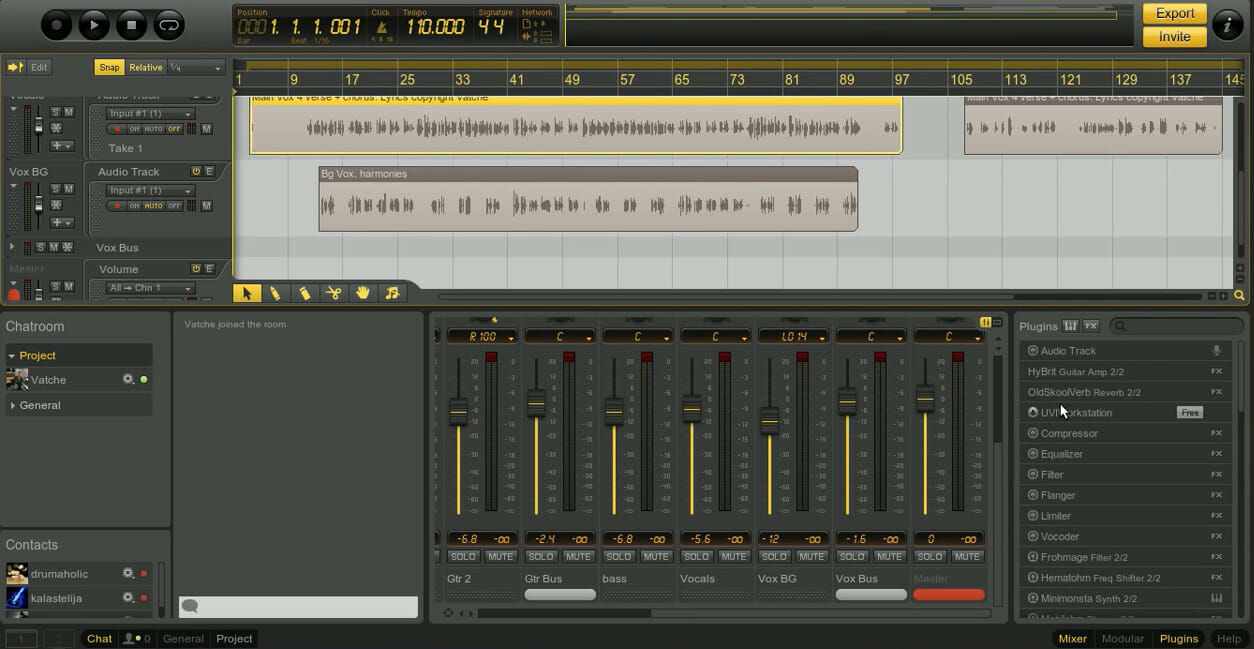
Ohm Studio is a free digital audio workstation with a lot of features. It’s the music software project of Ohmforce, a well-known plugin vendor.

This software gives you unlimited access to all of the main music-making capabilities of any premium music software.

It’s designed for collaboration, so it integrates tools that let you share your songs with co-workers.

Additional features:

  • Essential and additional tracks
  • Real-time collaboration
  • Multiple pre-sets

⇒ Get Ohm Studio

MPC Beats – Extensive plugin support

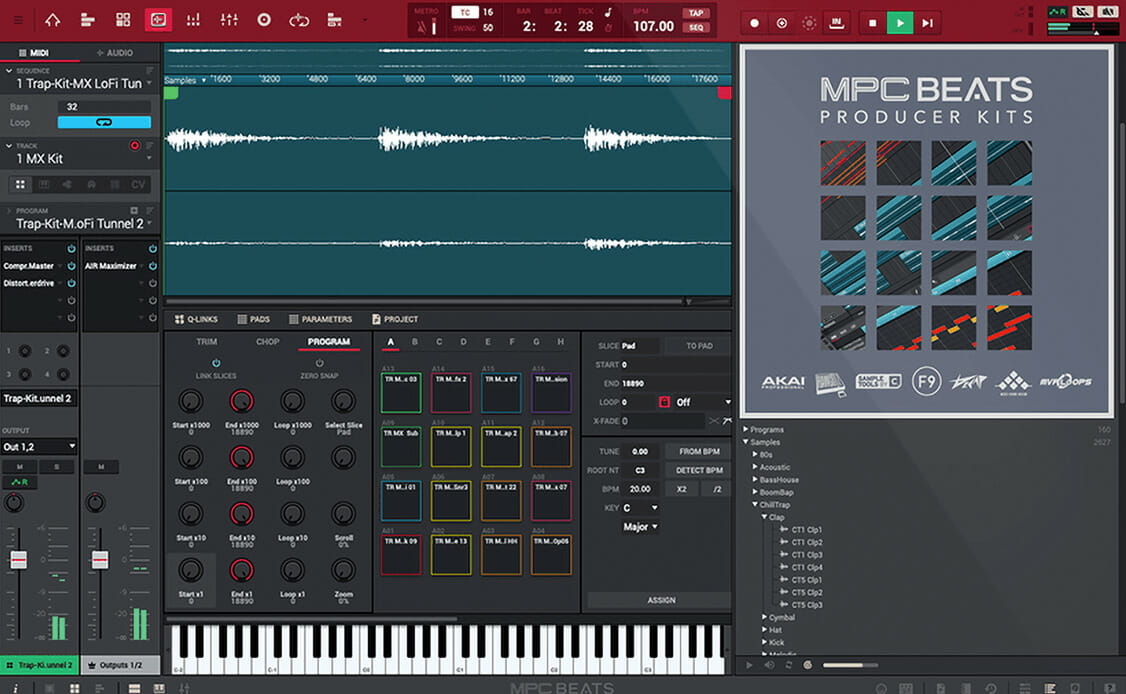
The iconic MPC range of groove boxes from AKAI is well-known. So it’s only natural that they’re branching out into beat-making software with MPC Beats, their MPC-inspired music software.

This digital audio workstation is primarily aimed at hip hop producers and beatmakers and is designed with a DAW-style timeline UI.

It also has some basic recording capabilities and a few effects to bend and change sounds.

The app has 8 tracks, and features 2 sound recording tracks, but is only on Windows OS.

Additional features:

  • Piano roles for MIDI notes
  • Sample editor
  • SOund and audio browser

⇒ Get MPC Beats

Podium Free – Perfect for beginners

Here is a free music application accessible solely to Windows users.

It features a unique modern workflow, but its UI looks outdated. The tool comes packed with a digital audio workstation-style mixer as well as a timeline.

An unlimited amount of tracks and a total VST compatibility are also included in the free Windows music program.

Its sole flaw is its lack of support for multicore PCs, so you might experience CPU overclocking.

That aside, it is a robust tool and a good entry point for music creation on PC. 

Additional features:

  • 64-bit mixer engine
  • MIDI interface setup
  • Surround-sound playback support

⇒ Get Podium Free

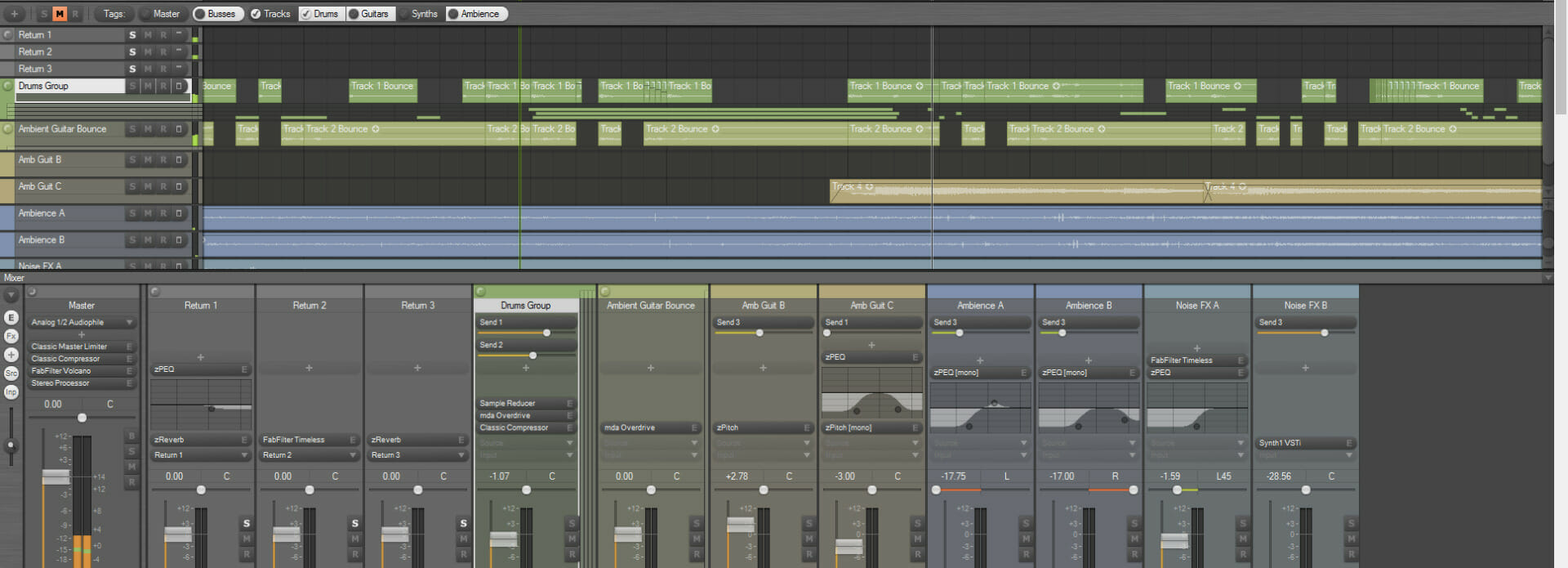
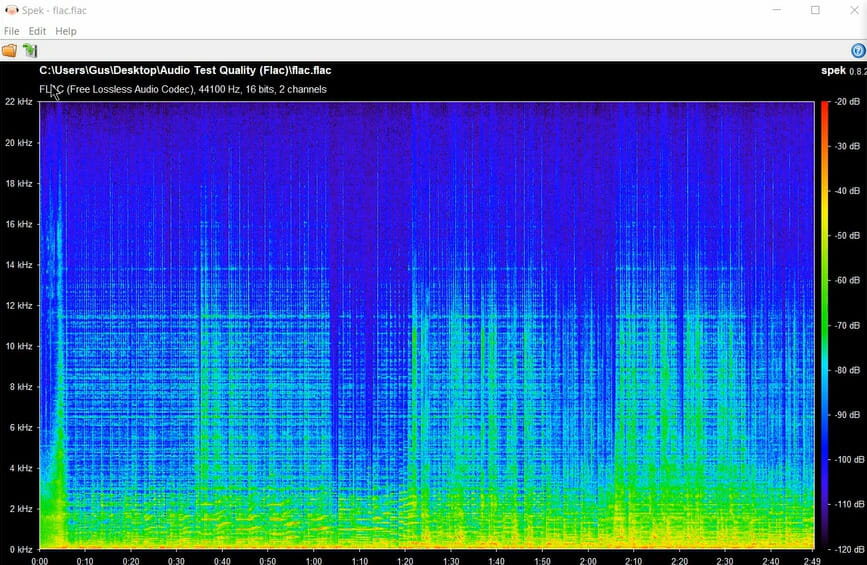
Spek – Powerful acoustic spectrum analyzer

Spek displays the spectrogram of audio files and analysis them. It’s a free music program that runs on Windows, Linux, and Mac OS.

The FFmpeg libraries provide support for all main audio file formats. Also, it has many analysis threads, so, you’ll get ultra-fast signal processing.

For the finest spectrogram quality, the music program includes several frequency bands, and a display of audio signals as well as the codec name.

You’ll be able to use drag-and-drop to move image files saved as a spectrum.

Additional features:

  • Auto-fitting time
  • Multi-language support
  • Frequency and spectral density rulers

⇒ Get Spek

orDrumbox – Advanced acoustic synthesizer

The orDrumbox music software is a drum machine program that includes a bespoke arpeggiator.

You will also enjoy custom softsynths, polyrhythms, auto-composition, automated sound matching, low-fi rendering, and other unique features.

It’s perfect for quick results and experimentation multiprocessing.

This free Windows music software can automatically generate melodic patterns, bass lines, as well as whole songs.

Furthermore, it has a sound and rhythms database and music objects that may be completely altered.

Lastly, the completely configurable softsynth component will appeal to you, and you may add various synthetic sounds as presets to your soundbank.

Additional features:

  • Automatic composition
  • Audio Mixer/ FX
  • Automatic sound assignations

⇒ Get orDrumbox

Acoustica Mixcraft – For professionals

Mixcraft is unequaled for its sheer power and ease of use, and it has been designed for the musician.

With its pitch-shifting, lightning-fast sound engine, and amazingly intuitive interface, you can record and mix your songs to perfection.

It has a time-stretching capability and virtually universal compatibility for third-party extensions, hardware controls, as well as audio interfaces.

You may easily record an infinite amount of virtual instruments and audio tracks and cut, edit, and crossfade them.

Acoustica Mixcraft allows you to automate a variety of effects and master your production to MP3, WAV, and other formats.

Finally, Its enormous loop collection includes music beds and more than 7,500 professionally created loops.

Additional features:

  • Live Performance
  • MIDI scoring and editing
  • Integrated Melodyne tuning

⇒ Get Acoustica Mixcraft

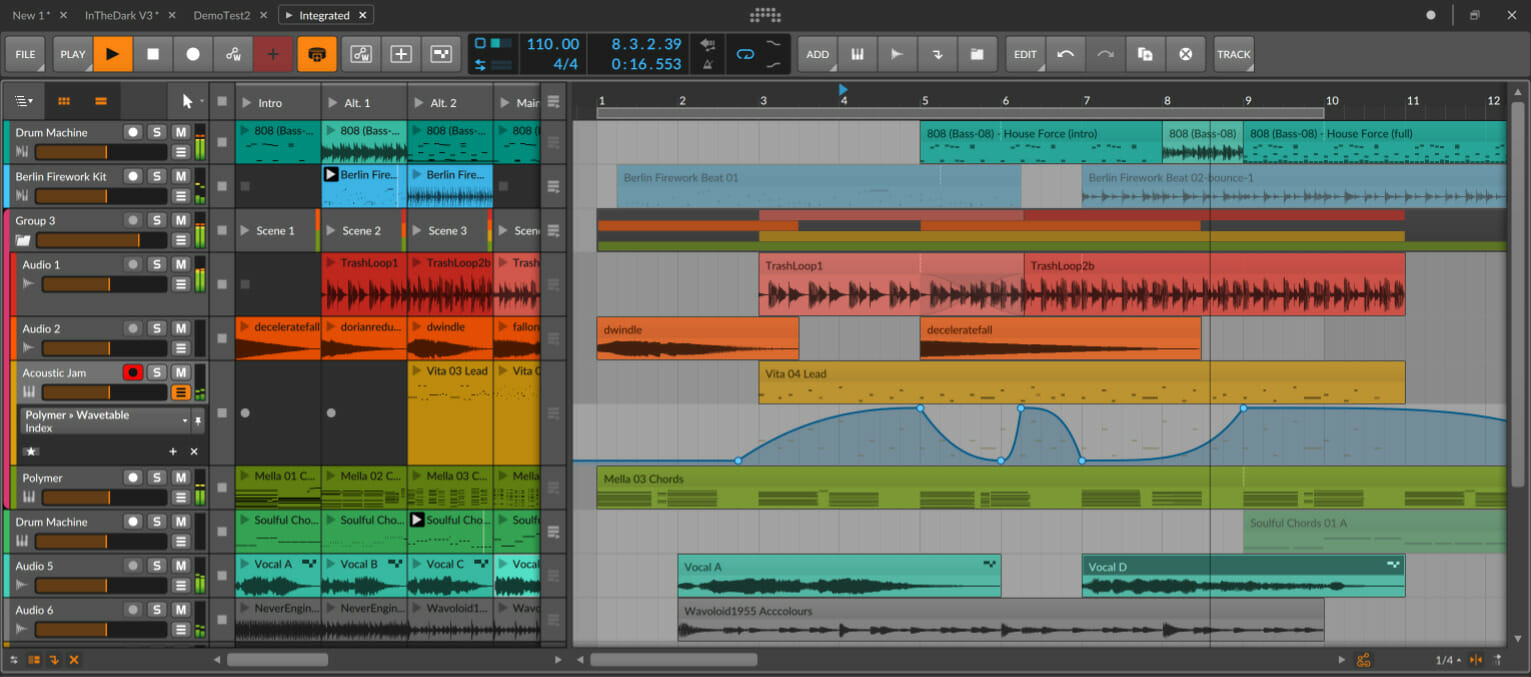
Bitwig Studio – Most imaginative

The software has gone a long way since its inception.

It has had to break free from the constraints of its unavoidable Ableton Live comparisons because the two share a lot of original creators and some key workflow similarities.

The addition of many features has boosted Bitwig’s reputation, so it is currently regarded as arguably the most imaginative music software on the market.

Take for example, in version 4, the inclusion of Comping, a seemingly fundamental element revolutionalized the product.

Its Comping is handled beautifully, and lastly, if you’re searching for additional creative capabilities, check out its Operators, which provide a different way to event triggering in audio or MIDI.

Additional features:

  • Easy hardware integration
  • Studio sampler
  • advanced modulation system

⇒ Get Bitwig Studio

Wavosaur – Optimized for loops

This is a free Wav editor, audio editor, sound editor, and program that allows you to edit, record, and process mp3 and Wav files.

Wavosaur includes all of the tools you’ll need, for example, copy, edit, paste, analyze, audio loops, batch convert, as well as record.

The program supports ASIO driver, VST plugins, real-time effect processing, and multichannel Wav files.

There is no installation for this software, so it does not write to the registry.

Finally, it may be used as a free mp3 editor, mastering software, or sound design software.

Additional features:

  • Batch convert
  • Vocal removal
  • Bit-depth convert

⇒ Get Wavosaur

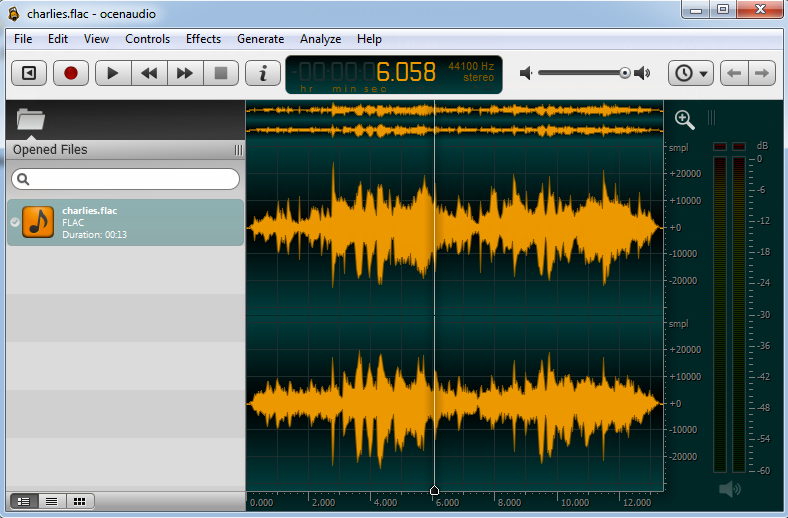
Ocenaudio – Designed for simultaneous editing

Ocenaudio is an audio editing program that allows users to edit, record, and analyze audio files in various formats on Windows, Linux, and Mac OS platforms.

Firstly, you may use the preview tool to sample processed audio while configuring and adding EQ effects simultaneously.

It has a powerful memory management module that allows you to copy, paste, and save without using the system’s memory.

Ocenaudio’s spectrogram view allows you to study the signals while changing window dynamic range displays, as well as frequency bands.

The multi-selection feature is included in the program, allowing producers to edit several regions of sound recordings for sophisticated editing tasks.

Lastly, VST plugins are supported, allowing experts to apply various effects to audio files.

Additional features: 

  • Audio manipulation
  • Configuration management
  • Real-time preview of effects

⇒ Get Ocenaudio

Traverso – Incredibly fast

Traverso-DAW is a music software meant to complement your productivity and creativity. So, with this software, you will compose, edit, and record your audio with unparalleled simplicity and speed.

The software allows you to record a microphone to single tracks or multiple hardware channels.

To maximize audio quality while minimizing storage space, save your work as standard wave files or straight into an audio file format like Ogg.

The early learning experience will pay off many times as you will save time by employing Traverso’s rapid mouse + keyboard controls, however, the interface is not modern.

Additional features:

  • Nonlinear audio editing interface
  • Multiple editing features
  • Contextual menu

⇒ Get Traverso

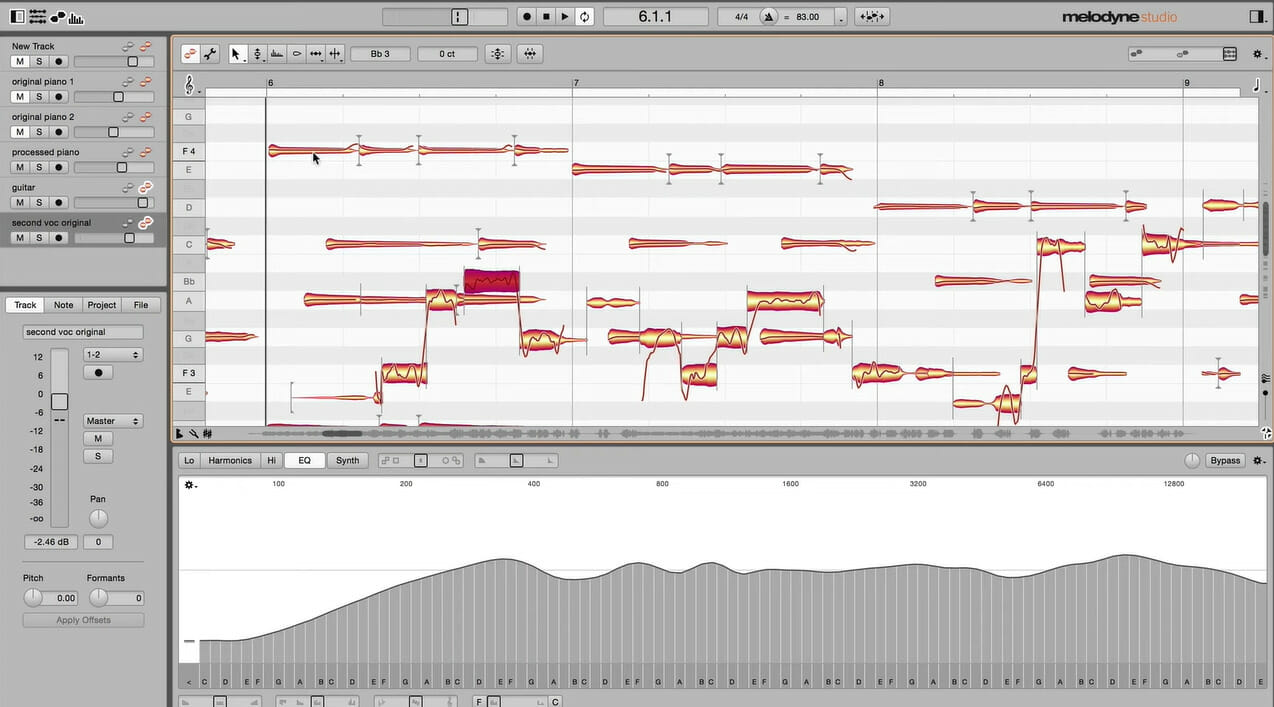
Celemony Melodyne Editor – Highly customizable with plugins

If you are searching for a good-quality tool to assist you in perfecting your notes and chords or repairing audio buried inside chords, try Celemony’s Melodyne.

It allows you to extract notes inside polyphonic content and use them to enhance keyboards, guitars, and other instruments.

In addition, you will find features like its percussive and melodic pitched algorithms, the Leveling Macro, the Fade Tool, and Sibilant Tool to be important music building blocks.

Furthermore, you will have the most potent pitch and time-correction programs available when you add in ARA compatibility.

Additional features:

  • Multitrack note editing
  • Innovative sound design
  • Notes instead of waveforms

⇒ Get Celemony Melodyne Editor

What is the easiest software to make music?

We have discussed our best selection of music making software for PC, but you may be wondering which of these is the easiest to use.

There are a few factors to consider, but generally, these may be great options if you want to prioritize ease of use:

  • Audacity
  • Cakewalk by BandLab
  • LMMS

What these three have in common are very easy-to-follow UI, plenty of learning resources online, and of course a little learning curve, as well as being free music making software for beginners.

In conclusion, we have not made this list of the 30 best music software for Windows in any particular order. But, it only serves as a guide and proper education to help inform your decision.

In the end, your choice should be based on your personal preferences. However, it is good practice to use free trials first when available before paying a subscription.

While the software discussed will be useful in some aspects of music creation, you may need separate software to organize your libraries and play your favorites.

And if you are facing performance issues, check the music.ui.exe disable guide for help.

Error 740 While Adding Printer: What is it & How to Fix

Cannot add a printer on Windows 11? If you encounter error 740 while adding a printer to your Windows 11 PC, then you are not alone. It often leaves you wondering, will printers work with Windows 11?

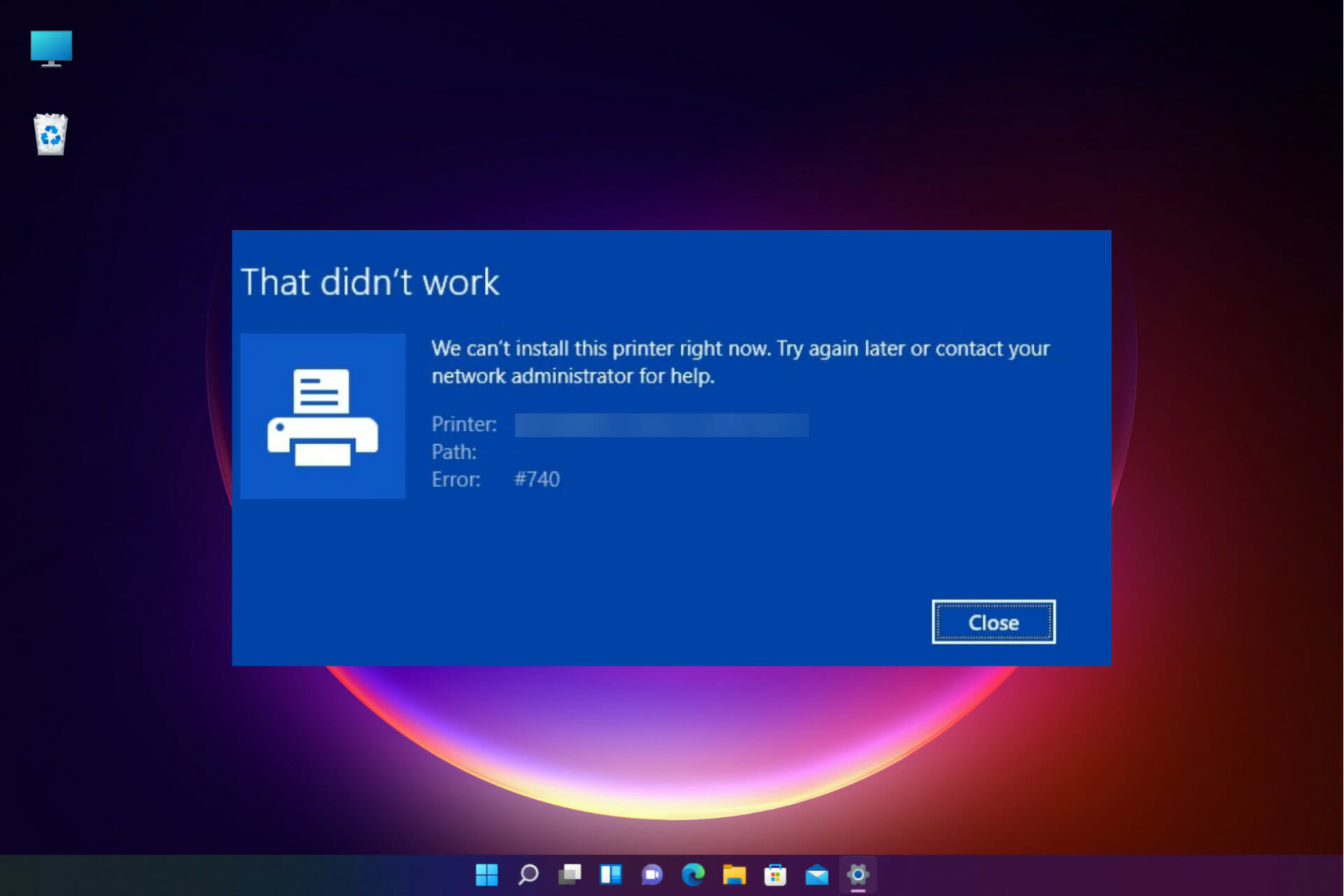
This is a common error and the message reads – That didn’t work. We can’t install this printer right now. Try again later or contact your network administrator for help. Error: #740.

However, to your relief, it simply means that you need to have the required administrator privileges to add the printer.

Additionally, you may also see the message – The requested operation requires elevation: Error 740. This error prevents you from running applications or accessing files on the storage device.

There are different errors that you may encounter when installing a printer, for instance – We can’t install this printer right now error 283, or The requested operation requires elevation: Error 740.

While installing the latest Windows update may sometimes fix the issue, mostly it may not. It can be truly annoying when the printer is not working on Windows 11 and you need some urgent work to be done.

Fortunately, we have a few quick solutions that may help you fix the error 740 when adding a printer on Windows 11.

How do I fix error 740 when adding a printer?

1. Run the printer wizard using Command Prompt

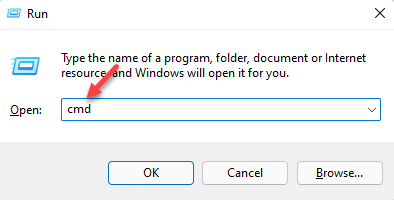
  1. Press the Win + R keys simultaneously to open the Run command window.
  2. In the search field, type cmd and press the Ctrl + Shift + Enter shortcut key to open the elevated Command Prompt. open elevated command prompt by pressing Ctrl + Shift + Enter together
  3. Now, copy and paste the below command in the Command Prompt window and press Enter: rundll32 printui.dll,PrintUIEntry /ilRun command in cmd to add admin rights for printer
  4. Once the command is executed, proceed to install the printer.

Therefore, if you are unable to install a printer and cannot complete this function, this method should help you fix it.

2. Disable the User Account Control

  1. To open the Run console, press the Win + R keys simultaneously.
  2. Type useraccountcontrolsettings in the search bar and hit Enter. Type useraccountcontrolsettings and press OK
  3. As the User Account Control Settings window opens, set it to Never notify. set UAC to Never Notify
  4. Press OK to save the changes and exit.

Now, try installing the printer again and check if it shows the message – that didn’t work error #740 printer again.

3. Create a new administrator account to fix error 740

  1. Press the shortcut key combination – Win + I to launch the Settings app.
  2. In Windows Settings, click on Accounts on the left. click on accounts in windows settings
  3. Next, on the right side, click on Family & other users. Click on Family & other users in Accounts settings
  4. Now, go to the Other users section, and next to Add other users, click on Add account. Click on Add account next to Add other users
  5. A new window will open – How will this person sign in.
  6. Here, click on I don’t have this person’s sign-in information.I don't have this person's sign-in information - Next
  7. On the Create account window, click on Add a user without a Microsoft account and click on Next. Click on Add a user without a Microsoft account and press Next
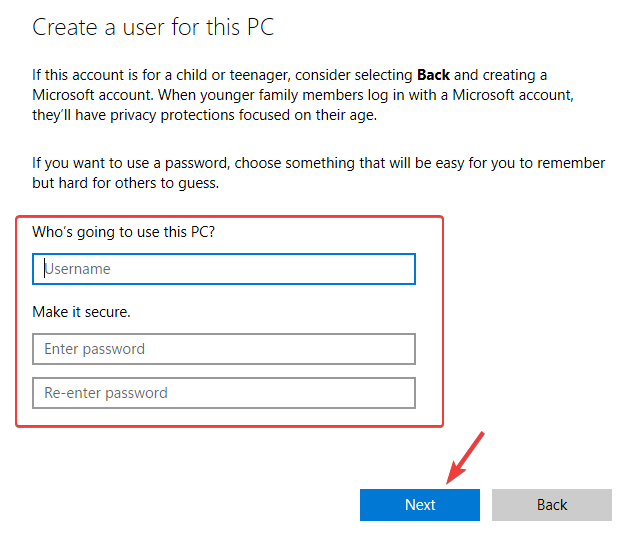
  8. Next, type a new username and password and press Next. Enter user name and password and press next

Once the new account is created, you would need to change it to the administrator account. Follow our guide on How to change the administrator account in Windows 11.

Once done, close the Settings window and you should be able to install the printer now.

Hence, you can first create a new admin account and then try to add a printer in Windows 11 with error 740.

If the error shows up due to a clash with the Windows Defender, a third-party antivirus, or if the Firewall is blocking the printer, disabling the antivirus and the firewall temporarily may help fix the issue.

Besides, before you can add this printer, you need to install a driver for it. You should also look for some compatible printer drivers for Windows 11 from the manufacturer’s website and install them.

You can also refer to our guide on how to fix error 740 on Windows 10 when you encounter an error while running a specific app.

Although it’s a guide for Windows 10 users, many of the solutions will work on the new OS as well.

If you face any other similar errors with the printer or have a solution that worked for you, do leave a comment in the comments box below.

Easy FIX: Retrieving data, wait a few seconds MS Excel error

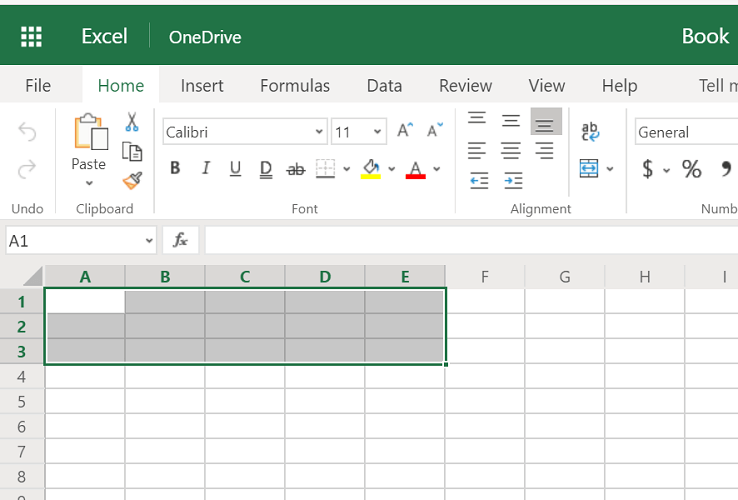
When using the online version of Microsoft Excel, users you may encounter the Retrieving data, wait for a few seconds and try to cut or copy again error. This error message is triggered when the user tries to move the copied data into their computer.

Several users have reported similar issues with Microsoft Excel in the Microsoft community forum.

I tried to copy data from the Excel Web App to my desktop Excel 2013. It wasn’t a lot of data – 3 columns (of which 2 were mostly blank) x 140 rows. On pasting into Excel, the cell displayed the message, “Retrieving data. Wait a few seconds and try to cut or copy again.”

If you are also troubled by this error, here are a couple of troubleshooting tips to help you resolve the Retrieving data. Wait a few seconds and try to cut or copy again Microsoft Excel error.

How do I fix the Retrieving data error when copying text from an Excel file?

1. Download and open the Excel file in Microsoft Office

retrieving data wait a few seconds and try to cut or copy again
  1. Open the Excel sheet that you want to download.
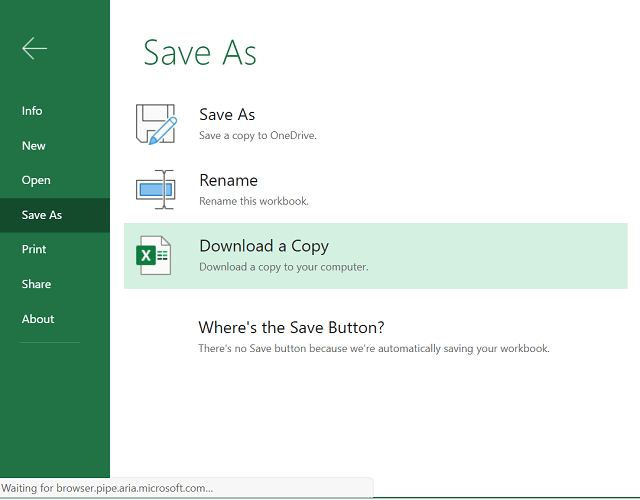
  2. Click File and select Save as (Download As).
  3. Select Download a copy from the options.
  4. Once the file is downloaded, open it with the desktop version of Excel.
  5. You can copy/paste the data without retrieving data errors.

For this step to work, you must have Microsoft Office installed on your computer. In case you don’t have access to MS Office offline version, do the following.

retrieving data wait a few seconds and try to cut or copy again
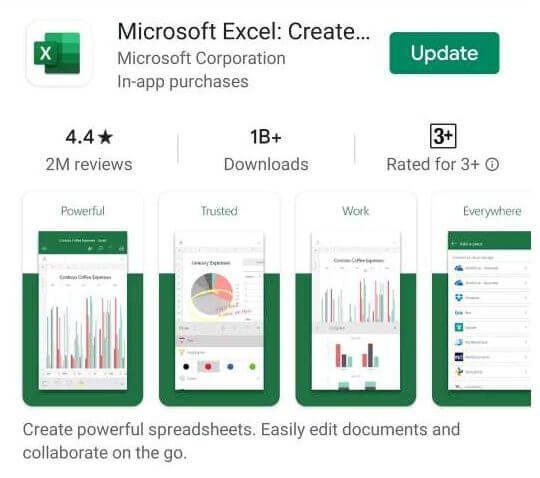
  1. Open the Play Store on your Android phone.
  2. Search for Microsoft Excel.
  3. Tap on Install to download and install the Excel app for your mobile.
  4. Once installed, move the downloaded file to your smartphone and open it with the app.
  5. You can make changes to the datasheet now without any error.

2. Deselect and reselect the data

retrieving data wait a few seconds and try to cut or copy again
  1. In the Excel web app, deselect the select data that you are trying to copy/paste.
  2. Deselect everything and then wait for a minute.
  3. Select the data you want to copy again and try pasting it in the external application.
  4. When the Excel file completes sync, it should allow the user to paste the data without any error.
  5. At times, it may take more than one attempt to resolve this error.

However, this is a temporary solution, and you may encounter this error in the future as well.

3. Change your web browser

The error Retrieving data. Wait a few seconds and try to cut or copy again is most common on Internet Explorer.

If you don’t have any data to lose, you can close the tab and then your browser. Afterward, launch a different browser and just open the file in the Excel web app.

In case the issue persists, try changing the web browser to a more effective one. We highly recommend Opera One, a lightweight browser known for its excellent user experience.

⇒ Get Opera One

4. Use an offline copy of your document

In case the other solutions didn’t work out for you, it’s possible to fix this Excel error in another simple way.

To avoid this irritating issue, you may download the web Excel spreadsheet as a copy on your desktop.

This process is quite simple because you only have to open the Excel cloud app, select File, and press Download a copy to install it locally on your PC.

You should be able now to access your Excel data files and copy/paste information without getting the Retrieving data, wait a few seconds and try to cut or copy again error message.

If you need more great guides about this amazing program, you can see the dedicated Microsoft Excel hub.

There is also the Microsoft Office page for the ones who need to learn about the entire suite of programs.

That being said, if the issue persists, try deselecting the data temporarily and try again. Additionally, changing your current web browser can help you resolve the issue as well.

How to Improve Sound Quality on Your Windows 10 PC

Windows 10 offers many audio enhancement features to help you improve the sound quality on laptops and PCs.

While an expensive laptop with better speakers will definitely sound better, there are a few tweaks that you can make to your Windows 10 laptop to make it perform better when it comes to audio. Things are no different for Windows 11 devices.

Whether it’s activating audio upgrades, sound effects, or using third-party tools, there’s something for everyone.

In this article, we explore all the options to help you get the best sound quality on a laptop and PC. Follow along!

On what operating systems can I improve the sound quality?

Users have been asking how they can make their laptop’s audio sound better on different OS iterations, some of which are the following:

  • How to improve sound quality on Windows 7 laptops – Updating your audio drivers will work even on this Windows iteration. Alternatively, opt for third-party audio-enhancing software.
  • How to improve sound quality on Windows 11 laptops – You can use Boom 3D Desktop to enhance the audio, since it supports Windows 11 as well.

This being said, let’s see why your laptop audio sounds muffled and then look at five solutions that you can implement. Keep on reading!

Why does my laptop audio sound muffled?

Unfortunately, speakers and headsets tend to malfunction. When the cone of a speaker is damaged, it might result in muted sounds. The quickest way to determine whether or not this is a problem is to use a different set of speakers or a pair of headphones with the PC.

It’s almost certain that the first audio device is causing the problem if these two tests are successful. The majority of computer audio (at least in gaming PCs) is generated by a specialized graphics processing unit (GPU).

The user can uninstall their graphics drivers and reinstall them if they are experiencing audio problems on their computer. Sometimes all it takes to recover from muffled audio is a little patience and some software tweaks.

How do I improve the sound quality in Windows 10/11?

1. Enable Spatial Sound

  1. Right-click on the speaker icon in the Taskbar and hover over Spatial Sound in order to select the Windows Sonic for Headphones option.spatial-sound improve sound quality laptop windows 10
  2. You can turn it off in the same manner as in the first step.

Spatial Sound is an enhanced immersive audio experience where sounds can flow around you, including three-dimensional virtual space.

It offers an enhanced atmosphere which the traditional surround sound formats cannot. Moreover, it works with your headphones.

Apart from Windows Sonic for Headphones, you can also install third-party software like Dolby Atmos for Headphones and DTS Headphones.

However, the additional software is part of the premium utility section that you can purchase from the Microsoft Store.

2. Use an audio equalizer

There isn’t a more suitable choice to level up your PC sound than with a dedicated sound improvement app. With this, you’re able to define the sound on both Windows and Mac devices.

So, Boom 3D is a computer application that allows you to achieve immersive 3D surround sound and a complete equalizer board.

This pro-audio enhancement app is designed to play your media sound with surround volume and unique 3D sound technologies.

In addition, the software also allows you to use the built-in smart audio player to play your locally stored songs and access 20,000+ radio stations all over the Internet.

  • 31-band equalizer presets
  • Volume booster to safely increase the volume
  • 3D surround sound technology
  • Apps volume controller to individually control app value

Regardless of your sound system, Boom Sound 3D will help you make the most out of your audio equipment.

Boom 3D

Try this powerful equalizer software to bring your PC’s sound quality output to the next level.
Free trial Visit Website

3. Change sound effects

  1. Right-click on the speaker icon in the Taskbar and click on Sound.
  2. Open the Playback app and right-click on your Speakers in order to select Properties.prop microphone not showing up in device manager
  3. Navigate to the Enhancement tab and check the Bass Boost, Virtual Surround, Room Correction, and Loudness Equalization options.sound improve
  4. Try experimenting with enabling one or two enhancements to find the perfect mix of loudness and bass boost.

You can further tweak the enhancements by accessing the equalizer. In the Sound window, select Equalizer in the Enhancement tab and click Settings. Change the Graphic EQ as you prefer and click Save.

Using the sound enhancements can help you make the most out of your external speaker connection, thus resulting in improved sound quality in Windows 10.

4. Update audio drivers

  1. Press the Windows + R in order to open a new Run window, type devmgmt.msc, and click OK. dev-run improve sound quality laptop windows 10
  2. Expand the Audio inputs and outputs category in order to right-click on the Speakers driver and choose Update Driver.speaker-update improve sound quality laptop windows 10
  3. Select Search automatically for updated driver software and wait for the process to finish.automatic-search improve sound quality laptop windows 10
  4. Repeat this with the Headphones and Microphone drivers under the Audio inputs and outputs category as well.update-driver improve sound quality laptop windows 10
  5. Windows will download and install if any driver update is available.

Driver updates for your audio device can enhance audio capabilities and new features. So, make sure you have the latest audio drivers installed.

Consequently, you have to manually update your audio drivers for the latest version to get improved sound quality.

However, you can opt for an automatic way to update your device drivers and save your time by using dedicated software.

5. Try audio enhancement software

If you still think your system speakers can sound better, there are third-party Windows 10 audio enhancement utilities that you can install to personalize every bit of your speaker output.

Beginning with the audio equalizer software to balance the frequency. You can also try some speaker calibration software or go full out and try the hardware-based USB audio equalizer.

So, these are the ways to improve sound quality on a Windows 10 laptop and PC. Make sure to enable the Windows Sonic spatial sound effect if you use your headphones to listen to the media.

How can I improve the sound quality in Windows 11?

  1. Open Settings by pressing Windows + I and navigate to System followed by Sound.system-sound edit
  2. Next, click on the right arrow next to the output source that you use and turn on the Enhance audio option.enahnce audio

Sound can easily get distorted hence why your audio may get muted when you get on a call.
For more information and methods to improve your audio, check out our post on the four best ways to improve MP3 sound quality in Windows 10/11.

Alternatively, take a look at how to improve your headphone sound quality in Windows 10 and get the best out of them.

Was this guide useful to you? Don’t hesitate to tell us what you think in the comments section below. Thanks for reading!

4 quick tips for fixing Bugsnax not loading

Got bored of FIFA, Elden Ring, and Call of Duty? Even though these games are among the most awesome out there, we can grow bored of them as well.

Sometimes, we all find ourselves in a situation where we long for simpler, more fun games. Now, we’re not saying we should all go back to Super Mario 64.

There are other, more recent games that can help take the edge off and stir all those precious childhood memories.

People that played A Bug’s Life years ago can now become melancholic with Bugsnax and explore a mysterious island and attempt to find and capture the eponymous half-bug-half-snack creatures.

However, if the title’s not losing at all, you might want to take some measures and fix this situation before you get frustrated and uninstall it.

We prepared four easy solutions for exactly these types of scenarios, so lay back and carefully go through our elaborate troubleshooting process.

How Can I Fix Bugsnax Not Loading On My PC?

1. Run Bugsnax as an administrator

  1. Locate the folder where Bugsnax is installed.bugsnax install folder
  2. Right-click on the Bugsnax executable and click on Properties.propreties
  3. Select the Compatibility tab and check the Run this program as administrator box.run werid west as admin

2. Check game file integrity

  1. In Steam, right-click Bugsnax and select Properties.dying light steam properties
  2. Select the Local Files tab and click on the Verify integrity of game files.game file integrity

3. Update your graphics driver

  1. Press the Windows key, search for Device Manager and click on Open.run device manager
  2. Expand Display Adapters, right-click on your GPU and select Update driver.update gpu
  3. Select Search automatically for drivers.search for driver automatically

Gaming can be enjoyed without any crashes, lags, or freezes by keeping all drivers up to date and error-free easily. 

Sometimes, manual checks are hard to perform, that’s why we recommend using an automated assistant that will scan for fresh driver versions daily.

In case you’re a beginner, you don’t have to worry! Outbyte Driver Updater is smart, simple, engaging and its user interface was built to make your life easier.

⇒ Get Outbyte Driver Updater

4. Update Windows to the latest version

  1. Press Windows + I to access Settings.
  2. Select the Windows updates tab and click Install all.install Windows updates
  3. If no updates are queued for installation, press the Check for updates button.check for updates

So, with this information at hand, it’s up to you to spend the next minutes and fix your new favorite game and keep enjoying it.

Please be sure to take a few seconds and tell us about your experience in the dedicated comments section located below.

Microsoft’s Power Apps portals are being renamed to “Power Pages”

Microsoft’s templated low-code website builder Power Apps Portal is yet again being renamed to Power Pages with a refocus on improved cross-site search functionality.

Once again, The Walking Cat has unearthed some references to the name change of Power Apps Portal to the more comprehensible Power Pages and posted them via Twitter.

When following the breadcrumbs via the listed URL in the attached video, customers are taken to a preview site where previous Power Apps Portals credentials are required.

As ZDNet’s Mary Jo Foley reports, Microsoft’s 2019 project originally named Dynamics 365 Portals is on the cusp of being renamed a third time and right before the company’s dedicated developer’s conference, wherein many expect the branding pivot to cater to the less code-savvy and more towards the broader educational, governmental and larger enterprise customers.

PowerAppsPortal

As evident by the short video, Power Pages will continue the trend of streamlining quick site building for both heavily trafficked pages as well single use destinations such as COVID-19 vaccination scheduling, user managed return portals, warranty registration or authentication sites.

Presumably, Microsoft will officially announce Power Pages at BUILD where the announcement will be accompanied by the introduction of Dataverse search, enabling customers to tap into improved tools for managing user generated data.

8 Best Mouse Pads for Hyperhidrosis [Waterproof/Washable]

Do you need the best mouse pad for hyperhidrosis because all your other mouse pads have been worn out due to excess sweat coming from your hands?

Hyperhidrosis is the situation in which you excessively sweat, but not because of heat or exercise. This type of heavy sweating disrupts normal day-to-day activities.

People who suffer from hyperhidrosis sweat so much that they soak their clothes. If they sit at computers for so long, their mouse pads get worn out very soon.

Read this article to find out the best mouse pad for hyperhidrosis. These mouse pads are either waterproof or easily washable.

How to clean your gaming mouse pad?

Even if you have the best mouse pad for hyperhidrosis, you still need to clean it regularly if you sweat excessively.

To clean your mouse pad, you can put it in a bath filled with warm water and soap. Then, you can use a sponge to rub the mouse pad surface gently.

One other way is to toss your mouse pad in the washing machine and add soap or detergent. You need to set it to cold and low tumble.

What are the best mouse pads for sweaty hands?

Amazon Basics SBD86WD – Available in a variety of sizes

  • Easily washable
  • Non-slip surface fabric
  • Non-slip base rubber keeping mouse pad in place
  • Durable, smooth material
  • Emitting Polyurethane smell at first

Amazon’s Basics SBD86WD is one of the best choices for hyperhidrosis. It has a smooth fabric and comes in a variety of sizes.

Its non-slip surface helps people with sweaty hands have a more seamless time. This mouse pad is made of a durable fabric and can be easily washed.

Since it’s washable, there’s no risk in giving it a thorough washing every now and again.

JEDIA – Made of aluminum and PU leather

  • Double-sided
  • Easily cleanable (with a wet towel)
  • Waterproof
  • Durable material
  • Might generate noise when using certain types of mice

Jedia mouse pad is another item on our list of the best mouse pad for hyperhidrosis. It is a double-sided mouse pad that can help people with hyperhidrosis not need cleaning for a long time.

You can use one side till it soaks with sweat, and then turn it around and use the other side. One side of it is made of aluminum, and the other is made of PU leather.

This mouse pad is waterproof; therefore, cleaning it would be super easy.

Besky – Natural, non-toxic material

  • Sweatproof
  • Easily cleanable
  • Anti-fray
  • Optimized for all types of mice
  • Not double-sided

Next up is a mouse pad from Besky. It is 3mm thick, which can reduce uneven surface effects.

It is durable, waterproof and sweatproof, and easily cleanable. Using a wet cloth, you can easily clean your sweat off of it.

The material is natural and non-toxic, and you do not need to worry about it slipping on any surface. Also, its anti-fray material makes you not worry about it wearing out soon.

INeworld – Ideal for a firm grip

  • Non-slip rubber base ensures a firm grip
  • Edge stitching increases durability
  • Heat-resistance prevents the warmth of your hands from ruining the cloth fabric
  • The cluttered design not being appealing to everybody

The fourth item on the list is a mouse pad introduced by the INeworld. With 3mm of thickness, you will not feel the surface below it.

Its material prevents it from deforming and degumming even after being in contact with sweaty hands for a long time.

Furthermore, INeworld’s sublimation heat-transfer inks offer a long-lasting print, unlike some other products.

Perixx DX-1000L – Very easy to clean

  • Not fraying after long usage and contact with sweaty hands
  • Fabulous performance for gamers
  • Easy to clean (moist cloth and shampoo)
  • Very heavy

Perixx DX-1000L is made of fabulous fabric, it will not fray, even if you put your sweaty hands on it all day long.

Its non-slip rubber base enables it to form a tight grip on your desk and reduces unwanted movement. Additionally, it is coated with water-repellent fabric.

It doesn’t matter how much you sweat or how many cups of coffee you spill on it.

Vaydeer ‎Xunli-0007 – Ideal for both work and gaming

  • Metal side will not be damaged by sweaty hands
  • Compatibility with all types of mice
  • Noiseless
  • The rubber base can slip with hand motion

Vaydeer ‎Xunli-0007 mouse pad with its double-sided design allows for longer time usage and less damage to certain parts of the mouse pad.

One side is made of aluminum and the other side is PU leather. Because it has a smooth metal surface, the user may use it for both gaming and work.

You can carry it in your backpack or even in your hands because of its slim and attractive design.

Cooler Master Masteraccessory MP750 – The best choice for gamers

  • Splash damage resistant
  • Precision
  • Improved stitching
  • Not compatible with Aura sync

Cooler Master MP750 is one of the best pads for sweaty hands because of its water-repellent coating.

Alongside its improved stitching, this makes for an endurable mouse pad for those who suffer from sweaty hands.

Moreover, the RGB borders make it an excellent choice for gamers in search of a water-resistant mouse pad.

How to dry your mouse pad after washing it?

There are many ways to dry your mouse; however, you should go with the ones that do not damage or wear out the fabric of the mouse pad.

The best way is to let your mouse pad air dry inside after being washed. You can hang it out in the sun as well, but you should remember not to leave it there for too long.

If you are in a hurry and need to get back to your project or gaming soon, you can use a hairdryer to dry out your mouse pad.

However, you need to ensure that you are using the lowest degree of heat and that you distance the hairdryer from the mouse so that you do not damage the fabric.

If you do not want to pay more money for the best mouse pad for hyperhidrosis or take care of your sweatproof mouse pad, you can go for other solutions.

You can put up a fan in front of your hand to cool it and stop it from sweating excessively and ruining your mouse pad.

Furthermore, you can attach a small fan to the front of your mouse to make the fan blow directly at your hand when your hand moves around.

Check out this article if you’re looking for the best computer mice.

What mouse pad did you choose and why? Please share your thoughts in the comments section below.

Amazon Appstore Not Available in Your Country [Windows 11 Fix]

If you came across the error – Amazon Appstore is not available in your country on Windows 11, you are not alone.

Microsoft launched the Windows 11 OS, publicizing the Android subsystem as the main attraction. It would allow you to run Android applications on your Windows OS powered by Amazon.

However, after the launch, users eventually discovered that the Amazon Android app was missing from the OS. We already showed you how to install Amazon Appstore on Windows 11 outside the US and this post will cover another quick approach.

What can I do when getting the Amazon Appstore is not available in your country error?

1. Sideload Windows subsystem for Android

  1. To install the Windows Subsystem for Android on Windows 11, you can visit a dedicated website (verified) to download the setup file.
  2. As the Online link generator for the Microsoft Store page opens up, select ProductId from the drop-down.
  3. Next, copy and paste 9P3395VX91NR in the box next to ProductId and press the checkmark box. Enter product id in the Online link generator for the Microsoft Store
  4. Find and click on the file with the .msixbundle extension. click on the file with .msixbundle extension
  5. Once the file is downloaded, right-click and select Show in folder. Note down the path. Right click on Msixbundle file and select show in folder
  6. Right-click on the Start button and select Windows Terminal (Admin) to open the Terminal in admin mode. Open Windows Terminal (admin) through Start
  7. Here, run the below command and hit Enter to install the Windows Subsystem for Android: Add-AppxPackage -Path <path_to_msixbundle_file>
  8. Replace <path_to_msixbundle_file> with the downloaded path for the .msixbundle extension that you copied in Step 5. Run command in Powershell to add Windows subsystem for Android
  9. Once the package is successfully deployed, type Windows subsystem in the Windows search and you should see the search results. look for Windows subsystem for Android in Windows search

However, if you are not in the US, you would need to bypass the region restriction. You can follow the below method to get the Amazon Appstore download for PCs in your region.

2. Bypass the region restriction of Amazon Appstore

  1. To sideload the apps using ADB, follow the instructions in this article to know how to sideload Android APKs on Windows 11.
  2. Now, visit Amazon’s official page to download the Amazon Appstore. Click on Get Amazon Appstore. Get amazon appstore
  3. Right-click on the .apk file and select Show in folder. Copy the path where it is downloaded. right click on amazon app store apk and select show in folder
  4. Now, right-click on Start and select Windows Terminal (Admin) to open the Terminal window. Open Windows Terminal (admin) through Start
  5. In the Powershell window, run the below command and hit Enter: adb install -r <full_path_to_the_APK_file>
  6. Replace the <full_path_to_the_APK_file> with the downloaded .apk file that you copied in Step 3. run command on Powershell to install apk
  7. Once the command is successfully executed, look for Amazon Appstore in the Windows search and it should be there. search for amazonappstore in Windows search
  8. However, if the Amazon Appstore download is not working, you will need to install an Android emulator to open the app (for this example, we used LDPlayer).

2.2 Use a specialized tool

If you need another method that doesn’t take too much time and can bypass Amazon restrictions regardless of your region, you can use effective VPN software.

The most suited VPN for this task is ExpressVPN due to its unbreakable online privacy and hyper-fast server connection.

Using this VPN software, you can also access unlimited content globally without geo-blocking, a no-log policy, and 24/7 technical support.

⇒ Get ExpressVPN

Note icon NOTE
Please make sure that you use a US-native email ID to log in to the Amazon Appstore, or you may encounter the same error again.

You have now successfully bypassed the region restrictions and downloaded the Amazon Appstore apk in your region.

The Amazon Appstore is currently not available in your country on Windows 11 error message should not appear anymore.

You can refer to our guide when you want to uninstall the Android app installer (WSA) on Windows 11. We also have a great guide on how to fix This app is not available in your country message, so don’t miss it.

Whether you are in the US or not, you should now be able to download the Android apps easily. However, if the issue persists, please leave your ideas in the comments box below.

How Much Space Does Windows 11 Take? [Hardware Requirements]

Several Windows users have reported problems upgrading to Windows 11 and it seems to be due to its space requirements.

Windows 11 was introduced in October 2021 and it came with a slew of new features for gamers and other elements like a redesigned Start menu or the ability to create a group of windows that can be minimized and restored from the taskbar.

Before installing this OS, you should be aware of its pace requirements, since they will almost certainly be more than your prior operating system due to the added functionalities.

However, it should be noted that the computer space is not the only requisite for the installation of Windows 11.

The Windows 11 system requirements include a processor of 1 gigahertz (GHz) or faster with 2 or more cores on a compatible 64-bit processor or System on a Chip (SoC), 4GB RAM, and so on.

In this article, we’ll be discussing Windows 11’s space requirements and a few other reasons why your PC might not be compatible with this OS. Follow along!

What are some of Windows 11’s new features?

Windows 11 comes with a bound of new features which make its storage size larger than that of the subsequent Windows OS. The features on Windows 11 include:

  • Newly designed Start menu and taskbar

The most obvious difference between Windows 10 and Windows 11 is the Start menu. On the former, the Start menu is anchored to the left-hand bottom of the screen but this has been changed with the latter. 

Moreover, the Start menu has been moved to the center of the screen, just above the taskbar, which has also been redesigned to be at the center of the screen. However, Windows 11 only lets you pin the taskbar at the bottom of your screen.

  • Multitasking features for developers and gamers mostly

Multitasking was added to Windows 11 to allow users to run many applications at the same time to increase productivity.

Also, do not hesitate to check out some gaming settings that you need to enable in order to ensure top graphics performance.

  • Widgets that can be easily customized

As mentioned earlier, Windows 11 was created to better explore Windows OS on your PC. Most of the changes made are just an upgrade of what was on Windows 10.

On the Windows 11 taskbar, there is an option for Widget which shows a large panel of updates on weather, news, sport, and a lot more. Each of the widgets can be easily customized or even removed depending on the user’s discretion.

However, since the feature takes up a lot of space on the screen, you may choose to disable widgets in Windows 11.

What are Windows 11’s space requirements?

Knowing the Windows 11 disk space requirements beforehand is quite necessary to have a problem-free installation of the operating system.

Among other requirements, the OS needs an ample amount of space from your PC for it to be launched. 

Windows 11’s minimum space requirements listed by Microsoft is 64GB. However, the installation actually takes something around 27GB depending on the edition you are installing.

Microsoft recommends 64GB mainly because installing an operating system requires a lot of space to move around, so it’s better to keep up with this requirement to get a better experience.

But the Windows 11 installation requirements page also says: Additional storage space might be required to download updates and enable specific features.

To see the Windows 10 vs Windows 11 space requirements check out the article linked. Note that it also includes a comparison between the system requirements as well.

How much space does Windows 11 take on SSD?

An average new Windows 11 installation will take up approximately 27 GB of disk space on your hard drive.

How come Microsoft, on the other hand, requires more for Windows 11 upgrade? The 64 GB of disk space needed for Windows 11 is necessary in order to assure a successful update.

How much space does Windows 11 take in C drive?

Although it is not known how many gigabytes of space Windows 11 will consume on drive C, a general generalization may be made: a fresh installation of Windows 11 will take up around 27 GB of space on drive C.

The vast majority of the files are system files or system reserved files in some way. Furthermore, the pre-installed applications on Windows take up approximately 3 GB of disk space.

How much RAM does Windows 11 take?

Microsoft is most likely correct in stating that 4 GB of RAM is required in the minimum specifications for Windows 11. Because, yes, it is the bare minimum requirement to be able to operate it.

Initial performance is excellent, but when you have 4 GB on your PC, you really can’t expect much more from it than that. You can only truly conduct light work on it before it becomes unable to even do the most basic system activities without crashing.

In order to have a truly enjoyable experience, 16 GB is definitely the optimal setting. While it enables you to open Chrome and a number of other programs at the same time.

You’ll likely find it difficult to achieve significant levels of utilization, at least at first. Check out the five best RAM cleaners and optimizers for Windows 11 before you buy an additional one.


How much space does Windows 11 Pro take?

Windows 11 Pro will also take around 30 GB of space. But it is recommended to have a minimum of 64 GB in order to be sure there is enough for additional updates and features added.


How much space does Windows 11 Home take up?

The size of the Windows 11 Home installation is not fixed. An average new Windows 11 Home installation will take up approximately 27 GB of disk space on your hard drive.

But, as before, 64 GB of disk space is necessary for Windows 11 Home, in order to ensure a successful update.

Why is my PC not compatible with Windows 11?

If you are trying to install Windows 11 on your computer but you keep on getting error messages saying This PC can’t run Windows 11, you might consider checking these things out:

  • Trusted Platform Module (TPM) 2.0
  • UEFI, Secure Boot capable

Making sure these specifications are enabled can help or fix your Windows 11 not working.

There are several other reasons why the latest Windows OS is not compatible with your machine which include your PC not meeting up with Microsoft requirements for Windows 11. 

As a result, it’s a good idea to check the official Microsoft website for Windows 11 prerequisites before attempting to install it on your computer. As long as the requirements are met, the procedure should be a breeze. 

Can 4GB of RAM be enough for Windows 11?

The most technical answer to this question is yes. According to Microsoft’s requirements, 4GB RAM is the minimum needed to run Windows 11.

So, if you are using 2GB RAM, you can consider upgrading it to 4GB to be able to install this operating system on your PC.

Discover Windows 11’s PC Health Check app

PC Health Check can be used to know if your computer has all it takes to install Windows 11. To confirm if your device is compatible with the OS or figure out what’s causing the incompatibility of the computer with it, download the PC Health Check app and run it on your device. 

If your computer isn’t compatible with the OS, you’ll get a pop-up message that says: This PC doesn’t currently meet Windows 11 system requirements.

Also, you will get a detailed report on the reasons why your PC can’t install Windows 11 and hopefully how to fix it. With this, you can be sure of why your PC isn’t running the operating system.

You’ll almost certainly run into issues if you try to install Windows 11 on an outdated computer because modern PCs are the ones that come equipped with the necessary characteristics to install Windows 11.

However, if the problem is fixable, you can easily go around it using the guidelines provided above. Let us know how the procedure went for you in the comments area below. Thanks for reading!

How to Remove Malicious Extensions from Chrome

If you use the Google Chrome browser a lot, you may have encountered some malicious extensions and wondered how to remove them.

Chrome is a popular browser that has millions of extensions available for download. Some extensions are legitimate and valuable, but others may be malicious.

Malicious browser extensions are usually created by cybercriminals who want to steal your data or use your computer for other illegal activities. These extensions can be installed on your browser without your knowledge, and they can do a lot of damage to your PC.

You may start experiencing problems with your Internet connection or even instability in your system. The most common malicious browser extensions are fake antivirus software or other security programs. 

These programs will usually tell you that your computer is infected with viruses and offer to scan it for free. You may also be redirected to phishing sites or malware downloads without your knowledge.

Although Chrome has a built-in antivirus security feature that can prevent malicious extensions from running on your computer, sometimes it’s not enough.

What is a malicious extension in Chrome?

A malicious browser extension in Chrome is an add-on that changes your browser’s settings or displays ads on websites you visit. It may also install additional software onto your device. They are a type of malicious software that is installed on the user’s computer without their knowledge. 

You can easily spot a majority of the malicious extensions, but some of the signs to look out for include:

  • Excessive permission – Some extensions require access to sensitive information like browsing history or bookmarks to work properly. But others request more permissions than they need. If an extension asks for too much access, it could be trying to steal your passwords or financial data, among other things.
  • Unusual behavior – If the extension does something unusual when you install it, it could be malicious. When installing any program on Windows, you’ll often see a window asking if you want this program to make changes to your computer (such as installing software). If an extension doesn’t ask permission before doing something unusual — like changing the default search engine on Chrome, you need to double-check its source.
  • Suspicious source – The safest bet is always to download extensions from their official stores — in this case, the Chrome Web Store. If an extension is from an unverified source, it could be malicious.

How can I remove malicious extensions from Chrome?

1. Install a Chrome extension to detect malicious code

Guardio is a browser extension that works inside Google Chrome. Its real power comes from its ability to detect malicious code even before it is installed on your computer.

It works in real-time to identify the risk of any link you click on the web. The best part is that Guardio doesn’t require any installation or configuration on your part — just open the Chrome Web Store and install it in seconds to protect yourself against phishing attacks immediately!

⇒ Get Guardio

2. Use the Remove option

  1. Navigate to your Chrome browser and click on the three ellipses at the top right corner.
  2. Select More tools then click on Extensions.
  3. Navigate to the extension you wish to remove then click on Remove.
  4. Confirm in the new pop-up dialog box that you wish to remove the extension.

3. Reset Chrome

  1. Navigate to your Chrome browser and enter the following address in a new tab: chrome://settings/reset
  2. Select Restore settings to their original defaults.
  3. Click Reset settings in the next dialog box.

You can also uninstall and reinstall the Chrome browser to eliminate any malicious extensions.

How to remove pop-up ads on Windows 10 desktop?

The appearance of ads on the desktop can be very annoying, especially when working with important documents or browsing the Internet for something important.

To remove them, follow the steps below:

  1. Press the Windows + E keys simultaneously to open File Explorer.
  2. Navigate to the View tab at the top of the window and click on Options at the far right.
  3. Click the View tab in the new window and under Advanced settings, uncheck the Show sync provider notifications box then press OK.

How do I scan Chrome extensions for malware?

One of the most common ways for hackers to gain access to your computer is through malicious browser extensions.

The best way to protect yourself from these threats is to use a good antivirus program on your computer and run regular scans or install dedicated Chrome antivirus extensions to protect your browser.

How to stop pop-up ads in Chrome?

To stop pop-up ads on your Chrome desktop browser, follow the steps below:

  1. Navigate to your Chrome browser and press the three horizontal ellipses in the top right corner.
  2. Select Settings.
  3. Click on Privacy and security then select Site Settings.
  4. Scroll down and select Pop-ups and redirects.
  5. Check the Don’t allow sites to send pop-ups or use redirects box.

How to stop ads in Google Chrome on your Android device?

To stop ads in the Chrome browser on your smartphone, follow the steps below:

  1. Open your browser and tap the three ellipses on the top right corner.
  2. Click on Settings.
  3. Scroll down and select Site settings.
  4. Navigate to Ads.
  5. Toggle off the Ads buttons to block ads on your browser.

We hope that from this guide, you have been able to remove those annoying Chrome extensions that could potentially put your PC at risk.

Should you encounter any other issues, such as Chrome running slow, be sure to refer to our expert guide for a quick fix.

Clearing the browser cache and disabling unwanted extensions can help you fix issues like error code 403, while visiting websites like Fox Sports.

As always, we love your feedback, and this time, we would like to know whether you have encountered a malicious extension before and what action you took to secure your PC. Let us know in the comment section below.

Its time to say goodbye to Windows 10 version 20H2

Do you remember when Microsoft said it’s planning to end service for the 20H2 version of Windows 10? Well, just in case you forgot, this is finally happening.

Today, May 10, 2022, the Redmond-based tech company is going to fulfill that. Thus, the above-mentioned version of the OS is now out of service.

If you were planning to switch to a newer version of the Windows 10 operating system, this is a perfect time to do so.

Windows 10 20H2 users should consider upgrading

You might not know, but 20H2 was the first version of Windows 10 to ship with Chromium-based Edge.

And if you’re wondering what the end of servicing really means, we can tell you exactly what this is about and what you can expect.

It entails that a PC running this version of Windows 10 won’t receive any security update and any customer who contacts Microsoft for support regarding it will be instructed to update to a supported version of the OS.

As a result, the following SKUs are affected:

  • Windows 10 Home, version 20H2
  • Windows 10 Pro, version 20H2
  • Windows 10 Pro Education, version 20H2
  • Windows 10 Pro for Workstations, version 20H2

Please keep in mind that Windows 10 version 20H2 for Enterprise, Education, and IoT Enterprise are still supported until May 9, 2023.

And, on the off chance you’re running an SKU of Windows 10 version 20H2 that is about to reach the end of service, make sure to head over to Windows Update to manually trigger the update.

Also important to take away from all this is that Microsoft will force-update eligible 20H2 PCs to 21H2 in order to train its machine learning model.

Sony set to buy back stock after PS5 sales fall below estimates

According to Sony’s earnings report, they have managed to sell 19.3 million consoles of their Playstation 5 entry. Sony sold 2 million PS5 units this last quarter, which is considerably low compared to last year’s first quarter when they sold 3.3 million units. However, they did manage to capitalize on game sales which saw a significant improvement from last year’s 61.4 million to 70.5 million. (via Engagdet}

According to a report by Bloomberg, by the fourth fiscal quarter, Sony was reportedly operating at a 138.6 billion yen profit which in the grand scheme of things falls short of the 148.5 billion yen predetermined estimate. “The company forecast operating income of 1.16 trillion for the current fiscal year, also shy of estimates of 1.2 trillion yen.” As such, Sony said that it plans on buying back around $1.5 billion of its own shares after falling below the estimates.

From  Engadget:

Overall, its Game & Network Services (GSN) division earned 665 billion yen ($5.1 billion) this quarter, up slightly over last year. Sales for the full 2021 year were flat, up just 2 percent over 2020, and profits also changed little.

However, Sony is positive that sales will improve in the next quarter by 34%. This increase is attributed to the expected easier availability of chips that will allow them to manufacture more PS5 entries. The sale of third-party games is also expected to play a major role. Gamers should also expect the launch of PlayStation Plus Extra and Premium later in June as we had earlier reported which is also expected to help Sony tap into new markets.


Failed to Enumerate Objects in the Container [Error Fix]

When trying to change the permissions of a file or folder, you may often encounter an error – Failed to Enumerate Objects in the Container access is denied.

While, as the Administrator, you can change the access, sometimes even the admin may come across the same error message.

This is a common error and is often raised by users on different forums. In this case, even the admin is unable to change the permission for a specific user or other user groups when access is denied on Windows 10/11.

Moreover, many users also encounter the Failed to enumerate objects during Azure file share which can be apparently fixed by assigning a proper RBAC role (Storage File Data SMB Share Elevated Contributor role).

In this post, we will discuss 7 ways to fix the Failed to enumerate objects in the container access is denied for shared folders.

Why do I see the Failed to enumerate objects in the container error?

Some of the reasons why you may encounter the Failed to enumerate objects in the container on Windows 11 error are:

  • No admin access – If the ownership for the file or folder is not the correct one, or you are not the administrator and you still try to make changes to the file or folder, the permission error pops up.
  • Folder settings configured incorrectly – When some other user made any changes to the settings of the file or folder, either accidentally or intentionally.
  • Conflict due to another program – Chances are, that a conflict arises between the folder you want to access and another program. This ends up removing the default permission entries.
  • Obsolete account as the owner – If an account that is now obsolete is set as the owner of the file or folder for some time, leaving behind the obsolete permission entries.

So, answering your question – How do I give administrator permission? below are a few methods that may help you add permissions for the problem folder.

How do I fix Failed to enumerate objects in the container error?

1. Take the ownership of the file or folder

1.1 Add admin account and change permissions

  1. Right-click on the problem file or folder and select Properties. right click on folder and select properties
  2. Go to the Security tab and click on Advanced. Click on advanced in the security folder in properties
  3. In the Advanced Security Settings window, click on Change next to Owner. Click on Change in Advanced Security Settings
  4. This will open the Select User or Group dialogue box, type the user account name, and select Check Names. Enter user account name and check names
  5. Once you see an underline below the account name, press OK to save changes and return to the Advanced Security Settings window.
  6. Here, check the box next to Replace owners on sub containers and objects.
  7. Next, select the box next to Replace all child object permission entries with inheritable permission entries from this object. check Replace owners on sub containers and objects and Replace all child object permission entries with inheritable permission entries from this object
  8. Press Apply and then OK to save the changes and return to the Properties dialogue box. Under security tab in Properties,. click on Edit
  9. Here, under the Security tab, go to the Permissions field below, and click on Edit. Click on Edit under Security in Properties
  10. Now, next to Full control, select Allow. Check allow next to full control under permissions
  11. Press Apply and OK to apply changes and exit.

1.2 Add your user account name

  1. Go to the problem folder, right-click and select Properties. right click on folder and select properties
  2. Now, back in the Properties tab, under the Security tab, click on Advanced. Click on advanced in the security folder in properties
  3. In the Advanced Security Settings window, go to Permissions and click on Add. Click on Add under permissions in advanced security settings
  4. As the Permissions Entry window opens, click on Select a principal. Click on Principal under Permission entry
  5. You will now see the Select User or Group dialogue box.
  6. Here, go to the Enter the object name to select field and type your user account name.
  7. Press the Check names button. Press OK to save the changes. Enter user account name and check names
  8. Exit the Properties window.

Now, try opening your file or folder and check if you still encounter the Failed to enumerate objects in the container access is denied error still persists.

2. Disable User Account Control

  1. Press the Win + R shortcut key combination to launch the Run command.
  2. Type useraccountcontrolsettings in the search bar and hit Enter. Type useraccountcontrolsettings and press OK
  3. In the User Account Control Settings window, move the slider down and set it to Never notify. set UAC to Never Notify
  4. Press OK to apply the changes and exit.

Once you have disabled the notification option, you should now be able to modify the permissions for the file/folder and the error pop-up should not show up again.

3. Update your drivers and BIOS/UEFI firmware

3.1 Update drivers via manufacturer website

  1. Open your browser and visit the PC manufacturer’s website.
  2. Go to their driver download page and look for the latest driver versions.
  3. For example, for chipset, display adapter like Nvidia drivers, audio, USB3, Bluetooth, network adapter, etc. Go to PC manufacturer's website - install drivers
  4. Now, download and install the driver on your PC.

Restart your PC and check if the Failed to enumerate objects in the container access is denied error on Windows 11 is resolved.

3.2 Update drivers automatically

In order to repair Failed to enumerate objects in the container error, and if doing a driver repair manually seems too time-consuming, we recommend an automated solution.

Missing drivers are often known to cause issues, and manually searching for a driver takes time and needs extensive knowledge of the drivers you are looking for.

A driver repair and installation program, such as Outbyte Driver Updater, will assist you in automatically updating drivers and preventing PC harm caused by installing the incorrect driver version.

In addition, you will obtain a completely thorough report detailing the precise condition of your Windows missing, damaged, or obsolete drivers.

With a few clicks, the program will scan your PC’s hardware and peripherals for potential driver upgrades. Use one to save yourself some valuable time.

⇒ Get Outbyte Driver Updater

3.3 Update the BIOS/UEFI firmware

  1. As the PC boots up and you see the Sign-in screen, hold down the Shift key and click on Restart.
  2. You will now see the Choose an option screen. Click on Troubleshoot. Windows failed to start. A recent hardware or software change might be the cause
  3. Next, click on Advanced options. enable secure boot windows 11 user mode
  4. Now, for more info, follow our guide on how to update BIOS or UEFI firmware to the latest version.

Once done, reboot your PC and check if you now have permission for the folder.

4. Run a chkdsk scan

  1. Press the shortcut key – Win + R and the Run console opens up.
  2. In the search bar, type cmd and press the Ctrl + Shift + Enter keys together to launch Command Prompt with admin access. open elevated command prompt by pressing Ctrl + Shift + Enter together
  3. Now, execute the below command and hit the Enter key (replace D: with the actual letter of the drive if needed): chkdsk D: /F /R run chkdsk command in cmd
  4. The chkdsk utility will now scan the drive (which contains the problem file/folder) for any errors and fix them instantly.

Once done, restart your PC and the Failed to enumerate objects in the container access is denied error should be fixed.

5. Use the Command Prompt to provide permissions

  1. Press the Win + R hotkey to open the Run command.
  2. In the search field, type cmd and press the Ctrl + Shift + Enter keys together to launch the elevated Command Prompt. open elevated command prompt by pressing Ctrl + Shift + Enter together
  3. Now, run the below commands one after another in the Command Prompt window and hit Enter after each one:
    • takeown /F "FULL_PATH_TO_FOLDER" takeown /F "FULL_PATH_TO_FOLDER" /r /d y icacls "FULL_PATH_TO_FOLDER" /grant Administrators:F icacls "FULL_PATH_TO_FOLDER" /grant Administrators:F /tRun command to take ownership of file or folder
  4. Replace FULL_PATH_TO_FOLDER with the path of your user folder, for example, with C:\Windows\System32.
  5. Once the commands are executed, close Command Prompt, restart your PC, and check if you now have the permission.

You can also run the above commands to fix the Failed to enumerate objects in the container error on Windows Powershell.

6. Start Windows in safe mode

  1. Go to the Start menu, click on it and then click on the Power icon.
  2. Press and hold the Shift key on your keyboard, then click on Restart.
  3. Once you reach the Choose an option, select Troubleshoot.Windows failed to start. A recent hardware or software change might be the cause
  4. Next, click on Advanced options.enable secure boot windows 11 user mode
  5. In the Advanced options screen, click on Startup Settings.
  6. On the Startup Settings screen the Restart button.click on Restart on Startup Settings
  7. After your PC restarts, press the number 4 or F4 on your keyboard to start your PC in safe mode.

This will help you identify if any third-party programs are interfering with the folder you want to have access to causing the Failed to enumerate objects in the container error.

Safe Mode helps you to easily identify the program and get rid of it to fix the issue.

7. Perform repair upgrade

  1. Visit Microsoft’s official web page to create a Windows 11 media creation tool. create Windows 11 media creation tool
  2. Now, mount the bootable ISO image file on your PC.
  3. As you reach the installation wizards, follow the on-screen instructions to complete the installation. Run repair upgrade for Windows 11
  4. To know more, follow our guide on how to perform repair install/upgrade.

This will help you reinstall Windows 11 without losing important files, applications, and most of the settings.

Additionally, to make sure that your Windows OS is correctly installed if any repairs are required and if it is optimized for the best performance, you can follow this checklist.

At the same time, if you are wondering how to fix error application security for Windows 10/11, you can refer to our detailed guide on it.

One of our readers suggested that a corrupt Recycle Bin might be the source of this problem. In that case, follow the highlighted link to fix this problem quickly.

You can also follow the same methods to fix the Failed to enumerate objects in the container error on Windows 10.

However, if you do find an alternative solution to deal with the error, do share it with us in the comments box below.

Microsoft introduces new Adaptive Accessories, more at Ability Summit

After Microsoft’s successes with the Xbox Adaptive Controller and last fall’s introduction of the Surface Adaptive Kit, and lots of work making computing and gaming available for people of all abilities, the company has taken the next step with the introduction of Adaptive Accessories for Windows. The components, starting with a Microsoft Adaptive Mouse and a set of accessories that connect to a Microsoft Adaptive Hub in a similar way to how the Xbox Adaptive Controller works, except that the customizable Microsoft Adaptive Button can be connected wirelessly to the Hub.

In addition, the buttons and the mouse can be further customized with 3D printed components, adding the ability to customize mouse “tails” or button toppers to accommodate an even wider variety of special needs. The mouse and the hub and buttons will work with any Windows PC, according to Microsoft.

Along with the new accessories comes a new Inclusive Tech Lab, a successor to the original lab started by the Xbox team in 2017. The new tech lab space is designed to be “highly modular,” and to be an “embassy for people with disabilities,” providing accessible technologies for both physical and virtual visitors:

…it is an inclusive design incubator where Microsoft and disability communities can ideate and evaluate product design and direction. It is a space where our designers can challenge assumptions while learning to recognize the exclusions and constraints faced by people with disabilities. We harness that understanding to create new ideas, designing for “one” and extending to many.

Microsoft is also highlighting the work being done in Windows 11, including Live Captions, voice access, and Natural Narrator, features available now in Windows Insider builds and showcased at the recent Future of Hybrid Work event.

Along with the work in Windows, Microsoft is also using the Ability Summit to feature a number of improvements to Microsoft Edge focused on accessibility. These include automatic image descriptions, auto generated Alt tags, read aloud and Immersive Reader, and Editor.

Microsoft continues to be a leader in inclusive design, and it’s good to see the work done with the Xbox Adaptive Controller come to a wider Windows audience, both with the hardware, and the design lab interactions that give those with disabilities a real voice in how they interact with technology.

7 Best Chroma Key Settings & Tips on OBS Studio

Finding the ideal Chroma Key settings in OBS studio may take some trial and error, but once discovered, it can have a significant impact on your videos.

There are various How to Set Up Chroma Key Settings in OBS instructional videos available, which users may use to set up this function in the software.

This post, however, will present you with the best chroma key settings and tips for a green screen setup.

How does the Chroma Key works in OBS?

Simply described, the OBS Chroma Key plugin entails photographing a subject against a solid-color background.

Then the background can be exchanged with transparency in post-production. The subject can then be positioned in front of any new background.

So, if you’re asking how do I set the Chroma Key in OBS, we’ve got all the answers and more below.

What are the best Chroma Key settings for OBS Studio?

1. Set the Chroma Key on white background

  1. Open OBS Studio.
  2. Add your camera source by right-clicking on the Source and then choosing the Video Capture device option.adding video capture device to source- 1. chroma key settings obs studio
  3. Right-click on your Video Capture Source and click Filters.accessing the filter setting for the camera
  4. In the bottom left-hand corner of the window that just popped up, click the Plus symbol and then choose the Color key and select OK.choosing chroma key filter - chroma key settings obs studio

Many users prefer white backgrounds to green screens, but keep in mind that they won’t be able to use the Chroma Key filter in this scenario.

When working with a white background, it’s essential to use the Color Key filter rather than the Chroma Key to properly set up the background.

2. Use the OBS Chroma Key without a green screen

  1. Download the background removal plugin.website to download the plugin
  2. Open the plugin.zip file and copy the files. copy files to obs
  3. Locate the OBS studio folder (you should find it in Program Files) and paste the files.paste files to obs studio file
  4. Go into OBS studio and select a camera source then right-click on it and choose Filter.accessing the filter setting for the camera
  5. Add Audio/Video filter and then select Background Removal. You may need to restart OBS studio if it was open at the time of copying plugin files.select background removal filter in OBS studio
  6. Adjust the Parameters until the background color changes from Black to Green.
  7. Now you have your virtual green screen.

3. Tweak the Chroma Key settings

  1. Open OBS studio and select a source camera as shown in the first tip.
  2. Right-click on it and select Filter.accessing the filter setting for the camera
  3. There you can select the Chroma Key filter.choose chroma key from filters in OBS studio
  4. Once in the settings of the filter, adjust the parameters to the recommended numbers.
     smoothness and othe roptions in chroma key settings
  • Similarity to 300-400.
  • Smoothness to 20-80.
  • Key Color Spill Reduction to 20-100.

Keep in mind that if you’re utilizing a solid green screen, these options will improve the chroma key settings in Obs Studio.

4. Fix the color spill

  1. Open OBS studio and select a source camera as shown in the first tip.
  2. Right-click on it and select Filter.accessing the filter setting for the camera
  3. There you can select the Chroma Key filter.choose chroma key from filters in OBS studio
  4. Increase the Key Color Spill Reduction value until the trace of the green screen is gone.key Color Spill Reduction setting in OBS studio

When your green screen reflects onto the back of your subject, this is known as the color spill. It might frequently give your subject a green glow or outline.

5. Set multiple Chroma Key filters

  1. Open OBS studio and select a source camera as shown in the first tip.
  2. Right-click on it and select Filter.accessing the filter setting for the camera
  3. There you can select the Chroma Key filter.choose chroma key from filters in OBS studio
  4. Do this process 2 more times and key out different shades of green.

If your room’s setup makes illumination challenging, you can use multiple chroma keys to key out distinct colors of green.

6. Use the Chroma Key to add a virtual background

  1. Open OBS studio and select a source camera as shown in the first tip.
  2. Right-click on it and select Filters.accessing the filter setting for the camera
  3. There you can select the Chroma Key filter.choose chroma key from filters in OBS studio
  4. Then, from Windows Explorer, drag a virtual set to your source list. As background sources, OBS supports MP4, JPG, PNG, and a variety of other file types.drag the video and drop in the source
  5. Double-click the video name to see the input properties if you’re using a looping video as your background. You may configure the clip to loop in the properties.enable loop on the video in obs studio

Even if you don’t have a green screen, you may create a virtual background by following the second tip and merging it with this one.

How do I fix the Chroma Key if it’s not working?

  1. Reinstall OBS Studio and try again.
  2. Check the lighting of the room you are trying to record a video in.
  3. Verify that Windows has been updated recently or that the auto-update feature has updated the camera driver.
  4. Examine the green screen cloth to ensure it is clean and undamaged.

The chroma key filter is extremely sensitive to lighting and green screen color, thus any changes to the parameters will cause the filter to fail.

What is the difference between the Color key and Chroma Key in OBS studio?

Color Difference keys keep track of pixels based on how dissimilar they are to the desired color. Chroma Key discards pixels based on how similar they are to the target color.

The Chroma Key is significantly more complex and powerful in practice. The color difference here is probably most useful when dealing with computer-generated imagery.

Following the solutions in this post will fully remove any problems or troubles you may have with OBS’s Chroma Key feature.

Green screen setup can also be made easier by watching relevant tutorials on YouTube or other comparable sources.

If you have an issue with the obs chroma key not working, it is almost always due to the room lighting, not the program.

As a result, the room in which you’re trying to record a video with the chroma key filter should be well-lit and suitable for green screen footage.

OBS Studio is just one tool capable of this feature so you might be interested in our list including the best green screen software.

Let us know if you have any chroma key settings or tips for OBS Studio in the comments section below.

Happy 10th Anniversary to Minecraft: Xbox 360 Edition

In the very beginning, Minecraft started out as a PC game, although the original console port was for the Xbox 360. Later on, Microsoft went ahead and acquired Mojang, and the rest is history.

We are now celebrating 10 years of Minecraft having made its debut on May 9, 2012, on Xbox 360.

Of course, over time technology has evolved and the game is not as popular on Xbox 360, which is why 4J Studios ported the game to Xbox One and multiple other platforms. Essentially, what this means is that gamers can get to experience the game on Microsoft’s latest consoles such as the Xbox Series X|S.

Minecraft for Windows 11: How to Download & Install

Minecraft is a sandbox game in which players can build their very own 3D worlds. It’s the highest-grossing game ever, and you can now download it on Windows 11 as well.

If you haven’t enjoyed Minecraft before, maybe now is the time to change that and discover all it can offer.

Of course, the recent release of Windows 11 has raised some compatibility questions. Some players have wondered if Minecraft is compatible with Windows 11.

Can I play Minecraft on Windows 11?

Neither Microsoft nor Mojang has provided any official confirmation that Minecraft runs on Windows 11. Nor is the OS iteration specified within the game’s official system requirements. Many players will no doubt prefer to stick with Windows 10 if the game doesn’t work on the latest platform.

However, some players who have installed Minecraft on Windows 11 have confirmed the game runs just fine on that platform.

So, rest assured Minecraft is compatible with the OS. If you’ve recently upgraded to it, you can also download Minecraft on Windows 11 for free just to make doubly sure the game runs on your PC. The Minecraft trial reputedly lasts about 90-100 minutes.

What are the different Minecraft versions?

There are two primary Minecraft versions you can play on Windows. Minecraft Java is one version of the game you can download from the game’s website. As its title implies, that version of the game runs on Java, which comes installed with it.

One advantage of Minecraft Java is that it’s more customizable than its alternative version. Players can modify the game with downloadable mods. Furthermore, players can make their skins instead of purchasing them from Minecraft’s marketplace.

Java Edition (Source: Minecraft)

Minecraft Bedrock is the alternative version of the game you can get from the MS Store. That’s a non-Java edition for Windows and consoles. Bedrock is the multi-platform version of the game.

The good thing about it is that it enables cross-play multiplayer. That means you can play Minecraft Bedrock multiplayer on Windows with console players. Minecraft Java doesn’t support cross-play multiplayer.

Does Minecraft Java work on Windows 11?

The quick answer is that sure, it does work. If you install Minecraft Java on Windows 11, it will function properly.

Don’t forget to download and install Java first, as this is required. Refer to the anchored link for instructions on how to accomplish this.

Keep on reading as we will see what Minecraft’s requirements are and then look at how you can install it on your Windows 11 PC.

What are Minecraft’s system requirements?

Before you get any game, it’s worth checking the system requirements. Minecraft is not a system-resource intensive game, but the Java version does have higher requirements. The screenshot below shows the minimum system requirements for Minecraft Java:

If your PC meets the system requirements for Minecraft: Java, it can run the Bedrock version for sure. To play Minecraft with ray-tracing graphics, however, you’ll need a PC with an NVIDIA or AMD GPU, such as those of the GeForce RTX 20 and the Radeon RX 6000 series.

This being said, let’s see how you can download the Minecraft launcher on Windows 11 and enjoy one of the best games ever.

How can I get Minecraft for Windows 11?

1. Get the Minecraft Bedrock Edition

  1. First, make sure you’re signed in to your Microsoft account, which you’ll need in order to download MS Store apps.
  2. Bring up the Start menu by clicking its Windows 11 taskbar icon then select Microsoft Store.
    The Start menu minecraft download windows 11
  3. Type Minecraft in the MS Store’s search box and select Minecraft for Windows + Launcher.
    minecraft w11
  4. Click on the Free trial button in order to try out the game without paying for it.
  5. Press the Play button on Minecraft’s MS Store page when the trial package has been downloaded and installed. Alternatively, you can enter Minecraft in Windows 11’s search box to find and run the app.
    minecraft-search

2. Get Minecraft Java Edition

Download Minecraft Java

  1. Open the Minecraft website in your browser and click Games at the top of the Minecraft website.
    Games link minecraft download windows 11
  2. Select the Minecraft package.
    Minecraft package minecraft download windows 11
  3. Click the Try it free link.
    The Try in free link minecraft download windows 11
  4. Scroll down to and press the Download Now button for the Windows platform on the Minecraft free trial page.
    Download Now button minecraft download windows 11
  5. Select a folder to save the Minecraft Java installer on and click on the Save button in order to start the downloading process. This is how you can download Minecraft Java on Windows 11.

Once you’ve installed the game, you might also want to explore experimental builds. For that, check this Minecraft D1 guide to learn more about snapshots and early versions.

Install Minecraft: Java

  1. To install Minecraft: Java, click Windows 11’s File Explorer taskbar button.
    The File Explorer button minecraft download windows 11
  2. Access the folder you downloaded Minecraft’s installer on and double-click the MinecraftInstaller.msi file to open the setup wizard.
    The Minecraft Launcher window minecraft download windows 11
  3. Click on the Next button from the setup window then press the Change button to select a folder to install Minecraft: Java on. Alternatively, you can just stick with the default directory specified in the path box.
    Change button minecraft download windows 11
  4. Select the Create a shortcut on the desktop checkbox. 
    Create a shortcut on the desktop checkbox minecraft download windows 11
  5. Finally, click the Install button to confirm.
    The Install button minecraft download windows 11
  6. Select Yes on any UAC confirmation prompts that might pop up and then press the Finish button.
  7. Open the Minecraft Launcher window by clicking its desktop shortcut.
  8. If you don’t have a Microsoft account, set one up by clicking the Create a new Microsoft account link on that window.

Now that you have the game installed, you might be eager to improve the graphics and immerse yourself in stunning landscapes. To achieve this, consider adding shaderpacks.

Is there a freemium Minecraft edition?

There isn’t any freemium Minecraft game version you can download and install on Windows 11. However, you can play the original Minecraft 2009 game in your browser. Mojang released that browser version of the game to commemorate its 10th anniversary.

Minecraft Classic is the game in its earliest form. It includes only 32 blocks to build worlds with. You can play that Minecraft game as much as you like with no time restriction.

Even more, keep in mind that playing Minecraft on a web browser is easy, but you will need one that can consume fewer resources. Take a look at the best browsers to play Minecraft and make a choice.

There can be little doubt that Minecraft is something of a phenomenon. Millions of players across the globe love the game’s open-ended gameplay, memorable blocky graphics, and detailed crafting system.

Don’t hesitate to check out our post on what to do if Minecraft failed to authenticate your connection in case you experience such issues.

Even more, take a look at how to fix common Minecraft errors in Windows 10 when you encounter issues in Windows 11.

If you haven’t played Minecraft yet, what are you waiting for? You can enjoy the game on Windows 11 much the same as on other PC platforms. At the very least, download and install Minecraft to play the free trial.

Was this guide useful to you? Let us know by leaving a comment in the section below and sharing your thoughts with us. Thanks for reading!

Windows 10 Update Assistant is Stuck at 99 %: 5 Quick Fixes

Worried that Windows 10 Update Assistant is stuck at 99 percent? Apparently, the setup download procedure works as intended, but problems arise in the final installation segment.

Sometimes a hefty dose of patience is all you need. As stated by Microsoft technicians, this isn’t an error. Basically, if there’s an upgrade error at hand, you’ll be timely prompted. Therefore, if your Windows Update Assistant is stuck at 99 %, you can wait and have a little faith in it before acting.

Since this occurrence isn’t followed by any kind of error prompt, we can concur that all you should do is simply wait and Windows Upgrade Assistant will finish the installation.

On the other hand, certain Windows 10 users reported that the 99 % installing stuck issue lasted up to 24 hours which is, to say the least, ludicrous. With that in mind, we advise you to wait up to 20 minutes.

If the Assistant is still stuck at 99 %, it’s time to take action. For that purpose, we prepared a list of possible solutions in order to help you troubleshoot this issue.

In case you want to download the Windows 10 Update Assistant, you can do so by following the link anchored.

When can Windows 10 Update Assistant get stuck?

Users have reported different scenarios in which the Windows 10 Update Assistant got stuck. Some of them are the following:

  • Windows 10 Update Assistant stuck at 0 – The solutions below will also address issues that happen in the first stage of the process.
  • Windows 10 Update Assistant stuck at 92 – Users have been stuck at the 92 % mark as well, which can be fixed by following the same procedures as below.
  • Windows 10 Update Assistant stuck at 93 – Even though the causes are unknown, the solutions are straightforward and easy to use even in this case.
  • Windows 10 Update Assistant stuck at 99 – This particular case is the main issue we have addressed today and don’t worry as you will get it fixed right away.

This being said, let’s see what you can do about this issue and get back to using your computer. Follow along!

How do I fix Windows 10 Update Assistant stuck at 99 %?

1. Temporarily disable any third-party antivirus

Even though Windows Defender is great protection-wise, some people are more fond of third-party antivirus solutions. That’s a reasonable choice for various reasons.

But, on the other hand, third-party anti-malware solutions occasionally tend to create a stir within the system. Some of them might even block the upgrade process.

Now, don’t get us wrong, we don’t advise you to ditch a third-party solution in favor of Windows Defender. However, you can disable the real-time protection for a limited period of time, until the upgrade installs, or even remove it.

We recommend you try a more stable antivirus that does not interfere with other processes or apps on your PC. Check out some antivirus software with free trial versions, so you can test them before switching to a new one.

2. Unplug peripheral devices

The fact that Windows Update covers drivers as well hints that they could be the cause of the problem. Too many outdated peripheral devices can certainly cause turmoil in the upgrade process.

So, just for the sake of trying, make sure to unplug all peripheral devices from USB ports. Additionally, if you have the USB-C SD card reader or any other similar device, unplug those, too.

Of course, this doesn’t include a mouse and keyboard. Once the procedure is finished, you can plug in all your devices and deal with drivers later on. You may then update your drivers as well since it is a necessary action in order to ensure your PC’s functionality.

If the Windows 10 Update Assistant stuck at 99 percent issue is persistent and the upgrade is stuck, give it another try, but this time without the peripheral devices. In case it still misbehaves, continue with the troubleshooting method below.

3. Temporarily disable your Internet connection

Some users were able to resolve this issue by disabling their Internet connection. For some odd reason, the network connection negatively affects the upgrade process.

So, you can try unplugging your Ethernet cable, or disabling your Wi-Fi, and then look for any changes with the updating process. They should be visible immediately after the connection is disabled.

If that’s not the case, you can restart the upgrade procedure and, right after the download is finished, cut the Internet connection again. Nonetheless, this might not work for everyone.

4. Restart the Windows Update service

  1. In the Windows Search bar, type services, and open the Services app.
  2. Scroll down until you reach the Windows Update service and right-click on it in order to press Stop. Repeat the action but click on Start instead.stop-service windows upgrade stuck

Another valid troubleshooting step is to restart the Windows Update service. This covers all update-related processes thus fixing the Windows 10 Update Assistant not working issue.

Occasionally, this service can stop working for no apparent reason and this will, consequently, prevent the upgrade operation from finishing.

5. Perform a clean system reinstallation

  1. Download the Media Creation Tool for Windows 10 by following the link anchored and then plug in your compatible USB flash drive. Note that you will lose all your data, thus we recommend backing it up.
  2. Run the Media Creation Tool and accept the License Terms.
  3. Select the Create installation media (USB flash drive, DVD, or ISO file) for another PC option.create-inst windows upgrade stuck
  4. Choose the preferred Language, Architecture, and Edition, then click Next.language-others windows upgrade stuck
  5. Choose the USB flash drive option and click Next.usb-flash windows upgrade stuck
  6. Media Creation Tool will download the setup and copy the installation files on the USB flash drive. Restart your PC once you’re done with the above steps.
  7. In the initial boot screen, press F10, F11, or F12 to access the Boot menu. It differs depending on your motherboard.
  8. Choose the USB flash drive as a primary bootable device. The Windows 10 Setup should commence immediately. Follow the on-screen steps and that’s it.

Finally, if you’re repetitively unable to upgrade your system, the last resort lies in a clean reinstallation. Ages ago, reinstallation was a lengthy and complicated procedure, but that’s not the case in Windows 10.

Besides the bootable media, like USB or DVD, it takes only the Media Creation Tool to make it work.  Note that you’ll need a USB flash drive with at least 4 GB of free space in order to create a bootable installation drive.

Of course, before you start, it’s of supreme importance to backup your data on the secondary partition or to an external drive, since you’ll wipe clean the system partition.

In addition, backup your license key because you might need it later on. You may use some of the best local data backup software tools of the moment in that regard.

In order to avoid or fix a slow Windows 10 Update Assistant, take a look at our post on how to stop Windows 10/11 from being unresponsive and make it faster.

That should do it. In case you have any questions regarding this Windows 10 Upgrade Assistant issue, make sure to post them in the comments section below. Thanks for reading!

How Long Does Windows 11 Take to Install and Download?

If you are considering upgrading your OS, you have probably asked yourself: How long does it take to download Windows 11?

This is a valid question especially if you are frequently using your PC and want to avoid interruptions for an extended period.

Before you download Windows 11, you need to make sure your device meets the minimum system requirements.

How long does it take to install Windows 11?

How long does it take to install Windows 11 on a new PC?

In most cases, installing Windows 11 on a new computer will take between 10 and 20 minutes. It varies, though, depending on the computer specifications that you have available. The higher the quality of the computer, the faster Windows 11 will install.

Having said that, take a look at the top five best Windows 11 budget laptops to buy right now.

What factors affect how long it takes to download Windows 11?

1. The speed of your Internet connection

Internet speed plays a huge role in download time. Depending on your Internet connection, the download could take anywhere from a few minutes to a few hours. 

The first step is to determine what kind of Internet connection you have (cable, DSL, or fiber optics) and how fast that connection is.

You can use an Internet speed test site to see how fast your download speed currently is. You need to fix your slow Internet connection or else the file could take hours to download.

Connecting your PC with an ethernet cable and disconnecting other devices on the network can also help speed up your download time.

2. The size of the file being downloaded

Downloading files can be large, especially when downloading a new operating system like Windows 11. A large file is going to take longer to download than a smaller one. The setup file is about 4GB so be prepared to wait for a while.

3. The speed of your computer to process the download

Your computer’s memory (RAM) also plays a part in the download time. If you only have 256MB of RAM or less, the installation will take longer because your computer has less memory available to run the setup program. 

On the other hand, if you’ve got more than 16GB of RAM, it’s going to be much faster because your computer can handle more at once.

4. Your location in relation to the host server

If a host server is located far away from your physical location, this can also affect download speed because data will take longer to travel back and forth between your computer and the host server.

How long does it take to install Windows 11 from Windows 10?

If you decide to upgrade from Windows 10 to Windows 11, the complete procedure will take up to 2 hours, during which time you will be able to use your computer as normal.

You will be prompted to restart your computer and wait for the installation procedure to be completed before continuing. This will take around 25 minutes, during which you cannot use your device in any capacity.

How long does it take to install Windows 11 on HDD?

Installing Windows 11 on a hard drive computer normally takes 15 to 20 minutes, and installing Windows 11 on a solid-state drive computer typically takes 8 to 10 minutes.

How long does it take to install Windows from USB?

The installation of Windows 11 via a bootable USB drive may take up to 30 minutes to complete depending on your computer’s speed and computer configuration.

If you encounter issues during the process, take a look at what to do if Windows 11 won’t install from USB.

Why does it take so long to install Windows 11?

The present state of your machine may be taken into consideration. In the event that your computer is infected with viruses or malware and is already running at an abnormally slow speed, the update process to Windows 11 may be significantly longer than usual.

However, the processor and the hard drive are the two most critical elements affecting the time it takes for Windows 11 to update. If your computer has a powerful CPU, you can anticipate it to update more quickly.

In the case of an SSD, you should expect significantly faster installation and update times than with a conventional disk drive. Fortunately, most modern computers are equipped with solid-state disks (SSDs).

How can I make Windows 11 install faster?

  • Clean up your hard drive – Removing files that you don’t need anymore is a great way to give your PC a little extra speed.
  • Disable startup programs – If you don’t need a program to start automatically, select it and click Disable. Disabling a program won’t remove it from the list, but simply prevent it from running at startup. 
  • Uninstall bloatware – If you have a lot of bloatware and other random software installed on your computer, it can make it run slower. A lot of times, your computer will come with unnecessary or unwanted software pre-installed but if you don’t use them, get rid of them.

We hope that from this guide, you were able to get a clear picture of how long it takes to download Windows 11. Another easier method would be to perform an unattended installation especially where multiple PCs are concerned.

If you are still on the fence about which OS to go for, we have a side-by-side comparison of Windows 10 and Windows 11 to help you make that decision.

Let us know in the comments section which method of installation you used and how long the download took.

These 4 video games join Xbox Game Pass today on console, PC, and cloud

Today’s a big day for Xbox Game Pass subscribers with four new titles coming to Microsoft’s video game subscription service.

NHL 22 is now available to play for Xbox Game Pass users via EA Play on Xbox One and Xbox Series X console generations. Here’s its official game description:

Powered by Frostbite, EA SPORTS NHL 22 gets the superstar treatment. For the first time ever, experience EA SPORTS NHL on one of the industry’s most powerful game engines bringing unrivaled visual detail to every hit, deke and shot. Superstar X-Factors lets you feel the personality and power of NHL superstars with an all-new ability system that unlocks the unique skills of the league’s most elite players. Authentic to real player skill and style, the stars of the NHL truly come to life in EA SPORTS NHL 22 making their time on ice more influential than ever . From HUT to World of Chel, Superstar X-Factors brings new class based strategy to every game mode. EA SPORTS NHL 22 is an all new game for a new generation, giving you more ways to play and compete than ever before. This is breakthrough hockey.

The second game is Eiyuden Chronicle: Rising. This game actually launches today and is playable for Game Pass Subscribers on Xbox One and Xbox Series X console generations, Windows PCs, and Xbox Cloud Gaming.

Eiyuden Chronicle: Rising combines a thrilling adventure through ancient ruins with the tale of one town’s rise from the ashes. Drawn by lenses and other treasure in the nearby Runebarrows, our heroes learn that the town is struggling to rebuild after an earthquake and decide to help. Along the way, they’ll resolve disputes between eager adventurers and wary locals who don’t think the Barrows should be disturbed. And they’ll learn more about each other’s reasons for seeking treasure, deepening their bonds in the process.

As you will learn, these Runebarrows hide a great secret that has fateful implications for one of the characters. What begins as a simple treasure hunt turns into a dark conspiracy that will shake the world and plant seeds that carry over into the main story of Eiyuden Chronicle: Hundred Heroes. The game will introduce a portion of Eiyuden Chronicle’s cast of characters in an original story with thrilling action and engaging town-upgrading elements. There will be some perks for players that link the game with Eiyuden Chronicle: Hundred Heroes.

Also now available on Xbox consoles, Windows PCs, and Xbox Cloud Gaming is Danganronpa 2: Goodbye Despair Anniversary Edition. This game, which also launches today, is a 10th anniversary re-release of the original Danganronpa 2 game for modern platforms.

Deadly Island Vibes: Murder is the only means of escape when you’re trapped on this island paradise. As your fellow classmates start dropping like coconuts, you’ll need to delve into each murderous incident, forage for clues, and interview your classmates to reveal the opportunity, motive, and means behind each killer case!

The fourth and final game coming to Xbox Game Pass today is This War of Mine: Final Cut, yet another Day One launch for Game Pass subscribers. This rather serious game is available on Windows PC, Xbox Cloud Gaming, and the modern Xbox Series X generation of Xbox consoles.

The Remastered Final Cut version for Xbox Series X|S is finally here! In This War Of Mine, you do not play as an elite soldier, rather as a group of civilians trying to survive in a besieged city; struggling with a lack of food, medicine and constant danger from snipers and hostile scavengers. During the day you need to focus on maintaining your hideout: crafting, trading and taking care of your survivors. At night, take one of your civilians on a mission to scavenge for items that will help you stay alive. Make life-and-death decisions driven by your conscience. Try to protect everybody from your shelter or sacrifice some of them for longer-term survival. During war, there are no good or bad decisions; there is only survival. The sooner you realize that, the better.

It’s not all good news though. Grand Theft Auto: San Andreas: The Definitive Edition is leaving Xbox Game Pass today so those that want to continue playing it will need to buy it now.

Want more Xbox Game Pass updates in your feed? Follow us on Pinterest, Twitter, and Facebook.

Fix the Microsoft Rewards Error: 5 Ways To Crack The Code

A lot of users are reporting a Microsoft Rewards error while trying to access the portal or redeem rewards. Most users encounter the issue on their Xbox devices.

To promote its gaming platform, devices, browser, etc. Microsoft came up with a concept called Microsoft Rewards. You can also redeem your Microsoft Rewards for a Robux card.

How to fix the Microsoft rewards error?

1. Check if Microsoft Rewards is supported in your country

  1. Open your browser. 
  2. Visit the Microsoft Rewards website.
  3. Check if your country is on the list.

Microsoft Rewards would seem to be a great earning opportunity for many people around the world, but it is not available throughout the globe.

Users from the countries in which the rewards are unavailable will be able to notice the option but upon clicking on it, they will get the error this option is not available in your country.

In case they try accessing the Microsoft Rewards redemption portal, they will get the same error.

However, you can fix the error Microsoft Rewards not available in this country or region by going through our guide on the same issue.

2. Hard Reset the Xbox

  1. Press the Power button and hold it for 10 seconds before releasing it.
  2. Now, remove the power for the Xbox device for at least 10 seconds.
  3. Connect the power again and press the Power button to restart it.

Once you are sure that the region and language are correct, you can try resetting the Xbox. Since a soft reset may or may not resolve the problem, a hard reset will be advisable.

Doing this will most probably eradicate the Microsoft rewards not redeeming error.

3. Check for server issues

  1. Open up your browser.
  2. Visit the Xbox server status website.
  3. Check the status of the Xbox server to isolate the cause.

Though it is rare, at times, the Microsoft Server could be down. Even more, Microsoft suspends a few features due to scheduled maintenance.

4. Wait for the issue to get fixed automatically

If the problem is from the server end or Microsoft is aware of it, there isn’t anything you can do by localized troubleshooting. In case the problem with the server is due to scheduled maintenance, you would probably notice a time mentioned till the server would be down.

Whether the issue is with the server or a troublesome update, Microsoft will most probably fix it with time. So, the best policy would be to wait for a day and check if the problem gets resolved by itself.

5. Contact Microsoft

Since you have earned the Microsoft Rewards points, the money belongs to you, and you have every right to redeem it. So, if you have tried all the above-mentioned solutions and still do not get results, you can contact Microsoft Support and ask them to help redeem your points.

You can contact the Microsoft support team through their official website, you can also contact them via email, and can also send feedback as a way of addressing any of your queries.

Why are my Microsoft rewards not working?

Under this program, you will earn rewards for playing games, shopping from the Microsoft Store, searching through Bing, etc. You can use these rewards for further shopping from Microsoft.

Users encounter the Microsoft Rewards points stuck error on Xbox mostly while trying to access the redemption page or redeeming the points.

While the error could have many types, they are mostly related to issues with the server or the feature itself. Furthermore, sometimes Microsoft Rewards can cause the Xbox app crashing on the PC for some users.

How much is 10000 Microsoft points worth?

Note that points earned in this program have no cash value. However, the points conversion equates to 1 point being worth $0.001, so 10,000 points are worth $10 in eligible rewards.

Microsoft points are a form of virtual currency that is used to buy premium content on the Xbox live network. They can be used to purchase downloadable games, Xbox live subscriptions, system themes, and avatars.

Why was my Microsoft Rewards account suspended?

Microsoft has been banning users when trying to redeem rewards while using a VPN or other services that try to get around geo-restrictions.

Other than this, if you earn rewards on more than one account using the same method, your rewards are at risk of being suspended as well.

This could also lead to your Microsoft rewards point not updating which can be frustrating to some users.

You may also want to check our guide if your Xbox one games and apps won’t open, be sure to click on the link for the resolution.

We hope the methods listed in this guide have helped you fix the Microsoft rewards error issue. If you have any questions, don’t hesitate to ask them in the comments section below.

Roblox Won’t Let You Move? Here’s What To Do [2023 Update]

Even though it is a fairly well-optimized game and works fine on low-spec systems, you may realize all of a sudden that Roblox won’t let you move.

It’s not a flawless application. That’s the reason why the majority of errors are concerning the network or the browser in which you play the game.

The perfect example is when the controls freeze suddenly, both on the loading screen or during the gameplay.

When facing this issue you may be wondering why can’t I move in Roblox? As mentioned, in most cases, there’s an underlying network problem, but that is not always the case.

Sometimes, your system may be overwhelmed by too many tasks and processes and is not able to handle an application like Roblox as it should.

We enlisted some possible solutions, so make sure to go over them one by one. By the end, you should resolve the error at hand and unstuck your character.

What can I do if Roblox controls freeze?

  1. Check the connection
  2. Disable background apps and processes
  3. Check the server status
  4. Allow Roblox through Windows Firewall
  5. Check time and date
  6. Reduce the graphics quality
  7. Use a driver updater software

1. Check the connection

Since this is an obvious sign of possible connection issues, we’ll need you to confirm that everything is fine on your side.

The easiest way to find out whether your network is working properly is to connect to an alternative website. If everything is fine, the server might be down.

On the other hand, if your internet is completely down or working slow, follow the steps we provided below. Try again after every new step and look for improvements.

➞ Restart router and/or modem.

➞ Restart your PC.

➞ Disable VPN or proxy.

➞ While in a browser, press Ctrl + Shift + Delete and clear the browsing data, or use CCleaner for the job. Avoid clearing saved passwords.

➞ Check your browser. Roblox only works on the latest version of the Internet Explorer, so update it. For a seamless experience, use one of the best browsers for Roblox.

➞ Update router’s firmware.

➞ Check your Data package loss. The SpeedTest should be of use.

➞ Check the cables. Stick with the wired connection instead of the wireless one. The latter has large packet loss and it’s unstable. Thus, not suitable for gaming.

Since this is an obvious sign of possible connection issues, we’ll need you to confirm that everything is fine on your side.

The easiest way to find out whether your network is working properly is to connect to an alternative website. If everything is fine, the server might be down.

On the other hand, if your internet is completely down or working slow, follow the steps we provided below. Try again after every new step and look for improvements.

Before going through the troubleshooting steps, make sure you can login to Roblox properly, as account access issues may sometimes appear similar to control freeze problems.

2. Disable background apps and processes

  1. Right-click Start and open Task Manager from the Power User menu.
  2. Open the Startup tab.
  3. Disable all programs and confirm changes.
  4. Switch to the Processes tab and scroll to the Background Processes section.
  5. Right-click on each unnecessary process and select End Task.
  6. When you are finished, try to reopen Roblox.

Another possible reason for Roblox stuttering is to be found in background apps and processes. Especially the ones which integrate with the game itself, like the Discord client.

Also, the emphasis is on connection-dependent applications, like Skype and torrent clients. When you do not use them, there is no reason to keep them running in the background.

The same thing is true for unnecessary processes. Don’t worry about disabling an important process, as Windows will give you a warning prompt if you are about to.

Lots of users resolved the issue at hand by simply disabling the apps from working in the background. At least, while playing the game.

Disabling background apps is simple, just follow the steps we provided above.

3. Check the server status

Another important thing is to check the server status and confirm that’s up and running.

There’s a chance that the issue is still somewhat on your side, but due to a sheer load of players playing, the server tends to go down.

In addition, there are frequent maintenance sessions, so have that in mind as well. All of this can cause spikes and you won’t be able to move your character.

You can check the server status by using the Downdetector.

4. Allow Roblox through Windows Firewall

  1. In the Windows Search bar, type Allow and open Allow an app through Windows Firewall.
    roblox won't let me move
  2. Click Change settings.
    roblox won't let me move
  3. Allow Roblox to freely communicate with Public and Private networks. It should be on the list.
  4. Confirm changes and restart the game.

For Roblox to work in a seamless manner, it obviously requires unobstructed communication to its dedicated servers.

But, there are reports about Firewall blocking it and you might need to configure this by hand. Firstly, you need to allow the program to communicate through Windows Firewall.

In addition, if you have a third-party antivirus with the associated firewall, make sure to either disable it or add an exception for Roblox, as well.

We prepared this solution with a few simple steps to allow Roblox through Windows Firewall.

5. Check time and date

  1. Right-click Start and open Settings from the Power menu.
  2. Select Time & Language.
  3. Under the Date & Time section, enable the Set time automatically and Select time zone automatically.
    roblox won't let me move
  4. Close Settings and restart your PC.

Furthermore, similar issues can emerge due to a discrepancy between the server time and your system time. Therefore, we need you to double-check the time and date settings in Windows 10.

Here’s how to confirm that the date and time are properly set: follow these short and simple steps.

6. Reduce the graphics quality

Finally, even though Roblox is far from a demanding game, you can try reducing the graphics settings. The processing load will reduce substantially and the issue with the character movement should be gone.

Just open Roblox Studio and navigate to Tools > Settings > Rendering. While there, select Rendering and reduce the QualityLevel option to lower values.

Have in mind that this will affect the looks of the game and might downrate the overall experience.

7. Use a driver updater software

Sometimes, you will encounter different errors if your computer has driver issues. Thus, if you have missing, damaged, or outdated drivers, then the Roblox can’t move error will appear.

We recommend you use dedicated updater software in this regard. Outbyte Driver Updater is based on innovative technology, allowing you to update your drivers with a single click.

After you have downloaded and installed it, this solution will scan your operating system. After this process has ended, you will be notified about any missing or outdated drivers.

Use the report from this app to download and install one or all the outdated drivers. When all of them are updated, then the Roblox can’t move error should disappear.

That’s it. You’re free to post alternative solutions or confirm some of these we provided work.

In addition, don’t forget to update your version in time, and, share the extensive in-game issues with the developer. That way they’ll know what’s wrong and fix it on time.

Where do Snips & Screenshots Go on Windows 10 & 11

Where do snips and screenshots go in Windows 10 & 11? This is a question we get from some of our readers who probably just installed their new OS or using the Snipping Tool for the first time.

This tool is designed to take a screenshot of any or all portions of a computer screen. To put things in context, the Print Screen key will take the full snap of your screen, but the Snipping Tool is adjustable to only grab the area you prefer.

Where Do Snips & Screenshots Go on Windows 10 & 11?

By default, on both versions of Windows, snips & screenshots are saved to the clipboard of the computer. This means to retrieve them, you only need to paste them into the application you want such as Microsoft Paint, Photoshop, Microsoft Word, and others.

They can also be saved on your PC for future access. Read on as we highlight the easy steps to do this.

How do I take screenshots and save snips on Windows 11?

  1. Open Windows Search by pressing the Windows key + S.
  2. Type Snip in the search box. Select Snipping Tool in Best match and then click Open.
  3. You can also launch the Snipping Tool by pressing the Windows key + Shift + S.
    Windows Logo Key
  4. Select New. Then choose the preferred Snip.
  5. Next, drag the cursor over the areas you want to screenshot.
  6. Click on the three-dotted icon in the menu bar to display more options. Choose Save.
  7. Type the name you want for the new file, then select the location of choice to save the Snips in Windows. After this, click Save.

If the Screenshots folder is missing or you can’t find where your snips are being saved, restore the Screenshots folder in Windows 11 to fix the saving location and recover your captures.

How do I take screenshots and save snips on Windows 10?

The snipping tool is also included on Windows 10 and the app and usage are absolutely identic.

Even the opening process is the same on the old OS so all the solutions above will still apply to Windows 10 as well.

How to access the clipboard and paste the snips or screenshots?

  1. Go to the app where you want to paste the snip or screenshot.
  2. Press the Windows key + V on your keyboard.
  3. You will see all the items you copied on the clipboard in the reverse time order so you will find the latest first. Just select it and it will be pasted automatically.

So, if you don’t save the snip or screenshot manually, it will automatically be copied on the clipboard where you can access it by using the above key combination.

This method will also work on Windows 10 as well. Even though the Clipboard app looks a little bit different, it still has the option of copying and pasting the content.

Aside from the method we highlighted above for snips, we also have an article written on other ways you can take screenshots on Windows 11 and how to install Snipping Tool on Windows 11.

You don’t need to worry because Snipping Tool for Windows 11 is available for free download.

If you can’t find the app, read our guide on what to do if the Snipping Tool is missing from your system and fix it.

Let us know in the comment section if this guide works for you. We also welcome your suggestions if you’re using another method that’s not discussed in this article.