Are you an Edge user? If the answer is yes, then you will surely rejoice in knowing that Microsoft just provided yet another Dev Channel build for the browser.
Build 102.0.1227.0 has plenty of new features such as a management policy to control the Network Sandbox service, and it also fixes a lot of different crashing issues.
Let’s get right into it and see what the latest browser version brings to the Insiders that are actively testing the software.
What’s new in Build 102.0.1227.0?
As we mentioned in the title, Microsoft added a management policy to control if the Network Service Sandbox is Enabled.
Keep in mind that actually disabling the Network process sandbox is an increased security risk, and updates to documentation and administrative templates may not have occurred yet.
Improved reliability:
Fixed a crash on startup.
Fixed a crash on launch on Mac when certain pages are restored during startup.
Fixed a crash when enabling Rewards.
Mobile:
Fixed a crash when interacting with the address bar.
Fixed a crash when interacting with popups.
Fixed a crash when using Read Aloud.
Fixed a crash in WebView2 apps when their window position changes (Issue 1531).
Changed behavior:
Reduced the amount of duplicate autofill entries that are saved in Settings.
Improved the number of forms that get autofilled accurately.
Fixed an issue where autofilling travel data sometimes results in dates being filled incorrectly.
Fixed an issue where dropdowns in PDF forms sometimes can’t be interacted with.
Fixed an issue where the Setting to control the Picture in Picture button isn’t available.
Fixed an issue where searching for a setting makes the Settings page go blank.
Fixed an issue where certain Settings pages like the Profile Preferences page are blank.
Mobile:
Fixed an issue where the webpage sometimes goes blank.
Fixed an issue where Read Aloud is unexpectedly disabled.
Fixed an issue where Read Aloud sometimes unexpectedly stops and can’t be restarted.
Fixed an issue where copy/paste sometimes doesn’t work.
Fixed an issue where copy/paste sometimes works when it shouldn’t because it’s restricted via management policy.
Fixed an issue where certain management policies like for setting the Homepage don’t work.
Users of certain ad blocking extensions may experience playback errors on YouTube. As a workaround, temporarily disabling the extension should allow playback to proceed. See this help article for more details.
Some users are still running into an issue where all tabs and extensions immediately crash with a STATUS_INVALID_IMAGE_HASH error. The most common cause of this error is outdated security or antivirus software from vendors like Symantec, and in those cases, updating that software will fix it.
Users of the Kaspersky Internet Suite who have the associated extension installed may sometimes see webpages like Gmail fail to load. This failure is due to the main Kaspersky software being out of date, and is thus fixed by making sure the latest version is installed.
Some users are seeing “wobbling” behavior when scrolling using trackpad gestures or touchscreens, where scrolling in one dimension also causes the page to subtly scroll back and forth in the other. Note that this only affects certain websites and seems to be worse on certain devices. This is most likely related to our ongoing work to bring scrolling back to parity with Edge Legacy’s behavior, so if this behavior is undesirable, you can temporarily turn it off by disabling the edge://flags/#edge-experimental-scrolling flag.
Microsoft also mentioned that next week is its final expected week for Dev 102.
PlayStation 5 owners just got a bit of relief when it comes to updating the firmware of their controllers. Announced on Twitter, Sony has just made it possible for gamers to update their DualSense wireless controller with the latest firmware from Windows 11 and select Windows 10 devices, without connecting to a PS5.
To do this, you’ll have to download the Firmware updater for the DualSense Wireless Controller program and save it to your PC. From there, install it, and then download any additional software requested. You can then connect the controller to your Windows PC and follow the on-screen instructions.
This system works a lot like how you can update and manage Xbox controllers on Windows 10 and Windows 11 with the Xbox Accessories app. That app can be downloaded via the Microsoft Store.
Duplicate files in computers cause performance issues since they use valuable hard drive space, slowing down the entire system.
The more duplicate files there are, the more crowded the system becomes. This may result in poor overall PC performance or files and applications that will no longer open.
Identical files occur for a variety of reasons, and whatever you’re doing on your Windows 11 PC isn’t at the top of the list of reasons.
There are, however, a variety of other third-party software tools that perform an excellent job of decluttering hard disk space.
Firstly, we strongly recommend avoiding removing duplicate files by yourself. We understand that doing so piques your interest in cleaning the PC. But if you do this in the wrong way, it can soon leave your computer unbootable.
The best duplicate file finder will have different functions customized to your needs and wants. Everyone is different and doing various activities on the PC, so we advise you to choose what’s best for you.
Let’s have a look at the options we have for Windows 11 operating system and how those apps can be useful.
Does Windows 11 have a duplicate file finder?
The Windows 11 operating system lacks native features for removing duplicate files. However, there is one we tested available in the Microsoft store that has basic functions if you want to try it.
The Windows 11 PC labels similar graphics as duplicates, so it may be difficult for it to which version of a video or song you consider a copy.
You may also generate an inventory of everything on your computer. Even so, we recommend doing so just for your Music, Pictures, Documents, and Videos folders. Doing it elsewhere will result in thousands of system files you don’t need to modify in this scenario.
A duplicate file finder may discover differences between photos, videos, music, and files with the same content but encoded differently.
Text and documents are generally more straightforward to make a difference since written words can be detected easily.
Which are the best duplicate file finder apps for Windows 11?
Fortect uses advanced scanning technology to detect junk and duplicate files on your machine.
Despite being very thorough, the scanning process only takes a couple of minutes, and then you’ll be able to see a report on everything found.
After that, you’ll just have to select what you want to remove in just a few clicks. The utility is lightweight, fast, and easy to use.
On top of being able to find and remove junk files such as duplicates, installer wizards, and temp files, Fortect can also help you clean your registry and remove malware and malware traces off your PC.
Additionally, it includes some repair features that will ensure your PC and operating system work properly.
Other key features of Fortect include:
Browser Cleanup
Registry optimization
Detects and repairs stability issues
Real-time software and malware monitoring
Fortect
Get rid of duplicate files in just a few clicks with this trustworthy tool.
As an extra feature, Piriform’s free freeware CCleaner includes a duplicate file finder that works great for Windows 11.
Checking the properties of the files will provide the date of creation, as well as some indication of ownership.
The duplicate file finder function in CCleaner is built-in and quickly accessible. You can use the utility to discover and delete duplicate files on a computer since it has essential features.
Following the scanning process, CCleaner will locate all duplicates in your selected folder and list them in detail. These elements include the name, location, size, and creation date of these files.
The truth is that Duplicate Finder is not all included in versions of CCleaner. There are two versions for Windows: Free and Professional.
Fortunately for Windows users, a free trial of the Pro edition is available to test the software before any purchase.
But, if you need to continue using the duplicate file finder, you need to buy the Pro version of CCleaner.
Let’s see some of its key features:
Locate all duplicates in your selected folder and list them in detail
Identifies files by name, location, size, and creation date
Simple and easy to use interface
One-click deletion of duplicate files
Save the report in a TXT file
CCleaner
CCleaner is a utility tool by Piriform that is used to clean up unnecessary files such as junk files on a computer, and a reliable duplicate finder.
WinZip System Utilities Suite can easily locate duplicate files in a folder or directory and it’s compatible with any Windows 11 PC operating system.
You may scan your entire computer or just certain folders. If you need to scan your whole computer, simply press the Scan button to begin your duplicate file search.
When the scan is finished, you will see a list of duplicate files that were discovered. The original file will be left unchecked, but any duplicates discovered will be checked.
Inspect the files, uncheck the ones you don’t need, and then click the Delete button to get rid of them.
If you want to search within a certain directory or folder, you can select a folder to browse and choose it, then select the folder, and scan for what’s identical.
To identify and delete duplicate files, go to the Home screen and select the Maintain tile, then the Duplicate Finder tile.
Take a look at its best features:
Quick scanning process
Advanced file duplicate report features
Localized or broad duplicate file search
Simple and quick deletion
Keeps the original file safe, removing only the duplicates
WinZip Duplicate Finder
Millions of organizations and individuals rely on WinZip to increase productivity, facilitate file sharing, and keep information private.
Copernic Inc. developed the Copernic Desktop Search program, a duplicate file finder that is suited for a Windows 11 PC.
This software helps you to quickly locate files, emails, photos, videos, and other items on your PC.
It may be used in place of Windows Desktop Search to quickly locate e-mails, files, and documents.
The program creates an initial index of your hard disk and provides an easy-to-use search interface that returns results immediately after you enter your term.
Over 150 file types are supported, and the results include image thumbnails for photo matches as well as highlighted keywords in the document preview. Copernic Desktop Search may also search your online browsing history, Contacts, and Favorites.
While both Windows Desktop Search and Google Desktop Search provide excellent PDF search capabilities, they have one major limitation.
The disadvantage is that Copernic is only free for personal use, therefore you can’t use it for office work.
Copernic, like cached web pages in Google search, may highlight all instances of the search word in the content.
You may also explore the discovered document directly from Copernic, without the need for an external reader.
A specific word or phrase is present in a PDF document, but you won’t know where that phrase is located or how frequently it appears in the document. Copernic Desktop Search overcomes this obstacle.
Let’s go through some of its best features:
Quickly locates files, emails, photos, videos, and other items on your PC
Over 150 supported file types
Highlight all instances of the search word in the content
No external reader needed to analyze the files
Advanced content comparison feature
Copernic Desktop Search
Copernic’s comprehensive keyword map allows you to access a plethora of information on your PC in over 150 file types and 11 languages.
Tenorshare Duplicate File Finder can assist you in finding even hidden files and folders in your Windows 11 PC.
It uses a complex MD5 Message-Digest Algorithm to locate files fast and accurately. Using this tool, you may easily remove irritating duplicates such as images, movies, and other data.
Duplicate files may be found and deleted in only three steps. Firstly, download and install Tenorshare Duplicate File Finder on your Windows PC. You may use the mouse to select a folder or a partition to scan.
Secondly, select the gear icon in the bottom left corner to access options for customizing your file search. After you’ve chosen a scan mode, click Scan Duplicates to move on to the next stage.
Tenorshare Duplicate File Finder will show all duplicate files depending on your search parameters after scanning.
The amount and size of each file type are displayed on the right panel. You may preview the file by clicking the eye symbol.
After you’ve selected the duplicate files you want to delete, just click Remove and they will be gone.
This software makes it simple to find duplicate files in Windows 11. You may easily clean up troublesome copies, such as images, recordings, noises, reports, and other documents.
You will benefit from these best features:
File preview option
Advanced search parameters capability
Complex MD5 Message-Digest Algorithm for duplicate file identification
Simple and friendly interface
Great file type segmentation
Tenorshare Duplicate File Deleter
Organize images, movies, audio, documents, and other items to simplify file searching, save up storage space, and increase speed.
Quick Search is a free local search application that allows users to rapidly find files or folders using key terms. It is a much quicker and more user-friendly alternative to Windows 11 Search.
When you type key letters, it searches and presents real-time search results. Quick Search has a simple UI and a search filter to restrict the search range and narrow the search results for greater working productivity.
Several new features have recently been implemented, like using keywords to find files and directories. Rapid file indexing and searching are quick and real-time.
Quick Search has a search filter that allows you to limit the search range and narrow down the search results for greater working efficiency.
Enter a partial file or folder name into the search area, and the results will be shown immediately.
You may filter the list of files by name, path, and type using the Search field in the upper right corner of the main window.
When you type some letters into the Search area, you will see the number of linked files that fit the search parameters in real-time directly below.
Take a look at its most important features:
Uses keywords to find files and folders
Rapid file indexing and searching
Filters the list of files by name, path, and type
Lots of file types supported, including shortcuts
Minimal footprint on your system
Quick Search by Glarysoft
Quick Search by Glarysoft is using minimal resource consumption and it’s simple to use, with a straightforward user interface.
Wise JetSearch is a simple tool for finding files on your Windows 11 computer.
You may have hundreds of files on your computer, and it may be hard to trace the one file you are looking for, especially if the Microsoft Windows search feature does not find it.
Wise JetSearch is a free search application that is a superior search software. The software is quick and simple to use, supports wild card searches, and can search all disks on your computer, even portable devices.
The tool will provide the search results, including file/folder name, path, size, and latest changed date. A right-click can also give you a quick and easy way to deal with the file/folder you found.
It allows you to define the file you’re looking for as well as some wildcard keywords. If you don’t know what the file/folder name is, you can use * or ? to fill in the blanks with letters you don’t recall.
You also have the choice of a wild card selection, such as photographs, movies, archives, email, and so on. You may pick one file type, and it will automatically fill in the required wild card text in the form.
Let’s review some of its key features below:
Extensive search options
Supports wild card searches
Quick and easy to master
The search results include file and folder names, path, size, and latest changed date
Can search on all your internal and external drives
Wise JetSearch
Quickly search for files, movies, photos, and music on local and removable disks, including FAT and exFAT drives.
Auslogics Duplicate File Finder is a free tool that locates and deletes duplicate photographs, music, movies, and other files on Windows 11 and older versions of the operating system.
It appears to be simple to use, and it works with images, music, video, and nearly anything else.
The tool has been around for a long time and claims to improve disk space by up to 50% by deleting useless duplicate files, identical photos, documents, and any other files.
The files are compared not just by their titles, but also by their contents. This program may also be used to manage media collections by removing unnecessary files.
When duplicate files are deleted, the time required for hard drive defragmentation is reduced.
The Auslogics Duplicate File Finder employs the MD5 search engine, which allows users to search for files based solely on their content, without regard for additional match criteria.
Let’s go through some of its best features:
Locates and deletes duplicate photographs, music, movies, and other files
Helps you manage media collections
Title and contents comparison
Built-in MD5 search engine
Advanced file type segmentation
Auslogics Duplicate File Finder
This File Finder will assist you in removing unnecessary file duplicates to save up disk space and better organize your file collections, giving you complete control.
TextCrawler is an excellent program that works great in Windows 11and for everyone who deals with text files.
This robust tool allows you to search for and change words and phrases across many files and directories in real-time.
It makes use of a versatile Regular Expression engine to allow you to execute complicated searches, preview replace, perform batch operations, extract text from files, and more.
It’s quick and simple to use, and it’s as reliable as you need it to be. The Find and Replace function is one of the most useful tools of any text editor worthy of your attention.
This is generally quite useful when working on the same page, but what if you want to edit the same term or value in many documents?
The first option is to open each document and use Find and Replace in each one, while the second is to install TextCrawler.
You just need to choose the folder containing the files to be modified, specify the format, text, or docx, and the words or values to be replaced.
As a result, the application is particularly useful for altering variables inside source code across several web pages.
The application removes the need for you to open each document that you want to modify.
Let’s see some of its best features:
Instantly find and replace words and phrases across multiple files and folders
Built-in flexible Regular Expression engine
Create sophisticated searches, preview replace and perform batch operations
Is it safe to use duplicate file finder apps in Windows 11?
Using a duplicate file finder on your Windows 11 PC is safe and secure, but there are a few things to consider before dealing with it.
Files should be removed in a secure manner. Select the option to move unwanted duplicates to the Recycle Bin. With this method, you may simply retrieve data that have been accidentally deleted.
Make the most of your customizability possibilities. All duplicate file finders include a variety of filtering and action options. They can help you increase productivity and avoid accidental file deletion.
Make a backup of your files. It is not required; however, it is a recommended practice before performing any file cleanup procedures. You may back up your data to a separate disc or use cloud storage.
Important folders should be excluded. We recommend voiding directories and system files from scanning if you wish to check your whole hard drive for duplicate files.
So, there you have it, the best duplicate file finders for your Windows 11 computer.
It is important not to delete anything from the operating system’s directories. Since this might have a negative influence on the stability and performance of your computer, go on the safe side.
Finally, because virtually all commercial solutions provide a free trial or demo, we recommend giving them a go and choosing what works best for you.
The unofficial tool, called JoyDance, was made by a Redditor going by the username redphx who posted a video of the tool in action. According the the post, JoyDance also works with Google Stadia and PlayStation consoles in allowing use of the JoyCons with Just Dance. Reportedly the tool works perfectly with no latency, and can support up to six players.
Seeing as how the Kinect did make a return for the next-gen Series X/S, players wanting the kinesthetic experience of the game had until now had to resort to using their smart phones. The ability to use JoyCons provides a better alternative for most.
JoyDance is available to download on GitHub. But be forewarned: the installation process is apparently a complicated one, so be sure to check the README for requirements and instructions.
Error code 0xc0000409 can be the result of a known issue with the new Windows 10 Insider Preview Build 19624. Microsoft reported that they are looking into this issue with some users not able to update to this build with error code 0xc0000409. If you experience this error, you should pause updating until a future fix.
Error code 0xc0000409 may also refer to a critical error in Windows 10 and usually has to do with a registry entry that might have become corrupted.
No matter how overwhelming the error might seem to be, getting around it is rather easy.
How can I fix Windows 10 error code 0xc0000409?
1. Create an installation media
You will need the installation media of Windows 10 (either an ISO file or USB) to get started.
The installation media should be of the same edition and same (or newer) build as the one already installed on your PC. Even the language of the installation media has to be the same as that of the Windows 10 version on your PC.
If you have 32-bit Windows 10installed on your device, ensure you are using a 32-bit ISO. Another requisite is that there should be about 9 GB of free space available in the hard disk for the refresh process to complete successfully.
A repair install won’t delete any of your information even though you will lose all the Windows 10 updates that got installed.
Before we begin with the process, disable, or uninstall any third-party anti-virus software installed on your device.
2. Performing Windows 10 repair install
Open the Windows 10installation media be it an ISO file or a USB drive.
Run setup.exe for the Windows 10 Setup process to begin.
Click on Yes on the User Account Control window that opens.
In the Windows 10 Setup screen that opens, opt for the Upgrade this PC now option and click on Next.
You will get to the see Windows getting prepared with a percentage meter showing the progress.
Click on Download and install updates in the next page that opens. Click on Next.
The Windows 10 Setup will progress and will also lead to your PC restarting during the process.
Accept the notices and license terms, for obvious reasons.
In the Ready to install page that opens, click on Install.
Make sure Install Windows 10 Home and Keep personal files and apps are selected.
Once the repair installation is completed, you will be prompted to log in.
Follow on-screen instructions for setting time zones, present time, and so on.
That’s it. Your system is now ready with a fresh installation of Windows 10 which hopefully is devoid of all the errors present in the previous installation.
3. Utilize a PC repairing software
In case you want to resolve the 0xc0000409 Windows 10 error, there is specialized software to offer valuable support.
You can fix registry key problems on your PC more efficiently with an expert repairing and optimization tool. They can scan your system, identify problematic files and either fix them or replace them. All in just a few minutes.
If you meet with a Windows 10 error, you will find the solution in our Windows 10 Errors Hub.
We hope that this new problem doesn’t give you too many headaches but if you have any suggestions or questions, please let us know about them in the comments section below.
In a bid to deprecate the outdated and unsafe SMB1 file sharing technology on Windows, Microsoft has announced a new milestone moment. Indeed, as shared on the Microsoft Tech Community, Microsoft now says that SMB1 is now disabled by default for Windows 11 Home Insiders builds.
What this means is that heading into the near future, any Windows 11 Insiders interested in using the technology in legacy situations will have to manually enable it through the Turn Windows features on or off option. However, Microsoft is also planning to remove SMB1 binaries in a future Windows 11 release, too. For these folks, Microsoft will provide an out-of-band unsupported install package for organizations or users that still need SMB1 to connect to old factory machinery, medical gear, and consumer technology.
SMB1 technology was first deprecated by Microsoft in the Windows 10 Fall Creators Update, where it was not installed by default. Home and Pro versions, though, did have the option to re-enable it.
You may not be familiar with the name Chris Novak, but you’ve experienced the fruits of his work if you have used Xbox Game Pass, Xbox Live or Xbox Cloud Gaming. As head of Xbox research and design, Novak was responsible for directing user experience for a range of Xbox related products and features from cloud gaming to achievements. Here’s his LinkedIn post announcing the resignation:
Novak had held the role for over 5 years. Before that he held the positions of Xbox design director and Xbox design architect. Upon stepping into the head of research and design role, Novak had a major hand in creating the Xbox Play Anywhere feature – a cross-buy program which allows users to purchase and play certain games between Xbox One and Windows 10 PC – as well as the Touch Adaptation Kit for Xbox Cloud Gaming. Novak has listed these as some of his proudest accomplishments in his 20 years with Xbox.
Novak has said that he wants to take time off to learn new things, rather than going to another company, at least for the time being.
If your Acer Swift 3 laptop microphone is not detected and there’s no sound, this can be annoying.
While the microphone shows active, you simply don’t hear any sounds while playing or recording audio, playing games on apps like Discord, or communicating on Skype.
There could be different reasons that may trigger this issue, some of the common ones include outdated or corrupt drivers, etc.
This post will cover all these issues and more and offer you different solutions to fix the Acer Swift 3 built-in microphone not working issue.
What can I do if the Acer Swift 3 Microphone is not detected?
1. Run the Recording Audio troubleshooter
Press the Win + I keys together on your keyboard to launch the Settings app and click on Systems.
Now, on the right side look for Troubleshooter and click on it.
On the next screen, on the right side, select Other trouble-shooters.
Next, on the right side, click on Run next to Recording Audio.
Wait for the troubleshooter to detect any issues with the microphone.
Follow the on-screen instructions to fix the issue automatically.
This is a basic step that should you must follow even before you try any other methods. Once done, your laptop microphone should be working now.
2. Check the microphone privacy settings
Press the Win + I shortcut key to open the Settings app and click on Privacy & Security.
On the right, under App permissions, click on Microphone.
Now, turn on the option – Let apps access your Microphone.
Go to the Microsoft store apps in the list and turn on the microphone for the desired app.
Navigate to Let desktop apps access your microphone and turn it on.
Close the Settings app and now check if your Acer Swift 3 microphone is working.
3. Check if the microphone is enabled
Right-click on Start and select Device Manager.
Expand the Audio inputs and outputs section, right-click on the built-in microphone, and select Enable (if it shows disabled).
Skip the above two steps if it’s already active and continue with the below steps
Press the Win +R keys simultaneously and the Run console opens.
Type mmsys.cpl in the search bar and hit Enter.
In the Sound dialogue box, go to the Recording tab. Here, right-click on the active microphone and check for an arrow pointing downwards. Select Enable.
Now, close the window, reboot your PC and check if the microphone is working on your Acer Swift 3 laptop.
4. Set as the default recording device
Right-click the Start button and select Run to open the Run console.
In the search box, type mmsys.cpl in the search bar and press Enter to open the Sound dialogue box.
Under the Recording tab, check which microphone has the green checkmark. This means that this device is set as default.
If the correct microphone is not set as default, right-click on the preferred device and select Set as the Default Communication Device. Press Apply and OK to save changes and exit.
Now, test your microphone and see if it’s working.
Go to Start, right-click and select Device Manager. Now look for Audio inputs and outputs.
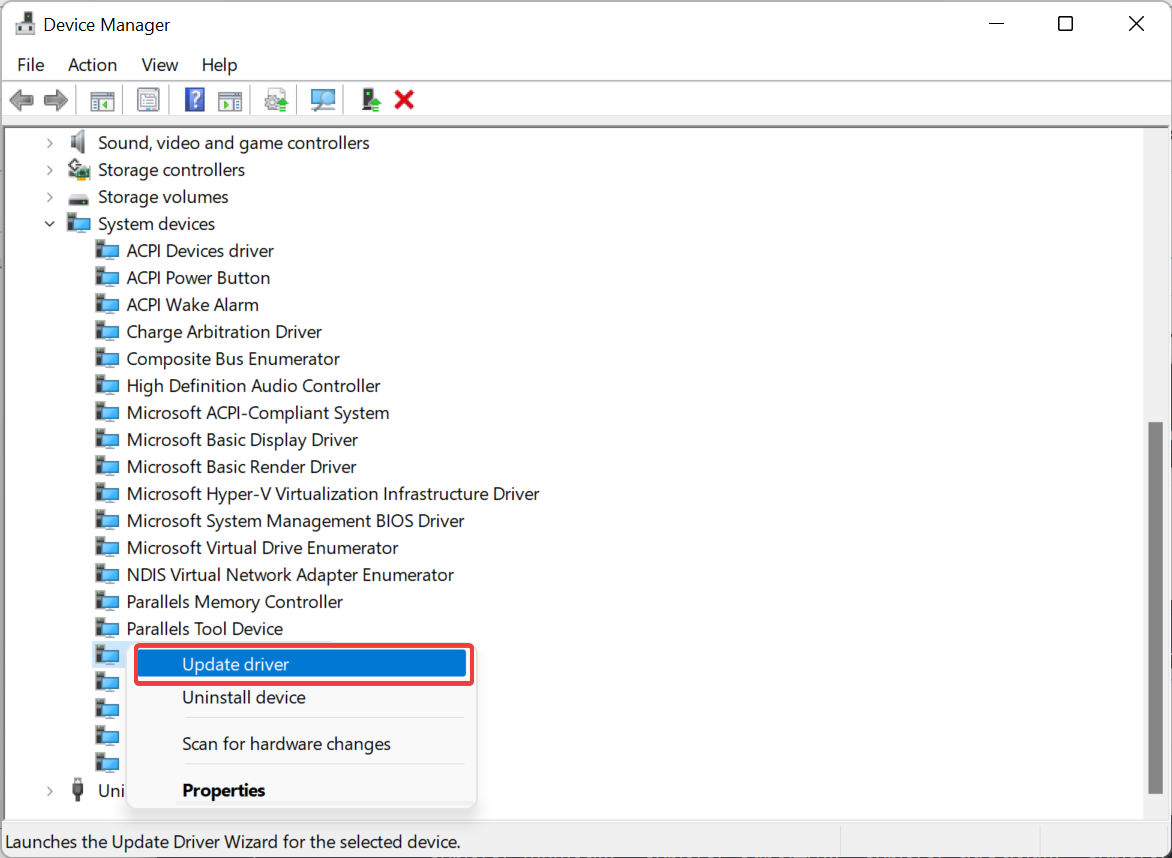
Right-click on it and select Update driver.
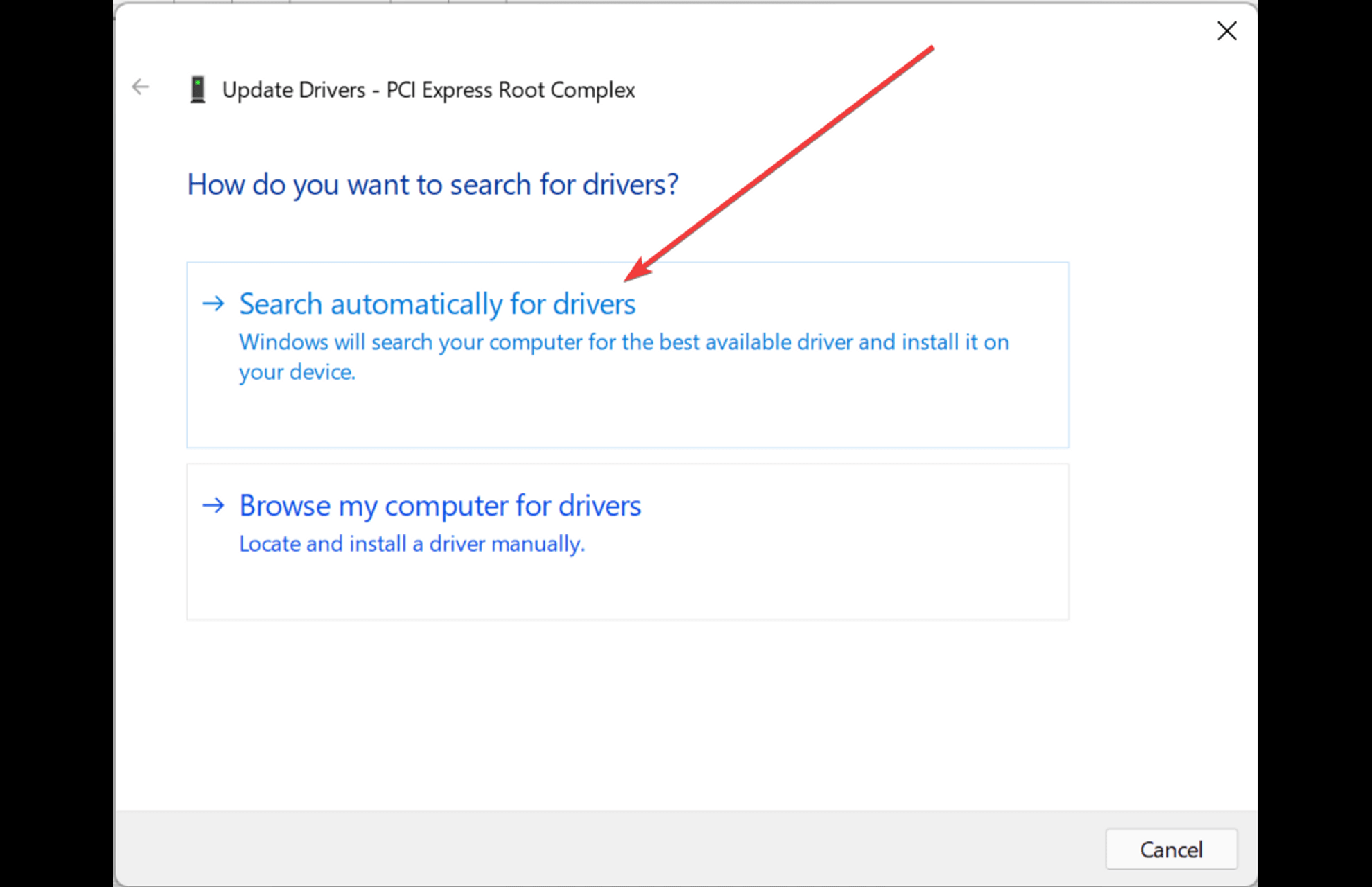
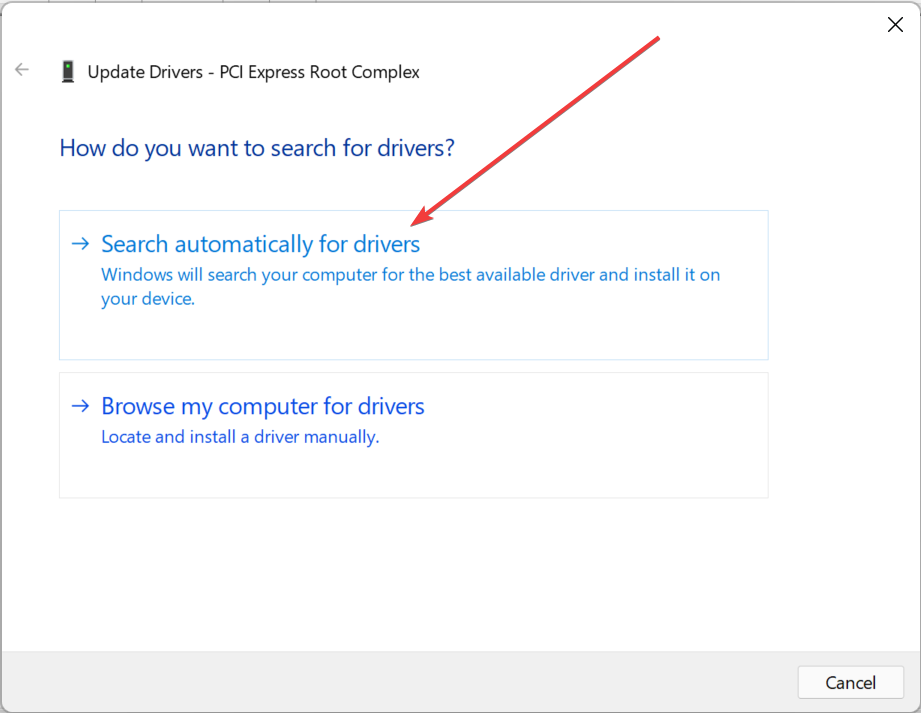
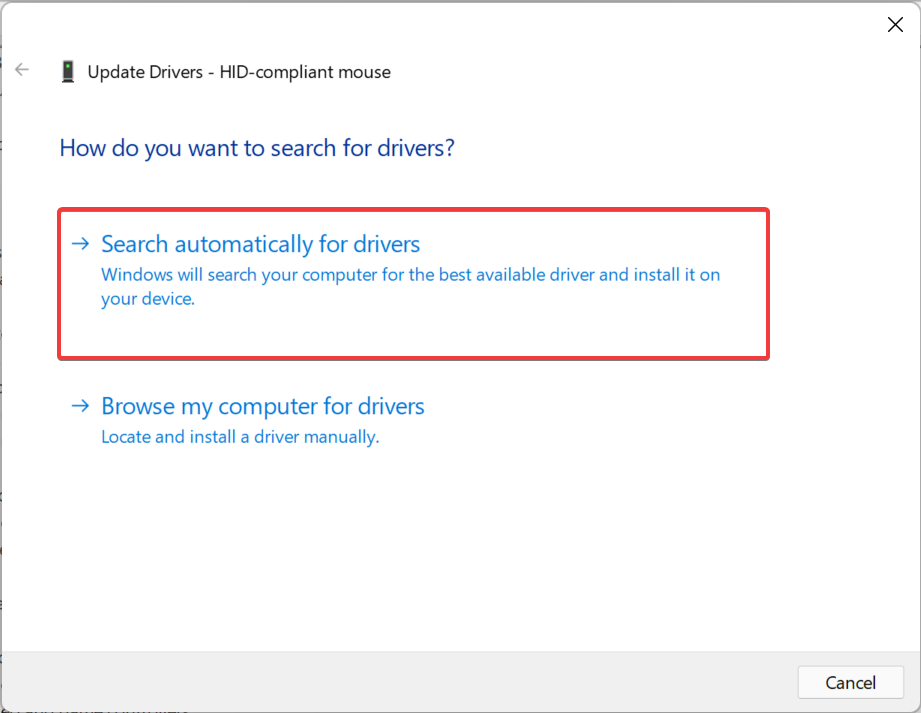
In the Update Drivers screen, click on Search automatically for drivers.
Wait till Windows finds and recommends a new driver. Follow the on-screen instructions to finish the installation.
Close Device Manager and reboot your PC. Check if the Acer Swift microphone not detected issue still persists.
It could be possible that the microphone is not detected on your Acer Swift 3 laptop due to outdated drivers. Hence, updating the driver may help resolve the issue.
Sometimes, manually updating drivers can be time-consuming. If you are looking for an automated solution to update your drivers faster and safely without any risk to harm your PC, we recommend you Outbyte Driver Updater, a third-party tool that can update, fix, or replace drivers automatically.
Additionally, you can also uninstall and reinstall the driver to check if it helps fix the issue. You can also test your microphone levels to make sure it’s set correctly.
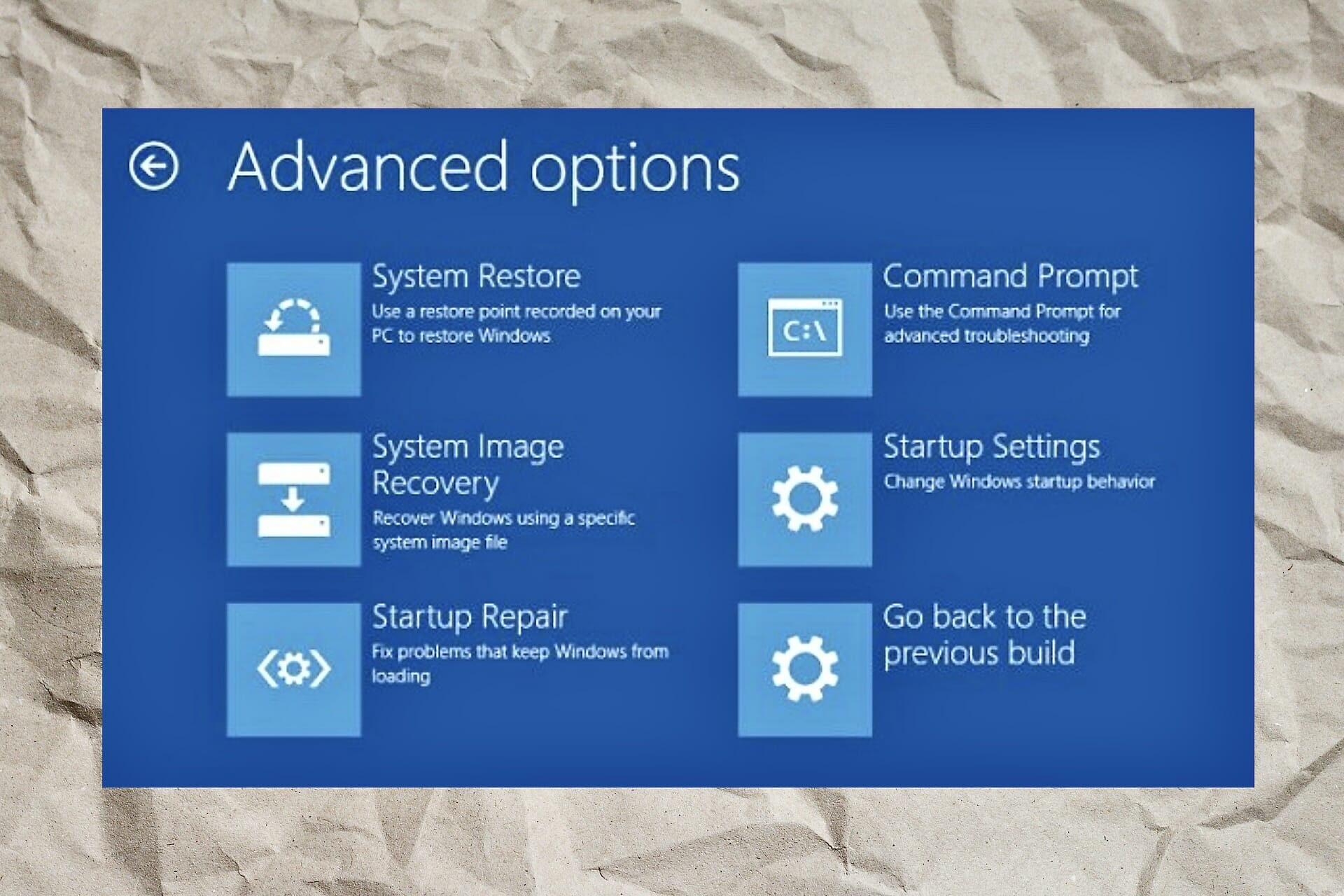
If all the above methods fail, you can perform a repair install using a Windows installation media. This will help you replace all the Windows files with healthy ones and ensure that the Acer Swift 3 microphone is working.
Let us know in the comments section below which of the solutions worked for you.
If you have recently reinstalled the Windows OS, upgraded to Windows 11, or installed the latest Windows update, you may come across an unexpected SMBus controller error in the device manager.
The Intel SMBus Controller is a chipset on the computer’s motherboard that monitors the motherboard’s voltage and temperature.
A yellow triangle with an exclamation mark next to the SMBus Controller driver means that Windows does not recognize the hardware. This indicates a driver issue, for instance, an outdated or missing driver. Fortunately, this can be fixed easily.
What is the reason for the SMBus controller error?
The Intel Chipset Device software does not install device drivers for the Intel SMBus Controller and this leads to the error (the yellow exclamation mark).
This prevents the current SMBus Controller to transmit device and hardware information to the OS.
The error prevents the driver to display the correct name for the specific hardware in Device Manager.
This post will highlight a few solutions that may help you fix the SMBus controller not recognized in the device manager error.
How can I fix the SMBus controller not recognized error?
1. Roll back to the previous Intel SMBus Controller driver
Press the Win +R keys together to launch the Run console.
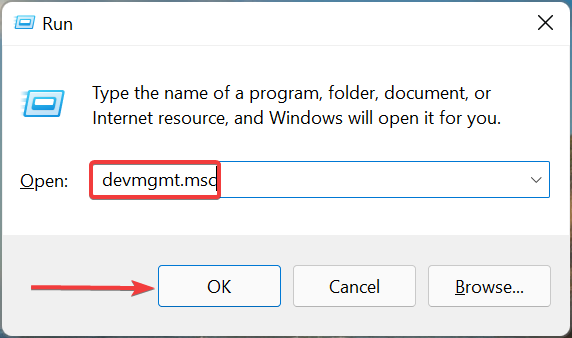
Type devmgmt.msc in the search field and hit Enter to open the Device Manager window.
Here, go to System Devices, expand the section, right-click on the SMBus Controller device, and select Properties.
Now, in the SMBus Controller Properties dialogue box, navigate to the Driver tab. Click on the Roll Back Driver button.
Once done, press OK to save changes.
Exit Device Manager, reboot your PC, and now check if the SMBus Controller driver issue is resolved.
NOTE
If you do not find System Devices in the Device Manager, click on the View tab at the top and click on Drivers by type. You should now see the System Devices section.
It will take you to theIntel Downloads Center. Here, type chipsets in the search field and press Enter.
On the next screen, from the left pane (Filter By), go to Download Type and select Drivers.
Next, under the Operating System, select your Windows OS, for example, Windows 11.
Now, on the right side, click on View Details for the latest chipset driver software links and check the date.
If it’s the latest, click on the Download link to download the zip folder.
Open the Zip folder, select the .exe file, and click on Extract to at the top to extract the setup file to your desired location, for instance, to the Desktop.
Go to desktop or the location where you extracted and double-click to run the file.
Follow the on-screen instructions to install the latest chipset driver.
Once done, restart your PC and check if the SMBus controller not recognized in the device manager error is gone.
Go to Start, right-click and select Device Manager.
Expand the System Devices section in Device Manager, right-click on SMBus Controller device, and select Update driver.
Now, in the new window, click on Browse my computer for drivers.
Next, select Let me pick from a list of available drivers on my computer.
On the next screen, select the correct Manufacturer on the left column and the SMBUS Controller Driver under the Model column on the right.
For example, if your PC supports an Intel motherboard, select Intel as Manufacturer and SMBus controller as Model.
Press Next to install the select driver.
Once done, close the Device Manager, restart your system and check if the SMBus controller not recognized issue is resolved.
An outdated, corrupt, or missing driver can trigger an error and prevent the related device to malfunction on your Windows PC.
To make things easier, you can use driver detector software to find missing drivers, detect drivers and automatically install them for you.
Otherwise, you have another effective method to update or install new driver versions on your PC.
Outbyte Driver Updater is a driver updater and troubleshooting software capable to manage all your drivers, updating them with the official versions from its manufacturers.
This automated tool will scan the entire system for outdated or broken drivers and proceed to update them in just a few minutes.
Memory_corruption BSOD Windows 11 error is an annoying display that interrupts your work or game and reboots the system. It is both painful and frustrating.
The issue of Blue Screen Of Death (BSOD) is not peculiar to a specific version of Windows installed on your PC.
This is why there has been users’ report of memory_corruption BSOD in Windows 11. We have taken our time to compile different ways to resolve the problem.
Why does my PC experience memory_corruption BSOD in Windows 11?
Users who are familiar with the progress of the Microsoft Windows build will observe that the Blue Screen Of Death (BSOD) is a bit different on some Windows, instead of Blue, it is Black; thus Black Screen Of Death (BSOD). There have been reports of Green Screen of Death in the recent beta version of Windows 11.
Technically, BSOD is designed by Microsoft to protect your computer from significant damage. This is the reason for its name stop error. It seldomly occurs but when it is consistent, then you need to worry.
Aside from memory_corruption or error with RAM, other issues that may trigger BSOD include corrupted drivers, incompatible software, and malware/ransomware, among other things.
Irrespective of the cause, we have taken our time to explain in this article, how to get rid of BSOD and reclaim your system.
How can I fix memory_corruption BSOD in Windows 11?
1. Restart your system
The BSOD may not have been triggered by a major issue. Before you start the more sophisticated fix methods, perform a simple restart. Users have confirmed this fixed the issue.
There is no special technicality to do this. You only need to restart the system like you would normally. Shutting down and then booting again will work too.
2. Check for Windows Update
Open Run with Windows key + R.
Type control update to launch the Windows Update.
Check for updates. If any is available download, then Restart to install.
3. Fix corrupt files with a third-party tool
As stated earlier, the reason you are experiencing memory_corruption BSOD Windows 11 might be because of corrupted files on your system. You can fix this using third-party tools programmed for the purpose.
You may use them to check and restore any damaged Windows files on your system, as well as secure real-time protection that safeguards your computer from dangerous applications before they cause any damage.
3. Run the troubleshooter
Launch Windows search by left-clicking on theWindows logo icon in your Taskbar.
Type Troubleshoot, then select Troubleshoot settings or click on the Open option.
If you can’t find any Recommended troubleshooters, select Other troubleshooters.
Scroll to find and locate Program Compatibility Troubleshooter. Click on Run to launch.
Allow the system to complete scan and display reports.
4. Check the computer for memory problems
Launch the Windows search. Type Memory, then press Enter.
Click on Windows Memory Diagnostic, then Run as administrator.
Select Restart now and check problems (recommended) to Check your computer for memory problems.
Make sure you have all your works saved before performing this action because it will restart the system.
5. Scan disk for error
Open File Explorer by pressing Windows key + E.
Locate and click on This PC on the left side of the Window.
Right-click on the system main drive (usually C:). Select Properties.
Click Tools then select Check.
You may get a pop-up notification saying You don’t need to scan this drive. Select Scan drive.
Check the scan results for errors. Follow the system prompts to fix them.
6. Check for corrupted files with an SFC scan
Type cmd in Windows search. Right-click on Command Prompt or select Run as administrator.
Paste the command below or copy and paste: sfc /scannow Ensure the command is spaced accordingly as above.
Wait for the system to complete Verification. Check if it is able to fix any corrupted files.
Restart your laptop.
The System File Checker (SFN) comes with your Windows operating system. It is designed to help find and fix corrupt files that might be hindering the proper functioning of the PC such as in the case of memory_corruption BSOD Windows 11.
Click on Windows Security in the displayed results or select Open in the panel to the right after focusing your mouse on the preferred option.
Under the Security at a glance, select Virus & threat protection.
For this purpose, ignore the Quick scan and instead select Scan options.
Choose Microsoft Defender Offline Scan, then select Scan now. This may take about 15 minutes and your system is sure would restart.
Malware is unpredictable such that you can only guess what it could do but never exactly how it will impact your system operation. This method will help you detect the culprit.
As a double attack against any malware that might have infected your precious system, after the scanning method explained above, you can also use third-party anti-malware software to fish out any other hidden malware.
8. Uninstall the latest updates
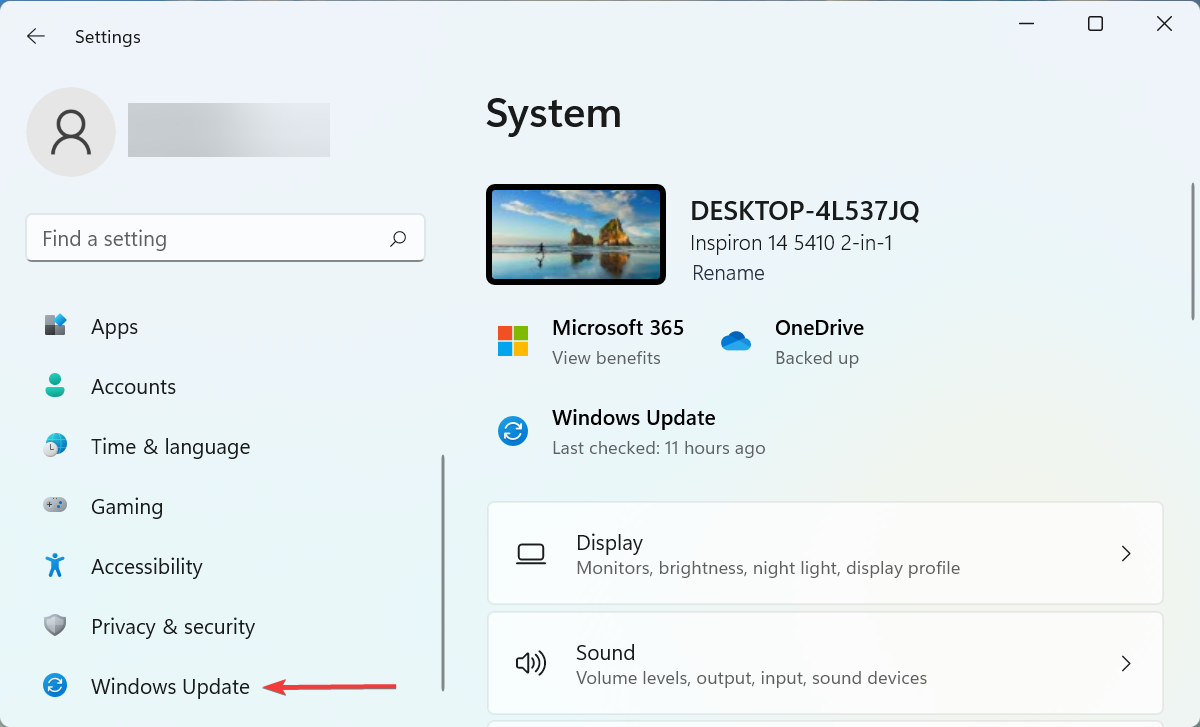
Press Windows key + I to launch Settings.
Select Windows Update. Next, click Update history.
Scroll to find and select Uninstall updates.
Right-click on recent updates installed before the system started experiencing BSOD. Select Uninstall.
9. Update drivers
Launch Run by pressing Windows key + R.
Type the command below or copy and paste: devmgmt.msc
Click OK or tap Enter.
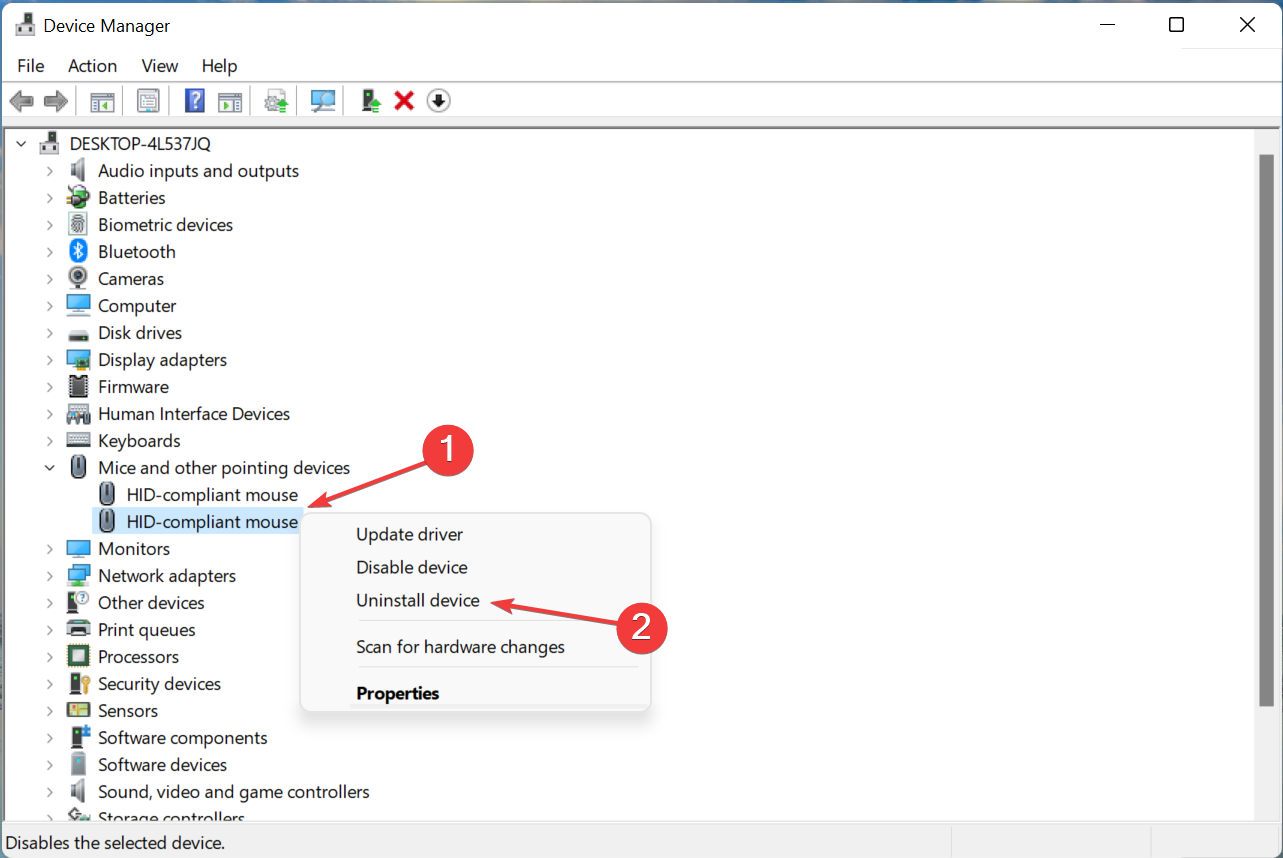
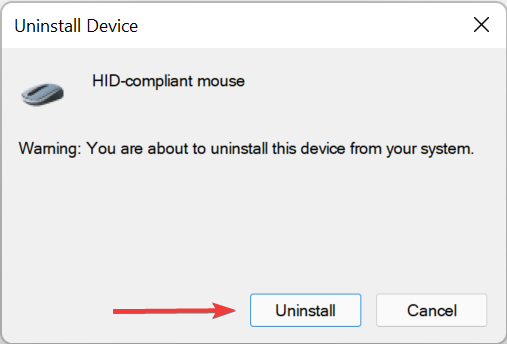
Under Network adapters, right-click on Realtek device. Select Uninstall device.
When you get Warning: You are about to uninstall this device from your system, choose Uninstall.
We included this fix because some users disclosed that Realtek Wireless USB 2.0 adapter driver was the cause of their BSOD. If the issue is the same for you, the process explained above should help solve it.
You can try Outbyte Driver Updater, a third-party tool that makes the process seamless. It is capable of fixing any other driver issue on your system.
Any combination of the methods highlighted so far should be able to help you resolve your memory_corruption BSOD Windows 11 issue.
Let’s know the one that works for you in the comment section. We would also be glad to help in case you have any other issues. Don’t forget to share any other method that worked for you, in case you found another way.
Microsoft announced that they will be holding an event on April 20 dubbed Project Management for a Connected World. It is geared toward helping users learn how to make the most out of Microsoft Planner, Microsoft Project, and Dynamics 365 Project Operations. Essentially, they are in place to help users stay organized and ultimately help them deliver projects both effectively and efficiently.
During the event, users will not only learn about how to make the most out of Microsoft’s connected experiences but also get to create their own schedules. This way the users will get a tailored experience that will be tuned to meet their expectations.
Moreover, users will also have the opportunity to interact with Microsoft product engineers and decipher how the updates made can be leveraged to elevate their businesses to the next level. Besides, there will also be an interactive Q&A chat for each session where you will get to ask as many questions as you want and get real-time responses. “You’ll also get to delve into how the product roadmaps will meet the needs of a more complex hybrid workplace.”
Users will get to go through the previous update releases, and get a glimpse of what is in store for these project management products through the product roadmap. In the grand scheme of things, this move will help “drive more collaboration and visibility across your projects”
At the end of it all, users should be able to identify which project management product is best suited for their businesses, thus, optimizing operations. Be sure to register for the event to experience all these and more.
It is normal to experience code error b4 while taking a test through the browser. To mitigate such errors, you can check the security settings in IE and the overall functionality of the IE. You should ensure the IE is reset to default security levels and try the exams again.
The web app is available for both Windows and Mac. It locks down the testing environment within the Blackboard so that the students cannot print, copy, go to URL, or access other applications.
The students are locked in the program during an assessment until they submit it for grading.
LockDown uses the same HTML engine, system components, and settings as Microsoft Edge and Macintosh. It functions much like a standard browser, though with a few options removed.
It would help if you only used it for testing. If you use the software to access additional coarse content like worksheets and lecture notes, the program may encounter problems.
The error can occur when the instructor changes the exams or edits the settings after enabling it. Where the LockDown Browser has already been enabled, here is how to make changes to an exam.
Whenever you update a new version of this Respondus software, installing all necessary system updates is essential to ensure your system is up to date. Also, ensure you have the latest version of Microsoft Edge for Windows users and Safari for Mac.
How does the Respondus LockDown Browser work?
You should know how to enable the LockDown Browser Building Block as a requirement for individual exams to use it.
The software works in the following ways:
Assessments are displayed full screen and cannot be minimized
Browser menu and toolbar options are removed except for the Back, Forward, Refresh, and Stop options
Printing and screen capture functions are disabled
Access to other applications like messaging, screen sharing, virtual machines, and remote desktops is prevented
Copying and pasting anything to or from an assessment is prevented
Right-click menu options, function keys, keyboard shortcuts, and task switching are disabled
The LockDown Browser is effective in its operations. It detects everything you do during the test. Any attempts to cheat or use blocked functions can raise the alarm for close monitoring.
How do I fix the Respondus LockDown Browser error code b5?
1. Fix the error for instructors
Log in to Blackboard and navigate your course.
Look under the Course Management menu, expand the Course Tools menu, and click the Respondus LockDown Browser.
Click Continue to LockDown Browser to Open the Respondus Dashboard.
Locate the test with the associated error.
Fix the error by clicking the Fix button.
The exam integration has been repaired, and students can reaccess the test.
2. Fix the error for students
Click the Start Menu icon.
Access the Control Panel, go to the Network and Internet option.
Click the Internet Options.
Make sure the settings are no higher than medium on the Security tab.
Under Reset Internet Explorer settings, click Reset.
Click Delete Personal Settings in the pop-up window on the Advanced tab.
Restart the computer and try to reaccess the exam dashboard.
Ensure you open the exam with Respondus LockDown Browser with all other applications closed before you begin. Also, ensure the URL is set to blackboard.UND.edu and not blackboard.NDUS.edu.
This web app can detect when conflicting programs are still running in a system, and it will request you to close these programs.
Some programs like Dell Dock and Google Toolbar run as background processes, and to proceed in the LockDown, you will have to shut them down.
Some programs can cause the Browser to lock up or stop responding. Programs that use Java or the Internet iTunes and other media programs, file sharing agents like Bittorent, and instant messenger applications have a higher risk of causing the web app to lock up.
While taking an exam, you can lose the Internet connection, and LockDown may stop responding. To resolve the issue, shut down the system by unplugging all power from the computer, including the power cables.
This Respondus program is a great web tool. Institutions can protect the integrity of their online exams, and students can undertake tests easily within the learning management system. You can also check the best browsers for E-learning.
The above fixes for the software help you resolve the error issues effectively. You can also check more information on how to install the LockDown Browser.
Let us know which one of the fixes worked for you. Feel free to tell us by leaving a message in the comment section.
Cloud storage is proving to be more than just a place where you can store volumes of data and files.
Today, you can move around your office virtually, no matter the location, and access any of your files and/or data from your computer or device.
What’s more, it can be used by individuals, or small and large organizations alike, saving you time, stress, and costs that come with finding storage devices (which you also have to keep carrying around), and this can be cumbersome.
Cloud is a SaaS (Software as a Service) solution, which you can get either for free or subscribe to paid versions for more features if you like.
However, there is free cloud software for Windows that you can use, which offers a wide variety of features from storage, to syncing data, work team collaboration, and so much more.
This article looks at the top 7+ free cloud software for Windows OS to get you started.
What are the best free cloud tools for Windows 10?
This tool is amazing as it offers you 5 GB of free storage when you sign in on their website. After that, all users that want to get more storage space (if they are satisfied with the service), can pay a fee.
For all of you who want some essential files that are not bigger than 5 GB to be safe – this is the perfect spot.
You will have guaranteed protection as the files are encrypted when downloaded, so even if someone wants to steal them, they will be useless as its end-to-end encryption will not allow this.
You will also be able to share your files with other persons even if they do not have a Sync account.
Sync also supports teamwork so you can let other persons work on the same documents and have total control of their actions to keep the work progressing.
You will access your files from any device and from any location – all you will need is an active internet connection. We strongly recommend this cloud software with its start-free storage.
Sync.com
The Sync platform and apps provide ground-breaking privacy-protection frameworks that limit the amount of personal information which may be accessed.
pCloud is another effective cloud storage solution for personal use on Windows platforms. With a one-time payment, you receive military-grade encryption, speedy file sharing with block-level sync, low pricing options, and up to 10 GB of free storage for starters.
All PCs and browsers are available, mobile devices are used to download music and video, Facebook and Instagram connection is enabled, and links can be downloaded and uploaded quickly.
It also offers a 30-day free trial, which we recommend to test it before deciding to cloud storage for personal files.
Fast file sharing with block-level sync enables you to attach an external drive to your computer without fear of data loss, or virus attacks.
The pCloud development team is certain that they have created client-side encryption software that is impenetrable to hackers. To demonstrate this, they challenged hackers from all around the world.
Participants from major universities such as Berkeley, Boston, MIT, and 613 other organizations tested the encryption technology.
None of them were successful, and this is a significant step for a cloud service, so you can be confident that your personal data is safely stored.
pCloud
Want your data to be as secure as possible? Simply upload them to their Crypto folder with pCloud.
If you’re looking for a safe home for your data, easy accessibility to your files and information, privacy, a transparent and growing community you can share with for constant improvements, collaboration and scalability, then this is the best free cloud software for Windows you can choose.
Features include access to all your files from any device and/or location, sharing options with other users including password protection for public links, security for self-hosted file sync and sharing, workflow management to control and direct data flow between users or servers, easy tracking of changes or modifications, and tracking of downloads of shares, or comments to your files.
Through its Monitoring app, you can monitor the health and performance of your cloud system using a graphical interface and API endpoint.
You can also monitor activity for mobile and desktop clients, encrypt data with the Encryption app, and share your calendar or contacts with other users.
You can operate your own audio/video communication in a secure environment, and invite others to collaborate in a group – this cannot be intercepted, not even by the server administrator.
It also has the Collabora Online feature, a powerful office suite that supports most major document, spreadsheet, and presentation formats including DOC, DOCX, PPT, PPTX, XLS, XLSX, and much more.
In this feature are editing options for collaborative editing when several people edit simultaneously from their browser, plus WYSIWYG rendering and preserving document layout and formatting.
We suggest Mega.io as a cloud storage provider if I need to upload a large file to a server. When you join up for the online cloud for the first time, you get 20 GB of free storage to manage your private or business data folders.
You can also download a desktop application for your Windows PC that allows you to upload huge files in the background.
This way, you can start the file transfer once and continue using your computer while it uploads the files to the server.
Mega cloud storage allows you to pause and resume uploads, so if your internet service goes down while you’re uploading, the software will let you resume the file once the internet is restored.
Mega generates a folder on your PC called mega sync; everything you put in there will be instantly synchronized with the cloud and any other PCs linked to that account.
This can greatly simplify things. If you employ several computers, such as at work and at home. Mega has a great level of security and quick transmission rates.
It is a dependable service with out-of-the-box end-to-end encryption. Mega is an excellent choice for both individual and company use.
MEGA Mobile Apps put MEGA’s power at your fingertips, allowing you to access all of your data at all times. MEGA Mobile Apps make it simple to access, view, and share files that were not originally uploaded from your mobile device.
There’s so much you can do when you have your own cloud storage, and this free cloud software for Windows promises a safe home for all your data. With ownCloud, you can access your data, and share files or calendars and contacts or mail from any device.
Developed in a transparent and inviting way, this cloud software keeps your files secure, and private and offers flexibility for all your digital needs.
You can access your data through a web interface, sync clients, or WebDAV on a platform where you can view, sync, and share across multiple devices under your control.
Store your private digital media files, documents, and contacts on your server, a rented VPS or public OwnCloud providers, and access your data on an FTP drive when at work, or images shared via Dropbox through your OwnCloud server.
Features include data access from any device and any location, sharing editing and collaborating options including password-protected public links, video calling, flexible external storage, mobile and desktop syncing, activity feed, and notifications to keep you updated.
Other features include versioning and undelete features, galleries for digital media, and playing music or watching movies using the Music and Streaming apps, plus integration of antivirus scanning with the antivirus app.
For secure file control, sharing, and management, this free cloud software for Windows is your best bet.
Pydio offers a web-rich application so you can preview the most common file formats, with a comprehensive sync and share solution for team collaboration through its software that is deployed either on-premise or in a private cloud.
Features include access from computers and mobile devices, desktop sync apps, advanced sharing like password protection or download and sharing time limits, customizable user interface, secure management, and control of access to your data and files by deploying it on your own infrastructure with easy integration.
You also get real-time monitoring and a dashboard you can manage from, plus professional support for troubleshooting issues.
Other features include connection to many storage systems and user directories such as OneDrive, Dropbox, LDAP, SHIBBOLETH, AD, RADIUS, and many others.
It also comes with the Collabora Online feature, a powerful office suite that supports most major document, spreadsheet, and presentation formats including DOC, DOCX, PPT, PPTX, XLS, XLSX, and much more. In this feature are editing options for collaborative editing when several people edit simultaneously from their browser.
You can also share and collaborate across clouds as though you were on the same server. Through the File Gateway tool, you can serve public links through a dedicated URL and avoid showing your own server address, thus there’s improved security for your infrastructure.
This is another free cloud software for Windows that offers to sync and sharing options with high reliability and performance.
It is an enterprise file hosting platform that lets you put files on your server and organize them into libraries that can be encrypted by a password you choose before syncing, and access or share and sync them as a virtual disk, thus improving your productivity.
You can also access files in the cloud from your local drive without syncing them, which ideally extends the disk space with the huge storage on the server, and you can use them offline as well.
Seafile is easy to upgrade via a simple script, plus you don’t need a huge database upgrade as it records a few items in it.
It is also enterprise-ready with AD/LDAP integration, group syncing, and fine-grained permission control so you can apply it to your enterprise easily.
When it comes to safety and security, Seafile is known to provide a reliable syncing tool, with more than 3 years of polishing its algorithm which is stable and reliable, plus works in extreme situations and guarantees no data loss.
Features include cross-platform or device file syncing, mobile access to your files, extension of local disk space using Drive client, file sharing and permission control, file versioning, and snapshot for folders.
Additionally, you also gain access to file locking to prevent concurrent editing and conflicts, online editing and co-authoring, audit logs so you can monitor your system and user activity. and more.
This is pretty simple to use, free cloud software for Windows.
It offers unlimited storage because the files are kept on your own infrastructure, simplicity of installation with its one-click AeroFS client installation which takes up to 5 minutes and gives automated updates, and your own private cloud so you can use it to deploy the software 100% privately.
It is easy to use, plus secure for file syncing and sharing as your data is on your infrastructure. AeroFS never stores your files, meaning you can maintain control, centralized security, administration, and remote wipe capabilities.
Data and files are protected with an end-to-end in transit AES 256-bit encryption.
You also get to share and sync files once you drop them in the AeroFS folder, track changes easily with version history, integrate with LDAP/AD/Open ID that simplifies sign-on and also use familiar shortcuts, menus, and right-click options with your existing workflow.
With this free cloud software for Windows, you can sync your digital files whether it is photos, music, videos or other documents to any device.
Features include the One Time Send PRO, which is the fastest, most private way to send files to multiple recipients without sharing the full folder, or creating a permanent sync connection.
You can also sync folders automatically to all devices and they are automatically available on all linked devices, change access permissions or assign ownership and revoke access on the fly using Advanced Folders feature, or use the Selective Sync feature to download what you need without replicating the entire folders on each device.
This software also lets you control bandwidth usage, keeps your files safe through automatic backups and disaster recovery sites you create, sends large files very fast, access files on the go, and use it on any device as it is available for different operating systems and multiple platforms.
This free cloud software for Windows replaces proprietary sync and cloud services with an open, trustworthy, and decentralized one.
With this software, your data is yours, and you determine where to store it and how to share or transmit it over the internet.
It is secure and private, but you can use encryption and authentication features to perfect forward secrecy, prevent eavesdroppers, and allow explicit permissions to your cluster.
It is easy to use, with features such as the Web GUI which you can configure and monitor the software via your browser. It is also portable as you can run it on your computer or devices, plus it is simple with no need for IP addresses or advanced configuration. You can also synchronize as many folders as you want with different users.
Is it safe to use cloud storage for personal files?
Yes, your data is secure in the cloud—probably far more secure than it is on your own hard drive. Files are also straightforward to access and maintain. Cloud services, on the other hand, ultimately place your data in the hands of third parties.
This isn’t a big concern if you don’t care about your privacy. However, if you have sensitive information that you’d like to keep hidden from prying eyes, it’s best to keep it on a different hard drive from your home computer.
The services recommended above are also good if you’re interested in the following topics:
Free cloud server software – All the services listed can be used or tried for free
Free cloud backup software – All entries on this list can be used for backing up personal data
Have you settled on one of these free cloud software for Windows, or is there one you’re currently using that you’d like to share? Let us know your choice by dropping your comment in the section below.
The SolarWinds Custom Query error processing the request appears in the Orion Web Console in connection to one or more widgets. Now, SolarWinds errors are by no means a novelty.
SAM, VAMI, Orion – here are 3 intriguing terms at a first glance. We feel these concepts require a bit of context before we deal with the actual troubleshooting, don’t you agree? If so, read on.
What is Orion in SolarWinds?
SolarWinds is mistakenly perceived as an exclusive network monitoring program. While NMP (Network Performance Monitor) is an SNMP monitoring-based industry-leading tool that supports the detection, diagnostic, and resolution of network performance issues and outages, there is more to it than meets the eye.
In fact, SolarWinds delivers a full-scale integrated and highly versatile IT monitoring platform that includes powerful management tools designed to optimize enterprises’ IT infrastructure.
Its expertise covers numerous sectors such as cloud monitoring and performance tools, network surveillance and configuration software, net flow and database performance analyzers, server and virtual machine management tools, log, system, and security software, and more.
This generous array of technical services and solutions are reunited in the Orion platform, an extensive and customizable IT performance monitoring system relying on 6 major pillars:
Network Performance Manager (NPM)
Netflow Traffic Analyzer
Network Configuration Manager
Virtualization Manager
Server and Application Monitor (SAM)
Storage Resource Monitor (SRM)
NOTE
It’s in your power to pick out individual resources that best suit your business or get more (even all of them) as a bundle and deploy the Orion Web Console.
The console provides centralized management and a solid dashboard with clear overviews of your entire IT infrastructure for enhanced efficiency.
What causes the SolarWinds error related to request processing?
Even though it’s convenient, the console can generate occasional issues such as the SolarWinds Custom Query error processing the request.
The SolarWinds Orion platform has its very own query language called SWQL – a proprietary subset of SQL – that you can use to obtain very specific network-related details by querying your database.
So why does this happen? While the Custom Query resource is very practical, the widget sometimes has a hard time indexing the GUI-hosted pages without clear and customized order indications.
These are the top 3 reasons behind the SolarWinds Custom Query error related to processing requests:
Invalid SWQL syntax and queries
Missing ASCX file
Corrupt or incomplete SAM module installation
How can I fix the Custom Query error in SolarWinds?
1. Set the custom query output to ordered
The first thing you need to do is check the OrionWeb.log and identify the error (It can provide valuable information about the cause of failure).
The path for the log files is commonly found under C:\Documents\Settings\All Users\SolarWinds
If the error hints at the ordering issue (and this is a recurrent scenario), proceed with the following indications.
Log in to Orion Web Console and select View.
Click the + icon to add a custom object resource. Then select, Custom Query and confirm by hitting the Add Selected Datasource button.
Next, click the Edit button (Configure this resource) and make sure you add the Order by condition when you paste the custom SWQL query for all your widgets.
Click Submit.
If you’ve integrated an Events API into the SolarWinds host via a script, you should also see these details in the Event Viewer.
Simply open the Event Viewer app from the Start menu.
In the left pane, click to unfold the Windows Logs section.
Select Application and check the associated events in the main area.
Now, the syntax is important and there are a few things to keep in mind when dealing with the SWQL language.
Feel free to explore the SolarWinds page and get more useful indications on how to build valid custom queries in the Orion platform.
2. Flush your DNS and restart AMA
Type cmd in the search zone of your taskbar. Select and open the Command Prompt.
In the typing area, insert the following command: ipconfig /flushdns
After flushing the DNS, press the Windows Key + R on your keyboard.
When the Run menu opens, type in services.msc and click OK.
Identify the Advanced Monitoring Agent (AMA) service in the list.
Right-click on this item and click Restart.
Buyer’s tip
If you feel like you’re running out of options as far as SolarWinds’ NPM environment is concerned, this news will cheer you up.
➡ Instead of struggling to identify missing modules and files or repair invalid SWQL queries, you can use Paessler Network Monitor (PRTG), an entirely error-free network monitoring tool.
Similar to the Orion suite, PRTG can handle complex IT infrastructures based on cloud monitoring. In fact, you have a built-in Cloud HTTP sensor as well as a Cloud Ping sensor to provide reliable, accurate, and fully customizable information.
You can choose to receive these notifications as Syslog incident reports, alerts with adjustable frequency, or view your network stats in real-time.
You can also monitor your bandwidth (there are no less than 11 different sensors available just for this purpose), apps performance, server surveillance, and much more, including an overview of all your systems and traffic.
The incorporated Wifi analyzer will keep a close eye on all your connected devices and constantly check for key factors such as device status, speed, load, traffic, and signal strength.
Who attacked SolarWinds?
Here’s one more reason to consider switching to a better network monitoring tool such as PRTG. Back in 2020, SolarWinds’ Orion suite was targeted by a large-scale intrusion campaign that was so elusive that it went undetected for months.
The security breach affected multiple verticals and worldwide customers from both the public and private sectors became victims of this malware attack that compromised professional environments and lead to irreparable data thefts.
The attackers used the Orion software updates to disguise their light trojan-based malicious code into the SolarWinds.Orion.Core.BusinessLayer.dll communicating to third-party servers via an HTTP protocol.
If you assume this is an isolated event, you couldn’t be more wrong. In fact, a 2021 CISA report showed that hackers also used VPNs to inject malware into the SolarWinds Orion software and steal credentials on SolarWinds servers.
PRTG
Forget about complicated syntax errors and keep an eye on your entire network with this ultimate tool!
3. Use native repair tools (Orion Configuration Wizard)
Log in to the Orion Server using a Windows administrator account.
Go to Start, SolarWinds Orion, and select Configuration Wizard.
Pick the items that need to be repaired and click Next.
Verify that all selected details are correct (SQL Server, authentication method, and database, valid account, and password, IP address, etc.).
Review the items and click Next.
Upon completion, click Finish and launch the Orion Web Console again.
By checking the files on the webserver as well as the overall structure of your database, the Configuration Wizard can help you troubleshoot and repair issues including rebuilding missing files such as the ASCX file.
The SolarWinds SAM error there was an error processing the request can be caused by missing components in the SolarWinds Orion package or even permissions causing unexpected errors during the SolarWinds installation.
If the issue still occurs, you can apply further fixes to the Orion Core Services (Job Engine, Collector, and Information Service) within the Orion platform.
Even though antiviruses and firewalls are top cybersecurity programs, they can sometimes prevent you from using legitimate apps such as the SolarWinds’ NPM environment or at least limit their functionality.
Thus, either of them can trigger the Custom Query error processing the request.
To counter-balance this scenario we suggest you make sure your antivirus software does not restrict the access to the InetPub folder located on your C drive.
If you’re up for a change, we recommend you consider an alternative antivirus software that seamlessly collaborates with other security programs without messing up your settings such as TotalAV.
Furthermore, you can disable the Microsoft Defender firewall from the Windows Settings or set an exception for the Orion Web Console widgets.
There you go, now you know how to quickly and easily get rid of the SolarWinds SAM error There was an error processing the request.
A control panel ensures that the host communicates with its resources to help assign them to servers, manage and install them, and normal running of the play. Many people use the free panels as they cannot afford the paid version, which is expensive.
Administrators control the servers giving them the power to assign the resources to each CPU, shut down and restart the server, remove players, and change rotations. You can access the control panels using websites or installing their respective applications.
Each panel has its features has different games, and the admin can remove some players. The article will cover a list of the best server control panel for Windows 11.
What should I consider when buying a game server control panel?
When you want to buy this tool, it will depend on if it’s the first time you want to use it or if you have experience.
Lack of knowledge about the servers can lead you to make the wrong decision. Here are some of the factors to put in place when purchasing one:
Make sure the panel provides statistics of all the gaming sessions
Check their level of security
Confirm the type of payment methods they accept for billing
Ensure it supports different types
It must have the support of file management
A hosting control panel, in conjunction with a dedicated server, will allow you to quickly get your server hosting business up and running, as well as provide a professional and dependable service.
What are the best game server control panels for Windows 11?
Easy-Wi is an open-source, free control panel with many outstanding features like a game server, webspace, voice server, TSDNS server, etc.
It automates most of the tasks to help in speeding the whole process. Its space runs on servers like Apache, Lighttpd, Apache2, and Ngnix.
The server enables users to use and edit templates, install several of them on the same port, easy monitoring processes, perform modifications and automatic updates, etc.
Its user interface defines different roles like the user, administrator, and reseller, which are easy to create and manage.
It uses CMS to run functions like setting up blogs, SEO, comments sections, supporting different languages, search functionality, an editor, and pages to create content and free templates without branding.
Additional features:
Works well with MySQL databases
It fits all types of screens sizes
Easy to create and manage backups
You can manage the servers on LAN
It has one of the best customer services you can access through the ticketing system or their Discord channel
It’s secure and it ensures only the authorized plugins run on the server
Pterodactyl is a control panel built on PHP, NodeJS, and Go. It makes running and configuring games and applications instances easy.
It consists of daemons that act like machines that run on hardware, and the control panel hosts the web interface that communicates with the daemon.
The daemon uses isolated Docker containers to run the servers. Docker runs all the codes using the Docker file, which carries all the dependencies and codes the applications need to run.
This feature saves users from installing, configuring, and deploying the app requirements several times.
It’s very secure. When users upload applications that have malicious code or viruses, it doesn’t affect other users as it’s a single isolated file.
It makes it easier to destroy the bad file using less time. It supports HTTPS and AES-256-CBC encryption.
Other notable features include:
Friendly user interface
Free to use
Easy to upgrade
It saves memory and CPU usage due to using one docker file to carry the majority of the code
GameDash is a control panel that has both freemium and paid versions. Its prices range from $7-$12 per month. It is one of the best panels in the market due to the number of features.
If you are on other platforms and want to migrate to this panel, it takes a few minutes to finish due to the interoperability of in-game server management.
It has the best billing customization as you can decide your subscription intervals, supports six payment methods, dashboard of the earnings, and automatic upgrade and downgrade of payment plans.
Additional features are:
It supports over 20 applications
Network monitoring
It automatically installs dependencies and updates
Has DNS support
You can set your servers in less than five minutes since it’s easy to install with the help of documentation
It is a free control panel whose web interface and server run with PHP/MYSQL and Perl.
OGP has a fantastic community that enables them to attract more visitors who, in turn, use the panel to control their servers for gaming companies, individuals, gaming groups, etc.
This panel limit features like IP addresses and ports used for each game. Some games are given a specific CPU size or boxes, which forces the users to determine how they can balance them across the games.
Other features include:
In case of server reboots, you have to restart it
It supports WHMCS integration
It has proper documentation and is easy to install
Admin has the power to control the quota disk space
Ability to update the steam-based games using the web interface
It’s easier to clone a game from the panel, giving you a chance to make new game servers from the templates
Is it compulsory to install a game server control panel?
No, you can access most of the servers on the web interface, where you can create accounts and start using them instantly.
In some exceptional cases, you have to download others and install them on your PC to use them.
You have to be careful when choosing the type of control panel. Most of them are free and open source.
When dealing with the servers, you must consider security before looking at the other stuff. Some of the servers run some popular games like WarCraft which has many players across the globe.
Which server control panel do you use? Let us know in the comments section.
Refreshing and preparing a Windows image are operations that can be completed by using dedicated DISM commands.
The Deployment Image Servicing and Management (DISM) command-line tool can also be used for repairing the most common Windows software-related problems, so being able to execute DISM commands is quite important.
That’s why, when experiencing the error 50, you should learn how to address the malfunctions that are preventing DISM from running correctly.
Even though such system issues may require more technical know-how, you can dive deep into the problem and resolve it step-by-step.
There are also specific commands you can use in order to fix the persistent error on your Windows device.
So, if you tried to execute a certain DISM command, but you got the Error 50 DISM does not support servicing Windows PE with the /online option message, you are in the right place. In this guide, we will see how to fix the DISM toolkit on Windows 10.
When the error 50 appears it means that Windows thinks that the location from which you run the command is within Win PE (Pre-installation Environment) and this happens because of a misplaced registry key. So, for fixing this error you need to remove this key by following:
Press the Win+R keyboard keys for bringing up the Run box.
There, type Regedit and press Enter.
From Registry Editor located the HKEY_LOCAL_MACHINE entry and expand it – just click on it.
From the new list that will be displayed expand HKEY_LOCAL_MACHINESYSTEMCurrentControlSetControl.
Under the Control field, there should be a folder named MiniNT.
Right-click on this folder and choose Permissions.
Make sure that your username is mentioned there and also ensure that the Full control option is checked.
Right-click on the MiniNT folder again and this time choose Delete.
Confirm your changes and restart your Windows 10 system.
In case you require a professional cleaning tool that will repair any registry entries problems, you can employ CCleaner.
Using this software you can detect different problems in your Windows registry and fix them automatically in a more secure manner.
2. Reset BIOS
On your computer access BIOS (reaching BIOS is different depending on each manufacturer).
From BIOS look for the Default Options entry and access it. From the menu that will be displayed on your computer choose reset to default or factory default. Confirm your changes and restart your device.
That should be all and the Error 50 DISM does not support servicing Windows PE with the /online option should be now resolved.
3. Refresh the DISM software
NOTE
If you cannot complete the steps below try to create a new Windows account before starting this troubleshooting solution.
In your cmd window (which should be already opened since you received the DISM 50 error) type dism.exe /image:C: /cleanup-image /revertpendingactions.
Next, reboot safe mode on your Windows 10 system: press Win+R, enter MSConfig, switch to Boot, and choose Safe Mode.
From safe mode open an elevated cmd window: press Win+X and select Command Prompt (Admin).
In the cmd window type SFC/ scannow and wait while the scan runs – it might take a while depending on how many files and programs are stored on your device.
Afterward, reboot into Windows mode as that should be all.
It’s possible to resolve DISM error 50 by using specific commands in the Windows Command Prompt utility.
There are a few commands that you can try in order to repair this operational issue and are as follows:
Type Command Prompt in the Start Menu and then press Enter.
Assure you have administrator rights before entering the commands.
Type in the next commands to fix the specific DISM error.
wmic logicaldisk get name
dir drive-letter:
DISM /Online /Cleanup-Image /RestoreHealth
There you have it; those were the troubleshooting solutions for the Error 50 DISM does not support servicing Windows PE with the /online option error message.
If you are trying to find other Windows Update solutions, make sure to check the Windows Update hub.
Take a quick tour of our specially created Windows 10 Errors Hub. Here you will find more solutions like this one to help fix a multitude of system errors.
You can also share your own experience with us and our readers by using the comments field below.
Ever since the early days of Windows, there was a useful option that allowed you to open the direct location of the file that you just clicked on.
It’s a useful feature that many used for quick and easy access to their files, but it seems that this isn’t possible anymore in Windows 11.
According to users, the open file location option is missing in Windows 11, but there are ways to fix this issue, and in today’s guide we’re going to show you how to do it.
Why is there no open file location option?
There are multiple reasons for this issue, but in most cases, your Windows may be out of date. An outdated operating system can have various bugs, such as this one for example.
Third-party applications can cause this problem, so you might have to remove the problematic software or disable its context menu.
What can I do if the open file location option is missing on Windows 11?
1. Make sure your system is up to date
Open Settings by pressing Windows key + I.
Navigate to the Windows Update section.
Now check for available updates and install them.
This issue can occur if there’s a bug with your currently installed version
2. Remove any recently installed software
Open the Settings app.
Navigate to Apps and click on Installed apps in the left pane.
Set the Sort by to Date installed.
Locate any non-Microsoft apps that you installed recently and click on three dots and select Uninstall.
Follow the instructions on the screen to complete the process.
Users reported having issues with Abbyy FineReader since the application modifies the right-click menu.
To completely erase all data, use CCleaner to uninstall and delete all files related to these apps. Find the Uninstall option in the Tools submenu, order the apps by install date and uninstall them in just a few clicks.
Navigate to Options and check Hide all Microsoft extensions.
Select the application that you suspect is causing the issue and click on the red button in the toolbar.
When the confirmation dialog appears, click on Yes.
Make sure that all instances of the problematic app are disabled by repeating the last two steps.
After doing that, check if the problem is resolved. Sometimes certain applications can add their entries to the context menu thus causing this issue to appear.
With this method, you’ll remove those entries without uninstalling the software, so make sure you try it out.
How to find app location on Windows 11?
If you want to find the location of any app on Windows 11, you can just right-click its shortcut and choose Open file location from the context menu.
This option works on shortcuts and search results, but it won’t work for Microsoft Store apps, so keep that in mind.
If the Open file location option is missing on Windows 11, it’s possible that there’s a glitch on your system or that a certain application is interfering with the context menu.
Navigating your way through Windows can be a little confusing from time to time, and it can be even more confusing when Windows 11’s Settings app missing problem comes up.
The Settings app can be accessed in a variety of ways, some of which are even more convenient than finding the Settings button on the desktop or in the options menu.
Some devices have buttons on their keyboards dedicated to opening Settings, making it much easier for the users to find this much-needed app.
Why is Windows 11’s Settings app missing?
This issue of the Settings app missing occurs for individuals who have upgraded to Windows 11 from a previous Windows operating system and is caused by wrongly updated files.
It has been addressed by Microsoft a few times and had its own Fixit tool but now that Microsoft doesn’t support these tools it can’t be downloaded.
What can I do if Windows 11’s Settings app is missing?
1. Restart Windows Explorer
Right-click on the Windows logo and select Task Manager.
Select the Processes tab.
Scroll down and select Windows Explorer, right-click then select Restart.
After doing as instructed the screen may go black for a few seconds which is normal and nothing that you should be worried about.
2. Install a PC repair tool
To fix Windows-related problems, PC repair tools analyze your computer for corrupt system files and then replace them.
There are a lot of repair tools currently on the market, which are reliable PC repair solutions. Apart from fixing issues like the missing Settings app by replacing damaged Windows files, these programs can detect risky websites and remove malware threats.
3. Run SFC and DISM commands
Restart your computer.
Click on the Start menu, type Command Prompt, right-click on it then select Run as administrator.
Type the following code then press Enter. (This step can take anything from a few minutes to 30 minutes to complete.) DISM.exe /Online /Cleanup-image /Restorehealth
After you see a message that says The operation completed successfully, type the following code and press Enter: sfc /scannow
After you see a message that says, Verification 100% complete, close the Command Prompt window.
The sfc /scannow command checks the integrity of all protected operating system files and, where possible, replaces erroneous, corrupted, altered, or damaged versions with proper versions.
If the damage cannot be repaired, DISM should be used to fix the Windows 11 settings app missing problem.
Press the Windows + X keys then select Windows PowerShell orWindows Terminal.
Copy and paste these commands one at a time then press Enter: Get-AppXPackage -AllUsers -Name windows.immersivecontrolpanel | Foreach {Add-AppxPackage -DisableDevelopmentMode -Register “$($_.InstallLocation)\AppXManifest.xml” -Verbose} Get-AppXPackage | Foreach {Add-AppxPackage -DisableDevelopmentMode -Register "$($_.InstallLocation)\AppXManifest.xml"}
Restart your PC.
There may be some red errors while the procedure is running, which you should disregard.
5. Try other ways of opening the Settings app
Click on the Start menu, type Settings, and select the application from the list.
Right-click the Start menu and choose Settings from the menu.
Simultaneously press the Windows + I keys.
Press Windows + R keys to open a Run box, type ms-settings: and press the Enter.
To better understand how the Settings app works and explore every section it includes, take a look at our detailed overview of System Settings in Windows 11.
What are other Windows update problems?
The Windows 11 Settings app missing problem is not the only error users can encounter after updating to the new operating system.
Weird West was recently released and there is no wonder that it offers some of the most impressive scenarios.
Because it is gaining a lot more attention than several other video games, many worldwide players are interested in discovering how they can play Weird West on one of the most popular gaming platforms, Discord.
Well, if you’re in the same boat, keep in mind that the game-related Discord sever is out now and a wide range number of users already joined it.
In order to discover more about how you can access and use it, this guide will be your main support, so make sure you read it completely.
How can I access and use the Weird West Discord server?
You can easily get the Invite to the Weird West Discord server by simply navigating to the Weird West invite on the Discord page.
Click on the Accept Invite button.
Choose to Open URL: Discord Protocol, then to Continue to Discord.
Read the listed terms, then click on the Got it button.
Now, you’ll be able to make announcements, chat with other Weird West fans, and more.
In conclusion, this is all you have to know about how to access and use the Weird West Discord server. As you can see, the process is a piece of cake, so you’ll be able to perform it in a matter of time.
If it’s happening to face any additional related issues, make sure you leave a comment in the dedicated section below.
One of the first solutions that we suggest you try to automatically click on PC is GS Auto Clicker.
This is a free program for Windows that allows you to automate clicks on your computer in an extremely easy and intuitive way while allowing you to customize the number and types of clicks.
Once you install the application, it will sit in the systray and you can start it simply by clicking it. You can record multiple mouse clicks if you want and set them to run simply by pressing the F8 key by default.
Of course, you can set which mouse button you want to use to click as well as an interval between clicks. It’s also worth mentioning that you can assign double-clicks as well.
It’s worth mentioning that you can repeat the entire clicking sequence a number of times, or you can keep repeating it indefinitely until you press the keyboard shortcut.
Overall, GS Auto Clicker is an incredibly simple but powerful tool, and it’s completely free, so be sure to try it out.
Let’s see some of its key features:
Set a designated mouse button and interval between clicks
Customize the number and types of clicks
Shortcut keys available
Repeat the entire clicking sequence a number of times or indefinitely
Simple to use and very versatile
GS Auto Clicker
Get the most simple and versatile tool to automate your mouse clicks on any app or game.
Another solution that we recommend for trying to click automatically is Auto Mouse Click.
As its name suggests, it’s a free software to automate various actions to be performed with the mouse, including repeated clicks.
Just like the previous entry on our list, this application allows you to set the desired time interval between each click.
To start automatic mouse clicks, you just need to press the keyboard shortcut and you’re good to go. If needed, you can change the shortcut, so it fits your needs better.
Of course, you can easily change the type of mouse click as well as a mouse button which allows you to create some interesting combinations.
The interface has a useful table that allows you to view all your clicks in a sequence which is incredibly useful if you want to create complex automated sequences.
Overall, this is a useful application, and it’s free, so be sure to try it out.
Check out its best features below:
Set the desired time interval between each click
Change the type of mouse click and the mouse button
View the sequence of clicks ordered neatly in a table
You can create complex automated sequences
Very precise automation point selection
Auto Mouse Click
This smart tool will show you all the action sequences to create the most complex automations.
Mouse Controller is another program for Windows that allows you to automate clicks to be done with the mouse.
The application requires .NET Framework 4.6 runtime, and it’s important to mention that the portable version is also available, so you won’t even have to install the program in order to run it.
The application uses keyboard shortcuts to record mouse clicks, and you can use the shortcut to automate the recorded mouse clicks.
Of course, you can set the delay between individual mouse clicks or the delay between the intervals.
If needed, you can set the whole mouse interval to repeat itself a number of times.
Overall, this is an incredibly simple application, and if you need a free auto mouse clicker, there’s no reason not to try it.
Let’s review a few of its best features:
Portable app
Very compact, with a small footprint on your system
Extremely easy to use
Completely free
Set the delay between individual mouse clicks or the delay between the intervals
MouseController
This app is so small and simple that anyone will be able to automate the clicks on any website or game.
If you need a friendly and compact software to do the clicking for you, Auto Clicker is definitely a tool to consider.
You will be able to automate any task that involves clicking on a certain spot on the screen repeatedly but also automating the keys on your keyboard.
It will remember all your moves, including the click speed, the left and right mouse buttons on that particular point on the screen.
After you record all your actions, Auto Clicker will perform the sequence without any problems.
This software is great for online form filing, data, logbook entries, cross-checking, and even gaming, especially for Roblocks and Minecraft fans.
Another great feature of the tool is that the user interface is so simple that anyone can use it without any additional training or explanation.
You don’t need to worry about safety because Auto Clicker is perfectly secure in all applications.
The great thing about it is that it’s a multiplatform app, available on Windows and Mac, but also on Android, and it’s a great free auto mouse clicker, so don’t miss it.
Let’s review some of its best features:
Simple, compact app
Available for Windows, Mac, and Android
Safe and secure for all applications
Great for form filling and gaming
Records left and right mouse button actions, speed, and number of clicks
Auto Clicker
Automate your clicks in any application with this compact tool that is very easy to use.
There you go, these are just a couple of applications that can automate mouse clicks on your PC. All these applications are free to use, so you should try all of them.
Did you ever have to click or check an online or offline form a thousand times? If so, you already know that it shouldn’t be a task for humans.
Also, leveling in a game like Roblocks or Minecraft involves tedious and repetitive actions that can bore even the most avid gamers.
That’s where these small pieces of software come into play. They record your actions at certain points on the screen and repeat them over and over again.
Some tools are more sophisticated, creating lists with all the actions to be customizable for different applications.
FAQs
What are mouse click automation tools?
Apps or scripts that simulate mouse clicks on a schedule or at set coordinates to speed up repetitive UI tasks.
Which tools are good to start with?
Windows: AutoHotkey, Power Automate Desktop, GS Auto Clicker. macOS: Automator, AppleScript, Hammerspoon.
How do I make automated clicks look human?
Randomize delays and click positions slightly, add occasional pauses, and set a hotkey to stop instantly.
Is it safe to use auto clickers in games or work apps?
Only where permitted. Many games and enterprise apps ban automation, so check the Terms of Service first.
With these tools, it’s important to study the placement of buttons before so you can target the exact points where you need them to click.
Many of the software from the list is extremely easy to use and you will not need to worry about any prior setup.
Using auto clickers on a multi monitor setup can cause stray clicks on the wrong screen. A cursor containment tool keeps the pointer locked to a window or display while you automate tasks. See the best options in these mouse locker tools for Windows.
Also, by having a low degree of complexity, they work on all Windows systems including Windows 11 and the older OSes.
These aren’t the only tools available, and we have a great guide on how to use OP Auto Clicker, so don’t miss it.
Did you use any of these tools? Then tell us about your experience in a comment in the section below.
The Logitech unifying receiver’s new technology provides a unified receiver for six wireless devices, but some customers have reported poor range.
Unfortunately, its limited range has led some users to doubt the benefits of this sophisticated, yet basic receiver from a world-renowned firm.
As the word wireless indicates, users should be able to use the products while standing far away from their primary PC or laptop, however, the limited range precludes this.
What is Logitech Unifying?
Unify is a gadget that allows you to connect compatible keyboards and mice to a single computer without the need for numerous USB receivers.
This device may be kept in the laptop and does not need to be unplugged when not in use due to its compact size.
How can I fix Logitech unifying receiver poor range issues?
1. Find somewhere less crowded
If you are using the receiver in a populated location, find somewhere less crowded and with fewer electronic devices around.
Other 2.4GHz transmissions might be filling up the area. Even when using a microwave oven, wireless devices may face some interference and cause Logitech unifying receiver’s poor range.
2. Switch the wireless routers channel
First, open your browser and type the manufacturer’s default IP address, which is usually found on the underside of your router or in the user manual.
Following that, log in to your router’s settings page with your username and password.
To change your Wi-Fi settings, go to the Wireless tab. If you aren’t currently on the relevant page, go to the Basic (or equivalent) tab.
Visit one of the many online markets. Choose and purchase a USB Extender based on your needs.
After you’ve purchased your extender, insert the USB connector end into a USB port on your computer or laptop.
Then, plug your dongle into the USBport on the opposite end of the extension.
Simply bring the end of the extender attached to the dongle closer to where you wish to use your wireless device after this is done.
The radio waves from your wireless device will only have to go to the dongle with the USB extender installed.
As a result, you may avoid interference or signal loss over greater distances with this strategy and possibly fix Logitech unifying receiver’s poor range.
4. Provide an adequate power supply
First, make sure that your laptop is plugged in.
After that, click on the Start menu, type Edit Power Plan, and hit Enter.
Click on Change advanced power settings.
Then change it to the High performance option and click OK.
Are there any alternatives to the Logitech Unifying receiver?
You may find product alternatives from many brands by conducting a simple search.
There are over a million Logitech Unifying receiver alternatives available, some of which may not have the same faults as the Logitech receiver.
Signals are frequently interrupted owing to distance or obstructions between your mouse and keyboard and the receiver.
As a result, the first thing to look for when you have a poor receiver range is the presence of any comparable devices on the signal path or router channel.
Moreover, it is also a good idea to examine the specifications before acquiring such items to ensure that your laptop or computer can fully support the device.
Because such devices require certain operating systems to work properly, failure may occur if the proper system is not installed.
In an update from 2021, Microsoft limited certain backup features on Windows 11. File History was one of those options and it has been a part of Windows systems since Windows 8.
Microsoft did this because it wanted to push people more towards using its OneDrive cloud storage and possibly purchase a subscription to the service. Unsurprisingly, people were not happy with this move and demanded that Microsoft reinstates File History.
What’s so good about File History?
Fortunately, since then, Microsoft has reinstated File History. To be fair, the feature isn’t all that much better than OneDrive cloud storage, but people like to have options and make their own choices on where to save their files.
File History isn’t the default on Windows 11 despite Microsoft bringing it back. You still have to turn it on and set it up to back up your files.
This guide will show you how to turn the backup options on Windows 11, how to back up the system, and configure the feature.
How do I use File History to back up my Windows 11 computer?
1. Turn on File History
Start by clicking on the magnifying glass icon in the taskbar to bring up the search bar.
Search for the Control Panel and click the top result that appears to open it.
When the Control Panel opens, click on System and Security.
In System and Security, click File History.
Conversely, you can click on Category next to View by and change the panel’s layout.
In the drop-down menu, select Large icons.
In this new window, select File History.
The Filter History will take some time to search for other drives.
Once it finds one, click the Turn on button.
Upon turning on Filter History, click Run now to begin saving your computer’s file to the hard drive.
2. Configure File History
Staying in the File History portion of the Control Panel, select Advanced Settings on the left-hand side.
Here you can decide how often copies of your computers should be saved. Click the menu next to Save copies of files to change this frequency from every 10 minutes to once a day.
You can change how long the copies stay on your computer by clicking the file next to Keep saved versions and making a selection. You can keep them forever, for a set amount of months, or until space is needed.
Underneath the Versions section is Clean up versions. Clicking this will open the File History Cleanup window which allows you to delete saved versions from your computer.
You can decide to delete versions older than two years or everything but the most recent.
Once you’ve decided how far back you want to delete the files, click the Cleanup button.
Click the link under Events logs to see recent events, errors, and copies you made.
Once you’ve made your changes, click the Save changes button at the bottom.
Back in the main File History page, you can change the drive by clicking Select drive on the left-hand corner.
On this new page, you can select another drive to back up, although, in this guide, there’s only one.
Below that you can select an existing backup.
If there’s another drive on the local network that you want to add, click Add network location and locate the drive. But make sure file sharing is on.
On the main page, you can choose which parts of your computer should not be saved by first clicking Exclude folders.
In this window, click the Add button to choose what should be excluded.
Make your selection. In this guide, the Music library will be excluded.
Click the Select Folder button.
Exclude as many folders as you want. When you’re done, click the Save changes button.
3. Create System Image Backup
In the File History, click System Image Backup in the bottom left corner.
Click Set up backup.
Select the drive where the backup will go. Then click Next.
You can choose what you want to back up, but this guide will let Windows 11 choose.
Review your backup settings in the next window. You can change often Windows 11 is saved by clicking Change schedule.
Choose how often the backup is saved by making your selection in the menus. Click OK.
Click Save settings and run the backup.
File History will proceed to backup your Windows 11 files. It may take a while before it finishes.
If you have to back up more than 100GB worth of data, the first backup may take a full 24 hours to complete.
After it finishes, File History will let you know how big the backup is.
4. Restore personal files
When it comes time to restore your files, return to the System Image Backup of the File History.
Under Restore, click the Restore my files button.
In the Restore Files window, you have a variety of choices from which you can select how to restore the files.
This guide will select Browse for folders to do an all-around restore, but you select certain files by clicking on either Browse for files or Search.
Select the backup folder and click Add folder.
Click Next.
Then select where you want to restore the files. This guide will select In the original location to make it easy.
Click the Restore button.
Give your computer enough time to complete the process. How large the file size is will determine how long it will take.
Back in the Restore Files window, you can select to restore the files from a particular date by clicking Choose a different date.
You can choose which backups to restore by clicking on the drop-down menu and making a selection. You can go as far as a year or show every single backup.
Select the backup from a certain point in time and select the OK button.
Next, follow the same instructions to restore the backup.
Are there other ways to backup files on Windows 11?
Many people prefer using third-party software over the native apps on Windows 11 and this is no different when it comes to backing up files. There are tons of backup software for the operating system.
And it’s also possible to back up Android device software on your PC as well. The process was originally a tedious one, but so long as you get the right app, backing up those files is a breeze.
Feel free to leave a comment below if you have any questions on other Windows 11 apps. Also, leave comments about reviews that you’d like to see or information on other Windows 11 features.
Digital design might be difficult if you don’t have the necessary apps and tools, but Silhouette Studio is just what every designer needs, even if you occasionally experience Silhouette Studio stuck on initializing.
Typically, design programs are built to be simple to use and understand so that the process is not made any more complex.
This application has a number of difficulties that users have reported, including being stuck during the setup process, which may be resolved by following a few easy steps.
What are the different versions of Silhouette Studio?
The four different versions of this application are the basic edition, designer edition, designer plus edition, and business edition, which range in price and features.
Additionally, the basic edition is free and available to anybody, while the business edition costs $99 and includes all of the advanced features.
In the Run window, type %appdata% and press Enter.
Delete the com.aspexsoftware.Silhouette_Studio folder.
Empty the Recycle Bin.
Re-open Silhouette Studio.
User-generated cut settings, as well as any preference choices you may have selected in the Preferences settings, will be removed as a result of this operation.
If possible, make a note of any custom settings or preferences so you can recreate or re-select them after the operation is finished.
Select the Mac or Windows link according to your computer operating system.
Click on the Download Silhouette Studio button.
Once downloaded, run the installation program and follow the on-screen prompts to install the software program.
First, make sure that your PC or laptop meets the software’s minimal requirements.
Unfortunately, if your computer does not satisfy the minimal requirements, you will have to use a different computer to utilize the Silhouette Studio software application.
Scroll down to the Legacy Version section to download and install the previous older version.
If your software started crashing right after you updated it, although it was functioning before, you may need to remove the current version and roll back to the prior version.
4. Check permissions
First, right-click on the Silhouette Studio program shortcut and select the Properties option.
Then, select the Security tab then click the Advanced button.
Select the Change Permissions button and provide authorization.
Next, check the box entitled Remove all inherited permissions for this subject.
Select Apply and then select OK.
When you first launch Silhouette Studio, it goes through a process of initializing all of your settings before completely opening and presenting the working area.
If the correct permissions are not granted, the software may experience difficulties during the startup process, preventing the software from being successfully launched.
Inkscape, a tool for designers and producers that offers flexibility and power, is another free alternative.
Inkscape is utilized in a wide range of businesses like marketing/branding, engineering/CAD, online graphics, cartooning as well as personal usage.
Similar to this software is Adobe Illustrator, an industry standard for web graphics and visionary designs that works for most creative industries out there.
Furthermore, these solutions, which were provided to you are the official solutions from the official website of the software, thus have a high chance of fixing your problem.
The intriguing aspect is that many users have encountered this difficulty, which is why it is listed as one of the probable issues on the software’s main site.
Because the graphics card is one of the most important pieces of hardware for executing this program, poor GPUs or overall hardware might create issues.
That is why before installing any application users must check the requirements section to avoid any unnecessary problems and errors.
Not receiving emails from Amazon Gmail, whether you’re a customer or a seller, can be frustrating and cause you to miss out on important news.
Amazon focuses on advertising products and developing a platform to sell them, its express services are also used to deliver these items.
When users complete a purchase or pay for it, Amazon normally sends them an email with the transaction details and a receipt.
This makes it much easier for users to keep track of their purchases or to save receipts in their email history for later use.
However, some users appear to be having issues receiving these emails on their Gmail accounts, causing extra stress and confusion.
What does Amazon sell?
Amazon.com is an online retailer, e-book reader manufacturer, and Web services provider that has become synonymous with electronic commerce.
Amazon.com sells books, music, movies, housewares, electronics, toys, and a variety of other items directly or as an intermediary between other shops.
What can I do if I’m not receiving emails from Amazon on Gmail?
1. Check spam folders
By clicking or touching Spam in Gmail’s left sidebar, you may access your spam folder.
If you find the email you’re looking for, open it and mark Report not spam or move it to your inbox.
Gmail features a built-in system for automatically sorting emails into separate folders. This implies that it is possible that Gmail will designate new emails as spam.
Click the gear button in the top-right corner of the Gmail desktop page, then click See all settings.
Select the Filters and Blocked Addresses tab to see all your Gmail filters. Review the filters and select Delete for any you want to remove.
It’s likely that Amazon has been added to your account’s list of blacklisted addresses for numerous security reasons.
It is strongly advised that you just delete Amazon from the aforementioned list, as other websites may jeopardize the security of your account.
3. Clean Email storage
In the search bar of Gmail, type has:attachment larger:10M. This will display all emails with attachments larger than 10MB. You can change 10 with a greater number if you want to delete larger files.
Because Gmail storage is counted toward the free 15GB of storage that comes with every Google account, it’s critical to clean up Gmail and erase thousands of unread emails.
Other Google services also are eligible for the 15GB of free storage. As a result, cleaning out your Gmail storage will free up space for these services as well.
4. Use a third-party email client
Gmail requires desktop users to access it from their web browsers as it does not yet provide a dedicated app. Some users report experiencing serious delays when opening Gmail which can be caused by network congestion or simply a cluttered browser.
For this reason, we recommend you install a dedicated email app on your PC. Mailbird is our top recommendation because it’s fully compatible with Gmail and lets you connect multiple accounts and access them from one central UI.
The transition should be smooth as this email client is very intuitive. Easily set up Amazon as one of your trusted contacts and it won’t show up in the spam folder. The app is light so the risk of a laggy inbox will certainly decrease.
What are the other websites to use instead of Amazon?
Even though eBay doesn’t have its own products and only third-party vendors are allowed to sell on eBay, it is one of the biggest competitors of Amazon.
eBay boasts over 180 million active buyers, offers a wider range of products than Amazon, and is easier to interact with and shop from.
With social media platforms like Instagram, Youtube, Tiktok, etc., and the need for smart marketing, videos are becoming more relevant and in demand. This has also triggered a need for great editing tools.
To keep up with the times, your video editing skills, must be top-notch, but these skills are often just as good as the tools you use.
These editors can accomplish a lot, trimming, cutting, and changing video backgrounds are the very basics.
We will discuss our favorite video editing tools, emphasizing the most appropriate for removing video background even without the need for a greenscreen.
How can I change the background of a video without a green screen?
While this article focuses on downloadable apps to remove background from videos, there are a few ways to accomplish this, including:
Using free or paid online services: These are services like Kapwing, Cutout.pro, Unscreen, and Veed. You simply navigate to the websites on your browser, upload the videos, and within a few clicks, you can get rid of backgrounds.
Using desktop applications: These require a downloaded file to be installed on your computer. The process is very similar for most of these apps, but the interface is usually the differentiating factor.
Using mobile applications: These also require an installation but will only work on mobile devices. They are lighter than the desktop versions but may not have as many features.
What is the best free software to change video backgrounds?
EaseUS video editor is a PC video editing software with an incredible choice of effects for your videos. It provides easy access to all transitions, visual effects, and drag-and-drop functionality.
It has an extensive range of overlay effects and video filters that can improve your movies. The tool lets you produce music videos as slideshows and includes the functionality to crop and edit a video as a magnificent Hollywood blockbuster movie using effects like zoom out, sketch, and old film.
You will be able to use it swiftly to convert AVI, MP4, MKV, WMV, MOV, and images to various formats. Every important video and audio format is supported. As a result, you may import media files from a drive and films taken with camcorders, cellphones, GoPro cameras, DV cameras, and other devices.
This free editor lets you export your customized video in any format on iOS and Android devices. You may also burn videos on DVDs or upload them directly to social media sites like Facebook, YouTube, and Twitter.
VSDC Free Video Editor is a suite capable of competing with the more pricey video editing tools.
It allows you to build video projects with a max frame rate of 30fps and full HD resolution using a combination of video clips, photos, and audio files.
Its screen recording tool allows you to record video and capture desktop images. Video and audio filters, as well as elegant transitions, are all featured.
Finished works can be exported in several formats, with preset profiles for common devices. In addition, VSDC allows you to burn projects to DVD.
Objects, which comprise photos, video clips, sprites, audio files, animations, and more, are featured in VSDC Free. Overlaying, mixing, and masking are all options for layering options. If you want to add watermarking effects to your photos, they make it easy.
You will enjoy exploring its suite of audio and video effects that allow various Instagram-style filters and fully programmable special effects like smoke, fire, and water.
Movavi Video Editor is the ideal tool for bringing your imaginative thoughts to life and sharing them across the world. It features ready-made intros, keyframe animation, and special effects to make your videos stand out.
If you’ve used similar products before, you will notice that it has a streamlined user interface with no learning curve. You may enjoy fast processing and rendering with this video editor for computers. The Chroma Key will effortlessly modify or remove the backgrounds of clips to whatever you choose.
Its tools are located exactly where you would expect them to be, and you’ll be able to learn its features in under 30 minutes and start editing like a pro.
You may come up with simple concepts and then use the built-in capabilities to turn them into a complete multimedia experience.
Camtasia is a video recording and editing tool that is easy to learn. You will not need a massive budget or advanced video editing abilities. Simply begin with a template, record or capture your PC screen and add some effects.
It captures the whole screen, a region, particular dimensions, an app, or a window, among other things. Any of the royalty-free materials in the Camtasia catalog can be customized and added to your video for a professional finish.
You’ll be able to use your frequently used tools and effects at the click of a button and save unique styles and setups for future use. The intuitive drag-and-drop feature makes removing, adding, trimming, and moving audio or video chunks a breeze.
In addition to its many features, you will be able to remove video backgrounds just like the other apps on this list.
It has a convenient import tool that allows you to drag and drop audio, video, or image assets from your mobile device, PC, or the cloud into your recording.
You’ll appreciate the transitions, including over 100 to utilize between scenes and slides to help your videos flow better.
The tools in this article are all free. Of course, there are paid options for added functionality, but if you aim to remove backgrounds from videos without greenscreen, they should suffice.
We always recommend you start with a free version and only purchase a subscription or an upgrade if you find it to be a perfect fit for you.
Even though this list has been made in no particular order, you should consider user-friendliness and the tool’s learning curve before deciding to stick to any video editor.
We will like to know which editor you are using. Drop us a comment below.
The Basic Input/Output System, which is also known as BIOS, has its primary function to control the early stages of the computer’s startup process and make sure the operating system is loaded correctly into memory.
The BIOS should be updated only when new features become available or if a problem arises.
However, if something goes wrong during the BIOS update, it can break your PC and make it inoperable. In this guide, we’ll explain step-by-step how to update the BIOS of the Acer Swift 3.
How to update the BIOS of Acer Swift 3
1. Download and install BIOS from the Acer website
Check the model of your PC and the BIOS version. To check them, open Acer Care Center, which is a built-in program for Acer computers.
Now select your Windows operating system version and language.
Locate the BIOS/firmware and expand it.
Download the latest available BIOS update.
Extract the .zip file.
Connect the AC adapter to your Acer computer, and make sure it isn’t removed when updating the BIOS. If your PC shuts down during the update, the BIOS can get damaged, making your PC inoperable.
Double-click on the BIOS file to update your computer with the latest available BIOS.
Click Ok on the pop-up screenafter you have read the message.
Run the BIOS file in the new OS to update the BIOS.
Is it a bad idea to update your BIOS?
BIOS updates don’t enhance the performance of your computer, nor do they come with new features every time.
Installing a new BIOS is riskier than updating a Windows program, as your computer can get bricked if something goes wrong.
You should only update your BIOS when:
If you are experiencing bugs, and the latest version of BIOS addresses these bug fixes.
If you are upgrading your computer with the latest hardware, such as a new CPU or RAM, that was just recently launched. Manufacturers release new BIOS to help your PC support the new hardware.
Can BIOS update automatically?
The simple answer is No. The BIOS doesn’t and can’t update automatically.
The BIOS update is riskier and should be done carefully, otherwise, you can break your PC and make it inoperable. And fixing a PC with a damaged BIOS can be infuriating and costly.
You can update the BIOS by flashing it (by following the steps mentioned above).
BIOS is one of the key components that need to be installed in your computer to run it smoothly. But when updating the BIOS, you should be careful or you may damage your BIOS.
If you own a Windows computer, you know the importance of having updated device drivers, but have you ever thought of updating the motherboard’s resources?
The motherboard, unlike most other devices, is sometimes not easily identifiable in the Device Manager, and sometimes it is hidden, and to view it you have to unhide them.
Keep reading this article to learn how to update your motherboard resources in the Device Manager and also unhide it if it is hidden.
Do Windows updates install drivers automatically?
Windows generally have a large catalog of drivers, and they do update the drivers with every Windows update, but the problem is that they are not the latest version, and they lack drivers for most of the devices.
Windows 11 also installs default drivers that help your PC work without any issues.
But, if you are facing any issue or a component has completely stopped working, you might have to update the device with updated drivers.
Where do I find the motherboard resources in the Device Manager?
1. Unhide system resources
Click on the Start button and search for Device Manager
In the Device Manager window, click on View.
Then click on Show hidden devices.
Now you should see the motherboard resources under the System devices tab.
2. Manually updating the drivers
Press Win + R to open the run dialog box.
Type devmgmt.msc and click on Ok.
Locate System devices and expand them.
Update the device’s driver by right-clicking and selecting Update driver.
Then click on Search automatically for updated driver software.
Allow a few minutes for Windows to locate the drivers.
Once located, Windows will download and install the drivers.
Once the installation process is complete, click on Close.
Reboot your PC.
Repeat this process for every driver under System devices to keep your motherboard’s resources updated with the latest drivers.
Open Outbyte Driver Updater and scan to see if any new drivers are available.
Once found, click on Update/Update all.
Allow a few minutes for the drivers to be downloaded and installed.
Once the installation is complete, reboot your PC.
Why should you update the motherboard resources?
When you update motherboard resources, you are not updating the drivers for the motherboard itself. Instead, you are updating drivers for all the components that are attached to the motherboard, such as the CPU, RAM, peripheral devices, etc.
The motherboard itself doesn’t require drivers, but you do require drivers for the hardware components and peripherals that are connected to the motherboard.
Drivers act as a bridge between software and hardware, and they help the hardware components of your PC communicate with the software.
Without the drivers, your PC cannot communicate properly and your PC will show performance issues. And if you are running outdated drivers or drivers that have been corrupted, your PC can malfunction and stop working.
By updating the drivers regularly, you can have your PC run efficiently and at maximum performance. You will also avoid running into problems such as network issues, audio issues, and whatnot, which are the result of having outdated or corrupted drivers on your PC.
The motherboard hosts all the components, and to connect the hardware with the software, manufacturers release drivers that help these two communicate with each other.
It is always recommended to update every device driver with the latest one so that your computer runs error-free.
We hope this article has helped you learn how to update your device’s drivers properly.
If your computer stops working due to a compromised operating system or if it is a new computer that you are just setting up, you can use the bootable flash drive to install the operating system.
And if your Acer Swift 3 for some reason fails to boot, you can boot it using a bootable flash drive. What if your Acer Swift 3 fails to boot using USB? What do you do in this case?
You’ve reached the right place to know how to boot your Acer Swift 3 using USB.
What can I do if my Acer Swift 3 cannot boot from a USB flash drive?
1. Unplug all USB devices
Your Acer Swift 3 cannot boot from USB due to some interference, so unplug all USB devices, including the USB keyboard and mouse.
Now plug them in one by one and make sure all the USB devices don’t cause interference. Also, make sure your Acer Swift 3 works normally.
2. Change the boot order
Restart your computer and press F2 to open the BIOS screen.
Using the arrow keys, go to the Boot tab.
Change the boot order and make the USB the first boot device, then exit from that tab.
Close the BIOS settings page by selecting Exit saving changes or Save Changes and exit.
Restart your computer.
3. Turn on Legacy Boot
Power on your PC.
Press F2 to open the BIOS settings or press the Del key, as some Acer computers use the Del key to enter the BIOS settings page.
Go to the Main tab.
If the F12 Boot Menu setting is disabled, enable it.
Now, navigate to the Boot tab.
Select Legacy from the Boot Mode drop-down menu.
Press Enter.
Save the changes and exit the BIOS settings page.
4. Make the primary partition active
Insert the Windows 11 installation disk into your computer.
Select your language and region, then click Repair your computer to enter Advanced Startup Options.
In the Command Prompt window, enter these commands:
diskpart
select disk 0 The number 0 represents the system disk number.
list partition 1 The number 1 represents the system partition number.
active
If the primary partition was not set as active initially, then the Acer computers may show no bootable device. After following the above steps, the system partition will be set to active. Now restart your computer and check if the error persists.
The above commands will scan your hard drive for file corruption and repair any corrupted files that are preventing Windows from booting up properly.
Acer, Dell, and other computers from other manufacturers sometimes fail to boot. By updating the BIOS you can generally fix the issue.
But, if you are trying to update the BIOS using the USB flash drive and even if it fails then you can try other alternatives such as using the Windows installation media or you can create the installation media for yourself by downloading it from Microsoft Windows download page.
It may be difficult to track down a high-quality LG Gram 17 screen protector, but this article will help you.
Because of the lighting conditions, it is inconvenient to change positions while working.
So it’s preferable to come up with a solution and ensure that the lighting conditions do not impact the laptop screen, allowing you to work productively at any time and in any location.
Screen protectors, which come in a variety of types, are one of the most effective solutions.
We have selected some of the best laptop screen protectors because the laptop screen is the most delicate component of a laptop, and it needs more care and attention.
Puccy privacy screen protector film protects laptop screen from scratches, damages, strikes, dropping, and collision.
This product uses silicone glue that is easy to remove. Airless processing removes air bubbles under the screen protector, and adsorption happens naturally.
When you use this screen protector, the brightness of the screen will be decreased. Adjust the brightness to meet your demands.
This product has Anti Blue Light which makes this product a perfect choice for students, office staff, game lovers, fashion beauty bloggers, pregnant women, and the elderly who spend a lot of time using a laptop.
If you’re looking for an LG Gram 17 screen protector capable of filtering out Blue Light, relieving eye fatigue, and helping you sleep better, MUBUY-GOL will be a perfect choice.
The matte layer of our screen protector helps you work better in a bright environment since it captures light reflections and the surroundings.
This laptop screen protector saves users’ eyes from harmful Blue Light and reduces eye fatigue, and helps you keep your eyes healthy.
This product is 0.01-inch thick and offers a high level of functionality and transparency. You can enjoy a high-definition and realistic view experience.
Additionally, the screen protector performs well, shielding the screen from scratches and dust in everyday use.
This screen protector blocks your laptop screen’s Blue Light and reflection due to lights, and it helps you relieve your eyes fatigue and nearsightedness (myopia).
One of the best LG Gram 17 screen protectors, the oleophobic and hydrophobic coating protects your screen from fingerprints, dust, scratches, and cracks.
This screen protector use Really Touch Sensitivity that gives you a natural feel while keeping touch accuracy.
If you spend long hours working with your laptop, your eyes may suffer from Blue Light and fatigue.
This screen protector helps you work with your computer during working hours without any eye strain or insomnia at night.
The anti-glare coating reduces the visual and reflection interference in high light conditions.
If you want to take care of your laptop and extend its life, you have to use the best screen protector. Besides, your eyes health is the most important thing.
You need the best LG Gram 17 anti-glare screen protector if you work in high light conditions.
If you work in a crowded environment and need some privacy, buy an LG Gram 17 privacy shield that protects your screen contents from others around you.
Device Manager is the utility in Windows where all the connected devices are listed. Also, here you can identify and troubleshoot problematic hardware, and even change the power settings. But, for some users, the Power Management tab is missing in Device Manager.
This could happen due to a bunch of reasons and is likely to affect your experience due to the inability to make changes. In this case, you wouldn’t be able to configure how the system controls the device’s power and whether the device can wake up the PC.
So, read the following section to find out what to do if the Power Management tab is missing in Device Manager in Windows 11.
What do I do if the Power Management tab is missing in Device Manager?
1. Update Windows
Press Windows + I to launch the Settings app, and select Windows Update from the tabs in the navigation pane on the left.
Next, click on the Check for updates button on the right to scan for any new available versions of the OS.
If an update is listed, click on Download & install.
One of the first things you should do when the Power Management tab is missing in Device Manager is to update the OS. Oftentimes, a bug with the current version of Windows could be behind the problem.
If the problem persists after making the changes, head to the next method.
2. Change BIOS settings
Press the Windows key to launch the Start menu, click on the Power button, hold Shift, and then click on Restart.
Wait for your PC to enter the Recovery Environment (RE), and then select Troubleshoot.
Next, click on Advanced options.
Click on UEFI Firmware Settings from the six options that appear here.
Now, click on Restart to enter the system BIOS.
Click on the Power Management tab.
Now, enable the USB Wake Support feature, save the changes, and exit the BIOS.
The USB Wake Fit feature in Windows helps wake the computer from sleep using USB devices, such as the mouse and the keyboard. If the feature is disabled, the Power Management tab may be missing in Device Manager in Windows 11, so try enabling it.
3. Reinstall the driver
Press Windows + R to launch the Run command, enter devmgmt.msc in the text field, and either click on OK or hit Enter to launch the Device Manager.
Locate the problematic device here, right-click on it, and select Uninstall device from the context menu.
Click Uninstall in the confirmation prompt that appears.
If the currently installed driver is corrupt, reinstalling it should do the trick. A corrupt driver can easily be identified by the warning sign right at the corner of the device icon.
Once done, check if the Power Management tab reappears in Device Manager.
4. Update the device’s driver
Press Windows + S to launch the Search menu, enter Device Manager in the text field at the top, and click on the relevant search result.
Next, double-click on the entry under which the problematic device is located.
Right-click on the problematic device, and then select Update driver from the context menu.
Now, select Search automatically for drivers from the two options that appear in the Update Drivers window.
Wait for Windows to find the best available driver on the system.
Drivers play a critical role in the way the OS interacts with the device and the relay of commands between the two. However, if the installed driver doesn’t support the option, the Power Management tab may be missing in Device Manager.
Do this for all such devices where the Power Management tab is missing and once done, restart the computer for the changes to come into effect.
You can perform this time-consuming operation manually, yet there is an automated driver software capable to install or update any device drivers on your PC.
5. Access the Power Management tab via Control Panel
Press Windows + S to launch the Search menu, enter Control Panel in the text field at the top, and click on the relevant search result that appears.
Click Hardware and Sound from the various options listed here.
Next, click on Devices and Printers.
Right-click on the devices for which you want to change the power settings, and select Properties from the context menu.
Go to the Hardware tab.
Now, double-click on each of the entries here one a time to launch the Properties.
Click on the Change settings button in the Properties window.
In one of the entries, you should find the Power Management tab and can make the desired changes.
6. Modify the Registry
Press Windows + R to launch the Run command dialog box, enter regedit in the text field, and either click on OK or hit Enter to launch the Registry Editor.
Click Yes in the UAC (User Account Control) prompt that pops up.
Now, paste the following path into the address bar at the top, and then hit Enter:Computer\HKEY_LOCAL_MACHINE\SYSTEM\CurrentControlSet\Control\Power
If there’s no CsEnabled key here, create one by right-clicking on the empty portion on the right, hovering the cursor over New, and then selecting DWORD (32-bit) Value from the context menu.
Double-click on the key to modify it.
Enter 0 under Value Data, if it’s not already the value, and then click on OK to save the changes.
Now, restart the computer for the changes to fully come into effect.
Since the method involves making changes to the Registry, we recommend you to stick to the steps listed here and remain careful while executing these since a minor lapse on your end could considerably damage the PC.
If none of the methods listed here have worked, you are left with no option but to perform a system restore.
System Restore
When you perform a restore, the system is basically taken back in time to a state where the error did not exist. This is achieved by reconfiguring the settings and removing applications, among other changes, but the process does not affect the stored files.
Also, you can undo a system restore if the process does not yield the desired results.
These are all the ways you fix issues that lead to the Power Management tab missing in the Device Manager issue in Windows.
It’s safe to say that every self-respecting gamer has learned the lesson about paid games, free games, and microtransactions, making the area less tabu in these last few years.
In fact, there are free-to-play games that generated a lot more revenue from microtransactions than many expensive triple-A titles put together.
Thus, making a free game doesn’t mean you aren’t going to make any money from it, it just means that you are making it through other means.
Microsoft also plans to profit from people that are willing to play and pay for these free games, which is why ads are soon coming to them.
Free-to-play games will soon display ads on Xbox
It should come as no surprise that the Redmond tech giant already has already created an ad system for the Xbox dashboard, via Yahoo and Anzu.
Work on this new idea started in 2018-2019, and will allegedly create more opportunities and also attract a lot more advertisers.
As presented by Business Insider, the new system could go live by the 3rd quarter of this year, and the Redmond tech giant will not take a cut from the ad income.
According to the quoted sources, the ads could appear as digitally rendered billboards in a racing game or open-world adventure.
For the time being, it’s currently unknown what other forms these free-to-play ads could manifest as, or if they will include videos or audio.
We don’t know yet if Microsoft and Xbox have started pitching advertisers and brands on the new ad system.
We’re pretty sure that many will be concerned for their privacy, with this new ad idea. Microsoft collects a lot of data with telemetry, but it doesn’t want advertisers to do the same.
The main goal here would be to provide a system that prevents targeted ads by protecting user data.
It’s plain to see why Microsoft didn’t try this on PCs and decided to deploy it on Xbox consoles. Users can easily bypass it by editing the host file or by using a system-wide ad-blocking program like AdGuard for Windows.
Even though the ads will only be apparently introduced for free-to-play games, many are now concerned that they will soon start to see ads everywhere.
Hopefully, that won’t be the case and the situation will be closely monitored and contained by Microsoft. What is your opinion on this whole ad situation? Let us know in the comments section below.
Three things are crucial when it comes to using modern-day technology for business: speed, accessibility, and multitasking.
Modern-day businessmen want to do most of their work on the move, combining all their devices and using their full potential.
Home PCs, office computers, notebooks, phones – they may all be connected for better usage. And it isn’t at all complicated to do so.
There are plenty of Windows software solutions to take into consideration. And business use is only the tip of the iceberg. Using it to help friends manage their PC is one option that can come in handy.
How can remote connection software help me?
While connecting your handheld devices is a good way to play a movie from the couch, the two-PC connection is the advanced way to enable all features – just like you were sitting in front of it.
To do this, simply install host and client software on specified PCs and it is done. In a few steps, you can take full control of the given PC and do whatever you want.
We’ll list a few of the best Windows 10 & 11 compatible remote desktop software tools to introduce you to the dazzling potential they have.
Some of them are easy to install and are mainly for everyday use, others are advanced tools and offer better performance in professional environments.
What are the best tools to control one PC from another?
If your organization needs a remote support solution, SetMe leads the way on Windows.
The easy-to-use software facilitates tech support via an Expert Console for the technician and Client-side app for the end user. The technician simply enters a 6-digit code, provided by the user, and an encrypted connection to control the computer remotely is made.
Once connected, technicians can also set up unattended access, so the end user does not have to be present when the technician works in the future.
Connections are maintained over the cloud, and even if the user or technician is experiencing network issues, you can reconnect automatically. Likewise, to make troubleshooting more efficient, technicians can auto-reconnect after rebooting or shutting down the remote computer, including Safe Mode.
SetMe’s fast and easy file transfer supports drag-and-drop, as well as clipboard syncing.
Other top features:
View detailed system information and connection details for all remote computers.
No admin rights needed on the end user’s computer.
Even when idle, session will remain active for up to 3 days.
Feature-rich desktop toolbar allows for easier remote screenshots, screen recording, and chatting between user and technician.
Fast to connect and minimal lag when controlling a computer remotely.
Remote Access Plus by ManageEngine is an excellent choice if you’re looking for a powerful tool that gives your team full control over remote endpoints.
This tool is designed with support teams in mind, it allows you to access, troubleshoot, and manage computers from anywhere, quickly and securely.
Remote Access Plus is great for both unattended and real-time sessions, making it great for managing workstations anywhere.
Whether it’s resolving user issues, pushing updates, or running maintenance tasks silently in the background, Remote Access Plus helps you do it all with ease.
The setup is simple, and the interface is clean enough for anyone in IT to pick up quickly. Plus, it works across platforms—Windows, Mac, and Linux.
Let’s quickly look at its key features:
Remote desktop access with low latency and high responsiveness
Unattended access support for 24/7 troubleshooting
Voice, video, and text chat built into the session window
Built-in tools like Command Prompt, Task Manager, and Registry access
File transfer and remote file manager
Wake-on-LAN and remote shutdown/restart
Secure with AES 256-bit encryption and two-factor authentication
Detailed session recording and audit logs for compliance
Whether you’re working in a small business or an enterprise IT department, Remote Access Plus helps you keep everything running smoothly—even when users are miles away.
Remote Access Plus
Use Remote Access Plus and simplify IT support from anywhere.
Parallels Access is the go-to solution if you want a straightforward program that can allow you full access to your computer from anywhere, at any time.
This feature-rich software is virtually unparalleled when it comes to remote control systems, and it was conceived with one thing in mind: you.
Quick launch, easy navigation, and intuitive control with just one tap or directly through your browser – rest assured that you’ll enjoy all these and more.
It’s also very convenient to use on a mobile device where you tap to start any desktop application, Mac, or PC as with any other iOS or Android app.
For short, Parallels Access allows you to search, view, and even open your files on a remote machine, no matter if it’s a PC or a Mac. whether it’s a Mac or PC.
Let’s quickly look at its key features:
Select, copy, and paste text with precision thanks to the Lock’n’Go Magnifying Glass technology
Simple one-tap access via your mobile phone or directly through the browser from another PC
This cross-platform software Mikogo allows you to assist your audience with remote mouse and keyboard control or get assistance in the same way by handing over control, be it on a PC or Mac.
This tool is great for conferences because anyone in the meeting can take the stage and make a presentation by sharing their screen.
And it’s not only the visual experience. The app offers high-quality VoIP and teleconferencing numbers for multiple countries so you will have sharp, non-interrupted communication.
To top it all, you will be able to record the screen and VoIP call, to watch the meeting later by using the dedicated Session Player.
Indeed, more flexibility means fewer boundaries and why not take advantage of this versatile tool to enhance your business?
Let’s quickly look at its key features:
Switch Presenter to allow any meeting participant to take the word and share their screen
Remote keyboard and mouse control
VoIP conferences with session scheduler
Screen and VoIP recording
Multiple monitors and app filtering to display up to 4 screens and only the programs you want
With Radmin Remote you enter a different zone. This is the app reserved mainly for IT professionals and it is known on a global scale as the go-to solution for remote tech support.
In fact, the developers say that it’s used by over 100,000 businesses around the world to provide remote tech support to employees.
Of course, we are talking about more than just remote mouse control – with this app you can perform end-to-end server maintenance and more complex operations at infrastructure or network levels.
The IT administrator can even access unattended workstations and servers to deal with any maintenance and settings remotely.
Nevertheless, its complexity should not put you off – you can keep things as big or small as you like and the app itself is easy to install, use, and update.
Let’s quickly look at its key features:
Secure and reliable remote access to PCs across the globe
Access all assets and perform central system administration with ease
Low bandwidth optimized to allow remote controlling even over 3G networks
TeamViewer is probably the most popular remote access tool available. It’s freeware so you can obtain it with a simple download.
The best thing about TeamViewer is its multiplatform presence so you can use it on almost every device in your possession. Installation is easy and setting it up is no hustle at all.
Host and client sides can easily connect by installing TeamViewer and inserting a 9-digit ID. After that, you can reboot the client PC in Safe Mode.
Just transfer files even from cloud storage, start and join meetings, have text and voice chats, and much more. There is also support for multiple monitors.
One great alternative for TeamViewer is the cost-effective and reliable SupRemo. This software is perfect for controlling other devices remotely from anywhere in the world.
Compatibility is not an issue when we talk about SupRemo, because it works with all platforms and devices, including iOS, Windows, macOS, Android, and more.
Moreover, the software is free for non-professional and/or non-continuous use. The software is great for companies as well, since it includes flexible and affordable paid plans for business use.
Keep in mind that all the licenses allow unlimited installations to an infinite number of PCs.
This means that you can use your license on multiple devices since what really matters is the number of simultaneous connections, and there’s actually no limit of endpoint or seats where to install the license.
You can also try SupRemo freely for a whopping 21 days. Enjoy the full experience without having to set a subscription up, or even having to register.
The program has many great features that promote productivity and teamwork, such as:
File transfer that allows you to easily copy data from the remote device to the local one
Remote printing of documents stored in the remote device
UI customization to make the software look just the way you want
Automatic update to always take advantage of the latest features
Unattended access feature that lets you access computers remotely without needing permission
Secure encrypted connection keeps your data safe during the sessions
Online address book for storing and transferring contacts
Chat with coworkers or customers through instant messaging
AeroAdmin is, compared to many other remote access tools, the easiest one to use. Although there is no chat option, this program is one of the best for instant access to other PC.
With an interface similar to the Team Viewer, AeroAdmin can easily connect to another device by sharing an IP or entering an ID.
All you have to do is to choose from the two different connection modes: View Only or Remote Control to take over someone else’s computer.
The best thing about AeroAdmin is that it’s portable so it can be launched from USB and get to work swiftly. Both personal and commercial uses are free of charge.
Chrome Remote Desktop is the browser extension that lets you remotely control any other computer with the same extension.
You won’t find an abundance of options but it’s easy to install and you can use it with any system that supports the Chrome browser.
Just log in to both host and client sides and enter the PIN. After that, you’ll have insight into the host PC with limited but useful options. Data transfer and PC control are the most used ones.
While other programs on the list have more options, Chrome Remote Desktop is a viable choice for basic use and easy setup.
Comparing it to the previous programs, this one, even with its free edition, is quite a capable tool with many options.
The connection between two PCs is done with the Shared Password, a generateddigital ID. ShowMyPC is a portable program so you can run it from the USB.
It can be used for remote access, meetings, and even supports webcam sharing over a web browser. This program is related to Java so you have to acquire it also.
Because of the Java platform, you can also use the program via the web browser. ShowMyPC premium solutions are amazing and can be of great use if you are keen to pay for them.
You will benefit from the following key features:
Connect from home, the office, or from a mobile device
Access multiple unattended PCs with P2P and RDP support
Easy-to-use no-install application
Screen sharing, remote access, and video conference
UltraVNC is an advanced tool for remote access. While most of the other listed tools do not need router forwarding or IP address tweaking to work properly, those are mandatory for UltraVNC.
This won’t be a problem for advanced users, but the users with basic needs and knowledge are going to spend some time tuning it up.
Although it needs configuration, UltraVNC has a good set of options, and it’s worth trying. The interface is sometimes hard to use, at least until you understand the given options.
To set up UltraVNC from the host PC, you’ll need to choose the Server option. On the client PC, first, install the Viewer option and then get to the port forwarding configuration.
Once the connection is acquired, you can use text chat, copy clipboard data, or send keyboard shortcuts.
Let’s review a few of its best features below:
Use your mouse and keyboard to control the other PC remotely
Uses the Remote Frame Buffer protocol (RFB)
Supports older versions of Windows, including Windows 95
Remote Utilities offers multiple tools integrated into one program that will assist you with all your remote access needs.
The number goes up to 15 remote access solutions and modules. The connection is established with the ID and with installation-separated versions of the program on both client and host respectively.
There’s no need for router forwarding or making a static IP address. By entering your ID and password, you are ready to go.
And if you configure it for the Power Mode, you will also be able to restart and shut down the remote PC.
Check out its key features below:
Fast and direct connection
No relay server needed
Control the desktop, mouse pointer, and keyboard of a remote computer
Restart and Shutdown commands of the remote PCs available in the Power Mode
When it comes to remote control tools, AnyDesk is clearly on top of the game. And we don’t just say that – its amazing features can back up this bold statement.
It comes with a surprisingly user-friendly UI and just like the programs listed below, it can be started portably or installed.
According to your selection, you will either get random ID numbers or passwords based on your PC name. The connection is easily obtainable in a few steps, so you won’t lose too much time.
There are plenty of available options that can come in handy, but support for unattended access is probably the best. It allows you to access a host PC without anyone present on the other end.
You are probably considering adopting version 21H2 as well, so here are a few things you should know before you engage in this process.
If you use Windows 10 2004 or newer, installing version 21H2 will not take long because, with all previous feature upgrades, Windows 10 21H2 is actually also a small enablement package.
This means that getting version 21H2 will feel like installing a regular cumulative update, so there’s really nothing entirely new about it.
The latest Windows 10 release contains no changes in hardware requirements, which means all compatible computers should get the update without issues.
Microsoft also stated that Windows 10 21H2 has no known issues so far, but that does not mean the operating system is flawless.
The Redmond tech company managed to fix some bugs previously preventing Windows 10 users from installing version 21H2.
According to the schedule, Microsoft is planning to end Windows 10 20H2 support on May 10, 2022.
Yet another reason to upgrade to Windows 10 21H2 in order to keep your system up to date and with all the necessary security patches.
Remember that Windows 10, as an operating system, will reach the end of support 3 years from now, on October 14, 2025.
As we are sure that you are aware by now, Windows 11 has been available for testing for some weeks now, through Microsoft’s Windows Insider program.
Before it was available directly from the Redmond tech company, some leaked ISO versions were downloaded and installed by Windows 10 users but, as you can imagine, they weren’t at all stable.
The bad part is that these so-called Windows 11 versions are still available on the internet and installing one of them could have serious consequences.
Windows 11 installers found online contain dangerous malware
All you can see across the internet these days is people testing and reporting problems with Microsoft’s latest operating system.
And, of course, other people wanting to partake in the testing phase for the upcoming OS but unsure where to get it from, tried to download the Windows 11 ISO from unorthodox sources.
It comes as no surprise that, every time something even remotely popular becomes available on the web, there are always certain individuals looking to make new victims by piggybacking off a product’s popularity, with malware.
As you can imagine, installing a bootleg version of Windows 11 that you found in God knows what website, can have serious ramifications.
It could mean that all your personal info is now up for grabs and all the time you’ve spent on ways to protect your content just went down the drain.
Big companies that specialize in security software, such as Kaspersky, are now warning users about the potential repercussions of using such installers on a personal device.
It’s wild to have to say this, but if you’re planning to install Windows 11, you should get it from official sources. As it turns out, people who are using alternative methods to get Windows 11 are also getting some malware along with it!
The untrained eye is easy to fool, as some malicious third parties have proven, by adding the nefarious software into an apparently harmless installer, called 86307_windows 11 build 21996.1 x64 + activator.exe.
By simply reading the description, some users might think that all it does is install Windows 11 build 21996.1.
However, the truth is far from that and all you would do by running this executable and agreeing to its terms would be opening the door for intruders.
This file’s size is only 1.75GB, and it certainly seems plausible to some. The actual truth is that the bulk of that space consists of one DLL file that contains a lot of useless information.
What happens if I run this fake Windows 11 installer?
Before we describe what happens if you do, you might want to refrain from doing it, for your own safety.
We say that because opening the executable will start the installer, which looks like an ordinary Windows installation wizard. Its main task is to download and run another executable.
This second executable is actually an installer as well, and it even comes with a license agreement, which of course few people take the time to read.
It is generically called a download manager for 86307_windows 11 build 21996.1 x64 + activator and mentions absolutely nothing about the fact that it would also install some sponsored software.
And of course, if you accept the agreement, a number of malicious programs will be installed on your device.
Note that this is just one example, and there are many more such ingeniously disguised malware packs on the internet.
The main lesson here is that if you want to try Windows 11, download and install it from a certified source. In this case, the only certified and safe source is Microsoft itself.
Windows 11 is not available for purchase at any retailers, online or offline, at this time. This software is still in development and you can only test its preview builds via the Insider program.
The best advice that we or anybody else could give you is to steer clear of such fake products and make a habit of getting your software from reliable sources.
This will save you a lot of headaches along the way. Especially if you have valuable or sensitive information stored on your device.
Have you ever downloaded an unofficial Windows 11 version on your machine? Share with us, in the comments section below, any consequences that came with this installation.
Right on schedule, Microsoft has shared the second wave of Xbox Game Pass titles coming to the service this month. The list includes games like Bugsnax, Unsouled, 7 Days to Die, but more importantly, Microsoft also confirmed that more Ubisoft titles will be coming to the service soon, as well.
If you’re not familiar, Bugsnax used to be a PlayStation exclusive adventure game, but it now will come to Xbox Game Pass on Cloud, Console, and PC on April 28. As for Unsouled, it’s a stylish, fast-paced 2D action-RPG coming to Console and PC on April 28. 7 Days to Die, meanwhile, is a post-apocalyptic open-world game. It too will come to Cloud, Console, and PC on April 26. See below for the other titles covered in this wave.
F1 2021 (Cloud) EA Play – Now available
Need for Speed Hot Pursuit Remastered (Cloud) EA Play – Now available
Turnip Boy Commits Tax Evasion (Cloud, Console, and PC) ID@Xbox – Now available
Research and Destroy (Console and PC) – April 26
As for the news about Ubisoft tiles, Microsoft mentioned that it is working with Ubisoft to “bring more incredible games to the Game Pass library.” It has been confirmed that Assassin’s Creed Origins will join the library for cloud, console, and PC via the Ubisoft Connect app. Microsoft will also bring For Honor: Marching Fire Edition to PC via Ubisoft Connect app and upgrade to the Marching Fire Edition for cloud and console.
Finally, if you’re an Xbox Game Pass Ultimate member, you’re going to enjoy touch controls in 12 more games. Zero Escape: The Nonary Games and Danganronpa: Trigger Happy Havoc Anniversary Edition! are two of the titles. Ben 10, Besiege, Danganronpa: Trigger Happy Havoc Anniversary Edition, Edge of Eternity, Hitman Trilogy, Lawn Mowing Simulator, Need For Speed: Hot Pursuit Remastered, Paw Patrol, Race with Ryan, Transformers Battlegrounds, Windjammers 2, and Zero Escape: The Nonary Games wrap up the list.
Based on a news report by The Hacker News, there are three high-impact Unified Extensible Firmware Interface (UEFI) security vulnerabilities, CVE-2021-3970, CVE-2021-3971, and CVE-2021-3972 that have been identified to be affecting various Lenovo devices such as the Lenovo Flex, IdeaPads and Yoga laptops.
Originally, CVE-2021-3971, and CVE-2021-3972 were meant to be used during the manufacturing process of Lenovo consumer notebooks. However, they were mistakenly left in during the production of BIOS images without being deactivated first.
Attacks could gain access to these devices where they would be able to disable SPI flash protection or the UEFI Secure Boot feature from a privileged user-mode process during OS runtime.
However, on October 11 in 2021, the complaints were lodged to Lenovo, and yesterday they released patches for the security vulnerabilities as highlighted below.
CVE-2021-3970– A potential vulnerability in LenovoVariable SMI Handler due to insufficient validation in some Lenovo Notebook models may allow an attacker with local access and elevated privileges to execute arbitrary code.
CVE-2021-3971 – A potential vulnerability by a driver used during older manufacturing processes on some consumer Lenovo Notebook devices that was mistakenly included in the BIOS image could allow an attacker with elevated privileges to modify the firmware protection region by modifying an NVRAM variable.
CVE-2021-3972 – A potential vulnerability by a driver used during manufacturing process on some consumer Lenovo Notebook devices that was mistakenly not deactivated may allow an attacker with elevated privileges to modify secure boot setting by modifying an NVRAM variable.
It is important to make use of these security patches to avoid being compromised in the future. The threats are initiated early during the boot process before the OS gains control. Therefore, the attackers will able to counter any security measures put in place.


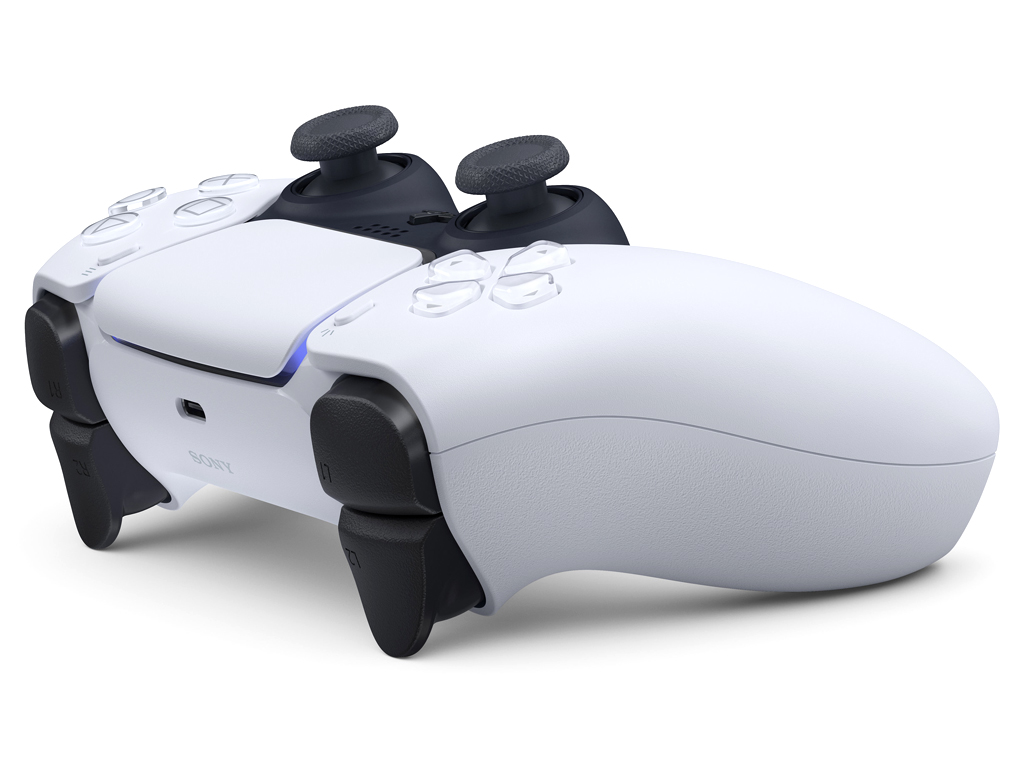
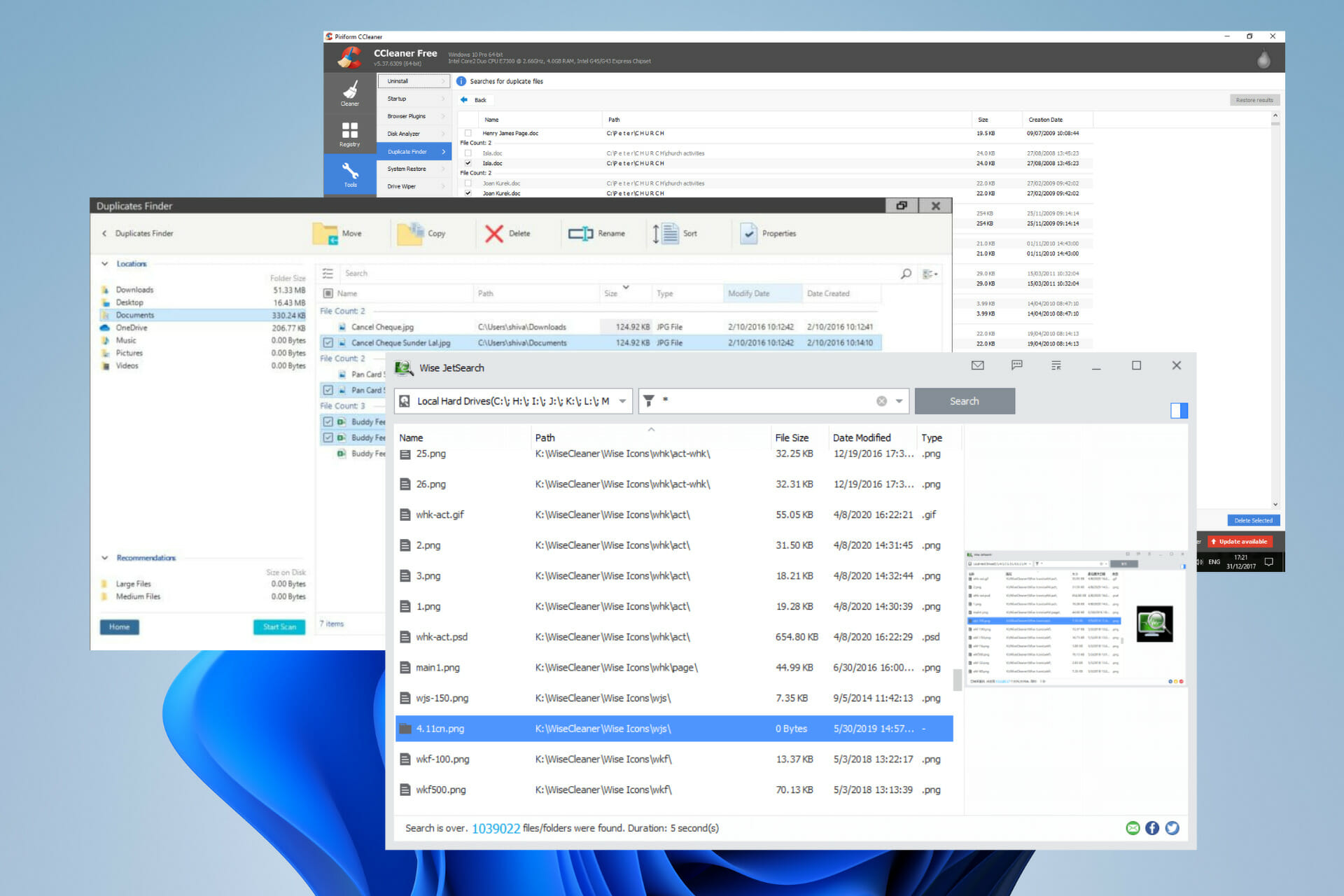
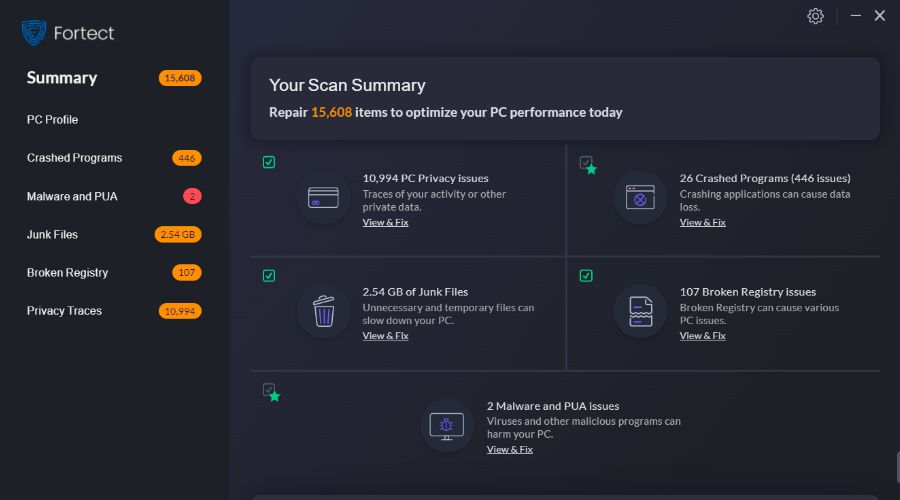





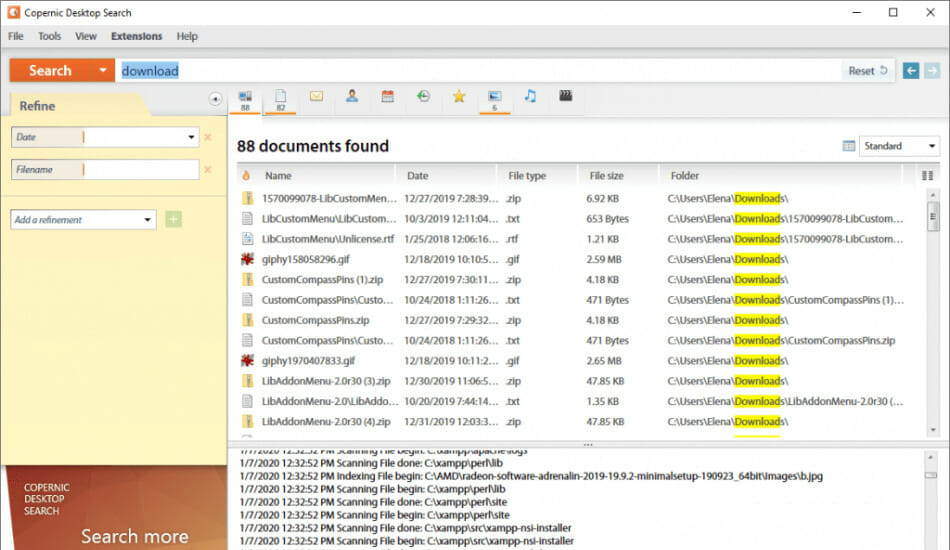



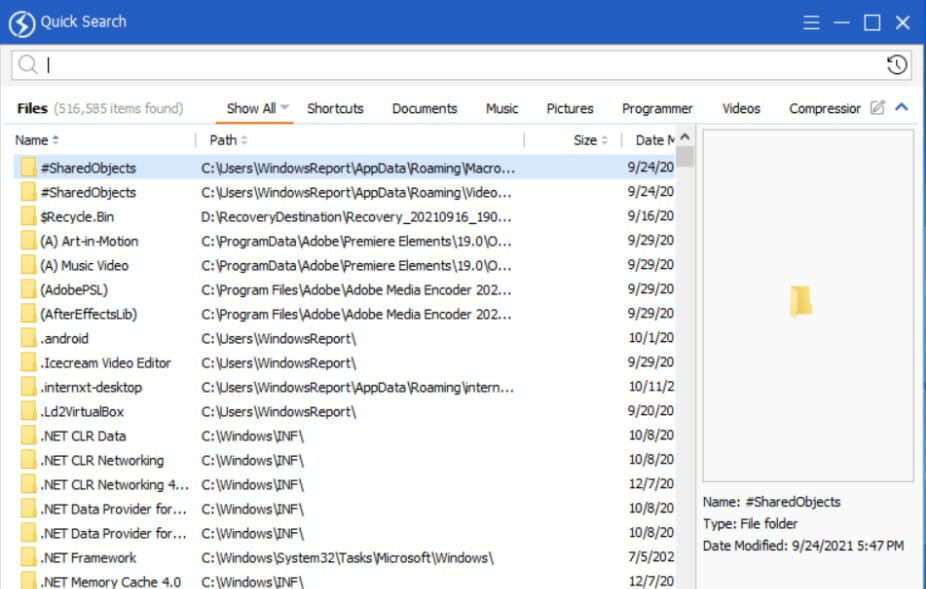

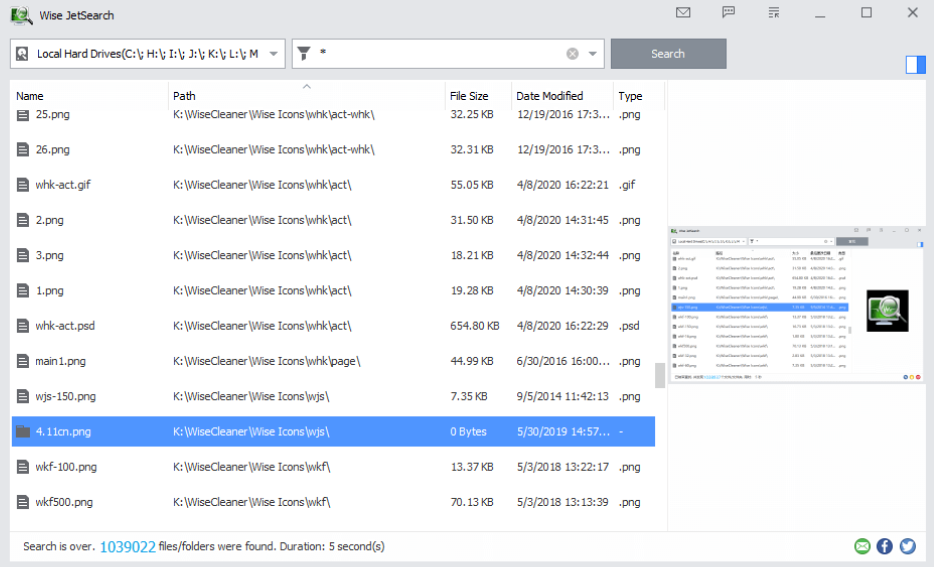

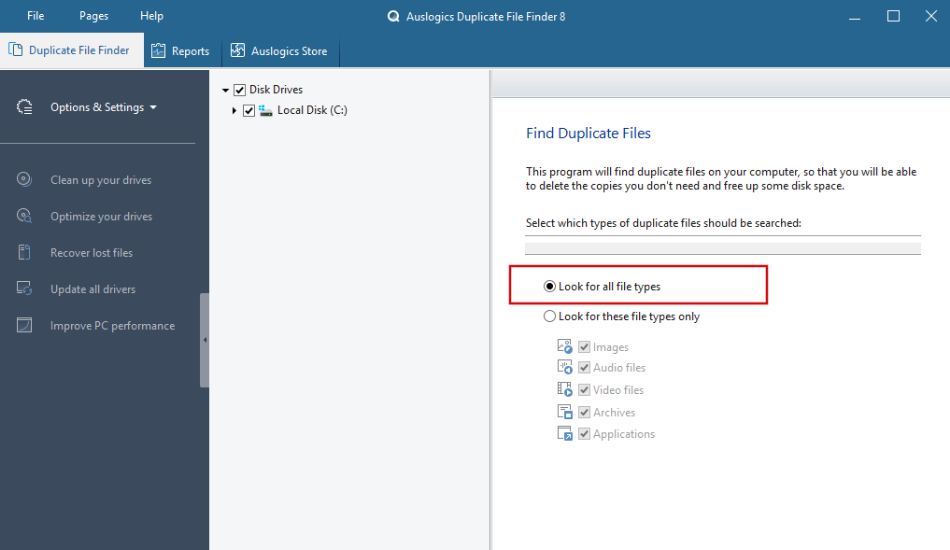

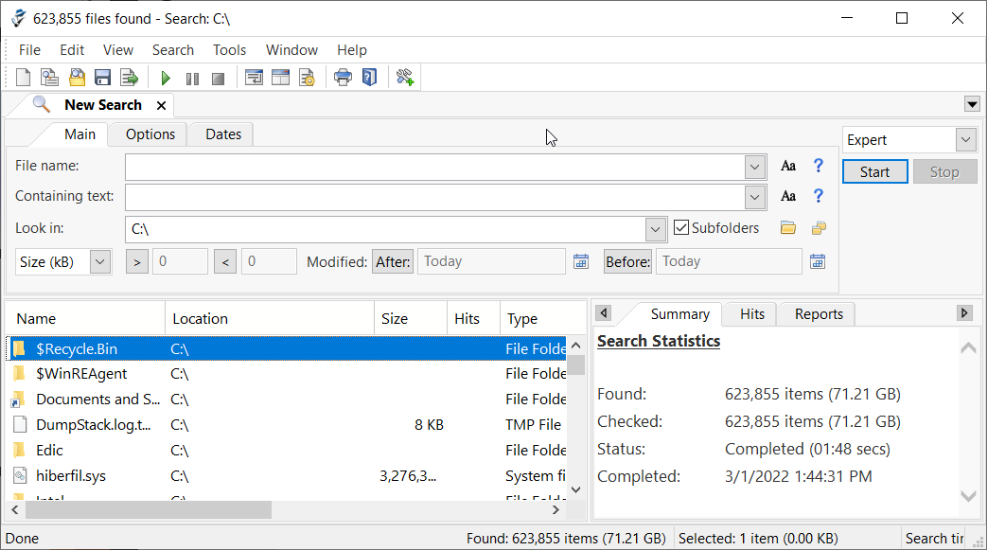


![Error 0xc0000409 in Windows 10 [QUICK FIX]](https://windowsreport.com/wp-content/uploads/2019/06/0xc0000409.jpg)




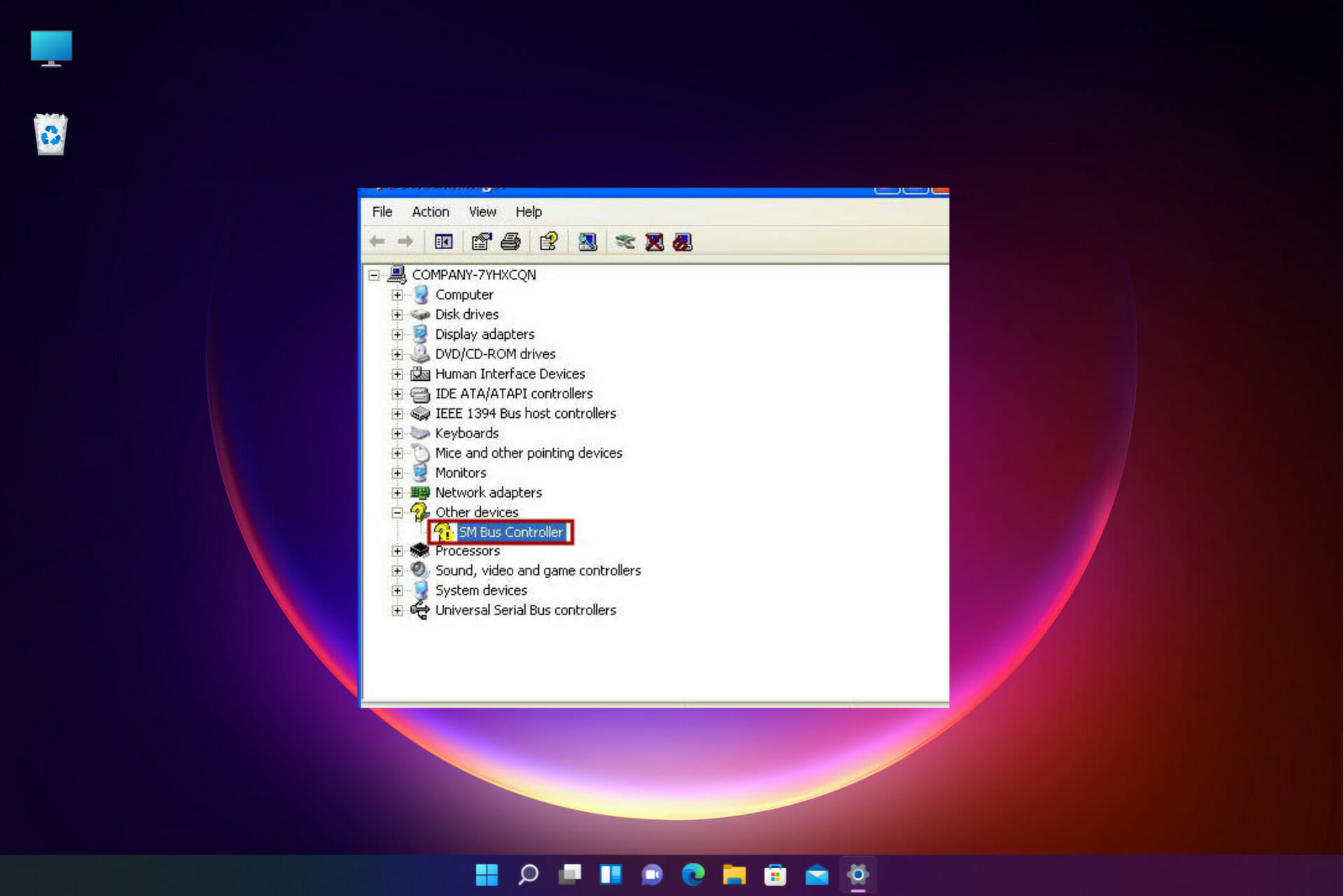


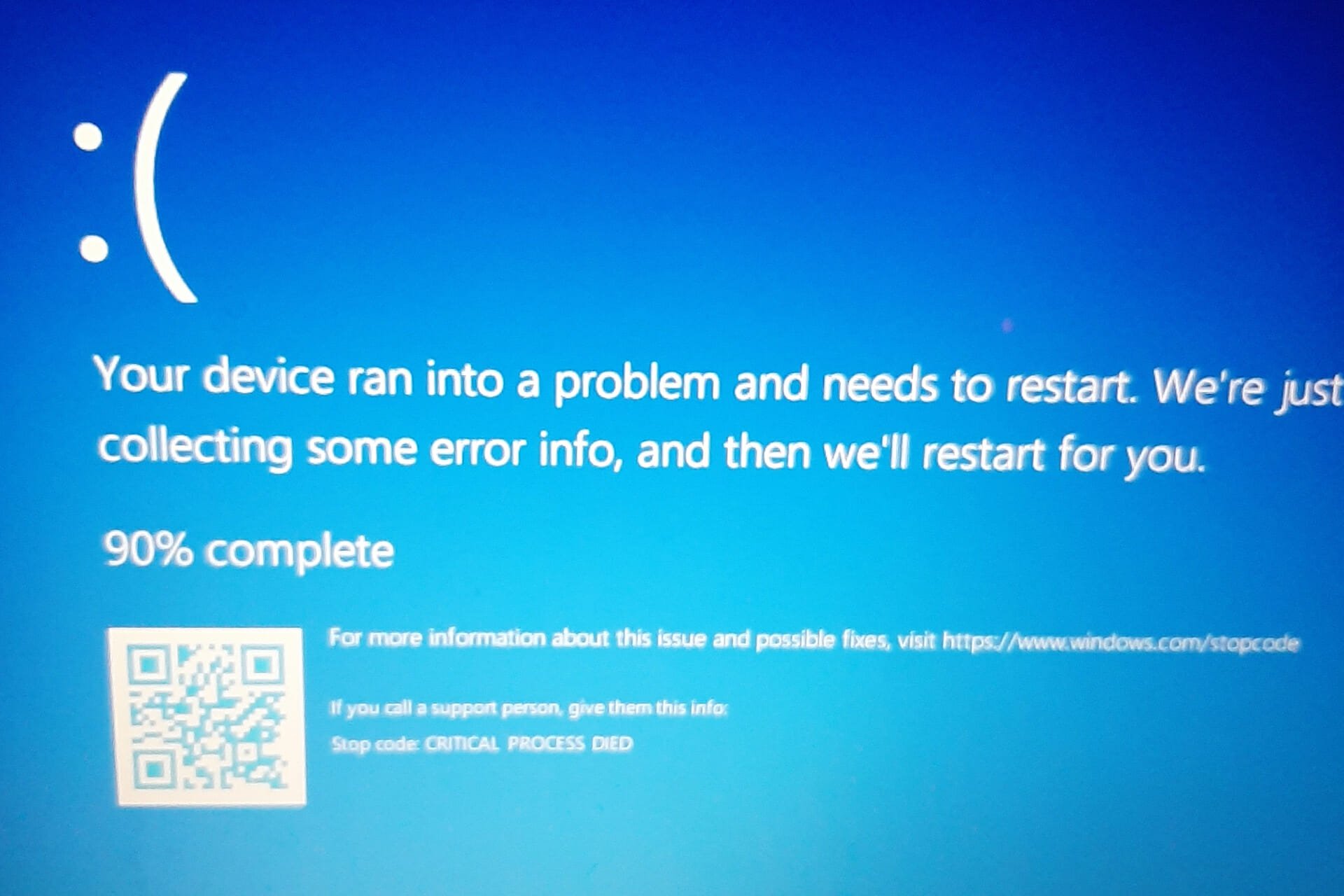



![Fix Browser error code b5 in Respondus LockDown [Instructors & Students]](https://windowsreport.com/wp-content/uploads/2022/04/feature-image-15.jpg)
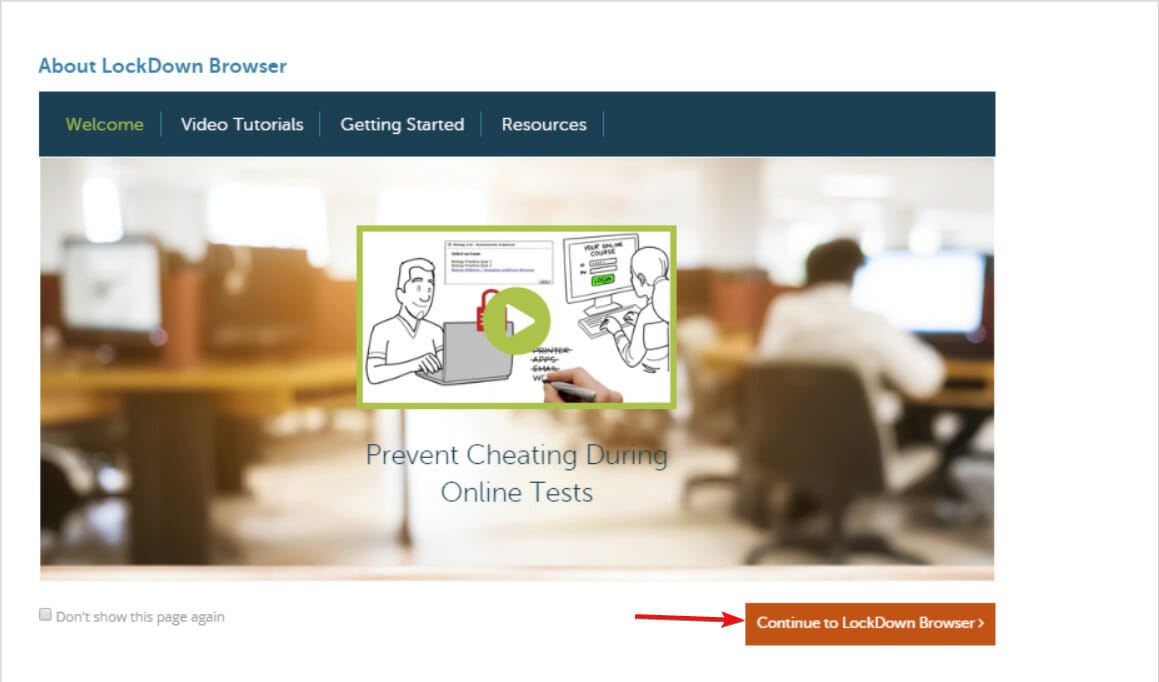
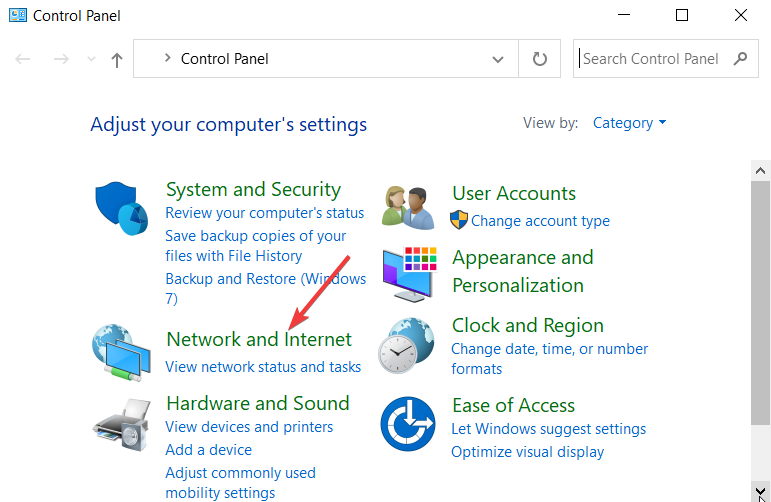
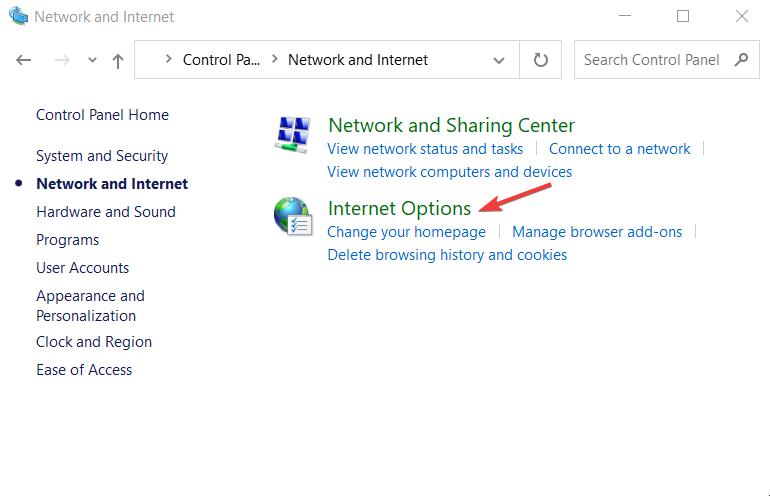
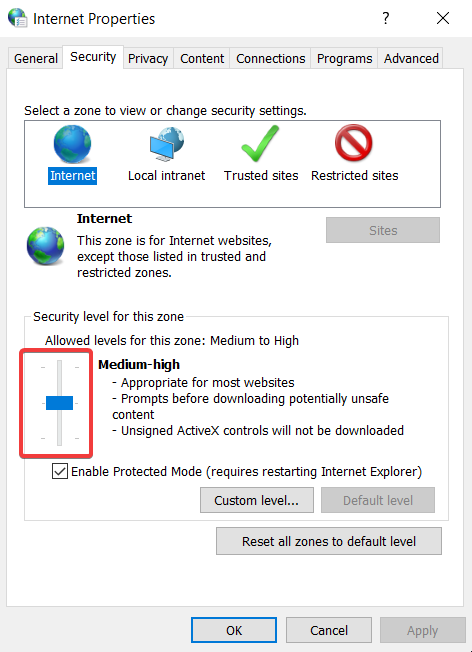
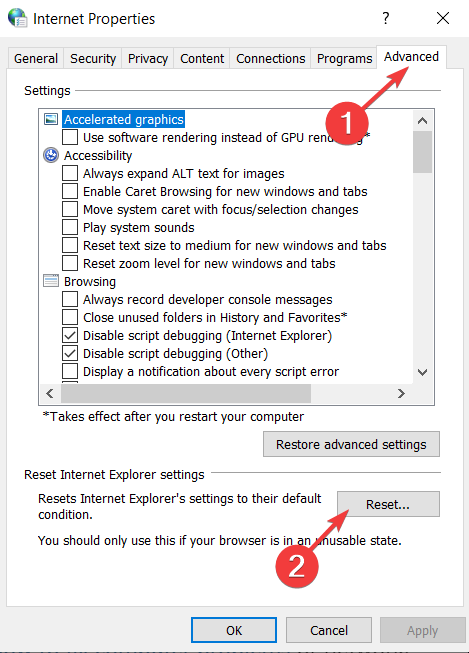
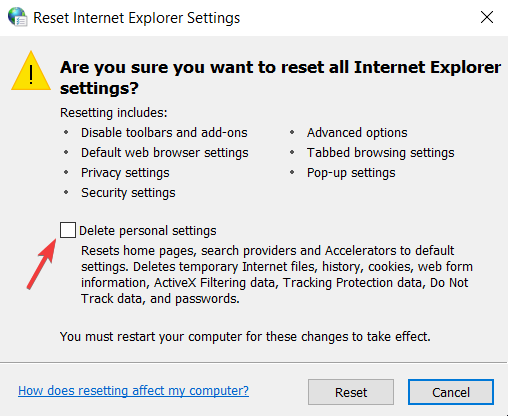
![9 Best Cloud Storage For Personal Use [2026 Updated Guide]](https://windowsreport.com/wp-content/uploads/2018/10/Cloud.jpg)
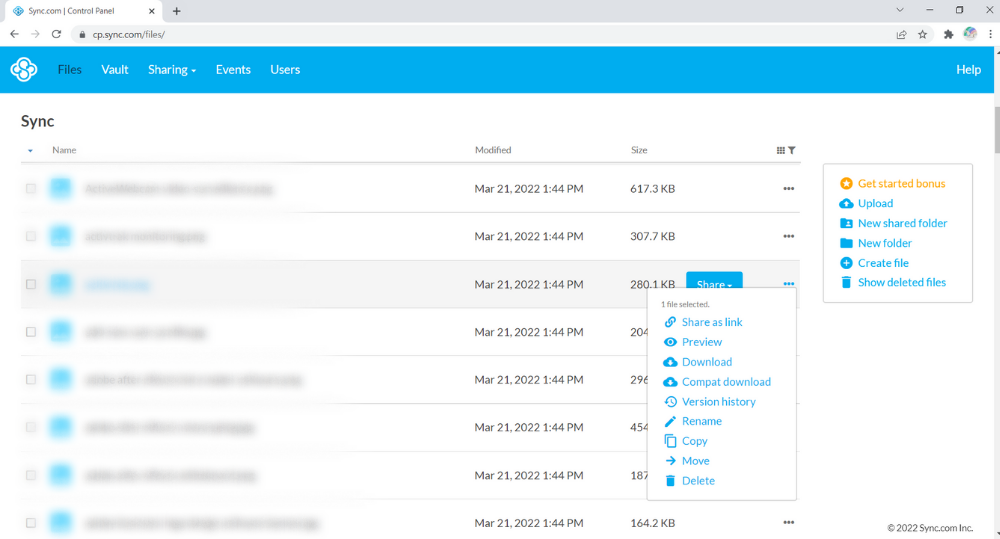


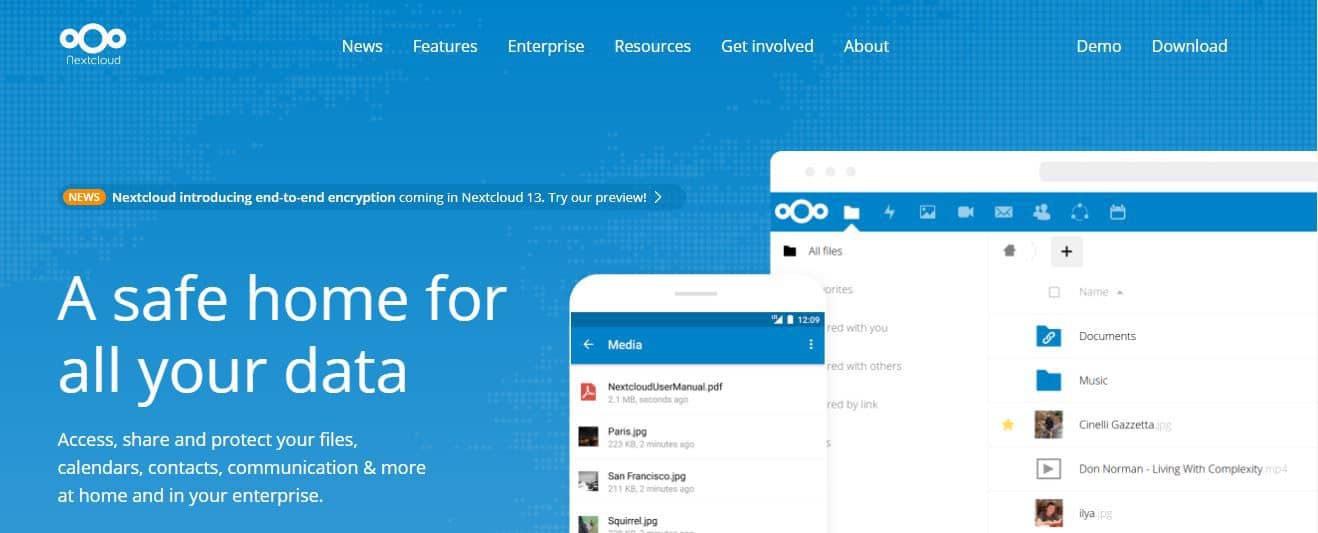


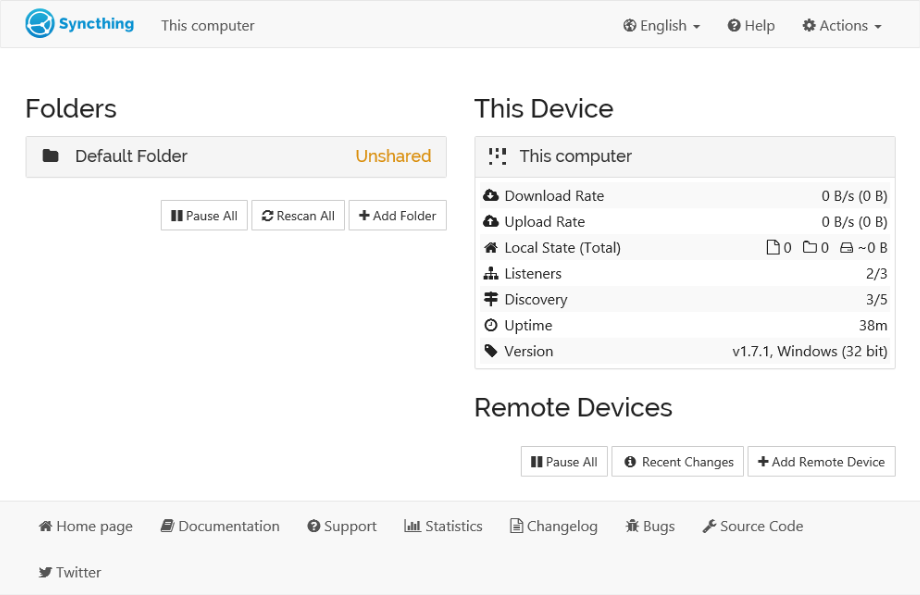
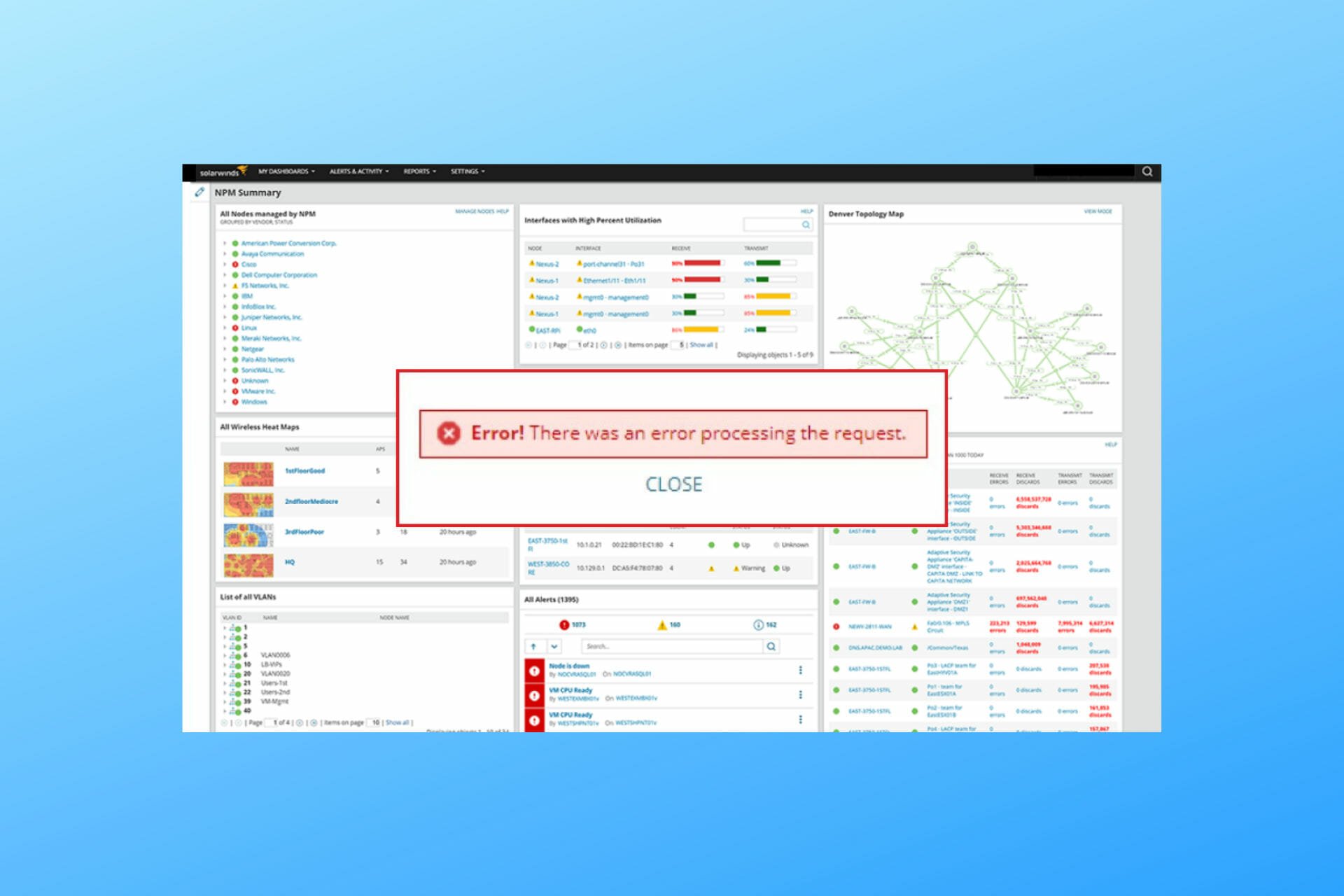


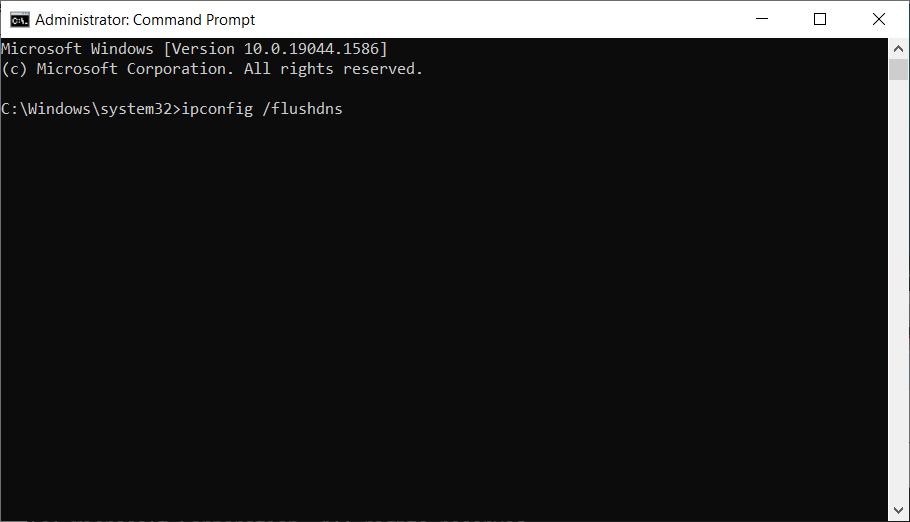
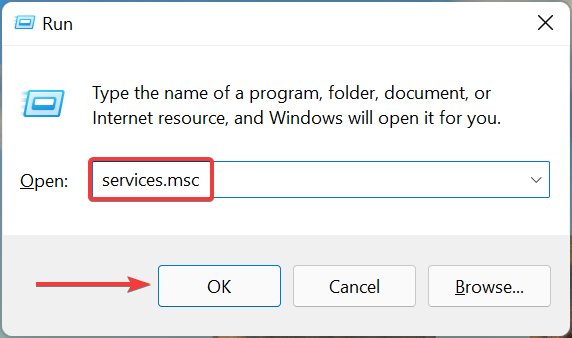




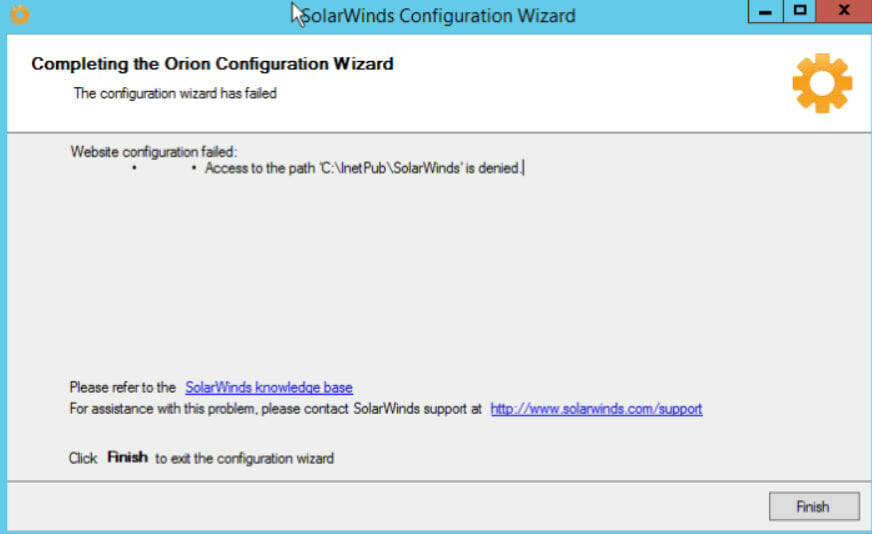
![Best Game Server Panel to Download [4 Free Picks Ranked]](https://windowsreport.com/wp-content/uploads/2022/04/feature-image-16.jpg)
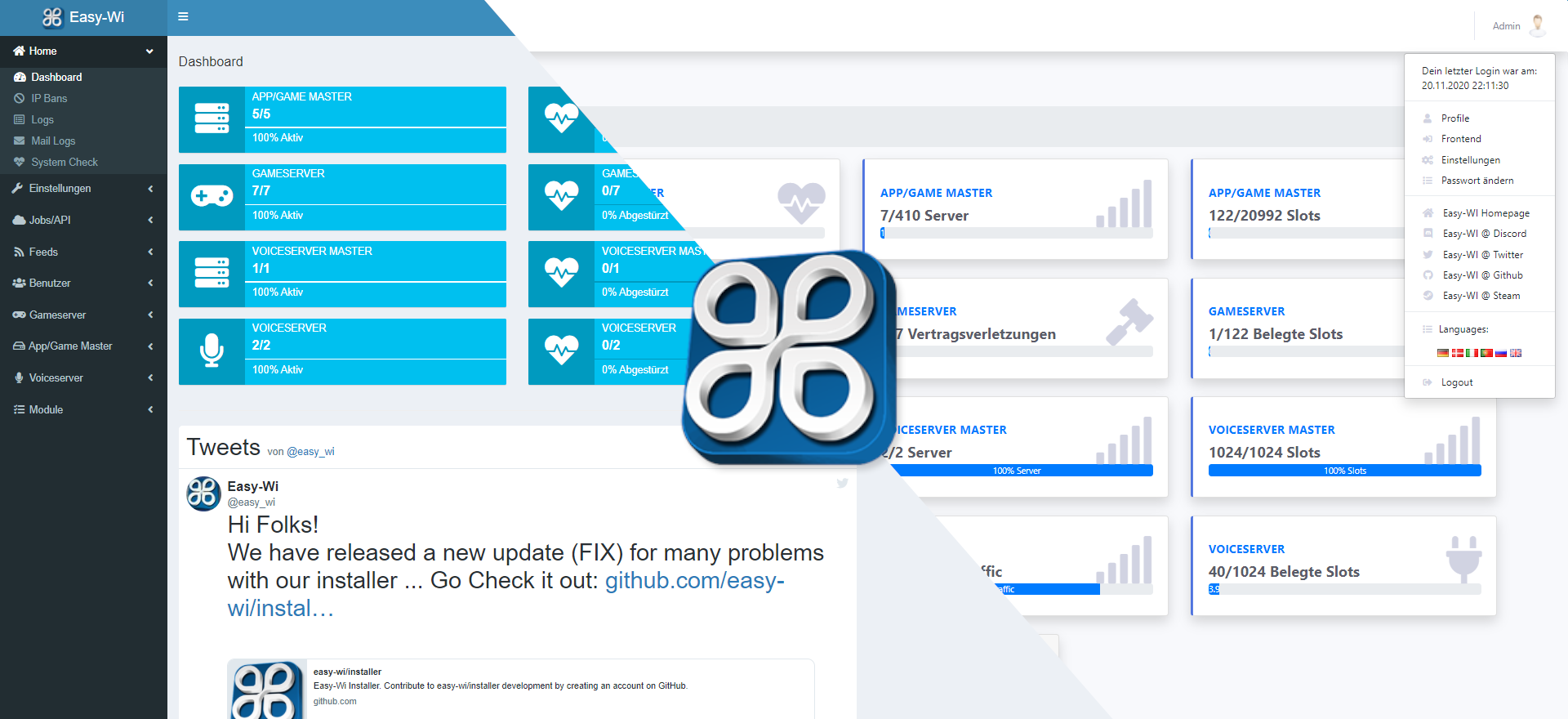

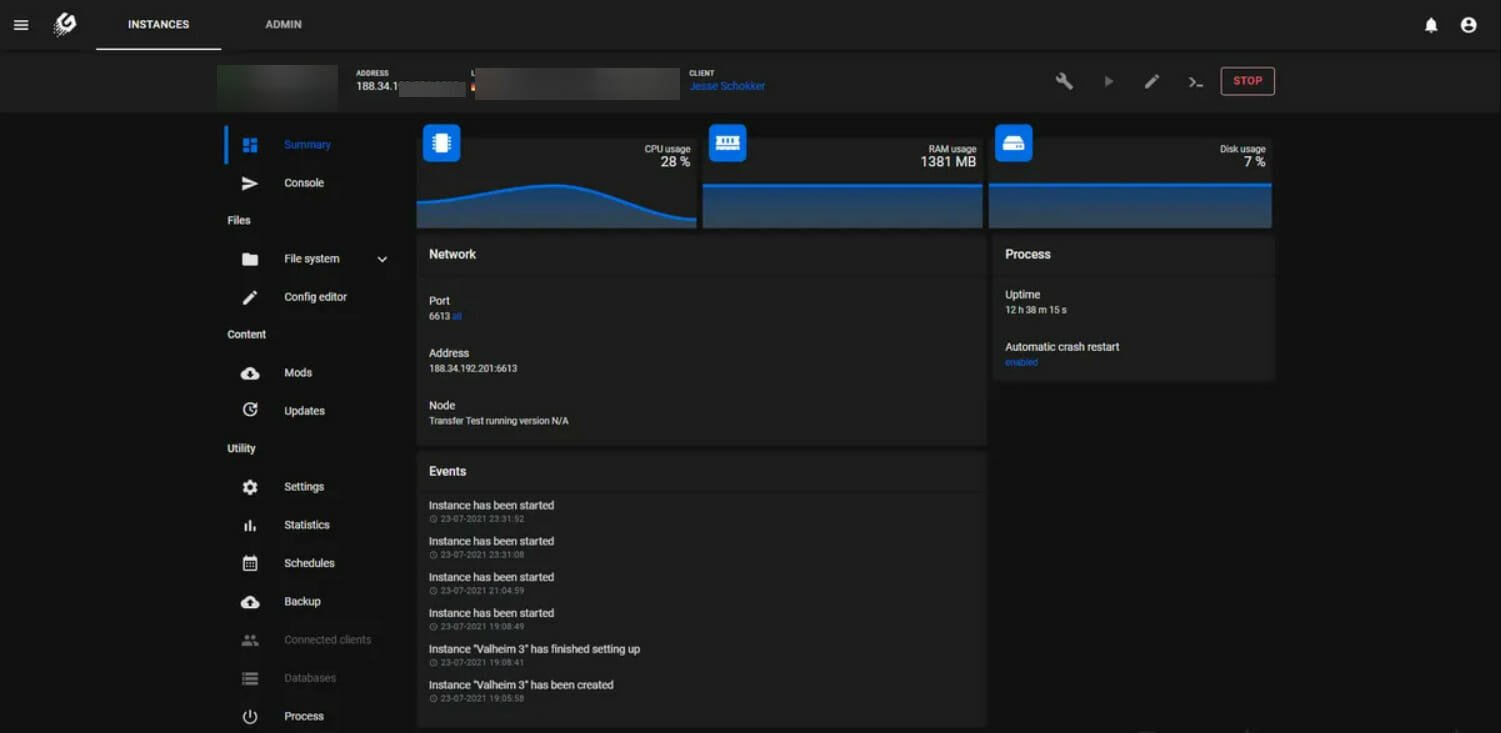


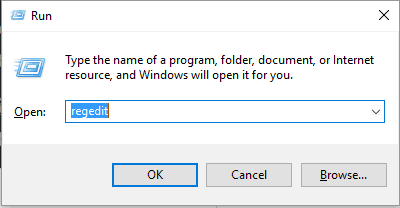
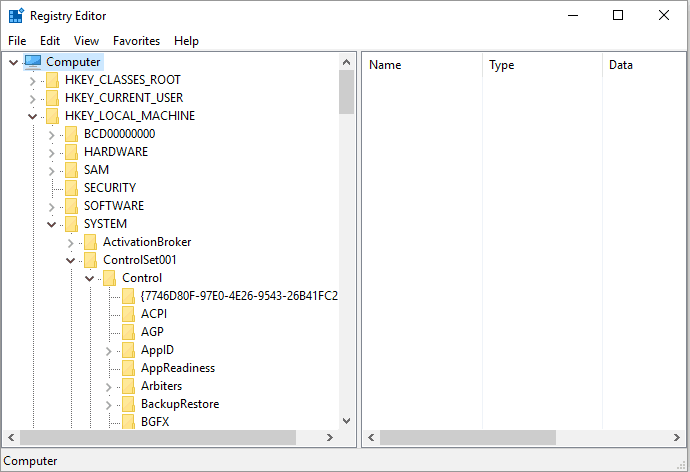

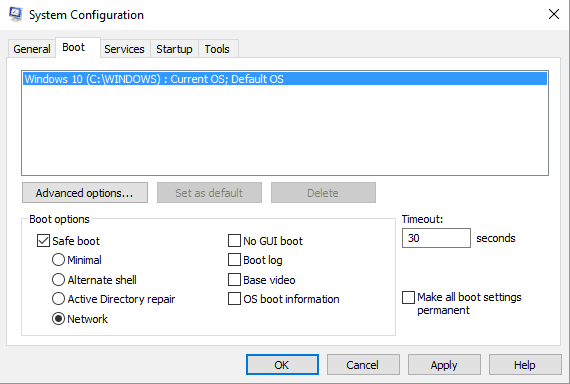
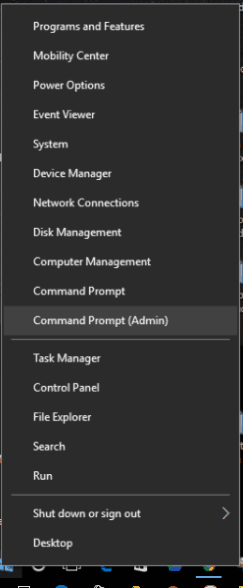
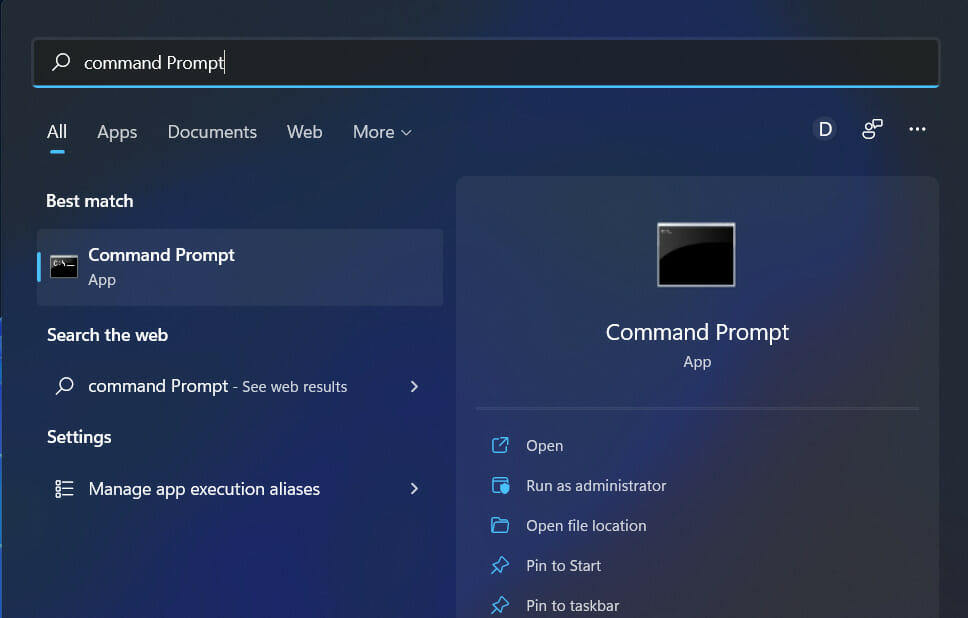
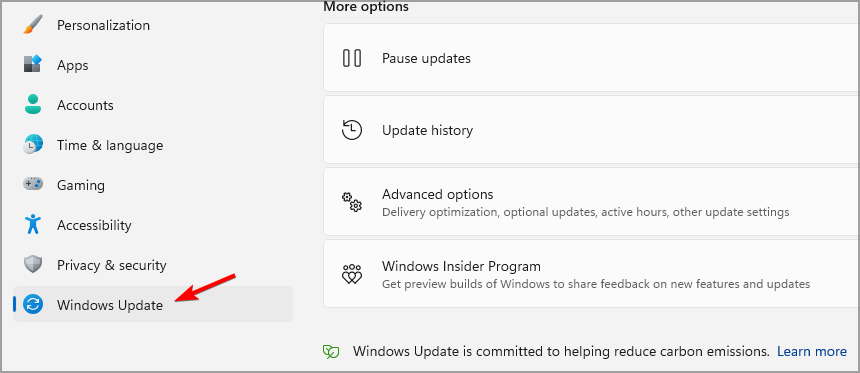
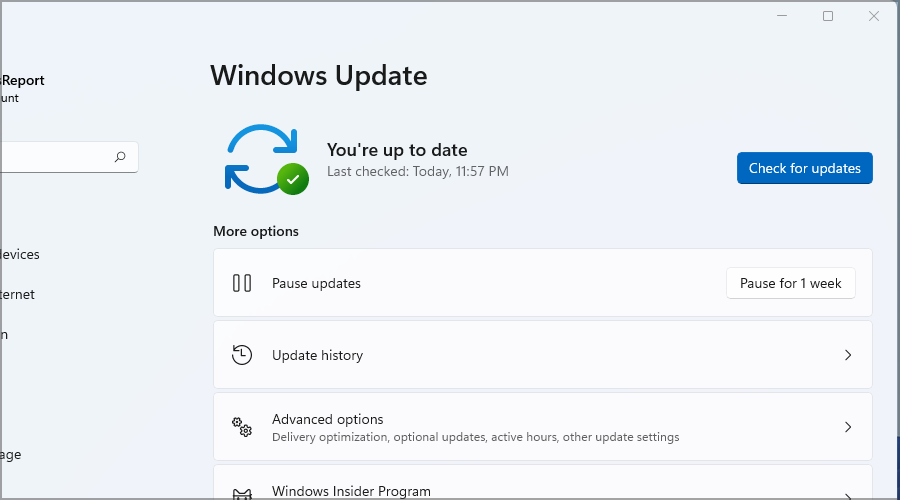
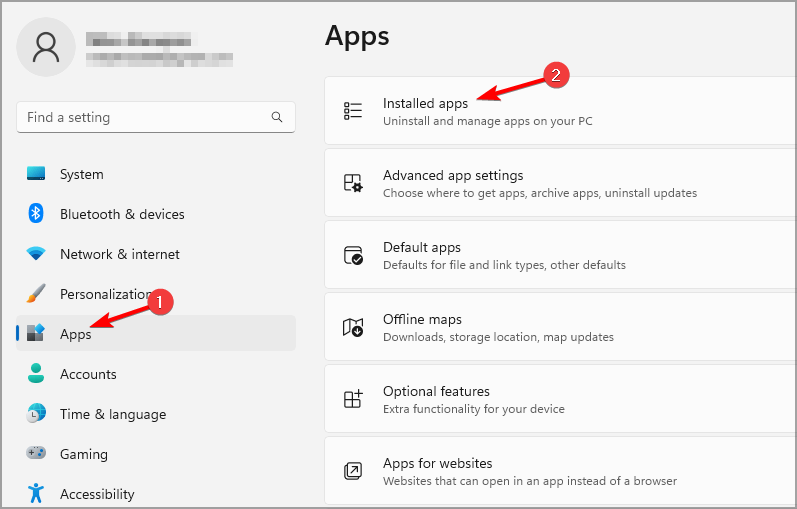
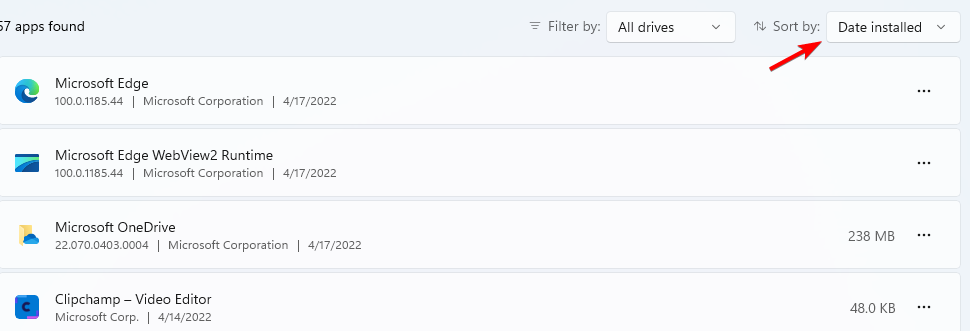
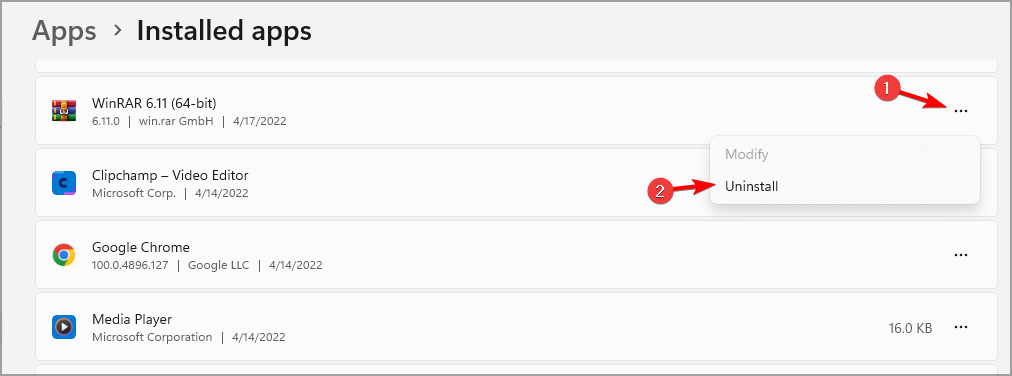

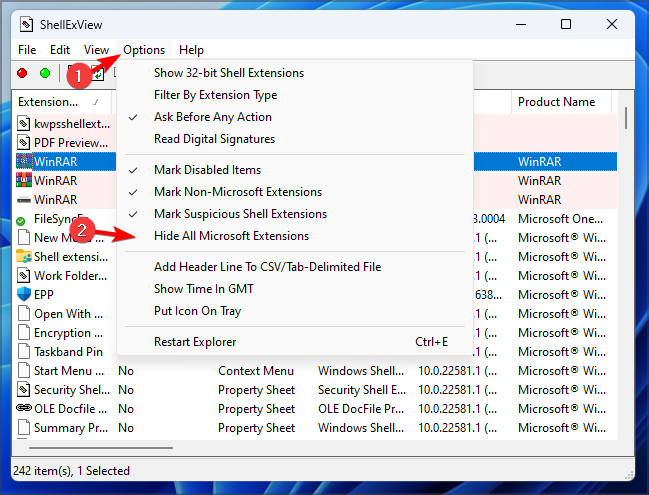
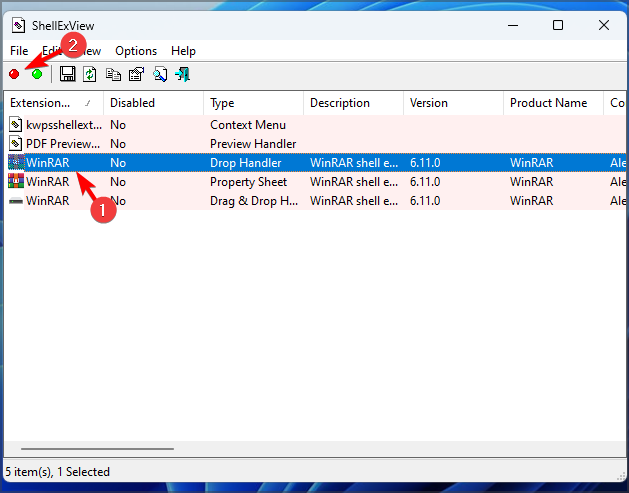
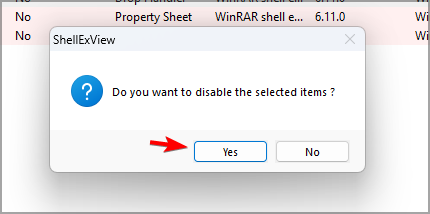
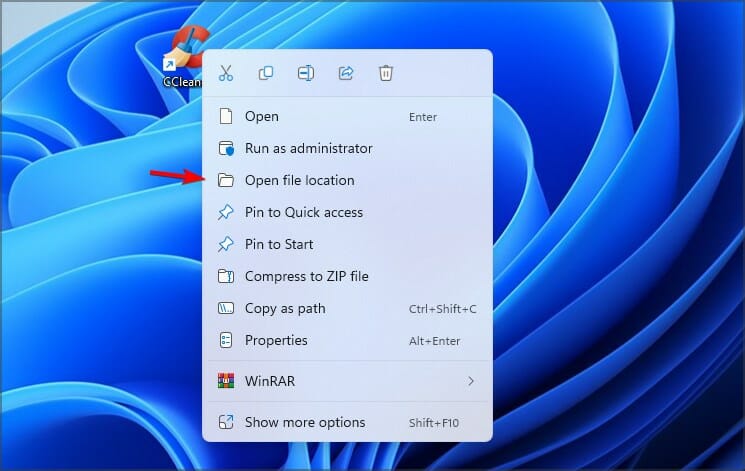


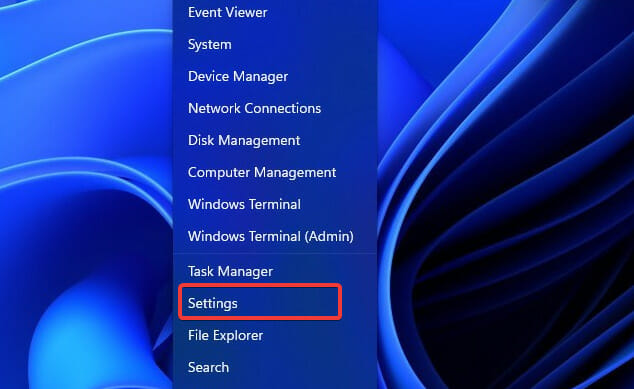




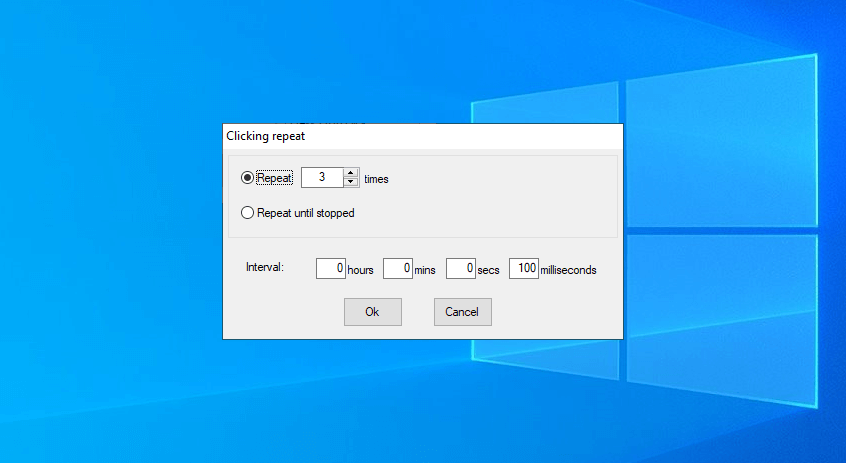

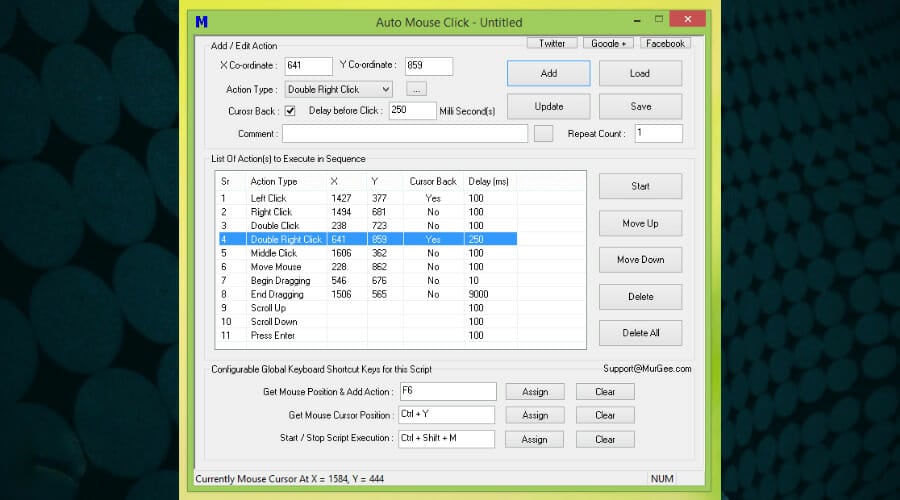

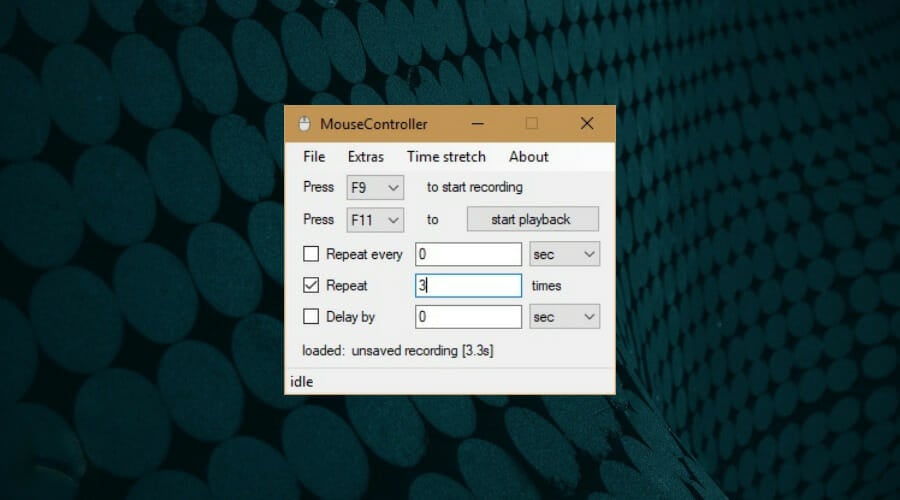



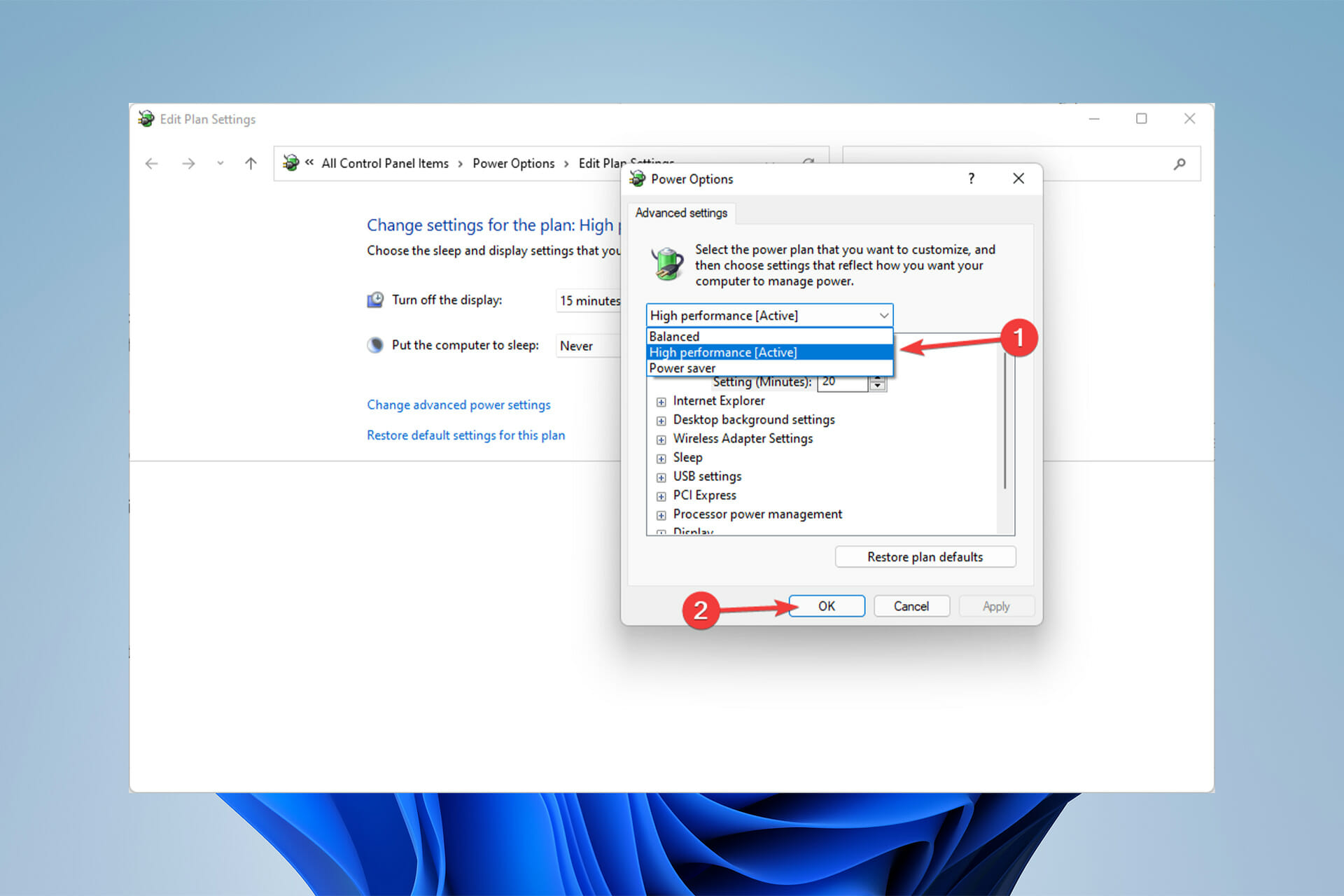
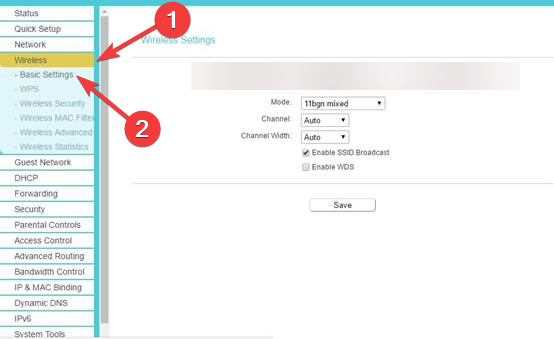


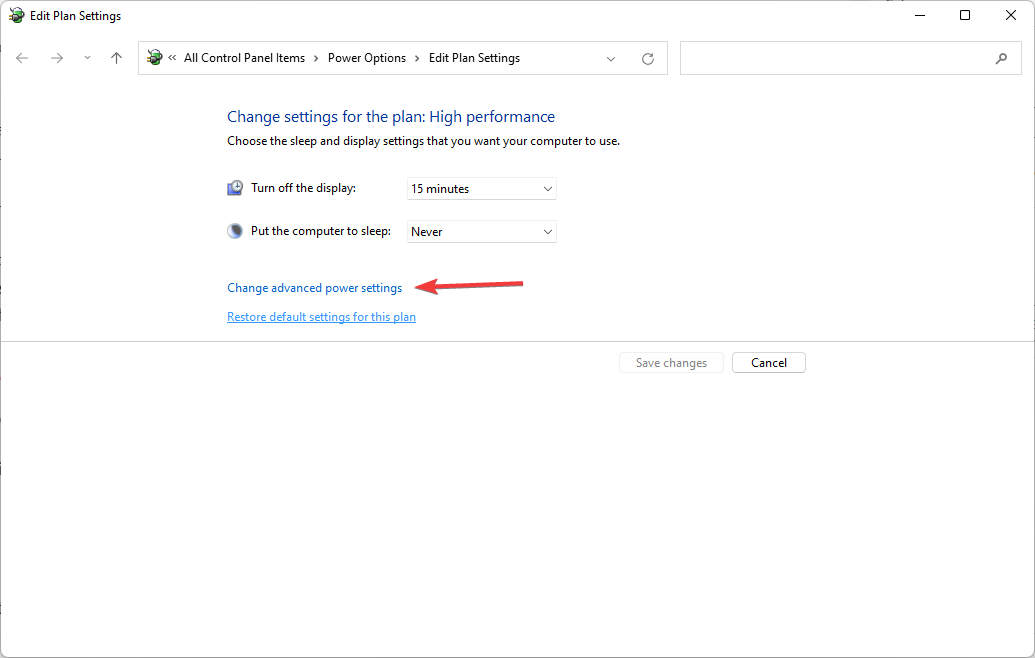
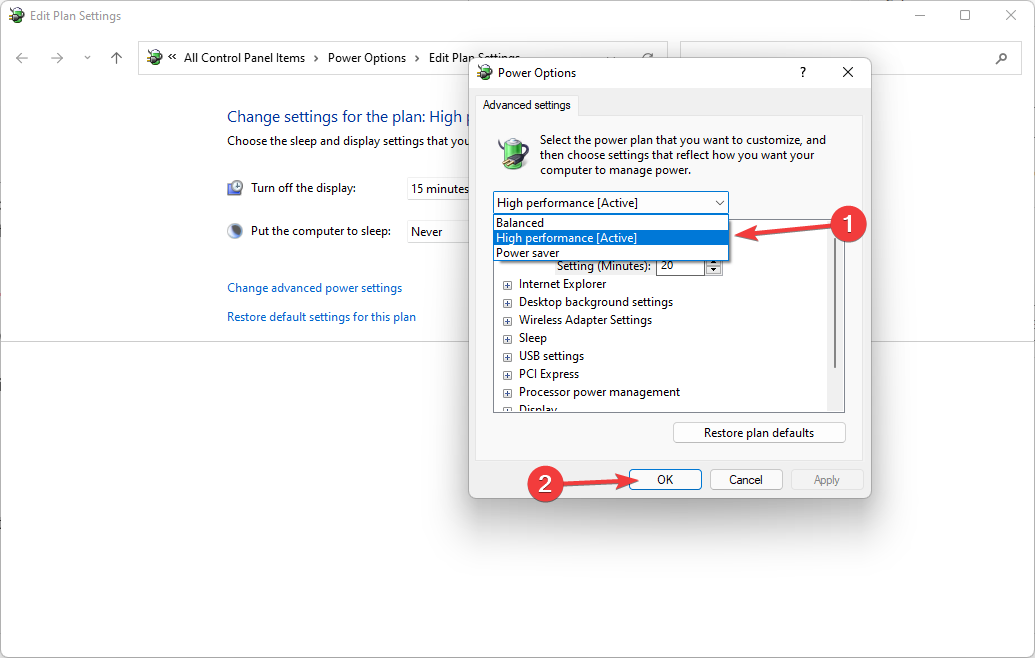

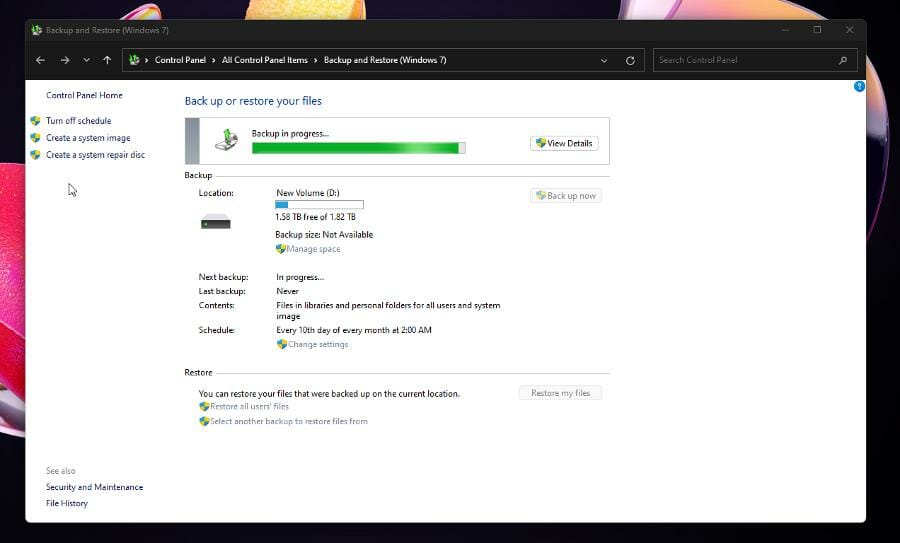


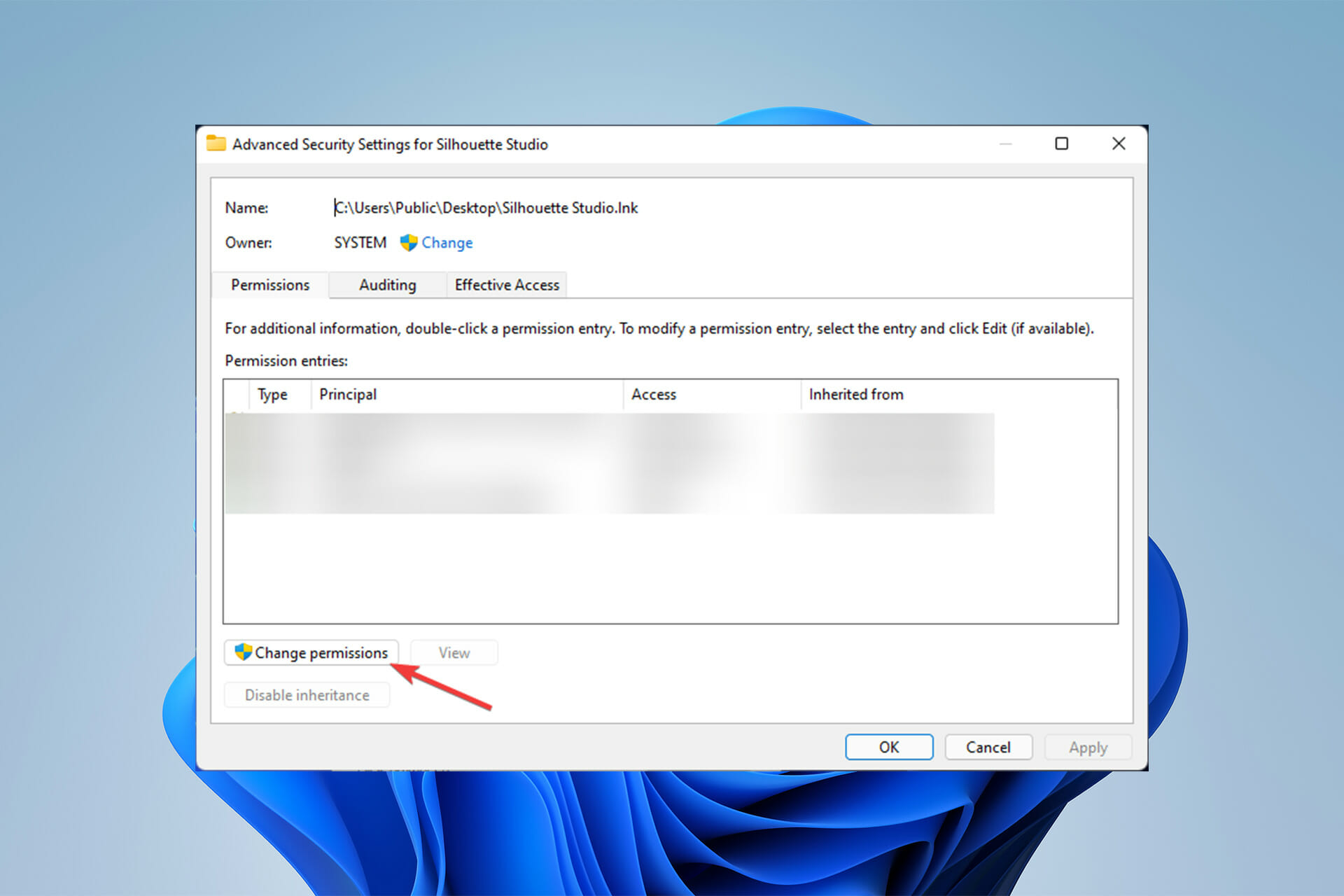


![Free Video Background Changer App [Best to use in 2026]](https://windowsreport.com/wp-content/uploads/2022/04/remove-video-background-image.jpg)