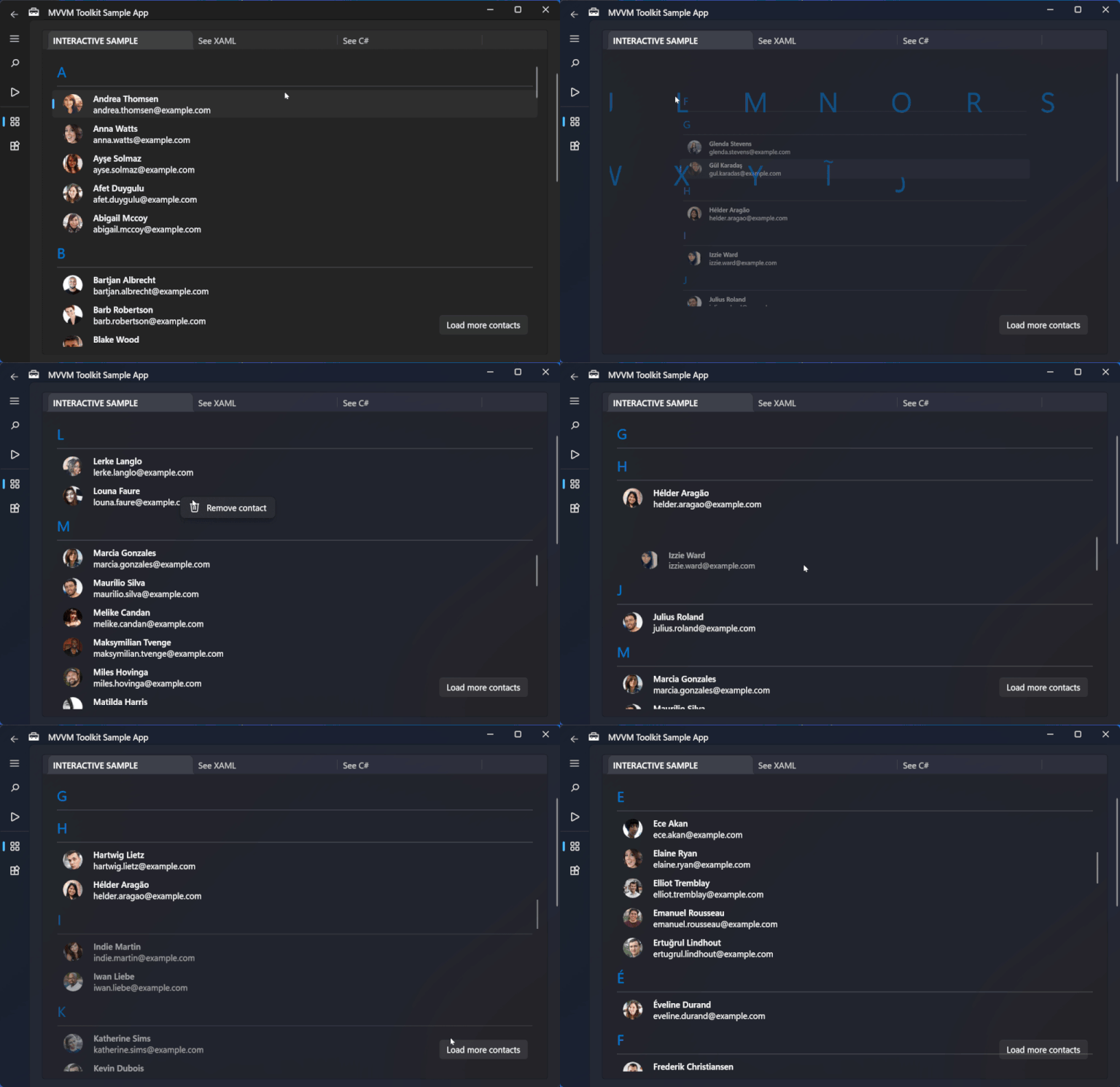
.NET MAUI Release Candidate Announced

Yesterday brought us some exciting news, .NET MAUI hit Release Candidate. In a nutshell the SDK is almost ready for General Availability. This is huge news for those of us which tempted fate and built commercial production apps on this platform. We can now breathe easy as this news means Microsoft will begin offering production support.

What’s included?

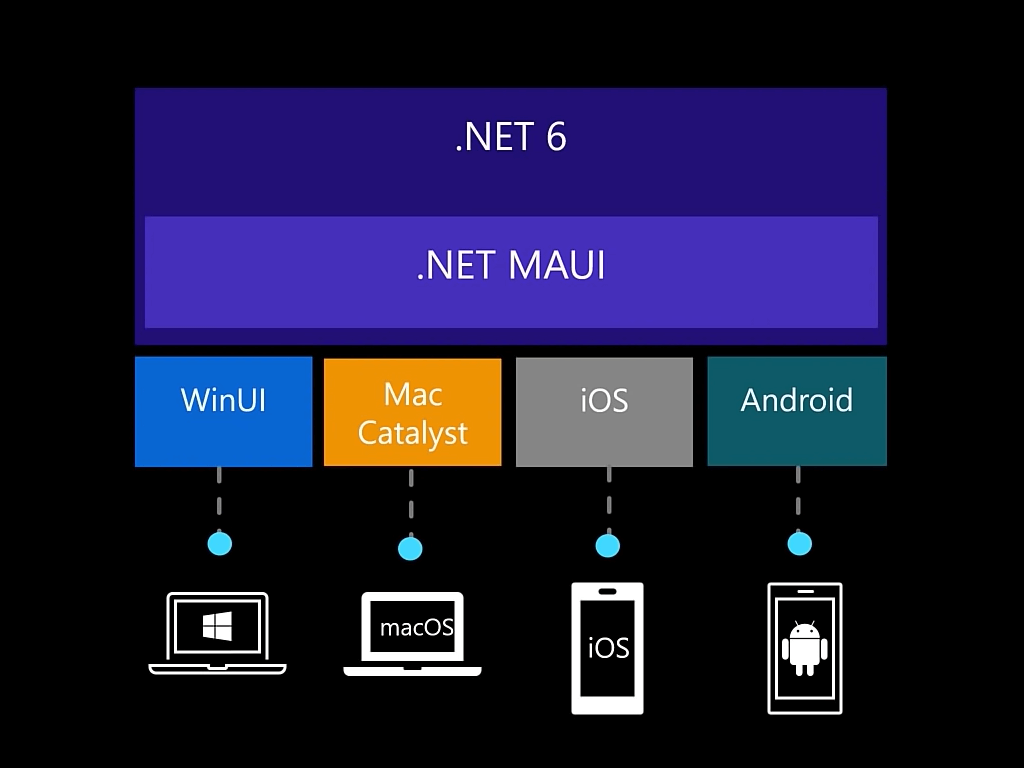
For those that have not been keeping up with .NET MAUI here is a quick overview. The project leverages platform specific SDKs to give developers the ability to target Android, iOS, macOS and Windows directly from C# and a shared code base. This means build once, release on multiple platforms.

For those familiar with Xamarin.Forms, you get access to every UI control you’re already familiar with plus additional controls like BlazorWebView, Border, GraphicsView, MenuBar, Shadow, and Window. The XAML language you know and love is also present, which means making the jump from Xamarin or WPF will be extremely easy.

How to get started?

The first thing I would recommend is to give the official documentation a quick read.

.NET Multi-platform App UI documentation

After you are familiar enough to get started, then you need to make sure you’re using the latest preview version of Visual Studio 2022 which you can get here.

Visual Studio 2022 Preview

When you run the installer, be sure to select .NET MAUI (preview) under “Mobile Development with .NET workload” and you’re off to the races!

To read more about what’s included, coming and even what might be broken, check out the release notes on .NET MAUI’s repository on Github.

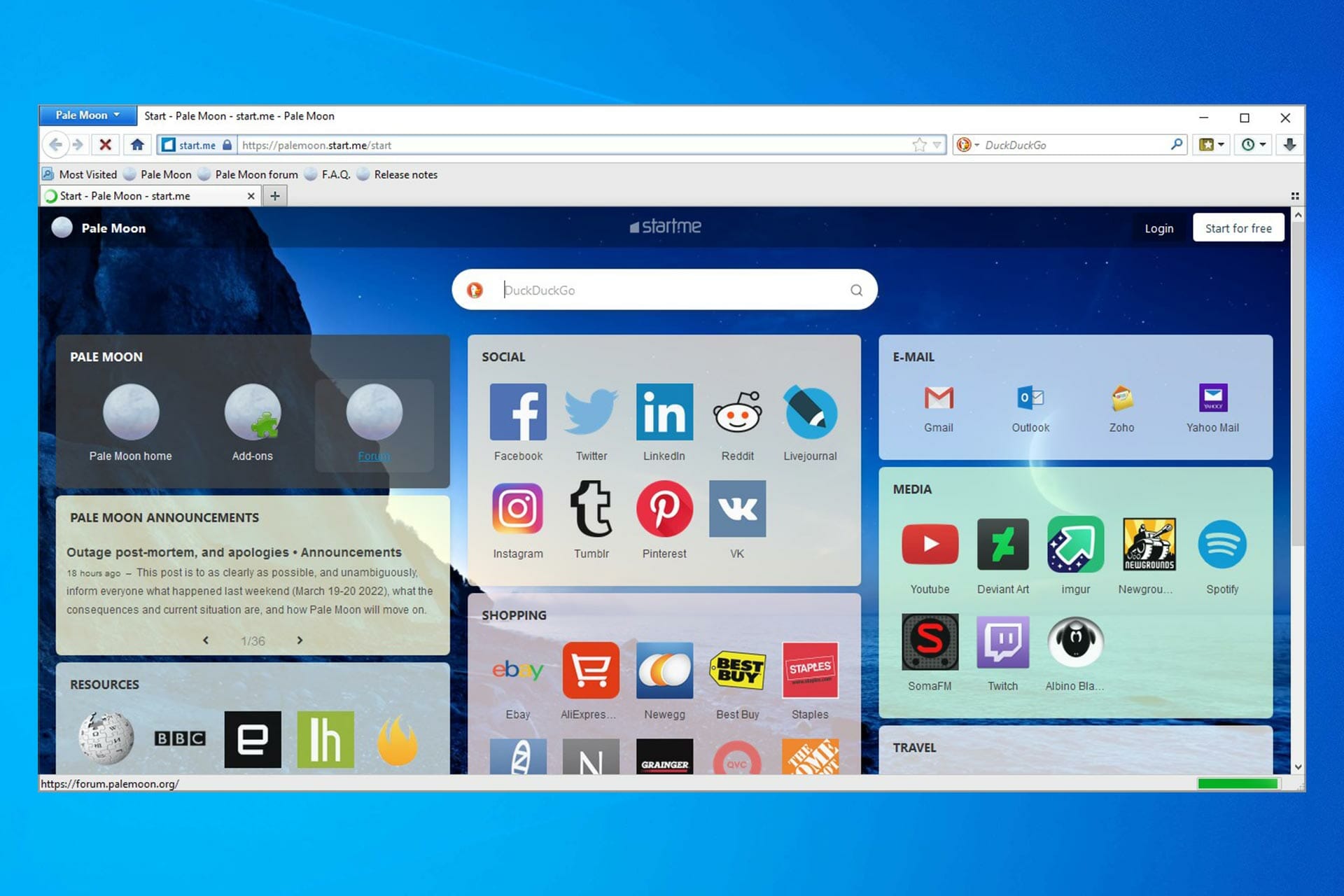
Opera vs Qwant: A complete comparison

Having the right browser may make the difference regarding your customizations, workflow, and user data.

It can be tempting to use the default browser that came with your PC or mobile device, but we recommend that you move outside of the defaults of your devices to get a better sense of the web.

While several of the most prominent search engines include comprehensive filtering options and customized plugins/workflows, not every one of them can provide customers with an entirely worry-free surfing experience.

Indeed, numerous big-name tech companies are renowned for selling off user data, raising concerns about the security of your personal information and browsing history while accessing some of these robust online databases.

This article compares Opera and Qwant, two browsers we like.

How does Opera compare to Quant?

➡ Features

opera vs qwant

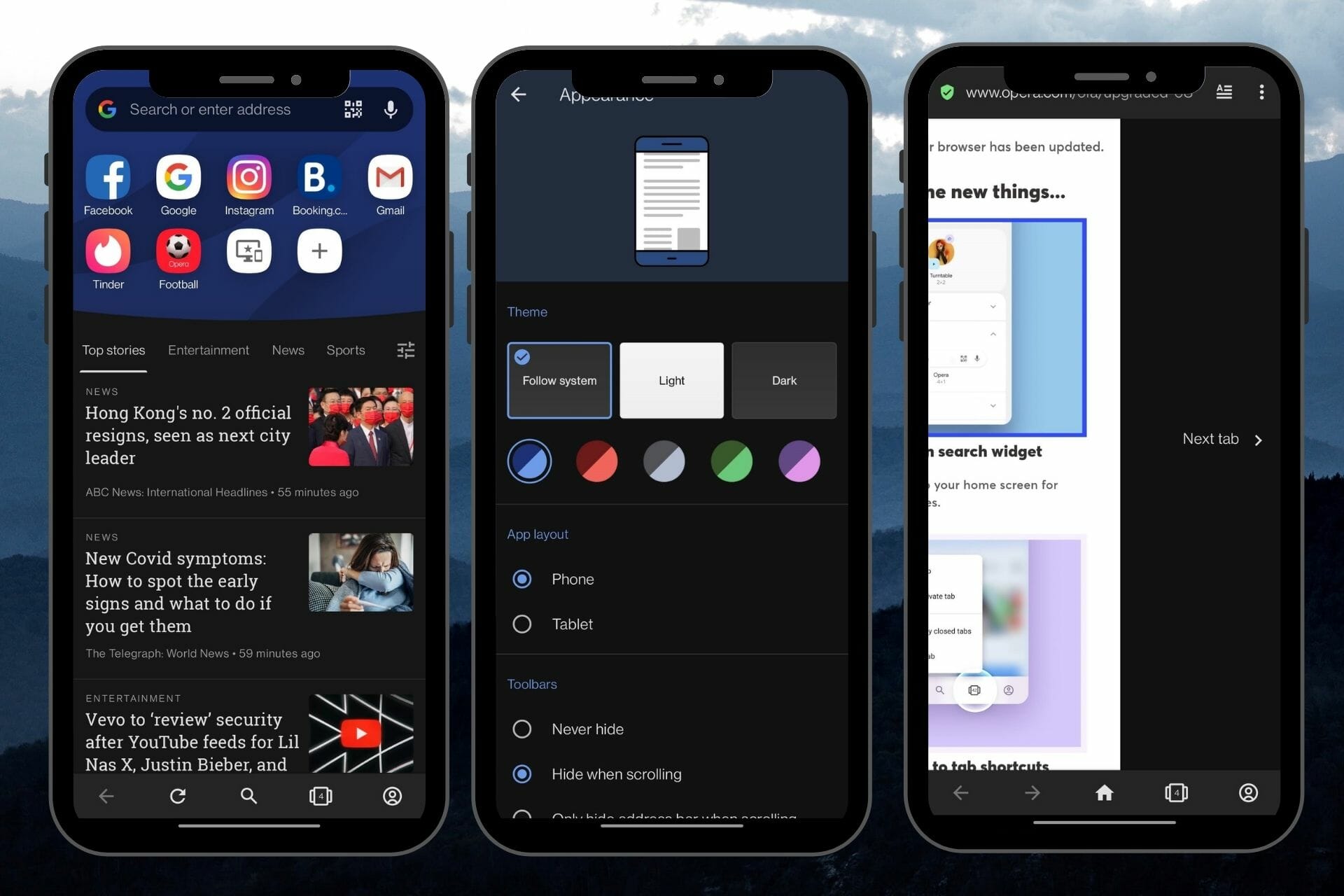
Since 2013, Opera has run on Google’s open-source Chromium (the foundation of Chrome). You may modify your experience by installing web extensions from Google’s vast library.

One of Opera’s most valuable and attractive features is messaging and social app integration. Popular platforms are available directly in the browser.

You may also use Opera to search on Google and utilize its auto-fill prediction feature, or you can select from several other popular search engines. 

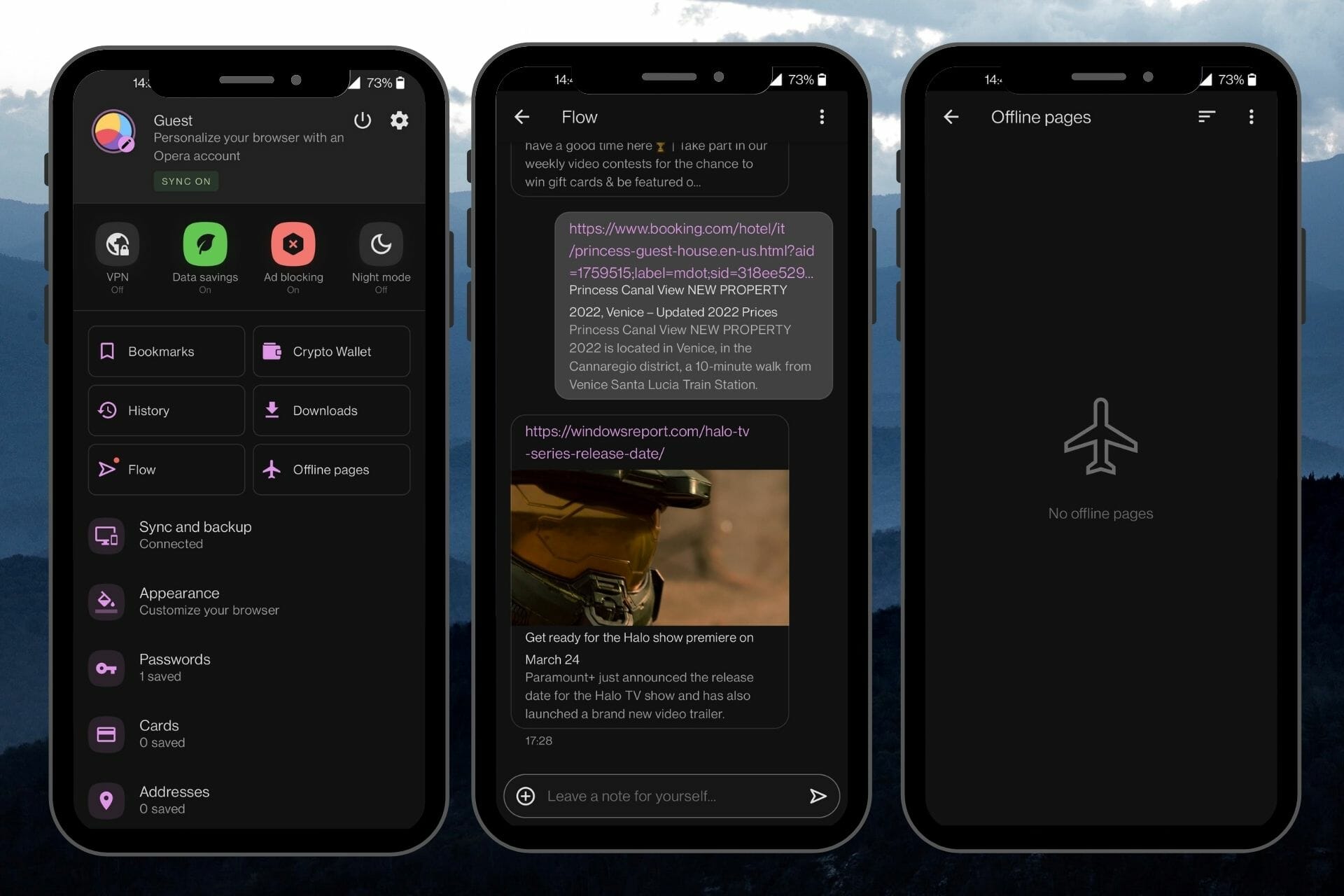
With My Flow, you may transfer encrypted material and links (such as photographs, articles, and videos) across devices. It also has an ad blocker built-in.

opera vs qwant

Qwant, on the other hand, is a wholly autonomous search engine, which means that all its algorithmic replies to your queries are based on Qwant’s indexing rather than the recorded data of everyone who uses the search engine.

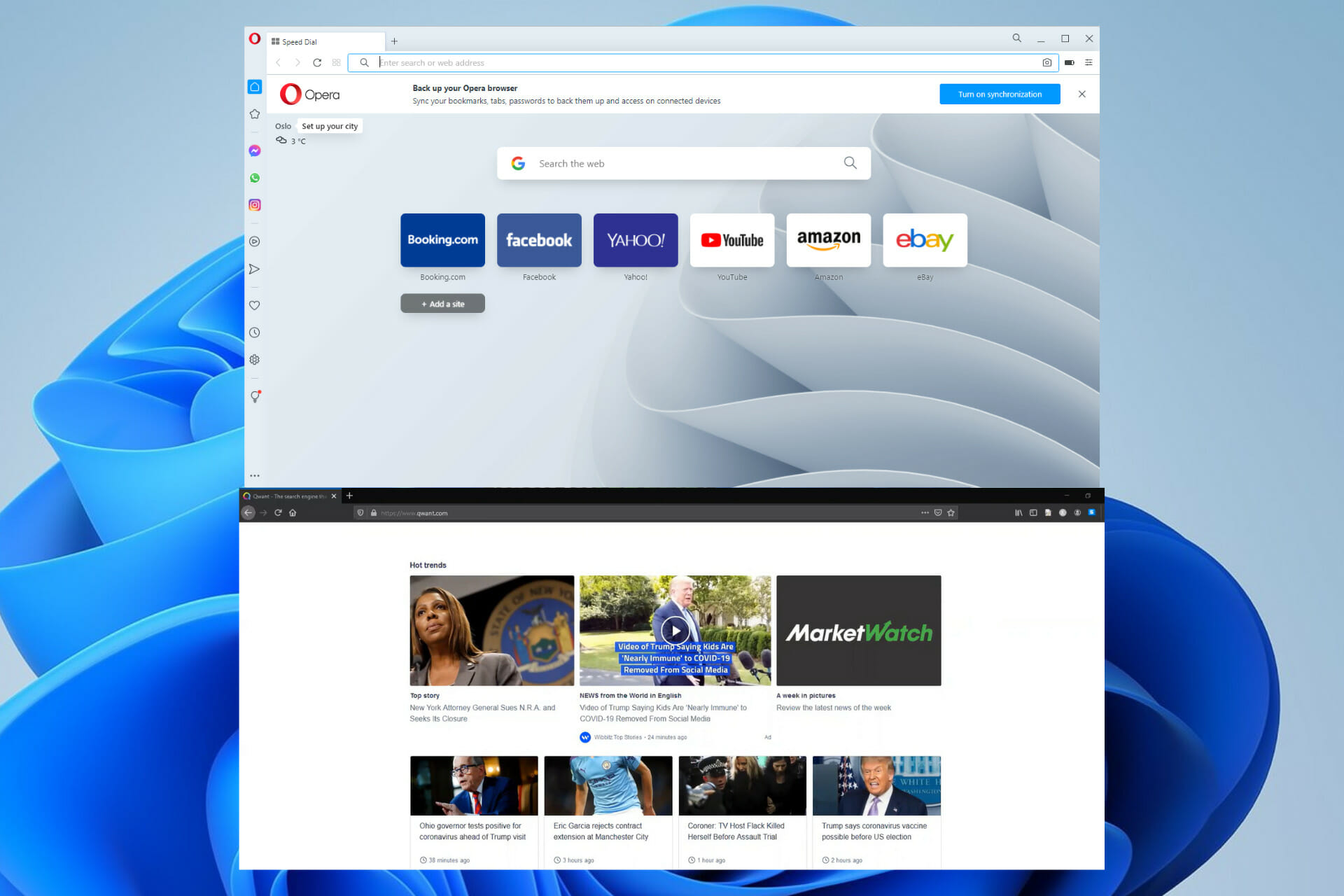
Qwant seems and functions like an Opera on the surface. Users input their first searches into a primary search box on the landing page, which takes them to the results page.

Web, Images, News, Maps, Videos, Settings, and a Music tab are presented on the page’s left side, with tabs for filtering at the top.

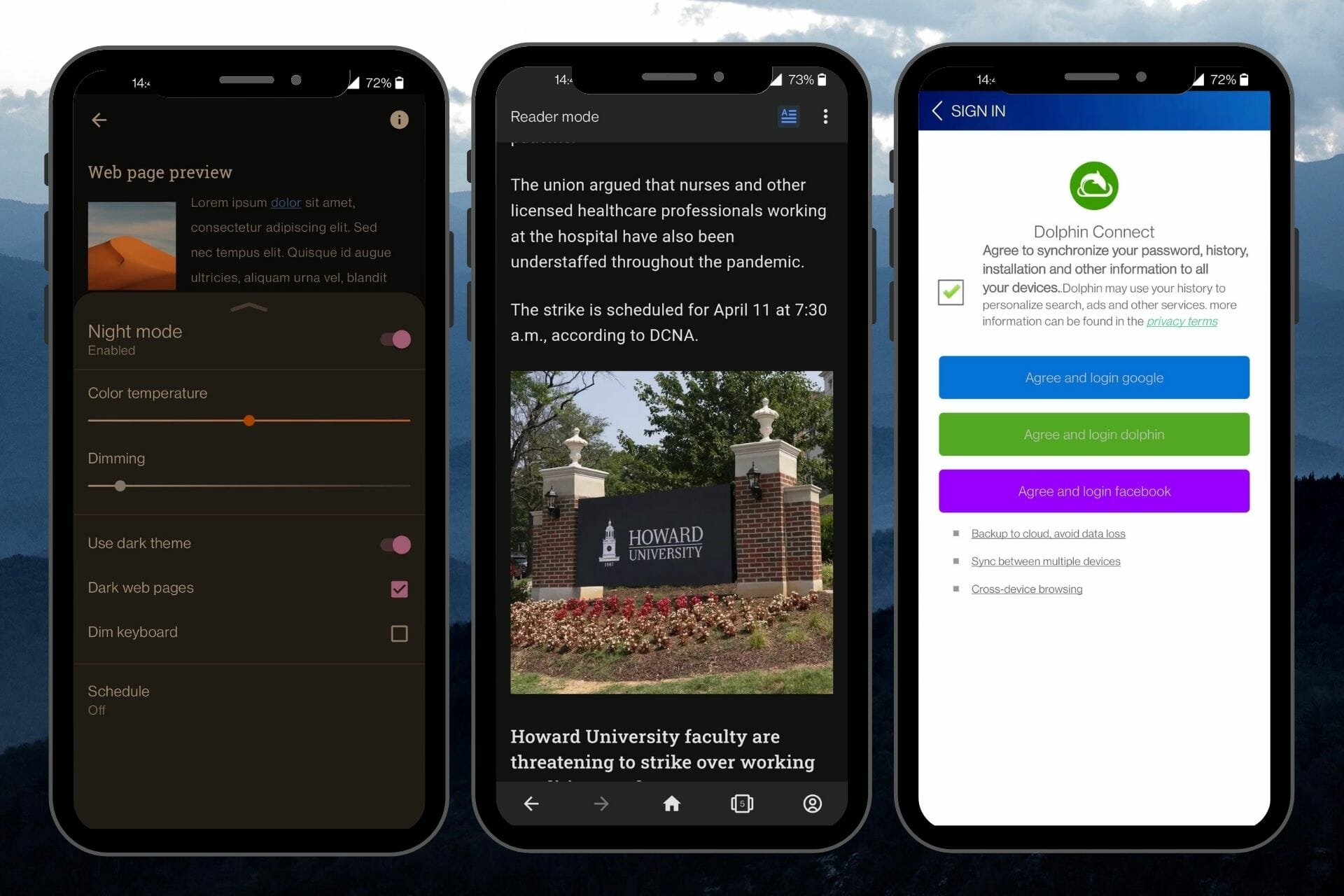
Qwant’s customization options include changing languages, switching between bright and dark display settings, adjusting adult content filters, and more (These features also exist on Opera).

Note that since Qwant does not utilize cookies for tracking reasons, you’ll need to set up a custom cookie on the browser if you want to preserve your site settings.

➡ Privacy

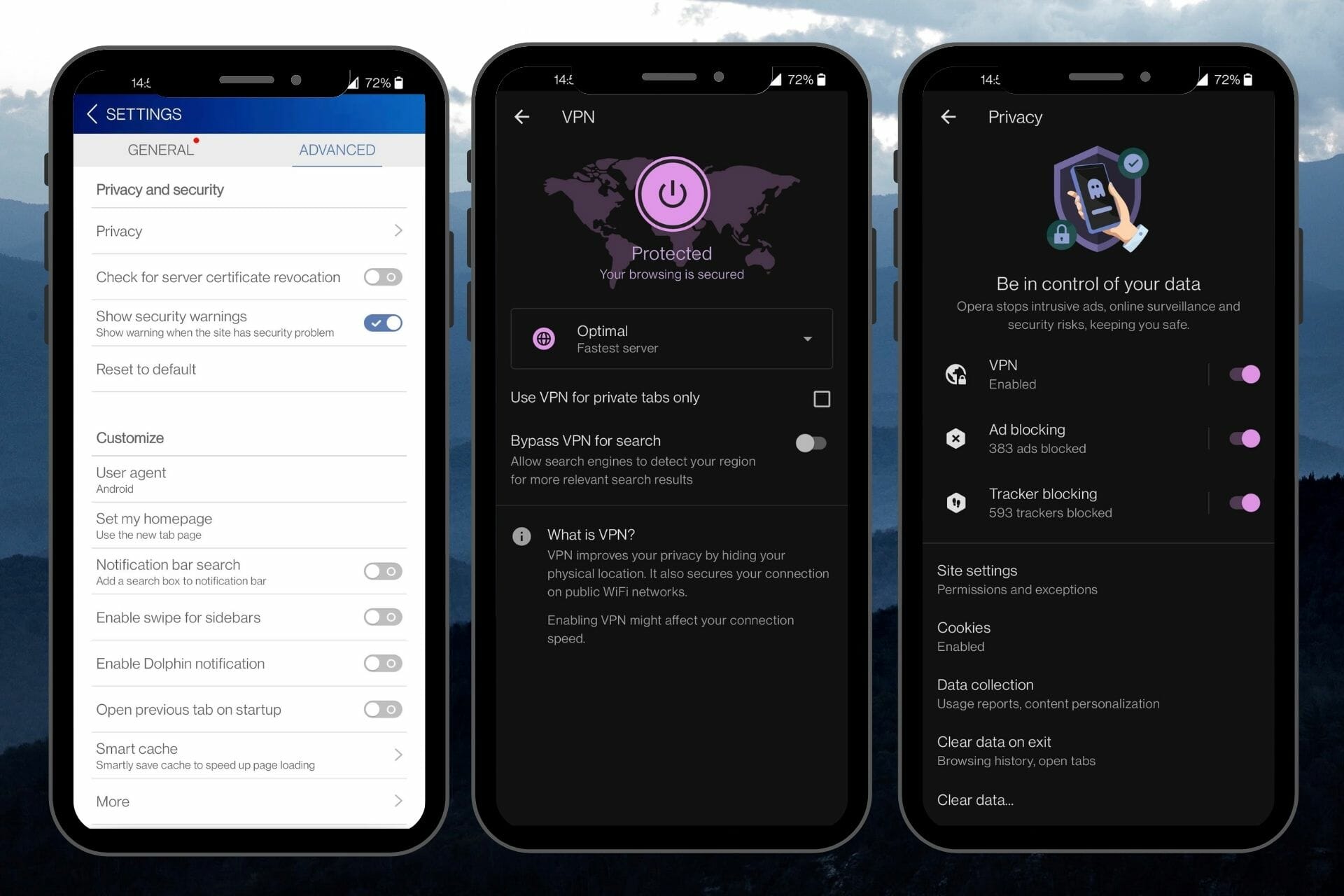
Opera remains one of the few browsers with an internal virtual private network (VPN), which allows you to hide IP addresses as needed.

However, when it comes to IP masking, Opera’s VPN only lets you pick between the Americas, Europe, and Asia. That severely restricts your ability to access certain services around the globe — most VPNs allow you to decide your target country.

Other than HTTPS, it lacks encryption and a tunneling mechanism, leaving privacy concerns unanswered.

On the bright side, Opera includes several privacy settings standards in most online browsers. For example, you can erase your browser history or disable cookies. You can change the settings to prompt Opera to seek your permission before using your camera or revealing your location.

When you shut the window in private browsing mode, your cookies, history, and data are instantly removed.

Qwant is leaps ahead when securing your browsing history and data. Unlike Opera, Qwant does not collect user data and provides impartial results based only on the query.

You will discover quickly with Qwant that your most recent queries are never saved. The search history is erased as soon as you close the browser. 

Because there are no cookies to save your browsing history, you may choose a more conventional search engine to remember specific searches. However, if you seek the highest level of privacy, Qwant’s security features are unrivaled.

➡ User experience

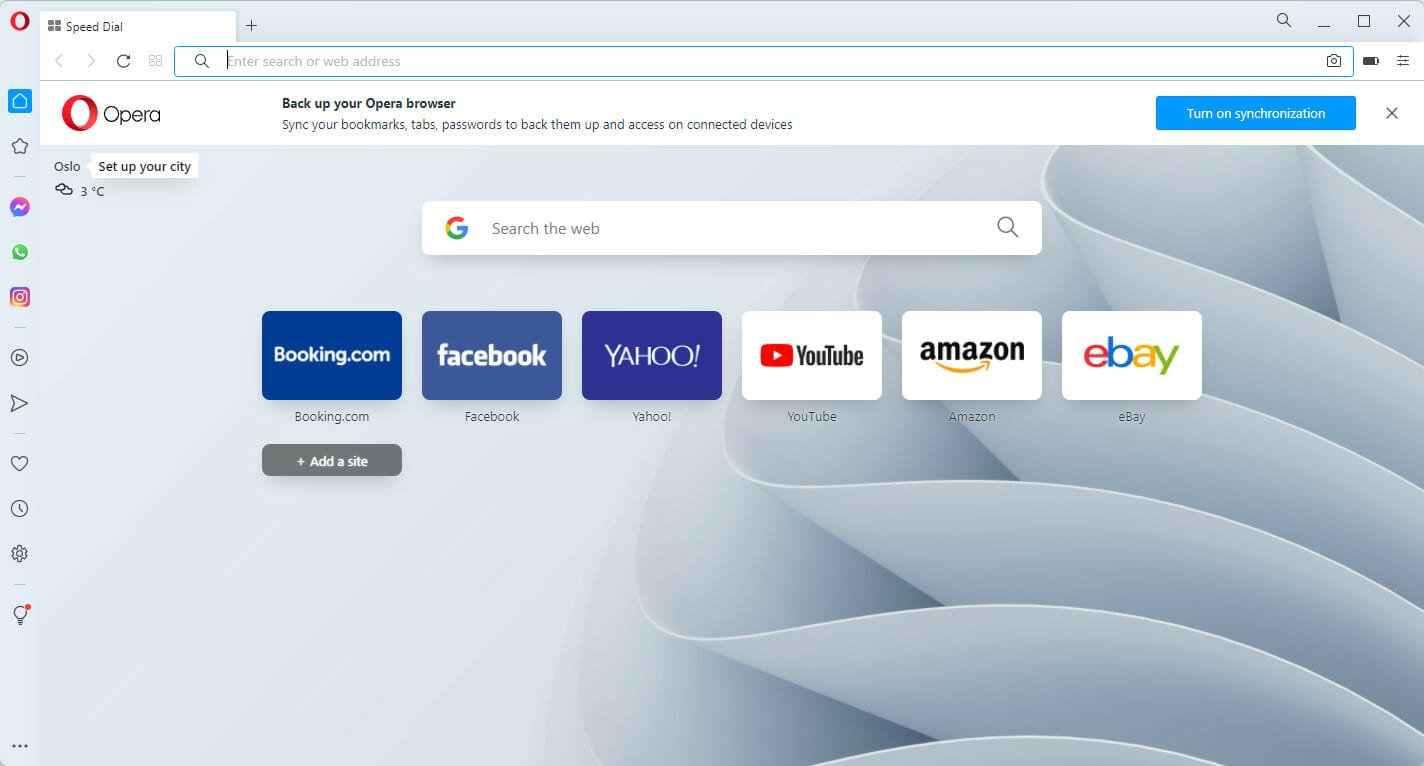
Opera is responsive and fast, and the left sidebar includes a short, non-obtrusive collection of icons.

A slide-out appears over the current page when you click on one, such as the bookmarks list or Facebook Messenger. If you re-click, it vanishes, and nothing changes with the remainder of the window.

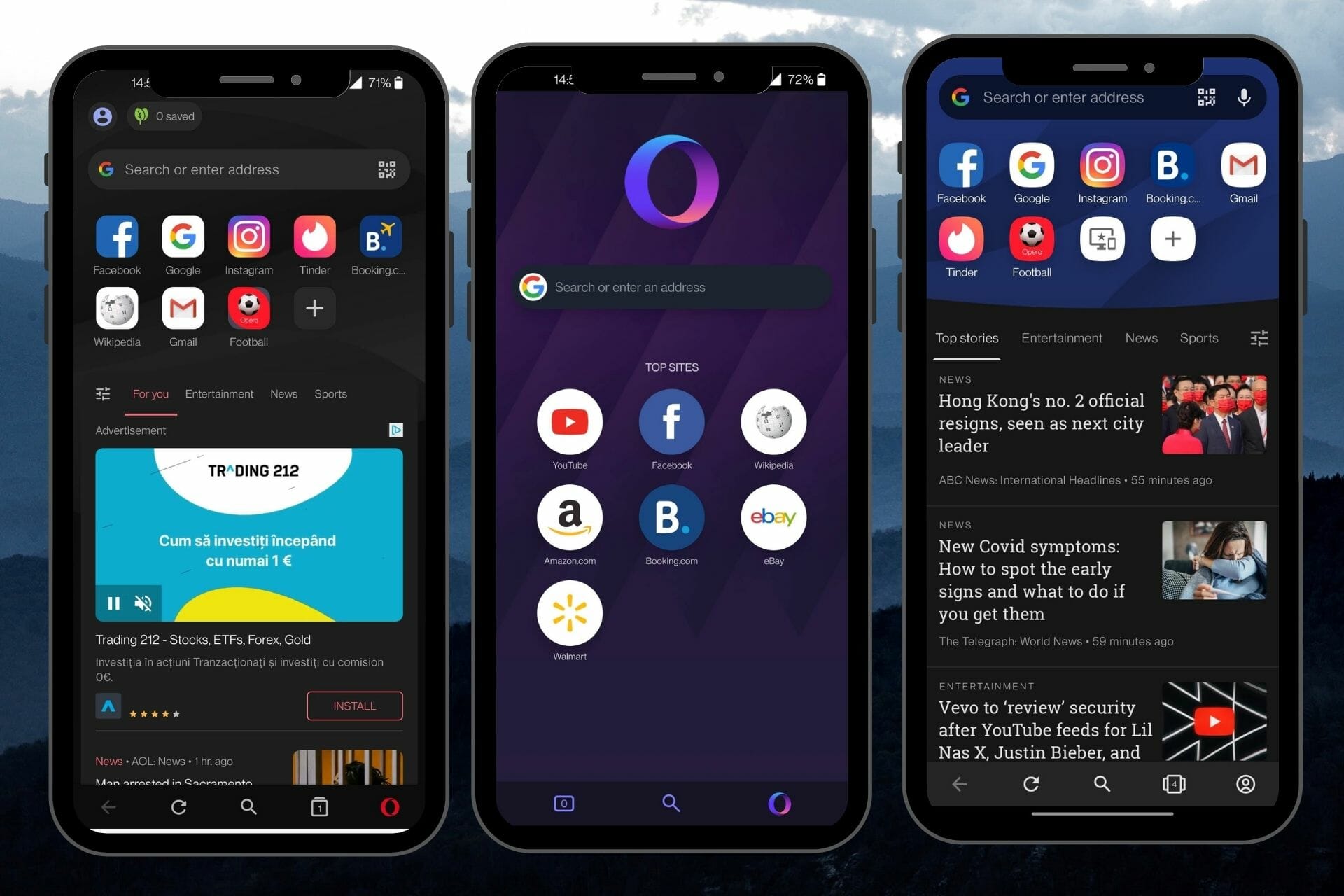
The browser takes less than one minute to install and set up on iOS and Android. It has a fast-action button that you push firmly to bring up a menu of alternatives.

A right-pointing arrow represents the My Flow sharing function on both the mobile and desktop versions. You may share material between devices with this button.

My Flow has a great feature where you may leave yourself a message that will appear on your mobile device and your PC’s browser.

The Qwant search engine is fast to offer relevant links and performs smoothly. The initial block of sites, similar to competitor browsers, is all advertisements, however, after scrolling down, you will find the actual results of your search.

With a few exceptions, the mobile UI is identical to the PC version. For one thing, unlike the desktop version, which is intended for private surfing, Qwant mobile has a distinct private browser mode that can be set on or off.

A handy tab button also indicates the number of open tabs. All of your open tabs are sorted in rows and columns when you hit this button. 

Conclusion

In conclusion, the Qwant browser and Opera are great options for navigating the web. They are similar but have some sharp differences. For example, if you do not want to go through the pains of remembering your previous searches, then Opera will be a preferred choice. On the other hand, Qwant will be an excellent choice for more privacy-conscious users.

It is not possible to pick a clear winner because your personal preferences should guide your browser choice.

Let us know in the comments which browser you would rather use.

⇒ Get Opera

⇒ Get Qwant

If you’re on mobile, you’ll be interested in our Opera vs Kiwi Browser guide.

Fix Surface Type Cover driver missing / keyboard not working

Microsoft Surface users that use Surface Type Cover are having issues where their keyboard have stopped responding. The Surface type cover driver is missing, after a recent update by Windows. Due to this update, the keyboard has become totally unresponsive.

Trying to fix this issue can be a pain as most solutions that are available on the internet are either general fixes or they outright don’t work.

But, we’ve got your back with the solutions that will make your keyboard work again! 

Keep reading to find out!

How can I fix Surface Type Cover driver missing

1. Reboot your Surface device

  1. Disconnect the keyboard.
  2. Restart your Surface device.
  3. Try reconnecting your keyboard.

By following the above steps, you can check and see if it is really missing the drivers, or if it is an error. If it was an error for you, the keyboard should connect and work just fine. If it wasn’t an error, try the next steps to resolve this issue.

2. Use the two-button shutdown method

  1. Press and hold the power button for 30 seconds and then release it.
  2. Now, press and hold the power button and the volume up button for 15 seconds, and don’t remove your finger from either button for the next 15 seconds.
  3. The Surface Logo will pop-up, and make sure you are still holding onto the buttons (power and volume up).
  4. Wait for 10 seconds.
  5. Turn on your Surface device.

By using the two-button shutdown, you force shutdown your Surface Pro, Surface Pro 4, and Surface Book, helping get rid of any corruption issues that are affecting your Surface device when connecting with the keyboard and using it.

You can also force shut down the Surface 3, 2, and RT by holding the power button for 10 seconds and then releasing it. Power it on by pressing the power button and confirming if the keyboard works.

3. Use the Keyboard Troubleshooter

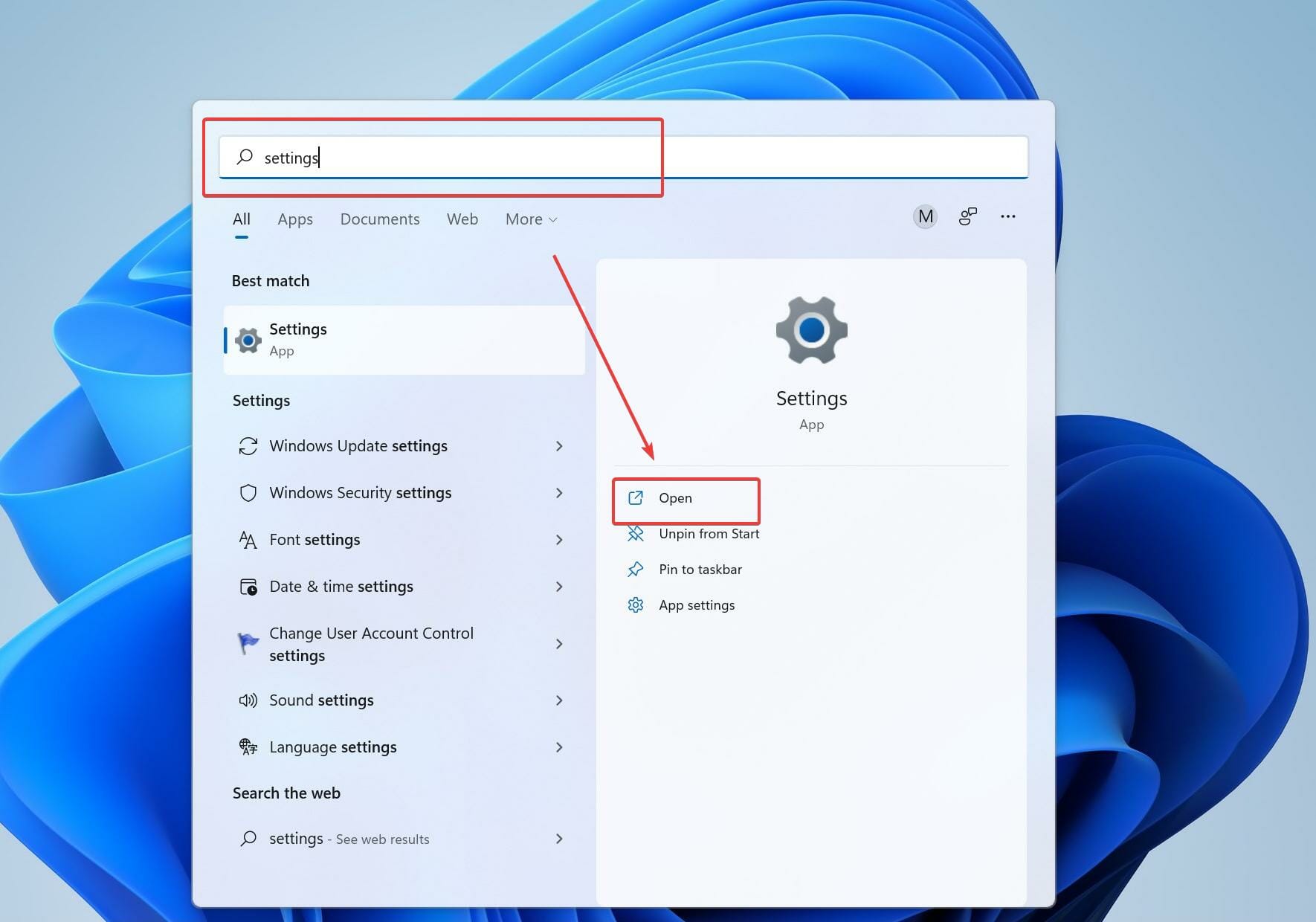
  1. Press the Windows key and search for Settings.Opening Settings from the Start page
  2. Click on System.Opening troubleshoot by clicking on system
  3. Now, click on Troubleshoot followed by Additional troubleshooters.
  4. Select Run the troubleshooter after selecting Keyboard.

Allow some time for the troubleshooting process to run and gather information on what’s causing the surface cover to not work.

4. Update the drivers

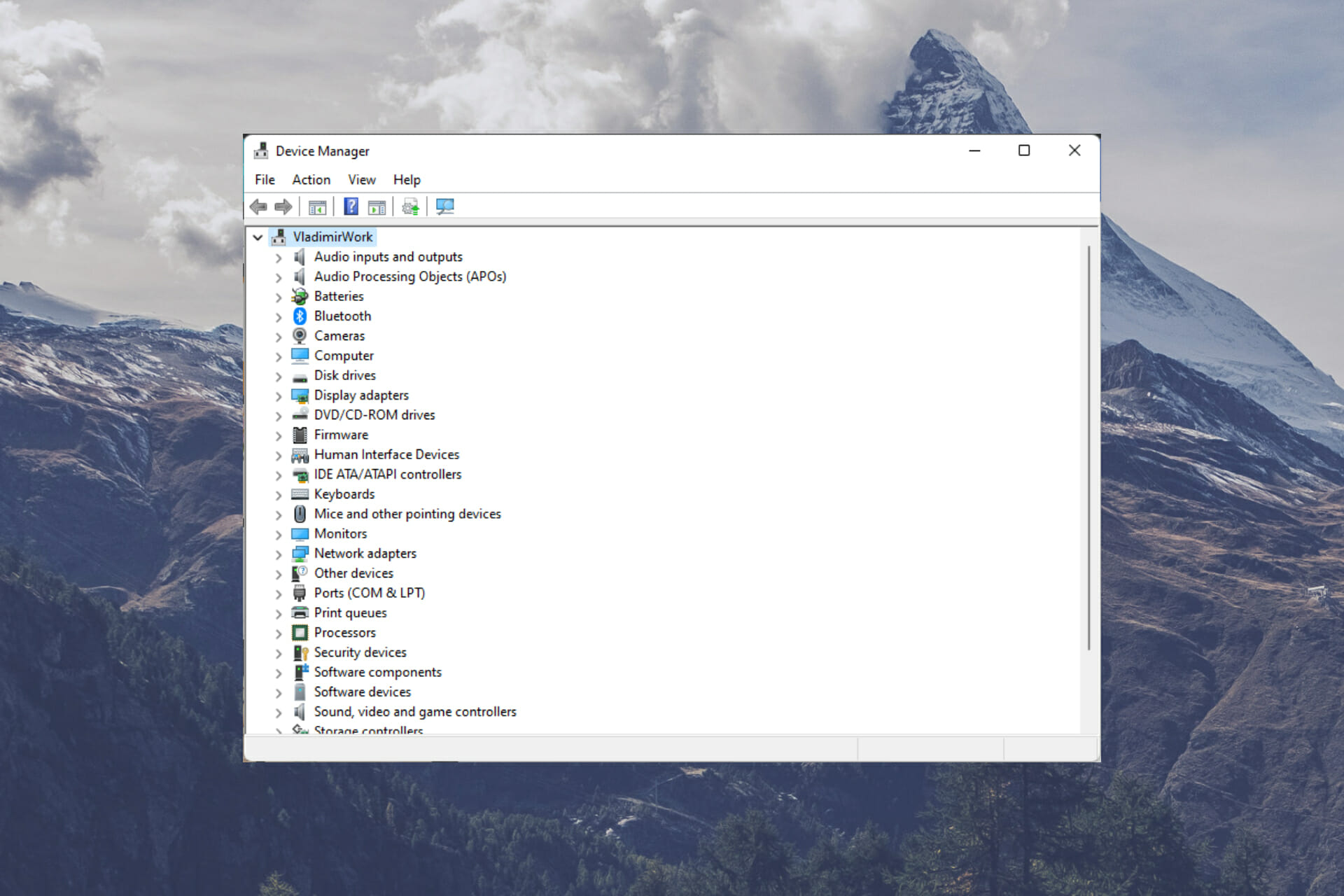
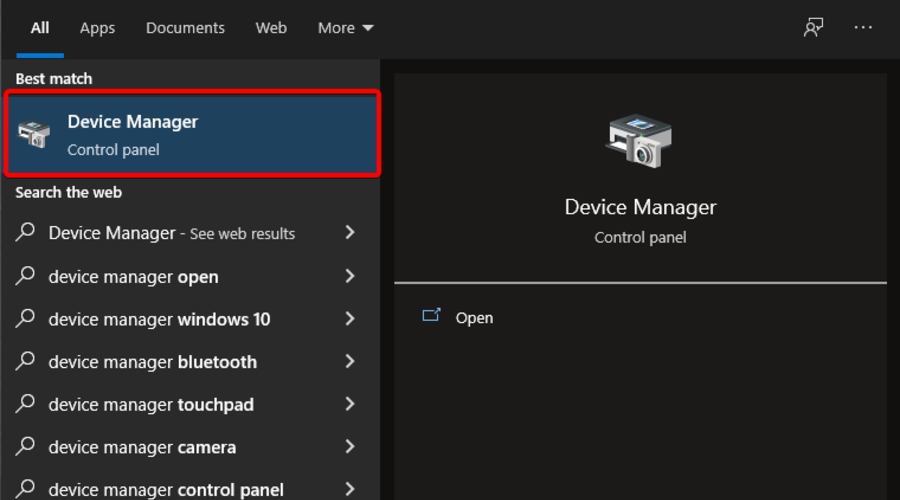
  1. Click on the Windows icon and search for Device Manager.Opening device manager from Start menu
  2. Click on Keyboards.Clicking on Keyboards in device manager
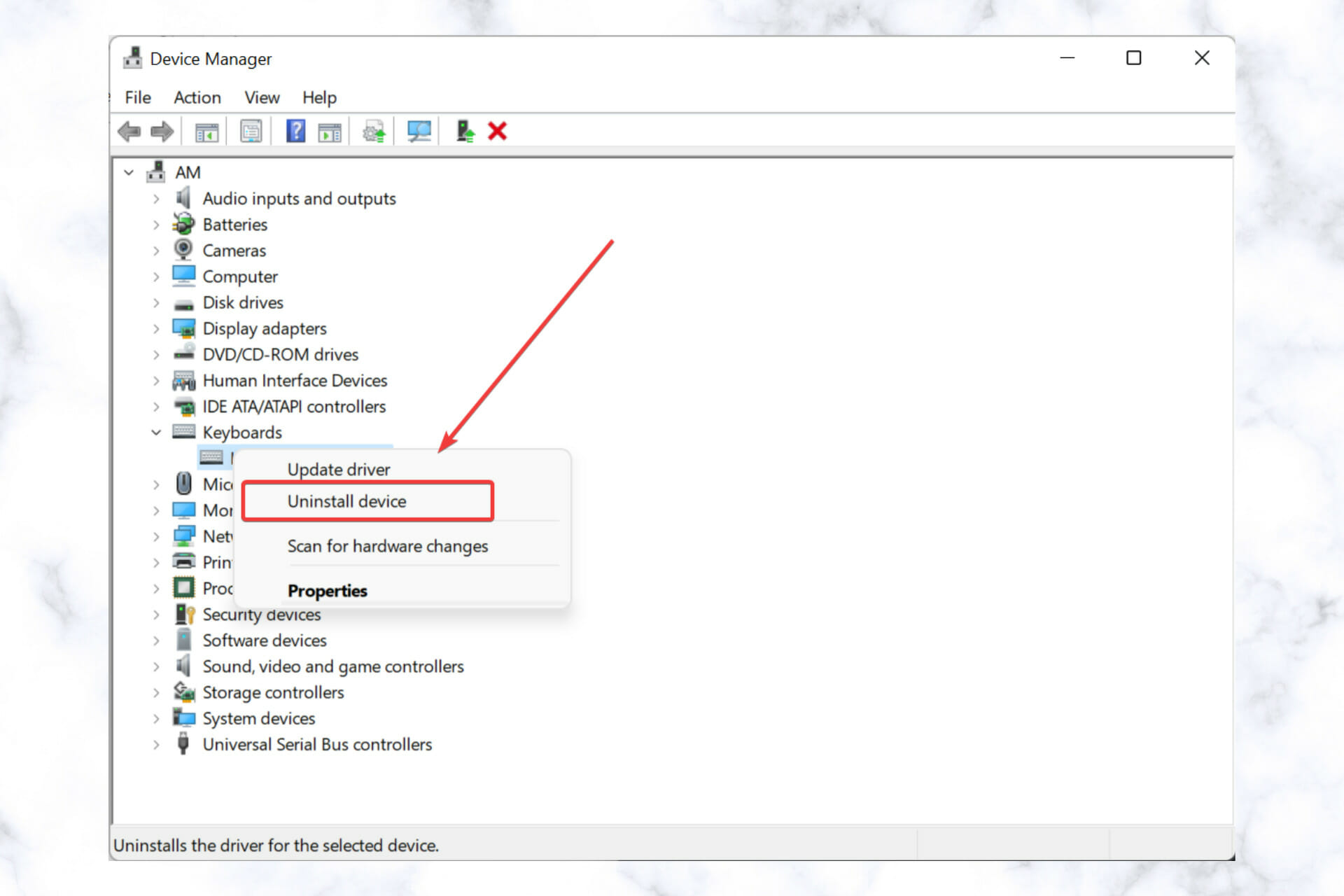
  3. Select your Surface cover driver, right-click on it, and click on Uninstall.Uninstalling the keyboard drivers
  4. After uninstalling, right-click on keyboards and select Scan for hardware changes.
  5. The updated drivers will be re-installed.

Windows automatically detects the peripherals that are connected to your device. And this is why when you select Scan for hardware changes, Windows detects the keyboard and installs its drivers.

Keeping your drivers updated helps your computer run smoothly and efficiently. If you have outdated drivers, you can face performance issues or device and app failures.

It is always a great idea to employ the help of professional driver updaters when performing this task. They are able to quickly scan your computer and identify the drivers you need, plus they can act a long-term maintenance tools so you never have to worry about driver issues again.

5. Check for updates

  1. Open Settings by searching for them in the search bar.Opening Settings from the Start page
  2. Click on Windows Update and click on Check for Updates on the right side window pane.Opening Windows update by clicking on it
  3. After Windows looks for the latest updates, click on Download and Install.
  4. Restart your computer. 

Some Windows updates can install with corrupted drivers and files, that can cause issues. The recent Windows update for the Surface devices made the Surface type cover driver missing.

This can be fixed by following the above steps, such as by re-installing the drivers, checking for new updates, and everything that is mentioned above.

Microsoft’s Xbox Gear Shop adds loads of Wasteland 3 video game merch

The official Xbox Gear Shop online store this week added a variety of merchandise and collectibles inspired by the Wasteland 3 video game.

Amongst the new Wasteland 3 merch are Cult of the Holy Detonation T-shirt and hoodie, Major Tomcat T-shirts and sweatshirt, Wasteland 3 stickers, a Battle of Steeltown print, a Major Tomcat mug, and a Los Payasos hoodie.

In non-Wasteland 3 merch news, the Xbox Gear Shop has also added the official Halo Infinite Marc V and Escharum Funko Pop figures.

Xbox Gear Shop merch

The Xbox Gear Shop is an official online storefront products based on and inspired by Xbox video games. It ships to most major regions and often sells products that are unavailable anywhere else.

Want to get future news on Xbox merch? Follow us on Twitter and Facebook.

Fix: Teredo is not in the Device Manager list of hardware

Problems with your Teredo Tunnelling Device are usually serious enough to affect your communication with other systems and consequently, your workflow. 

When such issues occur, like with many device issues on most Windows computers, it is usually an indication of misconfiguration. 

Usually, the fix is simple and easy. 

What do I do if Teredo is missing from the Device Manager list?

1. Install the Teredo Adapter manually 

  1. Start by clicking on the Windows key + R to open a dialogue box. 
  2. Type devmgmt.msc. open runbox
  1. Click on Network Adapters and then click on Action. device manager
  1. Add Legacy Hardware. This will open the Add hardware dialogue box and click Next. hardware wizard
  1. Check the Install Hardware that I manually select from a list and click Next. Hardware installation wizard
  1. Click on Microsoft and then Microsoft Teredo Tunneling Adapter on the right side. Click Next and finish.
  2. Now go back to your device manager and click View. click-view
  1. Select Show hidden devices. Show hidden devices
  1. Double click on Network adapters to see if the Teredo Tunneling adapter is available. 

Sometimes, you might lack the time or technical expertise to fix driver issues. Truth be told, not all driver issues are straightforward and the manual maintenance of drivers can be tasking.

This requires a modern and easy-to-use solution such as Outbyte Driver Updater. This one-click software keeps your drivers in shape and saves you valuable time by updating the drivers automatically.

Make sure to update this software from a free version to fully enjoy the services.

2. Use CMD to re-enable the Teredo adapter

  1. Start by clicking the Windows key + R.
  2. Type cmd into the dialogue box. run-box-cmd
  1. Another dialogue asking you to allow this app to make changes on your device, and click Yes. Command prompt
  1. Type the following command in the terminal netsh interface Teredo set state disable
  2. Restart your computer.
  3. Once done, start by running cmd as an administrator. Run CMD as admin
  1. Type the following command in the terminal netsh interface Teredo set state type=default.
  2. Start your Run box again to access the Device Manager.
  3. Type devmgmt.msc and click Ok. open runbox
  1. Click View to show hidden files. Show hidden files
  1. Double click on Network Adapters to see if the Teredo Tunneling adapter is available.

3. Check Your Registry Settings

  1. Start by clicking the Windows key + R.
  2. Type cmd into the dialogue box. run-box-cmd
  1. It will probably open another dialogue asking you to allow this app to make changes on your device. Click Yes. 
  2. Type the following command in the terminal: reg query HKLM\System\CurrentControlSet\Service\iphlpsv\Teredo
  3. If you see Type EG_DWORD 0x4 is present on your command prompt terminal, your Teredo is disabled on your computer. You can enable it by typing the following command: netsh interface Teredo set state type=default
  4. If you don’t see Type EG_DWORD 0x4, type the following command in your terminal:  HKLM\System\CurrentControlSet\Services\TcpIp6\Parameters
  5. Check if the value is 0x8e for the example DisabledComponents REG_DWORD 0X8e. It means that the adapter is disabled on your computer.
  6. Activate it by typing the using this command: reg add HKLM\System\CurrentControlSet\Services\Tcpip6\Parameters /v DisabledComponents /t REG_DWORD /d 0x0
  7. If the value shows 0x0, i.e. DisabledComponents REG_DWORD 0x0, go back to the device manager through steps 1-3, click View, and select Show hidden files. 
  8. Double click on Network Adapters and see if Teredo is present. 

This should fix your Teredo issues and help you use the software as you wish. 

If you are having problems downloading the Teredo adapter to your Windows machine, then consider checking out our guide for more information. 

Also, if you have any more solutions you might want to share, feel free to share them with us in the comment section. 

Fix: Windows Explorer High CPU Usage on Windows 11

Unlike issues with Explorer.exe high CPU usage in Windows 11, a computer at one time or the other is likely to experience high CPU usage. This is perfectly normal provided it happens seldomly and does not significantly affect the performance of the PC.

This however becomes a problem when it is recurrent. It may make the system heat up, delay load time and probably freeze when you are working on an important task.

Why does my computer experience Explorer.exe high CPU usage?

Generally, a computer might experience high CPU usage due to one of the following:

  • Running a program that requires a higher CPU requirement: Video editing and gaming software triggers a high CPU usage. These applications could be problematic if run on a computer with lesser features compared with the recommendation of the publisher. If you will be running them at all, they should be launched one at a go instead of being used simultaneously with other apps.
  • Browser extensions and system add-ons: Browsers such as Chrome and Edge tend to consume cause high CPU usage especially if you have lots of extensions downloaded on them. Similarly, some add-ons such as those designed for Microsoft Word, Excel, etc., may also cause high CPU usage. A computer with compatible features should not have any problem handling them efficiently.
  • Computer viruses: Different kinds of malware can chew a chunk of your CPU. As a matter of fact, viruses developed by cybercriminals like crypto miners are programmed specifically for such purposes.
  • Startup applications: Some applications launched on the startup of the computer can be responsible for high CPU usage. This is because, even though they are not shown to be active in the taskbar, they usually continue running in the background.

Meanwhile, Windows 11 users complain that the Explorer.exe high CPU usage issue started they updated their Windows.

We understand this is just one of the many reasons that can cause high CPU usage. Read along as we highlight processes that could fix the problem, irrespective of the cause.

How can I fix Explorer.exe high CPU usage in Windows 11?

1. Close the Explorer.exe file in the Task Manager

  1. Press Ctrl + Shift + Esc keys to launch the Task Manager. Right-click on Explorer.exe.
  2. Next, select End task.

Repeat the process above for any other program that may be causing the high CPU usage. If this does not fix the issue or you are unable to open the Task Manager altogether, read on for other solutions.

2. Use the system file checker

  1. Open Windows search by selecting the search icon in the taskbar or left-clicking on the Windows logo in the taskbar. Type CMD, then select Run as administrator. Next, select Yes, to launch the Command Prompt.
  2. Type the command below:
    DISM.exe /Online /Cleanup-image /Restorehealth
    Observe the space in between. To avoid any error, you can copy and paste. Next, press Enter.
  3. Wait for a few minutes (might take up to 30 minutes) until you see a prompt that reads The operation completed successfully.
  4. Next, type the command below:
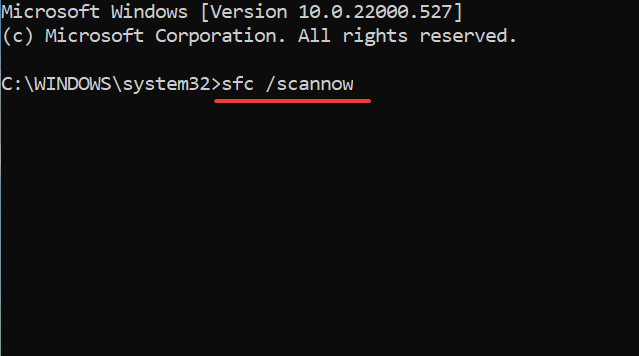
    sfc /scannow
    Observe the space in between. You may want to copy and paste it from here. After this, press Enter.
  5. Wait until you see a message that reads Verification 100% complete. Then, type exit.

3. Update Windows

  1. Open Run by pressing Windows key + R.
  2. Type Control Update. Press Enter.
  3. Select Check for updates. If an update is available, then download it.
  4. Restart PC to install.

4. Disable cloud storage

By default, Windows 11 comes with a OneDrive cloud storage. This storage helps to backup your system file in case you are attacked by ransomware. For clarity, ransomware is a type of virus used by cybercriminals to extort users.

It can be unknowingly downloaded along with files online and once installed, takes over all your files such that they would be impossible to open.

The attackers after this will display a message to make a certain payment before you can get a key to regain access. Even after payment.

Some users have reported disabling their OneDrive account helps to fix this issue. In case you don’t know how to go about this, take a look at our guide on how to uninstall any app on Windows 11.

If you are not using OneDrive but other cloud storage such as Dropbox, try to do the same and observe if it fixes the problem.

5. Check the desktop for any files with missing icon

During the creation of shortcuts, some apps may fail to create icons. Even though this looks like something that shouldn’t be a problem, it surprisingly could cause Explorer.exe high CPU usage.

Observe your desktop screen if there is any file with a missing icon. If there are any, delete them. Check if the problem or resolved. You may also restart your PC to confirm.

6. Uninstall the latest Windows updates

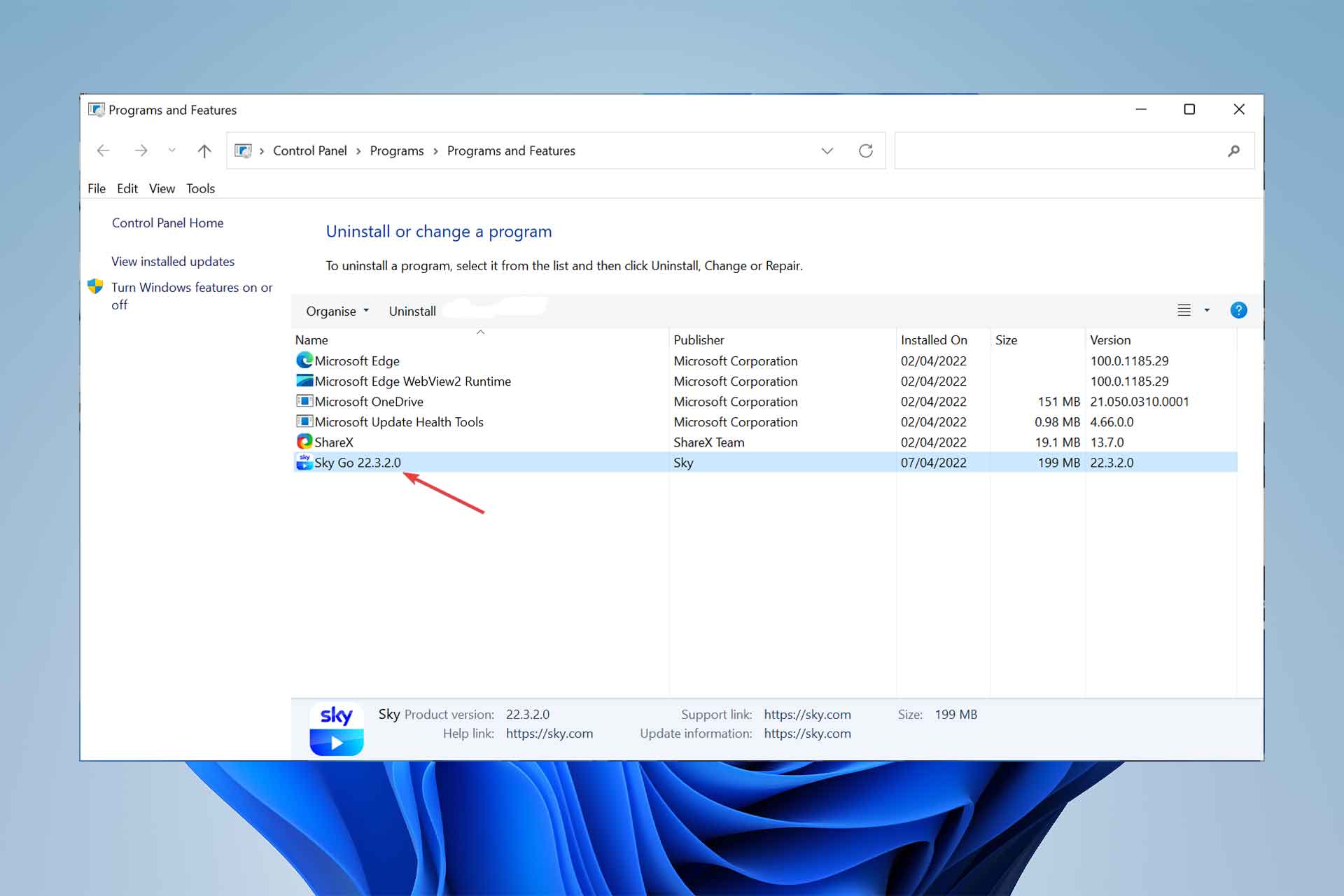
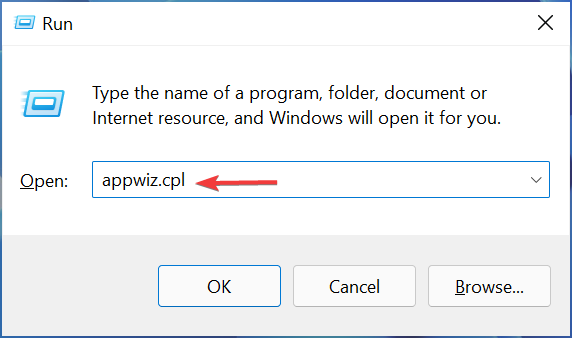
  1. Launch Command Prompt by typing CMD in Windows search, right-click on Command Prompt and Run as administrator.
  2. Type or copy and paste the command below:
    appwiz.cpl
  3. Select View installed updates.
  4. Right-click on the most recent Windows update(s). Select uninstall.

It is typical of Microsoft to always release patches to solve one issue or the other observed with the usage of the Windows Operating System (OS). Sometimes, these updates may be the origin of problems for your PC.

In all fairness to the company, they are only trying to help and ensure you have the best experience possible. But, just like it is with any software, glitches are inevitable.

Users have noted that the KB5010414 update is the cause of their Explorer.exe high CPU usage, and it was fixed immediately after it was uninstalled.

7. Disable startup applications

  1. Open Task Manager. Select Startup.
  2. Right-click on displayed applications to select Disable; except for Windows Defender.

8. Run a virus scan

Malware may be the reason your system is experiencing Explorer.exe high CPU usage. If you have any antivirus/antimalware software installed, it is time to get them to use. Do a deep scan to detect any virus on the system.

Make use of more than one antivirus software to ensure you are not missing anything. Don’t know which antivirus software to use? There are some free antivirus apps you may want to consider, such as Get TotalAV due to its effectiveness in protecting any Windows operating system from malware, ransomware, and phishing.

⇒ Get TotalAV

9. Adjust system for best performance

  1. In File Explorer, right-click on This PC from the left side panel (you can launch the File Explorer window by pressing the Windows key + E).
  2. Select Properties. Choose Advanced system settings in Related links.
  3. Locate Settings under Performance., and click on Performance.
  4. Next, select Adjust for best performance. Click Apply. Then left-click on OK.
  5. Restart the system to completely effect changes.

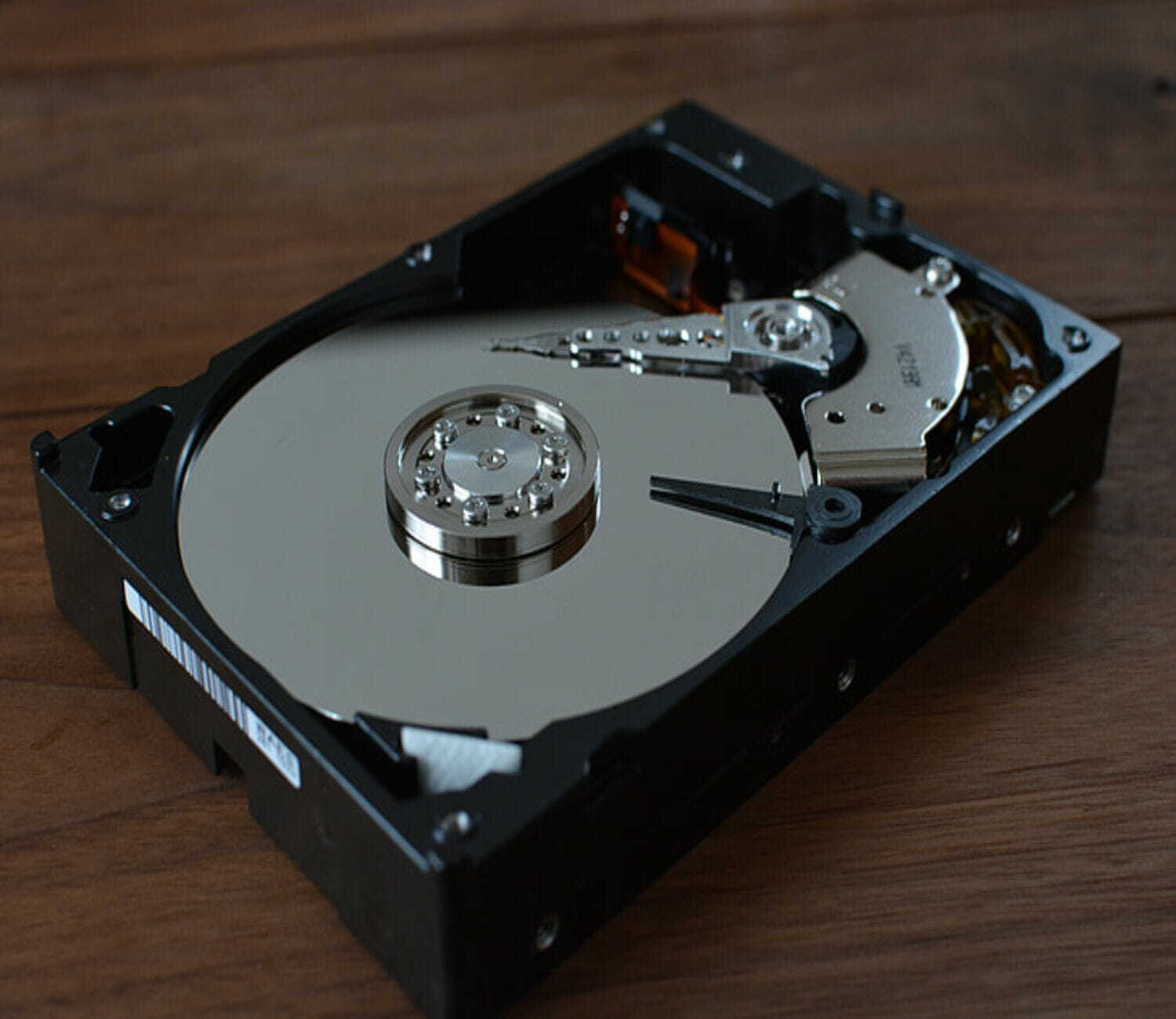
If none of the methods above seemed to work, you can still try optimizing your hard drives with the defragment tool.

10. System restore

  1. Open the Run prompt by pressing Windows logo key + R.
  2. Type or copy and paste the command below:
    rstrui.exe
  3. Press Shift + Enter keys to launch it with admin permission.
  4. Wait for the System Restore to start. Then select Next.
  5. Choose a preferred restart point to restore your computer to the state it was in before the issue arises.
  6. Scan for affected programs before clicking Next. If the affected programs are things you don’t want to lose, you can choose another restore point if available.

11. Optimize system hard drive

  1. Launch the Run prompt by pressing the Windows key + R.
  2. Type the command below:
    dfrgui
  3. Select your choice hard drive. This is usually Windows C:, then click on Optimize.
  4. Wait until the defragmentation is complete. You can do this for all other drivers too to reduce overall CPU usage.

To skip the process above, you can use O&O Defrag 25 to optimize with ease. Instead of the long list of processes highlighted, you would only need to install the software and relax while it takes care of the rest.

There you have it all. At this stage, we believe one of the solutions explained so far would have helped you in solving the Explorer.exe high CPU usage problem.

Share your experience in the comment section, and let’s know if you were able to solve it using a different method.

M.2 SSD not Showing up in Windows 11? How to Enable it

Windows 11 had a very bumpy launch. Launched in October of 2021, users are reporting several types of issues that they ran into, such as Windows 11 not recognizing NVMe SSD, broken features, compatibility issues, and so on.

All in all, a very unstable and underdeveloped version of Microsoft for a long time.

While Microsoft is hard at work and has been releasing updates addressing the issues slowly, the number of issues present in Windows 11 is overwhelming. 

Here’s where we try to help fix the issues that could be ruining your experience with the latest Windows version, Windows 11.

Keep reading to find out more about how you can make your PC detect your NVMe SSD drive.

What are NVMes and why does Windows 11 fail to detect them?

NVMe, short for Non-Volatile Memory Express, is an advanced new storage access and protocol for the next generation of SSDs and flash devices. It provides a fast response rate and accelerated data transfer speed for all kinds of business workloads.

The NVMe protocol accesses flash storage via the PCI Express (PCIe) bus, which delivers lower latency and provides high bandwidth.

Windows 11 can fail to recognize NVMe SSDs for the following reasons:

  • The SSD is not properly installed or plugged in.
  • In BIOS, the drive is disabled.
  • Drivers are outdated or are not installed.
  • The SSD partition’s drive letter is missing.
  • The SSD could be damaged or broken.

What are the pros, cons, and use cases of NVMes?

The pros of NVMe:

When compared to SATA, the NVMe provides superior storage because the PCIe socket transfers 25x more data.

NVMe SSDs are super fast as it sends commands 2x faster than SATA, It directly communicates with the CPU, support all operating systems, offer below 10 microseconds of end-to-end latency, support tunneling protocol, and have higher bandwidth than SATA.

The cons of NVMe:

An NVMe SSD costs more than the standard SSD and they are not cost-effective when it comes to storing large amounts of data. Also, the legacy NVMe is not supported by older systems.

The use cases of NVMe

NVMe’s can provide real-time customer interaction, and NVMe’s are also used for machine learning, artificial intelligence, and running advanced analytical apps and data.

NVMe’s can significantly reduce the scan time of large databases, and they are also used for high-performance computing for applications where low latency is vital.

How to fix Windows 11 not recognizing NVMe SSD

1. Confirm if the NVMe SSD is properly installed

Confirm that the SSDs’ cables are properly plugged in and make sure they are not damaged. Oftentimes, the connection can have loosened or maybe the wires could have burnt due to a voltage issue or heat.

If the SSD cables are properly plugged in and are also not damaged, try fixing the issue by following the below steps.

2. Configure BIOS settings

  1. Reboot your computer.
  2. Press the F2 key and then press the Enter key.
  3. Find SATA configuration menu.
  4. Set Configure SATA as to IDE.Setting the SATA configuration to IDE
  5. Press Enter.
  6. Save the changes made.
  7. Restart your computer and the SSD should appear in BIOS.

3. Repair using Disk Management

  1. Open Disk Management by searching for create and format hard disk portions.Searching Create format hard disk partitions
  2. Select a partition and right-click on it.
  3. Click on Format to repair the drive.Formatting the drive

By formatting your SSD the corrupted data will be removed and Windows can detect your SSD again. But by formatting, you will lose your data.

4. Update the SSD drivers

  1. Click on the Start menu.
  2. Type Device Manager and press Enter.
  3. Go to Disk Drives.Updating disk drive
  4. Right-click on every item and click on the Update driver.Updating drivers in device manager
  5. Restart your PC.

Updating drivers manually can be challenging, but if you don’t update them frequently, your PC cannot run efficiently and suffer from performance problems. 

Hence, there is a standout solution that automatically installs all the latest drivers and keeps your device up-to-date with no disk errors.

➡️ Get Outbyte Driver Updater

5. Change/Assign SSD drive letter

  1. Go to start menu and search for Create and format hard disk partitions.Searching Create format hard disk partitions
  2. Right-click on the SSD volume you would like to add or change the drive letter.
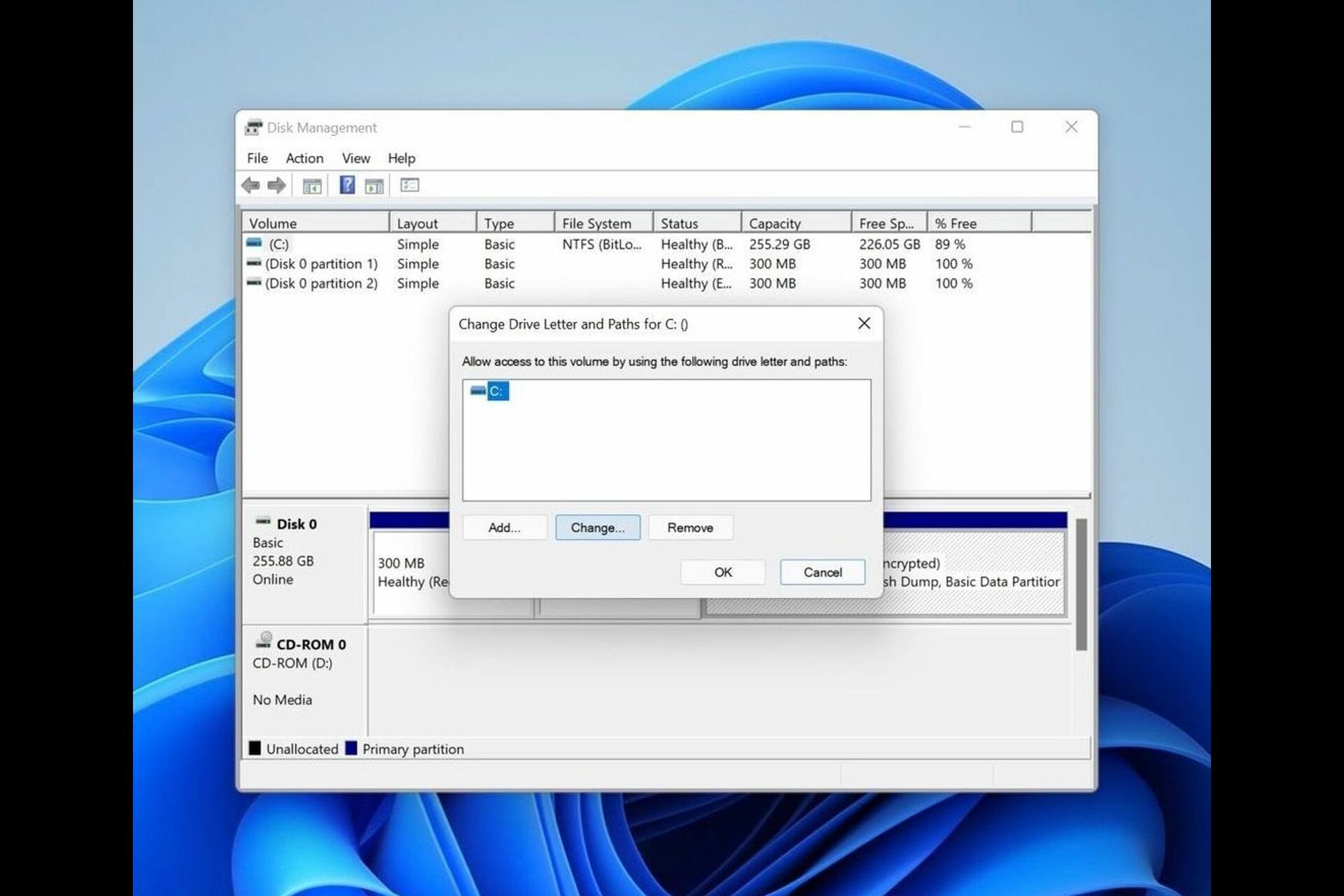
  3. Click on Change Drive Letter and Paths.Changing or adding drive letter path
  4. Click Change to change the drive, and Add to add the drive.Updating the drive letter
  5. Choose the new drive letter from the list and then click on ok, followed with yes.Assigning the new drive letter
  6. Click Ok.

How to fix Windows 11’s not recognizing M.2 SSD

1. Confirm if your SSD is installed properly

If your M.2 SSD is not working or being recognized by Windows. The first thing you have to do is confirm if your M.2 SSD is inserted properly into your M.2 slot. If the label on the SSD is facing towards you, then it is installed properly, but if it is not facing towards you, install it properly.

2. Confirm if the BIOS detects your SSD.

  1. Reboot your PC.Rebooting the computer
  2. Press F2 to access the BIOS settings page.
  3. Find the Boot menu page and confirm if your SSD is listed there.
  4. If not, go to Storage Options > Serial ATA > SATA Configuration.
  5. Select IDE Compatibility Mode from the drop-down menu.Setting the SATA configuration to IDE
  6. Save the changes and restart your computer.

3. Initialize your SSD

  1. Click on the Start menu.
  2. Search for Create and format hard disk partitions.Searching Create format hard disk partitions
  3. Right-click on the SSD that is not being identified and select Initialize Disk.Initialize disk to fix windows 11 not recognizing ssd
  4. Now, select the SSD disk you want to initialize and select the partition style.Selecting the partition style
  5. Click on Ok.clicking on Ok
  6. Now, go back to Disk Management and right-click your SSD volume, and choose New Simple Volume.
  7. Follow the on-screen instructions to assign the SSD volume and drive letter.
  8. Restart your PC for the changes to take effect.

4. Update Storage Controller Drivers

  1. Press the Windows key and search for Device Manager.Opening device manager from Start menu
  2. Locate Storage controllers.Opening storage controllers to update drivers 
  3. Expand the group and click on Update Drivers.Updating drivers
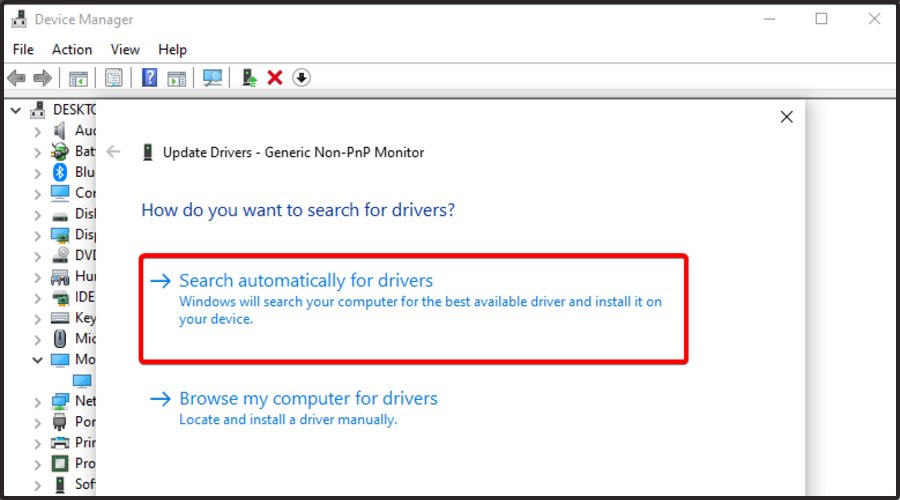
  4. Select Search automatically for updated driver software for all the items that are listed under it.

5. Detect SSD by fixing memory issues.

  1. Go to the start menu and type Windows Memory Diagnostic 
  2. Select Run as administrator.
  3. Click on Restart now and check for problems (recommended).Running the memory diagnostic tool
  4. The Windows Memory Diagnostic Tool will begin testing and will take several minutes to complete.Running the Windows memory diagnostic tool

Once it is completed, check if your Windows 11 is able to detect your NVMe SSD.

What is M.2 SSD?

An M.2 SSD is a compact SSD that is like an expansion card that is mounted internally. Unlike SSDs or HDDs that are connected to the motherboard via a cable, M.2 SSDs are directly plugged into the motherboard using the dedicated M.2 connector slot. You can learn more about how these drives work in this comprehensive M.2 SSD guide.

An M.2 SSD is capable of using both the SATA interface as well as the PCIe interface. 

M.2 drives help keep your PC interior clean and less cluttered because of fewer cables that are used in the set-up process.

NVMe VS M.2 SSD Which is better?

NVMe and M.2 SSDs are almost equivalent in all aspects. M.2 is the more compact version that connects to the motherboard through the M.2 connector. It supports both the SATA interface and the PCIe interface (which NVMe uses).

M.2 SATA is affordable compared to NVMe and M.2 NVMe. But if you are working on AI, ML, or handling huge amounts of data where low-latency and high-bandwidth count, NVMe is the default choice as every second counts in those kinds of operations.

For most consumers, M.2 SATA is generally enough for everyday tasks, gaming, and more.

SSD technology has come a long way, and there are also multiple interfaces that help users with their dedicated usage and operations.

But, SSDs are likely to crash or run into compatibility issues. They are exceptionally superior when compared with HDDs in terms of their life, longevity, speed, and more.

Speaking of issues, many also reported that their NVMe is not showing up in BIOS, but we have a special guide that addresses that.

But like any product, it can sometimes run into issues. To minimize such errors, downloading the latest version of your drivers, such as the Samsung NVMe for Windows 11, can ensure it is at peak performance always.

To set up your Samsung NVMe SSD on Windows 11, make sure to install the Samsung NVMe driver and properly format the SSD before use.

We hope this guide was useful in resolving your Windows 11 not recognizing your NVMe SSD issue. You can talk to us in the comments to let us know how this guide helped you successfully fix the issue.

5 Realities That Prove Windows 11 is Not User Friendly

Windows 11 has been out for half a year now and is gaining more popularity than its predecessors. However, it has its own shortcomings. Users who updated the OS have mixed reactions to its general performance.

Some say that Windows 11 is the worst Windows ever. That’s hard to judge; it depends on your needs and preferences. The biggest problem users have with Windows 11 is that it’s not what they’re used to. 

A section of users say Windows 11 came up with many new features to enhance user experience and security and is the best version of Windows yet.

Others say the minimum system requirements are too stringent and hence face performance problems due to insufficient RAM. To run Windows 11, you need at least 4 GB of memory space.

While opinions differ, not everything is sunshine and rainbows. There are some undeniable realities that make the OS not user-friendly.

What are some of the realities that make Windows 11 not user-friendly? 

1. Hardware requirements

Windows 11 is not free like previous versions of the operating system were. Because Windows 11 is so feature-packed than Windows 10, its hardware requirements have also gone up. Unfortunately, they might be too high for some people.

If you’re planning to upgrade your current PC to Windows 11, make sure that it meets the minimum hardware requirements by using the PC Health Check App.

Failure to which, your device may not have enough processing power and memory to run Windows 11 efficiently.

In some cases, some users have been able to upgrade by bypassing some of the requirements. Their devices have however been lagging and facing a bunch of performance issues.

Such experiences take away from the beauty of enjoying all that Windows 11 has to offer. This ends up leaving a bad taste in your mouth.

2. Interface overhaul

By now, you already know that the Windows 11 interface is quite different from its predecessors. The new user interface will take some getting used to. 

Microsoft has made improvements in the Start Menu and Settings app. However, some people still prefer to use the old interface.

If you’re one of those people who like the old desktop UI more than the new Start Menu in Windows 11, you can easily revert back to the old desktop UI.

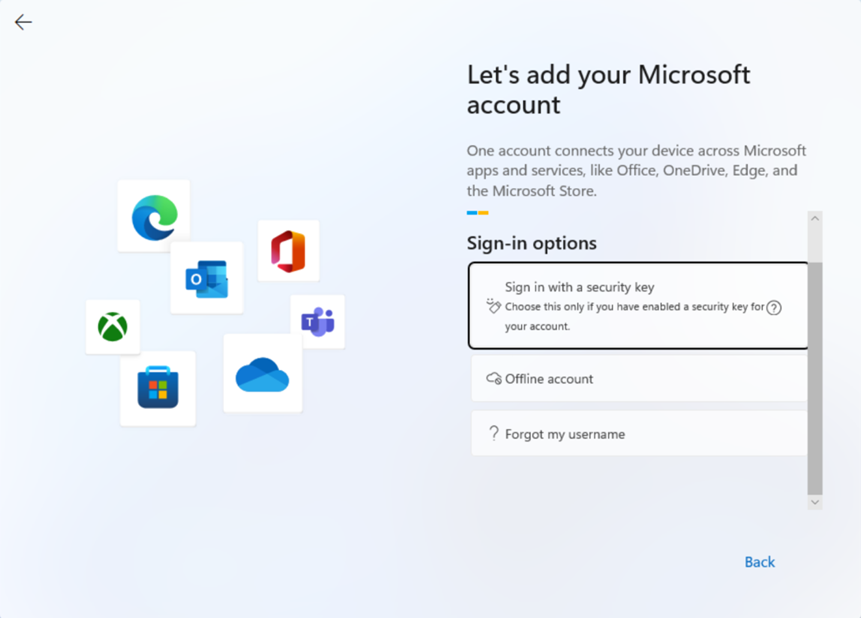
3. Offline accounts

If you’re a Windows 11 Home user, you may find your laptop or desktop will not be able to sync with your Microsoft account.

The Offline account option has been removed. By default, the only way to get online is by manually going through the online activation process.

Since Microsoft is not able to support offline accounts, this means that you need an internet connection to access your files and documents.

This is a huge disadvantage for those who want to use their computer in the office or at home and work on documents offline.

4. Default apps

Microsoft has altered the process of changing default applications in Windows 11 or at least how it appears to many users who are unable to find options that they believe should be included.

The process is now harder as more options have been included in the context menu. When you open it now, you have to click on each one individually to set them as your default applications. What’s even worse, once you select the individual app, there is no option to set for all.

5. App-related upgrades

As Microsoft works on improving Windows 11, so are the related apps to ensure they follow the same interface. As such, applications such as Photos are also getting some useful features scrapped off.

If you enjoy these apps, you may wake up and find out one day that some favorite features are missing. This can be frustrating but it is a harsh reality that the updates are across the board and are likely to affect more apps.

What are the disadvantages of Windows 11?

Some of the disadvantages of using Windows 11 include:

  • You have to sign in with a Microsoft account to use Windows 11. If you want to set up Windows without signing in with an online ID, you can’t. You must sign in with a Microsoft account or create one during setup. 
  • Some built-in OS functions and features are exclusive to the Edge browser. Therefore, if you use Firefox or Chrome instead, you won’t be able to take advantage of them.
  • There’s no way to change where the taskbar is located, which has been a staple of Windows. You can’t move it to the top or side of the screen anymore. It’s locked to the bottom only. You can still auto-hide it, and there are new settings that let you show or hide labels on icons in the taskbar. However, if you want to move the bar somewhere else, you’re out of luck.
  • There are also some glitches and bugs with the new operating system. While this is not unusual, it can be annoying if you are trying to upgrade your computer. These issues interfere with your ability to use the software correctly.
  • The Windows 11 trial period is short and gives you just ten days to test out the new operating system. That might be enough time for some before you commit. After that period has passed, there is no going back.
  • Since the OS will require more resources than its predecessors, if you are using an older computer, you might experience slower performance when using Windows 11. You need to have a powerful computer to run this OS smoothly. This means you have to spend more money on updating your current computer or buying a new one!

What do you dislike about Windows 11?

Like any OS, there are some features that will not sit well with users. The features may be functional but after years of getting accustomed to a certain way of things, suddenly making changes could spark up a dislike.

Some of the common disliked features include:

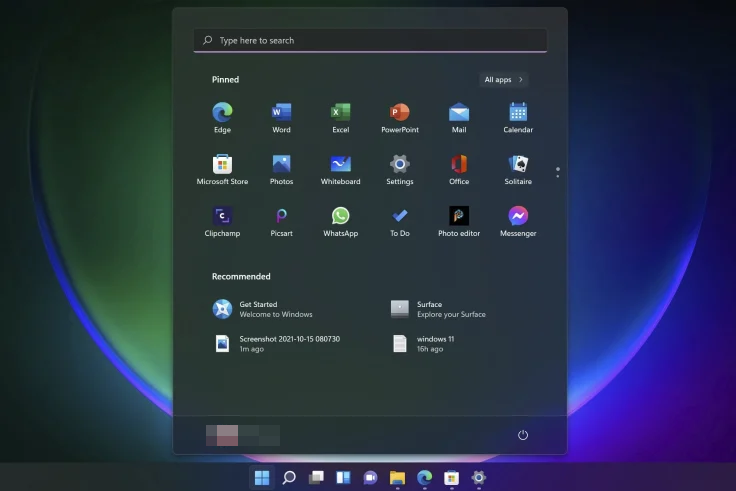
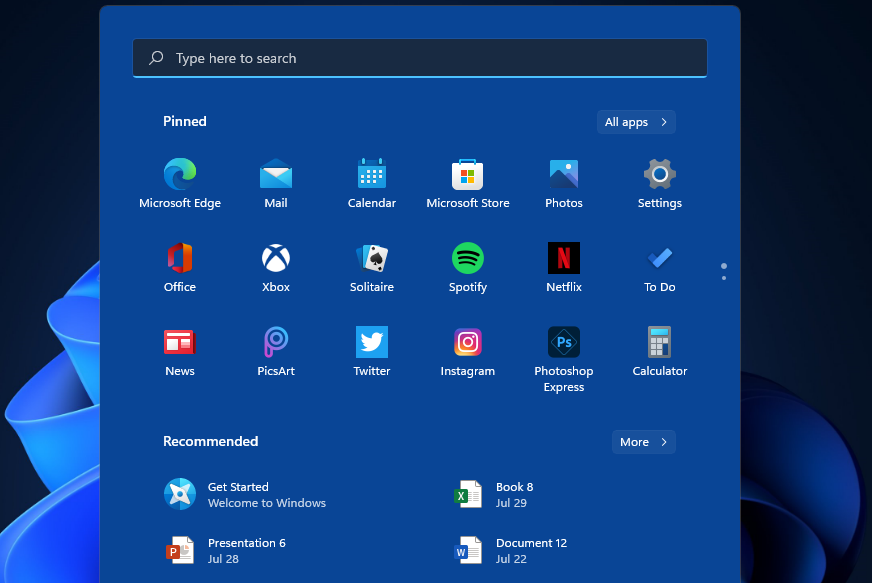
  • Start Menu – The Windows 11 Start Menu is newly improved with more features than its predecessors but compared to Windows 10, the Windows 11 version is somewhat annoying. There is no option to see recently used apps instead, you only get to see recommended and pinned apps.
  • Pre-installed apps – Previous Windows versions had some pre-installed apps whenever you made the upgrade but in Windows 11, a majority of these apps only appear as shortcuts whereby you have to go to the Microsoft Store if you want to use them. 
  • Default browser – Although Microsoft is not forcing you to select Edge as the default browser, it is making it harder to include other apps and limiting some functions when you use other browsers. 
  • Cortana – If you would like to use Cortana in Windows 11, you have to download it from the App Store. The same goes for Skype and other apps that were previously in-built. 

Each user is different so the dislikes on this list may actually be some of the best features for another user. 

Windows 11 is still fairly new in the market and Microsoft is still working on updates so at some point, some of these features may get a major boost that makes them more user-friendly.

In the meantime, we have some tips and tricks to boost your Windows 11 performance so that you can get the most out of the OS.

If you are yet to upgrade to Windows 11, we also have an in-depth Windows 10 versus Windows 11 comparison to help you make an informed decision.

We’d love to hear from you what are the Windows 11 features that you detest as well as the improved features that you dislike in the comment section below.

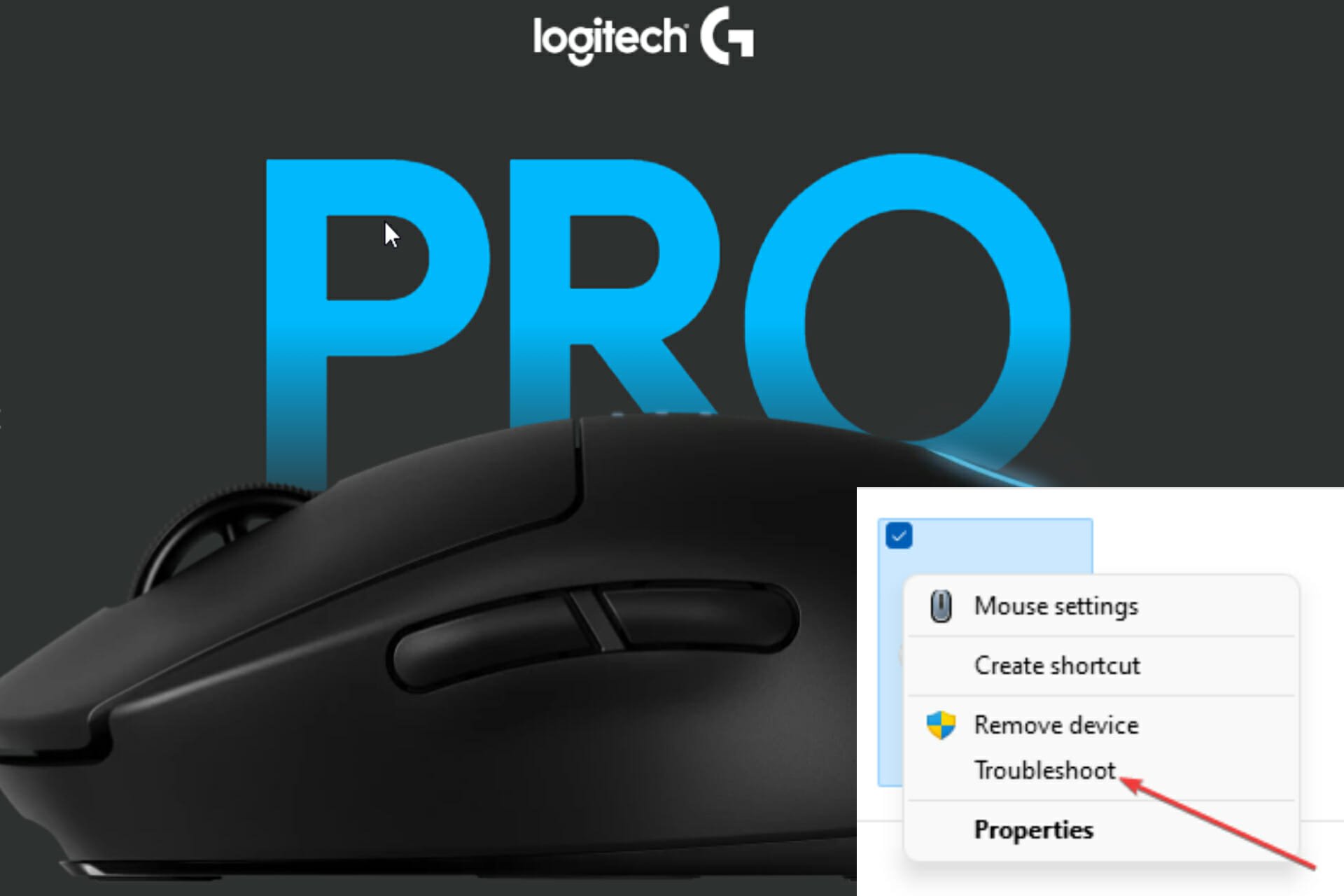
How to delete drivers of Logitech G Pro Wireless mouse

Sometimes the Logitech G Pro Wireless gaming mouse might malfunction and the best option to fix it would be to delete the drivers and probably reinstall.

It is also likely that you are no more interested in using the mouse product from Logitech and would want all related drivers and software removed from your PC.

If any of the above is your issue, relax and read along as we highlight quick and easy tips on how to delete drivers of the Logitech G Pro Wireless gaming mouse.

Why do I need to remove Logitech drivers?

Drivers help establish a successful communication between peripheral hardware such as the Logitech G Pro Wireless gaming mouse and your PC.

Merely uninstalling a Logitech driver from your system does not completely get rid of it. There are usually residual files on your computer.

This might become problematic in many cases as it may cause drivers’ conflict especially when you are trying to install a new one.

Take, for instance, you are trying to fix your Logitech driver issue by installing a driver pack software. Any residual file from the uninstalled Logitech driver may affect the operation of the driver pack; thus making the problem more complicated and nearly impossible to fix.

How can I delete drivers of the Logitech G Pro Wireless mouse?

1. Use the rollback option

  1. Open the search menu. Type CMD to locate the Command Prompt App. Next, left-click on the Run as administrator.
  2. In the User Account Control panel, when asked Do you want to allow this app to make changes to your device?, select Yes.
  3. Type the command below or copy and paste it into the Command Prompt:
    SET DEVMGR_SHOW_NONPRESENT_DEVICES=1
  4. Type the code below or copy to paste:
    devmgmt.msc
  5. Click the small arrow beside the Mice and other pointing devices. This should display a drop-down of options. Select Properties.
  6. Select Driver.
  7. Click on the Roll Back Driver option. Please note that the option is not clickable in the screenshot below because there is no recent update on the driver.
  8. On the Driver Package rollback window, select the reason for the rollback. Next, select Yes.

This method is most likely to work for users who recently updated their Logitech G Pro Wireless driver and would like to delete it to install the previous update instead. It usually helps to fix issues that arise after updating the driver. If this does not apply or work for you, read on to check another method.

2. Manually uninstall the Logitech driver

  1. Right-click on the Windows logo on the taskbar. Select Device Manager.
  2. Locate Mice and other pointing devices. Click the small arrow beside it, then select Properties.
  3. Select Drivers.
  4. Click on Driver Details.
  5. Note the names of the files.
  6. Open the File Explorer by pressing Windows key + E.
  7. Type the code below or copy and paste it into the search box in Windows Explorer:
    C:\Windows\System32\drivers
  8. Remember the noted file names in the Driver Details? Scroll down in the Drivers folder to locate and delete them all.
  9. Now, you need to delete the driver file itself (.INF). Go back to the Device Manager.
  10. Right-click on your mouse name under Mice and other pointing devices. Click on Properties. Select Details.
  11. Click on the small drop-down arrow in front of Device Description. Drag the mouse pointer to the Inf name. Click and write down the displayed name.
  12. Open File Explorer. Type the location below in the address bar:
    C:\Windows\System32\DriverStore\FileRepository
  13. Scroll to locate the folder with a corresponding name with the INF file. Select the folder, and find the driver file. The file Type is usually Setup Information.
  14. Restart your system to effect the changes.

3. Use a dedicated software

As stated before, uninstalling the Logitech G Pro Wireless driver may leave some residual files. Dedicated tools like Revo Uninstaller will scan your system for any additional files that may have been ignored during the uninstallation. It will delete them all.

This software is capable of not just helping you delete drivers of Logitech G Pro Wireless successively, but can also do the same for any driver you may want to get rid of.

⇒ Get Revo Uninstaller

These are the methods to delete drivers of Logitech G Pro Wireless to prevent them from any interference with your future installations.

Does any of these work for you? Let’s know in the comments section below. We’ll also be glad to answer any other questions you may have.

Windows 11 Won’t Restart? 5 Ways to Fix it

We may have, at some point, come across the issue when a Windows PC doesn’t turn on. A similar problem is encountered by many on the latest iteration, where Windows 11 won’t restart, but the shutdown feature works fine.

This could happen due to various reasons, but since it’s just the restart feature affected, we can rule out problems with the hardware. In this case, some users are stuck on the Restarting screen, while for others, the system freezes, and the display turns black.

So if you, too, are facing it, here are the most effective ways to fix the Windows 11 won’t restart problem.

What can I do if Windows 11 won’t restart?

Note icon NOTE
If you are unable to turn on the system, boot Windows into Safe Mode, and then try executing the fixes listed here.

1. Disconnect all non-critical devices

More often than not, it’s a malfunctioning piece of hardware that’s leading to the Windows 11 won’t restart problem. And in this case, simply identifying and removing it should do the trick.

To do that, turn off the computer, remove all non-critical devices while just keeping the keyboard, mouse, and monitor connected. Now, turn on the PC, and check if the error is fixed. In case it is, start reconnecting the devices one at a time until you identify the problematic one.

Once done, contact the device manufacturer or search the web for solutions pertaining to that particular device.

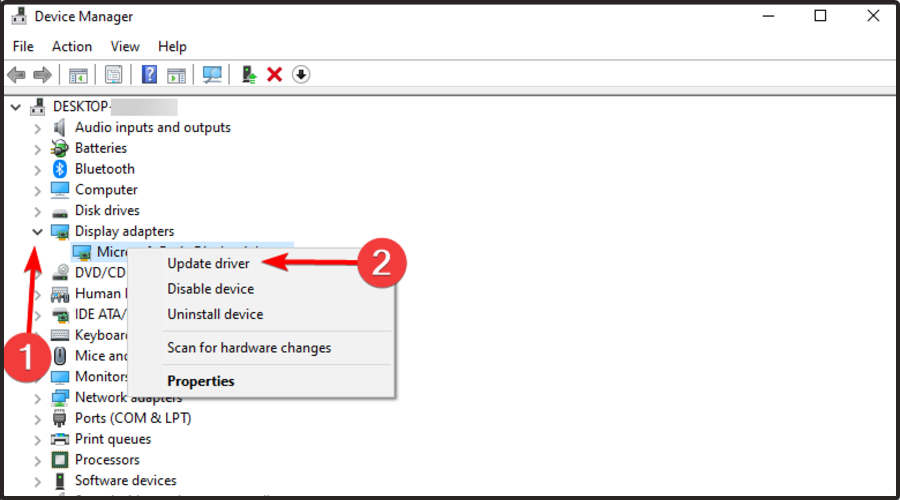
2. Reinstall the graphics driver

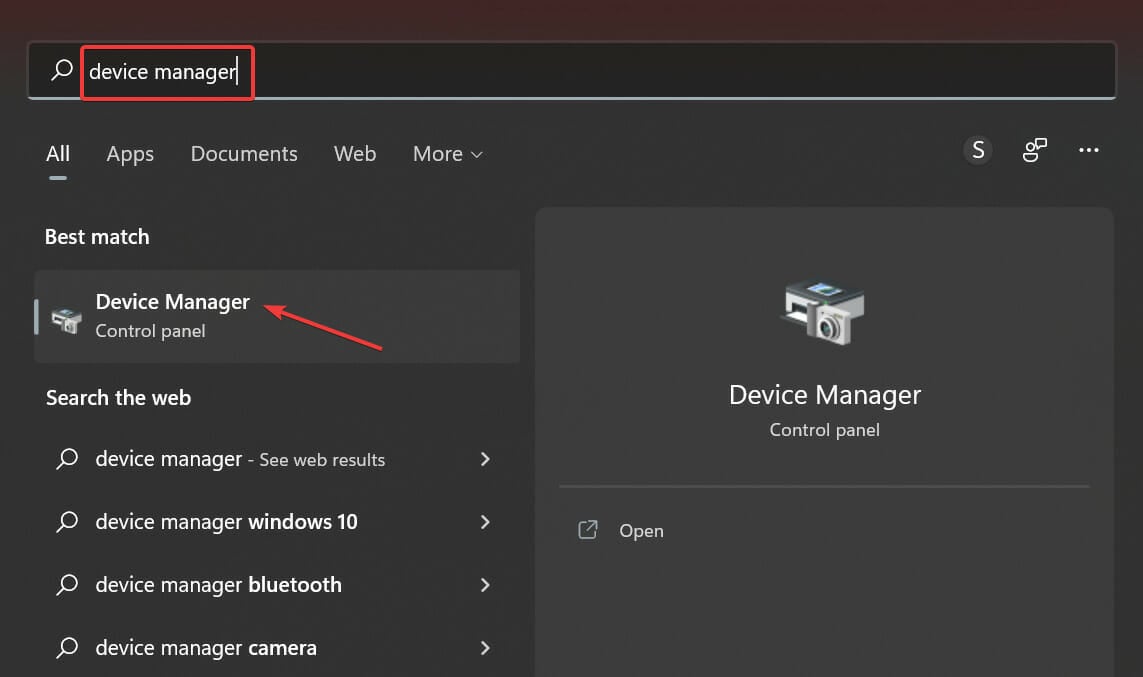
  1. Press Windows + S to launch the Search menu, enter Device Manager in the text field, and click on the relevant search result that appears.Device manager to fix windows 11 won't restart
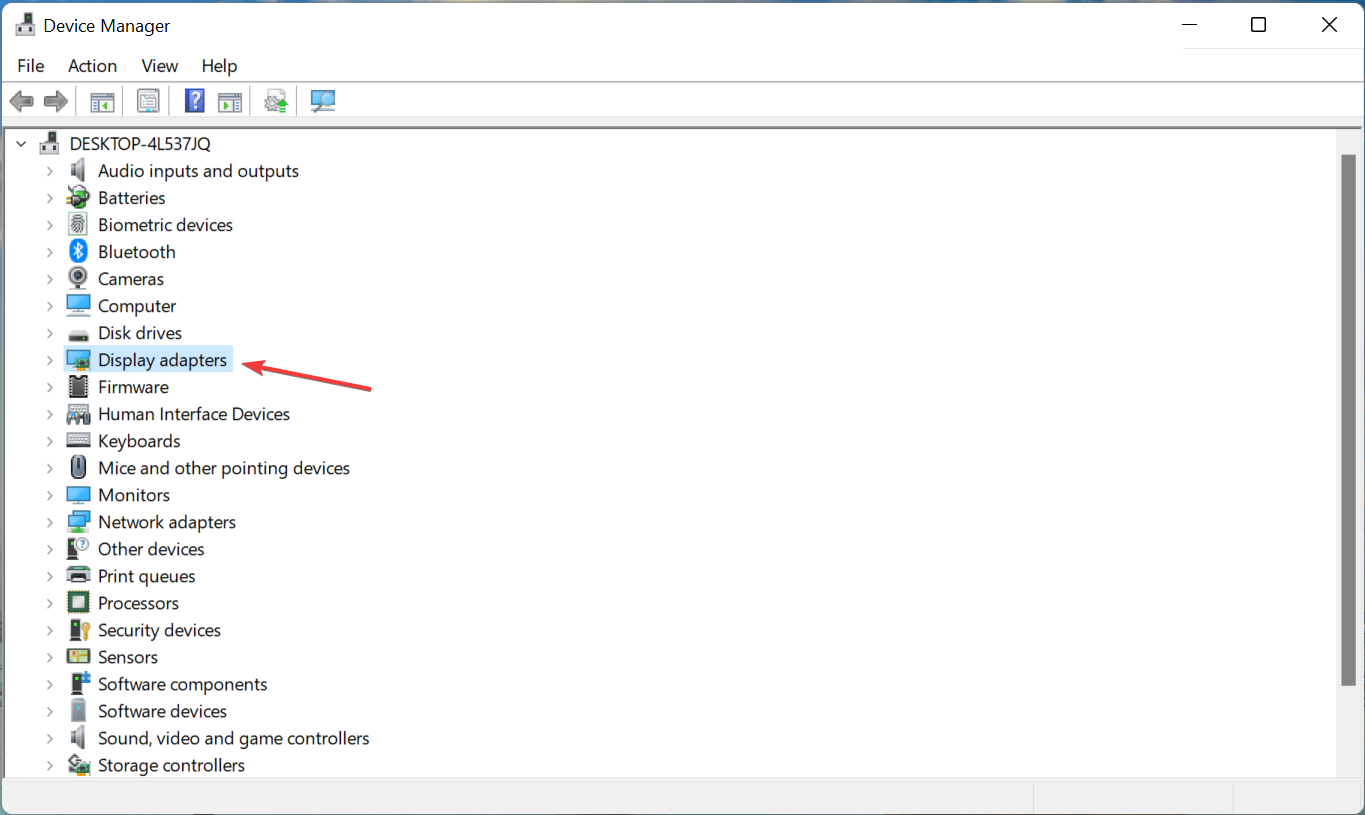
  2. Double-click on the Display adapters entry.Display adapters
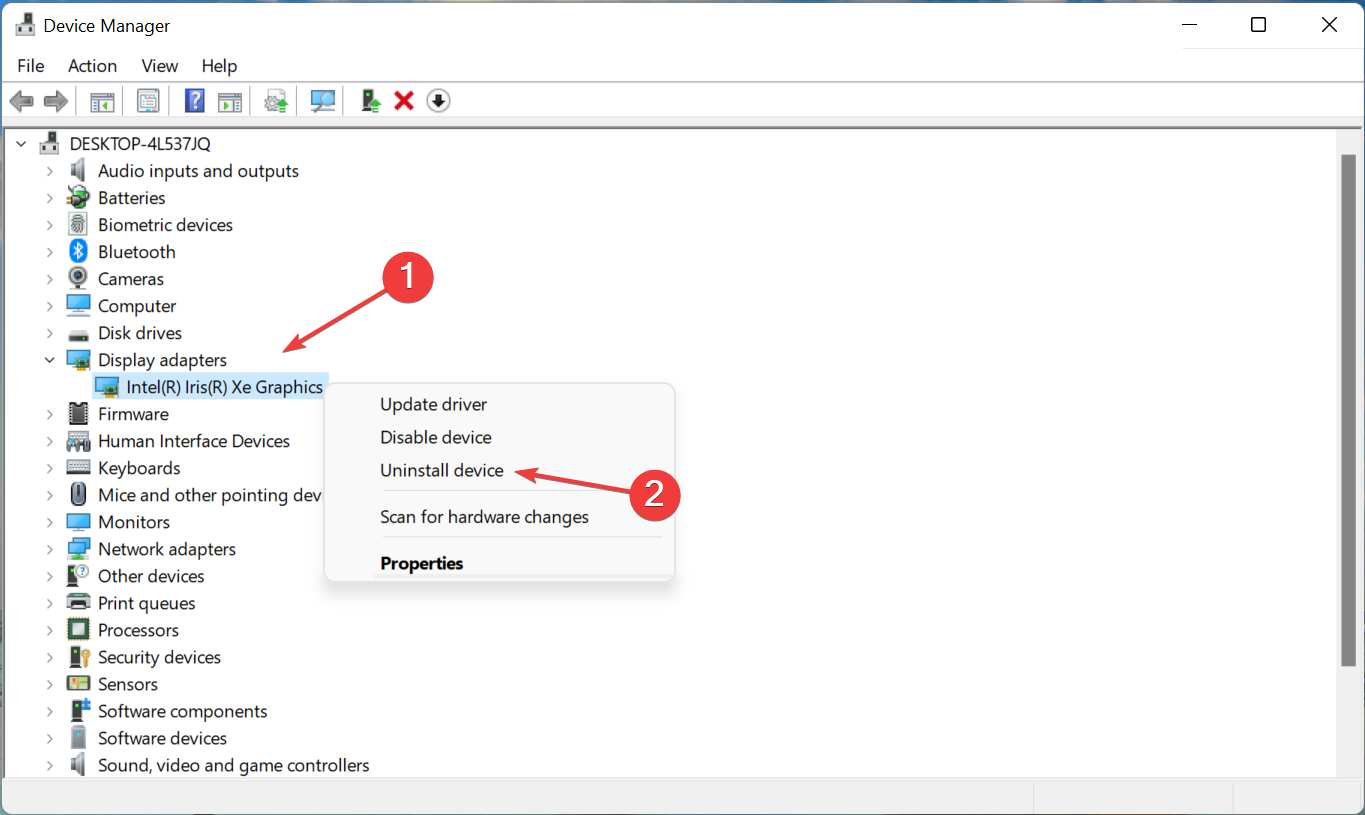
  3. Now, right-click on the graphics adapter, and select Uninstall device from the context menu.Uninstall device to fix windows 11 won't restart
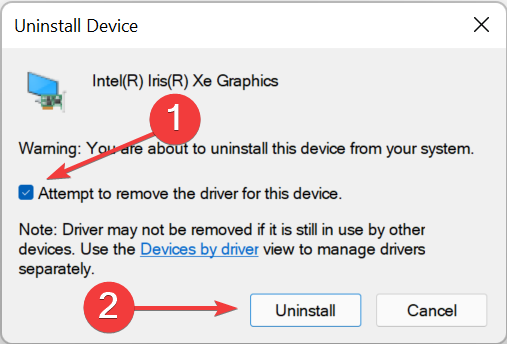
  4. Next, tick the checkbox for Attempt to remove the driver for this device, and click on Uninstall.Uninstall
  5. After uninstalling the driver, restart the computer.

Once done, you will notice the display clarity to have downgraded a notch because the current driver has been removed, and the OS automatically installed a basic one. After you restart the computer, it will reinstall a fresh set of drivers, which will fix things when Windows 11 restart is not working.

Also, you can use an app to keep the drivers up-to-date and reduce the chances of encountering such errors. We recommend a dedicated tool that scans all the sources for updates and ensures the installation of the latest version for every driver.

3. Run the built-in troubleshooter

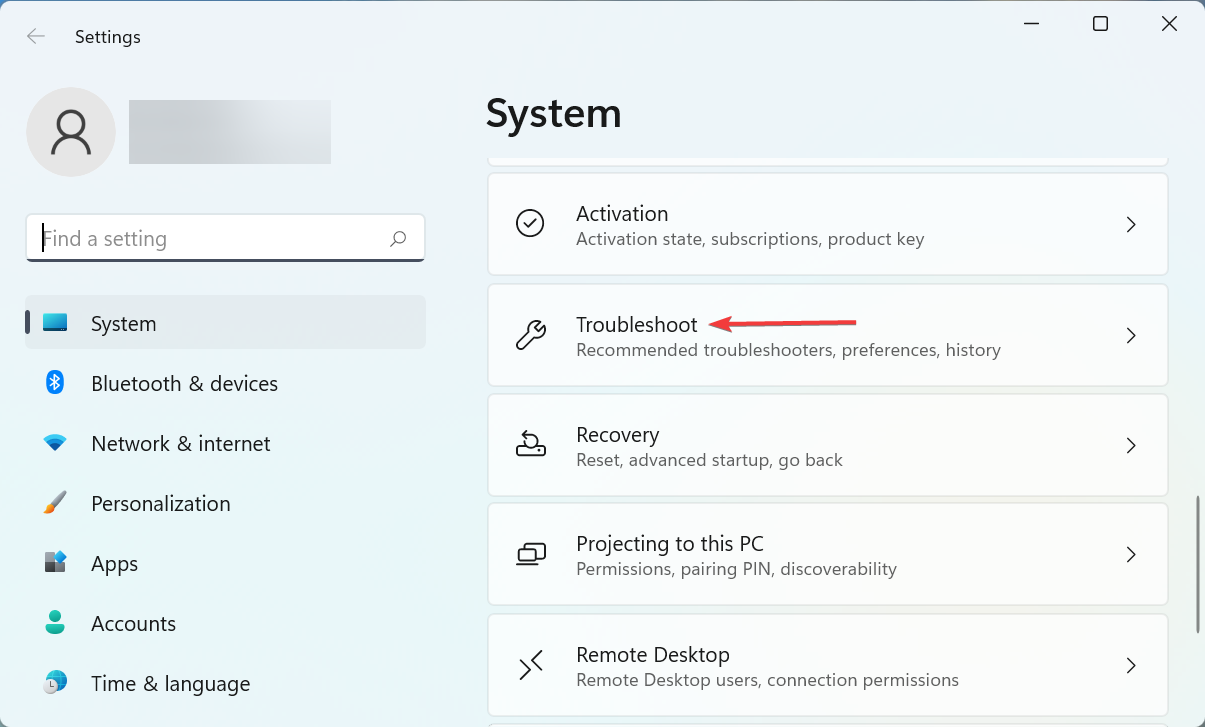
  1. Press Windows + I to launch the Settings app, and select Troubleshoot on the right in the System tab.Troubleshoot to fix windows 11 won't restart
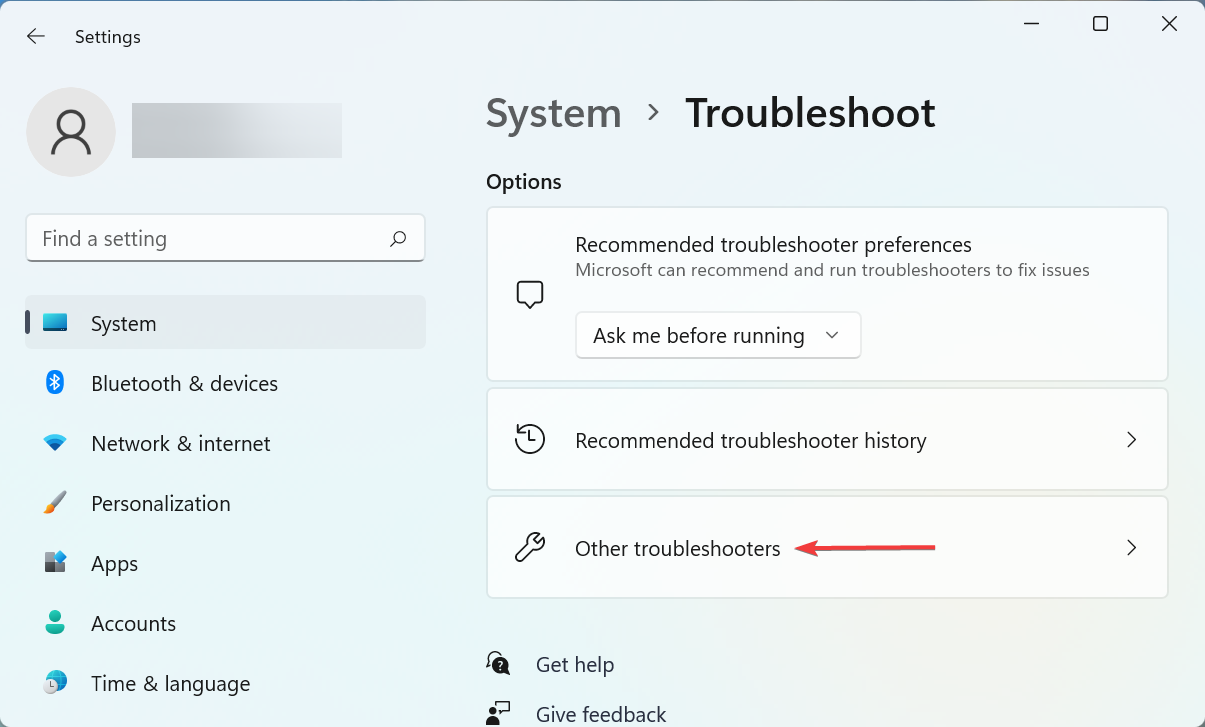
  2. Click on the Other troubleshooters entry.Other troubleshooters
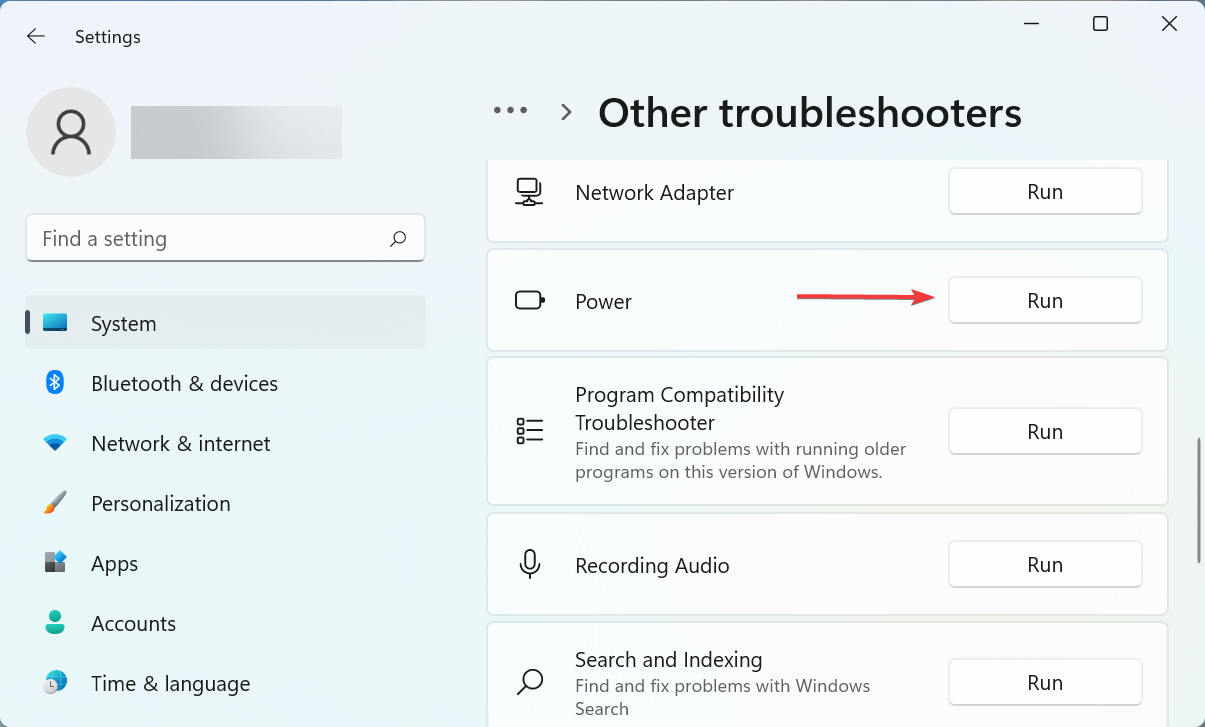
  3. Now, locate the Power troubleshooter and click on the Run button next to it.Power to fix windows 11 won't restart
  4. Wait for the troubleshooter to diagnose and eliminate issues, and choose the appropriate responses along the way when prompted.

If Windows 11 won’t restart after an update, it could be a bug in the OS or changes introduced to the settings, and a quick fix is to run the dedicated troubleshooter.

4. Uninstall conflicting third-party applications

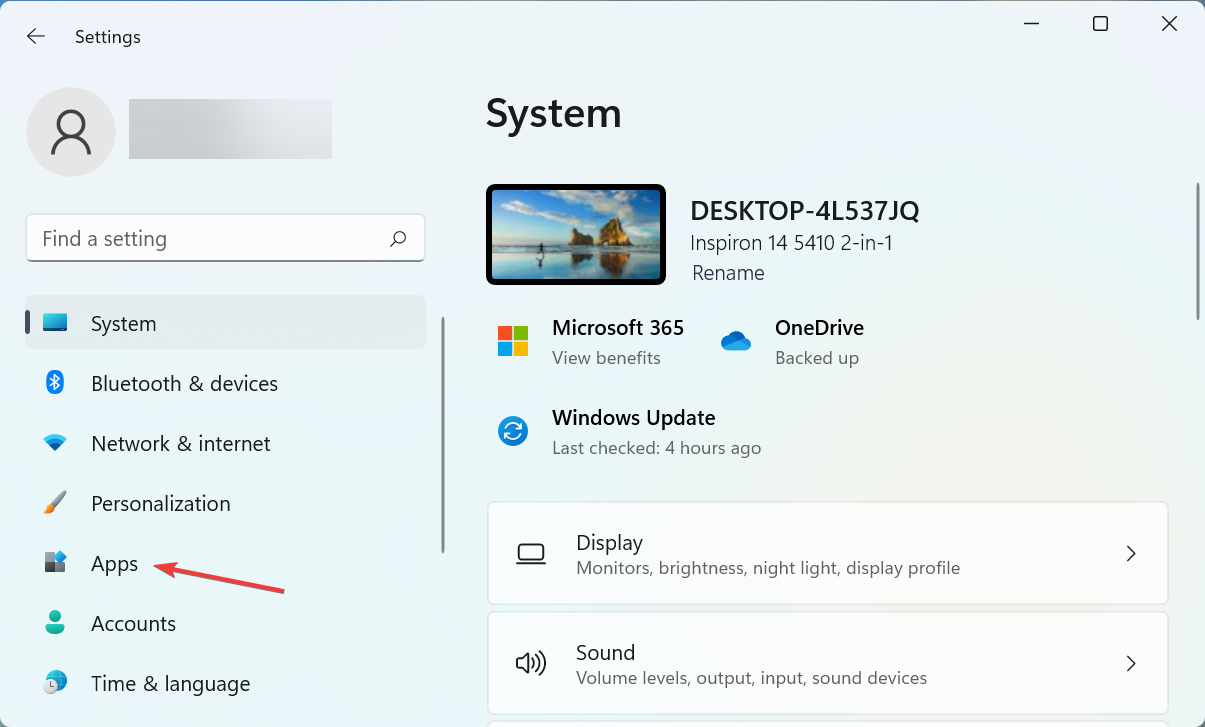
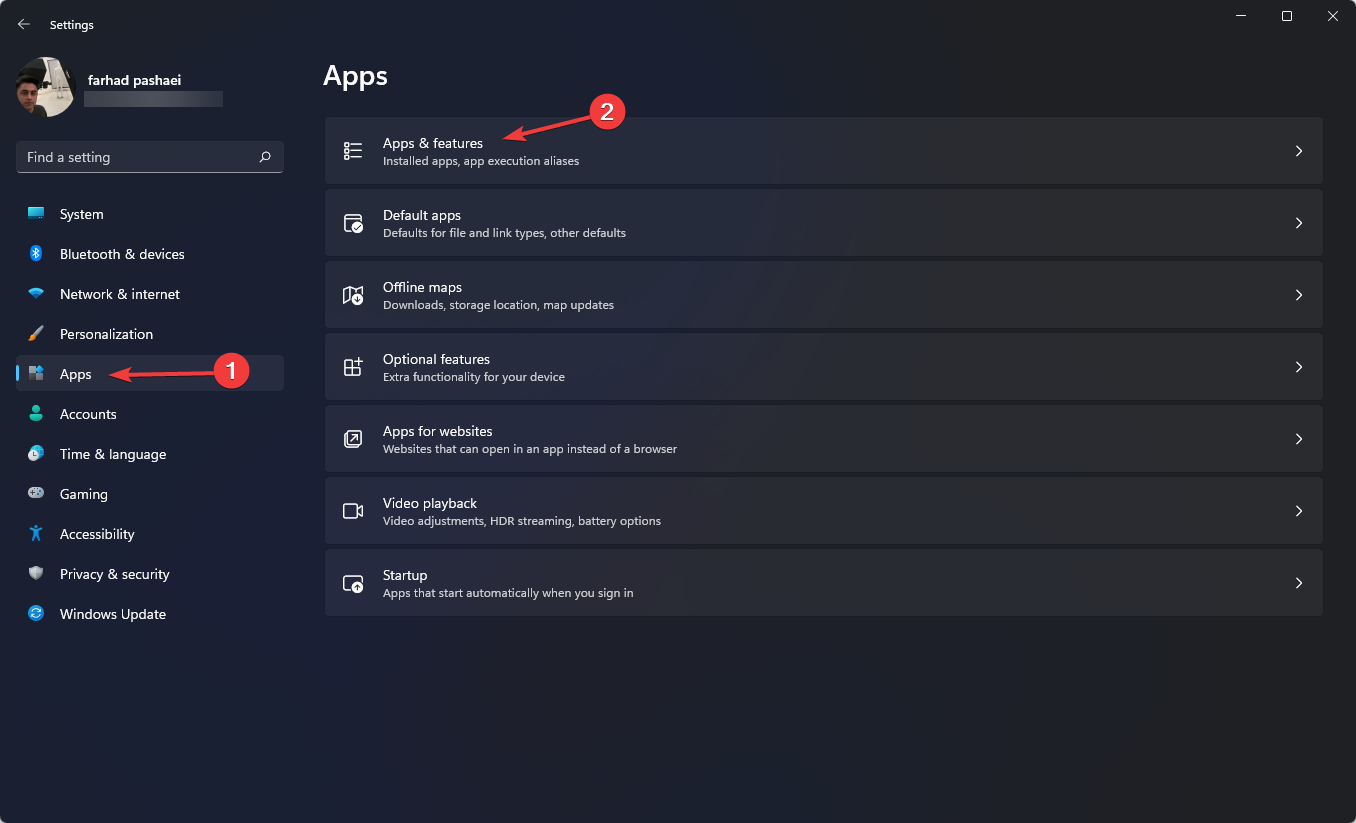
  1. Press Windows + I to launch Settings, and select Apps from the list of tab in the navigation pane on the left.Apps
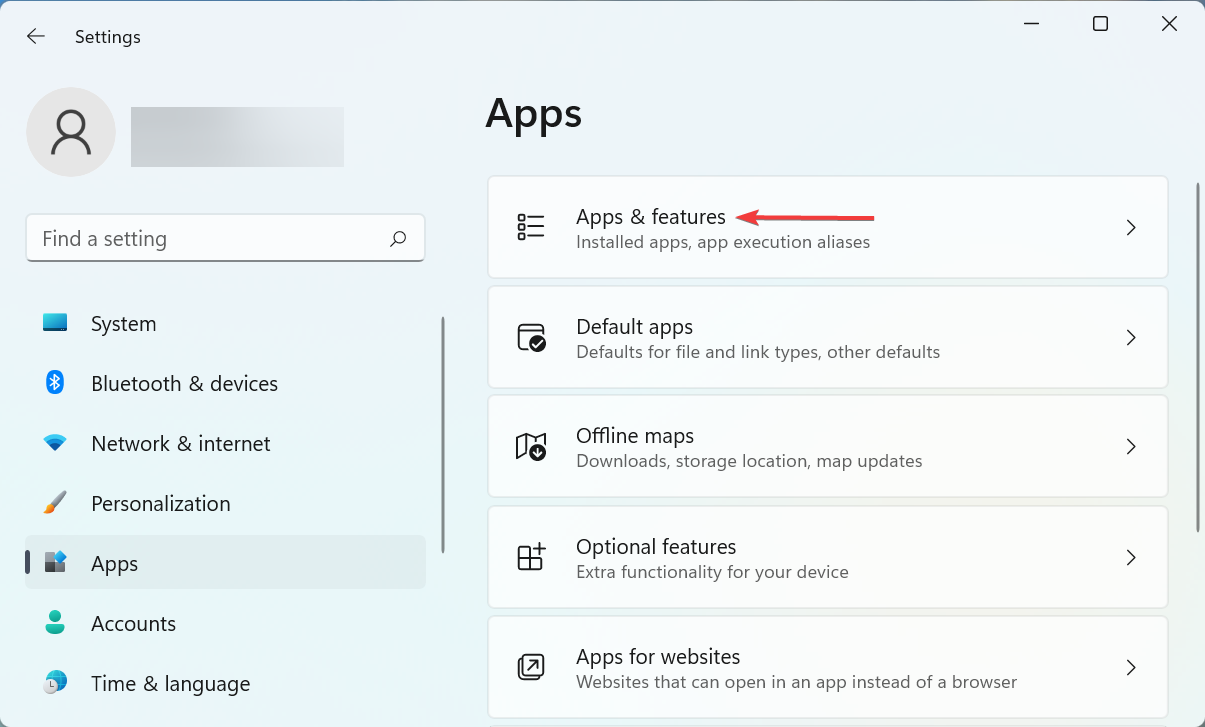
  2. Click on the Apps & features option on the right.Apps & features
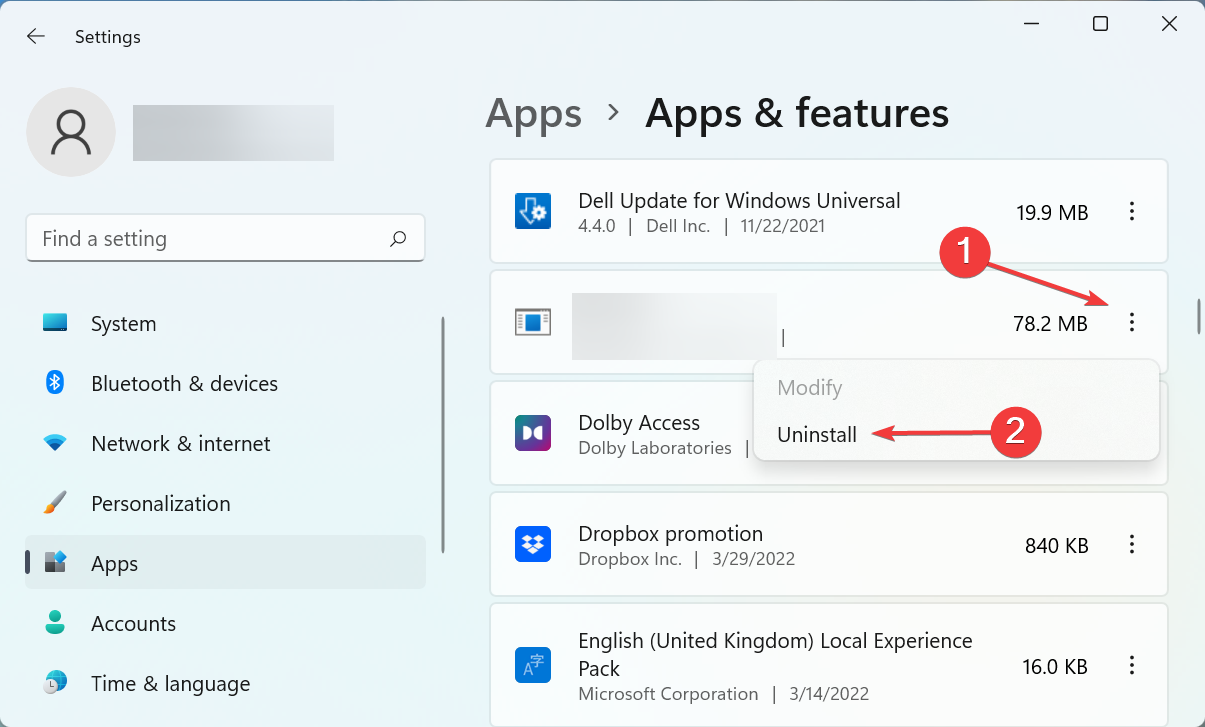
  3. Locate the problematic app, click on the ellipsis next to it, and select Uninstall from the menu.Uninstall app to fix windows 11 won't restart
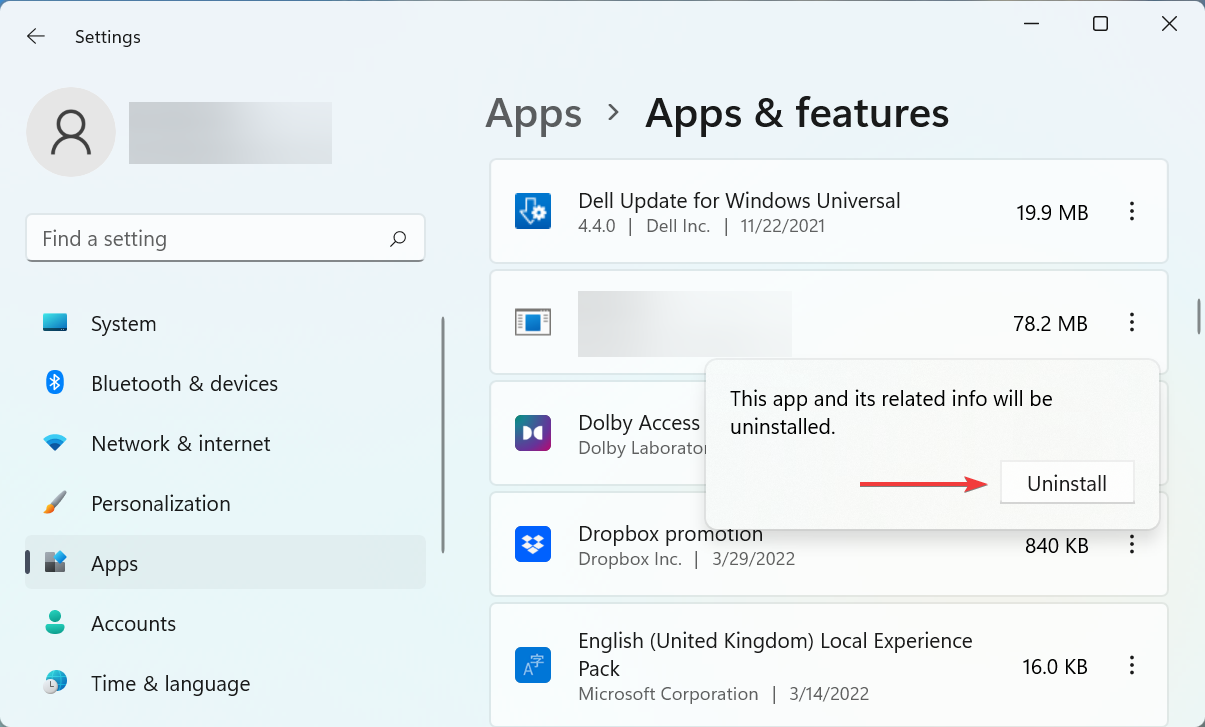
  4. Again, click Uninstall in the prompt that pops up.Confirm

You could just as well be encountering the Windows 11 won’t restart error because of a conflicting third-party app. And in this case, it’s best that you uninstall the application to get things back up and running.

Remove the apps that were installed around the same time you first encountered the error one at a time, and restart the computer after each. As soon as the restart process goes through, the app removed last was the conflicting one.

Once it has been uninstalled, you can safely reinstall the others that were removed during the process.

5. Reset Windows 11

If none of the methods listed here have worked, it’s likely a problem that only resetting Windows 11 to its factory settings could fix. When resetting the PC, you will have the option to keep your files or remove them during the process.

After you are done with the reset process, the Windows 11 won’t restart problem should be fixed for good. But this should be the last resort since a lot of changes would be made during the reset process.

In case you are facing this problem on the previous iteration, learn what to do if Windows 11 won’t restart.

Also, if your Windows 11 PC is stuck in a reboot loop, the fixes for it may help eliminate this error as well and vice versa.

If you have any queries or know a method that’s not listed here, drop a comment in the section below.

Windows 11 Not Recognizing iPod? How to Reinstall its Drivers

There are times when Windows 11 does not recognize iPod. It’s frustrating when you cannot upload your best-loved music or videos. 

Like iPhone and iPad, Apple has made iPod compatible with Windows 11. However, sometimes, you run into problems when you connect your iPod to a PC or laptop.

This problem may arise from many reasons, such as faulty connections. So, first, let’s check out what exactly causes Windows not recognizing iPod.

What causes Windows 11 not to recognize iPods?

There are a bunch of reasons why Windows can’t detect your iPod. For example, a damaged cable is one of the most common reasons.

Additionally, it’s possible that you haven’t connected your iPod properly to your PC or laptop.

Also, an outdated iTunes version can cause this problem. iTunes is the best program to organize and back up your files on your iPod. If your iTunes is not opening on Windows 11 PC, check out this article.

Let’s get down to the business of resolving the problem.

What can I do if Windows 11 is not recognizing iPod?

1. Check the connection

Checking USB cables or sockets is an easy-breezy way to fix Windows 11 not detecting iPod. So, first, check the two sides of the iPod cable to see whether it is damaged.

If not, try alternative cables. Make sure that you use qualified Apple peripherals such as lightning connectors.

Additionally, you can plug your iPod into a different USB slot. Sometimes, PC USB ports may be damaged, and you need to switch to another port to check connection issues.

If the problem still exists, we head to the next solution.

2. Repair your iTunes

  1. Open your Start menu and type Settings in the search bar then press Enter.
  2. Now click on Apps then select Apps & features. After that look for the iTunes app.Apps and features
  3. Select the three-dot menu on the right side and opt for the Advanced option. If the option is grayed out, select Modify.iTunes repair
  4. Finally, select the Repair button.

If the problem persists, we recommend that you install a PC repair tool because the issue could be caused by your computer’s operating system. Such a tool will run a comprehensive scan after installation, find faulty files, and replace them to fix errors and improve computer performance.

3. Update your iTunes

  1. First, download iTunes.Download iTUnes
  2. Install and launch it then go to the menu bar.
  3. Now, click on Help, then select Check for Updates.Checking for updates
  4. If there are any available updates, the following screen will appear. Click on Download iTunes.Updating iTunes

One of the helpful ways to fix Windows 11 not recognizing iPod is to update your iTunes.

There are two ways available for updating iTunes: Downloading the latest version of iTunes from the Apple website or updating it from the Microsoft Store.

Now, let’s show you how to update with Microsoft Store.

  1. Click on the Start menu then type Microsoft Store and hit Enter.
  2. Open Microsoft Store and click on the library icon on the bottom left side of the window.Library menu in Microsoft Store
  3. Now, scroll down and look for iTunes. To see available updates, click on Get updates. If there is any available update for iTunes, click on the Update option.

4. Update driver

  1. Click on the Start menu, type Device Manager, and hit Enter.
  2. Next, double-click on the Universal Serial Bus controllers section and select Apple Mobile Device USB Driver. Apple Mobile Device USB Driver
  3. Right-click on it and select Update Driver. Follow on-screen prompts to complete updating the driver.

A good option for those who are not tech-savvy is Outbyte Driver Updater, which can automatically update your computer’s driver.

This utility does a check to see if any drivers are missing or outdated and then updates them to hopefully fix your problem.

⇒ Get Outbyte Driver Updater

5. Open Services

  1. Click on the Start menu, type Services, and press Enter.
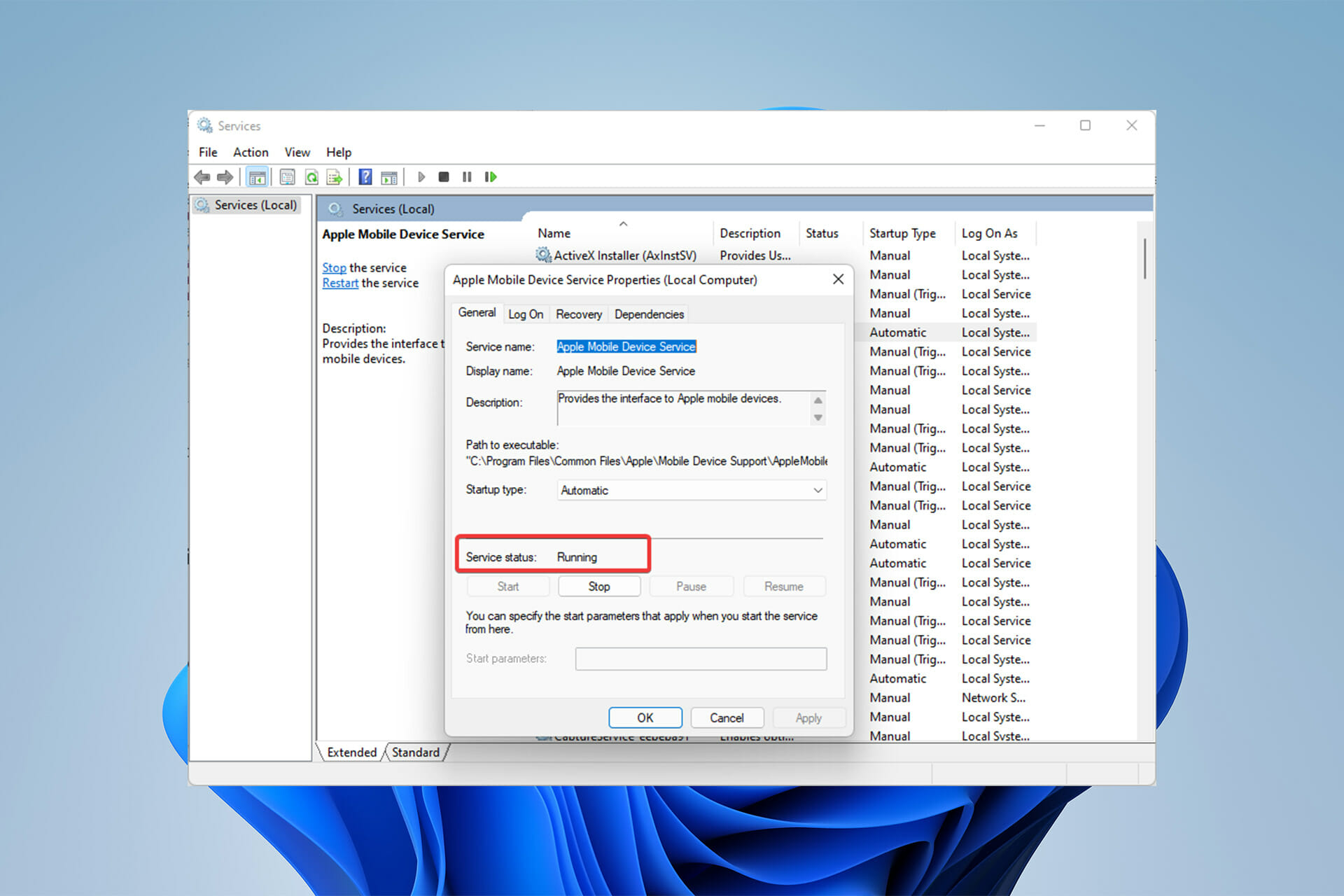
  2. Look for Apple Mobile Device Services and double-click on it. Apple Mobile Device Services
  3. Make sure your Service status is Running.Apple service status
  4. If your Apple Mobile Device Services is not running, click on Start then set Startup type on Automatic, and select OK.
  5. Restart your system.

Can I transfer my music from my iPod to Windows without any software?

  1. Yes. All you need is to open your File Explorer.
  2. Click on the View tab, select Show, then check the Hidden item option. View option
  3. Now go to the iPod_Control folder and drag and drop your music folder where you want to save it.

We recommend that you check the cable and ports on both devices before moving on to more advanced solutions. If the connection isn’t working, any solution you come up with won’t help.

The computer’s port may be tested by attaching another device, and the iPod’s port can be tested by plugging it into a wall outlet.

It’s possible that a problem with the drivers is to blame for Windows 11 not recognizing iPod.

It is worth noting that, you should keep your computer’s drivers up-to-date regardless of whether or not you’ve had any problems.

If you are looking for the best software to transfer music from iPod to PC, take a look at this article.

How to Resolve Firewall Blocking Printer on Windows 11

Firewalls monitor network traffic and can block network connections for some programs and hardware.

Windows 11 includes its own Windows Defender Firewall that might block printers from accessing the Web.

Thus, the affected users can’t utilize their Brother printers when firewalls block them. Keep in mind that this issue affects other brands as well, but today we’re going to show you how to fix that.

Why is my Brother printer blocked by the firewall?

There are multiple reasons for this issue, and it’s rather likely that you need to open certain ports before your printer can access the web.

The printer software can also cause problems, so be sure to update it as well as your printer drivers. Keep on reading to find out how to do that.

What can I do if the Windows 11 firewall is blocking my printer?

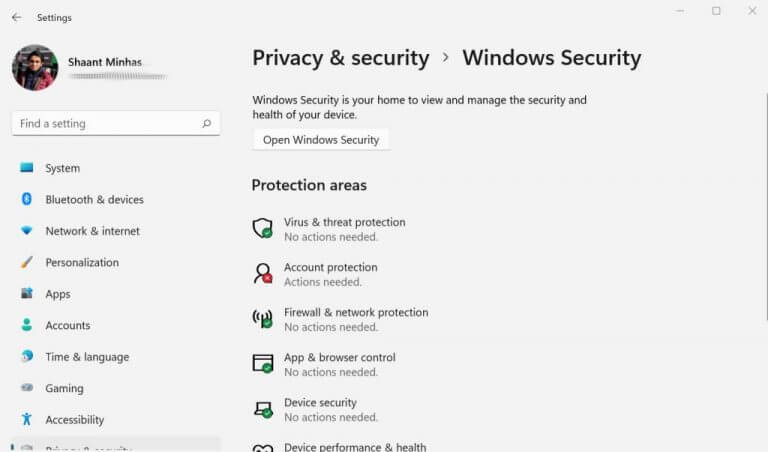
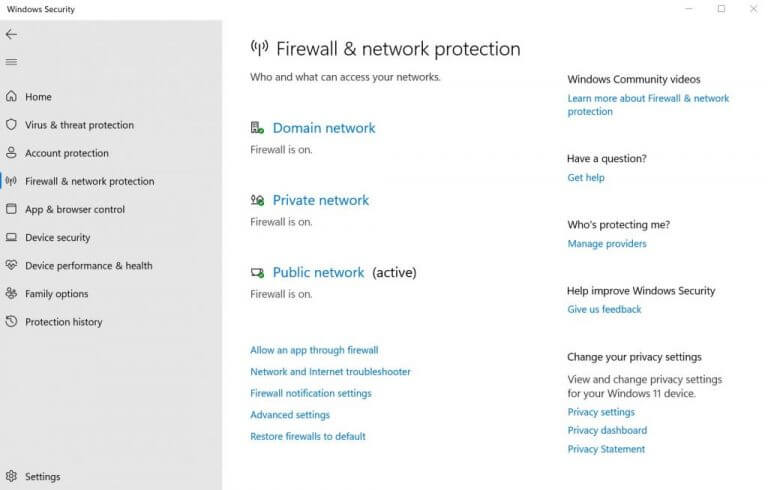
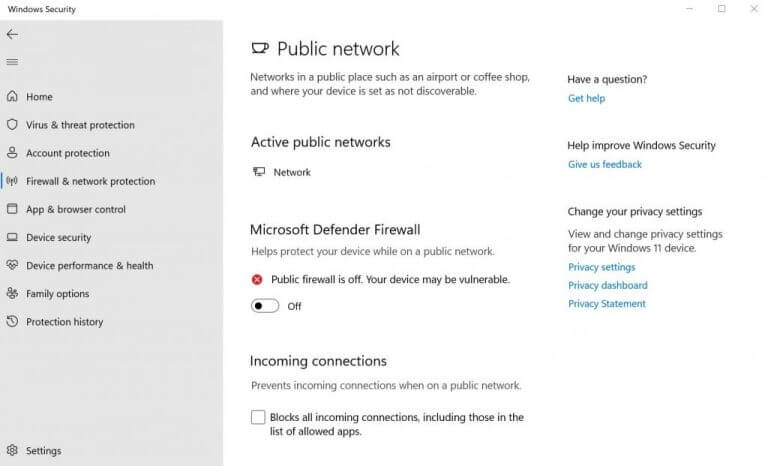
1. Turn Off the Windows Firewall

  1. Open Windows Search.
  2. Type firewall and select Windows Defender Firewall.
  3. Click Turn Windows Defender Firewall on or off to open the options shown directly below.
  4. Then select the two Turn off Windows Defender Firewall radio buttons to turn off the WDF.
  5. Press the OK button.

2. Set Up Inbound Rules for printer ports

  1. Open Windows Search.
  2. Type firewall and select Windows Defender Firewall with Advanced Securirty.
  3. Next, click Inbound Rules on the window shown directly below.
  4. Select New Rule on the right to open the New Inbound Rule Wizard.
  5. Select the Port option, and click the Next button.
  6. Select the UDP and Specific local ports. Enter 54925 as the desired port.
  7. Press the Next button.
  8. Select the Allow the connection option, and click the Next button.
  9. Select all the profile check boxes, and click the Next button.
  10. The enter a title for the new rule. Users can also add some extra rule details in the other text box.
  11. Press the Finish button.
  12. Repeat the above steps to set up two more inbound rules for Brother port numbers 137 (for printing and remote setup) and 54926 (network PC fax).
Note icon NOTE
These instructions are for Brother printers, so you might have to adjust the port numbers if you’re using a different brand.

3. Install the latest printer software and drivers

  1. Visit your printer’s manufactuer’s website.
  2. Locate your model on the website.
  3. Now download the latest drivers.
  4. Once the drivers are downloaded, install them.

Downloading drivers manually can be a tedious process, especially if you don’t know the printer model or how to download the latest drivers.

Luckily, there are tools such as Outbyte Driver Updater that can help you with that. This software will scan your system for any outdated or missing drivers and let you update them with a single click.

By using this software, you can rest assured that all your devices will function properly and always be up to date.

⇒ Get Outbyte Driver Updater

4. Check the File and Printer Sharing Firewall Permission Setting

  1. Open Windows Firewall.
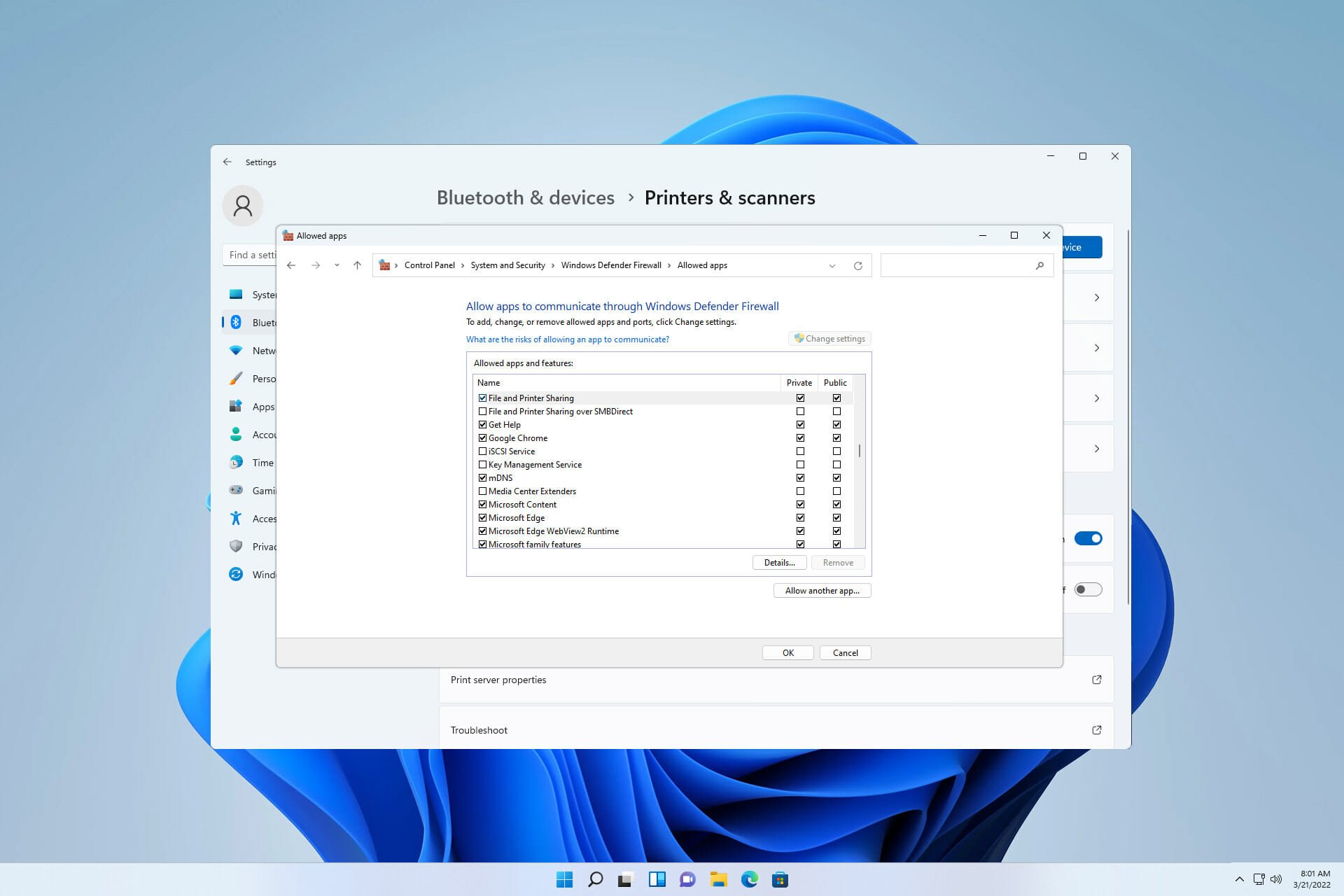
  2. Click Allow an app or feature through Windows Defender Firewall.
  3. Press the Change settings button.
    change settings firewall windows 11
  4. Select all the check boxes for the File and Printer Sharing setting.
  5. Select the OK option.

How can I allow printer through Firewall on Windows 11?

To allow the printer through the firewall, it’s crucial to know the ports that your printer is using. You can find this information in your printer manual.

After doing that, you just need to create a custom rule in your firewall, and allow those ports to access the web.

If Windows 11 firewall is blocking your printer, you should be able to fix this issue by following the instructions mentioned in this guide.

There are other issues that you can experience with your printer, and to fix this issue, visit our printer not working on Windows 11 guide.

Did you manage to fix this problem on your PC? Let us know which solution worked for you in the comments section below.

How to Update BIOS Without USB [Easy Steps]

If you don’t have a USB or a flash drive and you want to update your computer or system’s BIOS, don’t worry, because you don’t need a USB flash drive to complete this process.

All you have to do is download the BIOS Updater utility from the manufacturer’s website or go to the EZ Flash Utility in BIOS and select Internet.

After that, your computer will reboot, and the BIOS will be updated. Be careful! A botched update can damage the motherboard, especially if you choose the wrong version.

How can I update BIOS without a USB?

Use the Update utility

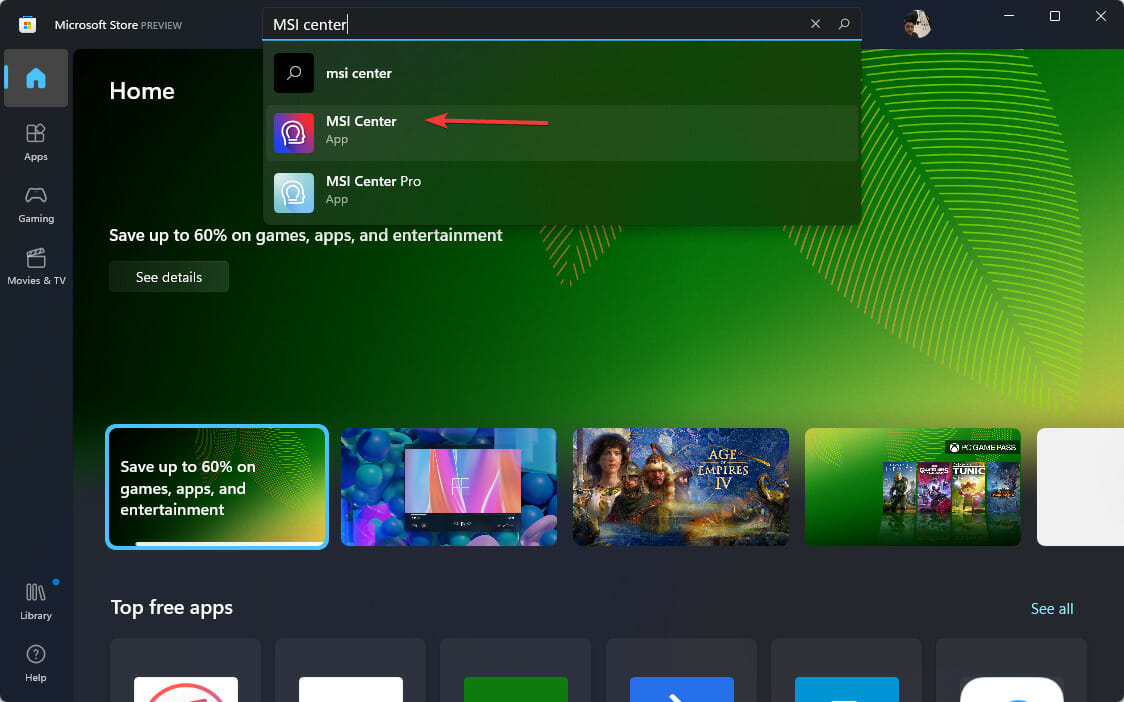
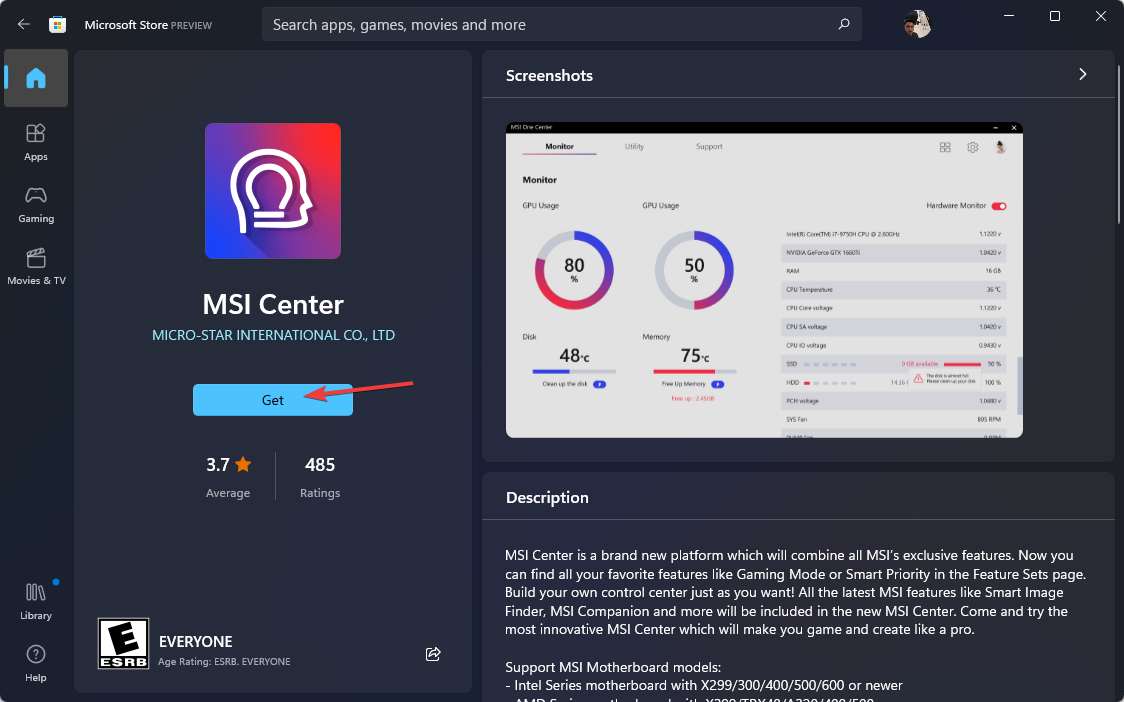
  1. Open Microsoft Store, type MSI center in the search bar then select it.
    MSI center
  2. Click on Get to download it.
    Downloading MSI Center
  3. Now open the app, navigate to the Support tab, and select the Advanced option.
  4. Finally, select the BIOS update and wait for the process to complete.

There are several ways to update BIOS, but you only have two options if you don’t have a USB flash drive.

One is to use the motherboard manufacturer’s BIOS updater utility, and the other is to use the Internet, which we shall explain in the next method.

Note icon NOTE
Be aware that the MSI Center tool only works with MSI motherboards, so if you have one from another manufacturer, be sure to check their website to see whether they have a BIOS updater program as well.

2. Using UEFI firmware settings

  1. To begin, use the Windows + I keys to bring up the Settings menu.
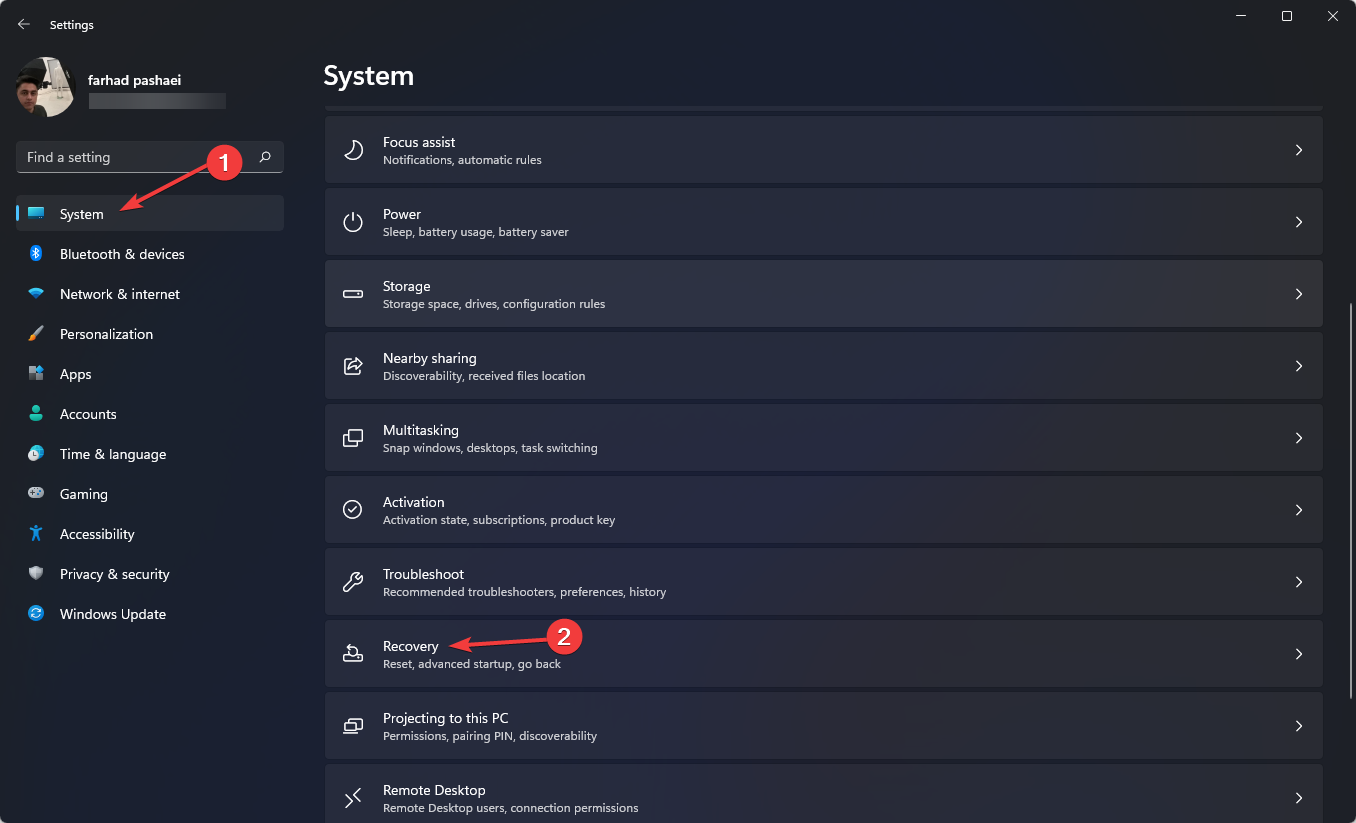
  2. On the left menu, pick System, then Recovery.
    Recovery menu
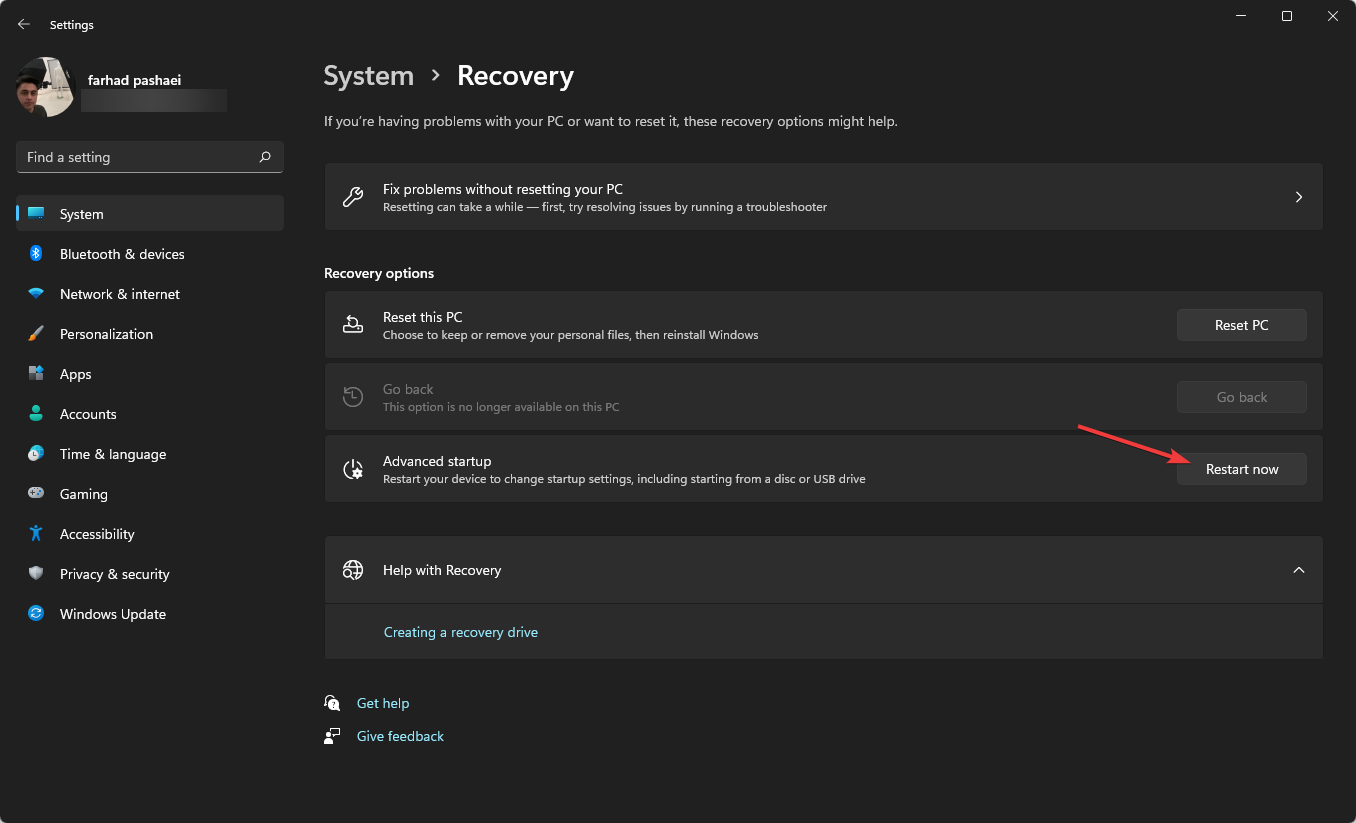
  3. After that, click on Restart now.
    Restart Now
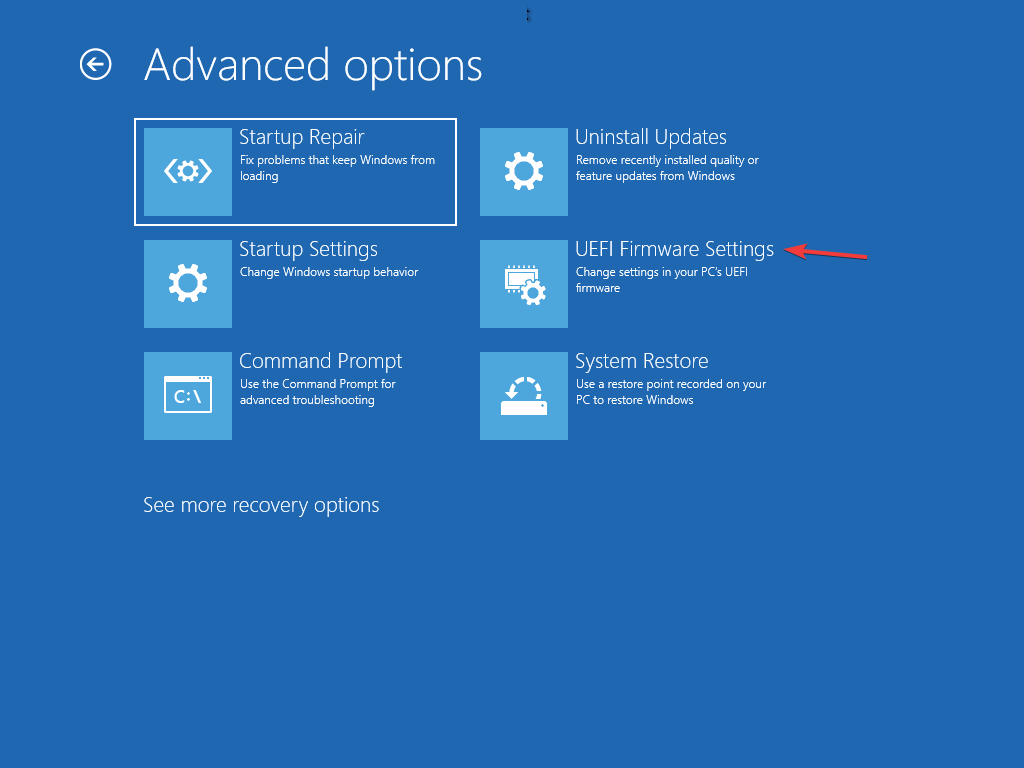
  4. Select the Troubleshoot option in the Advanced startup menu. After that, click on Advanced options then UEFI Firmware Settings.
    UEFI option
  5. Enter Advanced Mode then, go to the Tool menu. after that, select Asus EZ Flash Utility, then press Enter. 
  6. Select by Internet.
  7. Now, press the Left / Right arrow key to select your desired internet connection, then hit Enter. 
  8. Follow on-screen instructions and let the update be completed.

Most UEFI BIOS motherboards can be updated using this method.

Is it dangerous to update BIOS?

Generally, Windows users don’t need to update their BIOS that often. Installing or flashing a whole new BIOS can be dangerous sometimes, and updating it is safer.

If anything goes wrong during updating or flashing your BIOS, it can end up damaging your motherboard completely.

You won’t see a huge change or improvement after updating your BIOS because the update doesn’t introduce any new features or a noticeable speed boost in your system. 

What is the difference between UEFI and traditional BIOS?

UEFI stands for Unified Extensible Firmware Interface. It works exactly the same as a BIOS and both work as an interpreter between the computer hardware and the operating system.

Both are used at the computer startup and they initialize the hardware parts and the operating system. UEFI has one fundamental and basic difference.

UEFI stores all your data in an .efi file instead of the firmware. The data file is stored on the hard drive in a special partition named EFI System Partition (ESP), and it contains the boot loader.

It is recommended to update your BIOS once in a while to help the motherboard function better and identify new hardware parts such as RAM, CPU, etc. 

💡 Read this article if your computer automatically enters BIOS mode.

And if you want tailored guides for your specific hardware, check this guide on how to update BIOS on Acer Swift 3 and these steps for updating the BIOS on ASUS laptops.

Summary

You can update your BIOS without a USB flash drive. Some motherboard manufacturers offer you up to three options to update your BIOS: BIOS/UEFI, DOS, and Windows.

Also, you may update your BIOS using DOS with a thumb drive, but it may be installed on a different and separate hard drive.

BIOS can be updated by Windows itself but it is not recommended because it’s dangerous and may ruin your system. This is also not supported by all motherboard manufacturers.

Your PC Won’t be Entitled to Updates: How to Bypass [100% Safe]

When Microsoft released Windows 11, one of the first things people noticed was that it drastically increased the minimum hardware requirements.

You need brand-new CPUs in particular. Microsoft eventually stated that you can use an ISO to install Windows 11 on unsupported PCs, but you won’t be able to receive updates.

People who adopted this technique, it turns out, are receiving updates. Unsupported devices were put on the same track as everyone else with the Windows 11 updates. However, this is not recommended by Microsoft.

So, if you have recently installed Windows 11 and have run into this particular message regarding your device not being entitled when trying to update, your PC or laptop is probably quite old by now.

But that’s why we’re here: to let you know what you can do about it.

Why are the system requirements for Windows 11 so much higher?

The only reason Microsoft has given us so far for such strict requirements is to improve the operating system’s security. The company also released a video a while back that explains the significance of security measures that are essential to run Windows 11.

Microsoft has stated that the Windows 11 operating system has been created with security as a top priority. Windows 11 is the most secure version of Windows ever, according to the company.

Reliability’ is the first and most important reason behind the demanding system requirements. “maintaining reliability over time is highly correlated with OEM and IHV driver support.

The processors supported on Windows 11 are within OEM and IHV support and use modern (DCH) drivers, says Microsoft.

If you want to install Windows 11 on an unsupported PC, follow the instructions outlined in this article.

Why do you receive not entitled to updates mean on Windows 11?

The message Not entitled to receive updates basically means, in our opinion: you’re using Windows 11 on a system that we don’t support.

As a result, you may or may not receive updates, depending on whether or not your computer meets the operating system’s minimal requirements.

Also, it implies that Microsoft will not be found accountable for anything that happens to your computer in that case.

There’s a reason Microsoft uses ambiguous terms like ‘entitled’ or ‘may not’ rather than just saying: we won’t be sending any updates to devices that aren’t supported.

It is worth noting that, that language is meant to safeguard Microsoft in case someone files a lawsuit claiming that installing Windows 11 caused their PC to crash or malfunction.

How can I bypass the Windows 11 not entitled to receive updates message?

Ignore the message and click Accept

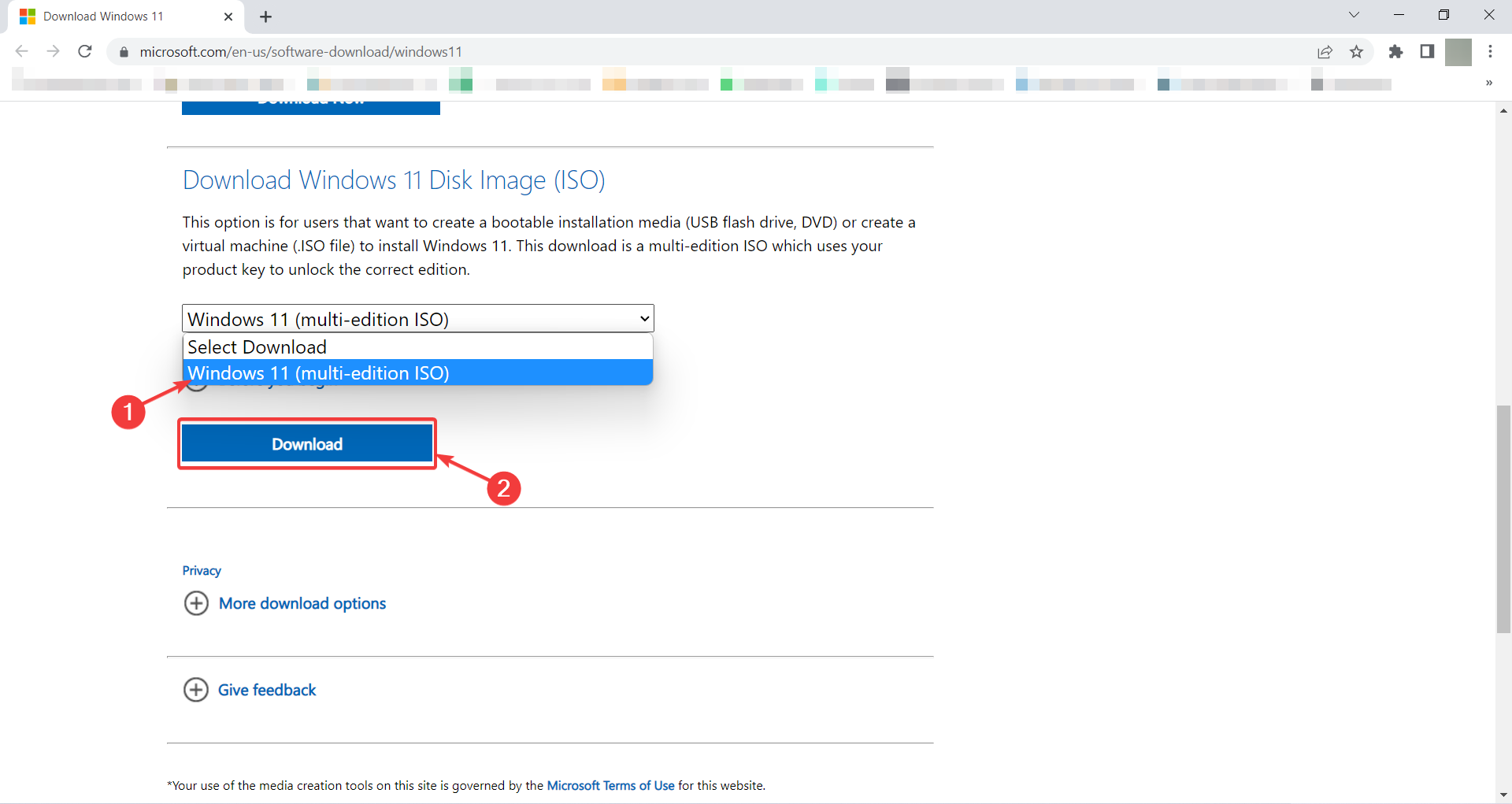
  1. Go to Windows 11 download page, and scroll down to find the Download Windows 11 Disk Image (ISO) section.
  2. In the bar pictured below, choose the Windows 11(multi-edition iso) option and click on Download. windows 11 iso download
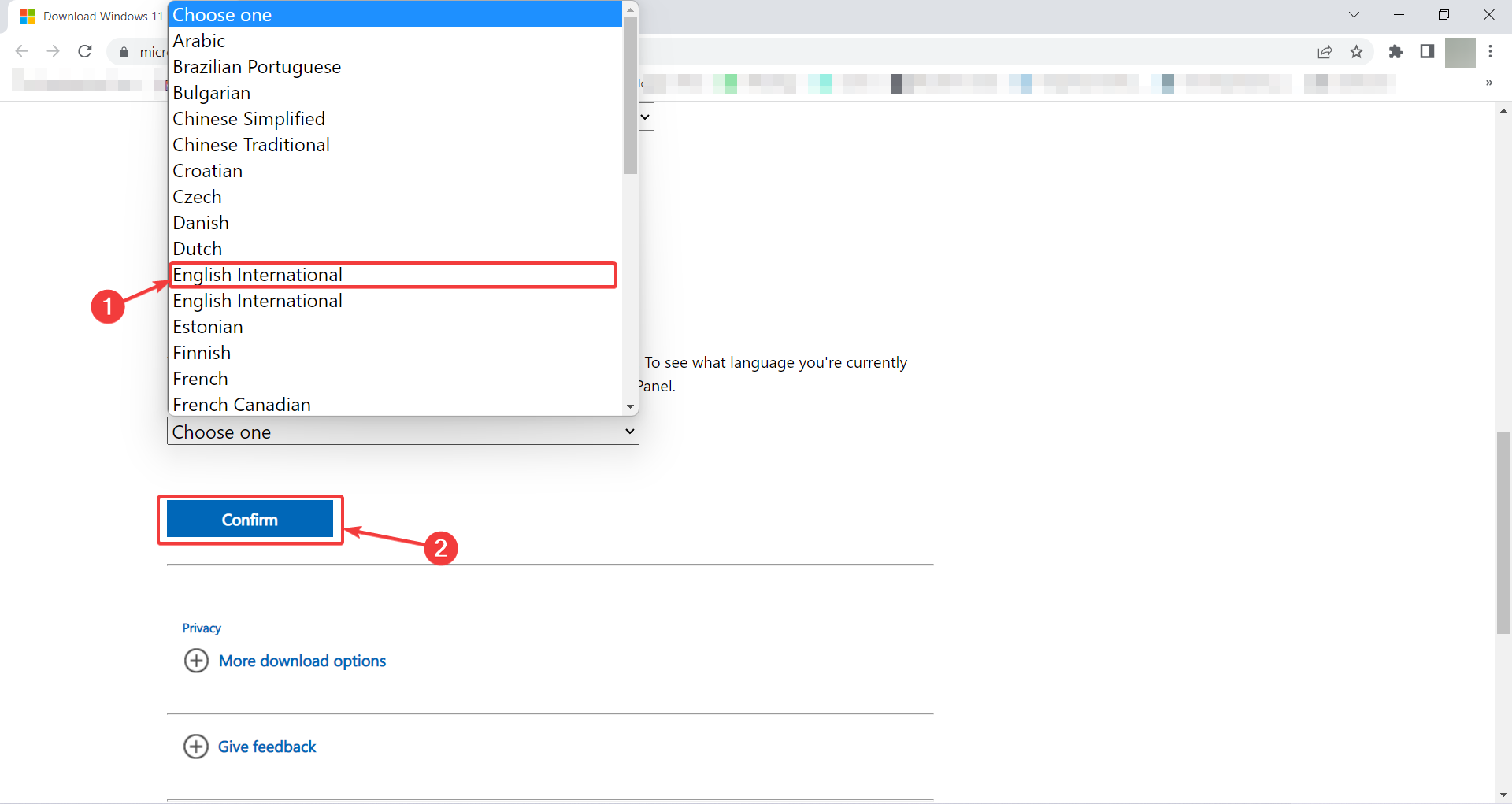
  3. Wait a moment for the next part to show up. Then choose your desired language for Windows 11 which is English International in our case and press Confirm.windows 11 language
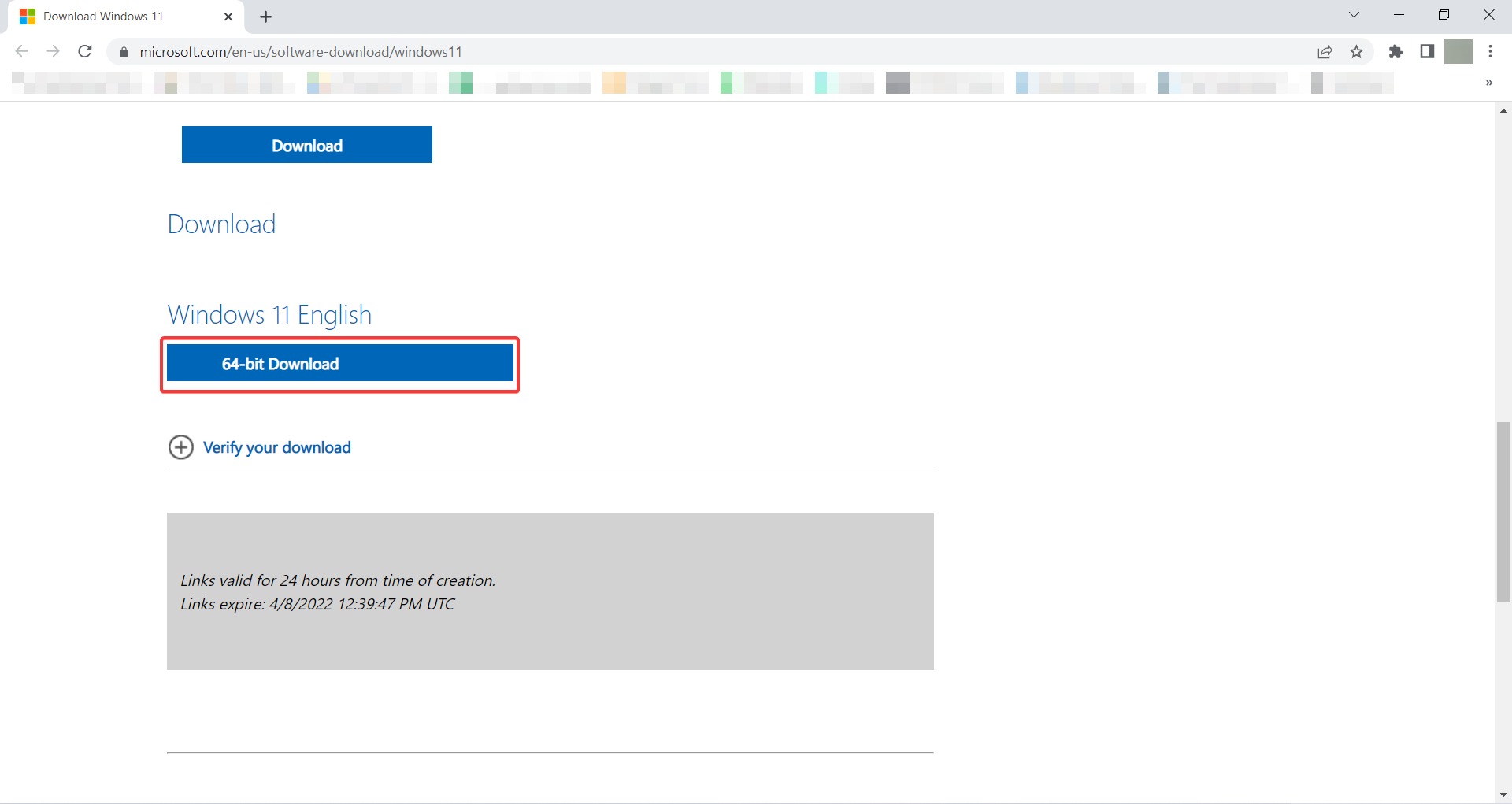
  4. And finally, you are provided with the Windows 11 download link after a few moments. Click on 64-bit Download for it to start downloading the ISO file.  windows 11 iso download link
  5. After installing the software, right-click on the Windows 11 ISO file, and choose Mount from the pop-up menu.
  1. When the file is correctly mounted, go to file explorer and find it, and double click on it to run the setup.
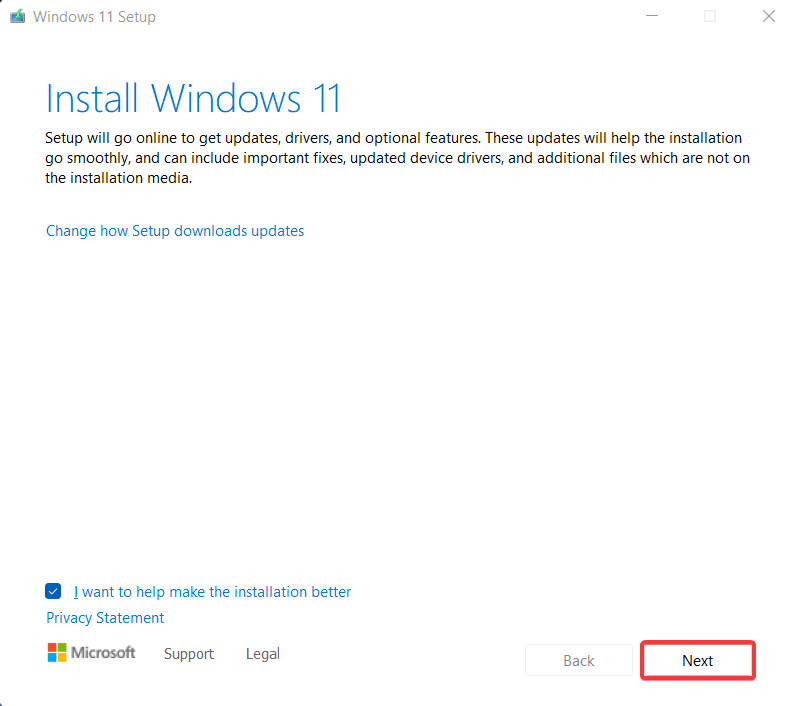
  2. In the first Windows 11 setup screen, click on Next. Windows 11 setup start
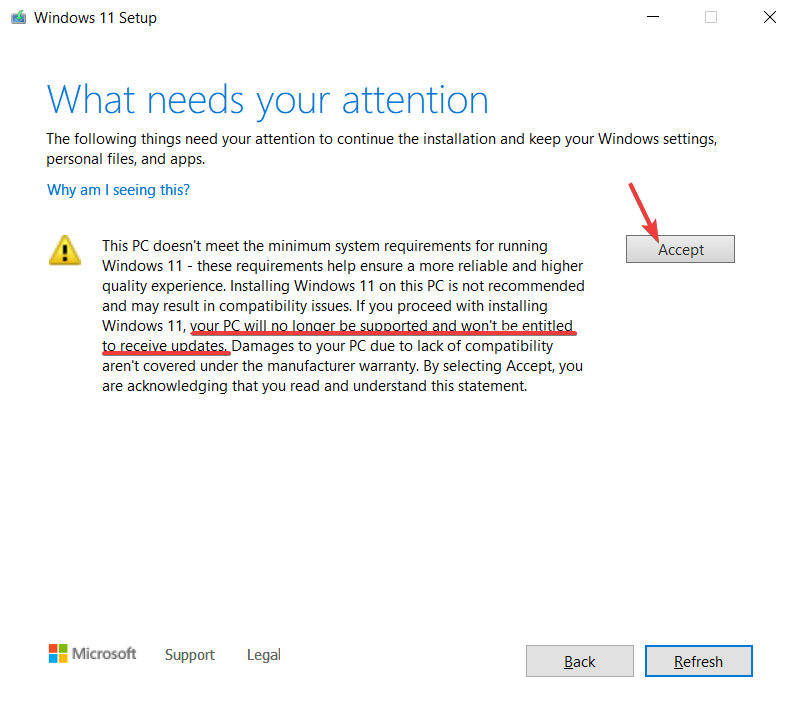
  3. This next page is the one where you can see the infamous message. Go ahead and click on Accept.Accept Entitled to updates
  4. And here you can press Install for the main process to commence. The PC should upgrade to Windows 11 when you finish the procedures, bypassing the TPM 2.0 and processor restrictions.

If you have encountered this message, it means that you are trying to upgrade to Windows 11 using an ISO file because your device is not officially supported by Microsoft.

To avoid any issues, we gave you step-by-step instructions to upgrade to Windows 11 using an ISO file.

Is it possible to roll back to Windows 10?

If you’re having problems downloading updates or your computer’s performance has reduced dramatically since upgrading to Windows 11, you should certainly roll back to Windows 10.

To do this, follow the steps below:

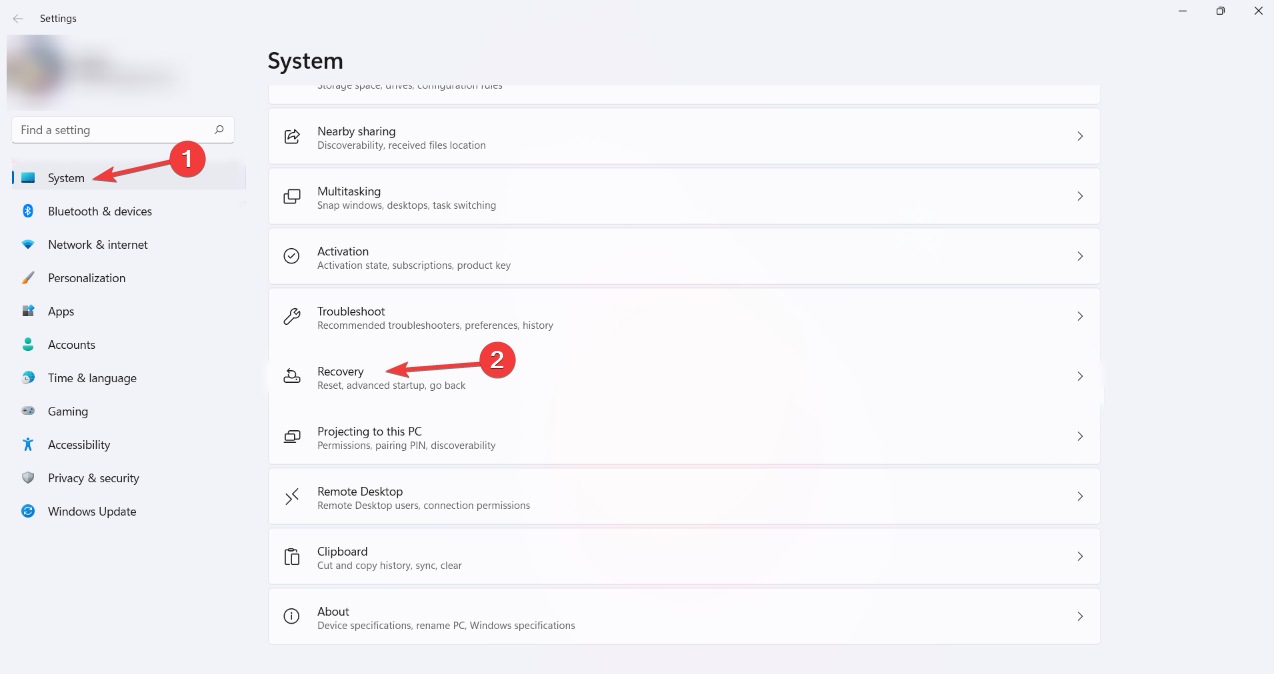
  1. Press Windows + I keys to open the Settings menu on your Windows 11 PC.
  2. After that, go to System and scroll down to find the Recovery option.Recovery in Settings
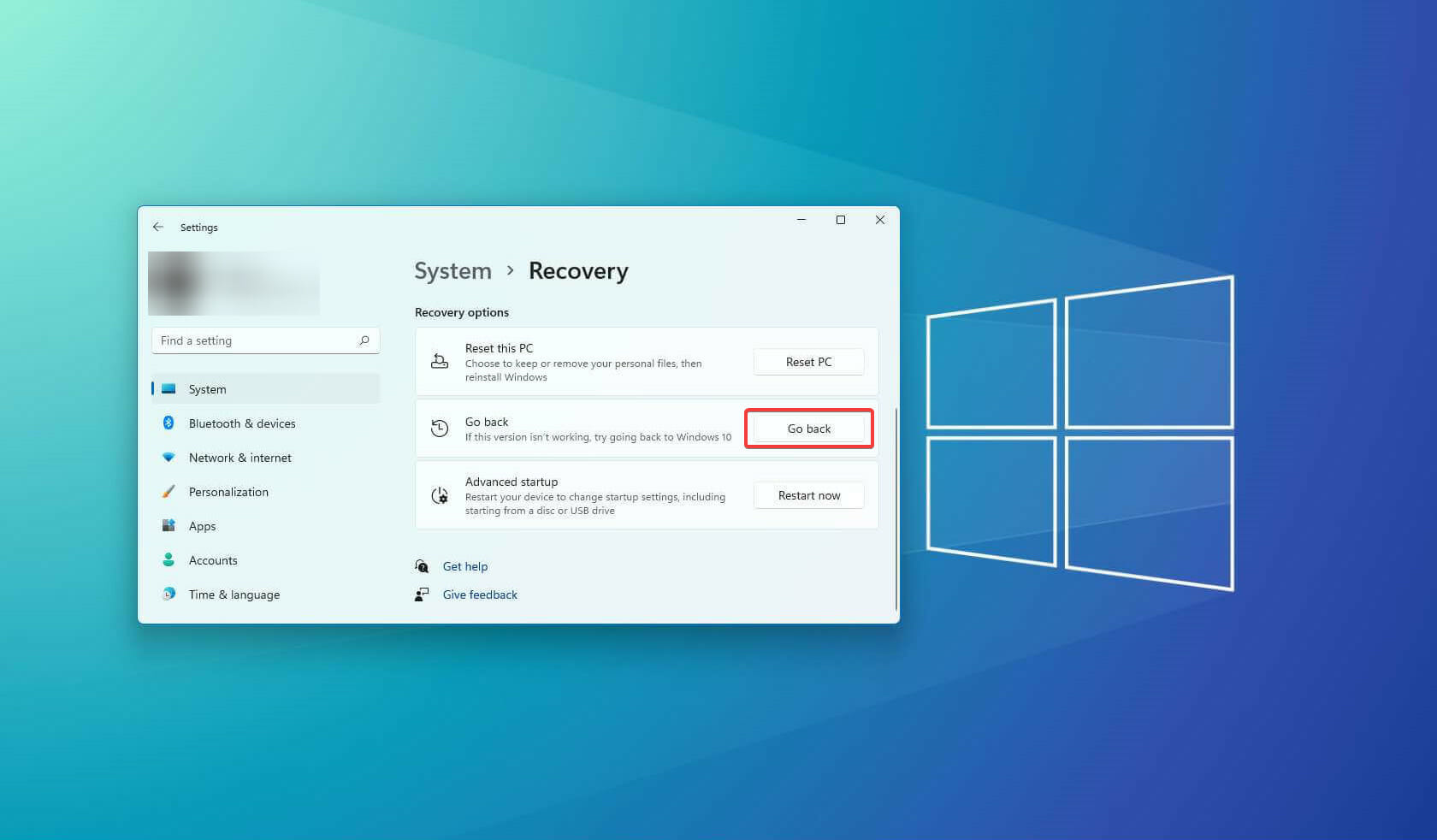
  3. Here you can see a few options. Click on Go back. Go back to windows 10
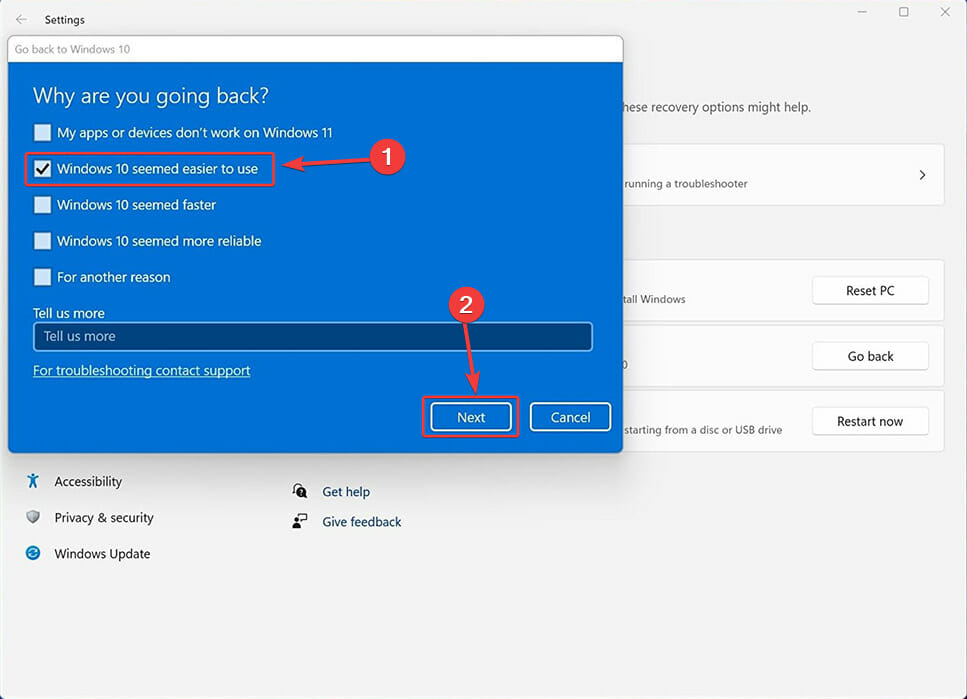
  4. Now you should be able to see the Go back to Windows 10 screen. Here you are asked why are you going back to Windows 10. Put a check on any option you want and then click Next. Rollback-reasons
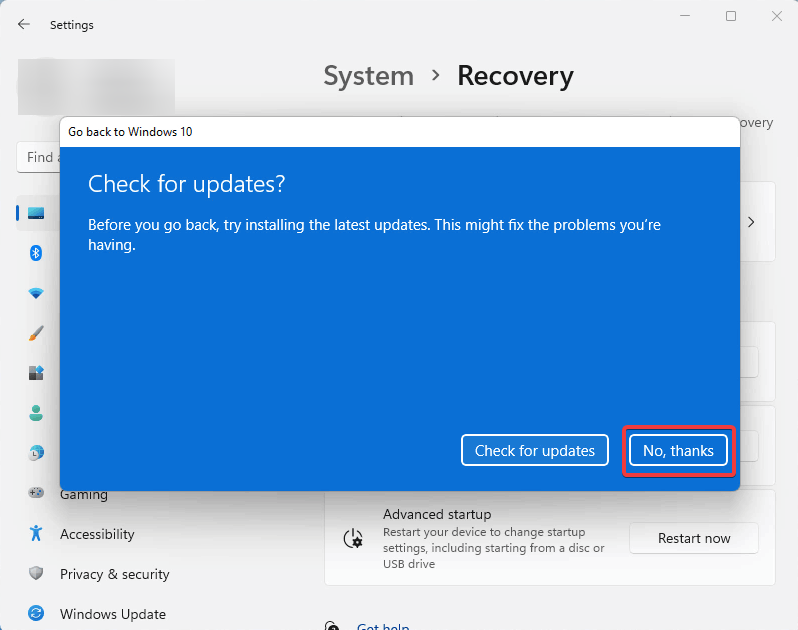
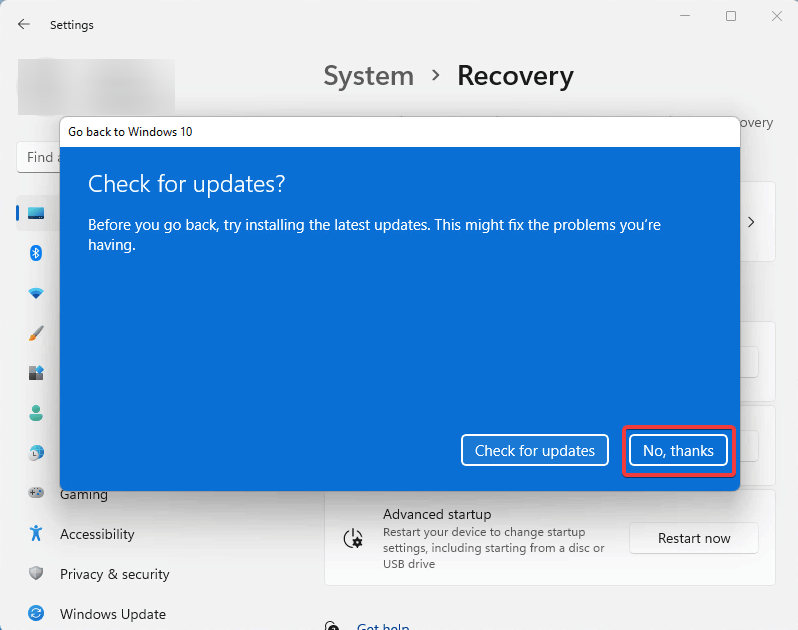
  5. On the next screen, it asks you to check for updates so that maybe they would solve your windows 11 issues. Select No, thanks. check for updates
  6. After that, you will be informed that if you go back to Windows 10, you will probably have to reinstall some apps and you would lose all the settings you had changed on your Windows. Hit Next. check for updates
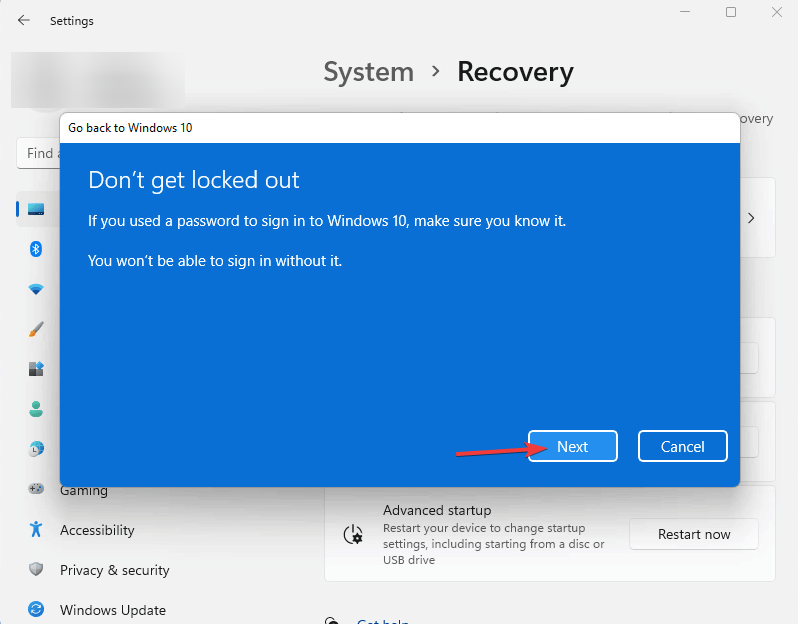
  7. As shown on the next page, remember your Windows 10 password so you don’t get locked out of Windows after you go back to it. To continue, click Next. Select Next
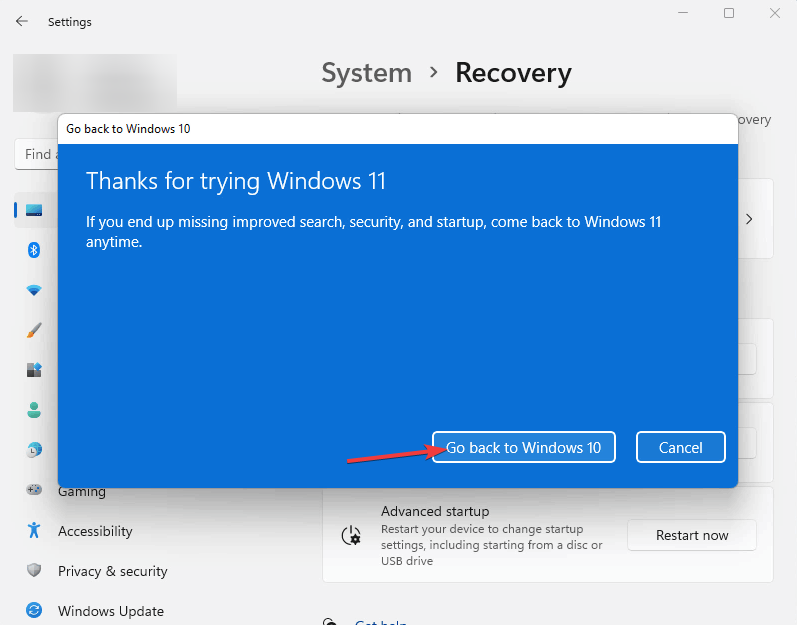
  8. On this last screen, you can finally click on Go back to Windows 10 for the main process to begin.Select Go back to Windows 10
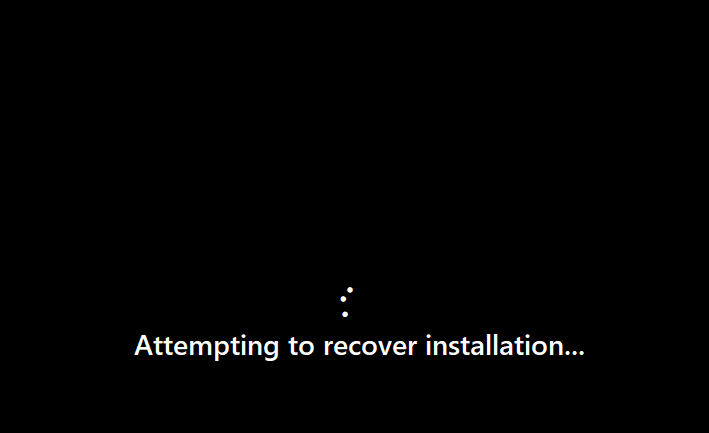
  9. After clicking on go back to Windows 10, your system restarts. Then, you’ll see the screen that says Attempting to recover installation. attempting to recover installation
  10. After a few seconds, the screen Restoring your previous version of Windows will appear. This process takes some time depending on your system’s hardware and the amount of data you have stored.
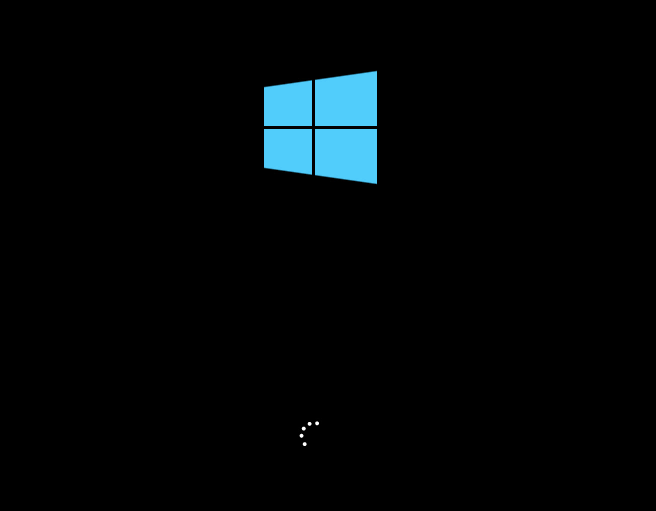
  11. After that, your system will restart again and this time you can see the Windows 10 boot screen. windows 10 boot screen
  12. In a few seconds will be able to see the Windows 10 login screen.
  13. After logging in, just to make sure, you can check your Windows version. To do that, click on the Start menu, type Winver and hit Enter.

In terms of design, Windows 11 is a significant departure from Windows 10, yet the two operating systems are pretty similar under the hood.

You should upgrade to Windows 11 if you have a compatible device to give it a try. However, there is a catch. You will only have 10 days to go back to Windows 10 after upgrading.

In this article, we provided all the steps necessary to make that as simple as possible, just make sure you have given it some thought before the 10 days are up, or else it will be a bigger issue.

With that said, you should expect Windows 11 to feature a number of bugs and issues since it came out just a couple of months ago.

Microsoft, on the other hand, is usually quick to respond to these problems in its monthly Patch Tuesday updates which you will receive even if your device does not meet the minimum requirements.

Make your Windows 11 experience even better by checking out this list of programs that will help you customize it to your liking.

Ready For The May Microsoft Security Summit?

Security is definitely the most important aspect to take into consideration when talking about an ever-growing, ever-changing online environment.

Keeping your business and your family protected is paramount and big companies are competing with each other in providing the most secure solutions.

And since we were on the topic of security, you might want to know that the Microsoft Security Summit will kick off on May 12, starting with 9:00 AM-12:00 PM Pacific Time (UTC-7).

It will be an online event where you can learn more about the company’s security tech and thought processes as well as ask questions during a live chat Q&A.

Did we get you excited at the prospect of Microsoft sharing further insight with its community? Let’s see what else is there to know about this event.

The Microsoft Security Summit 2022 starts on May 12

The speaker roster for the major event will include notable Microsoft employees such as Jeff Pollard, Rani Lofstrom, Vasu Jakkal, and Charlie Bel.

All of the above-mentioned Redmond employees authored numerous security posts for Microsoft’s blogs in the past, offering a more in-depth look into Microsoft’s monitoring.

To innovate fearlessly in a changing world, your organization needs end-to-end security it can trust. Attend this one-day event to learn how Microsoft Security can help you eliminate security vulnerabilities and lay the foundation for a safer, bolder, more innovative future.

People that register for this highly-anticipated online event will also be able to:

  • Hear exciting announcements from leading voices in security—including Vasu Jakkal, Corporate Vice President of Security at Microsoft.
  • See demos of brand-new technologies from Microsoft Security and get a closer look at the latest innovations in security, compliance, identity, privacy, and management.
  • Get fresh insights on threat intelligence and security during a Live Chat Q&A with leading security experts.
  • Hear from front-line defenders about how they are helping Microsoft to stay ahead of threats.
  • Discover solutions you can use to deliver high-quality end-to-end security to your organization.

How do I register for the Microsoft 2022 Security Summit?

Doing this is actually easier than pronouncing Microsoft Security Summit. All you have to do is visit the official event page and click the big register button.

Follow the necessary steps and input your contact information and you’re in. If security is an area in which you have expertise, or you’re simply passionate about it, this is the online event for you.

We won’t have to wait very long for it, as the Security Summit is around the corner, only a month away. Hopefully, no other major security breaches will impede Microsoft from hosting the event.

Are you going to attend Microsoft’s 2022 Security Summit? Share your thoughts with us in the comments section below.

Latest Patch Tuesday update improves notifications experience in Windows 11

Happy Patch Tuesday! As is routine, Microsoft has just released the monthly round of security updates for all shipping and supported versions of Windows today. On Windows 11 this month, the patch brings some tweaks for notifications, and on Windows 10, security tweaks. Here’s what you need to know.

If you’re running Windows 11, you’ll be seeing KB5012592 (OS Build 22000.613) in Windows update. Microsoft’s official changelog mentions that this build updates security for Windows, integral to OS functionality, as documented here. Yet, there’s also a video on the changelog page that mentions tweaks to notifications in Windows 11.

Per that video, it’s now possible to show up to four different toast notifications simultaneously, three high priority and one normal notification. There’s also a fix for OneDrive, where files might lose focus. The final new feature covers Widgets, where you now can find the proper settings option when searching in the settings for it. All of these features were in Windows 11’s March preview update.

On Windows 10 version 21H2, and version 21H1, meanwhile, you’ll be seeing KB5012599. This bumps the OS to builds 19042.1645, 19043.1645, and 19044.1645. Yet unlike on Windows 11, this just brings security patches. As always you should automatically see these updates in Windows Update as a download. If not, you can manually download it through the Microsoft Update catalog.

Check out Tiny Tina’s Wonderlands patch notes

Tiny Tina’s Wonderlands has been recently updated with the 1.0.1.0B version and fortunately for all of the worldwide fans the patch notes are pretty impressive.

Why are we saying that? Because the latest update comes up with more than just fixing a bug. Hotfix 1.0.1.0b includes Dark Magic, the latest tyre in the Borderlands universe, and a fantasy theme in Wonderlands.

The new 1.0.1.0B version of Tiny Tina’s Wonderlands went live via all platforms on the 1st of April 2022, but we’re here to let you discover what you’ve probably missed.

This is what developers had to say alongside the latest news:

There are two methods that we deliver updates to players. One will be the weekly changes that will cover smaller adjustments and the other will be downloadable updates to the game that will include more impactful bug fixes and changes.

Now, let’s see what are the patch-changing notes announced this month (April 2022).

What are the Tiny Tina’s Wonderlands patch-changing notes?

According to developers’ declarations on the PlayWonderlands official website, these are the most notable changing notes that come up alongside the 1.0.1.0B update version.

  • Dark Magic scaling on Weapons has been improved to match other elemental weapons
  • Legendary Spells have been updated to change color to their respective element when viewed in Item Inspection
  • Legendary Spells have been updated to use the icon that matches their casting style when viewed in Item Inspection
  • Chaos Bunnies and Chests have been updated to include Chaos Chamber-specific loot

So, this is all you have to know about the Tiny Tina’s Wonderlands’ latest patch notes included in the 1.1.0B update version.

Of course, you need to consider that developers will surely bring up some new improvements, so make sure you keep an eye on our dedicated guides to be the first who discover more about them.

Even if these improvements will definitely allow you to enjoy a smooth and complete gaming experience, keep in mind that you’ll still probably face some related problems.

We’ve compiled a list of solutions on how to fix the most annoying Tiny Tina’s Wonderlands bugs, so make sure you verify it, just in case you’ll ever run into troubles.

Because your opinion is important to us, do not hesitate to share it by leaving a comment in the section below.

Microsoft could face antitrust “tying” charges amid customer complaints about cloud contracts

Microsoft has seemingly dodged the mainstream antitrust scrutiny that’s hounded similarly rooted tech companies such as Google, Amazon, and Facebook; but that could be coming to an end soon as the volume of customer complaints over a 2019 contract change increase.

According to a report from Bloomberg, current Microsoft customers are raising concerns in the way the company is handling licensing of its products to interoperate with competing platforms.

Back in 2019 Microsoft made a head scratching decision to overhaul the licensing of its famed Windows and Office platforms that raised the price across the board for customers, however it has now become apparent that the move was arguably a smoke screen to inject “discounts” for existing customers who continue to use Azure platform rather than rival ones.

Rather than simply raising the price for customers who choose to use Microsoft platforms alongside competitor services, which would likely be seen as a direct anticompetitive move, the company raised the price of all its products while offering those who unilaterally use its services steeper discounts as financial incentives to boost its cloud market share.

Unfortunately for Microsoft, some customers are beginning to connect the dots and are requesting European regulators investigate the matter.

“The excrement is about to hit the fan,” said Wes Miller, an analyst at Directions on Microsoft, a research firm that advises customers on Microsoft licensing. He said that using the company’s software on a competing cloud service is “significantly more expensive than it used to be, and more expensive than it costs you to do the same thing on Azure.”

Other stories conveyed to Bloomberg include:

A person familiar with the company said it started using AWS when it began rolling out mobile devices to employees. The company used its Amazon and Windows combination successfully for several years, until the changes in late 2019. The conflict came to a head more recently, when the company began renewing its contracts with Microsoft—to keep using Windows on virtual desktops via Amazon’s cloud, the customer is required to buy a license that was formerly included, adding millions of dollars to the total cost.

The company considers this a penalty, the person familiar said, because Azure customers get that additional license for free. The customer isn’t allowed to run Office software through a competing cloud at all without violating the terms of its license with Microsoft, the person said. The company spent months negotiating with Microsoft on the issue, eventually getting a reprieve of several years. After that expires, this customer will again be out of compliance.

Anecdotal cases alone may not be enough to warrant the ire of the dreaded antitrust microscope but given Microsoft’s past along with the totality of the market, the company could be on the hook for a “tying” antitrust violation.

As defined by the Federal Trade Commission:

For competitive purposes, a monopolist may use forced buying, or “tie-in” sales, to gain sales in other markets where it is not dominant and to make it more difficult for rivals in those markets to obtain sales. This may limit consumer choice for buyers wanting to purchase one (“tying”) product by forcing them to also buy a second (“tied”) product as well. Typically, the “tied” product may be a less desirable one that the buyer might not purchase unless required to do so, or may prefer to get from a different seller. If the seller offering the tied products has sufficient market power in the “tying” product, these arrangements can violate the antitrust laws.

According to customers and rivals such as Amazon and Google, Microsoft is not unaware of the request to address the issue as all parties have issued complaints directly.

Microsoft President and vice chair Brad Smith has acknowledged some of the concern and issued the following statement, “there definitely are some valid concerns, it’s very important for us to learn more and then make some changes.”

While Microsoft hasn’t officially made any changes to its 2019 licensing overhaul, the company has also acknowledged that rival platforms can in fact offer their own discounts to win over seemingly disgruntled and unsatisfied customers, an argument sure to be used if the company is hauled into court over the matter.

As customers and rival platforms await movement on their complaints from either Microsoft or regulators, competitors such as Amazon face their own scrutiny as the House Judiciary Committe follows up on their 2020 report targeting AWS titled Investigation of Competition in Digital Markets.

In the end, Microsoft, AWS, Google, IBM and the like will all come under further scrutiny as each jockey for customer acquisition and retention in a shrinking pool. At this point, antitrust violations may be less a matter of “if” and more a matter of “when” depending on how aggressive each platform provider becomes.

Microsoft testing some key extension improvements in Edge Canary

Earlier this week, we highlighted Microsoft’s new addition to Edge Canary, the option for PWAs to better handle and open external links. And now, its latest version comes with enhancements for managing extensions, as spotted by Neowin, and Redditor u/Leopeva64-2.

Once this feature reaches general availability, users will be able to turn on and turn off extensions easily. This will enhance security where users can easily turn off the extensions and prevent third-party applications from accessing their credentials.

To disable extensions from your browser, open the extension flyout then click on the ellipses in the upper-right corner and select Pause extensions on this site. Microsoft Edge will then notify you that the extensions have been disabled. However, if you wish to restore this setting then click on the Resume extensions button.

Moreover, Microsoft has also incorporated a new setting that will detect websites with sensitive information and automatically turn off the extensions. This setting is set to work when using banking and payment sites.

Edge Pause Extensions setting

Currently, this setting is available to some Edge Insiders in the Canary channel as part of A/B testing. However, most users will have to wait till it is past the testing phase and see if it will make it to general availability.


How to stop Microsoft Teams from opening in browser

Microsoft Teams is a great platform for sharing and communicating amongst peers and coworkers in a professional environment. Teams offer a workspace for users to collaborate, chat, store files, and more in a business or organization.

Users have reported that when opening a Microsoft Teams hyperlink for an invitation, they are redirected to their browser instead of the Teams desktop app. Keep reading for a quick solution to this issue.

How do I stop Microsoft Team from opening in browser?

1. Set to always open in app

  1. Click on the invite to open it in your browser.
  2. Select Open Teams (work or school). Select Open Teams.
  3. In the pop-up, check Always allow teams.microsoft.com to open links of this type in the associated app and then select Open Microsoft Teams. Check always allow Microsoft Teams.

By default, the first meeting invite will open in your browser where you can select how you would like to open the meeting. Choose open in the Teams app and then be sure to check the box in the pop-up so your browser remembers your selection next time you get an invite.

2. Clear app cache

  1. Right-click Start and select Run (or press Windows + R).
  2. Type %appdata%\Microsoft then click OK. Run command then click OK.
  3. Locate the Teams folder. Select Teams.
  4. Right-click and select Delete. Delete Teams cache.
  5. Relaunch Microsoft Teams.

Clearing the cache is a quick and easy way to get rid of any corrupted files that may be impacting Teams opening in your browser.

To avoid future issues with corrupt and unused files, we recommend using CCleaner. This tool automatically scans your PC for any unnecessary files and cleans them out to help make your computer run smoother and faster.

⇒ Get CCleaner

3. Set Microsoft Teams as the default

  1. Open the Microsoft Teams app.
  2. In the top right corner, click on the three dots. Click on the three dots.
  3. Select Settings. Click on settings.
  4. Click on Files then select Teams from the drop-down menu under File open preference. Set Teams as the default.

If you were having issues with files shared in Microsoft Teams opening in the browser, perhaps Teams wasn’t set as the default application to open these files.

4. Reinstall Microsoft Teams

  1. Click on Start and search Control Panel then hit enter.
  2. Under Programs select Uninstall a program. Control Panel.
  3. Locate Microsoft Teams and select it. Find and select Microsoft Teams.
  4. Click Uninstall then restart your PC. Uninstall Microsoft Teams.
  5. Go to the Office 365 portal and sign in.
  6. Download the Microsoft Teams desktop app. download and install Microsoft Teams.
  7. Follow installation instructions.

A clean restart might fix any issues or bugs regarding Microsoft Teams. This will also install the latest version of Teams if you had a version that hadn’t been updated in a while.

5. Adjust browser protocols

  1. Click Start and search Registry Editor then hit enter.
  2. Under HKEY_CURRENT_USER expand Software. Expand software.
  3. Expand Policies. Expand policies.
  4. If Google is listed expand it, then Chrome. If these keys are not listed, you can create them under Edit. Expand Google then Chrome or create them.
  5. Create the key URLWhitelist if it’s not already listed.
  6. While URLWhitelist is selected, click Edit then click New, and select String value. Add string value.
  7. Name it 1, then double-click it to edit the string value.
  8. Under Value data type msteams://* and click OK. Add value data.

This is a solution for those who have Google Chrome as a default browser and are not offered the option to always set Microsoft Teams to open the link. Many users have reported this issue when using Chrome.

This solution also applies to Microsoft Edge users but instead of the key URLWhitelist, it is URLAllowlist.

We hope these solutions helped stop Microsoft Teams from opening in the browser. If you’re having other issues with Teams, such as problems with the camera not working in Microsoft Teams, we have solutions for that too.

What’s new with the latest release of .NET Community Toolkit

Preview 3 of version 8 of the .NET Community Toolkit just dropped and it comes packed with a ton of goodies. For those unfamiliar with what this is, it a set of APIs and helpers to assist .NET developers with a large number common tasks regardless of the UI platform they chose to build with. Today we are going to dig into a couple of new features headed our way, let’s get to it.

Microsoft MVVM Toolkit

This new MVVM Toolkit version expands on the source generator functionality released in previous releases. These APIs are intended to significantly simplify the necessary boilerplate when dealing with MVVM, with help ranging from observable properties to commands and more. Here are some of the features.

Cancellation support for commands

The [ICommand] attribute now contains a new property that can be used to direct the source generator to generate a cancel command in addition to the original command. This cancel command can be used to stop an asynchronous command from running. Check out the example implementation below.

[ICommand(IncludeCancelCommand = true)]
private async Task DoWorkAsync(CancellationToken token)
{
    // Do some long running work with cancellation support
}

Revamped observable grouped collections

These APIs are especially handy for working with grouped items, and they now feature improvements to substantially simplify basic tasks such as adding an item in the correct location within a group. Starting with this release all the observable grouped collection types from the CommunityToolkit.Common moved to to CommunityToolkit.Mvvm. Sergio Pedri Software Engineer II at Microsoft shows us a sample of this in the GIF below.

mvvm_toolkit_collections

This was just a glimpse at the changes coming our way with the latest Preview release of the Community Toolkit. As always be sure to watch out for breaking changes, as some are in fact included.

For more details on what we just discussed here plus more information on other improvements, please visit the original blog post here or check out the official Community Toolkit’s Github repository for a more comprehensive view of all new features and changes.

How to download Pale Moon browser for PC

The browser market is vast with many lesser-known browsers that offer some unique features, and one of those browsers is Pale Moon.

Although this isn’t a well-known browser, it still offers a unique share of features, and it has a large number of users around the world.

In today’s guide, we’re going to show you how to download the Pale Moon browser for your PC and how to use it to browse the web.

Is the Pale Moon browser safe to use?

Yes, the browser is based on legacy Firefox code, so it’s pretty secure. Thanks to the legacy code, it ensures that the browser can’t track you by using any of the modern features.

There are a few drawbacks to this, most notable issues with certain websites that rely heavily upon these modern features, so you should keep that in mind while using this browser.

How can I download the Pale Moon browser for PC?

1. Use the official installer

  1. Visit the Pale Moon’s download page.
  2. Now click the desired download link.
  3. Once the download is finished, run the setup file.
  4. Click Next to proceed.
  5. Select Standard and click Next.
  6. Confirm the install location and click on Install.
  7. After the setup is finished, check Launch Pale Moon now and click on Finish.

2. Use an alternative browser

Pale Moon is a solid browser, but it lacks many features that modern browsers have, so you might want to consider using different software.

Opera One is a modern browser, and it’s based on Chromium, so it can run Chrome extensions out of the box. Thanks to the built-in tracking protection and ad block, you can enjoy an ad-free browsing experience.

The browser also has a built-in VPN and AI, so that makes it not only the safest choice but also the smartest.

Opera One

If you need a modern browser that can protect your privacy, then Opera One is the perfect choice for you.
Free Download Visit website

3. Use the official zip archive

  1. Go to the Pale Moon’s download page.
  2. In the 7-ZIP packed versions section select the version, you want to download.
  3. Once the download is finished, open the downloaded archive.
  4. Extract the palemoon directory to the desired location.
  5. Go to the extract location and run palemoon.exe.

This method is great if you don’t want to install the software, but keep in mind that this isn’t a portable version, so it won’t work from a flash drive.

Does the Pale Moon browser have Adblock?

By default, Pale Moon doesn’t come with an ad-blocking feature, so you’ll need to rely on extensions if you want to block ads.

Since the browser uses legacy Firefox code, it’s not compatible with modern extensions, so you might have issues finding the right ad blocking extension for your software.

As you can see, it’s simple to download the Pale Moon browser for your PC, and you can do that by following the instructions from this guide.

This browser is popular for being lightweight, and it’s perfect if you need a web browser for an old computer that can’t handle modern software.

Have you ever used Pale Moon? Let us know in the comments section below.

Fix: Windows Memory Diagnostic Results Not Showing

When troubleshooting a Windows PC, one of the most common issues is when the Windows Memory Diagnostic returns no results.

If your computer’s RAM is defective, you may experience issues. Application crashes, system freezes, blue screens of death (BSODs), data corruption, and other issues might occur as a result of this.

This is when you need to check your RAM to see if anything is wrong with it. To do that, you can use a hidden tool in Windows called Windows Memory Diagnostic.

However, If you don’t get any results after performing the scan, here’s how to fix it.

How can I fix the Windows Memory Diagnostic with no results?

1. Check out the Windows Logs

  1. To run the Windows Memory Diagnostic tool, press the Windows key on your keyboard, type Windows Memory Diagnostic and select it. Windows Diagnostic tool
  2. Click Restart now and check for problems (recommended) to agree. restart to perform Windows Diagnostic
  1. The Windows Memory Diagnostics Tool screen will show after your computer restarts. Simply leave it alone and let it run the test. This could take a few minutes. memory diagnostic in progress
  2. Your system will reboot and return to the Windows desktop after it is finished. The test results will show after you log in.
    However, sometimes that does not happen and the results are not automatically shown on the screen. In that case, follow the steps below.
  3. Right-click on the Start button and then click on Event Viewer. Alternatively, search event viewer in the search box and find it there.Even Viewer
  4. Following that, navigate to Windows Logs, then select System from the menu. Right-click on System and select Find.Event viewer system find
  5. Type MemoryDiagnostic and click on Find Next.
  6. The result, as well as further information about your RAM, will be displayed by double-clicking on the event. memory diagnostics information

If for whatever reason, the Windows Memory Diagnostic tool has no results, try the method below.

2. Change System properties in Even Viewer

  1. Hold down the Windows + R key at the same time. This will launch Run.
  2. Right-click on the Start menu and then click on Event Viewer. Alternatively, search event viewer in the search box and find it there.Even Viewer
  3. Expand Windows Logs.
  4. Right-click System and select Properties from the menu.system properties
  5. Check the option Enable Logging under the General tab, then select the option that says Overwrite events as needed (oldest events first). Finally, click on Apply and then OK. change system properties

3. Enter the BitLocker recovery key

  1. Wait for the Windows Memory Diagnostics tool to finish.
  2. You will probably come across this message that says Enter the BitLocker recovery key of your drive. When you see this, enter the recovery key.
  3. Finally, your PC would now reboot and the results can be found in Event Viewer.

It is worth noting that this issue only occurs when you use PTT instead of TPM for BitLocker.

To sum it up, it is possible to troubleshoot an issue with your computer by running the Windows Memory Diagnostic tool.

This program can be used when your computer begins to perform slowly, freezes, displays a blue screen, or reboots on its own.
Windows Memory Diagnostic tool may discover issues with installed applications on a computer, regardless of whether the issues are caused by memory errors.

Fixing issues related to Windows Memory Diagnostic with no results is quite easy, and all you need to do is to change the system properties.

This article will show you how to run thorough hardware diagnostics on Windows 10.

Sky Go Unable to Load Configuration? Fix It Now

Unable to load configuration on Sky Go is one of the most vexing issues that might occur when trying to watch a show.

Sky Group provides this streaming app for Sky TV subscribers for free. With the help of Sky Go, users can now watch live Sky TV on their Windows computers.

While Sky Go is one of the best streaming apps available, it has flaws, such as when it fails to launch or play content.

The most recurring of these errors is error code 200: Sky Go Unable to Load Configuration. We’ll walk you through a few simple solutions to fix the error in this article, but first, let’s talk about why this happens.

Why does the error code 200 Unable to load configuration happen?

When you read the prompt, you can see a description that says, Unable to load configuration.

You should ensure your device has an active network connection and try again. This is a clear sign that Sky Go is not functioning correctly. Several reasons can cause this error, such as:

  • Sky Go is not connected to a stable network connection
  • Some corrupt files exist in the %LocalAppData% folder
  • Your hardware is problematic
  • You have set your device’s date and time incorrectly

What can I do if Sky Go is unable to load configuration?

1. Restart router/gateway

  1. Unplug your modem/router from power. You can do it from the mains or the power cable at the back of it).
  2. Let it be unplugged for half a minute.
  3. Plug it back to power and turn it on.
  4. Wait for it to reinitialize and gain its stability back. This can take between 30 seconds to 5 minutes.

One of the main reasons for Sky Go’s unable to load configuration error is an unstable network connection.

Rebooting the gateway/modem/router/hub can fix this, give you a more stable connection, and avoid issues like Sky on Demand not working.

2. Reset network

  1. Click on the Start menu, type Settings, and open it.Open Settings
  2. From the left-side panel, choose Network & Internet. Afterwards, click on Advanced network settings.Go to Advanced Network Settings
  3. Then, click on Network Reset.Click on Network Reset
  4. Finally, click on Reset Now. Click on Reset Now

Restarting your network can also give you a more stable internet connection and help you fix Sky Go unable to load configuration error.

3. Turn off the Firewall

  1. Press Windows + S to open the search utility, type firewall in the search box, then open the Windows Defender Firewall.Open Windows Defender Firewall
  2. Click on Turn Windows Defender Firewall on or off.Click on Turn Windows Defender Firewall on or off
  3. Now, choose the Turn off Windows Defender Firewall option and click on the OK button.Click on Turn Off Windows Defender Firewal

Firewalls don’t always mix so well with streaming service apps. A firewall can block the internet connection from Sky Go and lead to the Sky Go unable to load configuration error.

If you use other firewalls on your Windows 11, refer to its manual to disable it. Turn off or uninstall third-party antivirus services that contain firewalls.

Mostly, you can right-click the antivirus tray icon and disable it from there.

4. Check the Date and Time

  1. Right-click on the Clock in the bottom right corner of the Windows Taskbar and select the Adjust Date and Time option.Adjusting Date and time
  2. Activate Set the time automatically, Adjust for daylight saving time automatically, and Set the time zone automatically. Change Date and Timezone to Automatic

Most online applications fail to work appropriately when the date and time of the device are not properly set.

In addition to the steps above, ensure that you have set the short and long date format of your Windows 11 to dd/MM/YY.

5. Close screen recording apps

  1. Right-click on the Start menu and select Task Manager.
  2. Under the Processes tab, find any screenshot/screen-recording application from the list. Click on End Task to close it.Task Manager

Screen capturing services can stop Sky Go from working expectedly. So, ensure to close them by following the steps above.

6. Clean boot your Windows

  1. Press Windows + R keys to open the Run window.
  2. After that, type msconfig and hit Enter to open the System Configuration.
  1. Under the General tab, select Selective Startup, Load System Services, and Use Original Boot Configuration then, deselect the Load Startup Items checkbox. Now click on OK. Change System Config Options
  1. Under the Services tab, select Hide All Microsoft Services and Disable All options. Finally, click on OK.Change System Config Options
  1. Reboot your computer.

Some third-party applications, such as CiscoVideoGuard, are not compatible with Sky Go.

Clean-booting your windows helps you eliminate them from being opened at startup and therefore, you will not run into Sky Go unable to load configuration.

7. Uninstall CiscoVideoGuard and Sky Go 

  1. Press Windows + R to open the Run dialog box then type appwiz.cpl in the box and hit Enter.Type appwiz.cpl in Run dialog box
  1. Select CiscoVideoGuard from the list right-click on it and select Uninstall.
  2. Then, select Sky Go and click on Uninstall.
  3. Go to the Start menu and click on File Explorer.File explorer
  4. Go to following patchs and delete the VideoGuardPlayer folders:
    C:/User/<username>/AppData/Local/Cisco
    C:/User/<username>/AppData/LocalLow/Cisco
  5. After that, delete the Sky Go and Sky folders from this path:
    C:/User/<username>/AppData/Roaming.App Data
  6. Reboot your system.
  7. Finally, go to the Sky Go download page and click on Download Now for Windows.
  8. Then, Reinstall Sky Go by following the steps from the installer.

Uninstalling CiscoVideoGuard and Sky Go and deleting the remaining files help you reinstall Sky Go from a clean slate.

Sky Go’s unable-to-load configuration error will surely be gone after this process.

8. Contact the Sky Go support team

If the error persists after trying all the steps above, it is best to contact the Sky customer support team.

They are professionals who will figure out the exact problem you are facing and help you fix it.

Be sure to let them know the troubleshooting steps you have done so that they better understand what exactly the problem is.

What are the benefits and drawbacks of Sky Go?

You can use Sky Go on up to 2 devices. If you pay extra for a monthly fee, you can go up to 4 devices. To play content on computers, you need a deprecated browser plugin called Microsoft Silverlight 3.0.

Not all programs are available on Sky Go. Because of viewing rights, specific programs are blacked out from the schedule.

If you’re looking for the best browsers to stream Sky Go on PC, take a look at this article. Or if you have the box connected to the TV, find out how to fix the red light on Sky Q.

To access the complete list of live TV channels that Sky Go supports, subscribe to the corresponding Sky TV packages.

Sky Go unable to load configuration error is a common error, but it is not the only error you might run into.

You might encounter login problems, hit the maximum number of downloads, or weird errors, such as Sky Go error 202. Sky boxes are also prone to issues, and we already wrote about the Sky Mini box not working or the Sky Glass remote being unresponsive in one of our previous guides.

Also, whether the app is connected or not, stuttering and buffering are signs of a problem with a LAN connection or an unstable connection.

Last but not least, ensure you haven’t left a VPN running if you’re seeing geo-blocked restrictions.

If you run into Sky Go unable to load configuration in Windows 10, read this article. We also have a guide to help you if Sky Glass won’t turn on, so be sure to check it out.

If you can’t watch your favorite channels on your Sky Glass due to stuck at software update in-progress issue, read this guide.

If you have any questions or suggestions about the subject, please mention them in the comments section below.

Your Web Browser Isn’t Compatible With SketchUp [QUICK FIX]

If you see the message Your web browser is not compatible with SketchUp error, rest assured, you are not the only one experiencing this.

The error message appears whenever you try opening SketchUp inside a browser that doesn’t support OpenGL ES 2.0.

Here is what one user had to say about this issue on the SketchUp community forums:

Last Saturday I was using SketchUp Free with no problems. Yesterday I started getting browser not compatible errors. I am using Internet Explorer 11 with Windows 10 Pro. I have cleared history and cache but continue to have the problem. Is anyone else having this issue and is there a fix for it?

This error seems to appear on different browsers and system configurations.

Seeing this error message repeatedly can become extremely frustrating. For this reason, in today’s article, we will explore the best fixes for this issue. Read on to find out more.

How to fix SketchUp browser errors

1. Download and use another browser that supports OpenGL ES 2.0

Because SketchUp requires depends on WebAssembly, not all browsers will be able to run this application.

One browser that doesn’t have issues with this tool, however, is Opera One, although you must know that versions older than version 42 don’t support it either.

However, this is only worth knowing if you plan on downloading an older version on purpose.

The link provided below will give you the latest version of Opera One. It also brings you unique built-in features, such as VPN, Ad Blocker, AI and a modular design for the integration of other AI’s.

Create interactive music videos, games, data visualization, art, 3D design environments, 3D modeling of space, 3D modeling of objects, and more with WebGL within this amazingly lightweight, fast, and customizable browser now.

Opera One

An excellent web browser that offers many useful tools, including the ability to save and print your web pages.
Free Download Visit website

2. Use cookie cleaner software to delete all cache and cookies

Another way to fix the SketchUp issue on your browser implies removing the cache and all the cookies stored on your browser memory.

You can find multiple third-party tools that are capable of removing your browser data and potentially resolving this error message.

We recommend CCleaner to be the most compatible handy tool that can search your computer for cookies and erase them all at once, saving you from having to do it separately for each browser.

Furthermore, you may enable an automatic browser cleaning feature to clean browser files automatically when Smart Cleaning detects that one of your web browsers is closed, this popup opens to clean cookies.

This notice appears after CCleaner has cleaned a web browser and shows the amount of space you have saved on your PC. This becomes useful whenever you don’t have the time or energy to manually delete cookies and cache stored by SketchUp on your PC and browser.

Hence, in order to delete browser information such as cookies and improve system performance, you need to use the best cookie cleaner tools for Windows PCs.

In today’s fix article, we explored some of the most common methods to deal with your web browser that is not compatible with the SketchUp error message.

We hope that the methods presented in this list helped you get back to using SketchUp without encountering any errors.

To learn more about browsers, visit our dedicated Browsers Hub. Content creators might also like the articles on our Graphic & Design page as well.

Please feel free to let us know if this guide helped you solve your issue. You can do so by simply using the comment section found below.

Time Synchronization Failed on Windows 11: 9 Ways to Fix it

If your PC isn’t set with the correct date and time, then you will face multiple system-related problems.

Notably, several tasks on your PC will be hampered if the time is not synced or if the time isn’t set correctly.

For instance, if you have downloaded or saved a file on your PC, due to an incorrect time, the file information will have adulterated information. Since it is the system clock that your PC uses to add timestamps to your files, keeping the correct time and date is important.

Software or updates also rely on internet-based authorized time, and if there is an incorrect time set on your PC, then your PC may reject those updates or install the software.

Usually, Windows 11 uses the NTP, i.e., Network Time Protocol, to connect your PC with the internet server to synchronize the clock. However, if it fails to do so, then you will experience the time synchronization failed on Windows 11 issue.

If you are also facing a time synchronization issue on Windows 11, and are looking for solutions, then you are in the right place.

Because in this guide, we will give you a list of some effective solutions, that have helped users fix the problem at hand. Let us check each solution out.

How to manually sync time on a Windows 11 PC?

1. From the Settings menu

  1. Press the Win + I buttons to open Settings.
  2. Click on Time & language.Time and language
  3. Select Date & time.date and time
  4. Scroll down and under Additional settings, hit the Sync now button.
  5. The tick will appear confirming that your PC has updated and synced the time.

2. From Control Panel

  1. Open the Start menu.
  2. Search for Control Panel and open it.control panel
  3. Click on Date and Time.open date and time to from control panel
  4. Switch to Internet Time.Internet Time tab
  5. Click on Change settings.
  6. Hit the Update now button next to Server.
  7. Click OK.

How can I fix the time synchronization failure on Windows 11?

1. Check time settings

  1. Press the Win + I buttons to open Settings.
  2. Click on Time & language.Time and language
  3. Select Date & time.date and time
  4. Turn on the toggle for the Set time automatically and Set time zone automatically.

To start with, you can check if the date and time settings in the Settings menu are set to update automatically or not.

2. Check if the Windows Time service is active

  1. Press the Win + R keys to open the Run dialogue.
  2. Execute the below command. services.msc
  3. On the right side, locate the Windows Time service and double click on it.Windows Time service not installed
  4. Under Startup type, select Automatic.
  5. Also, click the Start button.
  6. Click Apply and OK to save changes.

Your Windows 11 PC relies on the Windows Time service to update the date and time on your PC.

If for any reason, this service fails to operate or function correctly, then you will experience issues such as time synchronization failure on Windows 11 error.

3. Use command prompt to force time sync

  1. Click on Start.
  2. Search for Command Prompt and run it as administrator.Command prompt
  3. Execute the below commands one by one. net stop w32time w32tm /unregister w32tm /register net start w32time w32tm /resync
  4. Restart your PC.

When you execute the above commands, your Windows 11 PC will force the system to sync the time of the PC with the server.

There are chances that some third-party apps might have conflicted with the time sync. So, we would advise you to run the commands and see if that helps.

4. Run System File Checker

  1. Click on Start.
  2. Search for Command Prompt and run it as administrator.Command prompt
  3. Type the below command and press Enter. sfc /scannowRun SFC scan to fix windows 11 error recovery
  4. Restart your PC.

If there is a presence of corrupt system files, then your PC won’t function appropriately and will also give rise to certain issues, such as time synchronization failed on Windows 11.

The System File Checker is an in-built tool that not only detects corrupt files but also fixes them. All this is done by simply executing a command.

Alternatively, you can also make use of reliable third-party software to help you resolve several system-related issues triggered by corrupt system files.

5. Use a different server

  1. Open the Start menu.
  2. Search for Control Panel and open it.control panel
  3. Click on Date and Time.open date and time to from control panel
  4. Switch to Internet Time.Internet Time tab
  5. Click on Change settings.
  6. Select time.nist.gov as the Server and click the Update now button.

Several users have reported that they managed to fix the time synchronization failed on Windows 11 by changing the time server. You can also give it a try and hopefully fix the issue.

6. Tweak the SpecialPollInterval registry key

  1. Press Win + R keys to open the Run command.
  2. Type the below command and hit Enter. regedit
  3. Head over to the below address. HKEY_LOCAL_MACHINE\SYSTEM\CurrentControlSet\Services\W32Time\TimeProviders\NtpClient
  4. On the right side, double-click on the SpecialPollInterval key.
  5. Change the value to 86400 and hit OK to save the changes.
  6. Restart your PC for the changes to take effect.

You can use the above steps to fix the time synchronization failed on Windows 11. The above tweak in the registry settings helps change the update interval on Windows.

However, we would advise you to only tweak the registry settings if you are sure of what you are doing. You can also go ahead with the above steps, but before that, take a backup of the registry files.

7. Add new time servers

  1. Press Win + R keys to open the Run command.
  2. Type the below command and hit Enter. regedit
  3. Head over to the below address. HKEY_LOCAL_MACHINE\SOFTWARE\Microsoft\Windows\CurrentVersion\DateTime\Servers
  4. On the right side, right-click on the space and select New > String Value.
  5. In the Value name, enter the number for the server, i.e., 3.
  6. In the Value data field, enter time.google.com.
  7. Hit OK to save changes.
  8. Open the Start menu.
  9. Search for Control Panel and open it.control panel
  10. Click on Date and Time.open date and time to from control panel
  11. Switch to Internet Time.Internet Time tab
  12. Click on Change settings.
  13. Click on the Server drop-down menu and select time.google.com.
  14. Hit the Update now button next to Server.
  15. Click OK.

Do note that the above is just an example of how you can add a new time server to your PC and update it to fix the time synchronization failed on the Windows 11 error.

You can add as many servers as you want. If you are confused about which servers you can add, you can refer to the list of servers below:

  • time-a.nist.gov
  • time-b.nist.gov
  • 128.105.37.11
  • europe.pool.ntp.org
  • clock.isc.org
  • north-america.pool.ntp.org
  • time.windows.com
  • time.nist.gov

8. Change registry values

  1. Press the Win + R keys to open the Run command.
  2. Type the below command and hit Enter. regedit
  3. Head over to the below address. HKEY_LOCAL_MACHINESYSTEMCurrentControlSetServicesW32TimeConfig
  4. On the right side, locate MaxNegPhaseCorrection and double-click on it.
  5. Set the Value data to fffff.
  6. Click OK to save changes.
  7. Double click on MaxPosPhaseCorrection and set Value data to ffffff.
  8. Click OK to save changes and exit.

9. Disable Firewall

  1. Click on the upward arrow button on the bottom-right taskbar.
  2. Select Windows Security.
  3. Select Firewall & network protection from the left pane.
  4. Disable the Firewall for the Domain network, Private network, and Public network, one by one.

If you use a third-party antivirus software then you also need to disable the firewall. Antivirus software with a firewall enabled is one of the most common reasons why a connection to the time sync server gets interrupted.

Aggressive anti-malware could also cause multiple issues, including the one at hand. You can try disabling the antivirus or antimalware software and check if this fixes the time synchronization failed on the Windows 11 issue.

The above-mentioned solutions should be sufficient enough to help you resolve the issue. However, if nothing helps you solve the problem, you can start afresh by either resetting your Windows 11 PC or reinstalling Windows 11 on your PC.

Let us know in the comments section below which one of the above methods helped you fix the problem. Feel free to share with us any other solutions that did the job for you.

5 Best Browsers for Huawei Tablets [Windows, Android, Harmony]

It’s been a while and we’re sure you’ve heard about the infamous ban (or as we like to call it, the modern Great Schism) that prohibited Google to do business with Huawei back in 2020.

No more App Store, no more YouTube, no more Android-based OS, and most importantly for us, no more Google Chrome.

Instead, you have the Huawei Browser to rely on, which is a secure and speedy browser, optimized for Huawei tablets and phones. Disappointed? Don’t be! Just like you, we don’t take no for an answer (except when no means no, obviously).

How do I install a different browser on my Huawei tablet?

The newest Huawei tablets run a proprietary OS called Harmony that provides its own alternatives to the PlayStore. We’re talking about the Huawei AppGallery and Petal Search that allow you to sideload apps.

Besides these two, you can also:

  • download an independent APK directly from your tablet’s browser and store it in the Downloads folder
  • use a USB cable to connect your Huawei tablet with your Windows PC and transfer the APK file from one desktop to the other
Note icon NOTE
The above information concerns Huawei tablets running on Harmony OS. However, there are still plenty of models that run on Windows (both tablets and laptops) and you will have no restriction concerning the choice of browser apps on these devices.

So, without further ado, let’s check out these best browsers for Huawei tablets running on Windows 10.

What is the best browser for Huawei tablets?

Opera One – Suitable for mobile browsing

Opera One went from a niche browser to a widely cherished web surfing solution in the past years and we salute its initiative to increase its audience.

Essentially, the browser becomes more flexible, more performant, and much more customizable without compromising on privacy and security, which is quintessential for their approach.

One particularly nifty feature it boasts is the ability to automatically recognize when Windows 10 is set to Tablet Mode.

Here are its key functionalities in a nutshell:

  • Cross-platform compatibility, allowing it to work seamlessly across Windows, Mac as well as on mobile platforms
  • Integrated VPN and ads blocker for enhanced privacy
  • Excellent streaming and video broadcasting support (Opera One is one of the few browsers that allow you to enjoy clips without buffering or lags)
  • Convenient integrations to accelerate and simplify your workflows

Opera One

Pair your tablet and enjoy this smooth and secure browsing as never before.

UR browser – Extra privacy layers

Similar to Opera, the UR browser is also a privacy aficionado. As you can see from the screenshot above, the attention assigned to this particular aspect is as high as it can be.

Thus, you can choose with granular precision the level of privacy that best suits your needs.

It’s safe to say that this browser leaves nothing at all chance and it will undoubtedly impress you with its useful features. So let’s take a closer look, shall we?

Here are its key functionalities in a nutshell:

  • Customizable appearance (centralized information, adjustable background, and widgets)
  • Integrated Download manager to identify your files quickly
  • Up to 4 times more speed when downloading files from the web (advanced parallel downloading technology)
  • Filters and content controls to only receive trustworthy news

⇒ Get UR browser

Brave – No cookies and tracking

We know that versatility is highly appreciated, that’s why Brave ranks so highly on our list.

Catering to users running on Windows, Mac, and Linux (for desktop) as well as iOS or Android on mobile platforms, Brave is one cross-platform browser you will not regret installing.

Private, secure, and flawlessly equipped to meet modern users’ needs, brave is an excellent choice for browsing on Samsung devices as well Huawei tablets.

Here are its key functionalities in a nutshell:

  • Unique rewards system to support your favorite websites
  • Full compatibility with Chrome extensions, but faster
  • Flawless syncing process (+ possibility to import bookmarks)
  • Enhanced privacy and security (including VPN and firewall)

⇒ Get Brave

Chrome – Quick navigation

going manage extension metamask chrome

We mentioned earlier that Brave has full compatibility with Chrome extensions.

And it is relevant because the browser built by Google still dominates the industry and has the most comprehensive library of extensions and plugins on the market.

A true pioneer, Chrome has made a name for itself and earned users’ trust with revolutionary features and an equally impressive integration suite.

Here are its key functionalities in a nutshell:

  • Seamless integration with other Google apps to boost your productivity
  • Excellent tools for enterprises, developers, and explorers worldwide
  • Easy privacy setup and cookies controls
  • Excellent Dark Mode for enhanced comfort

⇒ Get Chrome

Firefox – Productivity tools

Last, but certainly not least, Firefox provides an attractive alternative for Huawei tablet users. This veteran has proven their strength, agility, and versatility time and again.

For those of you who would prefer a more lightweight browser there is also a Lite version for Firefox, so feel free to give it a go.

Here are its key functionalities in a nutshell:

  • Blocks third-party tracking cookies/social trackers by default
  • In-browser screenshot tool and bookmarks manager to optimize your flows
  • Picture-in-Picture rendering
  • Dark Mode available + adjustable tab layout

⇒ Get Firefox

Even though the Huawei Browser is a convenient built-in tool that allows you to browse the Internet fast and safely, you might still want to do it on your own terms. And there’s nothing wrong with that.

Whatever is the OS you currently run, it’s still possible to use a third-party browser for Huawei tablets and surf the web with all the freedom, mobility, and customization you could think of.

We hope you managed to find exactly what you were looking for. If not, don’t be shy to drop us a line in the comments section below, and we’ll take it from there.

How to install Maxthon browser on Windows 10

The browser market is dominated by popular browsers, but they aren’t the only ones available. Many lesser-known browsers offer some unique features to users, so they are worth considering.

One of them is Maxthon, and the browser was popular in the past, but over the years it has lost its popularity. However, due to its humble requirements, it’s a great web browser for old PCs.

Therefore, in today’s guide, we’re going to show you how to download and install the Maxthon browser on Windows 10.

What are Maxthon browser features?

The browser is based on Chromium so it’s compatible with almost all Chrome’s extensions. Unlike other browsers, this one comes with a built-in blockchain identity manager.

There’s also support for NBdomain protocol allowing you to protect your privacy. The software is available on multiple platforms, and thanks to the synchronization feature all your data will be synced across multiple devices.

Now that we know what this browser can do, let’s see how we can install it on our PC.

How can I install the Maxthon browser on Windows 10?

1. Use the official installer

  1. Navigate to the Maxthon download page.
  2. Select PC Download (64-bit) and wait while the setup file is being downloaded.
  3. Once the download is finished, run the setup file.
  4. Choose the installation directory and click on Install.
  5. Now wait for the installation to finish.
  6. After the setup is finished, click on Sign in with guest account.

That’s it, after doing that the browser should start automatically and you’re ready to browse the web.

Quick tip

While Maxthon is a great browser, it’s not without flaws, and this is why you might be better off by using different software, such as the Opera One example.

Opera One is based on Chromium, so it’s similar to Chrome and it works with Chrome extensions. However, it offers a couple of unique features such as tracking protection, VPN, Ad blocker and AI.

⇒ Get Opera One

2. Use the portable version

  1. Go to the Maxthon download page.
  2. Select Portable version (64-bit).
  3. Wait for the download to finish.
  4. Once the zip archive is downloaded, open it.
  5. Extract the MaxthonPortable directory to the desired location.
  6. Navigate to extracted MaxthonPortable directory.
  7. Locate and run the Maxthon.exe file.

This method is great if you don’t want to install the software on your PC or if want to run the browser from a flash drive.

Is the Maxthon browser safe?

While the browser is safe from malware, it has certain privacy concern issues. It seems that in 2016 the browser was collecting sensitive user data and sending them to the remote server.

According to Maxthon, this is a part of the User Experience Improvement Program and it’s completely optional, but it seems that the data was still collected even after opting out of the program.

Among the collected data were users’ ad-block status, visited websites, search queries, list of installed applications along with their current versions.

According to the Maxthon CEO, this was due to a software bug, and it issue has been supposedly fixed.

Installing the Maxthon browser on Windows 10 is simple, and you can do that in a matter of seconds by following the instructions from this guide.

If you decide to continue using this software, we suggest reading our guide on how to activate the dark mode in the Maxthon browser for late-night browsing sessions.

Have you ever used the Maxthon browser and what did you think of it? Let us know in the comments section below.

How to disable Windows Firewall in Windows 10 or Windows 11

The Windows Firewall is your first line of defense against malicious threats from incoming internet traffic. It works by blocking out any data packets susceptible to malicious intent.

It was introduced with Windows XP back in 2001 as “Internet Connection Firewall” and has come a long way since then. Being an important component of Windows security, the question arises why should you disable it then?

There will be instances when some critical applications might force you to disable Windows firewall, at least temporarily. For instance, some antivirus programs might not work with Windows Firewall and vice-versa, thereby pushing you to disable the firewall in Windows 10 or 11.

In this article, we’ll go through the steps you need to follow to disable Windows firewall in Windows 11. Let’s get started.

How to disable Windows firewall in Windows 11

While you can always turn it back in no time, you should think carefully and deliberately before you decide to disable your Windows firewall—an added layer of security is a plus for your PC.

So do it only if you know your way around or when it’s an absolute necessity. With that said, here’s how you can turn off your firewall right away:

  1. Go to the Start menu search bar, type in ‘settings,’ and select the best match. Alternatively, press the Windows key + I shortcut.
  2. Head to Privacy & security and click on Windows Security.
  3. Click on Open Windows Security.
  4. Now click on Firewall & network protection > Public network.
  5. Select Public network.
  6. Toggle off the button for Microsoft Defender Firewall.

windows security menu

firewall and network protection

disable windows firewall

As soon as you do this, your Windows Firewall will be disabled, and you should see the following message under Firewall settings: Public firewall is off. Your device may be vulnerable.

Disabling the firewall for specific apps

You can also tweak the above process a little and turn off the firewall for specific apps. Simply follow the above method until the fourth step and get to the Firewall & network protection menu. From there, follow the steps below:

  1. Click on Allow an app through firewall option.
  2. In the new windows, click on Change settings located right in the corner.
  3. Click on the checkbox in front of the app you want to bypass the firewall and select OK.

This way, the app can now work around the firewall and will now become functional.

Disable Windows firewall in Windows 10 and Windows 11

Hopefully, you can now disable Windows firewall without any hassles by now. To reiterate again, the firewall is an integral component of Windows Security; it therefore should only be turned off when you can’t find any other alternatives to your specific problems.

Microsoft may be working on a smaller and more efficient chip for the Xbox Series X

While it is highly unlikely that we will be seeing a “slim edition” of the Xbox Series X any time soon, it is being reported that Microsoft may be developing a smaller, more power-efficient chip for its ninth generation powerhouse console.

It should be noted that Microsoft is constantly developing revisions of such components, and information on this supposed chip revision for the Series X remains scant at this point. The source of the speculation comes from a new video from gaming journalist and insider Brad Sams, who is also Vice President and General Manager of Stardock Software. In the video Sams states (in around the 25 minute mark) that he is “very confident” that the Series X will see a revised chip in the not-too-distant future.

Such hardware revisions are commonplace, and indeed par for the course for most consoles. A smaller, more efficient chip would reduce production costs for Microsoft, as well as help in Microsoft’s Cloud Gaming data centers, so it really seems like a foregone conclusion that Microsoft would eventually do such a revision.


OnMSFT’s second gaming give away: Win a Lenovo Legion 5i Gaming Tower w/NVIDIA GeForce GTX 1660

We just finished our review of the Lenovo Legion 5i Gaming Tower and walked away decently whelmed.  There was something left on the cutting room floor that could have made it top tier rig, but for $999.99 it offers a solid base for inexpensive upgrades in the future. As for a free rig, given away by us, it’s definitely worth the money and a great grab for those hard-to-find NVIDIA GPUs these days.

We’ve teamed up with Lenovo to give away the Best Buy configuration of the Legion 5i Tower, equipped with Desktop – Intel Core i5-11400 – 8GB Memory – NVIDIA GeForce GTX 1660 Super – 256GB SSD + 1TB HDD – Raven Black – limited to US and Canada residents only.

Winner

Lenovo Legion 5i Gaming Tower - side

Legion Tower 5i Gen 6 (Intel)
Processor Up to 11th Generation Intel® Core™ i7-11700F Processor (2.50 GHz, up to 4.90 GHz with Turbo Boost, 8 Cores, 16 Threads, 16 MB Cache)
Operating System Windows 11 Home

Windows 10 Home

Graphics NVIDIA® GeForce® RTX™ 3060 12GB

NVIDIA® GeForce® RTX™ 3070 LHR 8GB

NVIDIA® GeForce® GTX 1660 Super 6GB

Storage 1 TB 7200 RPM HDD

Up to 1 TB PCIe SSD

Optional: Dual Hard drive configuration available

Weight Less than 14kg / 30.9lbs
Display Legion Vantage

McAfee LiveSafe™ (trial)

Office 365 (trial)

XBOX Game Pass

Storage Removable solid-state drive (SSD)6 options: 256 GB, 512 GB, 1TB, 2TB
Preloaded Software Windows Hello face authentication camera (front-facing)
1080p resolution front facing camera.
Dual far-field Studio Mics
Quad Omnisonic™ speakers with Dolby Atmos®
Memory 16GB or 32GB LPDDR4x RAM
Dimensions 205mm x 395.4mm x 420mm / 8.07″ x 15.57″ x 16.54″
Wireless 802.11AX (2 x 2)

Bluetooth® 5.1

Battery 650W: ES Gold

400W: ES Gold

Color Raven Black
Ports/Slots Front:

2 x USB-A 3.2 Gen 1

2 x headphone/mic combo

Rear:

USB-C 3.2 Gen 2

2 x USB-A 3.2 Gen 1

2 x USB-A 2.0

RJ45

3 x audio jack

USB port transfer speeds are approximate and depend on many factors, such as processing capability of host/peripheral devices, file attributes, system configuration and operating environments; actual speeds will vary and may be less than expected.

What’s in the box Legion 5i Gen 6 Tower

USB Keyboard

USB Mouse

Quick Start Guide


Rafflecopter will be used to track entries, and a winner will be randomly selected on April 22, 2022. Giveaway is limited to residents of US and Canada only!

To enter, please comment in the Rafflecopter widget which will direct you to the giveaway comment section. Tell us about your current gaming setup and what games you’re playing or looking forward to soon!

Contestants can enter a maximum of one comment that equals one entry. Rules are outlined in the Rafflecopter widget.

Don’t already follow @OnMSFT on Twitter? Increase your chance of winning by following our news feed at @OnMSFT.

  • Comment on the giveaway post 1x entry
  • Follow @OnMSFT on Twitter 1x entries
  • Subscribing to OnPodcast via YouTube, Spotify, Apple Podcast, Google Podcast, etc 3x entry

The winner will be selected at random shortly after the contest has closed. We’ll publish details of the winner once we’ve made contact – so be on the lookout to find out if you’ve won! We will be contacting you via Twitter or the email you use to comment, make sure you’re paying attention on April 22nd!

a Rafflecopter giveaway

Opera vs. Dolphin: Which is the best browser for mobile?

Dolphin Browser is one of the oldest alternative browsers for Android and iOS devices and has been praised for its speed and performance.

Dolphin has all the great features of popular browsers like Chrome and Safari including tab management and sync support. However, the alternative browser also has some unique features that set it apart from others.

Opera has also been around for many years and is one of the most popular alternative browsers. It has both a desktop version and a mobile app for Android and iOS.

Can’t decide between the two browsers for your device? Keep reading for a head-to-head comparison of Opera and Dolphin to help you decide which is best for your mobile device.

Is Dolphin Browser available on PC?

Dolphin Browser is only available for Android and iOS devices. There is no desktop version for Dolphin, however, with an Android emulator for Windows 11, users can use the browser on their PC.

With the Dolphin Connect Chrome Extension, users can install this add-on to their default PC browser to send web pages and sync bookmarks to their Dolphin Browser on mobile.

Opera vs. Dolphin Browser: Which is the best?

➡ Interface

Dolphin allows quite a bit of customization with the option for users to upload their images to use as a theme. There is a theme store where users can easily download a theme from the Dolphin library. Users can also customize the home screen to any web page they like.

However, there is no dark mode for Dolphin, users will need to download a separate add-on to have a dark mode feature.

Dolphin Browser has a simple interface that offers easy access to its settings and features from the bottom toolbar.

Dolphin Browser interface.

Opera browser on mobile has two menu bars, one on the top and one on the bottom. While this offers a lot of convenient options, it can clutter up the screen for smaller devices. Luckily, these toolbars can be customized to disappear when scrolling or to be always there.

There are a ton of options and features when it comes to customizing the Opera browser. It offers light and dark modes or users can have it sync with their device’s settings. Users can also change the color of the details and accents.

The tab management on Opera is also easy-to-use and convenient. The browser offers a carousel layout of tabs and displays the full page so users can easily find a specific tab. Users can also simply swipe left or right on the bottom toolbar to navigate between tabs.

Opera browser interface.

➡ Unique features

With Dolphin Sonar, users can search using voice commands for a hands-free browsing experience. This feature also allows users to share content and navigate the web using voice commands. Users can enable this feature by holding down the Dolphin button until the microphone pops up.

Gesture browsing is a unique feature where users can navigate the browser using swipe gestures. These gestures can be customized to any design. Instead of typing in a URL or searching through history or bookmarks, users can draw a set design to navigate the web.

Dolphin has add-on support if users want more features for their mobile browser. Most browsers only offer add-ons and extensions on their desktop versions.

Dolphin Browser unique features.

Opera is the first browser to incorporate a native crypto wallet. This feature allows users to explore Web 3.0 and make transactions with cryptocurrency. The Crypto Wallet is available on the mobile version of Opera so users can manage their tokens and cryptocurrencies while on the go.

With the offline pages feature, users can save open pages to the offline pages folder to have access to when not connected to the internet. This feature is perfect for traveling, simply save content in the offline folder and access it from anywhere regardless of network connection.

The Flow feature in Opera allows users to send and receive files, media, links, etc. between the mobile browser and the desktop browser.

Opera unique features.

➡ Accessibility

Opera has a reading mode that automatically activates on web pages with articles or reading material. This feature removes clutter from the page for a smoother reading experience.

Night mode on Opera dims the screen and removes blue light to protect sensitive eyes when browsing at night or in the dark.

Opera and Dolphin accessibility features.

Dolphin Connect allows users to sign in with their Google or Facebook accounts or create a Dolphin account. With this feature, users can sync their history, bookmarks, and browser data across devices.

Users can also customize auto-sync to only work when connected to a Wi-Fi network, so Dolphin doesn’t consume data in the background.

With the Chrome extension, users can sync their bookmarks, tabs, and more from their desktop browser to Dolphin on their mobile device.

➡ Speed and performance

Dolphin Browser is extremely fast, especially with Jetpack mode. This feature speeds up web pages and loading times for fast web surfing. The only downside is that this feature is not already built into the browser when installed. Dolphin Jetpack is an add-on that needs to be installed from the Dolphin store.

Dolphin JetPack feature.

However, Dolphin is repeatedly praised for its speed, claiming to be 2x faster than Chrome. It has an extremely quick page loading speed because it’s not weighed down by a ton of functions and features.

Opera browser has a data savings feature that reduces the amount of data needed to load pages, thus using fewer device resources and speeding up page loading time.

➡ Security

Dolphin doesn’t have a designated incognito mode like other browsers, but users can browse privately by adjusting the settings. Users can toggle switches to customize whether or not they want Dolphin to remember their passwords, data, and history.

Dolphin will let users know when a site has a security breach or is potentially insecure with the security warning feature. This feature can be enabled or disabled in settings.

Security features of Opera and Dolphin.

Opera browser has a built-in VPN and ad-blocker for a secure browsing experience. The VPN is free to use and doesn’t require users to register. The ad-blocker not only speeds up browsing but also prevents malicious ads that can harm your device.

Opera offers private browsing which doesn’t save browsing history or searches for untraceable web surfing.

What’s the difference between Opera, Opera Touch, and Opera Mini?

Opera is the standard browser that offers users a ton of features for a fully customizable mobile browsing experience. This browser offers the same capabilities as the desktop version but is made to be compatible with mobile devices.

This browser will ensure quick access to some of your preferred streaming platforms, easy access to instant messaging apps, and other social media and Spotify connection. All this is rounded up with an amazing built-in VPN that keeps you safe online, and an amazing background music feature that can help you focus at work.

Opera Mini is just like Opera but with fewer features and higher compression. This browser is designed for devices with less storage space and data. It is also a lot faster than the standard Opera.

Opera Touch caters to convenient, one-handed browsing. It has efficient features but without clutter and extra functions. It’s perfect for quick and easy browsing when on the go.

All Opera browsers are great and it depends on your needs when choosing which browser to use. For a more in-depth look between the browsers, check out our comparison of Opera and Opera Mini.

Opera vs. Opera Touch vs. Opera Mini.

While Dolphin offers a ton of features, most of them need to be installed separately from the Dolphin store. Because the browser is not weighed down by a bunch of extra features, it has a better performance. This also allows users to pick and choose which features they want.

Opera is a popular alternative browser because of its extensive built-in features and performance. Its customization options allow users to personalize the browser to fit their needs.

Let us know in the comments below which browser you prefer to use on your mobile device.

⇒ Get Opera

⇒ Get Dolphin Browser

Steam error on Windows 10/11: Preparing to launch [Fix]

Steam is arguably the best gaming client for Windows PC, but it occasionally throws errors that prevent you from playing your favorite games. For instance, when you’re trying to open a game, Steam might display the Preparing to launch message.

Normally, it doesn’t take long before it disappears and your game is fired up (unless you’re waiting for an update).

However, some users report that the issue sequence takes forever, even after running all the required game updates, so it basically turns into an error message.

You’ve probably already tried all sorts of hacks to fix this problem, without any luck, but don’t worry! We’re here to help you with some of the most efficient options you can find.

How do I launch a Steam game without launching it?

Many users are wondering how they can launch a Steam game without launching it. Well, if you’re in the same boat, keep in mind that you can’t launch a Steam game without Steam running.

However, you don’t need Steam to be open in the foreground, if you simply launch the .exe (or use a shortcut on your desktop) Steam will not launch its window, but will instead run in the background.

What can I do if I get the Steam error: Preparing to launch?

1. Update graphics card, DirectX, and audio drivers

  1. Hit the Windows key, type Device Manager, and open it.
  2. Expand the Display adapters section, right-click on the needed component, then choose to Update driver.
  3. Select to Search automatically for drivers.
  4. Now, your OS will scan and recommend the most reliable solutions.
  5. Repeat the same process with all of your graphics drivers.

Get started by updating your graphics card drivers, audio drivers, and DirectX to the latest version.

Your Steam games might not work if those drivers are outdated, missing, or corrupted in some way, resulting in the Preparing to launch loop.

As you can see, you can manually update drivers in just a few simple steps.

A quicker way is to use a reliable driver updating tool such as Outbyte Driver Updater. It’s lightweight and has an intuitive interface. Outbyte Driver Updater performs a full system scan automatically on startup, finding any outdated, damaged, or missing drivers.

All you have to do is select the drivers you’re interested in updating and let Outbyte Driver Updater take care of the rest.

Reboot your PC afterward to finalize driver modifications. Then, try to launch your Steam games again.

⇒ Get Outbyte Driver Updater

2. Verify the integrity of game files

  1. In your Windows search bar, type Steam, then open the desktop client.
  2. Now, in the main menu, go to the LIBRARY section.
  3. Right-click your game and select Properties.
  4. Select Local Files.
  5. Now, choose to Verify the integrity of game files.
  6. Wait until the process is over.
  7. Try to launch the game now.

If the Preparing to launch error is caused by a corrupt game cache, follow the steps above to fix this in just a few clicks.

3. Update Steam and your OS

3.1 Steam

  1. Hit the Windows key, type Steam, then open the first result.
  2. From the top-left corner of the window, click on Steam, then choose to Check for Steam Client Updates.
  3. If Steam failed to apply updates and reverts your changes, check out our easy guide and find the best solutions for you.

3.2 Windows 10

  1. Use the following keyboard shortcut to open Windows Settings: Windows + I.
  2. Go to Update & Security.
  3. Stay on the Windows Update page, then from the right side of the window, choose to Check for updates.
  4. Press on the Download button if any updates are ready to use.

Make sure you’re running the latest updates for Steam and Windows 10, in order to take advantage of the newest features, improvements, and bug fixes.

If your Steam games depend on .NET Framework, we suggest downloading Microsoft .NET Framework Repair Tool and using it to fix it.

4. Reinstall Steam

  1. In the Windows search bar, type Control Panel, then open it.
  2. Click on Uninstall a program.
  3. Here, search for Steam, click on it, then choose to Uninstall it.
  4. Now, navigate to the Steam download page.
  5. From the top-right corner of the window, click on Install Steam.
  6. Follow the on-screen instructions to proceed the installation.

This should solve any problems with the Steam package if it’s at fault. You can quickly download Steam from our website.

5. Change your DNS servers

  1. Use the following keyboard shortcut: Windows + R.
  2. In the opened Run dialog box, type ncpa.cpl, then press on the Enter key.
  3. Right-click your Internet connection and select Properties (you need admin rights).
  4. Click on Internet Protocol Version 4 (TCP/IPv4), then go to Properties.
  5. Select Use the following DNS server addresses.
  6. Set Preferred DNS server to 8.8.8.8 and the Alternate DNS server to 8.8.4.4.
  7. Click OK
  8. Go back to Steam and try to launch your game

Certain ISPs block Steam traffic and even poison your DNS servers to prevent you from playing on Steam.

Some popular examples include Dutch Telecom, Bluewin, and Micronet Broadband.

But you can modify your DNS servers as a workaround. You will be able to play Steam games even if you get the Preparing to launch error but nothing happens.

In the instructions above, we used the free, public, and secure DNS servers provided by Google Public DNS. You can also try Cloudflare or OpenDNS.

6. Disable your free VPN service

Steam has trouble working properly with some VPN tools. It usually happens with free VPNs, because they use public IP addresses.

So, if you are currently connected to a secure tunnel created by a VPN, make sure to turn it off.

It could be the reason why Steam prepares to launch your game but never does.

7. Use a premium VPN service

Using a VPN has tons of benefits, as long as the service is of exceptional quality. We previously established that a free VPN can hamper your Steam gaming experience, but a premium VPN is different.

In this matter, we can’t think of a more trustworthy VPN solution than Private Internet Access.

You can use it to secure your network connection while playing on Steam and bypass throttling if your ISP blocks Steam traffic.

Moreover, this VPN supports split tunneling. If you’re having any sort of network issues on Steam due to VPN, you can set up split tunneling mode to reroute all network traffic through VPN, except for Steam.

As a result, you will be able to navigate the web and download torrents securely, access more content, and unblock Netflix US anywhere else in the world, while playing games on Steam outside of the VPN tunnel.

What other Steam launch errors can I encounter?

Of course, the Steam error: Preparing to launch is not the only one you can face on your Windows OS. Because it is always important to be aware of potential troubles, we’ve prepared a list of the most common Steam launch errors:

  • Steam games can’t run on Windows 10/11 – In this case, it seems like several games won’t launch on the gaming platform. This can be due to a number of reasons, but mostly it’s related to outdated drivers.
  • Steam won’t launch at all – It is worth mentioning that the solutions presented in the related fixing guide apply to a variety of Steam error messages. In order to discover them all, make sure you navigate to the indicated link.

To summarize, you can fix the Steam Preparing to launch loop on Windows 10 by updating your graphics card, audio drivers, DirectX, Steam, and operating system.

If that doesn’t work, make sure to verify the integrity of the game files, reinstall Steam, change your DNS servers, disable your free VPN, and use a premium VPN solution that won’t sabotage you.

Windows 11 Won’t Eject External Hard Drive? How to Force it

Some users are reporting that they are not able to safely eject their external hard drive on Windows 11. This can be a major problem for users using the external hard drive for backup purposes.

If your Windows 11 won’t eject your external hard drive (or any other external media for that matter), it can be very frustrating. Your computer might freeze, crash, or even restart when you try to eject an external hard drive. Fortunately, there are several ways to fix this problem.

Removing a hard drive with Windows is fairly easy, but you need to do so safely to avoid data being corrupted or damaged.

If you are unable to safely eject the external hard drive or the option isn’t available, there may be some causes. For instance, the drive may still be in use (try closing all applications), or there could be outdated drivers.

This article highlights some of the most important causes of this issue and provides quick fixes that may resolve the issue.

Why Windows 11 won’t eject the external hard drive?

If your external hard drive is not safely ejected, you might get an error message such as Failed to safely eject volume, Devices have been found or Eject button on an external drive is missing.

Windows 11 could issue the warning for two main reasons:

  • The drive contains files that are currently in use. If the background processes or applications are using the files stored on the external drive, it can cause the issue.
  • USB drivers on your system are outdated or malfunctioning.

What can I do if Windows 11 won’t eject the external hard drive?

1. Restart your PC

Restarting your computer is the first thing to consider when you’re experiencing this issue. Shutting down your computer closes down all applications and third-party processes.

Including the ones that are accessing files on the external hard. You can eject the external drive when the system boots up again.

2. Update USB drivers

  1. Go to the Windows Search bar and type Device Manager. Hit Enter.
  2. Expand the Universal Serial Bus Controller option.
  3. If you see an entry with a yellow exclamation mark, right-click it and select Update Driver.

Outdated or incorrect USB drivers can also affect your ability to eject the drive from your computer. To fix this issue, simply update your USB drivers and then try ejecting the drive again.

You can also update drivers through the Outbyte Driver Updater. It is a powerful, easy to use driver update software tool that allows you to find and download the latest official drivers for your computer.

It can even help you install them automatically. With an intelligent user interface, Outbyte Driver Updater is easy for both novice and advanced users to navigate.

⇒ Get Outbyte Driver Updater

3. Use Command Prompt

  1. Press Windows + R to open the Run dialog window.
  2. In the Run window, type CMD and hit Enter. This will open up the elevated Command Prompt. window.
  3. Once in Command Prompt, copy and paste the following and hit Enter: RunDll32.exe shell32.dll,Control_RunDLL hotplug.dll
  4. Select the drive you want to eject and click Stop.

You can easily access the Safely Remove Hardware utility through Command Prompt. This should open the disk utility and allow you to safely eject your external hard drive.

4. Run Windows Hardware and Device Troubleshooter

  1. Go to the Run dialog window, type CMD, and hit Enter.
  2. In the Command Prompt window that opens, copy and paste the following and hit Enter: msdt.exe -id DeviceDiagnostic
  3. Click Next to run the troubleshooter.

The Windows Hardware and Devices Troubleshooter diagnose common problems with your computer. If you are experiencing any issues removing an external hard drive, the Troubleshooter can help fix the problem.

5. Close running tasks in Task Manager

  1. Go to the Windows Search bar, type Task Manager, and hit Enter.
  2. In Task Manager, select the Processes tab and you should be able to see a list of running processes.
  3. Right-click any program that appears to be taking up too many resources and select End Task.

If you ever find problems ejecting the external drive, the best way to fix it is to close any programs that are open in the Task Manager.

Is it safe to remove a drive without ejecting it?

Firstly, it’s worth mentioning that most of the time you can unplug your devices without safely ejecting them. It’s only when we start to make this a habit that problems might arise.

If you unplug your USB device while data is being written, it may become corrupted. Moreover, it can slow down a lot of operations on your computer, or even move files around that you may have been working on for hours.

The above two methods should suffice to fix your problem of external hard drives not ejecting on Windows 11.

You can also consider installing the latest Surface updates to fix outdated drivers.

If you have any questions, let us know by leaving a comment below and we will try to help you out.

5+ Best Windows 11 Hands-Free Audio

Using hands-free audio gives users to perform tasks without interfering with others. There are a lot of changes in audio devices with the advancement of technology, i.e., the introduction of new Bluetooth versions or voice assistants.

Most hands-free audio devices enable you to communicate with no hands or limited use of hands. The majority of them have speakers and microphones that help in the communication process.

In this article, you will look at the best Windows 11 hands-free audio that you can use.

Why are hand-free audio devices the best?

They are good in situations where the user requires less mobility. For example, if there is a phone call, the user doesn’t have to move to receive the call. He stays and goes on with the call.

They help avoid simple accidents due to trying to multitask or attend to several activities. The hands-free device allows the multi-tasker to move around and complete other tasks while talking on the phone.

This can be useful when doing housework or performing office duties. It also allows the user to take notes or type on the computer while talking on the phone.

One of the primary motivations for developing the hands-free device was to free up the hands of drivers while they talked on the phone. However, whether or not this truly makes driving safer is hotly debated.

Supporters argue that it allows the driver to keep both hands on the steering wheel. As a result, the driver can drive more cautiously and with greater vehicle control.

Opposers of the hands-free device argue that, while it frees the driver’s hands, talking on the phone is still a distraction because the driver cannot focus fully on the task of driving. Opponents also claim that the device may give drivers a false sense of security.

They argue that the device may give drivers a false sense of security and may only free up their hands to perform non-driving tasks such as adjusting the radio, changing climate controls, drinking, and eating.

What are the best Windows 11 hands-free audio devices?

Panasonic RZ-S300W

  • Water-resistant
  • Long battery life
  • Small and lightweight
  • Compatible with Alexa
  • Supports Bluetooth connectivity
  • It may require an adapter to use

Panasonic has been around for a while and is known for producing quality products. They are wireless, and they use different technologies to achieve the results. It follows one of the best Japanese engineering practices to achieve its performance.

Also, Panasonic RZ-S300W comes in a pair suitable for calls, videos, and sounds. Their cases are water-resistant and can resist smudges due to the smooth edges.

During the first use, you have to install the Panasonic app that helps you connect, displays battery life, volume, and sound settings. It has an antenna that provides a powerful connection preventing volume drop and unbalanced sounds.

Bowers & Wilkins PX7

  • Adaptive noise canceling
  • 30 hours of possibility
  • It has carbon fiber composite arms
  • Has playback buttons to control the play configuration
  • It may require an adapter to use

It uses driver technology and Qualcomms to build successive wireless headphones. It uses aptX HD Bluetooth to transmit clear audio during wireless transmission.

They have an adaptive Codex that takes care of the environment around the user. Easier to cancel noise using the low, medium, and high buttons. They are comfortable to wear, inspired by their fabric finish and less weight.

The Px7 will follow your every move. Lift an ear cup to hear what’s happening around you, and the music will stop automatically. When you replace it, the music resumes.

Race cars served as inspiration. The Px7’s carbon fiber composite arms mimic the strength and agility of the world’s fastest vehicles, channeling pure sound to you while standing up to everyday wear and tear. So pack them in your overnight or work bag and prepare to be immersed in sound.

Shure Aonic Free

  • Studio-quality sound
  • Clear call
  • Fingertip Control
  • Noise cancellation feature
  • Supports Bluetooth 5 technology
  • Not water-proof

It is one of the best headphones right now. It has an excellent quality sound, and they are well designed for users to enjoy. Its design inspiration is through the historical development of products they built for musicians and performers.

These headphones come with a 2-year warranty, a free charger, and a USB-C charging cable for all purchases.

They are well designed, with sleek design, pill-shaped for those with small ears, making them comfortable to use and wear. It comes with the ShurePlus app that plays roles in button customization, environment mode changing, and prompts customization.

Bose QuietComfort 45

  • Noise-canceling
  • Quiet and aware modes
  • Up to 24 hours of battery life
  • It comes with Bose app
  • Studio-quality sound
  • It may require an adapter to use

It has one of the best noise-canceling features that use tiny mics to measure outside noise and cancel it with incoming opposite signals.

Its acoustic architecture ensures that the volume and bass balance produce high-quality audio.

Even more, its material is synthetic leather and nylon, making it durable, comfortable, and luxurious. It makes it easier to wear them throughout the day without any struggles.

Sony WH-1000XM4 Wireless

  • Up to 30-hour battery life
  • Touch sensor controls 
  • Dual noise sensor technology
  • Uses GPS technology
  • Has sensor controls
  • It may require an adapter to charge

It is an amazing headphone model that is good for phone and video calls and controlling Alexa. It’s the best if you need some focus due to its noise-canceling feature powered by algorithms and chips.

Are comfortable to use due to its rich features that improve the user experience. They have slight textures, not the previous smooth surfaces, making them more user-friendly. It uses pick-up technology to make voices clearer during calls.

However, it is intended for use in the United States. Because outlet and voltage standards vary from country to country, it may require an adapter or converter for use in your destination. Please double-check compatibility before making a purchase.

Philips PH805

  • 30 hours of playtime
  • Comfort fit
  • Hi-Res audio
  • Supports Bluetooth 5.0
  • It comes with a USB 3.0 cable
  • It may require or adapter to charge

This device’s design and price are low in the current market, and its performance is good. Hi-Res audio headphones allow you to feel the full impact of every note, no matter what you love.

When connected to a high-resolution source via the included 2.5 mm to 3.5 mm cable, you’ll get the full benefit of lossless audio recorded at a higher sample rate than cds’ for brilliantly lifelike performance.

The earbuds material is leather and very soft to make the user comfortable, increasing the luxury and making wearers stay long with the headphones.

It has Neodynium sound drivers to produce strong bass and sound. Its single charge takes 2 hours which guarantees 30 hours of playback.

AKG Y400

  • Multi-point connectivity
  • Play and pause automation
  • Quick 5-minute recharge
  • Can access Bixby and Siri voice assistants
  • Supports Bluetooth 5 version
  • It may require a converter or adapter to recharge

It is one of the latest Samsung earphones that comes with many benefits. They are small in size with small circular earcups. They are portable and well-cushioned due to the rotation of earcups and the position of the extension point.

When you remove your headphones, they will automatically pause and resume playing when you replace them over your ears.

Enjoy up to 33 hours of music that inspires you throughout the day. With a quick 5 minute recharge, you can listen to music for an extra hour.

It has a USB-C charging port, and it’s comfortable to use due to its little weight. It has a detection feature that stops playback when you remove them from your ears.

What should I consider when buying hands-free audio devices?

When buying hands-free audio devices for your Windows 11 PC, you have to look at several things – the device’s price, compatibility, and reviews. Make sure you understand the features by reading the descriptions.

Most Windows 11 PC users have to embrace hands-free audio devices to enjoy maximum concentration and match with the latest technologies and advancements.

You can check out the best earbuds and headphones if you love listening to music.

Which device worked better for you? Please drop us a comment below.

How to Reset Logitech G Pro Wireless: 4 Ways to do it

If you encounter issues with your wireless mouse, you might have to reset it. Speaking of which, in today’s guide we’re going to show you how to reset Logitech G Pro Wireless mouse, so let’s get started.

How can I reset the Logitech G Pro Wireless mouse?

1. Disconnect it from the PC or use the Reset button

  1. Disconnect the USB dongle.
  2. Wait for a few moments and connect it to a different port.
  3. If your device has a Reset button, press and hold it for 5 seconds. Sometimes you need to use a pin in order to reach it.

For connection problems that may appear similar to a reset issue, check this step-by-step guide on how to connect a Logitech mouse to a laptop before trying advanced fixes.

2. Uninstall the Logitech G Hub

  1. Search Logitech G Hub using Windows Search. Select Uninstall.
  2. Follow the prompts to complete the uninstallation.
  3. Redownload Logitech G Hub.
  4. Follow the screen prompts and reinstall the software.

3. Update or reinstall the driver

  1. Launch Device Manager using the Quick Link. To do this, right-click the Windows Logo at the bottom of your screen.
  2. Select Mice and other pointing devices—Right-click on the mouse name. Select Update driver. Choose Search automatically for drivers in the pop-up.

A mouse update can sometimes cause a reset because the update process may require the mouse to restart or reboot. Some users reported that using the Uninstall device option instead worked for them since it forced the PC to install a new driver.

To do this automatically without going through any of the stress above, use Outbyte Driver Updater. This lightweight tool will help to update your mouse driver to the latest version. It can also instantly update all other PC drivers to avoid future driver errors.

⇒ Get Outbyte Driver Updater

4. Troubleshoot the mouse

  1. Press Windows key + R. Type control, and select OK.
    how to reset logitech g pro wireless
  2. In the Control Panel, select View devices and printers.
  3. Right-click on the Logitech G Pro Mouse. Select Troubleshoot. If any issue is found, select the option to apply the recommended fix.

In some cases, the troubleshooting process will force the device to reset.

These solutions are universal, and they should help you reset the Logitech G Pro X Superlight or any other model with ease.

After resetting or troubleshooting, you might also want to check our full guide on how to use a Logitech mouse to get the most out of its features and settings.

If you are wondering how to reset Logitech G Pro wireless, these are the only options you may have. For devices with the reset button, using this feature will be the best option.

It’s not unusual that you have to reset your Logitech mouse especially if the Logitech G Pro Wireless not working or if the G Pro Wireless is not showing in the Logitech gaming software.

Speaking of issues, many reported a problem with Logitech G Pro wireless double click, but we covered that one in a separate guide.

Let’s find out in the comments section if this guide helped you fix the problem. Also, don’t hesitate to share any other method you think might solve this problem.