Sometimes, GoPro drivers on Windows 11 can cause issues, such as your camera being unrecognized by the PC.
This can be a problem, and you won’t be able to transfer any of your photos. Luckily, there are a few simple solutions that you can use to fix this problem.
Is GoPro compatible with Windows?
Yes, GoPro is compatible with Windows, but it can encounter various issues. To avoid them, make sure you have the latest drivers, software, and firmware installed. Also, using a high-quality certified cable can help.
Why is my GoPro not connecting to my computer?
The camera isn’t properly configured for file transfer.
Outdated drivers can sometimes cause this and other issues.
You don’t have the necessary GoPro software installed.
How do I get Windows to recognize my GoPro?
Before we start fixing this issue, try removing the SD card from your GoPro and connecting it to your PC. Many reported that with this method, you can avoid all connection and driver problems.
1. Change the camera mode to MTP
Disconnect the camera from the PC.
Swipe down on the GoPro screen, swipe left, and choose Connections.
Select USB Connection.
Set it to MTP.
After that, connect the camera to your PC, which should be recognized.
A few users suggest installing GoPro Quik, so you can also try that.
2. Update your drivers
Right-click on the Start icon from your Taskbar, then go to Device Manager.
Next, locate your GoPro device, right-click it, and choose Update driver.
Select Browse my computer for driver software and then choose Let me pick from a list of available drivers on my computer.
Select an MTP device on a list and install its driver.
Turn off the GoPro and remove the SD card. Connect the card to your PC and format it.
Go to the GoPro page, locate your model, and download its latest firmware.
Next, locate the Update.zip file you downloaded and move the Update folder to the SD card.
Insert the SD card into the GoPro and turn it on. It will automatically beep and turn itself on a few times.
The update was successful if you see a green checkmark on the screen.
Alternatively, you can pair your GoPro with the GoPro app on your phone, automatically allowing you to update your firmware.
NOTE
Ensure that your battery is fully charged before attempting a firmware update.
GoPro drivers on Windows 11 can cause various problems, but hopefully, you managed to fix them. Check out what to do if Windows won’t recognize GoPro camera if you have additional problems.
Alternatively, in case your GoPro video won’t play, we have a special guide that addresses that.
Leave us a comment in the section below and tell us what you think about our post and whether you have any more solutions. Thanks for reading!
Dying Light 2 is undoubtedly one of the most impressive masterpieces that can be played on the Steam gaming platform.
It places the gamers into an action and adventure scenario, where humanity is threatened by a virus and you have to use your agility and combat skills to survive.
Even if this game comes up with tons of amazing features and stories, it seems like there are also some troubles you have to consider.
In this matter, keep in mind that some users reported facing the Dying Light 2 Double Time bug. It seems like they get the Double Time quest even after completing it several times.
According to most of them, this will occur even after closing the game entirely and starting it up again.
If you’re here, you’ve surely encountered this issue as well, so let us explain more about this subject.
What can I do if I encounter the Dying Light 2 Double Time bug?
Unfortunately, developers haven’t come up with solutions yet. So, you have nothing to do since the bug has no fix even after starting the game again or restarting the system.
But be careful of what we’re about to say. A lucky user reported that the only way he managed to fix the bug is by just progressing through the game as usual, and automatically the quest disappears from the list.
It is not confirmed if this fix works for all, but it has helped some players go through the game without issues.
In this matter, until developers release specific and dedicated solutions, this is the only way you’ll probably get rid of the Dying Light 2 Double Time bug.
Keep in mind that some unlucky users also reported that Dying Light 2 is not launching on Steam and if it’s happening to be in the same boat, make sure you check a useful guide to fix it.
In order to always enjoy a smooth and complete gaming experience, we strongly recommend using a dedicated booster.
Tip
The Game Fire for Smart PC Utilities is one of the best on the market. It will help you optimize your PC performance to eliminate in-game lags and boost FPS.
Nothing Game Fire does is anything you couldn’t do manually, but the advantage of this system is you only need to choose what processes to stop once. Then, you can stop and start them all at once, saving a lot of effort.
If you’re aware of some additional fixes, do not hesitate to share them with us by leaving a comment in the section below.
Surely you’ve heard about Dying Light by now, and about its critically acclaimed sequel, Dying Light 2 Stay Human.
If you like the suspenseful, always on the lookout, never being safe life of a zombie hunter, then this is a game you should definitely try.
In short, Dying Light 2 Stay Human is actually an action role-playing survival horror video game, with its action being based on a zombie apocalyptic-themed open world.
What happens in the sequel is set 22 years after the first Dying Light game and it stars a new protagonist named Aiden Caldwell.
If you’re already intrigued and would like to try it out for yourself, we’ll show you where to find and purchase this awesome triple-A title.
Where can I get Dying Light 2 Stay Human?
As you probably know, Dying Light 2 is available for playing on platforms such as Nintendo Switch, PC, Xbox One/Series X|S, and PlayStation 4 and 5.
If you want to help Aiden make his way to the city of Villedor after being notified that there is an informant that knows the whereabouts of Dr. Waltz, this is your big chance.
Developers confirmed that there are over 3000 parkour animations added to the game in order to give a more fluid-free running experience.
Tools such as a grappling hook and a paraglider also aid traversal in the city, giving you a feeling that many found hard to describe in words.
Don’t worry, we have download links for Dying Light 2 on all available platforms so you can teleport to the purchase page in just a matter of seconds, eliminating the need to search for it.
Once you purchased your new favorite game, all you have to do is go through the setup process, which is pretty self-explanatory and easy to understand.
After installing Dying Light 2 Stay Human, all you have to do is stay alive for as much as possible and try lending a hand to other survivors that are in need.
Also, keep in mind that the game came with some nasty bugs and errors, but nothing we can’t help you fix if you encounter them in-game.
Why take on a giant horde of zombies on your own, when you can get a few friends to join the fray, thus greatly increasing your odds of victory.
Even though it makes perfect sense, some players are having trouble locating their friends in order to team up against the common enemy.
Just so you know, we’re not talking about your friends being lost in the city of Villedor. We’re actually talking about not being able to join them for some online Co-Op.
You will, therefore, need to best the prologue by completing the quest Markers of Plague inDying Light 2 Stay Human in order for this feature to become available.
However, there are players that claim prologue completion wasn’t enough to be able to join other players. Luckily, if you run into the same issue, we can show you how to sort it all out.
How can I fix not being able to join friends in Dying Light 2?
1. Restart your internet router or switch to a wired connection
If you feel that the internet could be the main cause of this abnormal behavior, make sure to restart your router and give it a few minutes to connect again.
If that didn’t do the trick, we strongly recommend switching to a wired connection on your console or PC or if that’s not possible, try getting as close to your internet router as possible.
Running an internet speed test will shed more light on the matter, confirming or dismissing the internet as the main culprit for this issue.
2. Verify game file integrity
In Steam, right-click Dying Light 2 and select Properties.
Select the Local Files tab and click on the Verify integrity of game files.
3. Restart your PC
Push the Start button, click on Power, and then on Restart.
4. Update Dying Light 2 to the latest version
An extremely important detail to keep in mind here is that both you, and the friends you are interested in playing with, need to have the latest version of Dying Light 2 installed.
Otherwise, you will constantly run into this problem and you won’t be able to enjoy some good old fashion Co-Op zombie hunting.
On Steam, right-click Dying Light 2 and select Properties.
Select the Updates tab and activate one of the two Auto-update options.
If Dying Light 2 isn’t in the list, clickChange Settings, thenAllow another app.
Click theBrowsebutton, locate your game and press theAddbutton.
5. Reinstall Dying Light 2
As a final solution, provided none of the above-mentioned steps helped you solve the issue, you will sadly have to reinstall Dying Light 2 Stay Human.
This can either be done from your Steam interface, the Epic Games Store or directly from the Control Panel.
Once the title has been successfully uninstalled, you can start installing it again and, hopefully, get rid of the pesky bug that made you have to go through this in the first place.
These workarounds actually solved the problem for many players in the same situation. Also, if you bought Dying Light 2 through Steam, check how you can fix the Unable to initialize Steam API error.
We all know how frustrating it can get when we’re just trying to enjoy our game and all of the sudden we get game-breaking errors or glitches that make it impossible to advance.
Those are the times when a solution is the most needed, but unfortunately, many bugs that plague today’s games don’t have a fix guide yet.
Why? Well, because nobody knows what causes these problems and the workarounds tried so far haven’t seemed to do the trick.
That being said, many of the issues we encounter during gameplay have easy solutions that can restore game functionality.
And because we helped you out with the above-mentioned problems, we saw only fit to do our best and help you solve not getting skill points as well.
If you find yourself in a similar situation, the solutions are limited, but here’s what you can do to try and fix this nuisance.
What can I do to fix not getting skill points in Dying Light 2?
1. Update Dying Light 2 to the latest version
On Steam, right-click Dying Light 2 and select Properties.
Select the Updates tab and activate one of the two Auto-update options.
2. Update your graphics drivers
Press the Windows key, search for Device Manager and select Open.
Expand Display Adapters, right-click on your GPU, and select Update driver.
Click on Search for updates automatically.
Remember that big-time gaming can be done without crashes, lags, or freezes by keeping all drivers up to date and error-free.
Manual checks are hard to perform, that’s why we recommend using an automated assistant that will scan for fresh driver versions daily.
In case you’re a beginner, you don’t have to worry! Outbyte Driver Updater is smart, simple, engaging and its user interface was built to make your life easier.
As much as we hate saying this, this problem is completely random and you cannot avoid it by playing in a specific way, unfortunately.
The best you can do is just continue the game and keep earning experience points, and the problem should fix itself after leveling up a few times.
Another option you should explore is also getting the missing skill points. The game shouldn’t block you from developing Aiden’s skills.
As soon as we find new and better solutions for this bug, and maybe even an explanation as to why it keeps happening, you will surely be the first to know.
Torch browser was an alternative browser that many users favored for streaming music and videos. This Chromium-based browser had a lot of features for YouTube and other multimedia platforms.
It had one of the best download managers that enhanced streaming and could handle torrents. With the media grabber feature, users could download video and audio easily without needing extensions or added software.
However, as of August 2021, you can no longer download Torch. When users try to download Torch, they are redirected to install a Chrome extension called Torch Search.
Does the Torch browser no longer exist?
While Torch still offers the option to download the browser on its website, when you hit the Download button, you are redirected to Torch Search, a Chrome extension configuring Chrome’s Default Search settings to its own search tool.
This will allow you to search the web straight from your Chrome address bar, but it will replace Google.
You can still find older versions of the Torch browser for download, but we don’t recommend doing so. It will not be updated, and soon, it will become more of a hazard to the security of your machine than a good browser.
Since the browser no longer exists, we will explore the alternatives for the Torch browser.
Quick Tip:
Install an up-to-date browser that supports buffer-free media streaming. We recommend Opera GX because it’s built to carry out demanding tasks like streaming and gaming.
It lets you adjust each tab’s bandwidth allocation and RAM and CPU usage. Combine these features with the built-in adblock to get seamless, uninterrupted video streaming.
Opera GX
Transform your streaming experience with dedicated features focused on performance!
How do I disable/uninstall the Torch Search extension?
We don’t discourage you from trying the Torch Search extension for Chrome, but you need to know that it will replace the search option in Chrome.
If you have installed it by mistake or you want to disable or uninstall it, here’s how to do it:
In Chrome, click on the Extensions icon from the top-right corner and select Manage extensions from the drop-down menu.
Now, look for Torch Search and click on the buttons to disable the extension or uninstall it.
You should know that when you install Torch Search, Chrome will disable it automatically, so you will activate it from the menu above if you want to use it.
If you need a good privacy-oriented web browser, then Tor Browser might be the best choice for you. Unfortunately, many users reported that they can’t install Tor Browser on their PC.
Luckily, there are ways to fix that, and this guide will show you how to circumvent this issue, so be sure to keep on reading.
Why is Tor Browser not working on Windows 10?
There are multiple reasons, but if Tor isn’t working, you most likely don’t have the necessary privileges to run it. In some instances, your antivirus or firewall can block the application, so check your antivirus settings.
If you’re running a VPN, it’s advised that you disable it because it can interfere with Tor and cause additional problems with it.
What do I do if I can’t install Tor Browser?
1. Move the setup file to a different directory
Locate the Tor setup file.
Now right-click it and choose Cut.
Move to a different directory, such as Desktop.
Right-click the space and choose Paste.
Now try to run the setup file again.
2. Use a different browser
Tor isn’t the only web browser that is private, and there are other ones such as Opera One for example. This browser comes with built-in tracking protection, so you can rest assured that other websites aren’t following you.
Free and unlimited VPN is also available, allowing you to securely browse the web. It’s worth mentioning that the browser has a built-in ad blocker, so you won’t have to deal with ads ever again.
To top it off, the browser also has many productivity features, such as the ability to organize your tabs into workspaces, so it’s worth checking out.
Opera One
A fast, secure, and reliable browser that provides users with private and ad-free browsing.
Press Windowskey + S and enter VPN. Select VPN settings from the menu.
If any VPN is connected, click on Disconnect.
Alternatively, you can also click Remove to remove a VPN.
If you have any VPN software running, make sure to disable it.
7. Run the setup as an administrator
Locate the Tor setup file.
Right-click and choose Run as administrator.
Follow the instructions on the screen and try to complete the process.
Why won’t Tor connect?
This is most likely caused by your antivirus, so make sure you check its settings and whitelist Tor. Do the same thing in your firewall.
Making sure that your date and time are correct is a great way to prevent any connection issues that you might have with Tor Browser.
If you can’t install Tor Browser, the issue is most likely related to your settings, but hopefully, you managed to fix this problem using our solutions.
Students are utilizing technology for learning now more than ever. Almost every institution operates online to some degree.
Online learning has become the preferred method of continuing education for many students. eLearning provides access to institutions from all over the world.
Every student requires a fast and secure browser for all their online education needs. Keep reading for a look at our picks for the best browsers for eLearning.
What are the advantages of eLearning?
Online learning is one of the best ways to further education. Because of its online format; presentations and lectures can be recorded. This allows students to rewatch or re-wind until they understand the topic.
In addition, online learning encourages active and independent methods of learning. This teaches valuable lessons in research and organization.
Students can engage in education from anywhere in the world. They can also easily reach their instructors and peers through discussions or chats.
Opera One is one of the best browsers for eLearning because of its speed and multitasking capabilities.
What makes Opera One truly great for learning are few unique features. First off, Opera One’s ability to create workspaces helps any online learner keep focus. Next, Opera One gives you the power to arrange your open tabs in Tab Islands, in order to be better organized. An lastly but not least, Opera One provides a build in free and up to date AI to help you boost your learning.
Opera One also has a built-in VPN with unlimited data and an ad-blocker that can be enabled to get rid of distracting pop-ups. The snapshot tool allows users to easily take screenshots which can be especially useful for saving notes or presentations.
With Opera One’s Turbo Mode, users with a slower internet connection can increase their browsing speed. Opera One also has a battery saver mode that extends browsing time by 35% when not plugged into a charger. This is especially helpful for students that take their laptops on the go.
Key features of Opera:
Smooth multitasking features with Tab Islands
Create workspaces to stay focused
Ad-blocker that removes clutter
Build in AI to help boost your learning
Free build in VPN for more secure browsing
Battery-saver mode improves browsing time by 35%
Opera One
Take online learning to the next level by using workspaces, tab islands and AI in Opera.
Google Chrome is appealing to students because of its integration with Google apps like Gmail and Google Drive. Chrome allows users to access these services even while offline. This feature is perfect for students that are on the go.
Its simple and clean design is appealing to those who prefer a clutter-free browser. It also has a wide range of add-ons for those who prefer a more customizable browser.
Chrome is also very secure with automatic updates and protection against any malware.
Microsoft Edge is another great browser suitable for eLearning. This browser has tracking protection and security that screens websites and downloads for suspicious activity.
With reading mode, web pages are cleaner, and clutter is removed for the best reading experience. Microsoft Edge’s reading mode is a feature that removes distractions and caters to those with reading disabilities, such as dyslexia.
Microsoft Edge has a user-friendly interface that is customizable. There is also a Kids Mode that can be added to Microsoft Edge that provides safe and secure browsing for children. This is incredibly handy for children who are learning online.
Internet Explorer (IE) has received a lot of criticism over the years. However, while IE might not be the best for high-speed gaming, it is perfect for online learning.
It’s safe and compatible with many older sites. This browser is perfect for older computers or ones that have low RAM space.
IE is great for students that need access to websites that are only compatible with Internet Explorer. IE supports frameworks and tools like Active X that are specific to many eLearning applications.
Mozilla Firefox is a browser filled with features that are helpful for eLearning. One of these is its efficient password manager that remembers log-in information across all devices.
Firefox is also known for its add-on selection to improve online learning functionality. This browser has embedded memory. If Firefox suddenly stops responding or closes for any reason, the websites will be restored.
Despite all of Firefox’s features, the user interface is simple and clean. It’s also customizable according to user preference.
Whether you use Blackboard, Udemy, Canvas, or others, these browsers will improve your online learning experience. With online education becoming more and more popular, having a browser that meets demand is vital.
Microsoft promotes Windows 11, more security improvements, endpoint manager
At its Future of Hybrid Work event, Microsoft spent a lot of time on promoting Windows 11, with a keen focus on security improvements and new features. A range of Windows 11 security improvements were promoted, including Microsoft Pluton security processor, enabling HVCI by default on a broader set of devices, Smart App Control, Credential Guard on by default for Windows 11 Enterprise, Personal Data Encryption, and Config Lock.
That’s it for this week. We will be back next week with more Windows news.
Windows 11 comes with multiple new features and also brings some improvements to the already existing Windows 10 features.
While the overall look and design of the Windows 11 OS has changed and it gives you a bit of a macOS-ish vibe, there are several customization options that are true to its Windows lineage.
If you are into desktop customization or have a knack for customizing your desktop in your own way, then selecting a taskbar color or turning it completely transparent plays a huge role in the way you decorate your desktop.
The toggle inside the Personalization section of Windows Settings, even after turning on, doesn’t seem to have any effect on the desktop elements.
If you are also facing the Windows 11 taskbar not transparent issue and are looking for solutions to fix it, then you are in the right place.
Because in this guide, we will give you some solutions that will help you possibly fix this problem. Let us check it out.
How can I enable the transparent taskbar option in Windows 11?
Press the Win + I buttons to open Windows Settings.
From the left-pane select Personalization.
Click on Colors on the right-pane.
Toggle on the Transparency effects.
While Windows 11 brings a slew of new features, it also removes some features that could have been important for many users.
Notably, even after toggling on the transparency effects in the Windows Settings menu, only a limited level of transparency is added.
Besides that, you can only change the color of the taskbar, and nothing more. Microsoft has removed certain taskbar customization features, such as adjusting the size of the taskbar, opening the task manager, and more.
Some features that are available for you to tweak in the taskbar include the option to add or disable widgets, choosing icons to appear, moving the icons left or right, etc.
If the Transparency effects option is not available to you or if the transparency effect is not applied to the taskbar on your Windows 11 PC, then follow the solutions mentioned below.
How can I fix Windows 11 taskbar not transparent issue?
1. Reboot your PC
Open the Start menu.
Click on Power.
Select Restart.
The first thing that you should do if you come across any system malfunction is to simply restart your PC.
Restarting your PC gives the system a clean slate to work upon and it loads all the important system files that might have been missed during the previous session, thus triggering the Windows 11 taskbar not transparent issue.
2. Disable battery saver
Press the Win + I buttons to open Settings.
Click on Power & battery.
Expand the Battery saver section.
Hit the Turn on now button next to the Battery Saver option.
Once you have disabled the battery saver option under Power & battery settings, head over to Personalization and toggle on the transparency effect, and see if this fixes the Windows 11 taskbar not transparent issue.
3. Enable high-performance mode
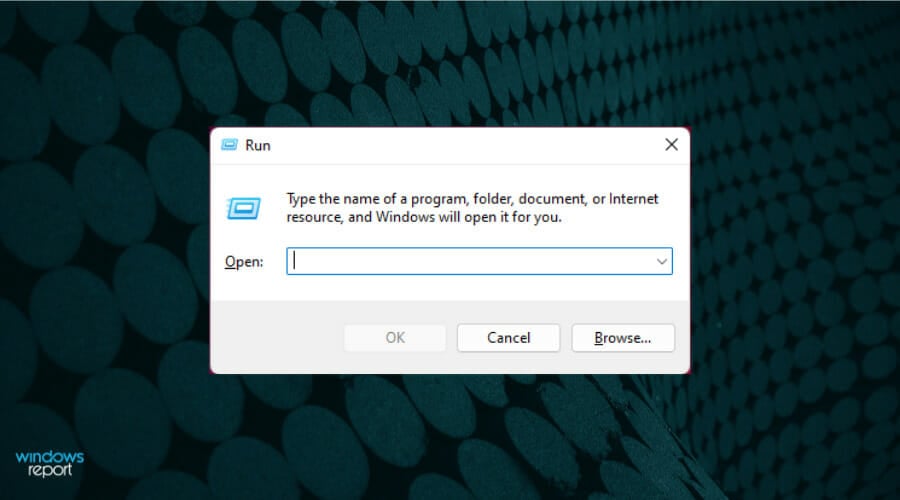
Press the Win + R keys to open the Run dialogue.
Type the below command and press Enter. powercfg.cpl
Click on the circle next to the High-Performance power profile.
Exit the windows page.
The above steps will enable high-performance mode on your PC. Do note that although everything will work top-notch, the battery of your laptop will drain faster.
After enabling the high-performance mode, you need to enable the transparency effect again, and check if this fixes the issue or not.
4. Tweak the registry editor
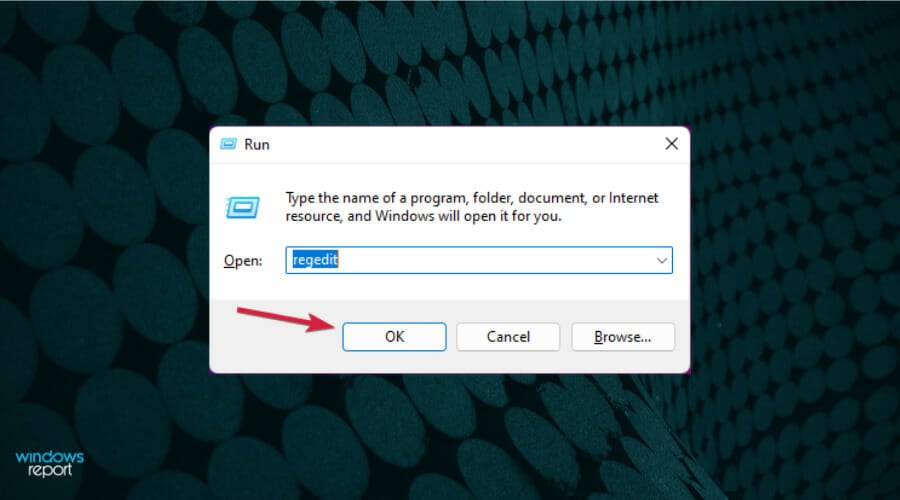
Press Win + R to open the Run dialogue.
Execute the below command.: regedit
Head to the below path.:Computer\HKEY_LOCAL_MACHINE\SOFTWARE\Microsoft\Windows\Dwm
On the right-side, right-click and select New > DWORD (32-bit) Value.
Name this created DWORD as ForceEffectMode.
Double-click on ForceEffectMode.
Under Value, enter 2.
Press OK and exit the registry editor.
Restart your PC.
Some users have found this solution to be effective, and after following the above steps, the Windows 11 not transparent issue seems to be resolved.
However, we would advise you to be extremely careful before you go ahead and tweak the registry editor. Because if you do something wrong, your PC performance will be compromised.
How can I get the best transparency effect in Windows 11?
If the above methods helped you fix the Windows 11 not transparent issue, but you are not satisfied with the amount of transparency it applies, then you can follow the below two methods to enhance the level of the effect.
– Apply OLED Taskbar Transparency
Press the Win + R keys to open the Run dialogue.
Type the below command and hit OK. regedit
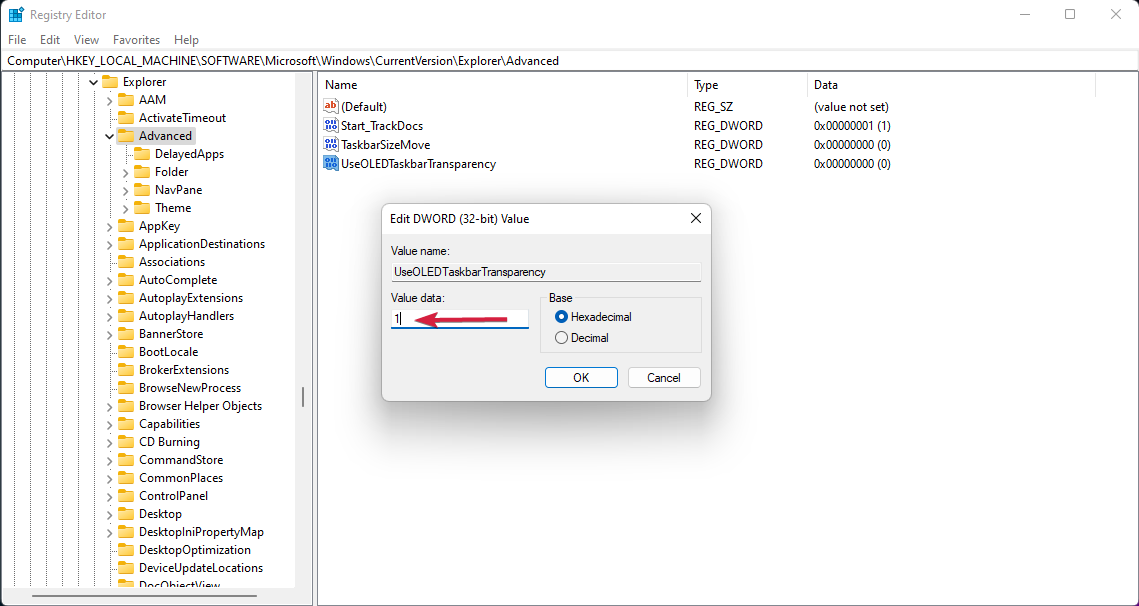
Navigate to the following:HKEY_LOCAL_MACHINE\SOFTWARE\Microsoft\Windows\CurrentVersion\Explorer\Advanced
On the right-side pane, right-click and select New >DWORD (32-bit) Value.
Rename the newly created value to: UseOLEDTaskbarTransparency by right-clicking on it and choosing Rename.
Right-click again, select Modify.
Change the value from 0 to 1.
Click OK to save the settings.
Restart your PC.
Once you restart your PC, you will see that the level of taskbar transparency has increased. The Windows 11 registry editor gives you such options to tweak the level of customization on your Windows 11 PC.
Your taskbar will be automatically set to transparent.
Using the TranslucentTB app from the Microsoft Store, you can achieve the highest level of transparency for your taskbar. It simply makes the entire taskbar completely transparent.
That’s not all. You can use the TranslucentTB application to make the taskbar opaque, or apply a blur effect. There are other settings that you can tweak within the app, such as the maximized window, Start Menu open, Cortana open, and Timeline open.
The above solutions are effective and have helped users fix the Windows 11 taskbar not transparent issue, as well as helped them achieve a satisfactory level of transparency effect.
Let us know which one of the above mentioned method helped you fix the problem. You can also let us know if there are some other methods that did the job for you, down in the comments section.
BitLocker is a drive-encryption feature introduced in the Windows Vista iteration and has been a part of the ecosystem ever since. Though many like it, some users want to install Windows 11 without BitLocker.
The BitLocker feature is only available on the Pro and Enterprise editions of Windows 11 and not the Home edition. But, some 2-in-1 laptops and certain tablets support Device Encryption in Windows 11, a feature similar to BitLocker.
But, if you don’t want to have the feature on your system, here’s how you can install Windows 11 without BitLocker.
How can I install Windows 11 without BitLocker?
As discussed earlier, BitLocker is bundled with the Pro and Enterprise editions of Windows 11. So, there’s no way you can install these editions without it.
However, a simple workaround would be to install Windows 11 Home, which doesn’t offer the BitLocker feature. To do that, select Windows 11 Home when you are asked to select the operating system while clean installing Windows 11.
If you want to install the Pro or Enterprise edition of the latest iteration but don’t want the feature, we recommend disabling BitLocker in Windows 11. The process is fairly easy; this way, you can use the other features bundled with the edition.
In the present times, data theft and misuse have become common, and users have been looking for ways to prevent it. You can use a reliable third-party antivirus in Windows 11 that automatically scans for malware or viruses and eliminates them, such as TotalAV.
BitLocker, on the other hand, helps encrypt the data on the drive, thus making it unreadable to anyone with unauthorized access to your drive. Once encrypted, the data on the system is protected from any intrusion or breach.
Also, if your laptop or the hard drive from the desktop is stolen, its data could not be read or used without the BitLocker recovery key.
Besides, one of the best parts about the feature is that it doesn’t hog the system resources. So, even if your PC has low specifications, having BitLocker running in the background shouldn’t affect the performance.
You now know the benefits of BitLocker and how to install Windows 11 without it. And you can even disable BitLocker if it comes preinstalled on your system.
Well, now we’re back to tell you about a glitch you can exploit in order to receive double parkour XP while playing your new favorite game.
The game actually rewards players with both combat and parkour XP for simply playing through it, which is both fun and productive.
Helpful as that could be, with various ways to gain parkour XP quickly, this method called “the glitch” is the best one yet.
Gamers that discovered the parkour XP glitch say it allows anyone to level up their free-running skills in the game quickly and safely, and it’s possibly not even a glitch.
It’s no secret that unlocking skills such as sprinting or sliding in Dying Light 2 can take a long time. Thus, using this recent method can save you a lot of time, and it’s also fun, but a bit boring.
Without any further ado, let’s get right into it and find out how you too can become a parkour master of Dying Light 2 faster than you can say zombie.
How can I get double parkour XP in Dying Light 2?
Before we start, know that there are some prerequisites for achieving this goal, so keep that in mind prior to making any plans.
However, you don’t need end content gear or skills to succeed, just one skill that will be the cornerstone of the entire process.
We’re talking about the Far Jump skill, which costs 120 stamina to use, and it will take you soaring from one rooftop to another while in Villedor.
Keep in mind that this Dying Light 2 XP glitch can be used in a specific location to quickly farm XP by repeating simple parkour moves multiple times, especially at night.
When you have the above-mentioned skill, you are going to have to travel to the Horseshoe district for the next part of the plan.
Head to a certain rooftop on the west side of Horseshoe next to the border with Old Villedor and use Far Jump to go between rooftops multiple times, which will earn XP at an accelerated rate.
Basically, the idea is that there are two rooftops with multiple trees and some metal scaffolding covered in yellow plastic between them.
All you have to do is use Far Jump to leap from one rooftop to the other, action that will earn you an astounding amount of XP.
But wait, there’s more. There’s actually a way to multiply these gains even more if you’re not scared of the dark and all creatures that come with it.
If you keep doing this at night when the rewards are higher, you will be done with your grind even faster. However, nighttime is a lot more dangerous than mid-day, so keep that in mind.
You can even start a chase if you see a Howler and you’re brave enough. Performing these long jumps during a chase will earn you even more XP.
That being said, we recommend you get some good gear and some serious regen if you are going to attempt that.
PlayStation players can also use some help when it comes to errors, especially if they have to deal with CE-34878-0, and we’re here to assist with that as well.
Have you started your double XP parkour grind yet? Share your experience with us in the comments section below.
Haven’t heard about Weird West yet? We’re about to remedy that, by telling you that Weird West is a top-down action role-playing game with elements of the immersive sim genre, with randomized elements through each playthrough.
Long story short, the game itself is based on the Weird West genre it borrows its title from, in which the player takes the role of heroes in the American frontier who encounter supernatural elements.
You will discover a dark fantasy reimagining of the Wild West, where the lawmen and gunslingers actually share the frontier with fantastical creatures of all sorts.
Each journey you dare to undertake is unique and tailored to the actions taken. Engage in a series of high-stakes adventures where everything counts and the world reacts to the choices you make.
If you already purchased Weird West but can’t seem to get it to work on your PC, we can lend a helping hand and provide some workarounds that will restore game functionality.
What can I do if Weird West won’t work on my PC?
Before we get into the troubleshooting process itself, the first step should always be checking the system requirements for this game.
Trying to run it on an incompatible machine could actually result in the title not launching at all, so be sure to keep that in mind.
Minimum system requirements
CPU: Intel Core i5-2380 or equivalent / AMD FX-6100 (6 * 3300) or equivalent
RAM: 6 GB RAM
GPU: GeForce GTX 650 Ti (1024 MB) / Radeon HD 7770 (1024 MB) or equivalent
OS: Windows 10, 64-bit
STO: 16 GB available space
Recommended system requirements
CPU: Intel Core i7-6950X (10 * 3000) or equivalent / AMD Ryzen 7 2700 (8 * 3200) or equivalent
However, if your device totally supports Weird West but your title still won’t even start, here’s what you can do in order to fix the problem and restore game functionality.
1. Launch the game as Administrator
Locate the folder where Weird West is installed.
Right-click on the Weird West executable and click on Properties.
Select the Compatibility tab and check the Run this program as administrator box.
2. Update your graphics driver
Press the Windows key, search for Device Manager and click on Open.
Expand Display Adapters, right-click on your GPU and select Update driver.
Select Search automatically for drivers.
Gaming can be enjoyed without any crashes, lags, or freezes by keeping all drivers up to date and error-free easily.
Sometimes, manual checks are hard to perform, that’s why we recommend using an automated assistant that will scan for fresh driver versions daily.
In case you’re a beginner, you don’t have to worry! Outbyte Driver Updater is smart, simple, engaging and its user interface was built to make your life easier.
We’re just going to go on a limb here and presume that everyone has pretty much heard about the Borderlands game series at least once in their lifetime.
The first-person shooter franchise captivated the imagination of a massive audience, and developers thought that it was time for a new twist to the old tale.
Thus, Tiny Tina’s Wonderlands was created by Gearbox Software and 2k Games, to sort of refresh the highly popular title series.
Much like its predecessors, the game is a first-person shooter with elements of an action role-playing game.
This recent title can be played solo or with up to three other players in online or local split-screen multiplayer, which means the whole family can enjoy the action-packed adventures.
No doubt you would like to get it for your own by now, and we’re about to show you where you can score Tiny Tina’s Wonderlands for all available platforms.
https://www.youtube.com/watch?v=3gJgj2ngCyA
Where can I download Tiny Tina’s Wonderlands from?
If you’re ready to step into the world of a fantasy-themed tabletop role-playing game, then you already know the basics, or you are more than eager to test yourself.
This title features an overworld, which is used by the playable characters to traverse the various locations in the game, with random combat encounters and quests that can only be completed in the overworld.
In fact, Tiny Tina’s Wonderlands builds upon the standards set by the Borderlands franchise that it originated from while also differing in several key aspects.
And, if you are wondering about the characters themselves, rather than playing as a specific vault hunter, with their own personality and voice lines, know that players instead opt for a custom-made character using the game’s character creator system.
Provided you were going to ask if the game is also available on Microsoft’s Store, the answer is not yet. You can only find an informational guide app that acts as a tutorial for new players.
Currently, Tiny Tina’s Wonderlands is only available for Xbox One/Series X|S, PlayStation 4 and 5, and Windows PC.
Players that already bought the game, stay that it’s still recognizably Borderlands, but the sense of place and improvisation elevates Tiny Tina’s Wonderlands beyond expectations.
Furthermore, the game’s character-building options, humor, art style, and usage of Dungeons & Dragons tropes and mechanics made it all the more desirable.
Also, Tiny Tina Wonderlands multiplayer extends to all three types; online coop, split-screen, and even crossplay.
Many different laptops are on the market today, but not all are good for business use. If you’re looking for a computer that will help you be productive while going, you need to check out the best Windows 11 laptops.
They come with perfect features for business users, such as long battery life, fast processors, and plenty of storage. They run the Windows 11 operating system, which is ideal for business users.
Whether you’re buying a group of laptops for your staff or just getting yourself a productivity system, one of the finest business laptops will combine efficiency and ease of use.
As with previous versions, Windows 11 is available in several different editions, catering to home users, business users, and enthusiasts. Each edition of Windows has a different set of features.
Display resolution of at least 9 inches in diagonal, high-definition (720p), and 8 bits per color channel
Requires a WDDM 2.0 driver and is compatible with DirectX 12 for graphic cards
64 GB storage capacity
TPM 2.0 version capability
UEFI security measure
What do I consider before buying a Windows 11 business laptop?
Portability – If you’re always on the go, you’ll want a laptop that’s light and easy to carry around. Some business laptops have built-in batteries that offer all-day use, while others require an AC adapter to stay powered up.
Processor – The processor is the most critical component of any laptop. It determines how quickly the device can complete tasks and affects overall performance. Select one with a powerful processor that can handle multitasking and complex applications when choosing a business laptop.
Display – A high-quality display is essential for any business laptop. Choosing a model with a large enough screen to comfortably work on and that offers good viewing angles is critical.
Memory – To ensure smooth performance, you’ll want to choose a laptop with plenty of memory. Most business laptops come with at least 4GB of RAM, but 8GB or 16GB is better if you do a lot of multitasking.
Storage – Storage is another essential consideration, especially if you plan to store many files on your laptop. Many business laptops come with SSDs (solid-state drives), which offer faster speeds and better reliability than traditional hard drives.
Now that we’ve covered the basics, let’s look at some of the market’s best Windows 11 business laptops.
The Dell XPS 13 9310 Windows laptop line has long been recognized as one of the finest, thanks to its compact size, lightweight, and lengthy battery life.
XPS 13 9310 was unveiled in 2020 with an 11th-generation Intel CPU, a smaller screen, and updated Wi-Fi and Bluetooth.
It has the ultimate high-performance laptop for graphic-intensive applications, featuring the most up-to-date processors and displays and components that provide quicker time to productivity.
The OMEN 15T-EK100 is perfect for businesses who want a robust and reliable laptop. This machine is packed with features that will make your workday more accessible, including a large screen, fast performance, and long battery life.
It comes in a sleek and professional design that will look great in any office. So if you’re looking for a powerful and durable laptop, the OMEN 15T-EK100 is an excellent choice.
Its backlit keyboard and stylish design make it stand out from the crowd. If you’re looking for a powerful and versatile laptop, the OMEN 15T-EK100 is worth considering.
The ASUS ZenBook UX330UA is a powerful and stylish laptop perfect for students or busy professionals. It also has a backlit keyboard, fingerprint sensor, and USB Type-C port.
Plus, it comes with a free one-year subscription to Office 365. The ZenBook UX330UA comes with Windows 10 pre-installed, so you can start using it immediately.
So if you’re in the market for a new laptop that is affordable, reliable, and can handle any task, you may consider ASUS ZenBook UX330UA.
The 2021 Lenovo Yoga 9i is a powerful and versatile laptop perfect for work and entertainment. And with its 13.3-inch Infinity Edge display, you’ll enjoy stunning visuals and immersive entertainment.
Plus, the Yoga 9i features a built-in fingerprint reader for added security. With its high-end hardware and versatile design, the Yoga 9i is perfect for students, professionals, and anyone who needs a powerful portable device.
The Yoga 9i also features a 360-degree hinge, so you can use it in laptop mode, tablet mode, stand mode, or tent mode. And with its Windows 10 operating system, the Yoga 9i provides a versatile and user-friendly experience.
Microsoft has just announced a new addition to its Surface lineup – the Surface Laptop. This device is designed for students and comes in four different colors: Burgundy, Cobalt Blue, Platinum, and Graphite Gold.
One of the main selling points of the Surface Laptop is its battery life. Microsoft claims that the laptop can last for up to 14 hours on a single charge. This is impressive, especially compared to the average battery life of most laptops.
Another feature that sets the Surface Laptop apart from other laptops is its design. The laptop has a sleek and stylish design, which will appeal to many users.
There is no definitive answer to this question. However, there are a few factors you may want to consider when making your decision.
Aside from the potential for improved specs, which is something to think about whenever you’re purchasing a new PC, the only benefit of waiting is that the new device will come equipped with Windows 11 pre-installed.
First of all, Windows 10 laptops are generally more affordable than Windows 11 laptops. This is partly because Microsoft has been offering Windows 10 as a free upgrade for devices running Windows 7 or 8.1.
Windows 10 also offers several features not available in Windows 11, such as the Cortana virtual assistant and the Microsoft Edge browser.
However, Windows 11 does include some features not found in Windows 10, such as the ability to run multiple apps in separate windows on the same screen.
Which laptop features attracted you most? Feel free to leave us a message in the comments section.
So you’re trying to play Dying Light 2 Stay Human from Steam and you simply can’t because of the Unable to initialize Steam API error?
Don’t worry, it happens to a lot of people, for a lot of games. And although this can get pretty frustrating in a really small amount of time, we got the solution for you.
Since we’re talking about Dying Light 2 errors, other players have also mentioned dealing with error code CE-34878-0, which is also easily fixable and we can show you how.
In fact glitches, bugs and errors are so common nowadays that having a solution handy when it happens is crucial for uninterrupted, quality gaming.
Because of that, we are about to present to you three easy steps that can fix your Unable to initialize Steam API error and allow you to keep on doing what you do best.
How can I fix Dying Light 2 Unable to initialize Steam API error?
1. Allow Dying Light 2 through your Firewall
Press the Windows key, search for Firewall and select Open.
Click on Allow an app through Firewall.
If Dying Light 2 isn’t in the list, click Change Settings, then Allow another app.
Click the Browse button, locate your game and press the Add button.
2. Opt out of all Steam Beta programs
Click on Steam and select Settings.
Select Account and press the Change button under Beta participation.
Click on None – opt out of all beta programs and press the OK button.
3. Run Steam as Administrator.
Locate your Steam installation folder.
Right-click on the Steam executable and select Properties.
Click on the Compatibility tab and tick the box next to Run this program as an administrator.
Press the Apply button and close the window.
That is what you can do in order to resolve this error once and for all. The solution is pretty easy and will only take up a few minutes of your time.
Also, many people are now weighing their options when it comes to buying games, so in case you were trying to decide between Dying Light 2 and Horizon Forbidden West, we compared both games.
Dying Light has gained massive popularity not only among fans of the game’s prequel but also among gamers that enjoy a good old open-world zombie survival game.
There’s no denying that this is a gaming masterpiece. However, this title, as many others before it, came with quite an impressive number of bugs and errors.
And since you came here for a specific problem, know that error CE-34878-0 is a PlayStation error code, that affects both PS4 and PS5 consoles.
Furthermore, the code isn’t at all specific to Dying Light 2 and can be best described as a general error code, known among PlayStation users.
In other words, it means that your console has crashed, but there isn’t necessarily a specific cause to pinpoint it.
Most of the time, the error seems to coincide with the maintenance of the PlayStation network and it will resolve itself with no additional action required.
That being said, if you aren’t the type to wait around and want to take immediate action, we can show you how to fix this annoying error.
What can I do to fix error CE-34878-0 on my PlayStation?
We don’t want you to deal with these dreaded game-breaking bugs and errors and we’re here to lend a helping hand.
Follow these steps and get back to free-running around a zombie-infested cityscape in no time, as we will show you how to deal with error CE-34878-0.
Sony’s support page says it’s a PlayStation 4 error, but PlayStation 5 owners can also go through this experience.
1. Power cycle your console
Hold down the PS button on your Dual Shock controller until the Quick Menu pops up.
Select Power Options and then Turn Off PlayStation.
2. Update the PlayStation’s software
2.1 For PS4
Make sure that the connection between your PS4 and the Internet is stable.
Now, navigate toPS4 Settings.
Click onSystem Software Update.
Press the X button.
You’ll get a message that informs you if the latest version of your system console has already been installed.
Otherwise, the message will let you know that you should upgrade your system. To install it, click onUpgrade now.
2.2 For PS5
OpenSettings.
Go toSystem.
In the System Software section, click onSystem Software Updates and Settings.
Choose the type of update you want to perform.
Click on theUpdatebutton, then wait until your console is updated and restarted.
3. Rebuild the database
3.1 For PS4
Completely power off your console.
Press and hold the power button.
Release the button after you hear the second beep.
ForPS4, you’ll need to connect your controller viaUSB, then choose to Rebuild Database.
3.2 For PS5
ForPS5, you’ll now boot into Safe Mode. Plug your controller in with the cable, then go down and select Clear Cache and Rebuild Database.
After that, click on Rebuild Database, then on OK.
4. Remove PlayStation camera and disable Face Recognition
Remove the camera.
From the PlayStation 4 home screen, selectSettings.
SelectUsers.
SelectLogin Settings.
UncheckEnable Face Recognition.
5. Reinstall the original Hard Disk Drive
If by any chance, you installed a different Hard Drive than the one that your console came with from the factory, we advise you to remove it, reinstall the original HDD and reboot your PlayStation.
This step has solved the issue for many PlayStation gamers that went through situations involving error code CE-34878-0.
Keep in mind that installing foreign hardware could actually be the root cause for you experiencing these errors in the first place.
Remember that there are other games that Dying Light is in fierce competition with, among which Horizon Forbidden West. We compared the two games for you in order to assist you in making a choice.
Was this article helpful to you? Let us know in the dedicated comments section below.
If you’ve taken any online courses, then you’re probably familiar with LockDown Browser. This browser is often used to administer online exams that protect the integrity of the test.
Most instructors that teach online courses prefer to use LockDown Browser because it discourages digital cheating and forces students to apply themselves more throughout a course.
However, some users have reported the LockDown Browser is not installing. Follow these easy solutions for a quick fix.
Why can’t I open LockDown Browser?
Your security software, such as a third-party antivirus might be interfering with the browser’s functionality. Thus it is recommended that you temporarily disable it.
There is another possibility that your current default browser is blocking the download of LockDown Browser for some reason, such as a corrupted browser cache or cookies.
What does LockDown Browser do?
LockDown Browser has features that prevent digital cheating during online tests. It’s compatible with Learning Management Systems (LMS) such as Blackboard, Canvas, and Moodle.
It also blocks other applications on the device so students can’t switch to another browser or application while taking their exam.
LockDown Browser goes to extra lengths to also protect the exam by blocking print functions, copy and paste, and screenshots.
What can I do if I can’t install LockDown Browser?
1. Install from another browser
There could be an issue with your default browser blocking the download of LockDown Browser. We recommend using Opera One browser. This browser can perform heavy downloads quickly and without consuming a lot of PC resources.
Opera One also offers a lot of security and privacy protection features and will alert users of phishing or malware attacks. Users can browse and download files securely with Opera One’s free built-in VPN.
Many users that reported having issues downloading LockDown Browser were using Internet Explorer. Instead of rearranging the download preferences in Internet Explorer, consider using Opera One instead.
Opera One
Use Opera One browser for seamless and secure downloading.
One the left panel select Virus & threat protection.
Under Virus & threat protection settings click Manage settings.
Turn off Real-time protection.
Install LockDown Browser.
Turning off Real-time protection should allow users to install LockDown Browser without any issues. Turn this security feature back on once LockDown Browser is installed. However, if you forget, Real-time protection will automatically turn back on after a short time.
Click on Start menu and search Control Panel then hit enter.
Under User Accounts select Change account type.
If it doesn’t list you as an administrator then click on your user profile.
Select Change the account type.
Click on Administrator then Change Account Type.
Restart PC if prompted.
Install LockDown Browser.
Many eLearning courses and institutions require students to use LockDown Browser to take exams. If you can’t install LockDown Browser, we hope one of the solutions above fixed any issues with downloading the browser.
LockDown Browser gives instructors peace of mind when administering exams with the knowledge that the integrity of the online test is protected. Students can get more out of a course by applying themselves more to exams taken through LockDown Browser.
Let us know in the comments down below the solution that worked for you, or leave a comment if you found a solution that worked and is not listed above.
The annual Xbox Spring Sale is now underway. As part of the sale, you can save up to 80% on select Xbox and PC digital games, and enjoy additional separate discounts on PCs, as well as Xbox items in the Microsoft Store.
Right now, some of the deals include discounts on Forza Horizon 5, The Elder Scrolls Online, and Sims 4. There are over 600 titles that are discounted, so you can check the full list here. Halo Infinite (20% off), Microsoft Flight Simulator (20% off,) Grid Legends (33% off,) and NBA 2K 22 (67% off) are just some examples. Over on the Microsoft Store, meanwhile, you can save up to $500 on select Windows PCs, 30$ on HyperX accessories, $200 on the Surface Pro X, $400 on the Razer Blade 14, and 30% on SteelSeries gaming accessories. Check it out in the video below.
If you’re interested in any of these sales, it’s best to act fast. The deals will only last through April 21. If you end up buying something, let us know in the comments below!
Cryptocurrency experts are always looking for new ways to earn and trade cryptocurrencies. Fortunately, it got a lot more fun with the rise of Play-To-Earn (P2E) crypto games. Players can farm and collect cryptocurrency tokens that can be traded or sold for real money.
There are many P2E crypto games on the market, but BombCrypto recently topped the charts for the highest earned funds on the Binance Smart Chain (BSC) Network.
Experts recommend that you avoid using your day-to-day browser while dabbling in cryptocurrency. Most browsers hang onto the data from all your favorite websites, such as Facebook, Amazon, Netflix, etc.
When trading cryptocurrency, it’s wise to be as secure as possible. It’s important to use a browser with user data privacy protection. This article will reveal the best browsers for BombCrypto and cryptocurrency.
What is BombCrypto?
BombCrypto is an in-browser P2E game where the player farms and fights monsters to earn BCOIN that can be traded for real money.
The popular P2E game is developed by Senspark, an independent Vietnamese development company. Senspark was first created in 2011 and mainly focuses on developing indie games for Android and iOS.
Play as a pixelated NFT hero that searches for BCOIN. BombCrypto has three gaming modes: Story mode, Treasure Hunt, and Battle. Currently, only Treasure Hunt and Adventure mode are available to play.
Is BombCrypto free?
The minimum cost to join BombCrypto is 10 BCOIN which must be purchased using real money. From there you can purchase a hero and start earning. Players can purchase more NFT heroes using the BCOIN that they collect in-game.
BombCrypto uses Metamask to store digital assets and for blockchain transactions. Metamask is an addon that turns a browser into an Ethereum browser. Use Metamask to get access to Binance Smart Chain (BSC) Network. BombCrypto is only playable through BSC Network.
Even though Metamask is not compatible with Opera GX, it still makes the top of our list. In order to play BombCrypto, you have to have the Metamask extension. Unfortunately, Metamask is only supported on Chrome, Firefox, Microsoft Edge, and Brave browsers.
Luckily, there is a loophole around this. Opera designed software that allows users to download and install Google Chrome addons to any Opera browser. Simply get the Install Chrome Extensions from the addon store in Opera. Now Metamask can be installed from the Chrome Web Store and is compatible with Opera GX.
Opera GX is the world’s first browser designed specifically for gamers. It’s also considered one of the most secure with a built-in VPN. Thus, is the most ideal browser to play BombCrypto. One of the best features of Opera GX is the ability to control resource usage with built-in limiters for RAM and CPU.
Firefox is a popular browser for gaming because it uses the least amount of RAM compared to other Chromium-based browsers. Gamers also prefer Firefox because of its light system memory consumption.
In general, Firefox is a great open-source browser with a user-friendly interface and a plethora of extensions. It also has excellent user data privacy and security protection features, a vital feature when dealing with cryptocurrency.
Chrome is another great choice for playing BombCrypto because of its multitasking functions. BombCrypto is a time-consuming game that doesn’t require a lot of hands-on experience. With Chrome, you can leave the game running in one tab and continue with your cryptocurrency business in another.
Google Chrome is also has a built-in ad-blocker and a scanner for viruses and malware. Chrome has a feature that will let the user know whether the site they are browsing is secure or not.
However, because Chrome is the most used browser, it’s likely many users already utilize Chrome for their everyday business. The safest way to trade and sell cryptocurrency is to avoid using a browser that you also use for your day-to-day life.
Brave is becoming increasingly popular among gamers because it prioritizes privacy and user choice.
With a built-in ad-blocker and features that protect against trackers, users can play BombCrypto securely. Brave provides the user with the choice to see Brave Private Ads and gives Basic Attention Tokens (BAT) to users for viewing their ads. BATs can be exchanged for gift cards or even crypto.
This alternative browser is one of the best for BombCrypto and cryptocurrency. Its browsing speed and data protection are top-notch and perfect for any gamer.
Microsoft Edge has endured a lot of changes throughout the years. Now based on the Chromium engine, Microsoft Edge supports extensions and in-browser games.
With SmartScreen, users will be alerted about malicious websites and phishing. Microsoft Edge also has an efficiency mode that can be enabled which extends battery life. This feature also increases speed and saves CPU usage by putting unused tabs to sleep after 5 minutes of inactivity.
Microsoft Edge uses tracking prevention to keep user data protected. This feature can be toggled between basic, balanced, and strict. Users can play BombCrypto without worrying about their personal data being tracked.
However, while Microsoft Edge is one of the most secure browsers, it sacrifices functionality to do so. The stricter the security, the less likely certain websites operate as intended.
Key features of Microsoft Edge:
Chromium-based engine supports extensions
SmartScreen alerts users of any malicious activity
Efficienct mode to extend battery life and reduce CPU usage
Just like with every cryptocurrency token, BCOIN is highly volatile. Any new token released on the market is high risk. However, the game has topped P2E charts and has received an overwhelmingly positive response.
BombCrypto is a luck-based game and is beginner-friendly, thus its growth and popularity have been steadily increasing. Ultimately, it’s up to the user’s personal preference and risk level if the investment is worth it.
When trading or selling crypto, security is the utmost concern. While gaming, speed, and CPU usage are a major priority. The browsers on this list combine the needs of both gamers and cryptocurrency traders.
Finding the best browser for BombCrypto can be a difficult choice, we hope this list made the decision easy for you. Let us know in the comments what browsers you prefer for P2E games and cryptocurrency.
Microsoft quietly made changes to the way you can swap out default browsers in Windows 11, but not everyone is happy. The folks who make Firefox recently told Microsoft that “more can be done,” and now, Vivaldi has some things to say too, mentioning that Microsoft should make it easy for all users to use other browsers (via Neowin.)
The statement aimed towards Microsoft’s efforts comes in an article published in The Register. There, Jon Von Tetzchner, who is the Vivaldi boss, mentioned that Microsoft only made it easy to switch default browsers in one click to avoid lawsuits. In a stronger message, he also mentioned that Microsoft needs to stop abusing its powers. He said:
Microsoft should make it as easy for all users to use other browsers, as it is to use Edge, and stop abusing their power to push Edge onto users [. . .] They continue to try to make it harder to switch to and use other browsers. We look forward to the EU following up on this malpractice
In another statement, Tetzchner gets into how only technical users realize they need an optional update to swap out default browsers with one click. In his own words.
This should apply to all users, not just the ones who are technically competent enough to realize that they need to install an optional update, and know how to actually do so. It should be installed for all users.
Microsoft is always listening to feedback, and the original changes it made to switch browsers in one click are appreciated. However, certain file types might still be associated with Edge even after swapping out to another browser, which Mozilla had issues with. It’ll be interesting to see how Microsoft reacts, and if any changes will be coming in the future.
If you’re still running the Windows 10 November 2019 Update (1909) or the Windows 10 October 2020 Update (20H2), Microsoft has a warning for you. These versions of the operating system are hitting end of servicing life soon, and it’s time for upgrade to the newest version of Windows 10 (via Neowin.)
Word of the end of service has been present on the the respected Windows Lifecycle product pages for a while, but Microsoft recently updated the Windows message center with an announcement, too. There, Microsoft warns that Come May 10, the Home and Pro versions of Windows 10 20H2 and all versions of Windows 10 version 1909 will no longer get security updates. After the date, there won’t be security patches, which means the devices might be vulnerable to viruses, and other issues.
Anyone on these versions of Windows 10 Home, or on non-managed business devices that are several months at end of servicing, will be automatically updated to the latest version of Windows 10 via Windows Update. You’ll always be able to choose a time to restart, and complete the update.
If you need assistance, Microsoft has some guides that can help out. Do note that the most current version of Windows 10 is Windows 10, version 21H2, otherwise known as the Windows 10 November 2021 Update. Microsoft is shifting to once a year featured updates for Windows 10 and Windows 11, so be sure to update now to ensure you won’t be left behind.
Despite it being a modern operating system that can help boost your productivity, Windows 11 has been full of some missing features when compared to Windows 10. Microsoft has steadily approved to add things like Folders in the Start Menu, or the date and time on multiple monitors, but one of those still not added is the key ability to move the Taskbar to the top or the sides of the screen.
Well, as spotted by Neowin, this was a topic of discussion in a recent Microsoft AMA session on YouTube. And, it is looking as though the company seemingly confirmed this highly requested feature won’t be coming natively to Windows 11 in the foreseeable feature.
Seen here at around the 10-minute mark, when asked about the Taskbar, Tali Roth, who is the Head of Product for Windows Core Experiences at Microsoft, seems to defend Microsoft’s decision to not allow users to move the Taskbar in Windows 11. She brings the challenges of it disrupting the workflows of users, as well as how developer’s apps have to manually adjust to it.
When it comes to something like actually being able to move the taskbar to different locations on the screen, there’s a number of challenges with that. When you think about having the taskbar on the right or the left, all of a sudden the reflow and the work that all of the apps have to do to be able to understand the environment is just huge.
This is more than likely true, as Paul Thurrott points out that another AMA member mentioned out that Microsoft had to completely re-write the code for the Taskbar in Windows 11. In doing so, the ability to move the Taskbar around was lost. Hence, the feedback.
Speaking of Feedback, Roth went on to talk about the data around the need for features in Windows 11. Apparently, based on what Microsoft is seeing around the Taskbar being moved, it’s still a really small subset of users that want it, and there’s bigger things of focus right now. This is despite Feedback Hub, mainly driven by Windows enthusiasts, having tons of requests for the ability to move to Taskbar. She said:
And when you look at the data, while we know there is a set of people that love it that way and, like, really appreciate it, we also recognize that that a set of users is really small compared to the set of other folks that are asking for other features. So at the moment we are continuing to focus on things that I hear more pain around.
The final thing of discussion around the Taskbar comes around if and when Microsoft will ever add the feature back to Windows. There seems to be indication that Microsoft is listening, but doesn’t really want to actually take action on it anytime soon. Per Roth:
It is one of those things that we are still continuing to look at, and we will keep looking to feedback, but at the moment we do not have a plan or a set date for when we would, or if we should, actually build the side taskbar.
So, there you have it folks. It’s looking as though if you really want to move the Taskbar around in Windows 11, you’ll have to keep using third-party programs like Start11, which allow you to move it with no issues. It also adds the other lost ability in Windows 11, to ungroup Taskbar icons.
Windows’ RDP (Remote Desktop Protocol) makes it possible for you to gain access to another computer. RDP functions using Windows’ modern Remote Desktop or legacy Remote Desktop Connection app.
When trying to establish a connection, you may have encountered the error message: your computer can’t connect to the remote computer because of a security package error.This error is more likely to have occurred because you initiate the connection through a proxy server.
In this article, we discuss the security package error and show you the steps to take to fix it.
Why am I getting the Remoteapp disconnected security package error?
There are multiple reasons for this error, and the most common are your registry values. If the app isn’t properly configured in registry, you may encounter this issue.
It’s also possible that there’s an issue with your credentials, so removing them and adding them again can help with this problem.
How can I fix the security package error on Windows 11?
1. Delete the RDP connection cache in your registry
Open the Run dialog using Windows key + R, type in regedit, and click OK.
Navigate to: Computer\HKEY_CURRENT_USER\Software\Microsoft\Terminal Server Client\Default
On the right pane, select the list of connections; these are labeled MRU(X), where X is a number, right-click on them and select the delete option.
Navigate to: Computer\HKEY_CURRENT_USER\Software\Microsoft\Terminal Server Client\Servers
Right-click on the server folder and select Delete.
Click on the Start Window, type CMD and select Run as administrator.
Type the following command and press Enter: del /ah %homepath%\documents\default.rdp
Each user’s registry stores information for every RDP connection. Using built-in Windows tools, removing a computer or computers from the list of RDP connection history is impossible. The above steps are taken to get rid of the registry keys manually.
Once the steps are completed, the security package error message may be resolved.
2. Clear the saved RDP credentials
Open the Start Menu, type Control Panel, and click on the Control Panel app.
Navigate to User Accounts section. Then go to Credential Manager and pick Manage Windows credentials.
Under the Generic Credentials, if you have any RDP credentials saved, it will show us an IP address preceded by TERMSRV. Expand it and click Remove.
Note that if you select the option to Remember me before you enter your password for a new remote RDP connection, your credentials (username and password) will be remembered in the Windows Credential Manager.
The RDP client utilizes the previously remembered credentials for authentication on the remote host for subsequent connections. Clearing these credentials may resolve the security package error.
Open the round dialog using Windows key + R, type mstsc.exe, and hit the OK button.
Navigate to the Experience tab of your Remote Desktop Connection app, and uncheck the option for Persistent Bitmap Caching at the bottom.
Note that image persistent bitmap caching is included in the RDC (Remote Desktop Connection) client. As a raster image cache, the RDP client caches rarely changing parts of the remote screen.
The mstsc.exe client uses this to load elements of the screen from the local drive cache that haven’t changed since the last rendering. The RDP caching feature reduces the quantity of data sent across the network.
When using the RDP cache, it may be damaged. Disabling persistent bitmap caching may also be beneficial.
4. Use a 3rd-party RDP
A third-party RDP may not fix the issues you have with your Windows RDP, but it is a great way to bypass it. Third-party solutions often are more advanced than the inbuilt Windows solution.
A tool like Mikogo is a viable option, and it is packed with many features.
You may help customers using mouse control and remote keyboard, or you can give someone else control of your PC.
It offers a function that allows you to share documents, desktop, or application windows in real-time with up to 25 meeting attendees.
It also allows you to show only the application windows you want to be seen and conceal the others, ensuring that your presentation is the focus of attention. Mikogo also supports up to four monitors.
Tablet computers, as we know them now, are just an evolved form of drawing tablets, and they are exciting.
While standalone tablets seem to be catching up, nothing can match the accuracy of drawing tablets.
What is the difference between a graphic tablet and a drawing tablet?
First, most drawing tablets come with a dedicated pen, and the screen is a lot more sensitive to detect the pressure of its tip.
While the graphic tablets come with a built-in OS, the drawing tablets are mainly interfaces and must be connected to a PC and work with dedicated graphics software.
Drawing tablets also usually come with support for Windows 10, and some of the products from our selection also work with Mac.
So, if you’re a professional looking forward to buying a drawing tablet, the upcoming deals might be just for you. The competition usually is between the biggest market players, Wacom and XP-PEN.
Here’s our rundown of the best Windows 10 drawing tablets for architects, artists, and other professionals.
NOTE
Deals are subject to change. Keep in mind that the price tag often varies. We recommend going to the vendor’s website to check the price. Some of the products may be out of stock when you decide to purchase. So, hit the buy button while the sale is on!
What are the best Windows 10 drawing tablets for architects?
XP-PEN Artist24 Pro Drawing Pen Display 2K Resolution has a great experience, making you not look for anything else.
Thanks to the fact that it supports a USB-C connection, you can easily connect your iMac, Mac Book Pro, or Windows device without needing to use an adapter.
It comes with multiple screen versions, from 11.6″ to 23.8″, with different prices, but only the one with the highest diagonal has a 2K resolution.
The tablet supports 90% of the Adobe RGB color gamut, so it’s a tool for professionals who will tell the difference.
Monoprice makes durable and value-for-money gadgets and the Monoprice 110594 is no different.
Considered to be the best budget offering, the tablet has a drawing resolution of 4000 LPI (Lines per inch), coupled with a report rate of 200 RPS.
It also comes with mappable keys and 2048 levels of pressure. All in all, a great Windows 10 drawing tablet for architecture students or beginners.
Plus, on the left side, you will find eight user-assignable Express Keys and on the upper edge, there are 16 user assignable Hot Cells to help you draw more efficiently.
Huion Giano WH1409 is a great mid-range option for those looking for a feature-packed drawing tablet that comes with a nice and large drawing area.
The tablet supports wired and wireless connections and has an active drawing area of 13.8” x 8.6”.
With 8192 levels of pressure sensitivity, the device is a great Windows 10 drawing tablet for architects, especially if you’re a professional looking at your first drawing tablet purchase.
On the left side, you will find 12 customizable express keys that will help you configure many graphic functions and increase your productivity.
The XP-PEN Artist16 Pro comes with a 15.6” 1080p LCD display with a report rate of 266 RPS, which makes it one of the very few non-standalone drawing tablets that have a color display.
This tablet also has customizable keys and a VESA Mount, as well as a great P02S stylus with 8192 levels of pressure sensitivity, putting it on par with the best Windows 10 drawing tablets.
It has a color accuracy of 120% sRGB with 178 degrees of visual angle and delivers rich colors, vivid images, and great details in a wider view.
In the package, you will also find one HDMI and two USB cables and it can draw the power from your computer, you don’t need to connect it to a wall socket.
Wacom is known as the king of professional drawing tablets, and the Cintiq Pro 24 is a great Windows 10 drawing tablet for architects and other professionals who don’t have budget restrictions.
The tablet comes with a 24” 4K display with 99% Adobe RGB coverage, so it’s perfect for touching up those details that make the difference.
This is a new update to the Cintiq range and comes in two variants, with and without multitouch support. The Pro Pen 3D ships separately, with an available bundle.
However, the great piece that will boost your productivity is the Express Key Remote, which will help you with 17 programmable buttons within easy reach.
GAOMON PD1650 is another mid-range offering that has a 15.6” 1080p display. It comes with 10 programmable keys and a pen that has 8192 levels of pressure sensitivity.
The tablet has been hailed as the Wacom alternative and is often called the best bang for the buck you can get for a Windows 10 drawing tablet.
There is a slight shortcoming because the battery only lasts about 2 to 2.5 hours on a full charge, so make sure you connect it to the PC or a charger.
It works great with all the major graphics software, including Photoshop, Illustrator, SketchBook Pro, MediBang Paint Pro, and more.
While drawing tablets once belonged to an expensive product category that was only accessible to professionals, it’s not the same anymore.
This list features budget options that anybody could pick up and have a go at without breaking any budget boundaries.
Lastly, if you want an all-around experience, you might also want to consider buying one of Microsoft’s Surface devices, which are quickly catching up with drawing tablets.
They also have built-in Windows 10 software interaction support, making them great standalone alternatives for architects, artists, and other professionals.
And if you’re not only interested in drawing, you might be interested in our list, including the best Windows 10 tablets, and take your pick.
If you’ve tried or owned any of the products from our list, feel free to talk about your experience in the comments section below.
Today, we are going to discuss hard drive eraser software. It is also known as disk wipe software, or data sanitization software.
Sometimes, there are instances where computer users may require wiping off their entire hard drive; for example, if you need to remove all traces of a virus.
In one case or another, you need a great drive eraser software tool to obliterate the hard drive.
Meanwhile, we have compiled this list of hard drive eraser software that you can use to wipe off your hard drive. Just take a closer look below.
What are the best Windows 10/11 hard drive eraser software tools?
CCleaneris a great PC utility program that can also be used to erase both internal and external drives.
In addition, this Windows-friendly program also doubles as a registry cleaner, program uninstaller, startup monitoring, duplicate finder, disk analyzer, system restore, and other PC performance tools.
CCleaner can be downloaded and run from Windows; you can wipe either the free space within the drive or the entire drive. You can use CCleaner to securely erase all the contents of your drive.
CCleaner has both a free version as well as a paid version. The good news is that the disk wiping feature is available in both of these versions.
You can find it in the Custom Clean menu, under the Advanced list. The tool offers informative prompts that guide you through the whole process.
Other key features of CCleaner include:
Complete PC health check
Driver updater
Software updater
Anti-tracking feature
CCleaner is one of the most popular optimization tools, providing safe solutions that help boost your PC performance. The disk wiping feature is very straightforward and has proven to remove all data.
CCleaner
Properly wipe your hard drive and benefit from additional PC optimization features.
While there are countless hard drive eraser software options, Stellar BitRaser is the safest choice for both professional and casual home users.
This erasure software is designed with best-in-class features to help you remove data from PCs and external storage devices alike.
That’s our first pick as a hard drive eraser since it easily wipes all data in your hard drive or SSD in a secure way to safeguard all your sensitive data.
Stellar also has a file wiping tool – BitRaser File Eraser that can help get rid of files, folders, partitions, or clear browsing history, and remove app traces or cookies beyond recovery; it literally erases photos, videos, and tax records.
BitRaser Drive Eraser key features you’re about to enjoy:
Guaranteed erasure of multiple drive types: SATA, SSD, NVMe, PATA, M.2, and more
Identification and erasure of hidden disk areas, including remapped sectors and DCO
24 International erasure standards support
Internet connectivity via both Wi-Fi and Ethernet
Customizable report layout
With myriad professional options, Stellar even gives you a certificate of erasure for total peace of mind that you’ve made the right decision.
Stellar Bitraser Drive Eraser
With secure data erasure features across drives, devices, and multiple platforms, BitRaser Drive Eraser is our recommendation for you!
This hard drive eraser software is very versatile. Users of pretty much any version of Windows can use it to safely wipe their disk data.
This includes even older versions of the software such as Windows XP and Windows Vista, and it also offers support for Windows Server versions from 2003 to 2012.
You can boot it with the help of an ISO file or use it like a normal application on your Windows PC.
The software is able to assist you in erasing files both from HDD and USB drives.
HD Shredder implements the Write Zero data sanitization method. It essentially overwrites data once or multiple times for greater security, thus preventing data retrieval.
HD Shredder offers several versions, depending on the exact features you want to benefit from. It also includes installer packages for multiple international languages.
DBAN is yet another good option that can help you completely remove data from your hard drive without leaving anything behind.
This free and open-source software can be downloaded as an ISO file on an external hard drive.
DBAN uses specialized coding to ensure that your data stays permanently deleted with no chance of recovery.
This means that even if someone tries to run a recovery tool on your machine, no trace of data will show up.
Just like other options on this list, it is perfectly capable to work on various Windows versions, starting with Windows XP and going all the way up to the latest version of Windows 11.
However, in order to use the software, you need toburn the software into an ISO image fileand run from an external hard drive. DBAN uses the following data erasing techniques:
DoD 5220.22-M
Gutmann
Random Data
RCMP TSSIT OPS-II
Write Zero
DBAN is completely free to use, you can head to their website and download it right away. If you need more professional tools and additional assistance, you should know that they to have a paid option catered toward enterprise-level users.
You can learn how to use DBAN safely by following this DBAN Windows guide which explains the full wipe process clearly.
HDDErase is a data eraser software that runs before booting from an external drive. It can wipe off every piece of data on a hard drive including its operating system.
However, the program is a text-only program meaning that you need to press keys while performing the data-erasing process.
To get started with the program, you need to first download the tutorial from the official download site and go through it, and then download the HDDErase package in a zipped folder before you burn the ISO image file to the external drive of your choice.
Although it is not as user-friendly as other recommendations on our list, this tool is proven to be very reliable.
It implements multiple ways of data deletion and overwriting to make sure that there’s no chance of retrieval.
It is a DOS-based utility that requires you to create removable media storage to run it from. It works with floppy disks, CDs, and USBs.
Even though it does require the users to manually enter commands, it is not as difficult to use as you would think.
The commands themselves are pretty intuitive and the extensive step-by-step guides available on their website do really offer lots of support.
Key features:
Relatively small download size
It comes with a tutorial guide
It wipes off data and any available OS
HDD Erase is a free utility that can run on pretty much any version of Windows.
Next on our list is software that can easily, quickly, and permanently erase all data on your hard drive.
PCDiskEraser can remove hard drive data using technologies that are compliant with both the U.S. Department of Defense 5220.22 and the German Military Government standards.
It uses the DoD 5220.22-M data sanitization method which is proven to completely erase your disk data.
This tool also requires you to burn it to removable media in order to run.
To use PCDiskEraser, download the program in ISO format then burn the ISO file to a USB or CD. Then boot to the external drive (USB drive or disc as the case may be) before the operating system starts up.
The application can assist you in wiping hard disks as well as separate partitions (primary, extended or logical)
It also supports all popular file systems such as NTFS, FAT16, FAT32 EXT3, EXT2, Linux, Reiser FS, and more.
Other key features of PCDiskEraser include:
Easy to use
Compatible with PCs with IDE, SATA, SCSI, or Firewire
Compatible with USB and other removable media
PCDiskEraser is free software that is created for personal use.
This is another reliable data eraser software that is easy to use and is compliant to the industry standards for permanent and safe disk wiping.
CBL Data Shredder is a drive-erase software for Windows PC that is compatible with multiple versions of the Windows operating systems, starting with Windows XP.
Like many other programs of this kind, CBL Data Shredder does run as a bootable program from an ISO disc image.
The tool complies with the US Department of Defense standard and the Germany BSI VSITR standard. CBL Data Shredder has extreme capabilities, combining multiple methods for data sanitization:
Schneier
DoD 5220.22-M
Gutmann
VSITR
RMCP DSX
In addition to the methods listed above, you can also create your own wipe method by defining the binaries or custom text which should be implemented in overwriting the text.
In addition, for a thorough hard drive wipe, you can also select a custom number of re-writes.
Eraser is a little bit different from other options on our list. It is a free and open-source tool that is capable of permanently deleting individual files and folders, as well as entire drives.
The tool does not however offer you the features you need to wipe off the operating system.
Eraser includes scheduled data wipe tasks so you can set up when you want to remove specific files or the entire hard drive.
You can set up singular, specific schedules as well as recurring tasks.
The tool combines multiple data sanitization methods to make sure the files deleted are impossible to recover.
In addition, Eraser is compatible with Windows 11, Windows 10, Windows 8, Windows 7, Windows Vista, Windows XP, and Windows Server 2003-2012 OS versions.
Eraser uses the following data sanitization methods:
AFSSI-5020
AR 380-19
DoD 5220.22-M
First/Last 16KB Erasure
GOST R 50739-95
Gutmann
HMG IS5
Random Data
RCMP TSSIT OPS-II
Schneier
VSITR
Also, it integrates with Windows Explorer but it cannot wipe off the drive that Windows is installed on.
Also, it integrates with Windows Explorer but it cannot wipe off the drive that Windows is installed on.
Disk Wipe is yet another software that is capable of erasing all data on your hard drive.
It does not offer support for erasing the Windows operating system installed on the disk drive, but you can use it to remove data both from internal and external drives.
The tool is very versatile, providing a portable version that does not require installation. Just add it to a removable media and run the executable file.
DiskWipe can run on pretty much any type of machine. It is lightweight, so it does not use up too many resources.
Meanwhile, Disk Wipe uses the following data sanitization methods:
HMG IS5
Random Data
DoD 5220.22-M
GOST R 50739-95
Write Zero
Gutmann
The tool is compatible with Windows operating systems starting with older versions such as Windows XP or newer.
This software is a free drive eraser program that runs in Windows to wipe an entire hard drive or external hard drive.
Just like other data eraser software such as DiskWipe and Eraser, Macrorit Data Wipe can not erase an active hard drive that Windows is currently installed on.
Macrorit Data Wiper works with Windows 10, Windows 8, Windows 7, Windows Vista, and Windows XP, as well as Windows Server 2012, Home Server 2011, Server 2008, and Server 2003.
A peculiar feature of this program is that; it implements the Macrorit algorithm as one of its data sanitization methods. Other data sanitization methods include:
Write Zero
DoD 5220.22-M
Random Data
DoD 5220.28-STD
However, this program is ideal for external hard drives or inactive hard drives connected to the PC. Macrorit Disk Wiper’s pro version consists of extended features, unlike the free version.
This wraps up our list of the best hard drive eraser software tools for Windows 10 and Windows 11, starting with CCleaner. Check them out in detail and choose the one that suits you the best.
Riot Games’ first-person shooter has gained considerable popularity among young gamers. Particularly among those who are not familiar with competitive shooters and who are drawn to the agent-based tactical combat system. However, they have reported mouse stuttering in Valorant.
In spite of the fact that this game can even be played on a potato PC, users are also reporting frequent FPS drops as well as a variety of input delays while playing the game.
In this article, we’ll go over some very simple system tweaks and tricks that you can use to get rid of the Valorant mouse stuttering error as well as other performance issues. Follow along!
How can I increase my FPS?
When your frame rate is too slow, your gameplay becomes choppy and sluggish, and your game is rendered unplayable. Low frame rates occur when your computer is unable to support the game.
Your graphics card renders your gameplay as a series of still images, or frames, which are measured in frames per second by your graphics card’s processor.
When you play a video game, your CPU, RAM, and graphics processing unit (GPU) all work together to provide a smooth gaming experience. If there is a bottleneck in any of these components, your frame rate will be reduced significantly.
Most games will look fine at a frame rate of at least 30 frames per second. Though many gamers will not accept anything less than 60 frames per second.
Increasing the frame rate is one area where PC gamers outperform their console counterparts. Because you are unable to modify a console, you are forced to accept whatever frame rate you are given. On a PC, you can increase the frame rate to as high as the refresh rate of your monitor.
Because competitive gaming necessitates ultra-fast frames per second. Many gaming monitors and new gaming laptops are equipped with refresh rates ranging from 144 to 360 Hz.
Improve the performance of your GPU by updating your graphics card driver to ensure that it is operating at peak performance. You should notice a significant increase in frame rate afterward and a reduced mouse stuttering in Valorant as well.
It is a good thing that Windows updates are performed automatically because they frequently contain security fixes, but, downloading an update while participating in an online gaming session can consume a significant amount of bandwidth. Thus, you should turn them off.
How can I fix mouse stuttering in Valorant?
1. Turn off V-Sync
Access your game’s settings and go to the Video section.
Here, look for the Vertical Sync option and make sure to turn it off.
Rest assured that this option will use less of your resources thus fixing the mouse stuttering issue.
Open Device Manager by right-clicking on the Start icon from your Taskbar and clicking on the option with the same name.
Here, expand the Display adapters section, right-click on the GPU driver and choose Update driver. The mouse stuttering in Valorant error should go away.
As an alternative to manually updating your drivers, you can use Outbyte Driver Updater, a lightweight software that automatically updates, fixes, and replaces your device drivers.
Errors such as the mouse stuttering in Valorant one can be avoided in the future if you use a driver managing software that works without your attendance.
3. Change your computer’s power plan
Open the Windows search function and enter Edit power plan inside it. Next, click on the top result.
Here, go back to the Power Options page and select the Ultimate Performance plan.
4. Install Windows updates
Open Settings and go to the Windows Update section.
Here, click on the blue button that either says Install now or Check for updates, depending on your case.
Dealing League Of Legends FPS capped at 60 errors? We’ll hep you fix them in just a few steps.
Mismatched hardware, older graphics cards, and out-of-date software drivers all contributing to inconsistent and sometimes poor gaming performance. Here’s how to address those issues:
Here, expand the Display adapters section and right-click on the driver installed to choose Update driver. That’s it, the League Of Legends FPS capped at 60 error should be resolved.
Instead of manually updating your GPU driver as well as other drivers, you can opt for an automatic driver updating tool to do it. Our top pick in this case is Fortect Driver Updater. It’s quick, lightweight and with a frequently updated driver library.
Here, find the Wait for Vertical Sync option and uncheck it. Next, set the Frame Rate Cap to Uncapped.
You might need to restart your game to see the changes made and get a higher FPS rate. If you still have issues with the FPS capped at 60 error, set the Frame Rate Cap to a higher number.
Was this guide helpful for you? Don’t hesitate to tell us in the comments section below. Furthermore, if you have other solutions, feel free to share them with us. Thanks for reading!
Choosing between a fast CPU and a fast RAM is one of the most challenging choices you can make in computing.
CPU is the brain of your computer. It processes all the instructions and calculations your computer needs to perform.
Whenever you open a program, click on an icon, or do anything on your PC, the CPU performs calculations behind the scenes to ensure everything happens smoothly.
What’s the difference between RAM and CPU?
The CPU and RAM are components of your computer, but they’re pretty different.
CPU is the brain of your computer, and it does all the processing by executing instructions and thus does all of the work of running programs.
RAM needs to be fast enough so your CPU never has to wait for data because if it does, your system gets slowed down.
If your RAM were really slow, every time you tried to do something, your computer would have to wait for ages before it could do anything else.
The difference is that your RAM must only store data long enough for the CPU to retrieve it.
Is it better to have your RAM faster than your CPU?
The answer here lies in what you predominantly do on your computer. If you run several programs, then your CPU is the bottleneck.
This is because it has a number of tasks to complete, and the faster it completes them, the more quickly the program will respond. In this case, you need a fast CPU.
On the other hand, If you do not run many simultaneous programs, but instead run one program and make it do a lot of things, then that program needs to access and update a large amount of data hence the need for more RAM.
Indeed, a CPU will always cost more than the equivalent amount of RAM. CPUs are significantly more complicated and powerful than most types of RAM.
However, since most computers come with a fair bit of RAM preinstalled, you should compare the price of the additional memory needed to match the CPU’s capabilities.
If you’re looking at a computer with equal amounts of RAM and CPU power, then yes, the CPU will usually be more expensive. As a general rule, this is true for desktop computers and laptops.
If you encounter the Your computer is low on memory issue on your Windows 11 computer, it means that your PC is low on RAM and, therefore, won’t be able to process the applications you are trying to use.
In this guide, we will discuss some expert-recommended solutions to fix not enough memory on Windows 11 issue right after examining the causes of the same.
Why is my computer low on memory?
There could be various reasons for the not enough memory issue; some of the common ones are mentioned here:
Low on virtual memory – If the virtual memory settings are not configured properly on your computer, you might face memory-related issues. Check the Virtual memory settings to fix it.
Unnecessary background processes – Unwanted background processes can consume memory and cause your system to slow down. Open Resource Monitor to identify the culprit.
Resource-intensive apps – If multiple resource-hogging programs run on your computer simultaneously, it will consume the available memory, and you will get the message.
Memory leaks – It is a situation that occurs when a program uses up memory resources unintentionally and fails to release them even when not used. Try uninstalling the app.
Faulty physical RAM – If the RAM on your computer has some defects, it can lead to memory management issues. To fix it, you might have to upgrade it.
Now that you know the reasons for the issue, let us check the solutions to fix it.
How do I fix the not enough memory issue on Windows 11?
Before engaging in advanced troubleshooting steps, you should consider performing the following checks:
Restart your computer.
Press Shift + Ctrl + Esc to open Task Manager and disable Startup items.
Ensure there are no pending Windows Updates.
Close unwanted browser tabs and remove useless extensions.
Next, click the Advanced system settings link to open System Properties.
Go to Performance, and click the Settings button.
Next, switch to the Advanced tab, locate Virtual memory, and click Change.
Remove the checkmark next to Automatically manage paging file size for all drives.
Select the system drive, then the radio button next to the Custom size option, and input values for Initial size and Maximum size in MB.
Click Set, then OK.
Click OK, then again OK to close the System Properties window.
The Initial and Maximum size of the RAM, under the Custom size option, could be between 1.5x – 3x of your actual RAM. So, if the RAM on your computer is 8 GB (1 GB = 1024 MB), then you can set the Initial size of the RAM up to 9728 MB and the Maximum size of the RAM up to 24576 MB.
Type msconfig and click OK to open the System Configuration window.
Go to the Services tab, place a checkmark next to Hide all Microsoft services, then click Disable all.
Switch to the Startup tab, and click Open Task Manager.
On the Task Manager window, locate the unnecessary Startup item and click Disable from the top.
Close Task Manager, click Apply, and OK on the System Configuration window to save the changes.
Click Restart.
Once the computer comes back online, you will have a clean environment with only the necessary services and processes running, reducing the load on RAM.
Press the Windows key, type memory, and select Windows Memory Diagnostic under Best Match to launch the app.
On the Windows Memory Diagnostic dialog box, select Restart now and check for problems.
The PC will boot up, and the tool will start scanning your device in Standard mode to spot memory-related problems. You can switch to Extended or Basic mode using the Function keys mentioned on the screen.
Once the scan is complete, the computer will restart automatically, and you will see the results on your desktop screen.
In case there are no issues with the system memory, the results would say no errors were detected. However, if it detects problems, run the scan in the Extended mode to be sure.
If the scan again comes with errors, chances are you might have faulty RAM and need to replace it to fix the issue.
So, these are the methods that you can use to fix the not enough memory issue on Windows 11. If you are encountering similar memory-related issues, like not enough memory to complete an operation, then read this guide to find solutions.
Please feel free to give us any information, tips, and your experience with the subject in the comments section below.
Every device connected to the PC requires power, be it the keyboard, mouse, or speakers. But, if there’s a sudden increase, these may malfunction or stop working. Many users encountered this error when USB ports were not working after a power surge.
Whenever there is a power surge, you usually get a message to warn you about it and protect the connected device from any kind of damage. But, in some cases, the USB port stops working after it.
So, it becomes imperative that you identify the issue and eliminate it to fix the USB port not working after power surge problem.
What do I do if the USB port is not working after a power surge?
1. Follow on-screen directions
When you receive the Power surge on the USB port warning, disconnect every device connected to the PC and click the Reset button.
Once the process is complete, reboot the computer for the changes to come into effect.
The simplest way out here is to let Windows take care of the issue. And you can do this by performing a reset, as recommended. Once done, check if the USB port not working after power surge issue is eliminated.
2. Update the USB driver
Press Windows + S to launch the Search menu, enter Device Manager in the text field, and click on the relevant search result.
Double-click on the Universal Serial Bus controller entry here.
Right-click on the USB port device, and select Update driver from the context menu.
Finally, select Search automatically for drivers from the two options in the Update Drivers window.
Similarly, update all the other USB port drivers listed here.
If that sounds like too much trouble, you can always use a reliable third-party app. We recommend Outbyte Driver Updater, a dedicated tool that will automatically install the latest available version for all the drivers on your computer.
Press Windows + R to launch Run, paste the following command in the text field, and either hit Enter or click on OK to launch the Hardware and Devices troubleshooter.msdt.exe -id DeviceDiagnostic
Once the troubleshooter launches, follow the on-screen instructions to complete the process.
The built-in Hardware and Devices troubleshooter is an easy way to automatically identify and eliminate issues that cause the USB port not to work after a power surge issue.
4. Take your PC to a repair shop
If the methods listed here don’t seem to work in your case, it’s likely a hardware issue. It could be due to the power supply, a faulty external peripheral, or problems with the USB port itself.
Though you could inspect and, in some cases, identify the faulty hardware, repairing it wouldn’t be possible. So, we recommend taking your PC to a repair shop and getting it looked at by a technician.
These were all the ways you can fix issues that lead to the USB port not working after a power surge problem. Also, check out the best USB hubs to protect your PC and connected devices from a power surge and prevent such errors.
Uninstalling software is not a tedious task on your PC. You may probably get this done by using the Windows built-in ‘Programs and Features’ option in Control Panel.
However, some programs are stubborn and may not successfully uninstall, or by default, they leave broken/corrupt registry entries and temporary junk files. Hence, you need dedicated third-party uninstaller software to do the job.
Uninstaller software scans your PC for installed programs and enables you to uninstall programs as well as remove all their traces (temporary files, program data, and registry entries) from your PC.
In addition, uninstaller software has the capacity to remove both large and small-sized programs, manage browser extensions, and clean up your system.
Taking into account the fact that Microsoft officially ended Windows 7 support, you may want to remove some of the programs you’re not using on a regular basis so as to speed up your device.
Meanwhile, we have compiled this list of the best uninstaller software for Windows 7 PC.
One of the best uninstaller tools for Windows 7. You do not have to worry about stubborn programs on your PC when you have IOBit Uninstaller.
Even Potentially Unwanted Programs are easily removed with this software. The user-friendly interface makes it easy to sort, target, and uninstall any program.
You can select the option of removing junk files while removing a certain program.
With the in-depth clean function, the IObit uninstaller will definitely detect leftover files and delete useless entries from your PC effortlessly.
Moreover, it’s likely to completely erase unused programs and persistent software, plus monitor new installations to track changes made in your system.
You should also be aware of the software health feature that repairs uninstalling errors and blocks irritating notifications with 1 click.
Other best features include:
Temporary files and junk removal
Broken shortcuts and caches removal
Web browser plugins uninstall (Supports only IE and Firefox)
IOBit Uninstaller
Resolve all your problems with stubborn programs and erase them for good within a few clicks.
One of the popular uninstaller software on the market, Ashampoo Uninstaller can do a great job in uninstalling any unwanted programs from your PC.
There are two methods of using Ashampoo Uninstaller, which is either “silent uninstall” or “uninstall with auto purging”.
The new software version comes with enhanced services to help you remove unwanted programs to their last byte. Plus, the uninstaller entirely deletes all the residual files left behind.
With the smartest installation monitoring, the software keeps all your installed programs arranged by category so you can track any changes in the system.
In addition, with an installation guard, it’s possible to identify different types of installers and secure your system from risky software or PUPs.
You have as well a system launch view functionality that allows monitoring of which programs load when you boot your PC and how you can speed up this process.
Other best features include:
File shredder
Startup program manager
Duplicate file finder
Registry Optimizer
PC optimization tools
This uninstaller software works well on Windows 7, although it comes at a premium price.
Ashampoo Uninstaller
Benefit from this improved uninstaller and its responsive features or fast service anytime you require uninstallations.
This uninstaller solution is called Revo Uninstaller and provides the strongest support to help you remove PC applications for good.
The main mission of this software is to entirely delete your unwanted programs and assure that all file remnants are gone.
In addition, you can also uninstall programs by dragging their icons on a crosshair from the desktop.
This uninstaller software has a nice GUI which contains several tools to improve your PC. Revo Uninstaller Free has four uninstall options.
The first one is the default built-in option, followed by the safe option that includes the added benefit of cleaning your registry.
It also has a moderate option that has extra scanning of all locations on your machine for potential leftover files.
The advanced uninstalling option has a more in-depth scanning process whilst also providing the extra scanning locations included in the moderate option.
Other best features include:
Startup program manager
Automatic system restore point creation
Links to on-screen keyboard and defrag tool
Log new installations (Only available in the Pro version)
However, you cannot fully utilize all its features unless you expand, by buying the commercial version.
Revo Uninstaller
Manage your programs and applications with ease using this unique uninstaller tool.
Furthermore, you can use this uninstaller software on your Windows 7 PC to uninstall software applications.
This program is very quick as well as smart, as its name suggests, it displays various ratings about how others feel about the programs installed on your PC.
You can use the ratings to determine which of the programs you should delete.
Using this capable software, stay relaxed regarding problematic software because you can thoroughly erase them once and for all from the system.
In addition, the Wise Program uninstaller guarantees force uninstallation for persistent programs that will not disappear with standard methods.
Wise Program Uninstaller has two options for uninstalling the program, they are:
Safe uninstall (this option will access the program’s own uninstaller)
Forced uninstall (this option will run a deep scan to remove all junk files and broken registry entries).
You can therefore keep your PC sound and clear with the help of this innovative uninstaller solution.
Other best features include:
Multi-language support
Video tutorial
Update History
60-day money-back guarantee
Wise Program Uninstaller
Eliminate unused programs and clean your disk storage with this highly efficient uninstaller.
CCleaner can also pass as an uninstaller software. As its name suggests, CCleaner cleans the PC through several options most especially by uninstalling programs.
The free version of this program by Piriform can do a good job of removing every trace of junk files and invalid registry entries on your Windows 7 PC.
This all-in-one tool for cleaning up your system from unwanted programs is an excellent method to free up valuable storage and make your system run fast like a new one.
We all tend to forget about some programs installed on the PC and collect software that we don’t use. CCleaner is the go-to solution for this situation.
In order to erase unused files and programs or outdated driver software, you should confidently use this tool for better system performance.
Concluding here, with this cleaner software you will surely uninstall old programs and optimize system processes like the startup speed on your Windows 7 PC.
Other best features include:
Registry cleaner
Program uninstaller
Startup monitoring
Duplicate finder
Disk analyzer
System Restore
CCleaner has a free version. It is limited in terms of features, but it does not expire, so it’s a really good choice if you want to meet basic maintenance needs. The uninstaller is only available in the paid version.
CCleaner
Optimize your PC by removing bloatware and useless files with industry-leading PC cleaning technologies.
Absolute Uninstaller is another reliable tool if you want to quickly erase unwanted and stubborn programs.
It is fast and user-friendly because it shows you the applications you’ve used recently, and you can save time, but you also have a search option if you’re looking for a specific program.
It provides you with a variety of functions and you are able to uninstall multiple applications simultaneously, and delete entries or restore them.
With the Absolute Uninstaller software, you can modify program properties, inspect program support information, and view the command line.
Furthermore, this app helps you fix invalid entries automatically, back up and restore uninstall details, and export the app list.
Other best features include:
Simple and user-friendly interface
Autofix invalid program entries
Batch uninstall apps
High-speed score
Absolute Uninstaller
A complete solution that helps you erase unwanted programs without leaving any traces.
This uninstaller software is lightweight, comes with over 30 languages, and it’s only 2.5MB.
This program works by running a quick scan on your system and provides two uninstall options which are either regular or forced options.
In addition, this software can run a Google search for you in case you identify a strange program on your PC.
However, Geek Uninstaller does not monitor new installations, but it can completely uninstall programs from your Windows 7 PC.
At the same time, this tool has useful utilities created to help the user entirely erase broken or unused software from the PC.
For instance, some of its features assure clean removal for scanning the system and removing leftover files accordingly. Plus, the tool offers a user-friendly interface to simply perform uninstalling tasks.
Other best features include:
Force removal option
Uninstall Windows Store apps
Portable running on any Windows
Fast response time
40+ languages on board
Simplistic user platform
Geek uninstaller has a free, personal-use version. For additional features such as batch removable and a portable license, check the PRO version.
In conclusion, we do recommend that you use any of these mentioned programs to uninstall unused software or files on your Windows 7 PC.
Do share with us your experience after using any of the above-mentioned programs.
Important note: Microsoft officially ended Windows 7 support. If you’re planning to upgrade to Windows 10, make sure to check out our wide collection of guides on how to make the transition as smooth as possible.
FPS is basically the number of frames that the computer is drawing in a given second, also referred to as frames per second. This is a critical aspect when it comes to display. But, many users report that FPS drops when the laptop is plugged in charging.
FPS is important for those into gaming or editing since a crisp and clear display is of paramount importance here. So an FPS drop is a cause of concern. But, more often than not, it’s a trivial issue that causes the FPS to drop when the laptop is plugged in.
So, let’s now head to the most effective fixes for the problem.
What do I do if the FPS drops when laptop is plugged in?
1. Some basic checks
The first thing to check is whether the charger connected to the laptop has an optimal power rating. Certain laptops require a 90 W charger and connecting a 65 W or lower can lead to an FPS drop while charging.
Check the manufacturer’s website for more information on this.
Other than that, heating issues can often lead to an FPS drop. And many laptops are known to heat up when plugged in, even if the temperature rise is not visible. Find out how to check the CPU temp, and if that’s indeed the underlying cause, fix the overheating problem.
2. Update the graphics driver
Press Windows + S to launch the Search menu, enter Device Manager in the text field, and click on the relevant search result that appears.
Now, double-click on the Display adapters entry.
Right-click on the installed graphics adapter, and select Update driver from the context menu.
Finally, select Search automatically for drivers in the Update Drivers window.
Once done, wait for Windows to locate the best available version and install it. In case the update doesn’t go through, try the other methods to update drivers in Windows 11. After updating the driver, check if the FPS drops when laptop is plugged in issue is fixed.
Also, you can use a reliable third-party app. We recommend Outbyte Driver Updater, a dedicated tool that will scan all possible sources and automatically install the latest available version for the drivers available on the system.
Whisper mode is a feature that reduces the noise produced while gaming when the laptop is plugged in. It does so by lowering the FPS which might be causing the problem in your case.
So, just head to the NVIDIA Control Panel, and disable WhisperMode in Manage 3D settings.
Disable WhisperMode
Once done, check if the FPS drops when laptop is plugged in issue is fixed. If not, head to the last method.
4. Update the BIOS
If none of the methods listed here have worked, your last option is to update the BIOS. Remember that this is tricky and any lapse on your end can damage the PC beyond repair.
Also, the exact steps to update the BIOS are different for each manufacturer, so check the system manufacturer’s website, although our dedicated guide should help you get an idea of it.
That’s it, the FPS should not drop when the laptop is plugged in anymore. In case it still does, the problem likely lies with the hardware and you should get it checked at a repair shop.
The Windows Management Instrumentation Command-line is used to access pieces of system information. But owing to its complexity in the recent iterations, users have been looking towards PowerShell, which gives rise to a trending topic, WMIC vs PowerShell.
WMIC is a great utility for those looking to gather information about their system. Whether you want to find out the total memory, the computer manufacturer’s name, system model, or the serial number of BIOS, the wmic utility will come to your aid.
But, there are people looking for a simpler alternative, and PowerShell appears to be the best option here. So, let’s understand the whole WMIC vs PowerShell discussion in the following sections.
What are some useful WMIC commands?
The WMIC commands make things a lot simpler. Otherwise, you would have to navigate through the System Information app and the BIOS to gather all this data. Let’s see some of the commands that may come in handy.
Everything about the CPU:wmic cpu
Serial number of BIOS:wmic bios get serialnumber
Information pertaining to partitions on the system:wmic partition get name,size,type
Information about the various user accounts:wmic USERACCOUNT get Caption,Name,PasswordRequired,Status
Find out the total physical memory (RAM):wmic computersystem get totalphysicalmemory
What are the advantages of PowerShell and the commands for it?
If you run a WMIC command and one in PowerShell to find information, the latter is likely to be more informative and listed in a user-friendly manner. For instance, here’s a comparison for commands to find some critical information.
Command Prompt
PowerShell
Also, there are commands with a WMIC version and one for PowerShell, so you can easily use it in the latter when required. Just look up the PowerShell version of these.
Apart from that, PowerShell can access all the .NET libraries, so you can do a lot more. Also, the commands here are shorter, so it helps save a lot of time. Besides, PowerShell is interactive which makes working on it a lot more interesting.
That’s all there’s to the WMIC vs PowerShell discussion. With a basic understanding of the idea, you are in a far better position to make a decision.
Luckily, now there is a way to quickly and easily share your screen with Microsoft Teams during the call with just a single click. So, here’s how to share your screen in Microsoft Teams from the Taskbar on Windows 11.
How can I share my screen on Microsoft Teams using my Taskbar?
1. Use the Taskbar icons
Start a call on Microsoft Teams.
In the Taskbar, hover over the application whose window you want to share.
Now click on the Share this window button.
Select Share to confirm.
After you’re done, hover over the application in the Taskbar and pick Stop sharing.
As you can see, using this feature is incredibly simple and intuitive to use.
2. How can I enable or disable Taskbar screen sharing?
Press Windows key + I to open the Settings app.
Go to Personalization and in the right pane pick Taskbar.
Expand the Taskbar behaviors section and check Share any window from my taskbar.
If you want to disable this feature, just uncheck this checkbox and that’s it.
Keep in mind that this feature might not be available for you since Microsoft plans to release it for school and work users before making it available to the home users.
More good news is the fact that this won’t be limited Teams, because other communications applications can also use this new feature.
How do I hide the taskbar in Microsoft Teams?
Open Teams.
Start a call.
Now move your mouse away from the Taskbar.
The Taskbar should now disappear.
Why can’t I share my screen on Microsoft Teams?
There are multiple reasons for this issue, and in most cases, the problem is related to your network connection. To share screen you need a fast and reliable connection.
Your screen resolution can also be a problem, and if you’re using a 4K display, you might want to try switching to a lower resolution.
Many times, when a system runs into an error and refuses to boot, you may want to recover the Windows key in case you re-install it and want to activate the OS. But, when doing so, many users received Error: Description = Not Found while running the wmic command in Command Prompt.
First things first, to recover the product key, you will have to use the following command:wmic path SoftwareLicensingService get OA3xOriginalProductKey
Copy/paste the command to your system and check if you are able to retrieve the product key. Also, most users who faced the error were accessing Command Prompt from the Recovery Environment, since Windows 11 was stuck in a repair loop.
There are a few things you could do to fix the Error: Description = Not Found when running the wmic command.
How does the wmic command work?
The Windows Management Instrumentation Command or wmic is a command prompt tool that lets users access the system information. There are various commands that come under it. For instance, you can find out the computer model using the following command:wmic ComputerSystem GET Model
Other wmic commands that could help include the ones to find the device name, physical memory, model number of the motherboard, serial number of the computer, or gather information about the partitions.
Now, that you understand how the wmic command works, let’s now see what you can do when encountering Error: Device = Not Found while running wmic.
What do I do if I see the Error: Description = Not Found when running wmic?
1. Locate the Windows key elsewhere
In most modern computers, the Windows key is stored in the BIOS and one can find it through the wmic command. On the contrary, older computers generally had a sticker with the product key. So, first check if your system has it, though the chances are not very high.
In case you have purchased the PC recently or just the Windows separately, you may have received an email with the product key for the OS.
Check your email or contact the retailer from whom you made the purchase, and you should have the product key in no time.
2. Reinstall Windows
If you are using a modern PC, the product key for Windows is most likely stored in the BIOS. And this makes things a lot simpler. Just go ahead and reinstall the same edition of Windows, and you most likely wouldn’t be asked for a key.
Windows 11 installation in progress
The OS will automatically detect the key stored in the BIOS and activate itself. And since you will be doing a clean install, this will also eliminate the Description = Not Found error when running the wmic command.
To learn how to install Windows 11, check our dedicated guide. Also, find out how you can reinstall Windows 10, in case you running the previous iteration of the OS. Make sure to install the same edition that you were running earlier for Windows to automatically activate.
And once you have reinstalled the OS and it now works fine, you will also be able to find the Windows product key using the wmic command.
These are all the ways you can fix the Error: Description = Not Found when executing the wmic command to find the Windows product key.



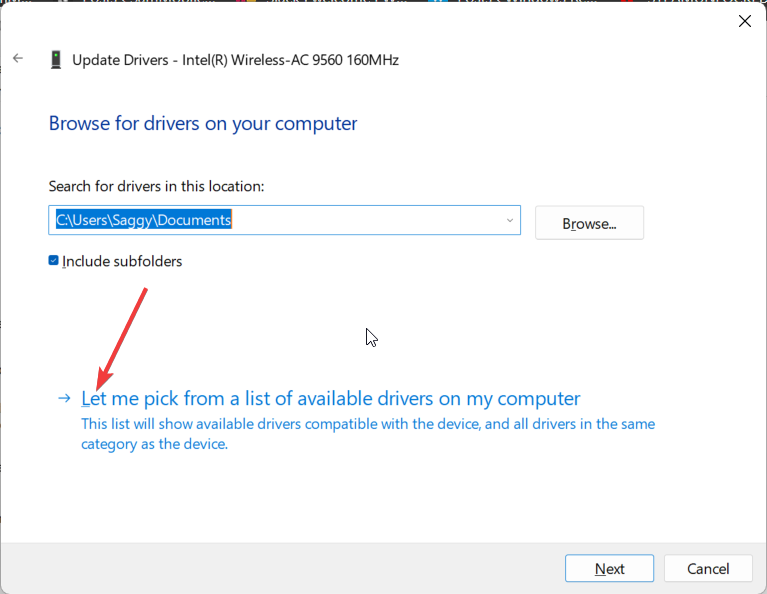


 NOTE
NOTE







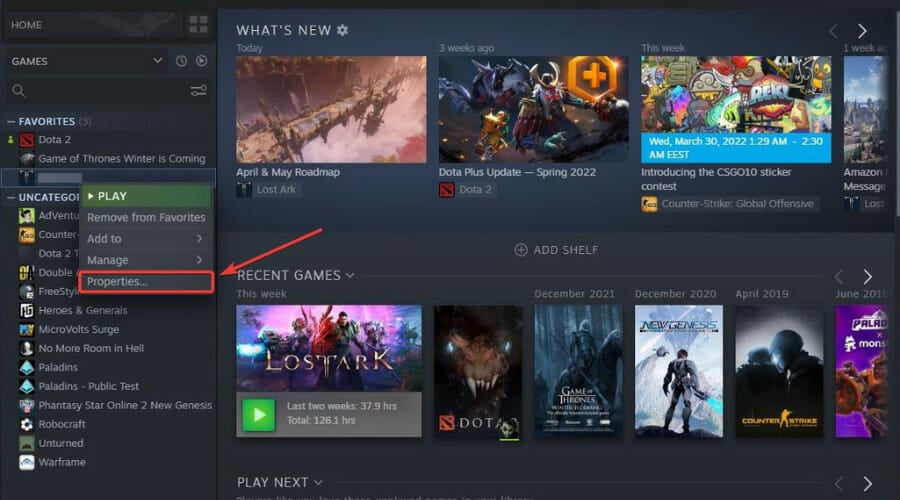

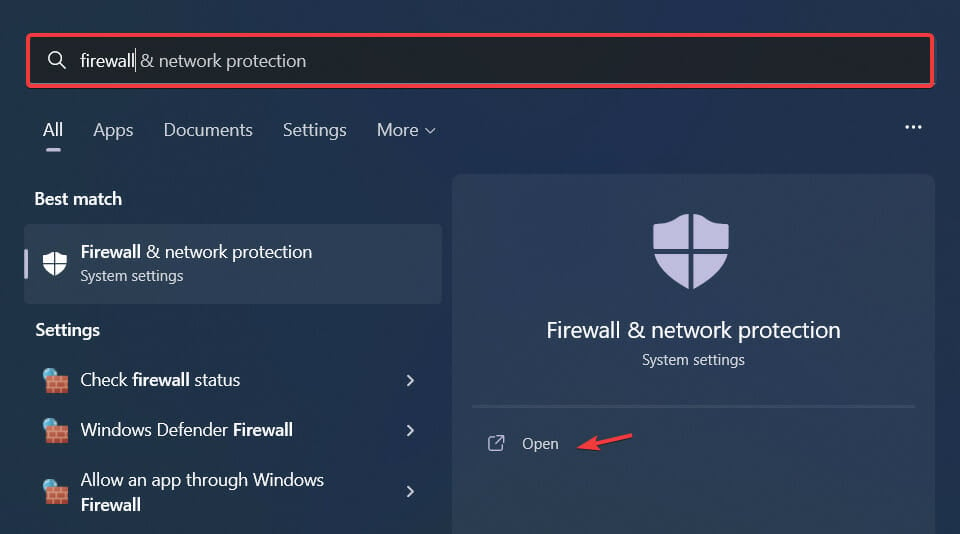
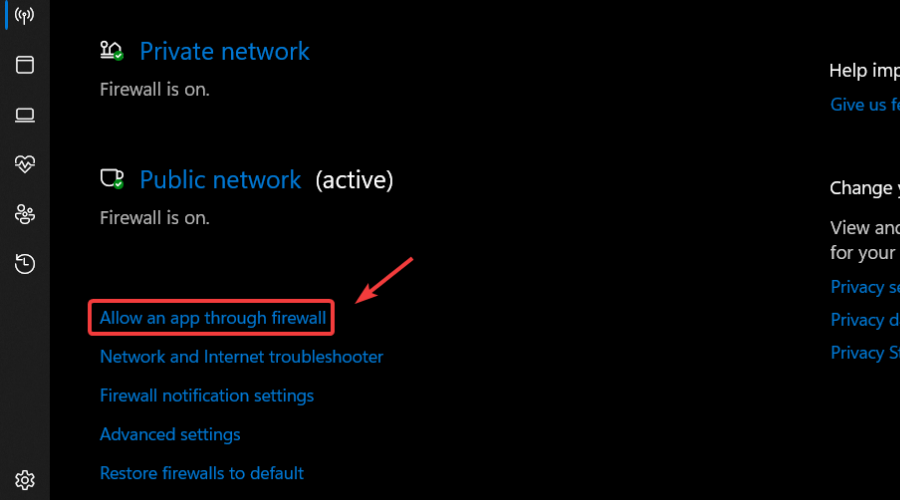
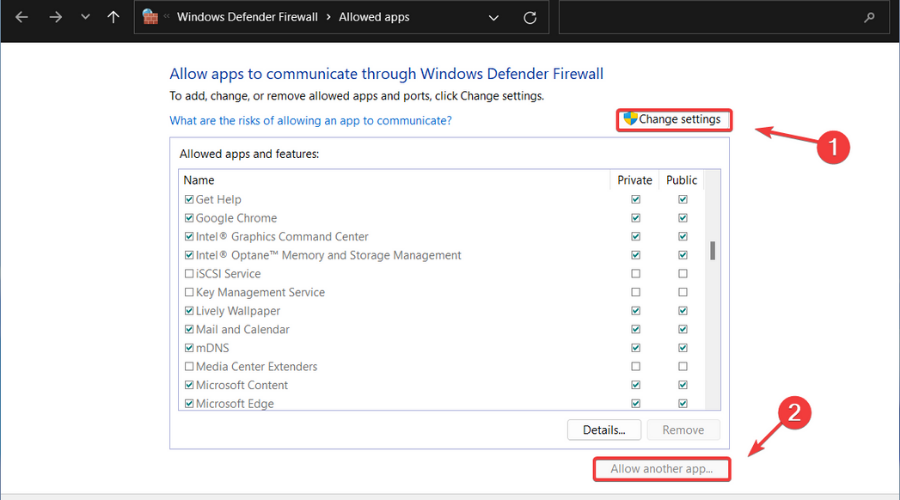
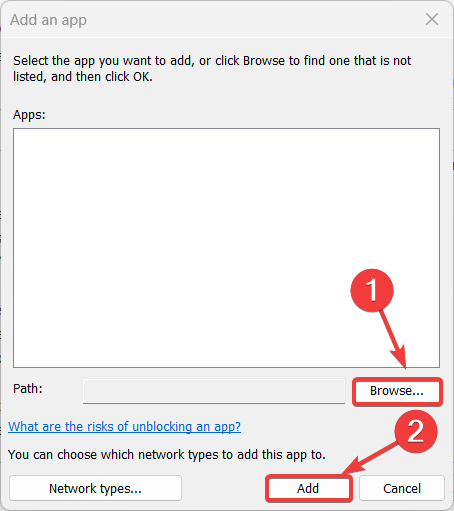
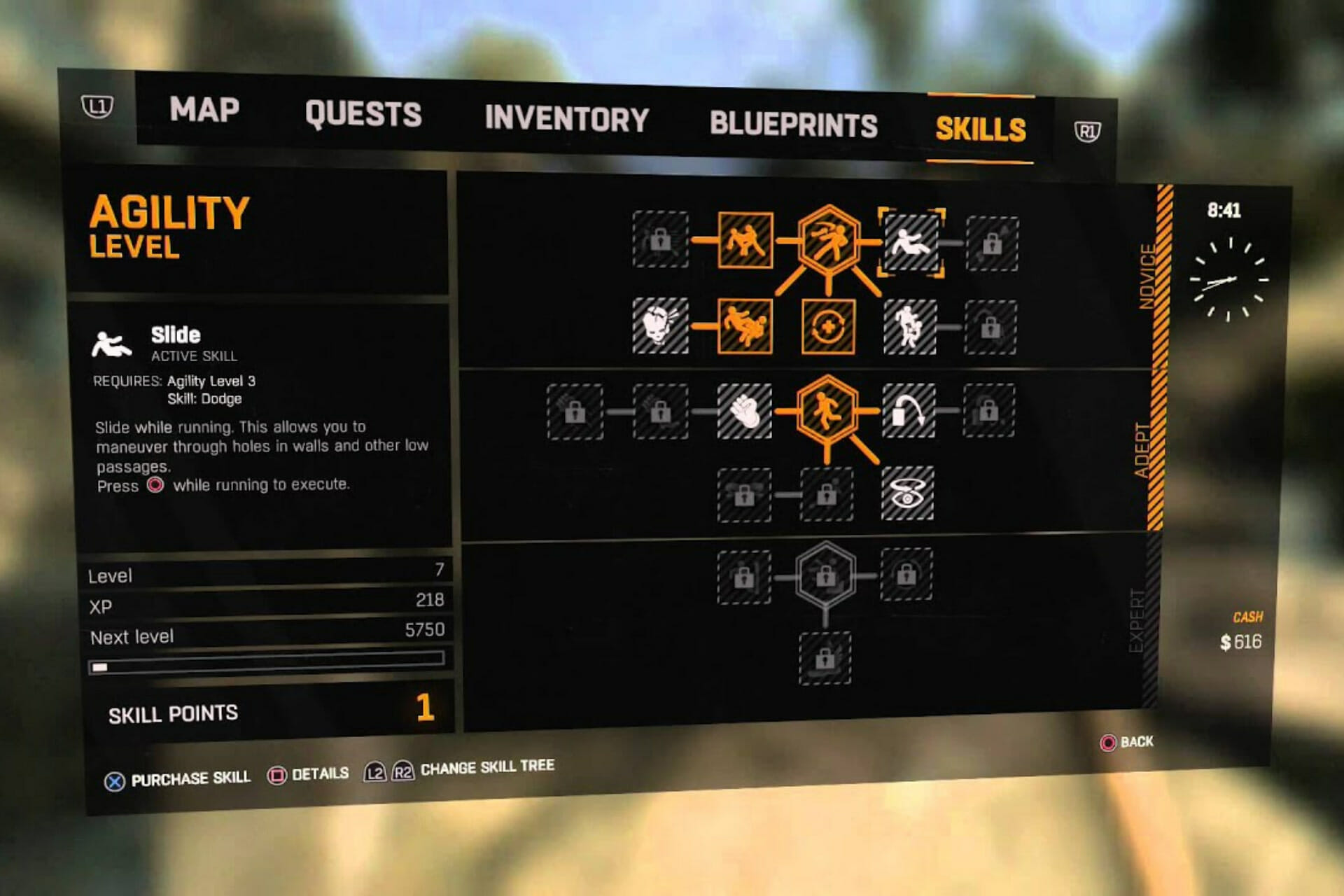


![Fix: Can’t Install Torch on PC [Torch Alternative Browsers]](https://windowsreport.com/wp-content/uploads/2022/03/feature-image-cant-install-torch-browser.jpg)




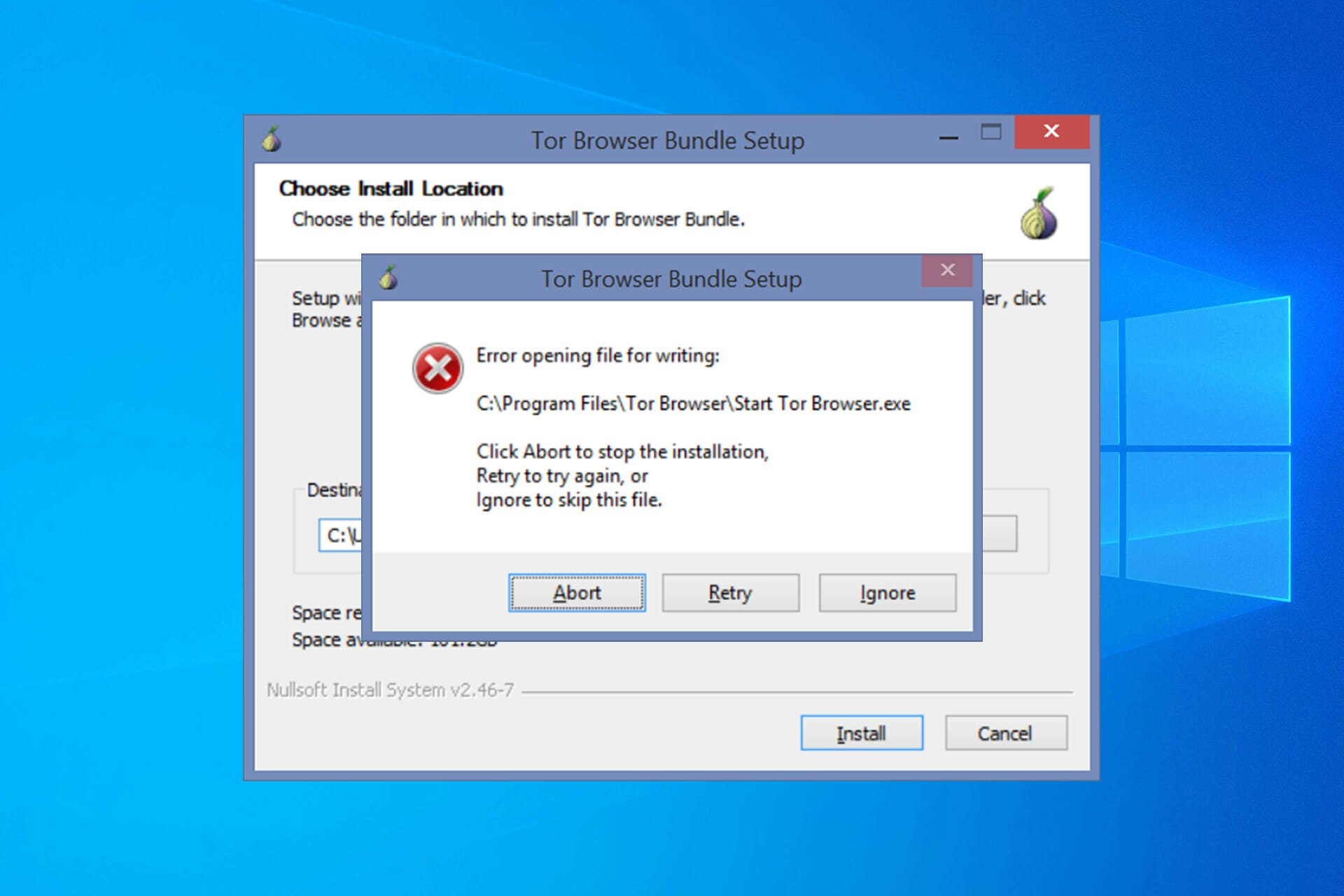


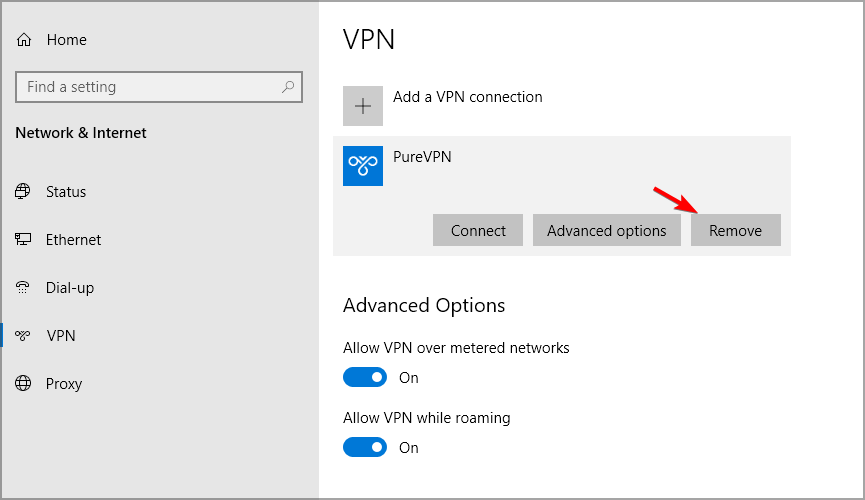

![5 Best Browsers For Elearning [Top Picks]](https://windowsreport.com/wp-content/uploads/2022/03/feature-image-best-browsers-elearning.jpg)



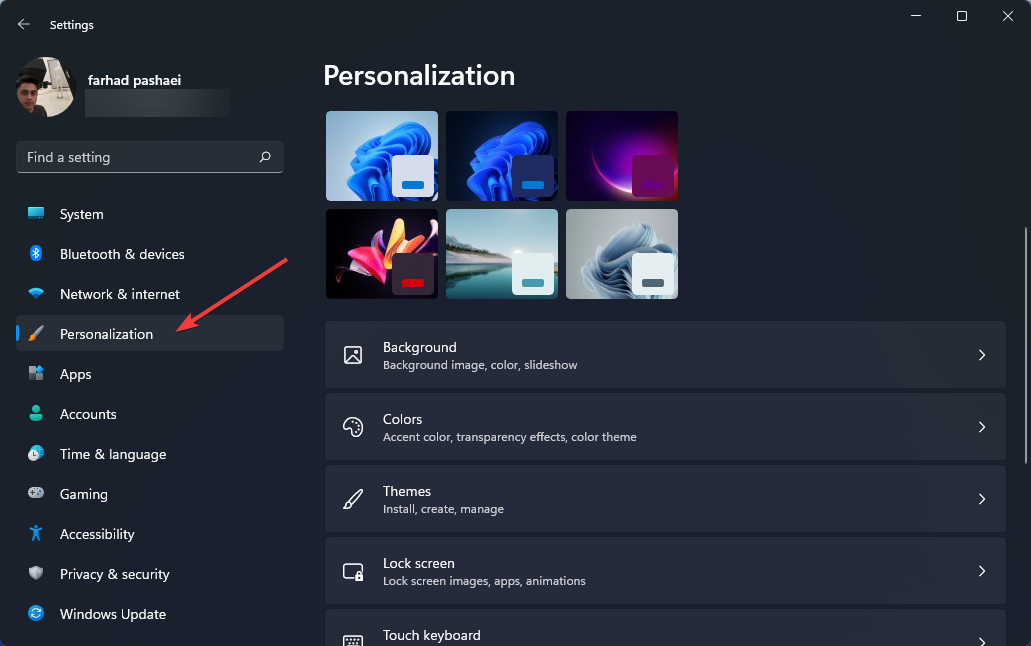
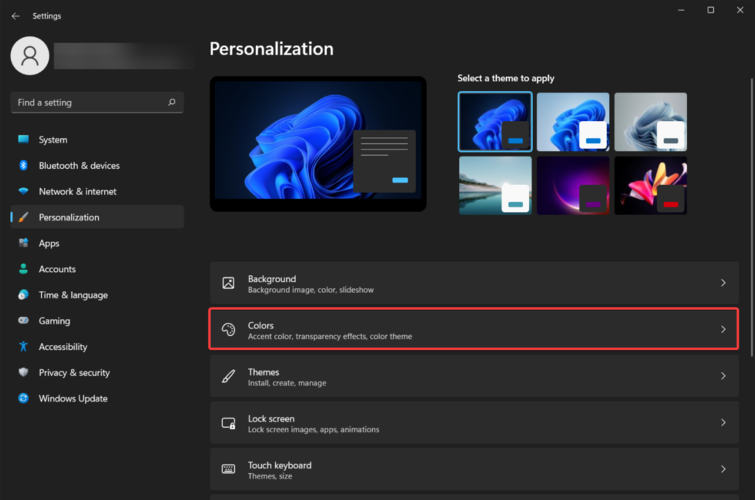
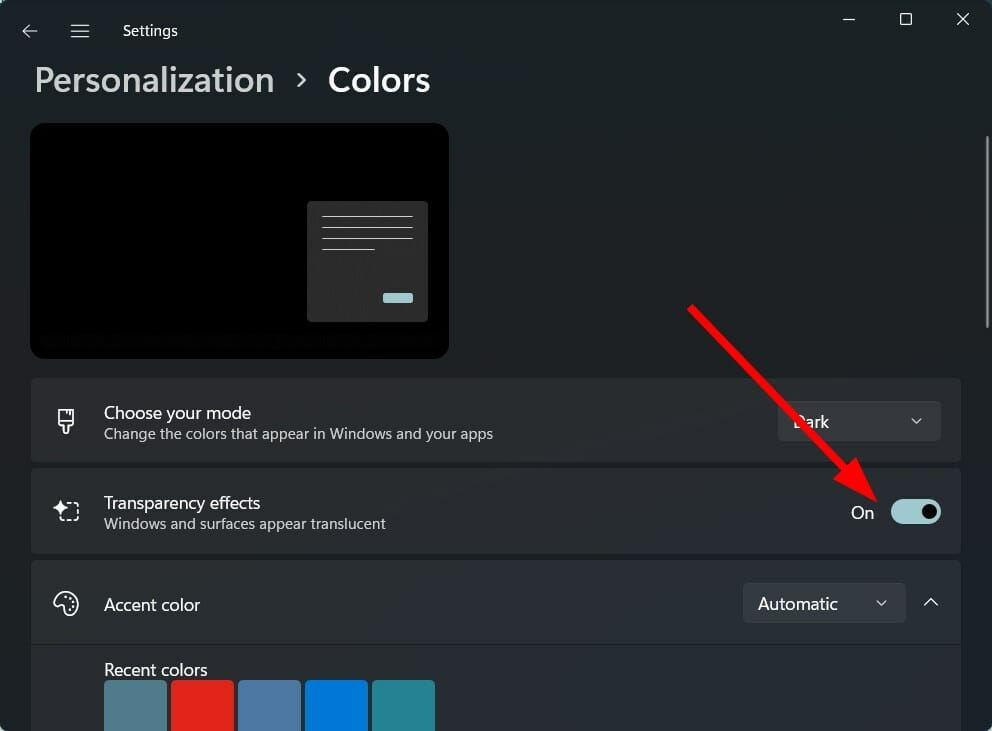
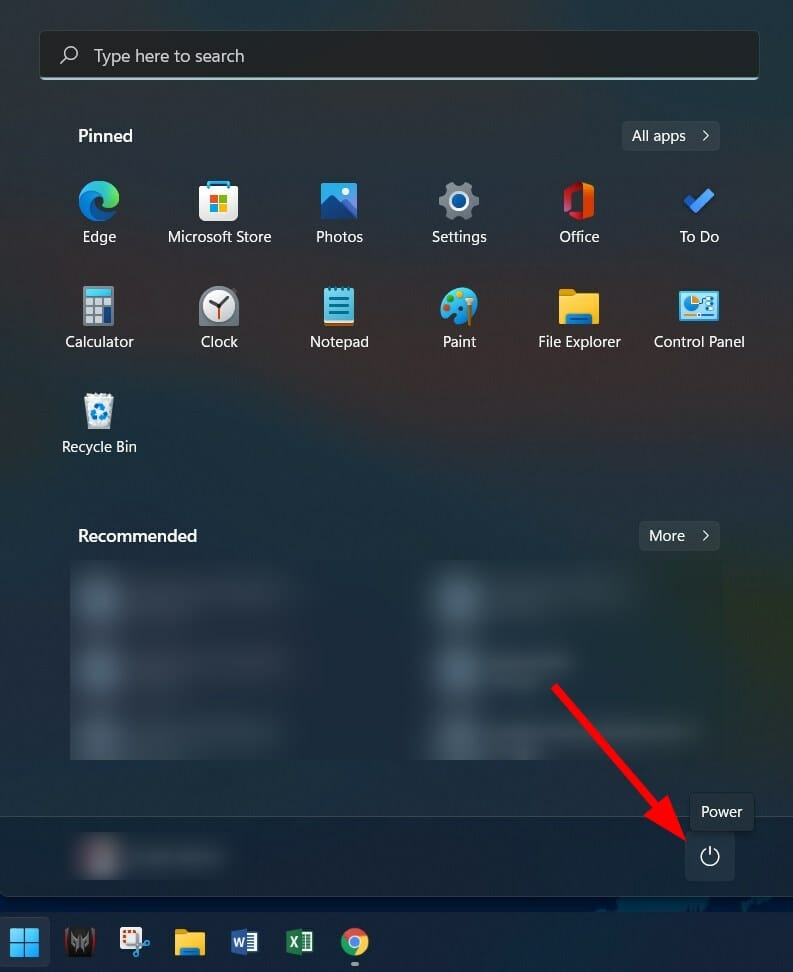
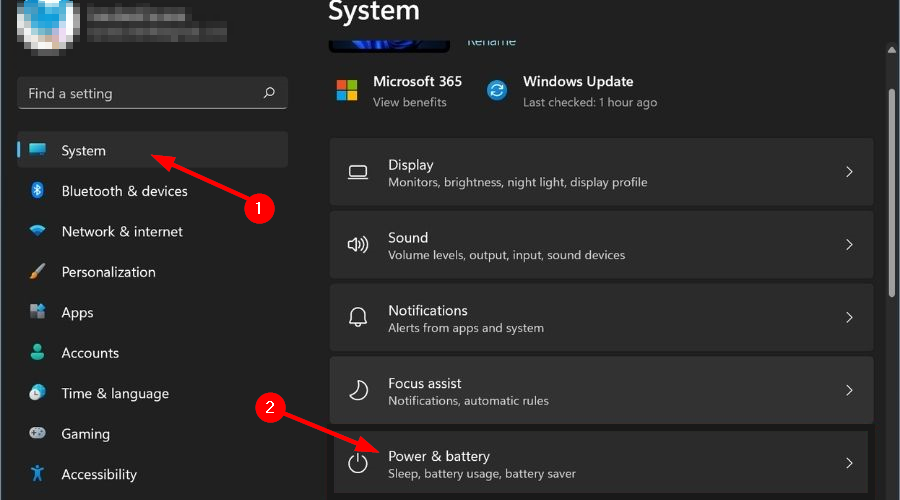
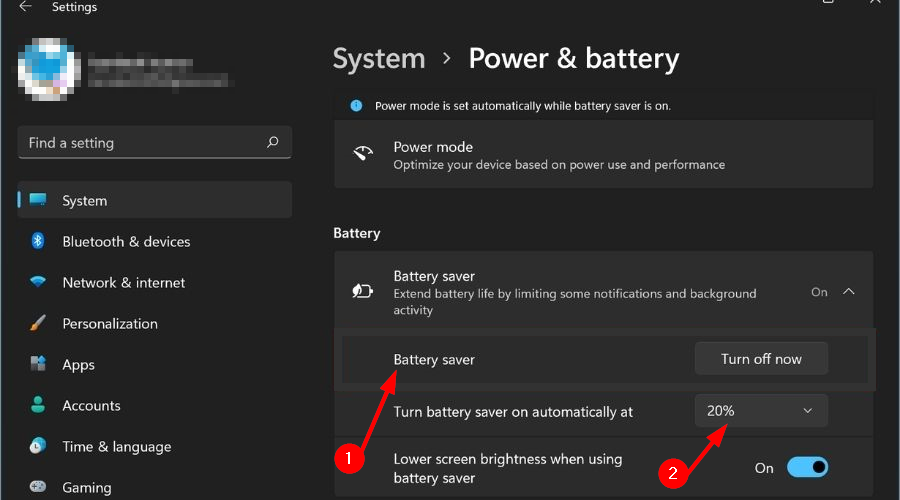
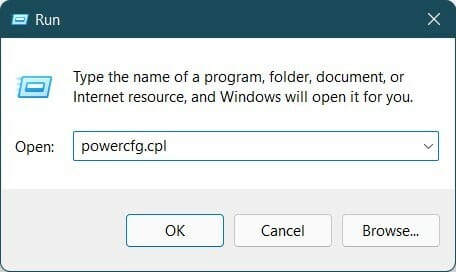
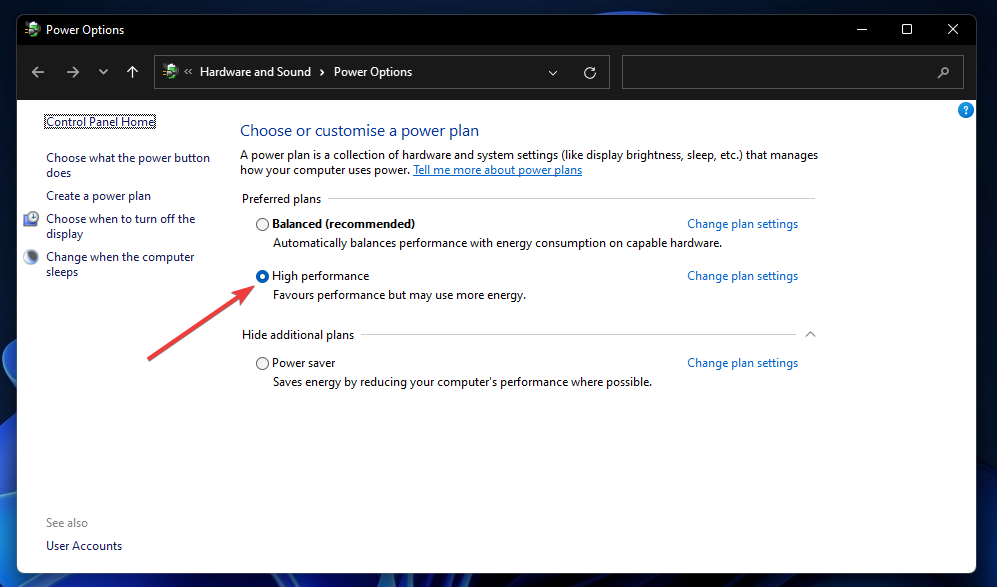
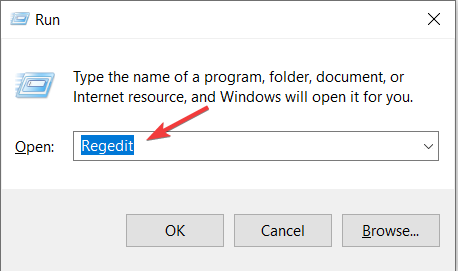
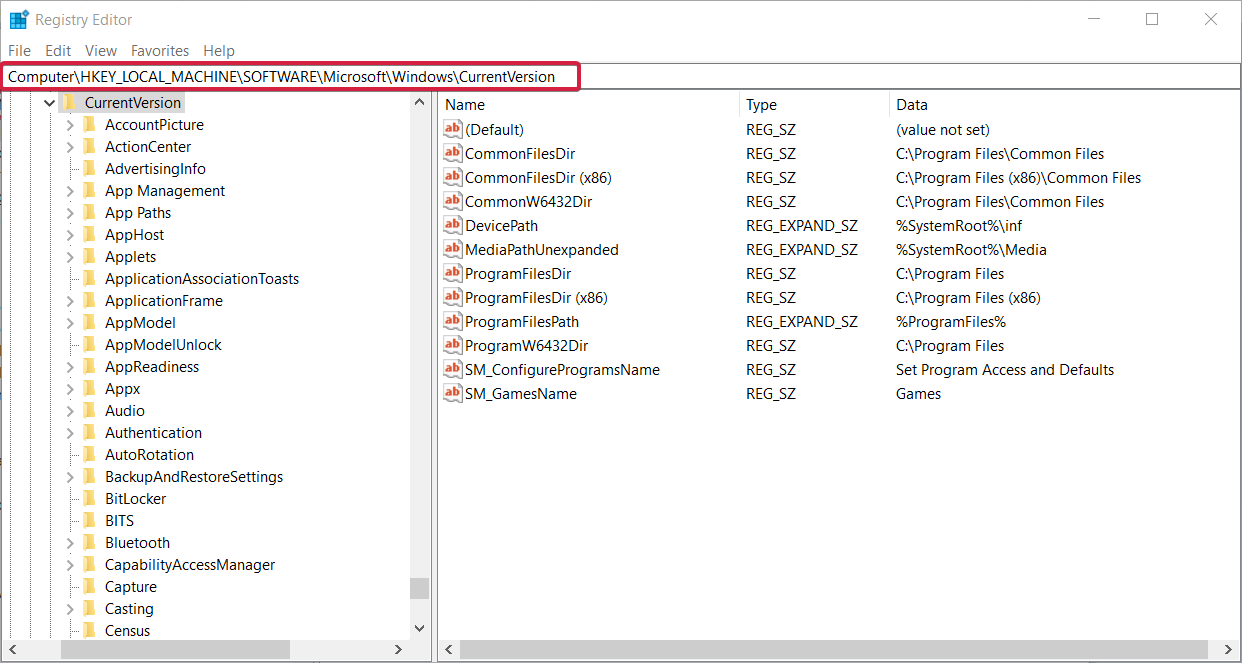
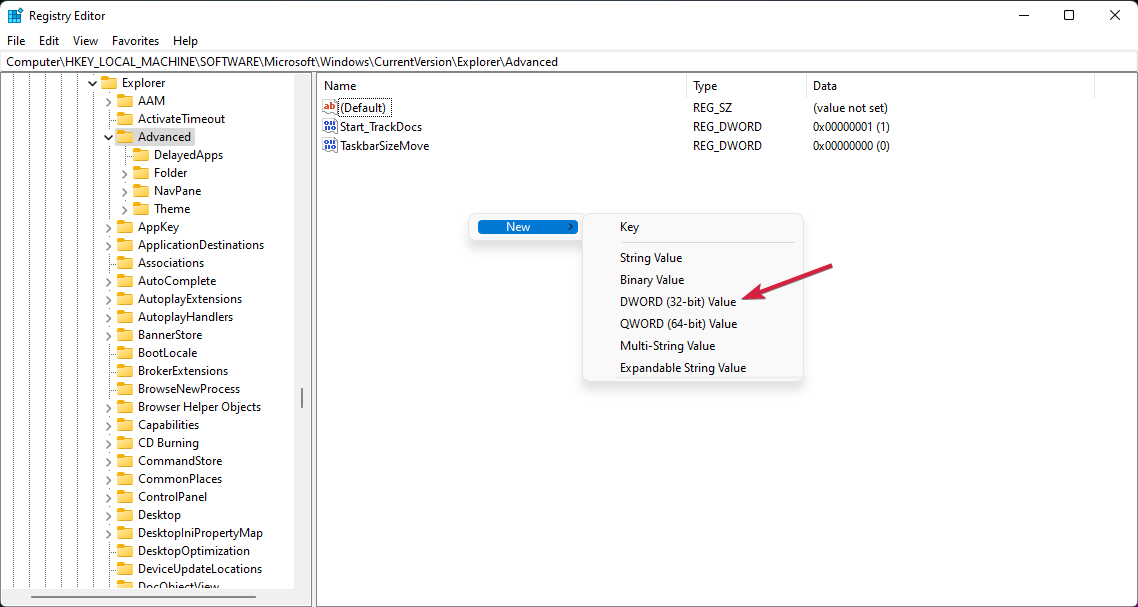
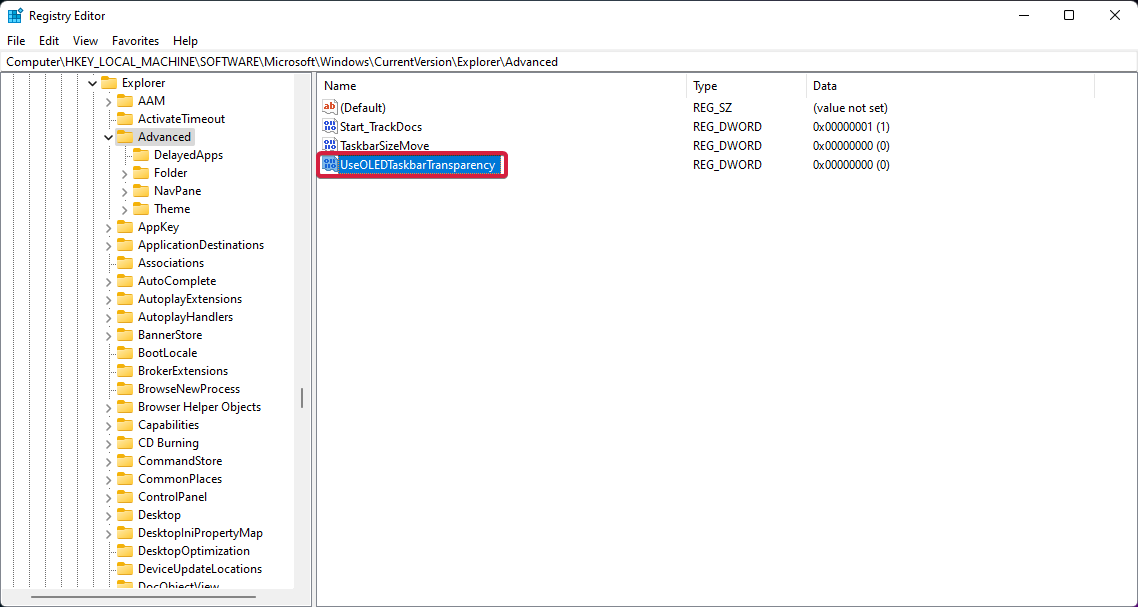
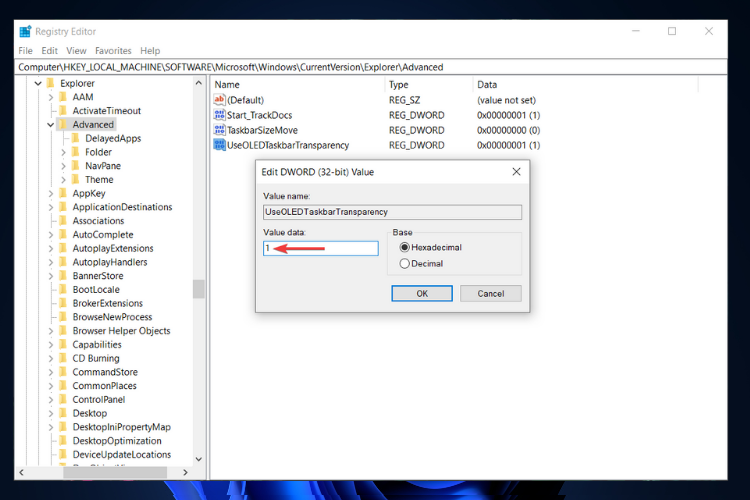
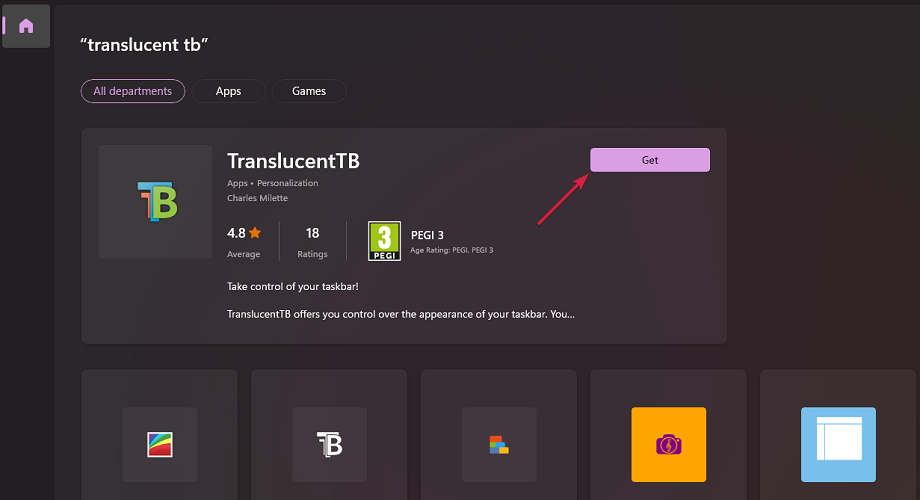
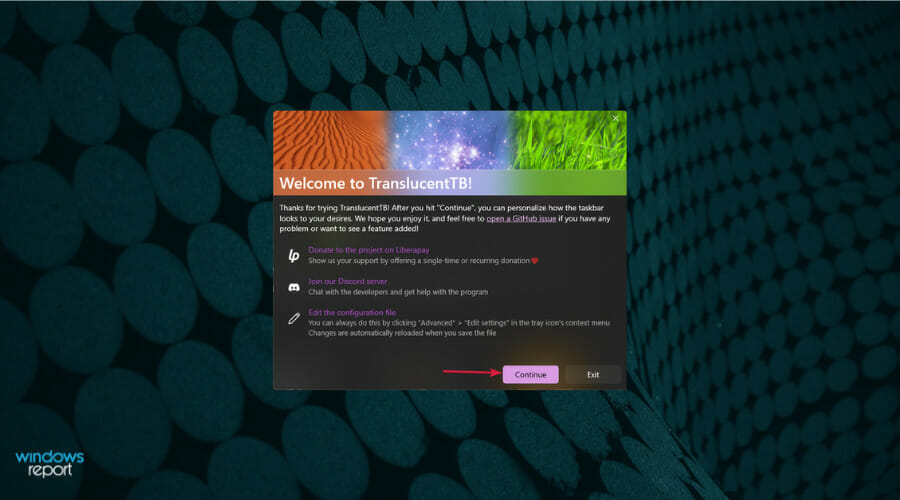
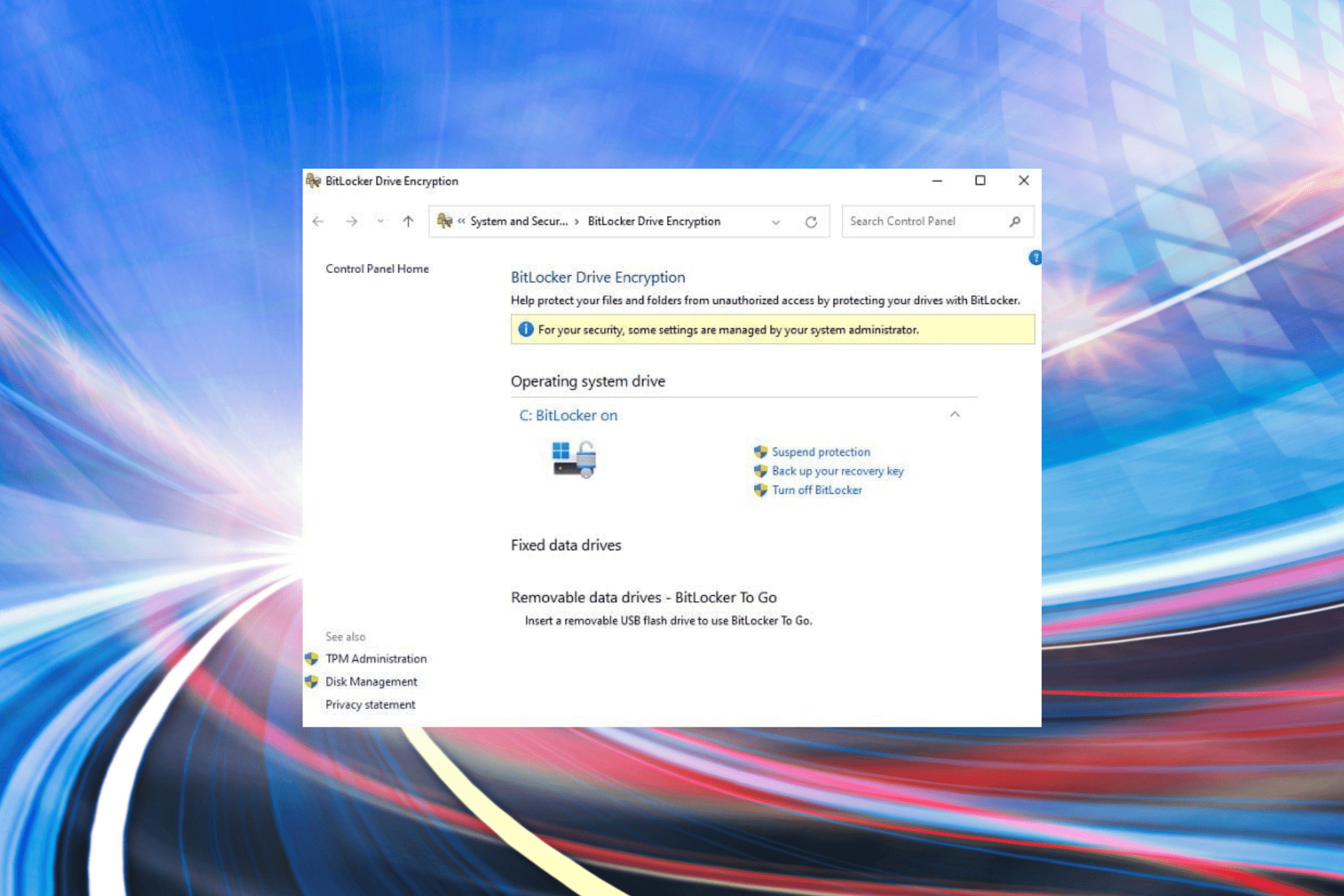
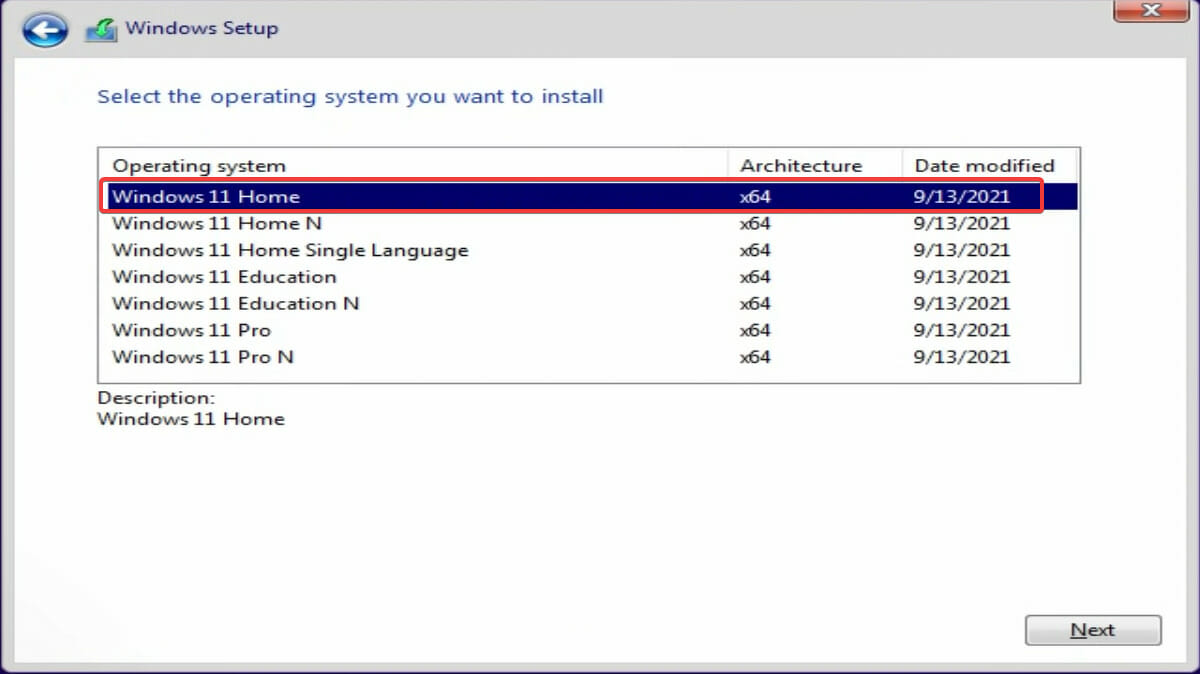
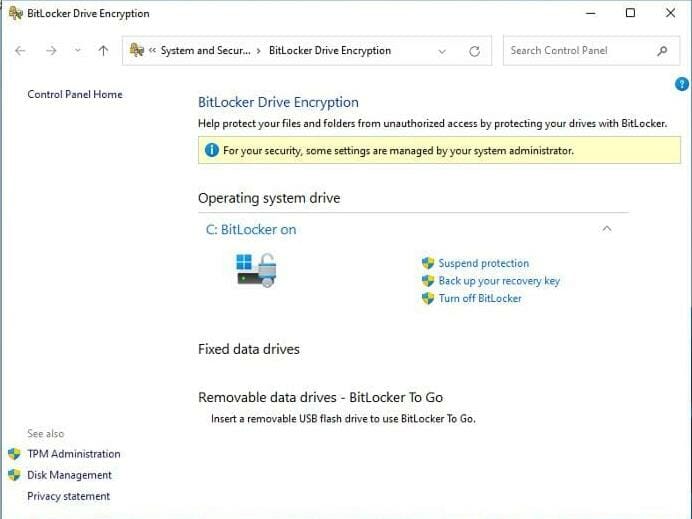
![Get Double Parkour XP In Dying Light 2 With This Glitch [Guide]](https://windowsreport.com/wp-content/uploads/2022/04/dying-light-2-double-xp-glitch-1.jpg)
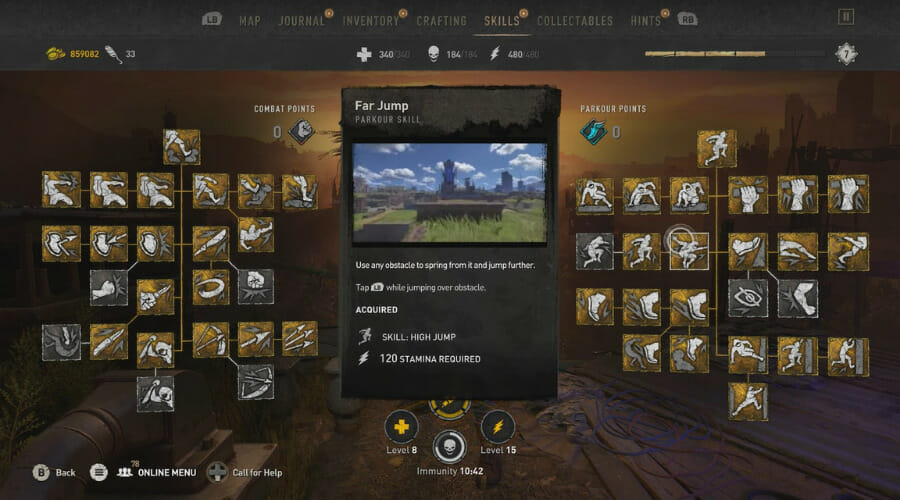
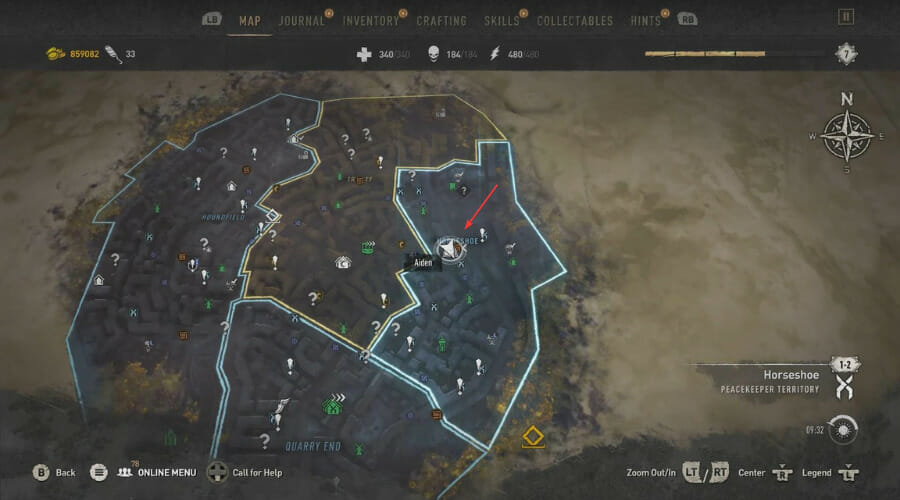
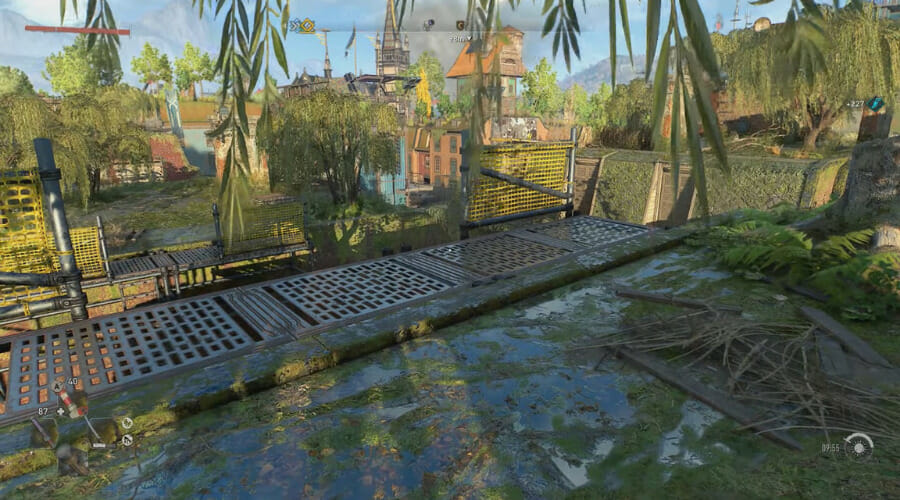



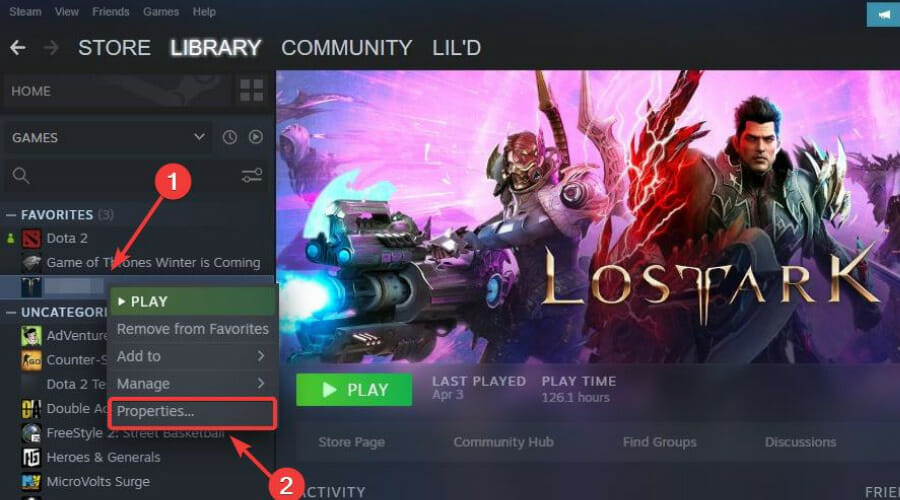
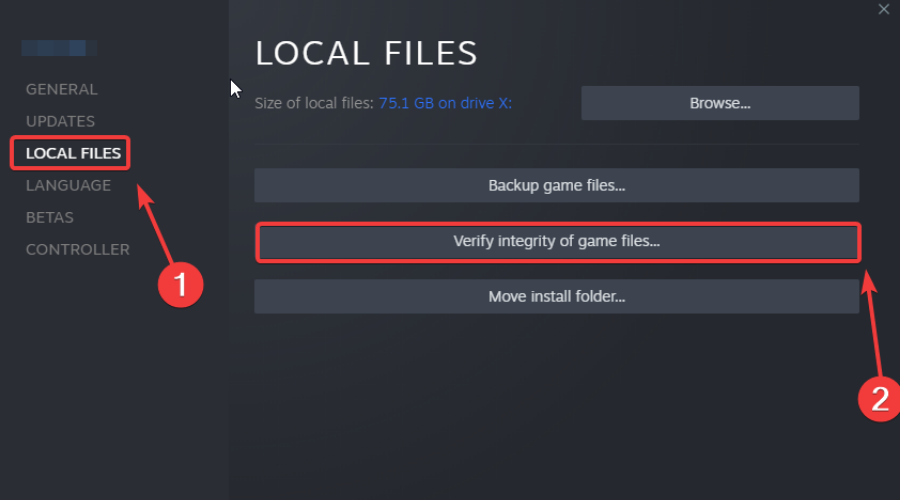



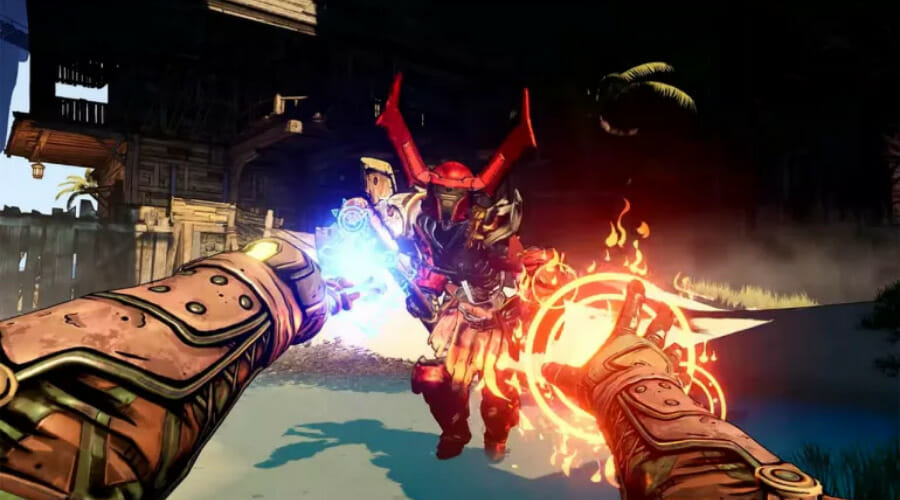
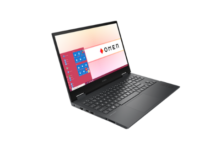
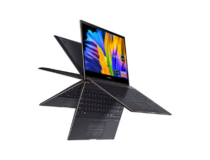
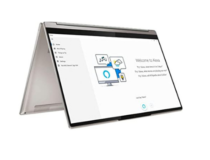
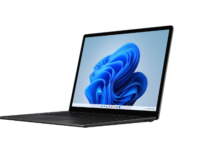
![Dying Light 2: Unable To Initialize Steam API Error [Fixed]](https://windowsreport.com/wp-content/uploads/2022/04/DL-2-steam.jpg)



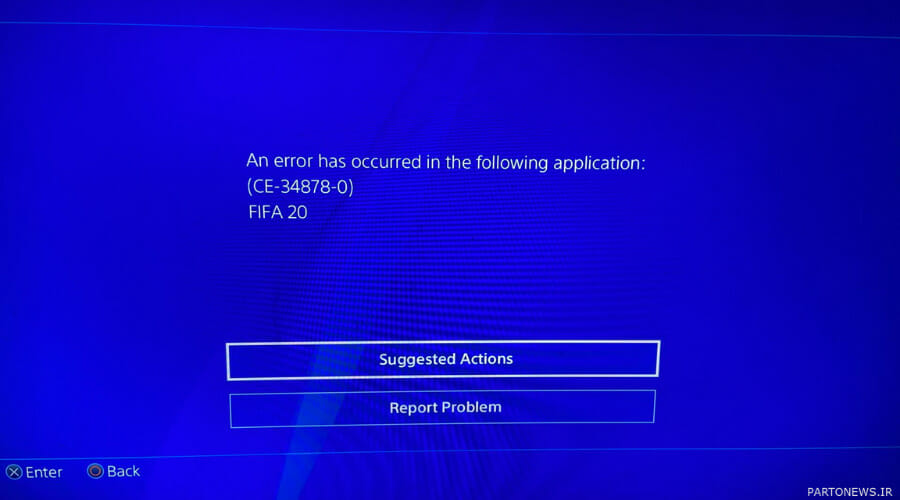
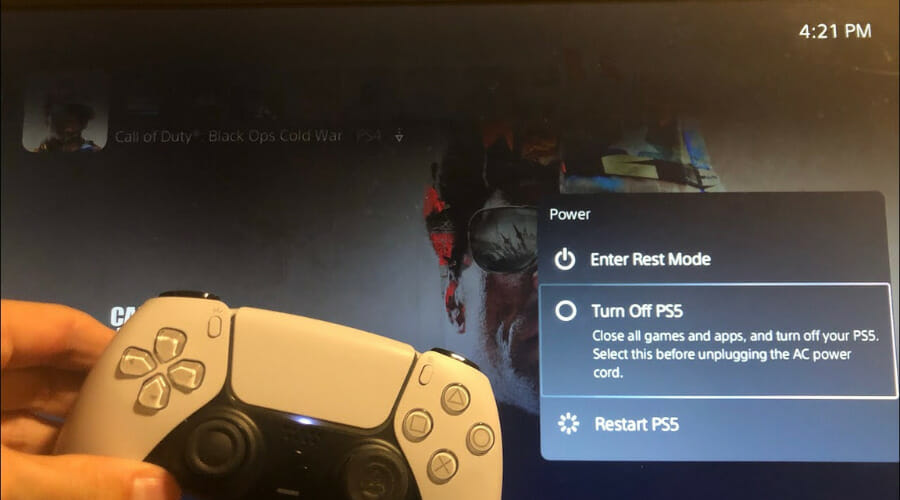
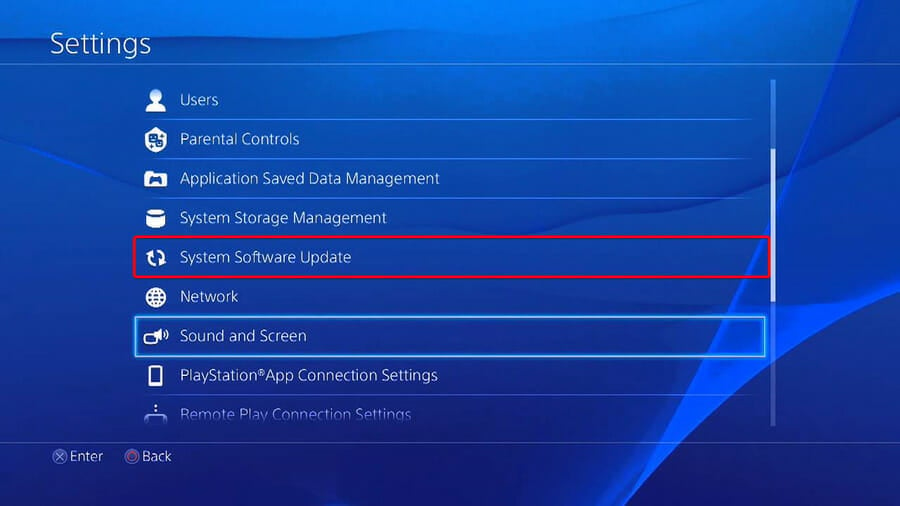

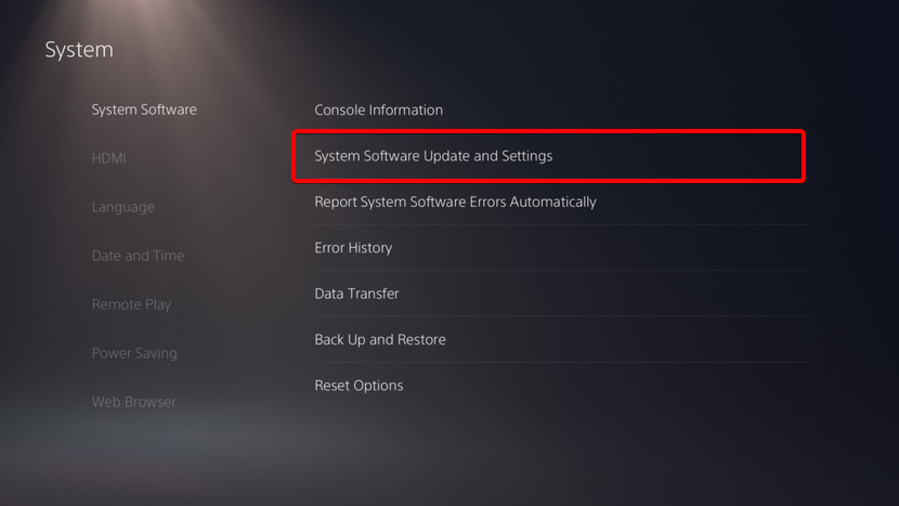
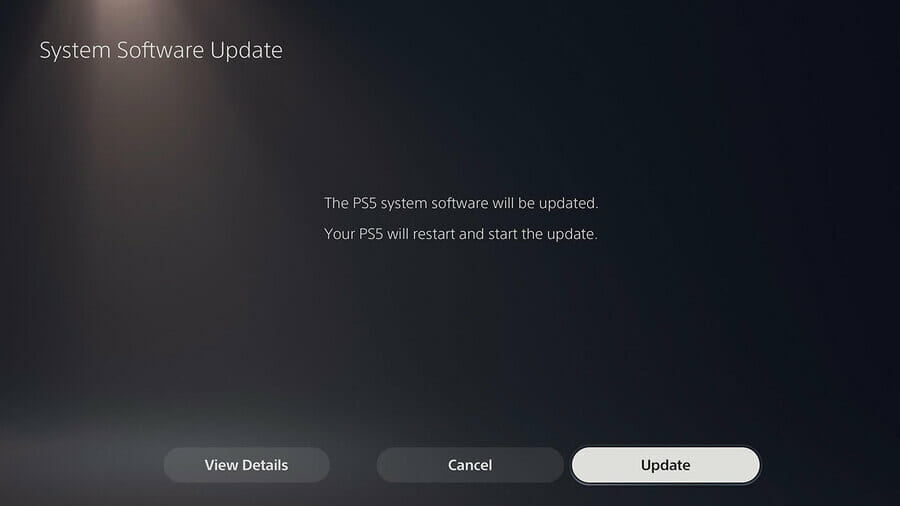
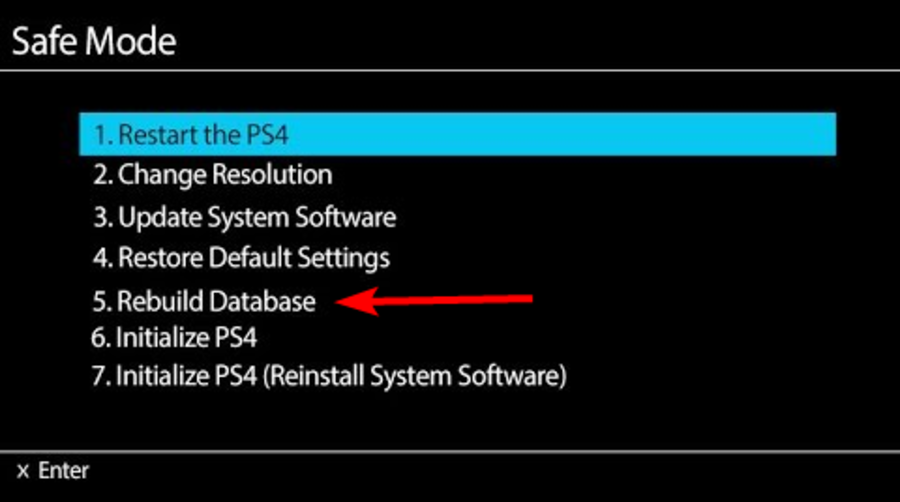
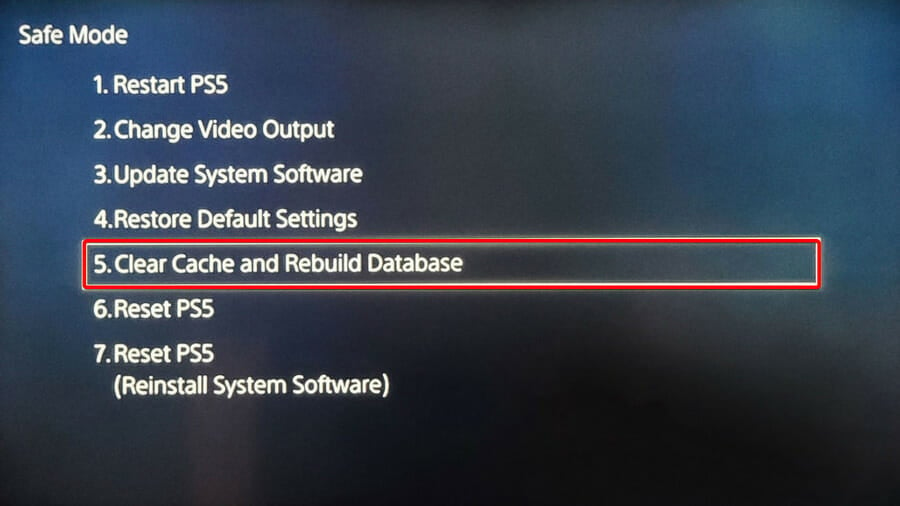
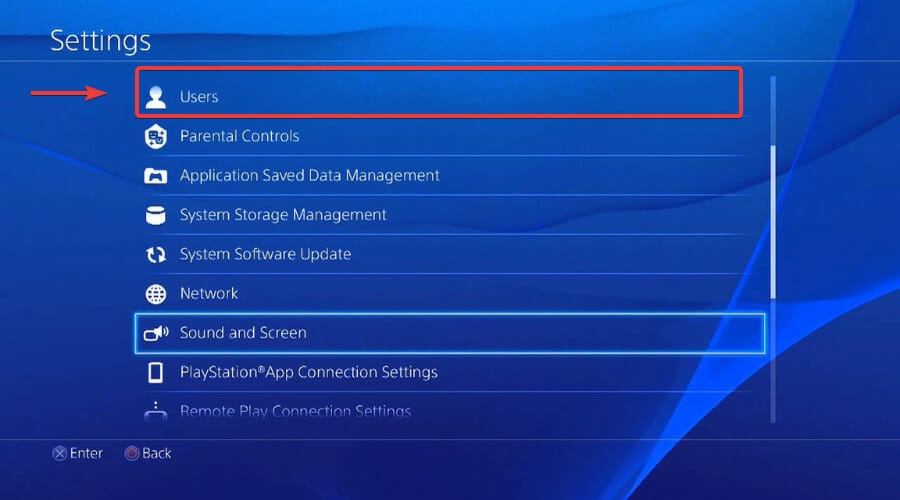
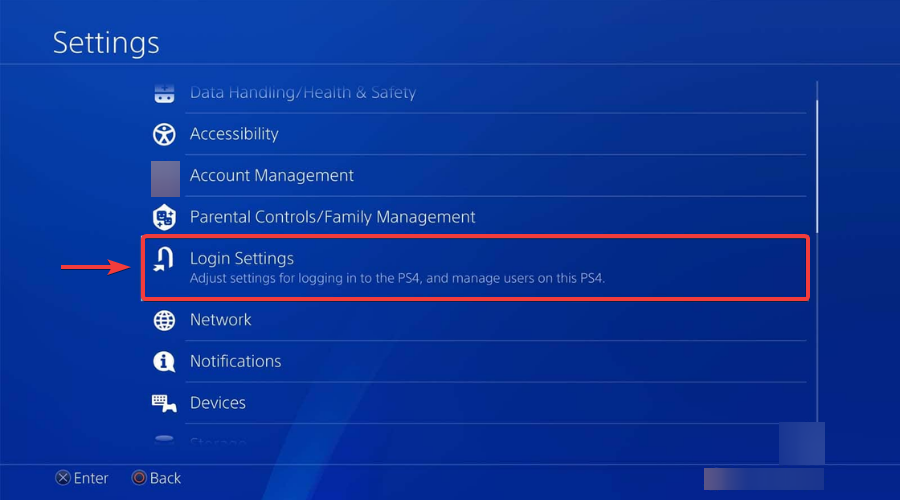
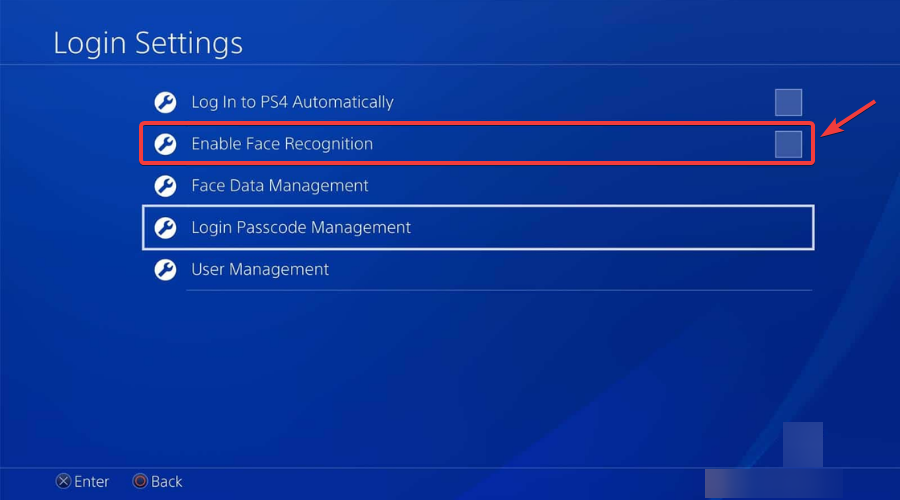
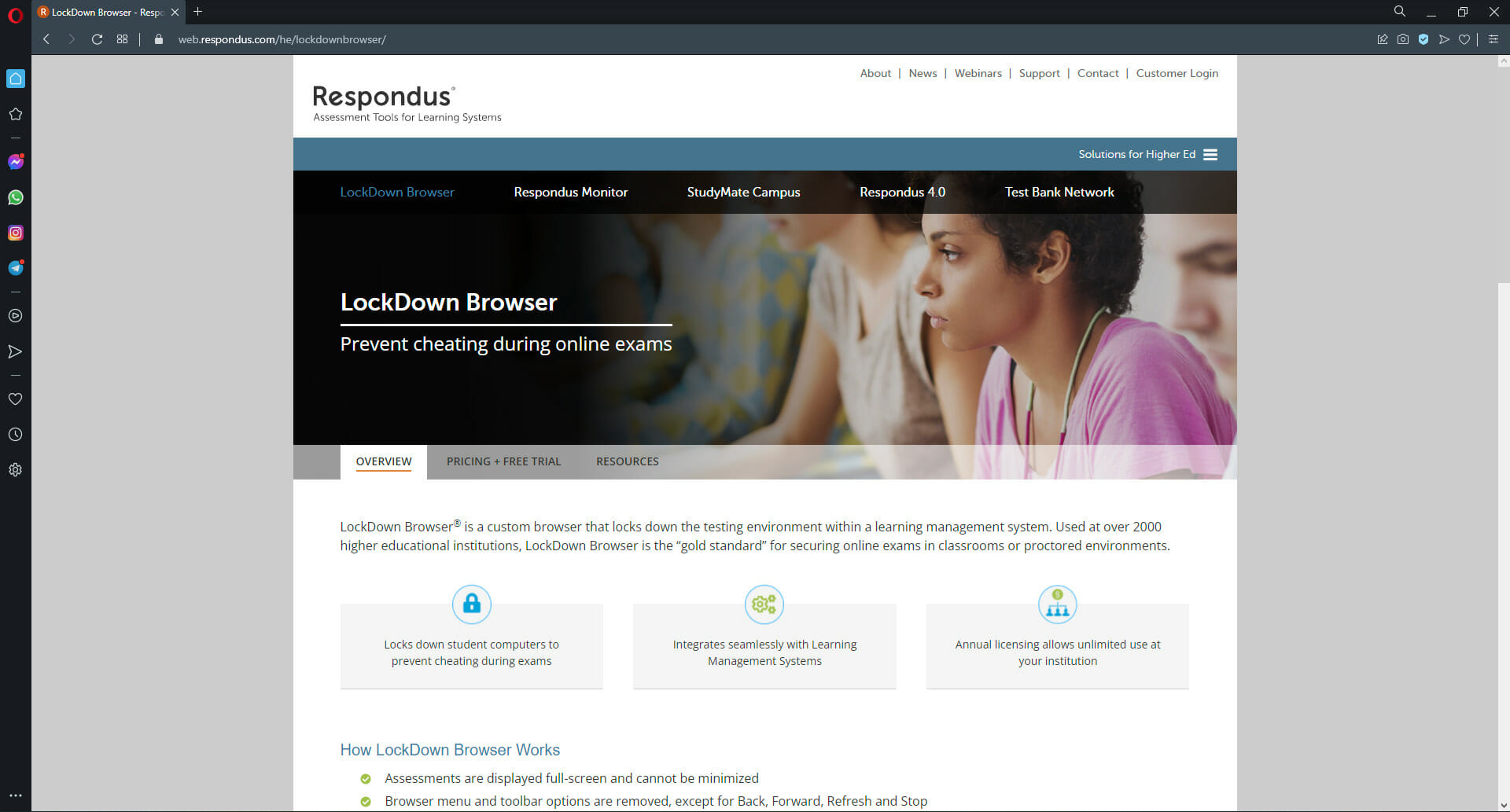




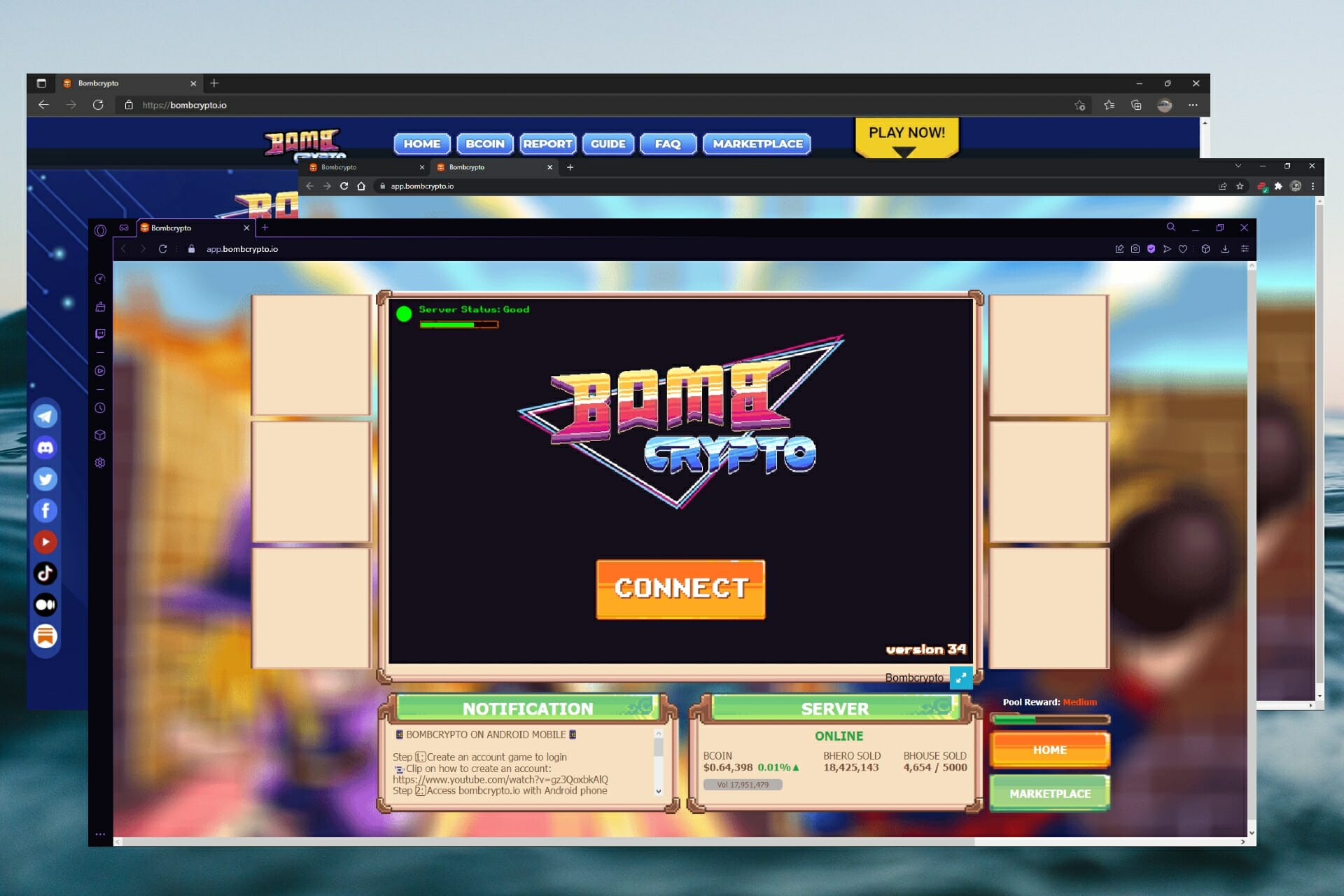



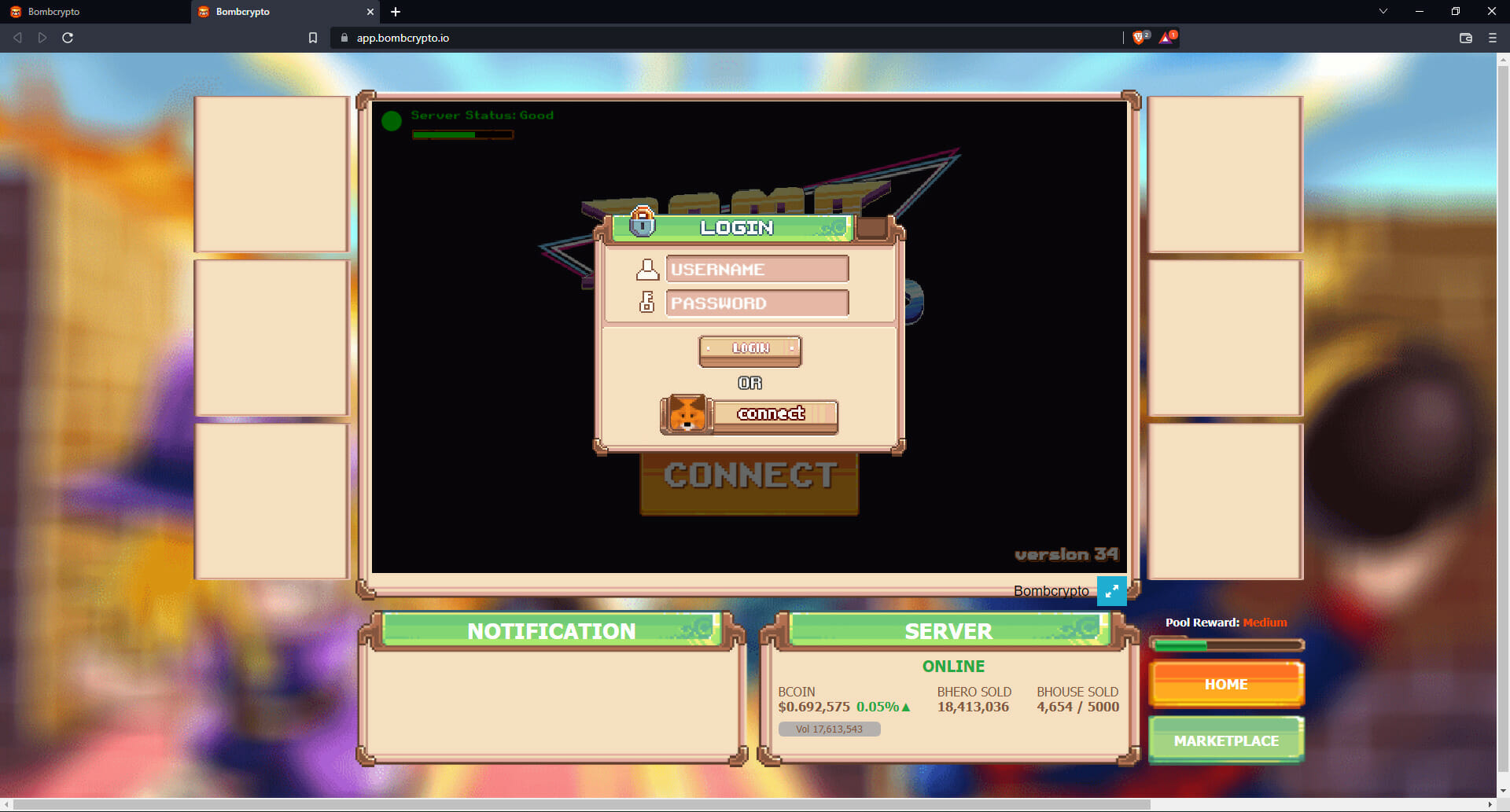


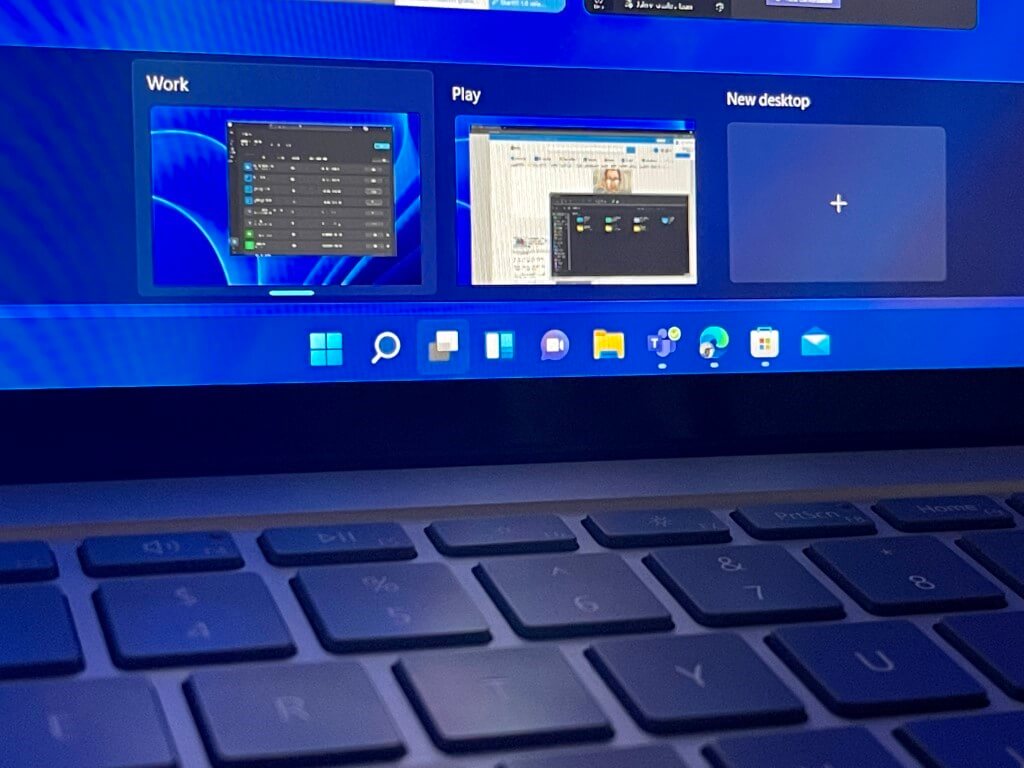
![Computer can’t connect to remote computer [security package error]](https://windowsreport.com/wp-content/uploads/2022/03/remote-desktop-connections.jpg)
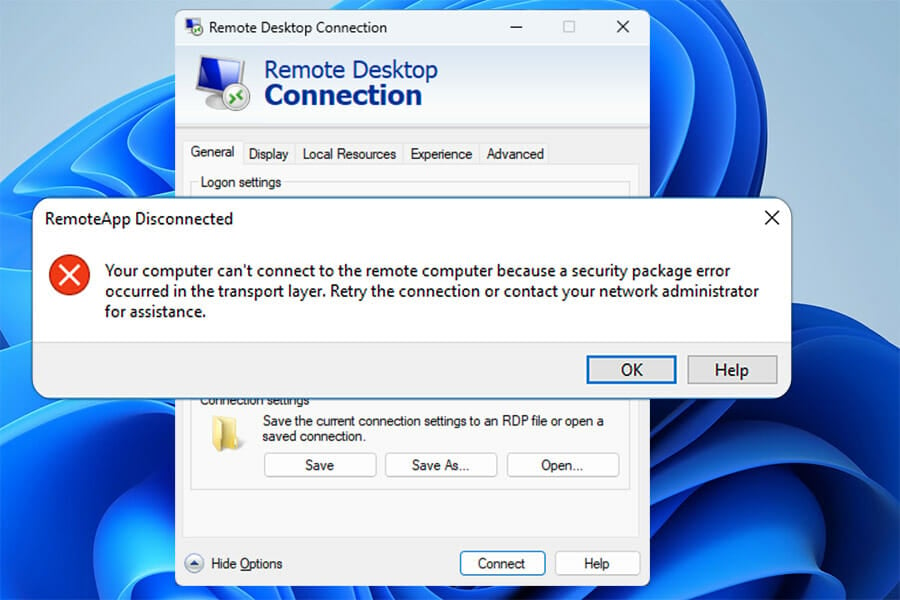






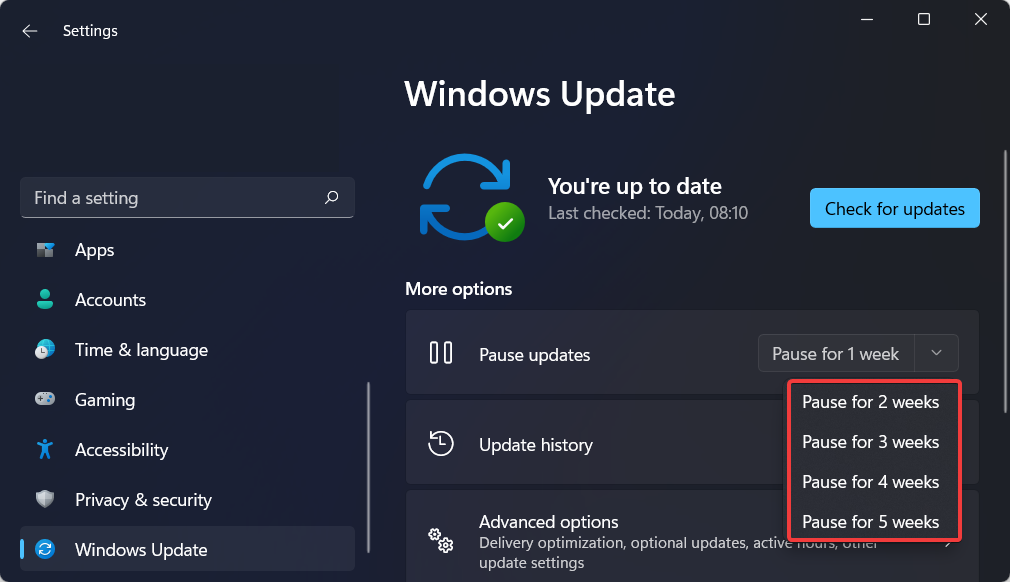






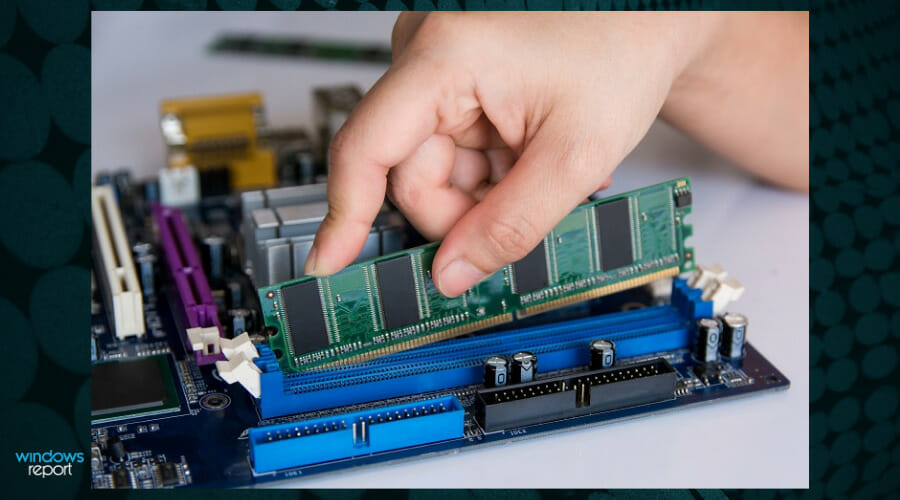
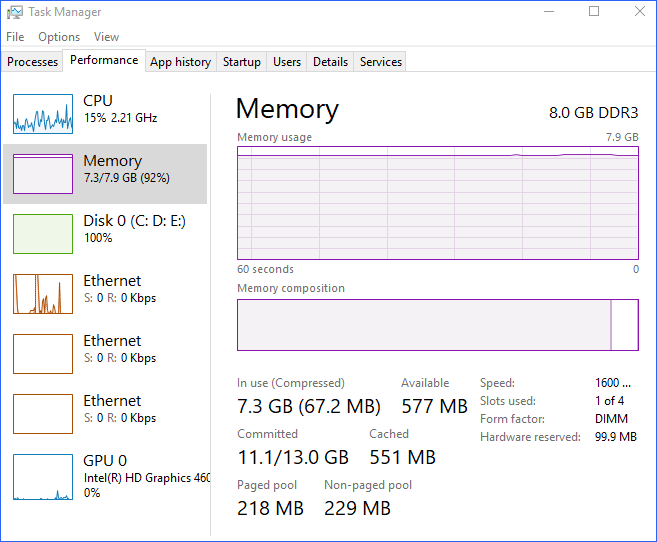
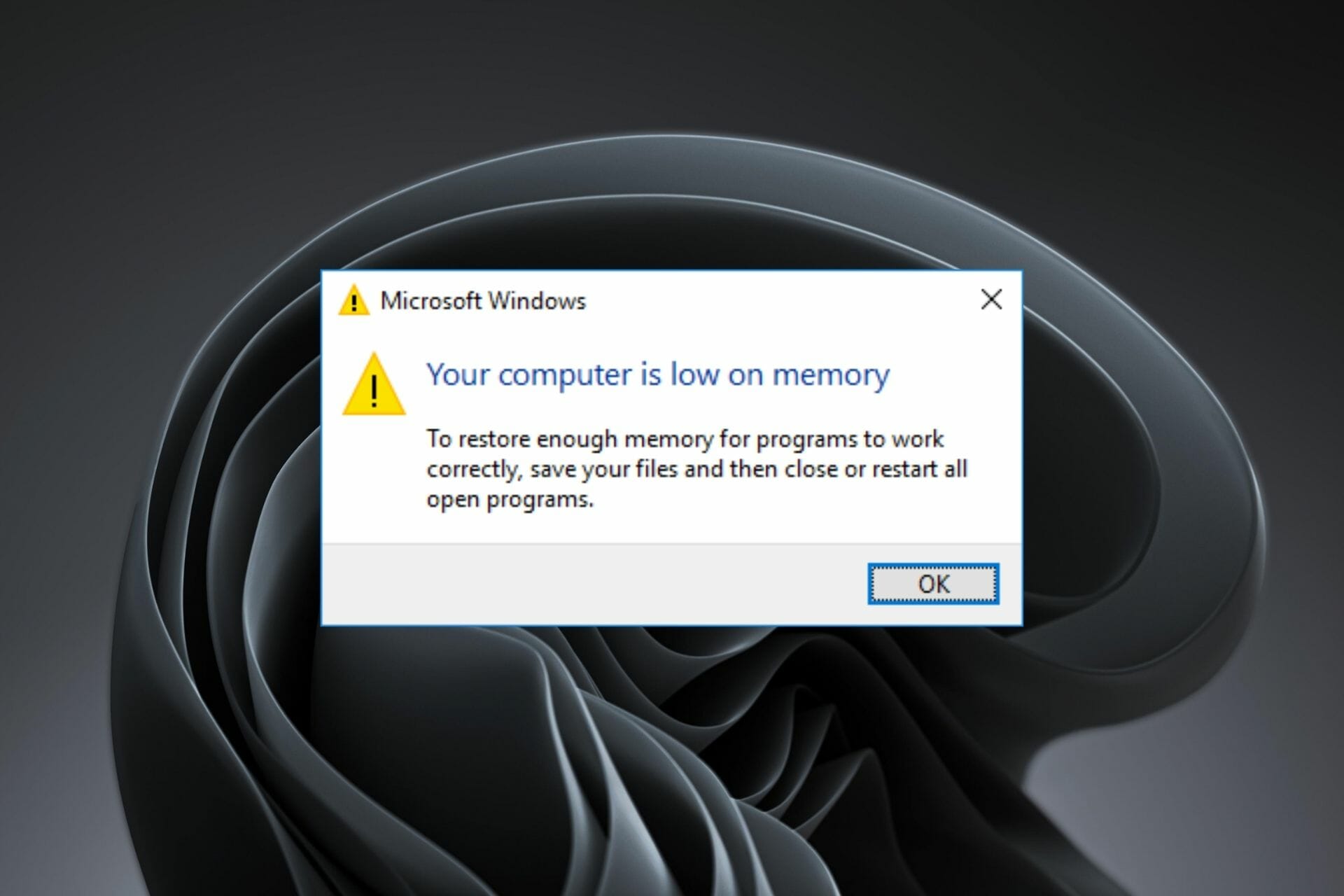


![USB Port Not Working After Power Surge [Windows 11 Fix]](https://windowsreport.com/wp-content/uploads/2022/04/usb-port-not-working-after-power-surge.png)
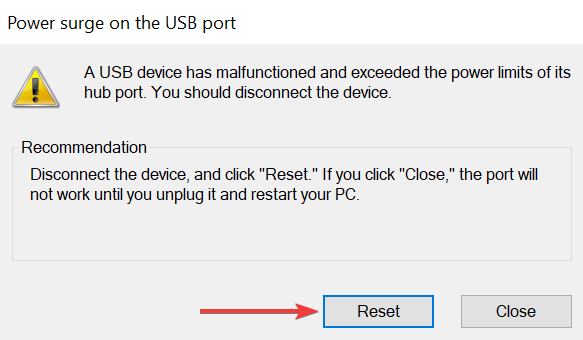
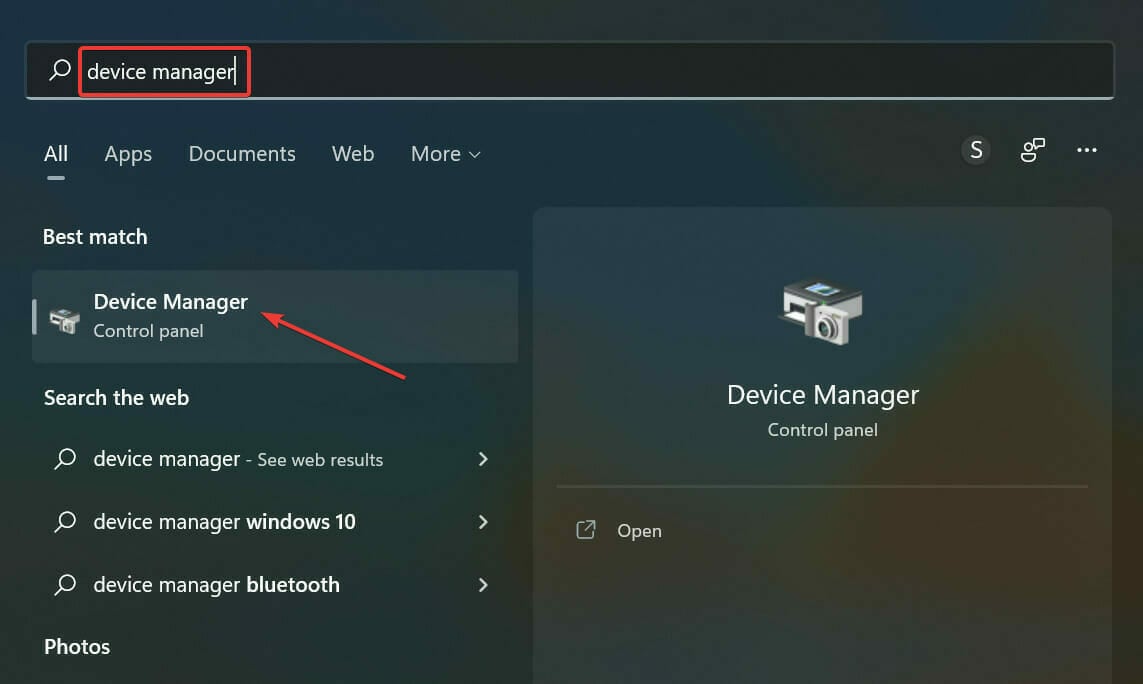
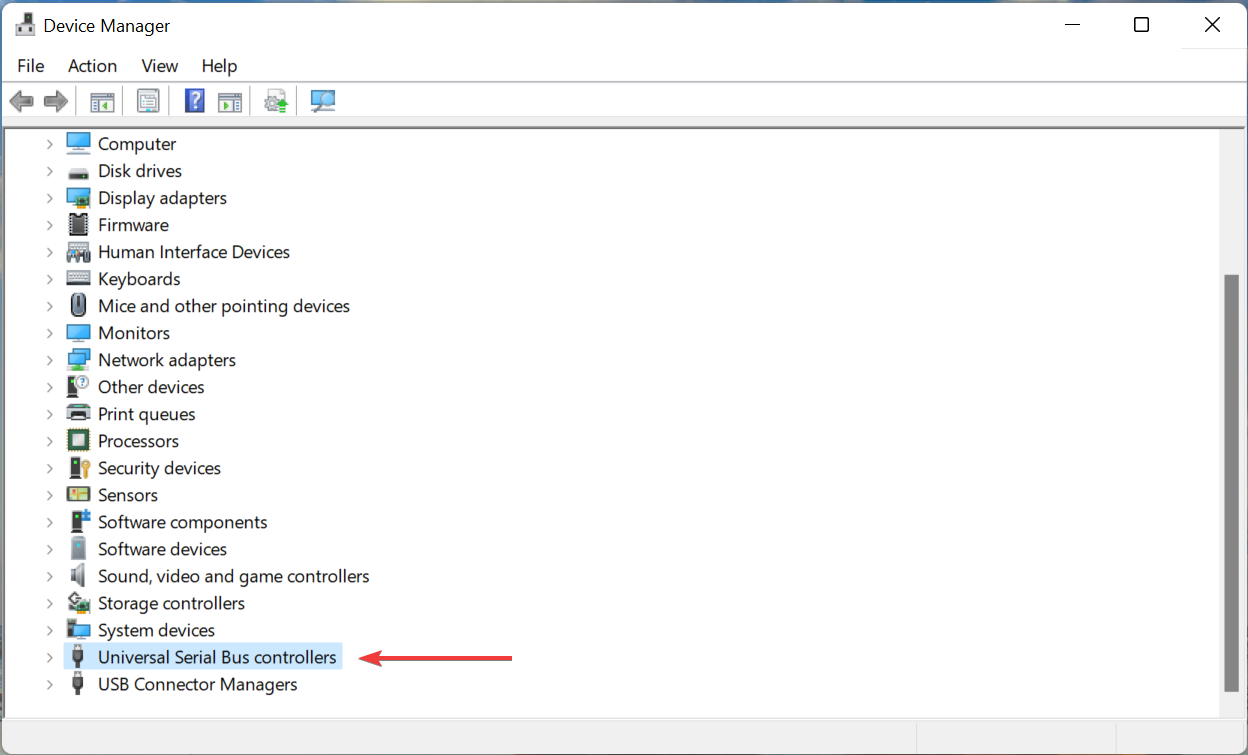
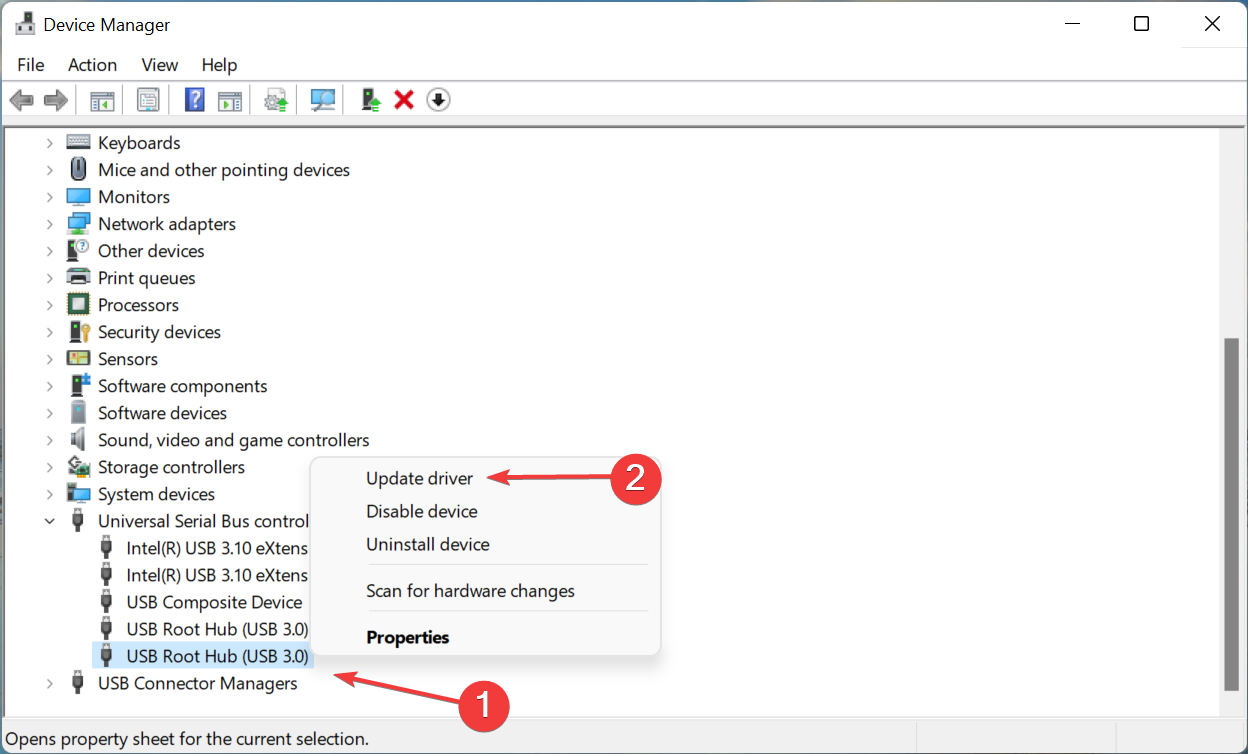
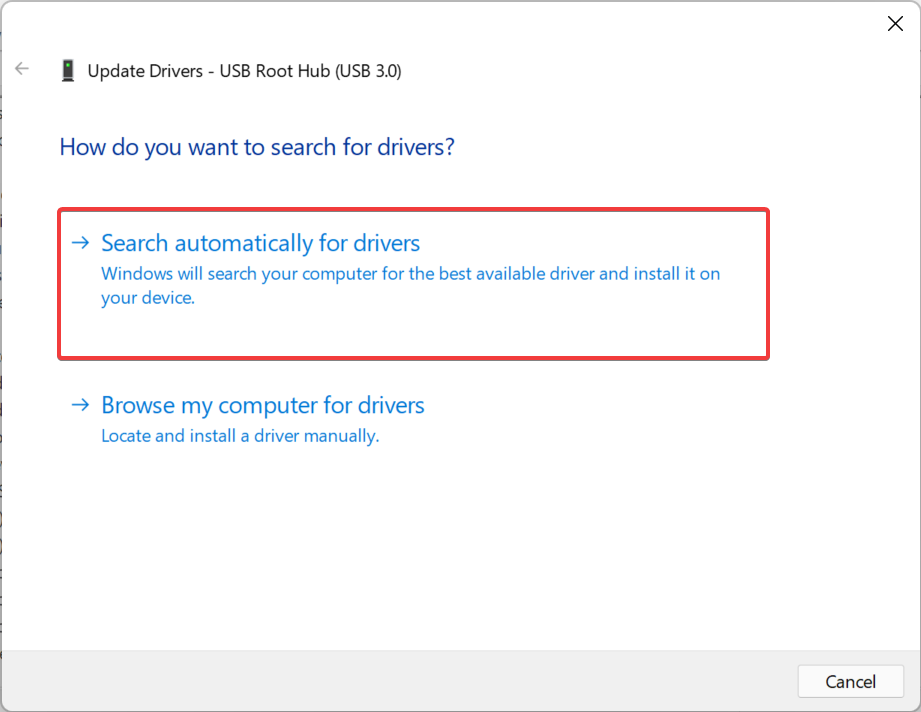
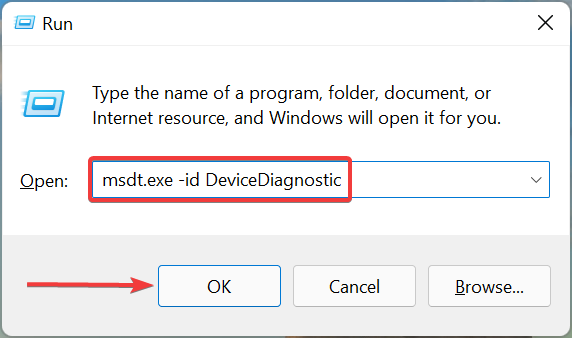
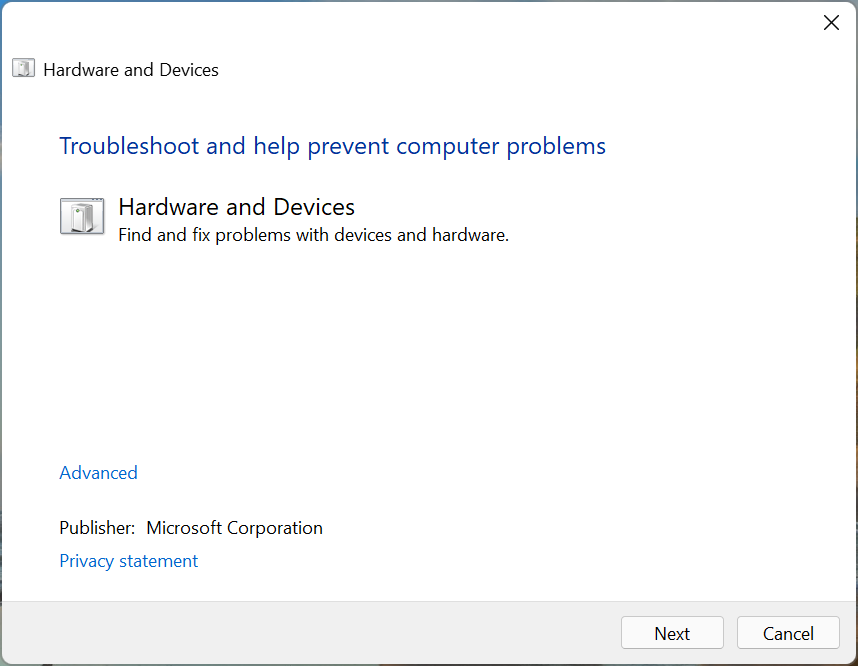











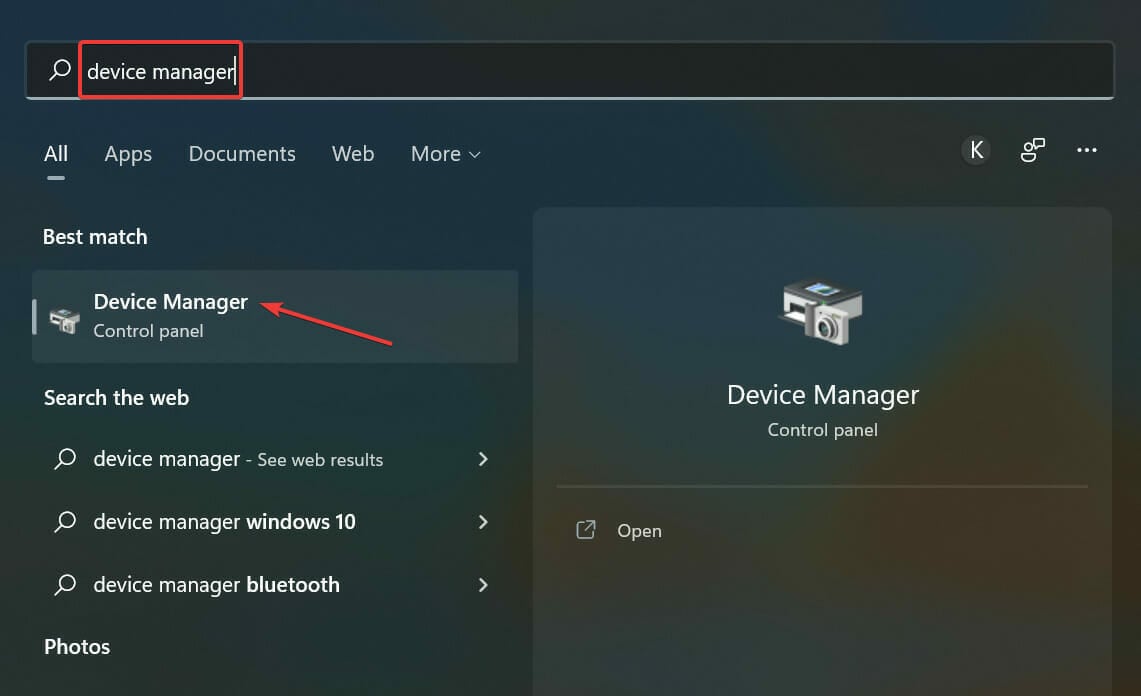
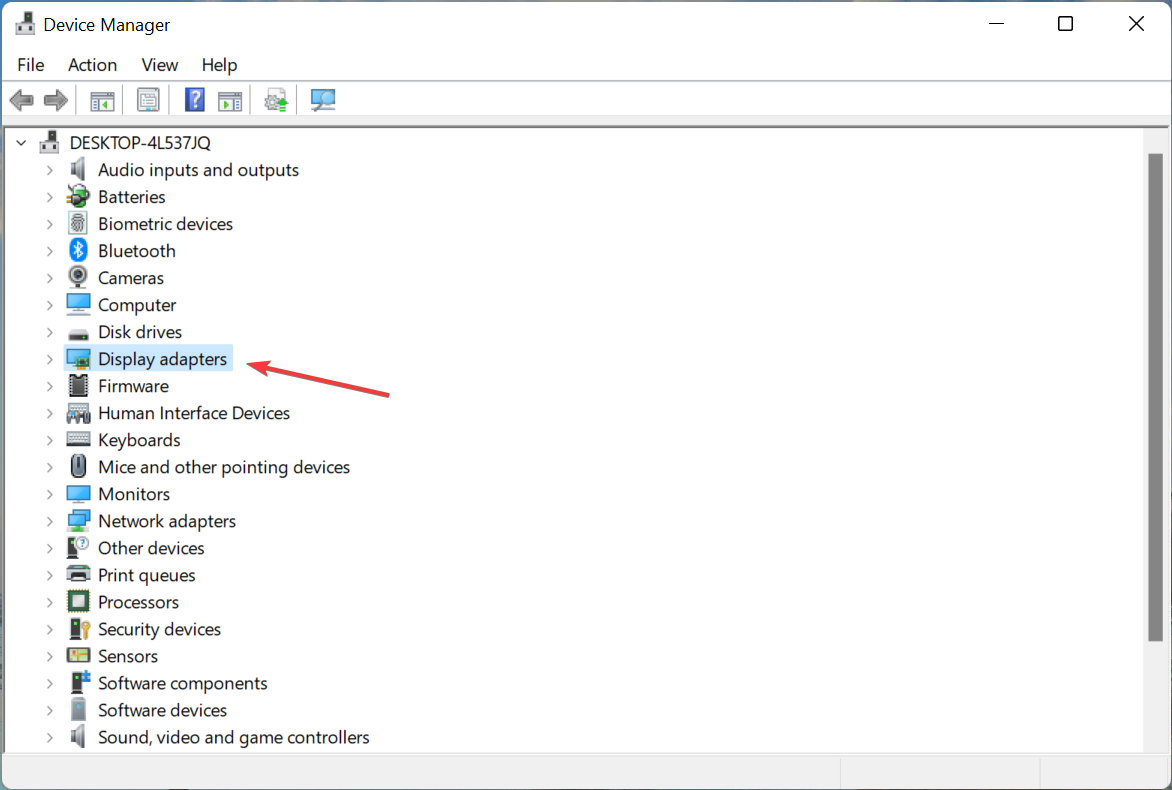
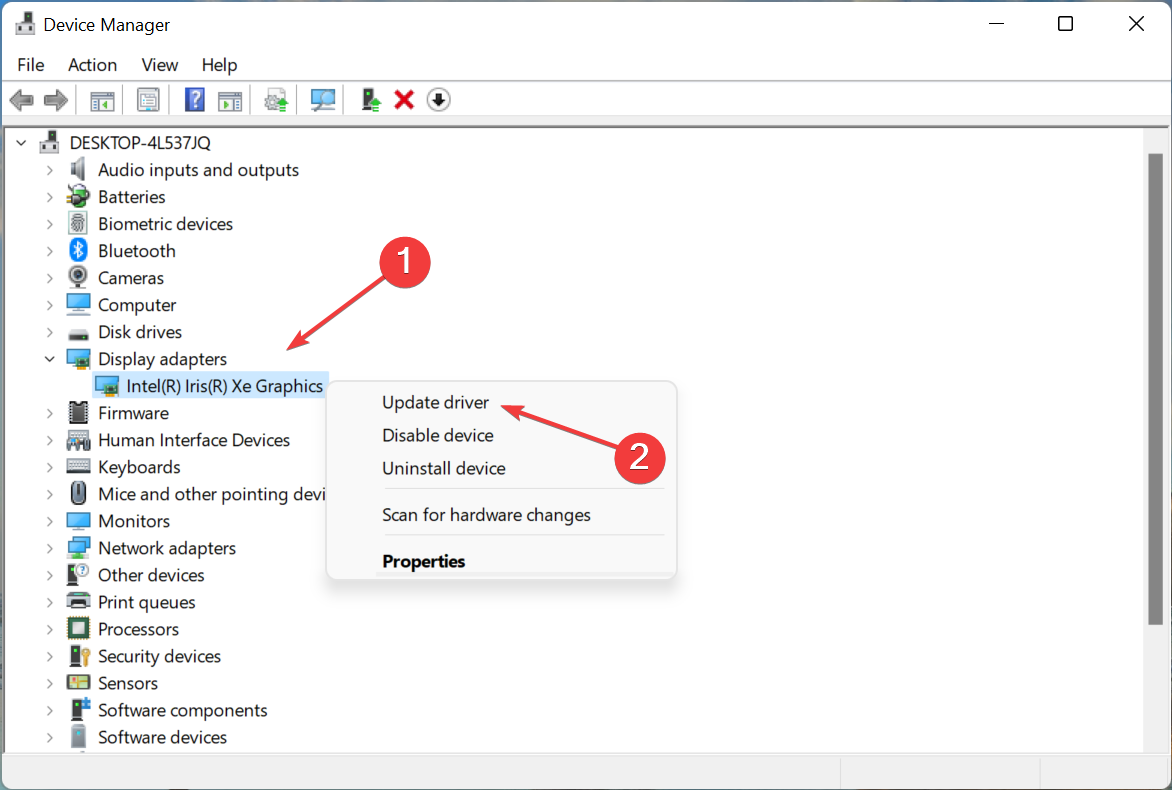
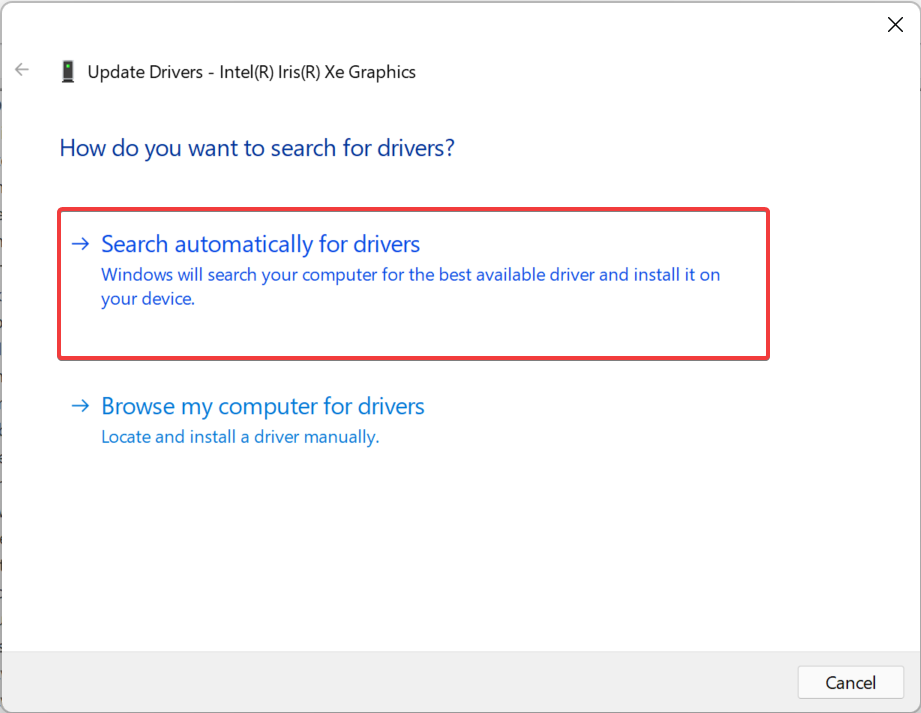
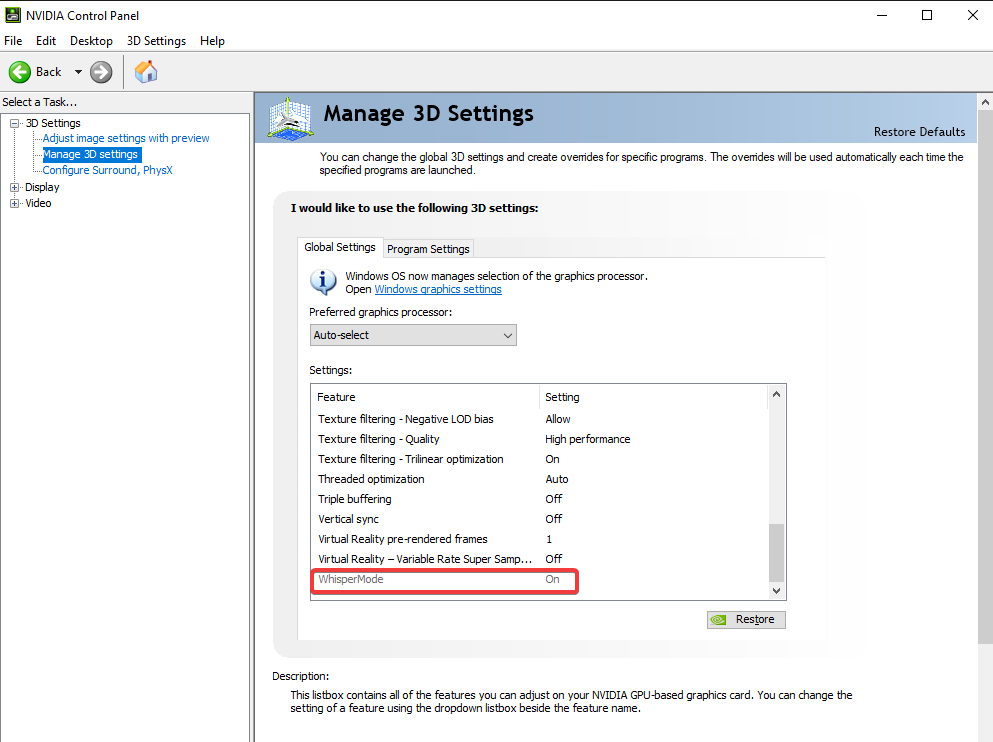

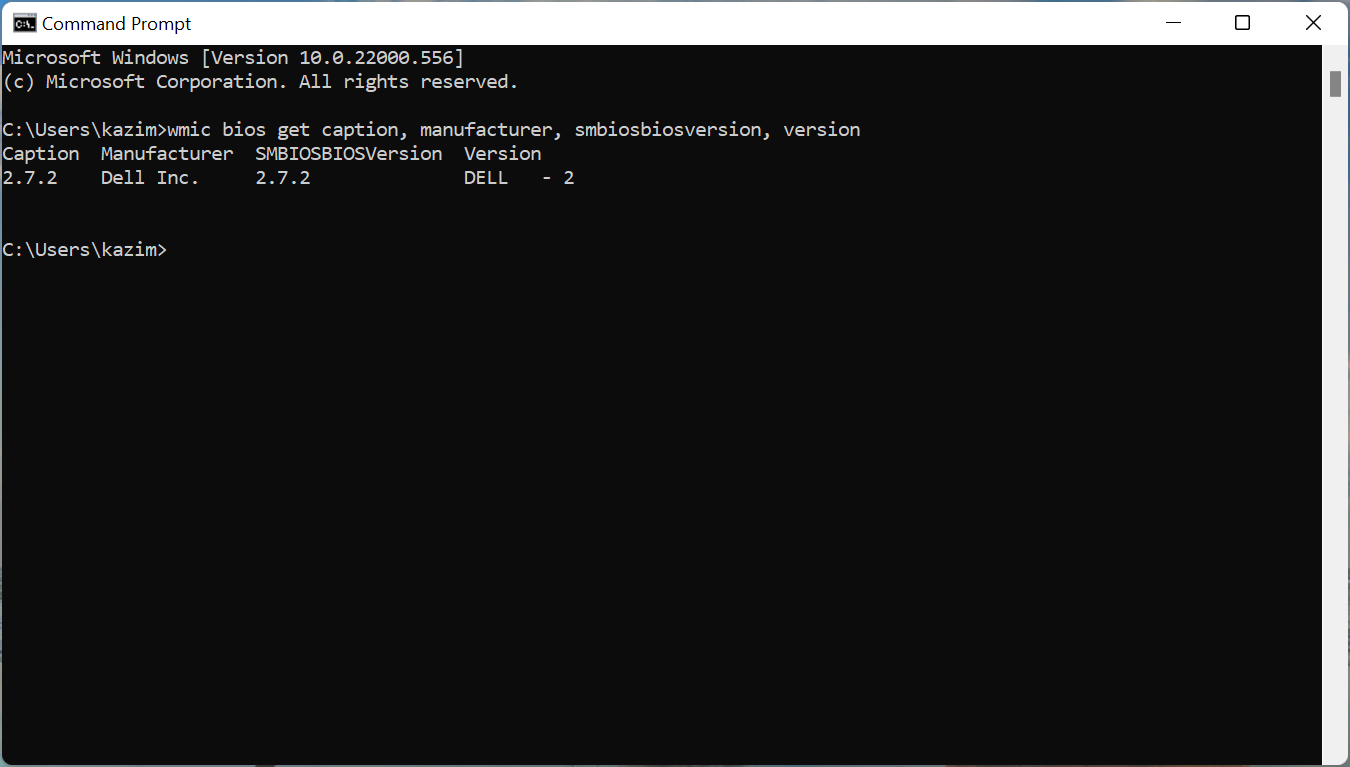
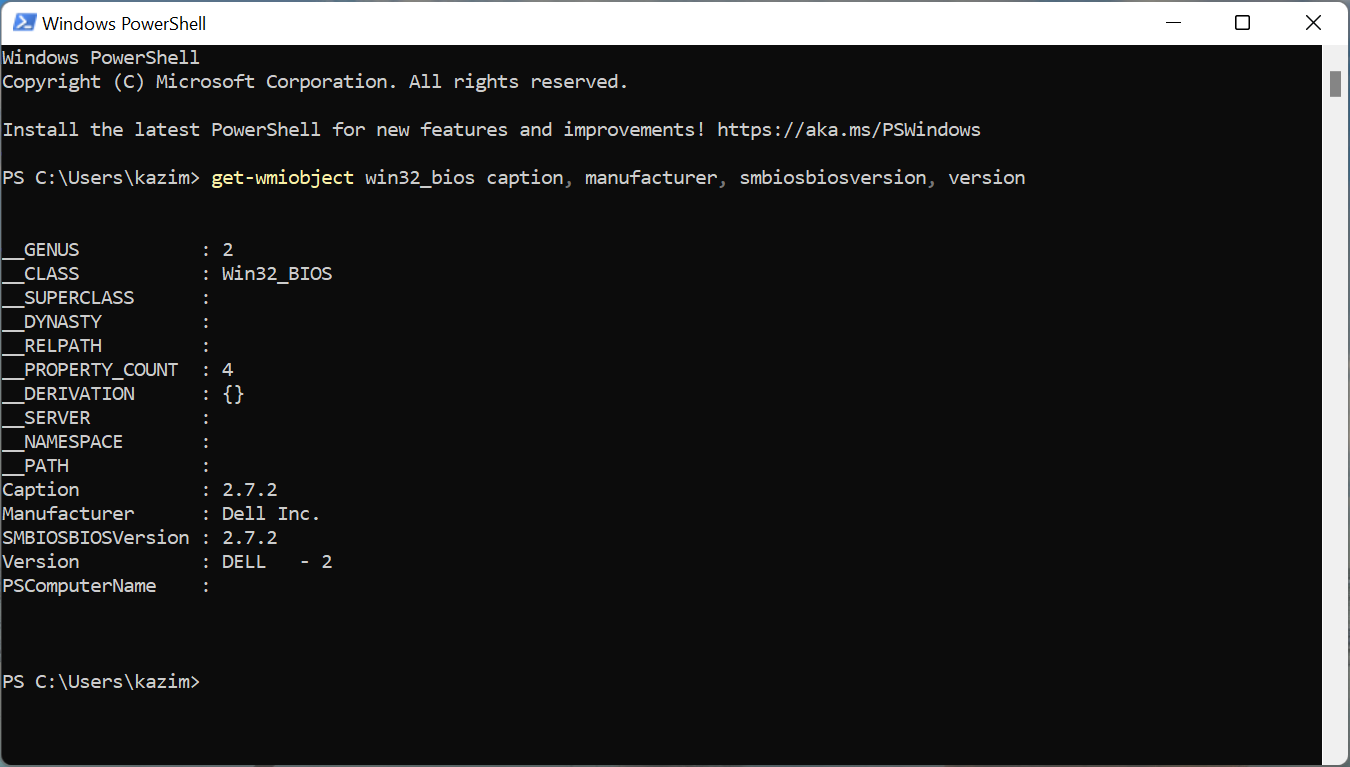

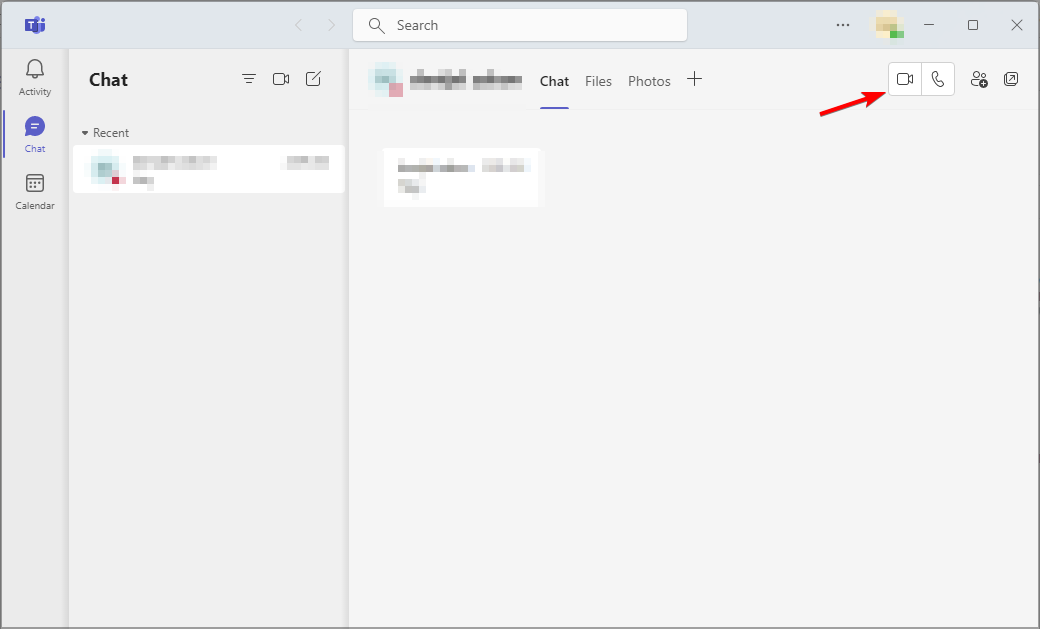
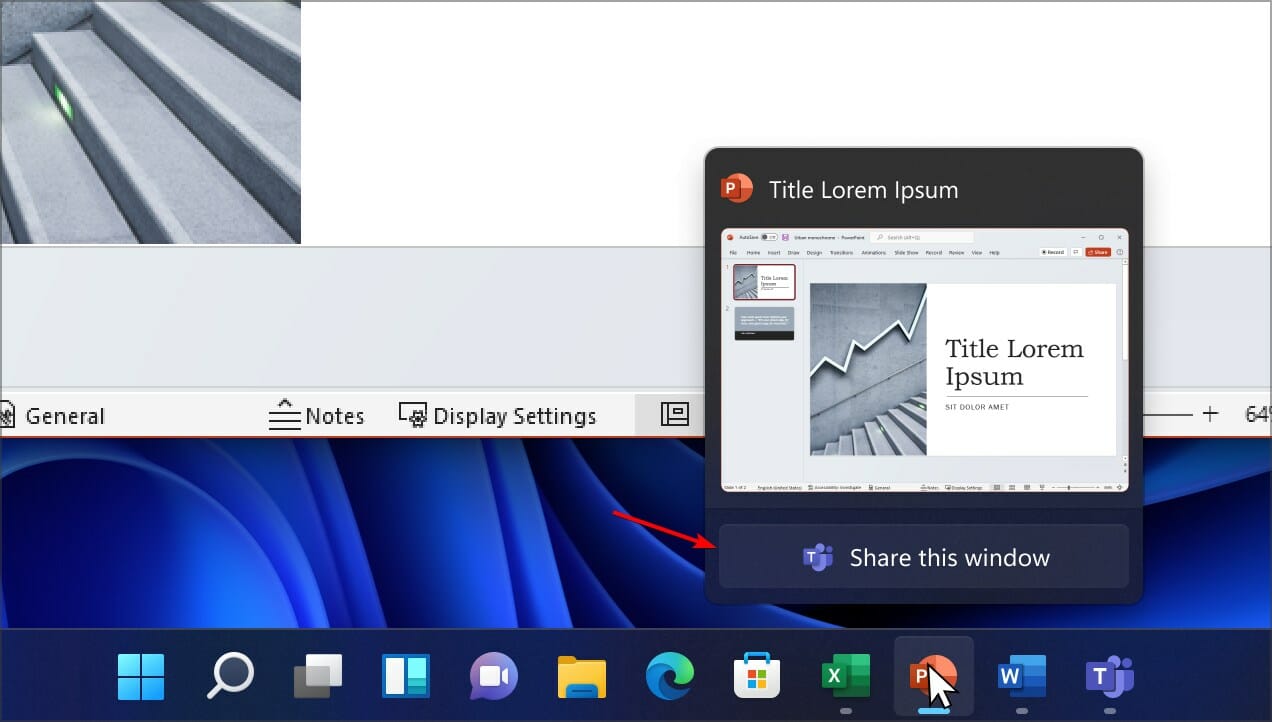
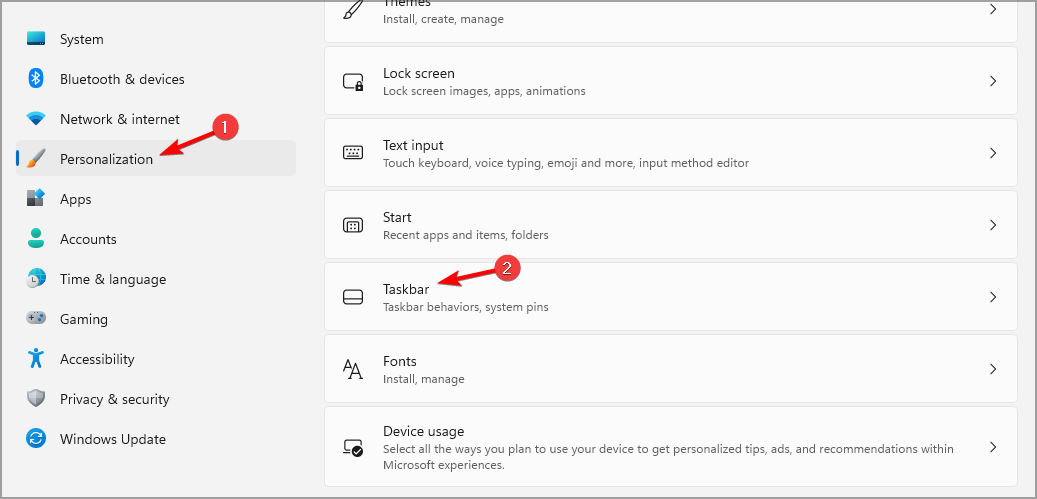
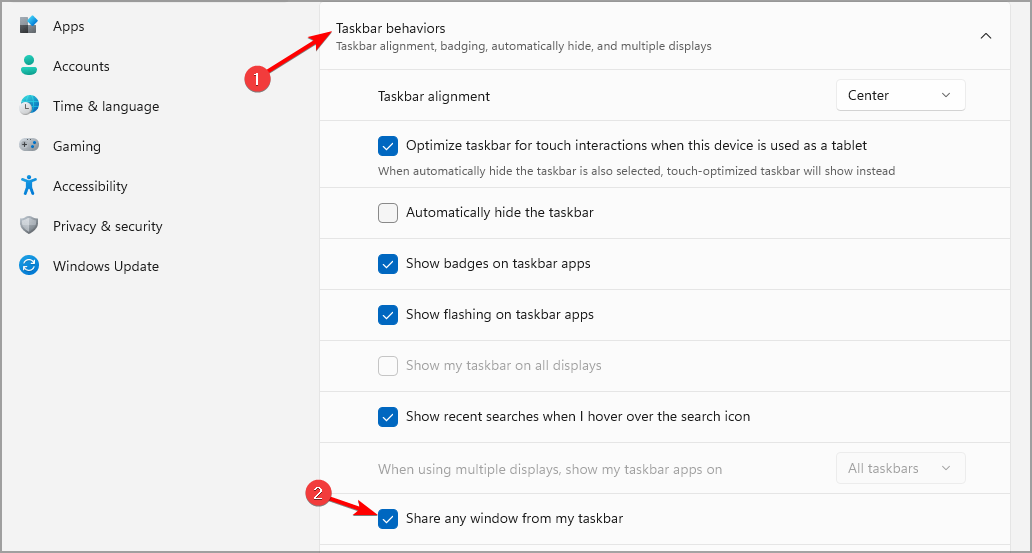

![Error: Description = Not Found [wmic Command Fix]](https://windowsreport.com/wp-content/uploads/2022/04/wmic-error-description-not-found.jpg)