WWE 2K22 not launching, crashing, or freezing [Fixed]

One of the most popular franchises in the world, WWE, has captivated the imagination of both young and mature fans for many years now.

You can’t really talk about the US sports landscape without mentioning WWE, the organization that brought us Dwayne The Rock Johnson, Rey Misterio, The Undertaker, or Big Show.

And, of course, wrestling fans have the chance to take some of that excitement home with them, in the form of the new WWE 2K22 video game.

It’s available on PlayStation, Xbox, and PC, in order to appeal to a wider range of fans. However, PC players are reporting major problems with this title.

How can I fix these WWE 2K22 problems on my Windows PC?

The first step is to don’t panic and take a few seconds to assess the situation. If your PC version of WWE 2K22 doesn’t launch, crashes, or has black screen errors, we can help you.

There are some workarounds that will help you restore your game’s functionality within only a few minutes, the quickest method we recommend is an update of your drivers with specialized software like Outbyte Driver Updater that will scan your PC for missing or outdated drivers and replace them.

Let’s go through the troubleshooting process together and fix these annoying issues once and for all, so you can go back to owning your opponents in RAW or Wrestlemania.

  1. Restart PC.
  2. Change screen/monitor refresh rate to 60Hz.screen refresh rate
  3. Launch WWE 2K22 in windowed mode.windowed mode
  4. Run the game on your dedicated graphics card.high performance
  5. Check System Requirements.wwe 2k22 system requirements
  6. Run the game as an Administrator.run as admin
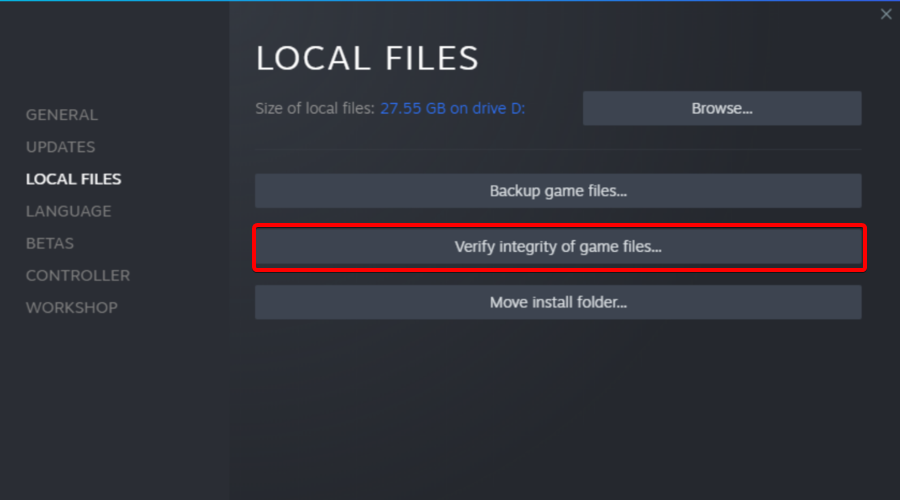
  7. Verify Integrity of Game Files.lost ark steam game files
  8. Update Microsoft Visual C++ Redistributable.update c++
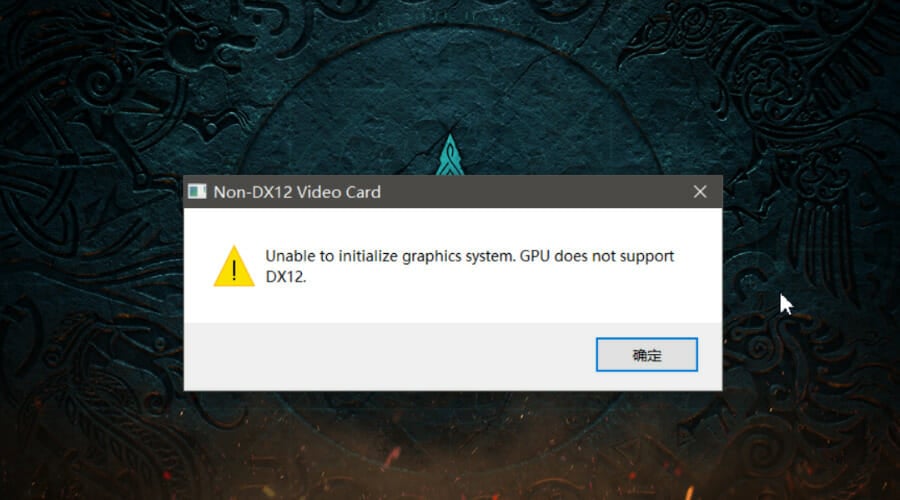
  9. Update DirectX.update directX
  10. Update GPU.update geforce gpu
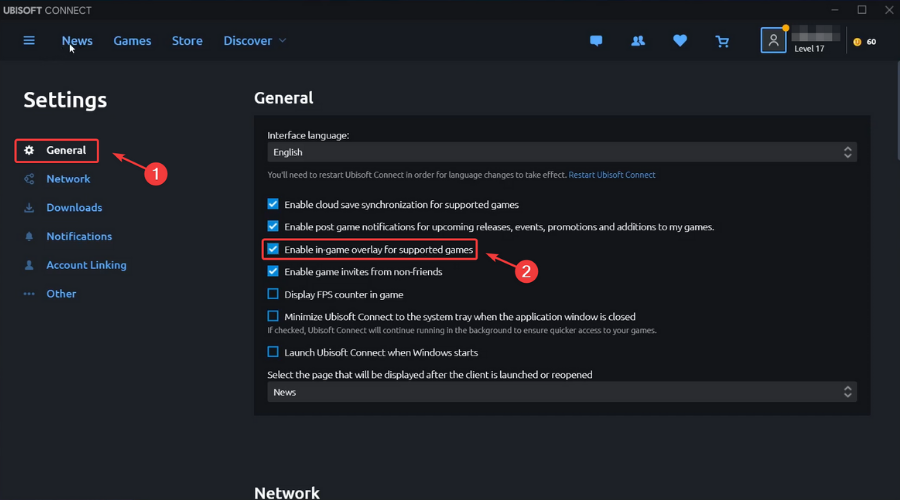
  11. Disable Overlay Apps.discord overlay
  12. Install All Pending Windows Updates.update windows 11
  13. Disable Antivirus and Firewall Program.
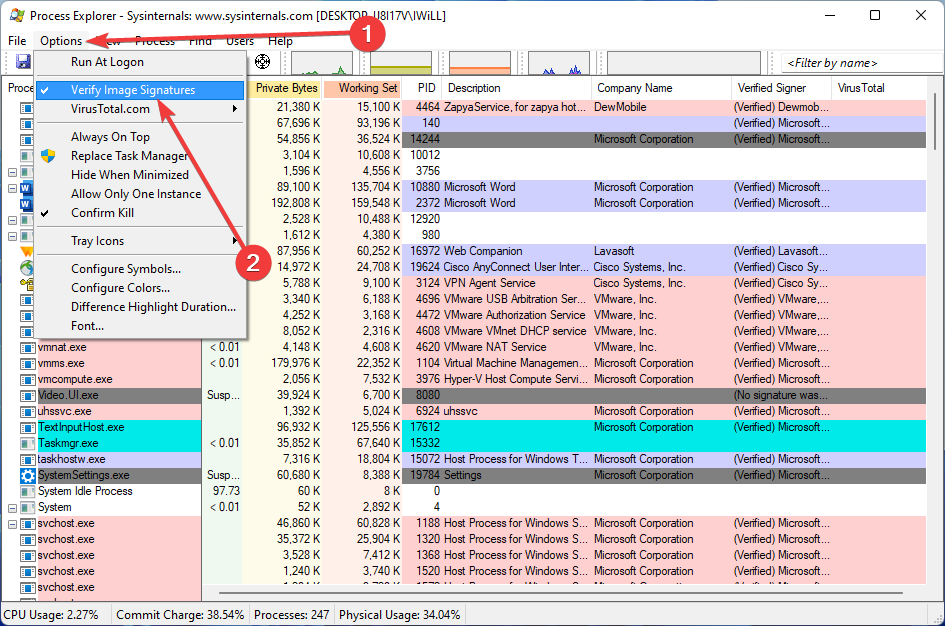
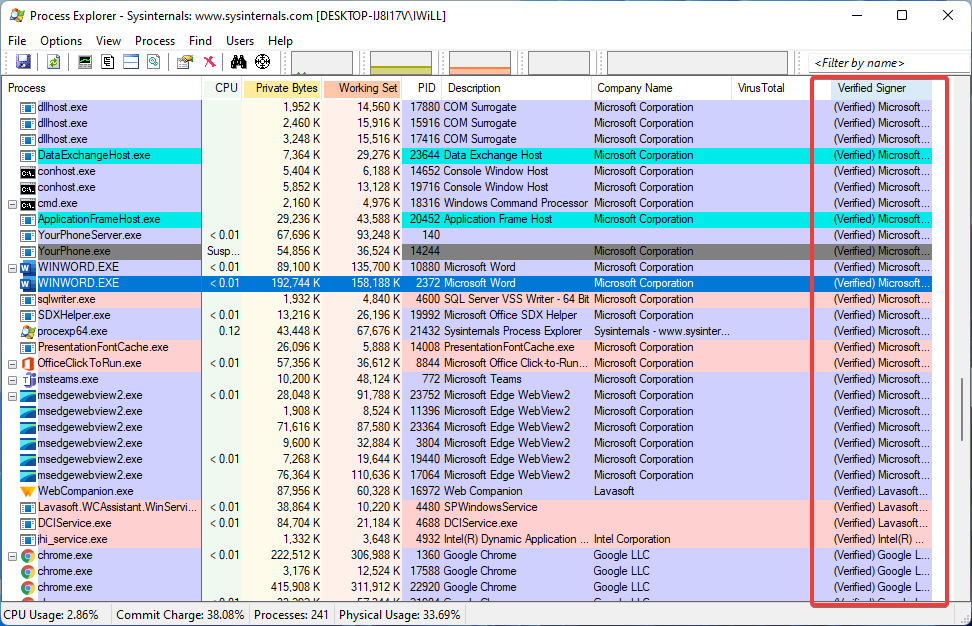
  14. Close Background Processes
  15. Reinstall WWE 2K22

WWE 2K22 users reported the game working properly, without any hiccups, after going through the same troubleshooting process.

make sure you take into consideration all of the aspects that can contribute to the game not launching or constantly crashing, to eliminate future threats.

Has this guide been useful to you in your quest to fix WWE 2K22 not working? Share your experience with us in the comments section below.

Fix: Audio Latency in Windows 10/11

The proper sound output shouldn’t be something we should break our back for. But, even though Windows 10, with every iteration, brings in something new, the essentials are seemingly suffering.

A lot of users report audio lagging in Windows 10, falling behind the video. This audio lag in Windows 10 completely ruins the playback experience, so we showed you how to fix the audio lag below.

Why do I get audio delay in Windows 10?

We use streaming platforms and browsers to get movies and videos on demand to keep ourselves entertained. It is possible, however, that our entertainment experience would be hampered if the audio and visuals were not in sync.

On many occasions, you may notice the audio is playing before the video and vice versa, or even get an audio delay in software applications such as Skype. If you experience image issues, we recommend you look at how to fix Skype video lags behind audio on Windows 10 & 11.

A faulty or outdated audio driver can cause a sound delay like it does in many other situations. We have two options for dealing with this: either manually or with the assistance of a driver updater program.

In other cases, the audio or video may lag if the internet connection speed is slower than required, which we have addressed in the following list of methods that you can try to fix the Windows 10 audio delay in software issue.

How can I fix audio lag in Windows 10?

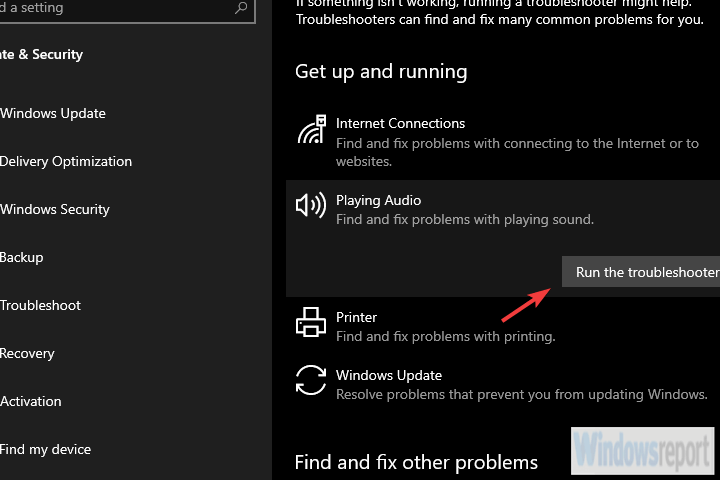
1. Run the Sound troubleshooter

  1. Right-click Start and open Settings.
  2. Choose Update & Security.
  3. Select Troubleshoot from the left pane.
  4. Expand the Playing Audio troubleshooter and click Run the troubleshooter.playing audio troubleshooter

Let’s start by running the built-in Sound troubleshooter. Windows 10 comes with a set of dedicated troubleshooters and one of those deals with audio issues.

This includes playback issues so many users experience, like sound distortion, delay, or even complete absence of the system sound.

Once run, the troubleshooter should either deal with the problem or, at least, show you what’s causing audio lag.

2. Reinstall Realtek audio driver or replace it with a generic driver

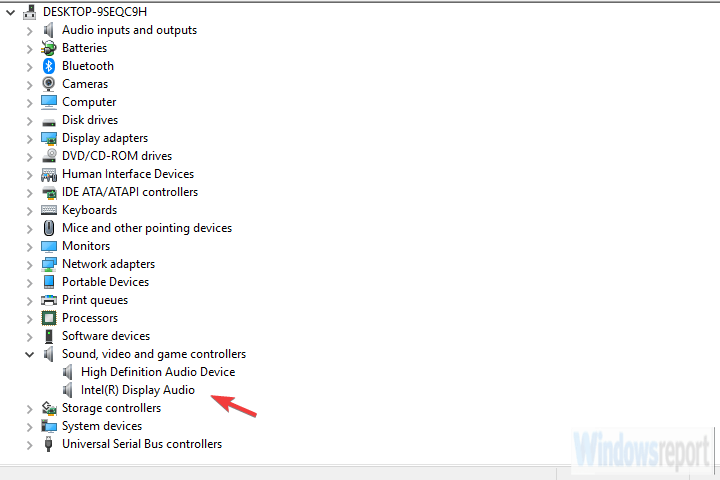
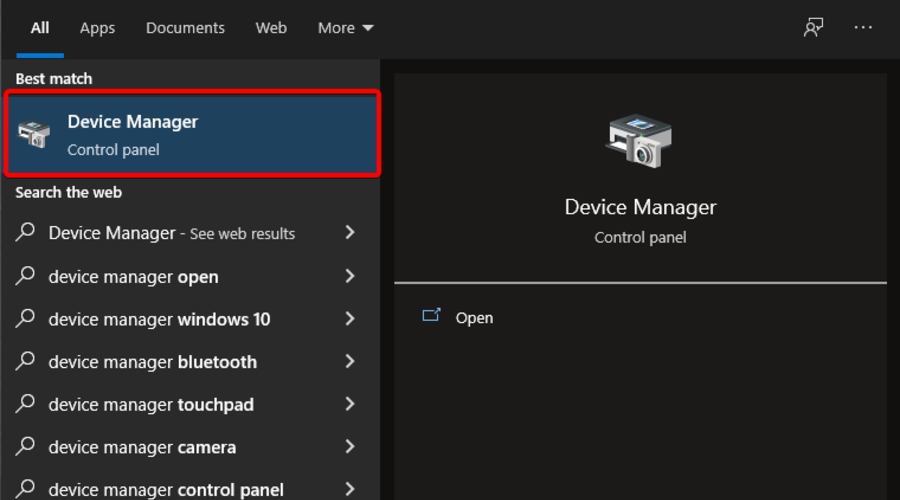
  1. Right-click Start and open Device Manager.
  2. Expand the Sound, video, and game controllers section.device manager audio driver
  3. Right-click on the Realtek/Intel sound driver and uninstall it.
  4. Restart your PC and the driver should install automatically.

The majority of sound issues start with a bad set of drivers. And there are so many possible combinations so we can’t say with certainty what’s exactly the issue. Some users resolved issues with driver reinstallation.

Others, completely remove the Realtek onboard sound driver and stick with the generic Windows driver (High Definition Audio Device).

Finally, the third group uses a manual approach for installing an official Realtek driver. We suggest trying all 3 and looking for improvements.

Also, in case you’re using USB headphones, make sure to download the proper driver. The generic driver provided by Windows won’t work most of the time.

And you can find the official sound driver on the Realtek website.

The easiest solution we recommend is a dedicated driver updater program that will automatically search for drivers and update them for you safely and fast.

3. Disable Exclusive control and Exclusive applications priority

  1. Right-click the Sound icon in the Notification area and open Sounds.
  2. Select the Playback tab.
  3. Right-click on your default playback device and open Properties.
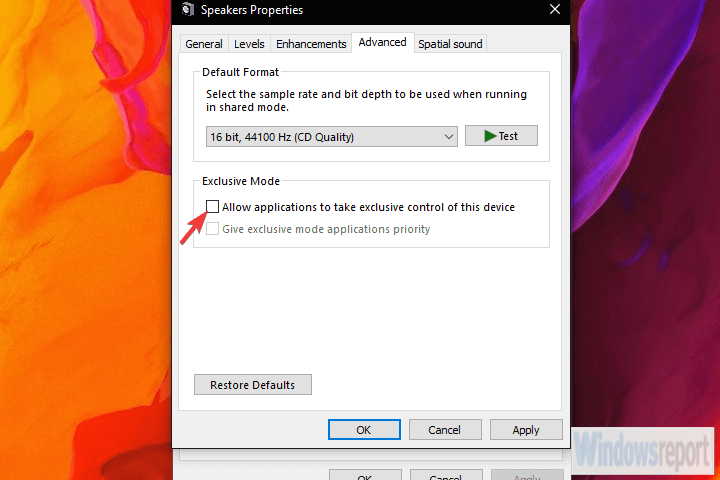
  4. Choose the Advanced tab.
  5. Under the Exclusive mode, uncheck both Allow applications to take exclusive control of this device and Give exclusive mode applications priority boxes.disable exclusive control over playback device
  6. Save changes and exit.

There are a dozen built-in options that allow you to tweak sound controls. For the sake of troubleshooting the audio lag issue, we’ll start by disabling two of them. Those are Exclusive control and Exclusive applications priority.

Once off, some users have seen improvements. Exclusive prioritizes program’s sound settings over system ones, while Exclusive applications priority to reduce sound latency for a variety of applications.

For some reason, both seem to cause audio lag for some users.

4. Restore Playback device to defaults

  1. Right-click Sound icon in the Notification area and open Sounds.
  2. Select the Playback tab.
  3. Right-click on your default playback device and open Properties.
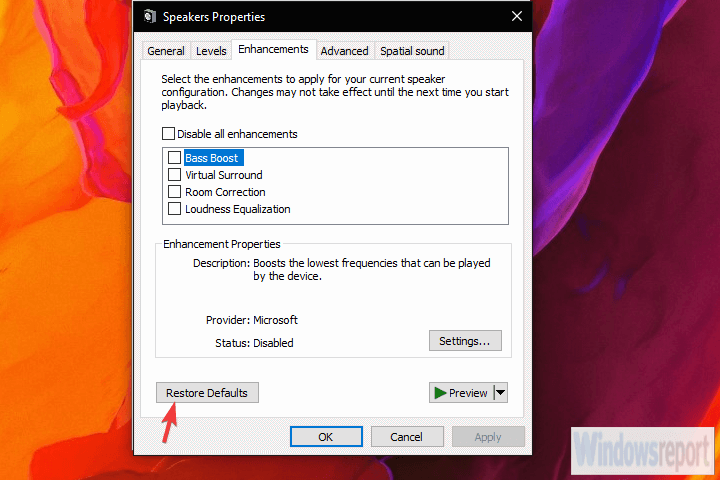
  4. Under Enhancements and Advanced tabs, click Restore Defaults.reset defaults playback device settings
  5. Save changes.

If you’ve recently made some changes to your default playback device (speakers or headphones), try restoring it to default values. If you’re not sure what you’ve tweaked, restoring all values to factory should do the job.

Finally, if you’re still experiencing issues afterward, continue with the steps above.

5. Change the audio format and disable enhancements

  1. Right-click the Sound icon in the Notification area and open Sounds, open the Playback tab, right-click on your default device, and open Properties.
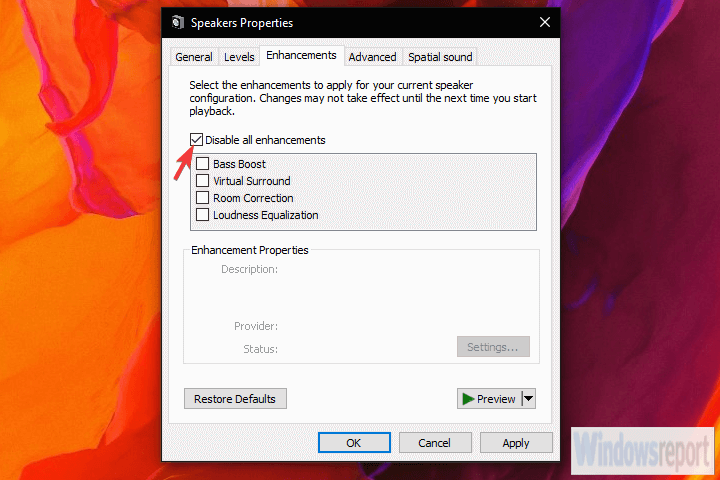
  2. Under the Enhancements tab, check the Disable all enhancements box.audio enhancements
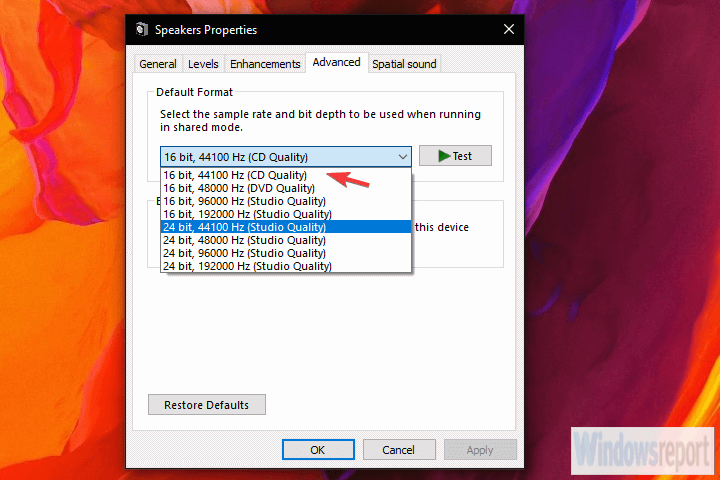
  3. Now, under the Advanced tab, change the current default audio format to CD or DVD quality. The bitrate values are under the contextual menu.audio bitrate format
  4. Save changes and restart your PC.

In the previous step, we explained how to restore defaults. However, that might not help and there are still some things you can change to, hopefully, reduce or even completely fix audio lag or latency.

The two remaining options in Sound settings worth considering are Audio format and Enhancements. The first option, Default audio format, might be running on a too high sample rate quality.

The latter option, Enhancements, should be completely disabled.

6. Disable ErP and/or HPET in BIOS

  1. Press Windows key + I to open Settings.
  2. Choose Update & Security.
  3. Select Recovery from the left pane.
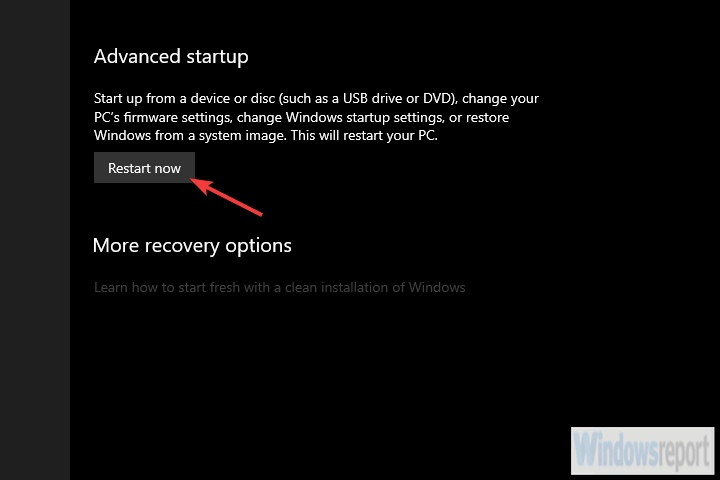
  4. Under the Advanced startup, click Restart now.advanced reboot
  5. Choose Troubleshoot.
  6. Select Advanced options.
  7. Choose UEFI Firmware Settings and click Restart.
  8. Once there, disable ErP or HPET and save changes.
  9. Exit and reboot your PC.

If the previous system-based changes haven’t helped you, we need to move to UEFI/BIOS settings. Another two options you need to disable in order to fix the audio lag.

Hardly both options will be available in settings, but if there’s no ErP, HPET usually is and vice versa.

Just boot into BIOS and disable ErP/HPET and, hopefully, the playback audio lag shouldn’t bother you anymore. If you’re not sure how to boot into BIOS on Windows 10, follow the steps above.

7. Install the Flash player if the problem occurs in a browser

Nowadays, most browsers don’t require Flash player installation in order to successfully stream media. They usually come with a preinstalled flash player and everything should work as intended from the get-go.

Except, for some users, it doesn’t. What we suggest in that case is to either switch to an alternative browser or install Adobe Flash Player.

Either way, the browser-related audio lag, latency, and similar playback issues are usually resolved that way. Also, don’t forget to disable the Hardware Acceleration under the browser settings menu.

8. Change Power plan to High Performance

  1. Right-click on the Battery icon and open Power Options.
  2. Select the High-Performance plan from the list.
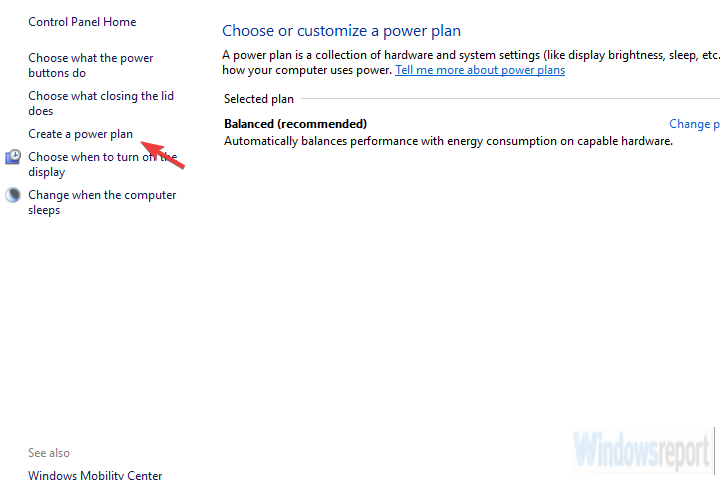
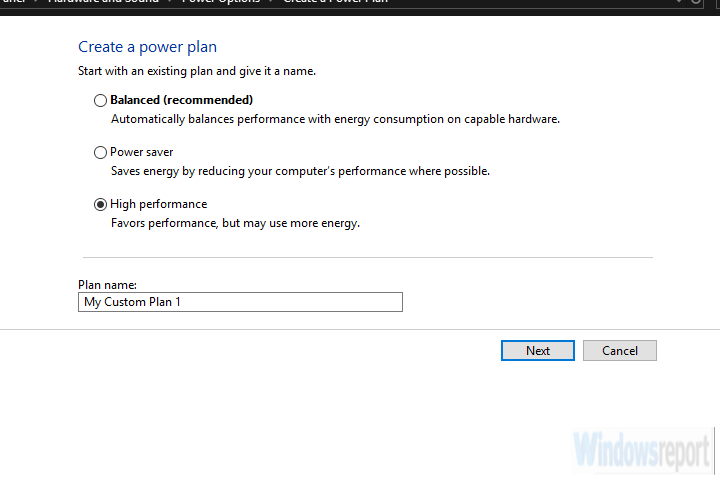
  3. If it’s not available, click on the Create a power plan link in the left pane.create a power plan
  4.  Choose High performance and name the plan.change power plan
  5. Click Next, select preferred settings, and click Create.
  6. Set it as your default plan and look for changes.

Another possible reason for the audio lag in Windows 10 is the set of advanced power-saving options which kick in if you use Power Saving or even Balanced mode.

What we want to do is switch to a High-Performance plan and stick with it.

That way, nothing no power-saving options would affect the audio playback. This applies to laptops mostly, but you can follow it through on desktop PCs as well.

9. Update Windows or uninstall updates

  1. Press Windows key + I to open Settings.
  2. Choose Update & Security.
  3. Select Recovery from the left pane.
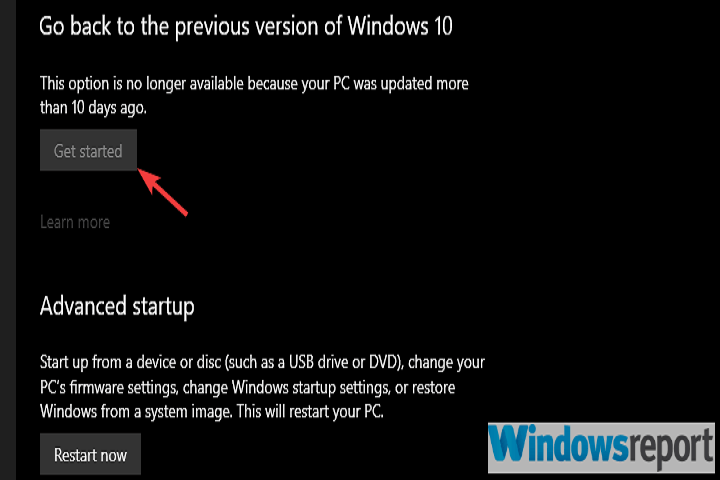
  4. Click Get started under the Go back to the previous version of Windows 10 section.rollback windows 10

Windows 10 is sometimes just breaking itself, without any foreign impact. Enforced updates are, as many of us have experienced, sometimes starting issues instead of fixing them.

Every transition to a next major update bears the risk of emerging issues. And, in this case, some users who have had perfect sound output on earlier Windows 10 iterations, suddenly run into a debilitating audio lag after an update.

What we suggest is to update Windows firstly. Yes, Microsoft usually needs some time to fix bugs on an unpolished major update. If that doesn’t help, consider rolling back to a previous release.

10. Reinstall Windows

Finally, if none of the steps helped, the only remaining thing that falls on my mind is a clean reinstallation. This, of course, doesn’t have to be a solution, as there are so many additional factors in play.

However, you’ll at least remove the system as a possible culprit for the audio lag.

If you don’t know how to do it, we have an excellent guide on how to reinstall Windows 10 that will get you through with it. Also, you can create an audio balance between the left and right channels if the sound is too quiet.

And, with that said, we can wrap it up. Don’t forget to share your thoughts in the comments section below. If you have an alternative solution or question, consider sharing them with us and our readers.

Windows 11 ISO Error: 3 Quick Ways to Fix it

Obtaining a legal Windows 10 ISO was difficult, but Microsoft appears to have learned its lesson by releasing Windows 11. Today, we will show you how to fix any Windows 11 ISO error that can occur during the process.

Suppose you require an ISO for installation or maintenance purposes. In that case, obtaining a legal and up-to-date copy of Windows 11 is straightforward and quick, as it is possible to download an ISO image directly from Microsoft’s website or use the Media Creation Tool.

Follow along as we will show you how to troubleshoot any Windows 11 ISO error that pops up right after we see what a disk image is and does in more detail. Keep up with us!

What does a disk image do?

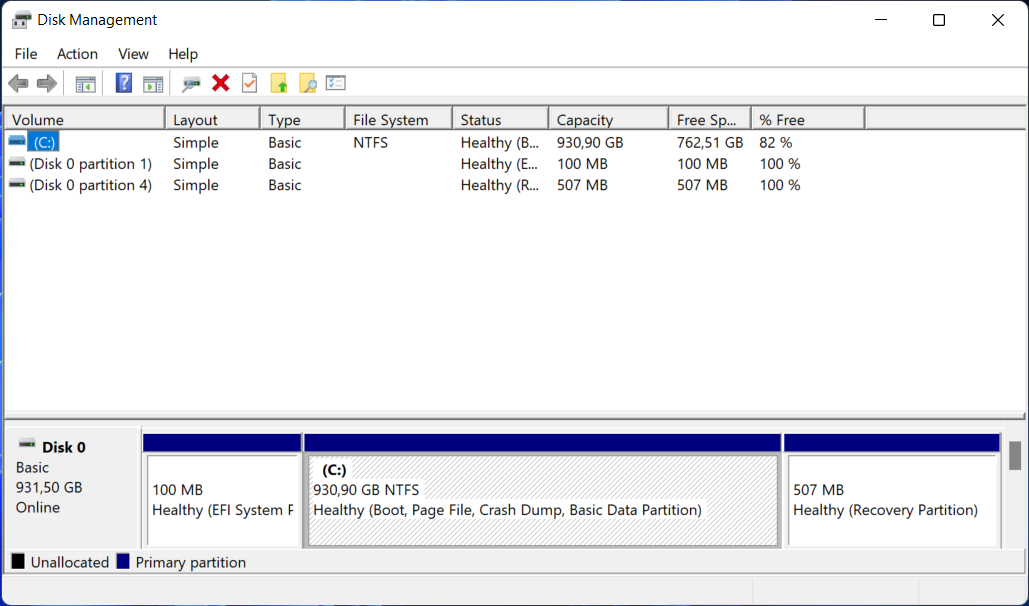
A disk image is a single huge file that accurately reproduces the contents and capabilities of a hard disk, optical disk, or other storage devices on a computer’s hard drive.

disk management windows 11 iso error


Numerous file extensions can be used to identify the file size, which ranges from a few megabytes to several gigabytes.

The file will conclude with one of several endings, such as .iso, .cue, .bin, or .img. As a note, modern image files for Macintosh machines will have an extension of.dmg.

This concept of making a disk image on a hard drive is undoubtedly already recognizable to everyone who has cloned his or her favorite music CDs or DVDs or downloaded an OS. Although this is not the only method of making duplicates, it is the most convenient.

How can I fix Windows 11’s ISO error?

1. Check your Internet connection

Let’s start with the easier solutions and causes. The Media Creation Tool, which allows you to download the Windows 10 ISO file, will, of course, necessitate the use of an Internet connection to function.

What matters is that you have a steady connection that supports direct downloads from the Microsoft servers, regardless of how slow your bandwidth is.

In light of this, we recommend you inspect your network and troubleshoot any potential problems. Don’t hesitate to use one of the following links to solve the Internet problem. This will also fix the We are unable to complete your request at this time error.

2. Run Disk Cleanup

  1. Press Windows and R to open a Run box and enter the following command: cleanmgr /VERYLOWDISKrun-disk-cleanup windows 11 iso download failed
  2. The completion of the command will result in a report outlining the amount of space you have managed to clear up.
  3. In order to pick and choose which files to clean, type the following command into the Run search box and press Enter to begin the cleaning process: cleanmgr /LOWDISKcleanmgr windows 11 iso error
  4. While the following command will wipe less data from your disk than the command provided in our previous stages, it is an alternative method of cleaning up your disk: cleanmgr /sageset:1sageset windows 11 iso error

However, it will start with the very minimum of settings selected, and you will be able to customize the application after it has been launched by selecting the choices you want from the menu.

If you are interested in creating a WinPE bootable disk for Windows 11, read this guide to learn the detailed steps.

3. Use another method to install Windows 11

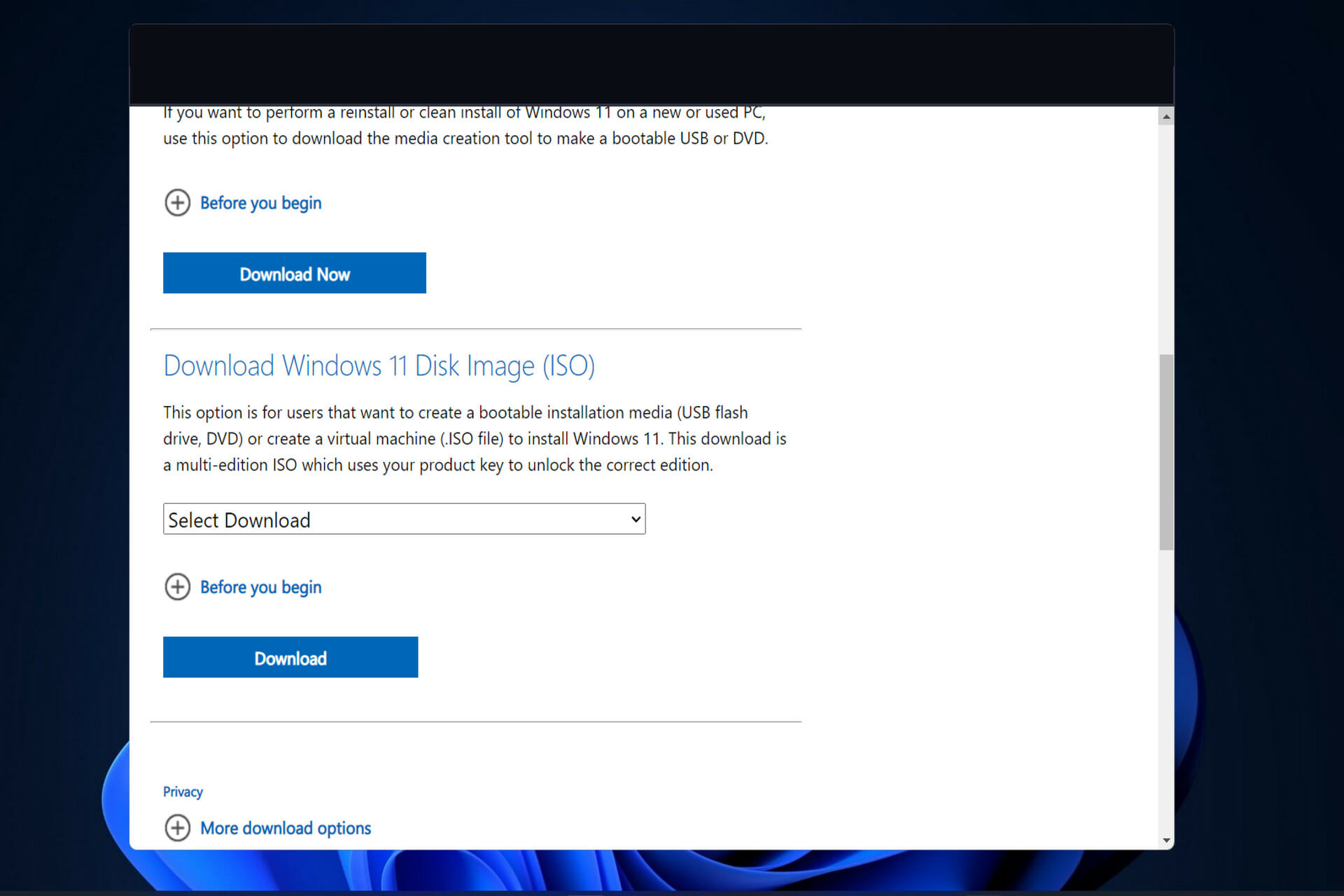
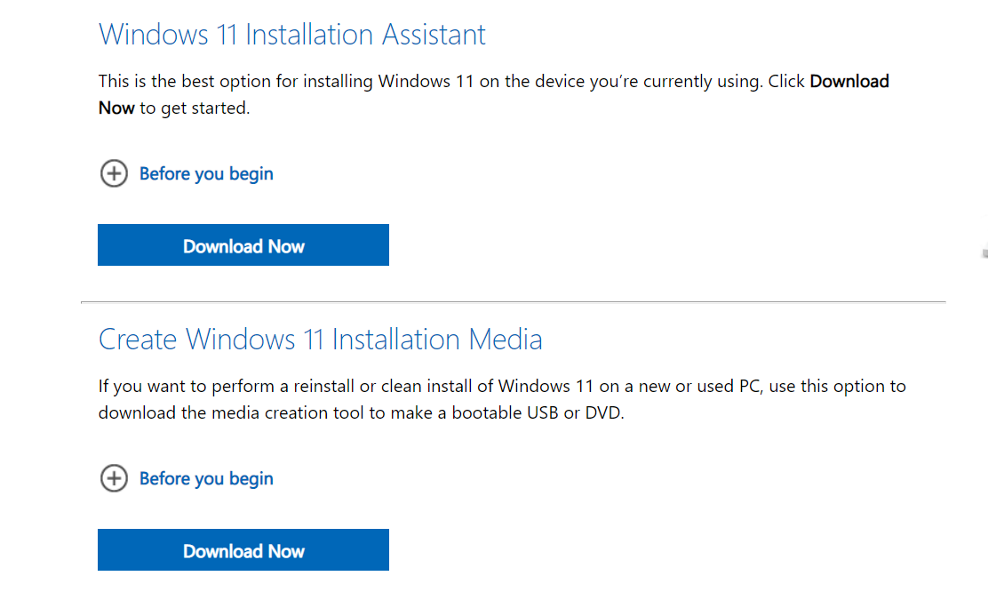
The Windows 11 ISO option is intended for users who want to generate a bootable installation medium (USB flash drive, DVD) or a virtual machine to install Windows 11 on a computer or a laptop.

assistant windows 11 iso error


However, there are other ways in which you can install the operating system, such as using the Installation Assistant. Thus, we recommend that you check our article on how to upgrade to Windows 11 using the Installation Assistant.

Alternatively, you can use Media Creation Tool to install Windows 11, and don’t miss out on our guide to make sure that you follow the correct order of the steps involved.

For further information and potential solutions to this error, you should take a look at our post on Windows 11 ISO download failure and continue with the troubleshooting process.

Alternatively, another article on Windows 10 ISO file download issues might save you some time and tears.

Let us know in the comments section below if this guide was helpful for you and whether you have any more solutions in mind.

Windows news recap: Windows 10 on Steam Deck, Apple’s Studio Display may support Windows, and more

Welcome back to our Windows news recap, where we go over the top stories of the past week in the world of Microsoft’s flagship operating system.

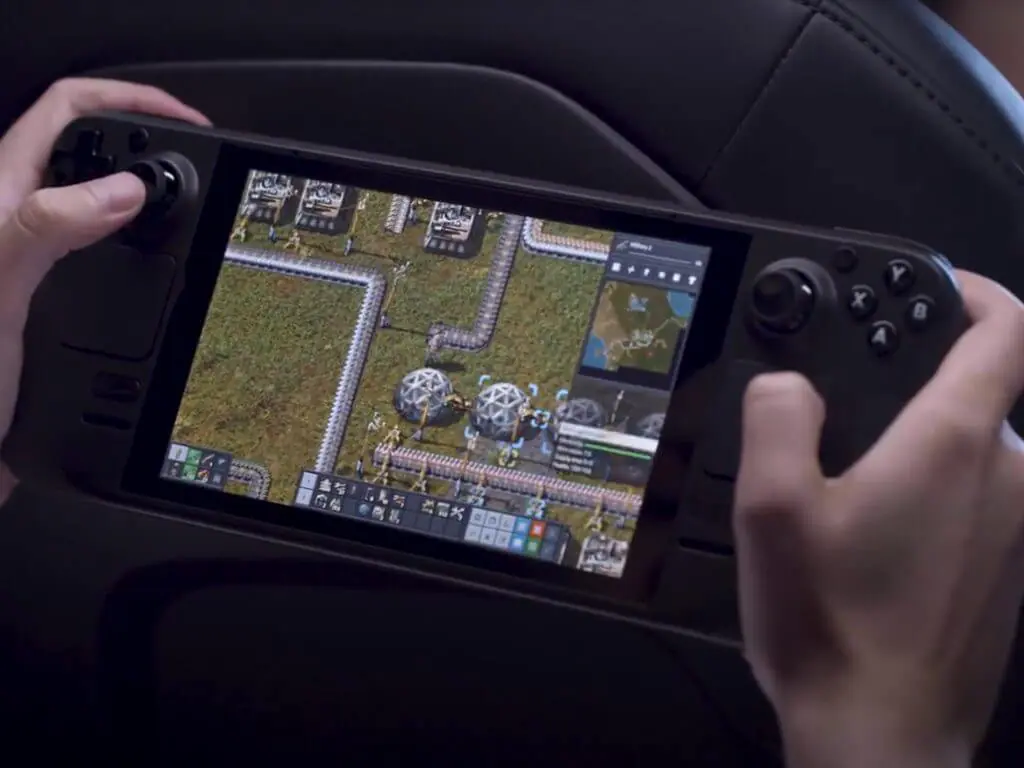
You can now run Windows 10 on the Steam Deck, with some limits

If you’ve been lucky enough to get hold of a Steam Deck, it’s now possible to install Windows 10 on it. Whilst there are some limits, there’s no big issues.

You can now run Windows 10 on the Steam Deck, with some limits - OnMSFT.com - March 10, 2022

Apple’s fancy new Studio Display will work on Windows — webcam, speakers, and all

Apple’s new display, Studio Display, may work on Windows PCs as well, not just Apple’s Mac lineup, including the webcam and speakers.

Apple's fancy new Studio Display will work on Windows — webcam, speakers, and all - OnMSFT.com - March 9, 2022

AMD details intermittent system stutter issue with Ryzen processors in Windows 10 & Windows 11

PCs with Ryzen processors may experience intermittent system stuttering on Windows 10 and 11, according to AMD. The issue exists on PCs with Firmware Trusted Platform Module (fTPM).

AMD details intermittent system stutter issue with Ryzen processors in Windows 10 & Windows 11 - OnMSFT.com - March 7, 2022

That’s it for this week. We’ll be back next week with more Windows news.

How to Enable Windows 11’s Amazon Appstore if it’s Greyed Out

The new Amazon Appstore on Windows 11 allows you to run Android apps on your computer. Many different kinds of apps are available through Amazon, from video games to fitness apps and even TikTok.

Although the feature has finally been released in an official capacity, it may be missing on your computer. For a while, the Amazon Appstore was exclusive to Windows Insider Program’s beta channel or had its feature locked away.

Are there any requirements my computer should meet?

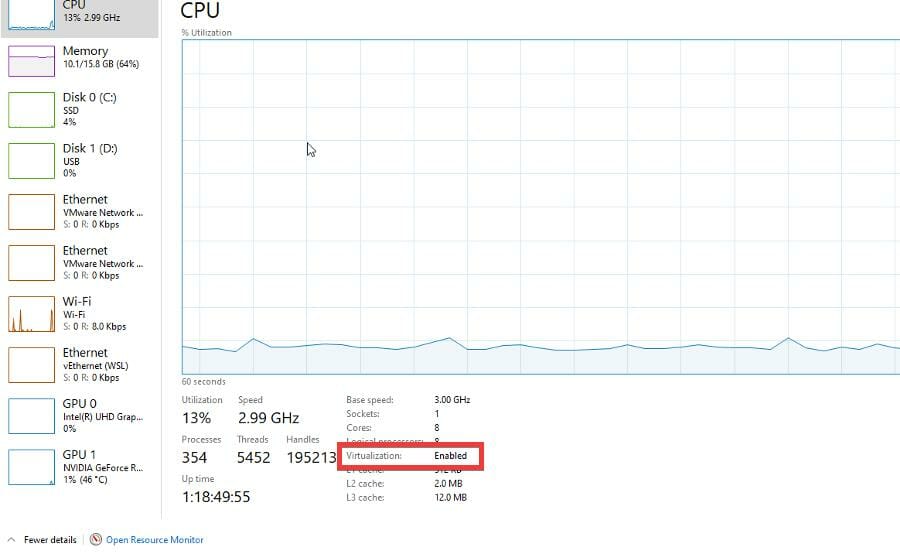
For the most part, not really. As long as your computer can run Windows 11, it should be able to run Android apps from the Amazon Appstore. But if there is one thing that your computer must have is to have virtualization enabled. This is a hardware function that the Android apps need to run.

You can check if your computer has virtualization enabled by going to the Performance tab of the Task Manager and checking under CPU. If it’s disabled, you’ll have to contact your computer’s manufacturer as every PC manufacturer has its way of enabling this function.

How do I enable the Amazon Appstore?

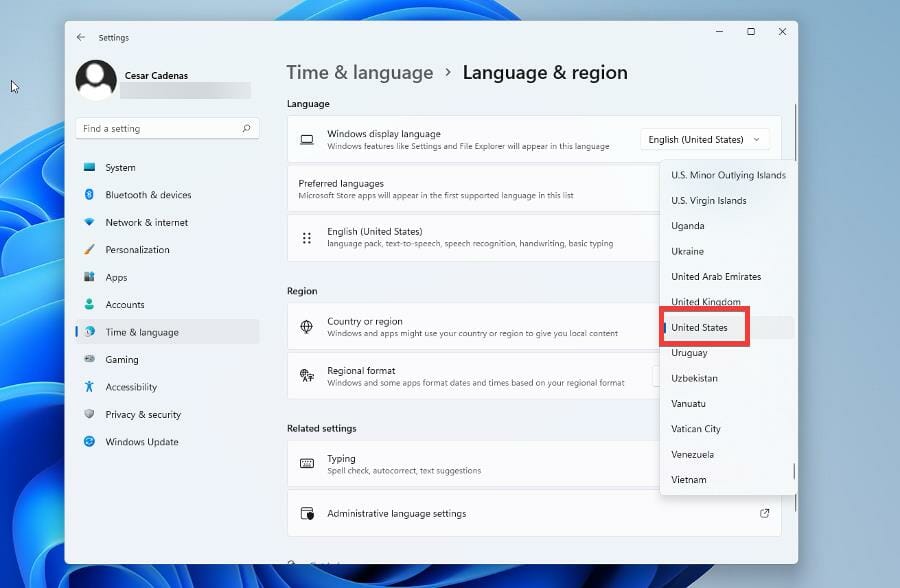
1. Changing location

  1. The feature is only available in the United States. If you’re a user who lives in the US, you can skip this section.
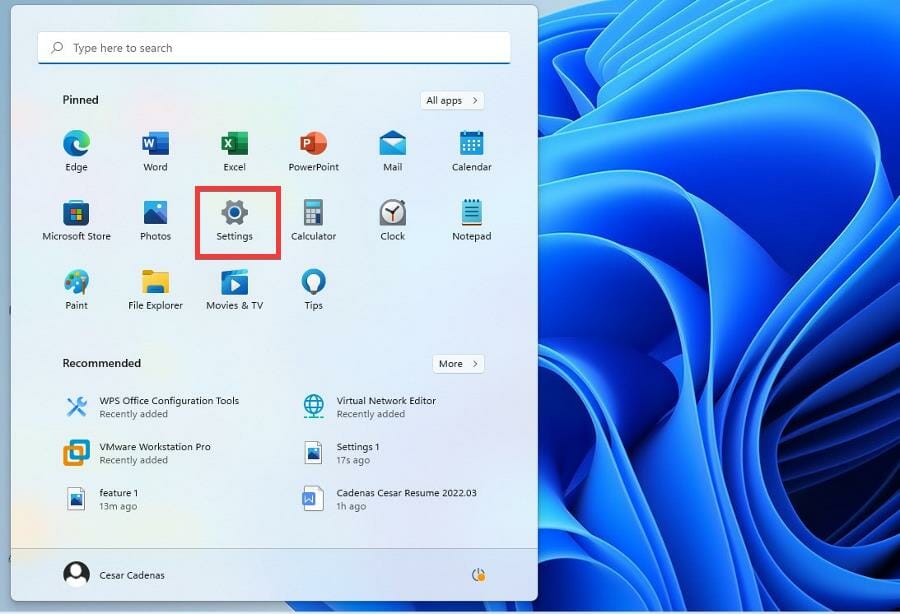
  2. Bring up the Start menu and click on the Settings icon.
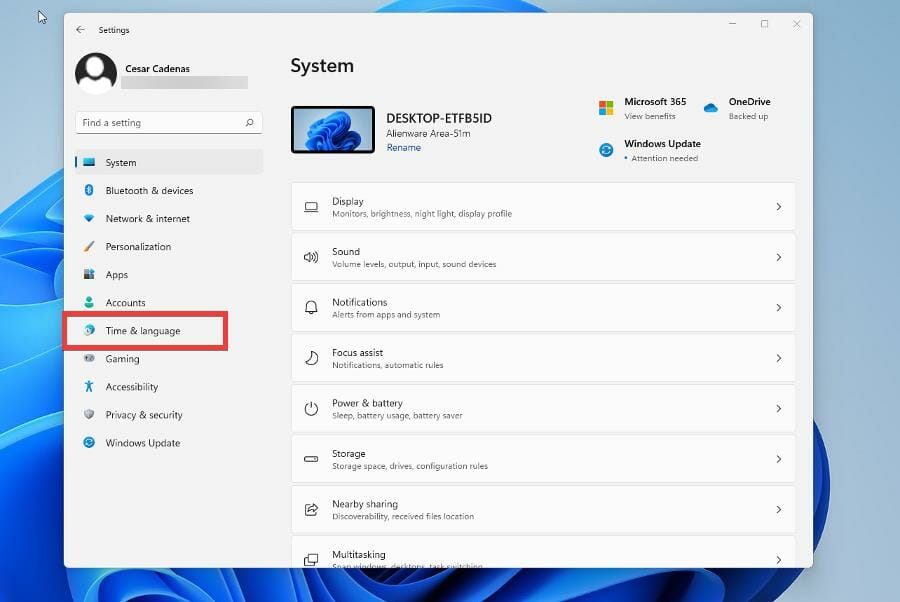
  3. In the Settings menu, click Time & language on the left hand menu.
  4. In this next window, select Language & region.
  5. Under the Region section, click the drop-down menu next to Country or region.
  6. Locate and select the United States.

If you want to keep your privacy as you change regions, VPN software like Private Internet Access will keep your information safe.

⇒ Get Private Internet Access

2. Enabling Virtual Machine Platform

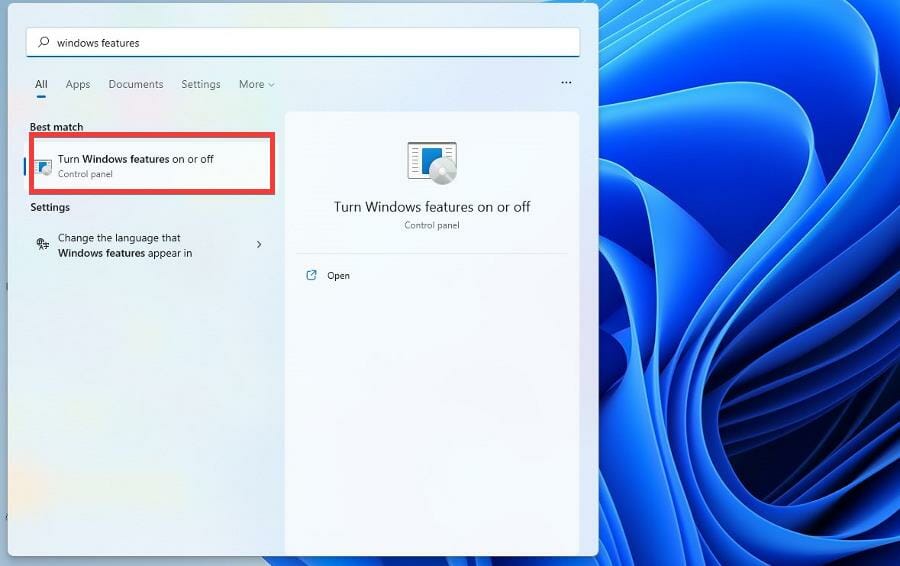
  1. Open your Search bar and search for Windows Features.
  2. Click on the entry that reads Turn Windows fearures on or off.
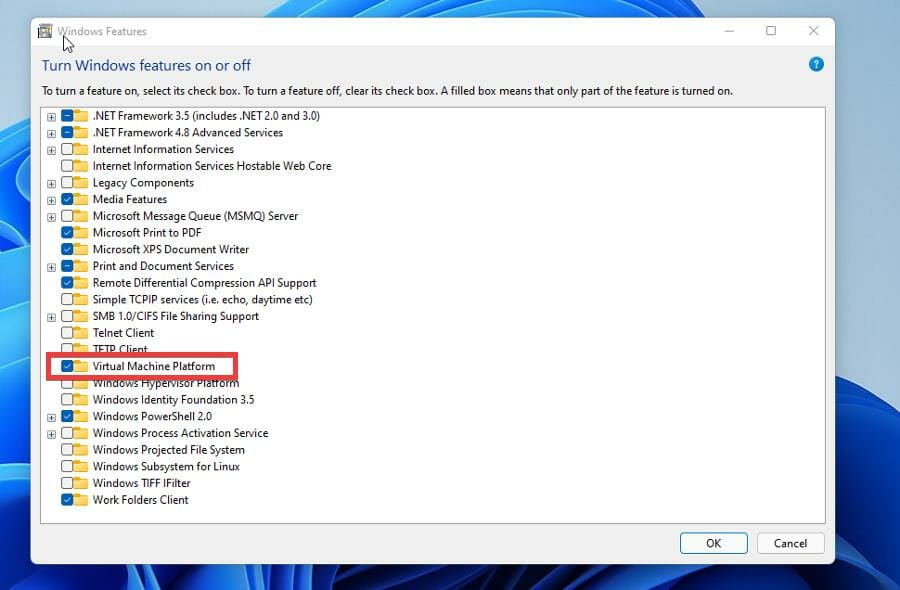
  3. In the new window, locate and click Virtual Machine Platform to enable it.
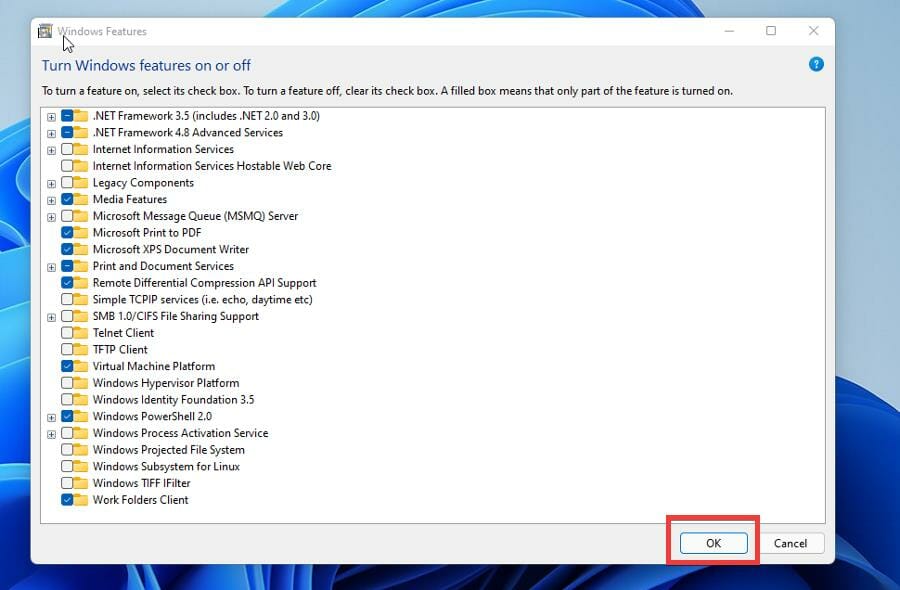
  4. Click OK.
  5. Windows Features will look for files pertaining the Virtual Machine Platform. After finishing, click Restart now to apple the changes.

3. Updating the Microsoft Store

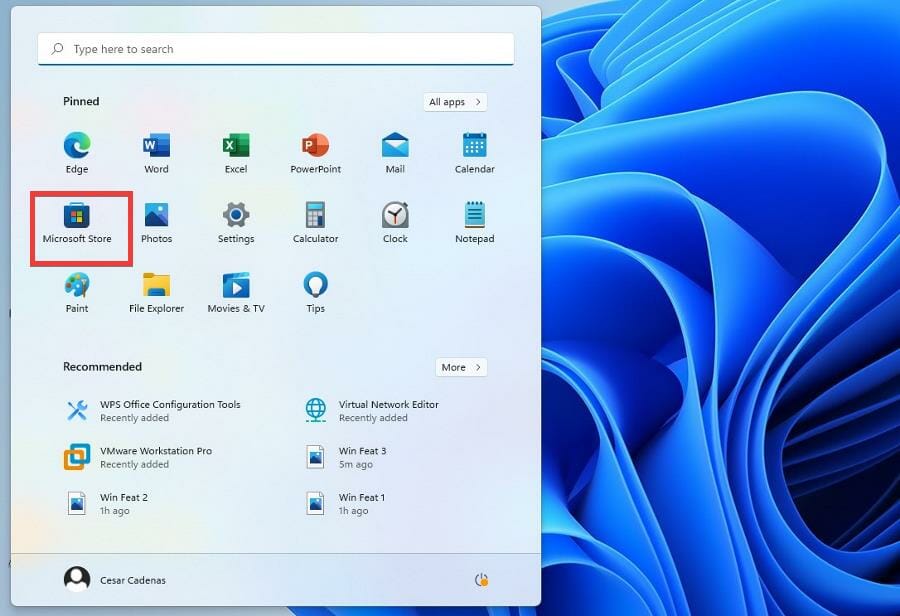
  1. Once you’ve change your system’s location and enabled the Virtual Machine Platform, click on the Start menu.
  2. Click the Microsoft Store icon.
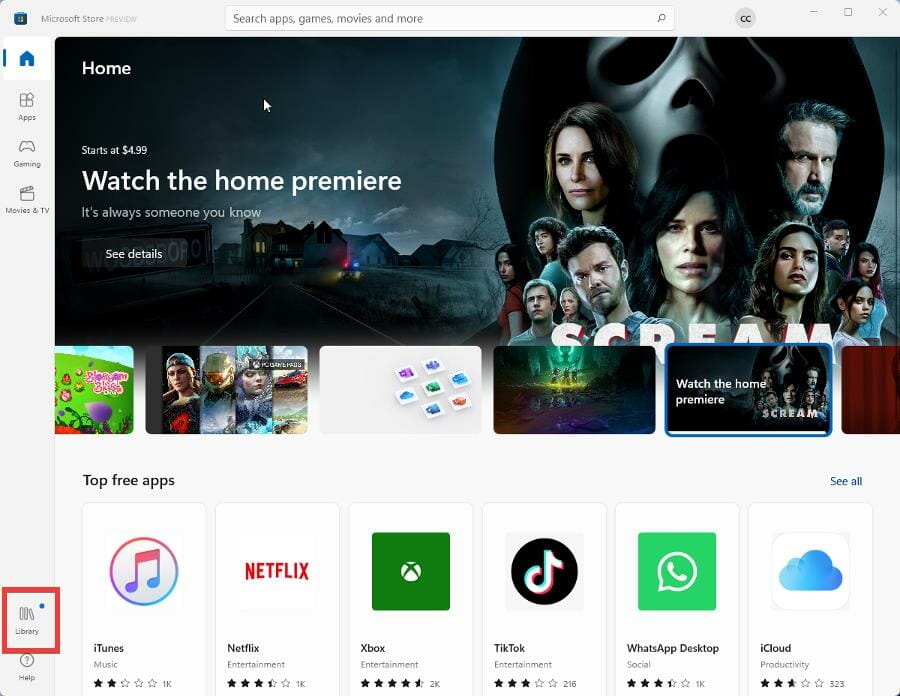
  3. In the Microsoft Store, click Library in the bottom left hand corner.
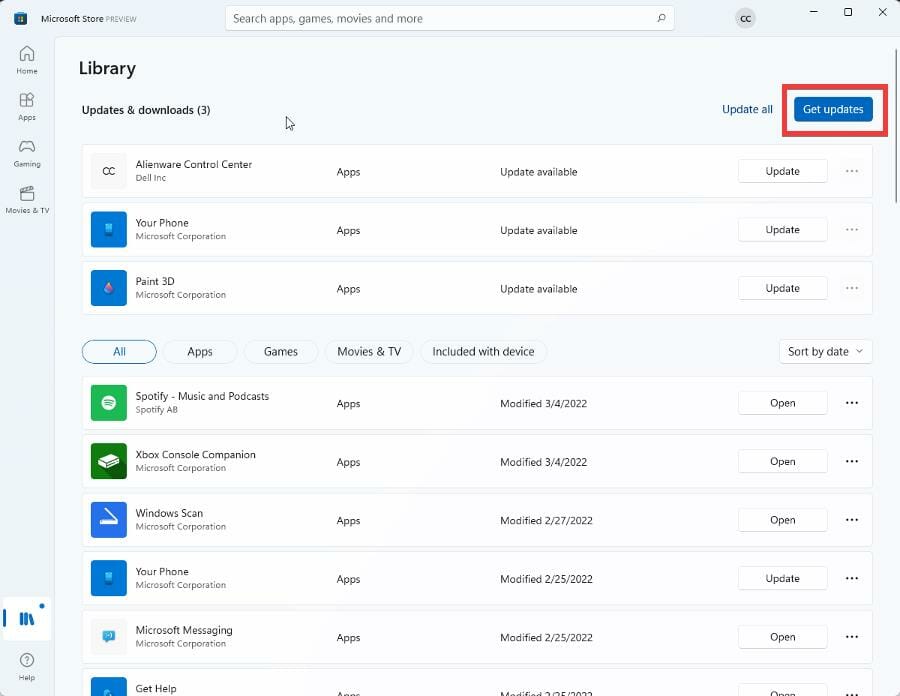
  4. You should see a Microsoft Store update. If there isn’t any, click Get Updates.
  5. The Microsoft Store will automatically update.

4. Downloading Amazon Appstore

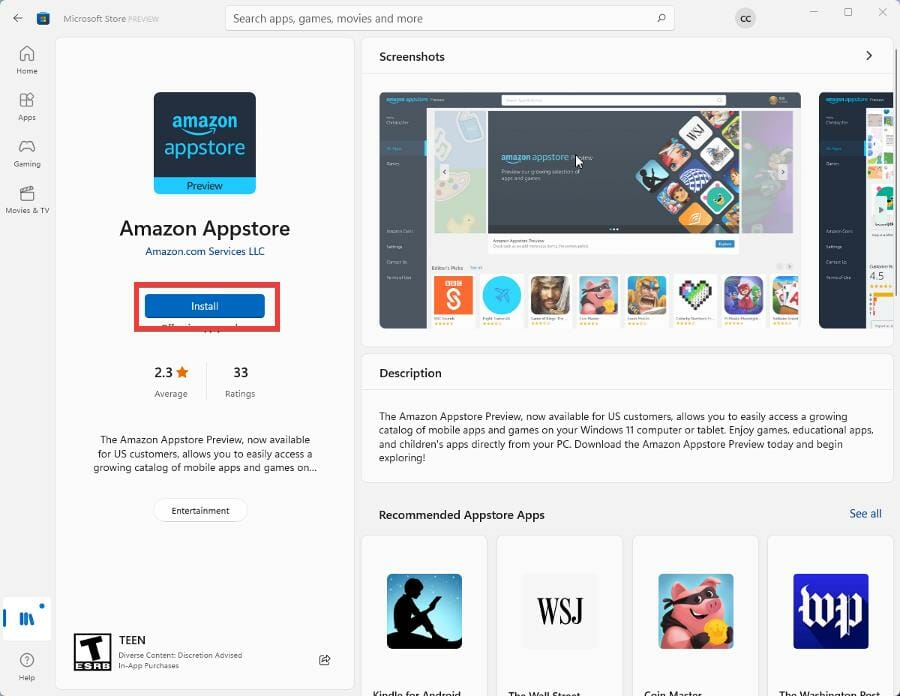
  1. Search for the Amazon Appstore in the bar above.
  2. Click the entry that appears.
  3. Click Install to install the Appstore.
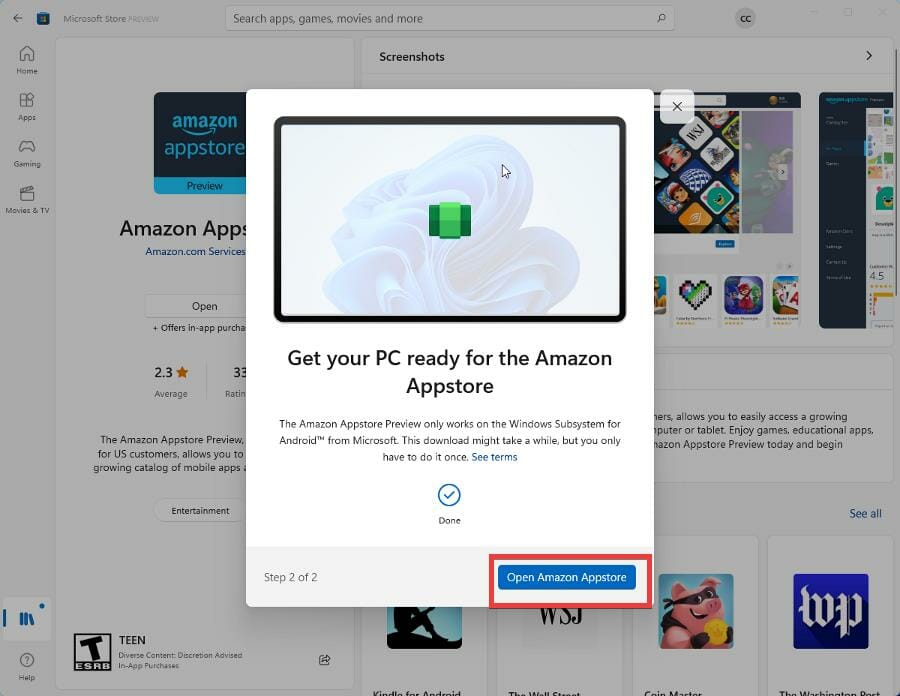
  4. Give installation a few minutes to finish and click Open Amazon Appstore.
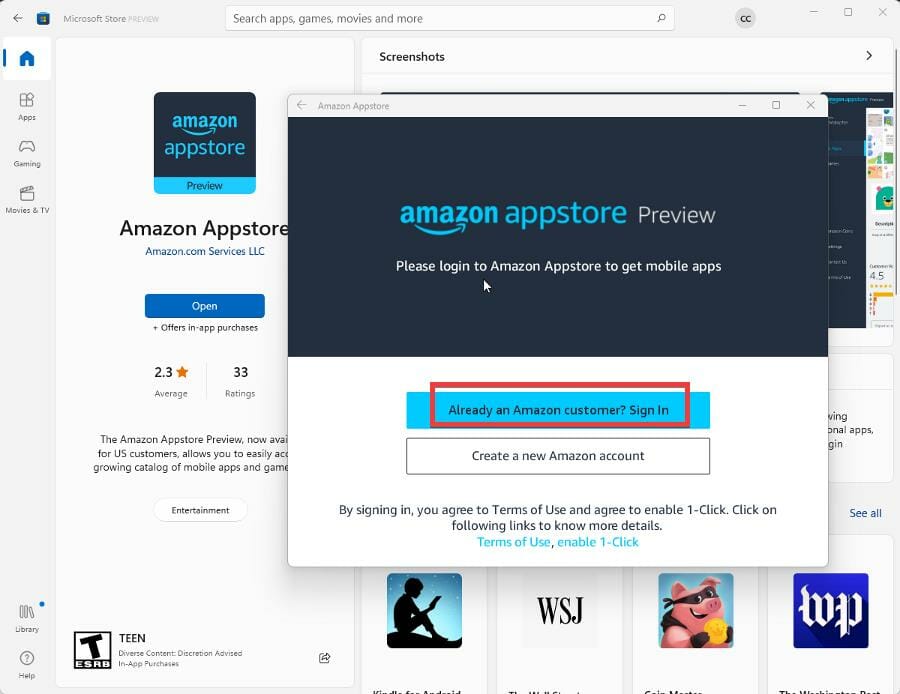
  5. Sign into your Amazon account to gain access to the store.

Are there any tips regarding the Microsoft Store and Amazon Appstore?

First, it’ll be helpful to know about all the different kinds of Android apps available. There are video games, language-learning tools, and music players just to give you an idea of what you can expect.

It’s also recommended that you learn how to fix Microsoft Store updates if they ever get stuck on pending. Solving this problem can be as simple as checking your internet connection or something more complex like clearing the software distribution folder.

Total War Warhammer 3 Can’t Join Multiplayer: 3 Fixes to Use

Total War: Warhammer 3 is one of the most impressive strategy games on the market.

Although its single-player campaign is the main draw for many fans, Total War: Warhammer 3 continues the series’ tradition of having a multiplayer component.

Manufacturers extended your game possibilities. In these terms, players will enjoy various multiplayer battle types such as land, free-for-all, ambush, chokepoint, subterranean, quest battles, etc.

Even if it offers many stunning features and allows you to enjoy fascinating experiences, the multiplayer property is sometimes not working as users might expect.

Fortunately, in today’s guide, you will find the best ways to fix this annoying issue in no time, so you and your teammates can take advantage of the co-op Total War scenarios.

Why can I not join multiplayer in Total War Warhammer 3?

There could be several reasons why you cannot join multiplayer in Total War Warhammer 3. Here are a few:

  • Poor or unstable internet connection – A poor or unstable internet connection can prevent you from connecting to other players’ games or hosting your own. Slow internet speeds or high latency can cause delays, lags, or disconnections.
  • Corrupted or missing game files – If game files are corrupted or missing, this can cause errors or prevent the game from launching correctly. This can result in difficulties joining multiplayer games.
  • Outdated game version – If the version is outdated or not patched, it may not be compatible with the multiplayer servers or other players’ games. This can cause issues when trying to join multiplayer games.
  • Firewall or antivirus – Firewall or antivirus software may block the game’s multiplayer connections, preventing you from connecting to other players or hosting your own game.
  • Incorrect in-game settings – Incorrect settings in the game’s options menu can also cause multiplayer connection issues. For example, if the wrong network settings are selected or multiplayer is not enabled, you can be prevented from joining or hosting games.
  • Server maintenance or downtime – The game’s multiplayer servers may be undergoing maintenance or experiencing downtime, which can prevent players from connecting to multiplayer games.
  • Network congestion or high latency – Network congestion or high latency can cause connection issues or delays when connecting to multiplayer games. This can be caused by high internet traffic or distance between players.

Regardless of the trigger, it would be best to resolve using any of the solutions below.

What can I do if Total War: Warhammer 3 multiplayer is not working?

Before exploring any suggestions below, ensure you have a stable internet connection, as a bad network is one of the primary triggers for this error.

You should also confirm that the server is not down, which may also be why multiplayer would not work on the game. In this case, all you have to do is wait it out.

1. Use Steam Friends List

  1. Make sure that you’ve completely closed Total War: Warhammer 3.
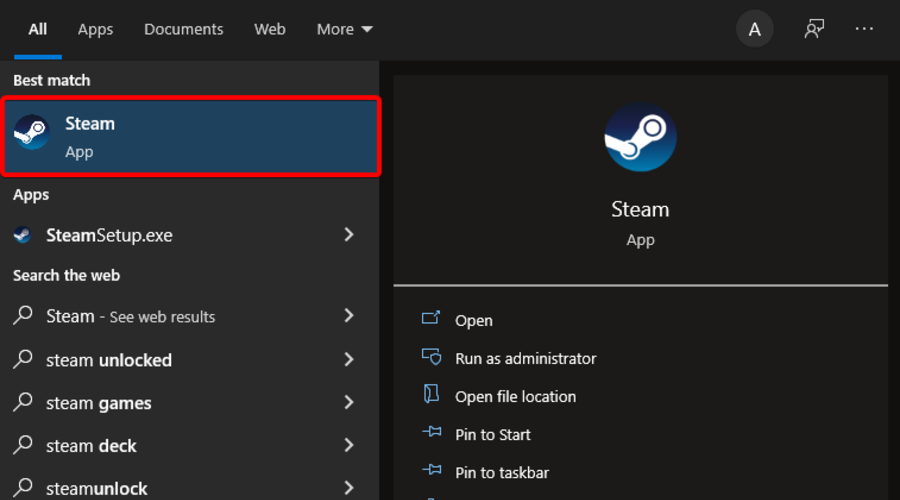
  2. Now, hit the Windows key, type Steam, then open the app. Or simply navigate to the Steam official page, and log in with your credentials.
  3. From the top menu, click on Friends, then navigate to View Friends List.
  4. Right-click on the nickname of one of your Total War: Warhammer 3 teammates, then choose to Join Game.
  5. Make sure that your friend is already running the game.

If you’re one of those Steam players who can’t connect to multiplayer Total War Warhammer 3, remember that the Steam Friends List is a great alternative to joining the online session directly.

Note icon NOTE
If the game can’t connect you immediately, you may need to try the above method a few times.

2. Re-login on Game Pass

  1. First, try to log out and log-in back again, then connect to the multiplayer games.
  2. Repeat this if needed (Some gamers claimed that changing their profile icons in Xbox app helped them connect to online sessions, so you should try it.).
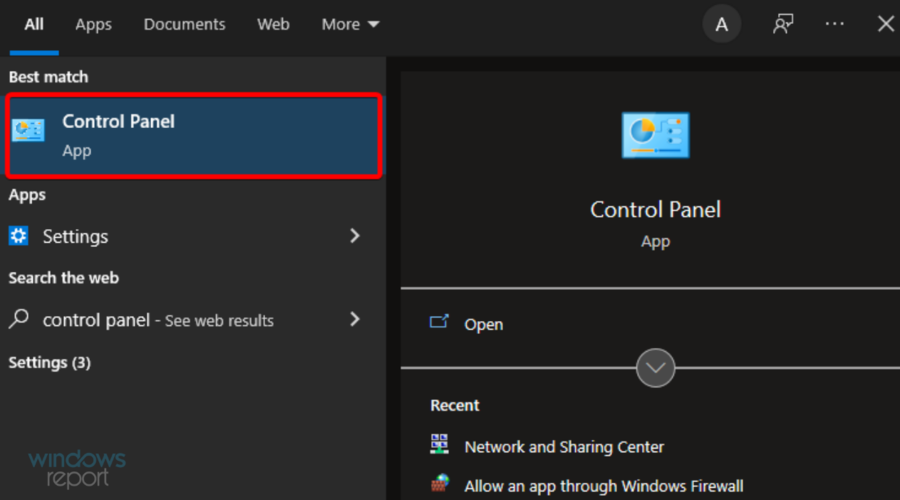
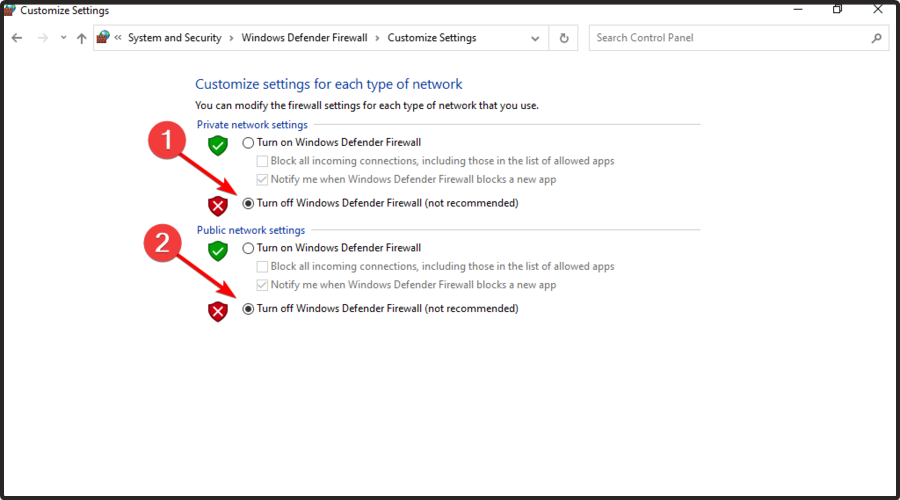
  3. Now, you should temporarily disable Windows Firewall; to do this, just hit the Windows key, type Control Panel, then navigate to the first result.
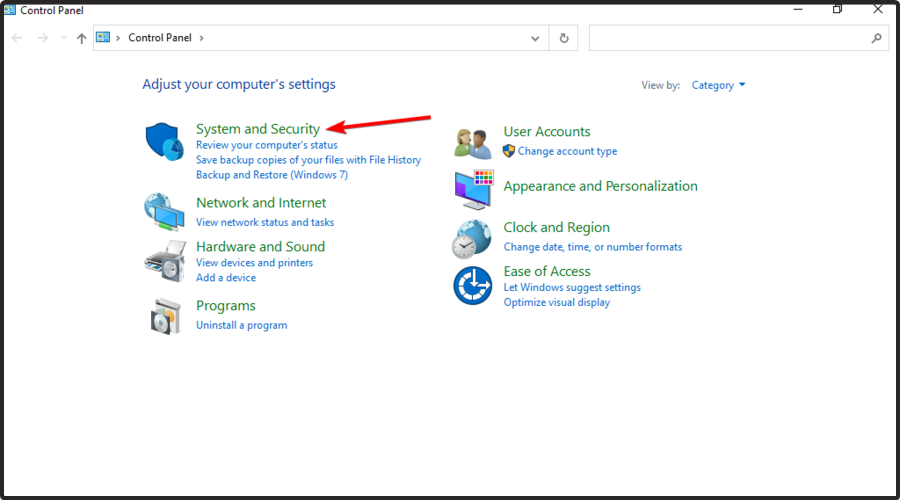
  4. Navigate to System and security.
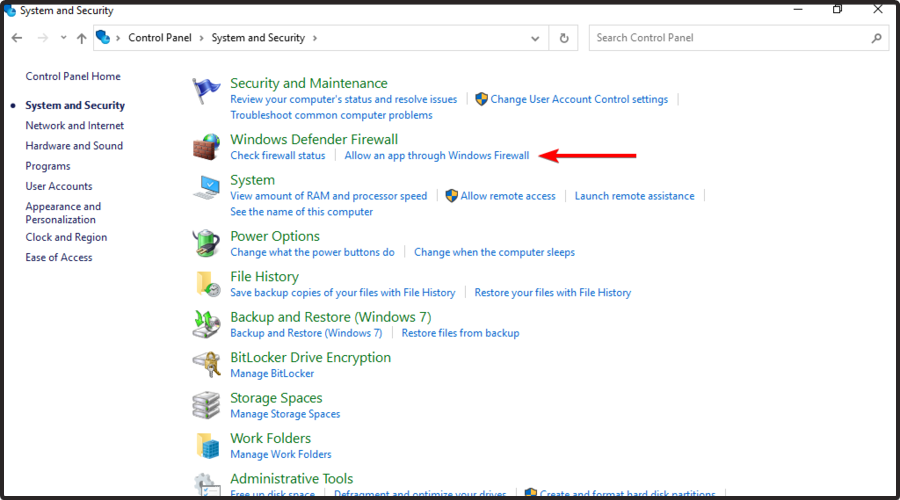
  5. Choose to Allow an app through Windows Firewall from the right window pane.
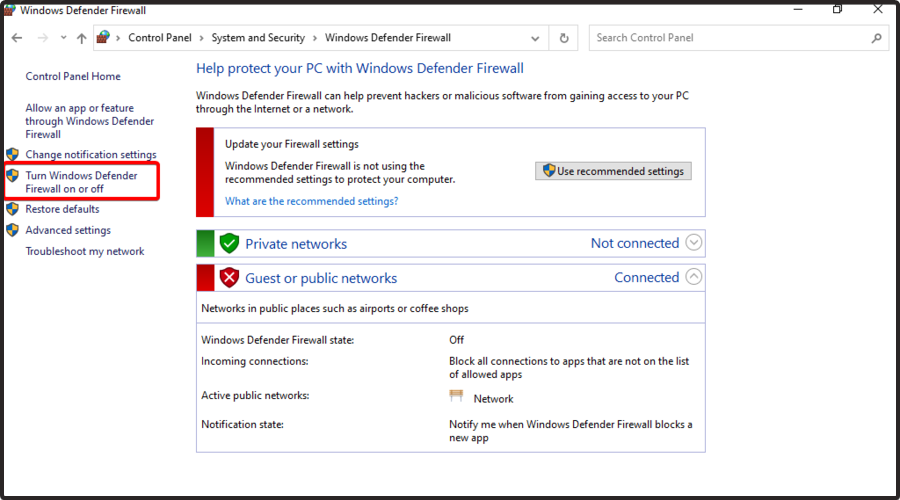
  6. Now, on the right side of the window, select Turn Windows Defender Firewall on or off.
  7. Make sure you turn off both sections shown below.

3. Verify game files

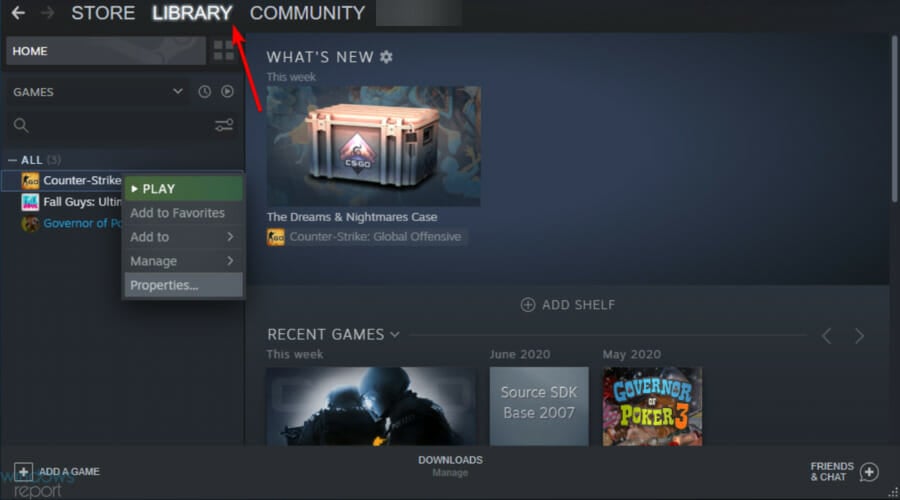
  1. Launch the Steam client and go to your Library.
    total war warhammer 3 can't join multiplayer
  2. Right-click on Total War: Warhammer 3 and select Properties.
    total war warhammer 3 can't join multiplayer
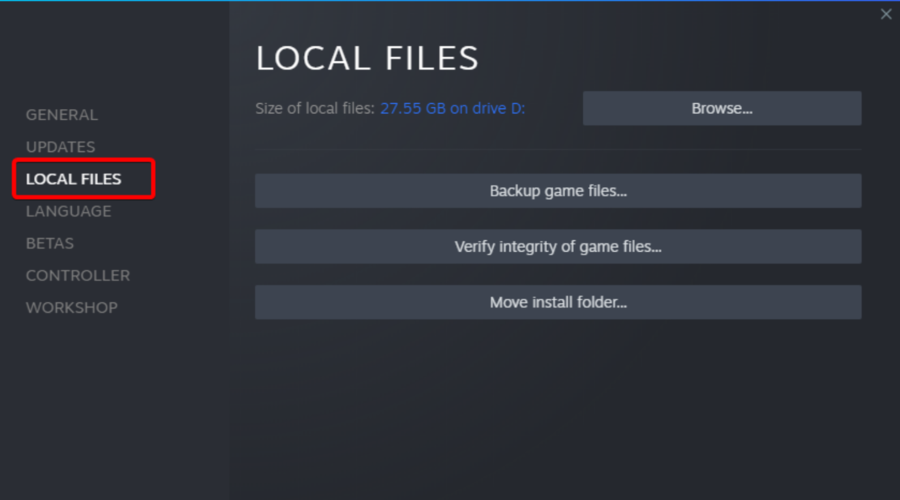
  3. In the Properties window, select the Local Files tab and select Verify Integrity of Game Files button.
  4. Wait for Steam to verify the game files. This process may take several minutes.
  5. Once the verification is complete, restart the Steam client and try relaunching the game.

As you can see, you don’t have to worry if the Total War: Warhammer 3 multiplayer is not working. There are always reliable solutions you can try to fix in a matter of time.

The Failed to host game error is also encountered by Total War: Warhammer 3 players worldwide. If you are no stranger to this issue, look at the linked article and solve it immediately.

Feel free to comment in the section below for any related questions or curiosities.

Total War Warhammer 3 Crash on Campaign Load: 3 Ways to Fix

It is no wonder that Total War: Warhammer 3 caught the attention of many professional worldwide gamers. Manufacturers released an exciting campaign, diverse races, legendary lords, and much more starting on 17th February 2022. 

Even if it seems like the game runs great, there are still some annoying bugs that might give you headaches. Speaking of problems, some users recently reported that Total War: Warhammer 3 sometimes crashes on the campaign load.

Why does Total Warhammer 3 keep crashing?

From what we gather from players, a few factors may cause the game to crash on campaign load. At the top of the list are the following:

  • Driver issues – These usually are incompatible or outdated graphics card drivers. Since drivers play an essential role in the smooth running of devices, you may expect crashes when you do not have them in their proper state.
  • Overheating – Overheating the PC’s vital components, like your GPU and CPU, would often lead to a game crash and sometimes a general system crash.
  • Inadequate system resources – These could be insufficient storage or little system memory (RAM) for most users.
  • Corrupted game files – It is only expected that once your game files have become corrupt, the game will start to bug. A crash is just one symptom of this.
  • Program conflicts – Background programs are often the culprits, but you may also have conflicts with your antivirus. We recommend using only the most compatible antivirus software for your OS.

Any of the above will trigger the problem, and in addition to the campaign load crash, users often experience Warhammer 3 crashing on campaign start and Total War: Warhammer 3 crashing.

How can I fix Total War Warhammer 3 crash on campaign load?

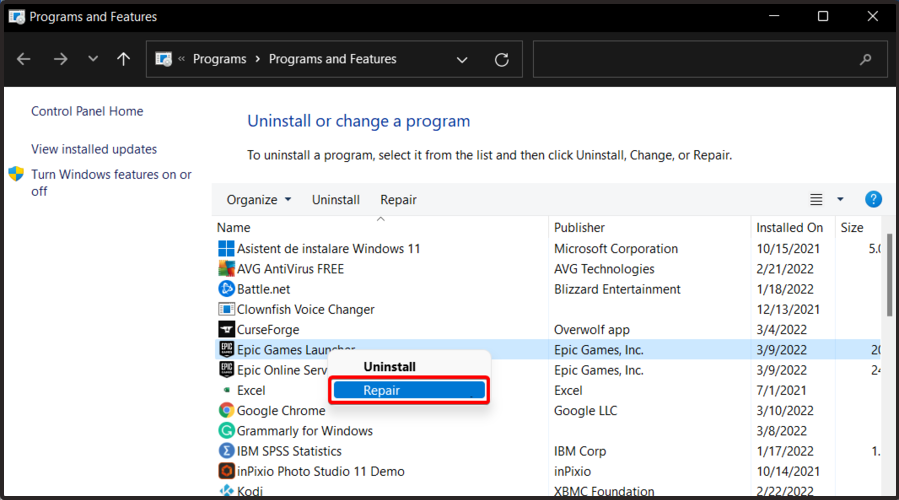
1. Repair your gaming app (Steam and Epic)

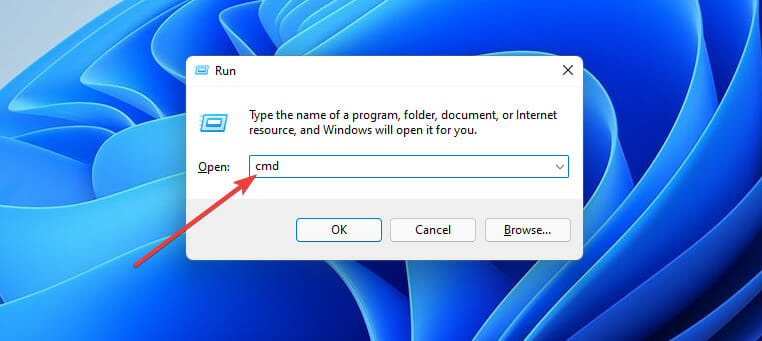
  1. Use the following keyboard shortcut to open the Windows run dialog box: Windows + R.
  2. Type appwiz.cpl, then hit Enter.
  3. Search for the Steam/Epic Games apps, right-click on the one you use, then choose to Repair it.

2. Update your graphics card drivers

2.1 Use Device Manager

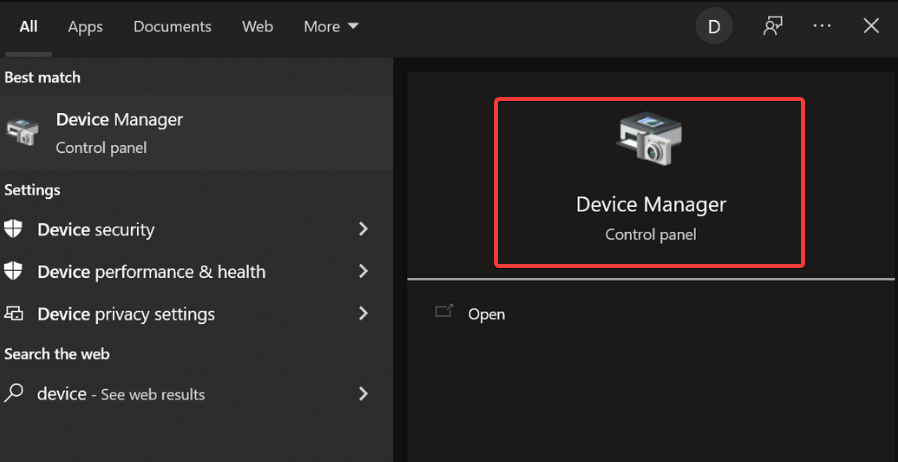
  1. Type device in the taskbar and open Device Manager.
    total war warhammer 3 crash on campaign load
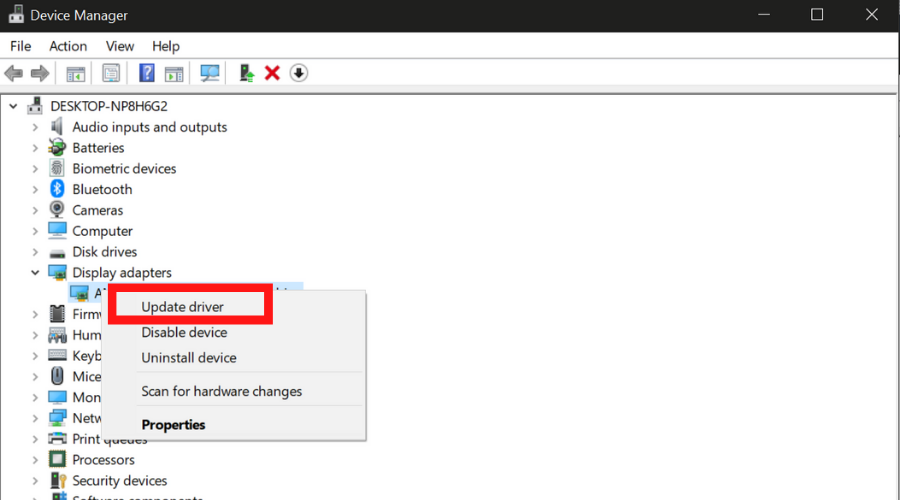
  2. Locate the Display adapters section and find your graphics card.
  3. Right-click on your graphics card and select update.
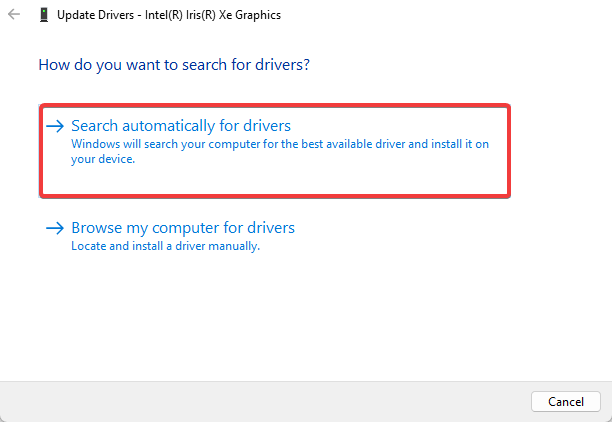
  4. Choose Search automatically for drivers.
    total war warhammer 3 crash on campaign load

Note that sometimes Windows may not detect the latest version of your graphics driver, so you should check directly on the manufacturer’s website.

2.2 Update drivers manually

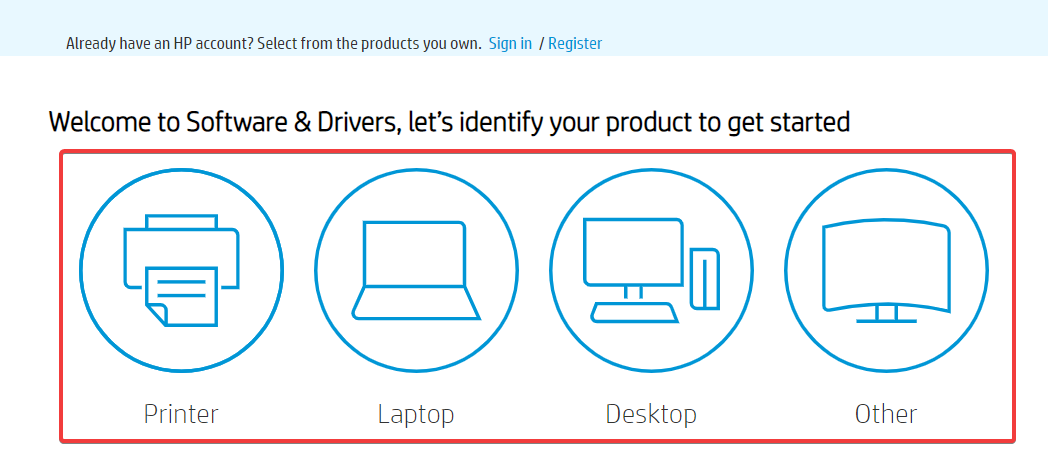
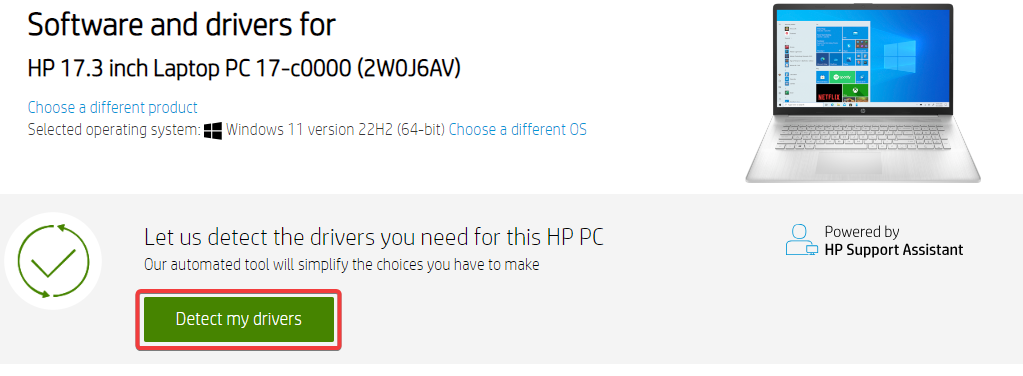
  1. Visit the manufacturer’s website. We use HP for this example.
  2. Select your type of device.
    total war warhammer 3 crash on campaign load
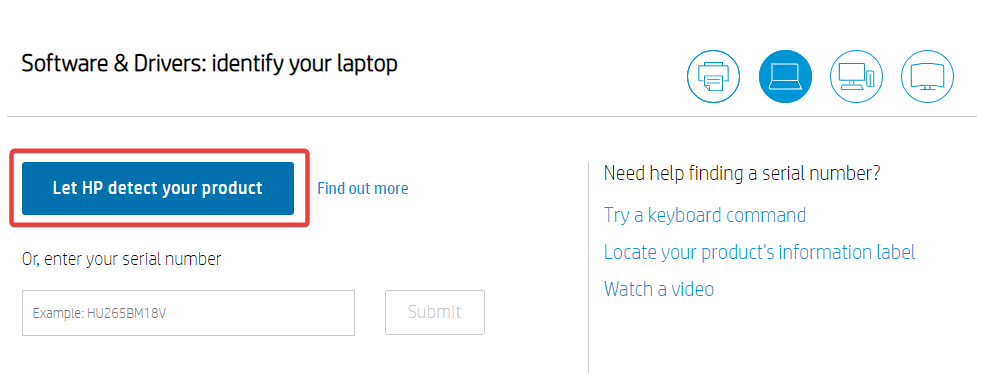
  3. Click Let HP detect your product, then click on the detected product.
    total war warhammer 3 crash on campaign load
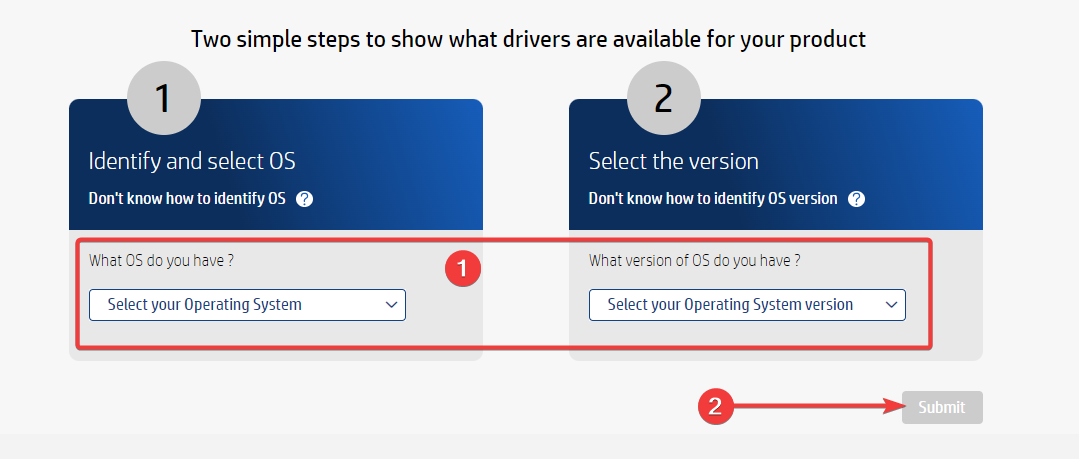
  4. Input your OS type and version, then click Submit.
    total war warhammer 3 crash on campaign load
  5. Select the button for Detect my drivers.
    total war warhammer 3 crash on campaign load
  6. Click Download to get the required driver, double-click on the downloaded file, and follow the wizard to complete the installation.

For this game to function correctly, users should have at least the following graphic cards: AMD Radeon HD 5770 1024MB, NVIDIA GTS 460 1024 MB, or Intel HD4000 @720p.

It is essential to ensure that the version of your drivers matches your hardware. If you install mismatched driver versions, you risk facing significant system errors.

2.3 Use dedicated software

If you do not want to risk or are unsure what exact driver version you have, you can use an automated solution such as Outbyte Driver Updater.

The tool will automatically identify the best driver version for your hardware and run the installation in just a few minutes.

Outbyte Driver Updater

Get the latest GPU driver version from this tool’s official database and fix your game.
Check price Visit website

3. Stop overclocking

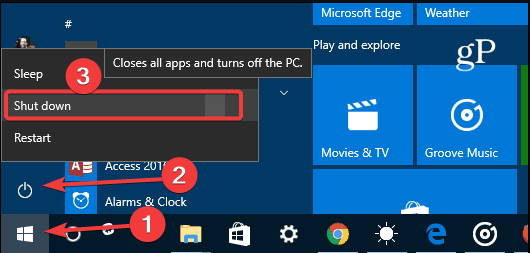
  1. Hit the Start menu, select the Power icon, and choose Shut down to turn off the computer.
  2. Once off, detach every peripheral device, and disconnect your AC adapter.
  3. Press and hold your power button for about 15 seconds, then reconnect the AC adapter and restart the computer.

The method described above works on HP, but it should be a similar process with other manufacturers and a handy way to stop the Total War: Warhammer 3 crash on campaign load.

For other brands, navigate to the manufacturer’s official site and check how to reset the CPU or the graphics card from the recommended specifications.

If you’re using software like MSI Afterburner, AMD Overdrive, GIGABYTE Easy Tune, etc., you may need to disable them first.

If none of the above options worked for you, try temporarily disabling your antivirus software, as it might sometimes become overprotective and interfere with the game. You can also try reinstalling the game, which should only be performed in the last instances.

As you can see, the Total War: Warhammer 3 crash on the campaign load issue can be quickly solved.

Also, the Failed to host game error is currently bothering Total War: Warhammer 3 players worldwide. Check out the linked article and solve it in no time if that’s your case.

Was this guide helpful? Share the solution that worked for you by leaving a comment below.

Windows 11 Dev build 22572: Everything you need to know

Were you wondering when the next Dev Channel Insider build was going to be made available by the Redmond tech giant?

Well, build 22572 has arrived today and it brings with it several changes to File Explorer changes, a new Sandbox icon, and much more.

Microsoft has also prepared a surprise for its loyal community, as through this build it also announces a new Search highlights feature.

What new features does build 22572 bring?

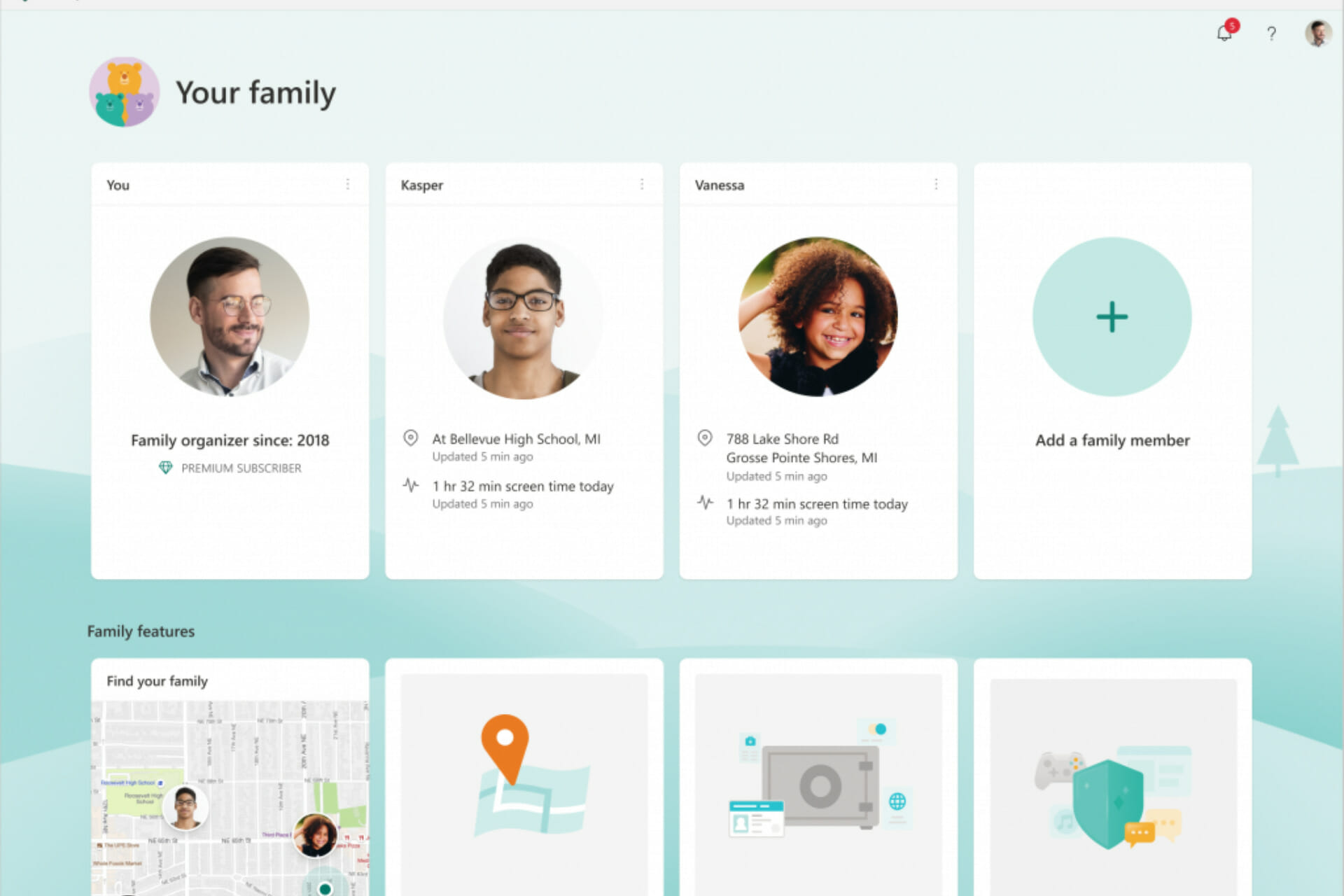
Maybe we can start with the fact that Microsoft Family is now an Inbox app. The family safety features you use on the web and mobile are now available on Windows 11 starting with this build.

The Microsoft Family app will only be an inbox app on the Windows 11 Home edition and will be updated via the Microsoft Store.

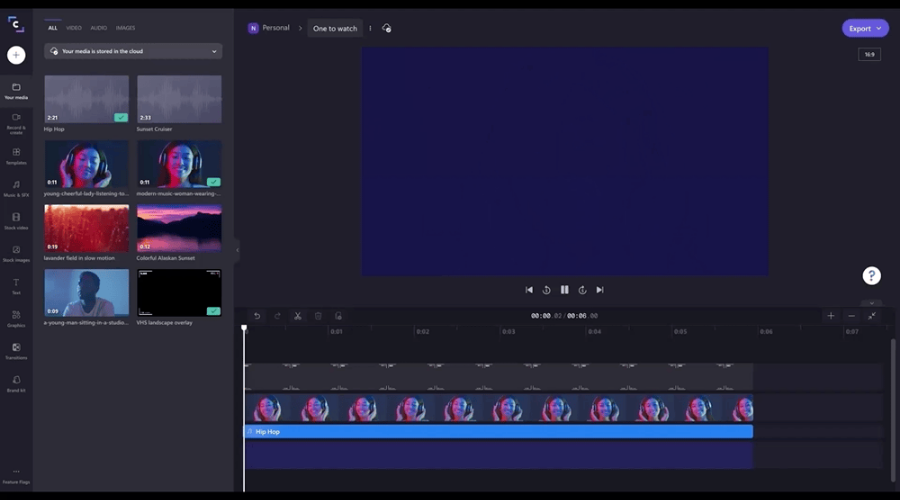
Remember a while back when we told you that Microsoft bought Clickchamp and was planning on adding it to the latest operating system?

It seems that the software will be added with this Insider build, as the tech giant clearly mentioned that Clickchamp is now an inbox app, in the official blog post.

In Clipchamp, users are said to discover more unique offerings, like a stock library filled with more than a million royalty-free videos, audio tracks, and images that can be added to videos.

There’s even an Azure-powered text-to-speech generator capable of creating voiceovers in more than 70 languages.

Clipchamp also connects with OneDrive, meaning you can import files and save videos quickly and securely.

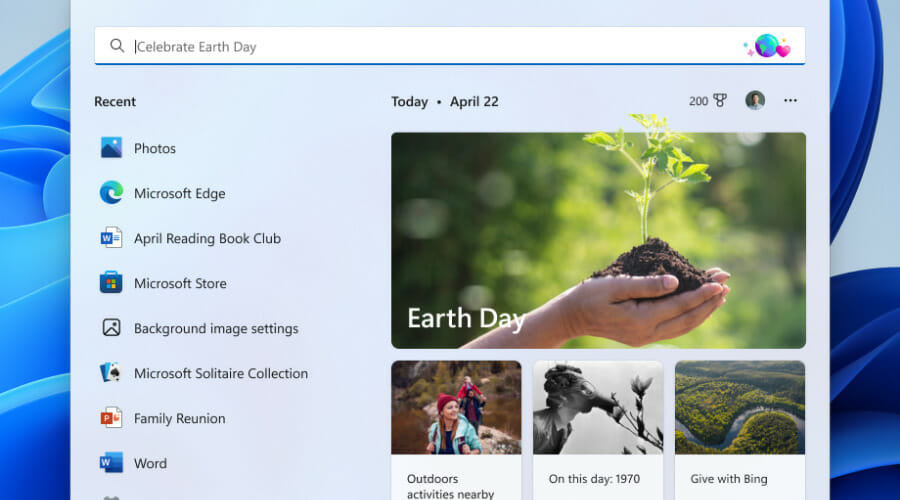
Also, starting early next week, Microsoft will begin rolling out an update for Search in Windows 11 that highlights interesting moments in time. 

Of course, you can still type to start searching for your apps, files, settings, and quick answers on the web.

Search highlights will present notable and interesting moments such as holidays, anniversaries, and other educational moments in time both globally and in your region.

Changes and Improvements

[General]

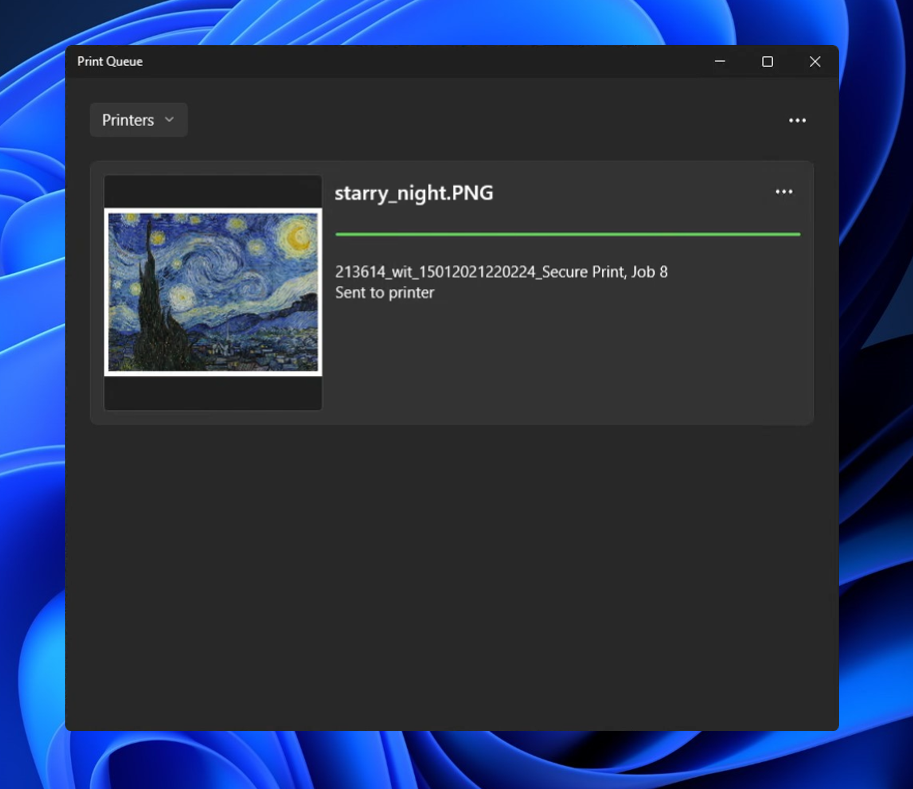
  • The new Print Queue has an updated design to align with Windows 11 design principles, allow you to easily identify your desired print job, see the status, and manage it. The feature is designed with simplicity in mind, and to allow you better access to your print jobs. To get started, just click print and watch the Print Queue pop up.
A print job showing in the new Print Queue in dark theme.
  • Quick Assist now has a new Fluent-style icon.
The new Fluent-style Quick Assist icon.

[Focus]

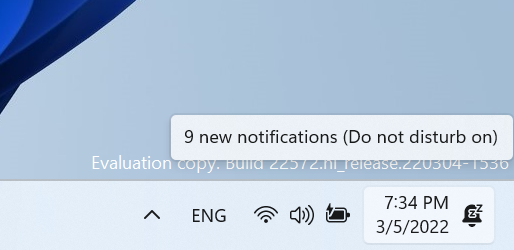
  • Building off the Focus changes announced in Build 22557, we have updated the icon for Notification Center when do not disturb is set to on.
Updated icon for Notification Center when do not disturb is on.

[File Explorer]

  • Shift + Right-clicking in File Explorer and the Desktop will now open the “Show more options” context menu.

[Narrator]

  • Narrator natural voices are now available for all English languages.

[Terminal]

  • Windows Terminal is now called Terminal under Start.

[Settings]

  • WMIC is now available as an optional feature that can be uninstalled or reinstalled via Settings > Apps > Optional Features.
  • Switched the touch keyboard icon option under Settings > Personalization > Taskbar from being a toggle to now being a dropdown where you can select Never, Always, or When no keyboard attached.

[Windows Sandbox]

  • Windows Sandbox now has a new Fluent-style icon.
New Fluent-style icon for Windows Sandbox.

[Other]

  • The legacy version of Windows Media Player available in Windows Tools has been renamed to Windows Media Player Legacy.

Fixes

[General]

  • Fixed an issue for Enterprise edition devices going through the setup experience (OOBE) where the network add screen was skipped on the first attempt.
  • Addressed an issue which was causing some Insiders to see a bugcheck with a CRITICAL_PROCESS_DIED error in the previous build while attempting to do various things including logging in, opening Outlook, and accessing network shares in File Explorer.
  • Mitigated an underlying issue that was leading to audio stutters and touchpad issues in the previous flight.
  • Addressed an explorer.exe crash Insiders were seeing in recent builds when attempting to use Windows Mixed Reality.
  • Fixed an issue with scroll bars not rendering appropriately on some Win32 applications.
  • Fixed another issue where users weren’t hearing the startup sound.
  • Images should no longer be backwards when using a lock screen slideshow with an Arabic or Hebrew display language.

[Taskbar]

  • We fixed the issue that was causing explorer.exe to crash if you right clicked on the Start button or used WIN + X.
  • Mitigated an explorer.exe hang that could happen in the last few flights related to the visual indicator in the taskbar when sharing a window in Microsoft Teams.
  • Adjusted the sensitivity so quickly sliding your mouse across the widgets icon on the path to an open flyout or menu will no longer make it dismiss.
  • Made a change to help address a memory leak in Shell Experience Host when repeatedly opening and closing the Notification Center.
  • Addressed a scenario where the Notification Center might not light dismiss if it was opened on top of certain apps.
  • Fixed an underlying issue when the display scaling was greater than 100% which was causing drag and drop in the taskbar to unexpectedly show that it wasn’t available.

[Tablet-optimized taskbar]

Note icon NOTE
These fixes will only show if tablet-optimized taskbar is enabled on your device, which is beginning to roll out to Windows Insiders and not yet available for everyone.
  • Touch gestures are restored on all device types, as we resolved the issue that broke several of the new touch gestures announced as part of Build 22557 on non-tablet devices.
  • Improved reliability of taskbar auto-collapsing after launching an app.
  • Fixed several bugs related to the taskbar state change when disconnecting or reconnecting your keyboard.
  • Addressed positioning issues with the hidden icons button and flyout when using the Arabic or Hebrew display language.

[Start menu]

  • Improved how the “Pinned” header name is rendered in the Arabic display language.

[File Explorer]

  • Made some more improvements to help with context menu invocation performance.
  • Using the Filter option in Quick Access should work for images now.
  • Fixed an underlying issue causing the title bar in File Explorer when colored to not visually occupy the full area it was supposed if you maximized the File Explorer window.
  • Fixed an issue where if you had a folder selected in the navigation pane and right clicked another folder, options like Open in Windows Terminal would unexpectedly open the first folder.
  • “Pin to Quick Access” is now available in the command bar when a file in Recent Files in Quick Access is selected.

[Input]

  • Mitigated an issue where clicking hyperlinks in RichTextBlocks wasn’t working when performed with touch or pen.
  • Addressed an issue where custom mouse pointers might revert to the default Windows one after rebooting.
  • Fixed an issue where voice typing might display “there is a connection issue” when that wasn’t the cause of the error.
  • Addressed an issue where voice typing might not launch after unlocking your PC.
  • Fixed a touch keyboard crash that could happen on the login screen when there were multiple accounts on the PC.
  • Mitigated an issue impacting pen sensitivity in recent flights.
  • Fixed a rendering issue causing the screen to have small freezes in recent flights when trying to ink in certain apps.
  • Made some refinements to help improve detection of the pinch to zoom gesture on touchpads.
  • Addressed an issue leading to IME toolbar options being unresponsive in some cases for the Chinese (Simplified) IMEs.

[Search]

  • Did some work to address a high hitting search crash.

[Settings]

  • Fixed an issue causing a hang when trying to access Personalization > Taskbar > Taskbar behaviors.
  • Addressed an issue where font previews under Personalization > Fonts might not be visible when a contrast mode was enabled.
  • Improved performance when switching between the different available views on Apps > Installed apps.
  • Uninstalling an update via Windows Update > Update History > Uninstall Updates should show a confirmation now before it proceeds.

[Windowing]

  • An acrylic area should no longer get stuck on the screen if you press WIN + D while interacting with snap layouts at the top of the screen.
  • Fixed an issue where if you used snap assist to snap a window that had been minimized, it might not fill the entire available space.
  • Fixed a few animation stutters when using 3-finger on screen gestures.
  • Addressed an explorer.exe crash that could happen if you attempted to use 3-finger on screen gestures while no windows were visible on screen.
  • Addressed an underlying issue which could impact the animations and performance when invoking Task View.
  • Mitigated an underlying issue which was causing you to unexpectedly see an X when attempting to rearrange Desktops in Task View in certain scenarios.
  • Tweaked the logic to help further reduce the number of sounds heard when connecting and disconnecting monitors and docks.
  • Mitigated a recent issue where windows for minimized apps weren’t launching on the expected monitor upon undocking and redocking.
  • The title bar should no longer peek out onto secondary monitors when maximizing certain apps.
  • Fixed an issue which was causing certain windows to show an unexpected white rectangle poking out from underneath, spanning the top of the window.
  • Updated the new full screen gripper for edge gestures to use acrylic.

[Narrator]

  • Fixed an issue preventing Narrator from reading in the Run dialog correctly in scan mode.
  • Narrator in scan mode will now read error messages in the Error List correctly in Visual Studio.
  • Errors while setting up a PIN in device setup (OOBE) will now be read out by Narrator.
  • Pitch range for Narrator natural voices has been adjusted to provide more levels of control.
  • Addressed an underlying issue which was leading to the pitch not changing when adjust Narrator’s speed in the 0 to 5 and 15 to 20 ranges in Narrator settings.

[Task Manager]

  • Improved visibility of content when a contrast mode is enabled.
  • Fixed an issue where critical system processes were unexpectedly displaying as background processes.
  • Addressed an issue that was causing random rows in the processes list to be unexpectedly written in black text when using dark mode.
  • Right clicking the Task Manager icon in the system tray should now actually show the context menu rather than a blank box.
  • Pressing Esc should no longer unexpectedly close Task Manager.
Note icon NOTE
Some fixes noted here in Insider Preview builds from the active development branch may make their way into the servicing updates for the released version of Windows 11 that became generally available on October 5th, 2021.

Known issues

[General]

  • Users running Windows 10 who try to upgrade directly to build 22563 or higher in the Dev Channel may encounter an install failure with error code 0x8007007f. To bypass, please join the Beta Channel, install the offered Windows 11 build there, and then switch to the Dev Channel to receive the current Dev Channel update. This issue is understood and will be fixed in an upcoming build.

[Tablet-optimized taskbar]

  • The taskbar doesn’t always automatically collapse after launching an app or tapping outside of the expanded taskbar on 2-in-1 devices.
  • Some areas of the OS are not yet tracking the height of the expanded taskbar on 2-in-1 devices so you may see overlapping components, such as Widgets overlapping with the taskbar.

[File Explorer]

  • Opening suggested results shown while entering search terms in File Explorer’s search box may not work.
  • We’re working fixing issues regarding icon sizing, visual bugs, and text clipping in the flyout showing OneDrive storage.

[Widgets]

  • Sometimes when pinning from the Feed, the pinned widget is placed at the top instead of below other pinned widgets. If this happens this will autocorrect within 30 minutes, moving the recently pinned widget to the expected default location. Or you can sign out of your Widgets board and immediately signing back in should correct the problem.
  • After rearranging widgets in the widgets board, some users experience problems with widgets in the pinned section rendering incorrectly. If this happens, signing out of your widgets board and immediately signing back in should correct the problem.

[Focus]

  • The Clock app does not yet update Windows Focus state when configuring focus sessions within the app. This will be addressed in a future app update.

[Narrator]

  • Narrator natural voices sounds garbled and will not read out text accurately. This happens when doing quick navigation, typing or pitch changes. As a workaround, you can switch back to the older voices such as Microsoft David, Mark or Zira.

[Live captions]

  • Certain apps in full screen (e.g., video players) prevent live captions from being visible.
  • Certain apps positioned near the top of the screen and closed before live captions is run will re-launch behind the live captions window positioned at top. Use the system menu (ALT + Spacebar) while the app has focus to move the app’s window further down.
  • The very top of maximized apps (e.g., title bar window management buttons) can’t be reached with touch while live captions is positioned at the top.

[Task Manager]

  • Some tooltips do not accurately display the preferred visual setting when Task Manager is configured for dark mode.

The Dev channel release is now known as the NI_RELEASE or Nickel branch in preparation for the major feature update to Windows 11 later this year.

Any thoughts on the features and changes brought by this latest Dev build? Share your opinions with us in the comments section below.

Fix: Windows 10/11 Desktop Icons are Too Wide

The first thing many users notice about Windows 10 soon after they install it is that desktop icons are too large.

Fortunately, this issue can easily be fixed by customizing the display settings.

Before customizing the settings for the desktop and taskbar icons, make sure you’re using the right display resolution, and you’re running the latest graphics driver.

Why are my desktop icons so big?

When Windows updates itself, it can cause different miscommunications between the old settings and the new ones, as well as between drivers.

For example, your scaling settings might have been changed or misinterpreted by the system, thus, you will need to go back and reset your preferences as you would want them to be.

Icons are an integral part of the Windows interface, but some users seem to have issues with their icons. Speaking of issues, these are some of the most common problems that users encounter:

  • Desktop icons are huge Windows 10 – If you’re having problems with the size of desktop icons, you can fix the problem simply by changing their size from the View menu.
  • Windows 10 everything is huge – If everything on your screen is huge, it’s possible that you don’t have the necessary drivers installed. Visit your graphics card manufacturer and download the latest drivers for your device.
  • Windows 10 icons very large, too enlarged, got bigger – According to users, sometimes their icons can become very large. If that’s the case, you can try to change their size simply by pressing Ctrl and scrolling your mouse wheel.
  • Windows 10 text and icons too big – Sometimes this issue can occur due to your scaling settings. If that’s the case, try adjusting your scaling settings and check if that helps.
  • Windows 10 Taskbar icons too big – If your Taskbar icons are too big, you can change their size simply by modifying your Taskbar settings.
  • Icons too big on second monitor – Fortunately, the solutions we have listed below for your native monitor will be applicable to any secondary monitor as well.
  • Icons chnage their position – Don’t hesitate to refer to our other articles where you can learn what to do if your Windows 10/11 icons don’t stay in place and solve this issue for good.

In order to quickly fix the problem of icons that are too big on your Windows 10 desktop, you need to follow the solutions and steps below, so keep reading.

What can I do if the icons are too big on my Windows 10 PC?

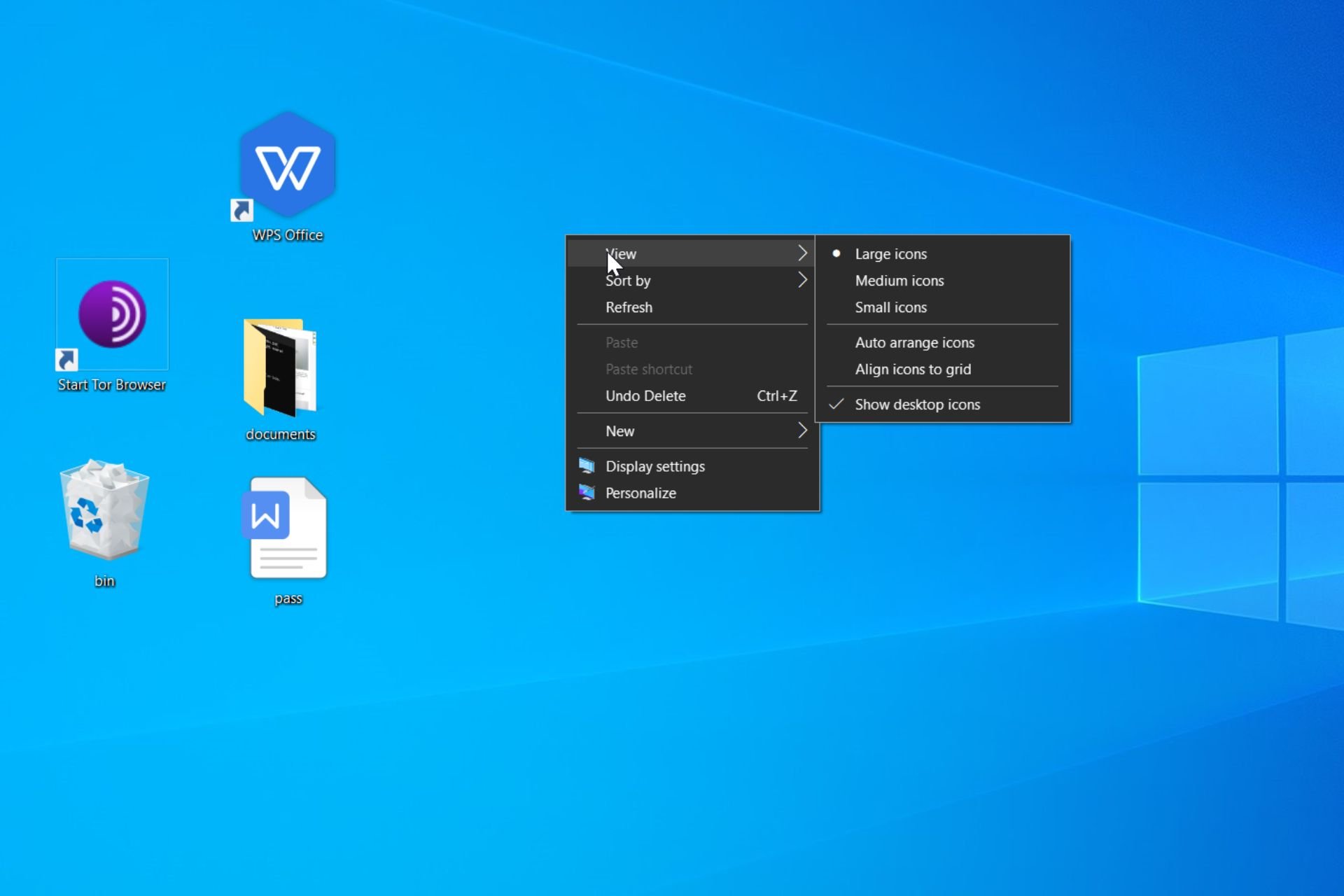
1. Change the icon size

  1. Right-click on your desktop.
  2. Select View.
  3. Choose the icon size you want.
    Windows 10 icons too enlarged

This is one of the quickest solutions you’ll ever have on hand to get rid of the problem of overly large icons on your Windows 10 PC desktop, so be sure not to miss it.

We have a complete guide on how to change icon size on Windows 10 that will provide more information.

2. Update your drivers

If your Windows 10 icons are too big, the issue might be your drivers. If your graphics card drivers are out of date, you’ll be limited to a certain resolution and your icons will appear bigger.

However, you can easily fix this problem by updating your graphics card driver, and no method is much faster at doing so than with a driver updater.

3. Change your resolution

  1. Right-click on your desktop, and select Display Settings.
    Windows 10 text and icons too big
  2. Set the recommended resolution.
    Windows 10 Taskbar icons too big

Some users have reported that by changing the resolution to the recommended one in the display settings, they got rid of the problem of too large desktop icons, so be sure to try it out now.

4. Install the missing updates

  1. Press the Windows Key + I to open the Settings app.
  2. Now navigate to the Update & Security section.
    Windows 10 icons very large
  3. Click on the Check for updates button.
    Windows 10 text and icons too big

If your icons are too big, the issue might be the missing updates. Sometimes certain glitches can appear on Windows 10, and that can cause this and many other issues to appear.

However, you can easily fix most of those issues simply by installing the missing updates.

In most cases, your operating system will automatically install the missing updates, but sometimes, you can miss an update or two.

If any updates are available, Windows 10 will download them automatically in the background and install them once you restart your PC. Once your PC is up-to-date, check if the problem is resolved.

Also, if you don’t know which is the latest version of your OS, you can find out from our constantly updated guide, so be sure to check it out.

5. Change the size of Taskbar icons

  1. Right-click on the Taskbar, and select Taskbar settings.
    Desktop icons are huge Windows 10
  2. Now enable Use small taskbar buttons.
    Windows 10 everything is huge

It also helps you a lot if you go into the taskbar settings, and choose to use small taskbar buttons. Make sure you don’t miss this simple solution!

6. Personalize the font size on the desktop

  1. Go to the Settings app, navigate to System, and select Advanced display settings.
  2. Choose Advanced sizing of text and other items.
  3. Select Set a custom scaling level.
    Desktop icons are huge Windows 10
  4. Click on Custom sizing option, and choose Scale to this percentage of normal size.
    Windows 10 everything is huge
  5. Click OK, and restart your PC.
  6. Go back to the Settings app, and navigate to System.
  7. On the Advanced display settings select Advanced sizing of text and other items.
  8. Select Change only the text size, and personalize the settings.
    Windows 10 everything is huge
  9. Restart your PC.

By making the correct adjustments in the Advanced display settings section, you can fix the problem with large desktop icons, so try it out now!

7. Use keyboard shortcuts

Changing the icon size is rather simple, and if your icons are too big on Windows 10, you might be able to solve this problem simply by changing their size.

To change the icon size, simply press and hold the Ctrl key and scroll with the mouse wheel.

Alternatively, you can use Ctrl and dash (-) key to make your icons smaller. If you are a laptop user and you don’t have a mouse, you can simply press the Ctrl key and perform the pinching gesture on your touchpad.

All these methods should make your icons smaller, so feel free to try any of them.

In our experience, the simplest and the best way to change the size of your icons is to use Ctrl + mouse wheel, so be sure to try this method first.

Everything you need to know about using keyboard shortcuts in Windows 10 is in our detailed guide, so be sure to take a closer look.

8. Rollback the older graphics driver

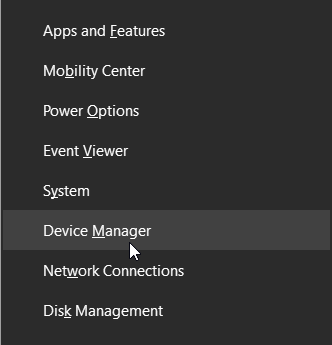
  1. Press the Windows Key + X, and select Device Manager from the list. Windows 10 text and icons too big
  2. Locate your graphics card, and double-click it to open its Properties.
    Windows 10 Taskbar icons too big
  3. Go to the Driver tab, and click Roll Back Driver.
    Desktop icons are huge Windows 10

If your icons are too big on Windows 10, the issue might be caused by your graphics driver.

According to users, they managed to fix the problem simply by rolling back their graphics driver to the older version.

After doing that, your driver will be reverted to the older version. If the problem is resolved, it means that the driver was causing this issue.

It’s worth mentioning that Windows 10 will automatically update your drivers, so in order to prevent this issue from reappearing, you’ll need to prevent Windows from updating your graphics card driver.

To see how to do that, be sure to check our guide on how to prevent driver updates on Windows 10.

If you don’t have the Roll Back option available, you can try installing the older driver manually. This is rather simple and you can do it by following these steps:

  1. Open Device Manager, locate your display adapter, right-click it, and choose to Update driver.
    Windows 10 Taskbar icons too big
  2. Choose to Browse my computer for driver software.
    Desktop icons are huge Windows 10
  3. Now select Let me pick from a list of available drivers on my computer.
    Windows 10 everything is huge
  4. Locate the older driver and install it.

After doing that, the issue should be completely resolved.

If rolling back to the older driver doesn’t help, you can always uninstall your driver and use the default driver instead.

To do that, just select the Uninstall option in Device Manager and restart your PC. After doing that, your PC will install the default driver once it restarts.

9. Change your scaling settings

  1. Press the Windows Key + I to open the Settings app.
  2. Now navigate to the System section.
    Desktop icons are huge Windows 10
  3. Set the scaling to 125%, and log out of your PC.
  4. Now log back in and set scaling to 100%.
  5. You need to log out and log back in.

According to users, your Windows 10 icons can become too big due to your scaling settings. Sometimes this problem can occur due to a certain bug with Windows.

After doing that, the problem with large icons should be resolved, and everything should start working again.

This is a simple workaround, and it works great according to users, so we advise you to try it out.

What to do if Windows 11 desktop icons are too wide?

Windows 11 is similar to Windows 10 as far as settings go, and changing icon size makes no exception:

  1. Right-click on your desktop.
  2. Select View.
  3. Pick the size of icons you want.

As you can see in the screenshot, you can also use hotkeys. For small icons: Ctrl+Shift+4 , for larger icons Ctrl+Shift+3, and for large icons Ctrl+Shift+4.

We have written extensively in our detailed guide on Windows 10 resolution issue, so be sure to take a closer look.

Problems with large icons can be annoying, but we hope that you fixed them by using one of our solutions. If you have more suggestions or other questions, please access the comments section below.

SteamVR Error 208: 5 Solutions for Your HTC Vive

Some less fortunate HTC users have had difficulty dealing with a strange error that involves uninstalling VR drivers each time they give SteamVR a new boot. Unfortunately, this issue is accompanied by a SteamVR error 208.

This can be frustrating, as it renders their device useless. Fortunately, there are ways to solve this problem, as shown in this detailed guide.

What causes HTC Vive error 208?

The following are some of the factors that can cause SteamVR error 208:

  • Outdated graphics driver: In some cases, the Valve index error 208 can be caused by a broken or outdated graphics driver. The solution to this is to reinstall or update your graphics driver.
  • Wrong settings: If you have Direct Mode disabled on SteamVR, you are likely to get the HTC Vive error 208 with a red light. You need to enable this feature to solve the problem.

How can I fix SteamVR error 208?

Below are some basic troubleshooting steps to perform before delving into the more sophisticated fixes in this section:

  • Restart your PC
  • Check video port functionality and GPU connection.
  • Push HDMI all the way in
  • Plug the headset directly into your GPU
  • Change the USB port

1. Update your graphics drivers

  1. Press the Windows key + X and select Device Manager.
    device manager steamvr error 208
  2. Click the arrow next to the Display adapters section to expand it, and right-click your GPU device.
  3. Next, select Update driver.
    update driver
  4. Finally, click the Search automatically for drivers option.
    search auto

According to users, your drivers can sometimes cause the SteamVR error 208 if outdated. The solution is to update your graphics driver to the latest version.

If you don’t want to use the Windows driver updater, go to the manufacturer’s website. Depending on your GPU, go to AMD or NVIDIA’s website and download the latest drivers.

However, to ensure you don’t make any mistakes by choosing the wrong drivers for your needs, you can use software that automatically does this for you.

This is where Outbyte Driver Updater comes into play. It is light and easy to use and provides all driver management features a PC user may need.

It can scan and update all your drivers in bulk, but you can also select any specific driver you want to take care of. In addition, you can set it up to regularly scan and update your drivers so you won’t have to worry about this issue in the future.

Outbyte Driver Updater

Try Outbyte Driver Updater to update all your drivers at once with up-to-date options effortlessly.
Free Trial Download now

2. Enable Direct Mode on SteamVR

  1. Go to the Start menu, and launch Steam.
  2. Start SteamVR by clicking the VR button.
  3. Click the dropdown arrow, go to Settings, and select Developer.
    developer steamvr error 208
  4. Make sure that Direct Mode is enabled, and restart your PC.

Some users have reported that by enabling Direct Mode on SteamVR, they no longer get the HTC Vive 208 error on Windows 10, so be sure to try it out.

3. Select the beta version of SteamVR

  1. Launch Steam and click the Library option.
  2. Search for steamvr, right-click it, and select Properties.
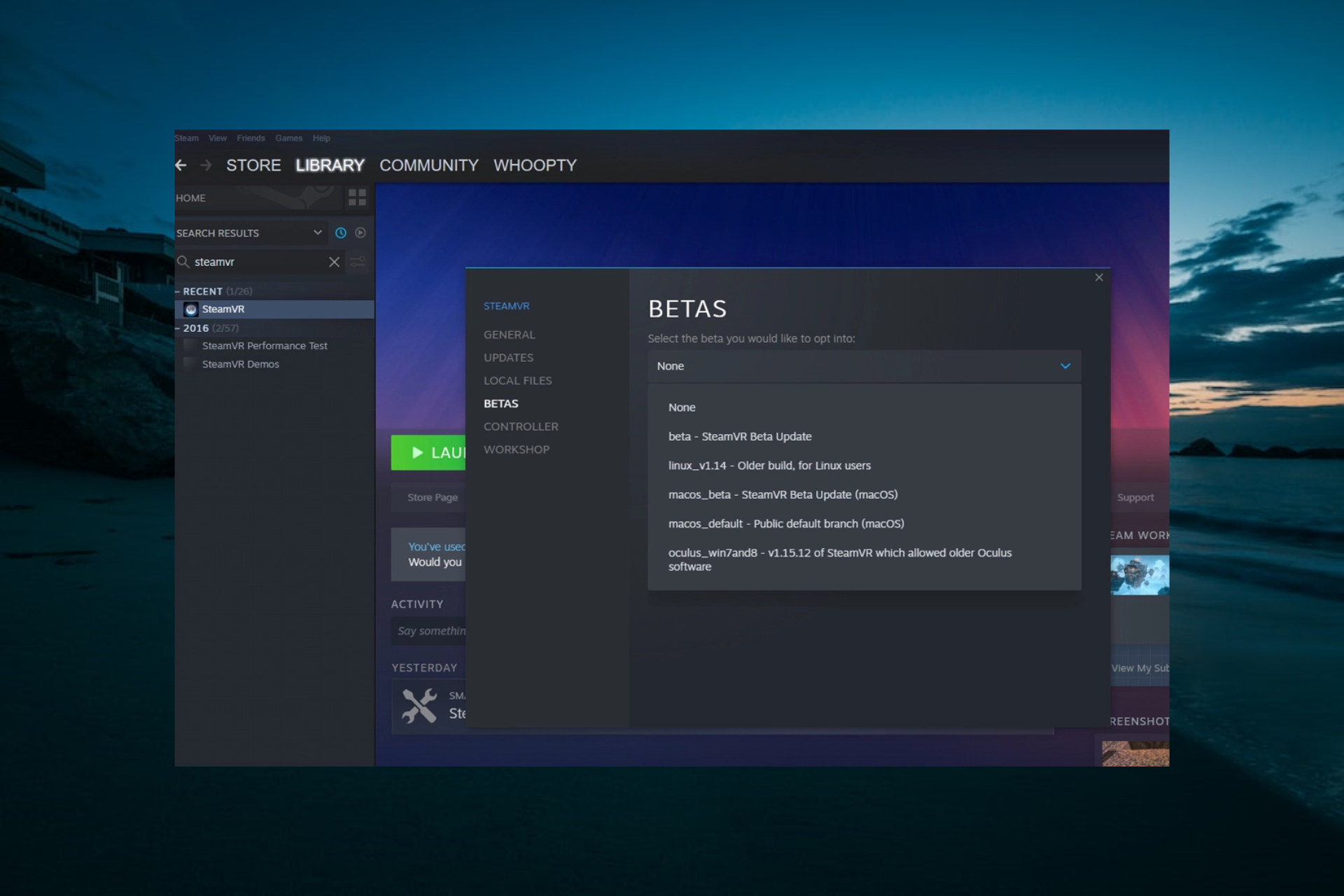
  3. Now, select the BETAS option in the left pane.
  4. Finally, choose the beta option and restart Steam and VR.
    beta

Sometimes if you select the beta version of SteamVR, HTC Vive error 208 in Windows 10 also disappears, so follow the steps above to ensure you enjoy the VR experience.

Also, read our complete guide if SteamVR Home has stopped working and fix the error quickly.

4. Reinstall your SteamVR USB devices

  1. Unplug all cables from your PC, and launch Steam.
  2. Open SteamVR, go to Settings, and select Developer.
  3. Click on Remove all SteamVR USB Devices.
    remove all
  4. Select Yes, and Continue.
  5. Restart your PC.

After the restart, you should plug the cables back in, but be sure to use a different port for your HDMI. Launch SteamVR and set up the device if required. Check for any improvements.

5. Fresh install SteamVR

  1. Launch Steam, go to Library, and select Tools.
  2. Right–click on SteamVR, select Uninstall, and click Delete.
  3. Now, go to the Steam Store.
  4. Search for SteamVR and select the relevant result.
  5. Now, click the Play Game button.
    play game steamvr error 208

Many Windows 10 users have reported that uninstalling and reinstalling SteamVR helped them eliminate the HTC Vive 208 error.

Although error 208 was addressed through some beta updates from SteamVR, it persists on some systems. Try out some of our quick solutions to fix the problem in no time.

Also, check out our comprehensive guide if you’re having problems with VR on Windows 10.

Feel free to let us know the solution that helped you fix this issue in the comments below.

Intel dual-band wireless-ac 7260 disconnecting? [Easy Fix]

Windows 7 or 8 users seem to have a lesser share of the Intel Wireless 7260 AC driver issues until they upgrade to Windows 10. However, Windows 10 users seem to have the greatest trouble in wireless networking due to Intel’s 7260 Wi-Fi driver.

Playing online games like Counter-Strike can often turn into a nightmare due to the distress experienced in connecting to the internet.

The most common problems relating to the Intel Wireless AC 7260 driver are:  slow speed/limited connection, Wi-Fi won’t connect, frequent disconnections.

We have identified the issues and come up with solutions to fix each Intel Wireless 7260 AC driver bug.

Why does Intel dual-band wireless-ac 720 keep disconnecting?

If the driver for Intel dual-band wireless-ac 7260 is incompatible, obsolete, or corrupt, the device may continue to disconnect as it is dependent on the driver’s functionality.

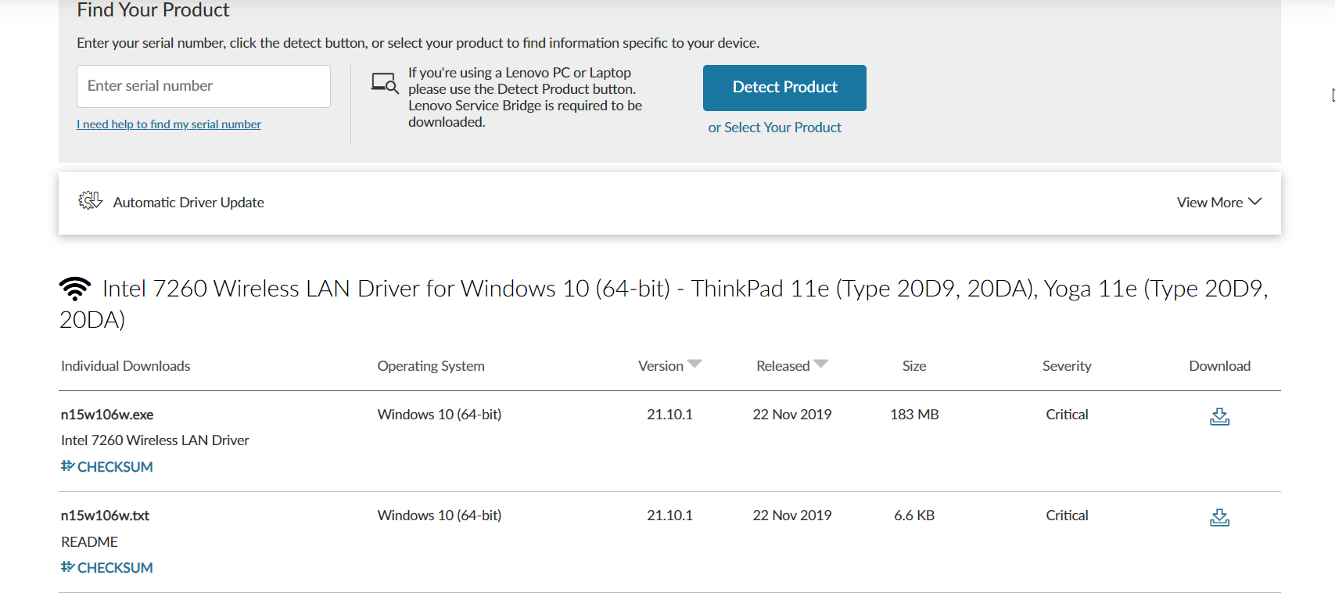
And this is no exception for users who have asked us where they can download the Intel dual-band wireless-ac 7260 driver for Lenovo specifically. As per usual, you can install drivers from their official website.

lenovo support


Furthermore, incorrect configuration of network adapter settings (such as HT Mode or U-APSD) may potentially be a contributing factor to the current problem.

Make sure to check out our post on what to do if Wireless drivers are missing on your PC if you can’t seem to find them all together.

You’ll most likely resolve the annoying connectivity issues by attempting the methods listed below, but before doing so, check to see whether deactivating and re-enabling the 7260 adapter in the Device Manager fixes the problem.

What can I do if Intel wireless-ac 7260 keeps disconnecting?

1. Keep your drivers up to date with a dedicated software

Outdated drivers can lead to computer issues, hardware not communicating correctly and you can even notice that your computer is running slower.

When drivers are updated, your computer will have no performance problem. However, keeping them up to date, might be time-consuming if you are doing it manually. 

A professional tool is the best solution to automatically update all your drivers.

2. Enable Continuously Aware Mode (CAM)

Network control panel applet (NCPA)

  1. From the Windows search bar, type Control Panel and hit the Enter key.
  2. From the right upper side, select View by Small icons. 
  3. Here, select Network and sharing center.
  4. Select Change adapter settings from the left side.
  5. Right-click over the wireless adapter and select Properties.
  6. Hence, click Configure.intel wireless 7260 AC driver issues
  7. Click the Advanced tab.
  8. Select Transmit Power, change the value to 5 which is the highest.intel wireless 7260 AC driver issues

Note: This procedure above fixes the Intel Wireless 7260 AC driver Wi-Fi issues for the following Intel Wireless adapter models:

Intel Centrino Advanced-N + WiMAX 6250Intel Centrino Wireless-N 2230
Intel Centrino Advanced-N 6200Intel Dual Band Wireless-AC 3160
Intel Centrino Advanced-N 6205Intel Dual Band Wireless-AC 7260
Intel Centrino Advanced-N 6205 For DesktopIntel Dual Band Wireless-AC 7260 for Desktop
Intel Centrino Advanced-N 6230Intel Dual Band Wireless-N 7260
Intel Centrino Advanced-N 6235Intel PRO/Wireless 2200BG Network Connection
Intel Centrino Ultimate-N 6300Intel PRO/Wireless 2915ABG Network Connection
Intel Centrino Wireless-N + WiMAX 6150Intel PRO/Wireless 3945ABG Network Connection
Intel Centrino Wireless-N 100Intel PROSet/Wireless Software
Intel Centrino Wireless-N 1000Intel Wi-Fi Link 1000
Intel Centrino Wireless-N 1030Intel Wi-Fi Link 5300 and Intel Wi-Fi Link 5100 products
Intel Centrino Wireless-N 130Intel WiMAX/Wi-Fi Link 5350 and Intel WiMAX/Wi-Fi Link 5150 products
Intel Centrino Wireless-N 2200Intel Wireless Wi-Fi Link 4965AGN
Intel Centrino Wireless-N 2200 For DesktopIntel Wireless-N 7260

Intel PROSet/Wireless Wi-Fi Connection Utility

  1. Launch the Intel PROSet/Wireless Wi-Fi Connection Utility.
  2. Click on the Advanced option from the menu.
  3. Select Adapter Settings and proceed to the Advanced tab.intel wireless 7260 AC driver issues
  4. Like above, select Transmit Power and change Value to 5 which is the highest value.

Note: These methods involve setting the Wi-Fi adapter of your PC to Continuously Aware Mode (CAM). This would disable the PSP ( Power save Polling ) feature.

When you enable the CAM feature, it can hinder Bluetooth functionality in some models. However, enabling the CAM feature fixes the Wi-Fi issues in Intel Wireless AC 7260 driver.

Another alternative to these methods is to update the firmware of your Intel Wireless AC 7260 driver card from the manufacturer or purchase the latest release and have a computer engineer replace it for you.

3. Configure the Intel Wireless 7260 AC driver 

  1. Follow steps 1-7 from the above solution, to open the driver properties window.
  2. Modify the settings using:
    1. 802.11n channel Width for 2.4Ghz connections to 20mhz ONLY (Default is Auto).
    2. Preferred Band to 2.4Ghz (Default is Auto).
    3. Roaming Aggressiveness set to 1. Lowest (Default is 3. Medium).
    4. Wireless mode select 802.11b/g (Default is 802.11a/b/g).
    5. Set HT mode to VHT mode.
  3. Login into your router settings and disable P2P settings and Enable CAM.

Note: You need to switch off Bluetooth if you are not using any Bluetooth device from the Windows 10 settings. Also, you need to disable Game DVR if you play Xbox or any app that requires a wireless connection from the game settings.

This method should help you fix the Intel Wireless AC 7260 driver slow speed/limited connection problem.

4. Run the Network Adapter Troubleshooter

  1. Right-click over the Wi-Fi icon from the right bottom side and select Troubleshoot problems.
  2. Select the network adapter you want to troubleshoot. You should select Wi-fi or all.
  3. After selecting, click the Next button.
  4. Follow the on-screen instructions to complete the troubleshooting process.

Note: Network Adapter Troubleshooter is an automated inbuilt tool in Windows 10 that finds and fixes the common issues and checks if the network adapter drivers are up to date.

Try out the suggestions given by the Network Adapter Troubleshooter so you can fix the Intel Wireless AC 7260 driver connection issue. 

5. Reinstall the Network Card

  1. Firstly, download the latest Intel Wireless 7260 AC driver from the manufacturer’s website here.
  2. Right-click on the Start menu and select Device Manager.
  3. In the Device Manager window, expand Network Adaptor and then right click on Network Card.
  4. Then, click on Uninstall and restart your PC.intel wireless 7260 AC driver issues
  5. Follow steps 1-2 from the second solution to open Control Panel menu.
  6. Select Programs and Features.
  7. From the program list, if it is present, select and uninstall the Intel Wireless AC 7260 driver.
  8. Restart the computer.
  9. Install the latest Intel Wireless 7260 AC driver that you have previously downloaded.  

Note: Also, consider downloading and installing an older Intel Wireless 7260 AC driver if the latest version did not work. Make sure you download the driver from either Intel’s official download site or your PC manufacturer’s official website to prevent downloading malicious executable files.

We hope that the solutions above fixed all the Intel Wireless AC 7260 driver issues. Now you can use your Windows PC to connect to wireless networks without experiencing any technical mishap.

You can comment below if you know of any solution that we did not mention.

Windows 11 Can’t Mount ISO? How to Enable it in 3 Steps

Windows 11 includes mounting ISO disk images as well as VHD virtual HDD image files.

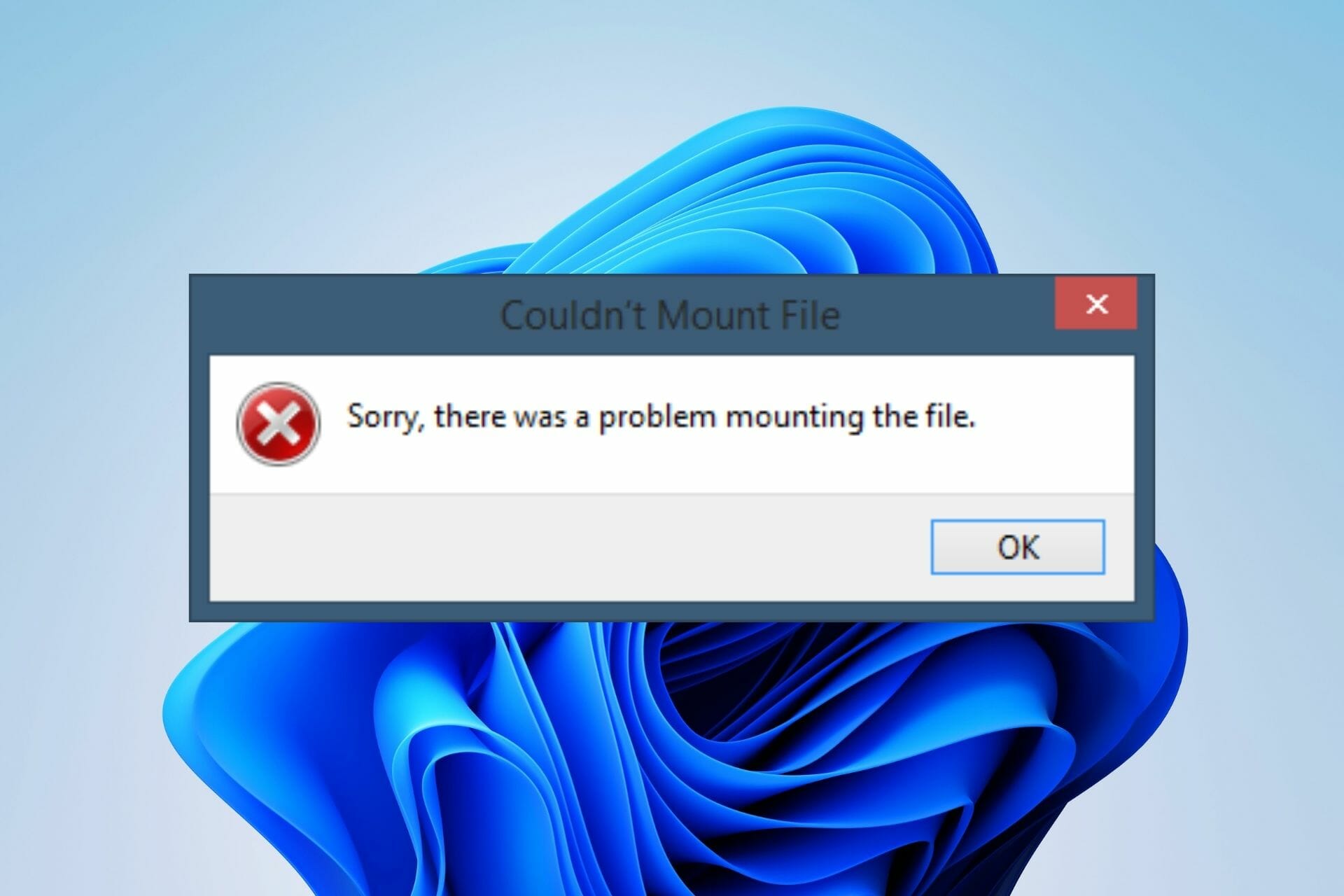
When attempting to mount a file on Windows Server 11, several users report getting the Sorry, there was a problem mounting the file message. The problem has only been reported with the built-in ISO file mount in Windows.

If you’re one of those who have experienced such difficulties and want to learn how to fix ISO issues on Windows 11, you’re in the right place.

You can view or extract the contents of an ISO image without using third-party software, and this article will show you how to do so on Windows 11.

How do I fix the ISO file mount error on Windows 11?

1. Open the ISO file with Windows Explorer

  1. Locate the ISO file through File Explorer.
  2. Right-click the file and choose Open with and Chose another app from the menu.
  3. Select Windows Explorer from the list. Check Always use this app to open .iso files and click OK.

2. Use a third-party repair tool

Another method we tested to restore corrupted ISO files was to use a third-party repair software that’s both reliable and practical.

The recommended solution is to use professional Windows repair software, which does a deep scan of your Windows system, identifying and automatically repairing system files and components that are causing  Sorry, there was an error mounting the file error message.

3. Unmount all drives

  1. Type in Search bar This PC and click on it.
  2. Expand Devices and Drives.
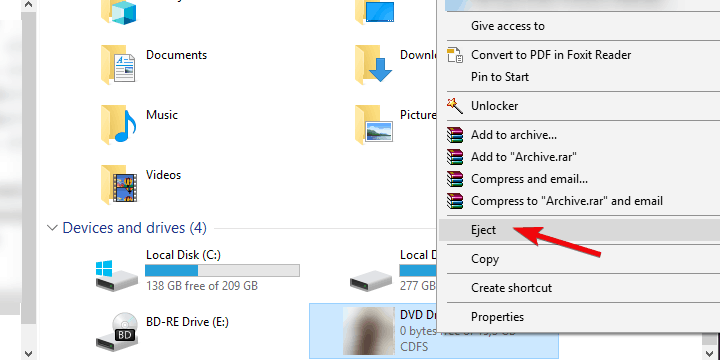
  3. Right-click on individual virtual drives and click Eject. windows 10 error mounting iso / windows 10 couldn't mount file
  4. Restart your computer and retry to mount the desired ISO file in any open slot.

That virtual drive appears in File Explorer with its drive letter and functions exactly like a DVD. You can, for example, copy files from the virtual DVD to any other disk drive.

Copy the VHD file from one location to another, rather than cut and paste, and you’ll be able to mount it. This is also a workaround to fix Sorry, there’s was a problem mounting the file error message.

Last but not least, there’s always the alternative of using third-party software to automate the process of mounting an ISO file on your Windows 11 PC if doing it manually overwhelms you.

To have an extra layer of security, we recommend using a compatible antivirus solution for Windows 11 PC, so you can be on the safe side when mounting ISO files.

If you encountered other issues and errors while mounting ISO files in Windows 10, in the article we covered more troubleshooting steps to help you resolve them.

Furthermore, having the most recent security upgrades should keep you safe from mounting a damaged ISO file, avoiding any issues. Leave us a comment and tell us if this easy fix resolved your issue.

Total War: Warhammer 3 has no sound? Here’s what to do

It’s no longer a surprise that Total War: Warhammer 3 is an incredible experience that is worth to be tried by each worldwide gamer.

The digital armies can hop between realities where daemons and ogres clash, and where troops are led by flying monstrosities – including one that’s as customizable as an RPG protagonist. 

In these terms, sound plays a primordial role that will improve your overall experience, and according to many users, Total War: Warhammer 3 comes with impressive sound features.

Dragon roars have deep baritone, really like that they’re not high-pitched shrieks. They sound like the sound a massive animal would make.

If you think about Athel Loren’s tree spirit language, it sounds like how a tree might talk.

Plus, gamers reported that The Helstorm Rocket Battery’s whistling noise makes the perfect impending doom noise.

However, some users claimed that Total War: Warhammer 3 has no sound and it can be extremely annoying, especially when you want to play a game with breathtaking audio attributes.

Thankfully, we have the perfect steps you should try to fix this irritating problem in no time.

What can I do if Total War: Warhammer 3 has no sound?

1. Repair game files

1.1 Steam users

  1. Hit the Windows key, type Steam, then open the app.
  2. From the main menu showed, click on Library.
  3. In the All games section, right-click on Total War: Warhammer 3, then choose Properties.
  4. Now, go to Local Files.
  5. Click on the Verify integrity of game files…
  6. This process will start verifying and it may take some time to be completed.
  7. Once done, close the Steam client, and restart your computer to apply changes.

1.2 Epic users

  1. Press on the Windows key, type Epic, then open the app.
  2. Navigate to Library.
  3. Click on Total War: Warhammer 3, then choose the 3-dots icon.
  4. Once opened, select Verify in the drop-down navigation.
  5. After it completes click Launch to start your game. 

2. Update audio drivers

2.1 Manually

  1. Press on the Windows key, type Device Manager, then open the first result.
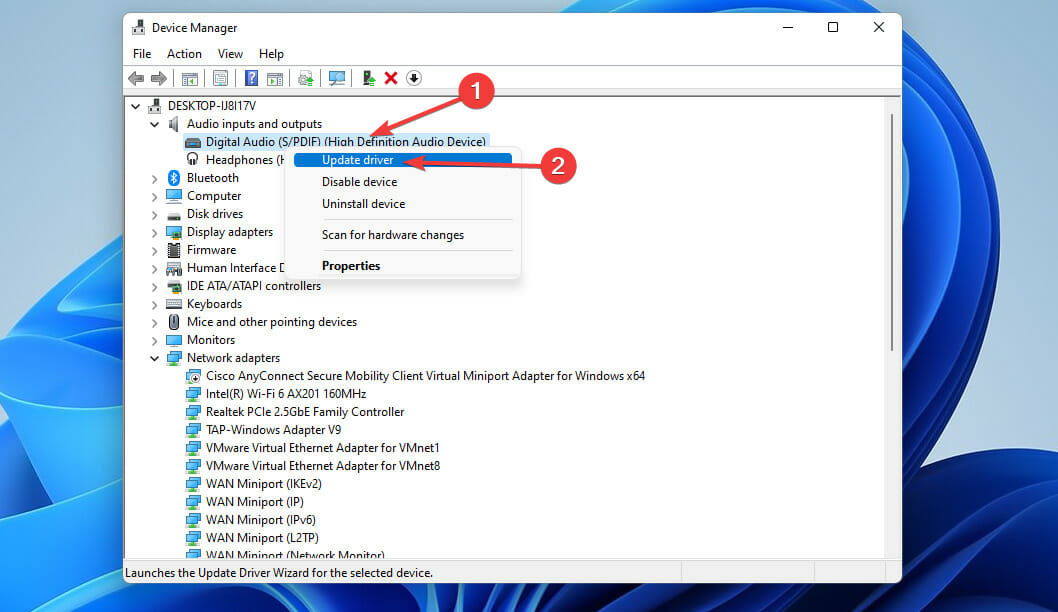
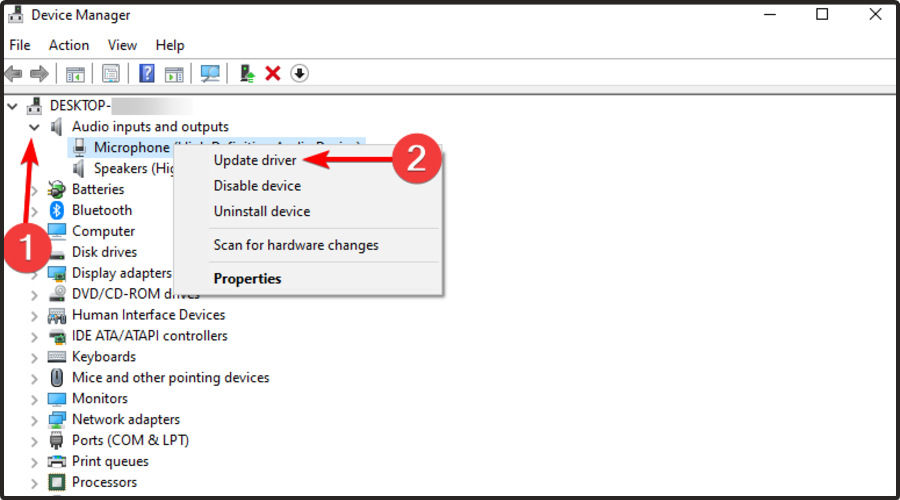
  2. In the opened window, expand the Audio inputs and outputs section, right-click on the driver that is giving you headaches, then choose to Update driver.
  3. Now, select to Search automatically for drivers.
  4. If any options are found, you’ll be notified.

2.2 Automatically

Of course, manually updating the related drivers might be extremely time-consuming and we all know how important it is to streamline any day-to-day process.

It seems like Total War: Warhammer 3 sound can cause serious problems in tons of worldwide cases. Fortunately, our recommended steps above will easily solve this issue.

We are also aware of the fact that the Failed to host game error is encountered by more and more Total War: Warhammer 3 players. If you happen to be one of them as well, do not hesitate to check out the linked article.

In case you face any additional questions regarding today’s subject, use the comments section listed below.

How to fix the RAVCpl64.exe system error

RAVCpl64.exe is a workable file that is part of Realtek Semiconductor Corp.’s Realtek HD X-Fi software. Typically, the software is 36.26 MB in size.

Note that RAVCpl64.exe system errors are typically caused by an infected, corrupt, or missing executable file, and they frequently occur during the starting of the Realtek ALC3861 audio driver.

This .exe file is a process that corresponds to the audio control component of RealTek’s sound card drivers, similar to Rthdcpl.exe.

Additionally, this process allows you to configure, alter, and change sound card settings using the HD audio control panel, therefore it’s a crucial file, considering how significant sound control is to you.

The RAVCpl64.exe file is not harmful. The usual idea is that if the process is present on your computer, it indicates that you have a RealTek audio device installed. 

Since RAVCpl64.exe is not a system process, you can delete it without causing any problems with your operating system.

Disabling it does not depend largely on your system; nonetheless, disabling/removing certain processes might free up valuable system resources.

What are the causes of RAVCpl64.exe system errors?

Some of the possible causes of RAVCpl64.exe errors are as follows:

  • The registry keys for RAVCpl64.exe are invalid or corrupted
  • RAVCpl64.exe file is corrupted by a virus, malware, or spyware
  • Another application maliciously deleted (or mistakenly deleted) RAVCpl64.exe (not Realtek ALC3861 Audio Driver)
  • Realtek ALC3861 audio driver and its shared referenced files conflict with another program
  • Realtek ALC3861 audio driver software is corrupted or incompletely installed

Fortunately, there are several things you can do to fix the RAVCpl64.exe system error, as well as the great majority of other processes on your computer.

However, the strategy that ultimately works for you will be highly dependent on the causes, so it’s always a good idea to keep track of when and how the error(s) originally appeared.

To eliminate ravcpl64.exe system error, first, you must know common errors you may encounter.

  • RAVCpl64.exe program error
  • RAVCpl64.exe not valid
  • RAVCpl64.exe encountered a problem and will close
  • Cannot find RAVCpl64.exe
  • RAVCpl64.exe can’t be found
  • Problem starting application: RAVCpl64.exe
  • RAVCpl64.exe is not running
  • RAVCpl64.exe quit
  • Software Path Fault: RAVCpl64.exe

How do I know if RAVCpl64.exe is a safe file or a malicious one?

  1. Right-click on the Start menu and select Task Manager from the menu.Go to Task Manager
  2. If you aren’t currently on the Process tab, click on it.
  3. After that, select the Name tab to sort the processes by their names.Click on Name Tab on task manager
  4. Now look for RAVCpl64.exe. If there are multiple instances of the same process usually indicates a viral infection.

We should point out that the RAVCpl64.exe file is completely safe, and as previously said, it was developed by Realtek Semiconductor Corp. As a result, the RAVCpl64.exe system error may be caused by a legitimate issue with your computer.

However, one thing to bear in mind is that, while the vast majority of files on your computer are in their default places, many of them may easily be moved or altered, and some of them can even include viruses, malware, or spyware.

On the other hand, it is common for computer criminals to disguise their malicious files as normal files like RAVCpl64.exe.

Meanwhile, one of the best methods for spotting a malicious .exe file running in the background on Windows is to follow the instructions listed above.

Aside from that, knowing where the executable is located will help you figure out whether or not a particular file is a legitimate Windows process or a malicious infection.

A process like RAVCpl64.exe, for example, should execute from: C:\Program Files\realtek\audio\hda\rtlupd64.exe

So, if you want to know where your RAVCpl64.exe file is placed so you can determine whether it is safe or dangerous, follow these steps:

  1. Right-click on the Start menu and select Task Manager from the menu.Go to Task Manager
  2. Right-click on Name tab then select Command line from the menu to see the process location. Alternatively, you can just right-click on the process and select Open file location.Enable Command Line in Task manager
  3. Each process location is now displayed in a new column.Command Line in Task manager to fix RAVCpl64.exe system error in Windows

Microsoft’s Process Explorer is another tool that can help you spot problematic processes. 

  1. First download Process Explorer.Download and install Process to fix RAVCpl64.exe system error in WindowsExplorer
  2. Right-click the downloaded file and select Extract All.Extract Process Explorer
  3. Select Verify Image Signatures from the Options menu.Verify Image Signatures in Task processor
  4. A column for Verified Signer will now be added.Check Verified Signer to know the issue and fix RAVCpl64.exe system error in Windows

If a process Verified Signer is Verified, it is almost certainly safe; if it is Unable to Verify, it is usually a suspicious file that you should investigate further.

Note icon NOTE
Not all legitimate Windows processes have a Verified status, but none of the rogue ones do.

The most important facts about RAVCpl64.exe are as follows:

  • Located in this subfolder: C:\Program Files\Realtek\Audio\HDA
  • Publisher: Realtek Semiconductor Corp
  • Full Path: C:\Program Files\realtek\audio\hda\rtlupd64.exe
  • Publisher URL
  • Known to be up to 36.26 MB in size on Windows PC

Assuming that you suspect your computer has been infected, you should immediately download and install a reliable all-in-one security application.

The longer you delay, the more drivers and files you allow to become infected, exacerbating the situation.

How can I fix the RAVCpl64.exe system error?

1. Update drivers

  1. Right-click on Start menu, then select Device Manager.
  2. Now, right-click the first driver and select Update Driver from the menu that appears.Updating driver
  3. Choose Search automatically for drivers in the pop-up window.Search automatically for drivers
  4. Then follow the on-screen instructions.
  5. Repeat the procedure for each of the remaining drivers one at a time.

Because RAVCpl64.exe is a Realtek driver file, if the problem isn’t caused by malware, updating the driver will fix it. There are a number of ways to update a driver, but the most straightforward is to use software like Outbyte Driver Updater.

Simply download and run the software to begin scanning your computer. After that, it will generate a report containing outdated and up-to-date drivers. If an outdated Realtek driver was found between the reports, update it and restart your computer.

⇒ Get Outbyte Driver Updater

2. Re-register RAVCpl64.exe

  1. To open Run, press the Windows + R key combination.
  2. Now, to access Command Prompt, type cmd and hit Enter.Access command prompt by typing CMD to re-register and to fix RAVCpl64.exe system error in Windows
  3. When the Command Prompt window appears, type this command and press Enter: regsvr32 ravcpl64.exe

Based on the intensity of the issue, the cause could simply be a missing registry entry rather than a damaged or corrupted registry item.

In this scenario, getting the system to re-register the component in the registry should be enough to fix the issue you’re experiencing.

Fortunately, this is a rather straightforward procedure that may be carried out by following the steps above.

3. Perform a registry scan

RAVCpl64.exe is a non-system process that is easily corrupted by the registry. The registry is the section of the operating system where all hardware and software configuration data are saved.

An error can and usually does occur when a registry reference is damaged in some way. The type of error is determined by the type of corrupted reference.

This leads us to the RAVCpl64.exe component, which, while not part of the operating system, is nonetheless a component that relies on registry entries to execute and function properly. As a result, registry corruption could be the source of the issue.

4. Update Windows

  1. Right-click on Start menu and select Settings.
  2. In the left pane, select Windows Update, then click Resume updates. Follow the onscreen instructions.fix RAVCpl64.exe system error in Windows

Not every error you see on your computer is caused by software you installed or viruses that have found their way onto your system. Instead, these issues can sometimes be caused by weaknesses in the operating system.

Microsoft and other OS developers are constantly on the lookout for vulnerabilities, which they do everything they can to address via service packs and security upgrades.

As a result, you might want to check the Windows Update server for any available updates.

5. Perform a malware scan

Hackers like to use legitimate processes to hide their harmful files. So if you’re getting a RAVCpl64.exe system error, there’s a significant probability it’s a virus.

Viruses can spread quickly, infecting, corrupting, and ruining system files as they move through your computer. As a result, you must do everything you can to get rid of these files from your system.

We recommend using an anti-malware tool to delete malware threats in real-time and crush ransomware like corrupted RAVCpl64.exe to fix the problem.

6. Reinstall Windows

If the techniques above have failed, the next easiest and most reliable way to fix this mistake is to reinstall Windows as described in our guide.

Note icon NOTE
Reinstalling Windows means losing all of the data currently on the hard drive where Windows is installed, so make a backup beforehand.

Is it safe to remove RAVCpl64.exe?

You should not delete a safe executable file unless you have a good reason for doing so, as this may damage the performance of any programs that use it. This includes RAVCpl64.exe system error.

To avoid future difficulties caused by corrupted files, make sure your software and programs are up to date.

In terms of software functioning difficulties, check driver and software updates more frequently to ensure that such issues do not arise.

According to several web sources, 11% of users delete the RAVCpl64.exe file, therefore it may be safe. However, it is recommended that you evaluate the executable’s trustworthiness yourself to establish whether it is safe or a virus.

A comprehensive system examination using different apps is the best diagnostic for these questionable files. These apps will destroy RAVCpl64.exe and any related malware if the file is classed as harmful.

If you’ve established that RAVCpl64.exe isn’t a virus but still need to get rid of it, use the uninstaller for Realtek HD X-Fi, which is found at: C:\Program Files\Realtek\Audio\HDA\RtlUpd64.exe -r -m -nrg2709

Assuming you can’t find the uninstaller, you’ll have to uninstall Realtek HD X-Fi to get rid of the RAVCpl64.exe system error. The Programs and Features option in the Windows Control Panel can be used.

How to uninstall Realtek HD X-Fi to Delete RAVCpl64.exe? 

  1. Go to Start menu, then type Control Panel and press Enter.
  2. In Control Panel, click on Program and features option.Go to Program and Features to find RAVCpl64.exe system error
  3. Scroll down until you see Realtek HD X-Fi, then right-click it and choose Uninstall.
  4. To uninstall the software, following the on-screen instructions.

Although you may have successfully fixed the RAVCpl64.exe system error, it is critical to understand how to prevent similar errors from occurring in the future.

Many computer problems, including errors, are caused by computer user negligence or incorrect operation, both of which are completely avoidable.

The most important thing is to keep your PC components up to date, such as the operating system, software, and device drivers, by installing the most recent Windows updates, patches, drivers, and so on. 

When connected to the Internet, a computer is a vulnerable machine that is readily attacked by dangerous viruses and threats.

To avoid these viruses on your PC, use a professional security application, and be sure to turn on real-time protection and keep it up to date.

Many Windows system errors are caused by a lack of system maintenance and optimization. Regular computer system maintenance will considerably reduce the number of errors and difficulties, and an advanced system optimizer will be a valuable ally.

Which solution worked in your case? Tell us in the comments section below.

How to Keep Your Smartphone Safe from Cyber Threats

Smartphones have become an essential part of our daily lives, handling everything from personal communication to financial transactions. While their convenience is undeniable, the increased use of smartphones also brings heightened risks of cyberattacks. 

Hackers are constantly finding new ways to breach the security of mobile devices, making it crucial for users to understand how to protect their smartphones from cyber threats. In this article, we will explore why smartphone security is more important than ever, the best practices to keep your device safe, and how to secure your data when using real money casino apps.

Why Smartphone Security is More Important Than Ever

With the growing dependence on smartphones for accessing sensitive information, such as bank accounts, personal emails, and even health records, the potential risks of cyberattacks are higher than ever. 

Hackers are targeting smartphones because they know that many users do not take the necessary steps to protect their devices. A compromised phone can result in stolen data, identity theft, or unauthorized access to financial accounts.

Additionally, mobile malware is becoming increasingly sophisticated. Hackers can infect your device through malicious apps, unsafe websites, or even phishing messages disguised as legitimate communication. For these reasons, it’s critical to take smartphone security seriously and stay updated on the latest methods to safeguard your data.

Best Practices for Keeping Your Smartphone Safe

There are several key steps you can take to protect your smartphone from cyber threats. By following these best practices, you can greatly reduce the risk of being targeted by hackers:

  1. Install updates regularly: Software updates are not just for adding new features; they also fix security vulnerabilities. Ensure that your operating system and apps are up to date.
  2. Use strong passwords: Create complex passwords for your phone, apps, and online accounts. Avoid using easily guessed passwords like “123456” or “password.” Password managers can help generate and store secure passwords.
  3. Enable device encryption: Encrypting your phone ensures that your data is unreadable if your device is stolen. Most modern smartphones come with built-in encryption settings that can be activated.
  4. Download apps from trusted sources: Only download apps from official app stores like Google Play or the Apple App Store. Be cautious of apps from third-party sources, as they may contain malware.
  5. Be wary of public Wi-Fi: Avoid using public Wi-Fi for sensitive activities like banking or online shopping. If you must use public Wi-Fi, consider using a Virtual Private Network (VPN) to encrypt your connection.
  6. Disable Bluetooth and NFC when not in use: Leaving Bluetooth and NFC (Near Field Communication) on can make your phone more vulnerable to attacks. Turn these features off when you don’t need them.

Protecting Your Data When Using Real Money Casino Apps

Many users enjoy playing real money casino games, so click here to see the full list on their smartphones. However, these apps can pose additional risks if not used safely. Real money casino apps often require sensitive financial information, making them attractive targets for cybercriminals. To keep your data safe while enjoying online gambling, Austin Reynolds, the Senior Editor of the review website Casino Bonuses Now  with more than ten years of experience in the online gambling sector, recommends taking the following precautions:

  1. Use trusted real money casino apps: Only download casino apps from legitimate sources, such as official app stores or reputable casino websites. Check for reviews and ratings to ensure the app’s authenticity.
  2. Ensure the app uses encryption: Before entering any personal or financial information, verify that the app or website uses encryption (look for “https” in the URL). This ensures that your data is securely transmitted.
  3. Set spending limits: Many real money casino apps allow you to set spending limits. This not only helps you manage your finances but also minimizes your exposure in case your account is compromised.
  4. Monitor your transactions: Regularly check your financial statements for any suspicious or unauthorized transactions related to the casino app. If you notice anything unusual, report it to your bank or the app’s support team immediately.
  5. Log out after each session: Always log out of your real money casino account after playing, especially if you are using a shared or public device. This reduces the risk of unauthorized access to your account.

How Two-Factor Authentication Helps Protect Your Smartphone

Two-factor authentication (2FA) adds an extra layer of security to your accounts by requiring not just a password but also a second form of identification. This could be a one-time code sent to your phone, a fingerprint scan, or a security question. 2FA makes it much more difficult for hackers to gain access to your accounts, even if they manage to steal your password.

Here’s how two-factor authentication can improve your smartphone’s security:

  1. Prevents unauthorized access: Even if someone manages to steal your password, they won’t be able to log into your account without the second authentication factor.
  2. Supports multiple apps and services: Many services, including email, social media, and banking apps, offer 2FA. Enabling it across all your accounts adds an additional layer of protection.
  3. Adds security to financial transactions: For real money casino apps and other financial services, 2FA is crucial in protecting your sensitive information and ensuring your transactions are secure.

By enabling 2FA on your smartphone and important apps, you can significantly reduce the chances of becoming a victim of cyberattacks.

Conclusion

In today’s digital age, keeping your smartphone safe from cyber threats is more important than ever. By following best practices like enabling encryption, using strong passwords, and regularly updating your phone, you can protect your data from hackers. 

Additionally, when using real money casino apps, it’s crucial to ensure the app is trusted and uses encryption for secure transactions. 

Finally, enabling two-factor authentication is a simple yet effective way to further safeguard your personal and financial information. Taking these steps will help you stay safe and enjoy the convenience of your smartphone without compromising your security.

Windows 11 L2TP VPN Not Working: How to Fix it

VPNs are excellent services to provide an encrypted connection over the Internet. Unfortunately, L2TP VPN not working on Windows 11 has become a prevalent problem recently, and many users encountered the Can’t connect to VPN. The L2TP connection attempt failed error when they tried to connect to VPN.

This error occurs just after installing the new Microsoft KB5009543 update patch. In this case, Windows VPN fails to establish a secured connection to the server through Layer Two Tunneling Protocol (L2TP). ISPs use this protocol to trigger VPN connections.

The error arises from both VPN and Windows. So, it is vital to check the errors’ sources and causes before taking any measure. This guide shows you how to troubleshoot this problem.

Why does the L2TP connection error message appear?

This error message is one of the most common errors when connecting to L2TP. The main reason why this error appears is that you haven’t configured the connection properly to connect to the L2TP server.

Correspondingly, the server fails to respond. Another possible cause is that CHAP v2 Protocol is disabled. The L2TP connection error message also appears due to the following reasons:

This error is reported by many users when they try connecting their VPN. If you set the VPN configuration manually, check that you use a pre-shared key.

So, make sure that you enable L2TP configurations in the router. If none of them works, we provide you with solutions to fix Windows 11 L2TP VPN not working. Let’s get started.

Several users complain that this error message appears when they recently used a built-in Microsoft VPN, after Microsoft’s update pack.

So, the solutions to resolve this issue are straightforward. In fact, there are six methods to fix this issue. Let’s dive into them.

What can I do if Windows 11’s L2TP VPN is not working?

1. Uninstall the KB5009543 update pack

Note icon NOTE
Uninstalling updates would remove previous vulnerability patches. So, take necessary security actions before doing so.
  1. First, open the Settings by pressing Windows + I keys or by right-clicking on the Start menu and selecting the Settings.
  2. Now opt for Windows Update then select Update history.Update history in Windows Update
  3. By selecting this option, you will see a list of Windows updates. Scroll down the list and click on Uninstall updates.Unistalling updates to fix windows 11 l2tp vpn not working
  4. Right-click on the KB5009543 update pack and select Uninstall.Uninstalling KB5009543
  5. Reboot your computer.

Because the issue arises from the latest update that Windows offers for security updates, this method is the simplest way to fix L2TP VPN not working issues.

2. Reinstall the VPN Network Adapter

  1. Open the Run dialogue box by pressing Windows + R shortcut keys.
  2. To open Device Manager, type devmgmt.msc into the box and click OK.Go to Device Manager in Windows 11
  3. Look for your VPN Network Adapter in the Network Adapters list, then right-click on it and choose Uninstall device.Uninstalling Device
  4. Restart your computer.
  5. Reinstall your VPN.

The network adapter is one of the causes of the L2TP connection attempt failed error. You can fix this issue simply by reinstalling the Network Adapter drivers. Now check to see if the problem has been resolved. If not, proceed to the next solution.

3. Activate the Microsoft MS-CHAP v2 Protocol

  1. Press Windows + R hotkeys to open Run dialogue box.
  2. Then, type ncpa.cpl and press the Enter key.Go to ncpa cpl
  3. On Network Connections window, right-click your VPN connection and select the Properties option.Go to VPN properties
  4. Go to the Security tab and select the Allow these protocols option, then tick the Microsoft-CHAP Version 2 box.tick the Microsoft-CHAP Version 2 box to fix L2TP error in Windows 11
  5. Select OK and reconnect to your VPN.

Challenge-Handshake Authentication Protocol (CHAP) is an authentication protocol that verifies users or hosts to prevent network replay attacks. Sometimes activating this protocol would enable us to resolve Windows 11 L2TP VPN not working issue.

4. Use a third party VPN

Private Internet Access (PIA) is a VPN with a number of key features, one of which is compatibility with every operating system and platform. This compatibility has allowed PIA customers to use the software without encountering Windows-related errors such as L2TP on Windows 11.

Not to mention that it has a no-logs policy, which means it does not collect data or keep any browsing history from customers, making it one of the safest VPNs available.

Furthermore, the PIA software has a very simple user interface that is easy to configure. Last but not least, this VPN includes a kill switch, split tunneling, torrenting support, and other features that ensure that the user can use it without any concern.

5. Create a new UDP registry key

  1. Open Run by pressing Windows + R key combination.
  2. After that, type Regedit and select OK to open the Windows Registry.Go to registry by typing Regedit in Run
  3. When the Registry Editor window pops up go to the following directory: HKEY_LOCAL_MACHINE\SYSTEM\CurrentControlSet\Services\PolicyAgent
  4. Now, click the Edit menu, select New, and then opt for DWORD (32-bit) Value.Craete new key in registry
  5. After that, rename the value to AssumeUDPEncapsulationContextOnSendRule and press the Enter key.AssumeUDPEncapsulationContextOnSendRule
  6. Now double click on the value you just created, set Value data to 2, and hit Enter.Set Value to 2 to fix L2TP VPN not working in Windows 11
  7. Restart your computer.

Sometimes VPN cannot connect because of the registry key. This is because all essential information and settings related to VPN are stored in registry keys.

So, the solution is to modify them by creating a new UDP Encapsulation registry. Now check to see if the L2TP VPN not working error in your Windows 11 PC has been fixed.

6. Disable vendor ID

When your computer installs the Windows KB5009543 package, IPSEC connections no longer work. Microsoft recommends disabling Vendor ID in the server-side setting to fix this issue.

Depending on which VPN you use, disabling Vendor ID varies from one server to another.

7. Enable the LCP protocol extensions

  1. Press the Windows + R key combination to open Run, then type ncpa.cpl and click OK.Open ncpa cpl
  2. Now, on the Network connection window, right-click on your VPN connection and select Properties.Go to VPN Properties
  3. In this step, navigate to the Option tab and click the PPP settings button.Go to PPP Settings to fix L2TP VPN not working in Windows 11
  4. Check Enable LCP Extensions box then click OK and head for the final step.Enable LCP extentions to address L2TP VPN not working in Windows 11
  5. Reconnect to your VPN and check whether the problem is resolved.

Link Control Protocol (LCP) is used to establish, configure, and test data in the PPP setting. However, sometimes due to reasons such as third-party, L2TP connection fails.

How does L2TP work?

Layer 2 Tunneling Protocol connects VPN client to VPN server by assigning an IP address to every user. It uses two endpoints to establish a tunnel.

Once the connection between the two endpoints is established, the PPP layer is encapsulated to transmit multi-protocol data. Next, ISP triggers a PPP connection.

After initiation of the PPP connection, one endpoint accepts the connection. Then a slot is allocated in the tunnel. So, the connection waits for the other endpoint to respond.

Meanwhile, the connection is verified, and a virtual PPP interface is made. When this process is finished, the link frames move through the tunnel. Finally, the other endpoint accepts the frames and removes L2TP encapsulation.

Windows 11 latest cumulative update KB5009543 stops VPN from establishing a connection and shows users The L2TP connection attempt failed error message.

Hopefully, there are some workarounds to solve this issue. However, the fastest way to fix Windows 11 L2TP VPN not working is by uninstalling the KB5009543 update pack.

Note that if you’re having trouble with L2TP on Windows 10, the solutions might be slightly different. Let us know which one worked for you in the comments area below.

Best Equalizer for Windows 11 [Top 6 for 2026 Ranked]

Listening to music or watching movies on a PC or laptop with a decent sound quality requires software to boost sound quality. A specialized Windows 11 equalizer software can help you achieve the best results.

Windows 11 has a built-in audio equalizer that helps you improve your sound quality. However, it may not provide the highest sound quality you want for different genres of music.

What does an audio equalizer exactly do?

An audio equalizer is a tool that reduces or enhances the frequencies of a sound. It uses parametric, bass, treble, high, and low pass filters for each tone.

Each filter specifies what frequency range. For instance, the bass tone frequency is between 16 to 256 Hz. For treble tone, the frequency ranges from 2 to 16.38 kHz.

An audio equalizer, in general, is an audio enhancer that adjusts output sound for a better experience, and tuning an equalizer software for a better output is simple.

What are the best equalizer software tools for Windows 11?

Boom 3D

Boom 3D app

Boom 3d is a powerful tool that comes with multi-channel 3D surrounding audio. There is no need to buy expensive hardware or speaker boosters when using this software. With its 3D surround technology, you no longer use headphones, headsets, or sound boosters.

One of the features that Boom3D offers is a 31-band equalizer that gives you countless choices. Moreover, this software provides you with different presets to enjoy listening to any music genres you love.

Never miss the joy of watching the latest movies on Netflix! Boom3D built-in volume booster allows you to watch movies and feel the natural surround sounds in the film. This software is not entirely free, and you have to purchase the premium plan after the 30-day free trial expires.

It has other key features as below:

  • Magical 3D surround sound
  • Nifty audio player
  • Strong audio booster
  • 31-band equalizer presets
  • More than 20,000 Radio Stations
Boom 3D

Boom 3D

Boom 3D is one of the best equalizers for Windows 11 that can output media content in stunning 3D effects. Get Boom 3D today!
Check price Visit website

Equalizer APO

Equalizer APO app

APO (Audio Processing Object) is one of the most common equalizers for Windows 11. It comes with various features such as low PC usage and 3D sound support.

It also supports both 32 and 64-bit versions. In addition, this software has astonishing audio filters such as low-pass and band-pass to adjust low and high frequencies.

Additionally, it has a user-friendly interface that provides you with an analysis panel. This feature can alter sound properties such as peak gain and latency. Also, it supports the VST plugin to add extra effects to sound.

Here are some key features that APO offers:

  • Operates on multiple channels
  • Unlimited filters
  • Easy to use interface
  • It has a support community that provides users with supplementary apps
  • It consumes low CPU usage

⇒ Get Equalizer APO

FXSound

fxsound app best equalizer software for windows 11

This equalizer is one of the best free equalizer software solutions compatible with any hardware and we recommend it for Windows 11. It boosts sound quality without any damage to the hearing.

It is an excellent audio-enhancing tool with diverse sound profiles designed for different applications such as movies, gaming, streaming videos, and transcription.

Moreover, you can use a mouse wheel to increase or decrease the frequencies with a simple GUI design. Furthermore, it boosts video games’ surround sounds, creating an insanely beautiful game experience. For ease of use, you can import or export your own presets.

The presets will enable you to decrease background noises in voices and podcasts. The main drawback of this software is that customizable presets won’t be available in the demo version.

Let’s look at other features that FXSound has:

  • Many customised presets
  • Many sound effects
  • boosts sound clarity
  • Visualizer
  • Completely free

⇒ Get FXSound

Viper4Windows

Viper4Windows one of the best free equalizer software for windows 11

Viper4Windows is a freeware software designed for any audio mixing project. The unique feature of this software is its Post Volume function. This feature allows users to boost the instant message sound of programs such as YouTube, Skype, and even video games.

Furthermore, the same as FXSound, it has multiple sound effects presets. It also offers 18 incredibly diverse bands, adjusting frequencies from 20 kHz to 65 Hz.

Viper4Windows offers you ViPER Clarity and XHiFi modules to personalize your sound tones if you are highly enthusiastic about treble tones. The main downside of this software is its bugs for updates because its developers no longer upgrade it.

Also, in rare situations, it may accidentally lose some of its effects. So, it is up to you to weigh its pros and cons before installing.

This software has other features listed as below:

  • Customized audio configuration
  • IRS Power controller
  • ViPER XBass
  • ViPER XClarity
  • Field Surround, Differential Surround (Haas Effect), and Virtual Headphone Surround+

⇒ Get Viper4Windows

Breakaway Audio Enhancer

Breakaway Audio Enhancer

This all-in-one audio enhancement software automatically adjusts the output audio. It means that whenever you want to change your streaming media services, for example, from YouTube to Spotify, it automatically sets you the best sound quality suited for Spotify.

Breakaway audio enhancer lets you modify your sound, whether Hi-Fi or LOFI. For example, if you want to hear a louder harsh sound, it acts as a subwoofer to produce high-quality audio.

It employs the same technology used for DJs and webcasters, which gives you an extraordinary audio aura.

This software also has the following key features:

  • Multi-band processing
  • Louder high-quality sounds
  • Song-to-song volume shift correction
  • Many look-ahead peak limiters
  • Adjusts loudness shifts from song to song

⇒ Get Breakaway Audio Enhancer

Realtek HD Audio Manager

Realtek HD Audio Manager one of the best equalizer software for windows 11

It is one of the well-known equalizer software used in previous Windows versions. Its simple UI allows users to adjust sound control via accessing a panel.

Moreover, Realtek HD Audio Manager supports Dolby and DTS audio coding. For better sound quality, it tests your speakers’ output sounds.

Besides, it provides additional supports including the following key features:

  • Compatible with many sound cards
  • Supporting home theater systems
  • Simple and user-friendly design
  • Many environment effects
  • Headphone Virtualization feature

⇒ Get Realtek HD Audio Manager

Why do we need audio equalizer software for Windows 11?

We can say that it goes back to the listening experience to answer this question. If you care about the quality of music or movie sound, we suggest you install audio equalizer software.

Also, when you use this tool in Windows 11, you can adjust the sound to be appropriate for every environment. For example, if you listen to a piece of upbeat music such as dance or pop in a room, you can easily change the frequency.

Additionally, in some situations, the Windows 11 built-in audio enhancer won’t give the sound quality that you want. In this case, you need a better audio enhancer to boost sound quality. If you haven’t yet upgraded to Windows 11, we suggest downloading the Windows 10 equalizers.

There are various free equalizer software solutions for Windows 11, such as Realtek HD Audio Manager and Viper4Windows. However, if you are an audiophile who looks for much more customized sound effects, Boom 3D is the number one choice you can attempt to find.

And do not forget to read about music.ui.exe in Windows, a process often responsible for high CPU usage.

Do not hesitate to let us know your choice in the comments area below.

How to Completely Uninstall WSL in Windows 11

It is feasible to uninstall the WSL in Windows 11, but this involves a series of actions that must be completed in the correct order.

Although Microsoft has simplified the installation of WSL2 by allowing it to be done with a single command or through the Microsoft Store, uninstalling the platform is not as straightforward as clicking the Uninstall button from the Apps & features settings page in Windows.

If you want to totally remove WSL from your computer, you must first uninstall the Linux distributions, followed by the uninstallation of any additional components, and finally, disable the platform itself.

Follow along as we will walk you through the uninstallation process right after we see in more detail what WSL 2 is all about. Keep up with us!

What does WSL 2 do?

A GNU/Linux environment, including most command-line tools, utilities, and applications, may be run directly on Windows using the Windows Subsystem for Linux, saving developers time and money by eliminating the need for a standard virtual machine or dual-boot configuration.

WSL 2 is a new version of the Windows Subsystem for Linux architecture that enables the Windows Subsystem for Linux to run ELF64 Linux binaries. It is built on a completely new architecture that benefits from the use of a genuine Linux kernel as its operating system.

It is the successor to WSL 1, which was released in 2008. Its key objectives are to improve file system performance while also enabling complete system call compatibility with other programs.

This new design alters the way in which these Linux binaries interface with Windows and your computer’s hardware, but it retains the same user experience as in the previous version, in terms of functionality.

Individual Linux distributions can be run on either the WSL 1 or WSL 2 architecture, depending on their configuration. The distributions can be run side by side, and each distribution can be upgraded or lowered at any point in time.

How can I uninstall WSL in Windows 11?

  1. Press Windows and I simultaneously then access Apps followed by Apps & features.apps-features-section uninstall wsl windows 11
  2. Inside the search box type Ubuntu then click on the three dot menu and choose Uninstall.uninstall-settings uninstall wsl windows 11
  3. Now type Linux and click on the three dot menu next to Windows Subsystem for Linux WSLg Preview followed by Uninstall.
  4. Repeat the step for Windows Subsystem for Linux Update.
  5. Now go back and access Optional features inside the Apps section.optionalfeatures uninstall wsl windows 11
  6. Click on More Windows features under the Related settings section.more uninstall wsl windows 11
  7. Now, uncheck the Virtual Machine Platform as well as Windows Subsystem for Linux. That’s it! Restart your computer to apply the changes made. virtual-off uninstall wsl windows 11

WSL will be completely removed from your computer at this point, just as you wanted.

What are the advantages of using WSL?

Because most developers do not have access to several computers, it is typical for programs to be developed across many platforms.

As a result of the Windows Subsystem for Linux (WSL) functionality provided by Microsoft, it is now quite straightforward to set up a Linux development environment on a machine that is running the Windows operating system.

command uninstall wsl windows 11

Until Microsoft released WSL (Windows Subsystem for Linux) in 2016, the only means to develop Linux applications on Windows machines were through remote host connections or virtual machines.

When you use WSL, you may install and run Linux distributions on 64-bit Windows 10 (starting with version 1607) PCs. Initially, it only supported the Ubuntu Linux distribution, but it currently supports a large number of additional Linux distributions.

Using WSL, one can run Windows applications and tools alongside Linux command-line tools while using fewer resources (such as CPU, memory, and storage) than running a full virtual machine on the same computer.

It offers substantial performance advantages over virtual machines (VMs) for developers who use Windows computers to develop Linux applications.

For more information on WSL, check out our post on WSL being available on the Windows 11 Store, and find out what’s new about it.

You might as well be interested in Linux Oracle as it is now available on the Microsoft Store. Don’t miss out on the article linked.

And lastly, take a look at our Windows 11 vs Linux in-depth comparison to make a choice between the two operating systems.

Was this guide helpful? Do let us know in the comments section below. Thanks for reading!

Assassin’s Creed Valhalla Online Service error [Fixed]

A lot has been said about Ubisoft’s latest Assassin’s Creed title, but most players still agree that it’s a masterpiece worth trying at least once.

However, as good as others claim it might be, Valhalla still came with a lot of bugs that absolutely ruined gameplay and made a lot of users uninstall and forget about it.

Among other problems, gamers reported Uplay errors, DirectX 12 errors, and the game constantly minimizing after being booted.

Another dreaded issue that can push most of us past the breaking point is the Online Service error, one that many gamers had to deal with.

There’s no need to be alarmed because every problem, no matter how serious, always has a solution, and we’re here to give it to you.

How can I fix the Assassin’s Creed Valhalla Online Serice error?

Fortunately, as the AC Valhalla Norse gods would have it, this isn’t one of those cases where the solution is easier said than done.

You might be pleased to know that the fix for this problem is pretty straightforward and will only take up a couple of minutes of your time.

If you are ready to proceed and want to quickly restore the game’s functionality, carefully follow these easy steps.

  1. Open your Windows Firewall settings pannel.firewall
  2. Click on Change Settings.online service error
  3. Press the Allow another app… button.online service error 2
  4. Click on Browse.online service error 3
  5. Navigate to where your AC Valhalla game is installed and add every service there to the Windows Firewall exception list.online service error 4
  6. Restart your PC.

This should help you get rid of the nasty Online Service error once and for all, allowing you to play AC Valhalla unhindered.

However, if for whatever reason, you still get the error even after going through the troubleshooting process, you should definitely try this as well.

Open Ubisoft Play, navigate to Settings, select the General tab and check the box next to Enable in-game overlay for supported games.

After this, simply restart Ubisoft Play and open Assassin’s Creed Valhalla, which should totally work by now.

has this guide been helpful to you? Let us know in the comments section below.

4 best tools for multi-store eCommerce with one database

Managing one store can be challenging if you have a lot of products but if you have multiple stores that rely on the same database things get complicated.

You can have a whole team to manage the supply and demand for each store or you can use multi-store eCommerce software even if you have only one database.

Whether we’re talking about product management or customer service, you need an aggregated solution that will help you get the best of your resources.

There are plenty of such solutions on the market but only a few or just one will meet all your requirements so make sure you check the best multi-store eCommerce platforms.

What are the best multi-store eCommerce tools?

Znode

Znode is a multi-store eCommerce solution that allows easy management of your stores, your sites, and brands from one single place.

At the base of this solution, there is a PIM (Product Information Management) tool with a flexible data structure that allows you to share the same catalog for many stores, simplifying the catalog management.

Actually, you can do that with themes, categories, payments, accounts and users, taxes. You can apply them at one or more stores, or individually to each of them.

The way you pay for Znode is also flexible and it depends on the complexity of the services you choose for your stores. It can be applied by profile, customer, account, by store, exactly the way that makes it more convenient.

Let’s see a couple of Znode’s top features:

  • Flexible structure and tools that can be personalized to your demands
  • Multi-brand and multi-site capabilities
  • Tools for creating regional eCommerce stores
  • B2B presence with account-based pricing, and a B2B2C presence
  • The ability to test and launch new business models 

⇒ Get Znode

StoreHippo

If you become a tycoon and your sales are only going up, you need some help in creating a store network with personalized features to grow your brands even more.

That’s what StoreHippo is for, creating multiple, unique storefronts but with centralized inventory and customer data, all managed from the same dashboard.

You can create geo-located based stores in multiple cities or even countries, you can create affiliate stores with unique URLs and multiple keywords for each store, and many more.

You can even set overrides for the prices of each product in each store based on location or other conditions and create store-specific discounts. StoreHippo can be the way to start off your chain so try it.

Let’s see what are the key features of StoreHippo:

  • Multiple store management from a single dashboard
  • Create unique storefronts for each store
  • Create different stores for each geographic location
  • Create price overrides and discounts for any product on each store

⇒ Get StoreHippo

AmeriCommerce

AmeriCommerce is called by its creators as the industry standard for multi-store management. And that’s because you will be able to manage your customers, inventory, and content from a single console.

You will benefit from a lot of B2B features and customization tools and be able to use the same database for all your stores, thus simplifying the product management.

Of course, you can have different prices for each store, different shipping settings, you can apply discounts but you can also display the same products in all the stores.

You can have custom domain URLs, design themes for each store, and edit every single aspect of the design. AmeriCommerce is great for agencies and resellers so give it a try.

⇒ Get AmeriCommerce

Wix eCommerce is the go-to platform when it comes to professional online store websites that bring conversion rates.

You can efficiently build your online store using this website solution that includes 500+ free templates ready to generate profit.

It’s possible to go from scratch and design your online store in only a few steps. You just have to log in to your account and start customizing your multi-store website.

There are practical tools you can utilize to establish your brand for your online store. At the beginning, you have tools like logo maker or business name generator.

After the first steps, you can start to develop your digital store and manage your inventory, add thousands of products and collaborate with other suppliers.

Let’s see what are the key features of Wix eCommerce:

  • Customizable cart and checkout
  • Automated sales tax
  • Limitless customization with APIs
  • Integrated shipping solutions
  • Advanced payment tools

⇒ Get Wix eCommerce

We hope that your business will grow by using one of the multi-store eCommerce solutions with one database presented here. If you tried one of them or have any other suggestions, leave us a comment below.

How to fix the Assassin’s Creed Valhalla DirectX 12 error [Guide]

What can be said about Assassin’s Creed Valhalla? Nothing much, except that it’s a masterpiece that has captivated the imagination of the entire world.

Especially for people that are deeply enrooted or passionate about norther culture, fans of the Vikings TV series, or inhabitants of Scandinavia.

But don’t take our word for it, just scour the internet and see what reviews Ubisoft’s latest Assassin’s Creed title received since its 2020 release.

It’s true that even this title came with a mountain of problems, but nothing we can’t fix if we really put our minds to it.

Then, as well as lately, players are complaining about not being able to launch the game because of the dreaded DirectX 12 error.

What can I do to fix the DirectX 12 error for Valhalla?

We’re about to show you what exactly you have to do in order to get rid of this pesky error that won’t even let you start the game.

It will only take a couple of minutes and a few clicks, so there’s no need to get ready for back-breaking labor.

Note that you will have to download third-party software for this job. Without any further ado, let’s get right into this fix.

  1. Download dxcpl.exe.
  2. Run dxcpl.exe and press the Edit List… button.dxcpl
  3. Press the three dots button and locate your AC Valhalla directory.dxcpl 2
  4. Add Assassin’s Creed Valhalla and then press OK.dxcpl 3
  5. Tick the Force WARP box and press the Apply button.dxcpl 4
  6. Run Assassin’s Creed Valhalla.

It wasn’t even that hard, right? This is the fix that worked for all the Assassin’s Creed Valhalla that encountered this problem when trying to run the game.

If you or someone you know has the same problem, you will be the knight in shining armor for finding and distributing this fix.

Have you also had trouble with the Uplay error? Or is does your Assassin’s Creed Valhalla keep minimizing?

If you are experiencing any of the above-mentioned problems, or you are unable to save your game, you came to the right place.

Have you also encountered other major issues in Ubisoft’s latest title? Let us know in the comments section below.

5 best Shopify helpdesk [Apps / Platforms]

Shopify is one of the most popular shopping platforms and the most prominent automated eCommerce software used by over 600.000 businesses in the world.

It’s obvious why you would like your helpdesk app or platform to include this eCommerce source. Yes, it’s all about increasing the sales for your business and a clever helpdesk solution can make a huge difference.

There are a couple of solutions that work on Shopify but the best helpdesk solution for Shopify will also include many other sources, including social networks.

Hence if you need to increase your e-commerce business or online shop, you can choose a pricing plan and then choose your Shopify helpdesk platform to start it.

Long story short, here’s our list of the best Shopify helpdesk apps or platforms that will boost your company sales.

What are the best Shopify helpdesk apps or platforms?

Monday.com

Monday.com’s Work OS allows you to create a help desk in a very customized manner.

For instance, you could use it for making requests to the IT team to manage your inventory or an entire project lifecycle so it all depends on you and your needs.

The software brings everything on one platform and it can integrate not only with Shopify but also with various tools like Microsoft Teams, Outlook, Slack, Zoom, Excel, Adobe Creative Cloud, and many more.

So, you can use it for inside management, marketing, sales, and it’s also a great work-from-home platform that will help you remain efficient.

Thereby using this software it’s all about integrating your task and project in one place, so you can track and perform multiple tasks efficiently, collaborating freely with your team.

Besides all, choosing this platform can scale up project management instantly, and keep track of anything required to be done.

This platform also comes with a free trial period so you can test it and see if it delivers the results you’re interested in.

Let’s go through the best features of Monday:

  • Collaborate using docs for projects
  • Integrate all your other apps in one place
  • Customizable automations
  • Dashboards with real-time data insights
  • Prioritize tasks efficiently
Monday.com

Monday.com

Monday.com not only has Shopify integration but also uses your corporate software to help you manage any project.
Free trialVisit website

Help Scout

Help Scout is a collaborative customer services platform that is used by over 11.000 businesses from 140 countries so you might also try it for your business.

The idea behind Help Scout is to offer tools for a team to be efficient and collaborate. So, for instance, you can share team inboxes whether your team is made from 2 or 200 people in your team.

However, the most important component is the live chat support so you can provide the most informed answers to your customers. You can also do that by creating relevant help pages support.

Moreover, the software is capable of reporting for multiple channels like email, chat, or even phone conversations with your valuable customers. Plus, you can use the knowledge base to design articles that respond to your clients automatically.

Therefore, hesitate no more and invest in your customers’ happiness to trend up your e-commerce business revenue.

Let’s see what are the best features of Help Scout:

  • Sharing inboxes within the team
  • Live chat support
  • Great self-service options for your clients
  • Recommend insight articles based on the page a customer is viewing
  • Escalation options based on the client’s needs
Help Scout

Help Scout

Consider this software to increase your customer happiness regarding your content and services, all with a minimum effort.
Check priceVisit website

Re:amaze

Re:amaze to help you engage with your clients by combining email, social media, mobile, and chat communication from them seamlessly.

The software also includes collaboration tools that help the team members from your business to assign, note, and share views.

All this engagement includes all the possible communication channels including the corporate email, a chat client, Facebook pages, and Messenger, Instagram, Twitter, WhatsApp, SMS, and voice messages.

In other words, you can benefit from customer-centric services and connect with the clients via multiple channels on the same platform. For example, chatbots are very popular nowadays and you can optimize your website and automate processes.

Hence this e-commerce helpdesk platform it’s perfect for your online business in order to increase sales and get closer to customer desires.

Let’s see what are the main features of Re:amaze:

  • Fast communication through live chat
  • Customer message preview in real time
  • All communication channels integrated
  • Live dashboard with customer’s activity
  • View your customer’s profile data customized for your needs

⇒ Get Re:amaze

Deskpro

All the philosophy behind Deskpro is to give your agents all the tools necessary to provide your customers with the best information and answers so they can be satisfied.

So first, this solution provides a complex ticketing system collected from all communication channels. It also comes with automation tools that will eliminate any repetitive tasks from the agent’s focus.

More exactly, all the requests that come from the clients across multiple channels will appear on your user platform as tickets, so you can improve business customer care and response time.

Also, all your tickets can receive urgency scores so that your agents can clearly prioritize their actions.

Therefore, your clients come first so using this tool, you can offer them a knowledge base center 24/7 self-service, messenger tickets, email threads tickets with text elements or attachments.

Here are some of the best features of Deskpro:

  • Automation tools that eliminate repetitive tasks
  • Complex ticketing system with integrated communication channels
  • Shared inboxes for easy team management tasks
  • Access all the history with a client for further problem identification
  • Clear organization tools for sorting, grouping and labeling

⇒ Get Deskpro

LiveChat

LiveChat is a really helpful chat automation software that offers qualitative customer service and assistance for Shopify account.

In the first place, you need great customer experience if you desire a lifelong business. For this purpose, it’s recommended to use automation tools like chatbots.

Using this AI powered chat solution, you can streamline the communication with loyal or new clients. There are helpful functionalities designed to generate more sales and boost your business growth.

To name a few, you can benefit from AI-powered chat automations, customer engagement tools, chat widgets customization, analytics reports and so on.

It is also worth mentioning that LiveChat has 150 connected countries and millions of chats monthly.

Here are some of the best features of LiveChat:

  • 200+ apps integrations
  • Targeted messages for different segments
  • Message sneak-peak
  • Chat tags and file sharing
  • Chat reports or exports
  • Sales and e-commerce tools

LiveChat

Benefit from this automated cutomer service chat solution to double up your leads.
Check price Visit website

A great helpdesk app or platform can provide you with a great advantage over the other competing businesses, so we hope that you found the best tool for your trade-in our list.

If you’re also looking for a great live chat client for your business, you can take a look at our best automated chat list. If you have any other suggestions, leave us a thought in the comments section below.

WWE 2K22 Update 1.005: Everything you need to know

It’s safe to say that a lot of us are wrestling fans. And, you really can’t think of wrestling without the WWE letters to come to mind.

However, we’re not going to talk about the actual sports organization. Today, we are going to take a look at the latest WWE game and what its latest patch brings to the table.

Developer Visual Concepts just released their latest WWE 2K22 update (1.005), in case you were wondering if that happened or not.

The patch is expected to make general stability improvements to the game as well as fix some of the technical issues present since launch.

What changes does the new patch bring?

The most important thing here, for players that like to duke it out with other online players, is the fixing of some of the server issues that this title had.

This patch also addresses issues related to MyRISE, so you can start your career and finish the entire competition by taking on not one, but two MyRISE adventures.

Also coming to this awesome fighting game are improved Superstar interactions, for those moments when a signature move is all you need.

And just when you thought that developers couldn’t make the game look or feel any better, this patch also brings forth improved performance and visuals.

How about that for an early spring present from the people that designed WWE 2K22. Regardless of the platform you play on, it promises to only get better and better.

Visual Concept also promises many more beneficial changes and improvements coming to your favorite game in the near future.

As WWE 2K22 players spotted, update 1.005 also allows the editing of imperium/retribution entrances.

What other changes do you feel that this game would benefit from? Share your opinions with us in the comments section below.

Automated Chat Reply Software for Business: 9 Best to use

More often than not, customer care representatives become overwhelmed by the sheer number of queries/ inquiries/ complaints they have to handle per day.

This often results in late replies or, at times, outright negligence of certain queries, which is very bad for business.

Ease of interaction with customers is one of the key elements in the growth of any business.

And every customer wants unrestrained access to valuable information about a product or service before committing their hard-earned money to purchase certain products/services.

Automated chat software is the ideal solution to use in your company. It ensures that all inquiries and complaints are aptly replied to in due time.

In the long run, the level of customer satisfaction in your business will surely take a leap forward.

Read on, as we bring you short reviews on five of the best-automated chat software on the market.

Which are the best automated chat tools for your business?

CloudTalk

CloudTalk is a cover-all call management service provider geared towards businesses. It’s a suitable, cloud-based, solution for phone sales or call centers.

The software offers a large set of features that can be highly customized in order to create a perfect service for each particular business.

CloudTalk can also be useful for internal calls with its Conference Calls feature. This can help maintain a good level of communication among your company’s agents so that everybody is up-to-date and well-trained.

Customers are really observant of the way a business carries itself and small details can help with creating and maintaining loyalty. This is the reason why the Call Queuing features provided by CloudTalk are very useful. You can create customized call queues, greetings and add your own music that matches your brand identity.

Moreover, you can give interactive information on the waiting time and the number of people in the call.

The software allows you to make call recordings which can be useful in keeping information about customers’ most frequent needs and also to assess the agent’s performance. However, keep in mind that in most locations you are required by law to disclose to all parts when they’re being recorded.

Other features of CloudTalk include:

  • Personalized Voicelmail which can be accesed directy from an Internet browser
  • Number porting
  • Toll-free numbers
  • International numbers
  • Short 5 digit numbers
  • Lets you pick your business hours and set special absence messages or redirections
  • Automatic Text Messages
  • 3 way calling

Cloud Talk is a subscription-based service with various plans. You can try it for free for 14 days.

CloudTalk

CloudTalk

Communicate efficiently to keep your customers satisfied and loyal.
Free trialVisit website

LiveAgent

Live Agents establishes quick contact between businesses and their customers with over 130 ticketing features and 200+ integrations.

The tool lets you integrate a live chat widget directly into your website. This allows real-time communication between your customers and agents.

The chat has its own automatic chat routing and built-in CRM.

Customers can contact your business from multiple channels, and this tool organizes all messages under one simple ticketing app.

It lets agents keep track of all conversations and has multiple time-saving options such as automation of repetitive tasks, support for teamwork, and more.

Along with the chat feature, LiveAgent also supports cloud-based phone calls. It offers all options necessary to ensure an efficient customer support process.

LiveAgent supports unlimited call recordings, call transfers, callbacks, IVR, ACD, and video calls.

Other key features of Live Agent include:

  • Fully customizable ticketing platform
  • Incoming message sneak peek
  • Supports ticketing from major social-media platforms, VOIP services, and email applications
  • Integrations of eCommerce platforms

LiveAgent is a subscription-based service. You can try it out for free for 14 days and see how it works for you.

Live Agent

Integrate the chat widget to your website and connect to hundreds of third-platform parties with the ticketing application.
Free trial Visit website

FreshDesk

Freshdesk is a very comprehensive helpdesk solution for business professionals. It is easy to use, coding knowledge isn’t needed. However, they provide the possibility to fully customize the look and layout of the app with CSS and to create and integrate custom apps.

The internal organization of your business is one of the software’s strong points. The dashboard of the app works with a ticketing system that can be highly categorized. This helps agents collaborate and make sure that every task is successfully completed. It is easy to assign tasks, set deadlines, and detect any possible agent collision.

Freshdesk offers its users the possibility to communicate across all platforms. The UI integrates all incoming messages and requests from emails, phone calls, chats, social media messages, websites, and WhatsApp.

On top of that, it offers some automatic solutions. You can set a Chatbot for repetitive questions so your agents can focus on the more demanding tasks. You can also set a Help widget on your website with can automatically suggest solutions for predictable questions.

Other important features of the software include:

  • High security with custom SSL certificates, IP and Network Restrictions
  • Integration of many popular apps like Zoom, Slack, Google Analytics or Github
  • Offers curated reports of agent perofrmance
  • Automatically assigns tickets to agents based on keywords or other pre-established parameters
  • Scheduling dashboard
  • Prevents reopening requests when customers respond with “thank you”

Freshdesk has a pretty limited free version and many different subscription plans. Each plan can be tried with a 21-day free trial.

Freshdesk

Keep high-standard communication with your clients across all platforms.
Free Trial Visit website

Collect.chat

Collect.chat is an automated chat software that uses chatbots to engage site visitors and/or customers in interactive chats, with the aim of providing credible responses to all their queries, complaints, or inquiries.

Benefiting from Zapier integration, Collect. chat easily integrates with a variety of offices (e-commerce, CRM, Instant Messaging) tools like Gmail, Google Sheet, Slack, Twitter, Facebook, WordPress, LinkedIn, Xero, and more.
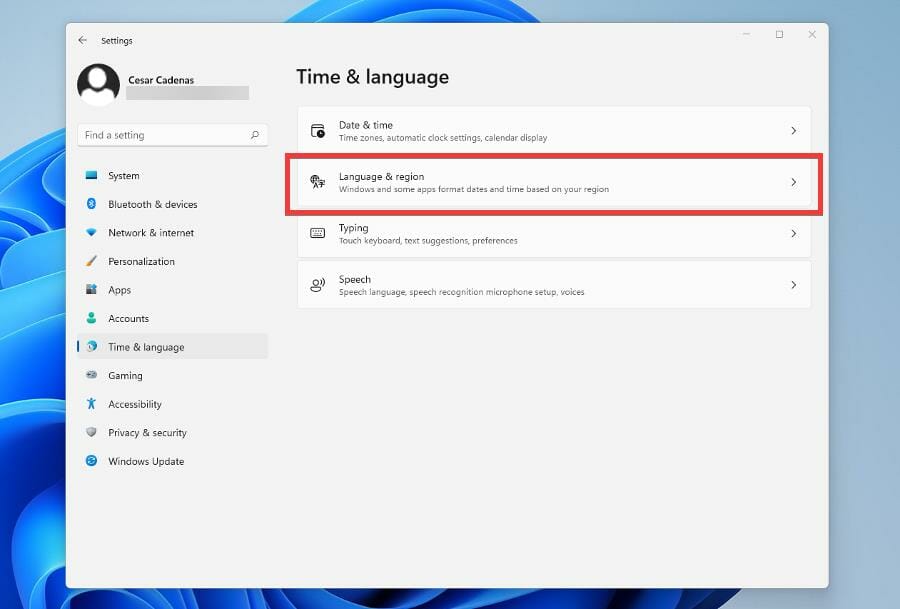
Furthermore, the app is relatively easy to install (and use), as it provides various options for setting up chatbots on your website.

The conventional setup process implies copying and pasting the chatbot’s HTML codes on your website’s source page. Other options involve a WordPress plugin and Blog posts/links.

Notable features of Collect.chat to take into account are: chatbots, visual dashboards, templates, multiple language support, 24/7 customer support, email notifications, drag & drop builder, campaign tracking, custom domain, and more.

Collect.chat comes in four subscription plans, including a free one with only a few options. Payment can be made either monthly or on a yearly basis. Once you subscribe, you have a 3-month trial.

Collect.chat

Convert your visitors into customers with this highly interactive and user-friendly chat platform.
Free trial Visit website

LiveChat

Working with LiveChat is the perfect gateway to satisfy all your customers with a sound customer experience.

If you have a business or work in customer service, this all-in-one platform will sustain your communications needs, connecting with thousands of clients using responsive chats.

What’s more, you have multiple possibilities to make the customers loyal using interactive chats, AI forms, or automation chatbots to always respond on time.

You have chat tools to improve customer service for any business. For instance, using # sign to get standard suggestions for discounts, one-click saving for recurrent messages, visible messages from clients before sending.

It’s worth mentioning that AI tools can streamline the interaction with your clients. The automated chatbots can generate new leads and greet customers to never miss a buy.

Other features of LiveChat contain:

  • Customer engagement: targeted messages, eye-catchers, routing rules
  • Chat widget customization
  • Reports & analytics tools
  • Security, encryption
  • 200+ apps integrations
  • Ticketing system
  • Sales and e-commerce

LiveChat

Talk to your beloved customers at any hour using this AI-powered chat software.
Check price Visit website

HelpOnClick

HelpOnClick is a prominent live chat/help desk software designed to help companies improve interaction with their customers.

The inbuilt Virtual Agent, available only in the Advanced paid plan, is an essential component of this software, as it could pass as an automated chat software itself.

The Virtual Agent enables you to provide instant and credible responses to inquiries (or queries) on your website(s). Also, it automatically initiates chats with every visitor on your website.
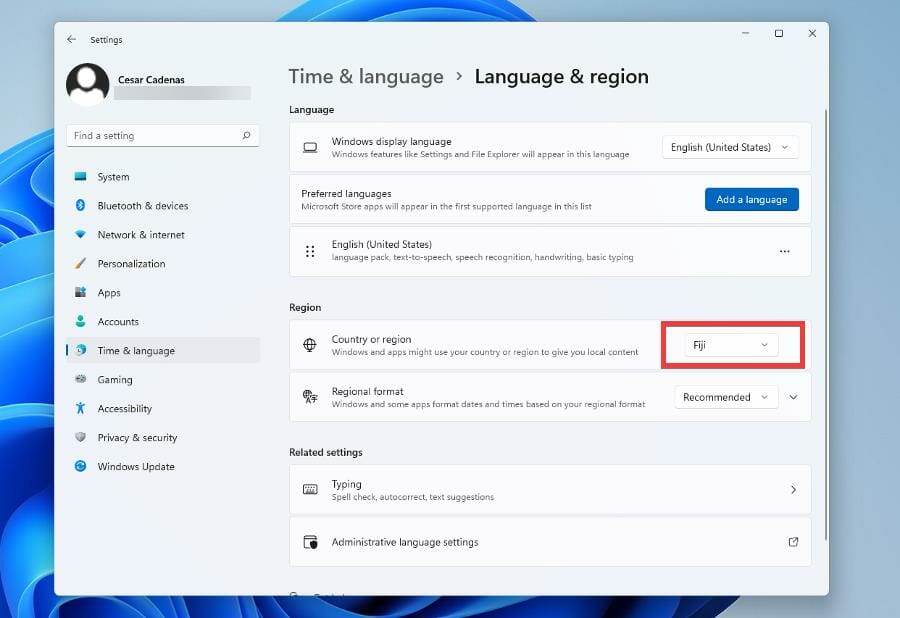
The software uses inbuilt chatbots, which deploy a set of algorithms to generate responses to basic (common) questions.

Downloading and installation are fairly easy, as is copying and pasting a chatbot’s HTML code on your website.

The software accommodates any device, be it a desktop (Windows, Mac, and Linux), smartphone, or tablet (iOS and Android).

Other notable features of HelpOnClick include:

  • Archives (Chat history)
  • Cross-platform compatibility
  • Reports
  • Web traffic monitoring
  • SSL secure connections
  • Seamless integration with a host of Social media, CRM, and e-commerce services like Facebook,  Google Analytics, Zen Cart, OpenCart, Salesforce, osCommerce, Zoho, Shopify, Zendesk.
HelpOnClick

HelpOnClick

Engage visitors, improve customer satisfaction, and increase your conversion rate with this fully-featured chat tool.
Free trialVisit website

BotXO

BotXO is another top-rated automated chat software that uses chatbots to provide instant responses to customer inquiries and sales-related queries.

It generates quick responses to common questions and ensures that access to every key piece of information is only a few clicks away.

Key features of BotXO include:

  • AI-powered chatbots
  • Hybrid model (Bot-human)
  • Webforms connectivity
  • Follow-ups
  • Notifications (Real-time) Easy API & Webhooks
  • NLP Multilingual Algorithms (Multiple Language Support)
  • Multi-user accounts
  • Comprehensive analytics
  • 24-hour customer support

The Hybrid model is one unique feature that uses special algorithms to track the progress of a conversation and transfers such conversation to a customer service agent, where and when required.

As a result, customer service reps are able to optimize their time by attending to only important, sensitive, queries, and inquiries.

BotXO automated chat software offers three major subscription plans to its users, each with a two-week trial period.

⇒ Get BotXO

ResponseQue

Considered one of the most prominent automated chat software on the market, ResponseQue is designed to provide quick-time responses to customers’ queries/inquiries on your products, staff, and/or partners.

As it stands, ResponseQue provides automated responses (via live chats) to about 80% of all inquiries on its website.

Easy integration, Auto-message routing, Auto Response(s), Quicklinks, Custom Branding, In-depth Analytics & Reports, Notifications (Email), Customized input forms are other features of this live customer service app.

ResponseQue offers three pricing plans, each with a generous data storage space which is more than welcome.

⇒ Get ResponseQue

Chat4Support

Chat4Support is arguably one of the leading com-solutions in the world of customer service. The software offers a wide range of services to its users, including instant help/live chat and traffic monitoring.

Chat4support is equipped with the latest in AI technology, using pre-set commands to deliver precise, error-free, responses to customers. This way, every piece of information needed by your customers/clients is provided within seconds.

Furthermore, this automated chat software hosts a unique functionality that initiates chats with everyone visiting your website, directing them to customer care representatives (as required/requested).

This ensures that prospective customers are provided access to updated information about your company’s services.

Other services/products offered by Chat4Support include:

  • Search Engine Analysis
  • Keyword usages
  • Screen Capture
  • Multiple Language support
  • Customizable Buttons
  • 24/7 Support
  • Online Customer support
  • Chat Transfer

The software is compatible with a host of Windows computer operating systems, ranging from Windows NT 4.0 to Windows 7 or later.

Although setting up (downloading and installing) the software on these devices could be a little tricky, there is an easy-to-understand How-to guide on their website to assist you all the way.

Chat4Support offers four basic pricing plans to its users; one free version and three paid editions.

⇒ Get Chat4Support

We’ve rated these five automated chat software based on key factors like affordability, integrations, ease of use, and durability of inherent features.

Feel free to drop your suggestions on this topic in the comments box below.

Fix the Assassin’s Creed Valhalla Uplay Error with These Easy Steps

If we had a nickel for every time a new game we purchased drove us beyond rational thinking, we’d be millionaires by now. Since that isn’t the case, we’re faced with two options: uninstall the game and move on, or find a fix and resume playing.

If you decide to go with the second one, however, we might be able to help you overcome this annoying issue and resume your gameplay.

A lot of Assassin’s Creed Valhalla told us that they are dealing with a Uplay error and are unable to find a solution. After purchasing, it asked them to link their UPlay account, and then it said UPlay Redeem Required. Every time they click on it, they get an error in the bottom right corner saying An unexpected error has occurred. (102008)

How can I fix the Assassin’s Creed Valhalla Uplay error?

  1. Exit the Epic Games Store.exit epic games store
  2. Exit Ubisoft Connect.exit ubisoft connect
  3. Connect VPN to region you purchased the game.Use VPN
  4. Start Ubisoft Connect and login.login ubisoft connect
  5. Start Epic Games Store and login.login epic games store
  6. First time you get an error – Unable to activate license.
  7. Restart Epic Games Store.
  8. Game activated and you can download now.
  9. Disconnect VPN after license is activated.

Remember that this is far from an official fix. Just treat it as a temporary workaround that worked for many players in the same situation.

We can also help you if Assassin’s Creed Valhalla keeps minimizing, or if you are unable to save your game.

If Uplay compatibility errors hinder your gaming experience, follow our guide on solving Uplay_r164.dll Not Found or Untrusted System File issues.

Was this guide helpful to you? Let us know in the dedicated comments section below.

6 Best Backup Software for Synology NAS in 2026

To make sure that you don’t lose your files, you should frequently back up your data. As for backups, many users tend to use NAS storage for storing backups.

NAS stands for Network Attached Storage and is a useful storage device connected to your own network in order to extend your storage for more significant files.

The reasons you would need this storage device are many. Firstly, the number of images and videos becomes bigger every day and the backup storage of your device will eventually run out of space.

Even though you can use online backup services like OneDrive or Dropbox to extend the storage space, it has limited memory available, and you would have to get a subscription or pay for more.

Hence, using Synology NAS technology you will back up your files and store family memories automatically on your PC.

Since NAS storage can be quite convenient for backing up your files, in this article we’re going to show you the best Synology backup software.

What is the best Synology backup software?

Acronis Cyber Backup

Acronis Cyber Backup synology backup software

Acronis Cyber Backup is a backup software that can create disk images and store them on your local disk or NAS. Speaking of NAS, Synology NAS devices are supported.

The software also has cloud protection, and you can protect your Office 365 mailboxes, Microsoft Azure VMs, and Amazon EC2 cloud workloads. You can also migrate workloads between different clouds.

It’s worth mentioning that the device has a universal restore feature that lets you restore your backup to a computer that has different hardware.

If you want to ensure that your data is secure, there’s Acronis Cloud Storage available that will store your backups in one of many Acronis Cloud Data Centers.

Acronis Cyber Backup is great backup software, so if you want to ensure that your data is safe, be sure to try it out.

Acronis Cyber Backup features:

  • Support for local and NAS backups
  • Acronis Cloud Storage
  • A centralized web management console
  • 256-bit encryption
  • Universal restore feature

Acronis Cyber Backup

Acronis Cyber Backup is professional backup software with full support for Synology NAS.
Check price Visit website

Aomei Backupper

Aomei Backupper synology backup software

Another great Synology backup software that we want to show you is Aomei Backupper. The software supports advanced system cloning, UEFI, GPT to MBR, and customized cloning.

The software can back up your data to the external or local drive, but you can also save your backups on a DVD, NAS, or several cloud storage services.

Using this software, you can perform system backup, disk backup, partition, or file/folder backup. To ensure that your data is always secure, there’s support for scheduled and event-triggered backups.

We have to mention that the software can remove old backups in order to save precious storage space, and for advanced users, there’s support for command line backups.

Aomei Backupper offers great features, and if you’re looking for powerful backup software with NAS support, be sure to consider Aomei Backupper.

Aomei Backupper features:

  • Can perform system, disk, partition, and file backup
  • Support for scheduled and event-triggered backups
  • Can backup to local and external storage, DVD, cloud, and NAS
  • Support for command line
  • Support for incremental and differential backups

Aomei Backupper

Aomei Backupper is an advanced backup software that offers full compatibility with Synology devices.
Check price Visit website

IDrive

IDrive synology backup software

If you need to back up your data to Synology NAS, you might want to try IDrive. The software can work with multiple devices including PCs, Macs, iOS, and Android devices, and back them up to a single account.

Thanks to the file sync feature, all your files will be synced and available across all devices. The service also has a web-based console, so you can easily manage your backups remotely.

Regarding backups, you can perform sector-level backups or file-level backups. The software also supports snapshots and versioning, so you can easily restore to older backup versions.

It’s worth mentioning that the service uses 256-bit AES encryption, so you can rest assured that all your files are perfectly safe from third parties.

IDrive is a great service because it works with Mac, PC, iOS, and Android devices, so we encourage you to try it out.

IDrive features:

  • Works with unlimited PCs, Macs, iOS, and Android devices
  • Online file syncing
  • Ability to perform sector-level or file-level backups
  • Web console for remote backups
  • Snapshots and versioning

IDrive

IDrive is a backup service that works with a wide array of platforms, and it’s also compatible with Synology devices.
Check price Visit website

Ashampoo Backup Pro

backup software for Synology NAS backup software for Synology NAS

Another great software with Synology support is Ashampoo Backup Pro. The software is designed to check the health of your hard drive, so you can be completely sure that your backup won’t get damaged.

It’s important to mention that the software allows you to have access to all your backups, and you can even access your backed-up files without restoring the backup.

Ashampoo Backup Pro is designed to work in the background, so you won’t even notice that it’s running. As for backups, the application supports disk, partition, file, and full system backups.

Regarding the backup destination, you can store files on local/external hard drives, online storage, NAS storage, and popular cloud storage services.

Overall, Ashampoo Backup Pro is solid backup software, and if you want simple but powerful backup software, be sure to try it out.

Ashampoo Backup Pro features:

  • Built-in disk checking feature
  • Can access backed up files without restoring the backup
  • Can run in the background without affecting your PC
  • Ability to back up disk, partition, system, or individual files
  • Can store backups to local/external drives, online storage, NAS, and cloud storage

Ashampoo Backup Pro

Ashampoo Backup Pro is simple but powerful backup software with full support for NAS storage backup.
Check price Visit website

MiniTool ShadowMaker

MiniTool ShadowMaker synology backup software

If you’re looking for simple backup software, then MiniTool ShadowMaker might be just what you need. The software can create backups of your system, files, and disks with ease.

Regarding the storage, you can store files on both local and external drives, NAS, or your home file server. It’s worth mentioning that all your backups can be encrypted, so they’ll remain perfectly safe.

MiniTool ShadowMaker also has a built-in file sync feature, as well as a Safe System Restore feature that can easily restore your system from the external drive.

The software can create incremental backups, and you can even automate backups and ensure that they are performed regularly.

Overall, MiniTool ShadowMaker is a solid backup tool, and since it’s completely free, there’s no reason not to try it out.

MiniTool ShadowMaker features:

  • Ability to create system, file, and disk backups
  • Can save backups to local/external drives, NAS or home servers
  • Built-in sync feature
  • Scheduled backups
  • Free to use

⇒ Get MiniTool ShadowMaker

Backblaze

BackBlaze is a backup storage service that works for anyone who needs to guard their essential files on secured cloud locations.

You can protect your digital most essential files for all devices or secure a business data center using reliable backup support with NAS native integrations.

This backup option is straightforward and follows a simple integration process. In only two steps you can back up crucial files on the cloud without any technical knowledge required.

You should know that every information stored on this NAS cloud is available right away and you can download saved files immediately.

In order to deploy this data storage tool, you only need to choose the offsite data storage service and then use software to get data from the NAS device to the cloud.

Additionally, using Blackblaze you have multiple native NAS integrations for devices like Synology, TrueNAS by ixSystems, and more.

Backblaze features:

  • GoodSync function to sync all the files
  • Qbackup for cross platform file backup
  • Syncovery for backup and mirroring
  • MSP360 to backup Windows Servers
  • Retrospect storage data protection

⇒ Get Backblaze

Backing up your files shouldn’t be a tedious task, and if you’re looking for Synology backup software, the applications from this list should be more than helpful.

Fix: Can’t change static IP address & DNS server in Windows 10

Your IP address represents your ID when you go online. It’s assigned by your ISP and can be used to trace your approximate location.

Meanwhile, your DNS servers are responsible for translating the domains you search online into IP addresses so that machines can understand where you want to go. They are also assigned by your ISP.

However, many privacy-concerned users understand why it’s critical to change their IP address and DNS servers on Windows 10 and 11and other operating systems. It’s problematic when that’s not possible.

Many of our readers reported that they can’t change the IP address and the Internet Protocol v4 properties are greyed out.

In other cases, the following error message pops up from Local Network: An unexpected condition occurred. Not all of your requested changes in settings could be made.

Windows 10 says that Windows 10 an unexpected condition occurred

However, you can fix the unexpected condition error on Ethernet or Wi-Fi so that you can change your static IP address and DNS servers.

How can I change static IP address & DNS in Windows 10?

1. Set a static IP address using PowerShell

  1. Press the Windows 10 Start button and type powershell, then click on Run as administrator from the results.
  2. Copy and paste the following command, but don’t hit Enter until setting your actual IP address and other properties:
New-NetIPAddress
   [-IPAddress] <String>
   [-DefaultGateway <String>]
   [-AddressFamily <AddressFamily>]
   [-Type <Type>]
   [-PrefixLength <Byte>]
   [-ValidLifetime <TimeSpan>]
   [-PreferredLifetime <TimeSpan>]
   [-SkipAsSource <Boolean>]
   [-PolicyStore <String>]
   -InterfaceIndex <UInt32>
   [-CimSession <CimSession[]>]
   [-ThrottleLimit <Int32>]
   [-AsJob]
   [-WhatIf]
   [-Confirm]
   [<CommonParameters>]

You can use the New-NetIPAddress cmdlet to set up a new IP address and customize settings.

We suggest reading Microsoft’s complete documentation on New-NetIPAddress to understand the role of each parameter.

2. Reset your IP address using Command Prompt

  1. Press Win + R, type cmd and press Enter.
  2. Type this command and press Enter to release your current IP. The Ethernet adapter section will now be void of numerical values: ipconfig/release
  3. Enter this command and press Enter to reset your IP: ipconfig/renew

You can use the first command to release the current IP address of your computer. Keep in mind that you will have no Internet access at this point.

However, you’ll get back online in no time after using the second command. Your computer will request a new IP address from a DHCP server, such as your router.

3. Change your DNS server using Windows PowerShell

  1. Click the Start button, type powershell, and select Run as administrator from the results.
  2. Copy and paste the following command, but don’t hit Enter until specifying the server address of your DNS client and other properties:
Set-DnsClientServerAddress
   [-InterfaceAlias] <String[]>
   [-ServerAddresses <String[]>]
   [-Validate]
   [-ResetServerAddresses]
   [-CimSession <CimSession[]>]
   [-ThrottleLimit <Int32>]
   [-AsJob]
   [-PassThru]
   [-WhatIf]
   [-Confirm]
   [<CommonParameters>]

You can use the Set-DnsClientServerAddress command to specify at least one IP address for the DNS servers associated with your network adapter.

It statically adds the DNS server addresses, which will override any DHCP configuration for that network adapter.

Find out the goal of each property involved in Microsoft’s full specifications about Set-DnsClientServerAddress.

4. Flush your DNS and reset Winsock

  1. Select the Start button, type cmd and select Run as administrator to start Command Prompt with administrative privileges.
  2. Copy and paste the following commands one by one and press Enter between each line:
ipconfig /flushdns
ipconfig /registerdns
NETSH winsock reset catalog
NETSH int ipv4 reset reset.log
NETSH int ipv6 reset reset.log
exit

Reboot your computer to finalize changes and see if the problem has been fixed on your PC.

If you can’t change your static IP address and DNS server on Windows 10, use the commands above to flush your DNS servers and reset Winsock, which is responsible for your TCP/IP configuration.

5. Set DHCP IP assignment

  1. Press the Win key, then select Settings.
  2. Click Network & Internet.
    • If you’re using Wi-Fi, select Wi-Fi > Manage known networks. Then, pick your network and select Properties
    • For Ethernet, select Ethernet and then your network
  3. At IP settings, click Edit.
  4. Select Automatic (DHCP) and click Save.

If you use automatic DHCP settings, it will be easier to configure TCP/IP settings on your Windows 10 PC.

6. Use a VPN service

If you wish to regularly change your IP address and protect your DNS queries, we suggest opting for a premium VPN service.

You just have to connect to a VPN IP address. It will not only hide your true IP and location but also encrypt all data traffic to secure your network from hackers.

We think that Private Internet Access is the best VPN for the job. It’s incredibly intuitive, supports more than 3,300 VPN servers across 48 countries, and can be used to access blocked content, including Netflix US from anywhere.

PIA supports static and dynamic IP addresses, native port forwarding, and exclusive DNS servers. It also comes with a kill switch and a malware blocker for browsers.

More about PIA:

  • WireGuard and OpenVPN with up to 256-bit military-grade encryption
  • No IP, DNS or WebRTC leaks
  • 24/7 live chat support
  • 30-day money-back guarantee (no free trial)

⇒ Get Private Internet Access

How do I change the IP address and DNS in Windows 11?

The new OS is not that much different from Windows 10, especially when it comes to the networking settings.

Therefore, apart from some design differences, all the solutions we outlined for the older OS will work perfectly on Windows 11.

However, there are a few differences in the menus. For instance, to access the network adapters in Windows 11, you need to click on the Advanced network settings from the Network & internet section from Settings.

To summarize, if you can’t change your static IP address and DNS server on Windows, you can try resetting them from the PowerShell or Command Prompt.

It’s also a good idea to refresh network settings by flushing DNS and resetting Winsock. Plus, you can specify automatic DHCP IP assignments.

We hope that you managed to modify your IP address and DNS servers using our solutions.

You can also get around this problem by using one of the best VPN software for Windows to use an external server and IP.

What other fixes worked for your computer? Let us know in the comments section below.

How to stop Assassin’s Creed Valhalla from constantly minimizing

Everyone can agree that it can get incredibly frustrating when you are trying to play your favorite game and it keeps minimizing, for whatever reason.

People that bought Assassin’s Creed Valhalla also reported dealing with a similar bug. Needless to say, this totally and utterly ruins any gameplay.

Problems like these can happen for a multitude of reasons, and we’re about to go through all of them together, just to make sure you can get rid of this pesky bug.

It won’t take up too much of your time, but just to be on the safe side, let’s review why this happens and how we can move past it.

What can I do to stop AC Valhalla from minimizing?

What you don’t need to do is throw your controller or smash your keyboard, because the problem doesn’t originate from there.

As satisfactory as running one’s hardware can be at certain times, we’ll show you a fix that will also preserve any keyboards, mice, or gamepads you have lying around.

It’s important to understand that this issue can actually be caused by malware, so the very first step should always be checking for that.

  1. Run an antivirus/malware scan on your PC.antivirus scan
  2. Update your GPU.update geforce gpu
  3. Disable Game Mode.disable game mode windows 11
  4. Disable system notifications.disable system notifications

Besides the above-mentioned steps, some AC Valhalla players specified that there’s another workaround that managed to do the trick for them

Just have Discord opened in your taskbar and, when the game minimizes, click on the Discord icon, then back on the game.

This should supposedly work, although some gamers said that it didn’t for them. That being said, one of the solutions here is bound to work for you as well.

Valhalla gamers also reported not being able to save their progress, and we can show you how to fix that as well.

Optimized settings and healthy files should also stop and prevent Assasin’s Creed Black Flag from crashing on startup.

Have you managed to fix this issue? Let us know in the comments section below.

[Fix] How to save your game in Assassin’s Creed Valhalla

The last title in the beloved Assassin’s Creed series, which is Valhalla, has been out for a year and a half now, and everybody is in love with it.

Even though, like all other games in existence, it came with a wide array of bugs and glitches, that doesn’t stop gamers from enjoying every second of it.

Especially now that the game’s first DLC, Dawn of Ragnarok, has officially been released yesterday. However, Ubisoft didn’t manage to eliminate all the annoying issues.

Players are still struggling with not being able to save or auto-save their games and end up either playing really long stretches, or losing their progress.

As you can already imagine, that can become insanely frustrating in a short amount of time, so we’re here to show you some interesting workarounds for this issue.

How can I save my Assassin’s Creed Valhalla game?

Needless to say, modern problems require modern solutions. That’s the mentality that drove Valhalla users to find solutions of their own when Ubisoft failed to fix things.

And since starting a new game and finishing it in one go, without saving, is out of the question for mostly all of us, we’ll show you some neat workarounds for the issue.

Before we start, make sure you are not in a restricted area, where saves are not actually possible at all. Also, note that saving while during combat isn’t possible.

AC Valhalla players reported this problem last year. It apparently came with an update and decided to stay for good.

So what can you do? Turn to the easiest solutions there are, ones that do have the effect you desired, so you can save your progress.

  1. Start a feast with your crew. This feature is only available when you have unlocked either the bakery or brewery in your settlement.Feast AC Valhalla
  2. Go to sleep on your bed.sleep in bed AC Valhalla

It might not seem like much but players that had this problem managed to temporarily solve it by using either one of the above-mentioned solutions. Those tips will help with related issues like AC Black Flag not launching.

Both actions will force the game to autosave, thus temporarily fixing the bug. But the issue comes right back as soon as you initiate a new quest.

Until Ubisoft permanently fixes this annoying problem, we’re afraid this is all that stands between us and not being able to save our progress.

Were you able to save your game using one of these solutions? Share your experience with us in the comments section below.

Anime Maker Software for PC: 10 Best Apps in 2026

If you love anime movies and you’re planning to create animes yourself, you’ll need dedicated animation software.

Fortunately, there are many animation tools that offer you a variety of features that come in very handy when creating this type of animation.

Most of them, as you’ll see from the list below, will allow you not just to learn the art of animes, but also to enhance your creations with rich effects and lots of customizations.

So check out this list of the best anime software you can find on the market today.

What anime/animation software can I find online?

Adobe Animate

In the case of animation in general, be it cartoons or anime, few tools can come closer to the level of professionalism brought by Adobe Animate.

This neat tool lets you design interactive animations for games, TV shows, and the web, so plain old animation that you only watch is no longer the limit.

This tool now lets you bring cartoons and banner ads to life, create animated doodles and avatars, and add action to eLearning content and infographics.

Once your anime masterpiece is done, you can also use the tool to publish your artworks on multiple platforms in just about any format, and reach viewers on any screen.

Adobe Animate is part of the Creative Cloud and lest users integrate multiple related tools in the creation process.

It offers support for character creation, with intuitive tools that help you animate movement frame by frame.

Moreover, you can integrate interactive banners that respond to user interaction.

Along with that, from the same panel, you can add audio footage and make your character talk.

Other key features include:

  • Frequent updates
  • Cross-platform publishing capabilities
  • Full range of animation and character design tools
  • Familiar interface style for those used to Adobe products
  • Brush library that can be enriched with third-party brushes
  • A community that provides regular guides, tutorials, and other neat tips and tricks

Adobe Animate is a subscription-based service. You can try it out for free for 7 days and see if it meets your needs.

Adobe Animate

Sketch, draw and create captivating characters and bring them to life with Adobe’s easy-to-use, next-gen tool.
Free trial Visit website

Autodesk 3ds Max

A recent trend in anime that’s been around for a few years is to make cell-shaded 3D animations.

These are much easier to handle once character design is complete since you no longer have to waste time figuring out how to draw them by hand in all possible angles.

That is why a 3D animation tool can be extremely handy, and if you get one as professional as Autodesk 3ds Max, then you are on the right foot.

The great thing about Autodesk 3ds Max is that it is not a unidirectional tool. Once you subscribe to it, you can use it to do pretty much anything where you may require both 3D modeling and animation.

This includes anime, 3D feature-length films, video games, video game cutscenes, etc.

Features:

  • Frequently updated
  • Familiar interface for those that use AutoDesk products
  • Detailed hair and texture design
  • VR support
  • Refined shape modeling

All things considered, even if you end up deciding to use another tool for creating anime, never forget how versatile Autodesk 3ds Max.

Now that you have it, you can always use it again in case inspiration leads you down another path other than anime.

Autodesk 3ds Max

Create highly realistic anime characters with refined shape modeling, detailed texture design, and plenty of other handy tools.
Free trial Visit website

Maya

Maya is a powerful animation software that allows you to create 3D anime. If attention to detail is one of your strong points as an animator, then this is the right tool for you.

Maya provides a strong set of character design features. It includes an interactive grooming workflow with easy-to-use brush-based tools that let you create and style your character’s hair, create fur, and more.

The brusher is intuitive, but they let you create highly customizable and realistic stylings.

It also provides a cutting-edge sculpting toolset that lets users sculpt and shape characters more artistically and intuitively.

Autodesk Maya can be implemented in Adobe After Effects so you can operate changes on your character’s appearance.

Along with advanced character creation, the tool also helps you make realistic and complex environments. For example, you can create atmospheric effects, such as smoke and mist, render photorealistic liquids, and more.

Other key features of Autodesk Maya include:

  • Fast playback for 3D animation
  • Clip-based time editor
  • Motion library plug-in
  • Polygon modeling
  • NURBS modeling

Do you want to see Maya in action? Check out the video below to see how you can use the tool to create anime:

You can try Maya for free for 30 days from the official website.

Autodesk Maya

Implement realistic movements and style every detail of your 3D anime character for professional results.
Free trial Visit website

Animaker

If you want a tool that is highly intuitive and requires no previous knowledge and experience, you may want to take a look at what Animaker has to offer.

It is a very visual animation creator. You can create your video designs with drag and drop.

As opposed to other mentions on this list, the character builder integrated into this tool is much simpler. It works with a large library of items that you can mix and match to create highly unique characters.

This of course can save you lots of time, as you only use pre-made objects.

That said, we have to make clear that this tool does not offer as many customization features as other items on this list. However, it has a generous library of pre-made templates, character items, video assets.

It is a good starting point, especially for beginners or for those of you that are not necessarily willing to invest a lot of time in anime character creation.

Besides designing your character’s appearance, you can also add multiple facial expressions and integrate audio files and make the characters talk.

The lip-sync feature automates the movement of your character, which means you do not have to animate frame-to-frame when you want to integrate audio files.

When it comes to the animation process, Animaker uses a powerful HTML 5 engine that aims to offer high performance when you produce your animations.

Other key features include:

  • Massive asset library
  • 1000+ cartoon video templates
  • 3D and 2D animations
  • Support for social media videos, video presentations, and more

Animaker is a subscription-based service with 3 different plans, billed yearly. You can also get a custom plan and integrate only the features you plan on using. For that, you will have to contact the Animaker team.

Animaker

Design characters intuitively, with drag-and-drop, and produce your videos seamlessly with a powerful HTML5 engine.
Check price Visit website

Daz3d

Daz3d is mainly a figure design tool that is known for its extensive toolset that allows you to customize characters in many different art styles.

The tool ensures highly realistic results and offers plenty of customization features. However, keep in mind that it does not let you create characters from scratch. 

You need to import pre-made models, either from its pre-existing library, or models made with compatible platforms.
It is equipped with character styling features. You can create both highly realistic human features and other types of characters.

It is a really good platform to customize anime characters. Besides its standard toolset, Daz3d also has an item shop that you can use to integrate specific features into your animation.

You can find ready-made anime characters, poses, hairstyles, accessories, clothing items, and more. If you want to get started with anime creation and need some inspiration, you can just head to the shop and type anime.

You will see that there are plenty of ready-made items that can help you get started. Most of them are customizable, and you can mix and match multiple items to create your unique character.

The Daz3d library also offers plenty of highly realistic facial expressions and body movement options.

Other key features of Daz3d include:

  • Integrates Autodesk 3Ds Max, Mudbox and Maya
  • Puts forward tons of tutorials and guides
  • Works in browser

Daz3d is free to use. The only expenses you may have are if you decide to use additional items from the shop. Keep in mind that the shop offers free items as well.

Daz3d

Give life to your ideas and create unique 3d anime characters with this comprehensive 3D modeling tool.

Storyboard Pro

Storyboard Pro from Toon Boom is amongst the most popular storyline creation tools. It is equipped with several character creation and animation features that help bring creative visions to life.

The tool lets you use drawing and sketching tools to get started with your project. Afterward, you can implement animatic creation capabilities and sound.

Due to the fact that it is a storyline-based tool, StoryboardPro lets you upload and integrate your scripts. It is compatible with all major script software.

As it works primarily with sketching and drawing tools, Storyboard gives users lots of creative freedom. It has multiple brush options and effects, such as airbrush modes, ink, and crayon.

It incorporates multiple animations and movement features. Similar to Photoshop, it works with layering.

This means that you can easily integrate your character in various scenes, move and animate them on their own.

The tool is fairly easy to use. The UI is quite intuitive and similar to what you can find in other products of this kind. If you have trouble getting started, know that Storyboard provides in-depth video tutorials on how to use the whole toolset.

Other key features of Storyboard Pro include:

  • Advanced color management 
  • Edit drawings on video tracks
  • Effects control view
  • Clip speed management
  • Plenty of audio effects

Storyboard is compatible with Windows and macOS. It is a subscription-based service, with a 21-day free trial.

⇒ Get Storyboard Pro

Cinema 4D

If you want professional-level results and a quick and efficient workflow, we recommend you look into Cinema 4D.

This rendering software offers a strong toolset that aims to meet the requirements for all sorts of film and animation makers.

The software offers multiple modeling options. It offers support for polygonal modeling, parametric modeling, volume modeling and it can also help you turn pictures into 3D models.

Cinema 4D is great for highly realistic and customizable character creation. Its sculpting feature is very intuitive, allowing users to play around with the models with pull, smooth, flatten, cut, pinch, and other similar functions that let you easily adjust and change up your meshes.

On the topic of character creation, you should also know that this software incorporates a comprehensive set of tools that help you paint detailed textures directly on 3D objects.

Users can create photo-realistic materials with the advanced texturing tool. Cinema 4D offers multi-layered material channels, reflectance, procedural shaders, and more.

In terms of animations, Cinema 4D includes manual animation basic tools that let you animate any 3D object with keyframing. You can also automate animation with an auto-key frame or by using parameters.

It also includes some animation presets. If you want to create anime, you can benefit from the Character Animation toolset which offers tons of realistic movement parameters that you can mix and match in your project.

Cinema 4 can also help you convert facial and body movements from video footage, animate moving objects, track models along with video materials, and more.

Other key features of Cinema 4D include:

  • Intuitive and customizable user interface
  • Easy to learn
  • Strong online community with tons of guides and tutorials
  • Easily save multiple versions of the same project

Cinema 4D is subscription-based, with monthly and annual plans available. You can try out the full-feature version within a 14-day free trial.

⇒ Get Cinema 4D

Cartoon Animator 4

Cartoon Animator 4 is another beginner-friendly option that can help you get started with your Anime project.

It is a 2D animation software, but it supports imports for 3D motions. You can upload pre-made 3D motions and convert them to multi-angle 2D performance motions.

This gives more possibilities and lets you create more precise movements. 

Cartoon-animator lets you upload character models, and it also offers some presets.

Along with that, it offers several character templates for humans and animals. It offers 2D character rigging and bone tools. It supports multiple angles for 2D characters.

The animation features are intuitive and can save you a lot of time, as Cartoon Animator has an extensive set of pre-animated motion clips. 

You can mix and blend them together, cut them off, and change their timing to perfectly fit your requirements.

If you want to create your own motions, you can do so with the intuitive IK/KF system. Along with that, it also offers a curve-based Motion Key editor.

This allows you to combine presets with curve-based movements and create professional-level animations.
The tool also has some pre-made poses and natural gestures motions that you can implement into your animation.

Other key features of Cartoon Animator 4 include:

  • Photoshop pipeline
  • Support for audio implementations
  • Motion path and timeline editing
  • Render style

Cartoon Animator 4 is sold as a one-time purchase license. It is compatible with Windows and macOS and you can try it for free for 30 days.

⇒ Get Cartoon Animator 4

DP Animation Maker

DP Animation Maker is the perfect tool to bring your anime to life on screen with just a few clicks. You can add special effects and also fine-tune them from settings.

The software toolset includes the following powerful instruments:

  • Smart Animation Brushes allow you to paint over a still image turning a picture of water, fire, or light into real-time animation.
  • Morphing/Deformation Brushes make stars spin, plants wave, ships sail and many other cool movements with little effort.
  • Library of Ready-to-Use Animations
  • Automatic Looped Video Generation

The program was not built for creating cartoon animations, but it is great for making quick animations from pre-existing elements.

Here’s what you can create with DP Animation Maker:

  • Animated Backgrounds
  • Animated introductions for games
  • Animated videos
  • Animated pictures for multimedia products
  • Music videos
  • YouTube videos

With DP Animation Maker you can create seamless animations automatically.

⇒ Get DP Animation Maker

Moho

Moho is one of the best animation software that you can use to create Japanese-style anime. Whether you’re an experienced animator or a complete beginner, this tool will make the creation process easier.

The software comes in two versions: Moho Debut and Moho Professional, which brings a bevy of advanced features allowing to create stunning anime. Both versions successfully mix traditional animation tools with modern, cutting-edge animation features.

The latest version of the software improves Smart Bones, the feature that allows users to control character movement and facial expressions.

Distortion around your character’s joints has been significantly reduced, and you can control facial expressions and head-turning with simple dial movements, so you no longer need to touch each bone point. This makes it much easier to repeat complex movements, allowing you to complete your animation work faster.

⇒ Get Moho

We’ll end our list here. Have you encountered any other worth-mentioning anime software to create amazing videos? Feel free to share it in the comments box.

Ghost Recon Wildlands Not Launching on PC: 5 Ways to Fix

Many reported that Ghost Recon Wildlands is not launching for them, and this can be a frustrating issue, but luckily you can fix it with these steps.

Why is my Ghost Recon not launching?

This is usually due to issues with Visual C++ Redistributables or UPlay cache.

What can I do if Ghost Recon Wildlands is not launching?

If you have MSI After burner installed, disable it before starting the game. Ubisoft Connect can also cause the problem, so reinstall it to fix this issue.

1. Repair your Redistributable package

  1. Navigate to the path below:
    C:\Program Files (x86)\CorePack\Tom Clancy Ghost Recon Wildlands\Support
  2. Right-click the vcredist_x64_2012.exe file and select Run as administrator.
    run as administator
  3. Select Repair.
  4. Restart your computer.
  5. Go back to the game folder and run the game’s executable as admin.
    C:\Program Files (x86)\CorePack\Tom Clancy Ghost Recon Wildlands

Alternatively, you can download Visual C++ Redistributable for Visual Studio 2012 Update 4. If your game fails to start due to connection errors, you might be dealing with Tarija 00019 or 00014. In that case, follow our dedicated guide to fix Ghost Recon Wildlands error Tarija 00019 and 00014.

2. Delete Uplay cache folder

  1. Press Windows + E to open File Explorer.
  2. Go to the path below:
    C:\Program Files (x86)\Ubisoft\Ubisoft Game Launcher\cache
  3. Delete everything from the cache folder.

3. Run the game in Compatibility Mode

  1. Go to the installation directory: C:\Program Files (x86)\Steam\steamapps\common\Wildlands
  2. Next, right-click rungame.exe and choose Properties.
    properties
  3. Go to Compatiblity tab and check Run this program in compatiblity mode for and select Windows 7.
    run program in compatibility mode
  4. Also, check Run this program as administrator.
  5. Save changes.
  6. Now do the same for GW.exe.

This is a simple solution, but it will help if Ghost Recon Wildlands is not launching on Steam.

If the game still refuses to open after trying compatibility mode, you can also check our complete guide on fixing Marvel Rivals not launching, since many solutions apply to Ghost Recon Wildlands as well.

4. Install the required certificates

  1. Press Windows + E to open File Explorer.
  2. Go to Steam directly using the path below:
    C:\Program Files (x86)\Steam\steamapps\common\Wildlands\EasyAntiCheat\Certificates
    certificates folder
  3. Now locate and run the game.cer file. By doing so, you’ll install the required certificates.
  4. Few users suggested running EasyAntiCheat_Setup.exe as administrator so try that as well.

Once the certificates are installed, the issue should be resolved, and the game will start running again.

5. Disable Cloud Save Synchronization

  1. Start Uplay Client.
  2. Enter your login credentials and go to the menu icon in the top left.
    uplay login
  3. Choose Settings from the menu.
  4. Now uncheck Enable Cloud Save Synchronization for supported games option.
    enable cloud sync

This isn’t the only issue, and we covered Tom Clancy’s Ghost Recon: Wildlands bugs in a separate guide, so don’t miss it. We also have a guide on Ghost Recon Wildlands lag and other network issues.

If you’ve encountered other solutions to fix the Ghost Recon Wildlands not launching on Windows 11, please list the troubleshooting steps in the comment section below.

Huion tablet not connecting [Driver Fix]

Huion is popular for its graphic drawing tablets and pen displays. However, several users have reported the Huion tablet not connecting issues with a device is disconnected message.

The error seems to be triggered due to glitchy or incompatible drivers installed for the tablet. This can also happen due to a loose connection or a faulty USB port.

In this article, we take a look at a few troubleshooting steps to help you resolve the Huion tablet not connecting issue in Windows 10.

Why is Huion tablet not working on Windows 10?

This is most likely caused by a driver issue, and to fix it, we advise you to update Huion tablet driver and check if that solves the problem.

Do keep in mind that sometimes installing drivers isn’t as simple as you think, and many reported that Huion driver installation is stuck on their PC.

Luckily, this guide should be able to help you fix this issue on your PC, so make sure to keep reading until the end.

How do I fix the Huion tablet not connecting issues in Windows 10?

1. Update Huion tablet using Outbyte Driver Updater

Outbyte Driver Updater automatically update drivers

Outbyte Driver Updater is a driver management application for Windows computers. You can scan, download, and install driver updates for your Windows machine automatically.

Featuring a database with over 18 Million driver files, Outbyte Driver Updater comes with a download and schedule manager to perform automatic scans and updates.

This can simplify the process considerably, and on top of that, it allows you peace of mind that the exact version and type of drivers are being used on your machine.

As you know, even one faulty or non-compatible driver can cause mayhem on your system, so why risk it when you can use this incredibly powerful software? Give it a try today!

Here are the steps required to set it up on your computer.

  1. Click the Download button and install Outbyte Driver Updater.
  2. Launch the tool.
  3. Select Huion Tablet driver from the list and click Update.
  4. Wait for the update to download and install.
Outbyte Driver Updater

Outbyte Driver Updater

This lightweight and powerful tool detects all your driver requirements automatically and updates them to the latest version instantly.
Free trial Visit website

2. Reinstall the driver manually

huion tablet not connecting
  1. Press the Windows key + R.
  2. Type control and click OK.
  3. In Control Panel, go to Programs, and choose Programs and Features.
  4. Select Huion Tablet from the list of installed apps.
  5. Click Uninstall. You may have to confirm the action by clicking on Yes/Uninstall.
    huion tablet not connecting
  6. Wait for the device to uninstall and then restart the computer. After the reboot, head over to the Huion Tablet driver download page.
  7. Search for the Product Model and click Submit.
  8. Click the Download button to download the latest driver for your tablet for Windows. If you are using a Mac, download a compatible driver for macOS.
  9. Run the driver installer to finish the installation.

Once installed, restart your computer and check for any improvements.

Note: Make sure you are downloading the driver made for the Huion tablet model you are using. Drivers made for other Huion tablet may not work for your tablet.


3. Downgrade to the older version

huion tablet not connecting
  1. Visit Huion’s driver download webpage.
  2. Select your product by clicking the drop-down menu.
  3. In the download section, download the older version driver depending on the release date.
  4. Click the Download button to save the file.
  5. Run the installer and proceed with the installation.
  6. Once installed, reconnect the tablet and check if the error is resolved.

4. Check for hardware issues

Check USB port

Device disconnected

If the issue persists, disconnect the tablet and connect it to another vacant UBS port. This will allow you to see if you have a faulty USB port that is causing the issue.

Check with another computer

Device disconnected

If you have tried it all, connect the tablet to another computer that you have in your home or office. If the tablet works with a new computer, the issue is mostly with your current system and not a tablet.

Use Clean Boot to diagnose

huion tablet not connecting
  1. On your main computer, press the Windows key + R.
  2. Type msconfig and click OK.
  3. In the System Configuration window, open the Services tab.
  4. Check the ‘Hide all Microsoft services’ box.
  5. Next, click the Disable All button.
  6. Once done, click Apply and then Restart the computer.

Your computer will now boot in Clean Boot state and load only essential Microsoft services. Connect your Huion tablet and check if it is working.

If it is working, a third-party app installed on your computer is most likely conflicting with the tablet. Before you proceed to uninstall the conflicting app, make sure to enable all the disabled services once again by opening the System Configuration window.

The Huion tablet not connecting issue can be resolved by updating the driver or by downgrading to an older driver version. Follow the steps and let us know which method helped you resolve the issue in the comments.

How to fix missing COM ports in Device Manager

The Device Manager usually lists COM ports for desktops. However, those COM ports can sometimes disappear from the Device Manager window after users upgrade their Windows platforms.

It’s only natural to wonder where the COM ports have gone. Thus, you might need to restore missing COM ports so they can configure them via Device Manager.

Why is COM port not detected in Windows 10?

If the COM port isn’t detected, you’ll get a Unable to open serial port message on your PC. This can occur if the software can’t recognize the device you want to connect to the PC.

Other ports can also encounter issues, and users reported that USB ports aren’t working on their PC. This is most likely a driver issue, and it can be fixed with a update.

Speaking of issues, there are reports that Arduino port isn’t showing up for some users, and this is most likely caused by driver issues, so reinstall or update them.

How can I restore missing COM ports?

1. Select the Show hidden devices option

  1. Open the Win + X menu and click the Device Manager.
  2. Then click the View menu.
  3. Select the Show hidden devices option.
Show hidden devices option device manager add com port

You can also use dedicated motherboard information software. These can give you precious specs about your motherboard, CPU, BIOS, or memory. They can also detect issues such as the one at hand and help you fix them.

2. Update motherboard drivers

One way to restore missing COM ports in Device Manager is to update antiquated motherboard drivers.

You can do that either manually or using a dedicated driver updating tool, which will scan for devices and components that need driver updates.

3. Add COM ports

  1. Open Device Manager as explained above.
  2. Click the Action menu.
  3. Select Add legacy hardware.Add Hardware window device manager add com port
  4. Press the Next button on that window.The Install the hardware option device manager add com port
  5. Select the Install the hardware that I manually select from a list radio button.
  6. Click the Next button to open a list of hardware to add.Hardware types list device manager add com port
  7. Then select Ports (COM & LPT) on the list, and press the Next button.
  8. Select the manufacturer for the ports or the Standard port types option, and click the Next button.
  9. Press the Finish button.

So those are some of the potential fixes that should restore COM ports in Device Manager. Afterward, you can configure the ports as required.

If you used another method to fix this problem, share it with the community using the comments section below.

Learn how to master your Windows OS from our extensive tutorials in the Windows 10 Hub.

Be prepared to deal with any software-related issue with our Troubleshooting Guides.

Windows 10/11 GameGuard error: What it is and how to fix it

GameGuard or GG as it is commonly known as an anti-cheating software installed alongside multiplayer online roleplaying games (MMORPGs) like 9Dragons, Cabal Online, and others, to block malicious apps and other common cheating methods.

GG hides the game app process while monitoring the memory range, and terminating apps defined by the vendor of the games as well as INCA Internet cheats, plus it blocks some calls to DirectX functions, Windows APIs and makes automatic updates with every new threat that arises.

This tool works like a rootkit so it may have some unwanted side effects, like blocking hardware installation and activation of peripherals while the programs are running. It also monitors your computer’s memory, so it will affect performance when the game that is being protected loads more resources at the same time.

Some users of GameGuard have reported that they’ve experienced issues on their computers, and we’ll look at some of the common Windows 10 GameGuard error types, and how to fix them.

FIX: Windows 10/11 GameGuard error

  1. General fixes
  2. Use a reliable antivirus
  3. Download a new version of GameGuard
  4. Common Windows 10 GameGuard error types and their fixes
  5. Other errors

1. General fixes

GameGuard is a delicate tool, so one of the things you can do to resolve the Windows 10 GameGuard error includes ensuring that GameGuard is not being interrupted by your antivirus.

Most Windows 10 GameGuard error problems are caused by the large use of proxy servers such as restricted internet connections due to security software like firewalls or antivirus, which makes GameGuard not update.

In this case, add GameGuard and PSO2 to the real-time protection whitelist in the control panel of your antivirus. Multiple antivirus software on your computer may be one of the causes of the problem.

Also, ensure your operating system is up to date. You can also run a system file checker scan to check the operating system files for corruption and attempts to repair them, plus check your hard drive for consistency issues.

If a proxy server is on, launch your browser, and disable or turn it off by doing the following:

  • Open Internet Explorer and click Tools
Windows 10 GameGuard error
  • Select Internet Options
Windows 10 GameGuard error
  • Click Connections tab
  • Select LAN settings
  • Uncheck the option: Use a proxy server for your LAN

You can also fix Windows 10 GameGuard errors by modifying the hosts’ file, which can change an internet address to a different one, due to modifications by spyware or viruses. Here’s how to fix it:

  • Open the hosts file from File Explorer in the System32 folder
  • Select Notepad in the Open With window
  • Delete all game and GameGuard related lines (lines without #) and save them

2. Use a reliable antivirus

For each computer, we recommend having good protection software installed. You can’t always depend on common sense only to evade malware. Get a good antivirus solution and keep it updated.

As far as reliability goes, we highly recommend TotalAV. This anti-malware guarding software can offer anti-phishing tools and no slowdowns on your PC while you’re playing or watching anything.

Moreover, this multi-layered antivirus can protect the operating system from spyware or ransomware attacks, and without interfering with GameGuard software or other applications on your PC.

TotalAV

This lightweight antivirus tool is perfectly suited for malware without compromising GameGuard software.
Free Trial Visit Website

3. Download a new version of GameGuard

In order to do this, you need to delete the GameGuard folder in your blade and soul folder, then run the repair from the launcher, and start the game. It should download a new version of GameGuard. This also works for the 4049 Windows 10 GameGuard error.

4. Common Windows 10 GameGuard error types and their fixes

  • Error 100, it means your computer has a virus infection. Update your antivirus to the latest and then scan your computer. If the error persists, it may be a virus that cannot be easily detected.
  • Error 110 indicates that NProtect has been loaded once but still resides in your computer’s memory. Open Task Manager from CTRL+ALT+DELETE, select Processes, and end process for u_skidprogram and GameMon.des. If this doesn’t help, restart your computer.
  • Error 112: to resolve this error, ensure your computer is virus free and you have enough memory available. Update your antivirus, and ensure you have few programs open at the same time. Disable any security software, temporarily, as these may prevent GameGuard from executing, then scan your computer with an updated antivirus to remove any viruses that are affecting GameGuard, and check your computer for minimum system requirements.
  • Error 114 is very common, but there’s no specific solution to this error. However, it generally indicates that some software on your computer is hindering NProtect from loading. Check that you have admin access to your computer and you have shut down any unnecessary software. You can also end processes or system services that aren’t necessary, and temporarily disable your security software which may prevent GameGuard from executing. Restart your computer and see if the Windows 10 GameGuard error 114 goes away.
  • Error 115: This indicates that the game has executed multiple times, or that GameGuard is running already. Close the game and reboot your PC.
  • Error 120/124/141/142: this Windows 10 GameGuard error indicates that NProtect is either incomplete or damaged. In this case, delete the GameGuard folder and repatch it, or try to click on the Check Files button.
  • Error 150/153: This means the setup file for GameGuard either doesn’t exist, or has been corrupted. Delete the GameGuard folder and restart your computer, then download GameGuard all over again. You can also download the setup file for GameGuard and install the GameGuard folder.
  • Error 155: this error indicates your computer has a severe virus or your OS/Hard disk are corrupted. Check with Microsoft support to help restore the file in your specific operating system version. You can also check for viruses and reinstall your browser or rsabase.dll in the system folder based on the version of Internet Explorer you use.
  • Error 157: if you get this Windows 10 GameGuard error, the tool may still be running, but close 9Dragons if it is open, then wait for about one to two minutes and restart the game. If it persists, restart your computer.
  • Error 170: this is caused by a problem with GameGuard INI, so the program doesn’t launch. Delete the GameGuard folder and re-run the game again to download the NProtect files. You can also delete the folder, restart your computer and let the launcher download the GameGuard folder again, or reinstall the setup file and try running the game again.
  • Error 174: this is also called the completer skill bug, and it is caused by overlapping computer and other skills and can cause frequent DC’s leading to a permanent ban as it is considered speedhacking. Reinstall GameGuard and ensure the client is functional to fix this Windows 10 GameGuard error.
  • Error 200: this indicates that an illegal program has been detected. Close all unnecessary programs and try again (check for third party tool programs as well). Launch Task Manager and terminate any illegal or unnecessary programs and processes. Scan your PC with an updated virus scanner to remove viruses that may be in the NProtect blacklist. Run Windows in Diagnostic startup by right clicking Start>Run>type msconfig>OK then under General, select Diagnostic startup and reboot your PC
  • Error 230: this is an initialization error. Update DirectX and your graphics card drivers. If this doesn’t help, delete the GameGuard folder and restart the game to reinstall and update GameGuard.
  • Error 340: this indicates that NProtect patches failed to download either due to network issues or an overly restrictive firewall leading to failed downloads. Check your firewall or antivirus settings and let GameGuard patch its files. if the network is not stable currently, the internet or firewall settings might be having some issues so you need to manually adjust them. If GameGuard still doesn’t update, find the hosts files from C:WindowsSystem32drivers and right click on the host file, select properties, then ensure the read only option is unchecked. Open the hosts file with Notepad, and delete all lines and text under …. # …….. 127.0.0.1 …….. localhost. Close the hosts file, accept changes, and restart your computer. Ensure you have enough bandwidth and no upload/download is crowding your internet connection. If using WiFi, ensure it is stable and no one else is using it, then close any other apps besides 9Dragons.
  • Error 350: GameGuard has been canceled by the computer’s user, so restart and do not cancel GameGuard option. You can also try connecting again or confirm if the network status by pressing retry button.
  • Error 360: this means the NProtect patch process has failed due to corrupted files or an overly restrictive firewall. To fix this Windows 10 GameGuard error, allow NProtect access through your firewall, and if it persists, delete GameGuard directory. If the update isn’t successful or GameGuard file is corrupted, try again later or check firewall settings. Also scan GameGuard folder from the game directory and download it using the manual link, install and try again.
  • Error 361: this means GameGuard did not install well, probably it was canceled or something happened. You can download GameGuard again, or go to Internet>Settings>Network>Check security program is working or not. Also check if you need authorization to use the internet before connecting to it.
  • Error 380: this indicates the problem is with your internet connection, and security software. You can either wait and try later, or verify your firewall settings. If you fail to connect to GameGuard update server, download GameGuard manually and install it again.
  • Error 405: this relates to invalid timestamp or the timestamp is out of the acceptable boundaries, encountered when entering dungeons so it is a failsafe to stop bots from entering dungeons using fake or forged packets. You need to trace all cases to either multiple people in a team trying to enter a dungeon at the same time so each will get the error as the team is DC, or, the people’s connection is unstable due to excessive uploading/downloading on the network, or inefficient networking hardware (router/WiFi cards/WiFi Ariels). Resolve it by checking the connection status and identify the source of the weak connection, then remove the problem.
  • Error 421: this is due to a GameGuard error, so delete the GameGuard folder and reinstall it or let the launcher download a fresh copy, or replace with the one that works (from another person)
  • Error 500: indicates that there’s a program that conflicts with GameGuard. Check Task Manager for such a program and close it by clicking End Process.
  • Error 610/620/102/1013/1014: this indicates that GameGuard files are not found or have been changed. Delete the GameGuard folder and try again.
  • Error 905/1015: This is related to animations and GameGuard too. Reinstalling GameGuard and ensuring the client is functional will resolve this Windows 10 GameGuard error.
  • Error ____ (no numbers): indicates that your computer is lagging

5.Other errors

If you get an error such as ‘Cannot display video mode’, reinstall the game or reinstall the graphics card. If you keep getting DC’ed a few minutes into the game, go to C:ProgramFilesGamersFirst9dragonsNDLAUNCHERprogram. Right-click and select Properties>Compatibility>Change to other lower ones.

Did any of these solutions help resolve the Windows 10 GameGuard error for you? let us know in the comments section below.

This article is part of the Gaming series where we write about the latest games news but also troubleshoot any errors or glitches they have.

You can scroll through our multiplayer section on the site to read news about new game launches and other tools. Or search straight for your favorite game.

5 Best VPNs For Toshiba Laptops

Nowadays, carrying your laptop wherever you go is practically mandatory, whether you use it for work or entertainment.

But it becomes a matter of security when you connect to the Internet, especially over public Wi-Fi hotspots.

If you’re a privacy-concerned user with a Toshiba notebook, you can use various security solutions, such as a trustworthy antimalware tool. But you should get a VPN, too.

A VPN works differently than a proxy server because it’s designed to encrypt every data packet you send and receive over the Internet.

If you’re wondering how this affects you, remember that anyone with a few computer skills can pull off a man-in-the-middle attack to acquire your Internet data.

That means someone else could steal your email login info or online banking details, to name a couple of examples. But a VPN keeps you safe because it uses encryption to defend your data from cybercriminals.

What are the best VPNs for my Toshiba laptop?

ExpressVPN – best VPN for Toshiba laptops

Last but not least, the VPN solution, ExpressVPN, provides strong privacy and security for your Toshiba PC.

By choosing this VPN, you highly contribute to your online anonymity, which can solve privacy issues when you access various websites or applications.

You also have stronger encryption for your network connection, which means you can be relaxed regarding cookies or tracking ads present everywhere on the web.

There are also remarkably fast servers in 94 countries that confirm the security of every user, plus unrestricted content for blocked streaming platforms or social apps anywhere you are.

What else you should know about ExpressVPN:

  • 160 servers in 94 different regions
  • Integrated platforms for many devices
  • Unrestricted content from censored websites
  • Network lock kill switch
  • Split tunneling functionality
  • Private DNS on each server
  • No connections log

ExpressVPN

Increase the security of your Toshiba device with this advanced VPN solution.
Check price Visit Website

Private Internet Access – best for data encryption

Private Internet Access is the best VPN for Windows 10 laptops

Private Internet Access deservingly takes the first spot on the list of top VPNs for your Toshiba notebook.

A solid infrastructure, including stable VPN connections, a large network of servers, and advanced settings, sustains PIA.

You can use PIA to connect to more than 3,300 VPN servers spread across 48 different countries. It can avoid geoblocks and unlock Netflix US even if you’re outside of the United States.

At the same time, PIA uses advanced techniques to improve your security and prepare your laptop for gaming, such as a kill switch, port forwarding, and split tunneling.

What else you should know about PIA:

  • Private DNS servers
  • 10 connections
  • No logs
  • 24/7 live chat support
  • 30-day money-back guarantee (no free trial)

Private Internet Access

Take control of your laptop’s online security and privacy using PIA.
Check price Visit Website

NordVPN – best for security

use NordVPN for Windows 10 laptops

NordVPN is one of the most secure VPNs for your Toshiba laptop.

It contains many advanced safety options that other similar services lack, such as obfuscated servers and integration with the Tor anonymous network.

The VPN service includes an emergency kill switch, an ad, and a malware blocker named CyberSec.

It encrypts your data traffic with OpenVPN and has a network of more than 5,100 VPN servers in 59 countries.

Although it doesn’t have native support for split tunneling, you can achieve this by independently controlling its browser extension from the desktop client.

What else you should know about NordVPN:

  • Private and custom DNS servers
  • 6 connections
  • No logs
  • 24/7 live chat support
  • 30-day money-back guarantee (no free trial)

NordVPN

Take your Toshiba notebook’s security to the next level by downloading and installing this VPN.
Check price Visit Website

Surfshark – best for multiple devices

use Surfshark for your Windows 10 laptop

If you have a limited budget and a large family, you can use Surfshark.

It has affordable subscription plans and can protect any devices using the same account. It’s the top budget-friendly VPN for your Toshiba laptop.

Made by Surfshark LTD, this tool has the fewest VPN servers on this list: over 1,700 in more than 63 countries.

But it makes up for it by implementing a few advanced security options, such as obfuscated servers.

Plus, if you want to maximize your security and fix network congestion, you can stay connected to two VPN servers at the same time by taking advantage of Surfshark’s multi-hop VPN feature.

It also supports split-tunneling mode.

What else you should know about Surfshark:

  • Exclusive DNS on each VPN server
  • Unlimited connections
  • No logs
  • 24/7 live chat and email support
  • 30-day money-back guarantee (no free trial)

Surfshark

Install this VPN on your Toshiba notebook to protect all household devices using only one account.
Check price Visit Website

CyberGhost VPN – best free VPN

use CyberGhost VPN for your Windows 10 laptop

CyberGhost VPN is the best free VPN for your Toshiba laptop.

We advise against trusting a free VPN with your data because it might be compromised. However, CyberGhost VPN doesn’t fall into this category because it’s a premium service that offers a limited free trial.

This VPN service has the largest network of VPN servers on this list (over 6,500 in 89 countries), which is ideal for exploring IP addresses from countries worldwide. You can also connect to the nearest VPN server for the best speed.

CyberGhost VPN is wrapped in a good-looking interface with intuitive options, where you can easily access the VPN servers dedicated to streaming and torrenting. It has a split-tunneling mode and a kill switch.

What else you should know about CyberGhost VPN:

  • Exclusive DNS servers and DNS leak protection
  • 7 connections
  • No logs
  • Up to 45-day money-back guarantee
  • 1-day free trial for Windows
  • 7-day free trial for Android and iOS

CyberGhost VPN

Use this free VPN on your Toshiba laptop to access an impressive network of VPN servers.
Check price Visit Website

To sum up, you can safely install one of the VPN desktop clients from above on your Toshiba laptop if you want to get the best out of your Internet connection, including better security and entertainment.

If you can’t make up your mind about which virtual private network service to use, we suggest opting for Private Internet Access since it’s the best overall VPN for Toshiba notebooks.

And you are in the right place as well if you are also looking for a VPN with Pittsburgh servers. Take a closer look at our dedicated guide and avoid any TV restrictions.

Social Media Protection Software: 5 Best to Try Out

Social media started out as a new way for people to connect and share their life experiences.

In time, it has evolved into big platforms that offer a way to consume news (Twitter), create fan communities (Facebook), search for a job (LinkedIn), create and promote your own brand (Instagram), and so much more.

This means that keeping your accounts secure is more important than ever.

Whether you are a person or a business, there are tools you can use to lower the risks of damaging your own image or losing access to your social media accounts.

From free tools to premium solutions that cost a pretty penny, here’s how to choose the right one for your needs.

How can I protect your privacy on social media? [Best tools]

1. Use a password management tool

You don’t want a cybercriminal to take over your online identity and steal all of your personal information. However, social media is a vulnerability through which hackers may gain access to all of this.

There are several tools out there that can help keep your online accounts safe, and the one that got our attention, particularly in this case is RoboForm.

Make your passwords unique and tough to guess, and save them securely with the RoboForm application.

Thus, benefit from this free trial service to encrypt all passwords online and also consider the premium plans to sync up all your devices.

Furthermore, with this trustworthy password manager for social media accounts, you won’t have to remember where you placed your passwords because everything is in one place, safe on the cloud.

Password managers frequently provide supplementary security measures in addition to an encrypted vault. For example, RoboForm allows you to autofill and autosave passwords while you’re browsing the internet.

RoboForm

Have social media passwords encrypted and hidden with this full-featured manager.
Free trial Visit Website

2. Covering the basics: social login security

The most important aspect of the security of an online account is the login password. Many people choose a very weak password, so it’s best to begin there. A good rule of thumb is to make it as long as possible – aim for at least 12 characters.

Most social networks will ask you to use at least one upper case letter, one number, and one special character, but in reality, it’s just better to aim for a lengthy password that you can easily remember.

You can find tools that can help you generate secure passwords, but you’ll have to keep those safe.

Password Managers are growing in popularity, and they provide a lot of convenience and security in both free and paid versions.

Notable examples are LastPass, Enpass, Dashlane, RoboForm, and 1Password, but there’s no shortage of options out there.

A password manager will also do the remembering for you. You will only have to use a master password, which is the key to a vault where all the login details are stored encrypted.

Paid versions analyze the strength of your passwords, and notify you to change them if a service has been hacked.

Lastly, make sure to use multi-factor authentication whenever possible, as it’s free and easy to set up using a mobile phone and QR codes.

Popular tools like Google Authenticator, LastPass Authenticator, and Microsoft Authenticator will provide you with a one-time security code every time you log in on a new device, ensuring you’re the real owner of that account.

3. Use an antivirus to avoid scams and phishing


If you’re not already using an antivirus on your Windows PC, we strongly recommend you do. Dedicated tools are more robust and capable than the built-in Windows Defender.

In short, online threats have only grown with the rise of social media. In turn, the antivirus has evolved to match the increased complexities of online security.

Good antiviruses with high detection rates protect your computer in real-time. They have built-in vulnerabilities detectors that always run in the background.

They can send quick notifications whenever they detect suspicious activity such as an unsafe Wi-Fi network that may monitor your online endeavors.

Modern-day antiviruses are generally light and configured to be as non-intrusive as possible, whilst still providing top-level security.

Many of them can also detect whether there are any problems in your system such as missing security updates for your OS and software.

This way, you can rest assured that rogue software will not take control of your computer and use the social media accounts that you are connected to in order to spread malware to your friends.

4. Taking it to the next level with cloud protection


Perhaps you are a parent looking to keep your children safe online. You may be interested in filtering the content they find on social media and protecting them from cyber-bullying and stalking.

There are many options available, and choosing between them can get a little confusing. But let’s talk about what might be the best – even if it’s not exactly the cheapest.

Net Nanny is a great internet filtering tool, which greatly reduces profanity and blocks adult sites. It also has a social component, designed specifically to monitor children’s activity on popular sites.

This includes Facebook, Twitter, and Tumblr, among others. From instant messaging to image and video posting, Net Nanny Social records everything – even what friends are doing.

Parents have access to a dashboard where they can see an overview of their kids’ activities. This includes the current threat level for stalking and bullying.

You’ll get notified by SMS only when action is necessary, and there’s no need for any software installation. This is a cloud-based service, which means you can set up and do everything from the comfort of your browser.

5. Cloud protection is a must for business owners

If you own a business, managing your always-on social media presence is very important.

Protecting your brand image isn’t just about what happens on your official pages, but also about making sure you track what your employees are doing on their pages.

A simple bad tweet can do irreparable damage, but there are ways to reduce these risks to a minimum.

One good example is Hootsuite, which is great even for professionals who work alone.

This cloud service allows you to do monitoring, analytics, engagement, and security in one package. Security is actually provided via a platform called Zerofox, which integrates seamlessly with your Hootsuite stream.

Visual representation of important social media security features in Hotsuite


It works great with content curation software. Using these tools will help you set an approval system for social posts. This will give you control of the level of access for each user, and flag sensitive content.

On top of that, you get automated protection against hijacking. Nothing is worse than brand impersonation or having an executive lose control of their social media account.

A good rule of thumb is that security is only as good as the weakest link. Attackers have devised ways to piece together the information they need by targeted phishing, which can translate into data leaks.

In today’s fast-moving world, using a service like Hootsuite is just as important as having a contingency plan.

These are our top suggestions when it comes to social-media security tools. We hope we helped you establish a good system. If you have any questions or suggestions, feel free to use the comment section below.

If you want more suggestions, the articles in the Software Hub will help you stay ahead in this game of protecting your personal information as much as possible. 

If you are interested in more advanced online security and privacy, check out the VPN Hub on our website.