If you really want to protect your Windows 10 PC from malware and unknown executive files, then the best solution is to create an Application Whitelist Policy. In this guide, you will check out a detailed article on how to do it.
Application whitelisting is one of the best practices which is used by IT administrators to prevent their systems from running unapproved executable programs or files on their system.
Even the home users can also take advantage of the whitelisting feature to ensure full protection from malware or ransomware.
The whitelisting feature was first introduced in Windows XP and following the tradition, this feature is also available in Windows 10, a recently launched operating system by Microsoft.
If you’re the one running Windows 10 on your computer or laptop, then you must check the following options which you must consider employing on your PCs.
How do I create an Application Whitelist Policy in Windows 10?
1. Manually create an application whitelist policy
Type secpol.msc in Windows 10 Start Menu search bar.
Under Security Settings, navigate to Software Restriction Policies and click on it.
Right-click on Software Restriction Policies and click on New Software Restriction Policies to create a new policy.
You can double click on Enforcement, Designated File Type, and Trusted Publishers.
With the help of Software Restriction Policies. You can do the following things:
Whitelist Applications or Programs
Fight Malware
Regulate which ActiveX controls can be downloaded
Run only digitally signed scripts
Enforce that only approved software is installed on system computers
Lockdown a machine
Once done with all these steps, you need to head over to the Security Level folder under Software Restriction Policies.
Under the Security Level folder, you will see the following three options:
Disallowed
Basic User
Unrestricted
Our requirement is to whitelist the applications or programs and for that, make double-click on the Disallowed option and click on the Set as default button on the new window.
2. Use Windows AppLocker for whitelisting application
Go to Local Security Policy,
Under Security Settings click on Application Control Policies.
Choose AppLocker.
Suppose you want to create a rule for the Packaged app, then Packaged app Rules and make right-click on the “Create New Rule” and fill the preferences according to your requirement.
Windows AppLocker, allow or block particular users from installing or using a particular program. You can accomplish this result by using whitelisting rules.
It provides administrators to have full control over which programs and files users can run. These include scripts, executable files, DLLs, Windows Installer files, Packaged app installers, and Packaged App
With the help of Windows AppLocker, you can block Windows Store apps and block legacy. But this feature only exists in the Pro and Enterprise editions of Windows 10.
3. Create Whitelist Application using third-party software
Third-Party software is also available to whitelist the application. Some of the popular names are CryptoPrevent and VoodooShield.
If you’re a home user, then you must install Enhanced Mitigation Experience Toolkit, it is a freeware tool that helps administrators to have full control over third-party plugins or apps.
Why don’t you give a try to this guide and let us know if you have any queries related to it by leaving a comment below.
Microsoft recently introduced the Dev Box service, which offers a cloud workstation to create development environments in Windows virtual machines.
In the usual situations, a developer needs to be fast and flexible. However, that is possible only if he has access to the latest hardware with all the additional features.
But, irrespective of how fast the PC is, installing and configuring a project toolchain is time-consuming.
Therefore, Microsoft introduced a cloud-powered developer workstation to improve the overall turnaround time and productivity.
Here’s a quick brief on the Dev Box and how it works.
What is the Microsoft Dev Box?
The Dev Box provides developers with ready-to-code developer workstations in a secured environment and for hybrid teams of any size.
Microsoft Dev Box will virtualize yourdevelopment PC (Windows) in a browser.
These cloud workstations come preconfigured (by Dev teams) out-of-the-box for specific projects and tasks.
This helps the devs to stay in control of their Dev Boxes through a developer portal. Here, they can create and delete their Dev Boxes for any tasks.
Moreover, with the help of Windows 365, the cloud-based developer workstation integrates with Intune and Microsoft Endpoint Manager.
Besides, Microsoft Dev Box is your development workstation on Azure. This is because it comes with the Azure Active Directory integration.
Additionally, the Microsoft 365 integration helps the IT administrators to manage Dev Boxes in association with the Cloud PCs in Microsoft Intune and Microsoft Endpoint Manager.
While the Dev Box is a useful proposition for developers, dev teams, and IT administrators, here’s how it works.
How does Microsoft Dev Box work?
As a user, you can access the Dev Box through a simple web link. You need to click on the link to open it on a Remote Desktop.
This will spin a virtual machine running a preconfigured image that offers all the required tools for the project.
The Dev Box provides you more rights over your images than what a regular user gets with Windows 365. This allows you to install tools as per your need.
However, the device’s capabilities connected to a Dev Box are unrelated to the virtual environment.
So, even if you use an old device to evaluate some code from another location, you would experience the same performance in your office.
But how do you register for the Microsoft Dev Box private preview?
How to sign up for the Microsoft Dev Box?
At the moment, the Dev Box is in private preview and will be available for public preview in the next few months.
To learn more about Microsoft Dev Box and watch demos of the service, you can visit the Microsoft Build website.
You can also sign up for the Microsoft Dev Box using this sign-up form, and you will be on the waitlist to analyze the Microsoft Dev Box.
Microsoft has been planning to give developers more freedom for a long time, and the new cloud-based workstation seems to be the answer. Besides, users getting into app development for Windows should read more about the Windows Software Development Kit.
Every time Microsoft releases a new version of the Windows operating system, it comes with new features to improve the user’s experience. Windows 11 options are excellent with a lot of new things.
Windows 11 has optional features that users or businesses can choose to turn on and install if they need them.
These features give users more functionalities and control of their PC. Most of the features are for businesses, IT firms, and server administrators who may need extra features to achieve what they want.
You can control most of the features through the Control Panel or Settings because most of them are off. Some of these features include the appearance of the taskbar, auto HDR, snap layouts, etc.
One can opt in and out of these optional features and functionalities to the extent allowed by the service description.
Additional benefits and functions come with these features on Windows 11, making the user experience even better. The benefits are for online and offline uses, depending on users’ wants.
A person’s niche determines what to install and what not to. Business features are different from educational ones; some need general ones.
Those categorized as optional include some from Windows legacy tools like Internet Explorer, Windows Media Player, and WordPad.
In this guide, we will look at some of the best Windows 11 optional features and how to turn them on.
For optimal performance, you should take caution not to enable every feature so as not to slow down the system’s performance. It also helps for security reasons.
Since there are many optional features available, they take a lot of space, and so the hard drive fills whether they are enabled or not.
The process of enabling and disabling can be done offline because the features are stored on the computer already. There are other notable features like Windows 11 themes.
Optional features give you more power and control of your machine so if you like to tweak the system, they will come in handy.
The majority of the features like RAS Connection Manager Administration Kit (CMAK), Microsoft Message Queue (MSMO) Server, Internet Information Services (IIS), Data Center Bridging enable you to manage servers and networks using your PC.
They help in improving productivity. You can multitask by enabling features that support your work, e.g., turning on multiple Windows.
It also gives you the chance to improve the user experience of your PC. You can turn on several features like the change taskbar and desktop interfaces to improve the user experience.
How do I enable optional features in Windows 11?
Click the Search icon on your taskbar, type windows features, and click on Turn Windows features on or off.
Now, select the features you want to enable and click the OK button.
Some of our readers experienced a problem where the list of Windows 11 optional features is empty or not loading.
In this case, you will need to set the Windows Modules Installer service to start automatically.
What are the best Windows 11 optional features?
1. The classic File Explorer: How to restore it
Press Windows + R to open the Run window, type regedit, and hit Enter or click OK to open the Registry Editor.
Navigate to the following path: HKEY_LOCAL_MACHINE\SOFTWARE\Microsoft\Windows\CurrentVersion\Shell Extensions
Now if you see a subkey called Blocked, click on it to open. In our case, and if it’s the same for you, right-click anywhere on the right pane, select New, then Key to create a new subkey and name it Blocked.
Now click on the Blocked subkey, right-click on a free space on the right pane, then select New and choose String Value.
Name the value {e2bf9676-5f8f-435c-97eb-11607a5bedf7} and leave it just like that, without modifying its value.
Now go to the following path in Registry Editor: HKEY_LOCAL_MACHINE\SOFTWARE\WOW6432Node\Microsoft\Windows\CurrentVersion\Shell Extensions
Again, if you don’t have a Blocked subkey, create it just like in the previous steps, then add the same string value {e2bf9676-5f8f-435c-97eb-11607a5bedf7} exactly the same.
Close the Registry Editor and restart your PC.
If all works fine, when you open File Explorer again, you should see it with the Classic ribbon.
In Windows 11, most of the options are behind dropdown menus. To get rid of that and display all the commands as a ribbon, we use the steps stated above to achieve that.
However, we need to mention that this method removes the Share command from File Explorer so if you want to use it, think twice about using the solution.
It’s not really a problem because you can always perform the steps again and remove the string value and back to how it was before.
You have to be careful when editing your Registry Editor, and it can cause you to lose data and force you to install Windows afresh.
2. Auto HDR to improve the gaming experience
Press Windows + G on the keyboard and select the Settings icon to access the gaming features.
Click on the Edit more preferences in the Windows Settings. It will direct you to the settings.
Choose the System settings.
Navigate to the Display settings and choose the HDR option.
Toggle the Bar to turn it on.
Click on the HDR page to bring up more settings. Select the AutoHDR option and turn it on.
Auto HDR improves the gaming experience when you configure it well. It will help users benefit from over the 800 games enhancement, each looking vibrant and detailed.
However, you should know that not all devices support the HDR feature so if your device doesn’t show this option, you will not be able to turn it on.
3. Use Snap Layouts to split the screen into multiple areas
Click on the Start Search box, type settings, and hit Enter to open the Settings app.
Select System and choose the Multitasking option.
Turn the Snap windows button ON.
Check the Show snap layouts when I hover over a window’s maximize button option.
For the maximize option to show, hover over the window’s Maximize button.
You can choose from several options when arranging the pages with other apps. The layout also depends on the PC’s display, i.e., some are 16:9, 3:2, etc.
If your display has 1920 pixels or below, you won’t be able to enjoy these features due to the Windows 11 requirements.
4. Different backgrounds for virtual desktops
Hover your cursor on the Taskbar button.
Click on the Plus sign to add a new desktop.
Right-click on the new desktop and select Choose background.
It will direct you to the Personalization settings. Select a new background, and the new desktop will look different.
5. New keyboard shortcuts
Although Windows 11 inherited all the Windows 10 shortcuts, the new OS has some additional keyboard shortcuts that give you access to some of its features:
Press Windows key+ Alt + Up arrow – To snap active Windows to the top half of the screen.
Hit the Windows key+ Alt + Down arrow – To snap active Windows to the bottom half of the screen.
Press Windows key + W – to open the widgets.
Hit Windows key + Z – to open snap layouts.
Press Windows key + H – to initiate voice typing.
6. Taskbar size – How to change it
Head over to the Start Search box, type regedit, and hitEnter.
Navigate to the following path: HKEY_CURRENT_USER\Software\Microsoft\Windows\CurrentVersion\Explorer\Advanced
Right-click on the Advanced folder. Select New, and then DWORD (32-bit) Value to create a new key.
Name the DWORDS value as TaskbarSi.
Double click on the value created to open the key properties.
Enter numbers 2 or 0 in the Value data box – 2 increases the size while 0 reduces the size. Select the base to Hexadecimal and click OK to save the changes.
Close the Registry Editor and restart your PC to apply all the changes.
When the PC restarts, it applies all the changes according to your choice. You can play around with the values and maintain the size you like.
Is it safe to work with Windows 11’s optional features?
There is no problem with turning Windows 11’s optional features on. As they help you improve and maximize your results to meet the set goals.
But you have to ensure that the features you turn on, you can control and limit them. We have a detailed article on how to better manage your optional features.
For some users, turning a lot of the features on can affect your PC’s storage and memory, leading to slow performance that can affect your daily duties. It can also make your PC vulnerable. If you turned an optional feature on and aren’t using it, it’s good to turn it off.
If you plan to install Windows 11 on your PC, make sure that it meets the system requirements and if you face any issues, try to troubleshoot the problem and how you can overcome them.
Which optional features of Windows 11 do you use? Let us know in the comments section.
The Fi VPN is a service that works for devices in the United States. However, with a few tweaks, you can use it across borders. Here are a few reasons why Fi VPN may not work:
Service outside the US and calls are disabled.
Out of date Google apps.
Out-of-date device OS.
Is Google Fi VPN always on?
The Project Fi cellular service is a VPN that is constantly on. Therefore, users will have no downtime unless there are issues with their devices or new software upgrades and releases.
Quick Tip:
As a practical workaround, we suggest switching to another VPN software that offers effective digital privacy and faster internet speed.
You can have a try with PIA (Private Internet Access) and obtain an incredibly fast connection and advanced protection compared with the free VPN security by other VPNs.
Private Internet Access
Have comprehensive privacy with this VPN and eliminate functionality issues from other unstable tools out there.
New versions of the Google Fi VPN may no longer be compatible with outdated software. By updating your OS, you can use the latest features of the VPN and avoid bugs caused by older software.
3. Restart the device
Restarting helps in clearing the RAM and enhances the phone’s efficiency well. However, apps typically run in the background, which can result in slowness, battery depletion, heat, and other issues.
Rebooting a device is a general fix you will apply to a different computer. However, it forces many troublesome processes to shut down.
After a restart, you should check to see if Google Fi VPN works.
It would help if you now had your Google Fi VPN up and running. Note that you follow the same process to turn off Google Fi VPN. The only difference is that you toggle off the Privacy & Security option.
We believe you should have your Google Fi VPN up and running. In some extreme cases when none of these solutions work, users have remarked that a reset of their devices helped in resolving any problems with the VPN.
Let us know your thoughts and send us your questions if you have any via the comment section.
Security forms a vital part of the trust that visitors place on a website. This is even more relevant when dealing with confidential information, such as health records or payment method data. Those who have a WordPress site that is not secure will benefit a lot from reading this article.
The more measures website owners can take to keep their websites secure, the better. While there are ways to bypass security-related warnings faced when visiting a website, the annoyance spoils the user experience. Fortunately, there are many steps that one can take to make amends, free of charge.
Search engines, too, have begun to emphasize secure websites more while deciding the latter’s ranks. Security issues often create a feeling of panic among website owners. However, keep reading to find out how to fix such issues on a WordPress website.
Why is my WordPress site not secure?
Being a flexible and feature-filled CMS makes WordPress a lucrative target for hackers because there are many vulnerabilities and endpoints.
Visitors may see a warning about a WordPress site not being secure for various reasons. One of them is a missing SSL certificate. Sometimes, a misconfigured or expired certificate, also results in warnings issued by the browser.
Not all such certificates renew automatically. So, if one forgets to renew them manually, they will expire and will lead to warning.
How do I make my WordPress site secure?
A WordPress website often involves third-party code used in the form of themes, language packs, and plugins. These are in addition to the core files of the CMS. Website owners need to keep all of these up-to-date. Newer versions of plugins and themes often include patches that fix security loopholes.
There are also many tools available that can scan the website for security-related issues and suggest remedial measures.
Why is my WordPress site HTTP, not HTTPS?
It is not sufficient just to have an SSL certificate installed. One needs to force HTTP traffic to use HTTPS instead. The steps to do so will vary depending on the underlying software.
However, there are also plugins available that can help to set up the necessary redirection quickly. Using plain HTTP will make the website traffic more prone to eavesdropping by hackers.
How do I fix the WordPress site not secure?
1. Install an SSL certificate
If the website hasn’t installed an SSL certificate, one can obtain it by applying for fresh registration. Many domain name providers and web hosting agencies supply digital certificates as well.
Free SSL certificates are also available from sources such as Let’s Encrypt, GoGetSSL, ZeroSSL, Sectigo, etc. Hosting providers usually have better support for paid certificates.
2. Renew the installed SSL certificate
Free SSL certificates usually expire after 90 days, and paid ones after about a year, depending on the validity chosen while purchasing. Not all hosting providers support the automatic renewal of the certificates.
3. Force all traffic via HTTPS
If the browser is expected to use HTTPS automatically but instead uses plain HTTP only, the browser will consider the WordPress site not secure.
In this case, it is very likely that the traffic is not being forced through HTTPS, leaving visitors free to use plain HTTP if they wish to. This can be corrected by redirecting all HTTP traffic through HTTPS.
4. Make sure that the certificate is installed for the correct address
If there is a mismatch between the address mentioned in the certificate and the website where it is installed, the browser will take that as a warning.
Multi-domain and wildcard certificates can be used to cover more than one address in one go.
5. Get a certificate from a trusted provider
If the website had a Symantec digital certificate, Chrome will not trust it anymore. Consider getting an SSL certificate from another vendor.
Even Mozilla Firefox won’t consider such certificates as trustworthy, including Symantec’s other brands like Thawte, GeoTrust, and RapidSSL.
6. Adjust the clock of the system
If the system clock is not accurate, the browser will likely consider a valid SSL certificate invalid. Set the correct date and time in the system clock to correct this.
This will apply even to portable devices. If the clock in the phone/tablet is not set accurately, the browser in the OS too, might fail to recognize a valid SSL certificate.
7. Update the operating system and/or browser
Newer versions of operating systems and browsers contain code that can recognize trustworthy SSL certificates more reliably.
Even if visitors use a browser that has a slow update cycle, such as Firefox ESR, it is better to make sure that it is the latest version available.
Is the WordPress site not secure even with SSL?
Even if SSL is active on the website, visitors may still get a Not secure warning in the browser. One of the leading causes for this is content on the page that the server fetches from external sources. If that data is fetched without encryption, the browser will consider it insecure.
Visitors tend to get annoyed when they see an error on the website. Security-related errors may even create a feeling of panic.
When choosing to go for an SSL certificate, it helps to check what verification level it involves. Some certificates check who owns the domain, whereas others will require documents about the business.
Wolfenstein: Enemy Territory was first released way back in 2003. It is objective-based multiplayer first-person shooter featuring a WWII setting. Up to 32 players can choose to play as either Axis Powers or Allies, across 6 maps based on real-world battlefields.
How to join:
Sign in on your Windows PC and launch the Xbox Insider Hub application.
Go to Previews > Wolfenstein: Enemy Territory.
Select Join.
Once registration is complete you’ll be directed to the Store. From there install the game.
Note that the preview is only available on Windows PC, and you must be a participant in the Xbox Insider Program.
All #XboxInsiders on PC are invited to join Wolfenstein: Enemy Territory. Originally released in 2003, Enemy Territory is an objective-based multiplayer World War 2 first-person shooter. Check the Xbox Insider Hub app to participate! Learn more: https://t.co/0KKdkdeFUcpic.twitter.com/AteIAcTLLR
If you aren’t already part of the Xbox Insider Program but would like to join, you can do so here. Or you can learn more about it by visiting the Xbox Insider Program FAQ. Members looking to provide feedback can do so by visiting this page.
The Xbox Insider Program is a great way for passionate Xbox fans to get in early access to new features and even games, while providing vital feedback. And the best part is that it is free to join.
The weekend is looking pretty grim with this week’s Xbox Free Play Days lineup. Three great games will be available to play from Thursday, June 9 through Sunday, June 12 for Xbox Live Gold and Xbox Game Pass subscribers.
If you haven’t had a chance to try out this critically acclaimed horror game, now is the perfect time to partake in the many thrills Dead by Daylight has to offer. The game’s 6th anniversary is coming up, and it will be celebrated with a special in-game event titled “Twisted Masquerade” from June 16-20. The game is also part of the Deals Unlocked sale that is currently ongoing, and offers big discounts on the game and DLCs.
Join the more than 65 million gamers that have delved into the world of the now-legendary Diablo III since it first launched just over a decade ago. With the Reaper of Souls and Rise of the Necromancer expansions included, this is the definitive Diablo III experience.
The weekend takes a slightly lighter turn with this block-style survival game, set in an zombie-ravaged open-world sandbox. Join up to 24 friends online (or play split-screen co-op) as you scavenge for food, weapons and supplies while fending off the zombie hordes in the ruins of modern society.
This week’s Xbox Free Play Days offering definitely delivers for fans of the dark and macabre. Note that you can purchase the games at a discount during the event, while keeping your progress and earned achievements. You can learn more about the Xbox Free Play Days here.
Blink by Amazon offers inexpensive and compact security systems. The security cameras by Blink come with customizable motion detection alerts, two-way audio, 1080p full HD video recording, temperature monitoring, etc.
They also work with Amazon’s Alexa, allowing users to view video feeds and motion announcements on any Alexa device. Also, these cameras allow users to access their security camera footage from anywhere in the world.
But recently, many users have complained about the Blink unknown Tulsa error. This mainly occurs due to some server errors. However, other factors may be responsible for this issue.
If this error is troubling you, keep reading to learn how you can fix it.
Why is the Blink app not working?
The Blink app allows users to check what is happening in their homes from anywhere. This application enables accessing your Blink security camera directly from your smartphone.
You need to connect the Blink security camera and your smartphone to the internet to use this feature. But this could arise several issues like live view failure or the Blink unknown Tulsa error.
These Blink error messages appear if the sync module isn’t able to communicate with the camera. However, sometimes an unstable internet connection can be blamed, so here’s what to do if your Internet access is blocked.
How can I fix the unknown Tulsa error on Blink?
1. Move your camera closer to the sync module
If your sync module or Wi-Fi is placed far away from the camera, consider relocating it somewhere nearby.
You need to have three bars of signal strength for the camera to work with the Wi-Fi or sync module.
2. Power cycle your router and camera
Turn off and/or unplug the router and camera.
Now, wait for at least 30 seconds.
Plug in the device and/or turn it back on.
You’ve now successfully power cycled both your devices; make sure that it’ll take a few minutes to start functioning. Check if the Blink camera unknown Tulsa error is fixed once the router and the camera start.
If none of the above-mentioned steps were able to fix the Blink system not working, try a different power source.
Remove the batteries and connect a micro USB cable and USB power adapter to your camera. Doing so will allow your camera to run without any batteries.
How do I refresh the Blink app?
If you are not receiving motion alerts or video doorbell notifications on your Blink app, refreshing the application might help resolve Blink error codes. The Blink app provides notifications on your smartphone to know what is happening with your Blink account and systems.
Below mentioned are the steps to refresh the Blink app.
On Android
Close the Blink App and open Settings.
Click on Apps followed by Manage Apps.
Scroll down and click on Blink.
Now select Clear data at the bottom.
On iOS
Close the Blink app.
Double click the Home button and all the apps you’ve been using should pop up.
Flick the Blink app upwards until it disappears from the screen.
Restart your device and reopen the app.
Well, that’s all from our side on how to fix Blink’s unknown Tulsa error, and we hope that our solutions helped you solve this issue.
If the troubleshooting methods didn’t solve this error, try reinstalling the Blink app. But this should be only a last resort. And if you still have any issues, feel free to drop a comment below. We’re eager to hear from you.
Die-hard fans of the MMOARPG video game genre will forever remember February 11 2022 as the day their new favorite game was released.
That is, users in Europe, North America, and South America, as fans in South Korea started playing Lost Ark back in December 2019, when the title was initially released.
Hype for this awesome game has been building for quite a while, and a lot of people have downloaded and played Lost Ark since.
This reflects in the numbers that the title has been stacking up since its second release, but you shouldn’t always trust what the naked eye can’t entirely see.
Gamers have started slowly realizing that many of the players they run into while playing are not really what they seem at first.
And we’re not talking about dealing with shady individuals or shapeshifting wizards, but about the large number of AI (bots).
Not everybody you encounter in Arkesia is a human player
You didn’t think that everybody you met while adventuring throughout Arkesia was a real player, did you? In fact, you would be shocked to find out how many actually aren’t.
Yes, the bots have been a real handful for both Tripod Studio and Smilegate, the two companies that put their heads together and created Lost Ark.
Bot accounts, as you would imagine, can be used for a multitude of things, including farming, camping, or trading, or maybe even simply to overcrowd servers.
Yesterday I was playing at 4 AM and I have encountered several bots in the game leveling up. I decided to follow them and make a research. It turns out that in almost every channel, every zone of the map, in every continent, there are massive ammounts of bots that are chain questing.
Forums dedicated to the ultra-popular game are buzzing with fans complaining about the massive bot community in Lost Ark and what it does to the game.
Note that Lost Ark players have been quitting the game since shortly after launch due to the proportions of this botting problem.
Furthermore, those that decided to keep playing have been begging the developers for a solution to this entire situation.
As a consequence, it can prove hard for a game to sustain itself when the number of new players that stick around is small.
Not to mention that the players that leave will be less likely to express any type of game-related opinion or feedback, thus decreasing the feedback pool that developers have at their disposal.
We’re about to take a look at some numbers which will make you better understand the magnitude of the above-mentioned situation.
How many bots are there in Lost Ark?
Players that noticed this abnormality have started tracking the numbers since early release, back in February, and have compiled pretty interesting statistics.
Sure, maybe you thought that 20% of characters in the game are bots, but it goes much higher than that. as you are about to see.
If we take a look at the above-mentioned period, you will get a general understanding of how massive the bot population really is.
As you can observe from the screenshot above, which was taken from the Lost Ark forum, the number of bots is staggering, compared to the actual human players.
Apparently, bot classes are mostly Berserker and Sorceress according to the people that took the time to study this, and it was discovered that bot routines currently use these two classes.
We’ll remind you that Lost Ark features five playable classes, and each splits into Advanced Classes. As such, we have:
The disproportionate increase in percentage in the charts regarding classes such as Berserker and Sorceress is from the actual bots.
It wasn’t hard to read the differences, considering the Warrior subclass made an initial jump from 38.5% to 41.9%. The mages, on the other hand, had a more steady growth from 23.2% to 25.4%.
Now, we know you might ask why, and we’re more than happy to provide the answer for you. It is simply because of a little thing we like to call reliability.
You see, bot accounts made for farming or trading need to first level up, and then provide reliable services in a relatively low amount of time, constantly.
And what other classes are better fit to carry out these important tasks, if not Berserkers and Sorcereses? If you take a look at our guide to pick the best starting class in Lost Ark, we told you the same thing.
Which thing? That the Mage, a subclass of the Sorceress, and the Warrior, a subclass of the Berserkers, are the best for players starting Lost Ark for the first time.
That means that they are perfectly suited for this line of work, due to their resilience and ease to achieve high damage in whatever farm scenario they might be in.
Don’t get us wrong, all of the other classes can do just fine on their own, but they are not suited for botting because of the complexity required to be efficient.
So, back in February 2022, when the game was released in Europe, as well as in North and South America, only half the total population were in fact human players.
Needless to say, the information that 49.05% of Lost Ark players are bots did not sit well with the remaining fans and the situation got worse.
Later reports, recorded in May 2022, point out that what fans were appalled by was only the tip of the iceberg. As the months went by, bot numbers increased dramatically.
Posts on the same Lost Ark forum were already depicting a reality that many refused to believe at first, showing that the bot population had actually increased to a head-spinning 73%.
You don’t have to be a math genius to figure out that 27% is a ridiculously low number for such a popular MMOARPG title.
That being said, this number will also probably grow smaller and smaller due to the players that are still leaving on a daily basis.
What’s the solution?
Well, Smilegate did acknowledge the situation and provided a reply for its gaming community on the 13th of May 2022, also detailing measures being taken as a consequence.
We know that bots have been causing frustration within the community, and we share in that frustration. Over the past few months we’ve made a number of changes to Lost Ark in order to combat bots.
The company responsible for what is considered a gaming masterpiece confirmed it has been fighting a war against the bots infiltrating Arkesia.
Developers explained that combating bots can be especially challenging in free-to-play games because it’s so easy to create an account and enter the game.
As a result, Smilegate confirmed taking the following actions against bot accounts:
Permanently banned several million accounts that participated in botting, hacking, or gold selling.
Level-gated area chat to keep brand-new accounts from spamming gold-selling advertisements.
Actively updated the game’s automatic chat moderation with lines and phrases that we know are commonly used by gold sellers.
Changed the reward structures of quests and events to add a stronger deterrent against using bots to farm gold.
Updated and improved Easy Anti Cheat detection capabilities to better identify and act against bots.
Enabled a native detection system to help quickly identify bad actors and take action against them.
Improved reporting tools in-game to help our players report bots and our support staff act more quickly on reports.
Blocked IP from regions where we do not have publishing rights that have shown large amounts of bot activity.
Blocked VPNs to stop bad actors from working around IP bans.
But don’t go thinking that this battle has been won just yet. In reality, developers are still working out clever ways to try and keep this from happening.
Each of the above tactics has shown some measure of success in removing bots from the game but you can still run into them around every corner.
Smilegate confirmed working closely with Easy Anti Cheat to improve their support of Lost Ark and with Smilegate RPG to improve the native bot detection system.
Furthermore, creators will also be tuning events and rewards to prevent or remove paths for further future bot abuse.
The community has been adamant with requests for tools such as Captcha or two-factor authentication in order to thin out the bot population.
However, all of these changes would require a sizeable platform and architectural changes that developers are not yet ready to make.
Note that real-world account owner identification is another method used in some regions, however, certain important factors make this a less realistic solution for the time being.
What’s the all-time situation of Lost Ark?
Seeing how Lost Ark is played through Steam, it’s not hard to find out what’s left of the Lost Ark community by looking at the numbers.
According to the Steam Charts, the peak of players engaged in Arkesian adventures reached 1,324,761, and this was back in February 2022.
Since then, the numbers started slowly declining each passing week, with only a peak of 907,696 players, which is 36.47% less, recorded just the following month (March 2022).
April was Lost Ark’s worst month to this date, with a further decrease of 20.09%, bringing the remaining players down to 569,729.
A lot of players, many of them bots, returned to the game in May 2022, when Steam reported a 37.79% increase in the population.
Another 7.17% increase has been reported for June 2022 as well, as Steam experts presented a statistic of 828,728 active accounts.
And, as you now know, the number of real players in those 828,728 is less than half. We’ll just have to keep an eye on the meters and see what happens with Lost Ark in the future.
Lost Ark Twitch streams have also dropped dramatically throughout the months, with people less and less interested in spending their time watching clips of the popular game.
This is reflected in numbers monitored by websites such as Twitch Tracker, where we can see just how bad the game is doing stream-wise.
Whatever the situation may be, Lost Ark still remains a really well-made game, with diverse classes and combat system, and it’s also very pleasant on the eye.
The intricate PvE scenarios and the entertaining PvP you can engage in while playing Lost Ark have fascinated many and continue to do so to this day.
And, you would also be pretty enticed by it, especially if you are a fan of games series such as Diablo, Torchlight, or Sacred.
We’ll leave it up to you to decide whether to remain a resident of Arkesia or not. All that really matters, in the end, is that you have a good time and enjoy what you do.
Lost Ark is still a fun game, it’s just harder to do things now that almost three-quarters of the entire population is made up of AI.
Sad, but now tragic, considering that Smilegate is still putting in the effort to eradicate bot accounts. Pretty soon, hopefully, Arkesia will only be populated by real users.
Are you still playing Lost Ark on Steam? Share your experience with us in the comments section below.
Allocating your computer resources is necessary; sometimes, certain applications can use more resources than you would like.
As a result, your performance will be negatively impacted, and you’ll experience slowdowns, stuttering, freezes, and other issues.
To prevent this, you need to set limits or resource usage, and in today’s guide, we will show you how to limit CPU usage on your Windows PC.
How do I check my CPU usage?
Windows 10
Press Ctrl + Shift + Esc.
In the Processes tab, look for the CPU column and you’ll see CPU usage for each process.
To see overall CPU usage on a graph, go to the Performance tab.
Windows 11
Start Task Manager by pressing Ctrl + Shift + Esc.
The Processes tab should automatically open. Look for the CPU column to see the CPU usage for each application.
Navigate to the Performance tab to see overall CPU usage on a graph.
How can I improve my CPU performance?
Use faster RAM
To get the maximum performance out of your CPU, it’s essential to use RAM with a higher clock rate. Using a faster RAM, your PC and memory will exchange data faster.
This might not be a noticeable change while performing everyday tasks, but there will be a performance boost when performing more intensive hardware tasks, such as gaming.
To find out the maximum RAM speed your CPU can handle, be sure to check your processor’s hardware specs page.
It’s also advised to check your motherboard manual and see what are the maximum RAM speeds that it can handle, so ensure that it can handle it at maximum frequency.
For more information regarding this subject, read our guide on what happens if your RAM is faster than a CPU.
Overclock your CPU
You might have to overclock it if you want to get the maximum performance out of your CPU. By doing so, you’ll be raising its speed and improving your performance.
Do keep in mind that overclocking is not without its risks, and by overclocking you’ll increase the temperature output which can reduce the life expectancy if you’re not careful and you don’t have sufficient cooling.
You need to check your PC’s temperature to ensure it’s running smoothly. We wrote a helpful guide on how to check CPU temperature on Windows 11, so you can check it out for more information.
Alternatively, you can use one of many CPU monitoring software to check the temperature of your processor.
If the temperature exceeds normal, you might have to change the fan speed or invest in additional cooling.
How to limit the CPU usage of a program?
1. Use Task Manager
Press Ctrl + Shift + Esc. The Task Manager window will now appear.
Navigate to the Details tab.
Locate the application whose resource usage you want to limit and right-click it.
Navigate to Set priority and set it to Below normal or Low.
Keep in mind that these settings apply only until you turn off your PC. Once you turn it off, the settings will revert to the default values.
You can also adjust the processor affinity to limit the CPU usage by doing the following:
Start Task Manager and go to the Details tab.
Locate the desired application, right-click and choose Set affinity.
Uncheck processors threads that you don’t want to use with that software and click on OK.
Keep in mind that the fewer processor cores the application uses, the less CPU power it will require, but by disabling available cores, you might affect the performance and the stability of that software.
From there you can adjust both CPU affinity and priority with a few clicks.
You can also use the CPU limiter feature to reduce the number of available cores to an app if the CPU usage exceeds certain values.
How to limit CPU usage in Windows 11?
Disable background apps
Press Windows key + I to open the Settings app.
Navigate to Apps and select Installed apps.
Click three dots next to the app’s name and choose Advanced options.
Set Background app permissions to Never.
Keep in mind that this method only works for Windows Store apps, and it will prevent them from running silently in the background.
By managing the background app power usage, you can also enable Power throttling, thereby limiting power usage.
Disable Superfetch
Press Windows key + R and enter services.msc. Press Enter.
Locate SysMain on the list and double-click it.
Click on Stop to stop the service.
Set the Startup type to Disabled and click Apply and OK.
The methods mentioned in this guide will affect all apps on your PC and lower the CPU usage in general.
If you want to limit CPU usage for individual apps, the process is almost identical on Windows 11, and you can use all the solutions from the previous section, and they should work without any problems.
Regarding CPU usage problems, here are a few common ones that these solutions should address:
According to users, you can reduce the CPU usage in Minecraft by using mods that will optimize the game or replace the rendering engine.
The two most popular mods for this purpose are Lithium (Fabric) and Sodium, so feel free to download and try them both.
How to limit Apex Legends CPU usage?
1. Change the client affinity
Start the game on Steam or Origin.
Minimize the game.
Press Ctrl + Shift + Esc to open the Task Manager.
Now go to the Details tab. Right-click Steam or Origin client and choose Set affinity.
Make sure that only the first and the last CPUs are selected. Click OK.
If this method doesn’t work, do the same for the Apex game client and check if that works.
2. Change V-Sync settings
Navigate to Settings.
Now go to Video.
Set the V-Sync to Disabled or Dynamic.
Save changes.
How to limit Battlefield CPU usage?
1. Make sure the game is up to date
If the game is having any CPU usage problems, it’s rather likely that bad optimization is the cause. You can fix this by installing the latest updates.
Once the game is up to date, check if the CPU utilization is still high.
After your GPU drivers are updated, check if the issue is still there.
3. Adjust your power settings
Press Windows key + S and enter power plan. Select Choose a power plan from the list of results.
Locate your select power plan and choose Change plan settings.
Now navigate to Change advanced power settings.
Go to Processor power management and locate the Minimum processor state. Set it to around 20% and save changes.
How to limit Dota CPU usage?
1. Change affinity
Start the game.
Once the game starts, minimize it.
Now press Ctrl + Shift + Esc to open Task Manager.
Navigate to the Details tab. Right-click dota process and choose Set affinity.
Try disabling one or more CPU cores and check if that solves the problem.
Users reported that disabling CPU 0 fixed the issue for them, but you might have to experiment with different settings to fix the problem.
2. Remove MSI drivers and software
Press Windows key + X and select Device Manager.
Now locate any MSI drivers that you have, right-click, and choose Uninstall device.
Check Delete the driver software for this device and click on Uninstall.
Do this for MSI drivers that you have installed.
Now you need to remove the MSI software by doing the following:
Press Windows key + X and select Apps and Features.
Locate the MSI software that you have installed.
Select it and click on Uninstall.
Follow the instructions on the screen.
After you’re done, restart your PC. Once your PC restarts, the default drivers will be installed for your motherboard. Do not update them and check if that solves the problem.
Keep in mind that this solution can be applied to other motherboard brands and not just MSI.
How to limit Fortnite CPU usage?
1. Change the video settings
Navigate to the menu in the top right corner and select Settings.
Go to the Video.
Set Window mode to Fullscreen and set the resolution so it matches your screen resolution. Lastly, set the Frame rate limit above your monitor’s refresh rate.
2. Add Fortnite to your antivirus whitelist
Press Windows key + S and type windows security. Select Windows Security from the list.
Navigate to the Virus & threat protection and select Manage settings.
Select Add or remove exclusions.
Select Add an exclusion and then choose Folder.
Add Epic Games, BattlEye, and EasyAntiCheat directories to the list of exclusions.
Navigate to Visuals and set Max FPS to 60 or even 30.
Now locate Video Quality and set it to a lower value.
Save changes.
2. Use high-performance mode
Open Nvidia Control Panel.
Navigate to Manage 3D settings and then choose Global Settings.
Now make sure that the Preferred graphics processor is set to a High-performance NVIDIA processor.
Save changes.
How to limit Rainbow 6 Siege CPU usage?
1. Modify the game files
Navigate to the following directory: C:\Users\Documents\My Games\Rainbow Six - Siege\
Open GameSettings.ini with Notepad.
Locate FPSLimit and set it to FPSLimit=60. You can also use any value higher than 30.
Save changes.
2. Change the game priority
Start the game.
Once the game is running, minimize it by pressing Alt + Tab.
Now press Ctrl + Shift + Esc.
Go to the Details tab.
Locate Rainbow Six Siege on the list, right-click it and expand Set priority. Set it to Low.
Now, check if the problem is resolved.
What are the best tools to monitor CPU usage?
By closely monitoring CPU usage, you can easily detect if any process is using more resources than it should and stop it to ensure there aren’t any slowdowns on your PC.
Using such software, you can ensure that your PC is working at peak performance by finding and stopping any apps with high CPU utilization.
Speaking of which, here are some of the best applications you can use for CPU monitoring.
PRTG Network Monitor
If you’re a system administrator and want to manage your server or a PC, PRTG Network Monitor is one of the best tools you can use.
The software can monitor all your available applications and files, and thanks to advanced logging, you can see problems on your PC or server as soon as they appear.
This software is for professional users, but you can also use it on your home PC to have a full overview of your system’s performance.
ManageEngine OpManager
Another professional tool for resource monitoring is ManageEngine OpManager, and this software can be used for real-time network monitoring, allowing you to easily measure packet loss, latency, speed, and more.
The ability to monitor CPU, memory, and disk usage is also there, and you can use this software to monitor both Windows and Linux servers or even virtual machines.
It’s also important to mention that this software can monitor processes locally and remotely, so you can rest assured that no apps are using more resources than they should.
SysGauge
If you need dedicated CPU monitoring software, SYSGauge might just be what you need. The software can provide you with information such as CPU usage and kernel CPU usage.
You can also view additional information, including CPU interrupt time, interrupt rate, frequency, and C1-C3 power states.
The software is incredibly simple to use in its GUI version, but there’s also a command-line version available for more advanced users.
HWiNFO
This software is designed to give you in-depth hardware information, and at the same time, it allows you to monitor all your components.
Using this software, you can see your CPU information, including its speed, utilization, voltage and other information.
Thanks to the real-time monitoring, you can also keep a close eye on your system temperature, so you can easily detect any overheating and performance issues.
Wise System Monitor
If you need software to monitor CPU usage, then Wise System Monitor might be the perfect choice for you. Using this application, you can view the list of all active processes, as well as their CPU and memory usage.
To ensure that your PC is running smoothly, you can quickly close any applications that are using more resources than they should with a single click.
The app also has a floating window that shows you all the important information, such as your network speed, memory, and CPU usage, as well as your PC temperature.
What is the most power-efficient CPU?
When it comes to power efficiency, the Ryzen 5000 and 4000 mobile series has an incredible performance at 15W TDP.
CPUs with the best power performance (Source: CPUBenchmark)
If you’re looking for a desktop CPU, then you should consider models from the Ryzen series since their TDP ranges from 65W to 95W.
Regarding the APUs, the power consumption is even less, and you can get 35W-65W consumption depending on your model.
If you’re looking for a new power-efficient CPU, check our CPU guides for more information.
As you can see, limiting the CPU usage on your Windows PC is pretty simple. It comes in handy for processes like WbemCons.exe, and it can be done with the Task Manager or with specialized software.
If you’re still having issues with high CPU usage, you might want to check our list of software to fix high CPU usage for more ways to deal with this problem.
How do you limit CPU usage on your PC? Let us know in the comments section below.
If you are curious about the facts that we have found after comparing Windows 11 vs. Windows 7 and want to know if you should upgrade or not, go through this article.
Microsoft released Windows 11 on October 5, 2021. Since then, this OS has given mixed experiences to many users. However, despite having a strict hardware requirement, it has achieved a significant market share in the past few months.
When Windows 11 is gaining its userbase, many people are still using Windows 7 and are not sure whether they should upgrade or not.
Windows 7 was indeed an excellent operative system and a massive success for Microsoft, especially after getting so much criticism for Windows Vista; it was overdue.
This company also got massive success for Windows 11’s immediate predecessor. So even though the new OS is considered a replacement for Windows 10, we want to focus on the other side for a specific group of people.
We have used Windows 11 and 7 to find out the differences and some other precious answers. The article is based on our research and the feedback from different users worldwide.
Windows 11 vs. Windows 7 – Key differences
➡ System requirements
Compared to other Windows operating systems, Microsoft maintains strict system requirements for Windows 11. They even have a PC Health Check tool to check the compatibility of your PC with this new system.
Though this new OS is compatible with most recent PCs, there may be a slight incompatibility for some specific systems because of the TPM requirements.
Unlike previous Windows versions, the new one requires TPM 2.0 enabled or the Microsoft Pluton as a security processor.
Here are the critical hardware requirements for Windows 11:
Processor: 1 GHz or faster with two or more cores 64-bit processor
RAM: 4 GB or better
Storage: 64 GB
Security Processor: TPM 2.0 or Microsoft Pluton
Graphics Card: DirectX 12 compatible or later with WDDM 2.0 driver
Display: 720p with 8 bits color support or better
The PCs built within the last four years should be capable of running this new operating system. But, many users have not been able to install it due to the strict security processor requirements.
On the other hand, the Windows 7 system requirements were very straightforward. Therefore, anyone could run this OS if they have a PC with the same or better configurations as the following specs.
Processor: 1 GHz or faster 32 or 64-bit processor.
RAM: 1 GB for 32 bit and 2 GB for 64 bit.
Storage: 16 GB for 32 bit and 20 GB for 64 bit
Graphics Card: DirectX 9 compatible GPU with WDDM 1.0 or higher driver
When Windows 7 came out, people did not have to face difficulties running this OS like now when people are facing problems running the current Windows OS.
➡ Features comparison
Design and UI
When you compare these two different Windows operating systems, the first difference is the design and UI.
On Windows 11, Microsoft has eliminated many legacy designs and introduced new UI types with a different appearances. For example, even though Windows 7 also had the rounded corner, for its successors Windows 8, 8.1, and 10, MS did not follow this design pattern.
After a long time, Microsoft brought back the rounded corner in UI elements. But, it is very different than the past operating systems.
Windows 7 used a frosted glass effect for transparency on some parts of the UI. In contrast, Windows 11 transparency effect is very different. It uses a blurry effect in the UI using the colors of your desktop background.
This is called Mica material which is a part of Microsoft’s fluent design language.
When you move a Window that uses this modern UI element, it changes the color based on the position compared to the desktop background using the blur technique.
This is primarily to make it look fresh and modern without reducing performance and battery life.
This new fluent design is visible in most built-in Windows 11 apps, settings, file explorers, context menu, etc. Though some of the apps are still using legacy designs, these will get a new look over time, like the Notepad got its fluent design a few weeks ago.
Built-in apps, start menu, and settings.
Windows 11 has a very new and different Start Menu than Windows 7. Microsoft has moved the start menu to the middle instead of the left side for the first time. However, you can quickly move it to the left.
The new start menu may cause inconvenience to the legacy Windows users. However, Microsoft has made it this way to make Windows more comfortable for the latest Windows users familiar with the smartphone UI.
Windows 7 start menu had the traditional XP/VISTA-like layout where the app list was visible. Though, you could disable it from the settings. On Windows 11, it’s like a smartphone UI where the app list becomes visible after an additional click.
In the new OS, you also can pin and unpin apps in the start menu, while it was not possible in this way in the old Windows versions.
The Control panel is the center of Windows 7, where users can tweak certain things on the operating systems. But, Windows 11 has a dedicated Settings app which is very different than the control panel.
Users can do most things from this new settings app. Nevertheless, this modern Windows OS still has that control panel as some features are not available in the Settings yet. Once it is sorted out, MS will eliminate the Control Panel.
Most Windows 11’s built-in apps are not significantly different from Windows 7’s ones. The main difference you will notice is in the UI. Also, there are some additional and completely built-in apps you will find like Mail and Calendar, Photos, etc.
Widgets
Both operating systems have Widgets as a built-in feature. But, there are many differences. Windows 11 has a dedicated panel for widgets that appear when you click on the specific icon on the taskbar. These widgets are like Windows 10’s live tiles with more details.
On the other hand, Windows 7 widgets are constantly visible on the desktop. Unfortunately, these also look very different and have some limitations in terms of functionalities and performance.
If you miss the live tiles of Windows 10’s start menu, you should look into the Windows 11’s widgets, as this new feature replaces these live tiles. If you need, you can easily disable the devices by tweaking a simple function.
Multi-Tasking
Windows is traditionally very compatible with multi-tasking. However, the latest version of this OS has brought some significant changes that can take your experience to the next level.
To work on multiple windows simultaneously, you had to organize each of them manually on Windows 7.
However, on Windows 11, 6 predefined layouts automatically organize each opened app and window. This feature is called snap layout. It has more to offer than this automatic window management.
One of the best things is that it remembers which apps were opened last time, particularly layouts that make it easier to do your work more conveniently.
Dual or multiple monitor setup, switching between desktops, everything has got much more improvements on the latest OS. But, remarkably, when you connect the second monitor, Windows will restore the layout style you used last time with that display.
The new File Explorer on the latest OS has the long waited tabs feature. Now, it is more convenient to interact with multiple folders.
Touch Support
In the early days, Windows was not that touch-friendly. Windows 7 had pen & touch support. It was not as convenient to use as the modern versions of Windows.
Since Windows 8, Microsoft has focused on touch screen devices aggressively. In Windows 11, it has received significant improvements.
On both touch-supported laptops and tablets, the new os can give an excellent experience as there are new gestures aimed to navigate between apps and interact more conveniently.
The new touch keyboard is also very much tablet friendly. Now, you can type without facing difficulties due to the large size of your screen.
App support
Windows 7 supports only legacy Windows apps, including the Win32 ones. But, Windows 11 has a dedicated app store, and it supports different types of apps, including the modern UWP apps.
The new app store, known as Microsoft Store, has got a new design. Now, it is easier to find out your desired apps.
Various software makers are releasing their apps on this store. So, the new OS has been rich in in-app support and availability.
Windows Subsystem for Android
One of the best features of Windows 11 is the Windows Subsystem for Android. It allows you to run an Android app on your PC or laptop without requiring a third-party emulator.
You can only install apps using the Amazon app store though it is also possible to sideload Android apps using an unofficial medium like ADB tools.
The Android app support is yet to be available as an entire release. However, according to the various sources, it will be within the next few weeks.
One of the things is that not all PCs are compatible with this feature. So, if you think the third-party emulators will be irrelevant, that’s not correct.
There are some differences between Windows 11 vs. Android emulators. However, many users will still use these tools to run Android apps on PCs.
Windows Subsystem for Linux
Unlike legacy operating systems, Windows 11 is very advanced and flexible. If you want to use some parts of Linux, mainly Ubuntu, Windows 11 has its support. You will not need to install a separate operating system for this. The Linux Sub-system will do the job perfectly.
On Windows 7, there are no such features. As a result, it has no way to use anything of Linux within this Windows OS except the virtual machines.
This feature was first introduced in Windows 10 that has been carried out for Windows 11.
Collaboration features
When MS started building Windows 11, it considered the needs of business users with high priority. That’s why the latest OS gets many collaboration features.
Microsoft Teams has come as a built-in feature for this OS. Else, many features help users share and discuss things quickly with the team members.
Windows Sandbox
If you know about the virtual machine, you will like the Windows Sandbox feature of Windows 11. It was first released on Windows 10. The Windows Sandbox allows you to open a virtual Windows system isolated from the main OS.
It helps test various software and do some critical tasks where security matters. Unfortunately, there are no such features for Windows 7. You will need to rely on third-party tools that may not be as good as the built-in one for that OS.
➡ Windows 11 vs. Windows 7 – Performance
Both Windows 11 and Windows 7 are excellent operating systems from Microsoft. Though these are from two completely different eras, they are still comparable in many ways.
When we talk about performance, it is tricky to compare these two versions of Windows. Windows 7 was one of the best-performing operating systems of its time. Anyway, it is the best performing Windows OS for the old systems till now too.
However, due to various reasons, the Windows 11 performs better on modern computers with decent specifications.
This latest variant has many performance-boosting features that utilize modern hardware more robustly. So, users see noticeable performance differences compared to the ancient Windows 7.
Compatibility
One of the critical things about the performance of both operating systems is their compatibility. You can use Windows 7 on old and modern devices. But, some drivers of the most current devices may not be available for this OS.
So, this operating system works best on old PCs. Windows 11 performs excellently on the latest hardware. If your computer doesn’t have TPM 2.0 or the Microsoft Pluton, this version will not work. Though, when TPM or Pluton is there, it will work best.
➡ Windows 11 vs. Windows 7 – Gaming
The old Windows 7 was a prime choice for gamers a decade ago because of its performance, latest DirectX support, etc. Microsoft always focused on gaming with high priority.
With Windows 11, this company has shown its willingness to provide an outstanding experience to gamers. It has got several gaming features that make gaming even better on PCs. We have found that Windows 11 can provide more FPS while gaming in many cases.
The most significant gaming features this OS has brought are the following ones:
DirectStorage
This new technology makes NVMe SSDs transfer game data directly to the GPU rather than to the CPU. As a result, it reduces the rendering time significantly faster.
You may notice a little difference in the actual gameplay for this feature if you already have a decent system. But, when your system loads a game or specific game levels, you will notice a significant improvement.
To utilize this feature, a user must use PCIe 3.0 or 4.0 SSDs. Microsoft also has planned to bring this feature to Windows 10.
Auto HDR
Auto HDR is another excellent feature that is very appealing to gamers. It makes the older game titles look better on Windows 11 PCs. However, it requires the developer to create an HDR-compatible release.
When you launch a compatible game and have a compatible device, it will automatically prompt you to enable Auto HDR.
Game bar and Gaming tab
Windows 11 has a dedicated gaming tab in the Settings app where you can tweak various settings related to games. For example, you can enable game mode from there, configure screen capture settings, and tweak options for the Game bar.
The game bar was first introduced in Windows 10. In the latest OS, it has received significant improvements.
Xbox Game Pass
This latest Windows also has a dedicated Xbox app to access specific titles if you have an Xbox Game Pass subscription.
➡ Windows 11 vs. Windows 7 – User experience
When we talk about the user experience, Windows 11 will always do better than Windows 7, except in some situations.
In low-end devices, Windows 7 may perform better. But, in the actual usage, you will face many issues. Most of the flagship software makers have already stopped supporting this ancient operating system. Web browsers do not work well on this OS as well.
Though Google Chrome will support this old Windows OS for a few more weeks, it will stop working. We have personally tested Chrome and other compatible browsers on this OS and found that many websites show security warnings.
So, even if you notice slightly better performance in some specific cases, Windows 7 is not very good in terms of user experience in 2022.
On the other hand, Windows 11 is the latest OS from Microsoft. The industry is focusing on this OS more than previous MS operating systems. In modern compatible devices, Windows 11 works very smoothly.
There are many built-in features, including some for gamers; always put this OS on the top.
Windows 11 will always be a better choice for security and compatibility with modern software, at least for the next few years.
However, Users still complain about a few things. For example, the new start menu looks better. But, it is missing some features that we saw in Windows 10. For example, the taskbar doesn’t support drag and drop yet.
Else, by default, the start menu and the start button are in the taskbar’s middle. So when you pin a lot of apps in the taskbar, it will look weird and does not give an enjoyable experience to the power users.
Fortunately, you can always put the start menu and pinned apps on the left, like Windows 7.
Microsoft has been taking users’ feedback seriously. As a result, we see that the preview builds are getting some changes. The missing features, mainly the start menu tweaks and drag and drop, will be landed on the full release of Windows 11 within a few months.
In terms of user experience, Windows 11 will always do better and get regular improvements. On the contrary, it will not happen with the old Windows 7 as it has already passed its lifecycle.
➡ Dual boot Windows 11 and Windows 7
You may need to use both operating systems for some reason. For example, some older software did not get an update for a long time and may not work on the latest Windows OS.
In this case, you may want to use Windows 7 and your preferred modern OS. Then, it is possible to do the dual boot easily.
We already have a dedicated guide to dual boot Windows 11 and 7. You can see the instructions from there and do it at your convenience.
➡ Should the Windows 7 users finally upgrade to the latest OS?
The answer is primarily positive. Windows 7 is obsolete in this era. So, it is not a good idea to stay with this legacy OS anymore. However, if you do not have a plan to build or buy a new computer, you can stay with this OS a few more times.
However, if you plan to upgrade your hardware, it’s the right time to choose the latest Windows 11. After being released, it was a bit less performing. But, over time, this OS has gained significant performance improvements.
➡ Can you make Windows 7 look like Windows 11 and vice versa?
Yes. You can. Several themes and tools are available to make your older Windows OS look like the latest Windows 11. For this, you can use Windows 11 Skinpack.
There is also Windows 7 Skinpack that will make any modern Windows look like the Windows 7.
However, installing such themes and tools may come with a minor performance penalty depending on the system you have been using. Nevertheless, if you want, you can get the vibe of the different operating systems by using such tools.
Windows 11 has solved many limitations that we saw in its predecessors. Microsoft is also improving this OS with each new update.
For some fantastic features, better capability to utilize modern hardware, and game-changing features in terms of both performance and security, Windows 11 is the ultimate choice for PC lovers.
Not only the Windows 7 users but also any other Windows users should consider upgrading to Windows 11. It is worth it.
After going through this Windows 11 vs. Windows 7 comparison, what’s your thought? We want to hear from you if you have any opinions or ideas on this topic and have decided to upgrade. Write down in the comment box to let us know.
Application errors are the ones that either crash an app while it’s running or prevent it from opening. Several users reported encountering the RdrCEF.exe application error accompanied by the message, The application was unable to start correctly (0xc0000001), on Adobe Acrobat Reader.
But, even when the app runs just fine for you, there could be several errors in the background, just not as severe.
Though that’s not the case with the RdrCEF.exe application error because it prevents Adobe Acrobat Reader from working.
What is RdrCEF.exe?
The RdrCEF.exe is a vital process for Adobe Reader, and is responsible for several critical functions, including but not limited to, cloud services and network interaction.
There are a bunch of errors that you might encounter with this process and some of these are listed below:
RdrCEF.exe application error 0xc0000142
RdrCEF.exe application error 0xc06d007e
RdrCEF.exe application error 0xc00000001
How do I disable Adobe RdrCEF?
Since RdrCEF.exe is an inseparable process, users can’t disable it without affecting the functioning of Adobe Reader DC. But, if you are willing to let go of some of the functionalities, renaming the RdrCEF.exe file to RdrCEF_old.exe, stored at the following address might help.C:\Program Files (x86)\Adobe\AcrobatReaderDC\Reader\AcroCEF
In case the program is consuming high system resources, as reported by many, there’s always the option to uninstall it, and switch to a low-resource consuming PDF viewer.
Let’s now find out what to do if you encounter the RdrCEF.exe application error when opening Reader.
How do I fix AdobeARM.exe application error?
1. Run as administrator
Right-click on the Adobe Acrobat launcher, and select Properties from the context menu.
Head to the Compatibility tab.
Tick the checkbox for Run this program as an administrator, and click OK to save the changes.
Once done, check if the RdrCEF.exe application error is fixed. In case it persists, head to the next method.
2. Check the permissions
Right-click on the Adobe Acrobat Reader launcher, and select Properties.
Go to the Security tab.
Click on the Edit button.
Select your user account, tick the checkboxes to provide all the relevant permissions, and click OK to save the changes.
3. Update Adobe Acrobat Reader
Open Adobe Acrobat Reader, and then click on the Help menu at the top.
Select Check for Updates, and if one is available, wait for it to install.
Since the RdrCEF.exe application error has been encountered by many, it should be addressed in one of the updates. So make sure to update the app.
Launch Adobe Acrobat Reader, and then click on the Help menu.
Select Repair installation from the list of options.
Click Yes in the confirmation prompt.
Now, wait for the repair process to complete and restart the application. Once done, the RdrCEF.exe application error would be eliminated. This would work if there was a problem with the app installation itself, or another intricate issue, that basic troubleshooting couldn’t identify.
These are all the ways you can fix the RdrCEF.exe application error and get things up and running in no time. Also, the methods listed here might work for other Adobe Acrobat Reader errors as well.
Also, find out what to do if Adobe Reader is not printing PDF documents. Users also reported an AcroCEF.exe application error, but we have a dedicated guide that addresses it.
If you have any other queries or know of a method that’s not listed here, drop a comment below.
Safari can be a great browser, but it can also be very annoying. One of the most common errors you might encounter is that Safari cannot download a file. This is usually caused by a corrupt or damaged data file being downloaded.
The problem with this error is that it doesn’t give you much information on how to fix it. You might have to try different methods to uncover the underlying problem.
Sometimes, when a browser doesn’t work properly, there’s no choice but to switch to another one temporarily until you get things working again. You can download Safari for Windows 10 and try whether it works out.
Aside from Mac, users have also reported that they experienced similar problems with:
Safari cannot download this file on iPhone – This happens mostly to phone users who are trying to download from the Safari mobile version.
Safari cannot download this file on iPad – This happens to users who use are on their iPads while using the Safari browser.
Safari cannot download this file wallet on ticketmaster – This normally happens when you try to save a file to an Apple wallet but can’t because the ticketmaster merchant does not support passes.
Safari cannot download this file on pkpass – This normally happens when you don’t use the correct version of your certificates. When the passes don’t match, the file fails to download.
You can try accessing the same website in another browser and see if it works. If it does, the problem is with Safari not downloading and not the file itself.
Why can’t Safari download a file?
Some of the common causes why Safari can’t download a file include:
Slow Internet connection – If there’s no Internet connection or too slow, your downloads will be pending or get canceled before completion.
The website does not allow downloads – Many websites have security settings that prevent people from downloading files, so you will keep getting a download error. If you are wondering: Why can’t Safari download a file to Apple wallet? You must save it on your phone for your antivirus to scan for any malware first.
Corrupt download file – If the file you’re trying to download is not a standard web page, and instead, it’s an application or other type of file, then it may be a corrupt download.
The file is too large for your device – If you get a message that says Safari cannot download this file because there is not enough disk space, consider deleting some files that aren’t important to you until there’s enough space for downloads to complete successfully again.
A browser extension is blocking the download – Some browser extensions can interfere with downloading files in Safari. Check which extensions are enabled in Safari’s preferences and disable any that don’t need to be activated while downloading files.
You are using an unsupported app or browser version – You may not be able to download files if your web browser is older than the latest release. Your device may also have an unsupported version of the Safari app installed. Check your device’s Settings app and see if there are any updates available.
You may also ask: Why can’t Safari download a file on my iPad? Well, the OS only supports specific file formats, so you need to verify that the file you want to download meets the requirements.
How can I allow Safari to download files?
1. Disable extensions
Navigate to Safari on the menu bar and select Safari Extensions.
Under the Extensions tab, select the extensions you want to uninstall and click Uninstall.
2. Clear cache
Navigate to Safari on the menu bar and select Preferences.
Click on the Advanced tab and check the Show Develop menu in menu bar box.
Select Develop on the menu bar and click Empty Caches.
As a practical option for cleaning your browser cache, you can rely on cleanup software such as CCleanerto delete cookies or browsing data in seconds.
3. Allow downloads from other sources
Navigate to Safari on the menu bar and select Preferences.
Select Security & Privacy then check the App Store and identified developers box under Allow apps downloaded from.
Remember, if you allow apps from unidentified developers, you’ll be allowing any app to access your entire device when installed. This includes applications that could potentially steal data or take over your phone.
Ensure you trust the site where you are downloading files to prevent exposing your system to vulnerabilities. As a safety tip, we recommend you install a VPN to secure your identity as an extra layer of protection.
In the world of PC gaming, there are many advantages of using a frontend emulator over a traditional gaming console. Frontend emulators aren’t the most popular choice. However, they can still be useful and worth using.
The program acts as a middleman between the game and the console, allowing you to play your favorite game on your PC. The software emulates the console’s controller and allows you to play with a controller or keyboard and mouse.
There are many frontend emulators hence it can be a daunting task to settle on one that accurately meets your needs. The good news is that most of them are free to download and use.
You can also try Opera GX, another desktop web browser for Windows PCs.
This browser is primarily designed for gamers. A gaming-inspired theme with Razer Chroma integration, gaming news and deals built-in, a Twitch panel, and sound effects by a game soundtrack designer.
An emulator frontend is a piece of software that simplifies the use of emulators. It offers the possibility to control your retro gaming console from one place, without having to switch between different systems.
They can often be used to add features that aren’t included in the original emulator, such as better video filters or improved compatibility with different input devices.
It is easy to confuse them with emulators but there is a difference. Emulators are programs that replicate the hardware of another system. This makes it possible to run software made for that system on your computer.
Frontends on the other hand are programs that allow you to easily launch multiple emulators at once and switch between them easily.
Although there are many frontend emulators out there, we settled on Arc Browser and Retrox. So, which one has the better gaming hub?
What is the best emulator frontend?
1. Arc browser
Arc Browser is one of those simple frontend emulators gamers opt for because of its simplicity. You will not be bombarded by complicated features but it does its job pretty well.
Simple UI – Arc browser has a very simple UI, with just a few options on its home screen. Its minimalist design lets you focus on what matters most.
Cloud storage – Another fan-favorite feature is its cloud storage system. You can upload files to your cloud account and access them anywhere, even when you’re offline. Storage is a key feature for most gamers given the number of games being updated on a daily basis.
Speed – Its speed and performance are also unmatched. You can have a long list of games and the speed remains impeccable. You can scroll over a thousand games in seconds with no lag. This feature is definitely a winner for people who get easily annoyed when stuck in the same position for a while.
2. Retrox
Retrox is one of those easy to set up frontend emulators. You only need to install it and it will do the rest of the work for you.
Automated – Retrox will automatically download and install the corresponding emulator required to play your selected game.
Cloud storage – This feature saves your gameplay and allows you to pick up exactly where you left off. What’s even better is that you can play from anywhere.
Supports cheats – Gamers will tell you that having unique cheats for certain games makes it worth playing. With Retrox supporting cheats, it puts it among the top contenders for the best frontend emulators.
Themes – If you are the kind of person who likes to change up the look of your UI, Retrox has support for themes to make your games more interesting.
Arc Browser
Retrox
No cheat support yet
Supports cheats
Simple UI
Custom themes
Offers cloud storage
Offers cloud storage
Saves gameplay
Saves gameplay
How do I add games to my frontend?
It all depends on the emulator you are using. Each has its own set of instructions but the general rule is that you will import or upload your game to a given menu and the emulator will do the rest for you.
Aside from the two frontend emulators discussed here today, you can also check out our other list of lag-free Android emulators if you were not satisfied with the selection.
If you are looking for something more inclusive, you can opt for all-in-one emulators to play both retro and arcade games.
Feel free to share some of your favorite frontend emulators and what features make them stand out in the comment section below.
Here’s an interesting idea: Windows 7 Gadgets for Windows 11. Many of us loved Windows 7’s gadgets.
They were a great way to extend the power of your desktop and get quick access to information and tools that might otherwise take several steps to find.
But is it even possible to get that retro look and feel of the good old Win 7 into the brand new Windows 11? Do gadgets work in Windows 11?
Fortunately, most of the Windows 7 gadgets and tools can be used as Windows 11 widgets – small cards that display relevant, dynamic, and personalized content based on your account history, interests, and usage.
Tip
Previously known as gadgets in Windows 7 and Vista, they were deemed insecure and banned from Win 8 and 10 only to make a strong comeback in Windows 11.
But do you really have to be signed in to your Microsoft or local account to get everything neatly organized at a glance? As always, we have a nifty workaround to help you use Windows 11 widgets without signing in.
Now, Windows 11 is a true game-changer and an amazing OS in many ways. But for nostalgics, there can only be one true master of all operating systems.
That is no other than the much-beloved pioneer, Windows 7 which is still going strong after all this time.
Can I make Windows 11 look like 7? That’s the question we get too often and yes, we’re pleased to confirm that you can resuscitate pretty much anything from installing the Classic Shell on Windows 11 to getting Aero themes, enabling the old taskbar in Windows 11, and so on.
On this note, you can also get genuine Windows 7 gadgets for Windows 11 with no more than a couple of clicks.
Where are the gadgets in Windows 11?
The Windows 7 gadgets were displayed in a sidebar, but now they have their own dedicated menu on the Windows 11 taskbar.
Thus, the new widgets bring together everything you need to stay on top of your daily routine without losing focus. From productivity apps to weather, traffic, and news – everything is available in a unified location, the widgets board.
How do I install widgets on Windows 11?
First of all, you need to open the Widgets board. You can do that either by pressing the live weather icon in the left corner of your taskbar or by hovering over the widgets’ icon.
Next, Click the Add widgets button in the top right corner of the board.
Add your chosen widget by clicking on the + button next to the widget’s name.
Tip
➡ If the widget button is not visible, simply right-click your taskbar to open the Taskbar Settings. Turn on the Widgets option under the Taskbar items section.
➡ Alternatively, you can use this path Settings => Personalization => Taskbar and toggle Widgets to On.
You can easily port these beloved gadgets from Windows 7 as widgets to Windows 11 and use them exactly as they were. However, some other gadgets might take a little maneuvering to work in Windows 11.
What are the best Windows 7 gadgets to use on Windows 11?
Weather – Track the weather of your location
The new and improved weather gadget or widget in Windows 11 will help you keep track of the weather at home, work, or on vacation.
No matter where you are in the world, with the Weather Gadget you can get an updated forecast for your current location. It also lets you know more detailed information like humidity, visibility, and wind.
To Do – Arrange your daily tasks
The To-Do gadget or widget in Windows 11 is a handy gadget that allows you to quickly and easily create a personal To-Do list.
You can get a total summary of your day at a glance by checking out the To-Do gadget. It helps you organize your tasks and check them off one by one.
You can also rearrange your tasks according to priority, and upgrade your daily efficiency.
Calendar – Keep track of the date
A calendar provides a way for you to keep track of dates more visually. The widget offers countless options to customize the calendar in an esthetic and functional manner that best suits your needs.
Thus, you can easily adjust the date format, colors, font size and style, calendar day title, month title display order, and more.
You can launch and use this gadget using the Widget Launcher in Windows 11.
If you need to do calculations at the drop of a hat, you might miss the calculator the most out of all the Windows 7 gadgets. It’s pretty much just a calculator and looks like one, just as the name suggests.
You can install the Widget Launcher from the Microsoft Store and use it to get this gadget. It features a standard calculator layout with an optional scientific mode, memory functions, and more.
Currency Converter – Calculate foreign currencies
If you’re trying to convert one unit into another, you have to go through several steps and then wait for the conversion process to finish.
The Unit Converter gadget allows you to convert any unit into any other in just a few clicks.
This gadget is perfect for anyone who works with different types of measurements daily.
Unit converter – Measure in multiple units
If you’re trying to convert one unit into another, you have to go through several steps and then wait for the conversion process to finish.
The Unit Converter gadget allows you to convert any unit into any other in just a few clicks.
This gadget is perfect for anyone who works with different types of measurements daily.
CPU meter – Monitor CPU performance
A CPU meter gadget might not be for everyone, but it is highly useful as it shows how much your processor is being used.
It also allows you to see if any programs are using up your CPU power, which can help you pinpoint the problem in performance.
Can you add widgets to the desktop on Windows 11?
As you can see, your widgets board is highly customizable – you can pin or unpin widgets to the board, rearrange and resize, add or remove them as you go, and set them to reflect your personal interests.
What you cannot do, however, is to add the widgets directly to your desktop as you would with Windows 7 gadgets. In order to do that, there is an additional (yet quick and easy step) required.
Simply download and install a third-party app called the Widget Launcher from the Microsoft Store.
Launch this third-party app on your Windows 11 PC and select a widget from the middle panel.
Next, click on Launch Widget in the right panel and you’re all set!
Since Windows 7 gadgets still have plenty of fans it’s only natural to seek the best ways to get them back into your life.
Another interesting (third-party that is ) alternative app to help you install Windows 7 gadgets for Windows 11 is Desktop Gadgets/Gadgets Revived.
Widgets and gadgets are small applications that run on your desktop or laptop screen. They are easy to access and use, allowing you to quickly find the information you need while you work.
They are highly convenient, but they put a strain on the computer and affect its performance. But you can easily customize and fix widgets’ high CPU usage in Windows 11. So why not give it a go?
Device Manager is a useful component in Windows that not just allows us to view the connected devices, but also perform several functions. Though many reported that Device Manager keeps flickering on their PC.
In this case, the Device Manager becomes pretty much inaccessible and you can’t update drivers, perform basic troubleshooting, or modify the device properties anymore.
Read the following sections to find out what you can do if Device Manager keeps refreshing in Windows 11.
Why is my Device Manager flickering?
Here’s a list of reasons why the Device Manager is flickering on your computer:
Issues with the connection or malfunctioning device
Problematic driver
Conflicting applications or processes
Corrupt system files
How do I find Device Manager errors?
Launch the Device Manager, right-click on the relevant device, and select Properties.
Navigate to the Events tab and click on View All Events to have a look at all the errors.
How do I stop Device Manager from flickering?
1. Update the problematic driver
Launch the Device Manager, right-click on the device that keeps disappearing and reappearing, and then select Update driver.
Next, select Search automatically for drivers in the Update Drivers window.
In any case, there is a more suitable method you can utilize in order to update the display driver on your PC without using Device Manager at all.
With the specialized tool named Outbyte Driver Updater, you’ll get a complete scan of your system to detect outdated device drivers automatically. In this way, the Device Manager flickering problem will be easily resolved.
Press Windows + R to launch Run, enter appwiz.cpl, and then click on OK.
Next, select the conflicting application, and then click on Uninstall.
Click Yes in the confirmation prompt.
Now, follow the on-screen instructions to complete the process.
Once done, restart the computer and check if Device Manager flickering in Windows 10/11 is fixed. If not, head to the last method.
3. Perform a System Restore
In case you are wondering why the device manager is blinking, there are a lot of things that could have gone wrong, and instead of identifying that through some extensive troubleshooting, you could simply perform a system restore.
System Restore basically takes your system back in time by reverting recent changes and removing apps. Just, make sure to select a restore point that was created before the Device Manager flickering issue was first encountered.
Many users have reported encountering This operation has been cancelled due to restrictions in effect on this computer. Please contact your system administrator error while opening Device Manager in Windows 11 and 10.
The error is primarily seen on computers that are controlled by organizations and not the end user, with several restrictions in place.
So, let’s find out how you can fix the This operation has been cancelled error in Device Manager.
What happens when your operation is cancelled in Device Manager?
When you encounter the error while launching the Device Manager, it points to the fact that you have not been provided permission to access it. If an organization or your employer owns the computer, contact them.
In case it’s your personal computer, it could be misconfigured settings or some inadvertent changes to the Registry. Try the methods below to fix the This operation has been cancelled error in Device Manager.
How do you fix This Operation has Been Cancelled?
1. Modify the Registry
Press Windows + R to launch Run, type regedit, and click OK.
Click Yes in the prompt.
Paste the following path in the address bar and then hit Enter: Computer\HKEY_CURRENT_USER\Software\Microsoft\Windows\CurrentVersion\Policies\Explorer
Locate the DisallowRun key, right-click on it and then select Delete.
Click Yes in the confirmation box.
Check if the This operation has been cancelled error in Device Manager is resolved.
2. Make changes to the Group Policy Editor
Press Windows + R, type gpedit.msc, and then click OK.
Expand Administrative Templates under User Configuration and then double-click on System.
Double-click on the Don’t run specified Windows applications on the right.
Select Not Configured and then click on OK to save the changes.
Restart the computer and check if the This operation has been cancelled error in Device Manager is fixed. If not, head to the last method.
In case none of the methods listed here have worked, you are left with no option but to reset the PC. Make sure to wipe everything while resetting.
When you reset the computer, all the installed applications and configured settings are lost, and if any of these were behind This operation has been cancelled error in the Device Manager, things should work fine now.
How do I take restrictions off my computer?
Press Windows + S, and search for Viewadvanced system settings.
Go to Computer Name tab and then click Change.
Select Workgroup, and then click OK to save the changes.
That’s it! By now, you should have the This operation has been cancelled error fixed in the Device Manager.
Age of Empires 2 is a real-time strategy video game set in the middle ages with playable civilizations.
All the players get the resources to build towns and create different enemies. There are five historically-based campaigns and three additional single-player modes and multiplayer support.
But recently, many users have complained about Sorry, failed to connect to multiplayer services in AoE2. Errors like these mainly occur if the server certificate authentication fails.
If you are also among the people facing this error, keep reading this post to learn how you can fix it.
How do you enable multiplayer in Age of Empires 2?
It’s very easy to enable the multiplayer mode in Age of Empires 2. Follow the steps mentioned below to do so:
Open Age of Empires 2 and click on Multiplayer icon on the left of the home screen.
Select Host game to create your own match with the options available.
Click on Create lobby to finish the process.
You can now set additional settings for your match while you wait for other players to join.
Once all the players have joined the game and all slots are filled click on Start game to begin the match.
What can you do if you can’t connect to online multiplayer services in AoE2?
1. Verify the integrity of game files
Open Steam and click on Library.
Right-click on Age of Empires 2 from the list.
Click on Properties and then on Local Files.
Then click on Verify Integrity of Game Files.
Restart Steam and check if it fixes the failed to connect to multiplayer services AoE2 error.
As Age of Empires 2 is an online multiplayer, it needs a stable Internet connection to run efficiently. Check your Internet connection by performing a speed test.
Try switching to mobile data if using a Wi-Fi connection and check if the game runs on your device. Also, disable VPN if you’re using one.
Click on Start, search for Command Prompt, and select Run as Administrator.
Type the following commands one by one and hit Enter: ipconfig/flushdns ipconfig/renew
Restart your device once done and check if the unable to connect to online services platform token authentication failed error is fixed.
4. Check Network Card settings
Open the Control Panel and click on Network and Internet.
Navigate to Network and Sharing Center.
Select Change Adapter Settings, then right-click on the adapter connected to the Internet, and select Properties.
Select Internet Protocol version 4 (TCP / IPv4) and click OK to save the changes.
Well, that’s all on how to fix sorry failed to connect to multiplayer services AoE2 error on your device. We hope the methods mentioned above were able to help you.
If this guide was helpful, do let us know in the comments below.
Ahead of the Xbox and Bethesda Game Showcase which is set to take place in June 12, Xbox confirmed that Xbox Cloud Gaming is going to receive its first TV apps, starting with Samsung 2022 smart TVs. Microsoft has had quite a busy year where they got to launch Halo Infinite, Forza Horizon 5, Psychonauts 2, Age of Empires IV, and Flight Simulator across all Xbox gaming platforms.
Also, users should also soon expect to have the capability of streaming games not featured in the Xbox Game Pass library. Moreover, Microsoft also plans to add exclusive game demos to the library as they continue to expand their reach to new countries.
With that said, through a press statement as spotted by the folks at Windows Central. Microsoft intends to “meet or exceed” the number of games that it launched this fiscal year. However, it is yet unclear what entries will make it to Xbox. But remember, both Redfall and Starfield were delayed and set to be released probably sometime this summer, therefore, it is quite likely that they will be part of the entries making their debut.
On top of these two entries Windows Central speculates that “highly likely candidates for other games launching between now and next summer include RPG Avowed, from the developers of Pillars of Eternity. We could also see sim racer Forza Motorsport 8 emerge too. There are other potential candidates, such as leaked Project Belfry from Stoic, or Obsidian’s Pentiment.”
But in the meantime, we will have to wait for Microsoft to disclose the titles that they plan to release during this period. Keep it OnMSFT.com for this and more gaming updates.
Dell is following the announcement of its polarizing XPS Plus laptop by bringing Intel’s 12th Gen Intel Core processors to its redesigned XPS 13 and its new Surface Pro competitor the XPS 13 2-in-1.
Dell XPS 13 (5th Generation)
Starting at $999 US $1,249 CAD
Starting today, June 9, 2022, customers in the US and Canada can snag the all new and redesigned XPS 13 that combines a thinner and lighter chassis with improved battery performance claims as well as tweaks to the audio profile while maintaining all of the productivity standards of previous models.
Specifically, Dell has tweaked its 4-side InfinityEdge display for a fifth generation by upping the level of brightness to 500 nits and adding an anti-reflective, anti-smudge layer. The 13.4-inch XPS 13 display can be ordered at FHD, FHD+ and 4K UHD configurations.
Surrounding the impressive screen is a new chassis that comes in more vivid tinted aluminum options such as Sky (steel blue) and Umber (metallic brown) inspired colors, which all sit atop a refined CNC machining process. The interior of the laptop also crafts a tone-on-tone aesthetic by offering Platinum or Graphite color schemes.
Things remain sparse but streamlined when looking at the port selection on the Flanking either side of the XPS 13 are 2x Thunderbolt 4 Type) ports, 1 USB-C to USB-A v.30 ports, 1 USB-C to 3.5mm headset jack converter.
As for what goes under the hood, Dell managed to shrink the motherboard on the XPS 13 by 1.8x smaller which led to an enlarged area for bigger speakers and a lighter design overall.
For anyone banning the use of Windows on their PC purchases, Dell will be offering an Unbutu configuration with the new XPS 13 for the open-source community as well.
Dell XPS 13 2-in-1
Starting at TBD
Moving on to the more exciting news from the company, is the all-new Dell XPS 12 which is now better reserved as the Surface Pro lineup competitor.
The XPS 13 2x 1 represents yet another push for OEMs to join the efforts to expand tablet-computer productivity with fresh new Surface-like design.
Dell repeats its use of a new CNC machining when crafting the tablet computer that weighs a little over 1.8 lbs. or 1.23 lbs. with the new Folio cover and keyboard?
However, unlike Microsoft and its Surface Pro device, Dell will be including a stylus in-the-box We also killed some time at a stylus’s well as 12th Gen Intel Core processors for configurations. Other notes for the 2-in-1 include 5G connectivity, 3K resolution, 16GB of LPDD4x Dual channel memory, up to 1TB of PCIe 4 storage. Iris Xe GPUs, 49.5 WHr battery among other features.
As with most Pro competitors, Dell is selling its proprietary keyboard to make use of more granular and precise workflow, thus validating earlier mockery
The XPS 13 2-in-1 will be available in select markets the that include the US and Canada, later this summer.
Customization is an integral part of the console or PC gaming ecosystem, which is why Xbox Design Lab is ever-evolving. Microsoft first introduced the capability of tailoring your controller to meet your expectations back in 2016. The main objective that they hope to achieve with this is to have the players express their personalities with the wide array of combinations that are available.
Today, Microsoft is launching Xbox Design Lab in 11 new countries which include New Zealand, Australia, Japan, Korea, Singapore, Norway, Hungary, Greece, Czech Republic, Switzerland, and Slovakia. They have further added that Taiwan will also be included later on in the summer.
As far as the range of customization and colors is concerned, Microsoft is unpacking Soft Pink, Soft Orange, and Soft Purple. On top of that gamers will also get new camo Top cases with matching side caps, that is, Mineral Camo, Arctic Camo, Blaze Camo, Sandglow Camo, and Forest Camo.
Microsoft is continuously effecting these changes and improvements to the Xbox experience with the aim of enhancing joy across the globe to the entire gaming community. With that said be sure to catch the Xbox and Bethesda Games Showcase on June 12, to get more updates
The Xbox mission has always been simple: to bring the joy of gaming to as many people as possible. And to achieve that goal the team at Xbox has endeavored to allow gamers to play precisely what they want, when and how they want, and with whom they want.
Enter the Xbox app, which at present is available not only on Xbox consoles but also on Windows 8, 10, and 11 PCs as well as on Android and iOS. This covers a whole gamut of devices: consoles, desktop and laptop PCs, mobile smartphones and tablets. Now it looks like we can add smart TVs to the mix courtesy of a new partnership with Samsung that will bring the Xbox app to new Samsung smart TVs.
The new smart TV app will join the mobile Xbox app to bring Xbox to a wide range of devices.
If this news sounds familiar, it should – Xbox and Samsung have partnered before to bring Xbox Game Pass to millions of Samsung Galaxy smart phones. Also, it was stated a year ago in an Xbox Wire post that Xbox was working to bring the app and Game Pass to more screens. This latest announcement is, in part, the fruition of that promise, with the Xbox team also working on a streaming device that will utilize cloud gaming to bring Xbox to even more devices and users.
The Xbox app will be coming to new Samsung 2022 smart TVs, and for those who are new to gaming it will present an excellent entry point without needing to buy a gaming PC or Xbox console. Xbox has said that they intend to expand to other TV partnerships in the future.
Apparently using the Xbox smart TV app will be as simple as launching the app, logging into your Microsoft account, connecting your controller, and launching your digital game of choice to play from the cloud. With Game Pass Ultimate gamers have over 100 great titles to choose from, and those who aren’t already a member can join right inside the app. This new way to play offers an exciting choice for new gamers and those looking to declutter their living room without giving up their Xbox gaming.
Chrome bookmarks help to improve your browsing experience. They store essential sites and allow you to access them easily.
However, users are starting to complain that the Chrome bookmarks disappeared on PC. This can be caused by a series of factors, from user mistakes to browser faults.
This guide contains five simple yet effective fixes to help you restore your favorite missing links. Irrespective of the cause, we have a solution for you.
Chrome bookmarks are stored on a folder created for your browser. To locate this folder on Windows, Open File Explorer and follow the path below: C:UsersusernameAppDataLocalGoogleChromeUser DataDefault
Note that the username in the path is the name of your profile on your PC.
On Mac, open the Finder app and follow the path below: MacintoshUsers/usernameLibraryApplication SupportGoogle ChromeDefault
The username in the path should be replaced with your profile name.
?️ Quick Tip! If you don’t want to deal with such problems in the future, use a more stable browser like Opera One. You can even import all your Chrome bookmarks and settings.
It’s often updated and has a modern interface, with quick access to social media platforms. Opera One also includes an adblocker, a VPN, and more.
If your Chrome bookmarks disappear, chances are they are somewhere on your PC. Below is are some of the reasons you can’t find them on your browser:
Accidental deletion: You might mistakenly delete your Chrome bookmarks yourself. In this case, you should quickly press the Ctrl + Z keys to undo the action.
Chrome bookmarks bar disappeared: Sometimes, Chrome bookmarks bar that is missing and not your favorites disappearing. You can restore the bar by pressing Ctrl + Shift + B keys on Windows and Command + Shift + B on Mac to restore it.
Browser update.
Turn off sync while the profile is in use.
How do I recover my bookmarks on Google Chrome?
1. Use the Chrome folder
Open File Explorer and follow the path below: C:UsersusernameAppDataLocalGoogleChromeUser DataDefault
Locate the files name Bookmarks and Bookmarks.bak. The Bookmarks option is the default file currently used by chrome while bookmarks.bak is the latest backup.
Close all Chrome windows.
Rename the bookmarks file to a different name like bookmarks.out.
Rename the bookmarks.bak to Bookmarks. The goal is to set it as the default for Chrome.
Now, relaunch Chrome.
This generic fix is effective for the Chrome bookmarks that disappeared after sync, update, or reboot issues on Windows and Mac. You can also use a Chrome bookmarks recovery tool for this fix on Windows. Again, the instructions have been detailed on the website.
2. Recover from previously backed up file
Open Chrome and click the menu button (three vertical dots) at the top right corner.
Click the Bookmarks option.
Select Import bookmarks and settings.
Check the checkbox for Favorites/Bookmarks.
Click the dropdown at the top and select Bookmarks HTML File.
Click the Choose File button.
Select the bookmarks file you backed up in HTML format in the past and click the Open button.
Click the Done button when prompted that Your bookmarks and settings are ready.
This fix only works if you have backed up your favorites in a folder in the past. It is especially effective if your Chrome bookmarks disappear after an update or sync.
3. Import bookmarks from other browsers
Open Chrome and click the menu button.
Select the Bookmarks option followed by Import bookmarks and settings.
Click the dropdown at the top and select the browser to import from. We will use Mozilla Firefox as an example here.
Check the box for Favorites/Bookmarks.
Click the Import button.
Click the Done button when prompted.
This fix works for all Chrome bookmarks disappeared scenarios like after update, reboot, or sync. The only caveat is that you must have exported the bookmarks to another browser before they went missing.
Click the History option at the top to open the entire browsing history.
Now, select the links you have bookmarked to open them.
Click the star icon in the Address bar to add it to bookmarks again.
5. Recover bookmarks with Google Activity
Open Chrome and type my Google activity in the address bar.
Click the Welcome to My Activity option.
Scroll down the page to locate the link to the sites you bookmarked. Then, click on them to open them again.
In a case where you have cleared your browser history, you can recover your missing Chrome bookmarks via Google. But you need to have signed in to your Google account, Chrome and enabled the history sync settings before the links disappeared.
We have come to the end of this detailed guide on how to recover your Chrome bookmarks after they disappeared. The fixes provided are primarily general and work for Mac and Windows alike.
You get what you pay for; isn’t that how it goes? More often than not, a hefty price tag acts as a quality benchmark. Hence, it’s only natural for gaming fans with a thing for Microsoft consoles to want to put their hands on the most expensive Xbox headsets.
Price plays a vital role in determining the quality of features in a gaming headset. Nevertheless, there are many factors to consider apart from the price, and the ultimate goal is to achieve an improved gaming experience.
So, why are gaming headsets so expensive in the first place? These elements increase the cost of a gaming headset, from durability to comfort, noise-canceling, multi-connectivity, clear microphone, and broader frequency.
Furthermore, the most expensive gaming headset for Xbox that delivers high quality must be fully equipped to accommodate all versions of the famous console.
With compatibility being such a big deal, you need to ensure that the most expensive Xbox One headset you pick will also be the best premium Xbox Series X or S headset that your money can buy.
Our selection includes not only the most expensive Xbox headsets but, overall, the best headset in the world for Xbox with excellent both extended compatibility and great features.
What is the world’s most expensive gaming headset?
When writing this article, the most expensive and best gaming headset in the world is the Bang & Olufsen Beoplay Portal, currently selling for $499.
It is crafted to improve the immersive gaming experience on consoles and is ideally suited for PC and even mobile gamers, with tailored modes for each device.
Its most appealing features include crystal clear sound and advanced noise-canceling with lower latency. Using the Dolby Atmosphere technology, the audio quality it boasts is unmatched.
Furthermore, its dual-mode compatibility enables smooth wireless connectivity and a USB-C dongle. If you’re looking for the most expensive wireless headset for Xbox, PlayStation, or PC, the Beoplay Portal is a worthy investment that will level up your gameplay thanks to its fine-tuned features.
The AKG Pro Audio K712 Pro offers the most comfort for a fatigue-free gaming session with maximum wearing.
If you were wondering what is the best headset in the world for Xbox, you just struck gold as this product crafted from genuine soft leather will guarantee a comfortable and lightweight fit.
Its compatibility with all Xbox consoles and more makes it a fan favorite. What’s more, its sophisticated open technology ensures an improved and powerful sound quality with excellent performance.
The flat wire voice recall coupled with the 3 DB guarantees bass reproduction and impulsive response. This helps perfect the immersive gaming experience.
What headset do pro Xbox gamers use? You wanted to know; we’re here to deliver – it’s this 2-in-1 Xbox headset with options for wireless gaming or wired experiences and excellent battery life.
You can game freely and go unplugged for up to 40 hours in wired gaming and 20 hours for wireless connection gaming sessions. What more can you ask for?
Also, this headset’s noise-canceling feature is second to none. The headset and the built-in mic have a noise-canceling feature that ensures a clear and crisp gaming experience.
It eliminates all external noise that may disrupt your gaming session, and that’s just one of the reasons why pro gamers appreciate this headset so much.
Last but not least, the lightweight materials used and the soft-padded earpads ensure enjoyable and comfortable long hours of gaming.
If you’re after the best surround-sound experience, the Kraken THX Tournament Edition cannot go unnoticed.
This is head and shoulders above other headsets in terms of audio quality. It delivers an enhanced ultra-realistic gaming sound beyond imagination that immerses you completely in the gaming world.
The Kraken THX 7.1 is universally compatible with all devices. From the latest Xbox series S and Ps5 to the old gens. All gamers can use it. Although, the new gens are guaranteed much-improved quality in use.
Its soft padding makes it suitable for medium to long hours of comfortable gaming without wear out or pain.
Extra tip: which is the no one gaming headset? While it does not provide the most expensive Xbox headset, Razer is one of the most potent manufacturers out there with a focus on gamers’ needs.
If the THX 7.1 Tournament Edition is not you’re cup of tea, the Razer Blackshark V2 – arguably the best headset Razer has yet produced – will catch your eye (or should we say your ear?)
This could easily be the most expensive Xbox headset based on battery life and backup. It back sets a 30 hours battery life when used for wireless connections.
HyperX Cloud Flight S’ surround sound feature is powered with a custom-tuned 7.1 sound for a surreal gaming experience. It’s compatible with all Xbox series and PlayStation consoles.
The mic features crystal clear sounds with noise cancellation and a LED mute indicator, and the Qi wireless charger provides a comfortable charging option.
Speaking about comfort, you will enjoy its large ear cups made of plush memory foam.
These are the most expensive Xbox headsets that you can get your hands on for an equally immersive gaming experience. Each has particular features that make it stand out from the rest, so don’t be shy to take a closer look.
How about the most expensive Turtle Beach Xbox One/S headsets? You can always expand your area of interest and dig deeper into what the market has to offer.
As always, we’re more than glad to help out, so don’t miss out on our best Turtle Beach headset selection. On this note, we wish you a happy gaming and crystal-clear sound!
Call of Duty Warzone, when released in 2020, was arguably one of the most bugged games to be released that year.
One of the most common and reported errors that Call of Duty Warzone players have come across is the never-ending Warzone update that requires restart error.
Notably, the error has not only afflicted COD Warzone players on the PlayStation console but Xbox users as well.
Activision came up with a solution for this, which we will be discussing in this guide. But along with Activision’s answer, we will give you a couple of more solutions that you can apply and possibly fix the Warzone update requires restart error and get back to gaming. So let us get right into it.
Why does COD: Warzone keeps saying update requires restart?
As already mentioned, COD: Warzone players coming across a glitch or bug isn’t something surprising, but this Warzone update requires restart error is accompanied by a bug that prevents players from playing the game.
Restarting the game doesn’t fix the problem, and resetting the internet connection hasn’t worked for players, which hints that this is not an ordinary bug or related to the server.
The actual reason you might come across this Warzone update requires restart error loop is unknown. Thankfully, we have the solutions for you in this guide that will surely help you fix the problem at hand.
How do I fix the COD: Warzone update requires restart error?
1. Clear cache on your console
➡ PlayStation 5/PlayStation 4
Turn off your PlayStation 4 or 5.
Wait till the lights of the PlayStation 4 or 5 turns off completely.
Unplug the power cord from the socket.
Wait for about a minute or two.
Plug the power cord back into your console.
Turn on your console.
➡ Xbox Series X
Press the Xbox button on your controller.
Scroll to the right and select Profile & System.
Select Settings.
Choose Devices & Connections.
Select Blu-Ray.
Select Persistent Storage.
Tap on Clear Persistent Storage.
➡ Battle.net
Close all Blizzard programs.
Press Ctrl + Shift+ Esc on the keyboard to open the Task Manager.
Click on the Processes tab.
End process for agent.exe or Blizzard Update Agent.
Press Win + R to open the Run dialogue.
Type the below command and press Enter. %ProgramData%
Right-click on the Blizzard Entertainment folder and select Delete.
Restart the Battle.net desktop app.
Relaunch the game.
The above method has been shared by Activision themselves after carefully examining the COD: Warzone update requires restart loop error.
Have you heard of the Xbox Console Companion app? This article will tell you everything about it.
Modern Windows 10 and the 11 have many built-in applications. Unfortunately, Microsoft often adds or removes these native apps with major Windows updates. Sometimes, you may not find some apps on your PC by default.
The Xbox Console Companion is one of the official apps from Microsoft. But, what is it exactly? How does it work? In the next part of this post, you will learn about it.
What is Xbox Console Companion?
This is an official app from Microsoft for the modern Windows operating system. It helps users purchase and manage Xbox One games, capture gameplay, view achievements, control the Xbox One console, and interact with the community.
This app is somehow similar to the Steam app, but there are some differences in features. It also has Steam Link-like features and many other useful ones.
How do you get the Xbox Console Companion?
This application should be there on some versions of Windows 10 by default. You can open the Start Menu and search for it. If you don’t see this app, you will need to install it yourself.
Windows will take a few seconds to install this application on your computer, depending on your internet speed.
What does Xbox Console Companion do?
This Xbox app helps users manage their PC and Xbox One game library from one place. Else, it has features that allow you to interact with the Xbox community.
Featurewise, it is more than a combination of Steam and Steam Link. Apart from managing the game library, you can even capture gameplay for both PC and Xbox games.
If you have an Xbox One console in your home, you can easily connect it with this app on Windows 10 and 11. Then, you can start streaming your Xbox on your PC.
This is a handy feature for users who want to play any unsupported Xbox games on their computers.
Why do I have Xbox Console Companion on my computer?
Some versions of Windows 10 computers have this Xbox app by default. In 2016, this app replaced the Xbox One SmartGlass. It was the only app that allowed you to connect your Xbox One to your PC.
Even though Microsoft has been encouraging users to use the new Xbox app, the Xbox Console Companion is still a favorite choice for many users.
It is no longer a built-in app for the latest Windows 10 and 11 builds. However, if you see this tool on your computer, you are using an old version of Windows 10. If not, you may have manually installed the app from the Microsoft Store.
Is Xbox Console Companion necessary?
This application is necessary for Xbox gamers, particularly if someone has the Xbox One console. There are reasons why this app is required.
If we list the things that the Xbox Console Companion can do, we will see the followings:
Streaming Xbox One games and entertainment items to Windows 10 PC.
Managing PC and Xbox games.
Capturing gameplay and managing them efficiently.
Giving instant access to Game DVR, achievements, parties, etc., across PC and Xbox One.
Allowing users to create, join and manage clubs.
Helping users interact with the community and explore the games of players with a similar mindset.
The Xbox Consone Companion is used for the above things. However, using this app, you can do even more that enhance your gaming experience effectively.
If you need the above benefits, you must need this app. Otherwise, you may consider getting rid of this application.
Can I remove Xbox Console Companion from Windows 10?
You can easily remove or disable the Xbox Console Companion app from your Windows 10 computer. This is not a challenging task. If you are confused about whether you should remove this application from your computer or not, you can think about a few things.
Do you need the features it has? Many of its features are available separately on both Windows 11 and 10. For example, Xbox Game Bar is there for gameplay capturing, which is a built-in app. You only need your PC’s Console Companion app for Xbox remote play.
If remote play from anywhere is not necessary, you may consider removing this application.
How to disable Xbox Console Companion?
You can disable this app by uninstalling it from your Windows 10 computer. You don’t need to follow any other technical steps.
There are several ways to uninstall this application. We are featuring all of them. You can follow the one that fits your situation.
1. Uninstall in the standard way
Open the Start Menu and search for the Xbox Console Companion app.
Right-click on it and choose Uninstall.
2. Remove Xbox Console Companion using PowerShell
Open the Start Menu and search for PowerShell.
Launch the Windows PowerShell.
Type the following command and hit enter: Get-AppxPackage *xboxapp* | Remove-AppxPackage
3. Remove using a third-party uninstaller
Download the CCleaner Uninstaller or other third-party tools that serve a similar purpose.
Open this application.
Click on the Tools and Uninstall.
Search for the Xbox Console Companion.
Click on the Uninstall button.
How to enable this app?
If you have already uninstalled the application, you will need to install it again to enable the benefits on your computer.
You can follow the steps shown in the first part of this article.
How do I stop my Xbox Companion app from opening on startup?
Press Win + I to open Windows 10 settings.
Click on Apps.
Go to Startup.
Find the Xbox Companion app and toggle the switch to off.
Xbox console companion vs. Xbox app
If you open the Xbox Console Companion app on the latest Windows 10 or 11, you will see it promotes installing the Xbox app on your PC.
However, you may have a question: Are these two apps the same? Or there are differences.
Both are different apps. There are differences and similarities.
The Xbox Console Companion is an old and mature app from Microsoft initially introduced for Windows 10. On the other hand, the Xbox app is relatively new, and it is yet to show its potential as Microsoft has been improving it with new features and performance improvements.
The Xbox Console Companion has console control, game capture, library management, and social features. However, the Xbox app has basic social and game library management features.
The Console Companion app is ahead of the new one in terms of functionality and features. Microsoft has planned to keep the Xbox Console Companion for console controlling only. On the other hand, the new Xbox app will gradually get more features.
This article has described the Xbox Console Companion app and has featured much necessary information about this application. If you have been using this app and have an opinion, please let us know in the comment box.
Bluetooth allows quick connectivity with peripherals, be it, microphones, speakers, or other accessories. But, several users reported that the Bluetooth is greyed out in Device Manager.
When this happens, it would affect the computer’s ability to connect to external peripherals, and your experience would be affected.
So, let’s find out the best ways to fix things when Bluetooth is greyed out in Device Manager.
Why is the Bluetooth device greyed out?
Whenever you see a greyed-out device, it points to two things. The device was previously connected to the computer but currently isn’t (or isn’t powered on) though it exists in the hardware profile. Or, it could be a duplicate of a device that is not connected anymore.
In most cases, the Bluetooth device option is greyed out due to connectivity issues. It could also be a software-related problem, something to do with the driver, or a conflicting application.
Why is there no Bluetooth option in Device Manager?
First, if your computer doesn’t support Bluetooth, there wouldn’t be an option for it in the Device Manager. Or, the Bluetooth may be hidden in the Device Manager and you need to view the hidden devices.
Launch the Device Manager, and click on the View menu at the top.
Select Show hidden devices from the list of options that appear.
How do I fix a greyed out Bluetooth device?
1. Run the dedicated troubleshooter
Press Windows + I to launch Settings, and click on Troubleshoot.
Next, click on Other troubleshooters.
Click on Run next to Bluetooth.
If Bluetooth is missing or greyed out in Device Manager, running the dedicated troubleshooter might help.
2. Update the driver
Launch the Device Manager and double-click on the Bluetooth entry here.
Now, right-click on the Bluetooth adapter and select Update driver.
Next, select Search automatically for drivers.
In case you see an exclamation mark next to Bluetooth in Device Manager, simply reinstall the driver.
Another option for updating Bluetooth drivers so they appear in Device Manager is to use an automatic solution that can prevent serious damage if the wrong driver is installed.
The driver updater software we tested is Outbyte Driver Updater which will quickly scan your computer and list any hardware devices that have outdated drivers. The scan report from Outbyte Driver Updater may indicate that the Bluetooth driver needs to be updated.
Press Windows + I to launch Settings, and select Windows Update.
Now, click on Update history.
Click on Uninstall updates.
Select recent Windows Update, and click on Uninstall.
Finally, click Yes in the confirmation prompt.
These are all the ways you can fix things if Bluetooth is missing in Device Manager on your computer. Also, find out what to do if Bluetooth is not detecting devices.
Tell us which fix worked in the comments section below.
You are just about to scan an important document and all of a sudden you realize that your Canon MX310 scanner is not working.
This can be frustrating, especially if you notice that the Canon scanner is not working but the printer is.
Also, if you come across a Canon printer that won’t scan in Windows 10/11 issue, we have a detailed guide to help you troubleshoot the problem.
If your scanner is not working, you can turn the scanner off and detach the power cord to perform a hardware reset.
Alternatively, you can also visit the Canon support page or contact their customer service to check if the scanner model is compatible with your system configuration.
The good news is, that we have effective ways to fix the issue on both Windows 10 and Windows 11.
So, what causes the Canon scanner not working issue on your Canon printer?
Why is my Canon printer not scanning?
Whether it’s the Canon MG3620 scanner not working or MX310 not working issue, the scanner issue mostly arises due to:
A new Canon scanner, which may not be compatible with your operating system (OS)
An issue with the connectivity, for example, the USB cable is not connected properly to the PC
A recent upgrade to Windows 10/11 may require you to update your printer/scanner driver
Canon scanner is not connected to your WiFi, hence, check if the WiFi is active and connected
Outdated, missing, or corrupted device drivers for the Canon scanner
Virus or malware attack or if the system is hacked, causing it to freeze, crash or restart unexpectedly
The first thing you can do is to restart your computer, shut down your scanner for a couple of minutes, and then turn it on the back again.
This trick helps correct a lot of issues related to PCs and devices in some cases.
If it fails to work and you wonder how I get my scanner to work on my Canon printer, check below for resolutions.
How do I fix the Canon mx310 scanner?
1. Update the Canon MX301 driver
If you have recently upgraded to Windows 10 or 11, you must know that after the update you lose any 3rd party drivers along with the generic drivers.
This could be the reason why your Canon MX310 driver is missing on Windows 11 and the scanner is not working. In this case, you can try updating the scanner drivers manually.
A trustable driver installer tool can also be used to automatically update the Canon MX301 driver. Outbyte Driver Updater is one such program that our software experts tested. It will help you automatically update drivers and prevent PC damage caused by installing the wrong driver version.
In addition, you will receive a fully detailed report detailing the exact status of your Windows missing, damaged, or outdated drivers.
Press the Win + R keys simultaneously to launch the Run dialog.
Type in cmd in the search field and press the Ctrl + Shift + Enter keys together to open the elevated Command Prompt.
Now, copy and paste the below command in the Command Prompt (admin) window and hit Enter: msdt.exe /id DeviceDiagnostic
Click on Advanced in the Hardware and Devices troubleshooter.
Now, select Apply repairs automatically and press Next.
The troubleshooter will now start detecting any issues with the scanner and if any are found it will apply the fix automatically.
Once done, try scanning with your Canon printer and check if it works.
4. Check the status for the required Windows services
Open the Run console by pressing the Win + R keys together.
Then type services.msc in the search box and press Enter.
Look for the Windows Image Acquisition (WIA) service on the right side of the Service manager.
Right-click on it and select Properties.
In the Properties dialog, under the General tab, go to Startup type and set this field to Automatic.
Now, go to Service Status and check if it’s running.
If not, press Start to run the service.
Repeat steps 3 to 9 for the DCOM Server Process Launcher, Shell Hardware Detection, Remote Procedure Call, and RPC Endpoint Mapper services as well.
Now, check if your scanner not working problem is fixed.
5. Perform a clean boot
Press the Win + R shortcut keys to open the Run console.
Type msconfig in the search bar and click OK.
Go to the Services tab in the System Configuration window, select Hide all Microsoft services and click the Disable all button.
Now, navigate to the Startup tab and click on Open Task Manager.
Under the Startup tab in the Task Manager, right-click on the first service on the list and select Disable.
Repeat step 5 for the rest of the services on the list.
Close Task Manager and return to the System Configuration window.
Press Apply and OK to save changes.
Now, restart your PC, connect the scanner again and check if the issue is resolved.
What else can I do to fix the scanner if it’s not working?
If the above methods fail to work, and you are wondering why is my Canon printer not scanning, here’s what you can do:
➡ Make sure to run a full virus scan at regular intervals, using the built-in or the 3rd party antivirus. This will block any virus or malware intrusion.
➡ Make sure that you connect the USB straight to the PC and not through the USB hub.
➡ Invest in a USB cable that is less than 1 meter in length.
➡ Uninstall the software and install it correctly, if it’s not already.
➡ Try another USB cable, or connect it to a different USB port.
➡ Cross verify the error message on the scanner panel to check for any hardware problem.
This method seems to have resolved the Canon scanner not working issue on Windows 11, and also on Windows 10 for many users.
Besides, you can also check for any pending Windows Update, which is often the reason for many of the system or device issues.
A number of users have reported getting an error message saying Corrupt active directory database whenever they try to boot a server running Windows Server 2008 or 2008 R2.
This issue can cause companies a wide range of problems, as it stops them from accessing and modifying data inside the database.
In this article, we will explore the best troubleshooting steps you can take to fix this problem. Please follow the steps carefully to avoid any unnecessary complications.
How can I fix a corrupt active directory database?
1. Check Microsoft Active Directory database problems
Reboot the server and press the F8 key and choose Directory Services Restore Mode.
Check the location of the Winnt\NTDS folder and verify its permissions.
Make sure thatthe following folder is shared: Winnt\Sysvol\Sysvol
Look inside the Sysvol folder and see if there is a folder labeled with the name of the domain.
Press the Windows + X keys and select PowerShell (Admin).
Type the following commands and hit Enter after each one:
NTDSUTIL
Files
Info
Rename the edb.chk file and try to boot to Normal mode.
If this method doesn’t allow you to boot into Normal mode, follow the next step.
As you see, this is not a very easy task and it’s easy to get the commands wrong. Sometimes, it won’t even work.
The easier way out is to use a dedicated tool called Stellar Repair for Active Directory that will repair your Active Directory database automatically.
This amazing software restores all AD objects to a new AD database having the same domain name on another machine in minutes without any effort on your part.
Inside the Command Prompt type the following command: ESENTUTL /g "<path>\NTDS.dit" /!10240 /8 /v /x /o
Replace <path> with the actual path of the file. The default one is C:\Winnt\NTDS\ntds.dit
The results of this command will tell you if the database is corrupted.
To recover the database, type these commands and press Enter after each one:
NTDSUTIL
Files
Recover
If this procedure shows you an error message type Quit, then use the following command (replace <path> with the actual path): ESENTUTL /p "<path>\NTDS.dit" /!10240 /8 /v /x /o
Delete all log files inside the NTDS directory but do not move or modify the ntds.dit file.
Inside the Command Prompt, type the following commands to check the files’ integrity:
NTDSUTIL
Files
Integrity
If the check is completed successfully type these commands one by one and press Enter after each one to run them:
NTDSUTIL
Semantic Database Analysis
Go
The results will tell you that the Analysis process has been completed successfully.
We know it’s probably been a while since you’ve heard any updates about Microsoft’s PowerToys software, so we’re here to inform you about recent changes.
The Redmond-based tech giant has pushed out PowerToys version 0.59.0, and you will want to read these release notes for sure.
There are many goodies included in this latest version of the utility collection, not least of which is the completion of adding ARM64 support.
Let’s dive right into it and find out together what changes are in store for all of us, the Microsoft PowerToys users.
What’s new with version 0.59.0 of PowerToys
Some of the important changes and improvements are addressed to vital components including Keyboard Manager, Power Rename, and the much-loved FancyZones.
Microsoft said that, with the v0.59 release cycle, it is mainly focused on wrapping up building for native ARM64 and releasing the first experimental build.
This wrapping up of native ARM64 support is the main highlight, but there is more. Power Rename now runs on WinUI 3, and Keyboard Manager now allows up to four modifier keys for shortcuts.
Highlights
The work for running natively on ARM64 has been wrapped up and a build is released.
Power Rename now is running on WinUI 3.
Keyboard Manager now allows up to 4 modifier keys for shortcuts and has received some quality fixes.
Upgraded the Windows App SDK runtimes to 1.1.0, fixing an issue where Settings wouldn’t start with UAC off and improving performance.
The Windows App SDK runtime binaries are being shipped with PowerToys which should resolve the installations issues reported with WinAppSDK.
Known issues
There are reports of users who are unable to open the Settings window. This is being caused by incompatibilities with some applications (RTSS RivaTuner Statistics Server and MSI AfterBurner are known examples of this). If you’re affected by this, please check the linked issue to verify if any of the presented solutions works for you.
General
Some typos were fixed.
ARM64
ARM64 support now fully added!
Fixed PowerRename to work on ARM64.
Fixed File Explorer tools to work on ARM64.
Made changes for the installer projects to build ARM64 installers.
Configured the CI and Release pipelines to build for ARM64.
Added ARM64 build status to the README.
Always on Top
Fixed an issue where the borders where sticking around when a window was minimized with Win+D.
FancyZones
Fixed a bug that was consuming CPU cycles when the default layout was set.
Fixed a bug where apps were not opened in their last known zones due to Virtual Desktop ID changes.
Fixed a bug that was snapping popup menus opened by applications.
Fixed a bug causing windows not to be snapped under some configurations.
Image Resizer
No longer tries to change metadata on files that were not actually resized.
File explorer add-ons
Fixed a bug where modules depending on WebView2 would be limited to opening files smaller than 2 MB. Now the resulting html is generated into a temporary file before presenting it.
Add a viewBox attribute to svg files that don’t have one so that the preview tries to show the whole image.
Remove scrollbar that was showing when rendering svg thumbnails.
Keyboard Manager
Now up to four modifier keys can be used in shortcuts. This will allow you to use the Office key (which sends Win+Ctrl+Shift+Alt), for example.
Fixed a bug locking Keyboard Manager when two shortcut mapping were pressed at the same time.
Removed event spam for certain telemetry events.
PowerRename
Ported to use WinUI 3 instead of WinUI 2.
PowerToys Run
The Services plugin is able to search for parts of the name, display name or the service type or state.
The Services plugin now supports the startup type ‘Automatic (Delayed Autostart)’.
The Services plugin now has tooltips for large service names and other UI improvements.
The TimeDate plugin gave results for queries containing just numbers on global queries. This has been fixed.
We’ve introduced a throttle before a query is done to ensure typing is done to increase performance.
Fixed a crash in WebSearch when there’s an empty pattern setup for the system’s default browser.
Fixed a bug where VSCodeWorkspaces was not finding portable installations of VSCode.
The Calculator plugin reacts better to invalid input and internal errors.
The Calculator plugin can now be configured to use the US number format instead of the system one.
The Folder plugin supports paths containing “/”.
Settings
Now the UI for adding excluded apps for FindMyMouse is disabled when the module is disabled.
Text was improved in the Settings UI for File Explorer.
Settings won’t try to launch if everything runs elevated in the machine, and a warning message is shown instead.
Some minor UI fixes.
The Settings screen should now open correctly if the OOBE screen was opened first.
The rounded corner settings for FancyZones now only show on Windows 11.
Fixed a UI freeze when entering the Keyboard Manager page with clean settings.
Fixed a UI glitch where a message was being shown that all PowerToys Run plugins were disabled when using the search function.
Upgraded the Windows App SDK runtimes to 1.1.0, fixing an issue where Settings wouldn’t start with UAC off and improving performance.
Runner
Auto-update takes into account if it’s running on x64 or arm64 to download the right installer.
Installer
Updated the .NET dependency to 6.0.5.
The installer is now built using a beta version of Wix 3.14 for arm64 support.
Added the VC++ Redistributable binary as a requirement.
The Windows App SDK runtime binaries are being shipped with PowerToys instead of running its installer. This should fix most of the install issues with 0.58.
Development
New action added to GitHub to publish the winget package to PowerToys.
New action added to GitHub to publish for the Microsoft Store
Documentation for installing the Windows App SDK dependencies and building the installer was updated.
FxCop removed from the PowerToys Run TimeZone plugin and was replaced with NetAnalyzers.
If you want to download this version and take advantage of all it has to offer, make sure to visit the official page.
Any thoughts on this recent PowerToys release? Share your opinions with us in the comments section located below.
The Electronic Entertainment Expo has long been the biggest press event in video gaming, or at least it was until the COVID-19 pandemic upended it starting in 2020. There has been no physical E3 event for three consecutive years now, and not even a digital event in 2022. This has led some to speculate whether the event would even return.
That speculation seems to be laid to rest as of today, however, as it has reportedly been announced that E3 will return in 2023 (via Thurrott.com). According to a Washington Post interview with Entertainment Software Association (ESA, parent company of E3) President and CEO Stan Pierre-Louis, the trade show will make a return in 2023 as both a digital and in-person event.
According to Pierre-Louis, “As much as we love these digital events, and as much as they reach people and we want that global reach, we also know that there’s a really strong desire for people to convene — to be able to connect in person and see each other and talk about what makes games great.”
While the games industry is doing an admirable job of filling the E3 void with events such as the upcoming Summer Game Fest and the Xbox & Bethesda Game Showcase, many will no doubt welcome the expo’s return.
Microsoft Forms you don’t have permission to view this form error implies that you are denied access to the form. It can become confusing if you do not know what to do.
This web app allows users to create any form they want, for instance, a survey or quiz. You can also invite others to respond to it, and see real-time results as they’re submitted.
But this error has rather easy solutions, which would help you get rid of it; you just need to follow every step to recognize the issue and then solve it.
How do I allow others to edit a form in Microsoft?
First, sign in to Office.com.
Choose Forms or Apps.
Then, open the form on which you want to collaborate on.
Now, tap on Share.
Afterward, click on the More options and choose Collaborate or Duplicate.
Select + Get a link to view and edit to create a link that you can use to invite others to add and edit the form, response, or view or even share it with others.
Next, set the accessibility.
Finally, select + Get a link to duplicate to share a link with anyone.
How can I fix Microsoft Forms when getting the don’t have permission to view this form error?
1. Try another browser
Sometimes you may encounter sudden errors in browsers, or the current browser that you’re using crashes; the best way is to try another browser to ensure that Microsoft Forms works correctly.
Opera One is the browser that we tested and fully recommend. This browser is one of the most user-friendly and compatible with web applications and AI improvements.
You need to set the accessibility right; this means ensuring that you give permission to anyone with a link.
Also, make sure that the users have the right link; otherwise, you’ll end up looking for the problem elsewhere.
It is worth noting that users may get a similar issue, such as a Microsoft Forms error you don’t have permission to view or respond to this form, but the solution is relatively similar.
If all the solutions above don’t work for you, the best way is to contact the Microsoft team and report the problem; they will quickly help you resolve the error.
You can’t reactivate a collaboration link after you’ve removed it. You can create a new collaboration link and share it if you need.
If you run into Microsoft Forms you don’t have permission to edit this form or you don’t have permission to add a form to this shared workbook, you can test the abovementioned solution as well.
Microsoft has updated its response to the ongoing Russian invasion of Ukraine. After the company initially suspended all sales of its products in Russia, it now has said that it will “significantly scale down” operations in the nation, via a statement seen in Bloomberg.
As a result of this move, about 400 employees will be affected, but Microsoft is working closely with them to ensure that “they are treated with respect.” In the meantime, though, Microsoft is still planning to fulfill existing contracts with Russian customers. The company’s full statement is below.
As a result of the changes to the economic outlook and the impact on our business in Russia, we have made the decision to significantly scale down our operations in Russia. We will continue to fulfill our existing contractual obligations with Russian customers while the suspension of new sales remains in effect
We will continue to fulfill our existing contractual obligations with Russian customers while the suspension of new sales remains in effect
Microsoft is just the latest U.S. technology giant to make such a move. IBM suspended operations and business there, and Apple and Nike have also stopped sales in Russia.
The dream of build it once and run it everywhere is finally here for Microsoft with .NET MAUI recently being promoted to production ready status. This was a very ambitious and complex project which is still evolving and improving. For those unfamiliar, this project allows developers to target Windows, macOS, Android and iOS from a single codebase. As you can imagine this was not easy to achieve, and compromises have to be made in order to make this a reality; such as performance in some cases. The good news is that some of those compromises are temporary as the team now focuses on performance improvements.
MAUI’s predecessor Xamarin.Forms had gotten to a very comfortable place in terms of stability, footprint and performance. For MAUI to be successful it must match and exceed the performance and stability of the platform it aims to replace. As Jonathan Peppers explains:
To arrive at where we are today, it was a collaboration of several different teams. We improved areas like Microsoft.Extensions and DependencyInjection usage, AOT compilation, Java interop, XAML, code in .NET MAUI in general, and many more.
– Jonathan Peppers
Its incredible to see so many different areas come together to support this initiative. The level of collaboration here is nothing short of amazing. Now let’s get to the good stuff.
Where things were
Things were not in a great place a couple of months ago when it came to startup time and application size. As you can see below MAUI was lagging behind Xamarin.Forms. On average it was 37% slower to start up.
Application
Framework
Startup Time
Xamarin.Forms
Xamarin
498ms
dotnet new maui
.NET 6 Preview
683ms
Where things are
Things are in a much better place now. As you can see the team achieved considerable improvements which directly translate to a much better user experience. As an early adopter of Xamarin.Forms I was very worried about the abnormally slow startup times, however over time things improved. The same is happening here, but at a much quicker pace.
Application
Framework
Startup Time
Xamarin.Forms
Xamarin
498ms
dotnet new maui
.NET 6 GA
464ms
The new platform went from being over 30% slower to being 7% quicker. This is incredible.
How was this made possible?
The changes to make the above possible were substantial. I could not possibly do a better job of outlining and explaining how these improvements were realized. You can read all about it by checking this post by Jonathan Peppers on the official Microsoft DevBlog. What are your thoughts? Are you already using MAUI? was performance a factor holding you back? Sound off in the comments below!
Krispy Kreme has once again partnered with Microsoft to release official Xbox-branded donuts. Available both online and in supermarkets in the United Kingdom, these official Xbox donuts (or ‘doughnuts’ as any civilized country spells them) include The Game Changer and The Forza Festival.
The Game Changer donut is filled with brownie batter and topped with green and white icing and an Xbox plaque.
The Forza Festival donut, on the other hand, is filled with raspberry and cream and is topped with orange and white icing and a Forza plaque.
These two new donuts are available in The Taste Adventure 3-Pack, which includes one of each and a regular plain donut, and The Taste Adventure Dozen, which features two Game Changers, two Forza Festivals, two Strawberry Iced Rings, one Lotus Biscoff, one Nutty Chocolatta, two sprinkles, and two plain glazed donuts.
Each purchase comes with a code which can be entered on the official Krispy Kreme UK website and gives the entrant a chance to wine one of 140 Xbox Series S consoles.
Prime Gaming is a treat for game lovers, with a plethora of popular titles and a straightforward interface. In addition to the games, it also offers in-game content such as skins, currency, and even season passes. But many users reported that Amazon Prime Gaming was not working.
This could be due to several reasons but the most common is still regional restrictions. Prime Gaming is not available in all countries yet, and if you reside in one of these, it wouldn’t work. Other than that, problems with the payment or using a VPN too can lead to the issue.
So if you have been trying to use Amazon Prime Gaming but it’s not working, here’s everything you need to know in order to solve the problem.
Is Prime Video and Prime Gaming the same?
Amazon Prime is a subscription from Amazon, that offers a range of services, including Prime Video, Prime Gaming, Prime Reading, and Amazon Music, amongst others. There are two packages available, the monthly subscription priced at $14.99 and the annual subscription priced at $139.
While Prime Video is a streaming service where users can watch thousands of movies and series, Prime Gaming offers a plethora of game titles and in-game content to choose from. Also, in Prime Gaming, the games that were claimed remain accessible even if the Prime subscription ends.
How do I activate Prime Gaming on Amazon Prime?
NOTE
Before you proceed with the steps here, make sure to purchase an Amazon Prime membership and create a Twitch account.
Go to the Prime Gaming website, and click on the Sign in button near the top-right.
Click Continue if the country detected matches the one you reside in or click on Change Country and select the correct one.
Now, enter the login credentials for your Amazon account, and click on Sign-In.
Next, click on Link Twitch Account from the options on the left.
Click on Link accounts, and follow the on-screen instructions to complete the process.
Is Prime Gaming free with Amazon Prime?
Yes, Prime Gaming is free with Amazon Prime, given that your Prime subscription is valid. Once you log into Prime Gaming, all the titles and in-game content would be accessible, though some of these would be chargeable.
But, there are a plethora of free games available on Prime Gaming. If you are unsure about the subscription, go with the Amazon Prime 30-day free trial, and once convinced, buy the monthly or annual subscription.
What can I do if Amazon Prime gaming doesn’t work?
1. Verify Prime Gaming is available in your country
As stated earlier, Prime Gaming is not available in every country yet, and there is a likelihood that you reside in one of these if Amazon Prime Gaming is not working. To verify, just head to Prime Gaming’s official website.
If the screen reads, It looks like you’re in an unsupported country, you wouldn’t be able to access the games. Here, all you can do is wait and hope that Prime Gaming soon comes to your country or region.
So the Amazon Prime gaming content is restricted, so now what? There is always a perfect workaround for this scenario. Bypassing geolocation restrictions is an ideal task for a reliable VPN service like Private Internet Access.
Its extensive server network will provide you with access to content you were unaware was even available on Amazon Prime games.
If you recently subscribed to Amazon Prime, and Prime Gaming has not been working ever since, it’s likely that the payment method was not accepted, even if it’s the 30-day free trial. Here, users come across the message Oh no! We can’t enable Prime Gaming on your account.
Some users add a card with zero balance to avail of Amazon services for free. To combat this issue, Amazon now debits a small amount when the card is added, which is automatically credited back, to make sure that there wouldn’t be payment issues in the future.
In this case, a simple solution would be to add some money to your card or bank account, as the case may be. If the problem persists, try using a different card altogether. Also, there are certain restrictions on prepaid cards, so it’s best that you avoid using one.
3. Disable the VPN
If you are using a third-party VPN to bypass regional restrictions or access titles available in another country, chances are that it’s the VPN behind the problem.
If Prime Gaming is available in your country, disable the VPN and try accessing the platform directly. In case you relied on a VPN to enhance the performance, try using an effective game booster software.
Click on Accounts & Lists near the top-right corner, and select Sign out from the list of options.
Now, enter the login credentials for Amazon and sign in.
If it’s a minor issue, re-logging into the platform might do the trick. Also, if you have a teen account and noticed that Amazon Prime Gaming is not working in 2022, try now since there was a bug earlier causing the issue, which has now been removed.
5. Check the Internet connection
Many users reported that Prime Gaming is loading forever, which is generally due to an unstable Internet connection. In this case, you will have to increase the Internet speed on your system.
There are a bunch of ways you can do so by modifying the system settings or uninstalling applications. Also, try updating the network drivers. If these methods don’t work, you are left with no option but to upgrade the Internet plan to switch to a more reliable ISP.
Can you use Prime Gaming on mobile?
At the moment, the Amazon Game app is available only for the computer. Though, you can perform several other functions through the website using your mobile.
Prime Gaming has been a hit eversince it partnered with Twitch, but nothing concrete can be said about when the mobile app would be launched or if it ever would be.
These are all the ways you can fix the issues behind Amazon Prime Gaming not working, and get things up and running in no time.
In case the problem persists, try contacting Amazon Support, since it could have to do with your account settings or a problem from Amazon’s end.
Looking to tidy up your streaming experience too? Learn how to remove Continue Watching on Amazon Prime in a few quick steps. Want to make the most out of your subscription? Here’s a complete guide on how to share Amazon Prime with family members so everyone can enjoy the benefits together.
Tell us which fix worked and your review of Amazon Prime Gaming, in the comments section below.



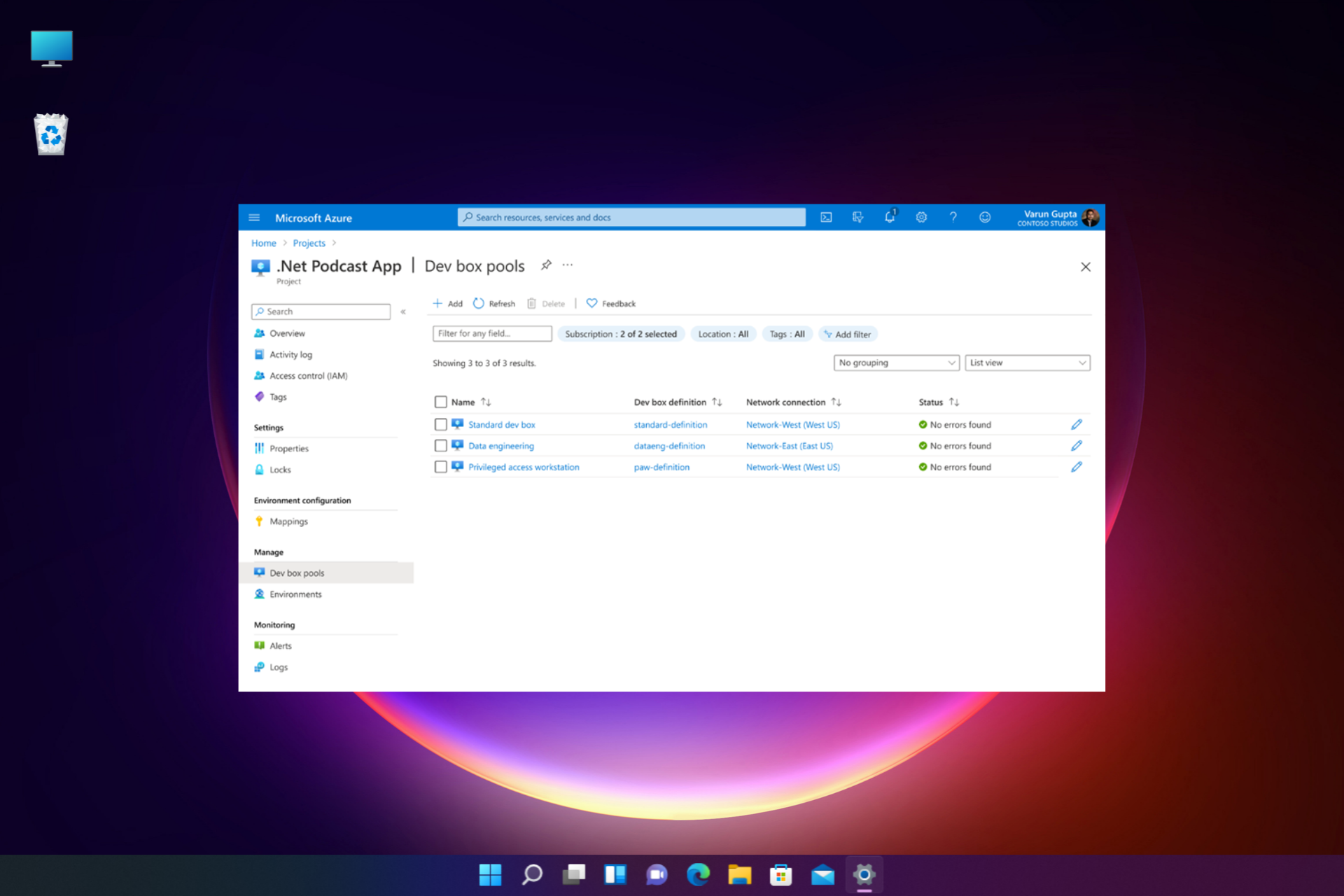
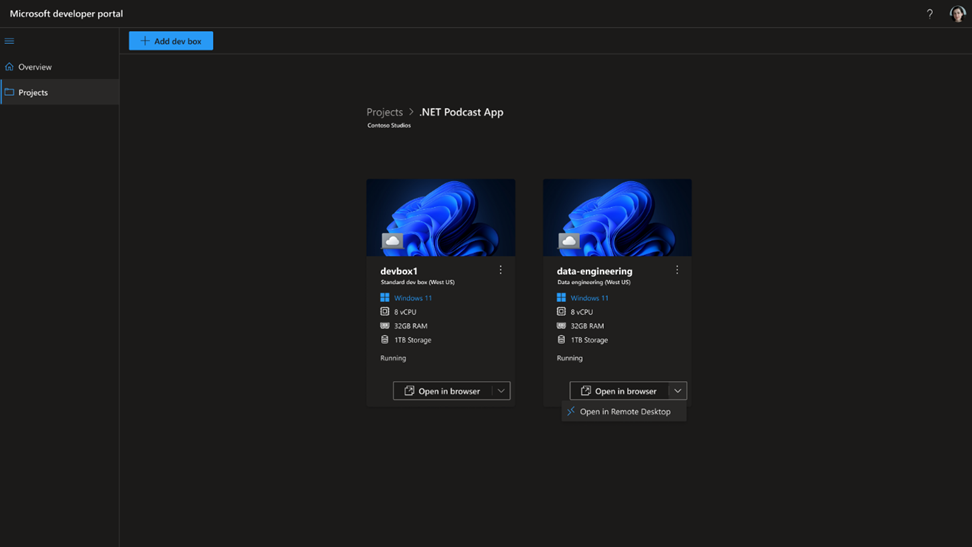
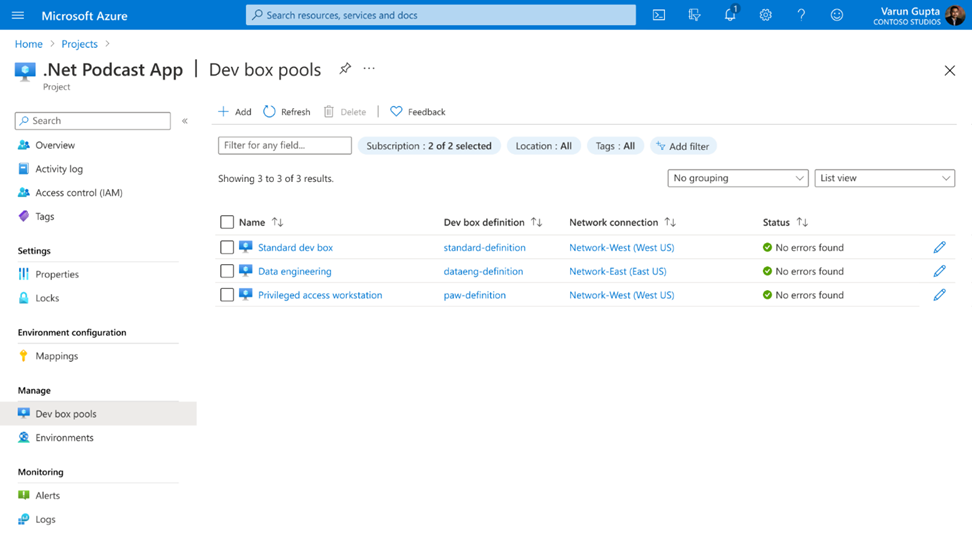
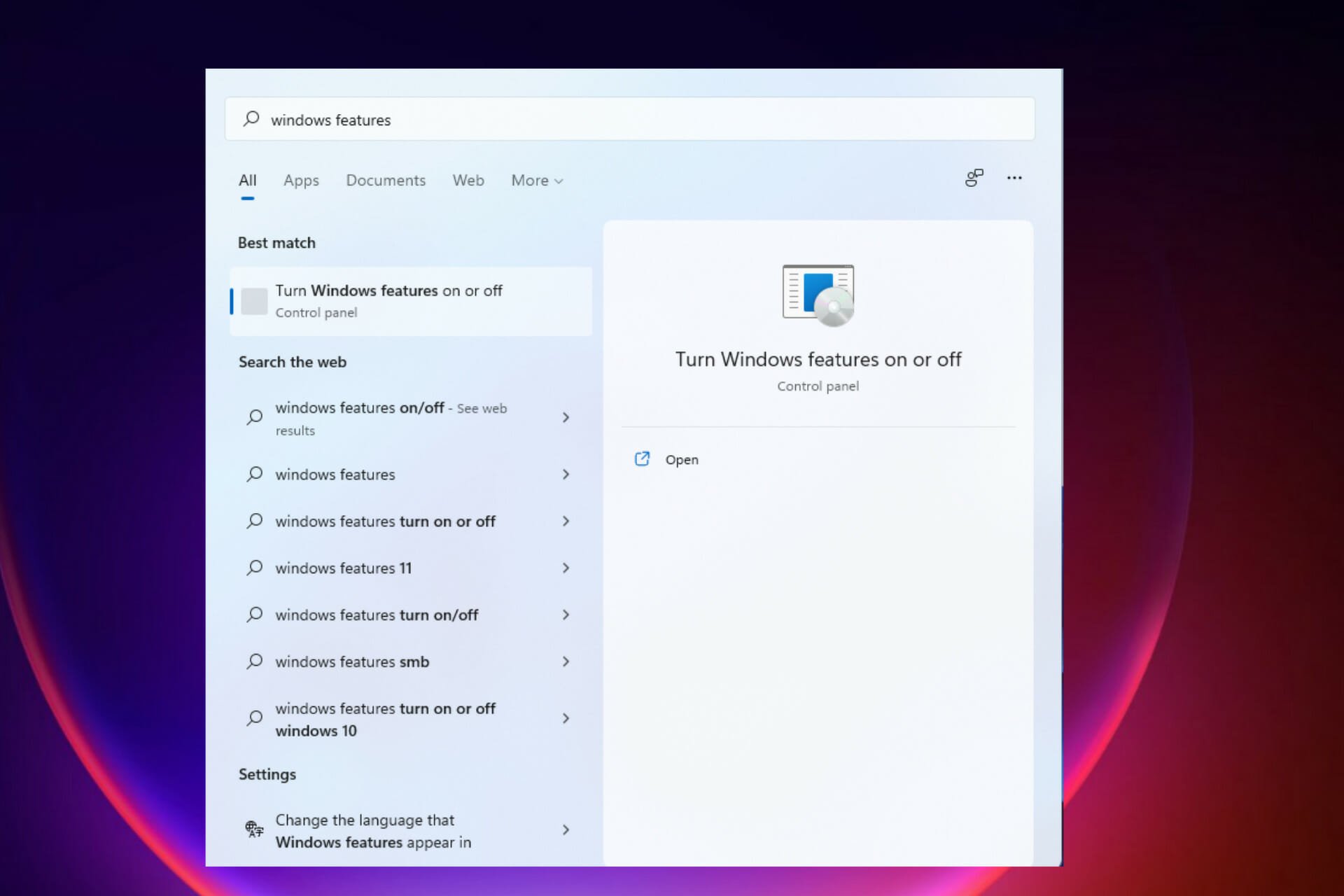


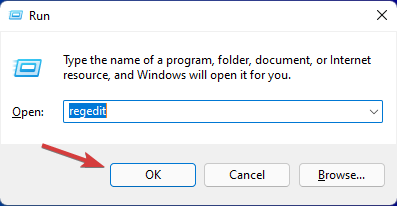





![7 Ways to Fix Security Issues on WordPress Websites [SSL, HTTPS]](https://windowsreport.com/wp-content/uploads/2022/06/Screenshot-2022-06-09-131826.png)
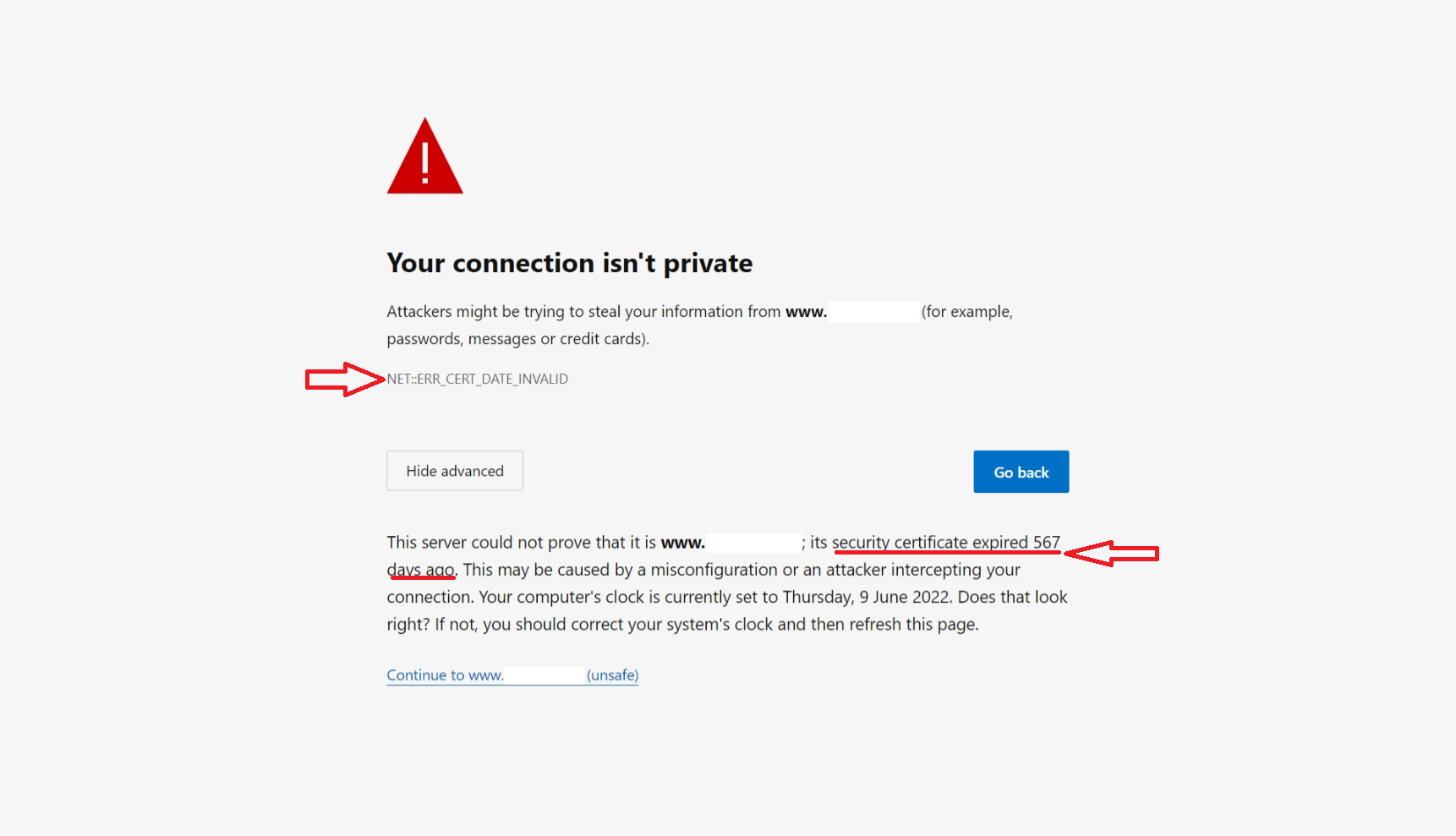


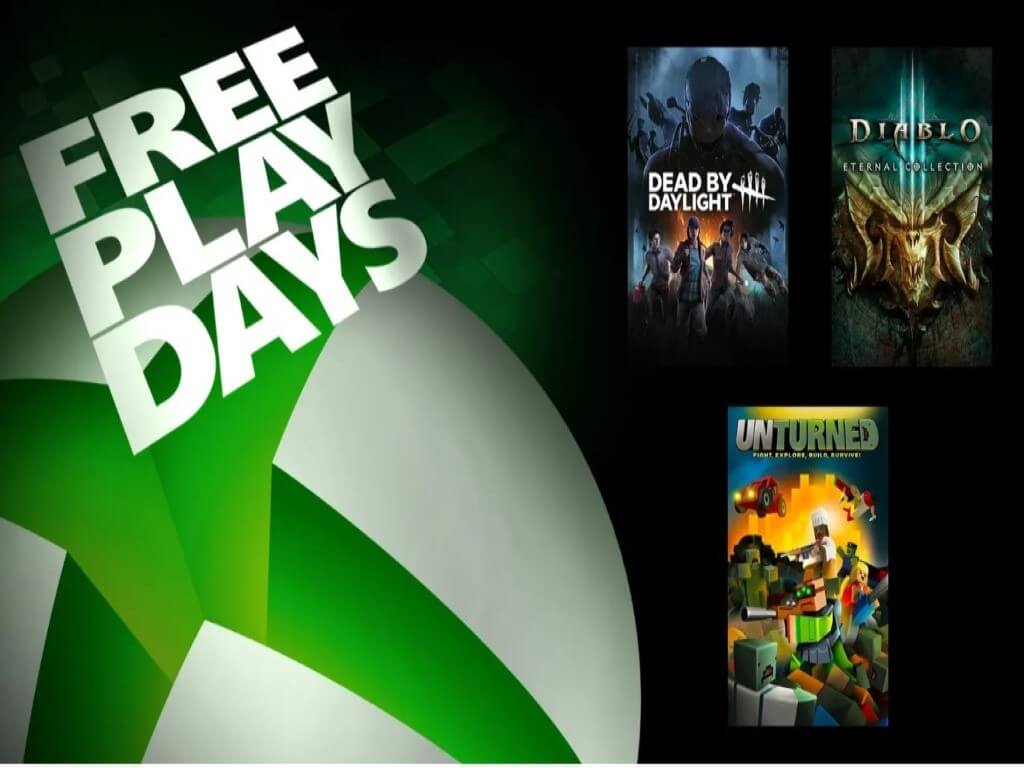
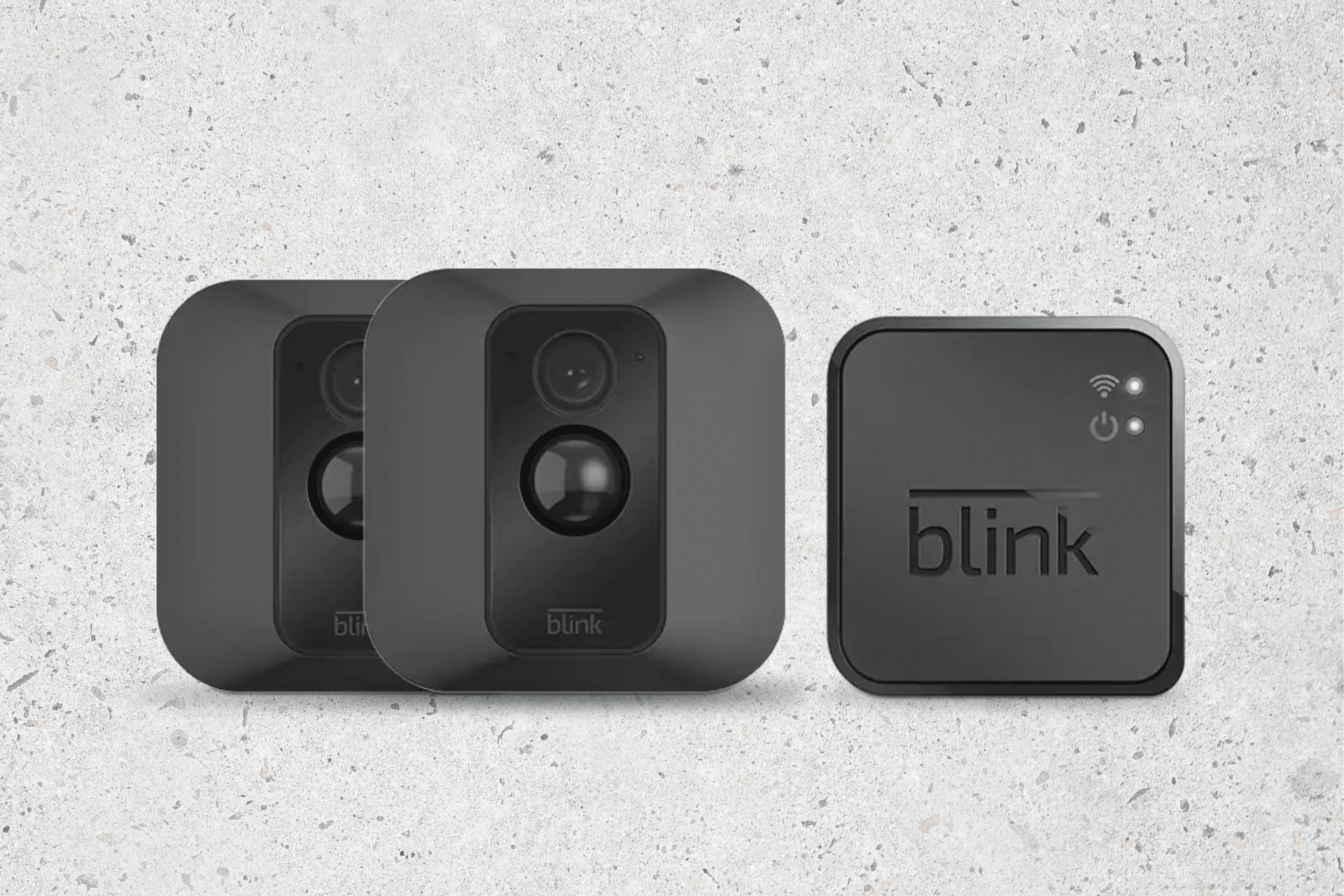





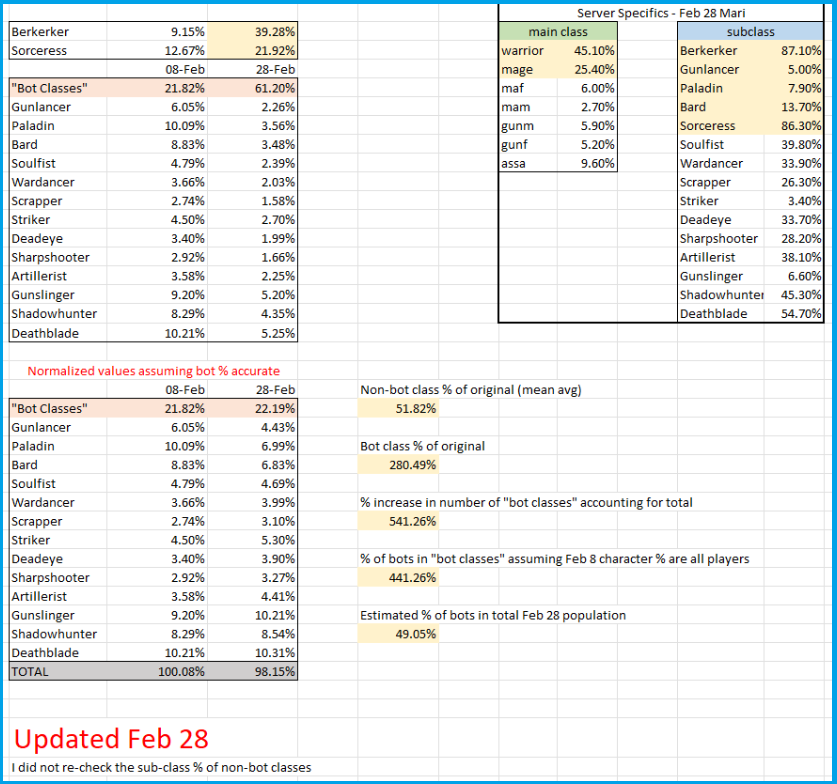


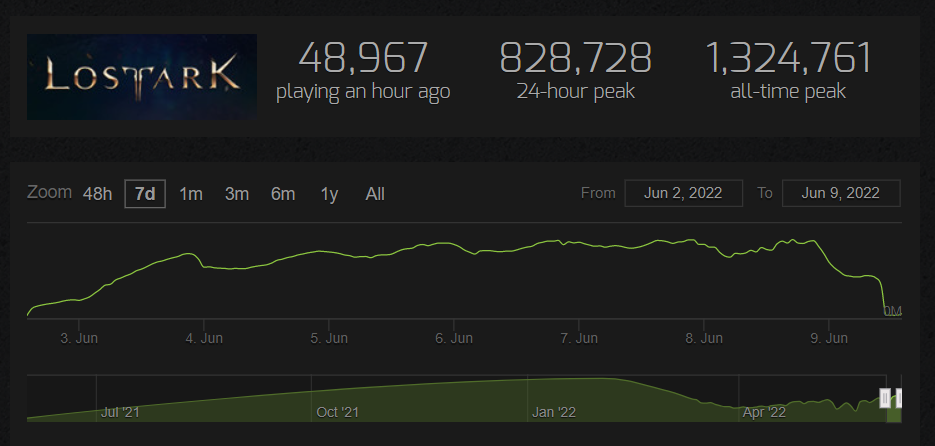

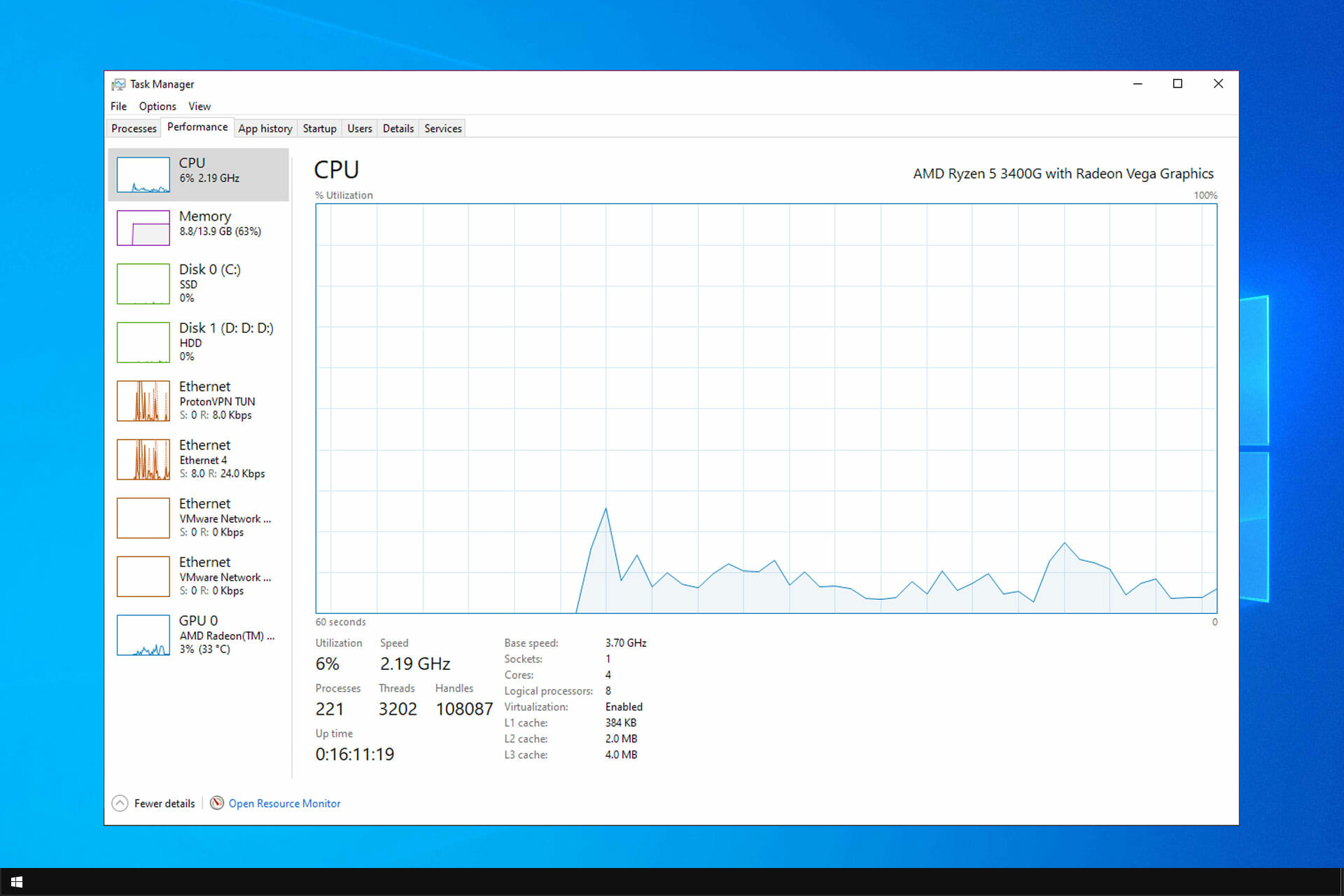


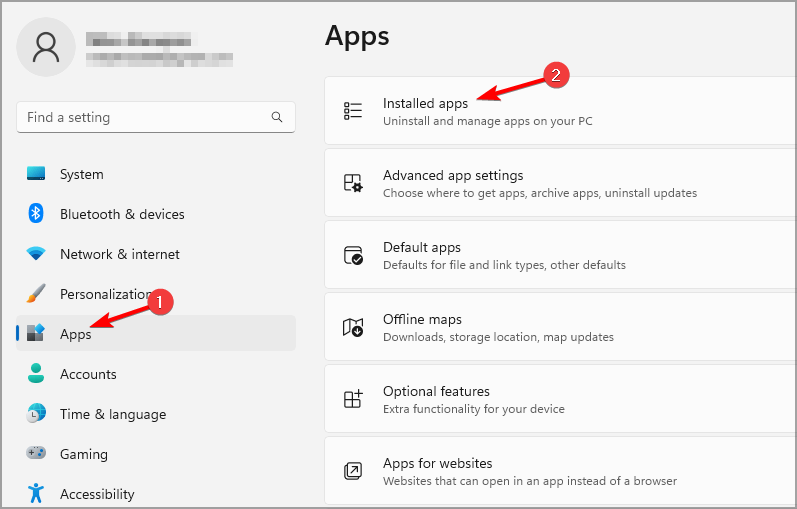


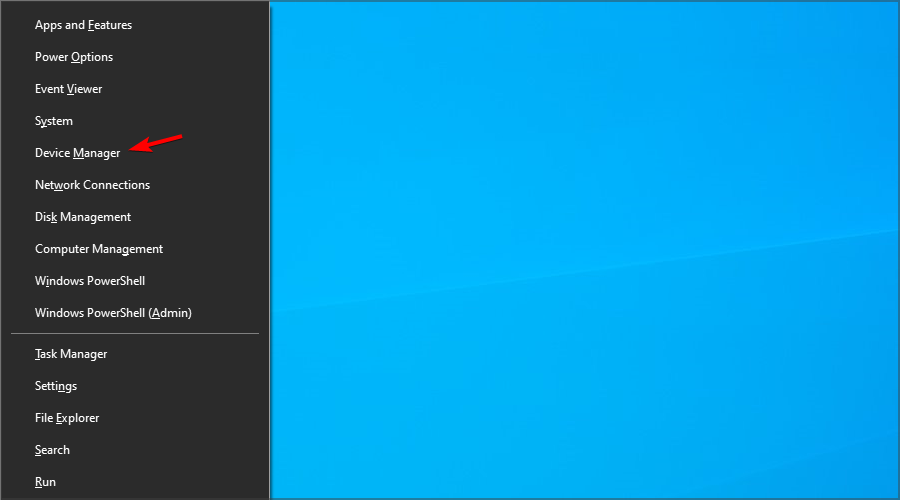


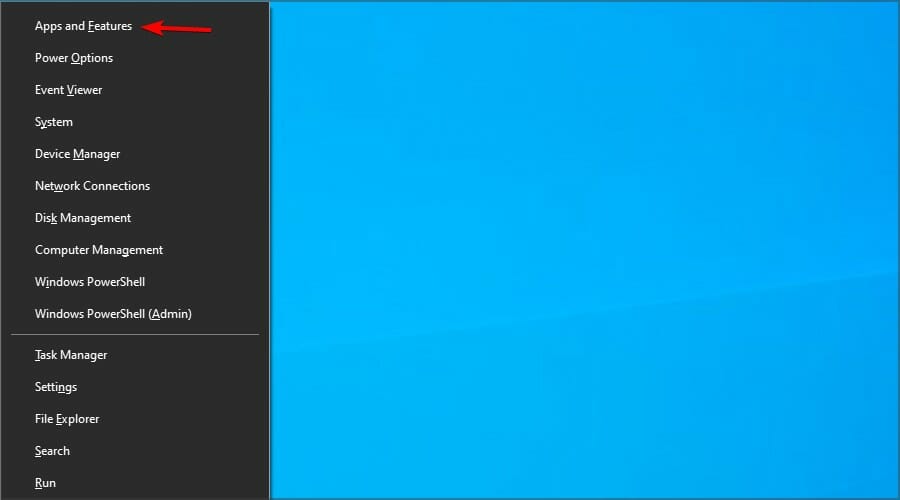
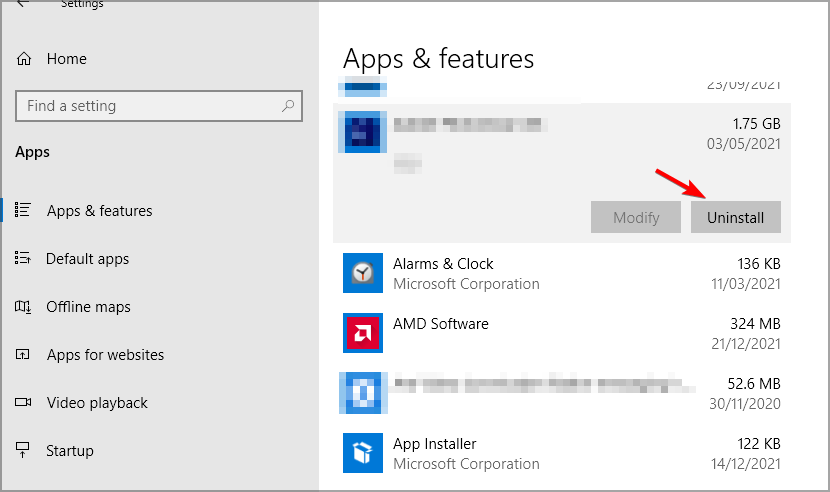


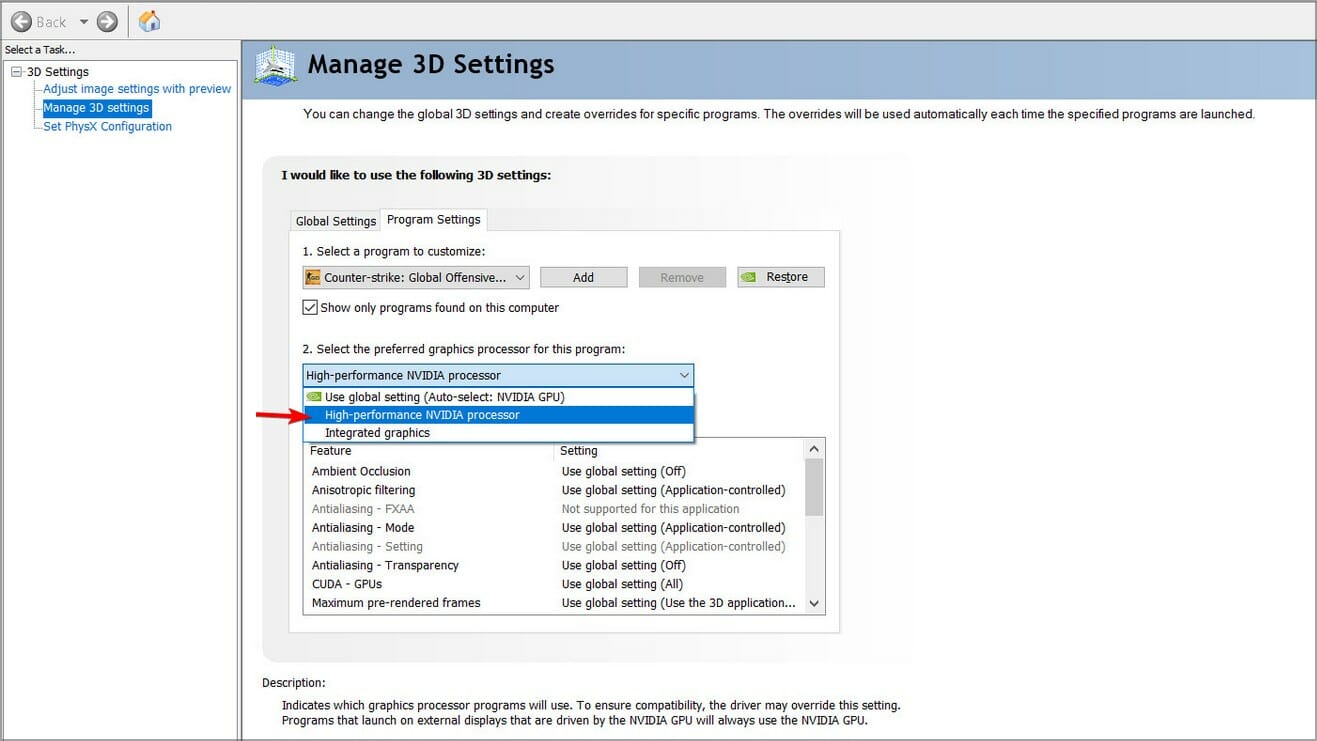
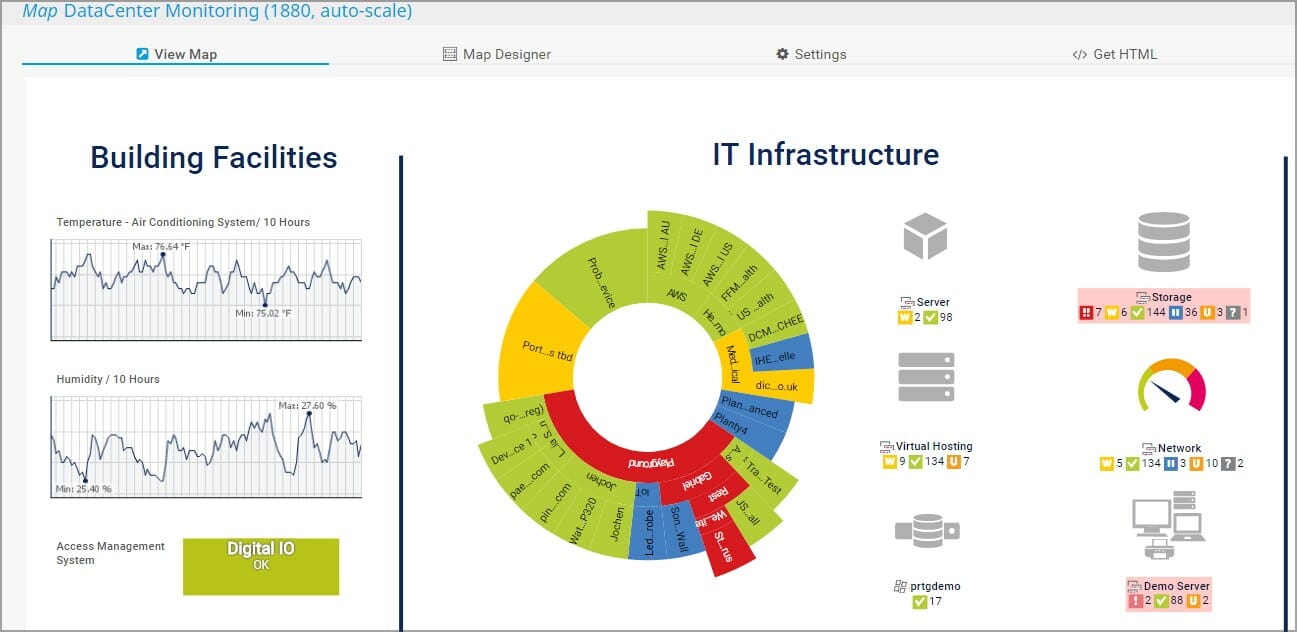
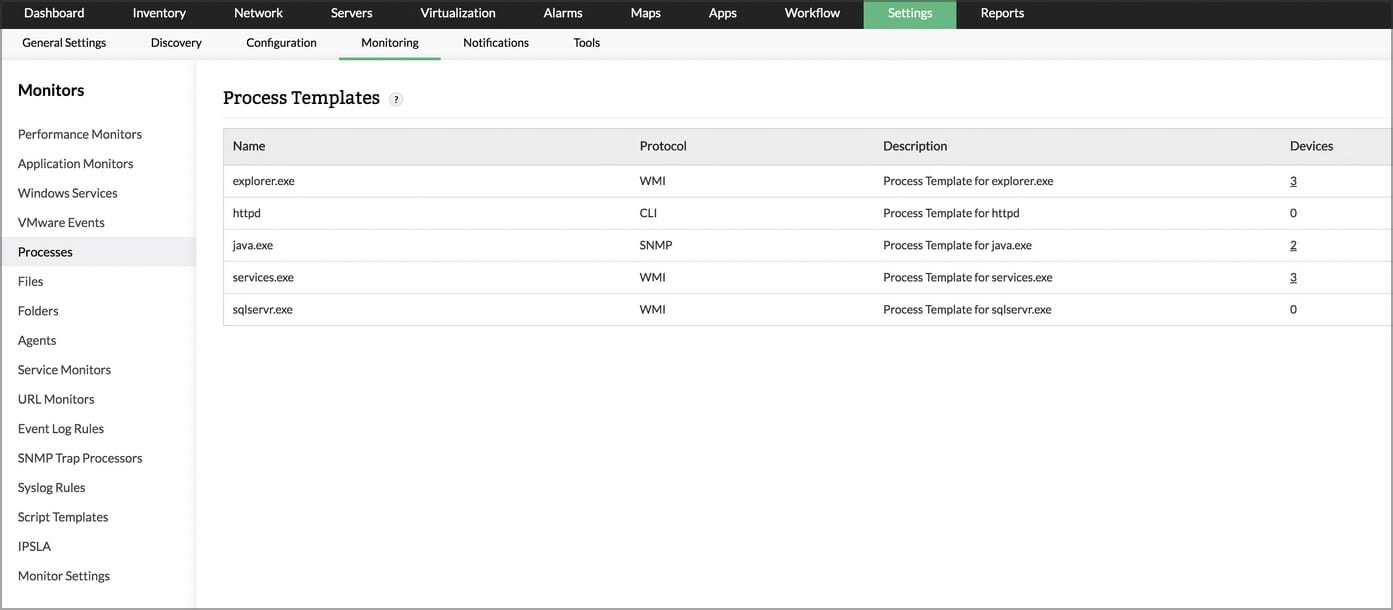
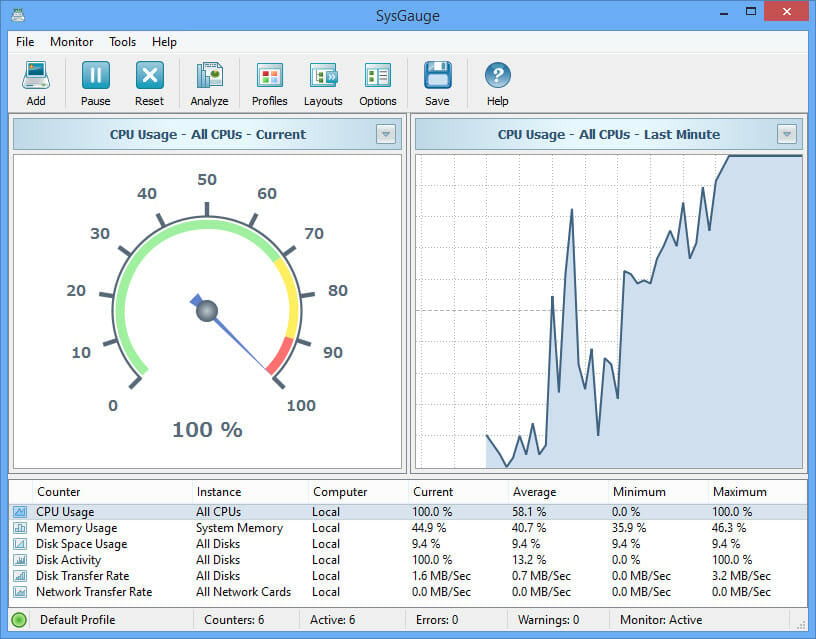
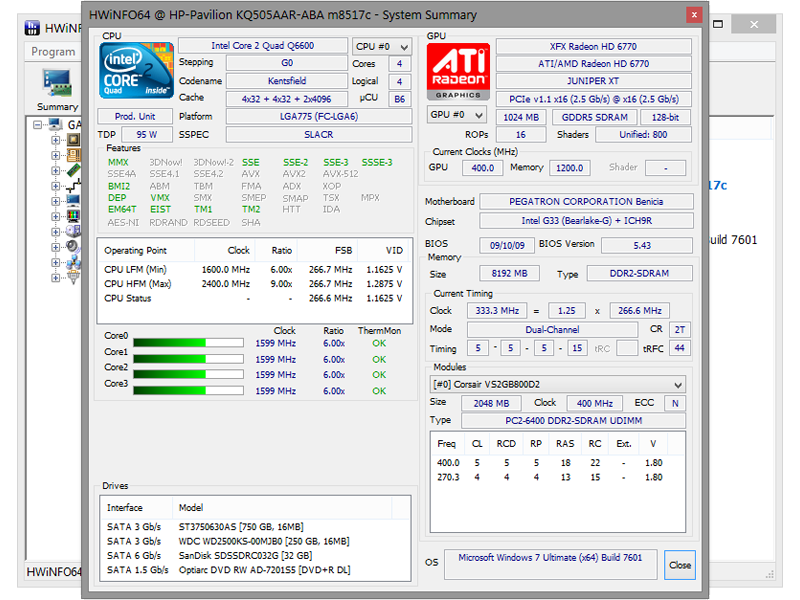
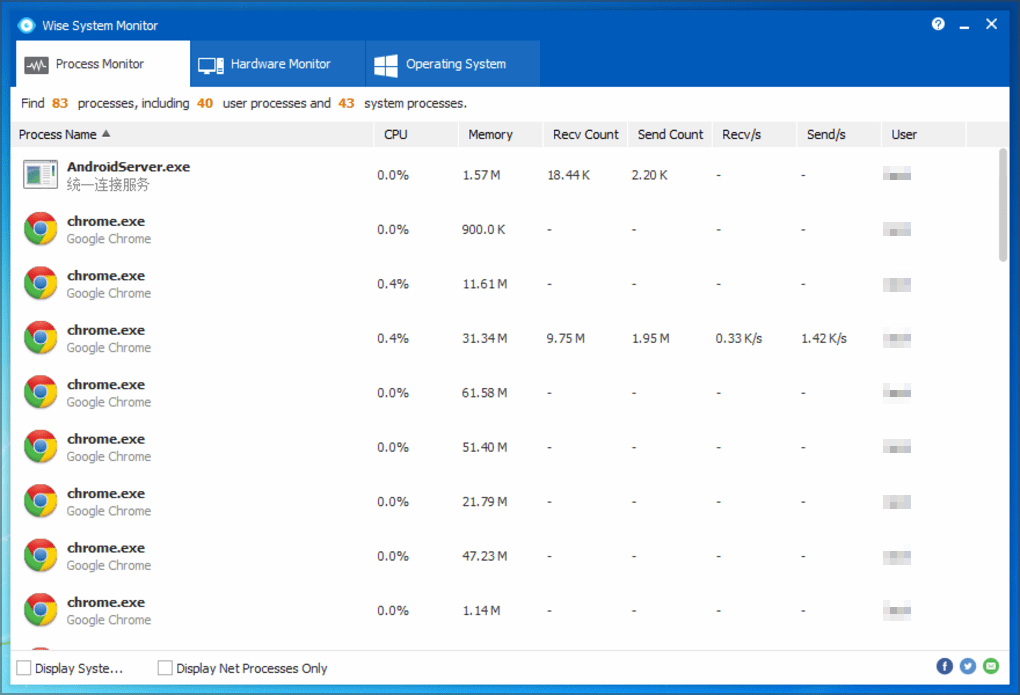

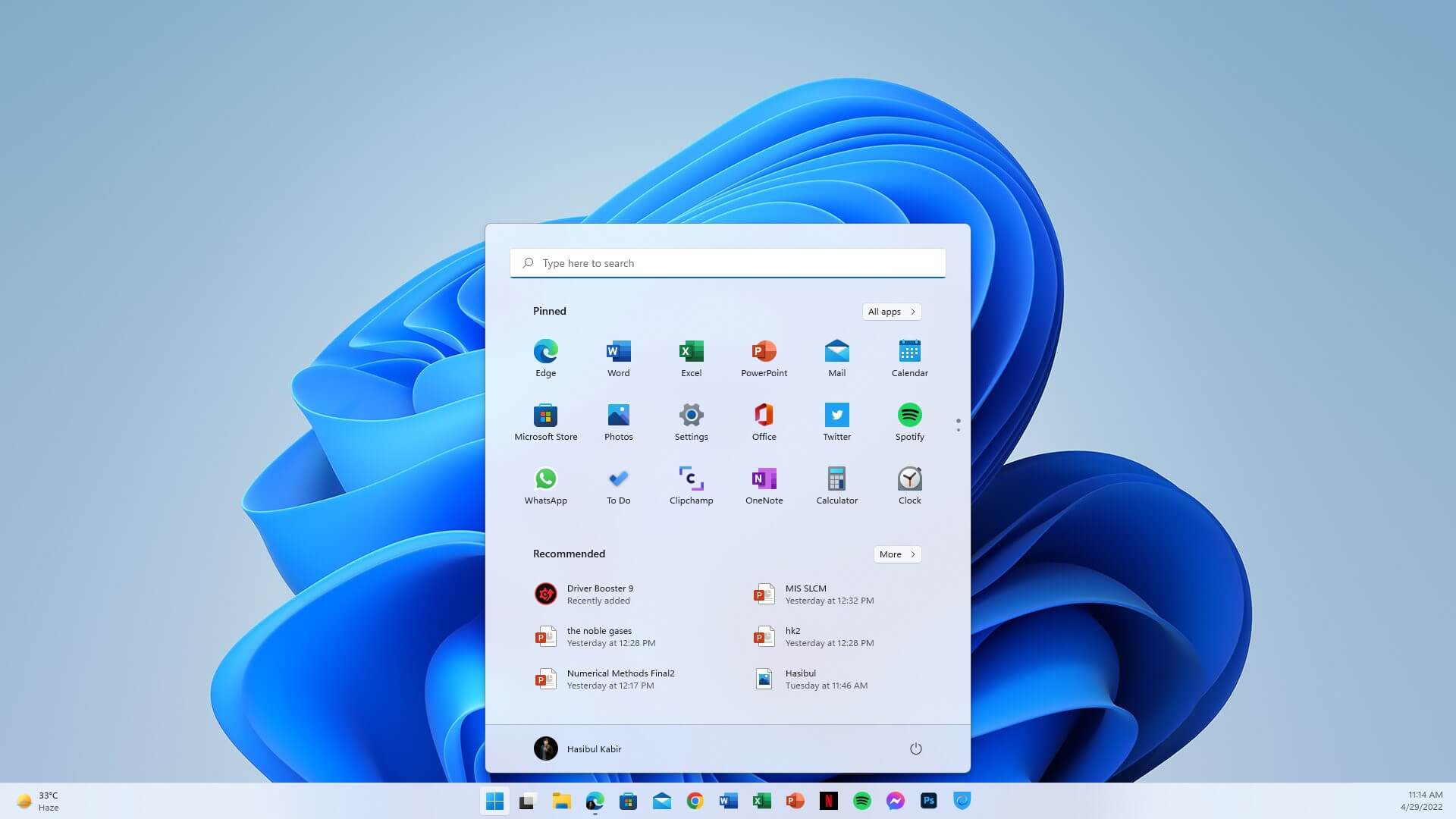
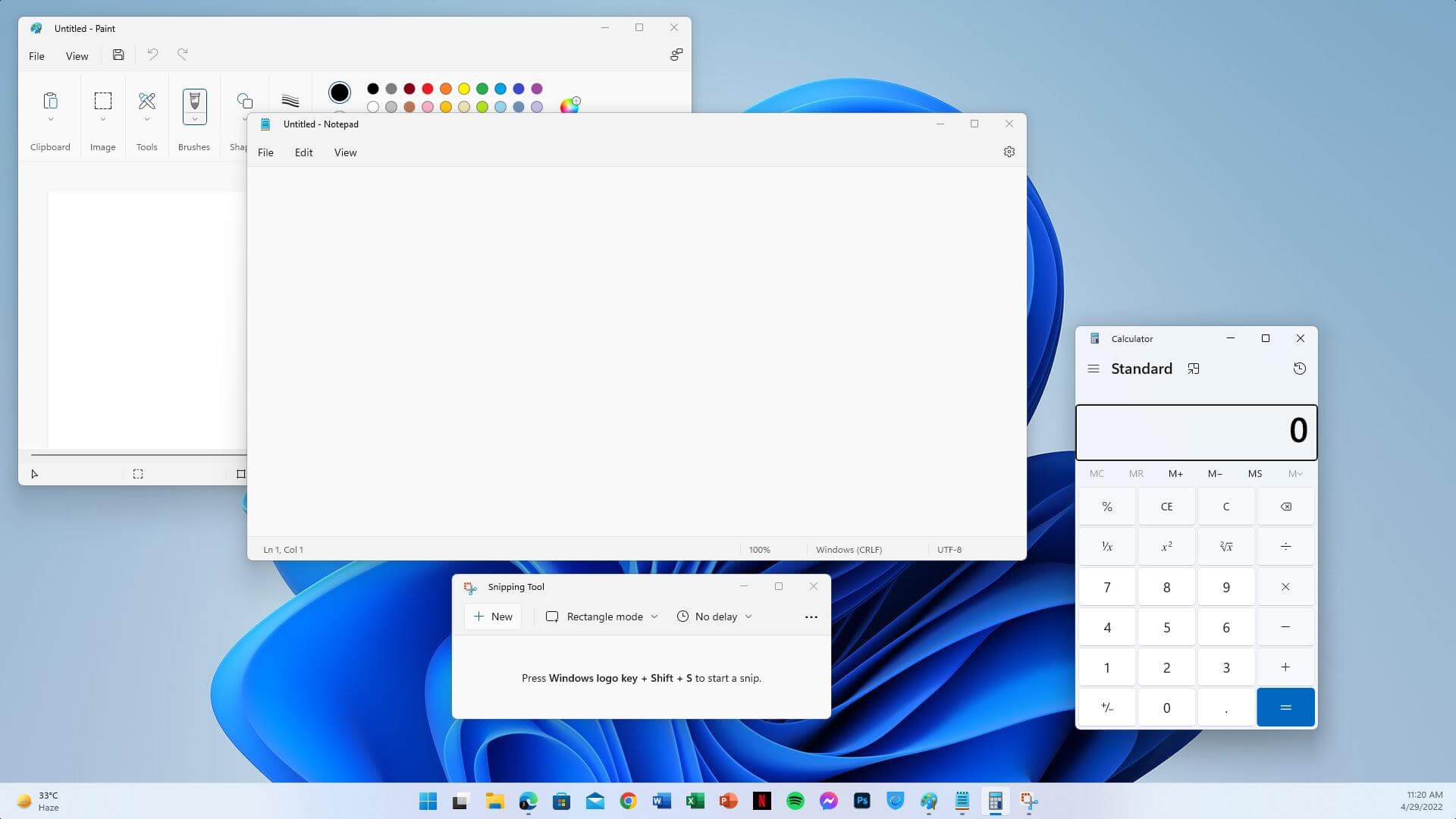
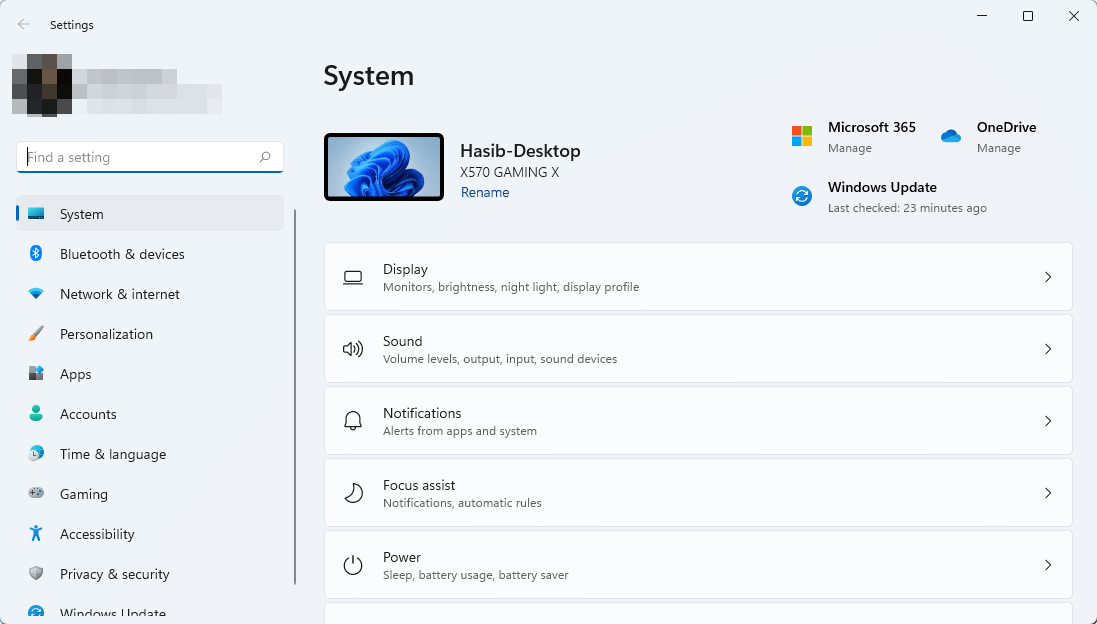
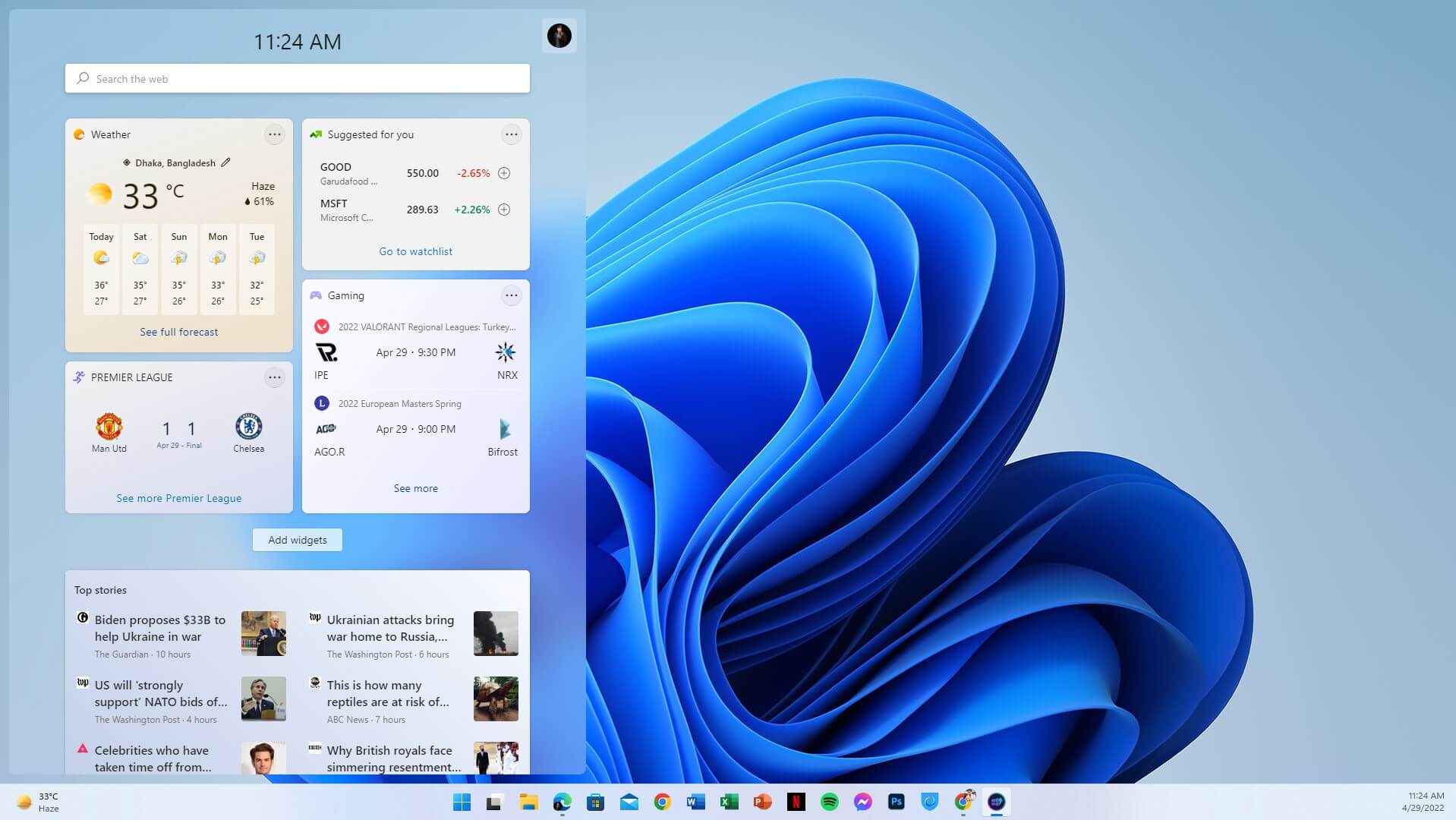
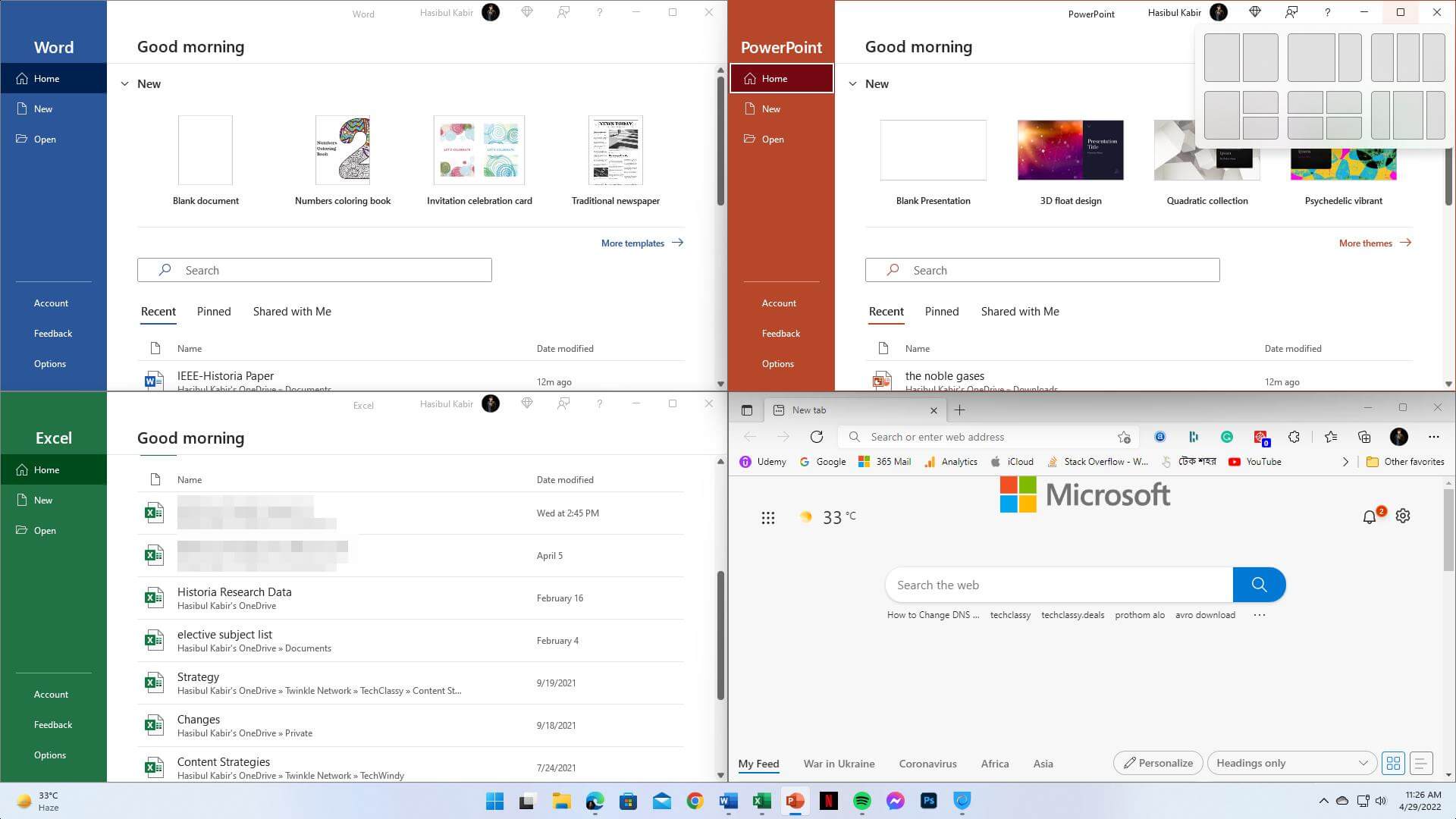
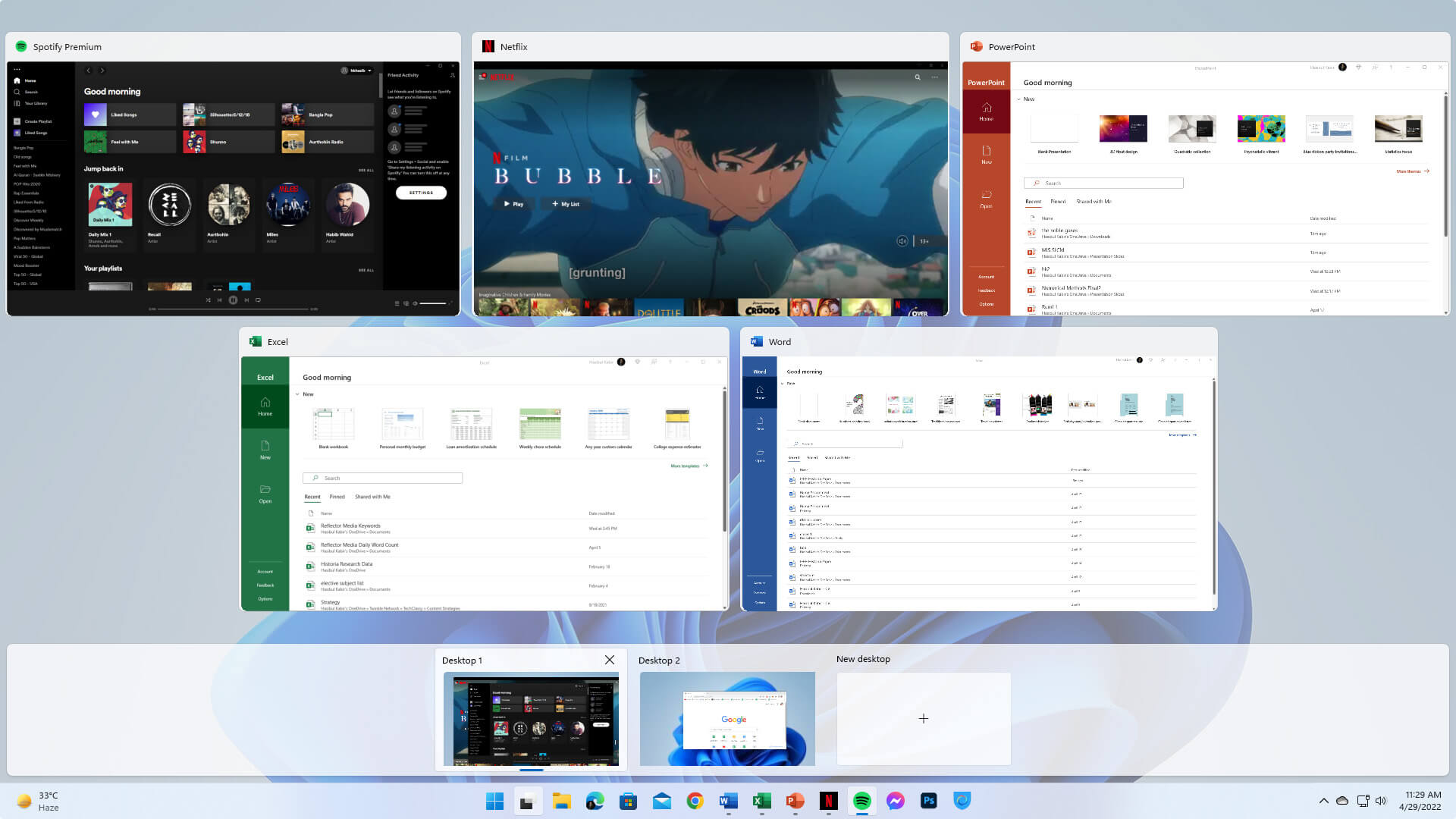
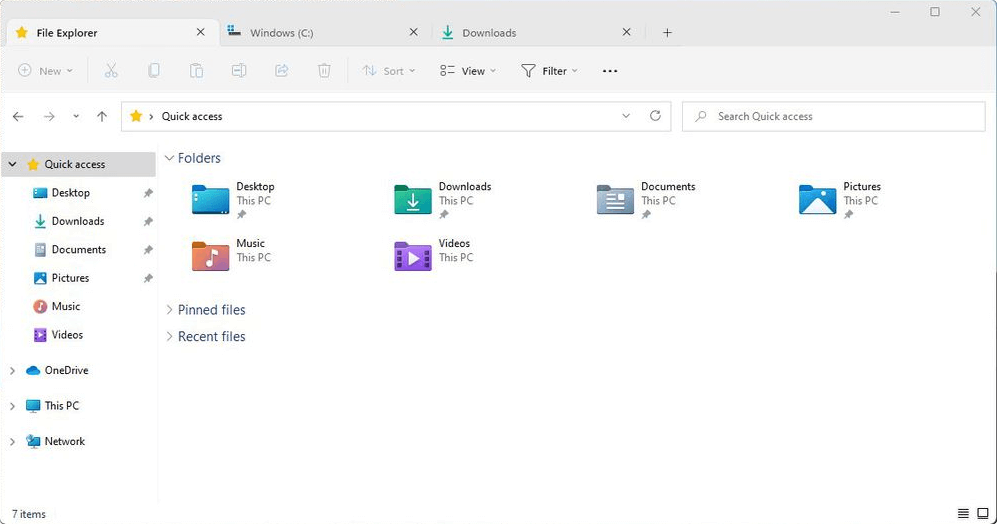
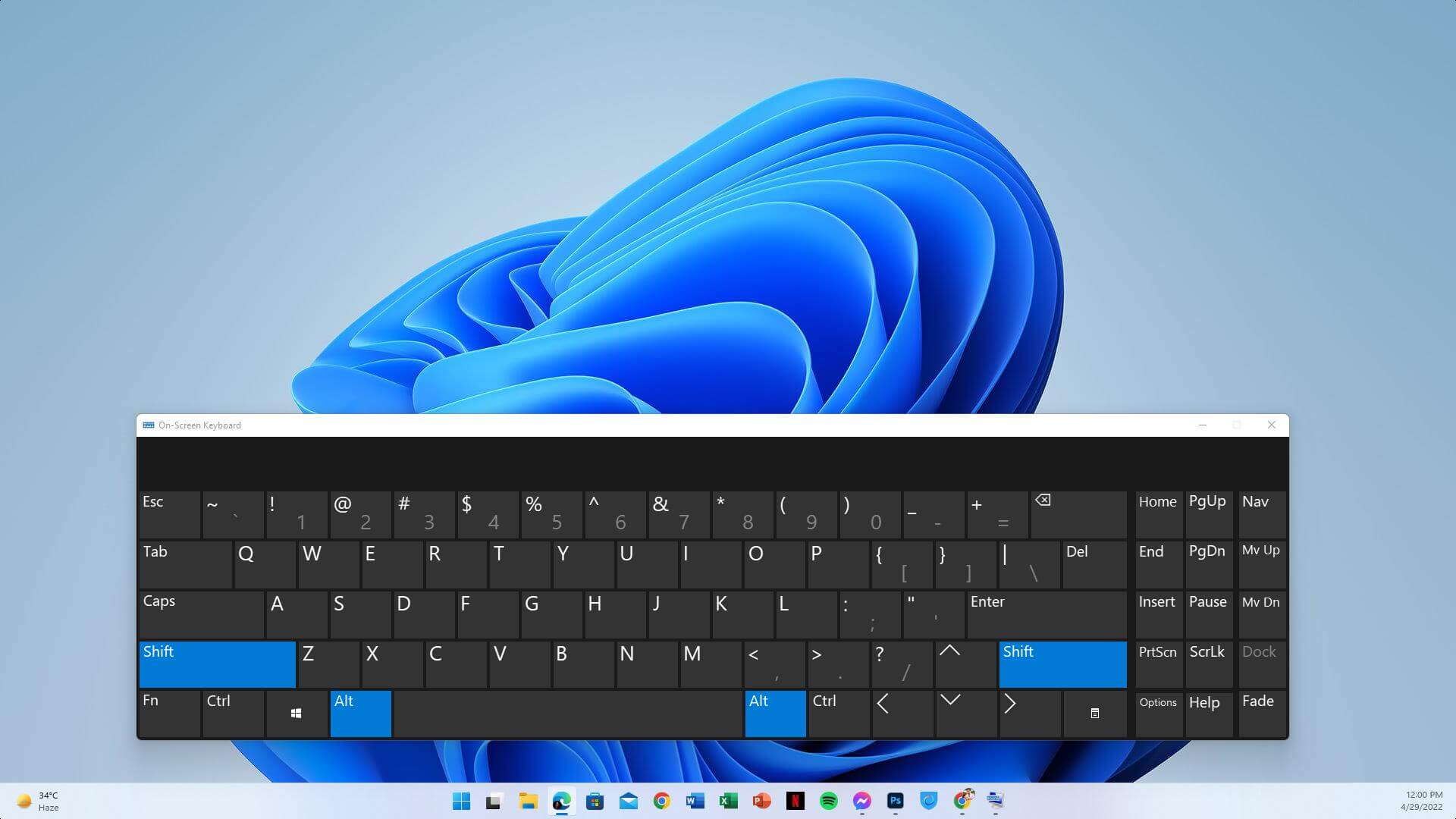
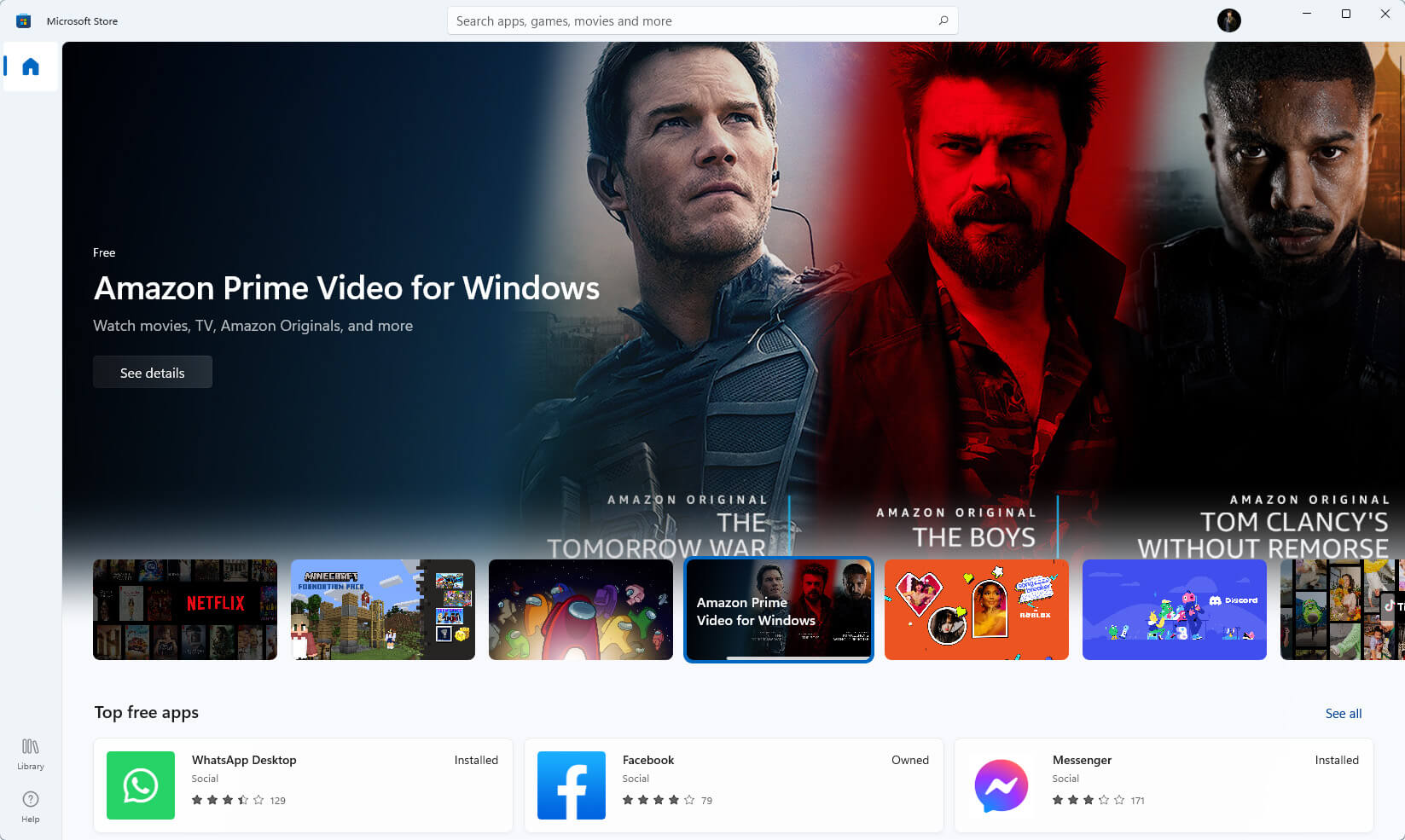

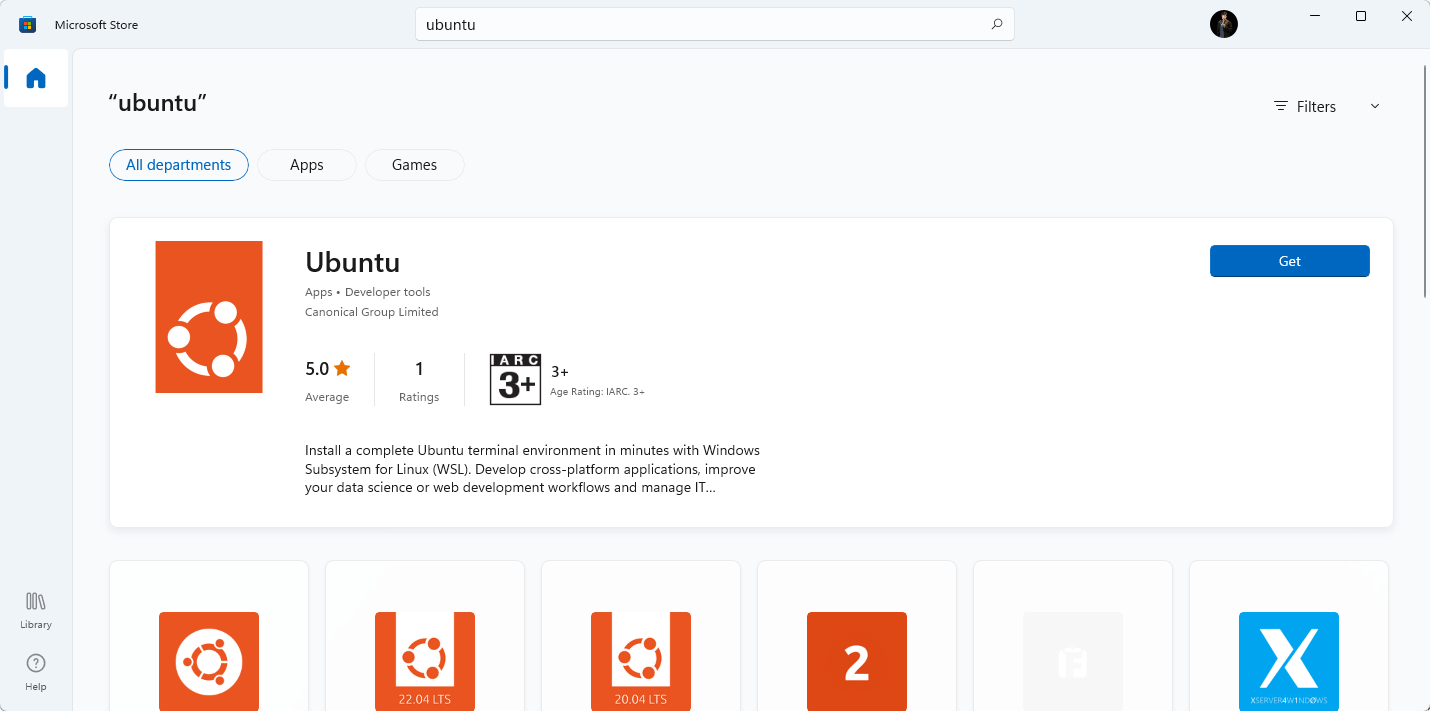
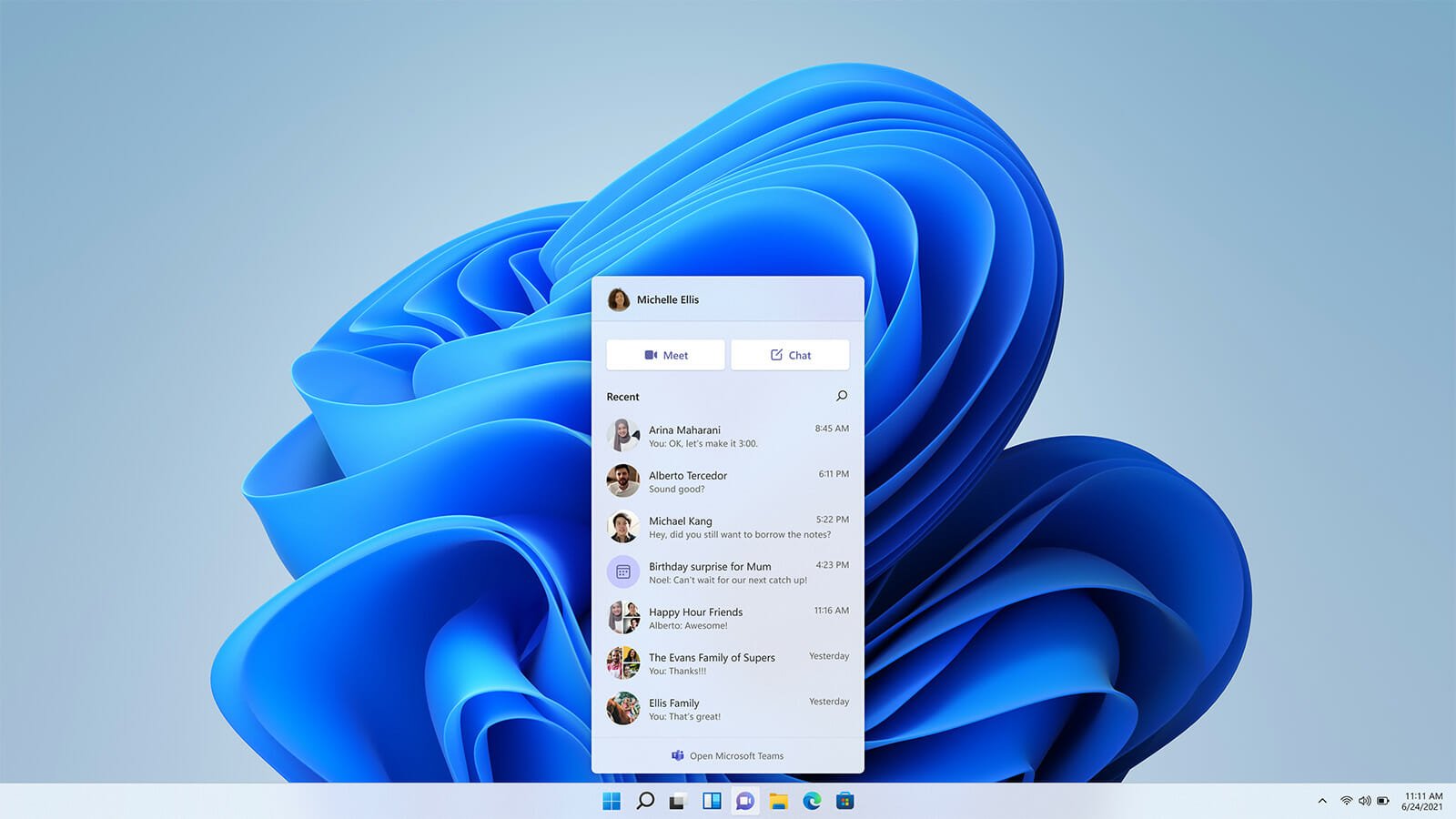
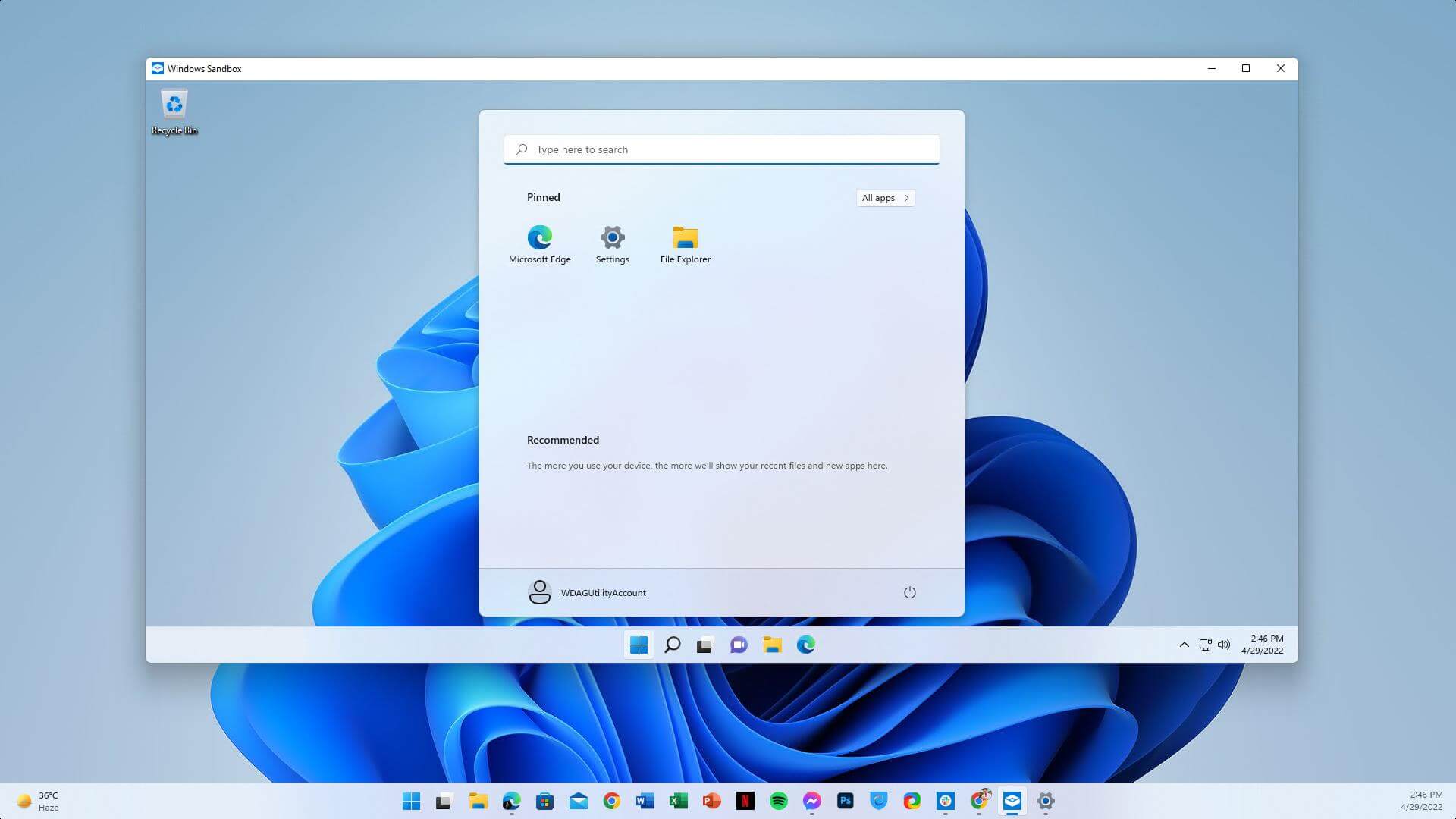
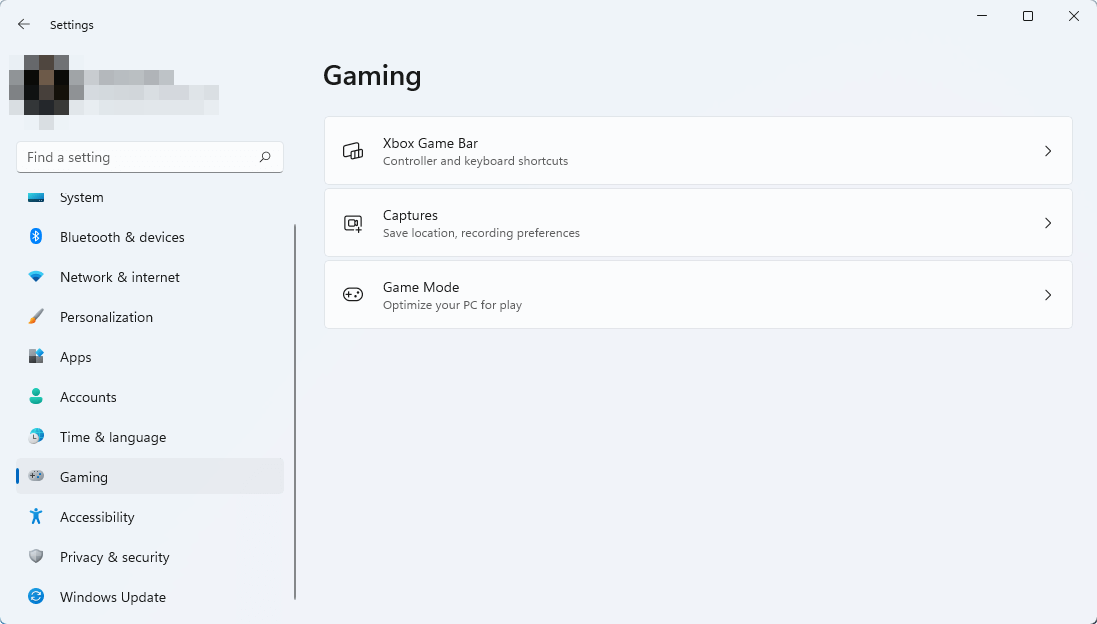
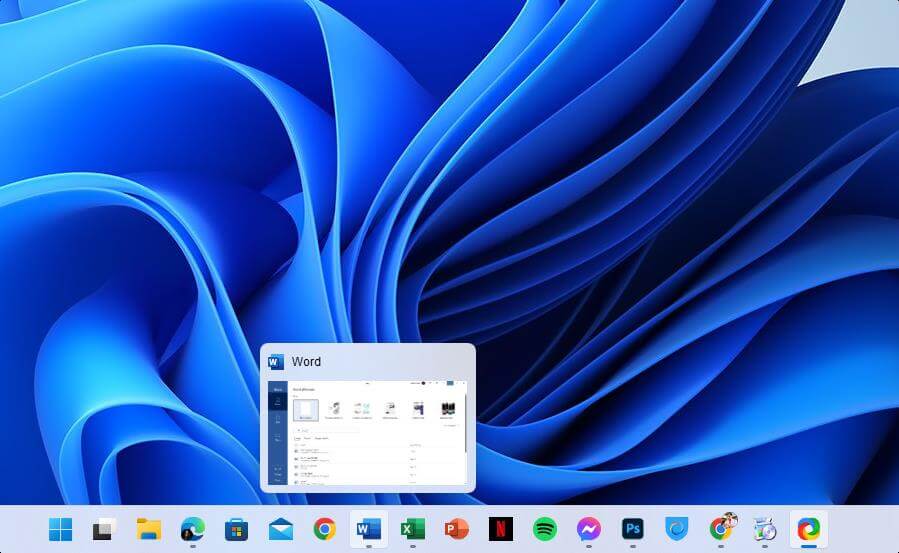
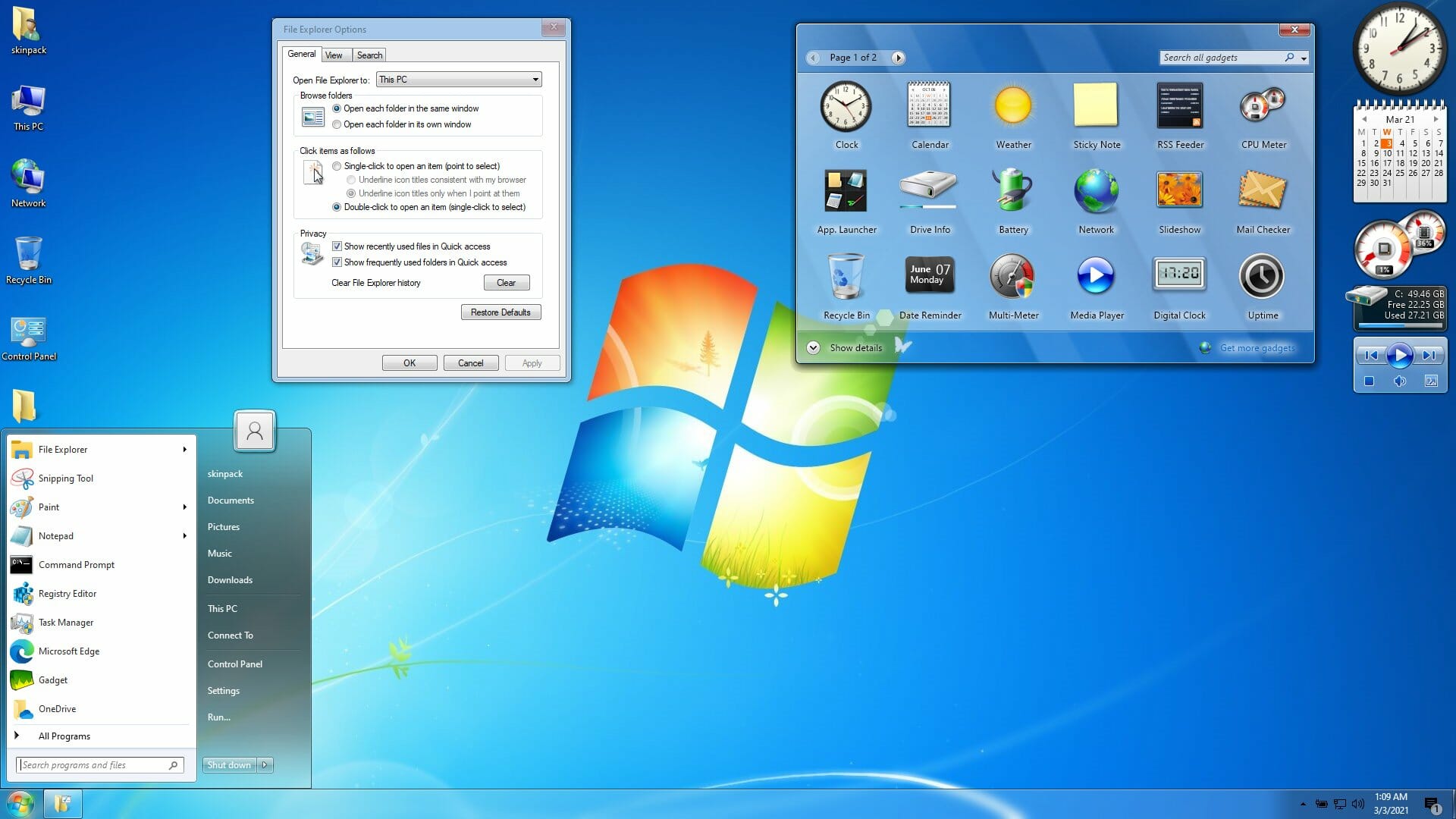
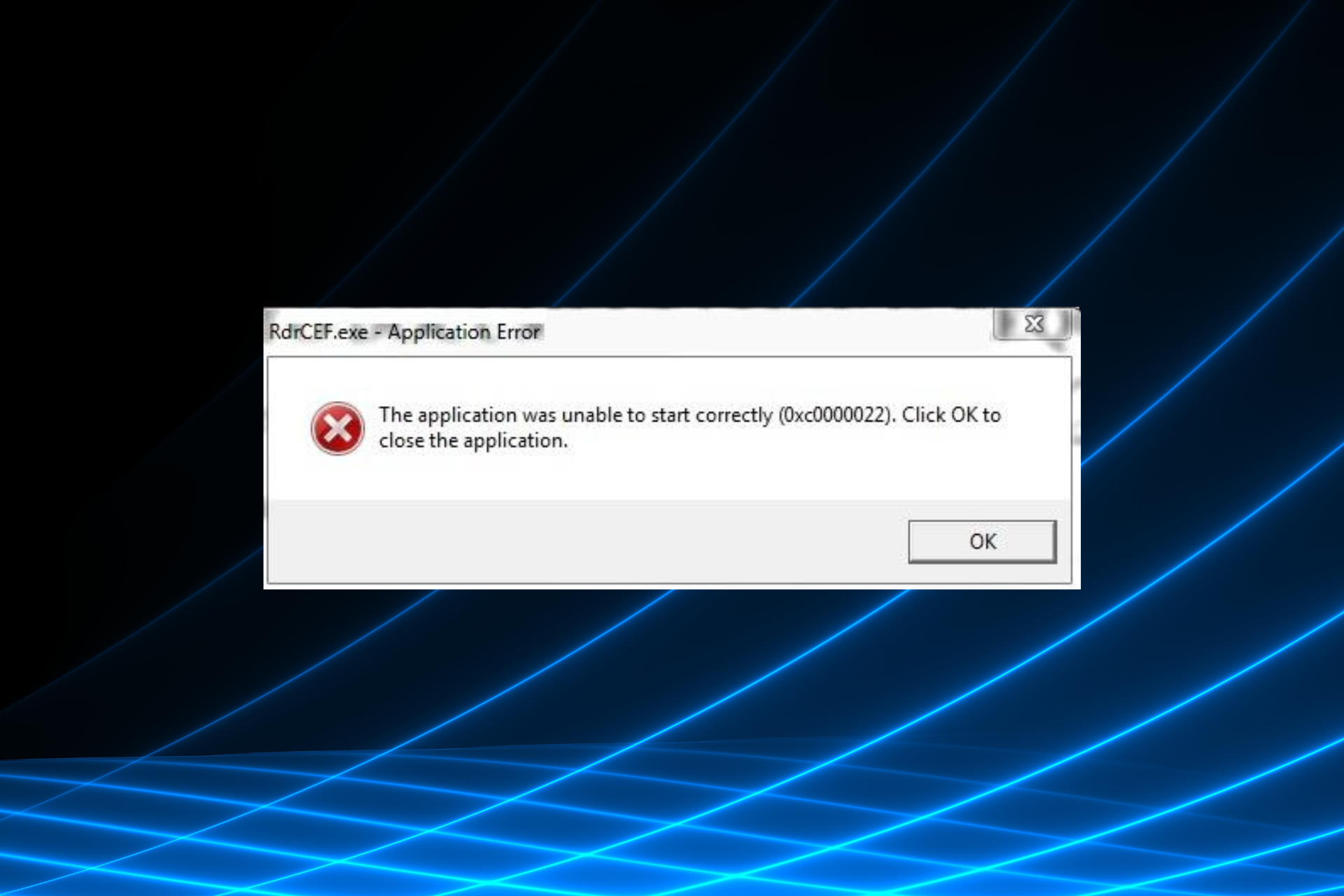


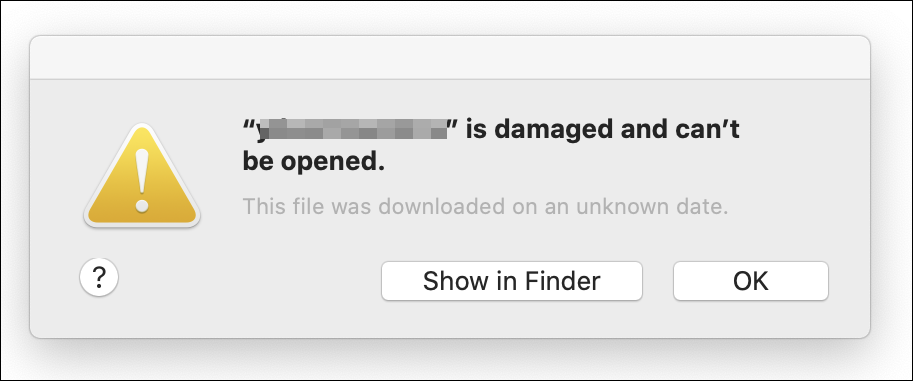
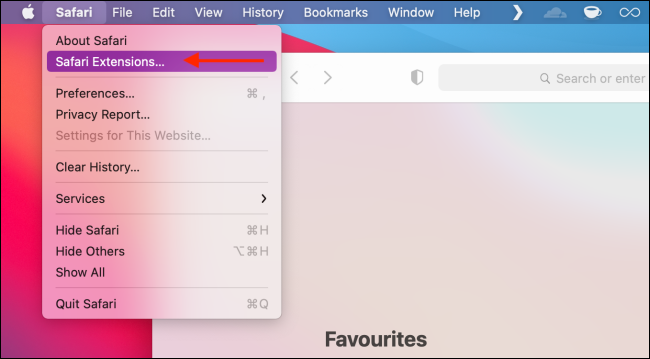
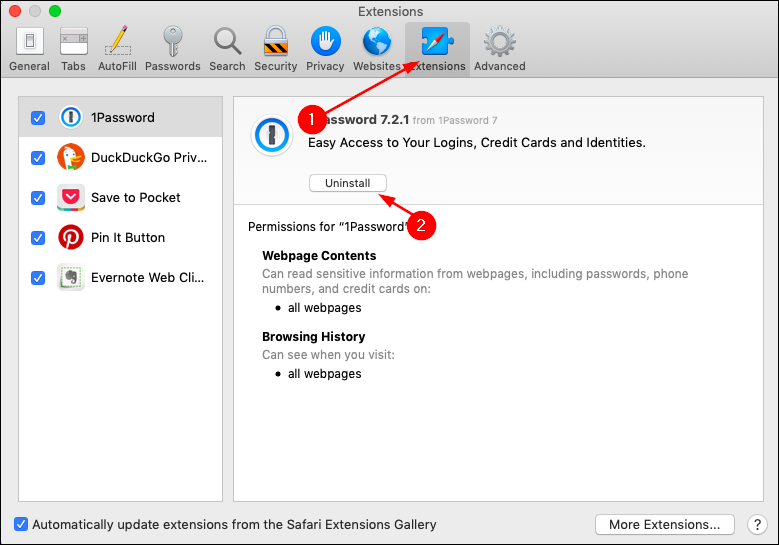
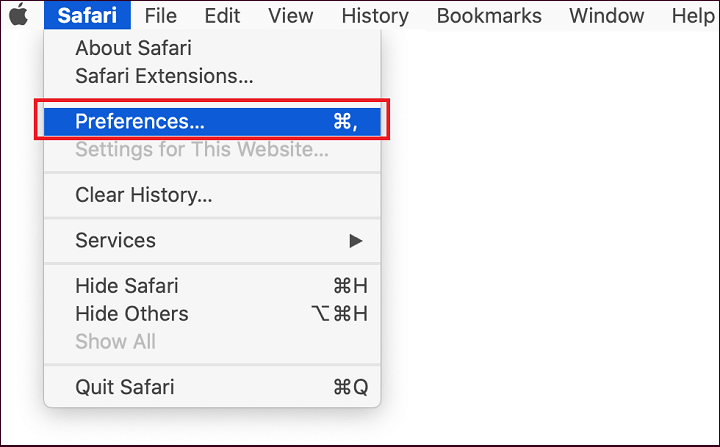
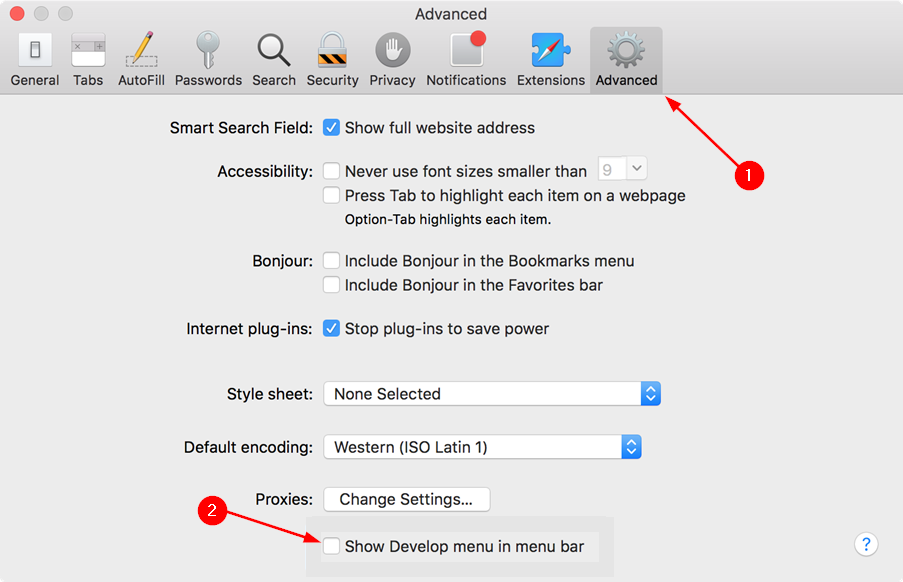
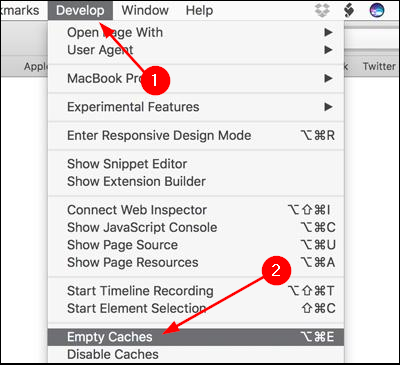
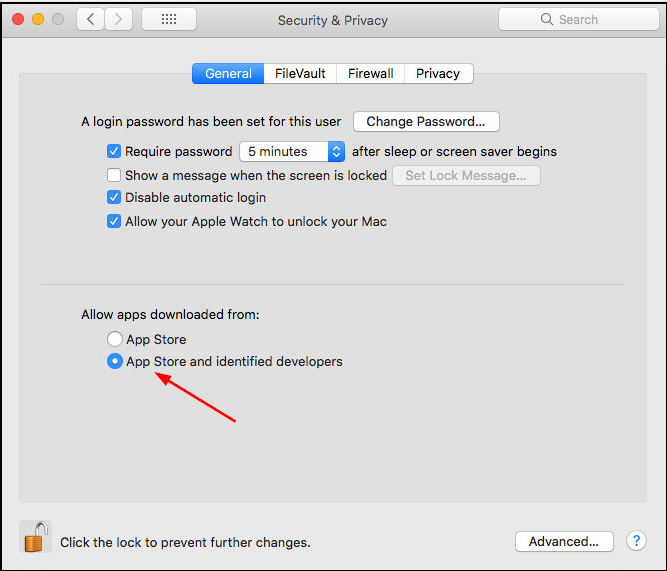
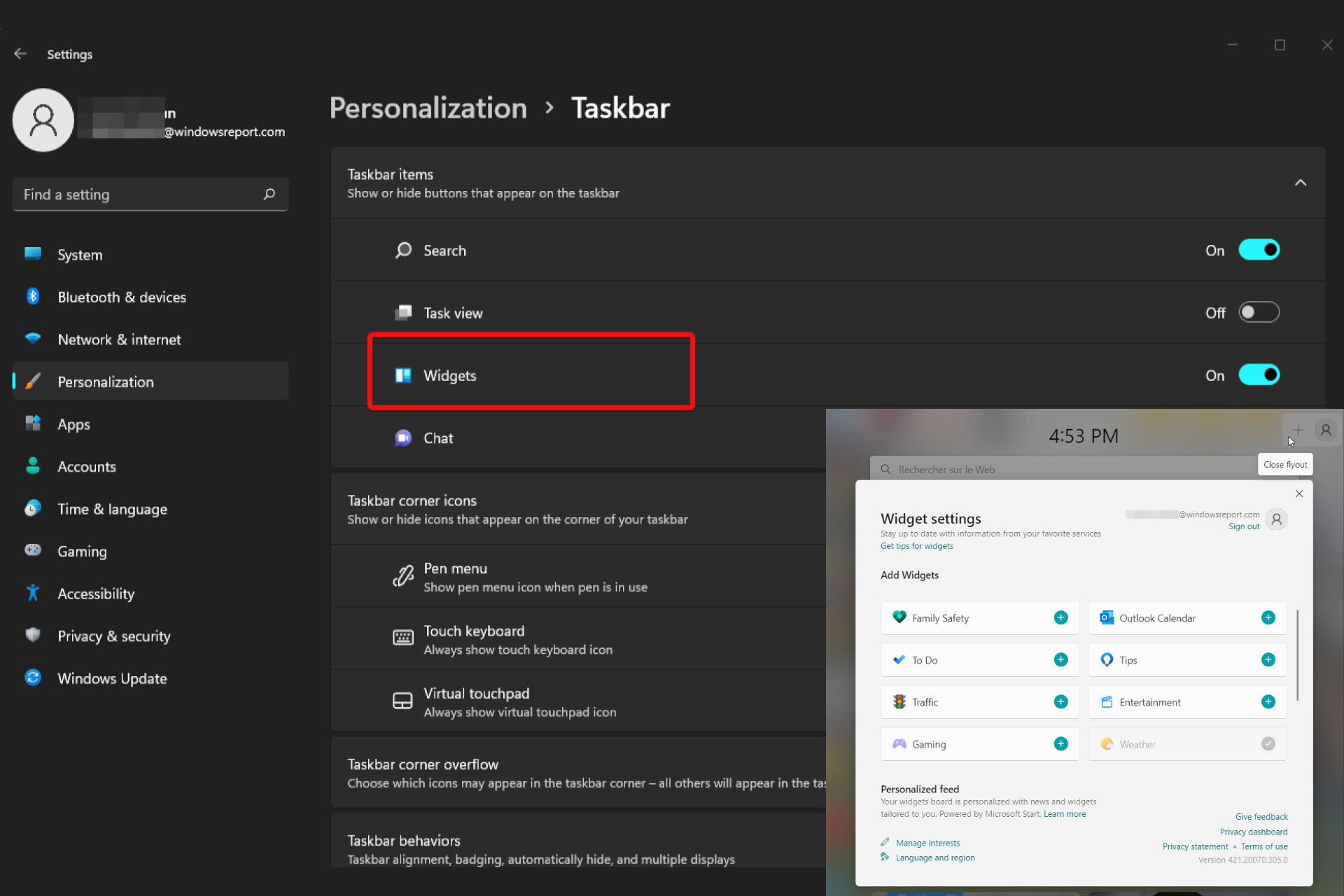


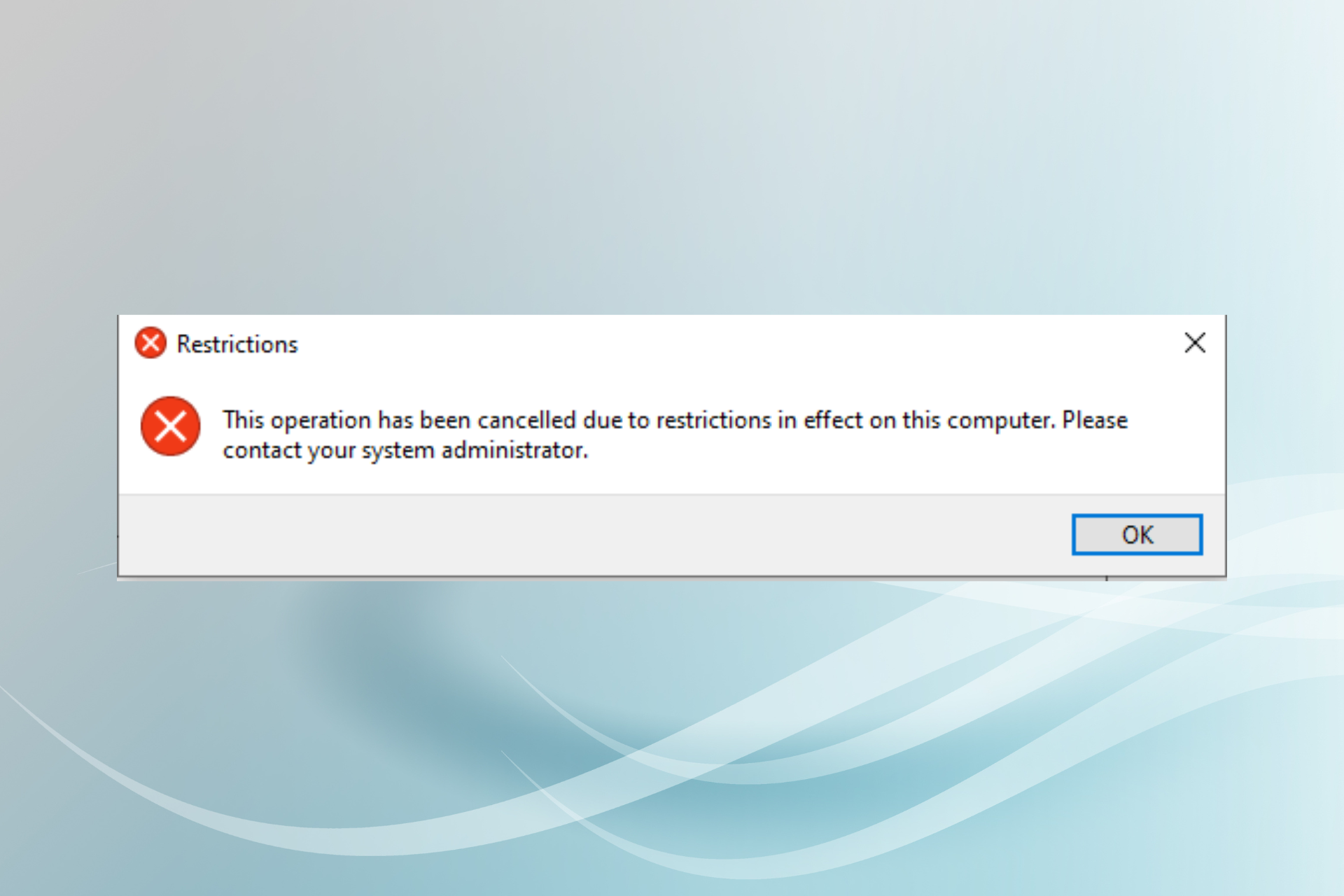



![Chrome Bookmarks Disappeared: 5 Ways To Get Them Back [2026 Guide]](https://windowsreport.com/wp-content/uploads/2022/06/chrome-bookmarks-disappeared.png)






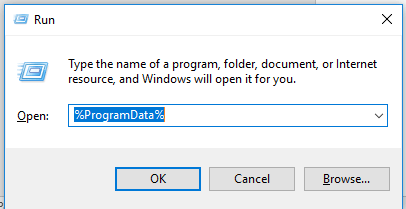
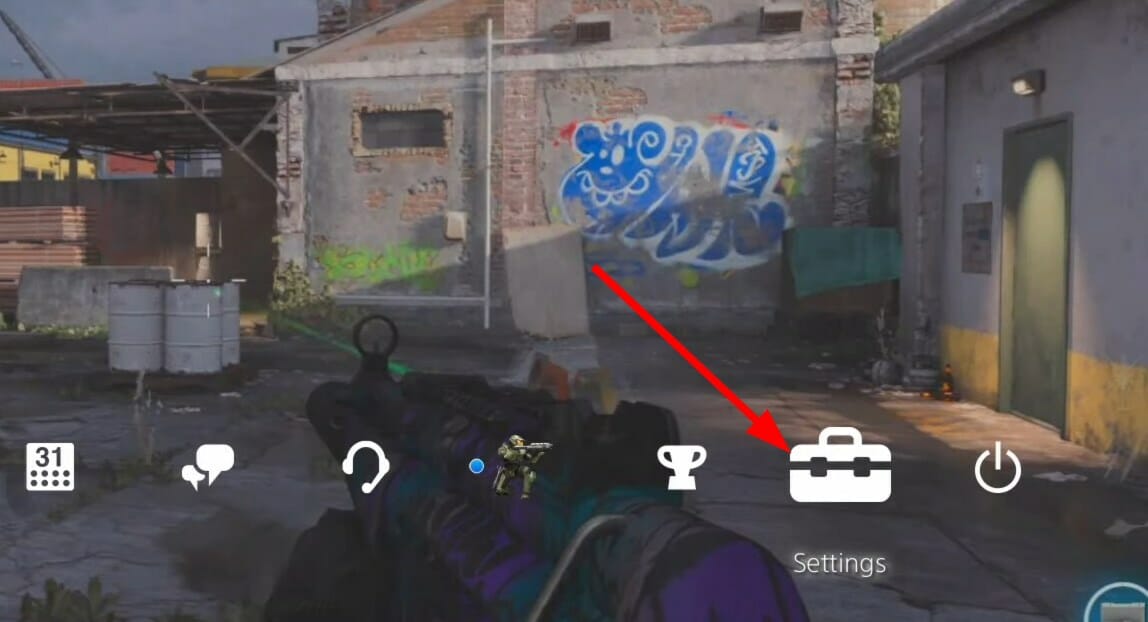
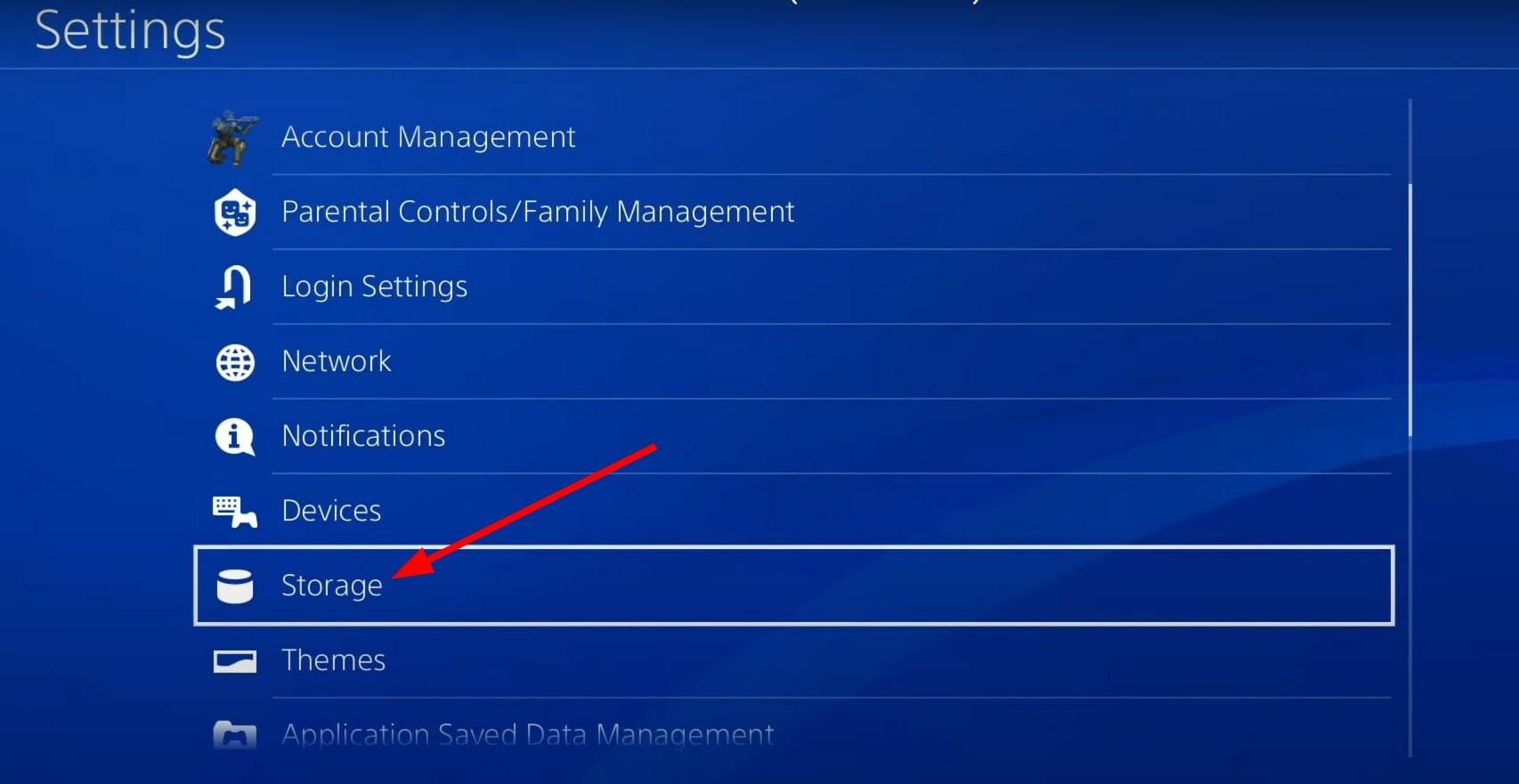
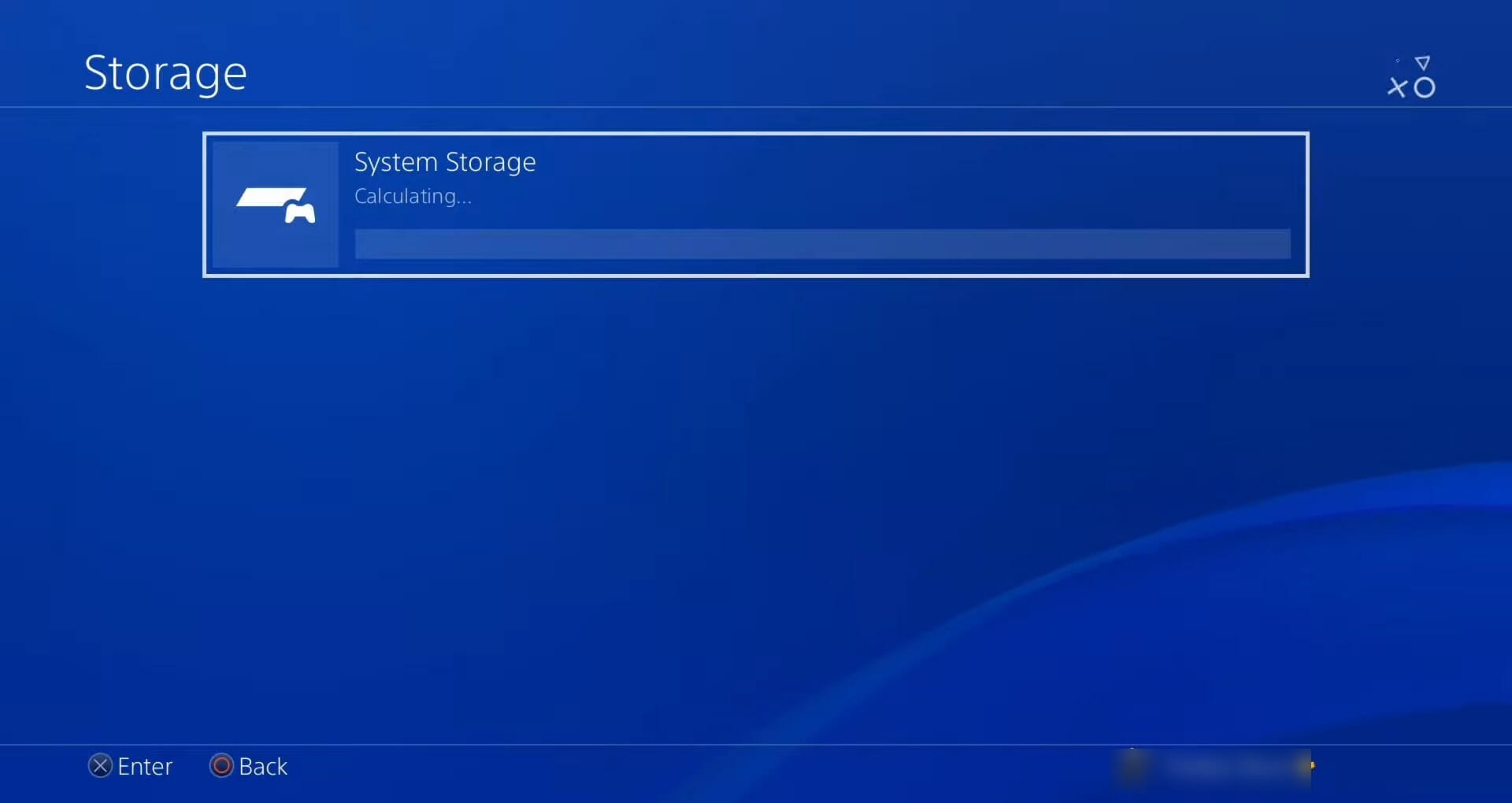
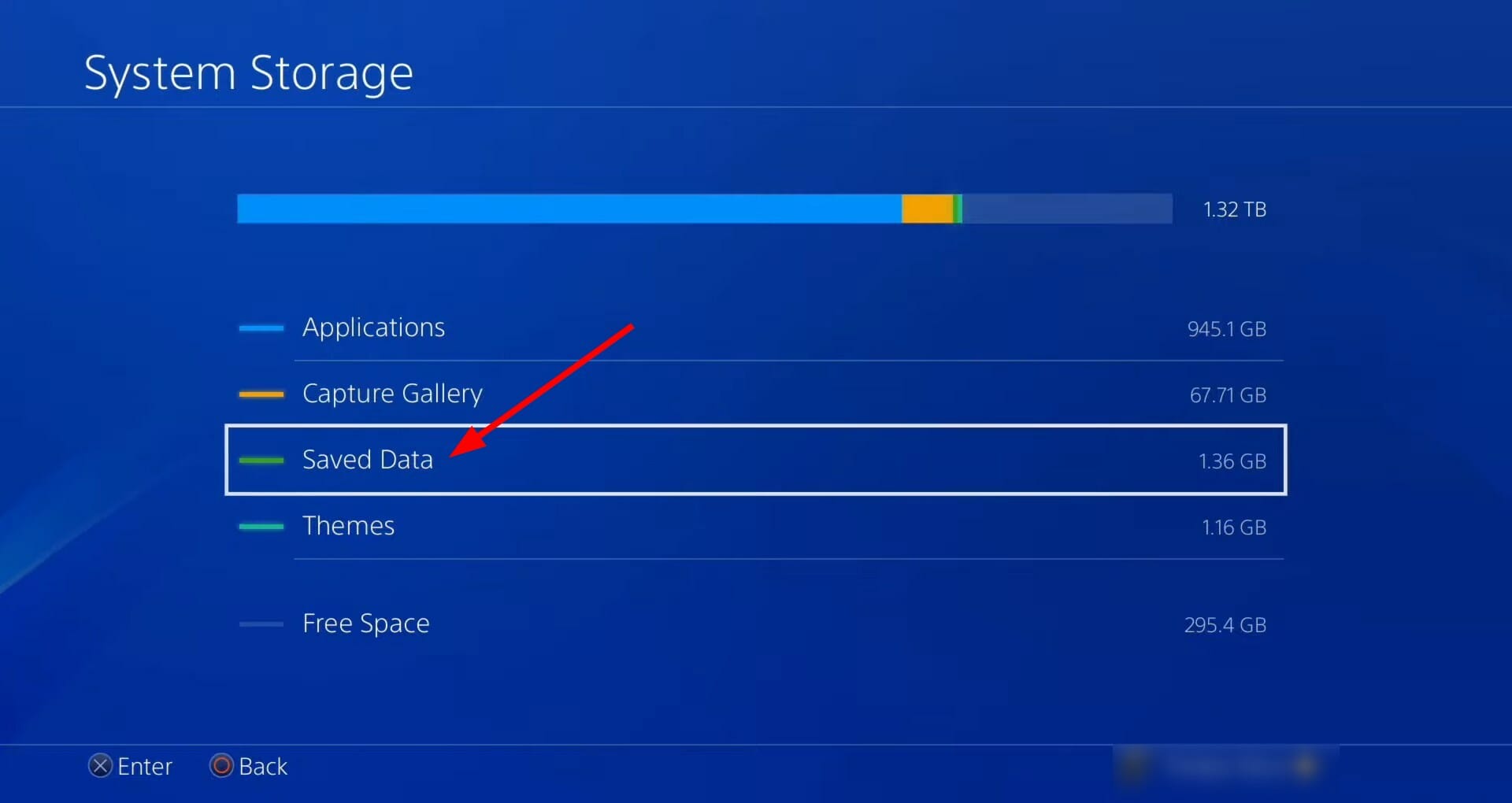


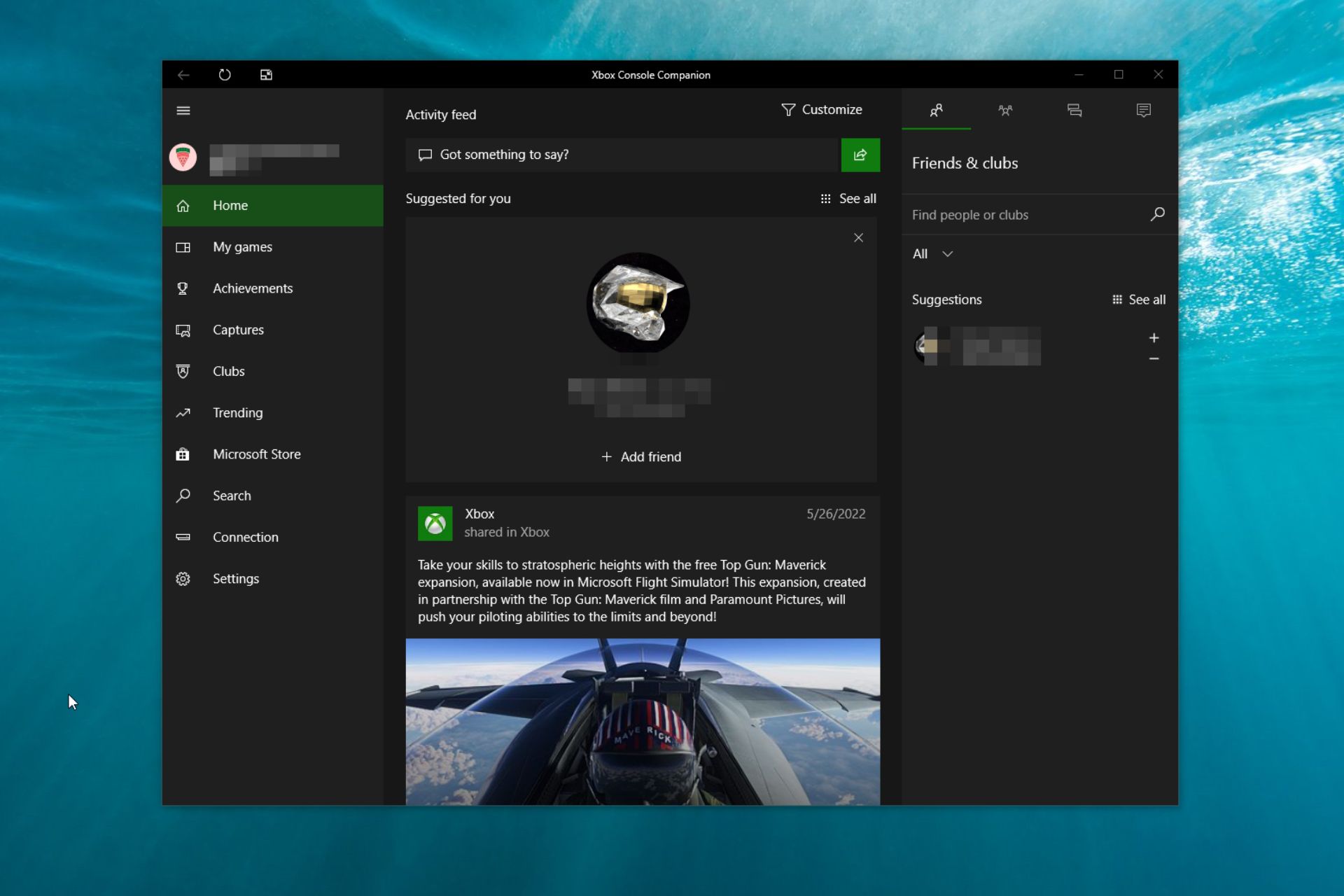
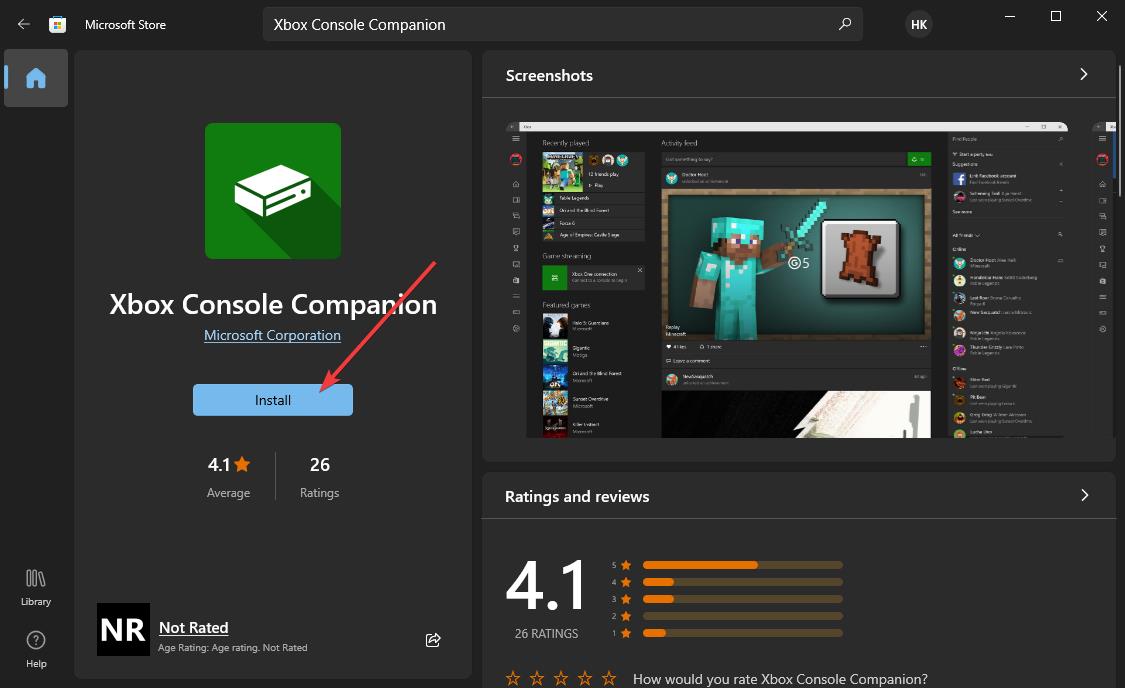
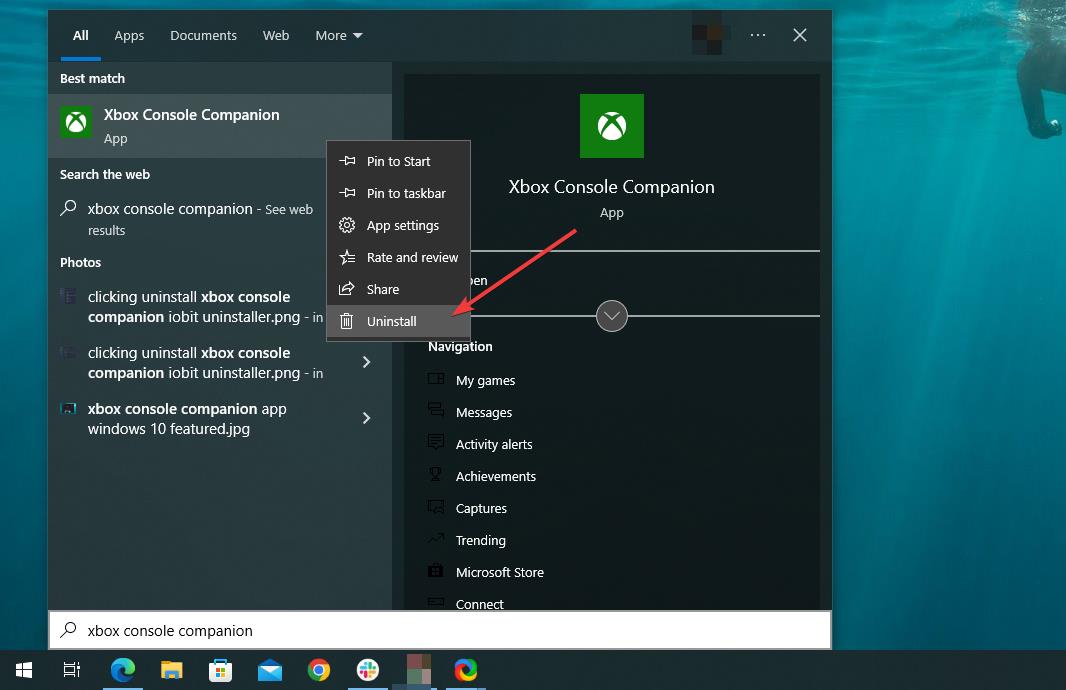
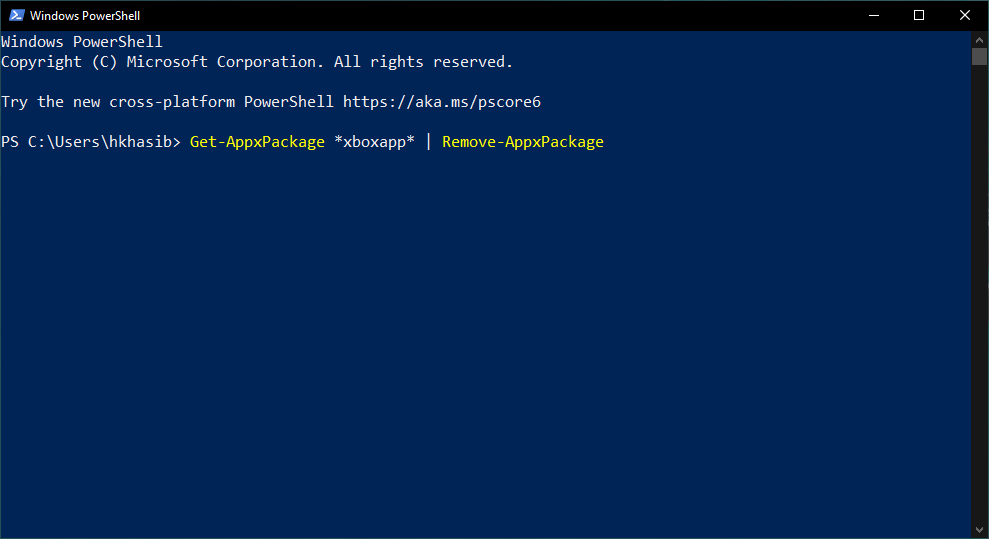
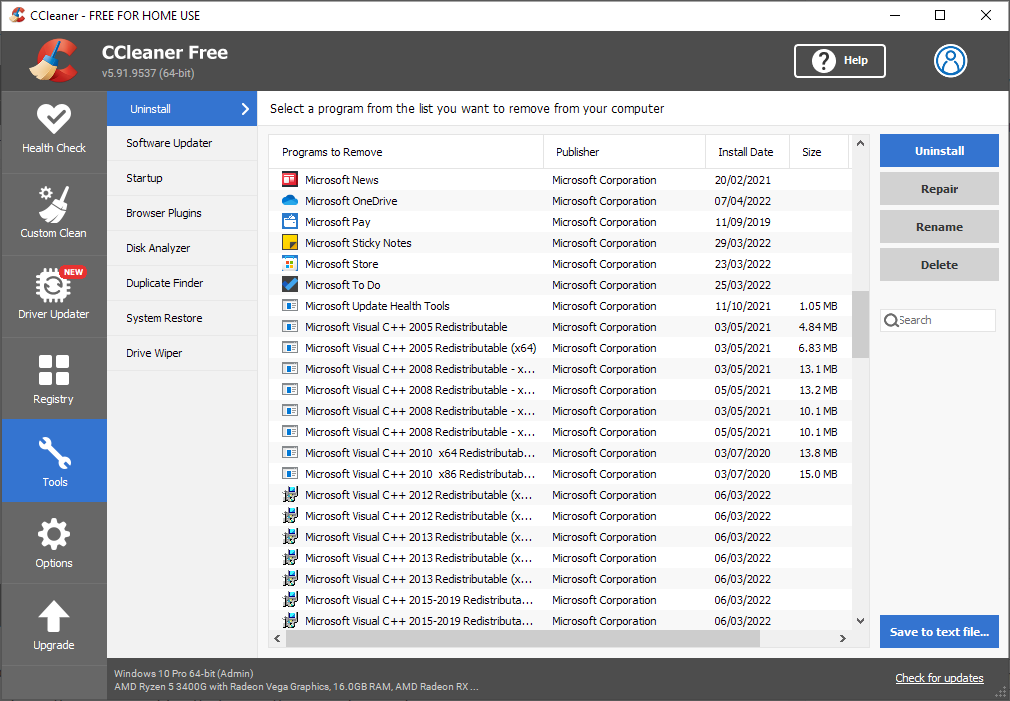
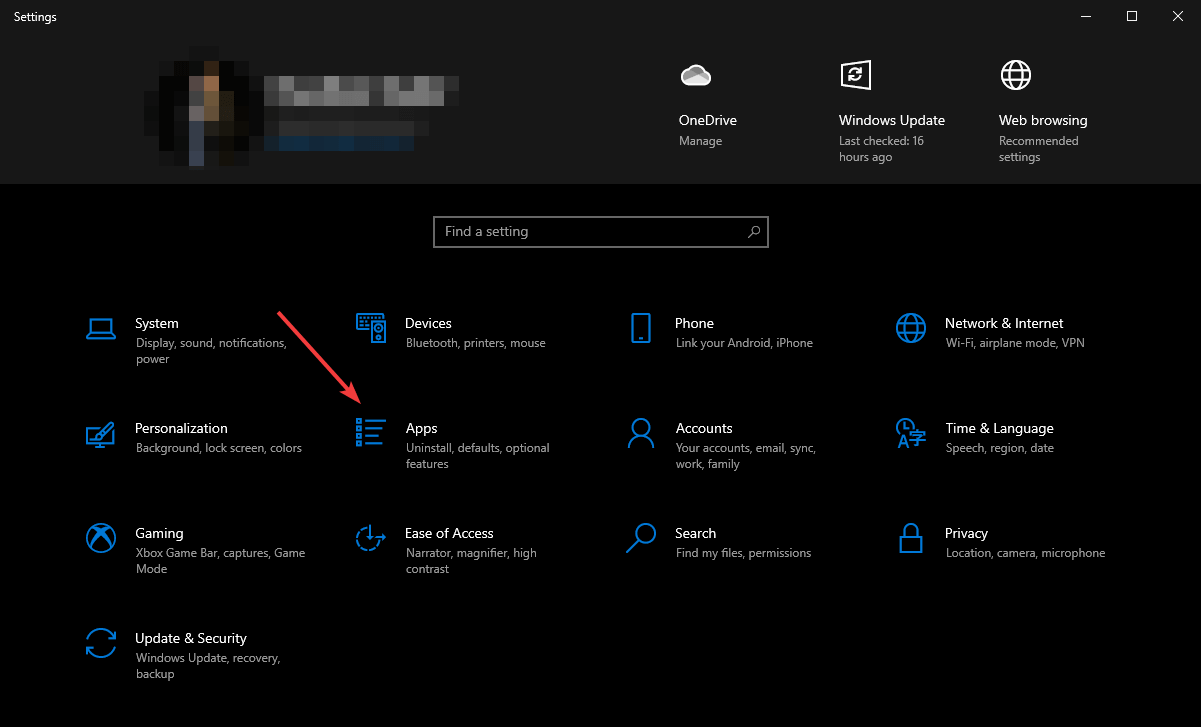
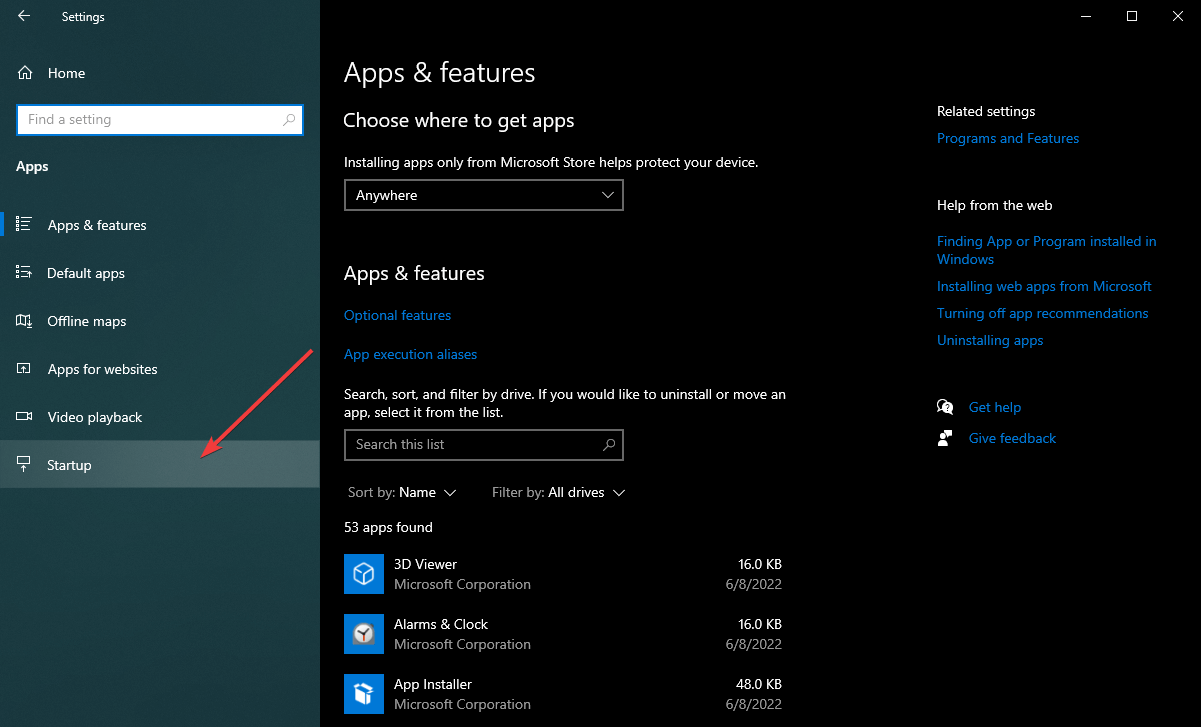
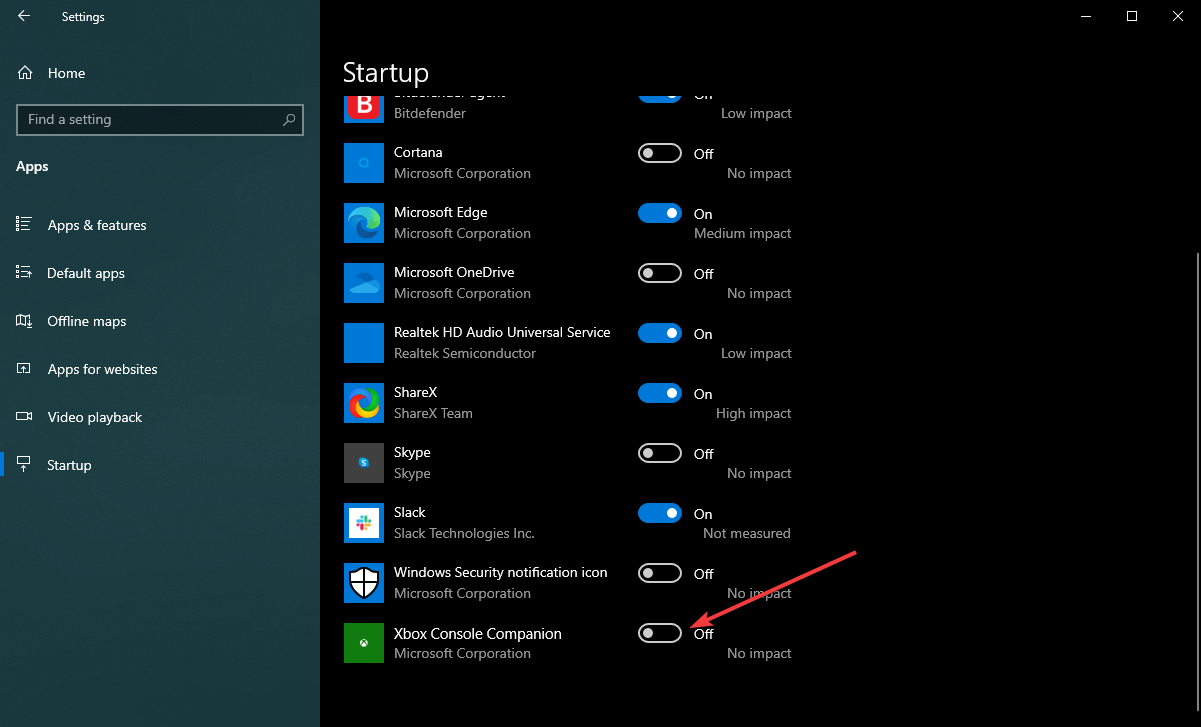
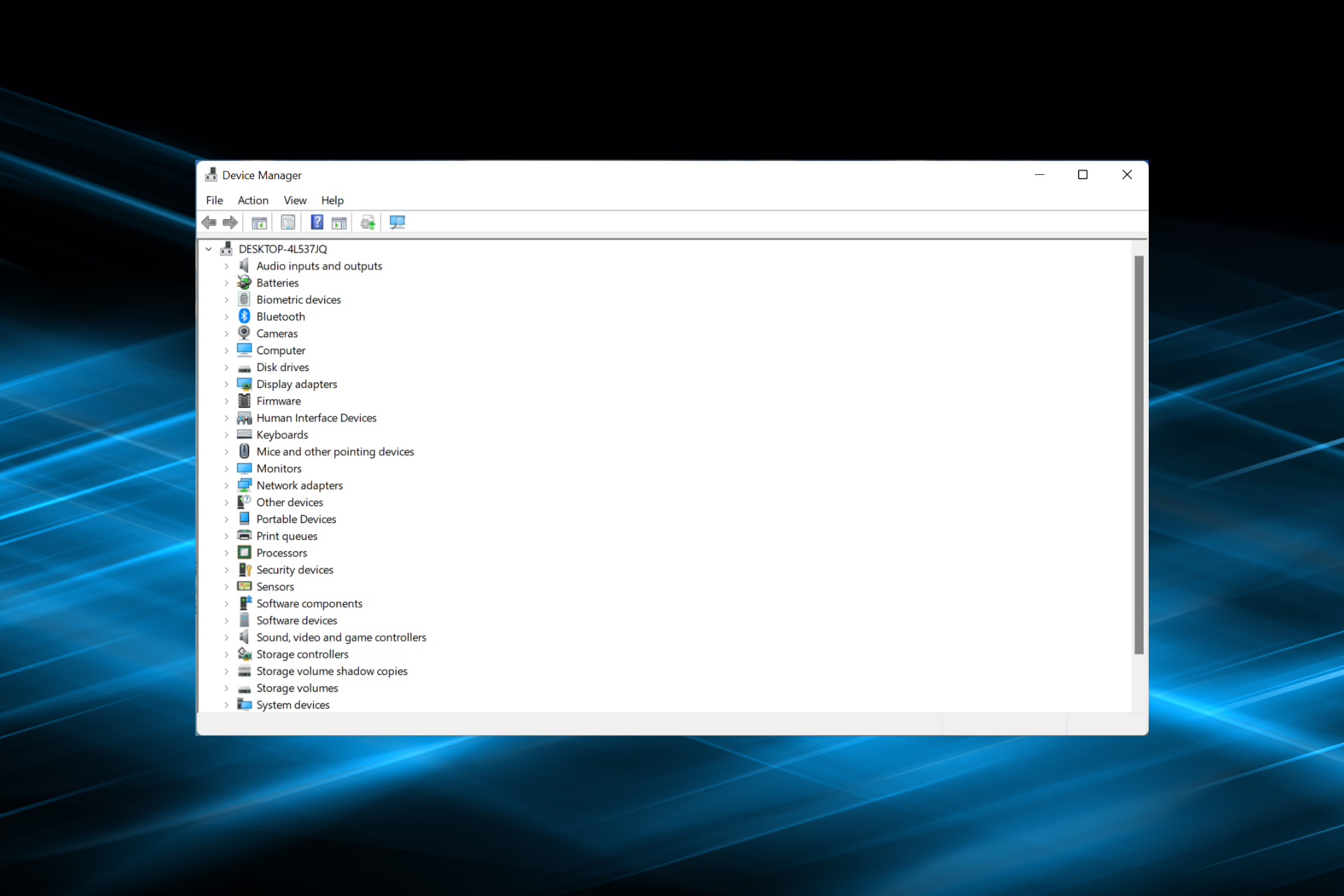
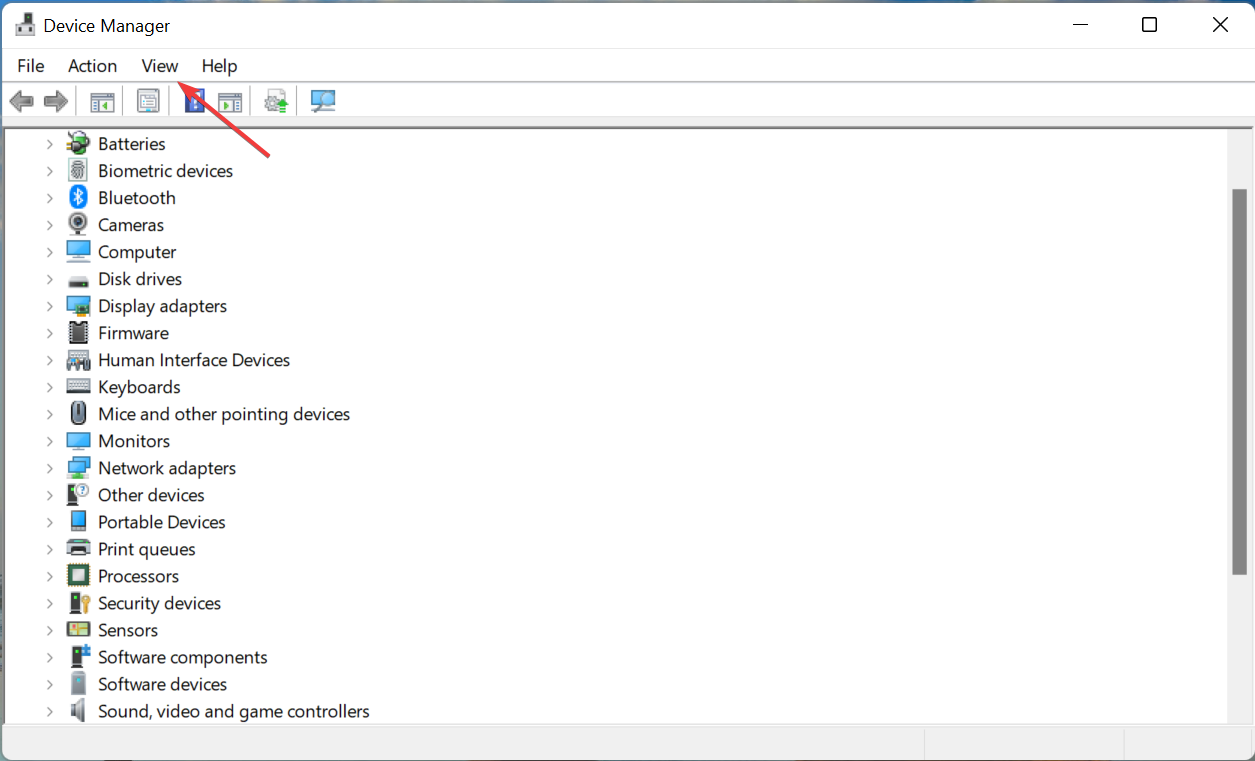
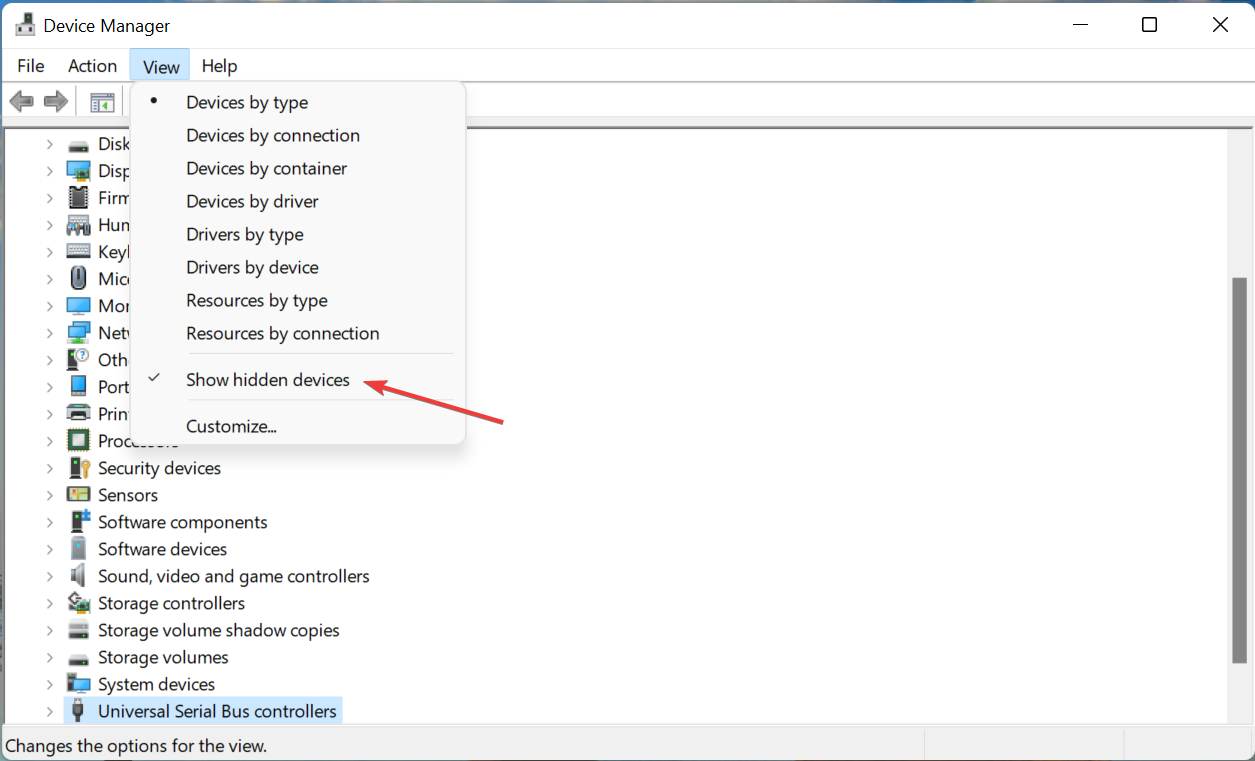
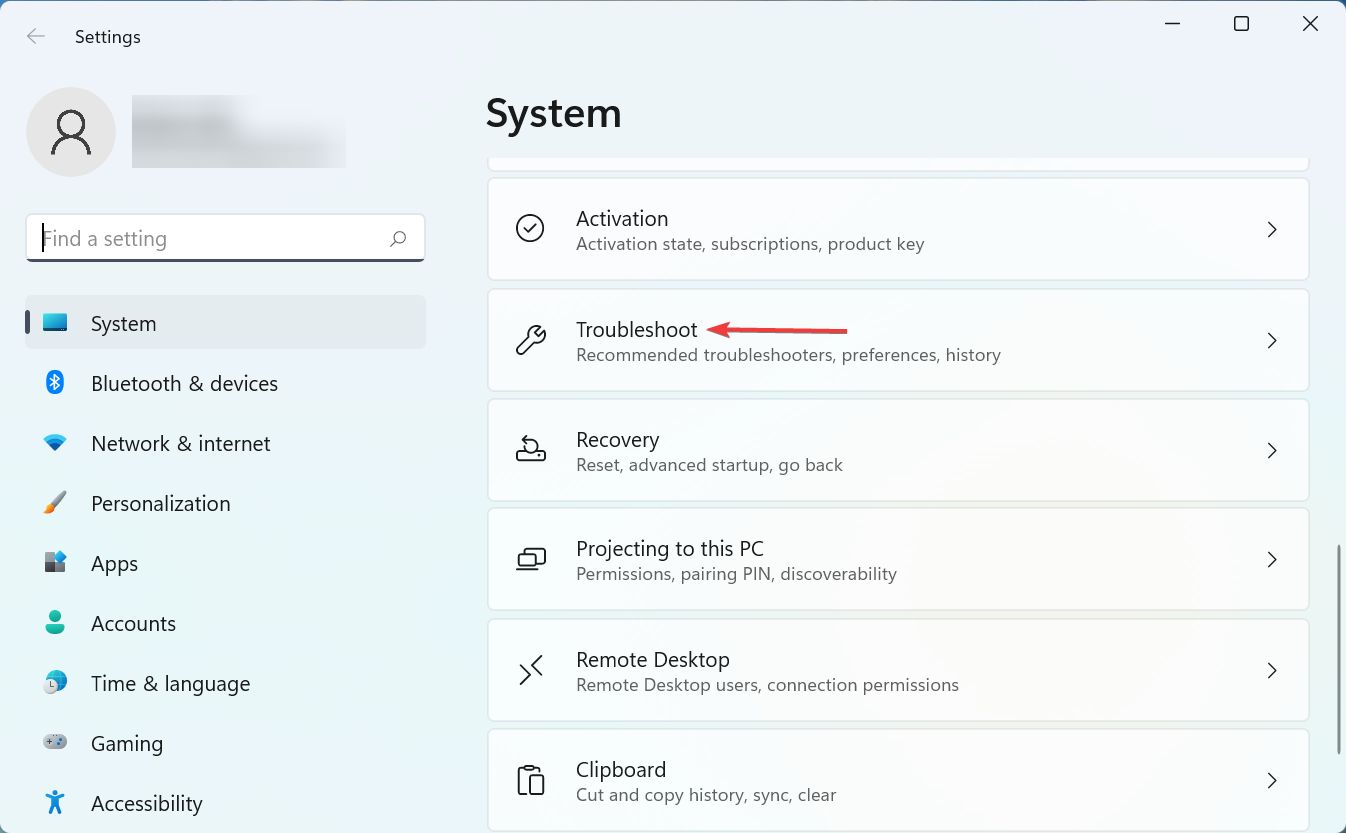
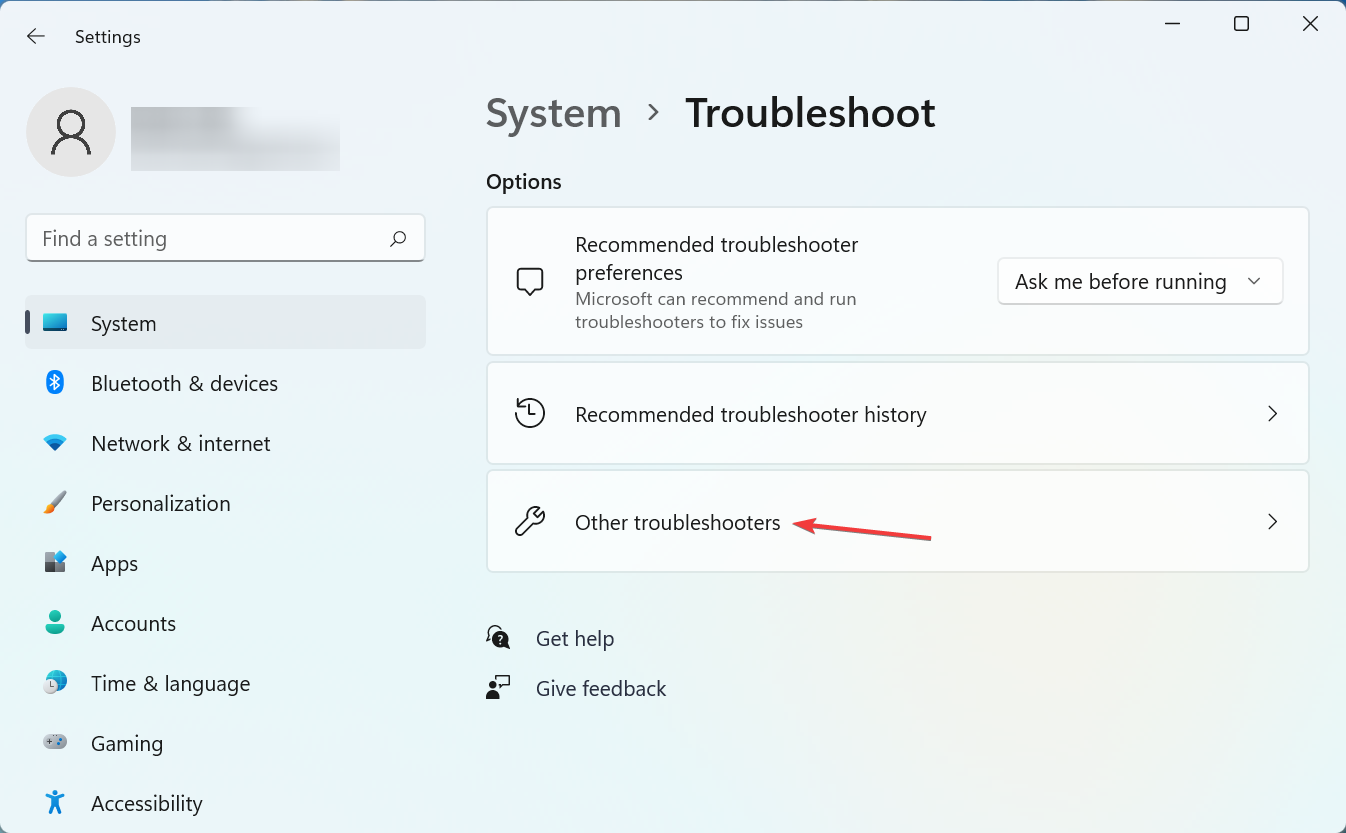
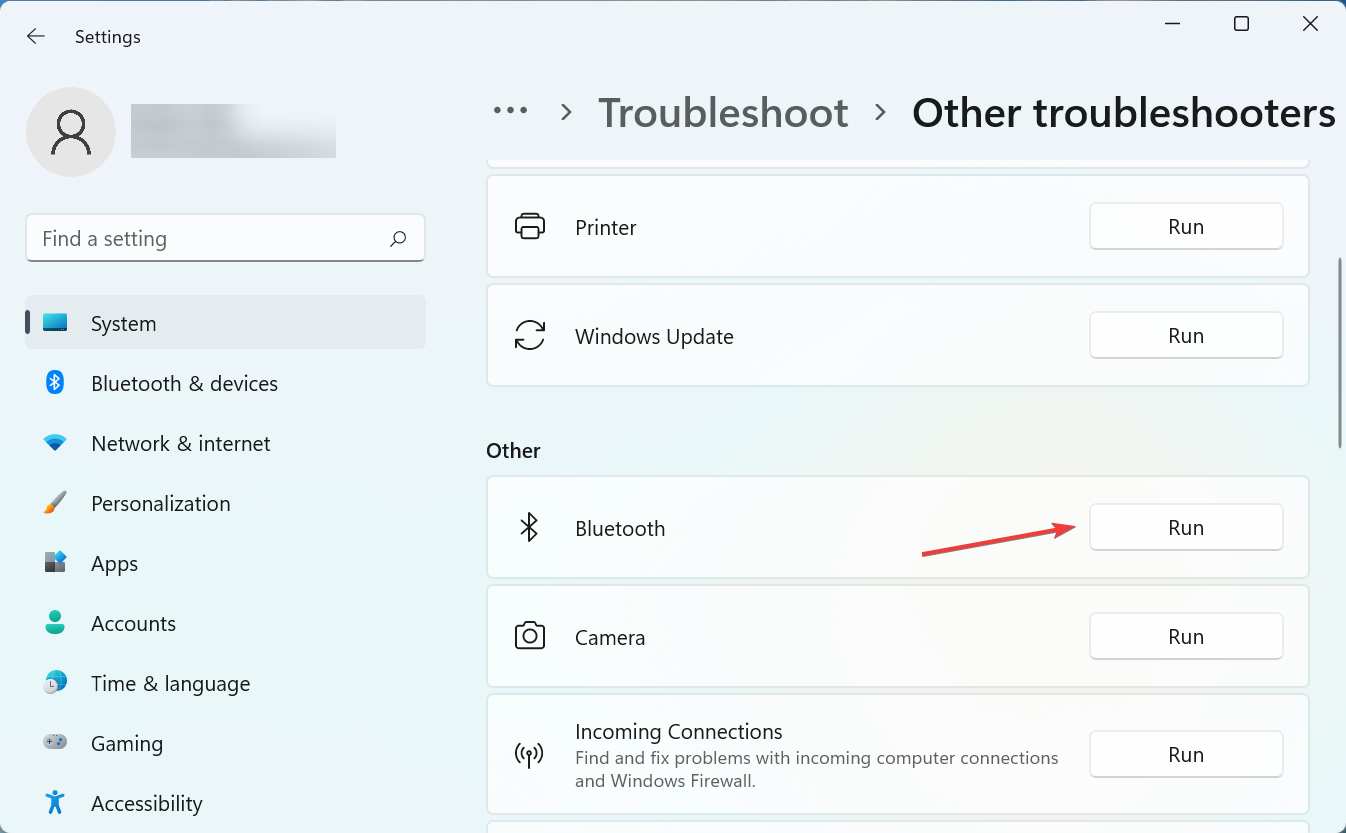
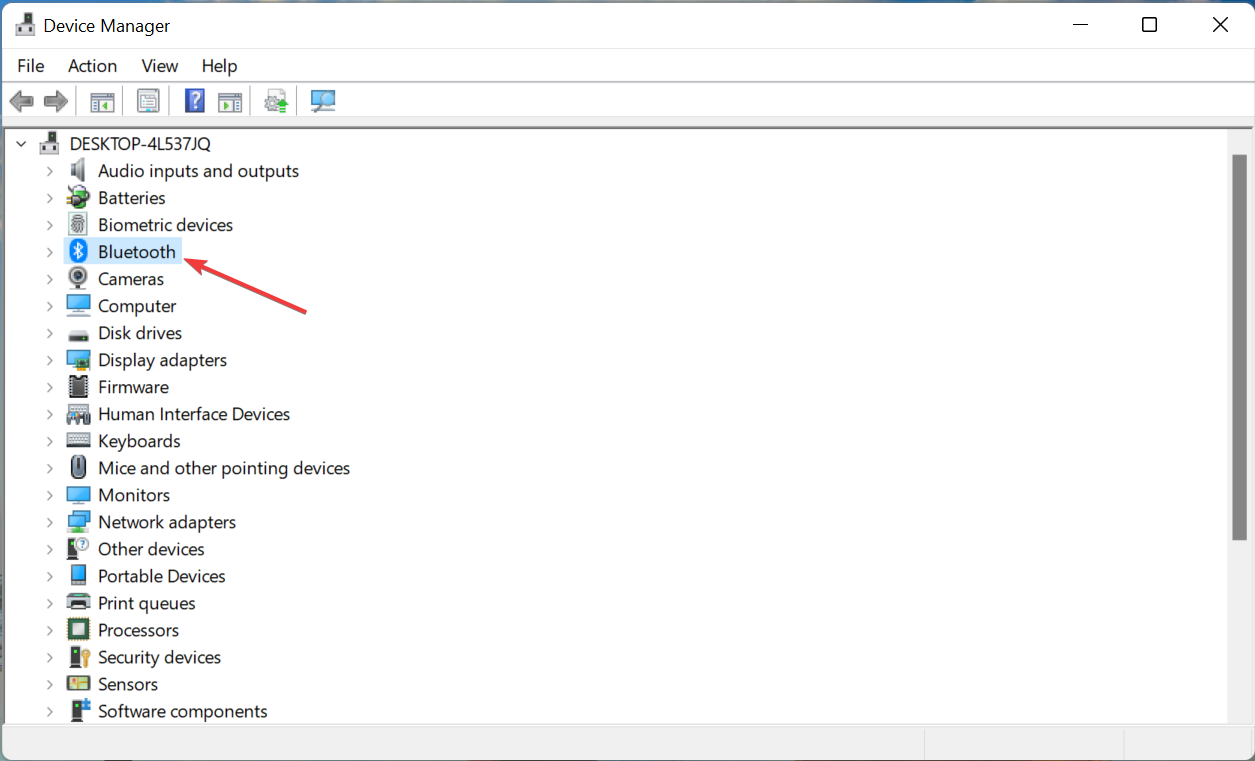
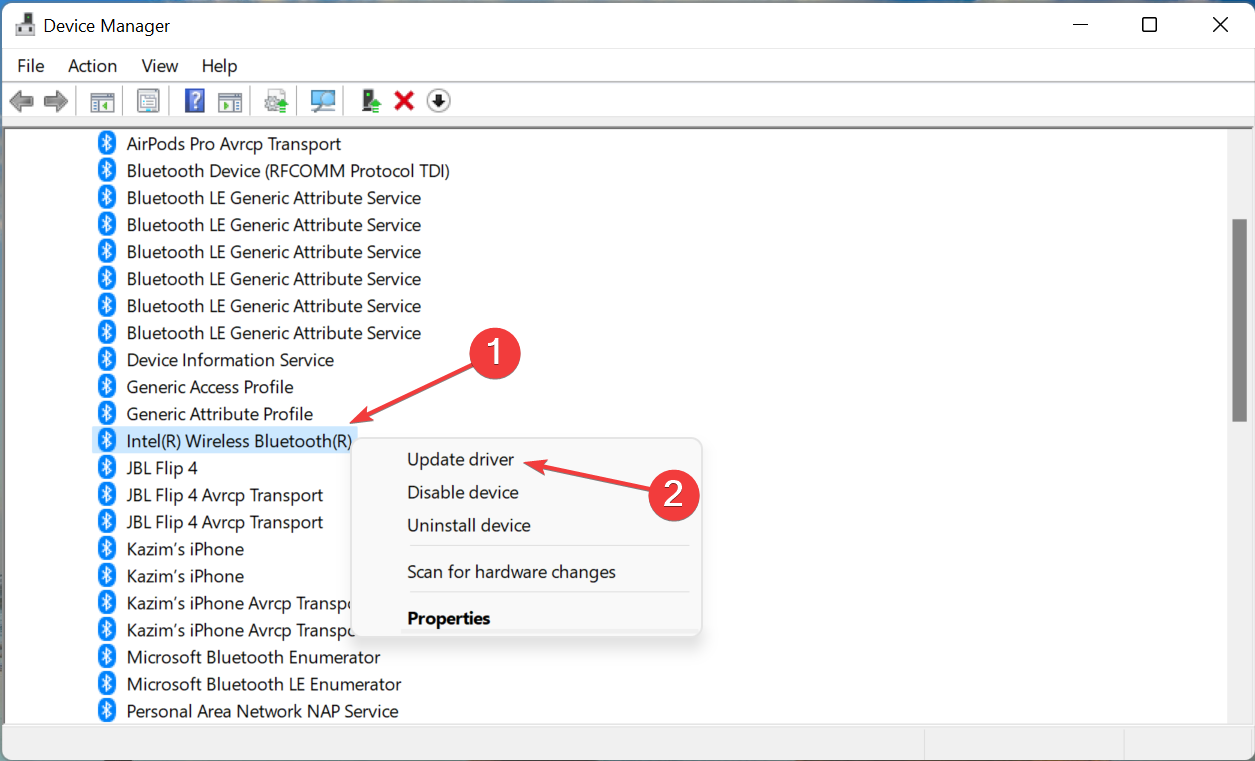
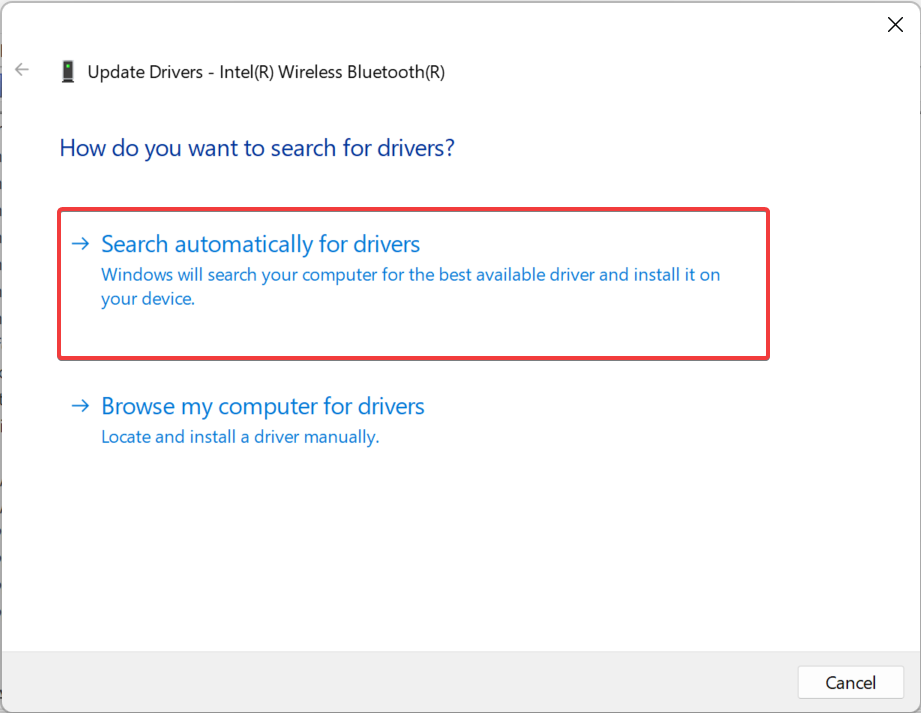
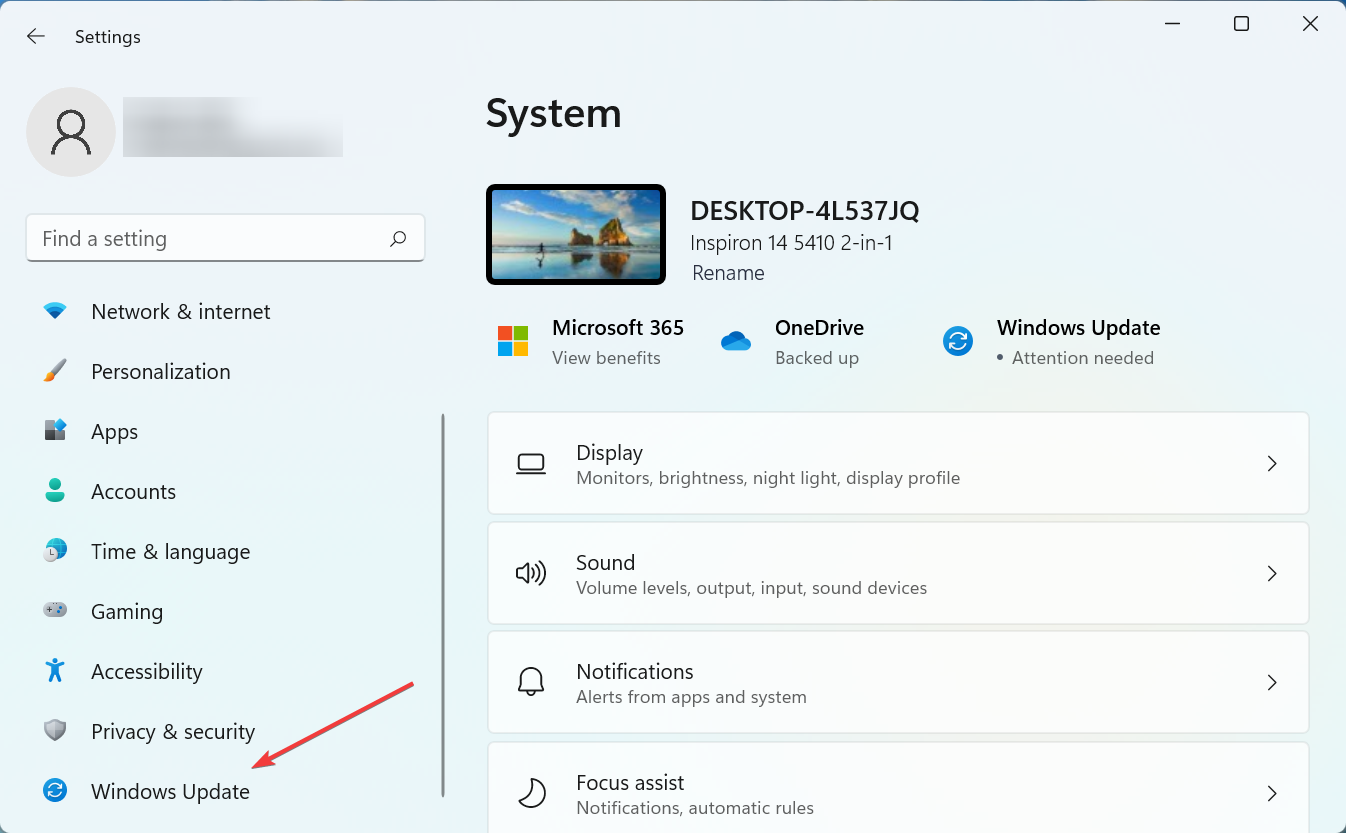
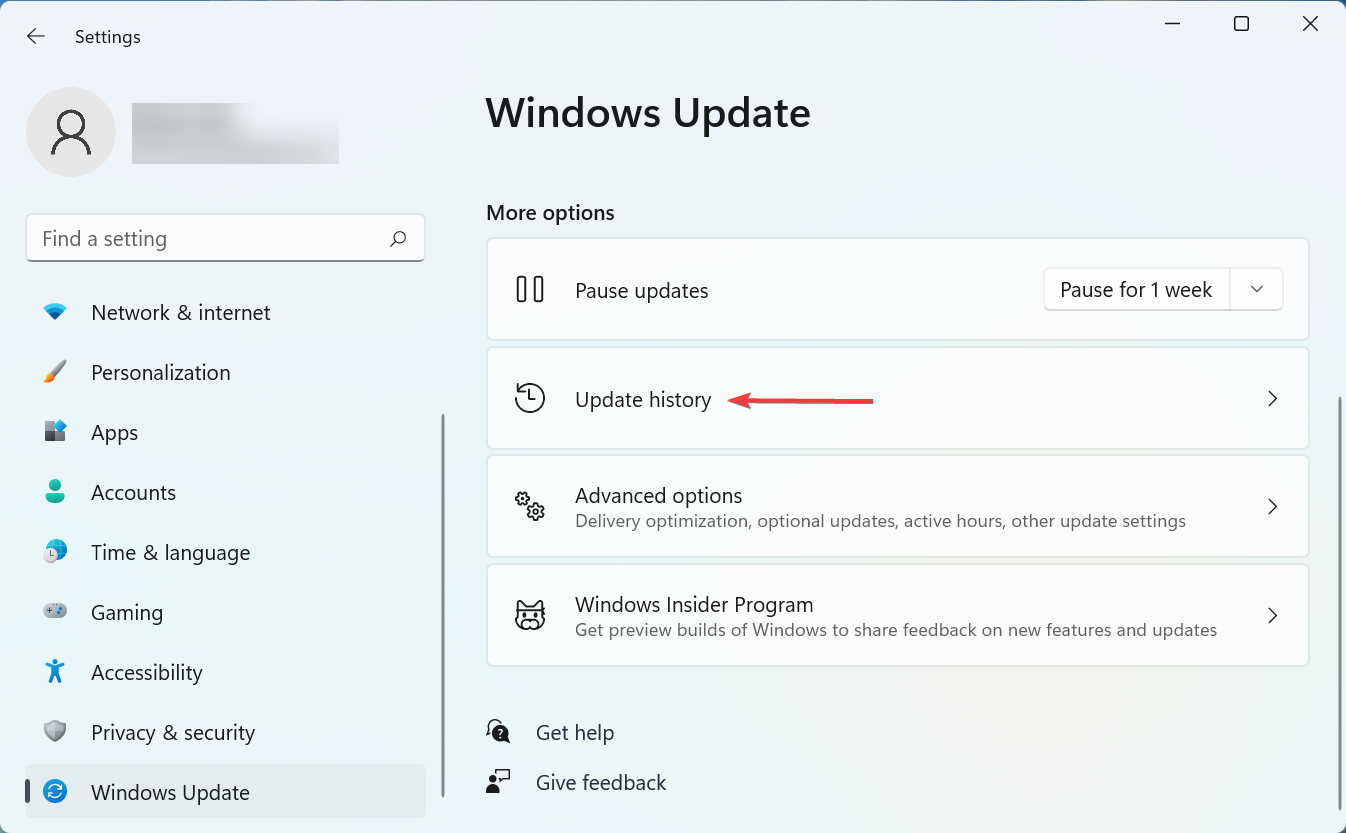
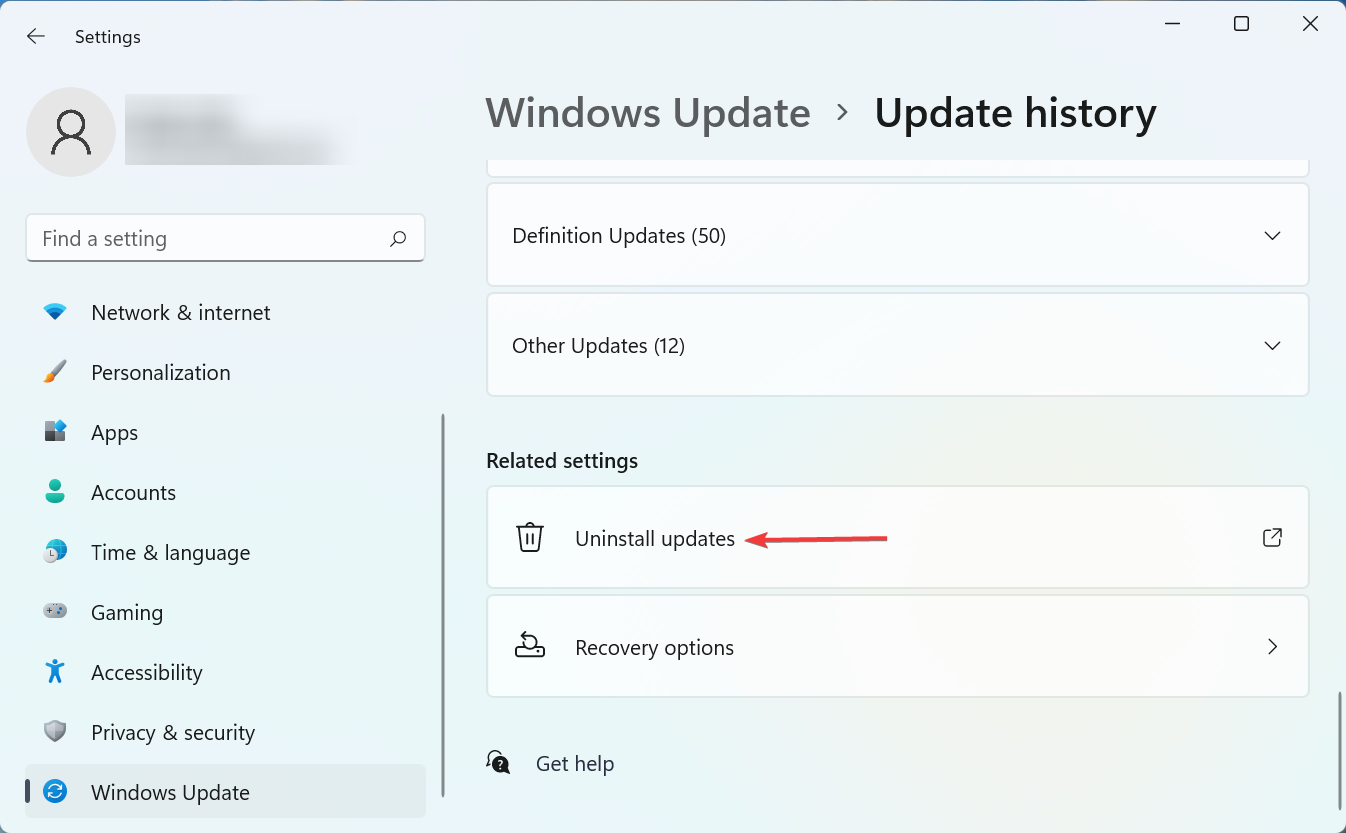
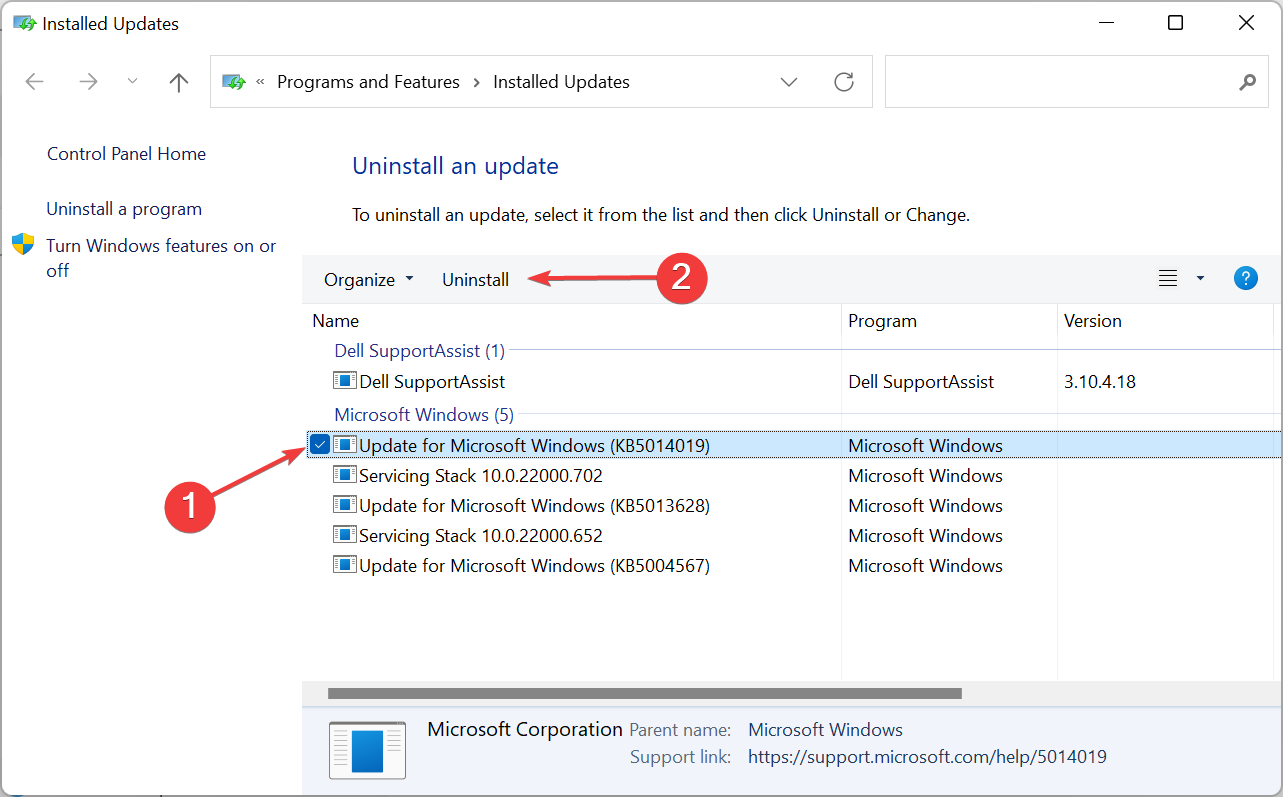
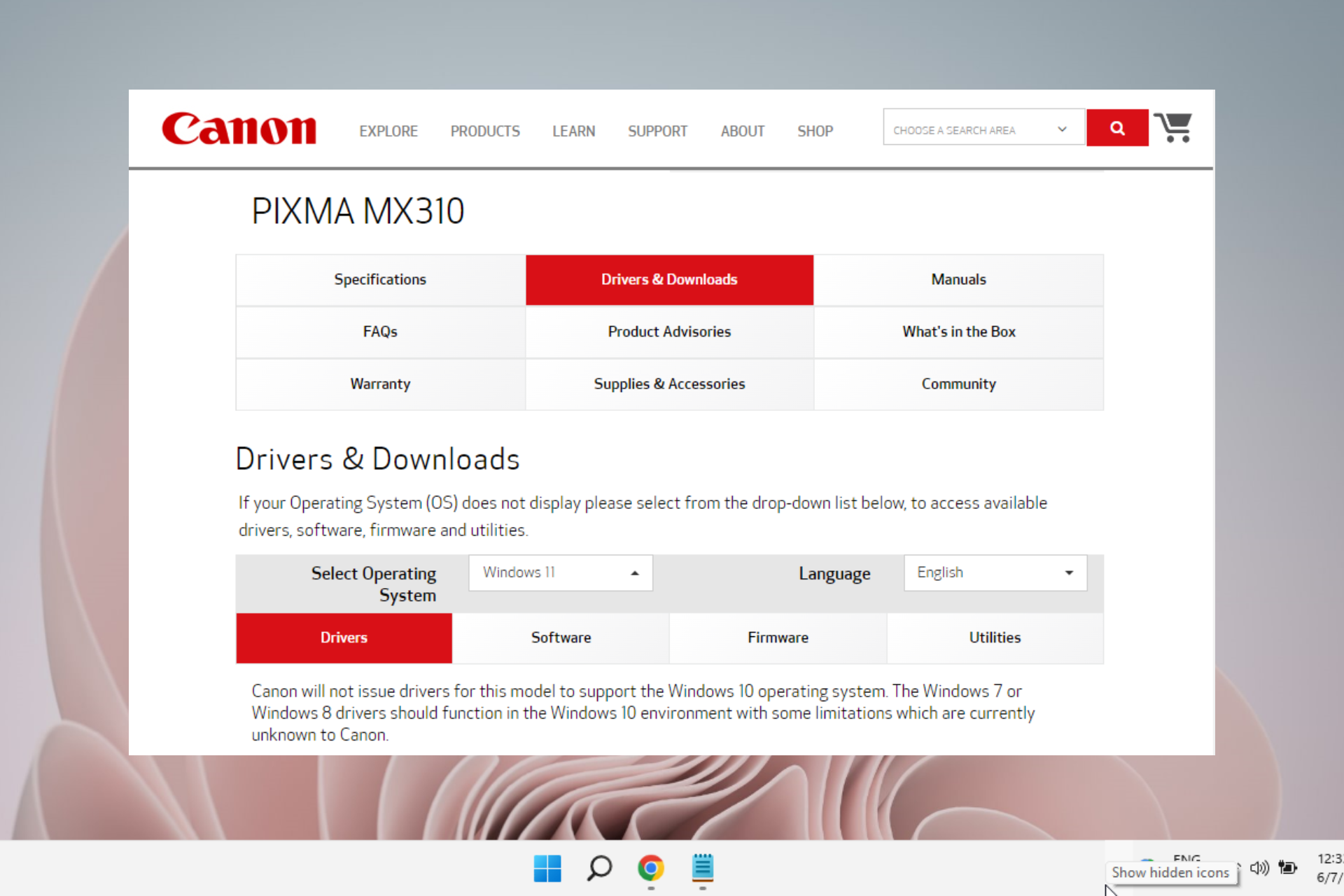


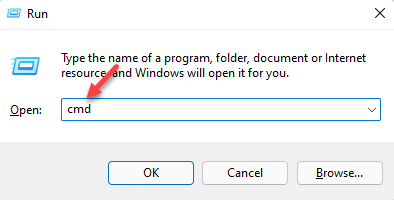


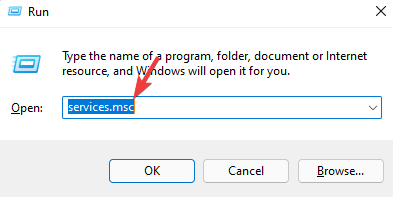


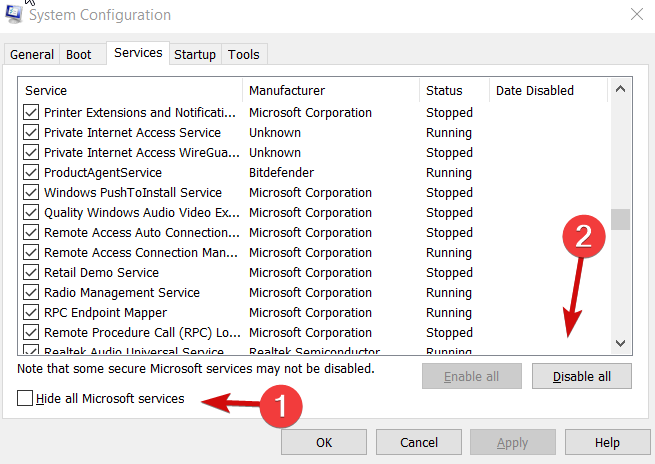


![Corrupt Active Directory Database [Technician Fix to Apply]](https://windowsreport.com/wp-content/uploads/2022/06/Corrupt-Active-Directory-Database.jpg)