Anti-Buffering Software: 5 Best to Use in 2026

Buffering is probably the worst tech issue regarding videos on the web. Software for avoiding buffering lets users stream HD videos smoothly and significantly reduces buffering times.

Such tools will make sure that you are able to enjoy accelerated videos without any interruptions.

There are lots of programs that help avoid buffering while streaming videos and we’ll show you five of the best ones along with their sets of features to help you make your decision much more comfortably.

What are the best tools to avoid buffering?

SPEEDbit Video Accelerator

SPEEDbit Video Accelerator eliminates YouTube buffering and allows you to watch smooth online videos without getting frustrated from 5 to 5 minutes due to interruptions.

On this program’s official website, you’ll also see a video featuring video expert Dave Kaminski who tested an HD YouTube video on a faster than 20MG connection.

You will see that it got stuck 25 times but when he used the SPEEDbit Video Accelerator, the same video played flawlessly.

Check that video out and see more great features included in this program below:

  • SPEEDbit Video Accelerator lets you stream HD videos quickly with significantly reduced buffering times
  • You will be able to download your favorite iTunes content faster
  • Using this program, you will be able to enjoy accelerated videos from YouTube and 165 sites such as AOL Video, Break, Facebook, Yahoo Video, CNN, MySpace, Dailymotion and more
  • All you have to do is install the software and enjoy a new higher quality of watching videos online
  • SPEEDbit Video Accelerator configures itself automatically in order to be able to offer you the best web video experience available
  • The software works with your web browser to stream web videos from various sources at the same time, and it allows you to enjoy improved download speeds and video playback

⇒ Get SPEEDbit Video Accelerator

Hola Video Accelerator

Although not a fully-fledged anti-buffering software, this tiny Chrome extension will turn out very useful in reducing buffering, so we decided to add it to our top 5 picks.

Hola Video Accelerator speeds up your web browsing while saving your data, reducing buffering, and unblocking censored sites.

All you have to do is head to Chrome’s official website and get the extension to enjoy HD online streaming without buffering.

Take a look at more exciting features that you’ll be able to enjoy if you decide to install Hola Video Accelerator:

  • You will be able to enjoy smoother videos with less buffering, and you can watch HD flawlessly
  • This extension will also help with reduced data costs, saving data usage by 20-30% over time
  • It provides faster Internet with quicker web surfing and downloads
  • Using Hola Video Accelerator, you can also enjoy uncensored Internet because it comes with an Unblocker VPN service

⇒ Get Hola Video Accelerator

Turbo Internet Accelerator

Turbo Internet Accelerator is another software that offers you a way to speed up online video streaming. You will be able to watch videos from YouTube and other websites without issues.

This program helps you to use your Internet connection to its full potential.

You will get a 14-day free trial, and if you decide that you like Turbo Internet Accelerator and want to get the full version, you will also get free updates all the time.

Check out more features worth mentioning about this software:

  • The software speeds up online videos faster than ever, and it works with all online video websites.
  • Using this program, you will never have to worry about buffering while watching online videos.
  • Turbo Internet Accelerator also optimizes your Internet connection for each website.
  • It speeds up all download operations from the web.
  • The program’s interface is user-friendly and really easy to understand even for beginners.
  • The program’s download manager is one of the fastest and easier downloads managers ever.
  • Turbo Internet Accelerator is 100% compatible with all popular browsers including Internet Explorer, Mozilla Firefox, Opera, Google Chrome, iTunes, and more.
  • You will be able to download multiple files at the same time, pause, and resume the video.
  • Turbo Internet Accelerator comes with multi-language support.

⇒ Get Turbo Internet Accelerator

Leawo Video Accelerator

With Leawo Video Accelerator, you can download online videos and watch online videos without buffering-related issues.

This is a great all-in-one free online video downloader, video accelerator, browser, video manager and video converter that will improve your whole online video experience.

Leawo Video Accelerator will efficiently speed up the video buffering and loading allowing you to enjoy online videos seamlessly and smoothly without any hiccups.

Besides functioning like a professional video accelerator that facilitated high-quality video enjoyment, you will see its various additional features and functions if you head over to its official website and take a closer look.

You can get a free trial and then buy the full version of the program.

Just check out its best features below:

  • Leawo Video Accelerator lets you download videos from YouTube, Facebook, Dailymotion, MySpace, and more.
  • You will be able to enjoy accelerated video loading for smoother online video playback with a built-in FLV player as well.
  • Using this software, you will get the opportunity to convert online videos to more than 140 video formats for various payers.
  • You can manage your downloaded videos effortlessly.

⇒ Get Leawo Video Accelerator

SpeedyiTunes

SpeedyiTunes is able to smooth your downloads and accelerate the web videos eliminating buffering.

With the help of this software, you will be able to cut down more than half of the waiting time of movies, Flash videos, music, and so on.

SpeedyiTunes not only accelerates your streaming online but also ordinary file downloading.

The software is really effortless to use, and all you have to do is download it from its official website, and install and run the program. It is 100% free of any malware, spyware, and viruses.

SpeedyiTunes is one of the most accessible solutions to enjoy entertainment media smoothly, free, fast and also legally.

Check out its best features listed below:

  • Using this software, buffering will stop being a problem while you are watching videos online.
  • SpeedyiTunes can also automatically record online mp3 while you’re listening to it and this makes it the easiest way to get loads of free music for free and legally.
  • The program also includes an FLV downloader, and it automatically records flash while viewing.
  • SpeedyiTunes is a video converter as well, and after it downloads your video, it will automatically add it to your iTunes library.

⇒ Get SpeedyiTunes

These are our top picks for software that’s able to avoid buffering and no matter which your option will be, we can guarantee that you’ll be able to enjoy HD videos online without these issues.

If you have any other problems, turn to our step-by-step guide on how to fix streaming problems in Windows 10.

What software did you choose? Also, let us know about your experience with any of these or other solutions in the comments section below.
Microsoft and PlayFab celebrate three years together, announce The PlayFab Anniversary Awards

This week, Microsoft and PlayFab are celebrating their third year together. In the years since the January 2018 partnership began, the community has grown to include not only developers but big-name studios and engineers, too. James Gwertzman, General Manager for Gaming Cloud (Azure, PlayFab, GitHub, etc) at Microsoft looked into the three-year partnership in a new blog post.

Editor’s note: Be sure to tune in to the OnPodcast this Sunday, as we’ll be sitting down with James for a one on one interview!

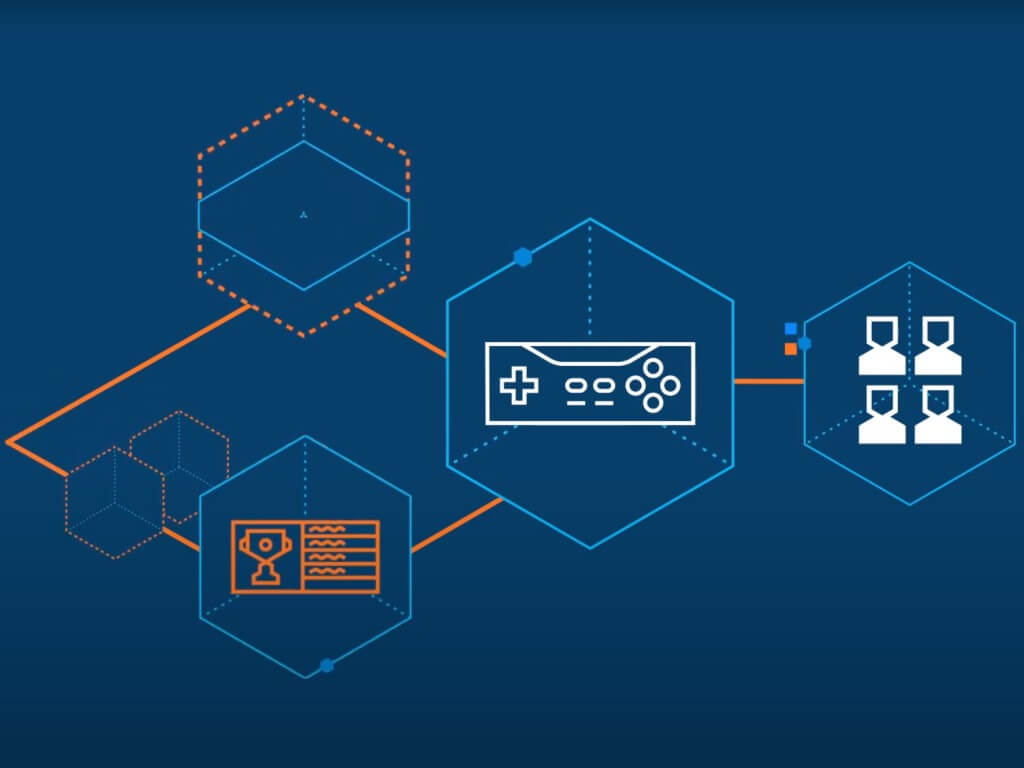
For those unfamiliar, Azure PlayFab lets developers and game designers Build and operate live games with a single platform. PlayFab gives access to game services, data analytics, and LiveOps tools to launch faster, extend a game’s lifecycle, and reduce costs. It also supports LiveOps services and multiplayer environments across platforms, including Xbox, PlayStation, Stadia, PC, and mobile. Games like Minecraft, as well as Roblox and Spongebob: Krusty Cook-Off are using Azure PlayFab.

According to Gwertzman, since PlayFab joined Microsoft, the number of individual titles using Azure PlayFab has skyrocketed by almost 9 times. Active users playing games that leverage Azure PlayFab services have grown by almost 9 times as well, and PlayFab’s scalable services supported more than 129,000 requests per second (RPS) in December 2020.

As an example, in Minecraft, Azure PlayFab is used to bolster its in-game marketplace and scale its evolving customer experiences. And, in Roblox, Azure PlayFab is used to deliver analytics as a service to top developers on the Roblox platform. In addition, Doom Eternal, Rainbow Six Siege, Sea of Thieves, Dirt 5, and No Man’s Sky all rely on Azure PlayFab for their global reach.

With all this popularity in mind, PlayFab is announcing the launch of the PlayFab Anniversary Awards, too. The awards will honor the amazing indie studios. You can check out the Azure PlayFab website here for more.

In addition, PlayFab is announcing that starting on January 29, they’ll make available their Party plugin for Unity for developers creating games for Nintendo Switch, Sony PlayStation 4 and 5, Android, and iOS. That is also in addition to the Xbox One, Xbox Series X|S, and Windows PC platforms which are already supported. “This means developers can seamlessly and effortlessly integrate Party with their Unity title across platforms, attracting and connecting more players and driving more engagement with their games,” said James Gwertzman.

Sea of Thieves gets new 120FPS Performance mode on Xbox Series X with new Season One

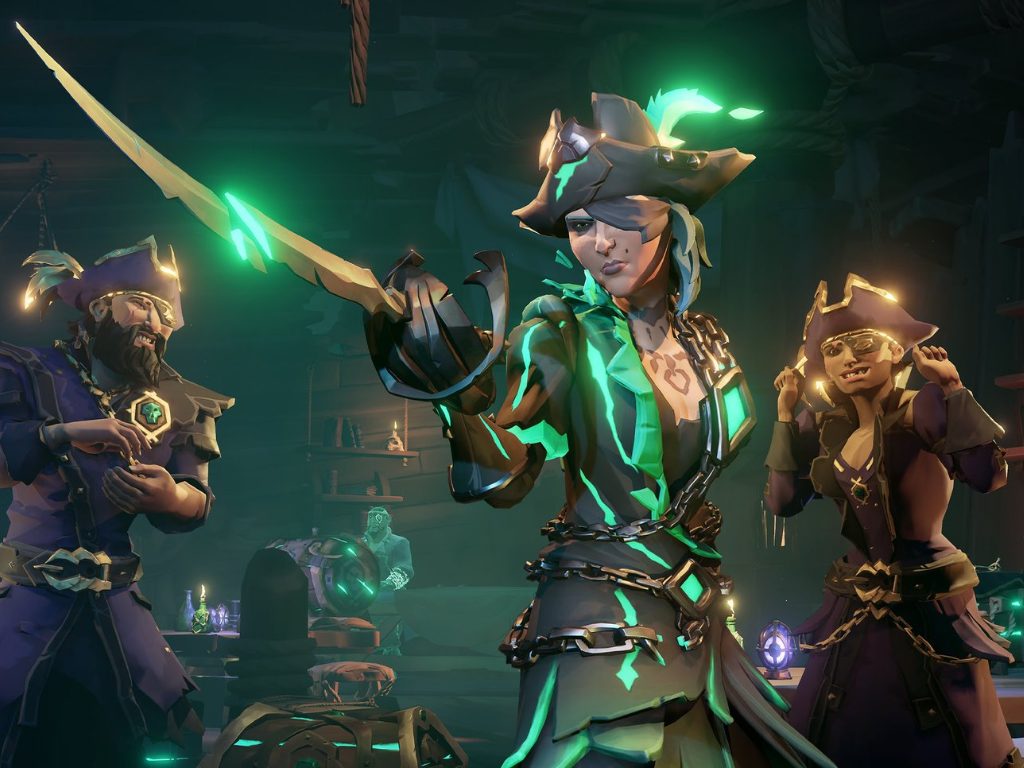
Sea of Thieves has just received a new patch to kick off the launch of the game’s first season, and the new bits are also introducing a new 120FPS Performance mode on Xbox Series X consoles. Until now, the pirate game ran in a comfortable 4K at 60FPS on the Series X, and opting for the 120 FPS Performance will reduce the resolution to 1080p, just like on the Xbox Series S.

“Some TVs do not support 120Hz and HDR simultaneously, so HDR may need to be disabled from the Console Settings,” the developer noted in the release notes. If the Xbox Series S is also capable of running games at 120 FPS, the cheaper console is currently limited to running the pirate game at 1080p/60FPS, which remains good enough for most gamers.

If you have a TV or gaming monitor with a 120Hz refresh rate, playing games at 120 FPS can really make a difference, and it’s nice to see Sea of Thieves add this option on the Xbox Series X. Since the release of Microsoft’s Xbox Series X|S consoles in November, we’ve been seeing more and more cross-gen games add support for 120FPS, though this option is sometimes limited to the Xbox Series X and PlayStation 5. Borderlands 3, Destiny 2, and Call of Duty: Black Ops Cold War are three other big games with a 120 FPS mode on the Series X that’s currently absent on the Series S.

In addition to this new Performance mode, this new patch introduces another permanent Voyage type, new time-limited in-game events, more cosmetics to unlock, and some gameplay improvements for the PvP Arena mode. Developer Rare announced back in December that the popular pirate game would transition to a new seasonal model, similar to what other live service games such as Fortnite have been doing in recent years.

Sea of Thieves remains one of the most successful first-party games Microsoft released in recent years, and developer Rare explained that each new Season will last approximately three months and bring new gameplay features, rewards and Live events. The Plunder pass, an optional premium element will add even more rewards for the most dedicated pirates.

Jacquard Design Software: 6 Best to Download in 2026

Jacquard fabrics are extremely beautiful and elegant designs that can transform the vibe of the room instantly.

Throughout the ages, people have always appreciated the complicated woven patterns found in this style of embroidery.

This type of decorative element is available in a wide range of styles, patterns, and colors, and Jacquard also varies when it comes to the thickness of the thread, materials used, etc.

To avoid having to learn how to weave personally, and then spending hundreds if not thousands of hours creating hand-woven patterns, you will need to use specialized computer software that can help you create a perfect Jacquard design from scratch.

These types of applications are known as Computer-aided Manufacturing (CAM), and they allow you to easily edit your artwork and perform exact changes to elements like Warp and Weft densities.

What program to design fabric?

The CAM software options also allow you to perform accurate drawings or paintings and then edit them using this type of software.

To allow unlimited creation possibilities, CAM software also contains a wide range of brush sizes with different thicknesses.

Let’s explore some of the best software for textile design options that can help you create beautiful Jacquard patterns for your favorite couch or pillows.

What are the best tools to design Jacquard patterns?

Adobe Photoshop – Used by millions of artists

Adobe Photoshop is a highly versatile tool that you can use for a wide variety of purposes, including clothing design.

Weavers who have strong knowledge of structures will find it quite easy to create sample or production designs from scratch using this popular software.

There’s also a very handy plugin for Photoshop called Textile Designer especially created for textile design.

In Adobe Photoshop, if you’re not quite satisfied with your design, you can keep all the design elements editable, including patterns, colorways, and separations.

Then, when a brilliant idea crosses your mind, you can quickly resume the editing process and polish your patterns.

Adobe Textile Designer comes equipped with a series of built-in features that automatically select the best color combinations for your design patterns.

The suggestions the tool makes are really useful and can help you boost your productivity.

For more information on how to use Photoshop for textile design, you can check out this support page.

Adobe Photoshop

Create elegant and colorful Jacquard patterns with the rich design tools included in Adobe’s most popular graphic design program.
Free trial Visit website

Design Jacquard by Textronics – CAM artwork system

Textronics Design Jacquard

This software is a greatly powerful option that allows you to easily create, edit, and produce incredibly complex Jacquard designs.

You can use these types of designs on anything you’d like, but it is mostly used on couches, beds, pillows, etc.

This CAM software gives you the power to edit your design in grid mode. You can set custom brush sizes with different X/Y thicknesses and also provides you with a great set of other useful features – freehand tool, geometric tool, beizer, auto-outline, bandana, etc.

All of these features have the option to both Undo and Redo the actions multiple times.

This software helps you create your professional-looking weave with ease, by the use of its intuitive user interface.

You can start creating from scratch, or you can use some presets – satin, twills, single and multi-weave layers, but also a twill generator that can create satin weaves.

By using Design Jacquard, you can easily assign weaves to specific parts of your artwork, based on the different colors present there.

Just one click can transform the entire range of weaves with the color ‘red’ for example.

One of the best features found in this software is its ability to simulate a wide range of fabrics.

This feature allows you enough time to evaluate the finished products before presenting it, try new weave patterns, new materials, new stitching patterns, etc.

Some other notable features include:

  • Float finder – detailed data relating to different lengths of floats with the possibility to edit every aspect of it
  • Scanning – very powerful scanning ability with a great range of controllable parameters (brightness, contrast, hue balance, etc.)
  • Auto outline – can generate automatic outlines of the selected area in your artwork
  • Editing tools – pencils, brushes, clone tool, pattern fill, magic wand, etc.
  • Supports printing with the exact colors you chose

If you feel a bit overwhelmed by the number of features that Design Jacquard from Textronics has, you can visit the official FAQ page.

⇒ Get Design Jacquard by Textronics

Adobe Illustrator – Versatile design graphics

The solution offered by Adobe is a fit for anyone who needs to create gorgeous Jacquard fabric patterns.

Using this industry-standard tool, you will get unbeatable design features and editing tools for crafting the best product.

More exactly, you can make use of vector graphics tools that assures high-quality images that can be edited professionally.

Not only this, this product has numerous presets and edits, various brushes, or elegant typography styles that can turn any design into art.

Regarding Jacquart designs, you can take advantage of different tools like the Creative Cloud Libraries.

That can organize assets such as graphics, colors, and character styles across multiple devices and applications and help you create memorable projects.

In addition, you have an extensive range of export options like the SVG, PDF, and EPS file types.

Some other notable features include:

  • Design element overlapping
  • 3D design effects
  • In-app tutorial learnings
  • Astonishing graphic tools
  • Various pattern styles

Adobe Illustrator

Turn your Jacquard projects into fashionable fabric materials to use anywhere.
Check price Visit website

NedGraphics Jacquard – Comprehensive fabrics tool

NedGraphics - jaquard software

NedGraphics is another great software option that allows you to create professional-looking Jacquard patterns on any fabric you chose.

This is an entirely cloud-hosted software, allowing you to access it from anywhere in the world.

This software offers you access to a wide range of tools that can increase your productivity, and at the same time contains elements that help you create the concept of your design, and choose specific fabrics.

NedGraphics can easily replicate any weave pattern from any materials and allows you to preview the final stage before accepting any changes.

Getting samples for your production fast has never been easier, you can generate a life-like render of the actual material.

NedGraphics offers a wide range of useful modules like software for flooring design and home furniture creation, weaving, Jacquard, and also knitting software.

Using this software allows you to create the exact pattern that you want on a specific material, can color it to your desire, produce exact estimations of costs, calculate ways to increase productivity, and also simulate material durability.

After all these stages are completed, you can use the built-in sharing features to send the pattern to your production team.

Here are some of the best features found in NedGraphics Jacquard software:

  • Help you keep track and manage all aspects of materials stock and needs
  • Can send out orders regarding specific materials
  • Helps you manage every aspect of the production process
  • Inventory management
  • Helps you manage shipping, returns, and supplier databases
  • Can produce professional-level billing and invoices

⇒ Get Nedgraphics Jacquard

DesignScope – 3D textile simulation

The DesignScope Company - jacquard pattern creator

DesignScope is another powerful software that covers all your needs regarding creating professional-looking Jacquard patterns on any material you chose, with any thread you desire to use.

This software is built out of modules, each of which has different capabilities and features. You can use DesignScope for weaving, knitting, and also server tech.

When it comes to weaving, you can choose from a few well-known options like – jacquard, dobby, 3D simulation, and also 3D weave.

In the knitting department, DesignScope offers you access to other options like – Jacquard Raschel, multibar lace, warp knit, and also a simulation feature, so you can see the materials on your screen.

For the sake of this article, we will now focus on the capability of DesignScope to create jacquard weaving patterns.

This software contains a wide range of useful features that will surely help you create the patterns you want.

Let’s explore some of them now.

1. Scope Editor – this section of Jacquard allows you to edit your existing project in a variety of ways. You can find a great set of useful features:

  • Can change the color system to fit your preferences – RGB, LAB, HLS, etc.
  • EAT axis of reflection – allows you to set where the patterns will be reflected on the X and Y-axis
  • Great repeat function with instantly visible results
  • Mask function – allows you to easily spot non-repeating areas in a pattern and modify them

2. EAT Layer Editor – this editor allows you to use different layers, the same way you would in Photoshop or any similar software options.

What makes DesignScope stand out more, is its ability to transform each layer either into a pixel, vector, or true-color layer with its own customization options available like – warp, weft, etc.

Here are some of the features found in the EAT Layer Editor:

  • Great vector layer with great functions
  • Wide range of different drawing options can be applied to up to 50 layers
  • Can transform each vector object into a layer
  • Color shading can be used as a vector object – allowing you to easily modify any colored objects in your project

3. Jacquard processing – this section of this software compiles all the data obtained from the scope editing process with the information needed in order for your Jacquard weaving machine to start working.

Here are some options found in this module:

  • BoxMotion – allows you to define selectors for the weaving process
  • Can control the floats
  • Can define different selvage weaves for any type of material
  • Can convert the jacquard files into formats compatible with your machine – Staubli JC4, JC5, JC6, etc.
  • A great archiving system that allows you to store and access data fast and securely

⇒ Get DesignScope

ArahPaint – Fabric designs and weave

ArahPaint4 - jacquard design software

ArahPaint can’t really be compared with the other software options we presented in this article when it comes to the number of features that it contains, but this software still has great capabilities.

The tool is incredibly lightweight and completely free to use.

Features of ArahPaint:

  • Allows you to easily draw repeating images on textile (jacquard)
  • Supports different X and Y ratios – allows you to modify the pattern in 2 dimensions with ease
  • Unlimited number of undo’s
  • Works very fast with large-sized images
  • Allows you to draw without worrying about connecting the patterns
  • Built-in image browser

⇒ Get ArahPaint

PatternShop – Real-time preview

PatternShop - jacquard design creator

PatternShop is another lightweight but still a very handy tool to have if you want to create Jacquard style patterns on any materials you choose.

This software is designed to easily repeat motifs in your designs, without the need to spend time making sure the motifs are correct.

Because it was designed by designers, for the use of designers, PatternShop is very intuitive and powerful.

You can easily import your images into the software and PatternShop will automatically make them repeat in the desired pattern mold, all in real-time.

You can also edit any part of your pattern and see the results in real-time. This allows for a far better experience with faster results.

You can also export your projects in high definition images, adjust the proportions of every element, work with markers for more exact results, and even allows point snapping.

You can find a good range of images and patterns that can be download by visiting this webpage. If you’re not sure how to get started using this software, you can always visit the official tutorials page.

⇒ Get PatternShop

In this article, we explored some of the best free software options on the market that allow you access to all the tools needed in order to create beautiful Jacquard pattern designs.

By using these software options you can create professional-looking patterns of your own, import an image and transform it into a pattern, or use the built-in templates.

We would love to know what software option you chose from this list and how did it work for you. Please feel free to let us know what your opinion and experience is like, in the comment section below.

5+ best Windows 10/11 free fonts software

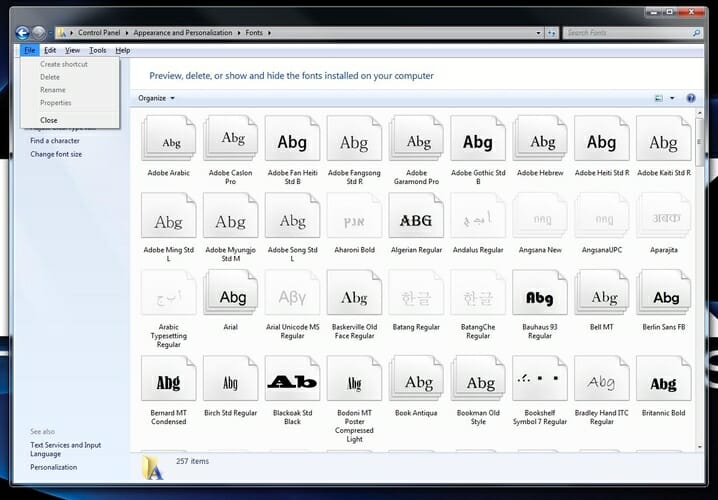
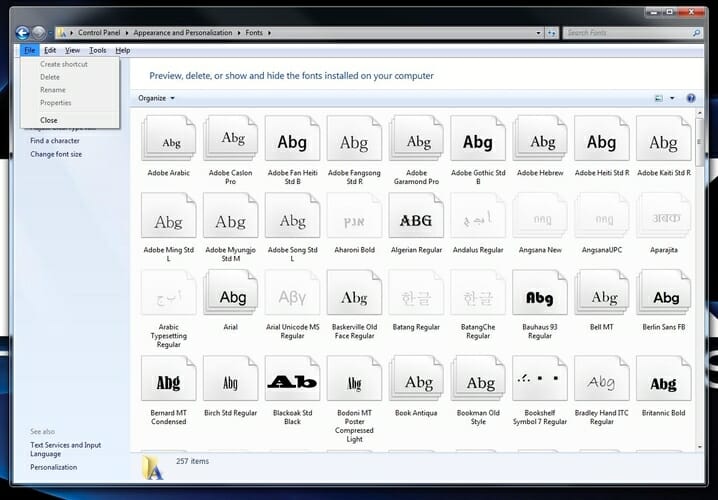
If you’re looking for Windows 10 free fonts, your visit will be worth it. No matter if you’re working as a typographer, graphic designer, or just want to use different fonts for your at-home project, you will need to use a large number of fonts.

Dealing with a large number of fonts can be tricky even for the most organized of you. To simplify this entire process, it is recommended that you use free font manager software.

Font manager software allows you to manage every aspect of dealing with fonts on your PC.

A good manager allows you to see a good overview of the available font options, allows you to preview the style before applying.

Beyond this, a font manager software will automatically activate only the fonts required for the task at hand. This allows your PC’s memory to not be overloaded with useless data, making your PC run more efficiently.

Added to these features, a font manager also scans your hard-drive for any corrupted fonts and attempts to fix them. If the fixing process is not possible, the fonts will be removed.

In today’s article, we will explore some of the best free font managers for Windows 10. Please read on for more information.

What’s the best Windows 10 font software?

Adobe Fonts

try out Adobe Fonts

Have you heard of Adobe Fonts? There is no other font manager software that offers you not only literally thousands of fonts to pick from, but also quick and easy ways to manage them.

Adding and changing fonts on your website shouldn’t be a daunting task when using Adobe Fonts.

This time, all it takes is a few easy steps, so start a search by name if you’re sure that you know what you want.

You may also use the intuitive filters to sort by properties, classification, or language. Then, all you need to do is to use the toggle when you’re ready to enjoy the desired font.

And as if all these weren’t convenient enough, keep in mind that signing in to Creative Cloud is all it takes for your active fonts to show up in your font menus.

Some Adobe Fonts key features that you’re likely to appreciate:

  • Only high-quality fonts are included, so use them with no hesitation if you’re serious about typography
  • Comprehensive tutorials on adding custom fonts to your website
  • High browser compatibility; use Adobe Fonts on mobile browsers and any browser that supports web fonts on macOS, Windows, and Chrome OS
  • All fonts are included with your Creative Cloud subscription, therefore you don’t need to worry about any extra charges
Adobe Fonts

Adobe Fonts

Thousands of fonts are at your disposal in one of the richest fonts library available in a digital tool.
Free trialVisit website

Nexus Font

Nexus Font is our top pick of font manager software options available in 2019 for Windows 10.

This software allows you to access an enormous database of customizable fonts, and only downloads the fonts you chose.

Not downloading the entire fonts database allows your computer to not get clogged with useless files.

You can use this tool to manage the number of fonts, search for specific styles, compare styles between them, and also automatically scans for any faulty fonts on your HDD.

⇒ Get Nexus Font

FontBase

FontBase is another great software option for getting access and using free fonts most efficiently.

The way this software works is very similar to our top pick, but the searching speed clocked under the performance of Nexus Font so that’s why FontBase is in third place in this list.

Here are some of the best features of FontBase:

  • It helps you organize your font folders.
  • Big database of different styles of fonts.
  • Fully compatible with Google fonts.
  • Font preview option.
  • Customization tools for fonts.

⇒ Get FontBase

Typograf

Typograph - Windows 10 free fonts

Compared to the two previously mentioned options, Typograf doesn’t have a very friendly user-interface, reminding us of older Windows XP software.

This doesn’t mean that Typograf is not worthy of the 3rd position. This software allows you to manage all aspects of your fonts.

Here are some of the best features found in Typograf:

  • Extremely low system impact.
  • Can customize font size, colors, details displayed, etc.
  • You can load, install, and manage fonts.
  • Great preview option to test out your font settings.
  • Font comparison feature.
  • Automatically identifies duplicates and lets you choose how it should deal with them.

⇒ Get Typograf

Font Viewer

As the name suggests, the Font Viewer allows you to organize your fonts by making it easier to see the entire range of information in one window.

Font Viewer only reached the 4th position in this list, as it doesn’t offer you the capability of loading a specific number of fonts and de-activate them after you’ve finished using them.

This software only helps you manage fonts that were already installed on your PC. You can also customize the fonts by changing the size, color, background color, and choose different styles.

You can download a large number of different style fonts from this Windows 10 forum post.

⇒ Get Font Viewer

Advanced Font Viewer

Advanced Font Viewer - Windows 10 free fonts

As in the case of Font Viewer, the Advanced Font Viewer allows you to view, print, and also manage your fonts.

This software only works with fonts that are installed on your PC. Here are some of the most notable features:

  • Can view all installed fonts in one window.
  • You can get access to previously uninstalled fonts.
  • It allows you to uninstall fonts directly from the software.
  • Automatically organizes your fonts collection.

⇒ Get Advanced Font Viewer

Please feel free to let us know if this guide helped you choose the best free font software to use on your Windows 10 PC. You can do so by using the comment section below.

Hands-on review of Amazon Luna: A Google Stadia-like service that could be a threat to Microsoft’s own Xbox Cloud gaming?

These days, there’s no shortage of cloud game streaming platforms. It’s often more convenient and less expensive to stream games over the internet for a fixed monthly price than it is to buy a dedicated gaming PC or a gaming console. Call it the new era of the “Netflix for gaming” if you may.

Over the years, we’ve seen Microsoft enter this emerging market with Xbox Cloud Gaming (code named Project xCloud,) Google with Stadia, Nvidia with GeForce Now, and Sony with PlayStation Now. But don’t forget Amazon.

Recently, the online retail giant started testing its own cloud gaming service, known as Luna. The service is still in beta, though, and only select users were invited to check it out. I happen to be one of the bunch of people who were selected, and after trying both Microsoft’s Xbox Cloud gaming as well as Google Stadia, I wondered, does Amazon does the game streaming best?

The requirements and the price

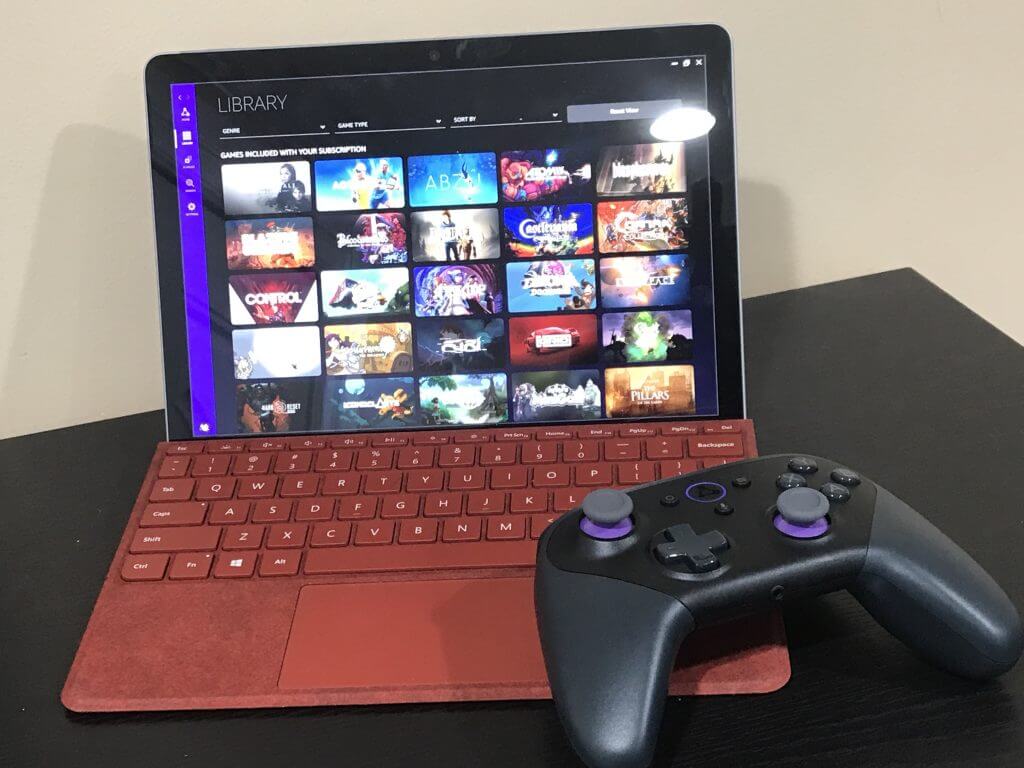
Img 3121

To begin, I’ll look at some of the obvious things for those that are curious: the streaming requirements and the price. According to Amazon, to use Luna, it’s suggested that you have an internet connection with a speed of at least 10 Mbps for 1080p video quality.

It’s suggested to use a wireless router with both 2.4 GHz and 5 GHz bands, though 5 GHz is best. This isn’t too surprising, as other game streaming services have the same requirements. I surpass both these, with my Verizon Fios connection that offers speeds of up to 100 Mbps.

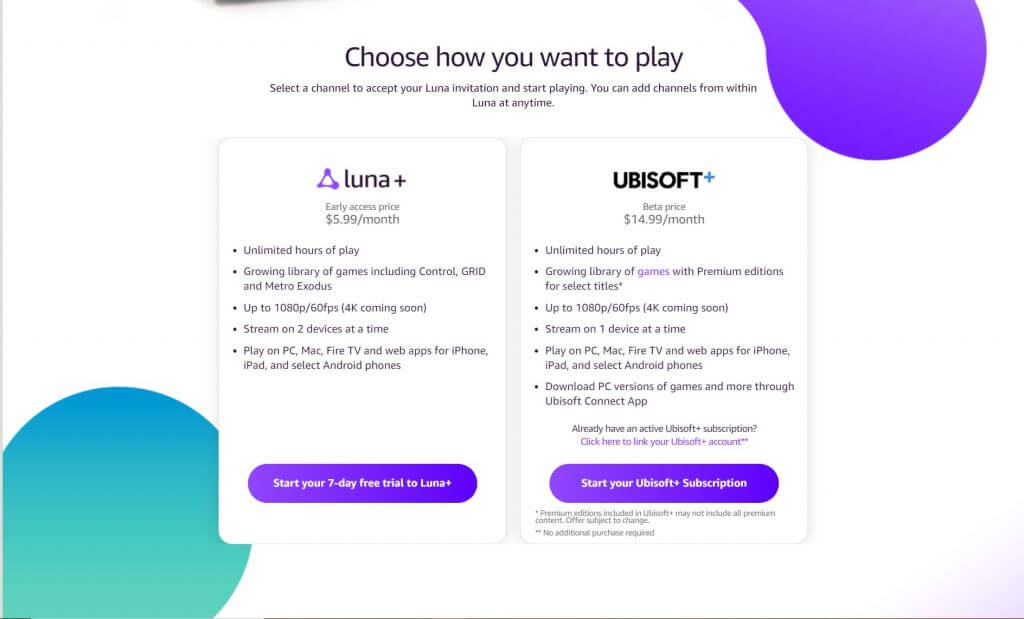
Now, for the pricing. Currently, Luna is in a beta phase, so the pricing can be subject to change. However, there are two ways or “channels” that you can go. You can choose Luna+, which is from Amazon for $6.00 a month, or you can add the optional Ubisoft+ plan for $15 a month, which gives you access to hit-titles like Assassins Creed or Watch Dogs. Ubisoft+ is completely optional, though, and you can add it later if you want. With both together, you’ll be paying about $21 a month for Luna, but you can choose Luna+ only if you want for the cheaper route of $6 a month.

Luna Again

You can see some of the differences in pricing and what the two plans offer in the graphic above. With Luna+ games, you can stream in 2 devices at a time, however, with Ubisoft+ you’re limited to just 1 device at a time. Both ways to play also have a 1080p resolution at the time, as 4K is still coming soon.

Luna+ has access to a great library of games. You can check the full list here. There’s a total of 76 games, ranging from hit titles like Grid, Control, as well as Metro Exodus. That’s also including the ones from Ubisoft+, too. Titles in Luna are always changing though, just like any other streaming service. I’ll have a more in-depth look at that later when I compare it to Xbox Game Pass.

The apps and the availability

Amazon Luna App

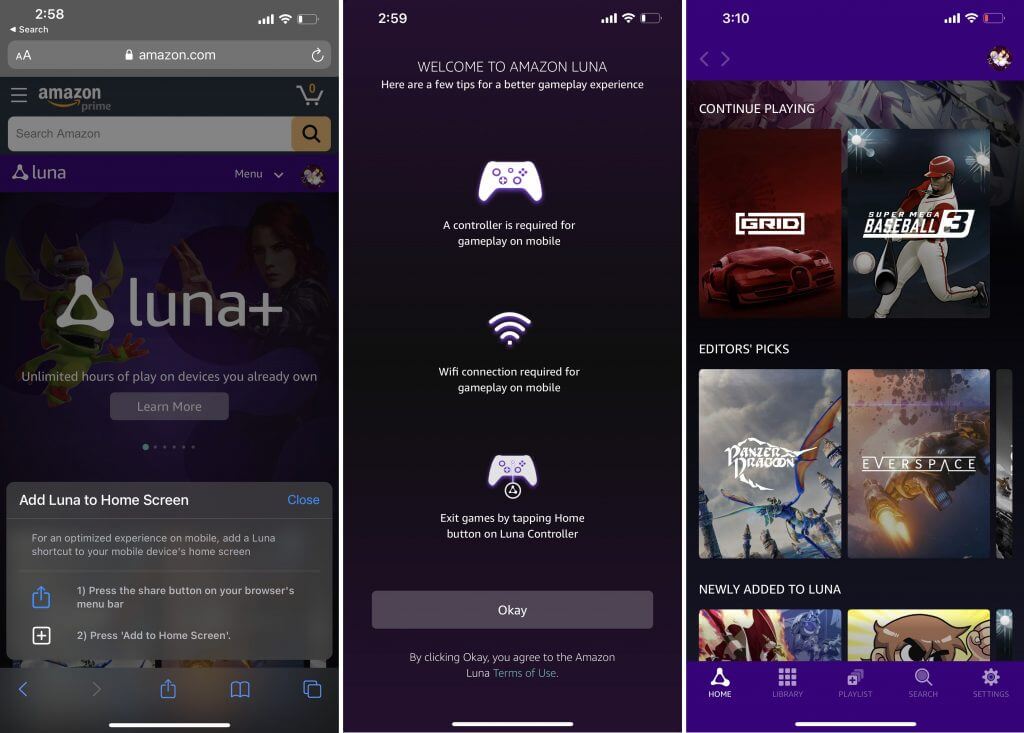
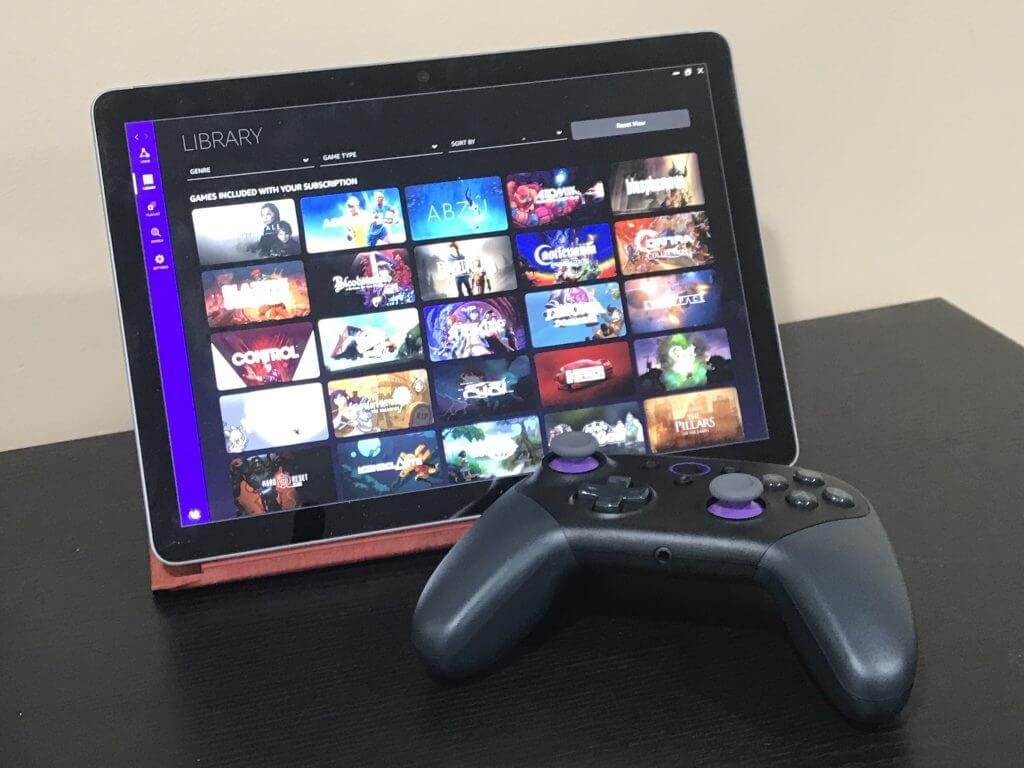
The biggest value with Amazon’s Luna is the availability across different platforms. You can download it as an app on Windows 10, MacOS, FireTV, and select Android phones. On iOS devices, meanwhile, you can play via the web in Safari, and create a shortcut to make a Luna “app” on your home screen. You even can access Luna on any PC you own via the web, as long as you use Chrome (Edge isn’t currently supported).

That said, one of the things that impressed me the most with Luna is the way it looks and feels on an iPhone. Though it’s being accessed via Safari, Luna behaves the same way it would as if were a dedicated app. There’s no lag, no refreshes, and no problems with games loading as I thought there would be with what comes with gaming from a webpage. This is especially true with the use of the Amazon Luna controller, which I’ll get into next.

The controller and the experience

Like Google has done with Stadia, Amazon sells an optional $50 controller for Luna that you can purchase if you’ve been selected for the beta. You can use any controller you want, though, and you’re not limited to just Amazon’s. Xbox One controllers, PlayStation 4 controllers, and even standard keyboard and mouse input are supported in Amazon Luna.

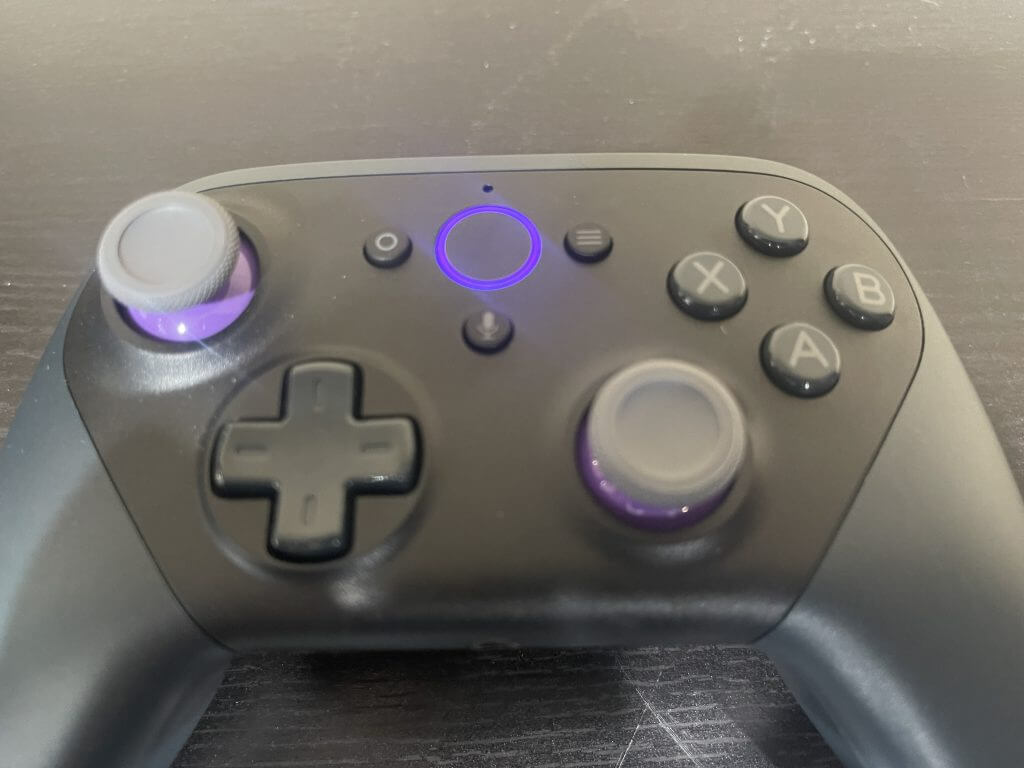
But there’s a special sauce here. According to Amazon, the Luna controller is able to use a “Cloud Direct Technology” that connects the controller directly to Amazon’s game servers when playing on Luna. The connection to the controller happens by pairing it via WiFi (or even a hotspot if you have one,) and it can reduce latency by 17 to 30 milliseconds, versus using a local Bluetooth Controller. This also allows you to pick up games and start playing across different devices like iPhone and PC without having to constantly re-pair the controller. Of course, it does also connect with Bluetooth, too, sans the Cloud Direct stuff, allowing you to play on a 5G or 4G connection on mobile.

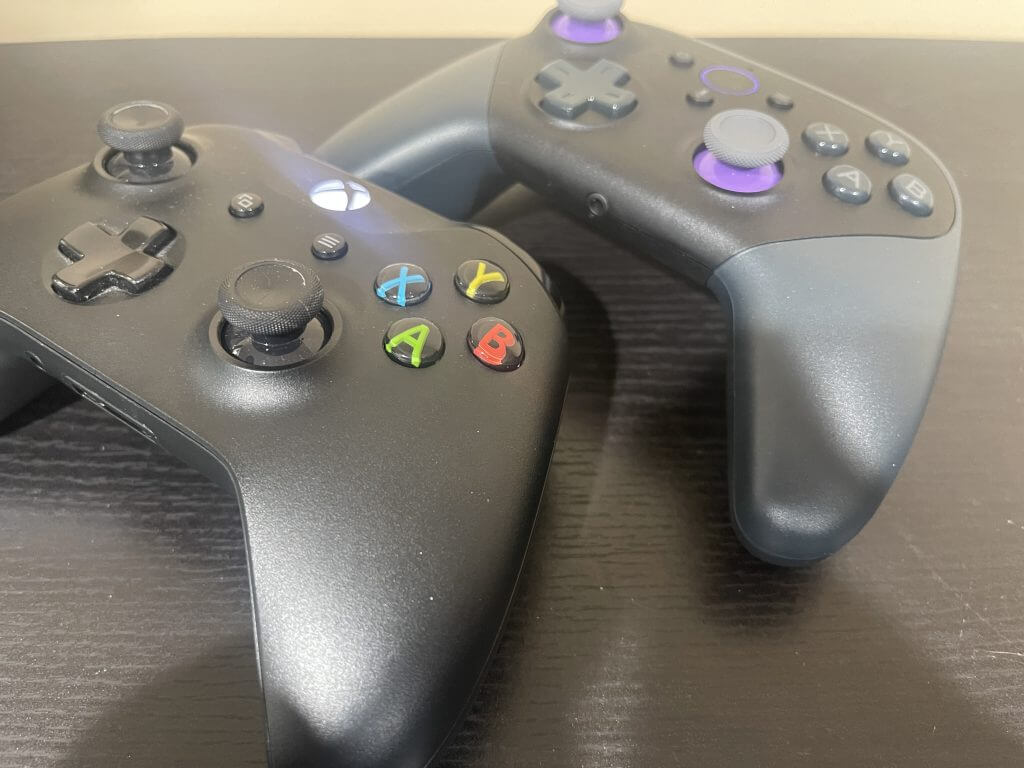
The controller looks and feels like a Nintendo Switch Pro Controller or the Xbox One Controller. It has a USB-C port for wired connections (if you want the best lag-free experience) as well as a headphone jack on the bottom for gaming with headphones. Note that there’s a purple accent on the controller’s analog stick, and a purple LED in the home button, which I think is a nice nod to Twitch.

Amazon Luna Contoller On Pc

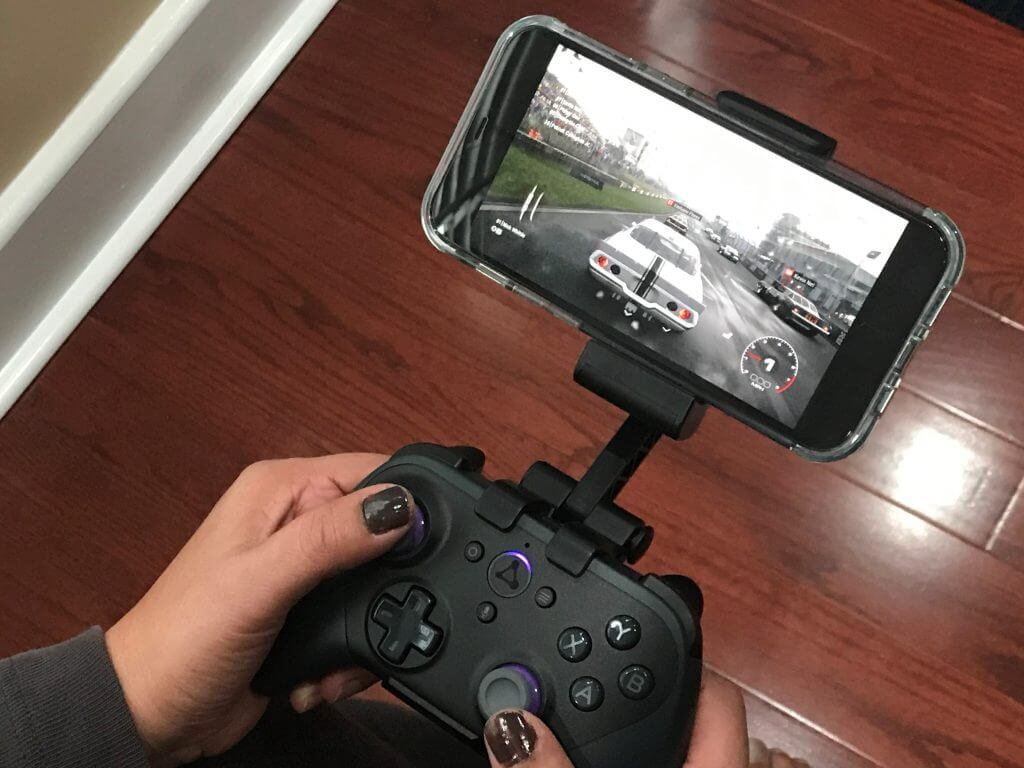
Anyway, in terms of streaming quality and experience, I was quite impressed. Despite my router being upstairs in my room, and me sitting in my living room on my sofa, I was able to stay connected and play Amazon Luna without any lag. I played several different games on Luna — Grid, Control, AO Tennis 2, and Sonic Mania Plus. All of these games played without any latency and loaded within five seconds of me opening the title from the launch screen.

I was especially pleased with the way Grid played with the Luna Controller, especially since racing games require precision control. Any delay in controller input can be disastrous on the race track. I didn’t notice any perceivable lag when making turns on the analog stick using the Luna Controller.

However, when switching to my Xbox One controller, or switching Luna Controller over to Bluetooth mode, there was just a tiny delay, resulting in one race where I miscalculated a turn and wrecked. You can’t really blame Amazon here, though. When using a standard Bluetooth connection, the device Luna is running on needs to do the computing, and send your Bluetooth signal and controller input directly over the internet, to the server. The Luna controller cuts that out by sending your inputs directly over the internet.

Amazon Luna Grid Game

I also ended up playing Watch Dogs Legion via Ubisoft+ to see how Luna can handle a more demanding title. Visually, the graphics stayed sharp and smooth, without dropping out or becoming blurry. I didn’t see any input lag when playing on my iPhone, but when I switched over to my Surface, there was a tiny bit of lag, especially when driving a car around London. Generally speaking, though, Luna is very responsive and quite impressive.

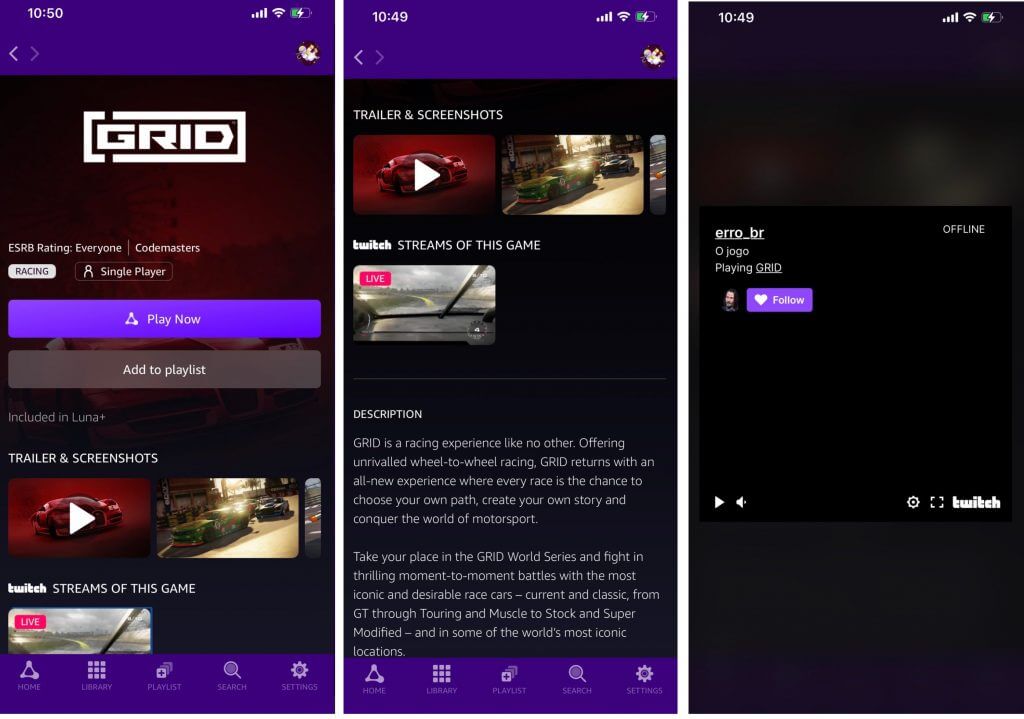
Interestingly enough, Amazon has also found a way to include Twitch streams into Luna, too. When you go to play a game, you’ll see streams of people playing the same title, though from other platforms like Xbox, and not directly from Luna. It is important to note there is currently no way to stream your own game on Luna to Twitch, in the same way you could stream your game on Google Stadia to YouTube.

Twitch Strewaming

A final note for this section comes in terms of the games on Luna. Games seen on Luna+ aren’t ones you can physically buy to own. They’re in the catalog for free as long as Amazon keeps them there. That differs from Stadia Pro, where you can purchase some games to own them, in addition to playing them with Google Stadia Pro for $10 a month.

Luna vs Microsoft’s Xbox Cloud Gaming

With the premise of Luna explained, it’s time for the inevitable comparison with Microsoft’s Xbox Cloud Gaming. On this front, Luna really destroys Xbox Cloud Gaming when it comes to latency, loading times, platforms, and a lot more. Let’s dive deeper, shall we?

The first thing to discuss here is the loading times and latency. As Microsoft is streaming games to Xbox Cloud Gaming users with Xbox One S units plugged into server blades, there’s a lot of long wait and loading times to deal with. This is never a problem with Luna, where the games are stored on PCs connected to Amazon’s servers. Luna games load in an instant, even intense and graphically demanding titles like Control.

Xbox Cloud Gaming only works with an Xbox Controller in most games. It also doesn’t support touch or keyboard and mouse as Luna games do. Only 22 games support touch as of this writing, which is quite a shame, as a majority of Luna games already sport support for it.

What makes that worse, though, is that Xbox Cloud Gaming also only works with an Xbox controller, which isn’t as easy to pick up and pair between different devices as the Luna controller is. We’re still waiting for the promised update which makes it possible to pair the Xbox One Series X controller with multiple devices.

Then, there are the platforms. For some odd reason, Microsoft hasn’t yet launched Xbox Cloud Gaming on Windows PCs or the web. Despite having over 1 billion Windows 10 devices in the wild, Xbox Cloud Gaming is exclusive to Android for now. It’s rumored that Microsoft is working on a web version of it, but we have yet to see it in reality. Anyway, Luna destroys Microsoft in this part, as it’s available on all the major platforms, and any computer via the web with Chrome (though only select Android phones for now.)

Finally, we’ll talk about the price and gaming aspects. There’s no doubt that Game Pass is successful for Microsoft right now. It has over 18 million subscribers, but Xbox Cloud Gaming is only included with the premium-tier Xbox Game Pass Ultimate for the price of $15 a month. However, it also lets you play online, with friends, which Amazon Luna currently lacks.

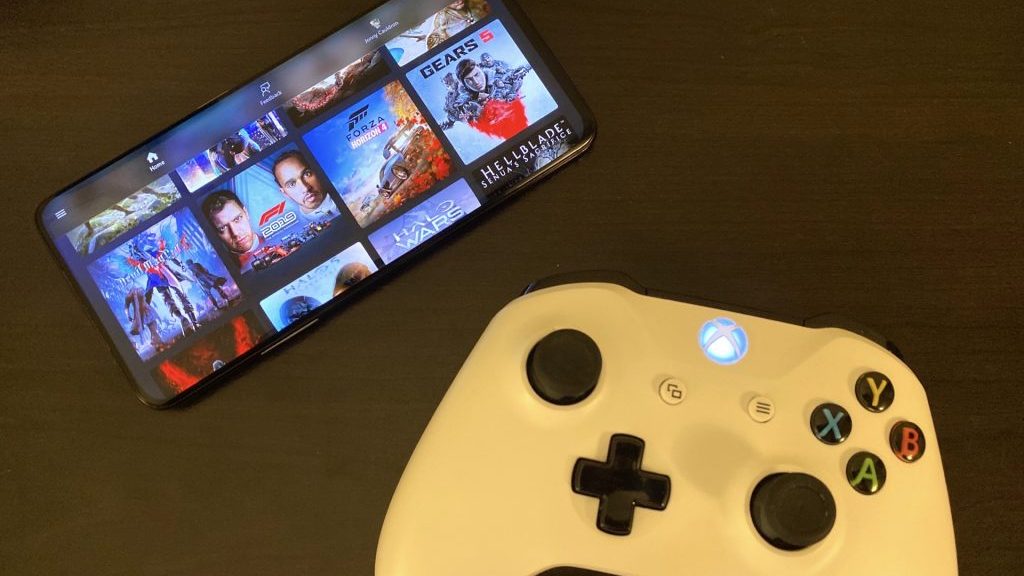
That price is a bit more expensive than Luna’s base $5 plan, but it includes access to a lot more games, too. You get Halo, Forza, Minecraft, and Gears of War and a lot of titles usually reserved for Xbox consoles.

Including the Ubisoft+ subscription ($26 total) for access to hit-titles like Watch Dogs, Luna is more expensive than Game Pass for sure, but it’s also available on more platforms. But, at the same time, Game Streaming lets you access your Xbox remotely and play any Xbox game, anywhere.

Still. after using Luna, I think if Microsoft wants Cloud Streaming to be more successful, it needs to bring it to more platforms, and consider including it with the base Game Pass tier as well ( $10 a month.)

Luna vs Google Stadia

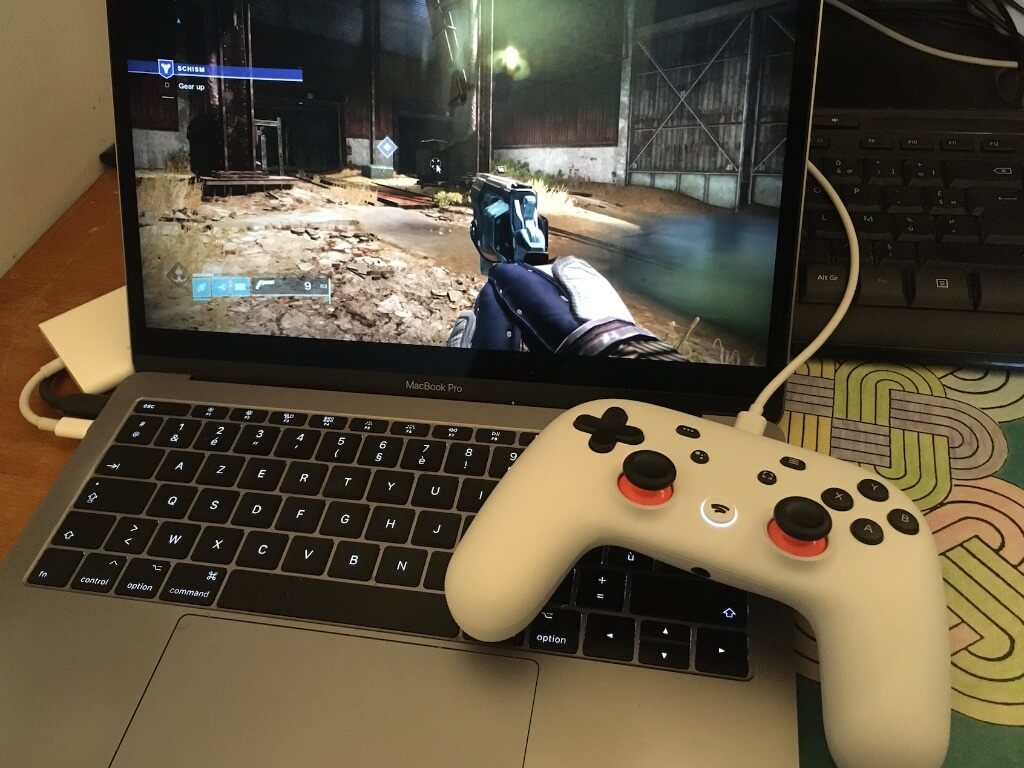
Google Stadia Controller Connected To Macbook Pro

Finally, I want to touch on Google Stadia, too. While Xbox Cloud Gaming is only on Android for now, and Luna on all platforms so is Google Stadia. To me, Stadia is just like Amazon Luna, or vice versa. It again defeats Microsoft’s Cloud Streaming in a couple of ways.

I’ll start first with the server blades. Like Luna, Stadia games are also stored on PCs. However, Luna games are Windows PCs, whereas Stadia Games are Linux, meaning it’s a bit harder for developers to port their games over. Still, it means quicker loading times over Xbox Cloud Gaming.

Stadia also has multiplayer aspects and the social aspect of being able to play games with friends or stream on YouTube which Luna lacks.

To compare Luna and Stadia, I played Watch Dogs Legion on Ubisoft+. The difference was almost impossible for me to distinguish in both cases. It felt like I was playing the game natively on my phone. Google and Amazon really are working their server magic here.

Finally, Stadia also has the upper hand over both Luna and Game Streaming, as supports 4K HDR gaming though supported displays with a Pro subscription. Amazon says this is coming soon to Luna, but for now, 1080p is the maximum.

Stadia Pro also has an attractive price of $10 per month. That’s cheaper than Microsoft’s Xbox Game Pass Ultimate for Game Streaming but more expensive than Luna. Moreover, you only get a couple of free Stadia games every month, similar to Xbox Live Gold and PlayStation Plus.

Lessons for Microsoft to learn

I began this piece by mentioning that playing games via the cloud is less expensive than owning a console. This is something Microsoft could learn from. It also is something that Google already gets as Stadia offers users the chance to buy a game, and then stream it on any device they own. Amazon, is also on the way there, too, with access to Ubisoft+ on Luna, letting you play Ubisoft games on any device you own or have Luna on.

So, if Microsoft wants Xbox Cloud Gaming to be more successful, then they could do the same, and some more. First off, Microsoft needs to replace Xbox One S consoles with the new, faster, Series X consoles in the server blades, so Xbox Cloud Gaming can be more responsive. This is already in the works, but another change comes to what Google has done with Stadia. The core price of Xbox Cloud Streaming could be dropped, too (or even eliminated), and gamers should have the chance to buy any Xbox title and stream them to their phones (and tablets, and Windows.) Rumor has it that this is being considered, too.

It is true that you can already stream your entire Xbox console over the internet with Remote Play but there could be brighter days ahead. Being able to buy an Xbox Game, play it on the console or the cloud without the need for a console would be great, as it brings Xbox to more places. There’s already “Xbox Play Anywhere” for playing Xbox games you own on PC, but Microsoft has a lot of work to do on both the cloud streaming technology, as well as the way it markets Xbox Cloud Gaming to users.

Open WMV files using these 6 software solutions

A WMV file or Windows Media Video file is a video compression format consisting of three distinct video codecs: the original video compressional known as WMV, WMV screen and WMV image.

The WMV was originally intended for Internet streaming apps or selling video content online via HD Blu-ray discs and DVDs, while the other two are for specialized content.

Most movies found online are in the .wmv format. It allows large files to be easily converted to smaller ones while maintaining and protecting the video quality in the file.

It can also be converted to other formats where necessary, but this is likely to compromise the quality of the picture.

If you’ve used different versions of Windows, you’ve probably noticed that they have Windows Media Player or Movies & TV pre-installed.

However, there are numerous cases in which the Windows Media Player will not perform as intended. So, it’s only natural to ask how to play WMV files on Windows 10?

Well, if you’re looking for a good WMV player for Windows 10, you’re in luck – we have compiled a list of the very best tools available for the jos.

Wihtout further ado, here’s how to open WMV file on your PC.

How do I open a .wmv file in Windows 10?

Adobe Premiere Pro

Adobe Premiere Pro should be the go-to software tool when it comes to opening video files.

Not only will this tool let you open and view the file, but you can also use it to edit and convert it as well.

Speaking of which, if you still have problems opening WMV files, but think using Adobe Premiere Pro as a simple viewer is overkill.

You can always use it to convert the file into a format that your PC can handle, such as MP4, AVI or MKV.

The best part is that this program can now be tested for free for a 7-day period, so make sure to take advantage of the offer while it still lasts.

Adobe Premiere Pro

Adobe Premiere Pro

Open any extension, any video format – there is no file to stubborn for the almighty Premiere Pro!
Free trialVisit website

FileViewer Plus

Many players may give you headaches while opening a .wmv file because of minor incompatibilities with your Windows OS.

We strongly recommend you to choose the safe way and to open it with a universal file viewer – FileViewer Plus.

This tool is designed to open and convert in over 30 video formats but it also supports 270 other file formats.

You will have the possibility to open and watch .wmv files whithout any problems and you also will have a tool for different text and image file formats so you can open and edit them.

⇒ Download now FileViewer Plus 3


VLC Media Player

This is a free and open-source cross-platform multimedia player that supports most multimedia files including DVDs, audio CDs, and VCDs as well as other various streaming protocols.

It is simple, fast, and powerful and it plays everything.

The VLC Media Player plays most codecs without codec packs including WMV files. It runs on all operating systems, and is completely free with no spyware, no ads and no user tracking.

⇒ Get VLC Player


KMPlayer

This player can cover different types of formats without a separate codec, so you can play any media files because it has its own internal codec, which makes it faster and safer.

You can have full control over your videos with the zoom and pan function, make use of the enhanced search option and even customize the subtitles in points of size, color, and position.

⇒ Get KMPlayer


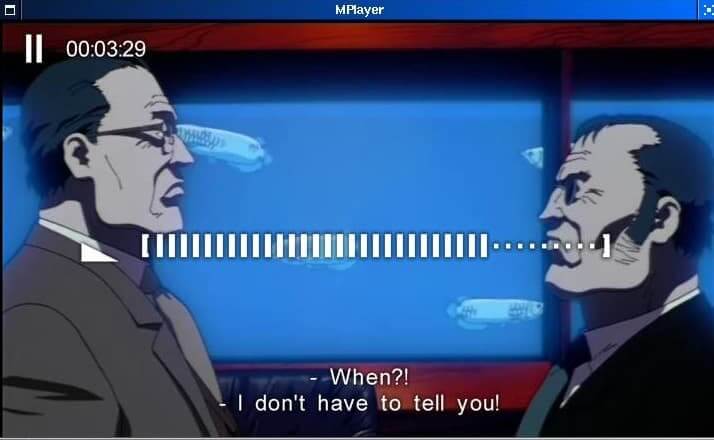
MPlayer

MPlayer

This is a free and open media player software available for all major operating systems, including Windows.

It supplies the binary builds of MPlayer and MEncoder for Windows, plus it is easy to use and lightweight, with a clean interface that runs every video file you want.

It supports popular files such as .wmv, AVI, MPEG, WMA, OGG, OGM, and MP4 among many others.

⇒ Get MPlayer


DivX Player

How to open WMV file in Windows 10

This is a free download that lets you enjoy high-quality digital videos on your computer, but also has a converter, player, web player, and other components.

Besides, there is a vast array of plug-ins available for you to sync videos from Google Drive and Dropbox.

You can access your videos from the cloud and convert them to a different profile using the DivX converter.

⇒ Get DivX player


If you still cannot open the .wmv file after using any of these players, you are probably not playing a .wmv file.

In this case, you can use a file converter to convert the .wmv file for free by downloading and installing a file converter then loading the file and choose to convert it to a different video format like MP4 or AVI and 3GP, among others.

Do you have a particular method of opening .wmv files in Windows 10 that you use? Let us know by leaving your comment in the section below.


Font Generator Software: 7 Cool Fonts for Windows

There are lots of fonts out there for you to choose from but sometimes you may want to create your own font to match precisely your ideas.

You may want to design your own unique font for your business’ logo, or you may have a particular font design in mind, and you concluded that you have to create your own lettering to obtain what you want.

There are lots of both paid and free font generating tools, and we picked the best options for you. Check out their features and eventually decide on the one that seems to suit your needs best.


What are the best font making tools?

Adobe Illustrator

If you’re looking for a limitless tool to create impressive fonts with, or simply put, the best font design software, look no further than Adobe Illustrator.

This product packs a plethora of ready-made fonts included in the Creative Cloud subscription. You can use them in your projects to draw your audience’s attention.

There are literally thousands of fonts that users can choose from. At the same time, you can also create your own fonts if you don’t like the fonts from the font library.

Designing your own fonts in Illustrator is as simple as a walk in the park thanks to the intuitive UI. If you’re curious to see what kind of fonts you can create with Illustrator, install it on your computer.

How to create custom fonts in Adobe Illustrator

  1. Start by writing some words in Illustrator or import handwriting samples.
  2. Use the Image Trace tool to turn the handwriting sample into a vector that you can then edit. Change the letter shape, size, orientation, and so on.
  3. Use third-party plug-ins to export the custom fonts and use them in your projects.
Adobe Illustrator

Adobe Illustrator

Although used mainly for photo editing, Adobe Illustrator is also great at generating fonts if used properly
Free trialVisit website

Webfont Generator

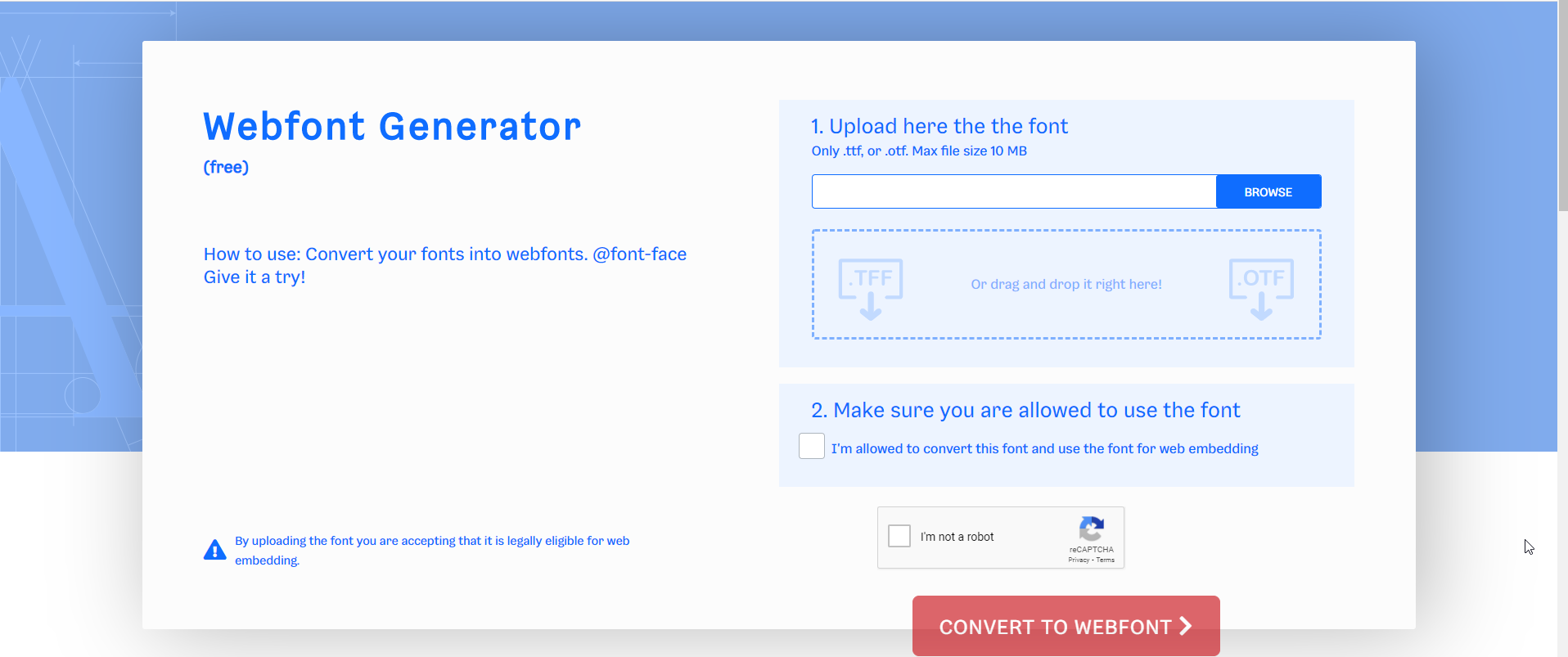
If you’re interested in creating a website, then you’ll need to make use of web fonts, since regular fonts won’t cut it.

This is because a Webfont is a specially tuned font for use on websites using the CSS @font-face declaration and, depending on your need, they will be one of 4 file formats: a TrueType file, a WOFF file, an EOT file, and an SVG file.

Well, if all you have at hand are regular fonts, then you can make use of Webfont Generator, a completely free service brought to you by WhatFontIs.

This web service will simply turn any font file that you upload into a compatible Webfont, nothing less and nothing more.

⇒ Try Webfont Generator


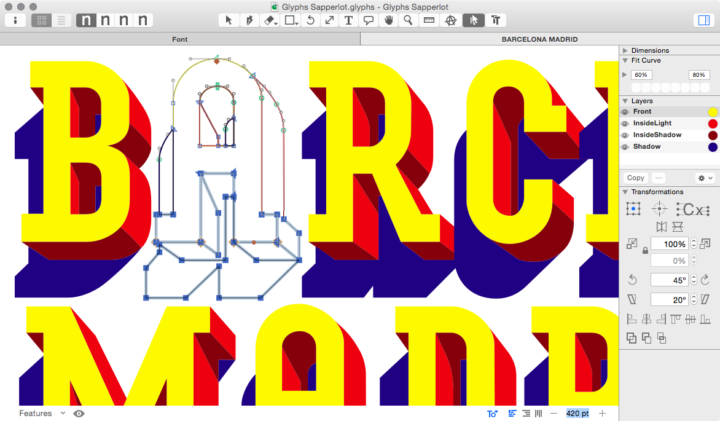
Glyphs

Using Glyphs, you can create everything starting form dingbat web fonts to full-fledged text typefaces.

You can sketch your font by only sketching a few letters, and after using a few tricks, you will be able to digitalize them easily.

This program also covers all languages, and it comes with smart component placement, automatic alignment of diacritics, mark positioning and Unicode 7 support.

Take a look at the main features that are included in this font making software:

  • The smart vector tools are optimized for the design of typefaces
  • Glyphs comes with interpolated nudging, curvature control, dragging multiple handles at once, adding inflections, batch editing and more
  • This software is the best choice for multilingual font development
  • You can watch your words take shape in high resolution
  • You will be able to use a text editor
  • This program offers you the ability to add colors to your fonts with the built-in multilayer preview and specialized editing tools
  • With Glyphs, you are able to enjoy automatic OpenType features such as code for ligatures, figure sets, positional forms, fractions, localizations and more

⇒ Try Glyph


Birdfont

Birdfont is a free font editor that allows you to create vector graphics and export EOT, TTF, and SVG fonts.

Birdfont also includes a new freehand tool, and you will be able to rotate objects and point handles with 45-degree steps. In addition, the program works with high-resolution screens.

The software has a wide variety of feature at your disposal, all packed in a minimalist and intuitive interface that is easy to understand, even if you’re a beginner.

Take a look at the most important features that are included in this program:

  • You can change the writing direction from right to left
  • The software includes stylistic alternates and small caps as well
  • Birdfont offers high speed for font exporting and faster search queries in the Unicode Data Base
  • You can use bright and dark color themes as well, and you will also be able to use a toolbox for the most recent file tabs
  • The program comes with customizable color themes and great icons
  • You will get high contrast settings for enhanced readability

⇒ Download Birdfont


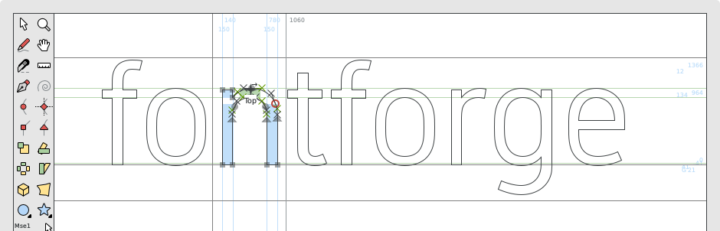
FontForge

FontForge is a free font editor for your desktop, and you can install it on your Windows computer effortlessly, without being charged any money.

This software supports various font file types and formats such as TrueType, PostScript, OpenType, and more, making it versatile and compatible.

Moreover, if you visit their official website, you will find a starter guide that will teach you the basics needed to start creating your own cool fonts. The guide is really comprehensive and easy to read.

Check out the main features that are included in this software:

  • You will be able to create your own fonts from scratch, and you can also modify an existing font file
  • This program can handle various font file types such as TrueType, PostScript, OpenType and more
  • The user interface of this software is easy to use even for beginners
  • To get started, you are advised to read the steps to create a font tutorial on the FontForge website
  • You can ask a question on the mailing list if you get stuck and the documentation does not offer a solution for your problem
  • This is a free and open-source font editor that is brought to users by a community of type lovers; if you want to help, you can join the developer list

⇒ Download FontForge


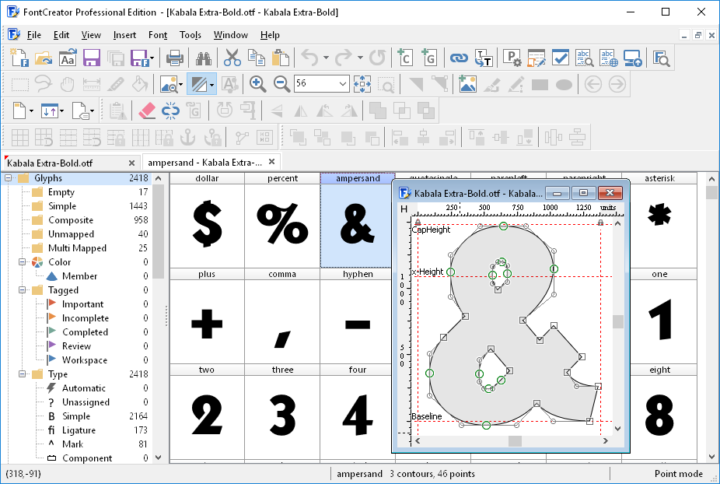
FontCreator

This is one of the world’s most famous font editors, and until now it has more than 4.5 million downloads. It includes an advanced feature set that makes this program the best tool for professionals.

Its intuitive and easy-to-use interface makes it also great for beginners as well. The software has lots of versions for different price ranges, so you can choose according to what features you want.

Moreover, the program allows you to design high-quality fonts and both the standard and the professional editions include font validation features.

Both the standard and the professional edition of the program include a powerful transform wizard that allows you to transform glyphs with only a few clicks

Take a look at the most impressive features that are packed in FontCreator:

  • You can create your own fonts and also redesign existing characters
  • You will be able to add kerning and edit advanced OpenType layout features
  • When you create a font, the program will display an overview of all available characters
  • You will also be able to add missing characters and modify their appearance
  • You can also import scanned images of your company logo or your signature
  • You can make a font from your own handwriting as well
  • With FontCreator you will be able to fix character code-points, font names, kerning pairs, and more
  • You can preview your typefaces before installing
  • This professional font editor supports both cubic-based contours and quadratic ones as well
  • You can optimize glyph outlines, and this will reduce the number of points that make up the contour
  • The validation features will help users locate and fix potential outline problems

FontCreator is a true native font editor, and this means that you will not need to install or buy any third-party tools or extensions to use the program.

⇒ Download FontCreator


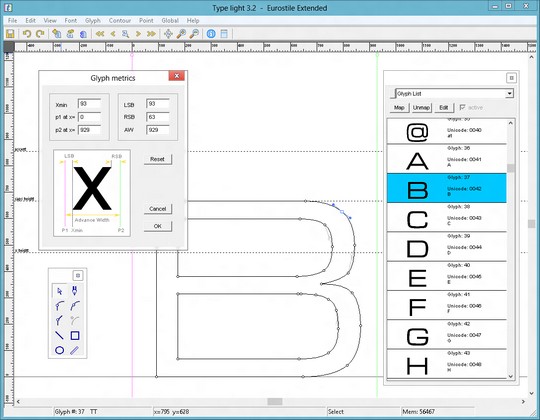
Type light

This is an entirely functional freeware OpenType font creator program. With its help, you will be able to design, edit and also convert OpenType TrueType and PostScripts fonts.

This will turn out to be your ideal package for entering the world of creating amazing fonts. Moreover, the software is free so you don’t need to pay a dime for its services.

Take a look at this program’s essential features:

  • This tool is free and limited for personal and commercial use
  • You can open, save, and convert .otf and .ttf fonts
  • You will be able to enter basic and advanced font names in Unicode
  • With this software, you can enter all font metrics and the necessary description parameters
  • Type light allows you to create and edit fonts with more than 65,000 glyphs
  • You will be able to map all Unicode characters

There is also available the Type 3.2 full version which is a paid program, but it includes much more features than this light version. You can check out both of their feature sets and download the one that you like best.

⇒ Download Type light


These are some of the best font creating programs that you will be able to find out there. They all come with great sets of features, and they are compatible with Windows computers.

Head to their official websites to find out more about their functionalities and choose the one that you prefer the most according to your needs.


8 Best Bulk Image Downloader Software [2026 Guide]

An image grabber would come in handy and a free image downloader will work as a charm, wouldn’t it?

Image downloader software provides an easy solution to download any number of pictures and videos from the internet.

In choosing the best image downloader, it is important to first define the scope or the number of target images.

Some image grabber tools can download hundreds of images with just a single click.

Others can only download one image at a time. A selected few can scan the internet for specific images using a keyword, and download a bulk of images from the target keyword.

How do I download pictures in bulk?

You can select Save Image to download your photos, but that would consume a lot of time if you have a bulk of images to download. So, you can perform this using a build image downloader tool.

In this article, we will introduce you to the best image downloader software for all occasions.

What’s the best image downloader software to get?

Adobe Stock – Most various image library

Utilizing stock photos may boost visual appeal and help you get noticed. In that regard, Adobe Stock comes in handy as it offers a large collection of high-quality photographs and visuals.

To be more precise, there are millions of royalty-free stock images, illustrations, graphics, vectors, templates, 3D assets, editorial assets, and more waiting to be enjoyed.

Therefore, that’s the number 1 source for high-quality premium content to enhance your upcoming projects.

Utilizing Adobe Stock for your website or business gets even easier as long as you can always review watermarked images inside your designs.

After doing so, nothing stops you from licensing and managing them directly within InDesign, Photoshop, and other Adobe apps.

Incredible Adobe Stock key features that you may enjoy:

  • High-quality visual content that satisfies the rising demand and saves you from the hassle of creating your own content
  • Topics: high-quality pictures and videos on self-care, business, seasonal feasts, and much more
  • Let yourself be inspired by famous contributors worldwide
  • Become a contributor so that others can admire your work and earn royalties with ease

Adobe Stock

High-quality, royalty-free imagery at your fingertips to boost your projects instantly!
Free trial Visit website

NeoDownloader – Suited for Instagram images

The interface of NeoDownloader

NeoDownloader provides a fast and convenient way of downloading files from the internet. It is capable of downloading thousands of your favorite photos, videos, MP3s, and any other file automatically.

Its simplicity of use is remarkable. Just specify a link and choose what you want, relax, and let NeoDownloader do the rest.

You can choose to download a single image, multiple galleries or even download an entire website.

In addition to the bulk downloading capabilities, NeoDownloader comes with a media viewer and a media player so you can view the files you want to download.

You can download the free version that has limited capabilities or buy the paid version with full capabilities.

⇒ Get NeoDownloader

Free Image Downloader – Different file types

The Free Image Downloader for Windows is another handy tool you can use to download your favorite photos online. Simplicity is the forte of this application.

No configurations are needed to get started. All you need to do is to specify a link and click on the download button.

Once downloading is complete, the application will create an HTML page and open the page containing all the downloaded images. The image downloader stores all the image files in the native file formats.

⇒ Get the Free Image Downloader for Windows

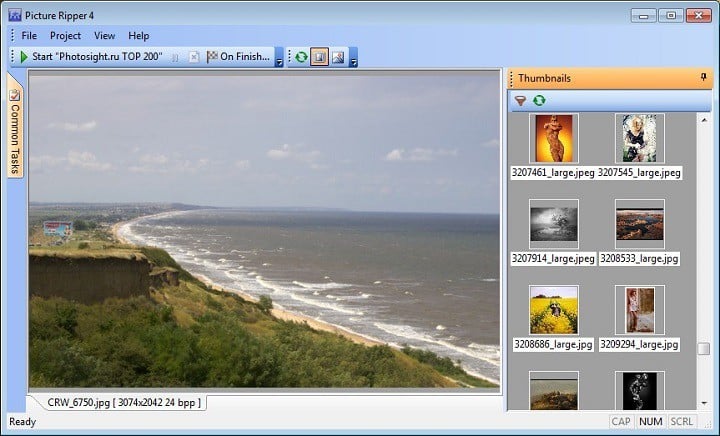
Picture Ripper – Web-based forms

Picture Ripper is a premium image downloader that was designed to help you download thousands of images and videos from any gallery site on the internet.

You can use it on popular image hosting sites, photo stock sites, online web pages, and thumbnail gallery sites.

In addition to that, the software can log in to sites using web-based forms as well as use basic authentication for password-protected sites.

Picture Ripper features a highly customizable crawler engine and uses a wealth of features including keyword filtering to give the best results.

⇒ Get Picture Ripper

Extreme Picture Finder – Different Windows versions

Extreme Picture Finder is a powerful image downloader software that you can use to download media from any site.

It allows you to download bulk images automatically and very fast. It doesn’t restrict you to images only. You can download videos, music, and any other file.

The application is also simple to use. Just enter the URL, choose what files to download and where to save them and the software will do the rest.

Moreover, you can configure the program to download media files from password-protected websites.

Interestingly, you can enter a keyword and the program will search and download thousands of pictures for you, just as the name suggests.

⇒ Get Extreme Picture Finder

Bulk Image Downloader – Image grabbing tool

Bulk Download Images (zig) is a simple, yet powerful Chrome extension that lets you download bulk images from websites.

After installation, simply browse to the website with the source images and click on the extension.

The program is flexible and can also be used to perform some minor edits.

You can filter the images based on type, size, and format. The program also lets you display the picture of the day as well as save the current tab.

What’s more, you can assign hotkeys to perform various functions, generate a slide show of the images, and perform a screen capture.

⇒ Get Bulk Download Images (zig)

Mihov Picture Downloader – Batch mode

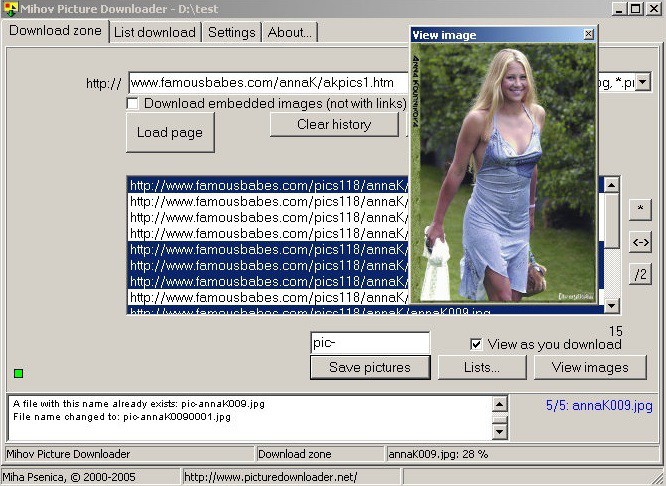
Mihov Picture Downloader is a simple and free software that can be used to download multiple images from websites. It’s easy to use and straightforward so you won’t need configurations or detailed procedures.

Simply enter the website’s URL, select your required image format, and click on the load page button.

The software scans the page you select and displays all the image files so you can download only the pictures you want.

Since the program is designed for downloading images in batch mode, you can download hundreds of images with a single click.

It can even download files from behind the firewall and from password-protected sites.

⇒ Get Mihov Picture Downloader

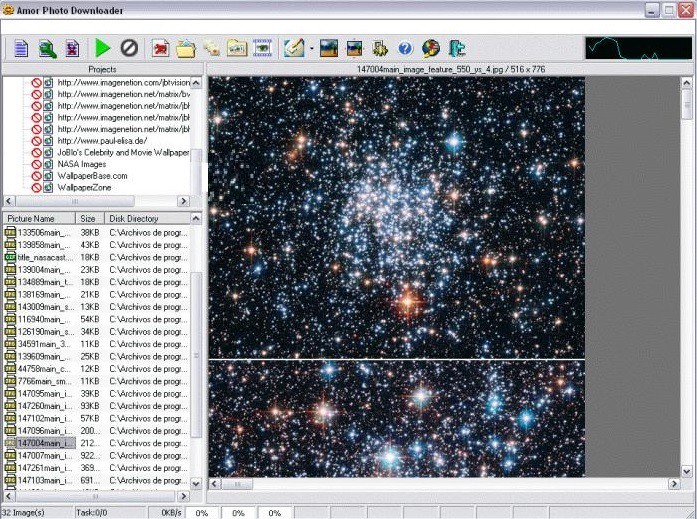
Amor Photo Downloader – Multiple platform availability

Amor Photo Downloader is a special tool that easily lets you download multiple images from any website.

This freeware makes it easy for you to download and present images from the web. Simply drag the URL of a page, drop it on the Drop Basket and this smart tool will scan it and download all the images to your PC.

You can even configure the app to scan the entire site and download only the images that you want.

To achieve this, the program utilizes a dozen of inbuilt tools, which include an image viewer, image preview, and image filtering tools.

The program also keeps selected URLs as projects so you can easily access them again in the future.

⇒ Get Amor Photo Downloader

Image downloader software provides an easy way to grab pics from any website.

Above we’ve listed for you the best free and paid programs for downloading images online.

Do you have a particular program you feel deserves a place on the list? Let us hear your thoughts in the comments section below.
12 Best Block Diagram Software for Windows [+Bonus Tool]

Block diagrams can help present a complex concept in an easy-to-grasp manner. Another reason block diagrams are so much in use is that they help track the flow of processes easily.

Also, a lot of information can be presented in a concise manner using block diagrams.

It’s not for nothing that block diagrams are the favored means for information presentations by a wide section of society ranging from students to industry representatives, the business community, and so on.

Things in fact have become even easier with the advent of block diagram software as those ensure even lengthy flowcharts are created in a jiffy.

You don’t have to have that artistic touch as well to create those perfect shapes as those are already pre-drawn.

You only have to insert it into your project on hand, besides of course filling those up with your own ideas.

What are the best software to create block diagrams on PC?

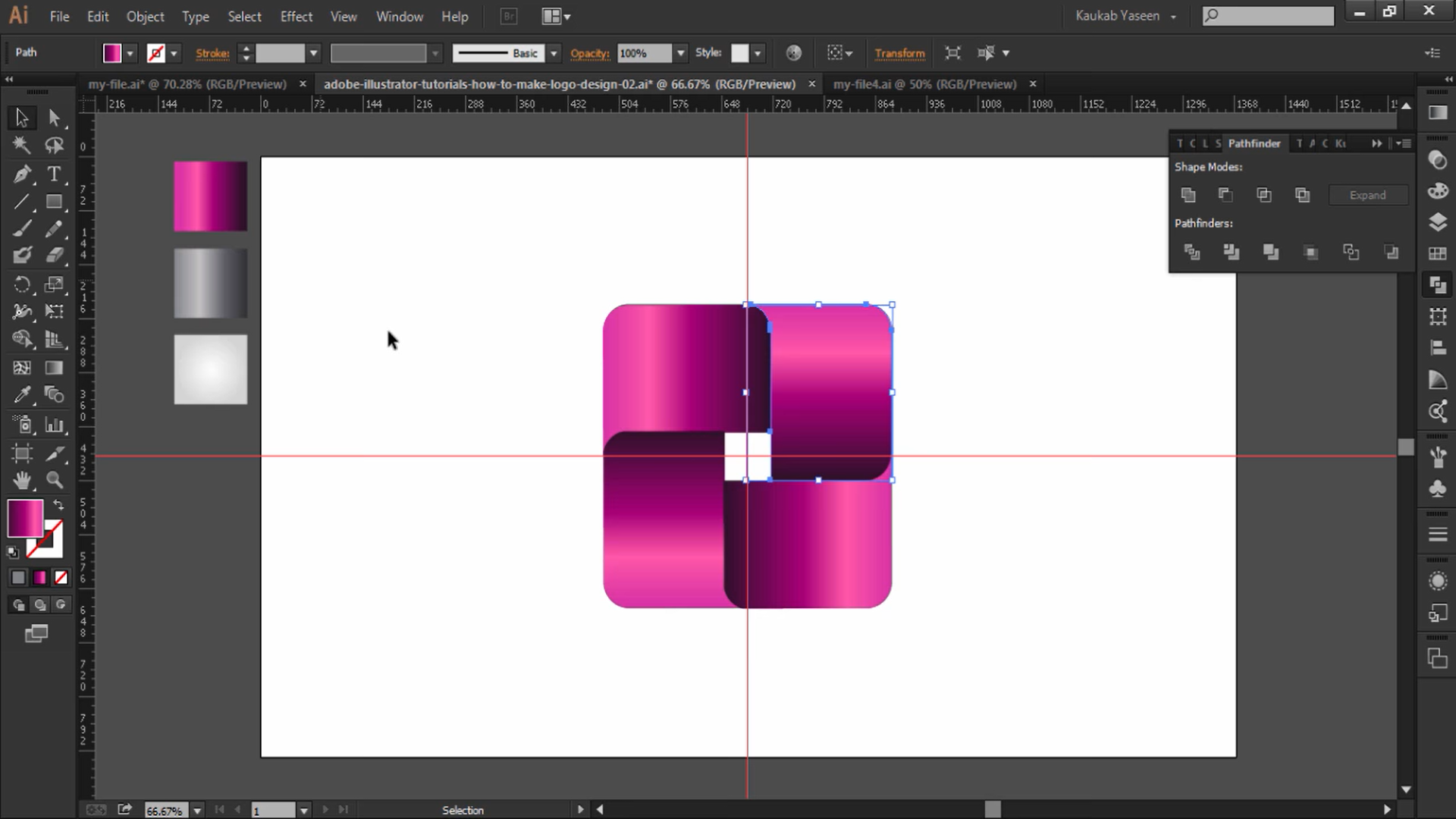
Adobe Illustrator – Extremely versatile

Adobe Illustrator is a great tool for creating diagrams, including block diagrams. Most users rely on Illustrator to create logos, vector images, icons, book illustrations, and so on.

But the software is extremely versatile and can be used for other purposes such as creating flowcharts and diagrams, email marketing templates, textile design or shoe design, and much more.

Back to our block diagrams now. Not only can you use Illustrator to create diagrams, but you can also edit and customize them afterward.

Moreover, with this industry-leading solution, you can draw personalized flowcharts and diagrams seamlessly. Using the creative features of Illustrator and your imagination, you create all kinds of visual diagrams within minutes.

You can therefore scale up essential projects and have multiple data visualization designs at your fingertips.

How to create diagrams in Adobe Illustrator

  1.  Open a new document and draw a square to insert the first block
  2. Copy the first block to insert a new one. Repeat the action whenever necessary to insert new blocks.
  3. Now, start drawing lines to connect the blocks
  4. Click on the Stroke button and select the type of arrowheads you want to use
  5. In the left-hand pane, click on the Text button to add text to the blocks.

Interested in trying out Illustrator?

Adobe Illustrator

Adobe Illustrator

With Adobe Illustrator you can easily create all sorts of diagrams, not only block diagrams.
Free trialVisit website

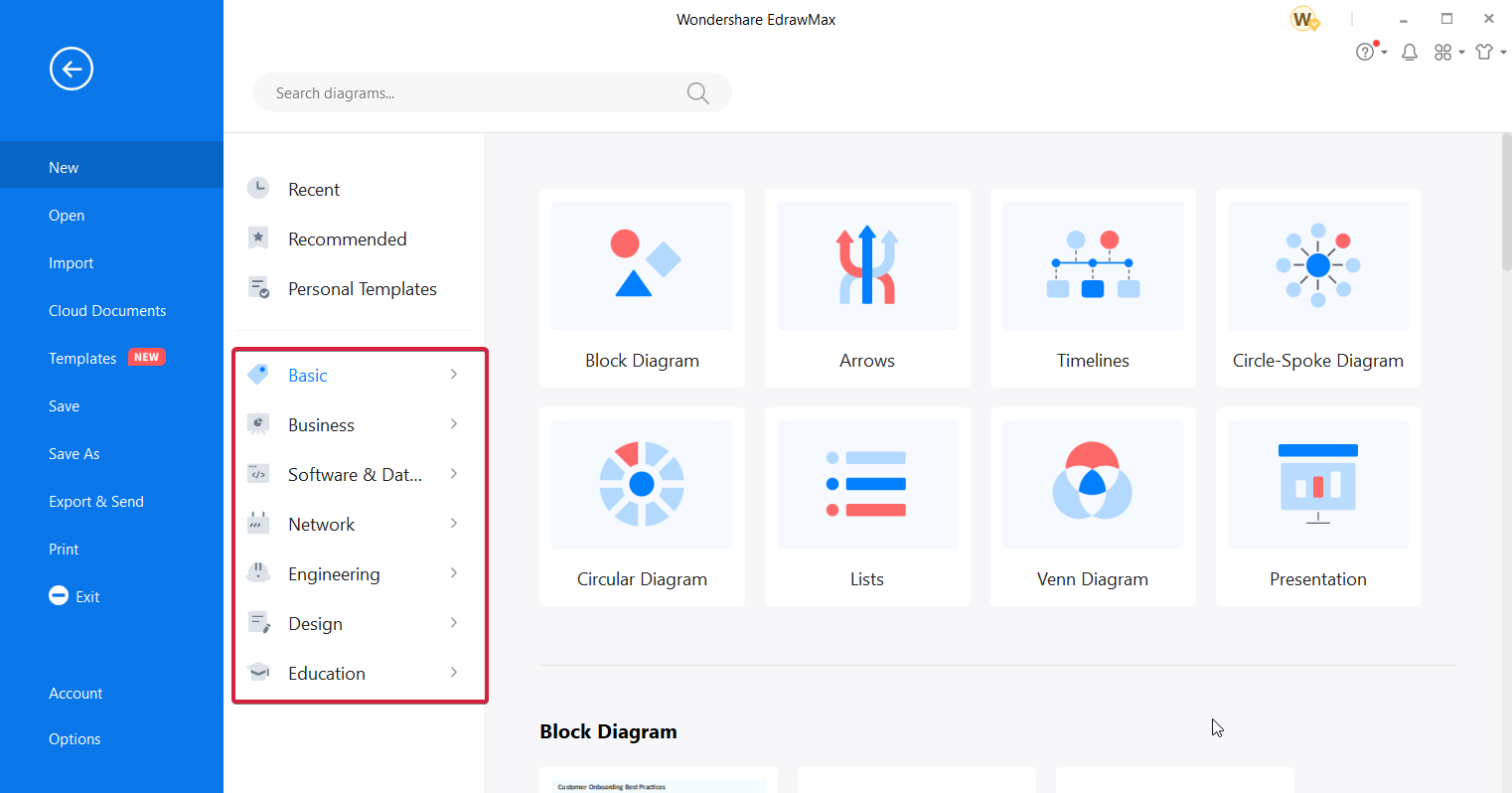
EdrawMax – Great for system planning

This diagramming software is the all-in-one solution to create simplified block diagrams to visualize your project efficiently.

In the first place, with this viable solution for descriptive flowcharts or diagrams, anyone can plan complex projects and present the objectives and stages using informational flowcharts.

You can use this visualization service for multiple purposes and thus present descriptive schemes of your project. In this way, you have everything planned and ready to be implemented.

For example, it’s possible to design a floor plan diagram or electrical engineering diagram plans. Moreover, the tool is suitable for software and system planning, meeting brainstorming, or organizational flowcharts.

In addition, you should know that regardless of area of work, anyone can visualize their projects using descriptive diagrams with over 1500 built-in templates.

Besides, the collaboration feature lets you share the final diagram visuals with your team to see the stages and results in perspective.

EdrawMax

Stay on top of important projects or tasks using this diagramming software you can rely on.
Check price Visit Website

LucidChart – Intuitive interface

There might not be as diverse a set of templates as many among its peers though LucidChart still has enough to help you get started on most projects.

Its user interface is also simple and inviting so that you get to start off right away. It can also collaborate with many other apps and services.

This together with its plethora of collaborative tools makes it really easy for teams to contribute to creating the block diagrams. That is not all as team members can also make necessary changes in real-time.

LucidChart also isn’t one to burn a hole in your pockets, having a decent price.

⇒ Get LucidChart

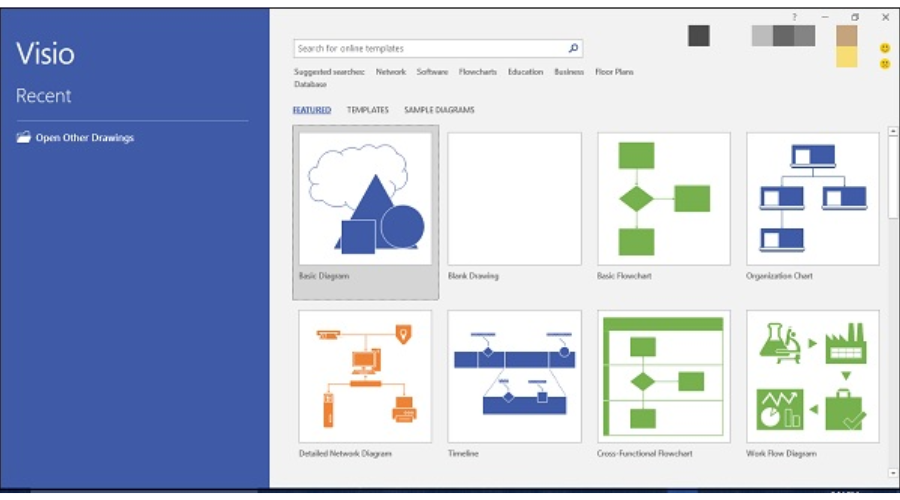
Microsoft Visio – Spell-check feature

Visio is one of the easiest block diagram software to use but is also one that perhaps has the most comprehensive of features.

It comes with a tutorial as well, should you still need while an excellent help and support program too can be relied on just in case you face any issues.

Also, the reason Visio is called one of the easiest block diagram software to use is that it allows you to enter text right into the shapes themselves.

That is not all, editing is easy too as you can always replace the shapes without needing to delete those first.

There is spell-check feature available as well while the symbols resize on their own to match the surrounding texts. Adding additional connector points is also a breeze. Visio offers a subscription model of ownership.

⇒ Get Microsoft Visio Standard

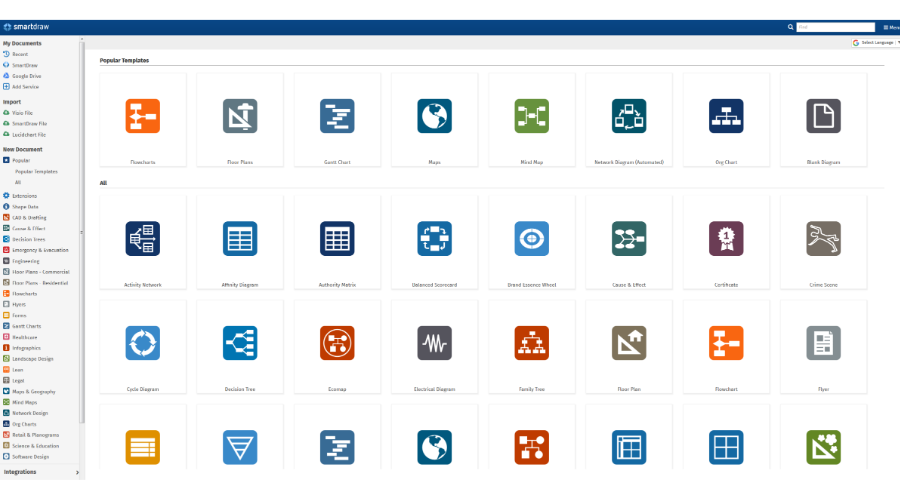
Smartdraw – Numerous templates and objects

You might be stumped by the sheer number of templates and objects that the app has on offer. That said, getting started with creating block diagrams using a template of your choice is an absolute cakewalk.

Integration options with the app are equally appreciable so that anything created on Smartdraw can be easily integrated with MS Office programs such as PowerPoint.

This makes for an instant head start when say you are making business presentations and you need to draw upon something created using Smartdraw. Unfortunately, the app does not support the Visio format.

However, all of the goodies come for a price. You can check that by clicking on the link below.

⇒ Get SmartDraw

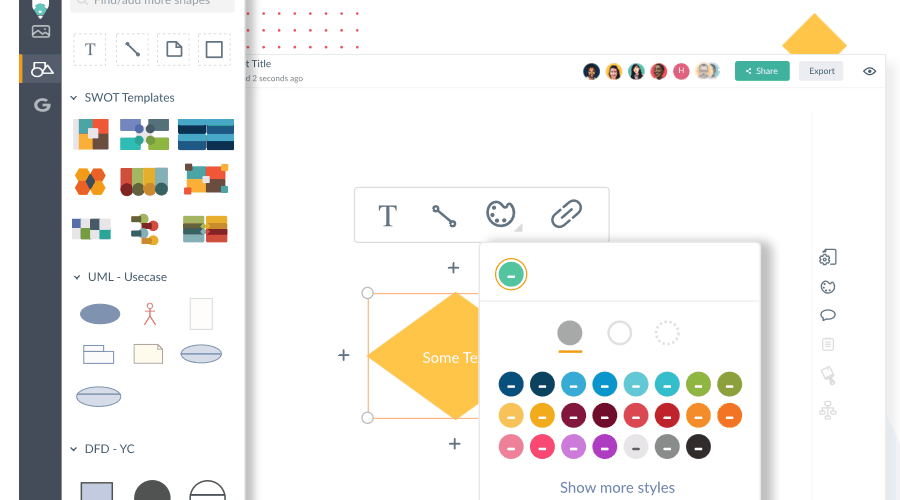
Creately – Professional block diagrams

The template selection on Creately isn’t as expansive as many in this list but still has excellent features for the templates it does have. That makes it an outstanding platform for creating professional block diagrams with ease.

Creately also allows users to collaborate in real time when creating a block diagram. Besides, there are both web and desktop versions of the app as well.

That is not all as a low list price makes Creately quite cheap as well compared to its peers.

However, the one not-so-likable aspect of Creately is that each time you need to change or cancel an account, you will need to get in touch with the company.

⇒ Get Creately

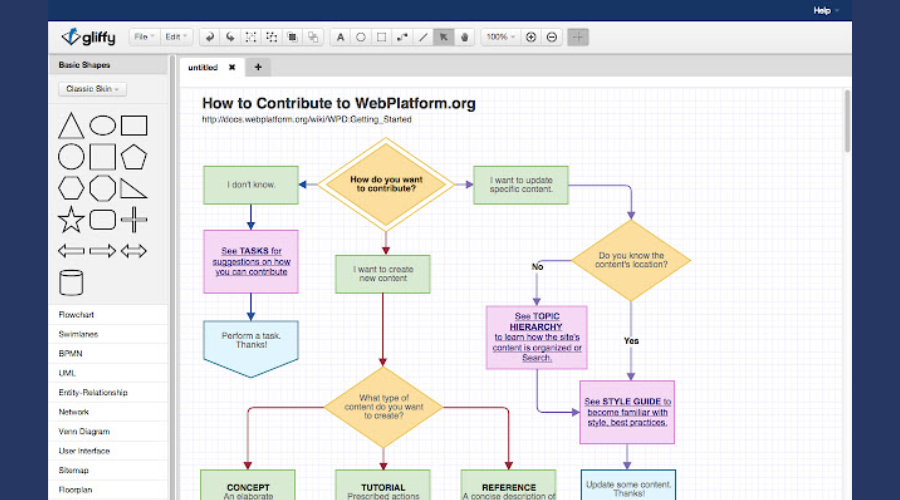
Gliffy – Cloud-based

Gliffy is another block diagramming app that you can rely on. It also is entirely cloud-based and is compatible with Google Drive, Confluence, and JIRA.

That makes it really easy for users to collaborate in real time when executing complex projects that involve several teams.

The app also comes in both free and paid versions with the former having fewer templates and other features to offer compared to the paid version.

The browser version is completely free and is best suited for students or others who need relatively simple block diagrams to make.

The interface is also extremely easy as you just need to drag and drop the various individual shapes.

For the paid versions, Gliffy comes in two versions, the Personal and the Team versions billed monthly or annually.

⇒ Get Gliffy

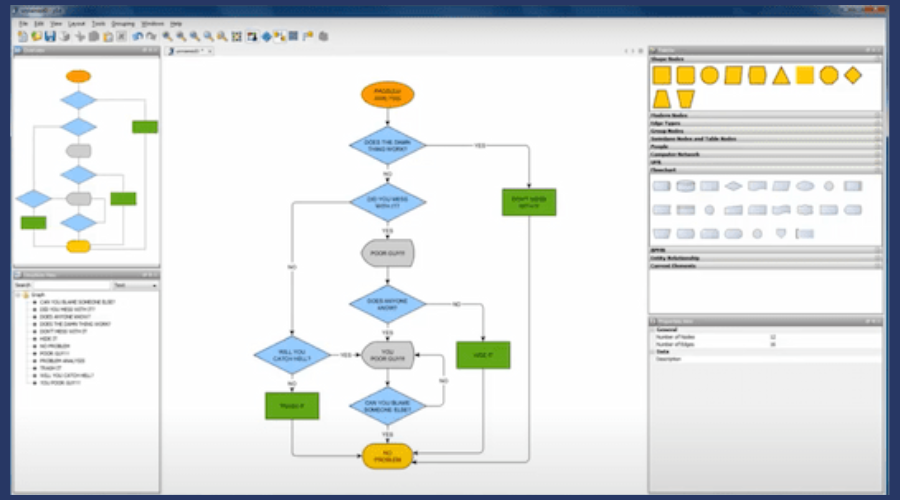
yED Graph Editor – Tabbed interface

yED Graph Editor might need some getting used to getting started but that perhaps is a small price to pay to get along with the state-of-the-art software.

It otherwise is an inviting interface that you are greeted with and once you have got the hang of it, creating block diagrams on the yED Graph Editor will be a breeze.

Another plus with the yED Graph Editor is that it offers a tabbed interface so that you can have multiple files open at the same time.

The interface is modular too so that the properties not needed can be closed to liberate more viewing area. You can also save the actual diagrams in several formats which even include HTML and PDF.

Also of course there is no dearth of shapes and connecting lines to create the perfect block diagram while collaborating with other people or computers in a network is also extremely convenient.

⇒ Get yED Works

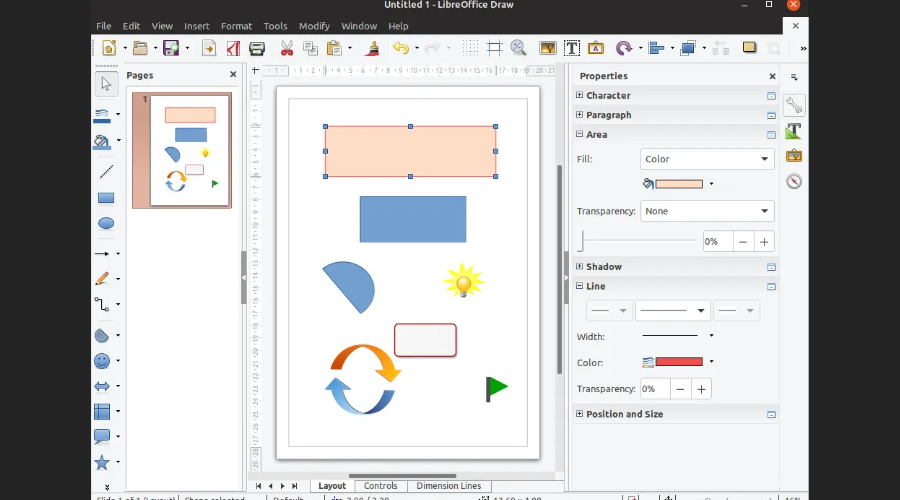
LibreOffice Draw – Supports groupings

LibreOffice Draw is one of the very best free block diagramming apps out there.

That it shares a lot of similarities with the MS Office interface happens to be its other big advantage as you have an all too familiar setting to start off with.

Another extremely likable feature of LibreOffice Draw is the way it supports groupings to be made.

So while different objects can be grouped together easily, you can also move the group around with ease or collaborate with other groups as well.

Draw is also compatible with several formats including SWF Flash files with XML being the default format.

⇒ Get LibreOffice

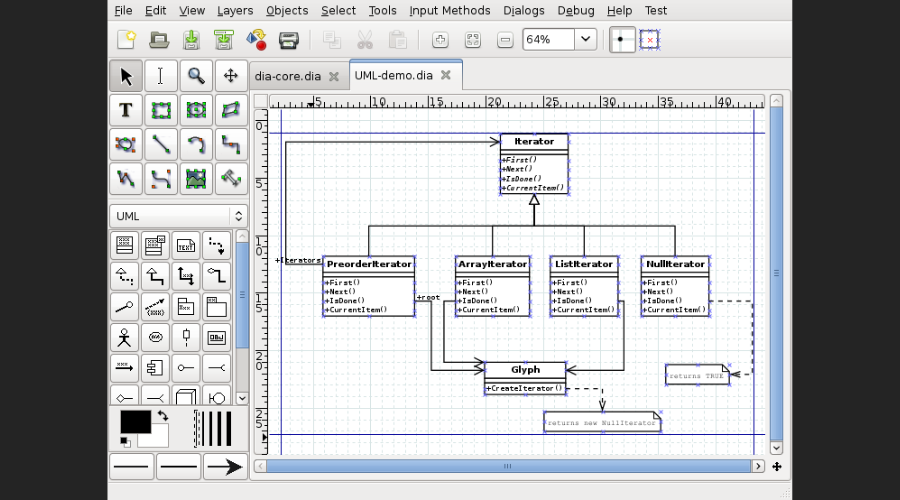
Dia – All file formats supporter

Dia is another open-source block diagramming app that too seems to have been inspired by Microsoft Visio. A feature set largely similar to the MS Visio explains that.

It also supports almost all the file formats you can think of, which include the .vdx format for Visio.

The interface is quite easy to use with the left hosting several controls and shapes while the rest of the display makes up the main drawing area.

⇒ Get Dia

Draw.io – Great for less intensive projects

This happens to be one of the simplest block diagram software out there, one that can be best for simple or less intensive projects.

You don’t need to install any specific software for the same as well as Draw.io is browser-based. And it’s free too.

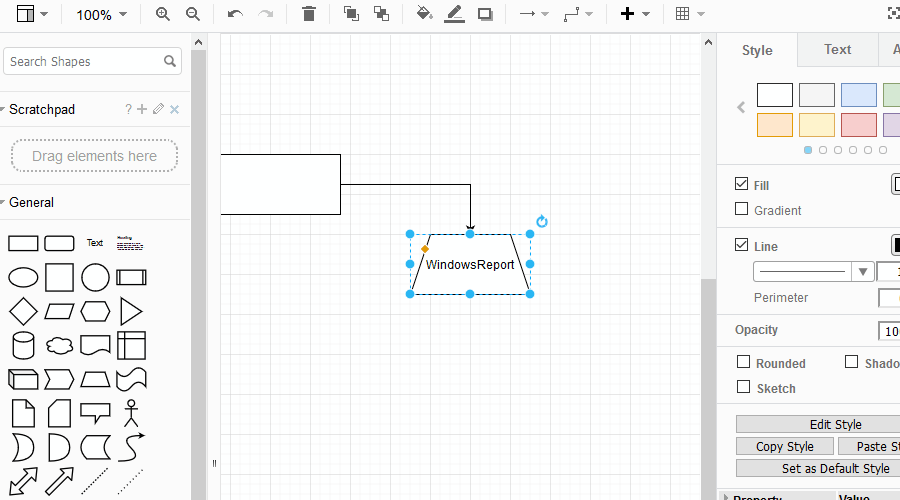
The interface is super easy to use as the available shapes and other options are shown along the left while the rest of the display is where the block diagram is actually put together.

The side panel contains additional formatting and other options. You just need to drag and drop the shapes and enter the relevant text and your block diagram can be ready within just minutes.

The diagram can again be saved in OneDrive, Google Drive, or on your own drive.

⇒ Get Draw.io

Pencil Project – Regularly-revised features

Pencil Project is free open-source software that can be easily used to create block diagrams.

Active support from the development community also ensures the software is well maintained with new features and other enhancements made available regularly.

Getting started with Pencil Project is a breeze too so you get along with block diagramming in no time, even for a newbie.

Another huge plus with Pencil Project is that it can be used as a Firefox extension as well. That makes Firefox users get into creating block diagrams even while browsing online.

It is compatible with OpenClipart.org, which means you have easy access to any diagrams that you might need for creating really interesting block diagrams.

Besides, it also supports almost all of the most popular file formats as well.

⇒ Get Pencil Project

So there you have, a comprehensive list of the most popular block diagramming tools out there.

Some are paid while some are free and each has its own pros and cons. Go through each to find out which best suits your requirements.

27 Best Tools to Extract Audio from Video Files

Sometimes you can hear a catchy song in a video and you might wish to extract it as an audio file. This isn’t hard to do, and there are many applications optimized to help you with this task.

Extracting audio isn’t hard, and today we’re going to show you some of the best tools that can extract audio from video on Windows 10.

What are the best tools to extract audio from videos?

Adobe Audition

Topping off our list is a software tool that can be considered the Photoshop of audio files since there is pretty much no limit as to what you can do with them when using it.

Adobe Audition is a professional digital audio workstation that can be used to edit, enhance, and generate sounds from scratch, using its large library as a base resource.

As far as extracting audio from video is concerned, Adobe Audition has the added benefit of being compatible with almost any type of video format, so audio extraction is not limited by the source at all.

For example, it’s simple to extract the audio from an MP4 inside Adobe Audition.

Simply load the file within the program (which can be viewed in Multitrack) along with your file name followed by _audio which is the audio-only.

Once you do that, simply save your audio file as an MP3, and then proceed to do whatever you please with it.

Adobe Audition

You can safely and quickly extract any sounds from videos with Adobe Audition, the Photoshop equivalent for audio.
Free trial Visit website

Aiseesoft Total Media Converter

Aiseesoft Total Video Converter can easily convert between various video formats such as MP4, H.264/MP4 AVC, H.265/HEVC, MTS, MXF, MOV, AVI, DivX, WMV, MKV, FLV, WTV, VOB as well as 4K, HD and 3D video formats.

It can be as video conversion software that converts any of your personal videos to MP4, MP3, WMV, MOV, etc. for playback on your TV or mobile device.

Besides its enormous converting potential, this tool is very easy to use. The interface is very intuitive, and it unlocks the most needed/ interesting/ powerful features really easy.

The converter also gives the users some customizable options,  such as video enhancing functions and audio conversion preferences.

You can try the converter for free, but after the trial period is up, you will have to pay for a permanent license. However, for the features proposed, this product is worth every cent.

⇒ Get Aiseesoft Total Media Converter

Free HD Video Converter Factory

Another video converter software that can extract audio from videos is Free HD Video Converter Factory from Wonderfox.

The application has a simple and modern user interface so even the most basic users will be able to use it.

As for video conversion, the application supports more than 20 different video formats so you can easily convert almost any file.

In addition to various formats, you can also optimize your videos for wide range of devices including smartphones, tablets, laptops and smart TVs.

Besides video conversion, the application allows you to extract audio from video files.

As for supported formats, you can extract audio to WAV, MP3, AC3, AAC, OGG, WMA, M4R, WAV, AU and many other formats.

To make the extraction process easier, you can also download online videos using Free HD Video Converter Factory. The application works with video hosting websites such as YouTube, Vimeo, Facebook, and many others.

The application also supports basic video editing so you can easily trim your videos or crop them. If needed, you can add subtitles, merge multiple videos and apply various visual effects.

You can also change frame rate, aspect ratio, and even fix interlaced video.

There are three versions available, and the Free version offers only the basic features. The Pro version offers support for high-resolution video along with faster conversion and hardware acceleration.

There’s also a DVD version available that allows you to back up DVD discs to digital video formats.

Free HD Video Converter is a solid tool, and it offers great features even in the Free version. If you need a free video converter that can also extract audio, we highly recommend you to consider this tool.

⇒ Get Free HD Video Converter

Xilisoft Audio Converter Pro

If you’re looking for a powerful audio conversion tool that can also extract audio from video files then we have to recommend Xilisoft Audio Converter Pro.

The application is optimized for audio and it comes with the ability to rip audio CDs.

If needed, you can also use this application to burn audio CDs with ease. As for file conversion, the application supports about 20 audio and 40 video formats which should be more than enough for most users.

In terms of output formats, about 15 different audio formats are available to choose from. You can easily choose one of many available audio presets, but you can also customize each preset.

The application supports audio conversion, but it also allows you to extract audio from video files. If needed, you can also add various effects to audio files and normalize audio or change its speed.

The application allows you to preview your video files, and you can even trim them in order to convert only the desired segments.

We also have to mention that the application supports ID3 tags so you can easily add them if you want.

Xilisoft Audio Converter Pro offers a simple to use interface along with many useful features so it’s perfect for basic users. The application isn’t free but you can download and use the trial version free of charge.

⇒ Get Xilisoft Audio Converter Pro

AnyMP4 Audio Converter

If you need to convert multimedia files, one application that can be rather useful is AnyMP4 Audio Converter. The application allows you to convert audio files and it supports wide range of audio formats.

The list of supported audio formats includes MP3, M4A, MP2, AAC, AC3, AIFF, AMR, AU, MKA, FLAC, WAV and WMA.

The application comes with many available presets and you can even optimize your files for various audio devices.

In addition to audio conversion, the tool also allows you to extract audio from video files. As for videos, you can preview or trim them in order to remove unnecessary segments.

In addition to trimming, you can also merge videos and audio files.

The application supports a wide range of profiles, but you can easily customize any profile and change its encoder, sample rate, channels, and bitrate.

AnyMP4 Audio Converter has a simple to use interface so it’s perfect for first-time users. Unfortunately, this application isn’t free and the Free version comes with limitations in terms of output length.

If you want to remove this limitation, you need to purchase a license.

⇒ Get AnyMP4 Audio Converter

Stellar Audio Video Converter

Another great application that can help you convert video to audio is Stellar Audio Video Converter. The application has a simple to use interface so it will be perfect for first-time users.

Stellar Audio Video Converter works with video files and you can easily convert any video format.

In addition, the application also works with audio files and you can convert MP3, WAV, AIFF, MP2, M4A, and other file types with ease.

Another useful feature this application offers is the ability to extract audio from video files. This feature is simple to use and you can easily convert almost any video file to MP3.

The application supports video editing and you can apply various effects to your videos.

In addition, you can adjust brightness, contrast, and saturation, and you can also rotate or flip your videos. If needed, you can also crop your videos or add a watermark to them.

If you want to extract audio from video files, you’ll be pleased to hear that trimming is also available, so you can easily remove unnecessary segments from a video file.

The application supports batch conversion allowing you to automate tasks with ease. Thanks to the simplistic user interface, you can easily convert your video to another video format or extract its audio.

If needed, you can even optimize your video for various mobile devices.

Stellar Audio Video Converter is a simple application and it offers easy to use interface so it’s perfect for first-time users. The application supports basic video editing as well as the ability to trim multimedia files.

The demo version allows you to convert only the first 60 seconds of any multimedia file, but if you want to remove this limitation, you need to purchase a license.

⇒ Get Stellar Converter

Movavi Video Converter

This is a video converter, but it also allows you to extract audio from video files. The application has a sleek user interface and all options are sorted into tabs and easily accessible.

You can easily process video and audio files, but you can also convert DVD discs or images as well. There’s support for more than 30 different video formats, 15 audio formats, and 15 image formats.

In addition to various formats, you can optimize your file for a wide range of devices including tablets, smartphones, and laptops.

Movavi Video Converter also supports video editing so you can cut your video or join different clips.

You can also crop and rotate your video, stabilize it, and enhance its quality or add captions and watermarks.

The application uses SuperSpeed mode, so it offers extremely fast conversion.

In addition, the application fully utilizes hardware acceleration and multiple CPU cores in order to provide you with maximum conversion speed.

In addition to video conversion, the application also allows you to extract audio from video files. If needed, you can change audio parameters before you begin the conversion.

The application can also create animated GIFs and capture screenshots from your videos.

In addition, you can easily share videos online right from the application or convert all videos from a selected directory automatically.

A wide range of customization is available, and you can choose both audio and video codecs, specify a custom resolution, bitrate, and change other settings.

Movavi Video Converter offers an amazing user interface and simplicity which makes it perfect for first-time users. With the wide range of available features, the application is also perfect for advanced users.

Even though this application is a video converter, it supports other features including audio extraction. The application is available for a 7-day trial, but if you want to continue using it, you need to purchase a license.

⇒ Get Movavi Video Converter

Audials Tunebite

Unlike other applications on our list, Audials Tunebite works as a multimedia player, but it also allows you to convert files.

The application allows you to record audio streams with ease and it’s fully compatible with music streaming services such as Spotify, Deezer, etc.

As for output formats, the application supports mp3, acc, flac, uvw and many other formats.

Audials Tunebite can even record songs and export them while recording. It can even automatically recognize ads and skip them.

It’s worth mentioning that the application supports automatic tagging so all your recorded songs will have ID3 tags assigned to them. If needed, you can also add tags manually and search for lyrics online.

The application also allows you to save video streams and you can even record them in the background. This feature also supports all major streaming services so you can easily record almost any online stream.

The application works with all major browsers and it’s optimized for high-resolution video content.

There’s also a file conversion feature and you can convert over 40 different types of audio files. In addition, you can convert audio CDs to digital format using this application.

The application allows you to export your files to wide range of formats.

There are over 100 device profiles available so you can easily optimize files for almost any mobile device. If needed, you can customize any available profile in order to achieve the best results.

The application also allows you to extract audio from video files which can be rather useful.

It seems that Audials Tunebite lacks the editing feature so you won’t be able to trim unnecessary segments which is a flaw in our opinion.

As for additional options, the application also allows you to rip DVDs and save them to digital format.

The application also works as a multimedia player so you can play almost any multimedia file. If needed, you can also organize your multimedia into playlists.

Audials Tunebite is a great multimedia application and it’s perfect if you need to record streams or convert files.

The application lacks editing features which makes you unable to trim your files. This is a great application and you can download the trial version free of charge.

⇒ Get Audials

VLC Media Player

VLC media player is probably one of the most popular media players for Windows and other platforms. This media player is available for both Mac and Linux, and there’s even an Android version available.

This application can play content from almost any source and it supports wide range of audio and video formats.

VLC Media Player has a wide array of features available, and one of those features is the ability to extract audio from video.

To extract audio, you just have to use Advanced Open File option and choose Convert option from the menu.

Extracting audio with VLC is rather simple and even the most basic users can do it. This application is completely free, so it’s perfect for every user.

VLC offers a wide array of features, so if you need a powerful multimedia player that can also extract audio from video files be sure to try VLC media player.

⇒ Get VLC Media Player

Audacity

Another application that can help you extract audio from video files is Audacity. This is a completely free open source audio editor available on all major PC platforms.

The application can manage multiple recording and playback devices, and there are also level meters so you can easily monitor volume levels.

In addition to using various input sources, you can also record computer playback as well.

You can even dub over existing tracks in order to create multi-track recordings.

The application allows you to import and export files, but you can also create WAV or AIFF files that are optimized for audio CD burning.

In addition, you can export MP3 files using the LAME encoder library. We also have to mention that you can export AC3, M4A/M4R (AAC) and WMA files using the FFmpeg library plug-in.

Using this plug-in you’ll be also able to open video files and export audio from them.

As for additional features, Audacity supports 16-bit, 24-bit and 32-bit samples as well as standard editing options. The application also supports unlimited undo and redo steps, so you can easily fix any mistake.

There’s also an ability to edit and mix large number of tracks as well as support for multiple clips per track. The application also supports various effects, and you can generate tones, silence or rhythm track.

You can also change the pitch, tempo or reduce noise. If needed, you can alter frequencies, adjust the volume and reduce vocals.

There are also many other effects available, and you can enhance the application even further by using third-party plug-ins.

Audacity is a great audio editor, and with FFmpeg plug-in you can use it to easily extract audio from video files.

The application offers great audio editing options, and it’s completely free, so there’s no reason not to try it.

A portable version is also available, so you can run this tool on your PC without an installation.

⇒ Get Audacity

Free Video to MP3 converter

If you’re looking for a software specialized for extracting audio from video, you might want to consider Free Video to MP3 converter.

The application comes with simple and modern user interface so you can easily access all necessary features.

To extract the audio, simply add your video files to the application. The application supports wide range of input formats and it works with almost any video format.

As for the number of supported file types, the list includes more than 30 different formats.

In terms of output formats, there are 6 different presets available to choose from. The application will automatically add a title tag to your MP3 file, but it can also generate the artwork by taking a snapshot from the video.

It’s worth mentioning that you can export your audio to WAV and WMA format as well. Even though the application is free, it will add an audio watermark at the beginning and at the end of the processed file.

To remove this watermark, you need to purchase the Premium version. The Premium version also offers ad-free experience along with greater speed and better audio quality.

Free Video to MP3 converter is a simple application, and with its friendly user interface even the most basic users can extract audio from video files.

The application is free to use, but it comes with certain limitations that you can remove by purchasing the Premium version.

⇒ Get Free Video to MP3 converter

Pazera Free Audio Extractor

If you’re looking for a specialized tool for audio extraction you should consider Pazera Free Audio Extractor. The application offers a simple user interface that allows you to easily manage videos that you want to use.

The left pane represents the list of videos that you want to use while the right pane allows you to configure output settings.

As for output settings, you can choose the output directory and you can even add prefix or suffix to the output file.

The application also comes with about 20 different output profiles so you can easily extract audio from any video file. If needed, you can also configure your output format manually.

The application supports 11 different audio formats and you can even adjust the bitrate, sampling frequency and number of channels. If needed, you can also change the volume level for the output file.

Pazera Free Audio Extractor also allows you to select the range that you want to extract as audio, but it requires you to enter the start time and end time manually.

Unfortunately, this feature doesn’t come with a preview window which makes selecting the desired range harder than it needs to be.

It’s worth mentioning that the application has a preview feature, but it doesn’t offer any playback controls so you can’t see the current time.

In addition, the application also supports FFmpeg command line parameters so you can use them during the conversion process.

Pazera Free Audio Extractor can also work with multiple files so you can extract audio from two or more files with ease.

This is a solid application for audio extraction, but the lack of proper preview feature makes it harder to select the segments you want to convert.

The application is completely free, and there’s even a portable version available so you can run this tool without an installation.

⇒ Get Pazera Free Audio Extractor

AVS Audio Converter

Another application that can help you extract audio from video files is AVS Audio Converter. This is an audio converter, and it works with MP3, WMA, WAV, M4A, AMR, OGG, FLAC, MP2 and other type of audio files.

In addition to audio, the application also works with video files and it allows you to extract audio from them.

The application supports about 40 different formats, so you’ll be able to open almost any video file with this application.

It’s worth mentioning that the application allows you to create audiobooks as well as ringtones for iPhone. The application has a built-in audio editor so you can easily cut, copy or paste audio segments with ease.

In addition, you can normalize the sound or add fade in and fade out effects. To make the editing process easier, you can also add various markers to your audio file.

AVS Audio Converter also has a built-in tag editor so you can easily add metadata to your audio files. In addition, you can set custom names for all your output files.

As for audio conversion, you can choose between different profiles, but you can also set the number of channels, bitrate, sample rate and other options manually if you want.

If you’re an advanced user, you’ll be pleased to hear that there’s a command line mode available that allows you to convert large number of files simultaneously.

AVS Audio Converter is a great audio conversion software that allows you to easily extract audio from videos. The application offers a modern user interface, so even the most basic users will be able to use it.

This is a free application, but it will add its audio watermark to all converted files. If you want to remove the watermark, you’ll need to purchase the full version.

⇒ Get AVS Audio Converter

Free Audio Extractor

If you’re looking for a simple application that can extract audio from videos, you should consider Free Audio Extractor from Kastorsoft.

The application has a simple user interface, and you can easily add multiple videos and extract audio from them.

The application supports 11 different file types and it can work with both audio and video files. After you select the file, you can see its waveform and select the part that you want to convert to audio.

Of course, you can select the segment you want to convert by setting the start and end point. The application supports keyboard shortcuts so you can easily control the playback and set markers with your keyboard.

After you select the desired segment, you can set the output directory, bitrate, channel and other advanced options.

The application supports MP3, WAV, OGG, FLAC and WMA for file output, which should be enough for basic users.

It’s worth mentioning that this tool allows you to add metadata and MP3 tags to your output files which can be useful to some users.

Free Audio Extractor is a simple application so it will be suitable for first-time users. The application has a simple interface, but you might run into some issues while trying to select a specific segment you want to convert.

We found this feature to be slightly sluggish and bit confusing, so it might take you a few tries to master it.

Despite this flaw, this is still a great application, and since it’s completely free there’s no reason not to try it.

⇒ Get Free Audio Extractor

AoA Audio Extractor

Another application specialized for audio extraction is AoA Audio Extractor. The application has a simple to use interface so you can easily extract audio from any video.

As for supported video formats, the application supports about 10 different file types which should be enough for basic users.

Regarding output formats, the application can convert your video to MP3, WAV or AC3 format. In addition to format, you can easily change the audio bitrate, audio sample rate, and the number of channels.

If needed, you can also specify a custom output path. The application supports batch processing, but you’re limited to three files in the Free version.

AoA Audio Extractor allows you to cut your video and only convert a specific segment. To do that, you just need to set the start and endpoint using the slider.

This feature lacks the preview option, and to find the correct start and end time for your segment you need to preview your clip in another application.

The application doesn’t offer any type of preview feature which is a major flaw in our opinion.

AoA Audio Extractor offers simple audio extraction features in the Free version, but the Free version also has its limitations.

The Platinum version allows you to convert both audio and video files, but you can also record audio.

The paid version also has a built-in voice changer and it offers karaoke song recording. Lastly, the Platinum version will remove the file limit for batch conversion so you can easily convert as many files as you want.

AoA Audio Extractor is a decent application, and our only complaint is the lack of preview features. Despite this limitation, this application still offers decent features, and since it’s free you might want to try it out.

⇒ Get AOA Audio Extractor

Blaze Media Pro

If you’re looking for a powerful multimedia converter, Blaze Media Pro might be perfect for you. The application offers a wide range of features and it supports audio editing as well as audio conversion.

Speaking of conversion, you can also convert audio CDs to digital format using this tool. You can easily configure bitrate and compression for audio formats, and there’s even support for disc burning.

As for additional features, you can also edit tags for your MP3s and search for lyrics using this tool. In addition to audio conversion, the application also offers video conversion features.

There are also some video editing features available, so you can easily apply filters and effects to your videos.

There are over 30 effects available and you can easily crop, trim, and flip your videos. If needed, you can also compress video files right from this application.

You can also create videos or combine two or more videos into a single video. Video capture feature is available as well so you can easily record videos.

Of course, there’s a batch processing feature available allowing you to convert multiple videos.

Blaze Media Pro also allows you to extract video frames to images which can be useful if you want to create an animated GIF. You can even insert images to videos or create a new video from images.

If needed, you can also add audio to video files, replace the existing audio, and even remove the audio completely from videos.

Of course, the audio extraction feature is available and you can easily extract audio from a video file and save it as a separate file.

The application also supports DVD ripping allowing you to save the contents of the DVD in digital format. If you want to back up your DVDs, you can also create ISO files from them using this application.

Blaze Media Pro offers slightly outdated but simple to use interface, so you should have no problems adjusting to it.

We have to mention that we had some problems while installing this application, and it took us a few tries to install it properly.

Blaze Media Pro offers a wide range of features, and it’s available for a free 15-day trial. If you want to continue using this application, you need to purchase a license.

⇒ Get Blaze Media Pro

NCH Switch

Another useful converter that can extract audio from video files is NCH Switch. The application supports more than 40 different audio formats so you can easily convert any audio file.

Speaking of audio files, the application will also preserve your music tags which can be rather useful. Of course, there’s access to an online database so you can easily add the necessary information to your music files.

If needed, you can also preview your tracks before you convert them.

NCH Switch supports batch conversion so you can process multiple files simultaneously. There’s also a command-line plug-in that you can use to automate tasks.

The application can also extract audio from video files, and you can set your desired bitrate before the conversion. As for output formats, there are more than 20 different formats available.

NCH Switch is a decent application, but it lacks certain features. For example, the application doesn’t have a built-in editor so you can’t trim your video before you convert it.

Instead, the application offers you to edit your audio clip with NCH WavePad application.

This is a solid application, but the lack of audio editing can be a problem especially if you’re working with larger video files.

To circumvent this limitation you might have to trim your video clip before you add it to NCH Switch.

Despite this flaw, this is still a simple and useful application, and it’s completely free for non-commercial use.

⇒ Get NCH Switch

Oxelon Media Converter

If you’re looking for a simplistic media converter, you might be interested in this tool. The application can use up to four threads so it makes full use of the multi-core processors.

To make the conversion process simpler, the application offers full integration with File Explorer.

This means that you can convert any file simply by right-clicking it and choosing the desired conversion option from the menu. Thanks to this feature you can convert any multimedia file with just three clicks.

If needed, you can configure the width and height of the video as well as frames per second and bitrate. You can also change audio settings including channels, sampling rate, and bitrate.

The application allows you to choose between a wide range of formats and codecs, so you should be able to convert almost any type of multimedia file. Thanks to this feature, you can also easily extract audio from video clips.

The application can process multiple files at the same time, and you can even set the limit on how many files you wish to process simultaneously.

The application doesn’t offer a preview option and you can’t trim your multimedia files which is a major flaw in our opinion.

Oxelon Media Converter is a decent tool that offers a wide array of formats to choose from.

Unfortunately, there’s no editing option so if you want to trim a video or audio file you have to do that from a third-party application.

Overall, this is a solid application for audio extraction, and since it’s completely free, there’s no reason not to try it.

⇒ Get Oxelon Media Converter

Any Audio Converter

Another useful application that can extract audio from video files is Any Audio Converter. The application works as an audio converter and it supports a wide range of files.

As for supported formats, the application works with AVI, MPEG, WMV, MOV, MP4, RM, RMVB, ASF, FLV, MP3, M4A, WMA, WAV, FLAC, OGG, AU, MP2, and AC3.

The application supports both video and audio files, and you can even extract audio from videos using this tool.

Any Audio Converter supports DVD burning which is useful if you want to create a video compilation.

The tool also allows you to rip audio tracks from CDs and you can easily convert an audio CD to MP3, WAV or any other audio format.

The application can also save tag information automatically which can be rather useful.

Since this application supports video conversion, you can also easily download videos using this app.

The application supports various websites including Youtube, Facebook, Vimeo, Metacafe, and over 100 other websites.

Of course, you can convert downloaded videos easily to MP3, AAC, WAV, or any other audio format. Speaking of videos, the application has a built-in editor so you can easily edit both audio and video files.

Thanks to this feature, you can easily trim any multimedia file and convert only the desired segment. You can also change the audio codec, bitrate, sample rate, audio channel, audio track, volume, and audio quality.

There’s also a built-in tag editor so you can easily add tags to MP3 files. Any Audio Converter offers a great user interface along with an abundance of features, so it’s perfect for both basic and advanced users.

The application is free for personal use, so feel free to try it out.

⇒ Get Any Audio Converter

Free Video to Audio Converter

Extracting audio from video files is relatively simple, and another application that can help you with that is Free Video to Audio Converter.

The application supports over 300 different video formats so you can easily extract audio from almost any video. As for output formats, you can export audio to more than 40 different audio formats.

The application also allows you to trim unwanted parts so you can easily convert only the specific segments.

Free Video to Audio Converter has a simple and modern interface so even the most basic users will be able to use it.

The application supports batch conversion allowing you to easily convert multiple files. Of course, you can preview your file at any time and choose between many available presets.

In addition, you can change custom settings and set the desired encoding mode, bitrate, number of channels, sampling rate, etc. In addition to videos, the application can also rip audio CDs and add tags to your files.

Free Video to Audio Converter is simple to use and it offers great design so it’s perfect for first-time users.

We have to mention that the application will offer you to install some additional software, so be sure not to install it.

⇒ Get Free Video to Audio Converter

Free Audio Editor

Another application that can extract audio from video files is Free Audio Editor. This application can record sounds, but you can also use it to edit audio files.

Speaking of audio recording, you can record sounds from your microphone or from web streams with ease.

With this tool, you can easily copy, cut, trim, or mute any audio file. The application has a simple interface and all effects are available in the left pane so you can choose them with a single click.

As for supported formats, the application supports more than 25 audio formats. As for audio output, you can easily save your files to MP3, WMA, WAV, OGG or any other format.

Of course, you can easily adjust the parameters for your output file in order to achieve the desired results. After you finish editing your files, you can easily burn them to a CD and create an audio compilation.

The application also supports batch processing so you can automate your tasks. You can also join two or more audio files if needed.

The application also offers bookmarks and region markers to help you with editing. In addition, you can rip audio CDs and convert them to digital format.

There’s also a text-to-speech feature that allows you to transform text documents to audio files.

Free Audio Editor also allows you to download YouTube videos, and you can queue multiple videos for download. You can also extract audio from local videos using this tool.

In order to achieve the best results, you can choose between different audio formats and presets.

Of course, you can convert videos to other video formats or optimize them for mobile devices. Unfortunately, the application doesn’t allow you to trim or edit your videos, which is a major flaw.

As a result, you have to load the extracted audio and edit it from the application.

Free Audio Editor is a solid application and it offers a wide array of features and a simple to use interface. The application is designed as an audio editor, but it also offers a humble audio extraction feature.

We have to mention that this application comes bundled with some unnecessary applications, but you can choose not to install them.

⇒ Get Free Audio Editor

Avidemux

Avidemux is a video editing software, but this application can also help you extract audio from video files. You can use this application to trim your video or to perform various encoding tasks.

The application supports a wide range of audio and video formats, and you can easily change output settings for any format.

Avidemux supports various visual effects that you can add to your videos. All effects are sorted into different categories and you can easily access them. There are playback controls available so you can easily navigate to desired segments or keyframes.

The application also supports markers and you can use them to select the desired segments. Even though this is a video editing software, it also supports audio extraction.

Thanks to this feature you can easily extract audio from any video with ease.

Avidemux is a completely free application, and it’s available for all major desktop platforms. If you need a solid video editor that has the ability to export audio from your videos, be sure to try this application.

⇒ Get Avidemux

Format Factory

This is a file conversion tool, but you can also use it to extract audio from video files. The application has a simple and clean interface so you can easily convert your files to the desired format.

All features are sorted on the menu on the left and you can easily choose between the wide range of available formats.

In addition to various video and audio formats, you can also choose to optimize your file for mobile devices by using one of the available presets.

As for additional features, the application offers both file repair and file compression for multimedia files.

We have to mention that Format Factory also works with images and documents so you should be able to convert them easily.

The application allows you to rip DVDs and CDs, and you can also create ISO files. There are also some useful utilities available that allow you to join or rename files.

As for additional features, there are Mux and Mix features that allow you to mix files.

To extract audio you just need to choose the desired format from the left pane, set the desired range and output settings. Speaking of settings, you can change sample rate, bitrate, audio channel, volume, and VBR.

The application supports automation and you can easily set multiple tasks. Format Factory is a decent tool, it offers a wide array of formats and it’s relatively simple to use.

We have to mention that the preview feature has some issues which make it harder to trim videos properly.

The application will also try to install other applications from its developer, but you can choose not to install them during the setup process.

⇒ Get Format Factory

XRECODE

If you’re looking for a powerful audio converter that can also extract audio from video files, you might want to consider XRECODE.

The application has a simple user interface but it makes up for it with an abundance of features.

XRECODE supports about 20 different audio formats and you can easily configure output settings for each format.

The application supports various actions and you can encode, extract, merge, split into file per channel, encode to multi-channel file or copy your files.

This tool also allows you to configure replay gain, dynamic range and you can also split your files or rename them using metadata.

As for output settings, you can normalize your output, change its tempo, remove silence or apply fade in and out effects.

Using this tool you can also easily rip audio CDs, and we have to mention there’s support for command line parameters. XRECODE offers a simple tabbed interface so you can easily work on multiple projects.

Despite the simple interface, the application offers a wide array of features, and if you’re a first-time user you might have some issues adjusting to it.

The application allows you to preview your files, but there’s no option for file trimming which is a flaw in our opinion.

XRECODE is available for a 30-day trial, but if you want to continue using it, you need to purchase a license.

The portable version is also available, so you can use this tool without installing it to your PC.

⇒ Get XRECODE

Freemake Audio Converter

This application comes with a modern and colorful interface that will be perfect for first-time users. The application is simple to use and it allows you to convert videos to seven different audio formats.

As for output formats, the application supports MP3, WMA, WAV, FLAC, AAC, M4A, and OGG.

Freemake Audio Converter works with a wide range of formats, so you should be able to convert almost any multimedia file to an audio file.

According to the developer, the application offers support for more than 500 different video formats, which should be more than enough for every user.

To extract audio, simply add the desired video file and choose the output format.

You can choose between the available presets, but you can also configure each preset and select the number of channels, sample rate, and bitrate. If needed, you can also save your custom preset and use it later.

It’s worth mentioning that the application supports batch conversion so you can easily automate tasks and convert multiple files. If needed, you can also join audio files and even combine audio files of a different format.

The application also allows you to save your files to cloud services such as Dropbox, Google Drive, and OneDrive.

Freemake Audio Converter is incredibly simple to use and thanks to the friendly user interface even the most basic users will be able to use it.

As for flaws, the application doesn’t allow you to trim your files, so you’ll have to use third-party applications for that.

The application comes bundled with McAfee software, but you can choose not to install it. Overall, this is a free and easy to use the software, so it’s perfect for first-time users.

⇒ Get Freemake Audio Converter

Video to Video Converter

If you’re looking for a video converter that can also extract audio from video files, you might want to consider this tool. The application offers a slightly outdated user interface, but it makes up for it with its features.

Video to Video Converter supports over 200 input formats and over 700 output presets.

Regarding the output formats, you can easily output videos to AVI, DivX, Xvid, mpeg-4, AVC/H264, mpeg, mpeg2, MOV, WMV, 3GP, and other formats.

As for audio output, the application supports mp3, aac, ac3, wav, m4a, Vorbis, 3gpp, flac and many others. The application also supports DVD ripping so you can easily convert DVD discs to digital format.

There’s also an ability to join videos so you can easily combine two or more videos. Another useful feature is the ability to cut your videos so you can easily remove the parts of the video that you don’t want to convert.

The application also allows you to convert videos to still images and you can also create thumbnails with ease. If needed, you can create video compilations and burn them to a DVD.

There are also various presets available, and you can even add basic video filters or watermarks to converted videos.

As for file conversion, you can easily change the conversion parameters from the right pane.

You can change the quality as well as audio bitrate, sample rate, and number of channels. If needed, you can also adjust the volume level.

Video to Video is a solid video converter, but you can also use it to extract audio from video files. The application offers all the necessary features and our only complaint is the slightly outdated user interface.

It’s worth mentioning that the application is completely free, and thanks to the portable version you can use this application without installation.

⇒ Get Video to Video Converter

DVDx

Another application that can help you extract audio from video files is DVDx. The application allows you to convert video DVDs to digital formats. In addition to DVD ripping, you can also convert your DVD to ISO.

As for DVD ripping, the application supports a wide range of formats including AVI, MOV, MP4, H.264, and others. The application has built-in transcoding profiles that allow you to easily convert any multimedia file.

DVDx also works with subtitles and you can add subtitle tracks or permanent subtitles to the video. In addition, you can remove letterbox borders from videos using this tool.

As for video transcoding, you can choose if you want to transcode audio or video track. Thanks to this feature you can easily extract audio from any supported video format.

DVDx is optimized for DVD ripping and it doesn’t offer many features in terms of video editing.

As a result, you can’t trim your videos and remove unnecessary segments which is a major flaw in our opinion.

If you need a DVD ripping software that can also extract audio from videos, you might want to consider DVDx.

⇒ Get DVDx

Extracting audio from video files is relatively simple, and there are many applications that can help you with that. We showed you some of the best tools for this purpose, so feel free to try any of them.

The ultimate UNO video game is now available on Microsoft’s Xbox Series X and Xbox One consoles

UNO Ultimate Edition is now available to download and play on Microsoft’s Xbox One and Xbox Series X console families.

This new release of the popular Xbox video game contains the base UNO title plus all of its post-launch downloadable content (DLC) such as the Rayman and Just Dance and the alternative UNO Flip version of the game.

UNO Ultimate Edition also comes with an all-new Fenyx Rising DLC which unlocks a card theme and a new game mode with new features and the debut of special Action cards.

Here’s the official game description:

Get the complete collection of one of the most iconic games with the UNO® Ultimate Edition, containing UNO®, UNO FLIP!™, UNO® Fenyx’s Quest, plus themed cards featuring Just Dance® 2017, Rayman®, and more. Match cards by color or value to race against other players. Try UNO FLIP!™ and spice things up, flip the whole game to the dark side and use the fun new action cards like Draw Five and Skip Everyone! Play in the Golden Isle and gain the support of powerful gods and goddesses with the all-new UNO® Fenyx’s Quest, an action-packed new game mode featuring characters from Immortals Fenyx Rising™. Switch things up with additional theme decks and DLCs and get the most out of your UNO® games!

UNO Ultimate Edition supports two-player local multiplayer and online matches with up to four players.

Do you like playing digital versions of the UNO card game or do you prefer the old-school IRL version? Let us know in the comments below and then follow us on Pinterest and Facebook for more Xbox gaming news.

UNO® Ultimate Edition
Developer:
UBISOFT
Price:
Free

How to easily fix VPN error 807 [10+ tested methods]

Many users use some type of VPN in order to protect their online privacy, but sometimes issues such as VPN error 807 can occur. This error can be problematic, and in today’s article, we’ll show you how to fix it.

VPN errors are fairly common, and speaking of VPN errors, here are some similar issues that users reported:

  • VPN error 806, 800, 619, 720, 789, 691, 868, 809 – These are some of the common VPN errors that you can encounter, and we covered some of them in your VPN issues article, so be sure to check it out for more in-depth solutions.
  • The network connection between your computer and the VPN server could not be established Windows 10 – This is another VPN error that you might encounter. If you get this error message, be sure to try all the solutions from this article.

How can I fix VPN error 807?

1. Check your antivirus

According to users, this issue usually occurs due to your antivirus or firewall. If you’re getting VPN error 807 on your PC, it’s possible that your antivirus is interfering with the VPN and causing the problem. To fix the issue, be sure to check your antivirus settings and try disabling certain features.

If that doesn’t work, you might have to disable your antivirus altogether. In some instances, the problem might persist even if you choose to disable your antivirus. If that’s the case, your only option might be to uninstall your antivirus.

Even if you choose to uninstall your antivirus, your system will remain protected with Windows Defender, so you won’t have to worry too much about your safety. Once you remove the antivirus, check if the problem is resolved.

If removing the antivirus solves the problem, you should consider switching to a different antivirus solution.

2. Check your firewall

If you’re getting VPN error 807, it’s possible that the issue is caused by your firewall. To fix the problem, you need to locate your VPN client in your firewall and make sure that your VPN is allowed to go through it.

If your VPN is allowed through your firewall, perhaps you should try disabling your firewall altogether. If you’re using a third-party firewall, disable it temporarily and check if that solves the problem. If you’re using Windows Firewall, you can disable it by doing the following:

  1. Press Windows Key + S and enter firewall. Choose Windows Defender Firewall from the list.
    firewall search vpn error 807
  2. When the Windows Defender Firewall window opens, in the left pane click Turn Windows Defender Firewall on or off.
    advanced firewall vpn error 807
  3. Now select Turn off Windows Defender Firewall (not recommended) for both Private and Public network settings. Click OK to save changes.
    firewall settings vpn error 807

After turning off the firewall, check if the problem is still there. If the issue doesn’t appear, it means that the problem was caused by the firewall, so be sure to turn it back on and check its settings once again and make sure that your VPN is allowed through.

3. Check your router settings

If you keep getting VPN error 807 on your PC, perhaps your router is the problem. According to users, in order to use a VPN properly, you need to have certain ports open. To do that, you need to open your router’s settings and enable the following options:

  • Port 1723 for PPTP VPN
  • Protocol 47 GRE
  • VPN Pass Through

This is a slightly advanced procedure, and in order to see how to perform it properly, be sure to check your router’s instruction manual and see how to find the required settings. Bear in mind that PPTP is required in order for VPN to work, but if you can’t enable it, you can also use SSTP protocol.

4. Clean your history, cookies, and registry

In some instances, VPN error 807 can appear due to your cookies or leftover registry entries that are interfering with your VPN. To fix this problem, users advise cleaning your registry, history, and cookies.

You can do that manually, but that might take a bit, so it’s usually better to use specialized software.

Dedicated registry cleaners scan your computer for unnecessary files and remove them automatically. This alternative is the safest because these tools are optimized to only remove redundant files, without touching anything else.

5. Try a different VPN client

If the error message persists, perhaps this would be a perfect time to consider switching to a different VPN client. There are many great VPN clients available on the market, but if you’re looking for a simple to use and reliable VPN client, we suggest that you try out PIA – Private Internet Access.

Owned by Kape Technologies, they have a great reputation and continue to invest in their servers which are spread all over the world. Their client app is really good, and you won’t find issues with it.

Not only will you benefit from an error-free connection, but you’ll be backed up by over 3300 servers placed in 46 different countries so that you can connect anywhere at any time.

More so, their customer support is very reliable, so in the unlikely event that you do encounter any issue, they will be quick to solve your issue.

Here are our top reasons we love PIA:

  • no logs policy means we are truly anonymous
  • they have over 3000 servers and still expanding
  • easy to install and use client
  • support for a multitude of different devices and operating systems

6. Check the login credentials

If you’re getting VPN error 807, perhaps the problem is related to your login credentials. Sometimes your credentials might not be correct, and that can lead to this and many other errors. If you’re getting this error, be sure to check your login credentials and make sure that they are correct.

In addition, check the VPN IP address and ensure that it’s correct as well.

7. Change VPN settings

If you’re getting VPN error 807 on your PC, it’s possible that VPN settings are causing this problem. To fix the issue, it’s advised that you change the VPN security settings. This is quite simple to do, and you can do it by following these steps:

  1. Open VPN Properties.
  2. Navigate to the Security
  3. Change the connection type to Point to Point Tunneling Protocol (PPTP).

After making the changes, check if the problem is still there. Some users are suggesting to use Automatic setting instead of PPTP, so you might want to try that as well.

8. Try changing the VPN address

According to users, sometimes VPN error 807 can appear due to your VPN address. To fix the problem, users suggest removing https:// from the VPN address. To do that, open your VPN settings and locate your VPN address.

Now change the VPN address from

  • https://yourvpnprovider.com
    • to
  • yourvpnprovider.com

Also, be sure to remove any forward slash symbols that might be at the end of the VPN address. After making these changes, check if the problem is resolved.

9. Try connecting to different VPN locations

Sometimes this issue can be related to the server you’re trying to connect to. The server might be having some issues, so be sure to try other servers or locations and check if that solves your problem.

If you’re getting this error with all servers and locations, the issue might be related to your settings.

10. Try restarting your router

According to users, your router can sometimes cause VPN error 807 to appear. You might encounter certain glitches on your router, and if that happens, be sure to restart both your modem and your router.

To do so, press the Power button on each device and wait for a few moments. Now press the Power button again and wait for both devices to boot. Once both devices are running, check if the problem is still there.

11. Reinstall your VPN client

If you keep getting VPN error 807 on your PC, perhaps the issue is related to your VPN client. Sometimes your installation can get corrupted, and that can cause this and many other errors to appear. However, you can fix the problem simply by reinstalling your VPN client.

There are several methods that you can use, but the best one is to use uninstaller software. In case you don’t know, uninstaller software is a special application that will completely remove the selected application along with all of its files and registry entries. As a result, the application will be completely removed.

Leftover files may prevent you from properly reinstalling your VPN, so make sure to pick one of the best uninstaller software to safely remove unwanted apps from your PC.

When your VPN is completely removed, download and run the installer wizard and see if the problem is fixed.

VPN error 807 can cause many problems on your PC, but we hope that you solved this issue using one of our solutions.

Best VPNs for Diablo 3, 2 to enjoy smooth gameplay [no lag]

Diablo II is a popular action game that was developed and published by Blizzard Entertainment. Released in the early 2000s, it is one of those games that shaped the future of fantasy and horror entertainment.

The sequel Diablo III was released in 2012 and was the highest-selling video game of the year with over 12 million copies sold.

Meanwhile, in both editions of the game, players can choose from seven character classes which are barbarian, crusader, paladin, necromancer, monk, witch doctor, demon hunter, and wizard.

These characters come with different skills and weapons which shapes the gameplay. Diablo is one of the most played online games with millions logging to the game servers weekly.

If you’re a Diablo II or III gamer experiencing lag problems in a region that blocks the game servers, then it is recommended for you to use a VPN service. These tools give reliable connections and provide secured browsing.

However, selecting the right VPN for your gaming needs can be tricky.

That’s why Windows Report has compiled the best VPN services for your Diablo gameplay that have been certified for security, server speed, and have a test period for you to check their services before paying fully.

Best VPN tools for playing Diablo 3, 2

Private Internet Access (Editor’s Choice)

Private Internet Access

If you’re into role-playing and fantasy-inspired characters, you are definitely no stranger to the genre-defining action-RPG Diablo III.

Pair your Diablo gameplay with an almost surrealistically powerful VPN and forget about latency or buffering. If you’re after a lag-free gaming experience, then Kape owned PIA will revolutionalize your Diablo sessions, one after another.

Boasting ultra-fast speeds and unlimited bandwidth, you will be able to slay your opponents before they can figure out what hit them.

Thanks to its powerful network, your ping will be lower and your overall gaming performance boosted.

And because every hero needs a helping hand, having PIA on your team, means you can focus on sharpening your combat skills without worrying about the petty little things like connection issues.

But speed is just the tip of the iceberg. PIA relies on gateway servers spread across 44 countries around the globe, which guarantees no distance however big will stand between you and the Diablo servers.

When it comes to privacy and security, PIA is your best best. Boasting secure VPN tunnels for your traffic, IP cloaking, state of the art encryption algorithms, and malware blocking tools, you can be sure your protection is uncompromised.

Let’s quickly look at its key features:

  • Private IP address for anonymous browsing
  • Strong encryption algorithms
  • Unblock streaming and bypass geo-restrictions
  • Reduce gaming latency with the highest speeds (no buffering or slow loading times)
  • Connect to servers worldwide (3395 + servers in 44 countries)
  • Unlimited bandwidth and fast download speeds
  • Compatible with all major operating systems
  • No-logs policy and high-grade privacy
  • Secure VPN Protocols (PPTP, OpenVPN, and L2TP/IPSec)
  • Connect on up to 10 devices simultaneously
Private Internet Access

Private Internet Access

With PIA you can enjoy lag-free Diablo sessions and only worry about your combat skills!
$2.69/mo. Buy it now

CyberGhost (Recommended)

CyberGhost has over 15 million users which makes it one of the most popular VPN services available.

With over 1000 servers across 50 countries, CyberGhost gives you many servers to pick from to connect to the game servers. In addition, this VPN for Diablo offers good speed.

CyberGhost is a good option for Diablo fans as it allows you to enjoy seamless gameplay while being protected from DDoS attacks. The VPN has a zero logs policy which ensures your internet activity is not recorded or monitored online.

CyberGhost has multiple versions allowing you to choose the subscription plan that works for you and it also includes a whopping 45-day money-back guarantee.

CyberGhost VPN

CyberGhost VPN

CyberGhost VPN works seamlessly with Diablo, it's affordable and simple to use!
$2.75/mo. Buy it now

NordVPN

This VPN for Diablo is renowned for its privacy and internet security features.

NordVPN has 5500 servers in 50+ countries which gives huge options to choose from while connecting to Diablo servers.

Owned by Panama based Tefincom & Co., S.A., NordVPN is legally are under no obligation to share your information with the government, which makes it ultra-secure.

Meanwhile, NordVPN offers quality server speeds and it is also worth mentioning that they own their servers, which increases performances and greatly reduces game lags.

The VPN easily bypasses regional blocks and is particularly useful for gamers in regions where there are restrictions on internet usage.

Furthermore, NordVPN gives a free trial of their services and a 30-day money-back guarantee which allows ample time to test their services.

NordVPN

NordVPN

Enjoy a fast and stable Diablo experience from anywhere you like with NordVPN!
$3.71/mo. Buy it now

ExpressVPN

EXPRESS-VPN

ExpressVPN is known among the best VPN for Diablo with excellent services and pristine customer support. They boast of over 1650 servers in over 80 countries.

With this huge number of gateways to pick from you can get the fastest connection by simply choosing the server that is closest to you.

Enjoy smooth Diablo series gameplay without worrying about your information being compromised as this Express VPN International Ltd. owned VPN also offers solid encryption.

In addition, ExpressVPN comes with a 30-day money-back guarantee to allow you to test their full services.

ExpressVPN

ExpressVPN

Struggling to battle Diablo's minions and lag only makes it worse? Try ExpressVPN.
$8.32/mo. Buy it now

IPVanish

IPvanish

IPVanish has been around for a while and possesses some of the fastest server speeds which are perfect for your gaming.

They offer a good number of servers in over 50 countries. With this, you have options to choose from, although the VPN automatically picks the fastest server for you.

Meanwhile, this best VPN for Diablo offers excellent security features, and you are protected from DDoS attacks which can cause lags during gameplay.

Your IP address is also hidden from your ISP which enables you to enjoy gaming anonymously. IPVanish offers a 30-day money back guarantee for all their plans so you can check how their services work.

IPVanish

IPVanish

Lag and packet loss make it impossible to obliterate Diablo? Check out IPVanish.
$3.33/mo. Buy it now

PureVPN

PureVPN

PureVPN is a popular VPN for Diablo with a large number of servers which are mostly located in England and America.

The VPN is known for its extensive network of servers in over 180 locations which gives you more countries than rivals to connect from to Diablo servers.

In addition, you can access good server speeds using this VPN which ensures your gameplay goes smoothly.

PureVPN has excellent customer support and allows for up to five different devices on a single subscription. The VPN also has DNS leaks protection and automated kill switch options.

You can test this VPN client risk-free through a 7-day free trial, plus you get to benefit from a 31-day money-back guarantee.

PureVPN

PureVPN

In need of a VPN that will improve ping and packet loss while playing Diablo? PureVPN might be the one.
$3.33/mo. Buy it now

VyprVPN

VyprVPN

VyprVPN is an ideal VPN for Diablo 3 and 2 as it combines good server speed and excellent security. The VPN offers over 600 servers in 70 countries which allows for multiple choices to access Diablo servers.

The software is available on several platforms which means you can download it on Windows devices.

The VPN has a strong privacy policy that consists of military 256-bit encryption enabling a secure connection to the game servers. Hence, your information is kept safe as the VPN hides your IP address from your ISP and snoops.

VyprVPN also provides a 30-day money-back guarantee to test their services.

VyprVPN

VyprVPN

VyprVPN can easily dispel lag and improve packet loss while you're playing Diablo.
$1.66/mo. Buy it now

All the VPNs we mentioned in this post have been confirmed to possess features that provide solutions to various Diablo connection and lagging problems.

Why not take advantage of the free trials or money-back guarantee offers to choose the right VPN for you? Let us know how it worked out in the comments section below.

CyberGhost VPN 8 Review: Not Groundbreaking, Still Reliable

CyberGhost VPN recently got a big update, transitioning to version 8, and we’re already under the hood, ready to review it.

Nowadays, using a VPN is more common than ever, considering the increasing number of cyber-attacks and privacy violations.

Therefore, it’s quite important that trustworthy VPN providers such as CyberGhost update and improve their service regularly.

As cyber-attackers get more crafty by the day and privacy breaches become more common, protecting you from malicious agents is no easy task.

With that in mind, let’s take a look at the CyberGhost VPN 8 review and learn how it can help you protect your privacy and secure your connection.

What’s new in CyberGhost VPN 8?

  • Connection features have been improved and reworked
  • New Privacy features have been implemented
  • The Servers list view has been changed and is now based on cities
  • OpenVPN library has been updated to version 2.5.0
  • You can now remove a Dedicated IP straight from the app
  • Notification delivery on the Security Suite has been reworked
  • CyberGhost 8 VPN client detects and switches to the best MTU value on a device basis
  • The default MTU values for IPv4 and IPv6 connections have been changed
  • Several VPN and Security Suite addons issues have been fixed
  • Added the changelog feature, which you can now access in the Settings section of the VPN client

According to the in-app release notes, there are no new major features brought by version 8 of CyberGhost VPN.

How to use CyberGhost VPN 8

  1. Purchase a CyberGhost subscription plan.
  2. Download the VPN client on your PC.
  3. Install CyberGhost VPN.
  4. Launch the VPN client.
  1. Log into your account.
  2. Click the Best server location button.
  3. Choose your favorite server from the list.
  4. Enjoy private, secure Internet browsing.

Note that instead of choosing a server manually, you can simply press the large power button on CyberGhost 8’s main window.

The VPN client will automatically detect the best server for you and connect to it.

You’ll notice that if you use the Best server location option, CyberGhost will connect you to a server that is near your physical location most of the time.

That’s mainly because distance plays a big part in determining your connection’s speed; nearby servers are often the fastest ones.

Streaming, torrenting, and dedicated VPN servers

CyberGhost offers a series of regular VPN servers, much like any similar service on the market.

Specifically, CyberGhost VPN houses more than 6,800 servers in 89 countries.

However, what makes CyberGhost VPN stand out are its special servers, carefully organized in relevant categories.

You can view a complete list of CyberGhost VPN’s servers, but you can also access them based on your activity profile.

CyberGhost offers Dedicated IP servers, but you’ll need to purchase this option, receive a token, and paste it in the appropriate section of the VPN client.

Additionally, you can also connect to P2P-optimized (torrenting) servers, and even dedicated streaming servers, if you need to.

A rundown of the CyberGhost VPN protocols

CyberGhost supports multiple security protocols to help encrypt traffic and keep it safe.

You can find them in the CyberGhost VPN section of the Settings screen. The protocols supported by CyberGhost are as follows:

  • OpenVPN – arguably the most popular VPN protocol that offers great security, speed, and compatibility
  • IKEv2 – generally faster than OpenVPN, but might not be compatible with all systems
  • WireGuard – newest VPN protocol, reportedly the fastest, most secure one you could use

If you can’t decide which protocol you will stick with, CyberGhost 8 also offers you an Automatic selection choice in the VPN protocol menu.

Furthermore, there are various other settings you can customize.

For instance, you can force the VPN client to use TCP instead of UDP to avoid TCP traffic restrictions and increase the reliability of your connection.

Additionally, it’s possible to use a random port to connect, disable IPv6 connections, and repair your virtual network card from the same menu.

Privacy settings and smart rules

To enhance your VPN experience, CyberGhost offers some extra privacy settings. Namely:

  • Block content – helps you block DNS domains that are used for malware, trackers, and ads
  • Automatic kill switch – blocks any Internet traffic if your VPN connection fails, to prevent accidental data leaks
  • Prevent DNS leaks – makes use of CyberGhost’s private nameservers to avoid DNS leaks

Moreover, you can define a series of rules to create your privacy triggers.

CyberGhost lets you connect to a VPN server automatically when launching the client and even launch a third-party app after CyberGhost has been launched.

You can also set rules for connecting to secured and unsecured Wi-Fi networks, manage exceptions, and define individual app rules.

Is CyberGhost VPN 8 worth the price?

Although the latest version is not groundbreaking by any means, CyberGhost VPN remains one of the best VPNs on the market, thanks to its zero-logging policy and great privacy/security features.

It’s also fast, granted that you select an appropriate combo of protocols and servers.

More importantly, you can test CyberGhost for one day, entirely free, with no credit card information required.

This is crucial for new users who are not ready to commit to purchasing a VPN subscription plan without getting to try it first.

Last, but not least, CyberGhost is one of the few VPN services that offer 24/7 live chat support.

If you’re convinced that this is the VPN you want to stick with, here’s how to get it.

CyberGhost VPN

Take CyberGhost VPN 8 for a spin, amp up your online privacy, and unblock unlimited streaming services.
Check price Visit Website

Best Drawing Software for Gaomon Tablets to Use in 2026

Gaomon is a company that has released a range of graphics tablets specifically designed for digital art.

The M106K, S56K, and S620 are among the more notable Gaomon tablets. Those tablets come with rechargeable pens that can be utilized more like real pens (or pencils) on paper.

Gaomon tablets are compatible with Windows 7/8/8.1/10 platforms. As such, you can utilize most drawing software for Windows on most of the Gaomon graphic tablets.

These are some of the best drawing software for Gaomon tablets that will satisfy most artists’ drawing goals.

What are the best drawing apps for Gaomon tablets?

Adobe Photoshop – Multiple pen tools

Adobe Photoshop is much more than an image-editing application. You can design almost anything with this software.

It’s a general art and design package with many great drawing and painting features for different picture forms.

Photoshop is renowned for its pixel manipulation. However, it’s also very handy for vector graphics manipulation.

Users can draw pictures with any of the various shapes, pens, and pencil tools included in Adobe Photoshop.

Photoshop incorporates five pen tools. Users can draw as they would on paper with its Freeform Pen tool. Its standard Pen tool is handy for drawing straight lines and curves with precision.

With additional curvature, content-aware, and magnetic pen tools included, Photoshop is very flexible drawing software.

Other best features include:

  • Photoshop’s Brush toolkit enables users to set up custom sketch pencil brushes
  • Includes pen pressure options for tablet users
  • Users can quickly discover new tools with Photoshop’s Discover panel
  • Its Preset search tool enables users to quickly find brushes, styles, and shapes
Adobe Photoshop

Adobe Photoshop

Make the most out of your Gaomon tablet by using this amazingly powerful and versatile software today.
Free trial Visit Website

Clip Studio Paint – Customizable 3D reference models

ClipStudio Paint best drawing apps for Windows 11

Clip Studio Paint users can select from a wide variety of high-quality brush presets or set up custom alternatives.

This software enables users to configure pen line weight, texture, and feel. Alternatively, you can download a plethora of custom pens and pencils to draw with from Clip Studio Assets.

This software also incorporates handy tools for technical design drawings.

It includes symmetric, perspective, and concentric circle rulers, among others, that will come in handy for three-dimensional design drawings.

Those are all tools graphics designers will appreciate considerably.

Other best features include:

  • Includes customizable 3D reference models
  • Its users can configure tablet pen pressure settings
  • CSP’s vector layer feature enables users to edit lines after drawing them
  • Users can draw repeating patterns with CSP’s decoration brushes
Clip Studio Paint

Clip Studio Paint

If you want to have the power to create beautiful digital art in the palm of your hand, then you can try Clip Studio Paint.
Free trial Visit Website

Adobe Illustrator – Amazing graphics

Adobe Illustrator is an industry-leading vector graphics software that you can definitely use for drawing on your Gaomon tablet.

It has a modern interface and offers various drawing tools to draw lines, shapes, abstract illustrations, and many others to contour your creative ideas.

With Adobe Illustrator, you’ll find different types of brushes, such as calligraphic, scatter, art, pattern, and bristle.

You can blend colors, or even change colors to their inverse or complement to achieve the most flawless drawing.

Adobe Illustrator includes multiple drawing tools like Pen tool, Pencil tool, Curvature tool, Paintbrush, and Blob Brush tool, and if you’re a beginner, don’t worry, Adobe offers many useful tutorials.

Other best features include:

  • 3D objects and materials
  • Reshape objects
  • Special effects
  • Web graphics
Adobe Illustrator

Adobe Illustrator

Turn your creative ideas into beautiful artwork with the Adobe Illustrator app.
Free Trial Visit Website

Corel Painter – Brush accelerator

Corel Painter is a professional drawing and painting software for digital artists that’s one of the most comprehensive art packages.

Its panel includes a wide variety of pens, pencils, liquid ink, and marker brushes for users to draw various types of illustrations.

Corel Painter includes proportion, layout, and perspective composition tools that are very useful for both painting and drawing.

The non-printing Perspective Guide utility is especially useful for graphics design illustrations. Its Divine Proportion feature provides guides for adding a sense of proportion to pictures.

Furthermore, Corel Painter’s coloring tools are second to none. Its users can apply colors to illustrations with layers, specify color intensities with the saturation triangle, mix colors, and clone colors.

With such tools, Corel Painter is ideal for drawing manga pictures with vibrant colors.

Other best features include:

  • Includes a customizable UI design
  • Supports stylus pen, bearing, and pressure control for tablets
  • Enables users to create custom brushes
  • Painter’s AI Styles feature enables users to apply 12 alternative art presets
  • Its Brush Accelerator optimizes brush settings
Corel Painter

Corel Painter

Create astonishing artwork on your Gaomon tablet with this equally-astonishing software.
Free trial Visit Website

Autodesk SketchBook – Symmetry tools

The Autodesk SketchBook software is a drawing package with robust creative tools for illustrated art.

This software has primarily been designed for hand-held devices, such as tablets and mobiles. The best thing is that Autodesk SketchBook is freely available for download.

SketchBook users can select from a huge assortment of brushes, which include pencil, pen, and marker brush types for drawing.

If you can’t find a suitable brush in Sketchbook, you can set up a custom do-it-yourself brush with shape, roundness, size, opacity, and even texture configured to your requirements.

SketchBook also includes symmetry, perspective, and ruler tools for drawing. Symmetry tools are handy for applying symmetrical picture effects.

SketchBook’s perspective guidelines enable you to generate pictures with vanishing points and horizons. The rulers are useful for drawing straight and curved lines.

Other best features include:

  • Streamlined UI design reduces menu clutter
  • Its drawing engine supports 100 mpx canvas
  • Includes a Stylus Responsiveness window for stylus pens
  • Sketchbook’s Layer Editor includes layer tools
Autodesk Sketchbook

Autodesk Sketchbook

Drawing on tablets is done best with specialized so make sure you give Autodesk Sketchbook a try.
Check price Visit Website

Those are four great drawing software with which you can make the most of Gaomon graphic tablets’ stylus pens and features. SketchBook, Corel Painter, Adobe Photoshop CC, and Clip Studio Paint include all the drawing tools most artists will ever need for their pictures.

5 Best Software to Make House Music for Windows 10/11

Music is an art that needs some good quality supporting tools for perfection. House music is also a form of music mostly used by DJs. However, this electronic dance music is also popular among music lovers.

And, to create a flawless piece, musicians use different types of recording software like digital audio workstations. Which one is best tailored for designing house music?

However, before selecting a house music software, it’s important to find out if it has all the capabilities to enhance your creation. The DAW software should be capable enough to turn your creation into reality.

So, what’s the best house music production software? Here we have listed our selection of some of the best music production software.

What is the best software to make house music?

Adobe Audition – Robust audio toolkit

adobe audition

This powerful DAW provides a complex toolset that includes multitrack, waveform, and spectral display for creating, mixing, editing and restoring audio content.

Adobe Audition is the very best digital audio editing software that you can use to edit, mix, record, and restore audio or design sound effects for a perfectly layered, robust sound.

Speaking about sound effects, you can choose from a generous library with over 12k free effects including royalty-free ones.

Anything from cartoon and comic sound effects, classic arcade and modern game sound effects even gun and firearm sound effects are all within your reach and always fast and easy to find thanks to the Audition’s searchable library.

Plus you can get guidance on finding and applying the right sound effect for every situation in the Essential Sound panel.

Let’s quickly go through its key features:

  • Robust audio toolkit including audio cleanup, restoration, and precision editing tools (spectral frequency display, Diagnostics panel, etc.)
  • Essential Sound panel (for professional-quality audio)
  • Record, edit, and integrate music clips
  • Seamless integration with Adobe Premiere Pro and other third-party apps and devices
  • Pristine remix capacities (automatically rearrange any song to fit any duration)
  • Sound effects (hundreds of royalty-free sound effects and a library with over 12K free sound effects)
  • Step-by-step, interactive tutorial guides

Adobe Audition

Create awesome house music with the leading-industry software for music creation and editing.
Free trial Visit Website

FL Studio – Over 80 instruments and effects

FL Studio is a DAW (Digital Audio Workstation) that offers comprehensive assistance for music production. From music composing, editing, and mixing, it offers all the tools to create high-quality music.

The program comes with a built-in plug-and-play option and pad matrix (4 x 16 RGB) at the center of Fire.

Users can add patterns quickly on the step sequencer or change over to Performance Mode. This helps them play notes live and even record them and introduce patterns.

From advanced automation, audio sends or effects chains to sidechain control, and more, it offers all the features required to create the best music.

Its Piano Roll feature transmits the note automation data to the plugin tools. FL Studio boasts the capability of holding notes, sound, automation, and placing any type of data anywhere and even superimposing them.

It comes with 80 plus instruments and effects, compression, equalization filtering, and lots more. Live Dj control, a vectorial interface, support for VST, and rewiring are some of its other major features.

FL Studio

FL Studio will help you to mix and master music to the maximum professional level.
Free trial Visit Website

Acid Pro – User-friendly workflow

Magix ACID Pro 9's interface

Acid Pro by Magix is one of the leading DAW software that’s designed to suit every music producer. It comes with a sleek interface offering a dynamic and 64-bit music production engine.

With a user-friendly workflow that includes high-quality features, and new instruments worth $1000 and more, it is undoubtedly one of the best software to make house music these days.

It also features loops, effects, and swanky new ACIDized loops (9 GB). It boasts advanced audio, robust multitracking recording, and MIDI features apart from its efficient looping technology.

Relentless 24-bit multitrack audio recording, high-fidelity audio with the 64-bit powerhouse that works in sync with a PC, high-standard and easily customizable mixing console are some of its major features.

Acid PRO

Compose house music and add amazing effects with one of the best music production software.
Free trial Visit Website

Avid Pro Tools – Studio-staple effects

Avid Pro Tools reformulated the music industry altogether by offering all that is required to create, edit, mix, and record audio in a studio environment, from any location.

The tools offered by this program help users streamline the creative process thereby, helping musicians to deliver on time.

It takes mixing soundtracks to a different level with Track Freeze, VCA Masters, or professional metering.

Known for its sound quality, Pro Tools sharpens performances with dynamic tools that include loop recording and a track playlist.

It also lets users polish their soundtrack using studio-staple effects and plugins for sound processing. These plugins include EQs, guitar amp emulators, superior-quality reverbs, and more.

What’s more? Musicians can even share their music by connecting with media professionals online.

Smooth fixing and editing with max flexibility, accuracy, and integration with the EUCON-based control surface are among its other significant features.

Avid Pro Tools

Create, edit, mix, and record audio effortlessly with this creative program.
Check price Visit Website

Ableton Live – 23 audio libraries

Ableton Live is one of the best music production software due to its amazing features. It offers the basic multi-tracking recording option with an endless number of MIDI tracks.

It also features the cut/paste/splice option along with flawless MIDI sequencing. Moreover, it comes with a built-in sound package which is a huge advantage.

Best of all, it features 23 audio libraries with about 5oGB of different types of sounds helping users create music directly out-of-the-box.

The program offers users the option to record and change clips, manage signal movements, record new clips, and more.

As a bonus, musicians can also take advantage of the warping option that helps alter the speed of the sample score separately.

Additionally, it also helps create the pitch, fix the tempo, use, and edit the MIDI contents, and also choose the different integrated audio effects and instruments.

These can be included in the functional environment with the drag-and-drop option.

Making peer music tracks for the library, submixing, automation for drawing, editing, recording, or automating devices and mixer controls are some of its other major features.

⇒ Get Ableton Live

Digital Audio Workstations or DAWs are the most important instruments for a house music producer these days to create music of any genre.

So, for those who are wondering what’s the best house music software, these are some of the engines for a professional quality score with seamless performance in mixing and mastering.

6 best karaoke converter software for Windows 10/11

Karaoke converter software solutions help you edit music files, remove the vocals, and prepare them for fun karaoke nights with your friends.

In this article, we are taking a look at the six best karaoke converter software tools, both free and free to try. We selected NCH WavePad, Adobe Audition, Audacity, Wavosaur, and X-Minus.Pro.


What are the best karaoke converter software solutions?

Adobe Audition (recommended)

The Adobe Audition main window

Part of Creative Cloud, Adobe Audition is a DAW software tool designed to help you record sound in multi-track mode.

With this tool, you can edit the original track but without permanently changing it. Plus, you can remove audio content, such as vocals.

Adobe Audition is delivered in a good-looking graphical interface and has user-friendly options for all types of users.

There are many utilities dedicated to sound mixing and mastering that can be applied to your audio-related projects.

To prepare a karaoke track by getting rid of vocals, you can use the Center Channel Extractor effect. There are various tips that you can learn to adjust various vocals and get the best possible results.

MP3 is supported by Adobe Audition, so you can load MP3 songs, remove the vocals, and save them as MP3 or export them to other formats.

The program supports MP3, WAV, AIFF, APE, MP2, FLAC, OGG, and others. You can also mix your own tracks.

Pros:

  • Part of the Adobe Creative Cloud
  • Plenty of sample files to download
  • Several mixing tools

Cons:

  • The price tag
Adobe Audition

Adobe Audition

This software solution has many cool tricks up its sleeve, and it’s tailor-made for creating karaoke tracks, so give it a try!
Free trialVisit website

NCH WavePad

The NCH WavePad main window

A stylish audio editing tool with intuitive features, NCH WavePad boasts a wide range of options to help you enhance your audio tracks and remove vocals to prepare them for karaoke.

As far as vocal removal is concerned, we should warn you that the software program can’t get rid of the voice completely.

Instead, it lowers its volume to a level that makes it imperceptible, especially when someone else will sing over the original track.

On the bright side, NCH WavePad does an excellent job at leaving other musical elements intact.

It’s also worth mentioning that the application features a batch mode that you can use to remove the vocals of multiple tracks at the same time.

This is particularly useful for preparing entire albums using one of the best karaoke software solutions.

NCH WavePad lets you load MP3 music files to get rid of the vocals and then save the new file as MP3 or convert it into another format.  It supports AU, MID, WMV, WAV, MP3, WMA, AIFF, MPG, AVI, APE, and others.

You can use the basic edition of NCH WavePad for free, but you might be interested in two premium versions.

Master’s Edition includes an SFX library and VST plugins support, while Standard’s Edition does not benefit from these two features.

Pros:

  • Stylish and intuitive interface
  • Can convert MP3s to a wide variety of formats

Cons:

  • The demo is pretty limited

⇒ Get NCH WavePad


Audacity

The Audacity main window

One of the most popular names on this list, Audacity is both free and open source.

The audio processing application is widely regarded as one of the best in the business. It’s also used as music production software.

The application is wrapped in a simple interface that doesn’t try to be flashy in any way, but it offers rich and easy-to-use options for recording and editing digital audio.

If you want to create karaoke files with Audacity, you can remove recorded vocals from the middle, including nearby instruments.

It can also remove vocals from one channel and all other instruments from the other channel.

Alternatively, you can try isolating the vocals with the Vocal Reduction and Isolation effect, or resort to various third-party plugins dedicated to karaoke tracks.

The program has numerous other options and configuration settings dedicated to audio processing.

With Audacity, it’s possible to import MP3 audio tracks to remove the vocals and then save the modified version to file.

You can either save the files as MP3 or convert them into other formats, such as WAV, FLAC, AIFF, AU, and OGG.

Pros:

  • Free and open source
  • Made for both beginner and advanced users
  • Numerous tools for audio processes

Cons:

  • The interface could use some polishing

⇒ Get Audacity


Vocal Remover Pro

The main window of Vocal Remover Pro

Vocal Remover Pro is a straightforward karaoke converter software solution for Windows.

Wrapped in a clean and simplistic interface, the tool is designed only for removing vocals from songs to create karaoke files.

On the downside, batch mode isn’t supported, which means that you can’t create multiple karaoke files at once using Vocal Remover Pro.

There’s also a free (but limited) online service that can load local files and YouTube clips from URL.

The software application supports MP3 so that you can load MP3 files, remove the vocals to prepare them for karaoke, then save the new tracks to the disk.

The gain can be adjusted prior to conversion. But you can also work with other formats, such as WMA, M4A, WAV, OGG and ACC.

Pros:

  • Comes with a free demo
  • Ultra-simplistic interface
  • Efficiently removes vocals

Cons:

  • No sound processing tools

⇒ Get Vocal Remover Pro


Wavosaur

The main window of Wavosaur

Wavosaur is a free software application for Windows users that comes ready with a bunch of audio editing tools and effects, including vocal removal to help you create karaoke files as swiftly as possible.

The program has a simple graphical interface and a straightforward option for eliminating vocal tracks. In fact, there is no way you can control it.

All you have to do is add a track, click a button, and save the new WAV file.

Wavosaur works by inverting one channel, combining the two channels into one, and then copying the new channel. This leads to a mono sound, although there are two channels involved.

That’s the entire operation for eliminating vocals and creating karaoke files.

With Wavosaur, it’s possible to record audio as well as import MP3 audio tracks from the disk in order to strip away the vocals. But the software tool supports other file types as well, like AIFF and OGG.

Just keep in mind that it cannot save the new tracks in anything else than WAV.

Pros:

  • Free software
  • Simple interface
  • Can create mono sound from multiple channels

Cons:

  • Not for beginners

⇒ Get Wavosaur


X-Minus.Pro

The homepage of X-Minus.Pro

Available as a free online service, X-Minus.Pro contains a large database of karaoke files without leading vocals. However, it also includes a tool for removing vocals from songs that are not already in the database.

The difference between this online service and other products on this list is that X-Minus.Pro gives you the possibility to adjust the sample rate. Then, you can save the new file as MP3 or WAV.

Unfortunately, it’s not possible to process multiple files at once. On the bright side, you can toggle mono and stereo mode, tweak the vocal panning, set the cutoff frequency, and control the treble effect.

During all this time, you can preview the new song to figure out what further modifications must be made.

The online service supports all audio file types for loading songs to remove vocals. As such, you can import not only MP3 files but also others like WMV, WAV, MP3, WMA, and AIFF.

However, when it comes to the modified version of the files, you can save and download it in MP3 or WAV format only.

Pros:

  • No client download or install required
  • Comes with a large database of karaoke files
  • It is free

Cons:

  • Limited in terms of sound processing

⇒ Get X-Minus.Pro


Taking everything into account, any of these six software solutions can help you prepare karaoke files by getting rid of vocals and making various adjustments.

Which of these tools have you tried? Leave us your answer or other suggestions in the comment section below.


Here’s how to fix GoPro video export error code 30

GoPro is a great device, but many users reported GoPro video export error code 30 error on their PC. This can be a problem since you won’t be able to transfer your videos.

In this article, we’re going to tackle this issue and show you how to fix it.

  1. Switch to another video editor
  2. Check your storage space
  3. Update graphics card driver
  4. Change video import and export location
  5. Update GoPro Studio
  6. Check for media corruption
  7. Disable power saving mode

What can I do if GoPro Studio won’t export video?

1. Switch to another video editor

Being able to export your videos is a basic task that any video software should be able to perform in a few clicks. If your GoPro fails to execute it, consider switching to a more performant video editor like Adobe Premiere Pro.

Click Export, select the desired output format and save your work. Simple, quick, and error-free.

Indeed, this is not a fixing solution, but more of a quick tip to rid you of the pesky export error code 30. Plus, you will enjoy numerous capabilities that make video editing easy and fast.

A comprehensive video editing toolset, integration with other apps and services, and support for every camera, format, and platform are just some of the features that come along with this industry-leading video editing software.

2. Check your storage space

GoPro Studio and Quik like other video software allow you to change the default storage location on your hard drive.

However, the software requires enough space on your main drive to render the temporary .avi file. In case you don’t have enough space, you might get There was a problem preparing your video GoPro error.

To fix this, try to move some large and unnecessary files from C: drive to some other partition to free up enough storage. After freeing up some space, check if the problem is still there.

3. Update graphics card driver

Video editing software makes uses of GPU for video rendering. If your graphics card driver is outdated or incompatible with the video editing software, it may result in GoPro Studio code 30 error.

To update your drivers, visit the graphics card manufacturer’s website and download the latest drivers for your model.

Alternatively, you can use third-party tools such as Outbyte Driver Updater to automatically update all outdated drivers on your system with just a couple of clicks.

⇒  Get Outbyte Driver Updater

Disclaimer: some functions of this tool might not be free

4. Change video import and export location

If you use an external hard drive to export your videos, you may want to try changing the export location of the video temporarily. In the Settings, set default export location to your internal hard drive and export the video.

If the video goes through, change the export location again to an external hard drive and check for the error.

This also applies to your import location. Make sure your videos are on the internal hard drive and not on your external hard drive when importing them.

This is a simple solution, but it might help you fix GoPro Studio code 30 error, so be sure to try it out.

5. Update GoPro Studio

If you haven’t updated the editing software recently, this might be the cause for GoPro Studio error code 30. By updating the software, you can get rid of any glitches and errors.

You can update GoPro Studio directly from the update screen in the software or download the latest version from the official website.

6. Check for media corruption

  1. Make sure you save the project (Save as) with a different name before making the changes.
  2. If the error occurs at 50%, then go to this point in your project and remove some video frames.
  3. Export the video. If the video exports successfully, then you have found the bad segments.

If you need to add bad frames to the project, follow these steps.

  1. Create a new project and add/create removed frames from the previous video and save it with a new name.
  2. Now open your working project and import the newly created frames and insert them into your project.

There was a problem preparing your video GoPro error can occur if any part of your video project is corrupted.

One way to find out if the video is corrupted is to remove the suspicious segments from the file and then export it.

7. Disable power-saving mode

  1. Click on the battery icon on the Taskbar.
  2. Drag the slider and set it to the highest performance. Do the same for the Plugged-in option as well.

In case you don’t see this option, follow these steps instead.

  1. Open Control Panel and go to Hardware and Sound.
  2. Click on Power Options.
  3. From the left pane, click on Create a power plan.
    Create a Power Plan Windows 10 video export error code 30
  4. Select the High-Performance option. Enter a name for the plan like High Performance or anything you like.
    plan name GoPro video export error code 30
  5. Click Next.
  6. Click on Create button to save the plan.
  7. Under Choose or customize a power plan, you should see your newly created power plan selected as the default.
    Choose or Customize Power Plan GoPro export error code 30
  8. Selecting this plan will offer full power providing maximum performance during the video rendering process.

You can put the PC back to Balanced plan if you don’t need to use the PC for maximum performance. To delete any power plan, click on Change Plan settings under Choose or Customize a power plan and click Delete this plan.

If you are have enabled power saving mode on Windows, it may limit the use of graphics processor in order to save power, so be sure to change that.

GoPro video export error code 30 can be problematic, but we hope that you managed to fix it using one of our solutions.

Do let us know if any of these solutions helped you fix the error on your PC in the comments.

Best Manga Drawing Software: Top 5 Picks

Are you looking to upgrade to the best drawing software for Manga? We have got you covered. Several beginner Manga artists start with a tool they feel confident with.

However, as you progress, it becomes evident that you need advanced drawing software to help take your creative art to the next level.

So, what is the best drawing software for Manga that you should check out? Well, we have reviewed some well-designed advanced drawing software that can help you create digitally.

What is the best drawing software for Manga?

Adobe Photoshop – Best drawing software for Manga

One of the most popular photo manipulation tools, Adobe Photoshop, is also an excellent drawing software for Manga artists as it offers all the high-quality tools you need to create your anime-styled work.

Similar to other Adobe software, Photoshop is also part of the company’s Creative Cloud suite.

If you have a drawing tablet, you can draw directly into the program. The latest version of the app comes with mind-blowing neural filters, automatic sky replacements, and improved selection tools.

Adobe Photoshop offers a lot of customization options for advanced users. However, the user-friendly interface, wealth of tutorials, and a large online community means even beginners can use the program without being intimidated by its advanced features.

Key features of Adobe Photoshop:

  • Excellent collection of editing tools
  • Easy to use and plenty of tutorials
  • Great compatibility and cloud storage support
  • Works with drawing tablets

Adobe Photoshop

It doesn’t matter if you’re drawing manga, making sketches, or creating hyper-realistic art, Photoshop delivers!
Free Trial Visit Website

Clip Studio Paint – Affordable choice

Clip Studio Paint is an excellent program for Manga artists on a budget. This low-cost drawing software offers plenty of vector and brush tools to create professional-grade comics.

Clip Studio Paint is an excellent place to take your first steps into manga drawing and illustration. It is optimized for drawing and painting, making it ideal for illustrators. The painting brushes are highly customizable and easy to use.

With the powerful brush engine, you can create every stroke exactly as your imagination. When working with Wacom tablets, it can detect up to 8192 levels of pen pressure to reflect every nuance of your pen.

Key features of Clip Studio Paint:

  • Excellent value for money
  • Powerful software with plenty of advanced features
  • Compatible with drawing tablets
  • Highly customizable painting brushes

Clip Studio Paint

With enough skill, you can create manga using any drawing software. With Clip Studio Paint, your talent will truly evolve!
Check price Visit Website

Corel Painter – Offers realistic brushes

Corel Painter app

Corel Painter is a popular painting program that offers a large selection of regular brushes and can mimic traditional media such as watercolor, oil paints, pencils, and pastels.

The latest version is certainly one of the best upgrades that we have seen to Corel Painter to date. With the tool, you can sketch, paint, illustrate, and make unparalleled photo art with hundreds of realistic brushes using a huge collection of exclusive media.

If you have invested in Photoshop, you can transfer digital files between Photoshop and Painter while preserving colors and layers.

Like Photoshop, Painter also supports drawing tablets and offers features like stylus title, rotation, bearing & pressure control to create a natural painting experience.

Key features of Corel Painter:

  • Excellent user interface with improved performance
  • Reduced lag with traditional media brushes
  • Significant color selection improvements
  • Greater compatibility

Corel Painter 2021

High-quality manga can’t be created with just any tool. Use Corel Painter for the best art ever!
Check price Visit Website

Krita – Open-source solution

drawing software for Manga

Krita is an open-source desktop painting application designed for illustrators, manga artists, matter painters, and texture artists. It is an affordable option for new creators offering many common and innovative features to make painting more fun and productive.

Featuring an excellent brush engine for sketching and painting, stabilizers for freehand inking, and assistants for constructing a complex scene. The distraction-free canvas-only mode allows you to draw without borders, clone layers, filter and transform masks for non-destructive editing.

Key features of Krita:

  • Innovative and fun brush engines
  • Wrap-around mode for making seamless texture
  • PSD support to load and save Photoshop files
  • Color management and advanced color selection tools

Krita

The most beginner-friendly entry in our list, Krita makes for an excellent tool for novice Mange artists
Check price Visit Website

Autodesk Sketchbook – Easy-to-use interface

drawing software for Manga

With more than 190 customizable brushes and premium tools, Autodesk Sketchbook allows you to do anything from a quick conceptual sketch to a fully finished artwork.

Unlike some of the popular drawing software alternatives, Sketchbook focuses on drawing and sketches. It offers a drawing engine that can handle a 100 Mpx canvas, a distraction-free UI that stays incognito, built-in paper to digital converter, and other familiar tools in digital space.

With Sketchbook, you can export work in multiple media formats and work with imported PSD files with fully preserved layers, including names, groups, and blending modes.

Key features of Autodesk Sketchbook:

  • Excellent UI
  • Over 190 customizable brushes
  • Great compatibility with drawing tablets and other creative software
  • Line-art import and hand-drawn sketches to digital conversion

Autodesk Sketchbook

Before adding color, every manga is still a sketch. Use Autodesk Sketchbook to get started on your journey as an artist!
Check price Visit Website

With everything going digital nowadays, it makes sense to take your artwork digital as well. Manga drawing software like Photoshop, Corel Painter, and Autodesk Sketchbook offers an excellent set of beginner and professional tools to help you make the process easier.

In case you’re working with kanji, we have a guide that will help you discover the top Kanji translator tools for images, so don’t miss it.

With so many options out there, test out the drawing software listed in this article to find the manga creation program that fits your requirements.

7 best audio recorder software for Winodws 10 PCs

Gaming is without a doubt one of the most significant entertainment sources for a lot of people these days. Millions of people enjoy online multi-player games, browser games, FPS, and more.

There are a lot of game recording tools available for both video and sound recording. They’re ideal for emerging Twitch broadcasters and gamers who are eager to share epis audio and video with friends.

You can record audio gameplay together with commentaries at the same time and merge them easily.

We gathered some of the best game audio recorders that you can use to record background audio while you’re playing your favorite games.


What is the best audio recorder software for Windows 10 PCs?

Adobe Audition

adobe audition audio recording tool

Adobe Audition is a robust, yet versatile digital audio workstation that will allow you to produce and export high-quality audio content.

Record, edit, and apply anything from music ducking, Studio Reverbs to fade-in and fade-out effects to your audio background and use that during gameplay for a truly immersive gaming experience.

The Waveform and Multitrack modes will take your audio to the next level. As a bonus, the Audition integrates seamlessly with Premiere Pro.

Let’s quickly look at its key features:

  • Record, reprocess and integrate audio into your gameplay
  • Essential Sound panel for professional-quality audio
  • Spectral frequency display and Diagnostics panel (cleanup, restoration, and precision editing tool for video and sound)
  • Rearrange any song to fit any duration
  • Library of royalty-free sound effects
  • Access an organized library of royalty-free sound effects to add personality or a professional feel to your podcasts
  • Easily capture multiple speakers
Adobe Audition

Adobe Audition

Record, edit and apply great effects for your recordings with the industry-leading software.
Free trialVisit website

WavePad Audio Editing Software

best dubbing software

Another great tool that can help you record your PC audio is WavePad Audio Editing Software. This is audio editing software, but it can also record audio with ease.

As for audio editing features, all standard features are available and you can easily cut, copy, paste, and trim your audio clips. You can also apply various effects such as amplification, envelope, reverb, echo, etc.

There’s also DirectX and Virtual Studio Technology DLL plugin support, so you can add additional plugins as well.

As for supported file formats, this tool can work with a variety of formats including mp3, wav, vox, gsm, wma, au, aif, flac, real audio, ogg, aac, and many more.

WavePad Audio Editing Software also supports batch processing, so you can simultaneously process multiple files with ease.

Furthermore, you can create various bookmarks in order to highlight certain elements of your recordings. Additionally, it features noise reduction and pop removal.

Let’s quickly look at its key features:

  • Standard audio editing features
  • A number of audio effects
  • Support for plugins
  • Compatible with a wide array of audio formats
  • Batch processing
  • Noise reduction and pop removal
WavePad Sound Editor

WavePad Sound Editor

Try out one of the best tool for audio editing that you can also use to record your PC audio.

APowersoft Free Online Audio Recorder

apowersoft

Using APowersoft Free Online Audio Recorder, you will be able to record audio from your computer sound card and the microphone as well. As you can see, this tool is free, so you can download it at any time.

You will not have to install any plug-ins or subscribe to any services. APowersoft will allow you to record your gaming audio and more on your PC running Windows extremely easily.

This program is easy to maneuver, and you will be able to hear the audio in its original quality. You can record sounds from various audio inputs such as the microphone or the system sound.

You’ll also be able to add your voice to video clips and save voice messages as well.

Let’s quickly look at its key features:

  • This program will work smoothly on your browser
  • If you are a first time user, you will need to install a launcher, and then you can access the audio recorder with just a single click
  • You have to click on Start Recording and then select the audio source.
  • You will be able to control the audio recording by clicking Start, Pause, and Stop buttons
  • Press Show in Folder button in order to locate the recorded file in the output directory
Apowersoft Audio Recorder

Apowersoft Audio Recorder

Use one of the best online audio recorder for high quality audio from your computer sound card and microphone.

Filmora Scrn

filmora

This is a two-in-one tool for recording both audio and video during your gaming sessions. With Filmora Scrn you will be able to record gameplay audio and commentaries at the same time, even if you are a beginner.

Sound recording and then dubbing the sound on top of the gameplay can be a difficult task especially if you are not that experienced in recording game audio and film editing.

Filmora will make things seem much and help you transform your video into a piece of art with a simple drag & drop interface and powerful editing tools.

Let’s quickly look at its key features:

  • It records both audio and video at the same time
  • This tool comes with an adjustable and high frame rate
  • Filmora Scrn is ideal if you are interested in releasing a streamed version of your gameplay together with a voice to play over the game audio
  • This software lets you merge together the audio recorder and the video that you have recorded from your game
Filmora Scrn

Filmora Scrn

Record your video and audio at the same time with one great software tool.
Free trialVisit website

Audacity

Audacity is a free open source, cross-platform audio software for multi-track recording and it is compatible with Windows PCs and more.

The best part of Audacity is that this software comes with lots of trimming and editing options for the audio file when you are done recording.

Let’s quickly look at its key features:

  • With Audacity, you can record the audio coming out of your computer while you’re gaming, among other features
  • This tool takes advantage of a feature that Microsoft added in Windows Vista, and that is called the Windows Audio Session API; this feature is also included in Windows 10 and it helps you with the sound recording
  • In Audacity, you have to choose the Windows WASAPI audio host and then choose an appropriate loopback device such as speakers or headphones
  • All you have to do then is to press the Record button in Audacity and click Stop when you are done recording

⇒ Download Audacity


Free PC audio recorder

free pc audio

You may think that recording the sound on your PC during your gaming sessions would be the most straightforward task and that it would come as a default feature but unfortunately, this is not the case.

Windows does not include the possibility to allow you to easily record the sounds you hear on the PC such as game audio and more.

But, fortunately, this free PC Audio Recorder is one of the best solutions to record your gaming audio.

Let’s quickly look at its key features:

  • This software is tiny and easy to use even for beginners
  • You can instantly record audio from games for free
  • Any beginner can use this tool to record sound files from their PC
  • This program is compatible with all versions of Windows
  • The features of this tool include auto-run for users who want to use this every day
  • You will also get a choice of file quality as well

The primary use of this software is to record incoming audio that is not the microphone. In other words, it is records anything that is coming out of your speakers.

This free PC audio recorder is one of the best choices if you’re looking for a simple tool to help you save some audio while you’re gaming.

⇒ Download Free PC Audio Recorder


SoundTap Streaming Audio Recorder

sound trap

With SoundTap Streaming Audio Recorder, you can record the audio playing through your computer.

This streaming audio capture software will be able to convert any audio that is playing through your system to mp3 or wav files, and this includes the gaming audio as well.

The streaming audio is recorded by a special kernel driver that will preserve the digital audio quality.

Let’s quickly look at its key features:

  • You can record audio played on your computer straight in digital with no loss of quality
  • This tool also saves files in wav or kmpk3 formats with a vast range of selected compression and codec options
  • You can also record and mix microphone input to capture both sides when you are recording a VoIP or a conference conversation
  • Streams can be recorded straight to the VRS Recording System

SoundTap Streaming Audio Recorder complies with Microsoft’s DRM singed driver model and it will not record streams if you use a DRM player and if the stream is marked as DRM copy-protected.

⇒ Download SoundTap Streaming Audio Recorder


These are some of the best game audio recorder programs. Besides allowing you to record your gaming sessions in audio, you’ll be able to perform more functionalities.

Make sure that you visit the programs’ websites to check out the detailed features packed in these tools.


5 best VPNs for Warface to improve ping and packet loss

Warface is an online game developed by Crytek Company. It is based on four different roles of gameplay which are Sniper, Rifleman, Medic, and Engineer that players can choose from.

Each class has its own role in the game. Snipers are capable of delivering one-shots to the body at any range longer than point-blank, Medics revive fallen teammates, Engineers restore and repair armor, and Riflemen provide extra ammo.

However, Warface online gamers experience problems when connecting to servers and/or staying connected to the gameplay due to lagging issues. Hence, using a fast and secure VPN (Virtual Private Network) is the solution.

VPNs help you increase internet speed and spoof your system IP address to the desired. In addition, VPNs also prevent malware attacks from hackers or glitches.

We have compiled a list of the best VPNs for Warface based on their functionality and features – read on.

Best VPNs for Warface

Private Internet Access (Editor’s Choice)

software fix network problems

Sharpen your warfare skills and leave latencies to PIA. Kape Technologies owned PIA is your trusted partner on the Warface battlefield and it does have your back thanks to its military-grade encryption algorithms and secure VPN tunnels and protocols.

PIA is your best bet when it comes to  Warface optimized VPNs not only due to its pristine security and privacy features like IP cloaking, malware blocking tools, and integrated firewall technology.

It also boosts your overall gaming performance and helps lower your ping, thus granting you the perfect edge against your opponents.

Buffering and latencies are things of the past due to PIA’s capacity to bypass ISP throttling and streamline your internet connection so that you can enjoy lag-free gameplay each and every time.

Unlimited bandwidth and multiple gateway servers spread worldwide take the servers’ downtime out of the equation and guarantee that you can access Warface servers from any location on the globe.

Let’s quickly look at its key features:

  • Private IP address for anonymous browsing
  • Strong encryption algorithms
  • Unblock content and bypass geo-restrictions
  • Reduce gaming latency with the highest speeds (no buffering or slow loading times)
  • Connect to servers worldwide (3395 + servers in 44 countries)
  • Unlimited bandwidth and fast download speeds
  • Compatible with all major operating systems
  • No-logs policy and high-grade privacy
  • Secure VPN Protocols (PPTP, OpenVPN, and L2TP/IPSec)
  • Connect on up to 10 devices simultaneously
Private Internet Access

Private Internet Access

Sharpen your warfare skills in Warface and leave high latency for PIA to handle!
$2.69/mo. Buy it now

CyberGhost (Recommended)

This best VPN for Warface gives access to over 700 servers across 37 countries. The VPN interface is such that it prompts users on what service they desire from browsing anonymously to gaming features.

Speaking about gaming, a feature where CyberGhost excels is in maintaining stable server speeds which are important when playing Warfare as poor server speeds can make it hard to stay connected to gameplay.

CyberGhost takes care of this by offering you the fastest possible server connection for your location while keeping your identity secure.

CyberGhost plans start at $2.75 per month which guarantees you over three times server connection speeds without ads.

You also get protection for as many as five devices which enables you and your friends to use this VPN to enjoy secure Warface gameplay.

CyberGhost VPN

CyberGhost VPN

CyberGhost VPN works seamlessly with Warface, it's affordable and simple to use!
$2.75/mo. Buy it now

PureVPN

PureVPN

Developed by GZ Systems Limited, PureVPN has been around for a while with the provider known for its quality service over the years.

This VPN for Warface gives users over 600 servers from about 140 countries which allow for instant connection to Warface servers from any location in the world.

In addition, PureVPN follows a strict zero log policy on user’s data; this ensures they don’t keep any of your internet information. The VPN is secured with multiple encryptions and DNS leak protection which keeps your identity hidden online.

Their servers come with a good speed which allows you to connect steadily to Warface servers without fear of ISP throttling.

Furthermore, PureVPN allows 3-day trial testing with pricing beginning from a modest $2.88 billed for a 2-year subscription and a 31-day money-back guarantee.

PureVPN

PureVPN

In need of a VPN that can improve your ping in Warface? PureVPN could be the one.
$3.33/mo. Buy it now

VyprVPN

VyprVPN is one of the complete VPN services available in the market. This VPN for Warface combines fast server speeds with strict security which is packed in a simple to use software.

Boasting over 600 servers placed in strategic regions worldwide, VyprVPN enables you to connect to Warface servers from any location in the world.

The software is such that when accessing a particular geo-blocked region, it automatically changes the server to the ideal server to bypass this restriction.

Furthermore, VyprVPN is available to download for free on a 3-day trial after which you can opt for a profitable plan with prices starting at $2.50/mo.

VyprVPN

VyprVPN

Having high ping and packet loss in Warface? Check out VyprVPN.
$1.66/mo. Buy it now

Hotspot Shield

Hotspot-Shield

Developed by AnchorFree, Hotspot Shield gives users access to over 3000 servers in more than 70 countries which gives you more locations to select from.

In addition, Hotspot Shield enables private secured connection to various gaming servers, which means you can access Warface servers from anywhere in the world.

The VPN provider maintains a zero-logs policy, which ensures your activities online are not stored in their server, making it ideal for privacy-conscious gamers.

Hotspot Shield

Hotspot Shield

Get behind the shield and take your Warface warfare to a new level with Hotspot Shield!
$2.99/mo. Buy it now

Using any of the VPN service providers we mentioned in this list will improve your online gaming experience, especially when playing Warface. Furthermore, you can benefit from using a VPN to access government-censored websites, geo-restricted sites, etc.

Do share with us your experience in using any of the best VPN for Warface we mentioned in this post. Feel free to comment below.

FIX: Surface Pen tilt feature is not working on Windows 10/11

One of the key takeaways of the Surface Pen is its Tilt feature. The reason is obvious too as it gives users newer abilities to let lose their creativity.

In fact, the Tilt feature will let you create the same effect as say, shading, edging, and so on.

And the technique is similar too as all that you need to do is to hold the pen at about a 45-degree angle to create the brushing effect.

However, so much for all the amazing effects that the Tilt functionality can bring along, there also are instances when users complained of the feature not working with their Surface Pen.

But then, getting things back on track isn’t too big a chore either as a few simple steps is all it would take to enable the Tilt functionality once again.

What can I do if the Surface Pen tilt is not working?

1. Install Adobe Illustrator

As you’re about to see below, compatibility is quintessential for this feature to work as expected.

This is why you recommend you use a fully compatible, amazing editor along with your Surface Pen such as Adobe Illustrator.

The Surface pen’s precision, fluidity, and full pressure sensitivity are guaranteed in the Illustrator.

Running Adobe Illustrator on a Surface Pro device does more than allowing you to create vector artwork, it also provides a workspace optimized for touch. And the stylus is a big part of that.

The Surface Pen works seamlessly in the Illustrator enabling you to create rounded edges objects and adjustable curved paths. You can even hover it over the align tool to get a preview of your canvas.

⇒ Get Adobe Illustrator

2. Check the app compatibility

The Tilt functionality is app dependent, which means you will get to see the effect only if the app supports the same.

Some other apps that are compatible with the Surface Pen include Sketchable, Mental Canvas, DrawBoard PDF, StaffPad, and Plumbago.

Of course, this isn’t the most exhaustive list so that there might still be a few other apps compatible with the Surface Pen and all of its features.

If you aren’t able to use the Tilt feature, check if the app is compatible with the new Surface Pen.

3. Check for updates

Make sure you are running the latest versions of the relevant software as older versions have often been found to interfere with the Surface Pen performance.

So if you’re using Surface Pro or Surface Book 2, for instance, ensure both the devices are running the latest versions of Windows 10.

Also, check for updates if you are owning any Surface devices other than the two listed above.

4. Adjust Pen sensitivity

Adjusting Pen sensitivity too has been found to enable the tilt feature. Here is how you do it:

  1. Launch the Surface App. You can do that simply by typing Surface in the taskbar search box.
  2. Alternatively, you can also search it manually via the Start button.
  3. In the Surface App, select the Pen icon.
  4. Thereafter, adjust the pen sensitivity by following the on-screen instructions.

5. Adjust brush settings

Oftentimes it has been found that the Tilt feature has always been working, although users didn’t get to visualize it due to an improper brush setting.

Refer to the individual app documentation to make changes to the brush settings so that the tilt effect becomes visible.

This should be all that you might need to do if the Tilt function on your Surface Pen isn’t working. Let us know which solution helped you restore your Pen’s functionality in the comments section below.

6 best jazz music software to use today

Are you a fan of the jazz music genre or a composer who needs to put together or refine some new jazz compositions?

If so, there are a few jazz music software that you can add to Windows whether you are a jazz music fan or a composer.


What are the best jazz software to unleash the music genius?

Adobe Audition

Adobe Audition

Adobe Audition does more than allow you to listen to jazz, it enables you to craft your own jazz tunes with studio-quality results.

The Audition is a professional DAW (digital audio workstation) that helps you create, record, mix, design sound effects, and even restore audio files, and it’s the natural choice for jazz music production.

Shaping saxophone, trumpet, trombone, piano, bass, drums, and guitar sounds to your will has never been this easy thanks to the Audition’s comprehensive toolset that includes multitrack, waveform, and spectral display for creating, mixing, editing, and restoring audio content.

Let’s quickly look at its key features:

  • Record, edit, and design sound effects
  • Seamless integration with Adobe Premiere Pro
  • Step-by-step, interactive tutorials, right in the app
  • Essential Sound panel for professional-quality audio
  • Remix any song to fit any duration
  • Audio cleanup, restoration, and precision editing tools (spectral frequency display, Diagnostics panel, and more)
Adobe Audition

Adobe Audition

Adobe Audition is the perfect choice for jazz music production, if you want to create, record, mix and design specific sound effects, so try it on!
Free trialVisit website

Impro-Visor

Impro-Visor, otherwise Improvisation Advisor, is a music production notation software designed more specifically for jazz. Even though, the latest version is not restricted to jazz styles.

You can utilize Impro-Visor to both compose and analyze jazz music sheets.

The software provides a plain text editor with which to construct lead sheets and solos, but you can also enter chords with a roadmap editor that analyzes the chord changes.

Impro-Visor’s automatic note colorization highlights dissonant and consonant notes, and it also includes harmonic and transposition options to further guide composers.

When you’ve finished the music, you can then export it with both MIDI and MusicXML formats.

Overall, this is a flexible jazz software tool that you can utilize for notation, play along, editing styles, transcribing solos from other musicians, and more besides.

This freeware software is compatible with Windows platforms from XP to 10, Mac OS X, and Linux; and you can save its setup wizard to your HDD.

Interested in the best options for royalty-free music software that are also compatible with your Windows 10 PC? Check out our Top 3 picks.

⇒ Get Impro-Visor


Modern Jazz Pianist

modern jazz pianist

Modern Jazz Pianist is a software primarily designed for playing music from renowned jazz pianists.

It also displays chord notations and keyboards for all pieces played, and you can run it on 32 and 64-bit Windows platforms from XP up.

The Modern Jazz Pianist includes 50 pieces from renowned jazz pianists, such as Renee Rosnes, Richie Beirach, and Herbie Hancock.

MJP users can select to play solo, trio, waltz, blues, duo, and polytonal jazz types. Aside from the real-time jazz recordings, the software includes pianist biographies and a trivia game.

The software also comes with a built-in mixer so that you can configure patches, panning, volumes, tuning, chorus, and reverb with General MIDI modules.

⇒ Get Modern Jazz Pianist


Jazz Scale Suggester System

Jazz Scale Suggester System

Jazz Scale Suggester System, otherwise JSSS, is a software that analyzes jazz chord charts entered by its users. Thus, this software can provide invaluable input for jazz composers.

The developer stopped supporting the software, but you can still add the freeware JSSS to most Windows platforms by clicking Download JSSS Lite on this website page.

JSSS is a jazz tool that analyzes chord changes in submitted chord charts. The program provides jazz scale suggestions for its users when they press the Suggest Jazz Scale button.

This software covers scales such as Natural, Minor, Jazz Minor, Dorian, Blues, Harmonic, Whole Tone, and more besides.

While the developer concedes this software might be a little outdated, it’s still a handy tool for jazz composers to refine their compositions with.

⇒ Get JSSS Lite


Music Maker Jam

Music Maker Jam is a straightforward music production app for Windows 10. It provides pre-recorded loops for jazz, dubstep, tech-house, and rock; and you can add more music styles with in-app purchases.

Making jazz music is a piece of cake with Music Maker Jam. The software includes a wide range of loops that you can arrange across eight tracks with its eight-channel mixer.

Music Maker Jam users can configure diverse jazz instrument presets, adjust the music tempos and harmonies, and apply custom effects to the tracks.

This is also a music app for tablets, and you can remix tracks by shaking tablet devices. When you’ve completed the jazz piece, you can then record it as an MP3 for playback in media players.

This is a fun app that users can put together their own jazz pieces with.

⇒ Get Music Maker Jam


Radio Swiss Jazz

Radio Swiss Jazz is an online radio station that streams a plethora of ad-free jazz music.

The Radio Swiss Jazz app enables you to browse through and play the station’s extensive jazz music database from your Windows, iOS, and Android devices.

⇒ Get the Radio Swiss Jazz app


Those are a few of the notable jazz music production and playback programs for Windows. Artists can compose and edit jazz pieces with Adobe Audition, Music Maker Jam, JSSS, and Impro-Visor.

Or you can playback plenty of jazz music with the Modern Jazz Pianist and Radio Swiss Jazz software. Let us know what is four favorite music-making tool from this list or not by hitting the comments section below.


Windows 10 build 21301 improves the touch keyboard for Dev Channel Insiders

Microsoft has just released the Windows 10 preview build 21301 for Insiders in the Dev channel, which brings improvements to the touch keyboard design inspired by Insider feedback. Today’s build brings pretty minor changes overall, but users of 2-in-1 devices will notice that the touch keyboard will now switch to the Small keyboard layout when undocking the keyboard, and the gripper region at the top of the touch keyboard will also make it easier to move it around the screen.

Other updates to the touch keyboard include an updated symbol’s view for the small and split layouts based on the default layout, as well as a less cluttered settings menu. When in a password field, a new password feedback icon will also appear at the left side of the space bar to turn on visual key press feedback on the touch keyboard.

The revamped touch keyboard settings menu allows you to quickly change between keyboard modes, access more settings and give feedback.

On devices with 12” or larger screens, some Insiders will also notice that the touch keyboard now uses a more traditional layout with the addition of Esc, Tab, and windows keys. To reduce distractions, the candidate bar will also be less cluttered with a maximum of 5 suggestions appearing above the keyboard.

The updated default layout now features the Esc, Tab, Windows, and Alt keys.

Today’s build 21301 also brings other minor changes for Jump Lists and Touchpad settings, and Microsoft has also fixed a bug causing news and interests in the taskbar to use 100% of CPU. You can find the full list of changes, bug fixes, and known issues below:

Changes and Improvements

  • We made a change so that when you right click locally saved files displayed in jump lists, in addition to Open you will now have the option to Open File Location.
  • We updated our N’Ko keyboard layout to add access to currency and some other symbols by tapping the keys along the top row of your keyboard while holding the Shift key.
  • We updated the Touchpad on/off toggle under Settings > Devices > Touchpad such that it no longer requires admin privileges to change.
  • We updated our backend dictionaries to help improve spellchecking and text prediction relevance.

Fixes

  • We fixed an issue so that the taskbar context menu and news and interests should no longer overlap.
  • We fixed an issue where in certain circumstances, news and interests would use 100% of CPU when it is first launched.
  • We fixed an issue that could result in Task Manager crashing when switching to the Details tab.
  • We fixed a recent issue for some Insiders related to the Clock and Calendar flyout that could result in ShellExperienceHost using an unexpectedly high amount of CPU.
  • We fixed an issue resulting in the State Repository Service being prematurely terminated during service startup. If you were impacted, one possible symptom was it taking longer to load the desktop when signing in. If you’re continuing to experience performance issues when logging in, please file them with a trace under Install and Update > Logon hangs.
  • We fixed an issue where if you searched for “change your password” and used the result to launch Settings, Settings would crash.
  • We fixed an issue where Aero Shake was unexpected disabled in the last few flights.
  • We fixed an issue where when moving a window between mixed DPI monitors it could result in the window margins being calculated with the wrong DPI, leading to the window overflowing on the other monitor when maximized.
  • We fixed an issue that could result in certain HEIF files not rendering although the correct codecs were installed.
  • We fixed an issue resulting in pinning a website to your taskbar from Microsoft Edge not working in the last few flights.
  • We fixed an issue that could result in VPN repeatedly connecting and disconnecting in a loop.
  • We fixed an issue resulting in some 32-bit systems lost network connection in recent flights.
  • We fixed an issue resulting sometimes in nothing happening after clicking a “Wi-Fi password needed” notification.
  • We fixed an issue where certain games like State of Decay 2, or Assassin’s Creed, may hang or crash when launching.
  • We fixed a few issues resulting in Narrator not reading elements of our troubleshooters when in Scan Mode.

Known issues

  • Miracast users may experience very low frame rates in this build.
  • We’re looking into reports of the update process hanging for extended periods of time when attempting to install a new build.
  • We’re investigating an issue impacting the reliability of Start and other modern apps, which started in the previous flight. If you are impacted, you may experience the Start menu layout resetting.
  • Live previews for pinned sites aren’t enabled for all Insiders yet, so you may see a grey window when hovering over the thumbnail in the taskbar. We’re continuing to work on polishing this experience.
  • We’re working on enabling the new taskbar experience for existing pinned sites. In the meantime, you can unpin the site from the taskbar, remove it from the edge://apps page, and then re-pin the site.
  • [News and interests] Sometimes the news and interests flyout cannot be dismissed with pen.
  • [News and interests] News and interests uses more taskbar space on the left than expected.
  • [News and interests] The taskbar button can show stale information each time the user signs into their Windows session.
  • [News and interests] The news and interests flyout shows content in a single column before quickly switching to double column.
  • [News and interests] Text in taskbar button can look pixelated in high resolution screens.
  • [News and interests] Attempting to share content dismisses the flyout.
  • [News and interests] In certain situations, the flyout may not dismiss until the taskbar button is clicked or the hover effect may appear stuck.
  • [ARM64] Insiders who installed the preview version of the Qualcomm Adreno graphics driver on the Surface Pro X may experience reduced brightness of the display. This will be addressed in a future update.

The Windows Insider team has yet to announce what to expect for the Windows 10 21H1 update to be released in the first half of 2021. Previous reports suggest that this is going to be another minor update like the October 2020 Update (20H2) was, and the Windows Insider team has yet to confirm that news and interests in the taskbar and other changes currently in testing will a part of the 21H1 update.

In case you missed it, Microsoft also released a new Windows Experience Feature Pack for Insiders in the Beta channel yesterday, which brings improvements to the screen snipping experience. The Windows Insider team has been testing this new way to ship new features to Insiders without having to flight a full build, and it’s going to be interesting to see if the team will start to do the same with Dev Channels Insiders in the coming weeks.

Best DWG to PDF Converter Software for Windows 10/11

AutoCAD is one of the most used and appreciated CAD software that allows you to create incredibly complex and realistic designs by using only your computer and the design skills.

CAD software gives you unlimited power of creation, no matter if you’re an architect, engineer, artist, or just passionate about designing your own furniture.

This type of software can be used both in designing 2D elements, and also 3D models, giving you an unending array of tools and possibilities.

Transforming your DWG/DWF files to PDF allow the people you are going to present your work to better understand the details.

This also means that anybody with a PDF reader can get access to the information in your files. Even more, your clients/colleagues don’t need to be experienced in using CAD software in order to understand the concept.

For these reasons, in this article, we will explore some of the best software options on the market that allows you to easily transform your AutoCAD files to PDF.


What are the best AutoCAD file to PDF converter software?

Adobe Acrobat

try out Adobe Acrobat

The work can be done in minutes when using Adobe Acrobat. Firstly, you’ll always feel right at home when seeing that clean-looking interface.

However, what truly matters are the main benefits of this professional PDF solution. Well, all users appreciate having the chance to compare two document formats and convert files into various formats.

This clearly includes the ability to convert AutoCAD files to PDF. That’s what brought you here in the first place, so be sure that such a nifty option is a part of the package.

QUICK TIP: To enable AutoCAD to PDF conversion, the latest version is required. Creating a feature-specific registry key on Windows is also mandatory:

  1. Open the Registry Editor first.
  2. In the Registry Editor, go to:
 HKEY_LOCAL_MACHINESOFTWARE(Wow6432Node)AdobeAdobe AcrobatDCFeatureState
  1. Under FeatureState, you need to create a key of type DWORD.
  2. Name it bEnableODAWorkflow.
  3. Then, change its value to 1.
  4. You may now close the Registry Editor.
Adobe Acrobat

Adobe Acrobat

If you want to enable AutoCAD to PDF conversion, the latest version is required, so try it out now!
Free trialVisit website

AnyDWG to PDF converter

AnyDWG - autocad to PDF converter

AnyDWG is a great tool that allows you to easily convert DWG, DXF, and DWF file formats to PDF.

AnyDWG is full of useful features. It can automatically resize the page based on the data stored in your file, and can also recover your drawing in the event that it becomes damaged.

What makes this software stand out from the crowd, is its ability to set your output files to create only one PDF for each layout, one PDF for each of the drawings, or to move every bit of information into one single PDF file.

This feature allows you to have full control over the way you will use the information once it’s transformed.

Here are some of the best features found in AnyDWG:

  • Can customize the output – size, quality, output color, etc.
  • Doesn’t require AutoCAD to work
  • Converts all SHX, TTF fonts, your embedded raster images, or Excel tables
  • Active layout settings
  • Can create bookmarks inside your PDF – allows you to easily navigate the PDF file
  • Supports all versions of DWG, DXF, and DWF files

⇒ Get AnyDWG PDF Converter


AutoDWG

AutoDWG Best AutoCAD file to PDF converter software

AutoDWG is another great software options that give you the power to easily transform your AutoCAD files (.DWG, .DWF, .DXF) to PDF file format.

This software allows you to choose a specific layout or layer to be transformed, and the process of converting doesn’t affect TTF (True  Type Font).

You can easily search your new PDF file for TTF, without any issues. You can set different permissions for different users, and you can use it for printing, clipboard copying, etc.

Furthermore, you can customize the line width, and offers full support for importing CTB files.

The quality of output for the AutoDWG conversions process is extremely good. This software uses Smart Object Recognition, and you also have the ability to set passwords and encrypt the data inside your PDF.

⇒ Get AutoDWG


AConvert

AConvert is another great tool that enables you to simply and efficiently transform your AutoCAD files (.DWG, .DWF, .DXF) into a PDF file, without losing any of the information.

This tool is very useful for people who don’t want to download any third-party software.

You can simply visit the Acoverter website, choose the PDF option from the side menu, and you’re ready to upload your file.

After selecting which CAD file you want to transform, you can select the output file format, and hit ‘Convert now’.

⇒ Get AConvert


Zamzar

Zamzar Best AutoCAD file to PDF converter software

Zamzar is another great online tool that can help you transform your AutoCAD files to PDF format.

As in the case of the previously mentioned online conversion tool, Zamzar can be very handy if you need to transform files on the go.

Because it is entirely located online, this tool has limited capabilities when it comes to setting up the way your output file will be like.

In order to use this software, you need to visit their webpage, upload the DWG file you want to convert, select the output format as PDF, and then click on Convert. The process usually takes less than a minute.

⇒ Get Zamzar


In this article, we explored some of the best software options on the market that allow you to easily transform AutoCAD file formats to PDF.

You can choose the third-party options presented in this article if you need more customized results, or use the online tools on the go.

Please feel free to let us know if this article helped you by using the comment section found below.


5 Best Video Background Blur Software to Get Today

Whether it’s for stylistic purposes or because you want to improve a poorly shot video with visual effects, the blur effect is clearly desired by many of you.

Are you confused with all those video background blur software options you may choose from? There’s no surprise that you feel overwhelmed, but we are here to help you make an informed choice.

These are quite a few remarkable video editing tools that will make each video edited more visually pleasing.

Once you use the right tool and learn how to implement background blurring in the process, your worries will go away.  So, don’t hesitate to learn more about each of these programs right away.

What’s the best video background blur software to try out?

Adobe After Effects – The most complete one

Adobe After Effects software

Adobe After Effects is a popular video editing tool intended for users who want to focus on making high-quality videos and editing them with ease.

It gives users a plethora of options when it comes to getting closer to impressive results.

It’s up to you to choose from exciting effects, create VR videos to keep your audience entertained, and set anything in motion with unique expressions.

Adding the background blur effect you’re after is also an easy task in the After Effects video editing software.

Then, thanks to the auto-save feature accessible in Team Projects, you may take the previously saved versions of your video and start new projects right away.

Here are some of Adobe After Effects’ main features:

  • Motion can be easily added to objects thanks to After Effect CC’s keyframes
  • JSON data files may be easily imported to add animations to the composition
  • Immersive virtual reality effects and immersive virtual reality titling/graphics are supported
  • GPU accelerated effects
  • Premium features are constantly rolled out
  • Motion graphics templates

Adobe After Effects is a digital visual effect software often used in the post-production process of film making and television production, so blurring your background will work like a breeze when using this tool.

Best of all, anyone can learn to use this software, regardless of their skill level. So, don’t be shy and try it out even if you’re a newbie. Your videos will always look and sound fantastic.

Adobe After Effects

Get unlimited graphic and virtual reality effects for your videos with Adobe’s amazing built-in features.
Free trial Visit Website

Corel VideoStudio Ultimate – Fun creation tools

Corel VideoStudio is a perfect choice for all videographers looking for a simple way to edit videos they want to share with family members or post on social media.

When a background issue holds you back, Corel VideoStudio steps in to correct it. To edit videos, all you have to do is to drag and drop your clips into an area at the bottom of the interface.

This video software includes a range of special effects that you can use when editing and creating videos.

Adding transitions to the timeline is merely a drag-and-drop procedure, while its special color correction tools let you fine-tune colors using HSL controls and Look-Up Tables. And that’s not all!

Let’s quickly go through some Corel VideoStudio key features:

  • A wide selection of fun video-creation tools
  • Double-clicking a template fills the timeline with transitions and a background music soundtrack
  • Support for 360-degree VR, 4K Ultra HD, as well as 3D media
  • Multipoint Motion tracking if you want to attach objects, texts, or effects to something moving in your videos

Corel Video Studio Ultimate

An amazing video editing software to access a fully-equipped professional recording studio.
Free trial Visit Website

Wondershare Filmora – Amazing color-grading presets

Wondershare Filmora is a great Adobe After Effects alternative you may as well consider using for background blurring.

Moreover, it’s the go-to software when looking for new ways to express yourself through your videos.

Wondershare Filmora ensures every frame of your creation is crisp with full 4K support, while tools such as the chroma-key may be accessed simply by double-clicking on the clip once you’ve put it on your timeline.

Finally, you can easily upload your project directly to video-sharing sites like YouTube or Facebook.

You may find this feature a great time saver if you have a tendency to post your videos to social media, yet don’t leave aside the option to burn your project to a DVD.

Filmora lets you add dynamic backgrounds and special effects to your videos, with its advanced green screen feature.

The software also lets you edit and adjust the audio track of your video. You can easily cancel out background noises, add music, insert new audio tracks, and more.

Wondershare Filmora key features you’ll most likely find useful:

  • Amazing color grading presets
  • Frame-by-frame preview to make sure no errors ever occur
  • Editing support for 4K videos
  • Multiple effects to choose from, such as slow-motion and reverse
  • Creative filters and professional 3D LUTs at your disposal

Wondershare Filmora is a subscription-based service with dedicated plans for individual, business, and educational use.

Wondershare Filmora

Deliver high-quality videos with multiple effects and convenient, direct upload.
Free trial Visit Website

AVS Video Editor – Easy-to-use software

AVS Video Editor is a comprehensive video editing software tool geared toward novice and casual users.

You should know from the start that it allows you to blur your video in a few clicks.

It offers you a few professional video effects you’ll most likely appreciate using, including Blur, Gaussian Blur, and Motion Blur.

You can choose the one that suits you best and adjust the Blur level. By default, it is set to the maximum value and higher values always produce a more intensive blur effect.

However, the choice is yours, just as you may blur the entire video or the selected parts only.

AVS Video Editor includes other post-production features for quick and efficient video edits. It lets users rotate, split, cut, and trim video footage.

It also provides a set of effects and transitions. Plus, users can section their videos and organize the materials by adding menus and subtitles.

Because this software is geared toward the casual user, it lacks some of the features you may expect to get from a video editing program, yet it compensates with others.

AVS Video Editor key features you may enjoy:

  • Easy-to-use software
  • Make stunning slideshows that include audio tracks, video effects, and transitions
  • No less than 300 innovative video effects and transitions
  • Directly publish your creative work on social networks

AVS Video Editor is a licensed product. It is compatible with Windows operating systems starting with the XP version and going up.

AVS Video Editor

Create professional-looking videos within minutes with easy-to-use editing tools and effects.
Free trial Visit Website

Movavi Video Editor Plus – Professional touch

Movavi Video Editor Plus is a program that does blur images. As its name suggests, you may use it to edit and enhance videos easily.

This includes blurring the background of your videos. In order to apply a basic video blur effect, choose between Blur – mild or Blur – intense, according to the amount of blur you want to add.

You may even add an artistic touch to your blurring. For that, give a try to the effects in the Bokeh blur series.

Different bokeh shapes – diamonds, hearts, and flowers – are waiting for you. This isn’t enough if you want to become the director of your own story.

This video editing software, although intuitive and easy to use, provides the necessary tools to produce professional-level video materials.

These tools include keyframe animation options, chroma key, and tons of effects for transitions, annotations, and more.

The software offers support for the video’s audio track, allowing users to record and insert voiceover materials directly from the UI.

Other Movavi Video Editor Plus key features you may find useful:

  • It is incredibly easy to install
  • Simple interface
  • Filters, captions, and transitions add a professional touch to your videos
  • You may instantly save and share these images on your preferred social networking platforms like Facebook and WhatsApp

Movavi Video Editor is a licensed product for Windows operating systems.

Movavi Video Editor Plus

Achieve appealing videos with Movavi’s large set of effects.
Free trial Visit Website

Have you come to a similar conclusion or do you fancy the idea of using another high-end tool from our list? Don’t hesitate to share your opinion in the comments area below.

How to use clothing design templates in Adobe Illustrator

Creating clothes takes a lot of time and imagination, especially when you are trying to make something special. Of course, no matter how great the fabric and how well you sow them, the most important part is actually the designing phase.

While this was something you could do using pen and paper in the old days, now that everything is digital, software that can make this task far easier is flooding the market.

However, the journey between the image that you have in your head and the actual drawing board is incredibly tedious, let alone seeing the clothes in real-life.

Since the lack of imagination is also something that is quite common, one great way to simplify the process is to use and follow templates, and then expand from there using your own unique touch.

Unfortunately, this is is easier said than done, since finding a good template cand be hard enough, let alone find plenty of good templates in one place.

The good news for you is that there is a way you can get your hand on a wide range of templates, and they are all found in one single software tool: Adobe Illustrator

How can I use clothing design templates in Illustrator?

What is Adobe Illustrator?

Adobe Illustrator is a vector graphics editing tool created and distributed by Adobe.

The first iterations of Adobe Illustrator began somewhere in Adobe Illustrator 1985, and it has slowly grown to become of the most recognizable and widespread graphic editors in the world.

Adobe Illustrator

Adobe Illustrator

With hundreds of templates at your disposal, clothing design will just become easier and intuitive by the day!
Free trialVisit website

How to use templates in Illustrator?

  • Choose File and select New From Template.
  • Choose File and go to New.
    • In the New Document dialog box that appears, click Templates.
  • In the Welcome screen, click From Template in the Create New list.

Don’t forget to also install any plug-in or template that you plan on using for your clothing design.

These steps apply to pretty much any type of project you are working on using Adobe Illustrator, regardless of whether we are talking about clothes, business cards, logos, etc.

Given the present scenario, what makes Adobe Illustrator great is not necessarily the toolset that it brings, but rather the fact that it comes with an extremely expanded library of tools and templates at its disposal.

These allow for Adobe Illustrator to be used in designing pretty much anything, and that is just with the templates provided by Adobe itself.

However, plug-ins created by both Adobe and users can help Illustrator expand its use even more.

For example, there are plenty of templates that can allow you to create clothing more easily.

These include either the typical fabric patters that you can use to see how a given piece of clothing would look like when made from a certain material or even templates of clothes that are almost completed, and you need to do is add your own personal touch to them.

That being said, if you want to design some fine-looking clothes without too much of a headache, you might as well follow some templates as a starting point, and let your imagination run wild from there.

While other programs may help you do that, Adobe Illustrator is among the very few that offer all the tools that you may ever need, plus a library of templates that will leave you in awe.


FIX: Adobe Creative Cloud Installer Failed to Initialize

To make use of any of the Adobe apps, you need to install the Adobe Creative Cloud installer.

However, some users have reported the Adobe Creative Cloud installer failed to initialize error while installing the app or updating the Adobe Application Manager on Windows.

This error can occur because of corrupt installation files, and you should address it immediately.

What can I do if the installer failed to initialize in Adobe?

1. Reinstall Creative Cloud Desktop app

  1. Type control in the home screen search box and click on Control Panel.
  2. Go to Programs, then to Programs and Features.
  3. Right-click on the Adobe Creative Cloud app and click on Uninstall.
    Adobe Creative Cloud failed to initialize
  4. Restart the computer when the process ends and run the installer.
  5. Make sure you download the latest version.
  6. Once the installation process has finished, check for improvements.

Adobe Creative Cloud

The latest version of Creative Cloud comes with 20+ Adobe apps, 100GB of storage, and awesome collaboration features.
Free trial Visit Website

2. Rename the OBE Folder

  1. Open File Explorer from the Taskbar.
    Adobe Creative Cloud failed to initialize
  2. Navigate to the following location:
    C:/ Program File(x86) / Common Files / Adobe
  3. Locate the OOBE folder.
  4. Right-click on it and select Rename.
  5. Enter OOBE.old and rename the folder. Click Yes if asked to confirm the action.
  6. Now try to run the Adobe Creative Cloud installer again and check if the error is resolved.

As mentioned, this error mostly occurs due to older incomplete downloaded files or corrupt installation. By renaming the OBE folder, you allow the installer to install new files.

3. Repair Adobe Creative Cloud App

  1. Press the Windows Key + R to open Run.
  2. Type control and click OK.
  3. In the Control Panel, go to Programs, then to Programs and Features.
  4. Select Adobe Creative Cloud and click on Uninstall/Change option on the toolbar.
  5. Click Yes when asked if you want to uninstall/change the software.
  6. Now you will see a dialogue box with Uninstall and Repair option.
    Adobe Creative Cloud failed to initialize
  7. Select Repair and follow the on-screen instructions.
  8. Once the repair is complete, restart the PC.
  9. Run the Adobe Creative Cloud installer again and check for any improvements.

Keep this Adobe Creative Cloud built-in repair tool in mind; it might come in handy for other app issues.

4. Reinstall with Adobe Creative Cloud Cleaner tool

  1. First, mMake sure you have uninstalled the Adobe Creative Cloud app from the Control Panel, as shown before.
  2. Once done, restart the computer.
  3. Download the Adobe Creative Cloud Cleaner Tool (official source).
  4. Right-click on the file and select Run as Administrator.
    Adobe Creative Cloud failed to initialize
  5. Follow the on-screen instructions. (This tool uses the command line interface so you may have to select some option accordingly.)
  6. All you have to do is remove all the files related to Adobe Creative Cloud, so make sure you select the right option.
  7. If successful, an Adobe Creative Cloud Tool completed successfully message will appear.
  8. Re-run the installer provided in the first solution and check for any improvements.

We hope the solutions in this article will help you to resolve the Adobe Creative Cloud installer failed to initialize error in Windows 10.

If you have any other questions or suggestions, feel free to leave them in the comments section below and we’ll be sure to check them out.

5 Best AMV Editing Software to Use in 2026

Thanks to the latest advancements in video editing, now anybody can create professional-looking Anime music videos. And all that from the comfort of their own home.

Nevertheless, in order to capture the entire range of emotions you want to represent, you will need specialized software. Fortunately, there are a lot of choices on the market at the moment.

These tools usually contain a large number of features, incredible processing power, and strong rendering capabilities, which is a lot to handle for a beginner. But you needn’t worry!

We will explore the best software options that can help you create amazing AMV projects to share with your friends and family. Make sure to read on to find on more about dealing with AMV making software.


What is the best AMV making software?

Adobe After Effects

Adobe After Effects

This motion graphics software from Adobe is a great tool that allows you to create amazing professional-looking anime music videos.

Adobe After Effects is part of the Adobe Creative Cloud pack, and its features cover a wide spectrum of customization tools for your video projects.

Even though you need a bit of experience in order to be able to use all the features found in this software, there are a lot of official Adobe tutorials that can help you on your learning journey.

Let’s quickly look at its key features:

  • Custom keyboard shortcuts can be set that streamlines the entire process of video editing
  • You get access to a wide range of masking and shaping points that allow you to create incredible video projects
  • Powerful built-in motion graphics features
  • Can easily animate any element you choose to by using the incorporated data-driven animation tools
  • Unlimited editing power at a professional level
  • 3D pipeline with Cinema 4D Lite R19
  • Wide range of incredibly realistic effects
Adobe After Effects

Adobe After Effects

Optimize your anime music video to the finest detail with the best motion graphics software Adobe has yet produced
Free trialVisit website

Adobe Premiere Pro

Yet another product from Adobe made it in this list and that is for good reason. We’ve included two Adobe products in this list thanks to their synergy to create stunning AMV as they fill different needs.

You can create basic transitions and crossfades with free software, but you should consider investing in a professional video editing software if you are looking to become a pro.

Adobe Premiere Pro is mainly used for mixing, splitting, removing, and joining video clips, whereas Adobe After Effects is used to create special effects, titles, motion graphics, and animations.

Let’s quickly look at its key features:

  • Industry-leading automated video editing toolkit
  • Seamless integration with other apps and services (After Effects, Adobe Audition, etc.)
  • Cross-platform compatibility and support for any camera and format from 8K to VR
  • Auto Reframe function to optimize footage with intelligent reframing
  • Selective color grading presets
  • Step-by-step in-app tutorials
Adobe Premiere Pro

Adobe Premiere Pro

Looking for a friendly AMV editor? The Premiere Pro is just what you need to achieve perfect timing between music and clips
Free trialVisit website

Vegas Pro

Vegas Pro is one of the most used applications in the domain, allowing you to create amazing-looking anime video movies.

The wide range of professional features found in this software is extremely useful, but if you’re a beginner, it implies that you spend some time figuring out what every option does in order to achieve great results.

You can use this software to do 3D editing, apply specific color corrections, compositing, allows automatic crossfades, multi-cam editing, and offers you access to an incredibly wide range of special effects.

Let’s quickly look at its key features:

  • Incredibly exact motion tracking
  • Automatically creates subtitles and sets custom timeline regions of a specific video file
  • ACES 1.0 (Academy Color Encoding System) to create real-like colors
  • Supports 4K video quality
  • Multicamera editing
  • Great video stabilization features – allow you not to worry about your video being shaky
  • Full support for HDR (High Dynamic Range) color
  • 360° editing to create immersive environments for projects that can be customized endlessly
Vegas Pro

Vegas Pro

Vegas Pro is an excellent, reliable and easy to use program that will help you create awesome AMV
Check priceVisit website

Cyberlink PowerDirector

Boasting premium video editing tools, an intuitive user interface, and an impressive royalty-free stock collection, the PowerDirector is best equipped to help you craft professional-looking AMV projects.

It includes advanced mask tools to manage images with unparalleled precision, enhanced keyframing for dynamic motion graphics, professional-grade effects, and countless templates.

Let’s quickly look at its key features:

  • Dynamic vector-based keyframe controls and frame by frame motion tracking (Stop Motion, Freeze Frame, Zoom & Pan)
  • Professional effects (green-screen effects, transition effects, glitch effects, distortions, and more)
  • Fully customizable animated templates
  • Color management (adjust the saturation, hue, and brightness, multi-key color sampling, selective transparency, color grading presets, and more)
  • Comprehensive correction and video enhancement tools (correct Fish-Eye distortions, eliminate white balance, stabilize shaky footage, and more)
  • Premium format and camera support (HD and 4K video rendering)
Cyberlink PowerDirector

Cyberlink PowerDirector

Cyberlink PowerDirector is the ultimate video editing tool, featuring professional effects and video enhancement tools
Check priceVisit website

Aiseesoft Video Converter Ultimate

Aiseesoft Video Converter Ultimate is one of the best AMV editors on the market.

Well-balanced and feature-rich, this software delivers premium editing tools all wrapped up in a neatly organized interface that will not intimidate inexperienced users.

You can easily crop, rotate, merge, add a watermark to customize your videos, and more. Even the finest details such as saturation, hue, brightness, or contrast are not overlooked.

You can play with filters, add custom images and sound effects (including audio tracks and subtitles) and even adjust the color, font, and style of the text to perfectly shape your desired watermark.

Let’s quickly look at its key features:

  • Native support for all popular video and audio output formats
  • Cross-platform compatibility (including Windows, Mac, Android, and iOs devices)
  • Robust video editing toolkit (filters, effects, color management, text adjustment, watermarks, etc.)
  • Add, remove or modify audio track and subtitles
  • Process AMV videos for better playback
Aiseesoft Video Converter Ultimate

Aiseesoft Video Converter Ultimate

Experience the highest quality of video editing features with Aiseesoft Video Converter Ultimate

In this article, we explored some of the best software options that can help you create amazing anime music videos.

The features found in these software options should cover all your requirements – do let us know if this is indeed the case by reaching for the comments section below.


How to install and manage fonts in Windows 10 [Quick Guide]

If you want to add some additional cool fonts to your Windows 10 OS, you don’t have to put much effort in it, because it’s very easy.

And in this article we’ll show you not only how to install fonts in your Windows 10 but we’ll also provide you with interesting data on how to manage them.


How can I install and manage new fonts in Windows 10?

1. Use the Fonts folder in Control Panel

  1. Go to Search.
  2. Type fonts and open Fonts.
  3. Drag your font file to Fonts folder and wait until the installation is complete.

Your fonts are packed in .otf files and these files have an installing option, so just right-click on the font you want to install, and choose Install.

There are two ways to add fonts to Windows 10: you can add them simply by installing them or putting them in the Fonts folder in Control Panel.


2. Download fonts from the Microsoft Store

You can also download and install Windows 10 fonts from the Microsoft Store. There are many resources that you can use to add new fonts on your computer.

For example, the Fonts app lets you customize your posts and replies on social media using a wide variety of fonts.

You can write in different styles and your text will definitely stand out in the crowd. You can also rotate your text if you want to puzzle your friends.


3. Use Adobe Fonts

However, if you want to see what it is truly like to have all of the top-quality fonts at your disposal, then your best bet is with Adobe Fonts.

By using Adobe Fonts, you will get the fonts directly on the websites that you are using. More so, they become synced via Adobe Creative Cloud to applications installed on the subscriber’s PC.

Get ready to be amazed by the multitude of style fonts that can help you enhance the impact you make whether you’re an entrepreneur or a media content creator.

You have over 1.000 different options to choose from and they’re all one click away, all you have to do is switch the toggle button and you’re free to make the best of those amazing fonts.

The fonts you download with this smart tool can also be used with other editing programs, for example you can add the Adobe font to Photoshop in your Windows 10.

A great advantage of this high-quality tool is the fact it’s reliable so you won’t have to deal with bugs or other annoying errors.

Adobe Fonts

Adobe Fonts

Get your hands of this amazing tool that provides you with the largest variety of professional fonts!
Free trial Visit website

4. Manage your fonts

Once installed, you can manage your fonts. You can preview them to make sure that you really like them, hide them if you’re not planning on using them any time soon or you can simply delete them.

All you need to do is go to Start, type fonts and double click on the first result. The fonts window will now open and you just have to select the font that you want to manage and click on the option of your choice.

There you go, with just a few simple steps, you have new fonts installed on your computer, ready to decorate your project or other kinds of work.

As we already showed you, managing your fonts is as easy as installing them. Just go to the above-mentioned Fonts folder in Control Panel, where you can preview, add, delete or even print your fonts.


5. Manage possible font issues

Upgrading to Windows 10 can also create some font-related problems. These are not some out-of-normal issues but can seriously obstruct you from using your PC.

Hopefully, we have managed to find the necessary fixes for the most faced font issues in Windows 10.

First of all, we have a great fix article if you encounter problems with installing fonts in Windows 10 that it’s definitely worth your attention.

Fortunately we managed to offer solution for one of he most common issues that users confront with and you can check it in our article on how to fix the font being too small in Windows 10.

If you’re having issues with changing the default font in Windows 10 Registry Editor, take a look at this guide that will help you handle the problem. Checking the fixing guides above will help you get rid of various font issues in Windows 10.


As you can there are plenty of sources if you want to install fonts in Windows 10 and we recommend you to try all of them.

Don’t forget that if you encounter any issues you can always check out the useful guides we mentioned about how you can fix potential errors.

If you have some additional comments or questions, please write them down in the comments section below, we would love to hear them.


FIX: Photos App Not Opening in Windows 10/11

We’ve been hearing reports that certain apps either open slow or don’t open at all in Windows 10. Such is the case with the Photo app, which doesn’t open after the Windows 10 upgrade for some users.

Now there’s a fix for the annoying problem

Many users have been complaining that the Photos app is either not opening in Windows 10, or not working at all.

We finally have some fixes suggested by users on the Microsoft Community support forums. One user said the following:

It doesn’t seem to want to load all of my local photos. Directories which contain 30-40 photos sometimes only display 1 image…and some photo directories don’t show up at all.

SkyDrive integration is pretty much zero as it simply throws me into the handicapped Metro browser

And somebody else completed, saying this:

I am unable to open photo app. All that happens is that it sits there for a while then opens showa thumbnails of photos then shuts down and goes straight to desktop.

Any help would be appreciated. I have tried trouble shooter, re booted but no change.

Multiple forum postings have been created with the same problem on Microsoft’s community network. If you find yourself in the same situation, here’s what you need to do.

  1. Try a third party photo editor
  2. Disable Photo Shuffle
  3. Update Windows 10
  4. Update the Photos App
  5. Run the Windows App Troubleshooter
  6. Repair your Registry
  7. Restore the Photos app
  8. Install third-party photo apps

How can I fix the Photos App on Windows 10?

1. Try a third-party photo editor

If the Photos App is constantly blocking or simply won’t open, you might want to consider a third-party software that can execute the same functions and also add numerous new capacities for your benefit.

Adobe Lightroom is a great alternative as it not only also you to view photos, but also to edit, organize, store, and share your photos across any device.

This cloud-based app provides easy-to-use editing tools that deliver professional-looking results, a photos management solution (it can manage any number of photos), 1TB, or more for storage and access to an online inspirational library.

Let’s quickly look at its key features:

  • Interactive, in-app tutorials on both desktop and mobile
  • Photos library for inspiration
  • Panorama fill edges
  • Smarter organization (machine learning-powered Adobe Sensei to quickly find photos or create albums)
  • Cross-device functionality
  • 1TB or more Cloud storage

⇒ Get Adobe Lightroom

2. Disable Photo Shuffle

  1. In Windows 10 Photos App, turn off Shuffle Photos from the Charms > Settings > Options
  2. Delete the jpg and .dat files from
    AppDataLocalPackagesFileManager_cw5n1h2txyewyLocalState

    AppDataLocalPackagesFileManager_cw5n1h2txyewySettings
  3. Enable Library Options in any Explorer File Folder
  4. Move all pictures out of the Pictures Library folder to a different folder, but then copy that new folder back to it
  5. Enable Thumbnails by unchecking Always show icons, never thumbnails in Folder Options
  6. Open Windows 8.1 Photos app and try Setting a Photo as Tile Photo. You can also try re-enabling Photo Shuffle instead; this cancels setting a photo as the tile photo. Close app.
  7. Check Photos app on Start Screen for Live Tile option

This might not be the simplest solution, but it will be helpful if the Photos app is not working on Windows 10.

3. Update Windows 10

  1. To access the Windows Update section, you can simply type update in the search box and select Windows Update.
  2. Now click on Check for updates button.
    check for updates

If the Photos app is not opening on Windows 10 the problem might be related to missing updates.

Install the latest system updates on the computer, restart it, and then try to launch the app again to see if this fixed the problem.

As a quick reminder, Microsoft constantly rolls out Windows updates in order to improve the system’s stability and fix various issues.

Some of these updates may target native Windows apps, including the Photos App so make sure to turn automatic updates on or check for updates from time to time.

4. Update the Photos app

update photos app
  1. Go to the Windows Store.
  2. Open the Photos App page, click on the menu (the three dots) and check for updates.

New updates will automatically get installed on your computer.

If you don’t want to install all the Windows updates available for your OS version, you can update only the Photos app.

Keeping the Photos app up to date is the best way to fix any bugs and issues, so if the Photos app is not working on Windows 10, be sure to update it.

5. Run the Windows App troubleshooter

  1. Go to Settings and head over to Update & Security. Select Troubleshoot in the left-hand pane.
  2. In the new window, go to the section Find and fix other problems  scroll down to Windows Store Apps and click the Run the troubleshooter.

Built-in troubleshooter that can fix a bevy of PC issues, and if the Photos app is not opening, be sure to try it out.

6. Repair your Registry

  1. Go to Start, type cmd, right-click Command Prompt and select Run as Administrator.
  2. Now type the sfc /scannow command.
  3. Wait for the scanning process to complete and then restart your computer. All corrupted files will be replaced on reboot.

If the Photos app is not working, you can use Microsoft’s System File Checker to check for system file corruption.

Corrupted or missing registry keys may prevent the Photos App from launching. The simplest way to repair your registry is to use specialized tools that can fix your registry.

To do this securely, we kindly advise you to use the most efficient registry cleaner programs that will automatically take care of the damaged files.

Don’t forget to first backup your registry in case anything goes wrong.

7. Restore the Photos app

  1. Go to Start, type powershell, launch Windows PowerShell (Admin)
  2. Enter the following command, and then hit Enter:
    get-appxpackage *Microsoft.Windows.Photos* | remove-appxpackage
  3. Wait until the Photos App is removed from your computer and then reboot it.
  4. Go to the Microsoft Store and download and install the Photos App again.

You can also try to restore the Photo app using the methods mentioned above if Photos app is not opening on Windows 10.

8. Install third-party photo apps

Well, if nothing worked, the best solution is to install a third-party photo management app.

For more information about the best photo apps to install on your Windows PC, check out our 10+ best photo management and editing software for Windows 10 article.

Has this solved your issues with the Photos app in Windows 10? If not, leave your comment and we’ll look together into your problem and try to find a working fix for it.

Kinetic Typography Software: 5 Best to Use in 2026

Kinetic typography can be found almost anywhere on the web. This handy way of presenting text is popular because it successfully catches your attention.

Videos that include kinetic typography can help you present complicated ideas with simplicity, create immersive commercials for your products, whiteboard explained videos, etc.

Are you looking for a way to create videos with animated texts easily?  Then, read on. In this article, we will explore some of the best options on the market that allow you to do just that.

Even more, the options presented in this list cover other features of video editing/creation that you might find useful.

What is the best software to create animated text videos?

Adobe After Effects CC

Adobe After Effects

This motion graphics software from Adobe is the best text animation software that allows you to create kinetic typography. Adobe After Effects is part of the Adobe Creative Cloud pack.

Compared to the other options presented in this article, this software is more complex and requires you to have extensive training before diving in.

Fortunately, there are a lot of tutorials online that provide you with step-by-step instructions on how to get started.

If you are a beginner and want to learn how to use Adobe After Effects, you can find a wide range of specific topics on the Adobe official site. You can also use this specific guide on how to create animated text in After Effects.

Let’s quickly look at its key features:

  • Use keyboard shortcuts
  • Access to mask and shape points
  • Wide range of motion graphics
  • Data-driven animation tools — you can easily animate charts, graphs,etc.
  • Great range of optimization tools
  • Professional editing features
  • 3D pipeline with Cinema 4D Lite R19
  • Multiple effects
Adobe After Effects

Adobe After Effects

Take typography to the next level with the industry-standard motion graphics and visual effects software
Free trialVisit website

Adobe Animate CC

Animate CC is another great animation tool that is part of Adobe Creative Cloud. Compared to After Effects, this software is simpler, allowing you to experience a shorter learning curve.

Adobe has been around for many years, and it has always stayed on top of its competition, bringing quality products with a large variety of features at their disposal.

Moreover, Adobe’s popularity also comes from the fact that their programs are filled with tutorial videos that help novices learn the basics of their software.

You can find a wide range of tutorials regarding how to use Animate on the official Adobe site.

Let’s quickly look at its key features:

  • Animate anything from cartoons and banner ads text
  • Compatible with any platform and any device
  • Quick sharing to social media
  • Simplified tool for rigging and modifying animated characters
Adobe Animate CC

Adobe Animate CC

Breathe life into your text with Animate Animate CC powered effects and its plethora of awesome features
Free trialVisit website

Animaker

Animaker is a great web-based video creation tool that will give you all the features required to create a kinetic typography video.

This program has 8 visual tools, features that allow you to collaborate with your team easily, and a very encompassing animated library.

Animaker’s user interface was designed to offer you a simple and yet effective video editing experience, making it a viable option for beginners and experienced users alike.

You can easily create animated videos, video infographics, and a range of animated presentations as well.

Let’s quickly look at its key features:

  • Animaker deck (includes record, multimove, curve features and more)
  • Text to speech converter
  • 50+ background music tracks
  • Direct voice recording
  • Create Full HD videos and export them easily
  • Wide range of animations and transitions
  • Customizable templates
  • Social sharing

Animaker

Animate your typography with unique and custom templates, and create stunning visual effects with Animaker
Check price Visit website

Kinetic Typography Maker – Renderforest

This web-based platform is a very powerful and simple to use tool that can be used to create kinetic typography videos easily for everyone.

The Kinetic Typography Maker from Renderforest can be used by beginners and experienced users alike. It is absolutely free.

In addition, the interface is intuitive and comprehensive, while also rocking a modern simplistic style. This makes Renderforest a great product that you shouldn’t miss.

Let’s quickly look at its key features:

Renderforest

Create awesome and attractive kinetic typography videos with this useful and easy-to-use tool
Get it free Visit website

Biteable

Biteable is an intuitive, online video editor that is perfect for quick editing and animating text, characters, and pretty much anything you want.

The tool is flexible and easy to use offering a generous collection of premade templates to get you started. Plus, it is completely free.

With Biteable, you can create videos that stand out in a snap. Moreover, the program has been used by renown companies such as Disney, Amazon, etc.

The software’s goal is to allow everyone to create animations that suit their unique style, thuse they are constantly adding features and customization options to it.

Let’s quickly look at its key features:

  • Impressive library (over 800.000 stock footage clips and stunning animations)
  • Add special effects and animation to your clips
  • The extensive brand colors palette
  • Sharing and download options to keep your content forever

⇒ Download Biteable

In this article, we explored some of the best software options that allow you to create animated text videos.

The options covered in this list give you the opportunity to choose the best option for your needs, depending on your skills.

We would love to find out what you chose from this list, so don’t be shy to let us know in the comments section below.

Car Design Software: 7 Best to Use in 2026

Automotive design is a type of design primarily concerned with developing the visual appearance and aesthetics of a vehicle. In order to be able to design a car, you will need specialized software (CAD).

CAD stands for Computer-aided design, and it is the use of computer systems to help you create, modify, and optimize your design ideas.

CAD software is extremely useful as it enhances the productivity of the designer and it also creates the necessary documentation.

One of the main advantages of using CAD software for car design is the fact that it is way easier to master this type of software than to use the classic pen and paper.

This type of software allows you to share the designs with others easily, great detail when it comes to measurements and your intricate design can be rotated and observed from any side.

What is the best car design software for Windows 10?

Adobe Illustrator

Our top pick for the Best car design software is Adobe Illustrator. This powerful software gives you an incredible array of tools that can help you design the next flagship car.

Adobe Illustrator was built from the ground up with the idea of design in mind, and this has permitted the creators to pack it full of incredible tools and features that can simplify the design process.

Because the designing process is so well thought-through, this enables you to focus on the details of your creation, without worrying about limited capabilities.

Key features of Adobe Illustrator:

  • Anchor points with custom sizing capabilities.
  • Full integration with the Creative Cloud suite.
  • Fast rendering speeds for the blur, drop shadow, and glow effects.
  • Puppet Warp tool that enables workspace optimization.
  • Properties Panel offers you customized options depending on the selected elements.
Adobe Illustrator

Adobe Illustrator

Create the car of your dreams with this top vector-based design software used by millions of designers all over the world.
Free trialVisit website

Adobe Photoshop

Photoshop CC - Best car design software

Adobe Photoshop is another great software option if you want to design beautiful cars. This application has offered users a way to design unlimited amounts of life-like projects, digital art, game characters, etc.

Because of its powerful set of features, Photoshop has been considered the most useful computer design app.

Even though in this guide Photoshop has occupied the second position, it is truly a beast when it comes to design.

Here are some of the key features of Adobe Photoshop:

  • Very powerful 3D design capabilities.
  • Object selection based on AI.
  • Surface Dial option that allows you to adjust the sizes of your brushes, opacity, and more.
  • Automatically converts Smart Objects back to layers for fast editing.
  • A wide array of pencils and brushes (over 1200).
Adobe Photoshop

Adobe Photoshop

Design your gorgeous car with Adobe Photoshop and make the best of your creative ideas.
Free trialVisit website

Autodesk Alias

Alias is a software designed by Autodesk and it is an incredibly powerful tool that you can use to work on industrial designs but is specially designed to be used in automotive projects.

This program has a wide range of tools that are very useful for sketching and modeling, and it allows you to easily go from 2D sketches to 3D models. It is actually used by Aston Martin to develop their car designs.

Key features include:

  • Sketching and illustration tools – draw, edit, craft shapes, add details and materials, review.
  • Ability to define a surface from scanned mesh.
  • You can easily add helix surfaces in Freeform.
  • Enhance design reviews with VR.
  • Dynamo integration – allows you to quickly generate repeatable patterns.
  • Snap, scale, pivot images.
  • Multithreading.
  • New interface enhancements – customizable keyboard controls, snapping, marking menus, etc.

⇒ Get Autodesk Alias

Autodesk 3DS MAX

If you need to work on automotive designs, 3DS Max from Autodesk is an interesting pick. This is a highly accurate tool used by professional designers. Virtual Reality support is also available.

3DS MAX is a powerful software that can be used for shape modeling, that is why it can be useful to make a great car body.

3Ds Max could be a real advantage for your design process as it can totally help automotive manufacturers to create realistic car designs.

Key features include:

  • Easy and robust modeling.
  • High-end rendering.
  • Efficient 3D animation.
  • Flexible interoperability – Revit, Inventor, Unity, Unreal compatible.
  • MAXtoA integrated plug-in.
  • Open Shading Language (OSL) – create OSL maps from simple math notes.
  • 3D Boolens – ability to create parametric Boolean operations.

⇒ Get Autodesk 3DS MAX


Blender

Blender is an open-source 3D software that bolsters a wide range of useful tools for automotive designs.

It has simulation tools, supports NURBS surfaces and polygon meshes and if you are an advanced user, you can develop your own features.

Because of it’s big community, Blender offers you a wide range of training materials and courses.

Key features include:

  • Cycle Render Engine – Ultra-realistic rendering, real-time viewport preview, PBR shaders and HDR lighting support.
  • Modeling, sculpt, UV – Creating, transform and edit your models easily.
  • Advanced sculpting tools and brushes.
  • 3D painting with textured brushes and masking.
  • Python scripting and a customizable Python controlled interface.
  • VFX – it allows you to import raw footage, track it and mask areas.
  • Animation and rigging.
  • Combine 2D with 3D.

⇒ Get Blender

Rhino 3D

Rhino 3D has many 3D modeling tools, and the drawings are so accurate that you can use them to even design prototypes of complex machinery. This program allows you to get the 3D capture of existing data.

In Rhino 3D, the accuracy of large projects is guaranteed because of its control over annotation styles and history for different dimensions.

Other features include:

  • Free-form 3D modeling tools
  • Compatible with all other design, drafting, CAM, engineering, analysis, rendering, animation, and illustration software
  • Read and repair meshes and extremely challenging IGES files
  • Easy to learn and use
  • Fast even on an ordinary laptop computer
  • Affordable purchase price and no maintenance fees

⇒ Get Rhino 3D

LightWave 2018

LightWave is a leading car design software that offers powerful modeling tools with the ability to create smooth subdivisions surfaces interactively.

This program has a simple to use layer-based system (nodal system) and it allows you to easily manipulate the filters, animations, and effects.

You can easily duplicate objects in a scene using its Instancing feature, and also randomly select, scale and position even surfaces that are entirely different compared to the source.

Key features include:

  • Physically-based rendering system.
  • Render and light buffers.
  • Volumetric engine.
  • OpenVDB support.
  • Surface editor, material nodes, and surface preview.
  • Virtual Reality camera.
  • Integrated FiberFX.
  • Layout-based parametric shapes.

⇒ Get LightWave

In this article, we explored some of the best options on the market for car design software.

This list presents you with a description and an overview of features so you can easily choose the best option according to your creative skills and needs. Let us know what you chose in the comment section below.
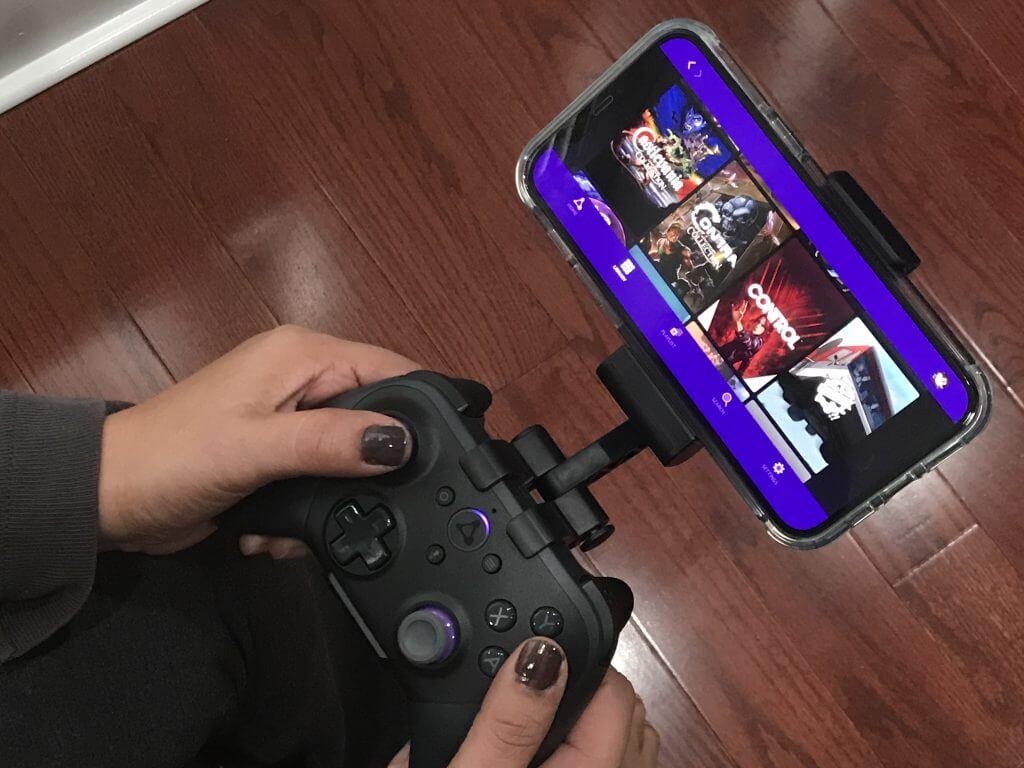
Best Colorizing Software for Black and White Photos [2026]

Do you have an old album of black and white photos you would like to bring back to life? If so, then the colorizing software might be the right choice for you.

There are many applications that can help you with that, and in today’s guide we’re going to show you our best picks.

What is the best app for colorizing photos?

Adobe Photoshop – Superb photo colors

Photoshop is a multipurpose image manipulation tool, which is widely used by millions of professional (and amateur) photographers and creative artists across the globe.

One of the key functions of Photoshop is photo colorization; hence, it is arguably one of the best photo colorizing software out there.

Photoshop, though easy to use, requires a certain level of photoshopping or photo-editing skill to use the color management features of the software.

Some of these features include the color wheel, color replacement, eraser, paintbrush, and color plug-ins among others.

Other photo manipulation features of Photoshop include:

  • Marquee, Lasso, Magic wand
  • Video editing, slicing tools, image cropping, frame tools
  • Symmetry mode, drag & drop
  • Multilingual support (26+ languages)
  • Cloud storage (up to 1TB)

Normally, Adobe Photoshop is a subscription-based product, but you can now try it for free, along with all other Adobe products included in the Adobe Creative Cloud Suite.

Adobe Photoshop

Adobe Photoshop

Adobe Photoshop is the master software for image editing so it’s no surprize that it also has a colorization feature.
Free trial Visit website

AKVIS Coloriage – Various color pallets

best photo colorizing software

AKVIS Coloriage is a top-rated colorizing software, which is optimized to provide natural-looking colors to black and white photos.

AKVIS Coloriage hosts an intuitive user interface, which requires no form of layering or complex color management skill to use. Typically, everything is set, executed, and finished within a few brush strokes in minutes.

Basically, with Coloriage, you can add color to black and white photos, remove the color from colored photographs, add color to sketches, desaturate color patterns on photos, recolor fading pictures, and so on.

Other notable features of AKVIS Coloriage include:

  • Multicolor mode, auto-colorization, color library.
  • Multi-format support (PNG, JPEG, TIFF, RAW, PSD and more).
  • Multilingual interface and helplines (9 languages).
  • GPU acceleration, large format print, color print, IPTC & EXIF support.
  • Recolor brush, photo share.
  • Comprehensive online guide.
AKVIS Coloriage

AKVIS Coloriage

Make renewing old photos a simple task with this powerful software.
Free Trial Visit Website

Luminar Neo – Uses the power of AI

Luminar Neo has a simple-to-use interface that lets you organize photos more easily. There are even various AI-powered presets, so you can add various effects with a single click.

You can also find various tools for editing that can help you remove noise or objects, enhance the details, colorize your photos, and more.

Overall, this is a simple but powerful tool, and you can enhance it even further with various extensions, so if you want to colorize photos or edit images, this might be the right tool for you.

Other great features:

  • Powered by AI
  • Comes with a wide array of presets
  • Supports layers
  • Can be enhanced by extensions
  • Easy to use
Luminar Neo

Luminar Neo

Give old photos a new life with this specialized software.
Check Price Visit Website

What is the best AI colorizer?

This depends on your needs and knowledge. Most tools on our list support AI, so if you need a software that can colorize photos with the help of AI, be sure to try one of these tools.

Is there a free program to colorize photos?

Many web services allows you to colorize photos for free. Some of them are:

  • DeepAI Colorizer
  • Image Colorizer
  • Colourise.com
  • Deoldify

For more information, check our guide on best free tools to recolor images online.

Photo colorization is one of the most important photos of manipulation techniques today. With the advent of this technique, old – vintage – photos can now be brought back to life with near-perfect coloring.

If you’re fan of old photos, don’t miss our guide on photo restoration apps. We also have a list of tools that can convert black and white photos to color online, so check them out as well.

In essence, photo colorizing software is an essential tool in photography and graphics designing. And we have reviewed five of the best photo colorizing software for Windows PC.

Digital pre-orders open for The Elder Scrolls Online: Blackwood on Xbox Series X and Xbox One

A variety of options are now available for Xbox One and Xbox Series X console owners looking to prepare themselves for the upcoming June 8th launch of The Elder Scrolls Online: Blackwood content which will add an additional 30 hours of story and a host of other content to the popular online video game.

A basic Blackwood Upgrade is available for Xbox consoles for those that already own the base game. In addition to guaranteeing access to the Blackwood expansion when it launches, the upgrade will also unlock the Dremora Kynreeve Outfit, Deadlands Wamasu Pet, one Iron Atronach Crate, three Blackwood Treasure Maps, and two Experience Scrolls in June and the Nagahide Welwa Ravager Mount and Nightmare Bear Cub Pet for immediate access today.

For those that are feeling fancy, a Blackwood CE Upgrade is also available and contains the Battlefield Nightmare Senche Mount, Jewel-Feathered Sep Adder Pet, Temperamental Grimoire Memento, Deadlands Gladiator Outfit Style, and the Offer Weapon Emote bonus content.

Interested gamers who have yet to play Elder Scrolls Online can pick up the new The Elder Scrolls Online Collection: Blackwood or The Elder Scrolls Online Collection: Blackwood CE bundle which includes the base game, access to the Blackwood access at launch, and the previously released Greymoor, Elsweyr, Summerset, and Morrowind expansions. The same extras featured in the above expansions are also included in the relevant bundles.

The Elder Scrolls Online launched on Windows with a required monthly subscription in 2014 but switched to a post-buy free model when it came to Microsoft’s family of Xbox One consoles the following year. The game was playable on the Xbox Series S and X consoles on Day One due to their support for the majority of Xbox One video games.

Do you play The Elder Scrolls Online and are you hyped for the new Blackwood content? Share your thoughts with the community in the comments below and then follow us on Pinterest and Twitter for more Xbox gaming news.