Fingerprint readers are very sensitive pieces of hardware connected to computers or devices that need some extra measures of security. Not working properly in Windows 10, 8 makes this a very frustrating problem due to the fact that the biometric sensor was installed for a reason and it is not an issue easily dismissed. Data security is taken very seriously all over the world and these are the types of “red flags” that should be resolved immediately. Most Windows 10, 8 laptops that have a built-in fingerprint reader develop issues when updating drivers or changing operating systems to Windows 8.1 and users are complaining on support forums for companies like Dell, HP, Lenovo or Sony.
After i did update to Windows 8.1 my Fingerprint Sensor Driver not working anymore ! my laptop is Envy-Dv6 7300 ex
There are a number of issues present with fingerprint readers on Windows 10, 8 and 8.1, so we managed to mash-up some solutions that might solve these types of problems.
Fix fingerprint issues on Windows 10
1. Check your fingerprint reader
To get things started make sure you are using your fingerprint reader properly:
Make sure you have the same motion and finger position as used when you registered your fingerprint
Rub your thumb and finger together to create moisture to help getting a better read
Be sure to be consistent with every swipe and keep fingerprint reader in the same position used at registry
There is a pretty big list of things not to do, however, we will enumerate the most important ones:
Do not use any alcohol-based substances
Do not pour liquid directly over the fingerprint reader
Do not rub the reader with paper-like materials
Do not touch the fingerprint reader with your fingernails or any other objects that could scratch it
2. Update your drivers
In case you are using the fingerprint reader correctly, but it still does not work as it should, the most common issue is triggered when updating your operating system. The latest appropriate drivers for your OS should be installed on your machine for the fingerprint reader to be detected correctly.
To have your drivers up-to-date you should check your manufacturer’s website and download the latest drivers required. We recommend a third-party tool (100% safe and tested by us) to automatically download outdated drivers on your PC.
Various errors are the result of a malfunctioning driver. When this is the case, you may need to update or reinstall completely this specific component.
After installing the professional driver updater program, you only need to scan your machine. It will detect outdated drivers and request your permission to update them.
However, a program like Fortect Driver Updater not only downloads and installs drivers, but also manages them by troubleshooting, backing up, and restoring them.
The driver updater program is handy for automatically upgrading Windows drivers. Otherwise, doing it manually takes time and needs extensive knowledge of the drivers you’re looking for.
After installation, things should go back to normal and the fingerprint reader should work correctly. In case you have already installed a driver version that is not working properly follow these steps:
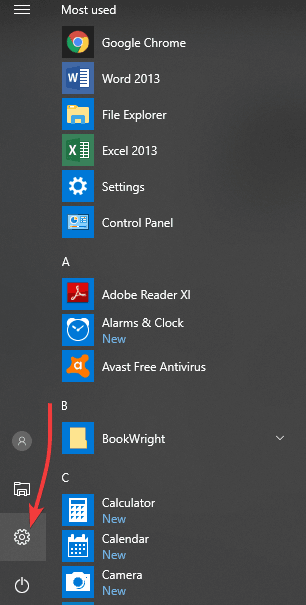
Open Control Panel (via the Charms bar > Settings)
Go to Programs and Features
Right click your fingerprint reader software from the list and tap or click Uninstall.
Reboot your machine
After following the steps above there should be an unidentified device in Device Manager under the Biometric Devices:
Swipe in from the right part of the screen (or move your mouse in the bottom right corner of the screen)
Tap or click Search
In the search box type “Device Manager” and then select it from the results
Expand the Biometric Devices list by taping or left clicking it
After making sure the software was uninstalled correctly download the latest driver version from the manufacturer’s website and install the appropriate driver for your current OS version.
3. Additional solutions
If the issue persists, check out this thorough troubleshooting guide for additional fixes. We compiled a list of nine solutions that can help you fix this problem and restore your fingerprint reader functionality.
Many users already confirmed that these solutions helped them fix their Windows 10, 8.1 fingerprint issues, so go ahead and follow the instructions available in our detailed guide.
These are the steps you need to follow to resolve the fingerprint reader issue. Did you had any other problems with you sensors for your laptop? Share them in the comment are below and we will get back to you in no time.
There are many ways to improve your mathematics skills that you learn in school. Understanding math is required from us from the earliest stages of our lives. Unfortunately, most of us need extra help in order to understand some mathematical methods, but luckily there are a number of ways to do that. This is where Windows 10, 8 math apps can step up and help you get over most issues with the least amount of effort.
Computers were built to answer mathematical issues and calculate way faster than anything else. Mathematics is an universal language and you can find real world applications of it all around you. If you know how to ask the right questions you will get your answers in the blink of an eye, so why not use this fact in our advantage using the best Windows 10, 8 math apps ?
Windows 10, 8 math apps
Looking for help from your devices is the first and easiest step you can take towards getting better. There are many Windows 10, 8 math apps that can be found in the Store for all the different areas of the discipline. You never know when you might need to remember a math formula or a plot to a function, so here are some Windows 10, 8 math apps that you should keep on your tablet or smartphone.
There are many types of math that are needed in different areas of school that range like physics, chemistry, economy and so on. In case you are looking for an all-in-one Windows 10, 8 math app, you’ve struck gold with GeoGebra. The features packed in this app make it one of the most flexible ones. GeoGebra can be used as a tool in algebra, geometry, statistics, calculus or even for graphs and spreadsheets. This Windows 10, 8 math app as an extra resource needed for school and it covers all levels of education.
This Windows 10, 8 math app knows no boundaries when it comes to science and everything related to it. Basically if it has numbers it in, it is contained by this all-in-one app. The different topics available are broken down into science, computer science, math and history.
Moving along directly to what interests us the most we can see that the math is broken down further into everything we can possibly need. The videos found in each section are created as a didactic resource and are a great way to learn in case you didn’t understand, or just missed that class.
When it comes to mathematical functions, this particular Windows 10, 8 math app is a must. Nothing complicated about it and can be used on-the-fly when you need some quick and accurate answers. There are a large number of learning possibilities that come with this app and when it comes to creating plots this is the only thing you need. Generate plots get coordinates for essential points like maximum, minimum, inflection and so on easily without going through the calculus yourself.
This is one of the best Windows 10, 8 math apps to get your kids to perform better at school or just to get them more interested in math. Being designed for children under the age of 12, the app contains a lot of exercises in the form of interactive quizzes. The interface is really simple and easy to use by anyone and it is a lot more entertaining than the traditional way of doing exercises. Your kids will have a blast using this app and maybe even develop a passion for math.
RELATED: Microsoft’s online AI courses are now available for all
If you’re looking for an interactive way to learn mathematics, Microsoft has got you covered. This app is very versatile and can be used by both teachers and autodidact students. Microsoft Math relies on very interesting gamification strategies to motivate you to learn and practice essential mathematics: depending on how hard working you are, you can earn badges and increase rankings.
This tool allows you to collaborate with others online or offline, making the learning experience more engaging and exciting.
Students can practice math exercises, learn concepts, view examples, take quizzes and tests. […] By setting up a basic profile, Microsoft Math offers a social experience while learning. Teachers can use Microsoft Math to motivate, monitor, and track learning and skill levels, allowing more specific and individualized feedback to students.
For the majority of this console generation, Microsoft’s Xbox division has been dogged by the memory of a botched hardware reveal. The perceived missteps during the Xbox One unveiling back in 2013 included a lack of focus on gaming, too much interpretive talk of always-connected purchases and gaming experiences and, an acute interest in non-gaming related entertainment such as sports, TV, film and apps.
The company has never really stepped out of the shadow of those egregious errors according to a vocal majority of gamers, despite the company’s recent gamer-focused approach and adoptions.
Yesterday, at its fifth E3 conference since the reveal of the Xbox One, Microsoft stood on stage and doubled down on its commitment to focusing on gaming while subtly hinting at a pivot back to its always connected cloud meshed gaming experience pitch of old, and remarkably, fans didn’t riot this time around.
Going back to the drawing board
Microsoft is at it again with their always connected-cloud talk, but this time its pitch was arguably received better than it was when the company ham handily stumbled over itself back in 2013 during its Xbox One announcements.
Many of Microsoft’s staunchest critics in 2013 are now showing a bit more reserve when reporting that the company is working on streaming game service that could potentially exceed the limits of its Xbox platform. Understandably, the notion of a streaming game service is, on its face, more palatable than a seemingly DRM-locked digital marketplace that would potentially render its hardware impotent when out of range of wi-fi or other wireless connectivity options.
However, a 30,000 view of the gaming landscape would show that companies such as Microsoft, Electronic Arts (EA) and, yes, even Sony, are preposing a not too distant future where gaming is based on connectivity being a utility rather than a luxury for many.
Former Xbox CEO, Don Mattrick ate his size 12 shoes (just guessing), over and over as he fumbled the explanation of online gaming in the era of multiplayer, digital downloads, and Steam. Had Mattrick laid out the examples of any of the above online options, many gamers would be rendered mute with complaints as most engage with online gaming more often than not. Instead, a submarine full of Xbox wielding soldiers sunk the Xbox PR boat before it was able to leave the shore.
Gamers were inherently distrusting the notion that a console had to be always online back in 2013, but have routinely showed over the years that when the Xbox Live or PSN servers are down (even for an hour) they’re apt to raise concern rather quickly.
Take a stroll down any content sharing site dedicated to gaming and look at the top three games receiving the most attention by viewers and gamers, and you’d be hard press to find a single player, non-internet-connected game listed. The truth of the matter is that online games are a huge market that is only growing with time, which is why Microsoft’s announcement of a streaming gaming service even endeared praise from some gamers.
The backlash Microsoft got from fans seemed similar to the backlash Chromebooks took from Windows and Mac users. There were some valid points to be acknowledged, but the fundamental myth that dispelled most complaints was that without an Internet connection, most of the hardware PC elites were rather muted in the most fundamental ways. Same goes for an always-connected console.
Sure, you can play a disc-purchased single player story mode without the Internet, but how many people are opting to play online with family, buddies or even strangers? How many people make midnight download purchases versus those who sleep outside of Gamestop to be the first to play a game? How many gaming studios have opted to have online-only game modes, the last five years? Seems as though the trends are pointing toward more Internet-connected gameplay than less, as some argued back in the day.
Microsoft’s Streaming ambition
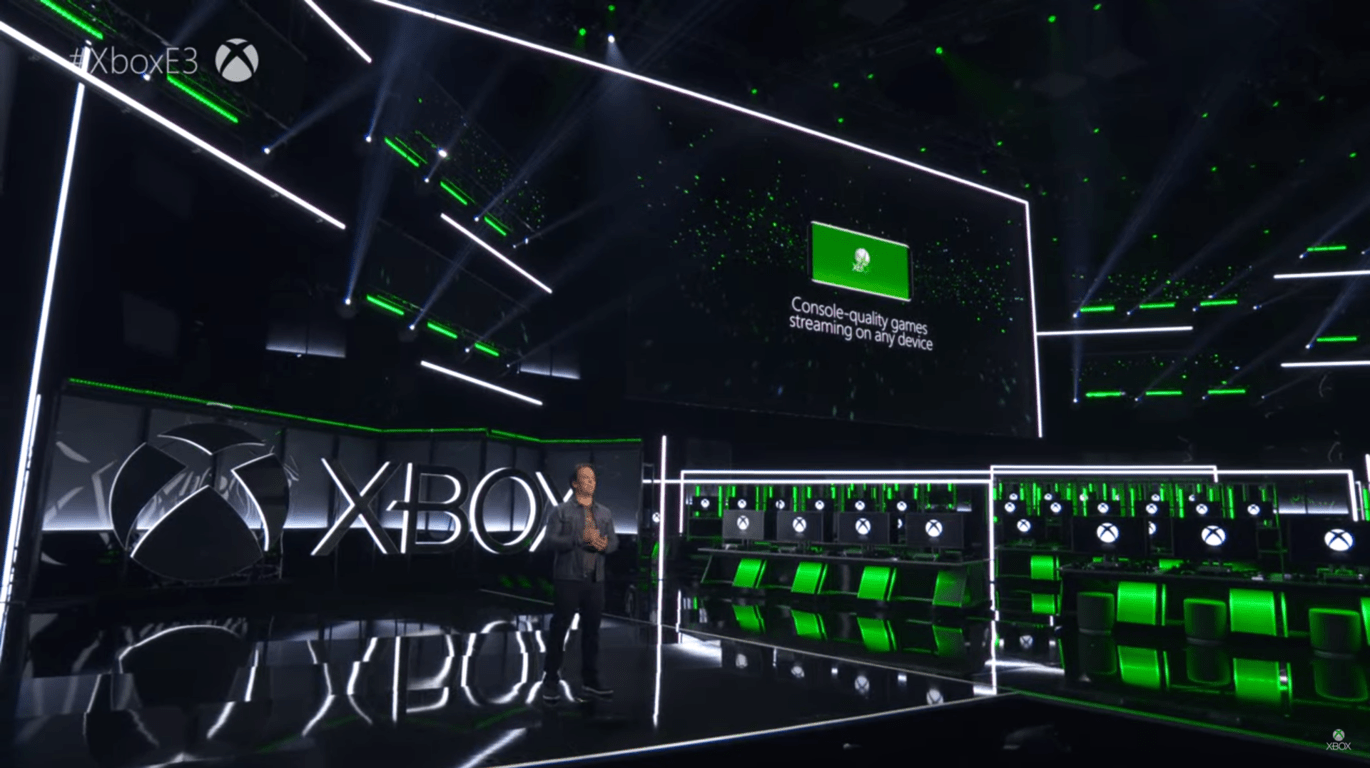
Microsoft’s plan is to “unlock console-quality gaming on any device,” according to new head of Xbox, Phil Spencer. Spencer further added about the Xbox streaming game service, “we are dedicated to perfecting your experience everywhere you want to play–your Xbox, your PC and your phone.”
Spencer’s announcement was met with applause by not only attendees at the Xbox briefing but by many on the internet who are now seeing the obvious path studios, hardware manufacturers and publishing developers are headed. Shortly after Xbox became a pariah in the industry following its Xbox One debacle, Sony released its own always-connected streaming service called PS Now and while crowds were mixed on its implementation, pitchforks and torches were sheathed for the moment.
What is clear, is that gamers don’t mind online gaming, and in most instances, prefer it (cough*Fortnite Battle Royale*cough). It just took some time, a better orator and a few working proof of concept fundamentals such as Game Pass, software-enabled backward compatibility, a robust digital download platform and Xbox Play Anywhere implementations to reassure gamers that the evolution of gaming is something to embrace rather than rail against as a zero sum solution.
With EA Access, Sony’s PS Now, Microsoft’s Xbox Game Pass and CEO of Ubisoft Yves Guillemot’s recent streaming game service announcement, the presence of online gaming has become more invasive and realistic than the DRM-riddled announcements of yesteryear. These online announcements and services all come despite implementations, such as constant online access being a requirement, digital purchases that circumvent 3rd party reseller outlets and DRM-locked gameplay because they’re running parallel to more traditional gaming purchases, but only for the time being.
Gamers are in the bait part of a ‘bait n switch’ con that will be seeing more and more of them opting to pay for an all-you-can-eat streaming service (like Netflix for games) that will require an always-connected internet option, for the convenience of being able to play and extend their console-level gaming experiences on to their PC, Tablet, phone or even Smart TV.
With Microsoft’s Azure cloud presence, the company couldn’t be in a more suited position to take advantage of a global cloud presence that should substantially mitigate input lag, server downtimes, or online lobby headaches typically caused by online games.
Another piece of hardware
Short and simple, as powerful as the Xbox One X is, to use an old MADtv skit reference, Microsoft managed to add another blade.
Perhaps, in an effort to assuage the growing fears that Microsoft might exit the gaming industry after this console generation, or perhaps to showcase their streaming concept, the company is back in the labs creating yet another console to follow the X.
Even if it’s only a stop-gap to the company’s streaming first/only future, fans and Xbox gamers can still look forward to midnight and Black Friday purchases of bundled Xbox hardware for at least another couple of years. While there are scant details about what the next console holds in store for gamers, we’re afforded blind speculation for now. The team behind Microsoft’s slickest PC devices, the Surface line, will now be working in tandem with the Xbox team on the look and feel while the Xbox team sources parts for the architecture of the rig. Needless to say, gamers can look forward to droolworthy-looking device that may have an unconvential trick or two up its sleeves.
The second half of the promise
Next up, games.
For over five years, Microsoft has been saddled as the console with the least amount of games to show during E3, and for arguments sake, the critics have been mostly right. Sony has had a better show of first party IP and it’s paid big bucks to be the marketing arm to some of the most well received titles this console generation. Properties that used to be synonymously linked to Xbox are now becoming PS4 destinations, such as the Call of Duty franchise. It’s been hard for Microsoft to break a now codified narrative that Sony just has more games, despite many of them being cross-platform titles.
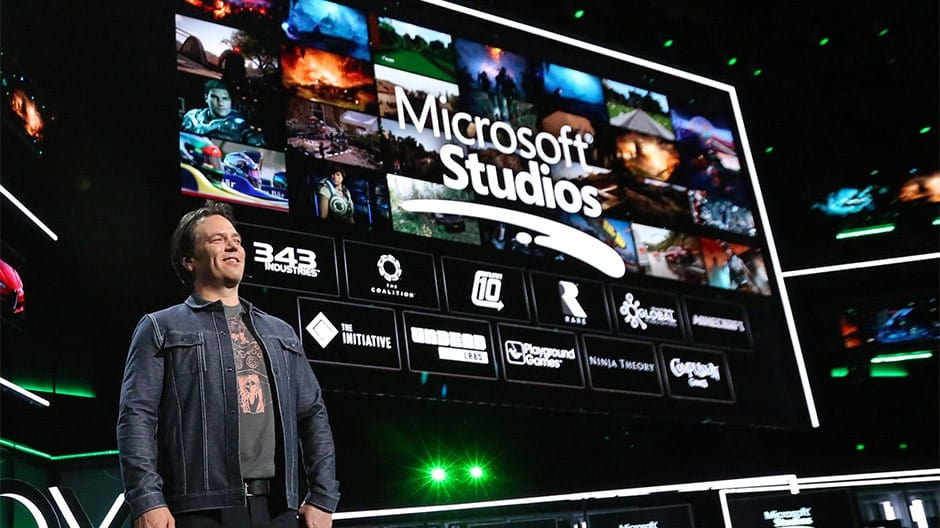
While sharing the vision of their gaming future, Microsoft also announced its intent to purchase gaming studios Ninja Theory, Undead Labs and Compulsion Games to add to its already purchased Playground Games and newly formed The Initiative studio.
Recently, there has been online chatter that Microsoft’s Xbox division was facing such an uphill battle against its largest competitor in Sony and its PS4 hardware sales, that it seemed almost inevitable that the company would shutter its gaming department.
However, with the news of Microsoft forming and intending to buy five new studios to bolster and expand its IP library, it seems the company is even more committed to providing gaming experiences than it was back in 2013.
“The original games we create at Microsoft Studios are some of our biggest assets,” said Matt Booty, corporate vice president of Microsoft Studios. “Our growth strategy is to continue to expand the worlds that players love, while developing all-new exclusive games that deepen their engagement with our platform. We are thrilled to welcome five new studios into the Microsoft family. We believe these teams have the collective creative power and operational excellence to deliver the next industry game changers.”
If everything falls through for Microsoft, it will be in possession of its own gaming future. Yes, branding rights of multi-platforms and console exclusives are proving to be a successful tool in the gaming industry, but first-party development will allow Microsoft the luxury of experimentation. As with State of Decay 2, with Microsoft in the driver seat (as publisher) the company was able to offer games bucking against the expensive sticker tags of most recent titles, offer it as part of a subscription package for less than $10 a month, and keep release parity with PC and consoles as part of its Xbox Play Anywhere initiative.
With these new studios potentially coming on board, Xbox and PC (for a moment at least) gamers should expect to see more intellectual properties get the first-class expanding treatment of digital gaming on the Xbox platform, as well as a much needed uptick in the amount of titles coming from Microsoft.
Beyond the perception of exclusivity, adding five more studios also gets Microsoft out of its Forza, Halo and Gears of War rut and should invite a more varied group of gamers to the platform. Action-adventure games such as Hellblade: Senua’s Sacrifice, or indie survival ones such has State of Decay 2 or We Happy Few, and the great minds behind Forza tapped to make a new mobile-first racing game, could go a long way to courting more gamers to the platform, which is arguably the direction anyone invested in gaming should want to see.
These are just some of the takeaways from Microsoft’s E3 2018 conference, but they speak volumes as to where Microsoft sees itself currently; needing to fix its game reputation and where it sees itself in the near future as part of the evolution of console gaming from dedicated hardware to console-level gaming, anywhere a gamer chooses to be. The future looks bright on both fronts for Microsoft.
If you have a Facebook page that you want to manage from your Windows 8 tablet, it is now easier to do so with the new FB Pages Manager app for Windows 8. Find below our review of its main features.
There isn’t an official Facebook Page Manager app released by Facebook for Windows 8 users in the Windows Store, but a new one, called FB Pages Manager, has been made available for a free download. Actually, this app has been very popular for Windows Phone 7 and Windows Phone 8 users and it now has been ported to Windows 8 users, as well.
FB Pages Manager is a beautiful Windows Store app that you can use to manage all your Facebook pages. The app allows you to update/delete/share your pages status, update photos, check and respond to your messages, comment to your posts or reply to a comment. You can view all your page insights, like or unlike, basically you can do pretty much everything on your pages that you do on your PC browser. Pin your pages to your start screen and be ready to receive notifications even when the app isn’t open.
Manage your Facebook pages from your Windows 8 tablet
Read Also: Windows 8 App Live Tile for Facebook Brings Enhanced Tile Control
The app is at its first release, so there is bound to be some bugs and glitches along the way. After using the app for a while, I’ve seen few bugs, such as distorted images or resolution bugs, but I am confident that the developer will fix the issues in a future release. By using the FB Pages Manager app, you can update, delete or share your page’s status and pretty much anything that you’d normally do on the web version of it.
Also, you can share files directly to the app by using the charms menu from Windows 8. Also, live tiles of any sizes display your last notifications. And since it was launched in Windows 8.1 form, it has full support for it. The ability to pin Facebook pages to your start screen and be on track with the last news is also there. What’s really awesome is that you can check your notifications on your lock screen, without having to unlock your Windows 8 devices.
Pages Manager for FB latest update and features [2018 update]
Pages Manager has not received a very warm welcome as users complain about its ‘hunger for money’. However, do not forget that if you want to promote some posts on a Facebook page, you must pay, whenever you’re managing your FB page from the browser, or from a specialized app as Pages Manager is.
Despite this and all other problems reported by the users. the app received a great update recently, and here are the main changes:
Random crash bugs
Login flow updated
Quick information view on the page selection
Comment reactions
Let us know in the comments if you are using this app and how does it help you.
There are a number Windows 10, 8 apps for school available at the Windows Store that will help you through the learning part of your life. Most of them are really great for your day-to-day use and some are pretty situational and you don’t realize you need them. Having the resources available on your Windows 10, 8 tablets makes it a lot easier to manage school and allows you to have more free time for other activities. The portability of Windows 10, 8 plays a huge factor here, and it allows you to use most Windows 10, 8 school apps found in the store on all your gadgets. Since we don’t leave the house without at least one portable device, we can access these apps from our smartphones, tablets or laptops while at school or in the work environment.
Be better at school with these Windows 10, 8 apps
Whether you are in primary school or enrolled at a university, there are lots of Windows 10, 8 school apps available that you might not know of. Here are some of them, which are essential and you might want to consider for your daily routine. If you happen to use others and you are very pleased with them, let us know by leaving your comment in the box after the article.
This is a really simple app and it does everything it should do perfectly. It has all the features of a regular scientific calculator and a few more. This Windows 8 school app itself is really simple, however there are some things that should remain easy to use and calculators are one of them. This is a must have Windows 8 app for school and its usefulness will be appreciated for years. If you want more details about this Windows 8 school app you should definitely see our complete review.
A student planner can be really useful and even life-saving in some unexpected situations and nowadays it is really easy to integrate everything in your smartphone or tablet, without the need to have an extra notebook. This school app for Windows 10, 8 stores your timetable, assignments, exams and other important dates and allows you to see the upcoming events that require your presence or just get a glance of your day ahead. It is really simple to use and very configurable to fit your desires.
One of the tools that are essential in order to make your student life easier is a unit convertor. Having this app available for use makes your calculations faster and more accurate especially if you are an engineering student. Unfortunately this does not mean you can skip the class on conversions, but after you learn to do them yourself, this will be a real timesaver when you need to do some quick calculations. This will also help you meet deadlines easier and will allow you to spend more time on other important aspects of your assignments.
No introduction necessary for this Windows 10, 8 app, due to the fact that it is probably the most used word in schools and universities all over the world. This open source web page and now Windows 10, 8 app is an amazing source of information. Users all over the world contribute to the database with articles and help correct mistakes found in others. The Windows 10, 8 school app works beautifully and allows you to browse Wikipedia a lot faster than using an mobile browser to go to the Wikipedia web page. For more information about Wikipedia check our review .
If you are looking for a dictionary app this is one of the better ones you can find at the Microsoft Store. Being a simple dictionary is what makes this app great and easy to use by everybody. One of the extra feature this app has are pictures associated to most words you are looking for due to the fact that sometimes a definition is not enough. There are many dictionary Windows 10, 8 school apps you can find at the Store, however I find this particular one the most complete dictionary app you can get for free.
There is no need to spend large amounts of money on the complete Encyclopaedia Britannica set of books anymore. The app is basically the A-Z collection available as an online resource and this is the easier way to get the information you need. Being able to access the content from home, office or while you are taking a bus ride means a lot these days especially if you have a tight schedule and little to no time on your hands.
The app also packs some extra features that most find interesting like “This Day” events that occurred throughout history. The only downside of the app is that it requires a subscription in order to access all the articles, but it is wellworth the money if you enjoy expanding your knowledge. Do check our detailed review on this.
Students need to read many pages of information daily and coping with this task can sometimes get a bit overwhelming. One solution is to simply improve your reading speed so that you can absorb more information much faster.
With the help of this app you will significantly improve your reading speed as well as your information retention rate. Eye and memory exercises will help you expand your field of view as well as long term memory.
Check out these Windows 10, 8 school apps as well
In the past, we have featured a very good article on some of the best brain training apps to be used on your Windows 10, 8 tablet, so you definitely need to check it out. If you are still looking for more Windows 10, 8 school apps you should definitely take a look at these:
Some Windows 10, 8.1 tablet owners have been complaining that after they have made the jump to Windows 10, 8.1, the screen rotate function is not working correctly on their tablets. Find below more details about the error.
Rotating your Windows 10, 8.1, 8 tablet‘s screen is really easy, but it seems that not for everybody. A frustrated user has taken his anger on the Microsoft support community forums, saying that his problems hasn’t been solved, despite applying the latest updates. Here’s what he said at the time:
I’ve got a problem where the screen won’t rotate properly after the Surface has been left overnight. It will rotate on the lock screen, but then when I unlock, rotate is no longer working. It does work correctly at first when I power the device up from cold, but at some point, usually when I go to use it the next day, the rotate no longer works. It still works on the lock screen, but not once unlocked.
The user says that he made sure to check and toggled that his screen lock was off and he also disconnected the touch cover. At the moment, we don’t know whether this is a Surface RT or a Surface Pro or what version it is, but more people have reported the similar problem, and it’s obvious that they don’t all own only Surface tablets.
The quickest way to make the Windows 10, 8.1 tablet rotate again is to restart it. For some, applying the updates from November and December Patch Tuesday seems to take care of the problem. However, an official fix is yet to be released.
2. Check Lock Rotation settings
If your tablet won’t rotate the screen after restart, make sure that the Lock Rotation option is set to Off. If you enable it, this will prevent your tablet from automatically rotating the screen when you tilt it.
Also, if this rotation issue is affecting your Surface Device, try folding the keyboard or simply close the device. Sometimes, Windows 10 blocks lock screen rotation when you attach a keyboard.
3. Update your accelerometer drivers
If the problem persists, make sure to update your sensor drivers. Go to Device Manager, locate your sensor driver, right-click on them and select Update drivers.
Tweaking your Registry may also help you fix the problem, as this user reports. So, go to Start > type ‘regedit’ > launch the tool. Now, follow the instructions listed below:
1. Now expand “HKEY_LOCAL_MACHINE” then expand “system”, then expand “CurrentControlSet”, then expand “Enum”, then expand “root”, then expand “SENSOR”, then expand “0000”, then expand “Device Parameters”, then click on “kxfusion”
2. On the right hand window double click on “ACPISMO85001-0” make sure the value data is the following
{CDA4B5F8-53B4-4E7C-8A73-0D69852FBEBA}
3. Now in the same window double click on the “Orientation” and make sure the Value Data is the following: 0000 01 00 00 01 01 00 02
Keep in mind that this value may vary by manufacturer, so you may need to try a different orientation value. Close the Registry, restart your computer and check if the problem persists.
5. Manually rotate your screen
Well, if nothing worked, try rotating your tablet screen manually. Here are three methods to do this:
Connect your keyboard: Press Ctrl + Alt + [a directional key] at the same time.
Select the rotation angle: Tap on an empty space on the desktop > go to your graphics Options > Rotation > select the rotation angle that you want to enable.
Manually select orientation: Go to Settings > System > Display > Orientation > select the orientation angle.
Deleting a file for good from your Windows 8 system does not happen when you use the Shift+Delete keyboard combination or when you empty the Windows Recycle Bin. By using the SDelete software, you will be able to permanently delete the wanted files from your command line
The Shift+Delete keyboard combination that many think is efficient against removing all the files from your Windows 8 only empties the Windows Recycle Bin and the files don’t get actually deleted. What happens is that Windows only removes the index for that file in the file system. If you want to delete a file for good, you can use the SDelete software, which is one of the Sysinternals tools provided by Microsoft (download link at the end).
Securely deleting a file that has no special attributes is relatively straight-forward: the secure delete program simply overwrites the file with the secure delete pattern. What is more tricky is securely deleting Windows NT/2K compressed, encrypted and sparse files, and securely cleansing disk free spaces. Compressed, encrypted and sparse are managed by NTFS in 16-cluster blocks. If a program writes to an existing portion of such a file NTFS allocates new space on the disk to store the new data and after the new data has been written, deallocates the clusters previously occupied by the file. NTFS takes this conservative approach for reasons related to data integrity, and in the case of compressed and sparse files, in case a new allocation is larger than what exists (the new compressed data is bigger than the old compressed data). Thus, overwriting such a file will not succeed in deleting the file’s contents from the disk.
SDelete is a command-line utility that overwrites the contents of free space on a disk so that no one can recover the deleted data that the disk contains. It relies on the Windows defragmentation API to see which disk clusters hold deleted data. Here are the command lines that you can use with SDelete:
-a: Remove Read-Only attribute.
-c: Clean free space.
-ppasses: Specifies number of overwrite passes (default is 1).
-q: Don’t print errors (Quiet).
-s or -r: Recurse subdirectories.
-z : Zero free space (good for virtual disk optimization).
Not all the users might need SDelete on their Windows 8, 8.1 or 10 devices in order to permanently delete some files. This tool is not the easiest to use, and in this case, less skilled users might encounter some difficulties while using it. Well, we have considered this situation and prepared here a list of file deleters that you could use on your PC. Here it is:
A good number of Dell Venue 8 Pro owners have been recently reporting that their Windows 10, 8 tablet has been struck by Wi-Fi issues. Now, the annoying problems with the connectivity have been put to an end as Microsoft has released an update that takes care of the problem.
According to a Microsoft support engineer, the problem with the Wi-Fi on the Dell Venue 8 Pro has been occurring because the updates were not installed in the right order. First of all, you need to make sure that you uninstall all of the following updates: KB2887595 and KB2903939 (if you still got them on your device). After that, you will need to run Windows Update once again in order to install the latest updates.
If you installed the latest updates, and restarted your Windows 10, 8 tablet shortly after that, then the Wi-Fi problems with your Dell Venue 8 Pro should have been solved. As a matter of fact, Dell’s 8 inch tablet is one of the best Windows 10, 8 tablets to buy this holiday. You can see how the table fares against competitors such as the Toshiba Encore or the Lenovo Miix 2.
If the updates don’t fix your Wi-Fi problems, here are a few additional troubleshooting guides that you can use:
If the issue persists, leave a comment below and we’ll try to find a solution together. Don’t forget to give us more details about the issue that you’re experiencing, so that we can identify the best fix for you
The Windows 10, 8 Zinio app has many users but also a good part of them are not satisfied with how the app has been performing, accusing it of slow responsiveness. Now, an update has been put in place to take care of that and add some more features.
The Windows 10, 8.1 Zinio app is one of the best to use when it comes to managing your magazines. If you look at the moment in the Windows Store, you will see that it doesn’t have such a great rating, which is caused by the fact that there were some big problems with app‘s performance previously. But now, all that is behind as the latest update seems to fix things.
Zinio is for people who love magazines. It’s the app with the largest selection of magazines in news, science, technology, entertainment, fashion and more, including The Economist, New Scientist, Esquire, Rolling Stone, Maxim, Juxtapoz, ESPN the Magazine, GQ, Vogue, Elle and countless others. Use Zinio for Windows 8 to read articles from our favorite magazines, or browse our collection of magazines on every subject, and in more than 30 languages. Read what you like!
Manage magazine subscriptions on your Windows 10, 8.1 device
The latest release note for Windows 10, 8.1 app Zinio says that a much-improved reading experience on Windows 10, 8 has been put in place. The latest update fixes sluggish page turning on Windows RT and Windows 10, 8 devices and generally improves the performance. Also, faster download times have been put in place and support for new countries have been added:
Australia
Canada
India
New Zealand
Singapore
South Africa
United Kingdom
By using Zinio, you will be able to access the content of some of the most important magazine publications in the world, such as Brides, Vanity Fair, Forbes, The Week, Autoweek, Newsweek, Bloomberg, GQ, Esquire, Men’s Fitness, Vogue, Elle, Cosmopolitan, Marie Claire, Nylon, Harper’s Bazaar, BlackBook, PC World, PC Gamer, X-Box World, Layers, Edge. Popular Mechanics, National Geographic, The Smithsonian, New Scientist, Science, Popular Science and others.
So, if you want to keep up with the latest news in various fields, including news, politics, technology, art, style, travel and much more, then this is the right app for you. You can access the latest stories that shape history in a few seconds.
You can also access Zinio’s content on your Windows 10 desktop computer via a monthly subscription that you can get on Zinio’s official website.
Speaking of magazines, if you’re working for a magazine or planning to create your own magazine any time soon, check out this list of the best magazine design software to impress your readers.
Some Windows 8.1 users have been reporting various problems with their Visual Studio 2013 when installing it or when it Designer mode. We go through the complaints below.
Recently, some forum postings have appeared saying that the install of the Visual Studio 2013 software in Windows 8.1 has been met with problems. One user has reportedly been getting this issue report “Microsoft visual studio express 2013 for Windows – ENU has stopped working. A problem caused the program to stop working correctly. Windows will close the program and notify you if a solution is available.”
After doing a clean install of Windows 8.1 on my Macbook Air using Bootcamp (even though Microsoft decided to remove it from the Windows App Store due to a shitstorm of error reports), I also decided to do an install of the brand spanking new Visual Studio 2013. One of the errors I’m getting is that any Visual studio installation crashes immediately (winexpress_full, vs_ultimate etc).
This is what the affected user is saying who is apparently using Bootcmap. The problem seems to appear with select Intel drivers, so make sure you check that in your Device Manager and download the latest Intel Graphics drivers to your system. Another user is saying the following:
When I open designer it throws error: System.Runtime.Remoting.RemotingException and after reload, it appear againt and has transparent. Broken desinger. Of course xaml is full of buttons, but it disappeared in desinger…The problem might be AMD Catalyst Controler, I tried reinstall it, but without results.
For this problem, you can try the solution present here. Do you have any other problems with Visual Studio 2013 in Windows 8.1?
Visual Studio versions for Windows 8.1 and 10 [2018 Update]
Since the article was written, Visual Studio has been upgraded and received new versions in order to be compatible with the latest Windows features but also with users needs. Now we are waiting already for Visual Studio 2019 edition, which promised to be awesome. We also wrote about the most used Visual Studio version (until the new version will appear) – Visual Studio 2017.
You can try to upgrade from 2013 to 2016 or 2017 version as they have more maintenance updates and are better supported. They work faster and can offer you more than the previous versions. Recently, Visual Studio code has received a useful Java debugging extension. You can check for details here.
To download and install NVIDIA GeForce Experience, now integrated into the NVIDIA App, follow these simple steps to access powerful tools for game optimization, driver updates, and gameplay recording.
No, but it makes optimizing and updating much easier.
Can I record gameplay without third-party apps?
Yes, ShadowPlay is built right into GeForce Experience.
Why does GeForce Experience need an account?
Logging in syncs your preferences and gives access to NVIDIA services.
Conclusion
Installing GeForce Experience via the NVIDIA App is quick and gives you access to powerful tools like game optimization, driver updates, and gameplay recording. If you run into issues, our linked guides can help you fix them fast.
Some owners of the Razer Blade gaming laptop have been reporting some problems with the Windows 10, 8.1 operating system. We’ll go through their complaints and we’ll also list a few troubleshooting suggestions.
More problems for Windows 10, 8.1 laptop owners. This time, users of Razer Blade seem to be affected, according to some forum postings. The problems seem to be related to GPU issues with Razer Blade and also speakers and headphones. Here’s what one of them is saying:
I bought the laptop from another fellow and completely wiped the drive (mine has 500GB+64GB SSD cache.) I then installed Windows 8.1 and proceeded to install all of the drivers. After all of the installing was done, my headphone jack refused to work, at all. I thought it was a hardware problem, so I opened the laptop to check (out of warranty anyways.) There is absolutely nothing wrong with the hardware, so I continued to uninstall/reinstall drivers. I finally got the headphones to play sound, however, the laptop is not turning the speakers off when headphones are plugged in. Has anyone had this issue before?
And here’s what another one is saying, this time, apparently being struck with GPU problems on his Razer Blade gaming laptop after switching to Windows 10, 8.1.
So my Razer Blade 14 came stock with windows 8.1 and as such, I have had troubles with the GPU. The newer nvidia drivers frequently crash, displaying the message “the display driver has stopped responding” and the performance is inconsistent and lower than the stock drivers. I don`t mind sticking with the stock drivers, but i was wondering why theoretical driver updates are hindering the computer`s performance. Coming from a W230ST, I found that the 765m, being a cool running chip, responded excellently to overclocking, my W230ST often achieved higher fps despite running games at 1080p than the razer running stock clocks at 900p. Whenever i try to overclock, the display driver often crashes, the performance become inconsistent and sometimes the computer blue screens.I have tried MSI afterburner, nvidia inspector, evga precision x and rivatuner.
How to fix Razer Blade issues on Windows 10, 8
1. Update your OS
First of all, make sure that you’re running the latest Windows version on your laptop. Running outdated OS versions may trigger various gaming errors or even prevent you from booting up your computer. So, do check for updates and install the available updates.
2. Install GameFire
GameFire is a great troubleshooting tool for gamers. This PC game booster automatically optimizes your PC for the best possible gaming performance.
In order to boost your game performance and get rid of slowdowns, lags, low FPS and other annoying issues, we recommend downloading Game Fire (free).
3. Fix Razer Blade audio issues
As you can notice from reading the quotes above, many Razer Blade users encountered various audio issues on their laptops. We’ve got a series of troubleshooting guides that you can use to fix them:
If you’re experiencing various display issues on your Razer Blade laptop, make sure you’ve installed the latest display drivers. If the problem persists, check out the troubleshooting guides listed below:
Have you experienced similar problems after making the switch to Windows 10, 8.1? And if you did, what were the measures that you took to overcome the problems? Do share it with us so that we could help the community.
A lot of users have been reporting problems with their integrated camera, or the webcam, as we simply call it, in Windows 8 and more recently, Windows 8.1 and Windows 10. We go through their complaints and try to provide a working solution.
I also have been recently struck with this annoying problem – the integrated camera of my Asus laptop won’t work after the Windows 8 upgrade, and recently, after the Windows 10 upgrade. Even after switching to Windows 10 or 8.1, the issue was still present. Browsing online, I’ve seen that this is a widespread problem that is affecting thousands of Lenovo, Dell, HP, Sony and other OEM users. Here’s what one of them is saying:
I upgraded to Windows 8 some time ago and did not notice that my integrated camera is not recognized, the driver is not listed in the downloads for the laptop but states this is a Windows Inbox Driver. Where can I get the driver AND where in the device manager is it listed. Thanks.
And another weighs in with the following:
I have windows 8.1 on my ThinkPad T430 and its integrated camera is not working. Even when I had windows 8, the camera was not working. I googled the problem a lot and even tried to install drivers but with no success.
First of all, you need to make sure that you have indeed the latest drivers for your integrated camera. Go to your OEM and see if you can find the latest drivers on their download drivers page.
2. Update BIOS
If you did that, then you might try updating the BIOS. If Windows 10, 8.1, 8 drivers don’t work, try downloading Windows 7 Service Pack 2 compatible drivers. I know it sounds dumb, but this apparently has solved the problem for some users.
3. Download the Lenovo Settings app
Lenovo users could download the Lenovo Settings app which might come with a few fixes for the integrated camera problems in Windows 8, 8.1 and Windows 10.
4. Install the latest Windows updates
Next, I suggest you check with the Windows Update, in case you have automatic updates ticked to “off”. You might just have an update waiting for you to install it.
5. Uninstall your webcam or webcam drivers
Also, you could try uninstalling the drivers for your webcam and, after that, uninstall the webcam completely from the Device Manager list. And connect it and install the latest drivers once again.
6. Run the hardware troubleshooter
Running the troubleshooter might do wonders. Follow these steps:
Press the ‘Windows + W’ key on the keyboard.
Type troubleshoot in the search box and then press Enter.
Click Hardware and devices and run the troubleshooter.
If your issue is Skype-related, you need to allow Skype to use the camera from Settings –> Permissions. If the issue persists, then maybe the troubleshooting guides listed below will help you:
It is worth mentioning that many users who installed the Windows 10 April Update on their devices reported that the update broke their microphone and camera. This is a permission-related issue, as the OS automatically disables app access to your camera and microphone for privacy reasons.
8. Temporarily disable your webcam
Many users also suggested that disabling and re-enabling the camera from Device Manager may fix this problem. So, right-click on your webcam, select ‘Disable device’ and restart your computer. Go back to Device Manager and re-enable the webcam and then check if the issue persists.
The Surface Pro has had persistent issues with the mouse. The device is designed to take input from the Surface Pen as well, besides being touch-enabled too. As such, invoking the Surface Pen automatically reduces the mouse pointer to a mere dot on the screen.
However, while that is a specific design feature, the same might get invoked randomly even when the pen is nowhere near the display. This can be annoying as well, especially when the Surface Pro is used in laptop mode with mouse as the input device of choice.
That said, there sure are ways to circumvent the issue easily.
What to do if your Surface Pro can’t see the mouse pointer
An outdated trackpad driver might be the reason why your Surface Pro can’t see the mouse pointer. As a way out, check to see if there is an update available for the trackpad driver. Here is how you do it:
Launch Device Manager. You do it by right clicking on the Windows icon and choosing Device Manager. Alternatively, you can type it on the taskbar search box and select it from the search results shown.
Expand Human Interface Devices
Right-click on HID-compliant touch pad
From the menu shown, select Update driver
Restart your device
Using a reliable driver updating tool that downloads and installs drivers automatically will prevent issues like this from happening.
By eliminating driver problems and inconsistencies, the software will ensure your operating system achieves peak performance and is protected by the latest drivers.
At the same time, you stay protected from system errors generated by incompatible drivers and in exchange optimize your PC performance.
2. Electromagnetic interference
The Surface Pro is designed to detect the Surface Pen even when it is not in physical contact with the display but is held some way off of it. This can be attributed to the electromagnetic field created between the pen and display which enables the latter to detect the exact presence of the pen on the screen.
However, there are several common household items present in most of our homes that also produce an electromagnetic field. Those include objects seemingly as innocent as a stereo receiver, iron, refrigerator, mixer, fluorescent light, and so on.
Taking the Surface Pro near at of those might trick it into believing it is the Surface Pen that is in the vicinity, thereby leading to the pointer being transformed into a dot.
To rule out such a possibility, take the Surface Pro to a place where there aren’t any electrical devices nearby. The best thing to do here would be to take the Surface Pro outside and test if it can detect the mouse pointer.
3. Tablet mode
Sometimes the Surface Pro might be lingering in tablet mode even if it has been disengaged. In such a scenario, it would be a good idea to engage tablet mode followed by dis-engaging it again. This way, the Surface Pro will know if it is to be used as a regular laptop, complete with the keyboard and mouse as input devices.
Also, specifically, click on the keyboard icon at the taskbar to reinforce the above. Likewise, the mouse pointer too should be visible as well.
4. Multiple Bluetooth mouse pairings
Several users have found their Bluetooth mouse devices to behave abnormally – read pointer just disappears – if the mouse is paired to another computer nearby. This leads to a clash of sorts with both PCs likely competing for the same mouse while the mouse can pair with only the one with the stronger signal. In that case, either the mouse will have to be unpaired or uninstalled from one of the devices or one of the computers needs to be operated beyond the Bluetooth range of the mice.
This should let one of the PCs be in complete control of the mouse with the pointer hopefully behaving normally.
5. Mouse pointer disappears in Chrome browser
Strange it might sound though it happens to be a common problem wherein the mouse pointer is nowhere to be seen within the Chrome browser. Outside of it, the mouse behaves just as it should and the pointer too is perfectly visible.
This should make it amply clear that the issue is with the Chrome browser itself. In that case, you might want to start with updating the browser itself, if any such is available. Here are the steps:
Start Google Chrome.
Click on the three vertical dots at the top right corner > Help > About Google Chrome.
Chrome will automatically search if an update is available and will download and install it accordingly.
Restart Chrome and check if your Surface Pro device can detect see the mouse within the browser.
However, if the problem persists and Chrome is up to date, here is something else you might want to try.
Open Task Manager. You do that by typing Task Manager from the taskbar search box and select from the results shown.
Within Task Manager, end all Google Chrome processes.
Restart Chrome.
You should be able to see the mouse pointer within Chrome.
There you have it, the steps to be followed if your Surface Pro device can’t see the mouse pointer.
Microsoft showcased 50 games during its E3 press briefing yesterday, including several new exclusives and other unannounced games that had their world premiere. Reddit user gowans007 took the time to create a detailed list of all these titles complete with their detailed status. This is perfect if you want to know which of these games will support Xbox Play Anywhere, be included in Xbox Game Pass at launch and more.
Overall, Microsoft announced 15 exclusives yesterday, with Halo: Infinite, Gears 5 and Forza Horizon 4 being the most exciting first-party titles. These three exclusives will all be available on Xbox Games Pass on their launch day, but the situation should be quite different for select exclusives such as Ori and the Will of the Wisps and We Happy Few. The first one will be published by Microsoft Studios, as was the first episode which has yet to make it to Xbox Games Pass. As for We Happy Few, it’s will be published by Gearbox Publishing and Microsoft’s acquisition of its developer Compulsion Games doesn’t guarantee its future addition to the Games Pass catalog.
Now for the Xbox Play Anywhere games, it’s was good to learn that Halo: Infinite will also launch on Windows 10 and mark the return of Halo on PC. However, Gears Tactic, one of the three upcoming Gears of War games announced yesterday will be a PC exclusive, which was a bit surprising. Anyway, you can learn all the details about the 50 games showcased yesterday in the list below:
If you want more Xbox news, we invite you to tune in to the Inside Xbox live stream starting at 3 PM PST. Yesterday’s press conference was quite a roller coaster, but Microsoft promised “even more reveals and announcements” later today. If you watch it live on Mixer, you’ll also be able to snag another free “MixPot” collection of digital content.
After Microsoft took to the E3 stage yesterday to unveil a host of first and third party games coming to the Xbox One platform sometime between the end of this year and next, storage provider Seagate siezed an opportunity to tout its new external hard drive, designed specificaly for the Xbox One console family.
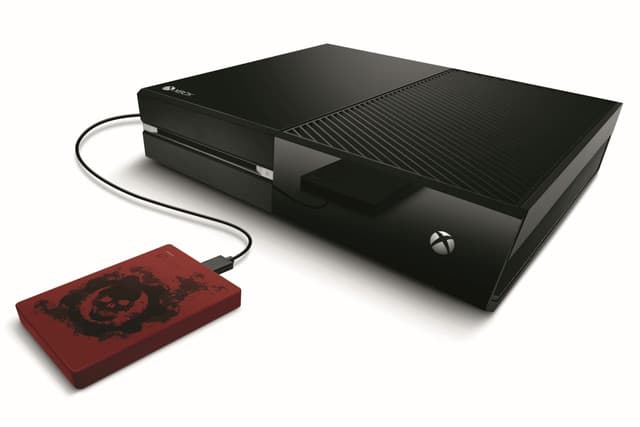
With most AAA gaming titles coming in with a 35GB+ download install, storage space on gaming consoles has quickly become a precious commodity, and its seems Seagate is prepared to accommodate Xbox One owners with a various configured options that include external hard drives with 500GB, 1TB, and 2TB solutions.
The new exeternal hard drives will cost $150, $300, and $600 respectively, and if that seems like a lot for storage in comparison to alternatives, Seagate is betting on its new sleaker design, USB-C connector and read speeds of 540 MB/s to win your gamers hard earned cash.
Another selling point for Seagate is its partnership with Microsoft that allows the company to offer a two-month trial of Xbox Game Pass which is a buffet of gaming experiences and should help any gamer push the limits of the Seagates storage offerings.
To purchase the new external hard drive, gamers will have to wait until later this summer, but can visit the Seagate homepage for shopping comparisons in the meantime.
The Surface Book 2 is a powerhouse of a device, but many claim that the Surface Book 2 keyboard not working. This can be a major issue, making your device almost unusable, so it’s important to fix it.
Sadly, this isn’t the only issue, and Surface Book 2 CPU throttle is well documented. However, today we’ll focus solely on keyboard issues.
Why is my Surface Book 2 keyboard not working?
Software issues – Sometimes, these can be fixed with a simple restart, but sometimes you need to use specialized software.
System issues – A bad update or BIOS settings can sometimes cause this problem to appear.
How can I fix Surface Book 2 keyboard if it’s not working
Before we move to the more advanced solutions, you might want to try these simple solutions instead:
Use the two-button shutdown – Press and hold Power and Volume up button for about 45 seconds until nothing is shown. After that, power on your device normally.
Clean the contacts – Disconnect the keyboard and clean the contacts with rubbing alcohol. Wait while the contacts are completely dry, and connect it to your device again.
Use Surface Diagnostic Utility – Microsoft has specialized software for Surface that can help you diagnose and fix issues.
1. Remove recent updates
Start Control Panel. The easiest way to do this is type Control Panel in the taskbar search box.
Select Programs followed by Programs and Features. Lastly, choose View installed updates.
Select recent update and click on Uninstall.
You can also prevent the same update from installing on your Surface Book device again. Here is how:
Open the Settings app and go to Update & Security.
Select Advanced options.
Here, set Pause update setting to the On position.
This is the simplest solution you can use if Surface Book 2 keyboard and trackpad are not working, so be sure to try it.
2. Save BIOS settings
Shut down the Surface Book.
Press and hold on to the Power button until it starts.
Press and hold on to the Volume up button until you enter the BIOS.
Do not make any changes in the BIOS settings. None of that is needed.
Just click on the Exit button to move out of BIOS. However, make sure you consent to save the changes even though none has been made.
This will make the Surface Book to restart.
If some keys not working on Surface Book 2 keyboard, then be sure to give this solution a try.
You will be presented with two options before Windows is installed afresh: Keep my files which will remove apps and setting but personal files will be intact and Remove everything which will remove everything from your device, including all your personal files.
Choose wisely. If you choose to remove everything, ensure you have backed up all your data.
Once the process is complete and the device restarts, check if the keyboard is responding again.
However, if nothing seems to work, the keyboard might be dead. Get in touch with Microsoft support in that case.
Ever wondered which Surface Book is the best? Our Surface Book 3 vs Surface Book 2 guide might be able to answer that question for you.
Did you find a different solution? If so, share it with us in the comments section.
Welcome back to our Windows 10 news recap, where we go over the top stories of the past week in the world of Microsoft’s flagship operating system.
Microsoft files patent for a solar-powered Surface Pen
Microsoft’s vision for a future Surface Pen that doesn’t require the changing of batteries could include a solar-powered Surface Pen, removing the need both for changing batteries and recharging, placing it a step above the Apple Pencil, according to a new patent filed by Microsoft.
Microsoft adding ability to remotely install apps to any of your Windows 10 PCs from the Microsoft Store website
Unravel Two was officially announced during EA’s conference this morning and it’s also now immediately available to buy, download, and play on Xbox One consoles. The game is a sequel to the popular original Unravel title and features a strong emphasis on local two-player co-op. Here’s the official description and trailer.
When you cut ties to the past, new bonds form. In Unravel Two, create a Yarny of your very own. Then build relationships with other Yarnys in local co-op or as a single player, fostering friendship and support as you journey together.
Begin your adventure in a cold and imposing land, then watch your surroundings blossom with new life as you chase the spark of adventure. Dive into an immersive story filled with energy, exuberance, inspiration – even monsters. Approach every challenge with positivity and fearlessness to awaken the world around you, and discover an unbreakable bond between friends.
Are you excited for an Unravel sequel? Let us know in the comments below and like us on Facebook for more Xbox One video game news.
Many think that VEVO is limited only to Youtube, but it’s actually available as a standalone service. And, it’s also available in the Windows Store as a Windows 10, 8 app. We go through its features below.
Not many Windows 10, 8 users know that there is an official VEVO app available in the Windows Store that they can download on their Windows 10, 8 tablets, and other devices and listen to music without having to go on YouTube.
As a matter of fact, it’s been there for quite a while, but we’re doing a short review of it, in case you didn’t know it was there. Here’s how its app description goes:
VEVO TV is a 24/7 channel of music videos, live performances, and original shows from VEVO’s massive library – made by music lovers for music lovers, no algorithms allowed. Turn it on, relax and enjoy a full HD music experience that covers everything from the latest premieres to the best classics. Pop, rap, rock, R&B, country – the choices are endless. VEVO TV: Always On.
By using the Windows 10, 8 VEVO app, you will be able to watch music videos, stream live concerts, and discover new artists all on your Windows 10, 8 device. VEVO has a catalog of 75,000 music videos from more than 21,000 artist, so there’s a lot of music to be discovered and listened to. VEVO for your Windows 10, 8 tablet will work over your cellular network connections, but it will work much better over a Wi-Fi network.
Download the VEVO app for Windows 10, 8 by following the link from below to start enjoying free high-quality music videos. You will also find in the app exclusive videos, premieres, and select live performances. It is available in the following languages – German, French, Italian, Spanish, Dutch, Polish, and Portuguese.
It is worth mentioning that sometimes, due to some particular licenses from the content owners, some features and videos may not be available in your region. Also, some users reported that the video quality is not that good when expanded on the whole screen, so do keep these two pieces of information in mind in case you encounter any issues.
Microsoft has a huge collection of free and paid Windows 10, 8 and Windows 8.1 themes available for download, but if you want to download third-party themes, then Uxtheme Multi-Patcher is perhaps the best software to use.
There are many available free Windows 10, 8 and Windows 8.1 themes that you can install right now. Recently, we have also shared with you some Windows 10, 8.1 winter and Christmas themes. But if you have found a great third-party Windows 10, 8.1 theme that you really like, there’s a software that can easily help you deploy it. And it has recently just received full Windows support.
Download Uxtheme Multi-Patcher
Uxtheme Multi-Patcher can patch system files so it could support customization items that are not developed by Microsoft. Here are the changes packed in the latest Uxtheme Multi-Patcher version:
Added Windows 10/8/8.1 support for both x86/x64
Completely based on UxStyle memory patching so any obsolete file patching method won’t be restored with this version
Refreshed UI to represent Windows 10, 8.1 support
Added clearing services before installing UxStyle that should solve common issues
Fixed patch execution bug in Windows 10
Added startup launcher to handle glass configuration
Added verifying that theme engine works properly on startup
Added Glass transparency support for Windows 10/8/8.1
Changed applying permissions program to cacls instead of icacls
Fixed theme changing to Classic occasionally on some systems
Improved service configuration for better compatibility with Windows 10/7/8/8.1
Of course, you can use Uxtheme Multi-Patcher for all the other supported Windows versions. Download it from the below link.
Some users complain that Windows randomly minimizes everything, including apps and games. This can be frustrating, as it just takes away whatever you are doing.
If you are also facing this issue, the solutions in this guide will help you restore normalcy quickly.
Why do all my windows minimize randomly?
Below are some of the reasons Windows randomly minimizes everything:
Malware infection – One of the reasons your apps and programs automatically minimize in Windows 10 is the presence of malware on your PC. You need to perform a deep malware scan to get rid of the virus.
Corrupt system files – At times, all your windows minimize randomly because some system files are broken or missing. Repairing these files should restore normalcy here.
How can I fix Windows if it randomly minimizes everything?
Before proceeding to the fixes in this section, below are a couple of troubleshooting steps to try:
Perform a deep malware scan
Check your USB ports, as sometimes a faulty USB connecting and re-connecting could cause this.
1. Turn off Tablet mode
Open Start and select Settings
Click System
Click Tablet Mode
Now, under When I sign in, select Use Desktopmode then close the window
Under When this device automatically switches tablet mode on/off, select Don’t ask me and don’t switch
Under Hide app icons on the taskbar in tablet mode, slide to select OFF
Finally, under automatically hide the taskbar in tablet mode, slide to select OFF
Windows 10 has the Tablet Mode or Continuum feature, which is specially designed for touch-enabled devices like a tablet and others.
Tablet Mode works like a bridge between your computer and the touch-enabled device, so when it is turned on, all modern apps open in full window mode such that the main apps window is affected.
This causes the automatic minimizing of windows if you open any of its sub-windows. So, you need to disable it to fix the Windows randomly minimizes everything issue.
3. Boot in Safe Mode with networking, then perform an SFC scan
Restart your computer
When the sign-in screen is displayed, hold down the Shift key while you select Power, then Restart
After the computer restarts to Choose an option screen, select Troubleshoot.
Click Advanced options.
Open Startup Settings.
Click Restart.
Once it restarts, you will see a list of options. select 5 or F5 for Safe Mode with Networking
Once you’re in safe mode with networking, perform an SFC scan to fix the Windows randomly minimizes everything issue. To do this:
Click Start and type CMD in the search bar.
Right-click Command Prompt in the search results and select Run as administrator.
Now, type the command below and hit Enter: sfc /scannow
Wait for the command to finish running and restart your PC.
If there are no errors from the scan, restart your computer and see if Windows 10 still randomly minimizes everything..
4. Run the Microsoft Safety Scanner
This is a free downloadable security tool for on-demand scanning, which helps remove malware and collaborates with your existing antivirus software. However, you need to use it within 10 days after downloading it, after which it will expire.
In order to rerun a scan with the latest antimalware definitions, download and install it again. If you run the virus scan without reinstalling Microsoft Safety Scanner, the program will be deleted, and any infected files and folders can also get deleted.
5. Create a new user profile
Click Start and select Settings.
Select Accounts.
Click Family and Other people.
Click Add someone else to this PC.
Fill in the form with the username and password. Your new user account will be created.
Click on Change account type.
Click the dropdown arrow to set the account to the local user level.
Restart your computer.
A corrupt user profile can cause Windows 10 to prevent any access to files or folders, hence randomly minimizing everything. You need to create a new user account (local) to resolve this.
Login to the new account you just created and see if the problem goes away. If it does, you can set your new account as an administrator and downgrade the old account. You can later return it to its admin level and check if the issue persists.
6. Uncheck the Interactive services detection setting
Right-click Start and select Run.
Type msconfig and press enter or click OK.
Press ALT + D together and press enter so as to configure the system for a diagnostic startup.
Reboot and check if the issue is gone.
Right-click Start again and select Run.
From the menu bar, select Services.
Find Interactive services detection and uncheck its box.
Click Apply and OK.
Go to Task Manager and click Show processes from all users.
Look for the same Interactive services detection and end the process.
Restart your computer
7. Disable Aero Shake using Registry Editor
Right-click Start button.
Click Run.
Type regedit in the Run box.
Click OK.
If a password or administrator permission is required, click Yes or Allow.
Find and select this registry subkey: HKEY_CURRENT_USER\SOFTWARE\Microsoft\Windows\CurrentVersion\Explorer\Advanced
Create a new value in the Advanced key by right-clicking the Advanced key.
Select New > DWORD (32-bit) Value.
Name the new value DisallowShaking.
Double-click the new DisallowShaking value to open its properties window.
Change the value from 0 to 1 in the Value data box.
Click OK and close Registry Editor. The changes should reflect immediately.
The steps outlined here for Registry Editor must be followed carefully because any incorrect modifications to the registry may cause serious damage to your computer. Before making any changes, backup the registry for restoration in case of any problems.
If you want to reverse the change later, you can go back into Registry Editor and either set the DisallowShaking value back to 0 or delete the value altogether.
8. Disable the Microsoft Consumer Experience with the Local Group Policy Editor
Click Start, and in the search bar, type gpedit.msc and press Enter.
In Local Group Policy Editor, go to the left pane and find User configuration.
Click and select Administrative Templates.
Click Desktop.
Find Turn off Aero Shake window minimizing mouse gesture and double click on it.
In the properties window that opens, select the Enabled option and click OK.
Exit the Local Group Policy Editor.
To enable Aero Shake again, just follow the same procedure and set the Turn off Aero Shake window minimizing mouse gesture option back to Disabled or Not Configured.
To better understand how window controls are supposed to work and how to manage your app layout, check this step by step guide on how to minimize and maximize windows in Windows.
We can now conclude this detailed guide with this solution. Similarly, if Windows 10 closes apps when minimized, check our detailed guide to fix it.
Were you able to fix the Windows randomly minimizes everything issue with these solutions? Let us know in the comments section below.
There are many wireless keyboards and mice to choose from for your Windows 8 or Windows 8.1 device, but it’s hard to choose the best one. I have recently bought a wireless keyboard and mouse for a very good price from Logitech that I’m very pleased with. Find below my short review.
Yep, I keep my laptop on an old Scrabble game box…
I have been looking for quite a while now to buy a wireless keyboard and a wireless mouse for my Windows 8 computer. Having missed the sweet Black Friday period, I thought that I’ll have to pay a heavy price once the promotions have ended. Luckily for me, the biggest retailer in my country had a very hot sale for a day – 2 peripheral Logitech devices for the price of one. I took my chance and brought the Logitech Wireless keyboard K230 and the Logitech wireless mini-mouse 187. And it has been one of my best hardware investments yet.
Currently, the Logitech Wireless keyboard K230 retails for less than $30 on Amazon and the Logitech wireless mini-mouse 187 for less than $20. So, for $50 you get two peripheral wireless devices that will seriously improve your productivity and work on your Windows 8, Windows 8.1 or any other computer you might be using. Here are my impressions.
The Logitech Wireless keyboard
What you need to understand is that these wireless devices can’t compete with those from higher leagues, so you need not to forget what prices they have. So, judging at what price they come with, that’s why I said they are the best wireless keyboard and mouse combination for Windows 8 that I could’ve possibly found. I don’t claim they are the best, just that at this price range, they are definitely among the best choices to be used.
The Logitech Wireless keyboard K230 feels plasticky, there’s no doubt about it, and if you will have made the change from a laptop, it will feel too sturdy and robust and annoying at first. Actually, I had to look at they keypads for a few good times before getting the hang of it. I guess it took me less than one hour to start writing without having to look at the keyboard at all.
All in all, I have ended up liking the plastic feel more than I did the one on my old laptop. However, I tend to think that there was a good layer of grease on my laptop’s keyboard, so that’s why it felt a little bit slippery. That’s now the case with my new Windows 8 wireless keyboard. Another big bonus that you get from switching to this wireless keyboard is its small size and ergonomic design. Albeit they keypads have been “crammed” to fit on a smaller size, it doesn’t bother you while typing. Logitech actually says that it is smaller by 36% than most standard keyboards.
The version that I have bought had three swappable corner battery covers – there was white, blue and a grena. It’s nothing too fancy, but it’s still better than complete dark, so this is something that I enjoyed. Actually, my wife found it to be much nicer than I did. The wireless keyboard is very lightweight so you can carry it with you anywhere you go, if you want to.
As for its wireless capacities, it comes with the Logitech Advanced 2.4 Ghz connection that ensures your keyboard will work up to 10 meters (33 feet). Another awesome feature that Logitech claims is the fact that its battery life will last for up to 2 years, but it does mention that “battery life may vary based on use”. Since I am a heavy user, I will let you know how much it will take until complete depletion.
Other keyboard options for Windows 10, 8.1 and 8 [2018 update]
Since the article was written, many models appeared on the market. Now you can choose between gaming keyboards, spill-resistant keyboard, mini keyboards, virtual keyboards, etc. Even though Logitech is one of the best keyboard constructors, some users might prefer other labels. Here are some of the newest lists that we have created so you can choose the right keyboard to use:
Choose wisely as it will be a part of your daily work for a long period.
The Logitech Wireless mini-mouse
The Logitech Wireless mouse is my first mini-mouse to use and it was a small shock for me, but I got used to it in a few hours. It feels small and doesn’t fill up your palm, as I was used to with all my previous mice. But I found it perfect for my Windows 8 laptop. Also, I was lucky enough to get my hands on a trendy model, with blue and orange color cues, which is in perfect concordance with the above mention keyboard. And, as you can see from pictures, they do look good together.
Some of you might not like its colors, as black seems like the best option, but I find it to be playful and everytime I put my hand on it, I feel like I am using a toy. Despite being so small, it’s not as lightweight as you’d expect it to be, which is a good thing, in my opinion. It makes it feel robust and let you know that you hold something in your hand. If you are used to bigger mice, then I suggest you to carefully analyze whether you want to switch to a smaller one.
If you are looking for portability, then this Windows 8 wireless mouse is perfect. What I also liked about it is that it is quite silent. I am not sure how well does it fare against mice that are considered to be really silent, but this one is much quieter than the one I had before. The single annoying thing is the fact that that pressing the middle button will make a rather annoying sound. A sound that is far too loud than the sound the left and the right click does.
Also, scrolling on it seems to be very fluid, if I can say so. For a mouse of its price range, I can definitely recommend it to anybody interested to get a cheap, but reliable Windows 8 wireless mouse. I don’t use a mouse pad per se, but this doesn’t mean you shouldn’t use one, either. I found it to have a good accuracy and to be quite smooth at use when used on my wooden desk.
Best mice to use on Windows 10, 81. and 8 PCs [2018 update]
Until 2018, there were many mouse models released. The most of them now are big with a futuristic design, and they are for (that’s right!) gaming. Business models are smaller, but very handy and can be carried with ease everywhere. We will not show here a list of mice model-by-model as the article is not about this, but we will leave here a list of dedicated articles so you can consult them and choose. Here it is:
According to multiple forum postings, The Elder Scrolls V: Skyrim is reportedly crashing and not working in Windows 8 and Windows 8.1 for some users. Below are more details.
Recently, new complaints have appeared related to games crashing in Windows 8.1. This time, players are complaining about The Elder Scrolls V: Skyrim not working. Previously, we have reported many other problems with games in Windows 8.1, such as the following:
Now, here’s what one frustrated user is saying about The Elder Scrolls V: Skyrim crashing in Windows 8.1:
While using windows 8 skyrim worked amazing, i switched to the preview and it still worked perfect. EVer since the full release of 8.1 skyrim literally launches to black screen then never does anything, no waiting for application, no auto close, just sits and never changes, ive gone though my settings configured them the right way with my monitor and my computer can easily handle this game it just seems to be windows 8.1. I even tried to play it using compatibility mode. I have also tried to re install it, launch w.o mods and dlc with no prevail. Ive also noticed a lot of 8.1 users having major issues with this game as well as similar games.
So, first of all, before upgrading to Windows 8.1, you need to know that there’s a high chance your saved games will be deleted. Secondly, you need to make sure you have ALL the latest drivers in place. Personally, for me, the game was flickering all the time in fullscreen, but not in window mode, so when I downloaded the latest graphics drivers, the problem has been fixed.
Also, you might get an error like this – “Failed to initialize renderer. Unknown error creating renderer.“. I suggest you to get the latest Nvidia drivers for this matter and you should be fine. If the issue persists, leave your comment below and we’ll try to find together a solution.
Various Skyrim errors and their fixes [2018 update]
Through the years, Skyrim received many updates and add-ons, but nothing is perfect, as you should know. Different errors and malfunctions have been reported and we managed to gather them and to search for fixes. We have prepared a list of errors and their fixes so you can play your favorite Skyrim version in Windows 10, 8.1 an 8 whithout any problem. Here are the guides:
As part of its latest Patch Tuesday security update that Microsoft release once per month, the Redmond company has also issued an update for the Microsoft Camera Codec Pack in Windows 8.1. Below are more details.
The latest Patch Tuesday for December, 2013 released by Microsoft has brought quite a lot of updates and changes. We’ve already covered SkyDrive improvements, the new Microsoft AntiMalware Removal tool, as well as updates with printing issues found with the Windows Photo Viewer tool. Now, it seems that a new updated for Windows 8.1 has been made available and it covers the Microsoft Camera Codec Pack.
This update enables you to view many camera-specific file formats in various experiences in Windows. The update enables supported RAW camera files to be viewed in Windows Explorer, the built-in photo applications, and other Windows-based applications that use Windows Imaging Codecs.
So, as we can see, Microsoft has updated the Microsoft Camera Codec Pack and now RAW camera files can be viewed with dedicated photo applications and other Windows proprietary tools. On top of the many formats supported, now the MicrosoftCamera Codec Pack comes with support for the file formats of the following devices:
Canon: EOS 1DC, EOS-60Da, EOS 70D, PowerShot S100V
Fujifilm: XF-1
Nikon: Coolpix 5400, Coolpix 8700
Olympus: E-PL5, E-PM2, XZ-10, XZ-2
Panasonic: DMC-FZ200, DMC-GH3
Pentax: K-5 II, K-5 IIs
Samsung: Galaxy NX, NX2000, NX300
Sony: A-99, Cyber-shot DSC-RX100 II, Cyber-shot DSC-RX1R, NEX-3N, NEX-5R, SLT-A58
Camera software for Windows 10, 8.1 and 8
In case your Windows 10, 8.1 or 8 PC is still not opening some image files, especially the files from different camera models, you can fix this problem by following the steps from this guide. It helped already thousand of our readers and it’s quite simple. If you have some specific features on your camera, feel free to choose other software. Here’s a quick list of handpicked software to open different camera file formats:
Windows 10, 8.1 users that were looking for Apple to release support for their iCloud Control Panel can finally rejoice as Cupertino has made this available in the latest iCloud Control Panel version. Below are more details.
Windows 10, 8.1 users that have been using Apple’s products have been plagued with a lot of issues, a recent one being with iTunes crashing in Windows 10, 8.1. But now comes some good news for those of you who where complaining that there was no support for the iCloud Control Panel software.
iCloud keeps mail, contacts, and calendars up to date between your iPhone, iPad, iPod touch, Mac, and Windows PC, and lets you share calendars and task lists. iCloud also keeps your Internet Explorer, Firefox, or Google Chrome bookmarks on Windows in sync with your Safari bookmarks on iPhone, iPad, iPod touch, and Mac.
With My Photo Stream, iCloud automatically downloads the photos you take with your iPhone, iPad, or iPod touch to your PC, — and any photos you add to My Photo Stream are automatically available on your other devices set up with iCloud. You can also share photos and videos with just the people you choose, and invite friends to add their own photos, videos, and comments with iCloud Photo Sharing.
The latest iCloud Control Panel version finally brings support for Windows 10, 8.1, as well as the fact that signing into the iCloud Control Panel will now automatically sign you into Outlook, as well. You can use the iCloud Control Panel software in Windows 10, 8.1 to view and manage your iCloud account, such as e-mails, bookmarks, photos, and more, as well as see the available storage space. Download it following the link from below.
Many iCloud users usually need more than the 5GB of storage space that they get when signing up. You can increase your storage plan, starting at 50GB for $0.99. if you’ve got many photos, videos and documents to store, then you should definitely consider upgrading your storage space.
Here are the steps to follow to get more iCloud storage from your PC:
Open iCloud > navigate to Storage > View Account.
Enter your Apple credentials > Follow the on-screen instructions.
If you are looking to gift a Windows 10, 8 tablet to someone, or, why not, buy it for yourself, you’ve come to the right place. In this post, we’ll put the Toshiba Encore and the Dell Venue 8 Pro to the fight.
You are probably looking to buy a Windows 10, 8 tablet these days, but you are not sure what to choose. To help you with that, we have create the “What Windows 10, 8 Tablet to buy today?” guide that I gladly recommend it to you. This time, we are comparing the 8 inch Windows 10, 8 tablets Toshiba Encore and the Dell Venue 8 Pro. In the past, we have compared others, as follows:
Before getting down to the specs, what you need to know is that by buying a new Windows 10, 8 tablet, you will get a $25 gift card that you will be able to use in the Windows Store only.
Price – for a long while, Toshiba’s Encore 8 inch Windows 8.1 tablet was losing many battles with other competitors price-wise just because it was more expensive by $30. Now, it has been discounted and it retails for the same entry-level price as the Dell Venue 8 Pro – $299.
Display – Toshiba Encore comes with a 8.0 in LED (1280 x 800), 5-finger multi-touch support while the Dell Venue 8 Pro has the same 8.0 in IPS LED (1280 x 800) but it has a 10-finger multi-touch support, so it is slightly better, but nothing very important here.
Processor – when it comes to the processor, again, the difference is very small, as Dell Venue 8 Pro comes with Intel’s Atom Z3740D processor with a frequency of up to 1.80 GHz while Toshiba Encore has a Intel Atom Z3740 that can be clocked up up to 1.86 GHz. Toshiba wins, but it’s something that shouldn’t matter that much. And actually, if you look at the memory specs from below, you realize that Dell’s tablet makes up for the small loss.
Memory – As I said, Dell Venue 8 Pro has a 2 GB DDR3L-RS 1333 MHz which is slightly better than Toshiba’s 2 GB LPDDR3 1066 MHz
Storage – no differences here with the built-in storage, as both come in 32 and 64 GB version, but where the Dell Venue 8 Pro wins is Micro with the SD card reader it accepts – SD/SDHC/SDXC whereas the Toshiba Encore only with a Micro SD card slot
Audio and Video – no differences here, as both Windows 8tablets come with integrated audio and Intel HD Graphics with shared graphics memory.
Ports – Toshiba’s Encore claims a small win as it comes with Micro USB 2.0, Micro HDMI, Headphone output/Microphone input combo while Dell’s Venue 8 Pro lacks the Micro HDMI port and only comes with Micro USB.
Battery – Toshiba’s Encore is said to have a 2-cell lithium-ion battery that will last up to 7 hours while Dell’s will last up to 8 hours. Albeit it seems that Dell wins here, the early reviews have proved that they have similar battery life spans.
Camera – Here, the Dell Venue 8 Pro loses big, as it comes with only a 1.2 MP HD webcam front camera and 5 MP in the back while Toshiba’s Encore comes with a 2 MP front webcam and a 8 MP rear camera.
Dimensions – Toshiba Encore’s dimensions are 8.40 x 5.40 x 0.43 in (213.36 x 137.16 x 10.92 mm) and when compared to Dell Venue 8 Pro’s 8.50 x 5.12 x 0.35 in (215.90 x 130.04 x 8.89 mm), we can see that the 8 inch Dell tablet is thinner by more than 1 mm.
Weight – Dell’s Venue 8 Pro is thinner and also lighter as it has a 0.87 lbs (394.62 g) weight and when compared to Toshiba’s 0.98 lbs (0.44 kg), we can see that is lighter by almost 50 grams.
User review
When it comes to deciding which of the two devices is better, you should also take into consideration the average user review score. Amazon is one of the most popular e-commerce platforms and we’ll use the information available on their website.
So, Toshiba Encore got 3/5 star review (over 200 reviews), while Dell Venue 8 Pro got 3.5/5 star review (over 2,000 reviews). Clearly, when it comes to user experience, Dell Venue 8 Pro wins the crown.
As you can see, each of these two is winning in a section and losing in another one. If camera is important for you, then you should go for the Toshiba Encore, if you’re looking to buy something lighter, than Dell Venue 8 Pro should be your choice. What will you choose?
If you are looking for a Windows 8 app that could have the function of a music player with lyrics, then look no further than MusiXmatch lyrics player. Below are more details about it.
MusiXmatch Lyrics Player is one of the best Windows 8 music players with song lyrics to be used. By using the app you can find and match lyrics to your favorite songs, absolutely for free. You won’t have to search anymore for lyrics to a certain song online as this app will be your savior. It comes with more than 6 million officially licensed lyrics that localized in 18 languages.
Featuring a fully integrated music player, song tracker, and powerful lyrics search engine, musiXmatch is the best way to find lyrics on your device. Users can browse the top viewed lyrics by country, and even purchase music directly from the app.
MusiXmatch for Windows 8 claims to provide access to the largest lyrics database in the world. You can also buy music tunes from Amazon, iTunes and 7-Digitaland play songs within the app, with the following file types being supported: mp3/wma/m4a. The app has also received a number of recent updates, bringing the ability to recognize music on-air at radio/TV through the MusicID; bigger cover arts, faster startup, after the first scan and the option to play full albums simply tapping on the album name.
MusiXmatch is working now only on Windows 8 platform, as shown on the official Microsoft Store page. This is not great news for users that upgraded recently from Windows 8 to Windows 8.1 or 10. However, we have a great alternative to propose you: Deezer app for Windows 10. This app supports lyrics but also will help you with song recommendations.
Here are some music-related software lists that may interest you:
While publications continue to fan the flames of this console generations rabid fanboy and fangirl fervor over chosen gaming hardware options, Microsoft is seemingly starting its own simmering campfire across town by opening up an online storefront to enable fans to champion their pride of the Xbox brand.
The first mention of this new store came from a post on Major Nelson blog about upcoming E3 announcements from Microsoft.
Visit the Xbox Official Gear Shop
For the first time, come and visit the Xbox Official Gear Shop by Microsoft Stores in the Xbox Experience at E3. Fly your gaming colors and show off your fandom for Xbox and award-winning franchises like Halo, Forza Motorsport, and Gears of War as well as limited edition designer collaborations. We will have more information on this exciting new initiative over the coming weeks.
However, there were no links or any further details about the Official Gear Shop until recently.
A few days ago, notorious Microsoft leaker, WalkingCat reiterated the potential of an online store similar in function to the Microsoft Store that could sell all types of Xbox branded “gear”.
At the time, the link redirected to Microsoft’s homepage with no indication of an Xbox Gear shop even being contemplated by the company, however, today, the link now opens a holder page with several people donning various clothing with Xbox branding and the tag, “coming soon.”
Perhaps, this new Xbox Official Gear store will be part of Microsoft’s E3 announcements or become supplemental news this weekend for fans who are left feeling reinvigorated by their choice of gaming on the console. However revealed, the timing seems to be lining up with Microsoft officially taking the wraps off sometime in the next few days.
When it comes to Windows 8 games you can no longer use the mouse, so you need a nice gamepad. Now, frequently asked questions are about gamepads that are compatible with Windows 8 and Windows 8.1 . There are not many of them yet and we made a list of those available.
The market of gamepads for Windows 8 is definitely evolving and prepared for new requests. Although, you will have to be patient and a little bit more selective when choosing a gamepad for your Windows 8 PC or tablet that will perform at its best. We listed below a number of 8 gamepads compatible with Windows 8 and Windows 8.1 m but if you already chose a gamepad you can do a quick check-in at Microsoft’s compatibility center to see if it will work with your system.
When you set up your Windows 8game controller, after you will have found the needed drivers, you can get on with your favorite games. If Windows 8 doesn’t automatically find the drivers when you plug in your controller, you will need to download drivers for your gamepad that are compatible with Windows 8. You can use Windows Update to check for the needed gamepaddrivers.
Windows 8 compatible gamepads
Cordless Rumblepad 2 (recommended)
It looks like this Windows 8gamepad works like it’s supposed to. Many Windows customers are happy with it – good vibration, batteries lasting up to a couple of months – but you should be aware that it takes some extra-time to set up the controller, so arm yourself with patience. You can also opt for the wired version of Logitech RumblePad 2.
This Windows 8 gaming controller is a classic and perfectly functional gamepad to be used with your many games that are installed on your Windows 8 laptop, computer or even tablet. The layout of 12 programmable buttons makes it a very suitable gaming device and for less than $80, it’s quite the bargain.
This one is number 3 in top best sellers on Amazon.com with a special offer listed price of less than $20. This is one of the cheapest Windows 8 gamepads currently available and when it comes from such a brand like Logitech, you shouldn’t have any second thoughts about it.
The F510 is a good choice if you prefer your controller to be wired and it currently retails for less than $70. You can customize its button controls and functions by using the Profiler software. The Gamepad F710 is cheaper, having a listed price of less than $50.
As we have previously told you, Sony’s DualShock 4 new controller will also work with your Windows 8 and Windows 8.1 systems. You can buy it from Amazon, Sony, Walmart, BestBuy or Gamestop for a price around $60.
Of course, Microsoft had to make the Xbox gaming controller compatible with Windows 8 and Windows 8.1, but at the moment the Xbox Onecontrollerdrivers are yet in the works.
This is an amazingly well-designed controller. You can enjoy its amazing visual design as well as its great construction which is created for people who pass many hours in front of their console. From its most notable features, we have to mention the built-in control, carbon steel analog necks, optional palm grips for a better control.
Magic Jigsaw Puzzles for Windows 10, 8 is one of the best puzzle games for Windows 10, 8 users in the Windows Store. Now, it has received a fresh updated that makes the app faster and more stable. Below are more details.
Now, it’s time to talk about Magic Jigsaw Puzzles for Windows 10, 8, which recently received a fresh update in the Windows Store.
Magic Puzzles is a constantly updated collection of original puzzles for the true lovers of brainstorming! Colorful themed pictures, new opportunities and pleasant music will help you to forget about everyday worries and will bring a fascinating pastime.
The release note says that the developer has fixed the bug with partly or fully disappeared puzzle pieces. But it seems that the app is also faster and more stable, as performance improvements have been put in place.
Magic Jigsaw Puzzles game description
The app comes with 5 levels of difficulty, consisting of up to 630 pieces and the puzzle rotation makes up for a greater challenge. According to Magic Puzzles’ devs, the app has been downloaded more than 50 million times. Magic Jigsaw Puzzles is one of the the largest jigsaw puzzle game available online.
It features over 20,000 HD pictures and photos curated from National Geographic, Cartoon Network and many other sources. You can choose from various puzzle categories, including: animals, paintings, nature landscapes, portraits, and more. Moreover, the app also offers free daily updated puzzle galleries.
You can also create your own puzzle games using the pictures stored on your computer and then share your creations with your friends. If you’re an absolute puzzle beginner, don’t worry about it, you can quickly polish your skills in Quick Puzzles mode.
Follow the link from below to download the app on your Windows 10, 8 device.
Several Windows 10 users reported encountering USB tethering issues; in some cases, it was not working in Windows 10. The problem appears to affect users who recently upgraded the iteration.
We have seen many USB-related issues in the past. We have reported problems with the Belkin Network USB Hub, slow USB 3.0 problems, and the infamous USB Code 43 Error.
But all these are easily fixable, including when Android and iPhone USB tethering in Windows 10 is not working. Keep reading to find out the solutions!
How do I enable USB Tethering in Windows 10?
Tip
Before we proceed with the slightly complex solutions, make sure the connections are in order. Also, check for any damages to the cable. Replace it if needed.
1. Run the dedicated troubleshooter
When faced with a problem, a quick solution is to run the built-in troubleshooters. These offer an easy way to identify and eliminate issues behind USB tethering not working in Windows 10.
For a complete walkthrough of setup and basics, check our USB tethering guide before trying the steps below.
2. Update the drivers
Often outdated drivers are why you face USB tethering issues in Windows 10 with iPhone or Android devices. And in this case, it’s best that you update the drivers.
Device Manager
Besides, when Windows can’t find an update automatically, you can always head to the manufacturer’s website, download the latest version, and then manually install the driver.
In case this process is taking too much time, there is a way to do it skyrocket fast. Updating any drivers from your PC can be done automatically with a tailored software solution for managing any driver issues.
When nothing else works, and the tethering worked fine in Windows 10 until recently, you can perform a system restore.
System Restore
This will revert any recent changes to the PC, including the one that’s triggering the problem. Once done with the restore, you wouldn’t, anymore, find USB tethering not working in Windows 10.
When the wired connection fails, you can always switch to the wireless one. Though we prefer a wired setup, there’s no harm in going for a wireless one in case of issues.
Just turn on the hotspot on the mobile, and connect your Windows 10 device to it, as you do with a regular Wi-Fi network.
By now, you should have fixed things when USB tethering is not working in Windows 10. Before you leave, find out how to increase the Internet speed in no time.
For any queries or to share more solutions with us, drop a comment below.
The wait is finally over! The WinReducer software is finally available for Windows 11. This software allows you to modify Windows ISO and reduce its size.
It can be pretty valuable software; if you use it, today’s guide will give you all the necessary information.
What is WinReducer?
This software allows you to configure Windows ISO files, and it can do the following:
Customize the appearance of Windows with new wallpapers, mouse cursors, and more.
Ability to integrate or remove certain components from the installation.
It can add various updates, drivers, or features to the installation.
Once the download is finished, run it to start the software.
It’s important to mention that the free version of the software is only valid for 6 months, and if you want to continue using it, you’ll need to obtain a license.
WinReducer sounds like interesting software. However, it’s important to be extra cautious when modifying Windows 11 ISO since that might cause compatibility issues in the future. To start using it, download Windows 11 ISO and run the software to modify it.
Microsoft Lync, formerly known as Microsoft Office Communicator, is an instant messaging client used with Microsoft Lync Server or Lync Online. Microsoft has also released an official Windows 8 app in the Windows Store that has now received Windows 8.1 support Windows 8 and Windows 8.1 users that have installed the official Lync app use it to communicate with other Microsoft Lync Server or Lync Online user and they work as replacements for Windows Messenger in Microsoft Exchange Server. Now, I’ve noticed that the Lync app has received an updated that makes it compatible with Windows 8.1.
You can use the Lync Windows Store app to join a Lync Meeting, but you must have a Lync account already to enjoy all the advanced features and capabilities of the Lync app. Keep in mind that some features might not be available to you, depending on your Lync server and your account settings. For more information about your Lync account, please contact your support team. Lync Windows Store app is reimagined for the new Windows Experience and optimized for touch, providing fast and natural communication and collaboration tools. You can easily make audio and video calls, run online meetings, check your colleagues’ presence status, and send instant messages.
The release note brings the following new features, besides full Windows 8.1 support
Take control of shared screens, apps, or PowerPoint decks uploaded in Lync Meetings
Run Lync side-by-side with another app at any window size, when you need to work with another app at the same time
Answer audio and video calls quickly when your device is locked, without having to unlock it
Find your contacts faster, with a simple, in-app contact search
Enjoy the performance improvements of all the features
The Windows 8.1 Lync app is used by professional and is considered like a “business instant messenger service”. By using the app, you can join Lync Meetings and take control of PowerPoint decks. Follow the link from below to download it on your Windows 8.1 tablet.
Lync messenger can be found on Microsoft Store but it works only on Windows 8 right now (at least this is specified in its download page). However, if you were using it a lot, and upgraded to Windows 8.1 or 10, we have great news: this isn’t the only instant messaging app that you can use. We have some lists of various messaging software that might replace you Lync. Here are some of them:
Flixster is one of the best Windows 10, 8 and 8.1 movie apps for film fans from all over the world.It has recently received a fresh update in the Windows Store that takes care of some previous annoyances.
Watch movie trailers, get showtimes and stream movies from your UltraViolet movie collection. Browse the top box office movies and movies opening soon. Look up showtimes at nearby theaters. Get critics’ reviews from Rotten Tomatoes. Watch high quality trailers. Stream full-length movies from your UltraViolet collection. Create your own “Want to See” list.
The release note for the Windows 10, 8.1 Flixster app update informs us that fixes for playback issues and general bug fixes have been put in place. Download the latest update as soon as you can, to ensure that you have the latest version running.
We also recommend a third-party tool to automatically download all the outdated drivers on your PC.
If you’re looking for an app to watch movies on your Windows 10 computer, here are some of the key features that make Flixster an option worth considering:
You can use it to look up showtimes at nearby theaters
You can also check out critics’ reviews from Rotten Tomatoes to get an idea about the movies that you’re planning to watch
Watch high quality trailers
Stream full-length movies from your UltraViolet collection
Create your own “Want to See” list to make sure that you don’t forget about any of the movies that caught your attention.
If you already used Flixster, tell us more about your user experience in the comment below.
It’s finally almost here, and if you’re a gamer, this is the Super Bowl. Just like last year, Microsoft will be kicking off the festivities on Sunday with a big show starting at 1pm, showcasing everything Xbox. Xbox chief Phil Spencer promised that things would be a little different this year, and while early indications were that breaking news was going to be scarce, tech pundits recently have become a little more optimistic, so it sounds like it will be well worth tuning in.
The Xbox show will take place at the Microsoft Theater at L.A. Live in the downtown Convention Center/Staples Center complex, much more convenient than last year’s venue, which was at the Galen Center at USC.
We’ll be at E3 again this year, looking to bring you all the latest news and insights, fighting the crowds, and enjoying the sights and sounds of Los Angeles. Can’t wait to get this show started!