Find in Page Not Working in Firefox: 5 Ways to Fix It

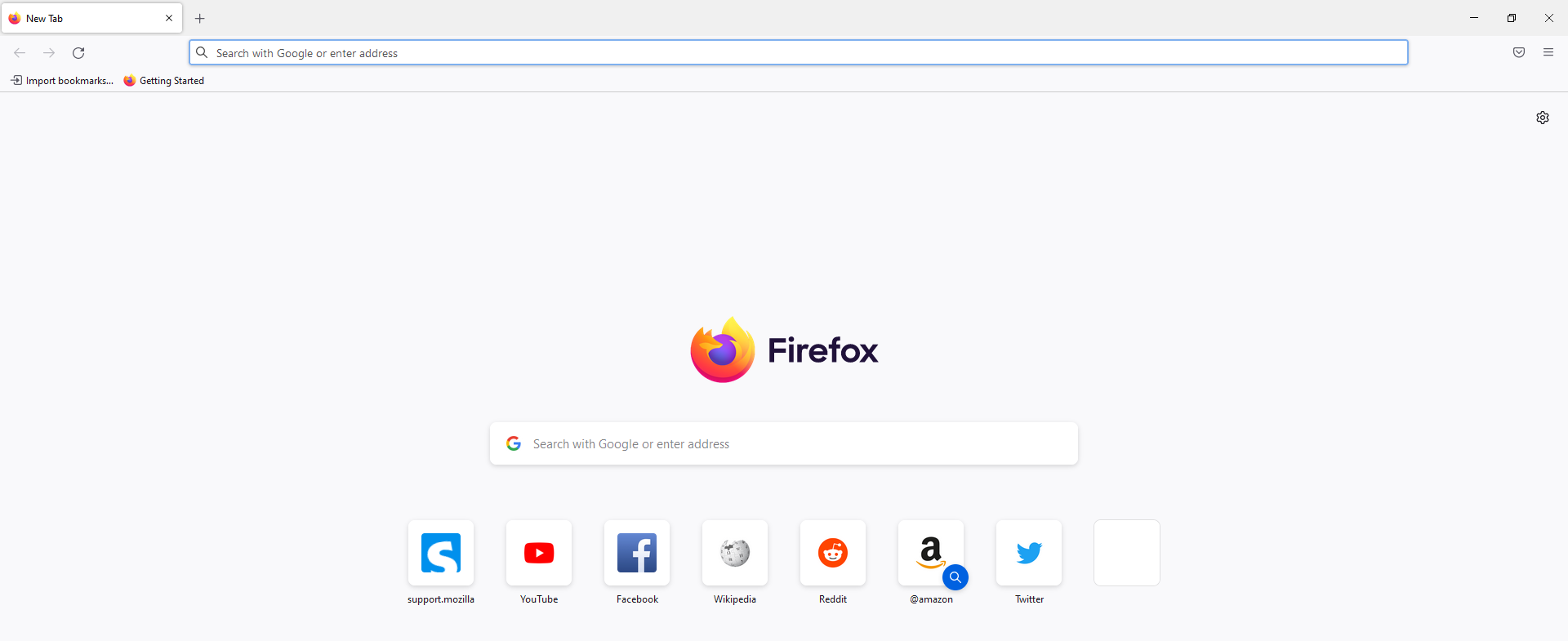
If you’re using Firefox, chances are you’ve encountered the issue of the Find in page not working. Firefox has a built-in Find in page feature that allows you to search for text on a page. 

The Find in page feature is a useful tool that allows you to search for and highlight specific text on a web page. Most users prefer to quickly hit the Ctrl + F shortcut for easy access.

It enables you to find certain information on a page or if you want to copy and paste the same text into another document. You can also install shortcut software if you don’t like doing things manually.

When you click on the Find in page button, it should bring up a text box and allow you to type in what you want to search for. If it’s not working, there may be something wrong with your browser settings.

How do I find a word on a page in Firefox?

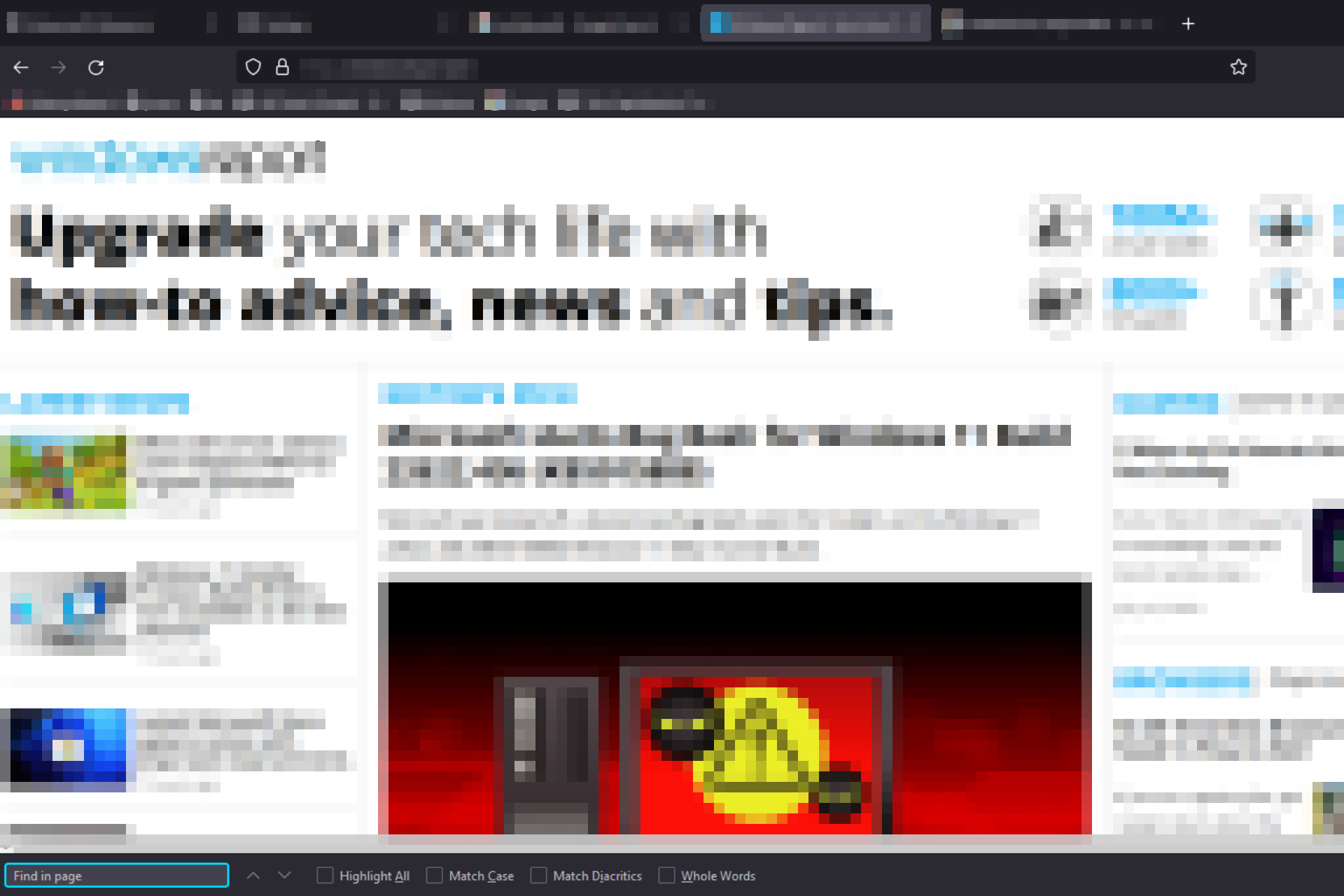
In Firefox, you can find a word on the current page by pressing Ctrl + F. A search bar will appear at the bottom of the page. 

Type in the word you want to find and press Enter. The word will be highlighted in yellow, and you can navigate through the document using your keyboard’s arrow keys. 

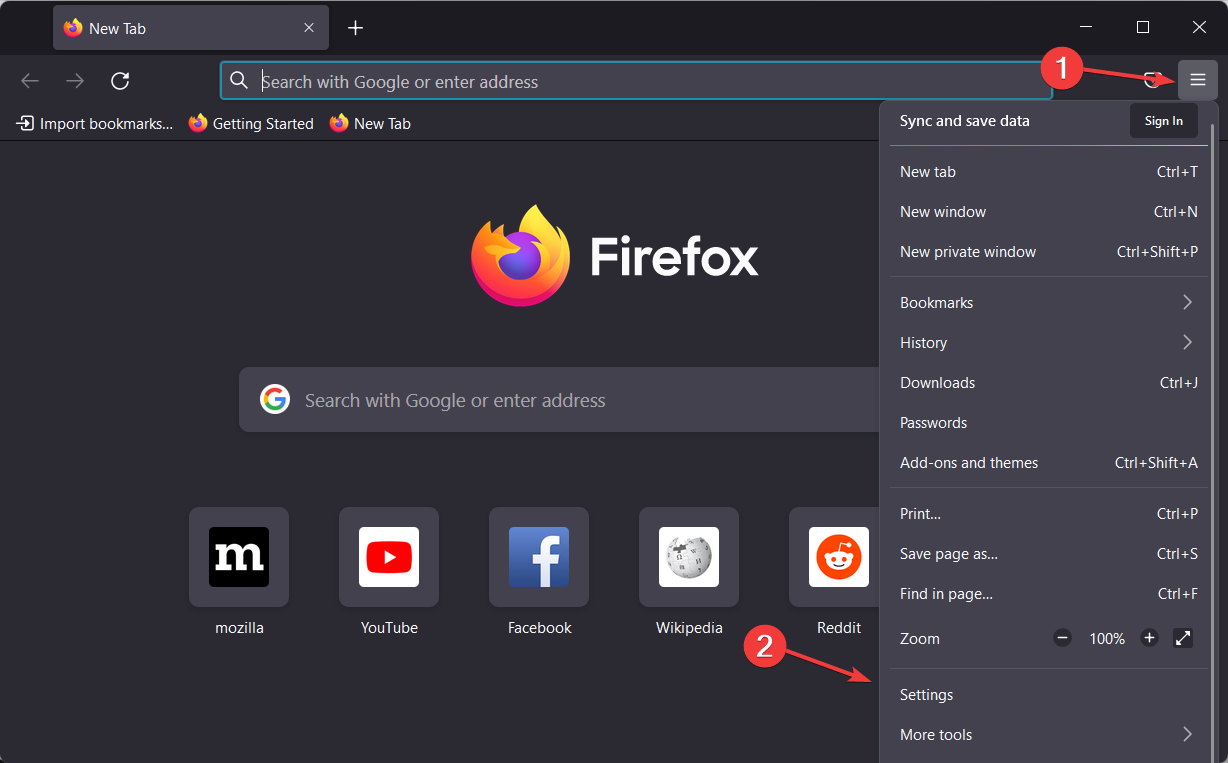
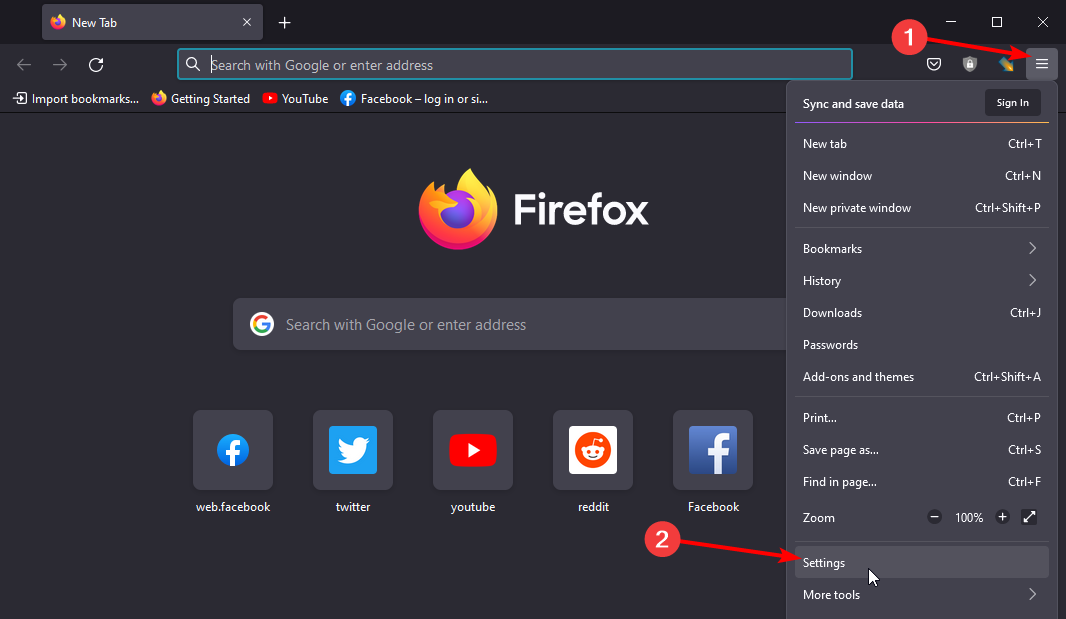
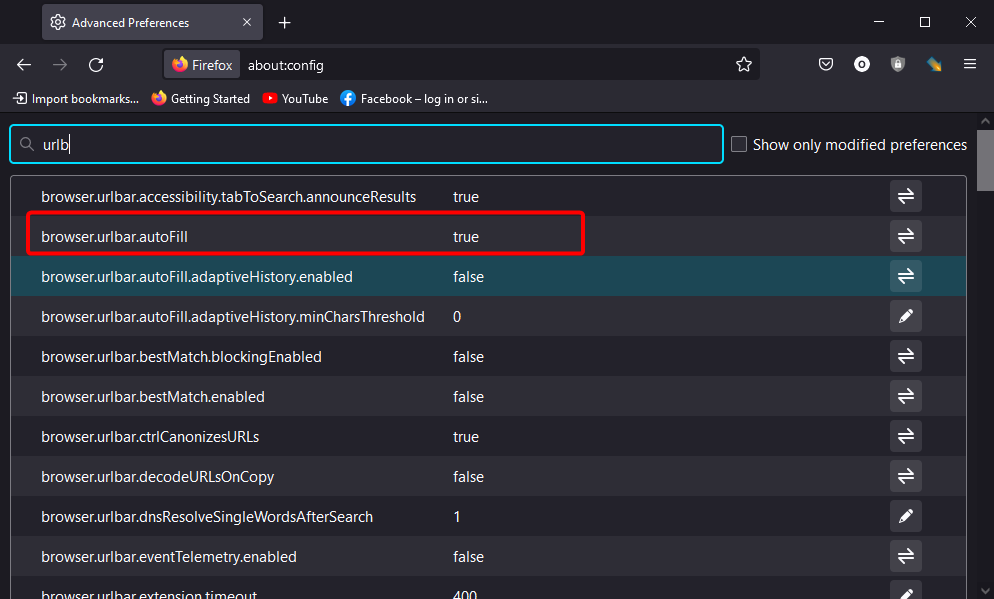
However, sometimes you may find Ctrl + F is not working in Firefox. In such a case, you can click the Firefox menu at the top right corner and select Find in page. 

While you can use the search function to find a word on a page, it won’t work with all types of content. For example, if you’re trying to find a word in the text that’s formatted as an image or video, then the search box won’t be able to find it.

Quick Tip:

As an alternative to Firefox In page search, you can save time and effort by switching to another effective browser.

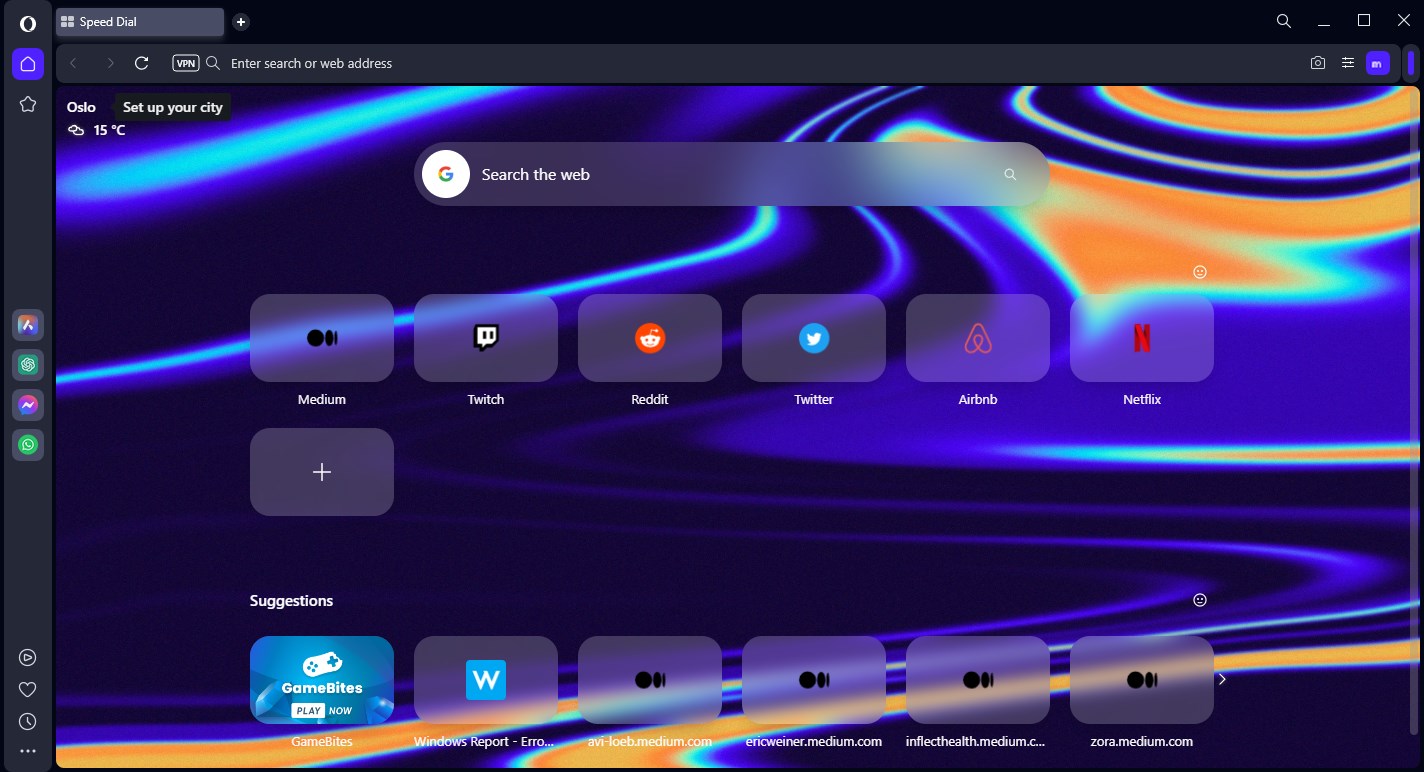
The Opera One browser will streamline your navigation and provide Find tools and other integrations that improve your experience by far. It also features built-in Ad Blocker, VPN and AI.

Opera One

Surf the web using this flexible browser with great integrations and search options.
Free Download Visit website

What can I do if the Find in page is not working in Firefox?

1. Restart Firefox

The first thing you should do when trying to fix Find in page not working in Firefox is to restart your browser. This works because many add-ons break after an update and need time to reload correctly. 

A simple restart usually takes care of this problem clearing out any issues with your browser and allowing it to work properly. 

2. Update Firefox

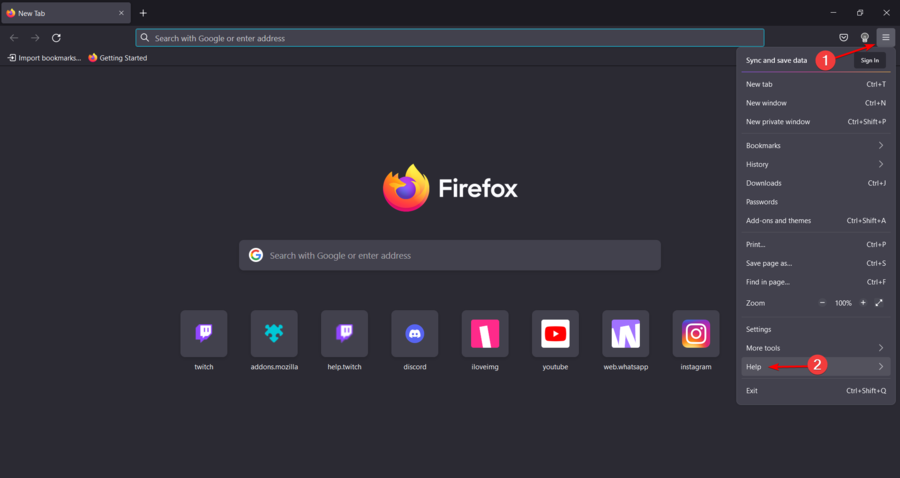
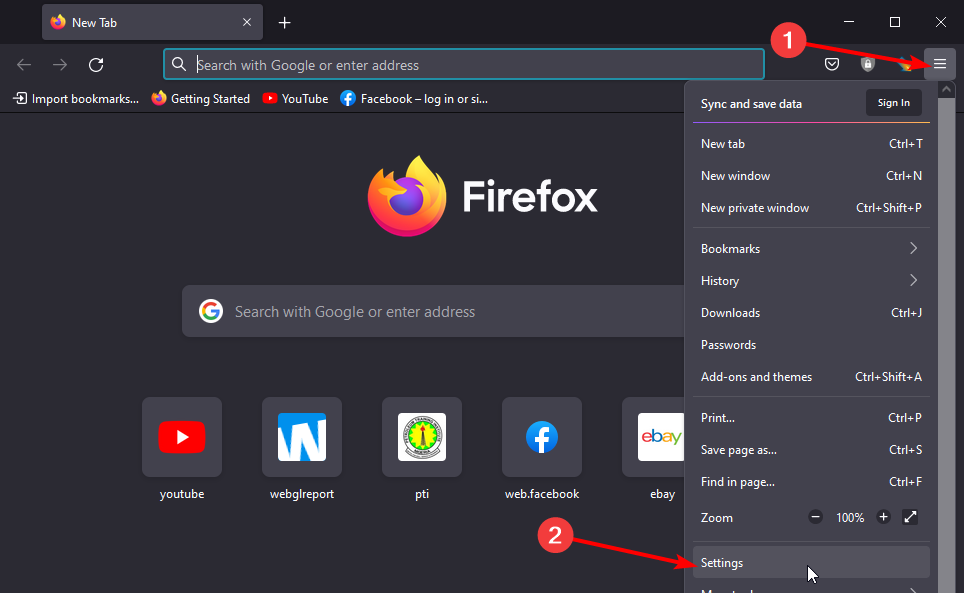
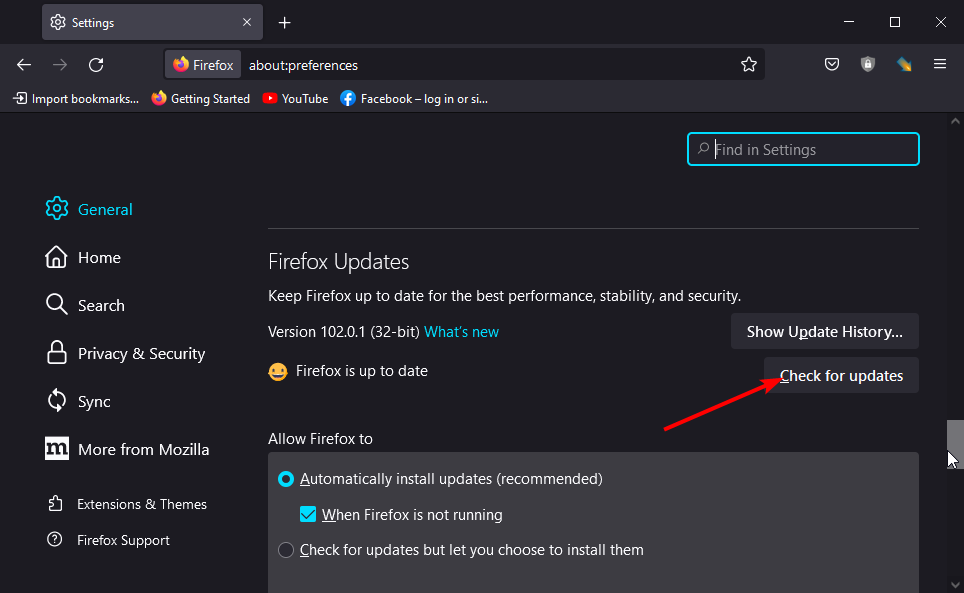
  1. Launch your Firefox browser and click on the three horizontal ellipses in the top right corner.
  2. Select Help.
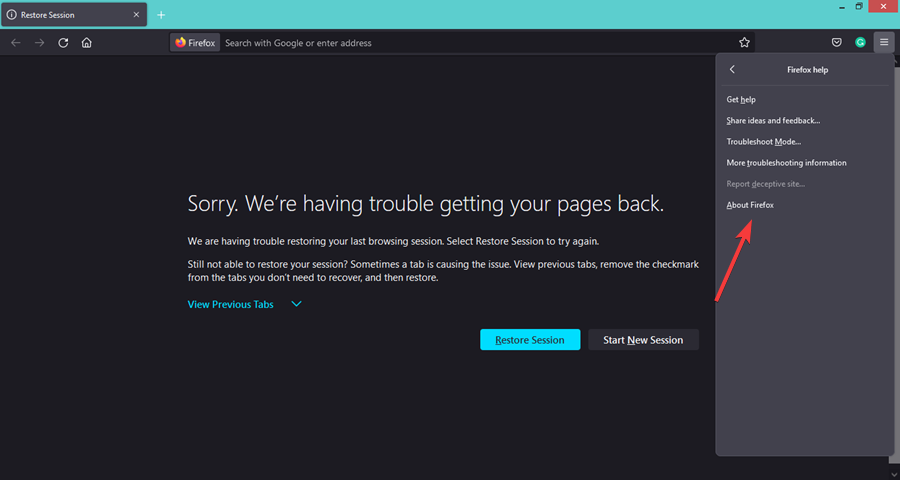
  3. Click on About Firefox.
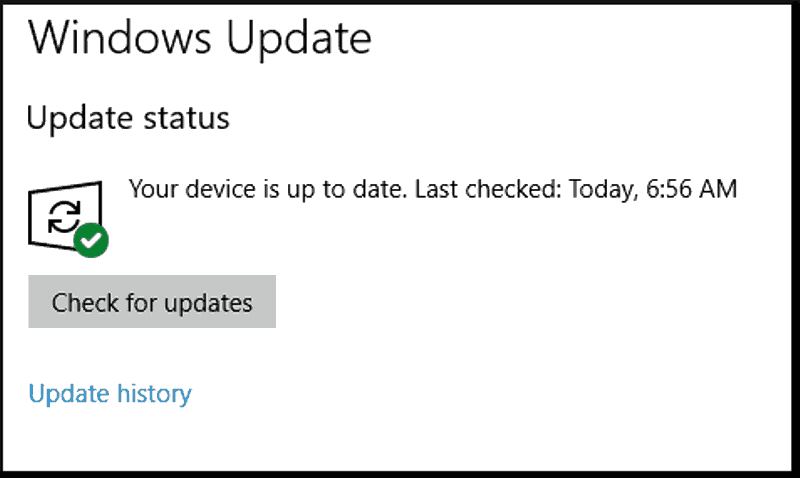
  4. If your browser is up-to-date, you will get the following dialog box.

3. Disable extensions

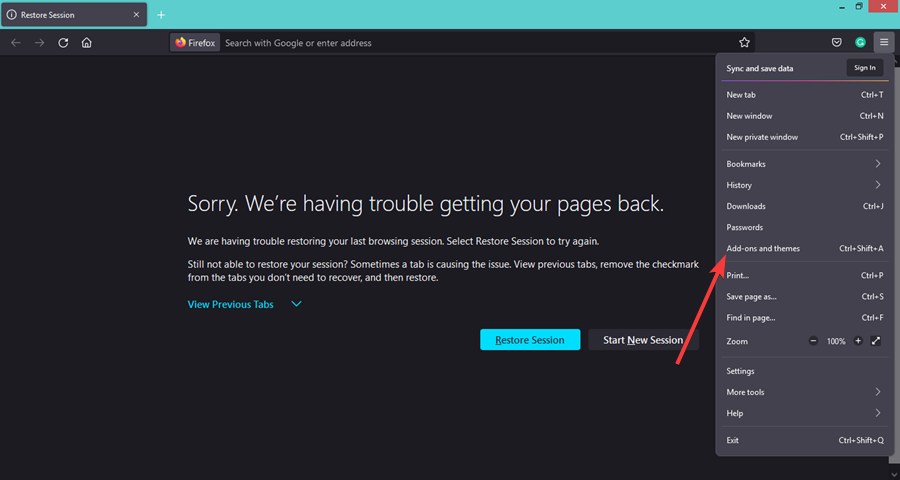
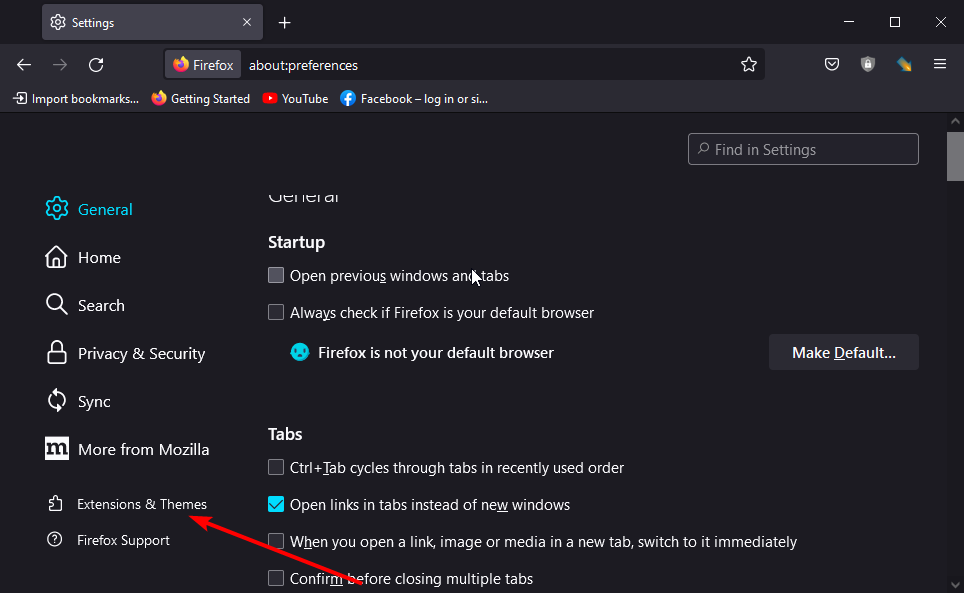
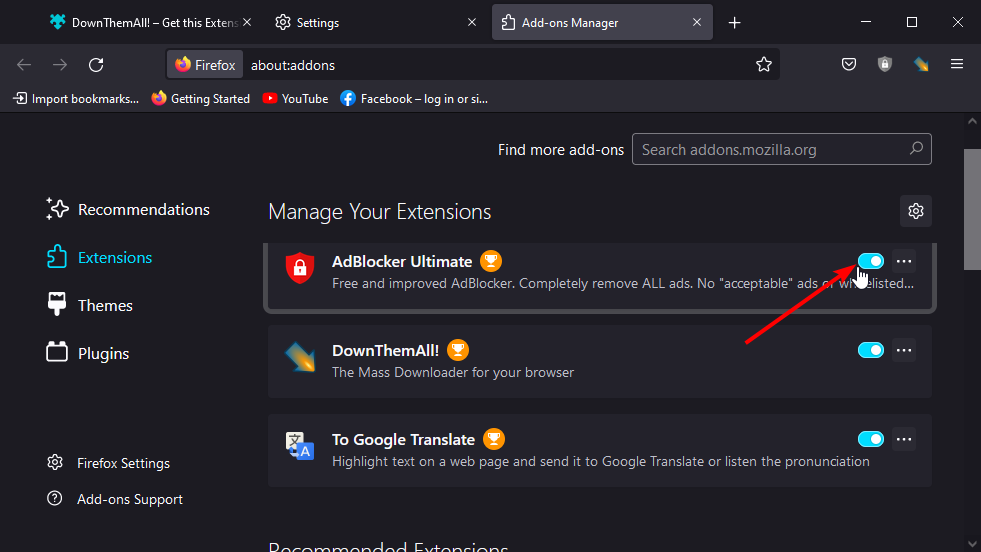
  1. Launch your Firefox browser and click on the three horizontal ellipses in the top right corner.
  2. Select Add-ons and themes.
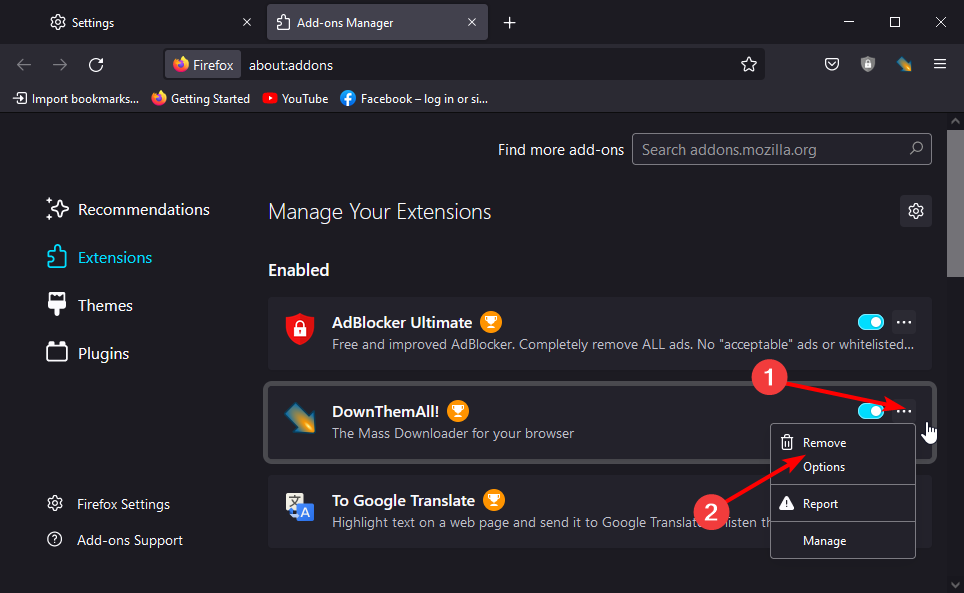
  3. Disable the suspected extensions and reload the tab.
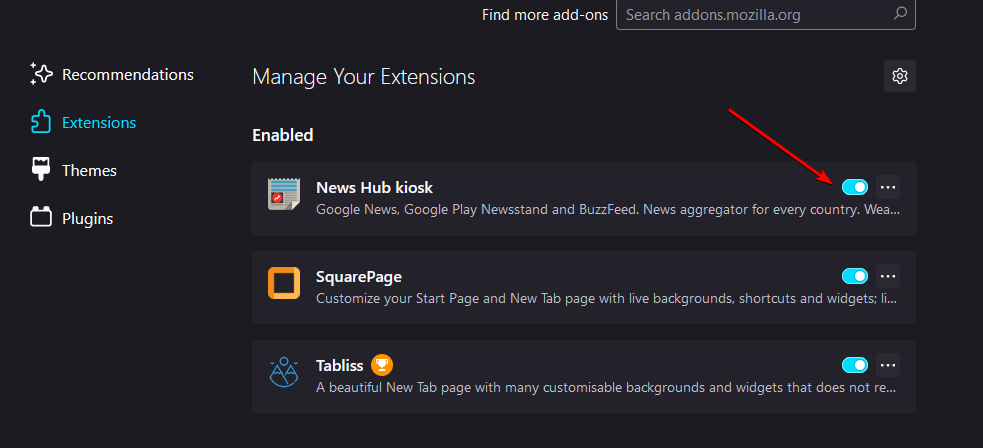
It can be a daunting task disabling extensions one by one, especially if you have quite a number installed. You can try using another profile without extensions and see if it faces a similar problem before disabling them.

4. Reset Firefox

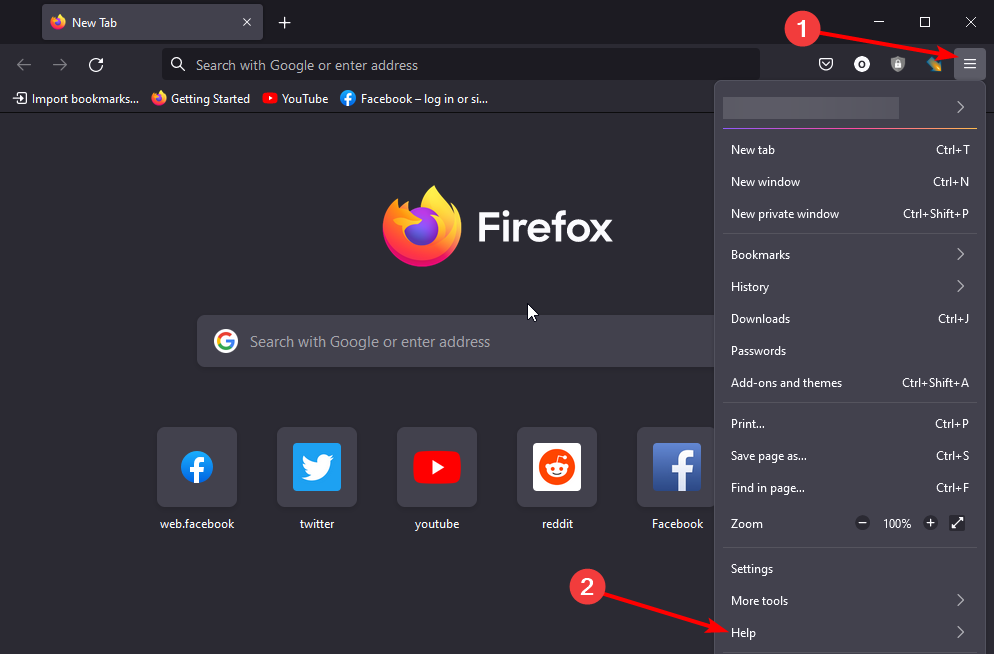
  1. Launch your Firefox browser and click on the three horizontal ellipses on the top right corner.
  2. Select Help.
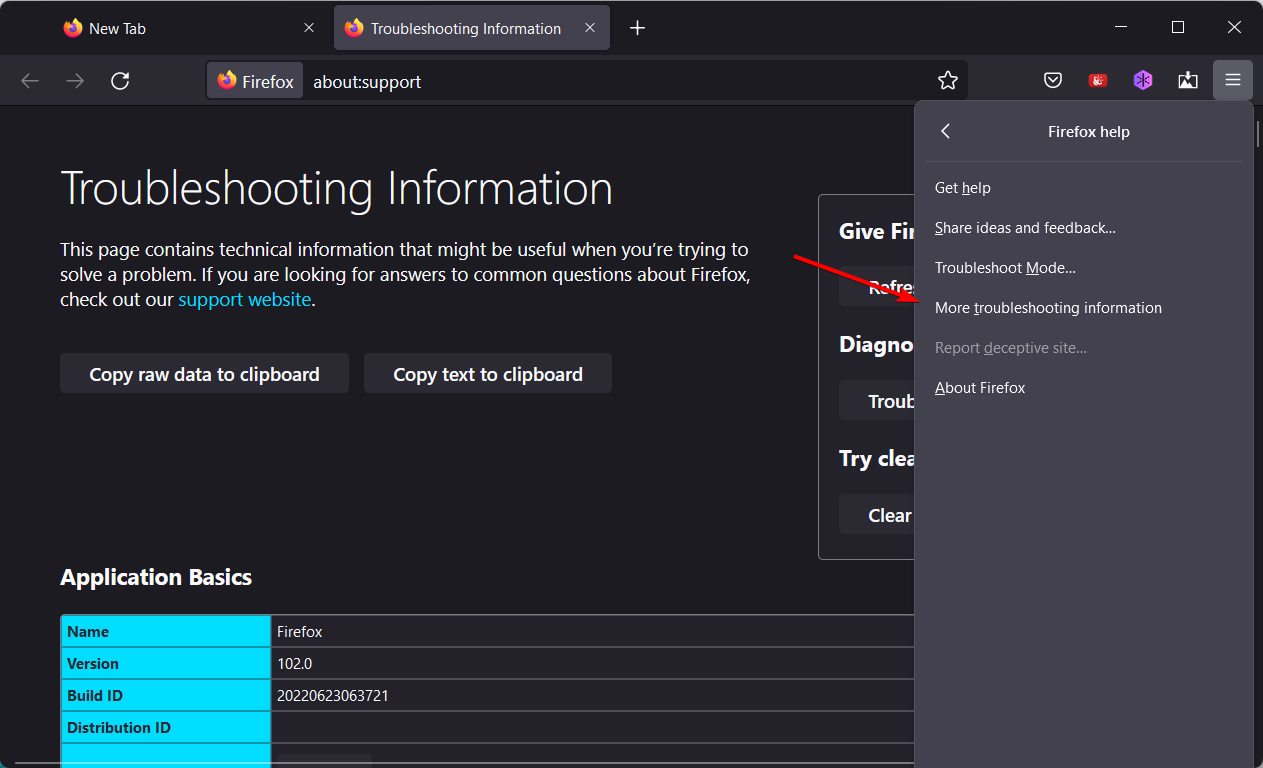
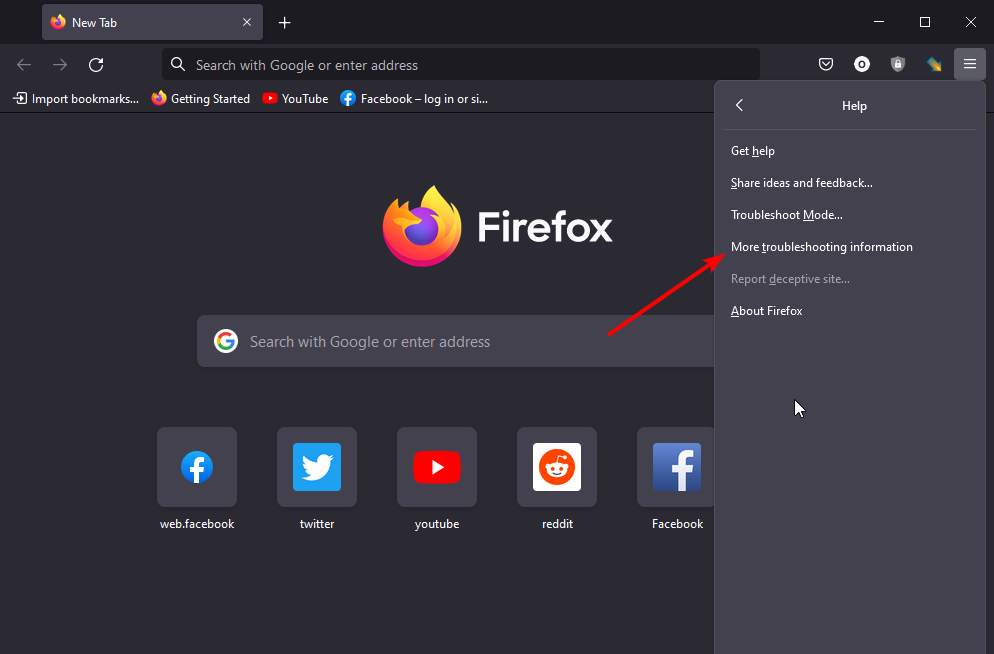
  3. Click on More troubleshooting information.more-troubleshooting-firefox firefox freezing windows 11
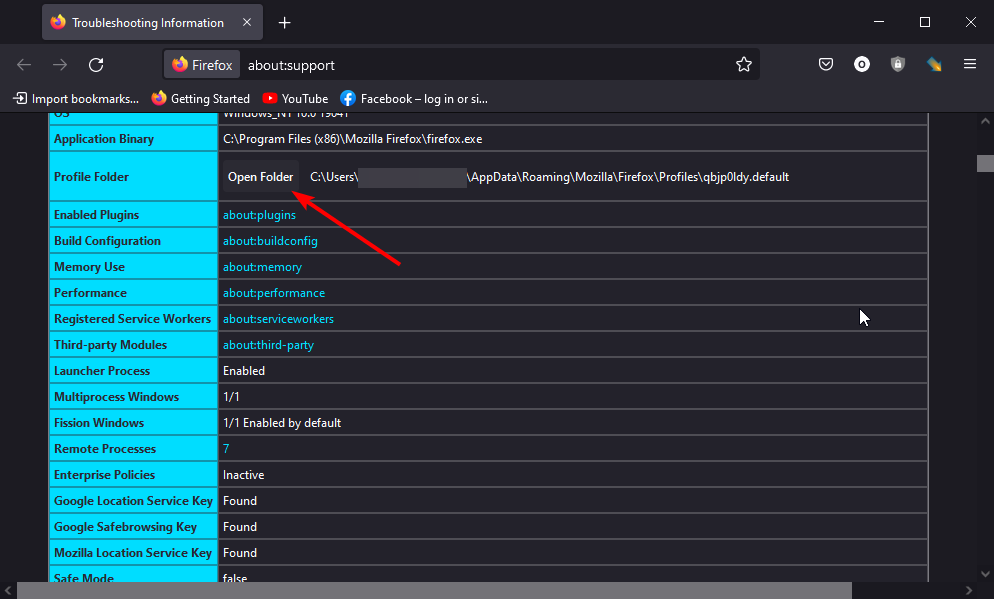
  4. Select Refresh Firefox under Give Firefox a tune up.
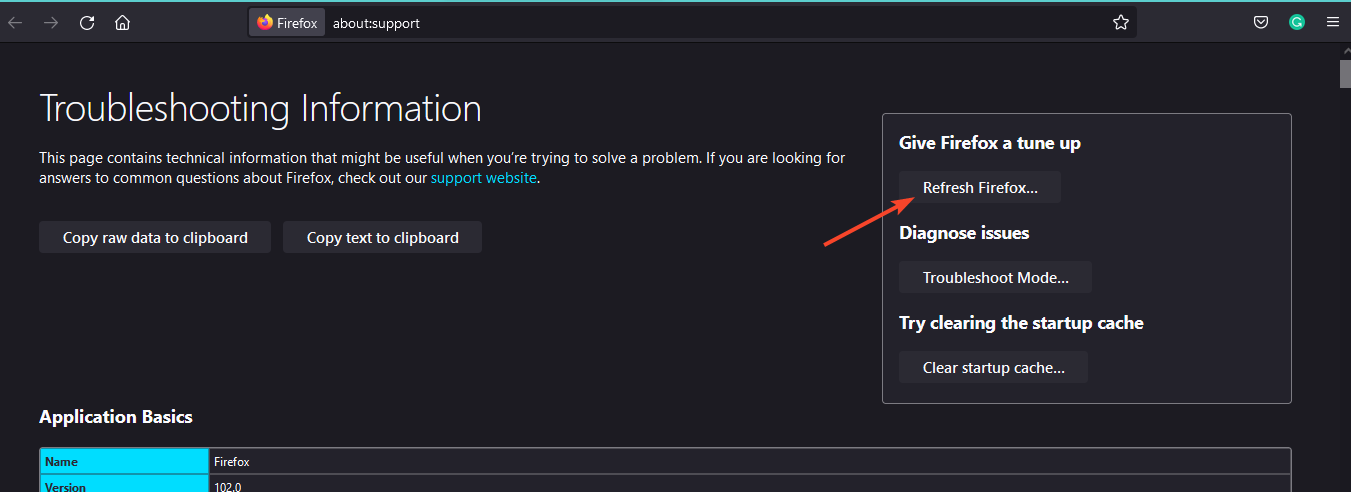
  5. Confirm Refresh Firefox in the dialog box that pops up.
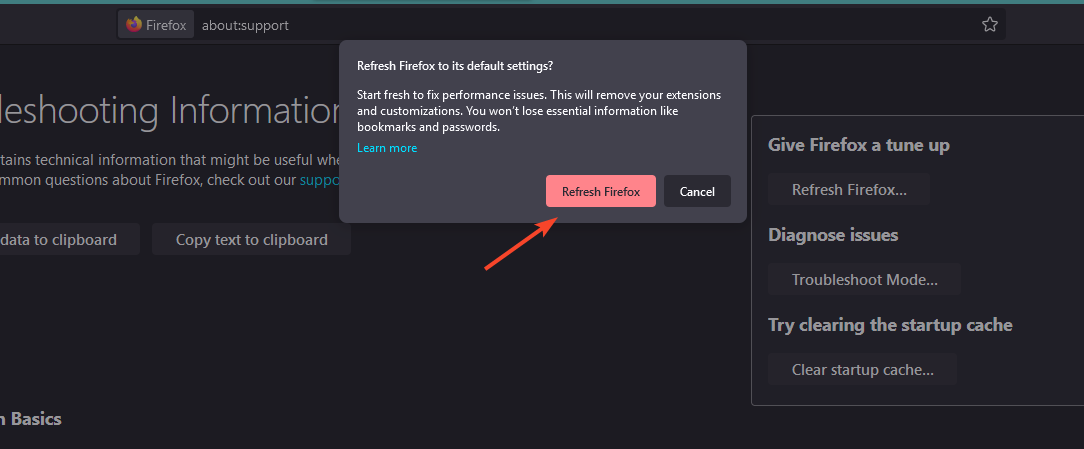
5. Uninstall and reinstall Firefox

If you’re experiencing problems with Firefox, you can try to uninstall it and reinstall it. Uninstalling and reinstalling Firefox is a very useful troubleshooting technique. 

This can help resolve problems such as crashes, missing toolbar icons, or other issues where the browser is misbehaving. It will also remove any corrupted files associated with the browser.

Hopefully, you have been able to resolve the Find in page feature not working with our recommended fixes.

If not, consider trying another browser. Sometimes, the problem is that Firefox is not working due to a bug that could be resolved after some time has passed.

In some instances, the Ctrl + Del shortcut may also not be working so be sure to refer to our article on how to fix it.

Speaking of issues, many also reported that the search bar isn’t working in Firefox, and we have covered this issue in detail in a separate guide.

Do not hesitate to let us know if you were able to resolve this issue in the comments section below.
Mockup Software: 7 Best to Use in 2026

Whether you want to design a mobile app, or desktop software or simply trying to design a website, by creating UI Mockups, you can get the first visuals of your future projects.

Creating UI Mockups allows you to present the design idea to the client in a better way and one thing you should know is that is different than Wireframing.

Wireframing is like creating a blueprint for your house or engineering project whereas creating a Mockup is coming up with the actual creative design (final looks) of the house for the clients.

How can a mockup help me?

Having access to great mockup software for Windows helps you in the UI designing phase and also speeds up the whole process.

There is no dearth of UI Mockup tools; however, with so many options to choose from, it can get confusing as to which is the one you should start using first.

Whether you are a professional looking to add more powerful tools to your current arsenal or a beginner trying his hands at Mockup designing for the first time.

This guide will introduce you to some of the best tools to create UI Mockups today.

What are the best tools to create UI mockups?

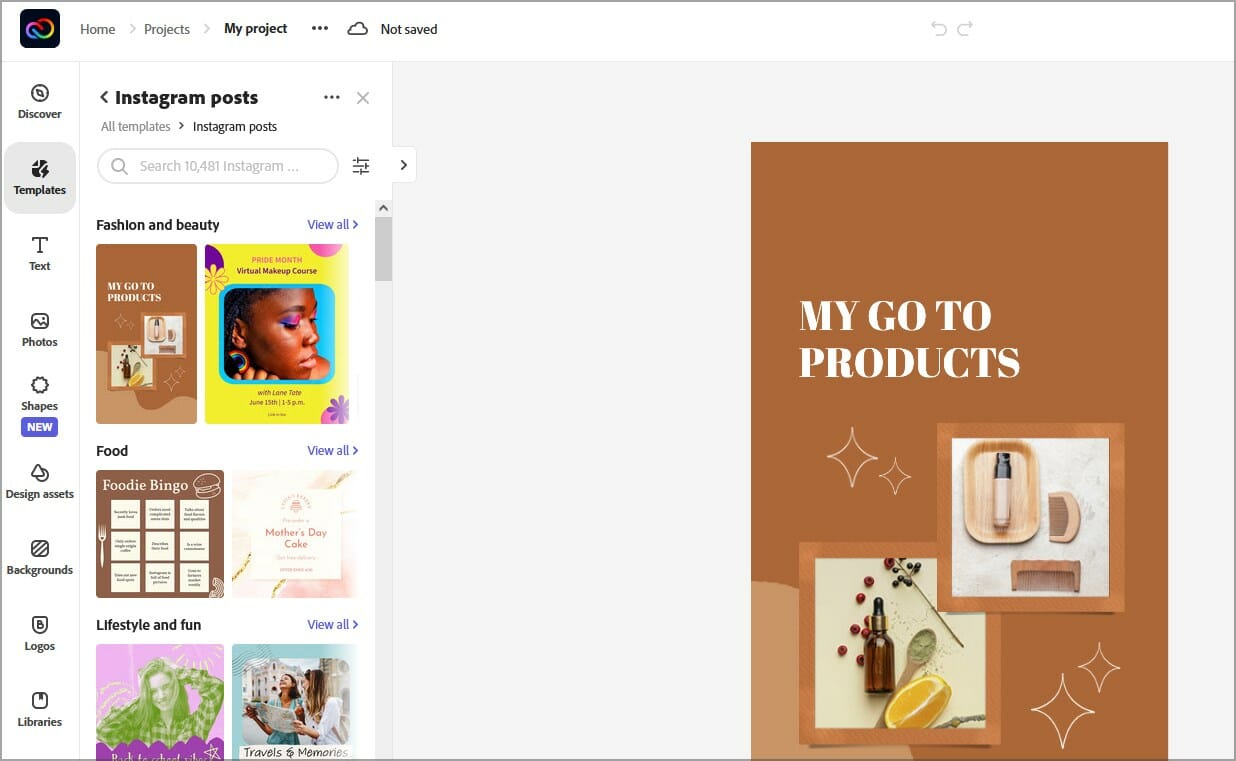
Adobe Creative Cloud Express – Great for professionals

If you need a comprehensive design and mockup platform, Adobe Express is exactly what you’re looking for.

The best part is that it’s absolutely free of charge and suitable for professionals as well as novices: you can craft interactive designs and customized graphics.

For more details, there are plenty of templates and specific project ideas to choose from. You have Social Media, documents, or professional mockup categories with useful templates.

As an example, you can start preparing mockups for a variety of products such as online projects, product launches, or website ideas. In addition to that, you have multiple marketing templates to design flyers or business cards.

With this app, you have previews available on desktop or Android, and you can also export the project simply in one click.

This tool is optimized for quick feedback and you can use collaboration features to share your outcomes with colleagues or send it to your loved ones.

Let’s review its most important features:

  • Thousands of diverse templates
  • Drag-and-drop video designs
  • PDF editing tools
  • Customized branding designs
  • Official documents category

Adobe Creative Cloud Express

Express your imagination through industry-standard mockups and marketing graphics.
Free trial Visit website

MockPlus Classic – Great set of tools

mockplus-classic

For those looking for a flexible tool to create mockups and prototyping for every screen size and platform, MockPlus is a good choice. It is an offline application and is available for Windows, Mac, Android, and iOS devices.

MockPlus is known to be used by the giant Microsoft as a mockup tool, but also by other names in the industry such as IBM. There is a 15-day free trial to try the tool before making a purchase.

The user interface of MockPlus is well laid out and looks modern. It offers a good amount of space and does not clutter the workspace with unnecessary tools.

It also has a multi-window option to use the software in multiple windows for better productivity.

You can easily build interactive prototypes by simply dragging and dropping pre-designed components into the editor.

The library comes equipped with over 3000 icons and nearly 200 pre-designed components to get you started all supporting drag-and-drop functionality.

The prototypes can be tested instantly using the QR code generated by the app. In addition, the projects can be published on the web to get comments from clients and team members by sharing a web link to the prototype.

MockPlus excels at what it does, and the features and functions of this prototyping software make it an ideal tool for UI and UX designers irrespective of their expertise.

Let’s look at its key features:

  • Impressive library of graphical elements
  • Available for Windows, macOS, Android, and iOS
  • Mockup testing feature
  • Multi-window option
  • Great suit of templates

Mockplus Classic

If you prefer a rapid wireframe tool and you are looking for one that is cheap, try out Mockplus.
Check price Visit Website

Placeit – Unique mockup templates

album cover software

Placeit is the ideal mockup editor and design hub that includes helpful digital templates including marketing, apparel & print, or highlights.

You can think of this solution as the most extensive hub for design products and mockup templates for a variety of projects or ideas such as business or creative ideas.

There is also AI functionality that can generate personalized results and offer professional templates for social media or official product mockups for iPads or Android devices.

Not only that, you have other categories that allow the user to craft various products involving Marketing, music and audio, art print, banners, and much more

When it comes to the UI, you can use drag-and-drop to import appealing designs and create personalized outcomes in a few clicks.

Placeit owns its service, as it includes a plethora of designs with original models and images for apparel and other web categories.

Let’s look at its key features:

  • Wide array of templates
  • Audio and video creative designs
  • Mockup ideas for various projects
  • Marketing and logo templates
  • Gaming streaming mockups

Placeit

Place your mockup ideas using this rich library of convincing templates.
Free trial Visit website

Adobe Photoshop – Millions mockup templates

best software for calligraphy

Photoshop is a well-known resource for most professional graphic designers or photo editing amateurs. There are plenty of mockup templates to create high-standard UI.

Firstly, you can find templates and free-royalty images on the Adobe Stock library and get started with your projects. Simply choose the type of mockup you need, add it to the platform, and personalize it quickly.

In terms of editing and designs, you know that you have reliable service with Adobe products. There are detail-oriented features like object manipulation, background, or colonizing effects.

Therefore, you can surprise your clients with self-made products and promising UI to boost your business for higher prospects.

If you’re talking about AI, this photo editing giant has news for its users. You can make use of clever functionality like Generative Fill or Expand version to create any graphics or crop and paste images instantly.

In the end, this revolutionary software app is the standard in the industry and it represents the go-to solution for experts and product design professionals.

Let’s look at its key features:

  • Valuable editorial assets with Adobe Stock
  • AI-backed improvements
  • AI writing for quick edits
  • Object selection tools
  • Background removal & Sky replacement
  • Professional colors and filters

Adobe Illustrator

Ditch average editing tools and create outstanding mockups to convey your message professionally.
Check price Visit website

MockFlow – Good tool for prototyping

MockFlow is a premium mockup software for Windows that offers Wireframe, Prototyping, and UI Mockup tools for individuals and organizations.

It comes in both free and premium plans and can be used on your PC as well.

The pricing is divided between yearly and monthly plans. When compared to yearly plans, the monthly plans are not only expensive but also miss out on some features.

On annual plans, you not only get a fair discount but also get a 3-month free service, offline access, and power-ups.

To use the tool, you need to signup with a free account. The free accounts allow you to create one project in each app, two reviewers per project, a limited selection of apps, and no support.

However, the free account gives a fair idea about the usability of MockFlow.

MockFlow offers offline access on Windows and Mac OS running computers. The MockFlow extensions allow you to use the tool with apps like Microsoft Office, Google Chrome, Google Docs, Slack, JIRA, and more.

MockFlow has six basic functions namely WireFrame and UI Mockups, Sitemap, StyleGuide, DesignCollab, Annotate Pro, and Website Pro. To create UI Mockups use the first WireFrame option from the dashboard and click on the + icon.

Begin with selecting the platform you want to create the mockup for like iOS devices, smart watches, websites, Microsoft apps, etc.

The editing dashboard is divided between 6 tabs as well.

From the Element tab, you can drag and drop pre-designed objects like Mobile frames, icons, background images, menu tabs, checkout options, and more or you can simply start from a blank page if you want to.

The objects are further customizable with a simple double-click. You can group multiple elements together for easier movement and scaling of UI.

Other tabs in the editor are Pages, to create multiple pages for the same app, Images tab, Flow tab to add and check the status of the projects, and Store and Power-UP tab to add more apps and templates.

MockFlow is an excellent multipurpose tool to create UI Mockups and more. However, the premium plans mean it is for serious users who can make use of at least half the features it has on offer.

Take a look at its key features:

  • Drag and drop pre-designed objects
  • Extensive library of graphical elements
  • Neatly organized interface
  • Design collaboration features
  • Easy to use

⇒ Get MockFlow

Glorify App – Excellent for creating complete brand kits

Glorify is an easy-to-use yet powerful graphic design tool that allows you to plan, design, launch, and analyze all your big ideas in one place.

It is a lifesaver if you’re looking to easily create high-quality images without the need for pricey outsourcing. 

Glorify makes design accessible to all. Entrepreneurs, marketers, agency owners, designers, and just about any busy professional can use this tool to create aesthetic images that convert. 

It is also super useful to e-commerce enthusiasts who need a simple, quick solution to make their products stand out in a saturated market.

With simple tools for beginners and advanced features for designers, Glorify provides a great alternative to other design tools out there. 

Glorify offers a free plan for those just getting started. Monthly subscriptions to their Pro and Business plans cost $39.99 and $99.99 respectively.

However, if you choose either plan as a yearly subscription, you will get a 25% discount.

Let’s review some of its best features:

  • Has thousands of fully customizable ready-made templates
  • Offers fully customizable 3D mockups and mockup scenes 
  • Has branding tools such as a logo maker, brand kits, and template bundles
  • Collaborative features and workspaces make it ideal for teams
  • Has an ambitious roadmap with several future features lined up
  • Has amazing customer support 

⇒ Get Glorify

Moqups – Excellent for wireframe creation

Moqups is a cloud-based web app that allows you to create wireframes, mockups, diagrams, and prototypes and collaborate in real-time with other team members.

It is a premium mockup Windows application with personal and team accounts. The free trial requires you to register an account and offers 5MB of storage with one project limited to 300 objects.

The user interface is similar to MockFlow, but the tools and layout are different. After creating a new project, you can drag and drop elements from the Stencil tab.

You can add more pages to the project, customize outlines, create templates, upload and add images, browse from the vast library of icons, and add comments to the project.

The objects can be edited to resize, rotate, align, and style. The grouping feature makes it easy to group together multiple objects for easier movement.

Once the Mockup is ready, you can export it to Google Drive, Dropbox, or your computer’s local drive-in PNG, PDF, or HTML format.

Moqups is an easy-to-use tool for wireframing and creating diagrams and mockups in no time. Signup for the free account and take the tool for a spin to see if it is something that meets your requirement.

Let’s see some of its best features:

  • Cloud storage support
  • Diagram and mockup creation
  • Object grouping for fast editing
  • Drag & drop functionality

⇒ Get Moqups

Whether you are a professional UI designer or just a beginner, knowing what tools to use to create UI Mockups is important.

If you’re a UX/UI designer looking for feature-rich Mockup tools should try all of the above-recommended tools since they all offer a free trial or basic free account without any limitations to get you started.

You can spend some time with each of these tools before deciding on the one that checks the most boxes in your must-have list.

Do let us know your favorite mockup software for Windows or if you think we have excluded a worthy alternative in this list.

You might also be interested in our selection of the best web design software for WordPress in you want to change its appearance.

We’d like to hear from you so feel free to share your thought with us in the comments section below.
13 Tips on What to Do When Microsoft Edge Got Hijacked

In the article, we help you through the issues of a hijacked Edge browser. Windows brought us a great browser called Microsoft Edge; for the most part, users are quite pleased with it. Unfortunately, some users reported that malicious websites often hijacked Microsoft Edge.

While this might seem a significant security problem, it’s pretty easy to fix. Usually, when Microsoft Edge is hijacked, you’ll see the same page every time you open Edge.

That page usually has an error message asking you to call a specific number to fix the security problem. This is just a scam – a virus or malware doesn’t infect your computer despite the error message.

This message appears because you’re stuck on a scam website, but you can quickly fix this problem by following one of our solutions.

Can browsers be hijacked?

Yes, browsers can be hijacked. Your web browser serves as your entry point to the web and is a target for hackers wanting to track your browsing habits.

They often take control of your browser using specialized software called browser hijackers. These malicious programs alter a browser’s preferences, functionality, or look without the user’s knowledge.

In addition to generating advertising money for the invader, a hijacked browser can carry out more risky operations like data collecting and keystroke recording.

Note icon NOTE
We strongly recommend securing your browser from the start with a fully dedicated VPN tool. 
Get now Private Internet Access, for enhanced security. It protects your PC from attacks while browsing, masks your IP address, and blocks all unwanted access. 

What is the safest browser?

Regarding safety and security, Firefox, Tor browser, and Brave are good options to try. Firefox is the most used of these three, and for a good reason. It focuses on safety and privacy and has enhanced anti-tracking detection. 

The solutions listed below will also help you if you are experiencing Edge browser security issues or any of these issues:

  • Microsoft Edge was hijacked
  • Microsoft Edge homepage was hijacked
  • Microsoft Edge has a virus
  • Hijack.Edge.dom storage

How do I get rid of Microsoft Edge malware?

1. Turn on Airplane mode

  1. To turn airplane mode on, click the network icon in the Taskbar.
    edge browser hijacked
  2. Choose Airplane mode from the menu.
     edge browser hijacked
  3. Alternatively, some computers may have an airplane mode key you can use. 

If Microsoft Edge is hijacked, try turning on Airplane mode. Once Airplane mode is enabled, open Microsoft Edge and close the tab. Close Microsoft Edge, turn off Airplane mode, and everything should be back to normal.

2. Turn off your internet connection and change the start page

  1. Click the network icon in the Taskbar.
    edge browser hijacked
  2. Click on your Wi-Fi icon.
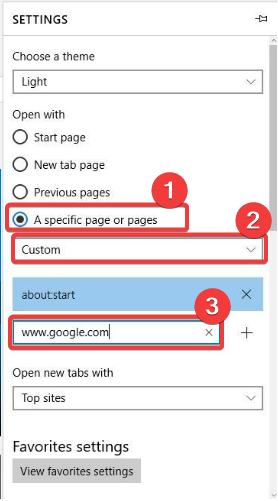
  3. Open Edge and click the More icon in the top left. Choose Settings from the menu.
    edge browser hijacked
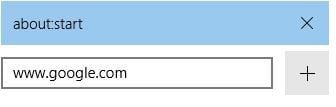
  4. In the Open with section, choose A specific page or page, select Custom from the menu, and enter the address of that page.
    edge browser hijacked
  5. Click the plus button, and your new start page should be added. If you have more than one page on this list, you might have to drag your recently added website to the top of the list or remove all other websites.
    add-specific-page

Once you’re done, turn on your internet connection, and the problem should be fixed. In addition to closing that tab, a few users recommend changing your start page.

3. Quickly open a new tab

To fix this problem, users advise quickly opening a new tab before the error message appears. To do that, press the New Tab button as fast as you can when Microsoft Edge starts.

If you manage to open a new tab, you can quickly close the malicious tab that is giving you the error message.

4. Open one of your favorites

  1. Launch your browser.

  2. Navigate to the link below.
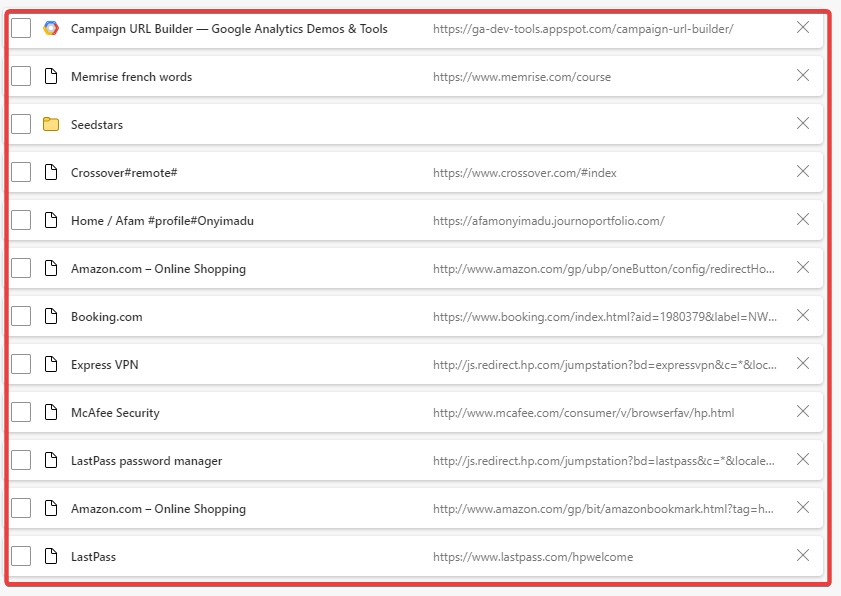
    edge://favorites/

  3. Double-click any of the favorites, and it should open in Microsoft Edge.
    edge browser hijacked
  4. Now close the problematic tab, and the issue should be fixed permanently.

If you don’t have any favorites, you can open any other file in Edge, an image or a PDF, and close the problematic tab.

Microsoft Edge will display the same message every time you open it, but you can fix this error by opening one of your favorites. 

5. Clear Edge cache

  1. Launch the Edge browser.
  2. Click on the Menu icon and then Settings. 
    edge browser hijacked
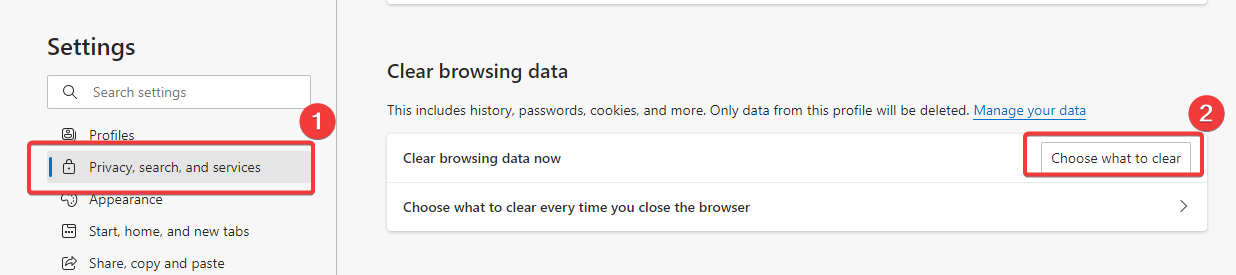
  3. Select Privacy, search and services from the right pane, then click on Choose what to clear on the left pane. 
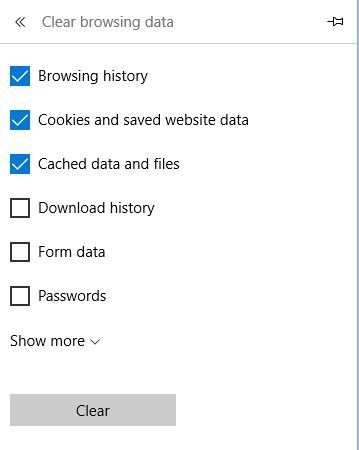
  4. Select Browsing history, Cookies and saved website data, Cached data and files, and click the Clear button.
    clear-browsing-data
  5. After the browsing data is cleared, restart Edge, and your hijacked browser should be fixed.

6. Create a web shortcut on your desktop

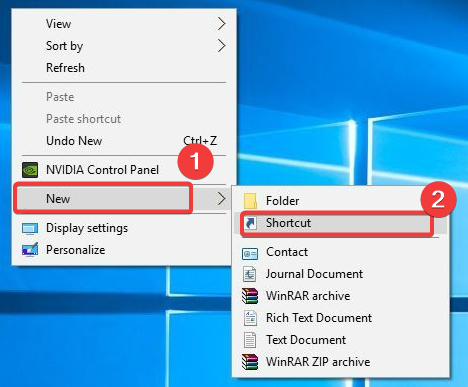
  1. Right-click your Desktop and choose New, then Shortcut.
    edge browser hijacked
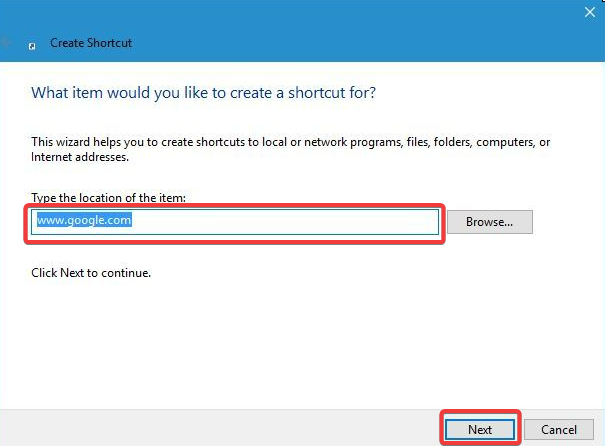
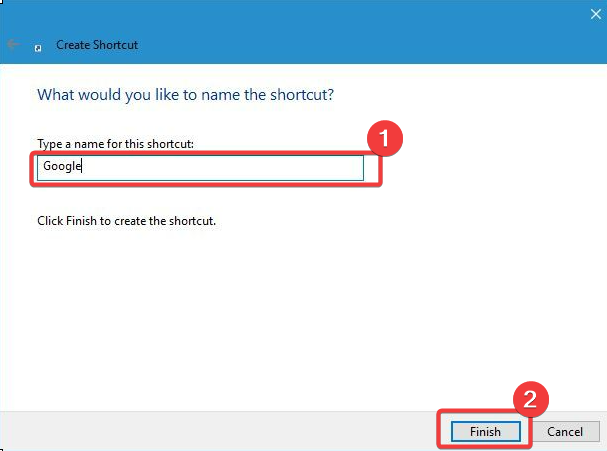
  2. Enter any website address in the input field and press Next.
  3. Now enter the name of your shortcut and click Finish.

After you’ve created the shortcut, double-click it, and it should open Microsoft Edge in a new window and allow you to close the problematic tab.

7. Create a .html file on your Desktop

  1. Create a new text file using Notepad.
  2. Open the newly created file.
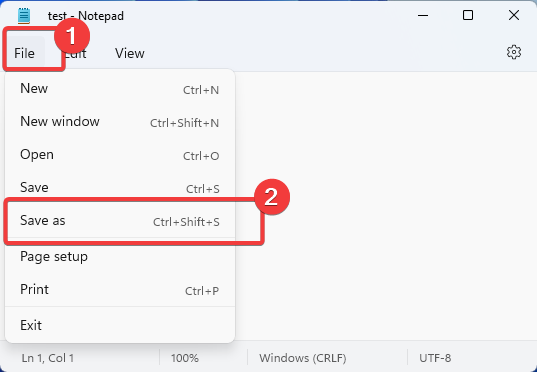
  3. Go to File, then Save as.
  4. When the save dialog opens, set Save as type as All files and enter file.html as the File name, then click Save.
    edge browser hijacked
  5. Open the file.html from your desktop with Edge. 
  6. When Edge opens, close the problematic tab, and the problem should be fixed.

8. Perform a Cortana search

A Cortana search can also do the trick: open the search results in Edge after searching for anything on the web with Cortana.

A new tab should be open with your search results and allow you to close the problematic tab.

9. Use keyboard hotkeys Ctrl + W 

  1. Launch Edge.
  2. Quickly press Enter to close down the notification.
  3. Press Ctrl + W to close the malicious tab.

This can be tricky to perform, so you might have to try it a few times. Some users also suggest pressing the Esc key for about 15-30 seconds before the notification window disappears completely.

10. Delete the Microsoft Edge folder from AppData

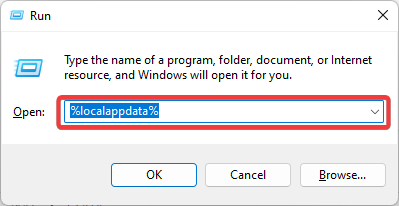
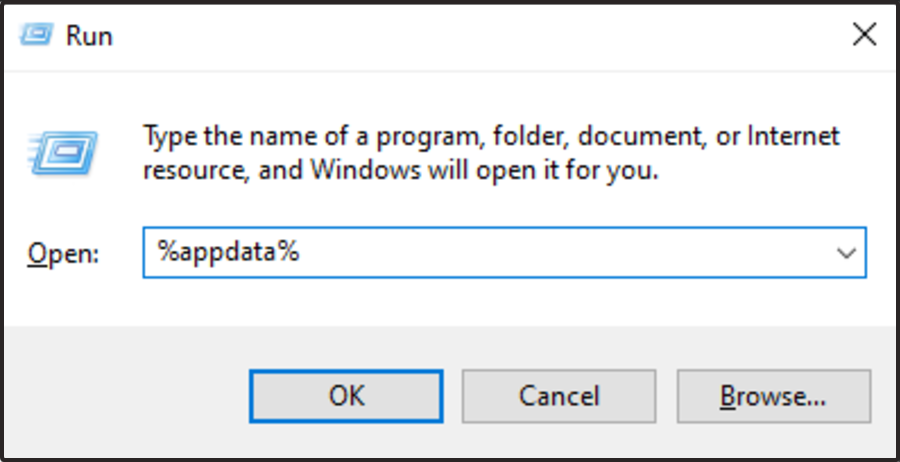
  1. Press Windows + R and type the code below, then press Enter or click OK.
    %localappdata%
    edge browser hijacked
  2. When Local AppData folder opens, go to this folder:
    PackagesMicrosoft.MicrosoftEdge_8wekyb3d8bbweACMicrosoftEdgeUserDefaultRecoveryActive
  3. Delete all the files from Active folder and check if your hijacked edge browser is fixed.

11. Use Command Prompt to close Microsoft Edge

  1. Press the Start menu, type command, and select the Command Prompt Run as Administrator option. 
    edge browser hijacked
  2. Enter the text below and hit Enter.
    Tasklist
    cmd-tasklist
  3. You should see a list of all running processes, locate MSEdge.exe and find its PID.
    • In our example, the PID was 13428, but we have to mention that you’ll most likely get a different number.
      edge browser hijacked
  4. Enter the text below and hit Enter.
    Tasklill /f /pid 13428
  5. If you did everything right, Microsoft Edge should close. 

Now start Microsoft Edge again and check if the issue is resolved.

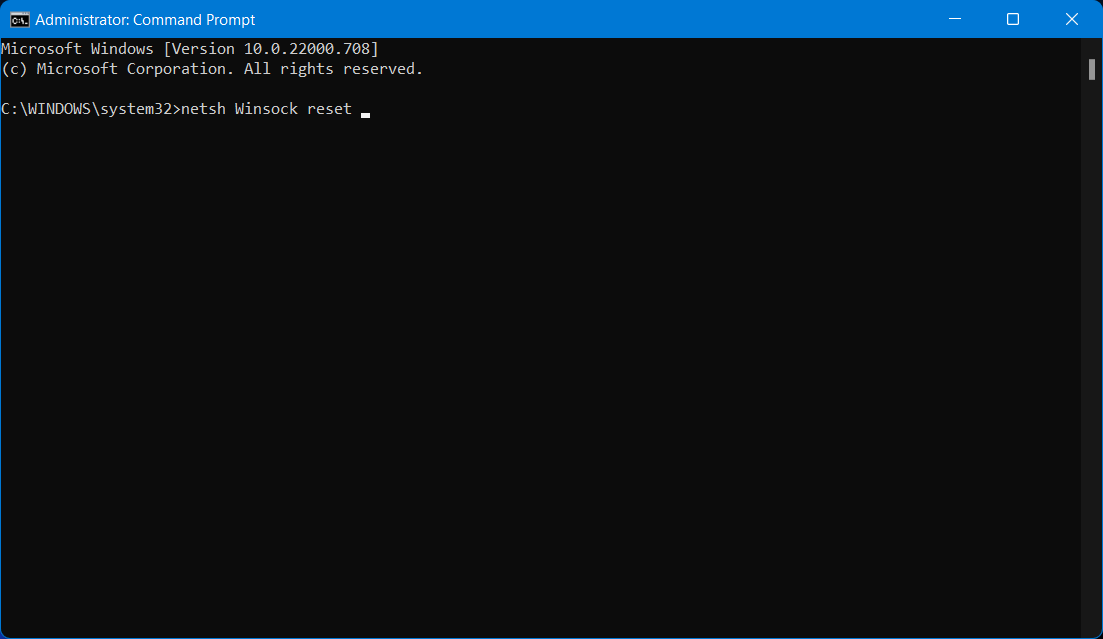
12. Perform winsock reset

  1. Make sure Microsoft Edge isn’t running.
  2. Press the Start menu, type command, and select the Command Prompt Run as Administrator option.
    edge browser hijacked
  3. Enter the text below and hit Enter.
    netch winsock reset
    cmd-netsh-winsock-reset
  4. Restart your computer and check if the problem is resolved.

13. Edit hosts file

  1. Launch Notepad.
  2. Click on File, then Open and navigate to the path below:
    C:\Windows\System32\drivers\etc
  3. Choose hosts and click Open.
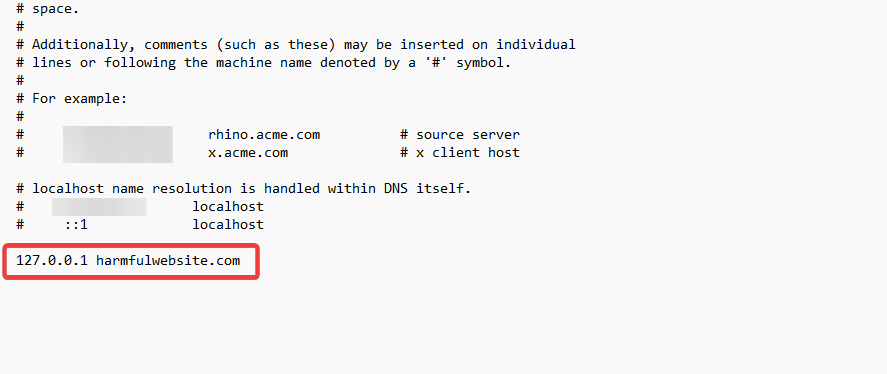
  4. At the bottom of the file, insert the following:
    127.0.0.1 harmfulwebsite.com
  5. Remember to replace harmfulwebsite.com with the website address hijacking Microsoft Edge and save the changes.
  6. Open Edge and close the problematic tab.

To complete your solution, you must memorize the website’s name that hijacks Microsoft Edge. We’ll use harmfulwebsite.com as an example, but you must use the proper web address.

As you can see, this isn’t as serious a problem as you first thought, and in most cases, you can fix it just by turning off your internet connection and closing the problematic website.

While all the solutions we have discussed may not work for all cases, they are excellent Microsoft Edge browser hijacker removal techniques for most situations. Check out how to deal with other malicious sites that may pop up.

These browser scams aren’t uncommon, and we’ve already covered how to fix system32.exe failure error, so if you need more information, feel free to check that article out.

6 Best Games to Play With Your Cat on PC

Technology is so invasive that it has taken over even the pets that surround us.

If exposing your kid to your Windows 11 tablets sound too dangerous, what about installing some games that your cat could enjoy on your computer?

We have a wonderful Tom, and we can surely tell you that he was delighted with our decision. There are a lot of iPhone, iPad, or Android cat games that you can install and entertain your little feline with.

The Microsoft Store has a nice collection of these games, but we will select only the best for you in this guide with a mixture of online games. These apps may be basic, but they will surely make an impression on your cat.

Can cat games be played on PC?

There are a series of games for cats your best buddy can play on your PC. The list of options available to be played on your computer is endless, from touchscreen games to mouse games for cats.

What’s more, there are online games to play without downloading and also apps you can download on your PC. So, you are definitely not short of options.

Quick Tip:

A great way for getting the best out of your cat games is using a dedicated browser like Opera GX.

This fast browser is specifically created for gamers that need optimized navigation for gaming. You can use the CPU or RAM limiters or the GX Corner to find entertaining cat gameplay.

Opera GX

Enjoy playful times with your dear cat using this gaming-oriented browser today.

What are the best games to play with your cat?

1. The game for pets – 3-in-1 cat game

the game for pets mouse chasing windows 10

This fully packed app is one of the best games you can download for cats on your computer. You have three other games inside this game that will keep your cat entertained.

You have a laser chaser, a Fish Pond game (paw at the fish), and Whack a Mouse (hunting mice). This app is tested on cats and can be downloaded from the Microsoft Store.

And if you’re happy with the included games, you can extend the fun with three more games available for in-app purchase: Firefly, The Wiggler, and Creepy Crawler.

We’ve seen the best attraction for the whack a mouse game, where the kitty had a wonderful time clawing the virtual mouse.

Of course, no crawlers and animals were hurt in the process, and that’s the best thing about a virtual, visual game like this one.

⇒ Get The Game For Pets

2. Fish Game For Cats – Hunting game

A whole pond with colorful fish that can be hunted to their demise? It sounds like a good plan to improve your meowing creature’s hunting skill.

With a simple blue background, this is one of the most basic games for cats on a computer. Also, it can be played on Windows 10 tablets.

This app will be especially attractive if you have a real fish bowl and want to distract the predator’s attention to a more harmless activity.

This simple game works on all systems, including x86, x64, ARM, and ARM64.

⇒ Get Fish Game For Cats

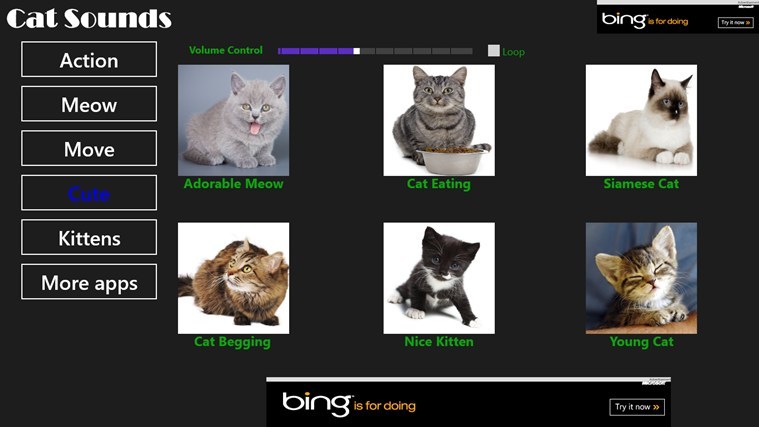
3. Real Cat Sounds – Fun-filled game

real cat sounds cats games for computer

Real Cat Sounds isn’t a PC game per se, but it’s an app that’s bound to give you tons of fun hours with your cat.

We have been using the app on an Android smartphone, but it quickly downloaded on a Windows tablet immediately after it became available in the Microsoft Store. As it is available on tablets, you can use on some 2-in-1 computers.

You can use the 30 unique cat sounds to play with your cat, or, why not, with your dog, since we know about the rivalry between these two species.

The Cat Sounds game has many sounds, including an angry cat, a hungry one, meows, purring, silly, happy, hissing, fighting, and many more.

The sound effects are entertaining, and you can mix and match the sounds for fun. Cat Sounds can also be fun for kids.

⇒ Get Real Cat Sounds

4. Frisky! Game For Cats – Paid cat game

This game includes four mini-games for your cat and is customizable. You can double-tap on the screen to change the background color or objects.

The cat will desperately chase for hours until it hopefully falls asleep. The app is very light, so you don’t need to worry about the space on your tablet.

The options include mice moving on a cheese background, fish in a tank, beachballs on a sandy beach, and more.

It’s worth mentioning that this app isn’t free, but it’s so cheap that it is worth giving it a try and testing your cat’s agility.

⇒ Get Frisky! Game For Cats

5. Smash these ants! – Multipurpose game

smash these ants for cats games on computer

Albeit, Smash these ants! isn’t a computer game aimed at cats but for humans. However, the hurrying ants on your Windows tablet will definitely attract your cat’s attention.

And when your pet notices that it can smash them, it will just turn her on and keep her busy for a while.

There’s the Classic Mode, where ants move in a straight line, and the Crazy Mode, where ants move in a zigzag line.

The only problem is that the cat will not get the job done in protecting the food from the bottom of the screen, so you will need to refresh the game pretty often.

⇒ Get Smash the ants!

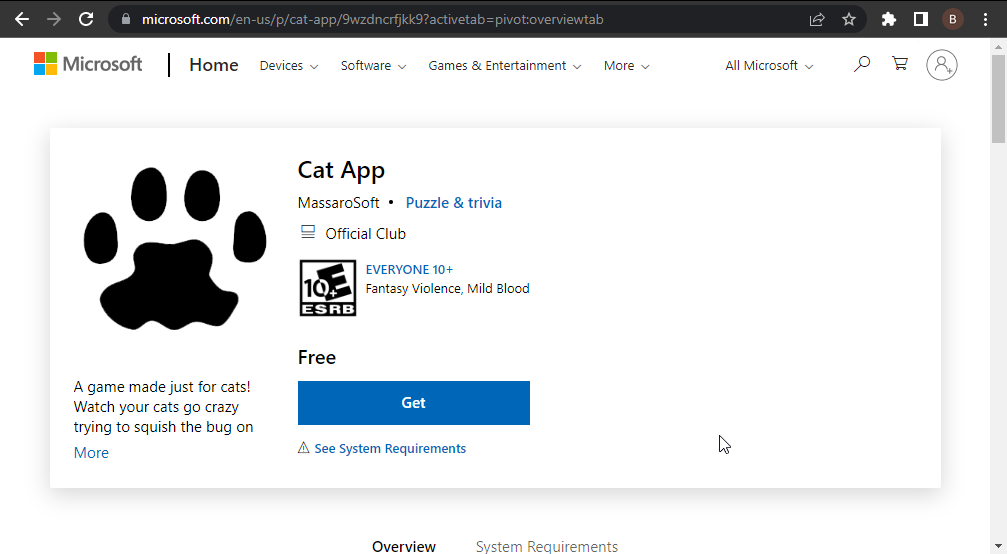
6. Cat App – High creativity

cat app games for cats on computer

This is an ant-smashing game that is sure to give your feline immeasurable excitement.

The gameplay is simple; your cat only needs to smash the moving ants on the screen. The sound and the squishing of the ants will surely make your cat enjoy the game.

The good thing about this game is that the developers are fully committed. They release frequent updates to improve the gameplay constantly. So, it is one of the games for cats on a computer you can commit to in the long term.

⇒ Get Cat App

How can you play with your pet on the tablet?

It’s only for a few years we discovered that there are apps for our pets, and even if it sounds unusual, they seem to work on many of our cats, anyway.

We’re not saying that you should leave your cat to play on the tablet all day long, but it can be fun and engaging for a few minutes at least. Here’s what you should look for.

1. Make sure your device is protected

First of all, ensure your tablet or device is safe. We are not telling you anything new, but we must remind you that cats have sharp claws.

And cats can also push your computer or tablet with their paws easily when playing games. So, make sure you have a scratch-resistant screen before starting the game.

Also, ensure that the tablet or smartphone is not on an unstable surface or in a position to drop or hit in any way.

A glass protection foil over the screen should do just great in protecting it if you don’t have a Gorilla Grass scratch-resistant screen already.

2. Look for moving objects apps

We provided a few examples of computer apps designed especially for cats, but we also have a point-and-click game intended for humans.

Any app with moving objects can be fun for your cat as they easily get distracted by any movement.

3. Make sure the cat is safe

As we already mentioned, you need to protect the cat’s eyes in the same way as you protect yours or your kid’s.

In other words, don’t leave your cat staring at the screen. Most of the time, they will naturally get tired and abandon the game but if they don’t, close the session after a few minutes.

After all, let’s face it, even though the games can be entertaining even for them, a tablet or computer is not for cats.

And while we’re on the pet subject, you can also look at our selection of the best virtual pet games online for your or your kid’s entertainment.

What about your cat? Which is her favorite computer game? Tell us all about her crazy moves in a comment below.

2 Ways to Fix Your Custom Cursor if it’s Not Working in Chrome

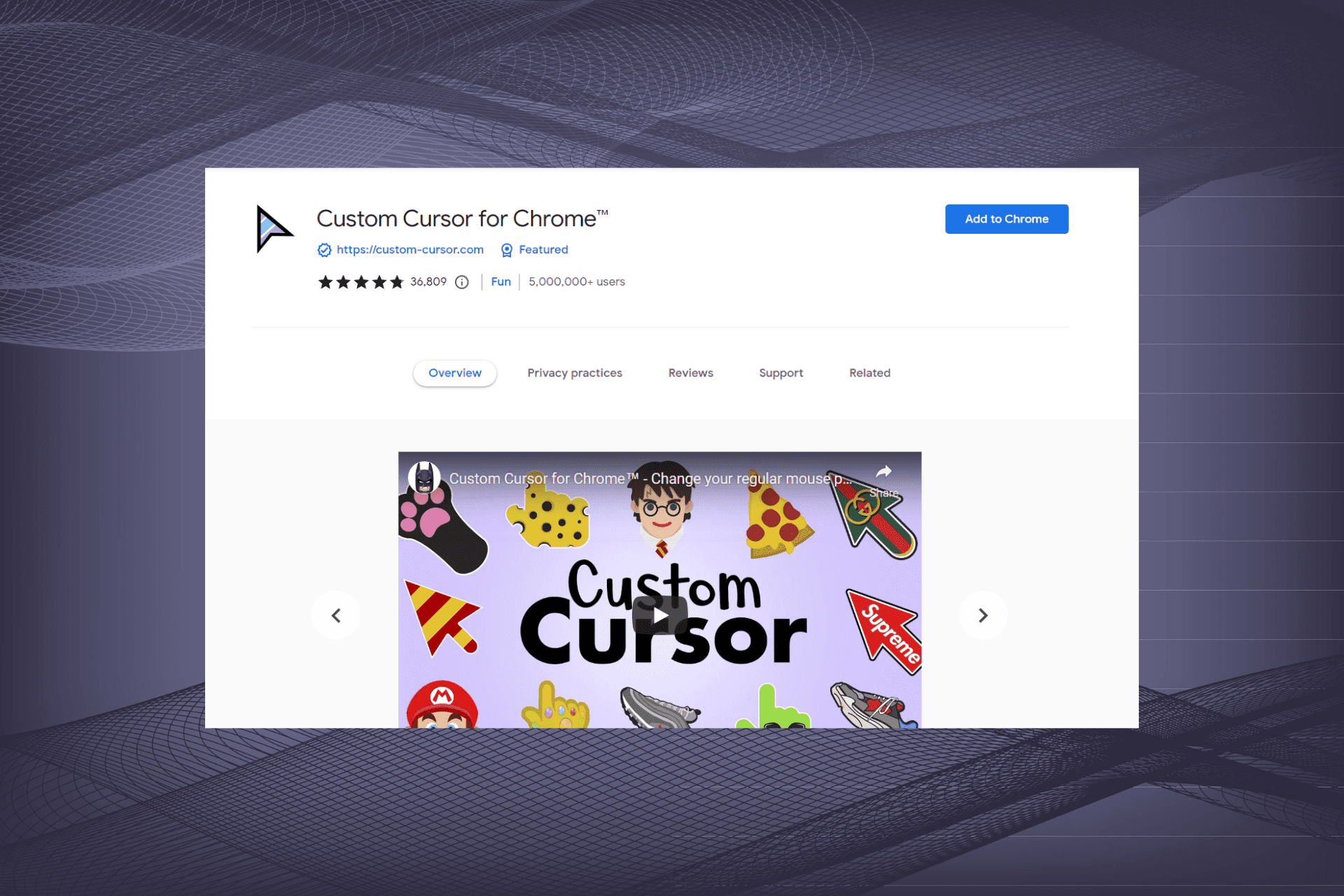
Custom Cursor for Chrome is a nifty, yet simple-to-use extension that allows you to bring a unique touch to the experience and set the cursor’s appearance to reflect your style. However, many users complained that Custom Cursor for Chrome is not working.

Sometimes it gets stuck, or the cursor completely disappears. While cursor freezing issues are not scarce, you would not expect the same erratic behavior from an extension, would you?

As it turns out, the issue is common to the point that the developers behind Custom Cursor had to launch a second extension specifically designed to come to the rescue.

In case your extension has been wrongly blocked, you can use the Cursor Helper extension to get Custom Cursor unblocked.

If that doesn’t work, try the other solutions listed in this guide.

Why is my Custom Cursor not working?

There could be various reasons behind the custom cursor extension not working in Chrome. First, make sure that you are not on the homepage or the Chrome Web Store since the extension is not designed to work here.

Also, certain Chrome settings are known to affect the functioning of the extension and lead to issues. Besides, it could be a temporary bug in the installed version of Chrome behind the Custom Cursor not showing up, and simply updating the browser should do the trick.

Is Custom Cursor for Chrome legit?

Yes, Custom Cursor is completely legit and works perfectly well. There is a wide range of free cursors available, and you can choose the one that best reflects your taste and preference.

So, you can go ahead and download the Custom Cursor extension from the Chrome Web Store without any hesitation. But, if you are manually adding cursors to it, make sure that you either create them or download them from a secure source.

Quick Tip:

Even though it doesn’t unblock Custom Cursor for Chrome per se, Opera One is an easy fix and you might end up gaining a lot more from it in the long run.

There are plenty of alternatives to explore when it comes to cursor collections, plus the customization options, privacy features, and integrations that await you just a few clicks away!

Opera One

Surf online with this browser that offers quicker navigation and multiple cursors to choose from.

How do I get my custom cursor to work?

1. Reinstall the extension

  1. Click on the Extensions icon in the Toolbar, and select Manage extensions.Manage extensions to fix custom cursor not working
  2. Now, click on the Remove button under the Custom Cursor for Chrome extension.Remove to fix custom cursor not working
  3. Again, click Remove in the confirmation prompt.Remove
  4. Once done, relaunch the browser for the changes to come into effect.
  5. Now, open the Chrome Web Store, search for Custom Cursor for Chrome, and click on the Add to Chrome button.Add to chrome
  6. Finally, click the Add extension button and wait for the installation to complete.Add extension

If the Custom Cursor extension is not working in Chrome, reinstalling it should do the trick.

2. Tweak the Chrome Settings

  1. Press Ctrl + Shift + Esc to launch the Task Manager.
  2. Identify and select any Chrome-related process and click End task.
  3. Alternatively, you can use the following command straight in the address bar:chrome://restart command
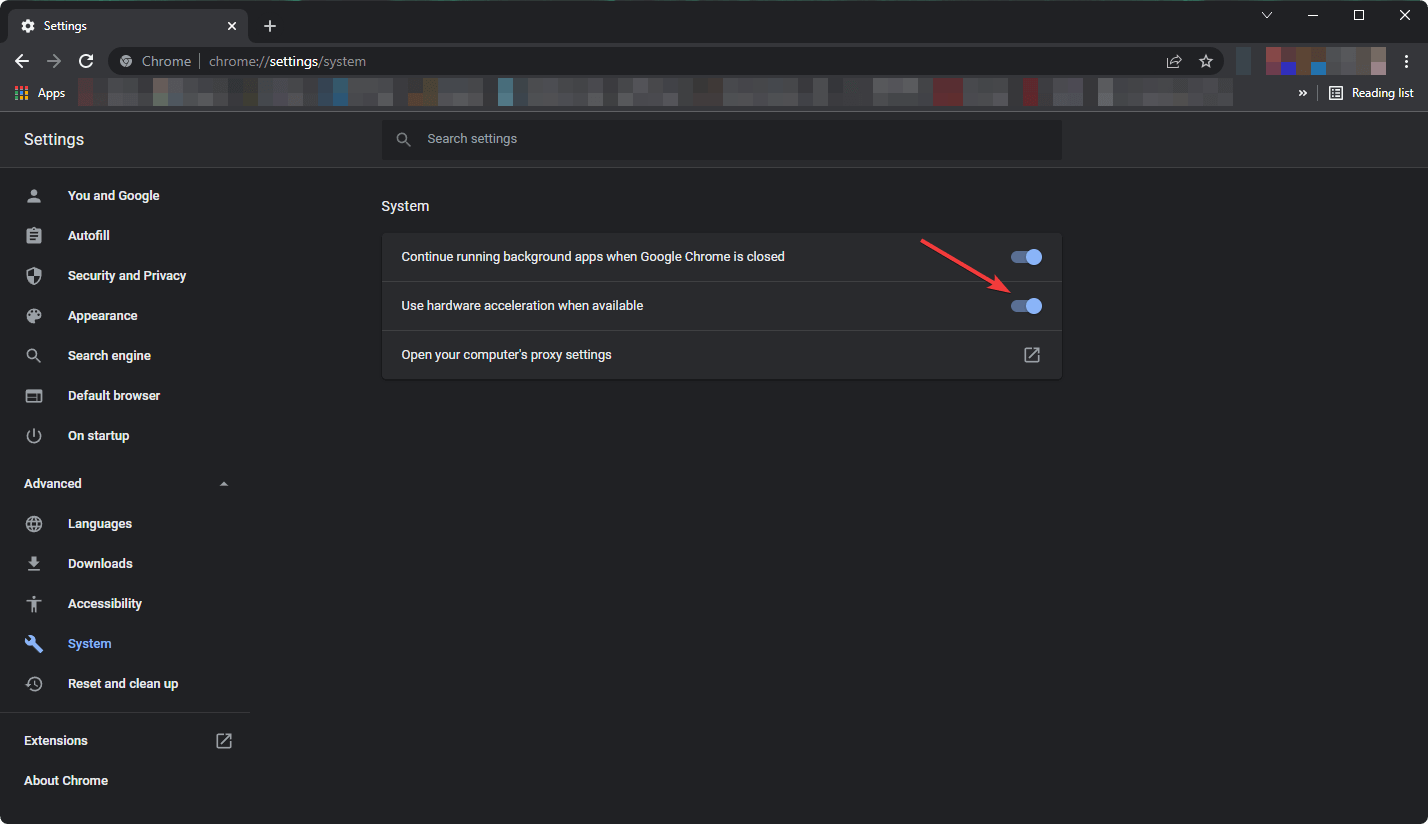
  4. Next, we will disable (or enable in case it’s already turned off) Hardware Acceleration. To do that, paste the following path in the address bar and hit Enter:chrome://settings/system
  5. Now, click the Use hardware acceleration when available toggle to change its state. Use hardware acceleration when available

There you go, now you know how to deal with those pesky cases when Custom Cursor for Chrome is not working. Also, find the best extensions to boost Chrome’s performance.

If you happen to know more workarounds, feel free to share them with the rest of our Windows-centric community!

Microsoft announced the sunset of Windows Information Protection (WIP)

Microsoft isn’t only putting out new stuff, it’s also retiring software at the same time, not at the same rate, fortunately.

And, in the latest episode of the Microsoft giveth, Microsoft taketh away series, we’re here to inform you that Windows Information Protection (WIP) is about to have the same fate.

We know, we’re throwing a lot in your direction, so let’s slow down and thoroughly analyze this situation together.

Windows Information Protection retired in favor of Purview

The Windows Information Protection (WIP) service, which was formerly known as enterprise data protection (EDP), is a product designed to prevent accidental information leakage at companies.

The tech giant has emphasized many times that WIP shouldn’t be used as the line of defense against malicious insiders.

In fact, the true purpose was to prevent accidental leakage through personal email accounts, public cloud storage, or social media platforms, without hampering the overall employee experience.

And, just as you could tell from the title, Microsoft has officially announced that it is discontinuing WIP in favor of Purview.

Many of you have expressed a need for a data protection solution that works across heterogeneous platforms, and that allows you to extend the same sensitive data protection controls on endpoints that you have for the various SaaS apps and services you rely upon every day.

In order to properly address these needs, Microsoft has built Microsoft Purview Data Loss Prevention (DLP).

This software is deeply integrated with Microsoft Purview Information Protection to help your organization discover, classify, and protect sensitive information as it is used or shared.

Purview actually leverages state-of-the-art machine learning classifiers to protect against a number of undesirable enterprise scenarios including accidental data leakage, harassment, money laundering, and corporate sabotage.

Some users are not at all happy with Microsoft’s recent decision and have clearly expressed their disagreement in the above-mentioned post’s comments section.

OK, so you are removing an existing E3 functionality (Windows Information Protection) in favour of functionality only available in E5 (Endpoint DLP + Microsoft Defender for Cloud Apps). This sucks, WIP was a decent alternative to the E5 solutions.

No new features will be added to WIP and it will be removed from future versions of Windows as well, just in case you were wondering.

However, you’ll still have access to it on supported versions of Windows. Microsoft encourages enterprise customers to explore Purview Information Protection and DLP and consider migrating to it.

If you feel the need for it, you can also receive more guidance on this matter in the disclaimer on the dedicated WIP webpage.

What are your feelings about this entire situation? Be sure to share them with us in the comments section below.

3 Ways to Fix CSS When It’s Not Working in Firefox

When you’re developing a website, there will be times when you want to test your CSS to see how it looks in different browsers. Many developers use Firefox as their default browser because it has a lot of useful developer tools built in. 

However, if you’re using Firefox with Web Developer Tools enabled, sometimes your CSS won’t work as expected. Firefox users are not the only ones affected as sometimes CSS is also not working in Chrome.

If you’ve ever edited your own website CSS or tried to make a change to the CSS of a site you’re building for a client, then you’re probably familiar with the frustration that comes when something doesn’t work right. 

How do I refresh CSS in Firefox?

In a web browser, you can refresh the style sheet (CSS) of a web page. This is useful if you have changed your style sheet and want to see how it affects the display of a page.

You can use a CSS Reloader extension. It provides a shortcut for refreshing the CSS instead of having to edit your CSS file manually.

The extension allows you to refresh the CSS of the current page without having to reload the entire page. You can use it to test changes or simply to see what your site looks like with different styles.

Quick Tip:

Try using a more responsive browser, like Opera One. It fully supports CSS pages without issues. Plus, thanks to its adblocker, you will be able to load pages a little bit faster, even on slower PCs.

Opera One offers quick data transfer support, in case you want to make a permanent switch. It includes standard browsing features, plus an integrated VPN, social media support, workspaces, AI and modular AI-ready design.

Opera One

Enjoy a smooth and error-free web browsing experience using this updated, modern tool!
Free Download Visit website

What can I do if CSS is not working in Firefox?

1. Use a new profile

  1. Launch your Firefox browser and in a new tab, navigate to the following location: about:profiles
  2. Select Create a New profile.
  3. Click Next in the Profile Wizard that appears.
  4. Enter your new profile name, then hit Finish.
  5. Now check and see whether the issue is still present.

If you are having problems with CSS in Firefox, it’s possible that your profile has become corrupted or missing some critical files. Sometimes, this can happen when you install a new program, or a corrupt extension is downloaded unknowingly.

The new profile will have no history, bookmarks, or anything like that, so it’s safe to experiment with. If it works, then you know that your existing Firefox profile has some kind of CSS issue that needs attention.

2. Clear cache and remove cookies 

  1. Launch your Firefox browser and click on the three horizontal ellipses in the top right corner.
  2. Select Settings.firefox-settings firefox freezing windows 11
  3. Navigate to Privacy & Security, then under Cookies and Site Data, select Clear Data.

Alternatively, use CCleaner for more control over what data you keep and delete. It organizes browsing data based on history, download history, cookies, cache, and more.

3. Start Firefox in Safe Mode

  1. Launch Firefox and click on the menu icon at the top right corner.
  2. Select Help.
  3. Click on Troubleshoot Mode.
  4. Hit Restart in the window that pops up.

Why is CSS not working with HTML?

HTML and CSS work together. The HTML specifies the structure of your page and tells the browser what elements are on the page — but it doesn’t specify any styles for those elements. 

That’s where CSS comes in: it tells the browser how those elements should look by specifying colors, fonts, and layout rules for each element.

The most common reason CSS is not working with HTML is that the CSS file was not loaded properly, or the CSS rule you’re trying to apply is invalid. It is also possible that you may have some code in your HTML that is causing an error or conflict with your CSS.

To fix it, you need to check each line of code carefully and make sure there are no typos or other errors present before uploading again. Alternatively, you can use an HTML editor with a built-in validator to validate your CSS code.

If you have tried all the solutions above and are still having problems, it could be a browser-related issue. Try switching to another browser and see if it works. Sometimes, you may find that CSS is not working in Firefox but works in Chrome.

You may also come across a similar issue where CSS is not working on your Safari browser, but we have an expert article with recommended fixes.

Let us know of any additional thoughts you may have on this issue in the comment section below.

5 Ways to Fix Disney Plus if it’s Not Working on Chrome

The number of Disney Plus videos you can watch these days is as diverse and tempting as it can get, so it’s frustrating when Disney Plus is not working on Chrome.

Maybe you want to take a trip down memory lane with classic movies or plan to go directly to the newest additions, including the popular Star Wars spin-off or The Mandalorian. No Chrome errors are on your schedule for today, that’s for sure.

If you cannot log in using your favorite browser or if Chrome isn’t loading the app at all, we’re here to help you out. We’ve listed a set of troubleshooting tips you can use to resolve this issue.

Why is Disney Plus not working on my browser?

If Disney Plus is not working on Chrome, it could have to do with corrupt browsing data, issues with compatibility, incorrect time settings on your device, or using a VPN.

Also, make sure to check the network settings and verify that it’s not the slow Internet speed causing the issue. Besides, there’s a chance that Disney Plus servers are facing an outage, and waiting it out is the only solution in this case.

Some of the problems you may face with Disney Plus are listed below:

  • Disney Plus black screen in Chrome
  • Disney Plus login black screen in Chrome
  • Disney Plus blank screen in Chrome
  • Disney Plus login page not loading in Chrome
  • Disney Plus not working on Chrome cast
  • Disney Plus autoplay not working in Chrome
  • Disney Plus login button not working in Chrome
  • Disney Plus not loading on Chrome

Does Disney Plus work with Chrome?

Yes, Disney Plus works perfectly on Chrome. Just make sure you are running Chrome 75 or higher on Windows 7 or a later iteration.

Along with it, Disney Plus supports a wide range of browsers, including Opera One, Firefox, Safari, and Edge. Try them all to find out which one works best for you.

What can I do if Disney Plus is not working on Chrome?

1. Watch Disney Plus on a different browser

If all else fails, remember that you can watch Disney Plus on your PC through a series of browsers. Chrome might be your first choice, yet Internet Explorer and Safari are also compatible web browsers.

You may also try Disney Plus on a separate compatible device. Start by logging in with the same details and see if things are any better.

Note that other users also reported not being able to stream directly from their browser. They experienced this problem for no more than a few hours though. Then, Disney Plus started working with no action taken on their side.

So, this could simply be a problem related to Disney’s servers. As with every new streaming service, there are times when there’s no immediate fix other than waiting. Disney itself has admitted that it hadn’t anticipated the full extent of the app’s popularity before launch.

We recommend using a browser that loads webpages fast and has built-in features created to help you access content with ease, such as advanced ad blockers and flexible settings.

Opera One

Watch your favorite shows on Disney Plus with this new and highly customizable browser!

2. Check the Internet connection

If the Disney Plus doesn’t load, first, check if other websites or apps are working normally on Chrome. If not, then it’s most likely an issue with your Internet.

Contact your provider or run an Internet speed test on your own. You can check the Internet speed using a free online website like Ookla. In this case, anything above 5 Mbps should be enough to stream and load the app in the first place.

Also, you may check the DownDetector’s Disney Plus page to find out if others, too, are reporting issues with it.

3. Sign out of Disney Plus, then sign back in

If Chrome just shows a blank page with all the headlines, while the avatar bubble is blank and nothing works, you could sign out of Disney Plus on all devices and sign in again.

It takes just a few minutes to perform this task; however, it often solves the problem, especially if you’ve shared your password with others.

4. Clear Chrome’s cache

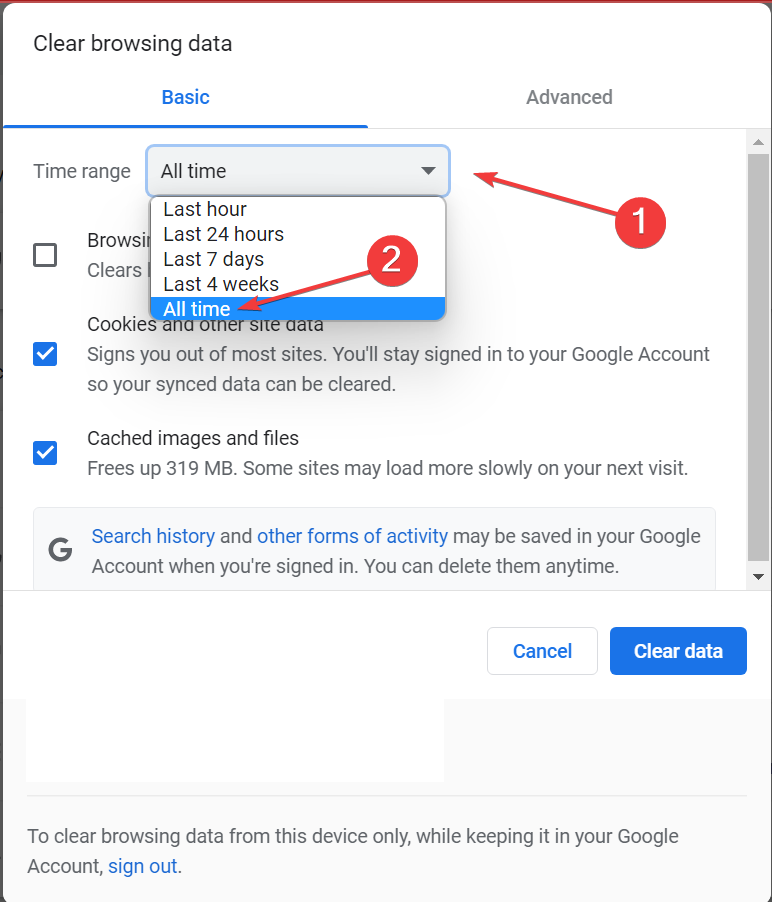
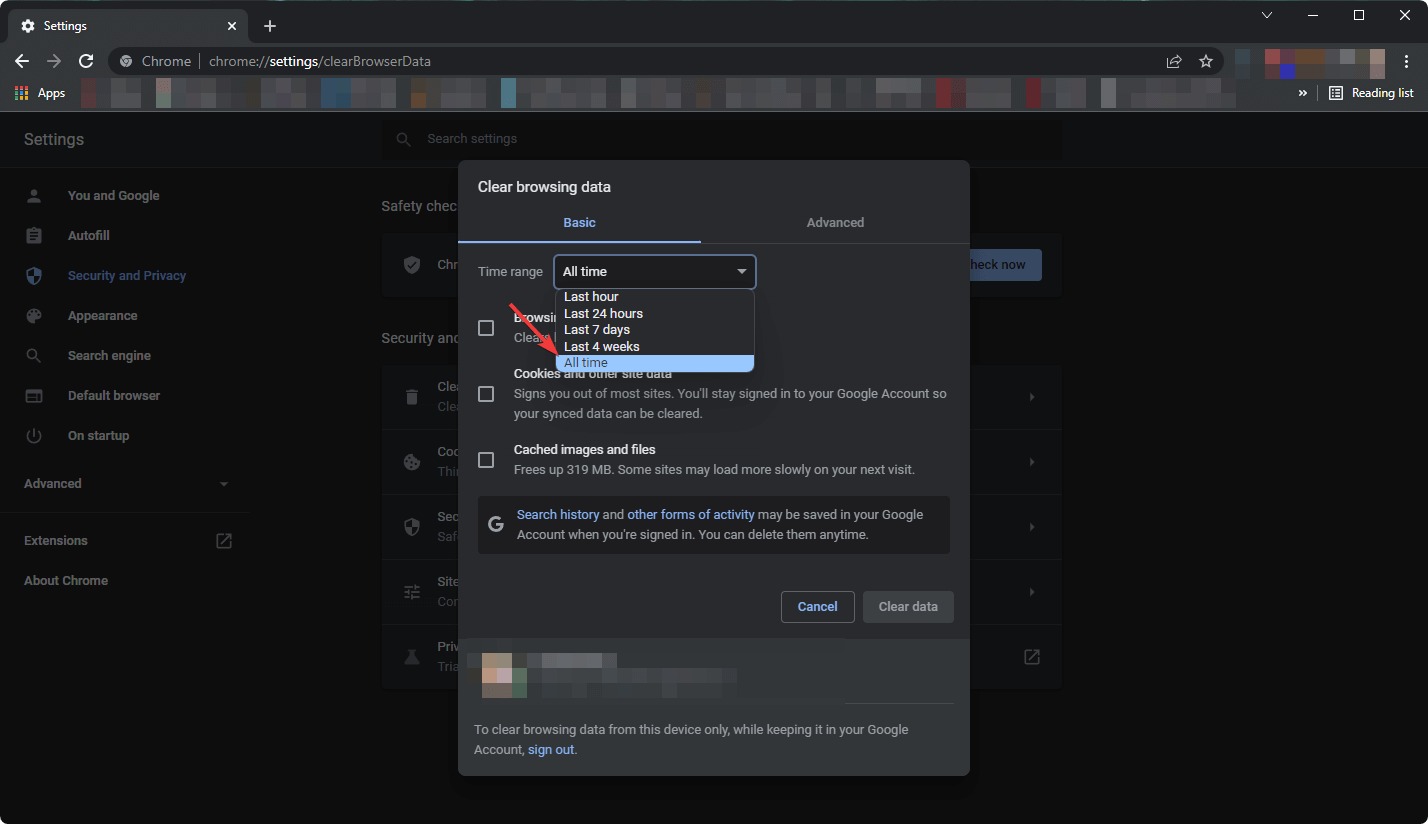
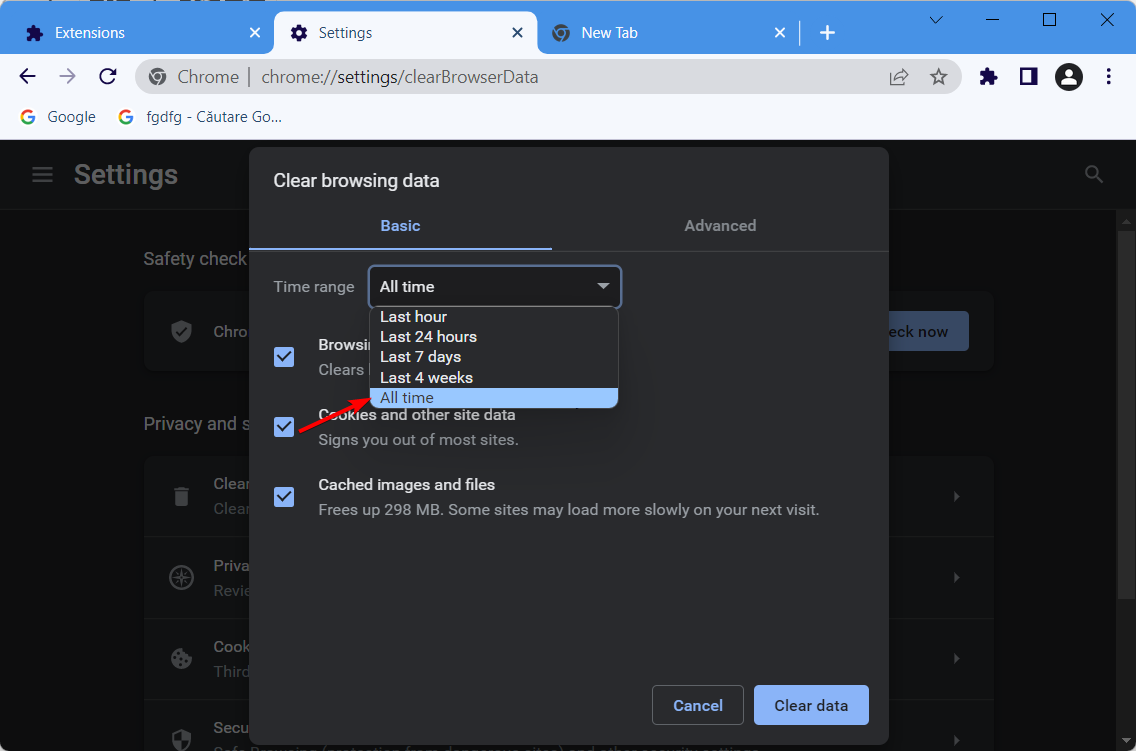
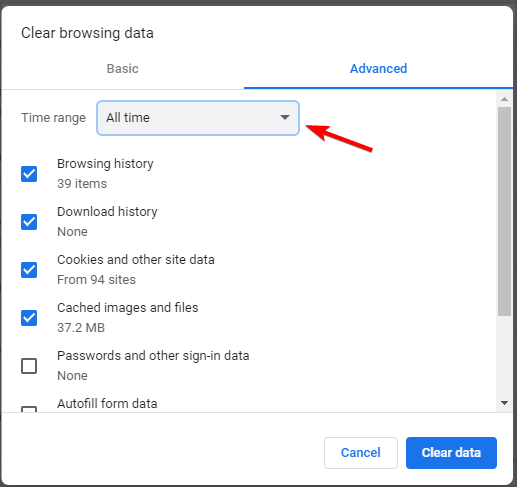
  1. Press Ctrl + Shift + Del to open the Clear browsing data window.
  2. Click on the Time range dropdown menu, and select All time.All time to fix disney plus not working on chrome
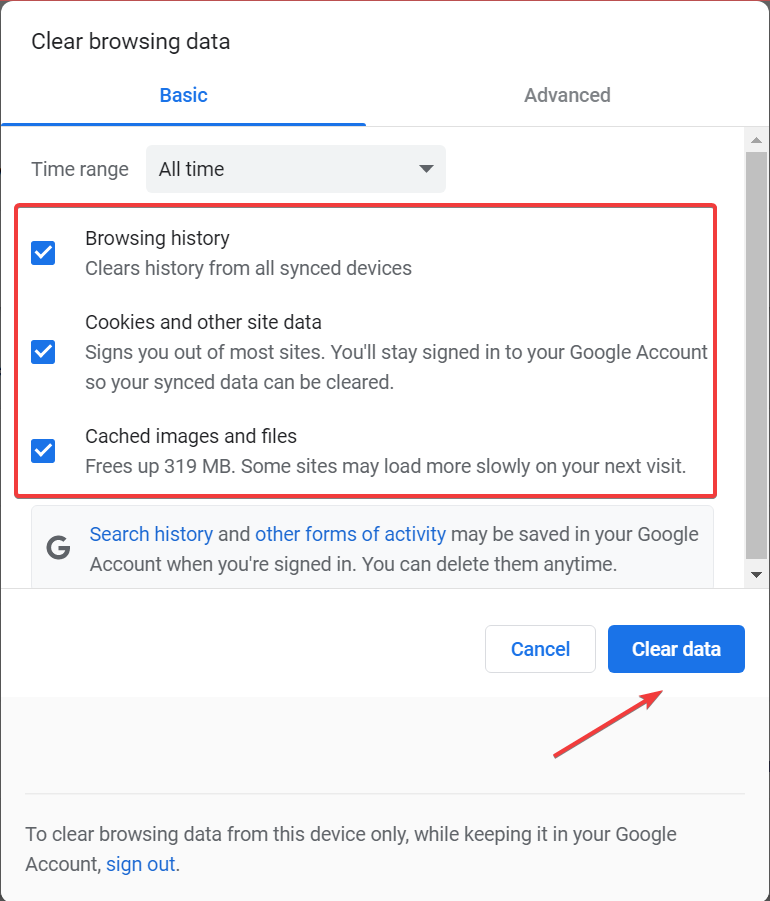
  3. Now, tick all three entries here, and then click on Clear data at the bottom.Clear data

That’s it! After the browsing data is cleared, check if Disney Plus is still not working on Chrome, though that’s rarely the case. It can also help you fix Disney Plus keeps crashing issue.

Still having issues after clearing cache and cookies? Check our complete guide on Disney Plus App Not Working for more fixes.

5. Check for updates

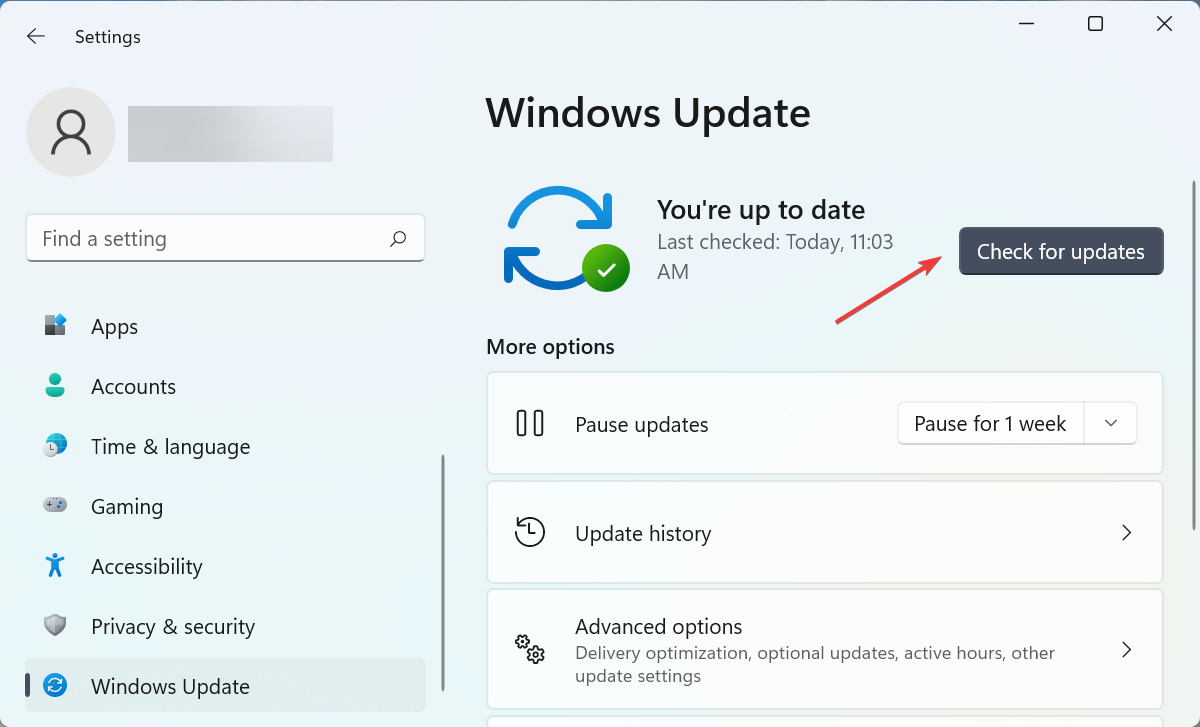
  1. Press Windows + I to launch Settings, and select Windows Update from the left.Windows Update
  2. Next, click on Check for updates on the right.Check for updates to fix disney plus not working on chrome
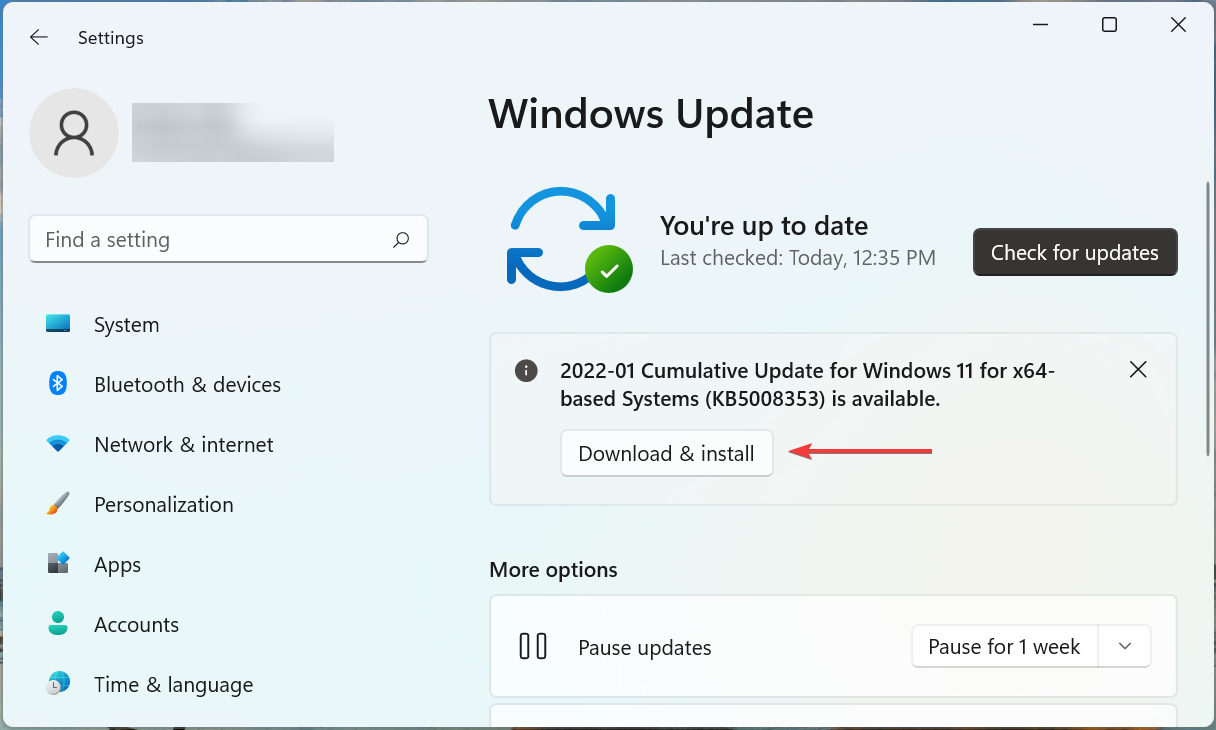
  3. If an update is listed after the scan, click on Download & install.Download & install

This error can also show up if Windows is outdated. So make sure to install the latest updates, or even better, set Windows to update automatically.

That is all you need to do in order to fix things if Disney Plus is not working on Chrome. Also, find out how to stream Disney Plus on Discord without any issues.

We also have a guide on what to do if Disney Plus shows no video, only audio, so don’t miss it.

Let us know which method worked for you by leaving a comment below.

McAfee WebAdvisor not Working in Firefox: 3 Easy Fixes

McAfee is a well-known name in the antivirus and security-related software category. People rely on the service of McAfee and make use of the different tools it offers to safeguard their devices from malicious attacks.

For web browsers, McAfee has a tool called McAfee WebAdvisor that is a trusty companion you should have on your PC that keeps it safe from unwarranted threats.

It protects you from malpractices online, viruses and malware when you browse the internet. It is essential, especially if you have young ones using your PC, who are more prone to online scams and phishing attacks.

Some features of McAfee WebAdvisor include misclick protection where it blocks malware and phishing websites to load, alerts you if you type a web address wrongly, scans your downloads, and alerts you if detect a risk, etc.

Several user reports have brought to light the McAfee WebAdvisor not working in the Firefox issue. Firefox is a widely used web browser and this issue has been affecting millions of its users.

In this guide, we will explain, how you can fix the McAfee WebAdvisor not working in Firefox problem and get back to protected web browsing.

Why is McAfee WebAdvisor not working in Firefox?

Several users have reported different causes for McAfee WebAdvisor not working in Firefox. This means that there is no one specific reason why this problem could be triggered.

After research, we have deduced a list of common reasons that are responsible for McAfee WebAdvisor not working in Firefox:

  • Your browser isn’t up to date
  • The McAfee WebAdvisor extension isn’t updated
  • The WebAdvisor is not properly installed
  • Some settings of the McAfee WebAdvisor have been miss-tweaked

Now that you are aware of the common mistakes that could give rise to McAfee WebAdvisor not working in the Firefox issue, let us check out the solutions.

Quick Tip:

If the problem with the antivirus persists in Firefox, a practical tip we suggest is to consider the Opera One browser.

This modern browser has improved security due to its Ad blocker tool or effective VPN, even it’s own built-in AI.

Opera One

Bypass this security problem from WebAdvisor using the enhanced security of Opera One.
Free Download Visit website

How can I fix McAfee WebAdvisor not working in Firefox?

1. Reinstall McAfee WebAdvisor

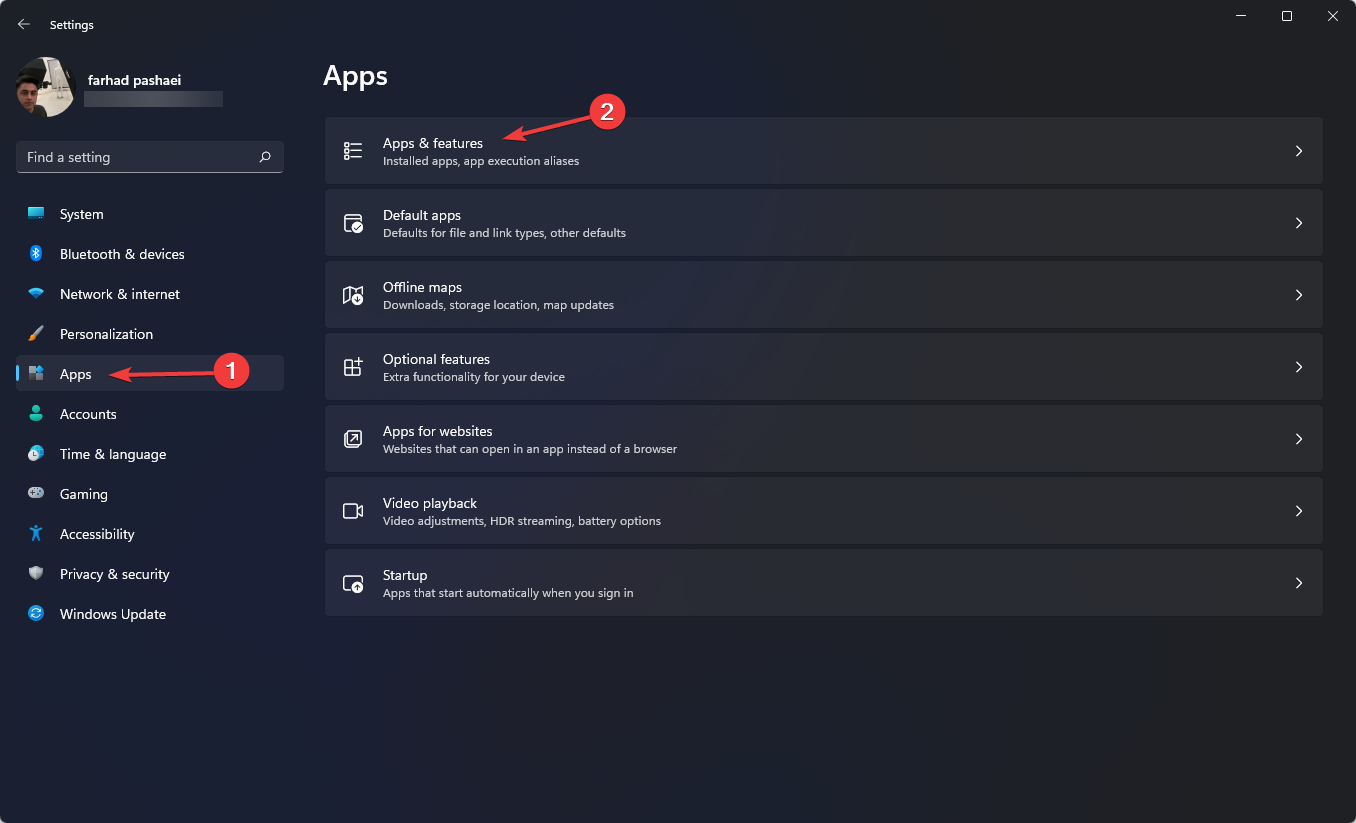
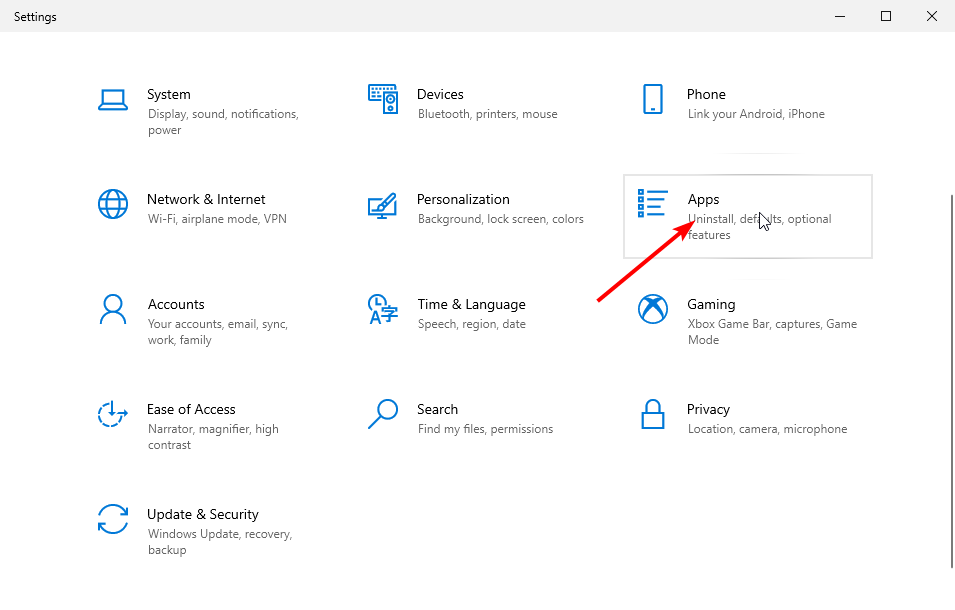
  1. Press the Win + I buttons to open Settings.
  2. From the left pane, select Apps.
  3. Click on Apps & features.
    Apps and features
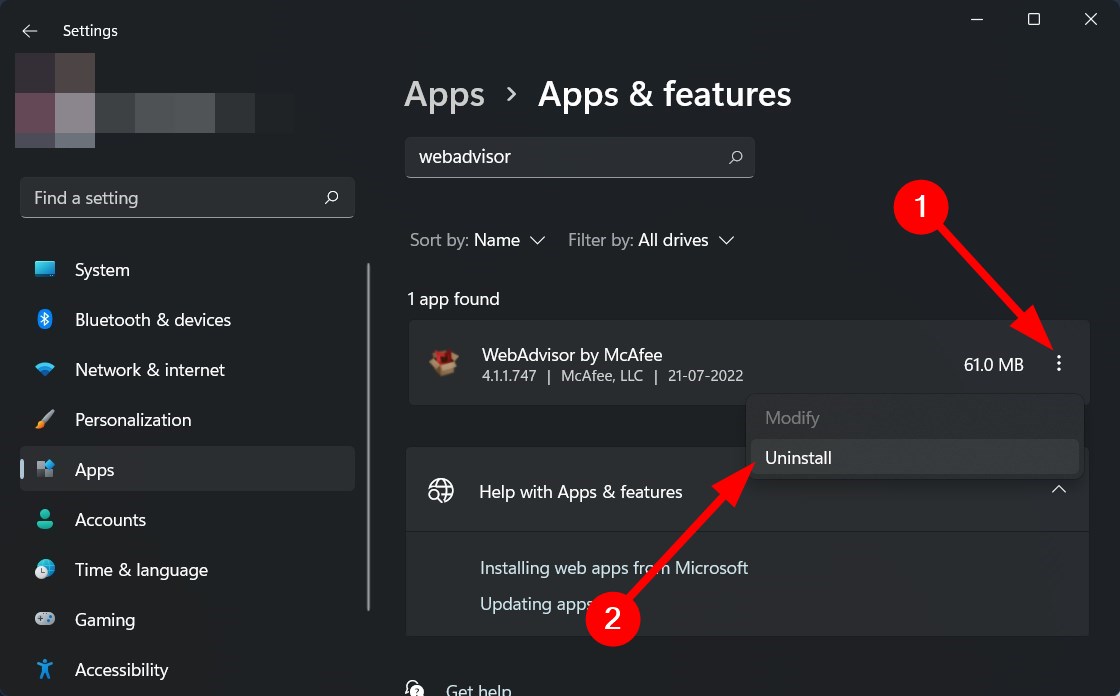
  4. In the search box, type WebAdvisor and hit Enter.
  5. Click on the 3-dot icon and select Uninstall.

Chances are the previous instance of the WebAdvisor installation failed to install some important files, which is why you are experiencing the McAfee WebAdvisor not working in Firefox issue.

In such a case, reinstall the WebAdvisor client and check if this fixes the issue or not.

2. Reset to default settings

  1. Open Firefox.
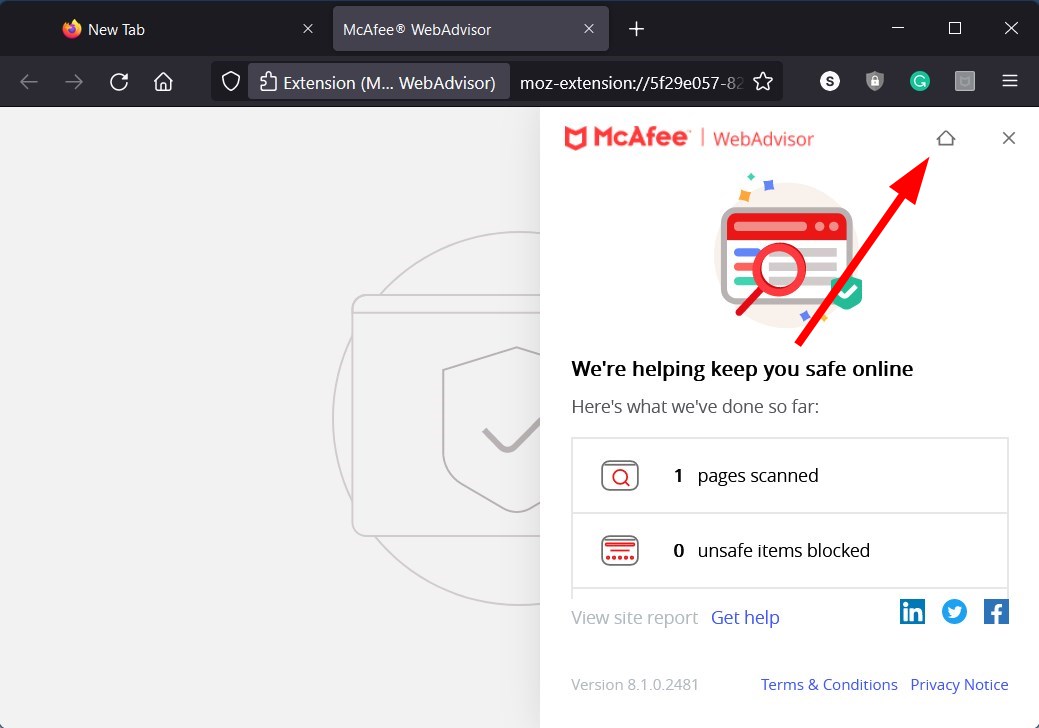
  2. Double-click on the McAfee WebAdvisor extension icon on top.
  3. Click on the Home icon on top of the McAfee toolbar.
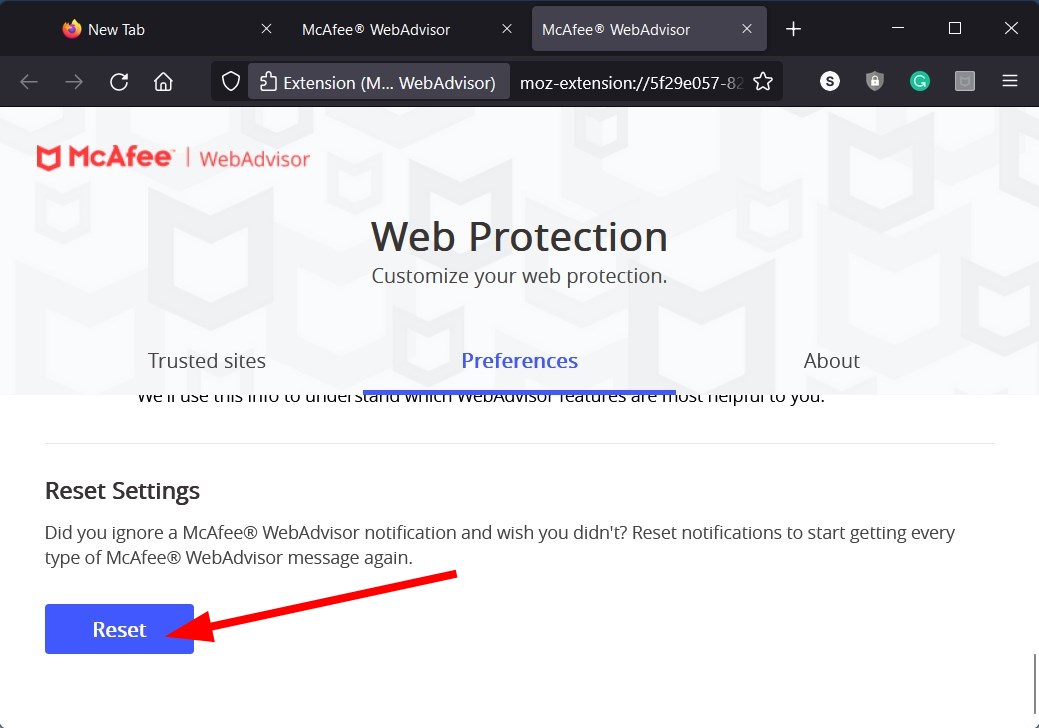
  4. Scroll down and click on Reset Settings.

Resetting to default settings will change all the mis-tweaks you might have made to WebAdvisor and restore the factory settings.

Need a clean uninstall path for the extension? Check our Remove McAfee WebAdvisor guide to delete every leftover and restore Firefox protection.

3. Install the latest update

  1. Open Firefox.
  2. Right-click on McAfee WebAdvisor extension icon.
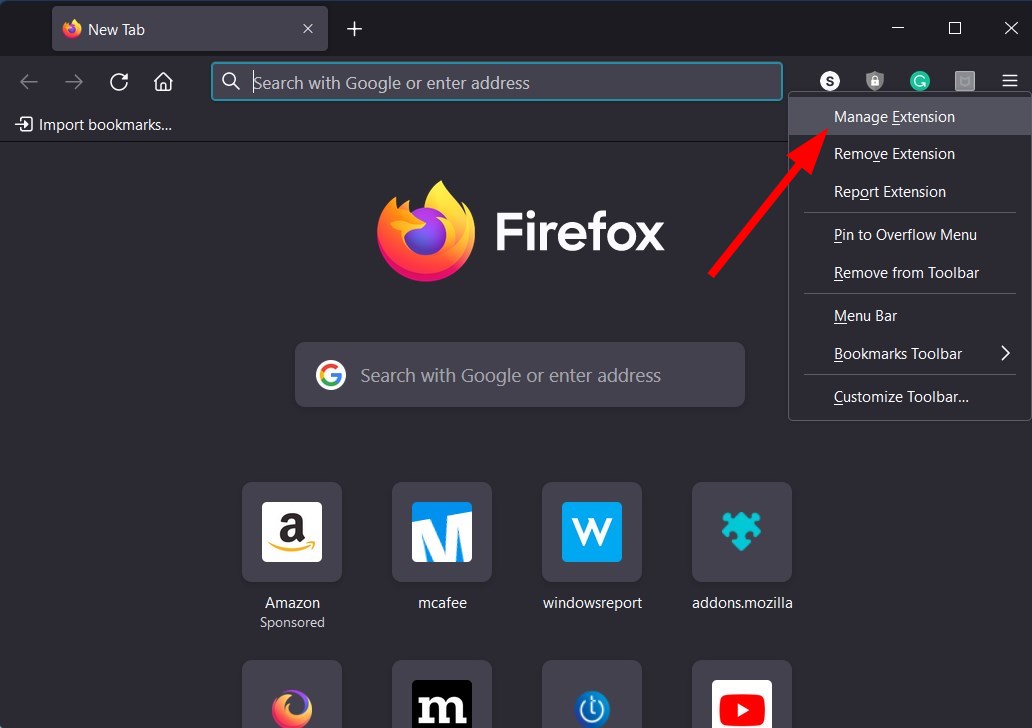
  3. Select Manage Extension.
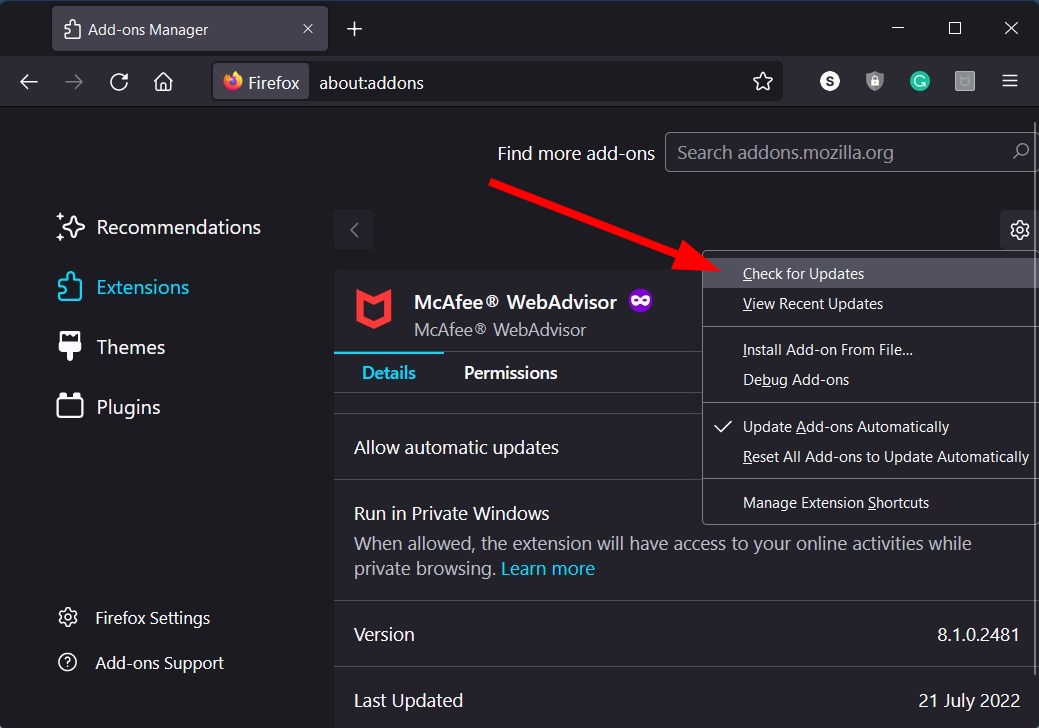
  4. Click the cog-wheel icon on top and select Check for updates.

There might be a bug in the previous version of the McAfee WebAdvisor extension that is causing the McAfee WebAdvisor not working in Firefox problem.

It is not only recommended that you keep the WebAdvisor extension up to date, but also update every other extension and software installed on your PC.

What else can get rid of McAfee WebAdvisor not working in Firefox problem?

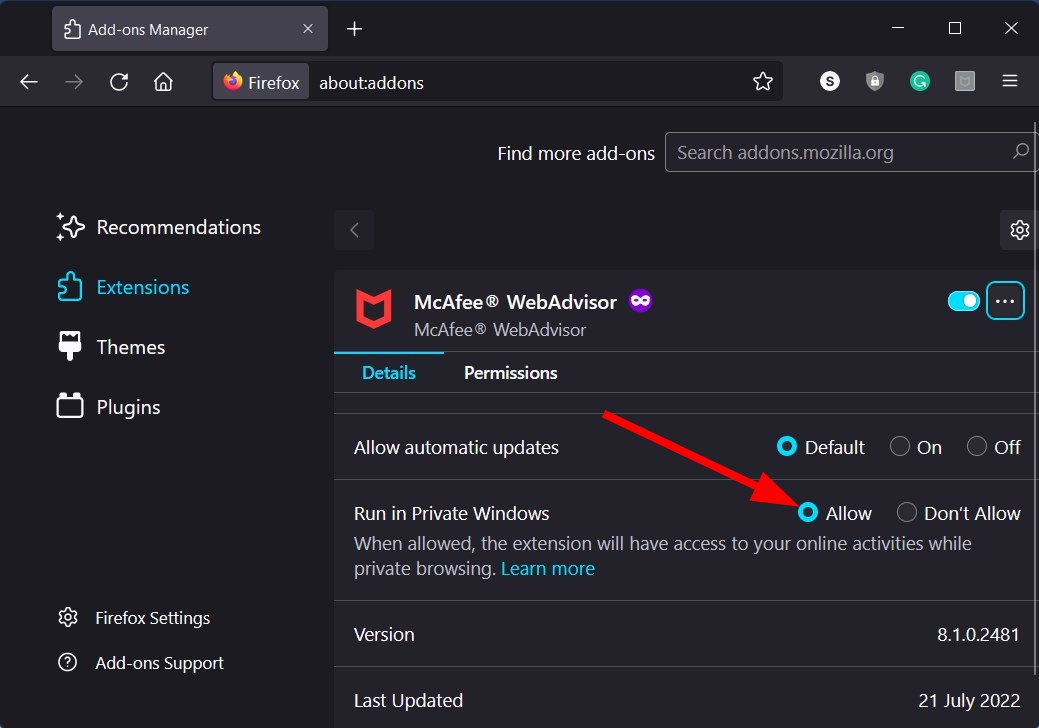
  • Enable Run in private window
    1. Open Firefox.
    2. Right-click on McAfee WebAdvisor extension icon.
    3. Select Manage Extension.
    4. Select Allow for Run in Private Windows option.

While this feature makes the McAfee WebAdvisor work during private browsing, some users have reported that enabling this feature has fixed the issue for them. So, you can also give it a try.

  • Remove other security tools
    1. Press the Win + I buttons to open Settings.
    2. From the left pane, select Apps.
    3. Select Apps & features.
      Apps and features
    4. Locate any other security tools.
    5. Click on the 3-dot icon next to it and select Uninstall.

There are chances that if you have multiple security tools installed on your PC, they will conflict with each other’s smooth functioning.

Try uninstalling all the other security software and keeping the McAfee WebAdvisor on your PC. And check if this fixes the problem at hand or not.

That is it from us in this guide. We hope that this guide helped you get rid of the McAfee WebAdvisor not working in the Firefox problem. Let us know in the comments below which one of the above solutions helped you resolve the issue.

5 Tested Ways to Fix Origin Error When Buying Something

Amongst the most frequent errors on Origin, encountering an issue when buying something is one of the most common.

This can create a lot of stress for avid gamers who have been waiting for a specific release for some time, and even affects the casual user.

The error seems to be linked to the location from which you are trying to make the purchase, but in some cases, users have reported that the process froze out the blue.

Here is what one user had to say about this issue on the EA Answers forums:

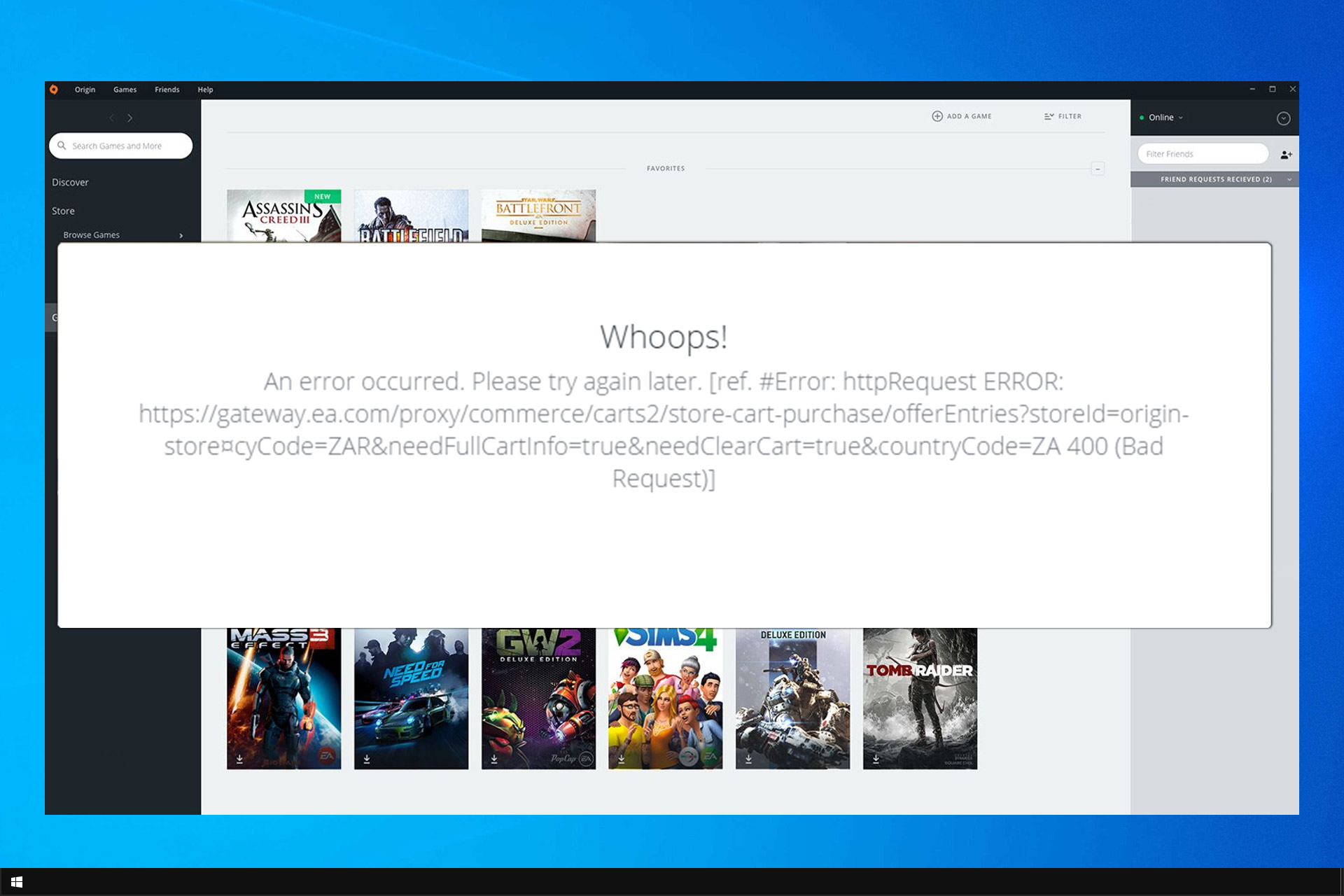
Whoops! An error occurred. Please try again later. [ref. #Error:httpRequest ERROR]. I get this every time I try to purchase anything, or click Join Origin Access. Really want to purchase BF1, any help?

Unfortunately, this isn’t the only issue that users encountered, and many reported Origin client loading issues on their PCs.

Because we understand how important it is for you to be able to download games from Origin freely, in today’s article we will explore some of the best fixes. Read on to find out more.

Why can’t I buy anything on Origin?

If you’re having issues with buying items from Origin, you might have issues with your client. In case that happens, you can try making a purchase from your browser instead.

This doesn’t always work, and if you’re having problems with the client, it’s advised that you clear its cache and try again.

Sometimes when you make a purchase you’ll encounter Origin error em ext 10027 or code 54005, but there are ways to fix that.

Why is Origin not processing my payment?

It’s possible that your region is blocked or that your ISP is preventing you from accessing Origin properly. Using a reliable VPN can help you with that.

Another cause can be account issues, and if that happens, it’s best to contact Origin support so they can perform a detailed inspection.

In this guide, we’re going to show you a couple of solutions that you can use if you are unable to purchase on Origin, so let’s get started.

How can I fix Origin purchase or payment error?

1. Try using the Origin Online Store and not the client

origin online store in opera

If you’re getting Your action cannot be processed Origin, you can try using the Origin website to buy what you want instead.

In order to do this, it is recommended that you log into your Origin account, and add the payment details inside your account settings.

This fix points to an error inside the Origin application, but it doesn’t apply to all cases. Still, it’s worth a try.

You can use any browser for this task, but we recommend trying out the Opera One browser.

Some exclusive helpful features such as the built-in free VPN will guarantee your online activity and IP address stay private. This way, the purchase process should be hassle-free and prompt.

Opera One

Get rid of any errors when purchasing Origin games! With Opera you get to the Online Store in just a few clicks.
Free Download Visit website

2. Use a VPN service to complete your payment

In case you’re getting There was an error displaying the price in Origin, you might want to try using a VPN. This applies if your purchase is blocked due to the location of your Internet provider.

The only way to find out if this fix works, is to install a VPN, and try to purchase something from Origin. If the location is causing the problem on your side, this will resolve it.

use a vpn to purchase from origin

As mentioned before, Opera comes with a pre-installed VPN tool that you only need to activate from the settings menu.

This tool is useful not only to hide your location, but it allows you to access websites that are otherwise blocked in your region. It also serves to add an extra layer of security to your connection, preventing online attacks.

3. Delete Origin cache files

  1. Right-click your Taskbar and open Task Manager.

  2. End tasks: Origin.exe and OriginWebHelperService.exe.
  3. Press Windows + R, type, enter the following, and click OK: %ProgramData%/Origindelete origin cache
  4. Delete everything but the folder: LocalContent.
  5. Press Windows + R, and type %AppData% then Enter.

  6. Delete the Origin folder.
  7. Click AppData, open the Local folder and delete Origin.
  8. Reboot your PC.

This is a simple solution, but it can help you with There was an error retrieving item information message in Origin.

4. Remove and reinstall the software

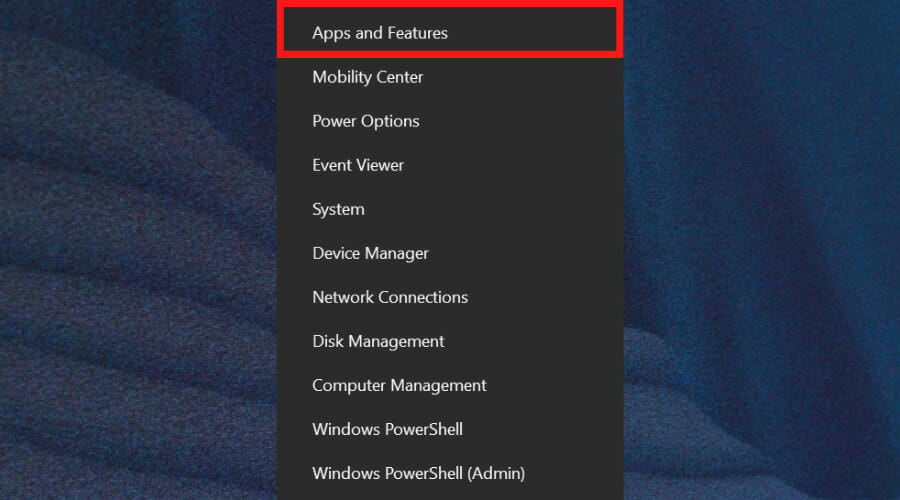
  1. Press Windows + X, go to Apps and Features.
    vpn no internet
  2. Right-click on Origin, then Uninstall.

  3. Download Origin. Right-click on the installer and Run as admin.

5. Check your account status

If all of the above methods failed, and the Origin buying error is still present, then there is a pretty good chance that your account got banned for some reason.

To rectify this, see these instructions to get into contact with the Origin account department.

Does Origin accept debit cards?

When it comes to purchases, Origin works with debit cards in addition to other payment methods.

If you have any issues with your debit card and Origin, contact your bank or Origin support to get it sorted.

In this article, we explored the best methods to try if you can’t buy anything inside Origin. We hope this guide helped you troubleshoot your issue.

This isn’t the only issue that you can encounter and many reported Unexpected error in Origin, but we already covered that issue in a separate guide.

Please feel free to let us know if it did by using the comments section found below.

9 Ways to Speed Up Chrome When It’s Running Slow or Freezing

Is Chrome running slow on your computer? Do you want to speed up this browser? Go through this article to find the most helpful information.

Google Chrome is the browser of choice for many because of its features and compatibility. It is one of the fastest and safest browsers out there for various purposes like casual browsing, news reading, or anything.

However, Chrome is also fairly system resource heavy, which can slow browsing down considerably on more outmoded desktops and laptops.

If you notice that Chrome browser is running slow on Windows 10/11 PC, it can be a very frustrating matter for you. It is because you may be using this browser for professional reasons.

Why is Google Chrome so slow all of a sudden?

While surfing the web or doing anything on Chrome, you may suddenly find that it has become very slow and useless. It happens due to the following reasons:

  • A Chrome tab has crashed
  • You are visiting a very unoptimized JavaScript-heavy website
  • There is been any change in the extensions
  • Your computer has suddenly launched a service in the background
  • Chrome is not up to date

You may find some other reasons too. But, these are the most commonly seen things that hurt Chrome user experience more.

Does my Chrome need an update?

Chrome or any web browser should always be up to date. Even though the modern applications update themselves automatically, sometimes, you may need to give manual effort as well. You may find it very slow when there is a pending update and Chrome needs to restart.

If you continue using an outdated version of Chrome, it may run slow and freeze frequently. You will often see that the browser is lagging while surfing usually.

However, if Chrome is off the pace, trying out the methods mentioned below will surely help.

Quick Tip:

If you’re tired of Chrome’s lackluster performance, consider switching to Opera One, and enjoy a speedy, lightweight, and secure browsing experience that will make it worth your time.Whether you notice Chrome is running slow on PC, Mac, Linux, Android, iPhone, or even iPad, you can consider using the Opera One browser.

Opera One makes your browsing experience more secure with it’s built-in VPN, Ad blocker and AI. The browser brings features that help you stay organized like workspaces, tab islands and more.

Opera One

Team up with Opera, the fastest browsing solution that moves at your pace!
Free Download Visit website

How do I make Google Chrome faster again?

  1. Cut back Chrome extensions
  2. Clear your browser’s data
  3. Turn on Chrome’s Prefetch option
  4. Switch to another browser
  5. Remove images from websites
  6. Remove ads from websites
  7. Increase the number of raster threads
  8. Enable the fast tab/window close flag setting
  9. Don’t open too many tabs

1. Cut back Chrome extensions

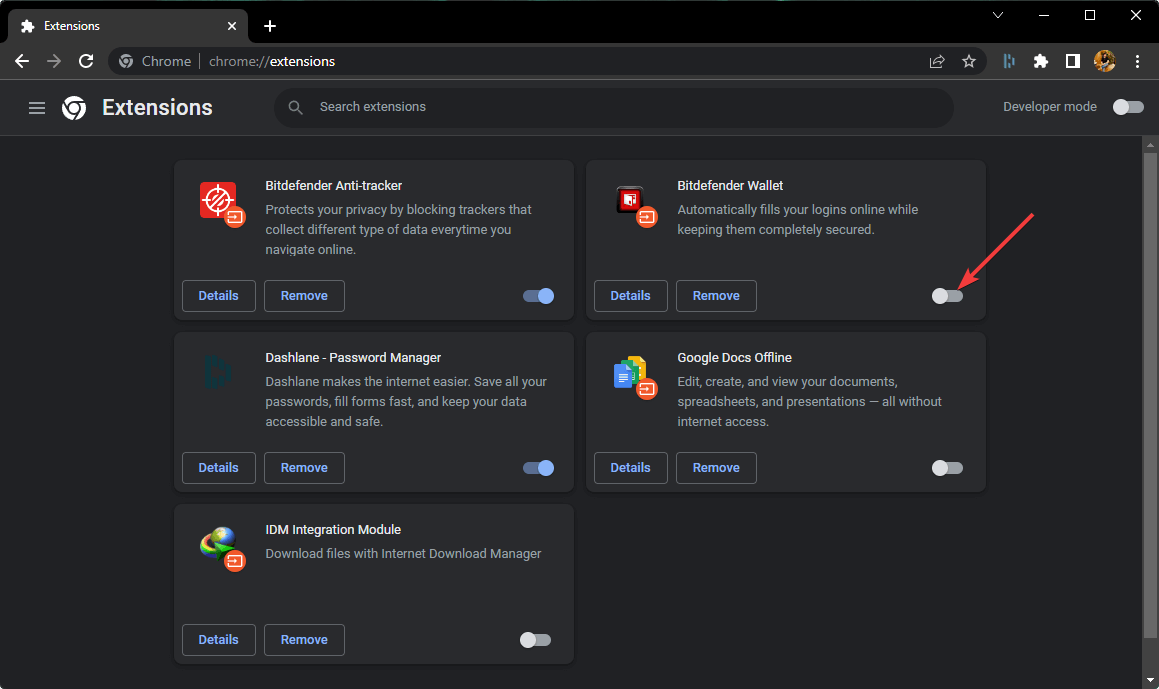
  1. Type the following address in the address bar and hit Enter. chrome://extensions/
  2. Toggle the switch off next to the extensions you want to disable.disabling extension chrome
  3. Click on Remove to remove the extension.

Disabling unnecessary extensions will fix Chrome running slow issue not only on Windows but also on Mac and Linux.

2. Clear your browser’s data

  1. Open the Google Chrome browser.
  2. Press CTRL + Shift + Del on your keyboard to open the appropriate settings.
  3. Set All time as the time range. choose clear browsing data time range
  4. Tick Cache images and files, Cookies and other site data, and then click on Clear data.clearing temp data chrome

You can also perform this task automatically by using specialized optimization and clean-up software.

The PC optimization tools free up space, clear your online tracks, including your browsing history and cache, and speed up your system.

Thus, in case you need to clear up your browser data instantly and even increase your internet speed at its peak, invest your time in the best memory cleaner software on the market.

As one of the best programs for this purpose, we gladly suggest CCleaner, which does complete routine maintenance.

CCleaner can remove any unwanted files left by applications, as well as surfing history, cookies, recycle bin, memory dumps, file fragments, log files, system caches, and application data.

With the ultimate cleaning program for Chrome, you can become the master of your browser and make it perform smoothly and swiftly.

If Chrome is running slow on your Windows 10 or 11 PC like a surface laptop or a desktop computer, this cleaner tool can save your day by doing a lot of things automatically.

⇒ Get CCleaner

3. Turn on Chrome’s Prefetch option

  1. Using the Chrome address bar, go to the following location: chrome://settings/cookies
  2. Toggle on the option Preload pages for faster browsing and searching.enabling chrome prefetch
  3. Relaunch Chrome.

4. Switch to another browser

The majority of us use Chrome. It’s the leading browser in the market provided by the largest tech company in the world.

But, considering the alternatives, you have more than a few reasons to cop out and go for something lighter and more privacy-oriented than Google’s flagship browser.

Our recommendation is Opera which, all things considered, ticks all the boxes.

The in-built adblocking solution is one of the main pillars supporting Opera’s dazzling loading speeds.

By keeping ads and invisible trackers at bay, you make sure your confidential data stays private and enjoy an up to 90% faster-browsing experience.

And that’s merely the tip of the iceberg when it comes to accelerating your browsing.

Download and install Opera for Windows 11

Opera’s fully customizable UI allows you to work with shortcuts, joggle with multiple tabs, and easily find your way through them thanks to the tab previews or tab menu, and of course, access your favorite sites quicker than ever through the Speed Dial feature.

Opera also has a free in-built VPN that keeps your identity private and allows you to access geo-restricted websites and services. Along with that, it supports the picture-in-picture/video pop-out feature that helps you to watch videos from a website on a different tab or application.

Other features of this browser include an integrated snapshot tool, a speed dial separate tab, and support for quick access to instant messaging apps and social media.

⇒ Get Opera

5. Remove images from websites

  1. Go to the following location on Google Chrome: chrome://settings/content/images
  2. Check Don’t allow sites to show images.disabling images chrome
  3. Relaunch Google Chrome.

6. Remove ads from websites

Ads are another thing that can considerably slow down browsing. Ads are similar to images as they add lots of extra content to pages.

So removing ads from website pages is another good way to speed up Chrome. The browser doesn’t include any built-in options to remove ads, but there are various ad-blocker extensions that will do the trick.

The uBlock Origin adblocker is one that you can add to Google Chrome. The good thing about the uBlock extension is that it’s more system resource-efficient than other alternatives.

The extension also blocks pop-ups and other media elements on website pages.

It’s easy to use by clicking the uBlock Origin button on the toolbar to activate/deactivate ad-blocking for specific pages.

7. Enable hardware acceleration

  1. Go to the following location: chrome://settings/system
  2. Toggle on Use hardware acceleration when available.enabling hardware acceleration in chrome
  3. Restart Chrome

8. Enable Closed tab cache

  1. Using the address bar, go to the following location: chrome://flags/#closed-tab-cache
  2. Now, enable the Closed Tab Cache.enabling closed tab cache chrome
  3. Relaunch the browser.

Enabling this feature will help, particularly if Chrome becomes very slow after opening a closed tab.

9. Don’t open too many tabs

Tab overload can also slow down the Chrome browser. This will usually happen if you open more than 10 pages at a time.

Each of those tabs needs some resources, and Chrome‘s Task Manager highlights that open page tabs can hog more RAM than extensions. Thus, Chrome runs faster with fewer tabs open.

There are numerous tab management extensions that minimize the number of tabs open in Google Chrome.

OneTab is an extension that enables you to preserve RAM by moving pages to an inactive tab list from which you can reopen them when required.

You can easily add it to Chrome. Then you can move a page to the tab list by selecting it, right-clicking the OneTab button, and selecting OneTab > Send only this tab to OneTab.

Each of those tips should speed up your Chrome browser a little more. Now you can browse through website pages somewhat more quickly than before.

What is the Chrome Cleanup Tool?

The Chrome Cleanup Tool is an excellent program from Google that helps to identify the harmful programs that cause various problems to Google Chrome. This program also can remove these programs automatically.

In general, this tool finds potentially unwanted programs (PUP), adware, malware, and many other harmful programs on your PC.

How to use Chrome Cleanup Tool?

  1. Go to the following address on your Chrome: chrome://settings/cleanupchrome scanning for harmful programs on pc
  2. It will automatically start scanning for harmful software and clean them.

Google recommends you to use this tool when you face unwanted problems on Chrome.

This article has featured the best methods to fix the Chrome running slow problem. To further boost Chrome, check out some of these extensions.

If you have any opinion about the topic or any methods mentioned above, let us know in the comment box.

5 Best Star Wars Online Games That Are Free-To-Play In 2026

The Star Wars franchise has always taken care of its gamers community with new releases every few years, such as LEGO games, shooters, and RPGs; the franchise has it all.

With the release of the new Star Wars Jedi: Fallen Order,  Disney has given the gaming community something new to rejoice in until the new Star Wars movie hits the shore.

While there are multiple Star Wars games for PC and console platforms, many online browser-based Star Wars games offer you to play as the Star War characters.

These games are free as well. If you are looking forward to playing free online Star Wars video games, this article is filled with them. You can play as Jedi, Sith, Stormtroopers, and more.

This list has official Disney and fan-made Star Wars games. While all the games in this article are playable on any modern web browser, they will surely work better on the versatile Opera GX browser.

You would want to play Star Wars with any of the 7 best browsers for online gaming.

What is the best Star Wars game right now?

Like the prestigious film series, the greatest Star Wars game is divisive. Knowing your EA from your Bioware slants and Lego iterations can help you understand how diverse this may be. As a result, selecting the finest of the best is no simple task.

While this is not a definitive answer, we lean slightly towards Star Wars Jedi: Fallen Order, you should play it and tell us how you rank it.

Is Star Wars Online free-to-play?

There are many Star Wars online games. And many are paid; luckily, if you are looking for something free, you will have a few free options. Unless you are playing unblocked Star War games, we usually recommend you pay for a subscription to get the most out of these online games.

Quick Tip:

Opera GX is a special version of the Opera browser explicitly built to complement gaming. It also has unique features to help you make the most of your gaming session.

Some notable features of the browser include a CPU resource limiter where you can control RAM, processor, GPU, and bandwidth resource usage per your requirement.

Opera GX

This gaming-enabled browser has many useful features and offers lightning-speed internet browsing!

What are the best free Star Wars games online?

Star Wars Rebels: Strike Missions – Best fan-made game

Star Wars games online

Star Wars Rebels: Strike Missions is a third-party fan-made Star Wars survival game. Choose your team, leader, and support, and launch yourself into battle.

You will encounter the legendary and famous Star Wars characters you’ve experienced in the movies and comics, and they will fight alongside you.

Choose the survival mode and survive as long as possible against the stormtroopers or complete missions; instead, you progress through the game.

You can collect credits by breaking crates that can be used to defeat enemies or unlock new characters and upgrade their skills. Credits can also be used to obtain powerups to boost your weapon.

Additional features:

  • Cool Star War soundtracks
  • Impressive graphics
  • Multiplayer

⇒ Try Star Wars Rebels: Strike Missions

Star Wars Rebels: Special Ops – Best side-scrolling game

Star Wars games online

If you liked the Star Wars Rebels: Strike Missions, you would also love Star Wars Rebels: Special Ops. The game features the popular Star Wars characters like Hera, Ezra, Sabine, Kannan, Zeb, and Chopper.

Start the game by selecting one of the six characters in the game. Star Wars Rebels: Special Ops is a side-scrolling game and uses the arrow keys to move the character forward/backward and jump.

After the training tutorial, you can select one of the four missions in Forest Planet. Each mission comes with an objective that you need to complete while defeating the stormtroopers on the way.

Like Star Wars Rebels: Strike Missions, opening the crates offers credits you can use to defeat Storm Trooper or even unlock new levels.

Additional features:

  • Plenty character choices
  • Multiple missions
  • Great graphics

⇒ Try Star Wars Rebels: Special Ops

Yoda’s Jedi Training – Best Luke Skywalker character game

Star Wars games online

Yoda’s Jedi Training is another popular third-party fan-made Star Wars online game. In this game, you play Luke Skywalker as Yoda trains him to become a great Jedi Knight.

The game starts in the swaps as you leap over holes and smash thorny nests with your lightsaber to collect coins and tokens. The collected items can be used for upgrades in the shop.

The games offer random objectives to complete and unlock more elite versions of Luke once you have leveled up.

There are two versions of Luke – the default Dagobah Luke and the locked Jedi Knight Luke that unlocks at Level 11. Yoda’s Jedi Training uses the standard arrow keys to jump and the space bar to destroy obstacles.

Additional features:

  • Multiple levels
  • Great game soundtracks
  • Multiple missions

⇒ Try Yoda’s Jedi Training

X-Wing Fighter – Best Air fighter Star Wars game

Star Wars games online

If you are into space shooter games, take to the skies with X-Wing Fighter in your trusty X-win and shoot down the enemy ships and TIE fighters while avoiding the enemy attack.

Multiple missions exist, including Battle on Takodana, Starkiller Base Assault, and Simulation Mode. Starkiller Base Assault’s mission can only be unlocked after completing the first mission.

You can use the mouse to move around the X-wing fighter while it shoots lasers continuously. Also, you can hold the right-click or space bar to shoot a laser beam to do more damage.

Collect coins and powerups from the enemy ship wreckage to improve and repair your aircraft and take down the dark side with full speed.

Additional features:

  • Nice game graphics
  • Multiple powerups
  • Different assault modes

⇒ Try X-Wing Fighter

Lego Star Wars: Battle Run – Best Lego version Star Wars game

Star Wars games online

Like Lego and Star Wars? Then Lego Star Wars: Battle Run is for you. Play through an epic battle with your trusty gun to control the outcome and decide between light and dark.

Solve puzzles, fight your way to the Christmas tree at the end of the map and collect all the Lego creation pieces. Use codes to unlock new characters and take them on a dangerous journey.

The game offers over 25 Levels, each consisting of 4 stages. You need to complete the early stages to unlock new levels.

Use WASD to move the character, press space to shoot, and the G button to drop explosives. Be careful with the explosives as wrong moves can kill you instead.

Additional features:

  • Realistic Lego characters
  • Several playing levels
  • Easy keyboard controls

⇒ Try Lego Star Wars: Battle Run

What is the best browser for online games?

In this niche, there are many options, but there is a straight winner – the Opera GX browser.

We love it for many different reasons, but let us start by saying it is the most popular gaming browser we have.

You only need to launch the browser, and you will be instantly put in the gaming mode thanks to its cool themes and sounds for start-up and keystrokes. It also carries all the great attributes of its mother browser Opera.

StarWarsgameonline.com has some of the best Star Wars online games you can play on your browser. Some of these games are better looking than most of the Star Wars games on old-gen consoles.

Apart from the five games listed above, StarWarsgameonline features many other Star Wars games that you can play, and you will find great online, free Star Wars battle simulators.

Give these games a shot, and let us know your favorite Star Wars game in the comments.

6 Fixes for Fallout 4 Mods Not Working – Get Back to Gaming!

Having problems with Fallout 4 not working? You’re not alone. Many players report bugs. Whether it’s Fallout 4 mods not working on PC, Xbox, PS4, or PS5, or issues with Vortex, they usually have common causes.

In this article, we focus on how to fix Fallout 4 mods not working on Windows, including problems that arise after updates.

How do I get mods to work in Fallout 4?

1. Run Nexus Mod Manager (or Vortex) as administrator

  1. First, open the folder that includes your Nexus Mod Manager (or Vortex modding software) for Fallout 4.
    fallout 4 mods not working
  2. Right-click the EXE file for your Fallout 4 mod software and select Properties.
  3. Then select the Compatibility tab shown in the screenshot directly below.
    fallout 4 mods not working
  4. Select the Run this program as administrator setting, and click the Apply option.
    fallout 4 mods not working
  5. Click OK to exit the properties window.

2. Configure INI files for Fallout 4 modding

  1. First, press the Windows + E hotkey to open File Explorer.
  2. Then open the Fallout 4 folder at this path:
    DocumentsMyGamesFallout4
  3. Right-click the Fallout4Custom.ini file and select Open with.
  4. Click Notepad to open Fallout4Custom.ini with that text editor.
  5. Copy the following code with the Ctrl + C hotkey:
    [Archive]
    bInvalidateOlderFiles=1
    sResourceDataDirsFinal=
  6. Paste that code into your Fallout4Custom.ini file with the Ctrl + V hotkey, then save it.
    The additional Fallout4Custom.ini lines fallout 4 mods not working pc
  7. Right-click the Fallout4Custom.ini file and select Properties.
  8. Click on the General tab, and uncheck the Read-only attribute checkbox.
    fallout 4 mods not working
  9. Again, right-click Fallout4Prefs.ini within the same Fallout 4 folder and select Open with to open the file within Notepad.
  10. Enter the code below within the Fallout4Prefs.ini file beneath bEnableFileSelection=1
    [Launcher]

  11. Then select the Save option on Notepad’s File menu.

If your Fallout 4 folder doesn’t include a Fallout4Custom.ini file, set up a new file for that folder by clicking File > Save as in Notepad.

Select All Files on the Save as type drop-down menu. Then enter Fallout4Custom.ini in the file title box, and press the Save button.

3. Enable Fallout 4 through Windows Defender Firewall

  1. Click the Start button, type firewall, then select the Windows Defender Firewall applet.
  2. Click the Allow an app or feature through Windows Defender Firewall.
  3. Press the Change settings button.
    fallout 4 mods not working
  4. Then select both the Public and Private checkboxes for Fallout 4 and Nexus Mod Manager (or Vortex if you use that).
  5. Select the OK button.

If you can’t find Fallout 4 and your mod manager listed within Allowed apps, click the Allow another app option.

Then you can press the Browse button to select and add the Fallout 4 and mod manager apps to the list.

4. Add a Fallout 4 exclusion to Windows Security

  1. Click on the Start menu, type Windows security, and then select the Windows Security applet. 
  2. Click the Virus and threat shield button on the left side of Windows Security, then select Manage settings on the right pane.
  3. Scroll down and click Add or remove exclusions.
  4. Press the + Add an exclusion button, then click the Folder option, and select the Fallout 4 directory.
    fallout 4 mods not working
  5. Then click the Folder option, and select the Fallout 4 directory.

5. Disable and re-enable mods one at a time

  1. Open the Nexus Mod Manager window.
    Nexus Mod Manager fallout 4 mods not working pc
  2. Then select Fallout 4 in Nexus Mod Manager to open a list of its installed mods.
  3. Disable all your mods by right-clicking them and selecting their Deactivate options.
    fallout 4 mods not working
  4. Play Fallout 4 after deactivating all the mods. If deactivating the mods fixed previous issues for the game, at least one of the mods is faulty.
  5. Thereafter, active a mod; and play Fallout 4 after activating it to check for issues. Keep on testing the game after reactivating one mod at a time until you can identify a faulty one.
  6. Deactivate the corrupted mod you discover.

When Fallout 4 mods are not working on Xbox, PC, PS4, and PS5, you should try disabling and re-enabling the modes.

6. Reinstall Nexus Mod Manager to update it

  1. To open the Run accessory, press the Windows + R keys.
  2. Click the OK button after entering this command in Run’s text box:
    appwiz.cpl
  3. Select your Fallout 4 mod software, and click the Uninstall button.
  4. Restart Windows after removing the mod software.
  5. Click the Manual Download button for the latest Nexus Mod Manager version on the NMM download page.
  6. Alternatively, you can click the Download button on the Vortex page to save the setup wizard for that Fallout4 mod software.
  7. Install the mod manager software you downloaded.

When Fallout 4 mods don’t work on PCs, it could be due to misconfigured INI files, corrupted mods, or Windows firewall/antivirus blocking the game. Adjusting property settings may resolve these issues.

Using Mods in Fallout can add more fun to the game and also fix certain bugs such as face glitches.

Lastly, you will find our guide helpful if your Nexus mod manager is not set up to work with Skyrim. Also, check out how to mod Cyberpunk 2077.

Let us know which solution worked for you in the comments area below.

Microsoft will begin blocking Office macros by default

Windows, and more exactly, Office users are getting more and more confused after Microsoft keeps changing its mind about how to handle Office macros.

A bit earlier this month, the tech giant surprised all users when it suddenly changed its mind and started to block VBA macros in popular Office apps.

Just as everyone was getting used to the new normality, the Redmond company said that it wants to reinstate the new policy after making some additional changes to enhance usability.

That being said, now Microsoft is once again announcing that is ready to start blocking Office internet macros by default.

Office macros will be blocked by Microsoft

Microsoft clarified that it resumed the rollout of VBA macro auto-blocking in downloaded Office documents after it temporarily rolled it back as a result of user feedback.

The tech company has updated the available information with clear step-by-step instructions explaining what the end user can do with a blocked macro.

Now, with this latest set of rules in place, we will see a security warning notification when trying to open an Office file with a macro coming from the Internet.

This above-mentioned message will depict a Learn More button linked to a support page describing risks related to opening files with VBA macros.

Furthermore, the support article provides information about enabling macros in case the user trusts the file, and you can access it right here.

In case you were wondering why this pattern of indecision, Microsoft confirms that the huge wave of negative user feedback caused the company to temporarily undo the changes and consider providing better information about such a drastic change in Office applications.

Even though no additional info was shared, users have reported they didn’t know how to re-enable macros after they were automatically blocked because they couldn’t find the Unblock button. 

At the same time, other people found it burdensome to unblock each downloaded Office document multiple times daily.

With the updated information we received, we have all the information that an average user or IT admins need to understand how Office determines whether to block or run macros in files from the internet.

We also learn more about which Office versions are affected by the new rules, how to allow VBA macros in trusted files, and how to prepare for the change.

That being said, in conclusion, the Redmond company plans to start blocking VBA macros in Office Access, Excel, PowerPoint, Visio, and Word in the Current Channel from July 27, 2022.

We’re actually talking about Office version 2206 and newer, and the general idea behind the decision is to eliminate an attack surface that bad actors exploit to infect systems with malware and ransomware.

What is your opinion on this entire situation? Share your thoughts with us in the comments section below.

Best Browsers That Still Support Activex Controls in 2026

With ActiveX browsers, you can interact with countless data formats. If you tried accessing something that your browser doesn’t support, this feature requires a browser that supports ActiveX controls in Chrome might be familiar.

This article will run you through a list of the best browsers with support for ActiveX control.

By using these apps, you’ll be able to circumvent This browser does not support ActiveX components error message.

What browsers support ActiveX controls?

Opera One – Best social integration

opera one browser

Opera One runs on Google’s open-source engine, which means you can install all Chrome-compatible extensions.

So, even though it doesn’t support ActiveX controls out of the box, you can work around that.

The technique for integrating this is outlined towards the conclusion of this guide. Read on to find out how to use the browser’s ActiveX feature.

We like the browser since it’s one of the few with an integrated VPN, which allows you to hide your IP address when needed.

Additional features:

  • Workspaces
  • Snapshot tools
  • Ad blocker

Opera One

Browse securely and customize your workspace with handy add-ons and integrations.

Google Chrome – Most extensive extension database

Chrome does not natively have ActiveX controls support and instead relies on NPAPA (Netscape Plugin Application Programming Interface) to interact with and view sites that do.

You can download ActiveX for Chrome extensions because there are a handful of these. Additionally, a few Chrome configuration tweaks will come in handy.

We like Chrome because it is fast, has robust security measures, has a simple interface, and supports leading standards.

Additional features:

  • Visual Browser History
  • Website tabs manager
  • Browser memory use

⇒ Get Google Chrome

Firefox – Optimized for privacy

browser that supports activex controls

Firefox developers often build new plug-ins for users to install to enable functionality requested by documents and websites that would typically need ActiveX controls.

So, the Open in IE and Esker ActiveX Plug-in, which try to mimic ActiveX controls or the Mozilla ActiveX Control plug-in, will ensure you can use ActiveX content on the browser.

Additionally, when you encounter a broken document or site on Firefox because it employs ActiveX, you may send a report to the dev team.

Additional features:

  • Page actions menu
  • New tab page
  • Enhanced tracking protection

⇒ Get Firefox

What is ActiveX control in the browser?

ActiveX is Microsoft’s patented program that enables you to view and interact with specific documents and websites via an Internet browser.

It is sometimes necessary before you have access to viewing any portion of a document or website, and at times it’s required only for specific functions and services of the website. This requires a browser that supports ActiveX controls.

However, only browsers developed by Microsoft have full ActiveX support. So, other browsers will need to create unique approaches for displaying ActiveX-required websites and documents.

What websites use ActiveX?

ActiveX controls are utilized by a wide variety of Microsoft Windows applications, including a number of Microsoft’s own, such as Internet Explorer, Microsoft Office, Microsoft Visual Studio, and Windows Media Player.

These applications not only use ActiveX controls to construct their feature sets, but they also encapsulate their own functionality within ActiveX controls, which can then be embedded within other applications.

Is ActiveX still supported?

ActiveX was a bridging tech used to connect desktop and web technologies.

Modern browsers like Google Chrome and Microsoft Edge have redefined the distinction between data controls and content.

Therefore, this kind of segmentation is crucial in the Zero Trust age. ActiveX would be retired since the web has progressed to more secure and distributed technology stacks.

However, with that said, many top browsers still give allowance for this feature to be turned on if required.

How do I enable ActiveX in Opera One?

  1. Navigate to the Open in IE extension.
  2. Click on Add to Opera One.
    browser that supports activex controls
  3. When you encounter a program that requires ActiveX, right-click on the Open in IE extension and select Open all Tabs in Internet Explorer.
    browser that supports activex controls

You will also be able to activate ActiveX on Chrome using a similar method.

Here you have it – our list for you if are looking for browsers with ActiveX controls.

You must have in mind that ActiveX content may not always be safe, however, by checking if they are signed, you could avoid malware.

The browsers listed are also our favorites for many reasons other than their support for this tech. Many of them offer great flexibility for browsing security and offer features needed across many domains.

Finally, you should note that your OS may block the installation of extensions, but with a few steps, you can stop Windows from blocking ActiveX install for IE.

Here is what’s coming to Xbox next week, July 25—29

A total of 10 new games (that we know of so far) are set to release on Xbox consoles next week. These games will be releasing between July 25 and July 29. Let’s have a look at the lineup.

Maybe not the most exciting lineup of the summer season so far, but still solid. And there is a good mix of different game types, from racing games to roguelikes to visual novels. Note that release dates are subject to change. Which of these upcoming releases are you excited about? Let us know in the comments.

3 Ways to Fix the URL Autocomplete if It’s Not Working on Firefox

Firefox is one of the easiest-to-use browsers available on all devices. One of its ease-of-use features is the URL autocomplete. 

This feature provides suggestions from your browsing history, bookmarks, and search engine to anticipate and complete the URL you are typing. Unfortunately, the URL autocomplete feature is now starting to fail on Firefox.

The causes for the failure vary from wrong browser settings to broken profile files. Irrespective of the reason, this guide will show you how to fix the issue and help you get back suggestions in your address bar.

Quick Tip:

Use a more stable browser if you keep having problems with Firefox. We recommend Opera One as an alternative because it’s fast and less prone to errors and bugs.

This browser has the autocomplete feature pre-enabled when you install it, and you can easily disable it or customize its settings to your own liking. This browsers also features it’s own built-in AI.

Opera One

Easily enable/disable autocomplete and enjoy fast and secure browsing!
Free Download Visit website

How do I set up the autocomplete URL feature in Firefox?

  1. Click on the menu button on Firefox and select the Settings option.
    settings url autocomplete not working firefox
  2. Choose the Privacy & Security option in the left pane.
    privacy 
  3. Check the boxes for Browsing history, Bookmarks, Open tabs, Shortcuts, and Search engines under the Address Bar section.
    checkboxes

With the steps above, Firefox will provide suggestions for any URL you type in the address bar from your browsing history, bookmarks, and search engines.

How do I fix the URL autocomplete on Firefox if it’s not working?

1. Disable sync 

  1. Launch Firefox and click on the menu button (three horizontal lines).
  2. Select the Settings option.
    settings url autocomplete not working firefox
  3. Choose the Sync option in the left pane.
    sync
  4. Click the Change… button under the Syncing: ON section.
    change
  5. Click the Disconnect… button in the Choose What To Sync window.
    disconnect button
  6. Finally, click the Disconnect button to confirm the action.
    disconnect confirm

If the URL autocomplete is not working properly on Firefox, you might have triggered something on one of your synced devices. Also, if you get the wrong suggestions from sites you have never visited, it might be from another device.

Disabling the Sync will ensure your browser only uses the data available on your current device. And you have nothing to lose as this will not delete any of your data.

2. Remove some files from the Firefox profile 

  1. Open Firefox and click the menu button.
  2. Select the Help option. 
    help option url autocomplete not working firefox
  3. Choose More troubleshooting information.
    more troubleshoot
  4. Now, go to the Application Basics section and click Open Folder before the Profile Folder option.
    open folder
  5. In the folder, delete all places.sqlite and favicons.sqlite files.
    fav places
  6. Finally, restart your browser.

Another reason the URL autocomplete might not be working on Firefox is broken profile files. The quickest solution is to remove the files and let Firefox build a new one from scratch. 

You can create a backup of the places.sqlite file in case it needs to be used to build a new database later.

3. Set URL bar preference to true

  1. Launch Firefox and copy the command below in the Address bar. about:config
  2. Press the Enter key.
    type about url autocomplete not working firefox
  3. Click the Accept Risk and Continue button.
    accept
  4. Search for URLB in the search box.
  5. Look for the browser.urlbar.autofill preference from the list.
    search
  6. Double-click on it to set the value to true.
    set value true url autocomplete not working firefox

If you tampered with your Firefox settings before noticing that the URL autocomplete is not working, you might have tweaked the wrong preference.

Setting the URL bar to autofill will help return the suggestions. Ensure to restart your browser after making this change.

The URL autocomplete feature is one of the integral ease-of-use features on Firefox. So, it is too good to be missed. With the detailed solutions provided in this guide, you should be able to get it back working without breaking a sweat. 

Are you facing other issues like the Enter key not working on Firefox? Then give our article a read to know how to fix it effortlessly. 

Feel free to let us know the solution that enables you to get back the URL suggestion in your browser in the comments section below.
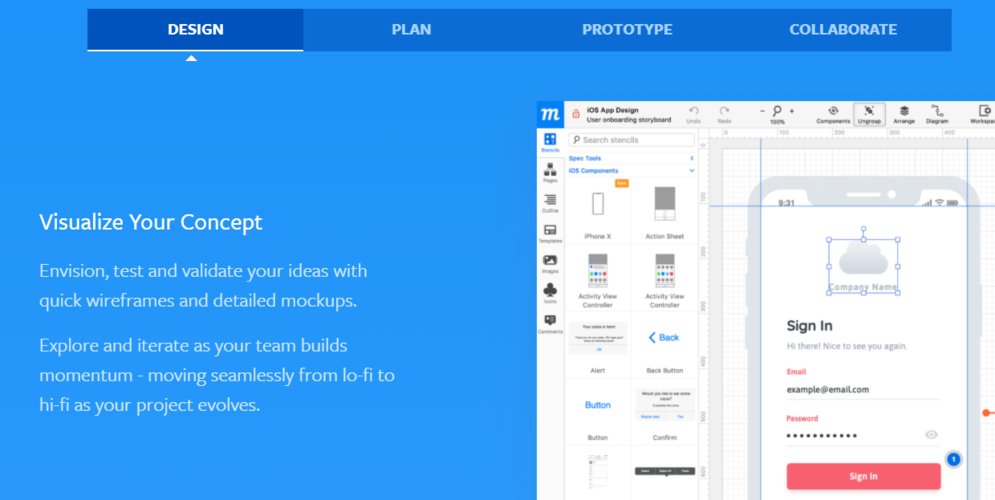
Windows 11 22H2 startup sound quality is getting lowered by Microsoft

Microsoft Executive Vice President and Chief Product Officer, Panos Panay, has been on an unrelenting campaign to educate users about just how quality-focused Windows 11 really is.

The Redmond-based tech company’s main concern is to deliver a superior product, unparalleled in quality and client friendliness.

However, it seems that Microsoft decided to reduce the quality of certain aspects of the new operating system, an action that sort of contradicts all previous statements.

We’re referring to the user-friendly and warm startup sound for Windows 11, which apparently took a quality hit when least expected.

Microsoft lowers Windows 11 startup sound quality

It seems that Microsoft has further plans for its latest OS that contradict statements made not that long ago, about everything that has to do with Windows 11 being superior.

We said that because, allegedly, the tech giant has lowered the bit rate of the Windows 11 Startup sound in the upcoming version 22H2, Sun Valley 2.

The audio file for the Windows 11 startup sound has a reduced bit rate of 1,536 Kbps, compared to the 2,304 Kbps it had in last year’s build 22463.

This change was noticed in Beta Channel build 22621, which has been confirmed to be the RTM release candidate for Windows 11 22H2.

We’re actually looking at a 33% reduction in the bit rate, which let’s be honest, will not ultimately lead to a perceptible difference in the fidelity of the Windows 11 startup sound.

Some netizens say that Microsoft has also made changes to the music itself, mentioning that the silence at the very start of the sound has been slightly prolonged in Build 22621.

We’re not saying that this might be the end of Windows 11 as we know it. However, some users, using high-fidelity sound equipment, may be ticked off by this reduction.

As for the rest of us, happy with a regular pair of headphones or a plain pair of PC speakers won’t really realize that something happened in the first place.

And, since we’re on the topic of Windows 11, remember that Microsoft released Build 25163 to the Dev Channel, with some pretty important changes coming to the Store.

Two days ago it also released builds 22621.436 and 22622.436 (KB5015888) to the Beta Channel, along with a new tutorial video series for Windows 11 beginners.

KB5015882 also brought some important fixes, in case you didn’t catch up yet. Also, if you are a Windows OS enthusiast, keep in mind that Microsoft will release new operating systems once every 3 years.

With that in mind, don’t forget to check all the updates surrounding Windows 12 and a potential 2023-2024 release.

Considering what you just read, what is your take on Microsoft lowering the Windows 11 startup sound quality?

Share your opinions and thoughts with us in the comments section below.

KB5015882: All you need to know about this recent update

Windows 11 users kept reporting that there was a bug that caused FIle Explorer to randomly freeze, without any apparent trigger or solution.

Now, Microsoft has released KB5015882 for Windows 11 with 20 fixes or improvements, including new Focus Assist and OS upgrade features.

Ready for a more in-depth dive? Also, don’t forget to check out the most recent updates released to the Dev (25163) and Beta (KB5015888) Channels.

What fixes does KB5015882 bring to Windows 11?

Before we begin, keep in mind that this 11 cumulative update is part of Microsoft’s July 2022 monthly C release, which allows users to test the upcoming updates and fixes in the August 2022 Patch Tuesday.

And, as you already know, unlike updates released during Patch Tuesday, these preview updates do not contain security features and only include bug fixes and performance improvements.

That being, said, installing the KB501588 will bring Windows 11’s version number to build 22000.829, in case you were wondering.

Furthermore, Windows 10 users can also download and manually install the KB5015882 update from the Microsoft Update Catalog.

We can start describing KB501588 by saying that it provides the ability for you to consent to receive urgent notifications when focus assist is on.

Also, it gives the option for eligible devices to update to a newer Windows 11 version during the out-of-box experience (OOBE) when you first sign in.

Keep in mind that, if you choose to update to a newer version, the update process will begin shortly after the update is installed on the device.

KB501588 also restores functionality for Windows Autopilot deployment scenarios that are affected by the security mitigation for hardware reuse.

It removes the one-time use restriction for self-deploying mode (SDM) and pre-provisioning (PP), and also re-enables any User Principal Name (UPN) display in user-driven mode (UDM) deployments for approved manufacturers.

  • Addresses an issue in UIAutomation() that causes an application to stop working.
  • Addresses an issue that prevents the Startup Task API from working as expected for certain apps.
  • Improves the reliability of a push-button reset after an OS upgrade.
  • Addresses an issue that makes the tenant restrictions event logging channel inaccessible if you remove the EN-US language pack.
  • Addresses an issue that causes certificate-based machine account authentication to fail in some circumstances after you install the May 10, 2022 security updates on domain controllers.
  • Addresses an issue that affects the Arm64EC code you build using the Windows 11 software development kit (SDK).
  • Updates the Remove-Item cmdlet to properly interact with Microsoft OneDrive folders.
  • Addresses an issue that prevents certain troubleshooting tools from opening.
  • Addresses an issue that causes port mapping conflicts for containers.
  • Addresses an issue that causes Code Integrity to continue trusting a file after the file has been modified.
  • Addresses an issue that might cause Windows to stop working when you enable Windows Defender Application Control with the Intelligent Security Graph feature turned on.
  • Deploys search highlights to devices. To access the policy for search highlights (on a device that has installed the June 2022 Cumulative Update Preview or July 2022 monthly quality update), go to C:\Windows\PolicyDefinitions and locate Search.admx. For your convenience, we will be publishing an updated version of the Administrative Templates (.admx) for Windows 11, version 21H2 to the Microsoft Download Center soon.
  • Addresses an issue that causes explorer.exe to stop working when you use the play and pause keyboard buttons on certain devices.
  • Addresses an issue that causes explorer.exe to stop working when you use the Start menu’s context menu (Win+X) and an external monitor is connected to your device.
  • Addresses an issue that displays a blank window that you cannot close when you hover over the search icon on the taskbar.
  • Reduces the overhead of resource contention in high input/output operations per second (IOPS) scenarios that have many threads contending on a single file.
  • Addresses an issue that causes the Windows profile service to fail sporadically. The failure might occur when signing in. The error message is, gpsvc service failed to sign in. Access denied.

Known issues

Even though these problems shouldn’t exist, what would be a Windows update release without some good old issues that come packaged with it?

  • After installing this update, IE mode tabs in Microsoft Edge might stop responding when a site displays a modal dialog box. A modal dialog box is a form or dialog box that requires the user to respond before continuing or interacting with other portions of the webpage or app.

This above-mentioned issue is resolved using Known Issue Rollback (KIR), but it might take up to 24 hours for the resolution to propagate automatically to consumer devices and non-managed business devices. 

What can I do if KB501588 fails to install?

  1. Press Win + I to access Settings.
  2. Select the System category and click on Troubleshoot. w11 troubleshoot
  3. Press the Other troubleshooters button.other troubleshooters windows 11
  4. Press the Run button next to Windows Update.windows update troubleshooter

There you have it, folks! That’s pretty much all we’re getting with KB501588, and hopefully, the fixes brought by it will last a while.

Have you noticed any other problems after installing KB501588 on Windows 10 or Windows 11? Share your experience with us in the comments section below.

7 Ways to Get Your SWF Files Opening Again in Chrome

Finding a solution to the SWF files not working in Chrome is crucial. Most people still try to use Adobe flash player in the present day, but it won’t work.

This is because the software has been stopped and is no longer available. Chrome has been adopted to open the SWF file format in place of Adobe.

This is done through the help of a Chrome extension, Flash Player, which allows users to open SWF files.

SWF files are identified by the acronym SWF, which stands for Small Web Format or Shockwave Format. It can contain video, animations, and audio files while compressing them into smaller file formats to occupy little or no space.

This article will teach you how you can fix SWF files not working in Chrome and how to open SWF files in 2022.

Do SWF files still work?

There are several ways to open SWF files that do not require Flash to be installed. You can make use of utilities such as SWF players, or you can utilize the Adobe Flash Player that is hidden. You also have the option to convert these files so they may be opened.

Quick Tip:

Try opening SWFs in another browser. Opera One is a very responsive alternative to Chrome. The browser supports Flash Player, and you can easily enable it for specific web pages and play SWF files.

Opera One is also lighter on resources than Chrome and has performance-boosting features like an adblocker, a battery mode, and hardware acceleration.

Opera One

Open SWFs with ease and enjoy fast and seamless browsing.

How do I play SWF files in Chrome?

  1. Go to the Flash player extension to your Google Chrome by clicking the Add to Chrome button. add-to-chrome-button-ext chrome swf files not working
  2. Click the Extensions Manager icon in the upper right corner followed by Manage extensions.extneions-manager chrome swf files not working
  3. Toggle the icon beside the Flash player extension to enable it.flash-on chrome swf files not working
  4. Choose any SWF file, right-click on it, and open it with Chrome. This is how to play SWF files in 2022.

How do I enable SWF files in Chrome?

  1. If SFW files are not working, launch Google Chrome on your device.
  2. Go to the Flashplayer extension profile in the Chrome extension store and click on Add to Chrome.add-to-chrome-button-ext chrome swf files not working
  3. Select the SWF file on your device and right-click.
  4. Choose the Open with option from the list.
  5. Click Chrome for the file to auto-load.

What can I do if SWF files aren’t working in Chrome?

1. Convert SWF to other formats

  1. Download and install Adobe After Effects on your device.
  2. Launch the app, go to the File menu followed by Import, and you’ll be directed to the file manager.files-import chrome swf files not working
  3. Select the SWF to convert and adjust the settings to select the new format to be converted to. Finally click Convert.

Tools like After Effects are suitable for converting SWF files. By changing the file format, it should be accessible on Chrome. Alternatively, you can convert with the next fix.

2. Download an outdated Chrome version

  1. Launch Google Chrome and search for Slimjet Chrome Old version.slimjet chrome swf files not working
  2. Select any old version before 2021 and install it on your device.
  3. Then launch the SWF file using Slimjet outdated Chrome.

Adobe stopped supporting the Flashplayer plugin at the end of 2020. Hence, the older Chrome browsers still have it. So, you can access SWF files without hassles.

3. Use Internet Explorer/ Edge

  1. Launch Internet Explorer and click on the Settings icon at the top right corner.
  2. Select the Manage add-ons option from the list.manada-addons chrome swf files not working
  3. On the add-one page, click Toolbars and Extensions.toolbars chrome swf files not working
  4. Scroll to the MWTPA option and select shockwave flash objects. Click the Enable button, then save.

If Chrome has failed to open the SWF files, consider switching the browser to Internet Explorer. It has in-built plug-ins that will enable access to SWF files.

4. Download SWF Player on Android

  1. Install the SWF player on your Android device via Google Playstore.
  2. Launch the app, then click local files.local-files chrome swf files not working
  3. Select the file to open, then click play.

You can access the SWF files directly without using Chrome for Android users. Just download the app and access the information in the files.

5. Use the VLC Player

  1. Download VLC Media Player by clicking on the Download VLC button.download-vlc chrome swf files not working
  2. Launch VLC on your device and click Media followed by File.
  3. Select the SWF file to open, then drag and drop it into the VLC.

This option is an alternative to fixing SWF files not working in Chrome. It is more suited as a solution for video files in SWF format.

6. Install KMPlayer for Windows

  1. Download KMPlayer by clicking the KMPlayer 64X for Windows 64-bit button.kmplayer chrome swf files not working
  2. Click the drop-down menu on the top left-hand corner, and select Open followed by Open Files.
  3. In the device storage, select the SWF file you want to open.

This is a good media player software that plays flash files like SWF.

7. Use Elmedia Player

  1. Go to the Elmedia Player page to download this application by clicking the Download button.best-video chrome swf files not working
  2. Launch it, click on File and open it.
  3. Select the SWF file that you want to open and select Elmedia Player.elmedia chrome swf files not working

This is a solution to fix SWF files not working in Chrome for Mac OS users. It is similar to VLC as it can view flash files like SWF.

What browsers will support Flash after 2022?

Adobe Flash Player is not currently supported by any major web browsers at this time. This covers Chrome, Firefox, and Edge browsers from Google and Microsoft respectively. Nevertheless, you may make use of Flash add-ons.

These are the best solutions to fix SWF files not working in Chrome. Also, these are the list of browsers that support Flash to have alternatives to turn to for their file formats.

However, if your situation differs, you can check out our article on fixing Shockwave Payer freezes in Windows 10/11.

You can leave your suggestions and questions below. We’d like to hear from you in the comments section.

Restore Previous Session Not Working in Firefox? 4 Ways to Fix it

Firefox is one of the strongest browsers for all devices, with ease of use to boot. The restore previous session feature is one of its endearing features that aid productivity.

This feature allows users to regain access to their opened windows after closing the browser. With this comes a much welcome continuity and ease of access. 

However, users are starting to complain that the restore previous session feature is not working on Firefox. Fortunately, it is not the most difficult issue to solve, as we will show in this article.

Quick Tip:

If you want to fix this issue fast, try using a different browser instead. For good performance and low error rates, we recommend Opera.

This browser is light and often updated, so you shouldn’t have the same problem with restoring previous sessions. It uses very few resources and includes an adblocker, a VPN, and more.

Opera

Say Goodbye to errors with this up-to-date and lightweight browser!

How do I turn on the previous restore session in Firefox?

  1. Launch Firefox and click the menu button in the top right corner. 
  2. Choose Settings from the options. 
    settings restore previous session not working firefox
  3. Select the General option in the left pane.
  4. Check the box for Open previous windows and tabs under the Startup section.
    general open
  5. Close the settings page, and your changes will be saved automatically.

Where are previous Firefox sessions stored?

previous

Firefox stores the previous session files in the profile folder on your PC. To locate the files, just open File Explorer and follow the path: C:\Users/Username/AppData/Roaming/Mozilla/Firefox/Profiles/profile folder/sessionstore-backups

Note that the file tagged previous.jsonlz24 is the last saved session on Firefox. So, it is the file you might want to restore.

How do I restore a previous Firefox session when the feature is not working?

1. Quit Firefox with all windows open

  1. Click the menu button in the top right corner. 
  2. Select the Exit option.
    exit
  3. Now, relaunch Firefox.

The restore previous session only works on Firefox if the browser does not close properly. This might be due to a crash, update, or accidentally closing a window.

If you exit Firefox by clicking the close icon at the top right corner of every window, that will not qualify as an accidental closure. So, the previous restore session will not work for you.

But if you use the Exit option, it will close all windows at once, which allows you to use the feature the next time you open your browser.

2. Update Firefox

  1. Launch Firefox and click the menu button.
  2. Select Settings from the options.
    settings restore previous session not working firefox
  3. Click on the General tab on the left plane.
  4. Now, click the Check for updates button under the Firefox Updates section.
    check update
  5. It will show if there are any updates available to install.

An outdated browser might be why the restore previous session feature is not working on Firefox. This might be due to a bug or other issues fixed in a newer version.

3. Restore session with history

  1. Click the menu button on your Firefox browser. 
  2. Select the History option.
    menu history
  3. Choose the Restore previous session option.
    option
  4. Wait for it to the recently closed windows.

Provided that you have enabled the restore previous session in your settings, this fix will help you get your previous windows back on Firefox. 

You can also explore more ways to bring back lost tabs by using this guide on how to restore browser tabs after restart for additional recovery steps.

4. Uninstall and reinstall Firefox 

  1. Press the Windows + I keys to open the Settings app.
  2. Select the Apps option.
    apps option  restore previous session not working firefox
  3. Locate the Mozilla Firefox app and click on it.
  4. Click the Uninstall button.
    uninstall
  5. Visit the official Firefox website to download the installer. 
  6. Click the Download Firefox button.
    download
  7. Finally, click the downloaded file and follow the simple onscreen instructions to complete the installation.

Sometimes, the reason the restore previous session is not working on Firefox might be due to a problem with the browser on your PC. The best thing to do is to remove Firefox and all its components and reinstall it.

When the restore previous session is not working on Firefox, you might have to start reloading all your windows manually from the browser history. This not only makes you miss out on some pages but also takes away an important ease of use feature of your browser. 

But with the fixes in this guide, you should be able to solve the problem for good. Are you facing other issues like Firefox not responding? Then, check our detailed article on the topic to fix it quickly. 

Feel free to let us know the fix that helped solve the problem in the comments below.

How to Play Fullscreen Mario Games in Your Browser

Super Mario series is probably one of the most popular gaming franchises in the world. There are dozens of Super Mario games on various platforms, but what about Mario browser games?

There are many great Super Mario games available, and today we’re going to show you how to play those games in your web browser. If you’re not a Mario fan, there are many great browser games to choose from.

Fans of the video game franchise have a wide range of options. You can find free-to-play retro-style Mario games based on the original release from 1985.

It does not stop there. You can find more up-to-date versions of the game that you can play in your browser, with improved graphics and new storylines. There are also all sorts of puzzles and fan-made Mario games with alternative storylines.

Playing games in your browser is simple, as long as you have a proper web browser for the job. You should be looking for a tool that is fast and supports lag-free gaming.

Quick tip:

We recommend the gaming browser Opera GX. There’s a video pop-out feature, so you can listen to Mario tutorials whilst playing the game.

Thanks to the Control GX feature, you can allocate resources and ensure that your browser doesn’t use all of them, and tweak settings for high-quality graphics in fullscreen mode.

Opera GX

Toggle settings, adjust visual graphics, and enjoy enhanced fullscreen for Mario Games.

Are there any Mario games available in browser?

Yes, there many ways to play Super Mario online in your web browser. However, none of those games are licensed or created by Nintendo.

However, there are several third-party Mario games available that you can play in your browser without any restrictions.

How can I play Mario directly in my browser?

1. Supermariobros.io

  1. Visit the Supermariobros.io website.
  2. Wait for the game to load.
  3. Now click on the Start game button.
    supermariobros.io mario browser
  4. After doing that, the game should load and be ready to play.

This is a simple method, and it will allow you to play Mario in browser.

2. Jcw87.github.io

  1. Visit jcw87’s GitHub page.
  2. The game should start automatically as soon as the page loads.
    jcw87github mario browser

This website is simple and straightforward, so it’s perfect if you want to play Super Mario Bros in browser.

3. Emulator websites

  1. Visit one of the many available emulator websites.
  2. Search for Super Mario Bros.
  3. Select the game and wait for it to load.

This method is great, because it allows you to play different Mario games. So for example if you want to play Super Mario 64 in browser, that’s possible with this method.

Super Mario games are great, and now you can play them right from your browser, by using one of the methods from this guide.

If you’re looking for games to play, visit our best Mario games to play online article for some great suggestions.

Are you a Super Mario fan and what is your favorite Mario game? Let us know in the comments below.

What to play on Game Pass: Space Exploration Games

Don’t know what to play on Game Pass? With well over 100 titles to choose from across just about every genre there is, it can be hard to know where to start. Thankfully we have you covered with these Game Pass recommendations for those who have always wondered what’s out there. No longer do you need to ponder the cosmos, because these space exploration games will allow you to explore the farthest reaches of the universe – and all from the comfort of your living room sofa.

Astroneer

Watch the trailer on YouTube

Astroneer is a sandbox adventure game with low poly graphics and a gameplay loop that involves colonizing planets, collecting resources and building structures. Its open-world, procedurally generated terraforming planets are a joy to explore, and the game has a robust crafting system. You aren’t bound to a pre-scripted storyline, because Astroneer doesn’t really have one.

Astroneer has won several awards, including several Webby awards. Game Pass members looking for a great space adventure could do much worse than Astroneer.


No Man’s Sky

Hello Games’ epically open-ended sandbox space exploration adventure just keeps getting better and better with each new update. The game consists of exploration, survival, combat, and trading. And with 18 quintillion procedurally generated planets (we’re serious) with their own flora and fauna and unique ecosystems.

The game embodies the optimism of the classic sci-fi of the 70s and 80s. Despite a messy launch, No Man’s Sky has since seen 20 major updates with the most recent – titled ‘Endurance’ — releasing on July 20, 2022. If you love the open-ended experiences of games like Skyrim, Fallout, and so on, then you owe it to yourself to check out No Man’s Sky. The universe has never seemed so vast as it does in this incredible game.

The Outer Wilds

Watch the trailer on YouTube

In The Outer Wilds you play as a character exploring a solar system stuck in a 22-minute time loop that ends when the sun goes supernova. Your goal is to discover the cause of the time loop and somehow set things right.

The Outer Wilds started life as creator Alex Beachum’s master thesis while studying at USC’s Interactive Media & Games Division. He drew inspiration from Apollo 13 and 2001: A Sapce Odyssey, among other influences. He also took cues from the likes of The Legend of Zelda: The Wind Waker in how the game uses NPC dialogue to build an overarching mythology. The time-loop element is also reminiscent of another Zelda title: Majora’s Mask.

It all comes together to make a space adventure that manages to set itself apart from the others. And with several Game of the Year awards to its credit, The Outer Wilds is without a doubt among the best of them.

The Outer Worlds

If you are anything like us, you may have a hard time keeping the last two entries on this list straight.

The Outer Worlds is a creation of Obsidian, the team behind Fallout: New Vegas (not to mention Grounded and the upcoming Avowed). The game takes a cue from Fallout as well, as a first-person action-RPG in a similar vein. And while the similarities between The Outer Worlds and Obsidian’s Fallout offering may be apparent, The Outer Worlds is so much more than just ‘Fallout in space.’

Create a unique character and navigate your way through the six-planet Halcyon star system, which is being threatened by a corporate conspiracy and a multitude of factions vying for power. With a gorgeous art style and open worlds that are a delight to explore, the Outer Wilds is most definitely not one to miss for those who have ever dreamed of space.

Wrap up

So what do you think of our picks? Have you played any of these amazing games already? If so you can share your experiences in the comments section below.
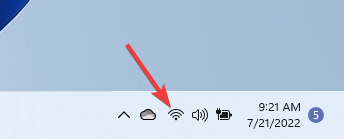
And if you aren’t already a member of Game Pass, you can sign up here. You may also learn more over on the Game Pass FAQ page. And while you are at it, don’t forget to check out our other “What to play on Game Pass” posts for other Game Pass recommendations.

Featured image courtesy of criticalhit.net. 


4 Ways to Fix Salesforce if it’s Not Working in Chrome

Salesforce supports almost all the major modern web browsers. However, some users have reported that Salesforce is not working in their Chrome browser.

The reason for this issue can be related to bad cache or browser incompatibility with Salesforce. If you have encountered the same problem, this is the article you need.

Below, we have listed a couple of troubleshooting tips to help you resolve the Salesforce problem with ease.

Why is my Salesforce not loading?

It’s possible that the problem stems from the cache or cookies stored in your browser, in addition to any malfunctioning add-ons.

However, there is no need to be concerned because we have provided solutions to each of these possibilities in the list that follows.

Users reported similar issues to the Salesforce not loading one. The following are the most common ones:

  • Salesforce Chrome extension not working – Like we presented below, you will have to turn off your extensions one by one to see which one causes the issue.
  • Salesforce freezing in Chrome – Blocked cookies can cause websites to freeze due to not being able to send their data.
  • Salesforce not responding – Websites don’t respond from time to time, and even though it might be your fault, their servers could also be down.
  • Salesforce lightning not working in Chrome – Clearing your cache is the first to go solution that you need to consider.
  • Salesforce images not showing in Chrome – Just like before, their servers or your cookies settings might be at fault.
  • Salesforce SSO not working in Chrome – If SSO are not working, it is due to a bad request. We recommend that you check in with your VPN.

What is the best browser to use with Salesforce?

Before we jump to the solutions, we’d like to recommend opening Salesforce in another browser. On this note, we suggest trying the Opera One browser, since it’s faster and considerably lighter compared to Chrome.

Opera One is free to install and use, and it comes with multiple exclusive features including an ad blocker, built-in messenger apps, customizable speed dials,  separate workspaces, and visual bookmarks.

To protect your identity while browsing, Opera One includes a free VPN, with no subscription or traffic limit. This way, you’ll be able to access any program, from anywhere across the globe.

Opera One

Improve your workflow today by using Salesforce in Opera One.

What can I do if Salesforce won’t work in Google Chrome?

1. Clear bad browser cache

  1. Press the Windows key, then enter Chrome inside the search bar and click the first result in order to open the browser.chrome-search twitch extensions not working
  2. To access the Clear browsing data menum use the following shortcut: Shift + Ctrl + Delete and select All time as the time range.all-time-chrome images not loading in chrome
  3. Check the Cached images and files option then click Clear Data.cache-delete salesforce not loading in chrome

Modern web browsers are configured to perform automatic cleanup to prevent data buildup resulting in network issues.

Clearing the cache and browsing data can help you resolve the issue if Salesforce was working fine earlier.

2. Check Chrome extensions

  1. Tap the three dots menu in the top right corner of Chrome.chrome-menu images not loading in chrome
  2. Choose New Incognito Window and check whether Salesforce is working. If it does, then the issues lie somewhere in your extensions.new-incog-window images not loading in chrome
  3. Thus, click again the three-dot menu then go to More tools followed by Extensions.chrome-extensions=button salesforce not loading in chrome
  4. Here, turn off your extensions one by one by clicking the toggle button next to them, then check Salesforce to see which one is buggy.turn-off-ext salesforce not loading in chrome

If you can’t access the Incognito mode in Chrome, take a look at the article linked in order to fix the issue quickly.

3. Allow third-party cookie

  1. Open the Chrome menu and select Settings.chrome-settings images not loading in chrome
  2. Select the Privacy and Security tab followed by Cookies and other site data.privacy-cookies salesforce not loading in chrome
  3. Lastly, click the Allow all cookies option to enable it.allow-cookies salesforce not loading in chrome

4. Restore to default/reinstall Chrome

Restore Chrome settings

  1. Start by clicking on the three-dot menu followed by Settings.chrome-settings windows 10 blocking chrome install
  2. From the left panel select Reset and clean up.
  3. Now click on the Restore settings to their original defaults option.restore-settings windows 10 blocking chrome install
  4. Finally, click Reset settings to address the Salesforce not loading in Chrome.reset-settings-yes windows 10 blocking chrome install

Reinstall Google Chrome 

  1. Press Windows + I then go to Apps followed by Apps and features.apps-features salesforce not loading in chrome
  2. Here, search for Chrome then click the three-dot menu and choose Uninstall. uninstall-chrome salesforce not loading in chrome
  3. Lastly, go to Chrome’s download page and hit the Download Chrome button.download-chrome salesforce not loading in chrome

Make sure to restart the computer after installing Google Chrome. To see how to install Chrome properly, be sure to check our in-depth Chrome installation guide. After the restart check for any improvements.

What can I do if Salesforce Inspector is not working?

  1. Open Chrome and click on the three-dot menu icon followed by Settings.chrome-settings images not loading in chrome
  2. Lastly, click About Chrome from the left side panel then wait to see whether Chrome is up to the most recent version available. An Update button will appear in case it is not up to date.about-chrome can't make chrome my default browser

Your browser’s lack of current version support is the most likely explanation for why the Salesforce inspector is not functioning properly.

Hopefully, at least one of the steps in this article helped you access Salesforce in your Chrome browser.

We recommend that you take a look at the 7 browsers that Salesforce works best in [Lightning Experience].

For any other questions or suggestions, don’t hesitate to reach us using the comments section below.
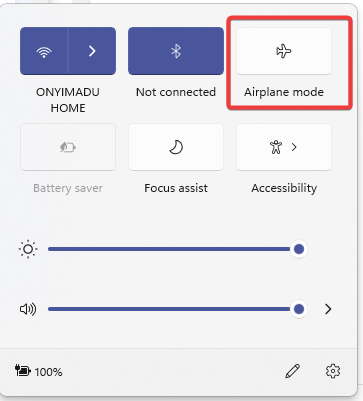
5 Best Opera GX Settings to Optimize Your Gaming Experience

Installed Opera GX and looking to maximize its potential? This article is your guide.

Designed specifically for gamers, Opera GX offers exclusive features alongside its original browser functionalities. But is it truly optimized for gamers?

We’ll explore all that below, but first, let’s take a look at some cool settings that’ll make Opera GX shine.

What are the best Opera GX settings for gaming?

1. Control your resource usage with GX Control

This feature will be incredibly useful to gamers, especially if you don’t have a lot of RAM but need to keep the browser open during gaming sessions.

First, a Hot Tabs Killer feature allows you to see how much CPU or RAM your tabs are using.

If you notice a tab that uses more resources than it should, you can quickly close it from this menu.

gx control panel in opera gx

Another option that will be useful is the ability to limit your network, RAM, and CPU usage by the browser.

This can be extremely useful if your PC can’t handle your browser and open games simultaneously.

Limiting how much RAM and CPU power Opera GX uses will ensure that your games are using more of your resources, thus running smoothly and without any lag.

ram and cpu limiter in opera gx

Overall, this is an exciting feature, especially if you don’t have a high-end PC or have dozens of tabs open that can interfere with your gaming sessions.

Essentially, this is how to optimize Opera GX for gaming. Managing your computer’s resources is a top priority.

2. Use the built-in Twitch and Discord to communicate in-game

Opera already has various integrations, allowing you to use popular messaging services such as Facebook Messenger, WhatsApp, Telegram, VK, Instagram, and Twitter.

With Opera GX, you’ll get access to Discord, so you can chat and stay in touch with your friends at all times without having to open Discord in a new tab.

opera gx discord

Twitch integration is also available, allowing you to see if the streamers you follow are online easily. Click your favorite streamer, and you’ll open its stream in a new tab.

twitch integration in opera gx

Although these are welcome additions, we hope the Twitch feature will be expanded with additional functionality soon. Nevertheless, Discord integration is helpful, especially if you’re a gamer.

Communicating with your teammates is essential, and the readily available integrations help you use Opera GX for gaming seamlessly.

3. Clean your cache quickly with GX Cleaner

GX Cleaner isn’t a gaming feature, but it allows you to easily clean your cache, browsing history, and other data.

gx cleaner cache cleanup to in opera gx

The feature is effortless to use, and it takes only a few seconds for you to remove your data. Then, of course, you can choose between three available presets or customize the settings any way you want.

4. Get the latest gaming news with GX Corner

The browser has a special GX Corner tab that brings you the latest news from the gaming world at your fingertips.

The first feature you’ll notice is the release calendar, and in there, you can see the upcoming games along with their release date, so you won’t ever miss a new title.

gx corner news panel in opera gx

You may click each title to access more information about it or go to the purchase page and preorder the game.

A list of free games is also available, allowing you to find new titles without purchasing them. Remember that this section includes games that need an Xbox Games Pass and PS+ subscription.

free game listings in gx corner

Game deals are also available so that you can easily find and purchase games at a discount. Of course, links to online stores are included too.

With GX Corner, you can also see the best games of the current year and upcoming titles. Lastly, there’s a game trailer and news section, so you’ll always keep up with the latest information.

game trailers in gx corner

This is a great feature, especially if you’re looking for game deals or want to keep up with the gaming news.

5. Customize the Opera GX design

The first thing you’ll notice about Opera GX is its sleek design. The browser has a dark theme by default that is easy on the eyes and visually appealing.

Of course, you can choose between several available themes and wallpapers, and you can even add your backgrounds if you wish.

Color customization allows you to select one of many available colors or fine-tune them as you wish.

opera gx customization options

Using devices that support Razer Chroma or CORSAIR iCUE, you can sync your browser theme with your peripherals to get visually appealing results.

As you can see, the browser offers a sleek user interface and a high level of customization, and it’s a great choice if you’re using a mouse or keyboard with a compatible RGB lighting feature.

Overall, Opera GX is an excellent browser for gamers, especially if you have Razer Chroma devices if you want to keep up with the gaming news or limit resource usage in your browser.

Is Opera GX better than Opera?

Opera made this gaming browser not too long ago. So in a way, Opera GX could be considered better than the regular version. First off, all features from the original browser are available.

Opera vs Vivaldi

However, in our opinion, GX also offers a couple of unique options that separate it from other browsers, making it better.

Opera GX

Go with a full-featured browser with specific gaming features and optimized speed.

We suggest reading our Opera vs. Opera GX guide for more in-depth information.

Does Opera GX make gaming smoother?

Opera GX has a series of features that takes gaming to a whole new level. Firstly, its interface is smooth, with a unique blend of colors that enhances your gaming environment.

Also, it boasts an excellent resource limiter that allows you to control your browser’s resource usage. We will discuss more of these features in detail in the following sections of this article.

Is Opera GX good for performance?

Opera GX has a series of performance optimization features. An important one is the Hot Tabs Killer, which lets you monitor your tabs’ CPU and RAM usage.

There are so many of these features to look forward to in this browser, as you will find out later.

Summary

We barely scraped the surface of all the features, and if you want to learn more about it, we strongly advise you to check our Opera GX in-depth review for more information.

What are your thoughts on this browser? Let us know in the comments section below.
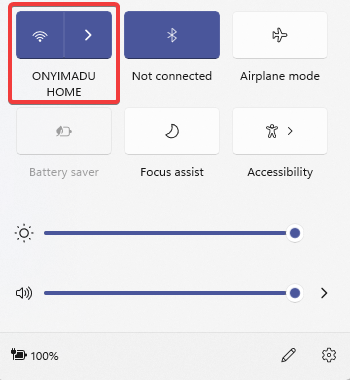
13 Ninja Turtles video games are coming to Xbox consoles next month

Teenage Mutant Ninja Turtles: The Cowabunga Collection, a collection of 13 classic TMNT video games, is coming to Microsoft’s Xbox One and Xbox Series X console families next month on August 30th. Digital pre-orders are now open.

Titles range from several classic arcade and handheld Nintendo Gameboy Ninja Turtle games to the mega-popular NES and Super NES Teenage Mutant Ninja Turtles and Teenage Mutant Ninja Turtles: Tournament Fighters titles.

Here’s the full list of TMNT video games in the Teenage Mutant Ninja Turtles: The Cowabunga Collection:

  • Teenage Mutant Ninja Turtles (Arcade)
  • Teenage Mutant Ninja Turtles: Turtles in Time (Arcade)
  • Teenage Mutant Ninja Turtles (N)
  • Teenage Mutant Ninja Turtles II: The Arcade Game (N)
  • Teenage Mutant Ninja Turtles III: The Manhattan Project (N)
  • Teenage Mutant Ninja Turtles: Tournament Fighters (N)
  • Teenage Mutant Ninja Turtles IV: Turtles in Time (SN)
  • Teenage Mutant Ninja Turtles: Tournament Fighters (SN)
  • Teenage Mutant Ninja Turtles: The Hyperstone Heist (SG)
  • Teenage Mutant Ninja Turtles: Tournament Fighters (SG)
  • Teenage Mutant Ninja Turtles: Fall of The Foot Clan (GB)
  • Teenage Mutant Ninja Turtles II: Back From The Sewers (GB)
  • Teenage Mutant Ninja Turtles III: Radical Rescue (GB)

Of the above 13 games, TMNT (Arcade), TMNT Turtles in Time (Arcade), TMNT The Hyperstone Heist, and TMNT Tournament Fighters will have online functionality to allow for online multiplayer gameplay.

Local multiplayer is supported for two to three players depending on each title’s original programming.

Here’s the full store description for Teenage Mutant Ninja Turtles: The Cowabunga Collection:

Teenage Mutant Ninja Turtles: The Cowabunga Collection assembles thirteen classic TMNT games by Konami in one incredible package. This collection provides a unique opportunity for gamers to experience these immensely popular and very influential games on XBOX and includes a fantastic set of new quality of life features:

  • Added Online Play for certain games and Local Couch Play
  • Save Anytime and Rewind
  • Eleven Japanese Regional Version Releases
  • Button Mapping
  • Unique Development Art & Sketches
  • Historic TMNT Media Content

The games are based on the characters and themes from on the 80’s children’s cartoon and comic book series, The Teenage Mutant Ninja Turtles. The game often takes place in a fictionalized New York city, in the sewers, inside futuristic enemy bases and even across time itself! Teenage Mutant Ninja Turtles: The Cowabunga Collection will be available on XBOX in 2022!

It’s a good time to be both an Xbox and TMNT fan as this month also saw the release of the new Teenage Mutant Ninja Turtles video game, Shredder’s Revenge, and a special TMNT Xbox Series S console.

Slack Cannot Download Files? Here’s How to Fix That

It’s frustrating to deal with errors regarding operations such as a basic download of Slack files, right? Choosing Slack as an ultimate communication tool is all about improving workflow and getting smarter in dealing with everyday tasks.

Even so, it happens once in a while and we’re sure that you would love to have a workaround for issues involving the download of Slack files.

Uploading and sharing files via the Slack desktop app is essential to gather feedback on a team’s work in progress and keep the discussion going.

Moreover, members of a workspace can create an external link to share important files outside of Slack.

Then, it’s only natural to view and download any shared files on your desktop. It all just turns into a nightmare when you only get Slack file download errors or find that the Slack download button refuses to work.

Quick Tip:

Use the Slack web app from a reputable browser. Sometimes, the desktop app may not work properly, in which case you should try using Slack in-browser. For best performance, try Opera One.

It’s very lightweight and fast, with a lower error rate than most browsers. It includes anti-tracking, VPN, Ad blocker, AI, messaging and social media integration and a modular AI-ready design as well.

Opera One

Download from Slack with no issues with this fast and secure browser!
Free Download Visit website

What can I do if the Slack download button is not working?

1. Change your default download location

  1. Click your workspace name in the top left.
    Slack cannot download files default location
  2. Select Preferences.
  3. Choose Advanced to set your location.

On your mobile device, you’ve probably downloaded and saved many shared image files a hundred times before. From your desktop, you are also supposed to easily download any type of file that’s been shared to your workspace.

Just hovering over the file you’d like to download and clicking the download icon should do the trick just fine. If it doesn’t, then re-choosing the download folder after every new startup of Slack seems to rectify the issue.

Assuming that you’ve downloaded the Slack desktop app from the Slack website, change your default download location on desktop as described above.


Slack is superior than Skype. Read on to find out why!


2. Add support for downloading files in the same window

Slack cannot download files Rambox

Slack users also describe on forums another way to easily troubleshoot the problem. Slack cannot download files if your session in your browser is not the same as in Rambox.

That’s the ideal workspace browser that allows you to manage as many applications as you want, so here’s the trick to apply this time: just add support for downloading files in the same window and you’re good to go.


3. Check your Internet connection

  1. Sign in to Slack workspace.
  2. Access Slack testing page to check Internet connection.
    Slack cannot download files Internet issue
  3. Up next, see the results for WebSocket (Flannel [Primary]) and WebSocket (Flannel [Backup]).
  4. Look for the checked circle icon as a sign of a successful test.

If you only see the warning icon, you know that a spotty Internet connection is the cause of your problem this time. Don’t worry, we’ve got the right fix for you: Slack does not connect to the Internet.

If you’re experiencing one of the previously mentioned download of Slack files issues, these are the recommendations that may help. Give them a try and let us know how your experience was.

[wl_navigator]

How to Restore Last Session in Edge: 3 Ways to Do It

Today we’ll show you how to restore the previous session in Edge.

So if you’re pissed off because you’re frequently losing your tabs after a crash or accidentally closing the browser, don’t be. Just follow the steps below.

How do I restore the previous session in Microsoft Edge?

1. Change Edge startup settings

  1. Click the Menu button and select Settings.
    edge settings
  2. Select Start, home, and new tabs.
    start, home, and new tab settings
  3. Make sure to select Open tabs from the previous session.
    open tabs from previous session

By making these changes, you’ll always restore previous session in Microsoft Edge when you open the browser.

Want to customize what Edge opens at launch? Follow our step-by-step guide to set a homepage in Edge.

2. Use Restore window option

  1. When the Edge starts, don’t open any new tabs.
  2. Right-click the tab bar.
  3. Select Restore window.

This is a simple method, and it should help you Restore previous session in Microsoft Edge Chromium version.

3. Use the History feature

  1. Press Windows key + H.
  2. This will open the History panel.
  3. Hold Ctrl and select the websites that you want to restore.

Alternatively, you can use Ctrl + Shift + T to restore tabs in Edge.

You can check more methods to bring back lost tabs by using this guide on how to restore browser tabs after restart for extra recovery options.

How to restore previous session in Edge after crash?

  1. Start Edge again.
  2. A new window will appear asking you to restore pages. Click on Restore.
    restore button
  3. Your previous session will now be restored.

How do I restore a closed window in Edge?

  1. Right-click the address bar.
  2. Select the Restore window option.
  3. Alternatively, use Ctrl + Shift + T keyboard shortcut to quickly restore it.

As you can see, it’s pretty easy to restore previous session in Microsoft Edge, and you can do it by using any methods that we mentioned above.

In case you’re having additional problems, we suggest reading our guide on how to reopen Edge tabs if Reopen closed tab has disappeared.

We also have a guide that tackles Edge crashing, so don’t miss it if you want to fix the core of the problem. This isn’t the only issue, and we already wrote about Edge freezing in detail in previous guides.

In case you have any comments, questions, or suggestions, just let us know in the comments below.

Can’t Connect Securely To This Page: Fix it in IE/Edge/Chrome

Edge, Chrome, and IE users have stated that some webpages don’t open for them in that browser. For example, a Can’t connect securely to this page tab opens when they try to open a required page.

The tab states, This might be because the site uses outdated or unsafe TLS security settings. If this keeps happening, try contacting the website’s owner.”

These are a few resolutions that have fixed the page connect error for some Edge users, so be sure to check them out below.

Why am I getting can’t connect securely to this page error?

Well, according to the error message itself, it occurs because the website is using outdated or unsafe TLS security settings.

Furthermore, there are other causes too that can trigger this error, as you might experience this issue if the website you are trying to visit uses a different TLS version and your browser uses a different TLS version on your system.

How can I fix the Can’t connect securely to this page errors?

  1. Switch to an alternative browser
  2. Select the TLS settings
  3. Enable mixed content
  4. Disable your antivirus
  5. Update the network drives

1. Switch to an alternative browser

Consider using Opera One’s built-in ad blocker and VPN when you get the error notice implying you can’t connect securely to a webpage. It may be more secure for your needs, and you won’t have to deal with intrusive pop-ups.

It is simpler to shield oneself from tracking in Opera One than in any other browser and provides greater encrypted security than Google Chrome.

Our testing findings on Opera One show some excellent results in the rendering process, which includes decoding and processing HTML, CSS, graphics, and javascript files.

You can switch to Opera One, and all your bookmarks, passwords, and other cookies will be transferred. After installing Opera, you will be prompted to transfer data from other browsers, and it syncs information across platforms and devices.

Opera One

Switch from any browser without losing any data, passwords, or bookmarks through synchronization.

2. Select the TLS settings

  1. Press the Type here to search button to Open Cortana’s search box.
  2. Enter the keyword Internet options in the search box.
  3. Select Internet Options to open the window shown directly below.
  4. Select the Advanced tab.
  5. Then scroll down and select the SSL and TLS checkboxes shown directly below.
  6. Press the Apply button to apply the options.
  7. Select the OK button to close the window.

The Can’t connect securely to this page tab states that the issue might be due to TLS settings. So, that’s a clue for the resolution. Some Edge users have fixed page connect errors by selecting the TLS options.

If you’re having trouble finding the Cortana search box on Windows 10, check out our guide to find the best solutions to the problem.

3. Enable mixed content

  1. Open the Internet Properties window by entering Internet options in Cortana.
  2. Then select the Security tab.
  3. Press the Custom level option to open the window in the snapshot directly below.
  4. First, select Medium on the Reset to drop-down menu.
  5. Scroll down to the Display mixed content option shown directly below.
  6. Select the Enable radio button for the Display mixed content option.
  7. Click the OK button.

Edge will block more pages when the Display mixed content isn’t enabled. Enabling mixed content might resolve the Can’t connect securely to this page error. This is how you can allow diverse range.

4. Disable your antivirus

  1. Press the Windows key + X, and select Task Manager to open the utility’s window.
  2. Choose the Start-up tab to open a list of startup items.
  3. Select your anti-virus utility there, and press the Disable button.
  4. Restart your PC.

Some Edge users have confirmed that disabling their third-party anti-virus utilities fixed the Can’t connect securely to this page issue for them.

To disable anti-virus software, right-click its system tray icon and select a disable or turn off option on its context menu.

Alternatively, open the software’s primary window and look for a disable option on its settings tab. As explained above, you can also remove anti-virus utilities from the Windows 10 startup.

The Settings app also includes startup software options in the latest Windows 10 build. Enter apps in Cortana’s search box to configure startup software with Settings.

Select Apps & features and click Start-up to open the Startup app list shown directly below. Then you can toggle the anti-virus software off from there.

5. Update the network drivers

Edge’s page connects error might also be due to incompatible network drivers. You can update and fix drivers manually from Windows Settings.

Just open the Device Manager, find your Network drivers in the list, right-click them, and select Update Driver. Then, wait for the process to complete and see if the process persists.

You can also download the drivers directly from the manufacturer’s website, as long as you know precisely what hardware you use. However, we advise you to be careful because a faulty driver can cause even more problems.

However, using dedicated software may be a better option because it saves you time and ensures you always match your hardware with its correct driver version.

Mismatched drivers can cause severe problems, so be careful if you install them yourself.

We recommend you try an up-to-date driver updater such as Outbyte Driver Updater that will scan your PC and automate driver updates without using too many resources.

One, or more, of those resolutions, might fix the Can’t connect securely to this page error so that you can browse the page that otherwise isn’t opening in Edge.

Remember that this might be because the site uses outdated or unsafe TLS security settings, and if this keeps happening, try contacting the website’s owner.

People have been getting Can’t connect securely to this page errors for Internet Explorer and Can’t connect securely to this page errors for Edge for quite some time.

If you have another resolution for the page connect error, share it below. Also, if you have more questions, post them in the comments section, and we’ll surely take a look.

Msedge.exe application error: What is it & 7 ways to fix it

MicrosoftEdgeCP.exe is an error associated with the Microsoft Edge web browser. However, this error is most common on Windows 10 PCsm even though it varies quite a lot.

Edge is not immune to errors, and even though some issues are more common than others, the msedge.exe application error, the exception breakpoint issue, is one of the most annoying.

Here are some of the common MicrosoftEdgeCP.exe Error messages include:

  • MicrosoftEdgeCP.exe is not running.
  • MicrosoftEdgeCP.exe failed.
  • MicrosoftEdgeCP.exe Application Error.
  • Error starting program: MicrosoftEdgeCP.exe.
  • Faulting Application Path: MicrosoftEdgeCP.exe.
  • MicrosoftEdgeCP.exe has encountered a problem and needs to close. We are sorry for the inconvenience.
  • Cannot find MicrosoftEdgeCP.exe.
  • MicrosoftEdgeCP.exe not found.
  • MicrosoftEdgeCP.exe is not a valid Win32 application.
  • Msedge.exe system error

This error also occurs due to virus infection, missing or corrupt registry entries, incomplete Windows 10 installation, and corrupt program files.

What is Msedge.exe?

Msedge.exe is the executable file for Microsoft Edge, the newest Chromium-based browser from Microsoft.

This file allows you to install Microsoft Edge on your device by double-clicking it and following the on-screen instructions.

It can also be observed as a running process in your Task Manager if and when you use Edge to browse the internet.

Why does msedge.exe crash?

Various reasons could cause the msedge.exe application error on Windows 11, but the issue can appear on Windows 10 as well.

Here are some of the most common reasons:

  • Conflict with antivirus software
  • Not having an updated version of the software
  • Missing Windows updates
  • Errors within the software

The Windows Report team has compiled the following solutions applicable to solving this error, so make sure to read through the entirety of this article for the best results.

Quick Tip:

Use another browser. This is an Edge-specific error that won’t appear in alternative browsers like Opera One. The tools tool is safe and less prone to errors.

Not only that, but it’s one of the fastest browsers, with very low CPU and RAM usage. Its intuitive UI should make for a smooth transition. It has a built-in adblocker, messengers, VPN, bookmarking tools, and much more.

Opera One

Errors will be a thing of the past with this safe and fast browser that you can install in seconds.

How can I fix the Msedge Exe error?

  1. Run a full system scan
  2. Repair PC Registry
  3. Run DISM RestoreHealth
  4. Create a new user account
  5. Install the latest Windows updates
  6. Run the apps troubleshooter for Windows
  7. Reset Microsoft Edge through PowerShell

1. Run a full system scan

  1. Go to Start > type defender > double click Windows Defender to launch the tool.
  2. In the left-hand pane, select the shield icon.windows defender
  3. In the new window, click the Advanced scan option.
  4. Check the full scan option to launch a whole system malware scan.

You can also install a third-party antivirus tool. Windows Defender has limitations, and the best antivirus software on the market can add a significant layer of protection to your system.

You can also access a VPN, a password manager, and more. Another advantage is that this software uses cloud technology to avoid consuming many resources from your computer.

2. Repair PC Registry

  1. Go to Start, type cmd, then click on Run as Administrator under Command Prompt.
  2. Now, type the SFC /scannow command.microsoftedgecp exe error
  3. Wait for the scanning process to complete, and then restart your computer. All corrupted files will be replaced on reboot.

You can also use professional cleaning software to scan and repair your PC registry following these steps:

  1. Download the CCleaner software
  2. Open CCleaner on your PC.
  3. Go to the Registry section and press Scan for issues.
  4. Wait for the process to finish.
  5. Click on the Review the selected Issues button.
  6. Select Yes to back up your registry before making changes.

This cleaning tool has been on the market since 2004, and it has helped billions of users to clean their PCs and free up storage space of millions of GB per month.

If you need support to delete additional storage space, this experienced cleaner will erase temporary files or duplicates from your PC and free up your registry.

3. Run DISM RestoreHealth

  1. Open Command Prompt as shown in the previous solution
  2. Type the following command  to scan and correct any causes of MicrosoftEdgeCP.exe error: DISM /Online /Cleanup-Image /RestoreHealth
  3. Press Enter and reboot your PC afterward.

DISM can be useful in fixing this error, but it can also help you if you’re dealing with uihost.exe error.

4. Create a new user account

  1. Go to Settings.
  2. Choose Accounts and then select People on this device towards the left and click on Add someone else to this PC plus the sign button on the right.
  3. Enter a user name and hit Next, then Finish.
  4. Sign out from the current account and log into the new version.
  5. Check if the issue persists.

5. Install the latest Windows updates

  1. Go to Start, type update in the search box, and then click on Windows Update to proceed.
  2. Check for updates and install the available updates.

6. Run the apps troubleshooter for Windows

Run the app’s troubleshooter and check if it helps with the issue. Visit the official Microsoft Apps Troubleshooter page to do this.

7. Reset Microsoft Edge through PowerShell

  1. From the Start menu, type PowerShell, right-click on Windows PowerShell from the results, and select Run as administrator.
  2. Type this command that will delete and re-register the Microsoft Edge data: Get-AppXPackage -AllUsers -Name Microsoft.MicrosoftEdge | Foreach {Add-AppxPackage -DisableDevelopmentMode -Register “$($_.InstallLocation)AppXManifest.xml” -Verbose}

If you run into other Edge problems, you can go straight to the Microsoft Edge section for a solution or a tip.

How do I reinstall Msedge.exe?

If you’re interested in knowing more about browsers, you can find plenty of information in our Browsers Hub.

Have any of these solutions helped? Let us know in the comments section below.
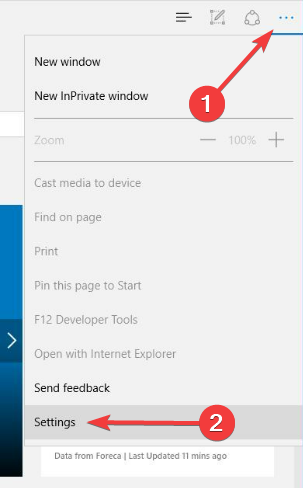
DownloadThemAll Not Working in Firefox? 3 Simple Ways to Fix It

The DownThemAll extension, otherwise known as Download Them All, is one of the best Firefox extensions you can use. It is a great productivity add-on that allows you to download multiple files simultaneously.

This add-on also helps to organize your files and considerably reduces download time. However, users are starting to complain that the Download Them All extension is not working on Firefox.

This has slowed down the work of most people and has been frustrating. This guide will show you how to make the extension again on Firefox. 

Why are downloads not working in Firefox? 

Downloads depend on many factors on Firefox and other browsers. If any of them fails, you might encounter problems.

Below are some of the reasons your downloads are not working on Firefox:

  • Poor internet connection
  • Dangerous download file
  • Interference from antivirus software
  • Corrupt browser data

Quick Tip:

Install the extension to a more responsive browser. We recommend Opera One because it’s fast, and uses fewer system resources. Because it runs on a Chromium engine, Opera One supports all Chrome extensions.

The DownloadThemAll add-on can be added to Opera One by opening the Chrome Webstore page and just adding it to Opera One. This browser also features unique functions, such as a native AI.

Opera One

Use DownloadThemAll on Opera One for fast downloads and an error-free experience!
Free Download Visit website

How can I fix the Download Them All extension if it’s not working on Firefox?

1. Remove and reinstall the extension

  1. Launch Firefox and click the menu button (three horizontal lines) in the top right corner.
  2. Select the Settings option.
    settings download them all not working firefox
  3. Choose the Extensions & Themes option in the left pane.
    extensions download them all not working firefox
  4. Click the more button before the DownThemAll extension.
  5. Click the Remove option.
    extension more
  6. Now, click the Remove button when prompted to confirm the action.
    remove download them all not working firefox
  7. Visit the Mozilla addons store to download the latest version of DownThemAll.
  8. Click the Add to Firefox button.
    add to
  9. Click the Add button when prompted, and the extension will be installed on your browser.
    add

The DownThemAll developer has recently released a new version of the extension. This has rendered the old one redundant.

Hence, if you are still running the older version, it might be the reason Download Them All is not working on your Firefox browser.

2. Update Firefox

  1. Launch Firefox and click the menu button.
  2. Click the Settings option.
    settings download them all not working firefox
  3. Scroll down and click the Check for updates button under the Firefox Updates section. 
    check
  4. This will show you the available updates to install.

The latest Download Them All extension is not working on outdated Firefox versions. So, to have any chance of using the extension, you need to keep your browser updated.

Remember to relaunch your browser after the update to sync the changes.

3. Disable other extensions

  1. Click the menu button on Firefox and select the Settings option.
    menu
  2. Choose the Extensions & Themes option in the left pane.
    extensions and themes
  3. Toggle the switch before all extensions aside from DownThemAll backward to disable them.
    disable
  4. Restart your browser.

If you have too many extensions on your Firefox, one of them might be stopping Download Them All from working well. It might be because it contains a counter program that can disrupt the activity of DownThemAll. 

This fix is especially useful if you noticed the problem after installing some extensions. If you can pinpoint the exact add-on causing the issue, you disable them and use the elimination method to know the faulty one.

When the Download Them All extension stops working on Firefox, it puts a lot of tasks on hold and limits your productivity. Thankfully, it is not the most difficult problem to solve, as shown in this guide.

Are you facing other extension-related problems like Video DownloadHelper not working in Firefox? You should check our guide on the topic to know how to resolve the issue.

Feel free to let us know the fix that worked for you in the comments below.
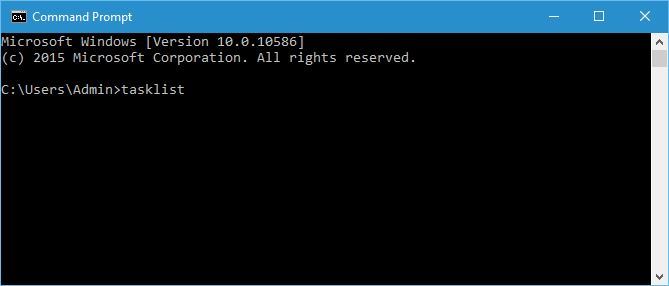
How to remove a remembered account on Instagram from phone

By remembering your Instagram account login credentials on your device, the app makes it convenient for users to log in to their accounts after logging out.

However, there are some instances when a user would prefer to remove Instagram remembered accounts from his or her phone.

When you open the Instagram app with your account logged out, instead of requiring you to enter your login details, you see the Continue as option.

With this option, anyone can access your Instagram account, so far as you have logged in on the device in the past.

In this guide, we will show you how to remove Instagram remembered accounts from your phone quickly and protect your account.

Quick Tip:

Use Instagram in a browser instead. Opera One’s mobile app offers dedicated support for social media, including Instagram. You can easily connect/disconnect your account, without having to go through much hassle.

You can check direct messages and view your feed without having to open a different tab for Instagram. The browser is packed with modern features like an adblocker, custom workspaces, VPN and AI.

Opera One

Access Instagram via Opera One and get straightforward controls for adding or removing accounts, in just a few steps.
Free Download Visit website

How do I remove Instagram remembered accounts from a phone?

1. Remove account locally

If you’re logged into your account

  1. Launch Instagram on your device.
  2. Go to your profile page.profile
  3. Tap on the hamburger icon on the top right-hand side of your screen.hamburger-icon
  4. Go to Settings.
  5. Tap on Log out of your username.
  6. On the popup box, choose not to remember your login information.forget login info

The above steps are applicable for when you wish to remove Instagram remembered account after logging in to the app. If you want to do it without logging in, use the method below.
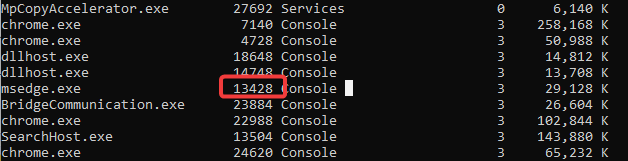
If you’re logged out of the account

  1. Ensure that you’re logged out of Instagram.
  2. Open the Instagram app.
  3. Tap on the three vertical dots beside the Log In button of one account.three dots
  4. Tap on Remove.
  5. Repeat steps 3 and 4 for every account listed on the page.

3. Log out of Facebook

log out facebook

Facebook owns Instagram; so, users can log in to Instagram using their Facebook credentials.

If this is what you did, then the other solution in this guide may not work for you.

To remove Instagram remembered account from your phone when you logged in with the Facebook app, you have to sign out of Facebook.

Next, launch the Instagram app, and you’ll notice that you have successfully removed your Instagram remembered account from the phone.

You can go ahead to log back into Facebook.


4. Clear data from Settings

clear android data
  1. Open the Settings app on your Android device.
  2. Go to Apps (this could also be Apps & notifications or Application Manager, depending on your device and Android edition).
  3.  Find Instagram from the list of apps and tap on it.
  4. Tap on Storage.
  5. Select the Clear storage or Clear data option.

5. Change your password

Changing your password keeps you logged in on the phone you changed it with. However, it logs you out of other devices on which your account is logged in.

  1. Launch the Instagram app.
  2. Go to your profile page.
  3. Tap on the hamburger icon on the top right-hand corner.
  4. Go to Settings.settings
  5. Tap on Security.
  6. Select Password.password
  7. Type in your current password and enter your new, preferred password.
  8. Save the settings.

Note: This method doesn’t technically remove your Instagram remembered account from your phone. It only makes it impossible for anyone to log in to your account even if the account is still on the device.

All the solutions (except solution 5) apply to Android, iOS, and desktop Instagram interfaces.

With these methods of removing Instagram remembered accounts, you no longer have to worry about anyone accessing your account.

HTTP Error 413 in Chrome: What is it & 4 Ways to Fix it

The HTTP error 413 in Google Chrome usually occurs when loading webforms or accessing background server-side services.

Interestingly, the error seems to happen only on the Google Chrome browser and does not affect other browsers like Edge and IE. This isn’t the only error you can get, and many reported that This site is not a secure message either.

The full error reads:

HTTP Error 413. That’s an error. Your client issued a request that was too large. That’s all we know.

This article explores a few troubleshooting steps to help you resolve the HTTP error 413 on the Chrome browser.

What is an HTTP 413 error?

The HTTP error 413 usually occurs if the request is more significant than the server can handle due to incorrect configuration. However, the error can also occur due to browser issues.

The corrupted cache can sometimes cause this error, but sometimes, you need to fix the issue with web sockets to resolve this error.

How do I fix Error 413 on Chrome?

1. Check the Chrome browser for issues

Clear browsing data 

  1. Launch Google Chrome and click the three-dots button. Select More tools. Next, select Clear browsing data.
  2. Select a time range and select the browsing data you want to clear.
  3. Click the Clear data button.
  4. Once done, relaunch Chrome and check for any improvements.

Clearing the browser data reportedly has fixed the error from many users. If the issue persists, proceed with other steps below.
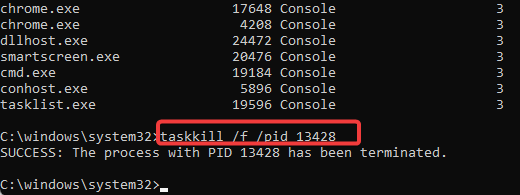
Flush the Socket Pools from your browser 

  1. In Chrome, navigate to chrome://net-internals
  2. From the left pane, click on Sockets.

  3. Click the Flush socket pools button. It may break pages with an active connection; make sure you don’t have an active connection.
  4. Once done, close the tab and relaunch Chrome.

Flushing the socket pool can quickly fix the error 413 is triggered due to a browser issue. If the problem persists, try resetting the browser to factory default.

2. Reset Chrome to factory default

  1. Launch Google Chrome.
  2. Click Menu (three dots) and select Settings.
  3. Select Reset and clean up.
  4. Click Restore settings to their original defaults.

  5. Read the description carefully and click on Reset settings.
  6. The process may take some time; wait till it is completed and then relaunch the browser.

Resetting the browser to factory default will reset your startup page, new tab page, search engine, and pinned tabs. It will also disable all extensions and clear temporary data like cookies. Other data, like bookmarks, history, and saved passwords, will not be cleared.

If you don’t want to reset your Chrome browser yet, skip this step and proceed with the next steps.

This is a quick and easy solution, so try it if you’re getting Request entity too large on Chrome.

3. Reset the network adapter

  1. Press the Windows key, type cmd, then click on Run as Administrator for Command Prompt.
  2. In the Command Prompt window, type the following command and hit enter to execute:
    netsh Winsock reset
  3. Once done, close the Command Prompt and then restart the computer.
  4. Launch the browser and check for any improvements.

This is a simple solution, but it might help you with 413 that’s an error, your client issued a request that was too large that’s all we know message. This also helps with Error 503 Maximum threads for service reached.

4. Modify the PHP.ini and Nginx.Conf file

Modify PHP.ini 

  • Login to your PHP server.
  • Enter the following command to access the php.ini file:
    nano /etc/php.ini
  • If you are using PHP_FPM, use the following command:
    nano /etc/php5/fpm/php.ini
  • Find the path for these files:
    upload_max_filesize
    post_max_size
  • Once we have the file, increase its limit to 100M. It will look something like this:
    upload_max_filesize = 100M
    post_max_size = 100M
  • Save the file and exit.

Make sure to restart PHP to apply the changes.

Modify Nginx.conf

  1. Login to your cloud server.
  2. Enter the following command to access the Nginx.conf file:
    nano /etc/Nginx/nginx.conf
  3. Find the following variable:
    client_max_body_size
  4. Increase the size limit to 100M. It will look something like this:
    client_max_body_size 100M;
  5. Once done, restart Nginx to apply the changes:
    sudo service Nginx restart

This is a quick and easy solution, and it should help you with the 413 error code on Nginx, so be sure to try it.

If the HTTP error 413 occurs only on your Chrome browser, you can mostly fix the issue by clearing the browser cache, flushing the socket pool, or resetting the browser default.

However, if the issue persists, try increasing the file size limit by following the article’s steps. This isn’t the only error, and many reported that HTTPS is not working in Chrome as well as 406 Not acceptable error, but we cover those in separate guides.

Before you go, you might want to check our Error parsing HTTP request header guide if you’re a developer.

Did you find a different solution for this problem? Let us know in the comments below.

Browser Not Supported In Netflix: 5 Quick Ways To Fix It

Netflix is a popular streaming service whose quality is pretty much related to how well your browser supports it.

Many users are reporting that watching Netflix in the Edge browser is not working, which is pretty frustrating.

In this article, we will explore a few easy ways to solve this issue, so keep reading.

What does browser not supported mean on Netflix?

Don’t think this is a severe problem, because it’s not. This annoying Netflix error code is generated when Netflix detects an unsupported web browser.

By that, we mean you are either using a browser that is not on Netflix’s compatibility list or an outdated version of any supported browser.

What can I do if my browser is not supported on Netflix?

1. Use a specialized browser

Opera One allows for excellent streaming on Netflix thanks to the loading speed and the built-in ad-blocker.

Moreover, with the tab management options such as working spaces and built-in social media, you can easily organize your time.

The built-in VPN is also great for accessing Netflix and protecting your device when streaming online.

Opera One

Watch your favorite shows on Netflix with this error-free and reliable browser.

2. Update your browser

2.1. Microsoft Edge

  1. Click the menu button in the top-right corner of the Edge.edge options
  2. Next, click the Help & Feedback option and select About Microsoft Edge.about microsoft edge
  3. Now Edge will search for available updates and install them.edge update

2.2. Google Chrome

  1. Click on the three dots located in the top right-hand corner.chrome options
  2. Select Settings.chrome setings
  3. Click the About Chrome button.about chrome
  4. Chrome will find available updates and install them.update chrome
  5. Restart your browser.

2.3. Mozilla Firefox

  1. Click on the Menu button in the top right-hand corner.firefox menu
  2. Select Help.firefox help
  3. Click the About Firefox button.about firefox
  4. Firefox will search for and install all the latest updates.firefox update
  5. Restart browser.

3. Clear browser data

3.1. Microsoft Edge

  1. Go to the top right-hand corner and select History from the drop-down list.Edge History
  2. Click on the three dots and select Clear Browsing Data.edge clear browsing data
  3. Select Browsing History, Cookies and saved website data, Cached data and files, and Download history and press Clear now.delete cookies edge
  4. Restart the browser

3.2. Google Chrome

  1. Click on the three dots on the top right-hand side.chrome options
  2. Click on History, and then select History again.chrome history
  3. Select Clear browsing data.clear browsing data chrome
  4. Select Browsing history, Cookies, and other site data, and Cached images and files, and click on Clear data.clear cookies chrome
  5. Restart the browser.

3.3. Mozilla Firefox

  1. Click on the Menu button located in the top right-hand corner.firefox menu
  2. Select History.firefox history
  3. Click on Clear recent history.firefox recent history
  4. Select Browsing History, Cookies, Cache, and click the OK button.firefox cookies
  5. Restart browser.

4. Modify Netflix playback settings

The video quality being streamed can sometimes cause Netflix not to be supported by your browser.

For example, if your internet connection is not very fast, having high-quality streaming can be troublesome.

You can fix this quickly by accessing your Netflix account and selecting Playback settings. Here choose the Medium or Low option for the playback.

Restart your browser and check to see if the problem is still there.


5. Check the Netflix server status

If you have worked through all the above recommendations and cannot access Netflix, then checking the server status is recommended.

You can perform this check by visiting the Netflix website and verifying if the website is down or not.

If the Netflix website is not down, but you are still experiencing issues, then you can contact the Help center for further investigations on the same page.


It looks like your browser is no longer supported. Netflix is an annoying yet common issue, and we hope that the solutions provided in this article have helped you fix it. For any Netflix connection errors, check out our comprehensive article.

If you’re a Firefox user, our latest guide covers what to do if Netflix is not working on Firefox, so check it out for more solutions.

We would love to hear which recommendation worked best for you in the comments section below, so don’t hesitate to leave us a comment.

6 Ways To Fix Opera GX If It’s Not Downloading Any Files

Opera GX gaming browser has taken the internet by storm. This browser is built specifically for gamers with features to optimize in-browser gaming.

With all the perks and features of the original Opera browser, Opera GX adds a cyberpunk feel to surfing the web with its techy interface. So it’s no surprise that this browser has become so popular.

However, some users have reported issues when trying to download files in Opera GX. This guide will offer several solutions to solve this problem.

Why is Opera GX not downloading files?

Well, there are many reasons you are experiencing this problem, among which is the Windows Firewall blocking these downloads for security reasons.

It can also happen due to your browser not being updated, conflicts with browser extensions, the integrated VPN or ad blocker, or maybe even the lack of permissions.

All of these together, or just one of them, can prevent your Opera GX browser from downloading the files you need.

Is Opera GX secure?

Opera GX is one of the safest browsers out there. It’s based on the Chromium engine, so it operates similarly to other popular browsers. However, Opera GX has advanced security features to protect user privacy and data.

Opera GX secure browser.

Opera GX has Dynamic Link Libraries (DLL) hijacking prevention for downloads and files. It also protects your preferences, homepage, and extensions from malicious activity.

Like the original Opera browser, Opera GX has a built-in ad-blocker and unlimited VPN that encrypts user data and keeps them safe while browsing. However, while Opera browsers have similar features, Opera GX and Opera have quite a few differences that separate them.

How do I fix Opera GX not downloading files?

1. Check for updates

Ensure you have installed the latest version from the official page to ensure you’re running a glitch-free Opera GX.

  1. Click the Opera GX logo in the top right corner, then click on Update & Recovery. Click on updates and recovery.
  2. Opera GX will automatically check for any available updates. Opera GX check for updates.
  3. Click Update if there is an available update.
  4. Relaunch Opera GX.

Opera is constantly updating and improving its browsers. These updates often fix bugs and problems like downloading issues. Opera GX will usually update automatically, but if you’re running into issues, check if any are available.

Opera GX

A powerful browser built for an immersive browsing and gaming experience.

2. Disable all extensions

  1. Click the Opera GX logo in the top right corner, then go to Extensions and select Extensions (or press Ctrl+Shift+E). Click on extensions.
  2. Go through and disable all your extensions. Opera GX disable extensions.
  3. Relaunch Opera GX.

Sometimes extensions can interfere with downloads. For example, if your downloads are working, it was due to a faulty or interfering extension. After downloading files, the wings can be enabled again.

3. Disable ad-blocker and VPN

  1. Click the Opera GX logo in the top right corner, then select Settings (or press Alt+P). Open up settings.
  2. Under Privacy protection, disable the Block ads feature. Disable ad-blocker.
  3. In the side panel, select Privacy & security. Click on privacy and security.
  4. Could you scroll down to VPN and disable it? Disable VPN.
  5. Relaunch Opera GX.

Disabling the ad-blocker may solve the issue as the ad-blocker might prevent some files from downloading. However, the built-in VPN might also cause download limitations, so try downloading files after disabling these features.

4. Check app permissions

  1. Click on Start and open Settings (or press Windows + I).
  2. Click Privacy & security. In settings, open privacy and security.
  3. Under App, Permissions, click the Downloads folder. Under App permissions, open downloads folder.
  4. Ensure that Downloads folder access and Let apps access your downloads folder is turned on. Make sure permissions are enable if Opera GX is not downloading files.

If Opera GX doesn’t have permission to access the downloads folder, then downloads won’t work correctly. Adjust the permissions accordingly.

5. Adjust site settings

  1. Click the Opera GX logo in the top right corner, then select Settings (or press Alt + P).
  2. Click Privacy & security under Advanced.
  3. Then, under Security and Privacy, click Site Settings. Click on site settings.
  4. Scroll down to Content and expand Additional content settings. Expand additional settings
  5. Open Insecure content. Expand additional settings
  6. Add the URL of the website you are trying to download files from under Allowed to show insecure content. Add URL to allow insecure content.

Opera GX protects its users from the content it deems insecure so that users don’t download malware by mistake. However, this feature may be blocking downloads from specific web pages.

Adding the website you wish to download files from will permit it to download.

6. Temporarily turn off the firewall

  1. Click on Start and search Windows Security, then hit enter. Search for Windows Security.
  2. Select Firewall & network protection from the side panel. Open firewall options.
  3. Choose the network that relates to you.
  4. Toggle Microsoft Defender Firewall to off. Disable Microsoft firewall.

The firewall helps protect devices from malicious attacks, but it may also prevent downloads from the internet. Try downloading your files after disabling the firewall, but remember to turn it back on as soon as your download is finished.

Is Opera GX good for downloading?

The short answer is yes, it’s excellent for downloading. It’s so good that you even have a Network Limiter switch that lists the various network speeds to which you can limit Opera GX.

You can choose download speeds, the lowest being 64 Kb/s, and the maximum limit is 25 Mb/s. You can learn more about the best browsers for downloading large files in our dedicated article.

Since it’s a browser made for gamers, and most games nowadays take up a lot of space, it will suit your downloading needs perfectly.

So, if Opera GX won’t download your files, or Opera GX is taking too long to download them, now you know exactly what to do about it.

We hope these solutions solved the issue of Opera GX not downloading files. If Opera GX is downloading correctly, but your downloads folder is not responding, there are solutions for that issue.

Let us know in the comments below what solution worked for you.

How to Add Discord to Opera GX [Step-by-Step]

Today, we’ll show you how to add Discord to Opera GX in just a few quick steps.

And if you’re a nosy parker like us and want to know the nitty gritty about this browser, where it’s going, and what else it supports besides Discord, you’ll find some useful info further below.
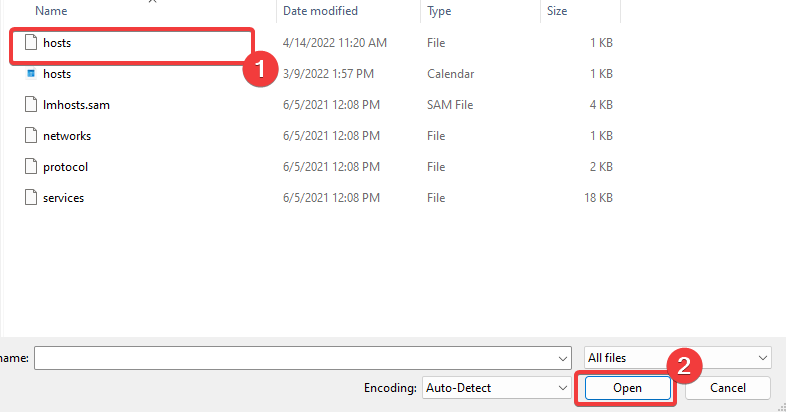
But first, let’s see how to use the Opera GX Discord integration:

How can you add Discord to Opera GX?

  1. Click on the Settings (the gear icon) on the left pane.

    opera gx settings
  2. Scroll down to the Sidebar menu and click on the Manage sidebar.
    opera gx manage sidebar settings
  3. From the list of sidebar elements, tick the checkbox for Discord.
    discord checkbox in opera gx

Note that having the sidebar on Opera GX is optional, and you can choose to enable or disable it. To enable or disable the sidebar, including Discord and all other elements, follow these steps:

  1. First, click on the Settings (the gear icon) on the left pane.
    opera gx settings
  2. Scroll down to the Sidebar menu and click on the Manage sidebar.
    manage sidebar settings opera gx
  3. Toggle on the switch for Show sidebar to enable a sidebar, and google it off to disable a sidebar.
    opera gx enable or disable sidebar

Note that typing the address below on your address bar will give you access to enable on your sidebar the opening of user-selected webpages on Opera GX.
opera://flags/#sidebar-site-panel

What is Opera GX and who is it for?

Opera GX is a robust gaming browser for any computer OS, but it’s not designed for low-power computers.

Opera GX lets you decide how much network bandwidth, RAM, and CPU you wish to dedicate to it to allow other programs and software to run smoothly.

The browser has introduced a slew of customization choices, including UI/UX, themes, and sound effects.

Various third-party applications designed specifically for the gaming market are compatible with the browser, and these are only a few of its qualities.

Some additional essential features include:

  • Network Limiter
  • Tabs Killer
  • Ad Blocker and VPN
  • RAM Limiter

If you love this browser, you would love to know all your choices for the best browsers for gaming.

Let’s talk about Opera GX and its Discord compatibility and features without much ado.

Opera GX Discord integration: how it works

Opera Gx, as a gaming-first browser, has one of the most advanced integrations for Discord. The two tools are a gamer’s paradise in exploring the ultimate gaming experience and work very well together.

The Opera GX Discord-rich presence is one reason for you to do all your Discord from the browser. This feature makes you display whatever you do on the server in the Discord now playing status.

opera gx discord

Opera is not limited to Discord and is also the browser with the best integration for Twitch.

Opera GX

Get the latest version of the best browser for Discord and gaming and enjoy its unparalleled performance.

What are some of the most common in-browser Discord errors?

The integration of Discord on this browser is a welcome feature to many users. This integration means you can watch your favorite YouTube videos while chatting away on Discord or playing browser games and chatting concurrently.

That said, just like with all tech, here are some of the common in-browser Discord errors users have faced:

  • An Opera GX Discord stream issue is when your browser stops streaming on Discord and is typically caused by your browser configuration.
  • Opera GX Discord server problems – It could be a problem of Discord’s inability to connect to Opera GX servers and may need you to wait it out sometimes.
  • The Opera GX Discord is not working error – Here, after enabling Discord on your browser, it will still not work.
  • Opera GX Discord RTC connecting – With this error, your Discord is stuck perpetually connecting a call and will not allow you to do much more with the service.
  • An Opera GX Discord microphone not working problem – This problem means you lose the functions of your microphone but is often fixed by simple updates to your settings.
  • Opera GX Discord black screen – With this error, you only hear the audio while the whole display goes black.

More often than not, Discord in-browser errors have, at their root, simple and easy-to-fix issues. Unfortunately, one of the most frequent ones is out-of-date software.

We advise you to run the latest release of the Opera GX browser. If you have an older version, uninstall it and head to the official website to download the up-to-date version.

Wrapping up

This article has all the info you need if you want to know how to add Discord to the Opera GX sidebar.

We’ve also covered some useful info about frequent errors with Discord as well as how this integration works and why it is extremely useful for Discord users and gamers.

If you got stuck somewhere along the way or want to share your experience with Opera, feel free to use the comment section below.