Running .NET Framework 4.5.2, 4.6, or 4.6.1? Upgrade now!

.NET Framework versions 4.5.2, 4.6, and 4.6.1. reached end-of-life on April 26th, with Microsoft announcing that devices should run on .NET Framework 4.6.2 at least to still receive updates.

Microsoft will continue to support .NET Framework 4.6 on Windows 10 Enterprise LTSC 2015 until October 2025, when the OS reaches EOL.

Additionally, other .NET framework versions will continue to be supported according to the official lifecycle map, the announcement mentions.

What happens if my .NET Framework version is deprecated?

Technically, devices can still use the outdated .NET Framework versions. However, they will be exposed to security threats.

Moreover, if technical support is needed for whatever reasons and the framework is out of date, the first request will be to upgrade it.

The grace period to upgrade from .NET Framework versions 4.5.2, 4.6, or 4.6.1 to at least .NET Framework 4.6.2 to still get updates is May 2022.

Additionally, Microsoft mentions that after April 26th devices can still use the old frameworks, but they won’t receive any updates or security patches.

Starting May 2022, we won’t be issuing security updates for .NET Framework 4.5.2, 4.6, and 4.6.1 when we issue these security updates for .NET Framework 4.6.2 and later versions. This means that starting May 2022, if a computer has .NET Framework 4.5.2, 4.6, or 4.6.1 installed, it may be unsecure.

The decision to cut support for the mentioned framework versions is that they use insecure digital certificates.

On the other hand, according to Microsoft research, the vast majority of users are eligible to upgrade to (or already use) newer framework versions and have safer digital certificates.

If an organization has automatic upgrades activated, it’s possible that the .NET Framework is already up-to-date and in this case, no further action on the admins’ side is necessary.

Also, if .NET Framework 4.6.2 isn’t already in place, admins only need to update the runtime on which the app is running. Using the official guide for application compatibility in the .NET Framework is highly recommended.

We strongly recommend you validate that the functionality of your app is unaffected when running on the newer runtime version before you deploy the updated runtime in your production environment.

If an app isn’t compatible with newer .NET Framework versions, some code changes have to be performed in Visual Studio, as shown in the official documentation.

Fix: Vpn.exe System Error on Windows: [Step-by-Step]

Many users are concerned about their online privacy, and in order to protect it, they tend to use VPN tools that will change their IP addresses.

VPN software can be great, but sometimes you can encounter errors with your VPN program, and today we’re going to show you how to fix VPN errors on Windows 10.

How can I fix VPN errors on Windows 10?

  1. General guide to fix VPN errors
  2. VPN error 807 Windows 10
  3. VPN error 619 Windows 10
  4. VPN error 812 Windows 10
  5. VPN error 720 Windows 10
  6. VPN error 721 Windows 10
  7. VPN error 412 Windows 10
  8. VPN error 691 Windows 10

1. General guide to fix VPN errors

1.1. Make changes to your registry

  1. Press Windows Key + R and enter regedit. Press Enter or click OK.
  2. When the Registry Editor opens, go to the following path: HKEY_CURRENT_USER\Software\Microsoft\Windows\CurrentVersion\Internet Settings
  3. Right-click the Internet Settings key and choose New > Key from the menu.
  4. Enter GlobalUserOffline as the name of the new key and select it.
  5. In the right pane, double click the (Default) DWORD to open its properties.
  6. Enter 1 in the Value data field and click OK to save changes.
  7. After doing that, close Registry Editor and check if the Cisco software is working properly.

Users reported the Failed to initialize connection subsystem error on their PC while trying to use Cisco VPN software, but you can easily fix this problem simply by adding one value to your registry.

If you can’t edit your Windows 10’s registry, read this handy guide dedicated to fixing regedit and find the quickest solutions to the issue.

Note icon NOTE
Before we start changing the registry, we have to warn you that modifying it can lead to all sorts of problems, therefore it’s recommended that you create a backup before you continue.

1.2. Run Cisco AnyConnect in Compatibility mode

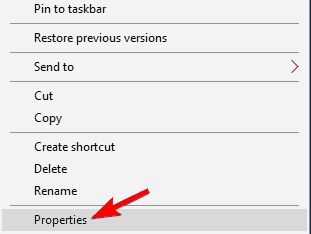
  1. Locate the Cisco AnyConnect shortcut, right-click it and choose Properties.
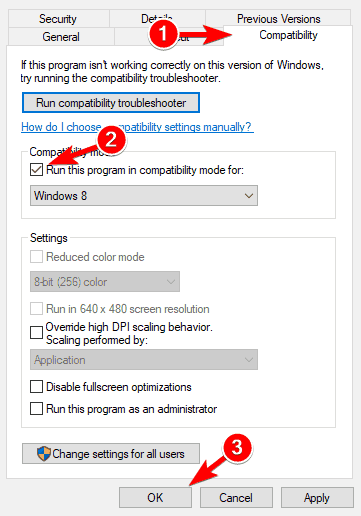
  2. Go to Compatibility tab.
  3. Check Run this program in compatibility mode for and select an older version of Windows.
  4. Click Apply and OK to fix the problem.

Compatibility mode is a great feature that allows you to run older software on Windows 10 without any problems. To do that, you need to follow these steps above.

Few users reported that this Cisco AnyConnect issue can also be solved by running the setup file in compatibility mode, so you might want to try that as well.

1.3. Delete the WAN Miniport (IP), WAN Miniport (IPv6) and WAN Miniport (PPTP) device

  1. Press Windows Key + X to open Win + X menu. Choose Device Manager from the list.
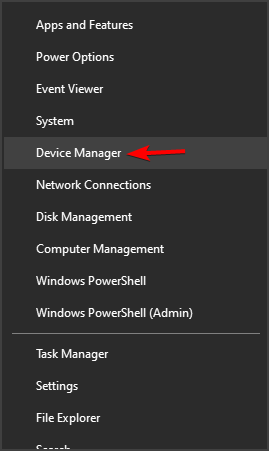
    device manager
  2. When Device Manager opens, go to View > Show hidden devices.
  3. Locate all WAN Miniport devices and delete them.
  4. After deleting all Miniport devices your VPN connection should start working without any problems.

Certain devices, such as WAN Miniport, can interfere with the built-in Windows VPN feature and cause all sorts of problems to appear.

Users reported A Connection to the remote computer could not be established error while trying to use VPN on Windows 10, and one of the suggested solutions is to delete all WAN Miniport devices.

1.4. Install Cisco VPN tool properly

  1. Download the latest Cisco VPN software. Don’t run the setup file yet.
  2. Download DNE software from Cisco and install it. Make sure to download 32-bit or 64-bit version so it matches your operating system.
  3. Install the DNE software.
  4. After that, install Cisco VPN.

Others reported that they are getting the Cisco VPN error 27850 during the installation, and one way to fix this problem is to properly install the tool.

Users also reported the error 442 which means that the Virtual Adapter couldn’t be enabled. To fix this problem, simply open the Registry Editor and follow these steps:

  1. Go to the following path: HKLM\SYSTEM\CurrentControl\Set\Services\CVirtA
  2. Double click the DisplayName string in the right panel and change its value to Cisco Systems VPN Adapter for 64-bit Windows.
  3. Close Registry Editor and check if the problem is resolved.

Can’t access the Registry Editor? Things aren’t as scary as they seem. Check out this guide about accessing the Regedit and solve the issue quickly.

1.5. Use Microsoft CHAP Version 2

  1. Locate your VPN connection, right-click it and choose Properties from the menu.
  2. When the Properties window opens, go to the Security tab, select Allow these protocols, and check Microsoft CHAP Version 2 (MS-CHAP v2).
  3. After enabling Microsoft CHAP Version 2, your VPN should start working without any problems.

You can fix some errors with your VPN simply by allowing certain protocols. Users reported that they fixed the problem with the VPN connection by following the steps.

1.6. Diagnose and disable your connection

  1. Press Windows Key + X and select Network Connections from the menu.
  2. When the Network Connections window opens locate your VPN connection, right-click it and choose Diagnose from the menu.
  3. Wait for the scan to finish.
  4. If the problem still persists, right-click the VPN connection and choose Disable.
  5. Wait for a few seconds and enable your VPN connection by following the same steps.

One way to fix problems with VPN is to diagnose your connection. By diagnosing your connection Windows 10 will fix some of the common VPN errors.

This is a simple solution and few users reported that it worked for them, so you might want to try it out.

1.7. Uninstall Citrix DNE Updater

If you’re using the Cisco’s IPSEC VPN client, you can fix many errors simply by uninstalling Citrix DNE Updater.

After uninstalling this tool, download and install SonicWall VPN 64-bit Client from Dell. After doing that, the issue with the VPN should be completely resolved.

1.8. Make changes to the registry before installing Cisco VPN

  1. When Registry Editor opens, in the left pane navigate to the following path: HKEY_LOCAL_MACHINE\SYSTEM\CurrentControl\Set\Control\Network
  2. In the right panel, locate MaxNumFilters and double click it. Change the Value data from 8 to 14 and save changes.
  3. Close Registry Editor and restart your PC.

Sometimes you can fix the Error 27850 while installing Cisco VPN simply by making one small change to your registry. Before installing Cisco VPN, open Registry Editor and follow the steps above.

After changing this value in the Registry Editor, you should be able to install Cisco VPN without any errors.

1.9. Restart LogMeIn Hamachi tunneling engine service

  1. Press Windows Key + R and enter services.msc. Click OK or press Enter.
  2. When Services window opens, locate LogMeIn Hamachi Tunnelling Engine service and double click it.
  3. If the service is running, click the Stop button.
  4. Wait for few seconds and click the Start button to start it again.

If you’re using LogMeIn as your VPN tool, you might encounter certain problems with it. The simplest way to fix most LogMeIn errors is to restart the LogMeIn Hamachi Tunneling Engine service.

1.10. Check if your clock is correct

  1. In the bottom right corner right click your clock and choose to Adjust date/time.
  2. Check if your clock is correct. If it’s not, disable the Set time automatically option and turn it back on.

Users reported Error Code 1 while using SoftEther VPN client, and one of the fastest ways to fix this problem is to check your time and date. You can easily do that by following these steps:

After doing that, your clock should be correct and the VPN error will be resolved.

1.11. Enable Allow service to interact with the desktop option

  1. Open Services window.
  2. Locate Cisco AnyConnect Secure Mobility Agent and double-click it.
  3. Navigate to the Log On tab and check the Allow service to interact with the desktop option.

If you’re having a Cisco VPN Client Driver error, you should be able to solve it by enabling one option.

1.12. Use Command Prompt

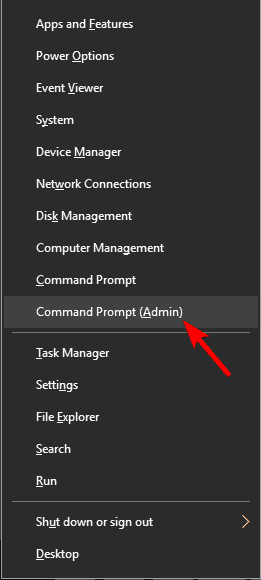
  1. Press Windows Key + X and select Command Prompt (Admin).
  2. When Command Prompt opens, enter the following commands: net stop CryptSvc esentutl /p %systemroot%System32catroot2{F750E6C3-38EE-11D1-85E5-00C04FC295EE}catdb
  3. When asked, be sure to select OK to attempt the repair.
  4. After the repair process is finished, exit Command Prompt and restart your PC.

Another way to fix Cisco VPN Client Driver error is to use Command Prompt. If you’re having trouble accessing Command Prompt as an admin, take a look at this guide dedicated to using CMD with admin rights.

1.13. Configure Hamachi properly

  1. Open Hamachi and write down your Hamachi IP address.
  2. Open Network Connections window.
  3. Locate your Hamachi adapter, right-click it and choose Properties.
  4. Select Internet Protocol (TCP/IP) and click the Properties button.
  5. In the General tab make sure that Obtain an IP address automatically and Obtain DNS server address automatically options are selected.
  6. Go to Alternate Configuration tab.
  7. Select User configured option.
  8. In the IP address field enter the Hamachi IP address that you got in Step 1.
  9. Enter 255.0.0.0 as the Subnet mask and 5.0.0.0 as Default Gateway.
  10. Click OK to save changes and restart your PC.

Problems with LogMeIn VPN can occur if you don’t configure it properly, but fortunately, you can fix this error by following these aforementioned steps.

1.14. Stop AviraPhantomVPN service

  1. Open Command Prompt as administrator.
  2. When Command Prompt opens, enter the following lines: net stop AviraPhantomVPN net start AviraPhantomVPN
  3. After that, try to start Avira Phantom VPN again.

If you’re using Avira Phantom VPN, you should be able to fix some of its problems simply by restarting the AviraPhantomVPN service.

1.15. Reinstall your VPN software (suggested)

If you’re using third-party VPN software, you might be able to fix its errors simply by performing a reinstall, so be sure to try that. Keep in mind that this solution applies to all third-party VPN tools.

2. VPN error 807 Windows 10

2.1. Disable IPv6

  1. Open Registry Editor.
  2. When Registry Editor opens, navigate to the following path: HKEY_LOCAL_MACHINE\SYSTEM\CurrentControl\Set\Services\Tcpip6\Parameters
  3. In the right panel, look for DisabledComponents DWORD.
    • If this DWORD isn’t available, create it by clicking the empty space and choosing New > DWORD (32-bit) Value.
  4. Enter DisabledComponents as the name of the new DWORD.
  5. Double click the DisabledComponents DWORD and enter FFFFFFFF as Value data.
  6. Click OK to save changes.
  7. Close Registry Editor and restart your PC.
  8. After disabling IPv6 completely, VPN error 807 should be fixed.

There are two types of IP addresses: IPv4 and IPv6. According to some users, IPv6 can cause VPN error 807 to appear. One way to fix this problem is to disable IPv6 by following these steps:

2.2. Use flushdns command

  1. Open Command Prompt as administrator.
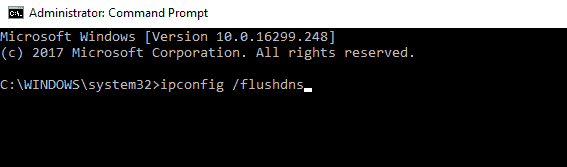
  2. When Command Prompt opens, enter the following command: ipconfig /flushdns
  3. After the command is executed, close Command Prompt and check if the problem is resolved.

Users reported that they fixed the VPN error 807 simply by running the ipconfig /flushdns command in Command Prompt. To do that, follow these simple steps:

2.3. Disable the wireless connection

Few users reported that they fixed error 807 simply by disabling the wireless connection. For some unknown reason, the wireless connection would interfere with the VPN and cause this error to appear.

One way to fix this error is to turn off your wireless connection completely. Users reported that they solved the problem by disabling the wireless connection on their router completely, so you might want to try that.

2.4. Change VPN connection properties

  1. Open Network Connections window.
  2. Locate your VPN connection. Right-click it and choose Properties.
  3. Navigate to the Security tab.
  4. Set the Type of VPN to Automatic.

Few users reported that they fixed the problem simply by changing their VPN connection properties. The type of VPN was set to PPTP, but after setting it to Automatic, the issue was completely resolved.

2.5. Edit your hosts file

  1. Press Windows Key + S, enter notepad, right-click it and choose Run as administrator.
  2. Choose File > Open.
  3. Go to the following path: C:\Windows\System32\driversetc
  4. Change Text Documents to All files in the bottom right corner and select the host’s file.
  5. When the host file opens, at the end of the file add your VPN’s server IP address and the address that you want to use.
  6. Save changes to the host’s file and try accessing the VPN by using the assigned name.

Users reported that they fixed error 807 after editing the host’s file. According to users, they were trying to access the VPN server by using the server’s IP address, and that was causing this error to appear.

2.6. Check your VPN configuration

This error can occur if your VPN configuration isn’t correct, and you should be able to fix this problem by making the proper adjustments.

Users reported that they fixed this problem by removing https:// from the beginning of server address.

In addition, you can also remove / at the end of the server address. Users also suggested to change the connection type to Point to Point Tunneling Protocol in the Security tab.

Want to know how to properly create a VPN connection on Windows 10? Find out more in this dedicated article.

2.7. Check your firewall and antivirus

This error can occur due to your firewall settings, and many users are suggesting to enable GRE protocol 47 and open port 1723 in the firewall configuration.

After doing that, your VPN connection should work without any problems. In addition to your firewall, you might want to temporarily disable your antivirus software while you’re configuring the VPN connection.

3. VPN error 619 Windows 10

Change your router startup commands

  1. Open your router configuration, navigate to Administration, then Commands.
  2. Add the following commands:  /sbin/insmod xt_mark /sbin/insmod nf_conntrack_proto_gre /sbin/insmod nf_conntrack_pptp /sbin/insmod nf_nat_proto_gre /sbin/insmod nf_nat_pptp

It seems that DD-WRT isn’t forwarding GRE PPTP packets, and that can sometimes cause error 619 to appear.

Bear in mind that this is an advanced solution, therefore be extra cautious while performing it. Check this article dedicated to accessing your router’s configuration to learn more.

4. VPN error 812 Windows 10

4.1. Change your DNS settings

  1. Open Network Connections, locate your VPN connection, and open its properties.
  2. Select Internet Protocol (TCP/IP) and click the Properties button.
  3. Check the Use the following DNS server address option and change the Primary DNS to domain controller address and the Alternate DNS server to an external server, for example, 8.8.8.8.
  4. Save changes and check if the problem is resolved.

According to users, you should be able to fix error 812 simply by changing the DNS settings. Take a closer look at this useful guide dedicated to fixing DNS issues to learn more about it.

4.2. Check your username

Users reported this issue while creating a VPN server, and the cause for this problem was the user name. According to users, they used their Microsoft account username while creating a server, but that caused error 812 to appear.

To fix this problem you need to enter your username in the following format: Domain nameusername. After doing that, the issue should be resolved.

4.3. Add users to the Windows SBS Virtual Private Network Users group

According to users, VPN error 812 can occur if your users aren’t in the proper group. To fix this problem, just add users to the Windows SBS Virtual Private Network Users group and the problem should be resolved.

5. VPN error 720 Windows 10

5.1. Check the DHCP server address

  1. On the VPN server go to Administrative Tools and select Routing and Remote Access.
  2. Select DHCP Relay Agent and check the DHCP server IP address.

Sometimes this error can occur if the DHCP server address isn’t correct. To fix this problem, you need to do the following:

Some users are also suggesting not to use DHCP at all. Instead of using DHCP, they are suggesting specifying the IP range manually on the RAS server.

5.2. Change the user account properties

According to users, you can fix the VPN error 720 by opening the Active Directory, opening user’s account properties and checking the Control access through NPS Network Policy option.

5.3. Delete the Miniports and your VPN connection

Miniports can be the cause for this problem, therefore we suggest that you delete them all. We already explained how to do this in one of our previous solutions, so be sure to check it out.

In addition to deleting Miniports, you can also try deleting your VPN connection and recreating it again.

5.4. Set the range of IP addresses

  1. Locate your VPN connection in the Network Connections window, right-click it and choose Properties.
  2. Select Internet Protocol Version 4 (TCP/IPv4) and click Properties.
  3. Click Specify IP addresses and change the IP range so that it matches the range defined by your router.
  4. Click OK and check if the problem was resolved.

If there is a problem with assigning the IP addresses to the VPN users, one way to fix this problem was to set the IP address range that matches the IP address range assigned by your router.

6. VPN error 721 Windows 10

6.1. Change the router settings

According to users, you can fix error 721 by changing your router settings. Users reported that they fixed this error by enabling PPTP passthrough option, so you might want to try that.

Another potential solution might be to change the LAN-to-LAN to L2TP over IPSEC. After that, turn off PPTP as the endpoint on the router and the problem should be fixed.

6.2. Update router firmware

If you want to fix error 721, one suggested solution is to update your router firmware.

This is an advanced process and in order to avoid causing any damage to your router, we strongly suggest that you check your router manual for detailed instructions.

If you need more useful info about the subject, take a closer look at this article dedicated to updating your firmware.

6.3. Replace your router

Few users reported that this problem couldn’t be resolved, and the only solution was to replace the router.

It seems that certain ISPs and routers can’t fully support certain VPN settings, therefore, you might want to consider replacing your router.

7. VPN error 412 Windows 10

7.1. Don’t use Run as administrator option

According to users, 412 error can occur if you’re using Cisco VPN software. To fix this problem, you have to disable Run as Administrator option.

After that, save changes and check if the problem is resolved.

7.2. Change your router configuration

Users reported that they managed to fix this problem on their Linksys router simply by adding a few lines to the pcf file. To do that, simply add UseLegacyIKEPort=1 line to the pcf file and save the changes.

7.3. Check your firewall settings

This error can be caused by your firewall settings, but you should be able to fix it by unblocking certain ports. According to users, port 500, port 4500, and ESP protocol need to be enabled.

In addition, enable NAT-T/TCP protocol and open port 10000. If you’re using a Cisco VPN client, enable UDP ports 500 and 62515 ports. Follow this simple guide about checking blocked firewall ports to learn more.

8. VPN error 691 Windows 10

8.1. Change your username

Error 691 can occur if your username isn’t correct, therefore be sure to enter your username in the Username@DomainName format. After doing that, the issue with error VPN error 691 should be resolved.

8.2. Change LAN Manager authentication level

  1. Press Windows Key + S and enter local security policy.
  2. Select Local Security Policy from the menu.
  3. In the left pane, navigate to the Local Policies > Security Options.
  4. In the right pane, double click the LAN Manager authentication level.
  5. From the menu select Send LM & NTLM responses. Click Apply and OK to save changes.
  6. Locate Minimum Minimum session security for NTLM SSP option and double click it.
  7. Disable Require 128-bit encryption and click Apply and OK.
  8. Restart your PC and check if the problem was resolved.

8.3. Disable CHAP security protocol

Sometimes this error can appear if both CHAP and MS-CHAPv2 are enabled, but you can easily fix this problem. To do that, simply disable CHAP and the error 691 will be fixed completely.

VPN is useful if you want to protect your privacy online, but many errors with VPN can occur. If you experience any VPN errors be sure to check some of our solutions.

IF you have any other questions, suggestions, or experience with some of our methods, don’t hesitate to leave them in the comments section below.

Microsoft reveals new five year plan to bridge the ‘Disability Divide’

Microsoft announced today a new five-year plan to help bridge the “disability divide” for over 1 billion people living with disabilities. The various initiatives aim to make technology more accessible for disabled people, increase skills and education, and make the workplace environment more inclusive for everyone.

On the technology front, Microsoft is committed to making its products accessible by design. Some of the Microsoft 365 accessibility features Microsoft highlighted today include Dictate in Microsoft 365, Immersive Reader support coming to PowerPoint, as well as Microsoft Teams’ high-contrast mode.

Microsoft will also continue to work with the best accessibility researchers across the world, and the company announced today a new partnership with the University of Washington in the US and the nonprofit SeeAbility in the UK to develop new accessible technologies. The company will also create a new Low-Cost Assistive Technology Fund this fall to make accessibility technologies more affordable for everyone.

Because the development of accessible technology is not enough, Microsoft is also investing in skills development programs for disabled people and plans to offer new curriculum across Microsoft Learn and LinkedIn Learning. The company also detailed new efforts to connect skilled workers with jobs, including the new Career Coach app in Microsoft Teams that is powered by LinkedIn.

Last but not least, Microsoft will encourage inclusive hiring by bringing its Supported Employment program from one to 12 countries. The company’s Autism Hiring program, which will soon include neurodiversity and learning disabilities, will also be expanded to Asia and Europe over the next 12 to 18 months.

If the Redmond giant is now taking accessibility very seriously with an internal Disability Employee Resource Group including more than 22 disability communities, the company also wants to create promote a culture of accessibility among its partners. “Since 2015 we have expressly included accessibility in our procurement processes, and it’s now a requirement for working with us,” Microsoft President Brad Smith emphasized today.

Fix: Windows cannot find windir system32 systempropertiesadvanced.exe

Windows cannot find windir system32 systempropertiesadvanced.exe error message can appear on any version of Windows and it can cause various issues. However, there’s a way to fix this issue, and in this article, we’re going to show you how to do it.

Windows cannot find windir system32 systempropertiesadvanced.exe message can be problematic, and speaking of problems, users reported some similar issues:

  • Windows cannot find windir system32 rundll32.exe, optionalfeatures.exe, msdt.exe, slui.exe, mmc.exe – Sometimes other files can be missing from System32 directory, but you should be able to fix the problem by using one of our solutions.
  • Advanced system settings Windows 7 not working – This issue can appear on almost any version of Widows, but you should be able to apply most of our solutions, regardless of the version of Windows you’re using.

Windows cannot find windir system32 systempropertiesadvanced.exe error, how to fix it?


  1. Use Safe Mode
  2. Check your antivirus
  3. Check the PATH variable
  4. Restart Windows Explorer
  5. Use Registry Editor
  6. Perform a System Restore
  7. Perform an in-place upgrade

Solution 1 – Use Safe Mode

Sometimes Windows cannot find windir system32 systempropertiesadvanced.exe error message can appear while trying to install certain applications or simply while trying to perform everyday tasks. However, several users reported that this error doesn’t appear in Safe Mode.

Safe Mode is great for troubleshooting since it runs with default settings and drivers, so if you keep having this problem, you might be able to troubleshoot it by entering Safe Mode. To do that, follow these steps:

  1. Press Windows Key + I to open the Settings app. Go to the Update & Security section.
    Windows cannot find windir system32 rundll32.exe
  2. Choose Recovery from the menu on the left. In the right pane, the Restart now button.
    Advanced system settings Windows 7 not working
  3. A list of options should appear. Navigate to Troubleshoot > Advanced options > Startup Settings.
  4. Click the Restart button to restart your PC.
  5. You’ll now see a list of options. Press the appropriate key to select the desired version of Safe Mode.

Once you enter Safe Mode, check if the issue still appears. If the problem is still there, you can use Safe Mode to fix it.


Solution 2 – Check your antivirus

According to users, sometimes Windows cannot find windir system32 systempropertiesadvanced.exe error can appear due to malware infection. That’s why it’s advised to perform a full scan of your system.

After making sure that your system is clean from malware, you need to check your antivirus. Although your antivirus is a crucial component, sometimes it can interfere with Windows, and that can lead to this and many other problems.

To fix this problem, users are suggesting to temporarily disable certain antivirus features and check if that helps. In some cases, you might even have to disable your antivirus entirely. If that doesn’t work, your next step would be to remove your antivirus. Even if you remove your third-party antivirus, Windows Defender will keep your system safe, so there’s no need to worry.

If the issue disappears once you remove your antivirus, you should consider switching to a different antivirus solution. There are many great antiviruses on the market, but if you want maximum protection that won’t interfere with your system, TotalAV might be the perfect antivirus for you.

⇒ Get TotalAV

Solution 3 – Check the PATH variable

According to users, Windows cannot find windir system32 systempropertiesadvanced.exe message can occur if your PATH environment variable is modified. This can occur for various reasons, but you can manually fix this problem and change the PATH variable yourself. To do that, follow these steps:

  1. Press Windows Key + S and enter advanced. Choose View advanced system settings from the list of results. If that doesn’t work, just go to the C:\Windows\System 32 directory and run systempropertiesadvanced.exe.
    Advanced system settings Windows 7 not working
  2. When System Properties window opens, click the Environment Variables button.
    Windows cannot find windir system32 msdt.exe
  3. Now double-click the Path variable to see its value.
    Advanced system settings Windows 7 not working
  4. Remove the duplicated values and click OK to save changes.
    Windows cannot find windir system32 slui.exe
  5. You also have another Path variable for your system, so you should remove duplicated entries from it as well.

Apparently, this issue occurs because the Path variable is too long, but by removing the duplicated entries, the issue should be resolved. To be on the safe side, it’s always a good idea to create a System Restore point before making any drastic system changes.

Several users reported that SQL Server 2012 caused this issue to appear by adding its entries to the Path variable, but after removing these values, the issue was resolved.

Solution 4 – Restart Windows Explorer

Sometimes Windows cannot find windir system32 systempropertiesadvanced.exe error can occur due to glitches with Windows Explorer. One way to temporarily fix this problem is to restart Windows Explorer. You can do that easily by following these steps:

  1. Open Task Manager. You can do that quickly by pressing Ctrl + Shift + Esc.
  2. When Task Manager opens, locate Windows Explorer on the process list, right-click it and choose Restart from the menu.
    Advanced system settings Windows 7 not working

After Task Manager restarts, check if the problem is still there. According to users, this is just a temporary solution, so it’s rather likely that the problem will reappear after a while.

Solution 5 – Use Registry Editor

As we already mentioned in one of our previous solutions, the cause for Windows cannot find windir system32 systempropertiesadvanced.exe can be your Path variable. In order to fix this problem, you need to modify this value and remove any unnecessary or duplicated values.

If you want, you can do that right from Registry Editor by following these steps:

  1. Press Windows Key + R and enter regedit. Now press Enter or click OK.
    Windows cannot find windir system32 mmc.exe
  2. When Registry Editor opens, navigate to the HKEY_LOCAL_MACHINE\SYSTEM\CurrentControlSet\Control\Session Manager\Environment in the left pane.
  3. Right-click the Environment key and choose Export.
    Advanced system settings Windows 7 not working
  4. Enter the name for your backup, choose a save location and click the Save button. Once you create a backup, you can easily restore your registry if anything goes wrong. To do that, simply run the file you create in this step and the registry will be restored.
    Windows cannot find windir system32 rundll32.exe
  5. Now double-click the Path variable to see its contents.
    Advanced system settings Windows 7 not working
  6. Edit the Value date field and remove any duplicates or unnecessary entries. This can be an issue because the value is quite long and hard to read, so we advise you to be extra careful while editing it. Once you’re done, click the OK button to save changes.
    Windows cannot find windir system32 optionalfeatures.exe

After making these changes, the issue should be resolved and everything will start working again.

Solution 6 – Perform a System Restore

If this problem started appearing recently, you might be able to solve it simply by performing a System Restore. In case you don’t know, System Restore allows you to revert any recent changes and restore your system.

If you’re getting Windows cannot find windir system32 systempropertiesadvanced.exe error, you might be able to fix the problem by doing the following:

  1. Press Windows Key + S and enter system restore. Choose to Create a restore point from the list.
    Windows cannot find windir system32 msdt.exe
  2. A new window will now appear. Click the System Restore button.
    Advanced system settings Windows 7 not working
  3. In System Restore window click Next.
    Windows cannot find windir system32 slui.exe
  4. Check Show more restore points option, if available. Choose the desired restore point and click Next.
    Advanced system settings Windows 7 not working
  5. Follow the instructions on the screen to finish the process.

Once you restore your system, check if the problem is still there.


Solution 7 – Perform an in-place upgrade

If other solutions didn’t fix your problem, your last option would be to perform an in-place upgrade. Basically, an in-place upgrade will reinstall Windows 10 while keeping all your files and applications. To perform an in-place upgrade, just do the following:

  1. Download Media Creation Tool and run it.
  2. When the Media Creation Tool starts, choose to Upgrade this PC now.
  3. Now select Download and install updates (recommended) and click Next. Keep in mind that this step isn’t mandatory, so you can skip it if you want.
  4. Follow the instructions on the screen. When you reach Ready to install screen, choose Change what to keep option.
  5. Be sure to select Keep personal files and apps option in order to keep all your files and applications.
  6. Follow the instructions on the screen to finish the process.

Once the process is finished, you’ll have a fresh version of Windows installed, and the problem should be completely resolved. If the issue is still there, we suggest performing a Windows 10 reset in order to fix the issue.

Windows cannot find windir system32 systempropertiesadvanced.exe message can be problematic, but we hope that you managed to fix this issue using the solutions from this article.

Microsoft announces more than 1.3 billion Windows 10 active devices

Microsoft shared a new milestone for the Windows 10 ecosystem during its earning calls for its FY2021 Q3 results. Microsoft CEO Satya Nadella announced that Windows 10 now has more than 1.3 billion monthly active devices, a number that includes PCs and all devices running a Windows 10-based OS such as HoloLens headsets or Xbox consoles.

Windows remains a big money maker for Microsoft, especially since PC sales increased with the ongoing COVID-19 pandemic. Microsoft announced yesterday a Windows OEM revenue growth of 10 percent for the past quarter, as well as a 44% growth for OEM non-Pro revenue and a 2% decrease for OEM Pro revenue.

As Windows 10 is about to celebrate its sixth anniversary in July, 2021 should be a very important year for the OS. Earlier this year, a job posting mentioned the company’s ambition to deliver “a sweeping visual rejuvenation of Windows experiences to signal to our customers that Windows is BACK.” Microsoft’s Chief Product Officer for Windows and Devices Panos Panay continued the teasing at Ignite last month and said that “it’s going to be a massive year” for Windows.

In the second half of the year, Windows 10 version 21H2 is expected to introduce a big design update codenamed “Sun Valley,” and we already had a glimpse of upcoming taskbar changes in recent Windows Insider builds. Windows 10X, a new version of the OS for Chromebook-like devices is also expected to make its debut later this year, with the first series of devices targeting the education market.

How to Prevent a NukeBot Trojan Attack

While most of us use the Internet daily, not many of us are aware of the dark Web, a digital black market one can use to get their hands on literally anything.

And that includes even malware that can create havoc on your system, steal passwords and data, or just destroy them.

Nukebot is one such malware that was put up for sale in the cyber community. IBM X-Force Researchers were the first to find the malware advertised for sale.

However, unlike other malware that usually generates interest in the Dark Web community, NukeBot went almost unnoticed. The publisher of the malware was instead banned from several forums.

Thanks to the dented ego, the malware developer himself published/leaked the source code.

NukeBot turned out to be a Trojan that comes with a web-based admin panel that lets attackers control infected endpoints.

With the source code in the open apparently, the malware has been picked up, and NukeBot is currently being employed for attacks on the financial system.

As it happens with most of the leaked malware, the source code is most likely to be embedded into some other malware, and due to the variations, it is difficult to detect.

As the age-old saying goes, it is always better to be safe than sorry. One of the ways to do this is to put an end to malware even before it starts spreading and causing damage.

Banks and other financial services can actually take proactive measures before the malware hits their network. I have mentioned some elementary but practical steps in combating Nukebot.

How can I prevent NukeBot attacks?

1. Perform basic email hygiene

In most of cases, the threat’s first point of interaction is the PC or mobile endpoint. Social engineering is one of the most preferred methods to gain access.

It’s also advisable to install a comprehensive antivirus. Ensure that you toggle on the Safe Browsing feature on it.

Overwhelmed by an email attachment, you were not expecting? Think twice before opening such attachments, as this is one of the common ways to offload malware in your system.

Malicious e-mails usually seem to convey a rather exciting proposal and are most likely to have spell and other formatting errors.

Even if you are sure of the source, it’s always better to scan the attachments for malware before actually opening it.

2. Avoid transactions on the public networks

Malware is often injected via public Wi-Fi, so it’s advisable to use a VPN. This will help you prevent NukeBot from infecting your device.

And if you don’t know what solution to choose, we have an excellent selection with the best VPNs for Windows 10 that you can use right now.

3. Install a powerful antivirus

The danger is lurking everywhere online and in your inbox. Although you know precisely not to roam around dark places on the Internet, mistakes can happen anytime.

And if you make the mistake, you need a safety net that can identify, block, or delete the threat right away and that’s what the recommended antivirus below is for.

It will act as an active shield for your PC and protect your other devices, like the router and even the webcam.

This tool has a 30-day free trial period to see its protective power immediately before you buy it.

TotalAV

TotalAV’s security solution can protect your devices and stop all threats with a single license.
Check Price Visit Website

4. Stay away from free stuff

As a rule of thumb, stay away from free stuff, especially on a computer that you use for online transactions. Malware is often baked into free campaigns and exploit kits are injected into the victim’s computer.

The free offers usually come with a backdoor to the endpoint eventually pushing the spyware, ransomware, or banking trojans to the endpoint.

5. Update all your devices

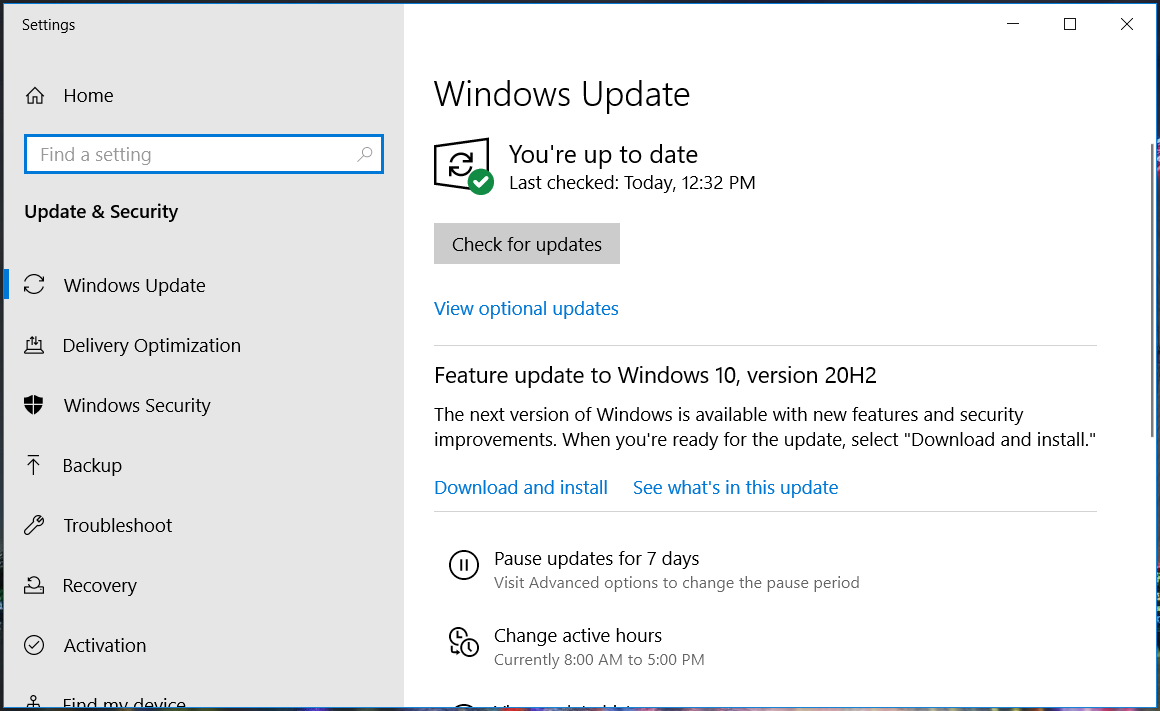
  1. Type update in the Windows Search bar and click in Check for updates.
  2. Click Check for updates and install all available updates.
  3. Restart your PC for the changes to take effect.

A healthy and updated system is always harder to penetrate than a neglected one so start by updating your Windows 10 as shown above.

Make sure that you update all your devices, including smartphones, to the latest security update. This is very crucial as the manufacturer usually deploys a patch for exploits in every security update.

Lock both your smartphone and computer with a password. It’s also advisable to not root or jailbreak your phone as this might help intruders find more back doors.

6. Use additional security measures

Look out for odd behavior and ensure that you switch on the two-factor authentication for all the third-party apps. Furthermore, it’s also advisable to use a security app for mobile devices as well.

The steps above will help you prevent a NukeBot attack and safeguard you from other malware with similar traits like Zeus malware.

As this malware’s point of entry is regularly the e-mail, you should also consider installing one of the best e-mail scanning software for your PC.

If you’ve been a victim of this NukeBot virus or have any other suggestions on tackling this problem, tell us everything about it in a comment below.

May’s Fortnite Crew Pack permanently unlocks Fortnite’s Save the World game mode

The Fortnite Crew Pack for May 2021 has been revealed and it’s arguably one of the biggest yet.

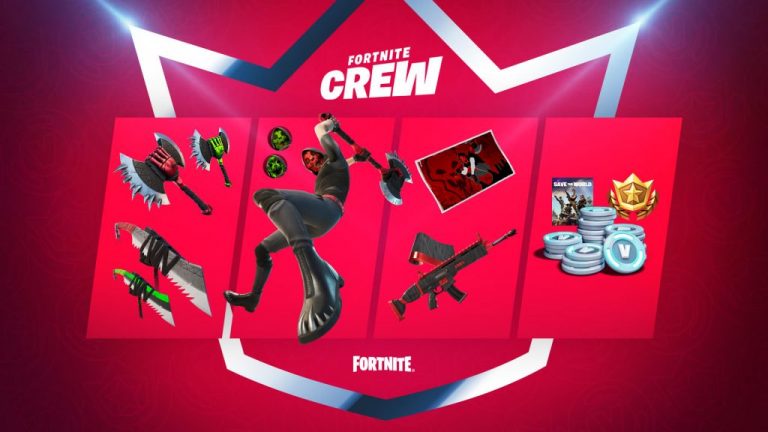
In addition to the new skin, which is exclusive to active Fortnite Crew members in the month of May, and the bonus 1,000 V-Bucks, next month’s pack also includes a permanent access to the Save the World game mode.

With one month of Fortnite Crew costing $11.99 and the current bundle to unlock Save the World costing $15.99, this really is a no-brainer for those players who had been thinking of playing Save the World sometime in the future. It’s especially good value considering the fact that this is a permanent unlock. Players could do Fortnite Crew for one month and then cancel it if they like.

The free skin, 1,000 V-Bucks (valued at $7.99), Battle Pass unlock (which usually costs 950 V-Bucks), and three months of Spotify Premium (for new users only) also add extra value for players.

May 2021 Fortnite Crew content

As for the skin, May’s Fortnite Crew character is Deimos, a “skeletal soul-snatcher.” In addition to the popular Battle Royale mode, Deimos will also be playable in Save the World as well. All of the accessories are described as being part of the “upcoming” Neo Underworld Set which suggests that they may be buyable by non-Crew members at a later date. Right now, it’s unclear though.

While the April Fortnite Crew skin was a bit of a letdown, this month has been pretty exciting for players with the arrival of content inspired by the Horizon Zero Dawn video game franchise and the unlock of the Neymar Jr content for Battle Pass owners.

The current season of Fortnite, Chapter 2 Season 6, is set to end in early-June so the in-game story is likely to pick up speed again soon as we get closer to the finale. It’s unclear what Season 7 could look though it’s probably safe to assume there’ll be at least a mention of The Seven and possibly some clues about the nature of “The Loop.”

Do you like May’s Crew Pass content? Have you ever played Save the World? Let us know in the comments below and then follow us on Pinterest and Twitter for more gaming news.

Fortnite
Fortnite
Developer:
Epic Games Inc.
Price:
Free


Fortnite - Robo-Ray Pack


Wondershare Helper Compact: what it is and how to remove it

If you have installed the Wondershare Video Converter app, you may have noticed the Wondershare Helper Compact was also installed on your computer.

Being part of the converter app, the Helper Compact’s purpose is to assist you during video conversations with a pop-up notification.

However, a quick search through the Internet and you would find the app is usually in the news for causing errors and issues with the Windows 10 and Mac computers.

The app prevents the users from performing any tasks on their computer and at times may force shutdown the computer resulting in crashes.

What is the Wondershare Helper Compact app?

As discussed earlier, the Wondershare Helper Compact is part of the Wondershare Video Converter app installed during the app installation.

The app may also come bundled with the Wondershare Recoverit program. It usually pop-ups when you try to convert videos or burn to DVDs.

Unfortunately, for most people, the Helper Compact has caused the system to crash soon after installing the app.

The app seems to exhibit similar behavior as some malware where a hidden piece of software is installed and set to run constantly in the background. 

Even after uninstalling the Wondershare Video Converter app, the Helper Compact keeps running in the background.

Should I delete Wondershare Helper Compact?

Yes. The app seems to serve no real purpose but runs in the background wasting system resources and at times causing serious issues with the system, including frequent crashes.

If you are experiencing issues with the app and want to remove it from your system, here is a detailed guide on how to remove the app.

How do I remove the Wondershare Helper Compact?

1. Use a third-party uninstaller tool

If you want to remove any program from your computer, you can do it with the built-in uninstaller, but that doesn’t always prove to be successful.

Unfortunately, some programs or harmful files hide by tricking the default uninstaller, so you won’t be able to remove them from your PC.

Therefore, you need a professional uninstaller and cleaner software that will find even the most hidden programs. Thankfully, there are plenty of options for you to do that.

Not only you will find every program that can be removed on your PC, but the tool will also make sure there are no leftover files and bloatware after the uninstallation.

By removing Wondershre Helper Compact completely, you will have room for a new installation of any similar apps, and even this one.

2. Uninstall using Control Panel

  1. Press the Windows key + R to open Run.
  2. Type appwiz.cpl and click OK to open the Control Panel.
  3. Under Programs, select Uninstall a program.
  4. Locate and select Wondershare Helper Compact from the list of installed apps and click Uninstall.
  5. Confirm the action by clicking Yes.
  6. Once uninstalled, you would have to remove the leftover files manually.

Remove leftover files 

  1. Open File Explorer and navigate to the following locations one by one:
    C:Program Files (x86)Common FilesWondershare
    C:Program Files (x86)
    C:Program Data
    C:Users<Username>Documents
    C:Users<Username>AppDataRoaming
    C:Users<Username>AppDataLocal
    C:Program Files (x86)Common Files
  2. Delete all the files and folders associated with Wondershare.
  3. Next, navigate to the following location:
    C:Users<Username>Downloadsmobile-transfer.exe
  4. Delete the above file if present.
  5. Make sure not to delete any other file or folder that is not associated with Wondershare to prevent system issues.

Once the files and folder are deleted, restart your computer and check if the Wondershare Helper Compact Mac is removed.

3. Use an antivirus software to scan your system

One other way to completely remove the software, and any other hidden one that could put the integrity of your data, your sensitive information, and your PC as a whole at risk, is using an antivirus.

Precisely, you should use strong antivirus software that uses advanced AI and other machine learning methods to scan your computer and remove any suspicious files.

Additionally, the antivirus utility will protect you from future viruses, malware, data theft, and much more. Whatever you use your computer for, having antivirus software allows you to explore and do tasks on it safely.

4. Perform a system restore

  1. Press the Windows Key, type restore and click on Create a Restore Point.
  2. In the System Properties window, click on System Restore and click Next.
  3. Click the Show more restore points box in the bottom left corner.
  4. Choose the most recently created system restore that was created before installing the Wondershare app.
  5. Click Next, read the description, and then click the Finish button.

The system restore process may take some time to restore your PC to an earlier point. After the reboot, you will see a success message. Check if the Wondershare Helper Compact is removed.

The Wondershare Helper Compact application causes several issues with the system, including system crashes.

You can prevent such files from infecting your computer by checking this awesome list of the best antivirus software with a lifetime license.

Fortunately, you can remove the app using a third-party app. Alternatively, try to remove the app manually using the steps listed in the article above.

This wraps the article up today. Make sure you follow all of your steps thoroughly and feel free to give us any feedback regarding the subject in the comment section below.

FIX: Product key cannot be used on this machine [Error 25004]

Error 25004 occurs when users try to install MS Office 2013. The full error message states: Error 25004.

The product key you entered cannot be used on this machine. This is most likely due to previous Office 2013 trials being installed. Consequently, users can’t install the Office 2013 suite when that error message pops up.

These are a few resolutions that might fix Office Error Code 25004.

How do I fix product key errors in Microsoft Office?

  1. Open the Program Install and Uninstall troubleshooter
  2. Uninstall existing Office 2013 versions
  3. Edit the Tokens.dat file title
  4. Erase the Temp Folder
  5. Scan the registry

1. Open the Program Install and Uninstall troubleshooter

  1. Download it from this webpage as you can’t open it from the Settings window.
  2. Thereafter, open the Program Install and Uninstall troubleshooter from the folder you downloaded it to.
  3. First, click Advanced to select the Apply repairs automatically option.
  4. Click the Next button on the troubleshooter‘s window.
  5. Then press the Installing button.
  6. Select MS Office 2013 if it’s listed. If the suite isn’t on the software list, you can select Not Listed instead.
  7. Press the Next button to proceed.

2. Uninstall existing Office 2013 versions

The 25004 error message states:

This is most likely due to previous Office 2013 trials being installed.

Thus, the error message usually pops up if there’s an MS Office trial package version already installed, which might have come pre-installed on your laptop or desktop. As such, thoroughly uninstalling that Office software might fix the issue.

You could uninstall the MS Office software the usual way via the Control Panel’s Programs and Features applet.

However, it’s better to remove the software with third-party uninstallers that will also erase leftover registry entries. 

If you need an effective solution for uninstalling MS Office for good without any traces left, thus you should better use reliable uninstaller software on your PC.

3. Edit the Tokens.dat file title

  1. Click the File Explorer button on the Windows 10 taskbar.
  2. Open this folder path in File Explorer: Windows > System32 > app > store > 2.0.
  3. Right-click the tokens.dat file in 2.0 folder and select the Rename option.
  4. Then enter tokens.dat.old as the new file title, and press the Return key.

Office Error Code 25004 can also be due to a token.dat file interfering with the MS Office 2013 activation. So renaming the tokens.dat is another potential resolution for the 25004 error code. 

4. Erase the Temp folder

  1. Open the Win + X menu by pressing the Windows key + X hotkey.
  2. Select Run on the menu to open that accessory.
  3. Enter %temp% in Run, and click the OK button.
  4. You can press Ctrl + A to select all the files in the Temp folder.
  5. Then press the Delete button to erase them.

Corrupted files in the Temp folder can be another factor behind Office Error Code 25004. So clearing the Temp folder might resolve the 25004 issues. 

5. Scan the registry

Invalid registry entries are another thing that can bring 25004 error messages. Thus, a registry cleaner utility might be what you need to fix Office Error Code 25004.

Windows doesn’t include one, but there’s always the choice of using a third-party registry cleaner to do the job for you, and most of the time they are the fastest and safest bet yet.

They basically take your entire registry and compare it to their online libraries, fixing and downloading anything that is either broken or missing from your PC.

Those resolutions will probably fix Office Error Code 25004 so that you can install MS Office 2013. They aren’t necessarily guaranteed fixes, but there’s a good chance that one of them will resolve the 25004 error message.

Fix: Minecraft Server Could not Reserve Enough Space

It is always beneficial to add more RAM to your Minecraft server. However, at times while adding more RAM or allocating more space, you may encounter the could not reserve enough space for object heap. This error can occur due to incorrect version of Java JRE.

Several users have reported similar errors in the Reddit community forum.

I hope this is the right sub-reddit anyway, i am making a survival server with my friends and when i add more ram i am getting this error
C:\UsersmeandDesktopServer>java -Xmx2048M -Xms2048M -jar server.jar nogui
Error occurred during initialization of VM

Could not reserve enough space for 2097152KB object heap
C:UsersmeandDesktopServer>PAUSE
Press any key to continue . . .

If you are also troubled by this error, here are a couple of troubleshooting tips to help you resolve the Minecraft server could not reserve enough space issues in Windows.

How do I fix the could not reserve enough space Minecraft error?

1. Install 64-bit Java JRE

could not reserve enough space
  1. Go to the Java JRE download page.
  2. Click on Windows Offline (64-bit). Wait for the download to complete.
  3. Double-click on the Java installer to install the 64-bit edition of the Java runtime environment.
  4. Launch your Minecraft server and try to allocate more RAM to the server.
  5. Check if the could not reserve enough space error is resolved.

If the issue persists even after installing the 64-bit version of Java JRE, follow these steps.

  1. Press Windows Key + R to open Run.
  2. Type cmd and click OK to open Command Prompt.
    could not reserve enough space
  3. In Command Prompt, type the following command and click OK:
    java -version 
  4. The above command will display the Java version installed on your computer. The result will look something like this:
    C:>java -version
    java version "1.8.0_221"
    Java(TM) SE Runtime Environment (build 1.8.0_221-b11)
    Java HotSpot(TM) 64-Bit Server VM (build 25.221-b11, mixed mode)
  5. If it doesn’t say “64-bit Server VM”, it means Minecraft is still finding the 32-bit version.
  6. To fix this, you need to remove the older version and reinstall the 64-bit edition again.

Remove and reinstall 64-bit Java JRE

could not reserve enough space
  1. Press Windows Key + R.
  2. Type appwiz.cpl and click OK to open Control Panel.
  3. Choose the 32-bit edition of Java and click on Uninstall.
  4. Also, uninstall Java JRE 64-bit edition.
  5. Once done, install the 64-bit Java JRE downloaded in the first step.
  6. Try allocating more space to your Minecraft server and check for any improvements.

Not using a Java 64-bit version can also cause the Error occurred during initialization of VM. Read the highlighted guide for more information.

2. Add a new system variable

Note: Before proceeding with the below steps, create a system restore point.

could not reserve enough space
  1. Press Windows Key + R to open Run.
  2. Type control and click OK to open Control Panel.
  3. Go to System and Security > System.
  4. Click on View advanced system settings from the left pane.
  5. In the System Properties window, click on the Environmental Variables button.
    Java Minecraft RAM error
  6. Under the System Variables section, click the New button.
    Java Minecraft RAM error
  7. Enter the following for Variable name and value:
    Variable name: _JAVA_OPTIONS
    Variable value: –Xmx512M
  8. Click OK to save the changes.
  9. Click OK on all the open Windows.

The above process will set the memory size to 512MB and fix the could not reserve enough space Minecraft server error.

The Minecraft server could not reserve enough space error can be resolved by installing the 64-bit edition of Java JRE. Since the 32-bit edition is limited on the memory front, installing the 64-bit edition of Java will remove the limitation.

However, if the error occurs without making any changes, try limiting the memory allocation to 512MB by adding a new system variable in Control Panel.

3. Try another Minecraft server alternative

apex-hosting-minecraft-server

One of the key aspects of running a server is RAM. If you don’t have enough RAM, you won’t be able to run the server without lags.

With Minecraft Server Hosting, you can upgrade or downgrade your RAM wherever you want to ensure you get the correct balance you need. The first step in creating a server is to know what server plan to choose.

RAM is required by the server to support all of the connected players and run all of the software. The player amount, type of plugins, or mods will affect the amount of ram you will need on your server. That’s why with considerable RAM you can do more with your server.

The Minecraft Server Hosting’s plans are:

  • 1GB – the recommended plan for basic small vanilla servers.
  • 2GB – you can add some base plugins or mods and increase your player base on your server.
  • 3GB – to install medium-sized modpacks or plugin packs – up to 25 mods or plugins.
  • 4GB – includes most modpacks – up to 35-40 mods or plugins
  • 5-10GB – supports over 40 mods or plugins.
  • 15GB EX Series – for very large communities and extreme modpacks/ plugins.

Upgrade or downgrade your plan at anytime by choosing one of the most secured server hosting.

⇒ Get Apex MineCraft Hosting

Did you manage to solve the issue? Let us know in the comments area below.

Minecraft server not working? Try these fixes

Configuring a Minecraft server is easy. However, at times you may encounter the Minecraft server not working issue when accessing the server. Minecraft network errors are most likely to occur due to an unstable network connection, security programs, and other temporary issues.

Several users have reported similar issues in the Reddit community forum.

So me and some friends were trying to start up a 1.14 server. Me and my friend R both downloaded the new minecraft server file (from .net) and after setting it up we can’t connect.

If you are also troubled by this error, here are a couple of troubleshooting tips to help you resolve the Minecraft could not connect to server issues in Windows.

What can I do if Minecraft could not connect to the server?

1. Install the latest version of the server

Minecraft server not working
  1. One of the common causes of Minecraft not working problem is the outdated Minecraft server.
  2. Even if you have recently installed the Minecraft server, check for any pending updates.
  3. Go to the Minecraft JAVA edition server page and check if a new version is available.
  4. Download and install the update.
  5. Restart the computer and try accessing the Minecraft server.

If the issue persists, check Reddit and Minecraft forums to see if other users are also experiencing this issue.

2. Try Apex MineCraft Hosting

apex-hosting-minecraft-server

If you still encounter the Minecraft server not working issue when accessing the server we suggest you try Minecraft Server Hosting developed by Apex Hosting.

This dedicated server uses the latest and most powerful hardware to ensure that your Minecraft server runs without lags or downtime.

You can easily control your Minecraft Server Hosting account by having access to the edit configurations and console and to change server versions.

You can enjoy all these following features:

  • Free Server Transfers
  • Java & Bedrock Edition Servers
  • One-Click Modpacks
  • 24/7 Servers & Support
  • Instant Setup
  • Automated Backups
  • DDoS Protection

Apex Hosting server is one of the best server hosters with an affordable managed Minecraft host and extremely secure to use.

⇒ Get Apex MineCraft Hosting

3. Disable your firewall

Turn off Windows Defender Firewall

Minecraft server not working
  1. Press Windows Key + I to open Settings.
  2. Go to Windows Update & Security.
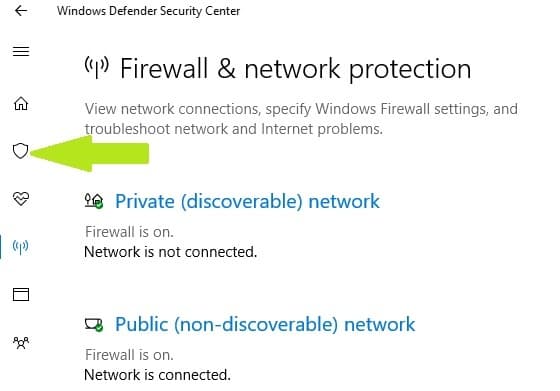
  3. Click on the Windows Security tab from the left pane.
  4. Open Firewall and network protection.
  5. Click on your currently active network.
  6. Scroll down and toggle the little switch to turn off Windows Defender Firewall.

Disable third-party firewall

  1. If your antivirus solution comes with a firewall, try disabling it as well.
  2. You can disable the firewall from the antivirus settings.

After disabling the firewall, try connecting to the Minecraft server. If connected, add the Minecraft server to the exception list.

4. Sign out of Minecraft account

Minecraft server not working
  1. Launch Minecraft.
  2. Click the Log Out button on the bottom right corner of the launcher.
  3. Relaunch Minecraft.
  4. Sign in with your Minecraft credentials and check for any improvements.

  Restart your modem/router

Minecraft could not connect to server
  1. Additionally, try restarting your modem or router.
  2. Unplug the power cord from the back of the modem.
  3. Make sure all the lights on the modem are off.
  4. Leave the modem idle for a minute.
  5. Plug the power cord back into the modem.
  6. Wait for the modem’s lights to turn green and stop blinking.
  7. Try connecting to your Minecraft server and check if the Minecraft server not connecting issue is resolved.

If the issue persists, check if the issue is caused by a third-party Minecraft mod installed on the computer. Disabling or uninstalling the problematic mods can help you resolve the Minecraft server not showing up problem.

The Minecraft server not working issue can occur due to several reasons, including network issues as well as server issues. Follow all the steps in this article and let us know which method helped you resolve the issue in the comments.

ARK: Survival Evolved Server Not Responding Error

ARK: Survival Evolved is still in the Early Access phase, with many issues that must be resolved before its final release. Nevertheless, players can already experience this unique adventure with the proper setup and functioning server.

The server is one of the issues we have all had while playing online. This is especially the case with games that feature many custom servers created by players. Both have pros and cons, but we advise you to inform yourself before starting the game.

Today, we will try to fix the annoying server issues and help you stay on track.

What can I do if ARK: Survival Evolved server is not responding?

1. Make sure the server up to date

If you are playing on a dedicated server, the first thing you should do in case of an error is to restart it. Doing this updates the server since the client and the server are on the same version.

You must be aware that the game is occasionally unstable, and sometimes, you can only wait for the next patch that may fix the issue.

2. Verify the game integrity

Occasionally, a game’s installation files may become corrupted or incomplete. This can cause various problems, and server connectivity is not an exception. Therefore, you need to verify your game’s integrity in order to experience stable online gameplay. To do so, follow these instructions:

  1. Go to the Steam client.
  2. Open Library.
  3. Right-click Ark: Survival Evolved.
  4. Open Properties.
  5. Go to Local files.
  6. Choose Verify integrity of game files.
  7. The tool will find and replace missing or corrupted files.

3. Disable background programs

Background programs can slow down your bandwidth or even interfere with the game.  We advise you to disable antivirus and firewalls temporarily while playing. Additionally, you may want to add the exception for Windows Firewall.

On many occasions, firewalls block connections and prevent you from connecting to a dedicated server. Moreover, you may want to stop all downloads and try restarting your router and PC.

4. Disable Port Forwarding

Some users presented a workaround for UPnP IGD. If your router has this protocol besides forwarded ports, it may cause lag and faulty connection issues. We advise you to do the following:

  1. Open your router web interface (The procedure differs for different routers).
  2. Disable Steam ports and other ports forwarding you have set.
  3. Save your selection and restart your router and PC.
  4. Start Ark: Survival Evolved and see is the problem resolved.

As the community members stated, this workaround vastly improved connectivity.

5. Reset your Network Adapter in Command Prompt

You can use the built-in command prompt to restart your network adapter winshock protocol. This can resolve some known connection issues, so it’s worth trying.

  1. Go to Search Windows and type cmd
  2. Right-click the command prompt and run as administrator.
  3. In the command line type netsh winsock reset
  4. After restart confirmation, reboot your PC.

6. Use alternative DNS address

Frequent connection issues can be easily resolved by changing your DNS address with an alternative one. You can do so by following these instructions:

  1. Right-click the Start button and open the Control panel.
  2. Choose Network and Internet.
  3. Open Network and Sharing center.
  4. Click Change Adapter Settings.
  5. Right-click your active network and open Properties.
  6. Highlight Internet Protocol Version 4 and open Properties.
  7. Click Use the following DNS server addresses.
  8. As alternative address enter 8.8.4.4 (Google DNS).
  9. Save and try out the game.

7. Forward additional port

Steam ports are mandatorily forwarded for you to play games online. However, you may try to forward an additional port and resolve the issue that way. That can be done by following this path:

  1. Open your router’s web interface (login procedure may differ from router to router).
  2. Open and forward 25147 port.
  3. Make sure your IP address is static by configuring it with router DHCP.
  4. Restart your PC and try out the game.

Your IP address must be static, or you may need to forward the port whenever it changes. Dynamic IP and port forwarding are not going well together.

Adding the additional port can also help you resolve other issues, like the Ark Survival Ascended server not showing up; read this guide to learn more.

8. Try an alternative game server hosting

ARK has become one of the most popular games for private game server hosting, but unfortunately, errors can occur. What you need to have is prompt support that helps you fix the issues quickly.

If you followed all the steps above and you still have the “Server Not Responding” error, we suggest you try another game server hosting that is carefully tuned as necessary to keep today’s errors at bay.

Finding the best private game hosting might indeed be time-consuming. As a result, we’ve devised a workaround until the dedicated server for ARK: Survival Evolved is fixed.

You can choose a hosting service for your games to obtain the greatest service and experience possible. Numerous suppliers are prepared to assist individuals in need; all you have to do is look through the list we’ve compiled for you and pick one you consider best.

These workarounds should at least temporarily resolve your server problems. If the problems are persistent, be sure to contact the server administrator for further help. It’s important to know that, in most cases, the problem isn’t on your side. However, ensuring your configuration isn’t the one to blame is essential.

If you have some questions or suggestions, we look forward to seeing them in the comments section below.

Virtual CD/DVD Drive Software for Windows 10: Best in 2026

CD’s appearance was a revolutionary thing in computer history because finally, we were able to store a significant amount of information on a small and easy to carry object. Then we tried to find a method that can completely copy the content of a CD and save it in a different location.

This is how ISO images appeared. Even Microsoft is using ISO images these days, so this technology still has a high degree of applicability.

To create these images all you need is dedicated software for this which can be found free on the internet. The ISO can be burned to a new CD or DVD or even on a USB flash drive to install different software or operating systems more rapidly.

Another feature of ISO images is that it behaves like a real disk. It convinces the computer to behave with this kind of file as a physical disk.

The software that get this kind of file are called virtual drive software because there is no physical support for information, all data is stored in the computer memory. Here is a list with the best virtual drive software available completely for Windows 10.

DVDFab Virtual Drive

burn MKV files to DVD

This software is oriented more on the media domain: conversion and video playback. It is a virtual emulator for both DVD and Blu-ray formats. It can emulate up to 18 drives and mount ISO images created in DVDFab and ISO images created by other similar software.

This tool has introduced a new extension in the program emulation area, .miniso. We know that an ISO image file contains 2 parts: the image header with the identifier role and other files and folders. The .miniso file is like the image header, and using it DVDFab can simulate a normal ISO, using it with the specific folders.

This software has many settings which are fully customizable. You can choose one language from the almost 20 available, you can let the software mount the last image automatically and unmount all the drivers when you will exit, you can even set manually the number of drives from 0 to 18. 

It is a professional program that does not require a powerful computer to run. The recommended system requirements are available for any computer from these days. Everybody has a newer version than Windows XP and a much more powerful processor than Pentium II.

DVDFab

DVDFab

DVDFab is more than a virtual drive software that can emulate up to 18 drives, it’s multimedia powerhouse.
Check priceVisit website

Daemon Tools

Daemon Tools is one of the veterans of this domain as it is currently on the market for over 15 years and it has the largest number of users at this moment. It is available in 4 versions that bring 3 million users every month.

The most popular version is Daemon Tools Lite which also is the only one that has a free version. It is regarded as one of the best programs of its kind because it can perform operations with any known type of image file and can emulate up to 4 DTS + SCSI + HDD devices.

The Lite version has 3 license types: Commercial License, Personal License, Free License at different prices.

The Commercial License is dedicated to institutions and developers because it is one of the most complete versions of Lite with unlimited number of installations.

Each update will be done automatically and you will have dedicated technical support from developers.

The Personal License allows you to install the software on 3 computers where you will get a free update every time you need and you will benefit from 24/7 technical support.

The Free License is a basic form of the software that can perform most of the operations, but you will not receive technical support from developers and you have to accept the large number of commercials.

The developers are also offering a pack that includes the facilities of the 3 types of license.

⇒ Download Daemon Tools


WinCDEmu

WinCDEmu from Sysprogs is one of the easiest to use tools of this kind. This software allows you to mount optical images by simply clicking on them. It has many facilities that reserve a place for him among the most efficient virtual drive software.

It can work with ISO, CUE, NRG, MDS/MDF, CCD, and IMG images, it supports an unlimited amount of drives, the installer size is less than 2 MB, you do not have to reboot your system after its installation, it has more than 20 languages to choose from, it is free for any kind of use and one of the best features is that it does not occupy any drive letters when you are not using it.

Installation is very easy and does not require a long time to do it because it comes with predefined settings that you can change at any time by checking the Customize installation options box. Check out our comprehensive WinCDEmu review for more.

⇒ Download WinCDEmu


Microsoft Virtual CDRom Control Panel

The first version of this software wa introduced on the market in 2001, but Microsoft has revised it in 2013, improving it. This program works for XP, Vista and Windows 7.

Unfortunately, Microsoft informs us that they do not provide any support for this program, but this should not concern you because it cannot create any damage as long as you are sure that the source of the ISO file is safe.

This software do not have any special requirements. All you need to have is a newer version of the operating system than Windows Server 2003.

It is very easy to install it because it comes in a self-extracting ZIP archive. After downloading the file all you have to do is to execute it. Click Unzip and select the folder where you want to be installed.

Before using this program we advise you to read the file readme.txt to fully understand how it works with your system.

⇒ Download Microsoft Virtual CDRom

This was our selection with the best virtual drive software for Windows 10. We hope that you found the proper tool for your needs but if you have any suggestions leave them in a comment below.

[wl_navigator]

Keyboard and mouse not working after Windows 10 update [FIX]

Installing Windows 10 updates or upgrading to Windows 10 is not always a smooth process, and sometimes there might be some issues.

One of the most annoying issues with Windows 10 is that the keyboard and mouse no longer work after the update to Windows 10.

As far as we can tell, this issue is more common with USB peripherals, so here’s what can you do about it. Before we start, make sure that you connect the PS/2 keyboard and mouse to your computer.

How can I fix keyboard/ mouse issues after an update?

  1. Remove previous updates
  2. Disable USB 3.0 support from BIOS
  3. Use a different USB port
  4. Update your keyboard/ mouse drivers
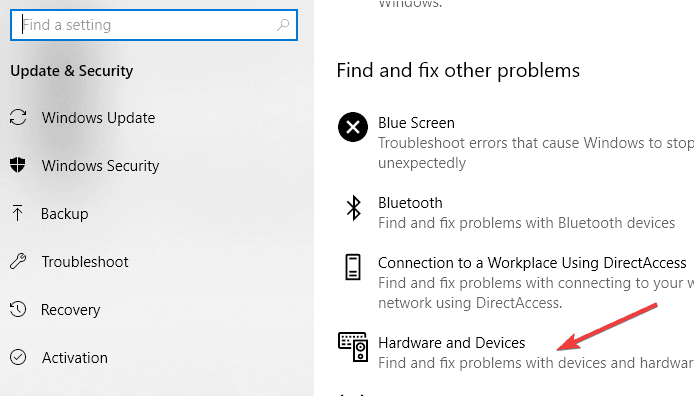
  5. Run the Hardware and Devices troubleshooter
  6. Clean boot your computer

1. Remove previous updates

  1. Open Control Panel and go to Programs.
  2. Click on Programs and Features. Now go to View installed features.
  3. Now you need to find the update that is causing you this issue.
  4. If the problem started recently it’s probably the latest installed update. So you need to click Uninstall to remove it.

Also, be ready to enter your administrator password if you’re asked to.

Sometimes Windows updates can make more harm than good, and in the past, it has been known that optional updates can cause some issues.

2. Disable USB 3.0 support from BIOS

  1. While booting, press Del or F8 to enter BIOS (the key might vary depending on the motherboard manufacturer).
  2. Here navigate to Advanced settings.
  3. Locate USB configuration and disable USB 3 support. Depending on your manufacturer, you might have to take a different route to disable USB 3 support.
  4. Save and exit.

3. Use a different USB port

If the keyboard and mouse aren’t working try plugging them into different USB ports. Sometimes, it’s only the port that’s faulty while the hardware is functional.

Connecting your peripherals to other devices, if available, is also useful.

4. Update your keyboard/ mouse drivers

If your keyboard or mouse starts working, go to Settings > Device Manager. Find the USB controllers with exclamation marks next to them, right-click to disable and enable them again, and everything should start working normally.

If this process doesn’t change anything, you should uninstall the drivers to force-update them.

If you want to do this quicker and safer, you can use dedicated driver updater software such as Outbyte Driver Updater. It will detect outdated, damaged, and missing drivers and install the best versions available.

5. Run the Hardware and Devices troubleshooter

Since this problem is related to your peripherals, you can also run the Hardware and Devices troubleshooter to fix it. With the help of this tool, your computer will automatically scan your keyboard and mouse for issues and repair them on the spot.

troubleshoot hardware and devices

To run the troubleshooter, go to Settings > Update & Security > Troubleshoot > locate the Hardware and Devices troubleshooter and launch it.

6. Clean boot your computer

  1. Go to Start and type msconfig then hit Enter.
  2. Navigate to System Configuration the to Services.
  3. here, choose to hide all Microsoft services.
  4. Click Disable all.hide all microsoft services
  5. Go to the Startup tab and open Task Manager.
  6. Select each startup item and click Disable.disable startup programs
  7. Restart your computer.

Particular apps and programs may interfere with your keyboard and mouse. As a result, your mouse may move by itself, your keyboard may freeze, and so on.

The above steps should clear any glitch these apps might cause and restore the functionality of your peripherals.

And these were our solutions to fix keyboard and mouse issues after a Windows update. If you have successfully used other methods, please share them in the comments.

7 Best iPad File Explorers for Windows [2026 List]

iPad file managers are specialized tools that allow users to view and open the files stored on their devices, copy them to another device, send them via email, and more.

iOS is a great mobile operating system, but it has some limitations. For example, iOS users can’t manage their files as easily as Android or Windows users. This task becomes even more difficult when it comes to managing iPad files on Windows. You need a dedicated file manager for this task.

You can use iPad file managers to perform these tasks:

  • Cut/copy/paste files and folders
  • Create or delete files and folders
  • (On some of the apps) edit files in real-time
  • Create Dropbox/Box.net/iCloud sync
  • Access/open files of various types (images, pdf, zip, etc.)

Transferring files from an iPad to a Windows PC is quite hard due to iTunes’ limitations. To help you better manage your iPad files on your PC, we will list five apps that will allow you to do that without jailbreaking your device.

What are the best iPad file managers?

iExploreriFun BoxiToolsiMobie's AnyTransiMazingSynciosIOTransfer 2 PRO
RANK (1 to 5)4,543.54.53.54,54.0
Free/PaidPaidFreeFree (Trial)FreePaidFreeFree(Trial)
BackupYesAppsYesN/AYesYesYes
Using device as storageYesYesN/AYesYesYesYes
Selective file chooseYesYesYesYesYesYesYes
Keeps metadataYesYesYesN/AN/AYesN/A
Mobile Device ManagementYesYesYesYesYesYesYes
View Only ModeNoNoNoYesNoN/AN/A
Support 24/7 NoNoNoNoNoN/AN/A
iTunes requiredNoNoNoNoNoNoNo

IOTransfer 2 PRO – Great photo organizer

iotransfer ipad manager for windows 10

This is a great tool for whoever wants to manage files on their iPad but also on iPhone. What can it do? First of all, its interface allows you to easily manage all your files, including all formats available on your iOS devices, especially iPad. You can organize your photos, images, videos, and music into collections, but you can also delete the files you do not need anymore.

Another great feature is that you can transfer files from your PC to your iPad with ease. You will be able to sync anything that literally can run on your iPad. It also includes a video download feature that allows you to download videos from different platforms like Facebook, YouTube, Instagram, Vimeo, etc.

One more important feature, but not the last, is iPad/iPhone cleaning. You will be able to free storage space and optimize the work of your device. All you have to do is to select the necessary parameters. Try it for free and see if it fits your needs.

IOTransfer

IOTransfer lets you freely and easily transfer your files and back your data between all your Apple devices.
Check price Visit Website

Syncios – Phone libraries synchronizer

Syncios is a software meant to allow its users to manage their iOS and Android devices with great ease. The software allows you to transfer your data between phones with different operating systems.

Usually, it is a pain to try and transfer your files from your PC to your personal mobile device. However, with Syncios, you can transfer all your music, photos, apps, videos, and files between your devices, in a simplified way, with just a few clicks.

Besides data transfer, the program can also synchronize your phone libraries and back up all your data to keep it safe. Thus, you can recover any damaged or deleted data.

Syncios

A simple yet effective solution for transferring content between Android and iOS.
Check price Visit Website

iMobie’s AnyTrans – All-in-one manager

Anytrans is a free iPhone Explorer software developed to access, explore, and manage your iPhone, iPad, and iPod touch file system without jailbreaking your device.

This is another 100% free file explorer and app manager app for iOS devices. The tool provides a free iOS file manager app that will allow you to manage files on your device. You will be able to transfer the docs and files from your PC to your iPad and vice versa.

The tool also allows you to use advanced customization of the iPad. For instance, you will be able to change the apps’ text, icons, sounds, and so on.

Anytrans is one of the most decent and safest free iOS file browsing software that gives you full control over your iPhone, iPad, and iPod touch file system. By bringing about an intuitive File Explorer interface, this thoroughly developed iPhone backup extractor will help you to instantly access and manipulate the iOS file system.

Anytrans has an impressive facility over iTunes and other similar iPhone Explorer. It’s great for uploading your music from one iPhone to the new iPad or rebuilding your iTunes library with music and playlists. 

Easy to export your app data, game saves, and personal settings onto your new iPhone 7, iPhone 7 Plus, or iPad Pro. It’s free to try out all new and exciting AnyTrans features by downloading the trial version below.

AnyTrans

AnyTrans is an all-in-one manager that allows you to transfer, manage, and back up your iOS data with ease.
Check price Visit Website

iFun Box – Batch-install option

iFunBox is an excellent File Manager for your iOS device. iFunBox may be defined as an alternative to Explorer, but it has some additional features, including App Management. You can use it to install or remove apps from your iPad.

The software also allows you to install apps from .ipa files from your PC to your device. The installation process is safe because the apps are installed in a secured sandbox.

You can also batch-install apps and manage your device apps and games very quickly. iFunbox can easily manage equipment apps, photos, music, videos, mobile phone ringtones, voice memos, and more.

iOS apps store data such as user accounts, chat history, saved games, in-app purchases, and so on. iFunBox provides an easy way to manipulate this data to clean the track of usage, chat games, backup messages of chats, and more.

⇒ Check out iFunBox

iTools – Offline backup

iTools allows you to create a backup of your iPhone and iPad apps and even restore them or uninstall them. The tool allows you to sync your music, contacts, and message data right on your PC. You can also browse Apps files and folders on your device.

iTools also allows you to configure iBooks, Media, and Photos settings, and you can also make an offline backup.

You can also use iTools to directly install IPA files on your iPhone/iPad and design your HomeScreen look.

The software also comes bundled with a built-in PXL to IPA converter, which allows you to convert PXL apps into IPA apps as the IPA app format is the most secure one.

⇒ Check out iTools

iExplorer – Intuitive usage

iExplorer is a great software that you can use to browse all your iPad files and explore app data files.

To export files to your PC, follow the steps below:

  1. Go to the folder or file that you want to export.
  2. Right-click it > choose the Export option and the destination folder in the pop-up window.
  3. Press the OK button, and you’re done. Now, your files will be exported to your PC.

The requirements include the following:

  • An iOS device (iPad/iPhone/iPod)
  • iTunes 10 or later installed on the system
  • Windows XP /Vista/7/8/8.1/10

To download the tool, go to the iBrowse app page, and download iExplorer. Once the download completes, run the iBrowse .dmg file. After you open it, drag the icon into your Applications folder to install it.

⇒ Check out iExplorer

iMazing – Backup scheduling feature

iMazing is a reliable tool to transfer and save music, files, messages, and data. You can use it to safely back up any iPhone, iPod touch, or iPad. The tool is one of the best iOS device managers for PCs.

You can now quickly transfer your data to a new iPhone. Without iCloud or iTunes, you can copy everything or select the right content to transfer.

You can now copy your music back and forth between your iPhone, iPad, iPod, and PC. There are no more iTunes syncs necessary.

You can also export your pics and videos, without iCloud or iTunes. Save your favorite moments on your Mac or PC.

Unlike iTunes and iCloud, this tool will never overwrite your iPhone and iPad backups. It doesn’t require paid cloud storage. iMazing is reliable and innovative, and it just might be the only software on the market that offers an automatic backup and archive solution, for free.

You can now keep control and never lose precious information. With every backup, iMazing creates a new photo of your Apple device. Your iPhone and iPad archives will be able to get secure encryption from now on. They are also optimized for minimum disk use. The tool is very safe and efficient.

You will be able to schedule your backups for every evening, or weekly after 6 PM, it will be up to you. And if for any reason, your next backup expires, iMazing can notify you. This way, you can always stay ahead of your backups.

⇒ Check out iMazing

There are many different options for using an alternative to iTunes for managing iOS devices. The five alternatives that we offered you bring many useful features that you will definitely enjoy. Check them all out and select the tool that best suits your needs.

And before you leave, find out how to use the iPad as a second monitor in Windows, something most users don’t know.

Please leave us feedback regarding the subject in the comment section below.

Best 4 WiFi Repeater Software for Your Wireless Network

When the WiFi signal is not strong enough to cover the entire space, you might experience annoying connectivity problems. So, you use WiFi repeater software to extend the power of your router otherwise, you won’t be able to use your network properly.

This article will list the best WiFi repeater software solutions available. You can use your computer, notebook, or laptop as a wireless repeater through these software options.

Ultimately, you can extend the WiFi signal from your device without buying another hardware product.

Is there a WiFi repeater app?

As we will discuss in this guide, you will see that there are many great options for WiFi repeater apps. You just need to pick the very best options, and you should be able to say goodbye to some of your network woes.

These applications serve some major functions, and here is what you may expect:

  • Data sharing – Some devices allow you to share mobile data with other devices within its range.
  • Data boosting – A major function of these devices is magnifying or boosting the strength of your WiFi signal.
  • Range extending – Most of these applications will allow you to create virtual access points, thereby converting your device to a repeater.

Now let us discuss some of the better options you may try.

What are the best Wi-Fi repeater tools for Windows 10?

Connectify Hotspot – Robust repeater solution

Connectify is maybe the best software that can be used as a WiFi repeater solution. The program offers an intuitive user interface, can be easily and quickly installed on the Windows 10 platform, and comes patched with different and useful features.

This virtual router is available in 9 languages. It contains a built-in Ad Blocker, through which you can add Unicode and Emoji to your hotspot name, which can easily extend your network through its integrated Hotspot MAX software.

The premium version of the software is available under three packages and only works on Windows devices.

Some important features of Connectify Hotspot include:

  • Compatible with Windows 11, 10, 8 and 7
  • Usage monitoring by device
  • Hotspot name customization
  • Ad and tracker blocking

Connectify Hotspot

Extend your WiFi signal and create a reliable and stable network connection for your household.
Check price Visit website

MyPublicWiFi – Great free option

MyPublicWiFi is free software that can easily turn your Windows 10 computer into a WiFi wireless access point. It is great if you are always on the go – for example, you can share the wireless network in hotel rooms where charges for Internet might be applied per device.

The software also secures your network as you can restrict certain Internet services, such as file sharing apps, and you can record and track the visited URLs right on your virtual WiFi hotspot.

The program can be easily installed on any Windows 10 system. You can customize its built-in settings through an intuitive interface – don’t worry, you can set everything as required, even if you are a newbie.

Some important features of MyPublicWiFi include:

  • Access restriction
  • Network usage monitoring
  • Windows compatibility
  • Splash page customization

⇒ Get MyPublicWiFi

Virtual Router Plus – Open source solution

wifi repeater software

If you are a fan of open source, this is the option you should try out. It is originally a tool to turn your PC into a hotspot but also includes the capacity to repeat your connection.

We like it because it is very easy to use. You only need to download the app, and you are virtually set up. Its interface makes it almost plug-and-play.

It has support for multiple devices. A feature that makes it the ideal choice for friends and families. You also enjoy network security since it supports WPA2 encryption.

It may not be the most elaborate on our list, but it does the job.

Some important features of Virtual Plus include:

  • Easy to use
  • Decent feature range
  • Multiple concurrent devices
  • Compatibility with different WIndows editions

⇒ Get Virtual Router Plus

Windows 10’s built-in WiFi extender – Native Windows option

wifi repeater software

The Windows 10 system has a built-in WiFi extender solution that can be used for free. However, the OS will create a new, different network.

In other words, with some of your devices, you will have to connect to the router network, while with others, you will have to connect to the newly created Windows wireless network.

You can enable this Windows 10 functionality by helping and setting up the Mobile Hotspot feature:

  1. Press the Win+I hotkeys.
  2. Click on Network & Internet.
  3. Then choose Mobile hotspot – from the left panel of the main window.
  4. Next, the Share my Internet connection with other devices option must be turned on.
  5. Now, click on Edit and set a new network name and password for this new network.
  6. Save your changes.

Of course, if you want to use a specialized WiFi repeater, we recommend buying a hardware one.

That’s how you can get the best results – the software programs will work just fine. Still, the hardware solution is recommended if you want to extend the WiFi signal constantly.

The above solutions can help you smartly manage different situations when you constantly move from one place to another and require a quick and cheap Internet alternative.

If you tested other similar programs, you could share your experience and your observations with our readers and with us through the comments field below – we will afterward update this review accordingly.

Minecraft Server Download Doesn’t Start: How to Fix It

Minecraft server download not starting or launching? Many users on Windows 10 report that the server file won’t open, download, or run correctly after installation. Below, we break down the most common reasons this happens and how to fix them.

Steps to solve Minecraft server download problems:

Solution 1 – Update Java

Java Runtime Environment is an essential system requirement for Minecraft server software. So if you don’t have Java installed, that’s probably why you can’t open the Minecraft server.

Even if you do, the server software might still need an updated Java version such as 1.7.10. You can verify Java and check if you have the latest version as follows:

  1. Open this page and press the Verify Java Version button.
  2. Then a page will open providing details on your Java version. Or it might state that Java is disabled or not installed.
  3. Alternatively, you can also check Java versions with the Command Prompt. Press the Win key  + R hotkey and type ‘cmd‘ there to open Command Prompt.
    minecraft server download won't open
  4. Next, enter ‘java -version‘ and press Return key.
    minecraft server download
  5. Then the Command Prompt should tell you what Java version you have such as Java 1.7, or it might state, “Java is not recognized.”
  6. If you have an outdated Java version, or no Java at all, open this page.
  7. Press the Start Free Download button.
  8. Then select Save File to save the Java installer.
  9. Run through the installer to add the Java update to Windows.

Solution 2 – Download Minecraft Server from alternative sources

There are various sources you can download Minecraft servers from. There are unofficial third-party Minecraft server programs you can add to Windows.

If you’ve downloaded an unofficial Minecraft server that isn’t opening, consider getting the alternative instead.

A dedicated server uses the latest and most powerful hardware to ensure that your Minecraft server runs without lags or downtime. Therefore, we suggest you use a secure server that will run without issues, providing the best quality hardware and support.

Apex MineCraft Hosting

Apex MineCraft Hosting

Have your server up and running in five minutes!
Check price Visit website

Solution 3 – Edit the EULA.txt

The Mojang Minecraft server has an End User Licensing Agreement (EULA) you need to accept before you can launch the server. This is a required configuration for a EULA.txt file.

If you haven’t configured that, the Minecraft server will probably state: “[Server thread/INFO]: You need to agree to the EULA in order to run the server. Go to eula.txt for more info. [Server thread/INFO]: Stopping server.”

You can configure the EULA.txt as follows:

  1. Open your Minecraft server directory in File Explorer.
  2. Then open the EULA.txt in a text editor such as Notepad.
  3. The EULA.txt will include a eula=false entry. Edit that so that it’s eula=true and then save the document.

Solution 4 – Set up a Minecraft Server Batch File

If you can’t open the Minecraft server from the Command Prompt, you can set up a batch file for it instead. This is how you can open the Minecraft server Jar version with a batch file:

  1. Enter ‘Notepad’ into Windows search box and open Notepad.
  2. Then copy and paste the following text into Notepad with the Ctrl + C and Ctrl + V hotkeys: java -Xms1024M -Xmx2048M -jar minecraft_server.jar nogui pause. Alternatively, you can enter java -Xms1024M -Xmx2048M -jar minecraft_server.jar into Notepad without the nogui tag to open the server with the GUI window.
    minecraft2
  3. Click File > Save As to open the window below.
    minecraft3
  4. Select All Files from the Save as type drop-down menu.
  5. Then you should save the batch as startserver.bat.
  6. Select to save startserver.bat in the same server folder as minecraft_server.jar.
  7. Then you can double-click startserver.bat to launch the Minecraft server.

Solution 5 – Run the Minecraft Server exe Version as an Administrator

If you’re getting “Can’t save server.properties” message when opening the Minecraft server exe version (Minecraft_Server.exe), run it as an administrator.

So, you should right-click it and then select Run as administrator instead. Then you might also need to input an admin password to run the server.

Solution 6 – Install Windows updates

If you’re playing Minecraft through the Windows 10 version, Windows updates can have a significant effect on the way the game (and other games) work.

It’s recommended to keep your system up to date. To install the latest updates, just go to Settings > Updates & Security, and check for updates.

Solution 7 – Uninstall Windows updates

On the other hand, it could be a bad Windows Update that messed up the game. In case you suspect so, the best solution is to simply uninstall that troublesome update. Here’s how to do that:

  1. Press Windows Key + I to open the Settings app.
  2. Once the Settings app opens, navigate to Update & security section.
    minecraft server download does not open
  3. Go to Windows Update tab and click on Update history.
    minecraft issues server download
  4. Click on Uninstall updates.
    Uninstall Windows Updates minecraft problems
  5. List of installed updates will now appear. Select the problematic update that you want to remove and click the Uninstall button.
  6. After removing the update, restart your PC.

Solution 8 – Reset winstock

If there’s something wrong with your winstock settings, Minecraft is very likely to fail to connect to the server. The solution, in this case, is to reset winstock.

In case you don’t know how to do that, just follow these steps:

  1. Start Command Prompt as administrator. In the Windows search box type cmd, right-click the first result and choose Run as Administrator.
    minecraft server download doesn't work
  2. When Command Prompt opens, enter the following lines:
    • netsh winsock reset
      wi-fi-valid-ip-configuration-netsh-1
    • netsh int ip reset
      wi-fi-valid-ip-configuration-netsh-2
  3. Close Command Prompt and restart your PC.

Users reported that this solution usually fixes issues with IP configuration problem, but bear in mind that if you use static IP address you’ll have to set it again.

If the previous commands didn’t work, you might want to try these commands as well:

  • ipconfig /release
  • ipconfig /flushdns
  • ipconfig /renew

Now, hopefully, you should be able to open your Minecraft server download. The server will generate your default Minecraft world, which you can replace with a saved game world.

Then you can open Minecraft, select Multiplayer and add the server to it with IP address.

If you have any more questions or you don’t understand one of the steps, feel free to reach for the comments section below.

Road Design Software: 4 Best to Use in 2026

The best software for road design includes a plethora of functions that help to dramatically cut the time it takes to design roads. Even demanding design elements like cul-de-sacs and intersections are automatically created making the whole process super-fast.

In addition, the best software for highway design leads to precise designs and contributes to a smooth process from conceptualization through construction.

How road design software works

Road design software is equipped with a collection of features that automate every step in the design.

Data collection, contouring, terrain modeling, site design, and earthwork quantities are all done automatically. Culverts and corridors design, drainage layers, walls and guardrails, roundabouts, alignments – everything is done fast.

Your role is just to feed the details and let the computer take over. Most will also allow customization to better capture the complexities involved in taxing projects.

Importantly, the road designer is given complete control over relevant design data and has constant access to project information.

Types of road design software

The software varies in design framework with some being 2D and a majority offering interactive 3D.

Other differences can be seen in capabilities, customization, and even in how the software is availed (cloud-based or via downloads).

Some of the software is open-source (and free) while a good number are subject to commercial licenses.

Having said that, engineers will find a solution to meet their needs whether working on a simple rural road project or a mega superhighway.

Here are our nominations for the best software for road design.

What’s the best highway design software for Windows 10?

Autodesk AutoCAD – 3D models for professionals

Autodesk Autocad

This solution is for the best CAD software in order to draw and design any road or object construction.

Firstly, it has a friendly UI that allows designers to create and edit their designs efficiently. Not only that, you can use it to draw and create 3D models for your construction.

More exactly, you can get various editing tools such as lines, shapes, text, and dimensions for your final project to succeed.

In addition, it gives you extensive customization options to tailor the software according to your project specific and goals.

You should also be aware that it’s possible create macros and automate repetitive tasks to streamline the process.

Finally, you should confidently use this solution for the best automatic design and engineering service.

Autodesk AutoCAD

Create realistic road projects with this automated CAD solution.
Free trial Visit website

Autodesk AEC Collection – Total construction tool

best software for road design

This collection is a feature-rich design software designed by the reputable Autodesk development team.

It proves that Autodesk never sleeps and keeps on implementing new features to improve visualization and road design workflows.

From calculating materials quantities within specified areas of interest (AOI) to modeling parametric tunnels to making precise edits for profiles, and even to enhanced terrain contour views, InfraWorks works like a charm.

The program also offers rare qualities such as seamless design management, delaying automatic design regeneration for efficient road centerline modification, and dynamic terrain manipulation.

Well, it has a steep learning curve but with Autodesk publishing tons of interactive tutorials and videos, you should soon find your way no matter the sophistication of the project at hand.

If you’re passionate about delivering more accurate road designs, stunning 3D visualization, and excellent collaboration, InfraWorks 360 could be the way to go.

Autodesk AEC Collection

An all-in-one collection of professional programs to get your most ambitious projects.
Check price Visit website

Civil 3D by Autodesk – Accelerated design automation

Yet another construction design software from Autodesk, this time one dedicated to civil infrastructure.

In terms of roads and bridge design, Civil 3D helps with the project design, but also with the necessary documentation.

Using 3D modeling options, you can create driving corridors, highways, 3-way or 4-way intersections, roundabouts, or drainage systems.

The flexible and visually dynamic features of the program allow you to efficiently plan according to field-captured data or with the already existing infrastructure.

Civil 3D eases your work thanks to the design automation options so that scripts can be reused and reloaded with repetitive data.

Of course, Civil 3D keeps all your project data stored in one single console that can be accessed from various locations or devices.

Civil 3D

Flexible and efficient workflows for civil engineering and documentation software to take your road and bridge planning one step further.
Free trial Visit website

Autodesk Revit LT – 3D BIM software

Our last recommendation, again developed by Autodesk, is Revit LT, a program that used Building Information Modelling technology to produce high-quality architectural designs and documentation.

It’s a simpler software compared to the all-in-one packages presented before, that includes only automated BIM workflows aiming to improve project quality and overall design process.

It also helps with project management challenges by keeping all data in one place and neatly aligned with the schedule.

You can share your Revit LT designs with other users of AutoCAD or Revit, and get feedback to see where you stand with your skills and ideas.

Revit LT

Deliver professional 3D designs using Revit’s automated workflows and stay on track with your road planning projects.
Free trial Visit website

If you’ve already tried one of these tools or if you know of another one worth mentioning, use the comments section to tell us more.

Avast blocking PayPal: best ways to fix this issue

While making payments through PayPal may seem like a breeze each time you log in to your account, each day may not always be the same.

There comes a time when you may see that Avast antivirus is blocking PayPal and you cannot access or even log in to do any transactions.

Most PayPal users may not know what to do when the antivirus program gets in the way of their normal payment activities, but we have some solutions that can help you fix the problem.

Here are the best solutions to try out in order to stop your Avast antivirus from blocking PayPal in Windows 10.

What can I do if Avast is blocking PayPal in Windows 10?

1. Update your Avast antivirus

  1. Open Avast and from the Menu select Settings.
  2. Go to General and then click Update.
  3. Here, click both Check for updates buttons.

There are users who have complained that their antivirus blocks the PayPal website from opening, but what they may not have checked is the version of their antivirus they’re currently using.

Outdated versions usually cause antivirus programs to block other programs from working. Update your Avast antivirus to the latest version then check if the problem persists.

If you encounter issues when trying to update Avast virus definitions, you can use our dedicated guide in order to fix the issue.

2. Add PayPal to trusted websites

  1. Click Start and search for Internet Explorer. Select it in order to open the browser.
  2. Click the Settings icon, then select Internet Options.
  3. In this new window, go to the Security tab.antivirus blocking PayPal
  4. Select Trusted sites, then click the Sites button.
  5. Type PayPal web address in the open box for Add this website to the zone.There is a problem with this website's security certificate Firefox
  6. Click Add and close the Internet options window.

This solution should add the PayPal website to a list with all trusted links, so your antivirus won’t block it. Check if this helps, if not, go to the next solution.

3. Boot in Safe Mode then try to access PayPal

  1. Click on Start button and select Settings.
  2. Click Update & Security, then select Recovery.
  3. Go to Advanced startup and click Restart now.
  4. Select Troubleshoot from the Choose an Option screen, then click Advanced options.Windows failed to start. A recent hardware or software change might be the cause
  5. Go to Startup Settings and click Restart.computer stuck on motherboard splash screen
  6. Once your computer restarts, a list of options will come up.
  7. Choose 4 or F4 to start your computer in Safe Mode.startup settings

Safe mode starts up your computer with limited files and drivers but Windows will still run. To know whether you’re in Safe mode, you’ll see the words Safe Mode at the corners of your screen

If the antivirus blocking PayPal issue isn’t there while in Safe mode, then your default settings and basic drivers are not contributing to the issue.

Sometimes, Windows 10 Safe Mode is not working and your computer starts normally. When this happens, you can use our detailed guide to fix the error.

4. Place your system in a Clean Boot mode

  1. Make sure you are logged on as administrator.
  2. Go to the search box and type msconfig.
  3. Select System Configuration.
  4. Find Services tab and select Hide all Microsoft services box.
  5. Click Disable all and reboot your computer.

If you manage to boot in Safe Mode, perform a clean boot to eliminate any software conflicts that may be causing Avast to block PayPal in Windows 10.

These conflicts can be caused by applications and services that start up and run in the background whenever you start Windows 10 normally.

You will have a clean boot environment after all these steps are carefully followed, after which you can try and check if you can access PayPal.

5. Perform a system file checker scan

  1. Go to the search field box and type cmd.
  2. Go to Command Prompt and select Run as Administrator.
  3. Type the following command then press Enter: sfc/scannow
  4. Restart your computer

A System File Checker scan checks or scans all protected system files, and then replaces the incorrect versions, with the genuine, correct Microsoft versions.

If the Sfc /scannow stops on your Windows 10 computer, check our comprehensive guide including the best solutions to solve the problem.

6. Use another reliable antivirus

Avast is a great freeware antivirus that keeps your computer safe from threats. However, if it interferes with your activity, you might consider changing it with another tool.

We recommend you an antivirus that has been ranked highly in independent tests and incorporates innovative multi-layered defenses that block all forms of malicious threats.

Its multi-layered protection combines traditional signature-based protection with behavioral-based protection to guard against known and new malware outbreaks, with industry-leading detection rates.

⇒ Get TotalAV

The above solutions should stop Avast from blocking the PayPal website and let you to manage your account as you need.

If you want to discover even more cybersecurity options to protect your computer that won’t block your trusted websites, take a look at these best antiviruses without false positives.

Has any of the above solutions helped fix the antivirus blocking PayPal problem? Let us know in the comments section below.

MS Teams brings PowerPoint improvements, new emojis, and more

Microsoft Teams is one of the most used chat-based communication and collaborator platform and it does position itself as a better Zoom alternative.

Thanks to the Microsoft 365 integration, although Microsoft Teams did manage to make an impressive appearance and got users’ attention.

Like any respected communication app, Microsoft Teams is constantly being updated and recently there were released some impressive features in the latest public preview.

Microsoft Teams updates

New emoji

This feature was unveiled last week and it seems as though the emoji has been expanded from 85 to an impressive 800.

And not only that but users will be also able to use people and animals emoji to help them bring a more interesting dynamic to the chat messages.

Improved content sharing

The new Share Tray as they named it, will help users find in a more rapid manner the content they want to share with the other participants.

The aim of this feature is to help users decide which content is more appropriate for sharing during the meeting.

Basically, what has changed from the old way of sharing content, is the form in which you share it and how quickly you can now find the content on your device.

You can even select if you also want to share your devices’ sound alongside the file.

Noise suppression Mac

This is a great and useful feature to have during meetings, that will automatically remove background noise. Thanks to the artificial intelligence this option will analyze the audio feed and filter out the unwanted noise.

Moreover, you will be able to control the exact level of noise suppression that should be applied.

Teams on VDI 2×2 Gallery View

This feature allows you to see up to four users’ videos in 2×2 Gallery View. The users must have the latest version of the VDI client installed on theirs. The feature is also available for Citrix and VMWare.

PowerPoint Presenter View

Thanks to this updated feature you will be able to present your PowerPoint more easily. You’ll have access to see the current slide, the notes, and even a view of all slides, in case you want to quickly check something.

No one other than the person presenting the slides will be able to see all these details, so you can rest assured that everything will remain private.

The audience will only be able to see the current slide or the slide they want to navigate to unless you have locked the audience navigation.

As always we would love to hear your thoughts on these updated Microsoft Teams features. Don’t hesitate to leave us a message in the comments section below.

Well-known VPN used to steal credentials on SolarWinds servers

A recent Cybersecurity and Infrastructure Security Agency (CISA) report shows how hackers connected to the SolarWinds Orion server via a popular virtual private network, installed malware known as Supernova, and collected the victims’ credentials.

The VPN depolyed is Pulse Secure. The cyberattack qualified as an advanced persistent threat started back in Mach 2020 and lasted until February 2021.

Cybercriminals used yet another new method

new cyberattack method with vpn

According to CISA, the attackers used a new hacking approach: the Supernova (a .NET webshell) was placed directly on the SolarWinds server making it look as if part of the system.

The threat actor connected via the U.S.-based residential IP addresses […] which allowed them to masquerade as teleworking employees. (Note: these IP addresses belong to routers that are all similar models; based on this activity, CISA suspects that these routers were likely exploited by the threat actor.)

The hackers also took advantage of the fact that the victims didn’t use a two-factor authentication method on their VPNs.

Once authenticated, the attackers used a virtual machine to move laterally to the victim’s SolarWinds Orion software and install Supernova via a PowerShell command, the report explains.

The SUPERNOVA webshell allows a remote operator to dynamically inject C# source code into a web portal provided via the SolarWinds software suite. The injected code is compiled and directly executed in memory.

While VPNs provide an extra layer of security, they don’t act the same as antivirus software or as a firewall.

That is why CISA recommends that all organizations use not only multiple factor authentication methods, but also several cyber-protection tools within the same network, all of them up to date.

Similarly, the company’s workstations and servers should be updated and equipped with only the necessary software. Regular users should not have admin privileges, especially when it comes to installing third-party apps.

You can read more about CISA’s full recommendations and the entire threat scenario in the above-mentioned report.

Win+X Menu is Not Working in Windows 10 [TESTED FIXES]

Over the years Microsoft added many improvements to Windows, and one new addition to Windows 8 was the Power User Menu, also known as the Win+X menu.

This feature made its way to Windows 10, but unfortunately, some users are complaining that the Win+X menu isn’t working on their PC.

What to do if Win+X menu is not working in Windows 10?

Fix – Win+X menu not working

1. Remove QuickSFV

Users reported that the most common cause for this error is the QuickSFV application. This application adds context menu items and that can cause issues with the Win+X menu.

To fix this problem, simply uninstall QuickSFV, and issues with it should be resolved. If you don’t use QuickSFV, be sure to uninstall any application that adds context menu items.

2. Uninstall or update AirDroid

According to users, tools such as AirDroid can also interfere with the Win+X menu and cause issues with it. To fix this problem you can simply uninstall the AirDroid application or update it to the latest version.

Users reported that after updating AirDroid app the issue with the Win+X menu was completely resolved.

3. Add a new item to Win+X menu

The great thing about Win+X menu is that you can customize it by adding new shortcuts to it. According to users, there seems to be a permission problem that prevents the Win+X menu from appearing, but you can easily fix it by adding a new item to the Win+X menu. To do that, follow these steps:

  1. Press Windows Key + R and enter %localappdata%. Press Enter or click OK.
    winx-menu-not-working-run-1
  2. Go to MicrosoftWindowsWinX folder.
  3. You should see three Group folders. Go to any of them and add a new shortcut to it.
    winx-menu-not-working-run-2

After adding a new shortcut, the Win+X menu should start working without any problems.

4. Copy the WinX folder from a Default user

Sometimes you can fix this issue simply by copying the WinX folder from a Default user folder. To do that, follow these simple steps:

  1. Go to C:UsersDefaultAppDataLocalMicrosoftWindows folder.
  2. Locate WinX folder and copy it to your profile. To do that, press Windows Key + R, enter %localappdata% and go to the MicrosoftWindows folder. Paste the WinX folder there.

After copying the WinX folder, the issue should be completely resolved.

5. Install a language pack

A few users reported that they fixed this issue simply by installing a language pack. To do that, follow these steps:

  1. Press Windows Key + I to open the Settings app.
  2. Go to Time & language > Region & language.
  3. Click on Add a language option.
    winx-menu-not-working-add-1
  4. Select the desired language from the list.
    winx-menu-not-working-add-2
  5. After the new language is installed, click it and click on Set as default button.
    winx-menu-not-working-add-3

After the display language is changed, the Win+X menu should start working again. If the Win+X menu works, you can remove the newly added language packs and switch back to your default language.

6. Use a specialized tool

According to users, this issue is caused by shell extensions but you can use specialized third-party software to disable them.

These tools allow you to disable any shell extensions that may cause this problem and also replace broken system files in just a few moments.

7. Use ShellExView

According to users, you can fix this problem by finding and disabling the problematic shell extension. To do that, you can use the ShellExView tool. Simply start this tool and disable all non-Microsoft entries.

Restart Windows Explorer and go back to the ShellExView. Now try enabling shell extensions in groups or one by one until you find the one that is causing this issue.

Keep in mind that you’ll have to restart Windows Explorer every time you disable or enable a shell extension.

8. Check your registry

Sometimes issues with your registry can cause Win+X menu to stop working. Apparently, changing the shortcut settings in the registry can cause this issue, therefore if you made any changes in the registry related to shortcuts, you might want to revert those changes. To fix this problem, you need to do the following:

  1. Press Windows Key + R and enter regedit. Press Enter or click OK.
    winx-menu-not-working-regedit-1
  2. Go to HKEY_CLASSES_ROOTpiffile key in the left pane and make sure that IsShortcut entry is available in the right pane. Apparently, you can change the look of shortcut icon by renaming this entry to ShortcutIs, but that will cause Win+X menu to stop working. Therefore if you remember renaming IsShortcut, be sure to rename it back to the original name.
    winx-menu-not-working-regedit-2
  3. After that, go to HKEY_CLASSES_ROOTlnkfile key and repeat the same steps.

Win+X menu is one useful feature that allows you to quickly access Windows 10 settings, and if you have any issues with it you should be able to fix them by using some of our solutions.

Dell takes on Surface Pro X with Latitude 7320 Detachable

A new player has entered the detachable battle royale this year as Dell unveiled its Latitude 7320 Detachable today.

Word-salad naming convention aside, Dell’s new detachable is a worthy successor to the industry flagship Surface Pro as it comes with a similar design esthetic but more ports and a 10% thinner bezel footprint for an 84% screen to body ratio unmatched by the competition.

Dell Latitude 7320 Detachable Side

The 7320 Detachable offers Intel’s 11th generation core processors ranging up to i7 vPro configurations and Windows 10 Pro 64 bit or Enterprise (WaaS) options. Interestingly enough Dell list Intel Iris X integrated graphics (UHD for i3) as the graphics onboard and not the more sought-after Iris Xe that’s been impressing the industry as of late. The listed graphical specs could just be a misprint or a negatable variant crafted for Dell, that performs similarly to the Xe, we’ll just have to wait and see.

Dell’s detachable can be outfitted with up to 16GB LPDDR4X memory, which doesn’t look to be replaceable at this point as well as five different SSD M.2.-2230 capacity options that range from 128GB to 1TB.

Where the 7320 Detachable steps out of the shadows of Microsoft’s Surface is its port selection and connectivity in 2021. Microsoft stubbornly continues to take a minimalist approach to port selection where the 7320 comes with two Thunderbolt 4 ports with power and display delivery capabilities, a smartcard reader, and an optional fingerprint reader on the chassis.

Dell Latitude 7320 Detachable Ports

Intel Dual Band Wireless support for the 7320 includes Wi-Fi 6 AX201 2x2ax and Qualcomm Snapdragon X20 LTE-A (DW5821e) for AT&T, Verizon, and Sprint in the US.

The rest of the 7320 hardware rounds out similarly to a Surface Pro, including a rechargeable dock built into its detachable keyboard made of synthetic suede and aluminum. Speaking of pens and keyboards, Dell, unfortunately, does not include them in the box like Lenovo and other non-Microsoft competitors. On their own, they can cost $99 and $150 respectively, or buyers can tack on $269.99 to their final purchase price at checkout to “bundle” them.

Dell Latitude 7320 Detachable

Dell claims the 7320 can deliver up to 35% of a charge in about 20 mins with its ExpressCharge Boost delivery, and when fully charged, up to 10hrs on a 60W battery.

Dell also lists a plethora of security features and support that IT Admins may gush over such as VMware Carbon Black Endpoint: Standard, Netskope Cloud Access Security Broker (CASB), Dell Endpoint Security Suite Enterprise, and more.

All of this comes in a package that weighs about 1.82lbs (without a keyboard), starting at $1,549.99.

Dell’s 2021 lineup is pretty aggressively priced and power-packed with features and custom software to turn some heads this year.

Microsoft opens registrations for its Build 2021 conference on May 25-27

Microsoft has just opened registrations for its Build 2021 conference, which just like last year will be a free digital event for all developers and enthusiasts. Build 2021 will be on May 25 to 27, and you can register now for free on this page.

The introducing keynote on May 25 will feature Microsoft CEO Satya Nadella and other executives. You can already check out the basic agenda showing the must-see sessions and speakers, and we’ll let you know once the full session catalog will be available.

Hybrid work is expected to one of the main themes of Build 2021, but we hope Windows 10 will, too. Microsoft’s annual developer conference is probably a good opportunity to discuss Windows 10X, which is expected to ship later this year on new devices for the education market.

As we’re getting closer to the release of Windows 10 version 21H1, we also hope to hear some details about the “Sun Valley” design update that should arrive later this year with Windows 10 version 21H2. What are your expectations for Build 2021? Let us know below.

Task Manager Lagging or too Slow to Respond [Fixed]

If Task Manager is lagging or is too slow to respond, it’s probably due to your antivirus or PowerShell interference. We’ll explain below all the steps you have to follow to fix it quickly.

How to fix Task Manager lagging

1. Disable Powershell

  1. Press Win + R, type gpedit.msc, and hit Enter.GPEDIT MSC RUN
  2. Go to Computer Configuration > Windows Settings > Security Settings > Software Restriction Policies.software restrictions policy gpedit
  3. If no policies exist, right-click Software Restriction Policies and choose New Software Restriction Policies.new software restriction policies
  4. Under Additional Rules, right-click and choose New Path Rule.gpedit new path rule
  5. Enter:
    • C:\Windows\System32\WindowsPowerShell\v1.0\powershell.exe.
  6. Set Security Level to Disallowed and hit Apply. disable powershell in gpedit
  7. Restart your PC.

Powershell can sometimes cause issues with Task Manager on your PC. This is an unusual issue, but if your Task Manager is slow to open, you might be able to fix the problem simply by disablingit.

2.Create a new user account

  1. Open the Settings app and navigate to the Accounts section. To open the Settings app quickly, you can just use Windows Key + I shortcut.
  2. Choose Family & other people from the menu on the left. Click Add someone else to this PC in the right pane.
    Task Manager takes forever to open Windows 10, not responding
  3. Select I don’t have this person’s sign-in information.
  4. Now choose Add a user without a Microsoft account.
  5. Enter the desired username and password for the new account and click Next.
    Task Manager very slow

Once you create a new user account, switch to it. If the issue with Task Manager doesn’t appear on the new account, you should move your personal files to it and use it instead of your old account.

3. Check your antivirus

  1. Go to the Block/Allow Files section and click the Add File button.
  2. Now select taskmgr.exe. You can find it in C:Windowssystem32 directory.
  3. Select Task Manager from the list and set it to Allow.
  4. Now you need to do the same in the Application Protection section. Add Task Manager and set it to Allow.

If the issue doesn’t appear after removing your antivirus, you should consider switching to a new antivirus.

There are many great antivirus tools on the market, but if you want reliable protection that won’t interfere with your system in any way, we suggest that you try out TotalAV.

⇒ Get TotalAV

4. Perform a chkdsk scan

  1. Open Command Prompt as administrator. To do that, press Windows Key + X or right-click the Start button. Now choose Command Prompt (Admin) or PowerShell (Admin) from the menu.
    Windows 10 Task Manager lag
  2. Once the Command Prompt opens, type chkdsk /f :X and press Enter. Be sure to replace :X with your system drive letter. In most cases, that would be C.
    Task Manager slows computer
  3. Command Prompt will now ask you to schedule a scan during the next restart. Press Y to confirm.

5. Use Safe Mode

  1. Open the Settings app and navigate to the Update & Security section.
  2. Now select Recovery from the left pane and in the right pane click the Restart now button.
  3. Choose Troubleshoot > Advanced options > Startup Settings. After doing that, click the Restart button.
    Task Manager very slow
  4. Once your PC restarts, you’ll be presented with a list of options. Choose the desired version of Safe Mode simply by pressing the corresponding key on the keyboard.

If the issue doesn’t appear in Safe Mode, it means that the problem is related to your settings or to your user profile, so you can start troubleshooting the issue.

6. Perform SFC and DISM scans

  1. Open Command Prompt as administrator.
  2. When the Command Prompt starts, enter sfc /scannow and press Enter to run it.
    Windows 10 Task Manager lag
  3. The scan will now start. This process can take about 15 minutes or more, so don’t interfere with it.

Once the SFC scan is finished, you need to check if the problem is still there. If SFC didn’t fix your problem, or if you can’t run SFC scan at all, you’ll need to use DISM instead:

  1. Start Command Prompt as an administrator.
  2. Now enter DISM /Online /Cleanup-Image /RestoreHealth command and press Enter to run it.
    Task Manager takes forever to open Windows 10
  3. DISM scan will now start. This scan can take about 20 minutes or more, so try not to interrupt it.

Once the scan is finished, check if the problem is still there. If you weren’t able to run an SFC scan before, try running it now and check if that helps.

7. Install the latest updates

  1. Open the Settings app and go to the Update & Security section.
  2. Now click Check for updates button.
    Task Manager takes forever to open Windows 10

If any updates are available, they will be downloaded automatically in the background and installed as soon as you restart your PC. Once your system is up to date, check if the problem is still there.

There are many problems that can appear with Task Manager, and if Task Manager is slow to open or slow to respond on your PC, the issue is most likely related to your antivirus or to file corruption. However, you should be able to fix the problem using one of our solutions.

7 Best Golf Swing Analysis Software [2026 List]

Are you looking for good software for golf swing analysis? Do you want to become the best golf player on the field? If the answer is yes, check out our list of the best golf swing analysis tools.

The tools listed below are suitable for both beginners, as well as advanced golf players. We selected them using a series of straightforward criteria, such as user reviews, ease of use, features, and more.

Golf swing analysis software to improve your game

Blast Golf Swing and Stroke Analyzer (recommended)

blast golf swing and stroke analyzer

Blast Golf is one of the leading swing analyzers on the market designed to give you real-time feedback. Their sensor goes on the end of your club and captures metrics for a full swing or putting stroke. Stroke and swing metrics allow you to analyze and improve your timing, tempo, face rotation, and much more.

In the box you will get the following:

  • Blast Golf stroke and swing analyzer (sensor)
  • Black standard grip attachment
  • Clear oversized putter attachment
  • Wireless charger and charger cable
  • Free mobile app download included

The app is intuitive and you can easily learn how to use it once you get up and running. The Blast sensor easily and securely attaches to the grip of nearly any regulation putter, driver, iron or wedge. Smart video capture, adaptive slow-mo technology, and automatic video curation are supported in iOS/Android. You can share your metrics and videos instantly via Facebook, Twitter, and E-mail without leaving the mobile app.

This is a great tool, recommended by many players and embraced as a teaching tool as well. The main focus is on putting and it’s the most accurate diagnostic tool for recreational and professional golfers. The retail price is $149.95 at the moment.

⇒ Get Blast Golf Swing and Stroke Analyzer

V1 Home Software

V1 Home is one of the best sport analysis tools available on the market. It also supports golf analysis, allowing you to analyze and improve your style.

Using this tool is very simple, you first capture your golf performance on video and then open it in V1 Home. Then you highlight the areas that you want to improve using V1 Home’s drawing tools.

V1 Home also offers two additional services that will help you progress faster: you can send your videos to instructors for expert analysis and online lessons, as well as activate a complimentary membership to receive online lessons and model videos.

For more information, check out the video below:

You can download the tool for free. If you want to access additional features, you can buy the Premium version.

⇒ Get V1 Home Software 

MotionView video analysis software

MotionView is an advanced video analysis software for golf professionals and amateur golf players. The tool has a very friendly and easy-to-use interface, that will help you to quickly analyze your golf swing and improve your movements.

MotionView supports multi-camera video capture (up to 8 cameras, including high-speed cameras), slow motion video analysis, split-screen video comparison, and more. All these features will help you improve your game in no time.

The built-in video file manager allows you to organize your golf videos easily so that you can track your progress at all times.

For more information about the MotionView golf analysis software, check out the video below:

⇒ Get MotionView

DartFish sports video analysis software

Dartfish is a powerful sports video analysis software that you can use to analyze your golf videos. This tool is very versatile, and you can use it to improve your performance in other sports as well.

Dartfish is suitable for professional golf players, as well as coaches and referees. It comes with many additional analysis tools (such as the dartfish.tv video analysis sharing site) that allow you to analyze golf performance to the tiniest detail. For this reason, you really need an equally powerful computer to process all this information.

Unfortunately, we can’t tell you how much Dartfish costs as there is no price list available. The company explains that the price you pay varies depending on your needs. As a result, you need to contact a Dartfish representative to get more information about the price list.

⇒ Get Dartfish

Swing Catalyst Software

Swing Catalyst is a complex and powerful video analysis software specially developed for golf players. The tool offers you a bevy of features that will help you pinpoint the areas where you need to improve your style. You can use a wide range of drawing tools, slow motion playback, video overlay, side by side video comparison, and more.

If you’re a coach, you can use Swing Catalyst to record video summaries of your lessons and then share them through YouTube, email or the free Swing Catalyst app. You can also organize all your videos by name, date, and time and you can sort your students’ swings based on the type of club and carry distance.

For more information, check out the video below:

⇒ Get Swing Catalyst

GASP Lab

GASP Lab is a versatile golf swing analysis software that can be used by a variety of professionals, including professional coaches and players, amateur golf players, as well as national bodies, and golfing Academies.

The tool offers high-speed video support, integrated 3D motion analysis, force platform data, ball flight data, and club data. It supports single and multiple camera videos.

GASP Lab also offers a series of features that support the communication between coaches and students. These include the Golf Swing App, diary, and email merge, among other features.

⇒ Get GASP Lab

cSwing golf analysis software

cSwing is a useful golf analysis software that will help you improve your movements and become a better golf player. Don’t get fooled by the rather old and unpolished user interface. This tool offers you a long list of features that will help you perfect your game.

You can split the screen and view step-by-step swings alongside a tour professional so that you can pinpoint the exact differences. You can also play the video at different speeds in order to detect faulty movements and correct them.

The tempo trainer allows you to perfect your moves and learn to hit like a Pro. You can also create drawings and annotations in the software that can be edited dynamically.

The tool also comes with a golfer’s notebook compatible with Microsoft Word, allowing you to track your progress.

It is worth mentioning that cSwing is compatible with older Windows versions, including Windows XP. You can also run the software on Windows 10, we installed and tested it and everything went smoothly.

⇒ Get cSwing

Conclusions:

The tools listed above are some of the best golf swing analysis software that you can use to perfect your game. Some of them are suitable for golf coaches (Swing Catalyst), others are perfect for amateur golf players (MotionView). Some tools require a powerful PC to run on, while other are compatible with older Windows version.

Take a sheet of paper and list all the things that you expect to find in a golf swing analysis software and then install the software that best suits your needs.

RELATED: 5 best Windows 10 golf games that you should play

How to easily schedule a Microsoft Teams meeting from Google Calendar

With more than 115 million daily active users, Microsoft Teams is proving to be quite the solution for video conferencing. At the same time, Google’s own mail and calendar solutions (which comes with G Suite for enterprise and business users) are popular, too, with over 2 billion monthly active users.

All that said, did you know that you can actually set up a Teams meetings from within Google Calendar? This might be useful if your company or small business is using a combination of both Teams and G Suite. Here’s a look at how you can schedule a Microsoft Teams meeting from Google Calendar.

Install the Teams meeting add-on for Google Workspace

Microsoft Teams Google Workspace Add On

For this first step, you might need to check with your IT Admin first. Usually, it’s up to the IT Admin to enable the features we’re about to discuss. But do note, this also works with both personal Gmail and work Gmail accounts, too, in our testing. So, this means you can add Teams to a personal Gmail, or a non-G-Suite free-tier email, too.

This is all because you’re just adding the Microsoft Teams meeting add-on to your Google account. This is the key to scheduling Teams meeting directly from your Google Calendar. It is also how you’ll view, edit, and join meetings, too.

Anyway, to get started, head to your Google Calendar, and open the right-side panel, then select the plus sign. If this is hidden, you can expand it out with the arrow on the bottom of the screen. This will open up the Google Workspace Store page. From here, search for Teams in the search field, and then select Install, then give it the permission that is needed.

If you’re having trouble, just click this link to launch into the Workspace Store and add Teams through there. This is the quickest way, usually.

Once added, you can launch Teams from your sidebar in Google Calendar by clicking the Teams icon. Select, Login, and then choose Authorize Access. You’ll then be logged in via Teams and have full access to your Teams info on your Google Calendar.

Scheduling a meeting in Google Calendar

Teams Join Meeting Google

Now that the Teams add-on is installed, you can actually schedule a meeting through Google Calendar. Just click anywhere in your calendar to start a meeting. Give it a name, as well as a time. Then, where it says Add Google Meet video conferencing, or Add Conferencing, you’ll want to click the dropdown menu button and choose Microsoft Teams Meeting. From here, you can add guests to enter the people you’re inviting to the meeting, and you can fill out the remainder of the information via More Options.

When done, the meeting will show up in your Google Calendar. Note that you also can create a meeting by clicking the Create button in Google Calendar, too. It’s a really simple process, isn’t it?

Final thoughts: Viewing, editing, and joining meetings

Teams Edit Meeting

Just like in Outlook, it’s possible to manage all of your Teams meetings directly in Google Calendar. You can manage meetings created on Outlook, or meetings created through Google Calendar — it works both ways. All you need to do is click the Teams icon in the right-side panel of Google Calendar (you might need to expand it out) and then select Join to join the meeting. You should also see a list of other meetings here, too for the day, as well as the week.

If you want to edit or view a meeting, just tap the link to it on your Google Calendar, and then tap or click the pencil icon to edit the meeting details. There should also be a Meeting Options button, too. Clicking this will take you to Teams to change your meeting options, be it who can bypass lobby, who can present, and other meeting controls, too.

We hope you found our guide helpful. Check out our Teams hub for more content like this, and feel free to let us know how you’re using Teams by dropping us a comment in the section below.

FIX: We’re having trouble playing this title Netflix error

Netflix users usually receive this message We’re having trouble playing this title right now. Please try again later or select a different title, whenever there’s an issue with their network.

It points to a network connectivity problem that prevents the device you stream Netflix from reaching the service itself, and is preceded by error code tvq-pb-101 (1.1.6.5).

If you’re getting the We’re having trouble playing this title message on your device, here are some quick workarounds based on the type of device, to help you resolve the issue.

If you’re sick and tired of Netflix’s errors, then you should try a different streaming service.
We suggest you give Disney Plus a shot since it has a wide library of movies and TV shows, not just Disney princesses and family comedies.

Netflix can’t play this title: Error tvq-pb-101

  1. PC/Laptop
  2. Xbox
  3. Blu-ray player
  4. Roku
  5. Set-top box or streaming Media Player
  6. Smart TV

1. PC/Laptop

netflix app on laptop

Check your Wi-Fi Router

Most users are having this issue on their computers. In case you encountered it, we suggest you try the following solution:

  • Log on to your Wi-Fi router
  • Go to the Settings tab/button/option
  • Search for Wi-Fi channel (normally your Wi-Fi channel should be set on Auto)
  • Change the Auto option to Manually select channel(if already set to manual, jump to the next step)
  • Select the channel Nr. 13 (you should have the default channel Nr. 1)
  • Try to access Netflix and the content you wanted to watch again

Note: All credits for this solution go to Raymond Potgieter, our Facebook follower. 

Use a VPN to avoid geo-related issues

Netflix errors are often present only in your geo-location. In case it has an error in the region you are accessing it from, you are always able to change your geo-location with a VPN tool in order to dodge it.

A VPN tool will mask your IP and will let you access Netflix as if you were in another country, thus accessing the servers from that country.

This is a good workaround as you not only access your favorite movies and TV shows without any problems but it will also be able to avoid many server-located errors. Moreover, a VPN will allow you to access content that is not available in your location.

We recommend you to use a verified VPN tool as it will not only let you access Netflix, but it will also hide your IP address and keep your online identity private. You can even find solid free VPN tools that surpass Netflix restrictions.

2. Xbox

FIX: We're having trouble playing this title

If you’re streaming Netflix from your Xbox device, whether it is the Xbox 360 or Xbox One, here’s how to resolve “we’re having trouble playing this title” error.

Test your internet connection by going to Settings > System Settings > Network Settings >Wired Network or Wireless Network > Test Xbox LIVE Connection > Continue.

If your connection test is successful, restart your home network as described below.

Restart your home network

  • Unplug your video game console and all of your home network equipment for 30 seconds before plugging each device back in one by one, then do the following:
  • Turn off or unplug your video game console.
  • Unplug your modem (and your wireless router, if it’s a separate device) from power for 30 seconds.
  • Plug in your modem and wait until no new indicator lights are blinking on. If your router is separate from your modem, plug it in and wait until no new indicator lights are blinking on.
  • Turn your game console back on and try Netflix again.

Connect your game console directly to your modem

If yours is a wireless router connected to your modem and still can’t connect after restarting your network, try bypassing the router to find out the cause of the problem by eliminating the router or wireless connectivity problems as a possible cause. To do this:

  • Turn off the console.
  • Plug your console directly into your modem using an Ethernet cable.
  • Unplug your modem from power for at least 30 seconds
  • Pug it back in and wait till no new indicator lights are blinking
  • Turn on your console and try Netflix again.

If you’re able to stream Netflix, and you bypassed your router, then it is the probably source of the problem.

However, bypassing your router isn’t a complete solution, so check with whoever set up your home network to help you reset or reconfigure your router’s settings.

If you cannot stream Netflix after bypassing your router, check with your hardware provider to ensure the modem and internet services are working as they should.

If you couldn’t complete this step, try connecting the console and modem directly as this will help you rule out your router as the cause of the error. If you cannot do this direct connection, try the next solution.

Improve your Wi-Fi signal

If yours is a Wi-Fi connection and the steps to bypass the router didn’t help, try doing the following:

  • Move your router to a different location to improve signal strength. A central location will give you better connection and reception.
  • Move wireless devices away from your router as these may cause wireless interference hence affect your WiFi connection
  • Elevate your router to a higher spot for better reception than placing it on the floor or behind a wall.

3. Blu-ray player

We're having trouble playing this title

If you’re using a Blu-ray player to connect and stream Netflix, and you get ‘we’re having trouble playing this title’ error, do the following:

  • Restart your device
  • Unplug it from power for at least 60 seconds
  • Press the power button on the device to discharge it.
  • Plug it back in.
  • Turn your device on and try Netflix again

4. Roku

If you’re using the Roku to stream Netflix, and you get ‘we’re having trouble playing this title’ error, ensure your network supports streaming, then test your connection by running a network connection test or launching another internet-connected service or app.

If the test fails or you cannot open another service or app, contact your device manufacturer for assistance. It if is successful or you can open other services or apps, go to the next step.

Restart your Roku

  • Unplug your Roku from power for at least 10 seconds, then plug it back in.
  • Turn your Roku on by pressing any button on the remote and wait one full minute, then try Netflix again.

Restart your home network

  • Unplug your Roku, and both your modem and router from power and wait 30 seconds.
  • Plug in your modem and wait until no new indicator lights are blinking
  • Plug in your router and wait until no new indicator lights are blinking
  • Plug in your Roku and try Netflix again.

Connect your Roku directly to your modem

If you’re connecting through a wireless router connected to your modem and still can’t connect after restarting your network, try bypassing the router to find out the cause of the problem by eliminating the router or wireless connectivity problems as a possible cause.

To do this:

  • Unplug your Roku from power.
  • Plug your Roku directly into your modem using an Ethernet cable.
  • Unplug your modem from power for at least 30 seconds, then plug it back in and wait until no new indicator lights are blinking on.
  • Plug in your Roku and try Netflix again.

If you’re able to stream Netflix, and you bypassed your router, then it is the probably source of the problem.

If you cannot do this direct connection, improve your Wi-Fi signal by using the same steps described on the Xbox solution.

Contact the person who set up your home network to resolve network connectivity issues to see if your router is properly set up to communicate with the other devices on your home network.

5. Set-top box or streaming Media Player

We're having trouble playing this title

Ensure you are connected to the internet and test your connection by running a network connection test, or launch another internet-connected service or app. If the test fails, contact your device manufacturer for help, if it works, try the next step.

Restart your device

  • Unplug your device from power for about 60 seconds
  • While unplugged, press the power button on the device to discharge it.
  • Plug your device back in.
  • Turn your device on and try Netflix again.

Restart your home network

  • Turn off your device.
  • Unplug both your modem and router and wait 30 seconds.
  • Plug in your modem and wait until no new indicator lights are blinking on.
  • Plug in your router and wait until no new indicator lights are blinking on.
  • Turn on your device and try Netflix again.
  • Improve your Wi-Fi signal by using the same steps described on the Xbox solution.

Contact the person who set up your home network to resolve network connectivity issues to see if your router is properly set up to communicate with the other devices on your home network.

6. Smart TV

FIX: We're having trouble playing this title

If you’re using your smart TV to stream Netflix, and you get ‘we’re having trouble playing this title’ error, ensure your network supports streaming.

Test your internet connection – if the test fails or you cannot open another service or app, contact your device manufacturer for assistance. It if is successful or you can open other services or apps, go to the next step.

Restart your Smart TV

  • Unplug your TV from power for at least 60 seconds
  • While your TV is unplugged, press and hold the power button on the TV for 5 seconds to discharge it. If you cannot access the power button or your TV does not have one, leave your TV unplugged for at least three minutes.
  • Plug your TV back in.
  • Turn your TV on and try Netflix again.

Restart your home network

Leave your smart TV and all home network equipment (including modem and router) unplugged for 30 seconds before plugging each device back in one by one. Turn your smart TV back on and try Netflix again.

Connect your smart TV directly to your modem

If you’re connecting through a wireless router connected to your modem and still can’t connect after restarting your network, try bypassing the router to find out the cause of the problem by eliminating the router or wireless connectivity problems as a possible cause.

To do this:

  • Turn off or unplug your smart TV
  • Plug your smart TV directly into your modem using an Ethernet cable.
  • Unplug your modem from power for at least 30 seconds, then plug it back in and wait until no new indicator lights are blinking on.
  • Turn on your smart TV and try Netflix again.
  • Improve your Wi-Fi signal by using the same steps described on the Xbox solution.

Contact the person who set up your home network to resolve network connectivity issues to see if your router is properly set up to communicate with the other devices on your home network.

Did any of these solutions help? Let us know by leaving a comment below.

Microsoft Excel on the web adds custom color palettes, cell styles gallery, and more

Microsoft has announced a slew of new features and capabilities that are coming to Excel on the web. The latest update brings custom color palettes, enhanced table formatting options, a new mini toolbar, and more.

The first new feature that the company highlighted today is support for the custom color palette, which lets users easily format their cells with custom colors. Excel users can now click on the “more colors” option and then use the slider to select a specific color. Similarly, there is also an option to enter Hex values or RGB values to choose the exact color for cells.

thumbnail image 1 of blog post titled What's New in Excel for the web

Next up is a new cell styles gallery that helps to ensure consistency of cells. It allows users to apply cell styles to customize fonts, shading, cell borders, and number formats in a worksheet. The latest update also brings new formatting capabilities for web users. They can now head to the Fonts tab to draw borders, border grids, or erase borders.

thumbnail image 2 of blog post titled What's New in Excel for the web

The company has also made it easier to get quick access to common formatting commands, such as bold, understand, and italics. Users can now access the mini toolbar with a right-click to format their cells easily.

There are some improved table formatting capabilities as well. Users can now format any data as a table, choose table designs and styling options, add a total row, and rename tables. These improvements should help to create a consistent user experience across the desktop apps and Excel for the web.

thumbnail image 5 of blog post titled What's New in Excel for the web

Finally, Microsoft noted that a new printing experience is finally coming to Excel for the web. It will introduce support for print preview with page layout options, including setting print area, inserting/deleting page breaks. This update will be available in the coming months.

Full Fix: Can’t connect to Wi-Fi using Intel Centrino Wireless-N 2230

Windows 10 is a wonderful operating system, it’s faster, more secure, and more intuitive than previous Windows versions. However, various issues keep emerging when users accept to upgrade to Microsoft’s latest OS. One such issue that caught our attention is a Wi-Fi connection problem for Intel Centrino Wireless-N 2230 systems.

How to fix Intel Centrino Wireless-N 2230 Wi-Fi connection issues on Windows 10

Many users reported problems with Intel Centrino Wireless-N 2230 network adapter on their PC. Speaking of issues, these are some of the most common problems that users reported:

  • Intel Centrino Wireless N 2230 can’t see 5GHz, limited connectivity, can’t connect – Many users reported that they can’t connect to their wireless network while using this adapter. To fix this issue, update your network driver and check if that solves the problem.
  • Intel Centrino Wireless-N 2230 not working, disconnecting, losing connection, very slow, no Internet access, no networks found, not detected – Users reported various issues regarding this network adapter. If you’re experiencing any of these issues, be sure to try some of our solutions.
  • Intel Centrino Wireless-N 2230 this device cannot start code 10 – Sometimes you might get start code 10 message while trying to use your network adapter. If this happens, be sure to check your power settings.
  • Intel Centrino Wireless-N 2230 won’t enable – This is another problem that many users encountered. If your network connection won’t enable, try disabling Bluetooth and check if that solves the problem.

Solution 1 – Download and install the driver in compatibility mode

Use the Intel Driver Update Utility wireless tool to update your Intel drivers.

  1. Locate the executable file (.exe file) for the driver installation program.
  2. Right-click the file, and then click Properties.
    Intel Centrino Wireless-N 2230 losing connection
  3. Go to the Compatibility tab. Select the Run this program in compatibility mode for check box, click Windows 8, and then click OK.
    Intel Centrino Wireless-N 2230 this device cannot start code 10
  4. Double-click the executable file and launch the installation program.

It is also possible to install any drivers from your PC with dedicated software that will install the latest versions automatically in no time. To do so, have a try with Outbyte Driver Updater.

Solution 2 – Leave your computer on high performance power setting

  1. Open Power Options.
  2. Click on Create a power plan.
    ntel Centrino Wireless-N 2230 not working
  3. Select the High performance check box.
    Intel Centrino Wireless-N 2230 this device cannot start code 10
  4. Click on Next to personalize display and sleep options.
  5. Click on Create to save your settings.

Solution 3 – Check your VPN

Many users use VPN tools in order to protect their privacy, but sometimes your VPN can cause problems with Intel Centrino Wireless-N 2230. If you’re unable to access the Internet, the issue might be your VPN.

Users reported problems with Cisco VPN and OpenVPN, and if you’re using any of these tools, we encourage you to remove them and check if that solves the problem.

In order to fix this problem, it’s recommended to completely remove the problematic application. This means removing its files and registry entries.

This can be a tedious process, even for advanced users, so it might be better to use uninstaller software.

There are many great tools that can help you remove problematic applications, but IOBit Uninstaller stands out from the rest, so if you need to completely remove any application, be sure to use one of these tools.

Solution 4 – Use the recommended settings for 802.11n Connectivity

You can find the list of settings here. You can change the settings under the Advanced menu on Intel‘s Wireless Software.

Here are the steps to follow:

  1. Go to Device Manager > Network Adapters.
  2. Double click on the Intel Wireless card to open device properties.
  3. Click on the Advanced tab and use the recommended settings.
    Intel Centrino Wireless-N 2230 this device cannot start code 10

If this Wi-Fi issue made you consider purchasing a new laptop, check out this list if you want a battery life monster or this list if you are looking for a gaming laptop.

Solution 5 – Remove you network card

If you’re having problems with Intel Centrino Wireless-N 2230, the issue might be your network card and its driver. To fix the problem, you need to disable the device and remove it from your computer.

To do that, do the following:

  1. Press Windows Key + X to open Win + X menu. Now select Device Manager from the list.
  2. Locate both your network and Bluetooth driver and disable them. To do that, select the desired driver, right click it and choose Disable from the menu. When the confirmation dialog appears, click Yes.
    ntel Centrino Wireless-N 2230 won't enable
  3. After disabling both drivers, you need to uninstall them as well.

Now turn off your PC, open it and remove the network card. Keep in mind that by removing the card you’ll void your warranty. If you don’t know how to do that properly, it might be better to contact a professional.

After removing the network card, turn on your PC and start your PC without the network card. Now turn the PC off again, insert the network card and start your computer again.

Now the missing drivers will be installed and the problem should be resolved.

Keep in mind that this is an advanced solution, and if you don’t know how to properly remove your network card, you might want to skip this solution.

Solution 6 – Change IPv4 settings

Sometimes problems with Intel Centrino Wireless-N 2230 can be caused by your settings, but you might be able to find a workaround simply by changing a few settings. To do that, follow these steps:

  1. Click the network button in the bottom right corner and select your network.
    Intel Centrino Wireless N 2230 can't see 5GHz
  2. Now click on Change adapter options.
    Intel Centrino Wireless-N 2230 no networks found
  3. Right click your network connection and choose Properties from the menu.
    Intel Centrino Wireless-N 2230 this device cannot start code 10
  4. Select Internet Protocol Version 4 (TCP/IPv4) and click Properties.
    Intel Centrino Wireless N 2230 can't see 5GHz
  5. Now click the Advanced button.
    Intel Centrino Wireless-N 2230 won't enable
  6. Set both Gateway and Interface metric to 1 and check if that solves the problem.

Solution 7 – Disable Bluetooth

Intel Centrino Wireless-N 2230 provides both Bluetooth and Wi-Fi, and sometimes Bluetooth can interfere with Wi-Fi and cause network problems to appear. To fix the problem, it’s advised to disable your Bluetooth driver from Device Manager.

To see how to disable a driver properly, be sure to check Steps 1 and 2 from Solution 4 for detailed information. Once you disable Bluetooth, the issue should be completely resolved

Solution 8 – Use Command Prompt

Sometimes you can fix Intel Centrino Wireless-N 2230 problems simply by running a single command in Command Prompt. This is rather simple and you can do it by following these steps:

  1. Press Windows Key + X and select Command Prompt (Admin) from the menu. If Command Prompt isn’t available, you can also use PowerShell (Admin).
    ntel Centrino Wireless-N 2230 won't enable
  2. Now run ipconfig /flushdns command.
    Intel Centrino Wireless N 2230 can't connect

After doing that, close Command Prompt and check if the problem with your network adapter is resolved.

Solution 9 – Keep your laptop connected to the charger

Many users reported Intel Centrino Wireless-N 2230 problems on their laptops. If you’re having any problems with this network adapter, you might want to try keeping your laptop connected to the charger while using it.

Several users reported that their network connection works great while the laptop is charging, so you might want to keep your laptop connected to the charger as a workaround until you find a permanent solution.

Solution 10 – Install a different driver

If you’re having problems with Intel Centrino Wireless-N 2230, you might be able to fix them simply by installing a different driver. According to users, they installed Intel Centrino Wireless-N 2200 driver, and it worked perfectly with their network adapter. To install a different driver manually, do the following:

  1. Start Device Manager.
  2. Locate your network driver, right click it and choose Update driver from the menu.
    ntel Centrino Wireless-N 2230 won't enable
  3. Select Browse my computer for driver software.
    Intel Centrino Wireless N 2230 limited connectivity
  4. Choose Let me pick from a list of available drivers on my computer.
    Intel Centrino Wireless-N 2230 disconnecting
  5. Now you need to find Intel Centrino Wireless-N 2200 driver on your own and install it.

After doing that check if the problem is resolved. You can also download the driver from Intel’s website and install it using the setup file.

We have to mention that Windows will try to update your driver automatically which will cause the issue to reoccur. In order to prevent that, be sure to check our guide on how to prevent Windows 10 from updating drivers automatically.

GitHub app in Microsoft Teams gets new personal app experience, scheduled reminders, and more

Last year, Microsoft launched a new Git Hub integration with its Teams collaboration platform to make it easier for developers to collaborate on projects. The company yesterday announced a bunch of new features and improvements that have made their way to the GitHub app for Teams.

First up, Microsoft has introduced a new personal app experience that enables users to follow their repositories and get notifications for commits, issues, and pull requests directly within Teams. In addition, the app has added the ability to schedule reminders for pending pull requests, allowing users to configure periodic reminders in their Teams chats and channels.

thumbnail image 2 captioned Image showing user setting up scheduled reminders within the GitHub Teams app

The GitHub app has introduced support for threading to synchronize comments between Microsoft Teams and GitHub repositories. This means that the pull request card will keep users informed about the latest comments and contextual information. The threading feature should help to improve collaboration between team members within channels.

thumbnail image 4 captioned Image showing pull request card staying updated with latest comments and information

Furthermore, the notification card in the channel has new actionable buttons. As the name suggests, these buttons make it easier for users to take action on activities. GitHub developers can use the GitHub app to create new issues, close/reopen them, and leave comments on pull requests and issues.

thumbnail image 5 captioned Image of a GitHub pull request notification on a card and the user from Teams commenting

Finally, Microsoft noted that it is now possible to subscribe to a specific organization and repository via GitHub app, so users can get customized notifications for pull requests and issues. There is also an option to unsubscribe from these repositories if needed. If you haven’t done it yet, you can try out the new GitHub app for Microsoft Teams by installing it from the Teams app store or clicking here.

Windows 10 Telegram app update enables credit card payments in all chats

The Windows 10 Telegram messaging app received a rather notable update today that enabled payments in all types of chats and added support for credit card transactions.

This upgrade to Telegram’s payment system, named Payments 2.0, is notable as it lets anyone accept credit card payments from other users in over 200 countries with no fees being charged by Telegram.

It should be noted, however, that the eight payment providers that Telegram uses, Stripe, Yandex.Money, Sberbank, Tranzzo, Payme, CLICK, LiqPay, and ECOMMPAY, do still charge their usual fees.

In addition to Payments 2.0, this latest app update also added scheduled voice calls. Two new web versions of Telegram were also launched which can now be accessed via any web browser.

Here’s the release notes:

Payments 2.0

  • Offer real goods and services for sale in any group, channel or bot – Telegram doesn’t charge a commission.
  • Pay for goods securely using one of the 8 integrated payment providers – Telegram doesn’t collect your payment info.
  • See how this works in our @TestStore.

Scheduled Voice Chats

  • Schedule voice chats to let participants know about them in advance.
  • View a countdown to the voice chat and get notified when it starts.

New Web Versions

Are you planning to use Telegram’s new payment feature? Let us know in the comments below and then follow us on Twitter for more Windows app news.

Telegram Desktop
Telegram Desktop
Price:
Free

Over 30 classic Capcom video games are coming to Xbox Series X and Xbox One

A massive number of classic Capcom video games are coming to Microsoft’s Xbox One and Xbox Series X consoles in May as part of Capcom Arcade Stadium.

Capcom Arcade Stadium is essentially a single hub for all 32 of these titles which will eventually be available to buy individually or as part of three different bundles. The individual bundles and game purchases aren’t yet live in the Microsoft Store but one massive collection containing all of the games, Capcom Arcade Stadium Packs 1, 2, and 3, is now up for pre-order.

Those who buy this bundle before June 7th will get a number of bonus in-game arcade cabinet skins though it’s worth noting that the official store description does state that this content may be available to buy individually at a later date.

Here’s the listing:

Relive the Capcom classics! 1943 -The Battle of Midway- comes as a free download!

Shooters, fighting, action—all your favorite genres in this exciting collection! Capcom Arcade Stadium brings back all the nostalgia of the arcade, while adding in new and exciting features you’ll wish you had back then!

Just Like the Good Old Days: From 3D-rendered arcade cabinets to scanline filters, there’s everything you need to recreate that arcade atmosphere. Fully customizable display settings let you craft your own personal experience and truly relive the glory days of arcade gaming.

Brand New Ways to Play: With gameplay rewind, speed adjustment, and the ability to save and load your game at any time, your old favorites will feel new all over again! Every game has online leaderboard rankings, so you can see where you stack up against players all over the world! Capcom Arcade Stadium, where retro appeal meets cutting-edge features for a fresh take on Capcom’s classics!

And here’s a very retro announcement trailer:

Which of these classic Capcom video games is your favorite? Let us know in the comments below and then follow us on Twitter and Pinterest for more Xbox gaming news.

The specified disk or diskette cannot be accessed

If you’re getting the ERROR_NOT_DOS_DISK error code with The specified disk or diskette cannot be accessed description, follow the troubleshooting steps listed in this article to fix it.

ERROR_NOT_DOS_DISK: Background

The specified disk or diskette cannot be accessed error occurs if the hard disk is not properly formatted for the appropriate file system. This error code prevents users from accessing and modifying the content of the drive.

How to fix The specified disk cannot be accessed error

1. Unplug and re-plug the external drive

If you’re getting this error with removable storage, unplug the storage device. Close all software on your taskbar and plug the external storage back in. You can also restart Windows before you plug the external HDD back in.

Then, retry the action that triggered the ERROR_NOT_DOS_DISK error code.

2. Reinstall external hard drives

  1. Go to Start > type device manager to launch Device Manager.
  2. Click Disk drives to expand that section > right-click the external disk drive to fix.
  3. Select the Uninstall option on the context menu.
  4. Press the Scan for hardware changes button to reinstall the disk drive.

Reinstalling the storage device might also fix this issue. Of course, you can’t do that for HDDs with Windows on them, but you can reinstall external storage drives affected by the ERROR_NOT_DOS_DISK error code.

3. Run a full system scan

  1. Go to Start > type defender > double click Windows Defender to launch the tool
  2. In the left-hand pane, select the shield icon
  3. In the new window, click the Advanced scan option
  4. Check the full scan option to launch a full system malware scan.

Malware may cause various issues on your computer, including errors. Perform a full system scan in order to detect any malware running on your computer.

You can use Windows’s built-in antivirus, Windows Defender, or third-party antivirus solutions.

4. Check your disk for errors

On Windows 10, you can run a disk check using Command Prompt.

Start Command Prompt as administrator and type the chkdsk C: /f command followed by Enter. Replace C with the letter of your hard drive partition.

As a quick reminder, if you do not use the /f parameter, chkdsk displays a message that the file needs to be fixed, but it does not fix any errors.

The chkdsk D: /f command detects and repairs logical issues affecting your drive. To repair physical issues, run the /r parameter as well.

5. Install a third-party disk fixers

Third-party partition managers and disk repair tools nowadays come with a host of tools that also make them excellent for checking disk errors and issues, and they are sometimes more efficient than Windows’ native tools.

These include specialized repair tools that help fix disk structure errors, such as the one described in this article, and a lot of these tools come with either a free trial or even a freeware version that you can use forever.

Besides, some of these software tools can perform complete system fixes, refreshing your PC’s registries and DLLs, thus preventing disk issues, BSoD errors, and more.

6. Clean your temporary files and folders

Here’s how to use Disk Cleanup on Windows 10:

  1. Go to Start > type Disk Cleanup > launch the tooll
  2. Select the disk that you want to clean > the tool will tell you how much space you can free upthis app can't run on your pc windows 10 on reddit
  3. Select Clean up system files.

The simplest and quickest manner to delete your temporary files and folders is to use Disk Cleanup. As you use your computer or browse the Internet, your PC accumulates various unnecessary files.

These so called junk files may affect your computer’s performance and also trigger various error codes, including the ERROR_NOT_DOS_DISK error code. Clean your temporary files and then try to use your drive again.

7. Use the previous drive letter/ change the drive letter

  1. Go to Search > type disk management > select the first result > launch the tool
  2. Select the problematic drive > right-click it > select Change driver letters and paths
  3. Click on the Change button > restore the previous driver letter > click OK.

If the ERROR_NOT_DOS_DISK error code occurred after you changed the letter of your drive, try restoring the previous letter.

8. Format your hard drive

  1. Go to Start > type cmd > right-click the cmd search result > select Run as administrator
  2. Type formatC: /FS:exFAT > hit Enter to begin formatting the C drive as exFAT.
    • Replace C: with the letter of the problematic drive.

If the solutions above didn’t work, try formatting the problematic drive. Formatting and restoring the default drive settings should fix this error.

Keep in mind that formatting your drive means deleting all the files and folders stored on the respective drive.

  1. Go to Start > type disk management > select the Disk Management utility
  2. Right-click the drive that you want to format > select the Format option
  3. Follow the on-screen instructions to further customize the format process > click OK on the warning window.
  4. Once the format process finishes, you can use your drive. Try to install the updates again to see if this action fixed the problem.

We hope that the solutions listed above helped you fix the ERROR_NOT_DOS_DISK error code.

As always, if you’ve come across other workarounds to fix this problem, you can help the Windows community by listing the troubleshooting steps in the comments below.

FIX: There was a problem reading this document [Adobe error]

Adobe error 14 pops up for some users when they try to open PDF documents. The full error message states: The document could not be saved. there was a problem reading this document (14).

Consequently, users can’t open PDFs in AR. Obviously, you can try to repair your document in order to eliminate the PDF error 14. But there are other quicker solutions as well. In the end, it’s all up to you.

Here are a few resolutions that might fix Adobe Error 14: There was a problem reading this document.

How do I fix Adobe Reader error 14?

1. Update Adobe Reader

The Adobe error 14 is often due to outdated Adobe software. PDF documents set up with the most recent Adobe software won’t always open in earlier AR versions. Thus, updating your AR software to the latest version will probably fix the issue if there are updates available.

In many cases, the version you have can still have issues after updating it as it has previous function errors. In this case, we strongly suggest you re-check the source if you use genuine software. If it’s not from the official Adobe website, you should uninstall it and delete all its entries.

After that, you can get a copy from the official website. Check the same PDF to see if the error there was a problem reading this document is still there.

2. Repair the PDF File

This error might also pop up if the PDF file is in some way corrupted. Thus, you might need to repair the file in order to open it. And you can do so easily with specialized PDF repair tools.

The guidelines are pretty straightforward and similar to most software available on the market. To ease your search we recommend using Stellar PDF Repair. So, here goes:

  1. Download Stellar PDF Repair tool.
  2. Install the product and then launch it.
  3. Select the PDF file you want to men, and click Repair.
  4. Wait for the software to finish the process, and then try to open the PDF file.

3. Open the PDF with alternative software

This resolution might not exactly be a fix, but there are plenty of alternatives to Adobe Reader. If you get that there was a problem reading this document error in Adobe, you might give it a try from a different PDF reader.

Even browsers such as Edge can view these files now. So why not give it a go? We recommend you pick a fast and lightweight tool that can act as a PDF opener and editor alike.

⇒ Get Soda PDF

4. Extract pages from the PDF

Some users have confirmed that extracting pages from PDF documents can fix Adobe error 14. You’ll need to open the pages separately in Adobe Reader after extracting them.

This is how you can extract pages from PDFs with the Sejda PDF extractor.

  1. Click here to open the Sejda PDF extractor in a browser.
  2. Press the Upload PDF files button to select a document on your HDD.
  3. Or you can click the small arrow to select a file from Google Drive or Dropbox.
  4. Then, select the pages to extract from the document by clicking their thumbnail images.
  5. Press the Extract pages button.
  6. A window then opens from which you can click Download to save the extracted PDF.

By following any of these steps or using any of the software solutions listed below, you should now be able to fix PDF error 14 and any PDF-related issues for that matter.

Let us know what step or which product helped you most sharing your feedback in the comments section below.

4 Best Lossless Audio Converters for Windows 10/11

The digital media boom has created hundreds of file formats for audio and video content and various files compatible with desktops, smartphones, tablets, or audio players.

When music is being recorded in a studio, besides mastering and editing, the sounds go through a compression process.

It allows the artists/record labels to compress the size of the audio file into smaller pieces for burning it on CDs and other optical data storage systems.

One of the best-known and most used audio format is MP3. It is very versatile, compatible with different peripherals, and doesn’t require much storage space.

This allows you to easily store your MP3 files in small-sized containers – MP3 Players, CDs, etc.

The main issue with using the MP3 format is that the quality of the audio file is drastically reduced (at the same time reducing the file size) in the process of compressing.

Sounds are distorted because a machine believes the human ear can’t perceive the change. Listeners can often pick up on these subtle differences, and that gives you the feeling that you’re listening to low-quality music.

This is where ‘losless’ files come into play, allowing you to listen to every single bit of detail from the original recording while reducing file sizes considerably – high bit-rate audio.

Even if your files are not lossless (FLAC), the market offers a wide array of software that can transform MP3 files into lossless audio. Still, note that these files are prone to errors like the property requested was not found that prevent editing.

In this article, we will explore the 4 best options on the market to do just that. Use these tools to get a high-quality audio experience no matter what the base format of your files is.

Which are the best lossless audio converters?

Stellar Audio Video Converter – Best lossless audio converter

This software allows you to convert audio files into various formats easily and helps you transfer them to various portable devices.

Stellar Pheonix Audio Converter has a user-friendly interface and allows you to convert entire music labraries in a batch, saving you time.

Stellar Audio Video Converter key features:

  • Converts audio/video files into popular formats playable on different media players and devices
  • Supports audio-to-audio, video to video, and video to FLAC conversion
  • Facilitates ripping an audio CD to extract specific audio tracks
  • Converts multiple audio or video files simultaneously through batch processing
  • Exports files to MP3, WAV, ACC, Flac, Etc
  • Cost-effective conversion
  • Step-by-step guide to the best optimization of your converted files
  • Adjusting bitrate and sample rate
  • Conversion of stereo audio track to mono

Stellar Audio Video Converter

Just add files, preview them, and convert them into your desired format in one go.
Free trial Visit Website

Xilisoft Audio Converter – Intuitive layout

This software from Xilisoft has a very intuitive layout and can import and export all the important audio formats.

It can also extract audio files from a wide range of video files – MPEG, WMV and MP4. However, keep in mind that both the exporting and extracting of your audio files take longer than the best programs we tested.

This makes it not very efficient when it comes to either transforming large files or for when you need to batch process your music library.

Xilisoft Audio Converter key features :

  • Allows batch processing of audio files
  • Add effects like chorus, normalize the volume, etc
  • You can use it to convert files taken from vinyl recordings or cassettes
  • Compatibility with many HD video files but also audio files – MP3, WMA, WAV, AAC; FLAC, APE, etc.
  • Processing of audio segments
  • Splitting of audio files
  • Option to output files to exact sizes
  • Editing ID3 info
  • Adding and adjusting audio effects
  • Multithreading support
  • Multi-core CPU processing

Xilisoft Audio Converter

Convert almost all audio formats and also extract music files from various video files.
Check price Visit Website

Switch Plus Audio Converter Software – Stable audio file converter

Switch Plus is the most comprehensive and stable audio file converter on the market. It allows you to easily convert your sound files to an endless variety of formats in order to suit the type of experience you want to have.

You can add the files you want to convert, choose the output file type, and simply click the ‘Convert‘ button.

Switch Plus is very vast. Many users confirmed that this tool is almost twice as fast as similar tools.

Of course, the results depend on the type of files used and your machine hardware configuration.

It doesn’t seem like a big-time difference but when you need to transform an entire library of music, a few seconds add up to minutes of your precious time.

Switch offers a batch-converter feature that can transform thousands of files without you needing to supervise the operation. It is compatible with 40 audio formats and can convert audio files to 26 output formats.

Switch Plus Audio Converter also gives you the feature of extracting audio from DVD and other video formats like AVI, MPEG and more but also allows you to easily record audio from popular streaming services like Spotify and Pandora.

Key features:

  • Automatically normalize audio while converting
  • Access to an online database to add song information as you convert
  • Import multiple file formats at the same time and convert to one output format
  • Ability to play tracks prior to conversion
  • Import and convert a playlist (m3u and pls)
  • Import video files and extract audio (avi, mov, mpeg)

  • Convert audio from DVDs
  • MP3 encoder supports constant or variable bit rates from 8 to 320kbps with optional error correction and stereo modes
  • WAV encoder supports sample rates between 6000 and 196000Hz in PCM as well as a number of other audio codecs
  • Allows up to 32000 files to be converted in one batch
  • Optimized CPU usage and efficient code allows for the fastest conversion times

Switch Audio File Converter

Convert between over 40 audio file formats now with the most comprehensive audio file converter on the market!
Check price Visit Website

AnyMP4 Audio Converter – Super fast conversion

AnyMP4 Audio Converter is one of the simplest programs to use and offers you a wide array of options to convert and process both audio and video files.

It can convert audio files quickly with one of the fastest speeds recorded in our tests, allowing users to transform entire libraries with just a few clicks of the mouse.

AnyMP4 is compatible with tens of audio file formats. At the same time, the tool can convert these audio files to 14 different output formats. This is a very nice feature and places AnyPM4 among the best audio converters.

This simple yet powerful tool also allows you to efficiently extract audio data from different formats of videos: M4V, MOV, MP4, MPG and WMV.

The official site of AnyMP4 Audio Converter offers you a comprehensive FAQ section and you also have the option to contact the company directly via email with a guaranteed answer within 24 hours.

AnyMP4 Audio Converter key features:

  • Simple user interface and super fast conversion
  • Converts audio/video to various audio formats – FLAC, ALAC, MP3, M4A, AAC,etc
  • Extract audio files from video and convert them to the desired audio format
  • Convert audio files for you to be able to listen to them on different mobile devices – iPhone/iPod/iPad, Zune, Creative Zen, Adroid devices, etc.
  • Cuts audio files or merges them into new audio
  • Edit audio effects and listen in advance
  • Fast conversion speed
  • Batch conversion of a maximum 8 audio files

AnyMP4 Audio Converter

This audio converter will let you easily cut audio clips or merge them in a new audio file.
Check price Visit Website

This article covers 4 of the most efficient audio software converters the market has to offer. The choices provided here allow you to make an informed decision about the best options available on the market.

Use these tools when you need to convert any audio file format to lossless (FLAC) or any other format, extract audio from video files, batch process and edit your audio library, and add effects to get the finest and fastest results possible.