Users frequently ask why a high-end PC like an Alienware laptop overheats. It is because they experience the PC getting hot, especially when gaming. However, we’ll discuss the causes of Alienware laptop overheating and ways to mitigate it.
Alternatively, refer to our detailed review of the best Alienware monitors for gamers for maximum gaming performance.
Why is the Alienware laptop overheating?
Many factors can cause the Alienware laptop overheating. Some notable ones are:
- Heavy workloads – The Alienware laptop can overheat and not work correctly if you’re performing lots of heavy-duty workloads simultaneously. It causes it to overwork its components without tile to rest.
- Faulty GPU or CPU components – Running outdated graphics cards on your laptop can affect its GPU performance, causing it to malfunction and work forcefully. Also, failing hardware like the CPU may generate more heat, resulting in laptop overheating.
- Air vent blockage – Placing the Alienware laptop on a soft surface can block the vent flow, which helps disperse heat and allows cooling air.
- Faulty fans and dust accumulation – The fans in the Alienware laptop help it to cool its hardware components and remove heat from the motherboard. However, dust accumulation on the fan can prevent it from spinning, causing the system to overheat.
These factors can differ on different Alienware laptops depending on the situation. Nonetheless, you can fix the problem by following the steps outlined below.
What can I do when my Alienware laptop is overheating?
Before applying any advanced troubleshooting steps, go through these:
- Remove the Alienware laptop from the soft surface and place it on a flat wooden desk or a laptop stand.
- Unplug the laptop from its power source.
- Ensure your room temperature is cool.
- Don’t run the Alienware laptop for an extended period.
- Clean the vents and check the fans.
- Use a cooling pad – we have a detailed review of best cooling pad deals for your PC here.
If you can’t fix it, try the steps below:
1. Reduce Processor temperature
- Left-click the Start button, type Power plan, then select Edit power plan from the Best results.
- Click Change advanced power settings.

- Select the Processor power management option and set the values according to your requirements.

Reducing the processor workload by about 20% can help reduce heat.
2. Update your graphics drivers
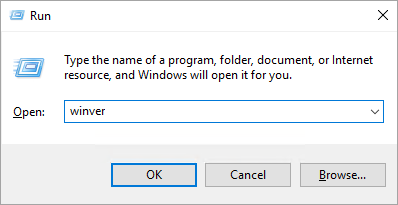
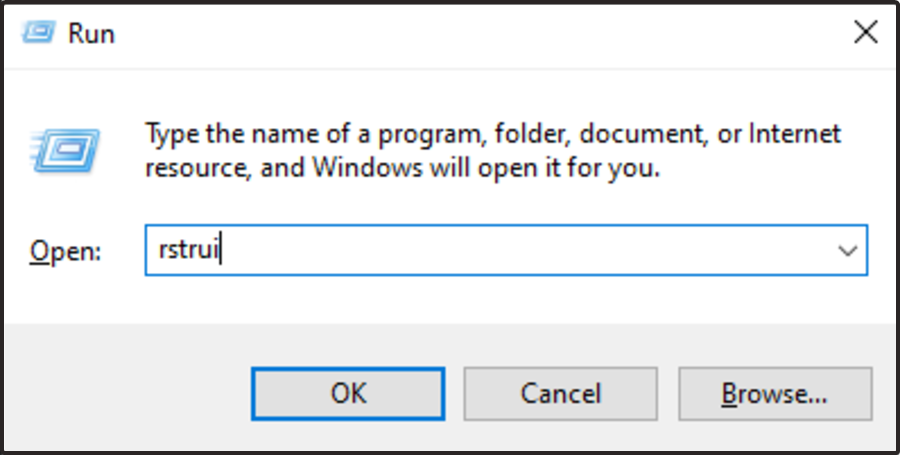
- Press Windows + R keys to prompt the Run window, type devmgmt.msc, and click OK to open the Device Manager.
- Expand the Display Adapter entry, right-click on the device driver, then select Update driver from the drop-down menu.

- Click on Search Automatically for the updated driver software option.

- Restart your PC and check if the overheating issue persists.
Updating the graphics drivers on the Alienware laptop will resolve bugs causing the GPU malfunctions and install the latest features to improve the drivers’ performance.
Check our detailed guide about updating graphics drivers on Windows 11 if you have any issues.
3. Configure the Alienware Command Center
- Right-click the Start button, then select the Alienware Command Center.
- Set the Active System Theme – Thermal as Performance Mode.

- Change the Active System Theme – Overclock to Overclock 02.
- Restart the Alienware laptop and check if the overheating issue persists.
In performance mode, the fan runs aggressively to support the CPU operating at Turbo frequency for extended periods.
4. Disable Overclocking Technology
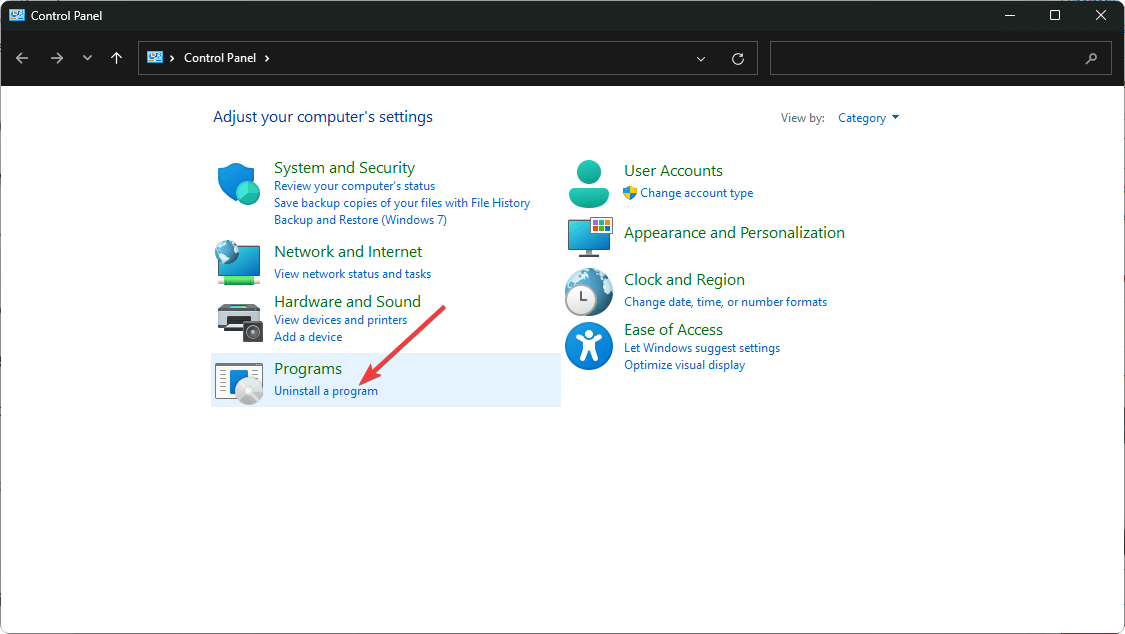
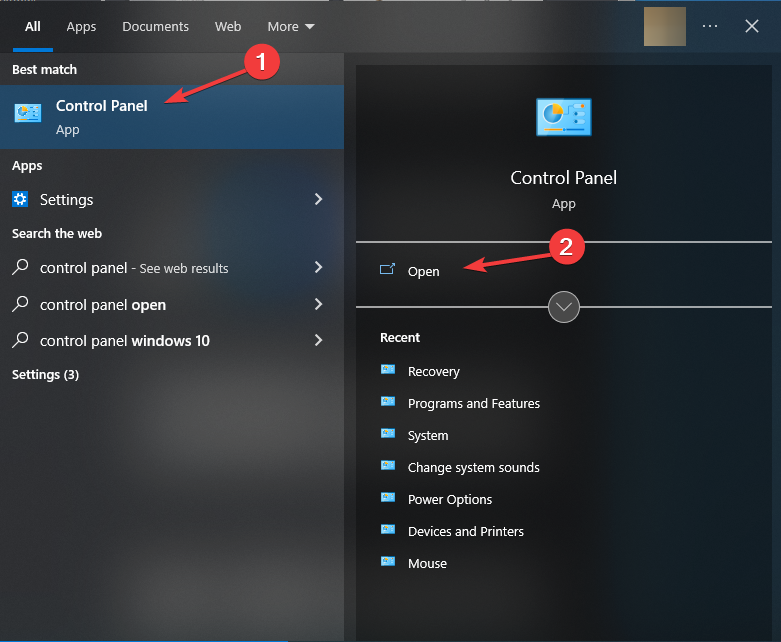
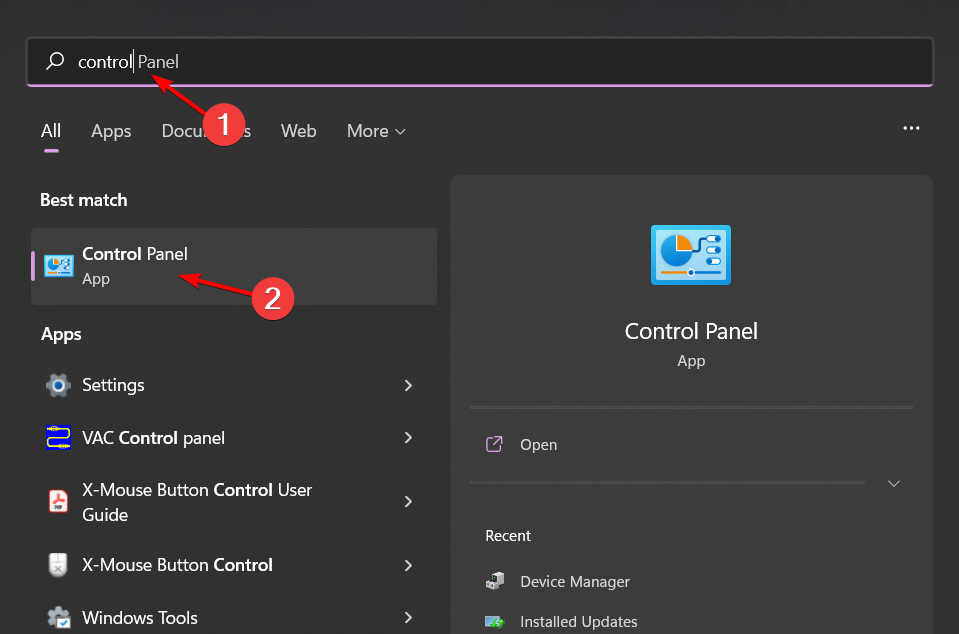
- Left-click the Start button, type Control Panel, then select it from the result.
- Select Hardware and Sound from the menu and click on Power Options.
- Click on Change Plan settings, then Change advanced power settings to open the Power Options tab.
- Expand the Processor power management option. Click on the Maximum processor state tab and set the values for both On battery and Plugged in as 99%.

- Click on the Apply button, then OK to save the changes.
- Restart your PC and check if the laptop overheats.
The above steps help to underclock your CPU and fix the overwork causing it to overheat.
Alternatively, check other ways to safely underclock your GPU without affecting your PC.
In conclusion, you may be interested in our guide on the best CPU Temperature Monitoring software for Windows 11.
























 If you don’t see the option to add Studio effects, your PC likely does not have the required hardware to run it.