How to find the Windows Update Log in Windows 10

In previous versions of Windows, whenever you performed a system update, the update log would be stored on your PC in the form of a text document that you could open easily.

However, all of these changed when Windows 10 came along. Instead of a typical text file, the Windows Update service now writes a number of Event Tracing for Windows logs.

So actually, there is no Windows update log location. Opening these logs isn’t as simple as it once used to be. However, there are workarounds for this.

How can I find the Windows Update Log in Windows 10?

We’ve compiled this step-by-step guide to show you how you can access the Windows Update logs using 2 different methods.

1. Use PowerShell

  1. Right-click the Start button and select PowerShell (Admin) from the list.
  2. Type in the following command and press Enter to run it: Get-WindowsUpdateLog
    powershell

Once the command finishes running, it will create the classic WindowsUpdate.log file in your Desktop folder.

This folder can be then easily opened with Notepad, and you can troubleshoot any issues you may have with Windows Update.

If PowerShell has stopped working, check out our article and fix the issue in no time.


2. Use Event Viewer

    The update logs on your device can be easily accessed using the built-in Event Viewer. You can select the events you are interested in and read the logs for each one of them.

  1. 1. Press Windows + X to open the WinX menu.

  2. 2. Select Event Viewer from the list.

    Winx menu for Event Viewer
  3. 3. Go to the following path: Applications and Service Logs\Microsoft\Windows\WindowsUpdateClient\Operational

  4. 4. Select the events whose logs you want to see from the middle column.

    event viewer windows 10
  5. 5. Read the log details listed for every event you are interested in.

  6. 6. Close Event Viewer when you finish.

If you want more options, check our comprehensive article to find the best event log viewers that you can use on Windows 10.

By following these two methods you will be able to once again read the Windows Update Log as you used to in previous versions of Windows.

For advanced PowerShell commands to view and export update history, see our detailed tutorial here: Windows Update History with PowerShell.

Please remember that updating your Windows is important, and if you encounter any issues when trying to update, the Windows Update Log can come in handy.

You can also review past release details directly from the Windows 10 update history page.

Do you think that the Windows Update Log was better off being the way it was before Windows 10? Let us know in the comment section below.

Also, leave there any other questions or suggestions that you may have and we’ll be sure to check them out.

Fix: Internet Explorer Tabs Freeze or Open Slowly

Internet Explorer is counting its last days, but it still has many users. And these users are indeed facing some issues with Microsoft’s outgoing browser, even if it’s more stable than ever.

If your Internet Explorer constantly crashes, freezes, or hangs in Windows 10, 8.1, 7, or maybe it won’t even start, you’ve come to the right place.

One of the main concerns of IE users is that their tabs take a lot of time to open or freeze. If you only encounter performance problems within the browser, you should look at your settings.

This issue can be caused by a cluttered browser cache and outdated or malicious browser add-ons. 

We found the most common causes that make your Internet Explorer tabs load slowly or freeze and comprised an easy-to-follow guide on what you can do.

Why does my Internet Explorer keep freezing up?

Buggy toolbars or other browser add-ons commonly cause crashes. You can check if add-ons are the problem by running Internet Explorer without add-ons. To do so, open the Start menu and launch the All Programs > Accessories > System Tools > Internet Explorer (No Add-Ons) shortcut.Feb 6, 2013

  1. Clear IE Cache
  2. Check Your System
  3. Check if the specific add-on is causing problems
  4. Change Internet Settings in Registry Editor
  5. Additional Solutions

How do I stop Internet Explorer from freezing?

Crashes, freezes, or slow responses are usually caused by buggy toolbars, browser add-ons/extensions, corrupted caches, cookies, or slow Internet.

You can check if add-ons are the problem by running Internet Explorer without add-ons, but also delete cache and cookies to be safe.

Quick Tip:

You may also try out a different browser and see how it works with your everyday activities. When Internet Explorer crashes, switch to Opera One and import all of your passwords, bookmarks, and extensions.

Opera One’s built-in ad blocker and VPN will block trackers and prevent cookies and cache overflow in the browser. Moreover, this browser also brings a built-in AI.

Opera One

Avoid sluggishness in your browser with built-in tools designed for day-by-day easy use.
Free Download Visit website

1. Clear IE Cache

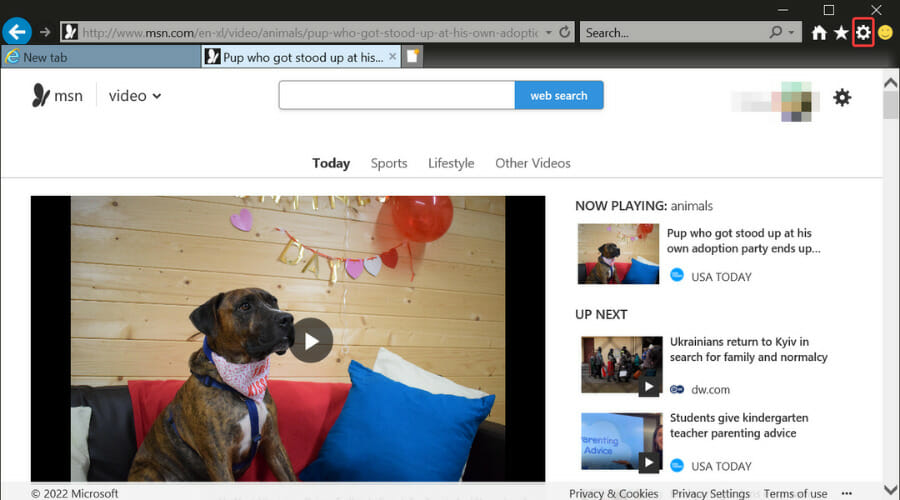
  1. Click the Settings icon.Internet Explorer Tabs Freeze or
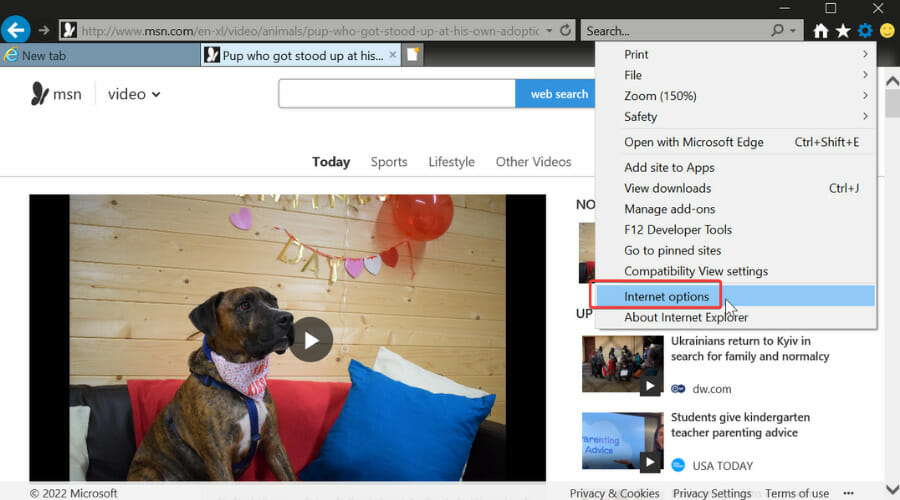
  2. Select Internet Options.
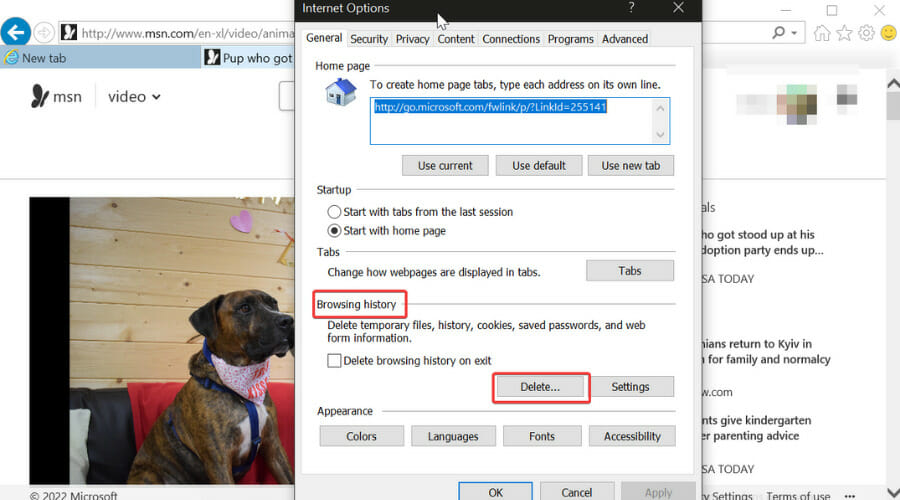
  3. Under the Browsing history section, click on the Delete button.Internet Explorer Tabs Freeze or
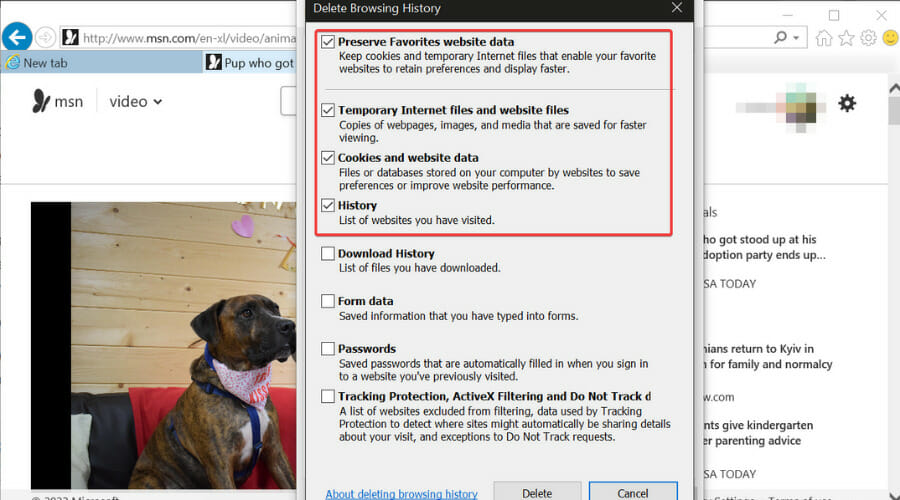
  4. Select what you want to delete and click on the Delete button.Internet Explorer Tabs Freeze or

The browser automatically selects temporary files, cookies, and history as these are the files that take up space and slow down your browser. If you want to keep any of this data or delete something else, tick the corresponding box.

You can also clean Internet Explorer with the help of a third-party cleaning tool. For more information on keeping your system clean, this post will take you through some of the best registry cleaners for Windows 10.

Our top recommendation is CCleaner, a cleanup tool that will erase browsing data and free up disk memory within a few clicks.

The software will enhance your PC’s performance with reliable features like custom cleaning for Internet cache or cookie files.

In addition, you can delete temporary files or duplicates from your system, analyze your disk health, and clean outdated files or broken settings on your PC.

2. Check Your System

Next, you can run sfc/scannow command in the Command Prompt to check your system for errors.

Also, you may scan your system with efficient antivirus software.

And finally, go to Internet Explorer, click Tools, Internet Options, Security, and Reset all Zones to Default level.

If these system tweaks didn’t help you, try some other solutions listed below.

3. Check if a specific add-on is causing problems

Maybe some of your add-ons are giving you a problem.

So, run Internet Explorer without add-ons and see if things improve.

To disable all add-ons in Internet explorer, do the following:

  • open Internet Explorer
  • type about:NoAdd-one in the search bar.
    This command will open Internet Explorer without add-ons, toolbars, or plug-ins.

If it works fine, one of your add-ons is causing problems.

Use the Manage add-ons tool to disable each one after the other to find which add-on is causing the problem. Then, when you notice which add-is the problem, delete it.

You can also disable add-ons if you go to Internet Options, Advanced tab, and click on Reset tab and Restart IE.

This option will reset Internet Explorer, delete all temporary files, disable all add-ons, plug-ins, and toolbars, and set all the settings to default.

This is maybe the quickest way to fix the problem with add-ons; after you perform it, you’ll have to install everything again.

But if the problem is not with your add-ons, try some of the solutions listed below.

4. Change Internet Settings in Registry Editor

If none of the solutions listed above worked, you may try to make a few changes in the Registry.

But make sure to create a backup of your system, because playing with Registry Editor could be dangerous sometimes. Find out more in the post 5 best backup software for Windows 10.

Here’s what you need to do to edit your Registry:

  1. Run Regedit and navigate to the following key:
    • HKEY_CURRENT_USERSoftwareMicrosoftWindowsCurrentVersionInternet Settings
  2. Right-click on the right page and select New
  3. Create a New DWORD value called MaxConnectionsPerServer
  4. Double-click MaxConnectionsPerServer and give the value as 10
  5. Create another new DWORD with the name MaxConnectionsPer1_0Server
  6. Double-click it and give the value as 10
  7. Save and Exit from the registry
  8. Restart Windows

You should also check if the following registry subkey is enabled:

HKEY_LOCAL_MACHINESoftwareMicrosoftWindowsCurrentVersionInternet SettingsUseCoInstall

Suppose it isn’t, no problem. But if it is present and its DWORD value is set at 1, change this value to 0, Click OK, and Exit.

5. Additional Solutions

You can always try Microsoft’s in-house troubleshooting tool, Microsoft Fix It. Just download it, choose the cause of your problem, which is crashing Internet Explorer, in this case, and it will try to fix it.

Microsoft Fix It usually fixes common problems with Internet Explorer, like freezing, running slow, security issues, etc. And it could also be effective this time.

You can also use Software Rendering instead of GPU Rendering and see if the problem still exists. To enable this setting, do the following:

  • go to Internet Options
  • select Advanced Tab
  • check Use Software Rendering instead of GPU Rendering under the Accelerated graphics section.

You can always try a different browser, such as Opera One, if everything else fails. It is light and easy to use, plus it gets constant updates that keep it stable and secure.

Every user can switch to the Opera One browser without effort, importing all information from the old browser in seconds.

There will be many cases where Internet Explorer freezes when opening, which also has to do with the fact that it is an outdated, obsolete browser.

Many users have complained over time that Internet Explorer keeps freezing and have since switched to other, more modern browsers.

You even have situations where the Internet Explorer tab freezes, but that’s all normal when dealing with Microsoft’s defunct browser, unfortunately.

The browser is highly customizable, with many integrated apps and functionalities, a built-in VPN, an integrated adblocker, personalized pinboards and bookmarks, and more.

Windows 11 Device Encryption: How to Enable & Use it

If you want to protect your sensitive data, it’s important to use drive encryption on Windows 11.

Here, we will explain how to encrypt your hard drive on Windows 11 and use BitLocker on Microsoft’s operating system.

How to manage the encryption of my hard drive on Windows 11?

1. Enable hard drive encryption

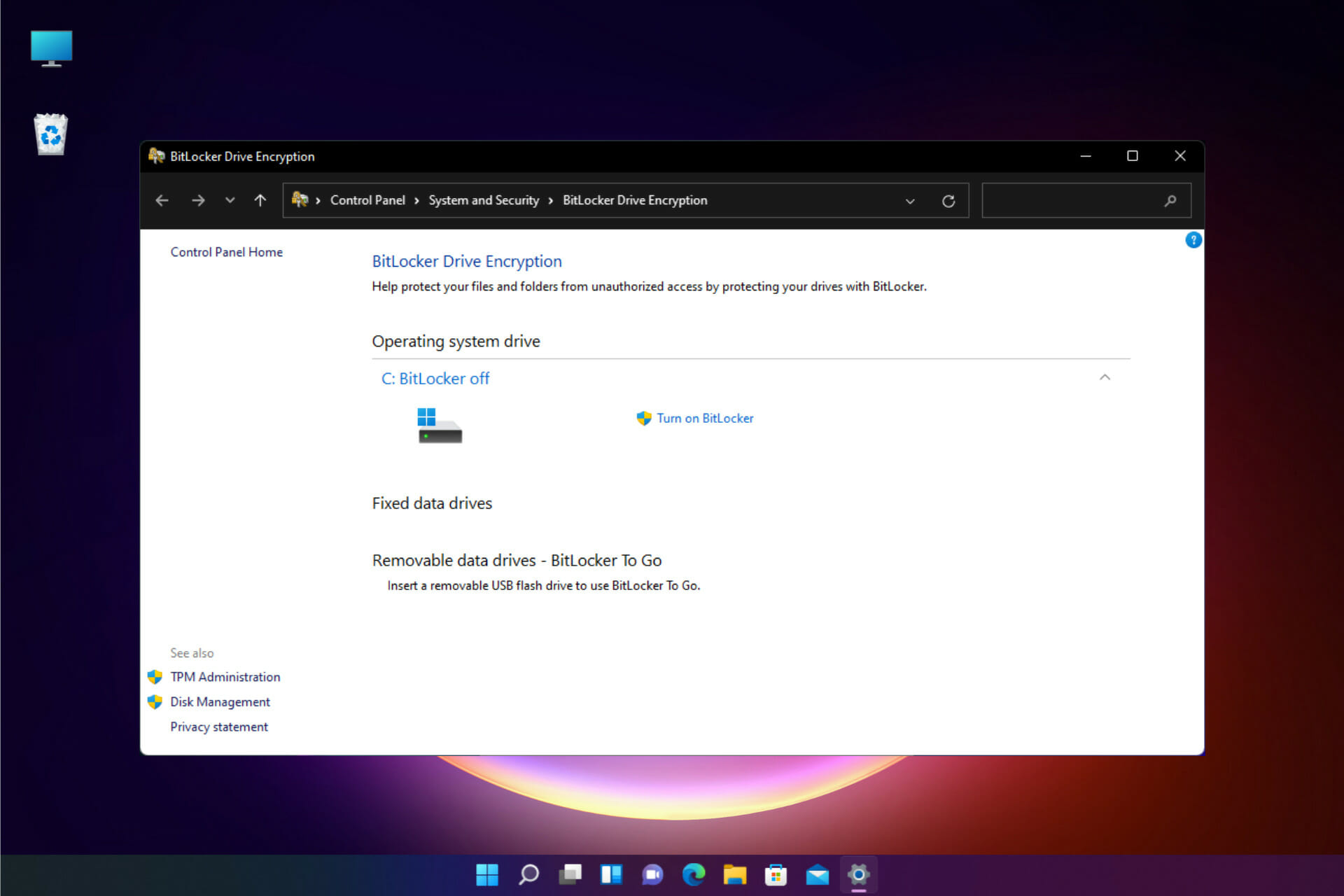
    You can encrypt your disk on your Windows 11 device using the built-in BitLocker tool from Control Panel. This tool allows users to encrypt their data so that it is only accessible to those who either insert a designated USB drive upon booting, or input the required password.

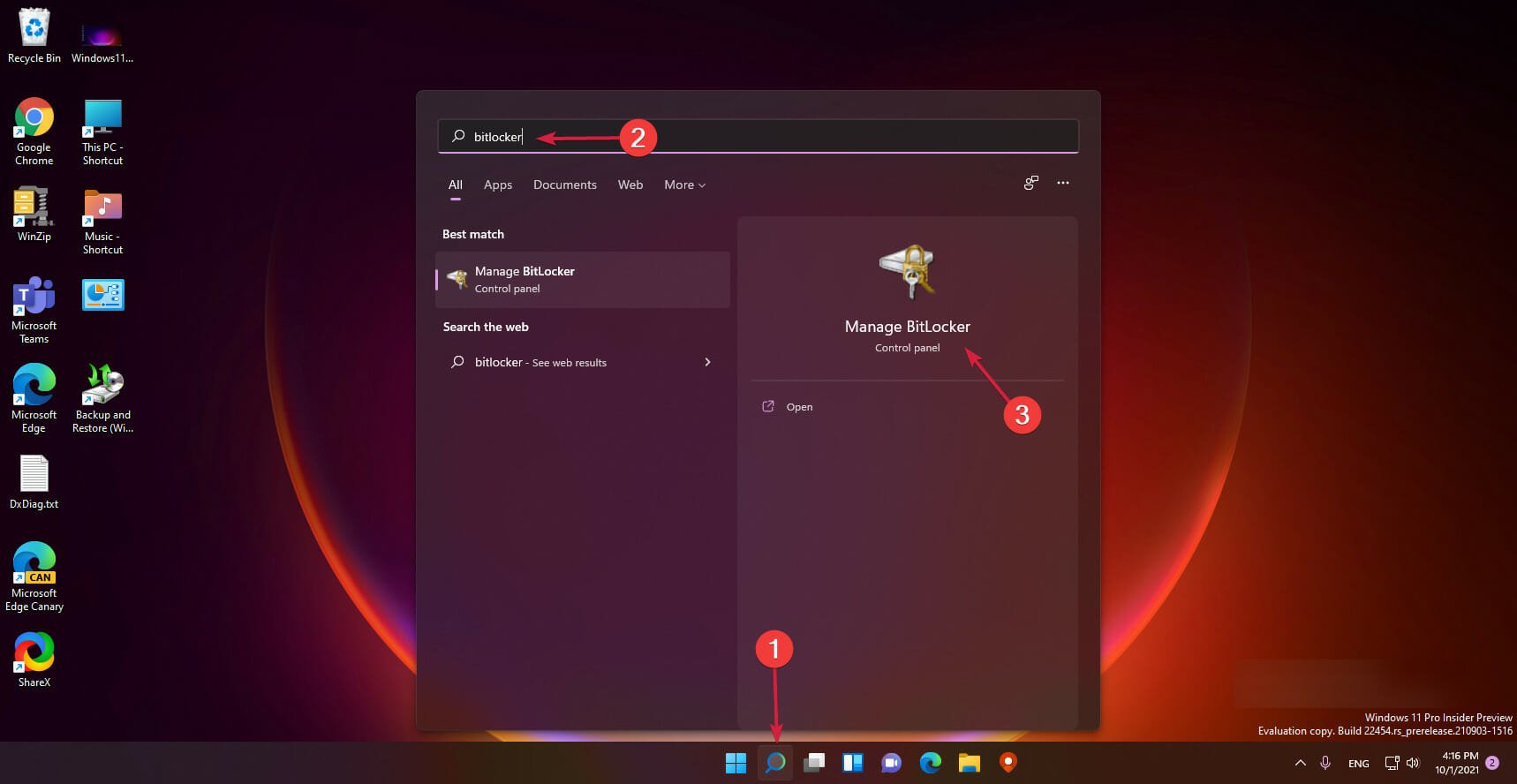
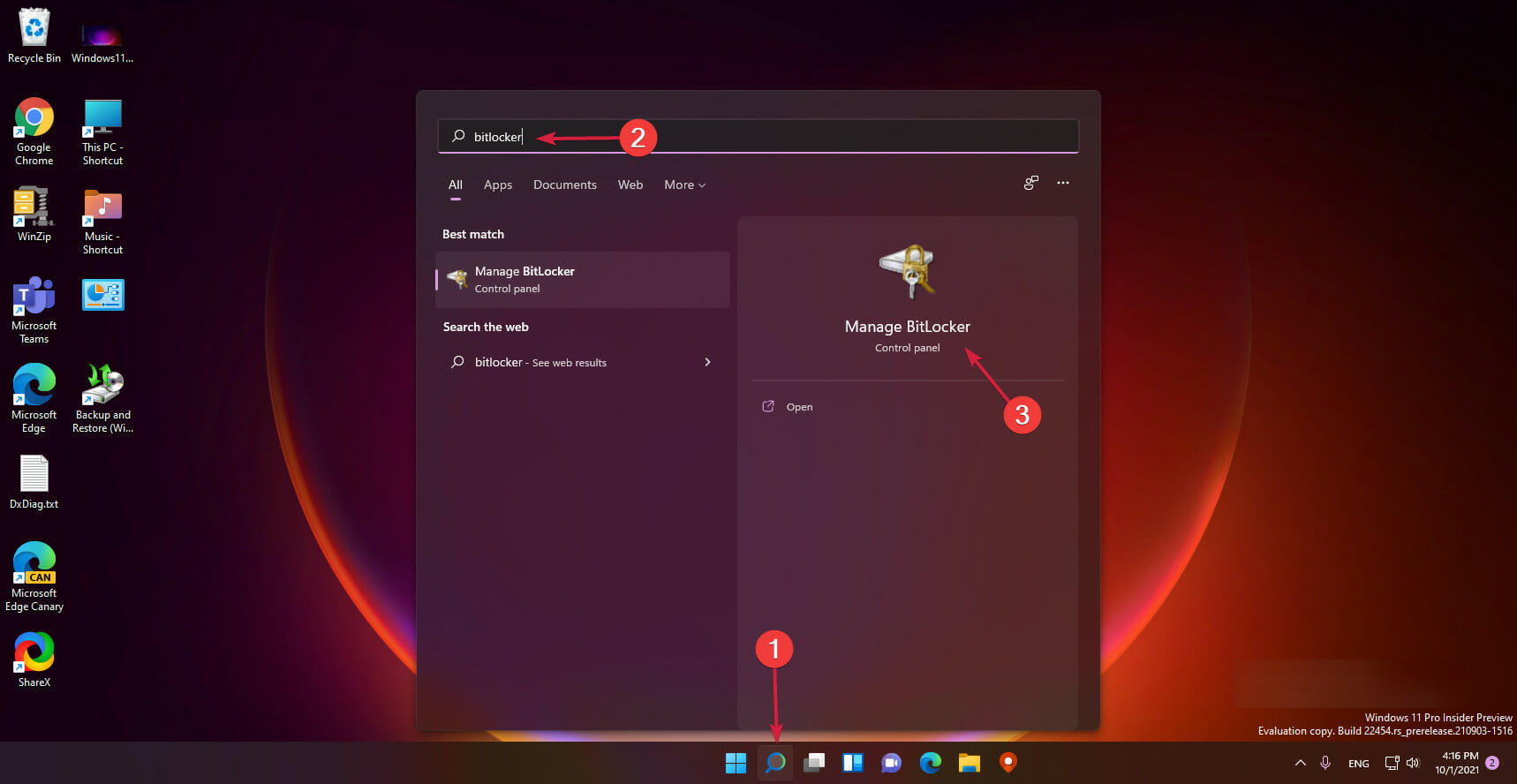
  1. 1. Click the Search icon on your Taskbar.

  2. 2. Type BitLocker in the search box that opened and click on the app from the results.

    windows 11 start bitlocker
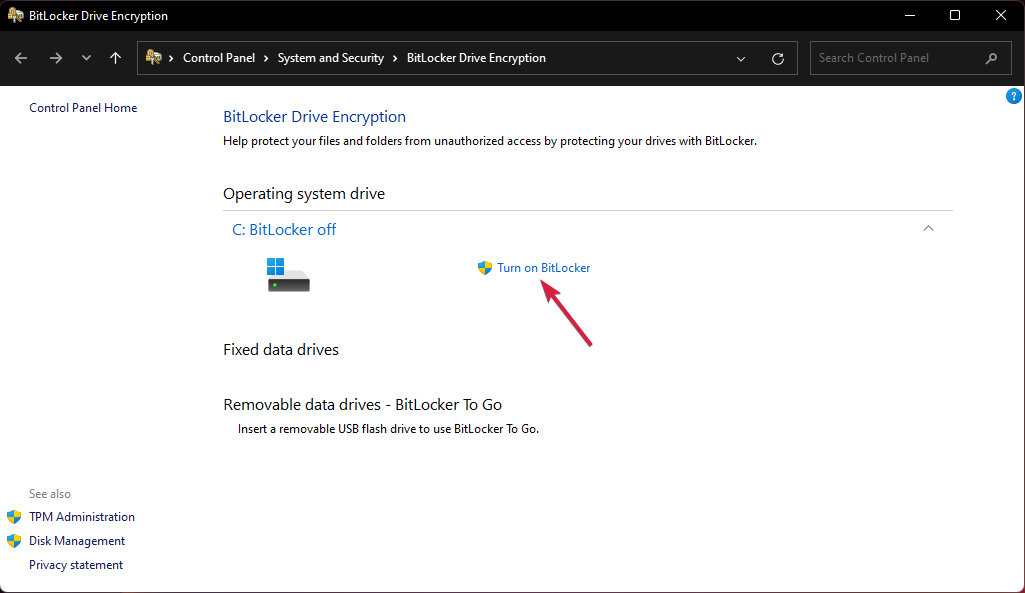
  3. 3. Select Turn on BitLocker.

    windows 11 turn on bitlocker
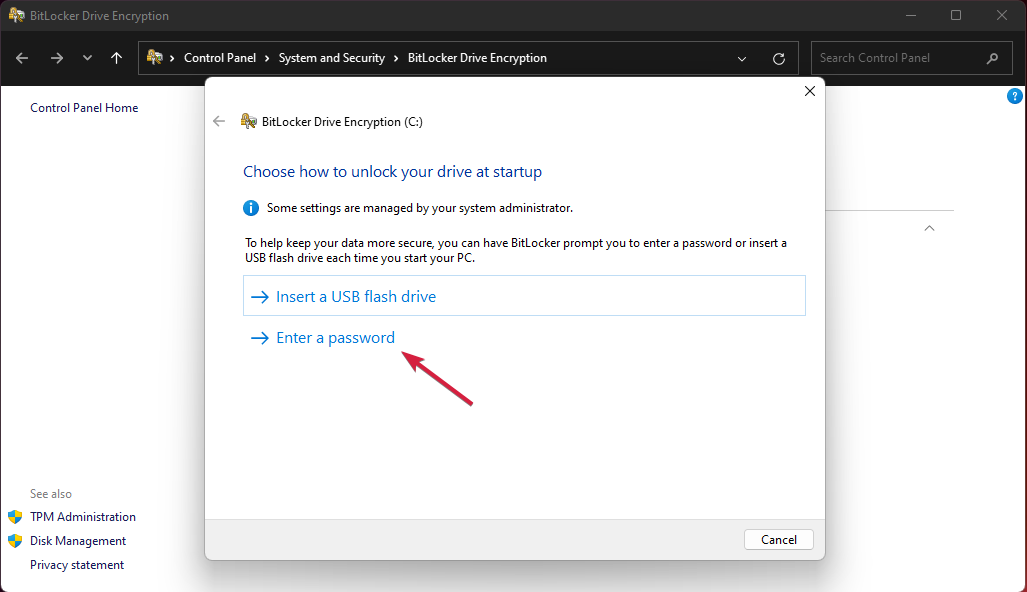
  4. 4. You will be prompted to select a method to unlock your drive at startup. We recommend using the password method but you can also use a USB key that you need to provide.

    enter password bitlocker
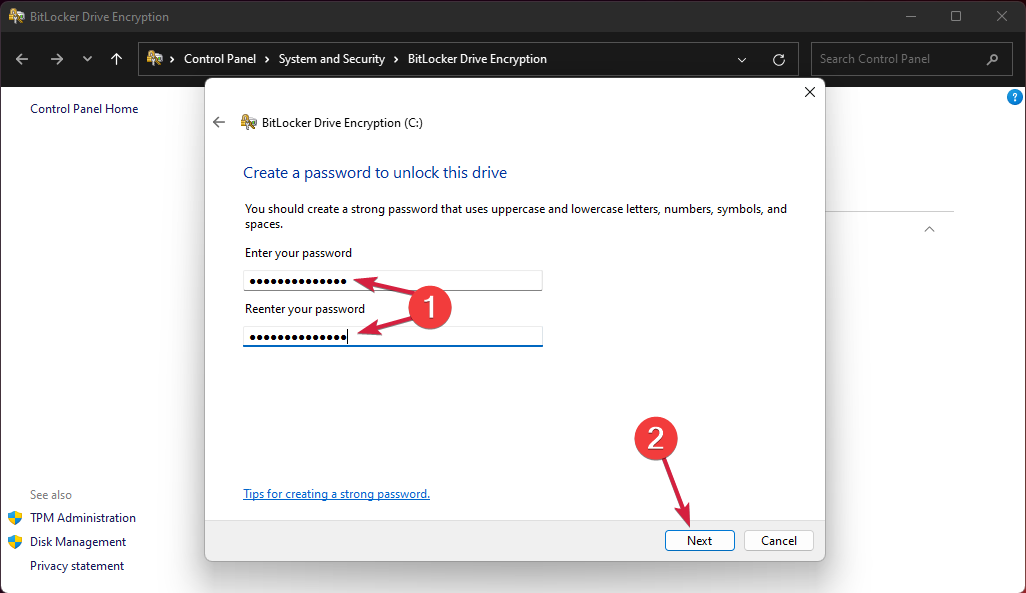
  5. 5. Enter the password and re-enter it, then click Next.

    bitlocker password windows 11
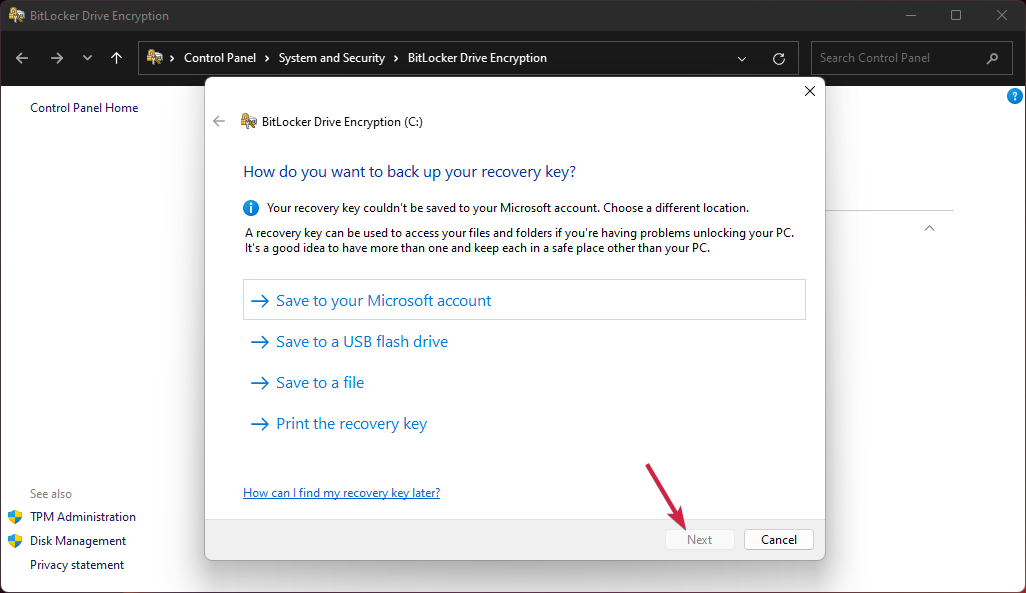
  6. 6. After that, you will be asked to save the key in another way too. You can save it in your Microsoft account, on a file, on a USB stick or just print it.

    save key bitlocker windows 11
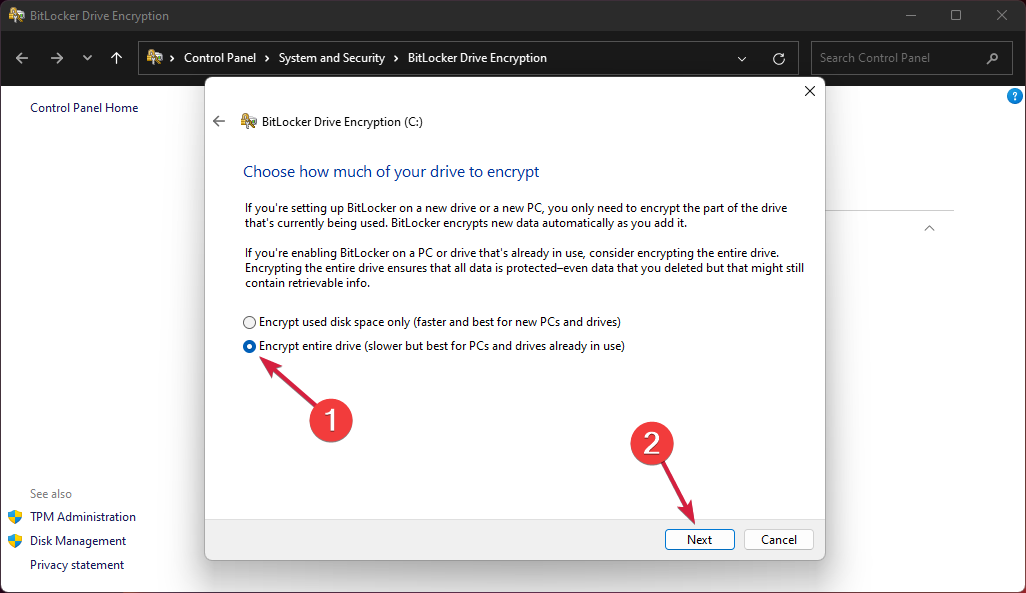
  7. 7. The next step is to choose whether you want to encrypt the whole drive or just the used part.

    bitlocker encrypt drive windows 11
  8. 8. Make your selection, then click Next.

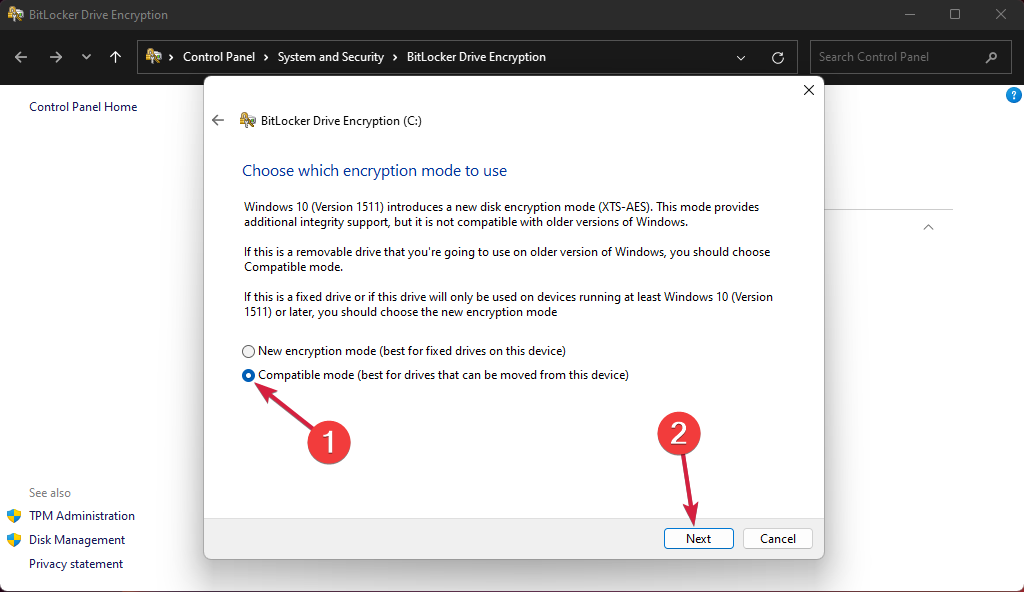
  9. 9. Now you need to choose the encryption mode you want to use. As you’re using Windows 11, you can go with the first option, for fixed drives, but you can also select the second one if you plan on moving your drive.

    bitlocker encryption mode windows 11
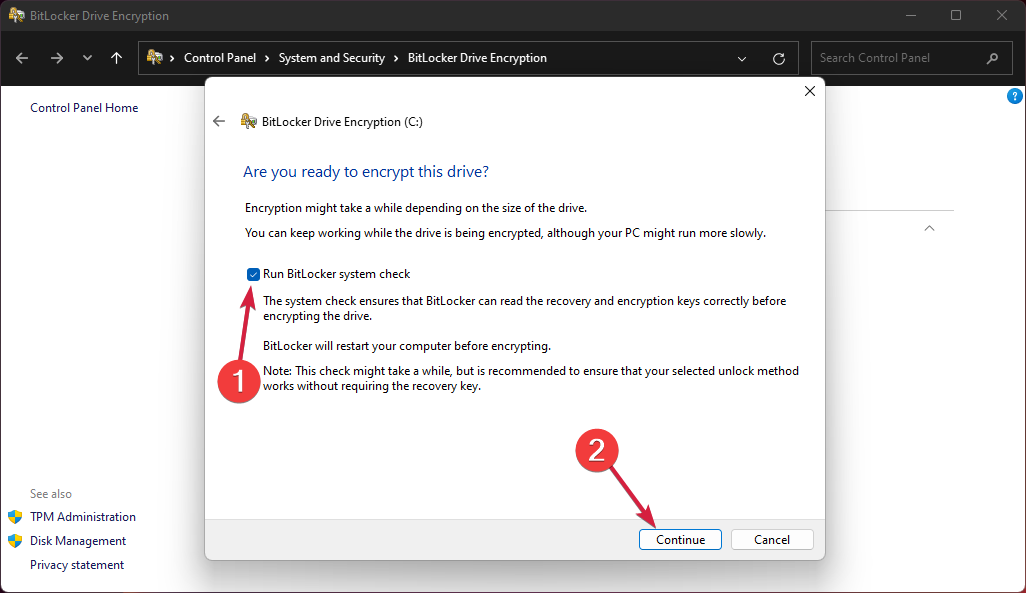
  10. 10. At last, check the Run BitLocker system check box and then click Continue.

    bitlocker windows 11
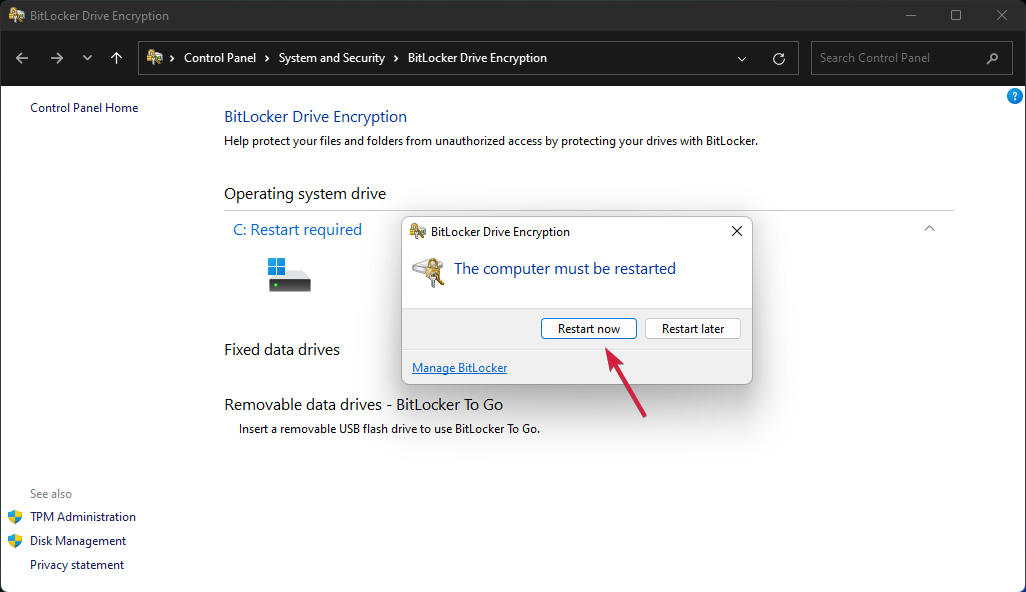
  11. 11. You will now be prompted to Restart.

    bitlocker restart windows 11
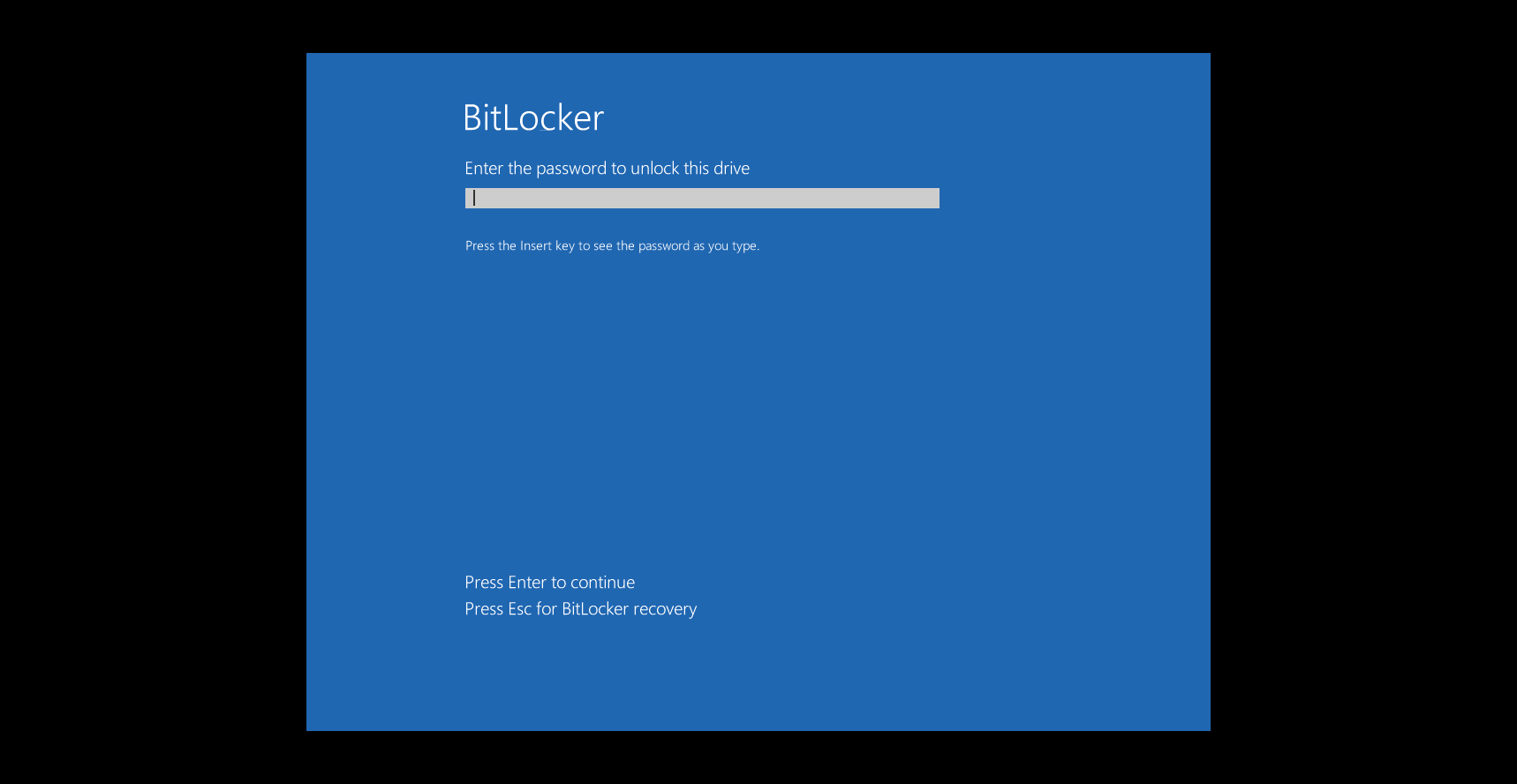
  12. 12. After the reboot, you will be prompted to enter the password to unlock your drive.

    unlock password bitlocker

2. Encrypt your drive if your PC is not TPM 2.0 compatible

If after you click on the BitLocker drive encryption from Device encryption you see the message that Device encryption is not available for this device, that means your PC is not TPM 2.0 ready.

Don’t worry, we can take care of that with a few easy steps to perform.

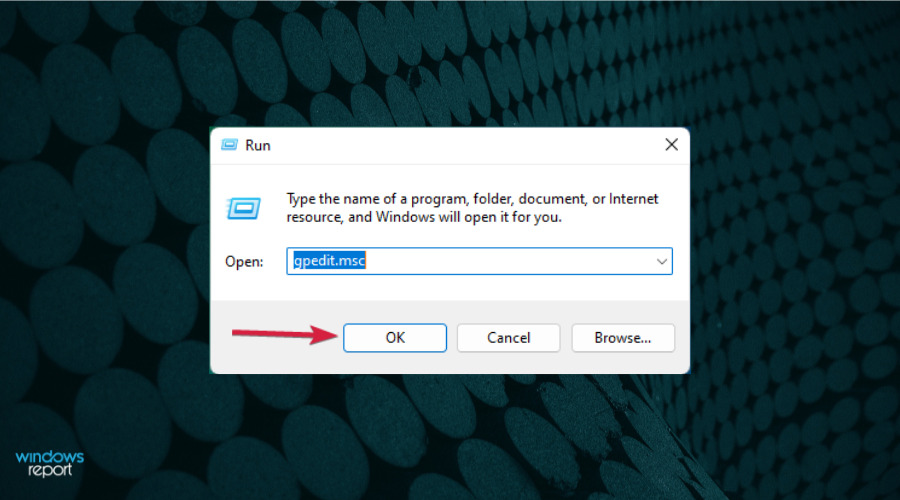
  1. Press the Windows key + R to start Run, type gpedit.msc and press Enter or click OK.
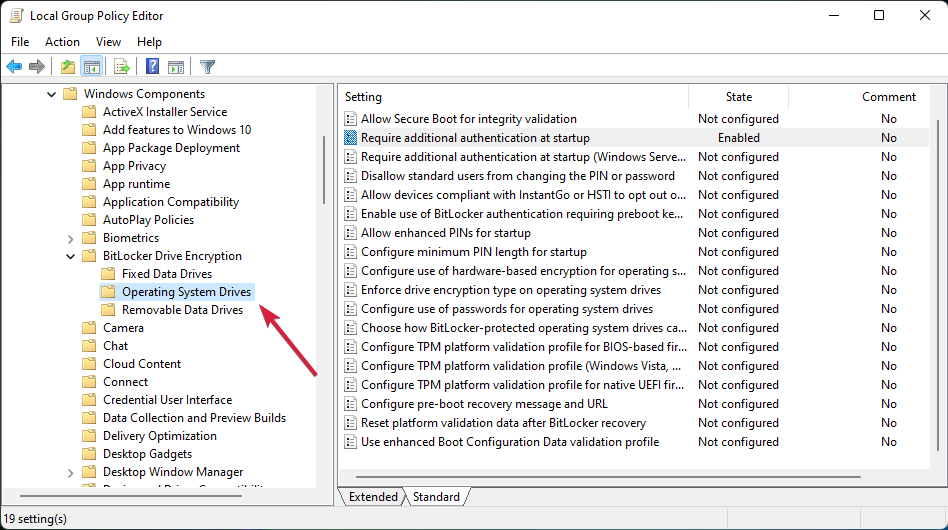
  2. In the Group Policy Editor, go to the following path: Local Computer Policy\Computer Configuration\Administrative Templates\Windows Components\BitLocker Drive Encryption\Operating System Drives
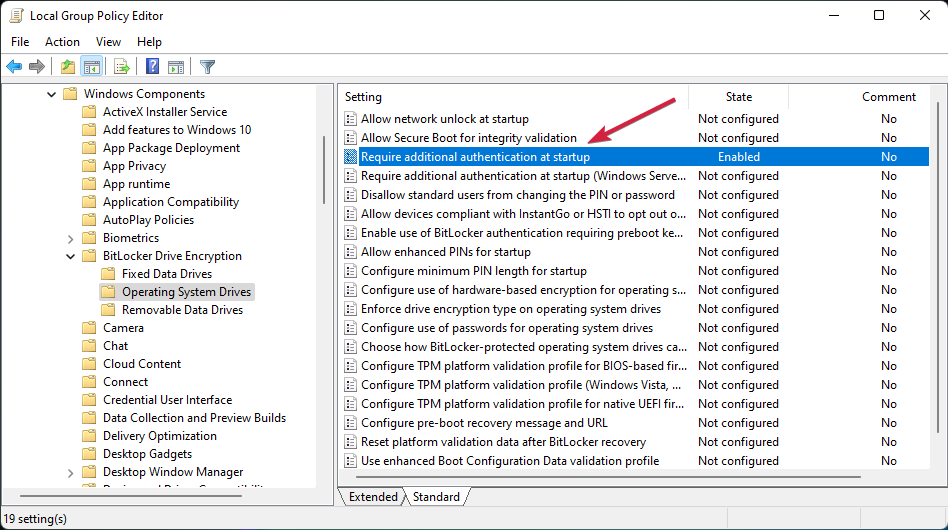
  3. Now double click the Require additional authentication at startup key to open it.
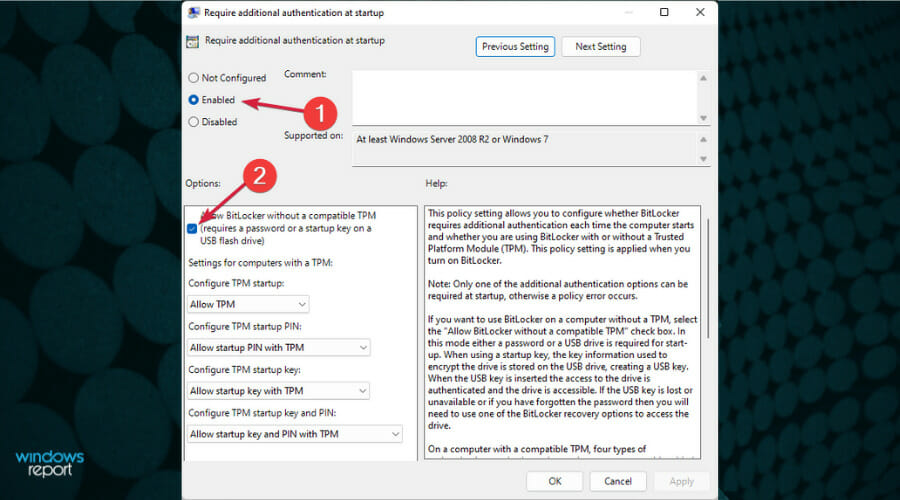
  4. Check the Enabled option from the top, then check the Allow BitLocker without compatible TPM (requires a password or a startup key on a USB flash drive) box, then click OK.
  5. Now, repeat the steps from the first solution to enable BitLocker encryption.

3. Disable drive encryption

If you have changed your mind and down want to use drive encryption on your Windows 11 PC, you can do that by following these steps:

  1. Click the Search icon from the Taskbar, type bitlocker and select the app from results.
  2. Now click on Turn off BitLocker.
  3. Confirm your choice clicking again on Turn off BitLocker.
  4. Wait until BitLocker finishes to decrypt your drive before restarting or shutting down your PC.

What is drive encryption, and why do we need it?

Hard-drive encryption is the process of encrypting the data stored on a hard drive using mathematical functions.

This way, essential data will not be seen by anyone who doesn’t have access to the key or password you set up. This is an essential layer of security against ransomware and other online attacks.

Here’s how it works: when a file is written to the drive, it is encrypted automatically with the help of specialized software.

In the same way, when you access a file on the drive, the same tool decrypts it, but only if you can provide the password you set up when you encrypted the drive. Windows 11 comes with Device Encryption and BitLocker Encryption.

There’s a catch! You can’t use BitLocker if your PC has no TPM 2.0 chip installed. However, we have a workaround for that, too, so read on.

FAQ

Why should I enable Device Encryption on Windows 11?

Enabling Device Encryption helps secure your personal data by making it unreadable to anyone who doesn’t have the proper credentials, providing protection if your device is lost or stolen.

How can I check if my device supports Device Encryption?

You can check by going to Settings > Privacy & Security > Device Encryption. If available, it will show as “On.” If not, it may be due to hardware limitations, like the lack of a TPM chip.

Can I disable Device Encryption?

Yes, you can turn off Device Encryption, but it’s not recommended as it reduces the protection for your personal data, making it more vulnerable to unauthorized access.

How do I recover my device if I forget my password or PIN?

If you forget your password or PIN, you can recover it using your Microsoft account credentials or the backup recovery key you created when enabling Device Encryption.

Encrypting the drive is essential for all sensitive data from your PC and will enforce an additional layer of protection against attacks and even prying eyes.

However, this can be a two-way street because if you don’t take all precautions in managing your unlocking keys or your password, you will be unable to access your data yourself. But many, when setting up the feature, found that Device Encryption is missing in Windows 11.

You might also be interested in our guide on how to protect a folder in Windows 11 and only secure certain files. You can check out more with our in-depth comparison of Device Encryption and BitLocker Encryption.

For additional information on securing individual files and folders, you can check out our detailed guide on encrypting files and folders in Windows 10.

We hope our guide helped you enable drive encryption on Windows 11 and that your data is safe now.

If you have any questions or suggestions, write them down in a comment in the dedicated section below, and we will get back to you as soon as possible.

Chrome blocks websites from detecting Incognito mode access

Google released Chrome75 just a few days ago. The search giant is now working to bring some fantastic new features in the upcoming release.

You may be surprised that users can bypass paywalls in the upcoming release. In other words, the new Chrome will fool websites into thinking you’re not using incognito mode. This feature may not go well for websites that highly rely on paywalls and subscriptions.

Currently, users cannot view the articles published on these sites. So, if you try to open articles in Chrome’s Incognito Mode, you can’t view any reports. Instead, users are usually asked to sign in to their accounts to access the full articles.

You’re using a browser set to private or incognito mode. To continue reading articles in this mode, please log in to your Globe account.

What happens if I go Incognito on Google Chrome?

First, you’re not going to get that part you want in your favorite spy movie if you do this, so we’re clear on that.

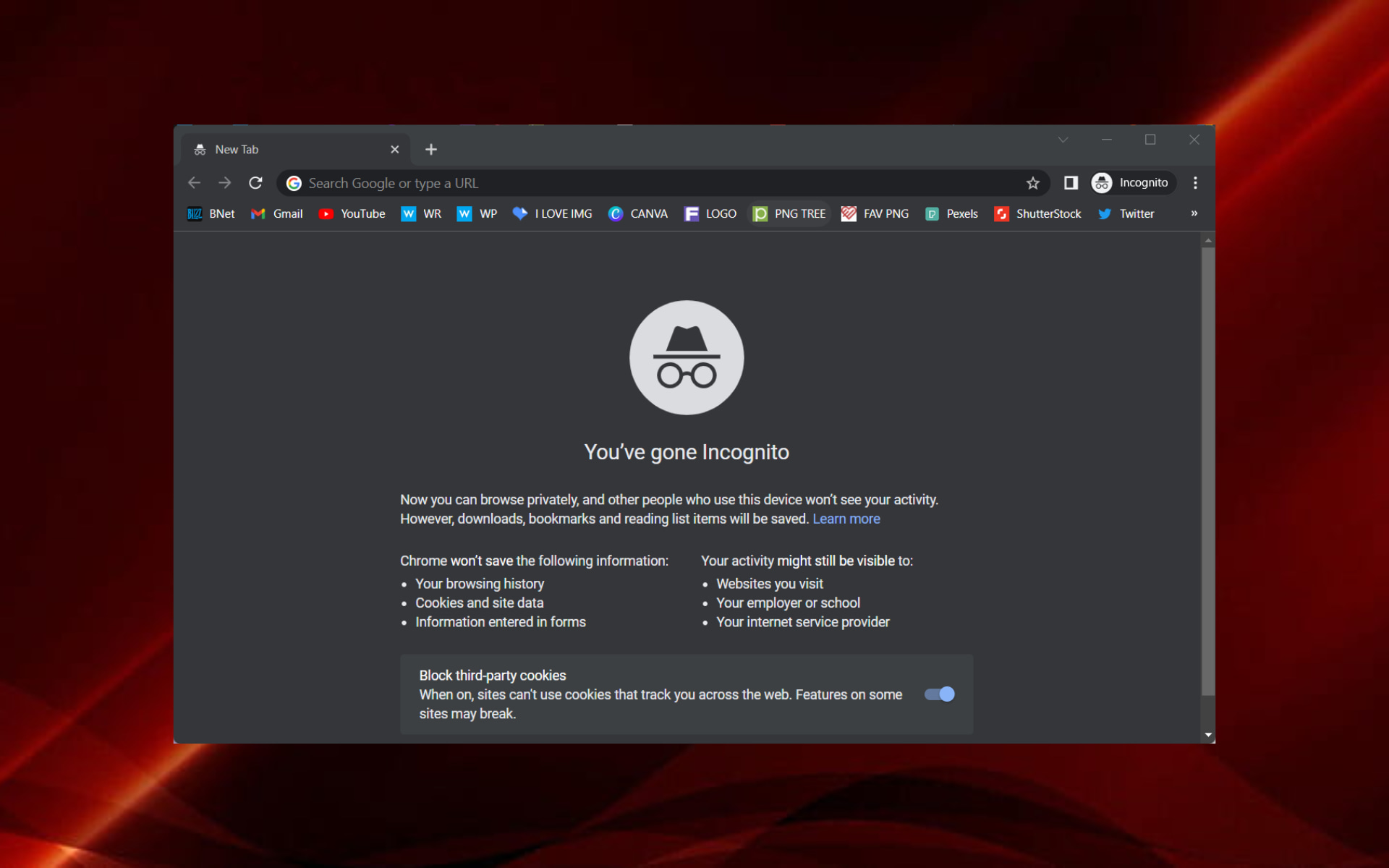
In truth, while using Incognito, none of your browsing history, cookies and site data, or information entered in forms are saved on your device.

Thus, your activity doesn’t show up in your Chrome browser history, so people who also use your device won’t see your activity.

Quick Tip:

Speaking of browsers, you may also want to learn more about Opera. This privacy-focused web browsing solution blocks third-party trackers natively and ads for a swift browsing experience.

With Opera in Private window, you will double the safety. History, cache, and cookies will be immediately wiped after you’ve closed all private windows following your online session.

Opera

VPN, ad-blocker, and the Private window that gives you that curtain feels when browsing.

How do I enable Incognito mode in Chrome?

  1. Open Google Chrome.
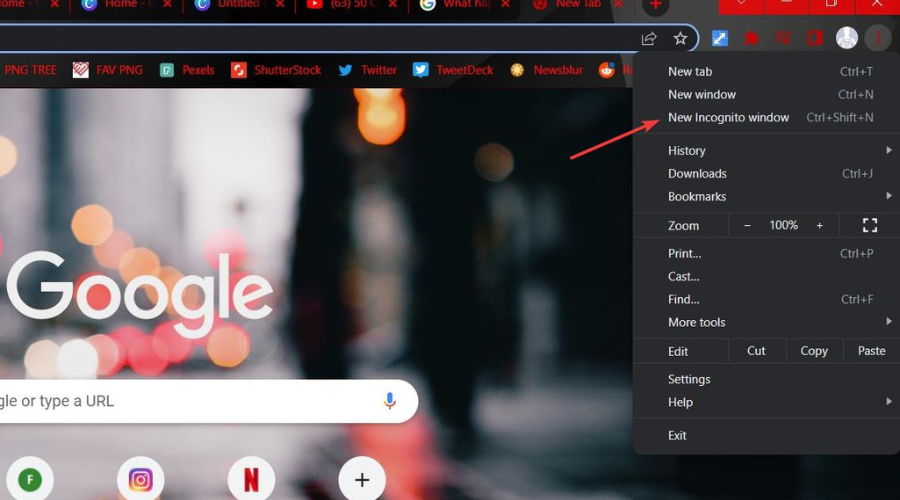
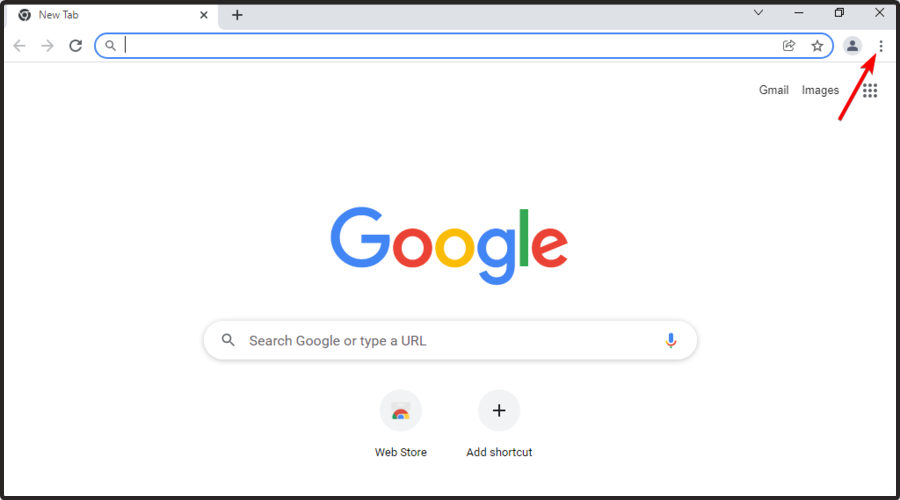
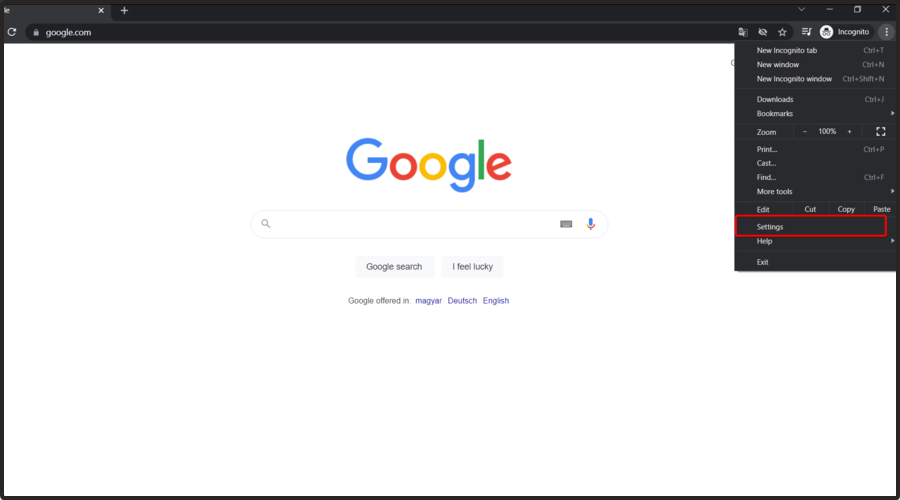
  2. Click on the three dots in the top right corner.chrome options
  3. Select New incognito window.incognito window

How do publishers detect Incognito Mode?

Let’s understand the science behind it. First, websites cannot read or write cookies in Incognito Mode. Therefore, the publisher can not determine if the user has purchased the subscription or utilized the free quota. Hence, a user can get access to an unlimited number of articles.

On the other hand, the websites detect Incognito Mode with the help of a short JavaScript code. When users visit a site in Incognito Mode, the script detects the disabled Chrome browser API and blocks them.

However, Google changed the implementations of the FileSystem API in Chrome 76. The new deployments make it impossible for websites to detect any access in Incognito mode.

Chrome to remove Flash plug-in soon

Following Adobe’s decision to end support for Flash, Google also announced its plans to remove the Flash plug-in from Chrome by the end of next year.

Chrome says HTML5 offers faster browsing as compared to Adobe Flash player. Furthermore, it would help if you visited chrome://settings/content/flash to enable Flash in Chrome 76.

Chrome 76 will also feature a new button in Omnibox, allowing users to download progressive web apps. But, most importantly, there is a piece of good news for dark mode fans. Chrome 76 brings support for dark mode too.

Is Incognito private?

You should know that Incognito or private mode will keep your local browsing confidential, but it won’t stop your ISP, school, or employer from seeing where you’ve been online.

Furthermore, your ISP has access to all your browsing activity, no matter what you do. You can, however, use a Virtual Private Network (VPN) service.

You should keep that in mind when thinking about Incognito, as it won’t make you invisible while online.

Opening an Incognito tab is easy, but keep in mind that there are still rules in place, which we recommend you follow.

You can even make an Incognito mode shortcut if you want this process to become much more accessible.

A rIn the comments section below, report any issues you might have encountered while using the Incognito mode on your browser.

It is pretty much possible that publishers find a way to deal with this new feature. Google is currently testing Chrome 76 and the company plans to release a stable version by the end of July.

Speaking of browsers, you may also want to learn more about UR Browser. This privacy-focused web browsing solution blocks third-party trackers and ads for a fast and secure browsing experience.

Google Chrome Won’t Open? Here’s Why & How to Fix

Google Chrome is the most used browser on the Internet, but people are also having problems with it occasionally. One of the most frequent issues is that Google Chrome won’t open in Windows.

And this problem is definitely the annoying one, especially when you need to search for something on the Internet. Here, Google Chrome won’t open when I click on the icon or try to launch it through any other means.

So, here’s all you need to know about the issue and the most effective solutions for it.

Why Google Chrome won’t open?

When Google Chrome won’t open on my laptop, the first thing to do is to identify the underlying cause. It could be anything, from running an outdated version of the browser to issues with the DLL files or conflicting applications installed on the PC.

Sometimes, it’s a minor bug, and the shortcut you are using might have stopped working. In which case, creating a new shortcut should do the trick.

Besides, problems with the Registry can also trigger conflicts, and Google Chrome won’t open as a result. But no matter which of these is causing the problem, the solutions listed in the next section should get things up and running in no time.

Quick tip:

Even though Chrome’s popularity is unquestionable, Opera One is built as a lightweight browser to enhance opening speed and give the user a more immersive feeling while surfing the web.

Opera One browser offers a smooth experience by providing the user with integrated apps such as Ad-blocker, tracker blocker, VPN as well as a free built-in AI.

Opera One

Opera One is incredibly stable, offering a simple but wholly experience, making itself a worthy alternative to Chrome.
Free Download Visit website

How can I fix Google Chrome if it won’t open?

1. Configure compatibility settings

  1. Right-click on the Chrome shortcut, and then select Properties.properties to fix google chrome won't open
  2. Navigate to the Compatibility tab.compatibility
  3. Now, tick the checkbox for Run this program in compatibility for and then select Windows 8 from the dropdown menu underneath.compatibility mode to fix google chrome won't open
  4. Once done, click on OK to save the changes.ok

When Google Chrome won’t open on my laptop, running it in compatibility mode fixed the issue.

2. Pin a new Chrome icon to Start

  1. Press the Windows key, locate the Google Chrome icon, right-click on it, and select Unpin from Start.Unpin from Start
  2. Now, press Windows + E to open File Explorer and navigate the following path:C:\Program Files\Google\Chrome\Application
  3. Right-click on the chrome.exe file, and then select Pin to start.Pin to start to fix google chrome won't open

Once done, you should now be able to open Google Chrome from the start menu, and it won’t throw errors anymore.

3. Update Chrome

  1. Open Chrome, paste the following path in the address bar, and hit Enter:chrome://settings/help
  2. The browser will now look for available updates and install them.Update chrome

After you have updated Google Chrome, relaunch the browser and check if it runs properly now.

4. Register DLL files again

  1. Press Windows + S to open the Search menu, enter Terminal in the text field, right-click on the relevant search result, and select Run as administrator.Terminal
  2. Click Yes in the UAC prompt that appears.yes
  3. Press Ctrl + Shift + 2 to open Command Prompt.
  4. Now, paste the following command and hit Enter:FOR /R C: %G IN (*.dll) DO “%systemroot%\system32\regsvr32.exe” /s “%G”command to fix google chrome won't open
  5. Ignore any error messages you come across while running the scan, and restart the computer after the scan is complete.

5. Uninstall/reinstall Chrome

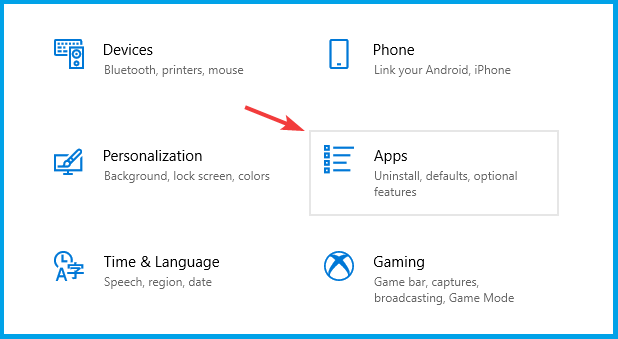
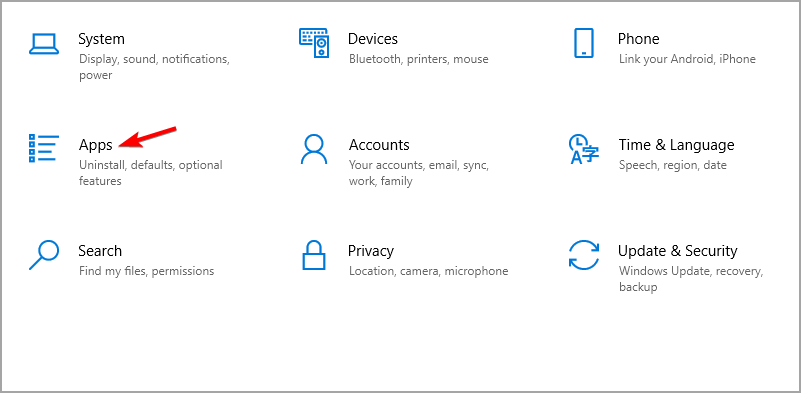
  1. Press the Windows + I keys to open Settings and then click on Apps.
  2. In the Apps & features tab on the left, select Google Chrome, and click Uninstall.
  3. Choose the appropriate response in case a confirmation prompt pops up.
  4. Once done, restart the computer for the changes to come into effect.
  5. Now, go to Google’s official website and download the latest version of the browser.download

In case you want accuracy, we strongly recommend uninstalling Chrome using a third-party uninstaller, like IObit Uninstaller. These tools will uninstall Chrome with all its folders and residual files.

One of these methods must have helped fix things if Chrome won’t open on your computer.

Also, find out how to reduce Chrome’s CPU usage in Windows. In fact, it’s an excellent substitute for potentially tricky-to-handle registry fixes. Moreover, you can install Chrome offline if you’re having problems with your internet connection.

If you have some additional comments, suggestions, or maybe other solutions, please feel free to leave your comment in the comments section below.

Fix: Folder Upload is Not Supported by Your Browser

Many users save files and folders on cloud storage instead of their hard drives. OneDrive, Google Drive, and DropBox are three of the biggest cloud storage providers that give users gigabytes of extra storage space. Users upload their files and folders to their storage space with browsers and cloud storage apps.

However, not all browsers support folder upload. Google Chrome was the first to support folder uploads, and in 2014 that remained the only browser users could upload folders.

It took somewhat longer for Mozilla to update Firefox with folder upload support. Thus, older versions of Firefox don’t support folder uploads.

Why is folder upload not supported in the browser?

The Folder Upload is not supported by your browser error message pops up when users try uploading folders to Google Drive with some old Firefox versions and browsers that don’t support folder uploads, such as Internet Explorer 11.

Keep that in mind the next tie you see this error code, just so that you will know what causes it and how to prevent it.

How do I upload a folder to my browser?

Usually, the quickest way to do this is by using the classic drag & drop technique, where you click on the desired folder and drag it to your browser window.

If that doesn’t work for you, you can use all kinds of third-party apps that will allow you to do just that, with upload features.

Quick Tip:

Opera One is well-known for its trustworthy advanced options, which you may use to toggle and add files and folders to the My Flow integration right in the sidebar. Sync all your devices and manage them easily.

Moreover, when you send a link, an image, a video, a note, or a file, it is immediately available for download or viewing on your linked devices. If not enough, it also comes with a built-in AI.

Opera One

An excellent web browser through which you can easily download and upload files and folders.
Free Download Visit website

How can I fix folder upload if it’s not supported by the browser?

1. Update the Browser

  1. Firefox users can update Fox by clicking that browser’s Open menu button.firefox options
  2. Click Help and select the About Firefox option.about firefox
  3. Firefox will then automatically download the latest update.
  4. Press the Restart to update Firefox button.
  5. Alternatively, users can update any browser by uninstalling and installing the latest version.
    • To do that, open Run by pressing the Windows key + R hotkey.
  6. Input’ appwiz.cpl’ in Run’s text box and click OK to open the Programs and Features uninstaller.firefox
  7. Select the browser to remove, and click the Uninstall option.
  8. Click Yes on any confirmation dialog boxes that pop up.
  9. Restart Windows after removing the browser.
  10. Then download the latest browser version from its website.
  11. Reinstall the browser with its setup wizard.

Firefox (and even Chrome) users who still see Folder Upload is not supported by your browser error messages need to update their browsers to the latest versions that support folder uploads.

2. Upload Folders With Cloud Storage Apps

OneDrive folder browser does not support folder upload

Alternatively, users can upload folders with cloud storage apps instead of browsers. For example, Google Drive, DropBox, and OneDrive have apps that sync users’ hard drive storage with cloud storage.

Those apps usually set up a cloud storage folder that users can drag files and folders in File Explorer to upload. Then, users can download the syncing apps from their cloud storage websites.

How can I upload a folder without ZIP?

As we said at the beginning of the article, you can use all kinds of third-party applications that can do the job for you.

Alternatively, you need to upload each file individually, enumerate the files in the local directory, and then loop over each and upload.

So, users who need to upload folders to cloud storage can undoubtedly do so by updating Chrome and Firefox browsers. However, users might need to update those browsers if a folder upload error arises.

There will be, however, situations where you cannot upload documents to websites using Chrome, but now you know what to do.

For SharePoint, we can’t upload folders or empty files is also a standard error message, but rest assured we are to help you whenever.

Users utilizing Internet Explorer, and perhaps some other browsers, should switch to Chrome, Firefox, or Edge to upload their folders to cloud storage.

Here are the Best Ways to Use Steam Screenshot Manager

Steam is one of the most used gaming platforms in the world. The service offers a wide range of game genres, and it has become the go-to option for people wanting to download new games or even try the trial versions before the game is officially released.

If you’ve ever played online games, you know how important it is for you to be able to take a screenshot of the action happening on the screen.

This can be useful in various cases, but it is mainly used to keep a visual record of game bugs, gather useful information, etc.

In today’s article, we’ll explore how to use the Steam Screenshot feature, so make sure you read it thoroughly.

How to save Steam screenshots?

To take a screenshot in Steam, you can press the F12 key or Fn + F12 on your keyboard, depending on whether the Function key is locked or unlocked. This will take a screenshot, a thumbnail of it will be displayed near the bottom-right, and the screenshots will be saved.

This handy tool comes as a new addition to the Steam gaming platform, and it allows you to take screenshots, manage, and share them without needing to exit the program.

After you’ve created your screenshots, they can be sorted into specific folders for each game, and you can choose between saving them on your hard drive or sharing them with the Steam community.

You also have the option to keep your screenshots private if you choose to do so.

Where is the Steam screenshot folder on Windows 10?

The screenshots are stored in the Steam folder in Program Files (x86). But since Steam creates a folder with your Account ID, the path is different for all users. Here’s the path for the Steam screenshot folder:C:\Program Files (x86)\Steam\userdata\AccountID\760\remote

Once you navigate the path, there will be several folders in Remote, each with screenshots for a particular game denoted by the game number.

There’s also a simpler way to find the screenshots for any game on your computer listed in the next section.

How can I use the Steam Screenshot Manager?

1. Find screenshots

  1. Launch the Steam app, click on the View menu near the top-left corner, and then select Screenshots.View steam screenshot folder
  2. Click on the Show dropdown menu, and then select the game on which you have captured screenshots.select
  3. Now, click the Show On Disk button.Show on Disk to view steam screenshot folder
  4. The folder with the screenshots for the selected game will now launch.view

This method is more straightforward than manually navigating through the Steam folder in File Explorer looking for screenshots.

2. Change the visibility of screenshots while uploading

  1. Click on the View menu, and then select Screenshots.screenshots
  2. Select the desired game from the Show dropdown menu.select
  3. Click on the Select All button or manually select the ones you want to upload while holding the Shift key.Select all steam screenshot folder
  4. Click on Upload.upload steam screenshot folder
  5. Now, select Private, Friends only, or Public from the Visibility dropdown menu, and then click on the Upload button.change visibility

That’s how you can change the visibility of the screenshots. Setting the visibility to Public will share the screenshots on the web.

How to change the Steam screenshot folder?

  1. Press Windows + E to launch the File Explorer, and navigate to the following path where AccountID is the one for your Steam account:C:\Program Files (x86)\Steam\userdata\AccountID\760
  2. Select the remote folder, and hit the Del key.Delete steam screenshot folder
  3. After you’ve deleted the folder, hit the Windows + S key, type Command Prompt, and then choose to Run as administrator.Command Prompt
  4. Click Yes in the UAC prompt that appears.yes
  5. Type in this command, making sure to change the path of your Steam screenshot folder to fit your needs, then hit Enter:mklink /D "C:\Program Files (x86)\Steam\userdata\AccountID\760\remote" "path_to_custom_screenshot_folder"

In this article, we explored some of the best ways to get access, create, and also manage all the screenshots you took while playing your favorite Steam game. Also, you now know how to change the location of the Steam screenshot folder in Windows 10.

Besides, find out how to optimize the PC for gaming and get the best performance.

Feel free to let us know if the information in this article was helpful to you by using the comment section below.

Is Google Forcing You to Change Your Password? Find out Why

Google is the most popular online platform, with billions of users around the world.

Many of our readers reported that Gmail forces them to a password change. Others received the message Change your password to secure your account.

Why does Google keep forcing me to change my password?

If Google Chrome detects any suspicious activity in your Google Account, it may ask you to change your password. Several users have reported similar password issues with the browser.

According to Google, this is a security measure and recommends that users change the account password immediately to protect the account as well as remove the message.

In this article, we take a look at a couple of possible solutions to help you resolve Chrome asked to change password error.

Quick Tip:

Before trying in-depth solutions for Chrome, you may consider switching to Opera. It’s an optimized and fully customizable browser.

It comes with bookmarks imported from other browsers, tabs syncing, or Opera Flow for quick file sharing between devices. Plus, take advantage of newest technologies with the native AI.

Opera One

Go for a highly secure browser with protection against tracking and free VPN.
Free Download Visit website

How do I stop Google from forcing me to change my password?

1. Change your password

1.1 On a Windows PC

  1. Open your Google Account.
  2. Enter the account credentials to log in.
  3. From the left pane, click on the Security tab.
  4. Scroll down to sign in to the Google section.
  5. Click on the Password option.
  6. Enter your current password for verification.
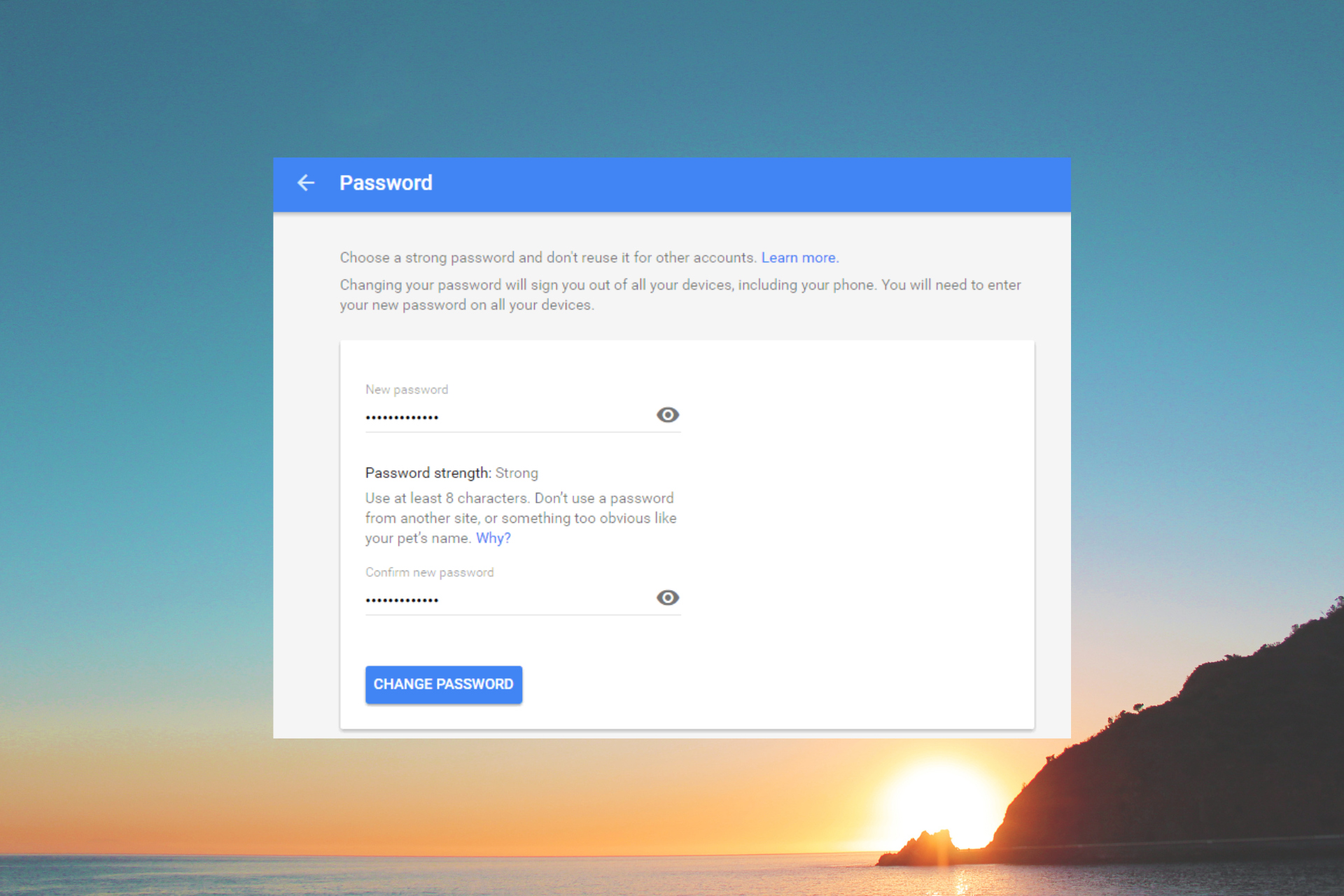
  7. In the Change Password screen, enter your new password.
  8. Enter the password again, and make sure it is secure enough.
  9. Click on Change Password to change the password.
  10. After that, you will receive the Your password has been changed message.
  11. Relaunch the browser and log in with your newly created password if asked to log in again.

The steps from above on how to change Chrome password mean that you will also need to make changes to other devices where you are logged in with a Google account, such as your email client.

1.2 On an Android device

  1. On your Android phone, tap on Settings.
  2. Go to Google, and tap on Google Account.
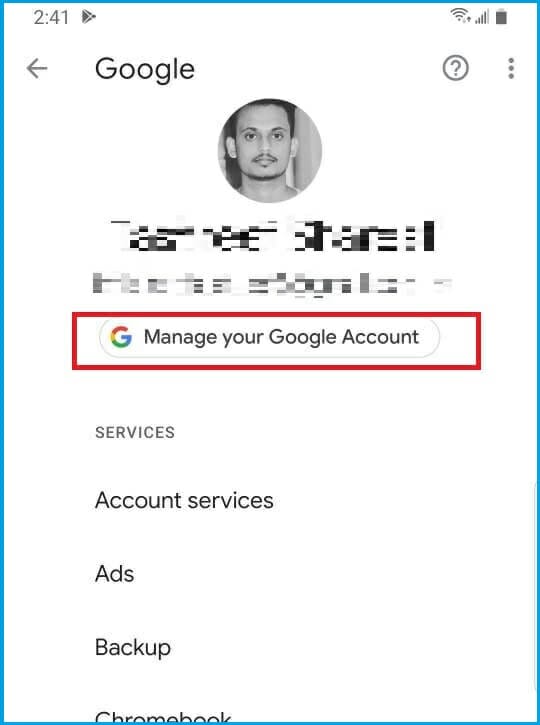
  3. Under your Google Account, tap on Manage your Google Account.
  4. Tap on the Security tab.
  5. Under Sign into Google, tap on Password.
  6. Enter your current password and tap on Next.
  7. Enter your new password, then enter the password again to confirm it.
  8. Tap on Change Password to change the password.

2. Use a password manager

The password-saving functionality included in the web browser is very basic. Some implementations are not even secure enough.

Step up your security game and use a good password manager that can store your passwords from everywhere with encryption included.

Your privacy is an essential factor if you’re using the internet for shopping and other activities that require sensitive data like personal data, credit card information, and so on.

It is ideal to improve the security of your credentials using efficient password managers to protect all your online passwords and accounts more properly.

3. Clear the browser cache

3.1 On a Windows PC

  1. On your computer, open Chrome.
  2. Click on the Chrome menu (three dots).
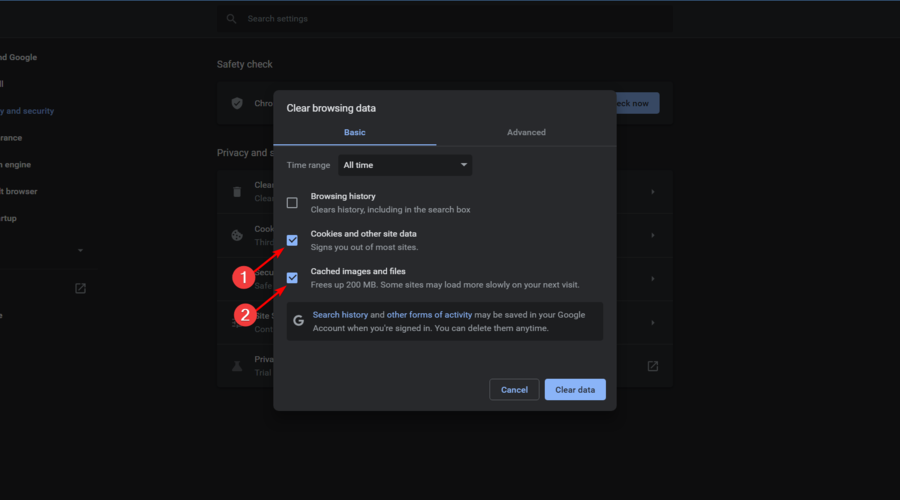
  3. Go to More Tools and select Clear browsing data.
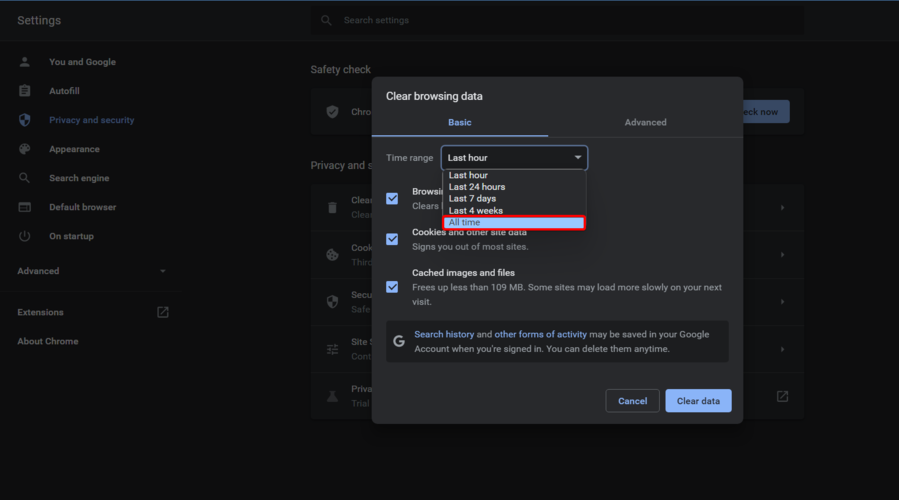
  4. Click the drop-down menu for Time Range and select the appropriate option. To delete everything, select All Time.
  5. Next, check the boxes for Cookies and other site data and Cached images and files.
  6. Click on the Clear data button.

3.2 For an Android device 

  1. Open Chrome on your Android phone
  2. Tap on the Menu (three dots) and select Settings.
  3. Scroll down and tap on the Privacy option under the Advanced section.
  4. Tap on Clear browsing data.
  5. Next, change the Time Range.
  6. Check the Browsing history and Cookies and site data boxes.
  7. Tap on Clear data.
  8. Close and relaunch Google Chrome and check for any improvements.

After clearing the cache data, you will be logged out of all the websites you are logged in to, and you might need to sign in again.

4. Reset the browser settings

  1. On your computer, open Chrome.
  2. Click the Chrome menu (three dots) and select Settings.
  3. Click on Advanced to expand the section.
  4. Under Reset and clean up click on Reset Settings.
  5. Click on Reset Settings again to confirm the action.

Resetting the browser settings will restore any changes made by third-party apps that might be causing the Chrome change password issue.

You are rightfully intrigued asking: Why is Chrome telling me to change the password?

Google Chrome only asks users to change the password if it suspects any abnormal behavior with their Google Account.

The latest updates in Chrome suggest that it will now be alerting you to change some other passwords saved in the Google account if it detects the username as being part of a breach.

So, if Chrome is telling you to change your password, you should pay close attention.

Make sure you change your Google Account password before attempting any other steps to secure your account.

You might also be interested in our guide on what to do if you can’t sign into your Gmail account.

Were you ever persistently asked by Google to change your password? Tell us how you solved this issue in the comments section below.

Add Twitch Chat on your Browser Source in 3 Steps [OBS & Xsplit]

Twitch is one of the world’s leading live streaming platforms where all game enthusiasts can chat. That’s why many users are more interested in discovering how to add Twitch chat to their browser source.

With Twitch chat, you can easily interact with members of the community and the streamers as well.

Thanks to the Twitch chat, everything you need to know regarding gaming events, activities, and many more is one click away.

The Twitch URL is received as a result of using a subscription alert system, such as TwitchAlerts.

What is a browser source?

A Browser Source is a plugin or software that lets you display and edit a web page from the Internet or stored locally.

Using it will let you different elements like chat, streaming sources, Javascript, and more, just like the Twitch chat overlay.

Is OBS or Streamlabs better for streaming?

That is a matter of choice because Streamlabs and OBS Studio deliver excellent performance.

Regarding resource consumption, OBS Studio is a bit better, but if you have a powerful PC, you should go for Streamlabs.

We have gathered in this article exactly how you can add the Twitch chat on your browser source, so keep reading.

How can I add the Twitch chat to my browser source?

1. Use a specialized browser

The Twitch chat is a valuable feature that allows you to keep in touch with the community members and other streamers.

Using a specialized browser that already comes with a Twitch integration is the easiest way to ensure a flawless experience.

Opera GX is such a browser for gaming enthusiasts, and the excellent news is that it also comes with the Twitch chat integrated.

Opera is grand if you want a safe navigation experience. In addition, its built-in AdBlocker is designed to be privacy-focused, so you won’t have to worry about any Twitch-related problems.

Its top performances are no longer a surprise. That’s why thousands of worldwide users choose to use Opera GX.

Thanks to its complex tools, this browser allows you to customize your experience according to your needs and preferences.

In addition, you have to keep in mind that Opera GX consumes a low amount of resources. Thus, your PC’s performance won’t be affected while using it.

Check out some of the most impressive features of Opera GX:

  • Free VPN
  • Built-in AdBlocker
  • Easy customizable
  • Twitch and Discord integration

Opera GX

Have a go with this gaming-oriented browser and enjoy streaming platforms like Twitch right in the browser.
Check price Visit website

2. Set up the browser source

2.1 For OBS

  1. Download the CLR Browser Plugin.
  2. After the download, locate the Plugins folder for OBS.
  3. Right-click on the folder, then select Extract all the files from the folder.
  4. Launch OBS, and look at the Source section at the bottom of the window.
  5. To add a source, click on the + button, then click on Browser.
  6. Check the Create new option, then click on OK.
  7. Enter the provided URL, then click again on OK to save the changes.

So this is how to add the Twitch chat browser source in OBS. Although it may look complicated, if you follow the steps above, you will be all right.

2.2 For XSplit

  1. Press on the Windows key, type XSplit, then open it.
  2. From the bottom left corner of the page, click on Add Source, then select Webpage.
  3. Enter the provided URL, then click on OK.
  4. You will now see the URL under the Scene section. Right-click on it and customize it as needed.

3. Use the URL

  1. Go to your channel on your streaming platform of choice.
  2. Expand the chat.
  3. From the bottom right corner of the window, click on Settings (marked as a gear), then navigate to Popout chat.
  4. Copy the URL from the address bar from the window that pops out.
  5. Press on the Windows key, type OBS, then open it.
  6. From the upper menu, go to View, select Docks, then click on Custom Browser Docks….
  7. In the first empty box under Dock Name, give your chat a name, then in the corresponding box under URL, paste the twitch chat URL from the popout chat window you copied in step 3.
  8. Click on Apply.

What uses more CPU, OBS, or Streamlabs?

Streamlabs are more demanding when it comes to CPU usage. That’s because it has more features and offers a higher level of customization.

Also, the built-in themes with multiple overlays take a toll on resource consumption, so if you have a slightly older PC, OBS is a better choice.

Adding the Twitch chat to your browser source does not have to be complicated at all. In fact, by following the steps indicated in this article, you will have this done in minutes.

But if the Twitch chat is not showing in OBS, change the chat settings in your Twitch profile to Popout Chat.

You might also be interested in the best Twitch alert sounds for your streams to ensure you instantly get notified.

Please let us know in the comments section below if you have additional recommendations or suggestions.

Some Apps Won’t Respond to Scaling Changes [Fix]

There are different screen sizes and resolutions, meaning my display sizes may differ from yours. However, Windows has an inbuilt feature called scale.

It allows you to configure font size, app display, resolution, and other visual contents. Nonetheless, there are some difficulties you can encounter with this feature in some apps.

So, it is essential to understand what to do if some apps won’t respond to scaling changes. Likewise, we’ll discuss how to fix the scaling issues in Windows 10/11.

Why is custom scaling not recommended?

Custom scaling seems a good option for people with vision difficulties and those who want to ease the eyes from strains.

However, custom scaling in some apps or software can cause issues like the inability to read the font or deformities. It is because some displays are built not to support the scaling feature. So, forcing the custom scaling on it can merge text clipping and fonts.

Why are some apps not responding to scaling changes?

  1. Unsupported scaling feature: Some apps don’t support custom scaling features by default. It means the developers didn’t authorize users to adjust its display quality. Therefore, it won’t adjust to the system settings. Also, the app may not respond to scaling changes if the display font & resolution are not set to scale up to the change.
  2. Outdated display drivers/Windows: Windows uses drivers to operate and control display graphics hardware. However, if this driver becomes old and obsolete, it can cause difficulties with some applications. Furthermore, outdated Windows can affect your computer. It can prevent it from functioning with some apps and cause Windows 11 scaling issues.
  3. Outdated app: The problem is not only from the device if some apps won’t respond to scaling changes. However, some apps misbehave when they are not up-to-date and can prevent them from responding to the scaling changes you set.

How do I fix apps that won’t respond to scaling changes?

1. Close and relaunch the application

An application can malfunction if something is wrong or when there is a problem while it is launching. However, some apps won’t respond to scaling changes until you close and reopen them.

So, close and relaunch the app to see if the “apps won’t respond to scaling changes” issues persist.

2. Update graphics drivers

  1. Press the Windows + R keys simultaneously to prompt the Run dialogue box.
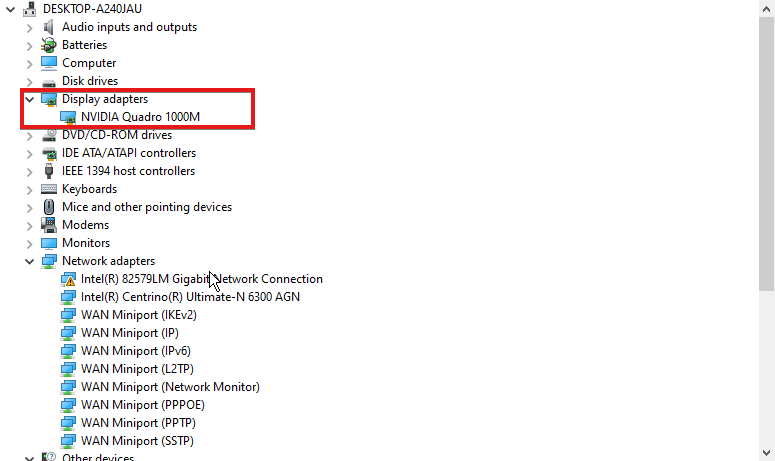
  2. Type the following into the search space: devmgmt.msc, then click the OK button.
  3. From the search results, click on Display adapters.
  4. Select the driver from the drop-down and right-click on it.
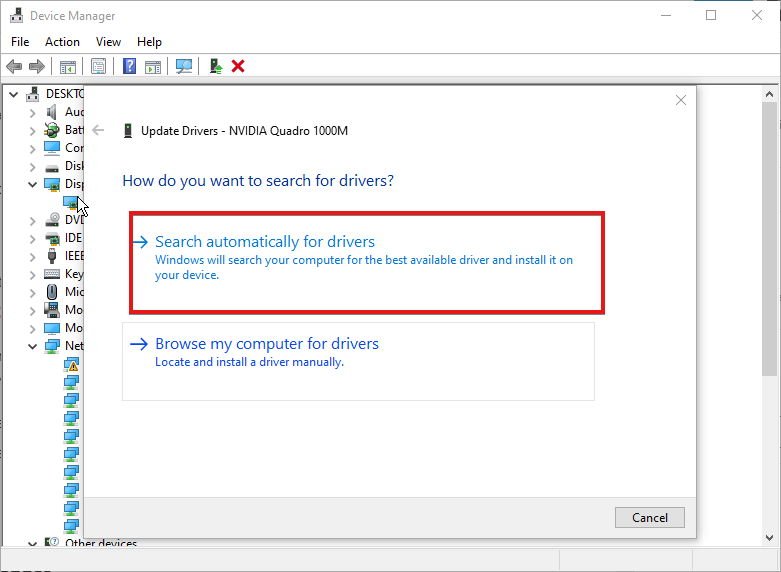
  5. Click the Update Driver Software option, then select Search automatically for updated driver software.

Windows will automatically download and install driver updates if there are any available. Alternatively, you can use Outbyte Driver Updater to automatically download all the latest drivers rather than downloading them individually.

⇒ Get Outbyte Driver Updater

3. Update the apps not responding to scaling changes

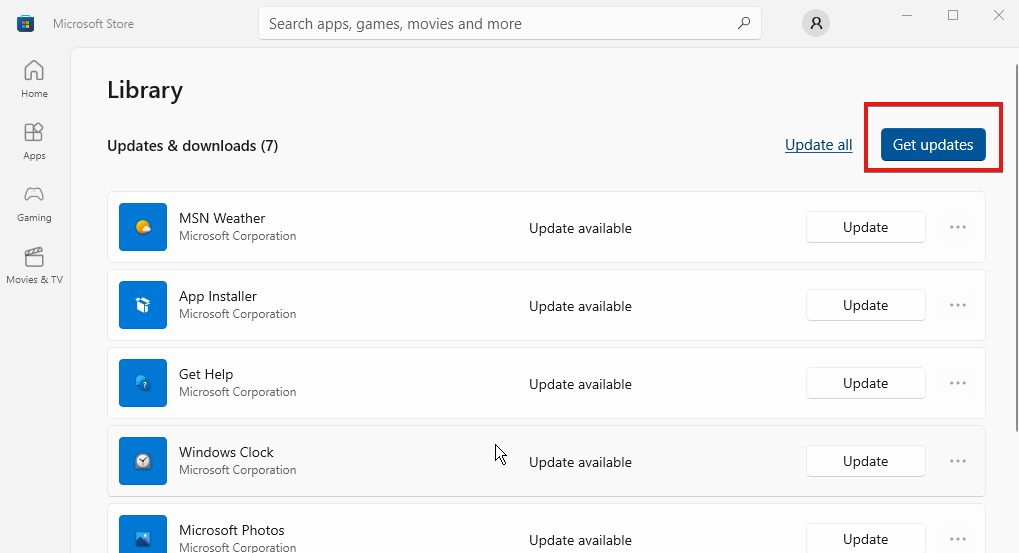
  1. Launch Microsoft Store.
  2. Click on the Menu button in the upper right-hand corner of the screen and select Downloads and Updates.
  3. Go to the app you want to update and click Get updates.

If there’s any update available for the app, Windows will search automatically and install it.

How do I force display scaling?

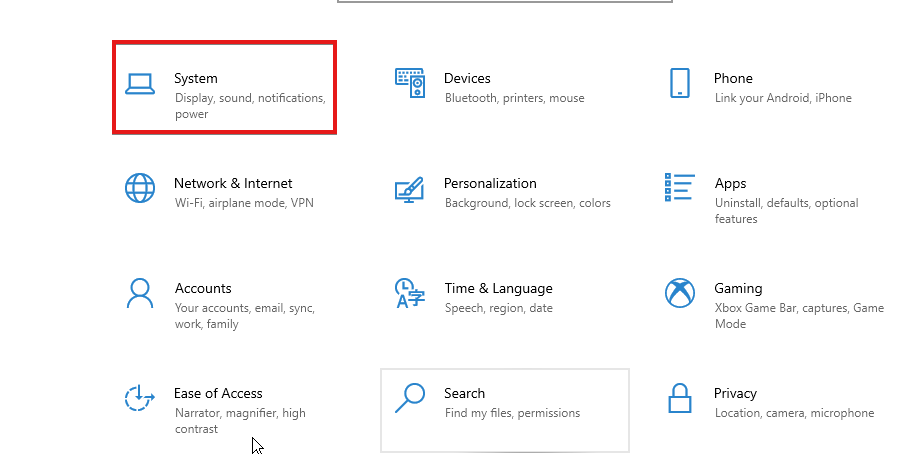
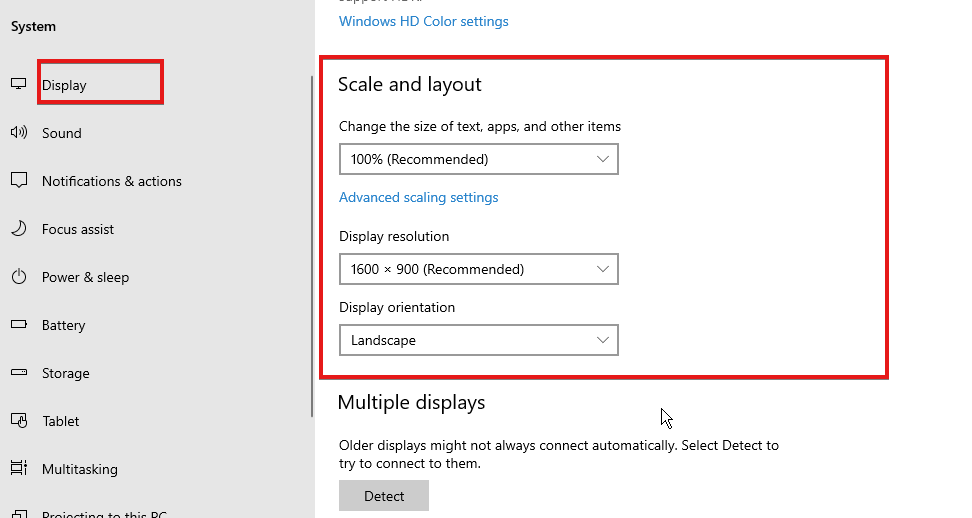
  1. Press the Windows key + I to launch the Settings app and click on System.
  2. Select the Display option.
  3. Go to the Scale and Layout tab.
  4. Click the drop-down button to expand the features you want to adjust.

Restart your computer to save the changes you’ve made.

Does display scaling lower resolution?

Scaling and screen resolution are different features. When you scale your display, it affects the size of what’s on your screen. The resolution deals with the image quality. Hence, display scaling doesn’t affect the number of pixels of a resolution.

Conclusively, apps like Chrome require fixes for scaling issues. Hence, we recommend that users check through our article on ways to fix any Chrome scaling and zooming issues.

Also, you can read through our article on the performance comparison between GPU scaling vs Display scaling.

Get Zoom for Microsoft Edge With This New Extension

Zoom for Microsoft Edge is a new browser extension for Windows 10 and 11’s default web browser created by the maker of Turn Off the Lights. In Edge, users can zoom in various ways, but advanced zooming controls are still missing.

While the default zooming options (Ctrl+ for zooming in, Ctrl – for zooming out, or holding down the Ctrl-key and using the mouse wheel) all work, they’re limited. There isn’t an option for changing zoom steps, setting a different default zoom, or applying a custom zoom level for specific sites.

Does Zoom work on Microsoft Edge?

Yes. Like any other web browser, the zoom function works perfectly on Microsoft Edge. You can press CTRL on the keyboard and use the mouse scroller to zoom in and out. Also, there are keyboard shortcuts for this which are already mentioned above.

But, If you want to use the zoom function with a more customized experience, it is impossible without any third-party option.

How do I turn off Zoom in Microsoft Edge?

  1. Install this extension called Zoom Block on Microsoft Edge.installing zoom block extension Edge
  2. Toggle the extension icon to on or off zoom on Edge.using zoom block extension edge

This trick will not work if other zoom addons are active on your browser. So, if you want to lock the zoom, ensure you have not activated such extensions.

Zoom for Microsoft Edge

The new Zoom for Microsoft Edge extension changed all this by adding some advanced controls to the Windows 10 and 11 browsers and was released on the official store.

The Edge extension collection includes many titles. After adopting the Chromium engine, Edge also supports extensions from Chrome Web Store. So, you can use any popular extension on this browser without any problem. However, Zoom for Microsoft Edge is natively available on the Edge addons store.

The Zoom extension we are talking about adds a new icon to Edge, and you’ll find it once you click the menu icon. Right-click on the icon, and you’ll be able to move next to the address bar to make it more accessible.

⇒ Get Zoom for Edge

Zoom for Microsoft Edge features:

  • Click the icon and use the slider to change the zoom level (1-400).
  • Click the icon and use the mouse to change the zooming level.
  • Enable the zoom together from the preference page to zoom in/out on all open pages simultaneously.
  • Save the zoom value for all websites.
  • Switch between the zooming engine of the default browser and use CSS zoom.
  • Display the zooming percentage on the icon.
  • Set a default zoom ratio for every site and set custom zooming steps.

Zoom for Microsoft Edge is quite a helpful extension for the browser, especially for users interested in more advanced zoom options and customizations.

Browsers with similar extensions

We may have an alternative for you if you need a browser with a bit more control over how you zoom in on UI elements.

It looks and feels just as modern as Edge, and it is also Chromium-based and called Opera One.

While the browser doesn’t have too many zoom features, it has access to an immense library of extensions, just like Edge’s Zoom.

However, that’s where the list of similarities ends since the Opera One extensions have been proven to be much more stable.

More so, both are free, but Opera One has a few nifty extra tools in its arsenal, so you might as well go for the better alternative.

Opera One

A lightweight Internet browser that is responsive, sleek, and has access to a wide variety of extensions, including some that help with page zooming.

How do I set custom zoom in Edge?

The Zoom for Edge extension enables the ability to customize the zooming experience on Microsoft Edge. You do not need to worry about much. Every opened tab will have a different level of zoom if you set it differently.

If necessary, you also can reset zoom for all tabs altogether. For this, you can simply right-click on the proper icon and choose to Apply the reset zoom value to all tabs.

This extension also has other usefulness. You will explore it while using it.


Hopefully, you understand the Zoom for Microsoft Edge extension and its benefits and alternative options. Let us know in the comment box if you have any opinions regarding this topic.

How to Turn a Folder Into a ZIP File [Windows 10, Mac]

Assume that you have received a ZIP file containing hundreds of folders over an email sent by your friend. You already have your photos organized in folders and ready to be displayed.

It’s clearly easier for you to work this way, not to mention that the ZIP takes up less space. Therefore, don’t hesitate to also learn to turn a folder into a ZIP file.

Rest assured that you can work with zipped files in the same way that you currently do with uncompressed folders.

For similar solutions and further guidance, feel free to bookmark this Tech Tutorials Hub.

How can I turn a folder into a ZIP file on Windows 10 and Mac?

The below procedures cover the steps you need to follow in order to convert a folder to a ZIP file, so don’t hesitate to take a closer look.

    How to turn a folder into a zip file Windows 10

    You can easily zip a folder using the WinZip application. It is a file archive and compressor that allows you to convert any type of files into zip format, as well as extract zip files.

  1. 1. Install a professional compression software

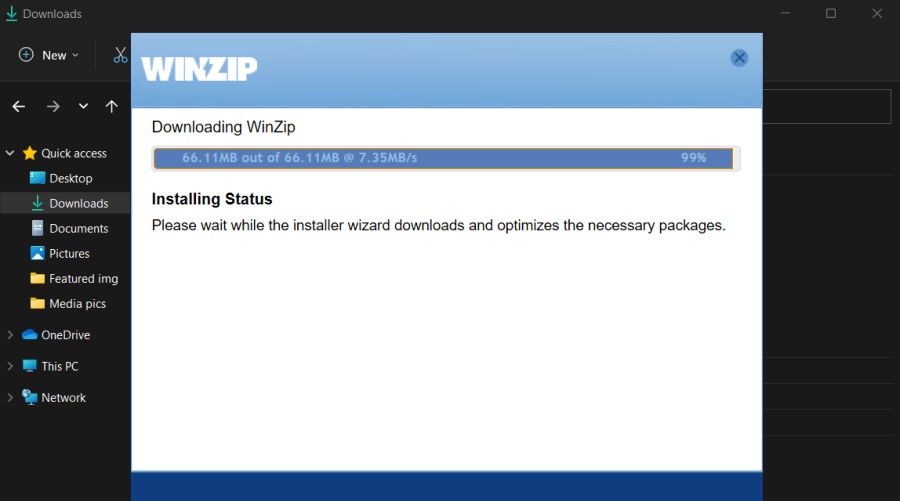
    Download WinZip and install it on your computer.

    winzip install
  2. 2. Navigate to the file location of the folders you want to zip

    After you installed WinZip, go and find the folders you want to zip in order to start the process.

  3. 3. Select the folders you want to convert

    Select the folders and right-click on them.

  4. 4. In the WinZip sub-menu, choose Add to [filename].zip(x) or Add to Zip file

    The second one gives you the chance to specify your own Zip file name, encryption, compression type, conversion options, as well as the destination folder.

  5. 5. Wait for the conversion to be complete

    It will only take you a few seconds.

As you can see above, all it takes is to follow a few simple steps in order to easily create a ZIP file from your folders with WinZip.

Other useful options are convenient access to Background Tools, banking-grade encryption, and seamless integration with Microsoft Teams, so you’ll find your current choice useful in the future too.

Winzip for Windows

Looking for a way to turn a folder into a ZIP file? Try out WinZip and you’ll easily achieve your goal!
Free trial Get it now

How can I turn a folder into a ZIP file in Mac?

  1. Download WinZip for Mac and install it.
  2. Open a folder window and locate the folder you want to zip.
  3. Then, just right-click the folder.
  4. You can now choose Add to filename.zip or another Add option that suits you better from the WinZip submenu.

Once again, in order to turn a folder into a ZIP file in Mac, we recommend giving a try to WinZip. Given its ease of usage, comprehensive interface, and unquestionable speed, it won’t disappoint you.

Useful options such as convenient zipping, even when it comes to large files, and direct sharing to Dropbox, Google Drive, and iCloud Drive are available as well.

Winzip for Mac

If you want to easily turn a folder into a ZIP file on Mac, look no further. WinZip is our top recommendation!
Free trial Get it now

In order to easily organize your data, take a look at our File Management Software section.

Have you successfully completed the above procedure and managed to turn a folder into a ZIP file? Let us know in the comments below.

How to Change Taskbar Color on Windows 11 [3 Ways]

The taskbar is an integral part of Windows 11. Its taskbar looks a little different from its predecessors because its icons are centered.

However, Windows 11’s taskbar color customization settings aren’t that much different from those in 10.

You can customize the taskbar’s colors via Settings much the same you used to set a custom color for the taskbar and the Start Menu in Windows 10.

Windows 11 retains the dark and light themes introduced in the previous OS. Selecting either the Dark or Light option will switch the taskbar’s color from black to white.

Yet, many users will prefer different colors for the taskbar. Fortunately, Windows 11 includes a good range of accent colors to choose from. You can select custom accent colors as well.

How can I activate Windows 11?

Note icon NOTE
The only snag for customizing taskbar colors is that you’ll need to activate Windows 11 to do so. Windows 11’s color settings are grayed out when it’s not activated.
  1. First, click Windows 11’s Search (magnifying glass) button on the taskbar.
  2. Type the keyword activation settings in the search text box.
    Activation settings change taskbar color in windows 11
  3. Then click Activation settings to open the Settings window.
  4. Click Upgrade your edition of Windows to expand that category. 
  5. Press the Change product key option’s Change button.
  6. Then type a valid key in the Enter a product key window.
  7. Click the Next button after you’ve entered the product key.

If you don’t happen to have a product key for Windows 11, forget about the above method! However, you can still activate that platform with a KMS client key instead. To do that, follow the steps below:

  1. First, bring up the search tool in Windows 11 by clicking the magnifying glass taskbar icon.
  2. Next, input Command Prompt in Windows 11’s search box.
  3. Click the Run as administrator option for the Command Prompt search result.
  4. Type this command in the Command Prompt and hit Enter: slmgr /ipk kmsclientkey
    slmgr /ipk command change taskbar color in windows 11
  5. Next, input this command and press Enter: slmgr /skms yourserver
    slmgr /skms command change taskbar color in windows 11
  6. Finally, type in this command and press Return: slmgr /ato

You’ll need to replace kmsclientkey in the command specified for step four with your Windows 11 edition’s KMS client key code. These are KMS client keys for the Windows 11 Home, Enterprise, Pro, and Education editions:

  • Home Edition: TX9XD-98N7V-6WMQ6-BX7FG-H8Q99
  • Education: NW6C2-QMPVW-D7KKK-3GKT6-VCFB2
  • Professional: W269N-WFGWX-YVC9B-4J6C9-T83GX
  • Enterprise: NPPR9-FWDCX-D2C8J-H872K-2YT43

You’ll also need to replace your server in the slmgr /skms command with a kms host address. These are some of the online kms host addresses you can include in that command:

  • kms.shuax.com
  • kensol263.imwork.net:1688
  • k.zpale.com
  • m.zpale.com
  • mvg.zpale.com
  • kms.digiboy.ir
  • 54.223.212.31
  • kms.cnlic.com
  • kms.chinancce.com
  • kms.ddns.net
  • franklv.ddns.net

Also, note that not all those host addresses will necessarily work. If you receive an error message for activating Windows 11 with this method, try entering a different online kms host address.

How can I change the taskbar’s color in Windows 11?

1. Switch between dark and light taskbar color themes

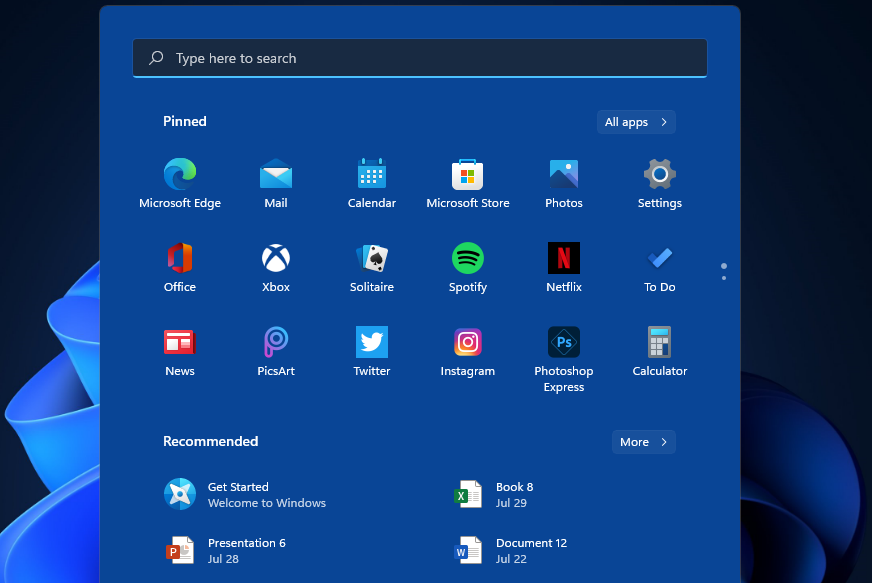
  1. Press the Start button on the taskbar to open the menu that you can see below:
    The Start menu change taskbar color in windows 11
  2. Click Settings on that menu.
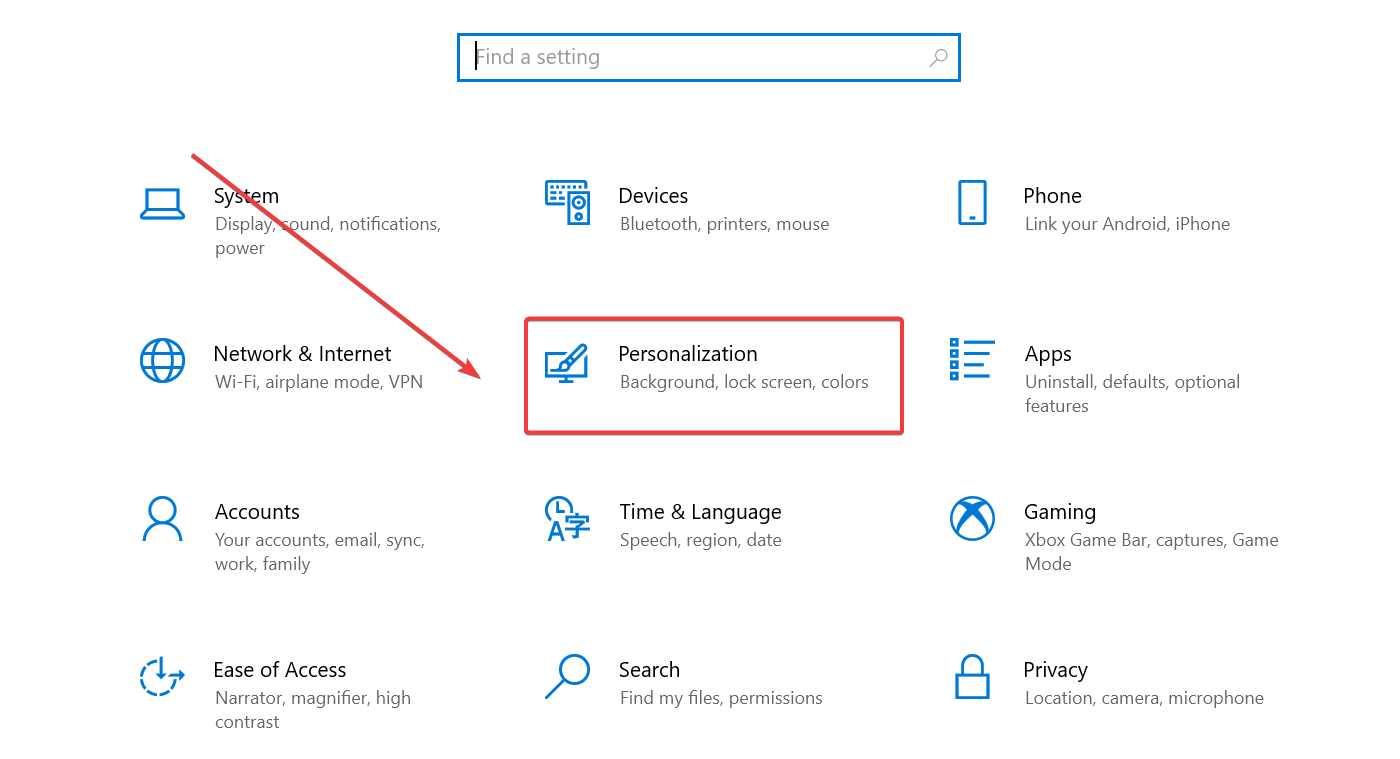
  3. Select the Personalization on the left of Settings.
  4. Then select Colors.
  5. Click the Choose your mode drop-down menu.
  6. Then you can select alternative Light and Dark options that change the taskbar’s color accordingly.
  7. If you select the Custom option, you can select the alternative color modes for Windows and apps.

2. Select custom accent colors

    Windows 11’s built-in Personalization settings allow you to fully customize the color of your taskbar. You can select a custom accent color or create one from scratch.

  1. 1. Press the Windows + I keys on your keyboard to open the Settings menu.

  2. 2. Choose Personalization from the list of options.

    windows 11 taskbar color change personalization
  3. 3. Navigate to Colors.

    change taskbar color windows 11 options
  4. 4. Go to the Choose your mode drop-down menu.

    taskbar colors change windows 11 change your mode
  5. 5. To select custom accent colors for the Windows 11 taskbar, you’ll need to select the Dark option.

  6. 6. Toggle the Show accent color on Start and taskbar option On. That option will be grayed out with the Light option selected.

  7. 7. Now click Accent color to choose a color. Your taskbar will then change to your selected color.

    windows 11 change taskbar color custom accent
  8. 8. To customize your selected color, click the View colors button to bring up the tool that you can see below.

    change color taskbar windows 11 customize accent
  9. 9. You can change your selected color by dragging the circle to different positions on the palette.

  10. 10. You can also drag the Value bar left and right to further adjust your taskbar’s color.

  11. 11. Click the More button to bring up RGB and HSV color details. There you can enter color codes within the text box.

  12. 12. Press the Done button to close the color utility when you are finished.

  13. 13. As a bonus, you can also apply a snazzy transparency effect to your taskbar by clicking the Transparency effects toggle button within the color settings On.

To find more details on this topic, don’t hesitate to check out this article on how to make the taskbar transparent in Windows 11.

You can also try a dedicated free taskbar customizer to adjust colors, transparency, and layout in far more detail than the default Windows 11 settings allow.

3. Use different themes

  1. Selecting different Windows 11 themes will also change the taskbar’s color. To do so, open the Personalization tab in Settings as outlined in method one.
  2. Click Themes.
  3. Then click through the six alternative default themes that come with Windows 11 to choose one.
    Default themes change taskbar color in windows 11
  4. Alternatively, click Browse themes to get one from the Microsoft Store.
  5. Choose a theme in the Microsoft Store window that opens, and click the Free button to download it.
Note icon NOTE
If you select a light theme, you won’t be able to further configure its taskbar color.

Are there any other useful color settings in Windows 11?

The Accessibility tab in Settings includes some general contrast theme options that will also change the taskbar’s color. Those color options are supposed to make apps and text clearer. Follow the steps below to tinker with those options:

  1. To open Settings, hold the Windows key and press I at the same time.
  2. Next, click Accessibility on the left of Settings.
  3. Then click the Contrast themes drop-down menu.
  4. Choose a contrast theme on the drop-down menu.
  5. Click Apply to see what your selected contrast theme is like.

Overall, it’s pretty straightforward to change the taskbar’s color in Windows 11. With the OS’s personalization settings, you can adjust your taskbar’s color to whatever takes your fancy.

You can also change the title bar color and window border to customize your desktop experience further; read this guide to learn the steps.

Users exploring color and visibility options in Windows 11 can also improve text clarity by adjusting icon label colors. You can check this guide on how to change the desktop font color to enhance readability alongside your taskbar and theme adjustments.

Changing your taskbar’s color is a great way to customize Windows 11. You can really liven up your PC’s desktop by selecting a more vibrant accent color for the taskbar and the Start menu as well.

Even more, you can change the taskbar size in Windows 11 by editing the registry or adjusting the scaling settings. If the result doesn’t match your expectations, there are a few simple tricks to apply in order to make Windows 11 look like Windows 10 again.

Tell us in the comments if you managed to change the taskbar’s color and if our solutions helped you do that.

How to Enable & Use Nvidia Reflex to Improve Latency in Games

In this article, we’ll discuss how to use the Nvidia Reflex to fix the latency issues with your computer. Latency is an issue many users complain about. However, latency means the system takes longer than expected to reflect the inputs from its components like mice and keyboards.

Hence, getting software that’ll help fix the system latency issues is essential as it’ll improve your computer’s productivity.

The Nvidia Reflex is a technology with many subsidiaries that help it detect and analyze inputs from components of your computer.

Likewise, it improves the speed at which your system reflects this input. Hence, the software reduces system latency or lagging by reducing the time it takes to reflect the input from components on your desktop or monitor.

Is the Nvidia Reflex good for gaming?

Having a system that can power responses quickly and smoothly is one of the advantages you can enjoy as a gamer. However, the Nvidia Reflex is the best option for reducing system latency in video games.

It helps professional gamers to be more competitive and swift in their gaming activities. Also, it allows you to enjoy your game without being sluggish.

Furthermore, the Nvidia Reflex doesn’t negatively impact your game or computer, which is why we recommend it.

Likewise, users need to know more about using the Nvidia Reflex analyzer and the Nvidia Reflex in games like Valorant. However, it is supported by many games.

Should I activate the Nvidia Reflex?

We recommend activating it on your system and in your games. It is a free feature that doesn’t affect your system’s performance and will drastically reduce latency.

How do I run the Nvidia Reflex?

  1. Launch any browser on your PC.
  2. Go to the Nvidia Reflex official website to download the Nvidia application on your device.
  3. On the website, choose the compatible version of the application for your system and click on the download button.
  4. After the download is complete, double-click on the .exe file to install it. (Follow the prompts on your computer screen to complete the installation)
  5. Use the X button at the top of the screen to close all the games on your computer.
  6. Then right-click on your computer screen to prompt the Nvidia Reflex control panel.
  7. Select the Manage 3D settings from the panel and go to Low Latency Mode.
  8. Set the Low Latency Mode to ON or Ultra. (Depending on your computer’s strength, the Ultra mode might be too tasking for some computers. So, we recommend that you leave it on the ON option).
  9. Click the Apply button to effect the changes on your computer.

Doing this will help you implement the software into your computer by reducing latency and improving productivity.

Does enabling the Nvidia Reflex affect FPS?

The Nvidia Reflex doesn’t significantly impact the FPS though your frame rates can differ in several settings and games. However, it is not enough reason not to consider enabling it. Hence, using the app should reduce latency but can barely affect your FPS.

Does my GPU have the Nvidia Reflex?

The Nvidia Reflex doesn’t support every GPU. Specifically, you need to run the GeForce GPU before using technologies like the analyzer.

Which GPU can use NVIDIA Reflex?

The Nvidia Reflex is a technology with requirements for the systems that can use it. The unavailability of the app for every GPU is one of its downsides. Likewise, the Nvidia GPU doesn’t support an AMD GPU. Rather, you need the GeForce GPU to use it.

However, it requires a GTX 900 series GPU and above to run it. It means it doesn’t support any series below the GTX 900 series. Hence, you’ll need the GTX 900 series, the GTX 1000 series, the RTX 2000, or the 3000 series before you can use the Nvidia latency technology.

Furthermore, downloading the best Nvidia drivers for Windows will help it perform better. So, we recommend you read through our article about the best Nvidia drivers for Windows 11.

Conclusively, users complain about the Nvidia Control Panel not opening. Hence, you can click on the link above for easy fixes for the issue.

Play Eiyuden Chronicle: Rising and two other games for free this weekend with Xbox Free Play Days

Xbox Free Play Days is back with another trio of exciting games for subscribers of Xbox Live Gold and Game Pass Ultimate. These games will be playable from Thursday through Sunday. Let’s have a look at another great Xbox Free Play Days August 2022 lineup.

Eiyuden Chronicle: Rising

(33% off: $10.04)

Eiyuden Chronicle: Rising combines a thrilling adventure through ancient ruins with the tale of one town’s rise from the ashes.

Saints Row The Third Remastered

(75% off: $9.99)

Saints Row®: The Third™ – Remastered gives you control of the Saints at the height of their power, and you live the life to show for it. This is your City. These are your rules.

Space Crew: Legendary Edition

($24.99)

This is Space Crew: Legendary Edition. The legendarily challenging single-player strategic survival simulation game!

And best of all, these games will be available for purchase at a great discount throughout the Play Days event. Learn more about Xbox Free Play Days over on the FAQ page.


Microsoft publishes new findings on digital transformations in industry

Every organization wants to be resilient, agile, and sustainable in today’s manufacturing world. And there are so many manufacturers investing in innovative solutions to make their operations and products smarter by switching to advanced technologies including AI, digital twins, and the internet of things (IoT).

Back of 2019, Microsoft published its first report which provided a broad view of IoT across a variety of industries- from manufacturing and energy to healthcare. And Microsoft did the latest 2022 report on the IoT signals. IoT signals are a series of impactful content curated by Microsoft, basically to inform the community about the latest developments and digital transformations, and technology trends in the IoT industry.

Microsoft conducted more in-depth reviews with participants to gain a deeper understanding of the digital transformation strategies, and execution plans. Microsoft publishes some new findings on digital transformations in Industry, have a look at them.

Microsoft discovers six new digital transformations in Industry

The new IoT survey reveals insights from real-world manufacturers that have started their digital transformation journey. During the research, Microsoft discovered six key new findings on digital transformations.

  • Most manufacturers are advancing their efforts to build smart factories
  • Operational improvement is a still top goal for manufacturers
  • Organizations are shifting investments to industrial-automation-based process control
  • Manufacturers face new challenges with scaling smart factory initiatives
  • IT-OT convergence is happening in the manufacturing industry
  • Manufacturers plan to increase investments in smart connected IoT products
Microsoft publishes new findings on digital transformations in industry
Image Courtesy- Cloudblogs-Microsoft


Digital transformation continues to be top of mind for these manufacturers as they work to increase agility, drive growth, and improve customer engagement. All the six key findings share a common theme- manufacturers across the globe are advancing their digital transformation efforts and organizations are switching to innovative solutions to build a more sustainable and resilient future.

For more latest and exclusive tech news follow us on Google News.

Windows 11 Mobile Hotspot: How to Set Up & Manage

Of course, sharing mobile internet between an Android smartphone and a Windows 11 PC can be useful, especially when Wi-Fi is not available.

Thus, knowing how to share mobile internet with a Windows device can come in real handy when other options are just present.

Just like an iPhone can be tethered to a Mac when there’s no Wi-Fi, Android devices also let users do the same with their smartphone’s internet connection with any Windows laptop via USB and Bluetooth.

Connecting a phone and a PC via a cable is not an option for many of us, while internet connectivity via Bluetooth can be slow.

Therefore, creating a Wi-Fi hotspot with your smartphone is the only option that’s both fast and uncomplicated.

Are hotspots safe to use on Windows 11?

To answer this question we need to take into consideration a few important things:

  • The creator of the hotspot
  • Source-network security level
  • The hotspot’s name and password choice

Because this information is essential in case you’re worried about your system’s security level while accessing a hotspot, let’s dive deeper into each of these elements and discuss the details.

➡ The creator of the hotspot

If you have created the hotspot by yourself, then you shouldn’t be worried about other people accessing the network without your knowledge. This, of course, involves using a password and network name that only you or the people you trust are aware of.

In case somebody else created the hotspot and you have been given access to the password and network name, ensure that you trust that person enough to avoid any network attacks.

➡ Source-network security level

This element is one of the most important of the three presented above, as it involves the security level applied already to the network from which you will share the internet connection through the hotspot.

If you are at home, and a trustworthy ISP provides your internet connection, then you don’t need to worry about security levels, as most companies that provide internet are secure enough.

In case you’re using a public network, like one from a coffee shop or train station, it is recommended that you use powerful antivirus software that also offers network protection.

➡ The hotspot’s name and password

Windows 11 enables you to choose both a network name and a password is that this allows you to improve the security level from the start.

Anybody who doesn’t have the right network credentials will not be able to access the hotspot.

That being said, not all passwords are the same, nor they should be. Whenever you choose a password for your network, no matter if it’s a hotspot or not, it is recommended that you create one that contains both numbers and letters.

Also, make sure that you can remember that password, or simply write it somewhere safe to ensure you can always access the hotspot without any issues.

How can I create a mobile hotspot on Windows 11?

    You can easily create and configure a mobile hotspot on your PC device through the Network & internet settings. In just a few clicks you can choose a name and password for your hotspot, then you can connect to it using another device.

  1. 1. Click the Windows icon from the taskbar.

    windows taskbar icon
  2. 2. Choose the Settings button from the menu.

    windows settings
  3. 3. Select Network & internet from the sidebar.

    network and internet settings windows 11
  4. 4. Click the Mobile hotspot option.

    network and internet mobile hotspot windows 11
  5. 5. Choose which connection you want to use for the hotspot from the drop-down menu (if you have multiple connections).

    network and internet connection type
  6. 6. Click the Share over toggle to choose how you want to share your connection.

    share your connection mobile hotspot windows 11
  7. 7. Select the Edit button from the Properties section.

    mobile hotspot in windows 11 settings
  8. 8. Set a name and a password for your Hotspot.

    mobile hotspot windows 11 set name
  9. 9. Click the Save button.

    save network name mobile hotspot
  10. 10. Lastly, turn on the Mobile Hotspot toggle, and connect your other device to the newly-created network.

    create mobile hotspot windows 11 toggle

As you can see, the process that needs to be followed to create a hotspot in Windows 11 is far easier than in any other previous version of Windows. You can also set up a hotspot via CMD.

The user-friendly interface guides you through the entire process and offers all the information you need to achieve this task, but having a handy step-by-step guide can ensure no issues are encountered.

How can I connect my Windows 11 laptop to a mobile Hotspot?

The process we mentioned above is simple and only requires a few clicks. Even better, it works on older versions of Windows as well, including 10/8.1/8/7 and so on.

The critical condition here is that the Android device has cellular data. If so, it can be tethered to virtually any Windows computer with a Wi-Fi adapter.

Naturally, once the mobile hotspot is set up on the phone, the connection can be used by virtually any other device, including a Windows PC, a Mac, an iPhone, or a second Android device.

The quickest and easiest way to share an Android smartphone’s cellular data connection with a Windows 11 device is to switch on the Hotspot option from the phone’s Quick Settings panel.

To do this, swipe down from the phone’s home screen. Now tap on the button that says Hotspot, and the cellular data connection of that phone will be available for use on any compatible device.

connect laptop to mobile hotspot windows 11

Before you attempt all this, remember that it will only work once the hotspot has been set up and configured with an SSID and a password.

So let’s see exactly what you have to do to set this whole thing up on your mobile device.

  1. Access your phone’s Settings menu.
  2. Select the Mobile Network option.hotspot guide 1
  3. Select Personal Hotspot from the list.hotspot guide 2
  4. Modify and configure various security options, including the hotspot’s name, security type, and the password that will be required to use the connection, then activate the hotspot.

So we figured out how to set it up on the mobile device. To use this hotspot on a Windows 11 computer, you simply have to find the connection and access it.

To do that, click on the Wi-Fi icon in the System Tray and select the mobile hotspot as your internet option, then fill in the password and hit Connect, to establish the connection.

Also, when not in use, we advise you to switch off the mobile hotspot for security reasons and to save the phone’s battery life.

What if I can’t connect via hotspot?

If the Wi-Fi hotspot isn’t working, a USB cable can share the internet between the Android phone and the Windows 11 device.

To do this, connect the PC and the phone using a compatible USB-C or micro USB cable. Then go to Settings access Hotspot & Tethering on the phone and switch on USB Tethering.

As with any wired Ethernet connection, there’s no need for passwords, and the internet can be accessed through the PC the moment the USB tethering option is enabled on the phone.

That’s pretty much all there is to this process. Neat, right?

Before you leave, find out what to do when the cellular option is missing in Windows 11, a common problem arising from driver issues.

In case you encounter any problems with mobile networks our We can’t set up mobile hotspot article should be able to help you.

We also have a guide on what to do if the laptop is not connecting to a mobile hotspot, so don’t miss it. Did you know that you can connect to a Bluetooth hotspot on Windows 11? That’s right, and we have a guide that can help you with that.

We also have a guide that explains whether it is possible to hide hotspot SSID on Windows 11, so don’t miss it for more useful information.

What to play on Game Pass: games that offer something a bit different

Don’t know what to play on Game Pass? Don’t feel bad – with literally hundreds of games to choose from across the service spanning just about every genre out there, it can be tough to know where to start.

Thankfully, we have you covered with these Game Pass recommendations for those gamers who dig something a bit different from time to time. What follows are some great unique offerings that aren’t quite like other games out there. These games break up the status quo of popular shooters, racing and sports games, and open world adventures, and offer a gaming experience that is distinctly its own. So read on and brace yourself: because these games hit just a little different.

Hardspace: Shipbreaker (PC Game Pass)

This first-person action-adventure game has players exploring and dismantling abandoned spacecraft while scavenging valuable materials. It is definitely a breath of fresh air relative to all the space-based shooters out there. The game was developed by Blackbird Interactive, the same studio that is currently developing Minecraft Legends. Note that Hardspace: Shipbreaker is available for PC Game Pass and Game Pass Ultimate only (Xbox Game Pass excluded).

House Flipper

Watch the video on YouTube

In House Flipper, the player fixes up properties in the hopes of selling them for a profit. Just as the game’s title implies. Clean, paint, lay down new tiles or carpeting, even tear down entire rooms and start over again to turn your vision of a dream home into a reality. The gameplay loop can be very satisfying, as so many game reviewers have noted.


Moonglow Bay

Watch the video on YouTube

Moonglow Bay is not your typical, run-of-the-mill fishing/role-playing video game, no matter what anyone tries to tell you. The gameplay loop involves fishing, cooking, and making upgrades to your boat. And there are plenty of side quests to mix things up. But more than that, the game is about fostering relationships with the people of the small fishing village and restoring its splintered community.


Overcooked! 2

Watch the video on YouTube

Overcooked! 2 dishes out a veritable buffet of fun for kids and adults alike. Culinary chaos reigns supreme in this cooking simulator, and with online multiplayer support for up to four players, there is no such thing as too many cooks in the kitchen. And with the fate of the Onion Kingdom in the balance, the steaks have never been higher.


PowerWash Simulator

A recent day one Game Pass release, PowerWash Simulator is a “first-person cleaner” from Square Enix’s independent game division, Square Enix Collective. In the game players take control of a small power washing business in the town of Muckingham, taking on a variety of cleaning jobs. These aren’t mundane tasks, however, as you’ll be cleaning everything from run of the mill homes to a Mars space rover. And you’ll gain access to new tools and equipment upgrades along the way.

Slime Rancher

Watch the trailer on YouTube

In this first-person open-world adventure you play as a “slime rancher” named Beatrix LeBeau, whose job consists of building a ranch and collecting, raising, feeding and breeding slimes. Toward this end you’ll venture through disparate areas collecting resources such as slime food with your VacPack. What is a Vacpack, you are probably asking? It’s a vacuum backpack, and you’ll be using it a lot to suck up slimes and items.


Surgeon Simulator 2: Access All Areas

Watch the trailer on YouTube

Surgeon Simulator 2 has players conducting a series of increasingly complex operations – hopefully with successful outcomes for the hapless patients. In addition to the campaign mode there is also a party mode, and up to four players can get in on the fun in either. Players can even create their own surgery scenarios.


Turbo Golf Racing (Game Preview)

This fast, arcade-sports title just hit Game Pass as one of the most recent additions at the time of this writing. In Turbo Golf Racing you will boost, jump and flip your supercharged car as you chip, putt and smash giant golf balls to the finish line. And you can do all this with up to 8 friends online. Note that the game is still in Preview status and is a work in progress.

Weird West

Watch the trailer on YouTube

Weird West is a top-down action-RPG that takes on – as you might be able to guess – a weird western aesthetic. From Devolver Digital and developer WolfEye Studios, the game is somewhat reminiscent of the earlier, pre-Bethesda Fallout games. It follows the stories of five bounty hunters and raises the stakes with the inclusion of permadeath, meaning that the player’s choices in the game have very real consequences in the game.


Wrap up

So now that you’ve seen our list of Game Pass games that offer something a little different, tell us what you think. Are there any other unique Game Pass titles that we missed? Is there a personal favorite of yours featured here? Let us know about your experiences with these games.

If you don’t already have a Game Pass subscription, you can sign up here and get your first month for only $1. Learn more about Game Pass by visiting the FAQ page. And don’t forget to check out our other “What to play on Game Pass” posts for more Game Pass recommendations.

How to Download & Install Nvidia Reflex on Your PC

Technology is advancing by the day with new things coming up. These advancements help humans in their day-to-day activities. However, there are countless difficulties you can encounter on your computer due to latency. Hence, we’ll discuss how to go about the Nvidia Reflex download.

Nvidia Reflex is one of the best technologies that help you manage your computer’s speed and productivity. Its essence is to help users reduce input slowing or lagging.

The lagging may be between the computer and any other components that are connected to it. Furthermore, knowing how to stop or reduce the latency between your input and the computer’s response will aid in smooth gaming performance.

However, this latency can be in two ways: system latency and network latency. Nvidia helps to reduce the lagging components causing the system latency.

Is the Nvidia Reflex free?

The Nvidia Reflex is a free application that helps users reduce the latency in their Pc and improve their productivity. However, you don’t need to pay any amount before you use the application.

Likewise, free doesn’t reduce its credibility or reliability as it is the best app for fixing system or network latency. Also, it doesn’t affect your computer negatively and allows you to download updates for free for the app.

Is the Nvidia Reflex good for gaming?

One of the difficulties thy gamers encounter is the lagging system. It affects your gaming activities in such a way that your inputs will take time to effect, and the system response will also be slow.

Hence, the Nvidia Reflex is our best recommendation for fixing any computer latency issues affecting your gaming activities. It’ll help you reduce the system latency affecting your game.

How do you get the Nvidia Reflex?

  1. Launch any browser on your computer.
  2. Go to the official website for the Nvidia Reflex to download the application on your computer.
  3. On the website, choose the compatible application version for your computer and click on the download button.
  4. After the download is complete, double-click on the .exe file to install it. (Follow the computer prompts on your screen to complete the installation process)
  5. Use the red X button to close all the games on your computer, then right-click on your computer screen to prompt the Nvidia Reflex control panel.
  6. Select the Manage 3D settings from the panel and go to Low Latency Mode.
  7. Configure the Low Latency Mode to ON or Ultra. (Depending on your computer’s strength, the Ultra mode might be too tasking for some computers. So, we recommend that you leave it on the ON option).
  8. Click the Apply button to effect the changes on your computer.

We recommend that users consider the Nvidia Reflex latency analyzer download. However, users can also enable the Nvidia Reflex in selected games.

  1. Launch the game on your computer and go to Settings.
  2. Select the Video settings and select Nvidia Reflex Low Latency from the options.
  3. Configure the settings to ON or ON+boost.
  4. Restart the game.

You can repeat this process for every game on your computer. It’ll help you enjoy low latency.

Which GPU can use NVIDIA Reflex?

The only downside about the Nvidia GPU is that it doesn’t support an AMD GPU. However, the Nvidia Reflex requires a GPU on the GTX 900 series and above. Meaning it doesn’t work with any series below the 900 series.

Hence, you’ll need the GTX 900 series, the GTX 1000 series, the RTX 2000, or the 3000 series before you can use the Nvidia latency technology.

Furthermore, knowing the appropriate GPU for your computer will help with the Nvidia Reflex driver download.

Can Nvidia Reflex improve latency?

The Nvidia Reflex reduces the latency in your system and helps improve its performance. The app uses Reflex SDK to improve latency and lagging speed in your games.

Nonetheless, some users complain that the Nvidia app isn’t functioning correctly on Windows 11. Hence, users can learn how to fix Nvidia crashing issues on Windows 11. 

Also, we recommend that you do proper research about the best Nvidia drivers for Windows 11 before downloading any on your computer.

Leave your questions and suggestions in the comments section below, we’d like to hear from you.

How to Download & Use Synapse X For Roblox [Quick Guide]

Fanatics of Roblox will marvel at Synapse X, which allows you to browse through different servers and play any game you want. Synapse X for Roblox is a third-party application.

Although Roblox is a great platform, you may encounter issues such as Roblox not updating, and such issues can quickly dampen your mood. This is why users find Synapse X a necessary tool when playing.

Since Roblox does not tolerate cheating or exploiting, users risk their accounts being banned by using this program. However, Synapse X developers have made significant efforts to ensure it is undetectable to minimize the risk.

What does Synapse X do in Roblox?

Synapse X is an executable program that enables users to add Roblox exploits to their online games so they may cheat on them.

The main objective of the tool is to enable users to write scripts for Roblox games. Every time you launch a game, these scripts are triggered, giving you access to many features that allow game designers to alter their works.

While the injections may improve your performance, you must also consider the possible adverse effects of introducing the exploits.

Can you get Synapse X free?

Is Synapse X paid? Yes. It is a third-party program that can be downloaded and installed for free, but neither Google Play nor the App Store currently has it listed. However, PayPal or cryptocurrency coins cost $20 and $15, respectively, to use as payment.

How do you use Synapse X on Roblox? 

  1. First, join a Roblox game as you usually would.
  2. Disable your antivirus.
  3. Open a browser tab and navigate to the Synapse X download page, then click on the download button.
    synapse x roblox
  4. Now open the downloaded folder and double click on the Synapse X.exe. Once you have it open, it will automatically update.
  5. Now go back to the folder and click on scripts, then create a new text document and paste your Synapse X Roblox scripts inside of it.
    synapse x roblox
  6. When you return to the game, right-click on your script that should appear on the left pane of Synapse and select Execute.

Synapse X is a tool that helps you get the most out of Roblox. It is a powerful tool that will help you get more from the game.

You will have to inject Synapse X into a game to reap all benefits and use the program effectively.

To ensure you are using it correctly, you must follow the rules above.

Is Synapse X safe now?

This software raises certain security issues since it might expose security flaws in your browser or computer.

Synapse X may be flagged as a virus by your antivirus software since it is a Roblox cheating tool that may be used to get an unfair edge over other players, but you can make an exemption because it is safe to use.

You need to be cautious while granting Synapse X rights. You should also read the privacy statement of the business that made it, explaining how and what they do with your information.

We hope that this guide has been useful in helping you uncover what SYnapse X for Roblox is all about and how to get the most out of it.

If Discord is your preferred platform and you happen to experience any problems such as Synapse X Discord not working, we have a dedicated article with comprehensive solutions.

We have also covered some of the best browsers to play Roblox on your Windows PC; you’ll be spoilt for choice.

Let us know what tricks you are using with Synapse X on Roblox in the comments section below.

Microsoft introduces Experience insights for Microsoft 365

Microsoft just launched Experience insights for Microsoft 365. “We’ve developed Experience insights to give our customers’ designated IT admins an at-a-glance view of core user experience metrics like product usage, in-product feedback, Net Promoter Score™ (NPS) values, and data on help content viewed across an organization.”

With Experience Insights, users will now be able to better understand key user experience signals from select Microsoft 365 apps and services thus allowing administrators to evaluate situations and decide whether they should intervene. The platform also provides users with adequate information regarding a particular app or service where you will be able to gather more details regarding usage, feedback provided, and NPS surveys. You also get to see the most viewed self-service articles by members of your organizations, which helps you determine whether they require more training in a certain sphere.

Using Experience insights, users can gather more information regarding the usage of a particular feature on selected apps and services like Microsoft Teams as highlighted below:

This way you will be able to decipher what is really important to your staff thus helping you make further enhancements that will improve their user experience.

The Experience insights platform will not collect any user-level data, this kind of information is strictly limited to Global admin, Global reader, and Reports reader roles. “Experience insights are aggregated at the tenant level only; no user-level data is available,” Microsoft explained.

Experience Insights is currently in preview limiting its availability to customers with over 20,000 seats in Targeted Release. Though Global admins, Global readers, and Reports readers will also be able to access it via Microsoft’s 365 admin portal. Microsoft has further indicated that they intend to make this experience available to smaller organizations in the near future.


Twitch Password Reset Not Working? Here’s What to do

Twitch brought millions of viewers and thousands of streamers together, making the latter pop stars of modern society.

However, although the platform usually works without significant issues, some Twitch users were unable to reset the password after a lot of tries.

The procedure is as simple as it usually is with all account-based services, but it seemingly won’t work for some.

Firstly, make sure you navigate to the Password Reset Request page here and try from there. If that doesn’t help, follow the steps in this guide.

Why is Twitch unable to reset my password?

  • Cache and cookies are blocking the process – If you don’t clean them periodically, they might harm specific apps or activities. Thus, you’re going to discover how to do it with ease.
  • Bugs in the factory settings – Your browser might sometimes run into unexpected and temporary settings-related troubles. We’re going to show you how to refresh your browser, and after that, you might be able to reset your pass.
  • Server-related issue – In this case, you’ll probably need to wait until they are resolved. In addition, you can always raise a ticket to the dedicated Twitch team.

Quick Tip:

Opera GX browser is built on the Chromium engine and it can offer you chatting or streaming apps, with Twitch and Discord integration.

If you choose this browser, you’ll never miss a live stream. With Twitch right in your sidebar, you can easily see the channels you follow, who’s online, and choose to receive notifications every time it’s needed.

Opera GX

Get custom skins, GX Corner, FAB navigation, Flow, Twitch support all in a secure private browser.

What can I do if Twitch is unable to reset my password?

1. Clear browser cache and cookies

1.1 Google Chrome

  1. Hit the Windows key, type Chrome, then click on the first result.
  2. Use the following keyboard shortcut to open the Clear browsing data menu: Shift + Ctrl + Delete.
  3. Select All time as the time range.
  4. Checkmark the Cookies and other site data and Cached images and files sections.
  5. Click on the Clear Data button.

1.2 Mozilla Firefox

  1. Press the Windows key, type Firefox, and open the first result.
  2. Click on the three horizontal lines button from the top right corner.
  3. Navigate to History.
  4. Click on Clear Recent History.
  5. Click on the Time range dropdown menu and select Everything.
  6. Checkmark the History and Data sections then hit the OK button.

1.3 Microsoft Edge

  1. Press the Windows key, type Edge, then click on the first result.
  2. In the upper-right corner of the window, click on the three horizontal dots to open Edge Menu.
  3. Navigate to Settings.
  4. From the left window pane, select Privacy, search and services.
  5. Scroll down to the Clear browsing data section, then click on Choose what to clear.
  6. Drop down the Time Range menu, then select All time.
  7. Tick Cookies and other site data and Cached images and files, then click on Clear now.

As mentioned before, Twitch might be unable to reset your password due to the cache blocking the process. So, it would help if you tried disabling them with the above steps. If nothing seems to work, make sure you keep on reading.

2. Reset your browser

2.1 Google Chrome

  1. Press the Windows key, type Chrome, then click on the first result.
  2. Click on the 3-dots menu, from the upper-right corner of the window.
  3. Open Settings.
  4. In the Search bar, type Reset, scroll down until you reach the Restore settings to their original defaults option, then click on it.
  5. Click on the said option and then click Reset settings.

2.2 Mozilla Firefox

  1. Hit the Windows key, type Firefox, then open the first result.
  2. In the top-right corner of the window, click on the 3-line menu.
  3. Click on Help.
  4. Now, select More Troubleshooting information.
  5. Click on the Refresh Firefox… button.
  6. Confirm the process by selecting Refresh Firefox.

2.3 Microsoft Edge

  1. Press the Windows key, type Edge, then open it.
  2. Select the 3-dots menu from the right-upper corner of the page.
  3. Navigate to Settings.
  4. From the left window pane, select Reset Settings, then click on Restore settings to their default values.

If Twitch can still not reset your password, we have one more solution you can try.

3. Send the ticket to Twitch support

  1. To send the report ticket, launch your browser.
  2. Navigate to the Twitch support page.
  3. Fill in the form and wait for the answer.

If Twitch is still unable to reset your password, we are most likely looking at a server-related issue or temporary bug with the app.

In case you’re in a hurry, the only way to proceed is to send a report ticket to the dedicated team and ask for the email link that will allow you to reset your Twitch pass.

How do I change my Twitch password?

  1. Launch your browser.
  2. Visit the password reset page and input your email, then click on the Continue button.
    twitch unable password reset
  3. Follow the instructions sent to your email to reset your password.

That should be enough to allow you to reset your Twitch password. However, if you are still unable to reset your account password on Twitch, we suggest waiting for some time and trying again on the dedicated link.

Note that if a regular Twitch password reset is not working on your mobile devices, the above method should also come in handy.

And if Twitch is not sending a password reset code, ensure you have the correct email, and try again after a few minutes.

Lastly, a Twitch password reset may work even if you have no email, but you must contact support.

We hope you have found this article very helpful. We are curious to know what worked for you, so please leave your comments in the section below.

Sony launches “PlayStation games for PC” webpage. Does it Compare to PC Game Pass?

There is a new addition to the official PlayStation website. Sony has launched the “PlayStation games for PC” page over on playstation.com, and it features—can you guess?—PlayStation games on PC.

Among the games featured on the page are PlayStation-to-PC blockbusters God of War and Horizon Zero Dawn, and there is a Coming Soon section which currently lists UNCHARTED™: Legacy of Thieves Collection as coming to PC in 2022. Also listed here are two Spider-Man games: Marvel’s Spider-Man: Miles Morales coming to PC this Fall, and Marvel’s Spider-Man Remastered hitting PC on August 12.

Sony is getting serious about bringing more PlayStation games to the PC | PCWorld

These games are purchasable on Steam and the Epic Games Store, which are linked on the PlayStation PC Games page.

Sony expects considerable growth in the PC gaming market. In fact, it expects to earn a cool $300 million on PC games this year alone. And it has stated that it expects almost half of PlayStation game launches to be on PC and mobile by 2025.

Could Sony’s increased focus on the PC gaming market beget a rival to Microsoft’s PC Game Pass? At this point it’s hard to say, but with PC Game Pass’ 25-million-subscriber head start, Sony will have a lot of work to do in the future if that is its aim.

Featured image courtesy of game-news24.com.

Can’t Connect to VPN in Windows 10? Here’s How to Unblock it

Is your VPN blocked on Windows 10? Windows Report has got you covered. A Virtual Private Network (VPN) is a network that enables you to surf the web anonymously without fear of being snooped on by government agencies. Also, VPN is used to access geo-restricted or censored websites.

However, Windows 10 users reported that their VPN was blocked after connecting to the Internet.

There are several reasons for this blockage which could be due to the Windows 10 settings, Internet connection settings, and also the VPN itself.

If you experience VPN blockage on your Windows 10 computer, we’ve got the applicable workarounds to fix this problem. Use the solutions below to do this.

Why can’t my PC connect to a VPN?

You have specific causes for your PC not being able to connect to your VPN software. Usually, that have to do with wrong network settings or incorrect VPN configuration.

To give you a better idea, these are the main issues you should look for to resolve this problem on your PC:

➡️ Double-check your VPN credentials

➡️ Be sure your WiFi network is stable

➡️ Look for different VPN software running issues

➡️ Check if your firewall settings block the VPN

➡️ See if your VPN server network is working

Generally speaking, you should verify all the tips enumerated below to easily find a workaround for this unpleasant error on your computer.

How to fix VPN not working in Windows 10?

If you’re stuck with your VPN service on the Windows 10 device, you can solve it briefly from the Windows settings. 

Firstly, check the system time and date to see if it’s not properly set up. In case you operate on an incorrect date and time the VPN can get blocked as well.

Another fix is to set up your VPN as an exclusion in the antivirus settings. This is required because your antivirus may block the software. 

In addition, other users reported multiple issues regarding VPN usage on their Windows 10 or 11 devices:

  • Windows 10 VPN L2TP not working – the L2TP connection attempt failed because the security layer encountered a processing error
  • Windows 11 VPN not working
  • Windows 10 PPTP VPN not working
  • A connection to the remote computer could not be established you might need to change the network
  • Windows 10 21h2 vpn not working
  • No internet when connected to VPN
  • Windows 10 built-in VPN not connecting
  • VPN connection not showing in network connections Windows 10
  • Can’t connect to VPN after Windows update

You should get more in-depth instructions checking the solutions presented down below.

1. Change your system date and time

One of the quick fixes to fix the VPN blocked on Windows 10 problem is to change your system date and time. Sometimes, incorrect date and time settings on your Windows 10 PC can block your VPN.

Hence, you need to check the date and time settings to ensure they are correct. You can disable the automatic update of date and time using the Internet, and set the date/time parameters manually.

Also, you should change the region/location to be the same as the selected server location on your VPN settings.

Alternatively, you can change your Internet connection and try to use the VPN afterward. If you are using a dial-up modem Internet connection, then you may need to consider changing your Internet connection mode to LAN, broadband, Wi-Fi connection, or any other Internet connection modes available to you.

However, if you still get the error after trying out this fix, you may proceed to the next solution.

2. Switch to another VPN

A practical method to fix the VPN connection on Windows 10 would be to replace your current VPN with a more effective one.

There are several VPN providers available that do an excellent job. We evaluated a bunch of the top-rated options and believe Express VPN is one of the top choices for the task.

Express VPN, comes with a beneficial tool capable to guard your digital presence, with stable servers in +94 regions and hiding IP addresses on multiple devices.

To have a better idea, you can use advanced features to increase your privacy as we speak. For example, there is a VPN split-tunneling to route traffic, a network kill switch, an encrypted DNS for every server, and more so.

It’s also worth knowing about the TrustedServer technology capable to keep any information from being stored on a hard drive.

ExpressVPN

Unblock your protection and get a more stable server connection with this VPN on your Windows 10 device.
Check price Visit website

3. Manually configure VPN connection

  1. Right-click Start > Settings> Click Network and Internet > Click VPN
  2. Now, Click Add a VPN connection and then click the dropdown menu
  3. Check Windows (built-in), and then click the Connection name field
  4. Type a name for the VPN connection
    • (You can use the name of your VPN provider and the server location.)
  5. Click the Server name or address field and enter the server’s address. (You will be provided with your server name and address by your VPN provider.)
  6. Click the dropdown menu below VPN type and select a connection protocol.
  7. Now, click the dropdown menu below “Type of sign-in info”, tick a sign-in method, and then click on Save
  8. To connect, click on the VPN you just set up., and click Connect

Another workaround for VPN blocked on Windows 10 problem is to manually configure VPN connection using Windows built-in feature.

Please note that you need a working Internet connection and VPN account before you proceed. Here’s how to do this:

Alternatively, you will be provided with the executable VPN client software by the VPN provider as well.

You can double-click on the executable file and follow the prompts to complete the installation of the VPN client software. After, installing the software, you should be able to use your VPN.

However, if your VPN is still blocked on Windows 10, you may proceed to the next step.

4. Exclude VPN in your antivirus settings

  1. Launch Windows Defender Security Center
  2. Now, go to Virus & Threat protection settingsvpn blocked on windows 10
  3. Select Exclusions
  4. Now, select Add or remove exclusions
  5. Select Add an exclusion and add your VPN client software

Sometimes, antivirus programs can block VPNs on Windows 10. Hence, the best workaround is to exclude your VPN from your antivirus protection settings. Here’s how to do this in Windows Defender:

Note icon NOTE
Some VPN clients utilize ports 4500 UDP and 500, and port 1723 for TCP. If your VPN remains blocked, you need to enable them in Windows Firewall Advanced settings.

If your Windows Firewall is blocking the VPN, check out this simple guide to solve the issue in no time.

5. Enable VPN software in Windows Firewall

  1. Go to Start > Type Allow a program through Windows firewall and then hit the Enter key
  2. Click on Change Settings optionsvpn blocked on windows 10
  3. Now, click on Allow another program
  4. Select the VPN software you want to add or click Browse to find the VPN software, and then click OK
  5. Check if you can connect to your VPN.

If your VPN was blocked by the Windows firewall, resolve this issue efficiently by adding the privacy tool to the Firewall allowed apps. 

Another reason why VPN is blocked on Windows 10 is due to Windows Firewall settings. Hence, you also need to enable your VPN in Windows Firewall. Here’s how to do this:

6. Flush DNS/Clear Cache

Step 1: Flush the DNS

  1. Go to Start > Type command prompt
  2. Right-click Start and select Command Prompt (Admin)
  3. Type ipconfig /flushdns and press Enter. You should get a confirmation that says: Windows IP Configuration Successfully flushed the DNS Resolver Cache
ipconfig /flushdns not working


Step 2: Clear Web Browser Cache

  1. Launch your web browser e.g. Mozilla Firefox
  2. Press Ctrl + Shift + Delete to access the Clear recent history dialog box
  3. Under the Time range to clear drop-down menu, select Everything
  4. Make sure to check the Cache box
  5. Click on Clear Now

Sometimes DNS entries from your Internet Service Provider (ISP) may be wrong. Hence, you need to flush your DNS and clear your web browser’s cache afterward. Here’s how to do this:

Note: Ctrl + Shift + Delete can also be used to clear the cache on other web browsers such as Mozilla Firefox, Internet Explorer, Opera, Microsoft Edge, Google Chrome, etc.

7. Reinstall your VPN client

  1. Go to Start > type control panel > hit Enter to launch Control Panel
  2. Select Uninstall a program under the program’s menu
  3. uninstall program control panel windows 10
  4. Find your VPN from the list of programs and select Uninstall
  5. In the Setup Wizard, click you’ll get a notification after a successful uninstall, so click Close to exit the wizard.
  6. If the VPN is still listed as available after uninstalling it, go to Start > Run
  7. Type ncpa.cpl and press Enter to open the Network Connections window
  8. Under Network Connections, right-click on the WAN Miniport labeled as your VPN
  9. Select Delete
  10. Go to Start > Type Network Connections, and press Enter. Right-click a VPN connection and use the Delete option
  11. Select VPN. If you see your VPN as available, delete it.

In addition, reinstalling your VPN client can also fix VPN blocked on Windows 10 issue. Here’s how to do this:

After complete uninstall, you can then install the VPN client on your Windows 10 PC afterward.

8. Enable rule for PPTP

  1. Go to Start > Control Panelvpn blocked on windows 10
  2. Now, go to Windows Firewall > Select Advanced Settingsvpn blocked on windows 10
  3. Search for the Routing and Remote Access under Inbound Rules and Outbound Rules

Some VPNs require PPTP; hence, you need to enable the rule for PPTP.

For Inbound Rules: right-click “Routing and Remote Access (PPTP-In)”, and select “Enable Rule”.   For Outbound Rules: right-click “Routing and Remote Access (PPTP-Out)”, select “Enable Rule”.

9. Install the latest Windows updates

  1. Go to Start>type “windows update” in the search box and then click on Windows Update to proceed.
  2. In the Windows Update window, check for updates and install the available updates.vpn blocked on windows 10
  3. After the update is complete, restart your Windows PC.

The latest Windows updates improve the system’s stability and fix various issues including VPN blocked on Windows 10 issue. Hence, you can follow these steps to update any Windows OS:

That being said, with one of the presented guides you should be able to get through the blocked VPN problem.

In addition, we provide a resourceful guide in case you need to solve Windows 11 VPN not working on your PC.

Have you fixed the VPN blocked on Windows 10 issue using the solutions above? Let us know by leaving a comment in the section below.

You can now shop smarter with Microsoft Bing thanks to these changes

Microsoft has found new ways to monetize Bing with new money-saving annotations additions that might actually benefit users while improving the overall search experience.

Yesterday, the Microsoft Bing team announced on its blog that its shopping search results would now be imbued with neatly nestled coupon annotations that accompany shopping results.

Bing Shopping annotations

Let’s say you are shopping for a new outfit for a girls’ night on the town. Or maybe you are just window shopping for some back-to-the-office fashions. A search for the Eileen Fisher website on Bing reveals that some coupons are available, even before you click to enter the site. No need to do a separate search for a code. And if you decide to click in and do some shopping, the coupon will be automatically copied and applied to your purchase. All of this is made possible by quick and easy annotation links found within your search results.

Perhaps the best part of the new annotations is that there is no need for a 3rd party browser extension or plugin to get the savings display. The accompanying coupons are built right into the search functionality of Bing and come with a variety of functionality that includes the aforementioned couponing, but also a new Ethical Choice badge that is powered by Good On You fashion that offers brand ratings based on their impact on people, the planet and animals.

Bing - Good on you - annotations

Another annotation that will begin showing up is price history which will display a graph of the products pricing over time to help shoppers see if there may be cyclical buying periods for an item.

Bing pricing annotations

Microsoft’s Bing Search remains a very distant second option to Google’s well-established search service, however, the Bing team has added several quality-of-life features to its alternative over time and the overall user experience has benefited from those contrasts in my opinion.

These new features unfortunately, or rolling out to limited locales that include the US, UK, Canada, Australia, Germany, and France for the new coupon and Good on You ratings annotations and the additions of Great Britain and India for the price annotation.

From layout of information and context-worthy highlights with scrollable notes to Microsoft Rewards, looking things up on Microsoft Bing has become more than just clone of Google.

Firefox vs Firefox Focus: Real-world Comparison & Key Differences

Firefox has long been one of the most popular browsers for PC users, but it’s not the only option out there. The Firefox Focus browser is a good choice if you want to keep your browsing habits private and avoid ads.

The two versions: Firefox and Firefox Focus are two different browsers. Both are available on Android and iOS, but they have very different purposes.

If you are wondering which browser to go for, this article is a good place to start. We explore the features, privacy, and performance of each to help you narrow down the most appropriate browser for you.

Does Firefox Focus sync with Firefox? 

Sync is such an important feature on browsers. It helps you to keep your passwords and browsing history in sync between your devices and access your information with ease. However, Firefox Focus doesn’t sync your data across devices as Firefox does.

What is the point of Firefox Focus?

Firefox Focus is a stripped-down version of Firefox. It focuses on privacy by blocking all trackers and other third-party content from loading when you browse the web.

The browser doesn’t collect or share any of your personal data and it doesn’t include any apps, bookmarks, or saved passwords from other browsers. 

This makes it ideal if you’re concerned about privacy while browsing the web on your phone. If you’re using public Wi-Fi networks or other networks where others might be able to access your phone or computer, it is a good option.

So, if you’re looking for a faster, safer, and more private way to browse the web on Android, Firefox Focus is worth a try.

Quick Tip:

If you are not sure about Firefox, another great option is Opera One. It’s light and fast, plus it has a lot of privacy-oriented features like anti-tracking, ad blocker and a free VPN.

Other notable features of Opera One include a personalized workspace, tab islands, native AI, a social media sidebar and modular AI-ready design.

Opera One

Protect your privacy and customize your experience with Opera One!
Free Download Visit website

What are the differences between Firefox and Firefox focus? 

Features

The main difference between Firefox and Firefox Focus is that the former has a lot of features and an add-ons store, but the latter does not.

Firefox is a full-featured browser with many of the same features as other browsers like Safari and Chrome, including tabbed browsing and syncing across devices. 

Whereas Firefox has more features and functions to choose from, it also means there are more opportunities for something to go wrong. 

The other major difference between these two browsers is that Focus doesn’t have any of the add-ons available in Firefox. Given how add-ons have increasingly become important in browsers, this is such a miss for Focus.

In addition, Firefox Focus has limited functionality compared to Firefox. When it comes to stability, users complain that Firefox Focus is less stable and not a fit browser for downloading large files.

Privacy

Both Firefox and Firefox Focus will protect your privacy by blocking trackers and keeping your data private. However, the way each browser handles this is slightly different.

Focus is designed for one thing: privacy protection. It blocks all trackers by default and gives users more control over what’s blocked or allowed through its site permissions page.

Firefox also has a feature called tracking protection, but it’s not enabled by default. Tracking protection blocks scripts from loading when you visit a site, which can make your browsing faster and more secure. But it can also cause certain elements on the page to not work properly.

To enhance privacy on Firefox, you will need to install privacy extensions.

Security

In terms of security, Firefox Focus doesn’t have the same privacy features as Firefox. Firefox Focus is more focused on your privacy than other browsers, but it doesn’t have all of the same features that are in Firefox.

Focus doesn’t have any extensions or plugins by default. This makes it much harder for attackers to exploit vulnerabilities in these components to gain access to your device or your data.

It also does not auto-fill forms with information you enter on other sites. This helps protect you against scripting attacks.

Speed and performance

Because Firefox has many useful features and extensions, it also has more data collection. This means it will take a little bit longer to start because it needs to load all of them before it can open the browser window.

Firefox Focus is an even faster version of Firefox because it doesn’t have to load all of the extra tools and functions of the full browser. It also uses less memory, so it can run on older phones or devices with less RAM than you would need for the full version of Firefox.

In terms of performance, the Firefox Focus browser is noticeably faster than the default version of Mozilla Firefox. 

When comparing both browsers, we used a test device (a Samsung A30 smartphone). We found that Firefox Focus was faster at loading pages than Mozilla Firefox by about half a second on average.

What is the best browser for privacy? 

There are several browsers that claim to be good for privacy, but which ones are actually any good? Well, it depends on what you’re looking for. There are a lot of factors to consider when choosing a browser. The first is how you use your computer and what you want to get out of it

If you’re just looking for some basic protection from advertisers, most browsers will do the job just fine. But if you want a browser that can protect you from government surveillance and keep your data private from companies, there are only a few options.

We have a list of browsers with no tracking and that guarantee to keep your data safe. If you are looking for more, we also have an expert list of browsers that protect your online privacy by not saving cookies.

With this comparison, we hope you are now able to differentiate the key features and can make an informed choice on which Firefox browser is best for you.

Let us know which browser appeals to you most in the comments section below.

Internet Explorer Automatically Opens Edge: How to Fix it

Internet Explorer has fallen from grace and it isn’t used that much anymore, however, a few users reported that Internet Explorer opens Edge for some reason.

In today’s guide, we’re going to take a closer look at this issue, and see how to fix it properly.

Why does Edge open when I open Internet Explorer?

This can appear due to your Edge settings or because Edge is set as the default browser. In some instances, your registry can cause this issue.

How do I stop Internet Explorer from opening in Edge?

1. Enable and use IE Mode in Edge

  1. Launch MS Edge and click the top-right corner button. Click Settings.
  2. Pick Default browser from the list and enable all IE-related options as follows:
  3. Under Internet Explorer compatibility, click the Let Internet Explorer open sites in Microsoft Edge menu.
  4. Select Never.
  5. Remain on the Internet Explorer compatibility section, and click Allow sites to be reloaded in Internet Explorer mode.
  6. Select Allow and press the Restart button.
  7. Under Internet Explorer mode pages, click the Add button.
  8. Paste the desired website and click Add again (this will provide the option to Reload in Internet Explorer mode from now).

2. Change the default browser in Windows 11

  1. Launch the old Internet Explorer browser and click Tools.
  2. From the list, select Internet Options. internet explorer tools
  3. Next, go to the Programs tab.
  4. Click Make default and confirm by pressing OK.
  5. Now, you must change all the file and link associations to prevent Edge redirects.
  6. To do that, open the Settings and go to Apps.
  7. In the right pane, click Default apps. default - apps (windows 11 widgets not working)
  8. Here, select Microsoft Edge, open the first file type, and choose Switch anyway.
  9. Select IE, Opera One, or any other browser from the results list and press OK.
  10. Repeat the process for all desired instances.

If you have trouble with Edge/Internet Explorer, we recommend trying out Opera One. It’s very lightweight and includes all the standard features you need.

It’s one of the fastest and most responsive browsers on the market and includes impressive features like an adblocker, a battery saver, social media integrations, and VPN.

Opera One

Have a taste of this enhanced browser for a secure and fast web experience!

3. Use the Registry to disable Edge

  1. Use the Windows key + R shortcut to open the Run menu.
  2. In the typing field, type in regedit and press OK. open regedit
  3. Navigate to the following path or paste the path directly into the Registry Editor’s address bar:
    ComputerHKEY_LOCAL_MACHINESOFTWAREPoliciesMicrosoftMicrosoftEdgeMain
  4. Go to the main folder, and right-click the empty area on the right side.
  5. Select New and choose the DWORD (32-bit) Value.
  6. Name it AllowPrelaunch. Then, double-click the key and set its value to 0.
  7. Also, don’t forget to delete Edge in the Startup folder if it’s the case.

By preventing it from automatically opening in the Windows Registry, you should be able to stop Microsoft Edge from running in the background and other problems.

3 ways to disable Internet Explorer redirects to Edge browser

1. Rename the Microsoft Edge installation directory

  1. To do this, paste the following path into File Explorer: C:WindowsSystemAppsMicrosoft.MicrosoftEdge_8wekyb3d8bbwe
  2. Right-click on this directory to open its Properties.
  3. Select Rename by right-clicking it again, and set the name to MicrosoftEdge_8wekyb3d8bbwe­_OLD.
  4. Restart your PC.

By renaming the file directory, Edge won’t be able to access its installation files and launch opening instructions. So this way, you can disable things when Internet Explorer automatically opens Edge.

2. Empty the MS Edge active folder from your C drive

  1. If renaming the directory did not work, go ahead and use File Explorer again.
  2. Now, paste in the following: C:Users%Username%AppDataLocalPackagesMicrosoft.MicrosoftEdge_8wekyb3d8bbweACMicrosoftEdgeUserDefaultRecoveryActive
  3. Use the Ctrl + A shortcut on your keyboard to select everything and delete all the files.

3. Disable Edge tasks in the Task Scheduler/Task Manager

  1. Use the search area on your taskbar to locate the Task Scheduler app and open it. task-scheduler disable windows 11 telemetry
  2. In the left pane, you will see the Task Scheduler Library. Open it.
  3. In the main area, identify MicrosoftEdgeUpdateTaskMachineCore and all MS Edge-related tasks.
  4. Right-click them one by one and choose Disable.
  5. As for the Task Manager, identify all MS Edge-related processes and select End task.

With this feature disabled, Microsoft Edge will not open automatically when you sign in or start your PC. For more ways to stop Microsoft Edge from opening on startup, check our detailed guide on the topic.

On the one hand, Edge makes it hard to change your default browser. But if IE is not equipped to render specific content, or worse, if Internet Explorer keeps crashing, you might be dealing with a case of severe malware infestation.

If trying to open Internet Explorer opens Edge, it might be a good idea to disable Microsoft Edge in Windows 11 by changing the file associations.

How would you know that is the case? If Internet Explorer opens then closes, and Edge opens, you might be on to something.

4 Best Cross-Platform Chess Apps to Play Chess on Any Device

Nothing beats the fun of a game of chess with a friend. Unfortunately, most regular chess apps are designed to run on specific devices.

This implies that if you, for example, have an iPad and your pal owns a laptop, you’re not likely to play unless you spend money on an equivalent device. And this is where cross-platform chess apps come in.

These apps support iOS, Android, Windows, Linux, and various browsers, and your game will work regardless if you’re on mobile or a Mac and your pal is on a PC.

So, which is the very best cross-platform chess app? These apps differ in levels (beginner/average/expert), analysis models, user interface, responsiveness, and more.

Check our recommendations on the best cross-platform chess app below.

Can you play chess cross-platform?

Yes, a series of apps allow you to play chess across different platforms with your friends. Some of these apps are available on PC and mobile, and each player’s device doesn’t matter.

Also, there are browser chess games that you can play cross-platform online. So, there are many options available to you.

Quick Tip:

Consider playing Chess on a dedicated browser for gaming like Opera GX. It’s built to support lag-free sessions and allows you to download new games from the GX Corner.

With this browser you’ll be able to load and play games even on lower-end PCs, thanks to its RAM, CPU, and bandwidth limiter options.

Opera GX

Focus on winning with this fast and gaming-optimized browser!

What are the best cross-platform chess apps?

Mobialia Chess – Multi-level cross-platform app

Mobialia Chess best cross-platform chess app

The Mobile Chess app is available for Kindle, Android, and HTML5 (for playing on your desktop browser) and is among the leaders in the pack, thanks to its immense possibilities.

You can test your mettle against AI, and you will have different selectable ELO Levels to pick from as you go from strength to strength.

Even the time per move is selectable to help you choose more difficulty levels.

The Opening book comes with more than 30.000 different positions ensuring you always enjoy varied, funny games.

Also, the simple PGN browser gives you numerous options, including allowing you to open your PGN files from an SD card (or email).

And by the way, you can send your PGNs to email to help you deeply analyze your games later on your PC. Regarding game analysis, Mobialia supports a couple of easier-to-use UCI(Universal Chess Interface) chess engines.

Lastly, the app interface is clean, straightforward, and intuitive, not to mention that you can choose a 2D/3D board depending on your preferences.

⇒ Register for Mobialia Chess app free

Chess Time – Different themes and game set

chess time

Chess Time is one of the best free multiplayer cross-platform chess apps that allows you to battle it out with real people on Windows, iOS, and Android. Just log in and engage players from the UK, Germany, USA, and more for an early morning match!

You can even tag your favorite opponents to cheer you up as you take on the top-rated challengers from different countries. When we come to the game, the program, for many, the best cross-platform chess app, has enormous alternatives.

To start with, players can choose their favorite chess themes and sets. Then, as I had mentioned, all your rivals are human, and you have players on standby every minute!

Furthermore, you can train against tougher opponents by opening an unrated game, as you are warming up for the next match.

Still, conveniently, it calculates each player’s ELO ratings automatically, so you’re updated about how you’re faring.

The analysis tool is very detailed; you can export your games as PGN and/or screenshots for further review.

⇒ Download Chess Time app (Windows)  or Android or iPhone

Chess Free – Best free cross-platform chess app

chess free

Chess Free is widely regarded as the best free chess gaming app on various platforms.

Whether you’re a beginner taking baby steps toward becoming the next grandmaster or a veteran seeking to up their game, the Chess free app has covered you.

For starters (Casual mode), the powerful class tutor will help you quickly learn how to craft winning chess strategies and build your chess skills.

Plus, you can progress at your own pace from the novice to expert levels (12 play levels in total).

Also, you won’t feel overwhelmed as the application deliberately weakens its intelligence (at the entry levels) to ensure you are also scoring.

At the master level (Pro mode), the app deduces your ELO rating according to your results against the computer. You can even steal a march on the CPU by clicking Show CPU thinking to learn the machine’s next move!

All your chess stats are accessible online (via your Google+ account), and you can invite your friends for an online tussle.

⇒ Get Chess Free app from Play Store

Pure Chess – Game with stunning visuals

pure chess

Pure chess is one of the few old board games to have remained at the top largely due to its ability to keep up with emerging gaming technologies.

A fully-fledged Grandmaster designed it, so if you harbor dreams of becoming a legend in your own right, then you’re in the right hands here.

The program packs breathtaking visuals, appealing chess pieces, step-by-step tutorials, and a phenomenal multiplayer environment.

Above all, you can play from practically any device/operating system: Steam, Wii U, iPhone, iPod touch, Nintendo 3DS™, iPad, and Android devices.

And against anyone you desire from the leaderboards worldwide.

The three trial tournaments and the 100 tough chess puzzles for training should help you upgrade your tactics play.

In a nutshell, Pure Chess could be the best cross-platform chess app. for upcoming champions.

⇒ Get Pure Chess App

How can I play chess with my friends remotely?

Playing chess remotely with your friends is easier now than ever. You can choose any of the cross-platform chess apps listed in this guide for a friendly competition.

Also, you can play browser chess games with your friends online. Lastly, there are also platform-based chess games to download.

The thrills of playing chess with friends exceed any excitement that comes with playing with an AI. With the apps listed in this guide, you can no more be limited by platform differences when you want to play chess with your pals.

Tip icon Tip
There is a perfect way to improve your chess skills if your friends are challenging you. DecodeChess is AI-based software that examines every chess game and suggests in real time which move is better in some situations., what mistakes you made, and what strategy to follow.

Do you need a list of the best browser games to play with your friends? Then, check our article on the topic for carefully selected options to try today.

Feel free to let us know the chess app that piques your interest in the comments below.

Xbox is accusing Sony of paying developers “block fees” to keep games off Xbox Game Pass

Things are getting a bit spicy between Sony and Microsoft as the Activision Blizzard deal moves closer toward finalization. In the latest development, Microsoft has claimed that Sony pays for blocking rights to keep games from appearing on competing gaming services such as Game Pass.

The claim was made in a document sent to Brazil’s Administrative Council for Economic Defense (CADE) pertaining to Microsoft’s acquisition of Activision Blizzard. Microsoft’s statements on the matter read in part,

Indeed, Microsoft’s ability to continue expanding Game Pass has been obstructed by Sony’s desire to inhibit such growth. Sony pays for ‘blocking rights’ to prevent developers from adding content to Game Pass and other competing subscription services.

It only reveals, once again, a fear about an innovative business model that offers high-quality content at low costs to gamers, threatening a leadership that has been forged from a device-centric and exclusivity-focused strategy over the years.

Considering that exclusivity strategies have been at the core of Sony’s strategy to strengthen its presence in the games industry, and that Sony is a leader in the distribution of digital games, Sony’s concern with possible exclusivity of Activision‘s content is incoherent, to say the least.

These comments were part of Microsoft’s response to Sony’s claims that the Activision Blizzard deal is anti-competitive and therefore in violation of most countries’ antitrust laws. Particularly, Sony has pointed out the importance of the Call of Duty franchise, stating that

Call of Duty is so popular that it influences users’ choice of console, and its community of loyal users is entrenched enough that even if a competitor had the budget to develop a similar product, it would not be able to rival it.

 While platform exclusivity deals have been part of the gaming industry for a long time, Sony’s practice of blocking third-party games from appearing on rival subscription services hasn’t been widely known, though documented reference to it exists.

For its part Microsoft has stated that it does not intend to make Activision Blizzard’s games Xbox exclusive. It even went on to explain that such a strategy “would simply not be profitable” for them.

So what’s your take on all this? Is Sony playing dirty with its ploy to “inhibit growth” of rival subscription services like Game Pass, or is this just business as usual? Let us know what you think in the comments.


Firefox Multi-Account Containers: What Is It & How to Use It?

Do you have multiple accounts for your email, social media, or other services? Have you been using the same browser for all of them? If so, then you should consider using multi-account containers in Firefox. 

Containers allow you to compartmentalize your online life and keep it separate from one another. With the rapid growth of internet users, the number of accounts that we need to maintain has also increased.

You may be wondering: why use multi-account containers? Well, for one, everyone values their privacy. Some even go as far as installing privacy protector software for their PCs. Containers allow you to protect your privacy by keeping different accounts separate from each other.

This means that if someone hacks into one account, they won’t be able to get access to any of your other accounts. It’s also easier to keep track of things when they’re divided into different containers because it’s easier to remember which account belongs to which service.

What is Firefox multi-account containers? 

Firefox multi-account containers is a browser extension that lets you have multiple profiles in one browser window. This is useful for people who have more than one online persona, or for people who want to keep their work and personal lives separate.

It is a way to help you stay organized when you’re online. Firefox uses containers to separate your activity from the sites and services you use to personalize your browsing experience. For example, you could use a container for work and another for shopping.

When you’re in a container tab, it will look different than regular tabs: it has a colored background and a Containers icon in the address bar. It’s easy to switch between containers when you’re looking for something specific.

Each container is essentially a private tab. It’s like having multiple browser windows open at once, but without needing to switch between them.

Quick Tip:

If you have trouble with Firefox, try Opera One for multiple accounts. The browser is secure and fast and lets you create your own personalized workspaces. Plus, it comes with it’s own AI.

Opera One lets you create different user profiles for all your activities. It’s Chromium-based, so it supports all Chrome extensions, including Session Box which lets you keep login details of multiple accounts.

Opera One

Easily switch between accounts and create multiple user profiles with this modern browser!
Free Download Visit website

How do I use multi-account containers in Firefox? 

1. Install the extension

  1. Navigate to the Firefox addons site and search for Firefox multi-account containers.
  2. Click on Add to Firefox.
  3. Confirm on the next prompt box by clicking Add.

2. Customize the containers

  1. Click on the container’s icon at the top right corner.
  2. Select Get Started with multi-account containers and follow the prompts.
  3. Now click on Manage Containers to separate accounts.
  4. Click on the entry name of a select container to edit the container by choosing a color and icon to differentiate amongst them.

To use multi-account containers, you must turn on the feature and then create containers for each of your online identities. It is also recommended that you install the Firefox multi-account containers VPN alongside the Firefox multi-account containers extension to enhance privacy protection.

After you’ve created your containers, you can tweak the settings by installing extensions or apps into them to customize the browsing experience for each identity. For example, you could install a different browser theme for each container.

It is also important to note that you can’t use Firefox multi-account containers in private mode since the containers already provide a private experience.

Firefox multi-account containers for Chrome 

Firefox multi-account containers is a Firefox extension that lets you use multiple accounts in one browser window, without logging out.

While browsers normally have extensions available in other browsers, this particular one is not available for Chrome.

If you want the same functionality in Chrome, the MultiLogin extension available in the Chrome Web Store comes pretty close.

The Chrome MultiLogin extension allows you to log in to multiple accounts at the same time, switch between them, and even open new tabs with different accounts.

You may also be interested in tools to organize your browser bookmarks so don’t hesitate to check out our article on the same.

Now that you are conversant with multi-account containers as a valuable extension in your Firefox browser, once you install it, let us know what feature you enjoy most in the comment section below.

There’s now a new location for the mail, calendar, people, and apps modules in Outlook on Windows

Microsoft is now changing the location where you could previously access mail, calendar, people, and apps modules in Outlook on Windows from the bottom to the left. Here’s a glimpse of how it will appear on Outlook.

Microsoft Outlook

Microsoft has been testing out this new experience with Outlook users on the Current Channel since March 2022 and further indicated that this will become the default experience starting with Current Channel version 2207.

By moving these links from the bottom to the left, Microsoft aims to provide users with a “consistent experience” across Outlook, Teams, and Office.com thus allowing them to switch apps seamlessly and at the same time create additional space in Outlook’s user interface for the integration of more apps. What’s more, users will be able to pin the apps used frequently by right-clicking on them.

However. once you make this update you will not be able to revert to the previous navigation experience. In other Outlook related news, Microsoft recently launched an Outlook Lite Android App designed to provide users with low-end Android devices with the best mailing experience.


8 Fixes That Will Help You if Vivaldi is Not Loading Pages

Vivaldi is one of the best web browsers on all devices. However, recently many users reported issues with it. According to them, it seems Vivaldi is not loading pages at all.

This can be a big problem since you won’t be able to browse the web with this software, so it’s important to fix this issue as soon as possible.

Luckily, there are multiple methods that you can use to fix this problem, and in today’s guide, we’re going to show you the best ways to fix this issue.

Why is Vivaldi not loading pages?

This issue occurs if your user profile is damaged or corrupted, so recreating it might be the best way to fix the problem. Another cause can be your extensions, so make sure to disable all the problematic ones.

Certain settings and Windows features can also prevent pages from loading, and to learn which settings you need to disable to fix this, be sure to keep reading.

Does Vivaldi use a lot of RAM?

When you open many tabs on Vivaldi, it consumes a lot of RAM. However, it still uses lesser RAM than Chrome and some other browsers.

Also, it has a feature that allows you to hibernate tabs you are not currently using. But the best way to keep its RAM usage in check is to open fewer tabs. Finally, if you want to control Vivaldi’s high CPU usage, we have a detailed article on the topic.

Quick Tip:

While Vivaldi is a great browser, switching to a different browser in some instances could be a better solution, and if you’re looking for such a browser, Opera might be the best choice.

The browser offers built-in tracking protection, an ad blocker, and a VPN so that it will protect your online privacy. Just like Vivaldi, it’s based on a Chromium engine, so you’ll feel familiar while using it.

Opera

Load pages error-free using this performance-oriented browser!

What do I do if Vivaldi is not loading pages?

1. Recreate your Vivaldi profile

  1. Open Vivaldi.
  2. In the address bar, type: vivaldi://version
  3. Now check the Profile path value.
  4. Close Vivaldi.
  5. Now press Windows key + R and enter %localappdata%\Vivaldi\User Data\
  6. Locate your profile directory. In our case, it was Default, and rename it or move it to Desktop.
  7. Start Vivaldi again.
  8. Check if the problem is still there.

2. Disable all extensions

  1. Open Vivaldi.
  2. Now click the Menu button in the top left corner and expand the Tools section. Now pick Extensions from the list.
  3. A list of installed extensions will now appear.
  4. Click the switch icon next to the extension name to disable it.
  5. Do this for all installed extensions.
  6. Restart your browser and check if the problem is gone.

If the Vivaldi not loading pages issue doesn’t appear anymore, enable extensions one by one until you find the one causing this problem.

If you can’t access the extensions page, you can disable all extensions by doing the following:

  1. Locate the Vivaldi shortcut and right-click it. Choose Properties from the menu.
  2. Now in the Target field at the end add: --disable-extensions
  3. Save changes and start the browser.

3. Turn off IPv6

  1. Press Windows key + S and type network. Select View network connections.
  2. Right-click your connection and choose Properties.
  3. Locate Internet Protocol Version 6 (IPv6) and uncheck it. Now click the OK button to save changes.

Remember that disabling IPv6 can cause issues with certain applications or features on your PC.

4. Disable certain policies

  1. Open Vivaldi.
  2. In the address bar, enter: vivaldi://flags
  3. Now search for cross origin.
  4. Locate the Cross-Origin Opener Policy entry and disable it.
  5. Restart your browser.

5. Hibernate other tabs

  1. Open the page that you want to view.
  2. Now open a new tab.
  3. Right-click the new tab and choose Hibernate background tabs.
  4. Go back to the desired page.

As mentioned earlier, Vivaldi consumes many resources with many active tabs. This could be the reason Vivaldi is not loading the other pages. So, try to hibernate any tab you are not using.

Note icon NOTE
Keep in mind that this is just a workaround, but a few users reported that it worked for them, so you might want to try it out.

6. Check the Vivaldi shortcut

  1. Right-click the Vivaldi shortcut that you use to launch the software and choose Properties.
    properties vivaldi not loading pages
  2. In the Target field, check the path. Make sure it says vivaldi.exe at the end. If it says vivaldi_proxy.exe, change it to vivaldi.exe.
    edit vivaldi not loading pages
  3. Save changes and launch the browser again.

If Vivaldi is not loading pages, it might be because of an issue with the browser shortcut. In case the path of the shortcut is correct, proceed to the next fix.

7. Check for updates

  1. Open Vivaldi.
  2. Click the Menu icon in the top left. Now expand the Help section and select Check for updates.
    menu vivaldi not loading pages
  3. If any updates are available, they will be downloaded automatically.
    up to date vivaldi not loading pages

An outdated browser is the root of many problems, including the Vivaldi not loading pages issue. Ensure to restart your browser after the update before reloading the pages.

8. Reinstall the software

  1. Press Windows key + I to open the Settings app.
  2. Navigate to the Apps section.
    apps vivaldi not loading pages
  3. A list of installed applications will now appear.
  4. Select Vivaldi and click on Uninstall.
    uninstall vivaldi not loading pages
  5. Follow the instructions on the screen to complete the process.
  6. Go to the official Vivaldi website to download the latest browser version.
    download button vivaldi not loading pages
  7. Click on the downloaded installer and follow the simple onscreen instructions to complete the installation.

If Vivaldi is not loading pages, it might be down to your browser version. Uninstalling and reinstalling should do the trick here.

How can I fix the Vivaldi update error on my PC?

A corrupted installation usually causes this issue, so you might have to remove the software and its leftover files to fix it.

It’s also possible that certain values in the registry aren’t correct, thus causing this issue to occur.

Does Vivaldi steal your data?

Vivaldi has strict data privacy. According to the official privacy policy, Vivaldi does not collect your data.

The browser does not sell your data. Also, the developers do not see the sites you visit or the downloads you make. All these are data stored locally on your PC or encrypted. So, be assured that Vivaldi does not steal your data.

If Vivaldi is not loading pages on your PC, certain settings may interfere with it, but hopefully, this guide will help you fix the problem.

This isn’t the only problem users encounter in Vivaldi, and we already wrote about what to do if Vivaldi is very slow in a separate guide, so be sure to check it out.

Have you found an alternative solution for this issue? If so, feel free to share it with us in the comments section below.

Opera GX Dark Mode: How to Force it on All Websites

Opera GX is one of the best browsers with a built-in VPN and ad blocker, specifically designed for gamers. It comes with a default dark theme with red highlights all over.

It thrives on all major features of modern browsers. Whether it is the ease of use, privacy, security, or customization, it is up there with the best in the industry. 

The Dark mode is one of the defining features in most modern-day apps and devices. You can activate the Dark mode on Windows 11, just like on the Opera browser.

However, although Opera GX has a dark theme, it is only limited to the home page. 

This guide will explain everything about the Opera GX Dark mode, from applying it on all websites to how to disable it and make exceptions.

Is there a Dark mode for Opera GX?

is dark mode available opera gx

Opera GX, like the Opera browser, has a feature that allows you to enable Dark mode on most websites. Irrespective of the website’s default theme, this feature changes it to Dark mode once enabled. 

Also, you can get this much-needed Dark mode with the help of extensions from the Opera addons store. These extensions offer a lot of flexibility, customization, and functionality. 

Hence, you are not short of brilliant options in turning any website you want to Dark mode on Opera GX.

Opera GX

Go for this customizable browser with integrated Dark Mode and useful gaming tools.

How do I make websites dark in Opera GX?

To make websites dark in Opera GX, you need to force the Dark mode from the settings. This is because enabling the Dark mode will only make the taskbar and sidebar black. The main page of the website will not have a dark theme.

We will show how to do this later in this article.

What are the best Dark mode extensions for Opera GX?

Dark Mode – Easiest to use

dark mode extension

This is a popular Opera GX Dark mode extension with over 1.5 million downloads in the Opera addons store. It is simple to use, allowing you to switch it on and off with the Toolbar.

The Dark Mode extension allows you to choose different themes if you dislike the default one. What’s more, it has a whitelist feature that will enable you to add a domain you want to exclude from the Dark mode. 

Other features:

  • Over 50 themes are available
  • Bug report page
  • Light on resource usage

⇒ Get Dark Mode

Custom Dark Mode – Easy to customize

custom dark mode opera gx

The Custom Dark Mode is a stunning Opera GX extension that allows much tweaking and manipulation. It gives you the control of designing a dark style of your own on any website.

You can adjust the color settings from its popup UI, change the background color, font color, header color, and lots more on any website. You can also tweak the opacity of any website to your liking.

Furthermore, it can whitelist a website from the Dark mode settings. You only need to enter the domain, and the site will not be affected.

Other features: 

  • Auto-saved settings on memory
  • Easy to use
  • Settings are global except for whitelist pages

⇒ Get Custom Dark Mode

Gentle Night Mode – Least system resource usage

gentle night mode

Gentle Night Mode is in a world of its own in what it does. This extension aims at reducing the effects of the contents of websites on your eyes.

Whether dark or light theme, this extension allows you to soften the color from the sharp default you are used to. This gives you total control over the intensity. 

Lastly, you can effectively turn any light page dark with the Gentle Dark Mode.

Other features: 

  • Full customization
  • Not heavy on system resources
  • Easy to use

⇒ Get Gentle Dark Mode

Night Mode Pro – Highest functionality

night pro opera dark mode

This is another top-notch Opera GX Dark mode extension. It does not just allow you to switch to Dark mode on any website and gives you control over your screen’s luminosity. 

With the Night Mode Pro extension, you can adjust your screen brightness in light and Dark mode. This makes it less stressful for the eyes.

Its Dark mode also adjusts the background on the entire page and changes all the text colors to a matching dark color. 

Other features:

  • Whitelist feature for websites from night mode
  • Customization in Light and Dark mode
  • Easy to use

⇒ Get Night Mode Pro

How do I enable Dark mode in Opera GX?

  1. Launch Opera GX and click the Settings icon in the sidebar. 
    settings opera gx dark mode
  2. Set the Theme to Dark under the GX section.
    dark theme
  3. Scroll down in the same section and toggle the switch for Force dark pages forward to enable it.
    force opera gx dark mode

The force dark pages feature is the only way to switch most websites like Messenger, Google Docs, and other popular sites to the Dark mode on Opera GX. 

Note that you have to use Opera GX in a dark theme to make everything dark. Otherwise, the sidebar and your browser’s tabs will remain light while the page will be dark.

It is also worth noting that some websites cannot switch to Dark mode. So, this feature might not work on them. However, this is a common feature on most websites. 

Lastly, the steps are the same to disable the Dark mode on Opera GX. You only need to toggle the Force Dark mode feature switch backward.

How do I add exclusions from the Dark mode in Opera GX?

  1. Visit the site you want to exclude.
  2. Right-click on any space on the site.
    disable force mode
  3. Choose the Disable force dark page option.

Adding exceptions to Opera Dark mode helps remove a website that does not support Dark mode fully or is troubled by a bug.

The contents of such websites sometimes appear broken and scattered. But by excluding it, you can enjoy the Dark mode on other websites.

Can you change the Opera GX theme?

Opera GX comes with a default dark theme that gives it a special aesthetic look. However, you can change the theme to a light one from the settings.

Also, you can download themes from the Opera Addons store to change the look.

The Opera GX Dark mode is increasingly becoming important with the time users spend on the browser. This helps to protect the eyes and make things more comfortable. 

We have explained how to enable and disable the Dark mode. Also, we have explained how you can add exceptions in Opera GX Dark mode for a site that does not support it.

Do you need an in-depth Opera GX review? Check our detailed guide for everything you need to know about the browser. 

Feel free to discuss any issue you have enabling or disabling the Opera GX Dark mode with us in the comments section below.

3 Ways to Fix the Chrome YouTube Embed if It’s Not Working

The YouTube embed video not working on Chrome issue is not the first problem users have faced concerning these two Google-owned services. Fortunately, unlike other problems like YouTube freezes on Chrome, the causes of this issue can be easily traced.

Some popular ones are outdated browsers and corrupt cache data and history. And with the causes within a close circle, the fixes too, are not far-fetched.

This guide contains proven solutions not just for YouTube videos but for all types of embedded videos not playing in Chrome on Android, iPhone, or PC.

Why are embedded videos not playing in Chrome?

When embed video cannot be played, it could be a problem with the website itself. A hard refresh using the Ctrl + Shift + R keyboard shortcut might come to your aid in this situation.

Several third-party extensions, too, are found to affect the functionality of a website and cause it to run into issues. If you have any installed, disable them and verify if they are the reason behind embed videos not working in Chrome.

Besides, running an outdated version of the browser, corrupt browsing data, or misconfigured settings can lead to the error. But, fret not! The solutions listed in the following section will help eliminate all of these.

Quick Tip:

If you keep having problems, use another browser. We recommend Opera One because it’s lightweight and capable to display any webpage/media content correctly.

It also boasts an intuitive interface that can be customized to your liking. What’s more, it is one of the most secure browsers available, thanks to its built-in VPN. And it also features a native AI.

Opera One

Use this browser for error-free and secure web surfing, on any type of page or platform!
Free Download Visit website

How can I fix the YouTube embed not working in Chrome?

1. Update Chrome

  1. Click the menu button (three vertical dots) in the top right corner.
    menu settings
  2. Choose the Settings option.
    about chrome youtube embed not working
  3. Select About Chrome on the left pane. It will show if there is an update available.

An outdated browser causes a series of problems, and some users have pointed to it being the reason YouTube embedded video is not working on Google Chrome.

Developers release updates to eliminate bugs and errors in the previous browser version. So, the problem might be with your browser version.

After the update, relaunch the browser and check if the HTML5 MP4 video not playing in Chrome the problem persists. In case it does, head to the next method.

2. Clear cache and browsing history

  1. Click the menu button and select the Settings option.
    menu settings
  2. Select Privacy and security on the left pane.
    privacy and security
  3. Choose the Clear browsing data option.
  4. Check the checkboxes for Browsing history and Cached images and files.
    clear data chrome youtube embed not working
  5. Click the Clear data button.
  6. Wait for the process to complete and relaunch Chrome.

Browser data such as cache and history help to improve your browsing experience. They are especially useful for a website you have visited.

But they can also cause YouTube embed not working on a website in Chrome. This is because the stored browser data might be corrupt, consequently affecting the performance of your browser.

Otherwise, you can use CCleaner as a tool to clear all cache and clean up your search engine in depth as well as your cookie history.

In this case, clearing them and allowing Chrome to gather fresh data should be enough. Once done, check if the Chrome not playing videos problem is resolved.

3. Disable hardware acceleration

  1. Click the menu button and choose Settings from the options.
    settings menu
  2. Choose the Advanced option on the left pane.
    advanced chrome embed youtube not working
  3. Select System from the dropdown in the Advanced section.
    disable hardware
  4. Toggle the switch before Use hardware acceleration when available backward to disable it.

The hardware acceleration setting helps load pages faster on Chrome by taking advantage of the computer’s GPU. However, it is one of the usual suspects when videos, animations, and games are not working on Chrome.

Hence, it might be the reason why YouTube videos are not playing in Chrome. Disabling it does not lead to a noticeable drop in the performance of Chrome. So, you have nothing to lose.

Why won’t YouTube videos play on my website?

If YouTube videos on your website won’t play, likely, they have not been appropriately embedded. Issues while embedding can cause the problem, and the best option is to re-embed the videos.

Also, verify that the video you have added to the website is still available on YouTube. Because if it has been removed, the videos won’t play on any browser for the visitors

Other than that, check for compatibility issues and third-party app conflicts at the user’s end in case only a handful are facing the problem.

If YouTube embeds autoplay is not working in Chrome, that can be a small but rather annoying issue. Fortunately, it is not impossible to solve, as we have shown in this guide.

Also, find out what to do if YouTube thumbnails are not showing on Chrome.

Feel free to discuss the solution that helped you get back to watching YouTube embedded videos again on Chrome in the comments section below.

Stop Microsoft Edge from Opening on Startup: 4 Easy Ways

Microsoft Edge is a popular browser known for its low resource consumption and high performance. However, many users still prefer other browsers over it and have been looking for ways to prevent Microsoft Edge from opening on Startup in Windows 11.

Microsoft is keen on pushing users to switch the browser and has made some considerable improvements in terms of design and performance on Edge on Windows 11. Also, Edge is now listed as Microsoft Recommended Browser.

However, some users reported that no matter what they did, Edge kept opening on startup in Windows 11. Read the following sections to find out all about the problem and the confirmed solutions to it.

How do I stop Microsoft Edge from popping up on startup?

1. Disable Edge from the Task Manager

  1. Press Ctrl + Shift + Esc to launch the Task Manager, and go to the Startup tab from the top.Startup tab
  2. Now, select Microsoft Edge from the applications listed here, and click on the Disable button.Disable to Stop Microsoft Edge from opening on startup Windows 11

If Microsoft Edge automatically opens in Windows 11, this is probably the simplest fix for it. Here, you can disable other non-critical startup apps as well to boost the system performance.

In case Microsoft Edge is not listed in the Task Manager or disabling it didn’t work, try the next method.

2. Delete Edge from the Startup folder

  1. Press Windows + R to launch the Run command, enter shell:startup in the text field, and either click on OK or hit Enter to launch the Startup folder.shell:startup
  2. Now, if you find a shortcut for Microsoft Edge listed here, select it, and hit the Delete key.Delete to Stop Microsoft Edge from opening on startup Windows 11
  3. Click Yes, in case a confirmation prompt pops up.Click Yes

Another way to stop Microsoft Edge from opening at startup in Windows 10 and Windows 11 is to delete the shortcut for it in the Startup folder. The apps in this folder load automatically when you boot the OS. If this method too doesn’t work, head to the next one.

3. Modify the Registry

  1. Press Windows + S to launch the Search menu, enter Registry Editor in the text field at the top, and click on the relevant search result.Registry Editor
  2. Click Yes in the UAC (User Account Control) prompt that pops up.Click Yes
  3. Paste the following path in the address bar at the top, and hit Enter:HKEY_LOCAL_MACHINE\SOFTWARE\Policies\MicrosoftPaste address
  4. Right-click on Microsoft in the navigation pane on the left, hover the cursor over New, and select Key from the context menu. Name this key as MicrosoftEdge.New key
  5. Now, right-click on MicrosoftEdge, hover the cursor over New, select Key, and name it Main.TabPreloader to Stop Microsoft Edge from opening on startup Windows 11
  6. Similarly, create a new key under MicrosoftEdge and name this one as TabPreloader.TabPreloader
  7. Next, go to the Main key, right-click on the empty portion, hover the cursor over New, and select DWORD (32-bit) Value. Name this DWORD as AllowPrelaunch.TabPrelaunch to Stop Microsoft Edge from opening on startup Windows 11
  8. Right-click on it, and select Modify from the context menu.Modify
  9. Make sure 0 is entered under Value data, and then click on OK to save the changes.Enter 0 to Stop Microsoft Edge from opening on startup Windows 11
  10. Next, go to the TabPreloader key (the second one you created) from the navigation pane, right-click on the other side, hover the cursor over New, select DWORD (32-bit) Value, and name it as AllowTabPreloading.Create DWORD to Stop Microsoft Edge from opening on startup Windows 11
  11. Right-click on the DWORD, and select Modify from the context menu.Modify to Stop Microsoft Edge from opening on startup Windows 11
  12. Now, enter 0 under Value data if it’s not already there, and click on OK.Enter 0
  13. Finally, restart the computer for the changes to come into effect.

That’s it! Once you are done making the changes, the system will stop Microsoft Edge from opening on startup in Windows 7 and Windows 11 anymore.

Modifying the registry should disable Microsoft Edge auto launch and is one of the most effective solutions.

4. Change the sign-in settings

  1. Press Windows + I to launch the Settings app, and select Accounts from the tabs listed in the navigation pane on the left.Accounts
  2. Click on Sign-in options on the right.Sign-in options
  3. Now, disable the toggle for Automatically save my restartable apps and restart them when I sign back in.Disable toggle to Stop Microsoft Edge from opening on startup Windows 11

Certain system settings can also be behind Microsoft Edge opening on startup in Windows 11, so make sure to reconfigure these accordingly.

Why does Microsoft Edge open automatically in Windows 11?

For many who face the problem, Edge may be added as a startup app that loads whenever the computer is turned on. Fixing this is simple.

However, some could not stop Microsoft Edge from popping up even after removing it as a startup app. This is due to a bug in Edge, for which a patch was released.

Certain browser and computer settings may also cause this problem, but the solutions listed in this guide will fix all of them.

Why can’t I remove Microsoft Edge?

Microsoft has clarified on its support page that Edge cannot be uninstalled. Here is the reason mentioned by Microsoft:

Microsoft Edge is the web browser recommended by Microsoft and is the default web browser for Windows. Because Windows supports applications that rely on the web platform, our default web browser is an essential component of our operating system and can’t be uninstalled. 

So, if Microsoft Edge keeps opening by itself in Windows 11 and you want to remove it, there’s no built-in way. However, third-party uninstaller software might help.

But before you go through the trouble, try the fixes above to find out how to disable Microsoft Edge.

How do I permanently disable Microsoft Edge?

Some recommend changing the name of the Edge folder, but the fix has not worked for most users. Other solutions don’t work either, and it only makes sense because Microsoft intends for users to switch to Edge.

If you want to permanently disable Edge, the best bet would be to change the default browser to Chrome, Opera One, Firefox, or any other that you use. It would limit Edge to a great extent.

Repairing Microsoft Edge

If you want to permanently disable Edge due to issues, try repairing the app instead of using the built-in tool. Once you’ve completed the repair process, check if the problem is resolved and decide whether to disable it.

By reaching this part of the article, the problem should be long gone, and you shouldn’t face it anymore. In case this started recently, you can also perform a system restore, but remember to choose a point that was created before the problem started.

Also, find out how to disable Microsoft Edge in Windows 11 or stop Edge from importing in just a few easy steps.

We also have a guide on what to do if Internet Explorer starts Edge, so don’t miss it.

Tell us which fix worked and your review of the new Microsoft Edge, in the comments section below.

Install Opera Without Losing Data [How to]

Sometimes you need to reinstall your browser, and many users wonder how to install Opera without losing data. This guide will show you how to do that properly.

How can I install Opera without losing data?

If you’re reinstalling Opera, as long as you don’t choose Delete my Opera user data option while uninstalling the software, it should be preserved when you reinstall the software.

1. Use the synchronization feature

  1. Open Opera Browser and go to the Settings menu.opera settings selected from sidebar
  2. Under Basic settings, go to the Synchronization tab. opera settings synchronization
  3. Open Advanced settings and ensure that it is set to Sync everything.Opera Sync Everything checkbox
  4. Wait for the process to finish.
  5. Once you finish reinstalling Opera, open the Settings menu and click on Sign In under the Synchronization tab to log in with your Opera account. opera sychronization sign in button
Note icon NOTE
For this method to work, you need to have an Opera account and use it to sign in to the browser.

Before installing, it’s always a good idea to check Opera system requirements and ensure your PC can handle it.

2. Backup your data and settings manually

  1. Close your Opera Browser and open Windows Explorer.
  2. Insert the address below in the Windows address bar to open the Opera files directory (replace WindowsReport with your username).
    C:\Users\WindowsReport\AppData\Roaming\Opera Software\Opera StableOpera file directory address bar
  3. Select all the files and copy them to your desktop in an Opera Backup folder. Opera files all selected
  4. Reinstall Opera.
  5. Open the Opera backup folder you created in step 3 and copy all the files. Opera Backup folder copy files
  6. Open Windows Explorer and insert the address below in the Windows address bar to open the Opera files directory (replace WindowsReport with your username).
    C:\Users\WindowsReport\AppData\Roaming\Opera Software\Opera Stable
  7. Select all the files in the directory using Ctrl + A and paste the files. Then, replace all the files in the destination folder. Opera backup replace all files

If you have issues finding this data, we have an in-depth guide on how to find Opera browsing history.

If you’re switching between different Opera browsers, we have a great guide on how to transfer data from Opera to Opera GX, so don’t miss it.

This information can be useful if you encounter problems such as Opera GX keeps crashing, and your only option is to reinstall the browser.

Before you go, don’t miss our guide on what to do if Opera has installed itself on your PC. We also have step-by-step guide on how to download Opera on Windows 11, so don’t miss it.

Let us know in the comments section below if you have any suggestions or alternative methods that work for you.