Browsers are of several types; what makes the difference between them is their features. Amaya browser is one of the best among the new age browsers in the market. Likewise, it comes with integrated web tools that help users access the latest technologies for browsers.
It has many features making it a commendable browser and unarguably one of the best. However, lots of users complain about not being able to download the Amaya browser.
Also, the browser has a fast speed for loading websites which is one of the essential features of a web browser. It allows users to browse quickly without delays and smoothly.
Another feature of the Amaya browser is the XML support try allows it to run XML browsers without any difficulties. It is a free and open-source web browser that mainly works as a web authoring tool.
The web authoring feature infuses the ability to create and edit documents directly from the internet without exporting them to any third-party app.
Furthermore, the browser is one of the safest browsers that allows users to use its HTML web editor and browse safely across the internet. Also, it is one of the best browsers for developers because of its W3C tools for creating websites.
Hence, this article will discuss downloading the Amaya browser on Windows 10/11. Amaya is commendable because it is a cross-platform browser that works across different operating systems.
What is the latest version of Amaya?
The Amaya browser project started in the year 1996, and it has gone through several updates since then. The latest update for the browser was Amaya 11.4.7, released in 2013.
This browser version comes with advanced features like XML support. Also, it comes with an integrated web editor tool that allows you to create HTML and XHTML web pages.
Furthermore, the latest update features CSS support, likewise MathML, SVG, RDF & Xpointer. Also, there were advancements in the web browser, including the page zooming feature that allows you to upscale browsing pages. Unlike previous versions of the Amaya browser, Amaya 11.4.7 has a reliable password manager and access keys system.
Is the Amaya browser free?
The Amaya browser is a freely available open-source web editor. It features two platforms: the web editor that allows users to create and edit web pages and a browser that allows you to surf the internet.
However, the browser doesn’t require any payment before users can use it. Likewise, being free doesn’t make the browser less reliable and doesn’t give it any limitations. Hence, the software is accessible across every operating system for free.
Quick Tip:
Amaya is an excellent browser with its own set of capabilities, but have you tried Opera One? Opera one is one of the most all-encompassing browsers, with continuous updates to its functionality and user experience.
If you’re interested in the Amaya browser, you should also check out Opera One free. The appealing user interface, sidebar integrations, and native AI are just a few of the handy tools we surely value.
Opera One
Neatly organized, valuable setups for a safer and faster browsing experience.
Double-click on the download file to install the browser.
Follow the on-screen prompts till the process is complete.
Launch the Amaya browser on your computer and enjoy.
On the official Amaya browser website, check for the latest version for your device before downloading and installing any. It will help you enjoy the new features that contributed to the latest browser update.
Though it’s been a while since Amaya’s last update, the browser still features some features that are not available in most browsers today.
Conclusively, we recommend that users have a vast knowledge of what tools are best for HTML5 editors. Hence, you can read our article about the best HTML5 editors for Windows 10/11.
Leave your questions and suggestions below in the comments section. We’d like to hear from you.
Windows 11 offers some new great features that are also easily customizable. So, setting them according to your needs will create a more pleasant and original digital environment.
Among others, touchpad and touchscreen functionalities are extremely popular and require specific attention.
Because we want to always keep you up to date, today’s article will explore how to personalize Touchpad Gestures in Windows 11. But before anything else, let’s look at the supported ones and why to use each one.
How can I easily set Windows 11 Touchpad Gestures?
1. Customize Zoom & Scroll Gestures
Navigate again to the Touchpad page, from the Windows 11 Settings Menu.
Expand the Scroll & Zoom section.
Now you can manage Scroll & Zoom Touchpad Gestures.
2. Set Three-Finger Gestures
2.1 Swipes
Go to the Touchpad page, from the Settings menu.
Expand the Three-finger gestures option.
Windows 11 comes with existing templates to start with for using three-finger swipe gestures.
NOTE
Windows 11 comes with existing templates to start with for using three-finger swipe gestures. To find out more about them, make sure you keep on reading.
2.2 Taps
Navigate again to the Touchpad page, located in the Windows 11 Settings menu.
Expand the Three-finger gestures option.
Look at the Taps section, then click on Open search.
Now, you can customize your Taps options.
2.3 Three-Finger Gestures options in Windows 11
As mentioned before, Windows 11 three-finger swipe gestures offer specific templates, so take a look at the list below and discover how great they are:
Switch apps and show desktop – This option is set by default and allows you to switch among apps using the three-finger sideways swipe gesture. When you swipe up, you’ll have the Mutlitasking view and if you choose swipe down Desktop will show.
Switch desktops and show desktop – In case you choose this one, you’ll be able to switch among desktop instead of apps using the three-finger sideways swipe gesture, while other two swipe gestures will have the same function as they did in the previous preset.
Change audio and volume – Last, but not least, this preset is more adequate for music or podcasts passionates. If you enable this one in Windows 11, you’ll be able to turn up or down your volume using the three-finger up/down swipe gesture respectively. In addtion, its side ways will allow you to jump to previous/next song currently present in your queue.
Similar to the three-finger swipe gestures, taps ones come with multiple options, as you can see below:
2.4 How can I customize the Three-Finger Gestures option?
The great part is that you can map your own peripherals specs (like keyboard shortcuts or mouse actions) for both Swipe and Taps Three-Finger Gestures. This would help if you feel like presets provided by Windows 11 are not that useful for your needs.
Fortunately, it is extremely simple to do that. And you only have to navigate to the already known Touchpad page, then access the Advanced gestures options.
Personalize tap gestures on Windows 11 touchpad
You can personalize the tap gestures settings on your touchpad by going into Control Panel. The tap gestures are enabled by default as soon as you connect the touchpad. Afterwards, you can easily configure touchpad sensitivity and tapping settings.
1. Hit the Windows key, then open the Settings menu.
2. Click on Bluetooth & devices, then navigate to Touchpad.
3. To reveal the needed gestures, click on Taps.
4. There, checkmark the options you want. Note that you can choose multiple preferences.
5. You can also select the level of Touchpad Sensitivity.
So, as you can see, there are multiple ways to set Touchpad Gestures in Windows 11. You can also use them when you connect your Apple Pro Vision headset to your PC since the eyes don’t work as a cursor with PCs.
If you customize them according to your day-to-day needs, ensure you’ll get a more pleasant and accessible workplace.
What Touchpad Gestures are supported in Windows 11?
Tap Gestures
Tap and swipe represent two common gestures for devices like laptops or tablets.
The Tap gestures detect one or more fingers pressing the touchpad briefly. Maybe it sounds complex, but keep in mind that they do nothing but allow you to select certain items during your day-to-day work.
When a supported precision touchpad is installed, these are always enabled on a Windows PC.
Zoom & Scroll Gestures
Considering the Scroll gesture, it does exactly what it says. Thus, you can use it to scroll conveniently without reaching out to the window’s scroll bar you need to search in.
Similarly, the Zoom Gesture allows you to zoom in or out of a certain box. You usually do this by pinching or expanding with two fingers on your touchpad.
Three-Finger Gestures
These are the most customizable parts of the Touchpad gestures. Windows 11 allows you to be more specific and configure three-finger swipes and taps to do as you please.
While you might have already heard about Opera, Google Chrome, and Mozilla Firefox, there are several other browsers that provide the same features or more available on the market.
In fact, there are several browsers that offer more security and features and are overall lightweight in size compared to the mainstream web browsers.
QQ Browser is a not-so-well-known web browser that is developed by Tencent, the team behind the uber-popular Players Unknown Battleground (PUBG) game.
It is a well-known name in its home country of China but is not even considered as an alternative in the west, where the likes of Operas and Chromes have taken over.
If you do not care about your privacy and data and want to know if you can install a QQ Browser on your Windows XP PC, then you can keep reading this guide.
Can I use QQ Browser on Windows XP?
Yes. On the official website of the QQ Browser, it is written that you can download the latest version of the browser for Windows XP.
This means you do not need to worry about downloading an archived or old version of the QQ Browser on your Windows XP PC.
In fact, the minimum requirement to run the QQ Browser is that you need to have a Windows XP installed PC.
Some notable features of the QQ Browser include it is a Chromium-based browser, available for multiple platforms, integration with chat platforms from the sidebar, and it uses two browser engines, such as WebKit and Trident.
What is the best browser for Windows XP?
The Opera browser is, overall, the best browser for your Windows XP PC, because of the features it offers. The last supported version of the Opera browser for Windows XP is Opera 36.
The installer is in Chinese. So, you may need to use the Google Translate app to translate the menu options.
The middle blue button is the Install button, which installs the browser with default settings. Whereas the button on the bottom-right is Custom Installation.
By clicking on the Custom Installation button, you can select the directory to install the browser.
Select if you wish to create a desktop icon or not.
Choose to add it to the quick launch bar.
Set it to be the default browser and choose to either opt-in or out for the user experience improvement plan.
Follow the on-screen prompts and install the browser on your PC.
Is the QQ Browser compatible with Windows 10 & 11?
According to multiple user reports and research reports consider QQ Browser is not so safe for the masses to use.
It has been reported that both the Windows and Android versions of the QQ Browser have been caught transmitting the user data to the host server without encryption.
Worse is that the Android version of the QQ Browser has been found to be leaking the user’s IMEI, IMSI, nearby Wi-Fi access points, visited URLs, Android ID, and even search queries.
Speaking of the Windows version, it has been found to be sending a list of visited websites, hard drive serial number, MAC address, and machine hostname to QQ servers.
If you are still interested then, you would be glad to know that the QQ Browser does support Windows 10 and Windows 11 OS.
Do we recommend using the QQ Browser?
To answer this in simple terms, we would say do not use the QQ Browser. The browser has been notoriously found to be leaking your crucial information to the host server.
So, in this case, one should stay a mile away from browsers that leak personal information. Moreover, there is nothing exceptional about the QQ Browser that you should choose over other commercially viable options.
QQ Browser is good enough only for people who are in China or do not care about their personal data. For more information, you can check out our guide on dedicated guide about the QQ Browser.
We hope that this guide gave you complete information about the QQ Browser and how you can download it on your Windows XP PC. Let us know in the comments below if you use this browser or want to try out the browser sometime.
The video in question is an unboxing video about a minute and a half long, and was posted on July 12 on the Nicholas Lugo channel. The video shows a white Xbox Elite Controller with black grips. Back in March it was reported that a similar Xbox controller had been spotted at an unnamed retailer.
While many are anticipating the debut of the Series 3 Xbox Elite Controller, the video in question clearly states in the title that this black and white controller is a Series 2 one.
It is interesting to note that Microsoft will be present at Gamescom on August 24. That is the same event in which Microsoft first announced its white Elite controller four years ago. Even more interesting is that that controller was also leaked before it was announced.
K-Meleon is a lightweight and open-source web browser exclusive to the Windows operating system. It’s built on the Mozilla Gecko browser engine, the same one used in Firefox.
It is a totally barebones browser that doesn’t a lot have in terms of features. K-Meleon feels like something out of the early 2000s. It has the basic features of a bookmarks page, browser history, and Settings, but that’s it.
K-Meleon is meant to be totally customizable. You download the browser and you can add whatever you want to it. Although you may run into some issues with certain websites telling you to use something more mainstream.
Why is my browser not working?
There is a multitude of reasons why K-Meleon doesn’t work on certain websites. The browser is usually fine, but some pages may flag K-Meleon and tell you to use something like Chrome or Firefox.
The majority of pages nowadays prefer more contemporary browsers because they support JavaScript. Without that support, the browser won’t work. K-Meleon is kind of a novelty and better suited for old computers.
These solutions were found on the K-Meleon forum. It’s a little difficult to navigate the forum because it uses an old style. We thought it’d be best to present those solutions in a more straightforward manner.
Quick Tip:
Try opening the web from another browser. It’s the quickest way to get back online, and we recommend Opera One for the task because it’s modern, frequently updated and includes tons of features.
Opera One is a Chromium based browser that is very light, with a modern and highly customizable UI where you can easily find and enable the ad block, the free VPN, and native AI.
Opera One
Upgrade to a more reliable browser for a better overall experience!
In the address bar at the top, type in about:config
Hit the Enter key.
A new page will appear. Click the button that appears.
Right-click anywhere on K-Meleon and a context menu will appear.
Hover over New and then select String.
Now you need to name the string. Enter general.useragent.overrride and click OK.
Now you have to enter a string value. Type the following in and hit OK: Mozilla/5.0 (Windows NT 6.1; rv:68.0) Gecko/20100101 Firefox/68.0.
2. Disable global useragent
The previous solution was to add a global useragent to K-Meleon, but some Pro users have had issues with certain useragent preferences. You can switch it off yourself, however, so start by going back to: about:config
In the search bar at the top, enter kmeleon.privacy.useragent.Count. This will narrow down the preference that you’re looking for.
Right-click the entry and select Modify in the context menu.
Enter 0 into the string value and hit OK.
3. Enable JavaScript
On K-Meleon, hit the F2 key to bring up the Preferences menu.
Click JavaScript on the left-hand menu.
Ensure that the box next to Enable JavaScript is checked off. If it’s off, click it to turn it on.
K-Meleon vs Pale Moon
Another browser built on the Firefox engine is Pale Moon. This particular browser is a lot like K-Meleon, an open-source piece of software that’s just as customizable. But after briefly using it, Pale Moon was an overall better experience.
First off, Pale Moon doesn’t have the same access issues as K-Meleon has. The browser itself feels like Firefox from the early Windows 10 days. It has a similar blocky design to it with the same tabs.
Using it felt like getting back on a bicycle. We also discovered more websites that worked with Pale Moon. Going to YouTube let us watch videos instead of being greeted with a blank page.
It also opens up to a help-up quick start page with lots of icons to notable websites like Twitter, YouTube, Twitch, and eBay. An overall better experience than K-Meleon.
Feel free to leave a comment below if you have any questions on other apps or if you have some that you recommend. Also, feel free to leave comments about guides you’d like to see or information on other web browsers.
Many users may well have heard of JavaScript. However, most users probably aren’t so familiar with the WebAssembly (otherwise known as Wasm) browser standard for web development.
WebAssembly is not exactly a programming language for the web. It is, in fact, a compilation target for scripting languages like C++. Web developers utilize Wasm for creating embedded apps on sites and executing web browser operations.
Some users may see error messages that say your browser doesn’t support WebAssembly when they try to open certain webpages. Such messages can also appear within browsers’ developer consoles.
If you see a message like that, it means the page you’re trying to access incorporates WebAssembly content. Yet, your browser can’t open the page because it seemingly doesn’t support Wasm.
Do all browsers support WebAssembly?
Five major browsers support WebAssembly. Google Chrome, Firefox, Opera One, Edge, and Safari are the big five browsers that support Wasm.
WebAssembly isn’t supported in all versions of those browsers. Older versions of those web browsers don’t support Wasm. This caniuse.com page shows what browser versions support WebAssembly.
So, don’t be surprised if you see a WebAssembly unsupported error in any browser that doesn’t support Wasm. However, some users still need to fix that error in browsers that supposedly support that standard.
To make sure you have a seamless experience, we recommend using Opera One. That’s because the browser is very light and responsive. It supports multitasking and doesn’t freeze or impact your PC with multiple tabs open.
Opera One
Use this browser for built-in WebAssembly support and modern features for productivity and privacy!
WebAssembly vs. JavaScript performance comparisons have consistently highlighted that WebAssembly is faster. Such tests have shown that Wasm can be up to 16.11 times faster in certain browsers.
WebAssembly is generally faster across all web browsers because of its low-level binary format. That smaller-sized format ensures browsers can fetch Wasm code faster whenever required.
How do I fix the browser does not support WebAssembly error?
1. Make sure WebAssembly is enabled
Google Chrome and Edge
Open Chrome’s Experimental feature tab by typing chrome://flags/ in the URL bar and hitting Enter.
Input WebAssembly in the Search flags text box.
Select Enabled on the Experimental WebAssembly’s drop-down menu.
Enable all other WebAssembly flag settings listed in the search results.
Click the Relaunch option at the bottom right of the Experimental features tab.
Firefox
Type javascript.options.wasm in Firefox’s URL bar and hit Enter.
Input javascript.options.wasm in the Search preference name box.
Click the Toggle button for javascript.options.wasm to set that preference to true.
NOTE
You can enable WebAssembly much the same in Microsoft Edge. However, you’ll need to input edge://flags/ in Edge’s address bar to open its Experiments tab.
2. Update your browser (by reinstalling it)
Open the Power User menu, and click Run.
Input this Run command: appwiz.cpl
Select Run’s OK option.
Click the browser you need to reinstall in Programs and Features.
Select the browser’s Uninstall option.
Click Yes if prompted to confirm.
Navigate to your browser’s website, and click the download option for its latest version.
3. Disable the Enhance your security on web setting (Edge Fix)
Input edge://settings/profiles in Edge’s URL bar and hit Enter.
Type security in the search box.
Turn off the Enhance your security on the web feature by clicking the Are you satisfied with enhanced security mode toggle switch.
Try applying those potential fixes when WebAssembly doesn’t work in a supported browser. For most users, it will probably be the case that WebAssembly isn’t enabled within the browser software.
Let us know which solution worked for you in the comments area below.
Skyrim is a popular action role-playing video game developed by Bethesda Game Studios.
However, sometimes when running the game you may encounter the Microsoft Visual C++ runtime error forcing the user to force close the game and exit.
What is the reason for the runtime error?
The Skyrim Microsoft Visual C++ run time error usually occurs if the Microsoft Visual C++ installation is corrupted or incompatible.
If you are also troubled by this error, here are a couple of troubleshooting tips to help you resolve the Skyrim Microsoft Visual C++ runtime error in Windows.
How can I fix Microsoft Visual C++ run time Skyrim error?
1. Repair/Reinstall Visual C++
1.1 Repair Visual C++
Open File Explorer and navigate to the following location: C:\Program Files (x86)\Steam\SteamApps\Common\Skyrim
In the Skyrim folder, locate the VCRedit file.
Double-click on the credeist_x86.exe file.
In the next window, you will get two options, to Repair or Reinstall Visual C++.
First, select the Repair option.
The troubleshooter will run and fix any corrupted Visual C++ file in the system.
Close the troubleshooter and try running the game again and check for any improvements.
1.2 Reinstall Visual C++
Open File Explorer and navigate to the Skyrim installation folder: C:\Program Files (x86)\Steam\SteamApps\Common\Skyrim
Double-click on the vcredit_x86.exe file to run it.
This time select the Uninstall option and click Yes if prompted to confirm the action.
Once installed, launch Skyrim and check if the run time error is resolved
Reinstalling Microsoft Visual C++ seems to have resolved the error for many Skyrim players.
However, make sure you download the correct edition of Visual C++ 32/64 bit according to your system configuration before proceeding with the installation.
2. Delete multiple game saves
Press the Windows + E keys to start File Explorer.
Navigate to the following location: C:\Users\username\Documents\My Games\Skyrim\Saves
Copy all the files saved in the Saves folder.
Create a new folder anywhere on your desktop.
Name the new folder as old game saves.
Paste the copied game files to the new folder.
Now go back to the Skyrim/Saves folder again.
Delete all the saves except the most recent one and the autosaves.
Close File Explorer and check if the error is resolved.
Several users have reported that deleting old game saves has helped them get rid of the error.
Deleting the old saves can fix the problem if the amount of saves that you have is creating conflict with the game files.
The runtime error Skyrim crash problem will hopefully be fixed this way so you must definitely try it.
3. Uninstall the problematic software
3.1 Clean boot your PC
Press Windows key + R to open Run.
Type msconfig and click OK to open the System Configuration window.
In the System Configuration window, open the Services tab.
Check the Hide all Microsoft services option at the bottom. This will hide all the essential Microsoft services.
Next, click the DisableAll button to disable all the non-essential services.
Keep the System Configuration tab open.
Right-click on the taskbar and select Task Manager.
Open the Startup tab and disable all the apps that have enabled it in the startup list.
In the System Configuration window, click Apply and OK to save the changes.
Reboot the computer.
3.2 Finding and uninstall the problematic software
Once booted into the Clean Boot mode, launch Steam and try running Skyrim.
If the game works without any error, it means a third-party software installed on your computer is creating conflict with the game.
To do that, click the Start button and select Settings.
Next, select Apps.
Now, uninstall the most recently installed program to check if that resolves the error.
If the error occurs even in the Clean Boot mode, the issue is with the game or critical service that is required to run the game.
In this case, try reinstalling Skyrim to see if that helps resolves the error.
This might be an unusual way to fix Skyrim runtime error but third-party software can interfere with the game and uninstalling it will solve the problem.
How can I fix Skyrim runtime error R6025?
Our readers also reported the Microsoft Visual C++ runtime library error R6025 that occurs when running software that relies on Visual C++ libraries.
And Skyrim is one of the programs that can trigger this issue. You can fix it by scanning the system files and installing the Visual C++ libraries.
Tinder is currently one of the most popular messaging/dating apps. The application is available on mobile, but did you know you can use it in your web browser?
That’s right, Tinder is available in your web browser, and today we will show you how to use it properly.
If you already use the Tinder browser, you may have encountered the white screen or the Tinder browser not working errors. Solutions in our guide on fixing Tinder error 5000 may come in handy.
Can you use Tinder on the browser?
Yes, you can use Tinder on your browser. But, of course, it offers an experience slightly different from using the apps, especially the mobile application, but some users prefer this experience.
While creating an account on Tinder or any other app, you may be required to confirm a code sent to your mobile number by SMS, or you might get a registration error.
Click Allow when asked to enable Tinder to access your location.
Select Allow once again to confirm.
If additional dialogs appear asking for your location, select Allow.
After that, you should be able to access your feed, send messages, and do everything else you can on the mobile app.
How do I install Tinder on my PC?
There is no Tinder desktop app. By navigating to the app download and clicking on the download button, you will be redirected to the Tinder web app.
Using Tinder in your browser is incredibly simple; you just need to sign up/sign in, and you’re good to go. Are you going to try using Tinder in your browser? Let us know in the comments below.
The Resolving host error in Google Chrome disrupts your browsing experience. Chrome is one of the best web browsers in the world, and it has this status for good reasons.
The browser is fast, has a great in-built download manager, and a massive library of useful extensions. However, it’s not free from issues.
Sometimes, when you open a web page, it delays for a while and returns the annoying Resolving Host error in the status bar.
This issue comes up when the pre-fetching operation in Google Chrome goes wrong due to several factors. This issue also affects Safari, Firefox, Edge, and other major web browsers.
Why does my browser keep saying resolving the host?
Resolving host means your browser is translating web addresses you enter in your browser’s address bar into the IP addresses of the sites you want to visit.
If your internet is poor or misconfigured, the browser wouldn’t be able to locate the correct IP address and returns the resolving host error.
Why is resolving host taking so long?
Resolving the host will take longer if the DNS Server configured by the internet service provider is having difficulty finding a mapping address for the URL you want to visit.
Another reason it might take long is the poor internet connection or wrong settings.
Quick Tip:
It’s possible that your browser is actually at fault, so we suggest trying to open the same page from a browser that’s known to be reliable and error-free, such as Opera One.
Beside being very light and having all the standard features, this browser also has already built-in an Ad blocker, VPN and AI.
Opera One
Avoid errors by browsing the web with this reliable alternative!
In Command Prompt, type the following commands and press Enter: ipconfig /release ipconfig /flushdns ipconfig /renew
Exit Command Prompt.
You will see the message Successfully flushed the DNS Resolve Cache if done correctly.
2. Clear your browser’s DNS cache
Launch Chrome.
Type chrome://net-internals/#dns in the URL bar.
Click on the Clear host cache button.
Clearing the host cache on Chrome is a quick way to solve the resolving host issue. Ensure to restart your browser when the process is complete to sync the changes.
3. Disable IPv6 to fix the resolving host error
Right-click on the network icon on your taskbar and select Open Network & Internet Settings.
Click on Change adapter options.
Right-click on your active connection and hit Properties.
Find Internet Protocol Version 6 (TCP/IPv6) and unmark the checkbox beside it.
Click on the OK button.
4. Disable DNS prediction
Start Google Chrome.
Click the menu button and select Settings.
Click Privacy and security on the left pane.
Choose Cookies and other site data.
Toggle the switch for Preload pages for faster browsing and searching backward to disable it.
The preload pages feature helps to speed up browsing speed considerably. However, it might be the cause of the resolving host issue.
5. Edit hosts profile
Press the Windowskey +Qcombination.
Type Notepad.
Right-click on Notepad from the results and choose Run as administrator.
Select File and click on Open.
Click on the File type dropdown and select All files (*.*).
Go to Hosts and hit Open.
Clear all the text following the # sign.
Click on the File menu and select Save.
Close Notepad.
Restart your PC.
6. Disable VPN service
From VPN extensions
Open Chrome and click the menu button.
Select the More tools option.
Select Extensions.
Toggle the switch for the VPN extension backward to disable it.
Disabling VPN programs
Launch the VPN application.
Right-click on the VPN icon in your taskbar.
Click on the option to disconnect the VPN service.
Type msconfig in the Run dialog box and hit Enter.
Navigate to the Boot tab.
Mark the Safe boot checkbox.
Click on the OK button.
Restart your computer.
Press the Windows key +R to open the Run prompt.
Type inetcpl.cpl in the Run dialog box and press Enter.
Navigate to the Connections tab.
Click on the LAN settings button.
Unmark the Use a proxy server for your LAN option and hit OK.
Return to Step 3 and unmark the Safe boot option.
Click on the OK button.
Restart your computer.
What does it mean to resolve an IP address?
Domain resolution helps to convert domains to an IP address. Since an IP address is a numerical address used to identify a site on a network, it makes sense to use the Domain Name instead to facilitate the memory.
So, this Domain is resolved to an IP address when you need to visit a site.
How do I know if my IP address is resolving?
To resolve your IP address is resolved on a local computer, you can add entries to the local host files on your computer. With this, you can be sure that your IP address will be resolved.
If all seven solutions above don’t fix the resolving host error, do well to contact your internet service provider. Inform that above the challenge and the troubleshooting steps you’ve taken so far.
At this point, your ISP can fix the problem from their end or recommend further troubleshooting steps.
You must have encountered the Twitch error when your browser won’t support video playback. In this article, we recommend the best fixes.
When you have this problem, the browser may display the error message this video is either unavailable or not supported in this browser (error #4000). At such times, you can not play the video or continue streaming.
Some users have also encountered the error 1000 on Twitch; some of these fixes may also come in handy.
Why is a video not playing in Twitch?
Several reasons explain why this error can appear, and we’ve compiled a list of the most common ones to get a better perspective of this error:
Certain settings are enabled – In this case, you should know that to run any video playback on the web browser app, enabling the media autoplay and software rendering settings is mandatory. You’ll discover how to do it later in this article.
Browser-related problems – If you’re using a browser that doesn’t have a Twitch integration, it might frequently get into troubles that won’t allow you to have a complete streaming experience. Thus, we strongly recommend using a dedicated browser. Make sure you read this article entirely and find what the best option you can try is.
What browsers does Twitch support?
For Twitch users, many browser options are compatible. The list includes:
Opera GX
Firefox
Chrome
Edge
Brave
But it is not limited to these; they are just a sample of what you may try.
How can I fix browser doesn’t support video playback on Twitch?
1. Enable media autoplay
1.1 Google Chrome
Press on the Windows key, type Chrome, then click on the first result.
Look at the upper-right corner of the window, then click on the 3-dots icon.
Navigate to Settings.
From the left window pane, click on Privacy and Security, then from the right side of the page, select Site Settings.
Now, scroll down the menu, click on sounds, and select Sites can play sounds.
1.2 Mozilla Firefox
Hit the Windows key, type Firefox, then open the first result.
In the address bar, type the path below and press Enter. about:config
Click on Accept the Risk and Continue.
Search for the value below and ensure it’s set on True. media.autoplay.enabled
Check if the problem is resolved.
Even if our presented problem seems to appear only on the Firefox browser, we considered properly to also deliver solutions for Chrome, in case it is ever happening to it.
2. Enable software rendering
Use the following keyboard shortcut to open the search box: Windows + S.
Type Internet options in and click on the first shown result.
Go to the Advanced tab option.
Locate the Use software rendering instead of GPU rendering option and enable it.
Click on Apply, then on OK to save the changes.
Restart your computer and check if the error persists.
If the browser won’t support video playback on Twitch, enable software rendering, and retry it.
3. Update the browser
3.1 Update Chrome
Launch the Chrome browser.
Click the menu icon, then select Help and About Chrome.
Wait for the browser to install updates, then restart when prompted.
3.2 Update Firefox
Launch the browser.
Click on the Menu icon, then select Help.
Click on About Firefox.
Wait for the browser to install updates, then restart when prompted.
It is possible you are running on an old version of the browser, and an update may be all you need when the browser won’t support video playback on Twitch. It is also an excellent general fix when Twitch won’t load on any browser.
What other Twitch video errors should I be aware of?
Twitch error deleting video – Some streamers recently ran into the problem as they could not delete past broadcasts for some reason. If it ever happens to you, check our dedicated fixing guide.
Twitch error 1000 – In this case, your video download would be canceled for several reasons. Fortunately, we’ve also prepared a list of solutions that will solve it in a matter of time.
Twitch not loading when logged in – In most cases, you need to delete your cache as they may have logged old data that prevents you from logging in.
So, here you are at the end of today’s guide with the best three solutions to try if your browser doesn’t support video playback on Twitch. Before you start these fixes, we recommend you access Twitch from another browser. If it works, your easiest fix may be a browser change.
In extreme cases, you may try a browser reset, but note that you may lose some data in the process.
Because your opinion is important, do not hesitate to share it in the section below; thus, for any questions or suggestions, make sure you leave a comment.
The Marvel’s Midnight Suns video game was originally set for an October 2022 release but it’s now been officially delayed for release at an unspecified time sometime before March 2023.
Curiously, while the current gen Xbox Series X, PS5, and Windows PC versions of Midnight Suns are due out within the above window, the last gen Xbox One and PS4 versions are now listed as TBA which suggests that they could have their releases delayed even further or, what’s more likely, they’ll simply be delayed outright as by mid-2023 even more players would have upgraded to Microsoft’s Xbox Series X and Sony’s PlayStation 5 console families.
Marvel’s Midnight Suns is a dark take on the Marvel Comics characters which draws inspiration from the comic line of the same name. The Midnight Suns video game is currently set to feature a rather diverse mix of characters ranging from Wolverine, Captain Marvel, Magik, and Spider-Man to Blade, Robbie Reye’s Ghost Rider, Scarlet Witch, and Iron Man.
This article will give insight into Facebook and its use on a browser.
For nearly two decades, Facebook has taken the world by storm as it revolutionized social media. Messaging, video and audio calls, and status updates are a few features the social media pioneer is famous for.
The service has apps that work on Android, iOS as well as desktop devices. But if you still love interacting with a browser, let’s get you well on your way.
Does Facebook have a browser?
Facebook is not a browser on its own, but you will often click on links on Facebook that will be opened up in a browser. This browser is usually not the default browser you are used to, especially on mobile devices.
It is more or less a watered-down version of a browser, permitting you to read web content and access some other media in the barest form of a browser.
You will not be able to access this browser by clicking a mobile app icon as you will typically do to open a browser.
Quick tip:
Try Opera One, a light resource browser, that helps you handle any multimedia content you encounter on Facebook without any slowdowns. The browser also has a built-in messenger that works with Facebook and WhatsApp, and there’s even Instagram integration available.
It’s worth mentioning that Opera One has tracking protection, VPN, ad-blocker and AI all built-in, so it will load pages faster.
Opera One
Upload pictures, share stories and chat with friends with Opera One!
Facebook works great in your browser since it was initially designed as a web application, and almost all of its features are available in the web browser.
Input your log-in credentials and click the Log in button.
In most cases, even if you navigate to facebook.com rather than m.facebook.com on a Facebook mobile browser, you will be automatically redirected to the mobile version.
As the internet has grown, so has the number of services we need to use and register. The problem is that we need to create and safeguard new passwords constantly. At a particular stage, this becomes humanly impossible, and the only option is to use a password manager.
Using a password manager is a great way to protect all your online accounts, and one of the most popular password managers is Dashlane.
Using Dashlane in your web browser is incredibly simple, and in today’s article, we’ll show you how to do that properly using Dashlane extensions.
Dashlane works with the Edge, Chrome, Firefox, Opera One, and Safari browsers and is accessible on the Windows, iOS, Mac, and Android operating systems.
The web app is accessible in most browsers as a light add-on. You may store and automatically fill out forms and logins while you explore the internet by using the Dashlane add-on.
Additionally, you can visit the online app to obtain additional information, including the Password Health, and copy, view, and create passwords.
After the extension is installed, click Create an account; if you do not have one, or for old users, enter your email address and click Next.
Once you have followed the steps of creating an account or login in, you should be able to use the service to store and manage all your passwords on the browser.
While Dashlane is a great way to protect your online accounts, Opera One as a browser offers some great security features as well.
First, Opera One has tracking protection, blocking all tracking cookies and scripts automatically and thus speeding up webpage loading time.
Opera One also has crypto mining protection and a built-in ad blocker, so you won’t have to deal with ads anymore.
For an extra layer of protection, there’s a free VPN with unlimited bandwidth available. Opera One also has advanced tab management so that you can organize tabs into workspaces and tab islands.
An lastly but not least, Opera One comes with a built-in AI and a modular AI-ready design for integration of current and future AI technologies.
The browser is available on all desktop and mobile platforms, so if you want a secure and reliable browser, try Opera One out.
Opera One
Get seamless access to web services with the help of this high-speed and customizable web browser
After the extension is installed, click Create an account; if you do not have one, or for old users, enter your email address and click Next.
Once you have followed the steps of creating an account or login in, you should be able to use the service to store and manage all your passwords on the browser.
When a confirmation dialog appears, click on Continue to Installation.
Click on Add.
On the privacy window, click Agree.
After the extension is installed, click Create an account; if you do not have one, or for old users, enter your email address and click Next.
Once you have followed the steps of creating an account or login in, you should be able to use the service to store and manage all your passwords on the browser.
After the extension is installed, click Create an account; if you do not have one, or for old users, enter your email address and click Next.
Once you have followed the steps of creating an account or login in, you should be able to use the service to store and manage all your passwords on the browser.
Which is better Dashlane or LastPass?
The two password managers are both excellent cybersecurity tools. A premium version from Dashlane has additional features and is more fully featured, but it is also somewhat more costly.
The free edition of LastPass is more liberal, and while the subscription version is less expensive, it offers fewer features.
So, you can choose, but in the end, you will get good value for your money regardless of the tool you choose.
Please note that the process for getting the Dashlane browser extension for Safari is similar to all the browsers described in this article.
It is a great tool that gives you the flexibility of management across different browsers. Since it is safe and reliable, you can rest assured that it will secure your passwords.
Dashlane is a great password manager, and installing it is usually a breeze. However, the service has a few issues, and we recently wrote about Unexpected error occurred please try again in Dashlane, so don’t miss it.
What is your password manager of choice? Let us know in the comments below.
ARK: Survival Evolved is a great action-adventure survival game, but many users reported Unable to query server info for invite message in ARK.
This error message will prevent you from joining a specific server, causing you to lose all your progress. Fortunately, there’s a way to fix this issue.
What does it mean when ARK says unable to query server info for invite?
If you are joining your ARK server straight from the Steam server list, it is likely the cause of the message ARK unable to query server info for invite.
If you are encountering this issue, you are not authorized to join the server. Rather than doing so from outside the game, you should join from inside it.
Why can’t I join any servers in ARK?
This happens when either the ARK game client or the ARK: Survival Evolved game server is out of date. This might be because of a recent update to the game itself, or it could be because of a recent update to one of the modifications on your server.
Note that the following solutions will also address these similar issues reported by our users when it comes to ARK:
ARK network failure message
ARK unable to query server info for invite non dedicated
ARK unable to query server info for invite after update
Without further ado, let’s jump into the list of methods in which you can address the ARK unable to query server info for invite issue. Follow along!
How do I fix the ARK network failure message?
1. Verify your game files
Start Steam and go to Library, then select Home.
Find ARK: Survival Evolved in your game library and right-click on it, then select Properties.
Go to Local Files and click Verify Integrity of Game Files.
Wait for Steam to verify your files, then wait for it to download the necessary ones.
This is a simple solution that might fix the ARK network failure message: Unable to query server info for invite after an update, so be sure to try it.
2. Change Steam launch options
Start Steam, then go to Library, select Home, and find your game.
Right-click on it, and select Properties.
Select Set Launch Options.
Find the IP address of your server.
Type connect <IP_of_the_server> in the box, then press Ok.
This is a simple workaround for ARK Unable to query server info for invite non dedicated so be sure to try it out.
Create new TCP / UDP Ports with 7777 and 7778, then another TCP / UDP Port with 27015.
Click Apply and make sure you restart both your router and the computer you’re going to use as a server.
This solution only works for those who are hosting an ARK: Survival Evolved server on their PC. In order for your server to work outside the local area, you need to port forward your router.
5. Try another professional ARK Server Hosting
If the mentioned solutions didn’t work for you, we suggest you ease your work by using ARK Server Hosting developed by Host Havoc.
Unfortunately, errors can occur even in the most popular games, such as ARK. What you need to have is prompt support that helps you fix the issues easily and fast.
We suggest you try ARK Server Hosting, a high-performance server that upholds high network availability that can keep you away from server connection errors.
Very easy to use for both novice and advanced users, this professional server hosting comes with a powerful control suite and unique features, and installers. Also, it provides good file management, 2-step authentication, and free DDOS protection.
These easy solutions should solve your connection problems with ARK servers, so you can get back into action and continue building an awesome base with your friends.
If you know anything worth noting about the subject, do not hesitate to share it with us in the comment section below.
The DNS lookup failed message on the browser is a net connection error. The Google Chrome error message states This webpage is not available. The server at… can’t be found, because the DNS lookup failed.
The error message prevents users from accessing the website, but it, in most cases, doesn’t have to do with the website at all. Rather, the error is related to misconfigured browser settings, the presence of conflicting applications, or issues with the current DNS server.
Many came across the error in these cases:
504 DNS lookup failed FortiGate: Users with the FortiGate firewall have reported encountering the error frequently, and disabling the firewall did the trick.
DNS lookup failed VPN: When encountering the error while using a VPN, switching to a reliable VPN should fix the error.
So, let’s find out how you can fix the DNS lookup failed error on your browser in the following sections, and all about the error itself.
What does it mean when DNS failed?
A DNS failed error basically indicates the inability to connect to the corresponding IP address of the website. It could be to problems with the DNS server itself, misconfigured network settings, or third-party applications conflicting with it.
In most cases, the solutions are simple and things are up and running in a jiffy. Many recommend switching to public DNS servers, such as that of Google, to eliminate errors like these.
Quick Tip:
If Google Chrome persists in showing you the error message even after you tried all troubleshooting solutions, you should try using a different browser instead. Opera One is a great alternative.
Not only is it incredibly powerful and lightweight, but it is also extremely stable. Plus, the browser comes with lots of built-ins, such as VPN, Ad Blocker, workspaces, tab islands and native AI.
Opera One
A web browser that balances out stability, performance, a high level of customization, and low system requirements.
Every website on the Internet is assigned an address, which consists of a string of numbers and characters. To simplify things for users, websites are also assigned a domain name. For instance, https://windowsreport.com/, is the domain name and not the IP address.
Now, while people understand the domain name, computers, on the other hand, use the assigned IP address.
This is where the DNS (Domain Name System) server comes into the picture. When you enter the domain name in the address bar of the browser, it locates the corresponding IP address and opens the website. And when the DNS fails, the website won’t open.
What to do if the browser stops working after DNS fail?
1. Clear cookies and cache
NOTE
The steps listed here are for Chrome, but the concept and the keyboard shortcut to launch the utility remains the same for all major browsers.
Launch the browser, and press Ctrl + Shift + Del to open the Clear browsing data utility.
Select All time from the Time range dropdown menu.
Select the checkboxes for Browsing history, Cookies and other site data, and Cached images and files,and then click on Clear data at the bottom.
If the manual method seems like too much of a hassle, you could always opt for a third-party PC cleaner. This type of tool will scan your browser for unnecessary clutter and let you know what can be removed.
Alongside cleaning your browser, dedicated cookie cleaners generally include other PC optimization tools such as registry cleaners and startup editors.
On top of that, some browser cleaners will help you remove unwanted toolbars and plugins, remove spam/useless emails, and more.
Furthermore, if you can tune up your computer on a regular basis, you’ll be more satisfied with its overall performance.
Once done, check if the DNS lookup failed error on the browser is fixed.
2. Open the Internet Connections Troubleshooter
Press Windows + I to open the Settings app, and click on Troubleshoot on the right.
Next, click on Other troubleshooters.
Locate the Internet Connections option here, and click on theRun button next to it.
Then go through the suggested resolutions from the troubleshooter.
Once done, check if the DNS lookup still fails intermittently on the browser. If that’s the case, head to the next method.
3. Change the DNS Server
Press Windows + S to launch the Run command, enter ncpa.cpl in the text field, and click OK.
Right-click the active connection to select Properties.
Now, select Internet Protocol Version 4 (TCP/IPv4), and click the Properties button.
Select the Use the following DNS server addresses radio button, and enter the following DNS server in the two fields:
Preferred DNS server: 8.8.8.8
Alternate DNS server: 8.8.4.4
Click the OK button at the bottom of this and other windows to save the changes.
4. Flush the DNS
Press Windows + S to open the Search menu, enter Terminal in the text field, right-click on the relevant search result, and selectRun as administrator.
Click Yes in the UAC prompt.
Press Ctrl + Shift + 2 to open Command Prompt in a new tab.
Now, paste the following command and hit Enter:ipconfig /flushdns
Flushing the DNS cache is a straightforward potential resolution for the DNS lookup failed error on browsers.
5. Restart the Network Stack
Press Windows + X to open the Quick Access menu, and select Windows Terminal (Admin).
Click Yes in the UAC prompt.
Click on the arrow at the top, and select Command Prompt from the menu.
Now, paste the following command and hit Enter:netsh winsock reset catalog
Once done, restart the computer for the changes to come into effect.
Some users might need to restart a corrupted network stack to fix the DNS lookup failed error on the browser.
How do I find my DNS server?
Press Windows + R to open Run, type ncpa.cpl in the text field, and click OK.
Now, double-click on the active network adapter.
Click on Details.
You will now find the DNS server listed here.
The above resolutions will probably resolve the DNS lookup failed error for most users so that they can open webpages in Chrome and other browsers, whenever the error is encountered
With these steps, you should be able to create a portable version of almost any application in Windows. If you’re a fan of portable software, be sure to check our guide on the best portable browsers or portable browsers with VPN as well.
Do you know a different method to create a portable app? If so, share it with us in the comments section below.
The A40 comes as a single-slot connector packed with 3.5 teraflops of GPU, 8-ray tracing cores and 6GB of GDDR6 at its disposal. The A50 takes up a much larger footprint as a dual slot connector capable of 4.8 teraflops of GPU, an identical number of as well as the same amount of dedicated memory.
Getting further technical, the Arc GPUs will support up to dual monitors pushing 8K resolution at 60Hz a piece or a single 5K monitor running 240Hz, but mostly will see a majority of use somewhere at the dual 5K at 120Hz output for most modern set ups.
Similar to Apple’s graphic performance, the Arc GPUs are targeted at professional creative tasks and less at gaming experiences. Intel describes its Pro-task-oriented Arc GPUs as useful for users in architecture, engineering, video editing, and image rendering.
As for the hotly anticipated mobile versions of the Arc GPU, the A30M GPU is shipping with 3.5 teraflops of GPU, the same 8 cores of ray tracing but only 4GB of GDDR6 memory.
Unfortunately, the mobile Arc GPUs are still a bit of a way out with Intel promising a release timeframe for later in the year.
Earlier this year at CES 2022, Intel announced its intentions to compete with the likes of NVIDIA with a new Arc GPU architecture that would support hardware-accelerated Ray Tracing and bring AI-powered upscaling to be combined with its Xe Super Sampling technology.
While the original intention is still there for Intel to move into NVIDIA’s lane, the company has begun clarifying and tempering expectations over the past six months as initial benchmarks are proving to be quite shy of the company’s originally ambitious claims.
When staying in hotels, you might find that VPNs are often restricted, making it tough to connect securely.
As you move around or deal with weak signals, these restrictions can interrupt your access to corporate servers, slowing down your productivity.
Follow the steps below to make this issue go away for good:
What can I do if I can’t connect to a VPN on hotel WiFi?
1. Hide VPN traffic (obfuscation mode)
To bypass VPN blocks, enable your VPN’s obfuscation feature. It is built to make VPN traffic look like regular HTTPS so it doesn’t ring the bells of anti-VPN firewalls/software.
Most modern VPNs come with this feature. Some require you to manually enable it from settings, while others use it by default on all servers.
A great option that falls in the second category is ExpressVPN. The tool has servers in 105 servers, all able to overcome internet restrictions on restrictive networks like those of hotels.
Main features of ExpressVPN include:
Top-tier security with 256-bit AES encryption
Guarantees user privacy by not tracking or storing browser data (no logs policy)
Cross-platform support (mobile, PC, routers, smart TVs & more)
Over 3,000 servers in 100+ countries
Advanced features like split tunneling and kill switch
ExpressVPN
Bypass hotel Wi-Fi blocks with ExpressVPN’s secure, obfuscated servers.
Navigate to the settings or connection preferences.
Look for the option to choose or change VPN protocols.
Switch to a less commonly blocked protocol like WireGuard, IKEv2, or SSTP.
Save the settings and reconnect to your VPN using the new protocol.
3. Change ports
You can disguise your VPN traffic as regular web browser traffic, which makes it impossible for the hotel’s network to block your VPN service.
To do this, you need to set OpenVPN on port 443. This port is usually used for SSL/TLS encrypted web traffic. If the hotel’s network would block it, then most of the websites will not work today.
Launch the VPN app on your device.
Navigate to the advanced settings or connection options.
Locate the option to change or specify the VPN port.
Choose a less commonly blocked port, such as 443, which is often used for HTTPS traffic.
Save the changes and reconnect to your VPN.
4. Switch between DNS servers
PressWin + I to open the Settings app.
Select Network & Internet from the left menu.
Click on Wi-Fi or Ethernet depending on your connection.
Click Properties under the selected network.
Click Edit next to DNS server assignment and select Manual.
Select Manual DNS settings.
Input your preferred DNS addresses and click Save.
?You can use public DNS services like Google Public DNS (8.8.8.8 and 8.8.4.4), Cloudflare DNS (1.1.1.1 and 1.0.0.1), or OpenDNS (208.67.222.222 and 208.67.220.220) for faster and more secure internet browsing.
5. Check your laptop configuration
If you’re having trouble connecting to work, start by checking with your office IT admin about your computer’s configuration. Inform them of the issue so they can log it and help troubleshoot.
You might be encountering problems due to overlapping subnets or a restrictive hotel firewall.
Overlapping Subnets: If the VPN client connects to a network with the same private IP address range as your office, the addresses can overlap.
For instance, if the hotel router assigns your machine a private IP address range that matches your office network, your VPN client might use this address, causing overlap. This overlap can make your VPN connection appear local to the hotel network, leading to connection issues.
Restrictive Hotel Firewall: If the hotel’s firewall is too restrictive, it might block or modify your IPsec connection.
For example, it could drop or alter the ESP (Encapsulated Security Payload) frames used in IPsec, preventing the VPN from functioning correctly.
Some IPsec clients offer features that help bypass these issues, providing remote access even when behind restrictive firewalls.
In conclusion, navigating hotel WiFi restrictions can be challenging, but by using techniques like obfuscation mode, changing protocols or ports, switching DNS servers, and checking your laptop configuration, you can maintain secure and uninterrupted VPN access, ensuring your productivity stays intact.
FAQs
Does VPN work on hotel WiFi?
Yes, VPN works on hotel WiFi. However, use one with plenty of servers and advanced privacy features. That’s because some hotel network admins may attempt to block known VPN ports and IP addresses. But if you enable advanced features like obfuscation, you shouldn’t worry about that.
Is it safe to use hotel WiFi with a VPN?
Yes, it is safe to use hotel WiFi with a VPN. Once you’re connected, your history and activity are completely private. Network admins or snoopers can’t see any of it.
How to use a VPN on hotel WiFi?
To use VPN on hotel WiFi, you need a dedicated app installed on your device. Then connect to the hotel WiFi and immediately after to the VPN. This way, there will be no record of anything you do online besides the VPN connection itself.
Can hotels see which websites I visit when I use VPN?
No. If your VPN works correctly, no logs will be available in your hotel’s network admin panel. The only visible thing is your VPN connection. Everything else you do once connected is 100% hidden.
Waterfox is one of the best alternatives to traditional web browsers like Firefox and Chrome. It is free, multi-platform, and independent. Besides that, its security and privacy policies consume low RAM.
This open-source web browser was created using a popular and powerful engine. Its high speed and navigation allow users to quickly navigate different tabs and install additional extensions.
Waterfox uses its own built search engine, allowing users to serve the web without restrictions. It is the first 64-bit browser widely distributed all over the web to gain popularity very quickly.
Keep reading this post to learn how you can download Waterfox for Windows XP 32-bit.
Does Waterfox support Windows XP?
Yes, Waterfox Classic supports Windows XP. It is based on an older version of the Gecko platform that allows the development of XPCOM and XUL add-ons.
It is also open source allowing users to see and understand the benefits of being privacy-conscious. However, Waterfall has many unpatched security advisories, so users should use them at their own risk.
Is Waterfox better than Firefox?
Firefox is much more stable than Waterfox as it uses the latest HTML5. In addition, it supports more than 90 languages and offers great plugins and extension support.
Waterfox offers search boxes to add to the top of the main interface. It supports search engines including Bing, Google, DuckDuckGo, Qwant, etc. So, a Waterfox 32-bit download sounds perfect.
Quick Tip:
There is a particular version of the Opera One browser designed for Windows XP computers. Try Opera 36 if you prefer to browse the web more quickly on a computer running Windows XP.
Some excellent features for older operating systems that you can enjoy free while browsing are the built-in VPN, add-blocker, and private window. Scroll down on the download page to find XP version.
Opera One
Browse safely and smoothly in the dedicated version for Windows XP computers.
Select your operating system, and the file will start to download.
Once the Waterfox download for PC is done, click on the file to install it.
Follow the on-screen steps to complete the installation.
You’ve now successfully installed Waterfox Classic on your Windows XP 32/64 bit. Keep in mind that Waterfox offers many features, and some of them are:
Offers users the possibility to choose – The browser focuses on influential users allowing the ability to make crucial decisions. No white plugin list exists so that you can use any extensions.
Zero telemetric and privacy-centric –Almost all browsers collect some data and track its uses. The data is occasionally sent to make changes and enhance the browsing experience. However, Waterfox doesn’t do it as it gives its user’s privacy importance.
Allows extensions from other browsers – In Waterfox, you can install extensions from different browsers like Chrome, Firefox, and Opera One. It’s a unique feature that no other browser offers.
Fast and reliable – As said by Waterfox’s developers, it offers more reliability than other browsers. It delivers maximum speed by keeping the user’s browsing sessions private.
Flash or Adobe Flash Player is a software that allows streaming videos, audio, multimedia, etc., on a supported device. But it was not continued further due to multiple security issues.
Before being discontinued, the Flash Player was available for operating systems including Windows, macOS, Linux, etc. However, a Waterfox Flash plugin is free for download on modern-day web browsers.
To answer the question, Waterfox is one of the browsers that still support Flash. Browsers supporting the Flash Player run fine, but sometimes security issues may arise.
Several users complain about the fact that Flash is not working on Waterfox. Rest assured that our guide shows you what to do if that happens.
If you still have any issues, feel free to comment below. We’ll be eager to hear from you.
Initially, Microsoft Edge offered only two themes, Dark and Light, but there are a lot more options available now. The collection is diverse and ranges from simple colors to ones based on games, animals, patterns, places, and series.
Many users prefer the Microsoft Edge themes based on Anime characters and shows, which too are available. Besides, users can also download Microsoft Edge skins from the Chrome Web Store.
How do I customize themes in Microsoft Edge?
Launch Edge, click on the ellipsis near the top right, and select Settings from the menu.
Select Appearance from the tabs listed on the left.
Now, select a theme from the ones listed here.
That’s how you can select the built-in Microsoft Edge themes for Windows 10 in no time. In case you are looking for more themes, check the next section.
Quick Tip:
But first, if you’re looking for a fast, secure, and highly customizable browser, we recommend installing Opera One . This browser features a plethora of HD wallpapers and 3D parallax wallpapers that you can choose from. If you don’t like any of those images, you can simply upload your own pictures.
Opera One is also modern and secure due to it’s built-in AI and VPN.
Opera One
Surf the Internet using a web browser that you can alter and visually modify at any time
Launch Edge, paste the following path in the address bar, and hit Enter:edge://settings/appearance
Now, scroll down and click on either Discover more themes or Chrome Web Store. We choose the latter since it offers a lot more options.
You will now find a plethora of themes listed under various categories. Select the one you want to use for Edge.
Now, click on the Add to Chrome button.
Once it’s installed, the theme will automatically be applied.
That’s how you can choose custom Microsoft Edge themes and use them on the browser. With there being so many options available, everyone should be able to find one according to their preference.
What are the advantages of a dark theme on Edge?
There are several advantages to using the Dark Theme in Microsoft Edge, other applications, or Windows in general. For example, users have claimed that using the dark theme reduces video glare and lessens the amount of blue light shown on the screen.
Less blue light means your eyes will be more comfortable and less strained. This can make it easier for users to sleep during the night. Also, with reduced strain on the eyes, the chances of fatigue or headache are considerably reduced.
There is a myth that dark user interfaces slightly reduce power consumption. So, many who want to conserve the battery on laptops or mobile phones switch to the dark theme.
However, this has been proven to be a myth, as your computer still uses the same amount of power to display dark-themed user interfaces on your screen.
Microsoft Edge continues to evolve, and new features are added in each update. Many of these features improve both aesthetics and productivity.
Now that you can choose between a wide range of themes in Microsoft Edge, try to set one that best reflects your mood and preferences.
You can also use Microsoft Edge theme creator tools and add them to the browser through the Developer Mode.
Zoom is one of the most widely used web apps for video communications. It enables users over the world to keep in touch with video calls on Windows PCs or mobile devices.
However, Zoom isn’t any good when its sound doesn’t work. Sometimes they need to fix audio issues that sever the sound in video conference calls when using the web browser app.
For example, some have reported a browser doesn’t support audio device error that occurs in the Zoom web client. When those users try to load Zoom meetings, they see this error message:
Your browser doesn’t support using the computer’s audio device. Please upgrade your browser to the latest version.
That’s just one example of the sound issues Zoom users need to fix when utilizing the web app version in browsers. When such issues occur, Zoom audio doesn’t work in users’ browsers.
Quick Tip:
For Zoom meetings, Opera One also supports WebRTC, although it requires an API to access the user’s end-camera and microphone. And this is just a small part of the Opera One Zoom audio and video support.
Video conferencing pop-outs allow you to keep the video window open and above other tabs. This is great for multitasking. Also, the browser comes with workspaces and tab islands which improve organization even further.
Opera One
Try Zoom meetings in this web app and test if the issue is recurring.
Firstly, note that Zoom doesn’t support every browser that exists. The Zoom website lists web browsers that support the web client. Those web browsers are:
Edge
Firefox
Internet Explorer
Safari
Google Chrome
Opera One
If you’re utilizing a more obscure web browser Zoom doesn’t support, that might be why Zoom’s sound doesn’t work for you. It’s recommended all users utilize browsers the Zoom web client fully supports.
Zoom sound issues can also arise for users utilizing antiquated versions of supported browsers. Some users may need to update their browsers to fix Zoom audio not working.
The Zoom audio error quoted above can be due to outdated sound drivers on some users’ PCs. Installing the latest compatible audio drivers for your PC may help if you need to fix that specific error.
Zoom’s sound won’t work in your browser if microphone access isn’t enabled for it. So, make sure your browser has access to the PC’s microphone as outlined in resolution one below.
How do I fix my browser if it doesn’t support zoom audio?
1. Check the microphone permissions for your browser
Open the Settings tab by inputting chrome://settings/ within Google Chrome’s website address bar and pressing Enter.
Click Privacy and security and the Site Settings navigation option.
Select Microphone to view permission settings for that device.
Click the Sites can ask to use microphone option there if it’s not selected.
Then select zoom.us in the website list below.
Select Allow on the Microphone drop-down menu if that option is set to Block.
In addition, select Allow for the Sound option.
2. Update your PC’s sound driver
The easiest way to update your PC’s sound driver is to utilize a driver updater tool, like Outbyte Driver Updater. It will scan your PC and tell you if you need to update its audio driver. Then you can select an Update option in that software to download and install the latest sound driver.
However, you can also update your PC’s sound driver manually or via Device Manager. Our post about updating drivers includes more details about how to update device drivers in Windows 11/10.
Press the Windows key + R buttons on your PC’s keyboard.
Enter this Run command for opening the Programs and Features applet: appwiz.cpl
Select OK to view Windows’ uninstaller tool.
Next, select your browser within the software list.
Click Uninstall (along with Yes on prompts) to remove your browser.
Then open your browser’s official website.
Select the download option on that site for the latest version of your browser.
Open whatever folder includes the downloaded setup wizard for your browser.
Double-click the setup file for your web browser to install the software.
There are other ways you may be able to fix Zoom audio not working in your browser. However, those are three of the more likely resolutions for fixing Zoom’s sound in browsers.
However, remember that you don’t have to utilize the Zoom web client at all. If Zoom’s sound still doesn’t work in a browser, try utilizing the Zoom desktop client for Windows as an alternative.
Let us know which tip worked for you in the comments area below.
Many Google Docs users complained about the annoying error message: A browser error has occurred. This message is even more frustrating as it appears on the Google Chrome browser.
It usually displays in message variations, all equally vague and prompting for a browser reload:
A server error occurred. Please press Reload in your browser
A browser error has occurred. Please hold the Shift key and click the Refresh button to try again.
An error has occurred. Try reloading your browser.
This error is not limited to Docs as it troubles other components of the Google Suite, such as Drive. Thankfully, it is not the most challenging issue to fix with the correct information.
As we did with the unable to load files on Google Docs error, we will take you through surefire fixes to solve this browser error. You only need to follow the instructions in the letter, and things will be back to normal.
Why does Google Docs keep saying error?
The Google Docs, a browser error occurs, as the name implies, usually down to issues with your browser. However, in some rare cases, it might also be due to your problems with your PC.
Below are some of the known causes:
Accumulation of corrupt browser cache
Outdated browser
Faulty PC registry
Outdated operating system
Quick Tip:
Since the Google Docs browser error occurred issue is prominent on Chrome, the most straightforward solution is to use another browser. And there is no better Chrome alternative than Opera One.
This Chromium-based browser gives you everything Chrome offers, adding privacy protection and a few extra layers of security to the user’s experience.
Opera One
Don’t let errors ruin your work with this powerful and smart browser.
How do I fix Google Docs A browser error has occurred?
1. Repair PC Registry
Go to Start and type cmd.
Right-click on Command Prompt and select Run as Administrator.
Now, type this command and press Enter: sfc /scannow
Wait for the scanning process to complete, and restart your computer. All corrupted files will be replaced on reboot.
Corrupt system files are part of the significant causes users get abrowser error has occurred prompt. With this SFC scan, Windows will detect and replace these files automatically.
2. Run DISM RestoreHealth
Press the Windows key + R to open the Run command window.
Type CMD in the search box and press Enter.
Type the following command below and hit Enter: DISM /Online /Cleanup-Image /RestoreHealth
Reboot your PC afterward.
Sometimes the issue with Google Docs on your browser down to your overall PC health. Running the DISM scan will help restore the health of your PC in no time.
3. Update web browser
Launch Chrome and click on the menu button (three vertical dots) in the top right corner.
Select the Settings option.
Choose About Chrome in the left pane.
It will show if there is any update available.
An outdated browser is a source of numerous issues and can cause a browser error when trying to use Google Docs. Ensure you restart your browser after the update to effect the changes.
4. Reset browser to default
Open Chrome and click the menu button.
Select the Settings option.
Choose Reset and clean up in the left pane.
Select the Reset settings to their original defaults option.
Click the Reset settings button.
You might be facing the browser error occurred issue due to some custom settings on your browser. Also, it might be down to some installed extensions. Resetting your browser to default should help fix the issue in this case.
Press the Windows key + I to open the Settings app.
Choose the Update & Security option.
Click the Check for updates button.
Finally, click the Install now button to install the available updates.
Microsoft constantly releases Windows updates that can tweak your Windows PC to an emotional state. In addition, they improve the system’s stability and fix a plethora of issues and errors.
They have usually pushed automatically to your PC, but in batches, forcing them is a good thing and could be all you need to solve the browser error issue on Google Docs.
6. Use a dedicated repair tool
A browser error has occurred issue is caused by the web browser cache. Hence, you can clear your web browser cache with an automated tool.
Powerful and reliable PC repair software often includes a browser cleanup characteristic. This is precisely the feature you will need to clean up your browser and get rid of components that caused the error message.
These tools are trustworthy and lightweight, and help you keep your PC optimized by identifying and removing unnecessary files from your folders, disk, and hard drive.
What browsers support Google Docs?
We’re glad you asked that question and, as always, we’re going to provide a short, yet thorough, and trustworthy answer.
According to the official Google post, Docs work with the 2 most recent versions of the following browsers. In order for Docs to work, make sure cookies and JavaScript are turned on for your browser.
So, we’re looking at Google Chrome, Mozilla Firefox, Microsoft Edge (Windows only), and Safari (Mac only).
There you go; the browser error occurred issue should be fixed by the time you reach the end of this post. Note that we have used Chrome as an example in the fixes because it is the most reported browser with the problem.
When using Google Docs and you get the A server error occurred. please press ‘reload’ in your browser, refer to this guide for help.
Every time you are unable to access documents in Google Drive or find yourself in a situation where Google Docs was unable to load files, you know what to do.
Do you need the best Windows 11 repair tools to always keep your computer in top shape? Then check our guide for the top picks covering different areas of PC performance.
Feel free to comment below if you encountered any problems applying the fixes we mentioned above.
One of the most common connection problems in Windows 10 is the infamous Your connection is not private error. So, if you recently encountered this issue, and we’re sure you have, you’ve come to the right place.
This error message occurs in various browsers and for multiple reasons. However, it most commonly occurs in Google Chrome.
Since we can’t know the exact reason why it occurred in your case, we compiled a list of possible workarounds. So, keep reading to learn how to fix the Chrome privacy error on Windows 10.
Incorrect date and time is a common cause of this issue, but that’s not the only cause. Sometimes a corrupted cache can cause this and many other problems.
Specific extensions and firewall settings can also prevent you from accessing websites, but there’s a way to fix that.
How do I bypass your connection that is not private on Chrome?
It would be best if you first tried reloading the page, as most of the time, the most straightforward solutions have the most significant effect.
You can also delete your browser’s cache and cookies, try incognito mode, or change the DNS server if none of the former solutions did the trick.
Quick Tip:
Before trying the following workarounds, maybe something’s wrong with your current browser. Then, consider switching to an alternative browser that won’t bother you with endless prompts.
Our browser of choice is Opera One as it very light and secure due to it’s built-in VPN and Ad blocker. The browser also features a native AI and modular AI-ready design if you want to integrate other AI software.
Opera One
Visit any website without worrying about connection privacy.
With built-in tools, you’ll avoid issues caused by third-party extensions. It brings a built-in VPN along with an ad-blocker and enhanced encryption. So you can rest assured that your browsing will stay private.
And the sidebar as the whole browser is highly customizable to transform it into your perfect work, browse or play space.
How do I fix your connection is not private?
1. Configure the date and time
Right-click the clock in the bottom right and select Adjust date/time.
Disable Set time automatically.
Please wait for a few moments and turn it back on.
Perhaps the most common cause of this issue is the wrong date and time settings. If the date and time on your computer aren’t correct, you’ll be unable to connect to the Internet properly.
This usually happens when you freshly install your operating system or travel to a different time zone. So, just set the correct time and date, and you should be good to go.
Users reported that incorrect dates and times caused HBO. However, your connection is not private error, so try this solution.
2. Clear data and cache
Click on the Settings menu. Select More tools and choose Clear browsing data.
Make sure that both Browsing history and cache are selected. Select All time as Time range.
Click Clear data.
NOTE
Once your data is clear, try connecting to the page once again. If the problem is still there, keep reading this article.
3. Check plugins and extensions
Click the Menu button, and select More tools. Then, click on Extensions.
Now disable all extensions.
Check if the problem is gone.
Other common causes of this problem are broken browser extensions and plugins or those that interfere with your browser. So, the logical solution, in this case, is to delete the troublesome attachment.
If you can’t spot the troublemaker at first, we advise you to disable all extensions and check your connection after enabling them one by one.
4. Verify your bandwidth limit
You might want to check your network usage if you use a network connection with a monthly bandwidth limit.
Many Internet providers have a bandwidth limit, and you might runencounterecific issues if you exceed that limit.
According to users, the Your connection is not a private error that appeared in Discord, not only because they exceeded their bandwidth limit. So if you’re having this error, check if you exceeded your monthly bandwidth limit.
If you notice that bandwidth limitations are the reason for many of your problems, then maybe you should consider using a tool to control better how you use it.
Hence, it would help if you considered effective bandwidth limiter software for your computer to manage better your network data and how it’s distributed over different programs on the PC.
5. Add launch parameters to Chrome
Locate the Chrome shortcut, right-click it and choose Properties from the menu.
Go to the Shortcut tab and locate the Target field.
Add –ignore-certificate-error.
Don’t change or delete anything from the Target field; add the required parameters.
Click Apply and OK to save changes.
After that, use that shortcut to launch Chrome and check if the error appears again.
We have to mention this isn’t the safest solution since it will just disable the message from appearing. As a result, your privacy might be at risk, especially if you visit potentially malicious websites, so this might not be the best way to fix Your connection is not private Chrome error on Windows 10.
6. Check your firewall
Go to Search, type firewall, and open Windows Defender Firewall.
Click the Turn Windows Firewall off or on option.
Go to Turn off Windows Firewall.
Doing so can help you if you’re having Your connection is not private in Edge on Windows 10, but remember to enable your firewall once you’re done.
7. Turn off your antivirus software
If you’re using Avast, you can disable this option by following these steps:
First, open Avast and go to Settings.
Navigate to Active Protection, click on Web Shield and select Customize.
Uncheck the Enable HTTPS scanning option.
This feature is also available in Bitdefender, and you can disable it by following these steps:
First, in Bitdefender, navigate to Settings in the top right corner.
Next, click Privacy Control, then select Antiphishing.
Finally, turn off the Scan SSL option.
In Kaspersky, you can turn this option off by following these steps:
First, in the bottom left corner, click the Gear icon.
From the menu on the left, select Additional.
Now, select Network and choose Do not scan encrypted connections.
If you see a confirmation message, click Continue.
Your connection is not private Opera One error in Windows 10 can appear due to features such as HTTPS protection or scanning, so be sure to disable it by following the instructions above.
A few users reported that Kaspersky caused the issue, and uninstalling and reinstalling the antivirus software fixed the problem, so be sure to try that as well.
8. Change DNS settings
Right-click the network icon in the systray and choose Open Network & Internet settings.
Select Change adapter options.
Right-click your current network adapter, and choose Properties.
Select the Internet Protocol Version 4 (TCP/IPv4), and click Properties.
Check the Use the following DNS server addresses: option.
Enter the following DNS server addresses:
8.8.8.8
8.8.4.4
Save the changes and restart your computer.
For more info about Google DNS servers, check Google’s official Developers page. Now, try opening the site you want once again. If the issue is persistent, move on to another solution from below.
9. Change Network and Sharing settings
Right-click the network icon and select Open Network & Internet settings.
Now select Network and Sharing Center.
Choose Change advanced sharing settings.
Expand Home or work network (Current Profile) and Public network.
Disable the following options:
Network Discovery
File and printer sharing
Public Folder Sharing
Next, scroll down and turn on the Password protected sharing option.
This solution works for Your connection and is not a private error on Windows 7/10/11 since it’s universal, so be sure to try it out.
10. Make sure the connection is secure
And finally, maybe there’s nothing wrong with your computer or browser. Maybe your connection isn’t private in the first place. This especially applies if you’re outside, trying to enjoy a YouTube video connected to a Wi-Fi network in a café or airport.
Unfortunately, many scammers out there will create a fake network to be able to access your computer. So, be careful which networks you connect to while out of your Home.
How do I make my connection private?
Press Win + I to access Settings.
Select the Network & Internet tab, and then click on Wi-Fi.
Select Manage known networks.
Click on the network you are currently using.
Select Private.
That’s about it; we certainly hope that at least one of our solutions or advice helped you resolve your problem with the private Internet connection.
However, the fixes work perfectly on other modern browsers, too, in case you encounter the Connection is not private in Chrome.
Your connection is not private is an error code that can appear on Windows 7 as well, so also keep that in mind moving forward.
What you should take from this article is that Your connection is not private attackers might be trying to steal your information is a serious error and should be treated as such.
Moreover, if you use a different platform, check out our article on how to solve Your connection is not a private error on Mac.
FAQs
What does “Your connection is not private” mean?
This error appears when a browser cannot verify a website’s SSL certificate. It often signals issues with date/time settings, cache, extensions, antivirus HTTPS scanning, or the network itself.
Why do I get the privacy error in Chrome?
The most common reasons are incorrect system time, corrupted browser cache, faulty extensions, or strict firewall/antivirus HTTPS scanning settings. Public Wi-Fi networks with weak security can also trigger it.
Is it safe to bypass the error?
Bypassing with launch parameters like --ignore-certificate-error will hide the message but is unsafe. Your data could be exposed on malicious sites. It’s always better to fix the root cause.
Does this error happen only in Chrome?
No. While common in Chrome, it can appear in Edge, Opera, Firefox, and other browsers if the SSL/TLS connection or system settings are misconfigured.
If you have any questions or suggestions regarding the subject, please let us know in the comments below.
NordVPN is an exceptional VPN service that a lot of users get to unblock websites, watch streaming media on Netflix, and maintain their online anonymity.
But many gamers are wondering if NordVPN can reduce ping. High ping interferes with your overall Internet activities and slows down everything you do online, from visiting websites to downloading torrents.
However, latency issues are particularly troublesome for multiplayer gamers: one wrong move that’s not synced to the servers could mean game over.
Luckily, you can improve your ping with a VPN. It doesn’t mean that all VPN services fit this role, so let’s see how reliable NordVPN is.
Does NordVPN reduce ping?
Yes, NordVPN does lower your ping in multiplayer games.
To do this, you must connect to a VPN server that’s physically closer to the game server. Assuming that you live in France and wish to play on a game server from New York, then you should connect to the New York VPN server.
However, it’s not foolproof. You might end up increasing your ping time instead of lowering it. Make sure your VPN isn’t slowing down your Internet.
It depends on several factors, such as the VPN server you connect to, your NordVPN settings, your Internet connection quality, your device settings, and whether or not the game server is crowded.
There’s no recipe for finding the ideal VPN server that lowers ping for your game. It’s a trial-and-error process, no matter which top ping reducer you use.
The most important aspect is to use a VPN server as close to the game server as possible. For example, if you’re trying to join a game session hosted by a friend in another part of the world, make sure to connect to your friend’s location.
On the other hand, you can simply use the Quick Connect button on this VPN to let the software determine which is the best server based on your server’s distance and the best loading speeds.
To recap, NordVPN reduces ping and fixes in-game latency issues. It’s an excellent VPN service not only for gaming but also for streaming, torrenting, online privacy, and computer security. Even more, if you want to lower ping when playing in other regions, rest assured that it’s possible.
You can also check out our NordVPN Guides to learn more about this virtual private network service. Bookmark our VPN Troubleshooting Hub if you frequently have issues with your VPN.
To find out everything worth knowing about this VPN, don’t hesitate to read our NordVPN review.
Many Unix-like operating system users install this browser called Konqueror, which is open-source and free to use on Linux or Ubuntu. Users can organize files or folders on their system using the Konqueror browser. This browser is not just limited to web browsing.
Lately, it has been noticed that many Konqueror browser users are facing an issue where the browser suddenly stops working. This problem is directly impacting their productivity.
Don’t worry if you are going through the same situation. This article will find three easy ways to fix this problem.
Why is my browser not working?
Having your browser not work precisely when you want to search for a piece of specific information can be very annoying, and there could be several reasons why the Konqueror browser is not working, and they are listed below.
The system could be outdated. Every operating system releases an update regularly to improve the system performance and user experience.
The Konqueror browser is not updated. Therefore, first of all, users must always ensure that the applications have the latest version to work smoothly.
Browser Plugins There are some plugins that the users install to improve the browser performance, but some plugins are actually the reason for such problems with the application.
The latest version of the Konqueror browser that can be installed on any Linux-like system is 22.04.3.
That being said, several other users are facing a similar situation. Even though the circumstances are not the same, they are worth exploring, as these fixes will allow us to fix the browser from scratch.
Here are some of the most common situations encountered by users:
The Konqueror browser does not get opened on their system, even if the users try several times.
Some users claim that the browser gets hanged while working, creating a problem because the work gets interrupted in the middle.
Browsing speed issues, etc.
Quick Tip:
You can consider switching to Opera One till we figure out why Konqueror isn’t responding. It is fully compatible with Ubuntu and Linux, and it has great results in terms of efficiency and stability.
Additionally, Opera One is always up to date with the newest developer add-ins, so you will never be stuck with an outdated browser. Plus, Opera One comes with VPN, AI, and Ad blocker already built-in.
Opera One
Try a productive and organized web app when you have difficulties with the Konqueror browser.
Open the Settings app on your system by right-clicking theStart button on the taskbar.
Now click the Settings option from the menu as shown below.
In the Settings app window, click Windows Update on the left side.
Next, click the Check for updates button on the top right of the Windows Update page.
This will start to check if there are any updates available.
If there are any updates, please click on them to download and install them.
After this is done, you need to restart your system.
2. Uninstall and Install the Konqueror browser app
Open the Run command box on your system by pressing the Windows and R keys on your keyboard simultaneously.
Type appwiz.cpl in the run box and press the Enter key.
In the Programs and Features window, select the Konqueror browser from the list and click Uninstall, as shown below.
Once it finishes uninstalling, close the window.
Go to Konqueror’s webpage by clicking here and downloading the browser app.
Install the Konqueror browser using the setup file just downloaded.
3. Disable all the browser plugins
Open the Konqueror browser on your system.
Click Settings on the top menu bar of the Konqueror browser.
Select the Configure Konqueror option from the dropdown and clickPlugins.
In the Plugins Configure window, you can find many plugins installed earlier.
Please disable all the plugins that are actively present by unchecking the plugin’s checkbox.
When done, click OK to close the window.
Restart the browser and see if this worked for you.
Does Konqueror work on Windows 11?
Currently, the Konqueror browser runs on the Unix-like environment and older versions of the Windows OS. Maybe in the future, they might release an understanding of the Konqueror browser that might work on Windows 11.
If none of the methods explained above in this article worked, you could always go for restoring your system using system restore.
In the comments section below, let us know which method worked for you and if you can resolve this issue and get the Konqueror browser working again!
BlueStacks App Player is designed to enable Android applications to run on PCs running Microsoft Windows.
As the largest mobile gaming platform for PC, BlueStacks enables you to run Android apps and games on your PC, with over 140 million users.
In addition, BlueStacks is the most popular software to play Android games directly on your PC. However, some apps particularly streaming apps may give errors when trying to access them from other parts of the world. This is called geo-blocking.
Hence, a VPN is useful since it simulates the correct IP address to the website and enables users to access this content anywhere in the world.
In the following section, we will be showing you the best VPN tools for BlueStacks Android gaming tool.
Is BlueStacks using a VPN?
You are able to install a VPN on the BlueStacks platform and secure your games or unblock different region-blocked games.
Thus, it’s quite straightforward to use a VPN on this Android emulator. You can just download it from Google Play and log in to your account on the BlueStacks interface.
This way, you will hide your IP address and route Internet traffic to other remote server locations.
Mobile gaming is a thriving market, with more developers looking towards it as an alternative to PC or consoles.
Even phone manufacturers have started putting gaming badges on their devices. Screens are getting more responsive, batteries are getting bigger and some phones even have advanced cooling solutions.
However, as a PC gamer rocking a high-end system with a top-of-the-line GPU, you might be less inclined to spend your upgrade money on a gaming phone.
This is where BlueStacks comes in to emulate the Android experience on your PC.
Whilst this is all well and good, you’re still limited to the apps and games available in your region. Private Internet Access removes the shackles of geo-restricted content and lets you loose on the world, free to enjoy content from anywhere with the click of a button.
Once you’ve installed PIA, all you’ll need to do is select the country you wish to connect to and you’re free to explore all that the Play Store has to offer.
Additionally, by using PIA you will protect all your data across all your devices. Just have a look at what you stand to gain:
Use PIA on 10 devices simultaneously, including PC, Mac, and mobile
Secure VPN tunneling to anywhere in the world
Military-grade encryption for banking, online purchases, and browsing
Block ads, trackers, and malware
Multiple VPN gateways
Unlimited bandwidth
Private Internet Access
Get instant access to geo-restricted apps, games, and web content with this VPN on BlueStacks.
This VPN protects your information from being intercepted and also keeps you from being served with phony websites.
With over 2000 servers across the world, with numerous features including ad-blocking, and robust, consistent service.
In terms of speed, NordVPN scores highly on domestic servers, but not as well on international connections, which is good because you’ll be using domestic servers to access the content that’s been restricted.
This is because using a VPN increases physical distance and other factors that limit your normal internet connection, which results in a slower experience, but with more latency.
This, considering that networks can change depending on your location of connection so the mileage will vary.
As one of the fastest VPNs for Windows 10, NordVPN scores well on increasing latency and reducing download and upload speeds.
Here are the additional benefits you stand to gain:
6 simultaneous device connections
Dedicated IP address
Advanced leak and threat protection
Split tunneling support
NordVPN
NordVPN is an excellent VPN that works flawlessly, even with BlueStacks.
Surfshark is a VPN provider that has a multitude of features. When you connect to their VPN network, you’ll be able to surf in complete privacy.
It’s possible to utilize torrents without any threat and take advantage of streaming sites that would otherwise be blocked due to your geolocation.
It’s a good choice if you want to have Android apps running on your PC and know that you’re connected to the web with a secure connection
This VPN is equipped with secure 256-bit encryption and the best technology when it comes to protocols as they use IKEv2 and OpenVPN.
You’ll also be protected when you’re surfing, playing a game, or watching your favorite show as your connection is always protected by an automatic kill switch.
Surfshark really stands out by allowing unlimited devices, which should suffice any household that has members who are into gaming or just browsing the web.
You’ll also discover that there’s a strict no-logs policy, which ensures that you’re the only one who has knowledge of your activity.
You should receive fast speeds when using this VPN service with Windows 10 as Surfshark has optimized its servers to provide this important feature.
With this service, you’ll have access to over 800 different servers that are scattered around 50 different countries.
Here are its main extras, in a nutshell:
Unlimited device connections
Ad & malware blocker
Private DNS & leak protection
NoBorder mode to use Surfshark wherever you are.
Surfshark
In need of a VPN that works great with BlueStacks? Why not try Surfshark for a change?
CyberGhost VPN is a freemium VPN that provides a variety of services: which includes surfing or torrenting anonymously, unblocking streaming and websites, and protecting one’s Internet connection from illicit hacks.
With the CyberGhost VPN, you have everything in place to use networks such as airport Wi-Fi, cafes, and hotels more securely, thus if you travel you can rest assured you are fully protected.
It has an automated Wi-Fi security function that protects your data even in public locations. This is made feasible through the use of encryption and the usage of suitable encryption keys. It is secured by AES-256-CBC encryption
There are times when the internet connection is lost after you log in to different accounts, including financial ones. This provides an excellent chance for hackers to steal your data and, as a result, your money.
However, the existence of an automated kill switch prevents such a circumstance from occurring. When the connection fails or is interrupted, CyberGhost VPN automatically terminates all open sessions.
CyberGhost VPN is one of the few all-in-one online privacy software, with a predefined and dedicated profile for any online VPN, need you may have. Users have access to Access over 1800 servers worldwide.
Additionally, you can benefit from the following features:
7 simultaneous device connections
Streaming-optimized servers
Split tunneling support
Great leak prevention
CyberGhost VPN
Looking for the best VPN for BlueStacks? Check out CyberGhost VPN.
ExpressVPN is speedy, encrypted, and conforms to a rigorous no-logging policy, helping you to stay totally anonymous.
BlueStacks with ExpressVPN provides lightning-fast speeds without affecting security and allows you to install any geo-blocked Android app you can think of for the best gaming experience.
The software works great and is simple to use. Its significant differences can even be seen in the service’s reliability, with 24/7 customer care.
It has over 160 locations in 94 countries, is not part of any internet monitoring organizations, and takes credit cards and even cryptocurrencies as payment.
A single subscription can be used on up to five devices at the same time, whatever platform may be (including virtual machines).
ExpressVPN may be installed on an unlimited number of devices, but only five can be connected at the same time.
Moreover, you can take advantage of:
Advanced leak prevention
High-performing servers for gaming and streaming
Split tunneling support
Private DNS on every server
ExpressVPN
Stay completely anonymous and have access to a plethora of servers to safely stream or play any games!
Bullguard VPN is proven to be a very fast VPN provider, regardless of the server location you pick.
Moreover, it is a very good choice as a VPN to use with BlueStacks. It has great encryption and a well-implement privacy policy.
Bullguard VPN hides your IP address which will help you keep your identity private when you connect to gaming platforms.
Along with that, it is important to note that Bullguard lets you secure up to six devices with a single account. It is compatible with all major operating systems, desktop, and mobile.
It has a killswitch that will keep you secure even if the connection drops. All traffic will be blocked and no third parties will be able to access your data.
Additionally, you can expect go get:
6 simulataneous device connections
256-bit AES encryption
Great leak prevention
Bullguard is subscription-based with 4 major plans available.
It’s possible to set up your VPN to protect BlueStacks using different methods, most likely on the Android emulator. Hence, this is how you should perform it:
After you installed it on your PC, Go to Play Store.
Write PIA VPN and install the application on your PC.
After the installation is complete, go to the homepage again.
Click on the PIA app and login into your account.
Connect to high-speed servers and enjoy any Android games on your PC.
How can I change my BlueStacks IP?
You can simply change your IP address within the BlueStacks platform with the following steps:
Go to Settings icon in BlueStacks.
Click on Wireless and Network.
Select WiFi, More, and then Advanced.
Go for Use static IP address.
Click on Change my IP address.
Either way, you can use your PC settings to change your IP address or simply utilize the VPN application to change your IP address every time you require it.
We hope this list makes it easier for you to choose the best VPN for BlueStacks to meet your needs.
Feel free to share with us your experience in using any of the VPN service providers we mentioned above by commenting below.
Lacerte Tax is a cloud-based online professional tax software offering from Intuit. Using this tool, you can accurately prepare business and individual returns with any level of complexity. In addition, Lacerte Tax comes with the benefit of preparing returns securely from anywhere on any device.
While the tool is useful, some users reported facing a browser not supported for the Lacerte issue.
Notably, when users click on My Account in the Lacerte software, it does not open the browser as intended.
If you are also experiencing a browser not supported Lacerte issue and are looking for solutions, you have landed in the right place.
This guide will give you some of the best solutions that have helped users resolve the browser not supported in Lacerte error. So let us get right into it.
Why am I having issues when visiting Intuit websites?
If you are trying to visit any of the Intuit websites and come across an error that says Our systems are experiencing some issues. Please try again later, or browser not supported error, then there can be many reasons for this problem.
This could be because of the corrupt cache and data of the browser.
Intuit isn’t added as a trusted website.
There is some issue with the browser settings.
These reasons may be general, but the browser not supported for Lacerte error is a widespread problem caused by common issues.
In the next section, we will discuss the solutions that will help you fix the problem at your end.
Quick Tip:
Lacerte’s cloud-based taxing software is compatible with any Chromium-based browser. Opera One works excellently since it utilizes your default applications option for the web browser to open the hyperlink.
Furthermore, moving to Opera One is simple since you will be prompted to transfer all saved information from your existing browser. This way, nothing is lost, but every other benefit is won.
Opera One
Switch to this flexible browser, and just deal with taxes without errors.
Per the official system requirements, Lacerte can run on Windows 11, Windows 10 (version 1607 or later), and Windows 8.1 (64-bit). So you can quickly run the Lacerte taxing software on your latest Windows 11 PC.
How can I fix Lacerte browser not supported error?
1. Clear browser cache
Launch Chrome.
Click on the 3-dot menu icon.
Select Settings.
From the left pane, select Privacy and security.
Click on Clear browsing data.
Check the boxes for Cookies and other site data and Cached images and files.
Hit the Clear data button.
We have explained the steps for the Google Chrome browser since it is the most commonly used web browser by millions across the globe.
However, if you use a different browser, you can follow similar steps or check the official forums for help.
Often, corrupted cache and browser files can cause multiple issues within the browser and prevent you from using it optimally. However, you can try clearing the browser cache and data and check if this fixes the browser not supported Lacerte issue or not.
Then select Trusted Sites (the icon with a green check mark).
Click on Sites.
On the new window, enter the URL of the site you want to add to trusted sites in the Add this website to the zone text field.
Click the Add button.
You can add as many websites as you want.
Close the window when you finish.
The above is just one of the ways you can add trusted websites on your PC for the web browsers. You can check out the other ways of adding a website as a trusted site in Chrome on Windows 10/11 & Mac. Adding a website as a Trusted Site will bypass the high security of your PC only after you have permitted it.
If the website isn’t set as a trusted site, you could encounter issues such as the browser not supporting Lacerte or Intuit not supporting this browser error. Add the Intuit website as a trusted site and check if this fixes the problem at hand or not.
3. Reset the browser
Open Chrome.
Click on the 3-dot menu icon.
Select Settings.
Expand the Advanced section.
Click Reset and cleanup.
Then click on Reset settings to their original defaults.
Finally, select Reset settings.
There are chances that some of the extensions that you have installed on your browser might have changed the browser settings, due to which you are coming across the Lacerte not supported in browser error.
Apart from disabling all the extensions, you can try resetting the browser using the above steps.
If the above solutions do not work, your browser could be an issue. You can try updating it from the About section of the browser or switching to a different browser.
Now, since a good variety of web browsers are available, you might get confused about which one to go for. In such a scenario, we suggest you check out our guide on the best browsers you can use in 2022.
Let us know in the comments below if the above solutions helped you fix the browser not supporting the Lacerte issue or not.
Many of our readers reported encountering the error message Error loading media File could not be played in Google Chrome.
The issue also appears with the message Error code 23404 or Error 101104, and it’s due to the fact that your browser cannot connect to the video source.
This issue is common for video files, blocking Chrome users from accessing the respective content.
Why does Chrome says File cannot be played?
The error seems to be caused by a conflict with the media player or errors caused by cookies and extensions.
Error loading media may also occur if you are trying to watch a video on a self-hosted website, or if the built-in media player is wrongfully configured.
Fortunately, we’ve managed to come up with a series of fixes to help you fix this issue.
Quick Tip:
The great thing is that you have another option as backup web app while dealing with these issues. Opera One comes with resource management for media files and also a built-in AI.
As for error loading media, Opera One has a video pop-out functionality that has significantly improved users’ experience. You can browse on other tabs while the opened video is playing without disruptions.
Opera One
The video-pop out is in your control, with separate functions from the normal browsing.
How do I fix Error in loading media File could not be played?
1. Delete cache and cookies
Click on the Settings menu from Chrome (the three vertical dots in the top right corner), hover on History, then select History.
Click on the Clear browsing data option.
Select a Time range for which you want to clear the cache.
Mark the Cached images and files box, then select Clear data.
Every once in a while, it’s recommended to clear the cache in Google Chrome. Doing so could help fix Chrome errors, including the Loading media:Unknown network error.
Chrome and other modern browsers cache a lot of data. The cache size typically exceeds hundreds of megabytes.
The primary goal of a cache is to locate something quickly on the local server rather than having to load it from the whole internet.
However, because of the large number of indexed data, searching time on the local server increases as well when the cache size is large.
As a result, you may occasionally receive an error message in Chrome stating Sorry, the video player failed to load.(error code: 101102).
Once your system is cleaned, it provides your device with more free space and improved speed, so you may be able to play the desired media file in Chrome.
With a specialized cleaning tool that convinced millions of users, it’s possible to erase browsing data entirely from your system.
CCleaner is the right cleanup software when you require optimizing tools like the disk analyzer for freeing up memory, registry cleaner, or Internet cache and history custom clean.
2. Disable hardware acceleration
Open Settings.
Scroll down and click Advanced.
Find Use hardware acceleration when available in theSystem section.
Press the toggle to turn it off.
Restart Google Chrome.
3. Reset the browser settings
Click the three vertical dots from Chrome and choose Settings.
Go to the Reset and clean up section, then click on Restore settings to their original defaults.
On the next pop-up window, click on Reset settings.
Reload Chrome.
4. Update Google Chrome
Click the three vertical dots icon on the top right corner of the browser.
It’s alive! It’s alive! Winamp has come back from the dead after a four-year hiatus. For those who don’t know, Winamp is an ancient app that’s been around since 1997, when many of us here on Windows Report were children.
It was one of the first media players during a time when playing music on your computer was a novelty. Winamp was different from Windows Media Player because it had interface skins, visualization, and other ways of customizing the look.
Windows Media Player in the past was rather plain looking. However, in recent years, Winamp has gone through a pretty tumultuous time. In 2013, the Winamp developer announced that it was ending support for the app.
Then the developers announce that Winamp is returning before declaring it’s ending a few years later. This on-off status continues today as there’s a new version of the media player: Winamp 5.9 RC1.
What is in Winamp 5.9 RC1?
The “RC1” in the name means Release Candidate Built 1. This means that the app is still in a preview phase as the developers work on the final version. It’s unknown when the final version will be out, but you can find the developer’s notes on the Winamp forums for a roadmap.
5.9 RC1 introduces features like Windows 11 compatibility, playback of HTTPS streams, a better podcast directory, and support for unique compressed modules.
The developers even worked to eliminate bugs plaguing older versions of Winamp. They even got rid of the specialized tap for the Bento browser.
This guide will show you how to download the new Winamp 5.9 RC1 media player for Windows 10 and Windows 11. However, remember you may encounter bugs since this is an early version of the bugs.
We recommend staying up to date on Webamp’s development cycle and updating it accordingly.
Go to where the Winamp files are located and double-click it to begin the installation.
A window may appear asking you if you want to make changes. Select Yes.
In the Winamp Installer wizard, click Next.
Then click I Agree.
Click Next to set the installation location.
Next, you will have to choose which components you want. For this guide, we’ll select all of them. Click Next.
Choose which Start Options you want and click Install.
Give it a few seconds to install and click Finish.
After opening, Winamp gives you some options for its skin. This guide will select Big Bento.
Click Next when done.
Then you’ll have to choose which file type you want associated with Winamp.
Click Finish when done.
2. Download and Install on Windows 10
Installing the new Winamp app is precisely the same as on Windows 11.
Go to the Winamp website.
Click Direct Download to download the files.
Go to the downloaded file’s location and double-click it to start the installation.
A window may appear asking you if you want to make changes. Click Yes.
In the Winamp installation wizard, select Next.
Click I Agree in the License Agreement window.
Then you’ll have to choose where the app files will be on your computer. You can click Browse to determine your location or select Next.
Select the components that you want, then hit Next.
Review the Start Options and click Install.
Give the installation wizard a few seconds to install Winamp.
Click Finish to open Winamp.
Before using Winamp, select the app skin. For Windows 10, this guide is choosing Winamp Modern.
Then click Next.
Click Finish in the final window.
Give Winamp time to save its settings, and it’ll open automatically.
Features
Now with the installation, it’s time to answer the question of what kind of new features this version of Winamp has. Again, there aren’t any significant changes to this new version.
The changes made be considered under-the-hood tweaks to future-proof Winamp. Looking at the music player, it seems like a relic straight from the early 2000s. Depending on who you ask, this may be a good or bad thing.
But this is what the developers intended. If you look at the forum post, it says, “to the end-user, it might not seem like there’s a whole heap of changes, but the largest and hardest part was migrating the entire project from VS2009 to VS2019…”
It’s all about laying the groundwork. Currently, the changes include updating audio codecs to more modern ones, support for Windows 11, and bettering HTTPS streams.
This version of Winamp is very much a relic of the past. Some skins have poor resolution on higher-quality screens.
You do have a lot of the typical features you see on a music player. A library consisting of multiple playlists, comprehensive device support like smartphones and iPods, a podcast directory, an audio equalizer, and more.
What to expect
With all that said, what can users expect? What is in the works? The developers plan to create a cross-platform app that works on Android, iOS, web, and more. But, of course, what that “more” means is anyone’s guest.
There may be a premium subscription service coming to Winamp. A developer states that the base Winamp app will always be free, but additional features will be behind a paywall.
Future releases will see native support for more audio formats (opus, ogv/ogm, TS. H.265, HLS, VP9, and more) and getting rid of old features and replacing them with new ones.
The new features support MusicBrainz and MusicStory, both of which collect music metadata and curate it for artists. That way, the artists know what songs or samples belong to who. It’s a database.
We should also mention Winamp’s NFT initiative. The program sells NFTs based on the original design of the first Winamp release, but it has since ended.
The founder of Winamp hates the NFT initiative, as seen on Twitter. It appears there were plans to incorporate NFTs into a future version of Winamp, but at the time of this writing, it doesn’t look like support will go through.
A forum post from one of the developers said that they “honestly do not know” if NFT support will come to fruition. They later say that NFTs will not be on Winamp for Windows, but it doesn’t include the mobile versions in that comment, so it’s still possible.
Online services of some kind are planned for future Winamp releases, but the developer doesn’t go into future detail.
Problems with Winamp
The app isn’t perfect as people have experienced bugs and glitches. A common problem is some antivirus software will flag Winamp as malicious and may prevent you from using it.
The app is safe to use, so you don’t have to worry about getting a virus. Perhaps it has to do with the fact that the Winamp website is not on HTTPS. Regardless, the Winamp team has contacted antivirus companies to let the music player through.
And that’s it. That’s all the information we have concerning the new Winamp software. We’ll have to wait until the developers finish work on the latest version. Windows Report will cover them as they come out.
Feel free to leave a comment below if you have any questions on other Windows 11 apps or if you have some that you recommend. Also, feel free to leave comments about guides you’d like to see or information on other Windows 11 features.
While browsing the web, you must’ve encountered the term HTML at least once. If you’re unfamiliar with it, HTML is a markup language used to create content on web pages.
HTML underwent several changes over the years, and the latest version is HTML5. This improvement is to improve how websites work on the best modern browsers.
But how do you know if your web browser supports the HTML5 standard? We will show you how to go about it in this guide.
Do all browsers support HTML5?
Virtually all modern browsers are compliant with HTML5. This is because the latest markup language is now the most used by developers to create content on web pages.
So, aside from the old browsers that have not seen any improvement over the years, you should expect any browser you use to support HTML5.
What is HTML5?
HTML5, the fifth version of the HTML standard, was released in 2008.
it brought many new features such as native multimedia support and the ability to handle file manipulation, geolocation, drag, and drop.
Which browser has the highest support for HTML5?
While you would expect most browsers to have HTML5 support, the level of HTML5 compliance differs from one browser to another.
The browser with the highest support for HTML5 is Opera One. This is because it is frequently updated to meet the latest requirement of markup language.
How do I know if my browser supports HTML5?
There is no need to find out if your browser supports HTML5. This is because all modern web browsers support the markup language out of the box. So, there’s no need to install or configure anything.
However, not all browsers offer the same support for HTML5, so if you want the best support, it’s advised to use OperaOne.
The Opera One browser is fully compatible with HTML5 but has many other great features. First, a built-in ad blocker will speed up your webpage loading by blocking tracking cookies and scripts.
In addition, there’s also a built-in VPN that offers unlimited bandwidth free of charge. Additional features such as a pop-out video player and customizable workspaces with a Search in tabs function for easier switching are also there.
Opera One offers great features and full HTML5 support, so this might be a perfect time if you haven’t tried it.
Opera One
New full HTML5 compatibility, plus many unique, smart features to make the most of your browsing time.
There are new features in HTML5 that are absent in the older versions from HTML4 down. If your browser does not support HTML5, below are some of the compatibility issues you might be facing:
Form feature issues: HTML5 has new input and output attributes that cannot be found in the earlier versions. These attributes are email, URL, and datetime-local, among others. So if your browser does not support HTML5, it will have problems with these features.
Semantic Tags: HTML5 has dropped some presentational elements like big, font, and center. So you shouldn’t expect it to work.
Storage Capability: The HTML5 standard has a storage capability that allows browsers to store data on the user side. This data is more long-lasting than the cookies. However, this feature only works in the latest browsers.
Is your Google Drive app’s system tray icon greyed out with no option to sign in? If you can’t sign in with your Google Drive app, there are a few potential fixes.
These are some probable fixes to try out in various Windows platforms if you can’t sign in with the Google Drive client software.
If you’re asking why Google Drive keeps asking me to sign in, that can be caused by several issues, but we’ve got solutions for all of them below.
Many use Google Drive to store their data online. However, sometimes issues with Google Drive can occur and prevent you from signing in.
Speaking of Google Drive errors, here are some of the most common issues that users reported:
Google Drive you are not signed in Internet Explorer, Chrome – According to users, this issue can appear in almost any browser. If that’s the case, try disabling your proxy and check if that helps. In addition, you can try switching to a different browser and check if that helps.
Google Drive not signed in Windows 7 – This problem can appear in older versions of Windows, and Windows 7 and 8 aren’t exceptions. Even if you don’t use Windows 10, you should be able to apply most of our solutions to your system.
Google Drive you are not signed in during upload – According to users, sometimes you might encounter this issue while trying to upload your files. To fix the problem, be sure to check your Internet options and change them if needed.
Google Drive not syncing Windows 10 – If you have any syncing issues with Google Drive, find out what to do when Google Drive won’t sync.
Google Drive keeps asking me to sign in – Many users reported that Google Drive asks them to sign in even when they are already logged into the platform.
Quick Tip:
Try accessing Google Drive using another browser, like Opera One. It’s built using the new Chromium engine and works just as well, if not faster than other browsers like Chrome or IE.
Besides, you can enjoy private navigation through your Google Drive files thanks to the built-in VPN and the tracking blocker. Also, this browser comes with a native AI.
Opera One
Access your Google Drive web client without any issues with the world’s fastest web browser!
Can I access Google Drive without a Gmail account?
Yes, you can access Google Drive, and most of the other services, using a non-Google account or one ending with @gmail.com.
To do that, head to Google’s account creation page, enter the account details, including the email address, and create an account. Once done, you would get the 15GB storage space as others on Google Drive.
Can you upload to Google Drive without a Google Account?
No, whenever someone shares a link with you to access Google Drive, you would be asked to either provide an address linked to Google or create one. So, you will have to create a Google account.
Also, to add files to their allotted storage space on Google Drive, users are required to create a Google account, though it’s not mandatory to use Gmail for the purpose.
How do I get rid of sign in required Google Drive?
1. Update the Google Drive client software
First, consider reinstalling Google Drive to ensure it’s the most updated version. You can uninstall the Google Drive client much the same as most Windows software via Programs and Features.
Open the Google Drive page and click Download Drive for desktop, and then run the setup to install it. Restart the computer when you’ve re-installed Google Drive.
2. Switch off the Windows Firewall
Press Windows + S to open the Search menu, enter Windows Firewall in the text field, and click on the relevant search result.
Select the Turn Windows Defender Firewall on or off from the left.
Select the Turn off Windows Firewall option under both the network settings and clickOK.
The Windows Firewall might be blocking the Google Drive app. So switch it off to see if that makes a difference. If the backup and sync not signed in problem persist, head to the next method.
3. Allow an app in Windows Firewall
Press Windows + S to open the Search menu, enter Allow an app through Windows Firewall, and click on the relevant search result.
Now scroll down to Google Drive and verify that both the checkboxes are selected here.
In case you don’t find Google Drive listed here, click on the Change settings button.
Now, click on Allow another app.
Click Browse.
Locate the Google Drive launcher, select it, and click Open.
Now, click Add.
Next, verify that both the checkboxes for Private and Public are ticked, and click on OK to save the changes.
That’s it. Whitelisting it in Windows Firewall will help fix the Google Drive can’t sign in error, and you won’t have to disable Firewall anymore.
4. Check your antivirus
According to users, in some cases, you won’t be able to sign in to Google Drive due to your antivirus. Sometimes your antivirus settings can interfere with Google Drive, and to fix this issue, it’s recommended to check your antivirus settings and ensure that Google Drive isn’t blocked.
If Google Drive isn’t blocked by your antivirus, you can try disabling certain antivirus features and check if that helps. In some cases, you might even have to disable your antivirus entirely.
In the worst-case scenario, you’ll need to remove your antivirus and check if that solves the problem. If removing the antivirus solves the issue, you should consider switching to a different antivirus solution.
In order to fix this issue and access your Drive files again, you should find an efficient antivirus. You should therefore consider one of the best antivirus programs for browsing.
5. Re-establish the Google Drive Path
Press Ctrl + Shift + Esc to open the Task Manager, select all Google Drive processes one at a time, and then click the End task button.
Next, press Windows + E to open File Explorer, paste the following path in the address bar, and then hit Enter while replacing Username with the one on your device:C:\Users\Username\AppData\Local\Google
Now, select the Drive folder and hit theDelete key to erase it.
Once done, check if the Google Drive desktop can’t sign in problem is resolved. If not, head to the next method.
6. Check your proxy settings
Press Windows + I to open the Settings app and navigate to Network & Internet section.
Select Proxy from the menu on the left. In the right pane, disable all options.
In order to protect their privacy online, many users use proxy to hide their identity. Although proxy can be quite useful, sometimes it can interfere with Google Drive and cause You are not signed in message to appear.
To fix this problem, it’s advised to check your proxy settings and disable them.
After doing that, your proxy should be completely disabled, and the issue should be resolved. As you can see, the proxy is a simple way to protect your privacy online, but it can lead to certain issues.
Nonetheless, if you want to protect your online identity without problems on Google Drive, a VPN solution might be beneficial. So don’t hesitate to choose the best VPNs available for Windows 10 PCs.
7. Adjust the Region Settings in Windows
Press Windows + R to open the Run command, enter control panel in the text field, and then click OK.
Click on Change date, time, or number formats under Clock and Region.
Select English (United States) from the Format drop-down menu.
Press the Apply and OK buttons at the bottom of the window.
8. Check the User Directory Google Drive folder permissions
First, right-click your Google Drive folder in File Explorer and select Properties from the context menu.
Navigate to the Security tab.
Select your user account and then check the folder permissions. If some of the permissions are denied, click the Edit button.
Now click all the Allow checkboxes to grant the folder all permissions.
Click Apply and OK to confirm the new folder settings.
Also, check your Google Drive folder permissions. The Windows account you use with Google Drive should give you full control of that folder.
9. Remove Google from Trusted sites
Press Windows + S, enter internet options, and click the relevant search result.
Navigate to the Security tab, select Trusted sites, and then click the Sites button.
Now you should see all websites that are on your list of trusted websites. Select Google and then click the Remove button.
Once you remove Google from the list of trusted websites, save changes, and close the Internet Options window.
According to users, sometimes issues with Google Drive can appear due to your Internet settings.
If you’re getting You are not signed in message while trying to access Google Drive, the problem might be your Trusted sites list, and following the steps here should fix things.
10. Reinstall the Google Drive client
If you’re having issues with You are not signed in message, you might want to consider reinstalling the Google Drive client.
Your installation might be corrupted, or Google Drive might be misconfigured, thus causing this issue to occur. To fix the problem, it’s advised to uninstall Google Drive and install it again.
There are several ways to remove Google Drive, but the best one is to use uninstaller software. Uninstaller software is a special application that allows you to remove any application from your PC completely.
By using uninstaller software, you’ll remove all files and registry entries related to the application you want to remove. This will ensure that there aren’t any leftover files that can interfere with your system.
There are many great uninstaller applications, but the best is IObit Uninstaller 10 Pro. Once you remove Google Drive with this tool, install it once again, and the issue should be permanently resolved.
Can someone else upload files to my Google Drive?
Yes, anyone can upload files to your Google Drive, given they have access to it and the permission to edit. Here, you have to suitably configure the sharing settings before providing access to Google Drive to others.
Google Drive offers three options for sharing files, Viewer, Commentor, and Editor. If you want others to be able to upload files, choose Editor.
So, with these fixes, you should be able to fix things when seeing the Google Drive can’t sign in error.
Are you experiencing the Unable to display RD Web Accesserror message while using Microsoft Edge on your Windows 10 device?
If for some reason, you cannot access your webpage, you cannot refresh a certain page, or you cannot apply the server settings due to this particular issue, don’t panic.
We will try to find the best workarounds that can successfully address this general Edge malfunction.
Is RD Web Access required?
RD Web Access role is a mandatory role in the RDS deployment, and you are needed to install it along with deployment.
However, if you don’t need RD Web Access, you may prevent access to it by disabling the IIS default website. This will cause that page to stop working.
How do I find my RD Web Access URL?
Verify that you are able to access the web client using the web client URL that includes your server name. The URL should be structured as https://server_FQDN/RDWeb/webclient/index.html.
It is essential to ensure that the server name in the URL corresponds to the one found on the public certificate for RD Web Access (typically the server FQDN).
Note that the solutions below can be applied to the following similar errors reported by our users:
Error: Unable to display RD Web Access
Error Unable to display RD Web Access in Microsoft Edge
Unable to display RD Web Access enhanced security configuration
Without further ado, let’s jump into the list of solutions to the Unable to display RD Web Access issue in Windows 10.
Quick Tip:
As this error only appears in Microsoft Edge, before you go along with any potential solutions to fix it, you should think about using a different browser like Opera One.
This alternative is a Chromium-based Internet browser that is free of such issues, although it comes with enhanced security features. Plus, it brings it’s own built-in AI.
Opera One
Forget about errors, lag, crashes, and endless other problems using Opera One.
How can I fix the Unable to display RD Web Access error?
1. Add the site to the Trusted sites zone
Press Windows then type Internet Options and click the top result.
Here, navigate to the Security tab and select Trusted sites.
Click the Sites button then add your website’s URL address in order to whitelist it.
If the Unable to display RD Web Access error is displayed along with the blocked message that asks you to tell Edge whether you trust the implied webpage or not, just add this page to the Trusted sites zone.
Open Edge and click the three-dot menu and select Settings.
Here, navigate to Cookies and site permissions followed by Manage and delete cookies and site data.
Select See all cookies and site data.
Click Remove all followed Clear. That’s it!
3. Apply the latest Windows updates
On your computer, press the Windows + I keyboard hotkeys. From the Windows Settings window, click on the Update & Security option.
Next, from the left panel of the main window, click on the Windows Update entry.
If updates are available you will be prompted with new notifications.
Follow on-screen prompts and apply the Windows packages that are available for your computer.
In the end reboot your PC and try to use Edge again.
4. Reset Edge
Open Edge and access the Menu option followed by Settings.
Here, click the Reset settings option from the left side, followed by Restore settings to their default values.
Click Reset. That’s it!
These guidelines should explain the right troubleshooting solutions to fix the Microsoft Edge Unable to display RD Web Access error.
You can also try to uninstall recently applied Windows 10 updates or remove a certain software program if the Edge malfunction occurred after a system update or after setting up a new program.
If you have further questions or if you want to share another problem, use the comments field available below. We will try to help you as soon as possible.
SeaMonkey is one of the newest browsers in the market. It is an open-source browser with numerous features that keep it above most of its pairs. Also, it encourages development communities to contribute and address its maintenance.
It means people can contribute and suggest features that will be helpful for its improvements. However, there are several difficulties you can encounter while using the SeaMonkey browser. The SeaMonkey play Flash not working is a standard error that users complain about.
You can use many plugins and tools with the SeaMonkey browser that helps you enjoy more internet activities. However, you can encounter errors while using these plugins with your browser. So we’ll discuss quick fixes for the Flash not working on SeaMonkey.
Does SeaMonkey support Flash?
The SeaMonkey browser doesn’t support other NPAPI plugins apart from the Adobe Flash Player. However, other plug-ins became unsupported since SeaMonkey 2.53.1. The SeaMonkey browser doesn’t support other plugins, but users can still access them by installing them on their devices.
Quick Tip:
One of the remaining browsers on the market that supports Flash Player both natively and through its extensions is Opera, and that’s why we recommend using it if you still have media files in this format.
The video player that is separate from the normal browsing may help in case you need to use the Flash Player. This video player and the VPN can work together for you to have the greatest experience.
Opera
This flexible web app is suited to play any Flash Player-related media files.
How do I fix SeaMonkey if the Flash is not working?
1. Restart your computer
Click the Windows button on the left corner of your screen.
Select Power from the option.
Click on Restart and select OK.
It will prompt the restart page on your device screen. Most of the difficulties you may encounter with your device browsers can be fixed by simply restarting your computer. A faulty component of your computer may need to be refreshed, so a reboot should fix the SeaMonkey play flash not working.
2. Kill Task for the SeaMonkey browser
Right-click on any space on your screen.
Scroll down and click on Task Manager.
On the left pane of the screen, select Processes, then locate SeaMonkey.
Right-click on SeaMonkey and select End Task.
Ending tasks for SeaMonkey will force-quit the browser and help you relaunch the browsers afresh. However, it assists SeaMonkey in fixing any issues affecting it.
3. Clear SeaMonkey Cache file
Launch the SeaMonkey app and click on the Menu button> Edit.
Select Preferences from the drop-down and click Browsers.
Select Private Data and check the box for the files you want to clear.
Click on the Clear now option and wait till it completes.
Clearing the cache files for your browser will help flush old and corrupt browser data that can cause difficulties with the components and plugins. Although, caches are data that help your browser load sites faster and smoothly. They can become old and corrupt and cause issues with browser parts.
Install an older version of the Flash player: Go to Archive.org and download the installer Adobe Flash player 29. After installation, avoid permitting to check for updates. Once this is done, you should have access to flash without hassles.
Use another browser: However, you need to switch to another browser if your current one isn’t working properly with the flash player. Hence, we recommend that users download an older version of the Firefox either Opera browser. It is because Firefox and Opera are the most capable and adapted browsers to use with flash player.
In conclusion, users can go through our easy guide on how to unblock Flash in major browsers. Let us know how the procedure went for you in the comments below.
Web browsers support all sorts of multimedia features, and one of those features is in our attention today. By using video pop out, you’ll make the YouTube video float on top of all other windows on your PC.
This feature should work with almost any online video, and in today’s guide, we’re going to show you how to use picture in picture YouTube feature in your browser, so let’s get started.
Sometimes browsers have issues with this feature, but we already wrote on how to enable video pop out in Chrome if it’s not working.
Does YouTube have floating window?
Yes, YouTube has a floating window that you can use in almost any desktop web browser. On mobile devices, the situation is slightly different.
While this feature is available in YouTube app, you can only use it with a premium subscription. Now that you know more, let’s see how to use YouTube pop out player.
How can I make YouTube videos pop out in my browser?
On Opera One
Opera One is one of the few browsers that automatically display YouTube videos on your desktop, whether you are using the browser or any other application.
It basically requires little from you because it handles everything on autopilot. This is why, if you haven’t tried it yet, you should definitely give it a shot.
However, if this doesn’t happen, you can follow the steps below to manually change the settings.
Launch Opera Oneand play any YouTube video that you want.
Move your mouse over the video and click the icon that appears at the top of the video.
After doing that, the video pop-out will appear.
This YouTube pop-out video will always be on top, so you can keep watching the video even if you’re working on something else.
The video has playback controls, you can pause the video or mute it if needed. So, if you ever wondered how to pop out YouTube videos on Opera One or Opera GX, this is how.
This feature is built-in in Opera One, but the browser also has a share of other great features. Opera One has a dedicated workspaces feature that lets you organize all your tabs into groups.
In addition, there’s a built-in ad blocker and a VPN, so you can rest assured that your browsing sessions are completely safe. If you already haven’t, be sure to give it a try.
Opera One
If you want a browser that is secure and optimized for multimedia, you found it.
If you want to watch YouTube in PiP mode, you can do that by purchasing YouTube Premium subscription. Alternatively, you can use third-party apps to achieve the same results.
iPhone
Unlike Android, iPhone is a closed platform, so you can’t use third-party apps to achieve the same results. This means that your only option is to purchase a Premium subscription.
The video pop-out feature is available by default in all major browsers, and we hope that you learned how to pop out a YouTube video properly after reading this guide.
Since you want the very best, check out this list, including great video optimizer software for YouTube. Rest assured that you’ll find a variety of preset device formats to choose from.
In case you have any problems with this feature in Opera, we have a whole guide dedicated on what to do if Opera GX mini player is not working, so don’t miss it.
As for the actual procedures described above, if you have any other suggestions, don’t hesitate to share them via the comments section below.
While most new games will inherently work on modern systems, it isn’t always the case with classic titles. However, getting your hands on old games is easy enough through GOG, and you can also efficiently run GOG games on Windows 10 without much trouble.
GOG.com released an announcement that provided us with all necessary details about compatibility with Windows 10. In addition, the post stated that testers from GOG’s team are constantly working on are they’re very optimistic about running GOG games on Windows 10.
You have been asking on our forums, and now we are here with the official word! We’re getting ready for Windows 10 and putting our QA Team at full capacity to test the games we (and you!) are looking forward to play on the upcoming OS.
Can I run GOG games on Windows 10 & 11?
It depends on the game you are trying to run on your Windows 10 or Windows 11 system. Players have complained that older titles might not work on modern systems.
That being said, this shouldn’t discourage you from trying to play your favorite game on your Windows-powered PC.
Does GOG have a Windows app?
Yes, and you will find all your games and friends in one place. It is called GOG GALAXY 2.0 Open Beta for Windows 10/11, and it is available for Windows and Mac.
All the games you purchase on the GOG website will immediately be available in your Owned games tab. From here, you can install and launch GOG classic and new games on Windows 10 and see DLCs and achievements.
Hover over your username at the top of the screen.
Click on Games.
Select the game you wish to download.
Click on Download Offline Backup Game Installers.
Click on the game title, and your download will begin.
Locate the executable file and follow the wizard to install it.
Downloading GOG games as executable files will allow you to manage your collection without being tied to an online service. As you truly own the game, you can now do whatever you want with the game.
Additionally, this will allow you to install it on offline machines.
GOG games are not working on Windows 10
As we’ve said in the past, GOG has also made it very easy to run classic and new games on Windows 10, and all without any DRM.
However, some titles won’t be compatible with Windows 10 due to their old nature and lack of newer OS compatibility.
You should always contact GOG.
GOG is the subsidiary of CD Projekt, the company that also owns CD Projekt RED, developer of one of the most popular video game series today, The Witcher.
GOG.com is especially popular because it offers video games to users through its DRM-free platform for Windows, OS X, and Linux.
Creating screenshots on Windows is fairly simple, and you can easily create JPG or PNG screenshots without third-party tools.
What about PDF screenshots? In today’s article we’ll show you how to save screenshots as PDF on Windows 10, so let’s get started.
How can I save and convert a screenshot as a PDF on Windows 10?
1. How to save a screenshot as a PDF
You can easily save a screenshot as PDF using the built-in app called Paint. What you need to do is take the screenshot, upload it into Paint, then save the document in PDF format.
1.1 Create a screenshot withPrint ScreenorAlt + Print Screenkeyboard shortcut.
1.2 Press Windows Key + S to open the Search menu.
1.3 Typepaint, and select Paint from the results.
1.4 PressCtrl + Vto paste the screenshot into Paint. You can also right click anywhere in Paint and select Paste from the list of options.
1.5 Go to File > Print.
1.6 SelectMicrosoft Print to PDFand choosePrint.
1.7 Now select the desired save location, enter the desired name, and click onPrint.
2. How to use Soda PDF to save screenshots as PDFs
Soda PDF is a screen capture and converting software and it can capture your desktop, a region, or a scrolling window. It can even grab text from screenshots, and transform them into a PDF file.
Soda PDF Desktop lets you create PDFs from any common file type and convert PDFs to Word, Excel, PowerPoint, picture, HTML, and other formats. It also allows you to combine many PDF files into a single, manageable document.
Convert a screenshot into a PDF with Soda PDF
Install Soda PDF desktop with the 7 days trial period.
Open the desktop software.
Browse the screenshot from your PC.
Open and convert the screenshot into PDF.
It is simple and quick to convert a screenshot to a PDF. You also have the choice of up to 1GB of backup storage for your important papers. To be more specific, PDFs may be created from blank files, a clipboard, a URL, a scanner, or Office file formats such as Word, PowerPoint, or Excel.
Soda PDF
Convert screenshots into PDFs effortlessly with the Soda PDF app.
3. How to convert a screenshot to a PDF using Adobe Acrobat
If you want to convert screenshots to PDF, Adobe Acrobat will be the best choice for that. The software can convert all sorts of formats to PDF including both JPG and PNG.
In addition to file conversion, you can extensively edit the PDF files with Adobe Acrobat, or add comments, highlights, and annotations.
The software can also recognize the scanned text, and it also allows you to edit it. Adobe Acrobat supports page manipulation, and you can combine pages, delete them, reorder them, split, or crop them.
Lastly, document signing is available, and you can create fillable forms easily, request signatures, and fill forms on your own.
Overall, Adobe Acrobat is one of the best tools to create and convert PDF files, so be sure to try it out.
Saving screenshots as PDF files is simple, and you just need to use a tool that supports that, such as Snagit, or rely on Print to PDF option in Paint or in other image editing software.
As for converting screenshots to PDF, you can do that with the Print to PDF feature, or you can use professional tools such as Adobe Acrobat.

![Download Amaya Browser for Windows 10 & 11 [32/64-bit]](https://windowsreport.com/wp-content/uploads/2022/08/best-browser-for-google-workspace-67.jpg)

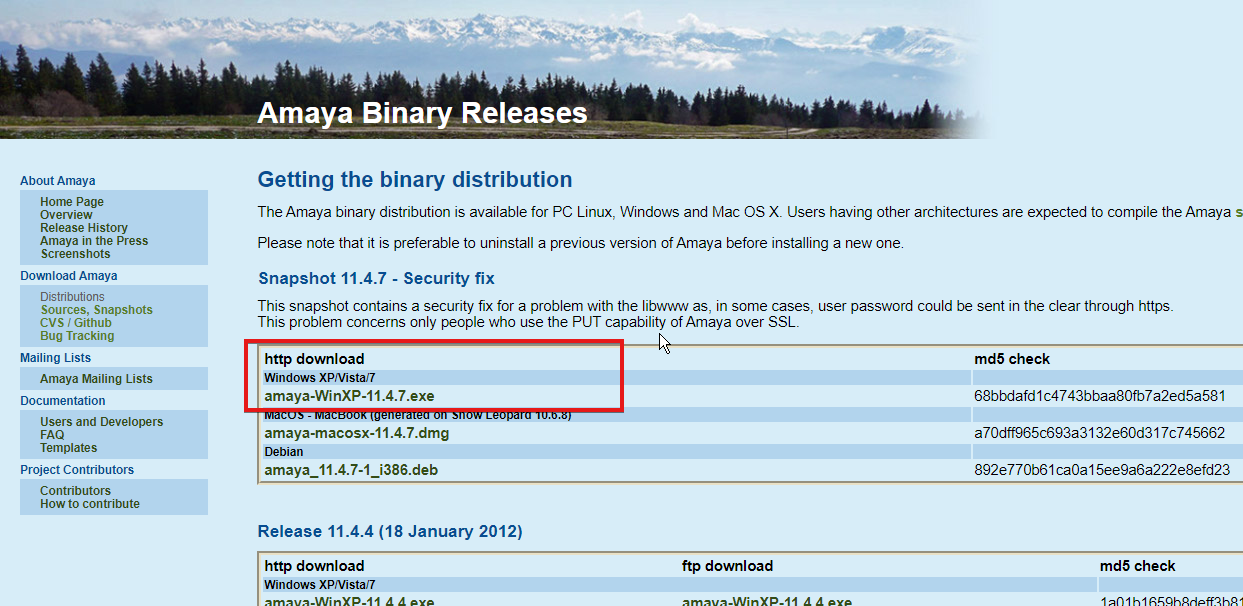
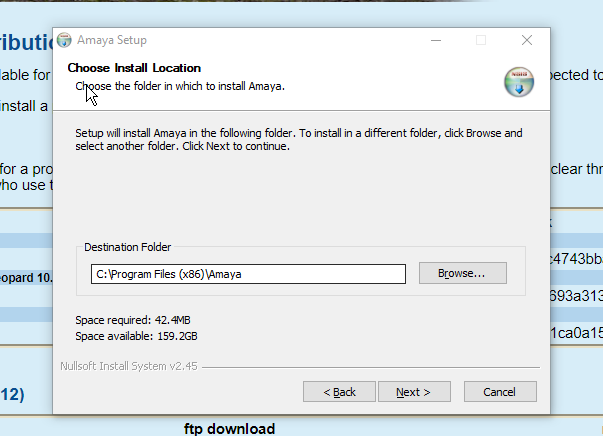
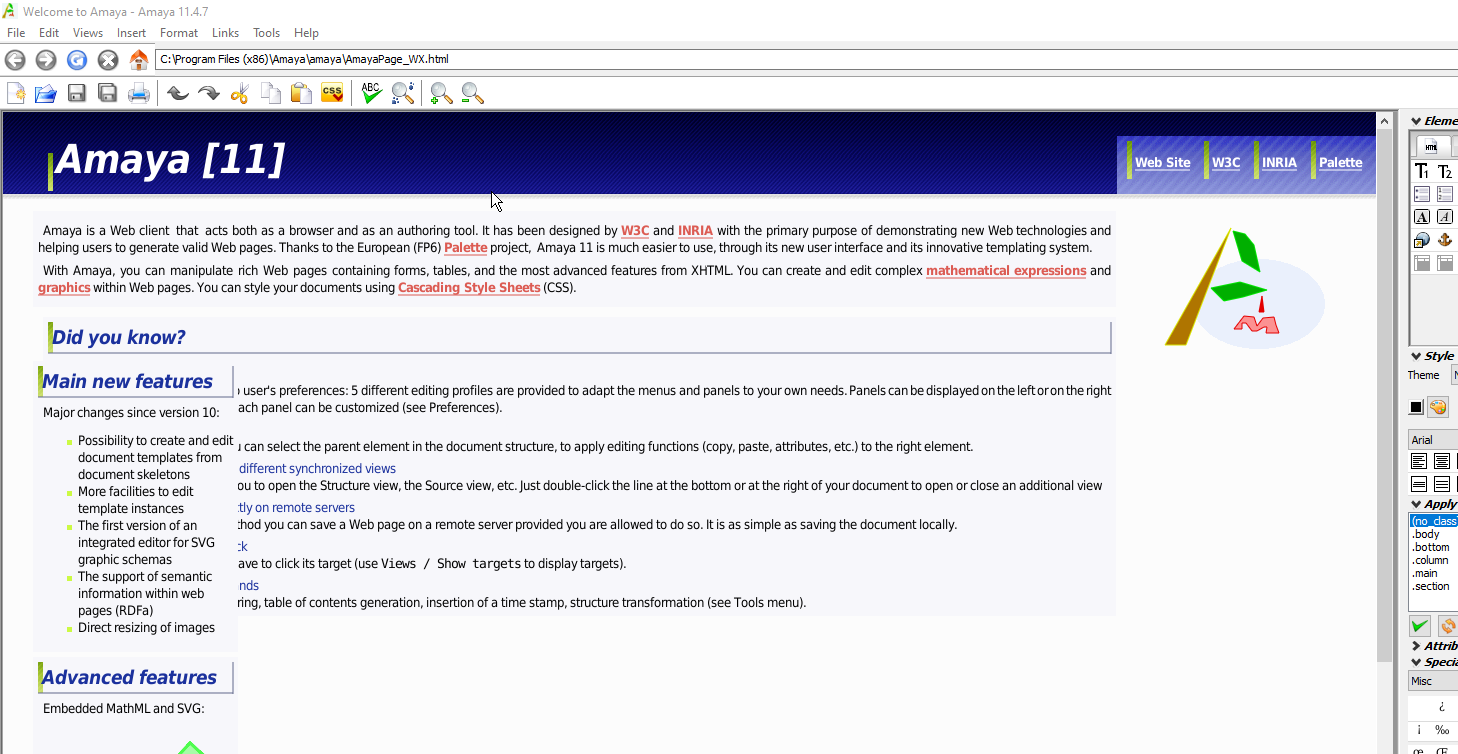



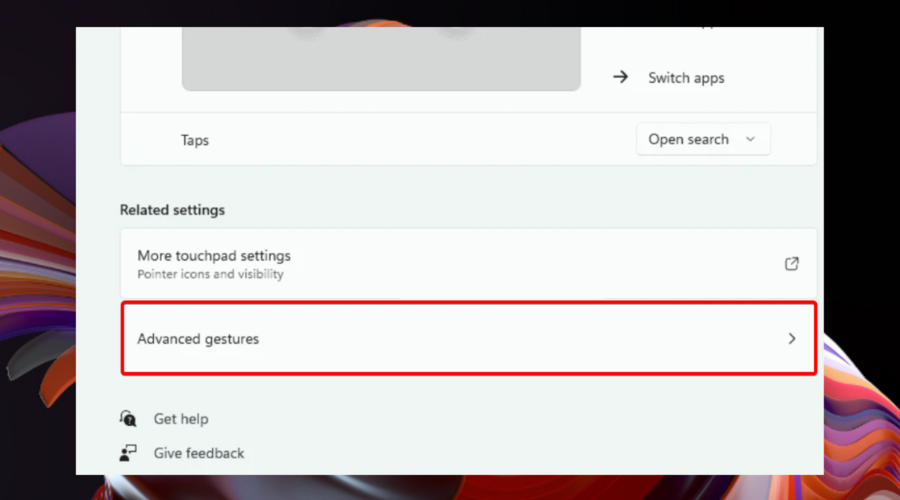
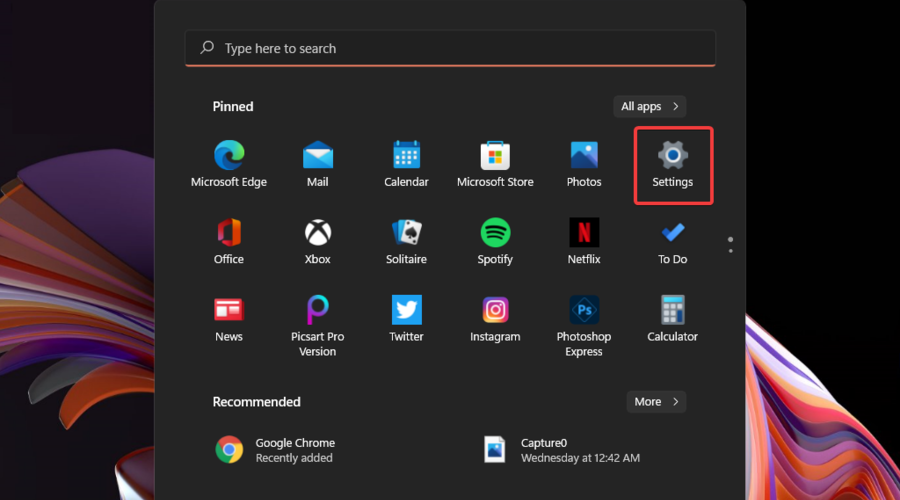


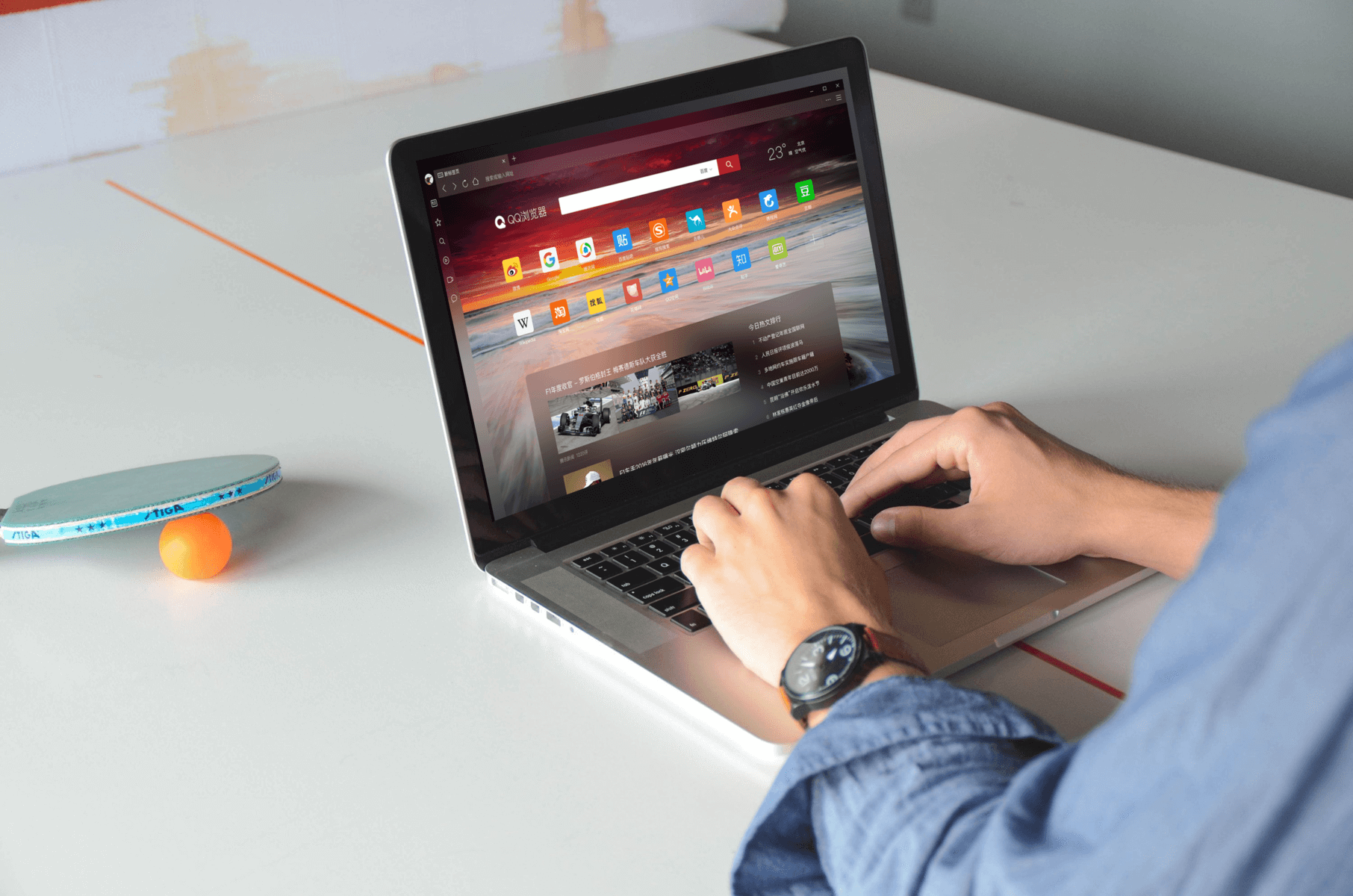



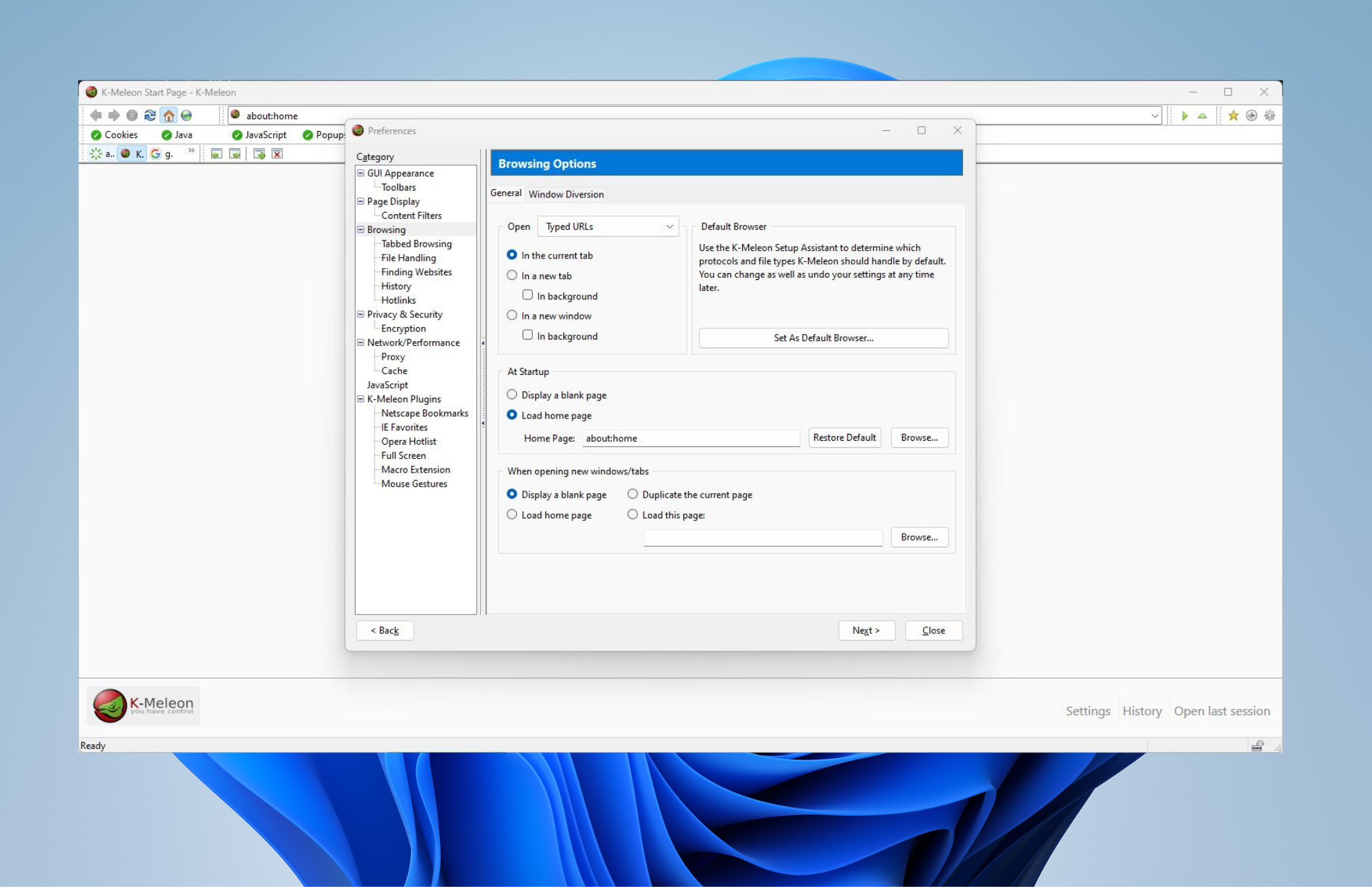


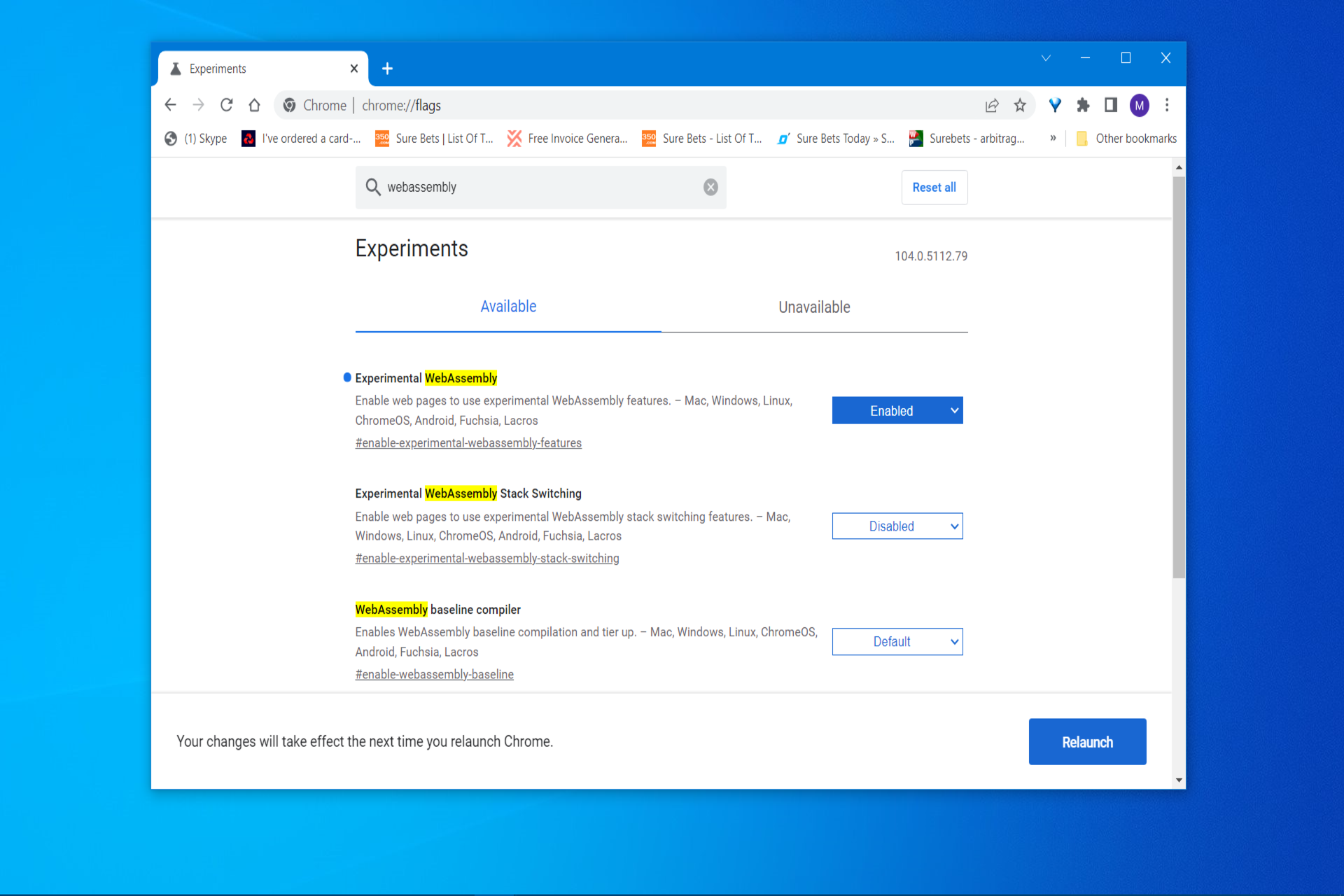


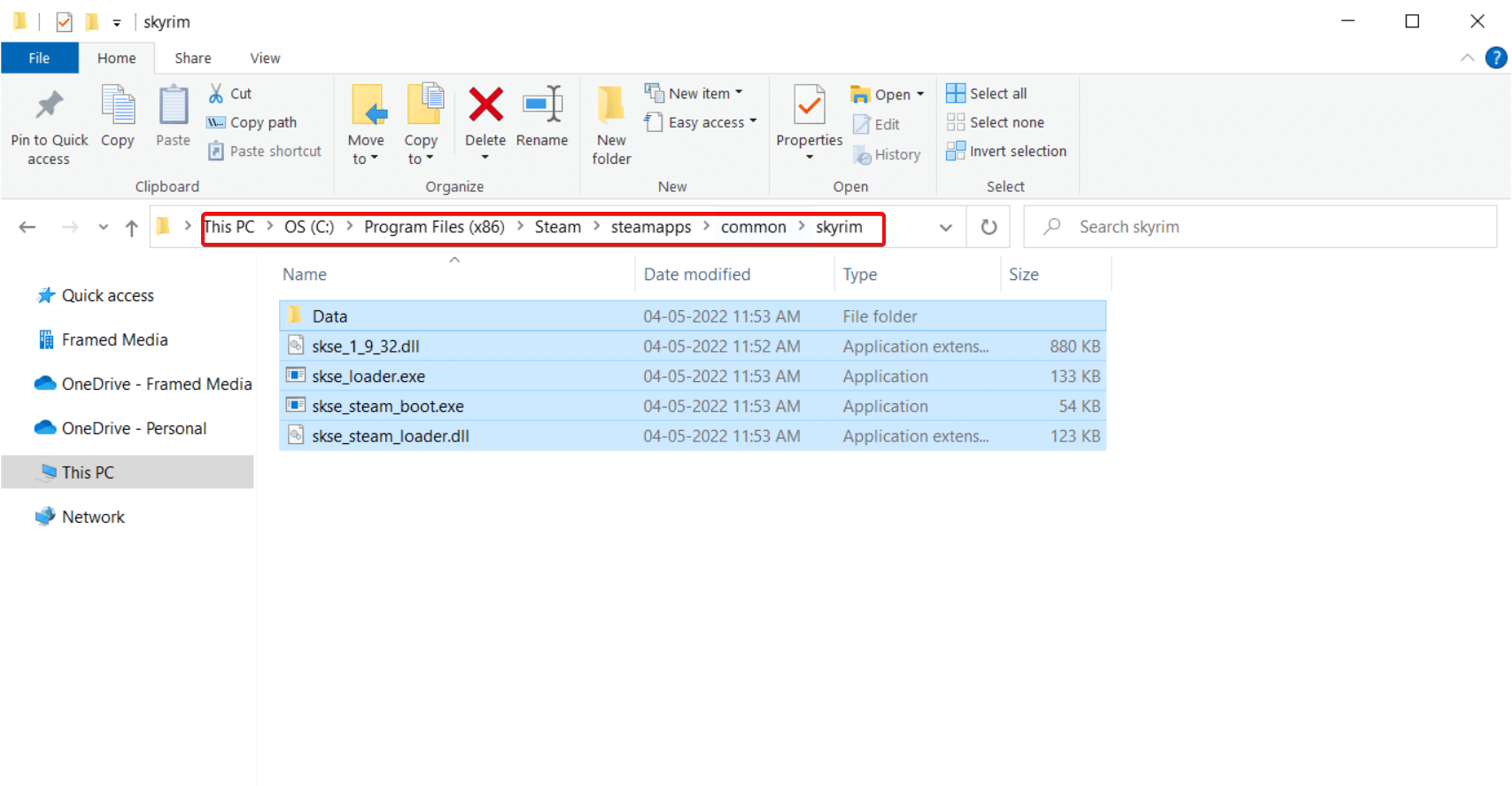
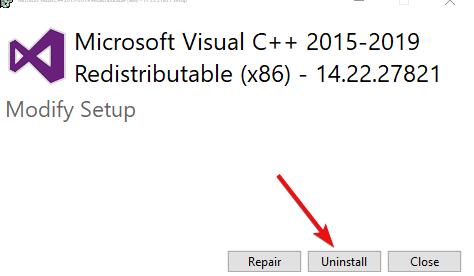
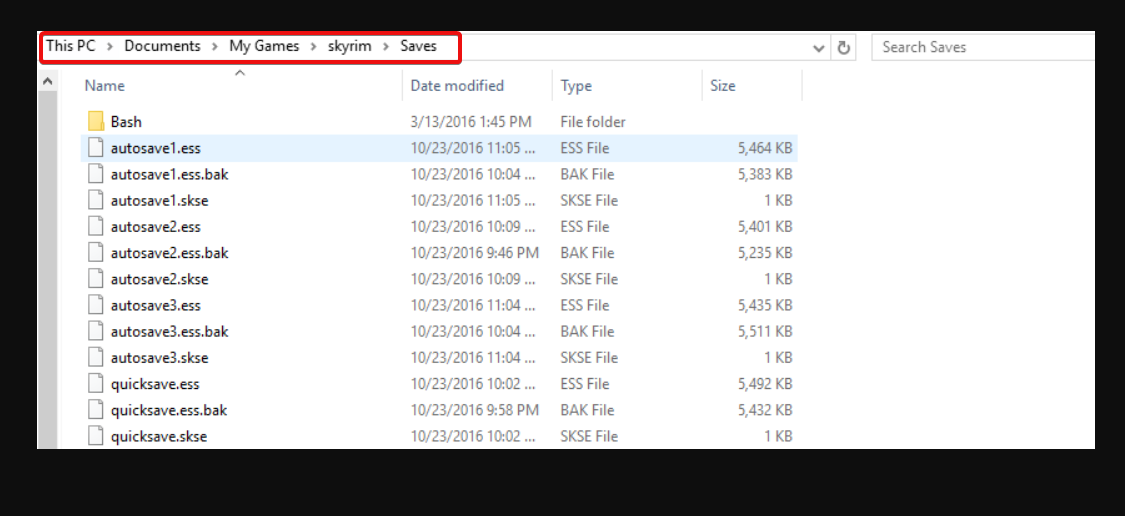

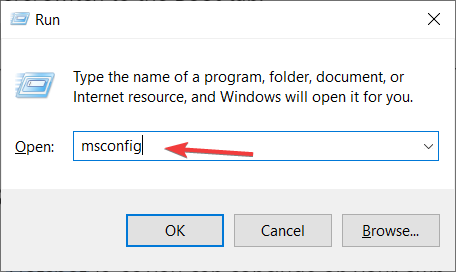
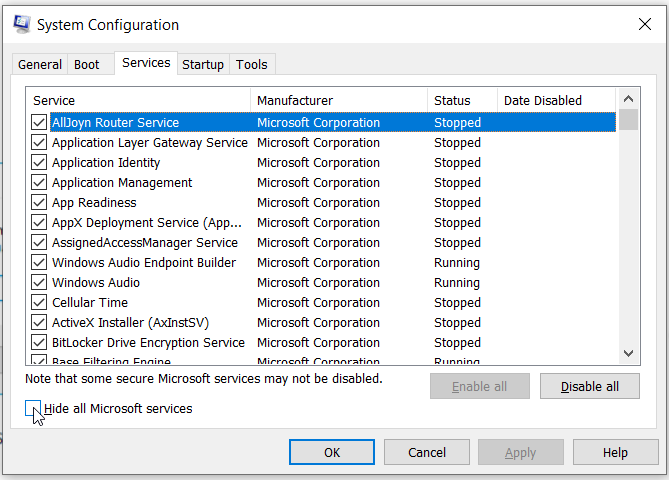
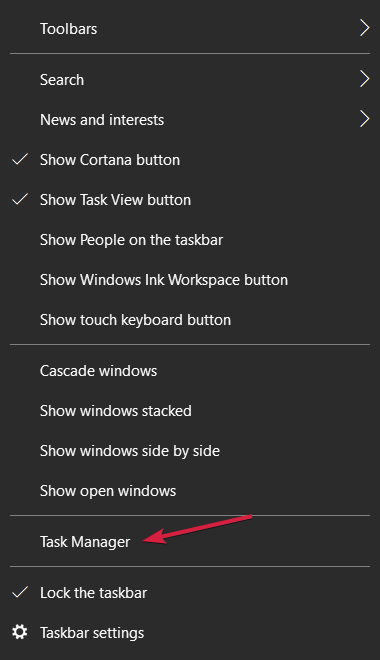
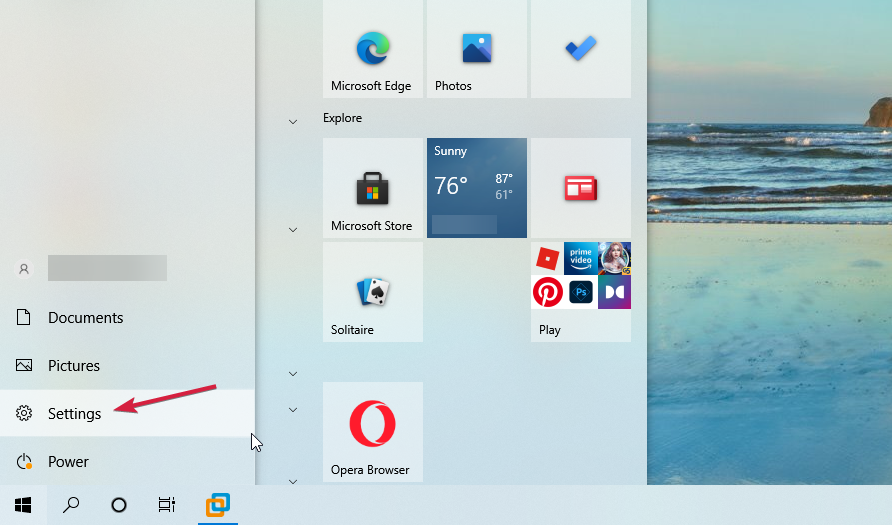
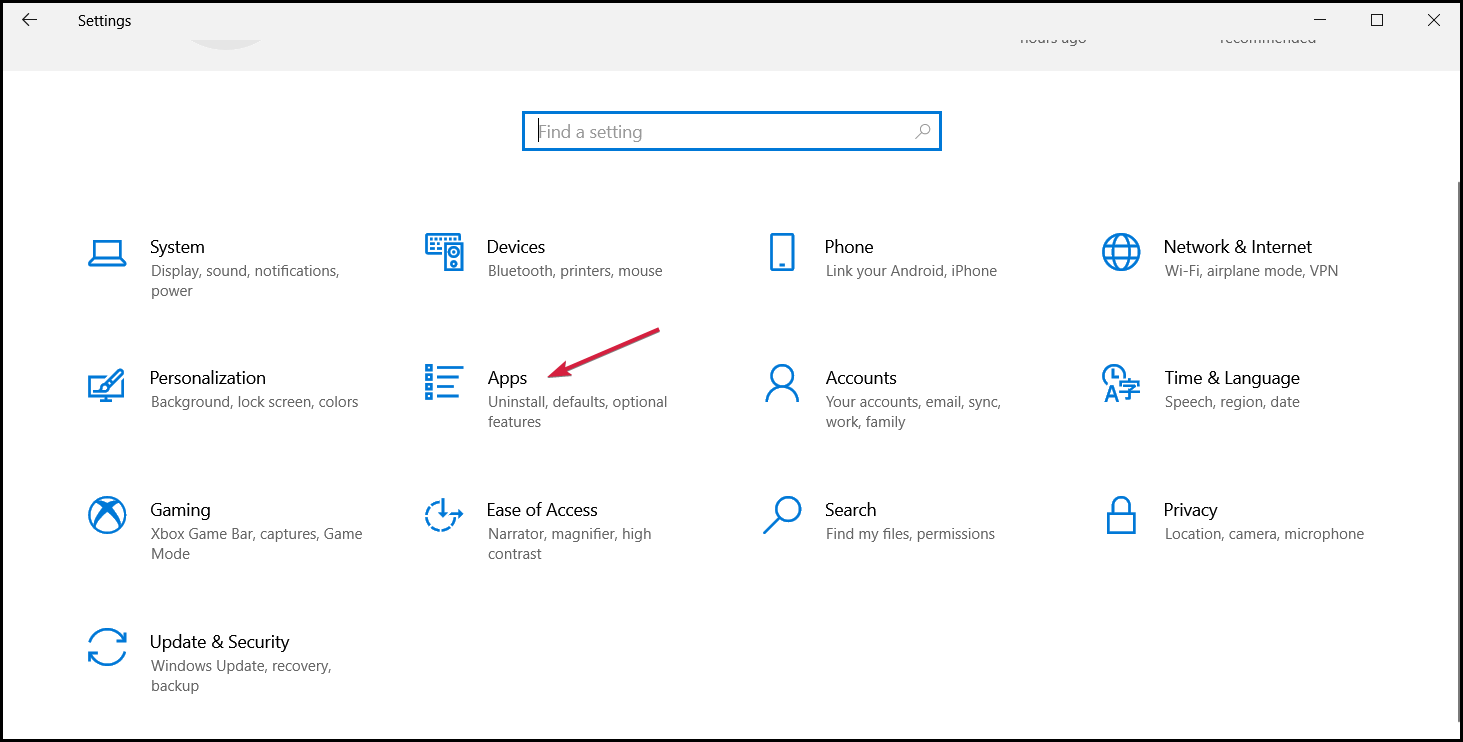

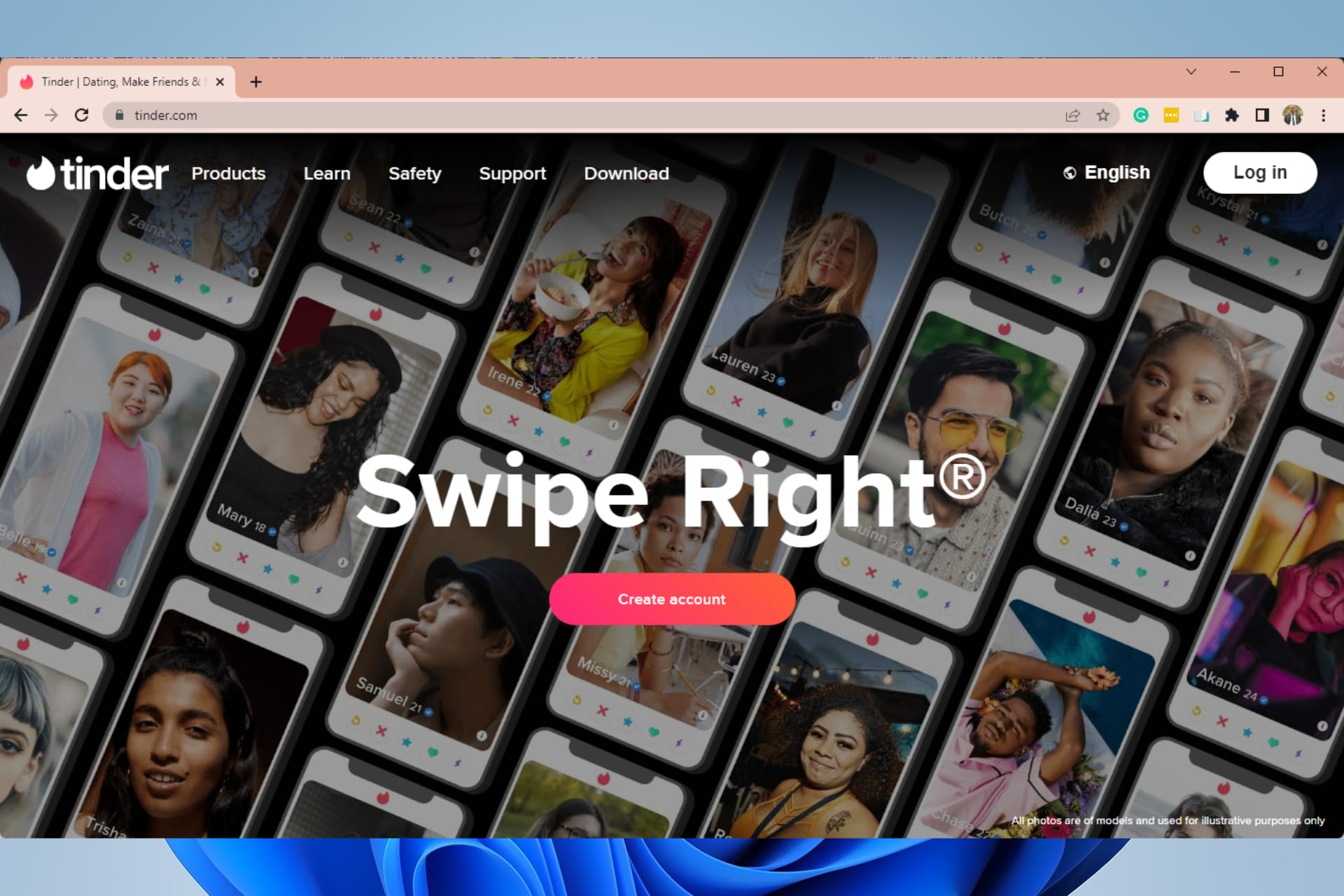


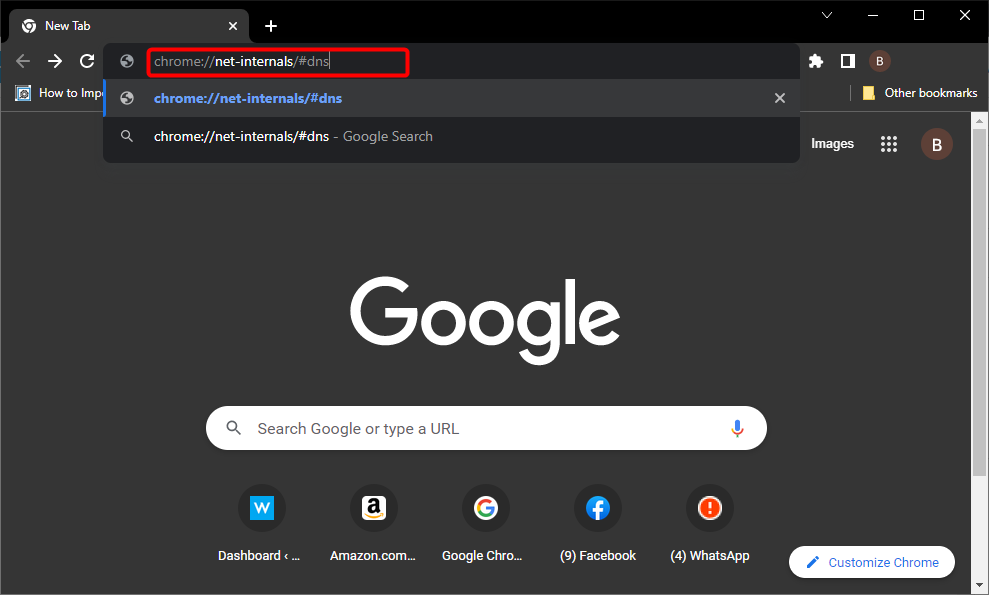


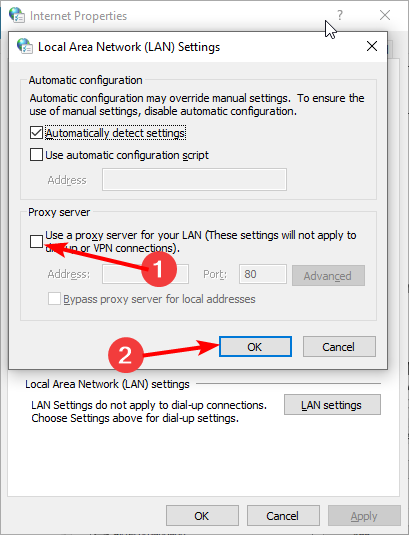
![Browser Does not Support Playback of This Twitch Video [Fix]](https://windowsreport.com/wp-content/uploads/2022/01/Twitch-error-playback-video.jpg)

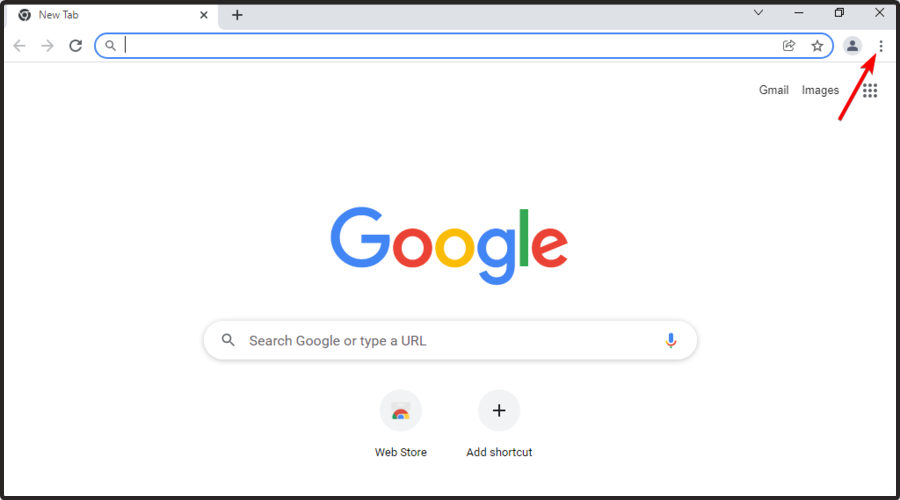
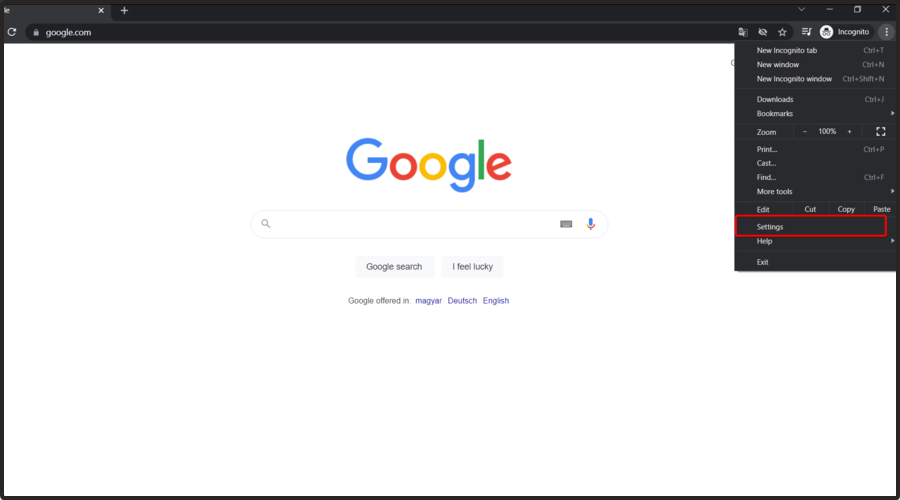




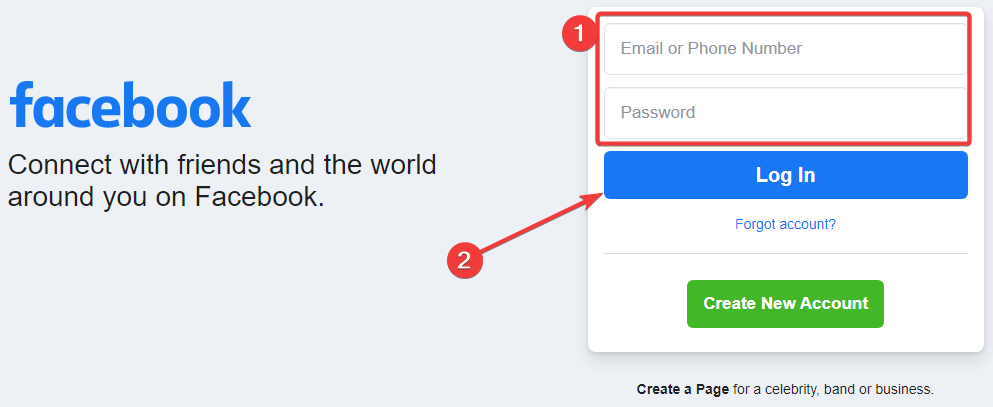
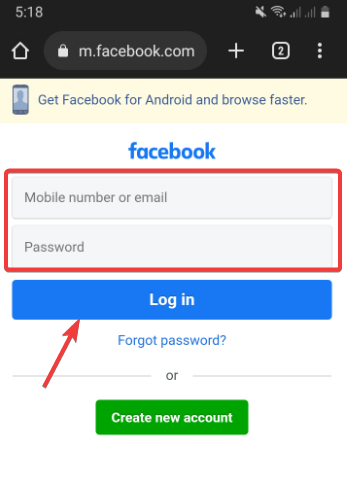
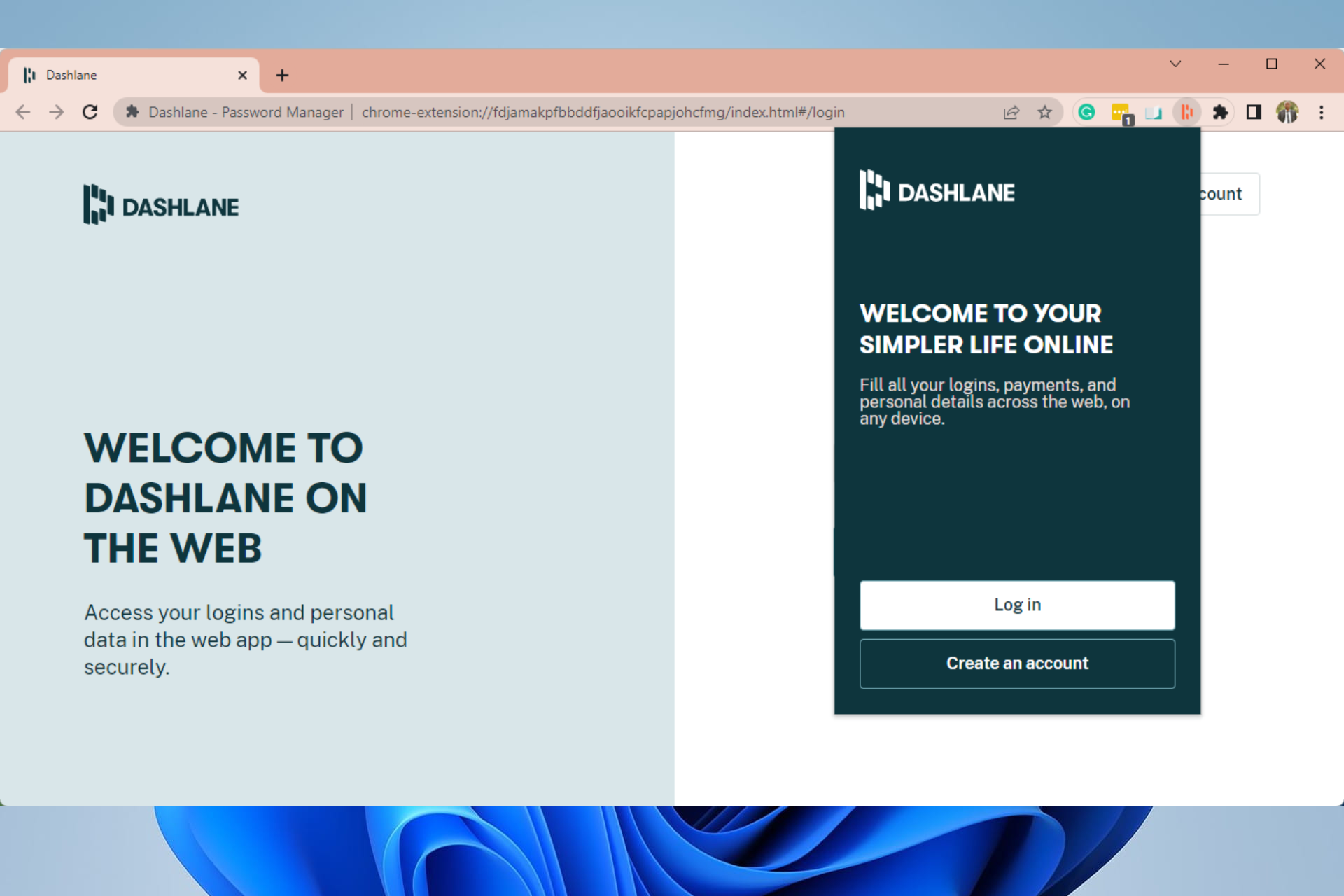




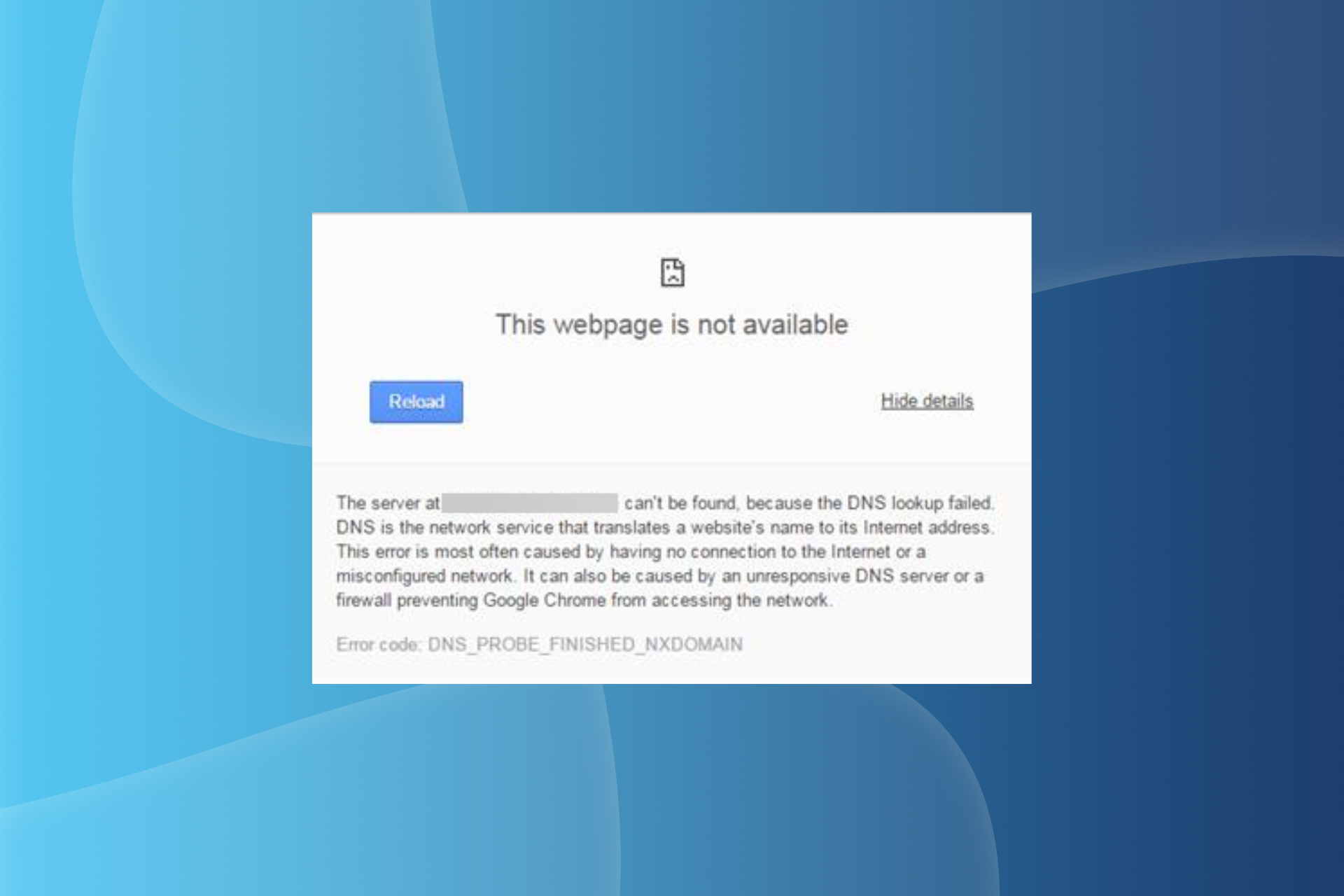


![Create Portable Software And Run Any App From USB [How to]](https://windowsreport.com/wp-content/uploads/2016/10/How-to-create-portable-software-in-Windows-10.jpg)


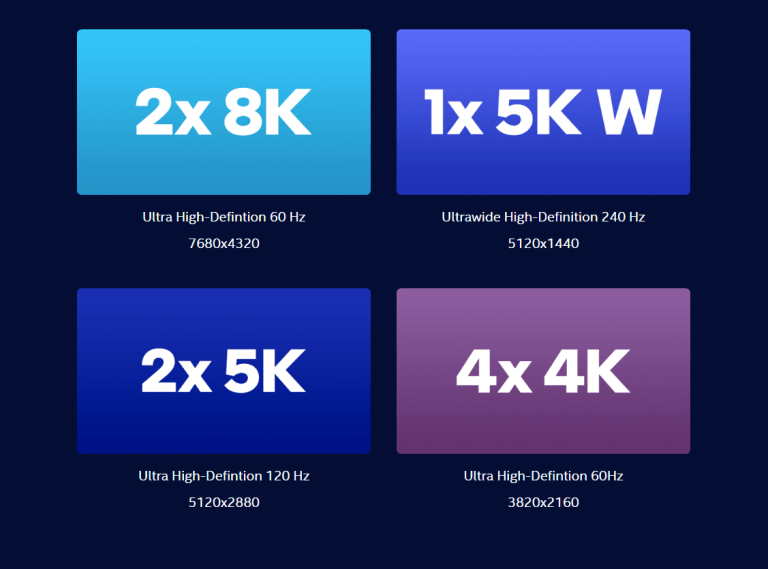


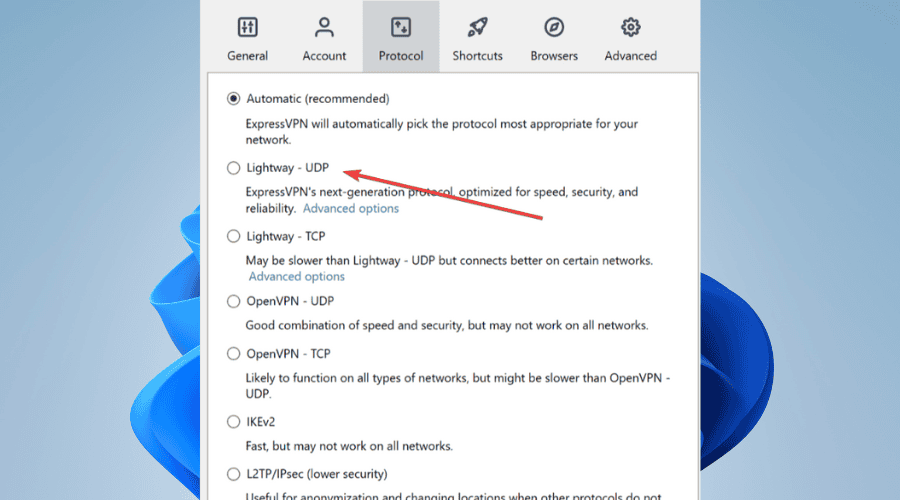
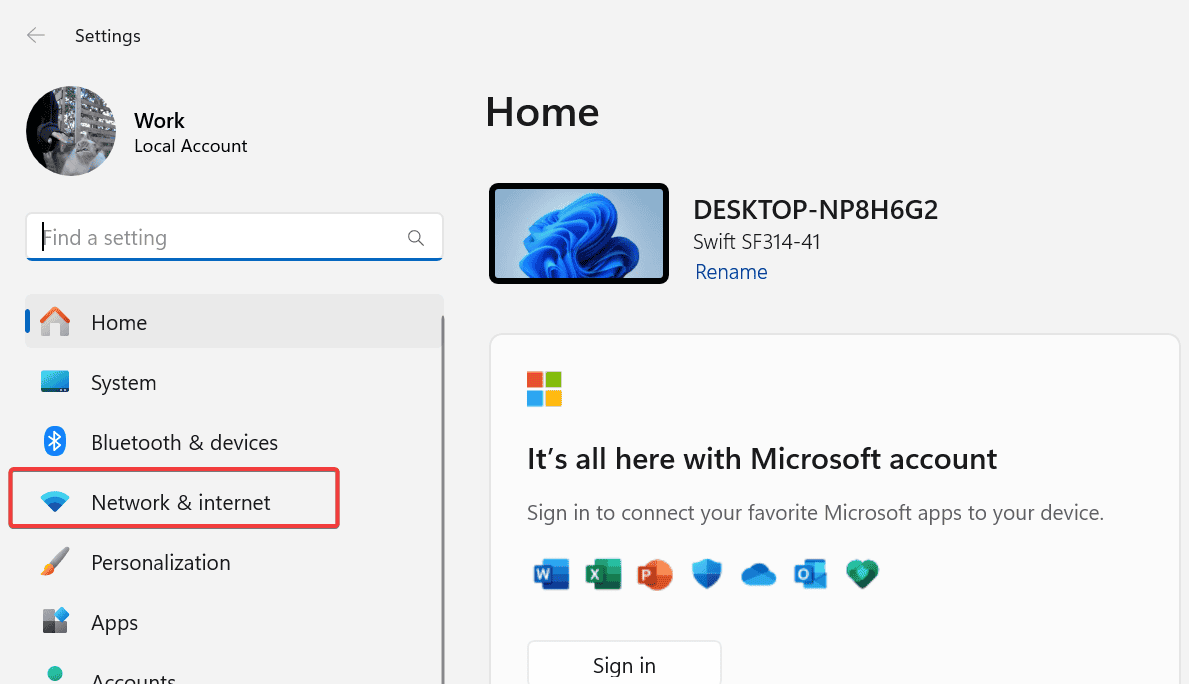

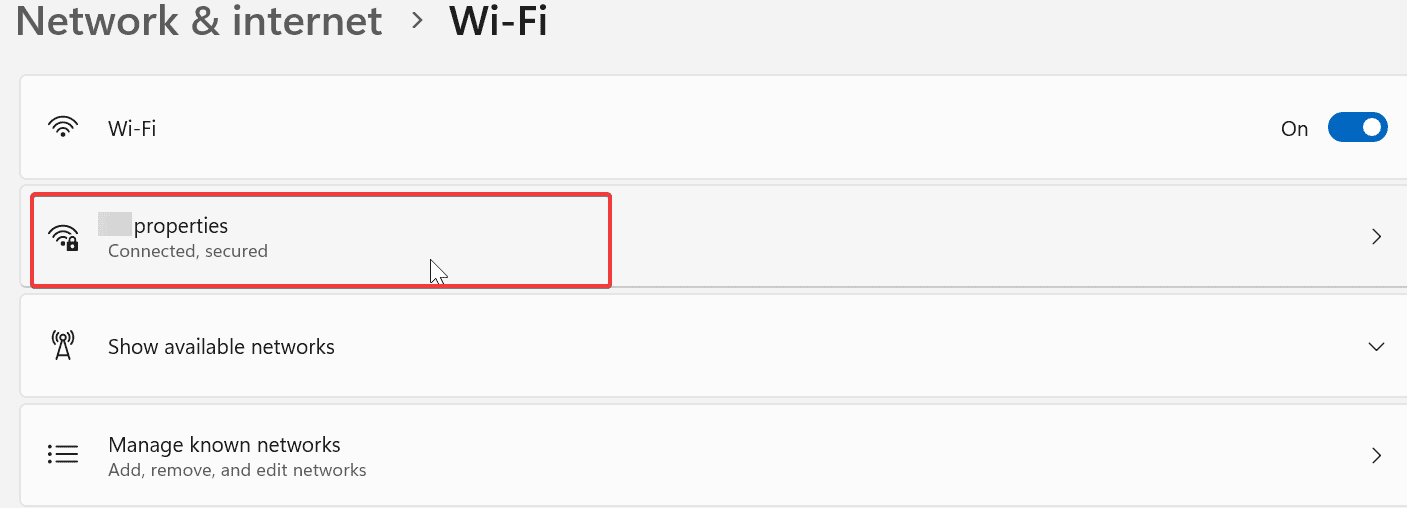
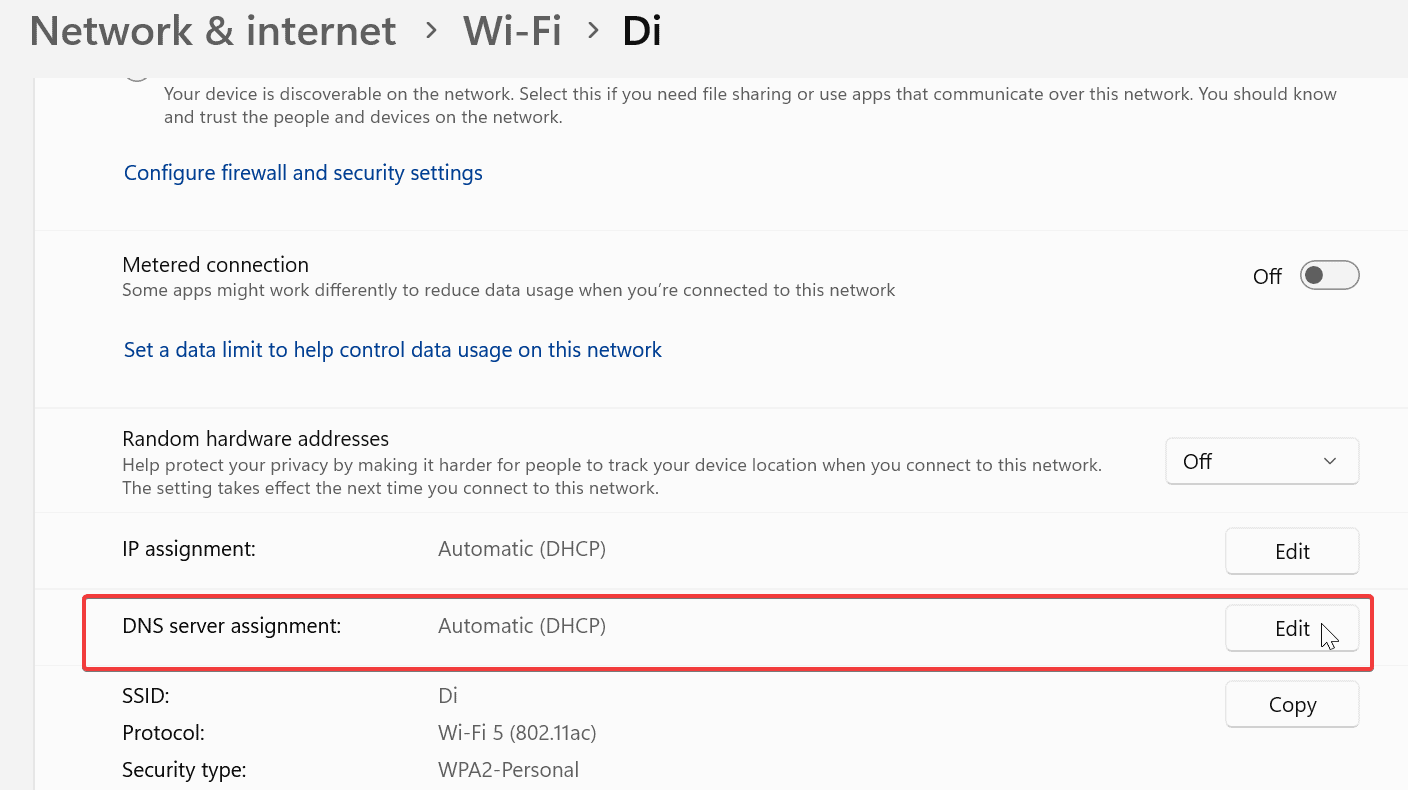
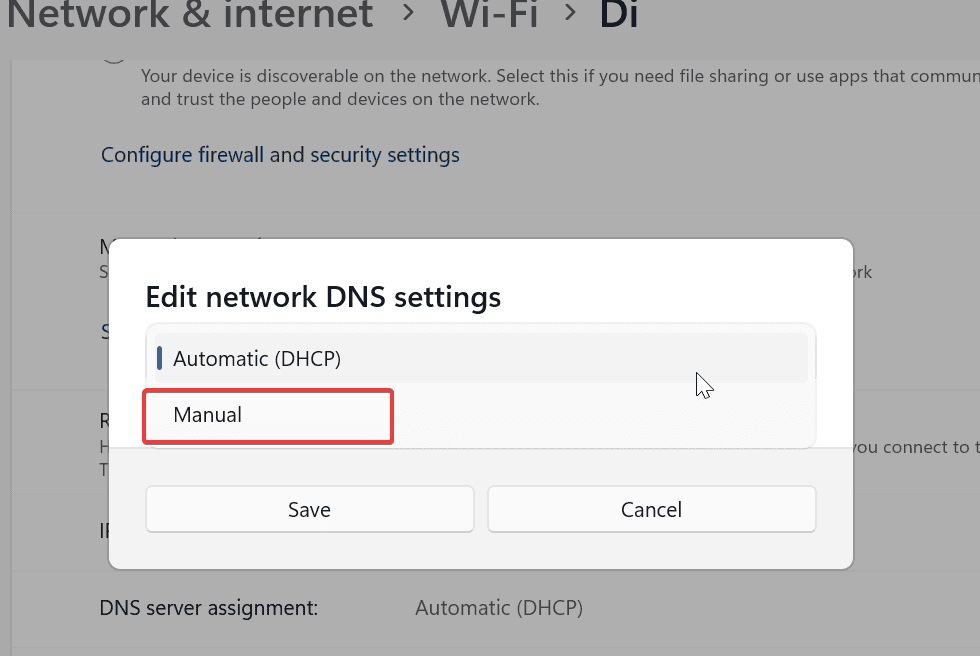
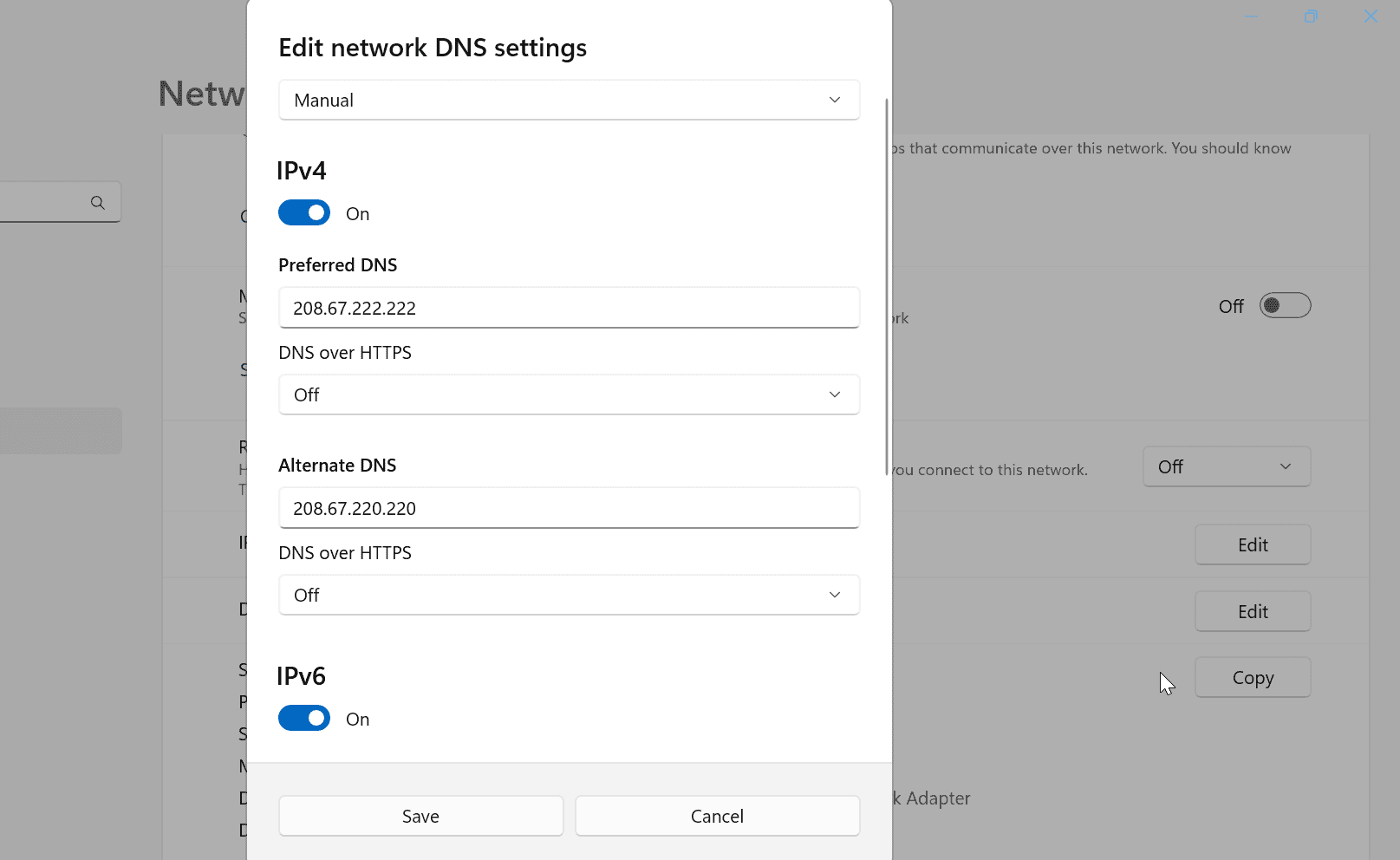
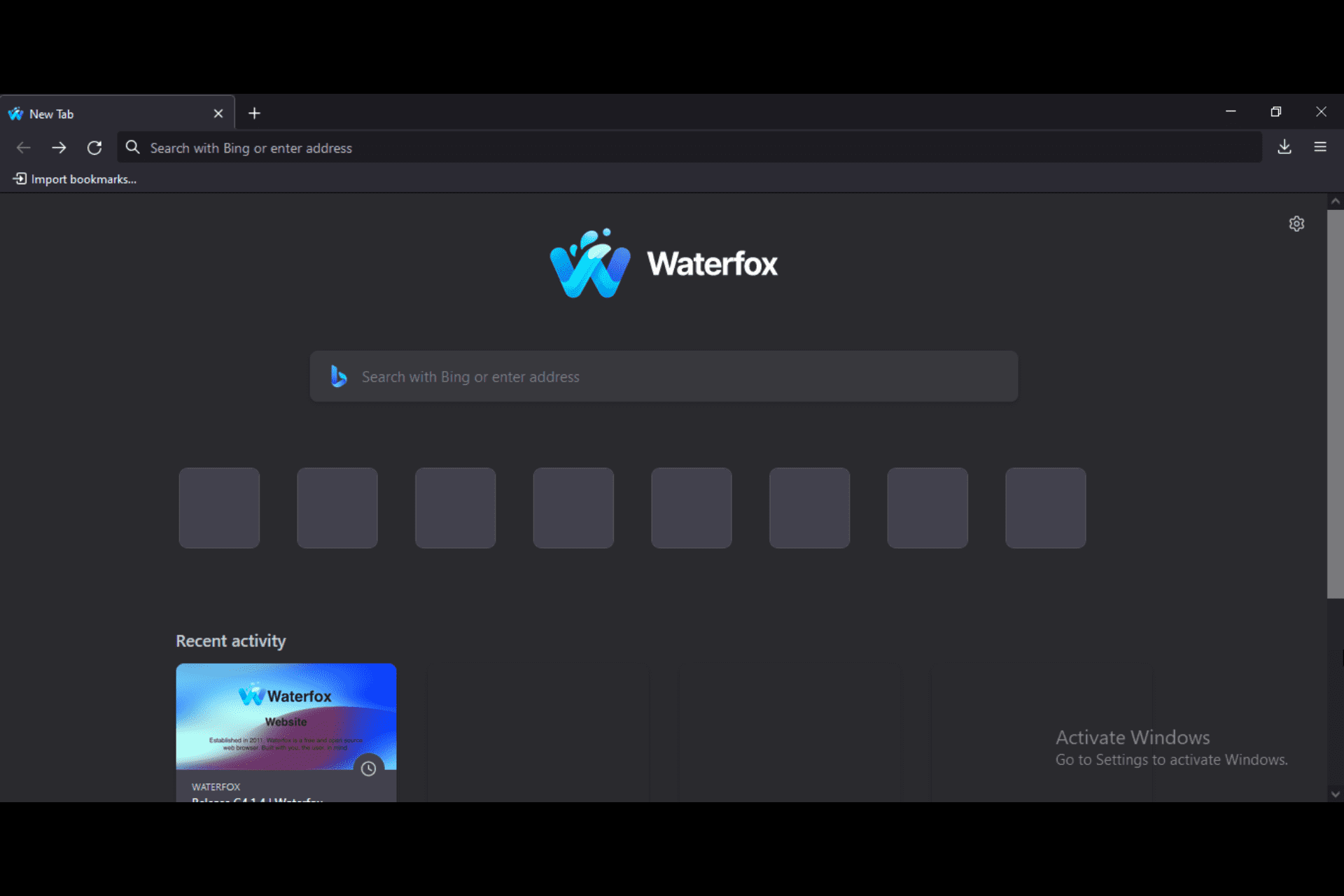

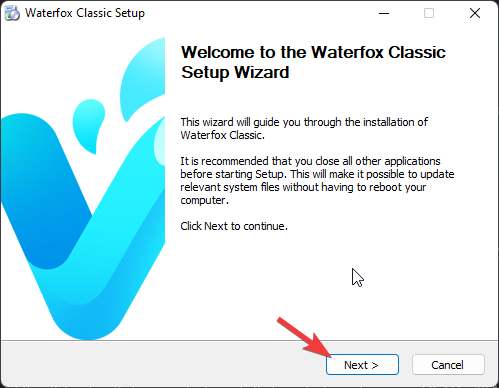
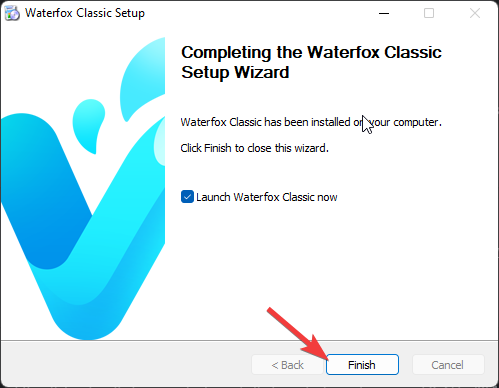


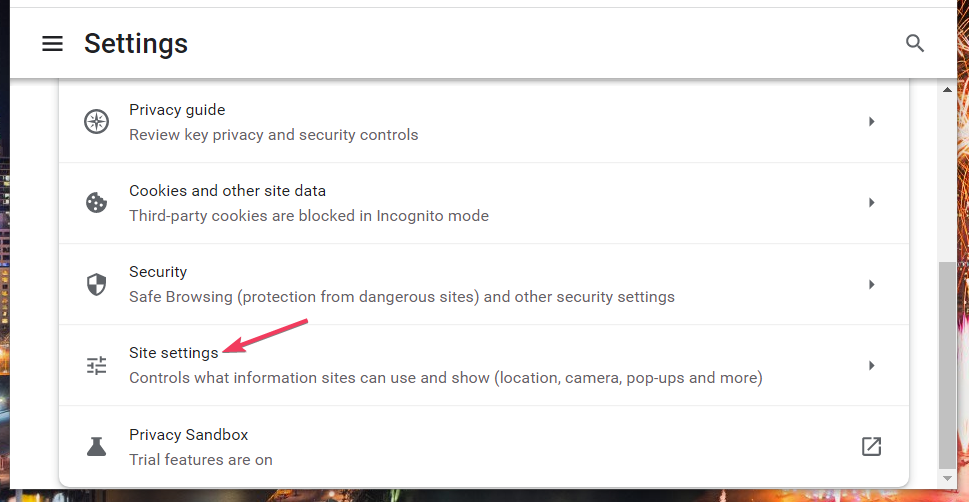
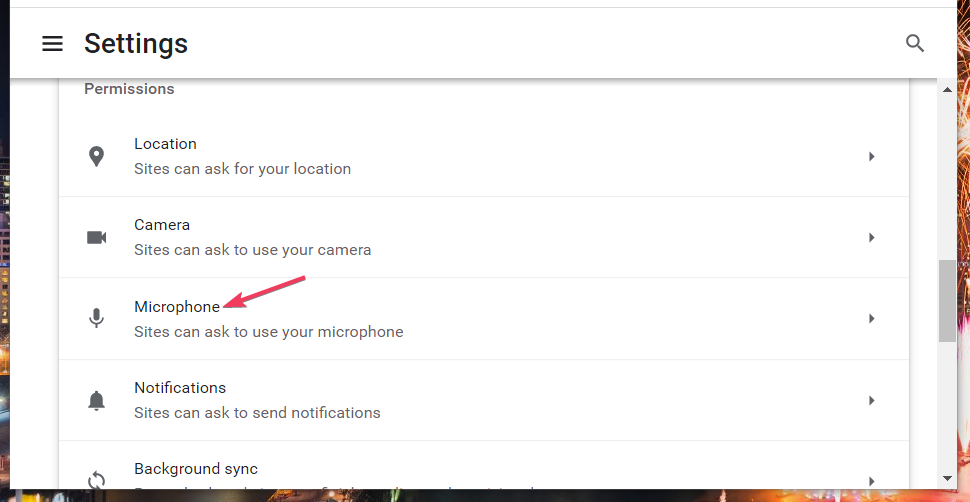
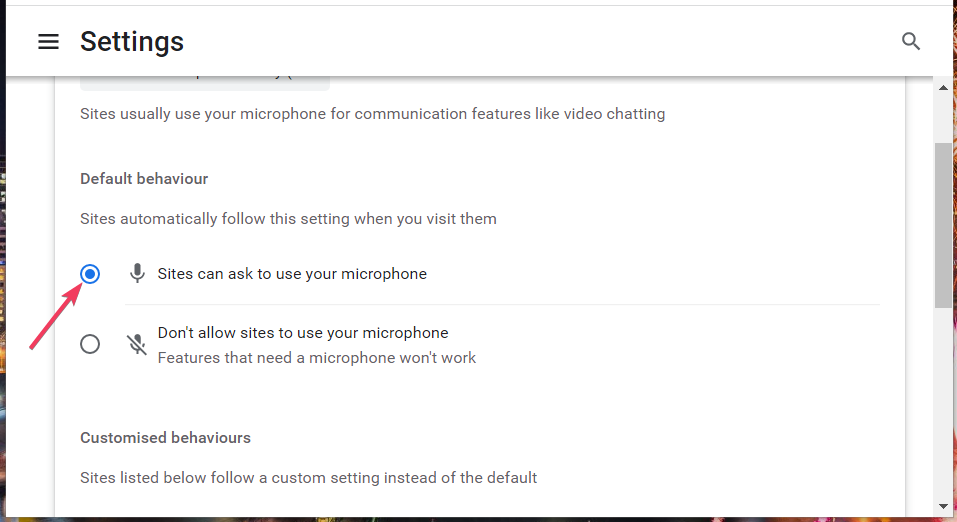
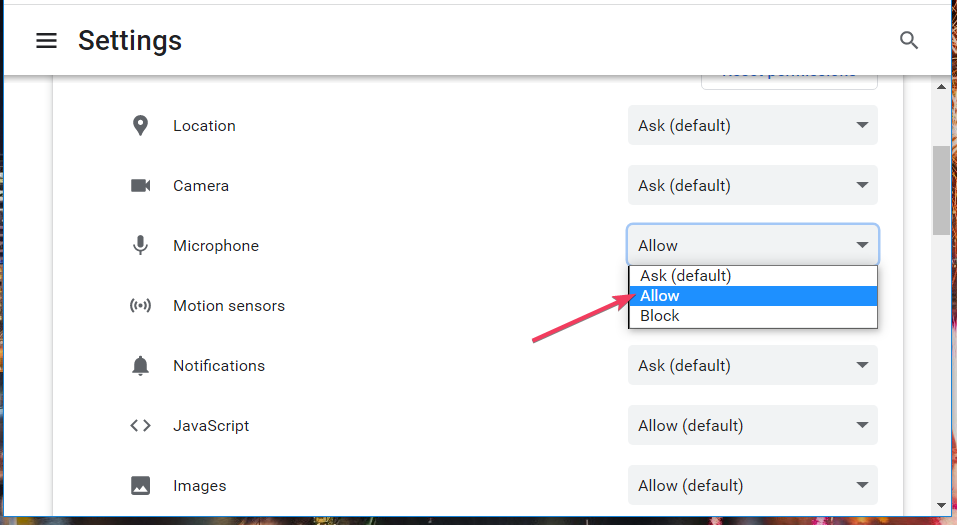
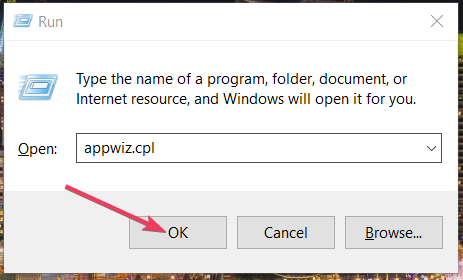
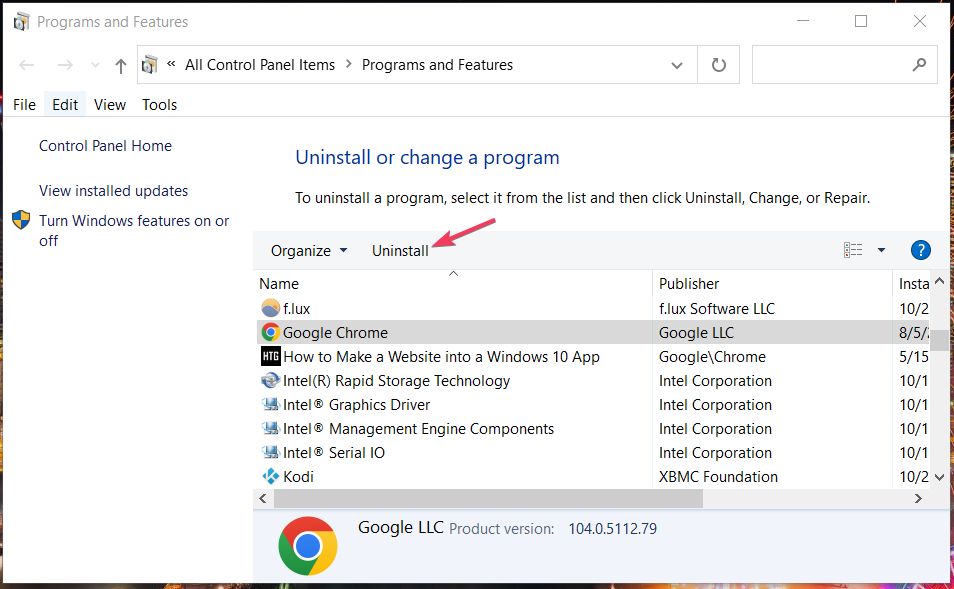
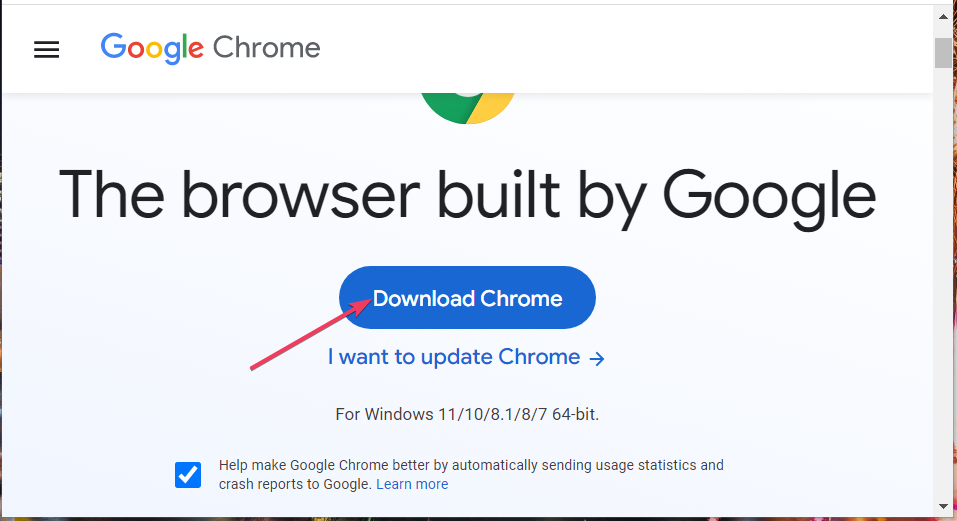

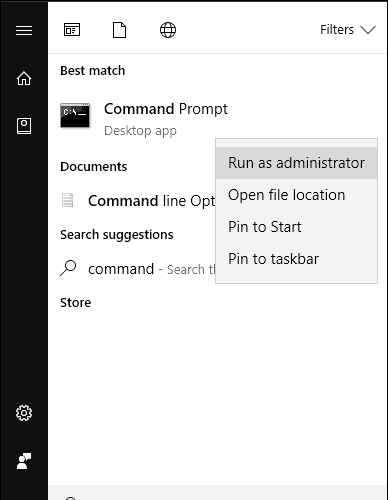
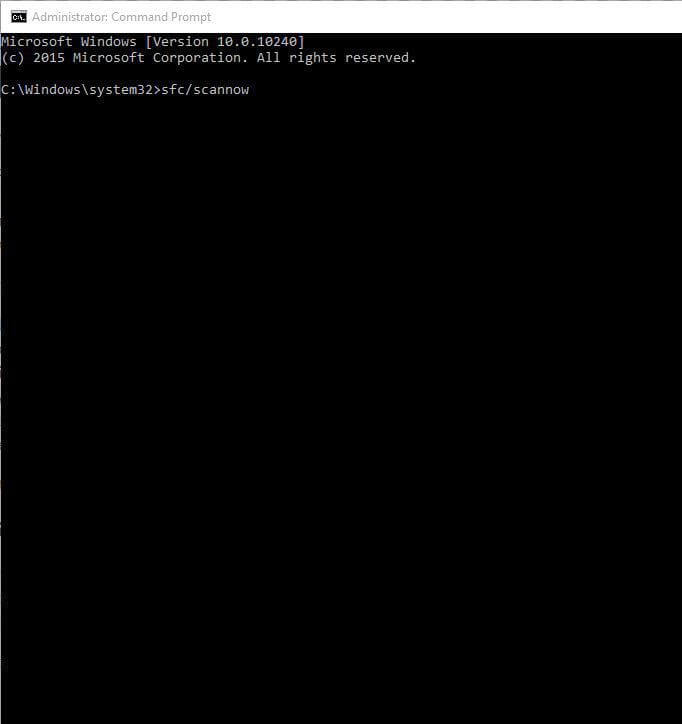
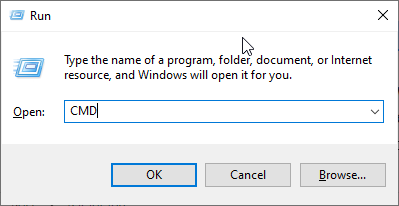
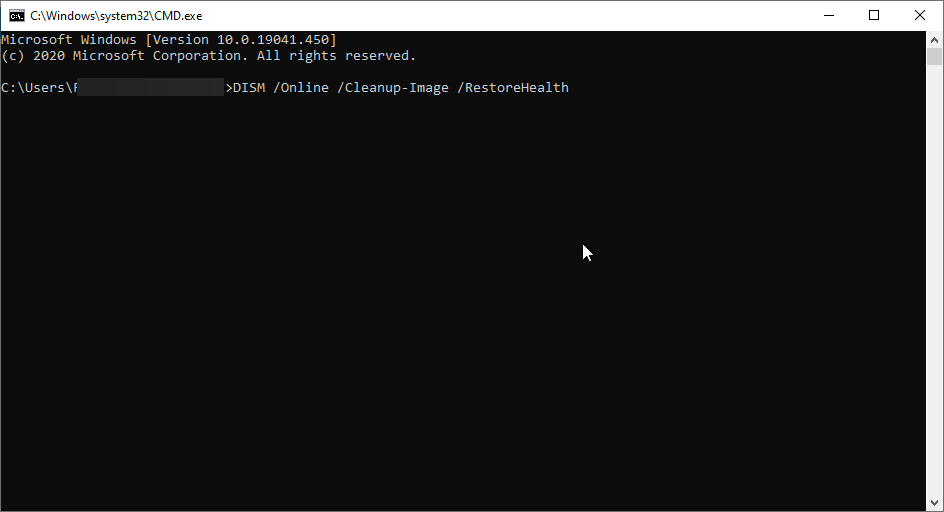
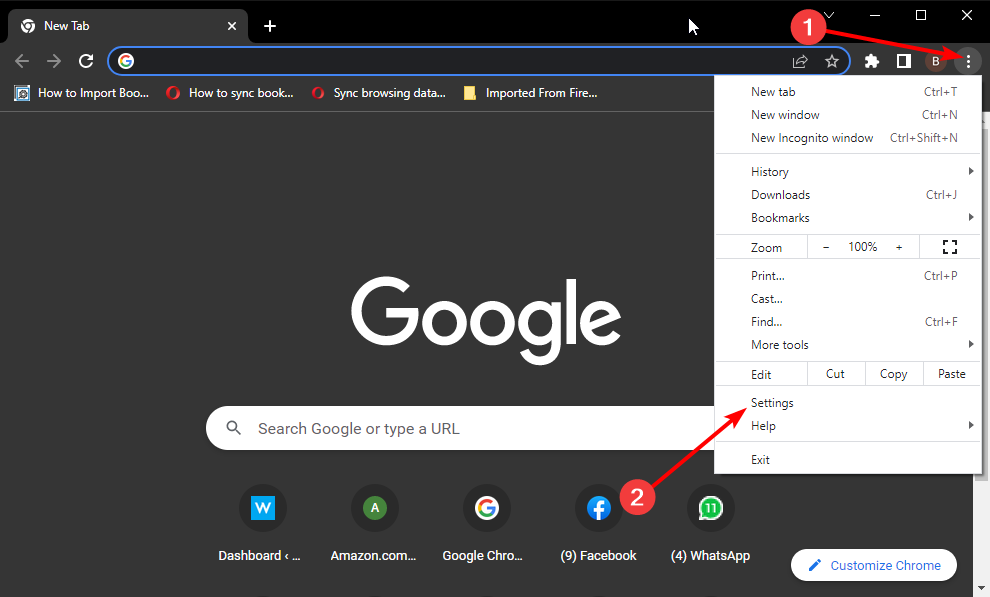
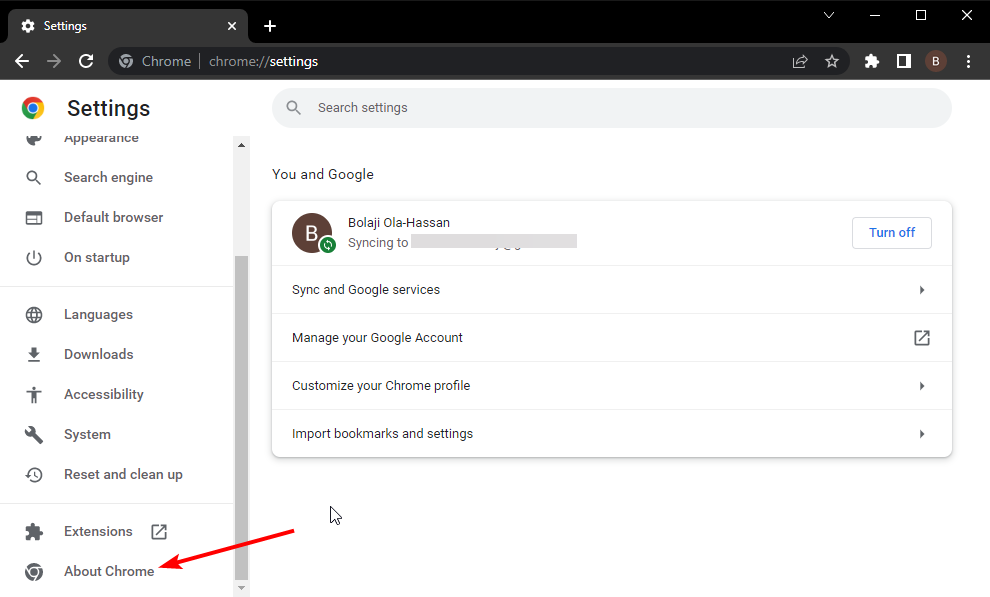
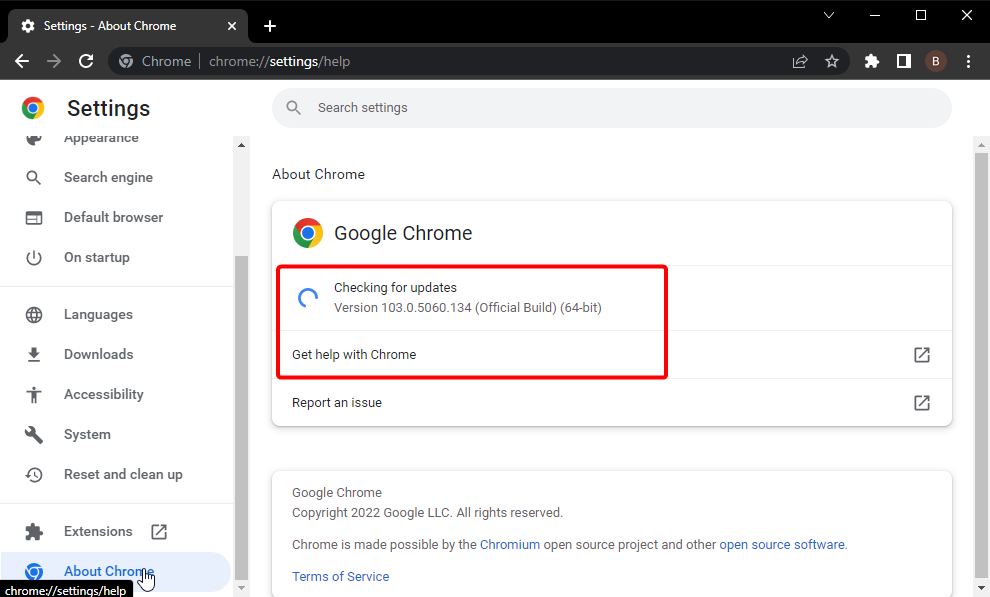
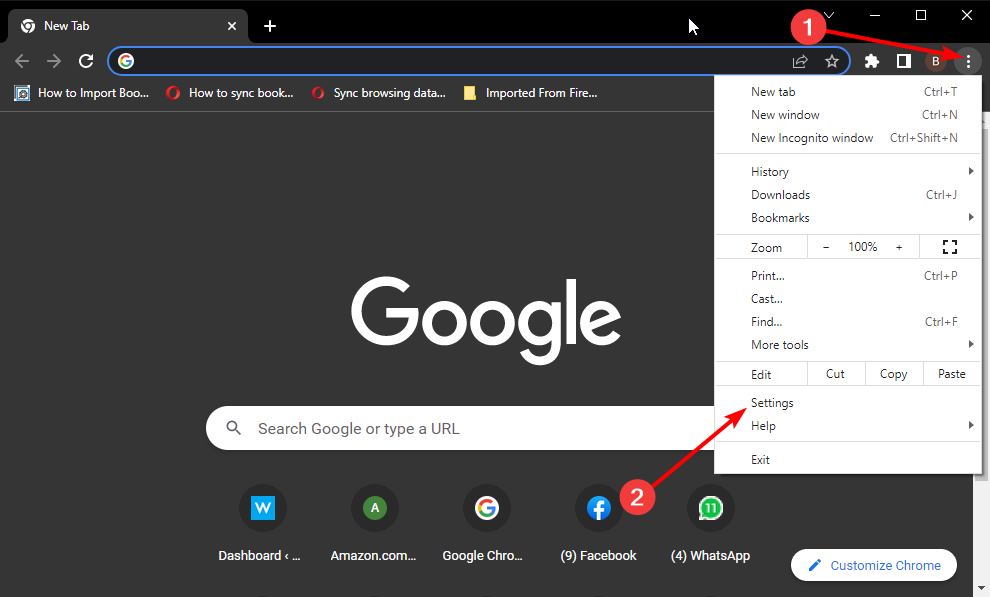
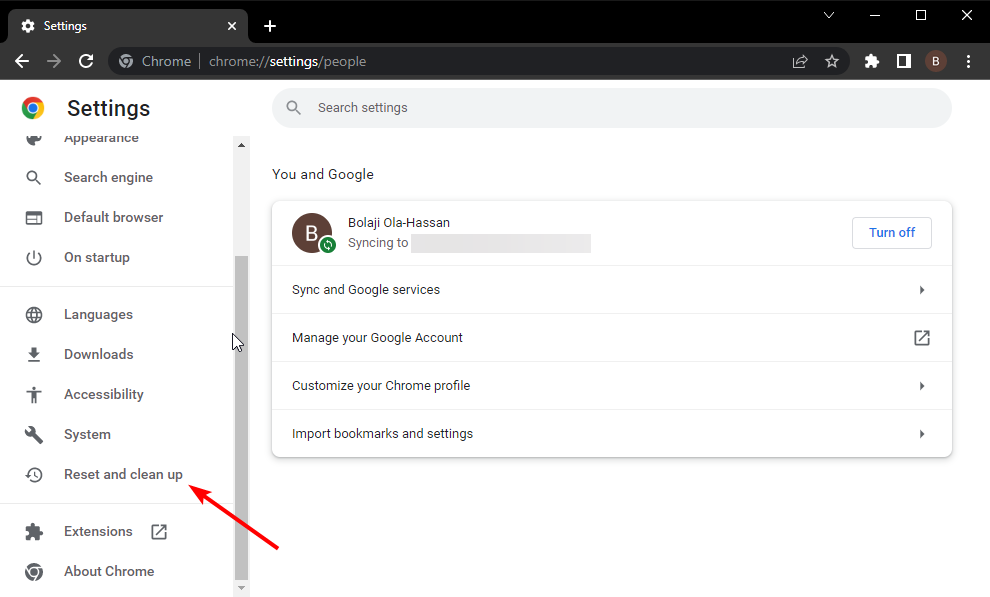
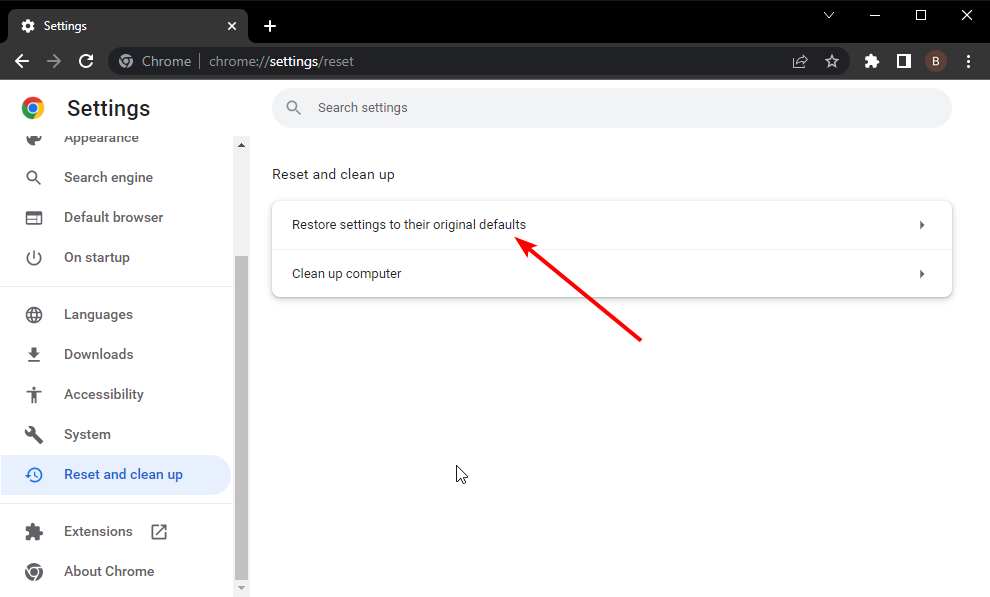
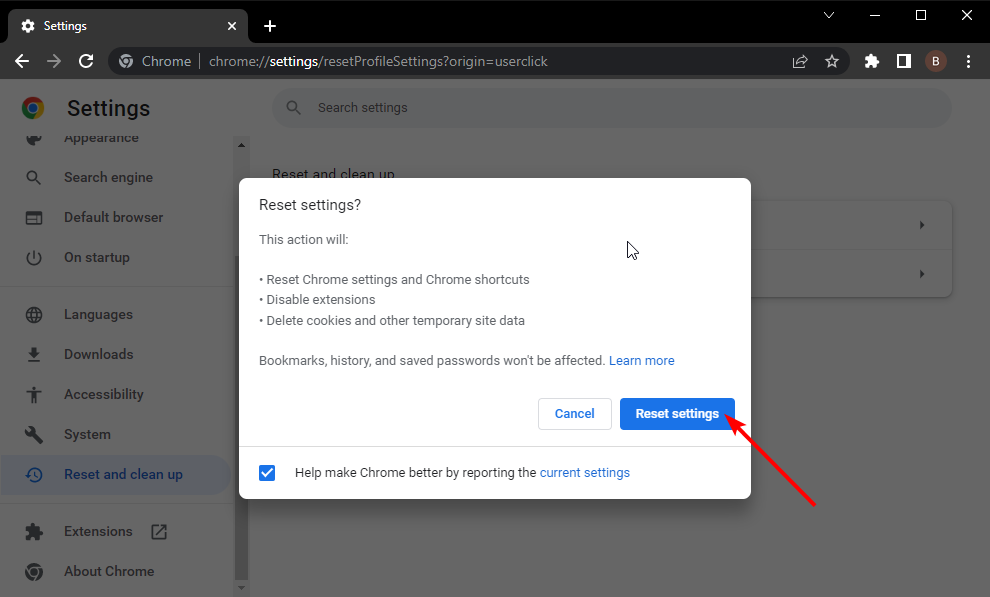
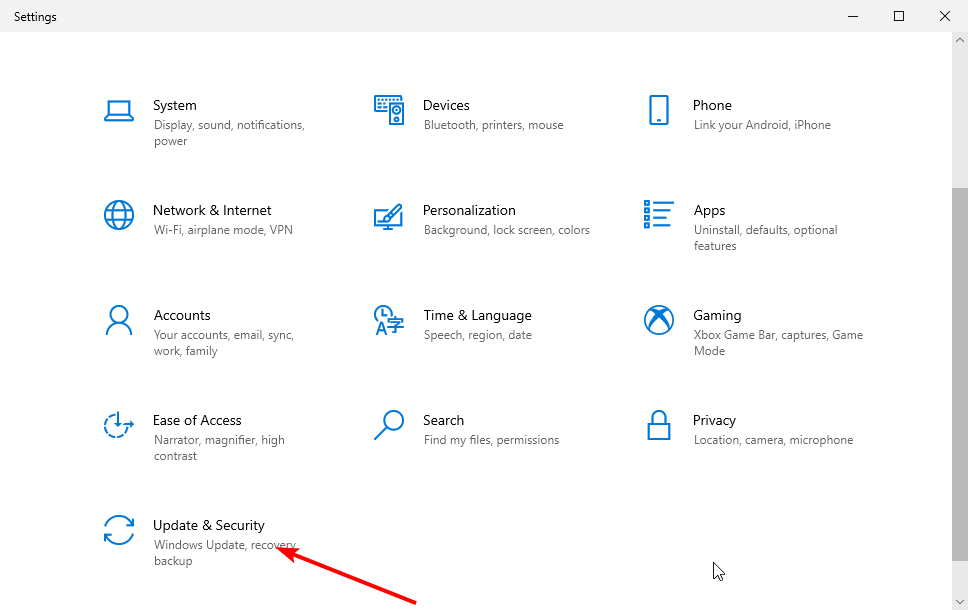
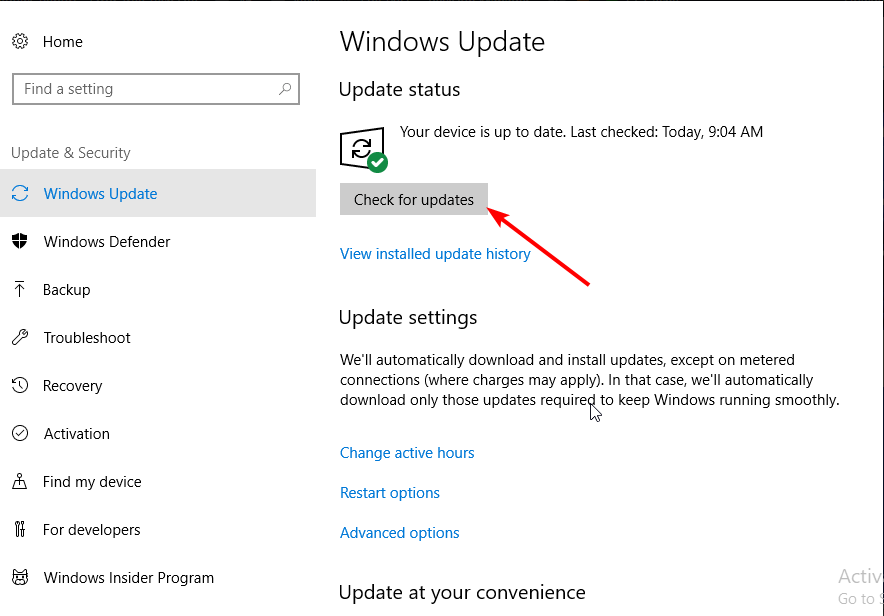
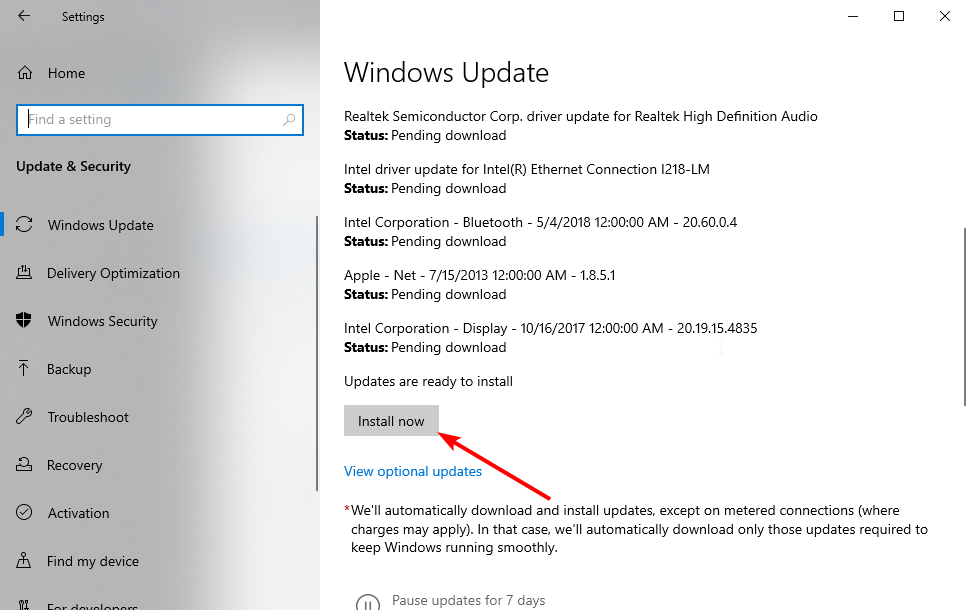
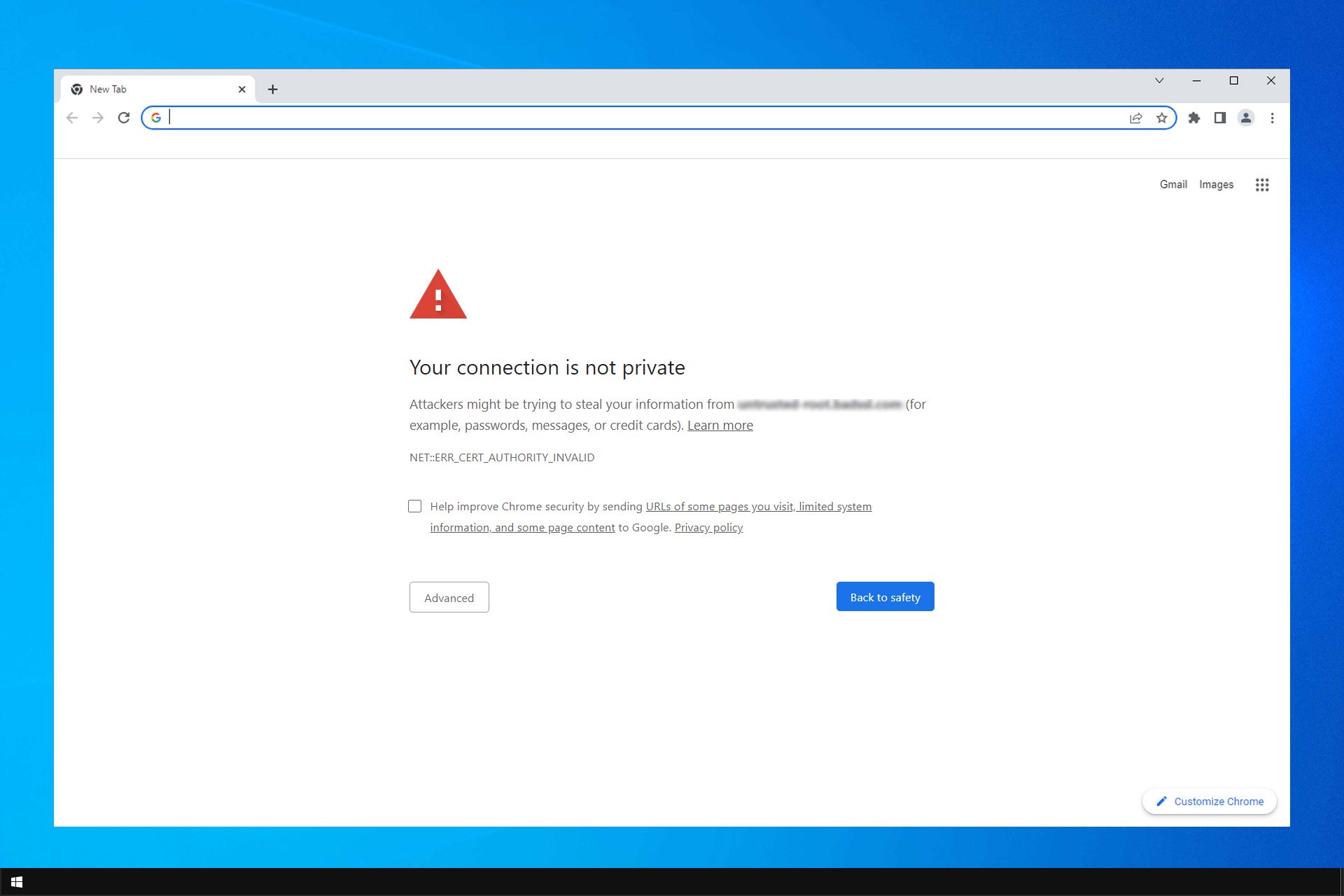
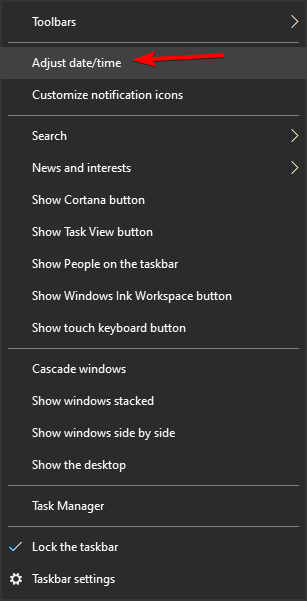
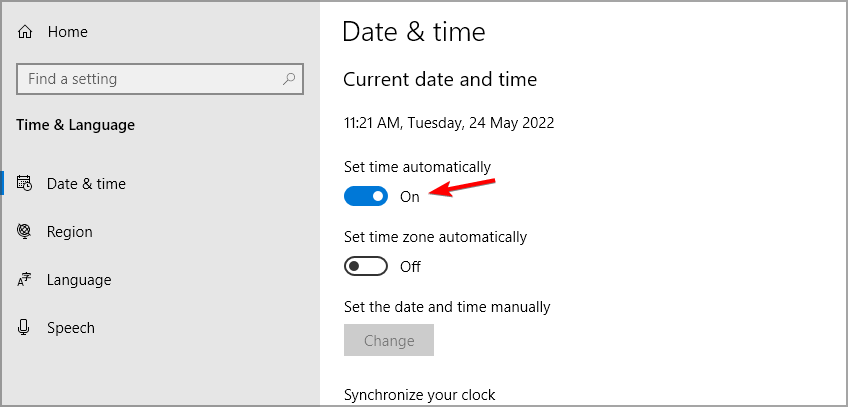
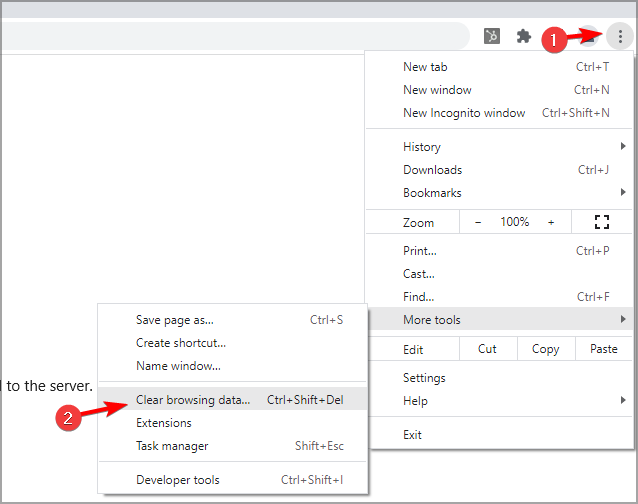
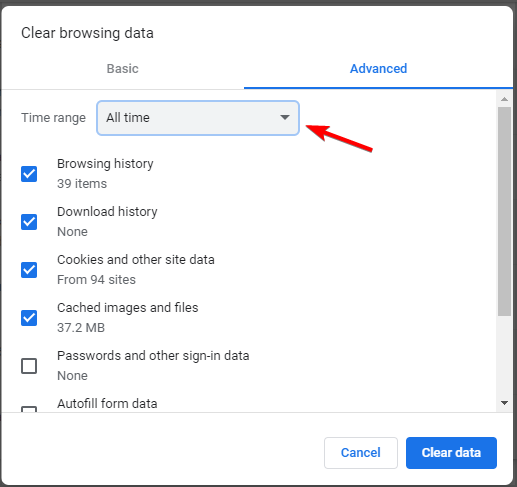
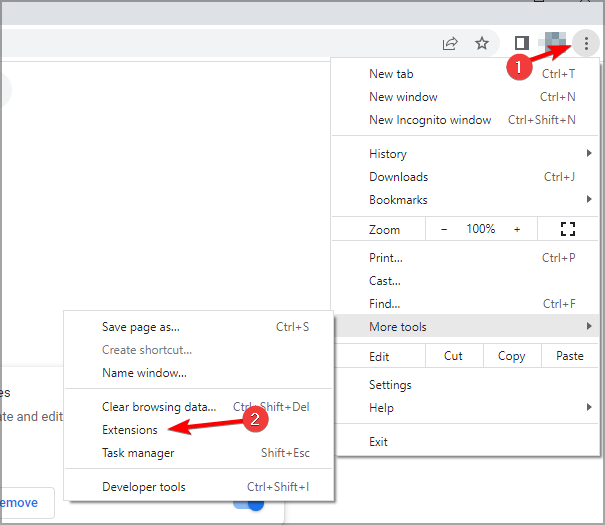
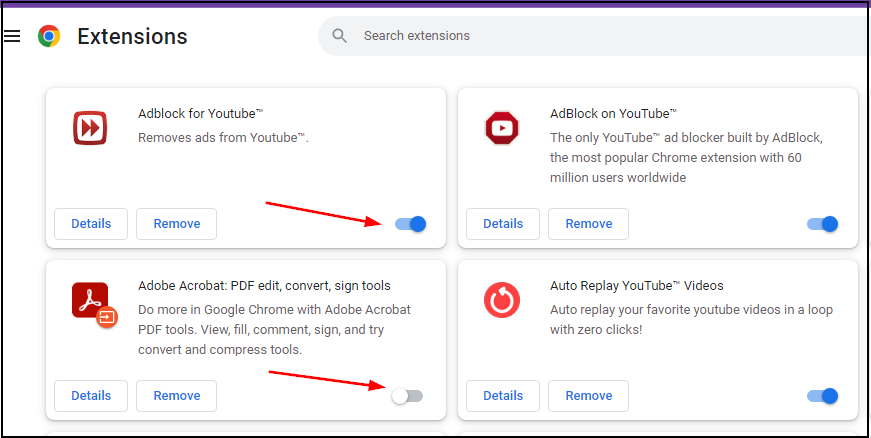
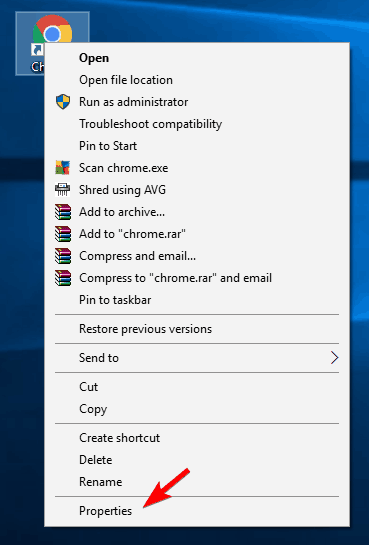
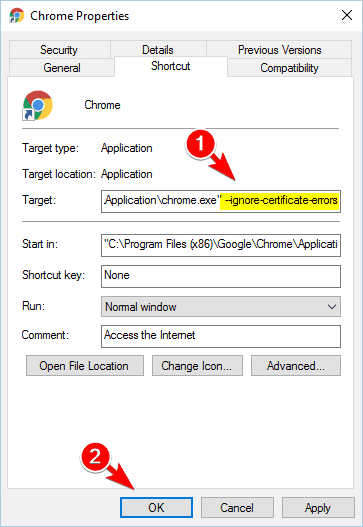
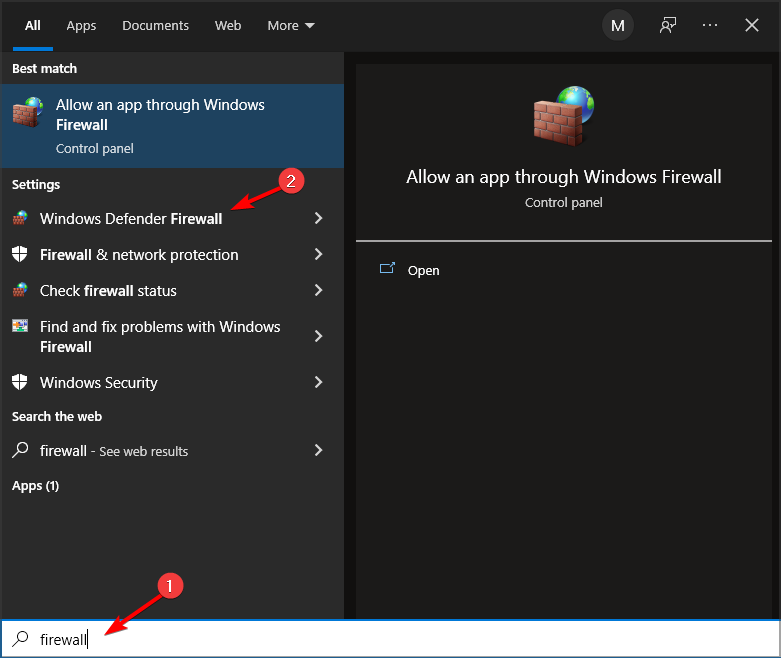
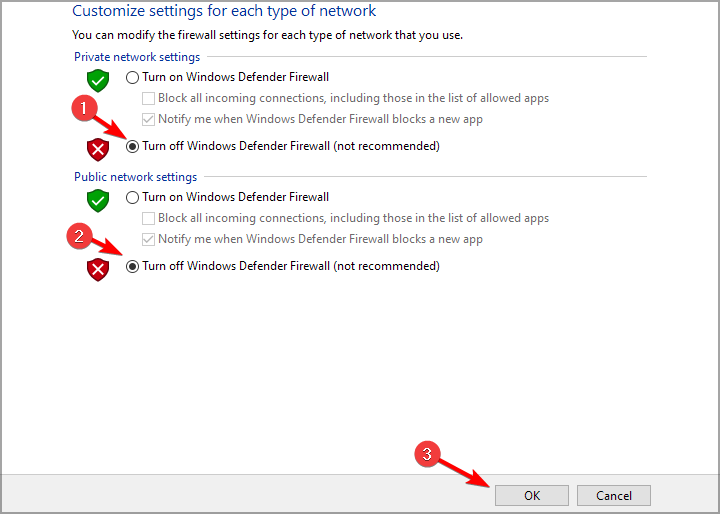
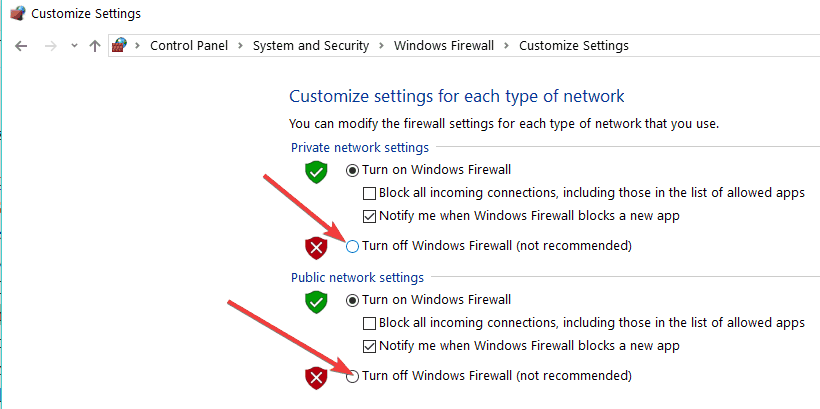
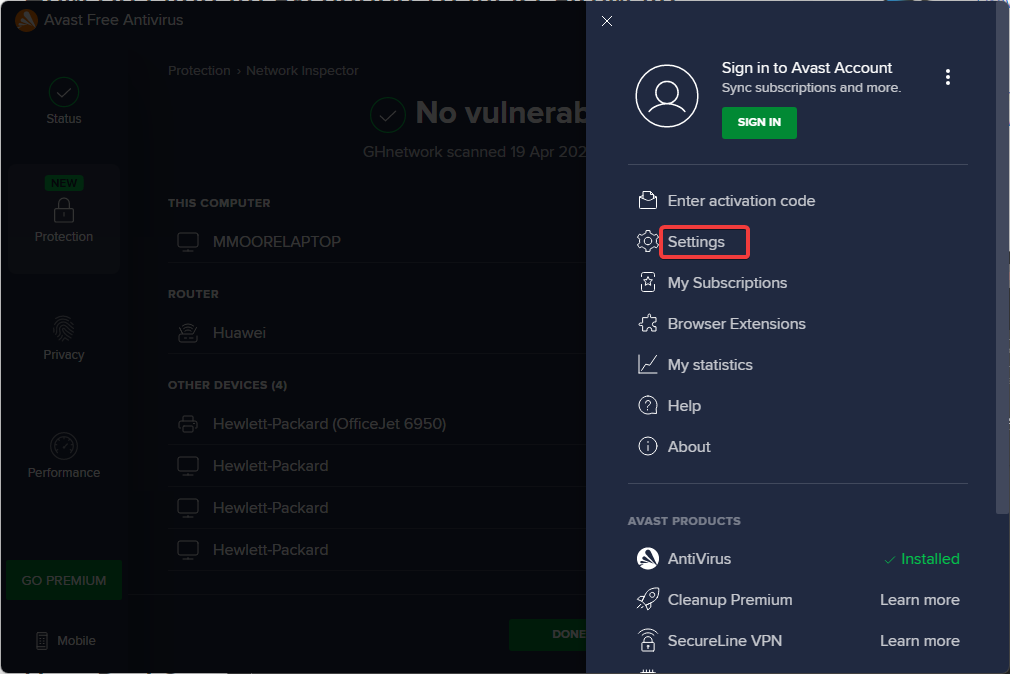
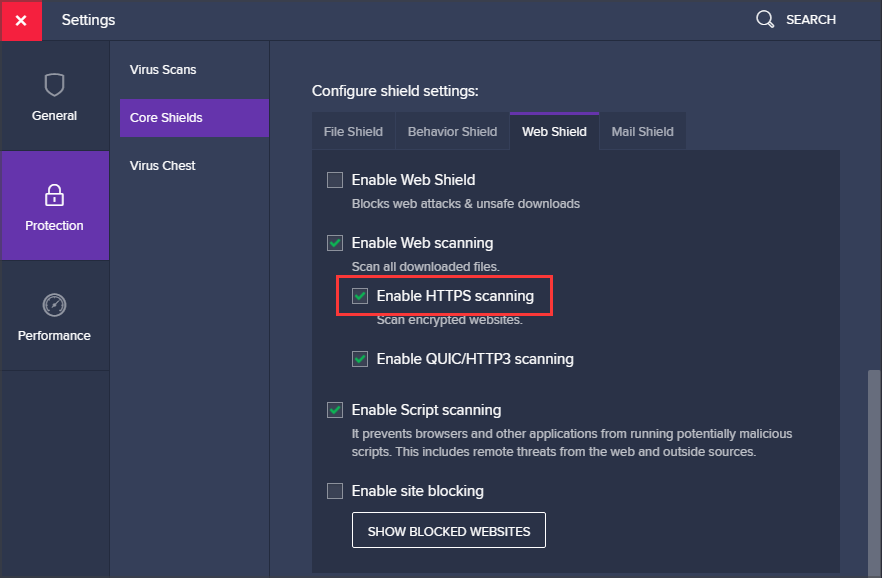
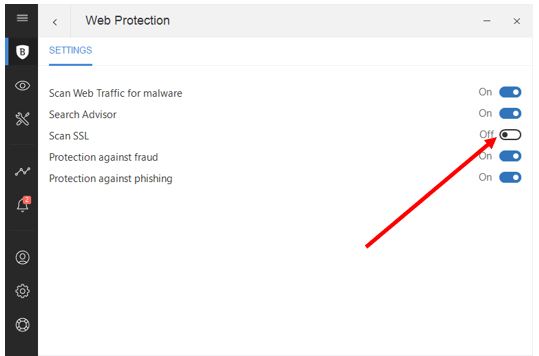
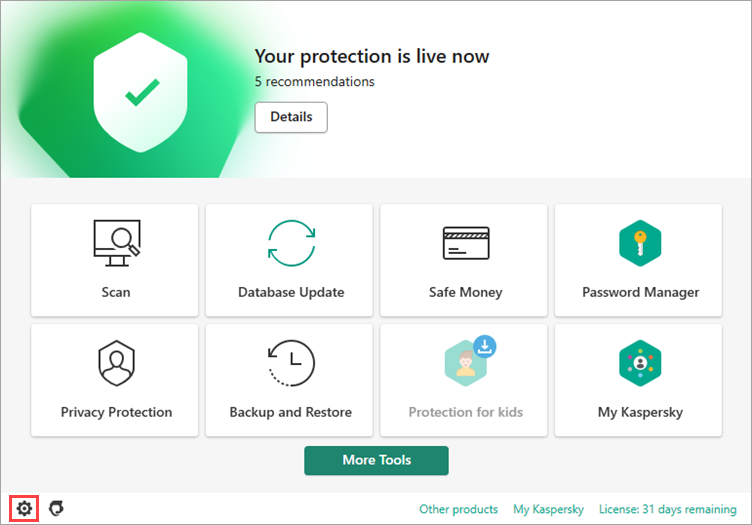
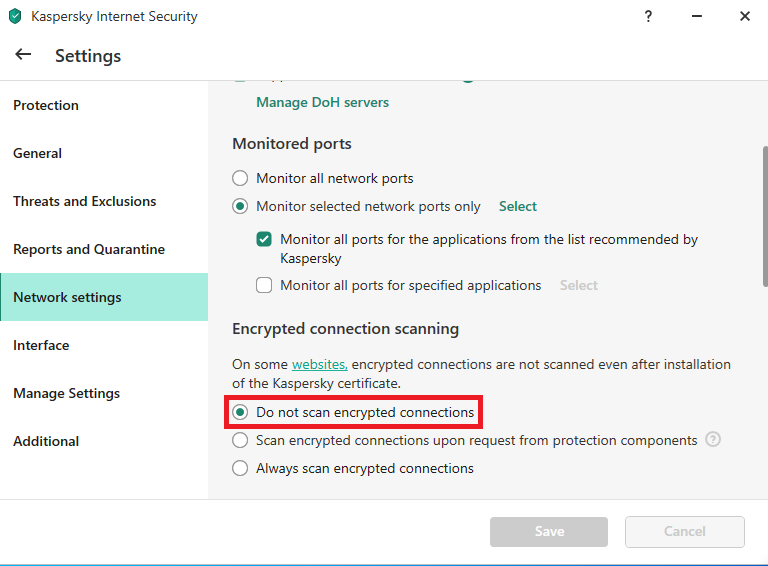
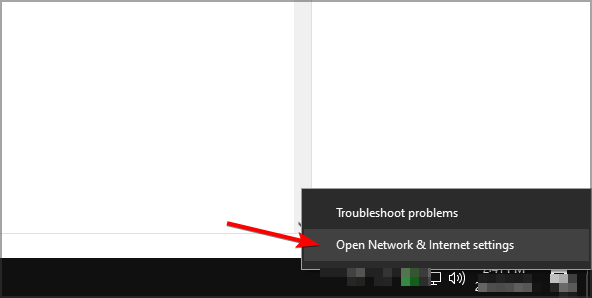
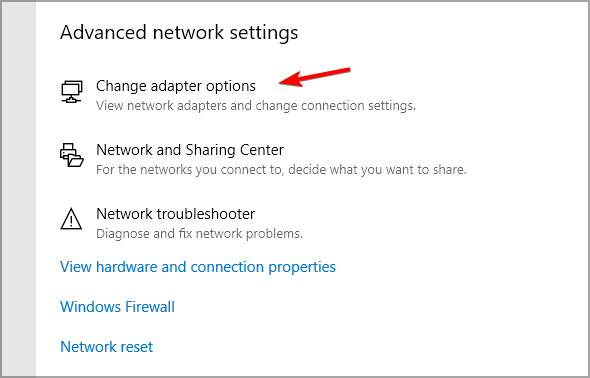
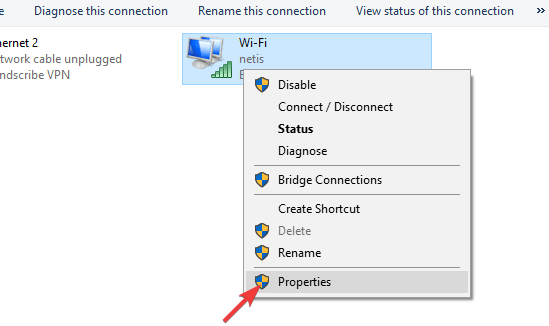
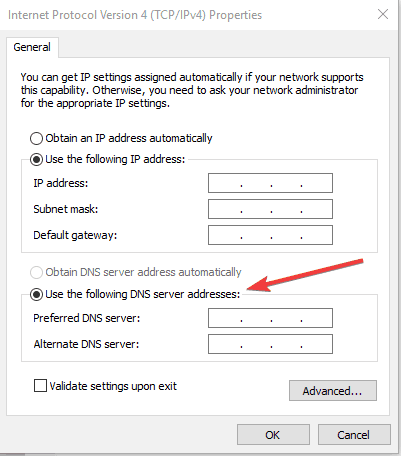
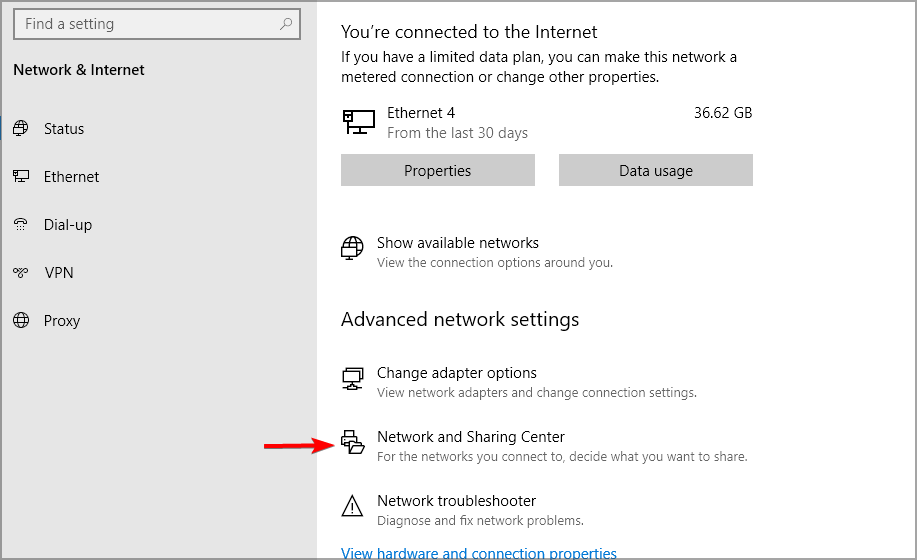
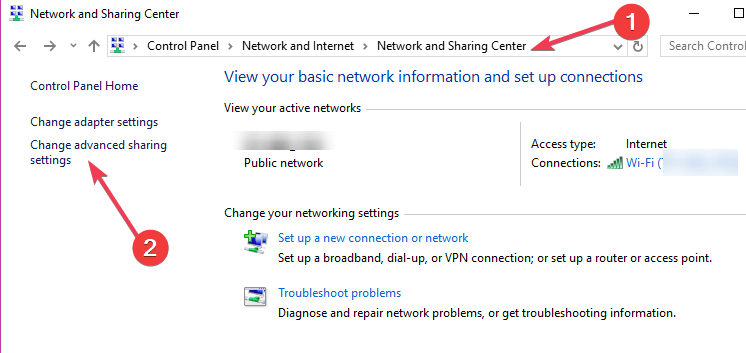
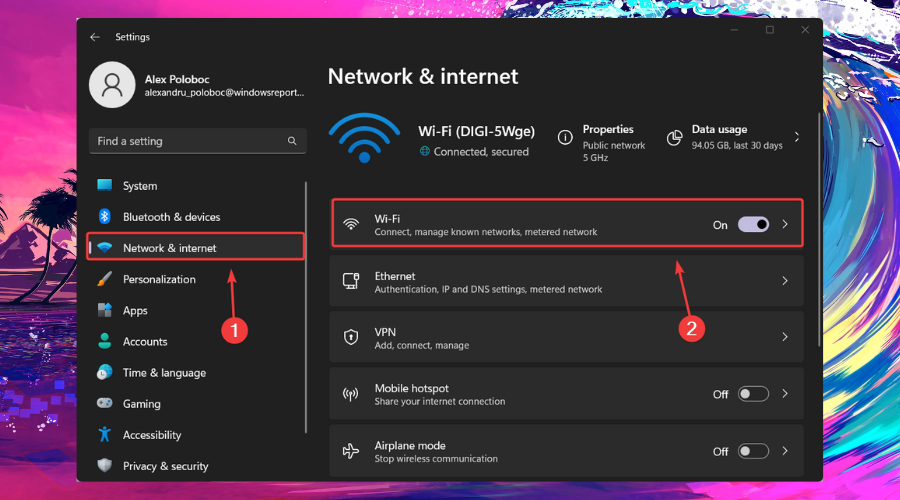
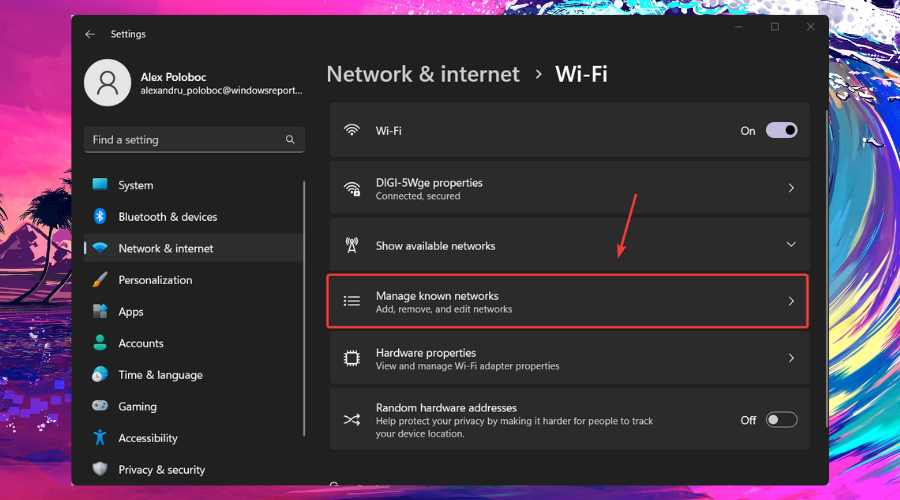
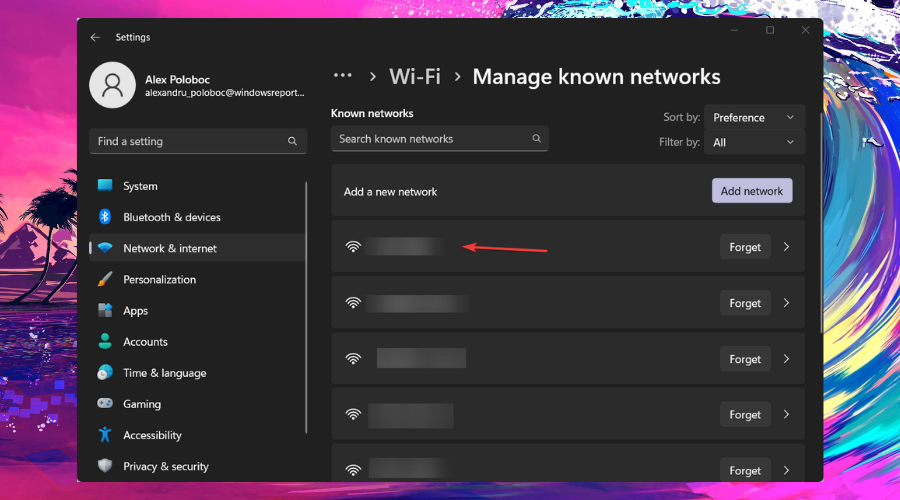
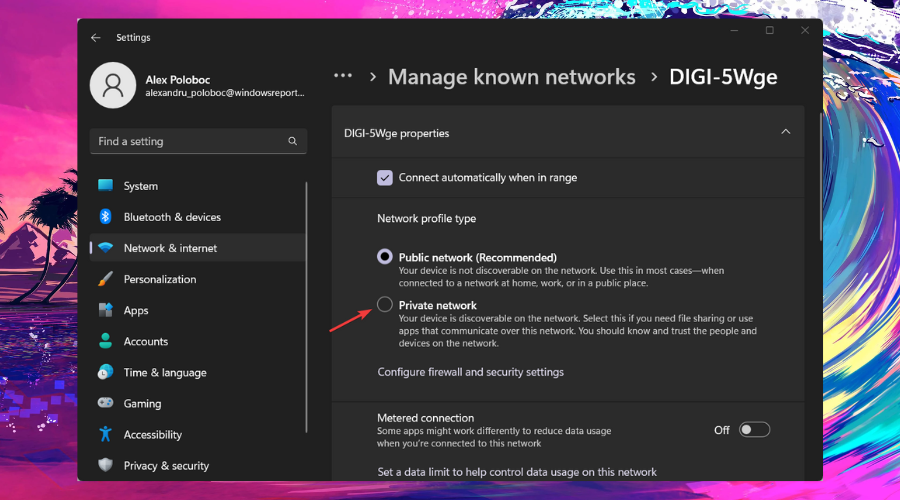
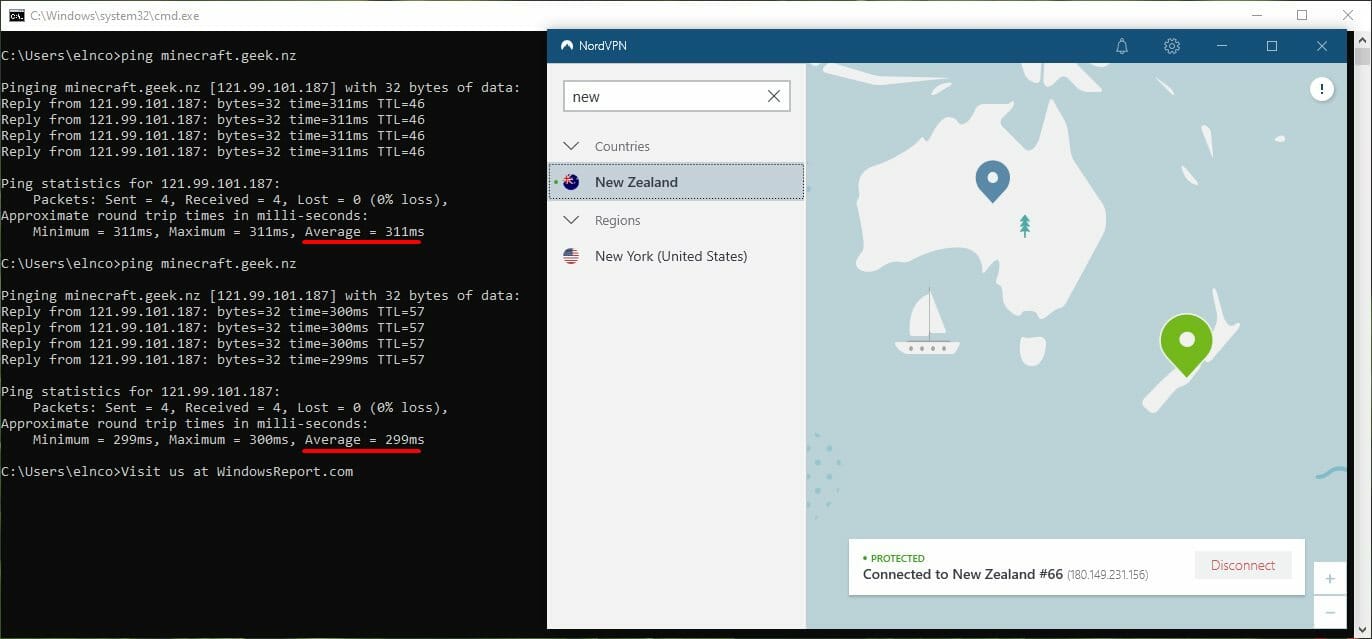


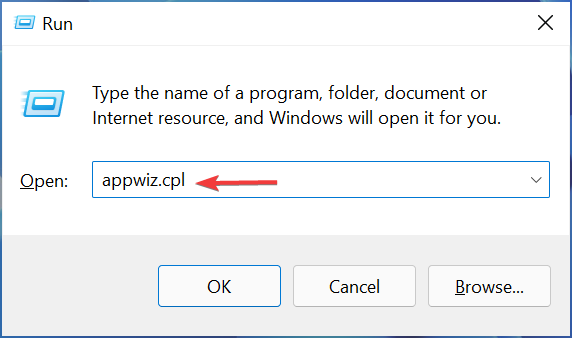


![6 Best VPN Services for BlueStacks [Run Apps & PC Games]](https://windowsreport.com/wp-content/uploads/2022/02/vpn-for-bluestacks.jpg)
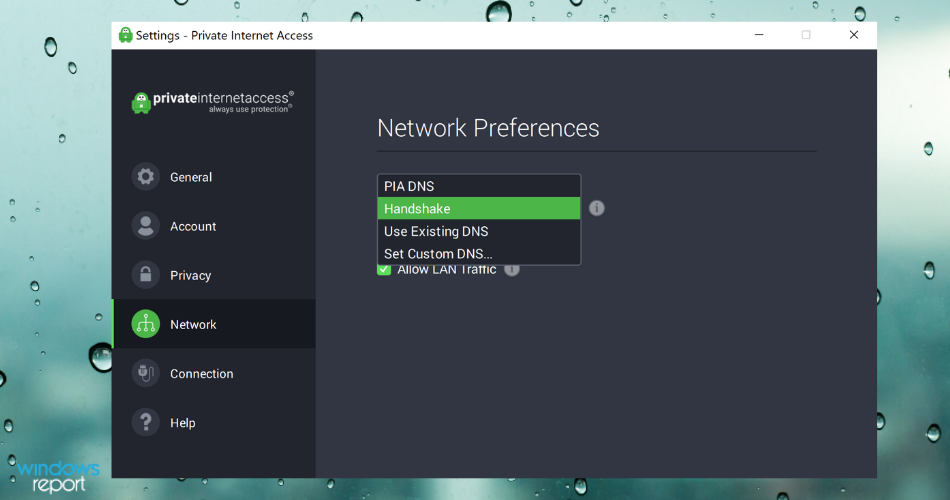

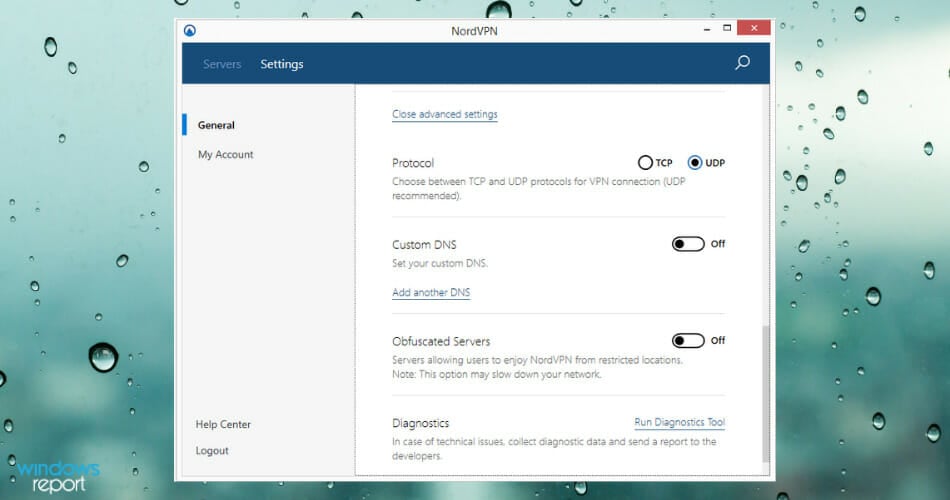
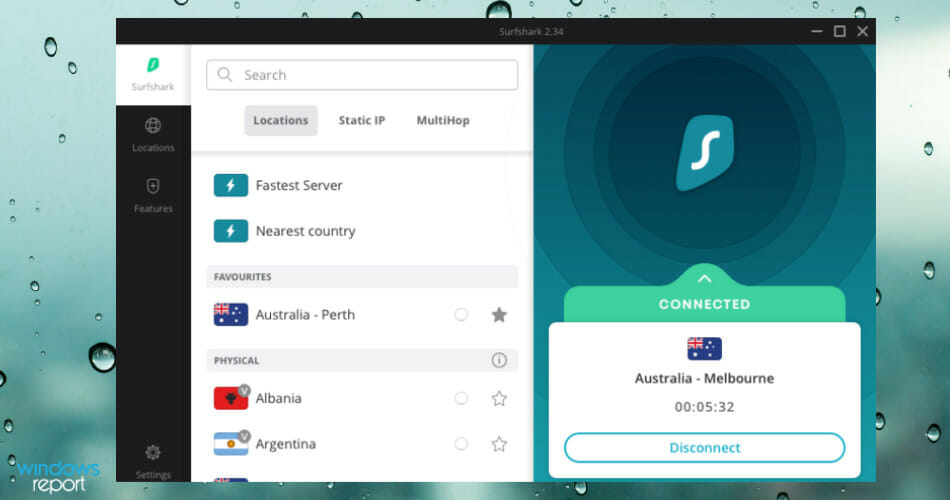

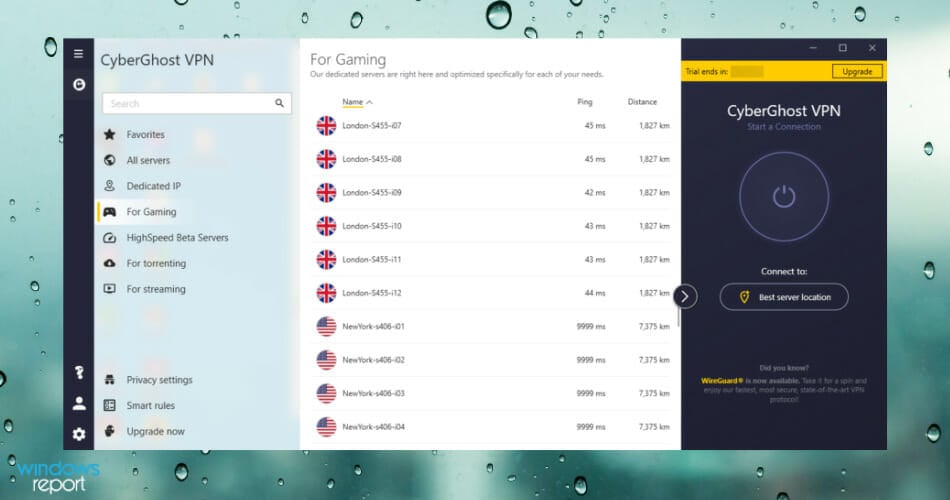

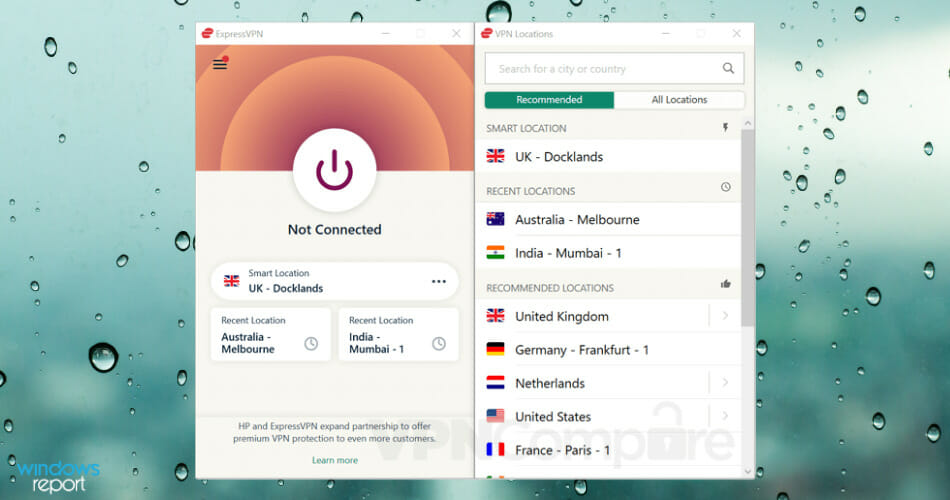

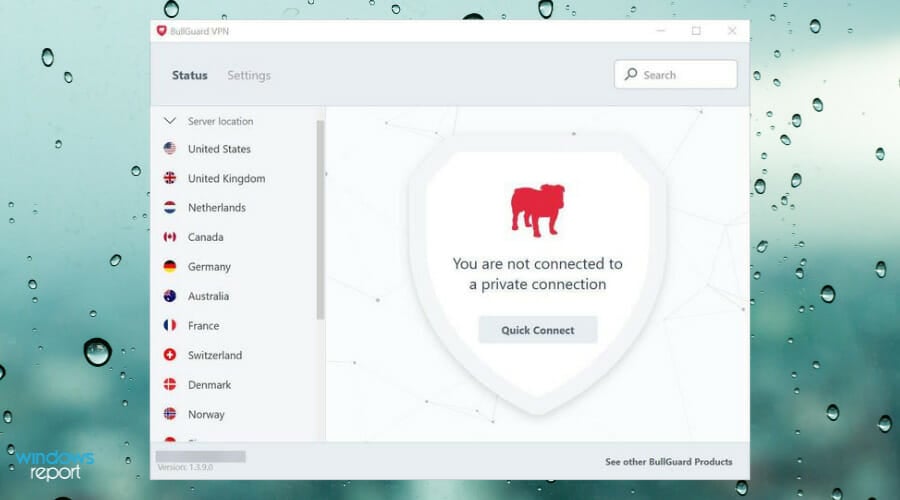
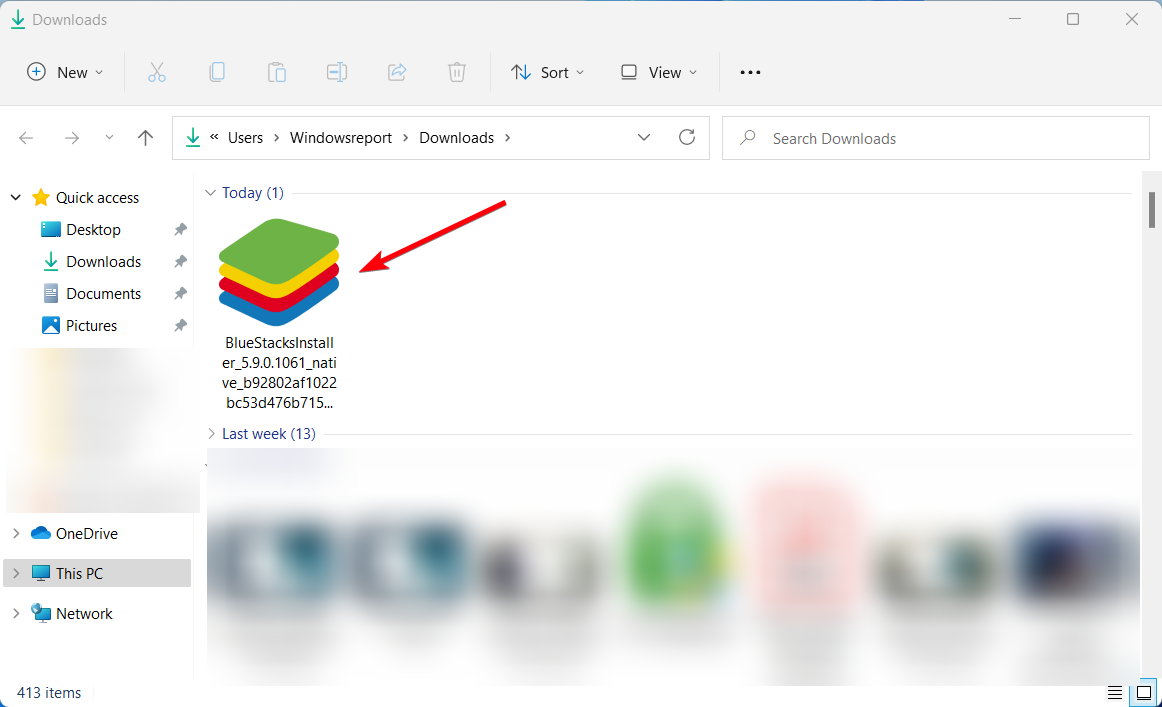
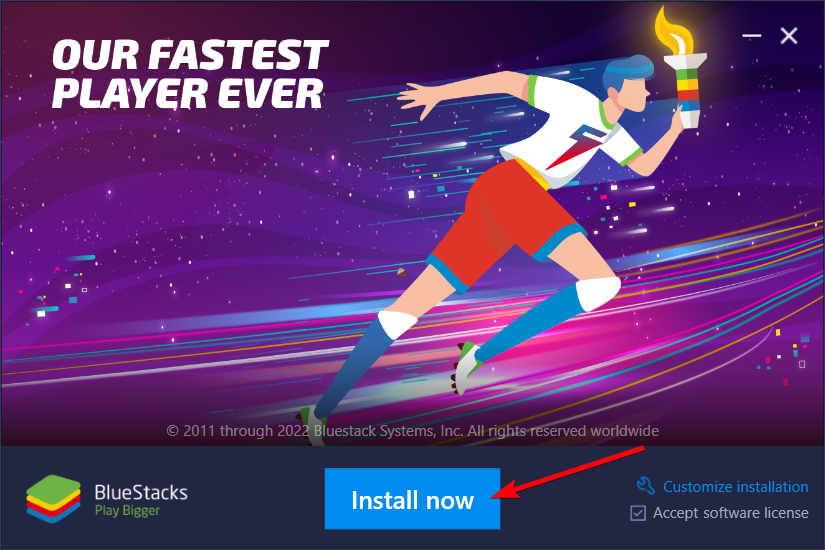
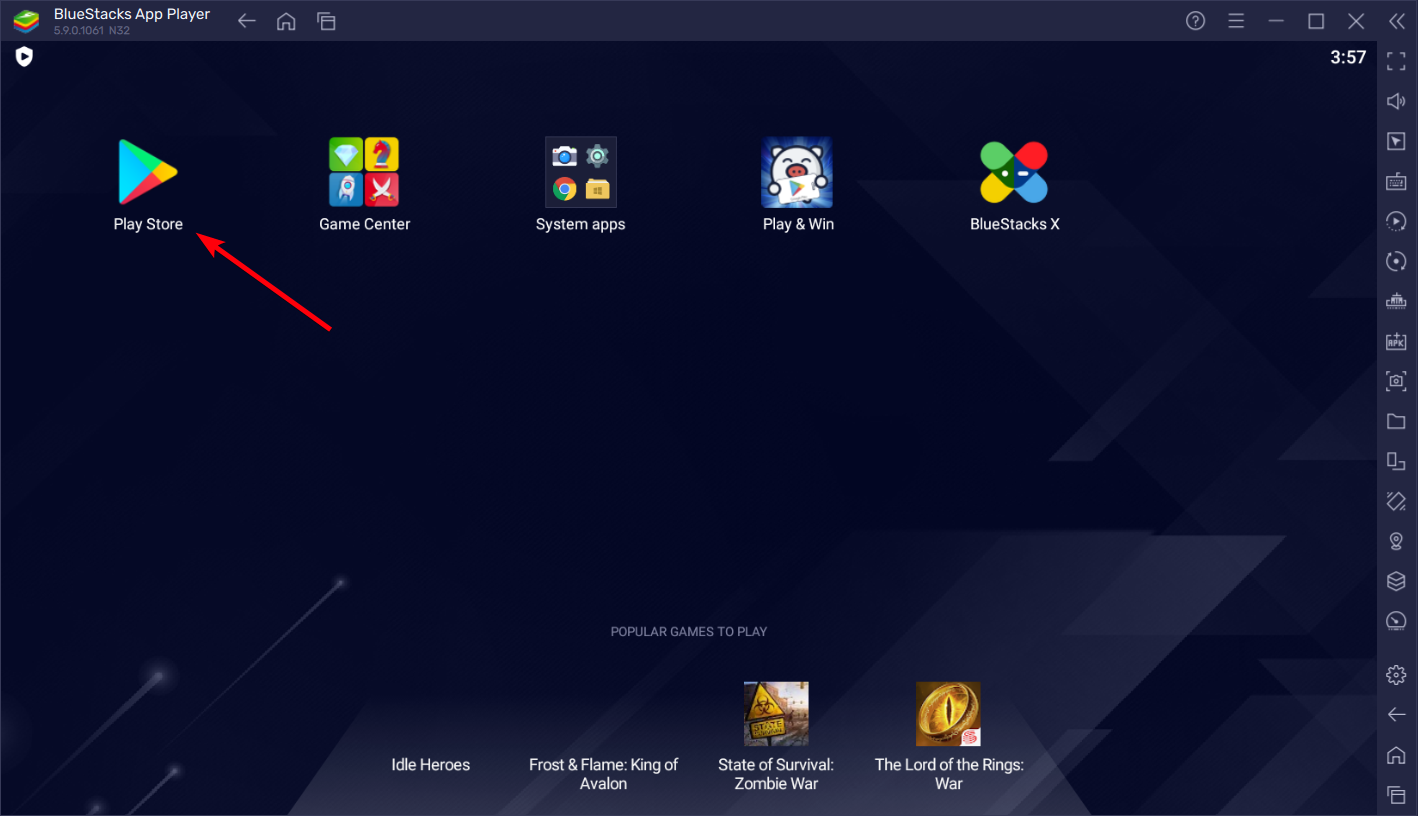
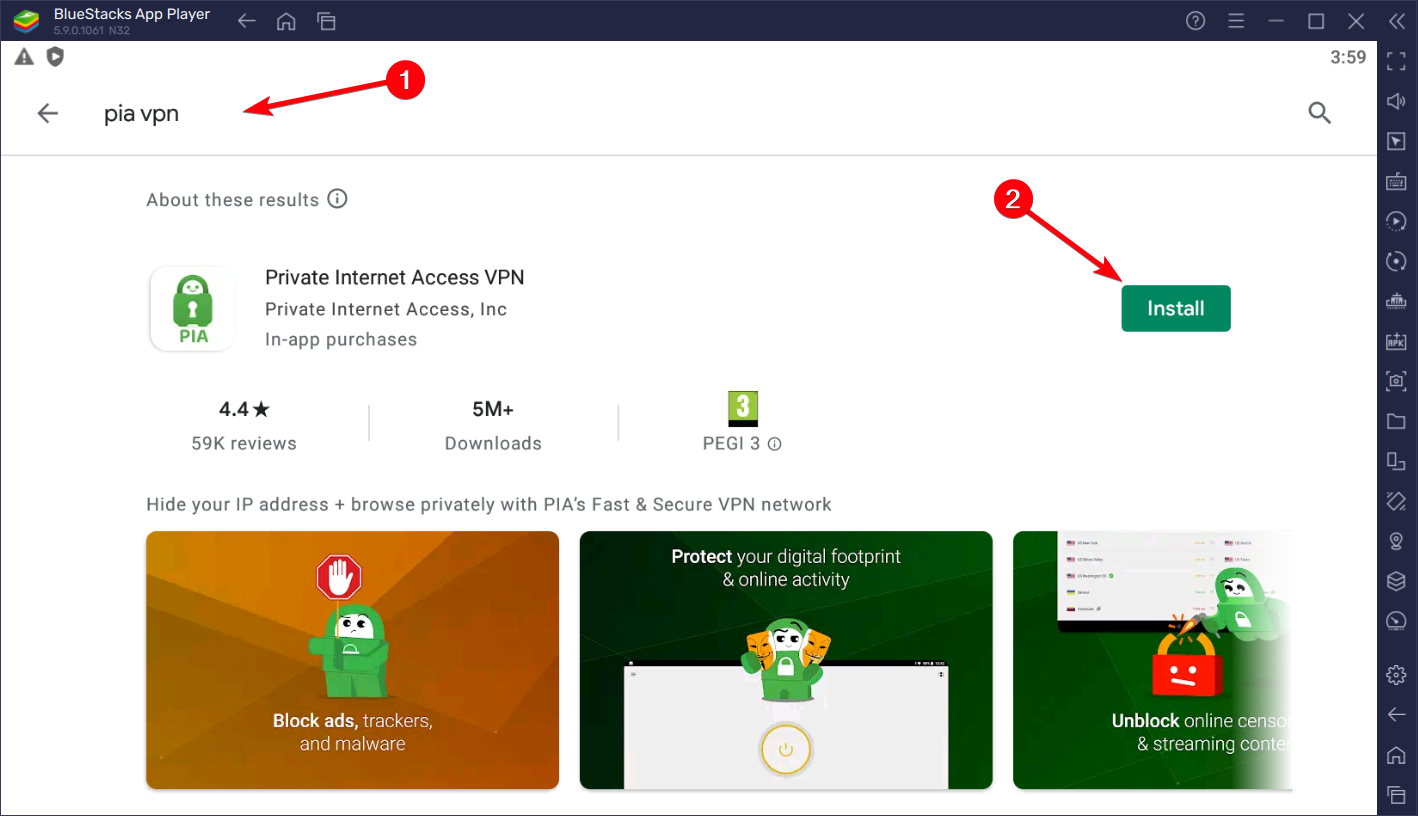


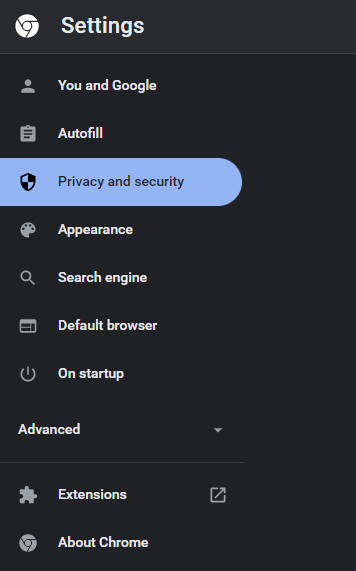
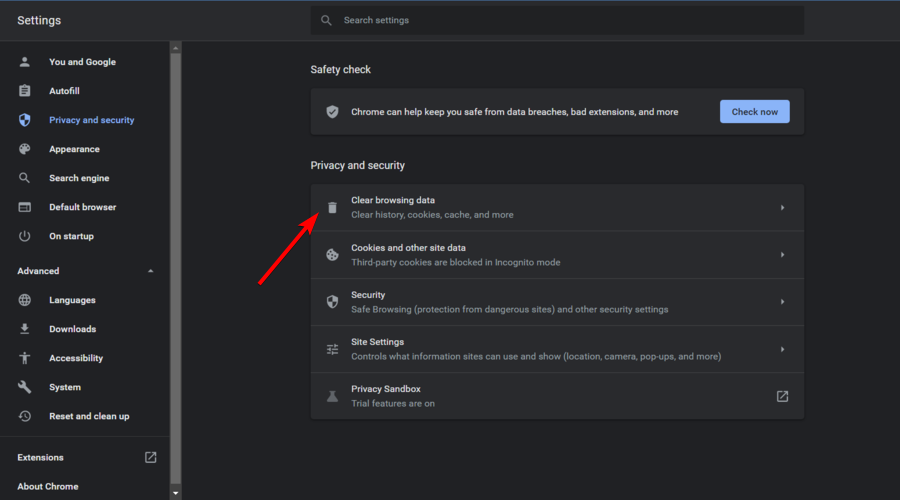
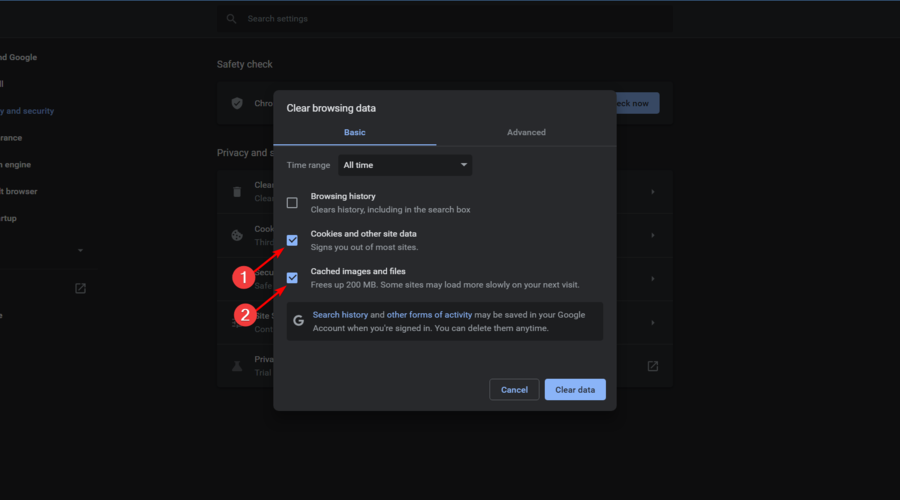


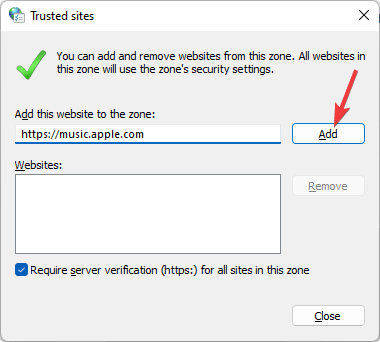
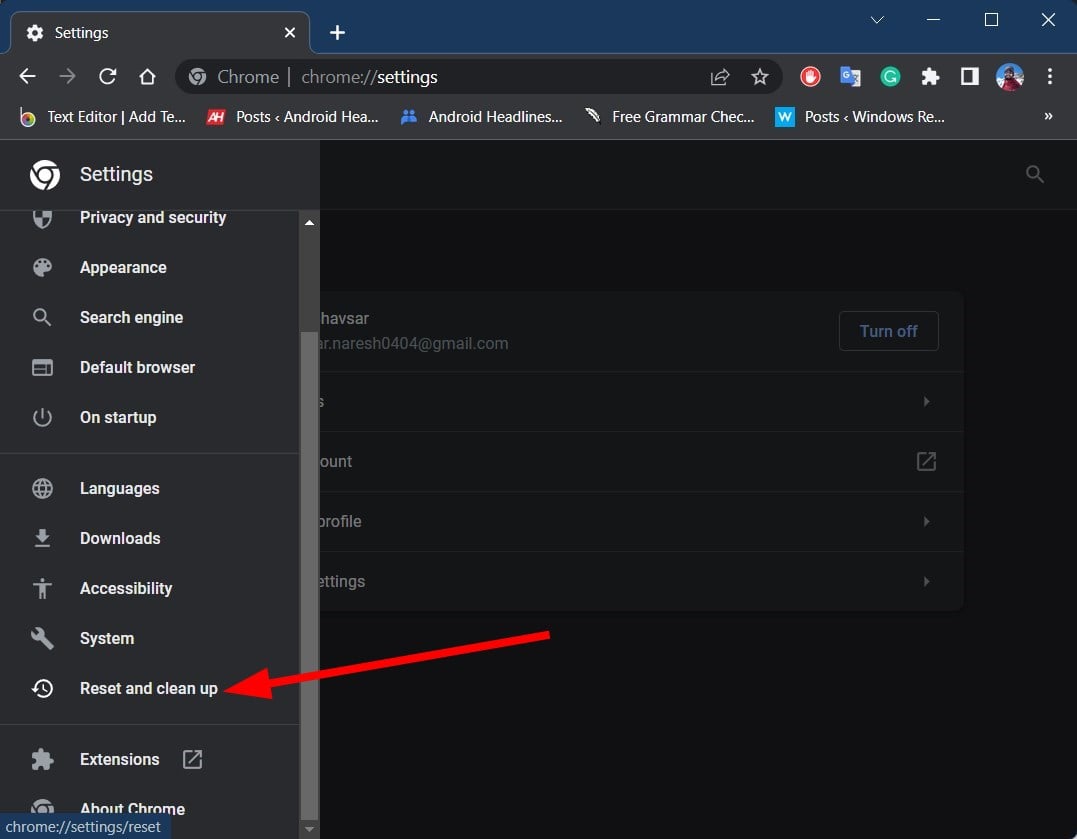
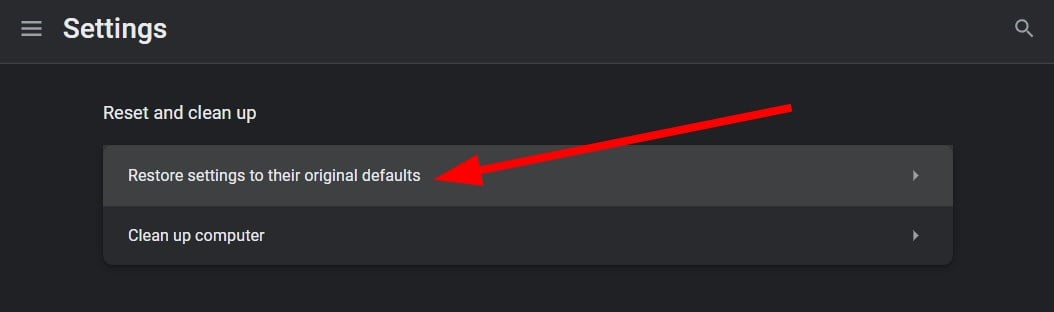

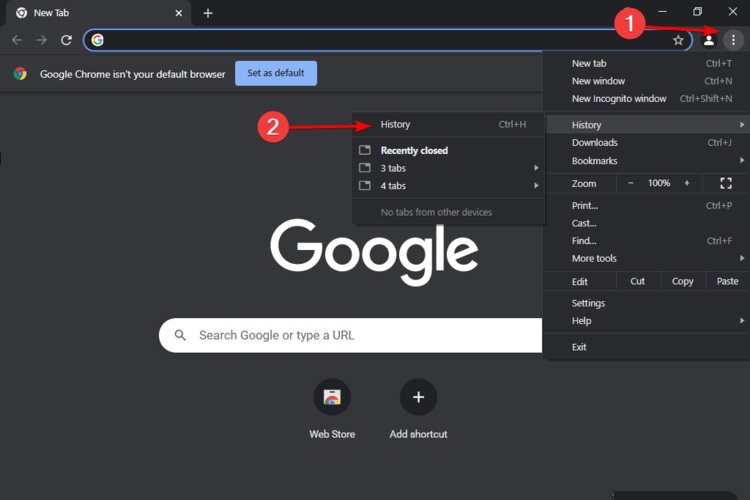
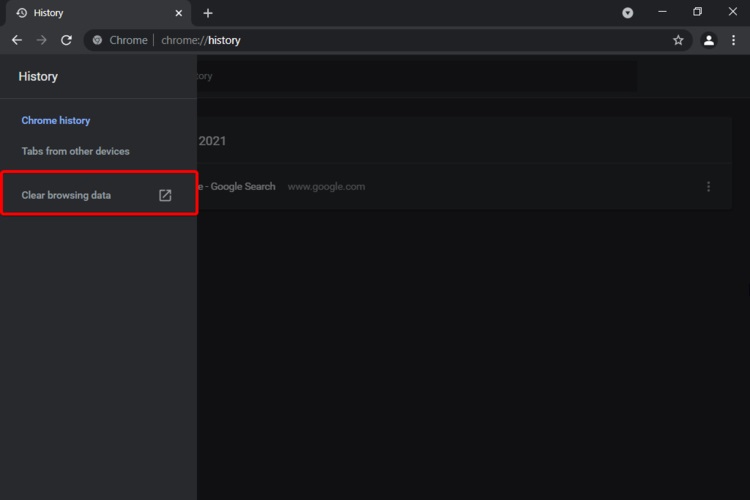
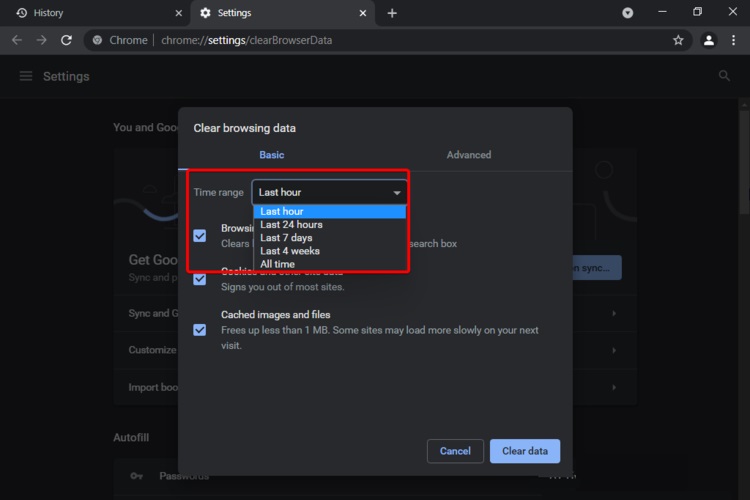
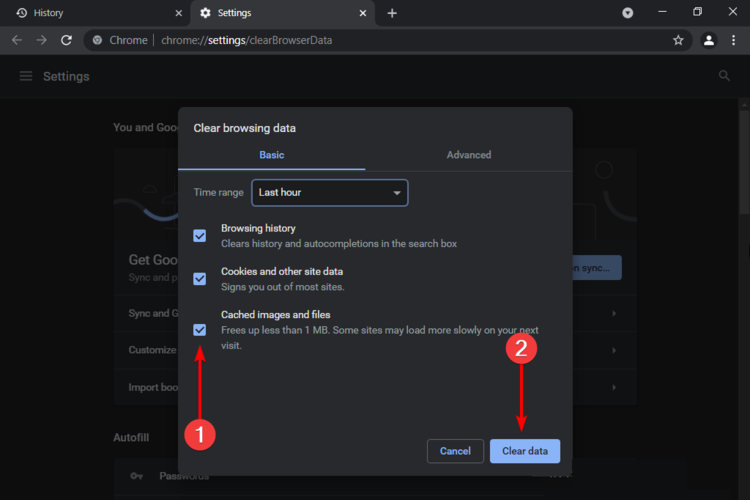

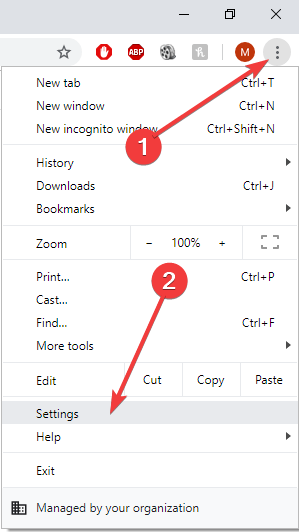
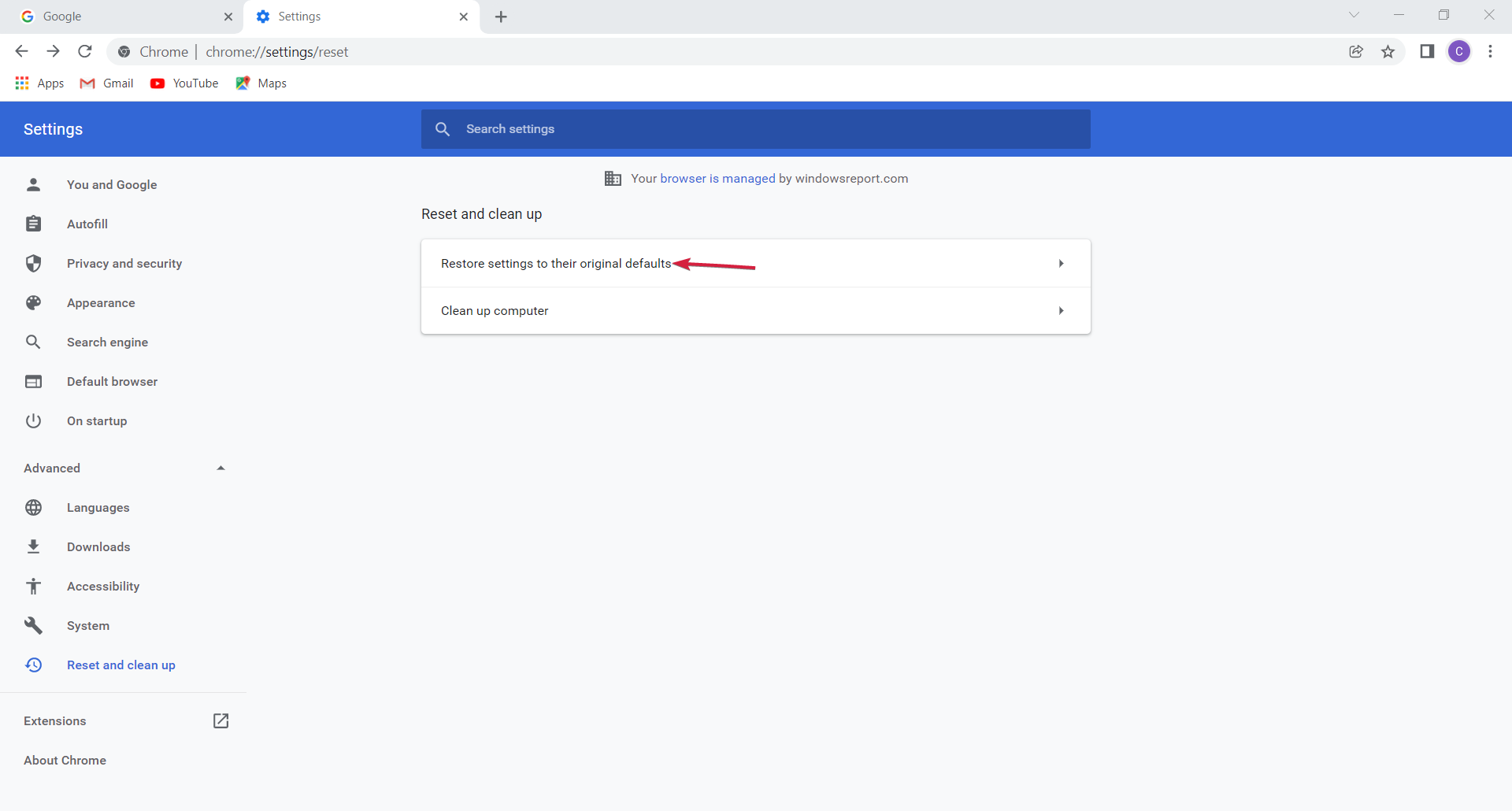
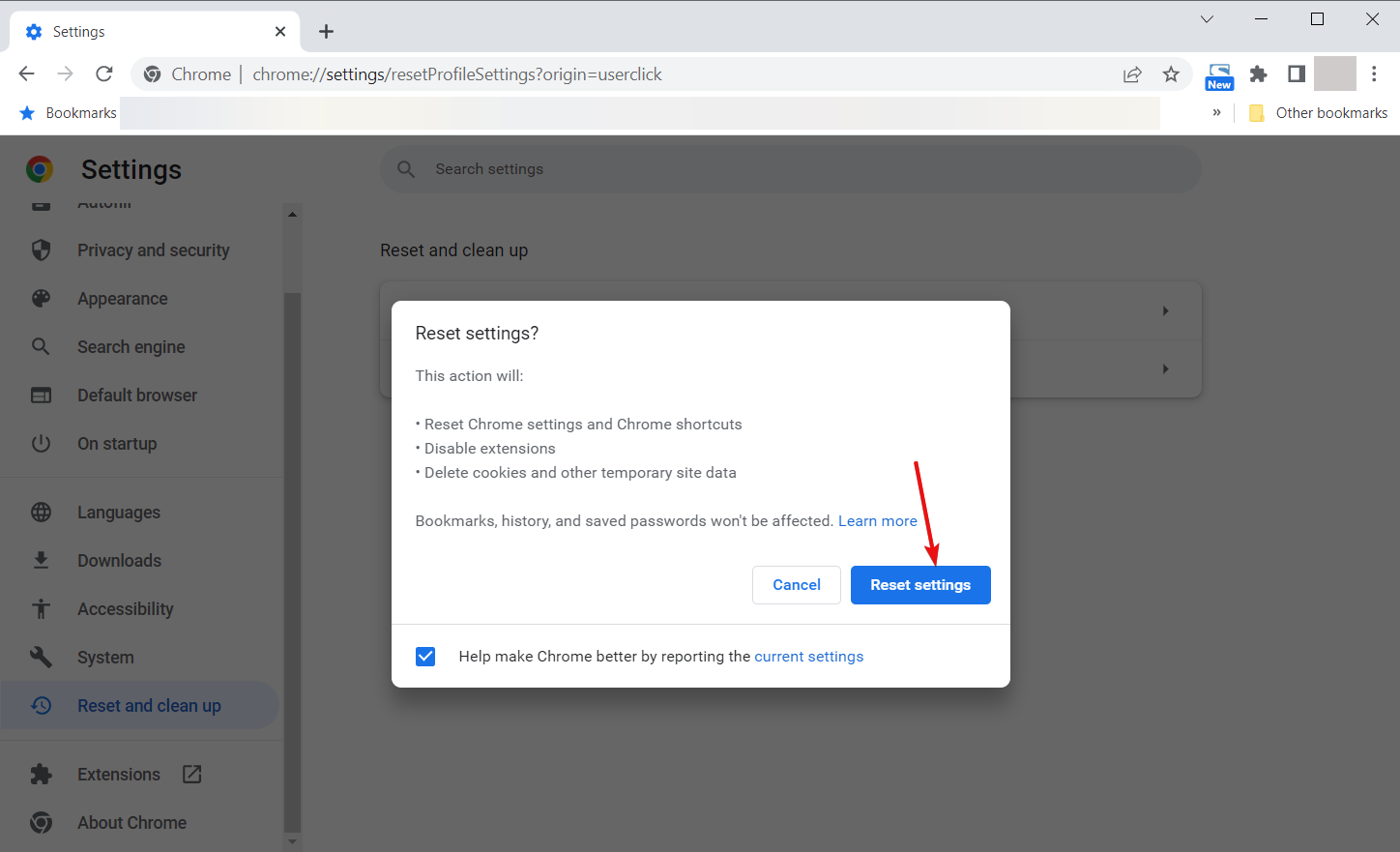

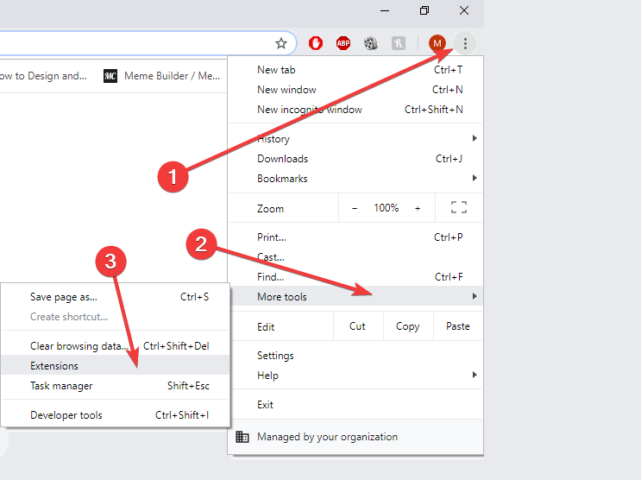
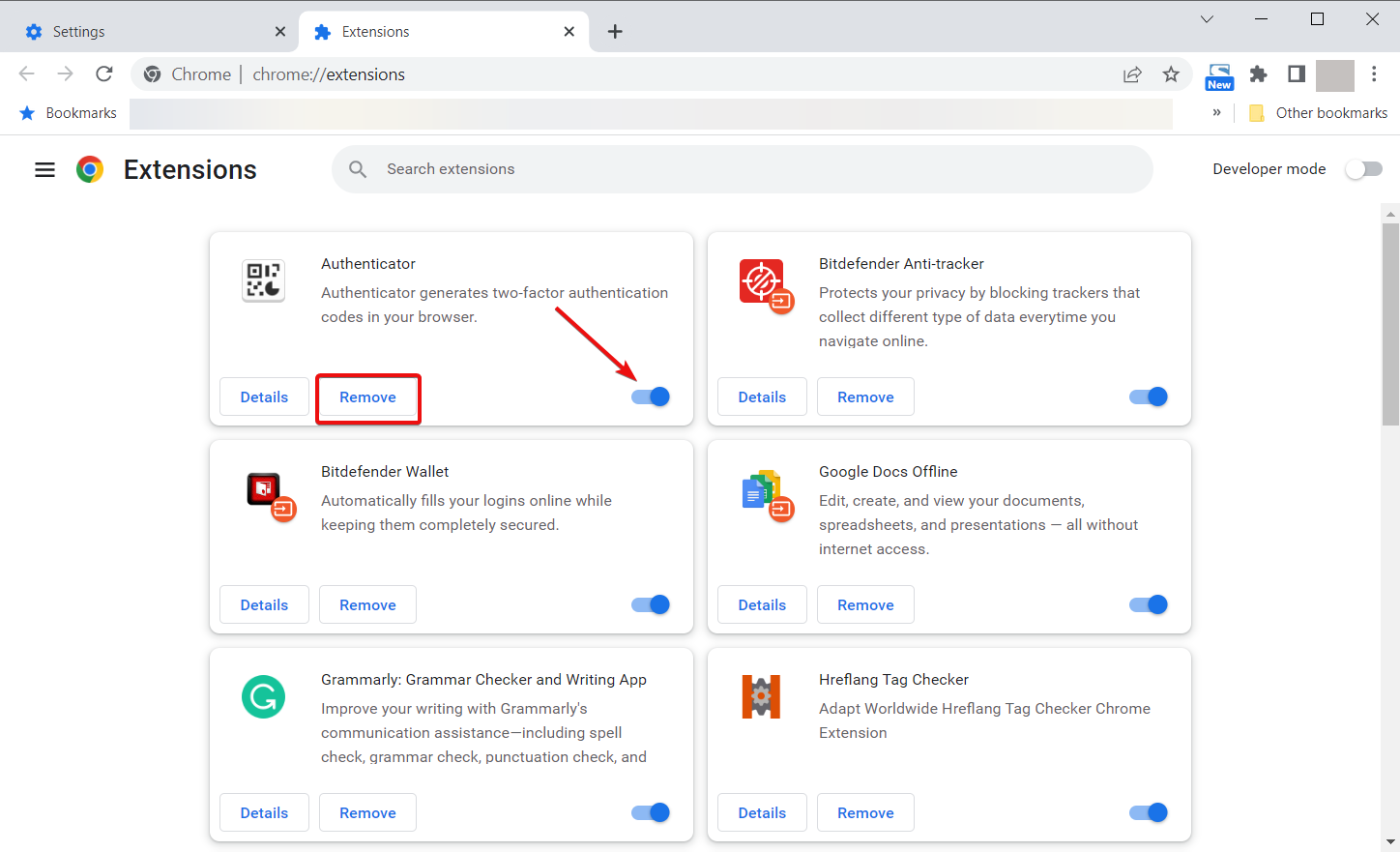

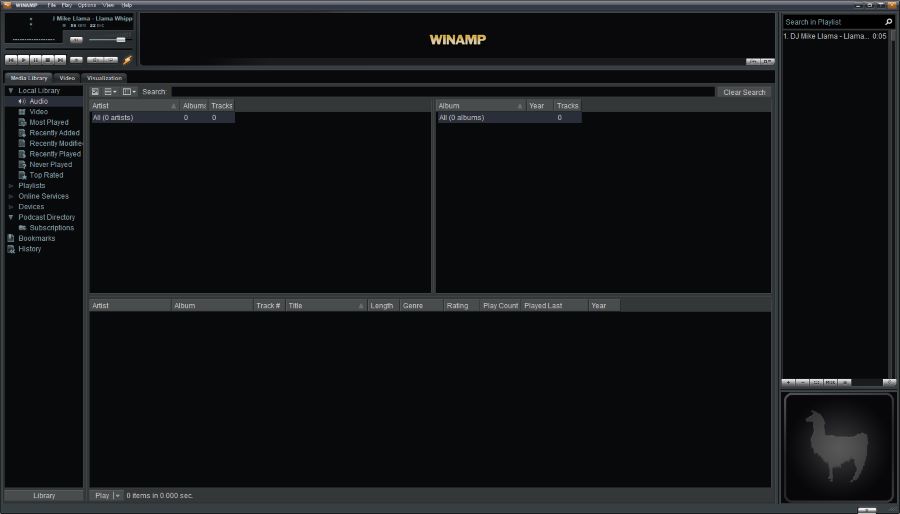
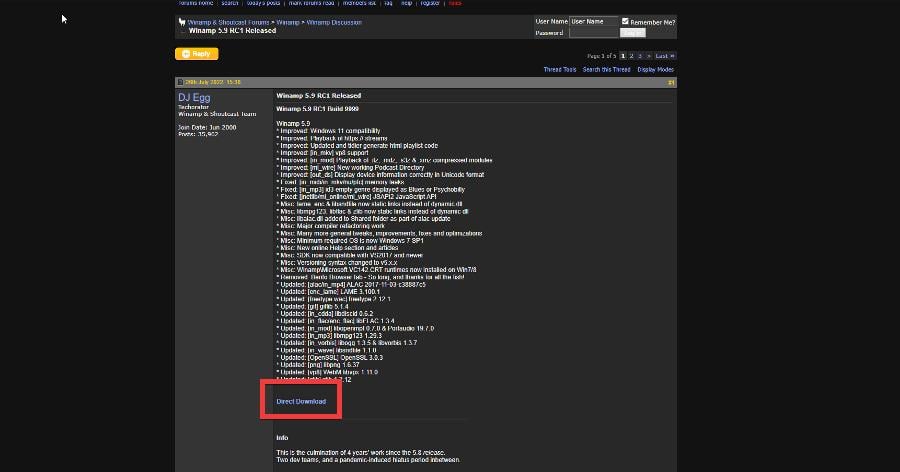


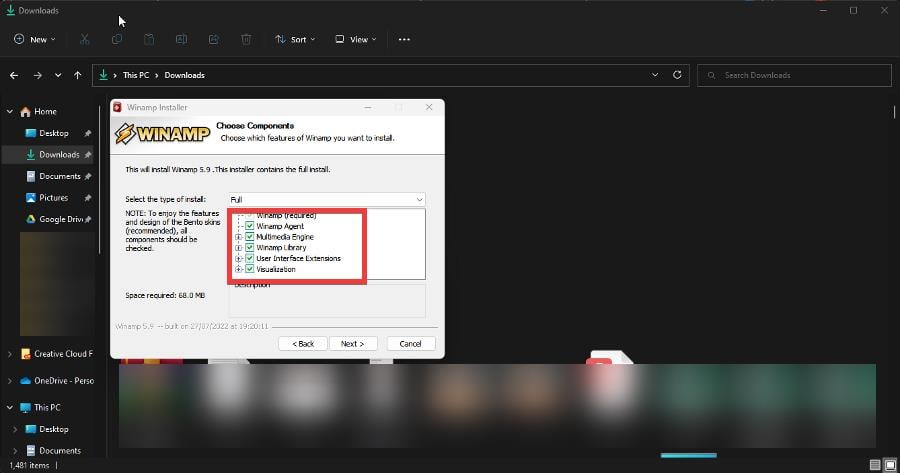
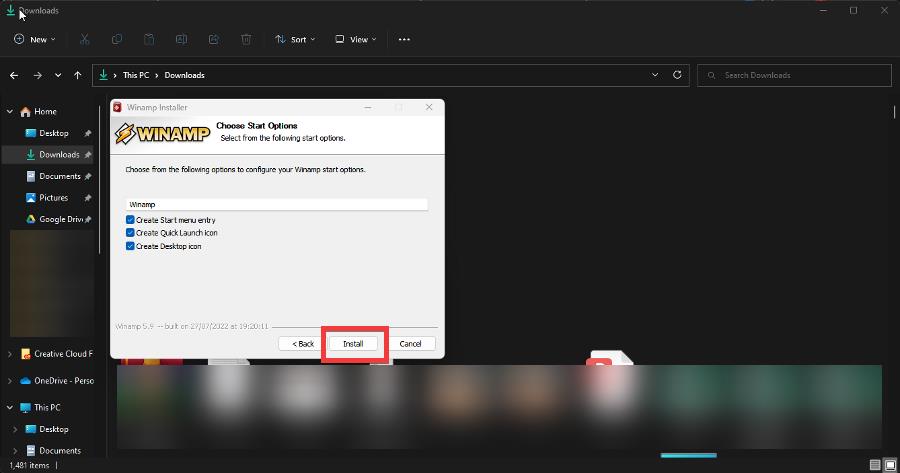
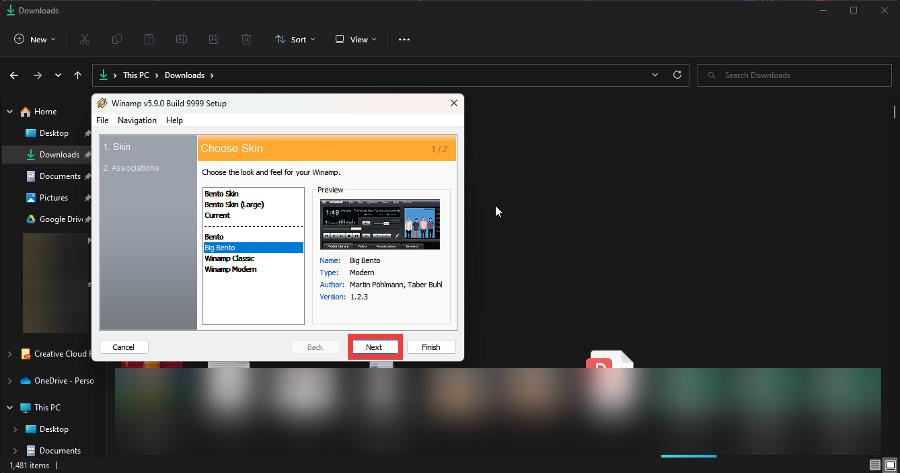
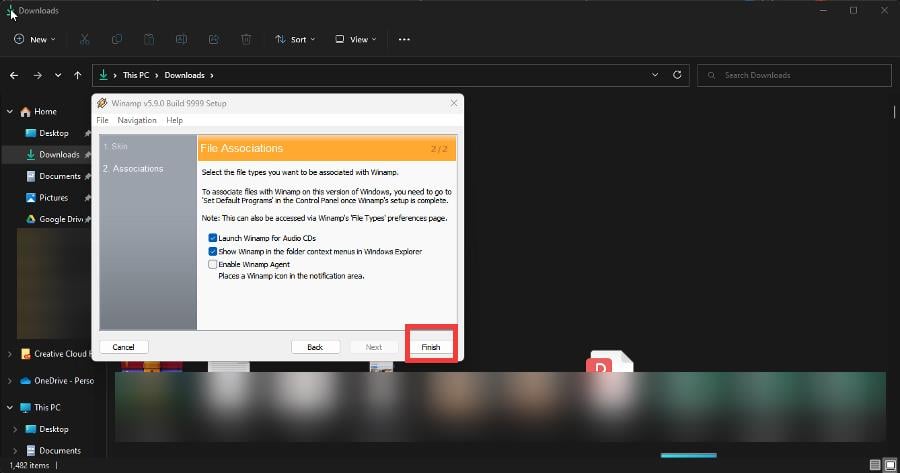
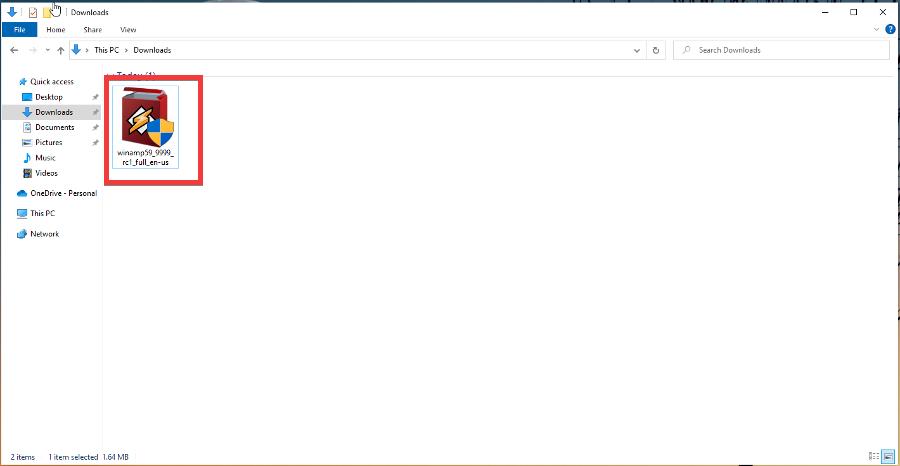
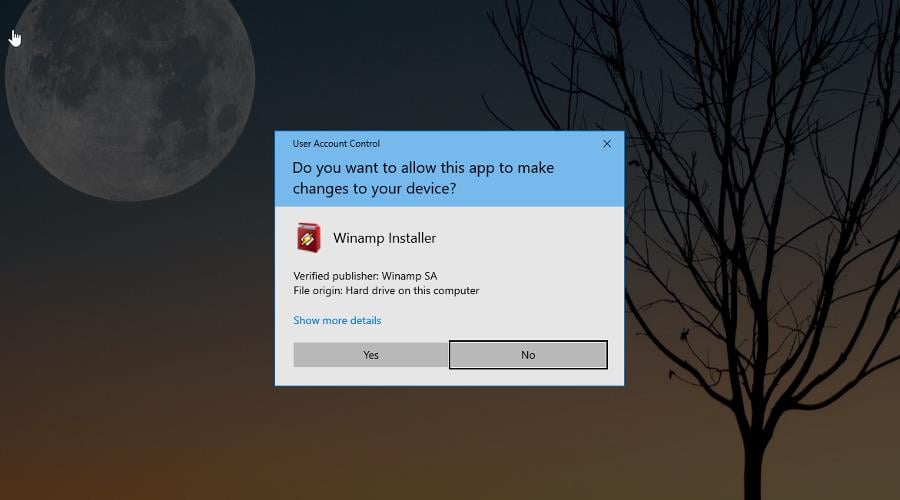
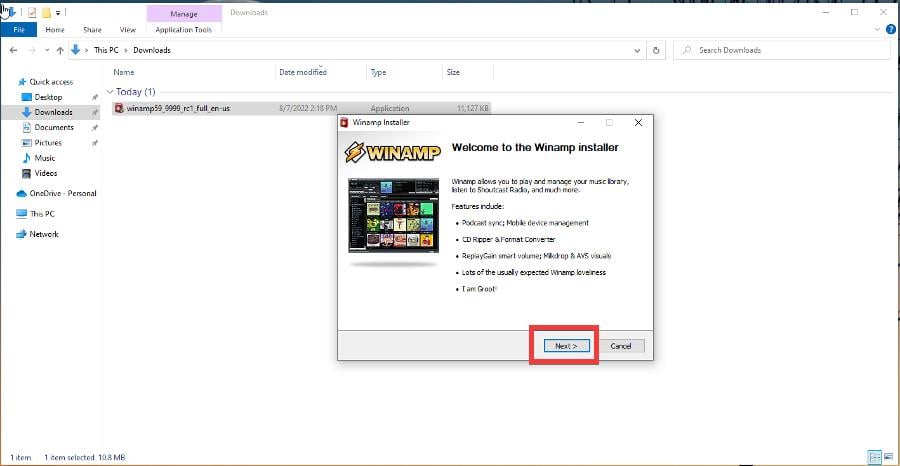
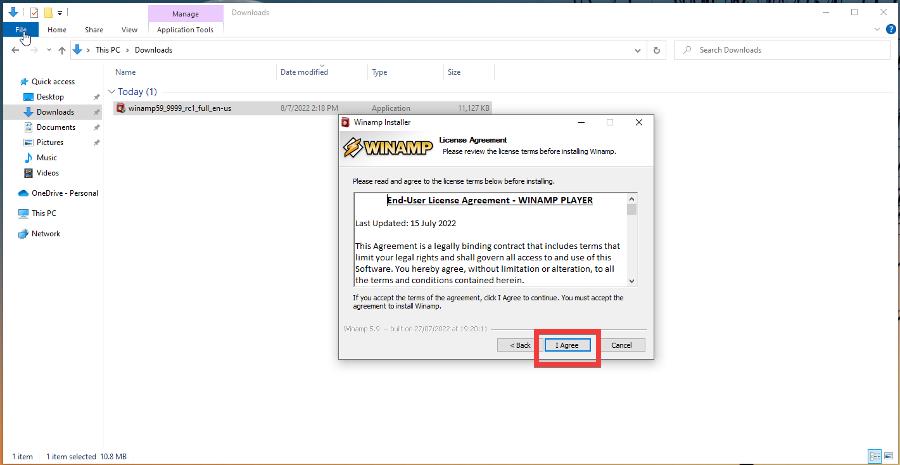
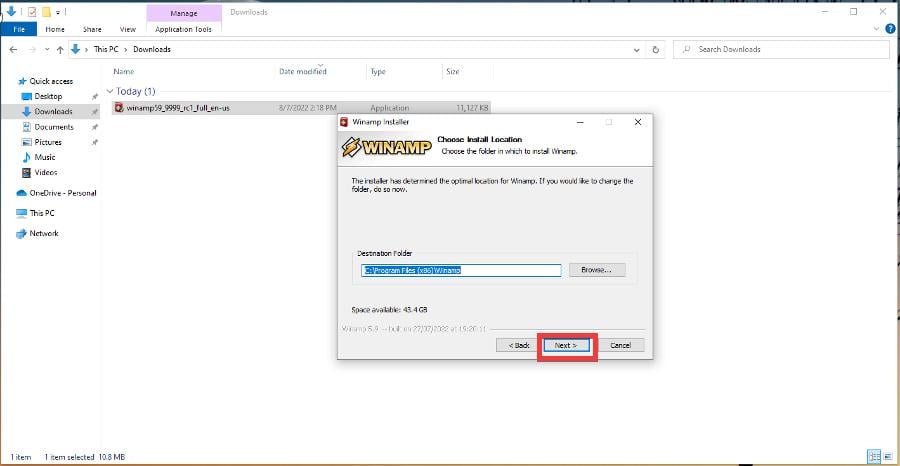

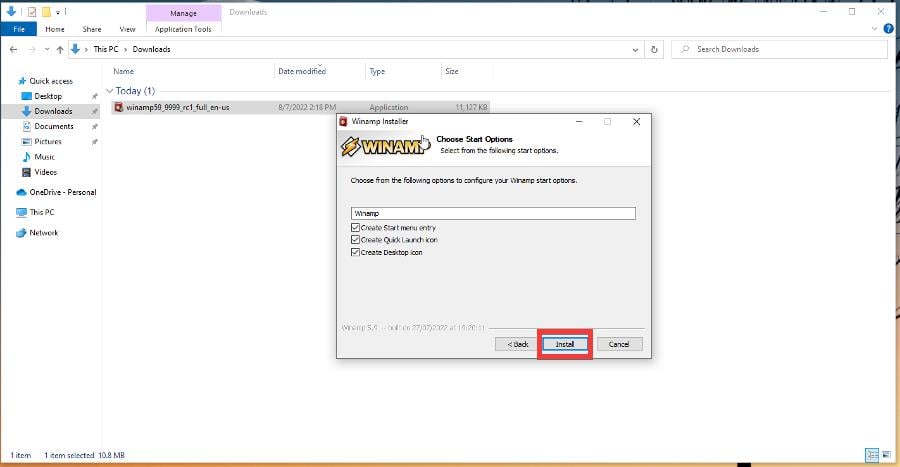
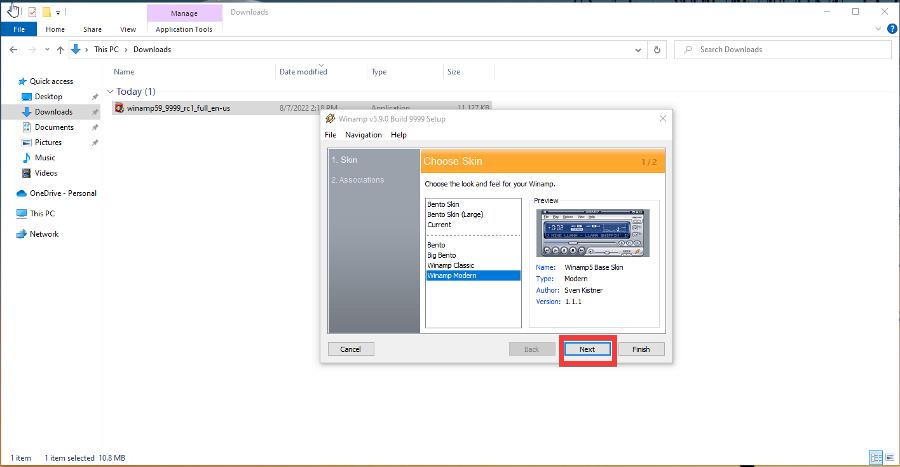
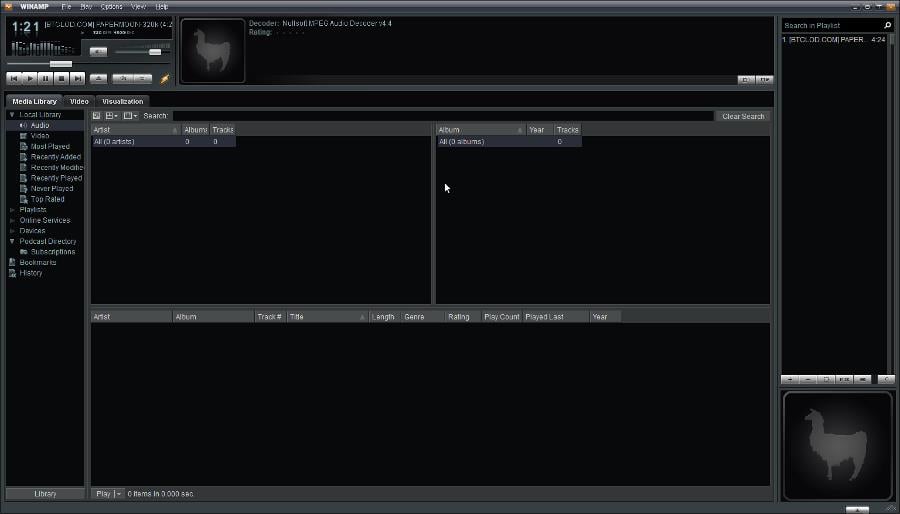



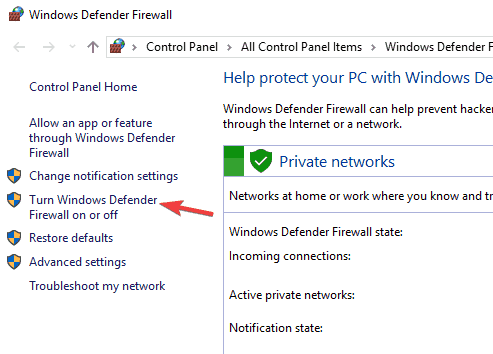
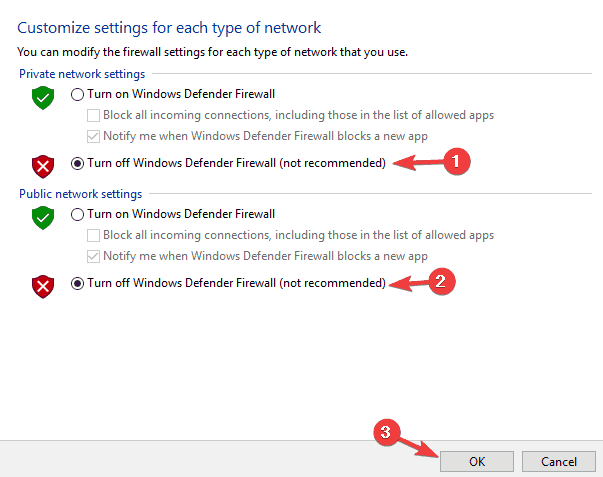

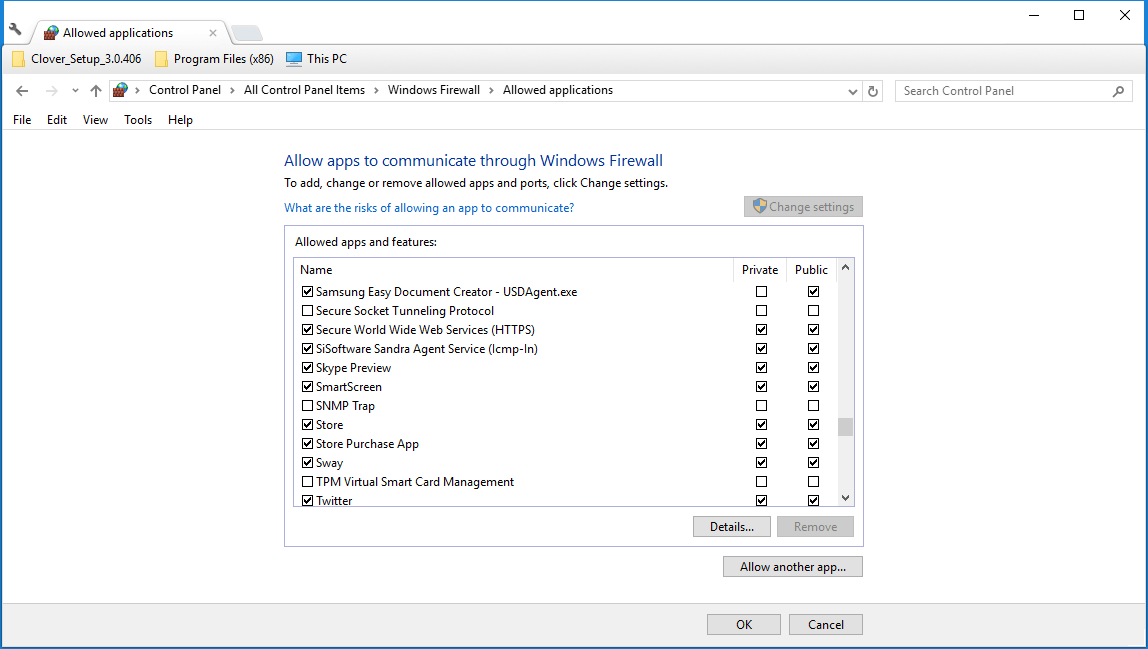


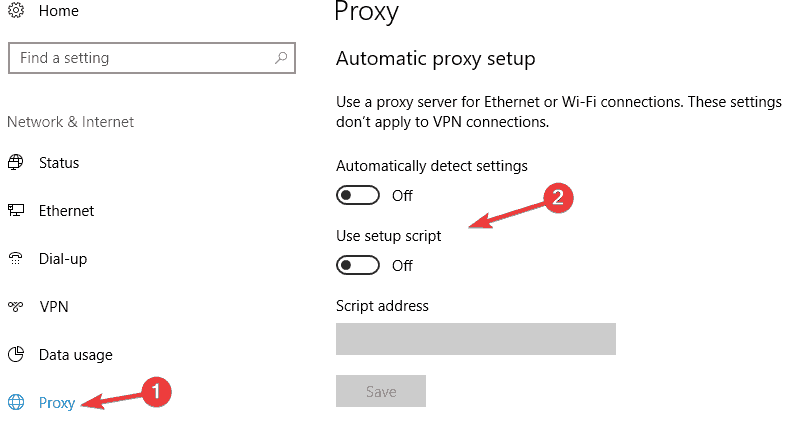


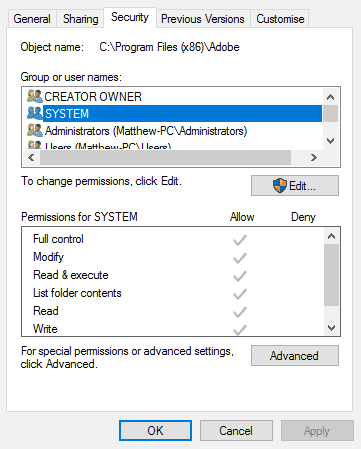
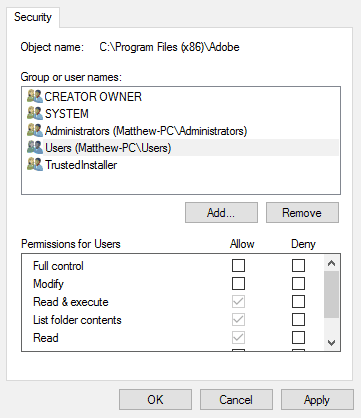

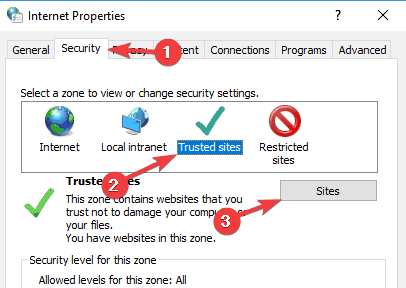
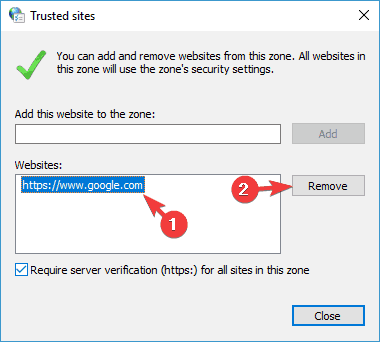


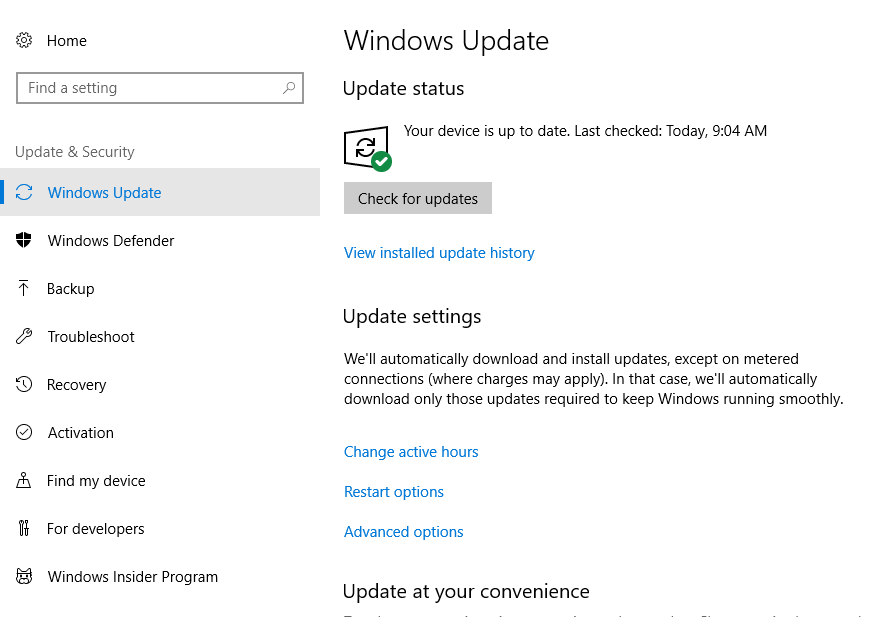


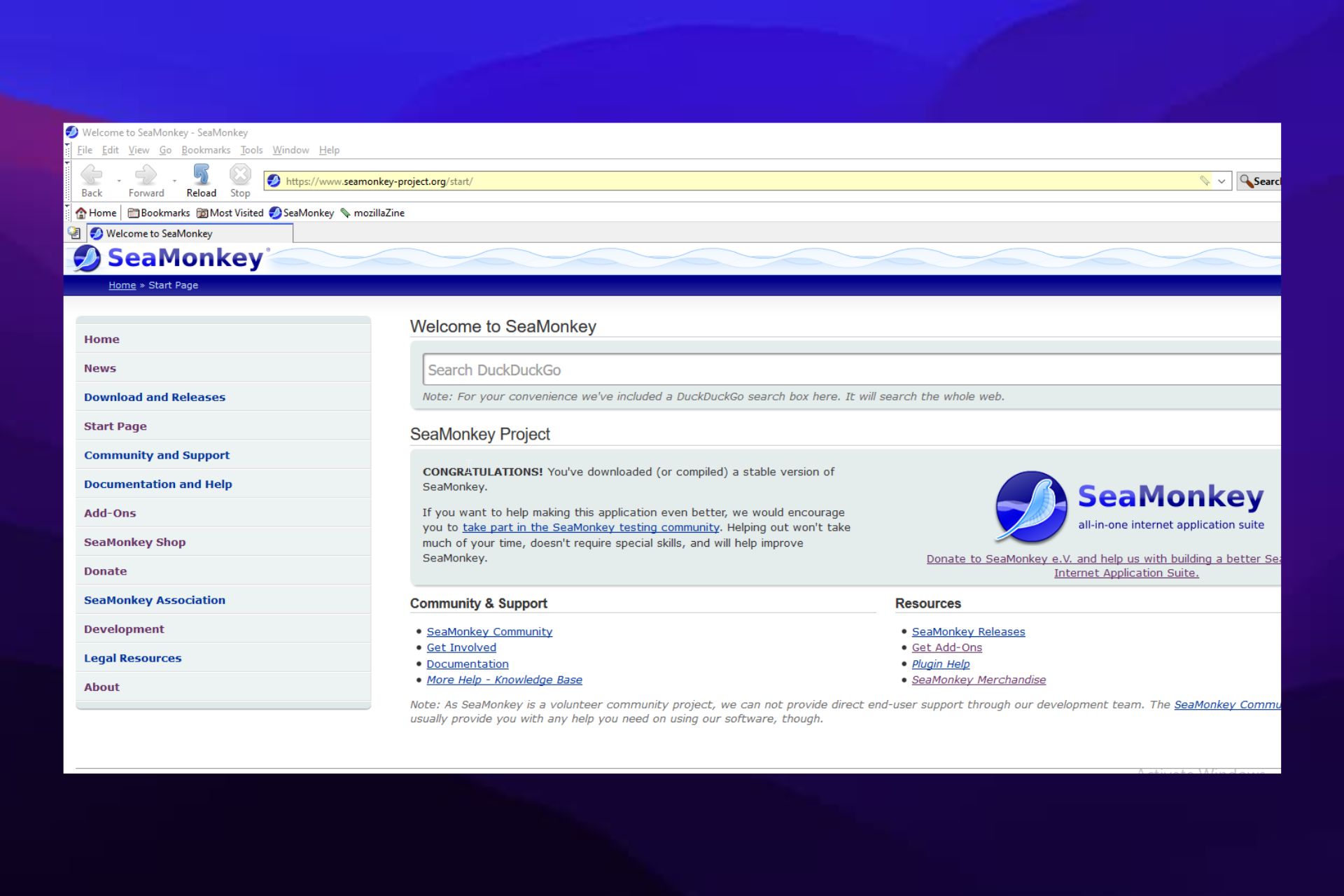




![How to Run GOG Games on Windows 10 & 11 [Tested Solutions]](https://windowsreport.com/wp-content/uploads/2020/04/gog-windows.jpg)