You don’t have to wait anymore! WWE 2K22 is here and brings up tons of incredible features that seem to excite worldwide players. For example, many are interested in discovering if they can export My Rise characters on WWE 2K22.
With a hard reset from the old MyCAREER, things got taken to another level with WWE 2K22 MyRISE. Fortunately, we have all the details you need about this new game mode.
Can you export your MyRISE character?
Unfortunately, you have to know that you’re not allowed to export MyRISE characters on WWE 2K22, as you can not import a character either.
Discussions are being carried out on various forums covering the possible reasons why the WWE 2k22 MyRise import doesn’t work, but no official information has been released yet.
Unfortunately, the WWE 2k22 can also not copy any MyRISE character, as this could cause concerns for users when it comes to security.
This could be because the character’s progress and stats are tied to that mode, similar to previous years.
However, you can recreate your CAW. Then, you should save it and go back to Edit custom superstar. After that, it should ask you if you want to keep it for Roster play and a My Universe slot to play WWE 2k22 MyRISE character in My Universe.
So, as you can see, there is not much to say about the MyRISE characters exported on WWE 2K22. Thus, we all have to wait until the manufacturers come up with some big news.
Also, it seems like WWE 2K22 might sometimes not work. It can be pretty annoying, so if you ever face this issue, do not hesitate to check some practical solutions to solve it.
If your WWE 2K22 MyRISE got stuck, simply restarting the game will resolve this issue.
Can I use a downloaded superstar in MyRise?
If you’re also wondering whether or not you can export the CAW in WWE 2K22 My Rise to use it in other modes, you’re not the only one! This is how other users were trying to find related answers:
Has anyone figured out how to export your MyRise character to play in exhibition modes?
Just spent hours creating the My Rise character, attire, moveset, entrance, etc. I don’t want to do it all over again unless I absolutely have to.
To discover more about this subject, make sure you keep reading because we’re going to answer as clearly as possible.
What are the WWE 2k22 system requirements?
To ensure smooth gameplay, make sure to check if the system requirements for the game fit your setup:
Minimum specs
Processor: Intel Core i5-3550 / AMD FX 8150 Memory: 8 GB Graphics: GeForce GTX 1060 / Radeon RX 480 Additional Notes: At least 4 GB of Video Memory
Recommended specs
Processor: Intel i7-4790 / AMD FX 8350 Memory: 16 GB Graphics: GeForce GTX 1070 / Radeon RX 580 Additional Notes: At least 6 GB ofVideo Memory
The BZ2 file format is usually used for Linux or UNIX systems and can only compress one file at a time. It cannot be used for multiple files.
You can, though, compress multiple files using a different tool and afterward get that final archive and compress it with BZIP2.
Even if BZIP2 is not used in Windows 10 as much as on the other mentioned operating system, there are ways to decompress the BZ2 file.
This article will show you some really easy ways to extract and decompress BZ2 on your Windows 10 device.
How can I extract and decompress BZ2 files in Windows 10?
1. Use a dedicated tool to unzip BZ2 files
There are many tools out there that will allow you to decompress and extract BZ2 files and after testing them all, we would like to recommend you the best one to use.
WinZip is a versatile tool that not only opens BZ2 format files but many others, such as RAR, 7Z, ISO, IMG, TAR, GZ, TAZ, and TGZ.
This complex software supports all the above formats but is more than just a simple compressing and archiving tool.
WinZip can also repair and manage zip files. In addition, it comes with strong security features. The almost bank-level encryption feature will make sure your files are safe even while compressing them.
If you are sharing them online or sending them via email, then you can rest assured that at any moment your data is safe and secured.
You can password-protect your archive and opening them without it would not be possible.
If you prefer to protect them using a password, make sure to keep a good password manager too at hand.
Here is how you can extract BZ2 files using WinZip:
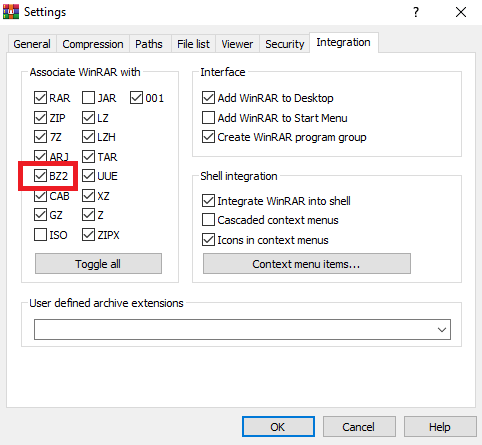
Go to the Integration Panel in WinZip and make sure that the BZ2 file extension check box is ticked.
Launch WinZip from the start menu.
Next, click on File and select Open.
Select the file or files inside the compressed folder.
Click on Unzip and choose where you want them to be saved.
This unique software makes sending large files via email possible. Most of the time this is a great concern for all team members when they need to share a large file.
WinZip will break the big file (such as ISO images, for instance) into smaller chunks without affecting the image quality in any way.
Moreover, if you are used to working with cloud system storage, such as Dropbox, Google Drive, or OneDrive, you can manage your files inside the cloud without interrupting your workflow.
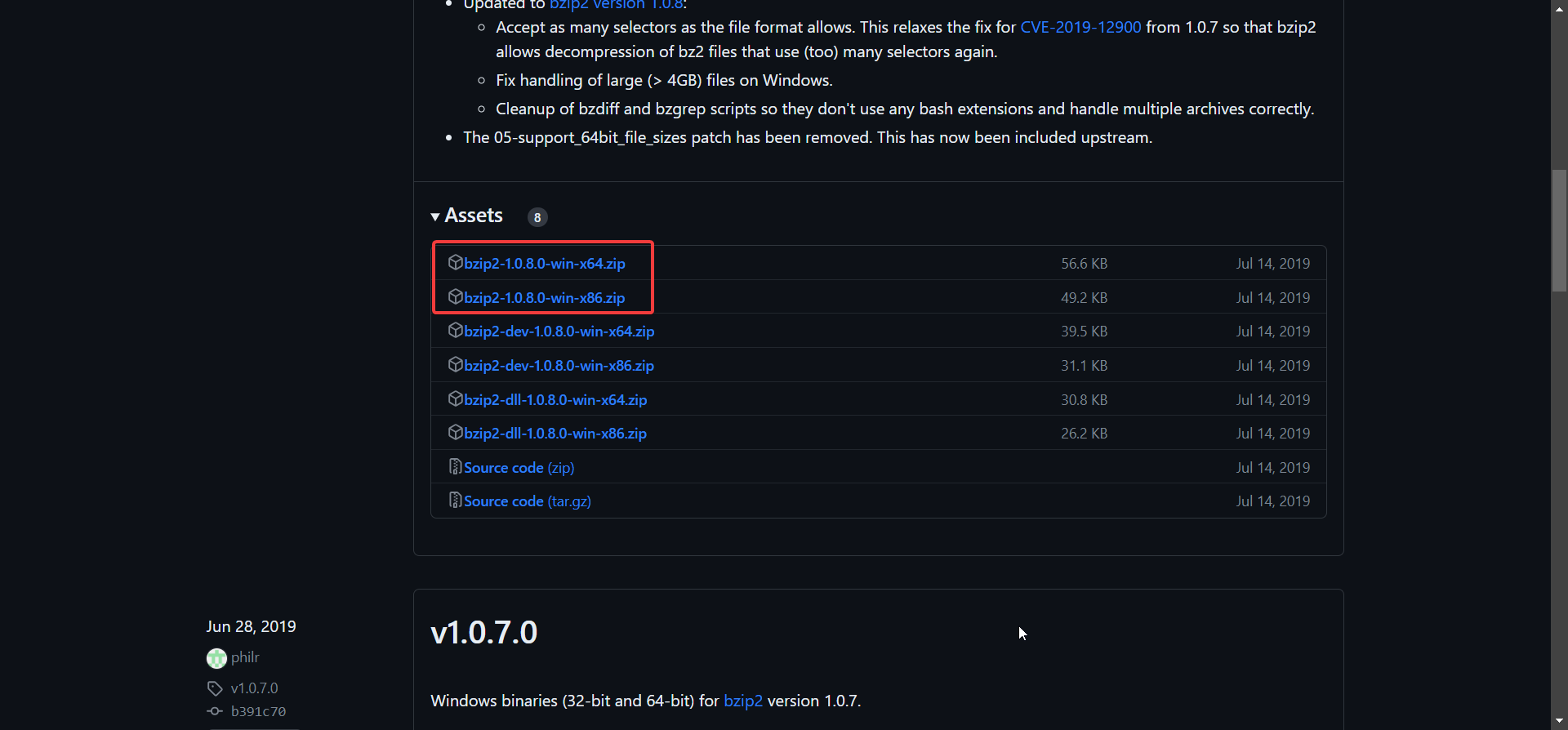
Go to the Bzip2 Github page and download the right tool for your Windows system (32bit or 64bit).
Extract the files on your PC and run the bzip2.exe file.
However, you will also need the vcruntime140.dll installed from Visual Studio 2015 C Runtime Library. Visit Microsoft’s Latest Supported Visual C++ Downloads page for download links if you don’t have it installed.
The Bzip2 developer recently created a Windows app you can install on your PC. However, if you don’t have Visual C++ installed, it’s more complicated than using WinZip, 7Zip, or other readily available unarchivers that support the BZ2 format.
Another easy and fast way to extract and decompress BZ2 files is through an online website.
There are many options out there that will do exactly that, and finding the right one for you should not be a problem.
Usually, decompression websites run locally as a browser app, making the process work faster.
Based on how they were created, some will have size limitations for how big the BZ2 file you are trying to extract can be. There are websites, though, that will not have such conditions.
One crucial aspect you will need to keep in mind is the privacy of your data. Considering that you will be uploading information online, it’s essential to check how secure the site is.
Moreover, before downloading the extracted files onto your device, check that your antivirus is active and working correctly.
Considering that the file will be downloaded over the Internet, it’s better to have an extra layer of security that will keep your privacy in check.
Please let us know in the comments section below if you have additional comments or suggestions.
If you’ve got a Web page open with some heavy jargon, it might be handy to have a good online dictionary. Then you can look up some of the vocabulary for further clarification.
Numerous dictionary browser extensions available for the foremost search engines provide you with a quick dictionary.
Browser extensions are the bread and butter of all significant browsers allowing users to customize and improve their browsing experience.
This article explores some of the best dictionary browser extensions for Chrome, Firefox, and Opera.
This plugin is your mobile word reference tool. You may double-click on a word that has been highlighted to read its definition in a bubble. Using the toolbar dictionary, you may see the entire meaning of any phrase or word.
How do I add extensions to my browser?
Navigate to the extensions page.
Click on the Add to Chrome button. This could be an Add to Firefox or Opera button, depending on your browser.
Click on Add extension when prompted.
Quick Tip:
Extensions often trade privacy for the sake of versatility. The Opera One browser blocks this with the integrated VPN and ad-blocker and allows the import of data from Chrome safely.
There are also some great extensions that you can add, such as Dictionary, ImTranslator: Translator, Dictionary, TTS, and Lingvanex – Translator and Dictionary. Opera One also helps your learning with native AI, workspaces and tab islands.
Opera One
Extensions here are more reliable and secured with built-in security measures.
This is a great dictionary for web browser extension developed by Google for its Chrome browser. It is about the best dictionary extension for Chrome, and it seamlessly integrates with the Google search engine to give you definitions.
The great thing about this extension is that you can double-click any word to look it up in the dictionary. Doing this will open your definitions in a bubble.
This tool also works with foreign languages as a translation tool. Alternatively, you can click the Google Dictionary toolbar to enter text into a dictionary search box instead. It can also save words that you look up.
Dictionary Pop-Up is an exclusive Firefox add-on you can add to the browser. This is pretty similar to Google Dictionary, except that it’s integrated with Dictionary.com.
Double-click words on a page to open the definition bubble and click More to open the definition in Dictionary.com.
The good thing about this add-on is that it also includes options for you to customize the popup bubble’s fonts.
Tooltip Dictionary is another excellent Firefox dictionary add-on that may be used on Chrome.
Like Google Dictionary and Dictionary Pop-Up, you can double-click words on a page to look them up; or you can also select the text and press Ctrl + Shift + K to open the window directly below.
However, what elevates this add-on above some of the others is that it enables you to look up words with multiple dictionaries.
All you need to do is click Show Dictionaries and select alternatives from the drop-down menu.
This is one of the best dictionary extension options for Firefox.
This is a popup dictionary extension for Chrome integrated with GoodWordGuide.com. You can look up words by double-clicking them on the page, much the same as the others.
However, you can also select the text and press the D button to automatically enter a word in the extension’s search box.
Furthermore, the extension also includes extra configuration options for trigger keys and the font size.
This is an excellent instant dictionary extension for both Opera and Firefox. You can add it to Opera, or you can add it to Firefox.
Dictionary Anywhere enables you to select words in pages for definitions. However, unlike some of the others, it’s also a translation tool.
When you click the extension’s button, it will open the window below that provides a definition and includes translate options.
Furthermore, you can also click Search to look up the word in the Google search engine instead. In addition, it includes a Copy button that you can press to copy text to the Clipboard.
With these dictionary tools, you can quickly look up jargon in websites open in Chrome, Firefox, or Opera.
Those that include translate options can also help translate pages, but there are better translation extensions available.
Also, note that some of the Chrome extensions discussed are also among the best dictionary extension options for Edge since it is built on the same engine.
If you’re learning Japanese, you might want to check our Rikaikun Firefox extension guide for more online dictionaries.
Since its introduction to Windows 10, Microsoft Edge has become one of the best browsers on all devices. This built-in browser is far from being a same-level competitor with Chrome and Firefox.
Every good few traits are shadowed by a few issues, which isn’t something anyone wants to deal with daily.
Not necessarily deal-breakers, but things like the Microsoft Edge server asking for username and password every time you run it can be a drag. Don’t worry. We have a fix for you.
Why does Edge keep asking for my credentials?
If Edge keeps asking for your username & password or other credentials, it is most likely due to malware. This virus can hijack the operation of your browser, leading to an error.
Another reason, especially when Edge is prompting for credentials on the intranet, is the activity of your credential manager. So, the causes are not far-fetched.
Quick Tip:
One good alternative to try is Opera One, a lightweight browsing tool built using the Chromium engine, just like Edge. The big difference is that Opera One is a privacy-oriented browser, thus a password keeper.
However, the built-in password manager makes Opera One shine in this situation. Beyond that you can also enjoy built-in features like VPN, Ad Blocker, AI and modular AI-ready Design.
Opera One
Provides one master password for all your accounts to avoid this never-ending loop of login.
This is quite a rare occurrence on any personal computer. On the other hand, it can happen from time to time on a shared PC.
Of course, it’s important to know whether this is a legit Windows prompt or if some adware is trying to hijack your PC.
That shouldn’t be that hard, as the prompt Windows shouldn’t be distinguishable from the Edge interface.
If unsure, ensure to uninstall all suspicious third-party applications and scan for malware. And there is no better tool than dedicated software like TotalAV.
Just install it, run a scan, and wait for the result. Once the scan is complete, you can decide what the antivirus does with suspicious files found.
Performing these actions regarding Windows security might fix the Microsoft Edge credentials problem.
Alternatively, if you need another efficient antivirus software, you can benefit from valuable anti-malware features anytime.
2. Check the Credential Manager
In the Windows Search bar, type Credential and open Credential Manager.
Open Web Credentials.
Remove the password from credentials, and you should be good to go.
The Credential Manager is a function that allows users to visualize their sign-in info to different websites, apps, or networks.
Running this feature to review your Microsoft Edge credentials is an easy method that might help you solve the login prompt issue.
The Microsoft Edge keeps asking for credentials issues that can quickly sap the fun of your browsing session. But, with the fixes above, you should be able to solve the problem for good.
NBA 2K is a series of basketball video games that you can play on a number of platforms, including Windows, PlayStation, Xbox, Wii, iOS, Nintendo Switch, and Google Stadia.
The latest edition is NBA 2K20, available for Windows, Switch, PS4, and Xbox One.
In NBA 2K20, you can control a single player or an entire basketball team, as well as choose players from the current NBA season. The game also features career and online modes.
Unfortunately, many users report NBA 2K lag and various errors when trying to join online sessions, which can become really frustrating.
There are multiple possible culprits that cause 2K lag, some related to your game’s configuration, and others caused by underlying issues in your connection:
➡️ NBA2K servers are down: it’s possible that the servers you try to access are currently out of service or undergoing maintenance. You can check server status on NBA 2K’s Downdetector page.
➡️ Your device doesn’t meet the system requirements: if you don’t have the resources recommended by the game’s manufacturers, it’s very likely to experience lag and other issues
➡️Interfering apps: sometimes your antivirus or firewall may block or restrict other apps on your PC, check your settings and whitelist NBA2K if necessary
➡️ Bad Internet: make sure your connection is up and stable and contact your ISP if necessary
NBA2K most common errors: All the above-mentioned problems can cause latency issues within the game and other issues related to responsiveness and errors. According to players, the most common issues that appear in-game include:
NBA 2k mobile out of sync
NBA 2k mobile lag
NBA 2k22 online lag ps4
2k22 lagging ps5
NBA 2k22 ping issues
NBA 2k22 delayed shooting
2K servers lagging
Good VPNs let you can overcome latency issues and secure a stable connection. You can also use their mobile versions to fix lag when playing NBA2K on your phone. We looked into the best clients that offer high-speed servers for NBA2K and comprised an overview of the features they include.
Private Internet Access (PIA) is the easiest way to fix NBA 2k lagging. It’s a reliable virtual private network solution that can fix packet loss and improve gameplay by getting rid of any latency causes.
This VPN offers access to server locations all around the world. You have the possibility to quickly connect at the press of a button.
PIA VPN app will automatically choose the best server for your particular configuration, which is ideal if your goal is to fix lag in NBA 2K or other online games.
You can also manually select your server and pick your preferred location from a list. The VPN has powerful AES-256-bit encryption on each server and comes with a secure killswitch to prevent data leaks.
Made by Kape Technologies, PIA can be installed on a number of devices, including Windows, Switch, PS4, and Xbox One, making it an excellent VPN for NBA 2K20. Plus, it’s one of the few VPNs with 24/7 live chat support.
How can PIA help you:
+30,400 servers in 80+ countries
Port forwarding to enhance your connection quality
10 simultaneous connections
Great for fixing NBA 2K input lag
30-day money-back guarantee (no free trial)
Private Internet Access
Fix NBA 2k lag and reduce ping using this trustworthy VPN service for PC and consoles.
Another reliable VPN that can help with latency issues when playing games online is NordVPN.
It’s a user favorite thanks to its high-speed servers located in various corners of the world.
NordVPN is untraceable, thanks to its powerful AES-256 bit encryption as well as zero logs policy that leaves no room for weak points.
The tool has an advanced double VPN option that adds an extra layer of security. It’s a great way to protect your data when gaming and prevent DDoS attacks.
NordVPN offers private DNS servers and has a SmartDNS feature that lets you bypass geo-blocks when traveling.
Other key features of NordVPN include:
Emergency killswitch that blocks traffic if you disconnect
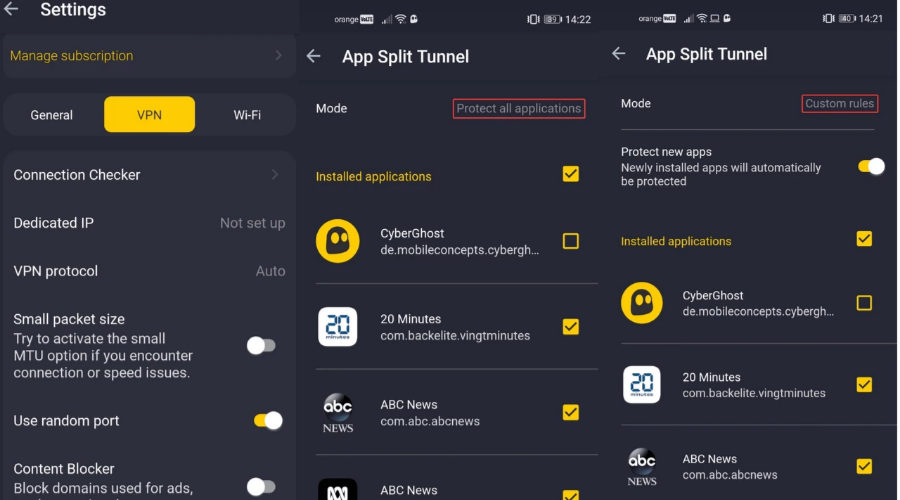
Split tunneling
Cybersec feature for threat protection
Dark web monitor that alerts you if your account has been compromised
Advanced server obfuscation
NordVPN is subscription-based, but you can get a refund in the first 30 days of your subscription if you are not satisfied with the service.
NordVPN
Connect to a fast server for reduced lag and privacy protection!
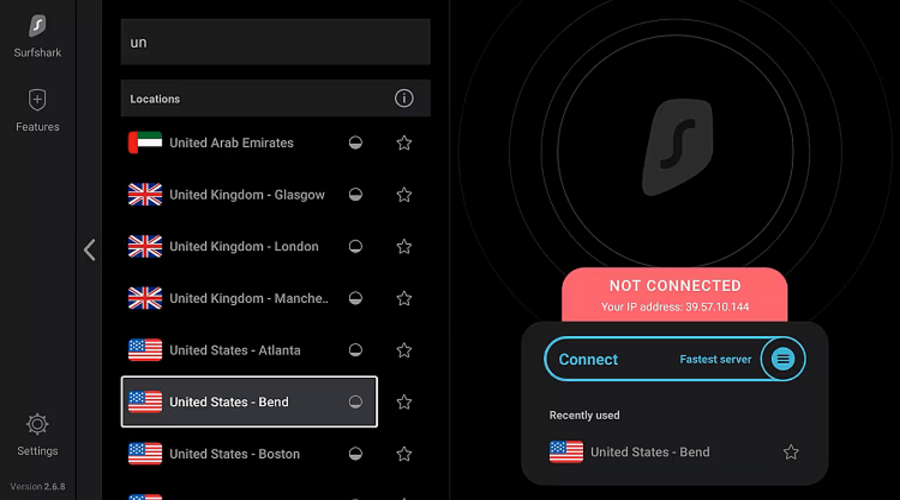
Surfshark – multi-device support and unlimited connections
Surfshark is yet another performance-oriented VPN service that aims to provide high-speed rates.
It has over 3200 servers across the globe. This means that you are able to get the best traffic available for your configuration.
This VPN ensures that none of your data is collected. Along with the fact that you get great privacy, this also means that your internet service provider won’t be able to place any restriction on your traffic.
If you want to increase your speed and reduce the risk of ping, you can also allocate all your traffic to NBA 2K. For this, you will have to activate the Bypass feature.
This will enable you to connect to your game via a VPN, while the rest of your apps will connect directly to your actual IP. It can really boost speed, and you can quickly enable and disable it in just one click.
Other key features of SurfShark include:
Secures lost connections with Kill Switch
Powerful AES-256-GCM encryption
Secure IKEv2/IPsec protocols
Private DNS on each server
Compatible with all major platforms
SurfShark is a subscription-based service with three different plans available. You can try it out for free for 7 days and see how it works for your needs.
Surfshark
Pick the device of your choice and enjoy NBA 2K with no interruptions.
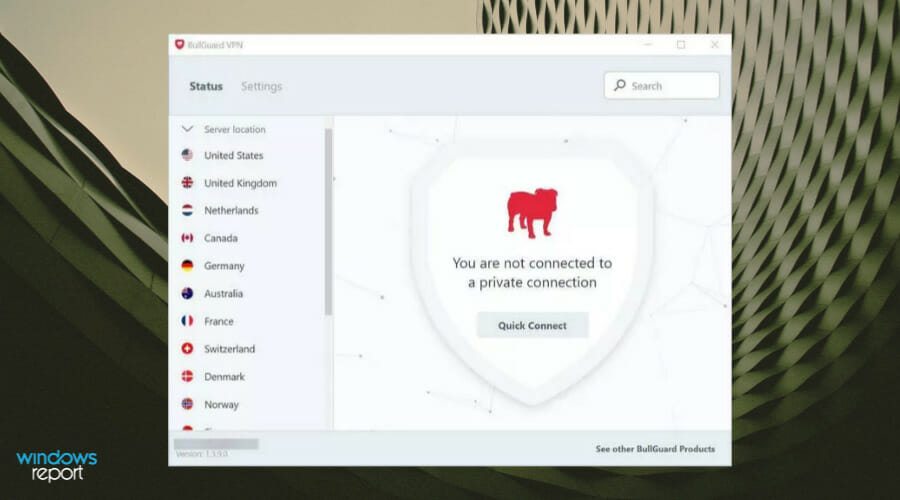
BullGuard VPN can help you with NBA 2K lag on Switch, PS4, Xbox One, and Windows. It’s a fast VPN service owned by BullGuard, which can fix jitter and speed up your Internet connection.
You can share BullGuard VPN with all your devices to secure web connections, as well as use it to minimize Wi-Fi packet loss. The tool uses the OpenVPN protocol to encrypt your data traffic.
The NBA 2K video games are great for basketball fans, especially thanks to the high resolution that significantly improves your gameplay. However, it can become really annoying to deal with NBA 2K lag and high ping every time you join an online server session.
Looking for a browser that offers support for HEIC image files? We recommend some of the best browsers that not just help you open the files but also offer the best image quality.
However, HEIC is more of a container for images and audio. It allows you to save your pictures in a better way.
It compresses the images to make them smaller in size and save data without losing image quality.
But, as of today, HEIC files are not supported by any of the browsers natively. So how do you view a HEIC image on your web browser?
Can you display HEIC in HTML?
HEIC and HEIF files are not supported by the <img> tag in HTML5 and so, the only option is to convert the file format as below:
Convert the files on the fly into a Buffer
Parse the Buffer into a Base64 String
Provide the output to an image tag
You can then convert the images using a conversion library, for example, the heic2any library by Alex Corvi or using the heic-convert project.
How do I open HEIC in my browser?
If you come across the HEIC unsupported file type on your browser, you can follow the below instructions to open the image file:
Plug your iPhone into the PC with the USB cable for it, and then transfer your HEIC photos to Windows.
Now, save the photos to your desktop or laptop.
Next, go to your browser and try to open the downloaded HEIC image file.
You will see a message saying, The HEIF Image Extension is required to display this file.
Below the message, click on the Download and install it now link.
On the Microsoft store web page for HEIF Image Extensions, click on Get In-Store app.
In the prompt, click on Open to open it in the Microsoft Store.
Select the folder in the Photos app that has your iPhone’s photos. Click the Add folders option to select the image.
Now, go to the folder where you saved your iPhone’s photos, select it, and click on Add this folder to Pictures option.
You can now view the HEIC images within the Photos app on your Windows PC.
Google Chrome – View all image formats with Google Photos
The most popular browser in the world, Google Chrome, is known for offering a plethora of advanced features, including a wide range of useful extensions.
Chrome supports almost all major image formats, for example, PNG, GIF, JPG, or SVG without any additional tool.
However, it does not support HEIC image format natively, but, you can view the images using Google Photos and Google Drive.
Chrome will then display the images in the original image quality using the full potential of the system graphics.
Known for its ability to play 4K video quality for Netflix, Microsoft Edge is the new solution for the Ultra HD video lovers.
A feature-rich browser, Edge is also known for its web capture tool that now comes with a lot of improvements.
So, if you open a HEIC image file on Edge using a dedicated tool, you can even edit the image right in the browser while it maintains the original quality.
Moreover, it can even label an image found on the web (through the screen reader) automatically, using its ML (machine learning) algorithms.
Here are some of its other key features:
Option to import data automatically from other browsers
While Apple does not support HEIC image format on macOS, it does support the file extension in its iOS devices.
However, according to Apple, you can upgrade to iOS 11 or later or macOS High Sierra or later to view, edit, or duplicate HEIF or HEVC media captured with an iOS device.
In the non-supported versions of macOS, you can either convert the image to JPEG on your iOS device and transfer it to your Mac or use a 3rd party HEIC converter.
Once you have the converted file on your Mac, it will display the image with the same quality as the original one.
Here we have listed some of its other major features:
Browse anonymously with private browsing
Check privacy report
View compromised or reused iCloud Keychain passwords
Yes, HEIC is a better image format than JPG in terms of its ability to compress pictures into a small file size while maintaining the original quality.
However, although it’s gaining popularity, it’s not as commonly used as the JPG format, and not many apps and devices offer support yet.
Web browsers don’t render graphics, but only content, and hence, a high-resolution image depends on your computer’s graphics and the display resolution.
A browser can take advantage of the system’s graphics settings and display the image.
So, for those looking for the best browsers that support HEIC files with the same image quality, we recommend the above list.
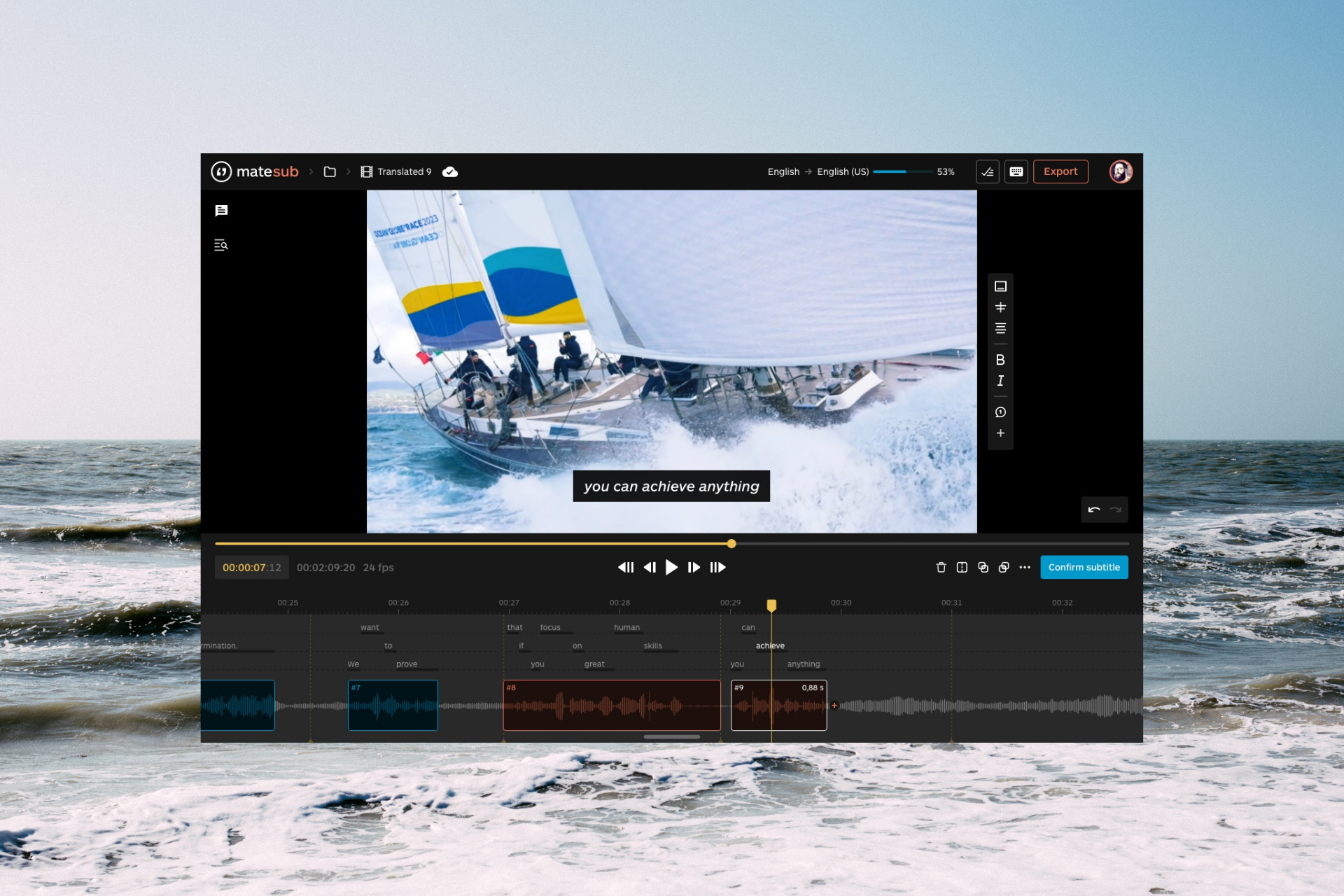
Whether you’re into the subtitling business or just want to create a nice surprise for your family, Matesub subtitle software is here to help you.
Thanks to its built-in AI technology and a powerful WYSIWYG editor you will be able to create higher-quality subtitles a lot faster.
So, if you need to create subtitles faster and more conveniently, we’ve tested Matesub for you and we’re sharing its best features along with our experience with the software.
How can Matesub help me?
Matesub software is a cloud-based tool that transforms the work of setting up the subtitles on a video into a fast and pleasurable experience.
That’s mostly because it shortens the process significantly by using speech recognition to transcribe the audio into text.
And not only that but it also places the text on the timeline exactly where the words are spoken.
All this is doubled by a very friendly interface that makes editing your subtitle a child’s play.
What are Matesub’s best features?
1. Automatic transcription and translation
The most important feature of Matesub is its speech recognition feature that automatically transforms the audio into text.
After you upload the video, you can specify the audio language and the language of the finished subtitle.
So, not only it identifies the audio speech in no less than 28 languages but then, it also translates it into 65 available languages.
It does a great job on the most used languages and, providing translation suggestions, helps people focus on the creative part of the work, letting the machine take care of the most time-consuming tasks required by the rest of the process.
However, it gives you an awesome head start and you can always edit the subtitles after the tool processes them.
2. Auto-spotting
After Matesub analyzes the video and translates the audio, you can edit the subtitles and make the final touches.
However, you will have a big surprise there because transcripts are placed precisely on the timeline, so you can see exactly when each word is spoken.
Although we chose a music video for our test the software performed extremely well on getting the words and placing them in the right spots.
3. Create your own guidelines
Matesub already has a few guidelines on how to create the subtitles automatically. You can follow Disney, Netflix, and TED’s default ones but you can also make your own.
Set up the text alignment, how much the text stays on the screen, the maximum number of lines on a subtitle and the minimum interval between two subtitles, the font, and a lot more.
And when you finish customizing your personal guidelines the way you want, just hit the Save button to use them for your next project.
4. Intuitive WYSIWYG editor
This software comes with a WYSIWYG editor and that’s an acronym for what you see is what you get.
That means that you edit the subtitles exactly as they appear on the screen. The editor is so simple to use and so intuitive that it seems pointless to explain it.
All the subtitles are placed chronologically on the left panel and just by clicking on them gets you exactly on its timeframe.
Then, just select the subtitle on the preview screen and make the changes using your keyboard.
How can I create subtitles quickly using Matesub?
Visit the Matesub website and click on the Try Matesub for free button.
Now, you can either enter your email and password to create an account or use the Google or LinkedIn account.
To start off, click the New Project button. You will probably notice that you have 60 minutes available per month in the free Starter plan.
In the next window, enter the name of your project, then select the guidelines from the drop-down menu, or the existing one with your preferences.
Going down the list, you need to upload your video (just drag-and-drop it), select the audio language, and click the Continue button.
In the next window, you can either generate the subtitles or choose an existing subtitles file, then select the language for the translation and click on Create at the end.
Now, Matesub will analyze your video and generate the subtitles, and as you can see, you are able to create subtitles in more languages at the same time.
After the process is done, you will see an entry for each language and you can hit the Edit button to make your adjustments.
To edit a subtitle, just go through the subtitles list on the left pane, and you will immediately see it on the preview video, exactly as you will see it on the finished video. Just clicking on it will allow you to edit the text.
Of course, you may change the text alignment and style from the toolbar on the right, and adjust the placement of each word and duration from the timeline below with pinpoint accuracy.
At any point, if you want to add a new subtitle, just hit the + sign on the list of subtitles to do so.
To make your work even easier, after you’re happy with a subtitle, you can hit the Confirm subtitle button. That will highlight the subtitle so you can see that you’ve reviewed it.
Whenever you feel you’re done, click the Export button to save your finished work in plain text, WebVTT, SubRip or SubRip with position formats.
That’s how easy it is to create a subtitles file from scratch with Matesub. And although the many steps we included probably made things seem complicated, they definitely aren’t.
However, we explained the basics of how to use this tool. You can go a lot further in editing your subtitles.
For instance, you can search and replace any words within your subtitles, merge one subtitle with the next, and use many other features.
Places the text exactly where the words are spoken
Accurate timeline editing
Cons
Only 60 minutes of upload for the free version
Final notes
As you’ve probably noticed, the built-in AI technology does more than 80% of the subtitling work for you. Although, no AI is perfect at recognizing all the words in a recording.
And then, Matesub’s editor offers all the tools you need to get the job done at a professional level.
All that with a software that you don’t even need to install on your computer. All your work is available in your cloud dashboard, on any device you want to work on.
The interface is so friendly and simple to use that it doesn’t need any guidelines whatsoever.
We’ve been impressed by how quickly we were able to go from a music video to create a full subtitle for it in just a couple of minutes.
There are situations in which having a multiple-monitor setup can be extremely useful, but many users don’t know how to move the Taskbar to other monitors.
By doing so, you can better organize your workspace and get more space to perform your tasks comfortably.
The option to do this comes ingrained in Windows 10, and the trend continues in Windows 11 as well. So that should not be a problem.
How to move Taskbar to the second screen?
The real issue here is that the monitor settings can be somewhat confusing.
But we are about to shatter this perception so that you can freely and easily switch between monitors and take your taskbar with you as you go.
There is a catch, however. Keep in mind that your multiple monitor setup needs to be in place, up and running in order to be able to perform this change.
Without further ado, here’s a step-by-step guide to help you move your Taskbar to the second monitor quickly and easily.
Move Taskbar to the other monitor in Windows 10
It is very easy to move your Taskbar to another monitor on Windows 10. All you need to do is unlock the Taskbar, then drag and drop it to the monitor of your choice.
1. Right-click on yourTaskbar, and check whether the Lock the Taskbar option is activated. If it is, deactivate the setting to unlock the Taskbar.
2. Next, we will need to right-click again on the Taskbar and choose Taskbar settings.
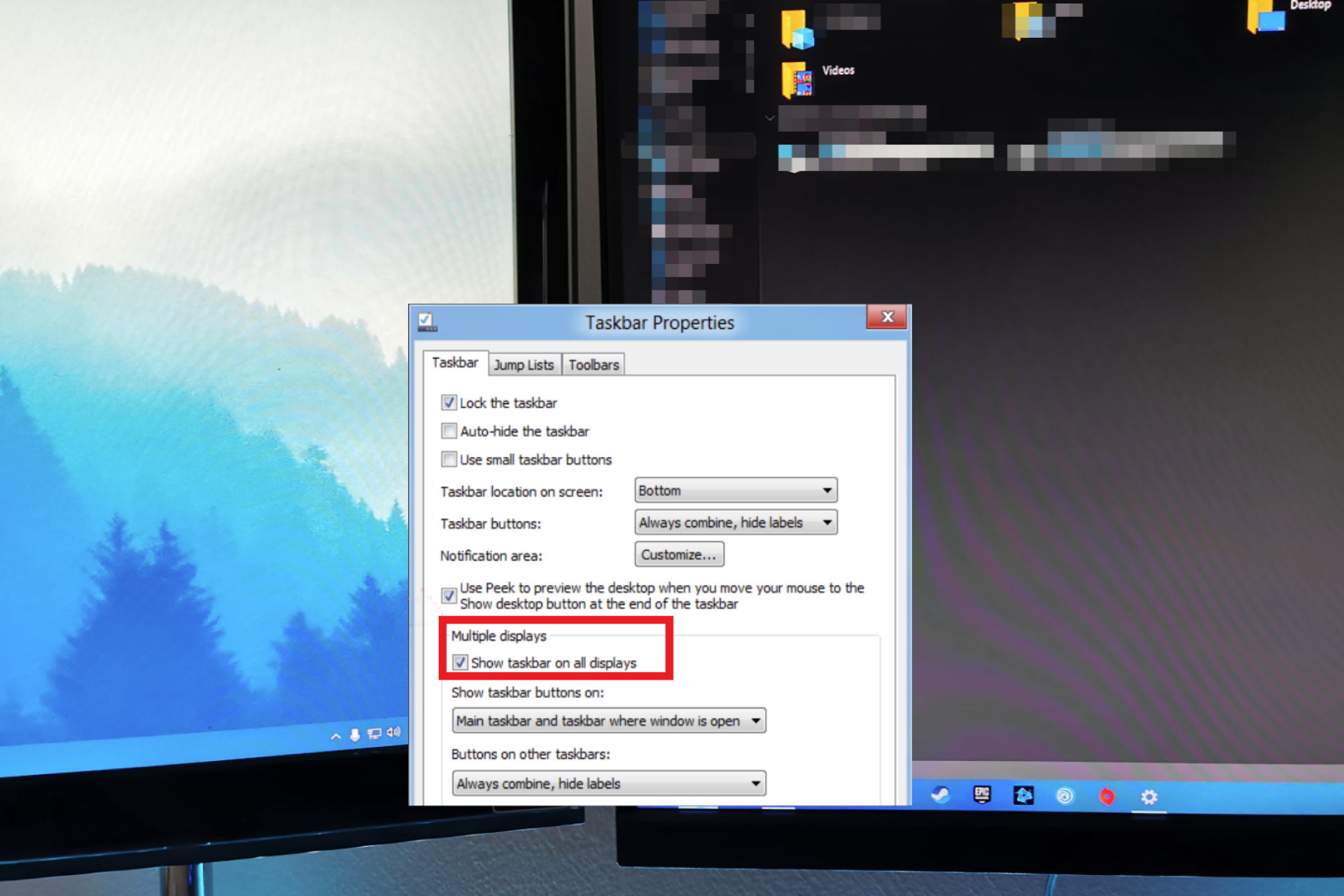
3. Once the Taskbar settings window is opened, scroll down to the Multiple Displays section.
4. Toggle the option Show taskbar on all displays to Off.
5. Now you can simply drag-and-drop your Taskbar to any of the multiple monitors connected to your PC, and customize it to your needs.
In this guide, we explored the easiest and fastest way to move a taskbar to another monitor. As you can see, the process is incredibly simple and easy to perform, so you won’t have any issues.
Nevertheless, that does not mean that the taskbar itself is exempt from issues. For instance, the taskbar can become unresponsive after a while, be it in Windows 10 or 11.
If you happened to notice this behavior on occasion, don’t procrastinate and deal with it sooner rather than later.
Feel free to let us know if this guide helped you move the taskbar to another monitor and do share any other solutions that you may be aware of with us.
If you want to use Apple’s Safari browser on your Windows 10 PC, you might be surprised to learn that Apple officially discontinued Safari support for Windows back in 2012.
However, some versions of Safari for Windows still exist and can be installed, though they’re outdated and may lack important security updates.
Here’s how:
⚠️Safari for Windows has been discontinued. You can still download and install the 5.1.7 , but please note that security problems may appear, since it has gotten no security patches in a long time. ⚠️
Click the executable file to start the installation process.
2. Run the installer wizard
Open the installation file previously downloaded, and click the Run button to start the installation.
Select the Next button on the Safari installer. It is possible to see the UAC (User Access Control) windows, so press the Yes button.
Accept the software agreement to continue with the installation, then click Next.
Select only the options you need and click Next.
Click on the Install button and wait for the process to finish.
Here you have it, Safari for Windows.
Installation takes only a few moments with no additional steps than above. You can now enjoy using Safari with all its features on your Windows 10 computer.
Is Safari free for Windows?
Yes, Safari is free for Windows, but the last supported version is 5.1.7. Since it’s no longer updated, using Safari on Windows 10 could risk your online security. Apple advises against it, but if you still want to, follow the steps above.
Why was Safari for Windows discontinued?
We can only speculate on the exact reasons Safari decided to have their software’s Windows support discontinued. Still, one of the most logical reasons would be that the market value for this software on Windows doesn’t justify the costs involved in making this option available.
This decision is in tune with what other companies do. For instance, Microsoft only releases Edge Chromium for Windows.
If you’re not keen on using discontinued programs, check out how Firefox compares with Safari and decide whether it’s worth the switch.
Is there a question in your minds regarding which browser is the best to use for MetaMask in terms of security? If you are also looking for answers, then you are in the right place.
Because in this guide, we will give you 7 of the best browser that support MetaMask in order of security.
When you talk about the leading crypto wallets available on the market, then your search should stop at MetaMask.
MetaMask is one of the leading crypto wallets which lets you store Ether and other ERC-20 tokens. You can use it either directly via the website or as a browser extension.
Users can easily store Ethereum and other cryptocurrencies or enable them to transact with any Ethereum address. Users can easily connect MetaMask to Ethereum-based apps to spend their coins in games and other activities that transact in cryptocurrencies.
MetaMask is easy, and you can start off using it without an email address. You need to just remember a password and a secret recovery phase, and that’s it.
It also offers a built-in crypto store. Although you cannot buy Bitcoin with MetaMask, you can trade in Ether and Ether-related tokens.
You can install the MetaMask extension on Google Chrome, Mozilla Firefox, Brave, and Microsoft Edge browsers as an extension.
Let’s take a look at the top 7 browsers that support MetaMask and offer adequate security.
Is there a MetaMask browser?
No. There is no dedicated MetaMask browser. You can use the MetaMask extension on Google Chrome, Mozilla Firefox, Brave, and Microsoft Edge browsers.
You can also go to the MetaMask website, log in, and use the MetaMask wallet right in your browser. The main question is which browser to use when using the MetaMask crypto wallet. Thankfully, this is what we are going to discuss in this guide.
Does MetaMask work on mobile browsers?
MetaMask is not only available as an extension for web browsers, but there are mobile apps available for Android and iOS as well.
Notably, you can also use MetaMask directly on the web browser, both on your desktop and mobile. But do note that if you go ahead and use the MetaMask browser on your mobile browser, then your experience of using the MetaMask wallet will be limited and it may not be as fully featured as the mobile app.
Using MetaMask on mobile browsers can benefit you if you are trying to mint NFT on the go or want to check in on a new Web3 project or your Ether wallet.
Opera One stands out in our testing, at least according to our software specialists, and we certainly believe the proof provided. It was the first browser to test the Crypto Wallet standalone web app, which offers a slew of security features and an enhanced crypto experience.
Even if the MetaMask extension may be imported from other browsers because it is not specific to Opera, testing the Crypto Wallet built for Opera One is a solid bet. Opera’s Crypto Wallet is very secure and provides you with complete control over your cash and collectible keys.
The wallet also employs Android’s secure system lock, which simplifies blockchain transactions by eliminating the need for additional PIN numbers or passwords. The browser facilitates interaction with Web 3.0 applications, such as crypto platforms and apps, allowing access to the decentralized internet.
Opera One
A standalone Crypto Wallet browser designed to make your virtual transactions easier than ever.
After careful research, we found out that the Brave browser is one of the best browsers that you can use MetaMask on.
Brave browser is a privacy and security focussed browser that not only is lightweight but also very easy to use and the UI is also cluttered free.
Security features such as Brave shields that blocks trackers, cross-site cookies tracking, fingerprint tracking, network server calls, partitioning, blocked bounce tracking, ad blocker, etc., makes Brave browser the first choice if you want to use MetaMask.
Moreover, you can also install the MetaMask extension on the Brave browser, as it officially supports it.
Mozilla Firefox – Secure and offers a large number of addons
Mozilla Firefox has been the first choice of power users, i.e., those who want more from their browsers apart from just web browsing.
Firefox is not only secure but also provides a bunch of security features, which its competitors do not offers.
It comes with HTTPS everywhere feature, NoScript, and sandboxing and fingerprint protection, along with crypto-jacking protection that protects you from crypto mining by hackers.
Besides, you can enhance its security functionalities by using Firefox add-ons. MetaMask officially supports Mozilla Firefox, meaning you can install the MetaMask extension and have the crypto wallet just a click away from your toolbar.
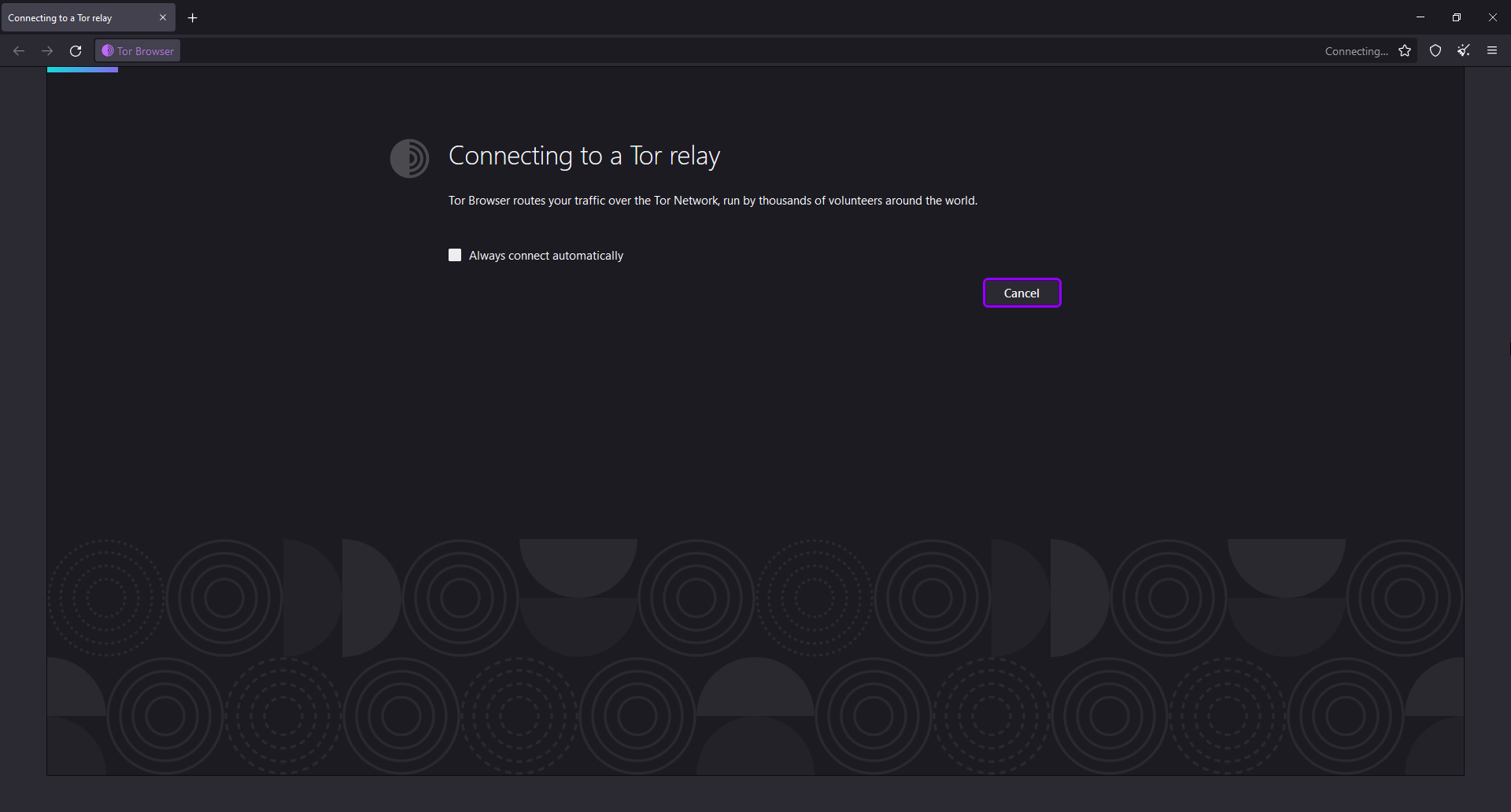
The base of the Tor browser is security and privacy. It provides one of the best protections you could find on a browser.
It does not work like other browsers and routes your data through an Onion network, i.e., a series of random networks, making your traffic and data untrackable and anonymous.
There are some features similar to Mozilla Firefox such as HTTPS Everywhere and NoScript. Tor browser does not save your browsing data and it deletes them after every session.
You might not have heard of the Osiris browser, as it is a fairly new browser in the block. Osiris is specially designed for cryptocurrency and crypto-related browsing.
To give you some insight, it is developed by Golden Finance, China’s largest blockchain media outlet. Osiris now stands as the third-largest blockchain browser following Opera and Brave.
Some of the notable features of the Osiris browser are ad blocker, tracking protection, fast page loading, anonymous browsing, offers dAppstore for decentralized applications, De-Fi, NFTs, and in-built Metawallet.
The wallet supports Eth, ACE, and TRX networks, and negates the need to install a wallet to store your cryptocurrencies. You can choose your search engine and go for the privacy focussed DuckDuckGo. It even lets you view the number of ads and scripts blocked by the browser.
Waterfox is in the same fork as the Mozilla Firefox browser but is lightweight and more efficient. Some additional tweaks have been done to the base of Firefox to make it more secure and private.
It is one of the safe browsers that support MetaMask. Waterfox comes pre-installed with uBlock Origin, which is very famous for its advanced, configurable tracker blocker, and privacy.
Additionally, Waterfox is a privacy-focused browser that does not collect your personal data and deletes your browsing history after every session. Overall a better security-centric browser that is apt for using MetaMask.
While the Vivaldi browser is Chromium-based, just like Google Chrome, it isn’t as resource-hogging as Chrome.
It is lightweight and offers some good-to-have security features such as an ad-blocker, tracker blocker, and Cookie Crumbler that blocks cookie tracking and allows you to group multiple tabs into one.
You can also change the search engine to more security-focussed DuckDuckGo instead of Google or Bing. Vivaldi lets you create notes on the website, use two websites in split-screen mode, and customize the browser the way you want.
You can even install the MetaMask extension on Vivaldi as it supports Chrome extensions.
LibreWolf is based on Firefox but comes with more privacy and security focussed features. If your specific task is to deal in crypto, you can consider using LibreWolf.
It does not collect or track your data, there is no adware or cookie tracking, and it comes with uBlock Origin giving you double protection from ads.
LibreWolf loads pages faster and saves data by not running obsolete ad scripts. You can select among popular search engines such as DuckDuckGo and Quant. It also receives the latest updates quickly to keep up with security and privacy.
You can use the MetaMask extension to access it directly from the toolbar of your browser. However, do note that the MetaMask extension is only available for Google Chrome, Brave, Firefox, and Microsoft Edge.
Here are the steps that you can follow to add the MetaMask extension to a browser. We will be using the Brave browser for this explanation.
Hit the Add to Brave button. This will add the MetaMask extension directly to the Brave browser toolbar.
The extension is now ready to be used.
That is it from us in this guide. Do note that the above browsers have been used and ranked in terms of security to handle MetaMask.
And in terms of security Google Chrome and Opera stand a bit behind compared to these browsers. But you can always go ahead and choose the web browser of your liking and get your tasks done.
If you’re a Windows user, you probably would have heard the term Blue Screen of Death, which has now become a common occurrence on Microsoft Edge.
Several users reported encountering the error. While the browser crashed for some, others saw a number on the screen to call for a resolution.
This is a particularly tricky error since identifying the underlying cause is difficult, but we will walk you through all the possibilities and the most effective solutions for each.
Why does my Microsoft Edge keep crashing?
Microsoft Edge crashing with a blue screen and beeping noise is one of the most problematic errors on the Windows platform, so it’s no wonder that scammers are using it for their gain.
If you’re getting a Blue Screen of Death in Microsoft Edge or in any other web browser with a number displayed, do not call the number.
This blue screen could be an attempt by scammers to trick you into thinking that you’re getting the infamous Blue Screen of Death error, whereas the whole thing is just a deceiving web page.
Other than that, there are genuine issues with either Edge or the system that could cause the browser to crash. Corrupt browsing data, the presence of conflicting applications, or problematic extensions led to a Blue Screen for some Microsoft Edge users.
Quick Tip:
We recommend you use an alternative browser, in these regards and well earned for the choice is Opera One. The main pros are the proxy VPN and it’s built-in AI.
Browsing in Opera One is at a security rate higher than Edge, and the policy used for password encryption and safety measures will minimize the attack of a scammer, thus avoiding a BSOD error.
Opera One
High-security standards and protocols to keep attackers at bay.
Edge is an advanced browser, but some users might still encounter errors that considerably affect the browsing experience. So, it’s important that you know the common Microsoft Edge errors and their fix. Here is a list of the most common Edge errors:
Let’s now head to the solutions for the Blue Screen error in Microsoft Edge.
What can I do if I get a blue screen in Microsoft Edge?
1. End the Microsoft Edge process
Press Ctrl + Shift + Esc to open the Task Manager.
Select the Microsoft Edge entries on the list one at a time, and click on End Task.
If the browser closes, start it again and repeat the process.
After a couple of tries, you should see a message saying that Microsoft Edge couldn’t open this website. You’ll be asked to return to the start page.
Click Yes, and the problem should be fixed.
According to users, this solution works, but you might have to end the Microsoft Edge process several times before you fix the Blue Screen problem in Windows 10.
2. Use third-party software
Regardless if your blue screen error in Microsoft Edge is the result of malware files or if it is a genuine Blue Screen of Death error, you can fix this issue fast and easily.
Users reported fixing the blue screen issue simply by opening a new tab in Microsoft Edge. When you open Edge, try to open a second tab quickly. If you manage to do that, close the blue screen tab.
If that doesn’t work, drag the problematic tab to the side and create a new Edge window. Try to close it from the Taskbar, but if it doesn’t work, start Task Manager and end its process.
Usually, that process will be the one that uses most of your memory. After ending the task and closing the problematic window, the Blue Screen issue will be permanently resolved.
4. Delete App history
Press Ctrl + Shift + Esc to open the Task Manager, and navigate to the App history tab.
Select Microsoft Edge and then click the Delete usage history option.
Now, verify if the problem is resolved. In case Microsoft Edge is still causing blue screen, head to the next method.
5. Scan your computer for malware
According to users, you can fix this problem simply by running a malware scan. It seems that this issue appears due to tracking cookies.
We recommend using an anti-malware removal tool since it comes with real-time protection against phishing scams and malicious advertising.
With minimal impact on your PC system, a dedicated malware software protects it from advanced ransomware infections that encrypt your files and force you to pay to get them back, which might be the case here.
6. Clean temporary files
Press Windows + I to launch Settings, and click on Storage on the right in the System tab.
Click on Temporary files here.
Now, click on the Remove files button.
Click Continue to confirm the change.
After removing temporary files, the blue screen in Microsoft Edge should disappear. If not, head to the next method.
7. Close the problematic tab before it loads
A few users reported that they fixed the issue simply by closing the tab before it fully loaded.
Keep in mind that you’ll have to be fast in order to close the tab before it loads. If you don’t manage to close the tab, simply close Edge, restart it, and repeat the process again.
8. Disable your network connection
Press Windows + X to open the Power User menu and select Network Connections.
When the Network Connections window opens, right-click your connection and choose Disable from the menu.
Once disabled, start Microsoft Edge.
The problematic tab won’t open without an Internet connection, so you can easily close it.
After closing the tab, go back to the Network Connections window, right-click your connection and choose Enable from the menu.
If you don’t want to use the Network Connections window, you can simply unplug your Ethernet cable and close the problematic tab in Edge. After you’re done, plug in the Ethernet cable again, and the issue will be fixed.
9. Clear browsing cache
Launch Edge and press Ctrl + Shift + Esc to open the Clear browsing data utility.
Select All time from the Time range dropdown menu.
Check the boxes for all the options here, and click on Clear now at the bottom.
Once done, close all tabs, restart the browser and check if the Microsoft Edge webview2 runtime blue screen problem is resolved.
10. Select the Do not allow this page to generate any more messages option
This blue screen page will often display a message if you try to close it, but you can disable this message from appearing. Try to close the problematic tab several times. When the error message appears, close it and repeat the entire process again.
After a couple of attempts, you should see a Do not allow this page to generate any more messages checkbox. Check it, and you should be able to close the blue screen tab.
11. Use Command Prompt (Admin)
Press Windows + S to launch the Search menu, enter Terminal in the text field, right-click on the relevant search result, and select Run as administrator.
Click Yes in the UAC prompt.
Now, press Ctrl + Shift + 2 to open Command Prompt in a new tab.
Paste the following command and hit Enter:start Microsoft-edge:https://www.microsoft.com
Edge will now open a new tab, and you should be able to close the problematic tab without any problems.
12. Use the Esc key
This is a tricky solution, but you should be able to perform it after a few tries. According to users, you can fix this issue simply by holding the Esc key, which will close any error messages that might appear.
Position your mouse over the X button on the problematic tab and click it. Keep holding the Esc key and try to click the X button. This might be hard to perform, but you should be able to do it if you’re quick enough.
As mentioned earlier, the blue screen in Microsoft Edge is most likely a scam. And you should be able to fix it using one of our solutions.
If these don’t work, update Microsoft Edge to fix the blue screen since users on the newer browser versions are less likely to encounter the problem. Also, find out what to do if Edge keeps crashing in Windows.
Tell us which one worked for you; use the comments section.
There are many browsers for all devices available in the market. Depending on what you need and your device, there are numerous options to choose from.
While most users are only familiar with the household names in the industry like Opera, Chrome, and Firefox, there are a series of other capable alternatives to these browsers. One of the many alternatives to Chrome is the privacy-focused Cent Browser.
This guide will review this feature-rich Cent Browser to show how safe it is and how it fares compared to Chrome.
What is Cent Browser?
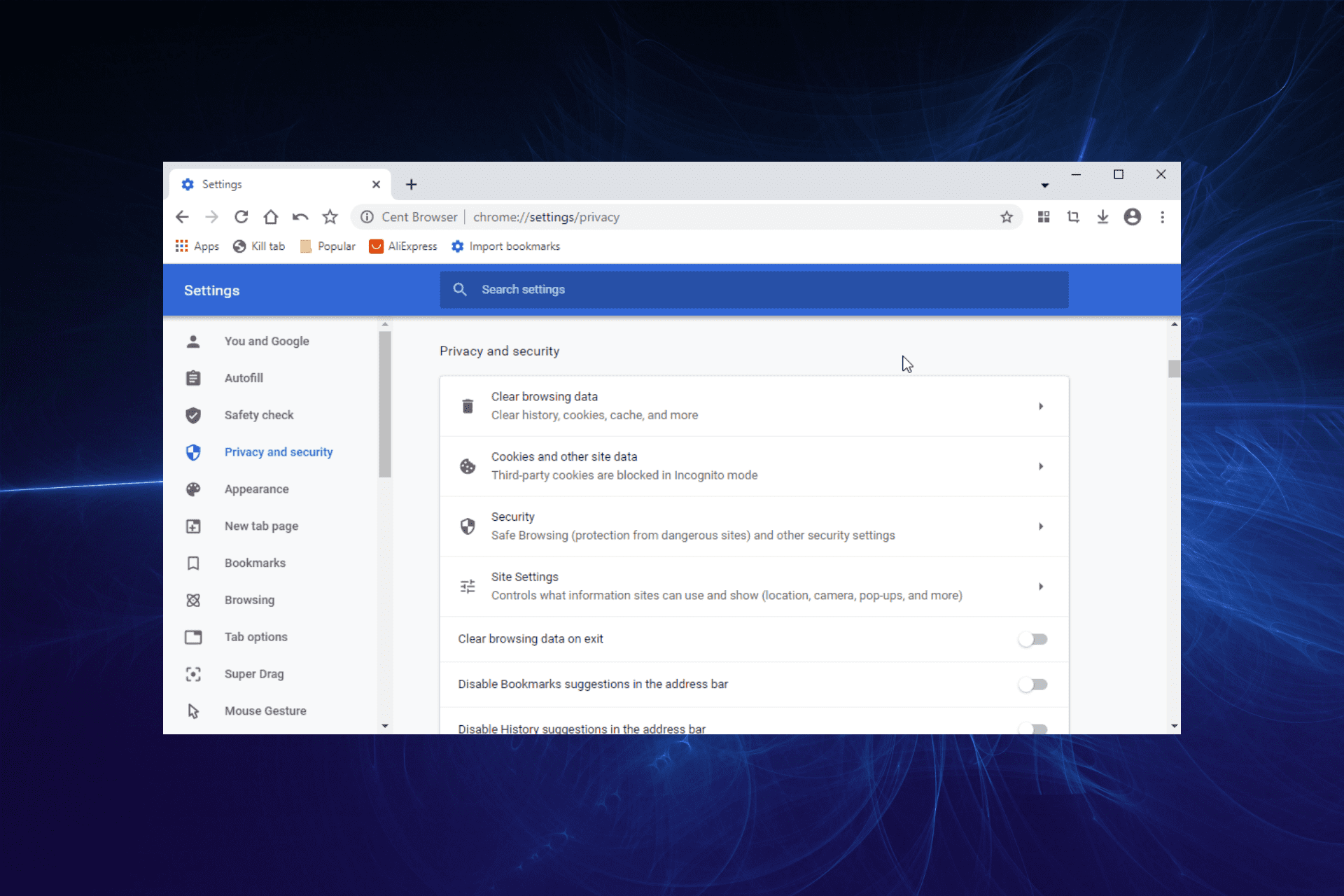
Cent Browser is based on Chromium, and it’s designed as a privacy-focused Chrome alternative. The browser is completely portable, so you don’t even have to install it to use it.
The browser has some extra features that Chrome lacks, such as mouse gestures and memory optimization. Lastly, the browser has various privacy features designed to protect its users.
Is Cent Browser safe?
Cent Browser has protection against malicious websites and sensitive file types. It also can automatically clear the cache after you close the browser.
As for privacy, you can disable search suggestions completely in the address bar or completely disable access to battery status, audio, or video devices. In addition, the browser will also block various trackers.
You can also use the user’s credentials to encrypt passwords and cookies for extra security.
Although Cent Browser does offer some unique security features, it still can’t compare to web browsers such as Opera One .
Opera One has its ad blocker and tracking protection, so you’ll be safe from tracking scripts and cookies. By blocking these scripts, all your web pages will load faster.
The browser also has cryptomining protection and its VPN for an additional layer of security. It’s worth mentioning that the VPN is completely free, and it comes with unlimited bandwidth.
Opera One is also light on your resources and can easily handle multimedia and multiple tabs. The browser also has a pop-out video player, built-in messenger, AI and Instagram integration.
If you haven’t tried Opera yet, this might be a perfect moment for it.
Opera One
Free VPN with unlimited bandwidth, built-in ad-blocker, AI and the highest level of protection. Get all this and more with the best browser available!
The Cent Browser, a Chrome alternative, has a lot in common with the industry-leading browser. However, they are still distinctively different.
In terms of privacy, the Cent Browser is better than Chrome. This is all thanks to its numerous privacy features like auto cache clearing and disabling suggestions, among others.
Also, the Cent Browser is more feature-rich, thanks to special features like mouse gestures and drag and drop. However, regarding browsing speed, stability, and availability on virtually all devices, Chrome is head and shoulder above Cent.
Overall, Chrome is more suitable for professional use with sync, speed, and security, among the major reasons it is the most-used browser.
There you have it: a comprehensive Cent Browser review. This guide shows the privacy and other unique features of the browser.
We have also shown how it compares with Chrome to give you an insight into its effectiveness. So, you have everything needed to decide on the browser.
Do you need other secure and private browsers to access high-security websites? Then, check our guide on the topic to help you make an informed decision.
Feel free to share your thoughts and suggestions in the comments below.
Windows Activation issues are some of the most common difficulties consumers encounter after upgrading to Windows 11 or purchasing a new Windows 11 PC.
There’s a problem with the Windows Activation server, which either fails to validate or recognize the license associated with the digital account, which is to be expected.
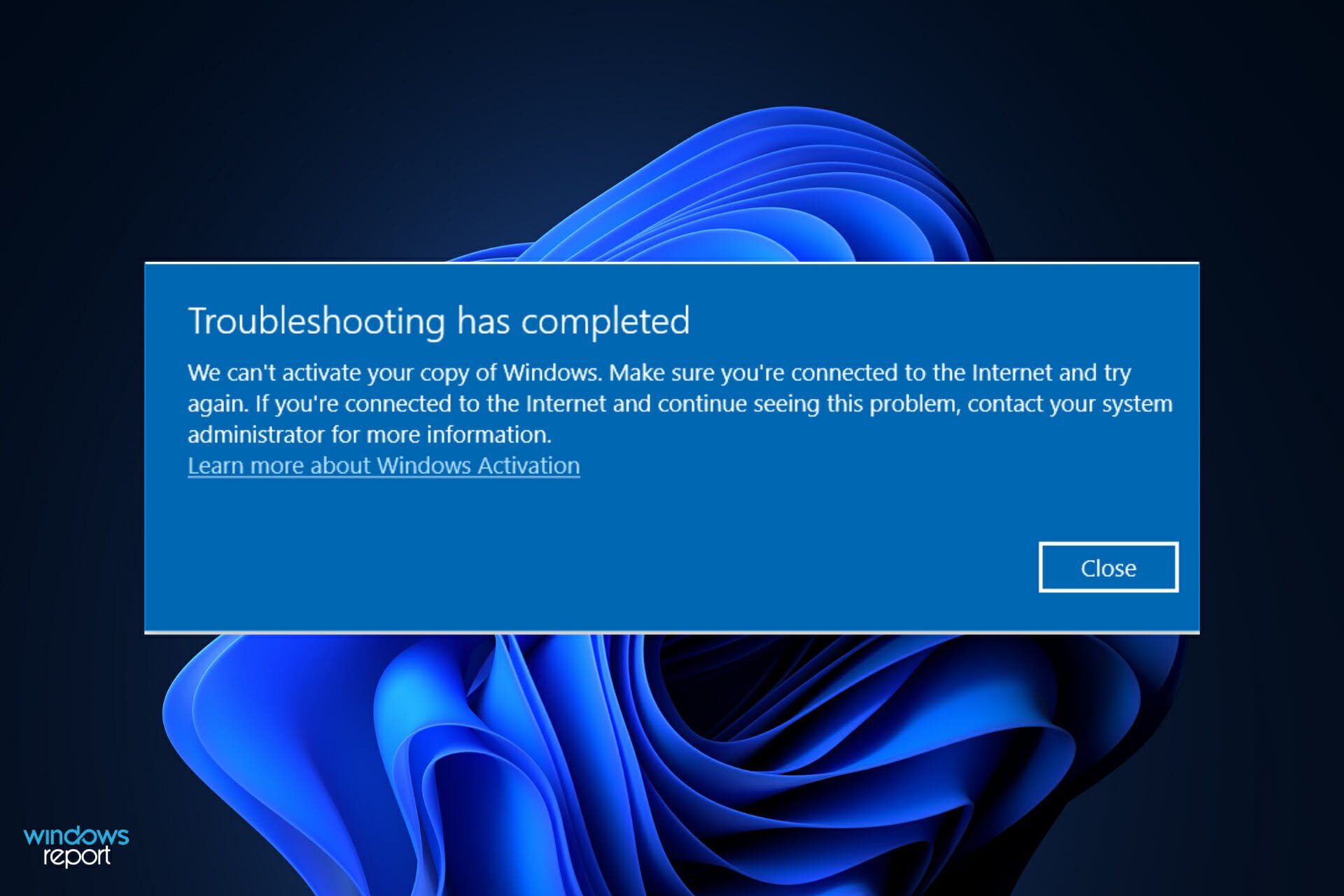
When you get the We can’t activate your copy of Windows make sure you are connected to the Internet error message; the solutions are reduced strictly to Internet connection issues. Thus, the job should be easier.
Follow along as we go through the list of methods in which you can tackle the problem right after we see why it’s important to activate your Windows with an official license key.
Why is it important to activate my Windows copy?
Its features are one of the main reasons you should consider activating Windows.
Microsoft Windows 11 comes with several features, many of which are only available in the licensed version of the operating system.
Some of the users’ favorite features include a system-wide dark mode, Windows Defender & Security, Focus Assist, and Windows Hello, to name a few examples.
You’ll also be unable to install and use Microsoft Office in Windows 11 unless you first activate the operating system.
You will be met with a continual pop-up message urging you to activate the program if you manage to install the crack or trial version.
That is both inconvenient and counter-productive. You get a watermark at the bottom right of the screen, which serves as a reminder that you are using the free version of the software.
Furthermore, the Windows development team is always working on new features that you can never utilize because you cannot download updates.
There are still a large number of users who search the Internet for cracked Windows keys in the hopes of being able to activate Windows 11 on their machine for free.
But the majority of these keys are inoperable. Moreover, the websites that host and distribute them are infested with advertisements, viruses, and trojans as they are interested in your personal information.
Needless to say, you should avoid cracked keys.
What can I do if I can’t activate my copy of Windows 11?
1. Check your Internet cables
In the first instance, you should double-check your Internet cables to ensure they are correctly connected. Unplug and replug them from your PC.
A loose cable is a regular problem that individuals experience and quickly dismiss, opting instead for more elaborate remedies that are unnecessary.
After you have connected your Internet cables, retry to activate your Windows copy to check if the problem persists or if it has been resolved.
Depending on if this occurs, you will need to check your Internet connection from your Taskbar.
2. Verify Internet connectivity
The most dangerous issue on the list of possible causes of a connection problem, an unreliable Internet network, must first be ruled out before advancing.
Note that the most common cause of connectivity issues is an unstable connection, which occurs more frequently than you might expect. Fortunately, there are some solutions.
Make sure to troubleshoot your Internet connection before moving any further down the list.
It’s as simple as going to a video streaming service and watching one or two videos to verify if they’re playing properly before making a determination.
Alternatively, you may check whether you are connected to the Internet by clicking on the WiFi icon in your Taskbar. Assuming you’re not, choose a network and connect to it right away.
Otherwise, if you are already connected to a network but the videos you attempted to watch are not loading, you should change the network or restart the router you are using.
How to fix We can’t activate your copy of Windows make sure you are connected to the Internet
Let’s assume you already verified your Internet connection. What if the fastidious activation error message lingers on? Don’t worry, you won’t be stuck on this screen for much longer.
If the message stating that we can’t activate your copy of Windows, make sure you are connected to the Internet is still present, the next step is to run the Network Adapter troubleshooter.
It will scan for any possible connection problems and then, give you detailed instructions on how to address each of them.
1. Press the Windows key + I to open the Settings app.
2. Select Troubleshoot from the list of options.
3. Once you are inside the Troubleshoot menu, click on the Other trouble-shootersoption.
4. Now scroll down until you find the Network Adaptertroubleshooter.
5. Click on the Run button next to it.
6. After it has completed searching for faults, the troubleshooter will reveal the precise bug that occurred as well as instructions on how to fix it.
Keep in mind to carefully read and adhere to the instructions displayed on your computer screen. Network adapter issues could cause your Wi-Fi not to work properly in general, and this could really be a problem, especially if you are stuck at let’s connect you to a network screen
Windows Activation, which was first introduced in Windows XP, is a feature that allows you to check in with Microsoft when you install Windows or purchase a new Windows PC.
It is also designed to bother you when using a non-genuine Windows copy. Fortunately, since its inception in Windows XP, Windows Activation has been much toned down.
Even if your computer’s activation fails, it will continue to work until you can resolve the issue, unless you’re running Windows XP, in which case it will not.
Even if you are, you should consider upgrading. After you have installed it, the OS will offer you the chance to register it with Microsoft.
When you activate your operating system via the Internet, your copy of Windows communicates with Microsoft and reports the product key it has.
This process will fail if the product key you entered is not legitimate (in other words, a pirated key) or if the key is being used on another computer during the activation process.
The use of a telephone call can also trigger Windows. It will offer you a code you can enter over the phone, and you’ll need to enter the code that it supplies you with into your computer.
Additionally, you can communicate with a live person, which is helpful if the activation procedure is malfunctioning.
If you’re transferring Windows to a new machine, you may need to contact a technician and explain the circumstances before the OS can activate.
One particular issue that keeps recurring when trying to activate your product key is error 0xc004f014. Don’t worry, you can easily circumvent it with a few inspired tips!
Let us know in the comments below which solution suits you and whether you will instantly turn dark mode on after you activate your Windows. Thanks for reading!
XML is one of the most common markup languages used today, hence the need to find a browser that supports the format. Although HTML has overshadowed it, many people still need to use it.
XML documents can be opened using any text editor or word processor. However, you can use an online service to view or edit your XML files if you don’t have access to these tools.
The main advantage of using an XML file is that it allows you to quickly and easily share information between multiple applications and systems.
For example, suppose you have an application that uses an XML file as its database format. In that case, other applications can access that data without needing to convert it into another format first — they need to understand how the data is structured to read it correctly.
This means that developers spend less time coding custom solutions and more time building their own applications or services.
What is the use of XML in your Web browser?
XML is a markup language that is used to describe the layout and content of documents. It is a handy tool for managing data in your web browser.
The primary purpose of XML is to define a set of rules for encoding documents in a human-readable and machine-readable format.
XML makes sense of data so that applications can read it. For example, when you fill out a form on a website and submit it, the website needs to store your data somewhere to be processed later.
The simplest way for the website to store this information is as plain text, but plain text doesn’t have any structure or hierarchy, which means it can’t be easily searched or filtered.
How can I open an XML file online?
There are many ways to open XML files. One of the most popular ways is to use an XML File Viewer. You can also use a browser that supports XML to open and view your file.
Opera One has a built-in browser engine and supports most web standards, such as HTML and CSS. The biggest feature that makes Opera One one of the best XML browsers is that it supports extensions.
It really shines here, with a huge library of extensions you can use to customize your experience and add more functionality.
Additional features:
Fast at rendering complex pages
Supports JavaScript
Has DOM properties
Built-in AI, VPN, Ad Blocker
Opera One
Opera One’s reader automatically subscribes to the relevant RSS feed.
Google’s browser is one of the most popular in use today, and it’s also one of the fastest browsers available.
It’s also very lightweight, so it doesn’t take up much space on your computer. Google Chrome supports all types of HTML5, including XML, making it one of the best options for viewing and editing XML online.
The award-winning feature is Chrome’s legacy browser support for XML. This format has been designed to be used by developers who want to use modern CSS features on all browsers but need to fall back to a simpler implementation if they detect that the browser has limited support.
This open-source browser has been around for years, but it was recently updated with a new look and feel, making browsing more efficient.
The biggest reason to use Firefox is its support for open standards. This means that when you’re using a website that uses HTML5 or XML, Firefox will be able to read and display it properly.
Firefox also supports several different add-ons that let you customize how it looks and works, which is another big plus for those who want a browser that truly fits their needs.
Safari has excellent support for DOM properties, so you can easily create JavaScript code that works on any browser that supports DOM.
The DOM (Document Object Model) is a programming interface that allows you to access and change a document’s content, structure, and style without having to wait for it to be downloaded from the server first.
Safari browser is also great for supporting XML features because it is based on the WebKit engine that contains web developer technologies such as HTML and CSS.
Additional features:
Has a web inspector feature
Very stable and works well with all kinds of server-side languages
Brave is a web browser making waves in the tech industry. Its most significant advantage over other browsers is its privacy features. You can browse anonymously, which also protects you against tracking by ISPs, advertisers, and governments.
It loads pages faster than other browsers because it blocks ads, trackers, and other unnecessary content from loading on your screen. This reduces loading time and increases performance on websites that have heavy traffic.
Additional features:
Supports CSS and DOM
Open-source browser
Support third-party extensions for added functionality
Such files are often converted to HTML for viewing on the web, but they can also be used as the basis for other documents like emails, spreadsheets, and more.
There are several online editors available that allow users to convert XML documents into HTML. They are usually free of charge, but some may require registration before use.
In case you need an HTML editor, we also have an expert list where you can select one. Alternatively, if you are looking for a browser that supports HTML, we also have that covered in our comprehensive guide.
In the comment section below, let us know your preferred browser for opening XML files.
Hulu is among the top video-streaming services that users can subscribe to.
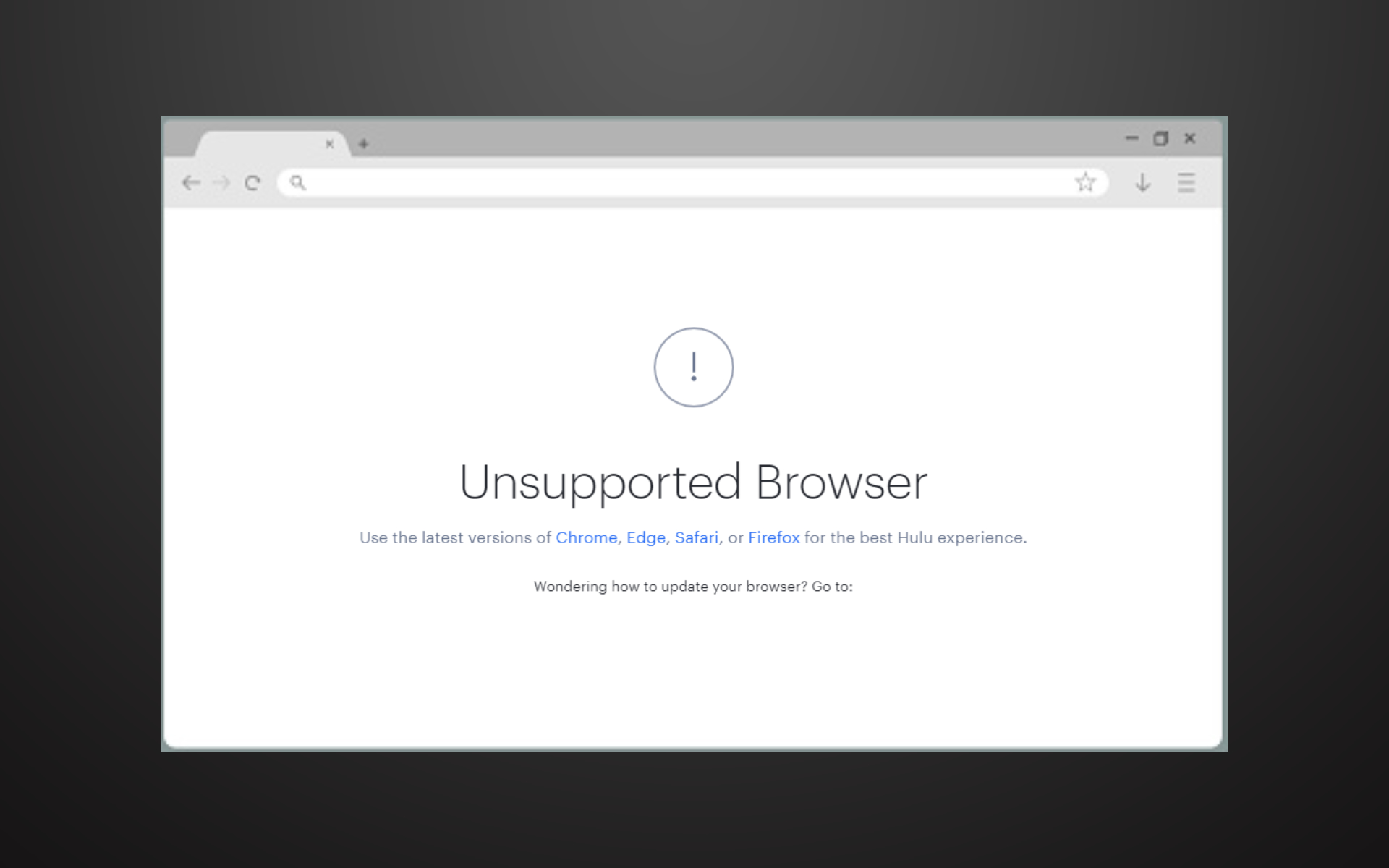
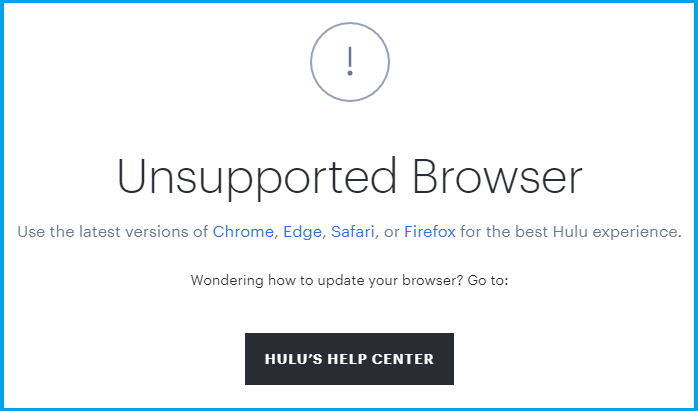
However, an unsupported browser error message might appear for some users when they try to subscribe or log in to Hulu with a browser.
Consequently, users may not be able to watch Hulu video content in their browsers because the following error message appears:
Why won’t Hulu play on my computer’s browser?
Hulu only supports Google Chrome, Firefox, Edge, and Safari browsers. So, users trying to utilize Hulu with other browsers will need to switch to one of those browsers.
Nevertheless, Hulu doesn’t support all these browser versions. Thus, some users might need to update their browsers to ensure they can utilize Hulu.
Why is Hulu not working on my browser?
Due to outdated software or obsolete OS, Hulu may not work on your browser.
Most of the time, wrong or outdated browser configurations, like hardware acceleration, hardware media key handling, and Widevine Content Decryption Module, may also cause the error under discussion.
What does it mean when it says you are using an unsupported browser?
Well, it pretty much means exactly that. More specifically, this error message can mean one of two things. Either you are using a browser that is obsolete and no longer in circulation, such as Internet Explorer, or the browser you are currently using is outdated and needs to be updated to a newer version.
Quick Tip:
You may want to try a different browser better suited for video streaming services. Opera One uses a lot less processing capacity, which boosts speed and ensures good quality of video content.
The browser has a built-in free VPN, which ensures a safer experience and helps to unlock potential GEO-restricted resources. In addition, it has a built-in AI and a modular AI-ready design.
Opera One
Hulu and Opera One make a great team for streaming.
Enter the following in Run, and click OK to open the uninstaller: appwiz.cpl
Then, select a browser to uninstall.
Click the Uninstall button and like Yes to confirm.
Remember to restart Windows before reinstalling the browser.
After that, download the latest Chrome, Firefox, or Safari version from their respective websites.
Finally, open the setup wizard for the browser to install it.
The best way to update these browsers is probably to reinstall them with the latest versions. To do this, make sure you follow the steps above.
Also, if you are looking for the best browser for Hulu that’s supported, you should take a closer look at our recommendations.
2. Enable JavaScript and cookies in browsers
Click the Customize and Control Google Chrome button.
Click Settings on the menu to open the Settings tab.
Press the Advanced button to expand Settings.
Click Site settings to open further options.
Then select JavaScript to open the options below.
Toggle the Allowed option on.
In addition, click Cookies in Site settings to open the scenes in the snapshot directly below.
Then toggle the Allow sites to save and read cookie data option.
JavaScript is another system requirement for Hulu that users must have enabled in their browsers. To enable JavaScript in Google Chrome, follow the steps above.
Remember that there’s also an app that users can watch Hulu content. Unlike browsers, that app won’t have any compatibility issues with the streaming service.
Users can add the Hulu app to Windows 10 by clicking Get on the app’s MS Store page.
4. Hulu Chromebook unsupported browser
Open Chrome on your Chromebook.
Click on the three dots in the top right corner.
Select Help, and then About Google Chrome.
Your browser will not search for and install the latest version.
Restart Chrome.
Useful tips for users
To ensure you get quality streaming uninterrupted by browser incompatibility errors, use a Chromium-based browser.
They share the Chrome repository for video websites and streaming services. So Chromium browsers are best for video streaming.
Above is our suggestion for a browser that never lets you down, precisely because it incorporates some unique video options and features you won’t find in most alternative browsers.
You can also use the Hulu app to stream everything you love at any time and search for content in episodes, clips, and movies.
Your device only needs to meet the following minimum requirements: Windows 10 version 16299.0 or higher, Xbox One, Windows 10 version 19003.0 or higher, Windows 8.1.
Those are some potential resolutions for fixing the Hulu unsupported browser error. Updating or changing browsers will usually resolve that error for most users.
Most people know these annoying problems as Hulu update browser errors because that’s precisely what happens; Hulu wants you to update your browser.
Before you decide to install the app, though, make sure you read about Hulu-supported browsers to prevent Hulu from working on your browser.
Please access the comments section below for more suggestions or other questions on this topic.
Just as Microsoft did for the last couple of weeks, Beta channel Insiders are getting more than they bargained for with every release.
What are we talking about? Well, a few weeks back, Microsoft began flighting two separate of Windows 11 Preview builds for Insiders on the Beta channel for a staggered release.
It was the case with both KB5015888, and KB5015890, which brought Beta channel updates in pairs, which was a bit confusing for users at first.
The latter brought taskbar overflow and more content for dynamic Widgets for Windows 11, in case you weren’t completely up to date.
What’s new with builds 22621.450 and 22622.450?
Today, the Redmond tech company has released an update with new builds 22621.450 and 22622.450, and we are about to take a more in-depth look.
Build 22622.450 = New features rolling out.
Build 22621.450 = New features off by default.
Through this latest update, Microsoft has enhanced Microsoft Defender for Endpoint’s ability to identify and intercept ransomware and advanced attacks.
Furthermore, the tech giant also compressed a file regardless of its size if you have configured Server Message Block (SMB) Compression.
Other changes that have been introduced via this cumulative update include:
Improved storage replication that occurs over low bandwidth or congested wide area networks (WAN).
Fixed an issue that causes Windows to display tablet mode features for some devices that do not have touchscreens.
Fixed an issue that causes some application windows to have blank sections in the Task View preview.
Fixed an issue that occurs for some of you when you copy files from network drives. The error code is 0x80070026.
Fixed a token leak issue in the LsapGetClientInfoEx
Fixed an issue that, in certain cases, causes sihost.exe to use a high amount of the CPU.
Fixed an issue that causes Microsoft Edge to stop responding when you use IE mode. This issue also prevents you from interacting with a dialog.
As far as known issues for KB5016700 go, the Redmond-based tech colossus mentioned:
[General]
There is an issue in the recent Beta Channel updates that is causing the Photos app to crash, and a fix will be rolling out soon via a Photos app update via the Store.
We’re investigating reports that SQL Server Management Studio is failing to launch for some Insiders.
[NEW] We’re looking into reports that audio stopped working for some Insiders after upgrading to Build 22622.440.
[File Explorer]
The left-half of the File Explorer title bar may not be draggable via mouse or touch.
The up arrow is misaligned in File Explorer tabs. This will be fixed in a future update.
Microsoft is focused on delivering the best quality for its latest operating system, and its a trend that it will surely follow with Windows 12 as well.
Also know that the startup sound quality for the 22H2 version of Windows 11 has been lowered by the tech giant, in an effort to make the OS less resource-hungry.
Wondering what all this costs and what kind of financial benefits the Redmond-based tech giant gets? Read about it in the latest quarterly income report.
What can I do if KB5016700 fails to install?
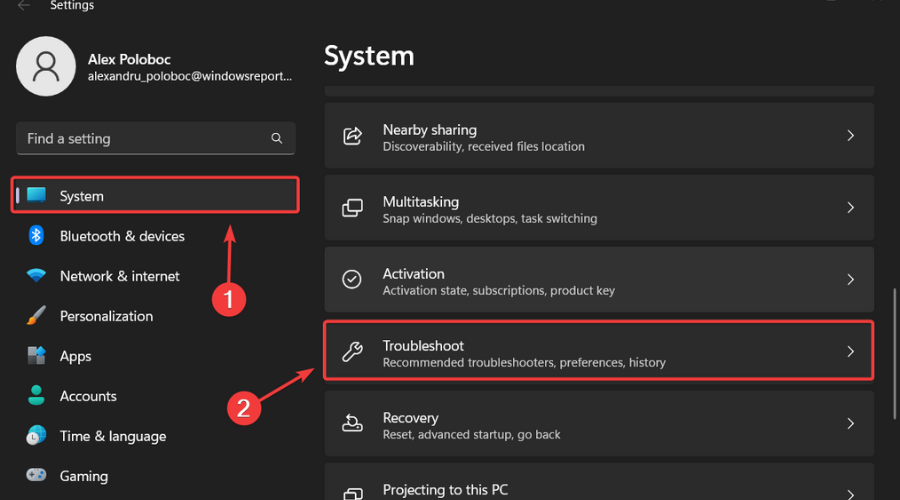
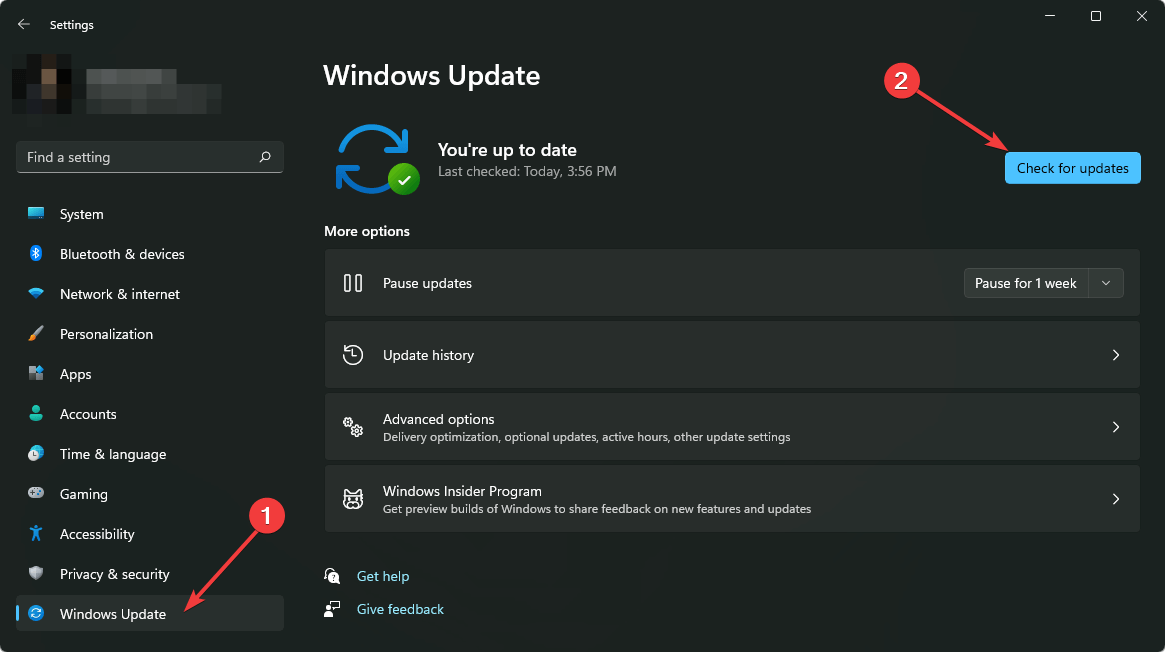
Press Win+ I to access Settings.
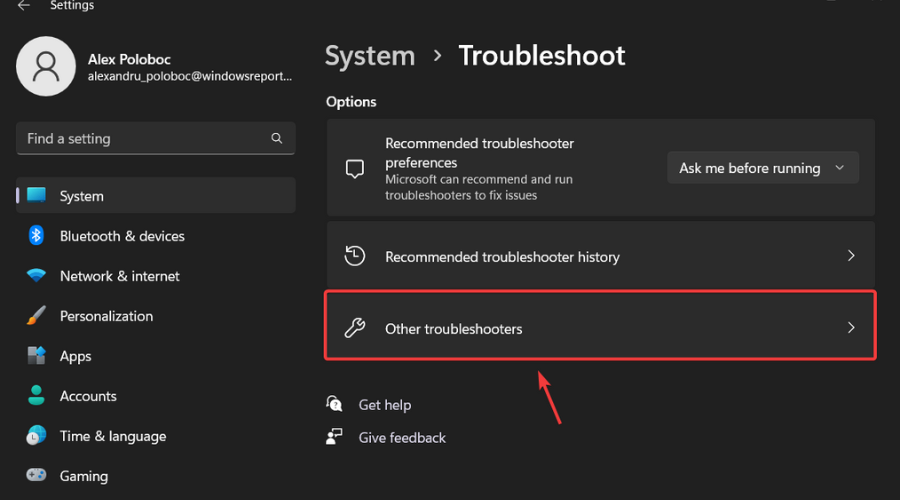
Select the System category and click on Troubleshoot.
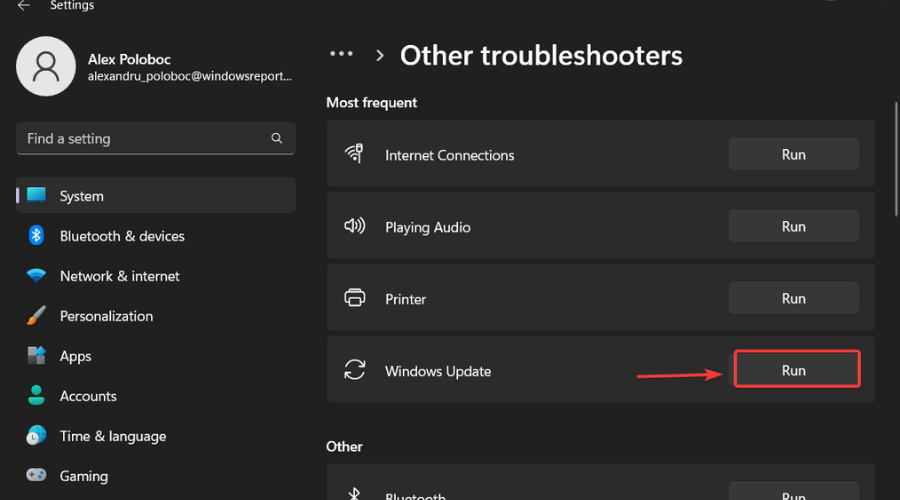
Press the Other troubleshooters button.
Press the Run button next to Windows Update.
Leave a comment below if you found any other issues while dealing with this brand new Insider build.
We’ve come a long way from the first appearance that WSA (Windows Subsystem for Android) made on the latest Microsoft-designed operating system.
Users were absolutely infatuated with the thought of sideloading android apps to their Windows 11 devices, ever since the idea was first brought into the discussion, prior to the OS launch.
Now, Microsoft is shipping an update for Windows Subsystem for Android on Windows 11 to all Windows Insider channels, but to U.S. only.
What changes come with WSA version 2206.40000.15.0?
Version 2206.40000.15.0 includes several new updates such as updates for input compatibility in apps such as games, networking and windowing improvements, and reliability updates.
The tech giant talks about a new suite of shims available to toggle in the Windows Subsystem for Android Settings app which enables better experiences in several apps.
Furthermore, we are also getting:
Compatibility for games with joysticks (mapped to WASD)
Compatibility for gamepad in games
Compatibility for aiming in games with arrow keys
Compatibility for sliding in games with arrow keys
Scrolling improvements
Networking improvements
Android minimum window size defaulted to 220dp
Improved dialog when unsupported VPN is detected
New toggle to view/save diagnostic data in the Windows Subsystem for Android Settings app
Security updates
General reliability fixes, including improvements to diagnostic sizes
Graphics improvements
The silver lining here is the fact that we don;t have to deal with a lot of known issues, except one, that was mentioned in the official release notes.
Some VPNs may not work with Advanced Networking. If you use a VPN and find Android apps do not have network connectivity, please disable Advanced Networking in the Windows Subsystem for Android Settings app
This is pretty much all there is to know about the latest version of the Windows Subsystem for Android feature for Windows 11.
Remember that, as we mentioned earlier, all of these changes are only for US-based Windows Insiders, just so there is no confusion regarding the matter.
And, if you were wondering what else Microsoft is up to, know that it plans to extend the range of the Xbox Cloud Gaming service to tablets, phones, iOS devices, and the Steam Deck.
If you are an Xbox user, you will also be pleased to know that the company is working on reducing boot time and has already succeeded in shaving 5 seconds off.
Also, the startup sound quality for the 22H2 version of Windows 11 has been lowered by the tech giant, in an effort to make the OS less resource-hungry.
Wondering what all this costs and what kind of financial benefits the Redmond-based tech giant gets? Read about it in the latest quarterly income report.
Before we conclude this article, we have to also remind you you will start to be bombarded with upgrade notifications if you still haven’t moved on from Windows 8.1.
With all that being said, we hope you haven’t found any other issues after installing this latest WSA update. If, by chance you did, report them to us in the comments section below.
Single sign-on (SSO) is a session and user authentication service that allows authorized users to enter one set of credentials, such as the username and password.
The SSO feature allows you to access multiple applications without entering the username and password for each app.
However, sometimes you may encounter your browser not configured for the single sign-on option.
Up-to-date browsers generally offer easy and intuitive ways to set up a single sign-in, but some exceptions require a little more know-how.
In this article, we look at possible solutions to configure the single sign-on feature in your browser and other troubleshooting tips.
Where is the Single Sign On settings?
You’ll need to adjust the device settings in your G Suite Admin Console to enable SSO capabilities on your organization’s Chromebooks.
You must navigate to the Device Management section and access Chrome Management before choosing User & Browser Settings.
How does Google single sign-on work?
The answer is that you can configure your Cloud Identity or Google Workspace account to use single sign-on (SSO).
Thus, when you enable SSO, users aren’t prompted to enter a password when they try to access Google services and are instead redirected to an external identity provider (IdP) to authenticate.
Quick Tip:
Try a modern and user-friendly browser that lets you quickly set it up as desired. For example, setting the SSO feature in Opera One is easy, and it enables you to access your favorite apps without asking for credentials every time.
The browser stores your passwords, credit card information, and other vital data. Don’t worry; it gets frequent security updates and includes a free, unlimited VPN that protects your data.
Opera One
Safely store all your credentials and enable SSO for quicker access to your accounts.
Check the Cookies and other site data and Cached images and files options.
Click on Clear data.
2.2. Firefox
Launch Firefox and click on the Menu button.
Click on Options.
From the left pane, click on the Privacy and Security tab.
On the right side, scroll down to Cookies and Site Data.
Click the Clear Data button.
Now select Cookies and site data and Cached Web Content boxes.
Click the Clear button again.
If you use any other web browser, do the same. Once the data is cleared, check if the Single sign-on feature is working.
3. Contact the Administrator
Contact the office administrator if you don’t have the required credentials or even the preferences value to enable the Single Sign-on feature on your PC.
Your administrator can help you better diagnose the issue and also help you fix it.
The single sign-on in Windows is a handy feature that allows the users to access multiple applications without entering the username and password for each app.
And if you encounter any issues while using the service, these troubleshooting tips should help you resolve them.
Why is SSO not working in Chrome?
You might not believe it, but the answer is as simple as the question itself. When Chrome closes and opens, SSO won’t work until cookies are deleted.
We recommend that you check if Google Chrome Session Saver Extension is being used and disable it.
Do you want more information on the Chrome Single Sign On process, Chrome SSS settings, or how to enable Single Sign-On in the Chrome browser’s GPO?
That’s why we’ve prepared this guide that shows you the Google Chrome Single Sign-On process for Windows 10/11.
Report any problems you might have in the dedicated comments section below.
Does the Operation can not be performed. Your browser is not supporting password encryption error give you headaches?
This usually happens because the website doesn’t support this feature, your browser isn’t updated or the OS doesn’t support these features.
Let’s put an end to this.
How do I make my browser support password encryption?
1. Update your browser
If you’re using an older browser, it may not support password encryption. The latest versions of the most popular browsers support password encryption.
But if you’re using an older version of one of those browsers, you may need to upgrade to get the added security.
2. Clear cache and cookies
One of the common reasons behind this problem could be some cookies that are saved in your browser. Usually, cookies are used by different websites to keep track of your browsing activity.
Clearing your cache will not permanently delete any information; it just removes temporary files that may be causing problems with your site.
3. Disable third-party plugins
Some third-party plugins have been known to cause problems with password encryption features in browsers such as Chrome and Firefox.
If this is happening to you and disabling all third-party plugins fixes the issue, then that’s what you should do until the bug gets fixed by its developer(s).
4. Turn off JavaScript in your browser
Some websites use JavaScript to encrypt passwords, which means that you won’t be able to copy them. In order to fix this issue, you must turn off JavaScript in your browser.
This will prevent any scripts from running while you’re on the website and allow you to log in normally with no hiccups.
Another good place to check to see if the issue is with your computer is your operating system. It is possible that your browser is not supporting password encryption because of an old version of your operating system.
Another possibility is that there’s a bug in the OS itself, so updating will also help fix it, so consider upgrading to the most current version available.
How do I change my browser security settings?
Launch your browser (in this case, Chrome).
Click on the three vertical ellipses on the top right corner and select Settings.
Select Autofill in the left-hand pane, then toggle off Offer to save passwords in the right-hand pane.
How do I check my browser security?
The first thing to do is update your browser. Older browsers can be a security risk because they are more likely to have known vulnerabilities or be susceptible to new ones.
Next, you need to ensure that you have enabled password encryption in your browser so that if you ever lose your device, your credentials will still be safe.
Better yet, we recommend you install safe and secure browsers to avoid a handful of problems that often plague the other browsers.
If you have tried all the above solutions but are still facing the same problem, perhaps it is time to try another browser like Opera One.
Opera One has several built-in security features that make browsing more secure, including tracking protection, ad filtering, and malware protection.
Let us know what solution worked for you in the comment section below.
Not everything is sugar and rainbows, and we also talked about how the latest Canary build broke the browser, which won’t open anymore for some users.
But, putting all that aside, it’s time to look towards the future and see what the latest Dev Channel build brought for Edge Insiders.
What’s new in Edge Dev Build 105.0.1336.2?
Let’s start by first addressing the Added Features section of the release notes, where Microsoft wrote that it added a Narrator announcing banner on Learn more link in the Edge browser.
Furthermore, the tech giant added support for a management policy from Chromium to control if Unthrottled Nested Timeout is Enabled.
Keep in mind that this will be deprecated in the future, as Microsoft mentioned in the official release notes for this patch.
Let’s also have a look at the rest of the changelog and see what else is waiting for us after we download and install this build.
Improved reliability:
Performance improvements to IMap properties
Improved iOS tooltips
Improved Android shared device support
Optimized read aloud voice options page for Android
Improved Android shared device support
Changed behavior:
Fixed an issue where the profile popup sometimes is cut off
Fixed various crashes
Fixed Diagnostic button layout
Fixed Drag and Drop for Collections
Fixed a crash when clicking the Tab Actions Menu button
Keep in mind that, although Microsoft has not mentioned any known issues in the latest Dev update, users noticed that version 105.0.1336.2 misses a chunk of its settings.
If you open Settings, then go to Privacy, Search, and finally Services, you will see no Services section responsible for managing search engines, shopping features, and search suggestions.
The strange disappearance of the Services section does not appear to be something intended, as it is still available via its direct link.
If you use Edge Dev or Canary and want to change the default search engine, use the following command to access the page:
edge://settings/search
We hope you’ve learned everything you wanted about this latest Dev Channel Insider Edge build. Leave a comment below if you found any issues after installing this new update.
Brave is most notable for its privacy and security, as it is one of the best browsers with a built-in adblocker and other strong safety features. However, it is not just limited to that.
It boasts a clean and customizable interface that you can tweak to your taste. One of its customization features is the dark mode. This mode helps to reduce strain on the eyes, especially for users that spend a lot of time on their browser.
Aside from the built-in option to enable the mode, Brave, one of the best Chromium-based browsers, allows you to download dark themes and extensions to achieve the night mode you crave on your browser.
This guide will explore the three major ways to enable the dark mode on your browser easily.
How do I customize my Brave Browser?
The Brave Browser offers many customization options. You can change the background image for a new tab from the settings.
Also, you can switch from the default light mode to dark or use your PC’s default mode. Lastly, you can customize it with themes from the Chrome Web Store. So, you are not short of options.
How do I change colors in Brave Browser?
Changing colors on Brave Browser is pretty easy, as a series of options are available. It is important to note that you can only choose light and dark colors.
Also, you can decide to use your PC’s default color on your browser. If you want to switch to the dark mode on your Brave Browser on Windows 10/11 or mobile, we will discuss this in detail in the subsequent sections of this article.
Quick Tip:
Opera One is an alternative Chromium browser with a dark mode worth noting. That browser includes many customization settings and novel browsing features you won’t find in other software options.
This browser offers quick access to any social media and messaging services from the sidebar while keeping your identity private with a built-in VPN.
Opera One
Explore the internet securely while protecting your eyes from harm with the dark mode in this fast browser.
Click the Customize and Control Brave button (three horizontal lines) in the top right corner.
Select the Settings option to open the tab in the screenshot directly below.
Click Appearance on the left of Brave’s Settings tab.
Select Dark on the Brave colors drop-down menu.
Alternatively, selecting Same as Windows will change Brave’s color to black if you’ve activated the dark theme for Windows.
With this, you will be able to enable the dark mode on the brave browser URL bar, settings tab, and the bookmarks tab but not on the pages you open. To force the dark mode on these pages, type brave://flags#enable-force-dark in the address bar and press the Enter key.
2. Activate dark mode for the Brave mobile browser
To select the Dark option in the Brave Android browser, tap the three dots button at the bottom of its app window.
Select the Settings option.
Then tap Appearance > Themes to open the options in the shot directly below.
If you want to apply a dark background to website pages, open the Dark Reader extension page in Brave.
Press the Add to Brave button on the Dark Reader extension page.
After that, you should see the Dark Reader extension button on your toolbar, as in the shot directly below. If not, click the Extensions button and select the Pin option for Dark Reader.
Click the Dark Reader button to open it.
Select the On and Dark options if Dark Reader is off (it will probably be on by default). Websites you open in Brave will have a dark background, as in the snapshot below.
Drag the Brightness and Contrast bars to the left and right to adjust the dark background.
To configure hotkeys for Dark Reader, click Setup extension toggle hotkey. Then you can input custom keyboards for the extension in the tab shown directly below.
Click the Site list tab within the extension to exclude specific sites from Dark Reader’s black backgrounds. Then select Not invert listed, and enter a URL for a website to exclude.
So, that’s how to activate the dark mode on your Brave Browser on Mobile and PC. We have shown how to limit the settings to just some aspects of your browser and force it on other pages. Now, you have full control of the customization.
If you need a list of the best browsers with dar mode that you can use today, check our guide for some juicy options to choose from.
Are you facing problems making Brave Browser dark? Feel free to share your experience with us in the comments below, and we will attend to them as soon as possible.
Microsoft has been beta testing a version of Microsoft Teams that was optimized for Apple M1 or Apple M2 Macs, but the bigger moment has now arrived. The company has officially announced a native Microsoft Teams app for Apple Silicon Macs, rolling out to customers in increments over the next few months.
As you’d expect, the news means that those with Apple M1 or Apple M2-powered Macs should get better performance out of the app. This is because the app will no longer run under Apple’s Rosetta 2 emulation.
“For Mac users, this means a significant boost in performance, ensuring efficient use of device resources and an optimized Teams experience even when using multiple high-resolution monitors during calls or meetings,” explained Microsoft.
Microsoft says that all Mac users will automatically be upgraded with their most recent update to Teams. It did not provide a specific date, however. Teams joins OneDrive, and Microsoft Office, as well as Microsoft Edge, all of which are also optimized for m1 Macs.
Hardware IDs are identifiers for all hardware devices from your PC or connected to it and so, create a unique identity for these devices.
It’s a quick way for the operating systems to detect the device and install the related software. The Hardware ID contains the bus type, the hardware manufacturer, and the device ID.
Since in some cases, there can be different variants of a device, you may also find sub-system identifiers and revision details along with the usual hardware identifier.
This indicates the difference between the devices.
So, how does it help you? This will help you to identify the device manufacturer and look for the related device driver.
How do I check the Hardware ID?
In the guide below we will present to you how to easily check the Hardware ID on your Windows 10 PC in just a few simple steps.
If we were to guess, you’d probably be wondering about the use of this entire verification. How does it help you?
Well, the process will help you to identify the device manufacturer and look for the related device driver.
Needless to say that drivers are essential components that require regular updates and maintenance in order for your system to function properly.
How to find hardware ID Windows 10 using Device Manager
If you are looking for a driver of specific hardware, it is good to know its hardware ID. In such cases, you can check the hardware ID in Device Manager.
1. Press the hotkeyWin+Rto open the Run console.
2. Writedevmgmt.msc in the search bar and hit Enter to launch Device Manager.
3. Expand the section that has your device for which you want to know the hardware ID.
4. Here, right-click on the device and select Properties.
5. In the Properties dialogue box, go to the Details tab.
6. Navigate to the Property field and select Hardware IDs from the drop-down below.
7. In the Value field, you will see a list of hardware IDs for the device in descending order.
8. The value at the top is the most specific and going downwards the hardware identifiers are more generic.
9. PressOKto exit.
The identifiers are in descending order because it helps you to select a device driver to be selected based on any of these hardware identifiers.
The more choice you have for the hardware identifiers, the better your odds to find the related device driver.
While you can find the hardware identifiers for a device for which the driver is installed already and shows the manufacturer and the model, you can also find identifiers for unknown or unrecognized devices.
Then, you can then use a third-party driver update software to automatically look for a matching driver for the device using that specific hardware ID. That’s pretty much it. Rather straightforward, right?
If you have any other suggestions or queries, feel free to drop a line in the Comments box below.
Power BI, developed by Microsoft, can be defined as interactive software used for data visualization. It focuses primarily on business intelligence and is part of the Microsoft Power Platform.
Due to its popularity, there has been a lot of discussion about browser support for Power BI, something that has seen some of the most popular browsers ensure that they support this software.
With Power BI, users can view reports, and dashboards, and use Power BI applications while at the same time combining related reports and dashboards. This can be done through applications for Android, iOS, and Windows operating systems, as well as web browsers.
Can you use Power BI in a browser?
Microsoft has designed Power BI to work with some of the most popular browsers we have today. However, the browser that you choose to use determines the performance of Power BI.
For instance, you might have poor performance if you decide to use Microsoft Internet Explorer because Power BI no longer supports the browser. For the best performance, you need to make sure that you are using one of the modern supported browsers.
In a situation where you are experiencing poor performance with a supported browser, you can try other browsers and choose the one that works best for you. Some of the supported browsers include Microsoft Edge, Google Chrome, Safari, Internet Explorer 11, Opera, and Mozilla Firefox.
How do I open Power BI in a browser?
Most people use the Power BI Desktop when they want to access a service in Power BI. This is because Power BI Desktop is more powerful than what users get when using a browser.
However, how do you open Power BI in a browser if you decide to use one? Well, the first thing is to make sure that you have created an account with Power BI. You can sign up for a free Power BI Premium Per User 60-day trial.
After that, you can open a Power BI service by visiting app.powerbi.com and then start working. In the navigation panel, you can choose to start a new workspace or access your previous workspaces.
Because of the workspace management, Opera One is more than simply another browser that allows Power BI access. Power BI requires an up-to-date browser to function properly, and Opera One does an excellent job doing this in the background.
Power BI online access is accessible when you set up your account and integrate any data you wish to change because it uses the Chromium engine. Furthermore, with the VPN, ad-blocker and AI built-in Opera One is not only the safest but also the smartest.
Each Workspace acts similarly to having different windows open, but it is much handier, making working more smoother, and it does not consume a lot of resource usage.
Most Unicode ranges and writing systems are automatically assigned fonts by Opera One, but you may also select fonts for any encoding that you wish to be able to show. The font listings are limited to those that support the selected encoding. For each writing system, you may select a different font, such as Tahoma for Western, MS Gothic for Japanese, and Aisa Unicode for Greek and Greek Extended.
If you’re using Power BI on your laptop, Opera One includes a battery saver option that you may toggle on and off as necessary to extend battery life. If you wish to improve your Power BI actions, you may download the Developer tool from the official website.
Opera One
Lots of decoding language, organized sidebar, and workspaces for smooth access in Power BI.
Since Power BI is a product built by Microsoft, it makes sense that one of the browsers that support Power BI on all platforms in 2022 is Microsoft Edge. However, this has not always been the case. Initially, users were advised to use other browsers such as Google Chrome when using Power BI.
Fortunately, the new Microsoft Edge browser released in 2020 is based on Chromium, the same codebase that supports Google Chrome. In addition, this browser comes with many enhancements, making it one of the best browsers that support Power BI on all platforms.
Reports and dashboards work well with Microsoft Edge and organizations can use the browser without any problems. In addition, you are likely not going to experience any performance issues with Microsoft Edge, especially when publishing your reports to the Power BI service.
Google Chrome is one of the best browsers we have today. This is because it is not only simple and easy to use, but also among the fastest browsers we have. Google Chrome is not just an application for browsing the internet, it is also an application that can be used for other purposes such as accessing Power BI and for software development.
You can extend the functionality of Google Chrome through thousands of plugins that allow users to add more features to the browser. One such plugin is the Power BI Report Tools. This is a plugin for Power BI that allows users to add multiple features to Power Bi reports that might be missing.
As discussed above, Microsoft had initially been encouraging users to use Google Chrome with Power BI especially if they want to get support on all platforms.
This means that this browser has gone through extensive testing. In addition, Microsoft Edge is now built using the chromium codebase – the same codebase used for Google Chrome.
Just like professionals using Power BI in the Windows operating system, their counterparts using the Apple technologies can also leverage the capabilities of Power BI without any problems.
Apart from using the Microsoft Power BI application on their Macs, iPhones, or iPads, they can also use the Safari browser to not only access but also manipulate data from their organizations using Power BI. However, you have to make sure that you are using the latest version of the Safari browser for an uninterrupted experience.
Using the Safari browser, you can visit the Power BI website, as discussed above. Here, you can access recent information and your favorites, review datasets, create new pages, and perform many other functions. You will access the navigation bar on the left-hand side of the page.
However, Power BI does not run in any browsers installed on iOS 10 and the previous versions of the operating system.
Mozilla Firefox is one of the few browsers that has seen a lot of changes aimed at improving their user experience in the recent past. One of the most notable features has been the relegation of Flash content to be on an on-demand status.
Other recent improvements that have made it a suitable browser for use with Power BI include a 64-bit version of the browser, enhanced download protection, and process separation. Firefox is among the most privacy-concerned browsers and users can easily customize it to meet their requirements.
Just like Google Chrome, Mozilla Firefox offers a lot of plugins and extensions aimed at improving the experience of users. One of the extensions that you can use with Power BI is the Power BI Report Server Refresh. This plugin is useful when using Power BI to create a dashboard.
However, it is important to note that Firefox may change the fonts that come with Power BI.
Before discussing the Internet Explorer 11 browser, it is important to note that support for some operating systems ended on the 15th of June 2022. This is the reason why Microsoft is encouraging users to migrate to the Microsoft Edge browser that comes with Internet Explorer mode.
That notwithstanding, you can use Power BI with IE 11. However, this should be the last option for you if you do not have access to any other browser. You might encounter compatibility or performance issues when using this browser.
You should also be aware of some warnings that the browser might issue. This happens mostly when you are generating reports with Power BI yet the browser is known for its ease of use and speed.
The Power BI Desktop is an application that users can download and install on their local computers. This application provides a complete creation tool and data analysis. You can use these tools to connect, analyze, visualize, and transform your data. This allows you to use Power BI for free.
Power BI browser is a SaaS (Software as a Service) or cloud-based service. It comes with support for report collaboration and editing for organizations and teams. However, the Power BI browser comes with limited modeling.
As you can see, you can get browser support for Power BI with full support on all platforms. If you find any issues with a browser that you are using, you can always try another browser as long as it is in this list or update your browser to the latest version. However, you should be careful when using the IE11.
Microsoft gives you a few ways to customize Windows 11 with themes and colors, but one of the best ways to go beyond what Microsoft offers is with Stardock software. From Start11, Fences 4, Deskscapes 11, there are a lot of great Stardock apps that are available to download. We’ve put together this guide for you to check them out. Of course, these are all paid apps, and you can buy them all directly from Stardock.com.
At the top of our list is Start11. This is one of the best ways to customize the Start Menu and Taskbar in both Windows 10 and Windows 11. As we noted when we reviewed it, the app lets you bring back a Windows 7-style Start Menu in Windows 11, and even a Windows 10-style one, too. On top of that, you’ll be able to move the Taskbar to the top of the screen. It’s one of the most powerful customization apps in Windows 11.
Have a lot of apps and folders on your Windows 11 desktop? That’s what Fences 4 is for. This app lets you automatically organize your desktop shortcut icons and running tasks. You can create shaded areas to organize your desktop, and use a peek features to bring the fences on top of the app you’re working on. Other features include the ability to define rules to organize your desktop icons and swipe between multiple pages of fences.
Want to add animated videos and pictures to your Windows 11 desktop? This isn’t possible in Windows 11 natively, but DeskScapes 11 Beta helps fix that. With this Stardock app, you can create your own animated backgrounds with pictures and videos. You also can use drawing tools, and add logos, and effects to wallpapers. There are 60 different effects you can use, and you can even share your creations, and browse through other creations from fellow Windows users. The sky is the limit!
Remember when Microsoft tested tabs in Windows 10 apps with a feature known as Sets? And also tabs in the Windows 11 File Explorer? Well, if you’re not a Windows Insider and never had a chance to try out either of those two features, this is what Groupy is for. The Stardock app lets organize multiple applications into grouped tabs on your Windows desktop. You can group apps under a common tabbed interface, save groups of applications together, mouseover tabs to preview contents, and automatically group instances of the same app together.
Want to spice up your cursor in Windows 11? Well, you can download cursors manually and follow our guide to change them, but that’s a very complex process. Stardock’s CursorFX lets you create your own cursors, animate cursors with special effects, listen to custom mouse click sounds, and more. You can choose from a great set of designs, and apply skins and shadows to cursors, and make your desktop look less generic.
Buying all of these Stardock apps we mentioned individually could add up to a lot of money, which is why we suggest the Object Desktop suite. It comes with all the apps we’ve mentioned so far, and so much more. If you found this guide helpful, let us know in the comments below.
The YubiKey is a device developed by a company called Yubico for hardware authentication to protect access to online services, networks, and computers using protocols such as FIDO2, Universal 2nd Factor, public key cryptography, and one-time passwords, among others.
This has led to much debate about YubiKey browser support among users.
So, what are the best browsers that support and are fully compatible with YubiKey? What should you look for when choosing a browser to use with YubiKey? Do you know the YubiKeys that are compatible with the browser that you choose to use?
What is a website security key?
Website security keys are considered the best ways for seamless authorization and authentication, especially when users have to prove their identity.
Using website security keys allows users to add security layers instead of just passwords. This ensures that the right people have access to information as required.
It is important to note that we live in a technologically changing world where cybercriminals continuously learn new tricks and tips to gain an advantage over legitimate users. Therefore, implementing a comprehensive security protocol is essential, especially when accessing anything on the internet.
What browsers support security keys?
Different browsers support different security keys. One of the most common keys is the YubiKey. Browsers that support security keys include Google Chrome, Microsoft Edge, Opera One, Firefox, Brave, Safari, and Maiar.
Depending on your favorite browser, you can easily find a security key that it supports. Just ensure that the supported key comes with all the requirements you need.
The Opera One browser is one of the most popular browsers we have today. Its popularity has grown in the past few years, fueled by its measures regarding its users’ security. But did you know Opera One is one of the few browsers with an in-built VPN and AI?
The Android and desktop versions of the Opera One browser come with YubiKey browser support for the U2F, WebAuthn/FIDO2, and OTP authentication protocols. This ensures users can use the YubiKey for secure authentication when using Opera One services.
Opera One browser compatible YubiKeys include Security Key C NFC, Security Key NFC, YubiKey 5 NFC, YubiKey 5 NFC FIPS, YubiKey 5 Nano, YubiKey 5 Nano FIPS, YubiKey 5C, YubiKey 5C FIPS, YubiKey 5C NFC, YubiKey 5C NFC FIPS, YubiKey 5C Nano, YubiKey 5C Nano FIPS, YubiKey 5Ci, YubiKey 5Ci FIPS, YubiKey Bio – FIDO Edition, and YubiKey Bio C – FIDO Edition.
Opera One
It uses certificates and security keys to validate site owners and website integrity.
Although not popular like some of the browsers discussed in this article, the Brave browser is giving them a run for their money, especially regarding convenience, security, and privacy.
Brave, the company behind the browser, has been working with Yubico, the company behind YubiKeys, to protect and deliver online privacy. As a result, they have provided one of the best YubiKey browser support we have today.
Google has developed one of the most popular browsers today – Google Chrome. Its goal is to provide users with a fast, secure, and simple experience when browsing the internet. Features such as smart built-in, security, and productivity make Google Chrome stand out from other browsers.
In addition, Google Chrome is one of the few browsers that protects its users automatically from threats such as dangerous websites and phishing. It also has native support for YubiKeys, including WebAuthn and U2F APIs.
Google Chrome compatible YubiKeys include Security Key C NFC, Security Key NFC, YubiKey 5 NFC, YubiKey 5 NFC FIPS, YubiKey 5 Nano, YubiKey 5 Nano FIPS, YubiKey 5C, YubiKey 5C FIPS, YubiKey 5C NFC, YubiKey 5C NFC FIPS, YubiKey 5C Nano, YubiKey 5C Nano FIPS, YubiKey 5Ci, YubiKey 5Ci FIPS, YubiKey Bio – FIDO Edition, and YubiKey Bio C – FIDO Edition.
Safari – Automatic protection from security threats
Developed by Apple for use in iPads, iPhones, and Macs, Safari is one of the most secure browsers we have today. It comes with support for YubiKey backed by hardware for use with web-based applications.
With Safari, users can browse seamlessly with automatic protection from security threats. This means that just like Google Chrome, Safari also has built-in security features for its users.
You can also leverage YubiKey when using the Safari browser. Safari compatible YubiKeys include Security Key C NFC, Security Key NFC, YubiKey 5 NFC, YubiKey 5 NFC FIPS, YubiKey 5 Nano, YubiKey 5 Nano FIPS, YubiKey 5C, YubiKey 5C FIPS, YubiKey 5C NFC, YubiKey 5C NFC FIPS, YubiKey 5C Nano, YubiKey 5C Nano FIPS, YubiKey 5Ci, YubiKey 5Ci FIPS, YubiKey Bio – FIDO Edition, and YubiKey Bio C – FIDO Edition.
Maiar is a browser used in iOS, Android, Mac, and Windows operating systems focusing on speed and privacy. It is also one of the few browsers with ad-blocking features enabled by default.
In addition to its security features, the Maiar Browser does not share, collect, or track your browsing data. Furthermore, when users activate private browsing, Maiar not only deletes all their browsing history but also removes cookies, auto-fill information, and searches.
Maiar comes with YubiKey browser support, including support for Security Key C NFC, Security Key NFC, YubiKey 5 NFC, YubiKey 5 NFC FIPS, YubiKey 5 Nano, YubiKey 5 Nano FIPS, YubiKey 5C, YubiKey 5C FIPS, YubiKey 5C NFC, YubiKey 5C NFC FIPS, YubiKey 5C Nano, YubiKey 5C Nano FIPS, YubiKey 5Ci, YubiKey 5Ci FIPS, YubiKey Bio – FIDO Edition, and YubiKey Bio C – FIDO Edition.
The Brave browser is the most private browser among the browsers discussed in this article. This is because of the in-built security features that it comes with. These protocols ensure that users cannot be tracked or any of their information accessed illegally.
Other browsers are also considered private. For instance, the Tor Browser comes with multiple encrypted routes that make it impossible for another party to identify you. It even provides more privacy than using a VPN.
Privacy is paramount when accessing the internet. Depending on your browser, you must ensure that you have implemented the proper security protocols. This protects you from cybercriminals.
Microsoft Reward has now expanded to 38 new countries, bringing the total to 58 countries (Via Windows Central). Microsoft Rerwards is a platform that “rewards you for doing the stuff you already do every day”. For instance, conducting your web searches on Bing or when buying things from Microsoft Store.
Here’s the list of countries that have been added to the Microsoft Rewards Program:
Albania
Andorra
Armenia
Australia
Austria
Azerbaijan
Belgium
Bosnia and Herzegovina
Brazil
Bulgaria
Canada
Croatia
Czech Republic
Cyprus
Denmark
Estonia
Finland
France
Georgia
Germany
Greece
Holy See (Vatican City state)
Hong Kong
Hungary
Iceland
Ireland
Italy
Japan
Kazakhstan
Latvia
Liechtenstein
Lithuania
Luxembourg
Macedonia
Malta
Mexico
Moldova
Monaco
Montenegro
Netherlands
New Zealand
Norway
Poland
Portugal
Romania
San Marino Republic
Serbia
Singapore
Slovak Republic
Slovenia
Spain
Sweden
Switzerland
Taiwan
Turkey
Ukraine
United Kingdom
United States (Available in all 50 states and in Washington D.C. Not available in Puerto Rico.)
However, it seems that the program might not be available for Xbox in some countries though Xbox’s Loyalty Marketing Lead, Daniel Martins has indicated that they working on improving the efficiency and effectiveness of the platform. In the meantime, you can sign up for the program to enjoy the benefits.
According to @Xeno Panther on Twitter, all you need to do to get Internet Explorer running in Windows 11 is to search for Internet options in the Start Menu, which will launch the control panel applet. Then, select the Programs tab by clicking on manage add-ons then select the Learn more about toolbars and extensions option. And voila, this apparently launches Internet Explorer which “still functions normally”.
you thought Internet Explorer was dead, didn't you? muahahaha ????
This is quite surprising because whenever you try to launch Internet Explorer in Windows 11 you are automatically redirected to Microsoft Edge. If you intend on testing this out, you should be aware that you will be susceptible to security breaches as the browser is no longer in support.
Microsoft has just released the latest Edge Dev build, which comes in at 105.0.1336.2. The build features some tweaks as well as the usual reliability fixes, and a couple of new features.
As for the added features, first up is a Narrator announcing banner on the Learn more link in Microsoft Edge. The build also comes with enhanced support for a management policy from Chromium to control if Unthrottled Nested Timeout is Enabled.
Here are the full details of this release:
Improved reliability:
Performance improvements to IMap properties
Improved iOS tooltips
Improved Android shared device support
Optimized read aloud voice options page for Android
Improved Android shared device support
Changed behavior:
Fixed an issue where the profile popup sometimes is cut off
Fixed various crashes
Fixed Diagnostic button layout
Fixed Drag and Drop for Collections
Fixed a crash when clicking the Tab Actions Menu button
Toolbars are a common part of many applications, but it seems that modern browsers are slowly but surely removing them in order to streamline the user interface.
Even though developers are removing toolbars, there’s still a way to use a toolbar in your web browser, and today we’re going to show you how to manage toolbars in your browser.
What kind of customization can you do to toolbars?
A toolbar, sometimes known as a bar or a standard toolbar, is a row of buttons that controls the functionality of the software. Toolbars are often located towards the top of an application window.
On these toolbars, you have the ability to add, delete, and rearrange buttons. You may also modify the size of the buttons on these toolbars, as well as display or conceal the text labels and tooltips associated with each button.
The Customize dialog box contains all of the available choices for changing the toolbar as you would wish it to be.
Without further ado, let’s see how you can enable your browser toolbar and customize it as per your liking. Follow along!
How do I customize my browser toolbar?
1. Opera One
To reveal the bookmarks toolbar, do the following: open the Opera One menu and go to Bookmarks, and select Show bookmarks.
Opera One doesn’t have a standard toolbar, and the only toolbars that it has are the bookmarks toolbar and extensions toolbar.
Opera One
Enhance your web experience with Opera One’s amazing features today!
Managing the extensions’ toolbar is simple, and you can drag and rearrange extensions easily. You can also hide certain extensions from the toolbar by doing the following:
Open the Opera One menu and go to Extensions followed by Extensions.
Locate the extension that you want to hide from the toolbar and click on Details.
Now enable Hide from toolbar option.
Another great feature that you will find in Opera One is the option to organize your tabs into Workspaces. You can name the workspace based on categories or various topics such as family, work, shopping, etc.
Managing toolbars in Opera One is simple, but it has many other features. The browser has a built-in ad blocker that will make pages load faster and a free unlimited VPN for an extra layer of security.
Additional features such as pop-out video player, messenger and Instagram integration, support for workflows, and even comes with built-in AI and support for integration of other AI tech.
2. Firefox
Press the Alt key then select View and select Toolbars.
From there you can choose which toolbars you want to keep visible.
To customize the toolbar, do the following:
If you wonder where the customized toolbar is, press the Alt key then select View and select Toolbars.
Next, select Customize toolbar in Firefox then drag and drop any icons that you want to be displayed in your Toolbar.
3. Edge
Click the Menu button in the top right corner and select Settings.
Here, type toolbar then select all the buttons that you want to be displayed in your toolbar.
4. Chrome
Click the Menu icon in the top right corner then select Bookmarks.
Click the puzzle icon from your toolbar and click the pin next to an extension to display it.
Click again on the pin next to the extension in order to stop displaying it. Pretty simple to customize the Chrome toolbar, right?
Where is the enhanced browser toolbar?
Providing easy access to functionalities that are often used inside the software is typically the purpose of a toolbar.
For instance, a formatting toolbar in Microsoft Excel provides you with access to a variety of buttons that allow you to perform tasks such as making text bold or adjusting the alignment of text.
In the last section, we demonstrated how to activate the toolbar in each of the four most popular browsers for Windows 10/11 and other operating systems.
After you have activated the toolbar, it will be placed at the very top of the window that is displayed in your browser.
The delight of the hunt is not something we all get to experience in real life. Not all of us are privileged to have thickets and dense woodlands in our backyards populated with deer and caribou species ready for harvest.
That doesn’t mean we are badly off; we have online hunting games that bring the experience right to the comforts of our rooms.
With an excellent laptop for gaming, you can roam the great outdoors and feel the thrill as you watch the doe-eyed deer enter your crosshair, and bask ready to be taken down as the next meal.
And the good thing is that you must not download and install apps to play these games. So, how good are you with a hunting rifle? Your hunting skills are just about to be tested as you set out for a hunting adventure of a lifetime with these online hunting games.
Let’s introduce you to the best online hunting games.
Are there any multiplayer hunting games?
Hunting games are a well-developed gaming niche; you will find almost every type, ranging from single to multiple-player games.
One that stands out is The Hunter. We will discuss in detail this game and a few other multiplayer hunting games in this article.
What is the most realistic hunting game?
There is now no better game available than The Hunter: Call of the Wild for those who really like realistic hunting. Its enormous, realistic surroundings are a visual feast, and you’ll struggle to cover every square inch of them.
What is the best browser for gaming?
Most modern browsers are great fits for most online games; however, we love to recommend Oprea GX for good reason.
Yes, being the first fully developed alone is not enough. However, this browser takes it many steps further, providing some of the most incredible sound effects that put you in the gaming mood right from launch. In addition, you will enjoy sound effects for startups and keystrokes.
It also has native integration with services like Twitch and Discord; hence, you can do your gaming, streaming, and chatting seamlessly.
It also carries over all the cool features of the Opera browser, making it a great all-around browser.
Opera GX
Enhance your gaming results and navigation at once using this optimized browser.
Hailed as the most realistic hunting game ever produced, The Hunter aims to recreate the stealth and tactics of real-life hunting by creating a tracking and hunting experience not found in other games. It is a great hunting simulator.
Its simplicity is remarkable. Just create a free account and set up an online avatar. You will be sent to an Evergreen Hunting Reserve, where your hunting expedition begins. The Hunter’s website manages all the tasks, including what you are authorized to hunt and the stats, so your work is pretty simple.
The game uses a PDA called the HunterMate. This helps to keep track of your location and the prey’s location. It uses the footprints and the game’s droppings to analyze where the target is.
As the player gets more experience at shooting and tracking, the game updates the avatar with the appropriate stats, making the shots taken more accurate. The game also features realistic graphics that replicate a real-life scenario.
If you love deer hunting, then Deer Hunter 2016 will put you right amid rush woodlands populated by deer so you can hunt and improve your shooting skills.
This online free deer hunting game gives you a lot of hunting options so you can feel the excitement that hunting brings. In addition, you will exercise your hunting skills in different geographical locations, from the deepest recesses of African forests in Zimbabwe to Alaska.
Deer Hunter 2016 come with difficult challenges to complete and a huge number of trophies. You will not only need skills to take perfect shots but also strategy.
You will sometimes have to take out predators first before they attack you. The game brings real weapons, which can also be upgraded to match the player’s taste.
Playing Supreme Deer Hunting online lets you become a supreme deer hunter. This online classic hunting game allows you to challenge your hunting skills and earn points for reaching the set goals.
It also gives you the option to upgrade your weapons for better shots which result in better aim, more significant scores, and maximum damage.
Your task is to kill 100 does, 50 small bucks, and 5 big bucks. Realistic shooting with range allows you to hone your aiming skills and shoot accurately.
Note that this game uses Flash, so you must install the SuperNova SWF Chrome Extension to play it.
Deer Sniper 2014 is a free online deer hunting game that enables you to master the trigger of your sniper as your prepare to hunt as many deer as you can.
Your task is to aim and kill any moving object (as many as you can) before your time runs out. An astute move is to shoot in the head, as headshots earn more scores.
Use the right mouse button to zoom in on the object and the right mouse button to shoot. The game has ultra-realistic graphics and a lot of animals to shoot.
It is one of our favorite deer hunting games online.
Big Hunt is another online game that lets you master your hunting skills. This time, you will have to roam about looking to stock up on food for the cold season. Your goal is to hunt as many animals as you can within the set time limit.
The Big Hunt is not only about the deer; each level gives you 35 seconds to hunt as many rabbits, deer, or wolves as possible.
In the first level, you need to shoot down at least 20 deer, at least 10 wolves in the second level, and at least 10 rabbits in the third level.
You will only have a certain quantity of ammunition to fire at animals in this beautiful hunting game, and the goal is to score as many points as you can.
This game will test your precision, endurance, and hunting prowess. Get the best score you can with only 20 bullets.
In the game, you shoot the deer’s lung or head regions using the mouse, and you zoom in on your victim with the space bar.
The score of shooting distant animals will be greater but don’t miss or you’ll lose points!
Unaware animals will award you additional points. Your score or life will be reduced if animal attacks or flees when startled; bears are dangerous and should be avoided.
Duck Shoot is an online arcade hunting fun game. Your task is to hunt and shoot as many ducks as you can within the given time.
You will realize that certain areas are overpopulated with ducks which only exist to damage nature and wildlife.
Your goal is to eradicate them without letting even a single one of them escape. Use the space bar to reload your gun, the mouse to aim the weapon, and then click the mouse button to shoot.
Lion Hunting 3D is another brand new 3D online hunting game. You take the role of a lion, and to survive in the jungle, you have to hunt savannah animals like zebras, rhinos, sheep, chickens, rabbits, and even larger animals like elephants.
You gain experience with each animal you kill, but you have to be careful as some animals might hunt you too. Each level contains different animals, and your goal is to hunt and kill them. Your skill points will help you upgrade your speed and strength.
This is one of the best free hunting games you can play.
Online hunting games can keep you engaged for hours. You can hunt various animals, from deer to rabbits, zebras to elephants, and more. Also, you may even try unblocked bow hunting games which are equally so much fun.
You also get to use real-life weapons, which for the better part, help you hone your aiming and shooting skills. Most online hunting games also feature photo-realistic graphics, which make you feel like you are in the scene.
And if you want a more thrilling experience from your hunting adventures, you can also grab some of the best hunting games available on consoles.
Windows tablets have become extremely popular in recent years, with many ditching regular computers for them. And it only makes sense to use the best browser on Windows tablet for the best experience.
If you have an entry-level tablet with low performance, you can encounter low storage or memory issues. An effective solution is to use only lightweight apps.
In this article, we have listed 5 of the best lightweight browser apps you can download for the Windows tablet.
Which browser is best for Surface Pro?
Surface Pro is a series of advanced tablets, and most popular browsers are compatible with it. However, if you were to look for the best browser for the Surface Pro Windows tablet, we recommend Opera One.
The browser’s functioning is flawless, and you will not likely encounter lags or performance-related issues. Also, Opera One is not a resource hog, so it wouldn’t slow down the tablet or affect the functioning of other apps.
Besides, Opera One offers a wide range of built-in features to enhance security and deliver a seamless browsing experience. It comes with a built-in VPN and Adblocker. We recommend giving it a try!
Does a mobile browser work better on a tablet?
Most browsers designed for mobile would work perfectly fine on a tablet and are almost identical. You may notice a few minor differences in the UI or other components.
And whether a mobile browser would work better on a tablet depends on the one you go with. But, we would recommend sticking with the tablet version, if one is available, to stay clear of compatibility and other trivial issues.
What are the best lightweight browsers for your tablet?
When using an Operating System developed by Microsoft, why not try their browser as well? Microsoft Edge is one of the best browsers for Windows tablets.
It doesn’t consume as many resources as Chrome, offers several built-in features, and you can always rely on Add-ons for the ones that don’t come built in.
Also, it lists the best coupons and discounts available on websites and can help you solve mathematical problems, in addition to a bunch of other useful functions.
Brave is the first choice for those concerned with privacy and security on the web. Major corporations rely on it to achieve secure communication and transactions.
It is one of the best browsers for Windows tablet mode, blocks all ads, and is one of the fastest available options. Also, it offers rewards for viewing curated ads that can easily be redeemed. If it’s security and privacy that concerns you, Brave Browser should be your first choice.
If you are used to Firefox’s regular version or the PC version, there is a Firefox Quantum version you can use as a lightweight browser.
Firefox Quantum is one of the best browsers for slow tablets, and if you have one, this particular browser would be a great choice.
It comes with enhanced privacy measures, is super fast, and is constantly adding new features. Though the browser is only available in certain regions, so make sure to check if you qualify.
Avast Secure Browser being mentioned in the list of the best browser for Windows tablets list might come as a surprise to many, but it seems to have gotten all the critical aspects right.
It comes with a built-in ad blocker for a fast and uninterrupted browsing experience, prevents websites from tracking your activity, and offers a Bank Mode to keep your banking data secure. Besides, the security and privacy settings are all placed together for easy access.
Drawing on your PC is great, but not everybody has expensive software that allows them to do that.
Fortunately, you don’t need expensive software to draw, and you can do it free from your web browser. Today we’re going to show you how to do it.
Can I draw in my browser?
With the assistance of the online apps outlined in the following paragraphs, you can sketch directly in your browser.
Simply select one of the available options below, then go to their website and follow the instructions on the screen.
You will need some imagination and maybe an electronic sketching tablet, in addition to having an account. Besides the dedicated websites, you can also go with the Draw n Guess multiplayer game.
Is there a website that lets you draw?
Canva is, without a doubt, the greatest online professional graphics tool for novices with little to no prior knowledge. The drag-and-drop user interface makes for a steep learning curve due to its complexity.
If you wish to draw images on your web browser, one of the most user-friendly tools is Sketchpad, an interface for sketching in web browsers.
The online app provides users access to around 18 distinct sketching tools, each of which may be personalized to get optimal results.
So the answer is a clear YES. Many websites let you draw something inside your browser without buying other software.
In which browser can I draw without any input lag?
Many browsers let you draw or sketch doodles on any web page, but a recurrent issue can be the high lag.
Fortunately, you have a fast navigation browser that includes featured drawing addons, extremely easy to use and integrate on the homepage.
If you want to draw, text, or doodle in a browser, why don’t you try Opera One? Besides, it’s best for playing the Guess the drawing game or similar games.
This amazing browser allows you to customize it by choosing from the extensive library of over 1000 add-ons.
You will find many drawing extensions in there, but if none stand out, you can still explore the Chrome web store and install one from there.
The add-ons can help you a lot, but you can also use the web apps from our list below. Try Opera One now for free, and you won’t regret it.
Opera One
Drawing, sharing data, and customization are just a few of Opera One’s abilities.
Canva is by far the best online professional graphics tool for inexperienced users. The learning curve is steep thanks to its drag & drop interface.
You also use the myriad of templates from multiple categories you can choose from. You’ve got infographics, posters, business cards, and many more.
You can use this tool for free, for your personal use, and Canva comes with many versions tailored to your needs.
You can try the Pro version, which comes with over 60 million photos and elements and 100GB of storage, or the Enterprise version for your company’s needs.
But Canva also has free but powerful versions for education and non-profit organizations. Don’t worry because even if you chose a paid version, you will have a 30-day trial version available.
Overall, Canva is a great web app if you want to draw on a web browser, so be sure to try it out.
Canva
Design fantastic patterns straight from within your browser with the help of this online graphic design platform.
Sketchpad is a web browser drawing interface, and it is one of the easiest tools to use if you want to draw in your browser. The web app has about 18 different tools for drawing, and each tool can be customized in order to get the best results.
The app also supports various shapes, text, stickers, and blending modes, so it’s perfect for all your drawing needs.
JSPaint – Direct copy of Paint, but in your browser
This web app is a direct copy of Paint, and it has the same features as the desktop counterpart on your PC. All the standard tools are there, but it has a few features of their own.
First off, you can edit files in collaboration mode, you can export files to Imgur as well as the ability to view all your previous steps in the history mode.
If you want to draw over a web browser, JSPaint is the right web app for you, so be sure to try it.
This web app has more tools than other major drawing applications. The app supports working on multiple projects and even has layers and alignment features.
Everything you draw is saved as vector graphics, so you can easily adjust every line as you wish, just like in other similar applications.
If you want to draw in a web browser, YouiDraw Drawing is one of those services you must try.
Kleki is optimized for painting and drawing, and no shapes are available in this tool. You can choose between several brush types and customize each to your needs.
The web app supports layers and basic image editing, allowing you to customize your drawings any way you want.
To draw on a PDF file in your browser, you will need an extension on your browser that allows you to draw anything anywhere.
Suh is Page Marker. With this straightforward add-on, you can add text, draw on, and highlight virtually any online page or PDF.
You may also select from a wide range of colors and brush sizes to accommodate a wide range of requirements, and you can save your work directly to your computer at any time. Moreover, we recommend you look at the best drawing apps for Windows 11.
Drawing in your browser is incredibly simple, and many great web apps can help you with that, so feel free to try any web app from this article.
Don’t hesitate to share your thoughts with us in the comments section below. Thanks for reading!
Pinterest is a social media service that lets you share images and other content from the Web. The service is incredibly simple to use, especially if you have a dedicated Pinterest button.
In today’s article we’ll show you how to add a Pinterest button to your favorite web browser, so let’s get started.
What Pinterest buttons can I add to my browser?
Extensions for Pinterest may be found on a variety of browsers and websites and are used to Pin visual items to the Boards.
Pinterest is a website where users may pin pieces of material that pique their interest, as the name of the website suggests. If the website in question has a Pin It button, then these visual components can be saved from that particular website.
Thus, the Pin It button is the most popular and common button you can add to your browser and use it freely.
How do I pin to Pinterest from my browser?
After you add the extension button to your browser, click the Pinterest icon at the top of your browser then click anywhere under it in order to sign up with your account.
When you find something to pin, click the Pinterest icon, and select Save on the top-left corner of a Pin you want to save. Then select the board to which you want the Pin to save.
Without further ado, let’s see how you can easily add the Pinterest browser button to your favorite browser. Follow along!
The Pinterest browser button for Opera One will be added.
Opera One is built on Chromium which means that it supports Chrome extensions. In addition, this browser comes with a built-in ad blocker, so you won’t have to deal with ads anymore.
The ad blocker will also block tracking scripts and make your web pages load faster. There’s also a free built-in VPN that offers unlimited bandwidth.
More so, its Pinterest integration can be greatly increased via add-ons like Pinterest Panel.
Opera One
A web browser that specializes in adding buttons and integrations to various web apps and social media platforms.
Wait for the extension to install. The Pinterest browser button for Edge will be added.
5. Safari
Open the Safari browser and browse to the Extensions section.
Here, search for Pinterest browser button for Safari and click Add next to the extension.
Installing the Pinterest browser button is incredibly simple, you just need to download its extension for your web browser and you’re good to go.
What can I do if the Pinterest browser button is not working?
In most cases, there are no errors on the platform; nonetheless, there may be occasions in which customers may need to address some problems. There is a connection between this issue and the button on the browser.
There are a number of potential causes for the malfunctioning of the Pinterest button on your browser. The good news is that it is not a very large circle, as the potential causes can almost entirely be traced back to problems with your browser.
It’s possible that you’ll have this problem if you haven’t cleared the cache and cookies from your browser in quite some time. These temporary Internet files have a risk of becoming damaged, which will cause your browser to malfunction.
The hit video game, Far Cry 6, will be free to play on both Xbox One and Xbox Series X console generations for all Xbox Gold Live subscribers from tomorrow, August 4th, through to the end of Sunday, August 7th.
Far Cry 6 came out just last year and was met with generally positive reactions from both players and video game critics.
BLOCKBUSTER Free Weekend on Far Cry 6 will happen August 4-7. Find below all the details from different timings across the globe. And preload is available on all platforms RIGHT NOW! More info: https://t.co/Koeho7SIhj#FarCry6pic.twitter.com/Nr3F0MjOAR
Here’s Far Cry 6’s official game description and trailer:
Welcome to Yara, a tropical paradise frozen in time. As the dictator of Yara, Antón Castillo is intent on restoring his nation back to its former glory by any means, with his son, Diego, following in his bloody footsteps. Their oppressive rule has ignited a revolution.
Play as Dani Rojas, a local Yaran, as you fight alongside a modern-day guerrilla revolution to liberate Yara!
Fight against Castillo’s regime in the most expansive Far Cry® to date, through jungles, beaches, and Esperanza, the capital city of Yara.
Employ an arsenal of resolver weapons, backpacks, and vehicles to take down Castillo’s ruthless regime.
Far Cry 6 will likely be joined by a couple of other free-play Xbox video games on Friday night for the usual Free Play Days weekend promotion. We’ll report on those as soon as they’re announced so make sure to follow us on Twitter and Facebook to stay in the loop.
Goat Simulator 3 is set to launch on Microsoft’s current gen Xbox Series X console family, which includes the Xbox Series X and Xbox Series S consoles, just three months from now on November 17th. The game will not be playable on the last gen Xbox One consoles.
Goat Simulator 3 will be very similar to its predecessor, Goat Simulator 2, and will allow up to four players to explore a number of open-world areas as several different types of goats (and a goldfish) to explore and cause all kinds of humorous chaos.
“That’s right – we’re doing this again. The baa has been raised, and Pilgor is joined by other goats too,” the game’s official description reads. “You can invite up to three friends in local or online co-op, create carnage as a team, or compete in mini-games and then not be friends anymore. Get ready for another round of udder mayhem. Lick, headbutt, and ruin your way through a brand new open world in the biggest waste of your time since Goat Simulator! We won’t tell you how to play (except in the tutorial), but merely provide the means to be the goats of your dreams.”
Here’s the full list of official game features:
You can be a goat
Three of your friends can be goats too, and join you in local or online co-op
No really, there are so many goats. If you want to be fancy you can wear the skins of tall goats, stripey goats, and many more. There’s a goat for everyone!
Or dress up your goat in all kinds of nonsense, from toilet rolls to tea trays. Put on a jetpack for all we care.
This time we actually hired ‘game designers’ and we’re told they’ve added ‘an ok amount of content’; events, NPCs to mess with, physics, status effects, collectables, easter eggs, lies, betrayal, heartbreak
They’ve added mini-games too, lots of mini-games (seven is a lot, right?)
Who said anything about a musical?
You can be Keanu Ree… (jk, wanted to check you were still reading)