9 Best Inventory Management Software for Businesses

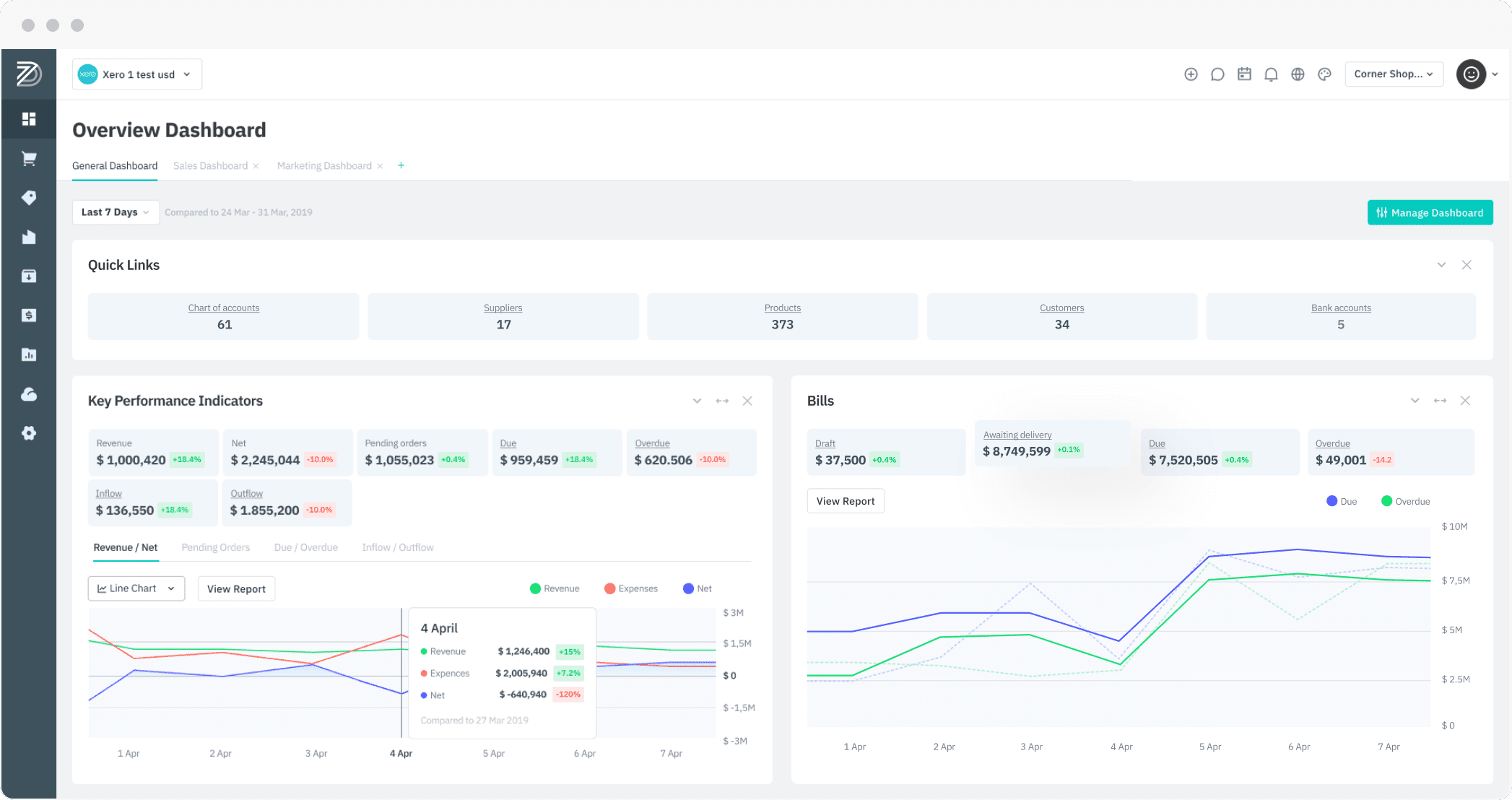
Inventory software is designed to help small and large businesses to keep track of and update products as they go along the supply chain.

Some of the features of inventory software include automatic ordering, tracking of sales and purchase orders, categorizing of products, and electronic scanning, among many others.

The key functions of inventory software that drive business operations are updating inventory in real-time, eliminating manual systems of managing inventory, plus synchronizing the inventory in case you have multiple channels or stores.

How can inventory software help my business?

With inventory software, your business benefits from improved stock tracking and control which if done using spreadsheets leads to inefficiency and human errors.

Other benefits include automated processes that save time and money, plus you get to avoid running out of stocks hence happy customers.

We checked out the best inventory software tools you can use for simplified, organized, and accurate business operations, and here are our top 9 picks.

What is the best inventory software for Windows PCs?

Katana MRP – Best inventory management
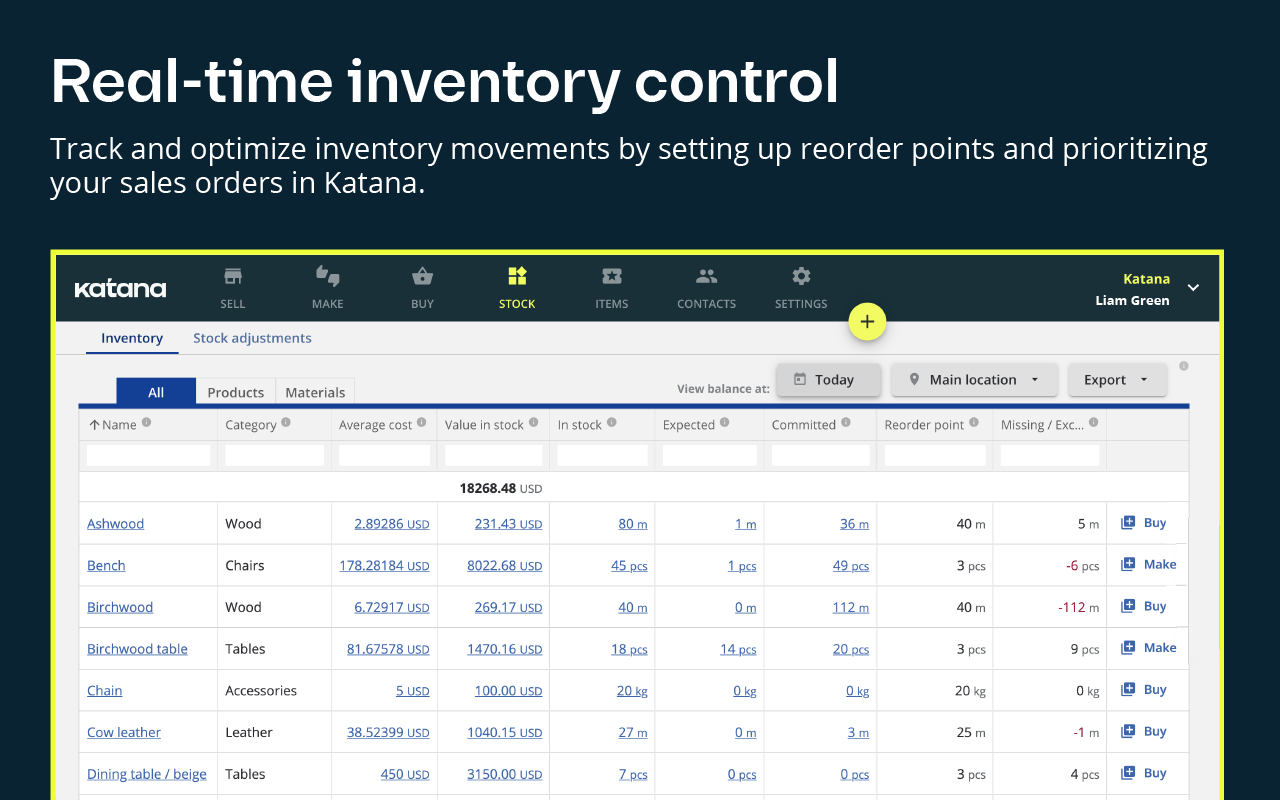
Katana MRP is the ultimate manufacturing ERP software and it’s here to provide you with full transparency over the dynamics of your inventory, sales, and beyond.

This solution helps you track and optimize all the inventory movements and then allows you to prioritize your sales orders and set up reorder points.

By acknowledging your inventory in real-time, you can automate product allocation and raw materials to fulfill the orders quickly.

To minimize storage costs, Katana tracks the demand and adjusts the production schedule for maximum efficiency.

With this tool, you can create, set up, and remove shop floor operators. It also measures the real vs. actual materials used in production to cut costs and time.

Katana supports integration with many e-commerce platforms such as Shopify and WooCommerce to ensure constant stock even if the demand fluctuates.

Best of all, this complex solution handles both made-to-order and made-to-stock workflows for sales order fulfillment at the same time.

That way, your e-commerce and B2B operations are perfectly centralized for total visibility and clarity within your business.

Don’t take our word for it because you can test the trial version of the software for 14 days and figure out if it’s the best tool for your needs.

Take a look at Katana MRP’s key features:

  • Get total inventory control for finished products and raw materials
  • Automate inventory transactions and set reorder points to prevent stock-outs
  • Track on-hand, committed, and expected stock amounts in real-time
  • Manage product variants and materials in one place
  • Monitor your inventory across multiple warehouses

Katana MRP

Get the best tool to track all the moving parts of your business: inventory, sales, and a lot more!
Free trial Visit Website

Inflow Inventory – Great for inventory tracking
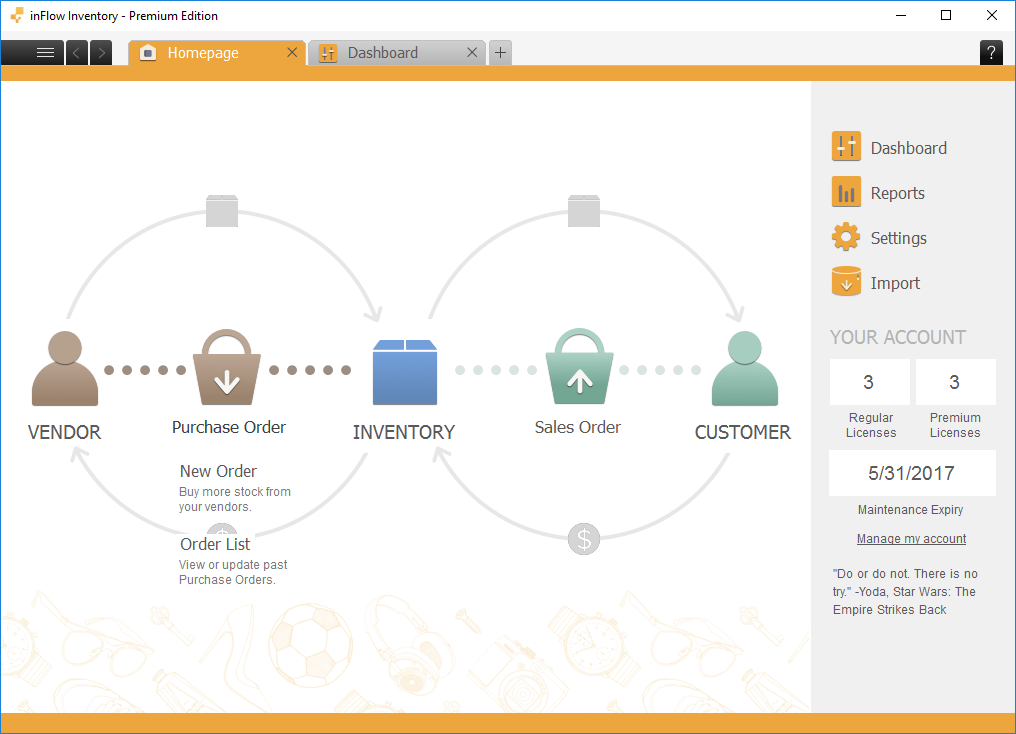
This inventory software is available for use with multiple currencies, and in multiple languages including English, Spanish, French, Chinese, and Arabic, but you can translate it to another language yourself.

You can manage inventory in multiple locations, with different units of measurement, print or email documents, and do stock adjustments or reordering and purchases, with a one-click, complete workflow system.

Features include product cost tracking, customizable reports, control over user logins, CSV, and import/export for existing products.

The tool also handles customers and/or vendors, and has a multi-user mode so everyone works in real-time with the same data on one network.

Then, you may export reports and documents to PDF/Excel and set up an automatic backup for your database.

Your data is securely hosted online so you can manage your business from any location or device.

You will benefit from the following key features:

  • Product cost tracking
  • Customizable reports and control over user logins
  • CSV and import/export for existing products
  • Export reports and documents to PDF/Excel
  • Automatic database backup

Inflow Inventory

Go one step further with your product inventory tracking, and grow sales using this full-rounded software.
Free trial Visit Website

Megaventory – Great for order fulfillment
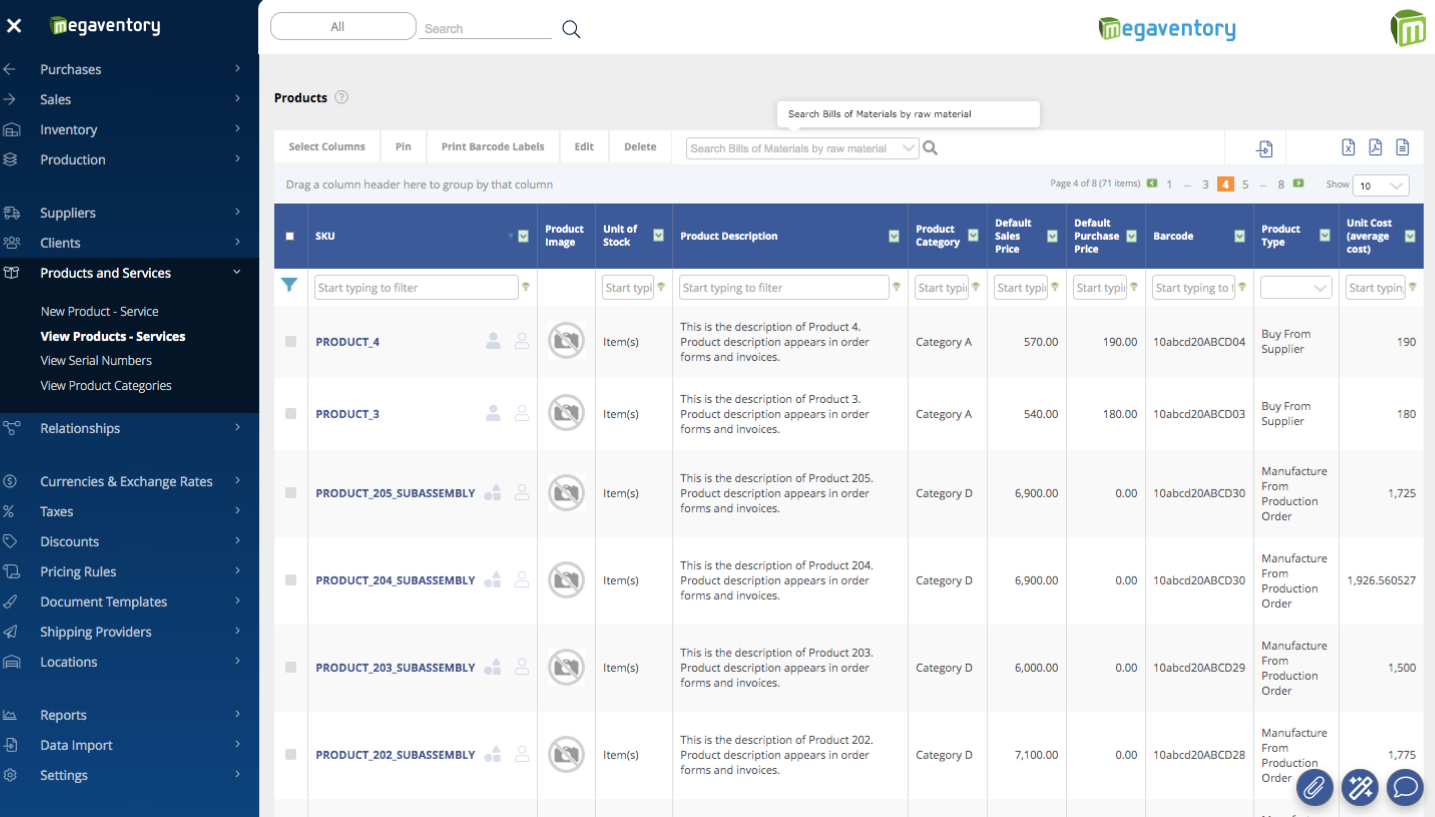
Whether you’re running a small or home business, a franchise network, or you sell consumer goods, this inventory software gives a unique combination of technology and usability so you can efficiently track and manage your inventory.

Its name may imply a huge software with a complex operating system, but it is a cloud solution meaning you have limitless boundaries with this software.

Being cloud-based, Megaventory has a minimal setup with no need for extra equipment, so you can scale up or down as necessary. It is also easy to use with an intuitive design and fast access across multiple devices.

It easily integrates with third-party apps such as Magento for accurate e-commerce, Lokad for demand forecasting, and Zapier for versatility in connecting with more than 300 web apps.

You can get the 15-day trial, after which you can opt in and choose one of the plans.

Let’s see some of its best features:

  • Inventory management across multiple locations
  • Order fulfillment
  • Manufacturing management, and in-depth control
  • Customizable to multiple languages
  • Order fulfillment

Megaventory

By choosing this software you make a sustainable investment for the future. Try out Megaventory!
Check price Visit Website

Quickbooks Inventory Management – Great at tracking costs
quickbooks entity

Quickbooks is an established and well-known name when it comes to business, but mostly for its part in the financial aspect of the business.

It seems natural that since already handles the accounting and everything else related to finances for so many businesses across the world, Quickbooks would also dive into the inventory management part.

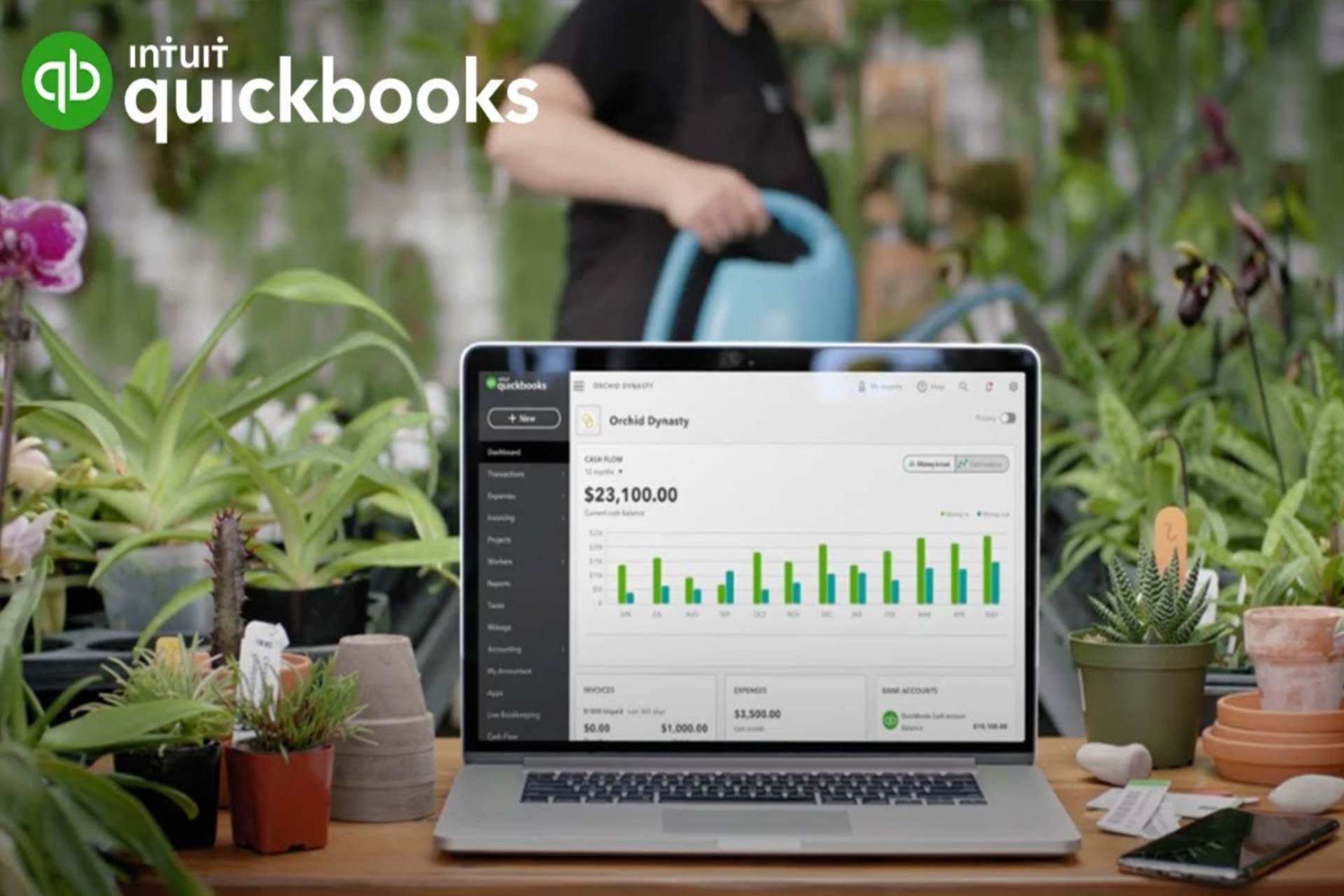
Quickbooks Inventory management is a great tool to help you manage stock so you will always be aware of what you need before you even need it.

This platform allows you to organize stock with photos, categories, and prices. Furthermore, you can even automatically calculate the cost for each product in the FIFO system (first in, first out).

Quickbooks is known as a reliable software, more of it’s main features for inventory include:

  • See real-time inventory values
  • Track inventory by item or date
  • Tracks inventory items, non-inventory items, services, and bundles
  • See real-time inventory values

Quickbooks Inventory Management

Easily track your inventory and costs related to it with this amazing product.
Check Price Visit Website

Brightpearl – Good e-commerce integration
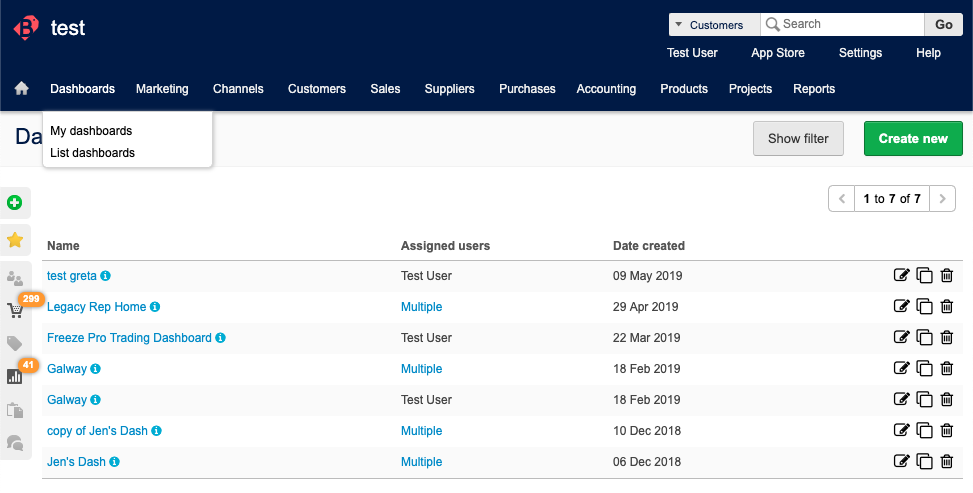
This inventory software lets you view and control inventory across your sales channels easily as it is cloud-based, thus eliminating costly setup and maintenance fees while streamlining your IT systems and reallocating resources to satisfy our customers.

Since all your data is in the cloud, you can manage multiple locations and reduce operational barriers to growth, plus reduce dependency on third parties.

Whether yours is a single retail store, multiple warehouses, drop-ship, or outsourcing businesses, you can use Brightpearl to centralize inventory control and maintain accurate stock levels and value.

It is also easy to migrate from an existing enterprise resource planning system, or a new one, to Brightpearl through simple steps you will be guided through by the professional services team.

Check out its best features below:

  • Integration with popular e-commerce platforms and sales channels
  • Bulk allocation and reallocation of orders
  • Low inventory reporting
  • Real-time synchronization across sales channels
  • Barcode scanner integration

⇒ Get Brightpearl

Acctivate – Great accounting integration
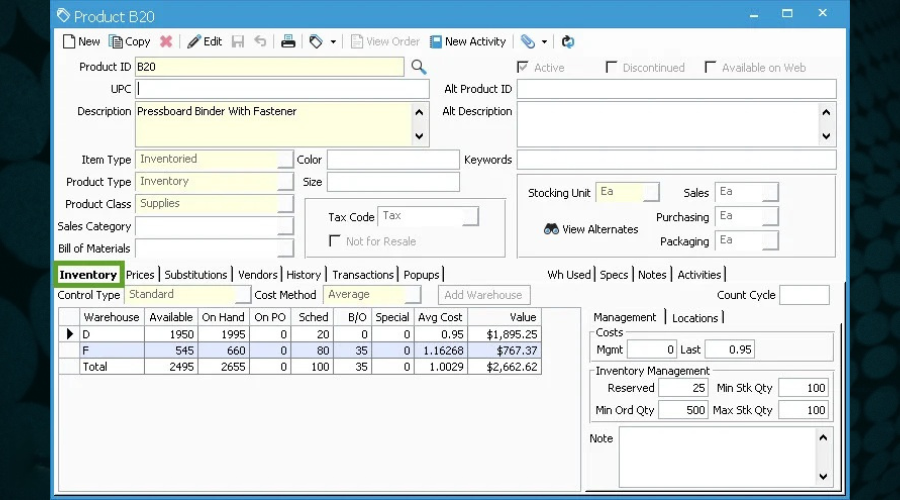
Businesses with huge inventory investments need more than just spreadsheets and accounting software to manage their inventory.

Good inventory software is designed to manage and control the functions of an inventory-centric business with tools for trend analysis, accurate forecasting on items needed and when they’re needed, thus increasing predictability and helping balance stock and service levels with the least investment.

This award-winning inventory software integrates the best-of-breed apps in an easy-to-use interface, with decades of knowledge intersecting with forward-thinking software development.

At its core lies inventory control with features such as a product screen for real-time access to all inventory aspects from one place, unlimited unit definitions, visibility on inventory to maximize resources with greater flexibility, multiple units of measure, warehouse management, and barcoding inventory for 99% accuracy.

It is easy to implement and use; it handles any business growth and delivers a quick ROI.

⇒ Get Acctivate

Unleashed – Very easy to use

This easy-to-use yet powerful inventory software is made for manufacturers, wholesalers, and distributors who need efficient processes.

If you want an easy-to-use, affordable, inventory software that will satisfy your inventory and sales reporting needs, Unleashed is your best bet.

Its features include the perpetual inventory control that reflects all inventory costs so you get an accurate view of margins and profit, stock visibility in real time so you can see stock levels and tracking information with the Stock Enquiry feature, plus flexible reporting to create stock counts and report filters for suppliers, product groups, warehouses, and others.

You can also keep track of stock across multiple warehouses in different locations, segregate stock for reporting, manage your entire product catalog, and set min/max inventory levels.

⇒ Get Unleashed

EZ Office Inventory – Comprehensive user interface
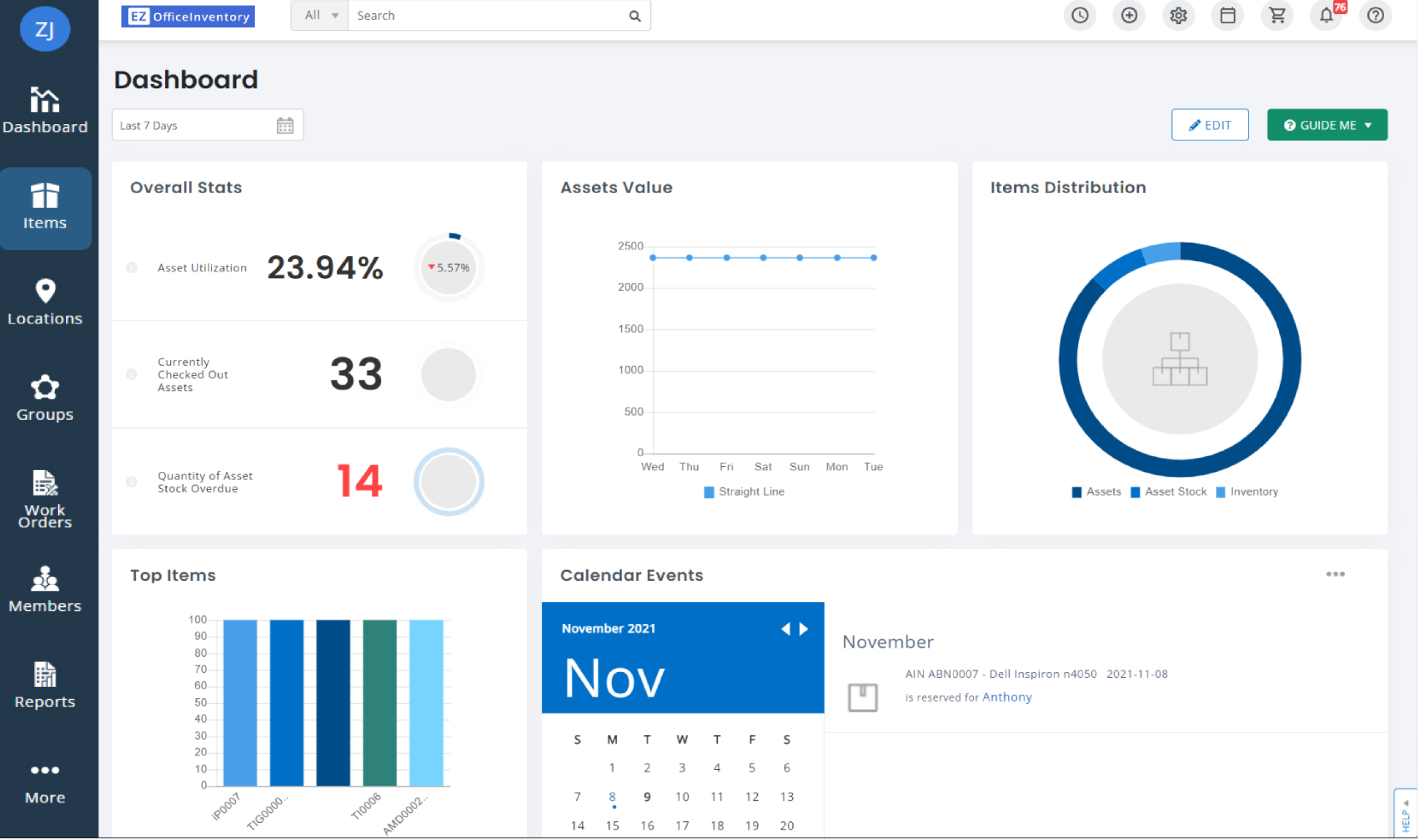
EZ Office is the leading web-based inventory software that classifies its inventory management or control into five groups: Asset Management, User Management, Service and Maintenance, Reports and notifications, and Integrations.

Asset management lets you track your assets and access asset information from any device, place, or time you wish. Features include asset lifecycle management, asset stock, and inventory module, checkout and check-in assets, and an availability calendar to see your assets in real time filtered by time, group, or location.

You can also plan ahead with the reservations module, track purchase orders, monitor regular checkpoints in your asset lifecycle, put labels on assets for easy scanning and GPS location with barcode or QR code support, import/export Excel sheets, and track and manage depreciation.

Other features such as user management, help you allocate user roles to staff with restricted access or admin roles.

The Services and Maintenance feature lets you put items automatically into service upon check-in, create scheduling tickets, track maintenance events, and plan recurring cycles to repeat for regular service, among other maintenance processes.

EZ Office Inventory software also delivers custom reports and alerts for specific events, data backups, and scheduled reports, which you can also easily export as a PFF or CSV file, or load on Dropbox for easier sharing.

It easily integrates with Zendesk, Dropbox, Centrify, and Salesforce, among other apps.

⇒ Get EZ Office Inventory

Dear Systems – Easily accessible

Dear is a well-priced, cloud-based, and simple to use inventory software that integrates with other apps, plus is able to create multiple variations with one SKU or product family.

Features include seamless e-commerce integration, tracking of manufacturing costs, smart purchasing with its intuitive features that save time and effort while giving you purchasing insights, sales functionality from order tracking to split orders and drop shipment options, inventory management, and accounting to give you real-time insights and reports into expenditure and profitability.

It comes with a free 14-day trial after which you can opt in and get the full-featured version.

⇒ Get Dear Systems

We conclude here our list of the best inventory management software for your business and we hope you found the right one for your needs.

Getting the right tool to keep up with your supply and demand is a crucial step for your business so you should assess all the possibilities.

You should also look at our list including the best weekly planner software to bet your business organized even more.

Have you settled on your favorite inventory software among these top picks? Let us know in the comments section below.
Fix: Opera Installer Stuck on Downloading

If the Opera installer is stuck on downloading, you won’t be able to finish the installation or use the browser at all. However, this can be easily fixed.

Why is Opera stuck on downloading?

Issues with the installer or your security software or firewall can cause this problem to appear.

What can I do if the Opera installer is stuck on downloading?

Before we try anything else, try using a different network or restarting your router. Also, make sure you’re downloading Opera from its official website.

1. Use an offline installer

  1. Navigate to Opera’s download page.
  2. Scroll down the page and select the Download the offline package for your specific OS.opera browser for windows offline isntaller
  3. Wait for the download to finish and run the setup file by double-clicking on it.

For more information, we have an in-depth guide on how to download and use the Opera offline installer, so don’t miss it.

2. Download it from Opera’s FTP server

  1. Open Opera’s FTP page and scroll down to select the latest version.latest version opera ftp
  2. After you click on it, select win.win version selected opera ftp
  3. Finally, click on the Setup x64.exe or Setup.exe file in order to start the download process. Double-click on the downloaded setup file to install Opera.setup 64-bit opera version selected

3. Disable your firewall

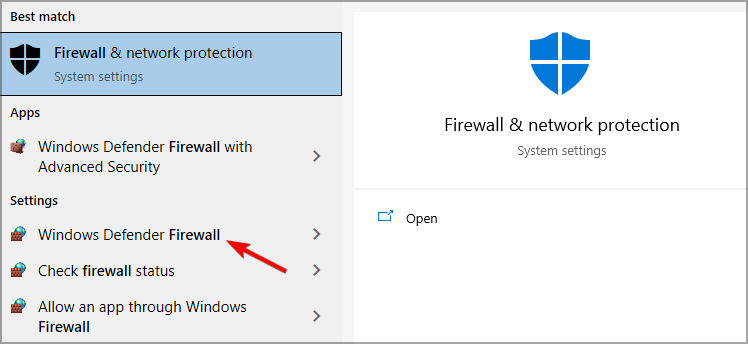
  1. Press the Windows key + S and enter firewall. Select Windows Defender Firewall.
    windows defender firewall search results
  2. Select Turn Windows Firewall on or off.
    Turn Windows Defender Firewall on or off
  3. Now set Turn off Windows Defender Firewall for both Private and Public connections.
    turn off windows defender firewall private and public network settings
  4. Click on OK and try to install Opera again.

If you’re using a third-party firewall, then you’ll need to disable it as well.

Note icon NOTE
Turning off your firewall isn’t recommended, so be sure to turn it back on after using this method.

A few users also reported that Opera keeps installing itself, and we have a special guide that can help you fix that, so don’t miss it.

In case you’re using Opera GX, we also have a guide on what to do if Opera GX is not installing, so don’t miss it. Many also reported that Opera GX is stuck on installing, but we have a guide for that as well.

If you were unsuccessful in fixing this issue, we also have a guide on what to do if Opera failed to install, so don’t miss it.

Before you go, don’t miss our guide on insufficient permissions in Opera for more useful information.

Did you find a different solution to this problem? If so, let us know in the comments section below.

15 Best Fastest & Strongest Browsers For All Devices

Browsers are one of the first apps that users check out on any device. The industry is now large, with many modern browsers offering outstanding features.

While there are platform-specific apps, there are also effective cross-platform browsers that work well across the board.

In this guide, we have gathered the list of the best browsers you can use on all devices. Whether those for a single platform or apps that give you more options on different devices, this article has a recommendation for you.

Is Chrome still the best browser?

Chrome is undoubtedly the most popular browser, with over half the market share. However, in terms of overall features, Opera One is the best browser.

It is based on Chrome’s Chromium engine and can also use its extensions. But Opera One has many other features that set it apart from Chrome.

Which is the best browser for low-end devices?

According to popular opinion, the K-Meleon browser is the best for old and low-end devices. It can run on very low RAM and uses little system resources.

K-Meleon is an open-source browser with a very basic UI. Also, to enhance its usability on old PCs, it lacks some of the features found in most modern browsers like an email client.

What is the best browser for home use? 

Opera One is the best home-used browser, thanks to its flexibility and numerous use cases. It has a simple and intuitive interface that anybody can use.

Also, it has strong privacy and security features, among other outstanding qualities.

Which browser is the strongest for all devices?

Opera One – Overall best free browser for all devices

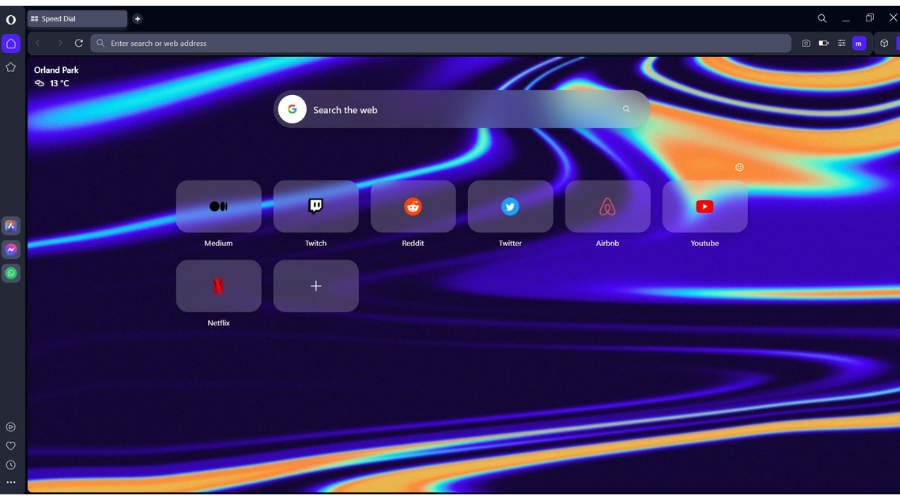
Opera One is a typical modern browser with ease of use and productivity as its strong point. It has a simple and intuitive interface that you can fully customize to your taste.

Opera One is available on virtually all devices, from Windows and macOS to iOS and Android. It also has a dedicated Chromebook browser to complete the set.

What’s more, it is based on the fast Chromium engine. This, plus its controlled resource usage, makes it one of the fastest browsers you can use.

In terms of privacy and security, there is almost no match for Opera One in the market. It has a built-in VPN and ad blocker that keeps your browsing private and secure.

Other features:

  • Anti-tracking features
  • Numerous integrations
  • Can use extensions from the Chrome Web Store
  • Browser data sync across devices

Opera One

Take full advantage of this skillful browser that can be used on multiple PCs and mobile devices as well.

Chrome – Lightning-fast browser

chrome

It is safe to say Chrome is the father of speedy modern browsers. This is because most of them, with very few exceptions, are based on its open-source Chromium engine.

Chrome is a simple-to-use app with a minimalistic interface. Also, it is a browser for all devices as it is available on platforms like macOS, Windows, Linux, iOS, Android, and, of course, Chrome OS.

It has the largest extensions store of all browsers, which can be used to extend its functionality considerably. Lastly, it can sync your browser data across multiple devices.

Other features:

  • Excellent browsing speed
  • Clean interface
  • It is secure

⇒ Get Chrome 

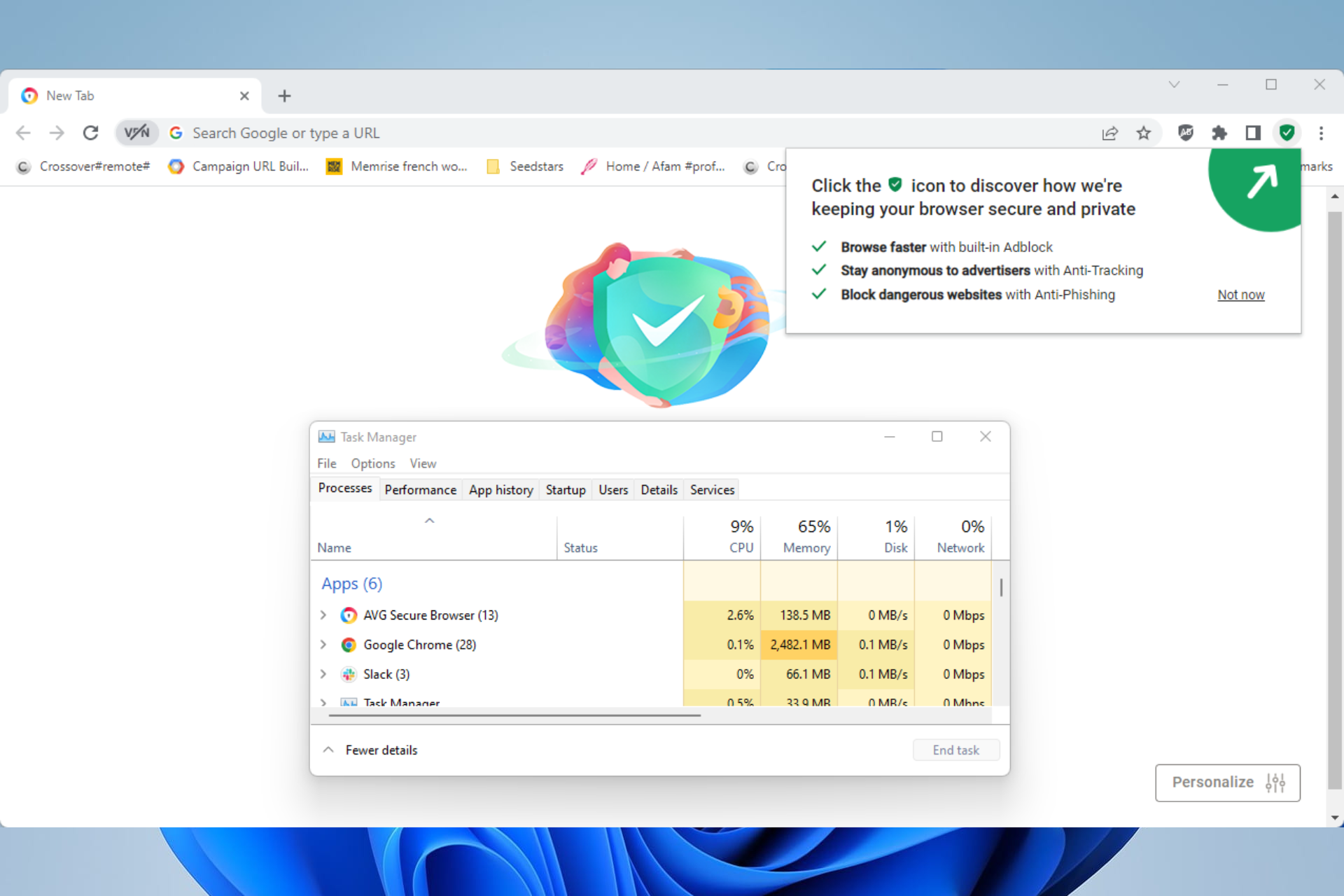
AVG Secure Browser – Safest browsing

This standalone browser is hugely suited for cross-platform usage and you can have it on Windows, Mac, or Android.

Its major selling point is privacy and security, and it has lived up to users’ expectations.

More so, the built-in anti-phishing feature ensures that phishing threats cannot attack you. Also, it prevents online tracking and comes with an ad blocker.

More importantly, your privacy goes at its peak due to Stealth mode, privacy cleaner tool, or the extension guard benefit.

Other features:

  • Webcam Guard to prevent camera access
  • Hack Check to avoid data leakage
  • Works on Windows, macOS, Android, and iOS

AVG Secure Browser

Ditch tracking browsers and get optimized navigation on every device or OS.

Firefox – Low RAM usage

firefox

Firefox has been around for a long time and was one the most popular browsers before Chrome and others took over. It is not surprising that it is a browser compatible with all devices from Windows and macOS to Linux, iOS, and Android.

Firefox has always been fast but has taken things to another level since its Quantum update. This update has elevated it to an incredible speed level that can compete with the best browsers.

Lastly, it is highly customizable, with options to use new themes and add and remove buttons from the toolbar, among other features.

Other features:

  • It is secure
  • Has an add-ons store
  • Sync feature

⇒ Get Firefox

Microsoft Edge – Best browser for Windows 11 and 10 devices

edge opera best browser for all devices

Microsoft Edge is the built-in browser for Windows PCs, and it’s no surprise it is the best browser for Windows devices. It is a wholly different enterprise from its predecessor – Internet Explorer.

Since its move to the Chromium engine, it has been consistently ranked amongst the fastest browsers. Also, it is not just limited to Windows, as you can use it on iOS, Android, and Mac.

What’s more, you can easily customize Microsoft Edge. Lastly, like most modern browsers, you can use extensions and add-ons to improve its functionality.

Other features: 

  • Fast and secure
  • Intuitive interface
  • Many customization features

⇒ Get Microsoft Edge

Brave – Security Juggernaut

brave

If you are looking for a browser that assures privacy and security on all devices, the Brave web browser has everything you want and more. It has an app with a simple yet well-stocked interface.

You can fully customize Brave to your taste with its built-in features. One of the main selling points of this browser is its built-in Tor feature and adblocker.

Also, it has other security features like fingerprint protection and upgrading website connections to HTTPS. Lastly, it uses low system resources.

Other features:

  • Fast and secure
  • Brave rewards for earning tokens
  • Tab search

⇒ Get Brave

Safari – Best browser for all Mac and iOS devices

safari

Safari is a browser that’s been optimized for Mac and iOS devices. It has a simple design that you can customize to some degree.

Thanks to the unstacked design, it is one of the fastest browsers currently available. What’s more, it is compatible with Chrome extensions. This allows you to extend its features as you wish.

Lastly, Safari is only available on Apple devices. It used to be a thing on Windows, but it has been stopped officially since 2012.

Other features:

  • Offers a privacy report
  • Has a tab preview feature
  • Works with extensions

⇒ Get Safari

Kiwi – Best Browser for Android

kiwi opera best browser for all devices

If you are looking for a platform-specific browser, they do not come better than this. The Kiwi browser is an Android-only app that has many superb features.

It has a minimalistic yet customizable interface. Part of its customization is the movement of its Address bar down to the bottom of the page. This makes it easily accessible for one hand usage.

Furthermore, the Kiwi browser has a strong built-in ad and pop-up blocker. Lastly, it is the only browser that uses Chrome extensions on mobile.

Other features:

  • Anti-mining filter
  • Incredible page load speed
  • Easy to use

⇒ Get Kiwi

Vivaldi – High Customizability 

vivaldi

The Vivaldi web browser, like Opera, allows you to customize its interface fully. You can design almost everything on its interface, from the Address bar to the tab bar position.

It is based on the popular Chromium engine and is one of the speedy browsers out there. What’s more, it is compatible with Windows and Linux.

Also, you can use Chrome extensions on Vivaldi to customize and extend its features further.

Other features: 

  • Frequently updated
  • Easily customizable
  • Great interface

⇒ Get Vivaldi

DuckDuckGo – Privacy mobile browser

duckduckgo

If you want a browser that assures your privacy on mobile devices, you might want to consider DuckDuckGo. It is centered around the DuckDuckGo search engine, which hides your identity automatically on the web.

It also has a built-in anti-tracking feature that ensures nobody can follow you on the web. Furthermore, this browser is no slouch in terms of speed.

Lastly, DuckDuckGo lacks some advanced features. However, it more than makes up for it by keeping you secure.

Other features:

  • Minimalistic interface
  • Easy to use
  • Browsing data can be easily cleared

⇒ Get DuckDuckGo

Puffin – Browser with flash play

puffin

Puffin is a top-notch browser compatible with major desktop and mobile devices. Thanks to its cloud rendering feature, it is one of the fastest browsers available.

This feature processes all your contents on the cloud, thereby reducing the strain on your hardware components. 

Also, it has a sandboxing feature that ensures the code from the web does not get into your browser. This ensures that your PC does not get infected through your activities online.

Other features:

  • Flash player on mobile devices
  • Customizable interface
  • Lightweight and fast

⇒ Get Puffin

Dolphin – Private mobile browser

dolphin

The Dolphin browser is another excellent browser for mobile devices. It is compatible with only Android and iOS devices.

It has built-in Flash support on Android devices that allows you to play flash games. Also, it is compatible with third-party add-ons, which can be used to extend its functionality.

What’s more, Dolphin has a built-in smart voice search. This allows you to access the web without typing at all.

Other features: 

  • Social platforms support
  • Syncing across mobile devices
  • Secure and private browsing

⇒ Get Dolphin

Maxthon 5 – Compatibility with old devices

maxthon

If you still have the old operating systems and need a browser that works well, you should consider Maxthon 5. It works on Windows XP and 2000, among other old PCs.

One of its endearing features is its minimal resource usage. This makes it one of the fastest and most lightweight browsers available. Furthermore, it is compatible with Windows, macOS, iOS, Linux, and Android devices.

Lastly, it has a Cloud Push and Share feature for syncing data across various devices.

Other features:

  • Built-in screen capture feature
  • Bookmarks can be integrated with notes
  • Data syncing

⇒ Get Maxthon 5

UR Browser – Simple PC browser

ur

This browser has seen constant development over the years to improve its features. It thrives on the most important qualities users want in a browser.

UR Browser is a fast and reliable browser that works across platforms seamlessly. Thanks to its built-in VPN, it is one of the most private browsers available.

With this feature, you can browse the web anonymously. Lastly, it is compatible with Windows and macOS devices making it a good candidate for the best browser for PC devices.

Other features:

  • Offers three privacy levels
  • Fast and secure
  • Built-in virus scanner

⇒ Get UR Browser

Yandex – Browser with built-in credit card manager

yandex opera best browser for all devices

The last but certainly not the least on our list of fastest and strongest browsers is Yandex. It is a relatively new name in the industry but is compatible with most desktop and mobile devices.

It has a built-in ad blocker that removes even the most stubborn ads. There is also built-in malware protection that keeps you safe from malicious sites and files.

Finally, this browser can be easily customized.

Other features:

  • Built-in password manager
  • Tabs can be grouped
  • Offers mouse gestures

⇒ Get Yandex

The best browser for all devices should offer a wide range of compatibility across major platforms. We have shown the browsers that fit the bill in this guide and touched on platform-specific ones.

Do you want a more streamlined list like the best lightweight browsers for Windows PC? Then, do not hesitate to check our guide for the top options to select.

Feel free to let us know any worthy browser that narrowly misses our list in the comments below.

6 Best Browsers to Watch your Favorite CBS All Access Shows

Today, traditional broadcast channels are trying their best to sequester content for their video streaming services, something that was initially a responsibility of content aggregators such as Netflix and Hulu.

An excellent example of such a channel is CBS All Access. But what are the best browsers for CBS All Access?

Apart from hosting a lot of amazing CBS All Access shows, this is the only way for viewers to watch some original series such as The Twilight Zone, the Good Fight, Star Trek: Picard, and Star Trek: Discovery. You can also get local coverage news and live sports streams with CBS All Access.

Even though CBS All Access does not offer everything to be the right channel for a general audience, it is amazing for people with specific shows they love. Their monthly cost is also affordable compared to its competitors.

Can I watch CBS All Access on my computer?

Fortunately, you can watch CBS All Access on your computer without a free VPN for CBS. This is a luxury that you could not enjoy a few years ago.

However, due to its growing popularity, CBS All Access realized that its viewers must watch their favorite shows on the go. You, however, need a CBS All Access account for this.

There are different options for watching CBS All Access on your computer. The first one is by installing their application.

However, this is only supported for computers running Windows 8 or later and Mac running Mac OS X v10.6 or later.

The other option is to watch CBS All Access on a computer using a web browser. But, again, there are different requirements for the web browser version and the operating system for you to watch CBS All Access on a web browser.

And if you have any streaming problems with CBS All Access, our complete troubleshooting article will help you fix them quickly.

What are the best browsers for CBS All Access?

1. Opera – Fastest speeds for streaming

cbs all access browser

When it comes to streaming videos without buffering, Opera is one of the best browsers for the job. It’s very lightweight, with a modern interface that lets you quickly access the CBS platform.

If you want extra convenience, you can bookmark the CBS All Access website and pin it in Opera’s sidebar. This way you’ll be able to access it in just one click.

This versatile browser has dedicated versions for multiple platforms, including PC, macOS, Android, and iOS. You can sync your preferences and bookmarks across multiple devices to get the best experience.

On top of being light and fast, Opera integrates modern features meant to boost performance and privacy including an adblocker, an antitracking feature, and a free VPN that can surpass geoblocks.

Opera

Opera

Enjoy your favorite CBS shows with this fast, multi-platform browser!

Google Chrome is one of the best browsers we have today. However, some restrictions exist on watching your favorite CBS All Access shows.

To start with, you can watch CBS All Access shows on a Google Chrome web browser on computers running Windows 8 and above or Mac OS X 10.9 and above.

If you have the previous versions of the operating systems mentioned above, you can only use Google Chrome v68 and above but on Windows XP/Vista and Mac OS X 10.6 to 10.8.

⇒ Get Google Chrome

3. Mozilla Firefox – Good for private browsing

Mozilla Firefox is one of the most established web browsers we have today. It was overtaken by Google Chrome only a few years ago but has made many improvements in the last couple of years.

Like with Google Chrome above, you can watch your CBS All Access shows on a Mozilla Firefox web browser but with some restrictions.

For instance, your computer should be running Windows 8 and above operating system or Mac OS X 10.9 and above.

Those using previous versions of Windows cannot watch CBS All Access, but with the browser’s version 48 and above, you can do the same on Mac OS X 10.6 to 10.8.

⇒ Get Firefox

4. Safari – Best browser for Mac

Safari is very common with Mac users. The browser can also be installed on Windows machines. Your machine should run Mac OS X 10.10 and above to watch CBC All Access on Safari.

In addition, you need to ensure that you are using at least version 9 (v9) of the Safari browser. You cannot install Safari on Windows and watch CBS All Access.

However, if you have a Mac or an Apple tablet or smartphone, Safari is perfectly optimized for those devices and would be the ideal choice.

⇒ Get Safari

5. Microsoft Edge – Best integrated with Windows

Microsoft Edge is the default web browser that comes with Windows operating systems. Initially, Windows used to come with Internet Explorer.

This is still the same browser for those using Windows 8 and the previous operating system versions.

To watch CBS All Access on the Microsoft Edge browser, ensure your machine is running Windows 10 and above. In addition, you can only use version 14 (v14) of the web browser and above.

⇒ Get Edge

6. Watch CBS All Access on mobile browsers

You can also watch CBS All Access shows on your mobile devices. The screens might be smaller, but the content is the same.

However, the devices should be running iOS 11 and above or Android 5 and above. You can use Safari for iOS devices and Chrome for Android devices.

All the browsers we highlighted above have mobile versions, so you must download them from the App Store or Google Play.

Why is my CBS All Access not working in a browser?

Sometimes, your CBS All Access might not work in a browser. When this happens, you need to determine if the browser meets the abovementioned requirements.

Your OS should also meet the exact requirements. If any of them does not meet these requirements, then update your OS or browser, and you will be good to go.

This concludes our list of the best browsers to watch your favorite CBS All Access shows, and we hope you’ve found the right one for you.

You might also be interested in the best free and paid streaming software for PC users because you might get other ideas.

If you have any other suggestions, don’t hesitate to tell us all about them in the comments section below.

20 Best Browsers without Cookies to Protect your Online Privacy

Cookies are small text files written by a web browser that contain information about your interaction with the virtual world.

The information stored is formed mostly out of login information, and by saving them it becomes easier to log into an online site.

Even though most cookies are benign, they can impact your privacy by opening access doors into the other bits of information you have stored on your PC.

This means anyone that can have access to your browser can also have a look inside for more detailed information. Such as your income, all kinds of preferences, what places you have visited, and so on are open to whoever has access to your browser.

Unfortunately, not all browsers offer the same privacy features when navigating the Internet which can leave you uncovered.

This article will explore the best browsers about 20 of them without cookies which can protect your online privacy.

How can I browse the Internet without cookies?

1. Use a VPN

First, you’ll want to use a VPN. A VPN, or virtual private network, allows you to connect to the internet in a more secure manner. It helps to prevent others on the same network from seeing what you’re doing.

You can think of it as surfing the web through a steel tube, where your data is much harder to see and collect.

It’s particularly important to use a VPN when you’re surfing from a public Wi-Fi network, such as those in coffee shops or hotels.

There are a number of VPN options available, but I recommend that you use these viable laptop options we’ve provided.

To assist you practically, protect your online privacy with this industry-leading VPN security from PIA (Private Internet Access).

This VPN software will prevent any data tracking with cookies or ads, using considerable server locations globally. In terms of connection speed, there is no other VPN that can exceed PIA servers.

2. Use incognito mode

  1. Click the three dots on the top right of your browser.
  2. Choose the New Incognito Window.

This prevents a browser from saving any data from the websites you visit, including cookies, history, or the data you might enter into a website.

3. Use Guest mode

  1. Tap the profile at the very top right of the screen, next to the menu button.
  2. Select Guest.
  3. Close this window when you’ve finished browsing.

It allows you to visit websites without them storing cookies or browser history. You can think of this as browsing from a clean slate: you won’t have access to any of your bookmarks or data that are saved to your Google account inside Chrome.

4. Use a browser extension

NoScript extension is ideal for average users and it’s freely available for Firefox, Chrome, and Chromium-based browsers.

It will protect against the most common privacy and security threats on the web. Doesn’t collect your web history.

Which are the best browsers without cookies?

Opera One – Best for privacy and security

Few browsers offer safe browsing and privacy and most of the time in order to ensure them you have to install a third-party extension.

Luckily, the Opera One browser comes with features that are designed to protect your privacy at all times, when navigating the Internet.

All the important options can be found in Opera One’s Privacy & Security section, including the Do not track option.

Moreover, the browser comes with a built-in ad-blocker that will keep all the annoying advertisements away and a free VPN with no traffic limit.

Key features of Opera One browser:

  • Tracker blocker to stop tracking attempts.
  • Free VPN with no traffic limit
  • Settings to choose how Internet sites can access your data.
  • Crypto Mining protection to block crypto-mining scripts.

Opera One

Navigate freely online and bypass personal data tracking from different ads or websites on the web.

AVG Secure Browser – Zero tracking activity

AVG browser is a worthwhile choice for clean browsing and secured personal data against cookie scripts.

It’s commonly known that almost any major browsers or popular websites are using cookies to collect your information. However, this browser changes the game.

Using this anti-tracking browser, you have all the capabilities to stop cookies engines right away. There is an automatic tracking script and digital fingerprint tools that encrypt your personal data.

More so, this solution contains a stealth mode that specifically blocks tracking cookies from gathering all your information while accessing the web. Having that said, relax your mind regarding online threats by switching to this one.

AVG Secure Browser

Strengthen your online identity using a dedicated browser for data privacy.

UR Browser – Best for private content publishing

UR Browser is a browser that comes with some amazing privacy features to ensure your online security such as the built-in VPN.

Moreover, with the built-in ad-blocker, you will also be able to browse the Internet without being bothered by annoying commercials.

This browser is fast, and it does not affect the overall performance of the system as other browsers seem to do. Even if you have multiple tabs opened, the resource usage is controlled well by the browser.

Another great feature that UR Browser has is the built-in virus scanner that checks all your downloaded files.

UR Browser

The middle name of this browser is Privacy, so choose this multi-layer privacy browser for more security.

Tor Browser – Best HTTPS-Everywhere integration

This is yet another great browser that is focused on user privacy and security with great emphasis on anonymity.

Tor Browser is based on a modified Firefox ESR and contains options such as NoScript and HTTPS-Everywhere.

This browser will protect your browsing history, location, messages, and any other online data from bots or programs that perform traffic analysis.

Moreover, this is the only browser that uses onion services which means that you can publish without revealing the location.

⇒ Get Tor Browser

Waterfox – Best no telemetry browser

Waterfox is our next recommendation as this is an open-source browser, based on Mozilla Firefox.

All the data collection, startup profiling, sponsored tiles, and tracking have been completely turned off for this browser.

Moreover, as these options have been turned off you will also experience a faster speed for the browser as compared with others.

None of your history, passwords, cookies, and other personal data will be stored while using this browser.

⇒ Get Waterfox

Firefox Quantum – Best in tracking protection

Thanks to the newest updates Firefox Quantum is one of the best browsers to use when your online privacy is a priority.

This browser comes with great protection features, customization options, good security, and regular updates.

You can enable add-ons for tracking protection, geolocation, cookies control, or password completion, depending on your needs.

All the above features and available settings will ensure a private and secure environment.

⇒ Get Firefox Quantum

DuckDuckGo – Ideal for anonymity protection

With all the cyber-attacks and increased concerns over government surveillance of the Internet, DuckDuckGo has already surpassed 10 billion searches.

Part of its popularity is attributed to the high-security DuckDuckGo promises to users. Searches will produce instant results without any tailored advertisements.

Users also have the ability to save settings such as language, region, and safe search in the cloud. This means users will be able to access their personal settings on multiple devices.

Furthermore, with the filter feature, you can filter searches into categories and regions, to have easy access to the news in a different country or region, for instance. DuckDuckGo users also have the ability to turn off annoying advertisements in their settings.

⇒ Get DuckDuckGo

Lukol – High-end spyware protection

The great thing about Lukol is that it will not only keep your information safe by using proxy servers. Also, it prevents users from being tricked by internet fraudsters.

In other words, it has a safeguarding feature that keeps users from entering websites that could potentially flood your computer with spyware and viruses.

⇒ Get Lukol

Oscobo – Browsing data safety

Oscobo allows users to search for specific types of content such as videos, images, news, and more. Furthermore, it does not allow any party to store or track your browsing data. 

Users of Oscobo also have the option of adding a Chrome extension which will make using the PSE more convenient. 

⇒ Get Oscobo

WolframAlpha – Recommended for teachers and students

WolframAlpha is a special type of search engine, designed specifically for providing knowledge to its users. It is unique because it uses its own massive supply of expert-level information.

Furthermore, WolframAlpha uses algorithms to quickly and automatically answer questions you input in the search query.

It is built for academic purposes and it requires a monthly fee to go pro and use the collection of features that can aid students.

Pro users have the ability to upload data for analysis, get interactive visuals that can be used for presentations, access optimized web apps, and more.

⇒ Get WolframAlpha

Start page – Simple to Use

StartPage is perfect for users who are looking for something simple, minimalist, and aesthetically pleasing.

It offers only a few settings, filters, and just a bunch of options, which is attractive to some people who are just looking for something easy to navigate.

It may not be as powerful as other private search engines, but it’s certainly easy to use.

⇒ Get StartPage

MetaGer – Most Untraceable

The search engine allows you to conduct untraceable, private searches that generate no trail.

MetaGer includes a proxy server, allowing you to anonymously open any URL from the search engine result pages while hiding your IP from the target server. Additionally, it does not keep track of the keywords used.

This prevents third-party advertisers from targeting you and reduces the chances of malicious attacks. Also, note that the default language of the engine is German, but it can be changed.

⇒ Get Metager

Mojeek – Best for Independent results

Mojeek permits you to search without compromising your privacy. It provides you with unbiased and objective search results using modern search technology.

Additionally, the search engine indexes countless pages from multiple sources on every possible topic.

Furthermore, your queries are never traced, and Mojeek stores no information about your search history, IP address, or other personal data.

⇒ Get Mojeek

Swisscows – Most family-friendly

Swisscows was first released in 2014 and professes not to keep user data. Instead, the search engine employs semantic data identification to provide faster replies to inquiries.

It maintains a rigorous zero-tracking philosophy, so it will not keep track of your search history or habits.

Swisscows is also family-friendly and will not display explicit content. Furthermore, all of Swisscow’s searches rely on their indexing and are unbiased.

⇒ Get Swisscows

Qwant – Best with Bing search results

Qwant is a French-based search engine. And because it is situated in Europe, it is subject to stronger data privacy regulations than the US.

Qwant’s search results do not include tailored advertisements, and the service displays the most recent news items.

Additionally, Qwant provides maps and a search engine for kids, suitable for children aged 6 to 12.

⇒ Get Qwant

Brave – Best for privacy overall

Brave is a Chromium-based browser that by default blocks cookies, ads, fingerprinting, and ad trackers.

Brave’s business model relies on privacy-protecting ads that can pay publishers and users with Basic Attention Tokens (BAT) when users pay attention to ads.

⇒ Get Brave Browser

Microsoft Edge – Ideal for Windows users

Edge is another very good browser without cookies that may hamper your browsing experience.

Microsoft confessed its collection does include information about websites visited but said this information is not used to track users browsing history or URLs specifically tied to the user.

⇒ Get Microsoft Edge

Epic Browser – Best cross-platform access

Epic Browser doesn’t use a specialized onion network, but it immediately disables lots of the most common ways your privacy is compromised when surfing the web.

For example, this free private browser doesn’t save your history, there’s no DNS pre-fetching, it doesn’t allow third-party cookies, there are no web or DNS caches, and there’s no autofill feature.

⇒ Get Epic Browser

SRWare Iron – For Windows/Mac/Linux/Android

If you’re a Google Chrome user, SRWare Iron will be familiar; it’s based on the open-source Chromium project, so a lot of the on-screen visuals look very similar.

The main difference between Chrome and SRWare Iron is data protection. Experts have criticized Chrome for its reliance on a Unique User ID; every time you start a session, Google is alerted to your data usage.

SRWare strips out the usage of an ID along with other Chrome privacy issues such as search suggestions. It makes SRWare Iron a great secret web browser.

⇒ Get SRWare Iron

Comodo Dragon Browser – Packed with great features

Comodo doesn’t come close to Tor Browser, but it does have some built-in tools that’ll make browsing the web a safer experience.

For starters, this private web browser will automatically block all tracking, cookies, and web spies. It comes with built-in domain validation technology that’ll instantly segregate strong and weak SSL certificates.

It uses the Comodo antivirus suite to protect you from ransomware, viruses, and other attack vectors.

⇒ Get Comodo Dragon

Should I use private browsing all the time?

You should make use of private browsing if you have any secrets to protect. Depending on your need: to be able to access multiple accounts without getting inundated by ads, and so forth.

Can you be tracked if you use Incognito?

You’re still connected to other web servers when you’re on the web. That much is unavoidable, and as long as it’s the case, any server-side threat can still harm your computer.

In short, your information is still visible to entities other than yourself and could be vulnerable to attacks from browser hijackers, or worse.

Is Google’s private browsing really private?

Technically, private browsing just prevents search history from being saved locally. It also stops websites and third-party advertisers from accessing browsing data during those sessions.

It does not function as an internet black hole. A record of your browsing history still exists, and it can still be tied back to you.

More importantly, private browsing does nothing to protect against cyberattacks. Malware, spyware, keyloggers, phishing scams, and other threats to your privacy and data security can still affect you during an incognito session.

What should you never search on Google?

It is perfectly legal to search for anything online in most cases, but if those searches are linked to a crime or potential crime, you could get arrested.

As you can see in this article, there are several amazing browsers that will ensure your online privacy at all times. Hence, you can pick the browser that resonates better with you without being afraid of the cookies.

Let us know in the comments section below which one have you tried, we would love to hear your thoughts.

Check out Edge 103 with improved security features

The Redmond-based tech giant known as Microsoft has released another major update for its browser, which is allegedly the best browser for gamers, in the company’s opinion.

Now, version 103 is available in the Stable channel with several changes, security upgrades, and some minor improvements as well.

Ready to check out all of the latest features that made their way to us? Let’s dive in together and check them all out.

What’s new in Edge Build 103?

Microsoft introduced the ability to control automatic profile switching. The GuidedSwitchEnabled policy lets Microsoft Edge prompt the user to switch to the appropriate profile when Microsoft Edge detects that a link is a personal or work link.

We also received the Client Certificate Switcher, which is a feature that will offer a way for users to clear the remembered certificate and resurface the certificate picker when visiting a site requiring HTTP certificate authentication.

Keep in mind that now switching can be done without manually quitting Microsoft Edge, as we were used to before the update.

Redmond developers are also talking about a more reliable web defense, so that we can browse the web with more reliable protection thanks to the rewritten Microsoft Defender SmartScreen library for Microsoft Edge on Windows.

The NewSmartScreenLibraryEnabled policy will allow enterprise customers to continue using the legacy version of the library until it’s deprecated in Microsoft Edge version 105.

Another notable feature is the Work Search Banner in the Microsoft Edge address bar. This banner helps you stay in the flow of your work by narrowing your search focus to work-only results.

To see work-focused results from your organization, select the banner at the beginning of your search. To be directed to your organization’s workplace search results page, select the banner at any point of your search.

How do I update my Edge browser?

  1. Open Edge.
  2. Click on the menu button, then on the Help & feedback button, and About Microsoft Edge.help and feedback edge
  3. Edge will start checking for updates if any are available.Edge update

Have you encountered any issues after installing this latest build for Microsoft Edge? Share your experience with us in the comments section below.

Check out Windows 11 Build 22000.778 and all it brings

Microsoft has decided that we were all in need of yet another cumulative update for its latest Windows operating system.

And, after the somewhat problematic Patch Tuesday rollout, the company released new optional C-Updates for all supported versions of Windows 10 and 11.

Needless to say, Windows 11 received the biggest number of improvements and some interesting new features that we’re sure you’ll like.

What’s new in KB5014668?

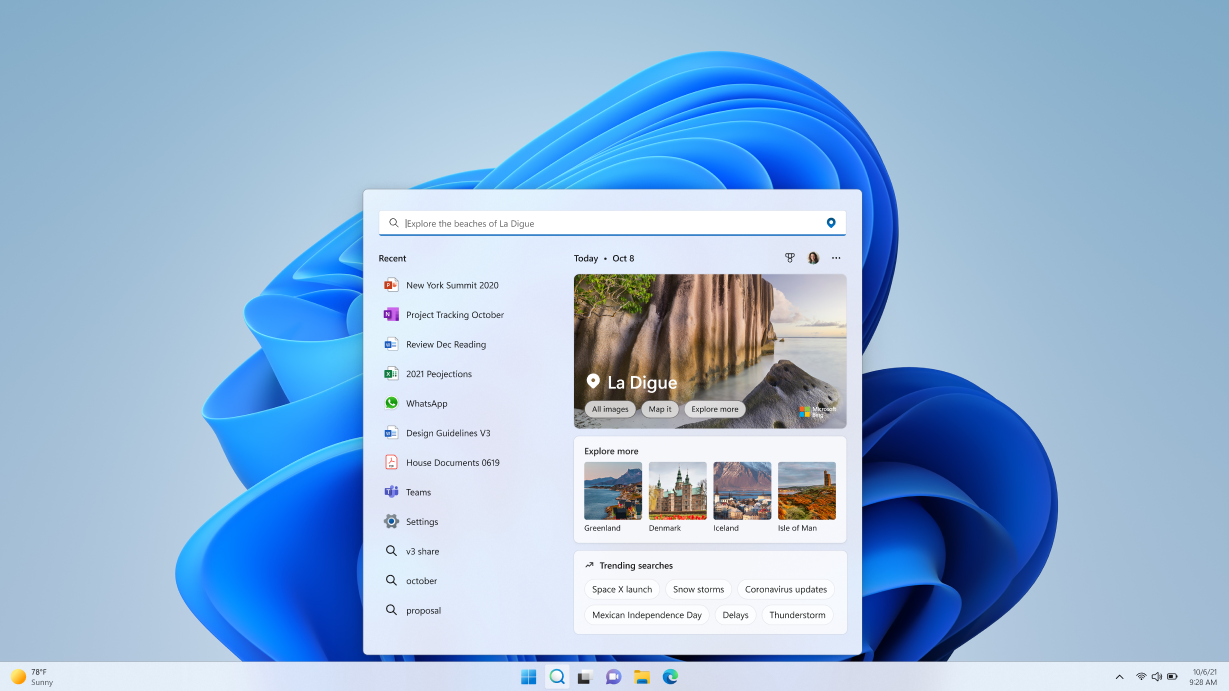
Well, one of the most notable features of Build 22000.778 is that it brings Highlights to the Windows Search component.

This new addition will offer you various notable information about your current days, such as holidays, anniversaries, and others.

And, for corporate customers, Search Highlights will also provide the latest updates and files, among other useful information.

KB5014668 comes with important fixes as well, patching problems such as the inability to update to Windows 11, reconnect to Bluetooth devices, play games that rely on specific audio technologies, or access the Surface Dial settings.

As the Redmond tech giant said, Search Highlights will roll out to Windows 11 customers over the next several weeks.

Seeing how the company is taking a phased and measured approach, broad availability will occur in the coming months. 

Windows 11 search highlights

Improvements and Fixes

  • Addresses an issue that might prevent you from upgrading to Windows 11 (original release). Note that this is related to the timing of certain operations within the OS and is not related to device eligibility.
  • Addresses an issue that might prevent you from playing video clips in some games.
  • Addresses an issue that causes certain games to stop working if they use certain audio technology to play sound effects.
  • Addresses an issue that prevents Bluetooth from reconnecting to some audio devices after you restart the devices.  
  • Changes the name of the Your Phone app to Phone Link on the Settings page.
  • Addresses an issue that causes the Microsoft Surface Dial customization settings page to stop working.
  • Addresses a known issue that might prevent you from using the Wi-Fi hotspot feature. 
  • Adds support for Transport Layer Security (TLS) 1.3 in Windows client and server Lightweight Directory Access Protocol (LDAP) implementations.
  • Addresses a race condition issue that might cause an upgrade to Windows 11 (original release) to fail.
  • Addresses an issue that displays Japanese characters incorrectly in PowerShell.
  • Addresses an issue that affects the Cloud Clipboard service and prevents syncing between machines after a period of inactivity.
  • Addresses an issue that fails to hide the Windows Sandbox startup screen after Sandbox starts to run .
  • Addresses an issue that causes a device that has a Japanese system locale to stop working when you disable end-user-defined characters (EUDCs).
  • Enables the InternetExplorerModeEnableSavePageAs Group Policy. For more information, see Microsoft Edge Browser Policy Documentation.
  • Provides the ability to use a network proxy during Universal Print operations.
  • Addresses an issue that might cause playback of consecutive video clips to fail in games that use DirectX 12 (DX12).
  • Addresses an issue that causes certain games to stop working if they use the XAudio API to play sound effects.
  • Addresses an issue that affects some certificates chains to Root Certification Authorities that are members of the Microsoft Root Certification Program. For these certificates, the certificate chain status can be, “This certificate was revoked by its certification authority”.
  • Addresses an issue that prevents the use of Encrypted File System (EFS) files over a Web-based Distributed Authoring and Versioning (WebDAV) connection.
  • Addresses an issue that causes a domain controller to incorrectly write Key Distribution Center (KDC) event 21 in the System event log. This occurs when the KDC successfully processes a Kerberos Public Key Cryptography for Initial Authentication (PKINIT) authentication request with a self-signed certificate for key trust scenarios (Windows Hello for Business and Device Authentication).
  • Addresses an issue that prevents Bluetooth from reconnecting to some audio devices after you restart the devices.
  • Addresses an issue that occurs when the Active Directory Lightweight Directory Service (AD LDS) resets the password for userProxy objects. When you try to reset someone else’s password and you are authenticated using a simple bind, the password reset fails. The error is like, “00000005: SvcErr: DSID-03380C23, problem 5003 (WILL_NOT_PERFORM), data 0”.
  • Addresses an issue that causes Microsoft NTLM authentication using an external trust to fail. This issue occurs when a domain controller that contains the January 11, 2022 or later Windows update services the authentication request, is not in a root domain, and does not hold the Global Catalog role. The affected operations might log the following errors:
    • The security database has not been started.
    • The domain was in the wrong state to perform the security operation.
    • 0xc00000dd (STATUS_INVALID_DOMAIN_STATE).
  • Addresses an issue that causes the LocalUsersAndGroups configuration service provider (CSP) policy to fail when you modify the built-in Administrators group. This issue occurs if the local Administrator account isn’t specified in the membership list when you perform a replace operation.
  • Addresses an issue in which malformed XML inputs might cause an error in DeviceEnroller.exe. This prevents CSPs from being delivered to the device until you restart the device or correct the XML.
  • Addresses an issue that might cause Windows 11 (original release) to stop working when you install an application and there is no network connectivity.
  • Updates the Start menu to display Windows PowerShell when you right-click (Win + X) the Start button after you have uninstalled Windows Terminal.
  • Changes the name of the Your Phone app to Phone Link on the Settings page.
  • Addresses an issue that causes the Microsoft Surface Dial customization settings page to stop working.
  • Addresses a known issue that might prevent you from using the Wi-Fi hotspot feature. When attempting to use the hotspot feature, the host device might lose the connection to the internet after a client device connects.

This update also adds IP address auditing for incoming Windows Remote Management (WinRM) connections in security event 4262 and WinRM event 91.

It addresses an issue that fails to log the source IP address and machine name for a remote PowerShell connection.

Furthermore, it adds Server Message Block (SMB) redirector (RDR) specific public File System Control (FSCTL) code FSCTL_LMR_QUERY_INFO.

You should also know that KB5014668 makes the SMB client and SMB server cipher suite order configurable using PowerShell.

Known issues

  • After installing this update, some .NET Framework 3.5 apps might have issues or might fail to open. Affected apps are using certain optional components in .NET Framework 3.5, such as Windows Communication Foundation (WCF) and Windows Workflow (WWF) components.

This is what we are getting after installing KB5014668 for Windows 11, which brings the current build to 22000.778.

Have you encountered any other problems after installing KB5014668? Share your experience with us in the comments section below.

MetaMask not Connecting to Local Host? 7 Easy Fixes to Apply

The cryptocurrency market is seeing one of the worst times in its history. While the prices of popular cryptocurrencies like Bitcoin and Ethereum are dipping like anything, there are still many people who are holding onto their shares.

Since the crypto market is a highly volatile one, the risks involved in it are pretty obvious. If you are a crypto owner, then you might have heard of MetaMask.

MetaMask is an open-source crypto wallet. It is web-based, meaning you do not necessarily need to download the software to store your crypto. It is available for different browsers, and all you need to do is create an account.

However, there are several incidents where users have reported that for them MetaMask is not connecting to the local host. There can be several reasons behind this issue, and solutions as well.

This is where this guide comes into the picture. Because here, we will not only explain to you why MetaMask is not connecting to the local host, but we will also give you solutions to fix the problem. Let us check out the guide.

What causes the localhost connection problem in the MetaMask wallet?

Usually, MetaMask is a pretty reliable crypto wallet, and you shouldn’t come across any issues, provided they are because of the server or you are having a bad day itself.

However, being a crypto wallet, it has to connect with multiple hosts in order to keep up with all the activities it offers. If you are having problems connecting MetaMask to OpenSea, then you can check out our dedicated guide on how to solve it.

But, for some technical issues, errors may occur. We tried to deduce what may cause such problems in most situations. After doing some internal research, we have found the following ones:

  • Incompatible version of the browser
  • Incompatible extension installed
  • Browser is outdated
  • The MetaMask server is down
  • Browsing data is causing issues
  • Problematic browser
  • Internet connection issues

Moreover, there can be other technical issues that can cause localhost connectivity issues with MetaMask. Fortunately, you can quickly get rid of it following the solutions mentioned below.

Quick Tip:

You can make transactions and manage your cryptocurrency tokens easier if you use a browser with integrated support for crypto. Opera One has its built-in crypto wallet that’s available on all platforms.

The data is stored securely on your device, the browser doesn’t log your wallet keys or any other sensitive data over the web. Plus this browser comes with built-in VPN and AI.

Opera One

Take care of all your crypto endeavors with this easy-to-use browser with optimal security.
Free Download Visit website

How can I fix MetaMask not connecting to Localhost?

1. Restart your browser

Restarting your browser should be the first thing that you do in order to check if this fixes the MetaMask not connecting to the Localhost error.

Often, due to some browser bug or glitch, it misbehaves and prevents the smooth functioning of related items. In such a case, a very simple yet effective solution that you can apply is to restart your browser.

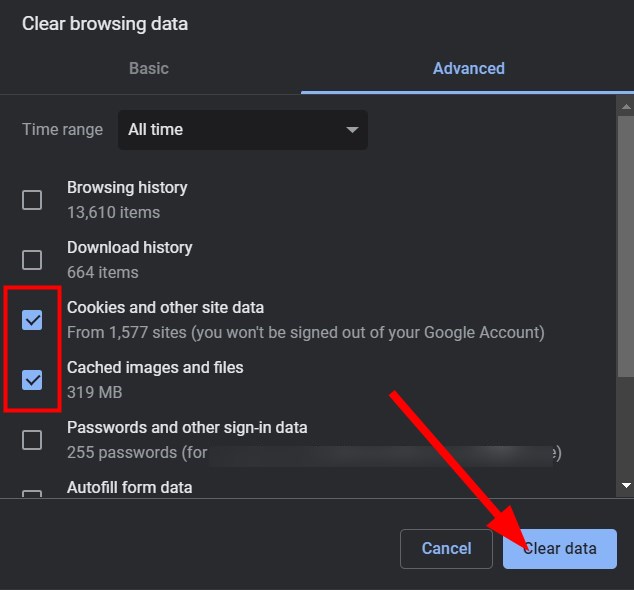
2. Clear browser cache

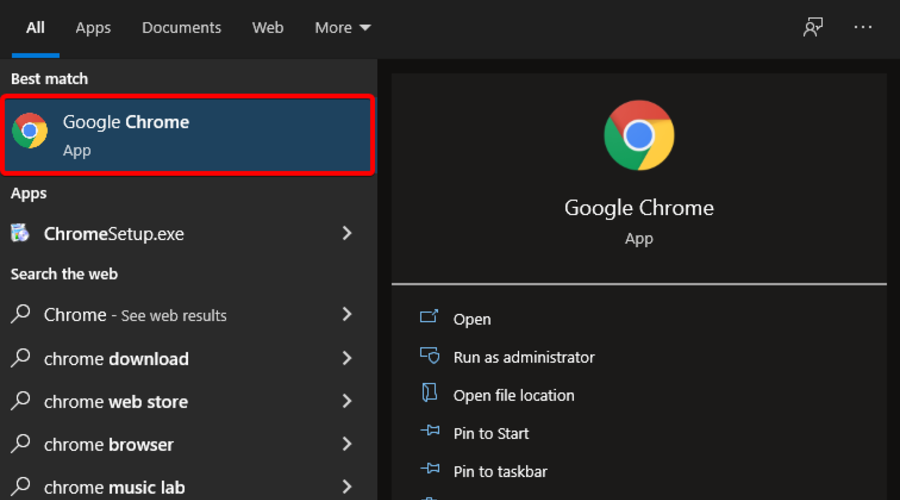
  1. Launch the web browser, for our case, we are using Google Chrome.
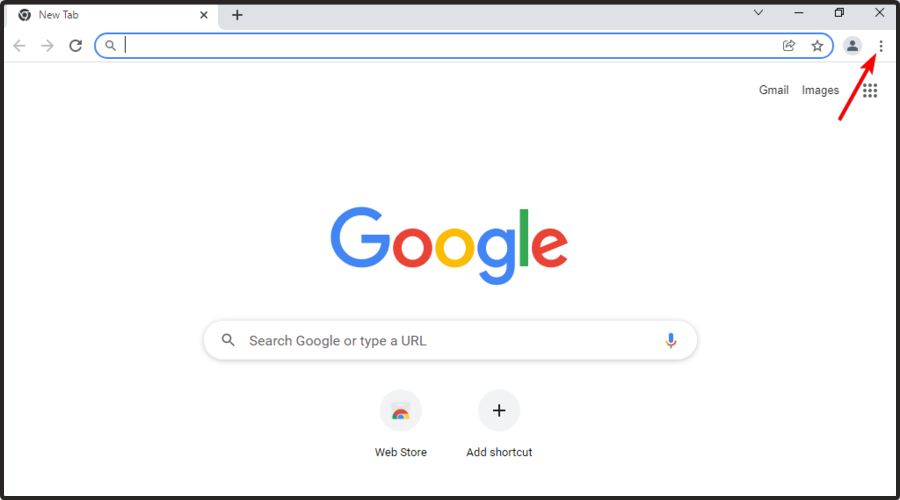
  2. Click on the 3-dot menu icon.
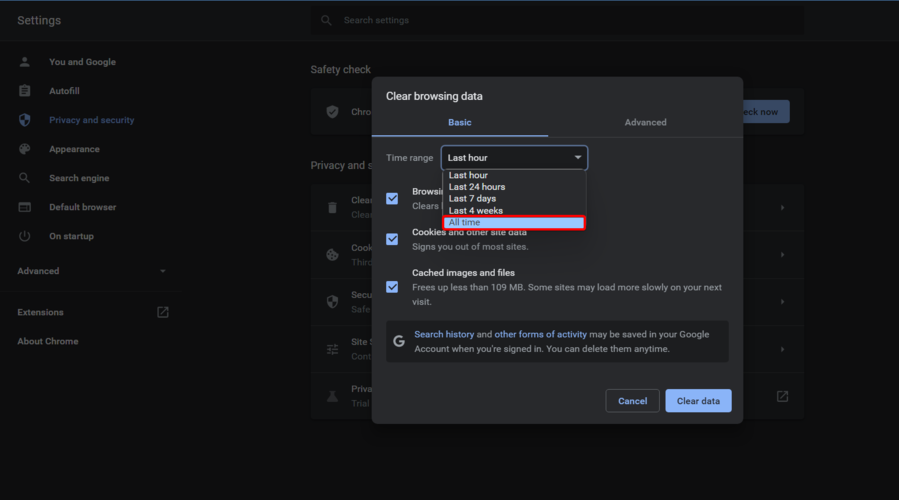
  3. Navigate to More, then to Clear browsing data. Alternatively, you can also click Ctrl + Shift + Del buttons on your keyboard to open the Clear browsing data window.
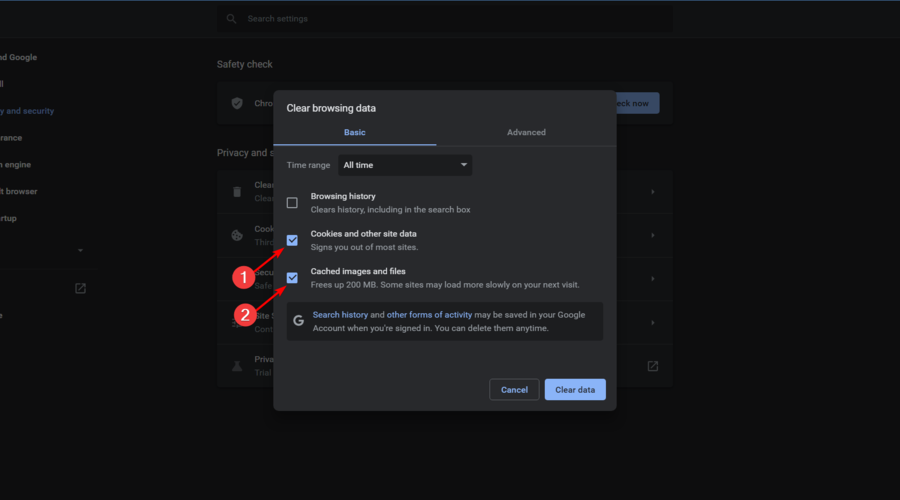
  4. In the Clear browsing data window, make sure to select Cookies and other site data and Cached images and files options.
  5. Hit the Clear data button.

Cached files accumulate over a period of time and, if not cleared often enough, can conflict with the smooth functioning of the browser, ultimately giving rise to multiple issues such as MetaMask not connecting to localhost. Try the above solutions and check if the problem is resolved or not.

Alternatively, you also have the possibility to automatically erase cache or cookie data using a popular cleanup software like CCleaner.

The operation is quite straightforward so you only have to select what browsing data to delete and clear your browser from unused files.

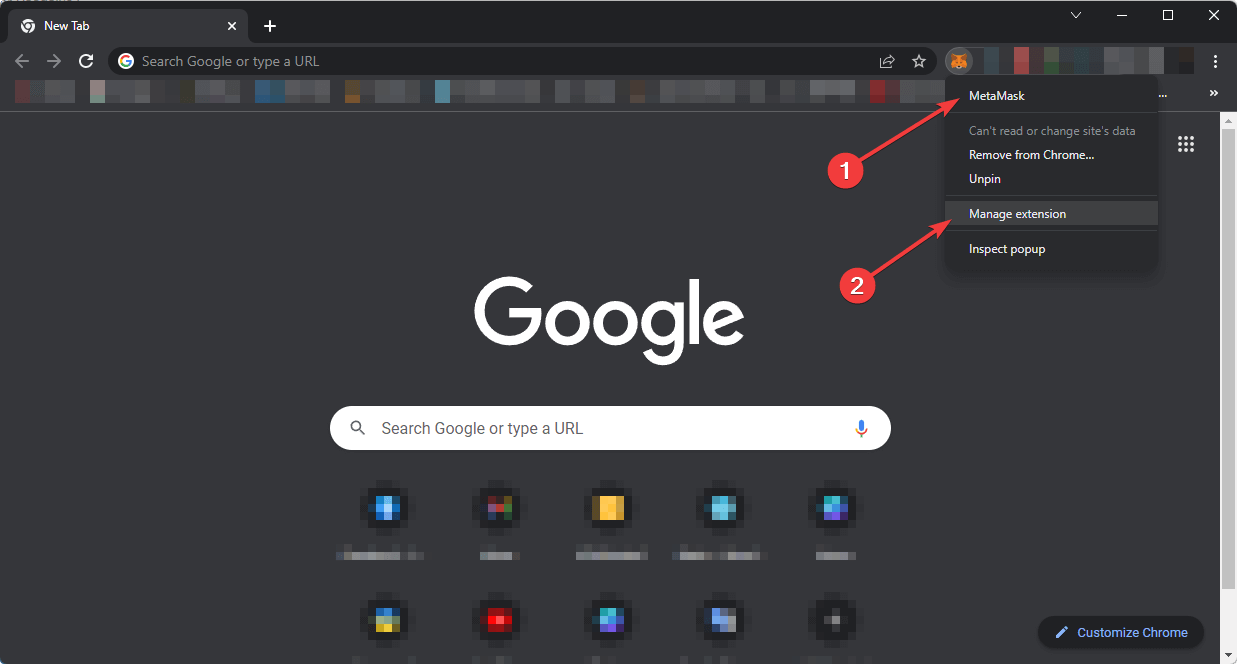
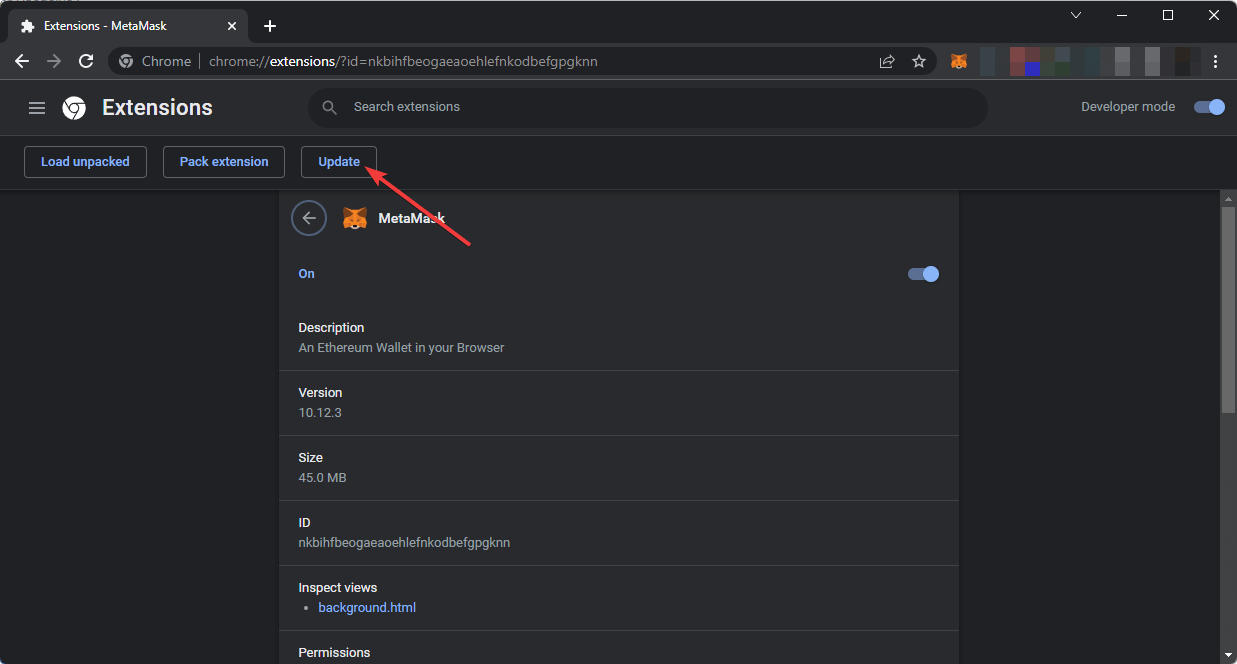
3. Update MetaMask extension

Google Chrome

  1. Launch Google Chrome.
  2. Right-click on the MetaMask extension and click on the Manage extension.
  3. On the top-left, click on the Update button.

Mozilla Firefox

  1. Launch Firefox.
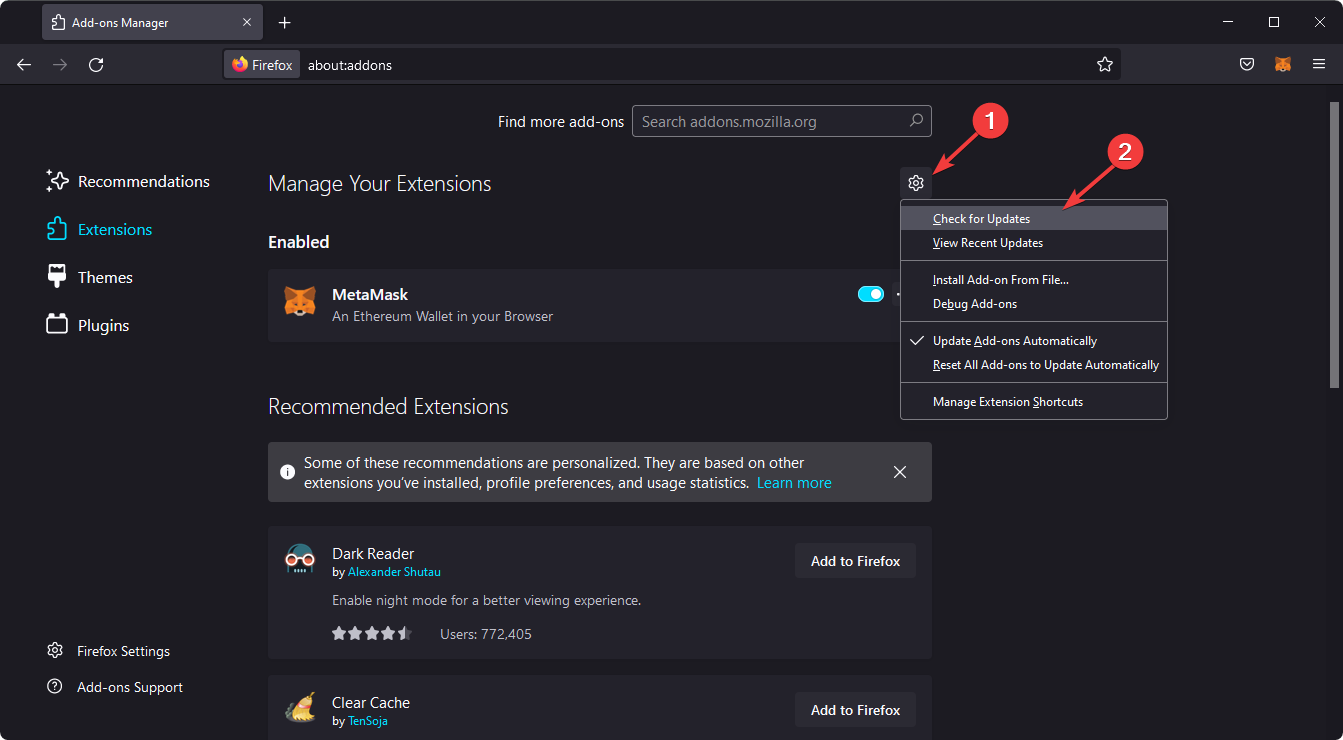
  2. In the address bar, type the below address. about:add-ons
  3. Click on the Gear icon next to Manage Your Extensions.
  4. Select Check for updates.update firefox extensions

Keeping the extensions up to date also ensures that you are enjoying the latest available features related to them.

Since MetaMask is a crypto wallet, you should always keep it up to date to get the latest security, features, and bug fixes that could give rise to multiple issues.

4. Update the browser

  1. Launch Google Chrome.
  2. Click on the 3-dot menu icon.
  3. Select Settings.
  4. Click on About Chrome from the left pane.
  5. Chrome will automatically look for and install the latest updates if it finds anything.
  6. Relaunch Chrome.

Keeping the extensions up-to-date also ensures that you are enjoying the latest available features related to them.

Google rolls out new updates for Chrome quite often, so if the browser does not detect the update automatically, you can follow the steps above and manually check for the Chrome updates and install them to check if this fixes the MetaMask not connecting to the local host issue.

5. Relogin to MetaMask

  1. Open MetaMask on your preferred browser.
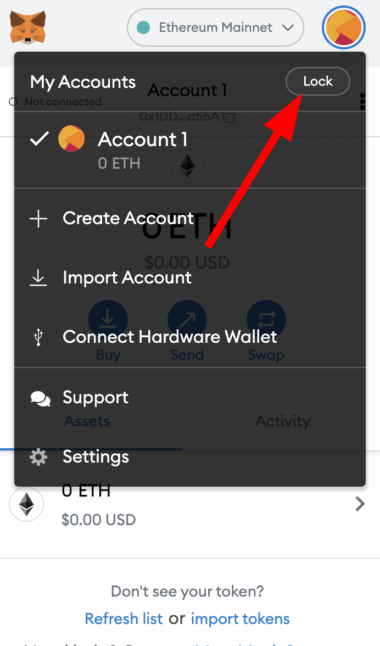
  2. Click on your profile icon.
  3. Hit the Lock button.
  4. Wait for a bit and then login back again to MetaMask and see if this resolves the issue or not.

There are chances that during the previous session, some important files did not load because of the browser.

In such a case, you can log out of your current session, relaunch the browser, and log back in again to MetaMask and see if this resolves the problem or not.

6. Contact MetaMask

If the above solutions, unfortunately, did not help you fix the MetaMask not connecting to the localhost problem, then you can try contacting MetaMask support for help.

MetaMask is known for reliable customer support, and you can reach out to them by visiting the MetaMask support page.

You can get in touch with the team, tell them your query, and possibly get a solution to fix the problem at hand.

7. Reset MetaMask account

  1. Open your browser.
  2. Click on the MetaMask extension icon.
  3. Click on Settings.
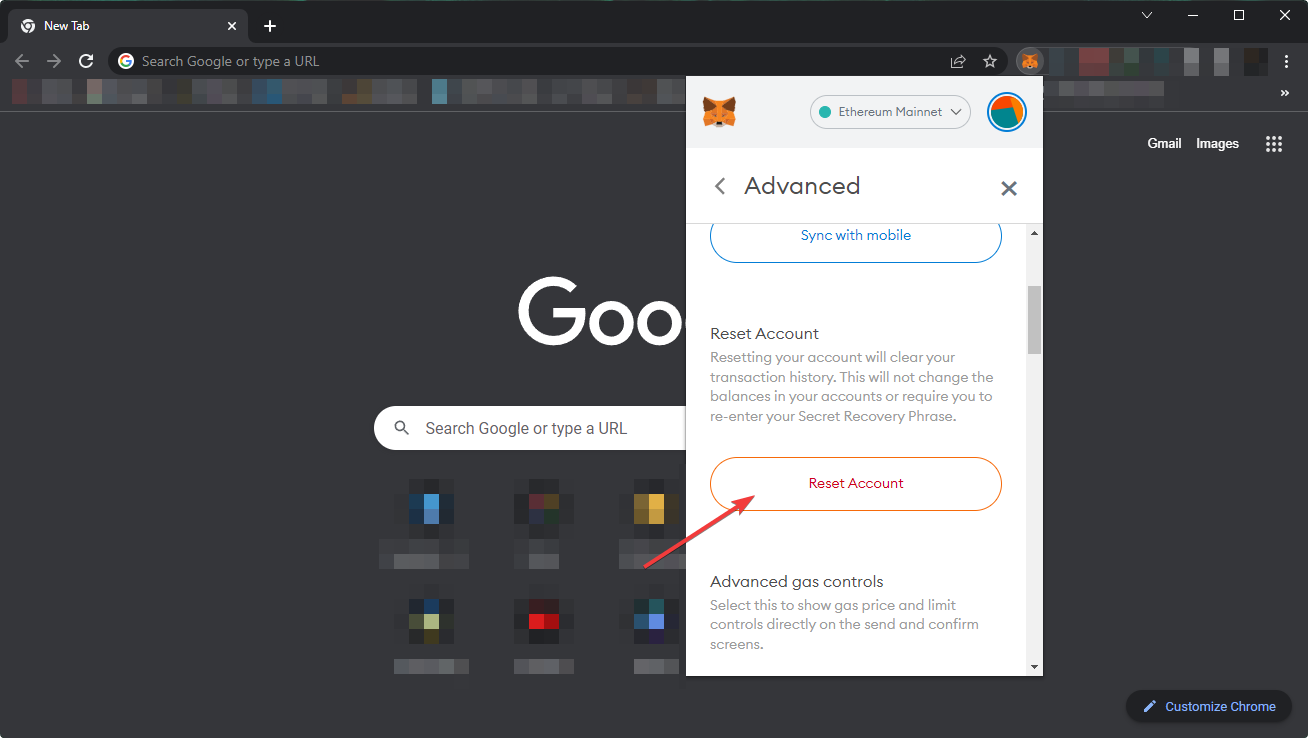
  4. Go to Advanced.
  5. Locate Reset Account and select it.reset metamask account
  6. Relaunch your browser.

If there was an issue with MetaMask then, you can reset your account, and this will fix all the problems pertaining to the connection.

What else can I do to resolve the MetaMask not connecting to the localhost problem?

While the above solutions are effective and should help you fix the problem, if at all nothing works, there are a few more things that you can do and possibly resolve the MetaMask not connecting to the localhost problem.

➡ Check MetaMask server

There are chances that the issue is not from your end but from MetaMask’s end. If the official servers are facing any technical difficulties, then as a result you will also face several issues.

You can visit the MetaMask status page. Here, if you find that any of the services are down, you should wait for the service availability.

➡ Check your internet connection

If your internet is experiencing any issues, then you need to reboot your router and connect it back again to see if this fixes the issue.

Even after doing so, if that doesn’t help, you can contact your ISP and get your internet connection checked to get it working.

There you have it from us in this guide. Let us know in the comments below which one of the above solutions helped you fix the MetaMask not connecting to local host problem.

June’s optional Windows 11 update delivers a new Search Highlights feature to more desktops

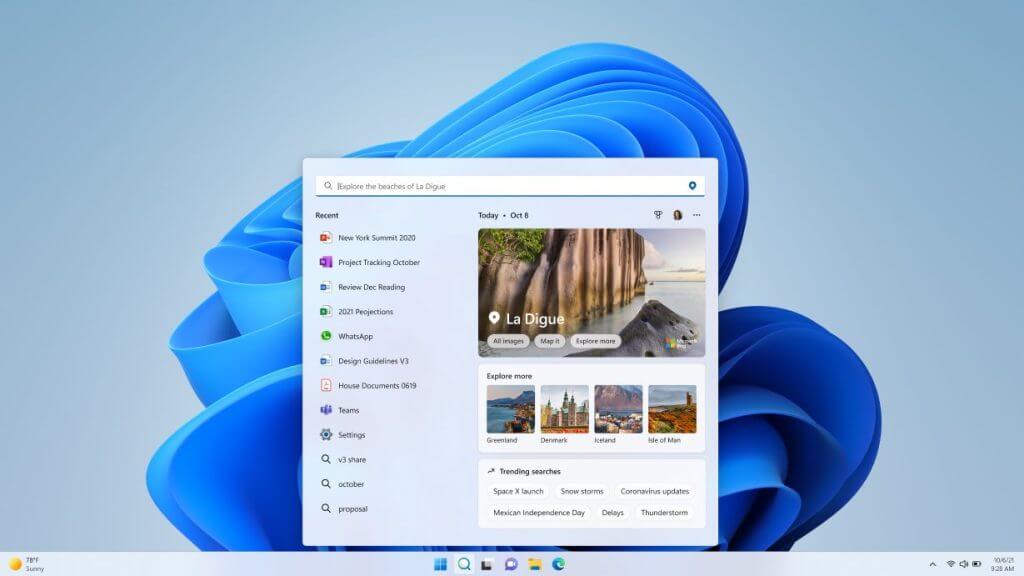
June’s optional Windows 11 preview update is now rolling out. Coming in at KB5014668 (OS Build 22000.778), this update brings a new feature, which is search highlights.

For those unfamiliar, search highlights is a feature for the Windows 11 search box. It will show you notable and interesting moments of what’s special about each day of the year. You’ll see things like holidays, anniversaries, and educational moments in time in your region. That sometimes means seeing a Google doodle-like animation and image in the search box area. Check it out below.

Enterprise users, meanwhile, will end up seeing the latest updates from their organization, related to files and people. If you don’t like the feature, you can turn it off. Just change the “show search highlights” toggle, under privacy and security, and search permissions in Windows 11’s settings. Other than search highlights, this preview update brings a ton of other fixes and improvements to Windows 11. Here’s some of the scoop, and you can check the full changelog at Microsoft.

  • New! Adds IP address auditing for incoming Windows Remote Management (WinRM) connections in security event 4262 and WinRM event 91. This addresses an issue that fails to log the source IP address and machine name for a remote PowerShell connection.
  • New! Adds Server Message Block (SMB) redirector (RDR) specific public File System Control (FSCTL) code FSCTL_LMR_QUERY_INFO.
  • New! Makes the SMB client and SMB server cipher suite order configurable using PowerShell.
  • Addresses an issue that might cause playback of consecutive video clips to fail in games that use DirectX 12 (DX12).
  • Addresses an issue that prevents Bluetooth from reconnecting to some audio devices after you restart the devices.
  • Addresses an issue that might prevent you from upgrading to Windows 11 (original release). Note that this is related to the timing of certain operations within the OS and is not related to device eligibility.
  • Addresses an issue that fails to hide the Windows Sandbox startup screen after Sandbox starts to run .
  • Addresses an issue that might prevent you from playing video clips in some games.
  • Addresses an issue that causes certain games to stop working if they use certain audio technology to play sound effects.
  • Addresses an issue that prevents Bluetooth from reconnecting to some audio devices after you restart the devices.
  • Changes the name of the Your Phone app to Phone Link on the Settings page.
  • Addresses an issue that causes the Microsoft Surface Dial customization settings page to stop working.
  • Addresses a known issue that might prevent you from using the Wi-Fi hotspot feature.
  • Addresses an issue that displays Japanese characters incorrectly in PowerShell.
  • Addresses an issue that afffects the Cloud Clipboard service and prevents syncing between machines
  • Addresses a race condition issue that might cause an upgrade to Windows 11 (original release) to fail.

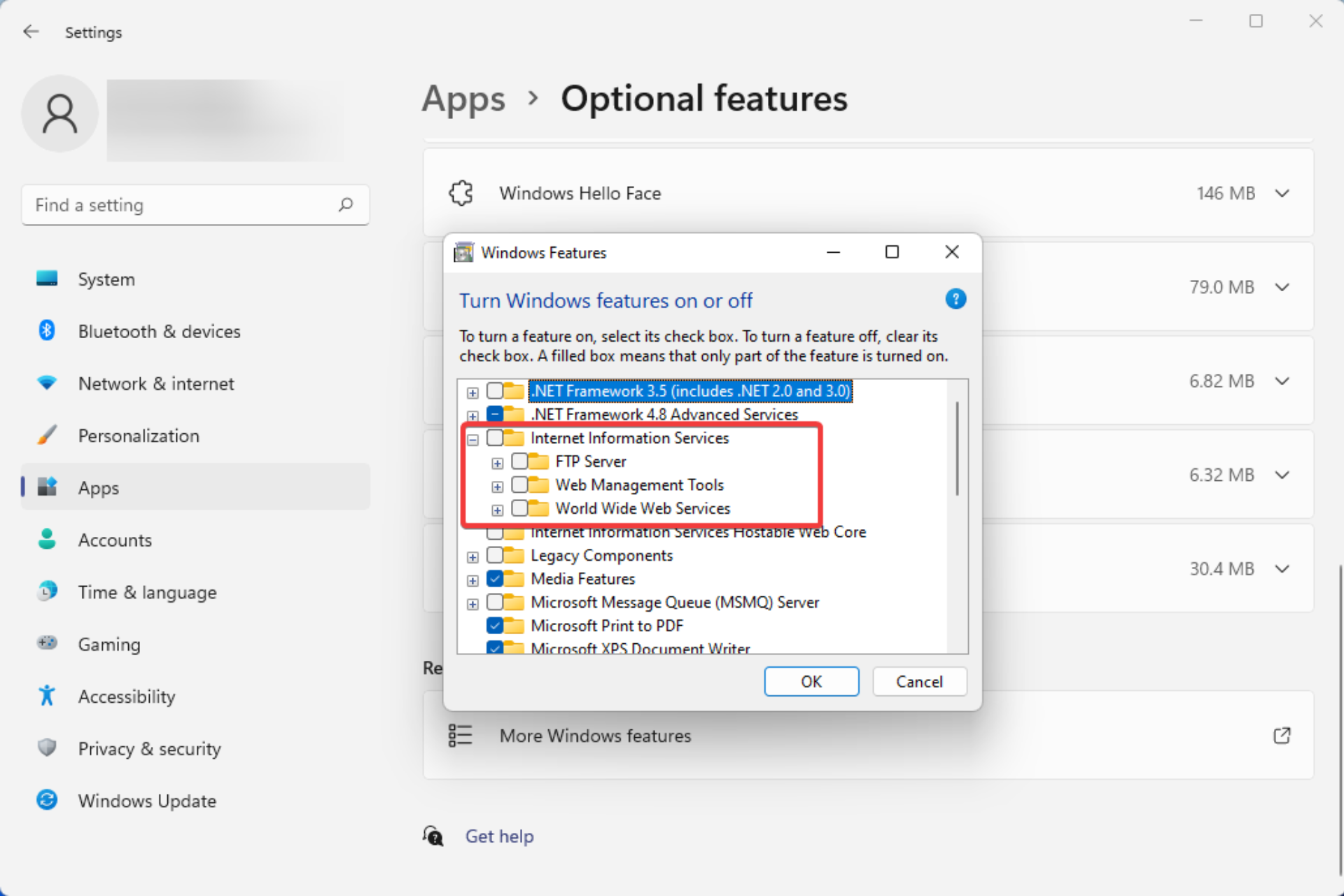
There’s one known issue in this update, where some .NET Framework 3.5 apps might have issues or might fail to open. You’ll need to fix this by re-enabling .NET Framework 3.5 and the Windows Communication Foundation in Windows Features. Note that this update also brings Windows 11 servicing stack update – 22000.761, too. This ensures that you have a robust and reliable servicing stack so that your devices can receive and install Microsoft updates.

10 Confirmed Methods to Lower CPU Usage in Vivaldi

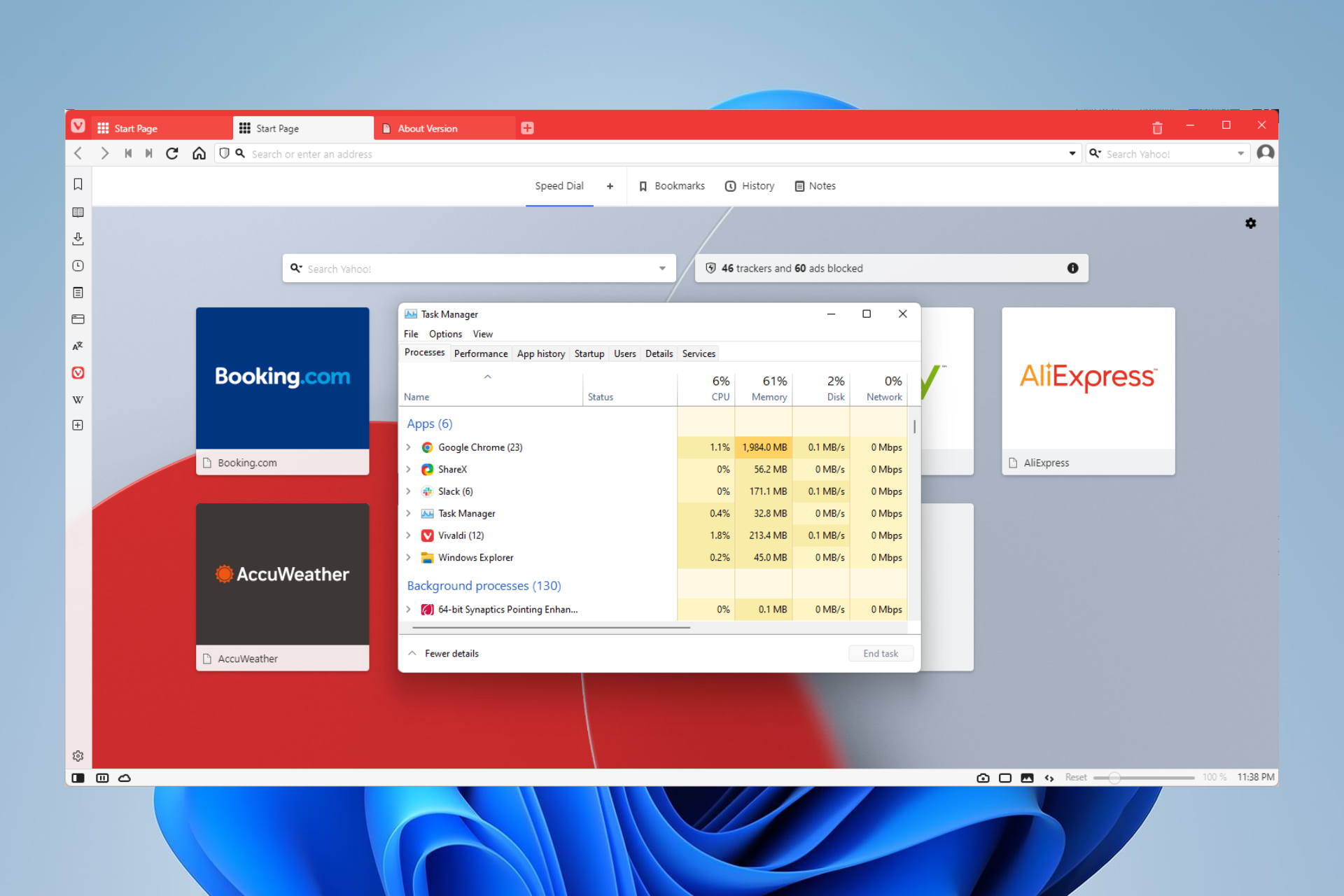
In this article, we explore Vivaldi’s high CPU usage. Browsers have evolved a lot since the 90s. In fact, from being able to view only static pages, they can now render all sorts of media types.

This growth in functionality has taken a toll on its resource efficiency. Most modern browsers will require a powerful computer with a lot of memory and CPU strength.

Sometimes, the browsers become buggy and use up more resources than usual. In this article, we shall explore the Vivaldi web browser and give the best fixes for its high CPU usage.

Some other users have experienced issues with Vivaldi not loading pages; this also can be fixed in a few simple steps.

Why is my browser CPU usage so high?

There are a few reasons why your browser CPU usage is high. Here are a few common culprits:

  • Browsing unoptimized websites – Poorly coded websites may have too many autoplay videos and ads.
  • Too many extensions – If you run many demanding extensions, they will take a toll on the CPU.
  • Many browser tabs open – Some browsers consider tabs as separate computer processes. When you have too many open, they consume so much memory and CPU resources.
  • Watching videos in high resolution – The more tabs playing videos or streaming, the more CPU they will take up.
  • Malware infections – Malware can make your computer open unnecessary tabs.

Does CPU affect Web browsing speed?

The workload of your CPU will determine your Internet speed. If the CPU has to process several processes, it will lag in loading pages or playing web content.

Quick Tip:

Some browsers have high CPU usage, however, some have additional settings that you may toggle to set minimal CPU consumption.

Opera One is one such browser that may help with browsing speed and resource use with a single click. Also, the browser features a built-in energy saver mode. This reduces CPU load and makes other changes such as lowering background tab activity and halting unnecessary plugins to enhance laptop battery life.

Opera One

Forget about page freeze or slow loading times with this light and rocket-speed browser.

How do I fix high CPU usage in Vivaldi?

1. Relaunch the browser

Closing and reopening a browser helps many processes to shut down properly. It will be all you need to reduce CPU usage in minor cases.

2. Restart the computer

This makes it a further step after you must have restarted the browser. A PC restart forces every running process to shut down. It also erases temporal memory so that everything gets a reboot at the restart.

After a reboot, if the problem persists, try other fixes.

3. Get rid of excess extensions

  1. Launch the browser and navigate to the below link in the address bar:
    vivaldi://extensions
    vivaldi high cpu usage
  2. Click the Remove button to get rid of any unwanted extension.
  3. Restart the browser and check to see if the CPU usage is reduced.

4. Clear the browsing history and cache

  1. Click on the Vivaldi icon at the top left.
    vivaldi high cpu usage
  2. Navigate to Tools, then Delete browsing data.
    vivaldi high cpu usage
  3. Select a time frame in the Delete Data for dropdown menu, tick the checkboxes for Browsing History, Cookies, and Cache, then click on the Delete button.
    vivaldi high cpu usage
  4. Restart the browser and see if the CPU usage has been reduced.

5. Close unused open tabs

As previously mentioned, plenty of open tabs could impact CPU usage. If you notice you have many unused open tabs, you should close them all and check if it reduces the used processing resources.

6. Disable or cancel any unwanted tab features

  1. Click on the Settings gear at the top right of the Start page.
    vivaldi high cpu usage
  2. Scroll to the bottom and click Open Start Page Settings.
  3. Click on the Tabs option on the left pane, then go through the settings on the right side and disable anyone you may not need.
  4. Once done, restart the browser and verify if the high CPU usage is corrected.

7. Remove the web panel feature

  1. Launch your browser.
  2. Right-click on the Vivaldi icon on the left pane.
    vivaldi high cpu usage
  3. Click on the option to Remove Web Panel.
  4. Relaunch the browser and verify if the CPU usage has dropped.

8. Update Vivaldi

  1. Click on the Vivaldi icon at the top left.
    vivaldi high cpu usage
  2. Navigate to Help, then click Check for Updates.
  3. If you are not updated, you will have the option to Update Vivaldi.

9. Reset Vivaldi settings

  1. Click on the Vivaldi icon at the top left.
    vivaldi high cpu usage
  2. Navigate to Help, then About.
  3. Copy the directory listed under Profile Path:
    C:\Users\afamo\AppData\Local\Vivaldi\User Data\Default
  4. Close your Vivaldi browser.
  5. Open your file explorer and navigate to the Vivaldi folder. In our case it will be:
    C:\Users\afamo\AppData\Local\Vivaldi
  6. Delete the User Data folder.
  7. Restart your browser.

10. Reinstall a fresh copy of Vivaldi

  1. Click on the Start menu, type Vivaldi in the search box, and click on the Uninstall option.
    vivaldi high cpu usage
  2. Follow the prompts to uninstall.
  3. Download a fresh copy of Vivaldi.
  4. Once the download is complete, click on the downloaded file and follow the prompts to install it.

How much CPU should Vivaldi use?

There is not a specific value because the CPU used depends on different factors like the kind of content it is rendering, the kind of websites visited, the number of open tabs, etc.

We expect between 4 and 15% on CPU usage with a single tab playing a YouTube video. Browser high CPU usage on startup means you are clocking CPU percents higher than this.

High CPU usage can lead to computer crashes. If you get as high as browser 100 CPU usage, then you must shut down the browser, uninstall it, and reload a fresh version.

Also note that while we have not written these fixes in any particular order, it is advisable to start by relaunching the browser or restarting the computer, before moving to any other solutions.

Lastly, note that Vivaldi running slow may be a sign of high CPU usage, and should be fixed immediately.

Microsoft Edge 103 is now in the stable channel with no big new features

Microsoft Edge version 103 has hit the stable channel for everyone to download. Other than the gaming features like Clarity Boost and Gaming Hub, this release doesn’t bring any major new features and is a security-centric update.

According to Microsoft, there are four notable feature updates in Edge 103, though these aren’t really for consumers. The first is the ability to control automatic profile switching. A second is a client certificate switcher. The third is a more reliable web defense. Lastly, there’s the work search banner in the Edge address bar. Check it out below.

  • The GuidedSwitchEnabled policy lets Microsoft Edge prompt the user to switch to the appropriate profile when Microsoft Edge detects that a link is a personal or work link.
  • Client Certificate Switcher. This feature will offer a way for users to clear the remembered certificate and resurface the certificate picker when visiting a site requiring http certificate authentication. Switching can be done without manually quitting Microsoft Edge.
  • Browse the web with more reliable protection thanks to the rewritten Microsoft Defender SmartScreen library for Microsoft Edge on Windows. The NewSmartScreenLibraryEnabled policy will allow enterprise customers to continue using the legacy version of the library until it’s deprecated in Microsoft Edge version 105.
  • Work Search Banner in the Microsoft Edge address bar. This banner helps you stay in the flow of your work by narrowing your search focus to work-only results.

There are also four new policies in this build, related to guided switch, internet explorer mode zoom, live captions, and origin keyed agent clustering. As for the security features and patches, you can learn more about that over at Microsoft’s blog.

Browser FTP Not Working? 3 Easy Fixes to Apply Now

You have stumbled on this guide because your browser FTP is not working. File Transfer Protocol (FTP) is one of the earliest standard network protocols we still use to build bridges between two devices so they may share data.

The technology dates back to the early days of the Internet. When you merely wish to download or see the files hosted on an open FTP server, the FTP connection through a web browser approach is often employed.

Note that you can easily avoid FTP issues using automated FTP software.

Do browsers still support FTP?

The file-sharing protocol is one of the earliest internet protocols. It is only expected that after years, technology would have evolved. As a result, many browsers will no longer support FTP.

Using FTP, credentials like usernames and passwords may be sent in plain text, posing a security risk.

Why does FTP not work in Chrome?

Like many major browsers, Chrome no longer supports the file-sharing protocol. So off the box, unless you do some settings tweaks, you would not be able to use FTP on the Chrome browser. Instead, safer options like SFTP, FTPS, and HTTPS are adopted by browsers.

Why is FTP not working in Firefox?

In 2021, Firefox followed the example of many browsers and cut off support for FTP. This means by default, you will not be able to use the protocol.

Note that browser FTP is not working in Edge as well.

What can I do if browser FTP is not working?

1. Download and use an FTP client

Download any popular FTP client and use it in the place of a browser.

Many individuals have benefited from utilizing FTP clients like FileZilla throughout the years. Here are a few benefits of this transfer technique:

  • Multiple files and folders may be transferred with it
  • If a connection is lost, you may continue a transfer
  • Items can be queued up to be downloaded or uploaded
  • Transfers may be pre-scheduled
  • No size restriction applies to single transfers like in browsers, where you can only transfer up to 2 GB; it has command-line capabilities for scriptinp

2. Enable FTP on your computer

2.1. How to enable FTP on Windows 11

  1. Click on the Start menu and select the Settings app.
  2. Select Apps from the left pane and click on Optional features on the right pane.
    browser ftp not working
  3. Scroll to the bottom and select the More Windows features option.
    browser ftp not working
  4. Expand the Internet Information Services option, tick the FTP Server, Web Management Tools, and World Wide Web Services checkboxes, then click the bottom OK button.
    browser ftp not working
  5. Finally, restart your system, and you should have FTP working on Windows 11.

This should be an alternative for problems of browser FTP not working in Windows 11. In the past, you could enable FTP on Chrome using the experimental flags. Now that feature has been done away with, and the enable-FTP flag is not found in Chrome anymore.

2.2. How to enable FTP on Windows 10

  1. Right-click on the Windows Start menu and select the Control Panel option.
    browser ftp not working
  2. Choose the Programs and Features option.
  3. On the left pane, click on Turn Windows features on or off.
  4. Expand the Internet Information Services option, tick the FTP Server, Web Management Tools, and World Wide Web Services checkboxes, then click the bottom OK button.
  5. Restart your PC.

You should try this for problems with the browser FTP not working on Windows 10.

2.3. How to enable FTP on Mac

  1. Navigate the Apple menu and then System Preferences.
    browser ftp not working
  2. Click the Sharing menu, then tick the checkbox for FTP Access on the Services tab.
  3. Restart the computer. If Safari FTP URLs are disabled, you may be able to reaccess them.

You should try this alternative for cases of browser FTP not working on Mac.

3. Use a different transfer protocol

Since FTP is phased out, you should consider using a different browser transfer protocol if you do not use a dedicated FTP client.

HTTPS or SFTP are two options that you may try.

How do I access my FTP through my browser?

  1. Launch the web browser.
  2. In the URL locator, type the FTP Server’s IP address or hostname followed by a colon and the FTPs listening port number. It should look something like this:
    ftp://ftp.example.com:524245
    browser ftp not working
  3. Hit Enter.
  4. If prompted, input the user name and password for the account, and you should have access.

We highly recommend you opt for better file transfer protocols. By enabling it on your operating system, as we have shown above, you can use other services that support the protocol. Additionally, note that you can fix any errors of the Windows 10/11 FTP client not working in a few steps.

However, with browsers discarding this functionality, it is a sign that you should not be using FTP.

And please, let us know if this article was helpful in the comments section.

6 Best Spotify Browser Extensions to Download for Free

Spotify is a digital music, podcast, and video service that offers access to millions of songs and other content from creators all over the world. Essential functions such as playing music are free, but you can also upgrade to Spotify Premium.

One best feature of Spotify is its cross-platform availability, including computers, phones, tablets, speakers, TVs, and cars, and you can easily transition from one to another with Spotify Connect.

But despite all these features, there are some things like ads and mini-players that Spotify doesn’t offer. However, it is possible by using some browser extensions. You can also access many other features using different Spotify browser extensions.

Keep reading this post to learn about the best Spotify browser extensions to download for free.

How do I download Spotify extensions?

Downloading Spotify extensions is a straightforward task. All you need to do is open the dedicated extension store for your browser and add the extension to your browser.

On Google Chrome, you’ll have to open the Chrome Web Store, and on Firefox browser Add-Ons on Firefox.

Is there a Spotify extension for Chrome?

There is a Spotify extension on the Chrome Web Store named Spotify Player. This extension lets users stream and navigate between songs easily from their browsers.

This extension offers a mini Spotify player that allows the user to seamlessly play/pause/like/repeat or jump to the previous or next track while surfing the web without navigating to the Spotify user interface.

What are the best browser extensions for Spotify?

Opera One Player – Integration of music players

The Opera One Player is a browser-based integration that allows you to access your favorite streaming services such as Spotify, Apple Music, and YouTube Music.

With so much of our lives taking place online these days, music streaming apps are more popular than ever. However, maintaining several streaming applications or tabs may be time-consuming.

We’ve all experienced the discomfort of music playing over a movie we want to watch. Opera One had the brilliant idea of integrating these platforms into applications to serve as your virtual assistant.

When you start streaming a movie or an audio file in a tab, the Player pauses and instantly restarts music playback when you stop other audio from other players.

Some key features of Opera One are:

  • Easy playback control
  • Numerous sidebar integrations
  • Alternate between streaming platforms
  • Manageable from a single screen
  • Cross-platform

Opera One

On the same screen, you can listen to Spotify and browse without having to manage numerous devices, tabs, or apps.

Spotify Player – Music for every moment

spotify browser extension

The Spotify Player allows users to play, pause, like, repeat, or navigate to a different song. You aren’t required to open the Spotify web player or desktop app.

To use this extension, you will have to keep the Spotify desktop app or the Spotify web player running in the background. It can also make the background and text color according to the song’s photo palette.

Some key features of Spotify Player are:

  • Pause, Play, Previous, Next song
  • Control volume
  • Like the song
  • Repeat
  • Open the Spotify desktop app when it’s not opening

⇒ Get Spotify Player for Firefox

⇒ Get Spotify Player for Chrome

Spotless – Effortless Spotify

Spotless

Spotless extension is a gift for users who are too annoyed with ads on Spotify. Using Spotless, you can also navigate between songs, search for your favorite songs, pause, play and repeat songs without having to open its dedicated app or web app and access Google Chrome Spotify free.

What differentiates Spotless from other Spotify players is that it allows users to control their Spotify player no matter the device they are using.

Some key features are:

  • Easy navigation between songs
  • Repeat and shuffle songs from playlists
  • Adjust volume
  • Search for different songs

⇒ Get Spotless for Chrome

SpotiAds – Remove audio ads

spotify browser extension

Ads are annoying, right? It feels incredibly annoying if ads suddenly start playing on Spotify while you’re driving or working out. SpotiAds web extension can block annoying audio ads from playing while you stream songs and podcasts on Spotify.

Using it, ads won’t play on Spotify’s online web player; instead, the next song will play. Note that this will not affect your smartphone, etc. Also, this Spotify browser extension is safe to use and doesn’t collect users’ data in any manner.

Some key features include:

  • Blocks annoying ads
  • Incredibly simple to use
  • Intuitive navigation
  • Focuses on security


⇒ Get SpotiAds for Chrome

SpotifyTree – Full access to playlists

Spotifytree

SpotifyTree is an extension for Firefox that provides playlists and saved albums in a tree view. It also allows users to control the Spotify Web Player using a popup. Thanks to this, you don’t need to switch to the web player every time they need to switch a song.

Note that this Spotify browser extension needs to be authorized by Spotify. It is one-time access that can be revoked anytime using your Spotify account. 

Some key features of SpotifyTree are:

  • Playlists in Tree view
  • Enhances browsing experience
  • Shows playback info
  • Easy and convenient to use

⇒ Get SpotifyTree

Several users complain about the fact that they are unable to use Spotify. Rest assured that our guide shows you what to do if that happens.

Quickify: Spotify Web Player

spotify browser extension

Quickify Spotify extension Firefox offers a quick way of interacting with the Spotify Web Player without losing the context of your current webpage.

Using this Spotify browser extension, you can control your Spotify Web Player experience from the comfort of any other page you are currently browsing. It now supports play/pause, next/previous track, save a track, shuffle, repeat, focus Spotify tab.

Some key features of Quickify are:

  • One-click search on Spotify
  • Allows search using right-click
  • It shows results on either the desktop app or web player

⇒ Get Quickify for Firefox

How do I use Spotify extensions?

Using the Spotify browser extension on your browser is an easy task. Below are steps to do so on Chrome and Firefox:

On Google Chrome

  1. Once the extension is installed, click on the Extensions icon in the top right corner.
  2. Now select the extension you want to use.
    spotify browser extension

On Firefox

  1. Once the extension is installed, its icon will appear in the top right corner.
  2. Click on the icon, and the extension will start running.
    Firefox extension

These were the five best Spotify browser extensions. Among the above-mentioned, Spotify Player and SpotiAds are the two most recommended ones you can try.

Let us know your choice in the comments area below.

10 Best Browsers for Asus Laptops [Fast & Lightweight]

Regarding browsers, users know of only a few and stick to these, but there are various options. To help you find the right one, we have decided to list the ten best browsers for Asus laptops.

There are several factors to consider when choosing a browser: performance, ability to customize, availability of built-in VPN, and resource consumption. There are a lot of relatively less popular browsers that outperform the common ones in all these aspects.

So, let’s find out all the popular options and the best browser for an Asus laptop.

Is Microsoft Edge a good browser?

Microsoft Edge, a Chromium-based browser, is indeed a great option. It offers a bunch of customizations and does not consume a lot of system resources.

Microsoft Edge

According to various test results, Microsoft Edge is as fast as Chrome but uses considerably less RAM. So, if you are using a low-configuration laptop, Microsoft Edge would be a good choice. But it certainly won’t be the best!

Is Edge better than Opera One?

Though Edge is better than many browsers, Opera One outperforms it in almost all aspects. Opera One offers built-in features like VPN, ad blocker, battery saver, and more, which makes it one of the best available options for all computers.

Opera One also provides the best security standards. And with WhatsApp, Instagram, and Messenger just a click away, ease of accessibility on Opera One has always been a significant talking point.

So, if you were to choose between Microsoft Edge and Opera One, we would recommend the latter but you can always try them out and select the one that best meets your requirements.

What is the best browser to use on my Asus laptop?

Opera One – Simply the best choice

Opera One has proven to be one of the most dependable and reliable user browsers. It has several built-in features that help you organize your browsing and be one click away from critical social media and messaging apps

The built-in adblocker reduces the amount of data to be loaded, thus reducing the loading time of a webpage. In addition to that, the crypto wallet, AI, and VPN features help users browse and utilize the web more safely and smartly.

Besides, Opera One is one of the few browsers that offers volume control in Picture-in-Picture mode, so you don’t have to head back to the original tab to change that. In all, Opera One is the best browser for Windows 11.

Opera One

Consider this featured browse and have quicker online navigation plus security enhancements on your Asus laptop.
Free Download Visit website

UR Browser – The best lightweight browser

UR Browser falls in the category of lightweight browser, though its performance is just as good as any. It does offer built-in adblockers and disabled trackers, making it quite a catch for privacy-oriented users.

Also, it comes with a built-in VPN to mask your identity while browsing the web, so users don’t need to install third-party tools for that purpose.

UR Browser would be a good choice for computers with low specifications since it doesn’t require considerable memory or processing speed to function.

UR Browser

Navigate on a multi-level privacy browser and stay secure from risky cyber threats out there.

Microsoft Edge – Microsoft’s recommended browser

Microsoft Edge is the recommended browser in Windows by Microsoft. Also, it’s now a part of the Windows package, so you don’t need to install it separately. It has everything to make it to the list of best-performing browsers.

Edge’s privacy settings are top-notch, allowing users to browse the web without the fear of being tracked. Also, it comes with an Immersive Reader mode, where the colors turn slightly warmer thus reducing the strain on your eyes. The new Microsoft Edge also has an inbuilt Math Solver feature.

Besides, the low-resource consumption functioning of Edge is one of the primary reasons why users go with it.

⇒ Get Microsoft Edge

Google Chrome – Outstanding performance and user-friendly interface

Chrome has by far the maximum users with the number currently at around 2.65 billion and growing every day. This should give you a fair idea of how popular Google Chrome is.

It has a user-friendly interface, is super quick with actions, doesn’t easily run into compatibility issues, and is the fastest browser for Windows 10. Besides, the availability of a large number of extensions allows users to easily add functionality to the browser.

Chrome wouldn’t be an ideal choice if you are into gaming or want a ton of built-in features, but it’s the best available option for basic use. Though it does consume a lot of resources while running.

⇒ Get Google Chrome

Mozilla Firefox – Simple, safe, and secure

Mozilla Firefox is another highly preferred browser amongst users. And, the updates over the years have made it only better.

The fact that it’s open-source makes it easy for tech-savvy users to identify issues and report them, thus helping the browser eliminate even the most trivial of the problems. It offers every feature that any other browser on the list does.

Besides, its private mode is one of the safest and most secure of all.

⇒ Get Mozilla Firefox

Brave – One of the most secure browsers

Brave is one of the best privacy and security-oriented browsers that doesn’t share or sell your data. It has built-in adblockers and will disable any attempts made by trackers. Also, Brave is super fast and light, so it would run just as well on any computer.

Also, it rewards users in the form of BAT (Basic Attention Tokens) for viewing curated ads, but these don’t cover any critical part of the screen or create an obstruction to your workflow. It is one of the USPs of Brave, get rewarded for browsing. Though you can disable these.

⇒ Get Brave

Vivaldi – Does not compromise with privacy

Vivaldi is a feature-loaded browser with a special focus on privacy. It doesn’t track what users browse or keep a log of it. Some even call it better than Chrome when it comes to ensuring privacy.

Vivaldi too is a lightweight browser, but it doesn’t look that way when you consider its performance or the plethora of available features. It would be one of the best browsers for Asus laptops.

⇒ Get Vivaldi

SeaMonkey – Small size and low resource consumption

SeaMonkey is a relatively less popular web browser but that’s because it is versatile and offers contributors a chance to write the code and add features to it as add-ons. Besides, it doesn’t take up a lot of storage space or consume substantial memory, making it a desirable option.

So, if you are into coding and would like to contribute or simply use SeaMonkey to browse the web, download it today.

⇒ Get SeaMonkey

Thorium – A great Chrome alternative

Let’s face it! Chromium browsers are great and efficient, but they don’t really spare your resources. That’s because they come with lots of added features that you may need or not.

Thorium is based on Chromium, but it’s stripped down to its essentials, just like a drag racing car that only needs an engine and a roll cage.

Its developer claims that Thorium is the fastest browser in the world, with an 8 to 38% performance improvement over the vanilla Chromium, which is impressive.

However, if you’re a developer, you can use it as a testbed for anything because it’s open-source software.

Thorium might be great for achieving lighting-fast speeds, but it lacks many features that the more popular browsers from this list come with. Nevertheless, it’s worth trying it.

Other great features:

  • Based on Chromium
  • Available on various platforms
  • Supports legacy operating systems
  • Incredibly fast

⇒ Get Thorium

Tor Browser – Secure and offers limitless possibilities

Tor is by far the most secure browser in the market. It deletes the browsing history and cookies after every session, so these cannot be tracked or located in any way. Also, the browser can access unlisted websites or the dark web, one of its USPs.

A few countries have blocked the browser, but there are ways to get it up and running by modifying the settings and using a bridge. Also, the Tor Browser does not recommend installing plugins and extensions since these can be used to identify your IP and location.

⇒ Get Tor Browser

How do I update the browser on my Asus laptop?

1. Update Google Chrome

  1. Launch Google Chrome, click on the ellipsis on the top-right corner, hover the cursor over Help, and select About Google Chrome from the list of options.About Google Chrome for best browser for asus laptop
  2. If an update is available, it will automatically be installed.Chrome for best browser for asus laptop

2. Update Opera One

  1. Launch the browser, click on the Opera menu near the top-left, and select Update & Recovery from the list of options.Opera best browser for asus laptop
  2. If any updates are available, Opera One will automatically install them.best browser for asus laptop

3. Update Microsoft Edge

  1. Click on the ellipsis near the top-right, locate and hover the cursor over Help and feedback, and then click on About Microsoft Edge.Edge best browser for asus laptop
  2. Any available updates will automatically be installed now.best browser for asus laptop

4. Update Firefox

  1. Launch Firefox, click on the hamburger icon near the top-right, and select Help from the flyout menu.firefox best browser for asus laptop
  2. Now, click on About Firefox.About firefox
  3. The browser will now look for updates and install them, if any are available.Install update

You now know how to update the four most commonly used browsers: Google Chrome, Opera One, Microsoft Edge, and Mozilla Firefox.

That’s all there is to the subject! We have listed the 10 best browsers for an Asus laptop that you can try immediately. As stated earlier, all these have their share of pros and cons, with some offering unique features, so it all comes down to your requirements.

Also, if you are curious, here are the best browsers for Windows 11, in case you run the latest iteration on your Asus laptop.

If you have any other queries or want to share your review of one of the browsers listed here, drop a comment below.

20 Best Idle Games to Play in Your Browser Even When You AFK

Best action or shooter games need high-end PCs to run but best browser AFK games can be played on low-end PC using the web browser.

Action games are cool and all, but have ever tried idle games that progress without even having to press a button? These games are also fun.

Let’s get started with the list and review of the best browser AFK games that you can play right now.

How do you play a browser idle game?

An idle game is one in which the player does not interact with the game while it develops. Usually, you only need to play for a few minutes before the game begins to move on its own.

Although Loop Hero appears to be a passive game, timed events necessitate the player’s presence at the keyboard from time to time. Doge miner, swarm simulator, and Realm grinder, on the other hand, are true idle games.

Quick Tip:

What better way to enjoy idle games in-browser than using a gaming browser? Opera GX is the most suited place to enjoy and even create offline games.

So you can develop your own idle game to play on Opera offline page that doesn’t bore anyone with stone age dinosaurs games.

Opera GX

Limit memory and network usage and get the best of idle games with this fast and light gaming browser!

What is the best browser-based idle game?

Cookie Clicker – Most popular idle game

 cookie clicker

Cookie Clicker is a popular idle game on the internet where you collect cookies. You can be active and collect cookies by clicking on the cookie on the main screen.

Also, you can spend those cookies to buy idle cookie generators such as a literal grandma. Cookies will continue to accumulate even if you are not playing the game.

There are more cookies to spend and upgrades to buy cookies every time you return.

⇒ Play Cookie Clicker

CryptoClickers – Collect fake cryptocurrency

As the name suggests, you collect fake cryptocurrency with every click.  The cryptocurrency can be used to buy upgrades, such as Value and speed.

Unlike idle games with a lot of variables to manage, CryptoClickers starts off simple and basic. The game gets more complicated as it progresses so don’t worry if you are a slow learner.

⇒ Play CryptoClickers

Adventure Capitalist – Play as an ambitious businessman

In Adventure Capitalist, you play as an ambitious businessman investing in different firms and companies.

You begin with a lemonade stand, but as you acquire other businesses, your income and production speed increase. You can hire managers to automate each enterprise, highlighting the game’s inert nature.

⇒ Play Adventure Capitalist

Crusader of the Lost Idols – Start fighting hordes of monsters

Crusaders of the Lost Idols put you in charge of a group of heroes fighting hordes of monsters. You gain gold by defeating opponents, which you can use to purchase more crusaders.

In addition, each character has a set of abilities that may be purchased for gold and leveled up. You can also change your hero formations and upgrade them for more idle rewards.

⇒ Play Crusader of the Lost Idols

Doge Miner – Mine fake dogecoin

Doge money has gained in popularity in recent months, and the game has become popular for mining false dogecoin, with a second version already launched.

You hire Shiba Inus to dig rock mounds for money in Doge Miner. You may improve your production by upgrading their tools, hiring more miners, and purchasing space stations.

⇒ Play Doge Miner

NG Space Company – Gather resources and manage them

Gems, metal, and wood are the primary resources of NG Space Company. The main goal of the game is to gather more resources and manage them correctly.

Each automated process employs a separate type of material, making bottlenecking easy. You can easily reach the final goal of the game once you have got the strategy down.

⇒ Play NG Space Company

The Prestige Tree – Turn points into prestige

The entire game revolves around turning points into prestige, which can then be used for improvements and increased speed.

As you go through the game, new options become accessible. This game loop is highly addictive and enjoyable. The game mechanics are simple, and you can master it in a few minutes.

⇒ Play The Prestige Tree

Realm Grinder – Play as the king of a country

In Realm Grinder, you play as the king of a country. Simply clicking on your realm will earn you coins, which you may spend on constructions that will automatically create cash for you.

A bit of story is also involved in the gameplay making it more interactive than other idle games.

⇒ Play Realm Grinder

Clicker Heroes – Click monsters and deal damage

Clicker Heroes is a clicking game where you click monsters and deal damage to yourself.  This sounds a bit confusing, but you quickly earn allies with a huge range of abilities who will automatically deal harm to your enemies. 

There’s also a surprising amount of variation in team creation, making it one of the best idle games online.

⇒ Play Clicker Heroes

Time Clickers – Click to destroy cubes and produce coins

Time Clickers is an idle first-person shooter! Isn’t it quite inventive? In this futuristic game, you click to destroy cubes that produce coins.

The money will be used to buy new automatic-firing guns. You may purchase gun upgrades or even abilities. The game has stage functionality, which gives it a purpose and encourages you to upgrade weapons to defeat bosses.

⇒ Play Time Clickers

Room Clicker – Earn money by clicking rooms

Room Clicker is a typical idle clicker game with an unusual twist: you earn money by clicking rooms. You’ll be better equipped to upgrade the room and increase your revenue if you have more money.

The game also includes a calendar to display how many days have passed, as well as day and night cycles to keep you aware of the time.

⇒ Play Room Clicker

Heroic Battle – Build a strong army and fortress

The Heroic battle’s main purpose is to build a strong army and fortress. You can use your mouse to attack enemies, collect gold, and speed up your progress.

many clicker game players use an auto clicker, but this game offers one for free. The game will keep you entertained for a few hours.

⇒ Play Heroic Battle

A Dark Room – Enjoy a story-driven idle game

A Dark Room is for you if you enjoy a story-driven idle game. To keep warm, you wake up alone in a dark room and immediately start stoking the fire.

But then a mysterious person enters the room, and things start to become strange. The game features a variety of mechanisms as well as engaging gameplay.

⇒ Play A Dark Room

Swarm Simulator – Create a massive swarm of bugs

The Swarm Simulator’s purpose is to create a massive swarm of bugs. You consume the meat to improve your insects.

The resources can be used to construct hatcheries that create bugs on their own. This is a basic text-based game with a lot of appeals.

⇒ Play Swarm Simulator

Creature Card Idle – Organize cards to get a high gold production rate

This idle game features a unique genre. You earn gold by placing cards on the field every second. the card packs can be bought using this gold.

The game aims to organize your cards in the best possible way to get a high gold production rate, then use the money to buy more powerful cards and rearrange your field.

⇒ Play Creature Card Idle

War Clicks – Purchase, upgrade, and command troops

In War Clicks, you can purchase, upgrade, and command your troops. There are some active modes in the game, even though it is largely a passive game.

There are mini-games and objectives to accomplish, such as purchasing military soldiers to increase idle earnings.

⇒ Play War Clicks

Aspiring Artists – Help an artist to become a world-known figure

In this game, you help an artist to become a world-known figure.  there are upgrades for dye and painting canvases that if purchased will help you earn idle income.

The canvases are also stored in a gallery so you may come back to them once you’ve learned new colors and skills.

⇒ Play Aspiring Artists

Idle Breakout – Click little squares to pop them and get mone

In Idle Breakout, click little squares to pop them and get money. You may use your winnings to buy extra bouncing balls, which will help you eliminate blockages passively.

You may buy a variety of balls with various powers.

⇒ Play Idle Breakout

Pizza Clicker – Click to make pizza

Have you ever played a game where the main currency is pizzas? Well, that’s what Pizza Clicker is all about. Clicking to make pizzas and upgrading to make even more pizzas is the main point of the game.

⇒ Play Pizza Clicker

Progress Knight – Begin as a beggar and work your way up

Progress Knight is an odd game in which you begin as a beggar and work your way up through a variety of occupations.

You click to increase your skills and vocations, therefore expanding your options. Aging is also a mechanism in the game, but the accumulated levels and achievement gets transferred to the new character.

⇒ Play Progress Knight

What is the most downloaded idle game?

Adventure Capitalist is the most downloaded idle game. With 55 million mobile downloads worldwide, this game is both available on desktop and mobile devices.

The Crusaders of the Lost Idols is the most played AFK game on the browsers and is considered one of the best free idle games.

The web-based idle games are the easiest to access when you have an internet connection. However, AFK games like Melvor idle need installation, but save the progress, unlike the browser games.

Best idle games PC may seem dull to some gamers but sometimes, you just need to relax and watch the gameplay itself!

Let us know in the comments section below, which best browser AFK games are your favorite.

Can’t Download Opera GX? Here’s What To Do if the Download Takes Too Long

Can’t download Opera GX? We got you. At times, the installation is stuck or just won’t start at all. Various things could cause this and we addressed them all below.

Just follow the step-by-step instructions to successfully download and install Opera GX in no time.

What can I do if I can’t download Opera GX?

1. Troubleshoot Internet connection

  1. Make sure your Internet connection is stable. On Windows 11 systems, open the Start menu.
    windows 11 start
  2. Choose Settings.
  3. By default, the new window will open the System settings. Scroll down the list in the right pane and choose Troubleshoot.
  4. Choose Other troubleshooters.
  5. Choose the Run button for Internet Connections.

Windows will now check your Internet connection and accordingly display the results of the test.

After fixing any issues, check whether you still can’t download Opera GX.

2. Use the Offline Installer

  1. Go to the Opera download page.
  2. Expand the Opera GX section.
  3. Depending on whether you have Windows or macOS, choose the corresponding offline package.

This way you will be able to download Opera GX successfully. The installation will proceed smoothly even if you get disconnected.

3. Check the amount of free disk space

  1. When the installer begins, choose Options.
    Can't Download Opera GX Installer splash screen
  2. Note the path mentioned for Install path.
    Can't Download Opera GX Install path
  3. Using File Explorer, go to the path noted and check the amount of free space available.
  4. If there is not enough on the selected drive, free up some space. Alternatively, choose Change in the installer window to select a different path which has plenty of free space.

4. Check and end Opera GX processes

  1. Press Ctrl + Shift + Esc to open Task Manager.
  2. Look for any Opera GX processes under the Processes tab.amd catalyst control center not opening
  3. If you find any, select them and click on End Task to close them.
  4. Retry the installation.

If Opera GX processes run before or during installation, it may signal interference from previous installs or software conflicts. Close processes and retry installation.

Opera GX installers are available in both online and offline versions. You can even install Opera GX in a stand-alone manner so that you can install it on a portable drive in case no local drive has enough free space.

Regardless of the cause, the steps above should have fixed the issue. This isn’t the only download problem, and many reported that Opera downloads get stuck at 100%, but we have a guide that addresses that.

If you got stuck and Opera can’t download despite trying all of the solutions, feel free to tell us your specific situation in the comments below.

5 Best 11-inch Laptops That Work Great With Windows 11

Small Windows 11 laptops are usually low-end devices used to handle day-to-day activities. However, that doesn’t mean they should be built with cheap parts nor lack standout features.

Aside from being portable devices, these devices are known for their impressive battery life. Also, some feature top-level Hard disks and RAMs found in high-end devices. 

This guide will take you through selecting the best 11-inch Windows 11 laptops to suit your needs.

How do we choose the best 11-inch laptops that work with Windows 11?

Our team of experts, aided by their close to two decades of experience testing hardware, have put the laptops on this list through various stages of rigorous testing before putting them up for this guide.

These devices were tested as a single device for their efficiency and compared with alternative devices.

Tip icon Tip
Editor’s tip:

To get the best value for money and efficiency, the following are some of the factors you need to consider in a small Windows 11 laptop:

⇒ Design.
⇒ CPU speed.
⇒ RAM capacity.
⇒ Battery life.
⇒ Hard disk capacity.

The result is this carefully curated list of reliable 11-inch Windows 11 laptops that you can pick from the market confidently. 

What to consider when choosing a small Windows 11 laptop?

Design

Mini laptops are so-called because of their portability and apparent size. However, you still have some options as to their overall look.

2-in-1 or single unit

One of the design properties you need to consider is whether you will be well suited to a 2-in-1 laptop or a single unit.

The 11-inch Windows 11 2-in-1 laptops offer much flexibility, thanks to their detachable monitors that can rival some of the best tablets. On the other hand, the single units are more rigid and can handle rough usage.

Touchscreen 

Another feature you must consider is whether you want a mini laptop with a touchscreen or just the conventional keyboards.

While the touchscreen gives you more accessibility, they are not for rough usage. 

CPU speed

Most small laptops feature the Intel processor. However, their speed differs considerably and will determine how smoothly your PC operates.

For these small devices meant for basic activities, a CPU with a 1.1GHz speed and above should work just fine.

RAM and Hard disk

The RAM is a major player in your PC’s ability to multitask. For 11-inch Windows 11 laptops, a 4GB RAM should do. 

The minimum required Hard disk memory for your PC to have a good boot time and transfer speed is 64GB SSD. However, you can get another external hard disk for storing your media files.

Battery life

Mini laptops are usually blessed with a long-lasting battery. The minimum you should aim for in your PC is 10 hours.

However, getting one with 12 hours of battery life and above is better.

Tip icon Tip
Buyer’s Tip:

⇒ The Microsoft Surface Go 3 and HP Stream 11 stand out in our review of the best Windows 11 under $500 laptops in terms of combining the right features. 
⇒ Microsoft Surface Go 3 comes out on top in terms of processing speed. This is thanks to its high-level processor that is found in some of the best laptops.
⇒ All the products on this list offer good value for money and can be trusted.

With all these factors considered, let’s look at the 11-inch Windows 11 laptops that made this list.

Microsoft Surface Go 3 2-in-1 laptop

  • Intel Core i3 processor
  • 8 GB RAM
  • Eleven hours of battery life
  • 1.3 GHz processing speed
  • No USB-A port

The Microsoft Surface Go 3 2-in-1 laptop is an exceptional device with many endearing features. It is the ideal PC for everyday tasks, thanks to its low weight. 

This device has a 128 GB SSD storage which is more than enough for fast boot time and data transfer. Also, it has a high-resolution touchscreen that gives you unparalleled view and performance.

Though more of a tab than a laptop, its productivity matches that of some of the best Windows 11 devices out there.


ASUS Vivobook Go 12

  • 4GB LPDDR4 RAM
  • Multiple USB ports
  • 802.11ac Wi-Fi for fast wireless connections
  • HD display
  • No backlit keyboard
  • Small built-in memory

The ASUS Vivobook is a superb small Windows 11 laptop with many endearing features. It is endowed with an efficient Intel Celeron N4020 Processor that caters to your daily needs.

The processor also operates at an impressive 1.1 GHz speed and has a 4MB cache. The 64 GB Flash storage is also enough to enhance its boot time and transfer speed.


HP Stream 11-inch laptop

  • Thirteen hours and 15 minutes battery life
  • 64 GB flash-based storage
  • Intel UHD graphics 600
  • 1.1 GHz processor speed
  • Slows down when handling multiple tasks
  • No keyboard light

The HP Stream laptop is a stunning device with an expressive and portable design. It features a brilliant HD display that gives you an unmatched view, whether watching a video or browsing the internet.

This device has a dual-core Intel Celeron N4020 processor. Lastly, HP Stream boasts 4GB RAM that improves your performance immensely. 


Jumper Windows 11 Laptop Touchscreen

  • 4GB RAM
  • Intel Celeron N4000 processor
  • HD display
  • 2.0MP front camera
  • Low battery life
  • Slows down when used to handle multiple tasks

Jumper Windows 11 Laptop is another excellent touchscreen device with superb features. It comes with a high-performance 128GB that can be expanded to 1TB.

What’s more, you get a 1-year license of Microsoft 365 pre-installed for your computing needs. Lastly, with its 360 design, you can use it in different modes.


HP Stream 11 Laptop (11-ak0040nr, 2021)

  • 13 hours of battery life
  • Intel UHD Graphics 600
  • 2.37 pounds weight
  • 4GB RAM
  • Can’t download some apps in S mode
  • Speaker is low

If you are looking for an 11-inch Windows 11 laptop with stunning graphics and incredible battery life, this PC fits the bill perfectly. The HP Stream 11 Laptop gives you an unparalleled view thanks to its excellent high-definition display.

Also, it is lightweight and portable, which makes it the ideal travel laptop. Lastly, it features a high-performance dual-core Intel Celeron N4020 processor.


Bottom runners

GeekPlus Mini Laptop

This nice machine would have made our top list of devices if not for its limited design. It is specifically designed for the elderly and kids.

But it is still a good option in terms of performance, thanks to its 6GB RAM and 128GB SSD hard disk.

ALLDOCUBE 2-in-1 Detachable Laptop

The ALLDOCUBE 2-in-1 laptop is another superb machine that narrowly misses out on our top list if not for its fragile design. It has a Celeron quad-processor with an impressive 2.6GHz speed.

There is also the whopping 8GB RAM for such a small machine and a speedy 128 GB SSD  flash memory.

We have reached the end of this comprehensive guide on the best 11-inch Windows 11 laptops. With the due diligence on these products, you can pick anyone and confidently expect it to perform.

If you are looking for the best Windows 11 Ultrabooks to purchase, check our detailed guide for the excellent options available.

Have a nice shopping experience!

Google Chrome Downloads not Finishing/Completing: Fix & Resume

We all know how good Google Chrome is. This is why the browser became the most popular surfing tool in the world. Usually, Chrome is extremely reliable and easy to use for beginners. However, users reported Google Chrome not downloading files.

This is a major issue because many people use this function daily. Let’s say you need to download an attachment from your email. This would be impossible in Chrome for users who have this issue.

Luckily, there are several solutions available. And today we will show you what to do if Google Chrome doesn’t finish downloads.

Why is Google Chrome not downloading files?

When you try to download files in Chrome and your Internet connection is unreliable, sluggish, or completely off, the downloading process may get stuck or halt altogether. So make sure to check your network connection before moving on to other solutions.

There are a number of other potential causes for this issue. Including a bugged cache in Chrome, extensions that are incompatible with one another, the inability of the browser to store changes to its default location, and others.

Moreover, there are different scenarios in which Chrome failed to download files. Other users have reported similar problems such as the following:

  • Chrome not downloading/Google Chrome not downloading files – Most often than not, you can solve this major problem quickly by resetting your browser.
  • Chrome won’t finish download/Chrome download doesn’t finish – Even if it starts, the browser doesn’t always finish downloading files. To easily correct the issue, you can install another browser.
  • Chrome won’t download files – If that’s the problem you’re facing as well, try to reset Google Chrome to remove any faulty option. We also recommend installing Opera for enhanced performance and protection
  • Google Chrome not downloading documents – This message indicates that the file could not be opened because of the security settings on your computer.
  • Google Chrome not downloading PDF files – Just like before, make sure to allow file downloads from your computer’s security measures.
  • Google Chrome not downloading Excel files – Updating your Chrome browser to its latest version will fix this particular issue.

But don’t worry as we will cover those errors with the solutions below. Keep on reading to find out how to implement them, step by step.

What can I do if Google Chrome is downloading files slowly?

It is well knowledge that Opera is one of the top browsers that can be used as an alternative. In terms of both performance and speed, Opera can compete favorably with other popular browsers.

Moreover, it is also one of the most lightweight browsers that don’t use up a lot of hardware resources. Or cause any compatibility issues while running on Windows 11.

Opera is continually being updated with new features and integrations, as well as being improved. It provides a user interface that is extremely modifiable and has features that enhance browsing.

With a number of outstanding features such as a Virtual Private Network and an advertisement blocker, it makes it one of the best alternatives to switch to.

Opera

Go with this featured browser to download your files at high speed.

How can I fix Google Chrome not downloading files?

1. On Windows

  1. Open Chrome and click on the three-dot menu from the top right corner followed by Settings.
    chrome-three-dot google chrome not downloading files
  2. Next, click on Advanced followed by Reset and clean up.
    reset-cleanup-chrom google chrome not downloading files
  3. Click on the Restore settings to their original defaults followed by Reset settings on the prompt window and wait for the process to finish.
    restore-settings-chrome google chrome not downloading files

Resetting Chrome will restore your browser settings to default. It’s helpful in this case because some options could affect the download function. You can install your plugins later to enhance Chrome’s performance.

This will not only fix the Google Chrome not downloading files on Windows issue but also the zip file not downloading in Chrome and Chrome failed download error in Windows 10 among others.

Note: Also, several extensions could change some settings in Google Chrome. It is worth mentioning that this method will disable all your extensions and will delete all your temporary files.

2. On Android

  1. If Google Chrome is not downloading files on Android, try to uninstall and reinstall it again. First, open Play Store and search for Chrome.
    chrome-mobile google chrome not downloading files
  2. Next click on the Uninstall button followed by the Install one once the uninstall process has ended. This way any Chrome downloads error such as the Chrome not downloading PDF on Android will be fixed.
    uninstall=chrome-mobile google chrome not downloading files

If your mobile device does not have sufficient storage, you may have difficulties downloading files as well as other programs, such as the Google Play Store. Check to see how much space you have available if you think this is the case, then delete any unneeded data.

Otherwise, if you have data conserving mode enabled on your phone, you will need to whitelist Chrome in order to provide it unfettered access to the internet while it is running.

3. On Mac

  1. When Google Chrome is not downloading files on Mac, try to disable browser extensions by opening Chrome and clicking on the three-dot menu at the top right corner followed by More tools and Extensions.
    ext-chrome google chrome not downloading files
  2. Next, turn off all of the blue toggles under your extensions then reattempt to download the files you need.
    toggle-ext-chrome google chrome not downloading files

In case disabling your extensions didn’t help, try to use incognito mode while downloading the files that you need on your computer, then switch to a standard tab.

However, if the steps outlined above do not resolve the issue, it is possible that the Chrome browser installed on your machine is damaged. In this particular scenario, the only other choice available to you is to remove Google Chrome from your computer and then reinstall it.

We also recommend that you take a look at our post on the most rigorous methods to fix Chrome errors in Windows 11.

To get detailed steps on handling incomplete Chrome downloads, check out this guide on opening CRDOWNLOAD files in Chrome .

Did our solutions help you? Do let us know in the comments section below! Also, do keep in mind these quick suggestions when encountering any similar issues.

Enable Adobe Flash Player for Google Chrome [2 Solutions]

Adobe ended support for Flash Player in 2021, and Chrome no longer includes built-in Flash support. Still, if you need to access old Flash-based websites in 2025, the safest and easiest method is to use a trusted browser extension designed to emulate Flash content. This approach lets you run Flash elements directly in Chrome without installing outdated or risky software.

How do I enable Adobe Flash Player in Chrome?

Use a Flash Player Emulator

An alternative option is Flash Player Emulator 2022 which you can add to Chrome and start using by clicking on the Add to Chrome button.add-chrome=flas2 adobe flash player chrome

Try a better browser to emulate Flash content

Since Adobe Flash Player no longer works in most browsers, perhaps you should switch to a better browser.

With Opera, you can emulate Flash content with various Chrome extensions.

You can also download Opera One using the button below (it only takes a couple of minutes). You can switch to Opera One from the previous browser similarly easily.

Due to its productivity features, it’s a better choice than Chrome. To top it off, there’s support for Chrome extensions, so it’s an obvious choice.

Opera

Opera

Try Opera One and enjoy various multimedia and productivity features that aren’t available on other browsers.

How can I test if Flash Player works?

By accessing Ultra Sounds’ website, you can test whether Flash Player is working on your browser or not. However, chances are the test will result in saying that Adobe Flash Player is no longer supported.

Websites that provide Flash-based material, such as games and animations, will have little option but to delete it. As a result of Adobe’s decision to cease support for the software. On December 31, 2020, Adobe has ended support for the Flash player officially.

What is the best Flash Player for Chrome?

A unique sort of computer software known as a Flash Player is used to execute many types of multimedia material, including graphics-intensive programs, user interfaces, games, and animations, among other things.

There is a broad selection of Flash Player for Web plugins that may be found online. Below are the best ones that we recommend you try out:

  • Lightspark – It is a cross-platform Flash Player and browser plugin that is open-source and free to use. It is compatible with Windows and Linux operating systems.
  • Ruffle – The Rust programming language serves as the foundation for the development of Ruffle, which is not really a Flash Player but rather an emulation of a Flash Player.
  • Gnash – This is a GNU movie Flash Player plugin that may be used to run music, video, and other multimedia applications. It also supports ActionScript.

Let us know in the comments section below if the above-mentioned solution worked for you.

FAQs

Can Chrome run Flash Player?

No. Adobe Flash Player, once called Shockwave Flash in some browsers, was a free plugin for playing multimedia content, games, and videos. Adobe ended support in 2021, so Flash content no longer works in Chrome.

Why is Adobe Flash no longer supported?

Adobe discontinued Flash because it became outdated and vulnerable to security risks. Modern web technologies like HTML5, WebGL, and WebAssembly replaced it, offering the same capabilities without requiring extra plugins.

Can I download Adobe Flash Player for Windows 10?

No. Adobe stopped offering Flash Player downloads at the end of 2020. Any site claiming to offer it now is unofficial and may contain malware.

5 Best Browser Audio Recorders that You Can Use for Free

There are times when you are surfing a page on the web and stumble across background music you love. Also, you might want to record the audio from a video without necessarily downloading it.

This is where the best browser audio recorders come in. They are tools that allow you to capture audio from your browser easily.

There are so many paid apps for this purpose that you can download. However, we have gathered free tools to help you record audio on your browser without spending a dime.

How do I record audio on my browser?

Browsers do not have a specialized recording feature. To record audio on your browser, you need to use a browser extension built for that purpose.

Also, you can use other tools like the screen recorders app on your PC with an audio-only feature. 

Can I record Chrome audio?

You can record Chrome audio with the best browser recorder extensions. There are add-ons like Chrome Audio Capture and Audio Recorder that can give you clear recordings.

Also, you can use screen recording apps or online recorders to get it done. So, you are not short of options.

What are the best browser audio recorders?

Desktop Screen Record – Powerful Opera One recorder

desktop opera

The Desktop Screen Record is a high-level tool that works like a typical screen recorder app. Its outputs are usually clear and of high quality.

This extension has two audio recording modes. You can use it to record the system sound, which is any audio playing on your current tab.

Also, you can record audio from your microphone on your browser, which is useful when creating a voice recording. Lastly, it also records videos and captures the entire content of your monitor screen.

Other features:

  • Records videos in HD
  • Saves media files in WebM format
  • Can record system monitor

⇒ Get Desktop Screen Record

Apowersoft – Online browser recorder

apowersoft

Unlike the other options on this list, this is a browser online audio recorder and not an extension. Apowersoft works with all browsers and allows you to record audios for free.

It has a user-friendly interface with few commands and icons. You can use it to record audio from some of the best online sources like YouTube and Apple Music.

You only need to download the launcher, and you are good to go.

Other features:

  • Easy to use
  • Can record from a PC microphone
  • Saves audio files automatically.

⇒ Get Apowersoft 

Chrome Audio Capture – Best Chrome recorder extension

chrome audio browser recorder

This is a cool extension that captures audio from your Chrome browser. When activated, it records the audio on your current tab and saves the recording on your PC.

You can use Chrome Audio Capture to record MP3 or Wav file formats. What’s more, it allows you to capture audio from multiple tabs simultaneously.

Lastly, you can mute the tab that is being recorded to avoid interference when recording more than one.

Other features:

  • Can use hotkeys
  • Easy to use
  • Maximum of 20 minutes recording at a stretch

⇒ Get Chrome Audio Capture

Live Recorder – Best recorder for Firefox

live recorder

You will surely find this recorder useful if you are an ardent Firefox user. It is not just the best audio recorder you can use but the ideal video capturing tool.

Live Recorder is an extension in the Mozilla add-ons store that can capture audio, video, and canvas elements. It records audios effectively from your present tab.

Finally, it saves your recording automatically on your PC when you click the stop button.

Other features: 

  • Easy to use
  • Records videos
  • Saves files in WEBM format

⇒ Get Live Recorder

AudioRecorder – Offline recorder

audio extension browser recorder

This is another Chrome extension that churns out quality recordings. It captures the audio on your current tab and saves the output on the PC.

AudioRecorder has a feature that allows you to record offline, provided the audio is still playing. No wonder it is considered one of the best browser audio recorder extensions available.

Other features

  • Easy to use
  • Saves files in wav format
  • Light on PC resources

⇒ Get AudioRecorder

The best browser audio recorders have proved useful for capturing information in place of video recorders. With the options provided on this list, you should be able to record audio from any browser, online or offline.

If you need the best browser sound editors for online editing, you can check our guide for the excellent options available.

Feel free to let us know the recorder you love using most from our list in the comments below.

3 Ways To Access Xbox One Screenshots On A PC

Taking screenshots from games is an excellent way to capture your greatest gaming moments. In addition, you can capture all your best gaming scores and match results with screenshots.

The Xbox One incorporates a screenshot tool to capture glorious gaming moments. After taking screenshots, players can also access them on PCs to apply extra editing.

To access an Xbox One screenshot on a Windows 11 PC, you must transfer (share) it first. There are a few different methods for transferring (sharing) Xbox One screenshots to Windows PCs.

Where do you find Xbox screenshots?

Before sharing a captured snapshot for PC access, you might want to view it on the Xbox console first. You can find all captured screenshots in a Recent captures tab, where they are automatically saved.

How do I view my screenshots on Xbox One?

The Captures and share menu includes a Recent captures option. Press the gamepad’s Xbox button and select the Captures and share tab. Then select Recent captures there to view your screenshots.

How can I access my Xbox screenshots on PC?

1. Access Xbox One screenshots via OneDrive

  1. Open the Captures and share tab by pressing the Xbox button on the controller and selecting it on the menu.
  2. Select the Recent captures option.
    Recent captures option xbox one screenshots
  3. Next, select Show all at the bottom of the Recent captures menu.
  4. Choose the Screenshots option on the drop-down menu.
    Screenshots option
  5. Select a screenshot taken by pressing the A button.
  6. Then select the upload button and press A.
    Upload button xbox one screenshots
  7. Choose to save the screenshot to OneDrive cloud storage.
  8. After that, turn on your Windows 11/10 PC.
  9. Open and sign in to your OneDrive cloud storage within a browser. Then, you can download your Xbox One screenshot to your PC from there.

2. Access Xbox One screenshots via the Xbox Console Companion app

  1. Click Start and the All apps option (in Windows 11).
  2. Select the Xbox Console Companion app on the Start menu. You might need to download and install that app from its Microsoft Store page if you can’t find it there. 
    Xbox Console Companion app xbox one screenshots
  3. Sign in to your Microsoft Account if prompted to.
  4. Then click the hamburger button at the top left corner of the Xbox app.
  5. Select Captures on the menu.
  6. Click On Xbox Live to view your captured console screenshots.
    On Xbox Live tab xbox one screenshots
  7. Select a screenshot, and click the Download option for it. You’ll find the downloaded screenshot in the Videos > Captures folder.
Note icon NOTE
Your captured console screenshots will automatically save to Xbox Live with automatic upload selected. Select Capture settings on the Xbox One’s Capture and Share tab to access that option.

If Don’t upload is selected, you’ll need to change that setting. Select the alternative Captures by me option to set the automatic Xbox Live screenshot saving.

3. Access Xbox One screenshots via USB Drive

3.1 Format a USB Drive to NTFS

  1. Insert a USB 3.0 stick into Windows PC.
  2. Open Explorer to right-click the USB drive and select Format.
    Format option xbox one screenshots
  3. Select NTFS on the File system drop-down menu.
    NTFS option xbox one screenshots
  4. Press Start to format the drive.

3.2 Transfer Xbox Screenshots to PC

  1. Insert your USB 3.0 NTFS formatted USB drive into your Xbox console.
  2. Press your gamepad’s Xbox button to select the Capture and share tab.
  3. Select Advanced settings on the tab.
    Advanced settings option xbox one screenshots
  4. Then select the External capture location option.
    Capture location option xbox one screenshots
  5. Take some Xbox One game screenshots, which will now save to the USB drive.
  6. Turn on your PC.
  7. Insert the USB drive that includes your captured Xbox One screenshots.
  8. Then select your USB drive in File Explorer.
    An external USB drive xbox one screenshots
  9. Double-click Xbox One screenshots saved for viewing them in your default image software.
Note icon NOTE
Note that formatting a UDB drive to NTFS will delete all its contents. So, back up the drive before formatting if it includes anything you want to keep.

How do I transfer my Xbox screenshots to my phone?

With the Xbox app, you can transfer your Xbox screenshots to Android and Apple iOS mobiles. If you don’t have that app on your phone, you can download and install it from these store pages:

Your console must be configured to transfer snapshots to Xbox Live to the mobile app. So, ensure automatic upload is enabled on your console, as outlined in method two.

Then open your mobile’s Xbox app. Tap the menu icon to select Captures. Then, choose Screenshots on the drop-down menu to view your game snapshots. Finally, tap the share icon to choose Save.

Alternatively, you could upload your Xbox photos to a OneDrive account (as outlined for the first method). Then, add the OneDrive app to your mobile to save the screenshot.

When you can access your Xbox One screenshots on PC, you can open and edit them with Windows software. In addition, such software will likely provide somewhat more editing options for screenshots.

Or why not set up an image slideshow of your greatest Xbox gaming moments? You can even set up a desktop wallpaper slideshow for your game screenshots with customization settings in Windows 11/10.

Thus, there’s much more you can do with game screenshot files on a Windows PC than on Xbox One. So, why leave them lying around on your Xbox console?

Windows 11 Security Settings: 15 Best to Enable or Change

Windows 11 has been out for a while, and many wonder about Windows 11 security and safety.

The good news is that the operating system brought some improvements in terms of security that should help users stay safe.

In today’s guide, we will answer all your security-related questions and show you all the security settings you need to change to maximize your protection.

To learn how Windows 11 security compares to its predecessor, read our Windows 11 vs Windows 10 guide.

Does Windows 11 have better security?

The short answer is yes, Windows 11 has better security than its predecessors. To understand the differences, you must know what security features Windows 11 offers.

Trusted Platform Module (TPM)

TPM chart (Source: Microsoft)

Windows 11 comes with a new requirement called TPM, and we wrote about Windows 11 and TPM in a separate guide.

TPM is a feature that verifies the integrity of your firmware, preventing unauthorized users from accessing your encryption keys or installing rootkits that will run before your operating system boots.

Virtualization-Based Security (VBS)

Next on our list is Virtualization-Based Security, and this feature creates a secure and isolated section in your memory.

By doing so, Windows can use this virtual secure mode to run various security solutions, thus providing better protection for your operating system.

Hypervisor-Protected Code Integrity (HVCI)

This feature is related to the VBS and secures the Windows kernel from malware. Many exploits tend to attack your kernel to access the operating system, and this feature prevents that.

Windows uses several internal protection components to support features like VBS and HVCI. You can learn more about how these Microsoft security agents work by visiting this detailed overview of Microsoft security agents.

UEFI Secure Boot

This isn’t a new feature, and it’s closely associated with TPM. Using the secure boot ensures that your firmware isn’t tempered, thus preventing malware from running as soon as you boot your PC.

Now that you know about Windows 11 features, let’s answer the most important question.

Is Windows 10 or 11 more secure?

Both operating systems support all of the features above. However, these features aren’t enabled on Windows 10 by default, plus Windows 10 doesn’t force you to use them.

On the other hand, TPM is required for Windows 11, and features such as HVCI can negatively affect performance on older CPUs, so Windows 11 has higher standards.

Overall, Windows 11 is more secure, especially if you’re a less experienced user who doesn’t know how to enable these security features manually.

If you want to avoid Windows 11 security issues, you need to make a few adjustments to your settings.

How can I improve security in Windows 11?

1. Keep your system up to date

  1. Press the Windows key + I to open the Settings app.
  2. Now go to the Windows Update section.
  3. Click on Check for updates.

If any updates are available, they’ll start downloading. In most cases, Windows automatically checks for updates, so you won’t have to do this manually.

To keep your PC safe, it’s crucial to download Windows 11 security updates regularly.

2. Protect your account with a password

  1. Open the Settings app using the Windows key + I shortcut.
  2. Go to Accounts and then select Sign-in options.
  3. Expand the Password section and click on Add.
  4. Now enter the new password.
    windows 11 security new password

Adding an account password gives you basic protection from unauthorized access. This can be helpful if you’re sharing your PC with others or if somebody tries to access your device without your knowledge.

3. Add fingerprint or facial recognition

  1. Press Windows key + S and enter sign-in options. Select the Sign-in options from the list of results.
    windows 11 security
  2. Select Facial recognition or Fingerprint recognition and click on Set up.
    windows 11 security
  3. Follow the instructions on the screen to complete the process.

This is a more convenient protection method, since only you will be able to unlock your device, so you don’t have to worry about someone knowing your password.

4. Make sure Windows Defender is running

  1. Open the Search by pressing the Windows key + S. Enter windows security and select Windows Security.
    windows 11 security windows security search results
  2. Select Virus & threat protection and then go to Manage settings.
    windows 11 security manage settings
  3. Enable all options.
    windows 11 security settings

Windows 11 comes with Windows Defender pre-installed, but sometimes Windows Defender is turned off, and that can make your PC vulnerable.

A few users reported that Windows Defender isn’t installed on their PCs, which can be a major security concern.

You should never turn off Windows 11 security because it’s the only defense against malware. Therefore, checking if the application is enabled and properly running on your PC is important.

Once you verify that Windows Security is running correctly, take a look at this detailed guide on how to use Windows Security to make the most of its protection features.

Having trusted apps blocked after turning on Windows Security? Diagnose and adjust settings with this guide on Smart App Control blocking apps.

5. Use third-party antivirus

While Windows Defender is a great security solution, it’s not as advanced as other malware protection software, so many users are choosing third-party antivirus solutions instead.

We already did a comparison between Windows Defender and Avast, so you should check it out for more information.

If you’re having security concerns about Windows 11, be sure to visit our best antivirus for Windows 11 guide and pick the right protection for your PC.

Suppose you want to stay protected on all fronts and be able to run your antivirus in the background without it affecting your PC’s performance. In that case, we suggest you use TotalAV.

6. Use a Standard account

  1. Press the Windows key + I to open the Settings app.
  2. Go to Accounts and select Other users.
  3. Click on Add account.
  4. Pick I don’t have this person’s sign-in information.
  5. Now select Add a user without a Microsoft account.
  6. Enter the username and password for the new account.

By using the Standard account instead of the Administrator, you’ll have to enter your administrator password every time you want to make a system change.

This is incredibly helpful if you’re sharing your PC with someone or using a business computer and don’t want users to have unrestricted access to the PC.

7. Make sure User Account Control is running

  1. Click the Search button and enter user account control. Select User Account Control Settings from the results.
  2. Make sure that User Account Control is set to a recommended value or the one above.
  3. Click on OK to save changes.

This feature works great if you have a Standard and Administrator account since it will ensure that users won’t be able to change system settings on their own.

8. Use Dynamic Lock

  1. Press the Windows key + I to open the Settings app.
  2. Go to the Bluetooth section and click on Add a device.
  3. Follow the instructions on the screen to connect your Bluetooth device to your PC.
  4. Once your device is connected go to Accounts and select Sign-in options.
  5. In the Dynamic lock section, enable Allow Windows to automatically lock your device when you’re away.

After enabling this feature, as soon as you step away from your PC for more than 30 seconds, it will automatically become locked.

9. Check if your firewall is enabled

  1. Click the Search icon and type windows security. Select Windows Security.
  2. Select Firewall & network protection and make sure that firewall is enabled for all types of connections.
  3. To change your firewall settings, click on Allow an app through firewall.
  4. Now you can choose which applications have access to the Internet.

Modifying the firewall settings is an advanced procedure, so be sure to double-check the suspicious application before you prevent it from accessing the Internet.

10. Encrypt your drives

  1. Press the Windows key + I to open the Settings app.
  2. Navigate to Storage.
  3. Expand the Advanced storage settings section and click on Disks & volumes.
  4. Select the partition you want to encrypt and click on Properties.
  5. Now click on Turn on BitLocker.
    windows 11 security turn on bitclocker
  6. Click on Turn on BitLocker.
  7. Choose how you want to save your recovery key.
    recovery key bitlocker windows 11 security
  8. Select how much of your drive you want to encrypt.
  9. Select the desired encryption mode.
  10. Now click on Start encrypting and closely follow the instructions on the screen.

After your device is encrypted, nobody will be able to see your data without a password, which is great protection if your device gets stolen for example.

11. Make sure TPM and Secure Boot are enabled

  1. Restart your PC and keep pressing F2 to access BIOS.
  2. Go to the Miscellaneous tab. Locate TPM Device Selection and set it to PTT or fTPM
  3. Go to the Boot section and locate Secure Boot. Set it to Enabled.
  4. Save changes and restart your PC.

For more information, we have a separate guide that focuses on how to enable TPM 2.0 in different versions of BIOS, so be sure to read it.

12. Scan your PC frequently

  1. Press Windows key + S and enter windows security. Select Windows Security from the list.
  2. Go to the Virus & threat protection and click on Scan options.
  3. Select the type of scan that you want and click on Scan now.

We suggest using a Full scan to scan all files on your PC, but this might take several hours to complete, so keep that in mind.

In most cases, your security software will detect the threats automatically, but it’s not a bad idea to manually scan your PC once in a while.

13. Enable Find my device feature

  1. Open the Settings app. You can use Windows key + I to do that quickly.
  2. Go to Privacy & Security and select Find my device.
    windows 11 security find my device settings app
  3. If you see a warning message, click on Location settings.
    windows 11 security location service turned off
  4. Enable Location services and go back.
    windows 11 security location services enable
  5. Now you need to enable Find my device.
    windows 11 security enable find my device

After doing this, you can track if your device gets stolen or lost via your Microsoft account.

14. Use a password manager

To ensure that you’re safe online, always use password manager software. By doing so, you’ll generate unique and strong passwords for every website that you log into.

This will prevent hackers from accessing your online accounts, plus you won’t have to remember your passwords anymore since the software will do that for you.

15. Use a VPN

VPN is extremely useful if you’re concerned about your privacy or if you tend to use a lot of open and insecure networks during the day.

VPN software will encrypt and hide all your traffic from third parties and your ISP, allowing you to browse the web privately.

If you want a good VPN with access to thousands of servers worldwide and that’s equipped with all the security features you need, we recommend Private Internet Access.

It’s compatible with all major platforms, including Windows 11, with an easy-to-use application. It’s able to circumvent geo-blocks and has dedicated servers for streaming.

⇒ Get Private Internet Access

How do I protect my privacy on Windows 11?

Disable location tracking

  1. Press the Windows key + I to open the Settings app.
  2. Go to Privacy & security and select Location.
    windows 11 security location settings
  3. Disable Location services.
    windows 11 security location services disable

Disable Ad tracking

  1. Open the Settings app. You can do that with the Windows key + I shortcut.
  2. Go to Privacy & security and then select General.
  3. Disable all available options.

Disable Diagnostics and Feedback

  1. Click Start and then Settings.
  2. Go to Privacy & security and select Diagnostics & feedback.
  3. Now set all the options to Off.

Disable app permissions

  1. Press the Windows key + I. This will open the Settings app.
  2. Go to Privacy & security.
  3. Now scroll down to App permission settings and disable Location, Camera, Microphone, Voice activation, Call history, and Account info settings.

After adjusting these Windows 11 privacy settings, you’ll disable all features that are collecting personal information.

To keep your personal data under control and reduce tracking across apps and services, review the most important privacy options and follow this complete guide to Windows 11 privacy settings so you can decide what to allow and what to block.

Does Windows 11 Defender protect against malware?

Yes, Windows Defender protects against malware, ransomware, and other types of malware. The software is effective in dealing with the latest malware types out of the box.

However, some users prefer using third-party solutions since they offer more advanced features. Windows Defender lacks a reliable scheduling feature, and this is the main drawback for many.

The firewall configuration is powerful, but it feels unintuitive to use. Defender also lacks features such as Game Mode, webcam and microphone protection, banking protection, and vulnerability evaluation.

Does Windows 11 automatically encrypt?

No, Windows 11 doesn’t automatically encrypt your drives, and to encrypt them, you need to set up BitLocker protection.

Alternatively, you can use file encryption software to protect your data from unauthorized access.

Windows 11 brought some changes, and while it’s similar to its predecessor, it still has improved security with the TPM requirement.

Most security features are now enabled by default, thus providing additional protection to the users. Speaking of security, we also wrote a great guide on whether Windows 11 needs an antivirus, so be sure to check. And if you are going with the built-in antivirus, check the best Windows Defender settings!

You can enhance your security even further by creating a USB security key for additional protection.

What are your thoughts on Windows 11 security? Let us know in the comments section below.

10 Best Web Browsers to Use on Linux for Secure Browsing

Kali Linux needs a high-quality browser that ensures fast performance, and that has low memory usage. Thus, today we’ll show you the best browser for Kali Linux.

A web browser is a piece of software that gives users an interface with which to navigate the World Wide Web. Since they were first introduced in the year 1991, their growth and progress have made significant strides toward reaching the level that we are at now, which is visible to us.

Because Linux is an open-source community, developers from all over the world have the opportunity to experiment with features that they believe should be included in an ideal web browser.

Can I run Kali Linux on browser?

You may now run Kali Linux, one of the most well-known and sophisticated Linux distributions, which was created specifically for ethical hacking and penetration testing, straight on your web browser.

This is possible regardless of the operating system that you make use of. KaliBrowser is the project that was built for ethical hackers by Security Analyst Mr. Jerry Gamblin.

It is not necessary for you to install Kali Linux on your computer. You will just need a computer with a web browser and docker already installed on it. After downloading the KaliBrowser docker image, you may immediately begin experimenting with the Kali Linux OS from inside your web browser.

How can I install Chrome for Kali Linux?

  1. Open a new Terminal and paste the following wget command: wget https://dl.google.com/linux/direct/google-chrome-stable_current_amd64.debkali-1 best browser for kali linux
  2. Next, we will install gdebi, which will automatically download all package dependencies: sudo apt install gdebi-corekali-2 best browser for kali linux
  3. Now use the below gdebi command to install Google Chrome: sudo gdebi google-chrome-stable_current_amd64.debkali-3 best browser for kali linux
  4. That’s it! You will find Google Chrome accessible under the Application launcher.

One of the most widely used web browsers, Google Chrome is also compatible with a wide variety of computers and mobile devices. Even while Mozilla Firefox is the primary web browser for Kali Linux and comes preloaded with the distribution, it may also operate on that operating system.

Installing Google Chrome on Kali is quite basic, although not quite as simple as it would seem at first glance.

Because Chrome is a web browser with a closed source, it cannot be installed from the usual package repositories and hence cannot be used. But now, let’s see what the best browser for Kali Linux is. Keep on reading!

What are the best web browsers to use on Linux?

Opera One – Best free VPN browser

With a free VPN and ad blocker, you should definitely consider Opera One when you’re looking for the best browser for Linux as well as Kali Linux.

Opera One can help organize your workflow better, due to the customizable tabs and integrated messenger that allows you to communicate with friends without switching apps. It won’t take long until you will set it as your default browser in Kali Linux.

You get to handle your social media accounts right from the sidebar and you also have your news feed delivered right on the homepage, so you can stay in touch with everything that’s happening at the moment.

One very important aspect is that this browser extends the life of your battery and also synchronizes your information on a variety of devices.

Notable Opera One features:

  • Send links and files between devices
  • Snapshot editing
  • Bookmarks import
  • Free and unlimited VPN

Opera One

This reliable and secure browser is available on multiple platforms, including Kali Linux.

Google Chrome – The fastest browser

This browser is known for its powerful search engine with a clean interface that makes it very user-friendly.

Google Chrome provides a wide variety of extensions and cross-connectivity among devices, so you can easily manage your data. You can bookmark your pages and also save them onto your address bar.

With Google Drive, you can store files from your PC and back up your files so you can avoid any loss of data.

Chrome blocks pop-up windows and ads known to carry malware, offering a secure browsing experience, thus making it a perfect Kali Linux web browser as well as the fastest browser for Linux.

If you need a new browser, Chrome is one of the best browsers for Kali Linux, so be sure to try it.

Notable Chrome features:

  • Incognito window
  • A big library of extensions
  • Built-in PDF reader

⇒ Get Google Chrome

Mozilla Firefox – Blocks telemetry

When it comes to the best browser for Kali Linux or best browser for Linux Mint, Mozilla definitely stands out with attributes like speed or security add-ons.

It is one of the most privacy-concerned search engines and provides a unique feature like Privacy Browsing mode. This means that it doesn’t save cookies, caches, or Internet history.

It also offers improved syncing that is encrypted end to end. Firefox has a share button for social media that also allows you to share via email.

Firefox supports a multitude of standard formats like TML4, XML, XHTML, SVG, and APNG. Among other characteristics, it’s worth mentioning:

Notable Firefox features:

  • Security and privacy tools
  • Video and voice calling
  • Reading mode feature
  • Dark mode that protects your eyes while working

⇒ Get Mozilla Firefox

Vivaldi – Most customizable browser

Another web browser that holds its own in the debate for the best browser for Kali Linux is Vivaldi. The characteristic that stands out about this web browser is its customization feature.

You can display the tabs any way you want, vertically, stacking them, or tilling them. Keep your favorite sites and apps one click away by placing them in the sidebar.

It comes with a built-in ad-blocker that you can adjust depending on the site. Vivaldi offers protection from trackers so your passwords are fully protected.

Notable Vivaldi features:

  • Syncing with end-to-end decryption
  • Security features
  • Supports a variety of Chrome Web Store extensions

⇒ Get Vivaldi

Midori – Very lightweight browser

Midori web browser is one of the default browsers for many Linux platforms so this is an advantage when it comes to choosing your winner.

It focuses on being lightweight and protecting user privacy. Midori doesn’t market your personal data and won’t annoy you with intrusive ads.

In addition, the Astian Cloud feature synchronizes your information including history and bookmarks and it also provides file storage, making Midori a rather complete browser.

Notable Midori features:

  • Platform versatility
  • Provides RSS support
  • Spell checker feature

⇒ Get Midori

Brave – Doesn’t track your activity

Installing Brave on your desktop may be something to think about if you use Linux and are interested in having a faster, more secure, and ad-free surfing experience.

Brendan Eich’s creation, Brave, has caused quite a commotion in the world of Linux web browsers. Users of Linux have the potential to benefit greatly from switching to Brave as their new browser thanks to its distinctive operating model, privacy-focused attitude, and lightning-fast speed.

Using the Brave browser on Linux is the solution to your problems if you are sick of seeing advertisements show up everywhere on your browser and if you want to steer towards a more safe experience when you visit the internet.

Notable Brave features:

  • Fingerprinting prevention
  • Blocks scripts
  • Never shares or sell user info

⇒ Get Brave

Konqueror – Offers a file management feature

This web browser is known to be one of the fastest out there that’s why it is a good contender for the best browser for Kali Linux.

Konqueror has a file management feature named Dolphin that offers version control, service menus, and basic UI.

The browser uses KHTML or KDEWebKit as rendering engines for web surfing.

It also offers some interesting plugins such as KParts (embedded applications) or KIO (accessing files using special protocols like HTTP or FTP).

Notable Konqueror features:

  • File Size Viewer
  • Split views to display local and remote folders
  • Navigation bar shortcuts

⇒ Get Konqueror

Pale Moon – Ideal for modern processors

This browser is derived from Mozilla Firefox and it was basically created with Linux in mind which makes it a perfect choice if you’re looking for the best browser for Kali Linux.

Pale Moon was optimized for modern processors. It’s equipped with additional security features and it updates regularly against viruses and malware.

This browser doesn’t allow ads, or spyware and doesn’t track your information.

Notable Pale Moon features:

  • Flash and Java plugins
  • Firefox extensions
  • Speedy page drawing and script processing
  • Fully customizable interface

⇒ Get Pale Moon

Chromium – May function as an independent browser

This web browser is an open-source foundation of Chrome, it’s fast so this is the main starting point for considering it as the best browser for Kali Linux.

Chromium can function as an independent browser although it was created so that developers can test other versions of Chrome.

Notable Chromium features:

  • Google Chrome library
  • Chrome extensions
  • Synced data between devices

⇒ Get Chromium

Slimjet – Great for safe browsing

A fast web browser that provides automatic protection against phishing and malware is without a doubt a good competitor for the title of the best browser for Kali Linux.

Slimjet is based on the Chromium project and it provides features such as a high-speed download manager, cloud sync, and more.

It has advanced anti-tracking options for a safe browsing experience and an ad blocker that allows you to boost the performance by saving memory, CPU, and bandwidth.

One fun feature is the Youtube downloader that allows you to download any video from the platform and extract the mp3 file.

Notable Slimjet features:

  • Bookmarking
  • Photo-editing with a variety of effects and frames
  • Social-media integration thanks to the toolbar button

⇒ Get Slimjet

Can I install Tor Browser for Kali Linux?

Web browsers tend to look and behave almost exactly like their equivalents, both in terms of their aesthetic and their functionality. Tor Browser, on the other hand, is a distinct web browser that may be used in place of your typical browser for day-to-day online use.

In a word, Tor Browser is a web browser that is both open-source and free, and it allows users to access the Internet in an anonymous manner.

All of the communication that passes through the Tor Browser, in contrast to ordinary browsers such as the one you may be using right now, is securely routed between many nodes, which both offer an additional layer of encryption and disguise your IP address.

The installation of Tor Browser on Linux is a simple operation that is quite analogous to the installation of any other program. To get the most recent version of Tor Browser, go to the website for that program, go to the official downloads page, and then choose the Download for Linux option.

We recommend that you check out our comparison between Tor and Opera to decide which one is better for you to use.

What is your browser of choice? Tell us your opinion in the comments section.

Best Browser for Armbian: 4 Great Software Options

Having collated a lot of complaints from Armbian users, the majority want to know the best browser(s) for Armbian. Therefore, this article will provide extensive details on it.

Should you don’t know, Armbian is a computing build framework that allows users to create ready-to-use images with working kernels in variable user space configurations.

It provides various pre-build images for some supported boards such as Debian or Ubuntu flavored.

This article, therefore, provides users with the best browsers viable for using Armbian.

Does Armbian support Raspberry Pi?

The Armbian community has finally added build framework support for the Raspberry Pi 4 single-board computer.

The Raspberry Pi build officially works on the Raspberry Pi 4B, though owners of Raspberry Pi 3, 400s, Zero 2Ws, and Compute Modules 3 and 4 can also install it.

Armbian uses Raspberry Pi OS kernels 5.15 LTS and 5.16 and runs the lightweight Xfce desktop environment.

Many current builds use the 5.15 kernel, with the 5.16 version deployed on edge builds to support hardware such as the Orange Pi R1 Plus LTS board.

How to install Armbian on Raspberry Pi?

  1. Visit the Downloads section of the Armbian official website.
  2. Scroll down to click on the Raspberry Pi.
  3. Click on the release version which you want to download.
  4. Wait for the download to complete.
  5. Insert the SD card into the slot, connect to your network and power your board.

What are the best browsers for Armbian?

Opera One – Most secure and integrated browsing

Opera One is the best lightweight browser designed for Windows 10 computers. Make sure to download the latest browser version or install the latest updates to enjoy the latest features.

Opera One uses very few computer resources allowing you to free up more RAM. In addition, the browser does not hog your CPU or RAM, making your computer visibly faster.

Even if you install plenty of extensions, Opera One won’t tax your computer as much as other popular browsers. Hence, it is highly rated among the best browser options for Armbian.

This browsing solution has a few aces up its sleeve, allowing it to speed up web browsing without draining your PC’s resources. For example, the turbo mode compresses website data for faster loading.

The built-in ad blocker and tracker blocker remove ad and tracking scripts off web pages, which results in faster loading times.

It offers advanced privacy protection features such as a built-in VPN to keep prying eyes away.

Opera One

Benefit from complete support on the Armbian operating system and many helpful integrations for your browsing.

Midori – Best lightweight and rapid navigation

Midori is an open-source browser that should satisfy users. This browser has solid pack features but consumes fewer resources than some mainstream browsers, which can seal the deal for some people as their preferred browser for Armbian.

Some of the essential features of Midori are HTML5 support, bookmarks, RSS support, a spell checker, anonymous browsing, etc.

Speaking of HTML5, here is a list of the best editors on the market. You’ll become an expert on the matter!

It also ships with additional options, like tabbed browsing, the ability to change privacy settings, font/display settings, and startup settings.

Speaking of privacy settings, Midori uses DuckDuckGo (a search engine that doesn’t collect or share user info) as its default search engine.

Perhaps the most appealing thing about Midori is its simple user interface, which will delight all lovers of the minimalist approach.

The browser is very light, so it should be easy for you to get accustomed to it. Its user interface consists of the search bar, and the bookmarks bar, while content occupies most space.

If you do not feel satisfied using the Midori browser, try our following recommendation.

⇒ Get Midori

Brave – Most developed online privacy

The Brave Browser is another best browser for Armbian. Brave Browser has a built-in adblocker that is automatically enabled. This is the selling point of the Brave Browser, and it has certainly lived up to its promise. 

This feature allows you to eliminate ads, banners, trackers, cookies, and scripts and offers fingerprinting protection.

The Brave Shields feature also helps you upgrade any website connection to HTTPS for Armbian as a computing build framework that allows users to create a ready-to-use image on a secure connection.

What’s more, the Brave Browser integrates a software called Tor. This software allows you to surf the web anonymously.

Regarding the supported extensions, Brave can work with almost all extensions from the Chrome Web Store.

⇒ Get Brave Browser

Chromium Edge – Extremely compatible choice

Chromium Edge is a version of Microsoft Edge that’s built on Chromium instead of Microsoft’s web browser technology.

Microsoft takes code from the open-source Chromium project, adds its features and user interface, and releases it as Microsoft Edge.

Chromium Edge is built on the same code base as Google Chrome, Brave, and Chrome Canary. Hence making Chromium Edge more viable.

⇒ Get Chromium-Edge for ARM64 here.

With any of these browsers, you should be able to get the best of navigating the web with the Armbian Universal Operating System.

Note that this is not an exhaustive list of all compatible browsers, but these are some of our best recommendations.

You may try any of these best browsers for Armbian on other distributions.

Please feel free to use the comments section below if you have further suggestions or questions.

17 Best Browser Art Programs: Unleash Your Digital Creativity [Free & Paid]

In this guide, we talk about the best browser art programs available on the web.

Digital art is an art form that generally depends on the technology used for its creation. It dates back to the 1970s and is primarily employed in marketing and cinema visual effects. 

Digital art can take several forms; most commonly, it is entirely computer-generated or based on existing images and photos. 

Today, with the inception of blockchain technology, NFTs have become a new use case for digital arts. Platforms like Cardano’s CNFT.IO, and Opensea have become massive marketplaces for digital arts, and while these can be created on web apps, you can create NFTs using digital art software.

Armed with your computer, a creative imagination, and any of the modern browsers, you can be on your way to creating your masterpiece.

Let’s explore with you in the article the best browser art programs to use in unleashing your digital creativity.

What is the best browser to use for digital art?

Many modern browsers will serve well in creating digital arts. However, you will want one that is feature-rich and will allow you flexibility with integrating many other platforms.

With this in mind, we love to recommend Opera One browser. Without leaving your art tab, you can communicate and share your designs across multiple platforms due to the integrated social media and messaging buttons.

Furthermore, a plethora of extensions can assist you in your digital painting adventure. Not only that but Opera One has built-in AI and a modular AI-ready design for current and future AI’s integration.

For example, Opera collaborated with Yat, a platform that converts web page URLs into emojis, becoming the first and only browser to do so. We think it’s really cool.

Opera One

Creativity works best when you have all the assets in your browser as well.
Free Download Visit website

What are the best drawing software webapps?

Adobe Creative Cloud Express – Best for social media marketing

Adobe Creative Cloud Express is a fresh new Adobe application that basically replaces Adobe Spark. It includes a set of tools that are intended to provide you with a platform for creating outstanding social media designs and content without the need for graphic design expertise.

You don’t need to access expensive programs such as Illustrator, Photoshop, or In Design. After you’ve established your starting point, you can add photos, content, and videos with a simple drag-and-drop interaction.

Furthermore, Creative Cloud Express includes hundreds of high-quality images, brushes, stickers, and fonts. You may even access the whole Adobe Stock picture library with Creative Cloud Express.

Additional features:

  • Convert or export PDFs
  • Remove background from images
  • Merge videos

Adobe Creative Cloud Express

Get the best out of your social media content and easily adjust your posts with straightforward tools.
Free trial Visit website

Fotor – Best online photo editor

Fotor is an online photo editor that includes a collage function that allows you to simply combine many photographs into a single image. When you first access Fotor, a tutorial with step-by-step instructions is displayed for you to have the easiest start.

On this platform, you may select a different collage and alter the border. After editing, you may save your photo to your computer or share it on Facebook, Flickr, or Twitter.

Text, stickers, and backgrounds are available to personalize your design, and your color palette offers an infinite number of color combinations. The pixels of the design displayed at the bottom of the screen to ensure you have the correct sizes for your various social media posts.

Additional features:

  • 60 effects
  • 30 different styles of frames
  • Smooth interface

Fotor

Provides a wide range of essential picture editing tools and features right in your browser.

Canva – Best themes and designs

best browser art programs

Canva needs no introduction and has become one of the best browser art programs of choice for many and an excellent option for creating digital art.

You can use it free with a lot of functionality, but a subscription adds many branding elements that make your design friction-free.

Lastly, you can use the web app or its free drawing software.

Additional features:

  • Video editing
  • Extensive template
  • Branding and personalization

Canva

Canva allows you to easily upload, edit, create, and share photos to social media and other websites.

Be Funky – Best for cartoon effects

The service debuted in 2007 with the Cartoonizer, a groundbreaking photo-to-cartoon effect, and is considered one of the best browser art programs.

Since its creation, BeFunky has improved significantly; however, the Cartoonizer remains the most renowned effect. 

This service provides a new iteration of its famous effect, giving your art a colorful novel style with stark contrast and bold lines.

It is a free service, but an upgrade includes an AI one-click enhancer, a batch image editor, AI artsy effects, and more.

Additional features:

  • Designer smart resize
  • Color manager
  • Smart touch-up tools

⇒ Use Be Funky

Artworktool – Best for social media integration

You can begin by selecting one of its standard print and digital layouts. Then, you’ll have a pixel-perfect canvas to design everything from posters and Facebook images to banner advertisements and business cards.

After you complete a design, you can post it instantly on social media accounts and the Artworktool profile and then export it as a graphic file ready for printing or an image optimized for the web.

Lastly, you are required to log in with Facebook or Gmail to start exploiting the powerful features of Artwoktool

Additional features:

  • Multiple design options
  • Social media integration
  • Easy design tools

⇒ Use Artworktool

Pixil Art – Best for improving creativity

Pixilart isn’t just a service for generating digital art; it’s also a different type of social networking. The aim is to discover how to network and connect effectively.

This platform caters to a younger audience and gives tools to foster a tech future that promotes digital art, programming, and computing.

Finally, this digital art service encourages creativity by creating contests among designers and challenges to improve your skill. 

Additional features:

  • Discussion forums
  • Multiple pallets
  • Creator’s gallery

⇒ Use Pixil Art

Gravit Designer – Best for Chrome OS

This service is a vector design tool with pro and free editions. It is powerful, fast, and attractive with an easy learning curve. In addition to the web app, you may use Linux, Windows, Mac, and Chrome OS versions.

Also, the web app includes all expected features, such as a Pen tool and a freehand sketching tool that straightens your lines quickly as you go.

Additional features:

  • Pre-designed shapes
  • CMYK support
  • Cross-platform support

⇒ Use Gravit Designer

Sketchpad Webapp – Most intuitive layout

Even if you are a newbie to art design, Sketchpad is quite simple to use and intuitive.

Clipart, text tools, stamps, customizable pencils, and lines with snapping capabilities are among the essential tools and brushes.

We love its clean, intuitive design because it’s easy to use with all the standard tools you can expect from a design package.

Additional features:

  • 18 brushes
  • 5,000+ clipart
  • 800+ fonts

⇒ Use Sketchpad Webapp

Pixlr – Most Photoshop-like

Pixlr is similar to Photoshop in setup; thus, it’s a good substitute if you don’t want to make a budget for your art software.

You’ll come across a plethora of tools with impressive capabilities. It has many features and isn’t recommended for complete newbies to digital art, but with some experience, you will feel right at home. 

Additional features:

  • Professionally crafted templates
  • One-click artistic effects
  • Photo collages layouts

⇒ Use Pixlr

Kleki – Best for beginers

It’s a proper, little web app for novices to familiarize themselves with the essential tools found in practically any art program. It features a straightforward interface that you can understand in minutes.

There aren’t as many features here as in the other options on this list, but it’s perfect for sketching and creating concepts quickly. It’s a preferred choice for online drawing.

Additional features:

  • Easy interface
  • Multiple brush sizes
  • Easy customization

⇒ Use Kleki

Vectr – Best for collaboration

best browser art programs

Vectr is a powerful but easy-to-use Free graphics creator that allows you to professionally create and edit different vector graphics with its cross-platform desktop capabilities and web app.

Additionally, Vectr allows you to share real-time glimpses of your work with friends and collaborators. Hence, others can use their computers to see you create and change designs on the fly.

Additional features:

  • AI-powered
  • Chat features
  • Plugin support

⇒ Use Vectr

Bomomo – Best for kids

best browser art programs

Here is an excellent web tool for quickly making colorful abstract graphics. It’s widely recommended as one of the best browser art programs.

It appears to be an online Paint software, and it is reasonably similar. However, it has a unique set of sketching tools that make it difficult to operate but also highly creative.

Lastly, if you have used the Krita app, note that it’s quite similar.

Additional features:

  • Multiple abstract effects
  • Unique brushes
  • Simple interface

⇒ Use Bomomo

LetsDraw.it – Most entertaining

best browser art programs

This service combines drawing games, challenges, and contests, into one web app.

Some of them necessitate drawing rapidly rather than overthinking things. Furthermore, the game-first approach can relieve art creation’s mental burden, allowing you to express your creative ideas with increased freedom.

It’s so much fun and an excellent way to practice drawing on a pc. 

To begin with, you will need to sign up and log in to enjoy the many art capacities of this web app.

Additional features:

  • Free and premium accounts
  • Challenges and contests
  • Hall of fame

⇒ Use LetsDraw.it

Vecteezy Editor – Best for editing

best browser art programs

Vecteezy is an excellent choice for making changes to an SVG file. Rather than developing huge art pieces from the start, it’s great for altering files or creating extremely simple logos or icons.

In this web app, you have a pen and a keyboard, but that’s about it. So instead, you may import many drawings and pre-designed shapes into your project. 

In conclusion, it’s simple to save files: select PNG or SVG as the output format, and your completed image will download instantaneously.

Additional features:

  • Friendly interface
  • Vector designs
  • Full browser integration

⇒ Use Vecteezy Editor

Janvas – Broadest library of templates

best browser art programs

The web app has a rich feature set that includes many pen tools, mask support, and text possibilities.

It is suitable for beginners due to a template collection that includes everything from letter and photo book templates to icons and UI elements.

An additional set of pre-made patterns, gradients, filters, and textures make popular design components readily available. Lastly, your work can be saved in JPEG, SVG, or PNG formats.

Additional features:

  • Inspector panel
  • Accurate snaps
  • Pages and layers

⇒ Use Janvas

Inkscape – Most complex learning curve

best browser art programs

While it is more popular as a desktop app, the RollApp service allows browser integration.

The impression is a little weird because you get the whole desktop UI squished into a web browser. However, it works considerably better after you convert the browser into a full-screen.

Finally, let’s point out that it has a learning curve in understanding the tools and mastering a new set of keyboard shortcuts.

Additional features:

  • Live watching and editing
  • PostScript export formats
  • OpenDocument Drawing

⇒ Use Inkscape

Figma – Best for professionals

best browser art programs

It has its membership plan, similar to Adobe’s, but it also includes a free version allowing you to collaborate with two teammates and make three projects.

The web app is intended for interface design and works with files created in Sketch. We must note that the online illustration tool has a steep learning curve, but there’s not much Figma can’t achieve.

Finally, when you’re done, save your work as an SVG, a PNG, or a JPEG file, or copy the CSS code.

Additional features:

  • Shared and private projects
  • Sharing permissions
  • Private plugins

⇒ Use Figma

There you have it, our best browser art programs. We have discussed a lot of digital art web apps that you can use for free. However, some others will require you to purchase a subscription.

However, many paid options will offer a limited-time trial period that you can exploit to test its functions.

And finally, let’s know which of these tools are your favorites in the comments.

5 Best Browsers For ARM64 Devices Users

Are you looking for the best browser for ARM64? The popular browser software, which enables you to view your preferred online sites, is among the apps with which every PC and device is shipped.

Browsers are the conduit to the internet, and understandably we spend a lot of time on them. Interestingly, since the early 90s, they have evolved a lot and now can render even the most complex data types.

However, not every browser will make a good fit for every operating system and architecture. Instead, specific elements of individual browsers will make them more suited to some devices.

In this article, we will explore the best browser for ARM64 and give you our expert recommendations.

Note that the best lightweight browsers for Raspberry Pi will also be great fits for ARM64.

What is the fastest browser for Raspberry Pi?

Overall, the Puffin web browser is the quickest on the Raspberry Pi and is typically the best light use option.

However, when more advanced functionality, such as settings synchronization and extensions, are considered, Firefox or Chromium should be explored.

We will explore it later in this article, so read to the end.

What is the Raspberry Pi default browser?

The Chromium browser is the default browser of the Raspberry Pi. Even though we shall discuss it more in this article, you must note that it is an open-source and free project that Google has maintained.

If it feels similar to Google Chrome, it is because it is a watered-down version of Chrome. It, however, has some additional features, and its codebase has been significant in features added to Chrome.

Now let’s talk about some of the best browser choices for ARM64.

What are the best browsers for ARM64 devices?

Firefox – Most robust

Mozilla Firefox has grown since its first release on September 23, 2002.

The Mozilla Foundation and its affiliate, Mozilla Corporation, created Firefox as an open-source, free web browser.

This web browser renders web content using the Gecko layout engine, which adheres to current and future internet protocols.

Additionally, it’s compatible with Linux, macOS, and Windows. Furthermore, it’s available for Unix and operating systems such as NetBSD, Illumos, FreeBSD, Solaris, etc.

It also works great on mobile devices; however, owing to platform constraints, the iOS edition utilizes the WebKit layout engine rather than Gecko.

Additional Features:

  • Enhanced tracking protection
  • Private browsing
  • Page actions menu

⇒ Get Firefox

Vivaldi – Best for customization

The Vivaldi web browser, launched in 2016, was first made available on the AMR architecture in late 2017 and is a great browser choice for ARM64.

The ARM version has most of the capabilities of the complete Vivaldi web browser (available for macOS, Windows, and Linux).

A left-hand side panel provides quick access to everyday items such as downloaded files and bookmarks. There is, however, a highly comprehensive Keep-style note-taking tool, browser history, and even tab management in the form of a tree. Meanwhile, website tracking is turned off by default.

Mouse motions and browser shortcuts can be customized, but the performance of the AMR64 architecture is likely the most significant. 

It’s efficient, and while you shouldn’t overcrowd your browser with tabs, even with multiple open tabs, you will have smooth performance. 

Additional Features:

  • Extensions support
  • Ad blocker
  • Tracking protection

⇒ Get Vivaldi

Midori – Most lightweight browser for Raspberry Pi

best browser for arm64

Midori was the favored web navigator before the Chromium browser was added to the AMR64 architecture. It shouldn’t be surprising that this is the case. Midori is great for various surfing activities because it is light and speedy.

Midori isn’t as sophisticated as Chromium, but it’s a viable substitute if you don’t require full browser capability and prefer speed.

The web browser has some extensions, which you can access via its Preferences menu screen. Some of its valuable features are cookie control and the capacity to maintain JavaScript for individual sites. 

You’ll be able to locate the browser in your Raspian desktop’s Internet menu. And lastly, for private web surfing, use its Private Browsing option.

Additional Features:

  • Built-in ad-blocking
  • Tabbed browsing
  • Web app support

⇒ Get Midori

Puffin Browser – Best browser for Raspberry Pi zero

best browser for arm64

In 2010, CloudMosa released the Puffin web browser, which included individual security and privacy paradigm.

Puffin is a one-of-a-kind browser that renders webpages server-side rather than client-side, ensuring that users are not exposed to possibly dangerous information online. 

The Puffin browser is well-known for encrypting online data and rendering webpages on cloud servers. Because the websites are not installed on your device, this safety paradigm reduces the harm caused by cyber threats.

Puffin is a bare-bones web browser apart from its impressive security features. And many essential functionalities now typical in mobile and desktop browsers are missing from it.

Additional Features:

  • Data-saving optimized
  • Cloud protection service
  • Security-first approach

⇒ Get Puffin Browser

Chromium – Best browser for Raspberry Pi 4

best browser for arm64

Unsurprisingly, it makes the best browser for the ARM64 list because it’s the standard Raspberry Pi Foundation-approved alternative. In addition, Chromium may be found on Raspbian devices’ Internet menu.

Since the September 2016 upgrade to Raspbian Jessie, Chromium has been a significant inclusion.

Chromium has been tuned for usage on the ARM64 architecture, and its performance on Raspbian will astound you.

Almost all your preferred extensions will work, and you’ll be limited solely by your machine’s hardware needs. For example, Chromium can play videos from Vimeo and YouTube, manage active and dynamic sites like Facebook, and perform anything task a browser should do.

Additional Features:

  • Zero browsing data tracking
  • Video grabber support
  • Features a torrent engine

⇒ Get Chromium

We are happy to have explored the best browsers for ARM64 with you, but you should know that they all have their merits, and you are not limited to using one browser.

While some will be great for security, you may need more data-efficient or lightweight options at other times. Ultimately, we expect your browser choice to reflect your personal preferences.

How to Fix Twitch Error 3000 While Decoding Videos in 2026

Twitch is one of the most popular live-streaming platforms on the Internet, but some users reported the Twitch error code 3000.

It has one of the largest gaming broadcasting communities in the world, as well as a quick-growing IRL and eSport competition streaming section as well.

Unfortunately, the platform is sometimes affected by errors and glitches. For example, the error while decoding media resources.

Also known as Twitch error 3000, this annoying error code prevents users from loading streaming sessions. And it has been frequently reported by Google Chrome users.

The error seems to occur due to the video decoding system of HTML5 and other web modules.

We have managed to work out a series of methods to help you fix the error 3000 Twitch once and for all.

What are some common Twitch errors?

  • Twitch error 1000: Usually, when this error pops up on the screen, it also goes away by itself and the stream starts playing after a second or two. Error code 1000 can occur when you’re trying to download video content from Twitch.
  • Twitch error 2000: This annoying error is also known as Network error, as it is caused by an unstable Internet connection. It can also be the result of corrupted Cache and Cookies, AdBlocker, other extensions, or the antivirus itself.
  • Twitch error 4000: You could get this error due to an incompatible browser extension or third-party cookies. In addition, this issue may appear because of incorrect app settings or temporary bugs.
  • Twitch error 5000: Just as other error codes for Twitch, this one is also caused by Cache and Cookies, problems with extensions compatibility, as well as DNS servers, so it’s highly important to flush the DNS cache from time to time.

Why does my Twitch keep saying error?

Before we dive into detailed troubleshooting steps, it is worth mentioning that you can quickly fix this problem by switching to a different browser.

The error #3000 Twitch is prevalent for Chrome users, so using a different browser should help you to get rid of it.

If you don’t know what browser to install on your Windows PC, we recommend Opera GX, the world’s first and best browser specifically designed for gaming.

If you’re looking for a browsing solution that is both simple and fast, Opera offers an impressive design and web page loading speeds.

In order to streamline communication, Opera GX has an in-built instant messaging for apps like Facebook, Twitter, or Instagram.

Moreover, it is one of the safest browsers, especially for gamers or streamers. It comes with an ad-blocker, that will keep cyberattacks away from your browsing activity.

Take a look at some of the best Opera GX features and convince yourself why it is the best browser for Twitch:

  • Built-in and free VPN
  • Twitch integration
  • Fully customizable UI
  • AdBlocker

Opera GX

Watch uninterrupted Twitch streaming shows and switch to this gaming browser.

How can I fix the Twitch error 3000?

1. Mozilla Firefox

1.1. Clear cache and cookies

  1. Open Firefox.
  2. Click on the application menu button on the top right and select Settings.firefox settings
  3. Select the Privacy & Security tab.privacy settings firefox
  4. Click the Clear data button.clear cache firefox
  5. You can also tick the Delete cookies and site data when Firefox is closed box if you want that.firefox cookies

1.2. Use Incognito mode

  1. Open Firefox.
  2. Click on the application menu button on the top right and select Settings.firefox settings
  3. Select New private window.private window mozilla

1.3. Deactivate hardware acceleration

  1. Open Firefox.
  2. Click on the application menu button on the top right and select Settings.firefox settings
  3. Select the General tab.general settings mozilla
  4. Under Performance, untick the box next to Use recommended performance settings.performance firefox
  5. Untick the box next to Use hardware acceleration when available.hardware acceleration mozilla firefox

2. Google Chrome

2.1. Clear the Chrome cache and cookies

  1. Press on the Windows key, type Chrome, then open the first result.
  2. Use the following keyboard shortcut to open the Clear browsing data window: Ctrl + Shift + Delete
  3. Make sure you choose All time in the drop-down Time Range menu.
  4. Check the boxes next to Cookies and other site data and Cached images and files.
  5. Select Clear Data.
  6. Restart your browser.
  7. Go back to Twitch and try loading a stream.

Clearing your cache, cookies, and history can improve the responsiveness of your browser. It can also fix certain loading issues.

If you want to make sure you eliminate your cache files for good, and not just from Chrome, we recommend you use the best cookie cleaner software for your Windows 10/11 PCs.

These programs are extremely easy-to-use, as you only need to scan your PC, wait, and then select what data you want to eliminate.

They can end up working wonders on your PC, especially when it comes to freeing up disk space and boosting its speed.

2.2. Enable third-party cookies

  1. Press on the Windows key, type Chrome, then click on the first result.
  2. Click on the 3 dots menu, from the upper-right corner of the page.
  3. Go to Settings.
  4. From the left window pane, select Privacy and Security, then click on Site Settings.
  5. Go to Cookies and site data.
  6. Check the Allow all cookies option.

Without third-party cookies, browsing a website can be frustrating and you might find it difficult to navigate.

Some users had the cookies settings blocked for specific websites. This issue causes Google Chrome to fail to load Twitch streams.

2.3. Turn off the hardware accelerator

  1. Hit the Windows key, type Chrome, then open the first result.
  2. Click on the 3 dots menu in the top right corner.
  3. Navigate to Settings.
  4. Go to the bottom of the Settings window, and click on Advanced, then click on System.
  5. Disable the Use hardware acceleration when available option.
  6. Close Chrome, then open it back to see if it fixed the issue.

The Hardware Accelerator enables your PC to function more efficiently. Sometimes though, it could generate some web issues while being active.

Turn off the Hardware Accelerator to see if it has any effect on the streams. If the Twitch error code 3000 is still there, make sure to turn the Hardware Accelerator back on.

2.4. Try the incognito mode

  1. Hit the Windows key, type Chrome, then open the first result.
  2. Press on the 3 dots menu, from the upper-right corner of Chrome.
  3. Click on New Incognito Window.
  4. Open the Twitch web version in incognito mode and see if the streams are able to load.

Some users reported that opening the app in incognito mode allowed their stream to load, getting rid of the Twitch error code 3000.

3. Microsoft Edge

3.1. Clear cache and cookies

  1. Open Edge.
  2. Click the Settings and more… button on the top right corner and select Settings.edge settings
  3. Select Privacy, search, and services, and press the Choose what to clear button.edge privacy settings
  4. Select Cookies and other site data and press the Clear now button.clear cookies edge

3.2. Use incognito mode

  1. Open Edge.
  2. Click on the Settings and more…. button on the top right corner and select New InPrivate Window.

3.3. Turn off hardware acceleration

  1. Open Edge.
  2. Click the Settings and more… button on the top right corner and select Settings.edge settings
  3. Select System and performance and untick Use hardware acceleration when available.edge hardware acceleration

4. Opera GX

4.1. Clear cache and cookies

  1. Open Opera GX.
  2. Press the Settings button.opera gx settings
  3. Click on Advanced, and then select Privacy and Security.opera gx privacy
  4. Click on Clear browsing data.clear browsing data opera gx
  5. Tick the boxes next to Cookies and Cache and then press the Clear data button.clear cache opera gx

4.2. Use incognito mode

  1. Open Opera GX.
  2. Click on the Opera button on the top left corner.opera options
  3. Select New private window.opera gx new private window

4.3. Deactivate hardware acceleration

  1. Open Opera GX. 
  2. Press the Settings button.opera gx settings
  3. Click on Advanced, and then select Browser.opera gx browser settings
  4. Untick the Use hardware acceleration when available option.hardware acceleration opera gx

5. Watch streams through the Twitch Desktop App

  1. Access the Twitch download page.
  2. Click on the Download for Windows option.
  3. Open the downloaded app, then follow the on-screen instructions to install it.

If you can’t get the Twitch streams to open on your browser, your last resort would be trying to download the desktop app. It is known to have many improvements compared to the web version of Twitch.

We recommend this because there haven’t been any reports of the Twitch error 3000 on the desktop app, so this should be a pleasant experience.

As it is a stand-alone app, it has better responsiveness and offers some extra tools and features. We hope that our quick guide on how to fix Twitch error 3000 helped you to solve this issue.

If you face any other related questions or curiosities, make sure you use the comments section below.

3 Tested Ways To Fix Goguardian When It’s Not Working

GoGuardian is an academic tech company that observes students’ online activity, analyzes information, and notifies school administrators if they have suicidal or self-harming thoughts.

This article explores what you can do when GoGuardian is not working.

If you need more exploration, note that schools do not block some game websites.

What GoGuardian blocks?

This service is meant to restrict the student and will block the following services, features, and sites:

  • Specific pages
  • Websites by URL
  • Specified content types
  • Browsers, even during browsing sessions

This is not an exhaustive list of services that can be blocked. However, GoGuardian gives teachers total flexibility, and they can choose to restrict even down to the tiniest details.

How do I enable GoGuardian?

You should visit manage.goguardian.com and navigate to:
Products tab > GoGuardian Director

Then, click Enable.

How can I fix GoGuardian when it doesn’t work?

1. Check for outages on GoGuardian servers

  1. Navigate to the Down Detector website.
  2. Type in GoGuardian in the search field and click the search icon.
    https://i.imgur.com/ilmixFQ.png
  3. Look at the map or the result message to verify the status of the service over the last 24 hours.

If the service is down, you must wait for it to return. In these cases, there could be scheduled maintenance.

2. Check recent and real-time GoGuardian status issues

When you navigate to the GoGuardian Status page to see how the different systems are working. Problems and outages are always instantly posted here. On the page, you should use this key to understand the issues:

  • Yellow – A degraded performance showing systems are up and running with slight lag concerns.
  • Red – Severe service disruption and certain functions are completely nonoperational.
  • Green – The service is working fine with no issues.

3. Clear the system cache

  1. Click on the ellipses at the top right corner of the browser, select More tools, then Clear browser data.
    GoGuardian not working
  2. On the basic tab, pick a Time range, uncheck the values for Browsing history, Cookies and other site data, and Cached images and files, then click on Clear data.
    GoGuardian not working
  3. Now relaunch GoGuardian and see if it now works.

This is a good fix if the GoGuardian student screen says loading but takes too long to load.

There you have it. Most of the time, you will have to wait out the problem, but other times, you need to get rid of old cookies and cache data, then your problems will be solved.

20 Awesome Adventure Games That You Can Play in Your Browser

Here we explore the best browser adventure games, but first, here is what you must know.

Browsers are your gateway to the internet. You are connected to your email providers, favorite social platform, and streaming services by a single URL entry on your browser.

Compared to the early 90s, browsers have grown leaps and bounds. They can now render the most complex content and media by displaying specific static pages.

With this growth, many techs are made available to us, and gaming is a huge one to note. For example, we now have a flock of cheap, high-quality browser editions from complex and expensive console versions.

In this article, we explore the best browser adventure games available to you, and you can play the games mentioned with any of the best browsers for gaming.

Do browser games still exist?

The browser game niche exists and is only getting more significant. Also, with great strides made in processors and GPUs, game devs continuously enhance the gameplay experience for browsers.

You can choose from a wide range of genres, some of which are multiplayer browser games and free browser games. But in this guide, we will show you the best of the adventure collection.

Why are browser games dying?

This is a myth. Browser games are only becoming more popular. They are cheaper to play since you do not require the extra cost of consoles. Additionally, many PC games need you to use the mouse and your keyboard; hence the shift to browser games has an easy learning curve.

Are browser games safe?

When you connect to the internet, you can compromise your data and privacy. Playing browser games is not an exception. Therefore, we recommend you connect using a VPN and that you have a strong antivirus installed.

What is the best free browser game?

If you’re tired of regular activity tracking in popular browsers like Chrome and Edge, Opera GX is the way to go. The free browser game has a VPN that functions as a gatekeeper for your online privacy.

Do you require every ounce of power your computer has to give? GX Control allows you to manage how much RAM, CPU, and network bandwidth your browser consumes while playing online browser games.

⇒ Get Opera GX

As long as you play games from known vendors, you should have a very safe gaming experience.

What adventure games can I play on a web browser?

The Dreamhold – Best for first-time fiction gamers

The Dreamhold is for beginner interactive fiction players. The game is a great place to start if you’re new to the genre.

It has an instructional voice that offers hints throughout the game, in addition to its short duration and low complexity.

You can still appreciate the game if you aren’t a beginner. To turn off its tutorial, write the tutorial off in the console also; if you want a more significant challenge, input expert to activate the game’s Expert mode, which renders some riddles more difficult.

The game centers around you awakening in a cell. You have no idea how you arrived there and must investigate.

Additional features:

  • Novice and expert modes
  • HELP command control
  • Italics for voice hints

⇒ Play The Dreamhold

Not Involved – Best dark fantasy

Not Involved is a black horror and graphic fantasy game about a doctor who must balance helping others while also looking after himself.

You will need to make compromises if you wish to save someone. What are you willing to go through – being shunned, abused, or having your limbs amputated?

You’ll discover that this world doesn’t always reward altruism and kindness.

You’ll need roughly 30 minutes of fantasy and horror to finish the first chapter.

Additional features:

  • Great graphics
  • Intriguing chapters
  • Catchy soundtracks

⇒ Play Not Involved

Tenebrosa Aranea – Best sound-based horror adventure

In Tenebrosa Aranea, you step into your friend’s residence in pursuit of his most priced asset after his planned assassination.

The game is a sound-based horror game about a guy trying to earn riches while evading a spider-like entity that roams the rooms.

Tenebrosa Aranea has two endings and might take 10 to 15 minutes to complete.

The game is tremendously excellent but quite challenging. The monster appears in numerous rooms simultaneously and adds to the sense of powerlessness, which contributes to the overall dread.

Additional features:

  • Great story
  • Cool graphics
  • Easy controls

⇒ Play Tenebrosa Aranea

Fear The Spotlight – Best short horror adventure

Amy, one of your best friends, has vanished from Sunnyside High. An incident 25 years ago resulted in part of the school being burned down and deserted.

Follow Amy to a deserted location, but be cautious: something appears to be following you there. Explore the decaying corridors, untidy classrooms, and more to solve the riddle of the tragedy and find Amy.

Because the game is being released as a demo, please remember that nothing about the demo is finalized and may differ from the complete game.

Additional features:

  • 3rd Person Gameplay
  • Stealth gameplay
  • Retro type graphics

⇒ Play Fear The Spotlight

Devil Express – Best 2D adventure

A 2D adventure game with a narrative focus set in an imaginary world of bosses, demons, and evil magic.

Worf has been delivered to an apartment building that shouldn’t exist because of a bizarre new shipping app called Devil Express. Worf’s can-do attitude will help him explore the mysteries of this cursed structure and make a few friends in the process.

You’ll have a lot of fun and learn valuable lessons, and we adore each character’s uniqueness.

Additional features:

  • Full Spanish translation
  • A cheeseburger character
  • An hour of non-stop action

⇒ Play Devil Express

The Machine – Best non-linear adventure

Girt is a little character in The Machine, and the character resides in the machine. So even though the device has flaws, it’s all Girt has to work with.

Girt is free to pursue any job path he desires, provided he achieves satisfactory test results! Sadly, he has neglected to study for his exams.

Enjoy the non-linear adventure in which you can take on various occupations, meet new people, and struggle to stay alive within the machine.

Your decisions impact the machine’s civilization, and you can affect the path of the machine’s existence if you ascend through the levels.

Additional features:

  • Retro style
  • Easy controls
  • Nice graphics

⇒ Play The Machine

Silver Thread – Most endings

Although an exorcist who questions the reality of ghosts may appear paradoxical, Alicia Wilkershire believes that it’s the only way to find out the truth.

Her most recent assignment seemed like any other, and she met her patient with her typical cynicism.

You’ll find the graphics to be lovely and the overall design to be incredibly harmonious. Finally, the personalities are a lot of fun and stand out. Hence it makes our list of the best browser adventure games.

Additional features:

  • Nice backing sounds
  • Many levels
  • Easy controls

⇒ Play Silver Thread

Mistrick – Best adventure illusion

You take on the role of John Blanc; a selfish criminal stuck in a bizarre pocket realm.

Chase Colt, a former cellmate and executed serial killer, greets him shortly after his arrival. While Chase says that John has died, this swiftly proves to be a deceptive falsehood designed to keep John bound in this realm.

Can he find a way out, or will he succumb to the sinister place’s numerous tricks?

This game is derived from Misfiction, but you don’t need to have played Misfiction to enjoy Mistrick.

Additional features:

  • 13 ways to die
  • 3 Endings
  • 5 CGs

⇒ Play Mistrick

Pigeon Ascent – Best fantasy 2D single-player game

In this game, you’ll be in charge of your bird as it battles progressively powerful adversaries, culminating in a showdown with the fabled Pigeon God.

You’ll have to fight to keep your bird alive and in the game.

Pigeon Ascent was initially intended for Ludum Dare #46 and is inspired by games like Tamagochi, La Brute, and a little Pokémon.

It did deviate from the theme a little, but after playing it, you’ll be pleased with how it turned out.

Additional features:

  • Lovely sound effects
  • Mouse controls
  • multiple stages

⇒ Play Pigeon Ascent

Super Mario – Best overall

Super Marion needs no introduction at all. You probably played it all those years back on Nintendo or Sega.

The good news is that you do not need any of those consoles to enjoy this timeless game. So instead, open up your browser and play away.

Remember, you can not die without first saving your beautiful princess.

Additional features:

  • Great graphics
  • Original Mario soundtracks
  • Multiple levels

⇒ Play Super Mario

Contra – Best Konami browser game

best browser adventure games

If you thought Super Mario was a blast from the past, then Contra fits this category.

We do not just love it because it was a favorite some decades back, but because you can still play it in its old original form.

You play this adventure, shooting everything along your part. You can play as a single-player or with a team.

Additional features:

  • Great graphics
  • Many levels
  • Nice soundtracks

⇒ Play Contra

Super Impostor Bros – Best visual novel game

best browser adventure games

The game is a GameBoy Color fangame based on the Among Us franchise. Part visual novel, part platformer, you may enjoy it online or download the file to play on a GameBoy Color or an emulator.

There are five ID cards hidden in each stage. To acquire a unique item, acquire all 5 IDs in a scene. After a level, the fantastic article provides you with a different option. In each of the three stages, there is also a concealed room. 

Additional features:

  • Card count
  • Keyboard control
  • Retro graphics

⇒ Play Super Impostor Bros

Minecraft Classic – Best for eight players

best browser adventure games

The Minecraft Classic game is a free browser version of the popular Minecraft, the sandbox building game. It easily rates as one of the best browser adventure games.

This version was released on the 10th anniversary of Minecraft by Mojang. 

Here, players will create in creative modes with the game’s available 32 blocks. Additionally, the game is to be enjoyed with as many as eight friends. 

Additional features:

  • Fog system
  • Three world sizes
  • Fullscreen mode

⇒ Play Minecraft Classic

Mine Blocks – the best 2D Minecraft fangame

best browser adventure games

Here is a two-dimensional Minecraft fan game first launched in Flash. The game has been recreated in HTML5 and may now be played again.

It features an open-world playground where you can craft, explore, and construct a universe of your own making!

Mine Blocks shares many similarities with Minecraft, such as the unique pixelated graphic style. However, it also introduces whole new concepts. Mine Blocks features two main game modes: creative and survival.

Additional features:

  • Level saves
  • Limitless designs and creations
  • Simple controls

⇒ Play Mine Blocks

Zoo 2: Animal Park – Best zoo management simulation

best browser adventure games

Zoo 2: Animal Park is a zoo management game with numerous features. 

It has a catchy storyline. Here your aunt left the zoo with so few visitors, and things seem on the downside. So now you’re placed at the helm, and your mission is to make it the best zoo in town. Best of luck!

Additional features:

  • Plenty animals
  • Stunning 3D graphics
  • Daily rewards

⇒ Play Zoo 2: Animal Park

Goodgame Empire – Best MMO strategy game

best browser adventure games

Goodgame Empire is a medieval-themed MMO strategy game. You’ll start with a solitary castle and build your civilization throughout the globe to develop a thriving empire. 

The browser game is free to play, with no need to download anything, so get involved and join a coalition immediately!

Additional features:

  • Forge alliances
  • Easy controls
  • Nice war-themed soundtracks

⇒ Play Goodgame Empire

Hero Wars – Best RPG fantasy adventure

best browser adventure games

The game is a browser-based RPG fantasy game that can equally be played on a desktop or mobile device. Using scores of warriors, fight the Archdemon and his wicked horde. To control the game, unlock talents, loot, and power up your hero!

In idle adventure combat, fight waves of monsters to collect XP and gain experience for your hero! Every epic quest includes a variety of difficult opponents as well as a final boss.

Additional features:

  • Multiple puzzles
  • PvP battles
  • Hero upgrades

⇒ Play Hero Wars

Turbo Dismounting – Best stickman adventure

best browser adventure games

The stickman has returned for another experiment. In this episode, you must inflict as much destruction on the stickman as possible.

In each stage, you can jump or use numerous vehicles. Make income based on the devastation you do and use it to open up new maps and cars.

So far, what has been your most effective damage?

Additional features:

  • 20 maps
  • Changing stickman pose
  • Scene statistics

⇒ Play Turbo Dismounting

Klondike – Best MMO farming game

best browser adventure games

Klondike is a captivating, narrative MMO farming game set during the famous Yukon Gold Rush.

You’ll travel across several regions in search of your Father’s lost voyage, farming, constructing communities, and mining riches along the way.

It’s a farming adventure with a new spin and a compelling tale that will make you want to keep going.

Additional features:

  • Moving storyline
  • Treasure hunts
  • Exciting expeditions

⇒ Play Klondike

Stein. world – Best open-world adventure

best browser adventure games

Players can take part in a range of experiences and battle a variety of adversaries and creatures.

They can study various skills such as herbalism, mining, and tailoring to create legendary gear and supplies. They must exchange with one another or form a party of as many as five players to tackle the dungeons and wave dungeons’ myriad perils together.

Additional features:

  • Many scenes
  • Great soundtracks
  • Wonderful graphics

⇒ Play Stein.world

What is the best open-world adventure game to play in the browser?

Picking the best open-world adventure game is a big ask, especially since many high-quality online games may fit this bill. However, we love to recommend Stein.world. The scenes are stunning, and the storyline is intriguing.

There you have it, our complete list of the best browser adventure games you can find.

Please note that this list has not been made in any particular order, and the decisions about the games you should play will come down to your personal preferences.

If you liked this compilation, you will find some great games among these free 30 non-Flash browser games.

6 Best Browsers That Let you Customize Your Address Bar

The Web browser is an application with programs that allows it to surf the internet across the World Wide Web. Several browsers are available for you to use on your devices to interact with the internet.

However, an important aspect to consider when choosing is the best browser address bar. Furthermore, being able to customize your browser to your taste is interesting. It will make the browser more efficient and productive for your use.

How do I show my address bar in the browser?

➡ Exit the Full-screen mode in your browser

To make the address bar in your browser reappear, press the F11 key on your keyboard to exit the full-screen. Also, you can show it by moving your mouse pointer to the top of the screen to prompt the part.

➡ Run a Virus scan

However, a virus scan will detect and remove any virus infecting your device and restore your address bar.

➡ Reinstall your browser

The solution you can employ if the three above don’t work is to uninstall and reinstall your browser. Though it is a harsh option that’ll clear your browser data, it will fix your address bar disappearing issue.

What are the best browsers with a highly customizable address bar?

Opera One – In-depth personalization

Opera One is a groundbreaking browser that has taken UI customization to another level. Compared to other browsers like Chrome and IE, Opera One is built with settings that allow users to take charge of the display.

It has one of the best browser address bar customization settings that consists of UI appearance, address bar settings, themes, and wallpaper papers. Also, users can change the entire browser’s font or customize fonts for specific items.

It allows you to add extensions from the Opera One add-ons, import from other browsers, and even include emojis in the address bar. Furthermore, this browser comes with built-in AI, VPN and Ad Blocker.

Opera One

Shortcuts make Opera One the fastest browser in customization by replacing much of your pointing and mouse clicking.
Free Download Visit website

Mozilla Firefox – Multitude of graphic settings

Mozilla Firefox is one of the oldest browsers in the market. It is the most customizable, with a fast and protective web engine.

Firefox has an Options tab where you can access more customizable settings for your browser. For example, it allows you to modify your search bar and use different themes and graphics for your browser.

Also, Mozilla has an inbuilt screenshot feature that you can use to screen grab pages on your tabs. These configuration options make it customizable, relatively beautiful, and ease your experience.

⇒ Get Mozilla Firefox

Vivaldi – Endless Theme designs

Regarding customization like the address bar and tabs, Vivaldi is top-notch. However, it is more like Opera Mini because they share the same UI (user interface).

Vivaldi’s settings contain options that allow you to adjust your display in any way you like. The Settings Tab house features themes, tabs, appearance, tab display, and lots more.

It allows you to add browser extensions for a better browsing experience. For example, you can toggle hide/show your address bar in settings or set a keyboard shortcut for it.

⇒ Get Vivaldi

AVG Secure Browser – Smooth navigation experience

AVG is a great private browser that has clever customization options for your address bar and UI looks.

With this highly secured browser, your online activity is always covered. The technology focuses on web tracking prevention, malware detection capability, and practical workflow tools.

The features you will get can help you enhance web safety and navigation with tools like Stealth mode, HTTPS encryption, or improved speed on essential tasks.

In addition, you also have streamlined browsing without ads due to automatic adblocking functionality.

⇒ Get AVG Secure Browser

Microsoft Edge – Simplicity at its best

The old Edge browser was poor and underdeveloped. However, since the conversion of the browser to chromium codes, it’s been a different story.

The Chromium Edge has a full arsenal of tools and extensions that allows users to explore online. Customization options are one of the best parts of Edge.

Themes, extensions, tabs settings, and other features make Edge different from other browsers. For example, Edge’s address bar and tab pages are more customizable than other browsers like Chrome.

⇒ Get Microsoft Edge

Google Chrome – Timeless classic

Chrome is one of the best browsers, with mind-blowing features and settings such as modifying the browser address bar. In addition, it is filled with downloadable themes and wallpapers for its UI.

It allows you to set shortcuts, use GIFs as background, and customize the address bar. You can explore many settings to give you the best display on Chrome.

⇒ Get Google Chrome

How do I keep my address bar visible at all times?

  1. Launch the Internet Explorer.
  2. Move your cursor to the top right corner to prompt the Settings bar.
  3. Click Options and tap on Appearance.
  4. Toggle on the Always show address bar and tabs option.

To learn more about the best customizable browsers, click this link. Also, there are some portable browsers you can use without installation.

Chrome is Crashing on Windows 11? How to Stop it

Google Chrome might be the world’s major browser, but that doesn’t mean it always works as expected. Many users reported that Chrome is crashing on Windows 11.

When Chrome isn’t working, it crashes when users try to launch it. Consequently, users can’t open and utilize that browser. Sometimes it will show an error message like Google Chrome has stopped working and closed.

This isn’t the only problem, and many reported that Chrome isn’t responding. However, we tackled this issue in a separate guide.

Try applying the potential resolutions below to get Chrome up and running in Windows 11.

Is Chrome compatible with Windows 11?

After experiencing many issues, some users wonder whether Chrome even works on Windows 11. The short answer is yes; it works well with the latest operating system developed and released by Microsoft last year.

It works more efficiently than Windows 10, but the difference is not gigantic. The first difference you will surely notice is the design, which looks much better.

Yes, one could argue that since the OS was released, users constantly had to deal with Windows 11 browsers not working or web pages not loading correctly, but that’s mainly in the past.

Of course, the software will always surprise us with silly little glitches, such as the Internet being connected, but the browser isn’t working, but there is a fix for everything, so don’t worry.

That being said, you will still encounter the occasional errors and glitches, which is why we are here to lend a helping hand and transform them into a thing of the past.

Quick Tip:

If you can’t resolve this issue with Chrome, there is always another better option, like the Opera One browser.

By choosing this browser, you have a faster and more secure service when navigating online. Not only that, Opera One includes an integrated ad-blocker, free VPN support, sidebar messengers, and a crypto wallet.

Opera One

Have the best compatibility and navigation on Windows 11 with Opera One.

How do I fix Chrome crashing on Windows 11?

1. Run Google Chrome as an administrator

  1. Right-click the Chrome icon on your desktop.
  2. Choose Run as administrator.

If this method has worked for you, follow these steps to ensure that it will always run with this option activated.

  1. Right-click the Chrome icon.
  2. Choose Properties.
  3. Click the Compatibility tab.
  4. Tick the box next to the Run this program as an administrator.
  5. Click OK.

2. Run the compatibility troubleshooter

  1. First, press the Windows and I keys simultaneously.
  2. Select Troubleshoot > Other troubleshooters in Settings.
    Troubleshoot navigation option windows 11 chrome not working
  3. Press the Run button for the Program Compatibility Troubleshooter.
    Run button windows 11 chrome not working
  4. Select Google Chrome in the troubleshooter’s software list. Then, click Not Listed to select it if you can find it.
    Program Compatibility Troubleshooter windows 11 chrome not working
  5. Press the Next button to troubleshoot Chrome.

3. Open Chrome in incognito mode

  1. Right-click the Start taskbar button and select Run from the shortcuts menu.
    The Run shortcut windows 11 chrome not working
  2. Input this launch command within the Open box: chrome.exe -incognito
  3. Then click the OK button. After that, Chrome might open in incognito mode.

4. Open Chrome without any extensions

  1. Press both the Windows and R keys at the same time.
  2. Type this command for launching Chrome in the Open box: chrome.exe --disable-extensions
    Run accessory windows 11 chrome not working
  3. Then press the Return key, hopefully opening Chrome in a safe mode with extensions disabled.
Note icon NOTE
If this method launches Chrome, reset that browser by typing chrome://settings/reset in its URL bar and pressing Enter. Next, click the Restore settings to their original defaults option, and press the Reset settings button.

5. Disable antivirus utilities

  1. Double-click the Windows Security system tray icon shown directly below.
    Windows Security icon windows 11 chrome not working
  2. Click the Virus and threat protection tab’s shield icon.
  3. Then click the Manage settings option on that tab.
    Manage settings option windows 11 chrome not working
  4. Please turn off the Real-time protection option by clicking its toggle button.
    Real-time protection option windows 11 chrome not working

Disable that utility from its context menu if you’ve got third-party antivirus software installed—Right-click the antivirus tool’s system tray icon to bring up its context menu. Then select a disable setting for its antivirus shield there. Turn off the antivirus utility’s shield for a few hours.

6. Delete your Chrome user profile

  1. Open Run by pressing the Windows key + X and selecting its shortcut on the menu.
  2. Type this command in Run’s text box and press Enter: %USERPROFILE%\AppData\Local\Google\Chrome\User Data
  3. Next, right-click the Default folder and select Copy. Finally, paste that folder into an alternative directory with the Ctrl + V hotkey for backup purposes.
    The Default folder windows 11 chrome not working
  4. Then right-click the Default folder to select Delete.
  5. Try launching Chrome after deleting that folder. If it opens, reset the browser as specified for the fourth resolution.

Deleting the cache is a great way to stop Chrome crashing on windows 11.

7. Delete the chrome.dll file and flush the DNS

  1. First, click the search utility’s taskbar shown directly below.
    The magnifying glass icon windows 11 chrome not working
  2. Type Google Chrome in the search text box.
  3. Right-click Google Chrome to select its Open file location option.
  4. Then right-click the Google Chrome shortcut in File Explorer and select its Open file location option.
  5. In the Application folder, double-click the subfolder with the Chrome version number.
  6. Right-click the chrome.dll file and select Delete.
    Chrome.dll file windows 11 chrome not working
  7. Close File Explorer’s window and click the search taskbar button again.
  8. Next, enter cmd within the search box.
  9. Click Run as administrator for the Command Prompt search result.
    Run as administrator option windows 11 chrome not working
  10. Input the following command and hit Enter: ipconfig /flushdns
  11. Then type this text in the Command Prompt’s window and press Return: netsh winsock reset
    netsch winsock reset windows 11 chrome not working
  12. After that, close the Command Prompt’s window.
  13. Click the Start button, and select Power on the menu.
  14. Then click Restart.

After doing that, check if Chrome is still crashing on Windows 11.

8. Reinstall Google Chrome

  1. Bring up Run with its Windows key + R hotkey.
  2. Type this command into the Open text box: appwiz.cpl
  3. Click OK to open Programs and Features.
    Programs and Features windows 11 chrome not working
  4. Select Google Chrome there, and click on Uninstall option for it.
  5. Click Yes on confirmation prompts.
  6. Open the Start menu to select its Power and Restart options.
    Restart option windows 11 chrome not working
  7. After restarting, open Google Chrome’s download page in Edge.
  8. Click the Download Chrome button there.
  9. Open File Explorer’s window by clicking the folder taskbar icon in the snapshot below.
    The File Explorer button windows 11 chrome not working
  10. Then open the folder you downloaded Chrome’s setup wizard to.
  11. Double-click Chrome’s setup wizard to install the software.

Uninstalling Chrome with third-party uninstaller software, such as IObit Uninstaller, will ensure no leftover files from the software are left behind. IObit Uninstaller thoroughly erases all leftover residual files and registry keys from uninstalled software.

If Google Chrome opens and closes immediately on Windows 11, then reinstalling the software is the way to go.

How to bypass Microsoft’s restrictions and replace Edge as the default browser

The Redmont giant’s move to make it more complicated for users to change the default browser from Edge to any other option has made many people react on forums and blogs.

Fortunately, some easy ways exist to perform this action without spending too much time stressing about the decision itself.

This is how you can make Google Chrome your default browser on Microsoft’s latest desktop platform.

  1. Click Start to bring up the menu, and select the pinned Settings app from there.
  2. Next, click Apps on the left side of Settings.
  3. Select the Default apps option.
    Default apps navigation option windows 11 chrome not working
  4. Then click the listed browser that’s currently your default one, which is probably Edge.
  5. Click the HTML category, and select the Switch anyway option.
    Default browser file formats windows 11 chrome not working
  6. After that, choose an alternative default browser.
    App selection window
  7. Press the OK button.
  8. In addition, change the default browser for the HTTP, HTTPS, HTM, and SHTML categories to Google.

You can also check out some other excellent browsers for Windows 11 if you’re not sure which one will fit your needs best.

We don’t promise the above resolutions are guaranteed to fix Google Chrome not working in Windows 11 for everybody. However, those potential fixes will probably kick-start Chrome for most users.

We can also assist with issues like Chrome Remote Desktop not working or the browser not installing on Windows 10 and 11.

If Google Chrome not opening on Windows 11 even after applying these solutions, remember that there are some great alternatives to Google’s browser.

For example, Opera One and Vivaldi have more extensive customization settings and better features than Chrome. You can also utilize Chrome’s extensions with those browsers.

In case the problem is still there, be sure to read our Google Chrome not opening guide for additional solutions.

Also, if you’ve found any other way to fix Chrome’s browser not working, you’re most welcome to share your alternative resolution below.
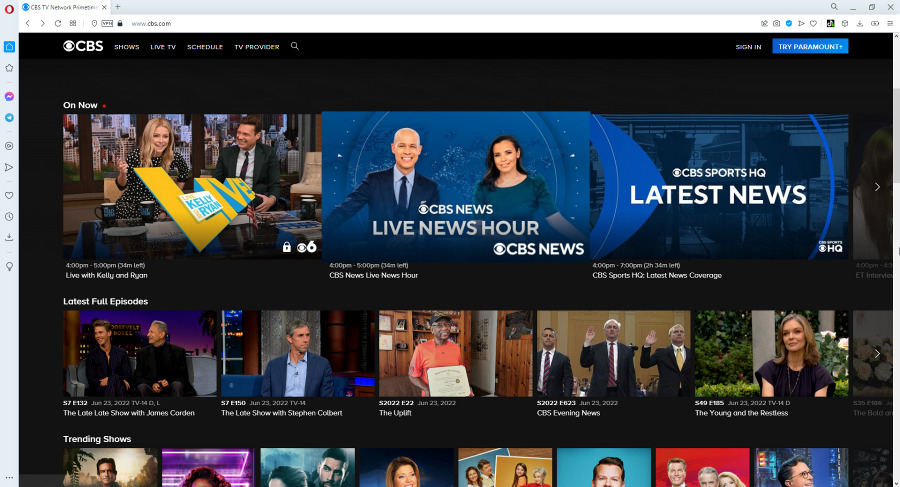
What is VPN Agent Service & How to Fix its High CPU Usage

Are you encountering the VPN agent service with high CPU usage on your computer? This has been a rampant theme among PC users who are conflicted on the cause of this issue.

This issue is often associated with malware or virus, which would force the VPN agent to constantly be active even when the computer is in sleep mode. Hence, it leads to high CPU usage and disrupts your PC’s performance.

This article will provide actionable solutions for quick fixes to troubleshoot this VPN agent’s high service usage.

What is vpnagent.exe?

Firstly, the vpnagent.exe is an executable file that accompanies the Cisco AnyConnect VPN client software. So, it is meant to be a safe executable app on the PC.

However, the VPN Agent is also known for its vulnerabilities to malware and viruses. So, it might be worth checking your Task Manager often for discrepancies.

Where is vpnagent.exe located?

The vpnagent.exe file is located inside the installer folder of the Cisco AnyConnect VPN.
It can be accessed by following this path: C:Program Files/(x86)Cisco/CiscoAnyConnect/Secure Mobility Client

How can I fix VPN Agent’s high CPU usage?

1. Uninstall the VPN Agent

  1. Press the Windows key, input the command prompt, and launch it.
  2. Click Programs and select Uninstall a program option from the list.
  3. Search for either Cisco AnyConnect VPN client or vpnagent.exe, or Cisco Systems.
  4. Locate it, click on it and choose the Uninstall tab to remove it from the PC.

You should fix the high CPU usage by uninstalling the file directly from the Windows installer if you really want to do it yourself. However, if it isn’t here, try this other option.

Tip icon Tip
Why uninstall VPN Agent Service manually when a reliable third-party tool can assist you in doing it correctly? IOBit Uninstaller is well-known for deleting existing applications from your Windows PC.

The VPN Agent Service might be difficult to delete because it leaves traces and causes conflicts with other new installations. What’s cool about IOBit Uninstaller is that it also searches and removes residual traces of uninstalled programs, as well as deleting registry entries.

  1. Press the Windows key + E to open the file explorer.
  2. Navigate using this path: C:Program Files>Cisco Systems>Cisco AnyConnect VPN Client >VPN Agent Service> vpnagent.exe_uninstall.exe
  3. Then run the uninstaller file to remove it.

2. End the Task in Task Manager

  1. Press the Windows key, input Task Manager, and launch it.
  2. Locate the vpnagent.exe file and right-click on it.
  3. Then click End Task from the drop-down options.

This option is also effective since it force stops the file from being active on your device. Try these fixes for a quick solution to the problem of high CPU usage service from the VPN agent.

However, should the issue persists, you may need external software to troubleshoot it. So, check out our guide on the best software to fix high CPU usage.

Also, we have an article to fix CPU at 100% when nothing is running. And you can also try our guide on fixing high CPU usage in Windows 11.

Leave a question or suggestion below in the comments section. We’d like to hear from you.

What does SoundCloud’s Loading Error Mean & How to fix it?

Platforms like SoundCloud are available so that users can upload and share their music with other people. It has over 150 million listeners, but this doesn’t mean it’s not with shortcomings. An error like the SoundCloud loading error can be quite frustrating to encounter.

Users complain about this error because they were not able to access the music platform. SoundCloud is like other music platforms, it is with shortcomings that they fix during updates.

Furthermore, this article will provide solutions for the SoundCloud loading error and explain its causes.

What does the SoundCloud loading error mean?

This error means that SoundCloud is having sole issues loading your data or its data. However, this error can occur due to network issues.

SoundCloud can experience outages whenever they are doing maintenance or patches, resulting in SoundCloud app loading errors. Also, this error can pop up when you don’t follow SoundCloud’s requirements.

Why is SoundCloud not working?

  • Poor internet connection: SoundCloud is an online music-sharing platform, so you need to access it with a stable network. For SoundCloud, it requires a strong and fast internet connection to load its data from the server. Hence, you can encounter the loading error message when you don’t have a good internet connection.
  • SoundCloud server issue: Users can encounter this error if the servers are down. SoundCloud is vulnerable in some ways, resulting in users getting error messages sometimes. When the server is unable to process your request, it breaks down.
  • The browser version is old: Sometimes, SoundCloud can encounter errors because your browser is old and needs an update. Updating your browser helps it run faster and smoother.
  • Lack of RAM: The more activities you have on your device, the more RAM they consume. An instance is opening many tabs on your browser. So, SoundCloud can display the error message when it doesn’t have enough space to load its data.

Quick Tip:

In case you’re having this issue on your current browser, you might need a new browsing partner to fix loading issues. Opera One is great for that.

Opera One will help you escape the loading problem on your device with more stability due to instant search or tracking ad-blocker, plus security improvements with free VPN support and built-in AI.

Opera One

Access your loved music platform using this browser with high privacy and speedy navigation.
Free Download Visit website

How to bypass the loading error on SoundCloud?

1. Update your browser

  1. Launch the play store app on your mobile device and click the profile icon.
  2. Select the Manage apps and devices option.
  3. Scroll down to Updates available and check if there is an update for your browser.
  4. Click the Update button and it will install automatically.

2. Troubleshoot your internet connection

An easy way for this is by restarting your router. Unplug it from power for a few minutes and plug it in.

3. Clear some RAM space

  1. Go to Settings on your mobile device.
  2. Select the Apps option and click Manage apps.
  3. Check the app consuming more space, click on it and tap the force stop button.

4. Restart your device

Another easy solution is restarting your device, allowing it to rest and sync information faster.

Execute the solutions above, and we hope you can fix the SoundCloud loading error. For more information about common SoundCloud problems and how to fix them, you can go to our page.

Play Dead Island: Riptide Definitive Edition and two other games this weekend with Xbox Free Play Days

Three more games are available to play free this weekend for subscribers of Xbox Live Gold and Xbox Game Pass Ultimate, with Xbox Free Play Days. Let’s check them out.

Dead Island: Riptide Definitive Edition

“Welcome to the Zombie Apocalypse experience of a lifetime!” Dead Island: Riptide Definitive Edition is currently on sale at a staggering 85% off at the time of this writing, as part of the current Deals with Gold sale.

TheHunter: Call of the Wild

This open-world hunting sim offers one of the most immersive virtual hunting experiences yet. Take to the 50-square mile game world alone or with up to 8 players.

Tom Clancy’s Rainbow Six Siege

As with theHunter: Call of the Wild, this game is included in the Game Pass library, and is yet another thrilling installment in the acclaimed Rainbow Six series.

These games are available from Thursday, June 23 to Sunday, June 26 for Game Pass Ultimate (which includes Xbox Live Gold) and Xbox Live Gold members. The Xbox Free Play Days perk allows members to install and play a different selection of games each week. It is a great way to try something new and maybe even find a new favorite. If you would like to find out more about Xbox Free Play Days you can check out the FAQ page. Happy gaming!

Microsoft tests spotlight-like launcher for quick commands in Edge browser

There are many ways you can be efficient in Microsoft Edge with keyboard shortcuts, but Microsoft is now working on a new one. As spotted by Leopeva64-2 on Reddit and Neowin, Microsoft is testing a launcher for Edge, that’ll let you use quick commands for common tasks.

Right now, this launcher is being tested in the Edge Insider channels with Edge Canary and Edge Dev. Once enabled with edge://flags/#edge-devtools-toaster, and setting DevTools Toaster to enabled, you can summon it by hitting the Ctrl, Shift, and Space buttons on your keyboard. When you do that, you’ll see a floating box pop up in the middle of your webpage in Edge, prompting you to enter a keyboard. This box is very clean looking, almost like Spotlight on macOS, which floats on top of what you’re working on in the middle of the screen. Check it out below.
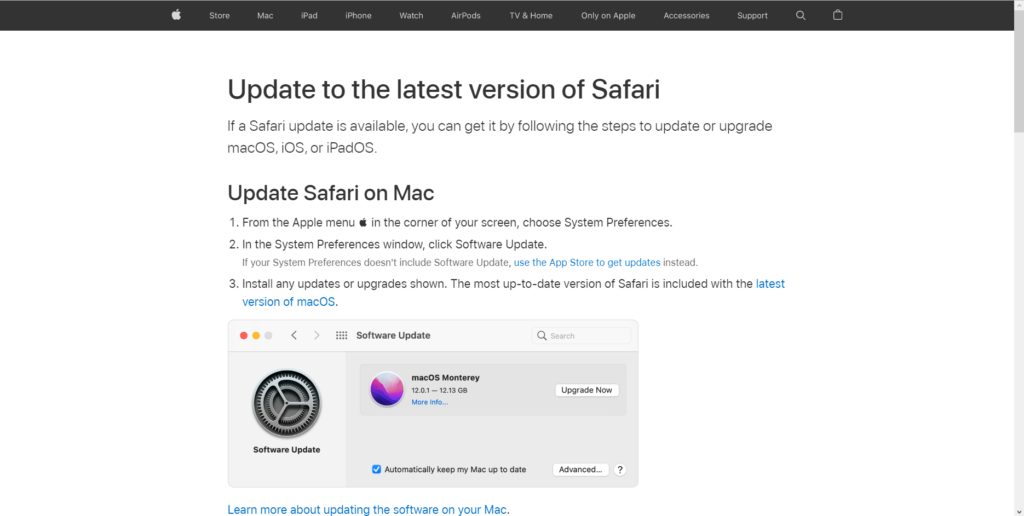
You can then enter a keyword like tabs, windows, or clear to get suggestions on a common task like closing tabs, or clearing browsing history. You can even see your history, too! Do note, though, that not every task is supported by the command bar, so you might still have to manually go to Edge’s settings menu for come tasks.

Overall, this does seem like a nifty feature, but since it is in testing in the Edge Insider channel, there’s a chance that not everyone will get this in the stable version of Edge. What do you think of this launcher? Let us know in the comments below.
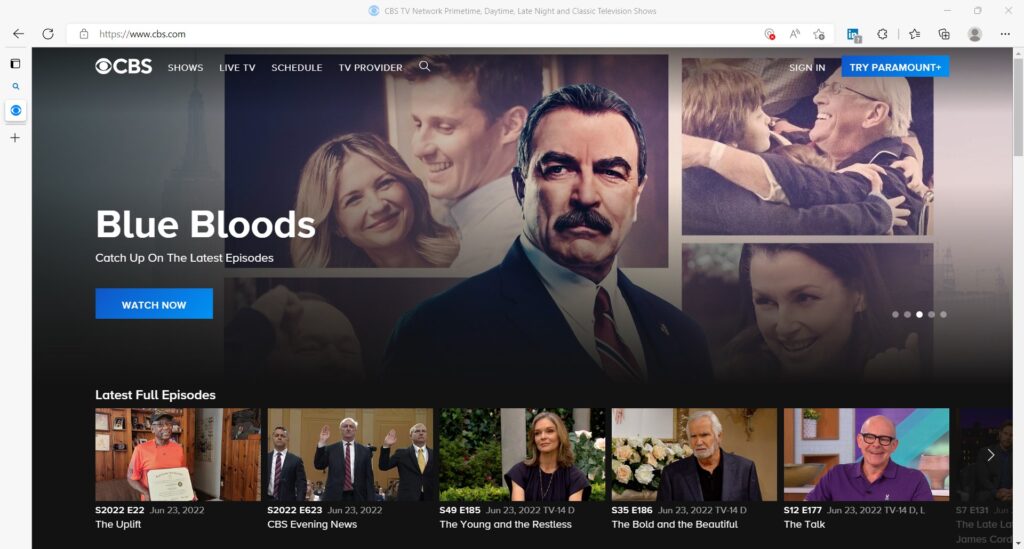
Rainbow Six Siege Error Code 2-0x0000d00c: 4 Ways to Fix it

There’s a lot of competition in the gaming industry, and different companies are trying to thrive. The Rainbow six siege error code 2-0x0000d00c is familiar error users complain about. Rainbow Six Siege is sophisticated with advanced gaming features.

A common thing about game platforms is that they release updates from time to time. Therefore, it helps to fix the bugs from previous updates.

Going into this article, we shall explore some causes for Rainbow Six Siege errors and how to fix them.

Why am I having network problems in Rainbow Six Siege?

  • Interference with other apps: Antivirus can prevent the game from accessing the internet.
  • Firewall protection is on: Sometimes, when the firewall protection is on for your Windows, it can affect the way rainbow six siege works. It is not good to disable the Firewall, but it can still be a problem.
  • Poor internet connection: Problems with your network provider can lead to errors. Also, any restrictions on your network can affect the game connecting to its server.
  • Background applications can be the cause of some Rainbow Six Siege errors. It is because some apps might not be compatible with how the game functions. So this results in conflicts between the two parties.

How do I fix error code 2-0x0000d00c on Rainbow Six Siege?

1. Use a VPN

To ensure that the task is performed flawlessly and without any security loss, choose a VPN that works excellently for Rainbox Six: Siege.

Some VPNs help increase and stabilize your internet connection speed. It will help you connect to the rainbow six siege network faster. VPN like Speedify is reliable and can solve error problems.

In addition to that, there are more compelling VPN tools that offer thousands of servers in many regions so you can improve your speed.

It is recommended to pick professional VPN support like PIA and resolve network issues on any of your games.

Private Internet Access

Have an increased game performance on RainboxSix Siege without connection issues with this all-rounded VPN.
Check price Visit website

2. Check Background Apps

  1. Press the Windows Key + R to prompt the Run page.
  2. Type MSConfig and click OK.
  3. On the System configuration page, go to Services, click Hide all Microsoft services, and click Disable all.
  4. Click Startup beside the Services tab and open the Task Manager.
  5. Disable the items running in the Task Manager.
  6. Return to the System configuration page, and click Apply at the right bottom, then press OK.

3. Disable Firewall In Windows

  1. Press the Windows key, search for Windows defender firewall and launch it.
  2. Click on Turn Windows Defender Firewall on or off on the left pane.
  3. Select the Turn off Windows Defender Firewall (not recommended) options on the page, then click OK.

4. Check your internet connection

Performing a power cycle on your router should fix the error. Turning it off and then back on will refresh your network connection. It will aid the Rainbow six siege network.

However, the above solutions are practical and easy to go through. Rainbow Six Siege error code 2-0x0000d00c won’t update another problem users encounter.

If you want to know about other Rainbow six siege errors apart from the rainbow six siege error code 2-0x0000d00c and their solutions, visit our website.