Hiding video in Teams & more: Everything new in Microsoft 365 in February

We’re now entering the final days of February, which means it is time to look back and see what was added to Microsoft 365 this month. New features cover Teams, Viva, Yammer, and more. Here’s a look at what you need to know across each product line.

Teams

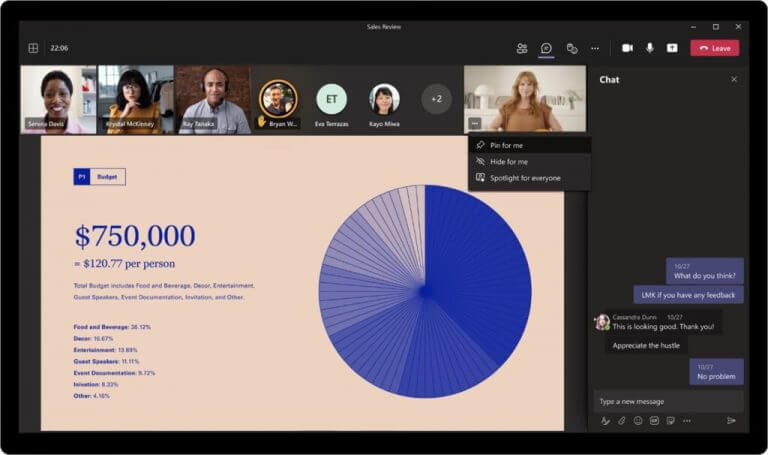
With Teams, Microsoft added the ability to hide your video in a Teams meeting. You can do this and stay visible to others, and stay focused on other tasks during presentations. Microsoft also added the ability to pin your own video on the meeting stage, too.

Viva

Over on Microsoft Viva Learning, Microsoft added the ability to sync with learning management systems like SAP, Success Factors, Cornerstone, and others. Employees can now view learning assignments from these services in their My Learning view in Viva Learning. Teams notifications are also supported in these modes, too.

Yammer

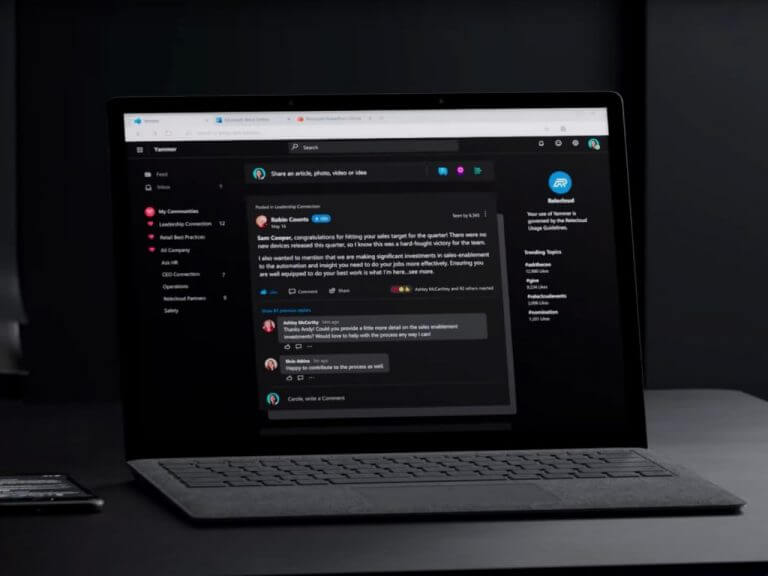
Microsoft Yammer

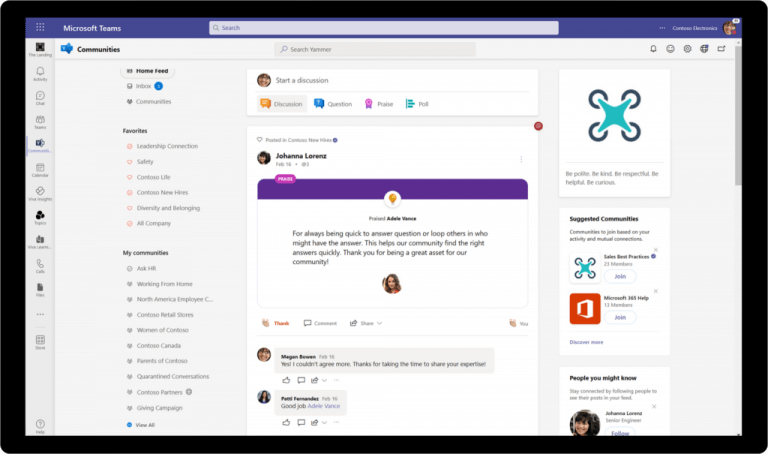
With Yammer, Microsoft updated the service so it will suggest communities and followers based on previous interactions. Also new is the ability for community admins to auto-renew active Yammer communities with views or engagement. Oh, and for people from Yammer networks in the European Union, you’ll soon be able to join Yammer external networks hosted in the USA.

Windows 365

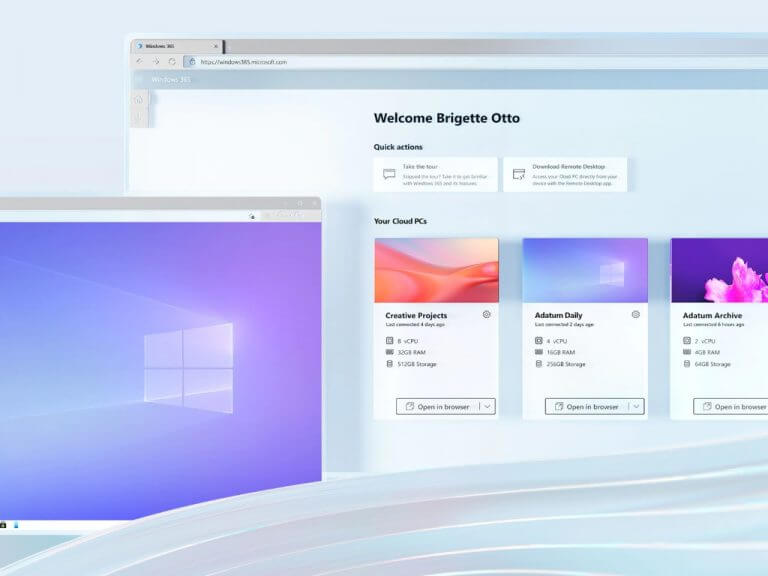
Last up are some features with Windows 365. Here, Microsoft released a preview of Windows 365 Enterprise support for native Microsoft Azure Active Directory (Azure AD) Join and localized first-run experience. It also became possible to provision Cloud PCs without an Azure subscription. Finally, Microsoft announced a preview of localized first-run experience. This helps organizations to choose from an expanded list of languages when creating Cloud PCs for their teams in Windows 365 Enterprise.

More next month

These features are just the start of what’s to come. Microsoft teased the second annual Word Trend Index and promised more innovations to make hybrid work more hybrid. Keep tuned to OnMSFT for all the latest Microsoft 365 news and information.

Uninstall Windows Subsystem for Android (WSA) on Windows 11

The main advantage of the Android app Installer, also known as Windows Subsystem for Android (WSA) is the convenience it brings to Windows 11 systems.

Just like how you can install applications from Google Play or Apple App Store on your mobile device, you can now also install Android apps on your computer through the Microsoft Store.

As the Store is populated with thousands and thousands of app options, it can be intimidating for users to research and choose some apps, but we created a very useful list with some of the best Android apps for Windows 11.

When you buy a new computer, you spend a good amount of time looking for and installing the right applications. You get to do all that in just a few clicks when using the Android app installer, exactly in the same way as when using your mobile devices.

The Windows Subsystem for Android (WSA) has been designed to make it easier for anyone to sideload applications, and it is a big change from the previous versions of the Windows Store, which is now called Microsoft Store.

Does the Android app installer take up storage space?

The main reason that people want to disable the Android app installer is that it requires 8 GB of RAM to use on your PC, and some users still don’t have that capability and are not inclined to update their system to use this feature.

Added to that, depending on the number of Android apps you want to use on Windows 11, it can take up storage space from your HDD as well.

Another disadvantage of having the App Installer enabled is that it can slow down your computer.

Not only does it use up valuable disk space, but all of those apps that are installed in your computer need more RAM to run smoothly and efficiently. Over time, this can cause your computer’s performance to suffer greatly.

It’s not just the App Installer that is consuming space. The other apps (that you have downloaded) are stored in the data folder.

One of the reasons it consumes more memory than any of the other apps is because keeps track of a lot of information about each app: its name, icon, permissions, and so on.

It will keep consuming memory by storing data and cache regularly. And it will keep increasing if you are not clearing the data and cache.

In the case of other apps, you can also uninstall them from Windows 11 without too much trouble, so choosing which apps you want to keep is the only impediment.

How can I uninstall the Windows Subsystem for Android (WSA) on Windows 11?

1. Use the Start Menu

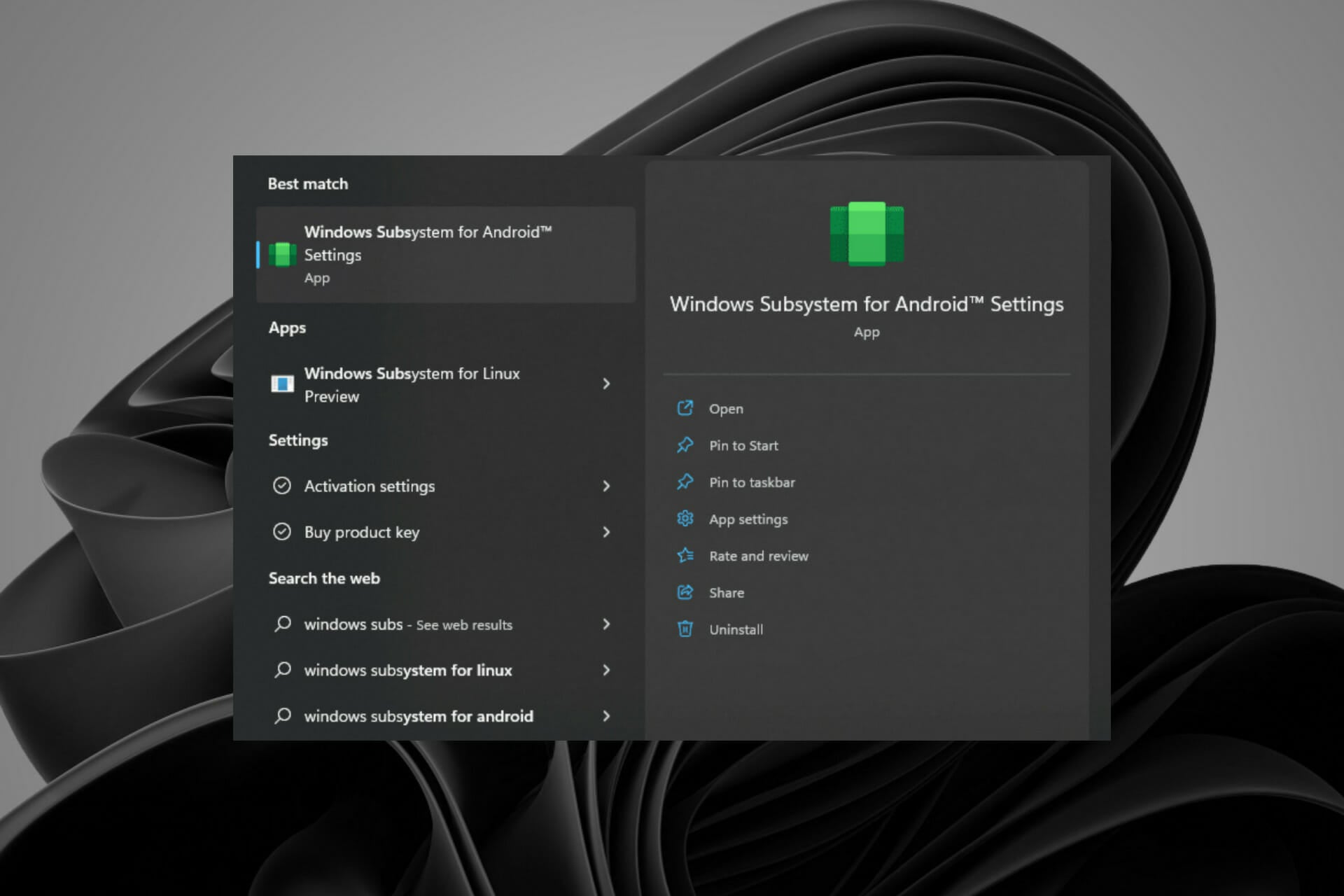
  1. Press the Windows key and type Windows Subsystem for Android on the search bar.
  2. Scroll down and select Uninstall.
  3. Click Uninstall in the dialog box that pops up.

2. Use the Settings app

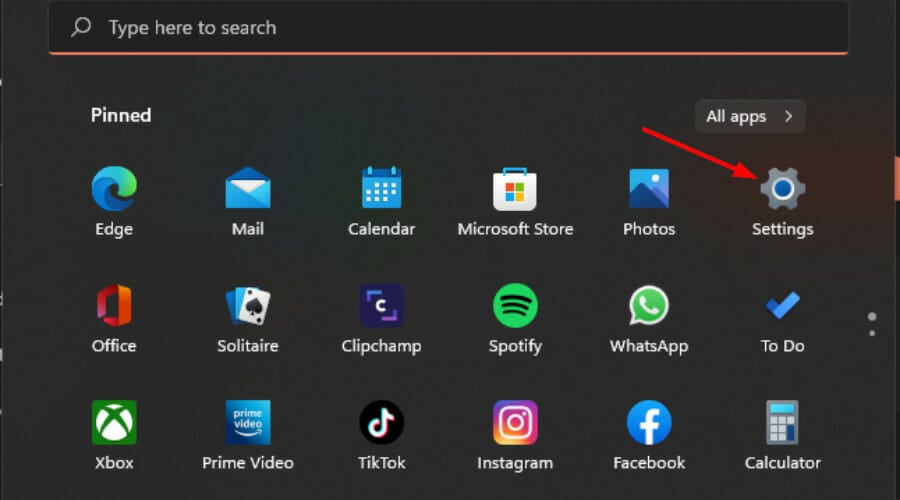
  1. Hit the Windows + I keys simultaneously to open Settings.
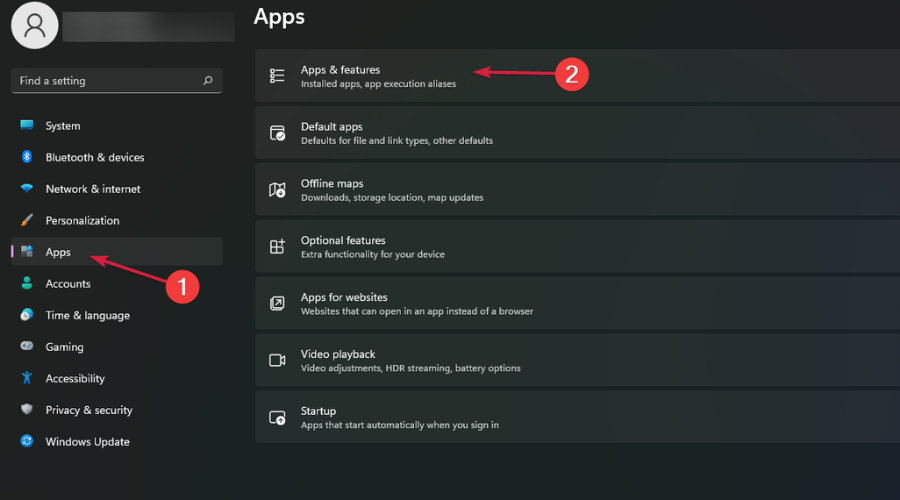
  2. Navigate to Apps on the left pane then select Apps & features on the right pane.
  3. Find WSA, click the three horizontal dots and select Uninstall.

3. Use the Control Panel

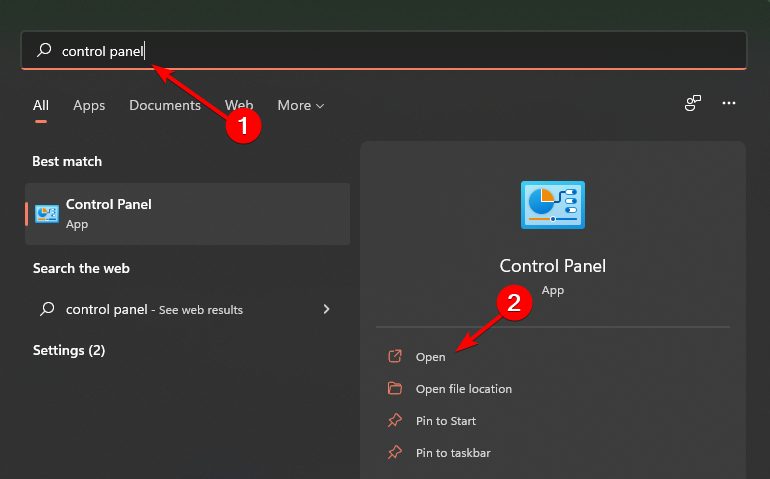
  1. Hit the Windows key, type Control Panel in the search bar and click Open.
  2. Navigate to Programs.
  3. Select Uninstall a program under Programs and Features.
  4. Find WSA, right-click and select Uninstall.

Whereas the methods recommended above will uninstall unwanted apps, some residual files are at times left behind.

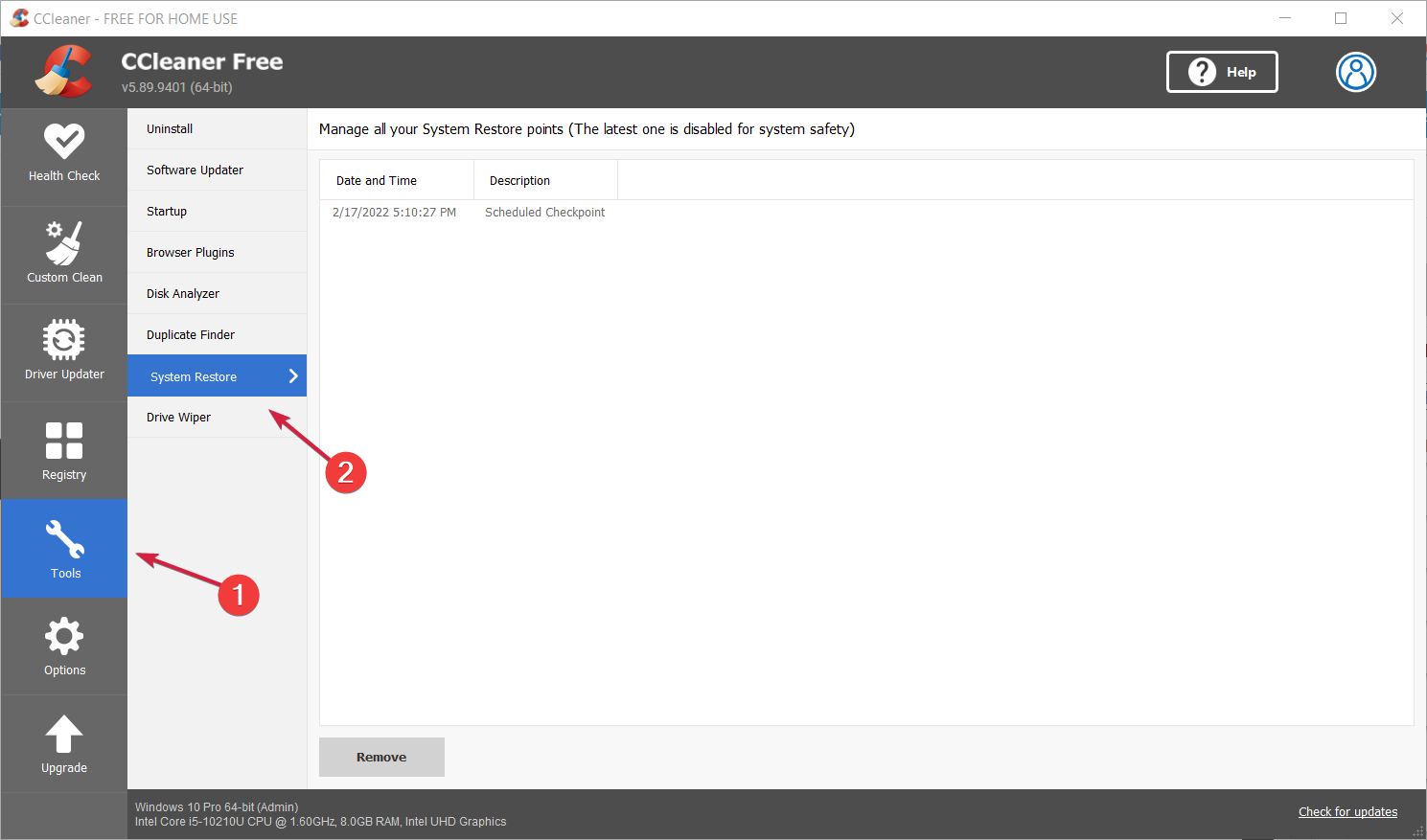
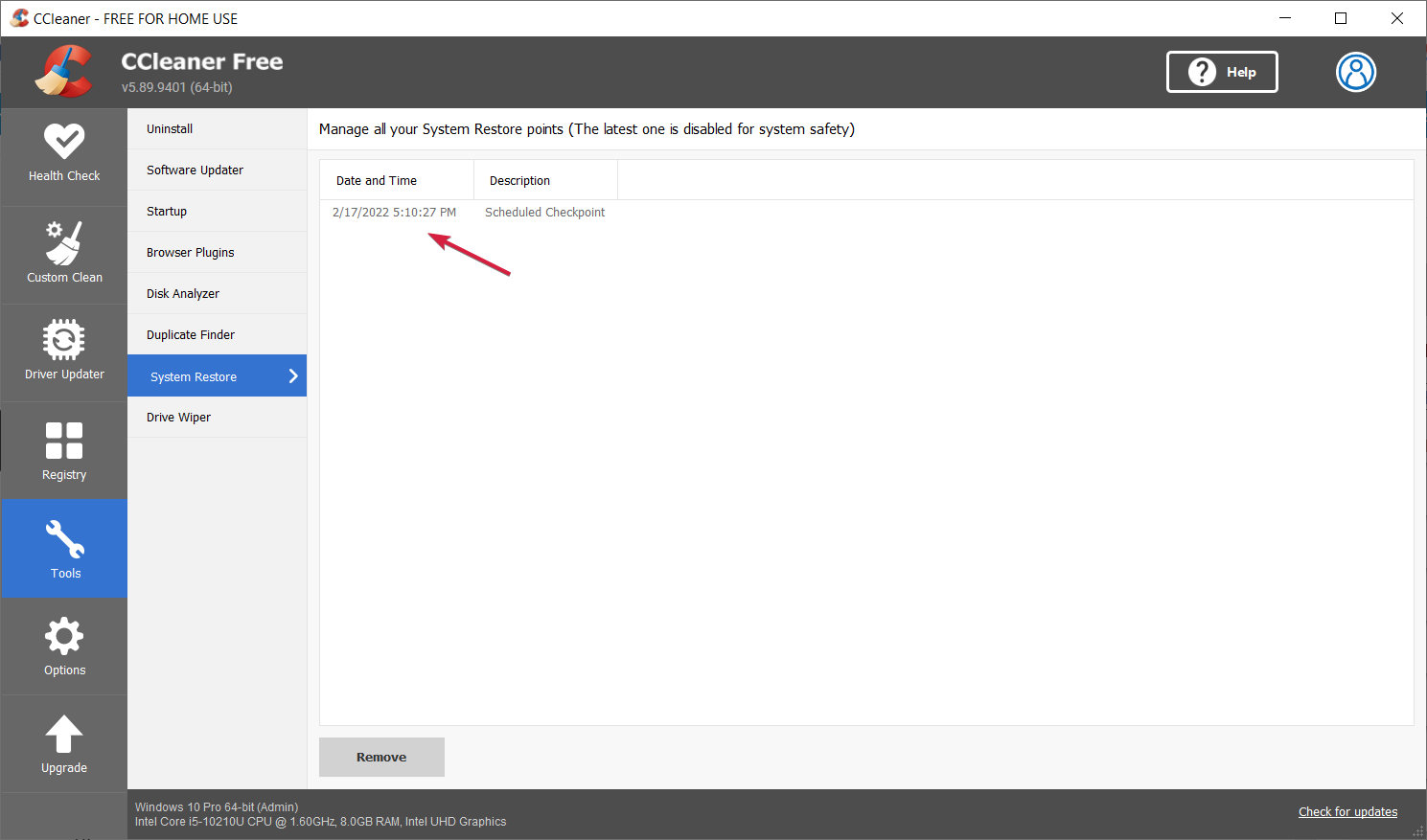
To ensure a complete uninstall, you may count on cleaning software to help you delete unwanted programs altogether with residual files.

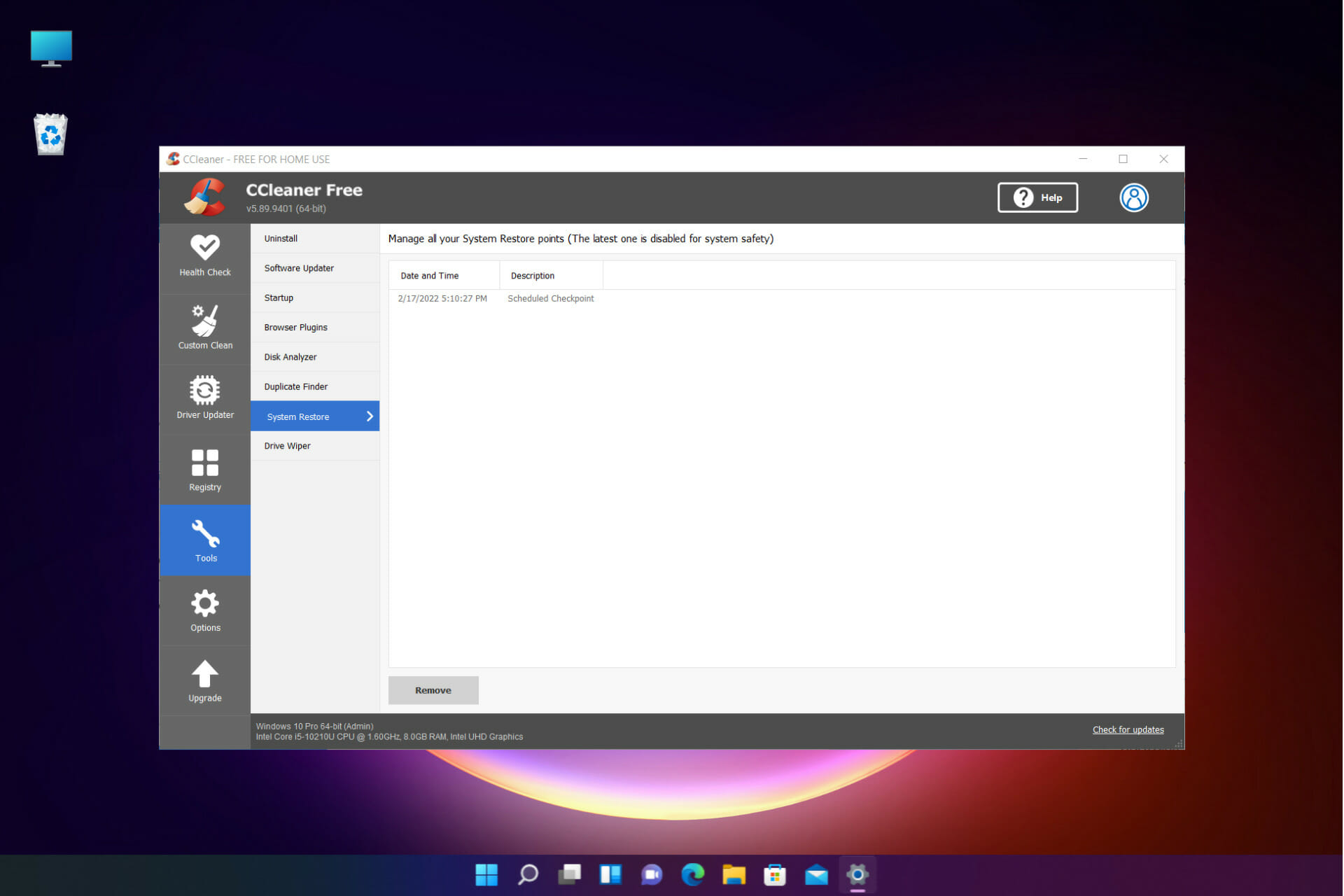
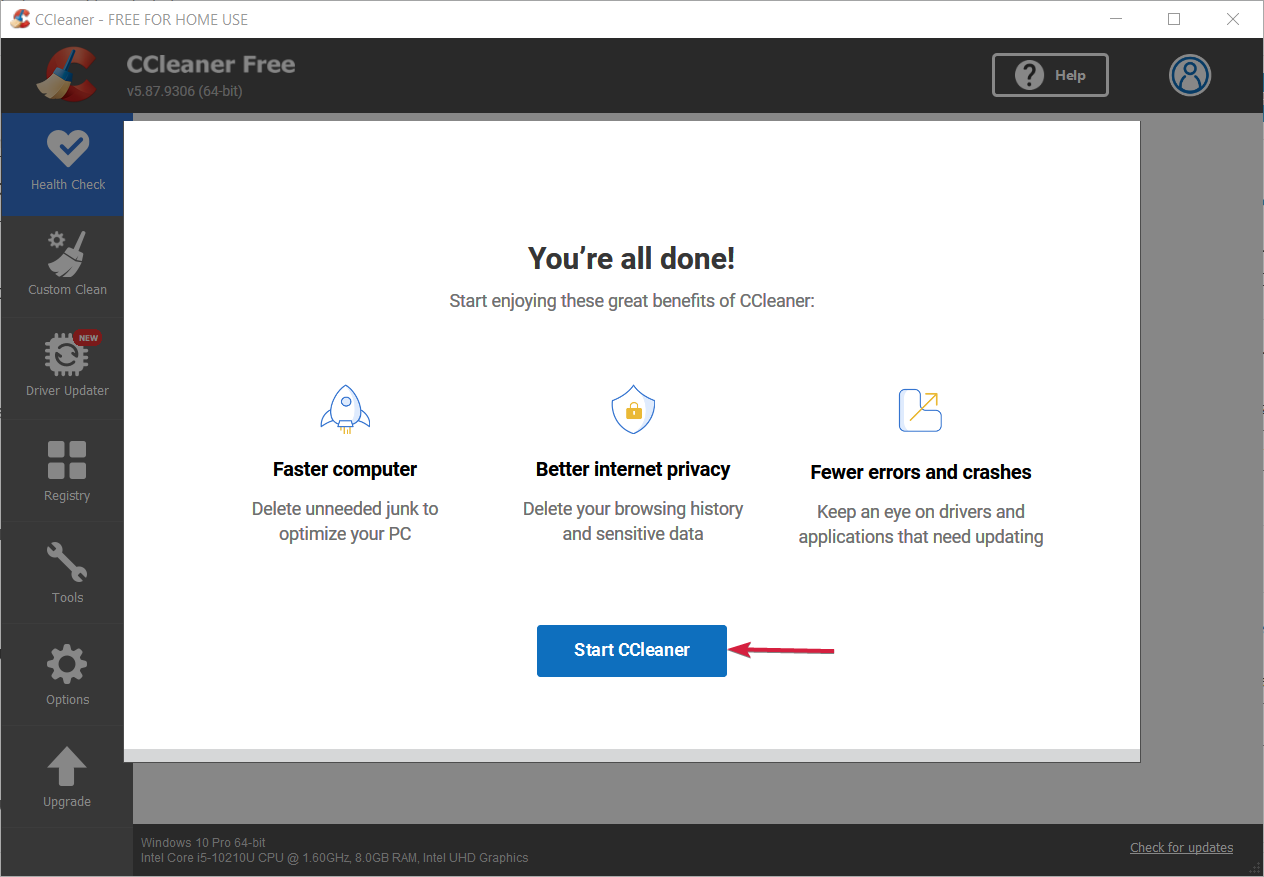
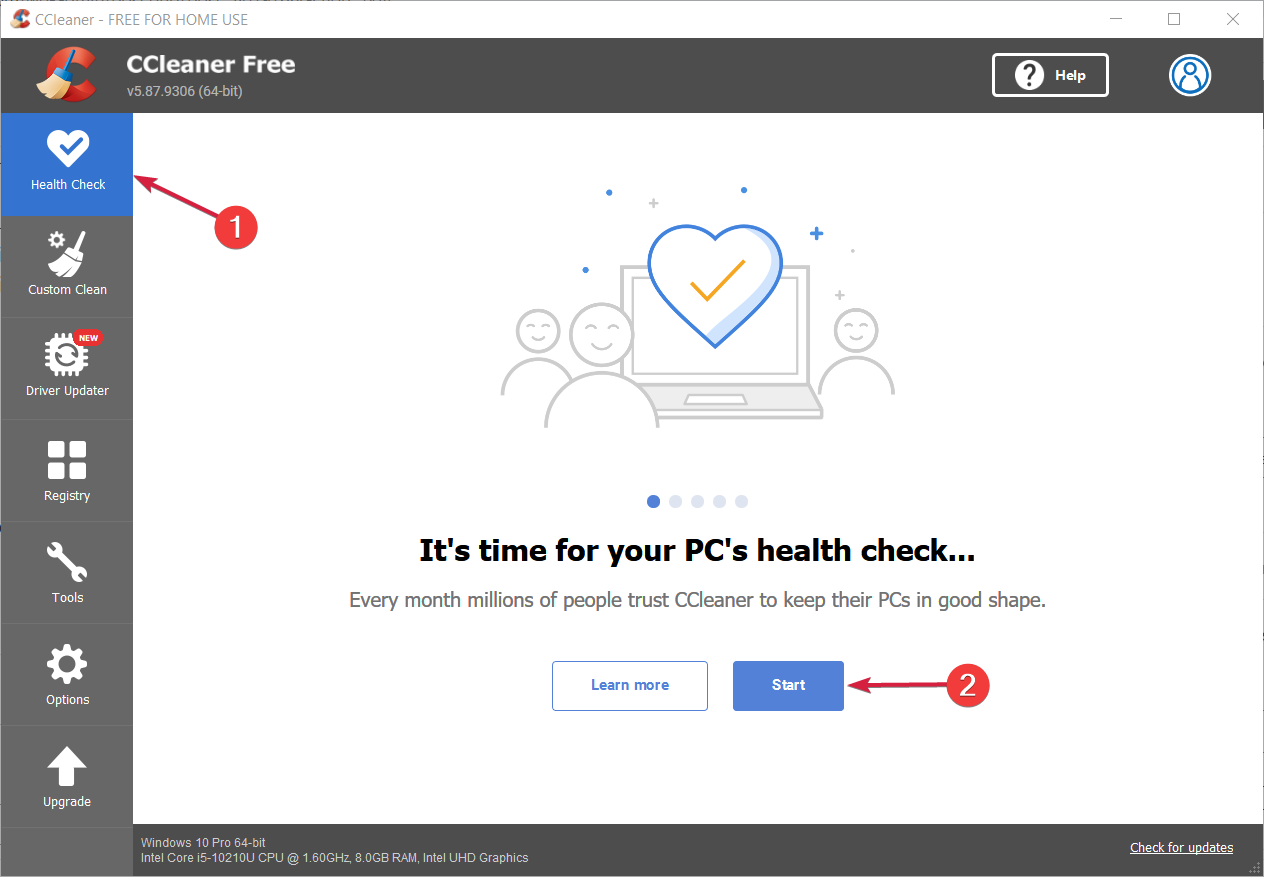
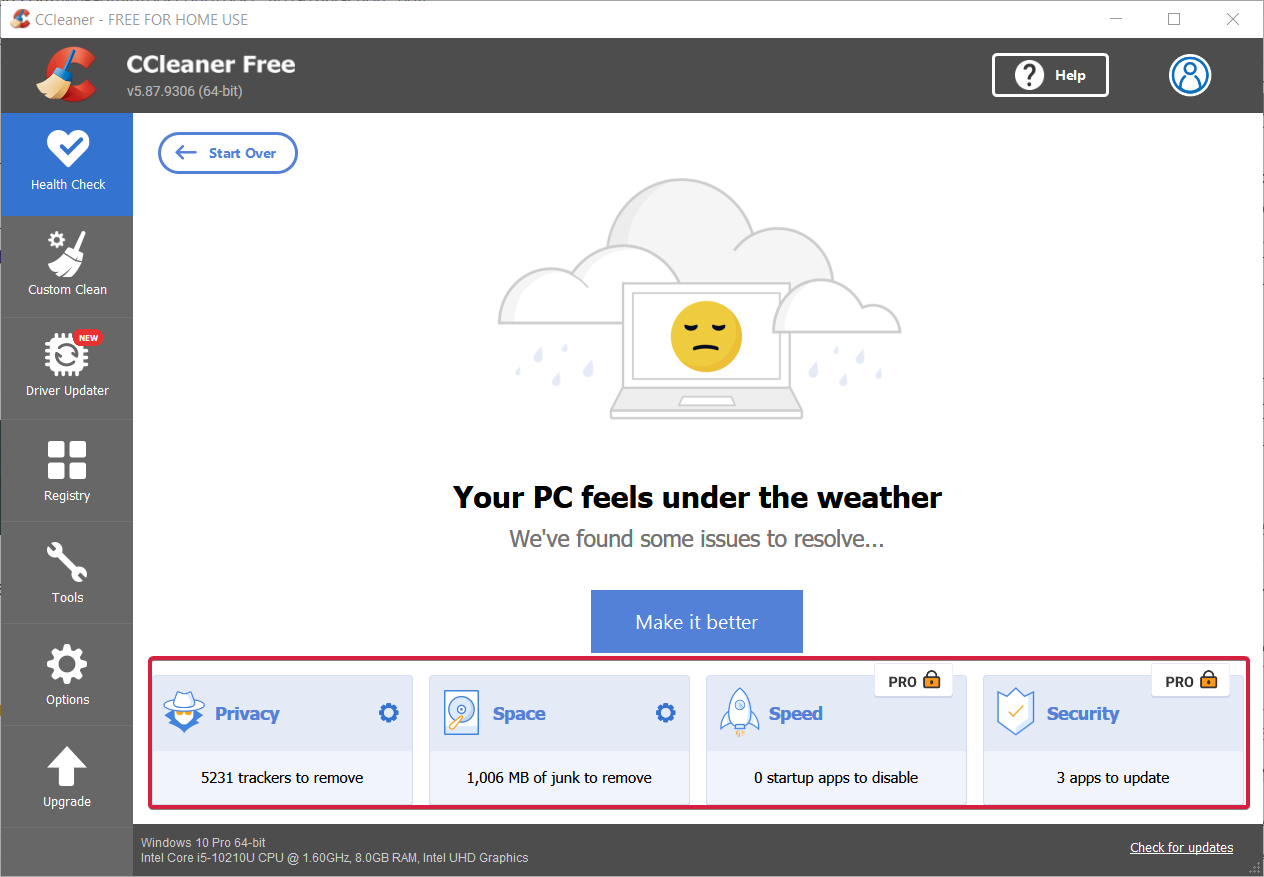
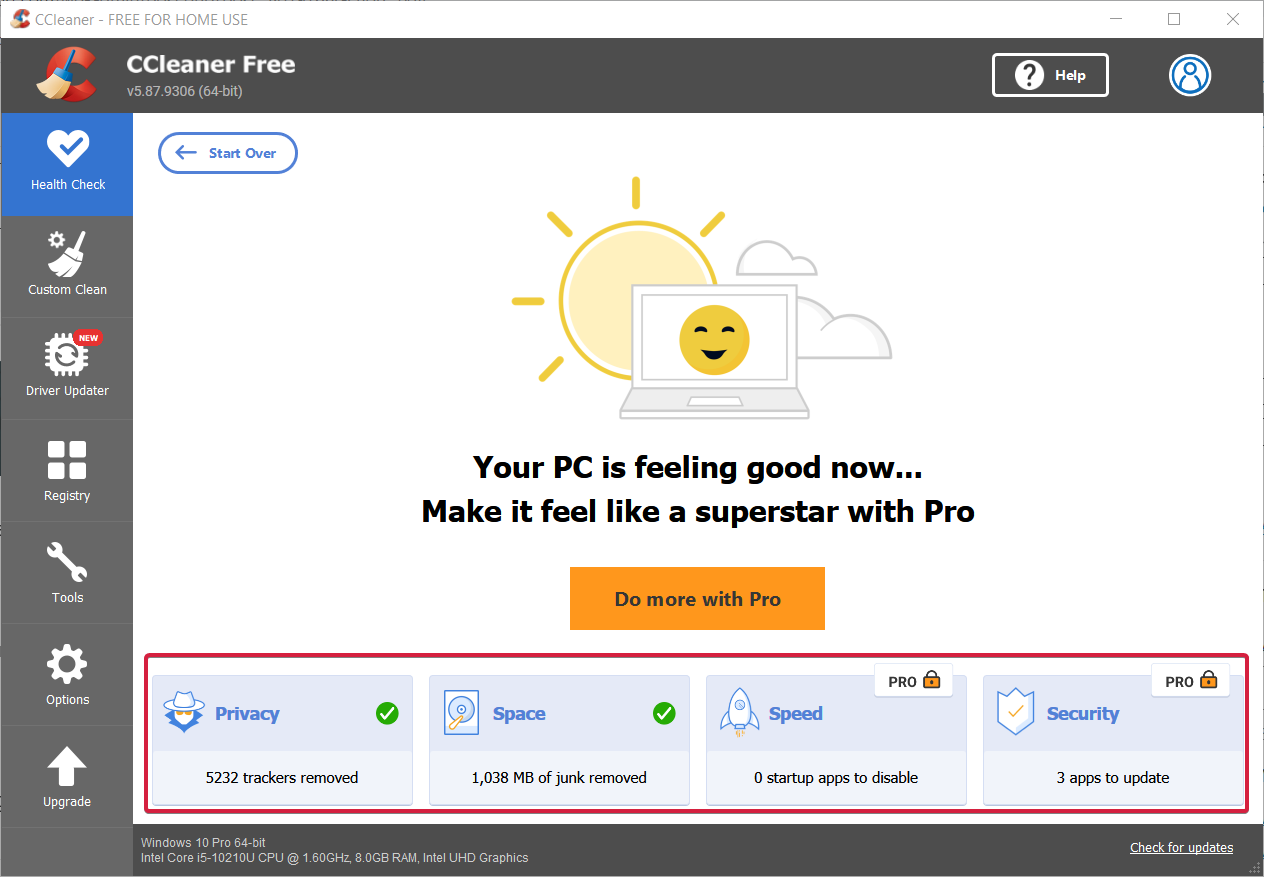
CCleaner is a proven solution for cleaning any Windows applications, junk files, or browsing data from your computer.

Can I uninstall partially installed apps?

When you install an application for the first time, it will be downloaded and installed on your device.

However, if there are any issues with the app during the installation (such as an interruption in your Internet connection), or if the app is particularly large, the download process can be interrupted.

If this happens, you will see a notification in the status bar telling you that some applications weren’t installed. If you tap on this notification, it will take you to a screen where you can retry installing these apps.

Sometimes, this may not work and you will need to use a different route to get rid of these apps since they are unusable in their unfinished state.

Is it safe to uninstall built-in apps?

Uninstalling built-in apps does not affect your Windows operating system. However, if the app is important to you, you can easily re-install it from the Control Panel.

For example, if you don’t use your web browser, you can delete it from your Start Menu or disable it from the Settings screen.

Some built-in applications are useful and some are not as useful or even harmful. You can delete them if you want to get rid of that application fast and want to recover the disk space.

You should however be careful not to uninstall any apps that help manage your computer’s files and settings, such as antivirus or backup software. 

Such programs should be kept updated at all times, so they do not inadvertently modify or remove critical system files

To uninstall a built-in app, follow the steps below.

  1. Press the Windows key, search for Powershell and click on Run as administrator.
  2. Type in the following command and press Enter: Get-AppxPackage *name of app* | Remove-AppxPackage
  3. Check whether the app has been removed.

If you would like to uninstall more apps, we have an excellent guide you can follow to successfully remove them from your system.

You should also consider limiting your RAM usage or upgrading your system in case you run a lot of demanding software on your PC, to keep its performance at peak levels.

Also, consider using a few tips and tricks to boost your PC’s performance so that you won’t always have to rely on uninstalling apps.

We hope this guide was able to help you uninstall your App Installer and your PC is working better now.

For more questions, suggestions, or queries, head over to our comment section below.

0x800f0801: How to fix this error code on Windows 11

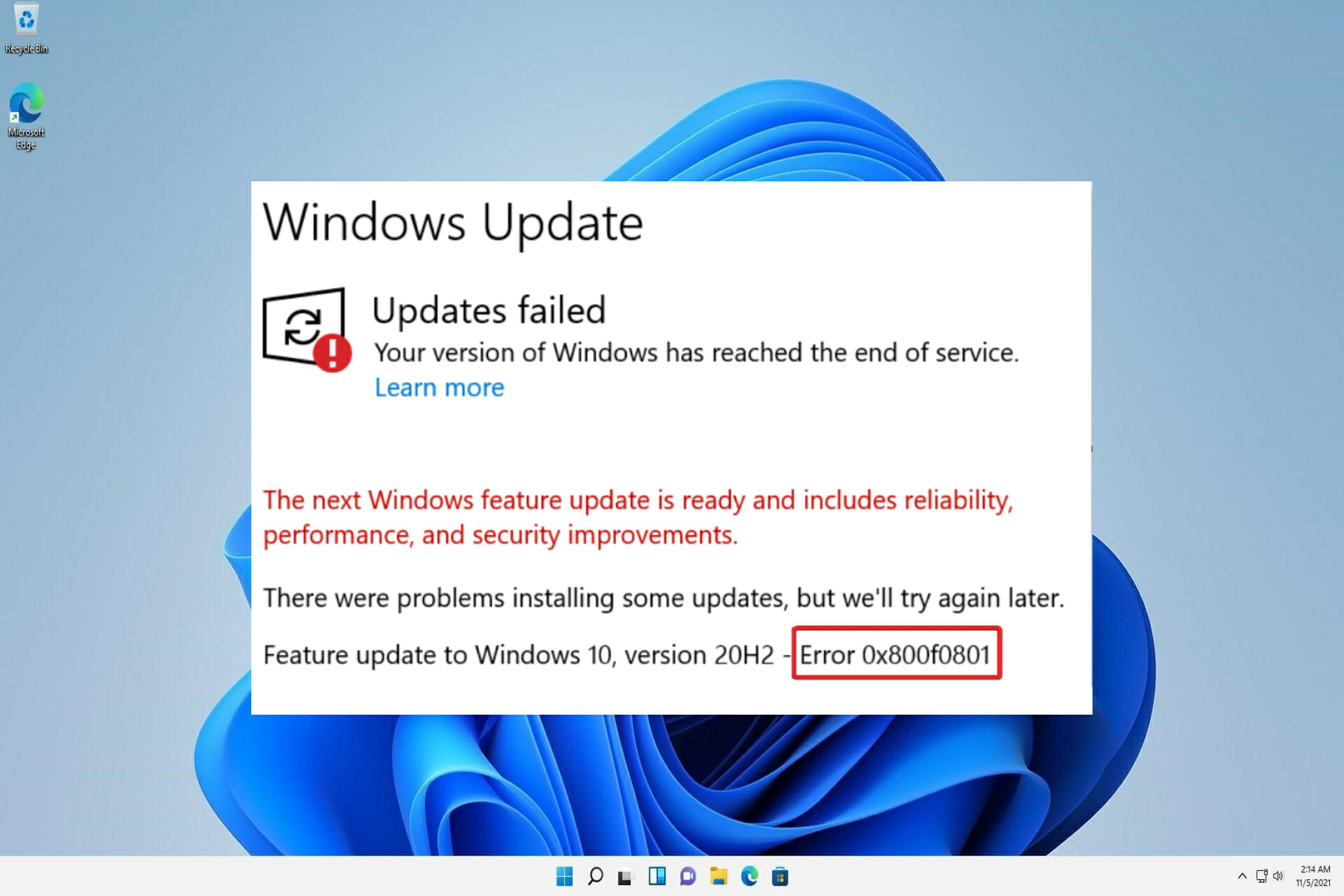
The seemingly straightforward process of installing a Windows update may result in problems that render your system vulnerable and deprived of critical enhancements. One of the causes is the error 0x800f0801, which prevents the downloaded files from being installed on the computer.

When you receive the CBS_E_NOT_APPLICABLE message, it signifies one of two things: either the update cannot be installed on this machine or the system is unable to handle the update.

In this article, we will discuss how to resolve the Windows 11 update error 0x800f0801 by implementing a few straightforward options. But first, let’s understand what has caused this issue to happen in the first place.

What causes the 0x800f0801 error to occur?

It is possible to receive an error code of 0x800F081F, which is one of four possible error codes, all of which indicate the same underlying problem. The other three error codes are 0x800F0906, 0x800F0907, and 0x800F0922, which are all related to the same thing..net  windows 11 error code 0x800f0801

Each of these error codes is caused by incompatibilities with the Microsoft.NET Framework 3.5. Typically, they will occur when you enable the framework using the installation process, the Deployment Image Servicing and Management (DISM) tool, or through the use of Windows PowerShell.

The codes will only appear on Windows 11, Windows 10, Windows Server 2012 R2, and Windows Server 2012. They will not appear on any other versions of Windows.

Microsoft.NET Framework 3.5 is available as a Feature on Demand on the operating systems listed above (i.e., it is not enabled by default).

When you enable this feature, Windows Update attempts to download .NET binaries, as well as any other required files from the Internet. It is possible that you will see the codes if your machine is not properly configured. Here’s a list with the codes and what they mean:

  • 0x800F081F: In order for the installation to begin, Windows could not locate any.NET source files to work with.
  • 0x800F0906: Windows was unable to download the.NET source files, connect to the Internet, or install a role, role service, or feature because it could not connect to the internet or download the.NET source files.
  • 0x800F0907: Your network policy settings may have blocked Windows from connecting to the Internet because the DISM program did not work.
  • 0x800F0922: The processing of .NET advanced installers or generic commands failAttempts to process.NET advanced installers or generic commands were unsuccessful.

How can I fix the 0x800f0801 error code in Windows 11?

1. Use the Windows Update troubleshooter

  1. Press the Windows key + I and navigate to System in the left panel followed by Troubleshoot.troubleshoot-menu windows 11 skype crashing
  2. Once you are inside the Troubleshoot menu, tap on Other trouble-shooters.other-troubleshooters-option windows 11 skype crashing
  3. Now scroll down until you find the Windows Update troubleshooter and click Run. windows-update-troubleshooter-run  windows 11 error code 0x800f0801

After the troubleshooter has completed searching for errors, it will reveal the precise bug that occurred as well as information on how to fix it. Remember to read and follow the instructions on your screen attentively.

2. Run DISM

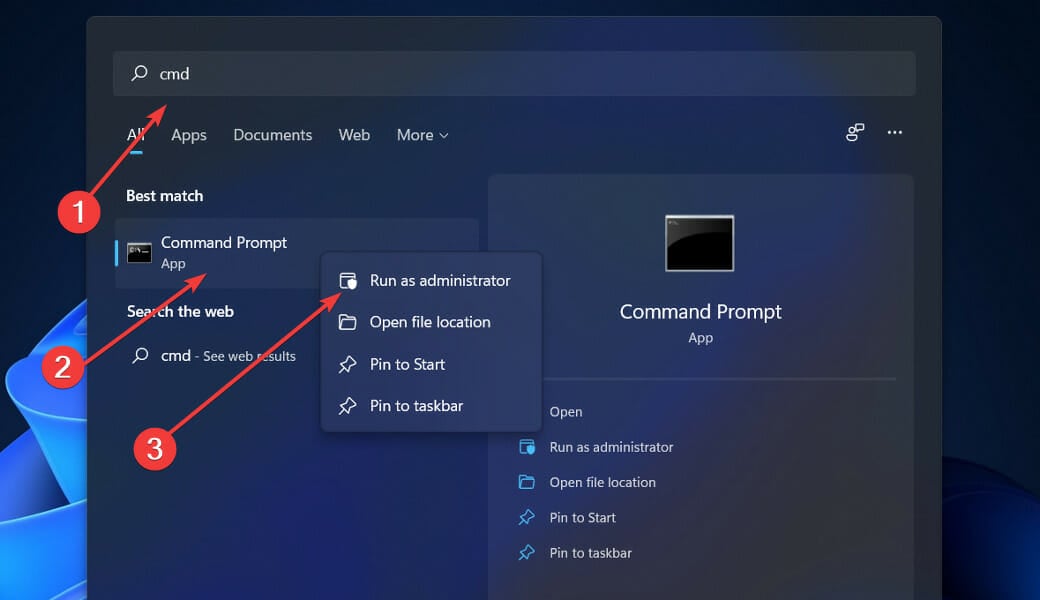
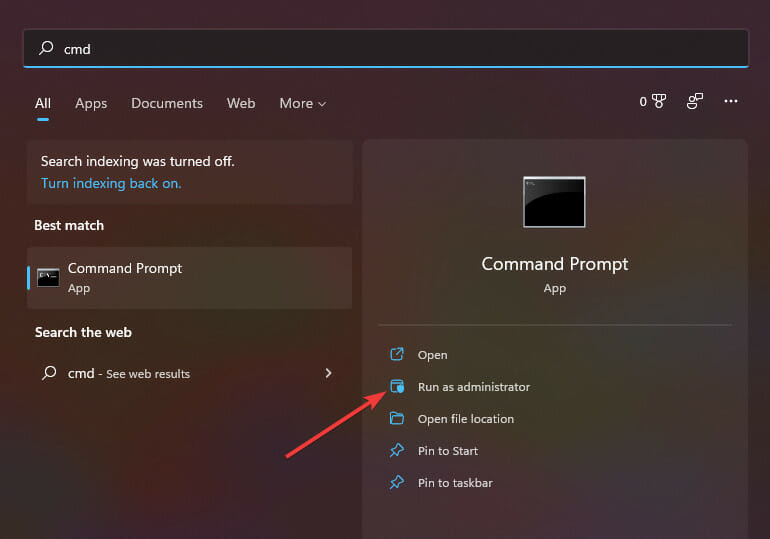
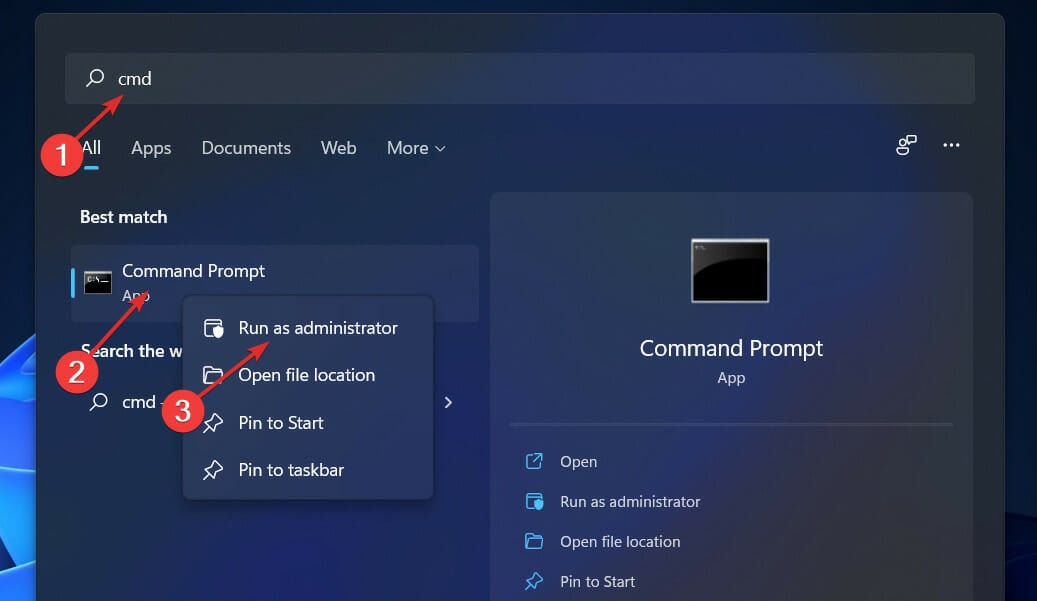
  1. To enter the Search bar, press Windows + S, then type cmd and right-click on the most relevant result to run it as an Administrator.cmd-search-admin kernel security check failure windows 11
  2. Type or paste in the following commands and press Enter after each: DISM /online /Cleanup-Image / ScanHealth DISM /Online /Cleanup-Image /RestoreHealthdism-command  the installer has encountered an unexpected error installing this package 2203

Relax and wait patiently for the entire process to be completed. It’s crucial to keep in mind that the procedure could take up to ten minutes. After you’ve finished this step, restart your computer to confirm that the changes have taken effect.

3. Check the compatibility of system files using the SFC scan

  1. Press the Windows + S key to open the Search bar, then type cmd inside it. Now, right-click on the most relevant result and choose Run as administrator.cmd-search-admin gdi+windows error message on shutdown
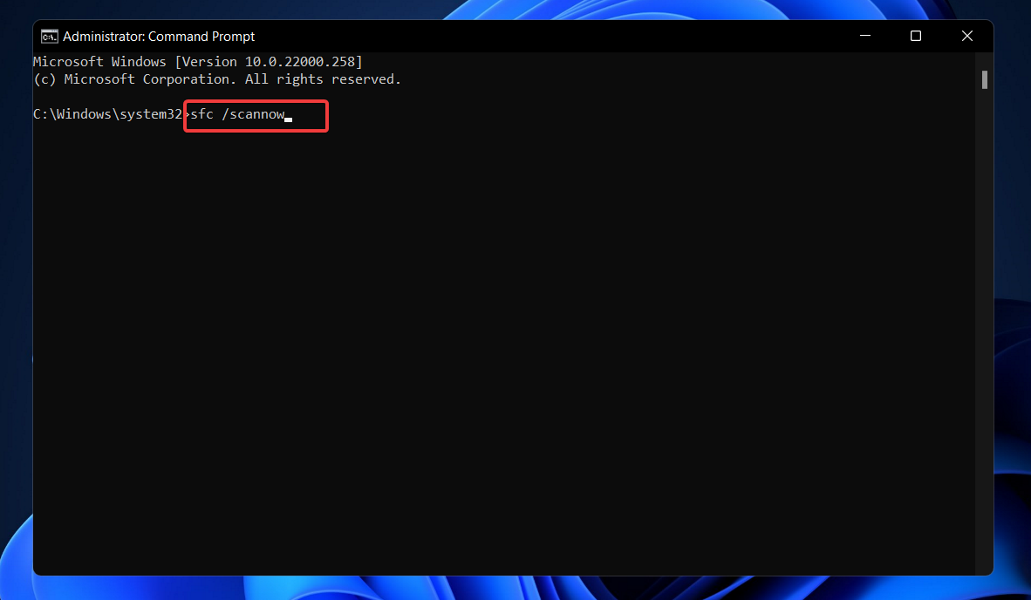
  2. Enter or paste the following command into the text box and hit Enter:
    sfc /scannowsfc-scan-windows-11 gdi+windows error message on shutdown

When the process is done, you can restart your computer to make sure that the changes have been made. There is a program on your computer called SFC that you can use to fix your computer.

When you start your computer, it will look for and fix files and folders that aren’t working right on your computer by itself.

4. Update Windows manually

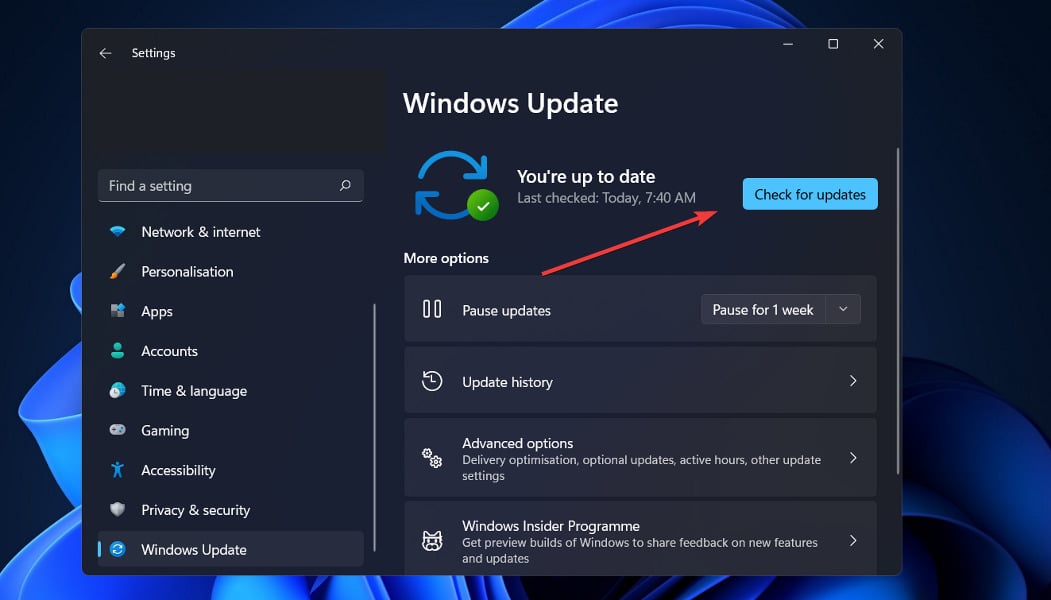
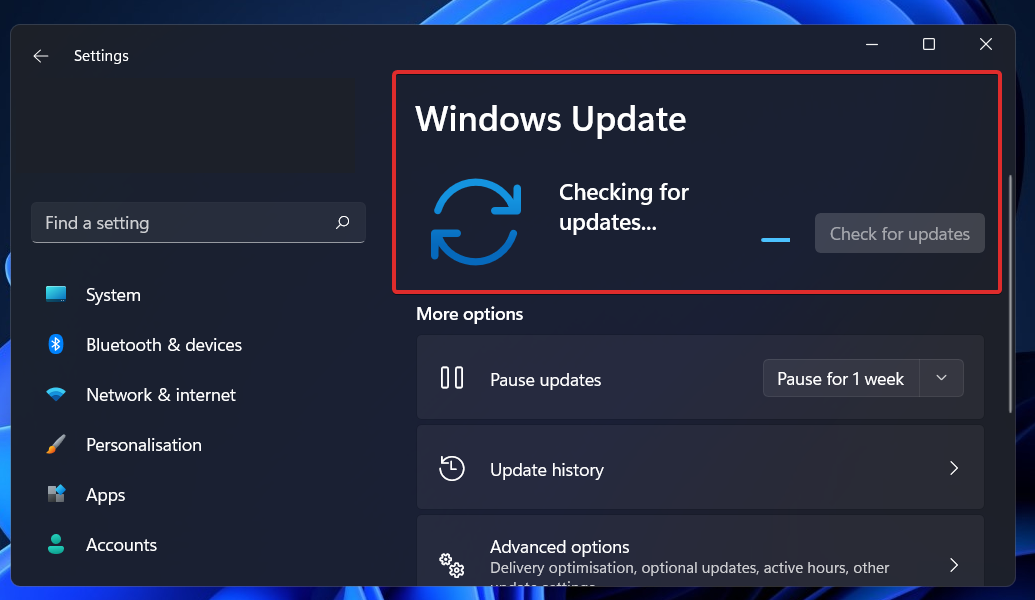
  1. To open the Settings app, press the Windows key and the letter I together, and then select Windows Update from the left-hand panel on the screen.windows-update-settings kernel security check failure windows 11
  2. In the case that updates are available to be downloaded, click on the Install now button and wait for the process to finish, otherwise click on the Check for updates button.checl-for-updates kernel security check failure windows 11

As a way to fix the problem, you may need to update your operating system, which can be done by following the steps in this article. The bug is supposed to be fixed in a new software version.

5. Turn on the Microsoft .NET Framework 3.5 feature

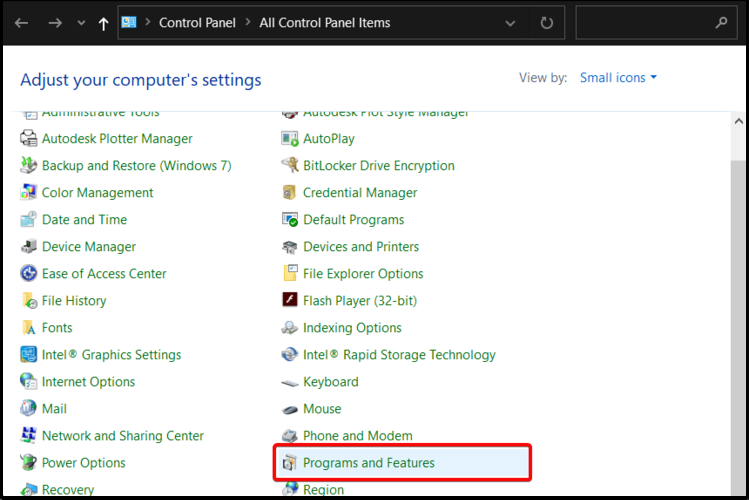
  1. Press the Windows key + R to open a new Run box, then type or paste in appwiz.cpl, and hit Enter.appwiz  Windows 11 - WSA not working
  2. After the Programs and Features window appears, click on Turn Windows features on or off from the left sidebar.turn-off-windows-features   windows 11 error code 0x800f0801
  3. Tick the box next to .NET Framework 3.5 (includes .NET 2.0 and 3.0) then click OK.turn-on-.net  windows 11 error code 0x800f0801

6. Clear the SoftwareDistribution folder

  1. Press the Windows + S key to open the Search bar, then type cmd, and right-click on the most relevant result to run it as an administrator.cmd-search-admin kernel security check failure windows 11
  2. Now type or paste in the following commands one by one and press Enter after each: net stop wuauserv net stop bits net stop cryptsvc c:\windows\SoftwareDistribution c:\windows\SoftwareDistribution.OLD net start cryptsvc net start bits net start wuauservnet-stop-wuauerv-cmd  windows 11 error code 0x800f0801

Why is it important to keep my OS up to date?

The installation of monthly system updates is not something that system administrators look forward to, but they are essential and extremely critical in our current technological environment. windows-update-required  windows 11 error code 0x800f0801

The vast bulk of the monthly improvements is dedicated to security measures. Security vulnerabilities are the most dangerous form of a problem to have since they have the potential to be exploited by cybercriminals.

Other Windows updates are intended to correct flaws and issues that have developed in the operating system. Even though these apps are not directly responsible for security vulnerabilities, the stability of your operating system may be jeopardized.

Finally, but certainly not least, Windows updates can introduce whole new capabilities while also addressing previously known issues. The best examples of this are IIS and Internet Explorer, both of which are available for free.

Security vulnerabilities, defects, incompatibilities, and out-of-date software components can all be found in the code that makes up the Windows operating system’s source code. Briefly stated, we are all aware that Windows is not without its shortcomings.

On a regular basis, new security vulnerabilities in various components of the Windows operating system, including the basic platform, are identified. If you do not utilize the corresponding program, you run the risk of failing to update it due to the fact that it is already installed on your computer.

If the above solutions didn’t fix your problem so far, we suggest you read our post on how to fix Windows 11 installation issues to find more potential methods to tackle the issue at hand.

Alternatively, users benefitted from taking a look at the five best antiviruses that are compatible with Windows 11, in order to secure your computer from unwanted attacks. Make sure to check it out!

And finally, you might want to check how to easily install Windows 11 or update from Windows 10, in case you want to perform a full OS reinstallation.

Let us know in the comments section below which solution worked best for you as well as how often you update your OS to stay up to date!


Microsoft Edge could get a hub to help you organize your PWAs

Early this month, it was spotted that Microsoft was testing the ability for users to sync their PWAs in Microsoft Edge Canary, on top of the already existing ability to sync your history, bookmarks among other items across multiple devices on Microsoft Edge. Not forgetting, the recent update made on the browser allows users to start Skype calls directly from it with the new Meet Now tool.

Now Microsoft might be working on a hub for the browser that will essentially assist users to organize their PWAs better, as spotted by the folks at Neowin. However, it is worth noting that this feature is not available to everyone, only to those on Edge Insider Canary channel as Microsoft continues to run tests and receive feedback from the users before making the official release, if ever.

This new feature is in place to ideally assist users to access their PWAs in one convenient location. Therefore, if you are on Canary and want to enable the Apps button, it is available once you click on the Appearances Setting.

Microsoft Edge Insider

Additionally, whenever you install apps onto your device they will be automatically grouped into certain categories. However, users have the ability to change these and sort them out according to their preferences.

We will have to wait and see how everything pans out as Microsoft continues to test out this new feature with consideration of the feedback that they get from the users.

Resetting a Windows device that’s syncing with OneDrive might not actually fully erase the OneDrive files

Microsoft has updated the list of known issues in Windows 10 and Windows 11 with a warning for OneDrive users. If you’re using the Microsoft cloud service on your PC, the in-built reset option of the operating systems might not actually remove your files cleanly (via Neowin.)

More specifically, this issue impacts folks who are using OneDrive’s reparse data option. According to Microsoft, files or folders downloaded or synced locally with this feature (which is a collection of user-defined data for a file or directory) might not be deleted when choosing the “Remove everything” option in Windows’ reset settings.

The bug also impacts the remote reset option too, initiated with Mobile Device Management or other applications like Intune. However, OneDrive files that are “cloud-only” or have not been downloaded or opened on the device are not affected and will not persist, even with reset.

If you’re worried about this, the workaround is quite simple until Microsoft comes up with a fix. All you need to do is sign out of OneDrive, or Unlink OneDrive before resetting your device. Or, if your device is already reset, simply delete the Windows.old folder in Storage sense after a clean install.

Microsoft is working on a fix and says it will be coming in an upcoming release. More than likely this fix could come on Patch Tuesday, which is a little over two weeks out at this point.

How to Fix the 0xc00000e9 Error Code in Windows 11

Every now and then, users experience problems with their computers. For quite some time now, the error code 0xc00000e9 has been causing problems on Windows 11 PCs. This issue is related to the Windows Boot Manager, and it can occur during or after the startup process.

In addition, the Windows 11 error code 0xc00000e9 appears to be related to a probable hardware failure. If the full error message states There was an issue with a device attached to your PC, and an unanticipated I/O error occurred Error code: 0xc00000e9, then that is the case.

Because this is a boot-related issue, it is possible that your device will not display the login screen. Whatever is causing this problem on your computer, you should be able to resolve it by following the steps outlined in this article.

Today’s goal is to explain why the 0xc00000e9 error happens, the reasons for its occurrence, and how to resolve it on a Windows 11 computer. Follow along!

What causes the 0x00000e9 boot BCD error to occur?

If a computer or laptop fails to communicate with its hard drive or disk, it will display problems such as the 0xc00000e9 error. As previously said, this issue has something to do with the Windows booting procedure.

There are a variety of reasons why your Windows 11 device will display this error message. Some of these have been covered in greater detail below:

➡ Corrupted system directories
➡ Damaged external hardware
➡ Faulty input or output ports
➡ The presence of a virus or a malware
➡ Windows Update issues

Now that you know what some of the reasons why you would come across this error are, let us take a look at the list of methods you can follow:

How can I fix the 0xc00000e9 error code in Windows 11?

1. Check hardware connection

If any of the devices attached to your Windows 11 computer are not correctly connected, the error code 0xc00000e9 will be shown on your PC’s screen.

It is advised that you inspect the system for damaged ports or gear that is not securely attached. Starting with the mouse, keyboard, speakers, displays, printer, and other peripheral devices, you can move on to the next step of unplugging everything.

Furthermore, you can experiment with other configurations of RAM, graphics card, and other internal components on your motherboard to see if it makes a difference or if they are the source of the problem.

2. Perform a quick SFC scan

  1. Press the Windows + S key firstly to open the Search box and type cmd into it. Now, right-click on the most relevant result to run it as an administrator.cmd-search-admin kernel security check failure windows 11
  2. Type or paste in the following command and press Enter:
    sfc /scannowsfc-scan-windows-11 kernel security check failure windows 11

Start your computer after you’ve completed waiting for the process to complete its completion.

3. Update system drivers

  1. Press the Windows key + I to open the Settings app, and click on Update & Security from the left panel followed by Advanced options on the right side.windows-update-advanced-options kernel security check failure windows 11
  2. Scroll down until you find the Additional options section, then click on Optional updates.optional-updates kernel security check failure windows 11
  3. Click on the Driver Updates option then select all the driver updates you are presented and, lastly, click the Download & install button.download-install-drivers

Despite the fact that Windows is generally in charge of driver updates, if you are experiencing an issue, you can perform a manual search for updates. We strongly advocate using a specialist program such as Outbyte Driver Updater to do automatic scans for out-of-date drivers.

4. Run CHKDSK

  1. Press the Windows key + S and type in cmd, then right-click on the most relevant result to run it as administrator.cmd-search-admin kernel security check failure windows 11
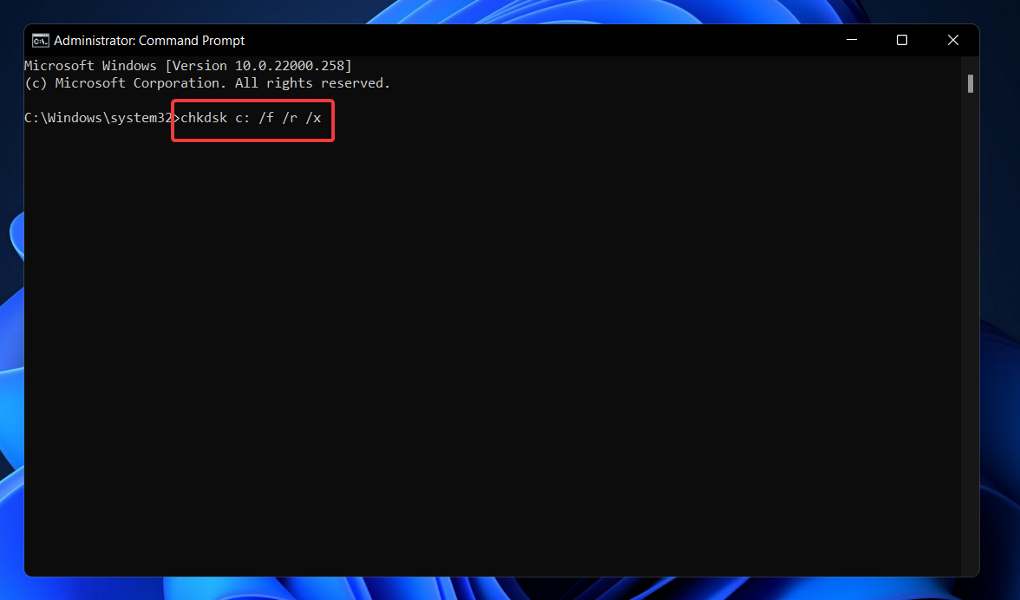
  2. After the Command Prompt launches, paste in the following command and press Enter:
    chkdsk C: /f /r /xchkdsk kernel security check failure windows 11

Another option is to use Check Disk to check for faulty files, which is a free program. As a result, it takes longer to finish than an SFC scan because it is more thorough. To complete the process, restart your computer to ensure that everything is working properly.

5. Initiate Startup Repair

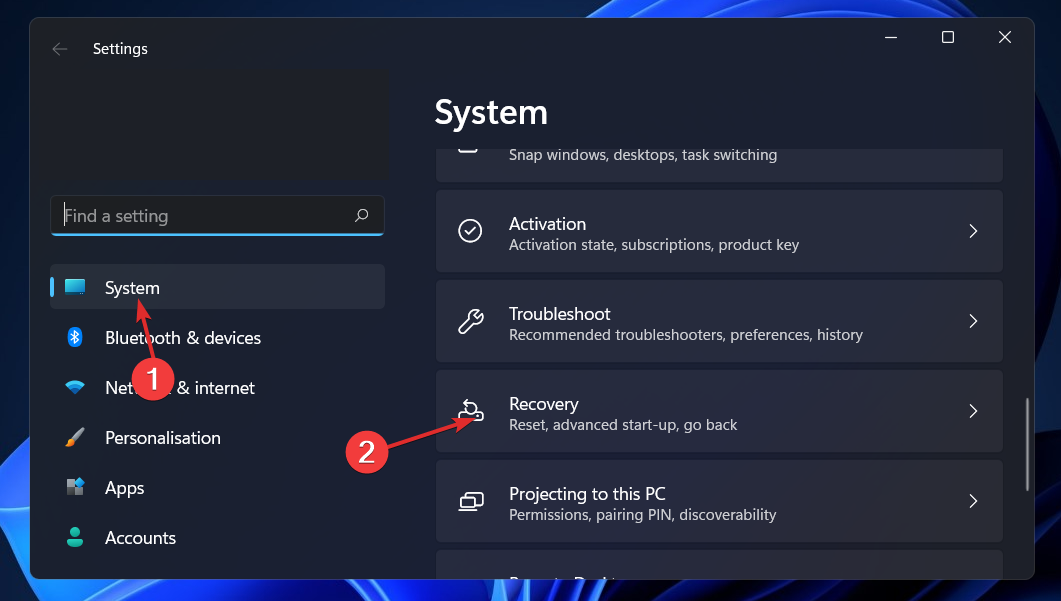
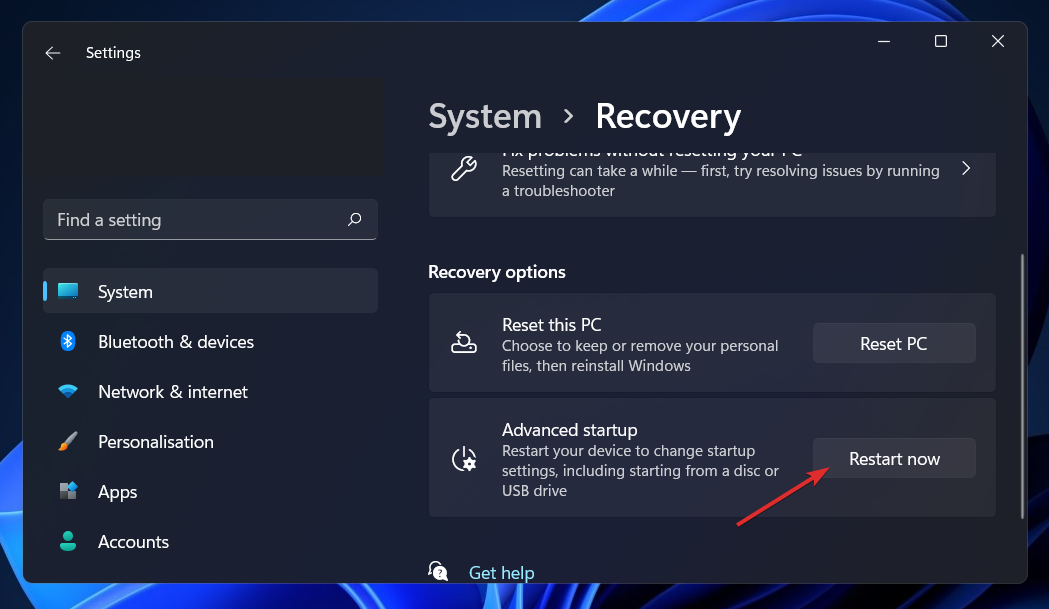
  1. Press the Windows key + I to open the Settings app, and navigate to System in the left panel followed by Recovery from the right side.system-recovery windows 11 error code 0xc00000e9
  2. Now click on the Restart Now button next to Advanced Startup.restart-now windows 11 error code 0xc00000e9
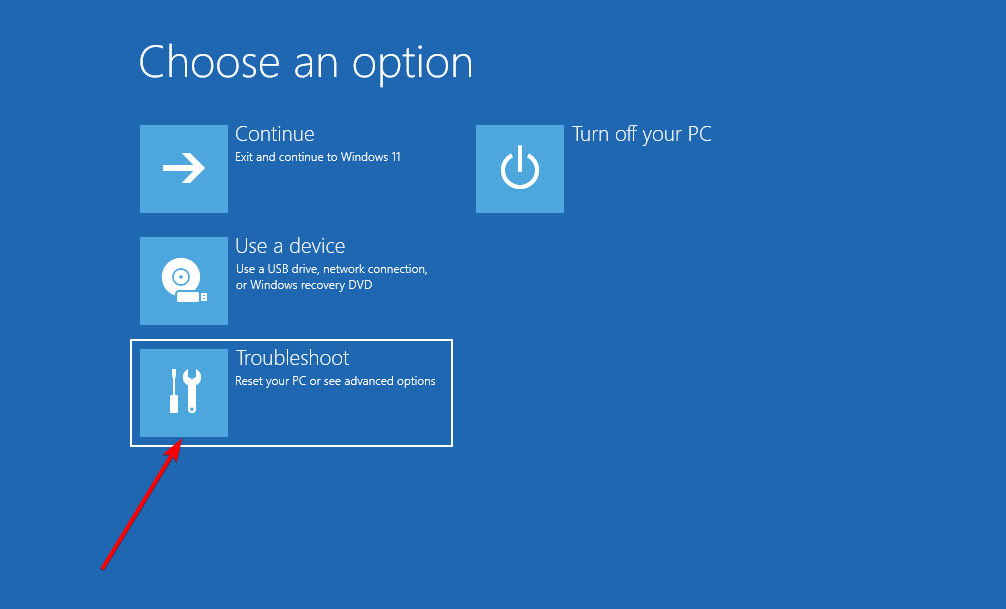
  3. Your PC will now boot to the Windows Recovery screen. Select Troubleshoot from there.troubleshoot-option windows 11 error code 0xc00000e9
  4. Then click on Advanced Options followed by Startup Repair.startup-repair  windows 11 error code 0xc000000f

Your system will automatically take care of the remaining stages and resolve the issue that was encountered during setup.

How can I keep my hardware healthy?

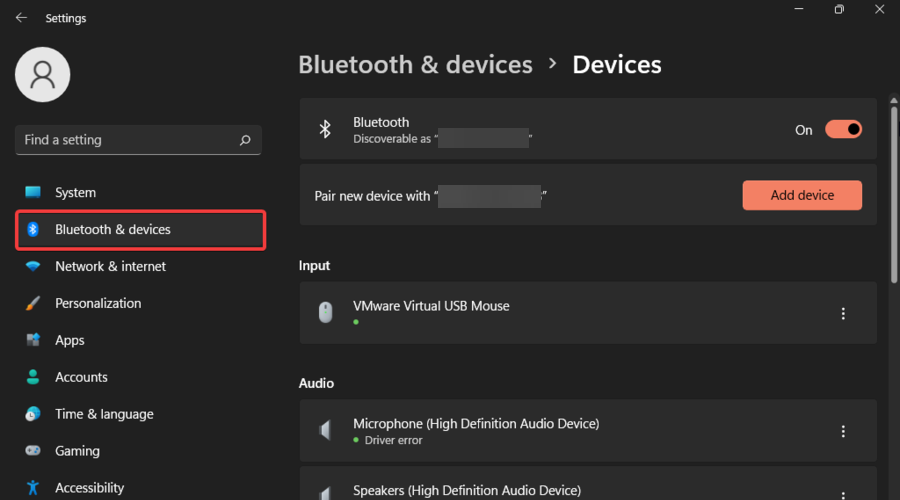
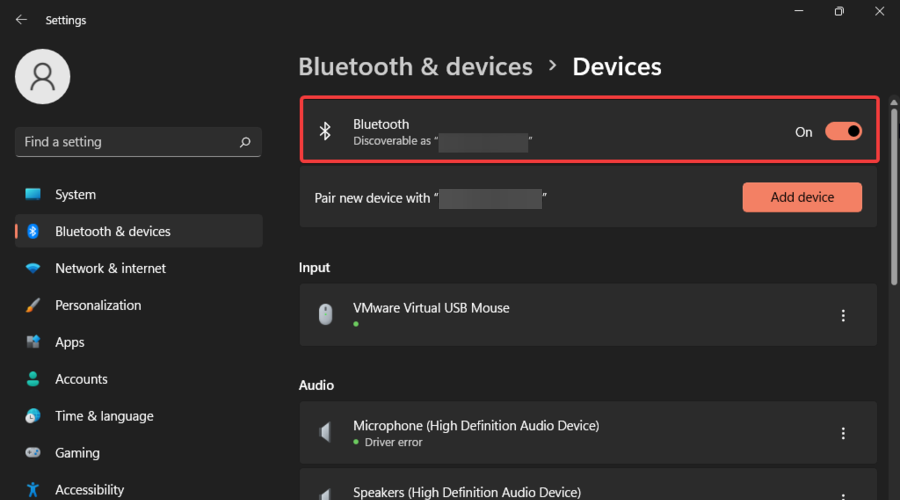
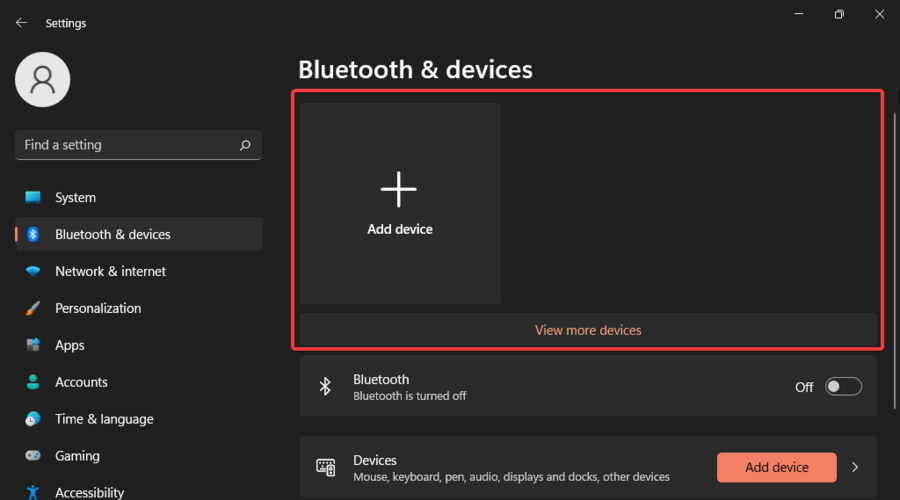
First, add cleaning and disinfecting of your keyboard, laptop, and any other commonly used gadgets to your routine. bluetooth-and-devices   windows 11 error code 0xc00000e9

Using wipes to clean your equipment is completely appropriate, but you should be cautious about whatever wipes you use. If you want to avoid inflicting any inadvertent damage to your equipment, use electronic cleaning wipes that have been designed expressly for this reason.

Even the most cautious among us are certain to find themselves in the midst of a liquid spill at some point in their lives. Fast action is essential in this situation: as soon as the spill occurs, turn off your computer and disconnect from the power source.

Then begin the process of removing all of the extra liquid. It’s vital to remember that just because you don’t see any liquid remaining on the surface doesn’t mean that it’s completely gone.

We understand how tempting it is to work from the comfort of your own bed or couch, but we strongly advise against using your laptop on soft surfaces such as beds, pillows, and other such items.

It is preferable to work on hard, well-ventilated surfaces rather than soft surfaces. Resting your device on a soft surface might cause it to overheat, which is especially dangerous during video conversations.

Another great practice is to restart your computer on a frequent basis. We recommend that you restart your computer at least once a week to keep it running smoothly. This aids in the clearing of stored data and the resetting of your computer’s memory.

And, while we’re on the subject of managing memory, make sure that the workload on your laptop is manageable. Make sure to also install a hardware diagnostic tool for your PC to minimize damage.

For more information and further potential solutions that are applicable in Windows 11 as well, learn how to fix the error code 0xc00000e9 in Windows 10 in a few easy steps.

Alternatively, check out our cluster of guides on troubleshooting boot errors on Windows 10 & 11 PCs, to find out more related articles and methods to tackle the issue at hand.

Let us know in the comments section below which solution worked best for you as well as how well you take care of your hardware. Thanks for reading!

9 Best Firewalls for Windows 10/11 [Free & Paid]

Malware and internet threats are present anywhere. By choosing a strong firewall you can prevent malicious programs to infect your computer and impact the overall system.

This security service enhances the protection of your PC by preventing unauthorized access from different programs or websites.

Finding a suitable firewall for your needs can sometimes be a burden because there are many such products available on the market.

Users often test several programs until they find a firewall that satisfies their demands.

To avoid this long and annoying process, we provide you with a list of the best firewalls you can install on your Windows 10 computer.

The list includes both paid and free tools, and the former category often comes with a free trial, so that you can test the products at ease.

What is a firewall?

A firewall is software that helps your system to monitor your online activity and prevent intrusions and attacks.

Essentially, firewall security helps you to filter network data that come and go from your PC and thus protect the system against internet threats.

The main purpose of firewall tools is to differentiate secured traffic sources from dangerous ones and detect viruses or malware before affecting the system.

The firewall security was created a long time ago in order to examine network packets transferred between different computers.

How does a Firewall work?

This vital service analyzes incoming traffic from the web and determines suspicious websites in order to prevent digital attacks.

A firewall also protects traffic at a computer’s entry point and determines what information is allowed for specific ports on your computer.

In addition, the packet sniffing firewall is the most common type and it practically analyzes packets and determines what is allowed and denied according to the configured security rules.

Thus, using firewall software you provide additional protection for your PC against malicious websites or programs installed on your system.

What to look for in a Firewall

Firstly, you should know there are different types of firewalls. You can have a software firewall or hardware one but is recommended to have both.

The software firewall is more accessible and helps you to filter the network traffic to offer enhanced protection against dangerous web sources.

There are many types of firewalls you can use to better protect your Windows 10 or 11 PC. To name a few, next-generation firewall (NGFW), proxy firewalls, or network address translation (NAT) firewalls. Each of them brings additional features to traditional firewalls.

What are the best firewall tools to use on Windows 11 and 10?

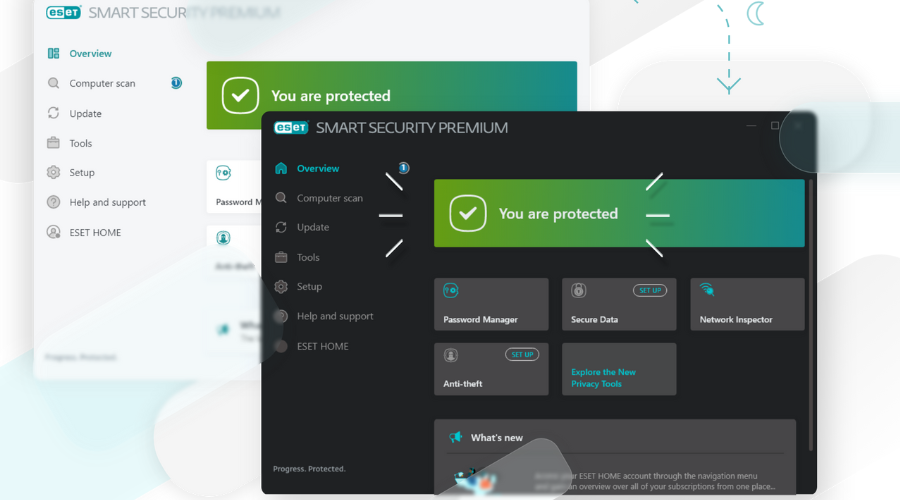
ESET HOME Security Premium – Best firewall tool overall

This comprehensive security tool has complete features to secure your PC against digital threats all around the internet.

Using this solution you can protect Wi-fi network connections and guarantee strong firewall support for your personal IP address.

ESET HOME Security Premium offers multilayered security for your PC and guards the system against spyware or malware threats present on malicious websites.

More importantly, you can scan downloaded files or programs during the process to be notified about potential viruses. This way, the scanning process decreases and you know how to filter potentially harmful software.

Regarding firewall support, you have complete support that stops dangerous malicious sources from infecting your PC. Plus, the network inspector offers support to detect vulnerabilities on your home router and better secure the connection.

At the same time, it offers a great feature of idle state scanning to run complex scans on your computer when it’s closed.

ESET HOME Security Premium

Ensure the security of your PC with machine learning support and reliable firewall shielding.
Free Trial Visit Website

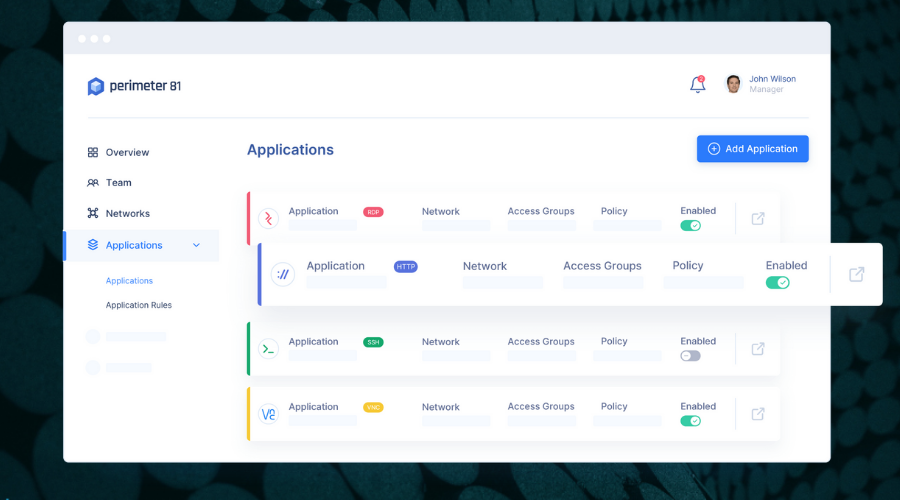
Perimeter 81 – Manage traffic between multiple networks

This software is a cybersecurity platform that confirms 360-degree protection for your network and firewall as service support.

Using this solution you can ensure firewall protection for various environments, both for home usage and corporate data protection.

Perimeter 81 is the go-to security option for granular support on every traffic information that is transferred from outbound sources into your system.

More exactly, the tool delivers firewall security on the cloud designed for the organization’s network protection.

In addition, using Firewall as a service provides access only for authorized users and detects potentially harmful websites.

You can also use integrated services to manage traffic between multiple networks and thus secure many users and connections.

Hence, by choosing this multi-layered tool you scale up the security and apply network rules for the entire organization.

Perimeter 81

Provide strong network security within your organization or for personal use with this integrated software.
Check price Visit Website

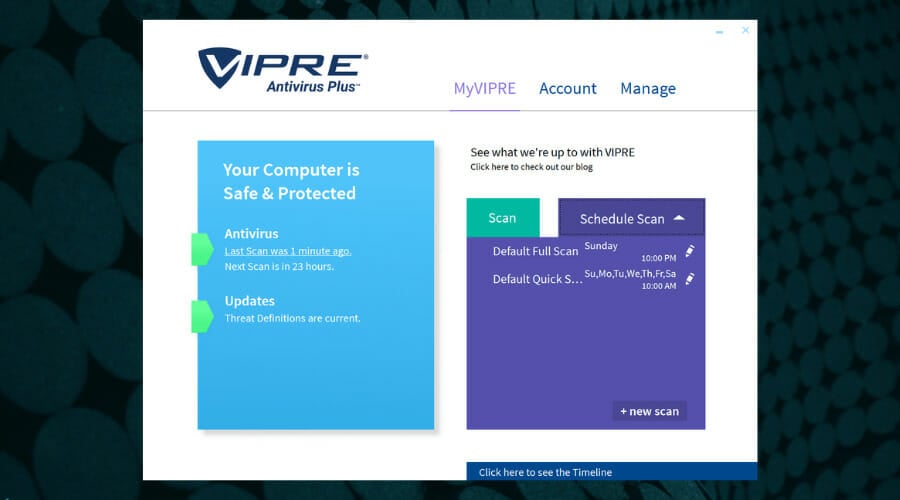
VIPRE Antivirus Plus – Advanced security

Similar to most antivirus software, VIPRE also comes with a built-in firewall that you only need to activate.

The tool also includes advanced security and plenty of resources to help you prevent cybercrimes or personal data theft.

If you’re thinking about digital protection, this solution delivers reliable support against new emerging threats including malware, viruses, trojans, or spyware attacks.

More so, you can control the network connection with the firewall option that filters incoming and outgoing traffic data on your PC.

You should therefore secure your connection and avoid digital threats with reliable assistance offered by this defensive solution.

Downloading the tool is extremely easy if you use the button below. Setting it up is similarly intuitive and, as you’ll see, this is a very lightweight software with excellent threat detection and prevention results.

To activate the tool’s firewall, the easiest way is to:

  1. Right-click on the product icon in the system tray.
  2. Select Firewall and then Enable.

The same goes if you want to disable the option.

Vipre Antivirus

Try this simple, yet very powerful antivirus, with an efficient firewall that blocks any harmful attack on your Windows 10 PC.
Check price Visit Website

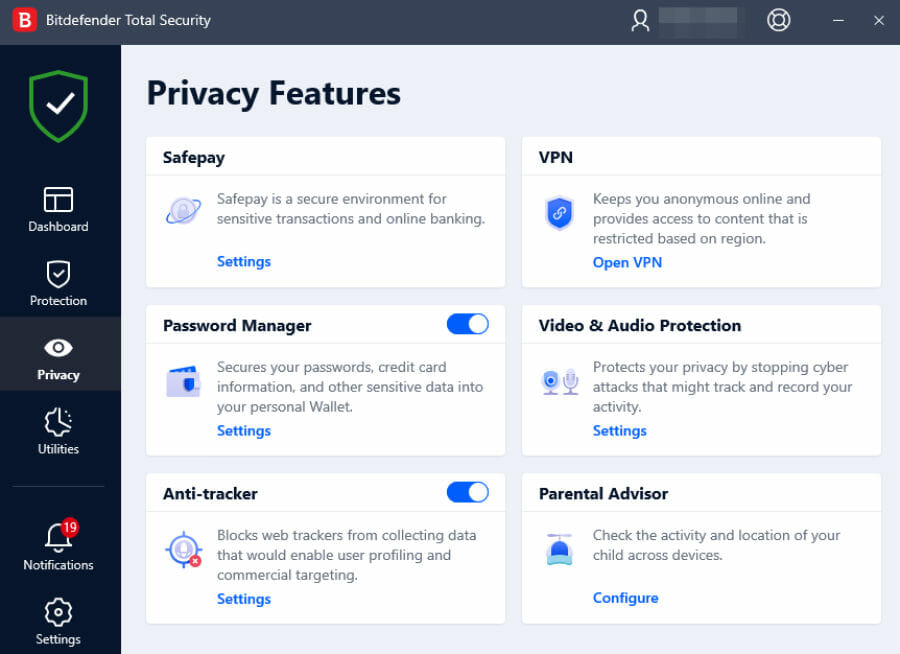
Bitdefender Total Security – User-friendly interface

Bitdefender Total Security is currently one of the highly praised and most complete antivirus solutions on the market.

It comes with a user-friendly interface to appeal even to non-tech users, plus an efficient autopilot mode, network threat scan, ransom protection, optimization too, plus a VPN.

Of course, it also has a firewall that is activated by default, but you can configure its setting depending on your preferences.

This is how you can manage the firewall settings in Bitdefender:

  1. Install the product using the button below.
  2. Open Bitdefender Total Security.
  3. Go to the Protection tab and toggle the firewall switch to ON.
  4. Then, click Settings and go to Application Access.
  5. Go through all the options in this section.
  6. Edit rules for a specific application by clicking on the more menu (three dots.

Bitdefender Total Security

Get a powerful layer of network protection with this firewall and safe-keep your personal information from hackers and data breaches.
Check price Visit Website

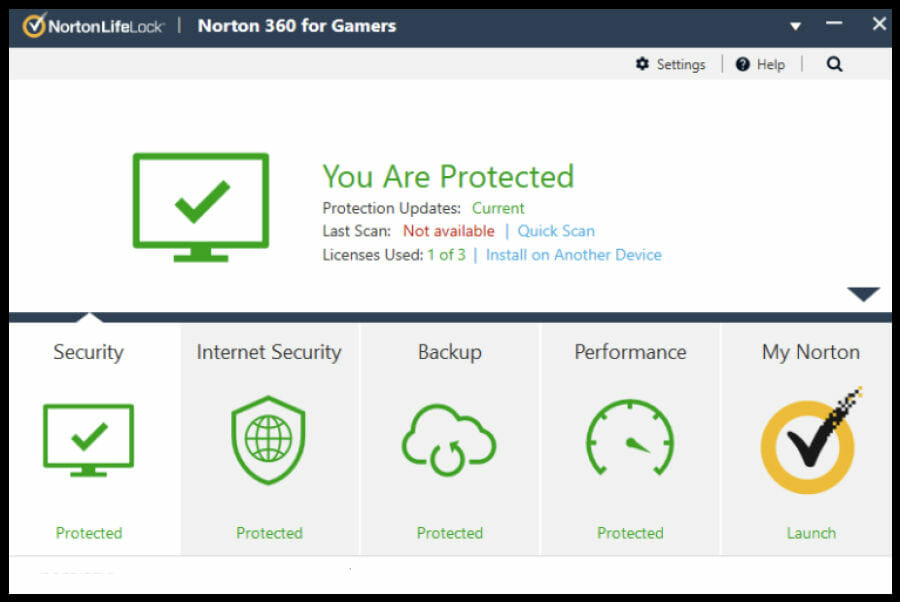
Norton 360 – AI technology

Norton Smart 360 resolution is the perfectly suited software for complex cybersecurity and firewall support for your PC.

Firstly, this antivirus offers complete security for any device and is powered by AI technology and machine learning support.

It confirms innovative firewall security for your PC or laptop and 100% protection against malware or viruses all over the internet.

Consequently, Norton security comes with various protection tools such as a smart firewall, password manager, reliable VPN, and so on.

Another useful technology is represented by intrusion prevention which is capable of detecting online threats and blocking malicious websites or programs before they arrive on your system.

In addition, reputation protection capability gathers data from a global network and determines which software is safe to be installed based on its attributes.

Concluding here, the security offered by Norton is of great help to secure your network connection and block suspicious programs to affect your device.

Norton Smart 360

Assure your device security and prevent malicious web sources or software from accessing your system
Check price Visit Website

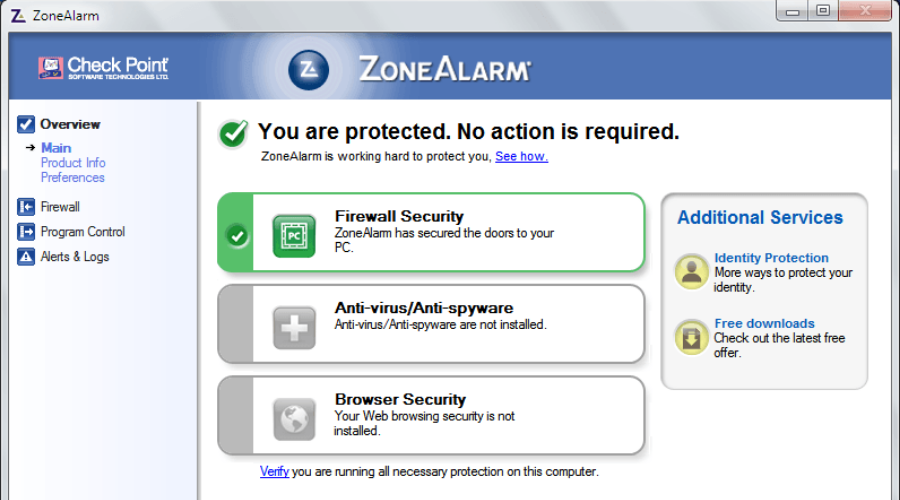
ZoneAlarm – Easy to use

ZoneAlarm is a well-known firewall, with an easy-to-use interface. Behind the user-friendly interface, there are a plethora of features that can meet the requirements of even the most demanding users.

You can fully customize the security settings, and adapt them to your needs.

After you install ZoneAlarm, you need to check it from time to time to make sure that the applications that request internet access to run are not influenced by the firewall’s filters.

The pop-ups ZoneAlarm displays are really simple, offering you 3 options when something goes wrong: Accept, Deny or Postpone, allowing you to be reminded later about your decision.

ZoneAlarm has 3 security levels:

  1. Low – a level dedicated to beginners, a learning mode, without OS firewall protection and limited pop-ups.
  2. Medium – at this security level, the software starts asking you for permission to access various Internet segments. This level is suitable for home networks with more than one system connected.
  3. High – this mode is not available in the free version of the software. It supports the Smart Defense Advisor that help you to reduce pop-ups by configuring the app access based on the decisions made by other users. It is suitable for use in public Wi-Fi areas.

The Internet segments of this software are divided into two categories: the Trusted Zone, commonly used for local networks, and the Internet Zone. Of course, you can adjust the security level for each area.

You can download ZoneAlarm from Check Point.

Zone Alarm

Secure your network connection using this two-way firewall software to highly protect your PC.
Check price Visit Website

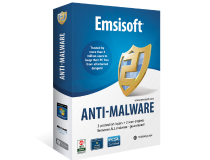
Emsisoft Anti-Malware – Outstanding HIPS level

Emsisoft Anti-Malware main window

This firewall has a reliable scanning system with an outstanding HIPS level.

Its main feature is called Run Safer and allows you to set different restrictions to any process, including web browsers, web readers, email, multimedia software, download managers, and many more.

The number of pop-ups can be reduced thanks to the automatic safe program list. Every time you label a program as safe, every similar program also receives the same label.

No decision will be taken without your consent. Immediately after installation, this firewall performs a scan to index all software packages installed on your computer and will establish restrictions according to its built-in software list.

These restrictions can be changed at any time, and if one of the programs you installed is not on the list, a pop-up will prompt you to label the program as safe or unsafe.

Also, every time a program tries to connect to a web address, you’ll receive a notification that lets you choose if you allow the connection or not. This firewall is completely customizable and useful for any environment, you can use it at home or at work.

Emsisoft Anti-Malware

Utilize this simplified security method to block banking attacks or any other digital threats that compromise your system.
Check price Visit Website

Best free firewall software for Windows 11 and 10

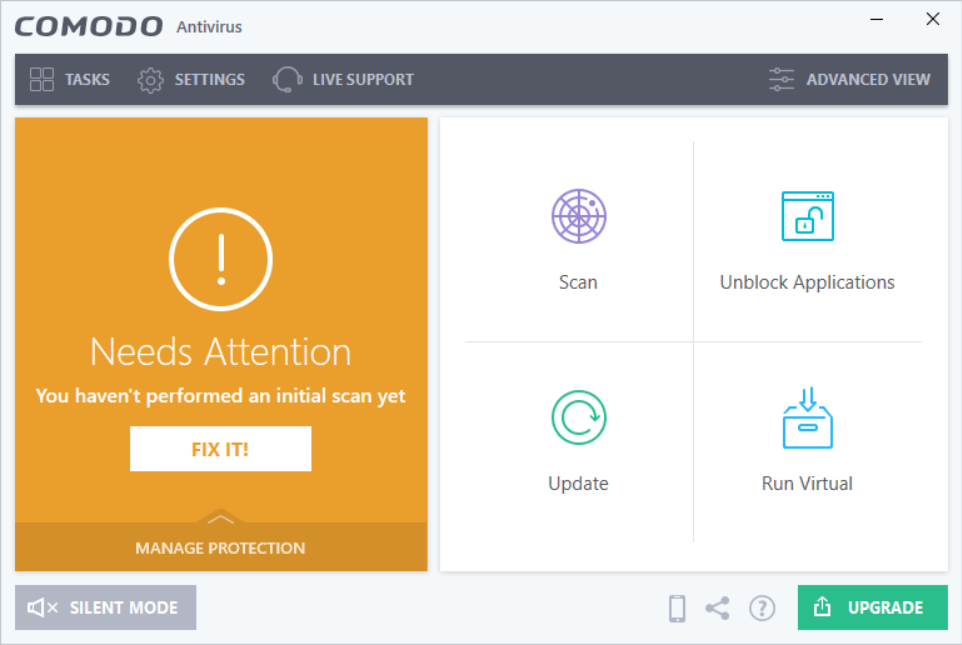
Comodo Free Firewall – Advanced malware detection

Using this firewall solution you have full protection for your network connection and keep suspicious online activities away.

You can safeguard your PC against advanced malware or hackers using this strong firewall option without any charge.

The solution delivers valuable features that enhance your safety online, so do not postpone when it comes to digital risks.

Regarding the features, you have resourceful capabilities such as prevention-based security, sandbox technology for unauthorized programs, or cloud-based behaviors analysis.

More exactly, with such functionalities, you’re able to guard the system without allowing malicious applications and files to hit your network and affect your PC.

Additionally, you should rely on functions like application control to encrypt your system and prevent untrusted websites or programs to get through your firewall.

This being said, benefit from high-value security using this free firewall program to completely defend your system.

⇒ Get Comodo Firewall

TinyWall – Fast usage

TinyWall is a very simple application that works with a built-in firewall. It doesn’t have any annoying pop-ups and the installation package is very small (a little more than 1 MB).

The installation process is very simple and fast and once installed, TinyWall runs automatically in the background.

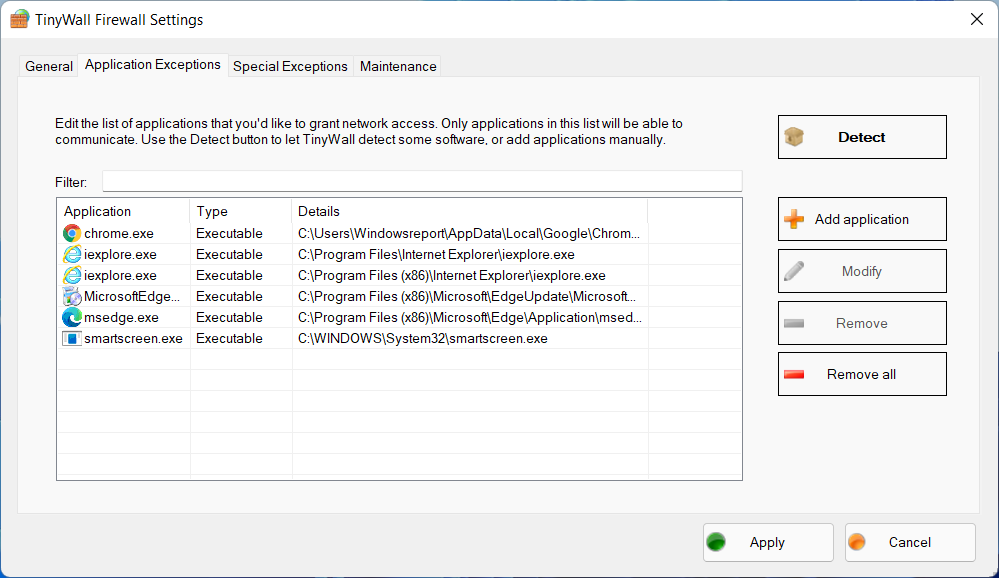
You can control this software through the tray icon, which opens a small menu with basic features, such as changing the operating mode, adding exceptions for applications, indexing the network activity, and many more.

From that menu, you can manage the General settings, including the password protection of the tool. TinyWall also offers a scanning feature that detects unknown applications and restricts them.

The Advanced settings tab allows users to configure this software according to their needs, but we recommend you keep the pre-set settings if you are a beginner.

The Maintenance tab allows users to import and export settings, check for updates manually and visit the official TinyWall website.

⇒ Get TinyWall

And with that, we conclude our list of the best firewalls for Windows 10. If you want to keep your PC safe, be sure to carefully test them and choose the one that fits you best.

For more information on protecting your online identity, you can check our Privacy section. You’ll find similarly helpful information in the Update & Security Hub.

For deeper network visibility and enhanced privacy, try Portmaster Firewall to monitor connections, block trackers, and secure your traffic effectively.

For any more questions and suggestions, reach to the comments section below.

NordLayer review: Protect your business with a modern VPN

You cannot be too careful when it comes to your business security and a lot of data is lost due to network connections being intercepted.

Protecting your server is not enough because, in these times when your employees work from home in all corners of the world, you have to ensure the safety of all your connections.

The solution is to employ the use of a powerful VPN to protect all the endpoints of your network and safeguard their communication channels.

Our recommendation is NordLayer and here, we will address all its best features, improvements, and changes that recommend the new solution as a modern VPN to secure your connection and privacy.

How can NordLayer help you and your business?

First of all, NordLayer is now more than a VPN, it’s an adaptive network access protection solution for modern businesses developed by Nord Security.

And not only that, but they can help you with scaling and integration with a secure remote access solution for the ongoing revolution of SASE frameworks.

It can fulfill the requirements for all the remote workforces and it’s easy to integrate with any existing infrastructure.

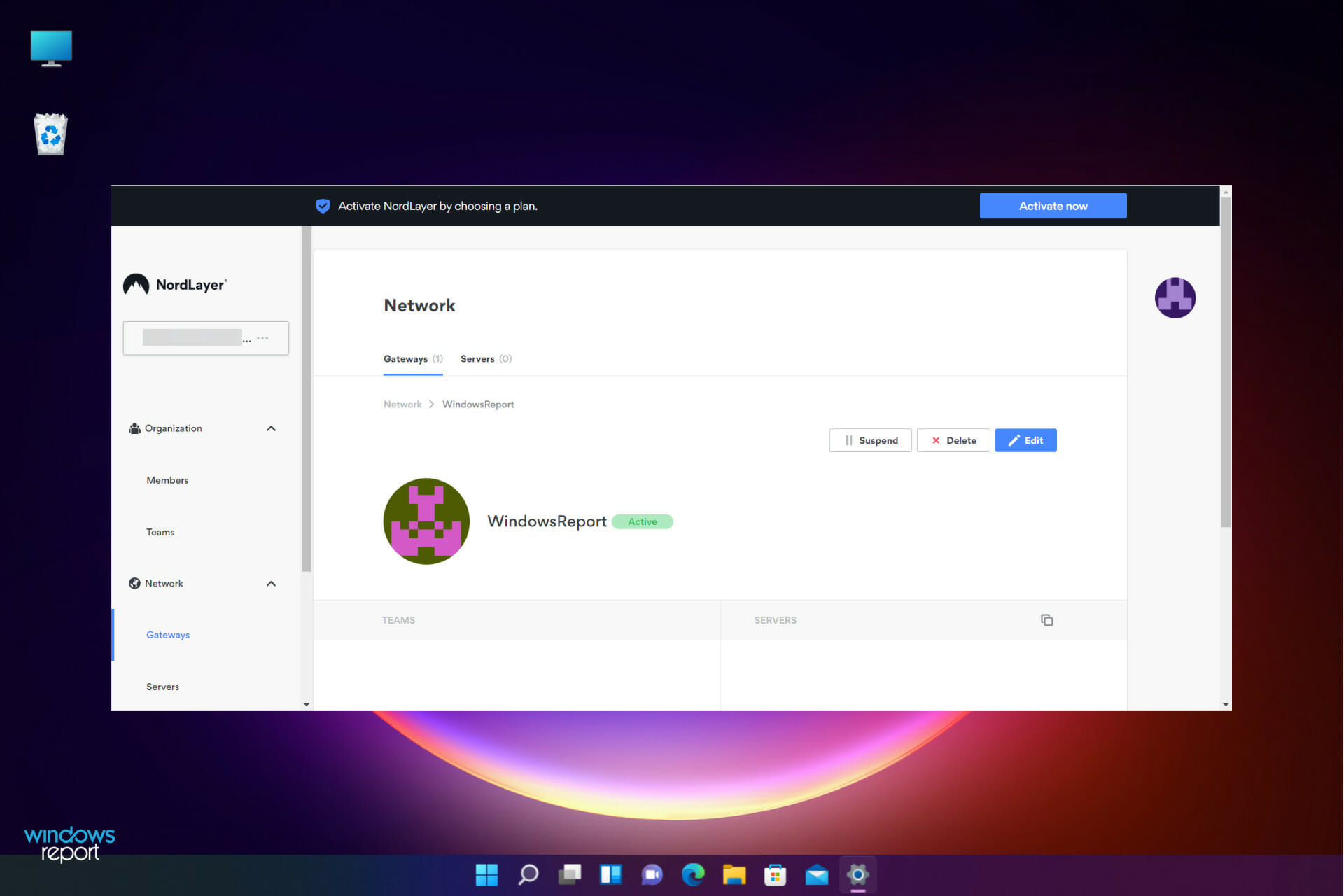
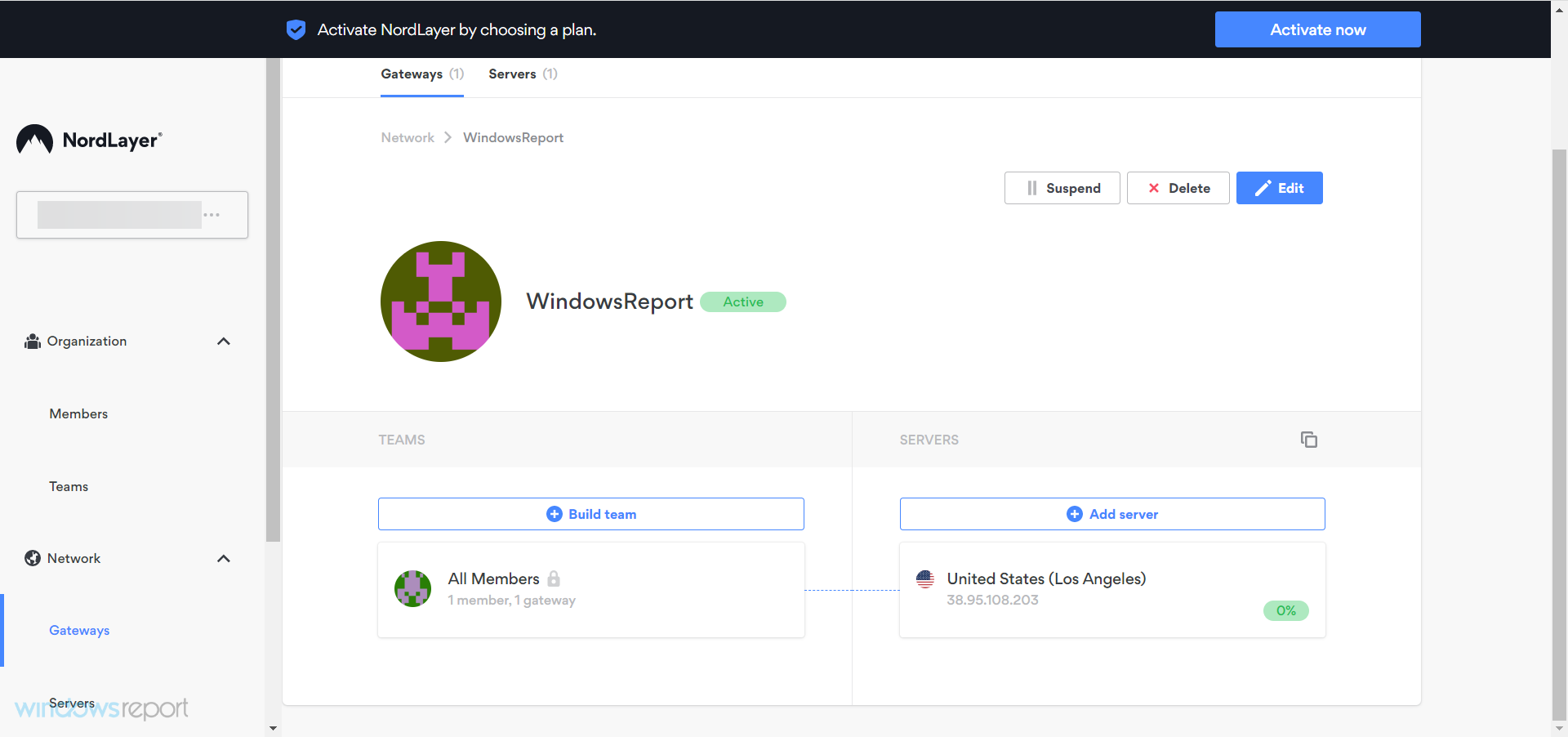
Plus, NordLayer allows admins to segment the access by creating teams and providing group access permissions based on the resources they need to access.

What are NordLayer’s best features?

1. Multi‑layered network security

NordLayer helps you add an extra layer of protection to your device by allowing you to set up two-factor authentication to log in.

You can use an external app like the Google Authenticator or any other TOTP app or use the old-fashioned but safe SMS code.

And if the endpoint has the necessary technology, you can even use face recognition and fingerprint scanning for authentification.

That’s not all! NordLayer detects devices that are vulnerable to attack and alerts admins immediately to take the necessary actions.

As for connection security, the solution uses military-grade tunnel encryption to hide your traffic and online activity wherever you are.

But the most interesting feature is the endpoint-to-endpoint file sharing within a group of users that are connected to your NordLayer organization account.

In other words, if they are connected to this VPN solution, the users can send and receive files without any security concerns.

2. Simple service administration

First of all, the administration of the services is cloud-based and centralized so it can be operated easily by an administrator from anywhere in the world.

And using the platform itself is so simple and well organized that you couldn’t possibly require assistance, but if you do, there is a 24/7 customer support team with an average response time of under a minute.

The centralized platform also makes billing a lot easier. You will receive a single invoice for all your organization that can be handled swiftly.

Another important feature for the administration console is that you can configure a member’s connection remotely from the web app.

This is amazing although from the endpoint, setting up the software is as easy as entering the organization name, a username, and a password.

3. Global access to a reliable server infrastructure

NordLayer provides ultra-fast access to shared and dedicated servers in more than 30 locations all over the world so there is hardly a place where you can’t find a suitable connection.

Moreover, it offers dedicated or static IPs to enable network access control functionality and segment your network so that it can be easily manageable.

Using a dedicated IP can also improve the access speed because that address will be restricted only to you and your business.

4. Multiple platform access

Let’s face it, the users in your organization will handle more than one device or platform to access business resources.

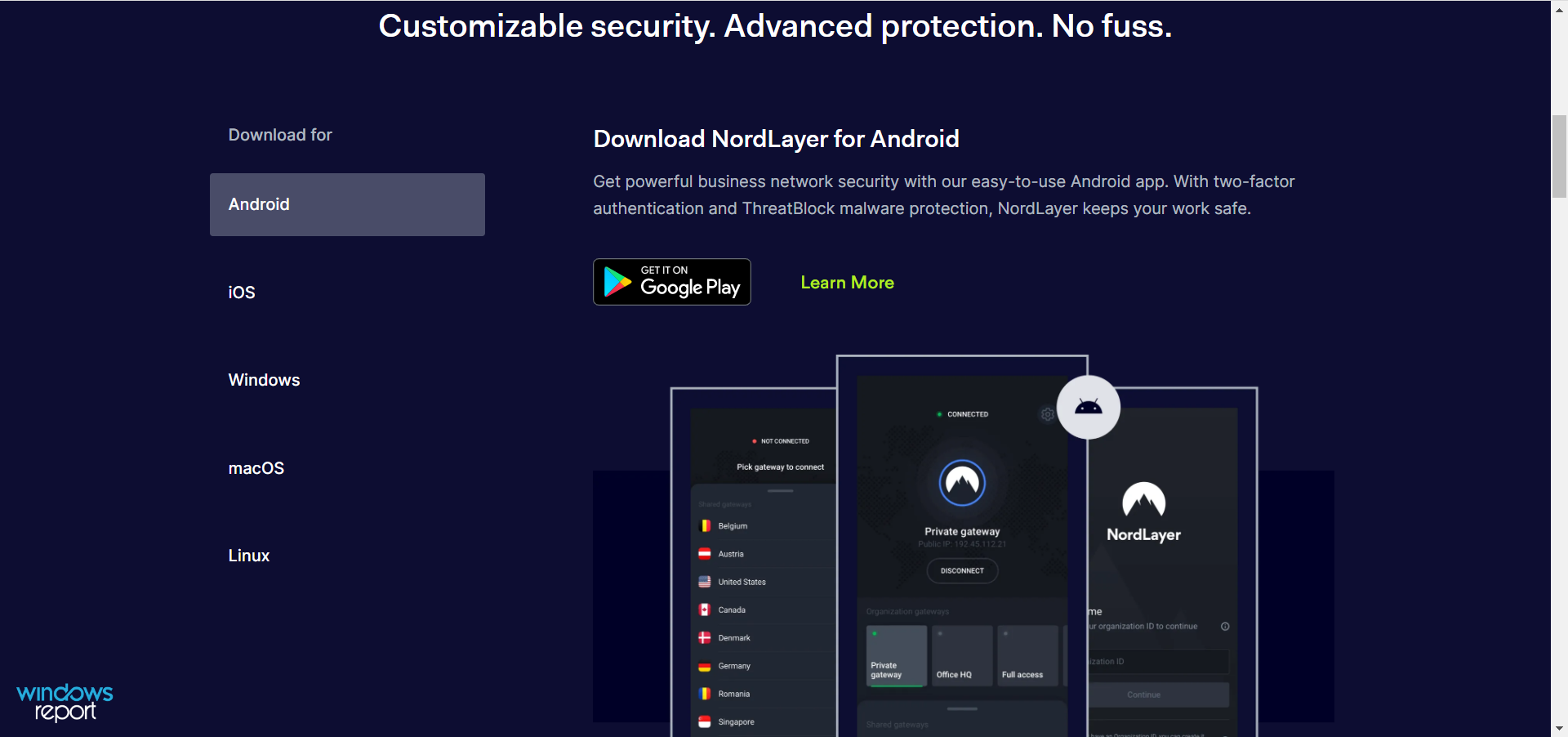
So, you need a VPN that can work on any platform seamlessly and NordLayer offers the same protection on Windows, macOS, Linux, Android, and iOS devices.

The user only has to download the right app for his system, enter the organization ID, his/her credentials, and that’s it!

5. Active threat protection

Usually, VPNs don’t engage in threat and malware protection simply because they are not antiviruses.

However, by diverting the traffic through tunneling, other servers, and IPs, they natively offer a level of security for malevolent actions.

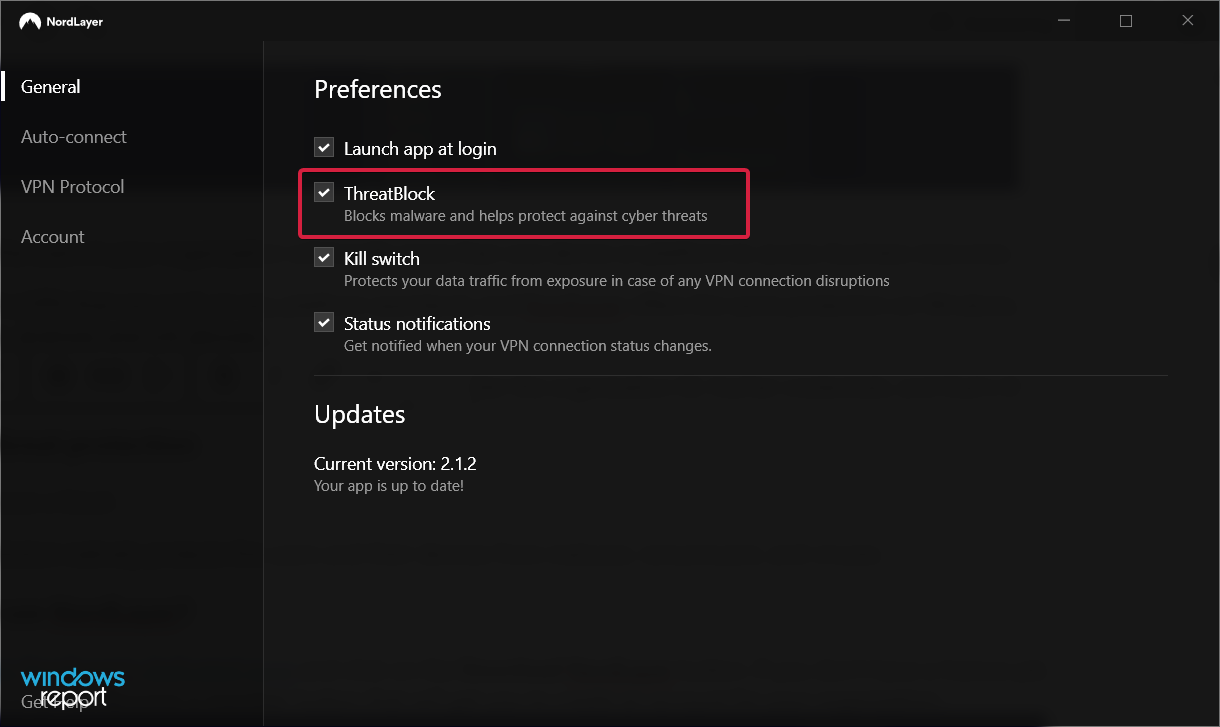
However, NordLayer comes with a feature called ThreatBlock that when enabled, will automatically block harmful websites so that no malware or other cyber threats can infect your device.

Moreover, it will get rid of any flashy pop-ups, auto-playing ads, and other advertisement material that interfere with your browsing experience.

Plus, this feature blocks a website if it is related to any sort of illegal activity or if it was identified as unsecured in one of NordLayer’s databases. That is why, if you activate it, some suspicious websites or applications will be blocked.

However, this tool is not completely failproof so if you definitely know that the website you’re trying to access is completely safe, deactivate the feature from the Settings menu and try to load it again.

How can I use NordLayer?

  1. Navigate to NordLayer’s dedicated page and click on the Download NordLayer button. If you don’t have a licence yet, you can click on the Become a member button that will get you to create an account for your organization.
  2. Next, select the platform you want to use NordLayer (in our case, Windows) and select the Download Windows App button.
  3. An executable file will download shortly and as you run it, click Next to start the installation.
  4. Select the folder where you want to install the app and hit Next.
  5. Finally, click on the Install button to complete the setup.
  6. In the end, check the Launch NordLayer box and hit Finish.
  7. Now, enter the organization ID provided by your employer.
  8. Next, fill in the username and password from your organization and click the Login button.
  9. Select the NordLayer icon from the status bar and select a server.
  10. Of course, you can also use your organization’s gateway if one is allready set up.

That’s it! Your VPN is connected, working and all your traffic now is routed safely through the server you’ve selected.

How to control the settings on NordLayer?

  1. To configure NordLayer, just click on the Settings button from the app.
  2. In the General tab, you will find the startup function, the ThreatBlock function, the Kill switch, and the Status notifications option.
  3. In the Auto-connect menu, you will find the automatic connection features.
  4. You can change the VPN Protocol from the next tab but we recommend leaving that seting to automatic unless instructed differently by your organization.
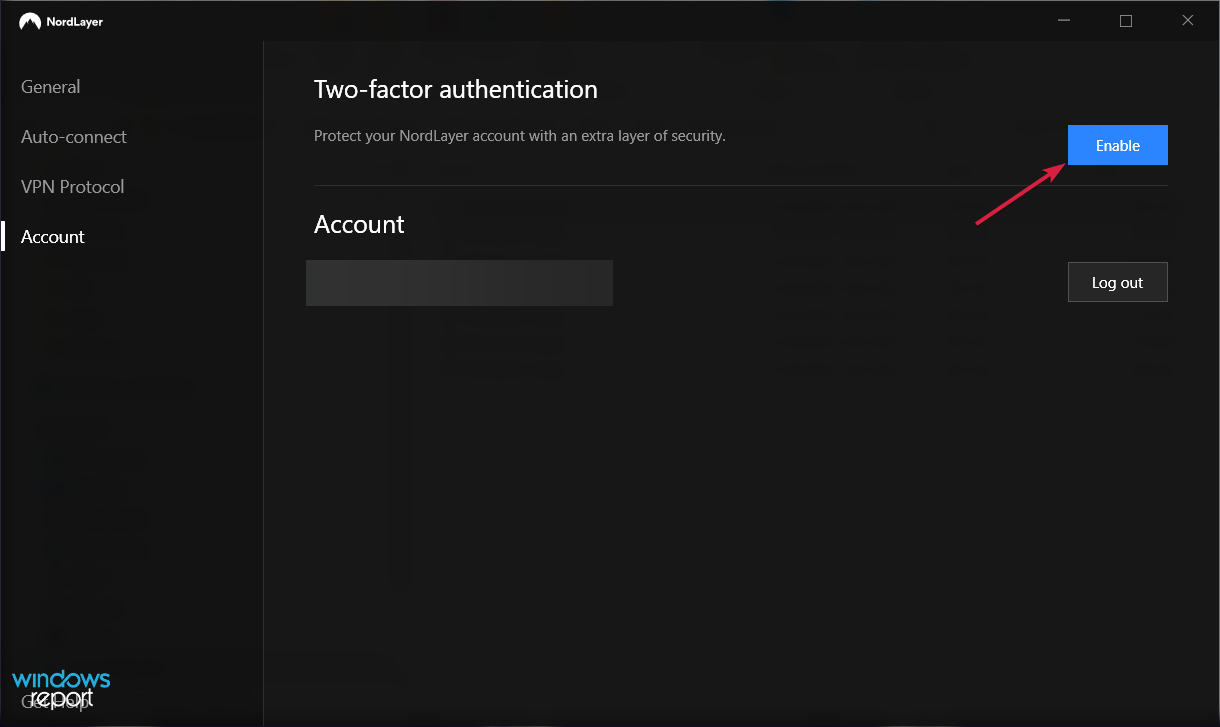
  5. In the Account section, you can log out or enable the Two-factor autentification feature that will add a layer of security to your connection.

NordLayer pricing and plans

NordLayer has plans based on the number of users so you can scale your solution to the exact specifications you need.

It’s important to know that if you go for the Business VPN annual payment, you can get an 18% price discount for the yearly Advanced plan and a 22% price saving if you go for the yearly Basic plan.

This can be a great deal if you have more users so you should definitely consider the choices below.

There are three possible options to choose from:

➡ The Basic plan – It’s dedicated to small and medium businesses and offers all the options necessary to secure all your devices

Let’s see some of the best features you will benefit from this plan:

  • 24/7 tech-minded live support
  • License transferability
  • Centralized settings & billing
  • Two-factor authentication
  • SSO with Google, Azure Ad, Okta, Onelogin
  • Shared access to 30+ global server locations
  • AES 256-bit encryption
  • Auto-connect
  • ThreatBlock
  • Jailbroken / Rooted device detection
  • No traffic limitations
  • 100% cloud native

➡ The Advanced plan – Dedicated to businesses that need priority live support and want to purchase dedicated servers

You will benefit from all features of the Basic plan, plus:

  • Priority 24/7 tech-minded live support
  • Dedicated account management
  • Ability to purchase dedicated servers with up to 1Gbps speed

With dedicated servers you will get:

  • 20+ dedicated server locations
  • Dedicated IP
  • IP allowlisting
  • Custom DNS
  • Network segmentation
  • Smart Remote Access
  • Biometrics

➡ The Custom plan – Dedicated to businesses that have specific requirements for their network environment

You will benefit from all features of the Advanced plan, plus:

  • Counseling for customized solutions for special requirements
  • Premium 24/7 live support for technical implementation

NordLayer

Protect your business with a modern VPN that offers dedicated solutions for any network requirements.
Check price Visit website

Check the NordLayer website and look for the best solution for your business and network requirements.

Pros
Simple cloud-based administration interface
SSO with Google, Azure Ad, Okta, Onelogin
Compatible with Windows, macOS, Android, Linux and iOS devices
AES 256-bit encryption
24/7 live support
Cons
Dedicated servers are optional only starting with the Advanced plan

Final notes

As we already mentioned, NordLayer is not just a VPN because it offers a lot of other features to improve the security of your server and endpoints.

In our tests, it performed fast enough to carry out any job-related tasks and after a few days, we even forgot that it was there.

That’s because we set it up to start up and connect automatically so we didn’t have to tweak any settings. NordLayer was just there, working in the background, protecting our connection seamlessly.

We were also impressed by the simple, cloud-based administration console that is extremely easy to manage and set up.

Once you include all the members and configure their access settings, you practically don’t need anything else than to supervise the connections from time to time.

The prices are very affordable for all the plans compared to other solutions but you shouldn’t take our word for it, you can do personal research and convince yourself.

Have you tried it yet? If so, leave your impressions in the comments section below because other readers may benefit from your experience.

Packet Loss in Apex Legends: What is it and How to Fix it?

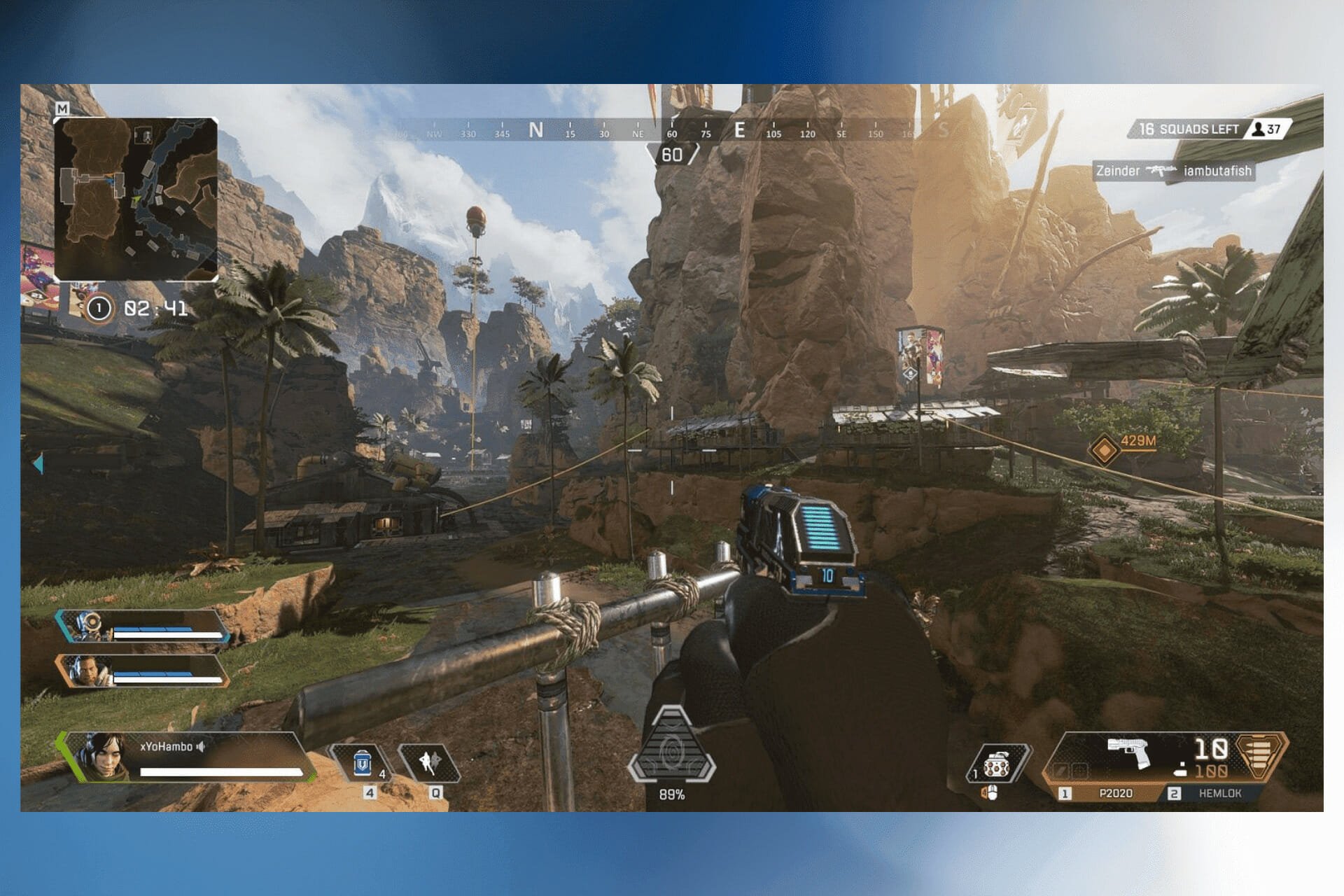
Apex Legends is an awesome battle royale team deathmatch online game. Aside from its innate awesomeness, the fact that you can play it for free makes it even more appealing.

The principle is quite simple. You form a three-player team and get parachuted from a ship. You reach the ground, then start looking for weapons, ammo, and armor.

If you’re lucky enough and manage to stock up, the battle begins.

You and your squad should be the last team standing at the end of the match. Most games don’t last for long since the playable (non-damaging) area restricts every once in a while, making encounters more inevitable.

Apex Legends is popular enough to have servers all around the world. Countries such as the UK, US, Netherlands, Germany, and Belgium have their own servers.

Therefore, you can connect to a wide range of servers in case the assigned one doesn’t fit too well.

On the other hand, despite this rich selection of servers, you might experience certain issues with Apex Legends from time to time, especially considering that you can enjoy this game exclusively online.

One of the most common issues is packet loss.

What is packet loss in Apex?

When you play Apex Legends, leaking packets means that data bits you send to the server, or the server sends to you, never reach their destination.

Seeing the Apex Legends packet loss symbol can be annoying, especially considering that there’s no magic fix.

Although it seems that packet loss is a big deal, the truth is that the issues it triggers are far more awful, especially in online games such as Apex Legends.

For instance, you might experience rubberbanding, extreme lagging, or even connection timeouts.

Why do I have packet loss in Apex?

There are a few issues that can trigger packet loss in Apex Legends, including:

  • Bad Internet connection
  • Faulty DNS configuration
  • Outdated Apex app

Packet loss can in return cause all sorts of issues and errors. Players of the game most commonly reported having to deal with:

  • Apex Legends server/data center packet loss
  • Apex Legends 40/50/100 packet loss
  • High ping and packet loss in Apex Legends 2
  • Apex Legends packet loss season 8
  • Season 13 packet loss in Apex Legends
  • Apex Legends packet loss on PC, PS4, Xbox, PS5

How to fix Apex Legends packet loss?

1. Use a reliable VPN service

Using a VPN can help you fix packet loss when there’s something wrong with your ISP. However, it’s worth mentioning that using a VPN won’t magically fix packet loss in the following cases:

  • You’re losing packets on your home network hops
  • The Apex Legends server loses packets

If you want to know how to determine which part of the player-server connection leaks packets, check out our awesome packet loss guide.

Below you can see how you can configure a VPN on your device. In the example provided, we set up Private Internet Access on a Windows 10 PC.

Although VPNs differ across providers in terms of user interface and features, usually you should follow these general steps to set up a VPN on your system:

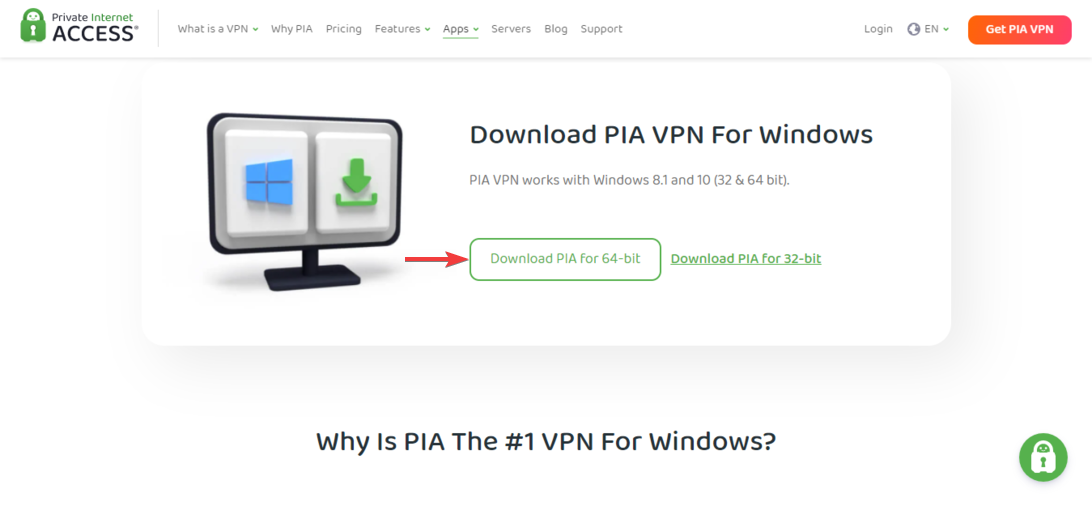
  1. Get a PIA subscription and download the VPN client.
  2. Install the client on your device and launch it.
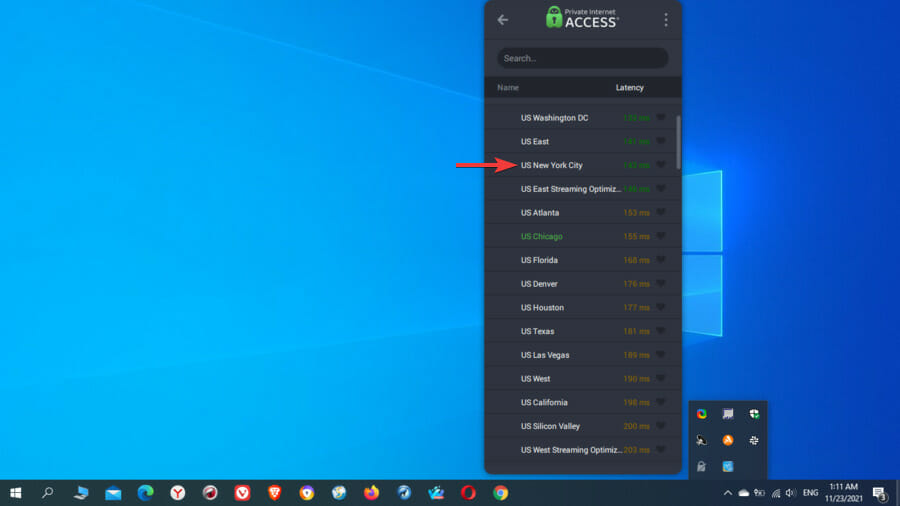
  3. Go to the list of available servers and select one.
  4. Connect to the VPN server.
  5. Run Apex Legends and check if the issue still persists.

Private Internet Access (PIA) is an excellent VPN owned by Kape Technologies. It can help you improve ping, reduce latency, and even eliminate packet loss in some cases.

The VPN service is based in the USA and boasts more than 15 million customers worldwide, making it one of the most popular, reliable, and trusted VPNs in the industry.

PIA offers support for all major platforms, including native apps for Windows, macOS, Linux, Android, and iOS, as well as browser extensions for Chrome, Firefox, and Opera.

Besides, it can also be configured on your VPN-enabled router if you want to connect all devices on your network or play Apex Legends without packet loss on your PlayStation or Xbox gaming consoles.

With more than 35,000 servers in 80+ countries, PIA offers far more servers than any other VPN rival on the market. Thus, you will have more than enough servers to connect and play Apex Legends from everywhere.

Private Internet Access masks your IP and encrypts your data with AES-128 (GCM) or AES-256 (GCM) military-grade encryption, which is the industry standard since it’s resistant even to brute-force attacks.

In order to reroute your traffic through a secure VPN tunnel, PIA uses the OpenVPN and WireGuard VPN protocols, which are very fast and secure.

OpenVPN is already a household name and is employed by almost each top VPN provider, whereas WireGuard is newer and very promising in terms of fast speeds and advanced security.

With PIA, not only will you be able to eliminate packet loss when playing Apex Legends, but you’ll also prevent bandwidth throttling, network restrictions, tracking, monitoring, and cyberattacks.

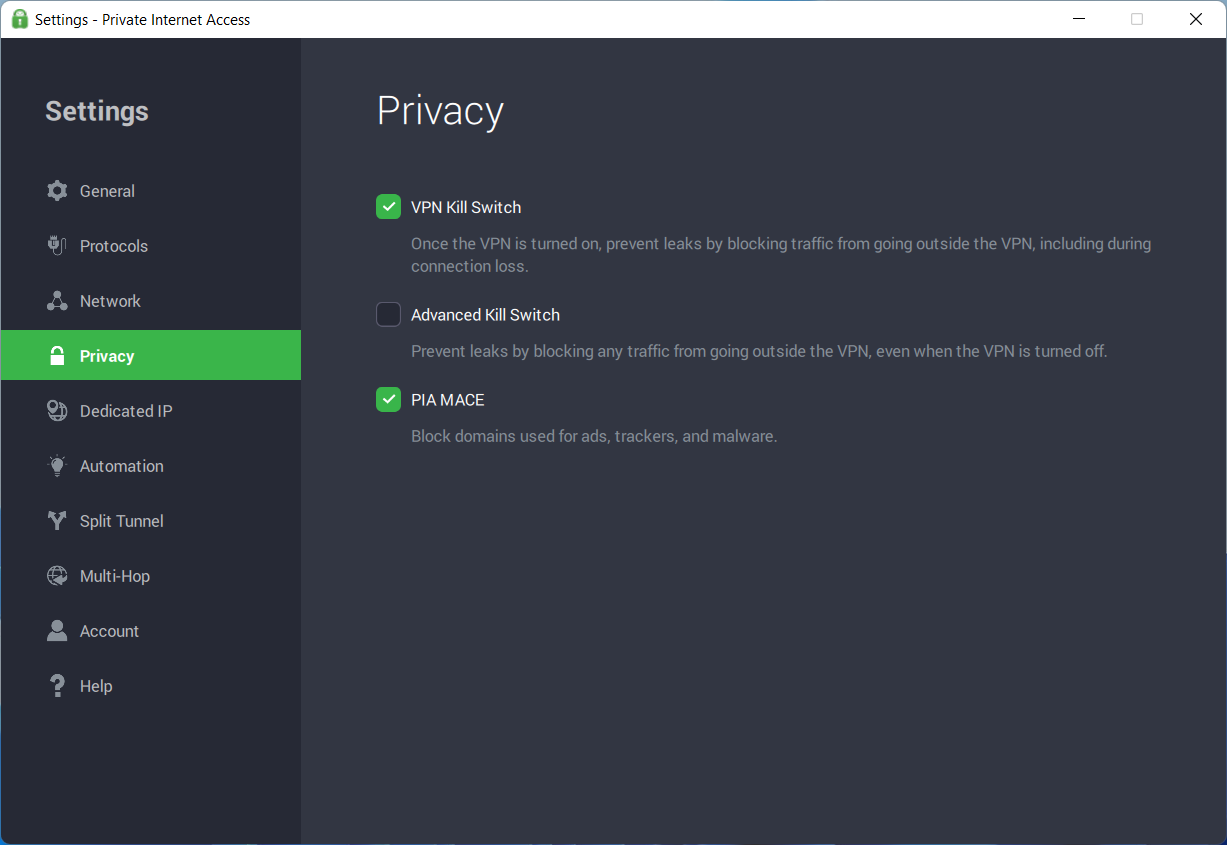
Additionally, PIA comes packed with other nice features, such as VPN Kill Switch, PIA MACE (ad and malware blocker), Split Tunnel, Multi-Hop and Obfuscation, Connection automation, Port forwarding, PIA DNS, Smart DNS, Dedicated IP, and P2P.

The VPN Kill Switch protects you against data leaks (IP, location, sensitive info) by blocking all Internet traffic either when the VPN experiences connectivity issues or when it’s turned off.

With Split Tunnel, you can split your connection between the VPN and the regular connection. For instance, you may choose to have some apps or IP addresses that will go through the VPN, whereas others will access the Internet openly.

Multi-Hop provides extra encryption by rerouting your traffic via a VPN server first, then through a proxy server (Shadowsocks or SOCKS5 proxy).

The feature works together with obfuscation, meaning that when you enable it, you will also obfuscate your traffic, thus concealing your VPN use from the ISP or other parties.

More about PIA:

  • Strict no-logs policy
  • Simultaneous access on up to 10 devices
  • Risk-free 30-day money-back guarantee
  • 24/7 live chat and email customer support

Private Internet Access

Losing packets on Apex Legends? Try PIA to solve the issue and carry on with your battle goals.
Check price Visit website

2. Manually troubleshoot your connection

1. Perform a full packet loss test

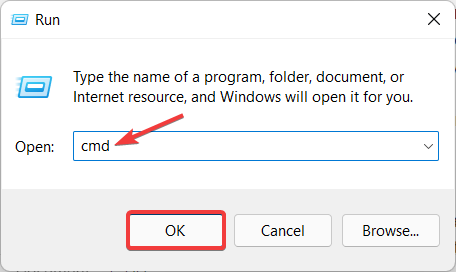
  1. Open the Run dialog box by pressing the Windows Key + R.
  2. Type cmd into the Open field and click OK.
  3. In the terminal, type the command: Ping 127.0.0.1 -t and press Enter.
  4. Once at least 10 packets have been processed, press Control + C to stop the test.
  5. Interpret the results (See image below).

If the results show no packet loss, then there’s nothing you should worry about. Otherwise, you might need to try other alternatives.

2. Determine which hop has the largest ping value

Depending on the hops you notice the issues on, you’ll need to consider a different approach. In general, leaking packets can occur in 4 different places:

  • You and your home network
  • Your ISP and its network
  • The network distributor (the ones above your ISP)
  • The Apex Legends server you play on

3. Troubleshoot your connection according to the packet-leaking hop

Therefore, depending on the location of the leak, you should be able to fix packet loss by:

  • Checking if your PC, cables, and router function correctly
  • Contacting your ISP if there seems to be an issue with their network
  • Asking your ISP to contact the network distribution company
  • Contacting the Apex Legends support crew if you notice packet loss on all servers

To wrap it up, even though there’s no magic fix for packet loss in Apex Legends, you can still solve this issue fairly easily, or at least rule out the possible causes that lead to it.

More often than not, this problem solves by itself, but if quite a while has passed and you see no improvements, you might consider fixing it yourself.

Remember that even though a VPN can fix high ping and improve gameplay, sometimes it might not be able to fix packet loss.

In order for a VPN to help you fix packet loss, the leak should be on your ISP’s side, and not on one of your connections or the Apex Legends server.

Let us know which solution worked for you in the comments area below.

Windows 11 allegedly breaks the Import Export Wizard after installation

Almost five months have now passed since Microsoft released its latest Windows operating system, after previously saying that Windows 10 would be the last one in the series.

Since, a lot of people have embraced the new experience and Insiders are constantly testing new additions and features that will eventually make it to the stable version.

Even though Windows 11 has become a much more stable experience, there are still a lot of things wrong with it, and sometimes upgrading from Windows 10 can be an unpleasant experience.

Another feature breaking after Windows 11 upgrade

Not only can the upgrade get stuck, but a lot of features also stop working after some devices go through the shift from Windows 10 to 11.

Throughout these last few months, we’ve seen the upgrade affect people in numerous ways, ranging from internet now working, taskbar not showing, continuous restart loops, and much more.

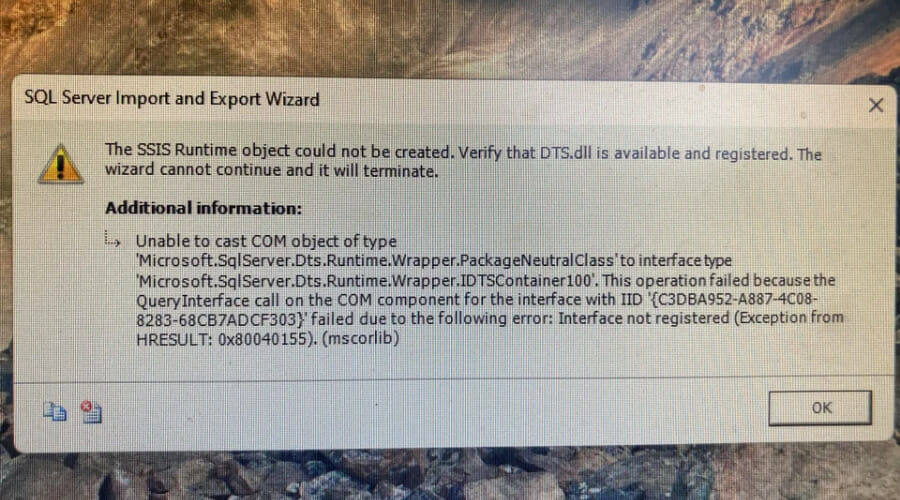
Now, reports indicate that installing the new operating system will actually break the Windows Import Export Wizzard as well. SQL Server Import and Export Wizard is a simple way to copy data from a source to a destination.

If you want to run the wizard, but you don’t have Microsoft SQL Server installed on your computer, you can install the SQL Server Import and Export Wizard by installing SQL Server Data Tools (SSDT).

Interested users can now add this to the long list of things going haywire after a Windows 11 upgrade. We’re not entirely sure if this can also happen when you perform a clean install, as it wasn’t flagged yet.

And since we are speaking of leaving Windows 10 behind and moving on, remember to never perform a hard reset on your device, while it is still in the process of upgrading.

Other Windows 11 users said that upgrades aren’t really smaller and quicker to install, as Microsoft previously stated, and will still take time to finish.

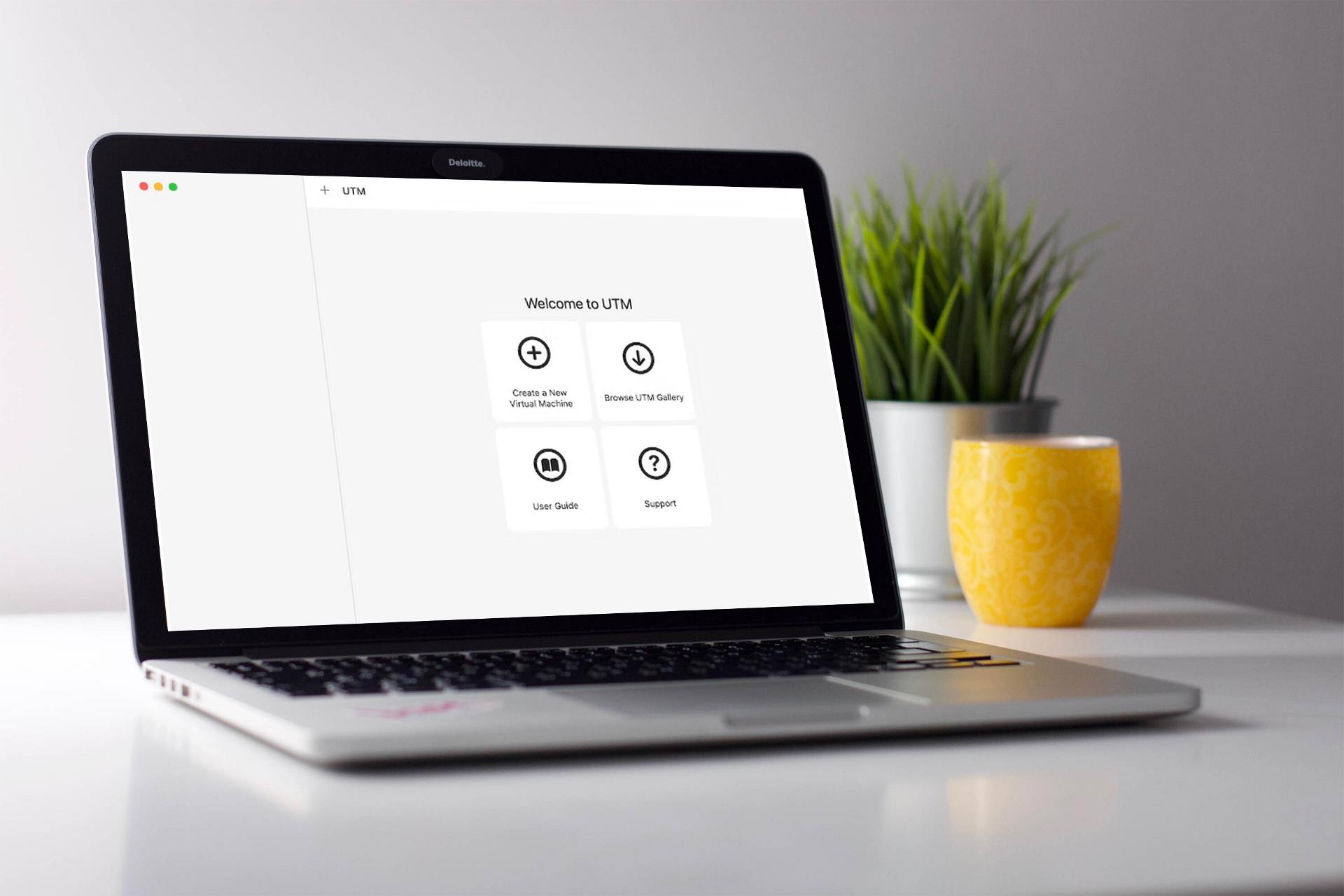
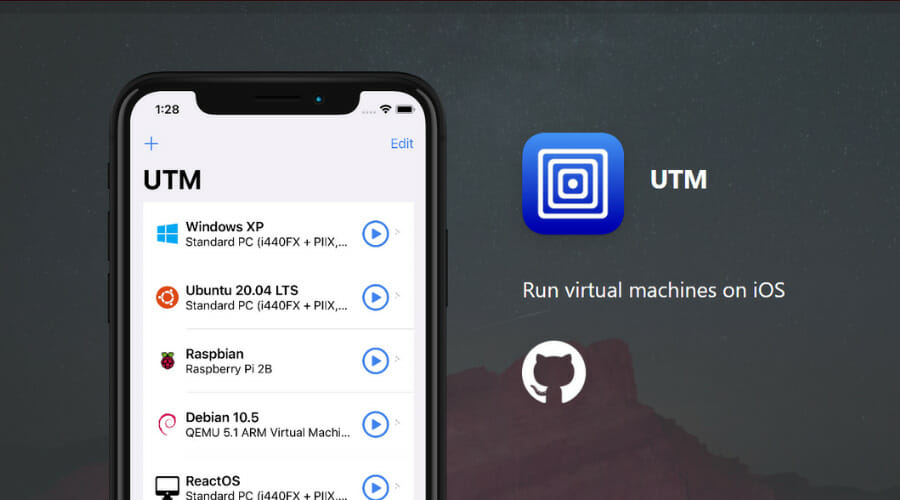
Also, if you are interested in trying the ARM version of the Redmond tech giant’s latest OS, on an Apple M1 device, it supposedly runs great with a UTM VM.

Don’t be discouraged by these small glitches and bugs that keep surfacing even after five months of existence. Windows 11 is still a young OS and has a long way to go.

However, the overall experience has improved and it’s not as unstable and glitchy as some make it up to be.

Have you also had this built-in system feature break after you upgraded to Windows 11? Share your experience with us in the comments section below.

Fix: Windows biometric service stopped working

Logging onto your computer with biometrics rather than a password can be far more easy and safe, especially when used as part of a multi-factor authentication system. However, as with any other PC feature, Windows biometric service stopped working for some of us out there.

With biometrics, you won’t have to change it as often, and it will be much more difficult to steal (though it can be done). But, when it stops operating, it might be far more difficult to get it back up and running.

Every time a new update for Windows 11 or 10 is published, a new problem arises. If you are a victim of this problem, don’t sweat it as you have come to the right place! We will show you a list of solutions right after we see the causes of Windows Hello not working. Follow along!

Why did Windows Hello stop working?

After more investigation, it has been discovered that there are multiple potential underlying factors that could be contributing to this particular pattern of behavior. Listed below is a list of possible perpetrators that could be to blame for this error code:

➡ Windows Hello Update has not been installed – Microsoft is already aware of this issue and is now working on a patch that should resolve the problem automatically in the future. If you haven’t already, go to Windows Update and be sure to install every update that is available.
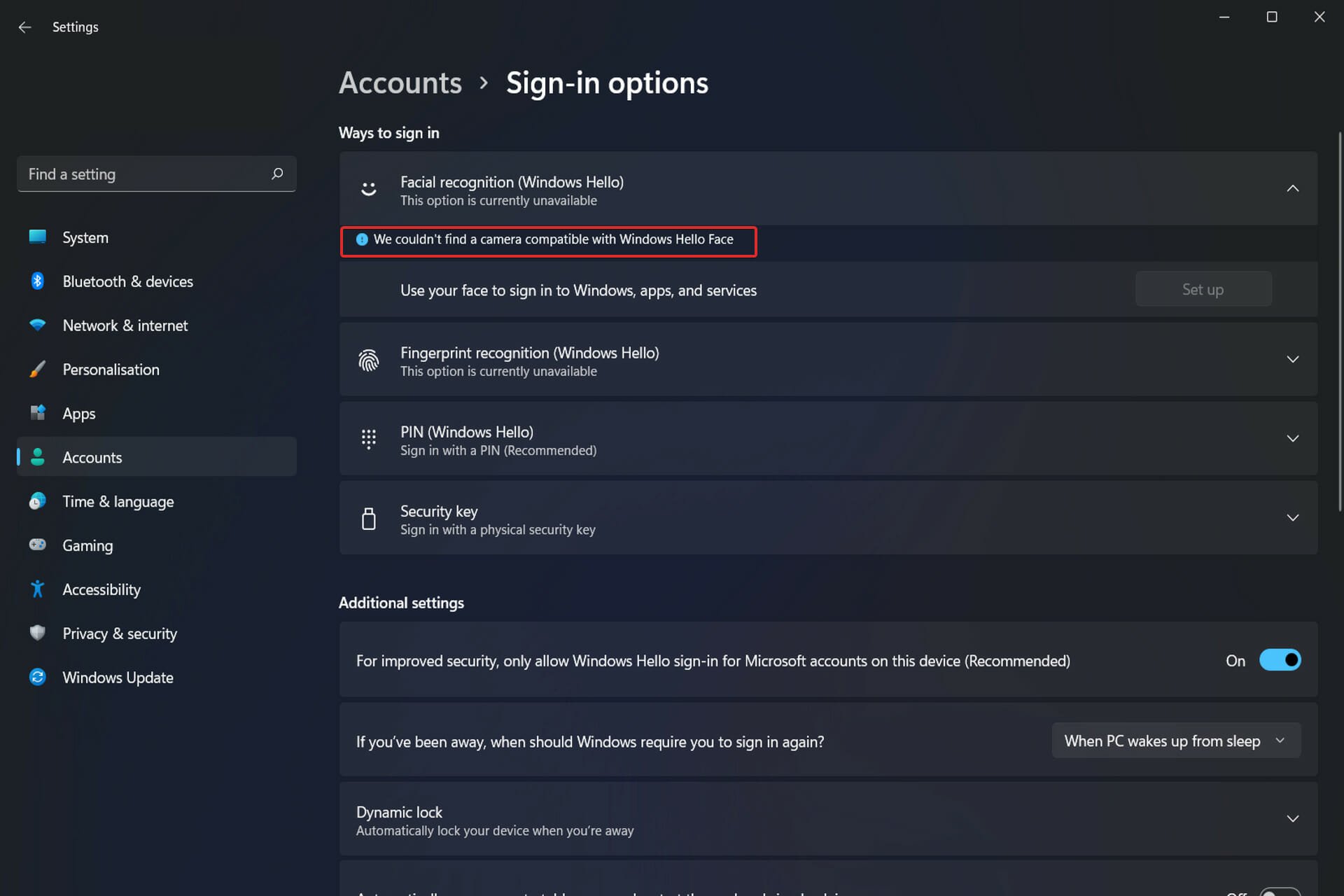
➡ No driver for the built-in camera has been installed – As it turns out, you can also expect to see this specific issue if the built-in camera utilized by Windows Hello is not up to date with the latest drivers installed on your computer. It is necessary to update the camera driver immediately.
➡ Biometric driver with a corrupted signature – The scenario in which a new Windows 11 build installation ends up rewriting some files belonging to the biometric driver is maybe the most prevalent cause of this issue to manifest itself (used by Windows Hello).

Following your newfound understanding of the reasons for this error, let’s move on to the list of solutions for the Windows biometric service stopped working problem. Keep up with us!

What can I do if Windows biometric service stopped working?

1. Update drivers

  1. Tap on the Windows key + I to start the Settings app, then go to the left menu and click on Windows Update. Now choose Advanced options from the right side in order to find the driver updates available.windows-advanced  windows 11 dynamic refresh rate not working
  2. Tap on Optional updates under the Additional options section.
  3. Select Driver Updates from the drop-down menu that appears, then check all of the driver updates that are displayed to you. Lastly click on the Download and install button to start the installation process. I don’t have any new updates at this time hence the empty list. no-update windows 11 dynamic refresh rate not working

When an issue occurs, you can manually look for updates, despite the fact that Windows is frequently in charge of driver updates. However, we strongly recommend that you use a specialist program such as Outbyte Driver Updater in order to do automatic scans for out-of-date drivers.

Out-dated drivers are 90% of the time the one cause that impedes features and programs from running. Thus, if you update all of them including the biometric ones, it is assured that your Windows biometric service stopped working error will be fixed.

2. Run an SFC scan

  1. First and foremost you will have to access Command Prompt by pressing on Windows + S and typing in cmd inside the search box. After the result shows up, right-click on it and choose Run as administrator.cmd-search-result windows biometric service stopped working
  2. Now type or paste in the following command and press Enter: sfc /scannowsfc-scannow windows biometric service stopped working

3. Swtich to a local account

  1. Press the Windows key + I to open the Settings menu, and navigate to Accounts followed by Your info from the right side.accounts-yainfo windows biometric service stopped working
  2. Now, scroll down until you come across the option to Sign in with a local account instead, and click on it.local-account windows biometric service stopped working
  3. Choose your Microsoft account, type in your password and restart your computer to apply the changes made.

4. Update Windows

  1. First, press the Windows key + I and select Windows Update from the left-hand navigation bar.windows-update windows 11 dynamic refresh rate not working
  2. You may use the Install now option to install new updates that are necessary to be downloaded or you can use the Check for updates button to discover whether or not any new updates have been provided. This should solve your Windows biometric service stopped working error.check-for-updates windows 11 dynamic refresh rate not working

Is biometric security safe?

Biometrics are any biological and physical measurements that can be used to identify you – such as your fingerprints, face, iris, voice, or even your palm veins and heartbeat – and to verify your identity.

This information can be used in a variety of ways, including airport security, financial transactions, and mobile devices, according to the current technologies. A large number of airports throughout the world are incorporating biometrics into their border procedures to improve their overall security.

Airlines such as Delta, Norwegian, Lufthansa, and others are using biometric boarding methods. Face or fingerprint recognition technology is now found in almost every new smartphone.

Biometrics are often considered to be more secure than passwords. Especially if you’re utilizing generic codes, they’re significantly more difficult to crack than alphanumeric ones.

pin windows biometric service stopped working

Furthermore, if you type a password in public, there is a good probability that someone will notice it and utilize it for malicious purposes. Biometric authentication, while more difficult to defeat, is not impenetrable. A 3D printed mask has been used to circumvent the use of Face ID.

An anonymous hacker successfully reproduced the fingerprint of current European Commission President Ursula von der Leyen using photographs obtained with a common digital camera back in 2014.

The ramifications of this are frightening. Hackers can not only crack biometric passwords from images using commercially available technology, but they can also crack biometric passwords from video.

If you believe your password has been compromised, you can easily change it. You are unable to alter your genetic makeup in any way.

There is also disagreement over the level of protection it gives against government agencies. In the United States, you have the right to refuse to provide the police with your passcode. It is founded on the Fifth Amendment, which protects your right not to be incriminated against yourself.

Even if the police have a warrant for your arrest, they cannot compel you to reveal the whereabouts of the warrant. Giving your passcode would amount to actively acting as a witness against yourself.

This is not to mean that you should abandon the use of biometric authentication entirely, though. As of right now, there aren’t very many scenarios in which yours can be compromised.

However, as the practice increases in popularity, the repercussions of having your biological data stolen, become more terrifying. Rather than considering it a security safeguard, for the time being, it is preferable to think of it as a convenience tool.

For more information and potential fixes, check out our post on Windows 11 fingerprint sensor not working issues and learn what to do in that case.

Alternatively, if you haven’t done this already, take a look at our guide on how to install the Hello face driver for Windows 11, and don’t forget to update it every now and then.

And lastly, don’t miss out on our guide on how to fix Windows Hello not working. Users have been reporting lots of positive feedback on that one!

Let us know in the comments section below whether you have any other solutions in mind as well as if this guide was helpful for you. Thanks for reading!

Microsoft details updates coming to Windows 11 Notepad

The Windows 11 Notepad has been on the receiving end when it comes to updates for quite some time now, from incorporating dark mode into the app to rolling out on Beta Channel for Windows Insiders.

Essentially, Notepad is a simple text editor included with Windows and a basic text-editing program which enables computer users to create documents. It can also be used to view large files which is why it has received a couple of updates over time with the goal of enhancing its performance, ultimately promoting its effectiveness.

And now, the new Windows 11 Notepad has incorporated new enhancements to the RichEdit feature. The new enhancements include “Alt+x for entering Unicode characters, Ctrl+} for toggling between matching brackets/parentheses, multilevel undo, drag & drop, color emoji, block selection, and autoURL detection.”

Thanks to the update, users will no longer have to deal with the problematic Unix-convention lines that terminated with a LF (U+000A) instead of a CRLF (U+000D U+000A). “To fix this problem, Notepad went one better: it checked to see which line ending came first and then made that line ending the default for the file. So, a file with LF- terminated lines remain LF terminated and displayed correctly. ”

Therefore, when making this update users will be able to access all the features available in the classic app as they are supported by RichEdit. That said, Show Unicode control characters will now work in this new version of the application which also includes emojis.

The RichEdit build used in Notepad comes from the same sources as the RichEdit that’s loaded with Microsoft 365 applications like Word, PowerPoint, Excel, and OneNote. It’s not the Windows RichEdit in msftedit.dll. Consequently, Notepad has the latest RichEdit improvements.

We’ve fixed bugs that didn’t show up for RichEdit plain-text controls over the years partly because before Notepad, the plain-text instances have been small.

Only time will ell how well the RichEdit feature will blend in and how the users will embrace the new changes made.

Windows 11 Mail Not Working: How to Fix it

Microsoft has revamped Mail in Windows 11, but users still need to sometimes fix that app. When the Mail app is not working, that either means it doesn’t open at all or users can’t send/receive emails with it as usual. One Mail user said this in a Microsoft forum post:

When sending an email from the Mail app in Windows 11, the email appears to send but then disappears. It’s not in Drafts, Outbox, or Sent folder. It was working fine and then this issue showed up.

In other cases, the Mail app doesn’t start at all for some users. Users can’t utilize Mail when that app doesn’t open or send/receive emails. The same issue appears for some users on Windows 10, making it a bigger problem than expected considering it’s spanning across OSs.

If you’re among those who need to fix Mail not working, check out the potential Windows 11 resolutions for fixing that app below.

Why is my Windows 11 Mail app not working?

There are many potential causes for the Mail app not working in Windows 11. When that app doesn’t start at all, it might be because of corrupted system files. Or the app itself may be outdated or corrupted in some way. Windows 11 includes tools and repair options that can address such issues.

The Windows 11 Mail app not sending emails can be due to numerous syncing issues. For example, some third-party antivirus software and firewalls can prevent the app from syncing email and calendar. Such security utilities can also be responsible for the Windows Mail app not downloading attachments.

The Mail app might not work because of some misconfigured settings. Your Windows 11 localization options might not be set correctly. Or that app might be blocked because of privacy permission settings. Adjusting such options in Windows 11 can feasibly fix the Mail app.

With many variable causes for Mail not working in Windows 11, there are plenty of possible fixes. These are some of the potential resolutions that can feasibly fix the Windows 11 Mail app not working.

How can I fix the Microsoft Mail app not working?

1. Run the MS Store app troubleshooter

  1. Click the Start button and its pinned Settings app.
    The Settings app shortcut windows 11 mail app not working
  2. Select the Troubleshoot option shown directly below.
    The Troubleshoot option windows 11 mail app not working
  3. Click Other-troubleshooters to view a list of Windows 11 troubleshooters.
    The Other trouble-shooters option windows 11 mail app not working
  4. Press the Windows Store App troubleshooter’s Run button. Then the troubleshooter might detect and repair app issues.
    The Run button windows 11 mail app not working

2. Change your email client

There is another way you can resolve the problem with the Mail application in Windows 11, namely to consider using a third-party mail software.

For this purpose, you can try out the Mailbird application to manage all your emails and sync multiple accounts in a single inbox.

There are practical features that can greatly help you increase productivity. To name a few, you have apps integrations like Facebook, Dropbox, or Asana.

In addition, it’s possible to customize your layouts with free colors themes, speed reader, or snooze messages options. The Attachment Search option also lets you find old documents or files in seconds.

⇒ Get MailBird

3. Update the Mail App

  1. Open the Start menu, and select the Microsoft Store app from there.
    Microsoft Store app windows 11 mail app not working
  2. Click Library on the left side of Windows 11’s Microsoft Store app.
    Library tab windows 11 mail app not working
  3. If the Mail is among apps that need updating, click the Update all button. Alternatively, click the Update option for the Mail app.

4. Repair and reset the app

  1. Open Settings (press the Windows + I hotkey for that app).
  2. Select Apps on the left side of Settings.
    Apps tab windows 11 mail app not working
  3. Click the Apps & features navigation option.
    The Apps & features option windows 11 mail app not working
  4. Next, click Mail and Calendar’s three-dot button. Select Advanced Options on the menu that opens.
    The three-dot button windows 11 mail app not working
  5. Press the Repair button.
  6. Click Reset, and Reset again, to eradicate the app’s data.
    The Reset and Repair options  windows 11 mail app not working

5. Run a system file scan

  1. Open your Start menu, and enter cmd in the search box.
  2. Click the Run as administrator option for the Command Prompt search result shown directly below.
    Run as administrator option windows 11 mail app not working
  3. Input this command into the Prompt’s window and press Return: DISM.exe /Online /Cleanup-image /Restorehealth
    The deployment image command windows 11 mail app not working
  4. Then run System File Checker by entering this command and pressing Enter: sfc /scannow
    The sfc /scannow command windows 11 mail app not working
  5. Wait for the scan to reach 100 percent and display some kind of outcome.

6. Check privacy settings

  1. Open the Settings app.
  2. Then click the Privacy & security tab.
    Privacy & security tab windows 11 mail app not working
  3. Select the Email navigation option.
    Email navigation option windows 11 mail app not working
  4. Make sure the Email access option is enabled there.
  5. Toggle on the Mail and Calendar option.
    Email access option windows 11 mail app not working
  6. Click the Privacy and security tab, and select the Calendar option.
    Calendar navigation option windows 11 mail app not working
  7. Then make sure the Calendar access and Mail and Calendar settings are both turned on there.
    Calendar access option windows 11 mail app not working
  8. Return to the Privacy and security tab to select the Location option.
    Location option windows 11 mail app not working
  9. Turn off the Mail and Calendar location access setting there if it’s enabled.Mail and Calendar option windows 11 mail app not working

7. Check localization settings

  1. Press the Windows + R hotkey to start Run.
  2. Type this Run command in the Open box and press click OK: intl.cpl
    The OK button windows 11 mail app not working
  3. Select the Administrative tab on the Region window.
    Administrative tab windows 11 mail app not working
  4. Press the Change system locale button there.
    Change system locale button windows 11 mail app not working
  5. If the system locale isn’t right, select your current locale on the drop-down menu.
  6. Click OK to save the changed setting.
    Region Settings window windows 11 mail app not working

8. Enable the Mail App through the Windows firewall

  1. Click the Start taskbar button, and input Windows Defender Firewall within the menu’s search box.
  2. Select Windows Defender Firewall in the search results.
    Windows Defender Firewall search windows 11 mail app not working
  3. Click the Allow an app or feature through Windows Defender Firewall option.
    Allow an app or feature through Windows Defender Firewall option windows 11 mail app not working
  4. Press the Change settings button.
    Change settings button windows 11 mail app not working
  5. Select both the Private and Public checkboxes for the Mail and Calendar app if they’re not selected.
    Mail and Calendar firewall settings windows 11 mail app not working
  6. Click OK to apply.

9. Disable third-party antivirus software

If you have a third-party antivirus utility installed, disable the shield for it before opening Mail. To do so, right-click the antivirus tool’s system tray icon and select a disable (turn off) option from its context menu. Select to disable the shield for a few hours if you can do so.

The Avast shields control options windows 11 mail app not working

10. Add your email account again

  1. If you can launch Mail (but can’t send emails with it), open that app’s window.
  2. Click Expand at the top left of Mail.
    The Expand button windows 11 mail app not working
  3. Press the app’s Settings button.
    The Settings button windows 11 mail app not working
  4. Select the Manage accounts option.
    Manage accounts option windows 11 mail app not working
  5. Click listed email account to remove.
  6. Select the Delete this account from this device option.
    Delete account from this device option windows 11 mail app not working
  7. Press the Delete button to confirm.
    Delete button windows 11 mail app not working
  8. Select the Manage accounts option in Mail again. Click the + Add account option.
    Add account option windows 11 mail app not working
  9. Select an account type to add.
    Add an account window windows 11 mail app not working
  10. Then enter the required credentials for the email account you just erased.

11. Reinstall the Mail app

  1. Bring up the search tool by pressing the Windows + S keyboard shortcut for opening it.
  2. Input the keyword PowerShell to find that app.
  3. Click the Run as administrator option for PowerShell, and select Yes if a UAC prompt pops up.
    Windows PowerShell search windows 11 mail app not working
  4. To uninstall Mail and Calendar, input this command: get-appxpackage *microsoft.windowscommunicationsapps* | remove-appxpackage
  5. Press Enter to execute the command.
    The remove MS Store command
  6. When you’ve uninstalled Mail and Calendar, click Power and Restart on the Start menu.
    The Restart button windows 11 mail app not working
  7. Open the Microsoft Store app after the restart.
  8. Input Mail and Calendar in search within the Microsoft Store app.
  9. Select the Mail and Calendar app.
  10. Click the Get button on the Mail and Calendar page.
    Mail and Calendar in MS Store

What are the best alternatives to Windows 11’s Mail app?

There are plenty of alternative email client apps for Windows 11, like Thunderbird or em Client that are among some of the best third-party email apps you can utilize.

Choosing the right fit for your needs will depend on reading through the descriptions and identifying if the software offers you every feature you require.

Can I utilize Windows Live Mail as an alternative to Mail & Calendar?

That app is still available for Windows 11/10, but Microsoft doesn’t support it anymore. You’ll need to download and install Live Mail’s Windows Essentials package to utilize that email software. Check out our Windows Live Mail guide for further details about how to install that software.

However, give all the potential resolutions for fixing the Mail app a try before checking out alternative email client software. Although we can’t guarantee those resolutions will fix Mail for everybody, there’s a good chance they’ll get the app working.

If further resolutions are needed, contact the Microsoft support service for Windows. You can get in touch with a live support agent by entering a description for the issue and clicking Get help on the Microsoft support page. Or you can post on the big M’s help forum about the issue.

You’re welcome to add any questions about fixing the Mail app in Windows 11 below. Feel free to discuss and share any other potential resolutions for fixing the Windows 11 mail app not working within the comments section.

Browser Sound Not Working in Windows 10: 5 Quick Fixes

Are you getting no sound from your browser? Maybe it’s not just your browser. Maybe the sound is also not working in Windows 10 as well.

This issue is common with all browsers. You may find that the browser sound is not playing through headphones but works through external speakers. If you experience such an issue, this guide explores various fixes.

Why can’t I hear audio from my browser?

If you suddenly can’t hear anything on your computer, it could be one of the reasons below:

  • Speakers are turned off or muted – Make sure that your computer’s volume is up and that the volume controls on your keyboard or headset aren’t muted. This also applies when the browser audio is not working on Windows 7.
  • Browser isn’t set up to play sound – Your browser sound may not work in Windows 10 because there’s no support. Ensure that your browser supports HTML5 audio. 
  • A plug-in is blocking the audio – If you’re using a plug-in like Adobe Flash Player or Java, try disabling it.
  • Faulty/broken sound card – If you’re using a laptop, try plugging in headphones and see if they work properly.
  • Browser permissions – How do I enable my browser sound? might be the question that you have in mind. Some browsers require permissions to play sounds, so enter into Settings > Sound right away.
  • Incompatible output device – Your browser may not support your output device due to incompatibility issues.

What can I do if my browser sound is not working in Windows 10?

Before getting started on lengthy troubleshooting steps, check off these basic steps:

  • Ensure the connection between your speakers or headphones and your computer is secure.
  • Check your volume settings, as you may have accidentally lowered it. In some instances, your browser may not support changing the volume settings.
  • Update your browser if a new version is available.
  • Restart your computer to clear out any temporary files that might be causing the problem. 

1. Change the default audio device

  1. Hit the Windows key and select Settings.
  2. Click on System.
  3. Select Sound and under Output, select an output device.

2. Update your sound card drivers

  1. Hit the Windows + X keys to and select Device Manager.
  2. Navigate to Sound, video, and game controllers to expand, right-click on your sound card and select Update driver.
  3. Select Search automatically for drivers.

For users who prefer fast solutions, a third-party tool that can do all these in seconds is recommended. 

Outbyte Driver Updater is a free driver updater utility that can download and update outdated drivers with just one click. It scans your computer for all missing or outdated drivers and then downloads and installs the best-matched drivers to fix your computer’s hardware issues.

Outbyte Driver Updater

A fast and safe way to solve most issues is by keeping all drivers up to date.
Free Trial Download Now

3. Clear browser cache and cookies

If you’re having trouble playing sound on your browser or browser sound is not working on Discord or Zoom, you should clear the cache and cookies. These files store data from websites that you visit, which allows them to load faster when you revisit them.

But if you have a lot of different tabs open at once, or if some tabs haven’t been used in a while, then this can cause problems for sites that use cookies or other types of tracking software.

The exact steps for clearing cache and cookies will differ depending on what browser you’re using and the version of that browser.

4. Run the sound troubleshooter

  1. Hit the Windows key and select Settings.
  2. Click on System.
  3. Select Sound and click on Troubleshoot.
  4. Wait for the wizard to finish detecting any issues.

5. Reset browser settings to default values

Resetting the browser settings to default values can help restore the browser to its original state. This is useful if the browser has been incorrectly configured or malware has changed your settings.

You should only use this fix as a last resort, as it will reset your browser’s settings to their original defaults. This includes settings and any changes you have made to your browsing history, cookies, and other data stored in the browser.

How do I unmute my browser audio?

  1. Right-click on the Speaker icon in the Taskbar, and select Open volume mixer.open volume mixer
  2. Click on the speaker icon next to the browser to unmute it. You can also adjust the volume level here.unmute audio
  3. In case this doesn’t work, it’s likely that a tab has been individually muted. Here, simply right-click on the tab, and choose Unmute site.unmute site

How do I enable audio input in Chrome?

  1. Launch Chrome, paste the following path in the address bar, and hit Enter:chrome://settings/content/microphonepath
  2. Now, make sure the Sites can ask to use your microphone option is selected.allowed
  3. Scroll down and verify that the website where you want to enable audio input is not listed under the Not allowed to use your microphone section.website

If all these fail, consider trying another browser to establish whether the problem is specific to the browser you are using. The browser sound may not be working on Firefox or Edge but works perfectly fine in another.

Opera, for instance, is one of the best browsers if you want to replace your existing browser with one that offers an outstanding balance between speed, efficiency, security, and privacy.

You may also encounter a similar issue where Chrome sound is not working but worry not, as we have already covered fixes to that effect in our detailed guide.

We also have a fix for when the Opera browser sound is not working, so don’t forget to check our expert article.

Let us know if you have resolved your browser sound not working in Windows 10 in the comment section below.

Windows 11 Bluetooth: How to Turn it On & Off

It is no longer a surprise that the latest Microsoft OS came up with great features. Even if some of them remained pretty similar to what we already know, others changed. Check out this comparison between Windows 11 and Windows 10 and convince yourself.

Bluetooth is an important property that works in the same manner, and turning it on is easier than you think.

This article will show three accessible options that will help you turn on Bluetooth in Windows 11. But before anything else, let’s see some reasons why you should use it on your PC.

Why should I use Bluetooth in Windows 11?

In general terms, Bluetooth technology represents a short-range wireless communications technology used to replace the cables connecting electronic devices. However, it is more than that. Check out the following list and find out what is this all about:

  • Transfer files between mobile devices and computers – With Windows 11 Bluetooth you’ll be able to pair smartphones or tablets and your Bluetooth-enabled PC, so you’ll wirelessly send files.
  • Relocate files from a PC to another – You can also transfer specific files between two PCs. The condition is having Bluetooth enabled. And this simultaneously applies for both computers. 
  • Tether your PC to a smartphone – To tether represents sharing a device’s network connection with another device, which connects to the Internet through the other device’s connection. Windows 11 allows you to tether over Bluetooth. Keep in mind that it consumes less battery power than Wi-Fi, so it might be a valuable alternative.
  • Connect peripherals – Most commonly, this feature is used to wirelessly connect peripherals to different devices. There are plenty of peripherals that can work with Bluetooth. To find the most popular ones, check out the following list. 

Now, let’s see what are the most accessible methods to turn it on. Today’s guide will present some interesting additional information, so make sure you read it completely.

How can I turn on Bluetooth in Windows 11?

Use the Settings menu

  1. Click the Windows key, then open Settings.
  2. Click on Bluetooth & devices.
  3. Turn On the Bluetooth.

This is the simplest option to turn on Bluetooth in Windows 11. However, note that its appearance in the Settings menu depends on another option. Make sure you keep reading this article to find out which one we’re talking about.

    Turn Bluetooth on / off from Action Center

    There are several methods to turn on / off Bluetooth and here is how to do it from Action Center

  1. 1. Open Action Center

    At the right bottom corner of your desktop taskbar, search for and click on Action Center.

  2. 2. Select Bluetooth

    A menu will open up, containing multiple options: Bluetooth, Night light, Priority only and Accessibility. Click on the Bluetooth icon.

  3. 3. Toggle Bluetooth on / off

    This is a switch that will turn Bluetooth on or off. To turn it on, simply click once. To turn it off, just press the button again.

Try Device Manager

  1. Press on the Windows key, then type Device Manager, and open it.
  2. Expand the Bluetooth section.
  3. Right-click on the needed device, then select Enable device.

Remember that we were talking about the dependence between two solutions? Note that if you do not have this particular option set on Enable, it won’t appear either in the Windows Settings Menu (as we presented in the first method before).

Need to switch Bluetooth off instead? Follow our step-by-step guide to disable Bluetooth on Windows 11.

What peripherals work with Bluetooth?

  • Headsets – These are the most iconic Bluetooth peripherals. You can use them for business calls, for gameplay or simply to enjoy your favorite music.
  • Mice – Bluetooth mice only work on brand new devices, so note that if your PC is aged, they might not work. These devices are ideal for smartphones or tablets because simplify your workspace, making it more easy to use.
  • Keyboard – Bluetooth keyboards are particulary used for tablets. And the great part is that you can connect both your mice and keyboard, for a more pleasant environment.
  • Printers and scanners – There are also plenty of Bluetooth compatible printers and scanners. Using this feature would help, especially if you frequently encounter weird network connections.
  • Gamepads – You’re allowed to connect wireless controllers to different devices via Bluetooth. And versions of Nintendo or PlayStation work great using it.

For a complete guide on pairing wireless audio devices, check out our tutorial on how to connect Bluetooth headphones in Windows 11. It explains every step clearly so you can enjoy music or calls without any connection issues.

What are Windows 11’s Bluetooth Thumbnails?

As mentioned at the beginning of this article and as you can notice in our recommended solutions, Windows 11 Bluetooth works similarly to what we know from the previous OS version. However, the Settings page looks different.

Unlike Windows 10 design, the latest Settings app now displays big thumbnails for the devices. These will create a more simple perspective of your Bluetooth activity.

They indicate all the registered Bluetooth peripherals and show which one is connected. Not to mention that you can always add a new one.

These are the most accessible options to turn on Bluetooth in Windows 11. As you can see, they are extremely simple, taking just a few seconds to perform them.

If it ever happens to have troubles with this feature, make sure you take a look at this guide on what to do if Bluetooth is not working in Windows 11.

Now that you know how Bluetooth works, why not check our guide on how to transfer files from a laptop to another laptop using Bluetooth? You can also connect to a Bluetooth hotspot and we have a guide that shows you how to do it.

And let us remind you that we do care about your opinion, so do not hesitate to share it with us by leaving a comment in the section below.

How to Download and Use CCleaner to Remove Malware

CCleaner is one of the most popular cleaning tools for your PC, and you can use it safely to remove malware and improve your PC performance.

As you will probably notice, it’s very easy to use and apart from securing your machine, it will also bring it to top performance with just a few clicks.

What are the reasons of malware infection?

Malware has a broad spectrum of manifestations, from adware, invasive add-ons, and cache to unwanted software that can slow down your machine and cripple its functions.

However, malware doesn’t always incapacitate your PC. Some will pry on your privacy disguised as tools that promise to help you in a variety of ways.

That is why, most of the time, it’s enough to thoroughly clean your drive and browser of any junk and leaching apps and you will see that magically, the harmful effects disappear.

Thus, before buying or using a malware removal tool, we recommend cleaning your PC with an all-purpose tool like CCleaner.

How to download and use CCleaner to remove malware?

1. Download and install CCleaner

  1. Go to the CCleaner dedicated website and click on the Download Free Version button.
  2. Then, hit the Free Download button. If you opt for the Free Trial, you will be able to test the full features of the Pro version for 14 days without the need of a credit card.
  3. You will get an executable file. Open it and follow the installation instructions.
  4. Once its finished, hit the Start CCleaner button.

2. Use CCleaner to clean and optimize your PC

  1. After starting the app, click the Health Check option from the left pane, then hit the Start button.
  2. You will shortly receive a full report with the problems that need to be fixed. If you get the Pro version (or Trial) you will also be able to disable startup apps, and update your apps automatically.
  3. By clicking the Make it better button, the tool will performe the automatic tasks to clean your PC and the finished report looks a lot better.
  4. Check if the malware still produces effects.

That’s it! You will definitely notice an improvement in the functioning of your PC because now it’s clear of junk and other unwanted files.

First of all, CCleaner will clean your browser from all trackers that are essentially a form of malware by themselves.

Then, it repairs the registry, updates your drivers and apps (in the Pro version), cleans the startup, and a lot more.

3. Perform a System Restore using CCleaner

  1. Open CCleaner, click on the Tools section, and select System Restore from the menu.
  2. Then, select the restore point with the date before the malware infection struck and run the restauration.

A very easy way of getting rid of a malware infection is to restore your system to a previous date before the unfortunate event.

And as you have already seen from our solution, with CCleaner, you can do that easily, with only four clicks.

Should I install a dedicated malware-removal tool?

Of course, if the malware is not localized in your browser, or it’s not a PUP, it won’t be enough to perform a Heath Check with CCleaner.

However, the steps we described above are a great starting point and also essential for the optimal performance of your computer.

If you really need a dedicated solution for that, take a look at our list including the best malware-removal tools for your PC.

You can also try AdwCleaner as an extra cleanup tool because it removes adware and unwanted programs that regular cleaners often miss.

We hope that our tips helped you remove any malware or malware-related files and now your PC is running smoothly.

For any questions or solutions, leave us a line in the comments section and we will get back to you as soon as possible.

Disable the Windows 11 Antimalware Service Executable

In this guide, we’ll show you how to disable the antimalware service executable in Windows 11 while making sure your PC stays secure. The executable is an essential component of Windows Defender, but it’s using way too many resources, making lower-end PCs freeze or take ages to execute simple tasks.

Let’s fix this. Follow the steps below.

Why does Antimalware Service Executable take so much resources?

Whenever you start a system scan, Antimalware Service Executable is activated and uses the CPU in this process. This causes the CPU to work overtime as it searches for any malware.

Even something as simple as a routine scan takes up a significant amount of the computer’s resources.

This won’t prevent you from using other apps while Windows Defender scans, but you’ll notice a significant drop in performance.

It is technically possible to delete the Antimalware Service Executable, but this isn’t recommended.

The process is the main driving force behind Windows Defender and deleting it can put your computer at risk of infection if you don’t have a backup antivirus app with great performance, we recommend to install TotalAV which is one the best currently available on the market. And even if you could, you probably won’t be able to do it since it’s a System process and Windows 11 won’t allow you to delete it.

The best thing you can do is disable Antimalware Service Executable, even if it’s temporary. This guide will show you the different methods you can use to disable Antimalware Service Executable, from the simplest method to the more complex ones.

How can I turn off Antimalware Service Executable?

1. Use the Settings app

  1. Open the Windows Start menu by clicking on the Start menu icon in the taskbar.
  2. Click the Settings icon.
  3. Scroll down to the Privacy & Security tab.
  4. Click Windows Security on the right.
  5. Click Virus & threat protection. A window will appear for Windows Security.
  6. Locate Virus & threat protection settings. It’s the second entry.
  7. Click Manage settings underneath it.
  8. Locate Real-time protection and slide the switch to turn off Windows Defender.
Note icon NOTE
This is only a temporary solution to disabling Antimalware Service Executable. Windows Defender will automatically turn back on after a short time.

2. Use the Registry Editor

  1. Click on the magnifying glass icon to bring up the Search bar.
  2. Type Registry Editor in the Search bar.
  3. Click on the first entry you see.
  4. On the left hand side of the Registry Editor, click on the arrow next to HKEY_LOCAL_MACHINE to open the drop-down menu.
  5. In the new menu, click SOFTWARE to open another drop-down menu.
  6. Scroll down and click Policies.
  7. Click Microsoft.
  8. Click Windows Defender.
  9. Locate a registry entry called DisableAntiSpyware.
  10. Double-click it and a small window will appear.
  11. In this new windows, set the Value Data to 1. Then click Ok.
  12. If there is no DisableAntiSpyware entry, you can create it and perform the same steps.
  13. While still in the Windows Defender page, right-click to bring up a drop-down menu.
  14. Select DWORD (32 bit) Value.
  15. Name the registry DisableAntiSpyware.
  16. Perform the earlier steps of double-clicking and setting the Value Data to 1.

3. Add the process to the Exclusion List

  1. Click the magnifying glass icon to bring up the Search bar.
  2. Type Windows Security in the Search bar.
  3. Click the first entry you see.
  4. In Windows Security, click Virus & threat protection.
  5. Scroll down to Manage settings underneath Virus & threat protection settings.
  6. In this new window, scroll all the way down where you see a section titled Exclusions.
  7. Under Exclusions, click Add or remove exclusions.
  8. A small window will appear asking you if you want to make change. Select Yes.
  9. In the Exclusions window, click Add an exclusion to bring down a drop-down menu.
  10. In this drop-down menu, select Process.
  11. A small window will appear. Type MsMpEng.exe. This is the executable file for Antimalware Service Executable.
  12. Select Add and Antimalware Service Executable is now on the Exclusion List.
  13. To remove it from the list and the process, click on the exclusion’s arrow and select Remove.
Note icon NOTE
After you’ve managed to disable Antimalware Service Executable on your Windows 11 computer, you can then proceed to fix the issue of its high CPU consumption. As matter of fact, adding an exclusion is one such method.

4. Change Scan Scheduling settings

  1. Open the Search bar again and type Task Scheduler.
  2. In the new window, click Task Scheduler Library.
  3. In the expanded folder, locate and click on the arrow next to Microsoft to open another drop-down menu.
  4. Then click Windows.
  5. Scroll down and locate Windows Defender.
  6. In this new Windows Defender folder, locate Windows Defender Scheduled Scan in the middle panel, then double click it.
  7. In this new window, click the Conditions tab.
  8. Uncheck all the options, then click OK. This will wipe out all the scheduled Windows Defender scans on your Windows 11 computer.
  9. If you still want the scans while also having better control over them, you can schedule your own by going to the Triggers tab.
  10. Once there, select New to create a new schedule.
  11. Create the scan by selecting if you want it done once, daily, weekly, or monthly. You can also select the date and time, and when you want it to start.
  12. As soon you’re done configuring, hit OK.

How to fix issues caused by disabling the Antimalware Service Executable

For the most part, performing the earlier steps will do the job, but you don’t want the program to be off forever. Your computer still needs that protection, and as such, it’s recommended that you get proper antivirus software.

If it wasn’t for the high CPU consumption, Windows Defender would be perfect, but many third-party apps are better optimized.

What’s so beneficial about these apps is that they aren’t resources hogs and have a much better-looking user interface making the process more enjoyable and less of a headache.

Wrapping up

That being said, if your PC is barely capable of running Windows 11, this temporary fix will not improve your OS speed considerably and will bother you continuously.

If that’s the case, be sure to check out some amazing Windows 11 laptops, or choose a powerful tablet setup that also offers great processing speeds without affecting your mobility.

If you’re not inclined to move around with your laptop or do work on road trips, then you could choose to invest in a powerful Windows 11 enabled desktop PC.

And if you have the same problem, but on the previous Windows version, check our guide on how to disable Antimalware Service in Windows 10.

Some even come with cool features like webcam support and high-level file encryption capabilities.

Feel free to leave a comment below if you have any questions on other Windows 11 apps or features. Also, leave comments about guides that you’d like to see.

How to Fix GDI+Windows Error Message on Shutdown

On occasion, the GDI and the Windows application will conflict, resulting in the error GDI+Windows, thus preventing the computer from shutting down

It is possible to run into this problem with apps that utilize GDI+ and set the pen object’s width to zero (0) on displays with high dots per inch (DPI) or resolution, or with apps that use scaling.

Follow the steps below to get rid of this error:

What can I do if I get the GDI+Windows error?

1. Run a quick SFC scan

  1. To enter the Search bar, press the Windows + S keys together. Type cmd into the search bar and right-click on the most relevant result to run it as an administrator.cmd-search-admin gdi+windows error message on shutdown
  2. Type or paste in the following command and press Enter: sfc / scannowsfc-scan-windows-11 gdi+windows error message on shutdown

You only need to wait for the procedure to finish (which could take some time), then restart your computer to ensure that the modifications are applied. SFC will automatically detect and repair corrupted files and directories on your computer.

2. Run the Power troubleshooter

  1. Press the Windows key + I to open the Settings app, and navigate to System in the left panel followed by Troubleshoot from the right side.troubleshoot-menu windows 11 skype crashing
  2. Once you are inside the Troubleshoot menu, click on the Other trouble-shooters option.other-troubleshooters-option windows 11 skype crashing
  3. Now scroll down until you meet the Power troubleshooter and click Run next to it.power-run-troubleshooter   gdi+windows error message on shutdown

Once the troubleshooter ends searching for errors, it will display you the exact bug that occurred and how to fix it. Make sure to follow the instructions displayed, step by step.

3. Update the graphics card driver

  1. Right-click on the Start icon then click on Device Manager to open it.device-manager   gdi+windows error message on shutdown
  2. Now expand the Display adapters section and right click on each option, then choose Update driver.update-graphics-driver   gdi+windows error message on shutdown

Wait for the processes to finish, then restart your computer to apply the changes made. We strongly recommend that you use a dedicated tool to automatically update your drivers.

4. Check for Windows Update

  1. To access the Settings app, press the Windows key + I together, and then select Windows Update from the left-hand panel.windows-update-settings kernel security check failure windows 11
  2. If you have any new updates to download, click on the Install now button and wait for the process to finish, otherwise click on the Check for updates button.checl-for-updates kernel security check failure windows 11

The problem could be caused by an older version of Windows, in which case you should get the most up-to-date version. There’s a good chance that the bug will be fixed in a new software version.

5. Start the computer in clean boot

  1. Press the Windows key and R to open a new Run box. Then type or paste in msconfig and hit OK to start the process over from the beginning.msconfig  gdi+windows error message on shutdown
  2. When you go to the Boot tab, make sure the Safe boot option is checked.safe-boot-boot   gdi+windows error message on shutdown
  3. Now go to the tab that says General and make sure that Selective startup radio button is checked but uncheck Load startup items under it.general-startup-clean   gdi+windows error message on shutdown
  4. Select the Service tab, then check the box that says Hide all Microsoft services. Then click Disable All to turn off all the unnecessary services that could cause problems, and you’ll be done.disable-all-startup   gdi+windows error message on shutdown
  5. On the Startup tab, click Open Task Manager and disable all the startup items which are enabled.task-manager-startup   gdi+windows error message on shutdown

After that, you can begin the process of rebooting your computer. Microsoft Windows will handle everything; all you have to do now is sit back and wait for the procedure to complete.

What does GDI+ do?

The Graphics Device Interface (GDI) was the technology that allowed Windows applications to provide what you see is what you get (WYSIWYG) functionality. gdiplus gdi+windows error message on shutdown

GDI+ is an improved C++-based version of the GDI graphics driver. GDI is an application programming interface and a basic operating system component in Windows, that is responsible for representing graphical objects and transferring them to output devices.

With a graphical device interface plus (GDI+), application programmers can show information on a screen or printer without having to be concerned with the specifics of that display device’s capabilities.

In the application software, the programmer invokes methods provided by GDI+ classes, and those methods, in turn, make the relevant calls to the appropriate device drivers.

It also separates the program from the graphics hardware, and it is this separation that enables developers to construct applications that are not dependent on the graphics hardware.

What are the differences between GDI+ and Direct2D?

Geometries such as polygons, ellipses, and lines are rendered with GDI in an opaque, aliased state. Through the AlphaBlend API, it is capable of rendering aliased and ClearType text, as well as supporting transparency blending. directx gdi+windows error message on shutdown

However, its treatment of transparency is inconsistent, and the alpha channel is simply ignored by the majority of GDI APIs.

Only a few GDI APIs provide assurances about what will be in the alpha channel following an operation. More importantly, the rendering performed by GDI does not translate well to 3D operations, and a modern GPU renders most effectively on the 3D portion of its rendering engine.

Examples include the fact that Direct2D’s aliased lines are designed to be implemented simply as two triangles displayed on the GPU, while GDI makes use of Bresenham’s line drawing method.

Direct2D renders primitives that are opaque, transparent, aliased, and anti-aliased in appearance. Transparency and motion are frequently used in modern user interfaces.

For further information and potential solutions that may be applicable to your Windows 11 PC, check out our article on how to fix gdiplus.dll errors in Windows 10.

Alternatively, if you find that you are missing .dll files after a Windows update, make sure to read the guide linked on how to resolve the issue, as it can still apply to Windows 11.

And lastly, in the case that your PC still won’t shut down, we have already prepared a guide on how to shut down your PC in Windows 11 when it encounters errors.

Let us know in the comments section below which solution worked best for you as well as how often you get .dll file errors on your PC.

Night Light Not Turning Off in Windows 11? Apply These Fixes

The night light is a feature in Windows that is meant to reduce the strain on your eyes when viewing the screen for extended periods. However, several users have reported that the night light is not turning off in Windows 11.

The feature is undoubtedly beneficial, but it affects the display, and several users disable it. Also, many with the night light enabled generally use the built-in option to activate it from sunset to sunrise.

But viewing the screen with the feature enabled the whole day can affect your experience. If you face this problem, read the following sections to determine what to do when the night light is not turning off in Windows 11.
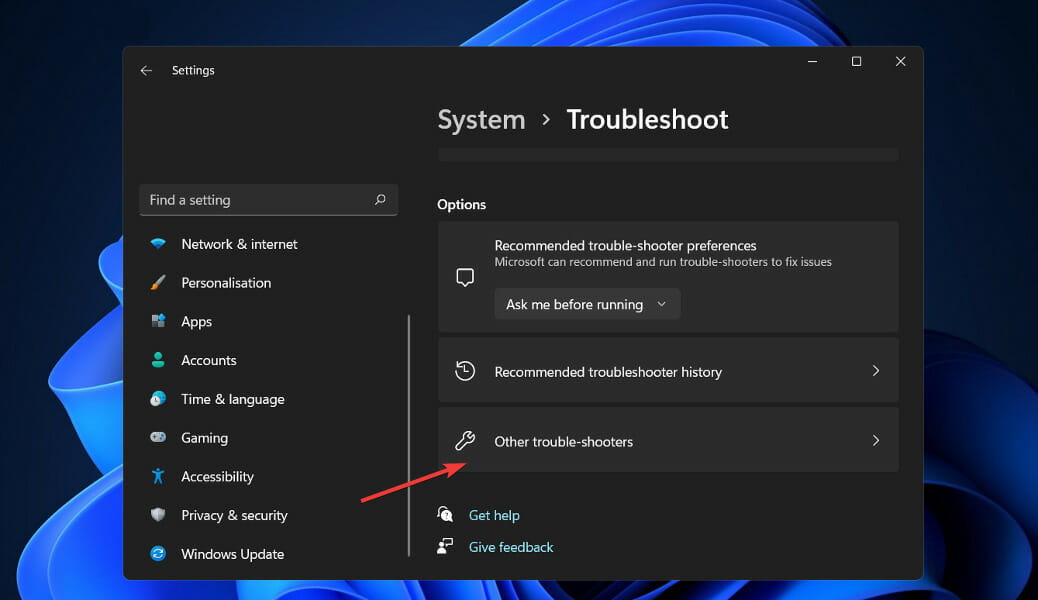
How does the night light feature work in Windows 11?

Your computer screen emits blue light, similar to light from the Sun. During the day, it’s perfectly alright since the light emitted from the screen resembles the light around you.

But, when the environment gets dark at night, your eyes find it difficult to focus on bright colors. This is where night light comes into the picture. With the feature enabled, your screen emits warmer colors that gel with the surroundings.

Now, you must be wondering if the night light feature is beneficial. There are various research studies conducted on the subject that suggest so. The warmer color reduces the strain caused to your eyes and induces sleep, though the latter doesn’t work for all.

This night light feature is also available on iPhone, MacBook, and Android devices.

Now that you have a basic understanding of the feature, let’s walk you through the most effective fixes in case the night light is not turning off in Windows 11, and don’t hesitate to also take a closer look at the best night light settings for Windows.

What do I do if the night light is not turning off in Windows 11?

1. Disable the Schedule night light option

  1. Press Windows + I to launch the Settings app, and click on Display on the right in the System tab.Display to fix Night Light not turning off Windows 11
  2. Click on the Night light option.Night light
  3. Now, make sure that the toggle for Schedule night light option is disabled.Disable Schedule night light to fix Night Light not turning off Windows 11

2. Update Windows 11

  1. Press Windows + I to launch the Settings app, and select Windows Update from the tabs listed in the navigation pane on the left.Windows Update
  2. Next, click on Check for updates to scan for newer versions of the OS.Check for updates to fix Search automatically for drivers
  3. If any are listed after the scan, click on the Download & install button.Download & install

Often, it’s a bug in the current OS version to be blamed for the night light not turning off in Windows 11 problem. In this case, it’s best that you update to the latest version.

If it’s an issue with the OS itself, Microsoft will likely release a patch for the subsequent updates. After updating Windows 11, check if the error is fixed. In case it does, head to the next method.

3. Reinstall the graphics driver

  1. Right-click on the Start icon or press Windows + X to launch the Quick Access menu, and select Device Manager from the list of options.Device Manager
  2. Double-click on the Display adapters entry to view the graphics card.Display adapters to fix Night Light not turning off Windows 11
  3. Now, right-click on the graphics adapter, and select Uninstall device from the context menu.Uninstall device to fix Night Light not turning off Windows 11
  4. Finally, tick the checkbox for Attempt to remove the driver for this device and click on Uninstall at the bottom.Attempt to remove the driver for this device
  5. After the driver is uninstalled, restart the computer, and the OS will automatically install a fresh driver for the graphics adapter.

If the installed graphics driver is corrupt, it’s likely to lead to many display-related issues, including the night light not turning off problem in Windows 11. In this case, you should reinstall the driver.

Though the process may sound intricate to first-timers, it’s actually simple and wouldn’t take more than a few minutes.

4. Update the graphics driver

  1. Press Windows + S to launch the Search menu, enter Device Manager in the text field at the top, and click on the relevant search result.Device Manager
  2. Next, double-click on the Display adapters entry or click on the carat icon before it.Display adapter to fix Night Light not turning off Windows 11
  3. Right-click on the graphics adapter and select Update driver from the context menu.Update driver to fix Night Light not turning off Windows 11
  4. Now, select Search automatically for drivers from the two options listed in the Update Drivers window.Search automatically for drivers

Drivers are critical for the effective functioning of every piece of hardware. And with each update, you will find several new features, performance enhancements, and patches for known problems. Therefore, it’s recommended that you keep the drivers updated.

The Device Manager method listed here will only scan for the best available driver on the system and not the web. So, if you haven’t downloaded a newer version previously, it won’t be able to update the driver.

In this case, you can always check for the latest driver version in Windows Update or manually download the setup from the manufacturer’s official website and install it.

The process of updating drivers seems tricky and time-consuming to most users, and they often give it a miss. This is where third-party apps come to your rescue.

5. Modify the registry

  1. Press Windows + R to launch the Run command, type regedit in the text field, and either click on OK or hit Enter to launch the Registry Editor.Launch Registry Editor to fix Night Light not turning off Windows 11
  2. Click Yes on the UAC (User Account Control) prompt that pops up.Click Yes
  3. Now, paste the following path in the address bar at the top, and hit Enter. Alternatively, you can use the navigation pane on the left to go to it:HKEY_CURRENT_USER\Software\Microsoft\Windows\CurrentVersion\CloudStore\Store\DefaultAccount\CloudNavigate
  4. Next, right-click on the following key and select Delete from the context menu:$$windows.data.bluelightreduction.bluelightreductionstateDelete key to fix Night Light not turning off Windows 11
  5. Click Yes in the confirmation prompt that appears.Click Yes
  6. Similarly, delete the following key as well:$$windows.data.bluelightreduction.settings
  7. Once done, restart the computer for the changes to come into effect, and check if the error is fixed.

6. Create a new user account

If none of the fixes listed above have worked, it could be a problem with the user account as well. And, after going through several forums, we believe it’s most likely that the user profile has gone corrupt.

In this case, it’s best to create a new local account in Windows 11 and verify the same. If it works and you don’t encounter the error anymore, you can continue using the same local account or create another one linked to Microsoft.

Create a local account in Windows 11

The decision of whether to continue with the local account or create a Microsoft one depends solely on the user, since it has got to do with personal requirements and the way the device is to be used.

What are the display issues users generally face in Windows 11?

Windows 11 is still relatively new and you are bound to encounter a few issues, until a couple of updates with patches for previously known bugs are released. Also, some issues could arise due to misconfigured settings or conflicting applications.

Several users have reported screen dimming automatically in Windows 11, so learn how to fix it. Also, there is the screen flickering problem, and the methods to eliminate it are listed in the linked guide.

But one of the scariest display problems remains the black screen issue in Windows 11, check out the solutions for it. In this case, you are unable to use the system, which makes troubleshooting all the more difficult.

In the above sections, we have comprehensively discussed the problem of the night light not turning off in Windows 11 and other display-related issues. If none worked, you can always reset Windows 11 to its factory settings and eliminate the error.

Also, check the detailed guide on the best Night light settings for Windows 10/11; read this guide to learn more.

Also, find out how to go full screen in Windows 11 or mirror your computer’s screen to a TV.

Tell us which fix worked and what your experience of Windows 11 has been thus far in the comments section below.

Xbox still can’t stop spam bots from sending users inappropriate links

Even though Microsoft secured a bright future for Xbox, with the purchase of Activision Blizzard, which means that a lot more highly desired exclusives are surely on the way.

The Xbox Series X/S consoles have been a total success, although users complain a lot about the Series S performance, and things are looking really good for the company.

However, there’s still a thing that gamers find extremely irritating, and the company still hasn’t found a way to stop it, even after a few years.

Xbox says it can’t do anything to stop this from hapening

Recently, users started reporting being bombarded with inappropriate content again, as we have seen it happen before, throughout the years.

Spam bots are abusively sending porn links and other disgusting content to Xbox players via chat. This happens randomly and there’s no way of stopping it, apparently.

Why do we say that, you ask? Because, even though Xbox said that spam bots have become a growing problem in the community, the company simply won’t take any action against it.

Thank you for helping keep the Xbox Community safe! Our Safety team reviewed your complaint(s), which did not meet our Community Standards violations threshold, so no action was taken.

That is the response that one of the gamers who reported the abuse received from the Xbox Safety team. Everybody knows that dealing with bots is on easy task, but one would think Microsoft would be capable of doing it.

As we mentioned above, this problem is an ongoing one, and it has eluded developers and security experts for years, from the looks of it.

The earlier reports go way back to before the Series X/S consoles were ever designed, so it comes as no surprise for many loyal fans.

PlayStation players also have similar problems, so don’t go thinking that there’s an anti-Xbox campaign going on.

Steam users will surely remember this, as the popular gaming platform also dealt with spam abuse years ago, with tons of players constantly receiving porn, illegal gambling, and other compromised links.

Microsoft REALLY needs to take hints from Steam, they had same problem a years ago till they created “Limited User Accounts” and most of spam stopped. Require all new accounts to spend at least $5/ local currency worth to unlock posting messages in their feed. Most spammers are cheap and will go else where to spam their garbage.

Cyberbullying is no joke and big companies should consider investing more in combating such abuses among the community, thus ensuring a stable and less toxic environment.

If this problem will be fixed anytime soon, it’s still hard to tell. Microsoft is, however, aware of the issue and is probably already concocting a cunning plan to stop these bots.

Have you also received spam messages containing such content? Share your experience with us in the comments section below.

Bethesda will retire the PC Game Launcher and move all games to Steam

It seems that Steam’s Next Fest isn’t the only change that involves the popular gaming platform nowadays.

In case you didn’t know, Bethesda is retiring its Bethesda.net Launcher this year. The catch is that users will be able to move their games and Wallet to Steam starting in early April.

However, also keep in mind that you’ll still be able to access and play games on the Bethesda launcher until May.

All your games will still be available on Steam

After this change will happen, any game you own on the Bethesda launcher will automatically be available for free on Steam.

Also, when you migrate to Steam, you will not lose anything from your Bethesda.net account, according to the company.

Many games will also have their saves migrated, with a few requiring some manual transfers. For games that require it, you will still use your Bethesda.net login to sign in to play.

This important move comes at an interesting time for this company, which has several titles due to release later this year, among which Tango Gameworks’ Ghostwire: Tokyo, Arkane Studios’ Redfall, and Bethesda Game Studios’ highly anticipated ARPG Starfield.

Although the launcher is due to shutdown, Bethesda.net accounts are still going to be around and will not be lost and will still be accessible on the website and in-game.

What’s also important to remember is that we will still have continued support for all Bethesda.net accounts with our future titles.

Your Bethesda.net Friends List will be merged with Steam’s lists after migration. Note that, For Fallout 76 players, Bethesda has put together an FAQ page specific to that game.

What are you thoughts on this move announced by Bethesda? Let us know in the comments section below.

Full fix for common NieR: Automata bugs

NieR: Automata is set in a world where invaders have driven mankind from Earth. Humans took refuge on the Moon, but they are not willing to give up their planet.

The Council of Humanity organizes a resistance of android soldiers in a desperate effort to take back their planet. The Resistance deploys a new unit of android infantry, YoRHa, to wage a final battle against the invaders.

NieR: Automata features challenging and fun gameplay. Unfortunately, the gaming experience is sometimes limited by various technical issues. In this article, we’re going to list a series of workarounds that you can use to fix the most frequent NieR: Automata bugs.

Fix: NieR Automata issues

Nier: Automata is a unique game, but it suffers from various problems. Speaking of issues, here are some common problems that users reported:

  • Nier Automata crash – According to users, the game frequently crashes on their PC. This can be a big problem, and it’s usually caused by your graphics card drivers. To fix the issue, it’s advised to reinstall your drivers and install the older version.
  • Nier Automata freezing – Many users reported that the game freezes on their PC. This can severely affect your gameplay experience, but you might be able to fix the problem by changing the processor affinity.
  • Nier Automata black bars – A couple of users reported black bars while playing NieR: Automata. This issue is caused by your game settings, and after adjusting them, the issue should be resolved.
  • Nier Automata white screen – Another common problem with NieR: Automata is the white screen. Many users reported this issue, but you should be able to fix it by installing older drivers for your graphics card. Alternatively, you can fix this problem by installing the FAR community mod.

Solution 1 – Install older AMD drivers

According to users, sometimes you might experience white screen crashes on your PC. This usually occurs with AMD graphics cards, but you might be able to solve the problem simply by installing the older AMD drivers. To do that, you just have to follow these steps:

  1. Uninstall all your drivers by using the AMD Clean Uninstall Utility.
  2. Download and install the 16.11.5 drivers (yes, you have to roll back that far).
  3. Disable Xbox DVR in the registry.
  4. Use borderless window if necessary.

After performing these actions, you won’t be able to use ReLive to capture gameplay footage. This is the only known setback of this workaround.

Solution 2 – Change your driver settings

Many users reported freezing while using GTX 780 Ti graphics. This is caused by your graphics card settings, but you can fix the problem with ease by changing the following settings:

  1. Go to your driver settings page > change the Anti Aliasing configuration mode to override the game’s settings.
  2. Turn off Anisotropic filtering.
  3.  Go to Power management mode and select Maximum performance.
  4. Put V-sync on Adaptable.

Solution 3 – Change the in-game settings

Many Nvidia users reported low FPS in NieR: Automata. This can be a big problem and make your game almost unplayable. However, you can fix this problem by making the following changes.

1. Use the following in-game settings:

  • Windowed Mode
  • V-Sync: OFF
  • AA: OFF
  • MotionBlur: OFF
  • HBAO: ON
  • Anisotropic Filter: x16

2. Open the GeForce Driver Settings > select Manage 3D Settings
Go to Program Settings > add nierautomata.exe (should be pathing in your steam folder) to your list.

3. Use the following settings:

  • Antialiasing Mode: Override any Application Setting
  • Antialiasing Setting: x2 (or higher if you can)
  • Power Managment Mode: prefer maximum performance
  • Texture Filtering – Anistrophic sample opti: OFF
  • Vertical Sync: Adaptive (60Hz) or Adaptive (half refresh rate / 30Hz/fps)

Solution 4 – Install older Nvidia drivers

If you have problems with NieR: Automata on Windows 10, the issue might be related to your graphics card drivers. According to users, you can fix this issue simply by rolling back to the older version of Nvidia drivers. This is relatively simple and you can do it by following these steps:

  1. Use Display Driver Uninstaller to completely remove your Nvidia driver.
  2. Once you remove the driver, download the older version and install it.

Once you install an older driver, the issue should be resolved. Keep in mind that Windows 10 tends to automatically update outdated drivers, so it’s rather likely that Windows will update your graphics card driver and cause this issue to reappear. To fix that, it’s advised to block automatic driver updates in order to prevent the issue from reappearing.

Solution 5 – Change processor affinity

According to users, you might be able to fix the problem with NieR Automata crashes simply by changing the processor affinity. This is just a workaround, and if it works for you, you’ll have to repeat it every time you start the game. To change the processor affinity, do the following:

  1. Start the game. As soon as the game starts, minimize it by pressing Alt + Tab.
  2. Now press Ctrl + Shift + Esc to start Task Manager.
  3. Navigate to the Details tab and locate NierAutomata.exe. Right-click it and choose Set Affinity from the menu.
    Nier Automata black bars
  4. Now select only Core 0 and Core 2 and click OK to save changes. If you have more than four cores, you should disable every other core starting from Core 0.
  5. Now go back to the game and everything should start working again without any problems.

As we said, this is just a workaround, and if it works for you, be sure to repeat it every time you start the game.

If you want, you can also create a .bat file that will automatically start NieR: Automata with the required settings. To do that, follow these steps:

  1. Open Notepad.
  2. Now paste the following commands:
  3. pushd %~dp0
  4. start /affinity 55 NieRAutomata.exe
  5. Click File > Save as.
    Nier Automata crash
  6. Now set Save as type to All Files. Enter the desired file as filename.bat. You can use any other name, but be sure to use the .bat extension at the end. Set the save folder to the NieR: Automata’s installation directory and click Save.
    Nier Automata freezing

Now you just need to run the .bat file you created and you’ll automatically disable every other core. Keep in mind that you’ll need to run the .bat file every time you want to start the game.

Several users reported that you might have to slightly change the code depending on the number of physical cores you have. Here’s a quick guide on which values you should use:

  • 1 core = start /affinity 1NieRAutomata.exe
  • 2 cores = start /affinity 5 NieRAutomata.exe
  • 3 cores = start /affinity 15 NieRAutomata.exe
  • 4 cores = start /affinity 55 NieRAutomata.exe

Solution 6 – Set drivers to Debug Mode

If the game keeps crashing and freezing on Nvidia graphics, the issue might be related to your drivers. According to users, you might be able to fix this problem simply by setting the drivers to work in Debug Mode in Nvidia Control Panel.

To do that, just follow these steps:

  1. Start Nvidia Control Panel.
  2. Now go to Help > Debug Mode.

After doing that, the Debug Mode will be enabled and you should be able to run the game without any issues. Keep in mind that this is just a workaround, and you’ll need to repeat it whenever you want to start the game.

Solution 7 – Update your drivers

According to users, problems with NieR: Automata can occur if your drivers are out of date. To fix this problem, it’s advised to update all your drivers. This can be a bit tedious especially if you have to update every driver manually.

However, there are automatic driver updaters that will make this job a whole lot easier and safer. When you download your drivers manually, you risk installing a faulty driver that does not match your hardware. This can cause major damage to your system.

Dedicated tools such as Outbyte Driver Updater will scan your PC and identify whether you have outdated, damaged, or missing drivers, and automatically find the best version available. It has an ever-growing driver database and is reported to always match your hardware with the correct driver.

On top of that, you can set up Outbyte Driver Updater to do regular driver scans and update/repair your drivers automatically. It is very lightweight, so you can let it run in the background and take care of your drivers while you focus on more important tasks.

⇒ Get Outbyte Driver Updater

Solution 8 – Disable overlay in game

If you’re using the Steam version of the game, or if you got the game from any other digital distributor, it’s important to mention that in-game overlay can cause issues with the game to appear. To fix the problem, simply open Steam or any other platform you’re using and disable overlay and community features while playing.

Several users reported that this helps with various issues, so feel free to try it out. It’s worth mentioning that this is just a workaround, so you’ll need to perform this solution whenever you want to play the game.

Solution 9 – Use FAR mod

NieR: Automata had its share of issues, however, many gamers decided to collaborate and fix those issues on their own. FAR mod is a community mod for NieR: Automata that fixes various issues with the game.

This is an unofficial mod, but many users claim that it works, so if you have issues with NieR: Automata, try downloading the FAR mode for it from Steam Community.

If you’ve come across any other workarounds for various NieR: Automata issues, feel free to list the troubleshooting steps in the comment section below.

Posted in Fix

Outlook Attachment Scroll Bar Is Missing: 3 Easy Fixes

The Outlook attachment scroll bar missing may be one of the most annoying Outlook application errors recently reported by some readers.

It can be very frustrating when you’re using Outlook, and you need to scroll down, but you discover that the Outlook scroll bar is missing. Worry less as we’ve gathered potential fixes for this error.

Why is the Outlook attachment scroll bar missing?

There are several likely reasons why the Outlook scroll bar is missing or disappears suddenly. The following are some of the factors reported by some users:

  • The scrollbar is minimized – If the Outlook scroll bar disappears you may have accidentally clicked on the minimize option button right below the scroll bar.
  • Your Outlook scroll bar is disabled – If your Outlook scroll bar is disabled from settings, it will remain missing until you re-enable it.
  • Your scrollbar is out of view – Whenever your Outlook window is zoomed in or minimized, it may cause the Outlook scrollbar to become hidden or automatically disappear.
  • The Outlook scroll bar jumps when scrolling – This is an unknown bug, but it might have something to do with the laptop touchpad. Try to disable it while using a mouse.

This was a bug that Microsoft has addressed through an update of Outlook, so before doing anything else, make sure you install the latest updates.

Now that you know the causes of the problem, Let’s proceed to check the possible fixes below.

How do I fix Outlook if the attachment bar is missing?

Before engaging in any advanced troubleshooting or settings tweaks, here’s what yp:

  • Restart the Outlook application.
  • Those using the web version can try using a different browser.
  • If your Outlook account is also synced to your smartphone, you can try to check if the problem is also present.
  • Make sure that Outlook is updated to the latest version.

If, after applying all the above preparatory checks and your Outlook scroll bar is still missing, you can explore the advanced solutions provided below.

1. Turn on Always show scrollbar

  1. Left-click on Start and select Settings, or press Windows + I.
  2. Then, select Accessibility and click on Visual effects.
  3. Toggle on Always show scrollbars.

You can toggle on the Always show scrollbars if your Outlook attachment scrollbar is missing. Does this fix the problem? If not, try the next fix.

2. Clear cache and cookies

2.1 For Outlook app

  1. Press the Windows key + R to open the Run dialog box, type %localappdata%\Microsoft\Outlook, and press Enter.
  2. Double-click the RoamCache folder to view the cache files.
  3. Press and hold the Shift key while selecting all the files, then press the Delete button. Alternatively, right-click the selected files and click on Delete.
  4. If you are prompted to confirm the deletion, select Yes and restart your PC.

You can follow our guide on clearing cache and cookies on Microsoft Teams and across all boards, including Outlook. Alternatively, using the web version, you can follow the steps below.

2.2 For the web version

  1. Open your browser, click More (or the three-colon icon), click More tools, and select Clear browsing data.
  2. Choose the Time range as All time, check the box for Cookies and other site data, and Cached images and files.
  3. Then, click on Clear data.

We have chosen Google Chrome as an example, but the procedure is fairly similar on all other popular browsers.

3. Resize the Outlook window

  1. Launch Outlook and click on the Maximize icon at the top left of the application window.
  2. Next, move your pointer to the top of your display and click the button again.
  3. Alternatively, press the Windows key + Up arrow or Down arrow to maximize and minimize the window.

If your Outlook screen is minimized, it may cause your Outlook scroll bar not working error.

For some of our readers who complain that Outlook keeps running slow, you can check our detailed guide on troubleshooting it.

When you experience Outlook crashes on Windows 11, some of our best researchers have provided fixes for this error.

Kindly drop your suggestions or questions in the comments section if you have any.

Invalid Credentials Supplied in Steam: How to fix Steam Guard

Steam has its very own 2FA or Two-Factor authentication app called Steam Guard. Although the Steam Guard works perfectly well in most situations, some users are facing the Invalid credentials supplied error in Steam.

Here, we will explain some of the effective methods that you can apply and possibly resolve the Invalid credentials supplied problem caused by Steam Guard.

What does Invalid credentials mean on Steam?

Steam Guard is an authenticator app that Steam helps you safeguard your Steam account. It provides an additional layer of security to the account. However, if Steam Guard is not working properly, you may get the Invalid credentials supplied error. Here are some of the causes of this error:

  • You have just changed your account – If you have reset your password or changed your account, make sure you input the right credentials into the app.
  • Steam Guard is malfunctioning – Every time you try to log in to your account, Steam Guard will generate a code on your smartphone so you need to enter this code on the Steam login page in order to access your account. It only lasts for 30 seconds or you will need to generate another one.
  • The Steam app is not updated – The Invalid credentials supplied in Steam may also be caused by the fact that your Steam app is not updated.

Let us check out the solutions you can apply to fix the Invalid credentials supplied in Steam issue.

How can I fix the Invalid credentials supplied in Steam?

1. Restart the phone

  1. Take your phone and long-press the Power button.turn off mobile
  2. Select the Power off button.
  3. Turn on your phone by long-pressing the Power button after waiting for about 10 seconds.

Often, a simple restart can do wonders and fix common problems related to mobile apps. You can try this solution to fix the Steam Guard not working problem as well.

2. Check date and time

  1. Open the Settings menu on your phone.
  2. Scroll down and tap on System. system settings
  3. Tap on Date & time.date and time mobile phone
  4. Make sure to enable the toggle next to Use network-provided time and Use network-provided time zone.network provided time zone
Note icon NOTE
The steps above are for the OnePlus 7 Pro smartphone. If you have a different brand smartphone then the steps may slightly vary.

Here, it is more important to match the date and time on your smartphone with the current time of the country in which you created your Steam account.

3. Update the app

  1. Open Google Play Store and click on your Profile icon.Play store profile icon
  2. Navigate to Manage apps & device.manage apps and devices
  3. Tap on See details button.
  4. Click on the Steam app and hit the Update button if there is a new update available.

New updates not only bring new features to the app but also bring bug fixes for the existing bugs within the app.

The Invalid credentials supplied in Steam issue could be a result of a bug present in the app. So, always ensure you have the latest version of the app installed on your phone to prevent such issues.

4. Clear the app cache

  1. Open Settings menu on your phone.
  2. Select Apps & notifications.apps menu
  3. Tap on See all apps button.see all apps settings
  4. Scroll down and tap on Steam.steam app
  5. Tap on Storage & cache.storage and cache mobile
  6. Hit the Clear cache button.clear cache steam

Cache files are temporary files that are stored on your phone to open the app and its features a bit quicker.

However, these are also junk files that pile up and, if corrupted, can cause issues such as the Steam Guard mobile authenticator app not working.

So, it is advised that you clear cache files for not just the Steam app but also other apps to avoid such problems.

5. Reinstall the app

  1. Long-press the Steam app icon.
  2. Select Uninstall.uninstall steam app
  3. Head over to Google Play Store.
  4. Search Steam in the search bar.steam search play store
  5. Install the app.install steam app
  6. Set it up and see if this fixes the issue or not.

6. Check the server status

Many problems on Steam are often due to server issues from the platform’s end. If that is the case, then there isn’t much that you can do.

downdetector steam

You can make use of websites such as IsItDownRightNow or DownDetector to know whether Steam is currently experiencing any server issues or not.

What can I do to fix Steam Guard not showing code error?

1. Restart Steam and Steam Guard

  1. Close Steam by pressing the X or close button at the top toolbar of the app.Steam guard mobile authenticator not working app
  2. Alternatively, right-click on the Start menu and select Task Manager.task manager
  3. Select Steam and press End Task button at the bottom.end steam process
  4. Grab your phone, and close Steam Guard app on it.
  5. Relaunch the Steam Guard app on your phone and the Steam app on your Windows 11 PC.

Start the process, and you should receive the Steam code via email. If not, then try the below solution.

2. Check all your email folders

It is very important to note that Steam will send you the code to your registered email address. And often, the Steam Guard code lands in the Spam folder.

So, make sure to check all the folders such as Spam, Primary, and others. If you are still not able to locate the Steam Guard code, then follow the next solution.

stean guard mobile authenticator not working gmaill

3. Reconnect Steam account

  1. Open the Steam app and click on your email id button at the top. Select Log out.logout steam
  2. Hit LOGOUT again.logout
  3. Again open the Steam app.
  4. Login with your credentials and check if Steam Guard is showing code or not.login steam

4. Re-enable Steam Guard authenticator

  1. Open the Steam app.
  2. Click on Steam at the top-left corner and select Settings.Steam settings
  3. Select MANAGE STEAM GUARD ACCOUNT SECURITY button.steam guard mobile authenticator not working manage
  4. Click on Turn Steam Guard off option.turn off steam guard
  5. Select Disable Steam Guard. disable steam guard
  6. Steam will send a confirmation to your registered email ID regarding turning off the Steam Guard.
  7. Click on Disable Steam Guard button.gmail

Steam Guard is a good way to keep your Steam account secured from online attacks. Since only the owner of the account gets the temporary codes generated by the Steam Guard, your account is less prone to get compromised.

Moreover, if you are using Steam Guard, you also get access to the trading functionality within the Steam platform. This means you can purchase or sell items on the Steam marketplace.

Let us know your thoughts on this topic in the comments section below. You can also let us know which of the methods mentioned above helped you fix the Invalid credentials supplied in Steam issue.

Roboquest comes to PC Game Pass, may be headed for Xbox Game Pass soon

Roboquest is described as a “crazy intense fast FPS Roguelite co-op cross-platform game.” Initially releasing in early access form in June of 2020, the game is now available on PC Game Pass as of Tuesday, February 22.

At first glance it may seem like a Borderlands clone, and there is no denying Gearbox Softwares’ hit action-roleplaying-shooter franchise’s inspiration on Roboquest, with its eye-popping cel shaded visuals, raucous tone, loot and shoot mechanics and over the top fast-paced action. The game also seems to be oriented toward the multiplayer experience, something else it shares in common with the Borderlands franchise. It’s cross-platform play between Xbox consoles and PC has been a major focal point for developer RiseUp Studios, makers of VR games Winter Break and The Burning Descent.

At the time of this writing (in late February) the game has not yet come to the Xbox version of Game Pass, though the studio promises it will come sometime later this year following a run in the Xbox Game Preview program. As of this time the game is still considered a work in progress.

How to fix Call of Duty Cold War not updating on Xbox?

Are you facing Call of Duty Cold War not updating on Xbox issue? If so, then you aren’t alone. Several users have reported this problem on official support pages and other platforms.

While for some, updating the console has fixed the issue, and for others, re-installing the game has resolved the Call of Duty Cold War not updating on Xbox problem.

But if all these solutions aren’t working for you and you are looking for ways to fix this problem, then you have landed in the right place.

Because in this guide, we will give you a list of curated solutions that you can apply and possibly fix the Call of Duty Cold War not updating on Xbox problem.

The most common reason for this issue is server issues. As already mentioned, there are several solutions that you can try to fix the problem on your own.

The effect of Call of Duty Cold War not updating on Xbox is different for different users. For some, the update won’t be complete and they are stuck. For others, the update is on loop, or the game, although it completes the update, won’t start.

Whatever the case may be, if you are experiencing any of these problems with the Call of Duty game on your Xbox console, then follow this guide and hopefully fix it.

What are the causes of Call of Duty: Cold War not updating on Xbox?

Call of Duty Cold War was released in 2020. And just like every other Call of Duty game, Cold War quickly became the go-to game for gamers.

It has received multiple updates, and features in the form of new seasons, enhancing the overall gameplay. The best parts about the game are the improved gameplay mechanics and top-notch graphics.

In line with installing the latest update for the game, several users have come across this Call of Duty Cold War not updating on Xbox issue.

Notably, there aren’t any particular reasons that trigger this problem for the users. However, taking a look at various user reports, below are some of the main reasons why you could come across this problem with the game.

  • Due to presence of a console bug.
  • Because of Call of Duty Cold War server issue.
  • Corrupt game cache files.
  • Console’s software issue.
  • Problematic installation of the game.
  • Unstable internet connection.
  • Outdated console firmware.

Do note that these are some of the reasons that could be behind the Call of Duty Cold War not updating on Xbox problem.

We think that the below-mentioned solutions will be sufficient enough to fix not only the issue at hand but some other Call of Duty Cold War-related problems as well.

How can I fix Call of Duty Cold War not updating on Xbox issue?

1. Restart Xbox

  1. Press once the Xbox button on your console.Call of duty cold war not updating xbox console
  2. Using your Xbox controller, you need to select System on the guide that shows up on your screen.
  3. Then select Settings.
  4. Select Power & startup.
  5. Select Turn off or restart option.

Though restarting your Xbox may not sound that exciting, a simple restart can do wonders. Often, the failure to load important files by the console leads to such issues with games.

In such a case, all you need to do is restart your Xbox, and wait for it to completely boot up. Then try updating the Call of Duty Cold War game and see if this fixes the issue or not.

Besides, some console bugs present in the console’s firmware may also trigger such issues for no apparent reason. A restart is a solution to all of these problems.

2. Check internet connection

A stable internet connection is the most important thing that you need to have to smoothly download and run online games.

An unstable internet connection can often cause several issues, one of which is the Call of Duty Cold War not updating on Xbox.

In such a case, you can take the help of websites such as Fast.com or Speedtest.net to check if you are getting the optimal internet connection as per your data plan or not.

If the internet speed isn’t as per your data plan, then you need to contact your ISP and report the issue.

3. Redownload the update

  1. Head over to My games and Apps.
  2. From the left side select Call of Duty Cold War.
  3. Press the Menu button on your controller and hit Cancel.

After you have canceled the update process for the game, try downloading the update again and see if this helps/ Often due to some bugs, the update process gets stuck and doesn’t complete.

Initiating the redownload process could help you get over the bug and possibly complete the update process of the Call of Duty Cold War game.

4. Clear system cache

  1. Power off your Xbox console by pressing the Xbox logo.
  2. Unplug the power cable from the back of your Xbox.
  3. Now wait for about 30 seconds.
  4. Plug the power cable back into your Xbox and power it on.

Your Xbox console stores game data in the form of cache files, which helps the game operate smoothly and quickly.

This clutter can pile up and, if corrupted, can cause issues such as Call of Duty Cold War not updating on Xbox issues. It is recommended that you perform this power cycle to clear the system cache very often.

5. Reinstall the game

  1. Navigate to the Homescreen.
  2. Press the Xbox button.
  3. Select My Games & Apps.
  4. Highlight Call of Duty Cold War game and press Menu button.
  5. Press Manage Game option from the pop-up menu.
  6. Select Uninstall.

If the problem was not resolved by any of the above-mentioned methods, then you can try uninstalling the game from your Xbox and then re-installing it.

Re-installing a game has several benefits. First, it will properly install all the files that would have been missed due to some bug during the previous installation.

Second, and more importantly, it will install the latest version of the game. So, you don’t need to update it, thus preventing the Call of Duty Cold War not updating issue on Xbox.

6. Ensure sufficient storage space

  1. Press the Xbox button on your controller.
  2. Navigate and select Settings under the System menu.call of duty cold war not updating on xbox settings
  3. Head to System.Settings call of duty cold war not updating on xbox
  4. Under the System tab, select Storage.xbox storage
  5. Here, you will be shown the amount of storage space currently used or left in your Xbox console.storage space xbox

Check if you have sufficient storage space left to download the update or not.

If not then delete any other game, that you don’t play to make some room for the Call of Duty Cold War update to get installed.

7. Clear MAC address

  1. Press the Xbox button on your controller.
  2. Select Settings.
  3. In the Settings menu, select General.xbox general settings
  4. Go to Network Settings.network settings xbox
  5. Select Advanced Settings.Advanced settings xbox call of duty cold war not updating on xbox
  6. Choose Alternate MAC address.alternate mac address
  7. Select Clear.clear mac address

Several users on the Microsoft forums have confirmed that for them, clearing the MAC address on their Xbox console has helped fix the Call of Duty Cold War not updating on Xbox issue.

After you clear the MAC address of your console by following the above steps, simply restart your Xbox console. Now, check if you can download the update for the Call of Duty Cold War game.

8. Reset Xbox

  1. Press the Xbox button on your controller.
  2. Select Settings.
  3. Go to System.
  4. Choose Console Info.
  5. Press the Reset this Xbox button.
  6. Select Reset and Keep my Games and Apps.

You can select the Reset and remove everything option, but this removes the entire data stored on your Xbox console. Moreover, there will be no prompt asking you to confirm this selection. So, make sure that you know what you are doing.

What are the optimal settings for the Call of Duty: Cold War game?

Not just for Call of Duty Cold War, but for any game, having the best controller, graphics, audio, and overall gameplay settings can improve your gaming experience.
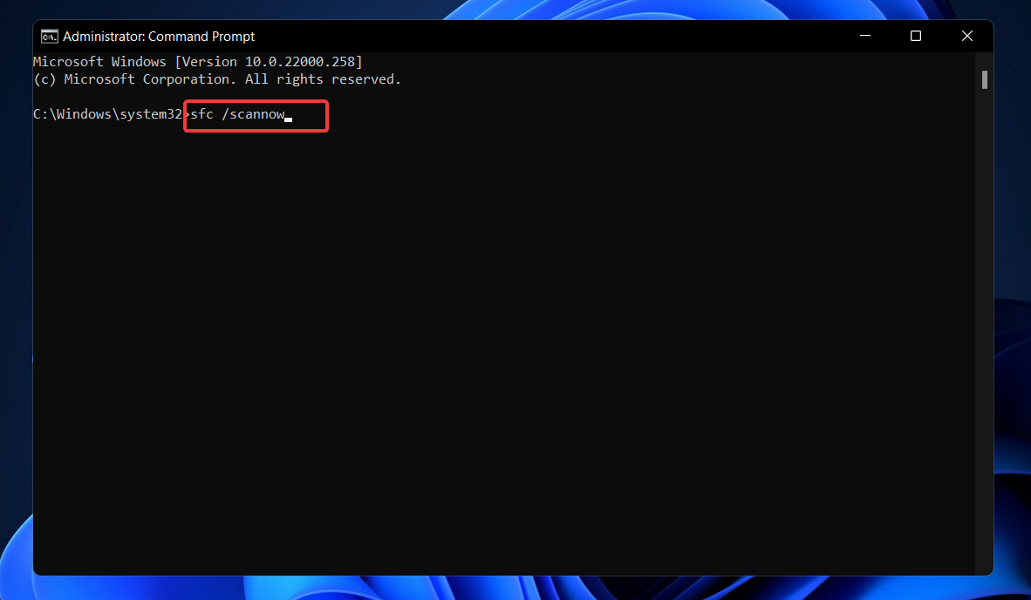
With optimal settings, you can have a slight edge over your opponent, which can make the difference between you landing on top of the scoreboard.

Even though the exact perfect settings will vary depending on your system and preferences, there are a few general settings that most gamers agree with.

➡ Best graphics settings

  • Color-blind type: Disabled
  • Field-of-view: 90
  • Motion Blur: Disabled

➡ Best controller settings

  • Horizontal Stick Sensitivity: 5
  • Vertical Stick Sensitivity: 5
  • ADS Stick Sensitivity (Low Zoom): 1.2
  • ADS Stick Sensitivity (High Zoom): 1.0
  • Left Stick Min Input Threshold: 5
  • Left Stick Max Input Threshold: 100
  • Right Stick Min Input Threshold: 4
  • Right Stick Max Input Threshold: 100
  • Auto Sprint: Enabled
  • Sprint Behaviour: Go To
  • Sprint Cancels Reload: Enabled
  • Equipment Behaviour: Hold

➡ Best audio settings

  • Master Volume: 100
  • Music Volume: 35
  • Sound Effects Volume: 100
  • Dialogue Volume: 100
  • Cinematics Volume: 100
  • Hit Markers Sound Effect: Enabled

Using the above-mentioned settings, you can experience the best possible gameplay experience with the Call of Duty: Cold War game on your Xbox console.

However, we would like to point out that these overall settings are a choice of personal preference. You may or may not like the settings mentioned above. So, you can always tweak the settings to how you want them.

Let us know in the comments below your thoughts on this topic. Also, do let us know which of the above-mentioned methods helped you fix the Call of Duty not updating on Xbox console error.

Twitch streaming returns to Xbox dashboard in new update

Twitch streaming integration will be making a return to the Xbox OS dashboard in the newest update (via The Verge). This comes after the Xbox One’s Snap mode was removed in 2017, and with it Twitch streaming integration.

Players will now be able to launch a Twitch stream directly in the Xbox dashboard.

While Xbox streaming is integrated within the Twitch app, but until today’s update Xbox users had been left with no way to directly launch a Twitch stream from the dashboard. The return of this “Console Live Feature” is not exactly unexpected, however, as it was tested back in the Fall of 2021 via the Xbox Insider Program.

Now, Xbox users will be able to launch a Twitch stream without having to do so inside the Twitch app. In fact, Twitch streams can now be launched from the Xbox dashboard without the Twitch app even being installed on the console as long as a player’s Twitch account is linked. The feature can be accessed through the Xbox Guide’s Capture and Share tab.

(updated to include the Xbox Wire link)

Find Wi-Fi Password on Windows 11 With These 3 Ways

Sometimes you forget and you need to find the Wi-Fi password on Windows 11. This isn’t as hard as you think, and you can do it in a matter of seconds, by following these steps.

How can I find my Wi-Fi password on Windows 11?

1. Look at connection properties

  1. Press the Windows key + I to open the Settings app then go to Network & Internet, followed by Advanced network settings.network-advanced minecraft not installing windows 11
  2. Now navigate to More network adapter options.more-network minecraft not installing windows 11
  3. Right-click on Wi-Fi and choose Status.status minecraft not installing windows 11
  4. Now click on Wireless Properties.wireless  minecraft not installing windows 11
  5. Navigate to the Security tab and check the Show characters box. That’s it!security-show minecraft not installing windows 11

2. Use the Settings app

  1. Open the Settings app and go to the Network & Internet section. Next, select Wi-Fi.
  2. Head to Manage known networks.
  3. In the View security key section click the View button.

3. Use PowerShell

  1. Right-click on the Start icon then tap on the Windows Terminal (Admin) option to open the PowerShell interface.admin-terminal minecraft not installing windows 11
  2. After it opens, enter or paste in the following commmand and make sure to replace the WI-FI_NAME part with your actual name:netsh wlan show profile WI-FI_NAME key=clear netsh find wi-fi password Windows 11
  3. When you scroll down to the Security settings, you will find the Wi-Fi password next to Key content.

How can I view all saved Wi-Fi passwords in Windows 11?

You can view any saved Wi-Fi password with PowerShell, ex explained in the instructions above. We also have a guide on how to view saved Wi-Fi passwords on Windows 11 that offers more information, so don’t miss it.

FAQs

How can I find my Wi-Fi password on Windows 11?

Open Settings > Network & Internet > Advanced network settings > More network adapter options. Right-click your Wi-Fi network, select Status > Wireless Properties > Security tab, and check Show characters to view the saved password.

Can I find the Wi-Fi password using Command Prompt?

Yes. Open Command Prompt as administrator and type netsh wlan show profile name=”WiFiName” key=clear. Replace WiFiName with your actual network name, and check the Key Content line for your password.

Where can I see saved Wi-Fi passwords for all networks?

Use the command netsh wlan show profiles to list all saved networks. Then, run the previous command for each profile to view its stored password.

What should I do if I can’t find the Wi-Fi password?

If the password isn’t stored or visible, log in to your router’s admin page or ask the network administrator. You can also reset the router to default settings if you’ve lost access completely.


Need to get online without the key? See our guide to connect to Wi-Fi without a password using options like WPS, QR codes, and mobile hotspots.

For further information, take a look at our post on how to view saved Wi-Fi passwords on Windows 10 and Mac.

Alternatively, users reported their Wi-Fi disappeared in Windows 11, to which we have responded with an article that you can check out.

And lastly, make sure not to miss out on what to do if you get the Can’t connect to this network error in Windows 11. We also have a guide on how to view saved Wi-Fi passwords on other devices, so you might want to check it out.

We hope this guide proved to be helpful for all of you. Let us know in the comments section below which solution worked for you, as well as whether you have any other solutions in mind.

Garmin USB Drivers for Windows 11 [Download & Fix Connection]

The Garmin GPS itself has the ability to alter files, maps, routes, and waypoints. However, connecting the device to your computer and using the BaseCamp software is usually considerably more efficient. On rare occasions, you may discover that your computer does not recognize the Garmin GPS.

Don’t sweat it as you are not alone in this and USB cable errors are generally easy to solve. In the worst-case scenario, you will have to acquire a new wire for your device.

Follow along as we have put together a comprehensive list of solutions that you can try in order to fix the error, right after we see what else the company produces. Keep up with us!

What does Garmin produce?

Besides GPS devices, the company manufactures activity trackers and sports watches that are designed for activities such as running, watersports, golfing, cycling, swimming, and other sports that require sensors such as heart rate and GPS.

Some newer variants include Bluetooth audio playback as well as pulse-oximetry capabilities. In addition to measuring the duration and quality of sleep, some Garmin products measure body movement, record heart rate, count steps taken, and the number of stairs climbed by the wearer.

maps garmin usb device not recognized windows 11

There is also a series largely targeted towards runners, but the watches are more broadly targeted as well, particularly at the top end of the price spectrum.

Among the features are multi-sport tracking capabilities (for example, automatically switching between sports during a triathlon) and a variety of customized profiles for jogging, swimming, cycling, skiing, and paddle sports, as well as other weight-loss and hiking activities.

It has a built-in heart rate sensor as well as GPS functionality. Most contemporary Garmin devices are capable of displaying their current location on a map that is vector-based and either kept in the device’s built-in memory or loaded from external flash memory.

The built-in (or base map) depicts all country borders and significant cities. The company sells a variety of maps, including precise road maps, topographic maps, and maritime maps, all of which can be downloaded.

What can I do if Garmin USB device is not recognized in Windows 11?

1. Unplug and replug the wire

If your computer is unable to recognize the Garmin device, begin by unplugging and powering down your GPS. Restart the device and connect the USB cable to the port on the back.

Last but not least, reconnect the USB wire to your computer. Your Garmin should display a picture of a GPS unit that is connected to a tower. You should be able to see it on your computer as well as on your phone.

2. Try a different port

If the PC is still unable to locate the Garmin after a reboot, there are a few alternative options to consider attempting. First and foremost, connect it directly to the computer rather than using a USB hub or the Garmin’s own cradle, if it is equipped with one.

You could also try connecting it to a different USB port. Theoretically, any port should function, but this is not always the case in practice.

The same may be said about the USB cable as well. Some cables are designed primarily for charging, while others are designed primarily for data transfer, while still others are designed for both.

Garmin suggests that you only use their proprietary cords, but if you have a variety of USB cables on hand, you can typically swap them around until you find one that works.

3. Download the latest driver

  1. Head to Garmin’s official website and look for the latest driver available.garmin garmin usb device not recognized windows 11
  2. Click on the Download button and follow the on-screen steps to install it on your computer.garmin-download garmin usb device not recognized windows 11

We recommend that you check all of your drivers so that they stay up-to-date. There are multiple ways in which you can update them, but one stands out from all and that is performing automatic updates using software such as Outbyte Driver Updater.

How does GPS work?

The Global Positioning System (GPS) is a satellite-based positioning system that is owned by the United States government. The fundamental technique of GPS is to calculate the distance between two receivers while at the same time determining the location of observed satellites.

Note that the predicted positions of the satellites are transmitted to the user together with the GPS signal, which serves as a backup.

The position of the receiver is frequently calculated by comparing several identified positions and, as a result, measuring distances between the receiver and the satellites.

Even more, the speed of the receiver is defined by the difference in location, which can be calculated in relation to time. These satellites are typically located at a height of 20,000 kilometers above the earth’s surface, traveling at a speed of 14,000 kilometers per hour.

gps garmin usb device not recognized windows 11

The Global Positioning System (GPS) uses the mathematical idea of trilateration to determine the location of an object, and it is comprised of approximately 30 satellites orbiting the earth.

It is exceptionally simple to use because it directs you in the right direction for every turn you make. Otherwise, you’d have to take a long detour in order to get to your destination.

GPS operates in all weather conditions, so you don’t have to be concerned about the weather like you would with other navigation gadgets.

The systems fail for a variety of reasons, and in this case, you should have a backup map and directions on hand.

A battery failure could occur if you are using it on a battery-operated device, necessitating the use of an external power supply, which is not always possible.

For more information on products and a list of the five best handheld GPS for hiking and cycling, check out the article linked.

If you encounter issues with Waze, take a look at our guide on what to do if Waze is not connecting to GPS. Those issues are more common than you think so make sure to bookmark the article.

And lastly, don’t miss out on our post including the best Windows 10/11 GPS apps and software to download for those who are on the road on a daily basis.

Microsoft Defender for Cloud now supports Google Cloud Platform

Not every organization might be using a single cloud service in its day-to-day operations, and this can sometimes cause security issues. That’s why Microsoft has just announced that Microsoft Defender for Cloud now supports Google Cloud Platform.

With the news, Microsoft hopes that organizations can easily understand and manage their security postures across clouds, and help protect their workloads. More importantly, though, according to Microsoft, it makes Microsoft the only cloud provider that enables you to manage security natively across clouds. Some of the features and examples of benefits of this can be seen below, as explained by Microsoft’s Gilad Elyashar over on the Microsoft Defender for Cloud Blog.

  • Central, multi-cloud view with a new Secure Score for all clouds combined and the ability to compare your compliance status against critical benchmarks such as Center of Internet Security (CIS) for GCP and AWS.
  • Microsoft Defender for Cloud will provide more than 80 out-of-the-box recommendations to begin with. These are aligned to industry
    standards and security best practices, including a mapping to the CIS benchmark for Google Cloud.
  • Threat protection capabilities are built into in Microsoft Defender for Cloud for the most critical workloads running in GCP including both containers and servers.
  • Defender for Cloud is extending its server protection to support Google Compute Engine VMs, another critical workload type across most environments.

For those worried about the onboarding process, Microsoft says that it should be quite easy. Microsoft is using native Google APIs and is allowing security teams to security teams to connect the entire organization or individual projects to Microsoft Defender for Cloud without the need for any agents or additional Google services. You can learn more about this and see a deeper dive during Microsoft’s “What’s next in Security” event on February 24.

Fix: Installer encountered an unexpected error 2203

There have been numerous reports of customers encountering the error code 2203 when attempting to install any program on their Windows computers.

This error message is typically displayed to the users if they do not have administrative privileges for the directory containing their installation or the temporary folder in their system at the time of the attempt to install the software.

Other possible causes of this error are: insufficient permissions on the installation directory, interference caused by a third-party antivirus or firewall, Microsoft Windows is not up to date, or the installation file has been corrupted.

If you have encountered the 2203 error code, continue reading this post to learn about the various ways that you may employ to resolve this issue while installing any program on your computer. But before, let’s understand the importance of keeping your computer up to date.

Why is it important to update my operating system?

System administrators do not look forward to installing updates on a monthly basis, but they are required and incredibly crucial in the times that we live in.windows-update-required the installer has encountered an unexpected error installing this package 2203

The majority of the monthly upgrades are security-related. Due to the possibility of being exploited by hackers, security vulnerabilities are the worst type of problem to have. These types of circumstances are frequently encountered in a variety of Windows components, including ActiveX and IIS.

Net Framework and similar frameworks are merely samples. Other Windows updates are designed to fix bugs and issues that have arisen. The stability of your operating system may be compromised even if these programs are not directly responsible for security issues.

And lastly, but certainly not least, Windows updates can bring brand new functionality while also fixing previously identified problems, the best examples of which are IIS and Internet Explorer.

A number of security vulnerabilities, flaws, incompatibilities, and out-of-date software components can be found in the code that makes up the Windows operating system. In a nutshell, we all know that Windows isn’t without flaws.

The most recent Windows security patches are designed to repair vulnerabilities and problems in Windows and associated applications, as well as to periodically bring new capabilities to the operating system. This effectively covers the reasons why you should run a Windows Update on a frequent basis.

Security vulnerabilities in many aspects of the Windows operating system, including the primary platform, are discovered on a regular basis. Even if you do not use the corresponding program, it is a risk not to update it because it is already installed on your machine.

How ca I fix the unexpected 2203 error?

1. Run the installer with administrator access

This is one of the most prevalent situations that has been recorded as causing the 2203 error code. It occurs when the installer does not have adequate rights to copy files from this program into the installation folder or to make use of the temp folder during the installation phase.run-as-admin-app Installer encountered an error 0xc8000222

If this scenario applies to you, you should be able to resolve the issue by ensuring that you are logged in as an Administrator account and forcing the installer to launch with administrative privileges on your computer.

To open the program’s installer with administrative privileges, simply right-click on it and select Run as Administrator from the menu that appears. Next, when the UAC (User Account Control Prompt) appears, select Yes to provide administrative privileges to the user.

2. Take ownership of the folder

  1. Press the Windows key + R to open up a Run dialog box. Next, type or paste %temp% inside the text box and press Enter to open up the Temp folder.temp Installer encountered an error 0xc8000222
  2. In the File Explorer, click on the Up arrow to the left of the address bar to move one folder behind which is the Local folder.up-arrow-temp Installer encountered an error 0xc8000222
  3. Once you are in the Local folder, right-click on the Temp folder, then tap on Properties.temp-properties Installer encountered an error 0xc8000222
  4. Navigate to the Security tab, then click on the Advanced button at the bottom.temp-properties-security  Installer encountered an error 0xc8000222
  5. Inside the Advanced Security Settings for Temp window, click on the Change hyperlink next to the Owner.change-owner-temp Installer encountered an error 0xc8000222
  6. In the Select User or Group window, type Everyone in the box below Enter the object name to select, then press on the Check Names button followed by OK.check-names Installer encountered an error 0xc8000222
  7. Click on Apply to save the changes made. Now when the Windows Security prompt appears, click on the OK button.apply-allow-access Installer encountered an error 0xc8000222

As a result, the Owner name in the Advanced Security Settings for Temp window will be changed, and you will be able to install the package without any more problems.

3. Temporarily disable your antivirus

  1. Right-click on your antivirus icon and select Avast shields control, then Disable for 10 minutes from the expand arrow on your taskbar.disable-antivirus-icon xbox controller not recognized windows 11
  2. If you have other antivirus programs installed, you can temporarily disable the app by following the same or similar methods as before.avira-disable-icon xbox controller not recognized windows 11

You can either re-enable the antivirus or wait 10 minutes after you’ve finished installing the application or the Windows update.

4. Perform a clean boot

  1. Press the Windows key + R to open a new Run box, then type or paste in msconfig, and hit OK.msconfig  gdi+windows error message on shutdown
  2. Then navigate to the Boot tab and check the Safe boot option under Boot options.safe-boot-boot   gdi+windows error message on shutdown
  3. Now go to the tab that says General and make sure that Selective startup radio button is checked but uncheck Load startup items under it.general-startup-clean   gdi+windows error message on shutdown
  4. Select the Service tab and check the box Hide all Microsoft services then click Disable all to disable all the unnecessary services which might cause issues.disable-all-startup   gdi+windows error message on shutdown
  5. On the Startup tab, click Open Task Manager and disable all the startup items which are enabled.task-manager-startup   gdi+windows error message on shutdown

Following this, you may begin the rebooting procedure. Windows will take care of everything; all you have to do is sit back and wait for the procedure to be completed.

What are the consequences of not updating my operating system?

Damaged software, data loss, and identity theft are all possibilities as a result of failing to install critical security upgrades. Viruses and malware wreak billions of dollars in damage every year throughout the world. firewall the installer has encountered an unexpected error installing this package 2203

The most common reason is that users fail to install important software or operating system updates, which allows malware to take advantage of flaws that exist in every piece of software ever created. As soon as vulnerabilities are made public, they can potentially be exploited within hours.

You should prepare to install any security updates that become available to defend your machine from malware attacks soon they become available.

Some tools, such as Windows Server Update Services (WSUS) and System Center Configuration Manager, can be used to control and monitor the deployment of Microsoft updates in a corporate context (SCCM).

It is vital to keep your systems up to date with security upgrades in order to keep them safe from harmful attacks. Installing software updates is also vital in the long run, not only for accessing new features but for staying on the safe side in the event that security loopholes are discovered.

If your Windows Defender hasn’t been working properly, take a look at this guide on how to fix it and follow carefully the steps listed, one by one.

Alternatively, users found their Windows 11 PC was stuck in a reboot loop, so in the case that you encounter the problem, check out the article linked to see a list of potential solutions.

And since we’ve been talking about antiviruses and security, you should read our post on five of the best antiviruses that are compatible with Windows 11.

Let us know in the comments section below which solution worked best for you as well as how often you upgrade your Windows PC.

For Some Reason we Could not Install Firefox: 6 Ways to Fix

Some users probably encountered the message for some reason we could not install Firefox when installing Mozilla Firefox on their PC. It is one common error that Firefox remains stuck on installing. Do not worry if you are one of them; we have your back.

In this article, we’ll offer you a list of the most common installation problems for Mozilla Firefox as well as solutions to similar error messages.

Why is Firefox not installing?

Users who have experienced installation issues on the browser have attributed it to varying factors. Top on this list includes the following:

  • Insufficient system requirements – The installation may fail if your computer does not meet the minimum system requirements for Firefox. 
  • Existing Firefox installation – If you already have an older version of Firefox installed on your computer, it may prevent a new version from installing. 
  • Antivirus or firewall software interference – Sometimes, antivirus or firewall software can interfere with installation. This can happen if the software detects the installer as a potential threat. 
  • Corrupted or incomplete installer file – If the Firefox installer file is corrupted or incomplete, it may prevent the installation from completing. 
  • Insufficient disk space – The installation may fail if your computer lacks free disk space to install Firefox. 
  • User account permissions – If you do not have sufficient user account permissions to install software on your computer, Firefox may not install. 

What are other Firefox installation errors?

Before trying the troubleshooting steps, let us tell you a few more tips when encountering similar issues:

  • Hmm, for some reason we could not install Firefox – There are times when the installation procedure does not complete, and users get this message. If that’s your case, note that you can’t run Firefox during installation.
  • Firefox not installing on Windows 10 – If you’ve tried to install Firefox to no avail, check the setting to Prevent Accessibility Services from accessing your browser from the Privacy & Security panel.
  • Cannot install/reinstall Firefox keeps saying an old copy is running? – Uninstalling the old copy first isn’t always enough. Also, get rid of any leftovers and stubborn software with the help of the best uninstaller tools.
  • Firefox won’t install Windows 10 – This issue can sometimes be caused by your antivirus. To fix it, disable your antivirus and check if that helps.
  • Firefox installs stuck on downloading, housekeeping – Sometimes this issue can appear while trying to install Firefox using the standard installer. According to users, the solution is to download and use the full installer.
  • Firefox install takes forever – If your Firefox installation is slow, you might be able to fix the problem simply by trying to run it as an administrator. After doing that, check if the issue is still there.

Let’s see what you can do without further ado if you can’t download Firefox on your device. Keep one reading!

Quick Tip:

Encountering this issue constantly can be annoying, so if nothing doesn’t seem to work, you may want to consider switching to Opera One.

This browser is a fast and safe solution and has tons of great features, including a built-in VPN to enhance your privacy and an ad blocker to browse the web without interruptions.

Opera One

If your current browser doesn’t work, don’t hesitate to try a new-age modular browser.

How can I fix For some reason we could not install Firefox error?

1. Reinstall Firefox

1.1 Uninstall the installer

  1. Press Windows + R, type appwiz.cpl, and hit Enter.
    for some reason we could not install firefox
  2. Click on Firefox and select Uninstall.
    for some reason we could not install firefox
  3. Lastly, follow the wizard to complete the installation.

1.2 Download a new installer

  1. Download a new copy of Firefox from the official website.
    for some reason we could not install firefox
  2. Double-click on the downloaded file.
  3. Follow the wizard to complete the installation.

Sometimes you won’t be able to update Firefox at all, and your Firefox install might get stuck with Failed to read the configuration file. Please contact your system administrator message.

If this happens, your mozilla.cfg file might be damaged, and to fix the problem, it’s advised to reinstall Firefox.

In addition to uninstalling the application, you must remove all leftover files from Firefox’s installation directory.

Doing this manually can be a tedious task. Therefore, using an uninstaller software tool such as IObit Uninstaller is always better. For more details, please read our complete guide on how to use IObit.

1.3 Download the full installer

To distribute Firefox faster, Mozilla offers two types of installers, standard and full. The difference between the two is their size.

The standard installer is lighter, so it needs to download the setup files to install Firefox. Unfortunately, this can sometimes cause the Firefox installation to get stuck.

On the other hand, the full installer, also known as Firefox offline installer, won’t download any additional files. Instead, it will install Firefox right away.

This is a simple solution, and many users reported that it works, so be sure to try it out. You can get the full Firefox installer right away.

2. Check your permissions

  1. Press the Windows key + R and enter %localappdata%. Next, press Enter or click OK.local-data-run-w10 firefox stuck on now installing
  2. Locate the Temp folder, right-click it, and choose Properties from the menu.temp-properties-w10 firefox stuck on now installing
  3. Select the Security tab from the top menu and click Edit.security-edit-w10 firefox stuck on now installing
  4. Click on Add.add-w10 firefox stuck on now installing
  5. In the white box, write the word Users and click OK.users-ok-w10 firefox stuck on now installing
  6. Select Users from the Group or user names list and check Full control in Allow column. Now click Apply and OK to save changes.users-allow-w10 firefox stuck on now installing
  7. In addition to changing the permissions, some users suggest clearing all directories from the Mozilla updates folder. Thus, open a new File Explorer tab by pressing Windows + E.
  8. Navigate to the following location but make sure to replace windowsreport with your username: C:\Users\windowsreport\AppData\Local\Mozilla
  9. Next, navigate to the updates directory and check whether you see any folders. Remove all of them and try to update or install Firefox again. Note that this solution also works when you cannot install Mozilla Firefox on Windows 10.updates-w10 firefox stuck on now installing
  10. Finally, if you see any folders in there, remove them and try to update Firefox again.

Check if you can install it without getting the error message for some reason we could not install Firefox.

3. Try to update the browser manually

  1. Click the Menu icon in the top right corner and choose Help, followed by About Firefox.menu-about-firefox firefox stuck on now installing
  2. A new window will now appear, and Firefox will check for updates. If any updates are available, they will be automatically installed.firefox-updating firefox stuck on now installing

Theoretically, Firefox is set to install the updates automatically, but sometimes various factors may prevent that. To check for updates manually, do as described above.

4. Run Firefox as an Administrator

  1. Right-click on the Firefox icon.
  2. Select Run as administrator.

If Firefox install gets stuck on your PC, the issue might be related to the missing privileges. Running the setup file as an administrator is required to fix this issue.

If you’re having problems updating Firefox, you just need to repeat these steps for firefox.exe and then try to update it again.

5. Disable Windows Defender

  1. Open Settings first by holding Windows and I and go to the Update & Security section.update-security firefox stuck on now installing
  2. Click Open Windows Security.serucity-open-w10 firefox stuck on now installing
  3. Go to the Virus & Threat protection section.virus-w10 firefox stuck on now installing
  4. Now click Manage settings.manage-settings-w10 firefox stuck on now installing
  5. Locate the Real-time protection option and disable it. You can also disable other options if you want.realtime-protection-w10 firefox stuck on now installing

Even if you don’t use a third-party antivirus, sometimes Firefox install can get stuck on your PC.

Windows Defender can cause this, and in order to fix the problem, you need to disable it, as described above.

After disabling this option, try to install Firefox again. If Firefox installs successfully, be sure to enable Windows Defender once again.

6. Check your security software

6.1 Avast

  1. Open the dashboard of Avast.
  2. Click on Settings, followed by Protection and Core Shields.avast-settings firefox stuck on now installing
  3. Navigate to Web Shield, uncheck the Enable HTTP Scanning box, and click on the OK button to update this feature.https-enable-avast firefox stuck on now installing

This should stop your Avast antivirus from checking the security certificate of every website you access.

6.2 Bitdefender

  1. Open the dashboard of Bitdefender. If you have the 2016 version, click on Modules. For an older version, you must click on the Protection button.protection-bitdifender firefox stuck on now installing
  2. Click on the Web Protection button.web-protection-bitdifender firefox stuck on now installing
  3. Disable the Scan SSL feature.

6.3 ESET

  1. Open ESET antivirus and select Setup followed by Advanced setup.setup-eset firefox stuck on now installing
  2. Click on Web and email followed by SSL/TSL, Enable SSL/TSL protocol filtering, and OK.web-eset firefox stuck on now installing
  3. Lastly, restart the computer to configure the antivirus filter.

For ESET, you only have to enable the SSL/TSL protocol filtering feature.

6.4 Kaspersky

  1. Open the antivirus dashboard and click on the Settings button from the bottom left.settings-kasper firefox stuck on now installing
  2. Scroll down the left menu and click on Network settings.
  3. If using the 2016 version, uncheck the Do not scan encrypted connections box from the Encrypted connections settings section. For an older version, just uncheck the Scan encrypted connections upon request from protection components feature.network-kasper firefox stuck on now installing
  4. Reboot your system to configure your antivirus software.

If Firefox install gets stuck on your Windows PC, the issue might be your security software.

Sometimes certain antivirus features can interfere with your system, so disabling these features is advised. Above is how to do that in many popular antivirus tools.

If disabling this feature doesn’t solve the problem, altogether disable your antivirus. In case the issue persists, remove your antivirus and check if that helps.

If removing the antivirus solves the problem, this might be a perfect opportunity to consider switching to a different antivirus solution.

Many Windows 10 compatible antivirus software won’t interfere with your system while providing excellent system protection.

Using this OS iteration, check out the best antiviruses suited for Windows 11.

When you face we could not install Firefox error for some reason, we hope these methods will help you out.

If none of these methods helped you, we recommend contacting Mozilla’s Support department. You can also try Firefox ESR version which is more stable.

Finally, please share your thoughts with us in the comments section below. Thanks for reading!

6 Best Mailchimp Alternatives for Your Business

Getting your products and services known to the general public is no easy task, especially when there are plenty of competitors out there that offer similar services at similar prices.

Your only choice, in that case, is to either offer better services, which translates into more work, offer cheaper prices, therefore lower revenue, or simply make yourself more visible, which seems to be the best solution.

Naturally, this makes email marketing tools like Mailchimp a Godsend, especially for small and medium business owners, but this service can sometimes be unavailable at times as well.

Mailchimp vs Sendinblue

The most important contender for Mailchimp is Sendinblue so we tried to get the most important differences between the two:

➡ Pricing

Not only that Mailchimp’s prices are higher but their policy is to charge you by sent e-mails and not by contacts which is a big difference.

The smallest plan of Sendinblue costs half the one from Mailchimp and you get unlimited contacts. We won’t list the prices because they are subject to change, but small research on this chapter won’t hurt.

➡ Contact list management

This is another category that Mailchimp suffers from because it’s impossible to create automations and move the subscribers from one list to another.

Also, you can’t include contacts on different lists in the same campaigns which can be very frustrating but with Sendinblue, all that is pretty easy to do.

Sendinblue has a very efficient Search & Segmentation tool

With Sendinblue, it’s easy to access your contacts and perform a segmentation based on a lot of criteria, then add the emails on any campaign with your own requirements.

➡ Design and campaign creation

Here, we give a big thumbs up to Mailchimp because it offers a lot of nicely designed templates to choose from.

Also, there are more options to customize your content, a chapter where Sendinblue has a lot of ground to recover.

Maybe you already use Mailchimp and just want to see if there’s something better out there. If you’re with the latter, then we’ve prepared a list of the best Mailchimp alternatives that you can find online.

All of the entries below are proven to do the same as Mailchimp, or more, and they were selected based on features, how easy they seem to control, and their price tag.

Which are the best Mailchimp alternatives available?

MailBird

This next entry is a multi-purpose tool that starts off as an email client, but with tweaks and integrations can be easily turned into a great e-commerce aid for business owners everywhere.

Features such as sending newsletters or massive amounts of emails in bulk are already something that Mailbird supports, and recurring email delivery, such as those that subscribe to your services are also supported.

When not dabbling in e-commerce, Mailbird makes for an excellent email client as well, allowing you a complete and customized overview of all of your emails from all accounts under a single window.

You will benefit from these best features:

  • Keep all your accounts and emails in one place
  • Friendly interface
  • WhatsApp and Instagram integration
  • Email automation
  • Customizable dashboard

Mailbird

Get in touch with your customers faster, easier, and better with this greatly improved email client.
Free trial Visit website

Sendinblue

Digital marketing is a fickle area, and only those with the best tools have any chance of making a profit from it. Either that or those that know exactly what tools to use, one great example being Sendinblue.

They have incredibly great prices as per the number of contacts, far lower than those of Mailchimp, and they include a plethora of other services that aren’t available on Mailchimp, such as SMS marketing, or Transactional SMS.

It is also heavily automated in many aspects, allowing you to focus on other tasks as well, one great example being the fact that you don’t need to waste time creating customized notification emails, since these are handled.

Besides, their modern toolset allows your emails to always reach their destination thanks to IP pool management, a dedicated IP, and a sending test feature.

Let’s review the most important features of Sendinblue:

  • SMS marketing and Transactional SMS features
  • Detailed statistics on click and opening rates
  • Simple and friendly interface
  • Step by step campaign creation
  • Automated email delivery

Sendinblue

Your customers will always be a mere click away from your products, and you won’t even have to perform that click yourself!
Check price Visit website

Cakemail

If you want to enhance your email marketing campaigns, Cakemail is certainly a solution that you need to consider seriously.

This tool will make sure that your content looks perfect on every size screen and device and will improve click-through rates by over 10% with beautiful email designs.

Cakemail helps you personalize your content based on data provided by the subscribers, including their recent activity and interests.

You need to make sure that your messages reach their target and this app manages the delivery, ensuring that your campaign will go in the receivers’ inboxes and don’t get blocked by ISPs.

And after they receive your email, you can track their activity like the clicks they made or whether they shared your message with others.

That is excellent information that helps you customize your campaigns further and segment the subscribers and group them based on similar traits, interests, or behaviors.

You will also get reports with automation stats on how many people accessed your campaign, what conditions they met and how many were sent an email.

Cakemail also works in the browser so you will be able to access it from any system, wherever you are in the world with a simple Internet connection.

Let’s review some of Cakemail’s best features:

  • Subscriber consent management and automated contact list hygene
  • Advanced subscriber segmentation based on interest, behavior and more
  • Automation stats
  • Helps you create sign-in forms
  • Easy contact list import

Cakemail

Increase your opening and click rate with an excellent tool that features advanced automation tools.
Free trial Visit website

ActiveCampaign

Each email marketing tool seems to focus on certain aspects, and when it comes to ActiveCampaign, it seems that the focus goes towards building solid emails and newsletters that are meant to draw in customers.

This is all thanks to the easy drag-and-drop email builder, a visual automation builder, an intuitive CRM for every branch of your business, and free support and training from one of the ActiveCampaign experts.

Other features this service has as opposed to Mailchimp include lead and contact scoring which lets it evaluate which are the most likely buyers so that it can focus on them.

Another neat feature is ActiveCampaign’s automation split-testing which allows you to test out which automated behaviors work best for your clients, allowing you to hit your mark each and every time.

Let’s go through a few of its best features:

  • Drag-and-drop email builder
  • Intuitive CRM features
  • Free support and training
  • Lead and contact scoring
  • Automation split-testing capability
ActiveCampaign

ActiveCampaign

Spread the word about your business with professional, easy-to-build e-mails.
Check priceVisit website

Omnisend

Topping off our list of best Mailchimp alternatives is Omnisend which, as you can probably tell from the name, is meant to advertise your business and services everywhere, and therefore be omnipresent.

Omnisend brings e-commerce marketing automation to an entirely new level, by upgrading all aspects of email marketing, SMS messaging, and task automation, allowing you to focus on sales and not advertisements.

Pre-built automation for cart abandonment, welcome series, transactional emails, and more are some of the things that make Omnisend a self-sufficient service perfectly capable of handling many sales aspects for you.

The best part is that the service is available for testing during a free trial period, and you have complete access to all of its services and not just some demo that doesn’t really give you an idea of what the final product looks like.

Let’s review some of its most important features:

  • SMS messaging and transactional emails
  • E-commerce marketing automation advanced features
  • Task automation
  • Free trial version for testing
  • Advance e-mail campaign design builder

Omnisend

Focus on product development and customer service and let Omnisend handle sales and advertisements for you!
Check price Visit website

Benchmark Email

Making your products look good and presenting them in a favorable manner is pretty much essential if you ever want to make a sale, and that is the strong point of Benchmark.

Even more, it provides you with everything you need in order to make the most out of your growing client base, from tools that let you customize your product or service pages to automated responses and actions based on customer feedback.

It comes with an email builder, marketing automation features, landing page creation tools, reporting templates, integrations, and more.

Take a look at its best features below:

  • Advanced email campaign creation
  • Simple email automation tool
  • Track important email marketing metrics
  • A/B testing and reports
  • Easy to use and implement

⇒ Get Benchmark Email

This pretty much wraps up our list of the best alternative services that you can use instead of Mailchimp.

And while we’re on this subject, you might also be interested in our best CRM email marketing software list that will provide even more alternatives.

If you know of any other tool that would deserve a place on our list, let us know by leaving us a message in the comments section below.

Fix: Path cannot be traversed due to untrusted mount point

Users have reported getting the path cannot be traversed because it contains an untrusted mount point error message after launching Halo or any other game in Windows 11.

The error seems to be quite ambiguous as the cause of it hasn’t yet been found. However, Microsoft made sure to solve the reported issue in one of its update patches.

We will further see how to keep our Windows up to date right after we understand why it is important to perform OS updates on a steady basis.

Why is it important to keep my OS up to date?

Do you know those annoying pop-up reminders that appear on your computer screen? There is a constant barrage of notifications that your applications and drivers are out of date.

When you’re in the middle of anything important, they always seem to rear their ugly heads and remind you of your shortcomings. You should, therefore, adhere to their recommendations and maintain your computer up to date.check-for-updates path cannot be traversed because it contains an untrusted mount point

If your computer is running extremely slowly, such as if it is still running Windows XP, it may be time to consider upgrading to a newer operating system. Contrary to popular belief, software upgrades are not intended to cause us to lose our jobs or our homes.

In reality, they’re intended to make our computers safer by discouraging hackers from exploiting weak points in the system. They can correct the code that permits hackers to infiltrate our machines and install harmful software, as well as erase critical files.

All of the projects that you’ve been working on for so long that you don’t have time to update your software are at risk if you choose to ignore the notification. If your operating system is so out of date that you have to patch it on a regular basis, you should consider upgrading it.

By upgrading the operating system on your computer, you ensure that it is compatible with the most recent and most inventive programs, including video games.

If something unfortunate happens to your computer, having an up-to-date operating system will assist the professionals in recovering your files.

For the most part, keeping your systems up to date implies that your data will be safer, which means that your life and job should be a little less terrifying.

What can I do if I get Path cannot be traversed due to untrusted mount point?

1. Keep your Windows up to date

  1. Press the Windows key + I to open the Settings feature and tap on Windows Update from the left menu.windows-update-settings kernel security check failure windows 11
  2. New updates to install will be shown under the Install now button which you have to click on. Otherwise tap on the Check for updates button to look for updates.checl-for-updates kernel security check failure windows 11

A possible reason for the error could be that you are running an older version of Windows, which can be fixed by updating it. People are probably going to make an update to fix the bug.

2. Run an SFC scan

  1. Press the Windows + S key then enter cmd into the search bar. Right-click on the most relevant result to run it as an administrator.cmd-run-as-admin avast high cpu windows 11
  2. Type or copy-paste in the command and press Enter:sfc /scannowsfc-scan-windows-11 kernel security check failure windows 11

Prior to continuing, you must restart your computer after you have finished waiting for the process to complete (which could take some time). Alternatively, you can try specialized repair software that will scan your PC for corrupted system files and prompt you to replace them.

3. Uninstall and reinstall the game

  1. Press the Windows + S key to open the Search bar, then type Control panel, and click on the most relevant result.control-panel-search xagt high cpu
  2. Once the menu opens up, click on Programs followed by Programs and features.programs xagt high cpu
  3. Now look for the problematic game and right-click on it to choose Uninstall.uninstall-app-control-panel path cannot be traversed because it contains an untrusted mount point
  4. To reinstall the game, head to the client that you previously used and download the game.

Is Windows 11 good for gaming?

By releasing it, Microsoft is effectively inviting gamers to update, even going so far as to state that if you’re a gamer, Windows 11 was made for you and the OS is the greatest Windows for gaming that the company has ever created.

And, certainly, there are a number of features that gamers should take into consideration when deciding whether or not to upgrade from Windows 10 to Windows 11, some of which are minor, while others could be game-changers for some.gaming path cannot be traversed because it contains an untrusted mount point You may look forward to a couple of gaming-related features that have been borrowed from Microsoft’s most recent game consoles, the Xbox Series S/X, in the Xbox One. DirectStorage is the first of these.

By making use of fast NVMe SSDs, DirectStorage is able to significantly shorten load times and improve texture loading while also significantly reducing the CPU strain on those operations.

Despite the fact that DirectStorage is now available on Windows 10 as well, and that it is no longer necessary to utilize Windows 11 in order to benefit from it, the enhanced storage stack in Windows 11 allows DirectStorage to perform to its fullest potential.

There’s also Auto-HDR, which uses machine learning and artificial intelligence to automatically add an HDR setting to any game, regardless of whether or not the game itself supports HDR.

As an added bonus, Windows 11 is tightly integrated with the Xbox app, allowing users to play Xbox Game Pass titles on their PC if they have an Xbox Game Pass Ultimate subscription, as well as access to Xbox Cloud Gaming, where they can access and play their favorite games.

If you find that your Xbox game bar is having some issues, you should take a look at our article on what to do to fix the Xbox game bar in Windows 11.

Alternatively, users have benefited from reading our post on how to run old games on Windows 11. Make sure to check it out if you wish to run your favorite games!

And lastly, we recommend that you take a peek at our guide on how to install Android games and apps on Windows 11 as it will most likely enhance your gaming experience.
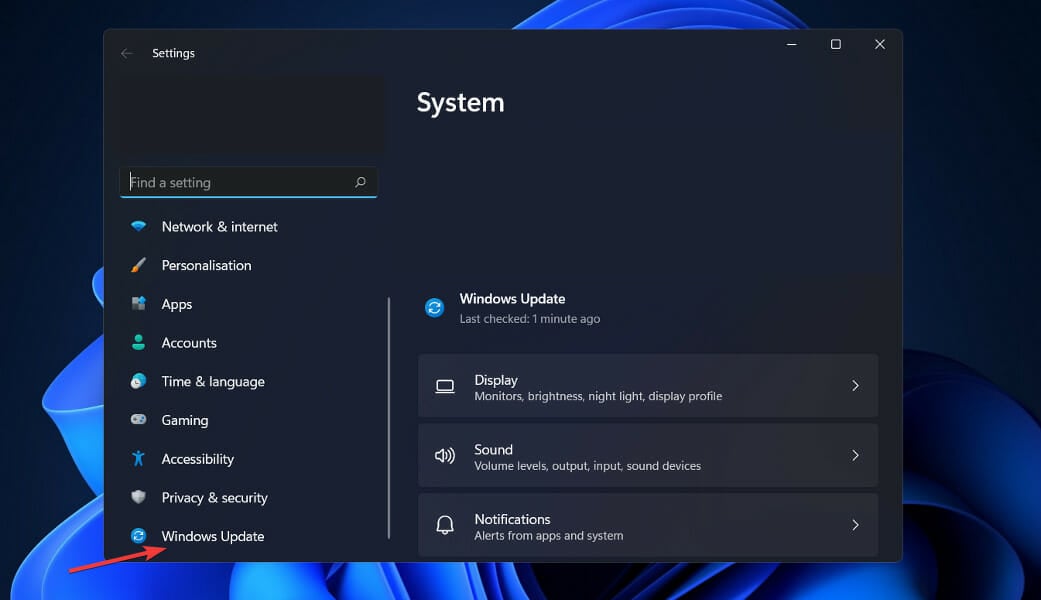
Let us know in the comments section below whether the Windows update fixed your issue and what video game you are playing at the moment.

Here’s why you should never restart your PC while upgrading to Windows 11

We all know that Windows 11 was officially released to the general public on October 5th, 2021. Before that, only Insiders got to fiddle with the new OS.

And, since then, this latest operating system has received mixed reviews, with people debating in what ways it’s better or even worse than its predecessor.

That being said, the adoption rate for Windows 11 is actually twice that of what Windows 10 had back on its launch day.

And yes, there still are a lot of bugs and glitches to be rooted out from the new OS, as many of you may already be aware of.

For example, some users are struggling with Windows 11 getting stuck in a continuous restart loop, when they try to boot the system, for no apparent reason.

Since we’re speaking about loops, we’re about to show you what happens if you decide to interrupt the upgrade from Windows 10 to Windows 11 by performing a hard restart. Spoiler alert, don’t.

Performing a hard restart while upgrading will cause a loop

Needless to say, you should never restart your device while any type of update is being applied, especially a Windows system update.

That can seriously harm your PC’s software and, if nothing else works, you might even have to perform a clean install, which for some people means also losing everything on the device.

And, if you decided to leave Windows 10 behind and discover what the new Redmond experience has to offer, remember that rebooting your machine while it is still in the process is a major no-no.

Why, you ask? Well, because you will get stuck in a continuous restart loop, which can go on for quite some time, if you don’t know how to manage the situation.

As you can see from this user’s experience, this action can have dire consequences, and it’s best if you don’t even think about this possibility really.

It’s also true that the creator of the post mentioned the fact that his upgrade wasn’t quite going as planned, being stuck for eight whole hours.

This can also happen and it’s best you know what to do when it does. If your Windows 11 download is stuck, we have some steps that will help you in this situation.

Or, you can find yourself in a scenario where everything goes smooth until the Windows 11 upgrade process reaches 100% completion, where again, it might get stuck.

But under no circumstances should you ever perform a hard reset on your device while it’s still upgrading operating systems and expect no consequences.

What can I do if it happens?

Now, don’t go thinking this will happen one hundred percent every time someone tries to upgrade from Windows 10 to Windows 11.

There are remote cases in which users will have to deal with this nuisance, but it is not as common as you might think.

However, on the off chance it does happen, there really isn’t much to do really instead, of course, reinstalling the operating system.

Make sure you have a USB with the Windows 10 installer on it, boot it from your BIOS, select Repair this PC and leave it to it.

Keep in mind that you might have to completely reinstall the OS, so don’t exclude this scenario. And since we’re talking about restoring, we can help if you need to fix corrupted files in Windows 10 or Windows 11.

So, now, if this happens to you for any reason, you will know what to do, although it would be for the better not to put yourself in such a predicament.

Have you ever gone through a similar experience while upgrading to Windows 11? Let us know in the comments section below.

How to Install Windows 11 on a M1 or M2 Mac With UTM

Ever since Windows 11 was revealed to the world, and even before, we’ve been talking about running it on Apple PCs with the help of Virtual Machines (VM). Users have gotten used to installing it using Parallels, on Apple M1 devices, and the OS even received exclusive x64 Windows on ARM emulation.

We’ve seen the OS installed on all sorts of devices, from smartphones to NUCs, so it should come as no surprise. However, the question is how well Windows 11 runs on an Apple M1 device through a UTM VM. Let’s find out, shall we?

Can you install Windows 11 on M1 Mac?

Even though Windows 11 doesn’t run badly at all when you emulate it through Parallels, the answer to the question above will surely please you even more. Yes, you can install Windows 11 on an M1 Mac.

While this may sound like great news in face view, it doesn’t exclude the stringent system requirements that your device should meet to run the OS. This also applies to Mac users. One of the most important features required is TPM.

Microsoft does not officially support the hardware, so some issues may arise when installing Windows 11 on the device. However, if the computer meets the minimum requirements for the operating system, then it should be able to run Windows 11 without any problems.

Also, judging from the first few trials, the attempts were all met with success, and the OS performance was an unexpected bonus.

A recent Reddit post that caught our attention, discussing the same subject, further explains just how efficient Windows 11 seems to be on these Apple M1 chips if you use the right VM for the job.

Everything is snappy and fast, including heavier programs like Microsoft Teams. Sound and video also work perfectly.

How can I run Windows 11 for free on M1 or M2 Mac?

Before you get to installing Windows 11 on your Mac, ensure your device meets the following requirements:

Once you’ve fulfilled these requirements, proceed to the next step.

  1. Navigate to your browser and download the UTM application.
  2. Wait for the program to complete download and launch it.
  3. Click on the + sign to Create a New Virtual Machine.
  4. You will need the Windows 11 ISO files so ensure you download them beforehand.
  5. Select Windows as the operating system you wish to virtualize.
  6. Click on Browse and select the Windows 11 ISO image, then hit Next.
  7. You’ll be required to set the amount of RAM and cores for your OS. We recommend selecting anything from 8GB upwards for a smoother performance. The amount will depend on how heavy your activities are. Once set, click on Continue.
  8. Confirm everything is correct from the Summary page, then click Save.
  9. A play button will appear on the next screen, so click on it to boot your device.
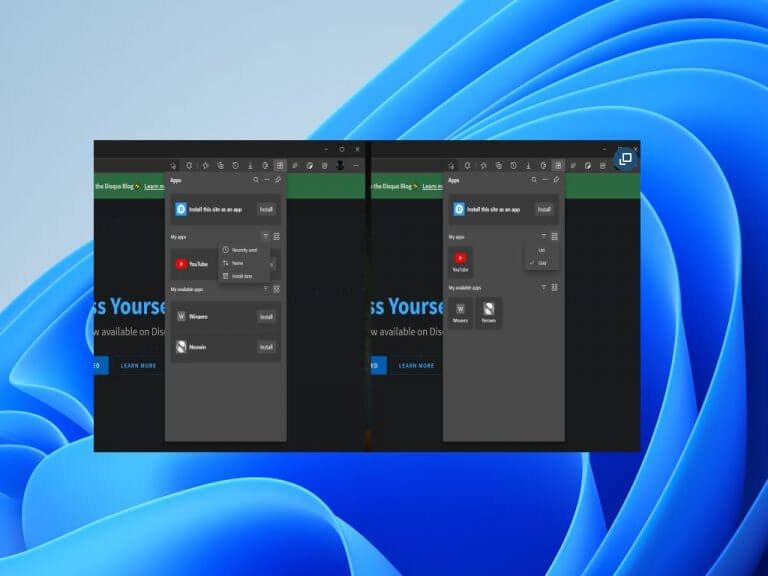
  10. Once it boots up, you’ll be taken through the usual Windows setup, so follow the on-screen instructions to complete the setup.

Is the UTM virtualizer app good for Mac M1?

One of the greatest reasons why UTM is the better choice is that it is free. Of course, there exists the paid version for $10 on the Mac Store, but they are basically the same thing. The only difference is that with the free version, you’ll have to keep checking for updates and download them manually.
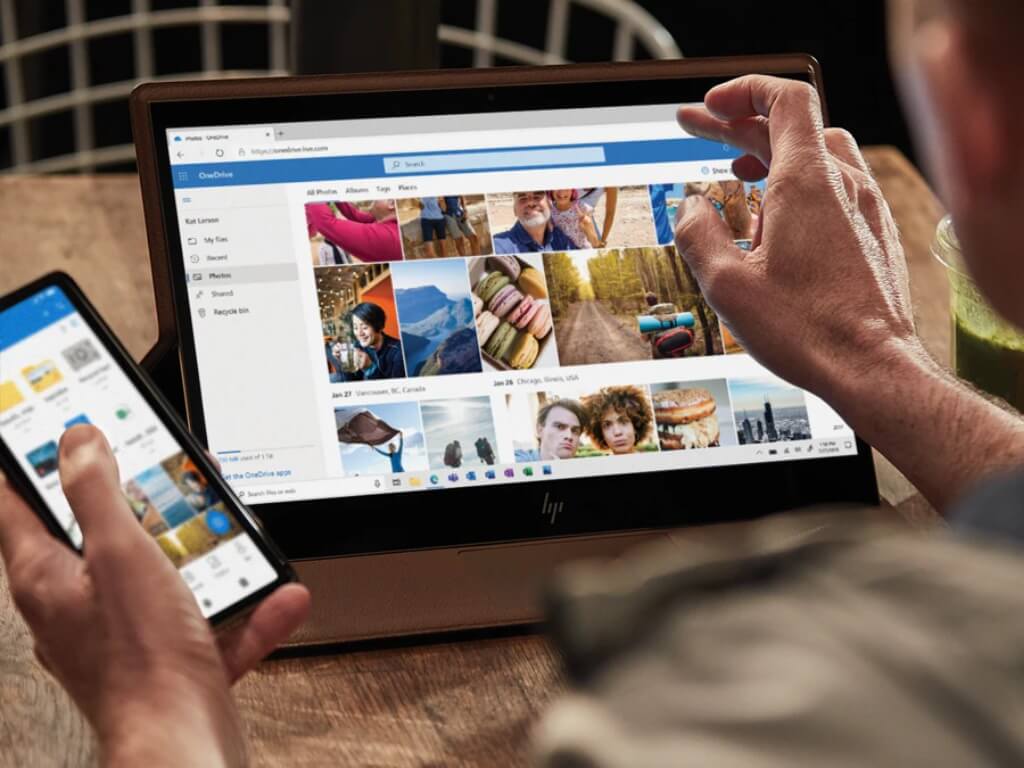
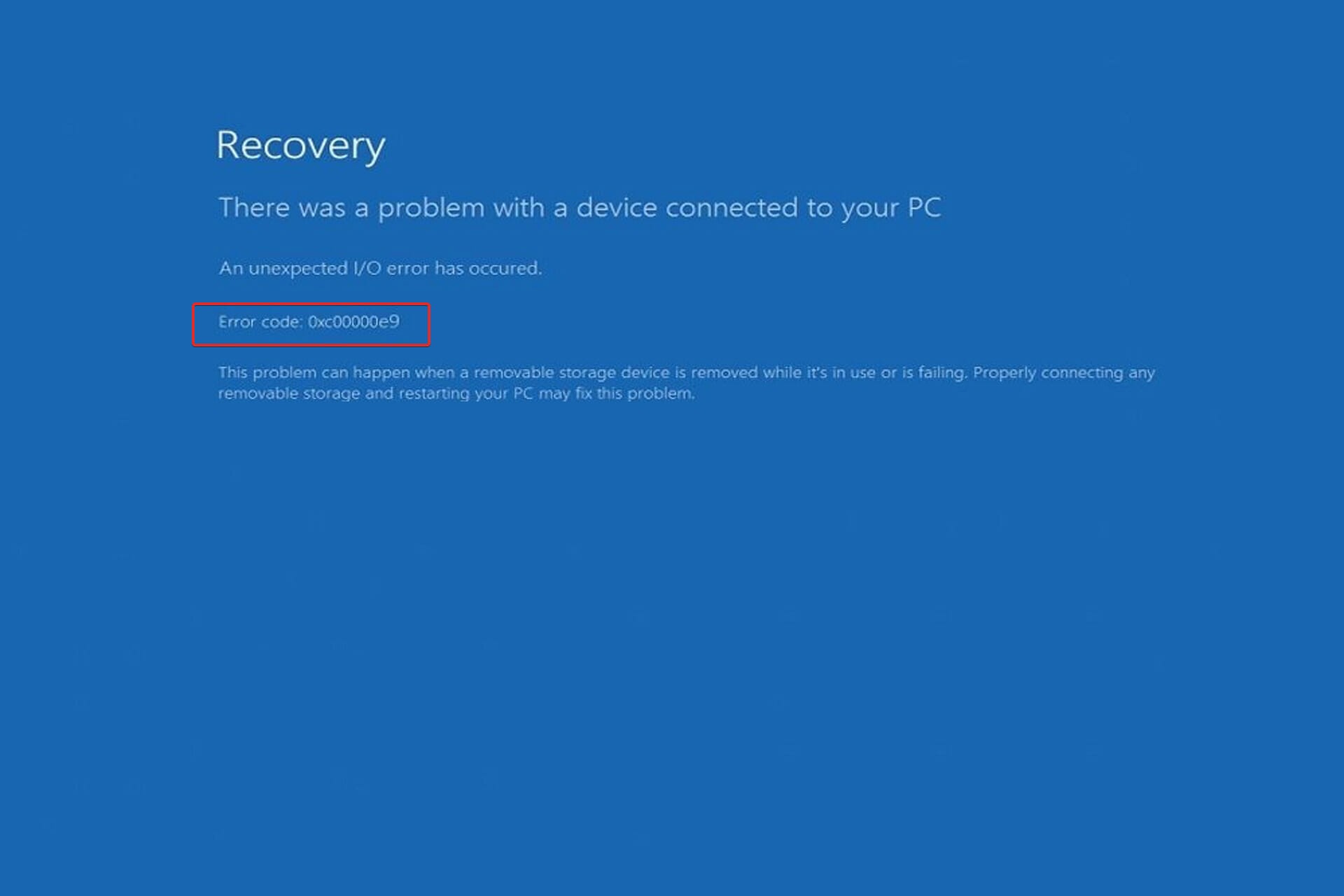
Another winning feature is that it is open-source, which means developers are at liberty to tweak some of its settings to meet their needs. Needless to say, this is a great option for those who also need to run Windows on their Mac for work or otherwise.

Options like Bootcamp have since become limited to Intel processors making them less available. Apple is slowly or rather quickly moving to ensure that their Macs run exclusively on Apple silicon processors: M1 and M2.

Parallels, however, requires you to get money out of your pocket. Depending on the version you chose to upgrade to, you can easily part with up to $100 for the Pro version.

Yes, in case you haven’t catched it yet, the VM we mentioned in this article, which is UTM, is free. This seems to be a great choice for making good use of the Redmond tech giant’s latest OS on an incompatible device.

Windows 11 and macOS have many similarities, so there’s no reason why you should limit yourself to only one when you can have both.

Have you tried installing Windows 11 using UTM? Share your experience with us in the comments section below.