What is the most valuable asset in Elden Ring? Many will say that the rewards dropped by defeated bosses are, in fact, it.
Yes, we can all agree that getting that new piece of armor and adding another notch to your belt is pretty valuable, but it still isn’t what you should focus on, especially early-game.
As a matter of fact, gamers that already deciphered Elden Ring understood that without runes you simply can’t advance or level up, therefore making them the most valuable asset.
Runes are the main currency of Elden Ring, and much like Souls in previous souls titles, Runes act as the XP and purchase currency at vendors within The Lands Between.
Players can actually lose their Runes upon death, and a bloodstain is generated at the place of defeat. Returning to this place and reclaiming your runes will allow you to re-acquire them.
However, if you perish a second time before getting there, the Runes will be lost forever and you’ll have a much harder time besting your foes.
How can I get more runes in Elden Ring?
Rune farming has been quite a discussed topic during these last few weeks, as players wanted to go know exactly where they have to go and what they have to do in order to obtain more runes.
There are ways in which you can farm literally millions of runes in mearly a few hours, provided you know how the process works.
Gamers also reporting losing a lot of runes in Stormveil Castle, because of an NPC named Gatekeeper Gostoc, that actually steals Runes from you.
Any Elden Ring players that want their stolen runes back simply need to kill Gatekeeper Gostoc to claim them.
We’re about to show you one of the fastest way to get Runes, a process that can ammount to 2.4 million Runes per hour, if you are fast enough.
Obtain the Golden Scarab item in-game.
Return to the first in-game Point of Grace and inspect the message, after defeating Godrick.
Return to the Rose Church, talk to the NPC and complete a small questline.
Obtain the Pureblood’s Knight Medal and use it to teleport to Mohgwyn Pallace to begin the farm.
Locate a point of Grace nearby, to make it easier to respawn and keep farming.
Keep killing the big cluster of mobs next to the Point of Grace repeatedly.
By repeatedly killing these NPCs, you can get 2000, or even 2400 souls, if you have the Golden Scarab. How’s that for some pretty easy and efficient farming?
Have you managed to increase your Elden Ring Rune farm output? Share your experience with us in the comments section below.
Virtual keyboards can be quite useful, especially if you have a keylogger that can steal your sensitive information such as login details.
Some users tend to use virtual keyboards because they have problems using their keyboard or because their keyboard isn’t working properly.
Windows 10 has its own virtual keyboard, but if you’re looking for a third-party solution, today we’re going to show you the best virtual keyboard software that you can download.
If you’re looking for advanced virtual keyboard software, you might be interested in Hot Virtual Keyboard. The keyboard is customizable and you can choose from many different looks and styles.
Regarding customization, there are more than 70 styles available, but you can also create your unique style if you want. In addition, there’s support for multiple languages and layouts. We also have to mention that this keyboard supports an auto-complete function that will make typing easier and faster than before.
Additional features include programmable keys and shortcuts so you can easily launch applications or open certain web pages with a single click. The keyboard also supports macros, so you can record them and use them with just a few clicks.
It’s worth mentioning that this keyboard also supports gestures, so you can add spaces or change the case of the letters with a single gesture.
As for additional features, this application supports different Windows actions, so you can change the volume, control the playback, turn off your monitor and perform all sorts of other actions simply by clicking the dedicated button on your virtual keyboard.
Hot Virtual Keyboard is an advanced virtual keyboard, and it offers great customization and an array of different features. This tool isn’t free, but you can download the evaluation version and use it for 30 days.
Hot Virtual Keyboard
Have a try with this fresh-looking virtual keyboard for faster and more accurate typing.
Comfort Screen Keyboard Pro is a universal on-screen keyboard created to help the users of portable PCs, tablets, or Surface devices.
With this practical virtual keyboard, you have universal support for multiple types of devices. You can utilize it on your PC with pointing devices like a mouse, touch screen, or a pen in order to type without effort.
It’s possible to fully customize the keyboard aspect with various colors and skins, change the size of keys or numbers, modify strokes positions, and more.
Using this on-screen keyboard offers multi-language support. That means you can write in multiple languages with characters that are available for most languages, without any localization settings.
In addition, this software can display Windows-specific shortcut icons on the keys to help you move faster on your device.
With Developer support, you have helpful functionalities to control the on-screen keyboard when you’re writing software code.
Comfort Screen Keyboard Pro
Write using this on-screen keyboard to have maximum productivity on all your devices.
This virtual keyboard will work on any Windows device that has a touchscreen display, so it’s perfect if you can’t adjust to your device’s physical keyboard.
The keyboard has large keys so you can easily type with your fingertips. It’s worth mentioning that this keyboard supports pointing devices, so users with mobility impairments can use it as well.
Also, this keyboard supports customization, so you can easily change the size, color, or transparency of the keyboard with a single click. We have to mention that changing the color is relatively simple, but you can’t use a custom color, instead, you can toggle between a couple of available presets.
The keyboard supports the auto-repeat function and you can repeat the keystrokes simply by keeping the certain button clicked.
Free Virtual Keyboard is a simple tool, and it offers all the necessary features. We have to mention that a portable version is also available, so you can easily run Free Virtual Keyboard on any PC without installation.
Click-N-Type is a simple virtual keyboard that can be useful to users that have problems using a physical keyboard. The keyboard supports word prediction which makes typing faster and simpler. The keyboard also supports macros, which can be rather useful. In addition to macros, the keyboard offers support for AutoClick and Scanning Modes.
This tool offers support for multiple languages and it has many languages and keyboard packs available. We have to mention that there’s a Keyboard Designer feature that allows you to make your own keyboard designs.
Of course, there are custom user-created designs available as well. The tool offers audible and visible feedback thanks to the Spoken Keys feature. Click-N-Type works with all pointing devices including a head mouse, and it even works with virtual mouse programs.
Click-N-Type offers decent features, but we have to admit that the application has a humble user interface that might not appeal to certain users.
Despite the user interface, this is still a great application, so you might want to try it out. Click-N-Type is available for free, and you can download and use the portable version on any PC without installation.
If you’re looking for a virtual keyboard that supports a wide range of features, you might want to consider Touch-It Virtual Keyboard. This virtual keyboard supports both desktop and Winlogon, so it’s perfect for all your needs. The keyboard works on demand and you can start it simply by clicking its floating icon in the bottom right corner.
Touch-It Virtual Keyboard works with multiple languages and it supports multiple monitors and remote desktops. The keyboard is fully customizable and it supports an unlimited number of actions by key. In addition, it also supports Pascal scripting. The keyboard has a modern design, so it will match the look of Universal apps with ease. The keyboard can also appear whenever you select an input field, which is rather useful. This virtual keyboard is customizable and you can even design your own keyboard if you want.
Touch-It Virtual Keyboard is a great tool, and our only complaint is the size of the keyboard. Although it might be easier for some users to use the full-width keyboards on their PC, we found that the full-width version is taking too much space for our liking. Despite this minor flaw, this is still a great application and you can download and try the evaluation version for free.
Another simple and free virtual keyboard for your PC is VirtualKeyboard. This tool has a humble user interface, and it supports self-training predictive text. Thanks to this feature you can quickly and easily enter words.
Additional features include color coding, multiple dictionaries, and user-made macros. The keyboard also supports an effective sweep scanning mode thus allowing you to control the keyboard with a single click.
The keyboard also has common functions available such as copy, cut, and paste, which is rather useful.
Changing the dictionary is quite simple, and you can do it right from the dropdown menu with just a few clicks.
VirtualKeyboard is a decent tool, but its humble user interface might turn away some users. If you want to try this tool, you can download it and use it for free.
Virtual keyboards can be useful especially if you’re concerned that your computer is infected with malware or a keylogger. Keyloggers will monitor your keyboard input and send it to malicious users without your knowledge. If you want to protect your personal information, you might want to use Neo’s SafeKeys v3.
This application allows you to enter your login information without using a physical keyboard. This is one of the safest ways to protect your login information from malicious users. The tool also has screen logger protection that will protect your sensitive information at all times.
We have to mention that this virtual keyboard supports Injection Mode so you can use this tool with programs that don’t accept the drag and drop methods. The tool also supports transparency and auto-hiding thus making your passwords secure from malicious users. Neo’s SafeKeys v3 also supports hover entry, so you can enter your password without even clicking your mouse.
Neo’s SafeKeys v3 is a great tool if you want to protect your login information from malicious users. This is a decent virtual keyboard, and it’s available for free. In addition to being free, this tool is also portable, and it will work on any PC without installation.
This tool is designed to work with any Windows device that has a touchscreen display. We have to mention that this keyboard supports Windows logon screen so you can easily log in to Windows by using this tool.
The keyboard is multi-lingual and the key layout will adapt to the current input locale. To make switching between different inputs easier, the tool has a dedicated button that allows you to switch inputs instantly.
This virtual keyboard can be resized and moved freely so you can easily adjust it. In addition to a standard keyboard, you can also use numeric keyboard and function keys.
The application supports special shortcuts such as multimedia player, web browser, etc. The tool also has a floating icon, so you can easily open the virtual keyboard at any time. EyesBoard virtual keyboard has Caps Lock and Num Lock indicators and it even supports Ctrl+Alt+Del and Win+L shortcuts.
Regarding customization, this tool supports different color schemes and several levels of transparency. If you want, you can even lock the keyboard at the bottom of your screen so that it doesn’t interfere with any open windows.
If you’re a developer, you’ll be pleased to hear that there’s an API available for third-party integration, so you can expand the functionality of the keyboard even further.
As for customization, all keys and keypads are defined in XML so you can easily modify them if you want.
EyesBoard is a decent virtual keyboard and it offers all the features that basic users will need. This application isn’t free, but you can download the evaluation version and use it for 15 days.
My-T-Soft Virtual Keyboard comes with over 200 international layouts, so it will support almost any language. The application supports up to 2000 keystrokes on each button, and you can also group up to 15 buttons on a panel. Using this tool you can assign any of the 63 functions to any button thus allowing a great level of customization.
This virtual keyboard has its own 4-function calculator that will always remain on top of all other windows. This allows you to enter the desired input right into the open document or input field. There’s also a built-in Magnifier tool that allows you to magnify a certain part of your screen in order to see it better.
My-T-Soft Virtual Keyboard supports customization and you can change the background color or the color of the open panel. In addition, you can change the color of the button text, button face, button highlight, button shadow, and keyboard background. If you want to customize your keyboard even further, you can use the Developer Kit to do so.
This application is fully compatible with touchscreens, but it also works with trackballs, pens, or any other pointing device. The keyboard supports infinite sizing and allows you to show and hide certain keys.
In addition, there are 11 panels available, and you can also create your own panels if you want to. Just like many other virtual keyboards, this one also supports macros so you can start certain programs simply by pressing the appropriate shortcuts.
My-T-Soft Virtual Keyboard supports a wide range of features, so it will be perfect for basic and advanced users alike. We have to mention that this application has a humble and slightly outdated user interface that might turn away some users.
The free demo is available for download, but if you want to continue using this application, you’ll need to purchase a full version.
This virtual keyboard is a keyboard replacement, and it comes with smart word prediction that will allow you to enter words quickly.
A virtual keyboard memorizes your words as you enter them so the more you use it the more suggestion you’ll get while typing.
We also have to mention that the word prediction can also predict the next word that you’ll enter, thus making typing process faster and streamlined. Regarding the predictions, they are available in 23 different languages.
This virtual keyboard supports customization and you can easily change the size of the keyboard, button size, the distance between buttons, font size, etc. Plus, this keyboard is optimized for single clicks, but it also supports hover mode that lets you enter words without a single click.
The tool also supports different skins and levels of transparency and it even allows you to create text macros. There are also special keys for frequently used tasks and scanning modes for 1 or 2 switches.
BeKey On-Screen Keyboard is a great tool and you can use the trial version for 30 days. If you want to continue using this tool, you’ll need to purchase a license.
Are you struggling to complete your work because of a typing lag or slow keyboard response? If you tried restarting your computer or installing any pending updates, and it didn’t work, try these tried and tested solutions to help resolve the typing issue in Windows 10.
Why is my keyboard typing very slow?
If you’re having Bluetooth keyboard lag, something may be interfering with your device, so it’s advised to move closer to the adapter or find the source of the problem. Here are some other possible issues:
Keyboard damage – It’s possible that your keyboard isn’t typing because it’s damaged, so pay attention to any unusual sounds coming from the keyboard, especially when typing. This is often the reason behind keyboard delay on Windows 11.
Driver mismatchor conflict – If you install a new keyboard and still have the old one installed, the two drivers may conflict.
Software interference – Some software installed lately that has something to do with typing might interfere with the normal usage of your device.
If you’re using a laptop, you might want to check our laptop keyboard not working guide for more solutions. Our reader reported a Dell laptop keyboard with a slow response, but it can happen on any device brand.
Now that we know where the problems arise let’s go to the actual solutions to fix the keyboard’s delayed response.
How do I fix the keyboard’s slow response?
Before starting any advanced procedures, let’s go through some easy-to-follow preliminary measures:
Restart your PC and see if there are any changes.
If you’re using a wireless keyboard, use a wired mouse or keyboard to restart your computer, then plug in the USB receiver directly into your computer instead of using a hub.
Disable any startup programs from starting upon boot, as they may be causing the typing lag or slow keyboard response.
If nothing has changed after these steps, try the solutions below to fix the problem.
1. Run the Keyboard troubleshooter
Click the Start button and select Settings.
Choose Update & security from the available options.
Pick the Troubleshoot tab from the left, then select Additional troubleshooters from the right.
Click the Keyboard option to expand it and hit the Run the troubleshooter button.
Follow the on-screen instructions to perform the troubleshooting.
Running the Keyboard troubleshooting is the easiest thing you can do to find if there are any problems with the hardware or driver, and many of our readers have managed to fix the keyboard lag problem with this solution.
2. Run the Hardware and Devices troubleshooter
Press the Windows + R key combination to start the Run console.
Type the following command and press Enter: msdt.exe -id DeviceDiagnostic
Select Recovery from the left pane, go to Advanced startup and click the Restart now button.
Select Troubleshoot from the Choose an option screen.
Click Advanced options.
Go to Startup Settings.
Click Restart.
Once your computer restarts, a list of options will come up.
Choose 4 or F4 to start your computer in Safe Mode.
Safe Mode starts up your computer with limited files and drivers, but Windows will still run. To know whether you’re on Safe mode, you’ll see the words at the corners of your screen.
If Safe mode is not working on Windows 10, this detailed guide will help you get past the booting problems.
If the problem isn’t there while in Safe mode, then your default settings and basic drivers are not contributing to the issue.
4. Run DISM and SFC scans
Click the Start button, type cmd and select Run as administrator from the results.
Type this command to scan for missing components and press Enter: Dism /Online /Cleanup-Image /ScanHealth
Type this command to check for missing or broken files and press Enter to run it: Dism /Online /Cleanup-Image /CheckHealth
Type this command to scan and correct any causes of the Windows 10 desktop is slow to load issues, and press Enter to run it: Dism /Online /Cleanup-Image /RestoreHealth
Wait for all the DISM scans to finish, then type the following command to run a SFC scan and press Enter: sfc/scannow
The DISM and SFC tools will help you fix Windows corruption and disk errors.
This happens when Windows Updates and service packs fail to install due to corruption errors, like if you have a damaged system file.
Expand the Keyboards category, right-click your device, and select Update driver.
Select Search automatically for drivers.
If the system finds any new drivers, it will install them. Also, if you find more than one devices in the section that you don’t know about, right-click on them and select Uninstall device.
In case Windows does not find a new driver, you can look for one on your device’s manufacturer’s website and follow the details of the instructions.
Note that manually downloading and updating drivers can damage your system when you choose and install the wrong version. You can always rely on a professional driver updater for this task.
6. Perform a Clean boot
Press the Windows key + R to start the Run console, type msconfig, and press Enter or click OK.
Find the Services tab.
Select Hide all Microsoft services box.
Click Disable all.
Go to the Startup tab and click Open Task Manager.
Close Task Manager, then click OK.
Reboot your computer.
This reduces conflicts related to software that can bring up the root causes of the typing lag/slow keyboard response.
These conflicts can be caused by applications and services that start up and run in the background whenever you start Windows normally.
7. Create a new user profile
Click Start and select Settings.
Select Accounts.
Click Family and other users, then choose Add someone else to this PC from the right pane.
Fill in the form with the user name and password. Your new user account will be created.
Click on the Change account type option.
Click the drop down arrow and choose Administrator to set the account to the administrator level.
Restart your computer.
Login to the new account you just created.
Create a new user profile, then change settings to administrator privileges, and check if the problem persists.
8. Install drivers in compatibility mode
Download the latest driver from the manufacturer’s website and save it on your local disk.
Press the Windows key + E to start File Explorer and navigate to where you stored the downloaded file. By default, you will find it in the Downloads folder.
Right-click on the setup file of the downloaded driver and select Properties.
Click the Compatibility tab.
Check the box next to Run this program in Compatibility mode and select the Operating System from the drop-down list.
Hit Apply and OK, then double-click the file to launch it. The driver will install, then check its functionality.
9. Run System Maintenance Troubleshooter
Click Start, type control panel and click on Control Panel from the results.
Make sure you select Large icons under the View by option, then click on Troubleshooting.
Click on System and Security.
Click on System Maintenance.
Click Next and follow the instructions to run the System Maintenance Troubleshooter.
If prompted, click on Try troubleshooting as an administrator.
We hope our guide helped you fix the keyboard lag or responsiveness issues, and now everything is working correctly.
As most of you remember, Windows 11 officially began its life on the 5th of October 2021, when the Redmond-based tech giant deemed it public-ready.
Nothing further from the truth, unfortunately, as lots of users avoided making the transition because of all the bugs and the overall bad experience.
When talking about the new OS, Microsoft stated it plans to release a single feature update per year for Windows 11 and 10 going forward.
Now, we’re more than pleased to announce that the first feature update for Windows 11 has been declared as feature complete.
Windows 11 22H2 could begin its rollout this summer
Microsoft just released Insider Preview build 22567 for Windows 11 and a cumulative update build, which brings the build number to 22567.100.
The KB included no new features or changes, as its main purpose was to test the servicing pipeline for builds in the Dev channel according to Microsoft.
Thus, this latest update confirms the version of the next feature update, as Microsoft lists it as Windows 11 version 22H2 in Windows Update.
You might also like to know that the version indicates the timeline in which the new version will be released, which in this case is the second half of 2022.
Although many of you were still hoping for extra additions, no new features are going to be added to Windows 11 versions once they are declared feature complete.
The tech giant will continue to work on new features for the next feature update, one that is scheduled for release in 2023.
The information came from Zac Mendez on Friday, when he announced on Telegram that the Feature Complete for Windows 11 22H2 is actually real.
As far as Windows 10 is concerned, work on version 22H2 will continue over the upcoming weeks and months.
Microsoft developers will use this time to also fix some of the pending issues and also improve features that have been added already to the new feature update.
Windows 11 Insiders are already expecting the tech giant to send this new version to the Beta development channel soon, in order to increase the number of devices that participate in testing.
Developers have yet to announce a release date for Windows 11 version 22H2, but rumors suggest that it may be released this summer.
In other words, Windows 11 version 22H2 could be finished in May 2022, and released between June 21 and September 23 of 2022 according to internet speculations.
Let’s not forget this is Microsoft and, even with development still underway, we also have to consider that delays may occur, pushing the release date to October 2022 or even later than that.
The developer build versions of Windows 11 may receive new features in the coming builds as these are active development builds.
All of the Dev builds will move to a new build number eventually that distinguishes it from beta and stable versions of the operating system.
When do you think Microsoft will be ready to start rolling out this first huge update for Windows 11? Share your thoughts with us in the comments section below.
Piping design is the detailed specification of the physical piping layout within a process plant or commercial building. In earlier days, this was sometimes called drafting, technical drawing, engineering drawing, and design.
Today this task is commonly performed by designers that have learned to use automated computer-aided drawing or computer-aided design (CAD) software.
However, it’s much easier to design complicated piping schemes and develop detailed projects using automated software that offers all the tools you need.
Given that these 3D designing tools are prevalent in the industry, they can be used in different areas for piping or plant designs. Plus, even large companies use this kind of software in order to build ambitious projects.
You can also confidently pick one of these 2D or 3D piping tools for more support on your engineering schemes.
In this article, we will list the best options for piping design CAD software available on the market.
CorelCAD is an affordable CAD solution for professional 2D drafting and 3D design. It offersindustry-standard file compatibility with .DWG, .STL, PDF and .CDR.
CorelCAD has a new user interface that enhances time-saving and offers a more intuitive way to design professional 2D or 3D drafts.
The 2D drafting feature offers new helix tools for 2D spirals, advanced table tools, and a MultiLeader tool to configure and adjust callouts as your drawings evolve.
The 3D capabilities offered in CoredCAD offer you a simple way to transform your 2D designs into 3D layouts with a wide array of intuitive tools – EntityGrips, Properties palette.
ColedCAD is fully compatible with AutoCAD R2018 .DWG file format that ensures easy collaboration with your business partners.
Features:
Native .DWG files – easy sharing with bot internal teams and external suppliers
Compatibility with all major CAD programs
3D solid editing and modeling tools
Table supports – allows you to export and import tables in CSV format (Microsoft Excel)
Edit 3D objects by using smart tools
BlockAttribute properties and settings
Quick InputPlay – brings commands directly to the cursor to easily input coordinate positions, lengths, angles, lines, etc.
Auto-completion function for easy predictive typing
Ability to add drawing constraints
Dynamic blocks
Easy file sharing
CorelCAD
Get this 2D drafting software for manufacturing professionals who need to upscale their designing projects.
Edraw P&ID Designer is a professional tool that enables you to instantly generate piping and instrumentation diagrams. It can help you create professional-looking p&id, plant p&id, chemical p&id, distribution p&id, and also power P&ID.
Even beginners can easily use Edraw P&ID designer because of its predefined shapes and easy drag-and-drop creation process. All the shapes included in this powerful program are vectors allowing you to design high-resolution plans.
Edraw also bolsters a set of powerful and very useful tools called ‘auto-connection that helps you connect pipe shapes quickly. Some of the shapes used in the process of creation have text boxes attached so labeling is convenient.
The wide array of standard and smart shapes can also be used in many kinds of engineering diagrams. Shapes are constructed with a floating action button for flexible modifications and one shape has many varieties that users can change easily either by changing the theme or changing the font color and lines.
It is 100% integrated with MS programs and supports 18 formats of export. It was designed to work together with your colleagues, easily share designs with stakeholders and run design presentations.
The images created can be either simplified with black and white symbols or colorful photo-realistic images. One other great feature is the fact that the images are fully editable – you can change color, resize, separate.
You can find a full ‘How-to’ guide on the tool’s official page.
Edraw P&ID Designer
If you want efficient piping design software for building anything, do it facile with Edraw P&ID Designer.
Cadmatic 3D Plant Design is a powerful database-driven tool that gives you tools for creating 3D layouts, piping, HVAC, cable tray, and structural designs of plants in shaded and colored views. It also produces information for installation and ordering materials.
The piping design feature includes unique tools for piping designers to easily create complex piping designs. The design process is fully integrated with diagrams and pipe routing that ensure your design is intuitive and easy to understand.
Cadmatic Plant Design assures you that the correct components from the standards library are being used when creating a piping design. This program takes advantage of the suggested connection points according to the diagram and online collision control, allowing you to create piping designs without errors.
With each software update, extensive standards are provided (DIN, ANSI, ASME, EN, and others). The powerful piping design modification tools give you the possibility to change the pipe routing geometry, the nominal sizes of pipes, and separate components, checking pipe connection compatibility automatically.
Cadmatic Plant Design 3D viewing technique and model database structure keep your designs extremely light and user-friendly even in the most complicated plant models.
The pipe and cable tray routing is constructed so it is driven by your specifications, ensuring that the correct materials, sizes, and components are being used.
Other features include:
Component Manager – allows you to model different kinds of components such as pumps, tanks, etc.
Integration with P&ID
Ability to share data between the diagram and 3D models
CADWorx is an integrated complete AutoCAD and BricsCAD based software that provides intelligent drawing and database connectivity, a professional level of automation, and easy-to-use drafting tools.
This software is quick and easy to set up and use. The bi-directional links between CADWorx and analysis programs for pipes and vessels enable you to easily share information while keeping the entire information database synchronized.
You can as well use this drawing design tool to improve collaboration with instruments such as markups, design comments, or redlining. With CADWorx Review you can review models by designers or other stakeholders anytime.
Moreover, using CADWorx P&ID Professional drawing piping or instrumentation diagrams becomes easy and fast enough to meet your workflow standards. Also, it provides flexibility in sharing your results with the stakeholders, constant support with plant project execution, and so on.
The main idea is that with such an integrated suite of benefits you can maximize your piping projects and easily create impressive designs.
Therefore, this platform provides complex piping and design instrumentation services, using intelligent features made to help you design successful projects.
Key features include:
Intelligent design – easily create diagrams and share data with stakeholders
Supports different industries – chemical, offshore, piping, power, etc.
Link information to P&ID components
Place P&ID components accurately by piping specifications
Aveva Everything3D is another software option for pipe designing offering you complete support for migrating from AVEVA PDMS projects reducing cost, timescale, and project risks.
AVEVA 3D has the ability to shorten project stages, reduce efforts and eliminating errors and rework while offering options for more efficient collaboration.
At the same time, this advanced 3D design solution can boost your engineering drawing reports exponentially thus generating a time-effort balance. The multi-disciplinarity of this software can guide anyone to create 3D designs regardless of the industry.
Other important features imply fast deployment and project start, easier regulatory compliance to ensure your drawings or clash-free design efficiency.
Besides all, such potent software can be used in power industries as well, such as the marine sector, plant projecting.
Hence choosing this solution to design your buildings of any infrastructure you assure designing productivity and design successful outcomes.
Key features include:
Rapid project star-up
Design efficiency
Easy to adhere to regulatory, industry , company and project standards
Side-panel that lists all related available documentation in the Digital Asset relating to a selected object
Universal viewer – presents information directly inside AVEVA
In this article, we listed some of the best options of piping design software offering you a wide range of features to cover all your piping design needs. These options give you the tools you need to create 2D and 3D models at a professional level.
Let us know what you think about these tools in the comment section below.
Are you unable to access Microsoft Office 365 after a recent update? And it is showing a “Cannot open any more databases (error 3048)” error message.
If so, then you have landed on the right page. Because in this guide, we will explain what could be the reason behind cannot open any more databases error 3048, and give you a set of solutions that would hopefully fix the error at hand.
To give you a brief overview of this issue, the Microsoft Office 365 error 3048 which shows cannot open any more databases error message is a bug that is found at the runtime.
When this error occurs, Microsoft Office 365 fails to run properly or crashes while it is running. This issue has been reported by multiple users on Microsoft’s official support pages as well as other forums.
This cannot open any more databases error 3048 is not a new problem. However, it seems like, after a recent update, this error has accelerated and is troubling more users than before.
The fact of the matter is that even though this is not a new problem, it has been overlooked by the developers of Microsoft Office 365. As there isn’t a permanent solution or fix for this cannot open any more databases error 3048, as of yet.
Whatever the case may be, in this guide, we will list down all the solutions that you can try and apply and possibly fix the cannot open any more databases error 3048 issue in the process.
What actually are the reasons behind cannot open any more databases error 3048 in Microsoft Office 365?
Before we take a look at the solutions, it is important to understand the reasons that are causing that particular issue.
The cannot open any more databases error 3048 in Microsoft Office 365 is a runtime error. As already mentioned, when it surfaces, you will face trouble opening or operating the Office 365 software.
However, this error does not mean that the software is corrupt in any way. There is a possibility that it is caused by a virus or malware, but this is not always the case.
It could be that the underlying code did not work during the Microsoft Office 365 runtime. And if that happens, you will see this annoying pop-up on your screen.
There isn’t a specific error message for this error either. You will see different types of error messages, which are all related to error 3048.
Here is a list of some of the error messages for the cannot open any more databases error 3048 issue, you could come across:
Microsoft Access Error 3048 Application Error.
Microsoft Access Error 3048 not valid.
Sorry, Microsoft Access Error 3048 encountered a problem.
Cannot find Microsoft Access Error 3048.
Microsoft Access Error 3048 can’t be found.
Problem starting application: Microsoft Access Error 3048.
Microsoft Access Error 3048 not working.
Microsoft Access Error 3048 failed.
Microsoft Access Error 3048: App Path is Faulting.
There are chances that this error could pop up because of a virus infection, or because of a sudden drop in internet connection. Moreover, it could be because of important file deletion or faulty installation also.
An important point to note is that these error messages could pop up with any of the Microsoft Office 365 related apps, including MS Word, MS Excel, MS OneNote, MS Access, or MS Publisher.
Now that you have some idea about Microsoft Office 365 cannot open any more databases error 3048, let us check out the solutions that could help you resolve it.
How can I fix cannot open any more databases error 3048 in Microsoft Office 365?
1. Close the affected program
Press Ctrl + Alt + Del and open Task Manager.
Select the affected program from the list.
Click the End process button at the bottom of the window.
This method gives you some extra information about this error. Notably, when you close programs one by one, you will see the cannot open any more databases error 3048 message appear for the program that is affected by this bug.
So, this method lets you identify the affected program. You can then proceed with the other solutions listed below as it has now narrowed down the problem.
2. Re-install affected program
Open the Start menu from the Taskbar below.
Search for Control Panel and open it.
Select Programs and Features.
From the application manager, select the affected program.
Hit the Uninstall button.
A faulty installation could also be the reason behind this being unable to open any more databases error 3048 with Microsoft Office. In such a case, you can follow the above steps to completely uninstall the product from your PC.
After the process is complete, re-install Microsoft Office on your PC, Make sure there are no interruptions while the installation process is going on, and check if this fixes the issue or not.
3. Perform a virus scan
Click on the upward arrow button on the bottom-right taskbar.
Select Windows Security.
Click on Virus & threat protection.
HIt the Quick Scan button and let Windows Security scan your PC for virus and malware.
You can also select the Scan options button.
Under Scan Options, you can also choose Full scan to deeply scan your PC for virus or malware.
While we don’t have any third-party antivirus applications installed on our PC, we made use of the Windows Security Defender.
But the above steps would give you an idea that you need to perform a scan to check for any viruses or malware.
4. Clear system junk files
Click the Start menu.
Search for Command Prompt and open it as an administrator.
Type in cleanmgr and hit Enter.
Select the drive from where you wish to clean the junk files. Preferrably select the drive where you have installed Microsoft Office.
Disk Cleanup will now begin calculating the amount of storage space you can reclaim.
Check the boxes of the categories you want to clear, and hit OK.
Over time, your PC accumulates several temporary files from various apps and games that you install. These files may have become redundant as you may have uninstalled much of that software.
So, one of the best ways to clean out junk files from your PC is to make use of the Disk Cleanup tool, which comes in-built with the Windows OS.
Most likely, these temporary or junk files are corrupt and conflict with Microsoft Office, resulting in the error. Check if this resolves your issue or not.
You will see three configuration files along with a setup.exe file.
According your PC configuration right-click on the appropriate configuration file and select Edit. Notably, for 64-bit OS select configuration-Office365-x64.xml, and for 32-bit OS, choose configuration-Office365-x86.xml.
Select Notepad to edit the file.
As far as what changes you need to do, visit this official Microsoft website to decide a previous version you wish to revert back to.
Now edit as shown in the image below:
You can change the Channel from Monthly to Broad for Semi-Annual Channel or Targeted for Semi-Annual Channel (Targeted). Additionaly, change the Version to the appropriate previous version.
Once that is done, save changes and close the file.
Again open Command Prompt and run it as an administrator.
Switch from the default C:\WINDOWS\system32 and enter the below command to the ODT folder in desktop.cd C:\Users\hugol2\Desktop\ODT Do note that hugol2 is the username of the PC showing this procedure. You need to change it as per your PC’s username.
Enter the below command line to download the Office 365 package. setup.exe /download configuration-Office365-x64.xml
A new folder will appear inside the ODT folder.
After the office installation package is downloaded, you can now uninstall the Microsoft Office 365 from your PC.
Now, to install the previous version of Office 365, open Command Prompt and run it as an administrator.
Switch from the default C:\WINDOWS\system32 and enter the below command to the ODT folder in desktop.cd C:\Users\hugol2\Desktop\ODT Do note that hugol2 is the username of the PC showing this procedure. You need to change it as per your PC’s username.
Type the below command and press Enter. setup.exe /download configuration-Office365-x64.xml
Open the Microsoft Office app with which you are facing the cannot open any more databases error.
Click on the File menu option.
Hit Options.
Select Trust Center from the left side pane.
Choose Trust Center Settings.
Click on Trusted Locations from the left pane.
Select Add new location.
Add a new trusted location and hit OK.
Save the changes and exit.
For several users, adding a new trusted location has fixed the cannot connect any more databases error 3048 on Microsoft Office.
7. Run a SFC Scan
Click the Start menu.
Search for Command Prompt and open it as an administrator.
Type the below command and hit Enter.sfc /scanow
You PC will start scanning for error code 3048 and in the process, will try to fix the issue as well.
8. Run Check Disk utility
Click the Start menu.
Search for Command Prompt and open it as an administrator.
Type the below command and press Enter.chkdsk /f
If the check disk utility says that it cannot run because the volume is being used by another process, you can simply type in Y to schedule a scan, next time the system restarts.
9. Reinstall Runtime Libraries
Open the Start menu from the Taskbar below.
Search for Control Panel and open it.
Select Programs and Features.
Uninstall all Microsoft Visual C++ Redistributable Package applications one by one.
Under Product Information, click on Update Options button.
From the drop-down menu, select Update Now.
If a new update is available, follow the onscreen process to install it.
Since this issue was reported extensively very recently, Microsoft released a new update on February 8, 2022. The new update arrives with build number 14827.20192.
According to Microsoft, the update includes a fix for the problem of being unable to open any more databases error 3048.
There are chances that the update hasn’t downloaded and installed automatically for you. So in such a case, you need to manually check for the update, and if available, download and install it by yourself.
We hope that this guide helped you fix the “can not open any more databases error 3048” in Microsoft Office.
Let us know in the comments below which methods did the job for you. If you have any other solutions to this problem, you can share them as well.
In January, Microsoft’s Sea of Thieves video game had indicated that it had big plans for 2022. Later on, in February, we saw the pirate-themed video game release its first action-packed adventure dubbed Shrouded Islands.
As spotted by the folks at Pure Xbox, Rare provided a detailed account of what gamers should expect of the sixth season. “The headline addition to Sea Of Thieves’ sixth season is Sea Forts, a new type of ‘mini raid’ intended for single teams. ” It will also come with emporium content, three new adventures, a new plunder pass, as well as a new mystery.
Sea of Thieves released a video on their YouTube channel, on March 7, a few days before the official launch, which walks you through the game in terms of the adventures and improvements expect upon release.
Are you a Sea of Thieves player? What do you think of Season 6? Let us know in the comments below.
A total of 13 games are set to be released on Xbox Consoles this week. While none of them are blockbuster, triple A titles, there is a good lineup here, with something to suite just about any type of gamer. Let’s have a look.
Things start out a little slow for the week, with only two games lined up for the first half, those being Dawn of the Monsters on Tuesday and Splash Cars on Wednesday.
Things really ramp up on Thursday, though, with 9 games releasing on the 10th. Here’s the list.
The week in Xbox releases closes out with two more titles coming on Friday: WWE 2K22 and Cosmos Bit.
In all it looks like another good week for Xbox owners, as these games are playable on either the Xbox One or the Series X/S. And there is a good variety here, too, with everything from sports sims to role playing games to retro-inspired indie side-scrollers.
In a press event at the Microsoft India Development Center in Hyderabad today, Microsoft announced its intent to establish its latest datacenter region in India. The Hyderabad datacenter region will be an addition to the existing network of three regions in India across Pune, Mumbai, and Chennai. It will offer the entire Microsoft portfolio across the cloud, data solutions, AI, productivity tools, and customer relationship management (CRM).
There’s no definite timeline for the datacenter to be operational, but at the launch, Anant Maheshwari, President of Microsoft India, shared that it typically takes 24 months to setup a datacenter region. Across India, the demand for cloud as a platform for digital transformation, driving economic growth and societal progress, is increasing. The new datacenter region in Hyderabad will play an important role in meeting India’s burgeoning cloud requirements.
Microsoft has a long history with Hyderabad (and the state of Telangana) which hosts the company’s largest development center outside of the Redmond headquarters. This will also be one of the largest foreign direct investments (FDIs) the state has attracted. Microsoft is also partnering closely with the government of Telangana to accelerate the adoption of cloud, AI, IoT and cybersecurity solutions for governance with a variety of skilling programs.
From left to right: Rajiv Kumar (Managing Director, Microsoft IDC), Anant Maheshwari (President, Microsoft India), and Rajiv Sodhi (Chief Operating Officer, Microsoft India)
According to IDC, Microsoft datacenter regions in India contributed $9.5B revenue to the economy between 2016 and 2020. Beyond GDP impact, the IDC report estimated 1.5 million jobs were added to the economy, including 169,000 new skilled IT jobs.
The new datacenter region will be built with sustainable design and operations in mind, enabling Microsoft to responsibly deliver cloud services at scale. The company has already committed to have a 100 percent renewable energy supply equivalent to the electricity consumed by Microsoft datacenters by 2025.
If you want to get back the customization options Windows 10 had, you should download and install StartAllBack. Don’t worry, we’ll walk you through all the steps to set it up perfectly.
In the page, scroll down and click the Download button with the latest version of StartAllBack.
Click Save File in the new window that appears.
Locate the file’s location and double-click it to begin installation. Then select Install For Me.
Next, a window will asking you if you want to stick with Windows 11 look or switch to a Windows 7 or Windows 10 appearance.
As an example, this guide will choose the Windows 10 option.
As you can see from the taskbar, the style has changed to look similar to Windows 10.
To change the layout, right-click the Start menu and select Properties.
StartAllBack appears and you can continue customizing.
In case you’re wondering, StartAllBack is safe to use, and it doesn’t come with any hidden malawre.
2. Customize the settings
The settings options for StartAllBack appears in the left hand menu.
The Start Menu allows you to customize the Start menu.
You change the visual with the drop-down menu at the top. You can change it to match Windows 7, 8, or the default.
You can also change how big the icon should be, what is displayed on the right, and what is highlighted.
After configuring the settings, click the Start menu to see how it looks like.
Taskbar, as the name suggest, allows you to change the taskbar.
You change the Start menu icon, where the taskbar sits, and how big the icons should be.
Customize the settings however you like.
Explorer customizes the File Explorer.
Options include three different styles, context menus, and a details pane.
The File Explorer options are admittedly a little difficult to gage.
Advanced allows you to change the color of the Start menu and taskbar.
It also includes options on how to store and display recently opened files.
Once done, the Start menu and taskbar look very different.
About doesn’t offer any customization options other than giving the opportunity to purchase the full version and tell you how long you have in the free trial.
3. Create a new Start menu
To create your own Start menu, begin by selecting what style and how many icons you want.
For example, the Start menu will be in a Windows 7 style with 20 small icons.
You can allow what the Search function finds under Search and have the menu highlight new apps.
Under Right Side Items, you can select which apps and feature appear in the Start menu. Selecting Link adds them to the left side and Menu adds them to the right side.
Open your Start menu and see how it all looks.
4. Create a new taskbar
Say for example, you want a segmented taskbar that sits at the top with its icons centered in a Windows 7 style with large icons.
In the Taskbar section, go to the Tweak behavior and superpowers section.
Make the changes you want like having the taskbar sit at the top segmented with dynamic transparency.
Underneath Choose Taskbar style, select the changes you want like the visual style, icon size, and margins.
Once done, the changes will appear immediatedly.
How can I get rid of StartAllBack?
You have two options when it comes to removing StartAllBack and getting back to the original version of Windows 11:
Disabling the app – the quickest method from the two, and it also allows you to activate it with ease at any point in time if your choose to do so
Uninstalling the app – this process can take a bit more time, and the process of re-installing the app again will also take extra time.
If you’re not sure which of these options suits you best, think about it like this: If you’re still undecided if you will want to use the app in the future, disable it, and then enable it whenever you need to.
In case you don’t plan on using the app anymore, simply uninstall it and remove the app entirely from your hard drive.
Below, you will find both of these methods described in a step-by-step fashion:
➡ Disable the app
Go to the Advanced tab on StartAllBack.
At the bottom of the window will be a box with text that reads Disable program for current user. Click it.
Next, open the Start menu and click the arrow next to Shut down.
Select Sign out.
Sign back in to your Windows 11 computer.
You will find that all the changes you made have now been disabled.
To learn more, we also have an in-depth guide on how to disable StartAllBack, so don’t miss it.
➡ Re-enable the app
To enable StartAllBack again, go to the Control Panel.
Click StartAllBar and the app will open again.
If StartAllBar isn’t in the Control Panel, open the file explorer.
In the address bar, type in C:\Users\USERNAME\AppData\Local\StartAllBack\StartAllBackCfg.exe. Where it says USERNAME, type the name of your own.
StartAllBack will appear. Return to Advanced and deselect the Disable option at the bottom.
Sign out and back in again. The changes you made previously are now back.
Conversely, you can uninstall StartAllBack.
➡ Uninstall the app entirely
Start by opening the Settings menu.
Select Apps on the left hand side.
Click Apps & features.
Locate StartAllBack in the Apps list.
Click the three dots on the right and select Uninstall.
If you want to avoid going through all these steps to uninstall software and want to ensure that all pieces of any software are removed from your device, we recommend that you use a specialized software uninstaller like CCleaner.
What is the StartAllBack feature?
StartAllBack is a user interface app that intends to “fix” everything that’s wrong with the Windows 11 user interface. It does this by giving people the option to revert things to a Windows 10 style, or even a Windows 7 style for those who miss the old interface.
And it doesn’t stop there as there are a lot of customization options on StartAllBack. You can even make the user interface look like something straight out of a Chromebook.
Other customization options include an improved File Explorer, Control Panel, the ability to move the taskbar to the top of the screen, new menus, new fonts, fast search, and so much more. There’s something it for everyone.
Now, this isn’t a free app that you can download. You do have to purchase a license to get yourself a copy, and there are even Business versions for purchase that allow you to change up to 400 different PCs.
Fortunately, StartAllBack is cheap and there is a free trial available if you want to try out the app.
This guide will show you how to download the free trial of StartAllBack and take you through some of the key features available on that particular version, so you can decide for yourself if you want the full version. The guide will also show how to access the settings and how to uninstall them.
Are there other ways that I can customize my Windows 11 computer?
There are a lot of different ways to customize your machine. For example, you can customize what your Function Keys do thanks to an app called Microsoft PowerToys. After opening the app, you go to the Keyboard option, select which Function Key you want to change, and type in the command. Although, you can’t add CTRL+ALT+DEL to the app.
It’s also recommended that you purchase yourself a remote control software for your computer. It’s a useful app that gives you the ability to control another computer and certain aspects of it from anywhere, so long as the main computer has access to the host.
As for the future, a leak on Twitter has revealed that Windows 11 desktop stickers are making their way to the system. They’re stickers that allow you to pick and place decorative images of cute animals over your desktop. Nothing crazy or life-changing, but it’s certainly a cute way to change your computer’s look.
Summary
Why did Microsoft undo Windows 10’s user interface? People liked that version. It does appear that Microsoft took inspiration from macOS when it was developing Windows 11 and got rid of a lot of the customization options people expect to have.
The changes made to the Start menu, right-click context menu, taskbar, and others have rubbed people the wrong way. People started to raise the question of why fix what wasn’t broken.
If you’re looking to install StartAllBack on ARM version of Windows, you’ll be pleased to hear that the software is fully compatible with it. Moreover, if you’d like to look into viable alternatives, we’ve got you covered.
Feel free to leave a comment below if you have any questions on other Windows 11 apps. Also, leave comments about guides that you’d like to see or information on other Windows 11 features or list guides like this.
There are a few ways to get around the YouTube Kids is not available in your region error. Whether you are outside of the supported areas or there’s a geolocation error, the steps below will help you access it.
How can I fix the Sorry, YouTube Kids isn’t available in your country error?
Fill up your payment information and follow the on-screen instructions to complete your purchase and create an account.
After that, launch Chrome, then select the three-dot icon in the top-right corner of the window.
Then, with your mouse hovered over More Tools, click Extensions.
Click the humberger menu in the top left corner of the window, then select Open Chrome Web Store at the bottom left.
Then, in the search box, type PIA VPN and hit Enter.
Click on Private Internet Access from the search results.
Following that, select Add to Chrome on the next page.
You’ll get a message asking if you want to add “Private Internet Access”? To add it to Chrome, select Yes and wait a few seconds.
The PIA icon can now be found in the Chrome extensions section. If you don’t see it, click the puzzle icon and select the pin next to the PIA extension to add it to the bar.
Click on PIA VPN, then enter your credentials.
Once you’ve signed in, select a country where YT Kids is available, then refresh the YouTube Kids website and enjoy the vids.
You can mask your location and trick the YouTube Kids into believing you’re from somewhere other than where you are by using VPN. PIA has a huge server base, covering all YouTube Kids countries.
Click on the three-dot on the top right corner of the Chrome browser.
Hover your mouse over History and choose History from the list that appears.
On the left side of the browser, select Clear browsing data.
Change the time range to All time from the menu that opens, then select the Cookies and other site data and Cached images and files check boxes.
Following that, click on Clear data.
Check to see if the Error YouTube Kids Is Not Available In Your Country has been resolved. If not, move on to the next solution.
It’s not uncommon for adblockers and privacy extensions to interfere with YouTube’s scripts. Follow the instructions below to disable browser extensions.
If you’re using Chrome, click the three-dot menu in the upper right corner of the browser.
Then, by hovering your mouse over More Tools, select Extensions.
You’ll now see a list of the extensions installed on your browser. Toggle the slider under each extension off to disable them.
After you’ve disabled all of the extensions, visit YouTube Kids and check to see if it’s working properly.
4. Check your internet connection
Unplug your router’s power cable and wait for two minutes. Then plug the power cord back in, power up your router, and check the results. If you don’t have enough bandwidth, switch to a cable connection and disconnect all the other devices using the connection.
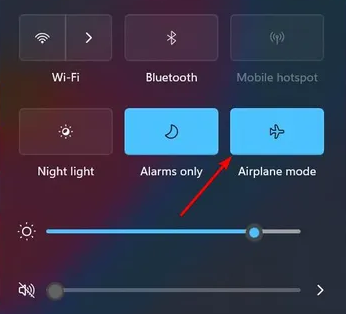
Enable Airplane mode for a few seconds and then re-enable it if you’re using cellular data. Alternatively, switch to a Wi-Fi connection and check if YouTube Kids videos are playing now.
5. Create a new Apple ID (iOS users)
If you have a Mac, go to the Apple menu, select Sign in, and then Create New Apple ID; if you have a Windows PC, open iTunes and select Accounts, then Sign In.
Fill in all the required fields and select a new country, where YouTube Kids is available then click on Continue.
Next, you’ll get an email with a verification code. Enter the code on your device to complete the account creation procedure.
Now, on your iPhone, go to the App Store.
Click on the human icon which you will find at the top right corner of the page.
Then scroll down to Sign Out option and tap on it.
After you’ve entered your new Apple ID account credentials in the Username and Password fields, touch Sign In, and then Done.
Next, in the Apple Store’s bottom right corner, hit the magnifier icon, and then type YouTube Kids into the search field.
Tap the Get button next to the YouTube Kids app.
Now a pop-up will open, tap Install, then you’ll be prompted to sign in with your Apple ID. Don’t forget to use your new Apple ID account to sign in.
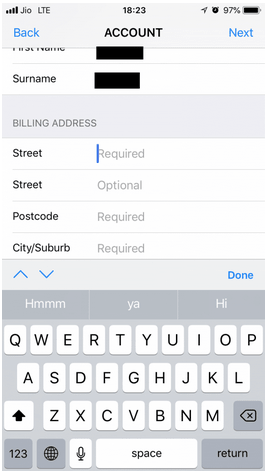
After signing in with your new credentials, you’ll be required to enter details about account billing information to complete the process.
Open the app and have fun with it.
NOTE
To create an Apple ID, you must provide a valid payment method. In addition, if you want to access YouTube Kids, you’ll need to use a VPN to hide your current location if it’s not one of the supported countries.
Now check to see if the Sorry Youtube Kids isn’t available in this country yet error on your iOS device has been fixed. If not, move on to the next step.
6. Update the App (iOS & Android)
iOS:
Go to App Store.
After that, tap on magnifier icon and type YouTube Kids into the search box.
Select the Update option next to the YouTube Kids app.
Android:
Open Google Play Store.
Search for YouTubee Kids and open the app.
If you have an update button next to it, tap it and wait for the process to complete. If you don’t it means the app is up to date.
YouTube kids is a good app if you want your kids to watch age-appropriate content, without the like/comment focus of standard YouTube. You can create profiles based on age groups (Preschool: 4 and under, Younger: 5-8, Older: 9-12) to filter content.
With a reliable VPN you can watch YouTube Kids even if it’s not available in your country. Remember, while they bypass geo locks, using VPNs can limit some of the other functions in your device, so make sure to turn the VPN off when you are done.
Microsoft news recap is a weekly feature highlighting the top Microsoft news stories of the past week. Sit back, grab some coffee, and enjoy the read!
2.3 million Xbox consoles have been sold in Japan all time, according to new report
According to a new report, 2.3 million Xbox consoles have been sold in Japan, with the majority of those sales being during the Xbox 360 era, though it looks like the Xbox Series X|S is off to a good start. The breakdown of reported sales figures by console is as follows:
Xbox – 472,992
Xbox 360 – 1,616,128
Xbox One – 114,831
Xbox Series X/S – 142,024
Microsoft has suspended new sales in Russia in response to attack on Ukraine
It will soon be easier to switch between multiple accounts in Microsoft 365 online apps
Using multiple accounts in Microsoft 365 web apps can be tedious, as they only support being logged into one account at a time, whereas Google allows multiple accounts and easy switching between them within each app. But that might be about to change, as Microsoft is now working on account switching within Microsoft 365 web apps.
Microsoft Flight Simulator comes to Xbox Cloud Gaming
If the thought of having to download Microsoft Flight Simulator gives you nightmares of the amount of storage required, fear not, as the game has now arrived on Xbox Cloud Gaming. This allows gamers to stream the game via the cloud, removing the need for a large download and storage space. It also means the game is available on any device in which you can access Xbox Cloud Gaming, including mobile.
That’s it for this week. We will be back next week with more Microsoft news.
Concerns have been raised about the Windows 11 upgrade, namely whether or not data, directories, and applications would be deleted following the installation.
Therefore, here comes the answer to the question of whether upgrading to Windows 11 will delete my files and programs.
Firstly, remember that nothing is forcing you to update from your current Windows 10 operating system. But if your computer fulfills the system requirements, you will be able to do so for free.
It’s important to look upon all aspects when installing the Windows 11 OS, to check on requirements and have a clear understanding of how to do it.
Meanwhile, if you are running a Windows 10 PC, it will be fully supported until October 2025, so there is no rush in doing the changes.
Do I have to reinstall software and apps after installing Windows 11?
If you upgraded through an update, every app and software from before the update will remain as if you never touched it. Thus, upgrading to Windows 11 files and other data won’t be deleted if you do it correctly.
Consider the upgrade to be a typical Windows feature update. Everything will be back to normal when you restart, however some things may be different. In the new Windows 11 OS, you will find some features missing.
You may opt-in to maintain your files and apps when upgrading to Windows 11, so you won’t lose any data.
Those features that will not be found in Windows 11 are as follows:
Math Input Panel Desktop Wallpaper News & Interests
So, no, if you upgrade properly and correctly, everything should be back to where it was before the upgrade. However, we recommend that you back up all of your important files before any changes.
When installing a new version of the system, you may wonder how to backup Windows 11 without data loss, and we understand that can be quite troublesome but we got you covered.
How do I backup my files and folders before setting up Windows 11?
At the very least, you should have a local backup of any critical data files. Keeping the majority of your data files in a secure cloud-based service adds an extra layer of security and saves you lots of work.
You may start a manual backup for all your important data following these steps:
Go to Search in the taskbar and type in Control Panel.
Click on System and Security.
Select the drive or network you want to make the backup on, then turn on File History.
Manually backup files may result in spending a lot of thinking about doing it right or wrong. Even if the system helps you with the steps, there may also be something missed during the backup process.
If you are unsure about which Cloud service you can rely on, we recommend EaseUS Todo Backup. It is free to download, you can take advantage of using the utility and save time with the process.
Backup and restoring software.
Back up your system, file, disk, partition.
When something goes wrong, you may also restore lost files, data, or anything else that is valuable to you.
In case you lose data when updating your operating system, you may recover it with EaseUS Data Recovery Wizard, which is also free of charge. This all-in-one file recovery software simplifies and accelerates data recovery.
Hopefully, this clears your concerns regarding the upgrade to Windows 11, and if you have any other questions, be sure to check our website for more information.
Did you upgrade to Windows 11 and interfered with other issues? Leave a comment in the area below and tell us about your experience.
Are you experiencing frame rate issues with your Xbox Series X and looking for solutions to fix it? If so, then you are in the right place.
Because in this guide, we will share a curated list of solutions that would help you to troubleshoot the Xbox Series x frame rate issues and also possibly help you fix them.
Microsoft introduced the Xbox Series X back in 2019. Though it came out way later than the Sony PlayStation 4, the graphics and performance were neck-to-neck with the latter.
Even after launching in 2013, many preferred the Sony PlayStation 4 for the crisp graphics. We won’t get into that debate since it is a matter of personal choice.
Notably, we are here to resolve the Xbox Series X frame rate issues that several users are experiencing across the globe.
The best part about the Xbox Series X frame rate issue is that it can be improved by applying a few fixes that we have mentioned in this guide.
Moreover, we will share some tips that will help you get a performance boost and hopefully increase the frame rate on your Xbox Series X console.
Let us dive into this guide, where we have discussed multiple solutions to help you fix Xbox Series X frame rate issues.
What can I do to get 120 fps on Xbox Series X console?
Press the Xbox button on your Xbox controller to open System guide.
Select Settings.
Choose General.
Select TV & display options.
Under Refresh rate options select 120Hz.
Gaming consoles have gotten better and better over the years. The same is the case with the Xbox Series X console. Along with 4K gaming, you can also enjoy supported games to up to 120 framerate per second (fps).
To enjoy your games at 120fps, you need to enable the 120Hz option under the Refresh rate settings of your Xbox series X console.
Do note that you can enjoy 120fps gameplay only if your TV or monitor allows for 120fps gaming. Additionally, you would also need a TV with HDMI 2.0 or 2.1 port.
With HDMI 2.0, you can play your games at a maximum resolution of 1440p @120fps. On the other hand, if you plug in your console to HDMI 2.1 port, then you can enjoy 4K gaming up to 120fps.
To know about all the games that support 120fps gaming on Xbox Series X, you can visit the official Xbox website, which is regularly updated.
What are the steps to enable FPS boost or increase FPS on Xbox Series X?
Power on your Xbox Series X console.
Press the Xbox button on your controller.
Select an FPS boost compatible game from the list.
Press the Start button on your Xbox controller.
Choose Manage Game and Add-Ons.
Select Compatibility Options.
Check the box next to FPS Boost to enable it.
Head back to the main screen.
You can perform the same steps for other compatible games as well.
Microsoft introduced the FPS Boost feature with the Xbox Series X and Series S consoles. This feature was designed to improve the performance across several gaming titles.
A certain game may be locked to be played at 30fps on the Xbox One console. However, after enabling, the FPS Boost feature unbinds the game to run at 60fps on the Xbox Series X console.
Higher framerate gives you a smooth and responsive gameplay experience. Do note that enabling FPS Boost will also take more juice out of your system.
Also, note that if the FPS boost is greyed out on your Xbox Series X, then the game you are playing doesn’t support this feature.
What are the steps to check FPS on Xbox Series X?
Press the Xbox button on your controller to open System menu.
Click on Settings.
Select General.
Hit the TV & display options.
Now, under Setup select 4K TV details.
Here, you will see all the details about your TV and all the features that it supports.
If your TV supports 120Hz fps then, it will show a tick mark next to the details.
As far as checking fps for games on Xbox Series X is concerned, there isn’t a native way to do it. There are games that provide the option to view FPS, but that is an in-game setting.
Now let us check out the list of solutions that will help you fix Xbox Series X frame rate issues.
How can I fix Xbox Series X frame rate issues?
1. Force stop and re-open the game
Press the Xbox button on your controller.
Select the game with which you are experiencing frame rate issues.
Hit the Menu button.
Select Quit and press A to close it.
Open the game once again and see if this fixes the issue or not.
There are chances that you are facing Xbox Series X frame rate issues because of a minor issue that has recently popped up for that particular game.
In such a case, it is advised that you follow the above steps to force close the game and re-open the game, and check if this fixes the Xbox Series X frame rate issue or not.
2. Restart your Xbox
Press and hold the Xbox button on your controller.
Select the Restart console option.
Press A button on your controller to confirm the action.
Many underestimate the power of a simple restart. If you are facing any issues with an app or a technology device, the first thing you should do before trying anything exquisite to fix the problem is to restart or power off your device.
The same is in the case with the Xbox Series X frame rate issue. There are chances that some important system files didn’t load during the previous session. If that is the case, then it will not only cause frame rate issues but other problems such as stutters, or game lag.
Perform a simple restart and see if this fixes the Xbox Series X frame rate issues or not. Restarting your console using this method could also help you clear the cache on Xbox Series X; read this guide to learn more.
3. Select a different graphics setting
Press the Xbox button on your controller to open System guide.
Click on Settings.
SelectGeneral.
Hit the TV & display options.
Under TV & display options, you need to tweak your graphics settings, preferably to lower settings if you are facing series frame rate issues.
Chances are the game that you are playing a game that is not properly optimized to be played in the graphics settings that you currently have.
So, we would advise you to dial down the graphics settings a bit and adjust them accordingly for optimum output.
4. Ensure sufficient storage space
Press the Xbox button on your controller.
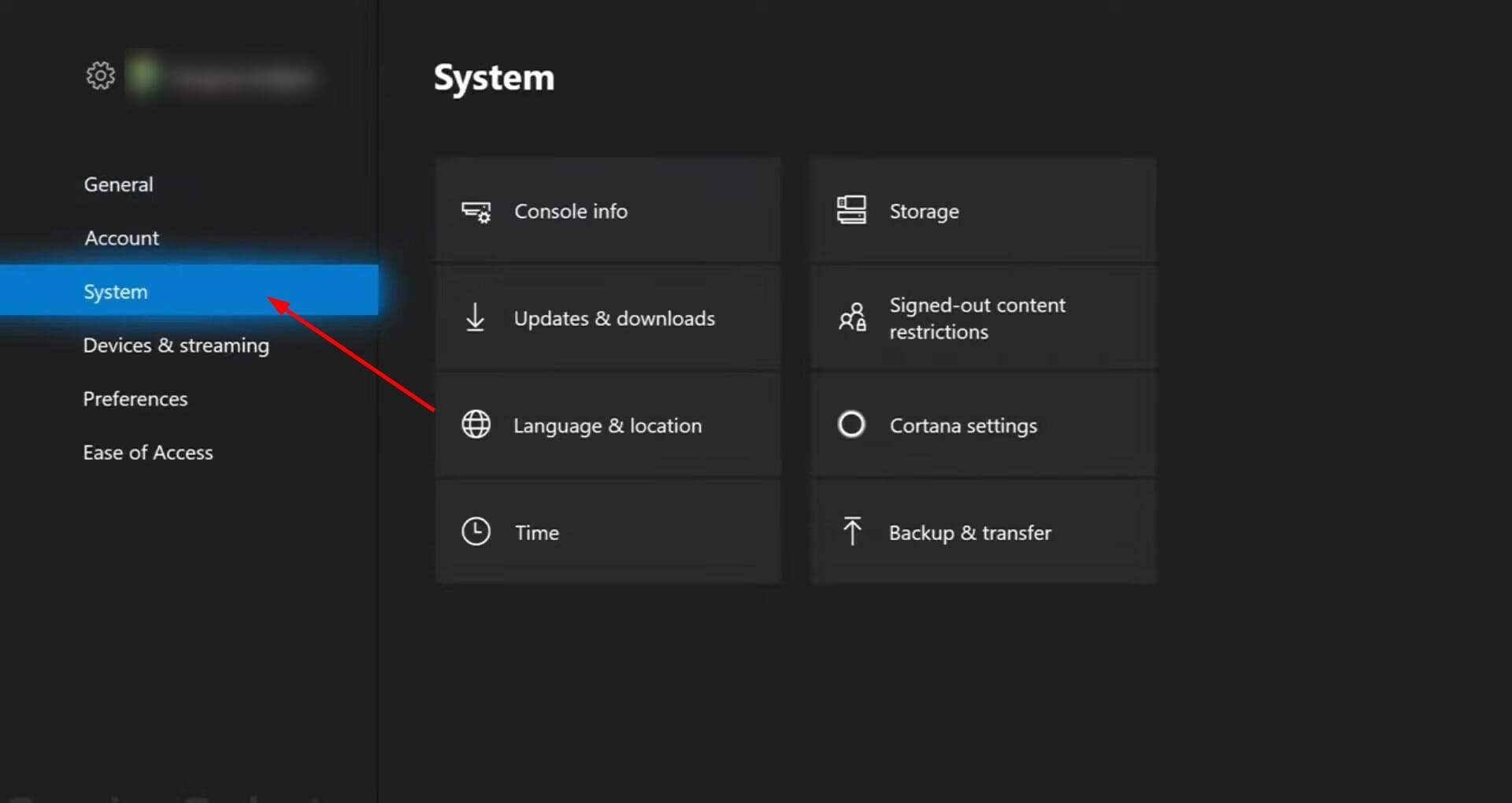
Select Settings under the System menu.
Head to System.
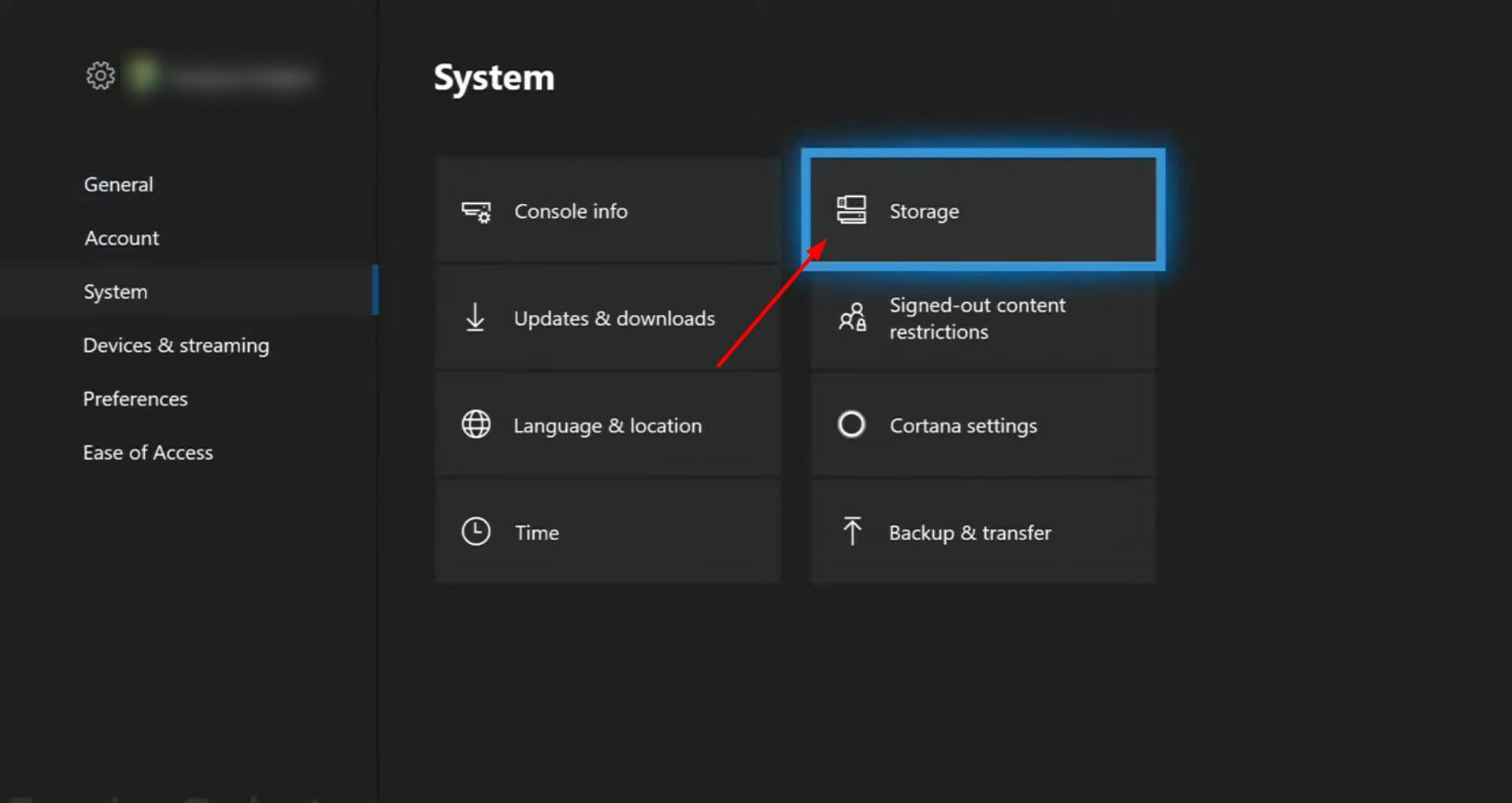
Under the System tab, choose Storage.
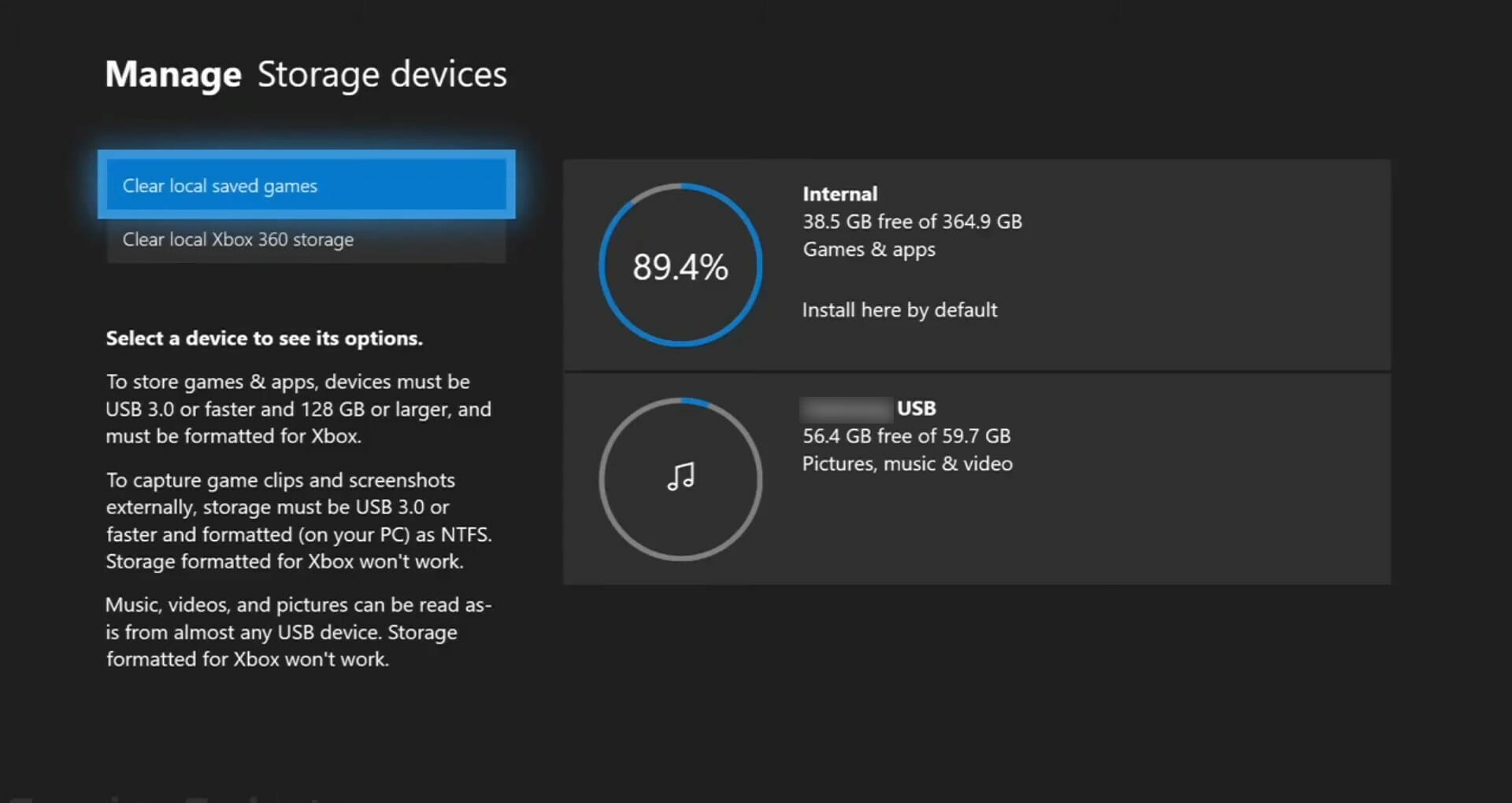
You will see the amount of storage space currently used or left in your Xbox Series X console.
If there isn’t sufficient storage space, then also your Xbox Series X console would misbehave and show up problems such as Xbox Series X frame rate issues.
To fix this, follow the steps mentioned in the next solution, to delete the games that you do not play to clear some storage space.
5. Clear storage space
Navigate to the Homescreen.
Press the Xbox button.
Select My Games & Apps.
Highlight the game that you wish to uninstall.
Press Menu button.
Choose Manage Game option from the pop-up menu.
Select Uninstall.
Your Xbox needs to have some clear storage space to run everything perfectly and smoothly. There are chances that because of the loaded storage space in your console, the Xbox Series X isn’t giving optimal performance. Hence, the frame rate issues.
In such a case, it is time for you to uninstall the games that you do not play that often. Following the above-mentioned steps, you will be able to uninstall the unwanted games and free up storage space in your console in the process.
Press the Xbox logo on your Xbox Series X to turn it off.
Unplug the power cable from your Xbox.
Wait for about 10-20 seconds.
Plug the power cable back into your Xbox Series X and power it on.
Your Xbox console stores game data in the form of cache files. These files help the console run the games smoothly, with no hiccups.
But this game data could pile up and take a huge amount of storage in your console. Besides, if it gets corrupted, it can cause issues such as Xbox Series X frame rate issues. Therefore, we advise you to perform this power cycle to clear the system cache.
7. Check your TV
There are strong possibilities that the Xbox Series X frame rate issues that you might be experiencing do not involve your console at all.
The problem could be with your TV or monitor itself. It is recommended that you try out connecting your console to a different TV or monitor and check if the frame rate issue remains.
8. Try with other games
As already mentioned, all games are not properly optimized to run as smoothly as you may find some popular titles. We would suggest you check and play other games as well and see if the issue still exists or not.
If other games play without any frame rate issue, then it could be the problem with that particular game. In such a scenario, you should wait for a new update of the game that would possibly fix the bug that is causing the issue.
9. Keep your Xbox Series X cool
Just like any other gaming console or a gaming laptop, Xbox Series X’s fans keep the device cool when you are killing your enemies in the game.
A hot console is a reason behind poor performance, stutter, lag, and frame drop issues. Therefore, to fix this, make sure to free up the area around your Xbox Series X console.
Also, check if the cooling wents aren’t blocked by anything, and give your console a break in between your gaming session to cool down.
What can I do to fix low FPS issue in different games?
Some users have reported specific game titles that they are experiencing low FPS issues with. Notably, users have reported this low fps problem with COD: Cold War, GTA V, Minecraft, Dishonored 2, etc.
Since players of all these popular titles are suffering from the same issue of low fps, the above-listed solutions would help you fix the problem.
Particularly, you can try enabling FPS Boost feature, clearing storage space, or selecting a different graphic setting.
If nothing works for you, then you can try hard resetting your Xbox Series X console. Simply press the Power button for about 8 seconds until it turns off.
Unplug the cable from your console and wait 2-3 minutes before plugging it back in. The solution to hard reset the Xbox console has also helped users fix motion blur issues as well.
Let us know in the comments below if you could fix the Xbox Series X frame rate issues using the solutions mentioned above or not. You can also drop a comment letting us know which method helped you.
Some Minecraft players have posted on the game’s support forum about an io.netty channel error that arises when they try to connect with server. The io.nett error message states:
Failed to connect to server. io.netty.channel.AbstractChannel $AnnotatedConnectException: Connection timed out.
When that issue arises, Minecraft can’t connect with the server.
Why am I getting io.netty.channel.abstractchannel$annotatedconnectexception no further information error? There are many reasons for issues in Minecraft, and if you want to learn more, we suggest reading our common Minecraft errors guide for further information.
Keep in mind that this is a fatal Minecraft error, and it will cause your game to crash, so it’s important to know how to fix it properly.
In some cases, you’ll encounter a Minecraft error code 5, but this issue can be resolved by gaining administrative privileges.
How do I fix the Io.netty.channel.AbstractChannel error?
1. Reset Router
Resetting the router is a more straightforward resolution that might fix the io.netty channel error for some players. You can do that by turning the router off and unplugging it. Then plug the router back in and turn it on after a few minutes.
Some users have also confirmed that factory resetting their routers fixed the issue for them. To factory reset a router, press and hold its reset button down for 10-30 seconds.
A paperclip will usually be required to press a router’s reset button. Note that resetting a router in that way also erases all custom settings for it.
2. Check the firewall’s app permissions
The io.netty.channel error is often due to the Windows Defender Firewall blocking Minecraft’s server connection.
To fix that, press the Windows key + S hotkey.
Next, enter firewall as the search keyword in the text box.
Click Windows DefenderFirewall to open the Control Panel as in the shot directly below.
Click Allow an app or feature through Windows Defender Firewall to open the firewall’s app settings.
Click Change settings to configure the firewall options.
Then select all the Public and Private check boxes for Java (TM) Platform SE binary as shown directly below.
Click the OK option.
Turn off the Windows Defender Firewall
Alternatively, you can turn off Windows Defender Firewall to ensure it can’t block Minecraft’s server connection.
Open WDF’s Control Panel applet as outlined for the second resolution.
Click Turn Windows Defender Firewall on or off on the left side of the Control Panel applet to open further options.
Click the Turn off Windows Defender Firewall (not recommended) settings.
Try manually entering server address info before connecting with server.
First, press the Windows key + R hotkey for Run.
Type cmd in the Open box and press Enter to launch the Command Prompt.
Type ipconfig in the Command Prompt, and press the Return key.
Note down the IPv4 address listed.
Then open File Explorer’s window.
Open this folder path within File Explorer: Minecraft Servers folder > Maxwell (random numbers) > MinecraftServer.
Click the server.properties file to open it in Notepad.
Note down the port number listed within the server.properties files.
Open Minecraft, and select the Play Multiplayer option.
Select a server to join.
Click the Edit button to open server info.
Enter any title of preference in the Server Name box.
In the Address box, enter the IPv4 address and port number with the following format: XXX.XXX.X.X:YYYYY.
The X characters there represent the IPv4 address, and the Y characters are for the port number.
Press the Done button.
Select the Refresh option.
Then select the Join Server option.
Those are some of the resolutions Minecraft players have confirmed fix the io.netty.channel error. Some Minecraft players might also need to update their Java to resolve the issue. Check out our download Java post for further details on how to install Java.
Games for Windows Live is a popular gaming service for Windows, but it has been reported that it has some problems on Windows 10.
Namely, users report that games that use Games for Windows Live won’t work on Windows 10, and the list of games includes many popular games that were released a few years ago.
These games still have a great number of fans, so you can see why not being able to run them on Windows 10 can be such a problem for avid gamers. Speaking of problems, here’s what our readers reported in connection to GFWL.
Where can this error occur and what does it look like?
Games for Windows Marketplace install failed
Games for Windows Live install failed network error or connection error in Windows 10
So if you’re having issues with Games for Windows Live on Windows 10, you should have a look at our solutions.
How do I fix Games For Windows Live issues on Windows 10?
1. Reinstall Games for Windows Live
Uninstall Microsoft Games for Windows Live Redistributable and Microsoft Games for Windows Marketplace from your computer. In order to do this, we recommend a dedicated software.
After you’ve uninstalled these applications restart your computer.
Download Games for Windows Live installer.
After you’ve downloaded the installer, right-click it, and choose Properties.
Go to Compatibility tab and check Run this program in compatibility mode for… and choose Windows 7 or Windows 8 from the list.
While you’re in the Compatibility tab make sure that you check Run as administrator.
Save the changes by clicking Apply and OK and install Games for Windows Live.
Everything should work now and your profile should be redownloaded and ready to use.
As mentioned, to uninstall the program in the first place, we suggest using dedicated uninstaller software, for clean removal. This is just to make sure that the process runs completely, without leaving traces in your system, which might cause trouble later on.
A standard uninstall sits in the shadows of a professional uninstall, which removes all residues, including checking for leftovers after the regular uninstall.
Some uninstaller software also has user-friendly interfaces, allowing you to view all installed applications on your PC in a single window. To make things easier, you can locate and remove unwanted apps faster and safer.
2. Install Live Sign-in Assistant
If the previous solution doesn’t work try downloading the latest Live Sign-in Assistant from the official Microsoft page. After downloading and installing Live Sign-in assistant enter your login details and try launching your games.
Go to the following location (if you’re using 32-bit Windows this location might be different): C:WindowsSysWOW64
Find the xlive, xlive.dll, xlive.dll.cat, xlivefnt.dll, xliveinstall.dll, xliveinstallhost.exe files and copy them to C:WindowsSystem32
Try running the game again
If this didn’t work, try copying those files in the installation directory of your game where the game’s .exe file is located.
That’s about it, we hope this article helped you to solve the problem with Games for Windows Live in Windows 10. If you have any comments or questions, just write them down in the comments.
Microsoft Outlook is a communication manager, used by major organizations across the globe. It can be used as an email client by an individual or be used by an organization to access shared features such as mailbox, calendar, appointments, etc.
Microsoft introduced the Outlook personal information manager back in 1997. There are a lot of features that make Microsoft Outlook the best personal manager available as a part of the Microsoft Office Suite.
For instance, you can schedule emails, create meetings, appointments, tasks, and contacts from a single window. It offers Quick Parts that lets you send similar emails quickly, share calendars, create or assign tasks, and more.
Imagine if such a powerful tool stops working, what would you do? Several users are facing the Outlook disconnected error. This error is an issue regarding the connectivity of Outlook.
This Outlook disconnected error throws up different types of error messages. You may receive a The Microsoft Exchange Administrator has made a change that requires you to quit and restart Outlook. error message, or Trying to connect… error message.
Both error messages have the same underlying connectivity issue. If you are also facing Microsoft Outlook disconnected error, then you are in the right place.
Because in this guide, we will give you a set of curated solutions that will help you resolve the Outlook disconnected error on your PC. With that said, let us jump right in.
Why is Microsoft Outlook disconnected but the internet is working?
There are different types of errors Outlook users face from time to time. One such error that often troubles Outlook users is that, even though the internet is working, Microsoft Outlook is disconnected.
Your Microsoft Outlook client might be in handy, offline mode. Notably, Outlook comes with an option to work offline to avoid connection charges or sending/receiving emails due to a slow internet connection.
The offline mode could very well be the reason why Outlook is disconnected even though the internet is functioning properly.
Also, there are chances that the Outlook on your PC might have been disconnected from the Exchange server, which could result in this problem.
The availability of redundant extensions is also one of the key reasons for this problem. Some extensions may interfere with the connection process causing Outlook to misbehave.
It can be frustrating and annoying as it prevents you to send or receive emails. Thankfully, below we have listed some of the solutions that you can apply to fix this problem at hand.
Microsoft Outlook disconnected after password change
1. Delete old password from Windows Credential Manager
Press the Start menu key on the bottom task bar.
Search for Credential Manager.
Click on Windows Credentials option.
Under Generic Credentials, you will find your Microsoft Outlook and MS Office accounts.
Expand each one and delete them by pressing the Remove button.
Close Windows Credential Manager and open Outlook.
Enter your new password and remember to check the Remember my credentials box.
Microsoft Outlook users have reported an issue quite often for them just after a recent password change, they are facing connectivity issues with the Outlook client installed on their Windows 11/10/8 PC.
Notably, this could be because the client isn’t updating the password that you have set. In such a case, you need to clear the old password from the Windows Credential Manager.
2. Create a new profile
Open Control Panel.
Select Mail.
Click on Add to create a new profile.
Configure your email account.
Check the circle beside Always use this profile.
Press OK.
Restart Outlook and see if this fixes the Outlook disconnected after password change issue or not.
How can I fix the Outlook disconnected error in Windows 11/10/7?
1. Restart your PC
Press the Start menu button.
Click on the Power button.
Select Restart.
One of the easiest solutions to many of the common problems related to software is to perform a simple restart.
Restarting not only provides your system a break, but it also loads all system and necessary files from scratch. There are chances that some Outlook files failed to load during the previous session, due to which you are experiencing Microsoft Outlook disconnected error.
2. Check and re-enter your account credentials
Open the Outlook app on your PC.
Click on File.
Select Info.
Then besides Account and Social Network Settings, click Account Settings.
Again select Account Settings.
Select the account that you have connected.
Remove the account and re-enter your account credentials.
3. Ensure Outlook is online
Open the Outlook app.
In the Send/Receive tab, hit the Work Offline button.
Outlook will attempt to reconnect.
4. Remove trailing space from legacyExchangeDN
Press Win + R to open the Run dialog box.
Type ADSIEdit.msc, and press Enter.
Expand the Default naming context to CN=Users.
Select the user account on which Outlook is prompting the error.
Right-click and select Properties.
Locatethe legacyExchangeDN attribute, and then select Edit.
Remove the extra space at the end of the username.
Click OK and Apply.
Exit ADSIEdit.msc.
Restart Outlook and see if this fixes the Outlook disconnected error or not.
After you remove the extra space from your username, all recipients who previously received a message from your username will get a non-delivery report (NDR) if they try to reply to the email with the old username.
Restart the program and see if this fixes the issue.
6. Create a new Outlook profile
Open the Microsoft Outlook application.
Click File tab and select Account Settings.
Select Manage Profiles.
Click on Show Profile.
Choose Add.
Enter the name for your new Outlook profile and press OK.
Add your email account to your Outlook profile.
7. Repair Outlook account
Open the Outlook application.
Click on the File tab.
Select Info.
Besides Account and Social Network Settings, click on Account settings.
Select Account settings again from the drop-down menu.
Select your account and hit the Repair button.
8. Configure a proxy server
Open the Outlook application.
Click on the File tab.
Select Info.
Besides Account and Social Network Settings, click on Account settings.
Select Account settings again from the drop-down menu.
Tap on your account and click on Change.
Then click on More Settings.
Choose Connection tab.
Select the option to Connect to Microsoft Exchange using HTTP.
Click on Exchange Proxy Settings.
Enter the URL to connect to a proxy server.
Select Connect using SSL only.
Also select Only connect to proxy servers that have principal name in their certificate option.
Enter must: URL.
Under Proxy authentication settings, select authentication type Basic authentication or NTLM authentication and press OK.
9. Disable extensions
Open the Outlook application.
Click on the File tab.
Select Options from the left side.
Select Add-Ins from the left pane.
On the bottom, select Go.
Uncheck all the extensions and hit the OK button.
There are chances that the extensions that you have installed or enabled for your Outlook app to enhance the productivity and features might be interfering with the connection.
In such a case, following the above-mentioned steps, you can disable the extensions and then try to connect them.
10. Rebuild Outlook data file
Open the Outlook application.
Click on the File tab.
Select Info.
Besides Account and Social Network Settings, click on Account settings.
Select Account settings again from the drop-down menu.
Select the Data Files tab.
Choose the email account that is causing the issue, then tap on Open File Location.
Rename the file or move it to another location.
Launch Outlook again and see if this fixes the Outlook disconnected error.
The Outlook application saves all the data in a particular folder. If you are experiencing connectivity issues, then you can try to rebuild the Outlook data file.
In this step, we will delete the old Outlook data file and rebuild the Outlook data file. This will help rebuild the missing or lost data files from scratch.
11. Reinstall Outlook
Press Start menu and search for Control Panel.
Select Programs and Features.
From the application manager, select Microsoft Office and hit the Change button.
Select Repair and hit Continue.
The repair will start.
If none of the above-mentioned solutions did the job for you, then, as a last resort, you need to repair the Microsoft Office app on your PC.
Repairing Microsoft Office will fix the application and install files that might have gone missing. The last method is also helpful if you are facing Outlook shows disconnected in Office 365 error.
Microsoft Outlook is a pretty powerful work management tool, as it gives you multiple options, one of which is the option to download all your Outlook emails to Excel.
If you extensively use Outlook for all your work-related needs, it is very important to know how to recover deleted or archived Outlook messages in the event of encountering issues with this element, as users reported seeing this problem quite often.
This Outlook disconnected error or connectivity problem isn’t the only error that users come across now and then while using this app. We also have a guide on how to change Outlook view back to normal, so don’t miss it.
Let us know in the comments section below, which of the above-mentioned methods helped you fix the Outlook disconnected issue on Windows 10, Windows 10, and Windows 7 PC.
Does your installed Steam DLC not work? Several reasons can explain this and to easily get rid of this issue, make sure you completely verify today’s guide.
Steam, which is currently the most used PC gaming store, supports a large number of video games and extra downloadable content.
Some users have reported that DLCs on Steam might not work at all in-game, even if the DLC appears as installed. Let’s take a look at how to solve this issue.
What does DLC mean in Steam and how can I find it?
For those of you who don’t already know, DLC stands for downloadable content. It is additional digital content a player can install on top of a complete video game.
If a game offers additional downloadable content, you can find it on the store from the base game page or by searching for it.
In Steam, you can view and manage the DLC owned by your account in your library, as follows:
Hit Windows, type Steam, then open the app.
From the main menu, click on Library.
Right-click on the game you need, then choose Properties.
Now, select DLC in the window that appears.
How can I download DLC on Steam?
Keep in mind that most DLC purchased from Steam installs automatically. However, some games require DLC to be authorized through a third-party app. Plus, other games require a verification code to activate DLC.
Now, let’s see how you can easily download DLC on Steam:
Press on the Windows key, type Steam, then open the app.
Click on Library.
From the left window pane, select the needed game, then click on the Store Page.
Scroll down and select the DLC you want underContent for this game.
Complete your purchase, then selectInstall content on the receipt page.
What can I do if my Steam DLC is not installing?
1. Check if your Steam DLC is installed properly
If your DLC is already installed, you will need to uninstall it and follow the next steps to install it properly
Open up your Steam game library and select the game on which you want to install the DLC
Click on Manage my DLC on the left side of the screen
Select the Enabled option under the DLC that you want to install
The selected DLC should start automatically downloading and installing
2. Verify if there aren’t any connectivity issues
There may sometimes be connectivity issues involved if your Steam DLC is installed, but not working. This is usually a result of Steam‘s servers being down or not functioning properly.
This may cause the DLC to appear as downloaded and installed, but not work in the game.
To fix this issue, check if Steam‘s servers are working properly on the app’s official status page.
If there are no Steam issues with the server, there might be an issue with your connectivity.
In case your Internet experiences slowdowns, this may affect Steam DLC installation. If you’re on a Wi-Fi connection, try using an Ethernet cable instead of downloading your Steam content.
Hit the Windows key, type Steam, then open the desktop client.
From the main shown menu, click on Library.
Right-click on the needed games, then select Properties.
From the left window pane, head over to the Local Files tab.
Click on Verify Integrity of Game Files.
This will prompt Steam to verify the game is installed correctly and fix any game file errors
4. Reinstall the Steam game
Hit the Windows key, type Steam, then open the desktop client.
From the main menu, click on Library.
Select your game in the Steam library, then right-click on it.
Choose Manage, and then Uninstall.
After the game has been uninstalled, download and install the game again on Steam, then reinstall your DLC’s
How do I download DLC on Steam without launching a game?
Many users are interested in whether or not they can download DLC on Steam without launching a game.
If you’re in the same boat, keep in mind that the only option you can try is to click on the Download button from a browser instead of Steam.
This ends up adding the license to your account instead of directly launching the game. You’ll get a message similar to the above one:
Product name is now registered to your account on Steam.
Steam DLCs should be fairly easy to install, however, if you’ve encountered issues with the installation, our guide provides the key solutions to this problem. Alternatively, you can get a refund on your DLC provided you meet the refund requirements.
In case of any related questions, do not hesitate to leave a comment in the dedicated section below.
When working properly, a touchscreen on a laptop or Windows tablet may be extremely useful and productive. However, users have been reporting that their HP Envy x360 touchscreen is not working as it should, thus we will address this issue today.
If your touchscreen isn’t responding at all, don’t forget to resort to the most basic solution which is restarting your computer. Don’t fall short for the general idea that restarting a device is useless. Most IT professionals will tell you that it solves more errors than you have previously thought.
This being said, we have prepared a list of methods that you can try in order to fix the HP Envy x360 touchscreen not working in Windows 11 error, right after we see the benefits of having a touchscreen laptop. Follow along!
What are the benefits of a touchscreen laptop?
A primary goal in developing the touchscreen capability on laptops was to make navigating simpler and more convenient for users. When compared to trackpads and mouse devices, this functionality allows users to complete a plethora of tasks.
Also made easier is the process of starting up applications and switching between them. It is easier for artists and graphic designers to use a touchscreen feature on their laptops since it allows them to work more quickly and efficiently.
When compared to regular computers, touchscreen laptops frequently have superior brightness as well as improved color accuracy, vibrancy, and reproduction. The majority of models that include this feature also have displays with greater resolutions than the competition.
However, in order to accommodate the addition of a touch panel, laptops with touchscreen capabilities are designed to perform an additional set of processing duties on the computer’s hardware. If you intend to utilize this feature on a regular basis, you should keep a backup battery on hand.
How can I fix HP Envy x360 touchscreen not working?
1. Enable the driver
To open Device Manager, you need to right-click on the Start icon then click on it.
Click on the Human Interface Devices section then right click on the HID compliant touchscreen option. Now click onEnable. In my case it is already enabled, hence the Disable option.
Start by right-clicking on the Start icon then click on Device Manager to open it.
Expand the Human Interface Devices section then right click on the HID compliant touchscreen option, and lastly click onUpdate driver.
Select Search automatically for updated driver software and wait for your OS to install the apropriate driver.
Make sure to wait for the processes to finish before restarting your computer to verify that the changes are applied appropriately. In order to avoid manually upgrading your drivers and save time, we strongly recommend that you use a specialist driver update application, such as Outbyte Driver Updater.
3. Update Windows
Tap on the Windows key + I to open the Settings app, then select Windows Update as we have shown below.
Select the Install now option to install any new updates that are necessary to be downloaded. Otherwise, use the Check for updates button.
This driver can’t release to failure is an error message that more specifically pertains to Gigabyte motherboards.
Some users have stated that the error message pops up after upgrading to Windows 10.
The error message is usually due to a motherboard‘s lack of built-in Wi-Fi, which is something required for the Gigabyte App Center’s Cloud Station Server.
Here are a few resolutions that can fix this Gigabyte motherboard error in Windows 10.
How do I fix the This driver can’t release to failure error?
You might need to update your Gigabyte motherboard drivers to fix the driver can’t releaseerror message. However, the motherboard has various drivers.
As such, it’s probably better to utilize driver-updating software to ensure the motherboard drivers are updated. This includes updating old ones, fixing broken ones, and replacing missing ones.
2. Switch off the Always run on next reboot setting
First, open the Gigabyte App Center via the Windows system tray.
Then click the Cloud Station Server tab at the bottom of the app.
Switch off the Always run on next reboot setting for the Cloud Station Server.
Select the OC tab for Remote OC, and switch the Always run on next reboot option off.
Then select the Gigabyte Remote tab, and turn off the Always run on next reboot option.
Restart your desktop or laptop.
As mentioned, the Cloud Station Server is one component of the Gigabyte App Center that requires onboard Wi-Fi. The Remote OC and Gigabyte Remote are two are components that also need onboard Wi-Fi.
Thus, switching those components off can fix the issue.
Input sc delete gdrv in the Prompt, and press the Return key.
Enter the following line, and press Enter:
'sc create gdrv binPath= "C:Windowsgdrv.sys" type= "kernel" DisplayName= "gdrv"' and Return to reinstall the services.
Alternatively, reinstalling Gigabyte services might also resolve the issue.
4. Update the App Center
If you’ve recently upgraded to Windows 10, update the App Center to ensure that its compatible with the latest platform.
You can do that by pressing the GIGABYTE App Center Utility Download button on this page.
Then open the installer for the app to add the latest App Center version to Windows.
5. Uninstall the App Center
Press the Windows key + R to open Run.
Enter appwiz.cpl in Run and click OK to open the uninstaller window in the snapshot directly below.
Now select the Gigabyte App Center software, and press its Uninstall button.
Press the Yes button for further confirmation.
Then restart Windows after removing the App Center.
Some users have resolved the Gigabyte motherboard error message by removing the App Center from Windows. But there are also a few users who struggle with this. If that’s also your case, read on.
Can’t uninstall the Gigabyte app center
Using the Control Panel to remove a no longer wanted program (as shown above) is quick and easy, but it seems that not everyone can successfully use this option.
For some, the Gigabyte app center won’t uninstall no matter what they do. So, here’s what we suggest:
Clean boot your computer and manually delete the entire folder from C:\Program Files (x86)\Gigabyte\AppCenter directory
Use a good registry cleaner tool to remove any hanging, broken, or superfluous keys that might linger on.
One, or more, of those resolutions, will probably fix the driver can’t releaseerror in Windows 10. If you have any further suggestions for fixing the Gigabyte motherboard error, feel free to share them below.
OptiFine is a mod that should not be missed by any player, whether they are experienced players who enjoy modding their Minecraft or new players who are just starting. Thus, today we will show you how to download OptiFine on Windows 11 as well as how to run it.
It’s important to note that, even though Minecraft is a pretty simple game at its heart, its environments are full of intricacies and physics that your PC must still calculate, making it difficult to play on low-end computers in particular.
It is one of the earliest optimization mods, and it has become such a mainstay in the Minecraft modding community that other popular mods now require it as a prerequisite for their functionality.
The likelihood is that you will want OptiFine if you plan on modding your game, adding shaders, or making other cosmetic modifications such as texture packs to your game. Follow along!
How can I optimize games?
Your graphics card is one of the most important components of your desktop or laptop computer. The graphics processing unit (GPU) is responsible for drawing every single pixel on your screen, whether it’s the Windows interface, websites, movies, or games.
It is necessary to have a driver installed on your computer because it allows your operating system — most likely Windows — to communicate with the hardware on your computer, such as your graphics card.
Moreover, keeping your graphics driver up to date is essential for getting the best performance out of your computer, your games, and any other graphics-intensive tasks you may be performing on it.
You can get a performance boost, repair problems, and sometimes even gain access to whole new features by updating your graphics driver. All of this can be accomplished for free if you update them manually, or at a low cost if you choose to use an automatic driver updater such as Outbyte Driver Updater.
Now click on Downloads as we have shown below and click on the button with the same name that’s next to OptiFine HD U H5.
Latly, save the file and double-click on it in order to run it.
Why can’t I open OptiFine?
Developed by Sun Microsystems, Java is a programming language and computing platform that was initially released in 1995.
Through the provision of a dependable platform around which numerous services and applications are built, it has progressed from humble origins to power a significant portion of today’s digital world.
In the Java Runtime Environment, the Java Plug-in software is a component of the Java Runtime Environment (JRE). It enables some applications written in the Java programming language to be launched through certain web browsers.
And such is the software we have previously downloaded. To open OptiFine, you need to download Java and run the software with it.
Many gamers claimed that Steam does not remember their password, and it can be pretty annoying to input it every time you access the app.
That’s why users are interested in discovering how they can make Steam remember passwords on their home desktops and laptops.
Otherwise, it becomes a drag to always have to log in every time you turn on your PC.
Here’s how people describe today’s issue:
It’s happening for around 1 month now, steam doesn’t remember my password and I have Steam guard active and its real pain logging in all the time.
Don’t worry since we’re here to set you on the right path and help you solve this problem.
What are Steam password requirements?
In order to have a strong password on Steam, you need to meet some specific requirements, as follows:
At least 6 characters
A combination of upper and lowercase letters
Include at least one number
All of the above criteria will certify your security and privacy and without them, you won’t be able to create or access your account.
Plus, to ensure your maximum security on Steam, you should also carefully take advantage of these recommendations:
Enable Steam Guard two-facto authentification
Verify your contact email address with Steam
What else should I know about my Steam password?
What can I do if Steam doesn’t remember my password?
1. Save account credentials on your PC
Hti the Windows key, type Steam, and click on the first result.
From the top-left corner of the window, click on Steam.
Now, go to Settings.
Fron the left window pane, select Account.
Uncheck the Don’t save account credentials on this computer option from the right pane of the window.
Click OK
2. Log in to Steam twice
Fire up Steam and log in without asking it to save your password.
Exit Steam right after the gaming platform loads (don’t launch any games).
Log in to Steam again but ask it to remember your password now.
This simple workaround seems to work for some users. It might have something to do with refreshing the Steam login settings and game cache.
3. Delete the Steam local folder
Use the following keyboard shortcut to open File Explorer: Windows + E.
In the search bar, input this location: C:\Users\YOURUSER\AppData\Local. Make sure to replace YOURUSER with the username registered of your PC.
Once you reach this location, select and delete the Steam folder.
4. Disable your VPN service
If you’re using a VPN to protect your online privacy and keep your device safe from hackers, it could be the reason why Steam keeps forgetting your password.
Because you’re logging in from a new IP address in a foreign country, Steam could interpret this as suspicious activity.
In this case, make sure to deactivate your VPN service before launching Steam on your PC.
But it’s not a permanent solution because you won’t be able to use your VPN while playing Steam games.
A more viable fix to the VPN issue is to turn to a VPN service that supports split tunneling mode.
You can set up Steam to directly connect to the Internet and the remaining apps to the secure tunnel.
This way, you can still take advantage of the VPN benefits outside of Steam, like safely downloading or uploading torrents by protecting your true identity in the torrent swarm.
But you will have a hard time (if not impossible) finding a free VPN with split tunneling. Instead, we suggest investing in a reliable VPN service like Private Internet Access.
This VPN offers over 22,000 VPN and proxy servers in more than 77 countries. So, finding one that is close to your current locations won’t be a problem.
PIA uses WireGuard and OpenVPN protocols with up to military-grade 256-bit AES encryption.
It works amazingly on restricted platforms like Netflix US, HBO Mas, and other streaming services that don’t allow you to view specific content from certain locations.
Also, as it is specially designed to protect up to 10 devices using the same account, we strongly recommend sharing the experience with your close ones.
The most important features of PIA:
Uses WireGuard and OpenVPN protocols and 256-bit AES encryption
Unblocks Netflix US, HBO Max, and other streaming services
Protect up to 10 devices using the same account
A zero-logging privacy policy
24/7 live chat support
Private Internet Access
With PIA, you won’t have to worry about Steam password-related troubles, and if you don’t like it, manufacturers offer a 30-day money-back guarantee.
If you have a gigabit router at home, it’s likely that you have enabled two Wi-Fi networks: 5GHz and 2,4GHz.
Maybe your laptop is connecting to the 5GHz when you’re closer to the router but switches to the 2,4GHz network when you move farther away.
If you frequently connect to different Wi-Fi networks, it could be the reason why Steam fails to remember your password. It could perceive the network change as a hacker attempt.
To solve this matter at home, make sure that your laptop always connects to the same Wi-Fi network (5GHz is faster, 2,4GHz is more reliable for long distances to the router).
For any unused Wi-Fi network, head over to its settings on Windows 10 and disable Connect automatically when in range. Switching from Wi-Fi to cable mode is even better.
7. Set up a static IP address
Home networks with dynamic IP addresses could fool Steam into thinking that an unauthorized user is trying to log in to your account.
As a result, Steam always asks you to input your password, in order to verify that it’s really you. It happens because your IP address changes frequently. Switching to a static IP address might repair this issue.
With Private Internet Access, you can get a dedicated IP address for an extra cost, drop split tunneling mode, and play Steam games from your own IP address that no one else uses.
Why do I have to enter a Steam Guard code every time I log in?
It seems like many Steam users also reported that they need to enter a Steam Guard code every time they log in, and it can be pretty annoying and time-consuming.
With Steam Guard, the app saves a cookie to remember your PC or browser. Your browser must have cookies enabled for Steam Guard to work properly.
If you are being repeatedly asked for a Steam Guard code on the same computer, you will need to ensure your browser has cookies enabled.
Here is how you can turn them on the most popular available browsers:
1. Google Chrome
Hit Windows, type Chrome, then open the browser.
From the top-right corner of the window, click on the 3-dots menu, then navigate to Settings.
From the left window pane choose Security and Privacy.
In the right window pane, click on Cookies and other site data.
Make sure that the Allow all cookies option is marked.
2. Mozilla Firefox
Press on the Windows key, type Firefox, then open the first result.
From the top-right corner of the page, click on the 3 horizontal lines, then navigate to Firefox Settings.
Select Privacy & Security located in the left window pane.
In the Browser Privacy section, checkmark the Custom option, then make sure the Cookies section is enabled.
3. Microsoft Edge
Hit the Windows key, type Edge, then open it.
From the top-right corner of the window, select the 3-dots menu.
Go to Settings.
Click on Cookies and site permissions located in the left side of the window. Then, from the right window pane choose to Manage and delete cookies and site data.
Enable the Allow sites to save and read cookie data (recommended) option.
4. Opera
Hit Windows, type Opera, then click on the first result.
Use the following keyboard shortcut to open Opera Settings: Alt + P.
Scroll down, then hoose Cookies and other site data.
Checkmark the Allow all cookies option.
To summarize, if you can’t get Steam to remember your password every time you want to play games, make sure to disable the Don’t save account credentials on this computer option.
You can sign in to Steam twice (without checking the remember option in the first attempt). Another solution is to delete the Steam local folder from your machine.
It’s also a good idea to disable your VPN service or use a VPN with split tunnelling, always connect to the same Wi-Fi network, and set up a static IP address. For any other Steam sign-in errors, check out our fix article.
You can also review this guide on Steam password reset problems to fix cases where the platform will not let you update your account password.
Did these solutions work for you? What else have you tried that actually worked? Let us know in the comment section below.
Playing games on a bigger screen is one of the main reasons people use Steam Link. Many users want to see their favorite Windows games on a greater resolution on their TV to enhance the gaming experience.
However, they encountered a major issue. Steam Link won’t go full screen on TV devices.
According to them, this problem appears because the screen resolutions from the computer and the TV are different. Also, the in-game resolution might not be compatible with the TV or HDMI monitor resolution.
Still, some people said that the gamesdisplayed a full screen once they start, but this is not always the case.
This issue is an important setback for your gaming experience and today we will show you how to solve this problem.
How can I force something to go full screen?
Before discovering certain steps to make your Steam Link go full screen, you should know that the easiest way to force something go full screen is by using this keyboard shortcut: Alt + Enter.
Sometimes, you’ll probably need to use the F11 key.
This method works for most games and apps unless they use it to enable other features.
Do not forget that you can also simultaneously press on these two keys to switch from full-screen mode to windowed.
What can I do if Steam Link won’t go full screen?
1. Change the resolution
Use the following keyboard shortcut to open the Windows search bar: Windows + S.
Search for Steam, then open it.
From the top-left corner of the window, click on Steam.
Now, go to Settings.
Go to the In-Home Streaming tab and select the Advanced hostoptions.
Check the box for change desktop resolution to match the client.
Select the In-Home-Streaming option, then go to the Advanced host options.
Deactivate hardware encoding.
Restart the Steam Link streaming.
This is a problem that comes in different forms (literally). In other words, your Steam Link won’t go full screen in various ways.
For example, some users encountered that the left and right margins of the TV screen remained black, while the rest displayed the game correctly.
This is a fortunate situation, but not all examples are the same. Other users reported that the image is much smaller than the screen and also is not displaying in the center of the monitor.
Why won’t my Steam game go full screen?
Well, you should know that Steam Link might not be the only feature that sometimes might not be able to go full screen. Some users reported this issue appearing while playing their favorite games on Steam.
If you ever face it, make sure you check the screen resolution and the text size directly related to the harmed game.
In other cases, you might need to carefully customize certain options like full-screen optimization.
So, for these people, not showing the full screen in Steam Link is a major problem that makes them return to traditional PC gaming.
Moreover, the culprit might be your HDMI monitor. The default resolution for your display is not compatible with Steam Link.
Try another monitor to see if you can replicate the issue. In this matter, we strongly recommend checking the best cheapest HDMI monitors to buy.
Steam is one of the biggest gaming platforms for PC, millions of gamers use Valve’s platform to download and play games daily. However, some users reported that Steam does not show what game users are currently playing.
Just like other gaming platforms, Steam can inform your friends about your current activity which makes it easier to find friends to play with.
An issue about this feature has been reported by many players though, not allowing them to show their gaming activity.
How does the Steam doesn’t show game playing error manifest?
Not sure what happened with Steam recently, but my status is permanently stuck as Online, so when I start playing a game my friends aren’t notified and if I’m online they can’t see what I’m doing.
Fortunately, we were able to come up with a guide on how to fix this problem.
What can I do if Steam does not show what I am playing?
Change your Privacy Settings
Hit the Windows key, type Steam, then open the desktop client.
From the top-right corner of the window, click on your Steam profile.
Now, choose to View my profile.
From the left window pane, go to Privacy Settings.
Under My Profile, find Game Details, if you have it set as Private, change it to Friends Only.
Save changes, and check if the problem is resolved.
To make sure that your friends can see what game you are playing, you need to enable a specific feature in your Privacy Settings.
When you install Steam, by default, it has your Privacy Settings set to Private. This makes your gaming activity invisible to your friends.
What games can I play on Steam?
Steam offers a variety of games and you can sort them according to the category you’re most excited about. In this matter, these are the categories you can find:
Action and adventure – CS, Lost Ark, Destiny 2, GTA V, Forza Horizon 5, Cyberpunk 2077 and many others.
Casual – The Sims 4, Cities: Skylines, Planet Zoo, Vampire Survivors, Tom Clancy’s Rainbow Six Siege, and so on.
Early Access – PUBG: Battlegrounds, Rust, Ready or not, Project Zomboid, Raft, The Forest, etc.
Free to play – Apex Legends, Destiny 2, Dota 2, War Thunder, Star Wars: The Old Republic, and many more.
Indie – Rust, Dread Hunger, Hades, Project Zomboid, Phasmophobia, etc.
Racing – GTA V, Forza Horizon 4 and 5, BeamNG.drive, iRacing, and many others.
Sports – FIFA 22, NBA 2K22, Football Manager 2022, theHunter: Call of the Wild, etc.
If Steam does not show you’re currently playing, the issue is most likely related to your privacy settings, so you need to adjust them to share your gaming activity with your friends.
In case you were able to get it working, leave us in the comment section below
Steam Link represents a great way to stream games from PC to your TV. For many users, this piece of hardware works perfectly and is easy to use.
However, quite a few users encountered a major issue: Steam Link is not working. Users reported the message No Signal appearing on a black background on their TV.
Also, some said that Steam Link works for a second, and then it is all over when the black screen appears. There is some activity from the controller at the beginning, so we know it’s receiving a signal.
Fortunately, you can solve this error in no time and today we will show you how later in this guide.
Dose Steam Link work only on LAN ?
Keep in mind that Steam Link is not built as a LAN-only feature. You can extend your gaming experience to your mobile device TV or any other computer.
All you’ll need is a local network or a stable Internet connection.
Plus, do not forget that Steam Link now supports Remote Play Together which allows you to invite your Steam Friends to join your local co-op sessions remotely. This happens without being necessary to own or launch the game by themselves.
With the Steam Link app, you can extend your Remote Play Together access to any supported devices with the installed app.
What can I do if Steam Link is not working?
1. Unplug everything
Unplug all the cables from Steam Link.
Plug only the power cable.
Wait at least 30 seconds.
Plug the HDMI again and check to see if anything changed.
2. Replace the HDMI cable
Nothing is forever, and the HDMI cable is no exception. We all know how fragile some pieces of hardware are, so there is no surprise if Steam Link is not working because of a faulty cable.
So, many users reported that the HDMI cable was the culprit. Replace it with a new one. Choose wisely the best HDMI cables from our list for enhanced performance.
You might also check if other cables or other components of Steam Link are intact.
As you can see, this is more of a hardware problem that can be solved pretty easily by unplugging and plugging back everything.
Also, your HDMI cable could be old and worn out so connection issues might appear. Replace your duff HMDI cable with a new one if thatțs the case.
What other Steam Link issues should I be aware of?
Indeed, Steam Link might sometimes not work as expected, but let’s see what are the most common specific related errors:
Steam Link won’t go full screen – According to some users, this issue appears because the screen resolutions from the computer and the TV are different. Also, the in-game resolution might not be compatible with the TV or HDMI monitor resolution.
Steam Link not recognizing controllers – It is worth mentioning that this issue appeared on wired controllers, so it’s important to make sure you use the right device. Fortunately, if you check our dedicated guide, you’ll discover all the controllers models that work with the Steam app.
So, there you have it: two easy solutions for a major issue. Moreover, make sure your hardware is intact and change any component if necessary.
Did our article help you? Did you find another method to solve this problem? Do let us know in the comments section below.
It’s possible you’re one of those folks who ignore the touchpad on your laptop in favor of a mouse. However, if you primarily rely on your touchpad and it stops working, such as users reported happening with the Lenovo IdeaPad touchpad, you may be unable to control your computer at all.
There are a few frequent reasons why your touchpad may not be working, which occur more than we would like to admit. Even though IT experts always recommend keeping a close eye on one’s drivers and OS updates, people ignore this message and bump into could-be-avoided errors.
Anyways, on a more positive note, let’s jump into the list of solutions right after we see the causes of this issue and what other issues users reported along the way. Follow along!
Why is Lenovo IdeaPad touchpad not working?
Lenovo IdeaPad 3 as well as Lenovo IdeaPad 5 encounter issues with their touchpad when specific drivers are not installed, are out-dated, or even corrupted. Driver errors can cause the following issues that were reported by our users as well:
Lenovo IdeaPad touchpad not detected – This error message can show up when one’s drivers are out-dated. We have shown below what to do in this case.
Lenovo laptop touchpad not working when charging – Unlike the general note of this article, driver updates are not the cause in this case, but you need to restart your computer or check the charging cable.
Lenovo IdeaPad touchpad not working properly – Users have been wondering what to do when their touchpad is glitchy, and to this we have come in aid.
On top of this, the error can occur on multiple OS iterations under similar error messages such as:
Lenovo IdeaPad touchpad not working Windows 11 – Windows 11 users are now quite familiar with glitches and errors popping up since the new OS iteration is still perfectioning.
Lenovo IdeaPad touchpad not working Windows 10 – Our cousins are no exception to this error and they have also reported getting annoyed at the touchpad not working issue.
Lenovo laptop touchpad not working Windows 7 – The veterans out there might want to consider upgrading their OS since Windows 7 will receive less and less troubleshooting in the future.
What can I do if Lenovo IdeaPad touchpad is not working properly?
1. Make sure it is turned on
Tap on the Windows key + I and navigate to Bluetooth & devices in the left panel followed by Touchpad from the right side.
Now make sure the toggle next to Touchpad is turned On.
Now click on Drivers & Software, enter touchpad in the search bar, select your OS iteration and download any driver that shows up. Follow the on-screen steps in order to install them and restart your computer afterwards. That’s it!
It is critical to wait for the processes to complete before restarting your computer to confirm that the changes were correctly applied. To prevent manually upgrading your drivers and save time, it is strongly advised that you use a specialist driver update application.
For complete troubleshooting steps and model specific fixes, check our full Lenovo touchpad not working guide.
Was this guide helpful for you? Don’t hesitate to tell us in the comments section below as well as if you have any other solutions in mind. Thanks for reading!
Elden Ring, one of the most anticipated Dark Souls-like games, is now available for all interested players on PC, PlayStation, and of course, Xbox.
The graphics, sound, and overall difficulty of this masterpiece will surely captivate even the most pretentious gamers and will surely remain a classic.
But, as with every new game, there are a lot of bugs and errors that keep players from actually enjoying themselves.
That being said, if your problem has nothing to do with any of the above-mentioned ones, we pretty much know what you are after.
Some players have reported not being able to reconfigure their keyboard controls because they simply can’t find them in the options menu.
We’re about to show you exactly what you have to do in order to fix this in just a couple of minutes.
How can I change my PC keyboard controls in Elden Ring?
FromSoftware, one of Elden Ring’s developers, added the option to show mouse and keyboard prompts instead of controller options in Sekiro.
As expected, the studio also added the option to Elden Ring, making it easier to switch between the two control options.
Most games you play today that support controllers will automatically switch their icons based on whatever you played last.
That’s where this Elden Ring PC control problem generates from and this is what you have to do in order to overcome it.
Run Elden Ring.
Press Esc to access Settings, then select System.
Select the Sound & Display category.
For Device for On-Screen Prompts select Keyboard and Mouse.
Select the Keyboard/Mouse settings tab and click on Key bindings.
Now you should be able to customize controlls however you want.
This is pretty much all you have to do if you were previously struggling with modifying the way keyboard keys are assigned for Elden Ring.
But what about when your mouse and keyboard won’t work at all when playing Bandai Namco’s latest title?
Elden ring keyboard and mouse not working
Run the game as administrator.
Disconnect aditional input devices.
Disable mouse acceleration.
Disable touchscreen.
Run the game in clean boot mode.
It should only take you a few minutes and you will be good to go, off on the adventure of a lifetime, slaying evil bosses and rescuing worthy prisoners.
Keyboard and mouse problems in Elden Ring may also be caused by corrupt, outdated, or missing drivers. To safely overcome this problem, you can use an automated driver updater.
We suggest Outbyte Driver Updater because it is light, easy to use, and can take care of your drivers on a regular basis so you won’t have this type of issue in the future.
As banal and useless as assigning personalized keys to your actions might prove to some, we all know the value of a key binding when we’re in the midst of battle.
Make sure you also find out everything there is about multiplayer before you decide to crossplay Elden Ring with your friends, just to avoid surprises.
Was this guide helpful to you? Share your experience with us in the comments section below.
But Total War: Warhammer 3 is still a pretty young game, considering it was released a little over two weeks ago and has a lot of other bugs that frustrate users beyond imagination.
However, since multiplayer has been one of the biggest selling points of the game, with simultaneous turns and up to eight players able to play at the same time, players want these issues fixed ASAP.
If you simply can’t host Warhammer 3 multiplayer games and the only response you get is the Failed to host game error we can show you what to do while waiting for an official fix.
What can I do to fix this error?
Don’t think that there is an elaborate fix for this issue for the time being, as there really isn’t one. However, judging from what other players had to say after dealing with the same problem, there are some workarounds.
Apparently, if you take a closer look, Steam will show you if you are running any servers, whether you intend to or not, which can actually be the root cause for this annoying error.
It just so happens that one of the affected users checked this and he was running a Space Engineers dedicated server by accident.
Thus, all you have to do is access Steam and stop any server instances that you might have running in the background.
How can you do that, you ask? We’re about to show you the easiest way.
Open Steam.
Press the View button and then click on Servers.
Select the LAN tab.
DIsconnect any servers you are inadvertently running and close the window.
Restart Steam.
Run Total War: Warhammer 3.
All players that try this tweak reported being able to host and play multiplayer games afterward without any other issues.
Remember to also do the same if you are dealing with the same problem until we get an actual official fix from The Creative Assembly or Feral Interactive.
Have you managed to solve the issue using this guide? Let us know in the comments section below.
While Windows 10 has been optimized for gaming, you might encounter FPS issues like spikes and freezes, and the easiest way to increase your PC’s performance is by tuning up your system.
The frame rate is the frequency at which an imaging device produces unique consecutive images called frames, being expressed in frames per second (FPS).
If you want to increase your Windows 10 performance, these tips can help you get a more impressive graphical performance from your games.
Also, if we’re talking about gaming on Windows 10, maybe you might be interested in reading more about DirectX.
Find the product by category choosing the product’s family, line, and name
A driver is a program that helps you communicate with your hardware resources.
To have the best results from your video card, you have to have your drivers updated with the latest bug fixes and optimizations and download them from the manufacturer’s website.
Updating drivers manually is very annoying, so we recommend doing it automatically with the help of a dedicated tool.
Thus, downloading and installing the wrong driver versions will prevent file loss and even permanent damage to your computer.
From the left column, select Advanced system settings
In the new window opened select the Advanced tab and on the Performance, section click on Settings
Check Adjust for best performance
Optional: Go to the Remote tab in the System Properties and untick the Allow Remote Assistance option
From Control Panel, go to Power Options
Select the High Performance / Ultimate Performance power plan
Before applying any additional tweaks, run a computer performance test to identify CPU, GPU, and RAM bottlenecks that may be limiting your FPS.
3. Turn on Game Mode
Click on the Start button
Select Settings
Click on Gaming
Go to Game Mode
Turn on
4. Lower your resolution
You can also enhance FPS rates by lowering graphics settings. Reducing the display resolution may increase FPS rates depending on your hardware.
In other words, this is not a universal recipe, but you should test it to see if it works in your case.
In most cases, lowering the resolution will speed up the gameplay. The best solution is to adjust the resolution using the games’ graphics settings.
Additionally, some games offer you the possibility to adjust the rendering scale. You can lower this to improve the quality of gameplay but this feature is not available for all games.
Another option to keep an eye out for here is the FPS lock. If you’re using a 60Hz monitor and your FPS is well above that, you might experience tearing. To solve this, lock your FPS at your monitor’s refresh rate.
5. Configure FreeSync / G-Sync
These two technologies have the same functionality: dynamically adjust your monitor’s refresh rate to match the FPS. The difference between them is their compatibility.
G-Sync is an NVidia proprietary technology, whilst FreeSync is an open-source standard developed by AMD. Recently, NVidia has started allowing Variable Refresh Rate (VRR) on select FreeSync monitors. They are testing and adding support for more monitors with each driver update.
Keep in mind that these features are not available on all monitors, and you should check the specifications of your screen to see if VRR is available.
If your monitor supports VRR, make sure it is turned on from the monitor’s OSD, and then you can configure it in your GPU’s software.
VRR should not be confused with V-Sync as the latter is a software feature that limits your FPS to your monitor’s refresh rate. It works in the opposite way to VRR. If you are experiencing tearing in games, then you can turn on V-Sync.
However, if you don’t encounter this issue, then you should always turn it off, as it will have a negative impact on your gaming experience.
6. Overclock your computer
If you’re a casual gamer, we don’t recommend this solution. However, if you’re an avid gamer and know what you’re doing, you may want to overclock your computer to see if this action boosts your FPS rate.
Keep in mind that overclocking your computer may cause overheating issues. To prevent this problem, you can install cooling software and use a cooling pad as well if you own a gaming laptop.
Razer Cortex is a free game booster that optimizes your computer for gaming. As Razer explains, this tool improves your PC’s performance by managing and killing processes and apps you don’t need while gaming.
In this manner, games can access and use computer resources and RAM, resulting in higher frames per second and smoother gaming performance.
Razer Cortex also comes with a built-in FPS counter that shows you the exact FPS that your system is pumping out, offering you real-time feedback on tweaking your game settings.
Using Cortex: Boost is very simple. The tool automatically kicks in when you hit the play button. When you close your gaming session, the software auto-restores your computer back to the state it was before.
Don’t forget to check out this list of the best game booster software that you can install on your computer to get an awesome gaming experience.
8. Close background processes and resources consuming programs
It can happen to have processes that consume a lot of resources and you don’t need to run at this moment (for example chat applications, browsers, etc.).
Right-click on the taskbar and select Task Manager
From the Processes tab close any process you don’t need except the system processes
You can also take a look in Add/Remove Programs to uninstall software you don’t use anymore or it was installed along with another program.
Go to Control Panel
Select Uninstall a Program or Programs and Features
Look for the unwanted software and click on Uninstall
9. Scan for malware
The malware installs on your computer without your permission for the purpose of stealing data and damaging your system. You can find on the internet many malware removal free programs
For more information on malware removal solutions, check out this article on the best Windows 10 virus removal tools to vanquish malware for good.
You can also remove real-time protection software like Microsoft Security Essentials or Spybot Search and Destroy because they slow down your system.
10. Check your disk for errors
Start Command Prompt as administrator
Type the chkdsk C: /f command followed by the Enter key
Replace C with the letter of your hard drive partition
As a quick reminder, if you do not use the /f parameter, chkdsk displays a message that the file needs to be fixed, but it does not fix any errors. The chkdsk D: /f command detects and repairs logical issues affecting your drive. To repair physical issues, run the /r parameter as well.
On Windows 7 and Windows 8.1, go to hard drives > right-click the drive that you want to check > select Properties > Tool. Under the ‘Error-checking’ section, click Check.
Right-click on the drive you have Fortnite installed and select Properties
Untick the Allow files on this drive to have contents indexed… box (Apply to subfolders as well)
Disable Windows notifications and Focus Assist
Turn off Windows Game Bar
Turn on Game Mode
Update your system and drivers to the latest versions
Optional: Disable High Precision Event Timer. To do this, open CMD as an administrator and type in:
bcdedit /deletevalue useplatformclock
Run Disk Cleanup on your system drive
Decrease graphics details in-game
While Fortnite doesn’t have the highest graphics requirements, as it was intended to run on most systems, you can still increase your FPS by following our guide and doing the tweaks we’ve shown here.
Go through the optimizations listed above for Fortnite
Set your in-game graphics lower, specifically Effects, Shadows,and Foliage
Note: If you are running out of video memory, follow our guide to fixing the issue.
Bonus: Use FPS booster software
Now, Fortnite or PUGB are two examples. But what about other games, how to increase FPS on Valorant, Minecraft, Warzone, and so on?
We reckon there is a simple way to do it regardless of the game you fancy: by using FPS booster software.
We know you have many questions, and we will try to address them all, starting with how safe FPS boosters are in the first place.
They are no different than any other apps you might be using to enhance computing performance in one way or another. Their role is to make your games run smoothly when your GPU usage is high with low FPS levels.
Of course, they will not act the same; some may perform different functions and tackle different aspects of the enhancing process.
For instance, some will lower your ping, while others will optimize effects and handle resource allocation in order to allow you to make the most of your rig when overclocking your system.
With such a generous offer, you might have difficulty picking the tool that best suits your needs. So, which game booster is best?
We hope that the solutions listed above helped you boost the FPS rate. If you encounter other workarounds to improve FPS, give us more details about these solutions in the comment section below.
No doubt many of you have already tried Total War: Warhammer 3 since its February 17 release. Fans of the series are absolutely thrilled with the game, even though it comes with some issues of its own.
Whether you choose to go on your own or enjoy some multiplayer gaming, Warhammer 3 will surely provide the entertainment and chaos you are looking for.
Without a doubt, multiplayer has been one of the biggest selling points of Total War: Warhammer 3, with simultaneous turns and up to eight players able to play at the same time.
This issue most often occurs when players are playing on different platforms, meaning Steam players attempt to play multiplayer with Game Pass owners, and vice versa.
The quickest option to deal with this nuisance, for both players, is to play the game on the same platform. As for workarounds, you know how it is, modern times call for modern solutions.
Players have reported dealing with this issue in various ways, and each seems to have worked for some of them, while not for others.
One of these temporary solutions involved all players exiting the game until one creates the session they’re all about to play on. Note that this is only for PC players of Warhammer 3.
Everyone of the involved parties must exit Wahammer 3.
Let the host open it and create a game.
Click Join Game directly from your friend list and let Warhammer launch and join like that.
On Steam, you can do this by right-clicking your friend’s name in your friends list. As for Game Pass, you can do this through the friends list on the Xbox app.
The other option you have is to make sure the Game Pass player hosts the game, as for some reason, there’s an internet optimization issue with Game Pass that causes them to struggle to connect to Steam games.
You can sometimes bypass this by making sure your version of Windows and Game Pass is fully updated to the latest version.
However, if both players are on the same platform and they’re still receiving this error, stop trying to use the Join with Code function altogether and use the guide above.
Before we conclude, we must remind you to make sure you have forwarded your ports, as sometimes, when playing on different platforms, one platform will use a different port than the other to connect.
Going the extra mile and making absolutely sure you have your ports forwarded will prevent this issue for the most part, so keep that in mind.
Have you also encountered this error while playing Elden Ring? Share your experience with us in the comments section below.
From billing and data management to keeping track of inventory, finance, and business tasks, Microsoft Excel is one handy program.
The fact that the Excel application is being primarily used by business owners, shouldn’t raise any eyebrows if the important Excel documents are encrypted with a password.
However, if you set a complex password and forgot it or someone else set the password while working on the sheet and forgot to remove it while leaving, you will be stuck with a password-encrypted Excel sheet with no recovery options by default.
Fortunately, there are a couple of password recovery programs to recover Microsoft Excel passwords on Windows devices. These are small, lightweight utilities equipped with different attack modes ranging from brute-force to dictionary attacks and support all versions of MS Excel.
If you are looking for free and paid software to recover MS Excel passwords, here are a few programs you should try.
So, in this article, we take a look at the best software to recover Microsoft Excel passwords on Windows computers.
What are the best software to recover Excel passwords?
Passware Kit Basic is a multi-purpose Windows password recovery tool. It allows you to recover passwords for not only Excel files but also all MS Office documents, Windows administrator accounts, email accounts, web browsers, and more.
Passware Kit Basic is a premium tool, but there is a demo version on offer that you can download for evaluation purposes. The tool is capable of recovering or resetting multiple password types quickly.
Some of the advanced recovery attacks used by Passware Kit Basic include Dictionary, Xieve, Brute-force, Known Password/Part, and more. The combined attack mode uses a combination of letters and numbers to crack the password.
The software comes with an intuitive user interface. After launching the tool, you will see multiple options. To recover the Excel file password, select the Recover File Password option.
Next, you need to select the password-locked Excel file, select the attack type, make changes to the attack types (optional) and click on Start. The recovery process may take some depending on the complexity of the password. You can stop, pause and resume the operation if required.
All the recovered passwords are saved in a separate file and can be reused to unlock encrypted documents. To use Passware you don’t need any technical knowledge, it is fast, easy, and stable and most of the time can accurately recover the password for Excel documents.
Passware Kit Basic
Decrypt your Excel spreadsheets using this software designed for businesses and home offices alike.
This fast and reliable solution for unblocking Excel documents is created for anyone who needs to recover crucial files efficiently.
With this complete software is much easier to recover forgotten passwords of your Excel workbooks, and thus get back important business or personal data.
PassFab guarantees the recovery of blocked Excel files with a 100% success rate. You can decrypt protected sheets in a few moments by using complex algorithms for complicated symbols or characters in passwords.
Plus, you can be mind peace about your files because this tool can find out any password regardless of length or complexity.
Using verified recovering methods, you will regain access to read-only files or “can’t edit Excel” worksheets. More exactly, using dictionary attacks or different versions of Brute-Force attacks.
According to your password types, you will get back the Excel files using the mentioned techniques that help by trying all combinations of passwords in case you completely forgot them. Otherwise, you have another method if you know the range or length of the password.
You can thus retrieve multiple Excel files using this intelligent and automated method that will decrypt blocked files before you know it.
Passfab for Excel
Take back your worksheets in a fabulous manner with this smart password-recovering software.
iSeePassword’s Dr.Excel is a password recovery program to recover locked Excel documents on your Windows PC. The software offers a trial-limited version of the tool, while the premium version will benefit you more.
Dr. Excel offers four types of attacks – Brute-force Attack, Mass Attack, Dictionary attack, and Smart Attack. There is a Batch Remove feature to remove spreadsheet and workbook protection.
Furthermore, users can customize and control the recovery process and its impact on system performance as well. If you go to Settings, you can change the number of CPUs the software can use along with enabling or disabling the GPU acceleration option.
You can also change the frequency of automatically saving the recovered password in a separate file.
Dr. Excel is compatible with all versions of Windows since Windows XP, however only supports MS Excel 2003-2016 file format. If you have a newer version, this may not be the right tool for you.
With a modern user interface, Dr. Excel has an intuitive UI. After launching the tool, click on Add File to add the password-locked Excel file to the dashboard. However, the drag-and-drop functionality doesn’t work.
Once the file is loaded, select the Attack Type you want to use. Begin with a dictionary attack and move on to other types if unsuccessful.
To make the recovery process faster you can provide information related to your password such as length, range, lower- or upper-case letters, numerals, etc.
Click on the Start button to begin the recovery process. After the process ends, it shows a Congratulation screen with a recovered password on a dialogue box. You can copy the password to the clipboard and use it to unlock the Excel file.
If you have an older version of MS Excel from 97-2013, MS Excel Password Recovery Master can recover the password for your encrypted Excel file. It is also a premium tool and requires an installation to work.
It is a multi-lingual tool with support for English, French, German, Spanish, and Russian languages. The user interface is simple and easy to use.
You can modify or remove passwords for the Excel workbook and worksheet plus VBA projects using the tool.
Unlike other password recovery tools, MS Excel Password Recovery Master doesn’t make it clear what attack type it uses to crack the password except for the word “Hi-Tech” on its website.
However, we believe the tool uses either dictionary or brute-force attack mode to crack the password.
Using the tool is a straightforward affair. After launching the program, click the Open button and load your password-locked Excel file. Next, click on the Crack link beside password modification and removing options.
After the process is complete, MS Excel Password Recovery Master displays the recovered password on the same page.
The Excel Password Recovery software from Smartkey is a lightweight Windows-compatible utility that allows you to recover passwords for 2013, 2016, and even the 2019 versions of Excel. If you have an earlier version of Excel format, that should work with the tool as well.
The software can recover lost passwords for Excel workbooks as well as spreadsheets. For complicated passwords, you can use all the resources of the CPU and GPU to speed up the cracking process. Although, this feature is limited to Pro users only.
If you don’t want to install the software on your PC, SmartKey offers an online Excel password recovery service but again for Pro users only.
The user interface of the tool is simple and easy to use. To recover the password, launch the tool and click on Add button. Select the password-locked Excel file and open it.
Next, you need to select the Attack Type. There are three attack types, select Dictionary Attack type for a quick recovery. Check the GPU acceleration option to speed up the decryption process.
By clicking on Settings, you can download a third-party dictionary or add one from your PC. Click on the Start button to initiate the password-cracking process.
The recovered password is displayed on a pop-up window with an option to copy it to the clipboard. However, for demo users, the password will be hidden behind asterisks and ask you to upgrade to see the password.
If you don’t want to use software to recover your Excel password, there is a workaround using VBA code to help you to cancel your original spreadsheet password and unlock the document.
Here are the steps you need to follow to remove the Excel password for any file manually.
To use the VBA code, you need to enable the Developer option in MS Excel. If you have the Developer tab visible, you don’t need to follow these steps
To enable Developer option, click on File and select Options.
Next, select Customize Ribbon tab. Under the Main Tabs section, check the “Developer” option. Click OK to save the changes.
From the Excel window, click on Developer and select Visual Basic option.
In the new window, click Insert and select Module. Now copy/paste the following line of code in the Module window.
Sub PasswordRecovery()
Dim i As Integer, j As Integer, k As Integer
Dim l As Integer, m As Integer, n As Integer
Dim i1 As Integer, i2 As Integer, i3 As Integer
Dim i4 As Integer, i5 As Integer, i6 As Integer
On Error Resume Next
For i = 65 To 66: For j = 65 To 66: For k = 65 To 66
For l = 65 To 66: For m = 65 To 66: For i1 = 65 To 66
For i2 = 65 To 66: For i3 = 65 To 66: For i4 = 65 To 66
For i5 = 65 To 66: For i6 = 65 To 66: For n = 32 To 126
ActiveSheet.Unprotect Chr(i) & Chr(j) & Chr(k) & _
Chr(l) & Chr(m) & Chr(i1) & Chr(i2) & Chr(i3) & _
Chr(i4) & Chr(i5) & Chr(i6) & Chr(n)
If ActiveSheet.ProtectContents = False Then
MsgBox "One usable password is " & Chr(i) & Chr(j) & _
Chr(k) & Chr(l) & Chr(m) & Chr(i1) & Chr(i2) & _
Chr(i3) & Chr(i4) & Chr(i5) & Chr(i6) & Chr(n)
Exit Sub
End If
Next: Next: Next: Next: Next: Next
Next: Next: Next: Next: Next: Next
End Sub
Click on the Start button (green) or press F5. If successful it will show a “One usage password is” message on a dialogue box.
That’s it. You have successfully removed the Excel password without any software.
However, this method is only useful if you have put a password restriction on Excel to prevent modification and can open the file. If the Excel file is password encrypted and requires a password even to view it, this method won’t work.
Conclusion
So these are some of the best software to recover Microsoft Excel password-lock files. The success rate of password recovery depends on the MS Office version in use, the type of password, and of course the complexity of the password itself.
If you have a hard time remembering the password for all the accounts and files, let a password manager do this work for you so that you don’t have to remember any other password, ever again.
If you depend on the Internet to work, play games and do a bunch of other activities, you must have come across the Your internet access is blocked error in Windows 11 at some point.
Windows 11 is a great operating system with some fantastic features. However, just like any new release, there are bound to be some problems and issues once in a while.
When your access to the Internet is blocked, it can be a frustrating experience especially if you are working on a deadline and don’t know how to fix it.
Sometimes the programs you install on your computer can change your browser settings without your knowledge. This may result in some abnormal behavior of your browser like blocking the internet access or random redirecting of pages.
If you are the kind of user who likes to download APKs and software from unofficial sites, you may encounter this error often. This is because your firewall settings protect you from malicious sites. You need to install and open APKs the right way for the safety of your system.
You can easily bypass this issue by rebooting your router or PC but if that doesn’t work, it means the problem is more advanced and will require additional troubleshooting.
Why am I getting The Your internet access is blocked error in Windows 11?
One of the most common problems in Windows is the problem with Internet access. This problem may occur due to a myriad of issues.
Some of the possible reasons for the error include:
Wi-Fi is disabled – You may find that you mistakenly turned on Airplane mode and that’s why your internet access is blocked. Simply turn it off and sign into the network. If you can’t find the Wi-Fi, see why Wi-Fi option is not showing in Windows 11.
Firewall or Antivirus program is blocking access – Windows Firewall keeps a security check on programs that try to connect from your computer to the Internet. If any of these programs don’t meet the firewall requirements, then it’ll block that program in order to secure your PC.
Virus in your computer – If you see this error message often, it could also be a sign that your system is infected with malware. If you permanently want to get rid of this error, then you need to remove the malware from your computer.
Faulty VPN – If you are having trouble accessing the Internet and have verified that your connection is working outside of Windows 11, it is possible that a faulty VPN is causing the issue. Try disabling the VPN and see whether the problem persists.
Outdated network drivers – Some users face an issue where device settings fail to migrate when they upgrade to Windows 11 which makes the network drivers outdated. You can try updating the drivers or rollback.
Malfunctioned router – Sometimes routers and modems develop bad settings over time. Resetting them can help resolve these problems. To do this, unplug your router for about 30 seconds and plug it back in.
If any of these reasons are the cause of the problem, we recommend you attempt one or more of the solutions listed below.
What can I do if I get The Your internet access is blocked error in Windows 11?
Hit the Windows key, click on System and select Troubleshoot.
Navigate to Other troubleshooters.
Press the Run button next to Internet Connections.
Select Troubleshoot my connection to the Internet in the pop-up window and wait for Windows to identify the problem and recommend a fix.
4. Rollback Network drivers
Press the Windows + I keys simultaneously to open Settings.
Type Device Manager in the search bar and click Open.
Navigate to Network adapter, right-click and select Properties.
Navigate to the Driver tab, select Roll Back Driver then press OK.
Press Yes in the dialog box to confirm rollback.
Restart your PC for the changes to take effect.
5. Update Network drivers
Hit the Windows + I keys to open Settings.
TypeDevice Manager in the search bar and click Open.
Navigate to Network adapter, right-click and select Update Driver Software.
Select Search automatically for updated driver software.
In addition to this, you can make use of a third-party tool to make work easier for you. The application is equipped with an automatic update function.
Unlike many similar products on the market, Outbyte Driver Updater does not require you to have any technical knowledge about PCs because everything is done automatically.
It can detect missing and outdated drivers and install the latest version on your system in a matter of seconds.
Select the VPN connection you want to disable, click on the drop-down and select Remove.
Try accessing the page again.
Switching to a more reliable VPN also has been proven to work for some users, as free or built-in VPN on Windows tend to have bugs and errors. Our recommendation is to try Private Internet Access and see how it goes.
Could the Your internet access is blocked error occur because my system is hacked?
When you have a connection, the primary way in which your system gets exposed to hackers is via the Internet. Once it is blocked, hackers cannot access your system.
That’s not to say that your system cannot be hacked at all – there are many ways to hack a computer. Here are some:
USB devices – It is possible for someone to plug a USB device into your computer and inject malicious codes into it. If you’re in a public place, such as a coffee shop or library, it is easy for someone else to plug something into your computer without you noticing.
Malicious email attachments – If you receive an attachment from someone and open it, the attachment can contain malicious code that will infect your computer. This is the most common method of hacking.
Insecure websites – Some websites are vulnerable to attack and if you visit them then their malicious code can infect your computer.
How can I protect myself from hackers?
Hackers often find ways to exploit weaknesses in software applications or operating systems. Viruses and worms are examples of malicious software that hackers use to attack networks.
But there’s good news: You can avoid the dangers of hacking by taking a few simple precautions.
Here are some tips and tricks to stay safe:
Make sure you have the most up-to-date security software, web browser, and operating system (OS), as well as the latest versions of apps on your devices.
Use strong passwords for all your online accounts. Also, avoid using the same password for multiple accounts.
Watch out for phishing emails from fraudsters trying to steal your personal details. Avoid clicking on links from unknown addresses.
Be careful when downloading files from websites or social networks. Stay safe by downloading apps from official stores or only trusted websites.
Only connect to secure wireless networks (those that require a password) when surfing the web on your laptop or mobile device especially when using public networks.
We have also outlined top antiviruses for your PC if you want an extra layer of protection besides your Windows Firewall.
As you have seen, there are plenty of reasons why your internet access is blocked in Windows 11 but there are also plenty of solutions you can try to remedy the situation.
As of today, on what should have been the date of its premiere, the Minecraft movie appears to be in production limbo as far as anyone can tell. The premise of the film was/is, to use its own unofficial log line: “the story of a teenage girl and her unlikely group of adventurers. After the malevolent Ender Dragon sets out on a path of destruction, they must save their beautiful, blocky Overworld.”
The project was initially announced back in 2019 on Mojang Studios’ official site as well as on social media.
Dates! They are important, because they allow us to clear our calendars for exciting, nay, MONUMENTAL events. Such as the upcoming Minecraft movie, which finally has one! March 4, 2022. Just around the corner! A few more details here: https://t.co/JfIEBYpptcpic.twitter.com/CstpQVKPdY
But that was before the COVID-19 pandemic, in the wake of which Warner Bros. decided to shuffle part of its production schedule. Black Adam, a superhero flick starring Dwayne “The Rock” Johnson, was also delayed alongside the Minecraft movie, but has since been given a new release date for late July of this year.
The Minecraft film however, has not been given the same treatment, leaving fans of the popular block building game to ponder the fate of the project, as no further news has been so much as hinted at thus far at the time of this writing. Will the project ever see the light of day again, or has it been unofficially shelved? Only time will tell, but in the meanwhile fans at least have the game’s cinematic mode to play director with.
Microsoft has finalized its $19.7B acquisition of conversational AI and ambient intelligence solution provider Nuance Communications Inc. With the ink figuratively still wet on the deal, executive vp of Cloud + AI Group for Microsoft, Scott Guthrie offered some words of praise for Nuance as well as a hint at what’s to come from the collaboration.
“Completion of this significant and strategic acquisition brings together Nuance’s best-in-class conversational AI and ambient intelligence with Microsoft’s secure and trusted industry cloud offerings.
This powerful combination will help providers offer more affordable, effective and accessible healthcare, and help organizations in every industry create more personalized and meaningful customer experiences. I couldn’t be more pleased to welcome the Nuance team to our Microsoft family.”
Continuing the vision, Microsoft seems poised to leverage Nuance’s underlying ambient AI technology to help vertically stack Azure solutions for industries such as healthcare, financial services, retail and telecommunications to fill in service gaps for both consumers and businesses.
While Azure does offer similar Nuance-like solutions, Nuance already has “deep vertical expertise and proven business outcomes across healthcare, retail, telecommunications and more, which should accelerate Microsoft’s plans to deploy its services to those fields. In the end, Microsoft may be looking to Nuance to help brand services such as early detection, personalized customer experiences, and streamline online businesses processes with greater intuitive AI steps.
As for welcoming Nuance into the Microsoft fold, Nuance CEO Mark Benjamin will remain chief executive officer of the company and report Scott Guthrie and his Microsoft Cloud + AI department for the time being.
Earlier this week Microsoft shared more about how it is responding to the Russian invasion of Ukraine. It was a four-part response, but the company has now come out provided another update on what it is calling the “unjustified, unprovoked and unlawful invasion,” saying that it has suspended all new sales of Microsoft products in Russia.
The move should not come as much of a surprise, as Microsoft’s rival Apple made a similar decision to suspend sales in Russia back on March 1. Yet Microsoft also added that it is working closely and in “lockstep” with the government of the United States, the European Union, and the UK to stop many other aspects of their business in compliance with governmental sanctions. According to Microsoft President & Vice Chair, Brad Smith:
We believe we are most effective in aiding Ukraine when we take concrete steps in coordination with the decisions being made by these governments and we will take additional steps as this situation continues to evolve.
The situation in Russia is largely a political and humanitarian issue, but many big tech companies and even the video gaming industry have gotten involved to line up with decisions from United States officials. Intel and AMD stopped chip sales in Russia and Belarus, and Google is blocking many Russian outlets on its services. Microsoft also blocked state-sponsored content from RT and Sputnik on MSN.com and Microsoft Start, and re-ranked those search results on Bing, along with removing the Windows Store RT news app.
The impending weekend is looking like a sporty one for Xbox Game Pass and Xbox Live Gold members with the two games lined up for Xbox Free Play Days.
The first of these is Bassmaster Fishing 2022. This is a highly realistic fishing sim with officially licensed content for the Bassmaster Elite professional bass fishing series. The game is at present having an online Bassmaster Classic Tournament where players can earn in-game prizes.
The second game in the lineup is Rims Racing. It bills itself as the most authentic motorcycle video game experience ever created, with simulation physics and over 500 replaceable aftermarket parts for the bikes. It also features 8 dream bikes and some of the most mettle-testing tracks in the world.
Xbox Free Play Days is another perk for subscribers to Game Pass and Xbox Live Gold, which allows members to try out a different lineup of games each weekend. It is a great way to discover new favorites or just try out something different.





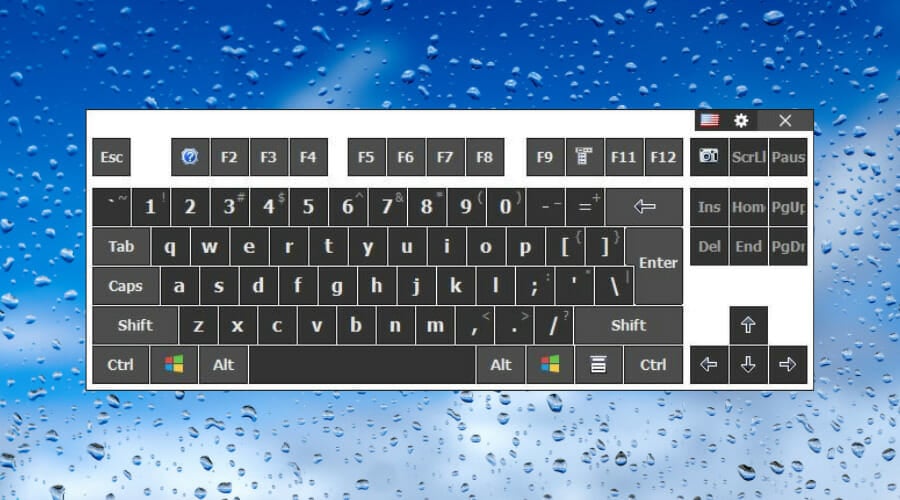

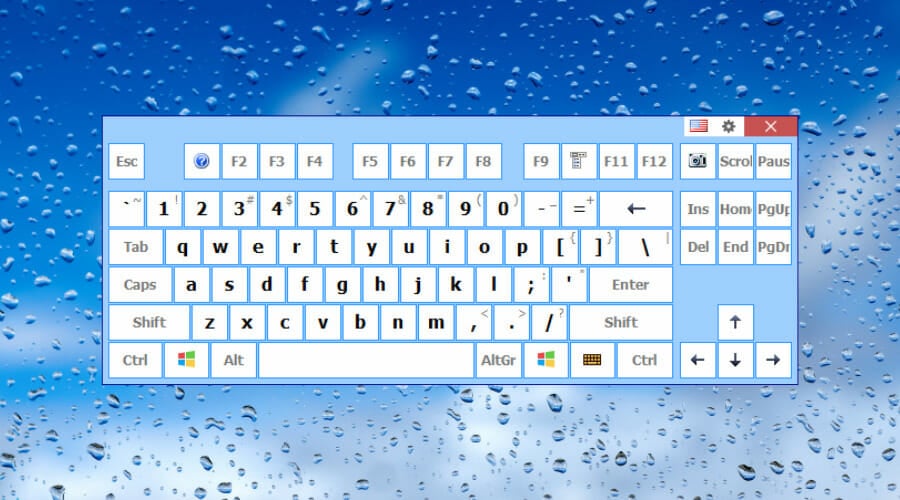

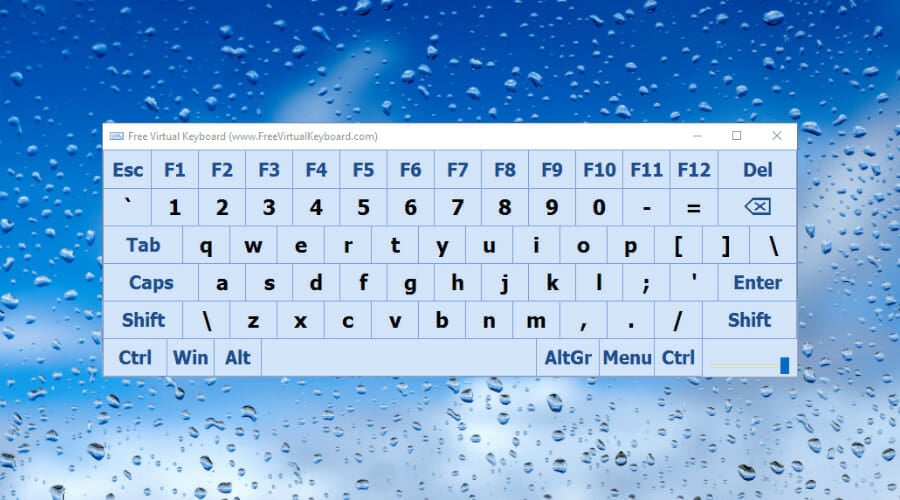
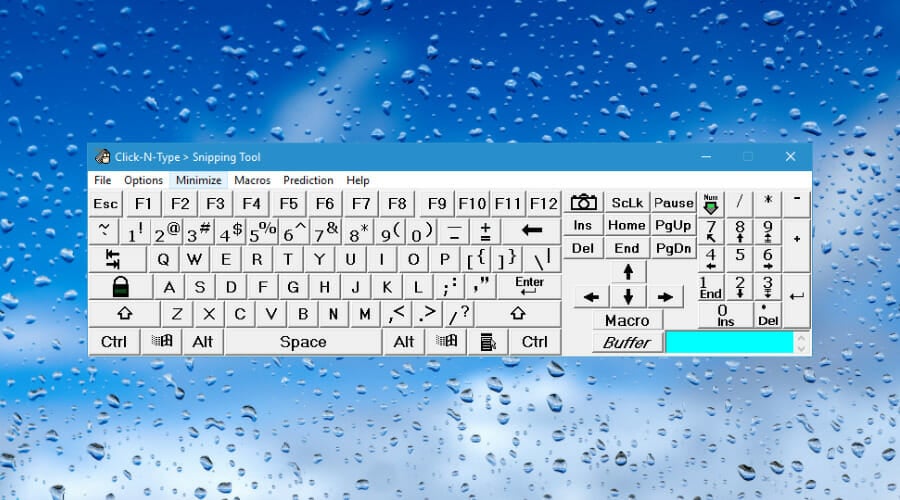
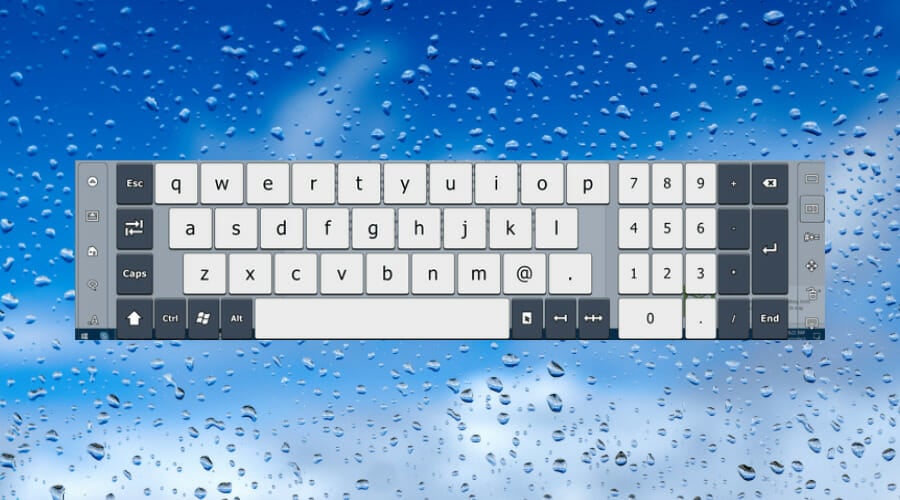
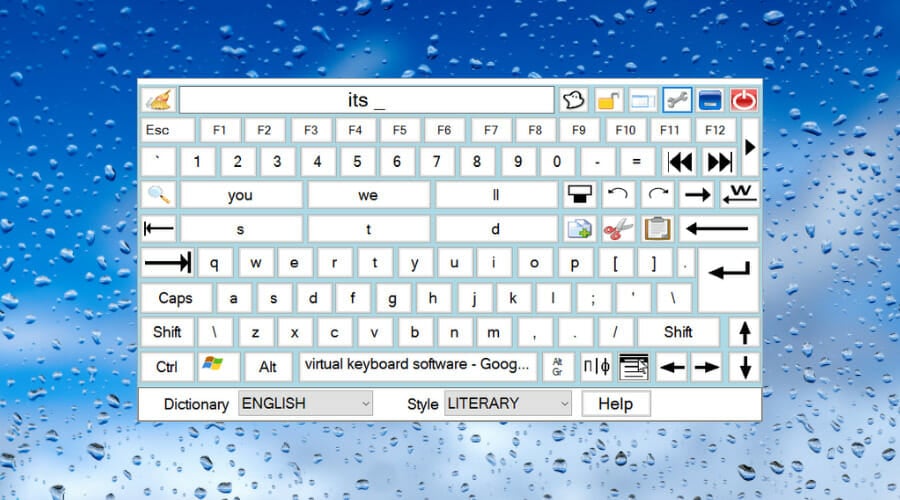
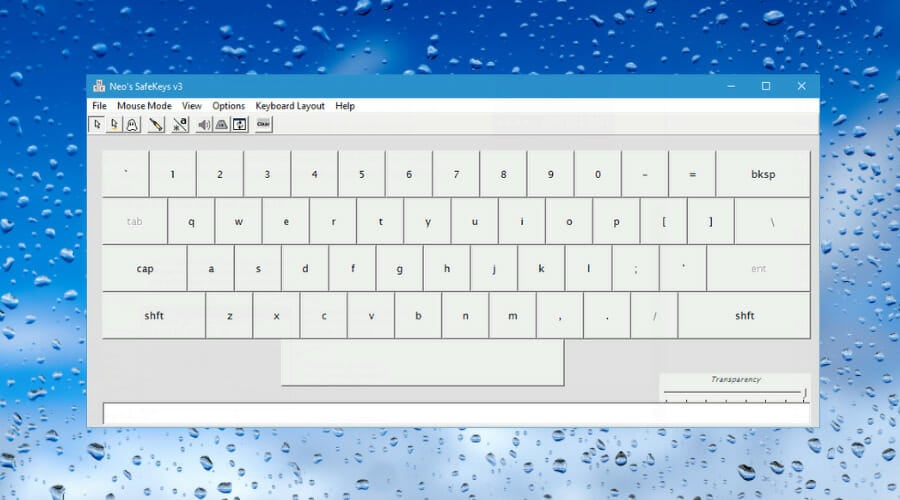
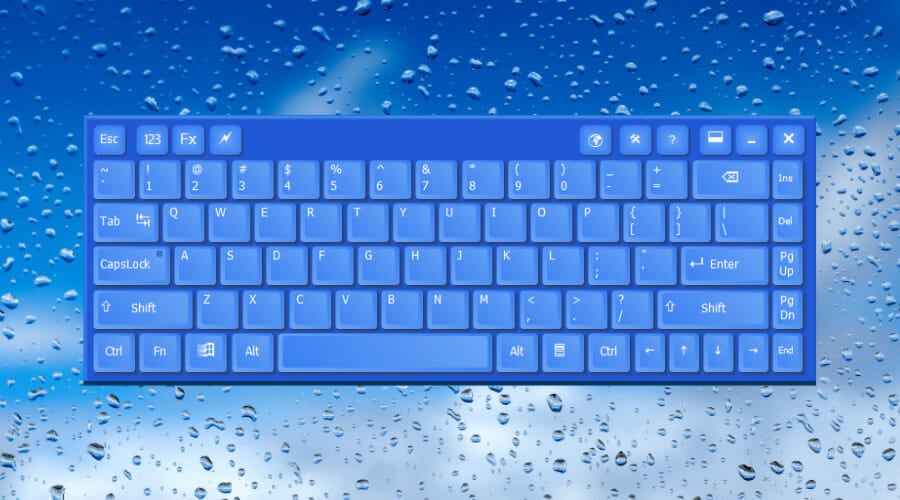
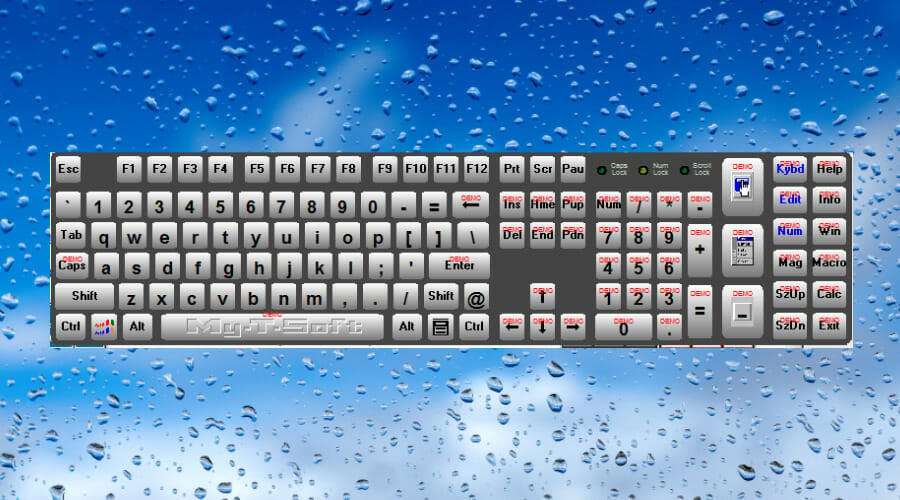
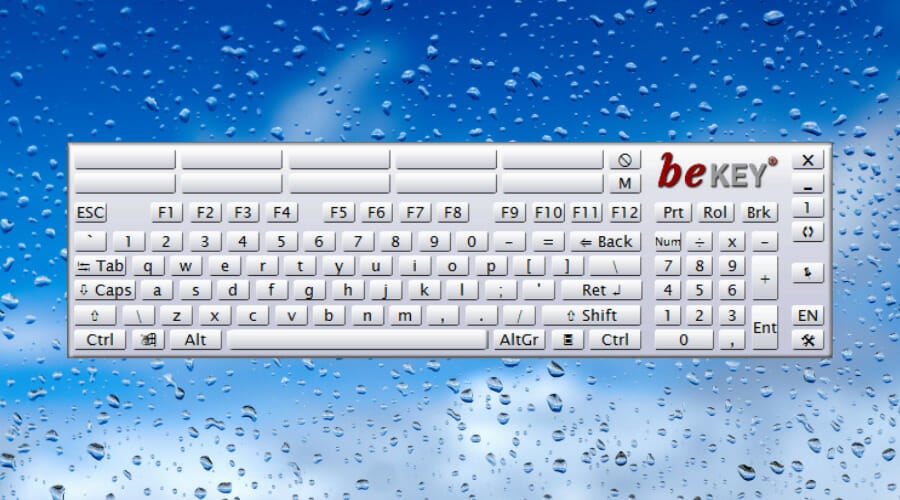
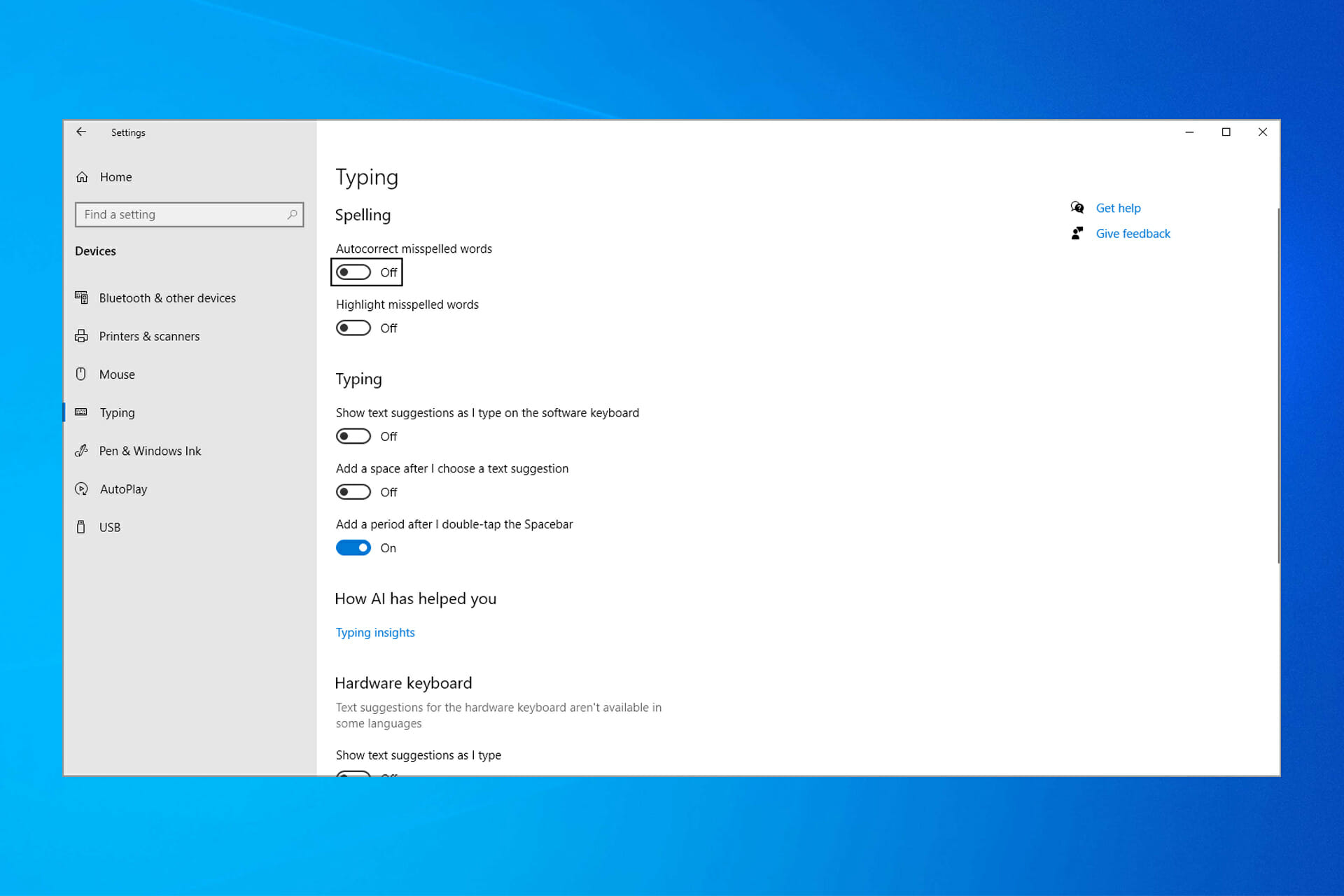
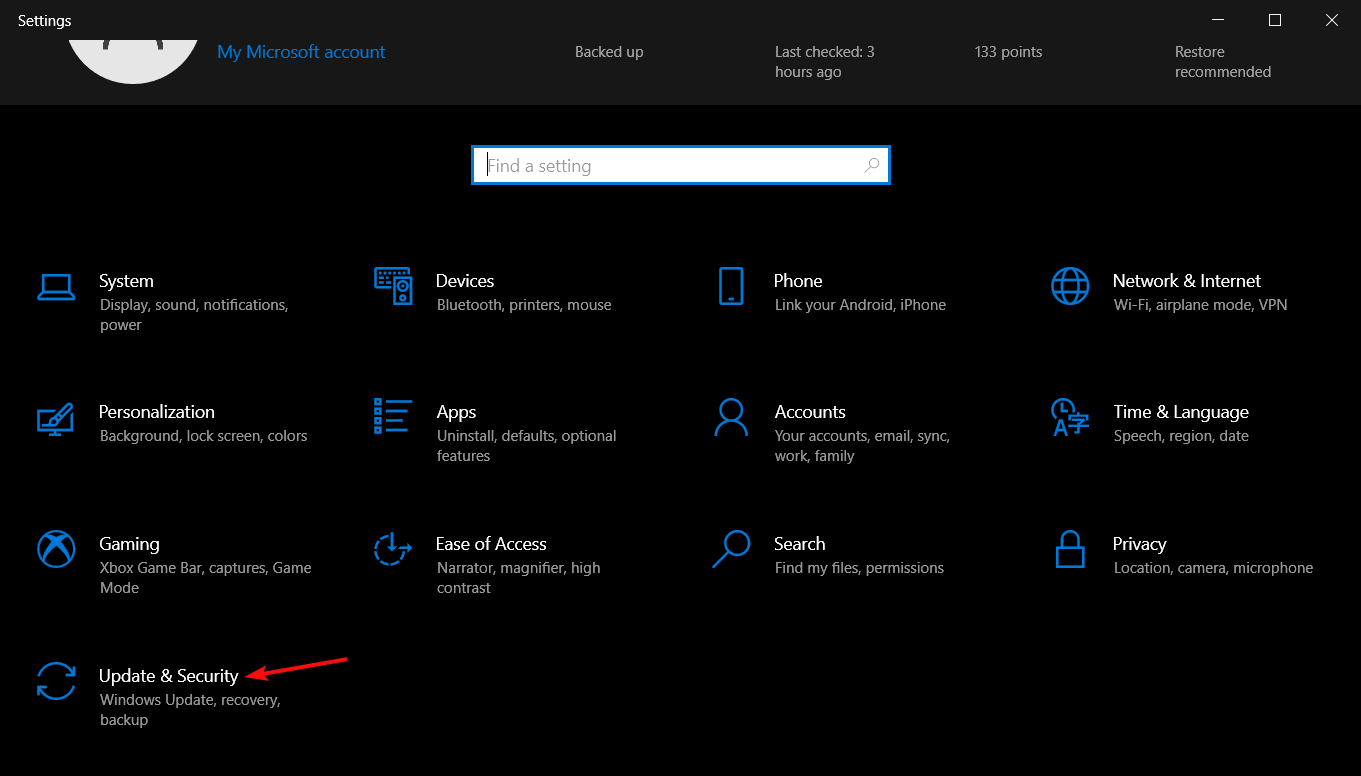

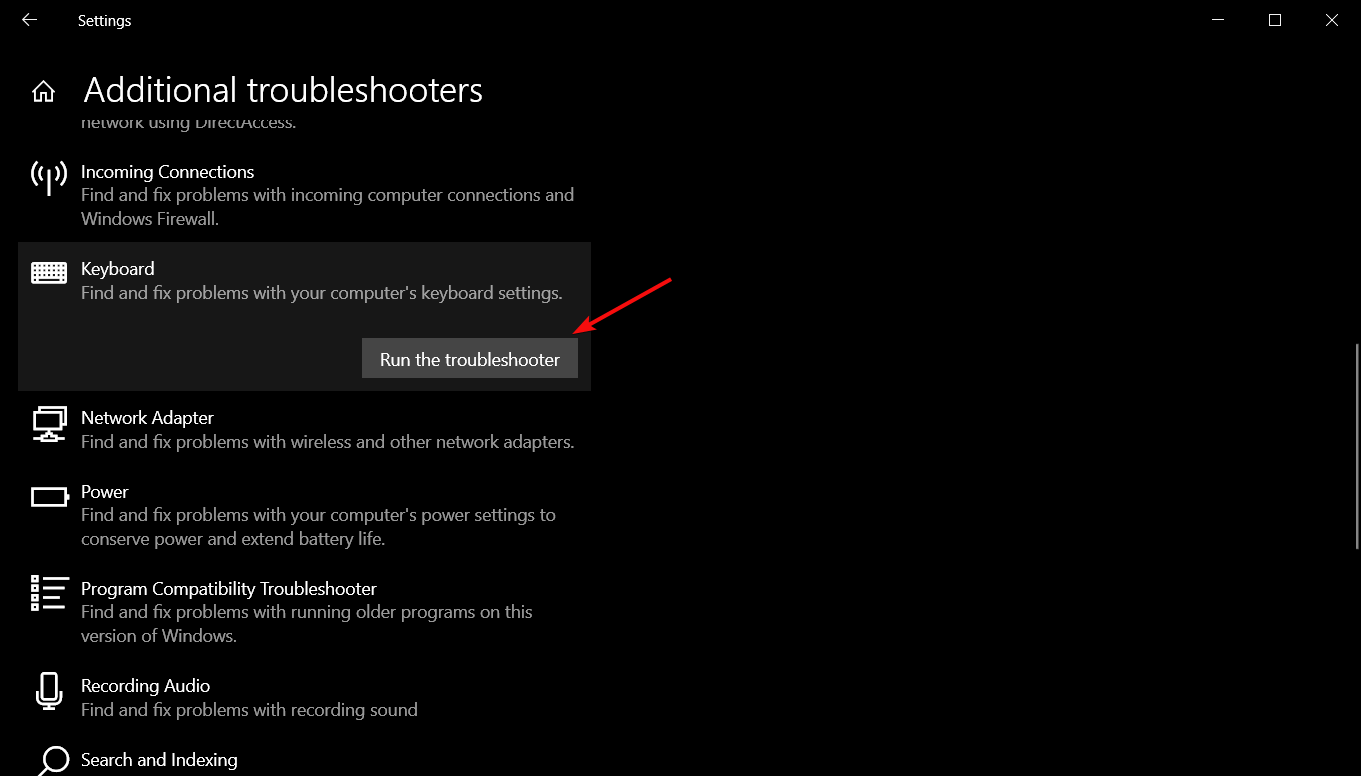
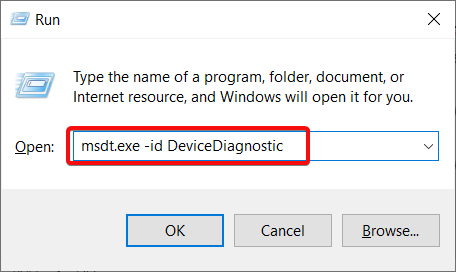
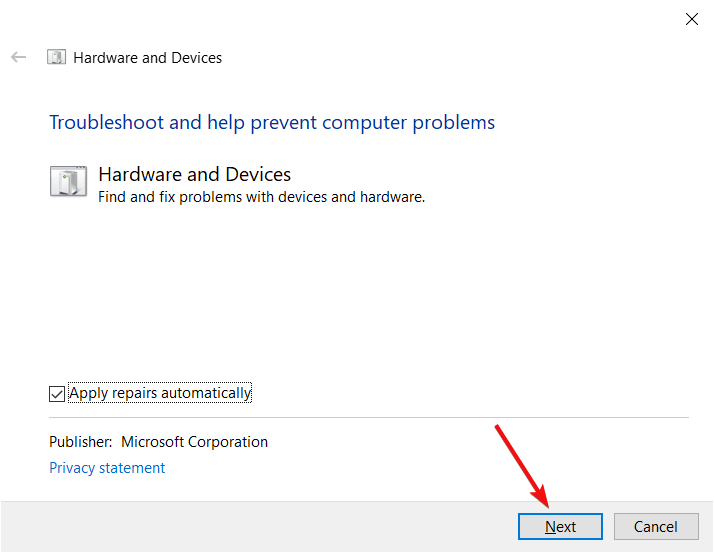
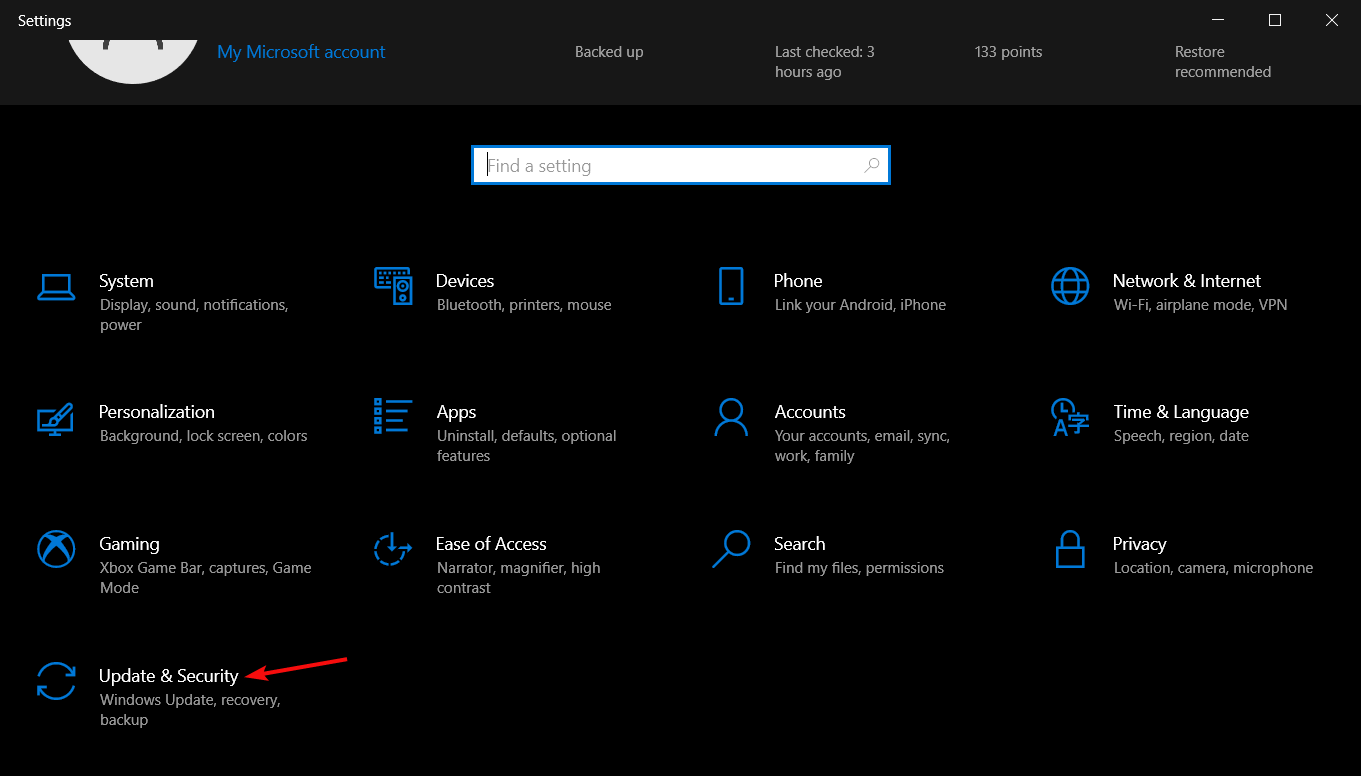
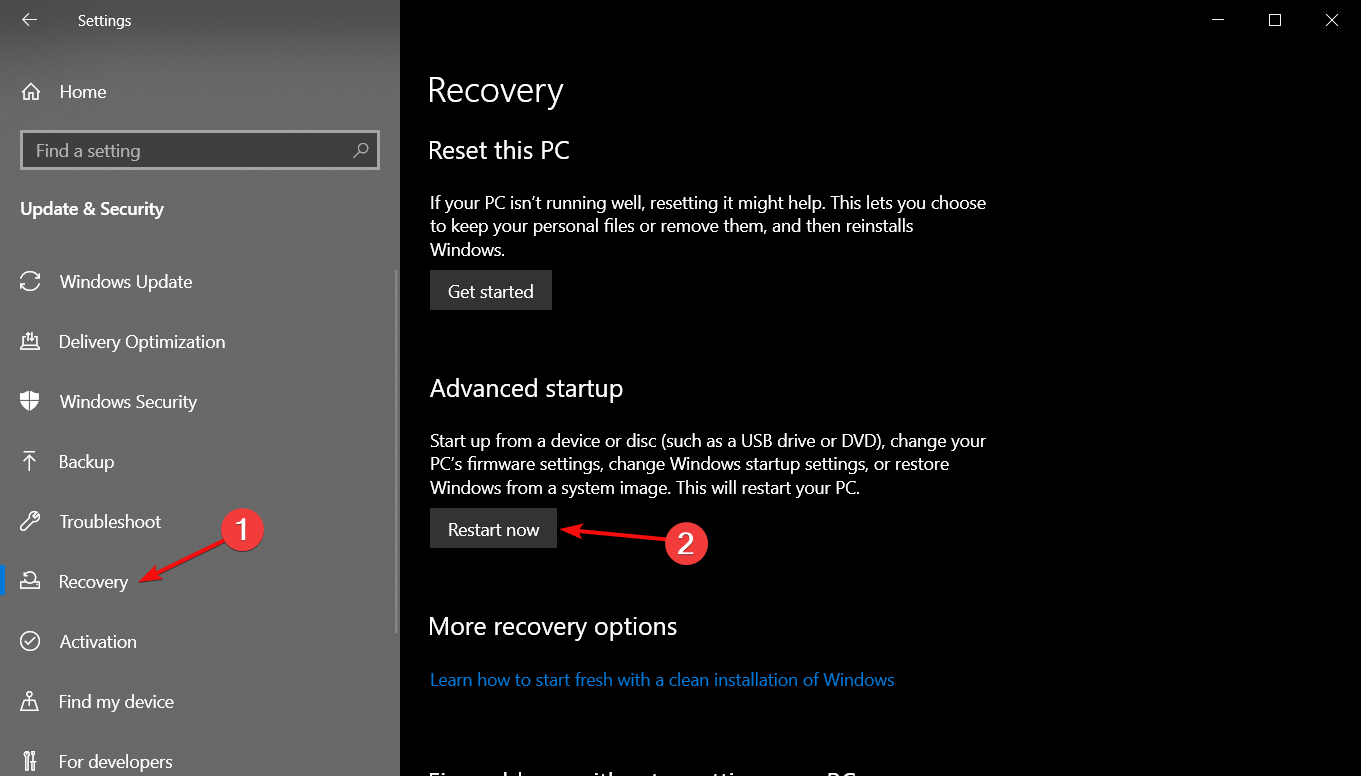


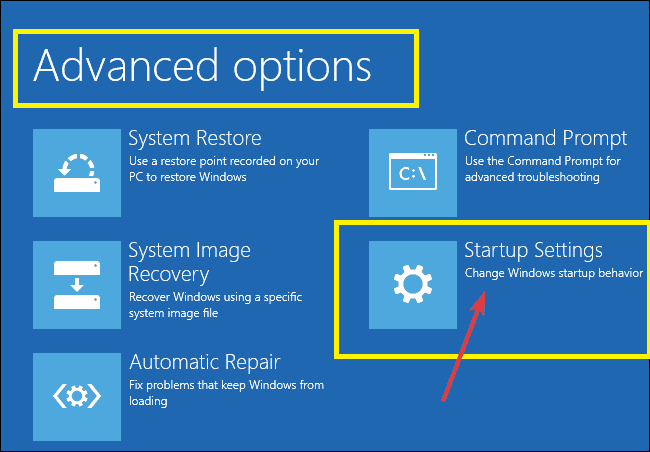
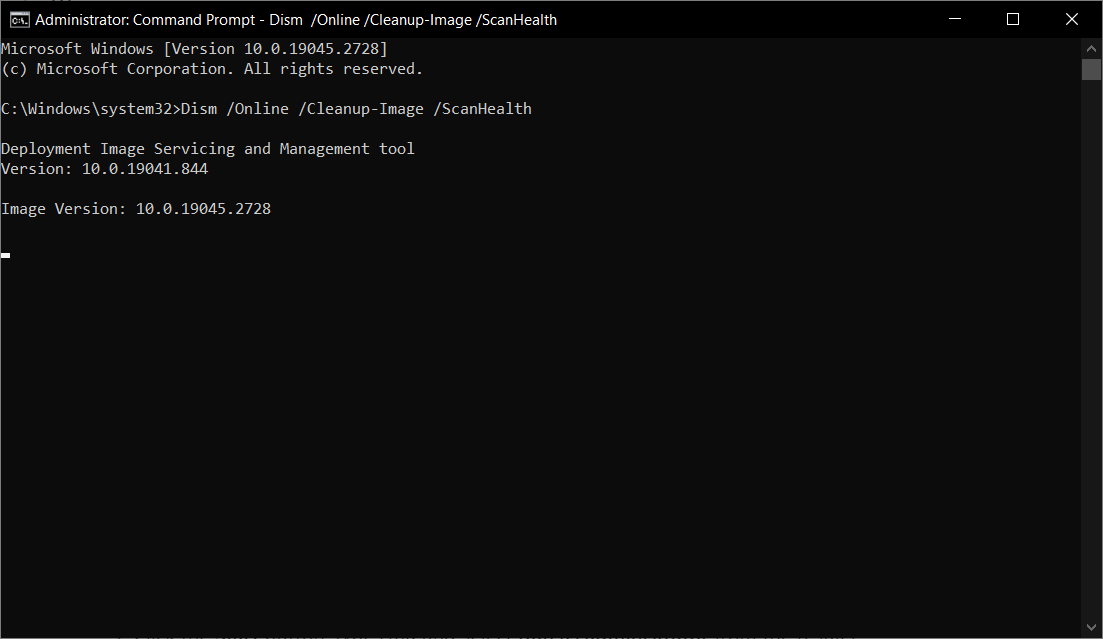
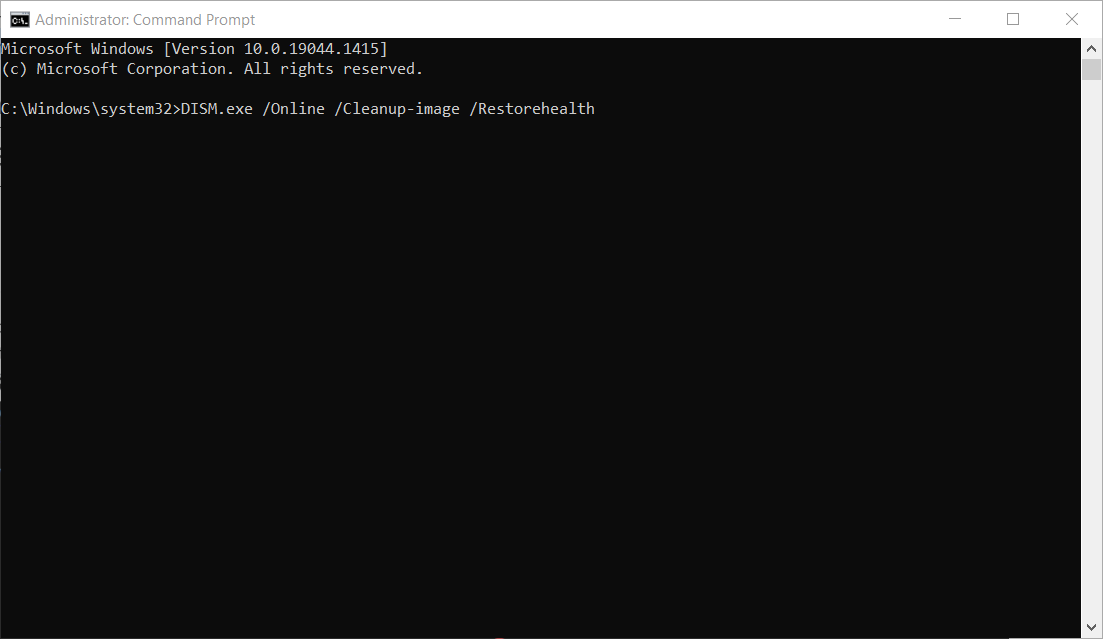
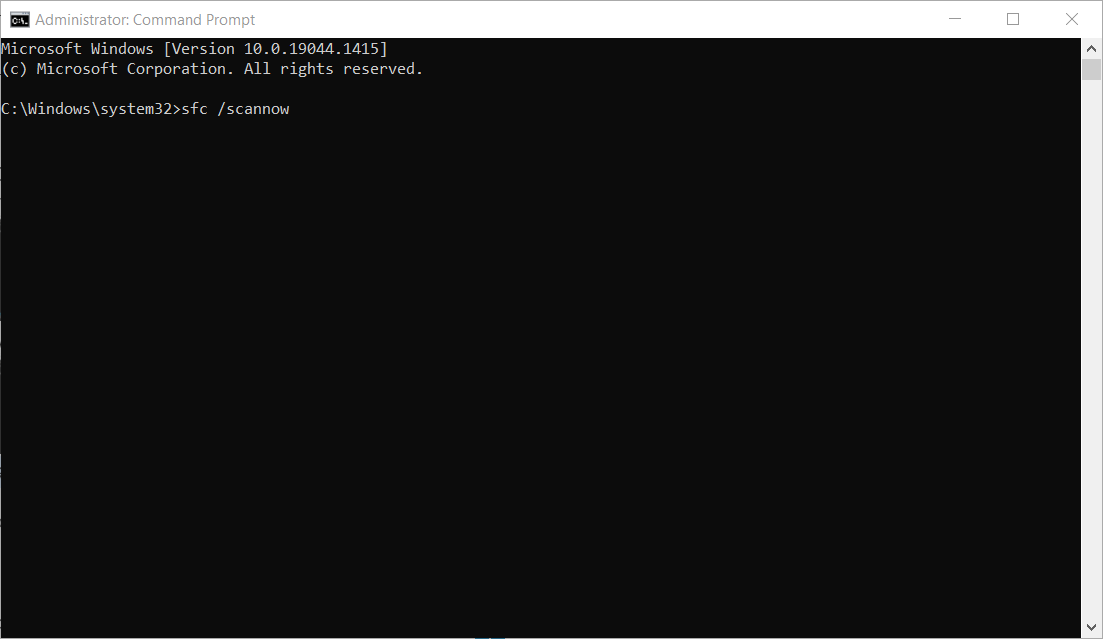
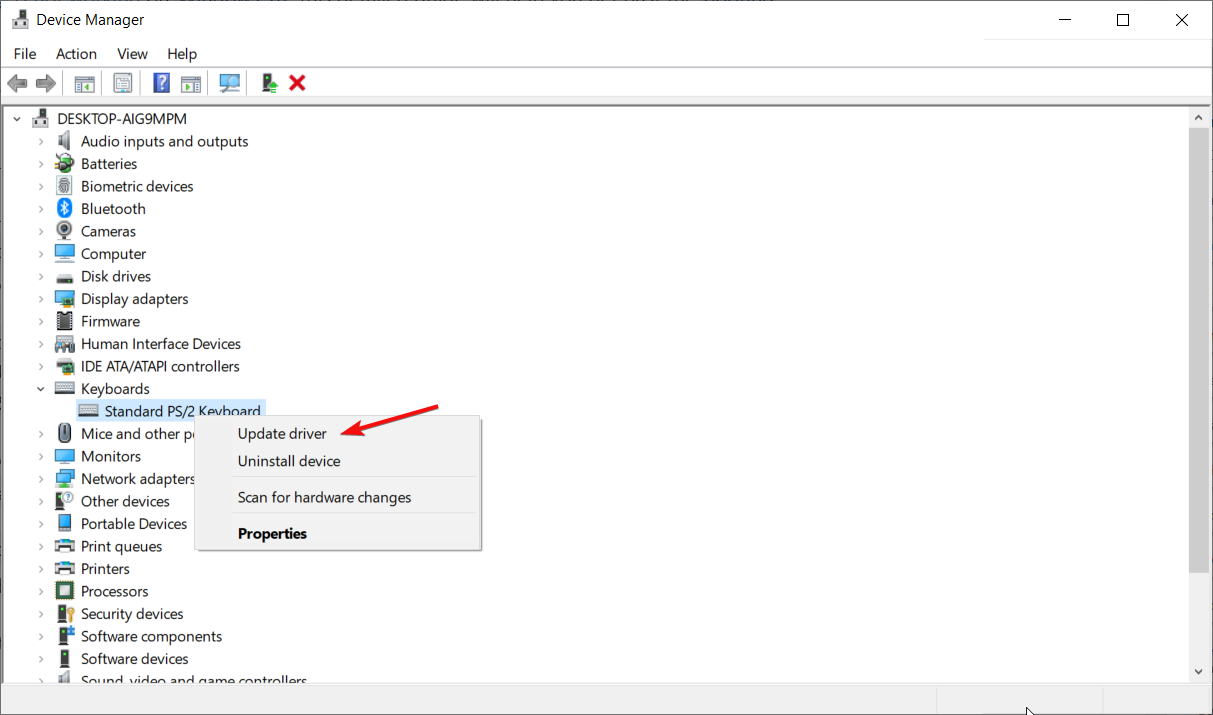

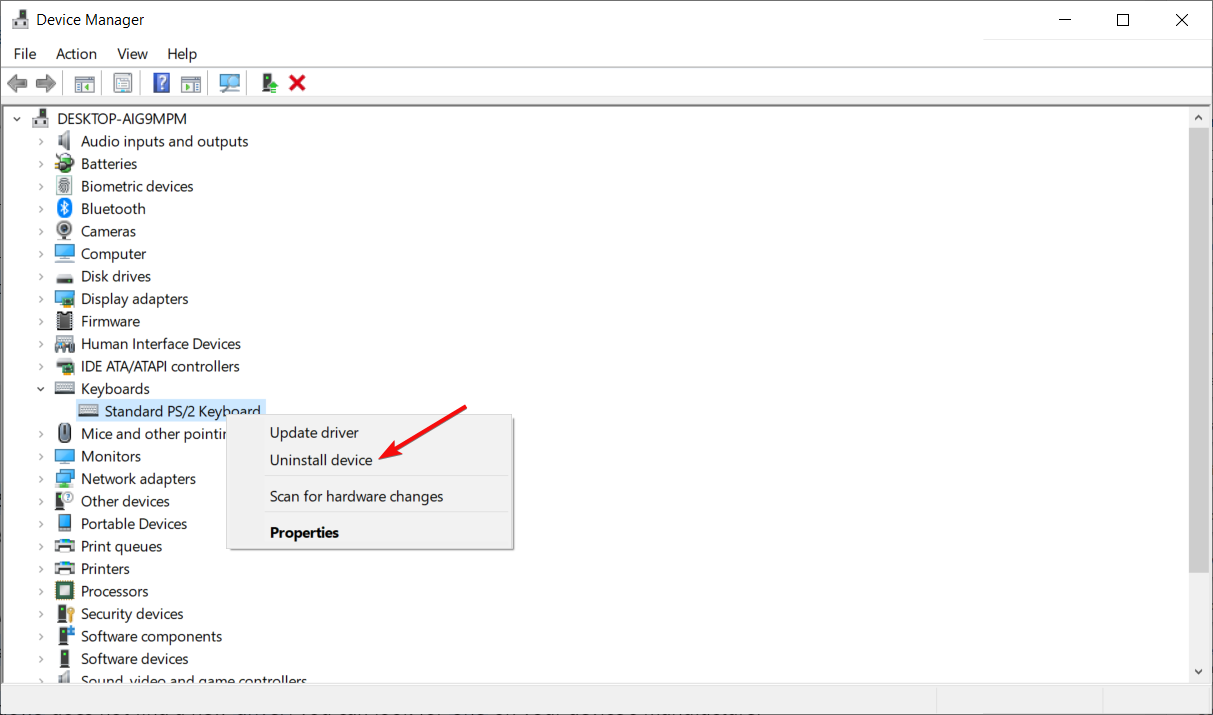


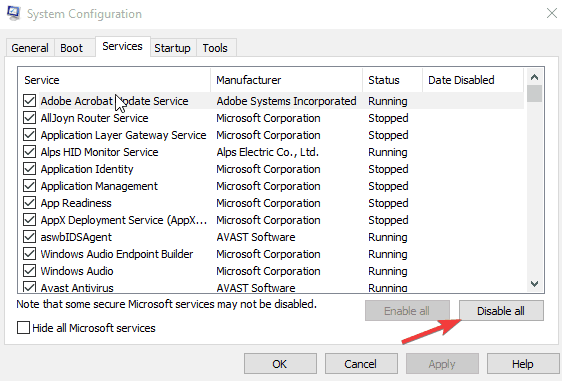


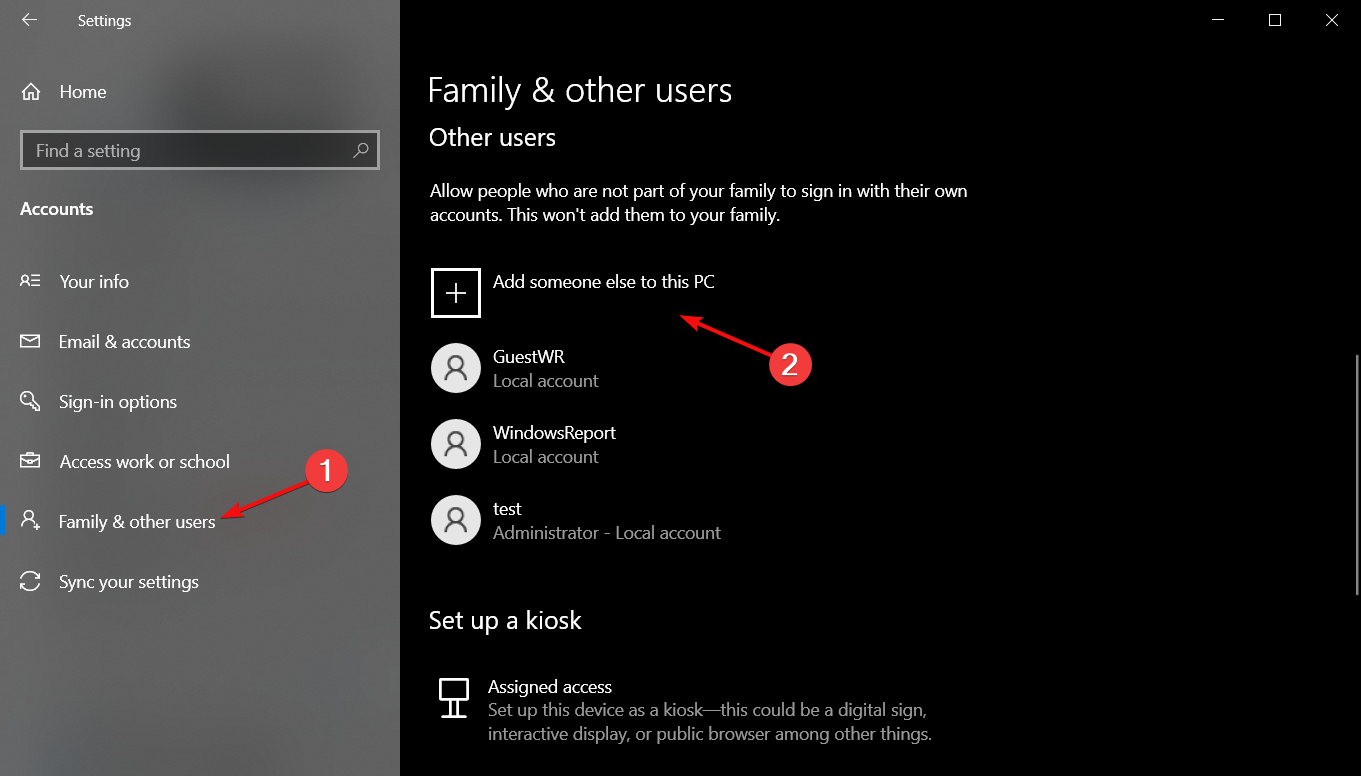


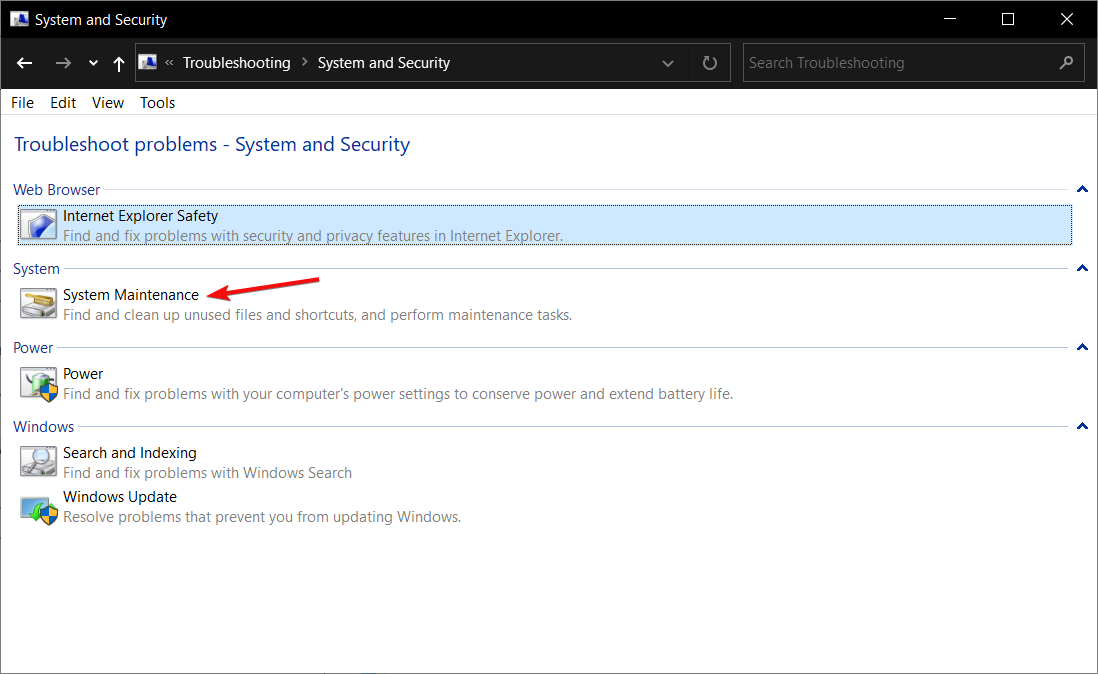

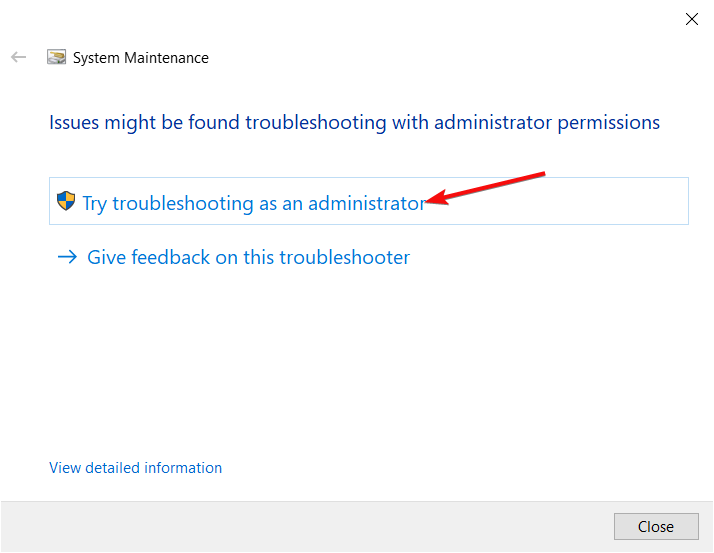

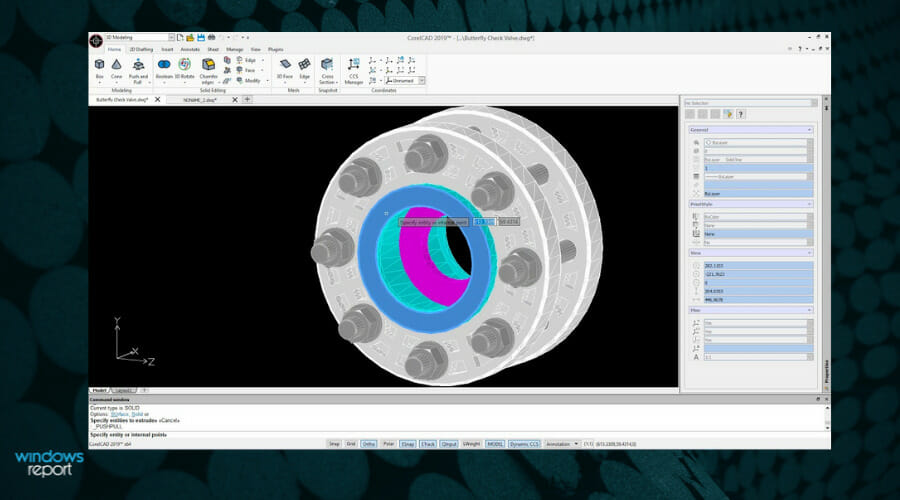

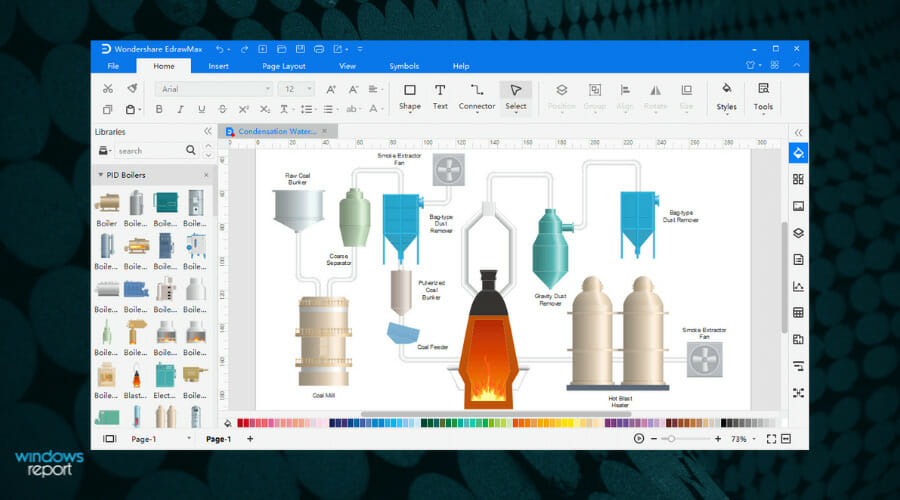

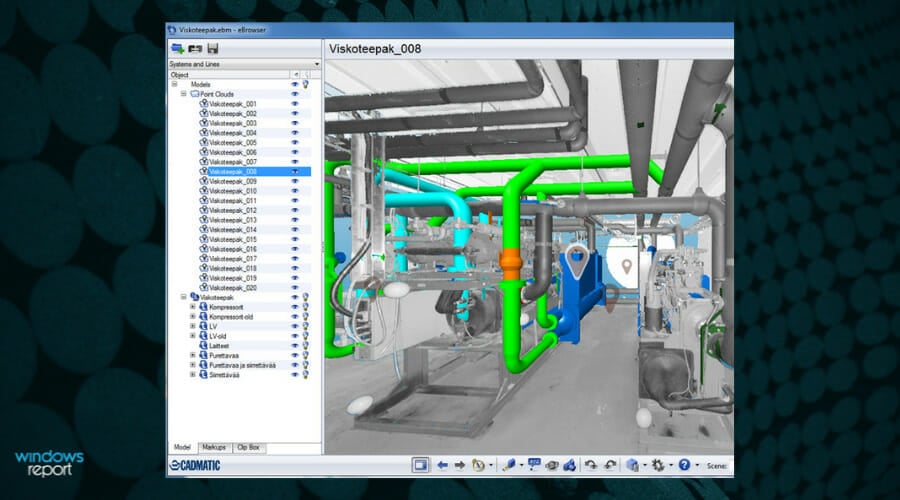
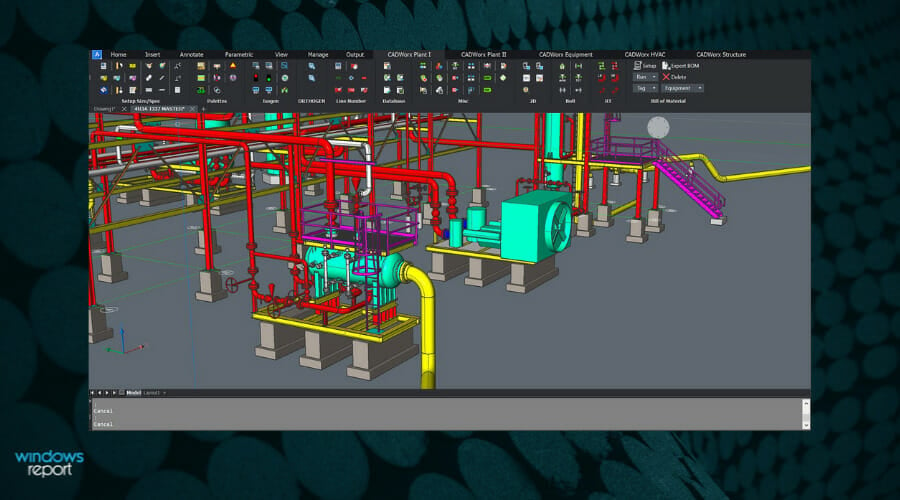
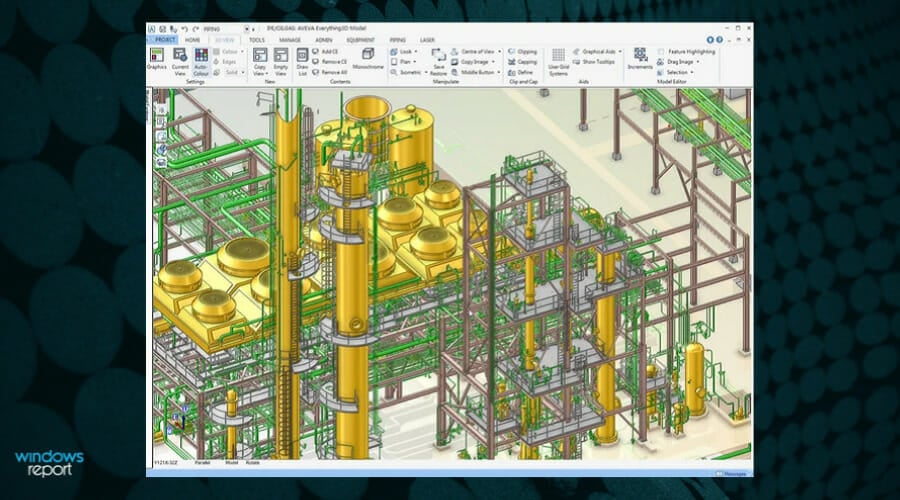
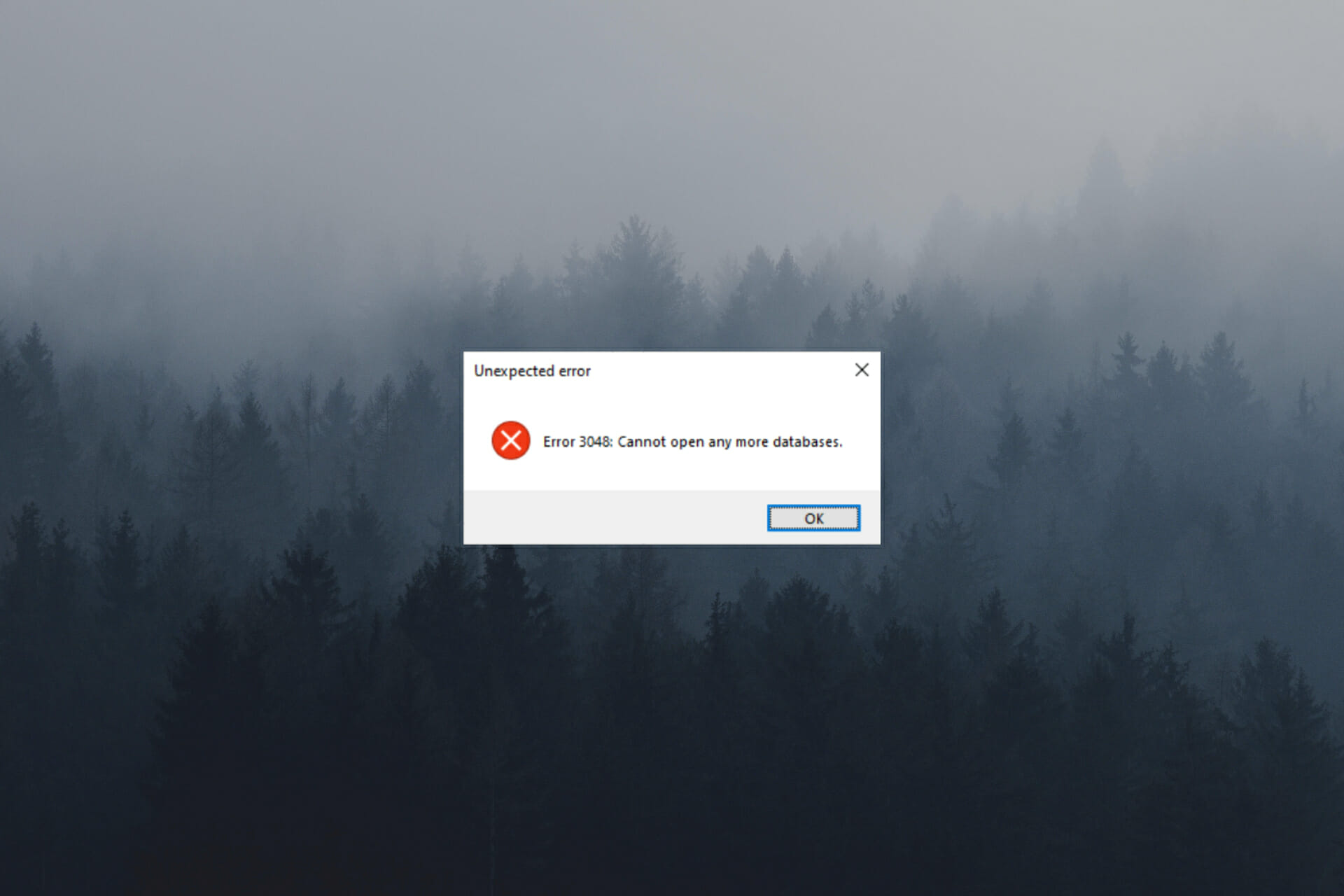


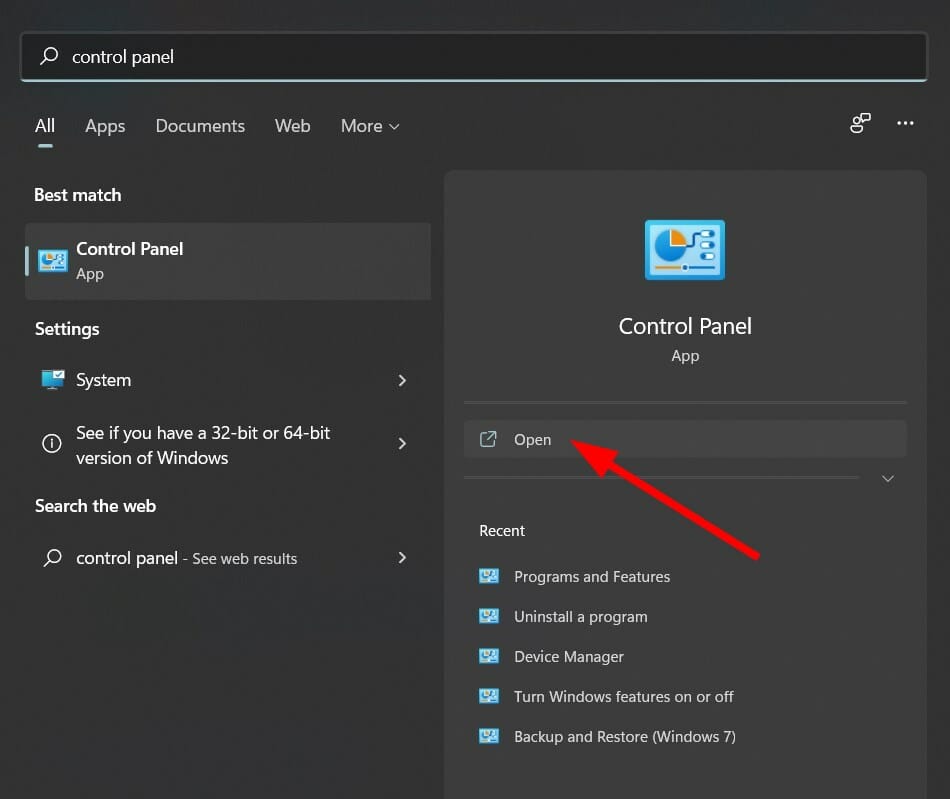


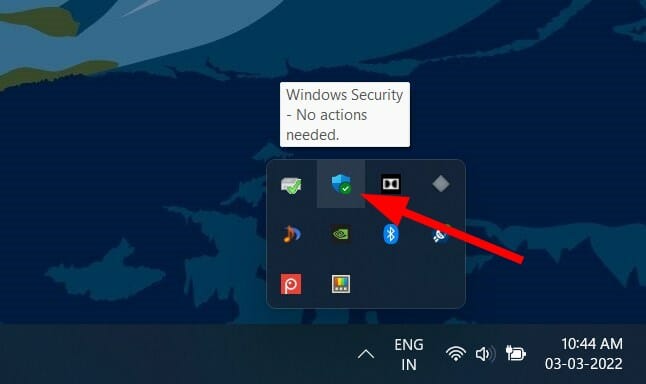
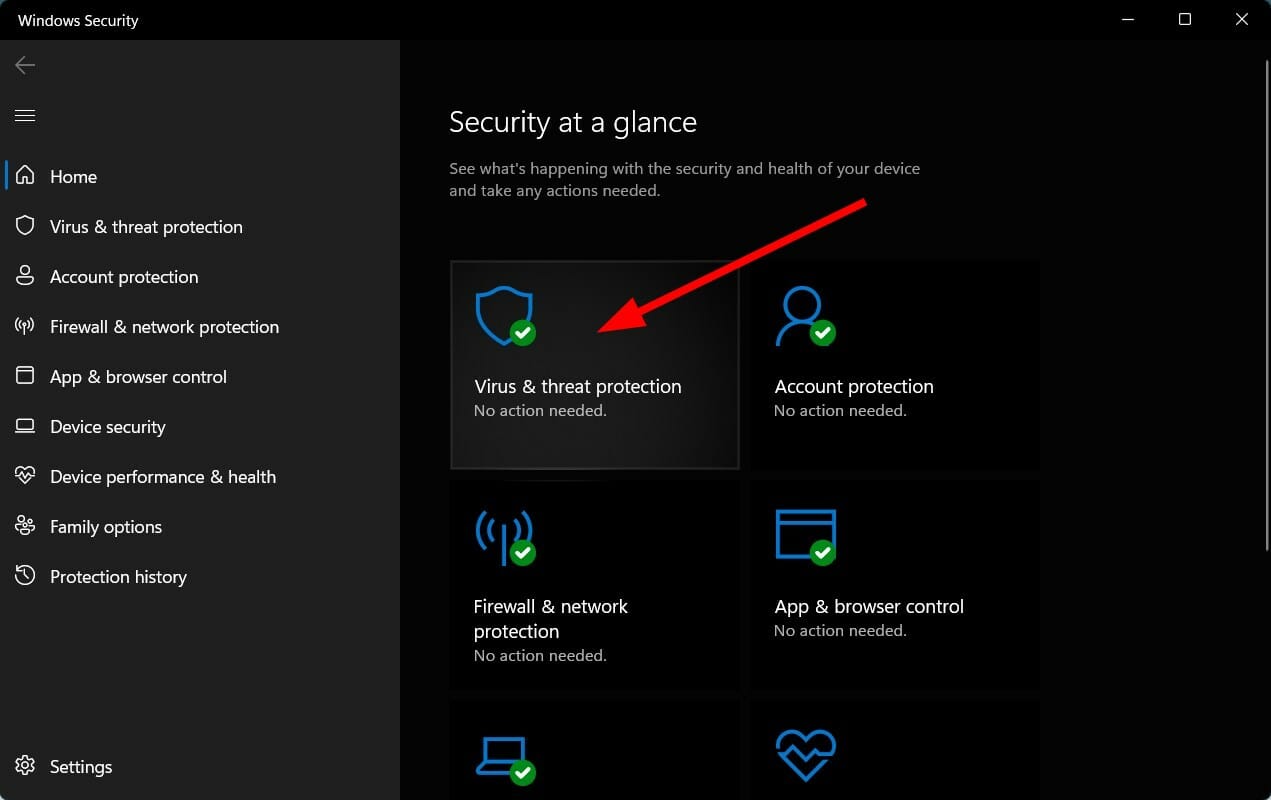
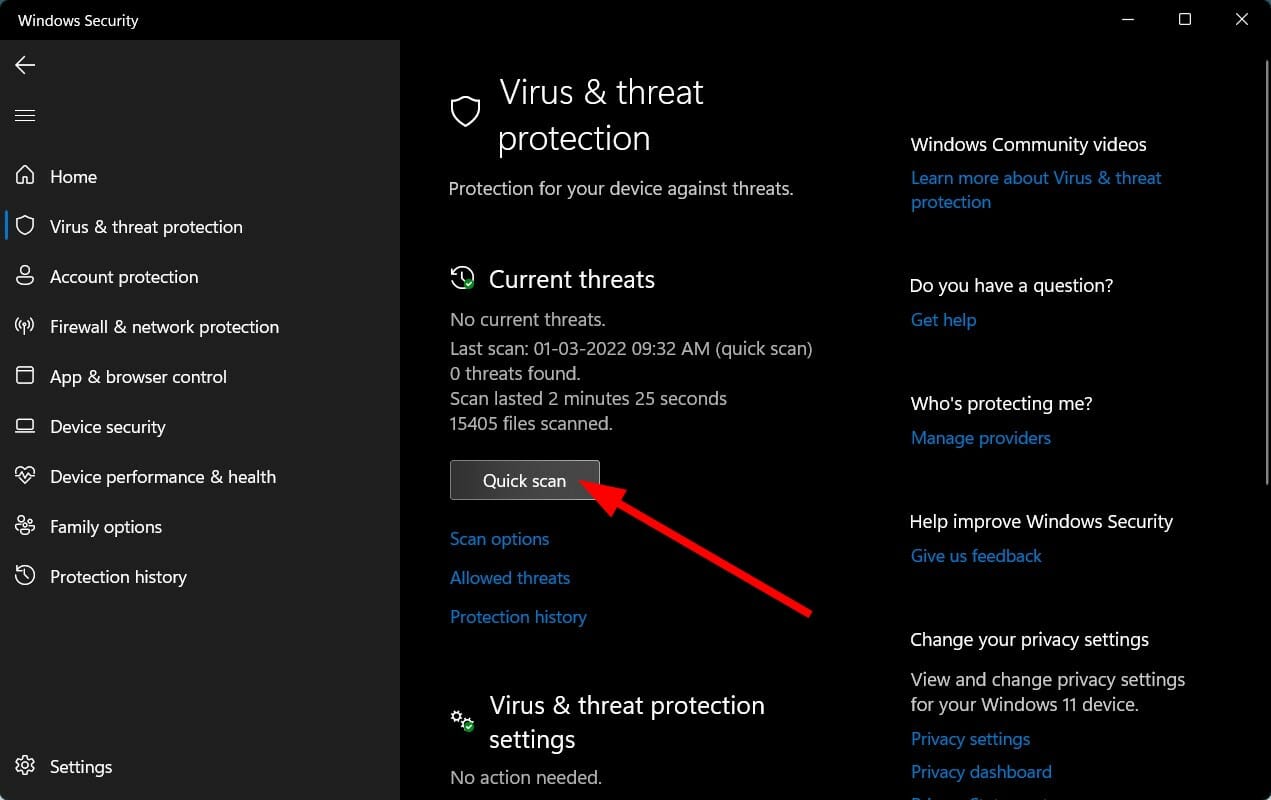
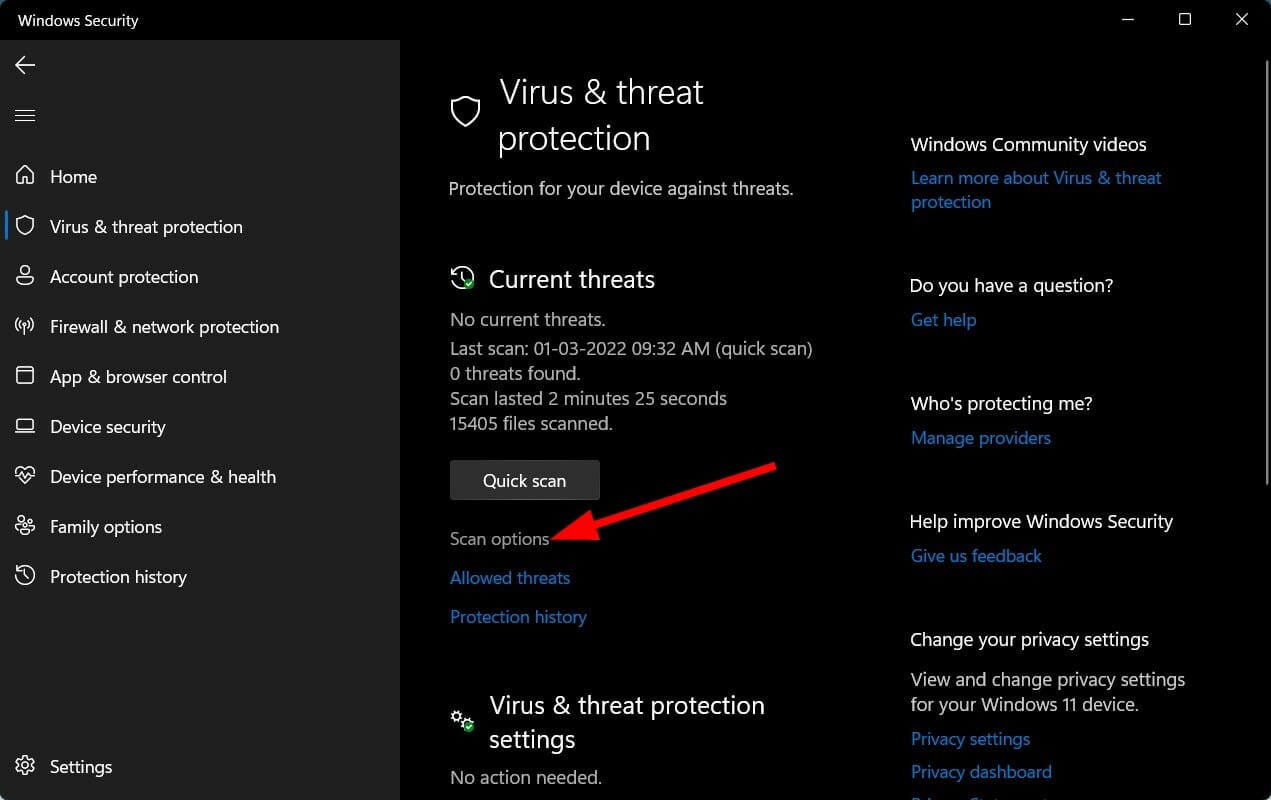
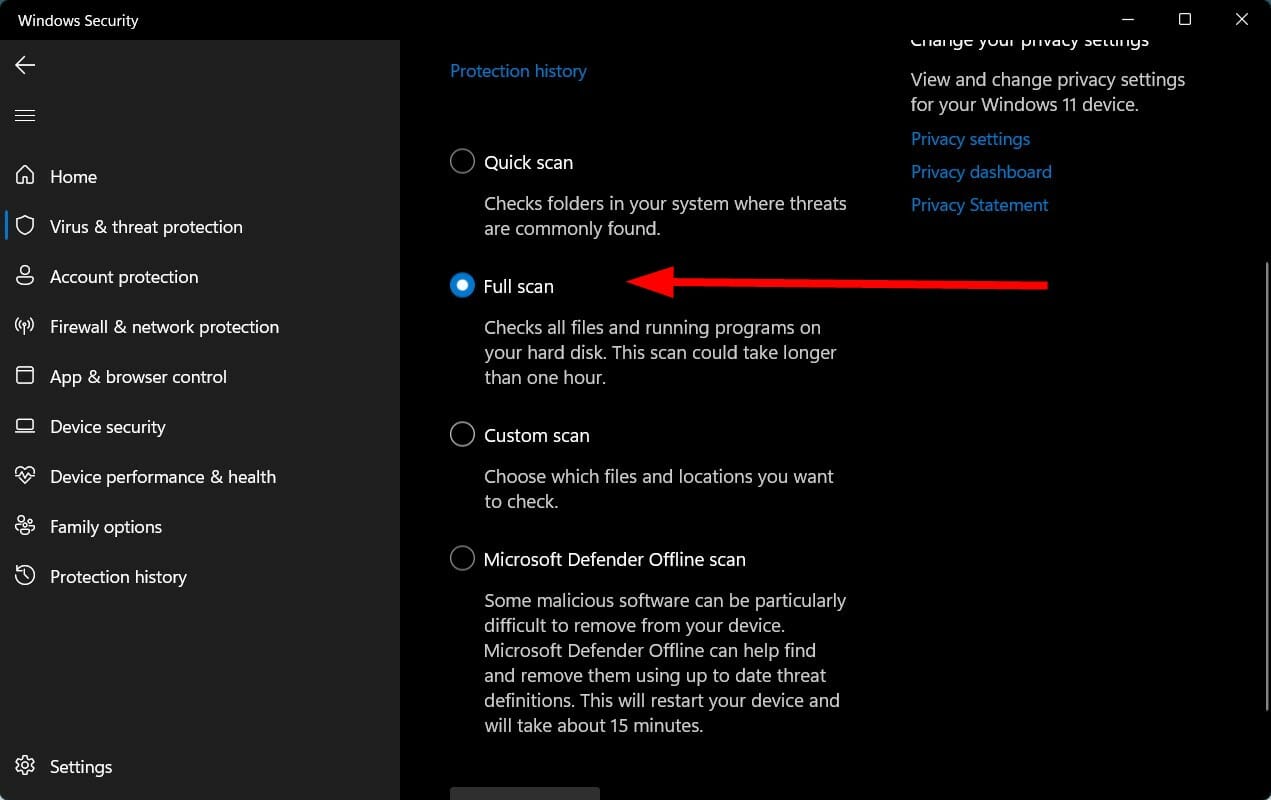
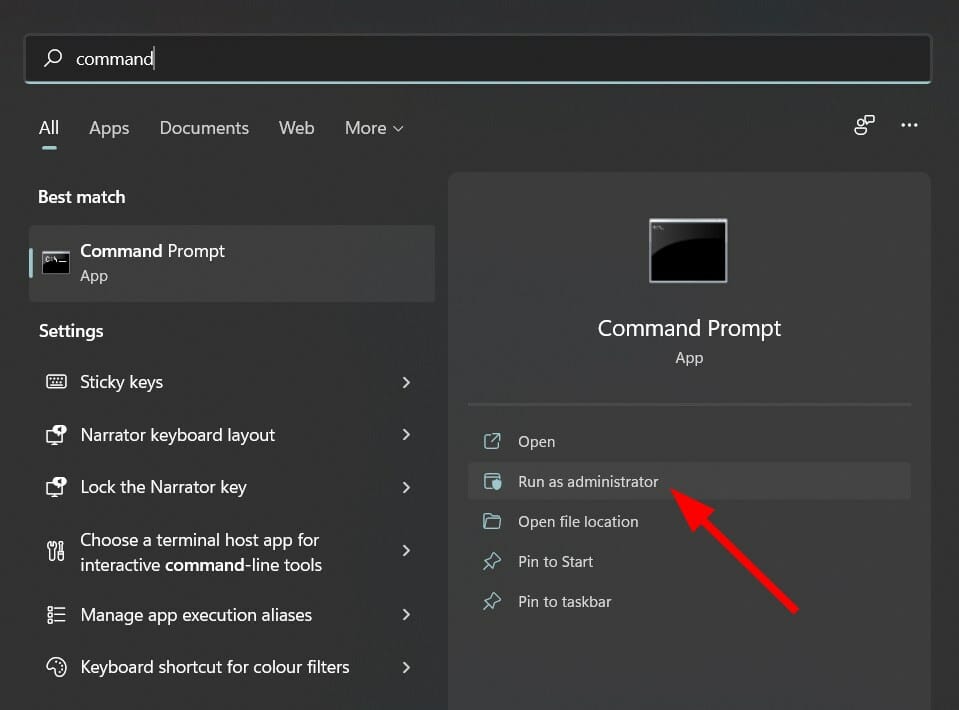


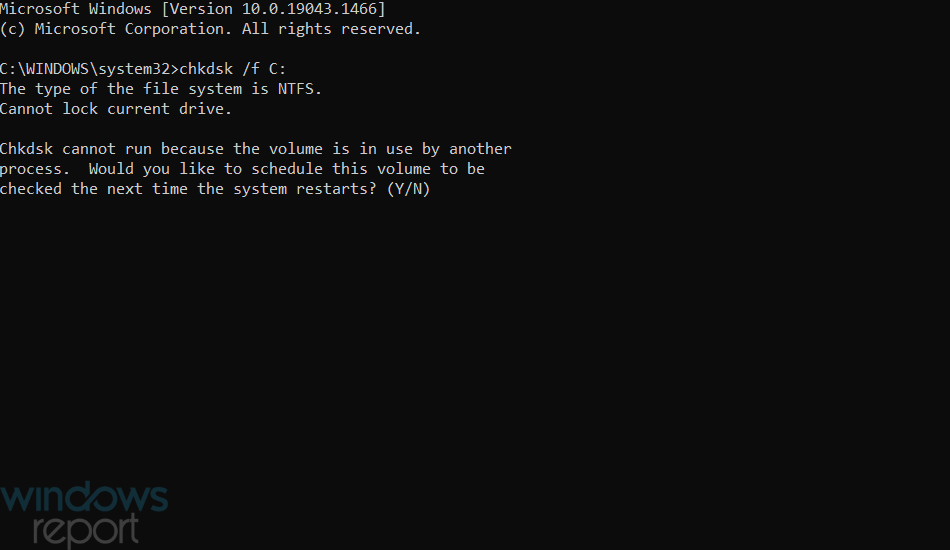



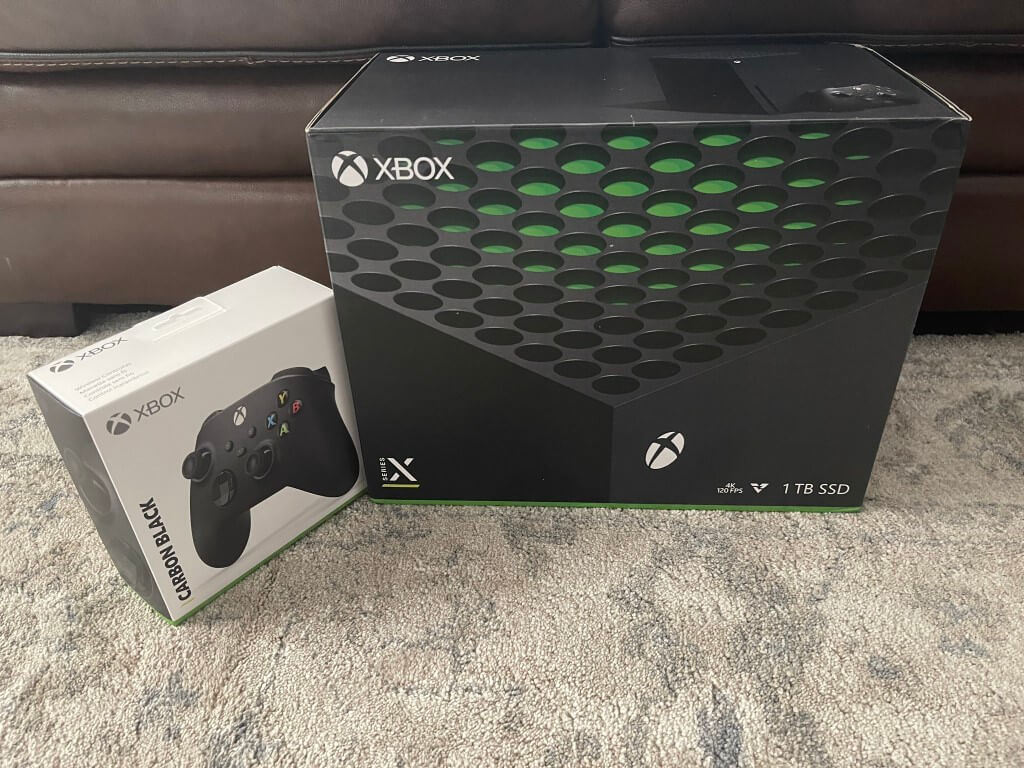

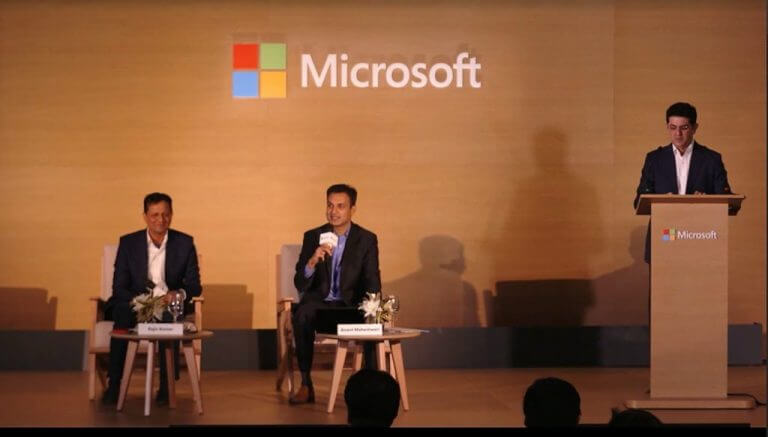
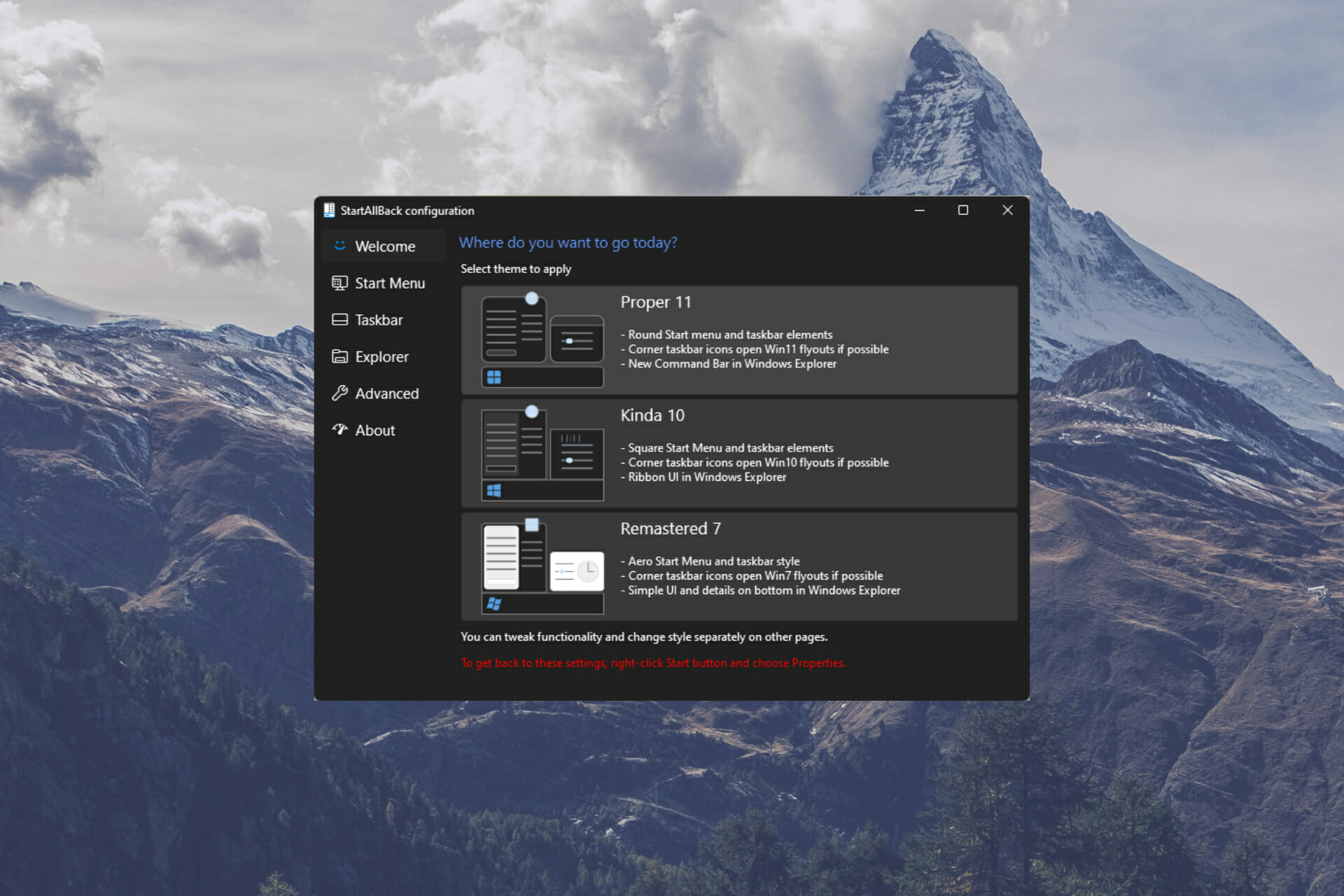
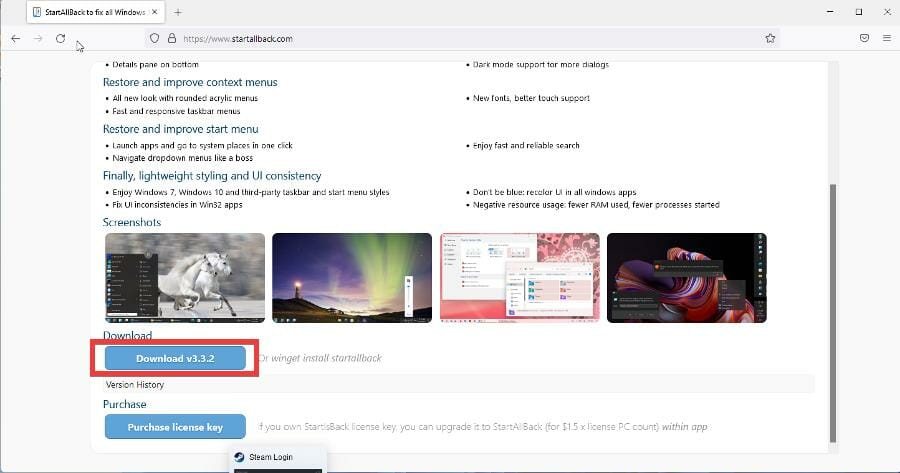
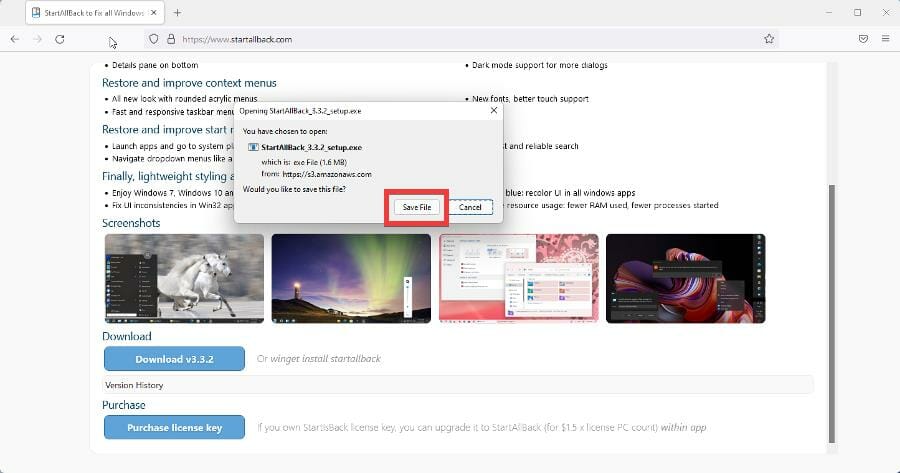
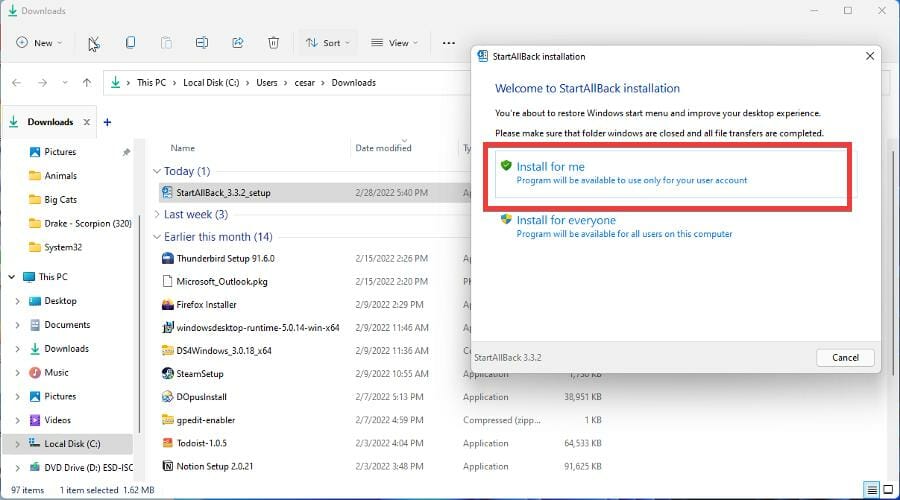
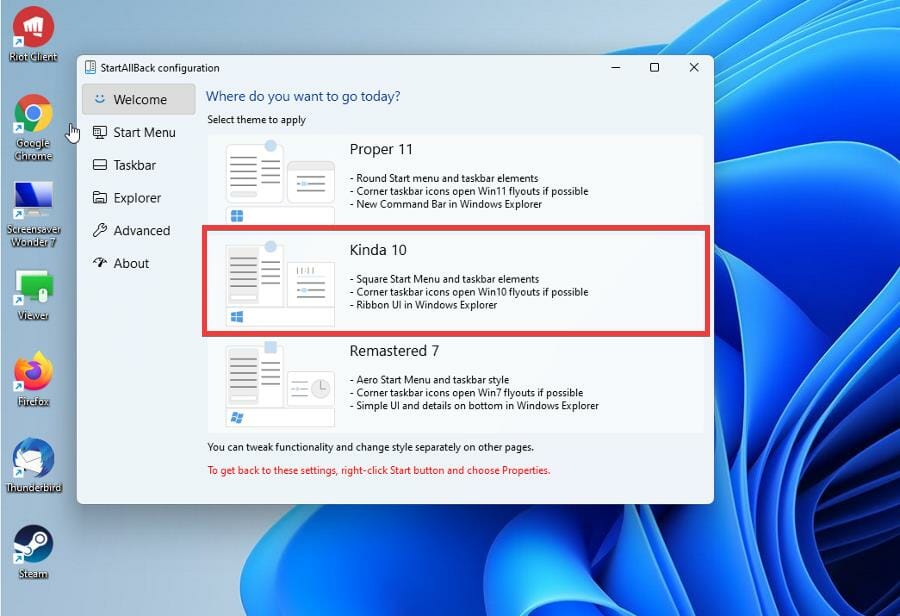
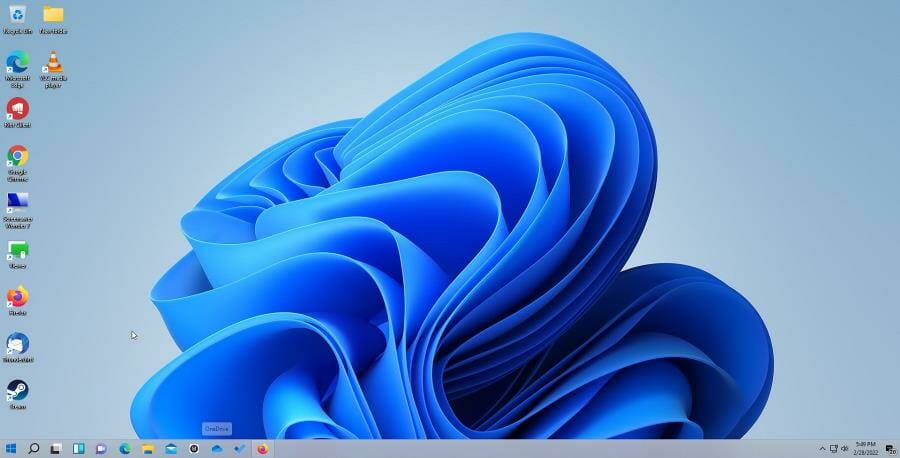
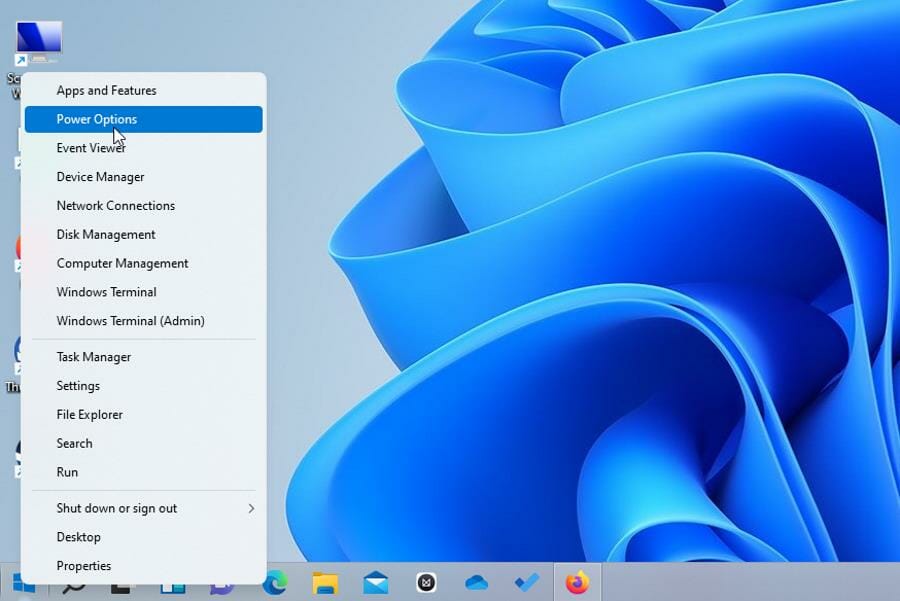
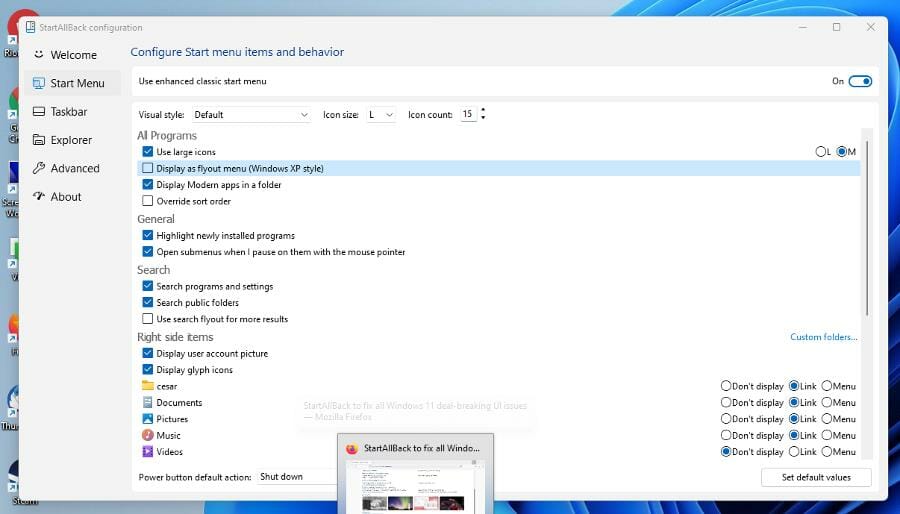
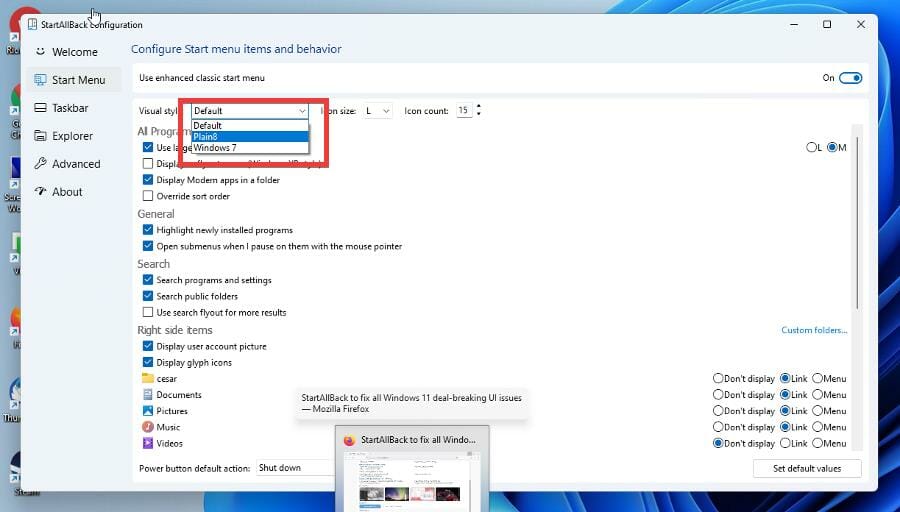
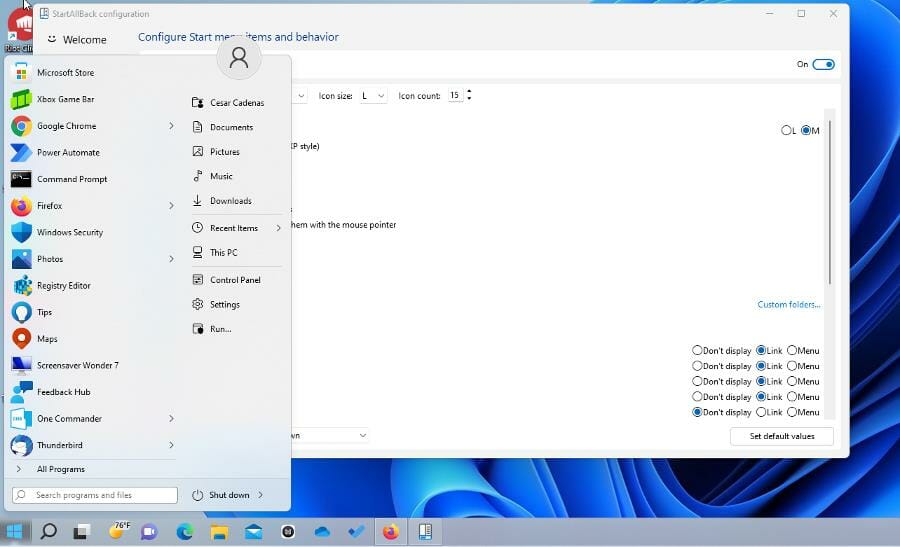
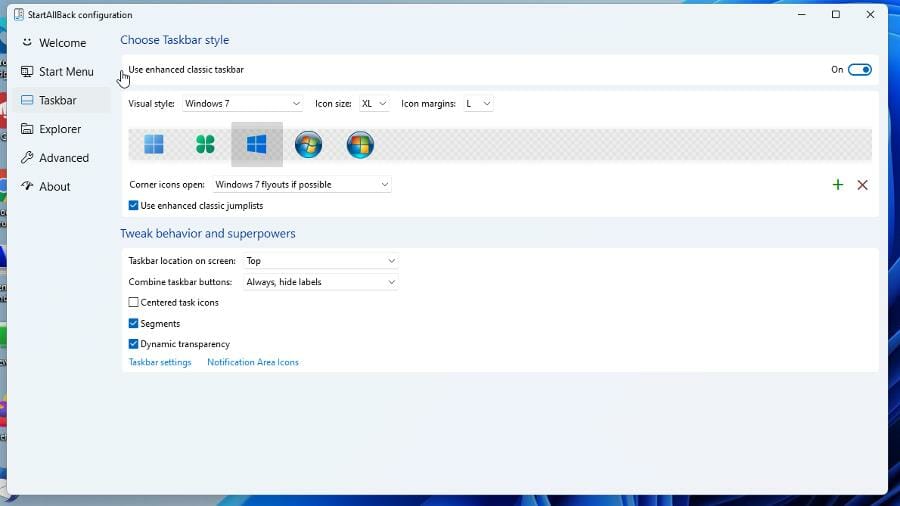
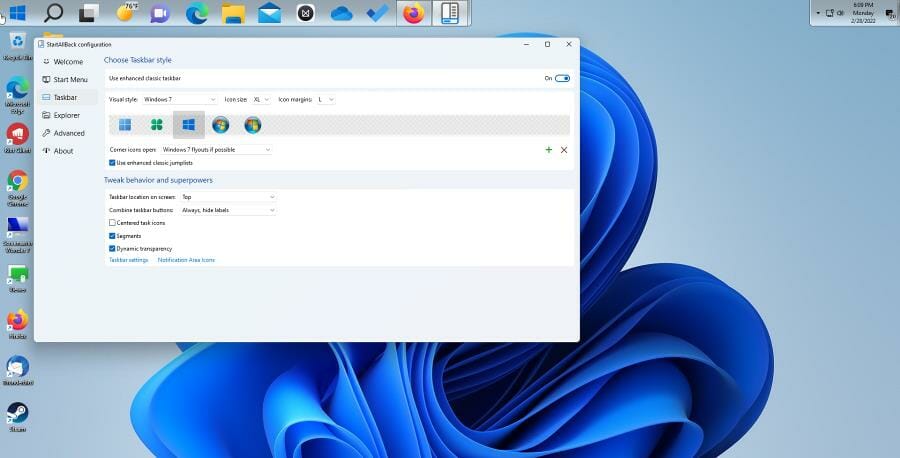
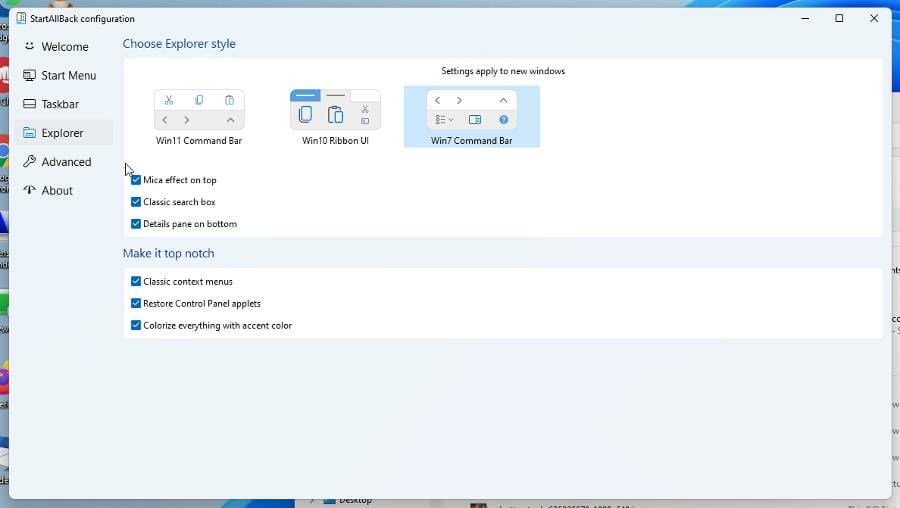
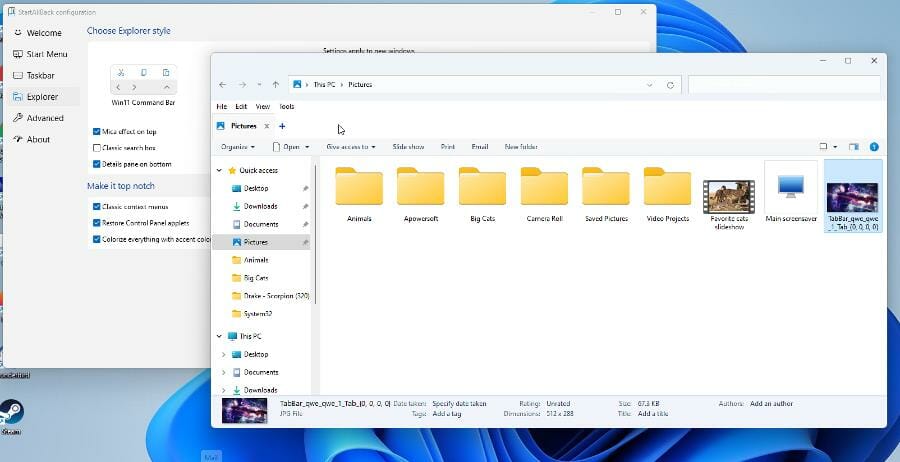
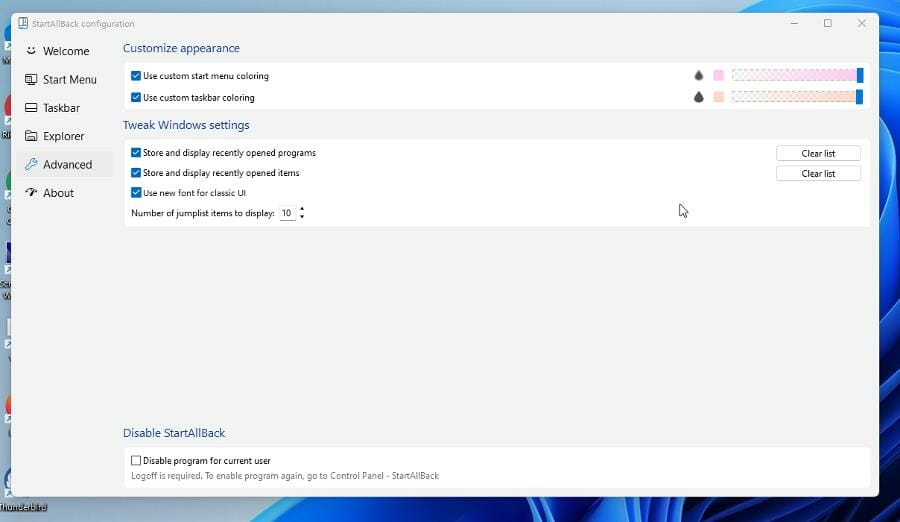
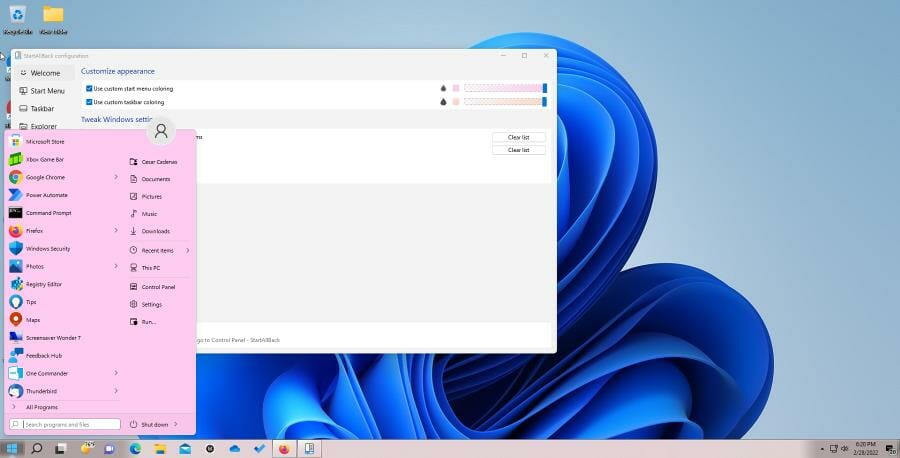
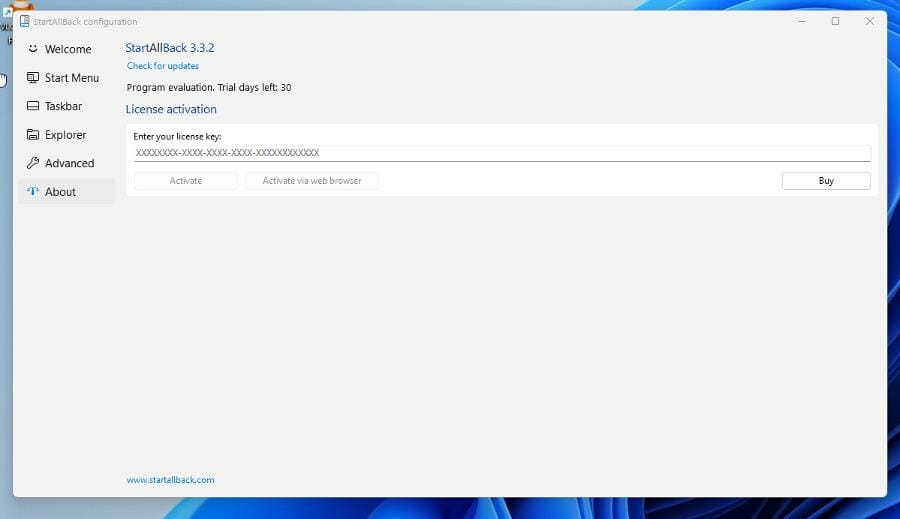
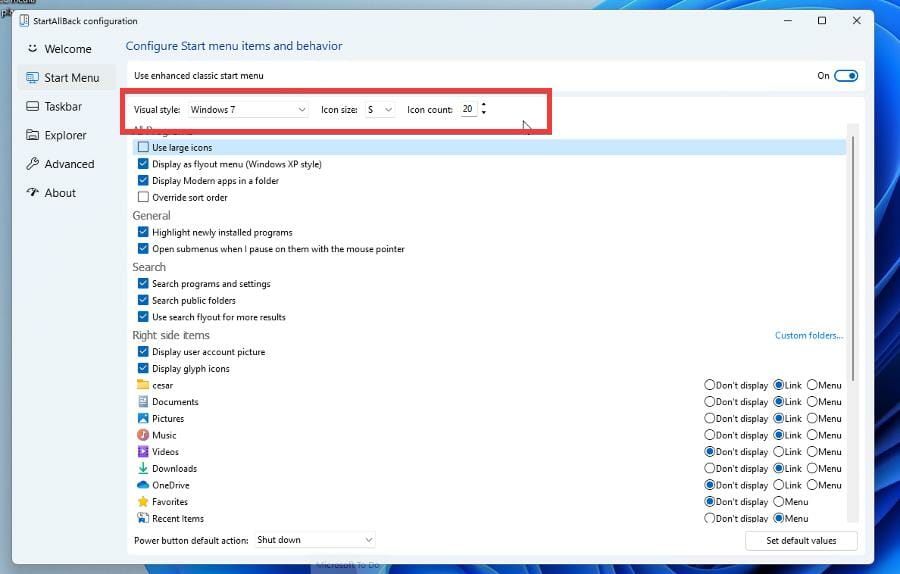
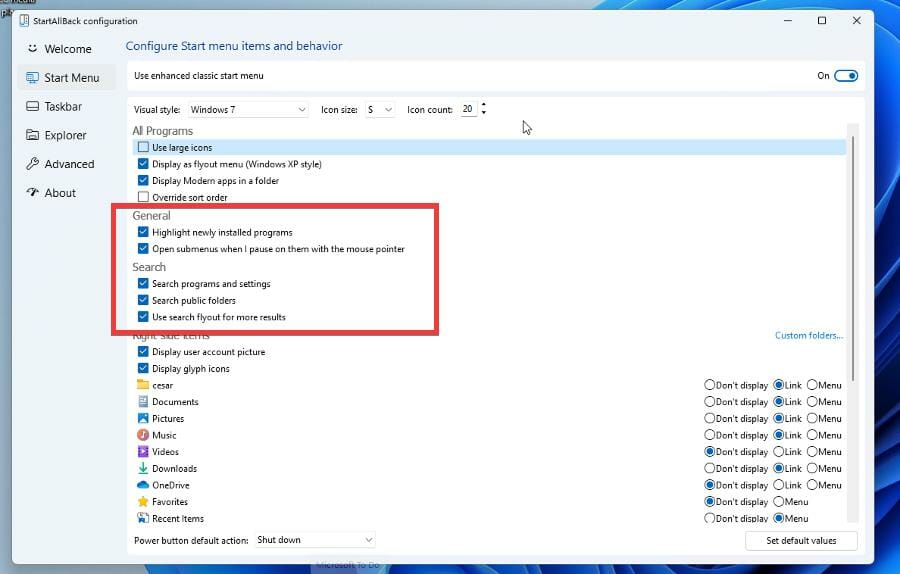
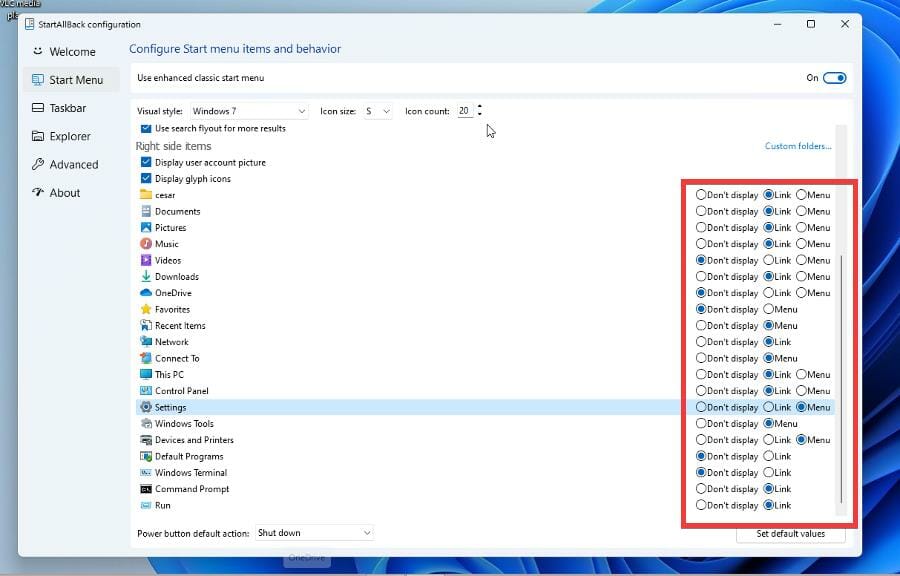
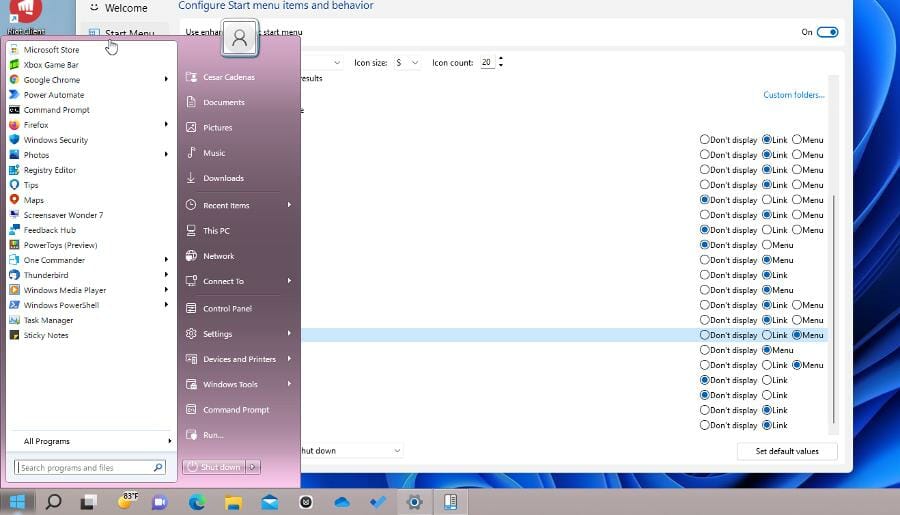
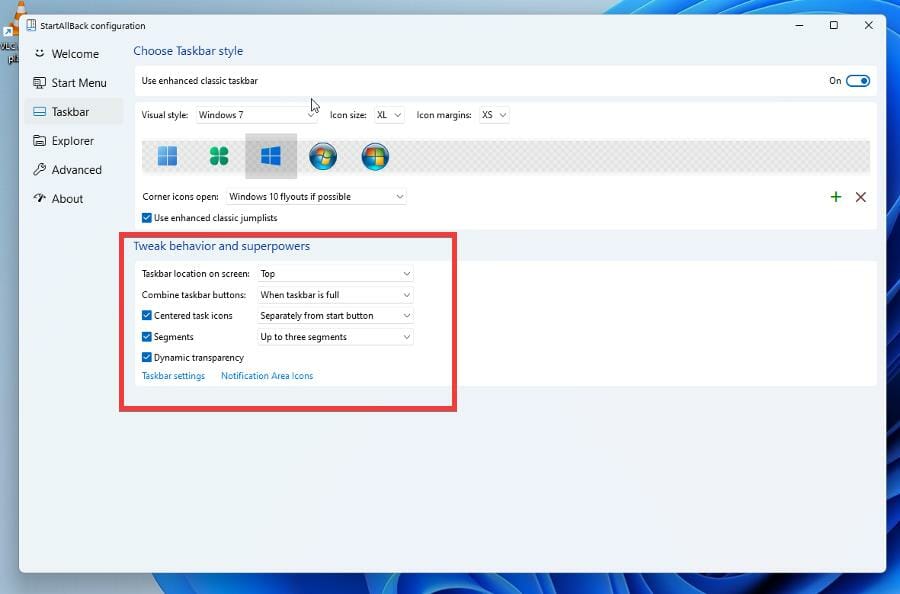
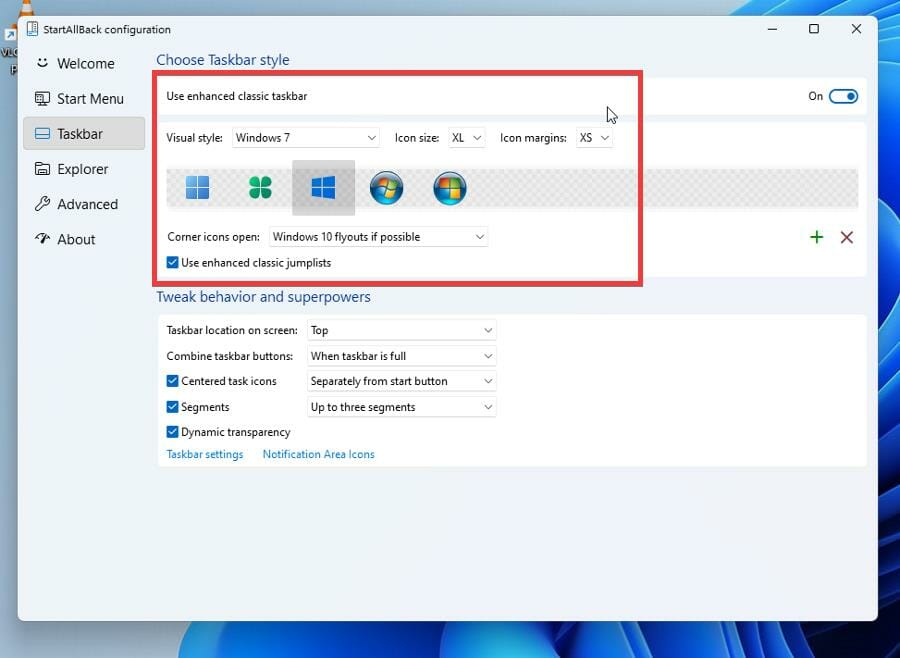
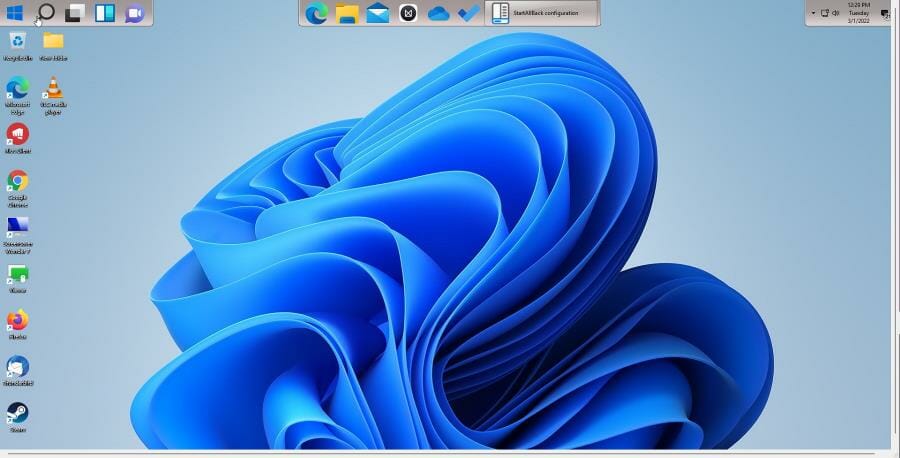
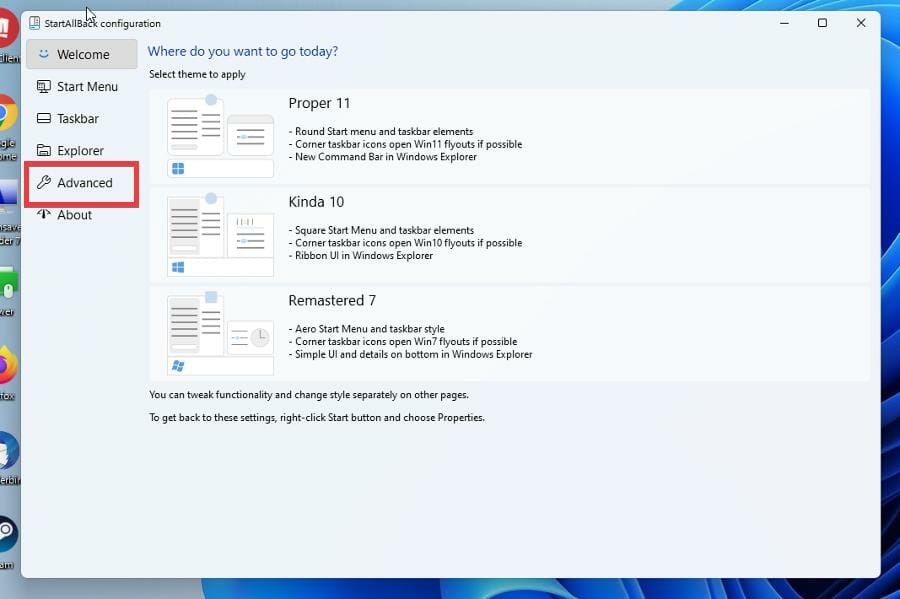
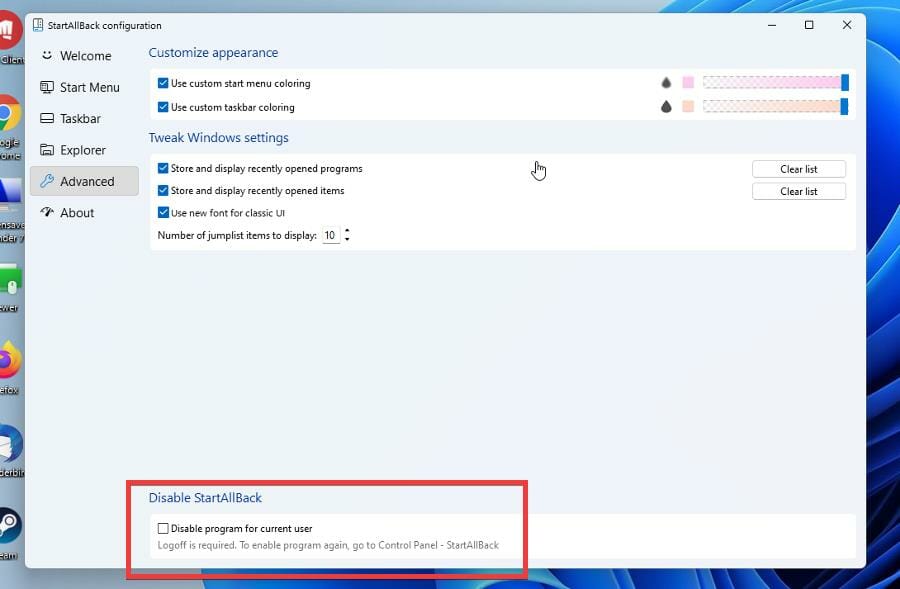
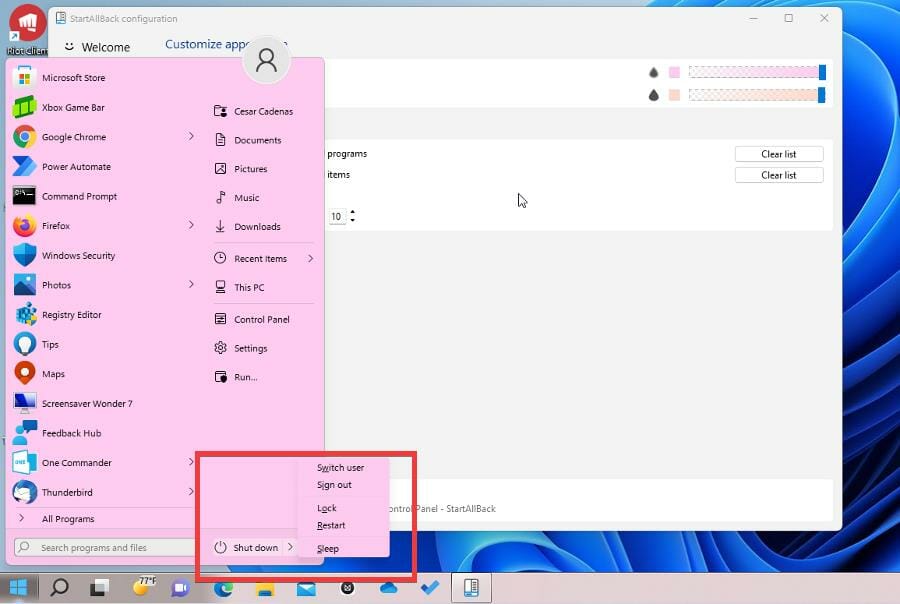
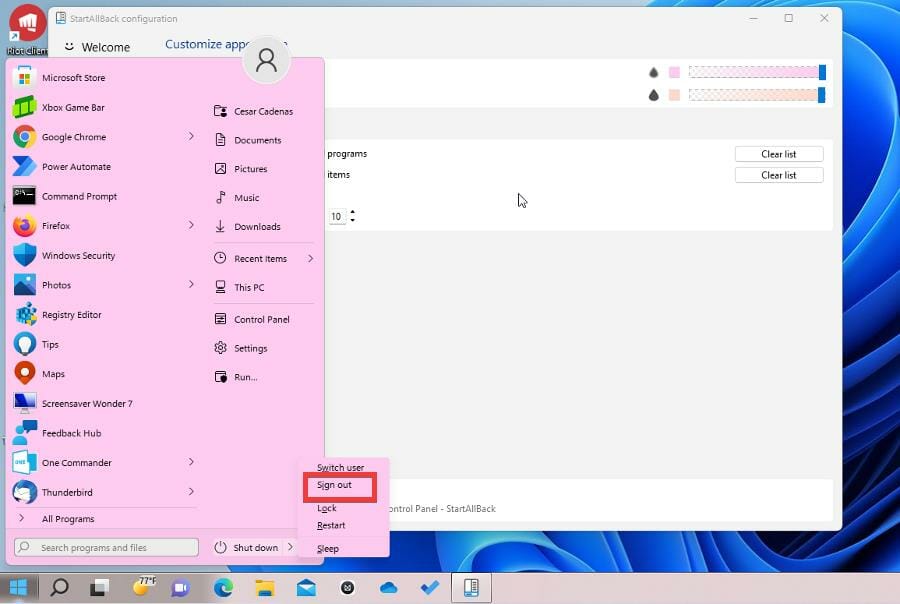
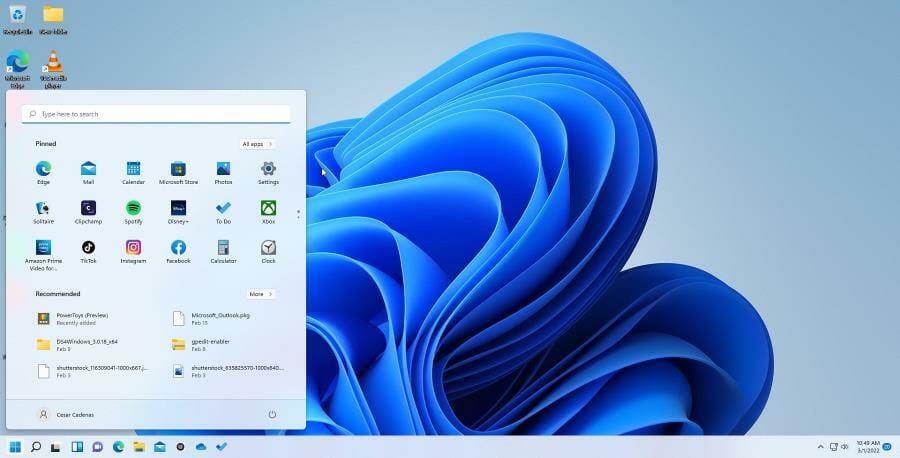
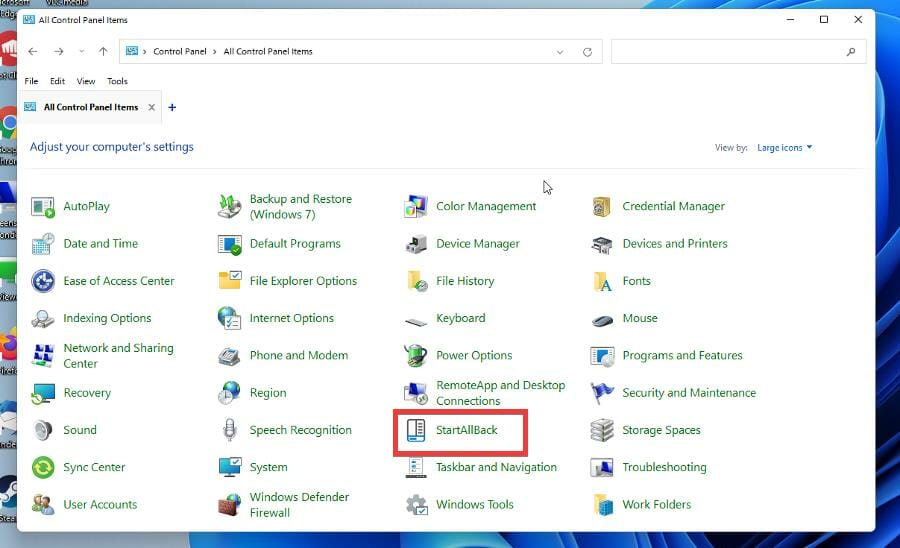
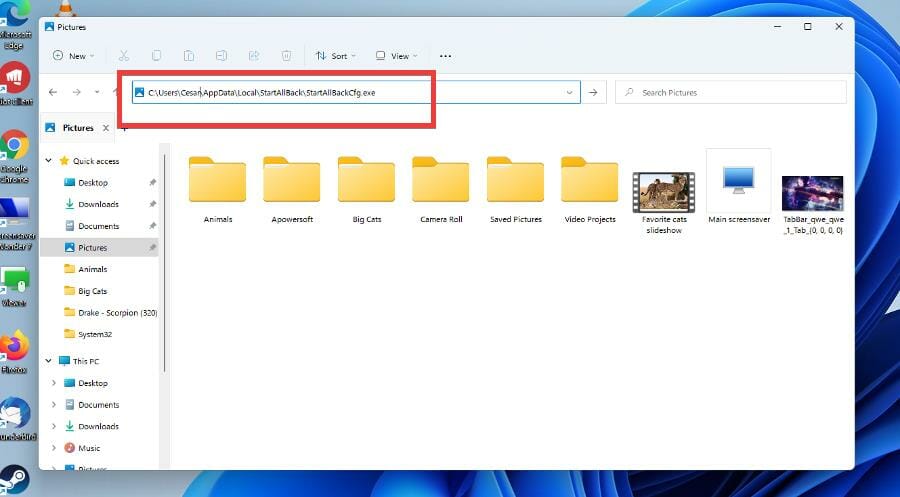
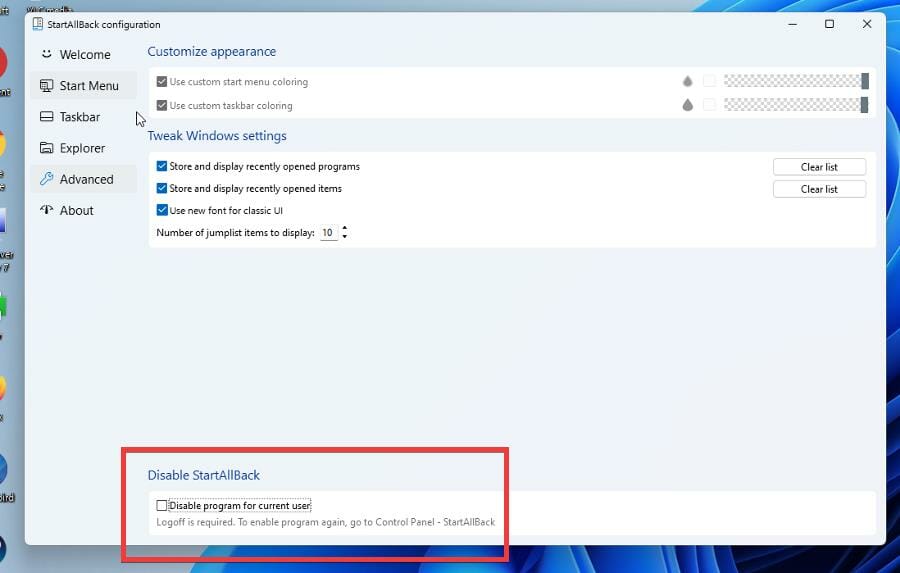
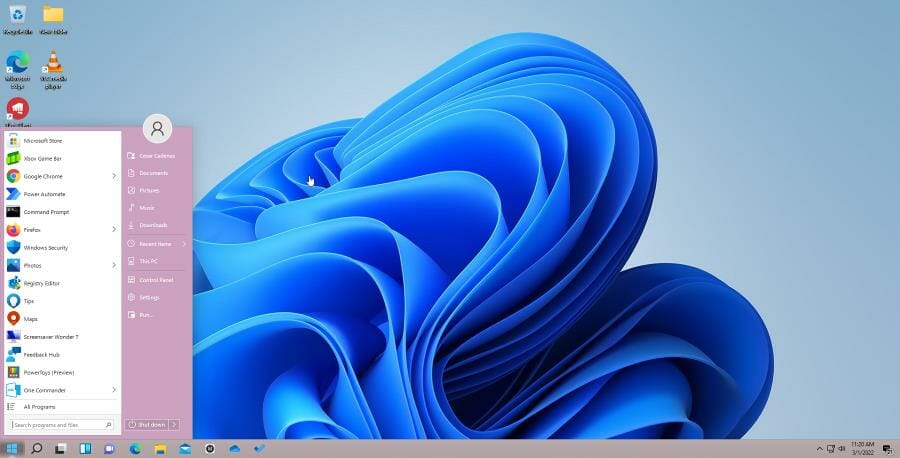
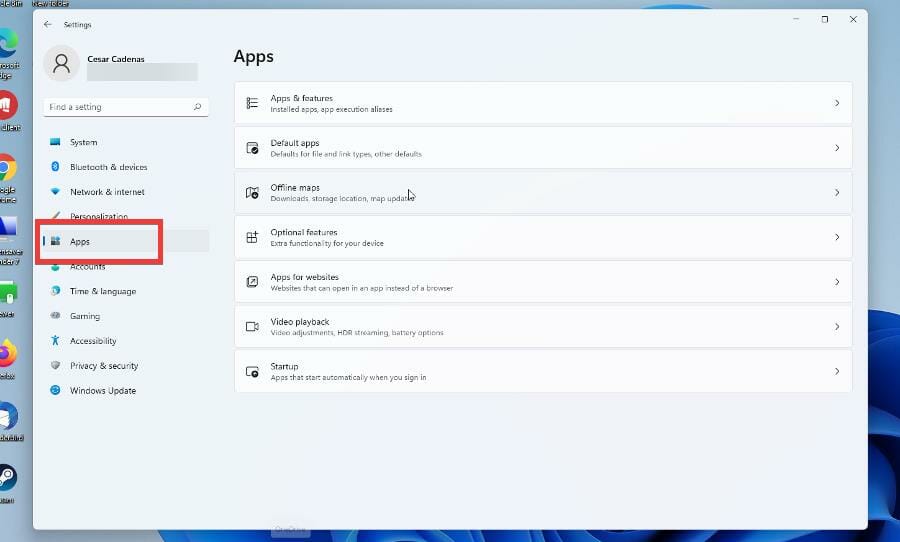
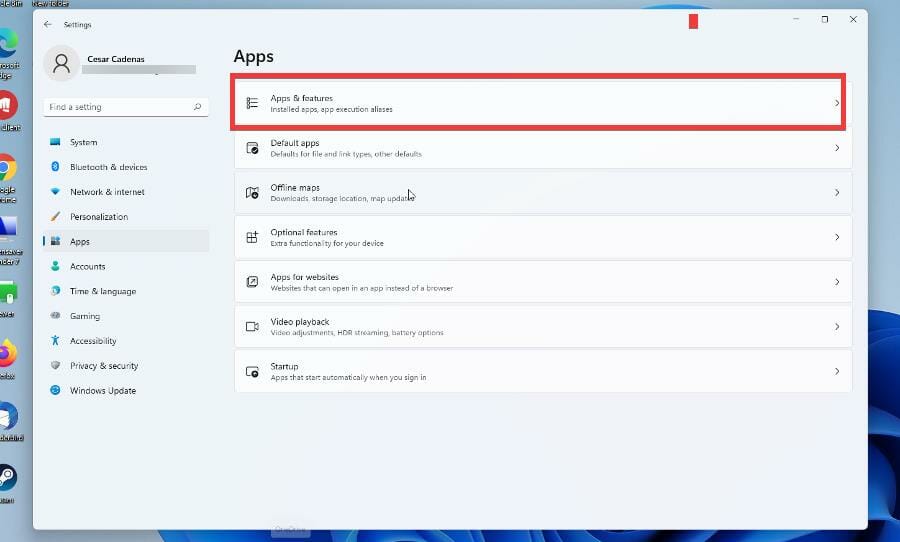
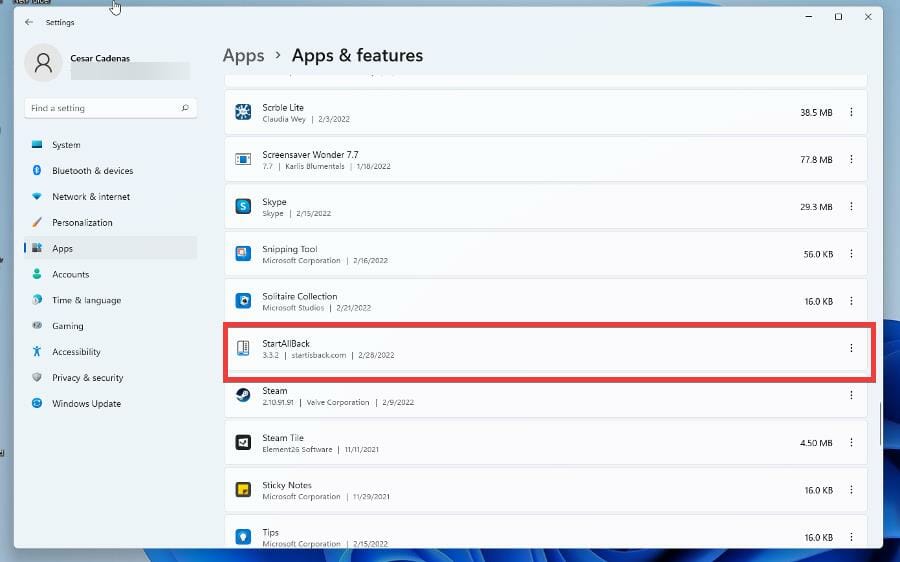
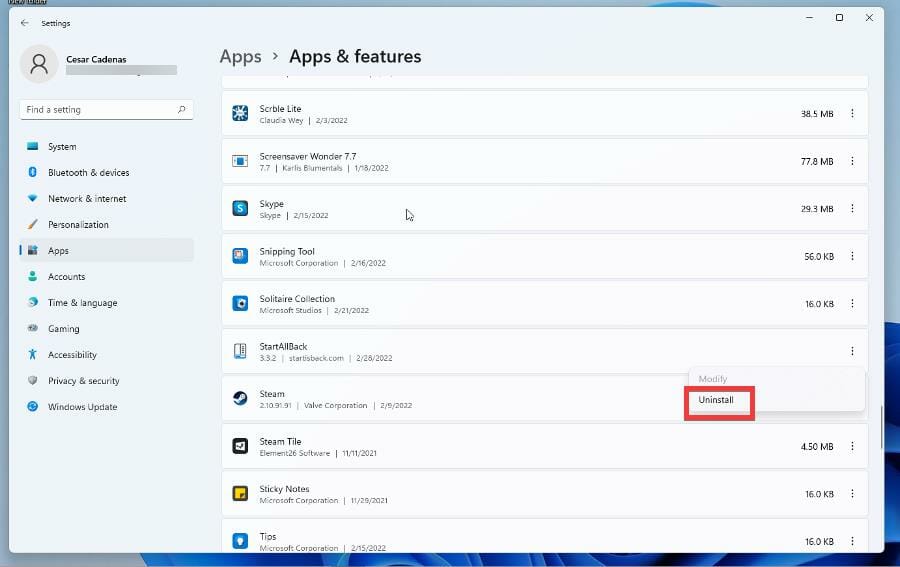
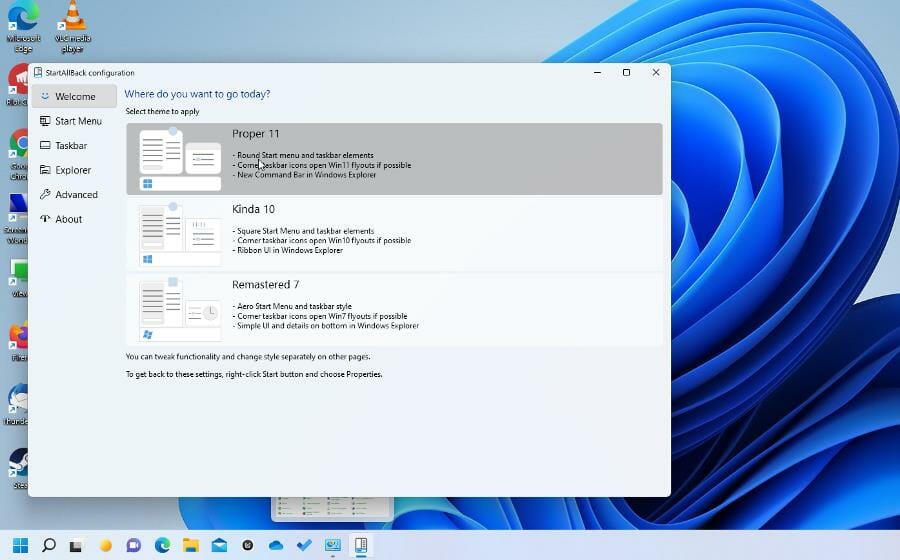

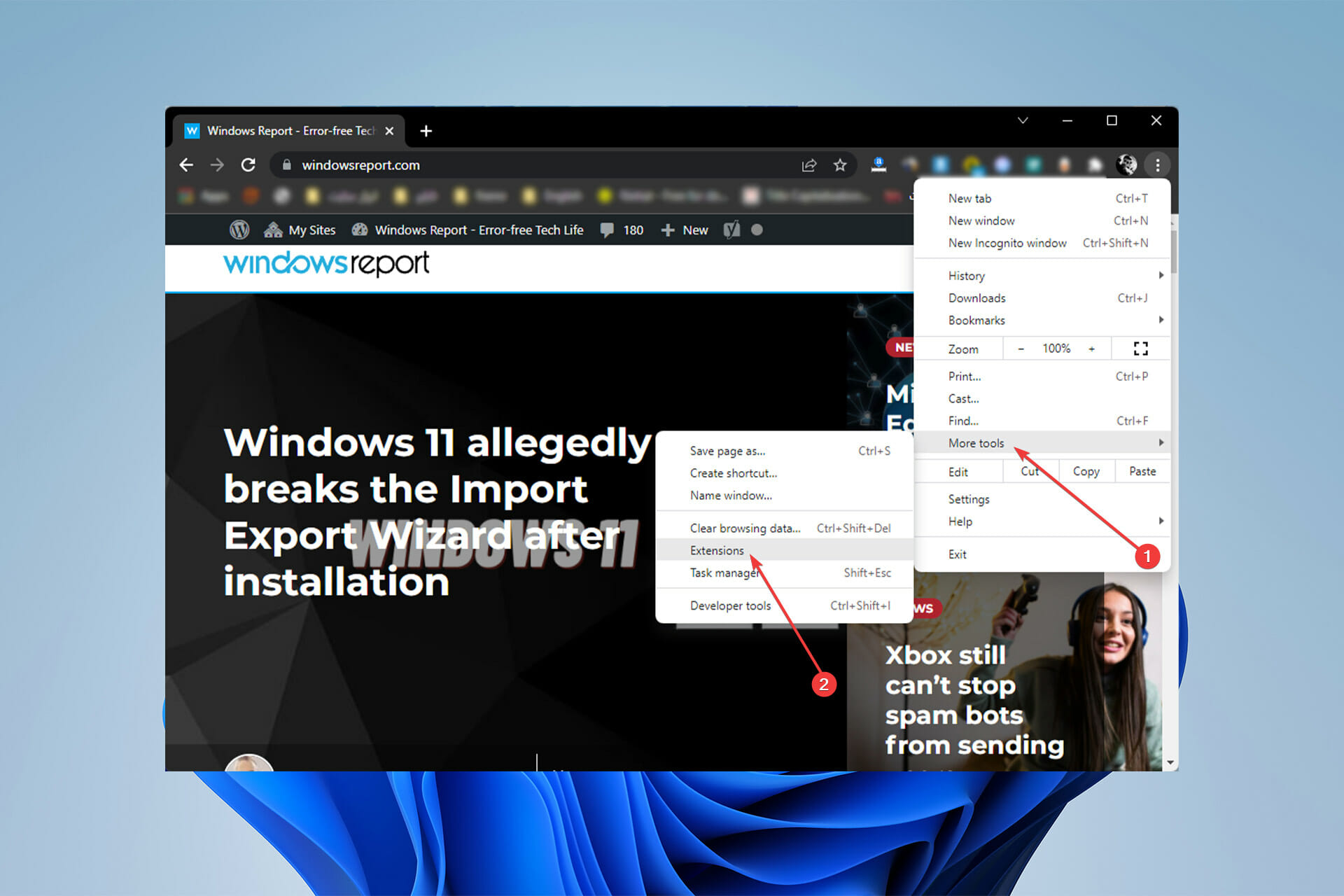


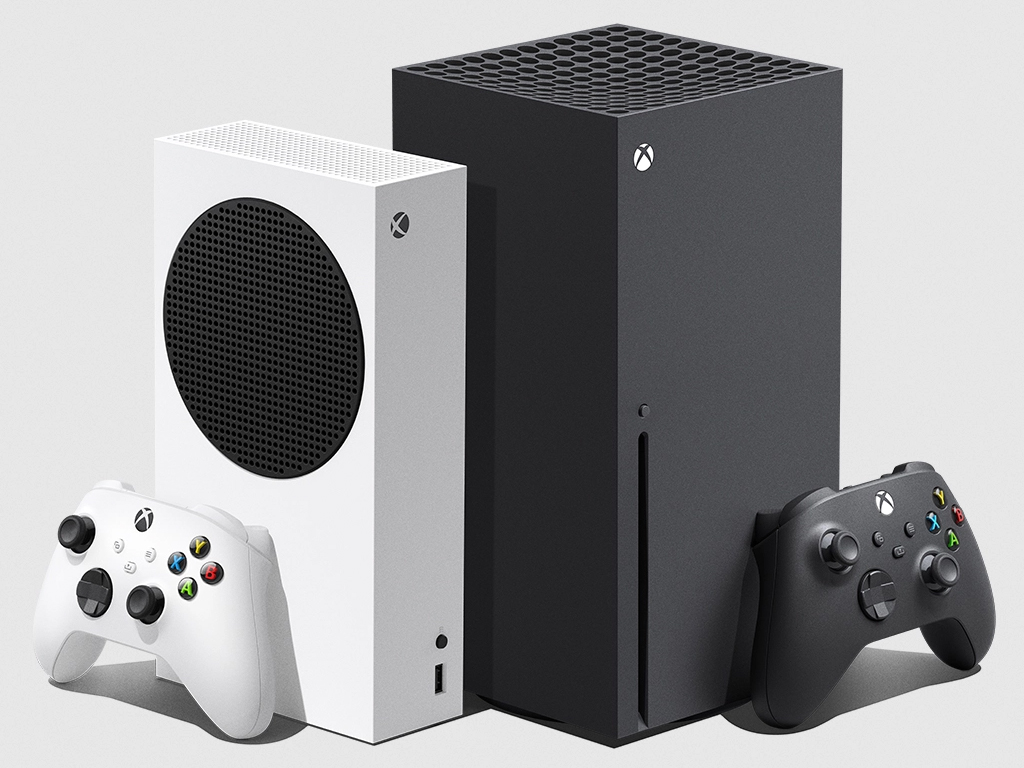

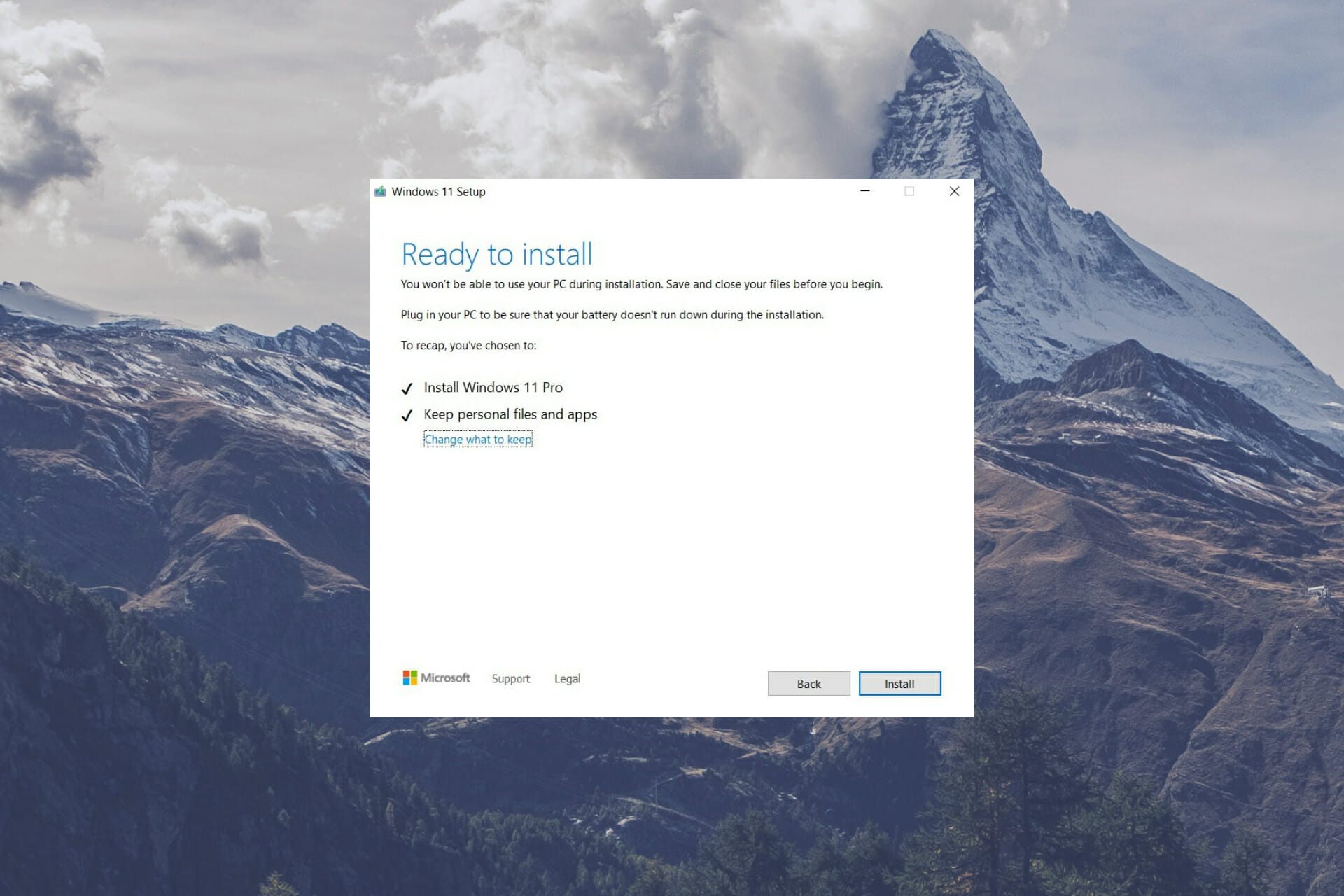


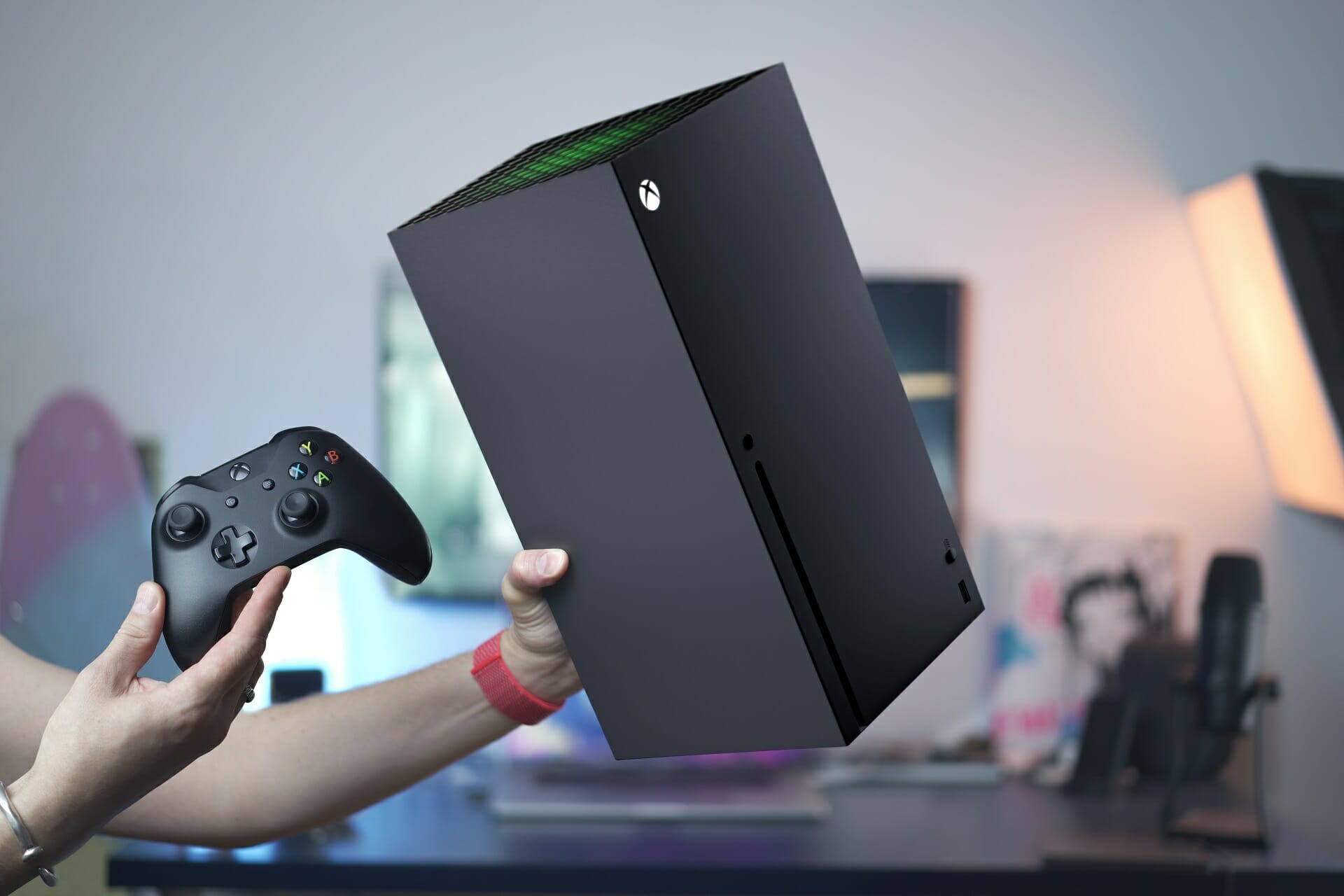


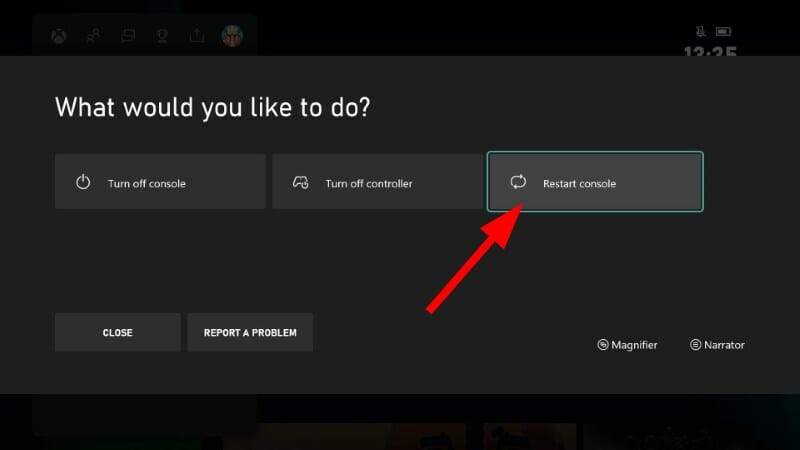


![Io.Netty.Channel.Abstractchannel [Minecraft]: Fix & Meaning](https://windowsreport.com/wp-content/uploads/2021/03/io.netty_.channel-Minecraft-error.jpg)






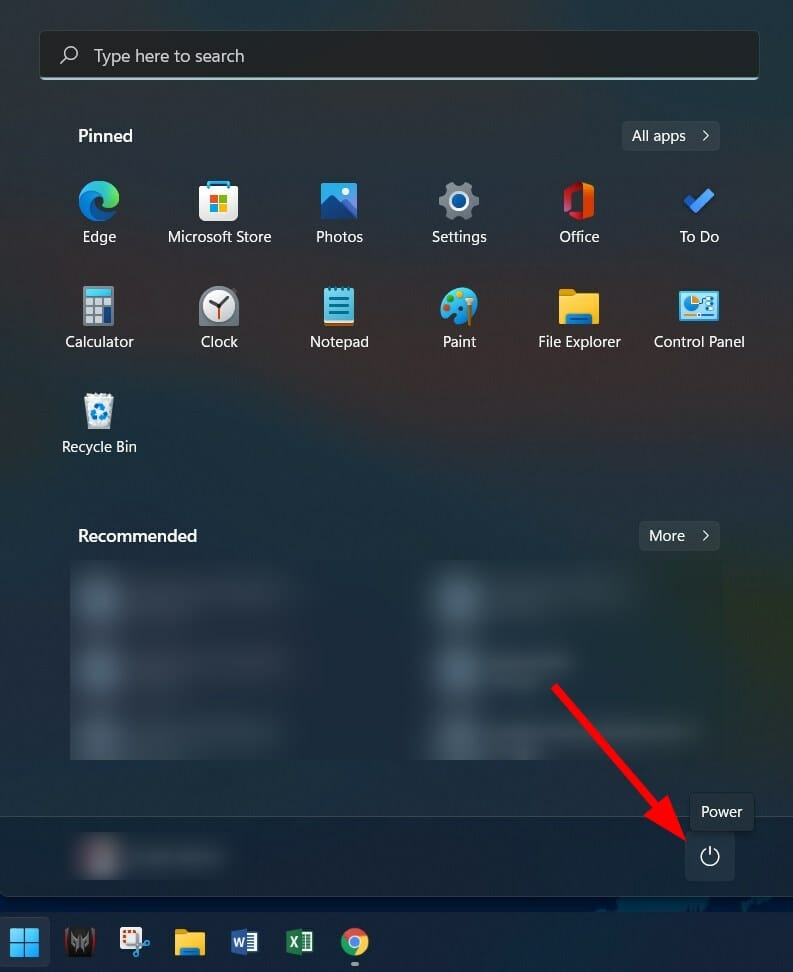
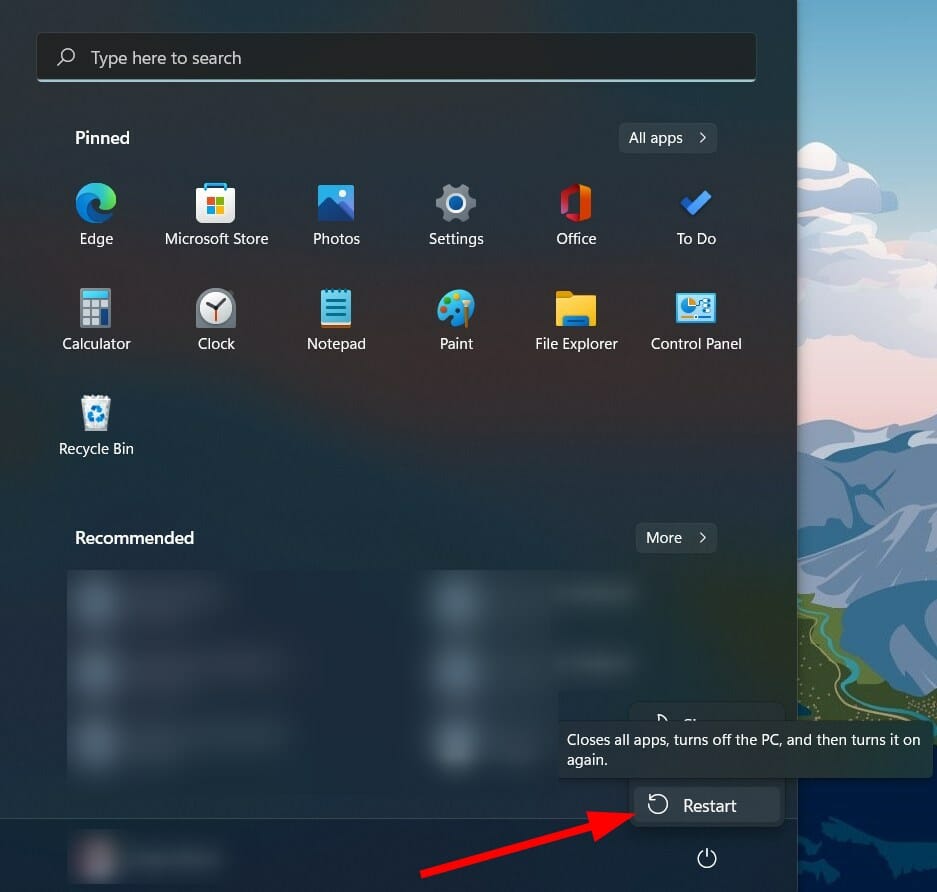


![Installed Steam DLC Does Not Work [Fast Fixes]](https://windowsreport.com/wp-content/uploads/2020/04/Steam-3.jpg)
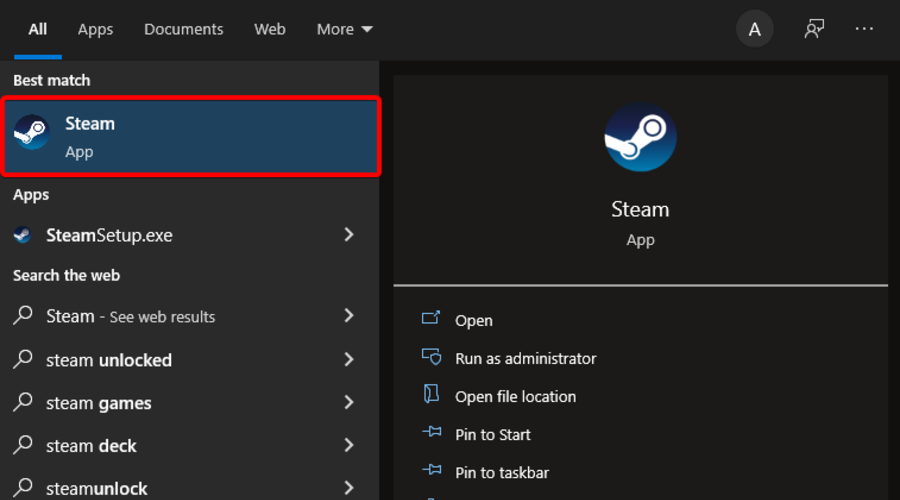
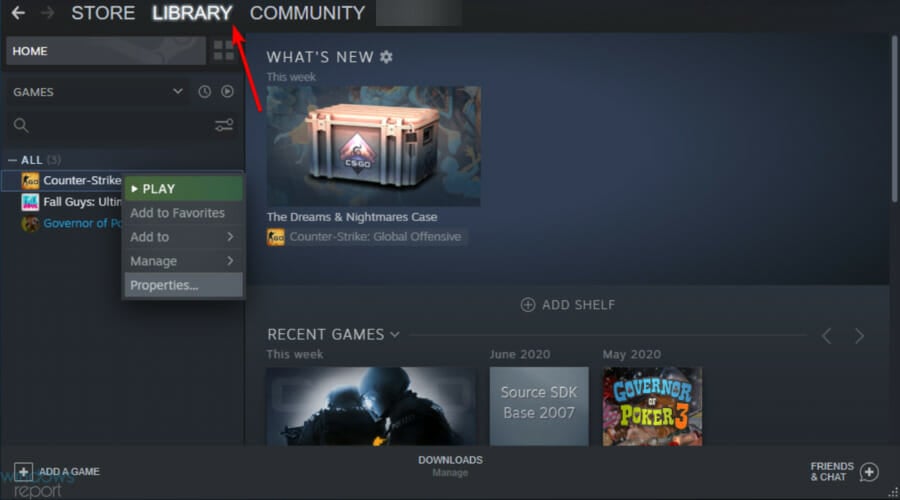
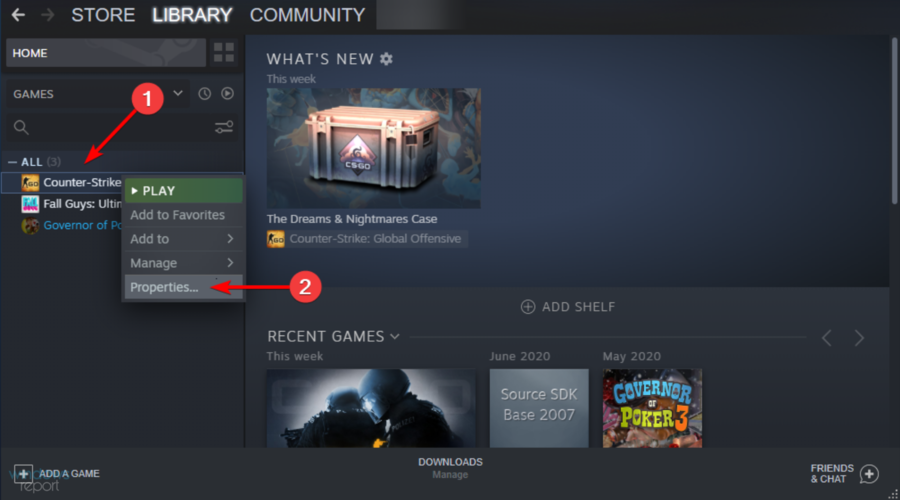


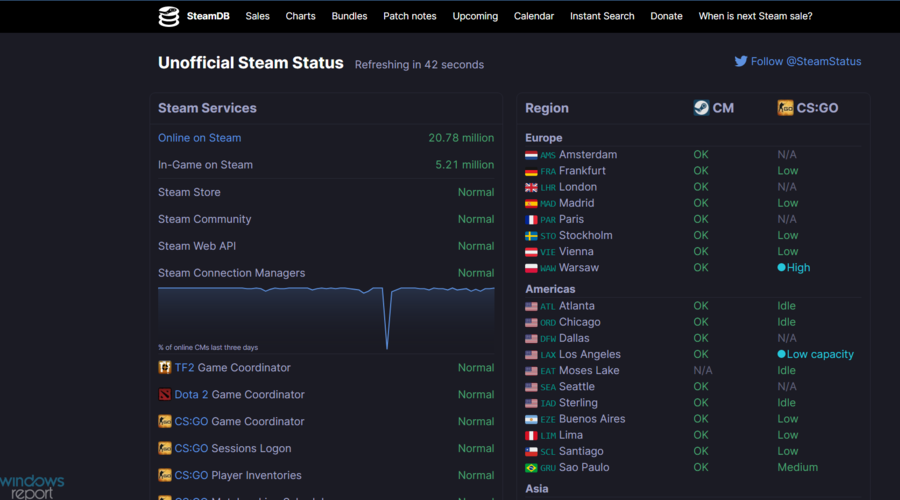
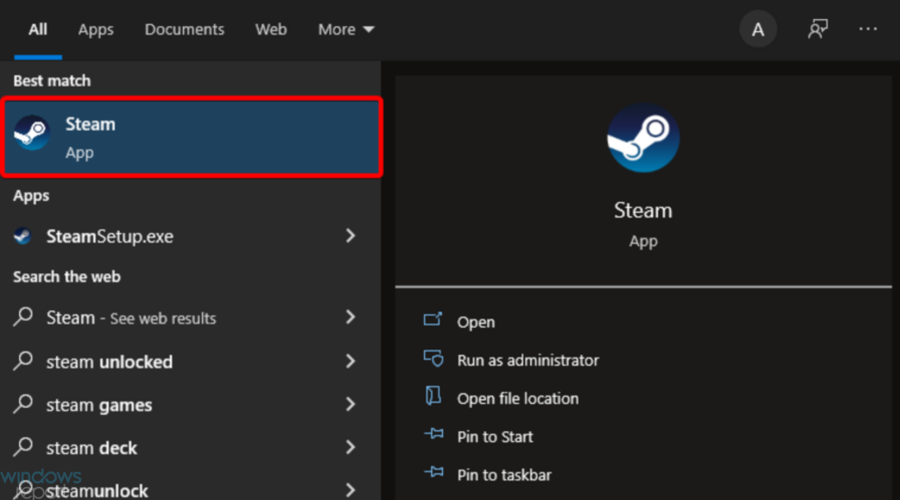
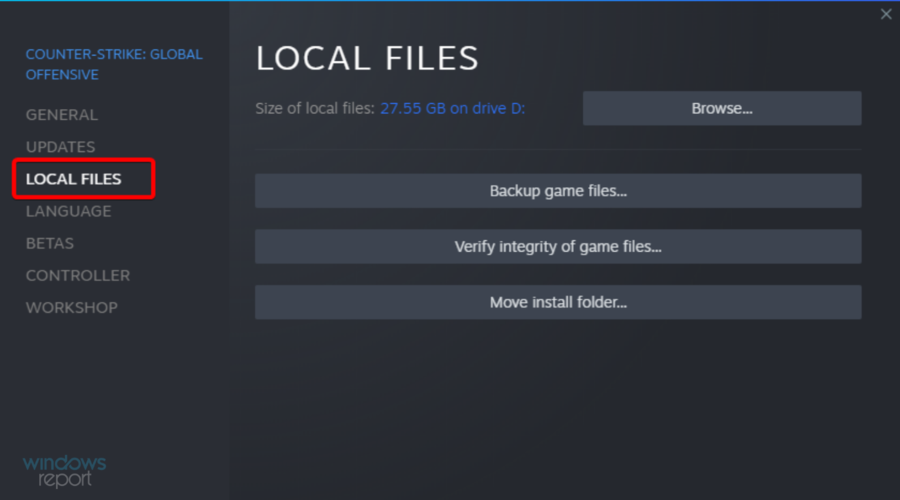
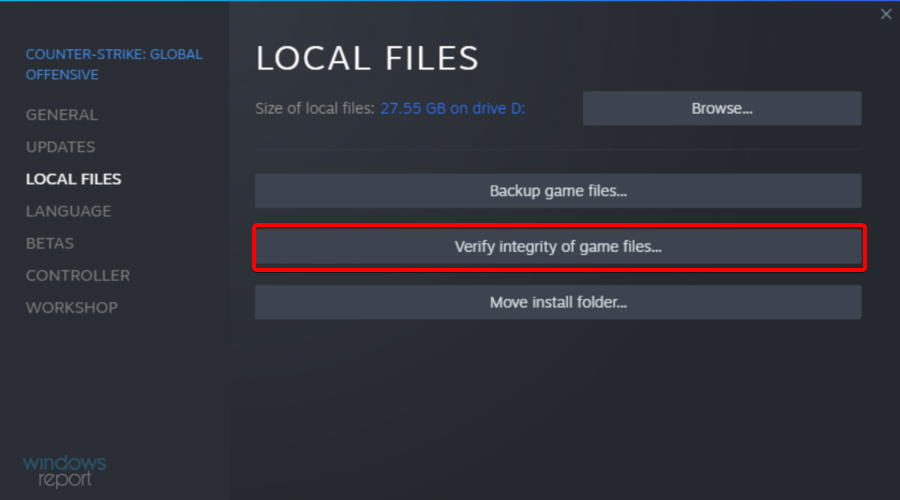

![HP Envy x360 touchscreen not working [Quick fix]](https://windowsreport.com/wp-content/uploads/2022/03/touchscreen.jpg)


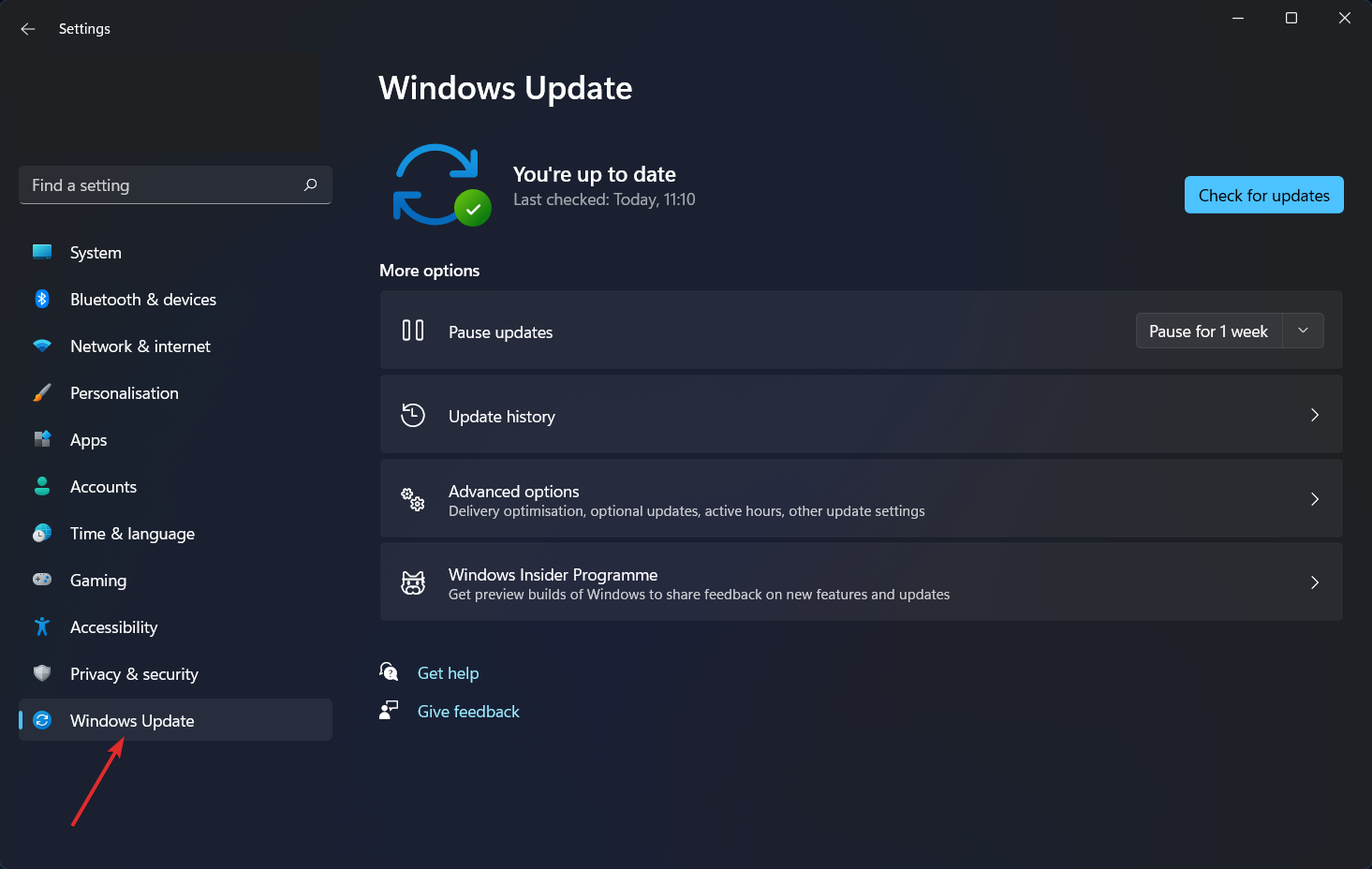
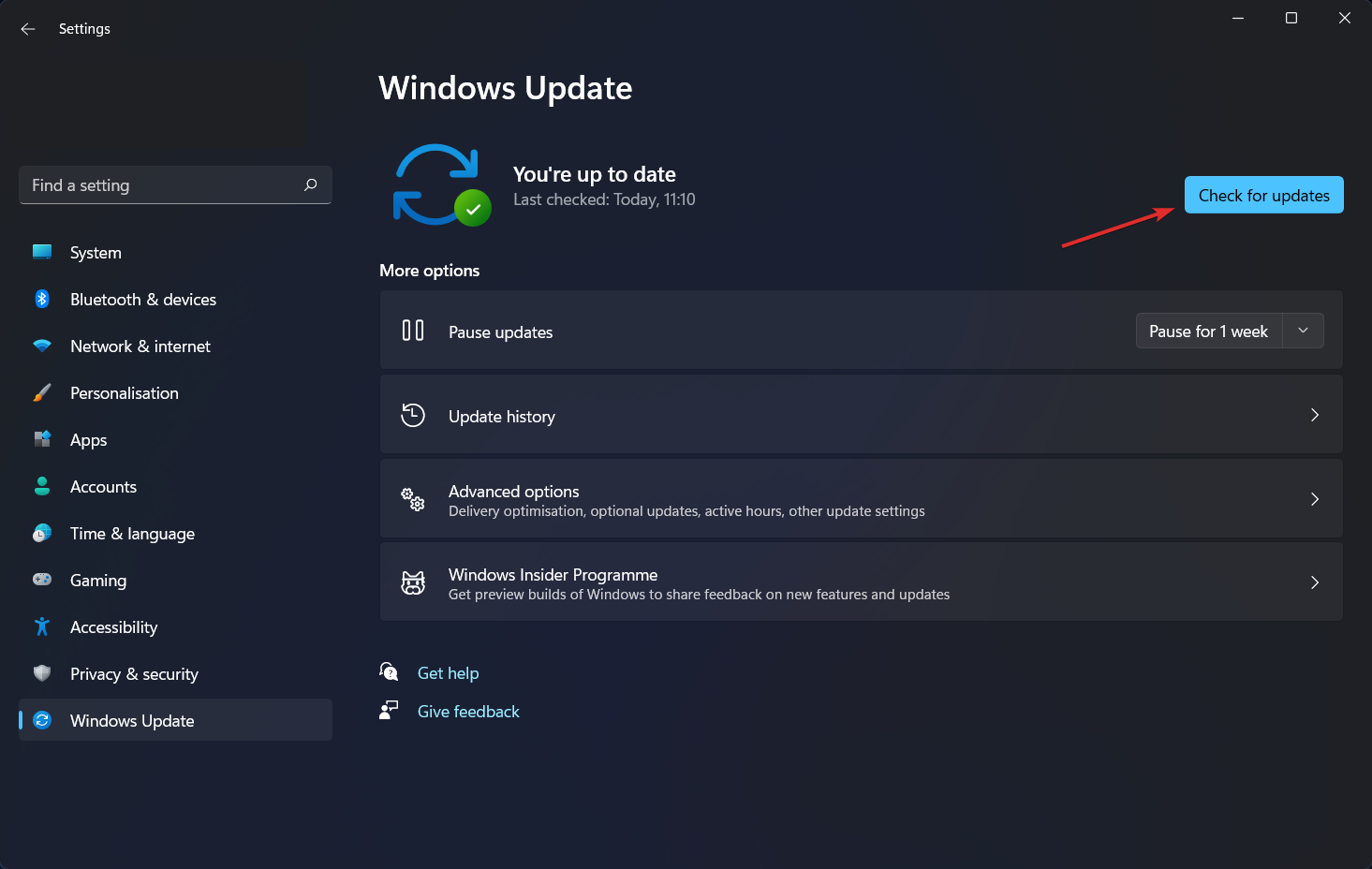
![Fix: This driver can’t release to failure [Full Guide]](https://windowsreport.com/wp-content/uploads/2020/03/Motherboard.jpg)
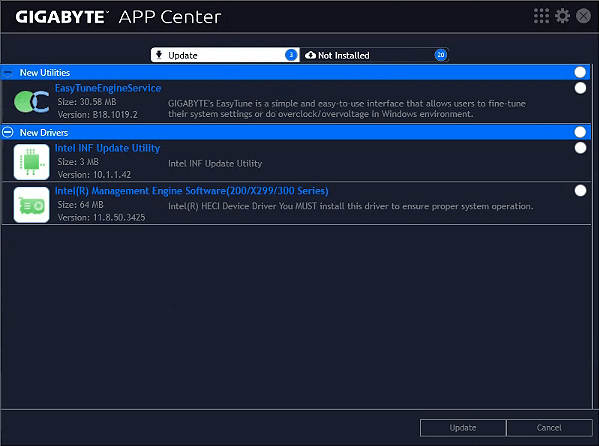
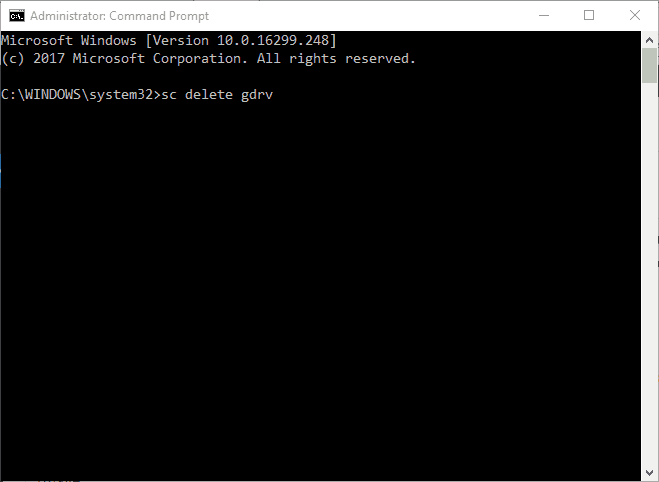
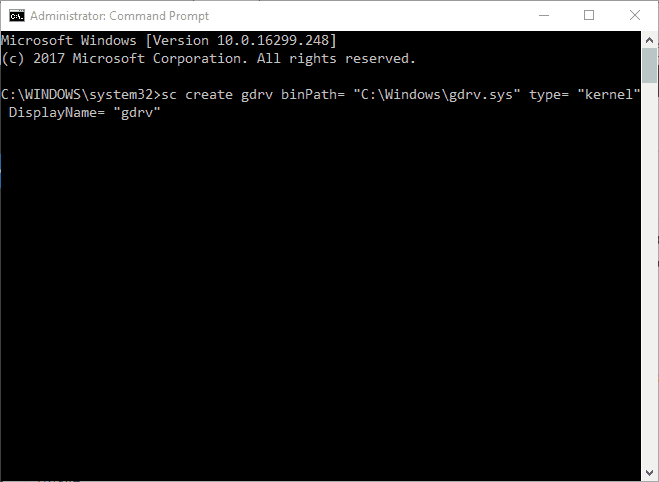

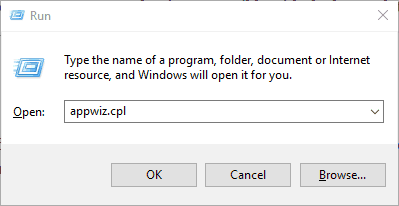
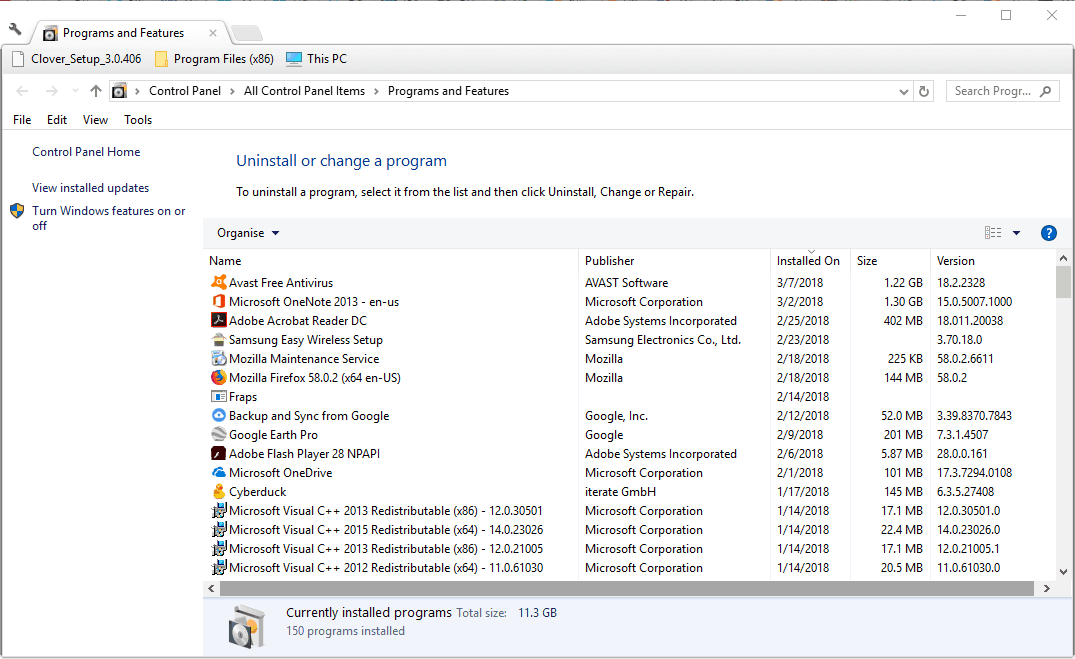
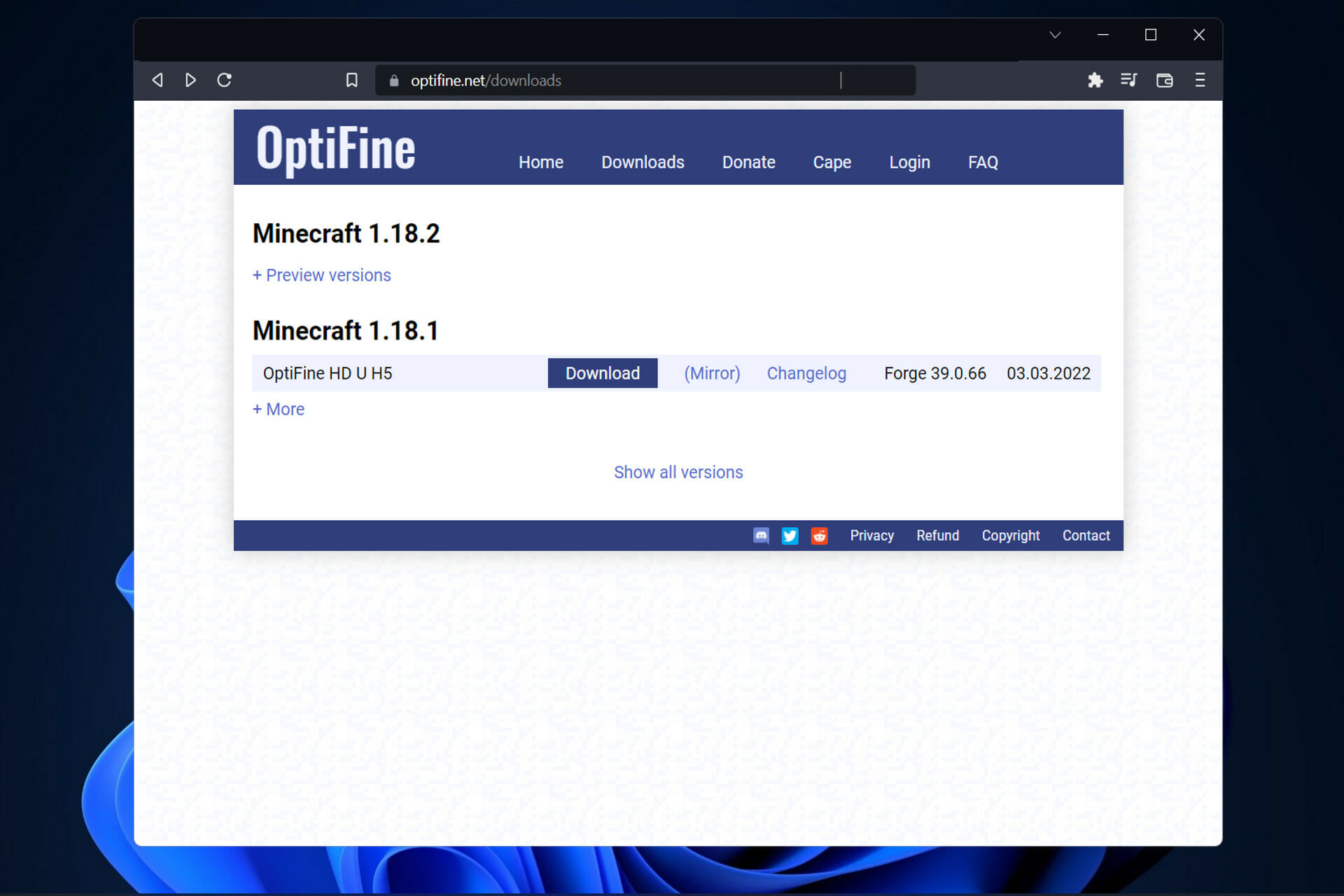
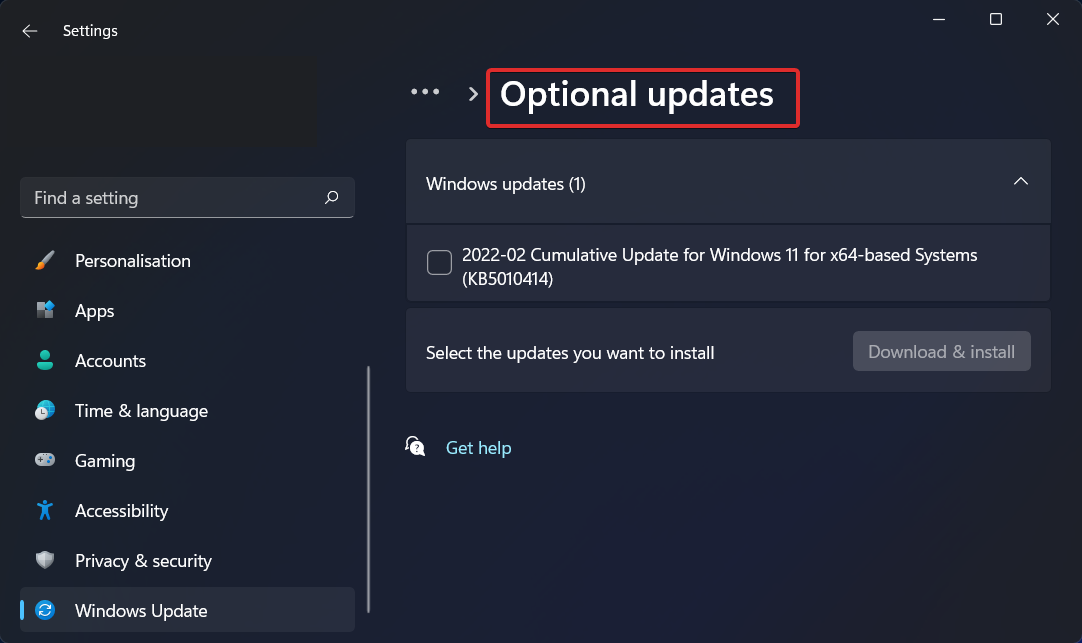


![FIX: Steam does not remember my password [7 solutions]](https://windowsreport.com/wp-content/uploads/2022/03/Untitled-design-2022-03-04T212834.299-1-1.jpg)
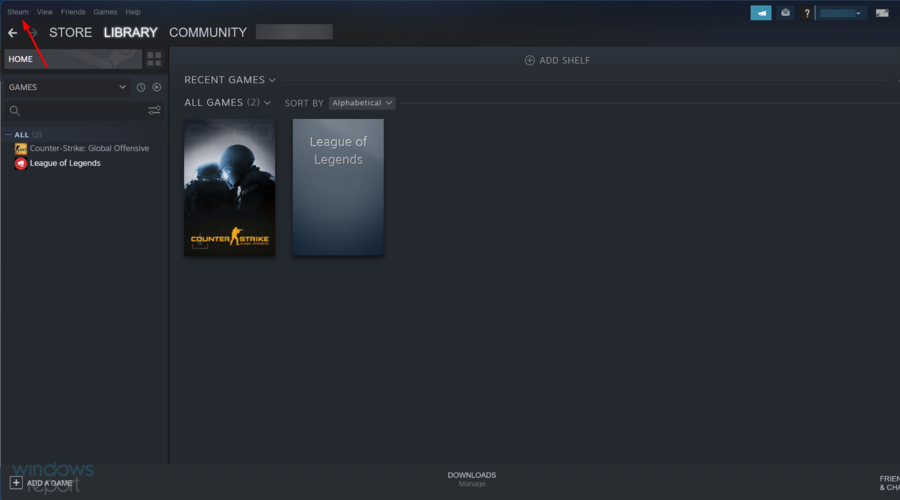
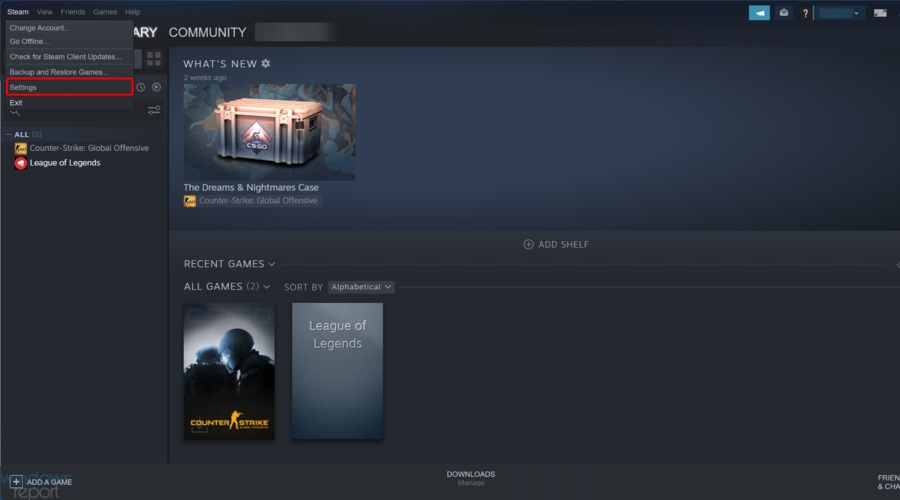

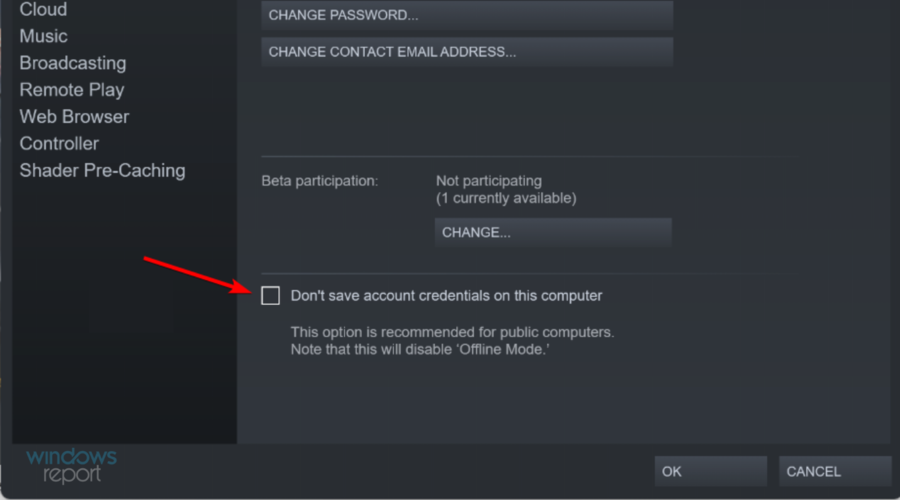
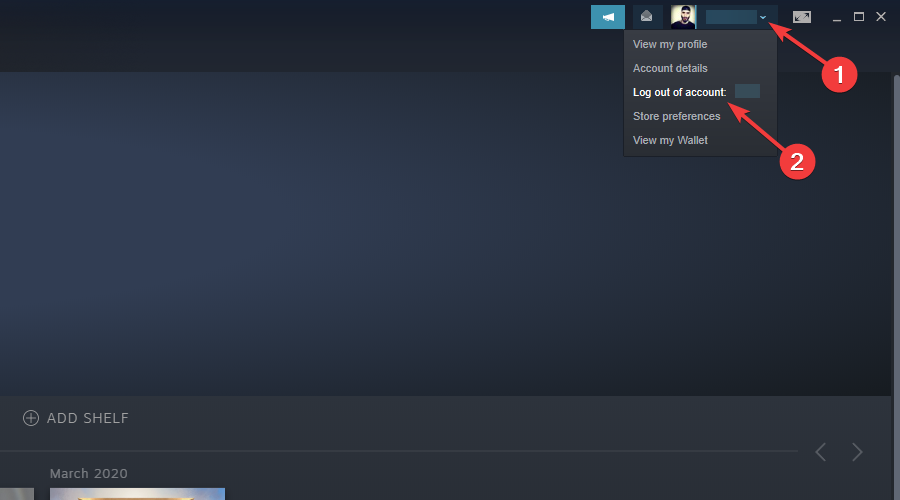
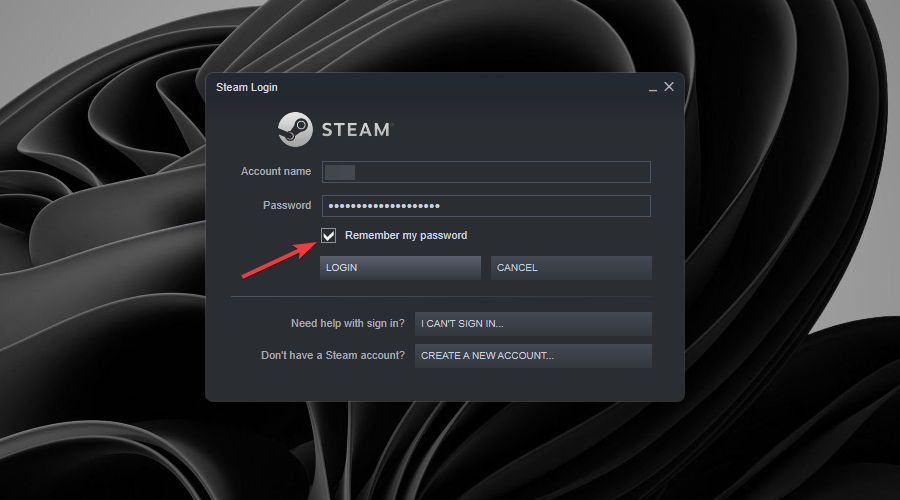
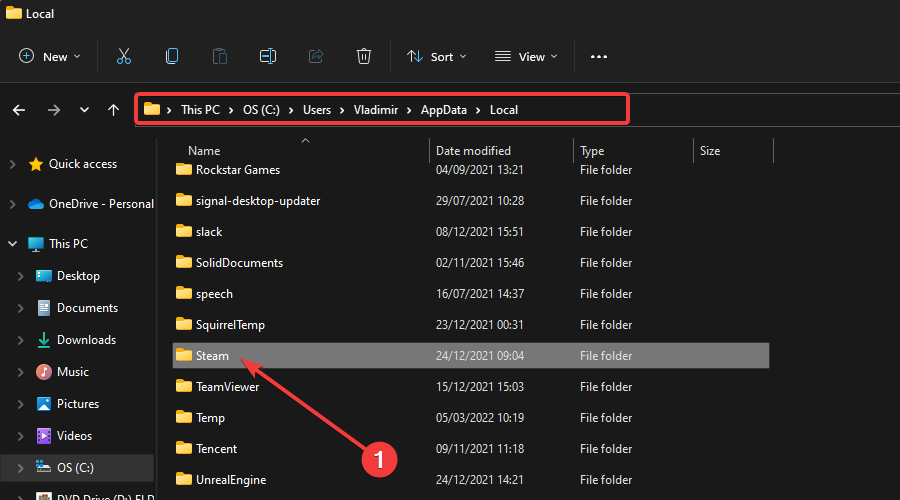
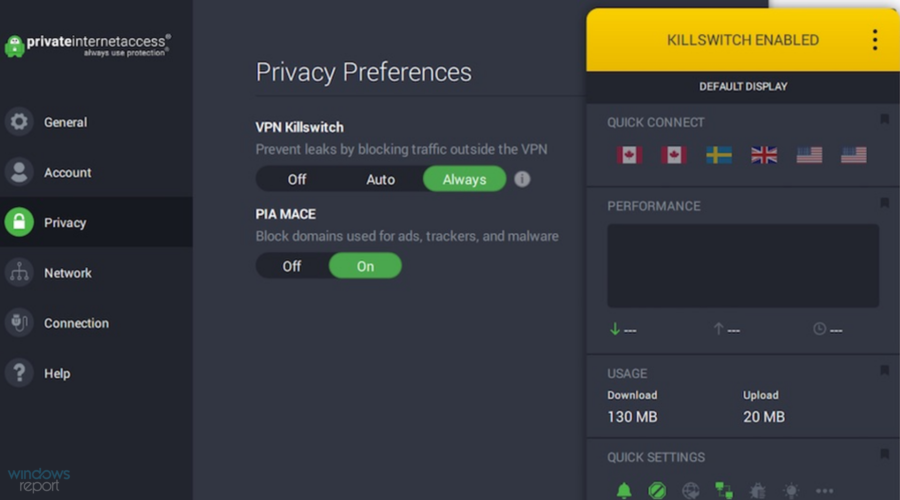

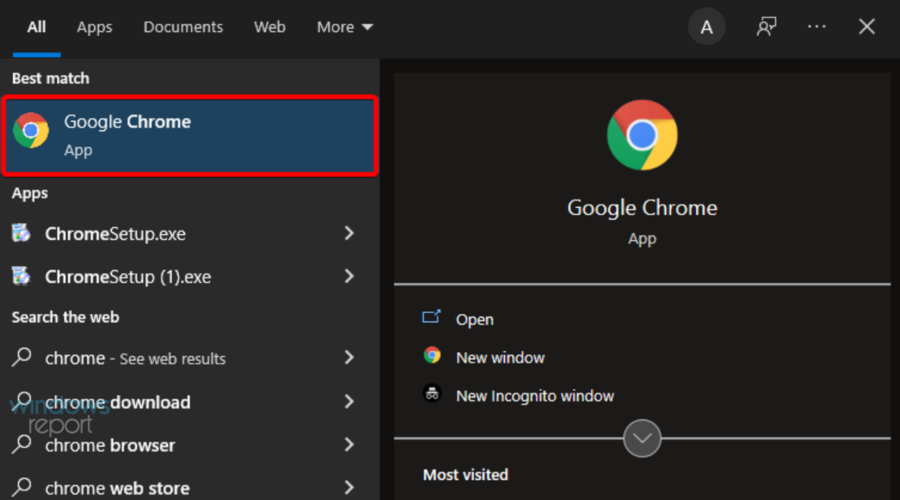
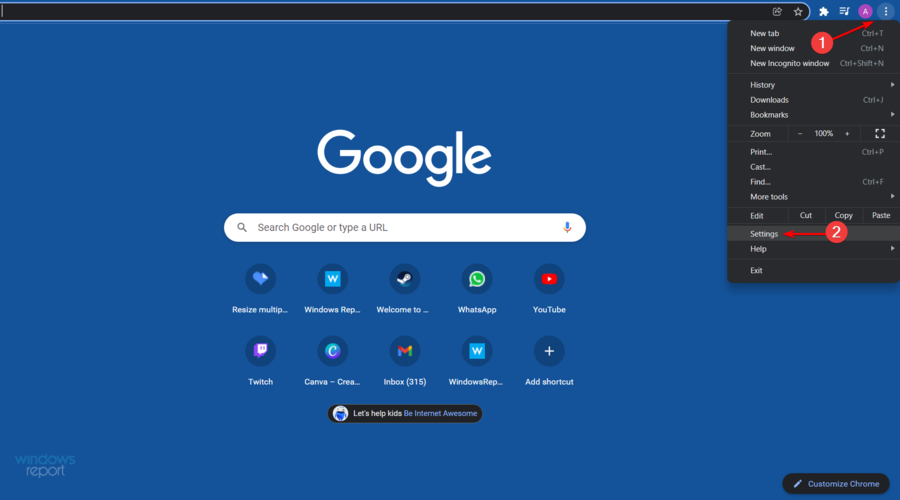
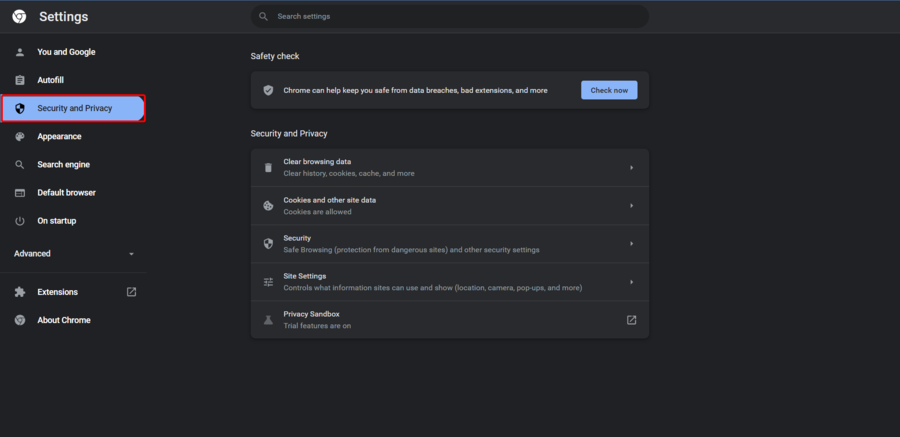
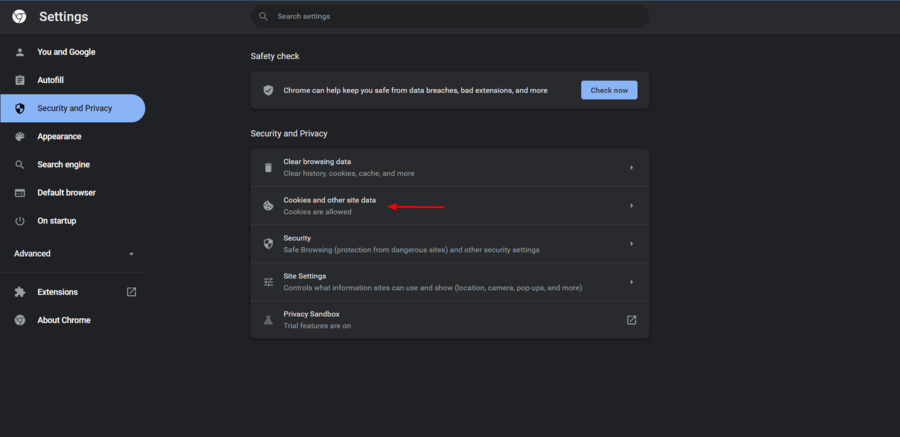
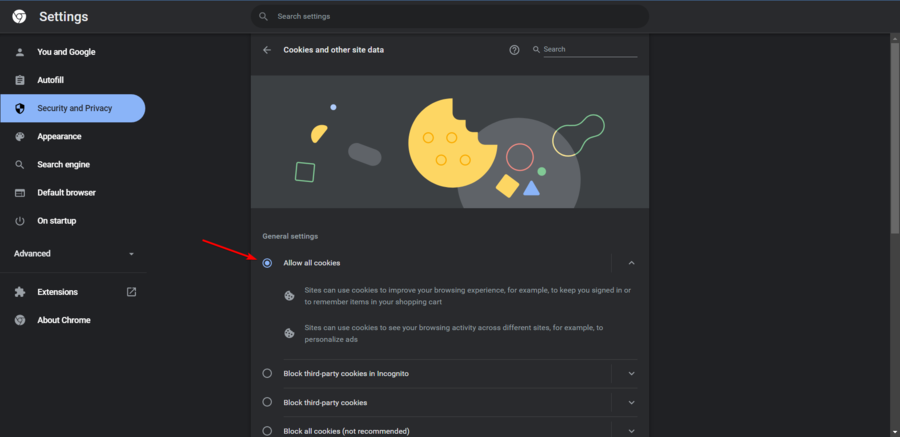


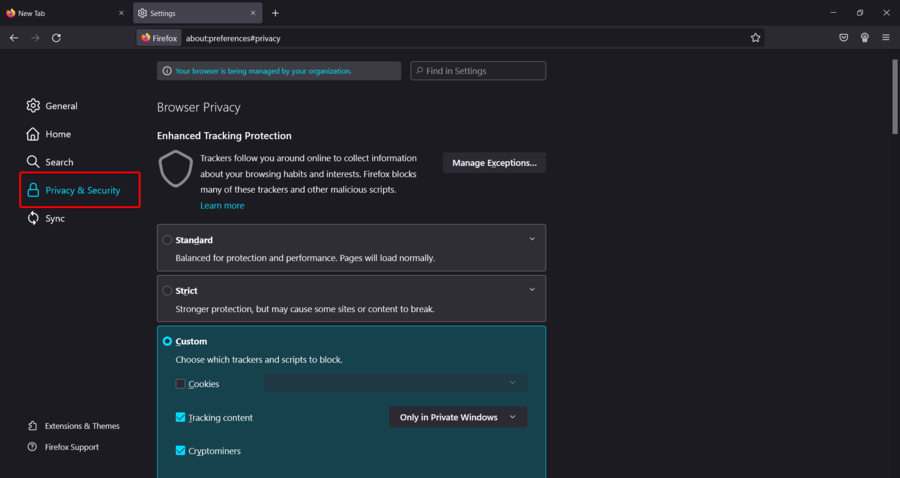
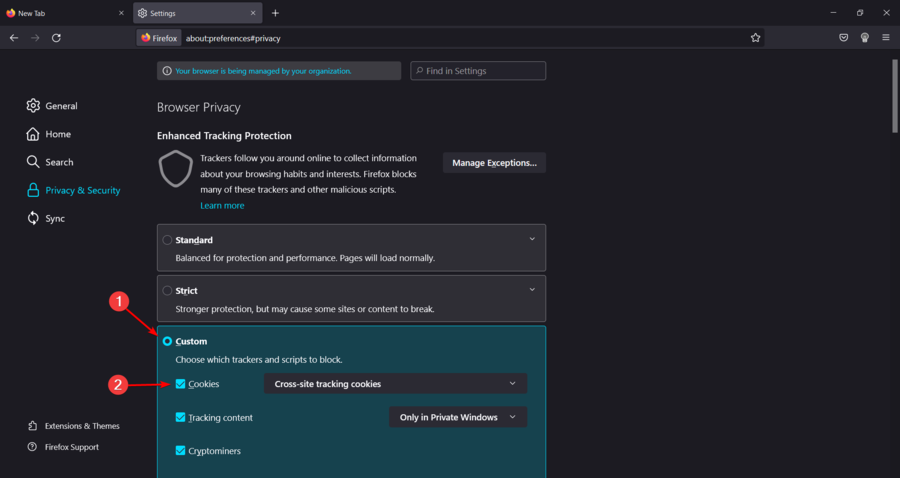


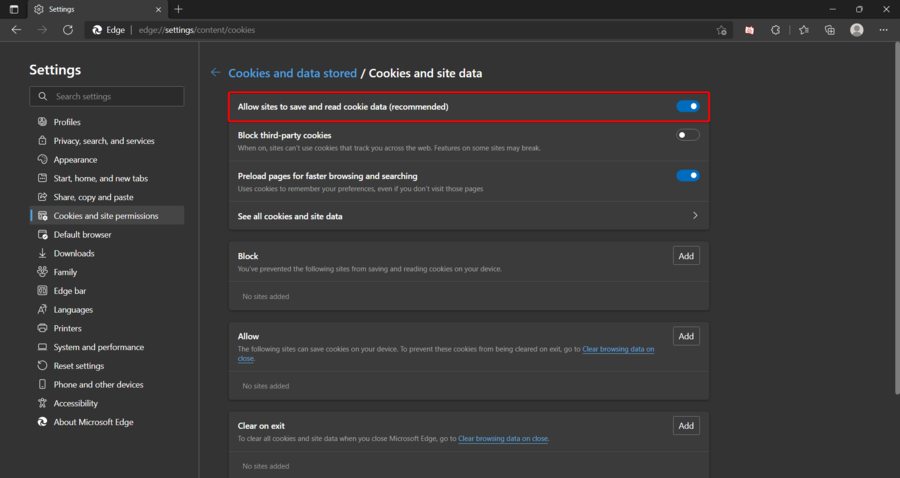
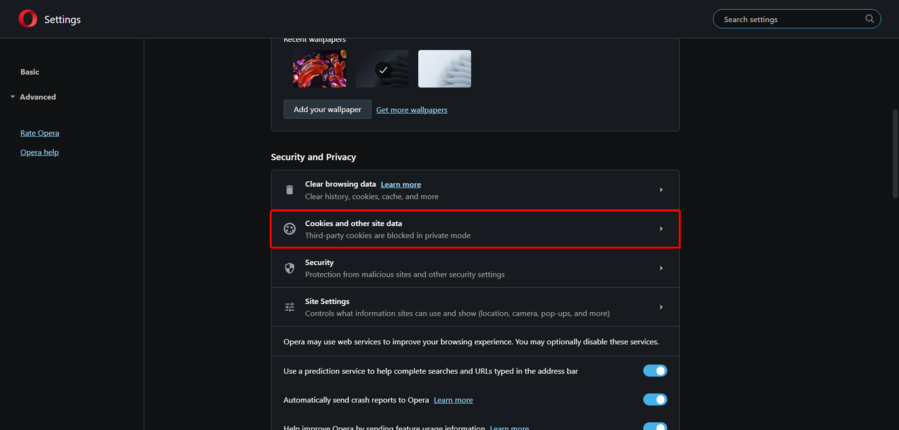
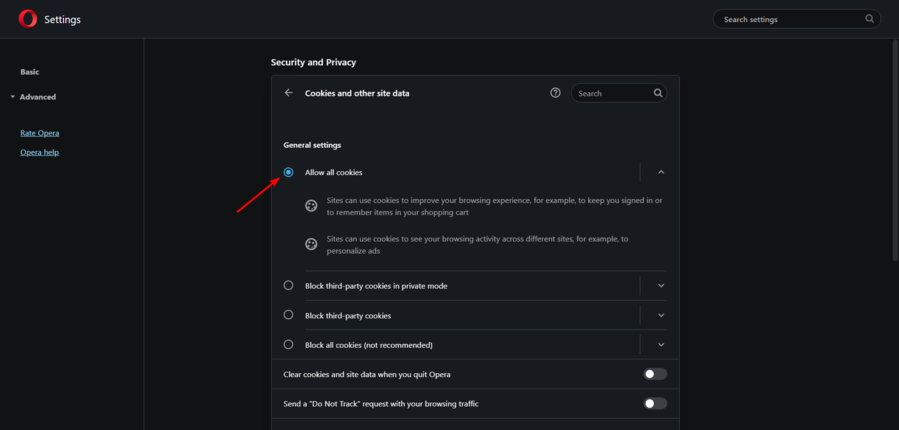


![Steam doesn’t show what game I’m playing [Quick fix]](https://windowsreport.com/wp-content/uploads/2022/02/Untitled-design-2022-02-09T211932.534-1-1.jpg)
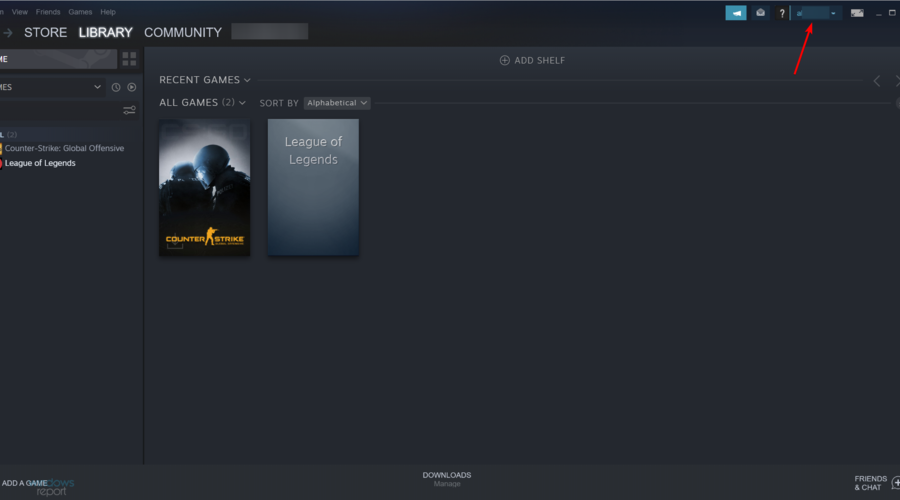
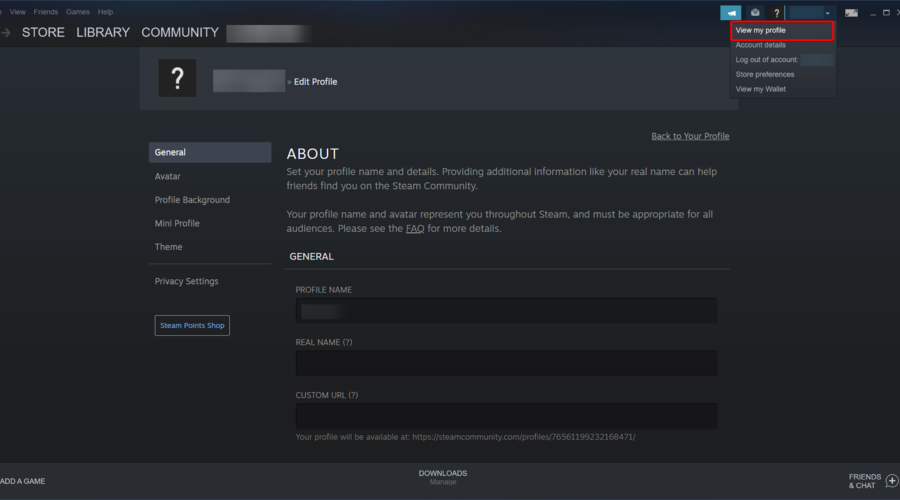
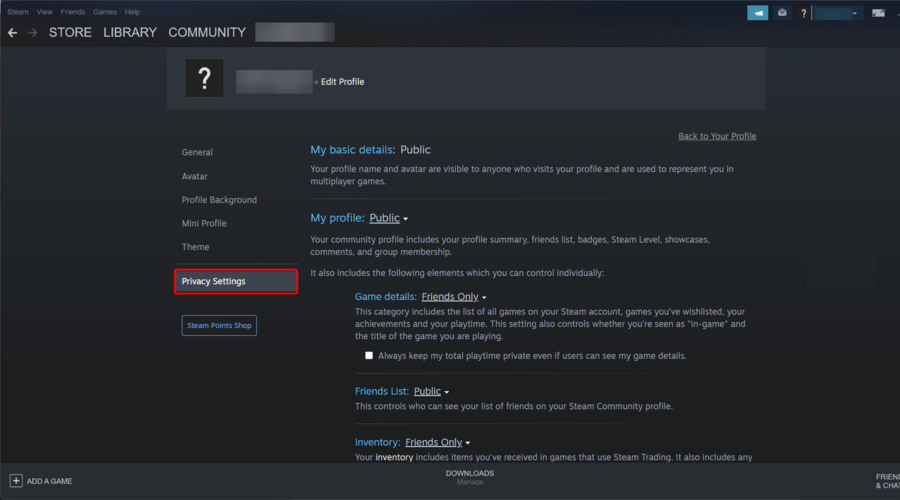
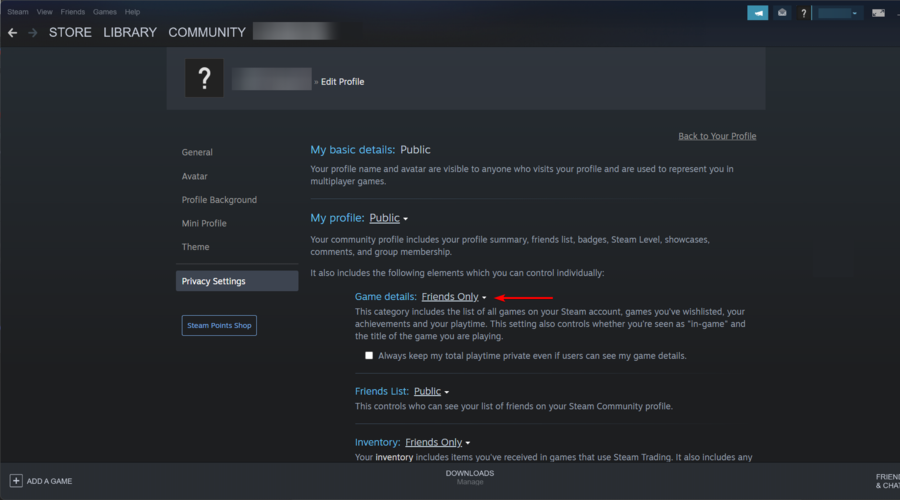


![Steam Link not working [Easy Fix]](https://windowsreport.com/wp-content/uploads/2019/08/Steam-link.jpg)

![Lenovo IdeaPad touchpad not working [Quick fix]](https://windowsreport.com/wp-content/uploads/2022/03/touchpad.jpg)
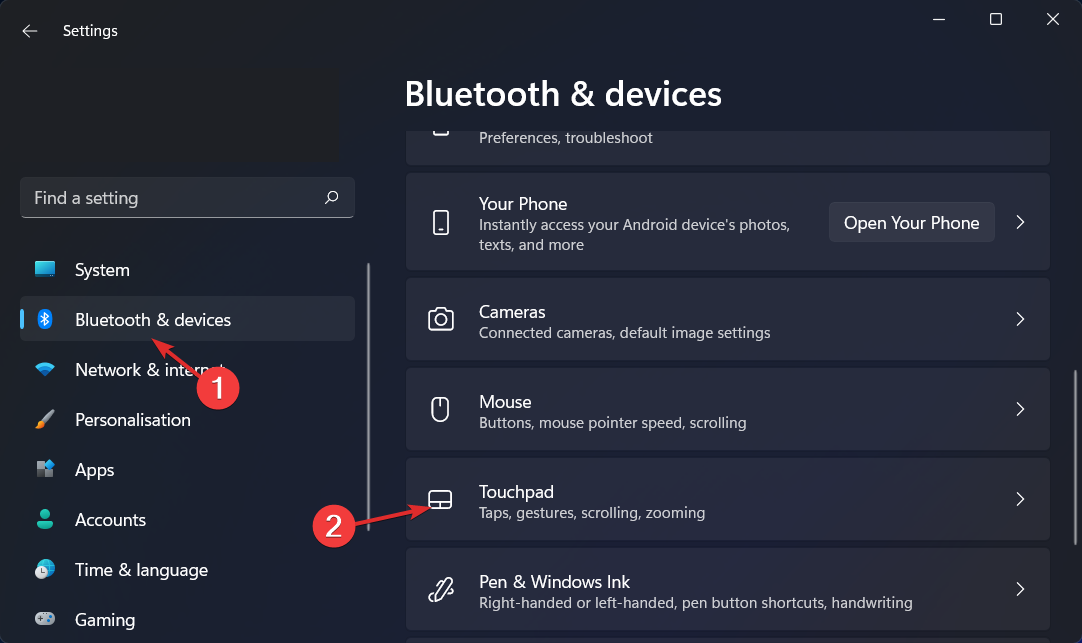
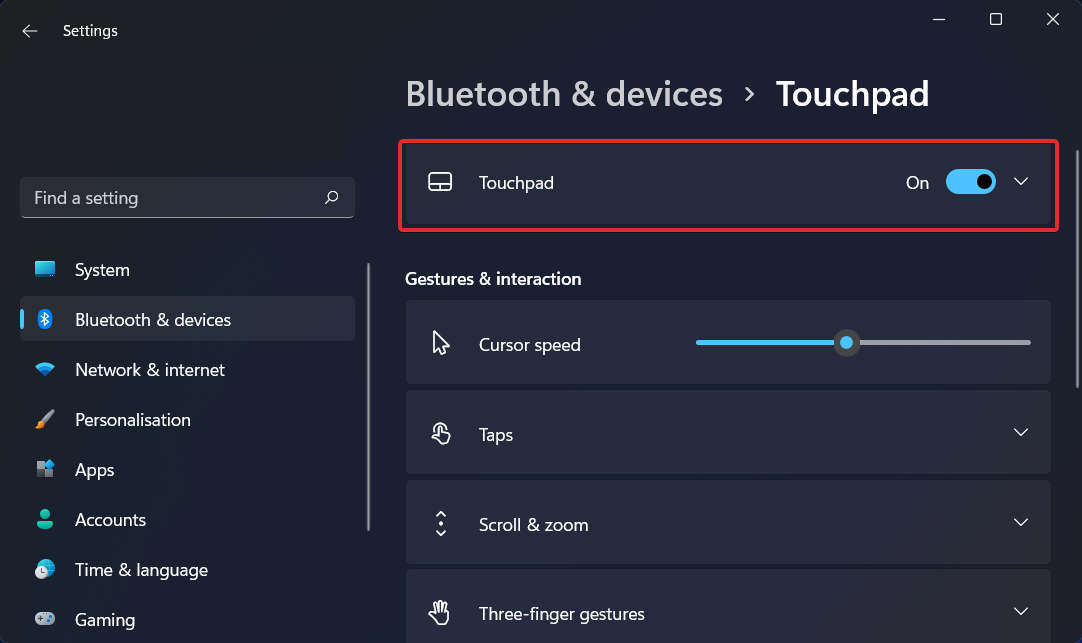

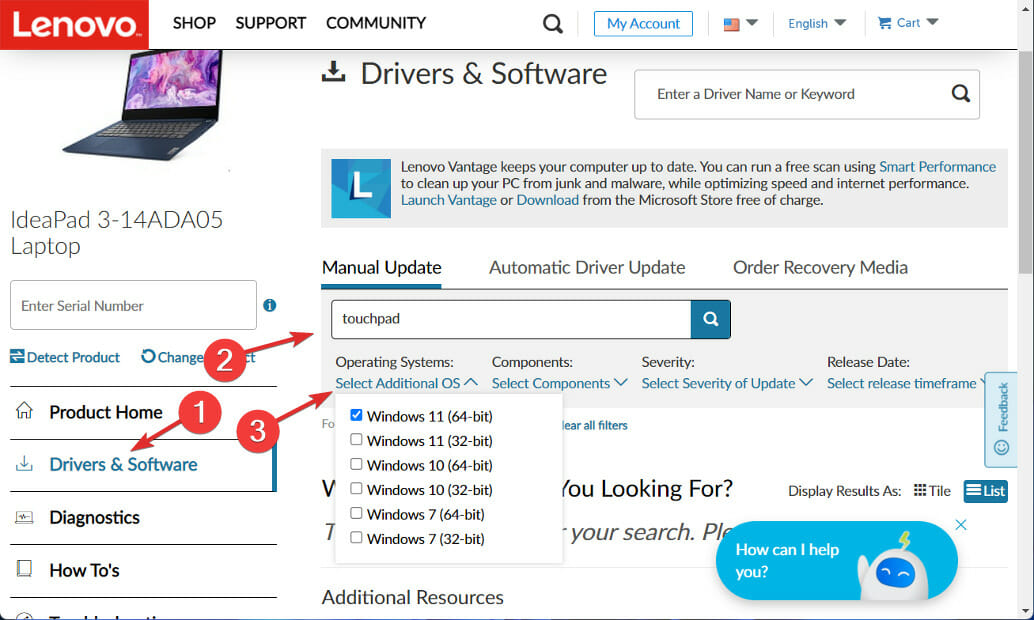

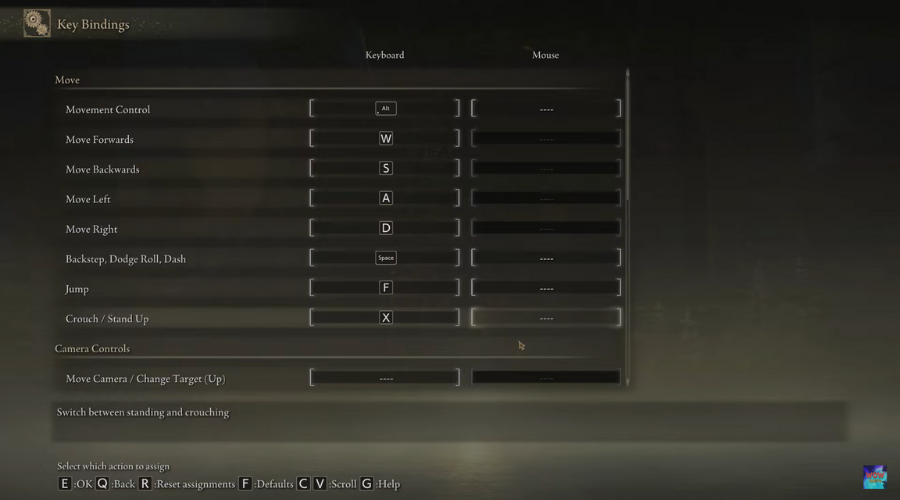
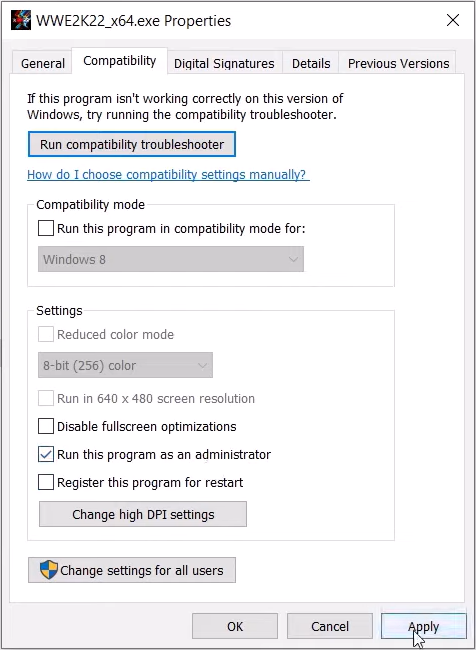
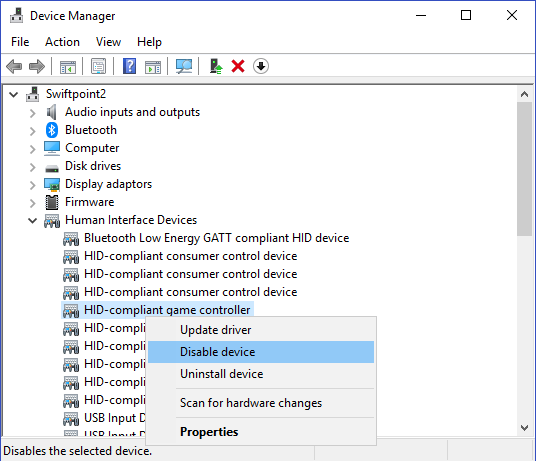
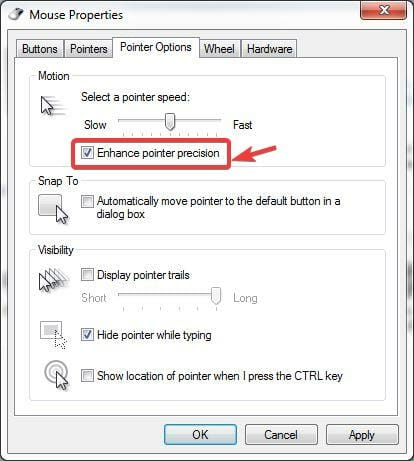
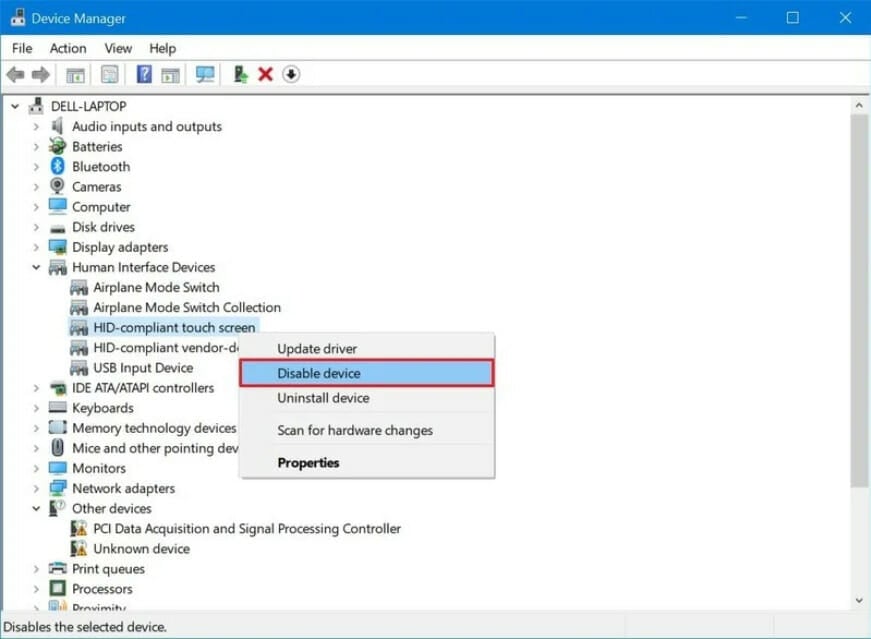
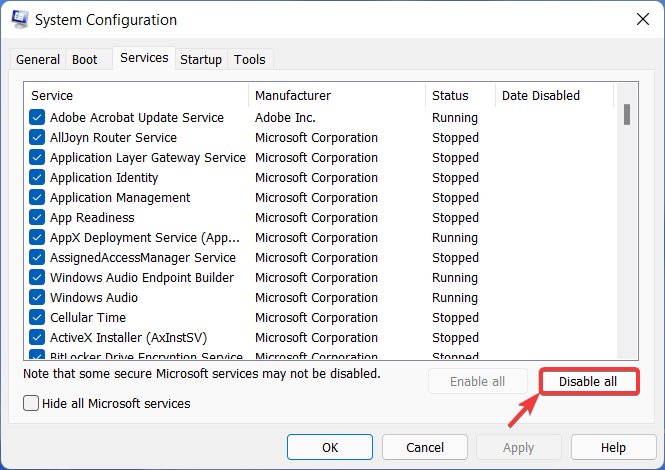




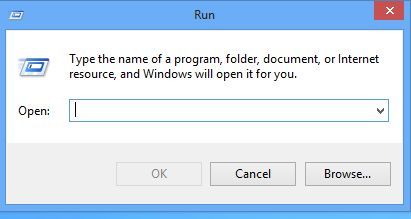
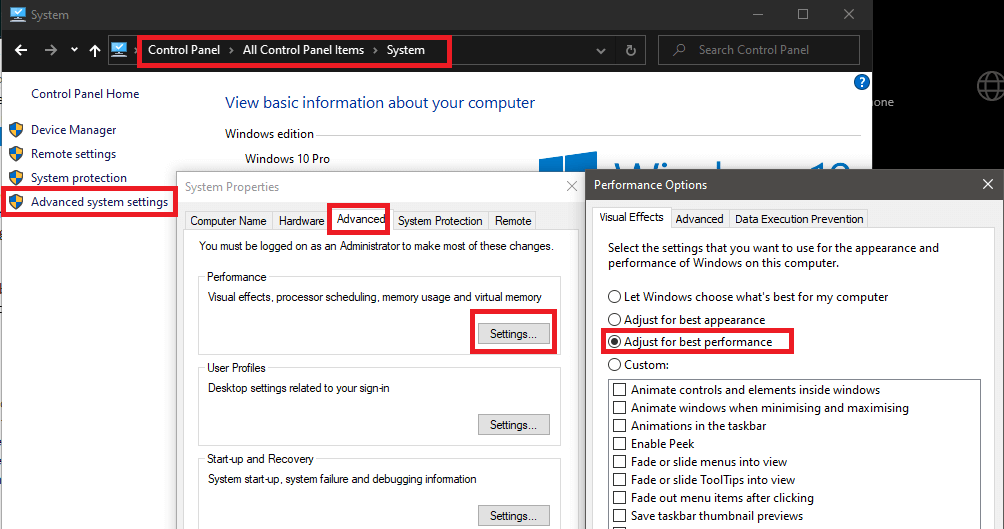
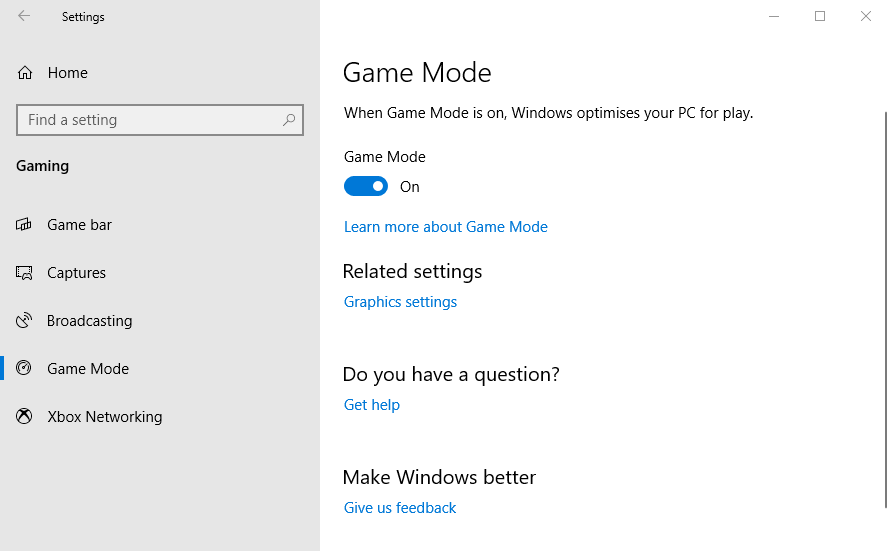
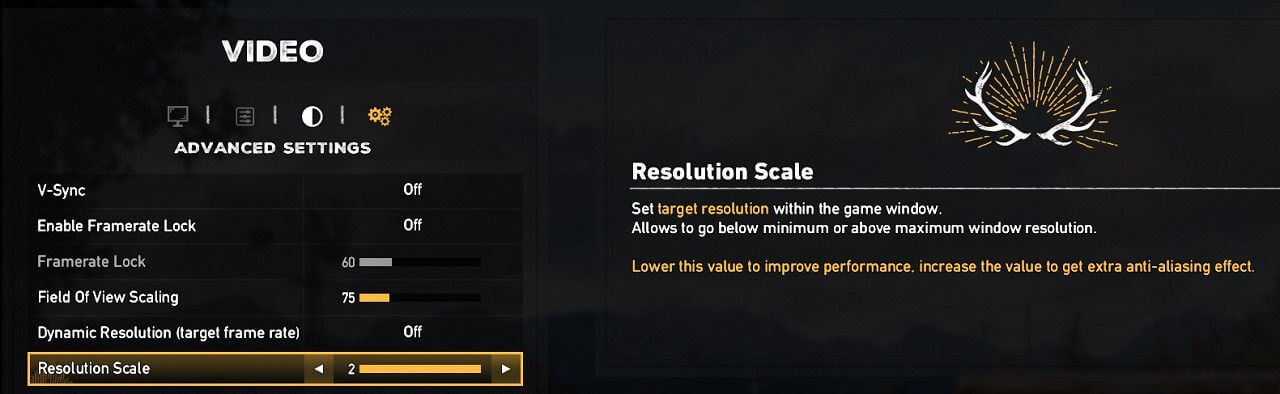
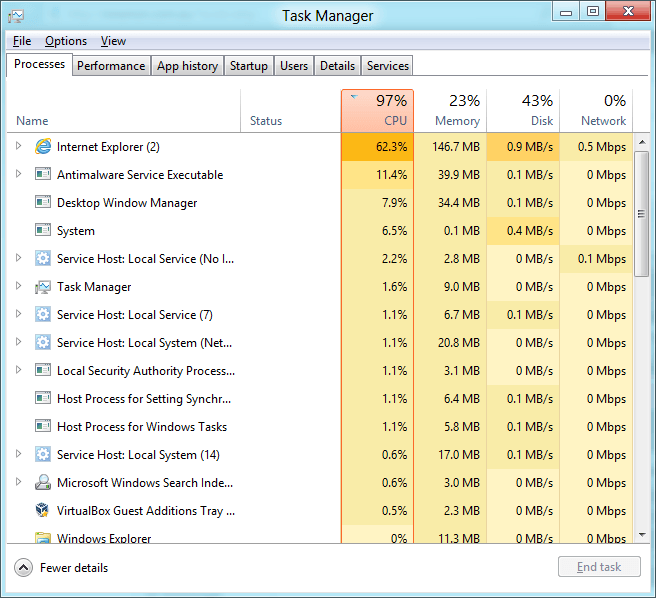
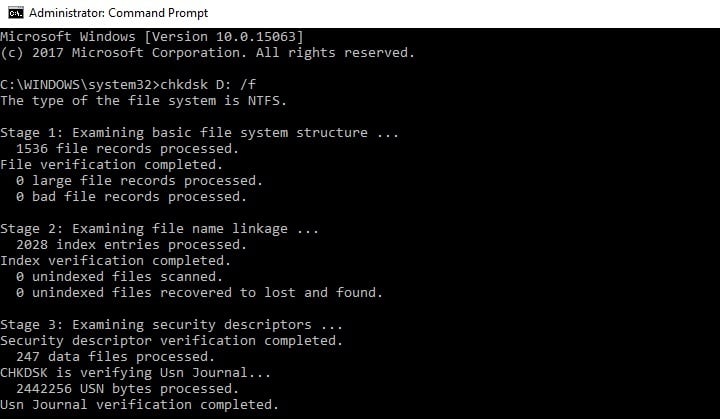
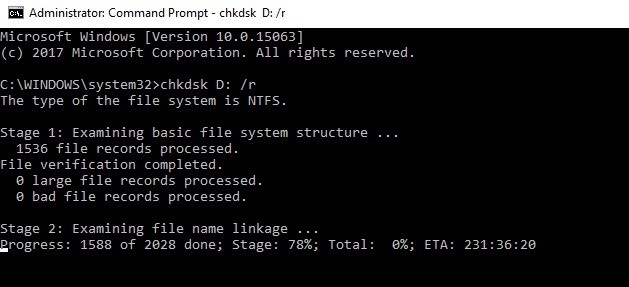
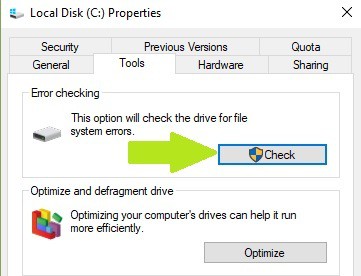


![[FIX] Total War: Warhammer 3 no response from host error](https://windowsreport.com/wp-content/uploads/2022/03/total-war-warhammer-3.jpg)