AutoCAD Software for Windows 10/11, 8: All you Need to Know

We all know that an official AutoCAD app for Windows 10, Windows 8 or Windows 8.1 would be great, but until that happens, here’s what you need to know about AutoCad software on Windows 10, Windows 8.

AutoCAD is an essential piece of software created for people involved in the design and documentation lines of work. The program allows users to create, edit and maneuver 2D drawings and diagrams and then can produce 3D renderings and views. This particular program has a long history and since it has been first released in 1982, it has been launched in 18 languages. And now, it is present in Windows 10, Windows 8 and should be compatible for your machine.

AutoCAD is especially popular for professionals working in architecture, interior design, construction, engineering, landscape design, naval and aeronautical design, piping and cabling. It features an extensive array of different functions and as a whole it’s pretty difficult to master. AutoCAD allows for the use of layers, styles, blocks, sheets and much more. For those looking to download a Windows 8, Windows 10 app, I’m sad to say that so far we didn’t to manage a reliable one in the Windows Store.

autocad windows 8

AutoCAD in Windows 10, Windows 8

The latest version that the publishing company – Autodesk has put out, is the AutoCAD 2013 which features some amazing new capabilities professionals can use to optimize their workflow. Some of them include the existence of Autodesk Exchange Apps, the embedding of Documentation Applications, the possibility of capturing scanned drawings, of better rendering 3D images and obtaining high Quality Cinematic Presentations.

Will my AutoCAD work with Windows 10, Windows 8?

With so many working casts depending on AutoCAD is no wonder many have been wondering whether or not the utility is compatible with Windows 10, Windows 8 or not. Well, we have bad news and good news. The bad news is that AutoCAD is not yet an integral part of Windows 10, Windows 8, at least not just yet. On the other hand, we have spotted some reports which maintain that the suite might work on some Windows 8, Windows 10 computers. However, you will need to have installed the latest 2013 version of AutoCAD to do so.

The official publisher AutoDesk website has included a full list of AutoCAD versions that have been tested on the Windows 8, Windows 10 operating system and have been proven to work correctly. Here is the full list of the AutoCAD programs that are officially “proven” to work on the Windows 10, Windows 8 or Windows 8.1. Be sure to have yours listed.

  • AutoCAD 2013 (requires installation of Service Pack 2)
  • AutoCAD LT 2013 (requires installation of Service Pack 2)
  • AutoCAD Architecture 2013 (requires installation of Service Pack 2)
  • AutoCAD Electrical 2013 (requires installation of Service Pack 2)
  • AutoCAD Mechanical 2013 (requires installation of Service Pack 2)
  • AutoCAD MEP 2013 (requires installation of Service Pack 2)
  • Autodesk 3ds Max 2013
  • Autodesk 3ds Max Design 2013
  • Autodesk Maya 2013
  • Autodesk MotionBuilder 2013
  • Autodesk Mudbox 2013
  • Autodesk Softimage 2013
  • Autodesk SketchBook Designer 2013

Of course, already scheduled follow ups of AutoCAD (the 2014 version) will support compatibility with Windows 10, Windows 8 and AutoDesk is working on bringing as many of its products to the new operating system.

Users installing AutoCAD versions on their Windows 8, Windows 10 machines have to read the exact specifications in details because some products will be compatible with the 64-bit version of Windows 10, Windows 8 and some with the 32-bit version. Some reports have been popping on about people who actually have installed AutoCAD 2013 on their computers. They have reported that the software is indeed working but its performance it’s a little bit sluggish due to the lack of hardware drivers.

However, until AutoCAD doesn’t get fully released in a stable Windows 8, Windows 10 friendly version, we are going to keep hearing reports about AutoCAD 2013 freezing and crashing in Windows 10, Windows 8. The only way to solve the inconvenience is apparently to resort to the use of Task Manager and from there to forcefully close the program. We hope this won’t be the case for long.

Download AutoCAD Mobile

autocad mobile

UPDATE: You can now download AutoCAD Mobile from the Microsoft Store. The app became a UWP app in 2016 and you can run it on PC, mobile devices and even HoloLens.

Take the power of AutoCAD wherever you go! AutoCAD mobile is a free DWG viewing application, with easy-to-use drawing and drafting tools that allow you to view, create, edit, and share AutoCAD drawings.

Autodesk added a series of new features and improvements along the years, and regularly rolls out bug fixes to improve the overall app stability. Here are some of the most important features that this app brings:

  • Free Premium trial for all users so that you can test all the features of the app
  • You can work offline and then sync your changes as soon as you get back online
  • External cloud storage connectivity supported — you can view your drawings from Google Drive, Dropbox, OneDrive.
  • You can plot designs to PDF and share them via email
  • All drawing and editing tools, including advanced tools, such as arc, offset and more are supported
  • Advanced annotation tools (cloud, mark up, arrow and more) are also available.

If you’ve used AutoCAD Mobile, tell us more about your experience in the comments below.

RELATED STORIES TO CHECK OUT:


How to Disable Did You Mean to Switch Apps in Windows 10

This tutorial applies to users running Windows 10 and using the Microsoft Edge browser. When you click on a hyperlink in Microsoft Edge that opens another app on your system, you see the message below.

If you select “Yes”, your browser will switch to File Explorer, but you’ll get the same prompt each and every time Edge needs to switch to another app. On the other hand, if you select “No”, the message disappears, preventing switching apps.

There is no option on the prompt window to prevent it from being shown in the future, so it will keep on popping up. Those who find it irritating may want to disable it, but there is no direct method.

Many users reported Did you mean to switch apps message on their PC. This issue can appear if your file associations aren’t properly configured. Speaking of this message, in this article, we’re going to cover the following topics:

  • How to disable application switching in Windows 10 – This message can be quite annoying, but you should be able to disable it by making few changes in your registry. We wrote a detailed guide on how to do it, so be sure to check it out.
  • Microsoft Edge is trying to switch apps – This message is usually associated with Microsoft Edge, and if you ever encounter this message, you might have to set up a different default web browser.
  • Did you mean to switch apps (Microsoft Edge) – This issue most commonly appears in Edge, and if you encounter it, be sure to update Windows to the latest version and check if that solves the problem.

How to disable Did you mean to switch apps message in Microsoft Edge?

1. Change your registry

Sometimes to disable Did you mean to switch apps message, you need to modify your registry. In case you’re not familiar, your registry holds all sorts of sensitive information, so we advise you to be extra cautious while modifying it.

To fix this problem, you need to create a couple of values using Registry Editor, and you can do that by following these steps:

  1. Type regedit in the search box > and hit Enter to open the Registry Editor.
  2. Step 2: In the new Registry Editor window  go to
    HKEY_CURRENT_USERSoftwareMicrosoftInternet ExplorerProtocolExecuteHow to disable application switching in Windows 10
  3. Right-click on ProtocolExecute > select New> and go to Key in the right pane. The newly created key should be saved as a file.
  4. Right-click on the new subkey > select New >DWORD Value. Name the new DWORD (REG_DWORD) as WarnOnOpen. Its value should be zero (0).Microsoft Edge is trying to switch apps
  5. Now close the Registry Editor and restart your computer. You’re all done after restarting, and you won’t get the ‘Did you mean to switch apps’ prompt again.

2. Change your file associations

According to users, Did you mean to switch apps message can appear due to your file associations. However, you can fix the problem simply by setting different default apps. To do that on Windows 10, you just need to follow these steps:

  1. Open the Settings app. You can do that quickly by pressing Windows Key + I.
  2. When Settings app opens, navigate to the Apps section.
    Microsoft Edge is trying to switch apps
  3. Go to the Default apps on the menu on the left and set the desired default applications in the right pane. This error usually occurs when using Edge, so you might want to set a different default browser.
    Did you mean to switch apps Microsoft Edge

This problem can also occur while trying to open a specific type of file. If that’s the case, you might be able to solve the problem simply by setting a default app for that file type. To do that, just do the following:

  1. Open the Settings app and navigate to the Apps section.
  2. Navigate to Default apps from the menu on the left and select Choose default apps by file type option.
    How to disable application switching in Windows 10
  3. Locate the file type that is giving you this message and select the default application for that file type.
    Microsoft Edge is trying to switch apps

In some rare cases, this message can appear while trying to use certain protocols. However, you should be able to fix that simply by repeating the steps above and selecting Choose default apps by protocol option.

After doing that, you need to set the default application for the desired protocols, and the issue should be resolved.

3. Select Don’t ask me every time option

According to users, you might be able to fix this problem simply by choosing Don’t ask me every time option when asked to choose the default browser.

Whenever you try to open a file with a non-default application, you might get this or a similar message. To fix the problem, select the application you want to use and check Don’t ask me every time option.

After doing that, you shouldn’t receive this pesky message again.

4. Try using Safe Mode

Sometimes this error message can appear due to your settings, and to check if your settings are the problem, it’s advised to use Safe Mode. If you’re unfamiliar, Safe Mode is a special segment of Windows that runs with default settings and apps and is perfect for troubleshooting issues.

To check if your settings are the problem, you need to switch to Safe Mode and check if the issue appears. To do that, follow these steps:

  1. Open the Start Menu and click the Power button. Now press and hold the Shift key and choose Restart from the menu.
    Did you mean to switch apps Microsoft Edge
  2. Now select Troubleshoot > Advanced options > Startup Settings. Click the Restart button to continue.
  3. Once your PC restarts, the list of options will appear. Select any version of Safe Mode by pressing the corresponding key.

Once you enter Safe Mode, check if the problem still appears. If not, the issue might be related to your user account or settings.

5. Create a new user account

Sometimes this problem can appear due to issues with your user account. Sometimes your account can get corrupted, or certain settings can interfere with your apps. However, you can fix the issue simply by creating a new user account. This is quite simple, and you can do it by following these steps:

  1. Open the Settings app and navigate to the Accounts section.
    Did you mean to switch apps Microsoft Edge
  2. Select Family & other people from the menu on the left. Now choose Add someone else to this PC from the menu on the right.
    How to disable application switching in Windows 10
  3. Select I don’t have this person’s sign-in information.
    Microsoft Edge is trying to switch apps
  4. Now click the Add a user without a Microsoft account option.
    Did you mean to switch apps Microsoft Edge
  5. Enter the desired username and click Next.
    How to disable application switching in Windows 10

Once you create a new account, you need to switch to it. After switching to a new account, check if the problem still persists. If not, it means your previous account was corrupted or improperly configured. Now you need to move your personal files to a new account and start using it instead of your old one.

6. Check for updates

If you’re constantly getting Did you mean to switch apps messages, the problem might be caused by the missing updates.

Sometimes certain glitches or bugs can be present in Windows, which can lead to Did you mean to switch apps message. However, you can fix most of these problems simply by keeping Windows 10 up to date.

To simplify this process, Windows 10 will automatically download the necessary updates. However, sometimes you might miss an automatic update due to certain bugs. On the other hand, you can always check for updates manually by doing the following:

  1. Open the Settings app and navigate to Update & Security section.
    How to disable application switching in Windows 10
  2. Now click Check for updates button.
    Microsoft Edge is trying to switch apps

If any updates are available, they will be downloaded automatically in the background. Once the updates are downloaded, you can install them simply by restarting your PC. After your PC is updated, this error message shouldn’t appear anymore.

Microsoft doesn’t provide a direct solution to solve the issue. They claim that since you are using multiple programs associated with protocol and file types, there is no option to turn off the pop-up message while opening a hyperlink (file extension).

Some users have reported that it can also be switched off by tweaking the Internet Explorer settings. We do hope that the above procedure worked for you.

Download AccuWeather for Windows 10/11, 8 [Best Weather App]

I’ve been using Accuweather for a while now on my Windows 8 tablet, Windows 10 computer and can definitely say it is among the most useful weather apps wherever you are in the world. Read this post to find out more about AccuWeather for Windows 10, Windows 8 and Windows RT.
accuweather windows 8
Accuweather is, without a doubt, one of the best weather apps in the world, be it for Windows, Android or iOS or anything else you might use. If you are not satisfied with the basic weather app inside Windows 10, Windows 8, then you definitely need to have a look at AccuWeather for Windows 10, Windows 8, as it will definitely appeal to you.

The first thing you need to do is to go to the Windows Store and look for the app or you can follow this download link. Before installing the app, you will be required to read the terms and conditions and the privacy statements. After that, obviously, you will be asked to allow AccuWeather to use your location which it needs to display relevant meteo conditions.

Updating your location happens quite fast and you are welcomed by the screen rich in details. The weather animations are pretty nioce and the custom lifestyle forecasts make it very pleasantly to be used. The AccuWeather application for Windows 10, Windows 8 has quite a huge database of locations, being able to provide local weather forecasts for more than 2.7 million locations all over the world, which is pretty amazing, indeed.

Check the weather with AccuWeather for Windows 10, 8

AccuWeather download pc

Of course, if you are planning a travel to a remote place, then you need to know the exact weather of that place for the following days. AccuWeather provides current weather conditions for the next three days (72 hours). What’s really awesome is that it comes with a forecast for the next 25 days. In my experience of using the app, I can say that it was, indeed, pretty accurate.

AccuWheather will also dispaly health risks if there are some caused by mad weather conditions. Also, it will tell you if the weather is good for your outdoor sports. The weather conditions are being updated once in 15 minutes covering the following details:

  • humidity percentages
  • visibility
  • UV index
  • wind direction
  • wind and wind gust speed
  • RealFeel

AccuWeather has partnered wtih Microsoft to bring Bing Maps inside the app. Also, there is a weather comparison feature built-in for your locations. And the best part? Yes, completely free!

The app recently got a series of new features and improvements. You can now check out the watches and warning layers on the map. Also, depending on the time of the day, an automatic theme will change between light and dark themes.
If you enjoyed watching weather videos on previous app versions, we have a piece of good news for you: weather videos are back in the current version of the app available in the Microsoft Store.

Download AccuWeather from the Microsoft Store.

RELATED STORIES TO CHECK OUT:


Windows 10 KB4103722, KB4103720 fix UWP app crashes

Microsoft recently released two new updates for older Windows 10 versions. You can automatically download Windows 10 Creators Update KB4103722 and Windows 10 Anniversary Update KB4103720 via Window Update or you can get the stand-alone update package from Microsoft’s Update Catalog website.

Windows 10 v1703 KB4103722 changelog

Here are the main bug fixes and improvements packed in this update:

  • Updated time zone information fixes
  • Internet Explorer alerts should no longer appear on a second monitor when using extended display.
  • Microsoft addressed the issue with the connection status of some Bluetooth devices.
  • The update fixed the issue that prevents adding performance counters to the Performance Monitor on systems with many processors.
  • Addressed the issue that causes sporadic authentication issues when using Windows Authentication Manager.
    The patch fixed the issue where the connection bar is missing in Virtual Machine Connection (VMConnect) when using full-screen mode on multiple monitors.
  • UWP apps should no longer stop working when users enable the XAML Map Control.

You can read the full update changelog on Microsoft’s support page.

Windows 10 v1706 and Windows Server 2016 KB4103720

Update KB4103720 shares some common fixes with KB4103722 and also brings a series of improvements of its own:

  • Addressed the issue that can cause excessive memory usage when using smart cards on a Windows Terminal Server system.
  • The update fixed the issue that makes it impossible to revert to a virtual machine checkpoint.
  • The patch ensures that CPU Groups function properly.
  • Microsoft fixed the issue that causes a VM to throw an error after creating the VM with static memory.
  • Microsoft also addressed the issue where disks that have been blacklisted or marked as bad will be ignored and not be repaired when a user invokes S2D Repair.
  • The bug that caused default apps to reset browsers on server platforms has now been fixed.

You can read the full update changelog on Microsoft’s support page.

Microsoft is not currently aware of any issues with update KB4103722. On the other hand, KB4103720 is affected by some reliability issues during the creation of shielded VMs. Microsoft is working on a fix.

RELATED STORIES TO CHECK OUT:

How to update Skype on Windows 10, Windows 8

Microsoft’s IM client, Skype, has a lot of users all over the world. It’s simple user interface and attracting features have made it quite popular. If you’ve installed Skype on your Windows 8, Windows 10 or Windows 8.1 device, you will probably want to receive all the Skype updates so that it will work properly and you won’t have to uninstall it later on.

Maintaining Skype on Windows 8, Windows 10 is quite easy, as it is a very well designed program that it constantly updates by Microsoft, in order to make it as good as possible. Even so, in some situations, it cause some minor problems for certain users. If you want to know how to update Skype on Windows 8, Windows 10 and Windows 8.1 to ensure that it works flawlessly, take a look here and find out.

Updating Skype on Windows 10, Windows 8 and Windows 8.1 [Desktop and App]

update-skype-desktop-windows -8

So, as you know, there are two versions of Skype available for Windows 10, Windows 8 users: there is the desktop program that can be installed on computers running Windows 10, Windows 8, and there is the Windows Store Skype app that can be accessed via the Start Screen.

Updating the Skype desktop client is done easily, as it has by default a feature for automatically searching for new updates and prompting you to download and install them. Every time you start Skype, it will run this search, and if it finds an update, it will notify you. Once it finds an update, you will see a popup message asking you to update the client. By clicking “install”, the wizard will download and install the update for you.

update-skype-windows-8

If you don’t have this feature turned on, you can do so by opening Skype and navigating to the “Tools” menu and selecting “Options“. Under “Advanced” you will find a sub-category named “Automatic Updates“. Here you will see if this service is turned on. If you it is not, you can turn in on and from now on, at every startup, Skype will search for an update.

For more information regarding Skype desktop updates, you can take a look at the Skype Support website, where you will find more information on this matter.

The Skype App for Windows 10, Windows 8 and Windows 8.1 is also very easily updated. As you might know, when you start your Windows 8, Windows 10 device, the Store will notify you if you have updates to make. Microsoft releases periodic updates for its apps, and if they will release one for Skype, you will be able to see in the list of apps to update on your Store app.

update-skype-app-windows -8

Note: Keep in mind that the Store app also has a option to search for updates automatically, so be sure to have it turned on.

You can also check for updates manually. To do this, go to Help and select the ‘Check for updates’ option from the drop-down menu.

update skype windows 10

Skype will then search for updates. A new update window will appear on the screen allowing you to install the latest updates. If you’re using old Skype versions, you have two possibilities: you can either install the latest updates for your your current Skype version or upgrade to the new version.

check for updates skype

Speaking of updates, it is worth mentioning that all Skype users will have to switch to the new Skype version starting May 25. Microsoft already began notifying users that old Skype version will no longer work after May 25.

We noticed you are using a version of Skype for Windows 10 that will no longer work after May 25, 2018. Older conversation history may be impacted during the upgrade.

Now you know how to update Skype on Windows 10, Windows 8 and Windows 8.1. The process is almost automatic, and it will allow you to have the best experience that Skype can offer. Be sure to have your desktop client check for updates when you start Skype, and take a regular look at your Skype updates.

RELATED STORIES TO CHECK OUT:


How to Block Bing Ads in Windows 10

Not so long ago, we informed you that we would start seeing Bing ads inside Windows 10, Windows 8.1’s smart search function. This might account for one of the reasons why users are looking to uninstall Windows 10, 8.1 and revert to Windows 8. If the annoying Bing advertising is the single thing that bothers you with Windows 10, Windows 8.1, then maybe you just need to learn how to block ads from being displayed once and for all.

I, for one, am not a big fan of these ads, actually, I quite hate them. Their placement is ridiculous and definitely doesn’t enrich my experience of using Windows 8. But we are lucky, as with only a few basic steps, we can easily turn off the Bing ads that Microsoft is going to make permanent in the stable Windows 8.1, Windows 10 release.

How to switch off Bing ads in Windows 10

First of all, I might say that if you are not living in an English speaking country, then most of the ads are simply useless and totally irrelevant. What good can do to me a BestBuy advertisement if I’m living in Europe? I’m not saying that Google’s advertising services are very accurate, but so far, in my personal experience, Bing ads relevancy is close to inexistent.

Therefore, follow these easy steps to disable Bing ads in Windows 10, Windows 8.1, even before it reaches its final version or, depending on when you are reading this, it might have already been launched.

  • Open up the Settings charm –  if you don’t know yet your way around Windows 8 or 8.1, you can do so by moving your mose pointer (or your finger) in the top right hot corner; or, if you love hotkeys, then press the Windows logo and I
  • From there, following this path Change PC settings (bottom of the bar) -> Search and Apps -> Use Bing to search online -> Select Off

disable bing ads in windows 8.1

However, depending on what build version of Windows 10, Windows 8.1 you might be using, this might not always work, so you can also trying by typing directly in the Search charm – “search and apps” and from there follow the above line.

Install an adblocker

Another quick solution to limit or block ads while browsing is to download and install an adblocker. There are various ad blocking extensions available for all the major browsers out there. For example, if you’re using Google Chrome, you can head over to the Chrome Web Store and install the ad blocker extension that best suits your needs. If Microsoft Edge is your browser of choice, then you can install the AdGuard ad blocker.

Stay tuned on WindowsReport and subscribe as we will have more tips, apps and news related to Windows 10,8 and Microsoft to share with you!

RELATED STORIES TO CHECK OUT:


Candy Crush Keeps Installing on Windows 10: How to Stop it

Candy Crush is one of the most popular games out there. However, many reported that Windows 10 keeps installing Candy Crush without consent.

In case you’re not familiar, we have a guide on how to download Candy Crush Soda Saga that you might want to check out and learn more about the game.

However, many want to keep this game at bay, and in this guide, we’re going to show you how to do that.

Why does Windows 10 install Candy Crush?

  • Microsoft has partnerships with certain app developers, so they are using Windows 10 to promote their software.
  • Your settings might not be configured, so you’re getting app suggestions from Microsoft’s partners.

How do I stop Candy Crush from installing on Windows 10?

1. Perform a clean boot and uninstall Candy Crush

  1. Log on to your computer as an administrator.
  2. Press Windows key + R and enter msconfig. Now press Enter or click OK.
    Windows 10 permanently remove candy crush
  3. On the Services tab and check Hide all Microsoft services. After that, click Disable all.
    Windows 10 remove Candy Crush group policy
  4. On the Startup tab and click Open Task Manager.
    Windows 10 keeps reinstalling apps
  5. Select all the items listed and click Disable.
    Windows 10 permanently remove candy crush
  6. Close the Task Manager, go back to System Configuration window, and click Apply and OK. Restart your PC.
    Windows 10 remove Candy Crush group policy
  7. Uninstall Candy Crush.
  8. Go back to Task Manager and enable the programs required for your system and the ones you use on a daily basis.

In case you’re unfamiliar with this tool, we have a great guide on how to open msconfig, so be sure to check it out.

2. Use PowerShell

  1. Type PowerShell in the Search menu. Right-click PowerShell and choose Run as administrator.
    Windows 10 keeps reinstalling apps
  2. Type the following command Get-AppxPackage -User and add your username to display all the app installed. Eg.: Get-AppxPackage -User Madeleine
  3. Locate the Candy Crush app on this list.
  4. Run the command Remove-AppxPackage PackageFullName. To remove Candy Crush Saga and prevent it from installing again, we’ll run Remove-AppxPackage king.com.CandyCrushSaga_1.912.1.0_x86__kgqvnymyfvs32

Many reported that PowerShell is not working properly on their PC, but we have a guide on how to fix it. After using this fix, check if Candy Crush keeps reappearing on Windows 10.

3. Tweak the registry

  1. Press Windows key + R and enter regedit. Now press Enter or click OK.
    Windows 10 permanently remove candy crush
  2. Locate this key: HKEY_LOCAL_MACHINE\SOFTWARE\Microsoft\Windows\CurrentVersion\WindowsStore\WindowsUpdate\
  3. Locate the AutoDownload DWORD, double-click it set its Value data to 2.

If the AutoDownload option is not available, create it as a new 32-bit DWORD value and make the changes.

If you’re getting error while accessing the registry, we have a guide that can help you with that.

Once you do that, check if Candy Crush keeps reinstalling Windows 10.

4. Disable Windows Update

  1. Press Ctrl + Shift + Esc to open Task Manager.
  2. Navigate to the Services tab and locate Windows Update.
  3. Right-click it and choose Stop.

For more information, we suggest reading out guide on how to disable automatic updates in Windows.

After doing this, you’ll be able to remove Candy Crush on Windows 10 permanently.

5. Remove App Updater app

  1. Make sure that Candy Crush is removed from your PC.
  2. Open the Settings app by pressing Windows Key + I.
  3. Now navigate to the Apps section.
    Windows 10 Candy Crush keeps reinstalling
  4. A list of installed applications will now appear. Locate App Updater on the list and click Uninstall to remove it. If App Updater isn’t available, you can try removing App Installer instead.
    Windows 10 permanently remove candy crush

Once you remove App Updater, Candy Crush, and other unwanted applications won’t install automatically anymore.

6. Change Start Menu settings

  1. Open the Settings app and navigate to the Personalization section.
    Windows 10 remove Candy Crush group policy
  2. On the menu on the left choose Start. In the right pane, disable Occasionally show suggestions in Start option.
    Windows 10 Candy Crush keeps reappearing

Once you disable this option, unwanted applications won’t appear in your Start Menu. If any applications are still present, just remove them and they shouldn’t reappear in the future.

7. Update Windows

  1. Open the Settings app and go to the Update & Security section.
    Windows 10 Candy Crush keeps reappearing
  2. Now click Check for updates button.
    Windows 10 keeps reinstalling apps
  3. Windows will check for available updates and download them in the background.

Once the updates are downloaded, restart your PC to install the updates. Once your system is up to date, check if the problem is resolved.

In case Windows Update is not showing, we have a guide you can use to fix it.

8. Turn off Microsoft Consumer Experience

  1. Press Windows key + R. Now enter gpedit.msc and press Enter or click OK.
    Windows 10 remove Candy Crush group policy
  2. When Group Policy Editor opens, navigate to Computer Configuration > Administrative Templates > Windows Components > Cloud Content in the left pane. In the right pane, double-click on Turn off Microsoft consumer experiences.
    Windows 10 keeps reinstalling apps
  3. When the Properties window opens, select Enabled and click on Apply and OK to save changes.
    Windows 10 permanently remove candy crush

After doing that, the Microsoft Consumer Experience feature will be disabled, and you won’t see any app suggestions such as Candy Crush anymore.

In case you don’t have this tool on your PC, check our guide on how to install Group Policy Editor on Windows Home Edition.

Alternatively, you can disable this feature from Registry Editor. To do that, you need to follow these steps:

  1. Start Registry Editor.
  2. Navigate to HKEY_LOCAL_MACHINE\Software\Policies\Microsoft\Windows\CloudContent key in the left pane. Now double-click the DisableWindowsConsumerFeatures DWORD in the right pane and set the Value Data to 1. Click OK to save changes.
  3. If CloudContent isn’t available, click the Windows key and choose New > Key from the menu. Now enter CloudContent as the name of the new key.Windows 10 remove Candy Crush group policy
  4. Navigate to CloudContent and choose New > DWORD (32-bit) Value and enter DisableWindowsConsumerFeatures as the name of the DWORD.
    Windows 10 Candy Crush keeps reinstalling

Once you make the necessary changes, the issue should be resolved and Candy Crush Saga won’t appear anymore on your PC.

9. Change your security policy

  1. Press Windows key + R and enter secpol.msc. Press Enter or click OK.
    Windows 10 keeps reinstalling apps
  2. In the left pane, go to Application Control Policies > AppLocker. Now choose Packaged app Rules from the right pane.
    Windows 10 permanently remove candy crush
  3. Right-click the empty space in the right pane and choose Create New Rule.
    Windows 10 remove Candy Crush group policy
  4. Select Permissions from the menu on the left and choose Deny. Now click Next to continue.
    Windows 10 Candy Crush keeps reappearing
  5. Choose Use an installed packaged app as a reference and click the Select button.
    Windows 10 keeps reinstalling apps
  6. Select Widows Spotlight from the list and click OK.
  7. Move the slider to the Package name and click the Create button.

After doing that, Candy Crash won’t be installed without your knowledge.

If you’ve found other workarounds to remove Candy Crush from your Windows 10 computer for good, share your ideas in the comment section below.

In case you’re looking for some better games, be sure to check our guide on best offline games on Microsoft Store.

Also, leave any other questions you may have and we’ll be sure to check them out.

Caleb McLaughlin from Stranger Things to take the Xbox Game Pass Challenge

Caleb McLaughlin, also known as his character on Stranger Things, Lucas Sinclair, will be taking the Xbox Game Pass Challenge. On May 20th at 3:00 PM PST, Caleb will be attempting to complete challenges in 12 games being offered up on the Xbox Game Pass. The last person to do the challenge was Usain Bolt, who managed to complete 7 challenges back in April.

This is the second time in recent memory that Caleb lent his time to the Xbox brand. He was also present for the launch of the Xbox One X back in November, where he played several games being featured on the console. You’ll be able to catch Caleb doing the challenge on the Xbox Mixer channel, where most events like this are hosted.

Former Microsoft exec Qi Lu steps down from leadership role at Baidu

After roughly a year, former Microsoft executive Qi Lu finds himself in another transition as he steps down from his leadership role at Baidu. Back in early 2016, Lu was involved in a bicycling accident that sidelined him from his day to day duties of overseeing Microsoft’s infusion of artificial intelligence into consumer-facing products such as Bing, Office 365 and Skype.

Presumably, unrelated to his physical condition and recovery, Lu found himself with an opportunity to apply his AI intellect for another company with equally, if not, more potential end-user reach in China’s Baidu search engine. Lu joined last year with the express intent to evolve the Baidu platform into an AI first solution as well as center the company around a similar mindset moving forward.

However, after just a year, Lu is saying goodbye to the company in a press release obtained from Baidu.

“I have deeply enjoyed working with Robin and my team at Baidu. I’m honored to have participated in Baidu’s transition into an AI-first company. Due to personal and family reasons, I am no longer able to work in China on a full-time basis,” said Qi Lu. “Baidu is a great company with strong talent and deep technologies. I am highly optimistic on Baidu’s future and will continue to support Baidu, while spending more time with my family in the U.S. For my next steps, I plan to work in research and investment areas, to help advance our shared mission to make a complex world simpler through technology.”

Lu’s duties will be overseen by company vice president Haifeng Wang, who joined Baidu back in 2010. Wang seems more than qualified to replace Lu as he has already overseen much of the company’s AI, Machine Learning, big data, computer vision, knowledge graph robotics, AR and natural language projects

As of right now, it’s unclear as to why Lu stepped down, or even where he will end up, but any company would be lucky to have his AI brilliance.

Why you should disable McAfee before updating the Windows

Experienced users recommend switching McAfee off before upgrading to Windows 10, in order to avoid software corruption issues. Check out this guide to learn more about this problem.

After switching to Windows 10, I never bothered to install another third-party antivirus since it seemed to me that Windows Update is doing its job pretty well.

But this doesn’t mean you should do the same thing – if you’re a loyal user of certain antivirus software on Windows 10, such as McAfee, then you should keep on using it.

Why is McAfee interfering with the Windows update?

According to some power users in McAfee forums, before updating to Windows 10, or for that matter, it is advised that you uninstall or at least disable McAfee.

This should be done in order to avoid possible corruption of the software, and possible McAfee conflict with Windows 10 messages.

Of course, this is a safety tip and it doesn’t mean that if you don’t disable or uninstall McAfee prior to the Windows 10, updates, you will definitely corrupt your antivirus.

It could happen for some, though. A moderator from McAfee support forums said the following:

Well, the advice is only as a precaution and is the same advice – at least disable it – we give to anyone upgrading anything or installing service packs for instance.  As long as SecurityCenter shows ‘green’ and says it is protecting, then you are fine.

As a quick reminder, this problem affected many Windows 10 Anniversary Update users soon after they installed this OS version.

Unfortunately, even a few years later, the Windows 10 update needs your attention McAfee issue persists. Quite a few Windows 10 April Update users confirmed this piece of information.

Keep in mind that not all McAfee security software solutions are compatible with the latest Windows 10 OS versions. For more information about compatibility with McAfee products, go to McAfee’s support page.

Before you hit the update button, make sure that your current McAfee product supports the Windows 10 version that you’re planning to install.

So, you better stick to this tip just to make sure you don’t get into any unpleasant situations. Another way to avoid unpleasant situations is by checking this list of the best antivirus software with lifetime license.

Are you using McAfee in Windows 10, or you are sticking with another antivirus? And if so, then what are its advantages? Let us know by leaving your comment below.

Need WhatsApp for Windows 8, Windows 10? Get it here!

Want to keep in touch with your family and friends but at the same time you want to save up on the expenses which are entailed by countless SMSes and texting. Luckily for those using the new Windows 8, Windows 10 platform, there is a useful solution – the well-know WhatsApp. Unfortunately, at the moment when this article is written, there is no official Windows 8, Windows 10 or RT app for WhatsApp, so we’ll have to resorts to WhatsApp for desktop on Windows 8.

The app is available for Windows 8, Windows 10 Phone smartphones but not for Windows 8, Windows 10 desktops. WhatsApp will draw on your Internet connection in order to enable you to use your email and surf the web. You also can exchange messages for free with the friends that have installed the same app on their devices. Once you install your app on your phone, you will be able to directly see via your phonebook which friends use WhatsApp.

Unlike other messaging apps, WhatsApp will allow the creation of particular friend groups and the sending of unlimited texts which include images, video, and audio notes.

WhatsApp on Windows 8, Windows 10: how to run it

And the app is offering some neat features if you use it on a Windows 8, Windows 10 Phone. For example, it will allow you to directly dial a recipient number just by accessing their contact info. You also get a whole host of smiley faces to spice up your conversations with loved ones, save your chat history and view large images.

On the other hand if you want to use the app on a Windows 8, Windows 10 computer, you can do that but you will need an emulator like application like Bluestacks, to help you run the app. When you have installed the application on your Windows 8, Windows 10 computer, input your phone number and wait for the verification code to be sent back to you via SMS.

When you get it, input it in the application and you’re pretty much done. Now you can enjoy the same benefits of WhatsApp on your desktop. The app comes for free in the first 12 months of use and then is upgraded to a price of $0.99.

If you want to manage your conversations online, the Opera One browser, trusted by millions of users worldwide, not only supports WhatsApp but has it integrated in the sidebar. You can find the app as a sidebar panel option in the browser (shortcut Ctrl-Shift-M on Windows) and chat whenever you want via voice or text messages.

Alternatively, Opera One lets you pin the chat window next to the current tab, enabling you to share images through a simple drag and drop move and never miss a message when you’re online. You can sign out of WhatsApp directly from the browser.

⇒ Get Opera One

2018 Update: Whatsapp for Windows 10 PC released

Since this article was published, WhatsApp app (funny word game, isn’t it?) has been released. The app allows you to connect to your Whatsapp account via your browser. However, there is an annoying thing that you need to know: to keep all your WhatsApp data in your browser, you also need to keep your phone connected to the internet with your mobile version of the app open.

There also were some issues reported by users. The app can give you some hard time especially if you are a perfectionist and have the habit to close the apps that you don’t use for the moment: you have to allow the app to run in the background.

However, if you do not intend to use it for something more ‘extravagant’ than chatting from your PC – this is the app you need!

⇒ Get WhatsApp for PC

RELATED ARTICLES:

Windows 10 Insider Build 17672 reaches the Fast ring

Microsoft’s Dona Sarkar announced Windows Insiders that a new flight is out and added a new blog post as well to provide them with all the necessary information about Windows 10 build 17672.

Heads up #WindowsInsiders – after some technical difficulties from @brandonleblanc we are officially live with Build 17672 to the Fast ring!

What’s new in Windows 10 build 17672

Windows 10 Insider Build 17672

In the blog post, Dona Sarkar and Brandon LeBlanc make sure to details all improvements, fixes and known issues that are packed in this build.

One of the most important changes concerns Windows Defender. The Windows Security Center (WSC) service will require antivirus products in order to run as a protected process to register. The products that have not implemented yet this will not show up in the Windows Security UI, and Windows Defender Antivirus will stay enabled with these products side by side.

Changes, improvements, and fixes

  • The issue that caused PCs to look stuck at “Preparing to install…” between 80-100% in Windows Update when attempting to install a new build was eventually fixed.
  • The issue where right-clicking in Microsoft Edge to copy failed to work was also resolved.
  • Timeline was updated, and now you can cycle through available tabs.
  • The audio quality when recording clips using the game bar was improved as well.
  • The issue where the apps did not always fully maximize to the top of the screen was also fixed.
  • Microsoft introduced preview support for same-site cookies in Edge and Internet Explorer 11.

You can read the rest of the changes, improvements, and fixes in the official blog post.

Known issues

There are quite a lot of known issues in build 17672, and they involve Windows Mixed Reality first Run experience, Narrator reading extra text, Microsoft Edge hangs and more. There are also a few known issues for Sets & Office, and you can check out the complete detailed list on Microsoft’s official blog post.

RELATED STORIES TO CHECK OUT:

How to Use Skype on Windows 10, 8: Add Contacts, Make Voice and Video Calls

If you’ve been keeping tabs on our recent posts, you will remember that we’ve talked about Skype recently. We showed you how to download and install Skype on Windows 8,  Windows 10 and Windows 8.1, about how to update your Skype app or desktop client to the very latest version and even how to uninstall Skype if need be.

However, if you are not familiar with Skype, and you’re using it for the first time, then you will need a quick guide on how to use Skype efficiently.We’ll be taking you through the features that Skype provides and this crash course will give you the information you need to use Skype to talk to all your friends.

How to Add Contacts in Skype on Windows 10, Windows 8

how-to-add-people-to-skype-windows-8

Seeing that there are two versions of Skype available for Windows 10, Windows 8 and Windows 8.1 users, a desktop client and a Store app, we’ll show you how to add contacts to your Skype list on both of them. You’ll see that Skype is very easy to use and you’ll have all your friends in your contacts list in no time.

Skype uses the name of a person for searches, so if you want to add one of your friends that has a Skype ID, it’s as simple and searching for his name and selecting him from the results. In Windows 10, Windows 8 and Windows 8.1, the process is very fast, and you will see a result within seconds.

In the Skype app for Windows 10, Windows 8, you can find the “Add Contact” button in the bottom menu. To access this menu, you will have right click if you are using a computer, or swipe from the bottom of the screen to reveal it. By clicking on the button, you will see a search window open. In this window, search for your friend’s Skype ID or name and you will see a list of results.

Just select the one that is correct and once you’ve opened his page, you can send them an friendship request, or an IM.

In the Skype Windows 8,  Windows 10 desktop client, once you’ve signed in to your Skype ID, you will see a main window on the right, where the conversations will be shown, and a list of contacts on the left. To add a new contact, all you need to do is click on the “person icon” that has a “+” sign next to it.  You will find this button between your name and your contacts list. After clicking the icon, you will see a search bar appear, here, you will be able to search for the person that you want to add.

add new skype contact

You can search for someone via their Name, Skype ID, email or by their phone number (if they added their phone number to their Skype profile)

How to Make Voice Calls in Skype on Windows 10, Windows 8

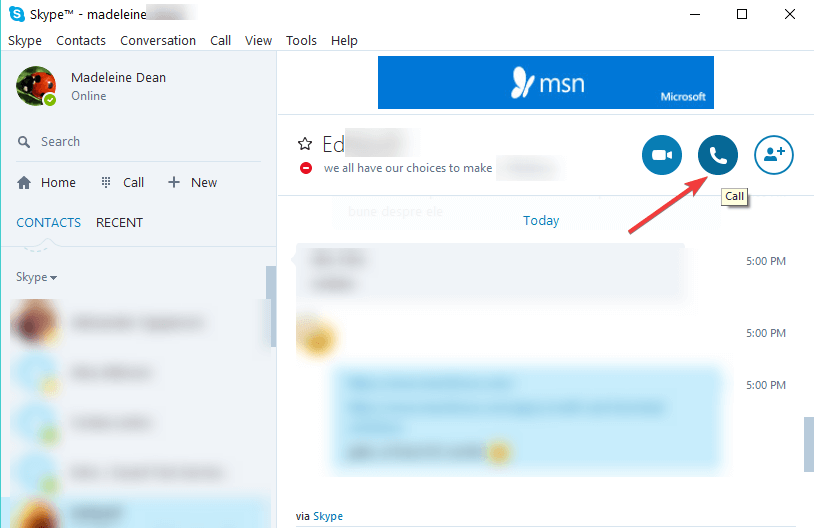
Skype is all about calling your friends and eliminating the need to type and send IMs. If you’ve added your friends and they have accepted your request, they will appear in your contact list. Now, if you want to make a voice call (without video) on your Skype desktop client, you can just click on their name and in the main portion of the screen, you will see the IM window where you can talk to your friend.

In the top part of this window, you will see your friend’s information, avatar, what time it is where he is (useful if you have friends from different countries or continents) and other information. Also in this portion, you will see the green button that says “Call“.

make calls on skype

Skype allows two ways of calling friends: over the Internet, which is free, but it requires your friend to also have a Skype account and be online, and to call them directly on their mobile phone. However, the latter option requires your friend’s phone number and your account to have purchased credits.

In the Skype app for Windows 10, Windows 8, you only have to click or tap on the person you want to call, and on the left side of the screen, you will see the option to call them. Besides this option, you also have the possibility to send files, video messages or create a group.

How to Make Video Calls in Skype on Windows 10, Windows 8

Even though Skype is a very good IM client or voice calling client, it’s main feature, and the most known is the video call option. This feature has become synonymous with the Skype name and there are many users out there that only use this feature.

how-to-make-video-call-in-skype-on-windows-8

To make a video call in Skype, you have to same thing as you did before, when you engaged in a voice call, but now, click or tap on the “Video Call” button instead of the voice call one.  Notice that in the Skype Windows 8, Windows 10 app, the two buttons are placed side-by-side, but their icons are different: for video calling you have a camera icon, while for voice calls, you have a phone icon.

make video phone calls skype

In the Skype desktop client, you will see that each button has the corresponding name, and in order for you to make a video call, you will have to click or tap the “Video Call” button.

Note: For you to make a voice call, you will need a microphone connected to your device, and if you want to make a video call, you will need a video camera as well.

There are many more functionalities supported on Skype. For example, there are plenty of new emojis that you can use when chatting with your friends. Microsoft is also planning to add new features and options in the near future and one of them focuses on gaming. The Redmond giant will add a new Creators Mode to Skype meant to help open up new ways for streamers, vloggers, broadcasters, etc, to make podcasts, record videos, live streams, and more. 

Speaking of changes, Microsoft will soon revamp the whole Skype user interface. While many users would very much prefer to stick to the current UI design, Microsoft will automatically deploy the new Skype version on May 25.

RELATED STORIES TO CHECK OUT:


Play the game of Spades on Windows 10, 8 with this app

And with Spades we complete our roundup of the classic Windows games that made it to Windows 8 and Windows 10. Although the game is not developed by Microsoft, it still has all the features that players know and love.

The game is free to download from the Windows Store and fans of the game can enjoy it in a much nicer manner that what they were used to. Let’s take a look at the game and see how it fairs.

What do we think of Spades for Windows 10

The game is pretty basic, offering only the not more than what it used to. The main menu is very pleasing to the eye, with nice, but also simple graphics. From here, players can start a new game, resume a game that was opened previously, see the statistics, change the options or learn how to play via the Help menu.

spades-for-windows-8-game-review

Also, from the Charms bar players can turn the sound on or off, or let their friends know what they’re playing via the Share charm. In the Options menu from the game, players can set the difficulty and game type.

spades-for-windows-8-game-review

Once they start playing, they will notice that not much has changed, and the game is pretty much how they remember it. Apart from updated graphics, there is basically no change. There are no options for customizing the deck of cards or the background, but we hope that future updates will introduce this option. Also, there is no multiplayer gaming mode, a feature that would be very awesome and we hope to see it soon.

spades-for-windows-8-game-review-3

Overall, the game is very amusing (for those who like it), it has nice graphics, but its biggest drawback is the lack of features on the customizing side. Also the lack of multiplayer makes it a bit boring after a while, but fans of the previous game will like it just the same!

Download Spades for Windows 10, Windows 8

Here’s a quick list of Spade’s key features:

  • Easy and Hard difficulty modes
  • Classic and Suicide gameplay modes
  • Detailed statistics to track your progress
  • Rename your opponents
  • The UI is available in multiple languages

Gamers who played Spades absolutely fell in love with the app:

I have tried many spades games in the store, most of them boast that they are superb but they fail miserably. This spades game is both competitive and fair. The developers did a fantastic job at making the AI know what to bid while sometimes making underbids so they can cause the player to overbid their hand. If this game could be rated 6 stars, I would do it!!!

So, what are you waiting for? Go to Microsoft Store and download the game.

RELATED STORIES TO CHECK OUT:


Taptiles for Windows 10/11 – The New Mahjong

Fans of the now classic game of Mahjong will be thrilled to know that the Windows 10 Store has a similar game available that will allow them to satisfy their need of matching tiles to complete puzzles. Although the game is similar, it does differ from the original game by having an entirely new interface. Stick with us and you will see exactly what we’re talking about.

The game is called Taptiles and as far as matching tiles goes, it’s one of the best we’ve seen so far. Of course, there will be those who will be disappointed by the game because it does have one feature that might not appeal to everyone, but we’ll get into that in a few moments.

Look and Feel

As we’ve mentioned before, Taptiles is similar to the Mahjong game from Microsoft, but with some differences. First of all, the tiles have pairs, so there is no possibility to remain with one at the end of the game, and you cannot block tiles. If in Mahjong you made a wrong move, in the end, you were left with blocked tiles, in Taptiles, this is no longer applicable.

taptiles-windows-8-game-review

Because all the tiles can be accessed, the game relies on another aspect: speed. In the normal mode, you have to match tiles against the clock and clear as many puzzles as you can before the time runs out. Also, for relaxation purposes, there is the Zen mode where there is no time, and you can just match tiles at your own pace.

taptiles-windows-8

The graphics of the game are very good, the backgrounds change periodically and create an atmosphere that resembles all four seasons. Also, the music is relaxing, so you might consider it a relaxation game, more than a competitive one. Of course, there is still space for competition, thanks to the Xbox live integration which allows you to complete daily challenges and play against your friends.

taptiles-windows-8-game-review-2

Apart from this, the game is fairly simple, and the only outstanding feature that it presents is the 3D puzzles that allow turning on all sides. If you are looking for a game that can relax your mind on your break, then Taptiles is a great game to try out.

Update: New version received support and improved features

This fun and relaxing mind game has been updated in the Microsoft Store and some issues reported were fixed. We hope you can enjoy a nice time with the puzzles from this game. Do not hesitate to leave a comment here if you encounter any problems, or search for more solutions on the Xbox support forums.

The new version has been optimized for Windows desktop and touchscreen devices. Also, numerous bug fixes have been done. If you compete with friends or you’re playing for achievements, the Xbox integration is now all set up and running. Enjoy!

RELATED ARTICLES TO CHECK OUT:

Scare your Friends with the Scary Prank Windows Game

We all remember that maze game where you had to look really close at the screen in order to solve it and at a point, the scary face from The Exorcist showed up with a terrifying scream. That game was priceless, and the reactions of those who played it, also priceless.

Well, now you can enjoy those same reactions on your Windows 8, Windows 10 device with an app called Scary Prank. Now you can once again scare the life out of you friends and have some great laughs.

Scary Prank for Windows 8, Windows 10

scary-prank-windows-8

The game itself is very basic, you are given a choice between three modes of gameplay and all you have to do is kick back and let the player freak out! Also, the app allows you set two of the games to the Modern UI start and let players start the game by their own.

scary-prank-windows-8-2

The first game is the Color Blindness Test which shows players a number of cards before the scary face appears on the screen and starts screaming. The second game consists of a list of optical illusions and also ends in the same way as the first.

scary-prank-windows-8-3

Last but not least, the Time Trigger mode allows you to set a timer for the face to appear and until then it shows a black screen. You might fools someone into thinking the game is loading while the countdown goes down and then watch the reactions of your friends. Also, in the settings charm, you can choose between the two scary faces that the app has.

scary-prank-windows-8-4

Although the game might be fun, remember not to let anyone with heart disease or pregnant women play it. The shock might trigger a reaction that might not be beneficial for them.

Download Scary Prank for Windows 10, Windows 8

UPDATE: Scary Prank is no longer available in the Windows Store. Yes, unfortunately, you can no longer download the app on your Windows 10 computer.

However, we did find another interesting app you can use to give your friends a good scare. As its name suggests, Scary Sound Effects lets you play a bevy of weird, intriguing and bizarre sounds that will definitely scare your friends.

scary sound effects windows 10 app

Planning some scary prank? If so, our app offers an amazingly rich palette of all sorts of spooky sounds such as Halloween ringtones and scary tones, screaming sounds to scare your friends with, horror sound effects to create a spooky atmosphere, horror and Sci-Fi sounds for the best prank ever.

You can download the app on the following Windows versions: Windows 10, Windows 10 Mobile, Windows Phone 8.1, Windows Phone 8.

RELATED STORIES TO CHECK OUT:


Microsoft reveals real name and location of Xbox users to publishers

Microsoft continues its quest to increase transparency towards users. Now, the company wants to do this by offering users more information about the exact data that it collects from Xbox user and also the specific circumstances in which the data would be shared with publishers.

Microsoft revamps its data-sharing and privacy policy

Next time that Xbox user will boot up their consoles, they will be greeted with a page that reiterates the tech giant’s privacy and data-sharing policies. For instance, if you’re playing an Xbox Live-enabled game, Microsoft might share some information about your playing habits with the game or app’s publisher.

The information that might get shared includes age range, country, Xbox profile data such as your avatar or Gamertag and also information on the number of achievements that you managed to unlock and even how much time you spent in the game or app.

Social data such as your interactions and communication with other players might get shared as well, but it’s not very clear at the time whether this includes written or verbal messages. Your real name might get shared with the publishers as well. Microsoft also said that it doesn’t control what the publishers will decide to do with users’ data and their own privacy policies will determine this. The information can be found on Xbox store pages.

You can stop sharing app/games data

Fortunately, users will have the ability to choose not to share their private data with publishers. All you have to do is to revoke access to your console. If you want to learn more about Microsoft’s new privacy policy, you can check out this support page.

RELATED STORIES TO CHECK OUT:

Movie Maker for Windows 8, Windows 10 [Download Links]

While you can still use Movie Maker in Windows 8, but with the launch of Windows 8.1, Windows 10 is replaced with the Movie Moments app.

As many of you know by now, Microsoft has decided to not include certain features in Windows 10, Windows 8.1. One of these features was Windows Movie Maker, which allowed users to create their own video files with pictures, movies, or other media and add certain effects to them.

Even though there is no Windows Movie Maker for Windows 10, Windows 8 integrated with the operating system, users can still download and install it on their computers. The product can be downloaded for free from the Microsoft website and installed on any computer running Windows 8 or Windows 10, Windows 8.1.

Download and install Windows Movie Maker on Windows 10, Windows 8

download-movie-maker-windows-8

If you want to download and install Windows Movie Maker on any Windows 10, Windows 8 and Windows 8.1 device, all you need to do is head over to the Microsoft website and download the installer. This will save the file named “wlsetup-web.exe” on your computer. When you run this file, it will install .NET Framework 3.5 on your device, as it is necessary to install Movie Maker.

Note: If you have .NET Framework 3.5.1 on your computer, it will proceed directly with the Movie Maker installation

When the process has started, you will see the Windows Live Essentials installer open, and you will have the option to install some other features to your Windows 8, Windows 10 computer. In the Windows Live Essentials window, you will see two options that are available to you: install all the tools from this package, or customize the installation and add only the tools you need. If you only want Movie Maker, then you should go with the latter.

movie-maker-for-windows-8-windows-8.1

Once you’ve selected what you want to install, all you need to do is click on the “Install” button. Wait until the process has finished and click “Close“. Now you will have Windows Movie Maker on your Windows 8 or Windows 8.1, Windows 10 computer.

As you can see, the process is very simple, and it doesn’t require anything except a working Internet connection and a couple of minutes of your time. Now, you can start creating videos with Movie Maker in Windows 10, Windows 8.

Is there any Movie Maker Windows 10 download link available?

UPDATE: Unfortunately, Windows Movie Maker is no longer available for download. Of course, there are many websites that allow you to download older versions of the app. However, Microsoft explains that these websites are not offering the real thing.

Moreover, the Redmond giant warns users that the download links may contain malware, viruses, and other similar threats. So, the best solution is to avoid clicking on the download link. Instead, you can create movies with the Windows 10 Photos app or use third-party movie software.

For more information about the best movie-making software that you can use on Windows 10, check out this list.

Piano 10 for Windows 8, Windows 10 Lets you Play the Piano on PC

Piano10 app is one of the best piano apps for Windows 10, Windows 8, Windows 8.1 or Windows RT that you can use to transform your tablet into a true piano player. Read below the review and discover how you can become a piano master.

piano8-for-windows-8-app-review
You all know those toy pianos for kids, right? Well, in the 21st century those toys have migrated to the digital world, and apps like Piano10 are the result. They are especially great for touchscreen interfaces, but fair well when used with a keyboard and mouse also. This particular app is free to download from the Windows Store and it can prove to be pretty amusing for adults (at least it was for me). The developer has really done his job and as a result, the app is pretty decent and with a few updates, it can become a great one.

Start playing piano with Piano10 for Windows 8, Windows 10

Piano10 is a great acoustic piano for your Windows 10 device. Simply select your octave with arrows and play with real sounds of piano!

As I’ve said, the app is very amusing, and even for those with no knowledge of playing the piano (as yours truly) the app could be pretty fun, and they can create something that is not similar to a trainwreck.

The design of the app is simple, featuring a full sized piano keyboard that is split into three octaves which users can change by clicking or tapping the arrow button or by using the navigation keys on their keyboards.

piano8-for-windows-8

Overall, the app looks good, the piano keyboard looks decent and the animated keys definitely add to the overall authenticity, but the home screen has some design flaws and to honest it looks pretty bad. Apart from this, the app is pretty user friendly, each key being market both with the musical note it represents and with the key it’s activated with (for keyboard use).

The sound that the keys put out is crisp and fairly high quality (keep in mind that I am not an expert, but they seem alright to me) starting from the lowest key and all the way to the last one, they have a rich sound, much better than the toys we used to have.

piano8-for-windows-8-app-review-2

In terms of features, Piano10 lets us down, not providing anything but the possibility to play. A record and playback feature would be a good addition and also a educational part where someone can learn a few basics of playing piano would be great. For a pastime app, Piano10 is perfect way to entertain your little ones.

Piano10’s developer recently updated the app, adding HoloLens compatibility as well. Yes, this means that you can now play the piano with your VR headset on. It is worth mentioning that the app supports 31 simultaneous notes, as well as stereo HQ sounds for real music production.

Download Piano10 for Windows 10, Windows 8

There are plenty of virtual music apps that you can install on your computer and learn how to play a particular instrument. Here are some of the most popular ones:


Review of Perfect365 for Windows 10: Helpful Virtual Makeover App

If you are into photo retouching then Perfect365 is a makeover app that should not miss from your Windows 10 device. Although not a substitute for other, more complex editing programs, such as Adobe Photoshop, Perfect365 offers some pretty neat features for those who want to make a quick change to their photo and add some makeup or make it look better.

Although not entirely realistic, with a bit of time, the app can achieve some pretty convincing results, but it depends on your imagination and your patience to search for the perfect combination of makeovers.

perfect365

Perfect365 is a makeover app for Windows 10

You should know from the start that Perfect365 is currently unavailable in Microsoft Store, and we have contacted the support team for more information.

However, if you installed it on your machine before, you can still use it today, but there is no support for the desktop version. If you want to download a makeover app alternative, jump straight to the end of this post to see our recommendations.

Although pretty basic compared to its desktop counterpart, which can modify multiple faces at once and save high-resolution photos, this app can handle only one face at a time (photos with multiple faces are not supported in the app), and it cannot save photos over 1MP in quality.

However, despite these drawbacks, the app works pretty well, allowing some modifications that can drastically change one’s appearance.

perfect365-virtual-makeover-windows-8-points

After testing the app I noticed that it tends to work best on high-quality photos taken directly from the face of the subject, so those pictures in a mirror will not suffice. But if you have some quality photos of yourself, you can load them into the app and start modifying them.

perfect365-virtual-makeover-windows-8-makeup

The process itself is very straightforward: after loading a photo, you will have to set the margins of the face (eyes, nose, mouth, and cheeks) and from there on, you can start making your makeover by adding certain features. You can slim the face, blur the skin, add makeup or change the color of the eyes and other features.

perfect365-virtual-makeover-windows-8-face-lift

The final result can be saved as a jpeg photo or added to your favorites. Also, the app comes preloaded with some faces that you can test and learn on, so you can get a sense of how the app works.

perfect365-virtual-makeover-windows-8-face-look

At any point of your makeover, you can see the before, and after pictures to better grasp each change to the photo, and when you modify, it will show in real-time on the photo. This will facilitate adding skin tones and other elements that must be adjusted slightly.

perfect365-virtual-makeover-windows-8-final-details

I can’t say how much practical use this app will have for those wanting a more professional-looking result, mostly because there is little support for improvisation.

The modifications are pre-configured, and you can only change some styles and colors, but that’s about all. I would say that this tool is good for those who want to learn something about photo manipulation, and as a starting point, I think it’s great!

2017 Update – Perfect365 app gets better

The app was a success since its release. Many positive user reviews have boosted its popularity and “life-term”. Now, Perfect365 is at 2.0.o.15 version. This last update brought some important changes :

  • New snapview mode
  • New eyebrow enhancement tool added
  • Support for printing
  • Bug fixes

You can use it on Windows 10, 8 devices without any problem. It is supported for both platforms, and I hope it’ll be supported even for next version of Windows.

2018 Update: App currently unavailable on Microsoft Store

As we mentioned at the beginning of this post, the app is only available on mobile devices – Android and iOS -, and you can download it from the official website.

The creators decided to develop a more handy app you can carry along and use on the go. A version for make-up artists is also available, with more exciting features.

Microsoft Store does not lack a makeover app, and we found one very useful app to give that perfect retouch to your photos. Makeover app is a photo editing application that allows for nearly 1000 color cosmetics shades (lipsticks, eyeshadows, etc.) to be applied to your image in a click time. If you’re interested, you can download it for free straight away.

Windows Install Got Stuck and Freezes? How to fix it on Windows 8.1, 10

Important update – Microsoft has finally started rolling the official Windows 10 April Update to users that have already installed Windows 8, 10. So, you need to check the Windows Update server to see if the update has become available in your region. This is the final version of the OS, so it shouldn’t have any issues or bugs. The pieces of advice in case your Windows install gets stuck or freezes are still valid, though.

Many Windows users have become “faithful” to this website and landed here when they were searching for a solution to their Windows 10, Windows 8 install being stuck. Now, I’m 100% sure that the same thing is happening with those who are trying to install the preview of Windows 10, Windows 8.1, WHICH, I stress over this once more time, is not the final, nor the stable form.

If you have had the same issue with your previous Windows 8, Windows 10 installation, then you probably remember how to solve most issues, as there are some basic steps that need to be taken. If not, do read this article once more and if this doesn’t solve your issues, we’ll try and help you further with the indications below. As always, feel free to leave comments and we’ll try to solve together your Windows 8.1, Windows 10  installation issues.

install Windows 10


How to install Windows 8.1, Windows 10 without it being stuck and frozen

For most of the users, the Windows 8.1, Windows 10  install usually gets stuck and freezes in the following moments:

  • Windows 8.1, Windows 10 install stuck at 10%, 90%, 44%
  • Windows 8.1, Windows 10  install stuck at “getting system ready”
  • Windows 8.1, Windows 10  install stuck at Windows logo
  • Windows 8.1, Windows 10  install stuck at “please wait”
  • Windows 8.1, Windows 10  install stuck at black screen
  • Windows 8.1, Windows 10 install stuck at “getting devices ready”
  • Windows 8.1, Windows 10 install stuck at “setting up a few more things 3%”

Again, there are some basic things you need to do, that we have talked about before, but to refresh your memory, here they are:

  1. Install the final version of Windows 8.1, Windows 10 – yeah, right, you knew this since the very beginning, right? But, then again, if you know this is not a safe install, why did you proceed?
  2. Unplug all external devices – a very, very basic advice that might work for you, as I can assure you that it did work out for me. Unplug everything before the install actually starts. 
  3. Just wait – now, we have to make something clear here: you don’t have to wait for an entire day. Usually, it takes less than 3 hours to do it.
  4. Update your BIOS – sometimes, even your BIOS might play tricks on you. Do update it before installing Windows 10, Windows 8.1

— RELATED: Full Fix: Windows 10 Installation Errors 0xC1900101, 0x20017

Also, don’t forget to check if your computer meets the system requirements necessary for installing the latest Windows version:

  • OS: Make sure you’re running the latest Windows 7, Windows 8, Windows 8.1 version
  • CPU: 1 gigahertz (GHz) or faster processor or SoC.
  • RAM: 1 gigabyte (GB) for 32-bit or 2 GB for 64-bit.
  • Hard disk space: 16 GB for 32-bit OS or 20 GB for 64-bit OS.
  • Graphics card: DirectX 9 or later with WDDM 1.0 driver.

Many users also report that their Windows 8.1, Windows 10 install stops at the boot screen. Also, some have reported that they can’t even press F2 or F12, the power button being the single remaining option. Another common symptom might be that your hard disk will start blinking on a very slow pace. Some of the forum moderators have suggested the following workaround:

If you are trying to install Windows 8.1, Windows 10 Preview via Windows Store, and the installation stops responding (either at “Pending”, or at 44%), please reattempt the installation after trying each of these troubleshooting steps:

1. At the Start screen, type wsreset and click the Search result. (It should have a Windows Store icon.)
2. Open a Command Prompt (Run as administrator), and type ipconfig /release and hit Enter. Then type ipconfig /renew and hit Enter.
3. Try a different network if you have another network available.
4. Try running the built-in Windows Update Troubleshooter.

Many folks have also reported having issues with installing Windows 8.1, Windows 10 on their Surface tablets, so this might mean it is a Windows Store related issue. What’s even worse, some users have experienced real issues with their Windows Store after performing the above steps, like the Windows Store not opening or crashing.

If you your Windows install process continues to freeze, here are a few additional troubleshooting guides:


New patent suggests the Surface Phone could sport two displays

There have been plenty of rumors about an upcoming Surface Phone. Yet, Microsoft has revealed nothing about a potential Surface Phone. However, there have been numerous patents that highlight the software giant is at least developing some kind of foldable mobile device, which may, or may not, be a Surface Phone. Microsoft has now published two May 2018 patents that include a foldable mobile device.

One of the Microsoft patents highlights how a device with two displays could detect which display has the user focus. The patent includes a foldable mobile device that incorporates a variety of sensors that detect the display positions. The patent’s abstract states:

A mobile computing device is provided that includes a processor, an accelerometer, two or more display devices, and a housing including the processor, the accelerometer, and the two or more display devices, determine a current user focus indicating that a first display device of the pair of display devices is being viewed by the user, and that a second display device of the pair of display devices is not being viewed by the user.

Microsoft also published another May patent (originally filed in 2016) that shows off a hinged mobile device with three displays! The patent shows how a third display could be incorporated into the device’s hinge. That third display could bridge the two primary displays together or act as a visual divider. The abstract for that patent states:

Techniques are described herein that are capable of making a state-based determination of information to be displayed on a screen region of a hinge that is coupled to other screen regions. For instance, a state of a hinge that is coupled between a first screen region and a second screen region may be determined. Information that is to be displayed on a third screen region that is provided on the hinge may be determine based at least in part on the state of the hinge.

What could the foldable device in the patents feasibly be? Who knows, it might be a Surface Phone! It could be one of a new breed of folding phones rumoured to be in the works. So that device might be a 2-in-1 phone and tablet.

The device could also be a new kind of dual display tablet. A tablet with two (or three) displays would certainly be something special. Then you could open apps in each of the two displays to utilize two apps at once. Both a Microsoft tablet and foldable phone would probably include the modular Windows Core OS.

These new patents do not necessarily mean that Microsoft is developing the foldable device shown within them. However, they will generate more rumors that the company is still cooking up a Surface Phone or alternative foldable mobile device. At the very least, the patents highlight that Microsoft is at least considering releasing a mobile device in the foreseeable future.

RELATED STORIES TO CHECK OUT:

Video Playback Freezes in Windows 10, 8.1 ? Try these fixes

Windows 8.1, Windows 10 is quite a big deal for Microsoft’s effort of trying to pump more innovation in the Windows ecosystem . Even if you might get annoying errors during the install and even after, Windows 8.1, Windows 10 does come with interesting updates and new features that are worth trying out. Unfortunately, as a new day passes, a new bug or glitch is found in Windows 8.1, Windows 10.

This time, we are talking about video playback that seems to freeze for quite a large amount of Windows 8.1, Windows 10 users, as we hear on the Technet forums. Rick Eveleigh user complained and expressed his issue:

When viewing downloaded videos on BBC iPlayer and streamed videos from Demand 5 the video regularly freezes for a second: the audio continues. Both graphics drivers (NVidia GeForce GT650M and Intel HD Graphics 4000) were updated by Windows Update after the 8.1 upgrade. I have downgraded both but it’s not made any effect. Has anyone else seen this?

video playback freezes windows 8.1

Install the latest Windows 8.1, Windows 10 graphical drivers

The user mentions that he has installed the latest Nvidia drivers for Windows 10, Windows 8.1 and the issue still seems to be there. What he might be overlooking is the fact that the drivers are still in the “AS IS” form. This means that the drivers are also not in the final form, so bugs and glitches are to be expected.

The users went to complain and report their own problems, with someone reporting also seeing freezing pictures. Most likely, like I said, the issue might be caused by the fact that not even the graphical card drivers are update for Windows 10, Windows 8.1, because, Windows 8.1, Windows 10 is not yet in its final form. Therefore, if you are experiencing any issues that pose a real problem to your work on your computer, then maybe you should revert to Windows 8 by uninstalling the Windows 10, Windows 8.1 update.

You also might want to have a look at this web page from Microsoft detailing the same issue.

Speaking of video playback issues, PC users who installed the Windows 10 April 2018 Update (the latest Windows 10 OS version) also complained about video playback issues. Indeed, it seems this is a very common problem that affects many machines running the latest Windows updates. We’re sure that Microsoft and media player developers will soon roll out new updates to fix video player issues.

Meanwhile, you can install a different media player and check if the problem persists. If this is the case, maybe the troubleshooting guides listed below will help you fix the problem:


Download best Video & Audio Codecs for Windows 8, Windows 10

This useful guide tries to explain how you can download your needed audio and video codecs for Windows 10. Codecs play an important part in the good playback of our computer’s media collection. They allow users to view formats that usually could not have been played on their computer. And as with older versions of Windows, Microsoft didn’t include too much information on their website about codecs and how to get them.

In Windows 8 and Windows 10, as with other versions of Windows, users have to track down and install codecs so they can play certain content on their computers. Although codecs are plentiful around the Internet, there are not that many of them optimized for Windows 8 and Windows 10. We tracked those that are and we give them to you, so you can play any content you want on your Windows 8 and Windows 10 computer.

Windows 8, Windows 10 optimized codecs

On this list, we will feature the best Windows 8, Windows 10 codecs that you can use on your computer, although, if you don’t use codecs normally, then you can always go back to the great VideoLAN player that we know and love.

windows-8-codecs-review-2

Windows8 Codecs is codec package that contains both audio and video codecs, and it provides users with an invaluable resource. The program is free to download and it can be easily installed on any Windows 8, Windows 10 computer (supported on both x86 and x64 computers). Keep in mind that the package does not contain any video player and it does not make any file associations, but it will offer support for the following file types: amr, mpc, ofr, divx, mka, ape, flac, evo, flv, m4b, mkv, ogg, ogv, ogm, rmvb, xvid.

Download Windows8 Codecs for Windows 10, Windows 8

windows-8-codecs

win8codecs Powered by Shark007 is powerful tool that can make you forget about not having the proper codec installed, for a specific file. The package will install all the necessary codecs for running any media on your computer, but in the process, it will uninstall your older codecs. The program has a update notifier, so you will be able to always run the very latest codecs on your computer, and thanks to its excellent choice of codecs to offer, you will never want for any other.

windows-8-codecs-review

K-Lite Codecs have been around for a long period, and many users can attest to their usefulness. In wake of the release of Windows 10, Windows 8, K-Lite has been upgraded to suite Windows 10, Windows 8 users and allow them to play any time of multimedia file, just like before. The package can be downloaded for free and it suits any type of user, as well as x64 and x86 computers. There is not much to tell that you don’t already know about K-Lite codecs, think to the success that it has received.

Download K-Lite Codecs for Windows 10, Windows 8

Codecs fully compatible with Windows 10

K-Lite

For Windows 10 users we have great news: the old codecs are supported by the newest version of our favorite OS. K-Lite is the best at this moment and has all the features from its previous version. You can find it in free access and it’s totally safe to download and install on your PC.

Shark 007

Shark 007 has also upgraded its codecs pack and gives you the possibility to access some features that other codec packs don’t have: use of the PowerDVD decoders for 32bit LiveTV in Media Center, supports playlists creation in Media Center and supports ‘Add to Windows Media Player List’ for all files types, such as MKV files. You can find it on the official webpage.

Update – Windows 10 DVD codecs issues

Some users reported issues with playing files in format DVD. One of them complained about DVD codecs in Windows 10:

“It’s a long story, so to make it quick… WMP in Win 10 will not play DVDs by intention due to licensing issues…
MPEG2 codecs is very similar to the .vob file used in DVD movies, and as a result, will not play them properly…
Another issue is that the needed codecs were part of Windows Media Center, and it has been removed…” 

It seems that the only way to play DVD files on your Windows 10 PC is to install a third-party player. In this case, we suggest checking our list of DVD players for Windows 10 devices.

Now you have all the tools for playing any type of digital media on your Windows 8, Windows 10 computer. All there is left to do is kick back and let the movies play! Also, please let us know if there is any other codec package that you think should be on this list by leaving a comment.

Tetris in Windows 8, Windows 10: Best Games from the App Store

Tetris is one of the most famous games that ever graced the face of the Earth. Everybody loves to play it – children, adults even grandparents. Since it was first released in 1985, Tetris has taken many forms and shapes, but the basic concept remains. You still need to arrange a bunch of falling blocks by manipulating them with your keyboard in order to make straight lines out of them.

When you do that, they magically disappear adding points to your overall score. The game is immensely addictive and once you start, you won’t be able to stop.  So, how about those who have installed Windows 8, Windows 10 on their machines? They will be glad to know that the Windows Store has some fun Tetris apps compatible with Windows 10, Windows 8 or Windows RT. Let’s see which are the best in our opinion.

Top Windows 8, Windows 10 Tetris apps

Tetris Classic

tetris classic app for windows 10

One of the best Tetris apps that is fully compatible with Windows 8, 8.1 and 10 is Tetris Classic. This game is closer than any of all Tetris apps to the original arcade. You have a great interface and a gameplay at your disposal and all the functions of the original brick-joystick.

You don’t have to worry about its price – it is absolutely free and available on Microsoft Store. Download it, give it a try and don’t forget to tell us in the comments section if this game kept you entertained.

Tetris 8

tetris 8 windows 8 app

This Windows 8, Windows 10 Tetris app features some refreshing graphics, so it might be fun to be played on a warm summer day. The blocks and background are all seemingly made out of ice cubes and it looks like you are arranging the pieces under water. The goal is the same, keep making complete lines using the blocks that are falling so you can make more and more points.

You can also compete with your friends in the online leaderboards. Also, the speed of the blocks does not increase over time, so Tetris 8 is recommended especially for beginners. However, the only way to restart a game is to fail at it. This aspect might prove a little annoying for perfectionists. A peculiarity of Tetris 8 on Windows 10, Windows 8, Windows 10 is that it can’t be controlled with the keyboard and only with the mouse or fingers, of course. This aspect might be considered a downgrade by some. The music can be a little annoying but if you don’t like it you can turn it off.

Tetris!

tetris! windows 8 app

This is a quite classical version of TETRIS on Windows 8, Windows 10 and nothing too fancy has been added. The pieces are falling from the sky and as you gain more points and ascend to higher levels, they will start falling more rapidly.

The graphics aren’t very impressining, the background consists in a galactic print and the box in which the tiles are dropped is quite plain but with a futuristic feel attached to it. On the right you can see the upcoming three pieces that are going to be dropped next so you can plan your strategy ahead.

My Tetris

my tetris windows 8 app

My Tetris is variant of Tetris on Windows 10, Windows 8 where you can choose the background in which you want to play. With the background the blocks also change in color and texture. For example, there’s an Astrology theme where blocks are encrusted with astrological signs of the zodiac.

Choose whatever you like best. As alway,s the game, features colored blocks which you need to arrange to make lines, in order to gain points and advance level wise. You are also shown on the right the next block set to fall. However, this Windows 8, Windows 10 tetris game can get laggy and does not run smoothly. Also, the pieces can’t be controlled smoothly thus leading to game failure.

Catris

catris tetris windows 8 app

I save the best for last, at least according to my opinion. This Windows 8, Windows 10 Tetris game features an unusual design, as the blocks you are supposed to arrange are actually…kitties. Yes, I’m talking about cats squashed and arranged in different positions as to resemble the old school Tetris pieces you already know.

The gameplay is quite simple. You make points but making lines out of cats and then you move up to more advanced levels. You can Pause the game if you need to a break from the game and can return to it afterwards. The game is meant for a touch screen environment as well as for keyboards lovers. So meow ahead!

DVD Shrink for Windows 10, Windows 8 lets your backup DVD discs

DVD Shrink for Windows 10, Windows 8, and Windows 8.1 is one of the best software one could use in order to backup DVD discs. Read below to find more about and see how it can help you.

DVD Shrink is a very popular program for those working a lot with DVD and who need to back them up. But what if you were curious and installed Microsoft’s latest operating system – the Windows 8, Windows 10 onto your machine? Can you still use DVD Shrink? Reports are mixed, some users have stated that the program works fine for them without modification but others have said the exact opposite.

DVD Shrink doesn’t work very well in Windows 10, Windows 8, unless you run it in Compatibility Mode for Windows XP, and is some cases even disabling “Data Execution Prevention”.

dvd shrink windows 8

DVDShrink clearly mentions on the official support page that since the development of DVD Shrink stopped in 2005, various errors messages and error codes may appear on the screen, such as:

  • Movie playback doesn’t not start at the beginning of the movie
  • Invalid File Structure
  • Out of memory
  • Programming error – Exception occurred
  • Parameter Incorrect
  • The request could not be performed because of an I/O device error

DVD Shrink for Windows 10, Windows 8

DVDShrink windows 10

After tweaking the compatibility, you can move on to use DVD Shrink in Windows 10, Windows 8. All users need to do is insert the DVD they plan to back up and then open it in the program. A preview of the DVD can be viewed in the embedded player. To start, the process couldn’t be more easily or intuitive – go to the Backup button.

DVD Shrink maintains the same simple interface featuring a few buttons. The Re-author button can be used to build a new compilation. The media files you want to save or burn can be compressed by the program so as to take less space when stored on a DVD. It is important to have enough space free when using the program, because DVD Shrink backs up the files on the hard drive.

DVD Shrink alternatives on Windows 8, Windows 10

Using alternatives has been suggested by some experts. For example, Aimersoft’s DVD Copy which is an alternative for the users who have been using DVD Shrink all these years and have upgraded to Windows 8, Windows 10, and now can’t get it to work.

Aimersoft’s DVD Copy works “out of the box” with Windows 10, Windows 8, and features backup to your hard drive, as an Image file (.iso), as well as directly copying it to another DVD disc.

The interface is easy to use, you pick a Source device, then a target destination on your Hard Drive, and press start. And that’s it. It does feature some tweaks, like Output type, which basically is the Size, but it shows the technical definition of the output as well, which is useful if you plan to burn it to a new DVD.

Also you have the option “Copy Mode”, which allows you to choose what to copy. “Main Movie(with menu)”, “Main Movie(without menu)”, or copy the whole DVD “Full Movie”, which includes the extra material and previews etc.

So there you have it, it’s up to you. Try and install your favorite DVD back up program on Windows 8, Windows 10 and try to meddle with the compatibility, but it’s not that easy. If this is not for you, you can still turn to the alternative sketched above without a problem as the main features of DVD Shrink are also supported in here. However you should know that DVD Copy is not a free software and is available for purchase for $29.95. The trial is free for three uses.


RELATED STORIES TO CHECK OUT:

Review of Financial Times App for Windows 10, Windows 8

Be informed with the latest financial news with Financial Times app for Windows 8, Windows 10. Financial Times is one of the most prominent newspapers in the world, and in thanks to its success, versions of the newspaper have been going online, in the form of apps, that give you the best headlines in the financial world.

Unlike other apps, this one is the official Financial Times app, developed for Windows 8, Windows 10 users who like to be on top of the latest news. As we are about to see, the app is one of the best news apps we’ve tested, although it gives news in relation to finances, it has an excellent overall quality.

Financial Times for Windows 10, Windows 8

financial-times-windolws-8-app-review-2financial-times-windolws-8-app-review-2

The app itself is very well done, it’s obvious that the development team has put a lot of effort in creating a top notch app that does not need any configuration or setting up. If I would have to sum up the installation and setting up of the app in three words, it would probably be something like this: “Install, Log In and Read”.

financial-times-windolws-8-app-review

The Login feature, although not a necessary requirement from the app, I strongly suggest that you use it to connect the app to your Financial Times account. If you do not log in to your account, you will only see the headlines of the stories and not any other information.

Also, for smooth ebrowsing throughout the app, a feature that I think should be implemented in all apps is used: when you open the app, it immediately starts downloading all the new stories and images, and in a few seconds, you are ready to browse the news with absolutely no loading time.

financial-times-windows-8

This makes for a very fast app, and thanks to its nice user interface, browsing is also very easy to do within the app. Overall, Financial Times for Windows 8, Windows 10 is a great news app for those in the business, its UI is awesome and easy to use and the app is fast and responsive.

Download Financial Times for Windows 10, Windows 8

Update – Financial Times app is no longer available in the Store

The Financial Times App received many improvements over the year. For example, version 1.0.122.5 added the following new features :

  • Supports scalable hi-res icons on extra-large screen
  • Latest edition stored for offline reading
  • Access many new sections and bonds in market data section

Unfortunately, the Financial Times App is no longer available for download in the Microsoft Store. The official Financial Times App lists only the App Store and Google Play Store as supported app platforms. However, Windows 10, 8 users can still use the browser version of the app which is available on FT’s official webpage.

Feel free to share your Financial Times app user experience in the ‘comments’ section.


RELATED STORIES TO CHECK OUT:

Manage uTorrent Downloads remotely in Windows 10/11

If you want to manage downloads remotely in Windows, uTorrent Client is one of the best tools to use. uTorrent is probably the world’s best known and used client for downloading torrent files. Its popularity is mainly due to its low resource footprint, ease of use and very simple, but effective features. Over the past years, we’ve seen this program rise from anonymity to world know name, and now it comes to Windows 8 and Windows 10, as a Modern UI app, downloadable from the Windows Store.

Although the app is not free of charge as other uTorrent products, you still have the option to try it out for free, just to get a taste of what it can do and how it can be used. This tool is especially useful when you are not at home and you want check the state of your downloading/uploading torrents.

uTorrent for Windows 10. Windows 8 – First look and Impressions

utorrent-windows-8

The app is very similar both in looks and appearance to the uTorrent Remote app, available for Android. Although it is not a proper downloading app, as you would have expected, it allows you to add torrents to your download queue and manage existing torrents.

utorrent-windows-8-app-review

Upon opening the app for the first time, you will be prompted to add a new server which can be your home computer or any other computer that you have uTorrent installed on. For adding a new computer, all you have to do is click on “Add Server” and complete the necessary fields:

  • Name
  • IP address
  • Port

Note: The information that is required in this field is from the target computer.

utorrent-windows-8-app-review-2

After supplying the information required, you will have to input the login credentials and you are done. Apart from seeing the torrent information, you can add or remove torrents from the list at any time.

This tool is very useful when you leave your torrent client to download and you go about your business, and because it the app is so simple to use and its UI is so intuitive, we think that it is a great addition to your Windows 8, Windows 10 machine.

Update – Manage uTorrent remotely from your browser

uTorrent team has developed a special browser extension for users to manage their torrents remotely. Chrome, Firefox, Edge and IE support this tool. However, it is mostly good to monitor your torrents but is a little tricky to search and start downloading torrents because of tool’s code integrated into browser’s engine. If you consider setting up uTorrent on your Windows 10 PC, feel free to check our review-guide about uTorrent for Windows 8, 10 versions.

uTorrent for Windows 10

The desktop app for Windows 10 has been released and works perfectly. It still has the same main features as the previous version, but it also allows you to run it in the browser. The developers said that monetizing their product is the main direction of the app development, and they will work a lot the mini-toolbars from the app.

What is not clear until now is – did the developers referred to a full browser-compatible version or a browser-like version (which we have at this moment and works fine)? Keep an eye on our news as we will let you know when it’ll be released.

[Note: It is illegal in most countries to use file-sharing clients to download copyrighted data. Do NOT use uTorrent for sharing or downloading files without permission of the copyright holder.]

[wl_navigator title=”Related topics for you”]

Review of Wordament – one of the best Windows 10, 8 word Games

Wordament: one of the best word games in Windows 10, Windows 8
wordament windows 8
Word games like Scrabble have thousands of players around the world, and this is due to the fact that they are very entertaining, but at the same time, very competitive. All board games are fun but it would seem that the games that make us think more are the best. Wordament is a Windows 8, Windows 10 word game that will certainly put your mind and your focus to the test.

For playing this game, you will have to concentrate intensely, mostly because it is much more complicated than your usual “find the word puzzles”, as it allows many more combinations then we are used to.

Wordament for Windows 8, Windows 10 app review

wordament-word-game-windows-8-app-review

The game is very simple at first: find all the words in the square before the time runs out. But once you’ve started playing, you will see that it is not that easy, and the letters can be arranged in any way: line, diagonal, backwards and pretty much in any direction you can drag your mouse pointer and still go from letter to letter to complete a word.

What makes the game more entertaining is the fact that it allows users to log in to their Xbox live accounts and play against other people, and at the end of the timer, you will have your score submitted and compared to the other players. Also, you can add players to your friends list and play head to head against them.

wordament-word-game-windows-8

Being a Xbox game, it has lots of achievements that you can unlock, so be on the lookout for the best combinations of letters. Some words can completely cover the entire square, but finding them depends on how well you can navigate the puzzle. It’s actually amazing the number of words one can create on this 4×4 square, sometimes pushing upwards of 200 different words.

The score is calculated by the number of words you find and by how common or uncommon the words are. More difficult and longer words will bring you bonus points, whereas simple and short words are worth a lot less.

wordament-word-game-windows-8-app-review-2

Apart from this, the game does not have any other special features. All depends on how much attention you pay during the game, and how fast you are at recognizing words. This is where all those games of Scrabble and word puzzles will come in handy. We hope to see the game in different languages in the future, so everyone could play the game and not have to be disadvantaged by the level of their English skills.

Update – Latest Wordament changes

Wordament received a massive update in 2013 which supported the game for Windows 8.1 and fixed several bugs for Windows 8 edition. The 2.7 version contains the following details:

  • Sign in as Guest or sign in with Facebook
  • Sharing best scores on Twitter or Facebook
  • 15 supported puzzle languages
  • Improved game performance.

In 2017 Wordament received a massive update for PC version. Basically, it was entirely rebuilt so the user can get a new experience playing the same game. However, it is unclear if the mobile version will receive this update as well. Until an official announcement, the new version of the game can be played on Windows 10 PC and Xbox.

Word Twist – Wordament alternative

wordtwist word game windows

Another great word game that could replace Wordament is Word Twist. This game runs on Windows 10, 8.1, 8. It is a free game but it keeps you entertained whithout a Pro edition. One of the greatest features of this game is the six-letter combo possibility. Moreover, it helps you keep your vocabulary rich. You can find more details about this amazing game in our dedicated article.

Download Wordament for Windows 10, Windows 8

[Updated] May Xbox Update now rolling out to everyone— here’s what’s new

After a period of testing with Xbox Insiders, Microsoft is saying today that the Xbox One May Update (Version 1805) should now be rolling out to all consoles around the world. This version of the Xbox OS comes with some new features, including 120Hz support, and much more. Here’s what you need to know before installing.

Update: Microsoft has officially posted about today’s Xbox Update. Accordingly, we’ve updated an earlier version of this post to remove reference to the Group feature for My Games and Apps. This grouping feature is not shipping with the update as we had reported earlier. We’ve also updated the headline to reflect the official name for today’s update— the May Xbox Update

120 Hz Support

If you own a monitor or TV that supports a 120Hz refresh rate, you’ll now be able to take advantage of that technology with Xbox One X and Xbox One S. This is a high refresh rate and it will make for a smoother gaming experience and lower latency on some displays. You’ll also notice that some games will no longer stutter and tear if you choose this output on your monitor.

Discord on Xbox Live

As previously announced, this update allows you to connect your Xbox Live account with your Discord account. You’ll need to head to the linked social accounts settings menu on Xbox one to find this option. After linking, you’ll notice that your Xbox Live stats will be shared on Discord, so your friends and users there can see what you’re playing. You can also link via the Discord app on PC or Mobile.

Discord on Xbox Live

Trimming Clips from the Guide

Thanks to this update, you can now trim clips directly from the Guide. This cuts out the need to go to Upload Studio to make quick cuts to saved clips. It also builds on the ability to share to Twitter which was added in the last Xbox update.

Trimming Clips in the Guide

Family Settings, updated Xbox Accessories App, and new intuitive button commands

Final of the new features in this update are enhancements to the Xbox Accessories app, Family Settings, and new intuitive button commands. First off, Microsoft has modernized the Xbox Accessories app to make it easier to use and look at. Secondly, they’ve also added a “Details” page in family settings so parents can better leverage their controls on Xbox One. And finally, with the new intuitive button commands, you can use the “View” button on Home to edit the order of blocks or reorder items within Groups.

Xbox Accessories

With this update now rolling out, you can expect for Microsoft to get to work on the next version of the Xbox OS soon. Microsoft’s Brad Rossetti teased that Xbox Insiders will be getting their first taste of a new journey next week, so best to keep tuned for more.

Microsoft looks to move all its speech services under one roof

Back in the day, a mantra that served as the cornerstone of financial viability and the lifeblood to Microsoft was, “Developers! Developers! Developers!” The chant was fully embodied as former Microsoft CEO Steve Ballmer ran across a conference stage in unbridled exuberance reciting the words, “Developer! Developers! Developers!” as he attempted to invigorate a room full Windows developers into creating the next wave of Windows-based experiences for consumers.

While Microsoft still leans heavily on the creativity and ingenuity of its Windows developers, a seemingly new mantra is developing under the new CEO of the company that reads a bit more like “Consolidate! Consolidate! Consolidate!” Microsoft CEO Satya Nadella has been making some sweeping changes that have fostered the idea that company is looking to streamline much of their software, services and hardware lineups.

Microsoft’s efforts to consolidate are permeating throughout the company and have made their way to its various speech services. According to a report from Mary Jo Foley over at ZDNet, Microsoft is taking the first steps to combine their various speech services under a single programmable API and development SDK.

Microsoft’s single SDK will help developers create speech experiences across services such as Office, Cortana, Bing, Microsoft Translate, Windows 10, HoloLens and Xbox (if they get serious about speech on the console, again).

Yesterday, Microsoft disclosed additional details about the consolidation of speech services, that were first acknolwedge during its developer conference last week.

“Microsoft has been invested in voice and speech for years. As you saw most recently at Build, we announced an important set of updates for the speech capabilities of Microsoft Cognitive Services – a new unified Speech service in preview. From a broader customer perspective, we’re listening to feedback and hearing people are increasingly wanting to use voice to engage with PCs so we’ll continue to test/deliver new experiences. Beyond this, we have nothing to share regarding details on future plans.”

Microsoft’s plans of consolidation are all encompassing and rather dense as the company wants its API and SDK to be accessible to all levels of developer skill, work online and offline, in hybrid or batch situations and range from open commands to more nueanced conversational interactions and available in 28 spoken languages.

Obviously, most of Microsoft’s more ambitious efforts are not yet ready for public consumption but there was a preview of its consolidate speech service efforts shown during Build 2018. The preview supports unsurprisingly, Windows but also Linux and Android at the moment with eventual support for iOS and macOS X somewhere down the line.

Aside from the preview, Microsoft plans to give its new API and SDK its first real world test as it moves its Translator App over to the new consolidate speech service SDK in an upcoming update with Office to follow at some point in the future as werll.

For developers, Microsoft believes it will have an SDK available within the “next few months” according to a spokesperson who chatted with Mary Jo.

Microsoft celebrates Global Accessibility Awareness Day

Today, May 16, marks Global Accessibility Awareness Day. Microsoft has long been on a mission to empower every person and organization to achieve more, and the company is highlighting how it’s done just that by making Windows more accessible for everyone.

At the forefront of things are the ways in Which Windows can adapt for those who have disabilities, or unique work styles. Over the past few years, Microsoft has introduced features such as a magnifier, color filters, high contrast mode, narrator, and learning tools in Microsoft Edge. All of these tools and features have benefited many users, and one person in particular, who Microsoft’s Yusuf Mehdi mentions in today’s blog post.

This feature is invaluable to many of our customers, including Nori, who has had a visual impairment since birth. Narrator has helped her pursue her passion for Japanese culture and public speaking. She’s a fan of using it to prepare for Japanese oratory competitions (which she has won five years in a row!). We’re grateful to have Nori in our Windows Insider program—her insights help us continue to develop tools to reflect the diverse needs of our customers.

Fittingly, Microsoft also took the wraps off their customizable Xbox Adaptive controller today, designed to bring gaming to those with disabilities. It’s all just one small part of how Microsoft is empowering everyone. You can learn more by heading to your local Microsoft Store from May 29 to June 2 for Ability Week and see the latest Microsoft hearing, vision, mobility, and cognitive assistive technologies in action.

Microsoft’s customizable Xbox Adaptative controller is official and will launch later this year

After we saw a leaked image of it earlier this week, Microsoft’s new Xbox Controller designed for accessibility is now official. The company is calling the new device the Xbox Adaptative Controller, and it has been developed in partnership with several organizations including The AbleGamers Charity, The Cerebral Palsy Foundation, Craig Hospital, SpecialEffect, and Warfighter Engaged. All these organizations helped Microsoft create a fully customizable controller that will help make gaming more accessible for everyone.

The new controller has a rectangular shape and features two large buttons in the center that can be assigned to any function by using the Xbox Accessories app. On the back, there are 19 3.5 mm jacks for plugging external switches, buttons, mounts, joysticks and more, and Symbols are also embossed along the rear edge at the top of the controller to help gamers identify each port. There are also USB ports on either of the controller for the Left and RIght thumbstick inputs, a headphone jack on the left plus USB-C and DC power ports on the back.

“To make the Xbox Adaptive Controller a viable solution for the widest possible range of gamers with limited mobility, we’ve worked closely with third-party manufacturers to support external inputs which can be plugged in to the new controller,” explained Xbox head Phil Spencer. “These inputs include PDP’s One-Handed Joystick for the Xbox Adaptive Controller, Logitech’s Extreme 3D Pro Joystick, and Quadstick’s Game Controller,” he added.

The Redmond giant chose to announced its new Xbox Adaptive Controller on Global Accessibility Awareness Day, and the company deserves credit for trying to make video games more inclusive. Microsoft said today that the new controller will be priced at $99.99 USD and be available exclusively on the Microsoft Store, but it won’t ship until later this year. Phil Spencer said today that the company will share more information about the new controller at E3 2018, which is just a couple of weeks away.

Minecraft’s Aquatic Update launches on Xbox One, Window 10 Mobile & PC

The first part of Minecraft’s Aquatic Update is now live on Xbox One consoles, Windows 10 PCs, Windows 10 Mobile phones, Oculus, and Mixed Reality devices.

This first phase of the Aquatic Update brings, as its name suggests, water related content and functionality to the popular Minecraft game such as swimming, floating items, shipwrecks, and ruins. This update also adds eight Xbox Achievements to Minecraft for players to unlock. Here’s the full list of new content and changes being made with this update.

  • Fish (salmon, cod, pufferfish, tropical fish)
  • Bucket of fish
  • Coral (coral, coral fans, coral blocks)
  • Kelp, Dried Kelp, Kelp Block
  • Dolphins (follow boats, get a boost swimming next to them)
  • Icebergs
  • Blue Ice
  • Nine Ocean Biomes (frozen, deep frozen, cold, deep cold, lukewarm, deep lukewarm, normal, deep normal, warm)
  • Underwater Ravines & caves
  • Sea grass
  • Sea pickle (w/ illumination! Up to 4 in a block – only light up underwater)
  • Shipwrecks
  • Treasure chests (in ruins, shipwrecks)
  • Ruins
  • Swimming
  • Treasure Map
  • Buried Treasure
  • Heart of the Sea in buried treasure chests (non-active)
  • Trident
  • Trident enchantment
  • Stripped Logs
  • Buttons, Trap Doors, Pressure Plates with variation
  • Carved Pumpkins
  • Floating Items
  • Boat Polish (smoother control)
  • 8 new achievements
  • Water has a completely new look and increased visibility while underwater
  • Prismarine Stairs and Slabs
  • New swimming animation while sprinting in water
  • Minecraft: Education Edition Chemistry features can now be enabled under Cheats! For tips on getting started, check out the Chemistry Lab Journal

The second phase of the Aquatic Update will add even more water-related items and features to Minecraft however no release date for it has been given yet.

Have you installed the Aquatic Update on your version of Minecraft yet? Let us know if you’re digging it in the comments below and make sure to follow us on Pinterest for more Xbox and Minecraft content.

Minecraft for Windows
Developer:
Microsoft Studios
Price:
Free

Here’s how to use the HoloLens Emulator

If you are curious about the HoloLens, but don’t actually have one, then you can try using the HoloLens Emulator to give you a feel of how its apps work. The emulator also comes with a development toolset that is designed to attract developers to create more applications. Below you will find information on how to use the emulator.

How does the HoloLens Emulator work?

The HoloLens Emulator uses a virtual machine called Hyper-V. This virtual machine simulates both the environmental and human inputs of a HoloLens. However, instead of a HoloLens, you will use an Xbox controller or mouse and keyboard for controls. Furthermore, with the emulator, applications run exactly like how they would run with a real HoloLens.

How do I deploy applications on to the emulator?

  1. First, you will need to download an official Microsoft application called Visual Studios. It is important to note that if you are using Unity you will have to first build your project through Unity, then load it onto Visual Studios.
  2. When all said and done, make sure that the Platform is set for x86.
  3. Next, select the HoloLens Emulator for debugging.
  4. Open the emulator and deploy your application to start debugging it.

How to control the HoloLens Emulator

Controlling the HoloLens Emulator is actually not a very difficult task. I’ve mentioned before that you also can choose to use an Xbox controller or mouse and keyboard. Controlling the emulator is just like controlling a three-dimensional video game.

The way it works is input from your Xbox controller or mouse and keyboard moves a simulated user that is wearing a HoloLens. Basically, it would be just like controlling a character in a video game. Your input will be read by the apps as if it were a real HoloLens.

What are the controls for the emulator?

Here are some controls that you can use on the mouse and keyboard:

  • Move left, right, forward, and back – A, D, W, and S keyboards keys.
  • Look Around – Click and move your mouse.
  • Bloom gesture – Press the f2 key or Windows key.
  • Air tap gesture – Enter key or right click on the mouse.
  • Movement of your hand for scrolling – Hold the right mouse button or hold the alt key then move your mouse around.

Here are the controls for your Xbox controller:

  • Move left, right, forward, and back – Use the controller’s left stick to move around.
  • Look Around – Use the controller’s right stick to look around.
  • Bloom gesture – Press the B button on the controller.
  • Air tap gesture – Press the A button on the controller.
  • Movement of your hand for scrollig – Hold A and Right trigger down while moving the right stick down or up.

What are the features of the emulator?

Once you launch the emulator you will be brought to the main window of the HoloLens operating system. On the right side of the main window you should see a toolbar. This toolbar is highlighted in red.

As you can see there are nine buttons on the tool bar. We will explain each button starting from the bottom to the top.

  1. The first button that looks like 2 arrows pointing to the right is the additional tools option.
  2. The second button is called the Open Device portal. As the name suggests, clicking on it will lead you to the Windows Device Portal that is designed for the HoloLens operating system.
  3. The third button from the bottom up is the help option. The button has a question mark on it and you can use it to help you solve a problem.
  4. The fourth button lets you zoom in or out of the emulator. You can recognize it by the magnify glass on it.
  5. The fifth button makes the HoloLens Emulator fit your entire screen.
  6. The sixth button is marked by a picture of a keyboard.
  7. The seventh is called the human input option. Clicking on it makes your mouse and keyboard simulate human input into a HoloLens.
  8. The eight and last option closes the emulator.

— RELATED: 4 of the best Virtual Reality software for Windows 10 PCs

What are the options available in the addition tools option?

You will be presented with four tabs when you click on the additional tools button. In this section we will talk a little about each tab.

1. Simulation Tab

The first tab is the simulation tab. Here is where you can configure the simulated sensors used to control the operating system of the HoloLens. You will find tooltips telling you how to change the value.

2. Room Tab

As you can see, in this tab you can test your applications in simulated rooms. Downloading the emulator will automatically give you several rooms that you can try out. These rooms were actually captured by the HoloLens in real environments. Note, anyone can record their own rooms with a HoloLens.

3. Network Tab

This tab has an option that lets you sign in with a Microsoft Account. When you sign in you will be able to configure the emulator, among other things.

Conclusion

The HoloLens Emulator is an amazing tool that you can use to test apps and rooms for the HoloLens OS. Remember, you will need a PC that can handle virtual machines, so make sure you check your specs before you install the application.

Read Also:

Review of Yahoo Mail for Windows 8, Windows 10

Yahoo! Mail is without a doubt one of the best and most used Internet email services around. Thousands of users worldwide are grateful for its services and thanks to its ease of use and simple, but beautiful user interface. And now, it has finally arrived on the Windows 8, Windows 10 platform – hooray!

Also, Yahoo! provides top notch services, and in the Internet email competition, it is Google’s top competitor, offering a wide variety of services and features. One thing I used to hate in Windows 8, Windows 10 was the email client. I can’t say why for sure, but I just didn’t like it, and those that shared my opinion are now happy to know that Yahoo! Mail is available for Windows 10, Windows 8.

Even with the appearance of Windows 10, Windows 8.1, Yahoo! Mail remains equally awesome!

yahoo-mail-windows-8-main

Yahoo! retains its simplicity in the new OS

Although similar to the Windows 10, Windows 8 default email client, I found Yahoo! Mail to much more reliable and its interface much more user friendly, allowing users to quickly check their mail and do all the usual tasks that they would do on the browser version.

yahoo-mail-windows-8

The app has three regions: Inbox and folders, Email list and content of email. When you click on a mail, it opened it in the third part of the screen, and above you have all the different options that you would expect:

  • Reply
  • Forward
  • Delete
  • Move
  • Mark as Spam
  • Compose

yahoo-mail-windows-8-settings

Also, when composing a message, the screen is also split into two areas: Destination and Body. You have the option of attaching files from your computer, saving the email as draft and adding/modifying your signature. All these features are very well placed in the app, making it a very productive and fun to use app.

To search your mail, you use the Search option in the Charms bar, and, despite my hatred for this item, in Yahoo! Mail, it proves quite useful. Also from here you can modify the settings of the app.

yahoo-mail-windows-8-compose

What I dislike about Yahoo! Mail is the fact that it does not have support for multiple accounts, the layout cannot be changed or modified and when viewing attached images in the mail itself, they look out of place and not well centered, for a better view, you can open them in full screen and view them in the image viewer, but this will leave the app. Also and it does not support filtering emails that have attachments. Although not major, this issues are present, and I hope that the Yahoo! developers are trying to sort them out.

Maybe for the moment, Yahoo! Mail for Windows 10, Windows 8 is not perfect, lacking some features, but it comes a definite upgrade over the default Windows 10, Windows 8 email app, and I recommend it for every user of Yahoo! Mail.

Update – Yahoo Mail app pulled out from the Store

Yahoo has discontinued the Mail app for Windows 8, 8.1 devices in 2014. That may be because of the security breach Yahoo! has back then. Shortly after, Yahoo! released Mail app for Windows 10. That one didn’t last too long : in May, 2017, it was discontinued as well. The users with the app installed on their devices can still read their mails, but we recommend to use the browser version of Yahoo! Mail.

Email client alternatives for your Windows 10 computer

If you want to test a different email client, you should know that there are plenty of alternatives that you can choose from. We already compiled a list of the best email clients that you can use on Windows 10.

There are also quite a few decentralized email services out there that use blockchain technology to send, deliver and store messages. However, many of these tools are still work in progress — after all,  they do rely on a relatively new technology.

Keeping your emails safe from malware, hackers and other cyber threats is very important. For this reason, we recommend that you install an email encryption software and anti-spam tool as well to protect your emails.


RELATED STORIES TO CHECK OUT: