The oxzep7 Python error usually appears because of a corrupted installation, missing dependencies, or broken environment paths. Below are practical steps you can follow to resolve it.
To make sure you are using a compatible version of Python, do the following:
Open Command Prompt.
Type python –version to check your version.
If outdated, download the latest release from python.org.
Run pip install –upgrade pip to refresh pip.
Updating Python often resolves various runtime problems, similar to those covered in this guide about Python runtime errors.
2. Reinstall required packages
If the error is caused by a missing or damaged module, take these steps:
Check the error message to identify the package name.
Run pip install –force-reinstall followed by the package name.
If multiple dependencies are failing, reinstall them with pip install -r requirements.txt.
3. Repair the software installation
If the issue comes from the main application, repair it as follows:
Uninstall the affected software from Control Panel or Settings.
Delete leftover folders from AppData\Local and AppData\Roaming.
Reinstall the software with administrator rights.
Errors with corrupted setups are common. For example, some users encounter error loading Python DLL when installation files are damaged.
4. Check environment variables
To confirm Python is properly linked in your system, do the following:
Right-click Start and select System.
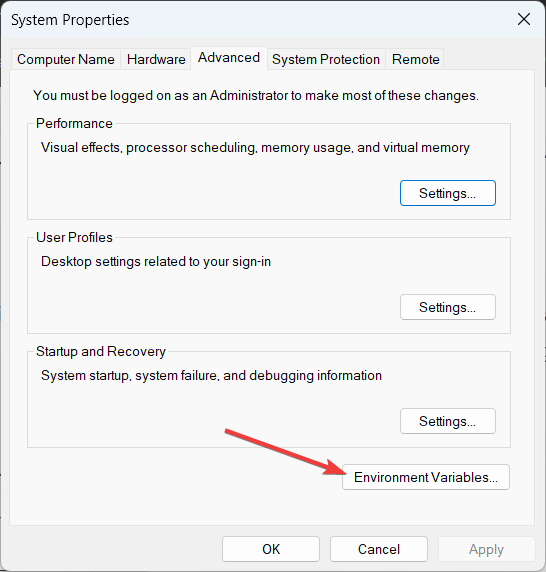
Go to Advanced system settings and then Environment variables.
Make sure the Python folder and the Scripts folder are included. Example paths: C:\Users\YourUser\AppData\Local\Programs\Python\Python311 C:\Users\YourUser\AppData\Local\Programs\Python\Python311\Scripts
Some scripts fail due to permission issues. To fix this:
Right-click the software or Python script.
Choose Run as administrator.
6. Use a virtual environment
To isolate dependencies and avoid conflicts, follow these steps:
Create a new environment with python -m venv venv.
Activate it by running venv\Scripts\activate
Reinstall the required dependencies inside the virtual environment.
FAQs
What does Python error oxzep7 mean?
It usually indicates a broken installation, missing modules, or misconfigured environment variables.
Is oxzep7 a Python bug or a software issue?
It is not a core Python bug. The error comes from how the software interacts with Python on your system.
Can I fix oxzep7 without reinstalling Python?
Yes. Often reinstalling specific packages or correcting environment variables is enough.
Does running as administrator always solve the issue?
No. It only helps if the error is related to permissions, not missing dependencies.
Should I use a virtual environment to avoid oxzep7 in the future?
Yes. Virtual environments isolate dependencies, which prevents many errors caused by version conflicts.
If oxzep7 persists after these steps, start with environment paths, then package reinstalls, and finish with a clean app reinstall so you eliminate configuration issues, broken dependencies, and permission conflicts in a logical order.
Microsoft is working to expand how IT admins handle Windows servicing in Microsoft Intune. A new set of Windows Quality Update management policies is in development, with preview availability scheduled for January 2026 and rollout beginning in February 2026.
The feature is listed under ID 501449 on the Microsoft 365 roadmap. Unlike existing tools that focus on security or feature updates, the upcoming change will target non-security and out-of-band releases.
In other words, admins will be able to select which update types should be automatically approved. They can also set rules for how those approvals are deployed across devices.
To catch you up, Intune already supports four policy categories: update rings, feature updates, quality updates, and driver updates. For starters, update rings help delay installs for stability, while feature policies keep devices locked to a specific Windows version.
Whereas the quality update policies are used to roll out critical fixes and driver policies. This gives IT teams control over hardware compatibility. The new controls build on that framework, narrowing focus specifically to Windows quality updates.
Microsoft is looking to give organizations a finer balance between speed and reliability by separating non-security previews and out-of-band releases. For those who are struggling with error code 80192EE7 in Intune, here’s a guide to help you out.
If Lightroom is not working on your PC, the problem can come from corrupted files, missing folders, or compatibility issues. Follow these solutions to get the program back on track.
If nothing else works, a clean reinstall can resolve deeper problems.
Uninstall Lightroom from the Control Panel or Creative Cloud.
Restart your computer.
Download and install the latest version from Adobe.
Restore your catalog and presets after installation.
If Lightroom still isn’t working after these fixes, consider switching to a different editor. Here’s a curated list of strong options in our Lightroom alternatives guide.
FAQs
Why is Lightroom not opening on my PC?
It may be due to corrupted files, outdated software, or missing system updates. Try updating Lightroom and Windows before reinstalling.
Why does Lightroom say my file is unsupported?
This happens if the file format is not compatible or the image is damaged. Converting or repairing the file usually solves it.
Can Lightroom lose my photos?
Lightroom does not delete original photos, but missing folder links can make images appear unavailable. Relocating the folders restores access.
Is it safe to reinstall Lightroom?
Yes, as long as you back up your catalog and presets. After reinstalling, you can restore your data without losing edits.
How do I migrate from Aperture to Lightroom?
Use Adobe’s migration tool to move your Aperture library. This ensures edits and metadata carry over correctly.
Running into error code 80192EE7 in Microsoft Intune can be frustrating. But, fortunately, there are multiple ways to fix it. Before we move, it’s important to learn what error code 80192EE7 on Intune is. Well, the error means your computer can’t properly enroll with your organization’s device management system.
When this error pops up, you generally get: “Your account was not set up on this device because device management could not be enabled.” Now that you are here, we are assuming you’ve been hit with the 80192ee7 error, so without wasting further time, let’s jump into the methods to fix it.
Go to Microsoft Entra ID > Mobility (MDM and WIP) > Microsoft Intune.
Find Windows Information Protection (WIP) user scope.
Set it to None.
Save your changes, then try enrolling again.
3. Fix Network and DNS Issues
Sometimes, the device simply can’t reach Microsoft’s enrollment servers.
Check that your internet connection is stable.
Run the following command in an elevated Command Prompt to clear the DNS cache. ipconfig /flushdns
Temporarily disable the firewall or antivirus (re-enable afterward).
If possible, try enrolling from a different network (like a mobile hotspot).
4. Disconnect and Re-Enroll the Device
If the device was previously enrolled, stale data may block re-enrollment.
Go to Settings > Accounts > Access work or school.
Disconnect the affected account.
Restart your device.
Add the work or school account again.
If that doesn’t work, run this command in an elevated Command Prompt:
dsregcmd /leave
Then, reboot and try enrollment again.
Why Does Error 80192EE7 Happen in Microsoft Intune?
This error usually points to problems with:
Policy misconfigurations in Intune or Azure AD.
Intune licensing issues
Network problems are blocking connections to Microsoft servers.
Unsupported devices with Windows Home edition.
Residual data from an old enrollment was not removed correctly.
As a quick reminder, we also have a separate guide to fix error code 0x87d1fde8 in Microsoft Intune. So if you’re facing similar issues, head over to check it. You’ll also find related questions and reasons behind the error.
FAQs related to error code 80192EE7 in Intune
What does error code 80192EE7 mean on Microsoft Intune?
It means your device couldn’t be enrolled for device management, which is required for setting up a work or school account.
Why is my account not being set up on this device?
This usually happens because of Intune policy misconfigurations, licensing issues, or a network problem preventing contact with Microsoft services.
How do I fix the “Something went wrong” error with Microsoft Intune?
The most common fix is changing the WIP user scope to “None” in the Azure Portal. Other steps include checking licensing, confirming device compatibility, and fixing network issues.
Can Windows Home be enrolled in Intune?
No. Windows Home does not support the enterprise features needed for Intune enrollment. You’ll need Pro, Enterprise, or Education editions.
USPS Redelivery fails for two main reasons: browser/session conflicts and address or tracking validation errors. Follow the fixes below in order (test after each).
Have your PS Form 3849 (the “We ReDeliver for You!” notice) and tracking number ready.
Enter the exact original delivery address (street, unit, ZIP+4) — standardized per USPS rules.
Know that you can modify an existing Redelivery only before the 2:00 AM CST daily cut-off.
1) Open a clean session (Private/Incognito) and try again
Why: USPS forms commonly fail due to stale cookies, cached scripts, or autofill. Private mode bypasses stored data without changing settings. Then try the Redelivery flow again from the official tool.
Steps:
Close all USPS tabs.
Open a Private/Incognito window.
Go directly to Redelivery and re-enter your info from scratch (no autofill).
2) Clear usps.com site data or switch browsers/devices
Why: Corrupted cookies/local storage can block address checks and captcha. Clearing only the usps.com data keeps other sites intact.
Steps:
Clear cookies/cache for usps.com.
If the error persists, try another browser (Chrome/Edge/Firefox) or a different device (mobile/desktop).
Reattempt the request.
3) Disable VPNs, ad-blockers, script blockers, and private DNS
Why: Captcha, geolocation, and address-validation calls can be blocked by privacy tools, causing silent form errors.
Steps:
Turn off VPN/proxy and custom DNS (e.g., encrypted/private DNS).
Temporarily pause ad/script blockers for usps.com.
Reload the form and retry.
4) Format the address exactly per USPS standards
Why: The form validates your address against USPS records. Non-standard formats, missing unit numbers, or bad suffixes often trigger “invalid address.”
Steps:
Use USPS-approved abbreviations (e.g., ST, AVE), include apartment/suite, and add ZIP+4 if you have it.
Avoid punctuation and extra spaces; use uppercase if possible (acceptable per Pub 28).
Re-submit with the standardized address.
5) Validate the tracking number and item eligibility
Why: Redelivery must match the original address and the correct USPS tracking/article number. Mismatches or ineligible mail types will be rejected.
Steps:
Confirm the entire USPS Tracking number (no spaces missing).
Ensure the tracking belongs to USPS and to the same delivery address you’re entering.
If you received PS Form 3849, use the details printed there when submitting.
6) Use “Modify Redelivery Request” instead of creating a new one
Why: If a request already exists, the system won’t accept a duplicate; you must edit the existing request before the daily cut-off.
Steps:
Open the Modify Redelivery page from your confirmation or Redelivery tool.
Enter the confirmation number and make changes (date, items).
Save changes and note the updated confirmation.
7) Try the USPS mobile app or switch networks
Why: Mobile apps and alternate networks can avoid desktop extensions, corporate firewalls, or captive portals that break form submissions.
Steps:
Test on cellular data if Wi-Fi is managed or filtered.
Try the USPS app or a different device and resubmit the request.
8) Arrange pickup or contact your local Post Office as a fallback
Why: If the form keeps failing or you’re close to the hold/return window, pick up the item or have the local office complete the redelivery.
Steps:
Bring your PS Form 3849 and ID to the pickup location listed; items are held for a limited period before return.
You may authorize someone to accept your redelivery if needed (address must remain the original).
Ask staff to confirm eligibility and schedule the next delivery attempt.
Tips
Enter data slowly and wait for each field’s validation to complete.
If the captcha loops, refresh the page in a clean session and retry.
Priority Mail Express has specific handling; schedule explicitly rather than waiting for “automatic” reattempts.
FAQs
Why does it say my address is invalid even though I get mail? The entry must match USPS standardization (unit, suffix, ZIP+4). Use official abbreviations and ensure the address exactly matches USPS records.
I already submitted a request but need to change the date. What now? Use Modify Redelivery before 2:00 AM CST on the scheduled day to edit details; otherwise changes are blocked.
How long will USPS hold my item if I can’t fix the form today? USPS leaves a second notice after several days; after the final notice, the item is returned if not claimed. Pick up at the office listed on PS Form 3849 to avoid returns.
Summary (ordered steps)
Private/Incognito retry 2) Clear usps.com data or change browser/device 3) Disable VPN/ad-blockers/private DNS 4) Enter standardized address (unit + ZIP+4) 5) Confirm USPS tracking and match to the same address 6) Modify an existing request before 2:00 AM CST 7) Use app or alternate network 8) Pick up in person or arrange via local Post Office
Conclusion
Most “USPS Redelivery not working” issues are solved by a clean browser session and a strictly standardized address that matches USPS records. If you still hit errors after these steps, modify the existing request (before the cut-off) or complete redelivery/pickup directly with your local Post Office using PS Form 3849 details.
Ensure you can receive SMS or push codes on this device.
Temporarily disable VPNs and private DNS when authenticating.
1. Update app and OS
Install the latest Santander app and system updates. Banking apps enforce recent security SDKs and frequently block outdated builds.
2. Sync device date/time automatically
Set date/time to automatic. Incorrect time breaks TLS and one-time passcodes.
3. Enable required permissions
Allow Notifications, Phone, SMS, Contacts, Camera (for ID), and Biometric access. Missing any can block login or payments.
4. Clear cache/data and re-enroll
Android: Clear cache/data, then open the app to re-register the device.
iOS: Offload and reinstall, then re-enroll. Follow prompts to pair your device again.
5. Reset biometrics
Remove Face ID/Touch ID fingerprint entries, re-add them, then toggle biometric login in-app. Corrupt biometric tokens can fail silently.
6. Switch networks and disable VPN
Move between Wi-Fi and cellular. Banking fraud controls may flag shared or foreign IPs. Keep location services on during enrollment.
7. Check account holds and limits
If transfers fail while login works, you may hit daily limits or a security hold. Wait and try again or verify identity in-app.
8. Contact support for device unlock
If you changed phones or wiped the device, your old registration may still be active. Ask support to remove old devices so you can re-enroll.
Tips
Don’t restore the app from a backup; do a fresh install to avoid stale tokens.
Keep text message spam filters off while expecting OTPs.
FAQs
Why can’t I receive verification codes? Carrier blocks, spam filters, or VPN/proxy can block OTP delivery. Disable filters and retry.
Why are transfers failing but login is fine? Likely limits, risk checks, or pending verification. Complete in-app checks or wait for review.
Summary
Update app/OS 2) Auto time sync 3) Enable permissions 4) Clear data and re-enroll 5) Reset biometrics 6) Switch networks/disable VPN 7) Check limits/holds 8) Ask support to unlock device
Conclusion
Most banking app problems resolve after a clean reinstall, correct time settings, and re-enrollment on a trusted network.
If Santander still fails after you refresh the connection, update, and reinstall, the issue is likely temporary or account specific. For shopping apps, follow this guide to fix the Instacart app not working and keep deliveries running smoothly.
You can also check our guide on what to do if the HBL app is not working for similar solutions.
Microsoft has officially rolled out its new Microsoft 365 region in Austria, giving businesses more options for controlling where their data is stored. With this launch, both the Advanced Data Residency (ADR) add-on and Multi-Geo Capabilities are now available to commercial customers in the country.
The ADR add-on ensures that certain customer data remains stored within Austria across a wide range of services, including Exchange Online, SharePoint Online, OneDrive, Microsoft Teams, Microsoft 365 Copilot, and Microsoft Defender for Office (Plan 1).
It also extends to Exchange Online Protection, Office for the Web, Viva Connections, and select Microsoft Purview products. Meanwhile, Multi-Geo gives organizations the flexibility to configure where user data is stored at rest on a per-user basis, all within a single tenant.
Supported services for Multi-Geo include Exchange Online, SharePoint Online, OneDrive, Teams, and Microsoft 365 Copilot. According to Microsoft, the new Austrian region is more than just about storage. It will also power artificial intelligence and other cloud services designed to accelerate digital transformation.
Hermann Erlach, General Manager of Microsoft Austria, highlighted the broader impact:
The use of AI is one of the key drivers for innovation and productivity in the Austrian economy. Combining AI with datacenters allows us to fully harness the potential of new technologies. With the new cloud region, we aim to work alongside our customers and partners to accelerate Austria’s digital transformation and foster the responsible deployment of AI across the country.
Austria’s launch continues Microsoft’s recent trend of data center expansions. Over the past 18 months, new Microsoft 365 regions have gone live in Mexico, Spain, Taiwan, New Zealand, Indonesia, Malaysia, and Chile, with Austria now joining the list.
Verify your Burner subscription is active and the line hasn’t expired.
Ensure you have cellular voice/SMS credit if required by your carrier.
Temporarily turn off any VPN, firewall, or private DNS.
1. Check service status and retry
If calls or texts fail broadly, wait a few minutes and try again. Temporary carrier or VoIP routing hiccups resolve by retrying.
2. Update Burner and your OS
Open App Store/Google Play and install updates. Outdated telephony libraries frequently cause dialing or push notification failures.
3. Enable core permissions
On iOS/Android, allow Phone, SMS, Contacts, Microphone, and Notifications. Missing mic or call permissions blocks outbound calls and voicemail.
4. Disable VPNs, private DNS, and ad-blockers
VPNs, DNS filters, and ad-block apps can break SIP/VoIP. Turn them off, or whitelist the app, then retest calling and texting.
5. Clear app cache/data and relogin
Android: Settings > Apps > Burner > Storage > Clear cache (then Clear data if needed).
iOS: Offload App, reinstall, and sign in. This refreshes corrupted config or tokens.
6. Reprovision or replace the line
If one number fails but others work, delete and re-add that line. Numbers can desync after OS updates or expired add-ons.
7. Reset network settings
iOS: Settings > General > Transfer or Reset > Reset Network Settings.
Android: Settings > System > Reset options > Reset Wi-Fi, mobile & Bluetooth. Then reboot and retest.
8. Test on another device
Install Burner on a second phone and log in. If it works there, your primary device has a local conflict you can isolate with the steps above.
Tips
Keep at least moderate signal; Wi-Fi calling quality depends on stable upload bandwidth.
If messages fail to deliver to one contact, ask them to unblock unknown numbers.
FAQs
Why are my Burner calls dropping? Usually Wi-Fi instability, VPN interference, or aggressive battery optimization closing the app.
Can I keep the same Burner number? Yes, if you renew the line before it expires in-app.
Summary
Retry 2) Update app/OS 3) Allow permissions 4) Disable VPN/DNS blockers 5) Clear cache/data and relogin 6) Reprovision the line 7) Reset network settings 8) Test another device
Conclusion
Conclusion
Most Burner issues resolve after you clear cache, update the app, and check permissions. If you also shop with Instacart, use this step by step guide to fix the Instacart app not working on your phone.
Most “Burner app not working” cases are fixed by updating, re-enabling permissions, and removing network filters that break VoIP.
FrankerFaceZ not working on Twitch usually comes down to browser conflicts, caching, or site permissions. Follow the steps below in order and test after each one.
Confirm FFZ is installed and enabled in your browser’s extensions.
Try a different browser profile or Incognito/Private window to rule out profile issues.
Note any other Twitch extensions (BetterTTV, 7TV) in case of conflicts.
1. Hard-refresh Twitch
Press Ctrl+F5 (Windows) or Cmd+Shift+R (Mac) on a Twitch page. This forces fresh scripts and can reload FFZ assets that failed to initialize.
2. Reorder or disable conflicting extensions
Disable other Twitch add-ons (BetterTTV/7TV/ad-blockers/script managers), refresh, then re-enable one by one. Conflicts in script injection order can block FFZ.
3. Clear site data for twitch.tv
In your browser, clear cookies and cached files for twitch.tv only. Corrupt local storage or stale FFZ settings can prevent emote rendering.
4. Allow required site permissions
Ensure FFZ is allowed on twitch.tv in the extension settings. In Chrome/Edge, set “Allow on all sites” or at least on twitch.tv, and allow “Access to file URLs” if requested.
5. Disable strict tracking protection on Twitch
Tight anti-tracking (uBlock Origin, Firefox ETP Strict, Brave shields) can block FFZ CDN assets. Lower shields for twitch.tv or whitelist the FFZ domains.
6. Reset FFZ profile settings
Open the FFZ control center on Twitch, export your settings, then reset to defaults. Re-enable modules progressively to find the breaking toggle.
7. Reinstall FFZ cleanly
Remove the extension, close the browser fully, reopen, and reinstall from the official store. This refreshes the injected content scripts and permissions.
8. Try a clean browser profile
Create a new Chrome/Firefox profile and install only FFZ. If it works there, your main profile has a conflicting rule, extension, or corrupted cache.
Tips
If only some channels break, the issue is likely per-channel data or a specific mod; clear site data and retest.
Running both FFZ and BetterTTV is fine, but keep both updated and avoid overlapping features.
FAQs
Why do FFZ emotes show as text? Because the FFZ script didn’t initialize or its assets were blocked. Clear twitch.tv data and relax shields.
Does FFZ work on mobile? Not in the native mobile app. Use a mobile browser in desktop mode with the extension supported.
Summary
Hard-refresh Twitch 2) Disable conflicting extensions 3) Clear twitch.tv data 4) Check extension permissions 5) Relax tracking protection 6) Reset FFZ settings 7) Reinstall FFZ 8) Test a clean profile
Conclusion
Work through the list in order. Most “FrankerFaceZ not working” cases are fixed by clearing twitch.tv data, relaxing blockers, and reinstalling FFZ.
If Libgen is not loading, the issue may be with the site itself, your connection, or regional restrictions. Follow the steps below to troubleshoot and restore access.
Right now, ChatGPT uses different types of models. Some are lightweight and fast, while others, like GPT-5-thinking, take their time to reason through a response. A new real-time router will decide which one to use. If the system picks up signs of crisis, it’ll automatically switch to a reasoning model trained to apply safety rules more carefully.
In moments when people are stressed or struggling, a quick, surface-level answer isn’t good enough. OpenAI believes that handing those conversations to a model built for deeper reasoning can lead to safer and more supportive responses.
The company isn’t making these changes on its own. It has pulled in experts’ recommendations from its Well-Being Council as well as a global network of more than 250 physicians. These include psychiatrists, pediatricians, and other specialists whose input is shaping how ChatGPT behaves in sensitive health-related scenarios.
This update is part of a wider 120-day plan to improve the safety of ChatGPT. Some features, like parental controls, are just around the corner. But routing chats during moments of acute stress stands out as one of the biggest changes.
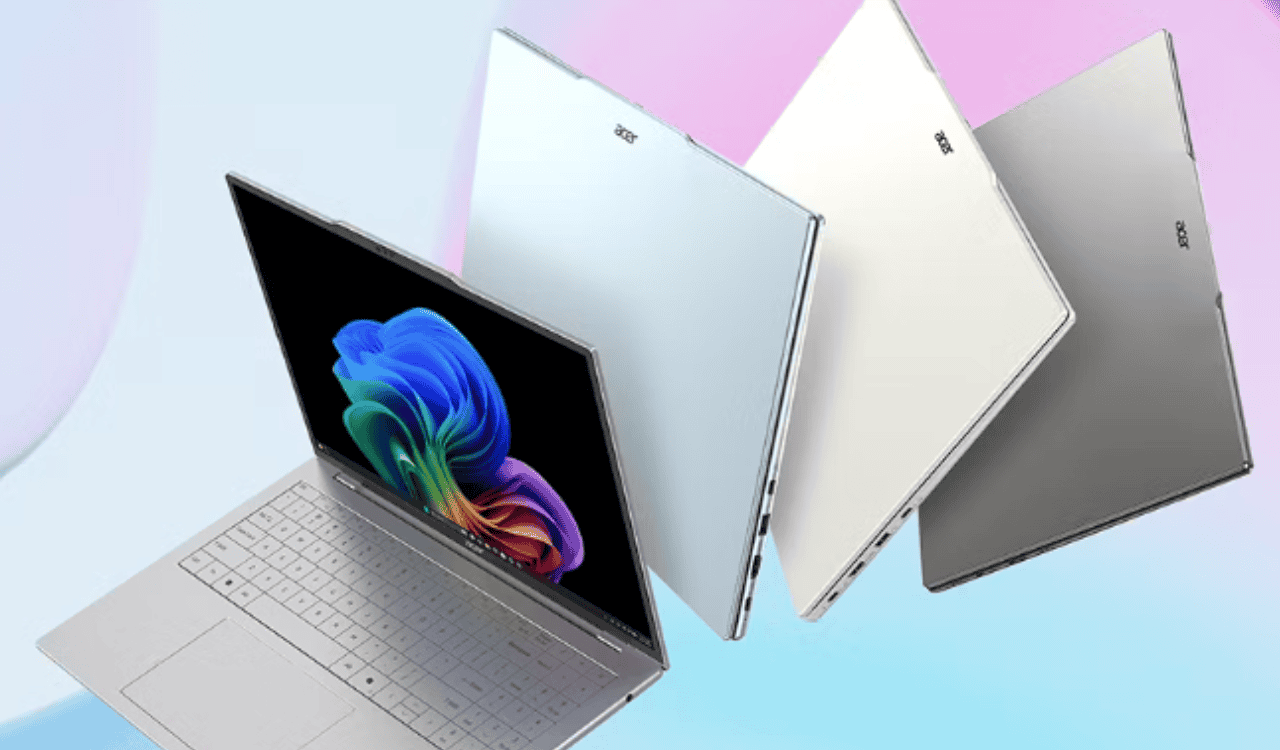
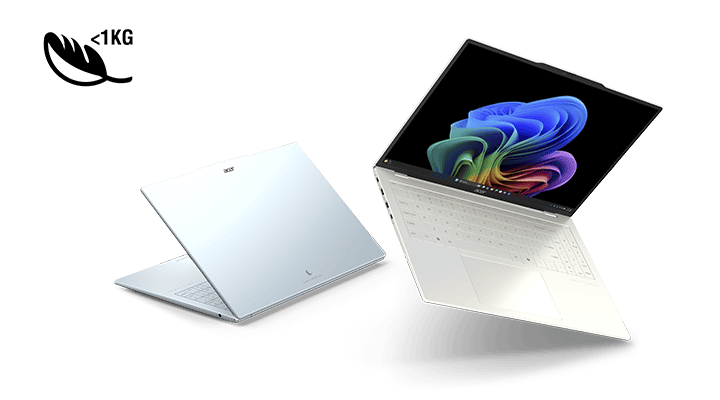
Acer had a lot to share at this year’s IFA in Berlin. The company just pulled the curtain back on its lightest-ever 16-inch laptop, the Swift 16 Air, along with a new Copilot+ PC, the TravelMate X4 AI. Both laptops aim to balance performance with portability, but they do so in different ways.
Acer Swift 16 Air
The Acer Swift 16 Air is all about weight. Despite its large 16-inch display, this laptop tips the scales at just over two pounds. You can choose between a standard IPS panel and an AMOLED option. The AMOLED version does add a little extra heft, pushing the weight up to 2.4 pounds, but it’s still impressively light for its size.
Image: Acer
Under the hood, the Swift 16 Air packs AMD’s new Ryzen AI 300 Series processors, with configurations going up to the AI 7 350. The laptop also includes AMD Radeon graphics, with Acer promising up to 13 hours of battery life on a single charge.
Other notable features are a built-in webcam with a privacy shutter, two USB-C ports, two USB-A ports, and HDMI connectivity. Each unit also comes with dual speakers and dual microphones for video calls or media.
The Acer Swift 16 Air will arrive this November across Europe, the Middle East, and Africa. Pricing starts at the equivalent of about $1,160, though US availability has not yet been confirmed.
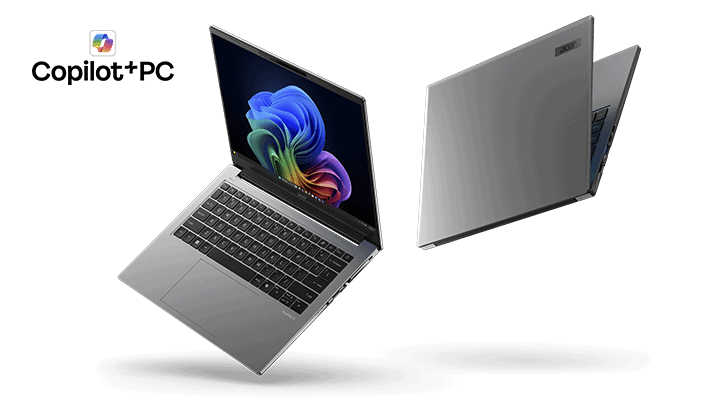
Acer TravelMate X4 14 AI
IFA also served as the stage for the Acer TravelMate X4 14 AI, a lightweight Copilot+ PC designed for professionals. This machine weighs in at under three pounds and meets MIL-STD810H durability standards, so it’s built to handle daily wear and tear.
Image: Acer
It runs on Intel’s latest Core Ultra processors and includes Microsoft’s Copilot+ AI features out of the box. Despite the slim form factor, Acer says this laptop doesn’t compromise on reliability or security. Moreover, the TravelMate X4 AI is launching later this month with a starting price of $1,400.
Are you trying to stream sports online but CrackStreams is not working? Many users run into loading issues, buffering, or complete downtime. Luckily, there are several reliable fixes and safe alternatives you can try.
Streaming problems are often caused by weak connections or minor glitches.
Restart your router, modem, and device.
Run a quick internet speed test.
Switch to a wired connection if possible.
Try another browser or device to rule out compatibility issues.
2. Clear cache and browsing data
Cached data may cause loading errors. Clearing it gives you a fresh connection to the site.
Open your browser settings.
Go to Privacy and Security.
Select Clear browsing data and delete cache and cookies.
Reload the page and test again.
Seeing similar errors on other streaming sites? Check this quick guide on MyFlixer not working for extra browser and network fixes. If you’re switching apps and can’t find it on the Play Store, see My Family Cinema not on Google Play for what to do.
3. Use a VPN service
If the site is blocked in your region or restricted by your ISP, a VPN can help. Connect to a server in another location and then reload the stream to check if it works.
4. Consider alternatives when CrackStreams is down
Free sports streaming sites are not always reliable. If servers are overloaded or taken down, your best option is switching to official or licensed services that guarantee stable performance.
If CrackStreams is not working, it is usually due to server outages, network restrictions, or browser-related issues. Restarting your devices, clearing cache, or connecting through a VPN often resolves the problem. For long-term stability, switching to official sports streaming services is always the safest option.
If you’ve spent countless hours playing Modern Warfare or the dark ops of Black Ops, this news is for you. The Call of Duty series, which is the best-selling video game franchise in the U.S. for 16 consecutive years, is finally getting the big-screen treatment.
Paramount, a Skydance Corporation, has officially announced an action-packed feature film based on the legendary Call of Duty franchise. David Ellison, Chairman and CEO of Paramount, says that the project is “a dream come true.”
In the press release, he further noted that the responsibility of honoring the brand’s legacy, promising to approach the film with the same “uncompromising commitment to excellence” that defined the studio’s work on Top Gun: Maverick.
Rob Kostich, President of Activision, gave similar statement, saying that the film will be a “defining cinematic moment.” He added that the shared goal is to create an “unforgettable blockbuster movie experience.” Eventually, both leaders want the film to resonate with both the core COD community and new audiences.
As of now, there’s no word about the film’s specific plot, cast, and director. However, the announcement confirms that the movie is a high priority for the newly formed Paramount-Skydance conglomerate.
If you are excited about the Call of Duty movie, do let us know in the comments. Also, don’t forget to share who you want to see in the lead roles.
If the app won’t load, start by checking your connection with these steps:
Switch between Wi-Fi and mobile data.
Run a speed test to confirm stability.
Restart your router or modem.
Turn airplane mode on and off.
Reconnect to a reliable network.
This helps rule out slow or unstable internet as the cause of the issue.
2. Restart the app and device
A quick restart often clears minor glitches. Try these steps:
Close the MLB Ballpark app completely.
Reopen it and check if it loads.
Restart your phone or tablet.
Free up memory by closing other apps.
Try logging in again.
This gives the app a fresh start and can fix loading or login errors.
3. Clear app cache and data
If problems persist, clear the app’s stored data by following these steps:
Open device Settings.
Go to Apps > MLB Ballpark.
Select Storage.
Tap Clear cache, then Clear data.
On iOS, reinstall the app instead.
This removes corrupted files and restores the app to default settings.
4. Update or reinstall the app
Make sure you’re using the latest version of the app. Here’s how:
Open App Store or Google Play.
Search for MLB Ballpark.
Tap Update if available.
If not, uninstall the app.
Reinstall the latest version.
Updating or reinstalling adds bug fixes and improves compatibility.
5. Check for account or server issues
Sometimes the issue is on MLB’s end. Check with these quick steps:
Try logging in on another device.
Check MLB’s social pages for outage alerts.
Confirm your account is active.
Wait if servers are down.
This confirms whether the problem is with your account or MLB’s servers.
6. Disable conflicting apps
Other apps can interfere with MLB Ballpark. To rule this out:
Turn off VPNs or ad blockers.
Disable battery saver mode.
Close background security apps.
Reopen MLB Ballpark.
Test if the issue is gone.
Disabling conflicts lets the Ballpark app connect and load without interruptions.
Most problems with the MLB Ballpark app can be fixed by checking your connection, clearing app data, or reinstalling the app. These simple steps usually solve crashes, login errors, or missing tickets. For more details on setup, you can check the MLB.TV VPN guide.
If the issue feels similar to other sports apps, you might find solutions in the NFL app error 403 forbidden article or the NFL Fantasy app not working guide. These show how common fixes often overlap between streaming and sports apps.
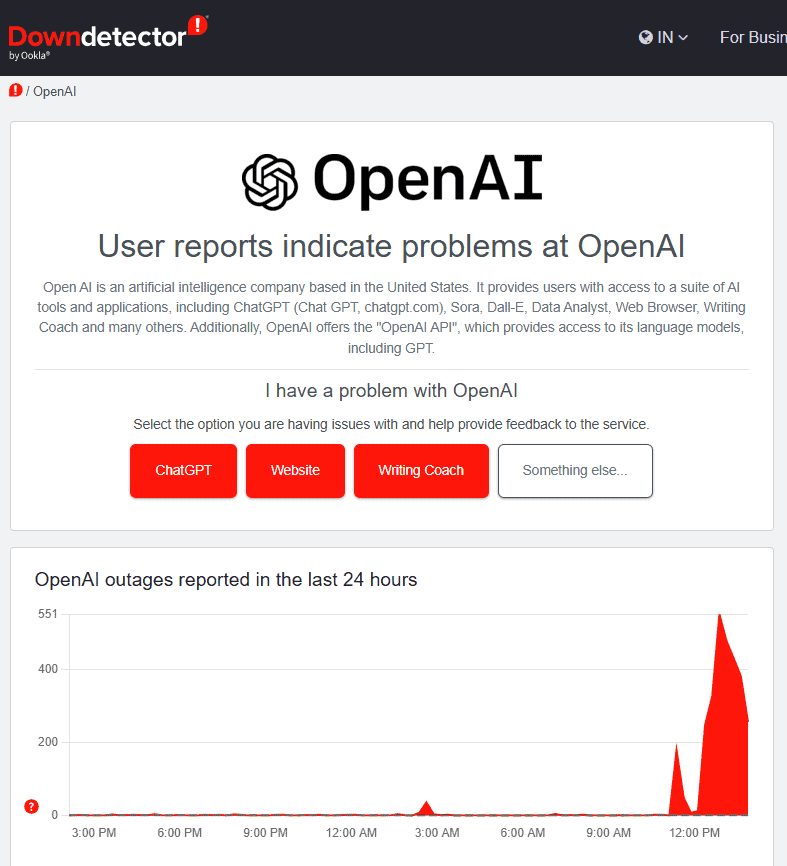
Are you wondering if ChatGPT is down right now? Well, it is, indeed. If you can’t use ChatGPT or it’s not responding to your query or throwing error messages, you’re not alone. Users worldwide are reporting a significant outage, taking to social media to vent their frustration over the disruption. According to Downdetector, hundreds of users have filed reports in the last hour or so, indicating issues with the AI chatbot.
ChatGPT is down for many users in India and many other regions
The outage appears to be affecting a large number of users globally, including in India. While some users have reported that ChatGPT is working fine, others are experiencing network errors, with both the website and mobile app versions being affected.
Image: DownDetector
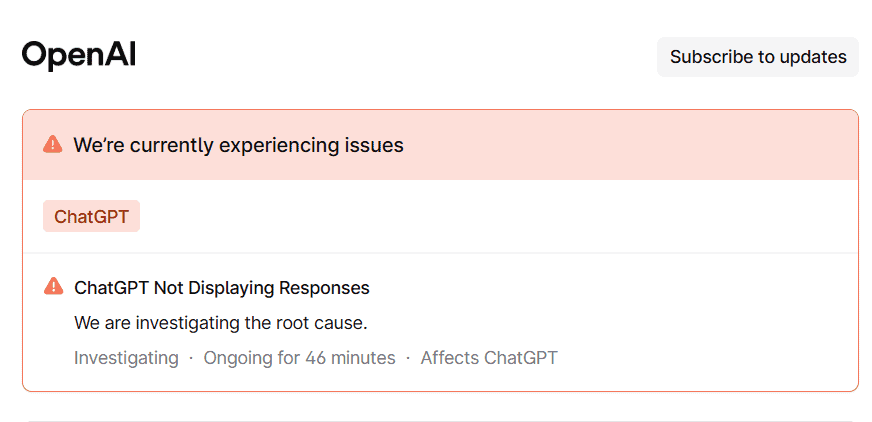
So far, OpenAI, the developer of ChatGPT, has not issued an official statement on the outage. However, OpenAI’s official status page has acknowledged the “ChatGPT not displaying responses” error and stated that they are investigating the issue.
Image: OpenAI
This isn’t the first time ChatGPT has faced a major disruption. The popular AI chatbot has experienced several outages in the past, causing widespread frustration among its millions of users.
These include a global access failure late in January 23 earlier this year, which affected users for over three hours.
If ChatGPT is down, what should I use now?
With ChatGPT currently experiencing issues, users looking for an immediate solution can consider several alternative AI chatbots. These options offer similar capabilities and may be more reliable during service disruptions.
Google Gemini: A strong competitor designed for efficient text content generation.
Perplexity AI: Ideal for deep research and academic work, as it is known for providing accurate citations.
Microsoft Copilot: This bot provides an experience similar to the premium version of ChatGPT and includes image generation capabilities.
Grok: Grok is a conversational AI by xAI with real-time information access from the X platform and a willingness to answer “spicy” questions.
YouChat: Utilizes a powerful search engine to provide updated and relevant answers.
Jasper Chat: An excellent alternative for content creators, offering built-in SEO optimization capabilities.
If the NFL Fantasy Football app is not working, it can be due to network problems, outdated software, or temporary glitches. You can usually fix the issue by following the steps below.
What can I do if NFL Fantasy Football app is not working?
Performance glitches are also possible. Fixing them is often similar to solving FIFA 22 lag by updating software and optimizing your device. Keeping the app current and checking NFL server status will help avoid future disruptions.
If you also run into issues with ticketing or game-day features, our MLB Ballpark app not working guide walks you through step-by-step fixes that solve crashes and login problems.
If you’re seeing a ChatGPT route error 400, it usually means the request sent to the server was invalid. This error often prevents you from sending prompts or receiving responses. Thankfully, there are several quick fixes you can try.
It commonly happens due to corrupted cache, outdated browsers, session timeouts, or sending too many requests in a short period.
How do I prevent error 400 in ChatGPT?
Keep your browser updated, clear cache regularly, avoid excessive requests, and ensure a stable network connection.
If none of the steps resolve the ChatGPT route error 400, it may be a temporary platform issue. Give it time, then try again with a fresh session and minimal extensions enabled.
For broader connectivity problems that resemble 400 symptoms, see how to resolve ChatGPT network errors.
If you are facing Gears of War Reloaded multiplayer not working, you are not alone. Many players report server errors, failed connections, or problems joining friends, but the fixes below can help.
How to fix Gears of War Reloaded multiplayer not working?
Restart your router and modem by unplugging them for at least 30 seconds, then plug them back in.
Reconnect your device to the network.
Run an Internet speed test to confirm you have at least 25 Mbps download speed.
If possible, switch to a wired Ethernet connection for more stability.
If connectivity still drops, advanced steps from other Gears titles can help, such as those in how to fix Gears 5 errors.
2. Restart the game and your device
Exit Gears of War Reloaded completely.
Restart your PC or console to clear cached data.
Launch the game again and try joining a multiplayer match.
If the game closes instead of restarting properly, try the tips in Gears 5 crashing on startup which often apply here too.
3. Check Xbox Live or Steam server status
Visit the official Xbox Live or Steam status page for your platform.
Look for any outages or maintenance notices affecting Gears of War Reloaded.
If servers are down, wait until the service is restored, then retry matchmaking.
4. Update the game and system software
On PC, open Steam or the Microsoft Store and check for pending updates.
On Xbox or PlayStation, open the game options and select Check for updates.
Update console firmware or Windows to the latest version and reboot.
5. Clear cache or temporary files
On PC, press Win + R, type %localappdata%, then delete temporary files related to Gears of War Reloaded.
On Xbox, clear cache by holding the power button for 10 seconds, unplugging the power cable, waiting 1–2 minutes, then restarting.
Relaunch the game and test multiplayer again.
If you notice odd sound behavior after clearing files, follow the steps in Gears 5 audio issues to stabilize audio during matches.
6. Reinstall the game or try another client
Uninstall Gears of War Reloaded from your PC or console.
Restart your device to remove any cached remnants.
Reinstall the game from Steam or Microsoft Store.
If issues persist, try a different supported client to rule out store-specific conflicts.
Most cases of Gears of War Reloaded multiplayer not working come down to network stability, outdated files, or temporary glitches; working through the steps above typically restores smooth online play.
If ESPN is not working, you might run into buffering, login errors, or provider issues. This guide shows you the easiest ways to get it running smoothly again.
Run a speed test to confirm you have at least 5 Mbps for HD streaming.
Restart your router and modem to refresh the connection.
Switch to a wired Ethernet connection if possible.
Reconnect your device to the Wi-Fi network.
If ESPN+ still buffers after these steps, the issue could be related to streaming servers or device performance. You can follow a full guide on how to stop ESPN+ buffering for more detailed solutions.
2. Update and restart the app
Open your device’s app store and check if ESPN has an update.
Download and install the latest version.
Restart the app after updating.
If errors continue, uninstall and reinstall the app completely.
3. Clear cache and data
On mobile, go to Settings > Apps > ESPN > Storage.
Select Clear Cache and then Clear Data.
On browsers, open Settings and clear cookies and cache.
Restart your device and relaunch ESPN.
4. Fix provider login problems
Open the ESPN app or website.
Select Log in with TV Provider.
Choose your provider from the list.
Enter your correct username and password.
If you are stuck on a login loop or your provider is not recognized, the fix usually involves re-linking your account. You can find more detailed steps in this guide on how to fix ESPN asking for a TV provider.
5. Switch devices or contact support
Try opening ESPN on another device or browser.
Use Chrome, Firefox, or Edge for the best compatibility.
If problems persist, contact ESPN Support directly.
Provide your device type, account info, and the error message for quicker help.
You can also check our FXNOW activate guide to make sure your streaming apps are set up correctly before troubleshooting further.
FAQs
Why is ESPN buffering so much?
It usually happens because of slow internet speeds or overloaded servers.
Does ESPN require a TV provider?
Yes, live ESPN channels need a TV provider login. ESPN+ only requires a subscription.
Can I fix ESPN without reinstalling the app?
Yes, clearing cache, updating the app, or restarting your device often works before reinstalling.
If Wicked Whims is not working in The Sims 4, it usually means the mod wasn’t installed properly, is outdated, or is conflicting with another mod. Below are the most effective ways to fix this problem.
Download the latest Wicked Whims mod from the official source.
Extract the archive using a tool like WinRAR or 7-Zip.
Place the .package and .ts4script files directly into the Sims 4 Mods folder (Documents > Electronic Arts > The Sims 4 > Mods).
Avoid placing the files in multiple subfolders.
Restart the game and check if the mod loads.
If your mods still don’t show up, this article on Sims 4 mods not working covers common mistakes and solutions.
3. Update Wicked Whims and Sims 4
Check for Sims 4 updates on Origin, EA App, or Steam.
Update the game to the latest version.
Download the newest Wicked Whims version from the official website.
Remove the old Wicked Whims files from your Mods folder.
Place the updated files in the Mods folder and restart the game.
If the game starts failing to launch or crashes right after a patch, see this full guide on Sims 4 not working after update for broader game fixes beyond Wicked Whims.
4. Check for mod conflicts
Move all mods except Wicked Whims to a temporary folder outside of the game.
Launch Sims 4 and test if Wicked Whims loads correctly.
Add your other mods back one by one to identify conflicts.
Remove or update the conflicting mod.
Restart Sims 4 with Wicked Whims active.
Conflicts may also trigger specific errors such as the NISA issue in Sims 4, which can interfere with Wicked Whims.
Most problems with Wicked Whims come down to disabled settings, outdated files, or conflicts with other mods. By enabling script mods, reinstalling the files properly, and keeping everything updated, you can usually restore the mod’s functionality without much effort.
FAQs
Why is Wicked Whims not showing up in Sims 4?
It’s usually because script mods aren’t enabled or the files are installed incorrectly.
Does Wicked Whims need to be updated after every Sims 4 patch?
Yes. Game updates often break mods, so always use the latest version.
Can other mods stop Wicked Whims from working?
Yes. Conflicting mods are a common cause, so test by removing other mods temporarily.
Where should I install Wicked Whims files?
Place both the .package and .ts4script files directly into the Mods folder, not inside multiple subfolders.
Microsoft has released PowerToys version 0.94, which focuses on making everyday use simpler, smarter, and more accessible. One of the biggest changes is the addition of a search function inside the Settings menu.
With PowerToys offering dozens of utilities, finding a specific option could often feel daunting for many of you. The new search box solves this by supporting fuzzy matching, meaning you don’t have to type the exact term. You can just press Ctrl+F, start typing, and you’ll be taken directly to the right place.
For longer lists of results, there’s even a “Show all results” page. Another notable feature in PowerToys version 0.95 is shortcut conflict detection. Anyone who has ever assigned hotkeys in PowerToys knows that overlap with other modules or even Windows itself can cause confusion.
Image: Microsoft
With this update, conflicting shortcuts are now marked in red, and a new dashboard tile shows how many conflicts you have at a glance. From there, you can quickly reassign hotkeys and restore order to their workflows.
The latest version also brings Mouse Pointer Crosshairs tool. A new gliding cursor mode allows users to control the mouse step by step with just a single shortcut, reducing the need for rapid movements. This makes navigation far more manageable for people who find precise mouse control difficult.
Under the hood, PowerToys 0.94 also improves stability and security. The installer has been upgraded, Quick Accent now supports Maltese, and the Command Palette has received bunch of fixes and design improvements. With the new version, handling of host file entries and runtime registration for context menu modules is much easier.
Microsoft has already teased that PowerToys version 0.95 will bring a revamped Keyboard Manager UI. In addition, there’ll be a brand-new utility that can automatically switch Windows between light and dark mode based on your schedule.
For now, PowerToys 0.94 is available to download either through the built-in updater or from the official GitHub release page. For full release notes, please click here.
Microsoft today announced the first-ever Virtual Desktop Infrastructure (VDI) optimization for Microsoft Teams in Amazon WorkSpaces, now available in Public Preview. This update marks a breakthrough for AWS customers, offering a fully optimized Teams experience on Windows endpoints for both Personal and Pools WorkSpaces configurations.
Until now, Amazon WorkSpaces users had to rely on unoptimized Teams clients that struggled with performance and stability. With this release, Microsoft is addressing a long-standing demand from enterprises using AWS-based virtual desktops.
What’s new in Teams for Amazon WorkSpaces
The new solution introduces multimedia offloading and optimization powered by the SlimCore Media engine, bringing features that improve everyday collaboration. These include:
High-definition audio and video for clearer calls and meetings
Smooth screen sharing with reduced lag
Lower latency and improved reliability by offloading media processing to the local device
Image: Microsoft
Microsoft confirmed that this release is exclusive to Amazon WorkSpaces when connecting via the Windows WorkSpaces Client. AppStream and other platforms are not supported at this time.
For many enterprises, especially those relying on VDI for contractors or cross-tenant collaboration, the lack of Teams optimization on AWS has been a challenge. This update promises:
Improved call quality and responsiveness in meetings
Feature parity with the desktop Teams client
More reliable performance for external and hybrid collaboration
Global companies like Wolters Kluwer have already tested the new setup, reporting significant improvements in audio-video quality and stability across regions.
Agencies and enterprises can now configure Teams with SlimCore-based VDI optimization in Amazon WorkSpaces. Setup requires enabling the feature through Teams update policies in the Teams Admin Center. The feature is currently in Public Preview, with General Availability (GA) to follow later, as listed on Microsoft’s public roadmap entry.
Recently, OpenAI announced a $1 ChatGPT Enterprise offering for federal branches, while Anthropic introduced Claude AI at the same price point. Now, Microsoft is jumping in, as it has parterned with the U.S. General Services Administration (GSA) and announced a comprehensive agreement to deliver a suite of AI, cloud, and productivity services to federal agencies.
The deal includes Microsoft 365 Copilot at no cost for up to 12 months for millions of existing Microsoft G5 users, helping agencies adopt secure AI tools that enhance operations, strengthen security, and accelerate innovation for the American public.
This governmentwide unified pricing strategy is projected to save agencies nearly $3 billion in the first year, marking a milestone in GSA’s OneGov strategy. Under this agreement, federal agencies can access advanced AI features now integrated into the tools they already use.
Microsoft outlined several benefits, including:
Transforming productivity with Microsoft 365 Copilot to automate workflows, analyze data, and improve collaboration.
Driving automation with AI agents at no per-agent fees for citizen inquiries, case management, and contact centers.
Accelerating cloud modernization through Azure discounts and waived egress fees to improve interagency collaboration.
Streamlining operations with Dynamics 365 to enhance citizen services and optimize supply chains.
Strengthening security using Entra ID and Sentinel to support the federal Zero Trust framework.
Agencies can opt into these offerings through September 2026, with discounted pricing locked in for up to 36 months. Microsoft confirmed these services meet strict security standards, with FedRAMP High authorizations for Microsoft 365, Azure, and other AI services. Copilot has also received provisional authorization from the U.S. Department of Defense, with FedRAMP High expected soon.
Beyond technology savings, Microsoft will invest $20 million in support services and workshops to help agencies optimize costs, reduce software duplication, and adopt automation. Taken together, the agreement is expected to deliver more than $6 billion in value over three years.
For more than a decade, Dolby Vision has been the gold standard in HDR, transforming how we experience films, shows, and games at home. Now, Dolby is pushing things even further with Dolby Vision 2. This new standard doesn’t just refine brightness and contrast; it brings AI-powered intelligence, cinematic motion control, and smarter tone mapping designed to get the very best out of today’s advanced TVs.
Dolby Vision 2 is the next generation of Dolby’s HDR technology, designed to take full advantage of modern display capabilities. While the original Dolby Vision set the bar for dynamic range and color accuracy, Dolby Vision 2 goes further by combining a new image engine, AI-powered content intelligence, and creative-led motion tools.
In short, Dolby Vision 2 delivers a picture that’s not only technically superior but also truer to the filmmaker’s intent. No matter what you’re watching or where you’re watching it.
Readers who want a clear comparison between Dolby Vision and other HDR formats can check this guide on Dolby Vision vs 4K vs HDR to better understand how the new Dolby Vision 2 standard builds on earlier technologies.
What are the key features of Dolby Vision 2?
Dolby has announced a bunch of new features with the new Vision 2 standard. Here’s everything you need to know:
Next-Gen Image Engine: This ensures more processing power to unlock higher clarity and color depth from any content source.
Content Intelligence: It brings new AI tools that automatically optimize your TV settings based on content type, room lighting, and device. Here is everything included in Content Intelligence:
Precision Black: It improves dark scenes, reducing the common “too dark” complaint while keeping artistic intent intact.
Light Sense: This feature uses ambient light detection plus reference data from the source to adjust brightness and color dynamically.
Sports & Gaming Optimizations: It basically caters to enhancements for fast-paced content, including white point calibration and motion adjustments.
Bi-Directional Tone Mapping. These allow creators to fine-tune brightness and contrast so high-end TVs can show off richer highlights and deeper colors.
Authentic Motion: It is a new, creator-driven motion smoothing tool that applies frame adjustments on a shot-by-shot basis, keeping movies cinematic while reducing unwanted judder.
What are the different tiers of Dolby Vision 2?
To make things easier for consumers, Dolby Vision 2 will be offered in two tiers:
Dolby Vision 2 Max: Reserved for flagship TVs, offering every premium feature and pushing displays to their technical limits.
Dolby Vision 2 (Standard): Aimed at mainstream TVs, it still brings the upgraded image engine and AI-driven improvements.
Which TVs will support Dolby Vision 2?
Dolby has already announced partners who will first adopt the new technology. Hisense will be the first to launch TVs with Dolby Vision 2, powered by MediaTek’s Pentonic 800 chip featuring MiraVision Pro. Meanwhile, French broadcaster CANAL+ will roll out Dolby Vision 2 content across movies, series, and live sports.
With over 350 TV models from LG, Sony, TCL, Vizio, and Roku already supporting the current Dolby Vision format, it’s only a matter of time before we see broader adoption of this new standard.
Dolby Vision 2 expands the capabilities of Dolby Vision beyond HDR
Unlike its predecessor, Dolby Vision 2 is positioned as more than just HDR. It’s an adaptive ecosystem. By combining AI, ambient light sensing, and creative tools, it makes sure sports, games, and movies all look their best without requiring users to fiddle with TV menus. For viewers, that means sharper sports broadcasts, immersive gaming visuals, and cinematic movies, all tuned automatically for your screen and environment.
If your FedEx app is not working, the issue is usually caused by network errors, outdated files, or temporary glitches. Follow these solutions to get it running again.
Check if your Wi-Fi or mobile data is active and stable.
Switch between Wi-Fi and mobile data to test the connection.
Restart your router if the network seems unstable.
If the problem happens when tracking a shipment, you may encounter errors like missing IDs. In that case, check this FedEx tracking number not found guide for possible fixes.
2. Restart and refresh the app
Close the FedEx app completely from recent apps.
Restart your phone to clear temporary glitches.
Reopen the app and test it again.
3. Clear cache and update
Go to Settings > Apps > FedEx.
Select Storage and clear cache and data.
Check the App Store or Google Play for updates.
If needed, uninstall and reinstall the app.
When you manage delivery schedules, you might notice errors even after updates. If that happens, follow this FedEx Delivery Manager not working guide for step-by-step solutions.
4. Check system compatibility
Update your phone’s operating system to the latest version.
Confirm that the FedEx app supports your current OS version.
5. Use FedEx on the web
Open your mobile or desktop browser.
Go to the official FedEx website.
Sign in and manage deliveries directly online.
For shipment disputes or claims, you may need to skip the app and use FedEx online tools. This FedEx claim status quick guide explains how to track and manage claims easily.
FAQs
Why is the FedEx app not loading?
It often happens due to poor internet, corrupted app cache, or outdated versions. Restarting the app and clearing cache usually helps.
Does the FedEx app need updates to work?
Yes, updating ensures compatibility with the latest OS and fixes known bugs.
Can I track shipments without the app?
Yes, you can always use the official FedEx website to track and manage deliveries.
What should I do if the FedEx app keeps crashing?
Reinstall the app and check if your device software is updated. If it persists, use the web version until a fix is released.
Setting up DNS in Windows Server is essential for managing domain names and resolving them into IP addresses. With DNS settings properly set up, your network runs smoothly, and applications can reach resources without issues. The process is straightforward, and you only need to follow a few steps carefully. Here’s a simple guide to get your DNS server up and running.
How do I set up a DNS on Windows Server?
Start by logging in to your Windows Server with administrator rights.
Then, click the Start menu and launch Server Manager from the pinned list or search bar.
In Server Manager, select Manage from the top right corner, then click Add Roles and Features.
Then, select Role-based or feature-based installation and click Next to proceed.
From the server pool, select the server you want to configure, then click Next.
From the list of roles, check DNS Server, then click Next. Confirm any additional prompts.
Review your selections and click Install. Wait for the installation to complete, then close the wizard.
Now, open DNS Manager by going to Tools > DNS in Server Manager. This opens the DNS Manager console.
In DNS Manager, right-click Forward Lookup Zones and select New Zone. Follow the wizard to set up your primary zone.
Enter the zone name (usually your domain name), select the zone type (Primary Zone), and complete the wizard.
Once your zone is created, right-click it and select New Host (A or AAAA) to add IP mappings for your domain.
You can improve name resolution reliability by using trusted DNS services, and OpenDNS is a popular option that enhances security and stability. Learn more in this guide on OpenDNS free DNS.
Summing Up
DNS is the backbone of name resolution. Without it, users must rely on IP addresses, which is not practical. Proper DNS setup makes applications, websites, and internal resources accessible with simple names instead of numbers.
To ensure remote clients can securely reach internal DNS resources, learn how to install DirectAccess.
Besides, it’s a requirement if you’re running services like Active Directory. If you’re working on related topics, you may also want to check guides about deleting a service on Windows Server and opening ports in Windows Server.
FAQs
What is DNS in Windows Server?
DNS (Domain Name System) in Windows Server translates domain names into IP addresses. It helps users connect to resources without remembering long numerical addresses.
How do I configure DNS on Windows Server?
You configure DNS by adding the DNS Server role in Server Manager, setting up a Forward Lookup Zone, and creating host records for your domain.
What are the 4 types of DNS servers?
The four main DNS server types are Recursive Resolvers, Root Name Servers, TLD Servers, and Authoritative Name Servers. Each plays a unique role in resolving domain queries.
Confirm your card details are correct and not expired.
Remove and re add the card if needed.
Contact your bank if payments still fail.
If nothing works, use a different service for transfers until Wealthsimple is back. A reliable option is Payoneer, and to learn how to works, check our guide on how to transfer money using Payoneer.
FAQs
Why is my Wealthsimple app not loading?
It usually comes down to unstable internet, an outdated app, or a temporary platform issue.
Can I use Wealthsimple on a computer?
Yes, you can access it through the web version if the mobile app is not working.
Why is my Wealthsimple deposit failing?
Your card might be expired, blocked, or not allowed for online transactions. Updating or re adding the card can help.
What if Wealthsimple is down for everyone?
In a service wide outage you will need to wait for a fix. Use another service in the meantime if needed.
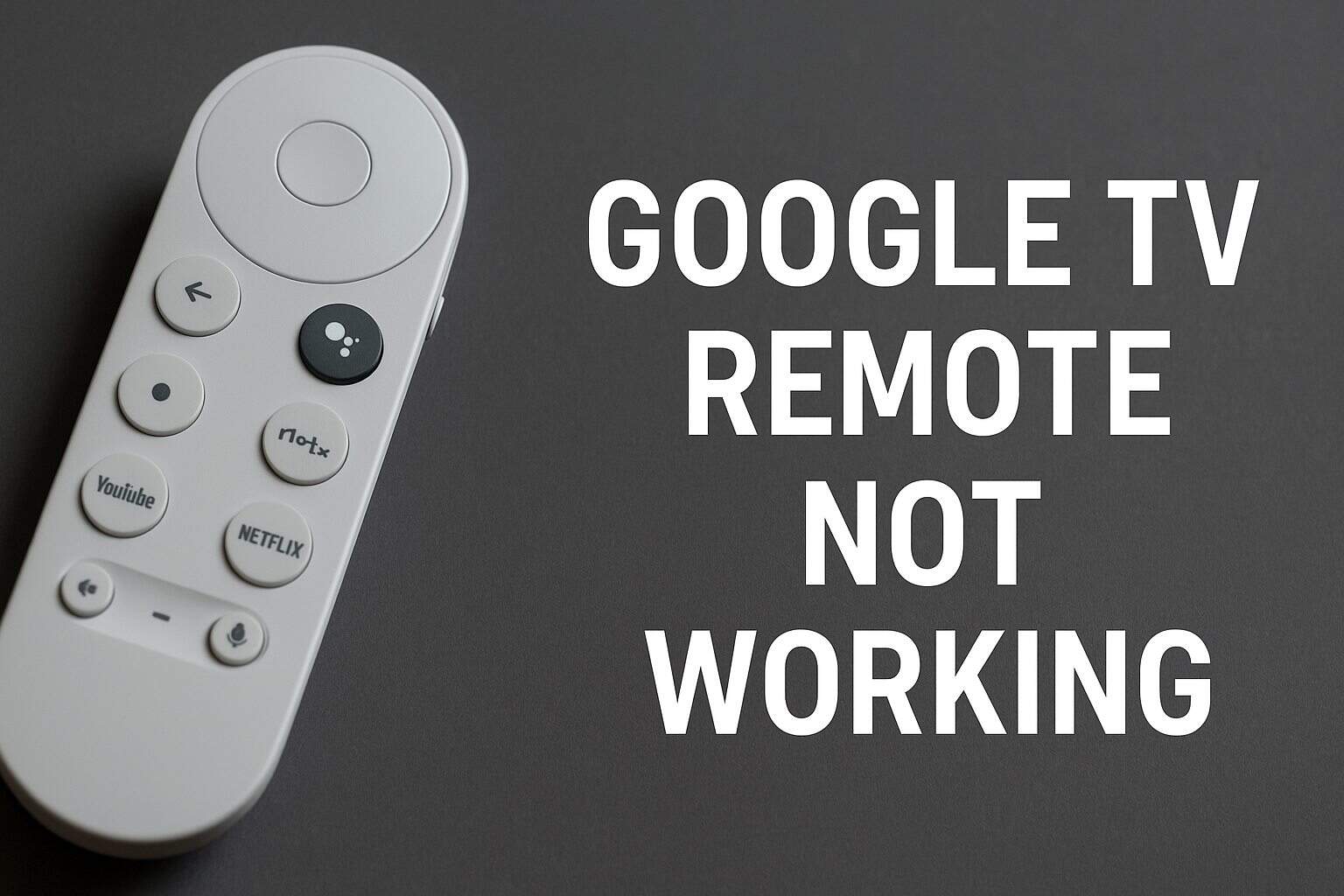
If your Google TV remote is not working, don’t worry. This guide will walk you through simple steps to fix the problem and get your remote working again.
Insert new batteries, making sure the polarity is correct.
Put the cover back on.
Test the remote to see if it works.
2. Restart your Google TV device
Unplug your Chromecast with Google TV or streaming device.
Wait at least 30 seconds.
Plug the device back in.
Wait for it to fully restart.
Try using the remote again.
3. Re pair the remote
On your Google TV, go to Settings.
Select Remote and Accessories.
Choose Pair remote or accessory.
Press and hold the remote’s Home and Back buttons until the LED starts blinking.
Select your remote from the list and confirm pairing.
4. Check for obstructions
Make sure nothing blocks the line of sight between the remote and device.
Move any objects that could cause interference.
Keep the streaming device visible and not hidden behind the TV.
Test the remote again from different angles.
5. Reset your remote
Press and hold the Home and Back buttons together for 5 seconds.
Release the buttons when the LED light starts flashing.
Follow the on screen instructions to re pair the remote.
Test if the buttons respond after resetting.
If your Google TV remote still does not work, the issue may be with the Chromecast or streaming device itself. For example, sometimes the Chromecast not showing up in Chrome problem can make it seem like the remote is faulty. You can also check our guide on Chrome tab casting not working for more help.
In some cases, your computer might fail to connect properly, leading you to think the remote is at fault. If that happens, you should troubleshoot why your computer won’t detect Chromecast and apply the recommended solutions.
Most problems with a Google TV remote not working come down to simple fixes like replacing batteries, restarting the device, or re pairing. If the issue continues, look into possible Chromecast connectivity errors and follow our related troubleshooting guides.
If you’re running applications or services that rely on network access, understanding how to open ports in Windows Server is essential. Windows Server includes a built-in firewall that blocks unauthorized connections, but sometimes you’ll need to allow specific ports so apps like SQL Server, web servers, or SSH can communicate properly. In this guide, we’ll walk you through a step-by-step method to safely open ports in your server’s firewall.
How do I easily open ports in Windows Server
1. First, log in to your Windows Server. Make sure you’re using an administrator account with firewall access.
2. Then, launch PowerShell or Command Prompt and type wf.msc and press Enter to open Windows Firewall settings.
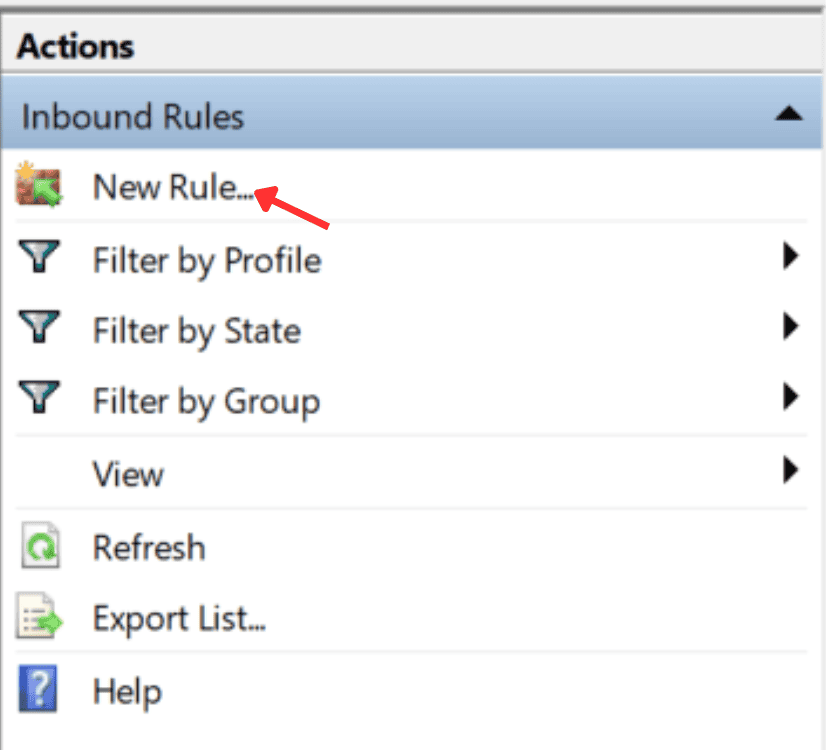
3. Next, select Inbound Rules. On the left-hand panel, click Inbound Rules to manage incoming connections.
4. Then,on the right side, choose New Rule to start creating a port rule.
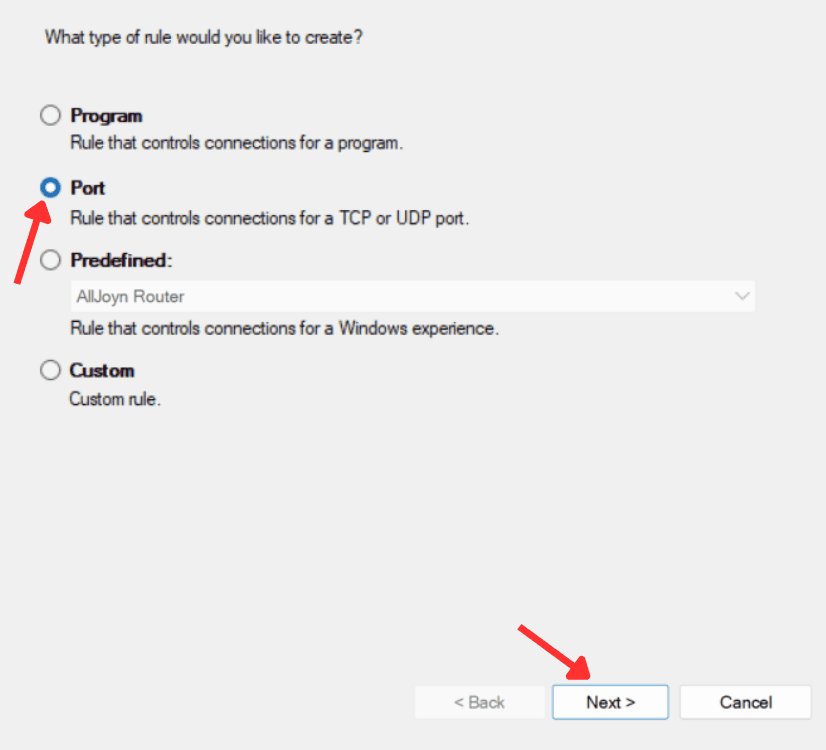
5. Next, select Port as the rule type and click Next.
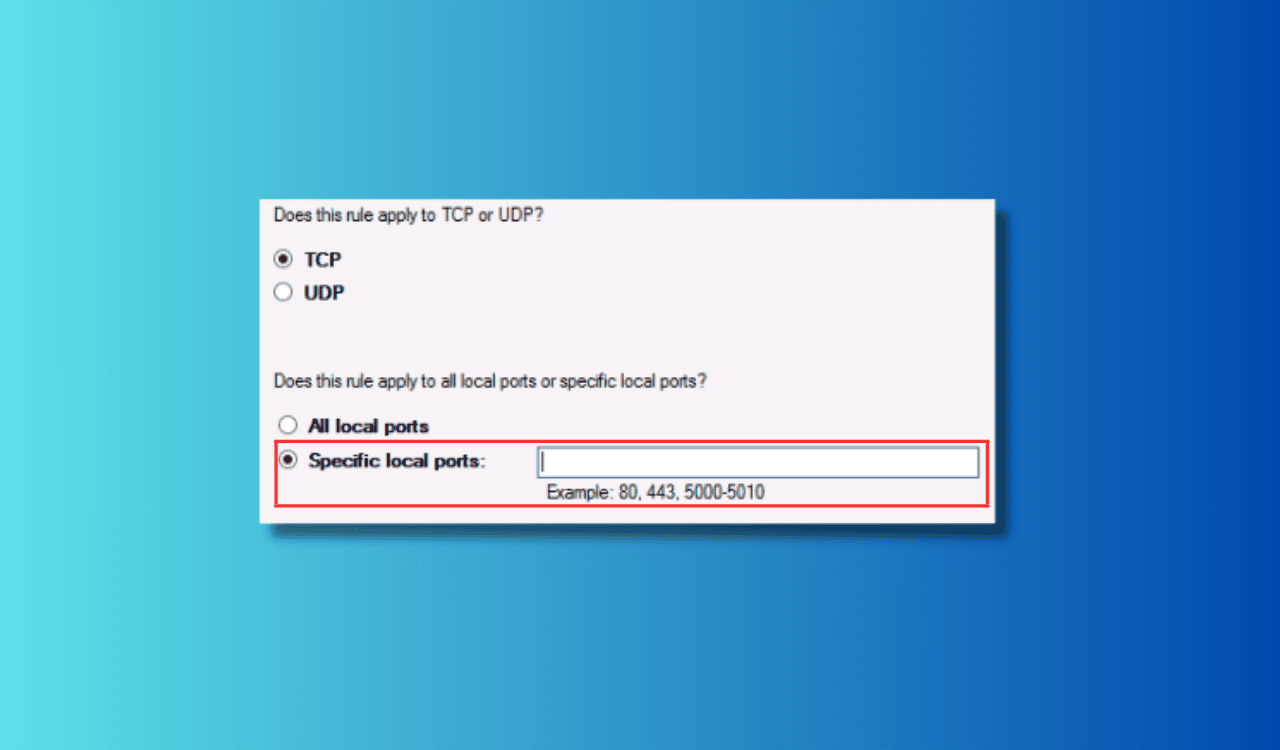
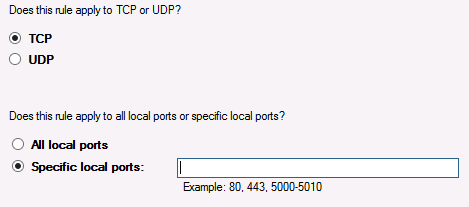
6. Select TCP, then type the exact port number you want to open.
7. After that, choose Allow the Connection and proceed by clicking Next.
8. Now, apply the rule to your chosen profiles: Domain, Private, or Public.
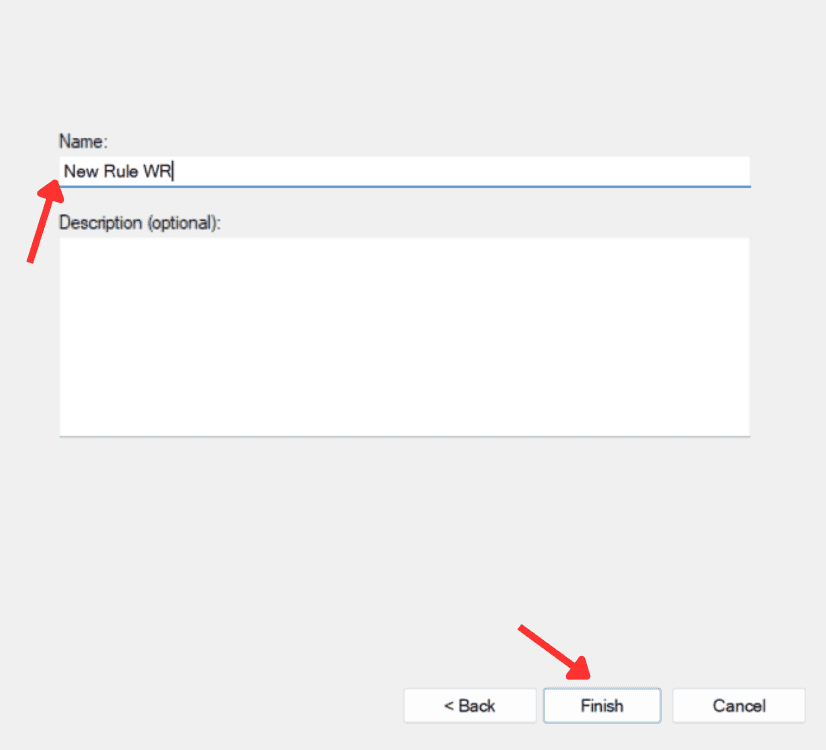
9. Finally, name the rule (letters only), then click Finish to complete.
That’s all you’ve to do, and your chosen port should now be open and ready for use.
Summing Up
Opening ports isn’t something you should do casually, but it’s often required. For example, web services rely on ports 80 and 443 for HTTP/HTTPS traffic. SQL Server commonly uses 1433, while secure remote access often needs 22 for SSH. If a port isn’t open, your apps and services may fail to connect.
Besides, tasks like managing services or configuring DNS often rely on proper port setup. If you’re exploring more guides, you may find our Windows Server guides on how to delete a service, see the last reboot, and check ports. Also, don’t forget to check our guide on how to set up DNS in Windows Server.
You can access the firewall settings more easily by following this guide on how to open Windows Firewall before creating new port rules.
FAQs
How do I open a port in Windows Server?
To open a port, go to Windows Defender Firewall, create a new inbound rule, and select the port option. From there, specify the port number, allow the connection, and apply it to your chosen profiles. Once saved, the port will accept incoming traffic.
How to open ports 80 and 443 on Windows Server?
Ports 80 and 443 are essential for running web servers like IIS or Apache. Follow the inbound rule steps, enter each port number separately, and allow connections. This ensures your websites are accessible over both HTTP and secure HTTPS.
How to open port 1433 in Windows Server?
Port 1433 is used by Microsoft SQL Server for remote database access. Open Windows Firewall, create a new inbound rule, and specify TCP with port 1433. Once enabled, clients and apps can connect to your SQL Server instance.
How to open port 22 in Windows Server?
Port 22 is reserved for SSH, which is often used for secure remote administration. Create a TCP inbound rule for port 22, allow connections, and apply it across profiles. This lets you connect safely using SSH clients like PuTTY or OpenSSH.
How to open port 8080 in Windows Server?
Port 8080 is commonly used for proxy servers, web apps, or alternative HTTP traffic. To enable it, create an inbound TCP rule in Windows Firewall and specify port 8080. This ensures applications that rely on the port can communicate freely.
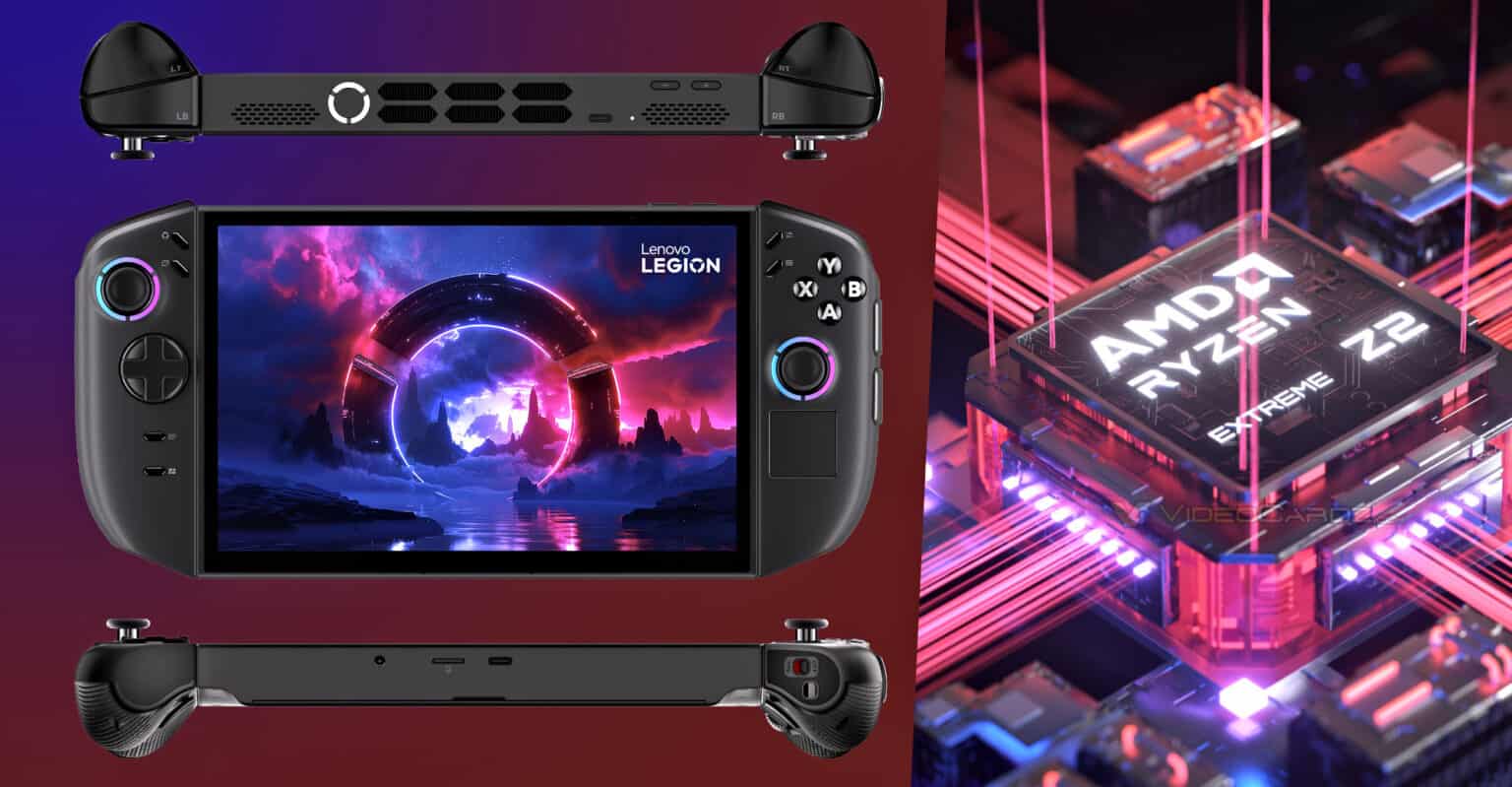
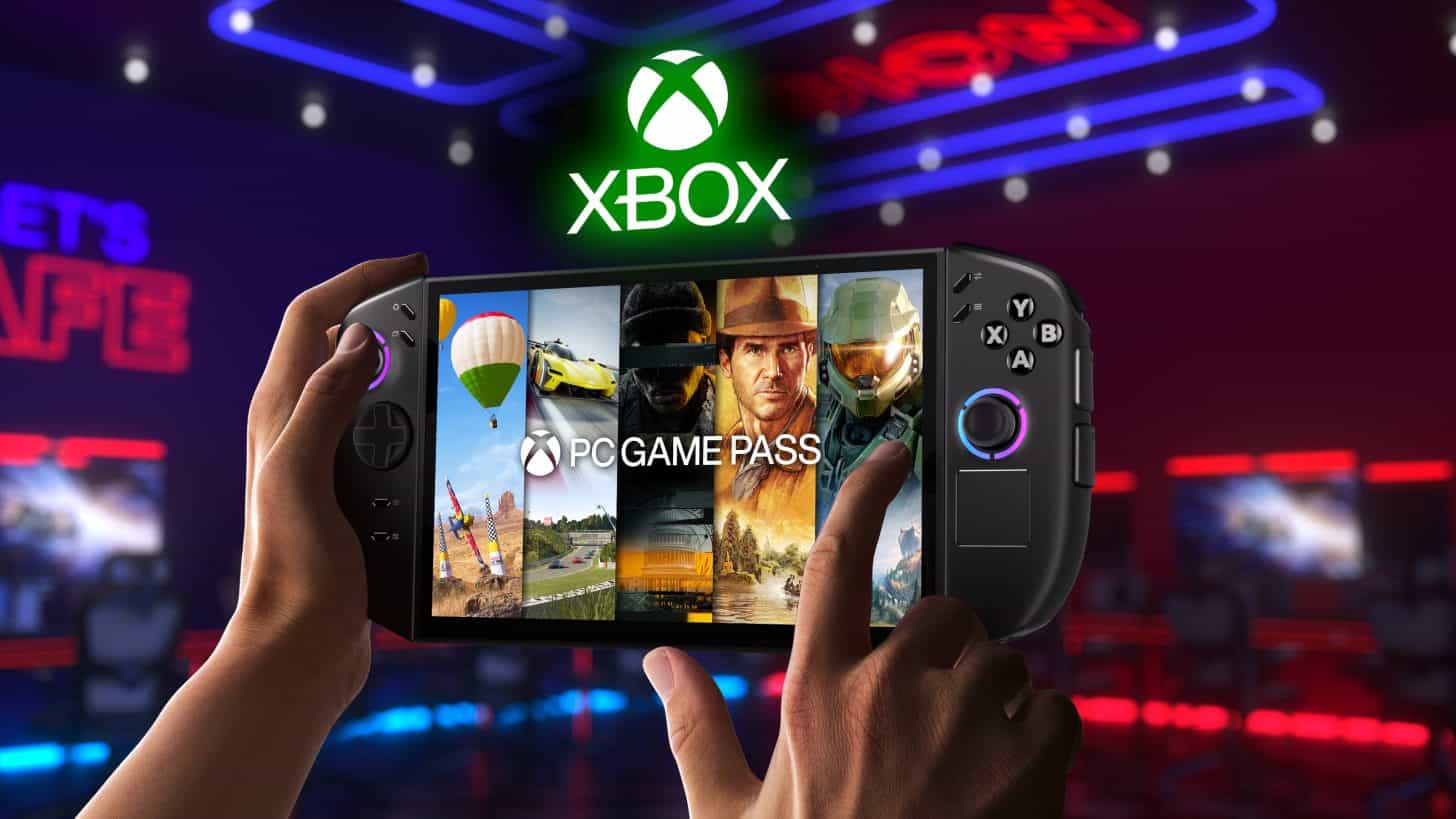
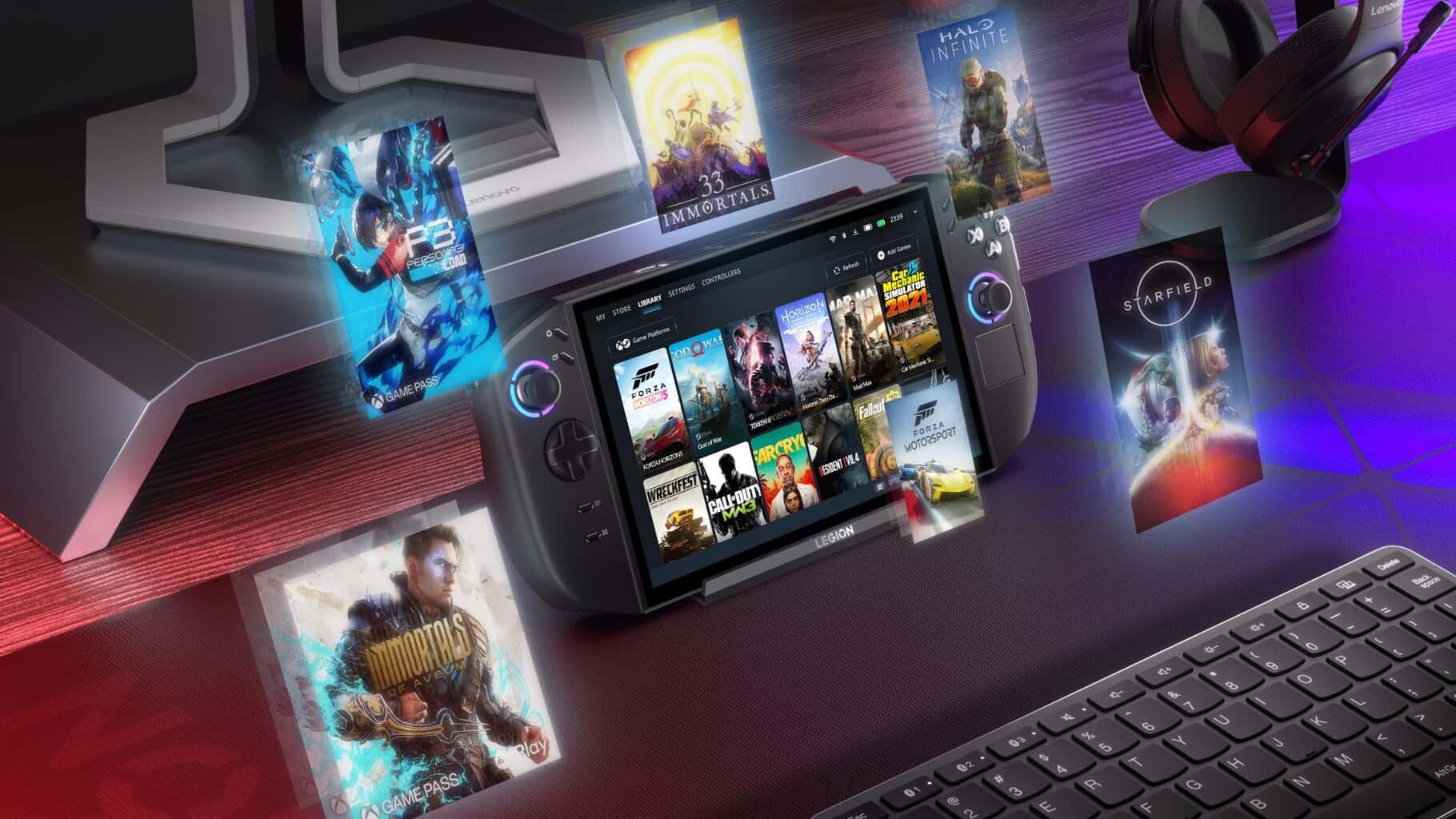
Lenovo’s next-generation handheld gaming console, Legion Go 2, has been confirmed. The company is set to feature the device at the IFA 2025. But before the official announcement goes live, popular leaker Evan Blass has spilled the beans. The tipster has also posted a bunch of images and infographics of the handheld, leaving little to the imagination.
For starters, the handheld is powered by AMD’s latest Ryzen Z2 series, with options for both the Z2 and the more powerful Z2 Extreme chips. In other words, you get a choice between Zen 4 and Zen 5 CPUs paired with RDNA graphics for serious performance.
The Legion Go 2 ditches its predecessor’s IPS panel in favor of a 1200p PureSight OLED display. It supports a 144Hz refresh rate, HDR True Black 1000, and 500 nits brightness.
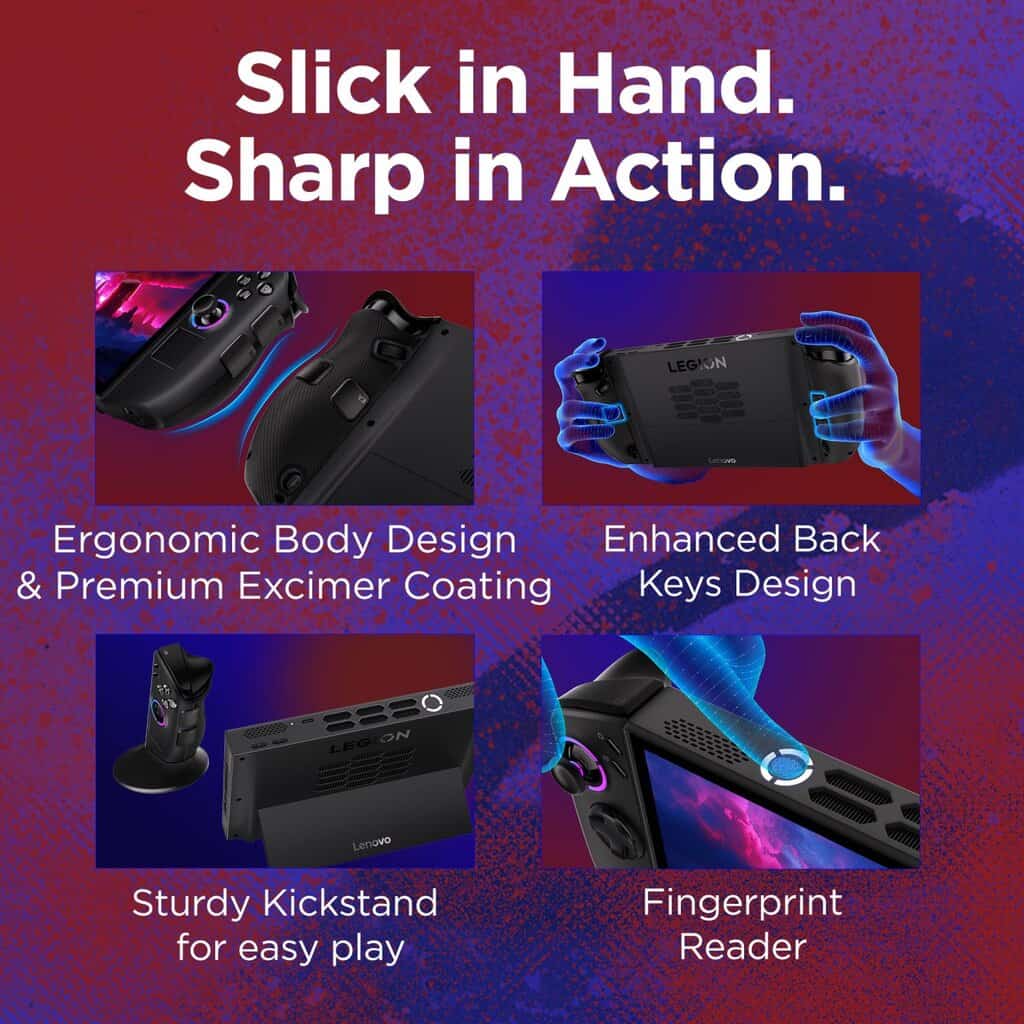
Lenovo also revamped the ergonomics with a slimmer body, detachable controllers, and a sturdier kickstand. Not to forget, you can switch between handheld, console dock, and FPS modes.
The maxed-out version of the Lenovo Legion 2 comes with a Ryzen Z2 Extreme chip, which is based on AMD’s new Strix Point silicon. It offers 8 cores, 16 threads, and RDNA 3.5 graphics with 16 compute units. The standard Ryzen Z2, built on Hawk Point, also brings 8 cores but with RDNA 3 graphics.
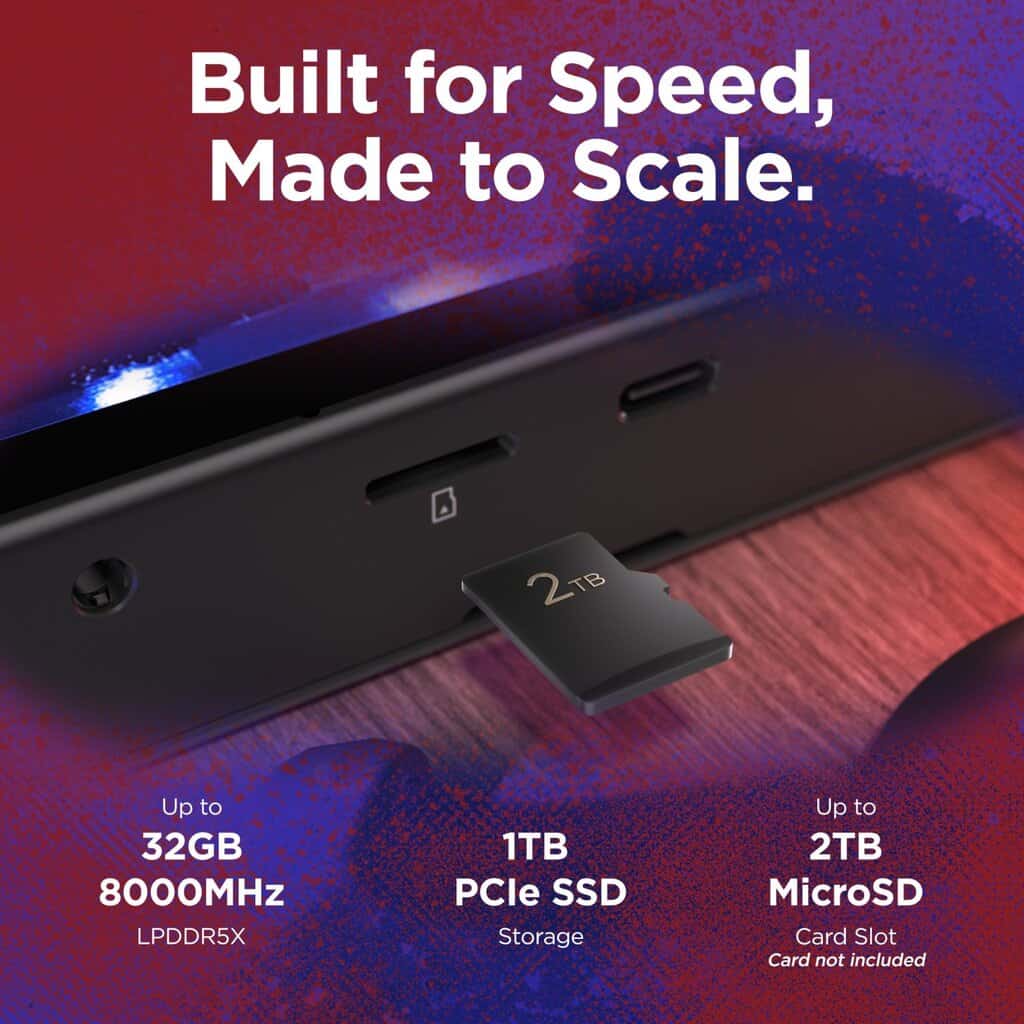
Lenovo has doubled memory support to 32GB LPDDR5X-8000 and paired it with up to 1TB PCIe storage, plus 2TB microSD expansion. A new cooling system with larger fans and dual exhausts promises quieter thermals. The company is also bumping up the battery life with a 74Wh pack, replacing the older 49.2Wh unit.
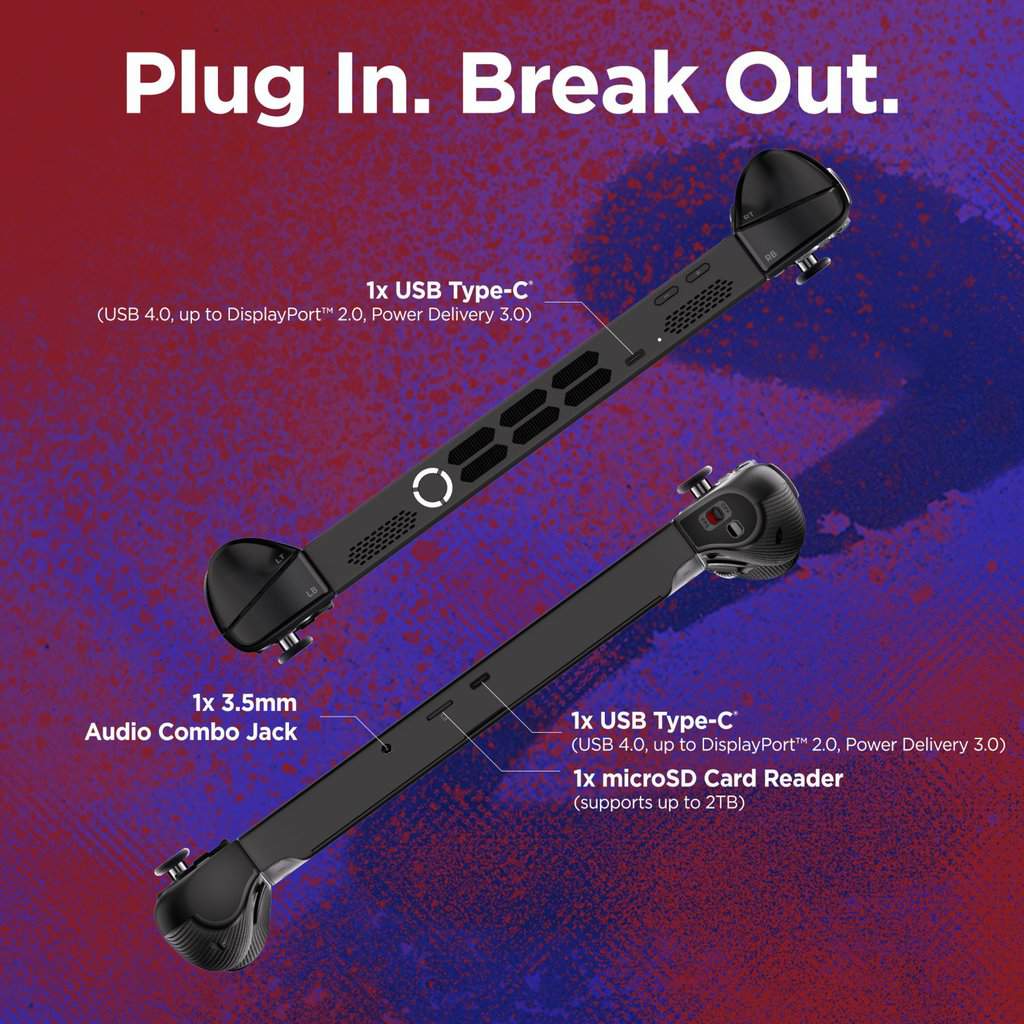
On the connectivity front, the Legion Go 2 includes dual USB4 Type-C ports, a 3.5mm audio jack, and microSD expansion. There’s also a fingerprint reader and enhanced back triggers for better gameplay control.
Lenovo hasn’t revealed the pricing of the Legion Go 2 yet, but expect it to land in a similar $700–$800 range as the original.
If your Telus internet is not working, it can disrupt browsing, streaming, and calls. This guide covers simple fixes you can try before reaching out to support.
Other carriers face similar problems. For example, Verizon service not working issues can also stem from area outages.
4. Reset and update network settings
Update your device software.
On mobile, reset network settings from your phone’s menu.
On PC, forget the Wi-Fi and reconnect with the password.
Restart the router once more.
5. Test wired and VPN settings
Connect your computer directly to the modem with an Ethernet cable.
If the wired connection works, the issue is with your Wi-Fi setup.
Temporarily disable any VPNs to see if they affect your speed.
Telus has also been reported to block certain IPTV traffic, which can affect connectivity. If you use IPTV services, see this guide on Telus blocking IPTV for solutions.
If none of these steps work, reach out to Telus customer service. Have your account details and modem information ready for faster assistance.
FAQs
Why is my Telus internet not working on all devices?
This usually points to a network outage or router issue. Restarting your router is the first step.
Why is my Telus internet so slow?
Slow speeds may come from network congestion, outdated equipment, or interference from nearby devices.
What if my Wi-Fi works but wired connection does not?
The problem could be with your Ethernet cable or the modem’s LAN ports. Try replacing the cable or testing with another device.
If Netflix Canada is not working, it could be caused by network issues, outdated apps, account errors, or even Netflix server outages. Here’s a quick guide to fix the problem and get back to streaming.
Use a third-party outage tracker to confirm if servers are down.
Wait until Netflix resolves the issue if outages are confirmed.
4. Refresh your account session
Open Netflix on your device.
Sign out from your account on all devices.
Log back in with your credentials.
Try streaming again to see if the issue is resolved.
5. Disable VPN or proxy
Check if a VPN or proxy is running.
Disconnect from it and connect directly to your ISP.
Restart Netflix without the VPN.
If you need a VPN, make sure it works with Netflix Canada specifically.
6. Contact Netflix support
Go to the Netflix Help Center.
Use the live chat or phone option.
Provide details about your error and device.
Follow their troubleshooting instructions.
FAQs
Why does Netflix block VPNs in Canada?
Netflix restricts content based on regions. If you use a VPN that isn’t supported, Netflix may block it to enforce licensing agreements.
How can I fix Netflix error messages?
Most errors can be fixed by restarting your device, updating the Netflix app, or signing out and back in. If errors persist, contact Netflix support.
Is Netflix down in Canada right now?
You can check if Netflix is down by visiting the official status page or using outage trackers. If the servers are down, you’ll need to wait for Netflix to fix it.
When Netflix Canada is not working, the most common causes are poor internet, outdated apps, or temporary server problems. In some cases, users run into connectivity issues that stop the platform from loading entirely. If that happens, check our guide on problem connecting to Netflix for more targeted solutions.
By following these steps you can usually resolve most Netflix issues on Firestick and other devices. If problems continue, check out our full guide for more solutions: Netflix not working.
Finding the best browser for Windows 11 can be tricky, even for those who try out lots of options. Finding the perfect browser for Windows 11 isn’t just about speed.Privacy, security, performance and unique features matter too.
Whether you’re a gamer, a multitasker, or just want simplicity, we’ve tested the top contenders to bring you clear answers.
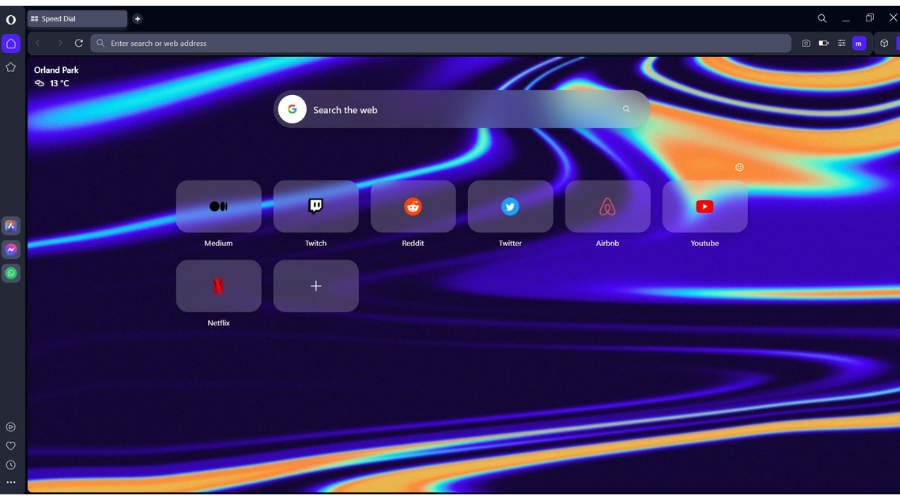
Opera One is a standout choice for users seeking speed and customization. It’s a lightweight browser, perfect for preserving system memory and battery life.
The modular design keeps things neat while enhancing productivity with unique features like tab islands for better organization.
The sidebar offers quick access to social media, messengers, and tools, boosting your workflow efficiency. We love its built-in VPN and ad blocker, which provide added security without needing extra installations.
Additional features:
Modular design with AI improvements
Free VPN usage
Data browsing importing
Sidebar tools with ChatGPT and social media
Opera
Get optimized, fast and highly customizable modular navigation, quick integrations, and great speeds!
UR Browser is all about keeping you safe while browsing quickly. It automatically scans downloads for malware and redirects users to encrypted versions of unsafe sites.
It’s fast, removing trackers and third-party cookies for a streamlined experience.
We’re impressed by its performance improvements, particularly with the download manager that boasts 4x faster speeds. For anyone serious about privacy, UR is a solid pick.
Additional features:
Customizable
Download manager
4x faster download speed
News filter
Easier access to your favorite sites
UR browser
Give a try to a web browser dedicated to keeping you safe and your data private.
Opera GX is is a dedicated gaming browser and the first and most prominent name in this niche. Like its sister browser, it is loaded with features that are magnified by the robustness of the Windows 11 OS.
We love it because of the easy integration it offers for platforms like Twitch and Discord. You will not have to leave a tab to send quick chats or view a video stream.
Like the Opera One browser, it offers synchronization for all your devices, making it easy to carry on wherever you left off on another device.
Lastly, if you like cool sound effects, then Opera GX is for you. There are nice effects for launching the browser and keystrokes. But, again, it immerses you in a gaming universe.
Microsoft Edge is the bigger brother of Internet Explorer, with an overhauled interface, new functions, and more excellent performance than its predecessor.
Many of Edge’s extensions have been spotted on the latest Microsoft Store on Windows 11, making customization more straightforward and accessible.
This is part of the company’s effort to add value to the Microsoft Store. In the store, you can also find other popular apps such as WinZip, Canva, and Grammarly.
Google Chrome is the father of all Chromium-based web browsers and one of the most popular ones among users, and rightfully so.
You will find a vast library of extensions for it, and even if it doesn’t natively come with a built-in VPN or Adblock, those are just two clicks away from being installed.
However, one other thing that Google Chrome is known for—is consuming vast amounts of RAM. Seriously! This Chrome uses much of your memory, especially when opening multiple tabs.
You’re not exposed to online threats while you’re using the browser. As we mentioned, you can customize many options, including privacy and security features.
Firefox boasts new protection measures, such as the DNS instead of HTTPS, that will keep internet providers from tracking and using your browsing data.
This leads to faster load times, less consumed data, and a more enjoyable experience without being nagged by ads constantly.
The browser works for multiple platforms and devices, including Linux, iOS, macOS, Windows, and more. Also, it’s available in over 90 languages!
The newly added picture-in-picture feature allows you to pop windows out of the browser window so you can multitask easier.
Brave is another privacy-oriented browser that blocks online ads and other tracking methods automatically by default.
What’s unique about Brave is that it allows users to access Tor, the most secure and private browser engine, all inside its tabs.
The Brave Browser is also more memory efficient, consuming up to 33% fewer resources than Google Chrome.
Fewer resources and less energy are required to run them as well. As a result, laptop and mobile users will also notice an increase in battery life of over 33%!
Nothing beats deploying a very customizable browser on a highly customizable OS. In this regard, the Vivaldi browser and Windows 11 are two peas in a pod.
While it has many excellent features, we love it because almost everything is customizable, making it a browser you can truly own.
You can have multiple users on a single Vivaldi account, which means you can customize profiles with specific themes to fit the work you need.
And finally, despite the many readily available features, the devs have managed to keep the design neat and user-friendly.
The SlimBrowser is not the most feature-rich on this list, but if you are looking for a lightning-fast Windows 11 browser, it may be one to try.
With this browser, you can create separate profiles or groups for specific websites and launch them all at once.
You will enjoy a distraction-free surfing session by enabling its ad blogger. Additionally, creatives will love to use its spell check, which means you can send emails without shocking recipients with grammatical howlers.
The downside is that you may find the interface cluttered at first glance.
If the name rings a bell, it’s because it should. The browser is a fork of Mozilla Firefox and, in this regard, has a few similar features.
If you ever used Chrome and thought it was a resource hog, the WaterFox browser will be a breath of fresh air; it is very light on the operating system.
It comes preinstalled with uBlock Origin, which is famous for being a very configurable tracker blocker; it is the privacy gold standard.
We love it because even though it carries a lot of features from its mother browser, it is stripped of Mozilla’s telemetry.
Also, since it is a privacy-focused browser, it boasts of not gathering its user’s data.
Based on our tests, the fastest browser on the market for Windows 11 is Microsoft Edge, with a score of 165 runs per minute, followed by Brave Browserwith 161 runs per minute.
On the 3rd position in this top, we have UR Browserwith a 145 runs per minute score.
To create an easy-to-understand table with conclusive information about the speed of your favorite browser, we have used the Speedometer 2.0 tool from BrowserBench on a Windows 11 PC.
This helpful tool allows us to take all the browsers presented in this guide and put them to the test to get a good set of results, which can help you make an informed decision.
Here are the results:
Browsers
Speedometer 2.0 Benchmark score
Microsoft Edge
165 runs/minute
Brave Browser
161 runs/minute
UR Browser
145 runs/minute
Opera GX
141 runs/minute
Google Chrome
133 runs/minute
Mozilla Firefox
119 runs/minute
Vivaldi
115.8 runs/minute
Opera One
110 runs/minute
SlimBrowser
88.98 runs/minute
WaterFox
85.2 runs/minute
As we previously discussed, speed is not the only element to consider when choosing a browser, but knowing that you have the fastest on the market will surely be helpful.
Which is the safest browser for Windows 11?
Online security and privacy became even more critical a few years ago, so choosing the best private browser for Windows 11 can be tricky.
This tool analyses the respective browser capabilities with more than 400 tests, each measuring if the browser can protect your privacy and online identity.
As you can see from the table presented above, Mozilla Firefox seems to have the most significant number of passed tests and is matched by SlimBrowser exactly.
Close behind, we have WaterFox with 374 passed tests, followed by Chrome, Opera One, and Opera GX.
That being said, if we consider all aspects of these options, the number of features, customization options, etc., Opera One still comes on top.
Does Windows 11 force you to use Edge?
Even though back in August of 2021, Microsoft was making it harder for users to change the default browser settings on Windows 11, the backlash from users has made the Redmont giant reconsider its position on this topic.
The Windows 11 build 22509 was the first version of this OS that allowed users to switch to a different default browser other than Edge with just a click of the mouse.
Is Microsoft Edge the same as Internet Explorer 11?
Even though most people were not fans of the Internet Explorer browser, it does have some nostalgic value for some people.
Now, Edge has an IE mode closed environment for people who still need to use it or for those who encounter issues when making the transition.
But it’s much faster than Internet Explorer, offers better security and privacy, and provides a redesigned UI.
Is Chrome or Edge better for Windows 11?
To answer the question about choosing Chrome or Edge for Windows 11, our team of testers has used the Basemark Web 3.0 benchmark.
This great online tool allows you to test browsing speed, possible data bottlenecks, and other web-performance markers.
To test the CPU and RAM usage for both these browsers, we reset them first, and then five identical tabs were opened in each browser to check what CPU and RAM consumption data were recorded.
Regarding the browser’s security and privacy capabilities, our team of testers has used the BrowserAudit test to ensure an in-depth analysis of this topic, as it is a crucial one.
This online tool checks if the browser uses a wide variety of security standards and features and if it’s doing so correctly.
As you can see from the results table, choosing between Edge and Chrome will come down to personal preference, as both are built on a Chromium architecture and thus have very similar results across the board.
No matter which option you choose, you can rest assured that you will have a great overall experience.
But don’t forget, there’s more to optimizing your Windows experience.
If you’re on the hunt for lightweight browsers for Windows, you can find great alternatives that won’t drain your system’s resources. And if you’re still using Windows 7, be sure to check out the best browsers for Windows 7 to ensure you’re staying secure and efficient on an older OS.
If you would like to get the speed of Internet Explorer 11 and combine it with an immersive UI, great customization options, and a built-in VPN and adblocker, then Opera Oneis the best choice for you.
You can also explore more niche options in this guide to alternative browsers for Windows 11 which highlights lighter and less common choices for different browsing styles.
If you are looking for cross-device copy and pasting while working on a Windows 11 PC, Microsoft has something that could ease your headaches. A new option in the Mobile Devices section of Windows 11 allows users to share their PC’s clipboard directly with their Android phone, given that you’re logged in with the same Microsoft account.
You can copy on Windows, paste on Android, it’s that simple. As spotted by Windows Latest in a recent Dev build, the toggle appears under the name “Access PC’s clipboard.”
Image credit: Windows Latest
Image credit: Windows Latest
Interestingly, this option surfaced briefly in earlier previews. However, it was removed later, hinting that Microsoft has been quietly testing it behind the scenes. Now, it’s back in select builds, as Microsoft seems to be planning it for a wider rollout.
What’s good is that you don’t need to do much to get it to work. All you need is the Link to Windows app installed on your Android device and the mobile devices feature turned on in Windows 11.
From there, simply enable clipboard history and sync on your PC. Once done, anything you copy, whether it’s a password, code, or a long message, instantly appears in your phone’s keyboard. Cool, right? Personally, I’d love this feature, given that my work requires me to swap between my Windows 11 PC and my Android phone.
Remember, it works not only with Gboard but also with Samsung’s keyboard. So, if you have a Samsung Android device, you’re also sorted. If the feature sticks around past testing, clipboard sync could become one of those small but genuinely useful additions that make Windows 11 feel more connected.
If problems persist, switch to Chrome, Edge, or Firefox.
Avoid using outdated browsers.
Test the login again.
4. Disable browser extensions
Open the extensions menu in your browser.
Disable ad blockers or security add-ons.
Refresh the TD EasyWeb login page.
Try accessing EasyWeb in incognito mode.
Re-enable only trusted extensions afterward.
5. Use the TD mobile app
Download the TD app from the App Store or Google Play.
Log in with your banking credentials.
Enable biometric authentication if available.
Check whether your account data loads normally.
Use the app as a backup if the website fails.
If TD EasyWeb is not working, start with connection checks, clear cache and cookies, and try a different browser or the mobile app. Similar banking issues and error behaviors are covered in this guide on error code 21001 in online banking and in this troubleshooting page for TD Ameritrade not working.
Payment or checkout failures can sometimes be caused by browser, cache, or payment gateway hiccups, which you can compare with the tips from Microsoft Store payment issues to rule out similar root causes.
You can also review our guide on what to do if the HBL app is not working for related solutions.