4 Ways to Fix uBlock Origin When it’s Not Working on Firefox

Many Firefox users have been reporting an issue where the uBlock Origin extension is not working and not blocking ads anymore.

This means that it does not block the ad pop-ups on any website defeating the entire purpose of having an ad-blocker.

However, if you are looking for the best browsers with built-in ad-blockers, we have a nice selection for you.

Fortunately, we have a few workarounds, but before we delve into them, here’s why your uBlock Origin extension may not be working.

Why is uBlock Origin not working?

Some of the reasons why the uBlock Origin extension is not working include:

  • Outdated Firefox browser
  • Interference by another extension
  • Connection problems by IPV6
  • Accumulated browser cache
  • Extension requires update
  • Change in the browser configuration

So, if the uBlock Origin extension is not working on Firefox or Chrome, you can try the below methods to fix the issue.

What can I do if uBlock origin doesn’t work on Firefox?

1. Turn off IPV6 in Firefox

  1. Open Firefox and navigate to the below address: about:config
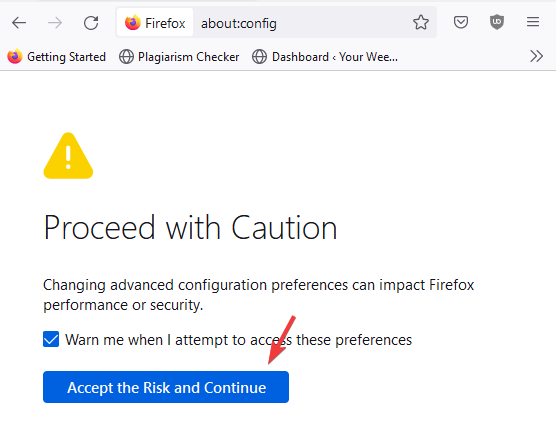
  2. You will see a warning page. Here, click on Accept the Risk and Continue to proceed.
    Accept the risk and continue
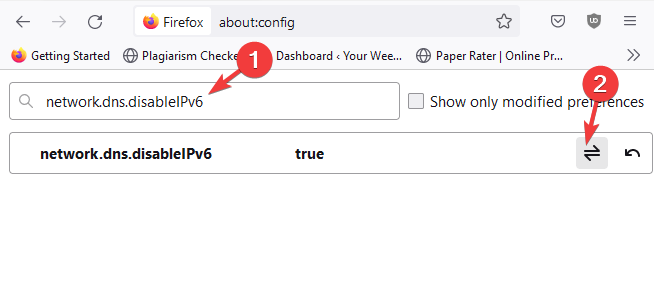
  3. In the Search field, type network.dns.disableIPv6.
  4. Now, go to the result and click on the Toggle Button to network.dns.disableIPv6 to change its value to True.
    change preference value to true

Since Firefox automatically supports IPv6, this may lead to network problems, and hence, disabling it may help you fix the uBlock Origin not working issue.

For YouTube-specific fixes, follow our dedicated guide on uBlock Origin not working on YouTube for steps tailored to YouTube’s anti-adblock changes.

Now, restart Firefox and check if the uBlock Origin extension is working properly.

Whether the uBlock Origin is not working on Firefox for YouTube, Twitch, or any other similar websites, this method is applicable for all.

2. Clear the browser cookies and cache

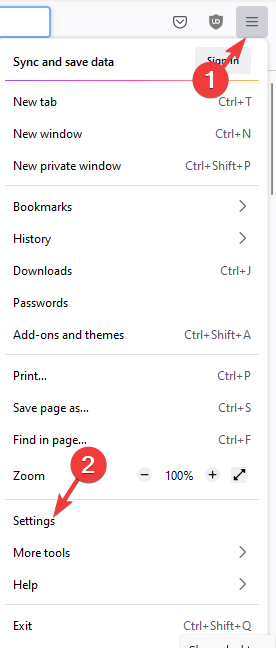
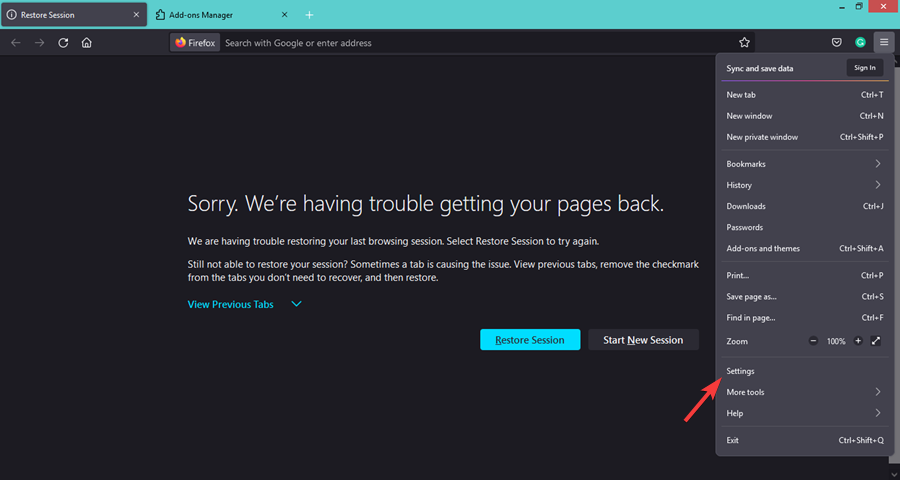
  1. Launch Firefox and click on three lines on the top right and click on Settings.
    Firefox settings
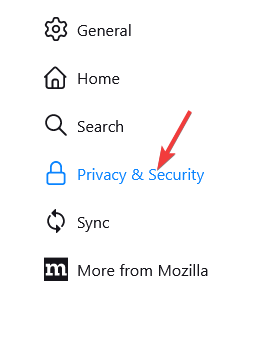
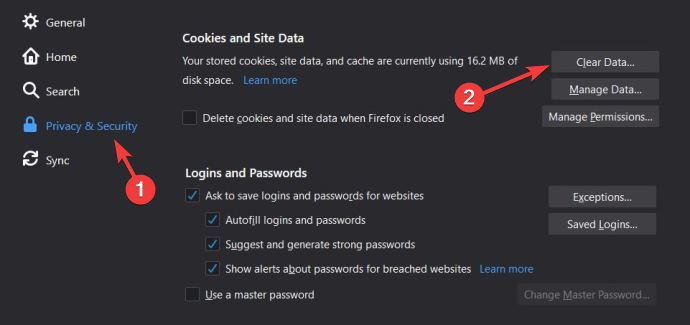
  2. On the Settings page, click on Privacy & Security on the left.
    firefox Privacy & Security
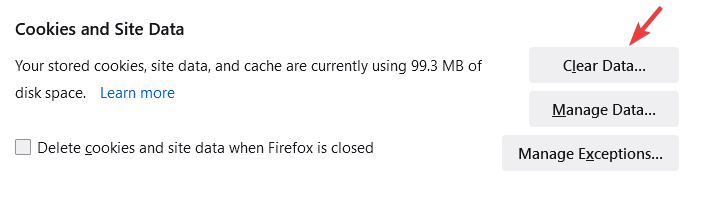
  3. Now, on the right, scroll down and under Cookies and Site Data, press Clear Data.
    firefox Cookies and Site Data
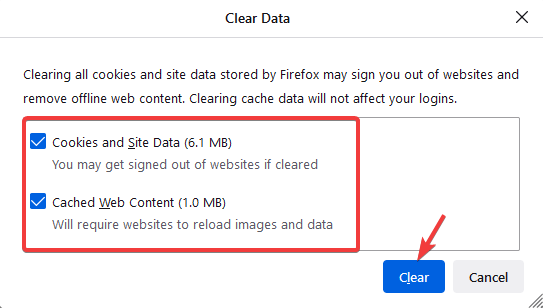
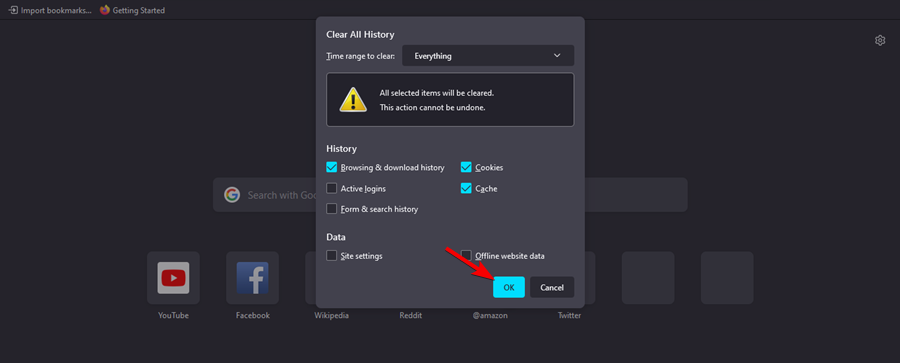
  4. Next, in the Clear Data window, select both Cookies and Site Data, and Cached Web Content, and press Clear.
    firefox clear data
  5. In the prompt, press Clear Now again to confirm.
    firefox Clear Now

Now, restart your browser and the uBlock Origin extension should be working fine now.

To clear cookies and cache for other browsers also on Windows 11, you can refer to our detailed post here.

3. Reset uBlock Origin

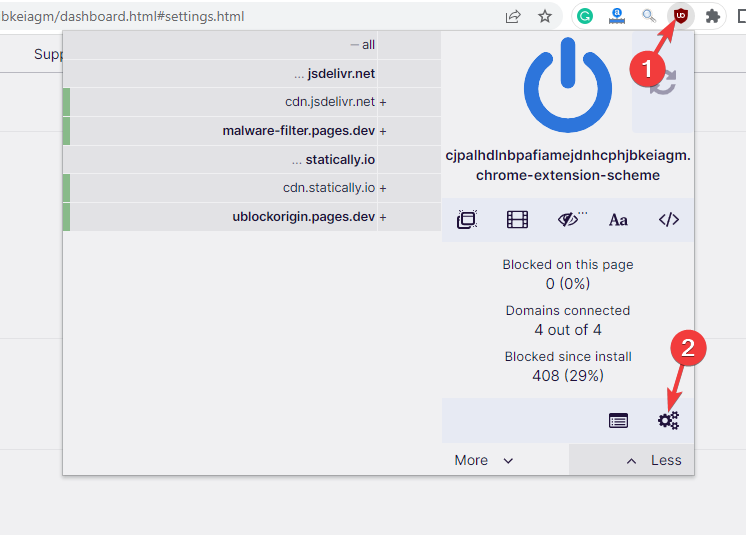
  1. Open your browser, and click on the three gear icon in the menu to open the dashboard.
    unblock origin not working in firefox
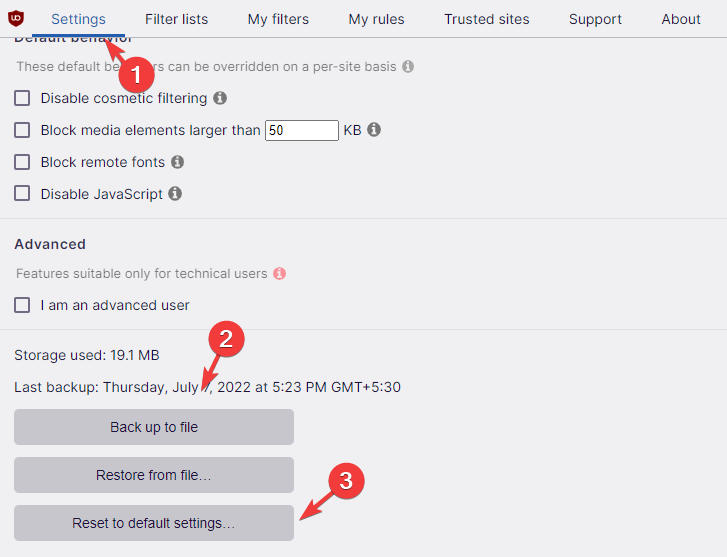
  2. In the dashboard, under the Settings tab, scroll down to the bottom.
  3. Here, click on Back up to file and then click on Restore default settings.
    reset settings for ublock origin

This will help you create a backup for your saved settings and reset the extension.

So, if you are facing the issue where uBlock Origin is not working on Chrome or other browsers, this method can be helpful.

4. Try another browser

If you are having issues with uBlock Origin on Chrome or Firefox, you can also try the Opera One browser.

Although Opera One comes with a built-in ad blocker, uBlock Origin works seamlessly with the browser.

Best of all, it can also read and create filters from host files. So, while the extension blocks the annoying ads, you can do more on the web with a fast and secure browser.

Does uBlock Origin work on Firefox?

Yes, uBlock Origin works pretty well with the Firefox browser, however, it makes sure that the extension is updated to its latest version.

Here’s how you can check for updates for the extensions.

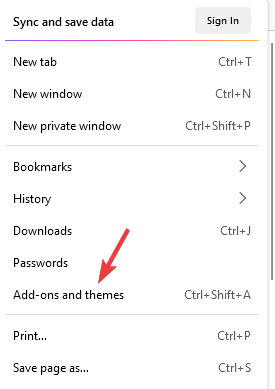
  1. Launch Firefox, click on the three lines, and select Add-ons and Themes from the list.
    firefox add ons and themes
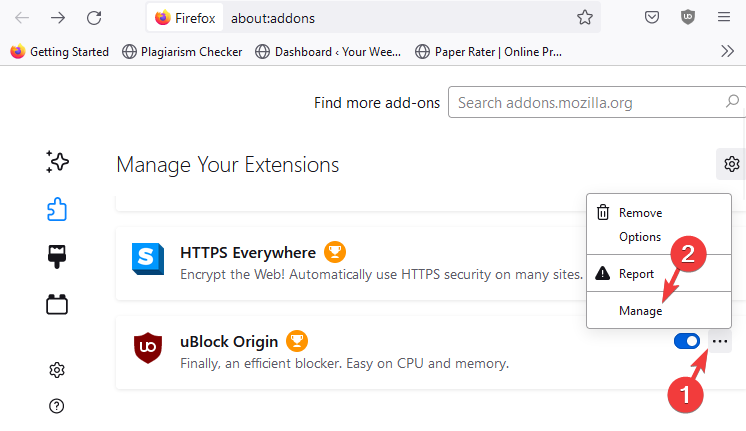
  2. On the Add-ons Manager page, go to the uBlock Origin extension.
  3. Here, click on the three dots icon next to it and click on Manage.
    ublock origin not working on firefox
  4. On the next screen, click on the gear icon on the right and click on Check for updates.
  5. Firefox will update the add-on if the latest version is available.

You can also quickly clear the browser cache in Windows 11 by following the methods in our post since it’s one of the reasons why uBlock Origin may stop working.

Alternatively, you can also install the Ublock Origin developer’s build from Github, based on the browser you are using. This will help you fix the issue.

Besides, you can also check for any latest update for Firefox or disable any other extension that may be causing the uBlock Origin to malfunction.

But if the uBlock origin is specifically not blocking Twitch ads, you can refer to our detailed guide for further help.

For more queries on browser extensions, you can let us know in the comments box below.

7 Ways to fix Voicemod when the Login is not Working

Are you having problems with Voicemod login and looking for solutions? If so, you’ve come to the right place.

Because this guide will show you the effective solutions that have helped multiple users fix the login not working problem with Voicemod.

Voicemod is a real-time voice changer for Windows gamers and content creators, mainly used with popular communication platforms such as Zoom, Discord, Skype, ASMR, VR Chat, TeamSpeak, etc.

It comes with built-in voice filters, which you can apply and change your voice in real-time as you speak with your friends. This is a nice app to add some fun to your streams.

Well, users who are facing issues with Voicemod not recognizing their microphone, can check out this guide and get their issue resolved.

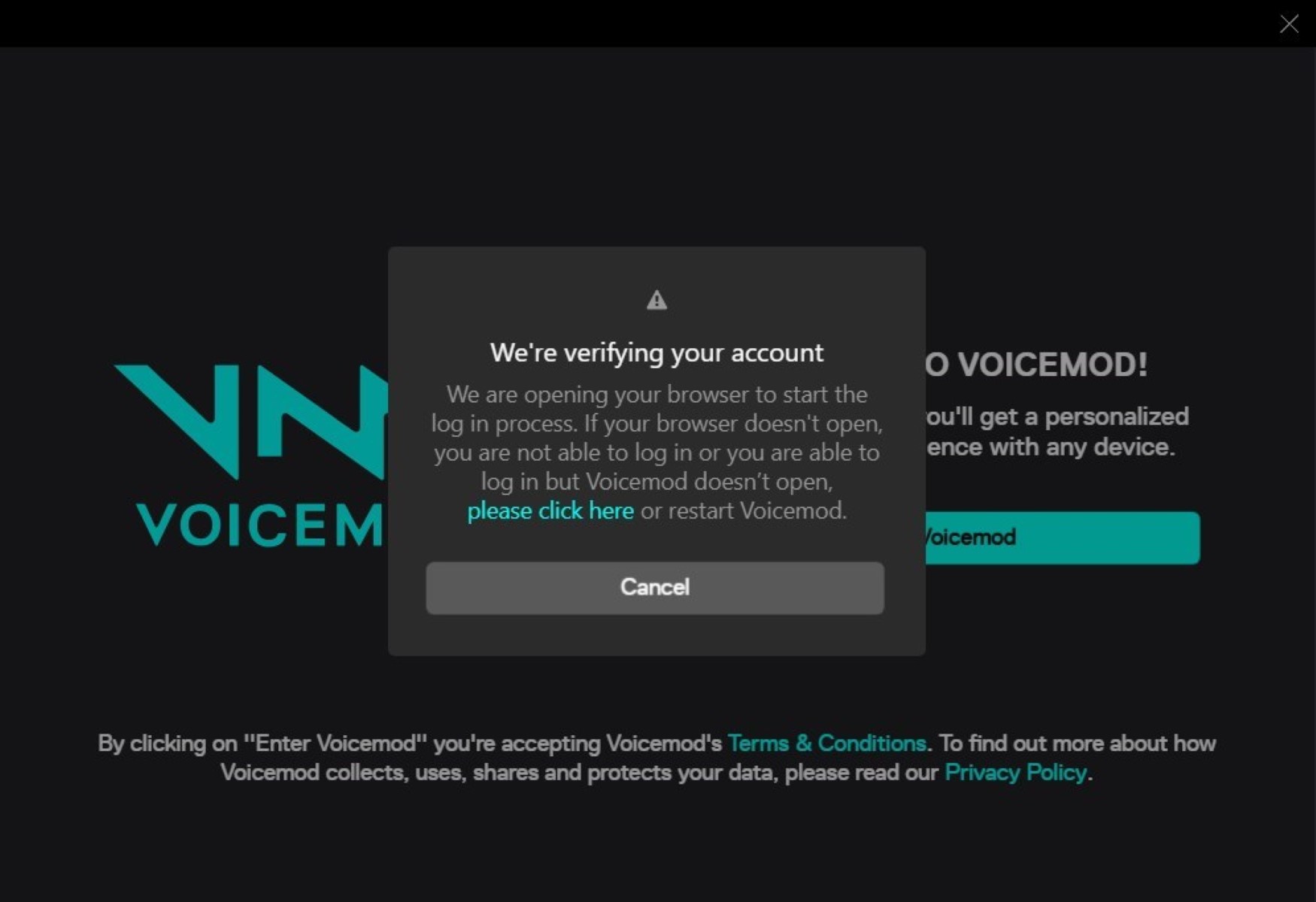
Now there are some users that have reported that when they try to log in, often the Voicemod app continues to show Almost there! We’re just verifying your social account. Once complete, we’ll take you back to the Voicemod app message.

In such a case, you can apply the solutions mentioned in this guide, and hopefully, get the issue resolved.

What are some useful tips to sound like a pro in Voicemod?

While using voice filters will help you change your voice in real-time and use it on various communication platforms, there are a few tips that you can make use of to sound more professional.

Moreover, in order to sound professional, you do not require any professional setup. Using the Voicemod application, you can do that simply by tweaking a few settings.

By professional, we do not mean you will actually sound like you are in a professional setting, but it will help you negate the unwanted sounds and distortions that may creep up while you communicate using Voicemod.

Here are the settings that you need to tweak to sound like a pro in Voicemod.

  1. Open Voicemod.
  2. Select the Clean option from the Voicebox tab.
  3. Tweak the Bass, Mid, Treble, Mix, and Voice volume as shown in the image.
    • Mix here lets you adjust how much you would like to mix your voice with the sound effect.
    • Voice volume lets you adjust the output level of your voice.
  4. Click on the speaker icon at the bottom right corner next to the mic icon.
  5. Turn on the Reduce background noise toggle.
  6. Lower the level of the background noise by moving the slider to the left and adjusting it accordingly.

How can I fix the Voicemod login not working issue?

1. Restart PC

Start off by restarting your PC. Restarting will load all the system files and files important for Voicemod back from scratch, which might have failed to load during the previous session.

Restarting also removes the temporary files that may be in conflict with the smooth functioning of Voicemod. If this doesn’t help, check the next method.

2. Set a default browser

  1. Open Settings menu by pressing Win + I buttons.
  2. Click on Apps from the left pane.voicemod login not working
  3. Select Default apps from the right side.voicemod login not working
  4. In the search bar, type your browser’s name example, Google Chrome and press Enter.
  5. Hit the Set default button at the top to make Chrome your default browser.voicemod login not working

This method is helpful when you are trying to log in to Voicemod but the browser is not opening. To fix this, you need to set any web browser installed on your PC as your default browser to complete the verification and log in process.

If setting a browser, i.e., Chrome, does not work, you can try setting a different web browser as default and check if this fixes the Voicemod login not working problem.

3. Unblock Voicemod in Windows Firewall

  1. Open the Start menu.
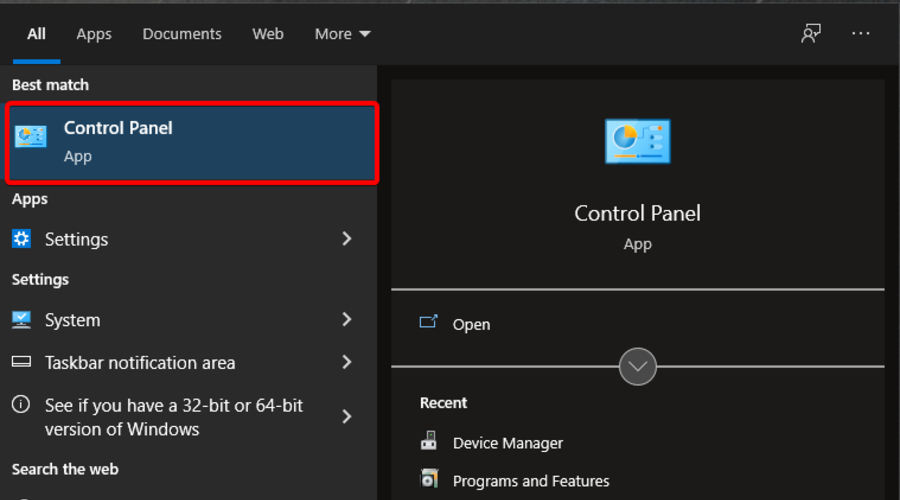
  2. Search for Control Panel and open it.
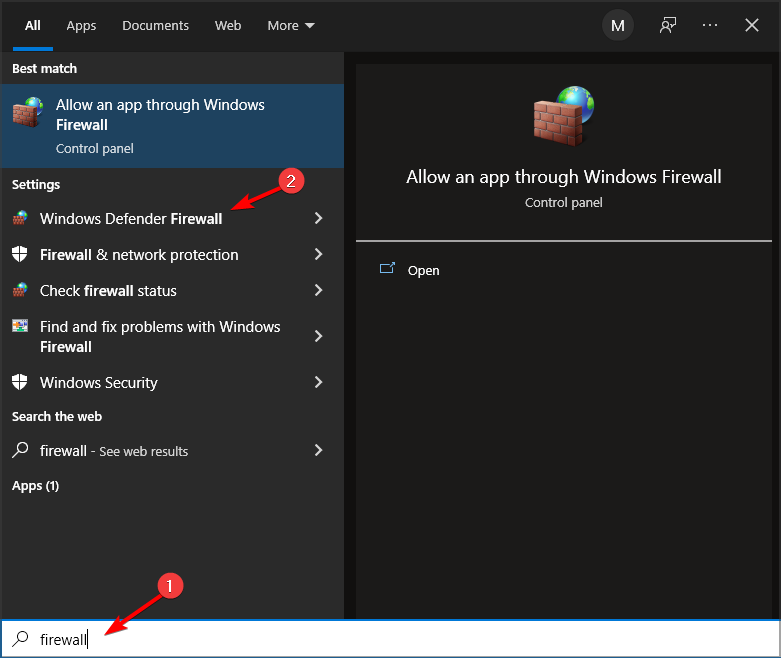
  3. Click on Windows Defender Firewall.
  4. From the left side, click on Allow an app or feature through Windows Defender Firewall.
  5. Click on Change Settings button.
  6. Scroll down and locate Voicemod. In case Voicemod is not listed, you can click on Allow another program… button and add Voicemod from the list.
  7. Check both the Private and Public boxes for Voicemod.
  8. Click OK.

4. Clear browser cache

  1. Open Google Chrome.
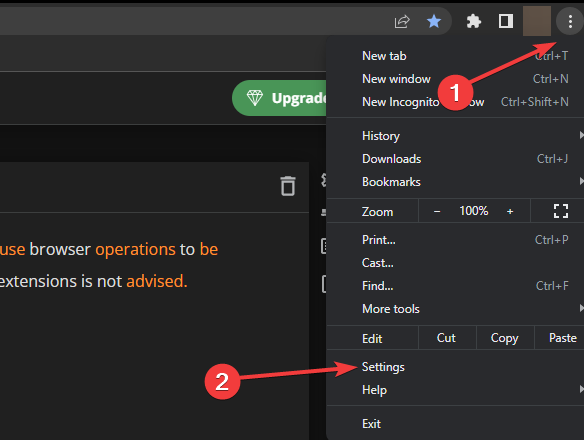
  2. Click on the 3-dot menu button.
  3. Select Settings.chrome settings
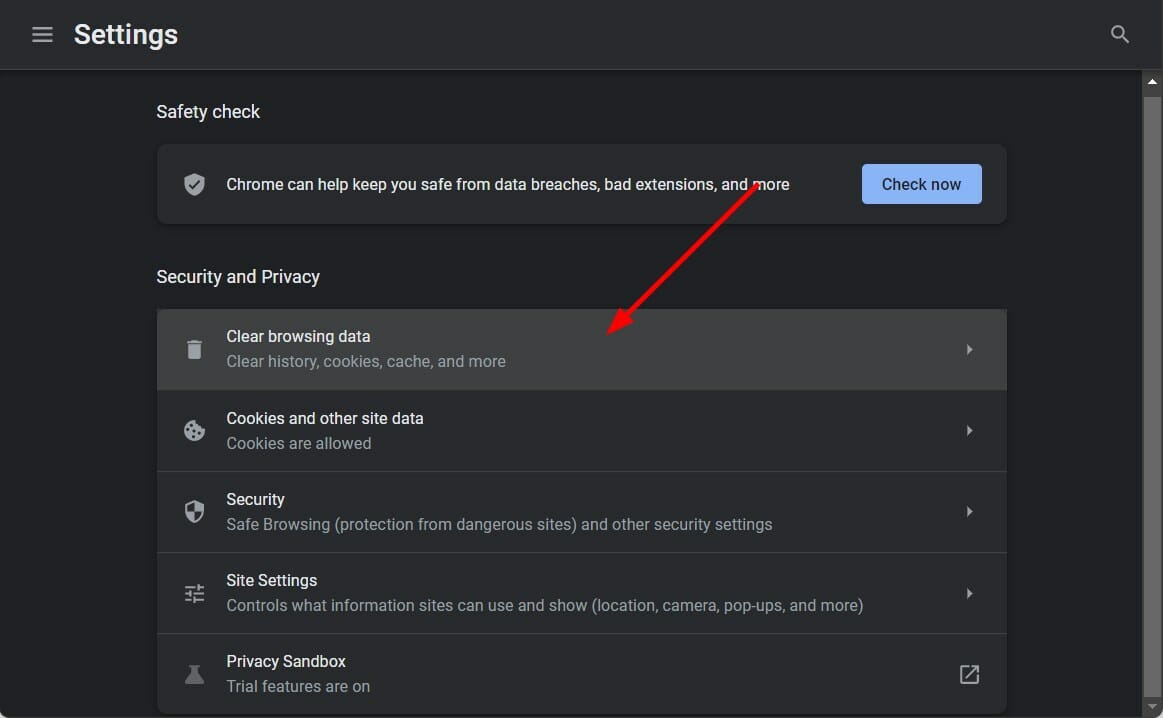
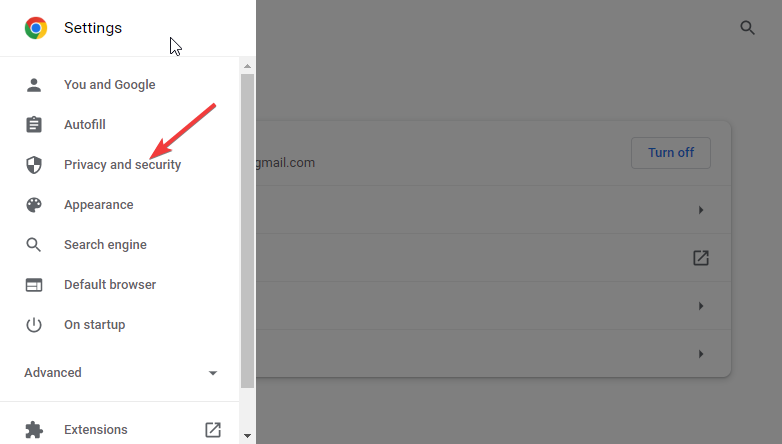
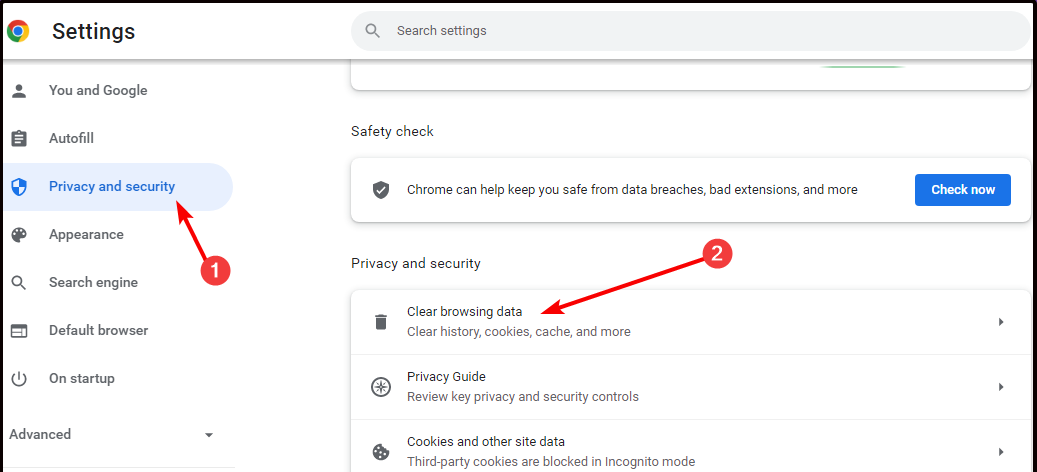
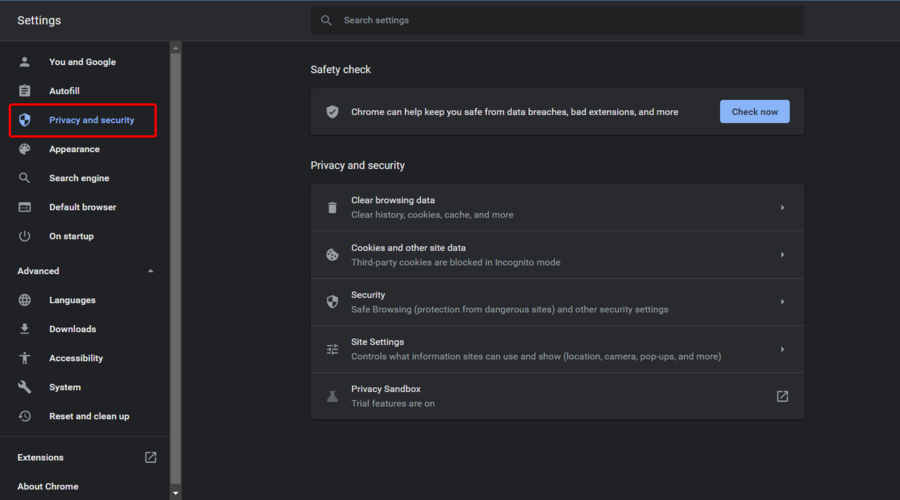
  4. Click on Privacy, and Security.
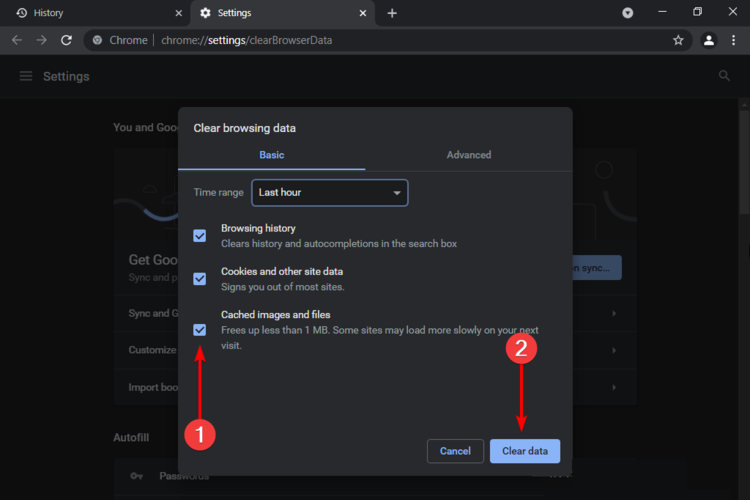
  5. Select Clear browsing data on the right side.clear-browsing-data-metamask-not-working
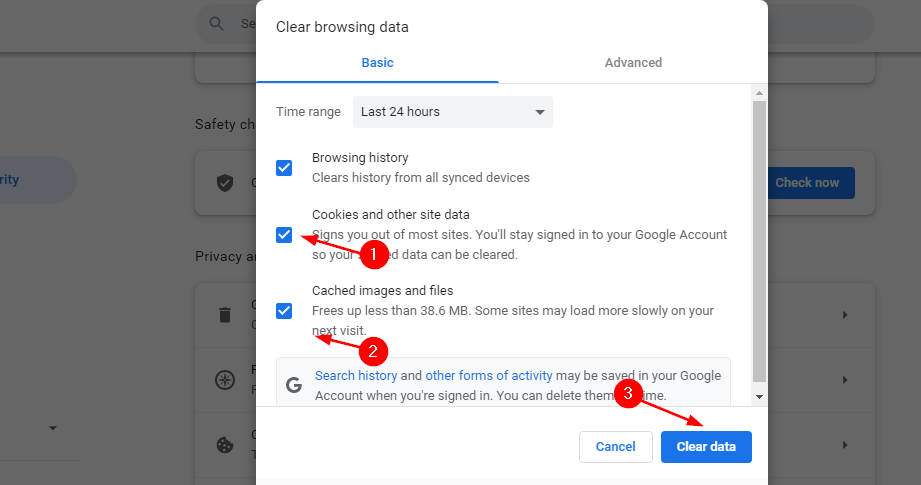
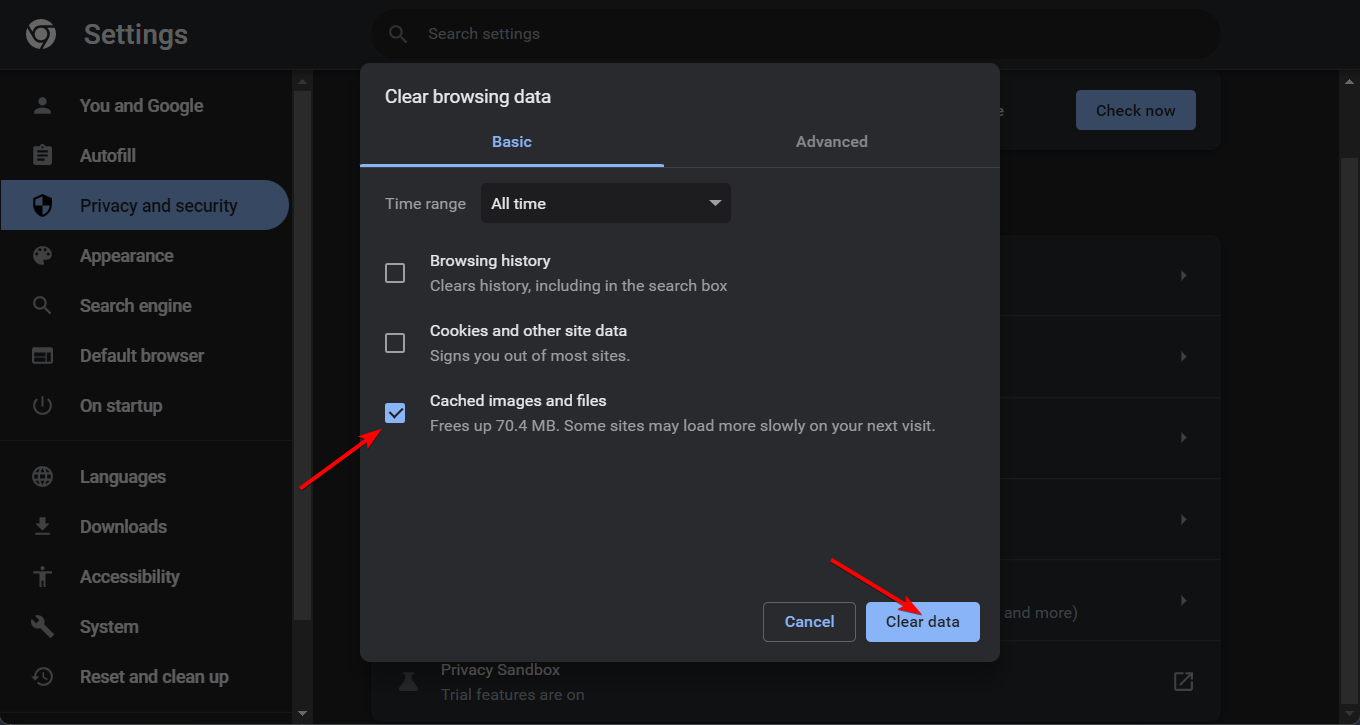
  6. Check the boxes next to Cached images and files and Cookies and other site data.
  7. Click on the Clear data button.

In any case, you can utilize a faster method to clean your browsing data like cache or cookies using a renowned cleaning tool, CCleaner.

You have smart functionality that detects your browser and lets you choose to erase cookies, cache, or temporary files.

5. Use a Reddit solution

  1. Launch Voicemod.
  2. Click on Enter Voicemod.
  3. You will be asked to login or create an account using multiple options. But before logging in, fully close Voicemod, by right-clicking the app icon on the taskbar below and selecting Close all windows.
  4. Go back to the browser to login to Voicemod.
  5. Close the browser.
  6. Now open Voicemod.

This solution has been suggested by a community manager on Reddit, and probably has helped quite a few users.

6. Reinstall Voicemod

  1. Open the Start menu.
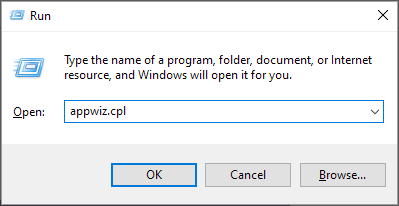
  2. Search for Control Panel and open it.
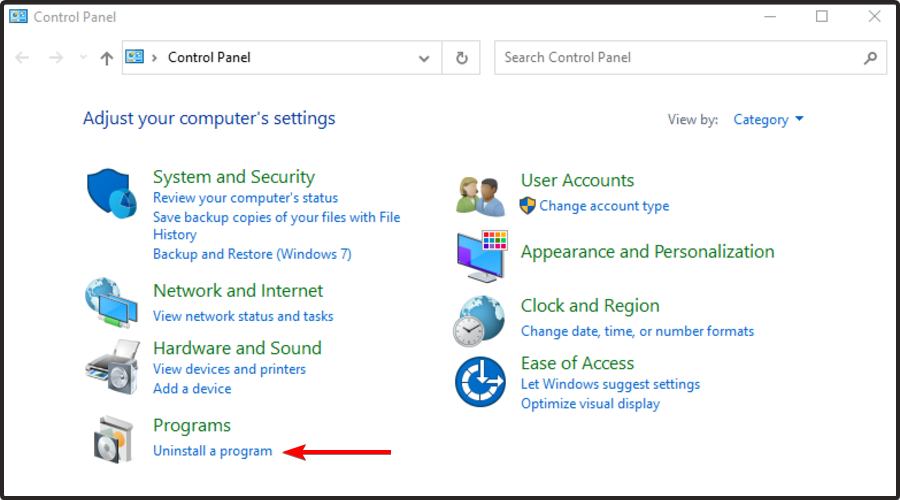
  3. In the View by option, select Large icons.
  4. Select Programs and Features.
  5. Locate Voicemod and click on it.
  6. Select Uninstall from the top.
  7. Follow the on-screen instructions and uninstall the program.
  8. Now, head to the official website of Voicemod.
  9. Download the software and install the program.
  10. Set it up as previous and check if this fixes the issue or not.

7. Write to Voicemod support

  1. Head over to this website.
  2. Select the topic of the query, enter your issue, along with your name, email address, country, etc., and expect a reply from their end for a solution.

Are there any alternatives to Voicemod?

If for some reason, you do not like Voicemod and are looking for an alternative to it, then you are in luck.

Because there is actually a couple of voice changer software that are simple to use and a good alternative to Voicemod.

➡ AV Voice Changer Software

  • Clever voice morphing algorithms
  • Batch file Morpher to select multiple audio files
  • Voice recorder/Voice editor tools
  • Connect with Skype, Twitch, or any VoIP programs
  • Modify pitch and timber with smart output controllers

⇒ Get AV Voice Changer Software

➡ Clownfish

  • It is freeware available on the internet with barebones features.
  • Clownfish voice changer supports Steam, Skype, Viber, Ventrilo, TeamSpeak, Discord, etc.
  • It features around 14 voices to choose from.
  • Clownfish comes with text to speech feature, which Voicemod doesn’t have.

⇒ Get Clownfish

➡ MorphVOX

  • MorphVOX is a paid voice changer app the subscription of which starts at $19.99.
  • It features low bandwidth and CPU usage for excellent performance.
  • You can add background noises such as war, city, nature, and workplace sounds.
  • MorphVOX Pro comes with a timbre slider that can drastically help you sound original and this feature isn’t available in Voicemod.

⇒ Get MorphVOX

There you have it from us in this guide. Let us know in the comments below which of the above methods helped you in resolving the Voicemoc login not working issue.

Posted in Fix

4 Effective Fixes for Error Code 6 on The Cycle: Frontier Game

The Cycle: Frontier is an intense survival game that has certainly piqued the interest of many gamers. The game’s developer is highly engaging, with an active audience.

But, like most game clients, The Cycle: Frontier is not free from issues. One of the current problems is the error code 6 that stops users from playing the game.

Fortunately, as we have done for other gaming errors like the unrecognized game client, we have curated the most effective fixes to solve this issue.

What is the meaning of error code 6 on The Cycle: Frontier?

According to many gamers, error code 6 on The Cycle Frontier is due to problems with the game’s server. Also, it might be due to a slow internet connection. 

However, sometimes the cause might be difficult to pinpoint, as the game’s developer hinted.

How do I get rid of error code 6 on The Cycle: Frontier?

1. Restart the game client 

While this might be an obvious and predictable fix, it can help eliminate any bug causing the error code 6 on The Cycle: Frontier.

Hence, before proceeding to the other solutions, restart the game through the Steam client and see if the error persists.

2. Check the game’s server status

Server downtime might be why you see the error code 6 on The Cycle Frontier. The Cycle used to have an official page for checking the status and other backend info, but that is no more.

However, the game still has a very active official Twitter page, providing near real-time updates.

So, you can always check the page for updates on the server situation and other reported issues. If the problem is down to the server, there is nothing you can do but wait. 

3. Check Internet Speed

  1. Open your browser and type internet speed.
    type
  2. Select a trusted website like SpeedTest.
    google page
  3. Click the GO button and you will see a live evaluation of your internet performance.
    go button

It is no secret that you need a fast and stable internet connection to play The Cycle: Frontier game. Anything short can lead to issues like the error code 6.

If your network strength is low, you might need to switch to another one to get past the error message.

4. Restart PC

restart pc frontier error code cycle 6

This fix is a universal one that you should only apply if all the above solutions fail. This is because the issue might not be with the game client but due to a glitch within your PC.

Restarting your system, in this case, will help restore normal service.

The Cycle: Frontier error code 6 is not only frustrating but can sap your gaming spirit, as it prevents you from playing the game. Thankfully, it is an issue that is solvable, as shown in this guide.

Are you facing other gaming issues like Launcher error code 15? Check our guide to solve the problem quickly.

Feel free to let us know the fix that helped restore normalcy to your game in the comments below.

3 Ways to Fix Download Failed System Busy Chrome Error

Chrome is one of the best browsers for downloading large files and surfing the web generally. It is secure and does well to flag files that are not safe for download.

However, Chrome, like other browsers, is not free from issues. One of the common download errors is the system busy problem. This issue can be due to numerous factors, from problems with the download websites to glitches in your browser.

This guide will show you how to fix the download failed system busy error on Chrome easily.

What does a failed system busy mean?

The download failed system busy error means that your browser cannot save the download to your device for some reason. Below are some of the popular causes:

  • Problem with the download file
  • Issues with the download website
  • Browser issues

Why does my download keep stopping in Chrome?

There are a series of reasons your download might be stopping in Chrome. The prime suspect is an unstable or interrupted network connection. This is usually accompanied by a network error when downloading single or multiple files on Chrome.

Another known cause is interference from antivirus software. This happens when the file you want to download is deemed dangerous to your PC.

How do I fix download system busy?

1. Retry the download

The easiest fix for the Chrome download failed system busy error is to cancel the download and try again. This is because the problem might be a network glitch or a temporary issue with the website.

So, simply reloading the page and retrying the download should help solve the issue.

2. Use the Save as option

  1. Right-click on the file you want to download.
  2. Select the Save image as… option. This will differ depending on the file you want to download.
    save as chrome download system failed busy
  3. Choose a location and change the file name if needed.
    change
  4. Click the Save button.
    save

If you are facing the Chrome download failed system busy error, a quick way to force the download is using the Save as an option.

3. Try an alternative browser

You should try another browser if you still can’t download your file after trying the fixes above. And there is no better alternative to Chrome than Opera One.

Opera One is a typical modern-day browser with stunning feathers. It is based on the same Chromium engine as Chrome, meaning you won’t lack anything in speed.

Also, it downloads files quickly without some of the common errors in most browsers. Lastly, it is one of the most secure and smart browsers due to it’s built-in VPN and AI

⇒ Get Opera One

The system busy error is one of the common download issues users face on Chrome. While the causes are many, the fixes are within a close circle, as shown.

Are you facing other issues like download failed: network error on Chrome? Then check our well-detailed guide on how to fix it.

To learn what to do when Chrome leaves partial files behind, read this guide on opening CRDOWNLOAD files in Google Chrome .

Feel free to let us know the fix that helped you solve the issue in the comments below.

Video DownloadHelper not Working in Firefox: 3 Ways to Fix it

Are you trying to use the Video DownlooadHelper extension on Firefox to download videos but it’s not working?

While the Video DownloadHelper extension works seamlessly with Windows, it may sometimes stop working completely.

But if you want to watch videos on a browser without buffering, we recommend some of the best browsers in this detailed guide.

In this post, we will highlight a few workarounds that may help you fix the Video DownloadHelper not working in the Firefox issue.

Why is DownloadHelper not working?

If your Firefox Video DownloadHelper add-on has stopped working out of nowhere, it could be due to:

  • An outdated Firefox version
  • Too much of Browser cookies, cache, and search history
  • Unsupported formats of video and copy-protected
  • No official update available for the new DownloadHelper version

The good thing is, that we have come up with a few possible ways to fix the issue when the Video DownloadHelper is not working in Firefox.

Quick Tip:

DownloadHelper may be working fine and the underlying issue is actually with your browser. Try installing it in Opera One instead. We suggest this browser because it’s very responsive.

Despite not having a dedicated DownloadHelper extension in its add-on shop, it supports all Chrome extensions. Just search for it in the Chrome web store and select Add to Opera One.

Opera One

Quickly download any video you want without slowing down your device.

What can I do if DownloadHelper doesn’t work in Firefox?

1. Update the Firefox browser

  1. Open Firefox and click on the three lines located on the upper right. Firefox menu
  2. Select Settings from the menu. firefox menu - settings
  3. On the Settings page, under General, scroll down and locate Firefox Updates.
  4. Here, you can click on Check for updates and Firefox will start looking up for any available updates.firefox - check for updates
  5. If available, it will automatically install the update.

You can now try downloading videos using the Video DownloadHelper add-on and it should work fine now.

2. Clear the browsing data

  1. Launch Firefox and click on the three parallel lines to open the menu. firefox menu
  2. Here, click on Settings. firefox menu - settings
  3. On the Settings page, click on Privacy & Security on the left. Firefox Privacy & Security
  4. Now, on the right side, scroll down, go to Cookies and Site Data and press Clear Data. Cookies and Site Data
  5. In the Clear Data prompt, select Cookies and Site Data, and Cached Web Content. Press Clear. Firefox Clear Data
  6. Now, wait till all the browsing data is cleared.

Once done, restart Firefox and check if the Video DownloadHelper is still aggregating slow or not working.

If you want to speed up the process and have more control over the data you delete/keep, use CCleaner. It scans your browser and lets you select exactly which data you want to be removed.

3. Reinstall DownloadHelper

  1. Launch Firefox and click on the three lines placed in the upper right. firefox menu
  2. Select Add-ons and themes. firefox add ons and themes
  3. Now, on the right look for Video DownloadHelper.
  4. Click on three dots next to it and click on Remove. remove Video DownloadHelper
  5. Press the Remove button again in the prompt to confirm. uninstall video downloadhelper
  6. Once removed, head over to the Firefox Add-Ons page.
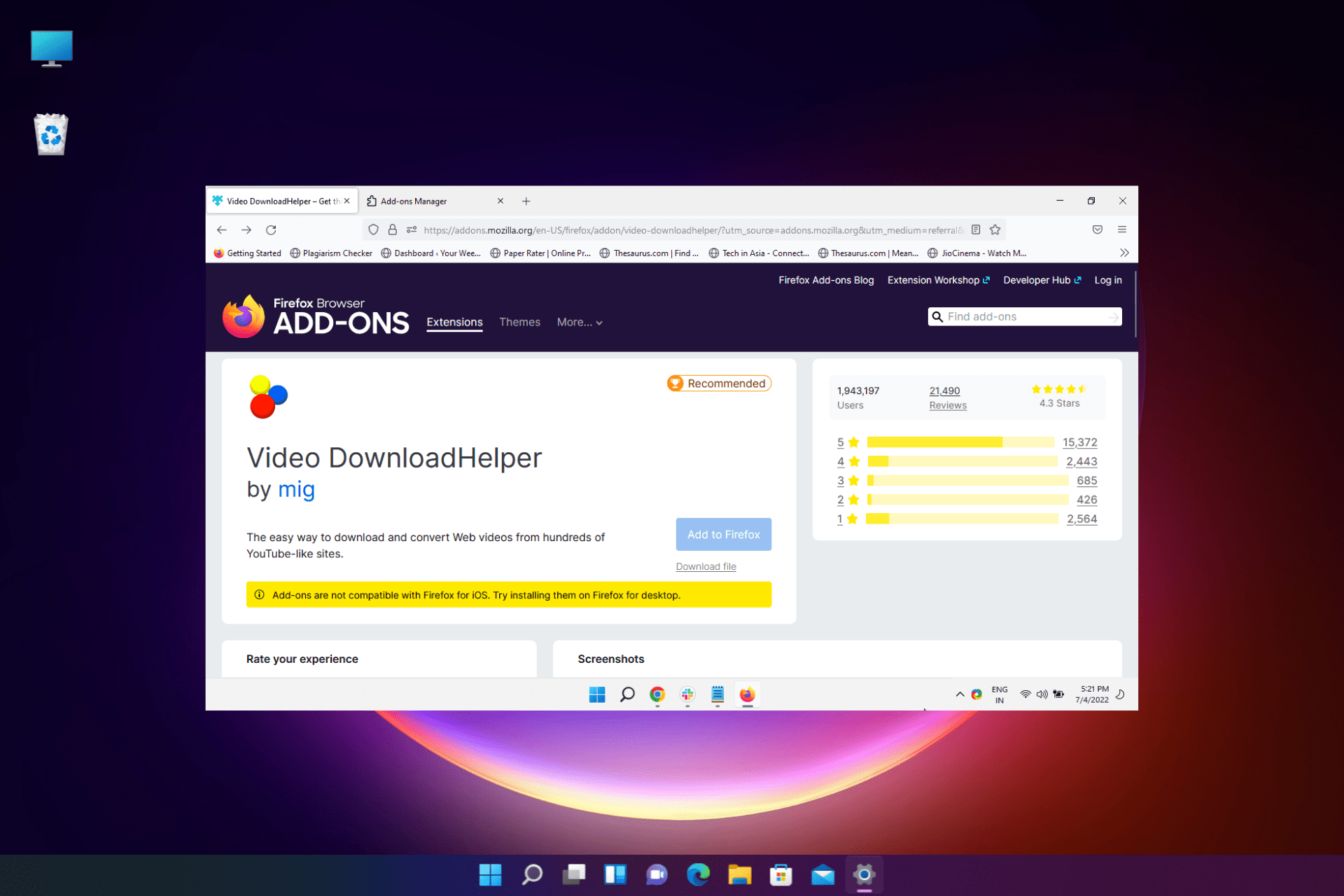
  7. Here, search for Video DownloadHelper and click on the result. Video DownloadHelper
  8. Next, click on the Download file link. download video downloadhelper
  9. Click on Add in the prompt. add video downloadhelper extension
  10. Once added, it’s re-installed now.

Restart Firefox and now check if it’s working now. It can also fix the Video DownloadHelper audio out of sync issue.

How do I enable Video DownloadHelper in Firefox?

If you are trying to download YouTube videos on Firefox using the Video DownloadHelper add-on and it’s not working in Firefox, chances are, it’s not installed.

To check if it’s installed, follow the below instructions:

  1. Launch Firefox and click on the three parallel lines on the top right. click on firefox three lines
  2. Click on Add-ons and themes in the menu. firefox add ons and themes
  3. Now, in the Firefox Add-ons Manager window, check if you can find Video DownloadHelper. Video DownloadHelper add on
  4. If you can see the icon and it still does not appear on the toolbar, click on the Firefox menu (three lines) again. firefox menu
  5. Now, select More tools.firefox more tools
  6. Next, select Customize toolbar. Customize toolbar
  7. Here, from the toolbar palette, drag the DownloadHelper icon back to the toolbar. drag the DownloadHelper icon

You should now be able to access Video DownloadHelper and continue downloading online videos without any interruption.

Alternatively, you can restart the Firefox browser and your PC, or re-install the browser to check if it helps fix the issue.

Or, you can install the beta version of the Video DownloadHelper plugin to get rid of any issues.

But if you are still facing the same issue, you can use a Video DownloadHelper alternative on Firefox.

However, if you are having trouble downloading large files, here are some of the best browsers for downloading large files on PC.

For any other queries on browser extensions, do leave your message in the comments box below

4 Tips on What to Do When Naruto Online Servers are Down

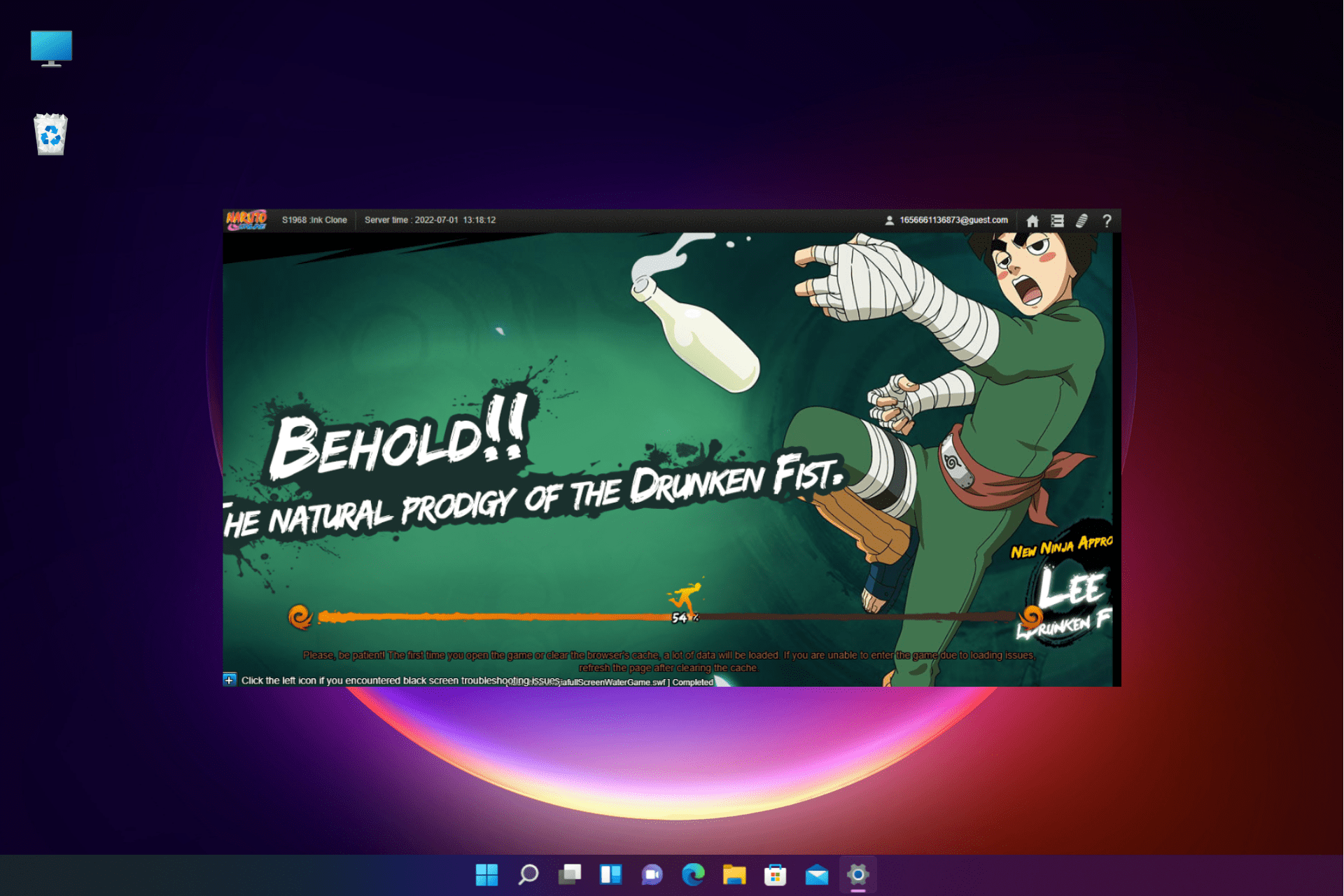
Many users encounter different issues with Naruto Online when its servers are down like black screen, slow performance, lags, etc.

However, sometimes the issue could also be due to a temporary browser issue and for that, you can try refreshing the browser by pressing the Ctrl + F5 shortcut keys.

You can also refer to our detailed guide on some of the best browsers to play Flash games seamlessly.

But if refreshing the browser does not help, we will tell you what to do when the Naruto Online servers are down.

How many Naruto Online servers are there?

You can access Naruto Online and play its games via 4 main regions. U.S. East, U.S. West, Europe, and Asia/Oceania.

Each of these regions features plenty of servers that a user can connect to based on the closest location.

However, Naruto Online recommends four primary servers based on your location. You can visit their home page for the Naruto Online server list.

What can I do if Naruto Online servers are down?

1. Try another browser with a built-in VPN

  1. Launch Opera One and click on the gear icon (Settings) on the left side of the pane and click on Advanced. advanced settings in Opera
  2. Now, on the right, scroll down and expand the Advanced option. enable Opera VPN
  3. Scroll down to the VPN section, go to Enable the VPN option, and turn it on.

Once done, now, try opening Natura Online and it should work fine now.

It’s suggested to use a VPN when the network’s link is not connecting to the server and shows timed out.

In this case, you can use a browser like Opera One that comes with a built-in VPN that creates a secure connection to one of its five server locations around the world.

The VPN not only allows you to choose where to appear on the web but also offers online privacy and security while making it easier to access Naturo Online’s private servers.

Opera One

Get into your Naturo online world with this VPN browser that ensures a stable server connection.
Free Download Visit website

2. Verify your own network

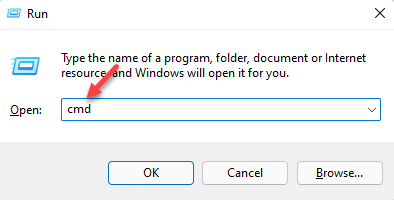
  1. Press the Win + R shortcut key combination to launch the Run console.
  2. Type cmd in the search bar and hit Enter to open the Command Prompt window. open elevated command prompt by pressing Ctrl + Shift + Enter together
  3. Now, copy and paste the below command and hit Enter: ping google.compin google coommand
  4. This will help you check if there are delays in the network. Anything below 150ms means the network is working fine.

If it’s working fine, try connecting to the Naruto Online server a few times and you should be able to connect.

3. Use a VPN software

It’s possible as well to resolve server connection issues on Naruto Online using a practical VPN with the fastest server network out there.

By choosing PIA (Private Internet Access), you benefit from open-source privacy with a rich network of high-speed servers in 84 countries, plus a 10Gbps connection speed.

Hence, this VPN solution includes advanced server technology and no bandwidth limitations so you can play Naruto gameplay online without server downtimes or errors.

⇒ Get Private Internet Access

4. Turn off Windows Defender Firewall

  1. Open the Run console by pressing the Win + R keys simultaneously.
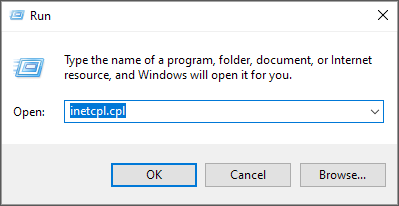
  2. In the search bar, type firewall.cpl and hit Enter.type firewall.cpl in run console
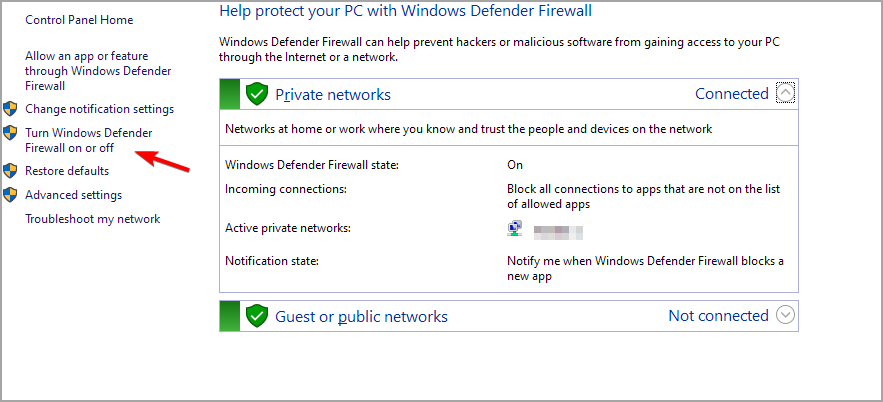
  3. Next, on the left, click on Turn Windows Defender Firewall on or off.Turn Windows Defender Firewall on or off
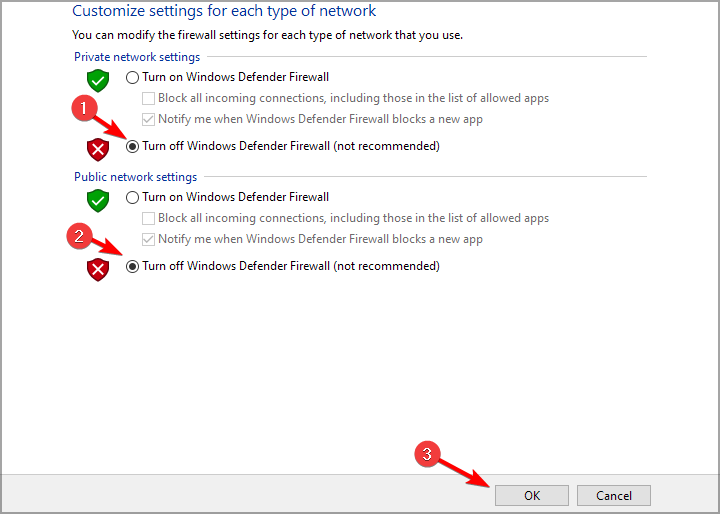
  4. Now, in the Customise Settings window, select Turn off Windows Defender Firewall under Private network settings.Turn Windows Defender Firewall off
  5. Repeat the same for Public network settings.Turn Windows Defender Firewall off
  6. Press OK to save the changes and exit.

We’ve shown you how to turn off the Windows Defender Firewall but if you have a third party antivirus, you should also turn off their firewall from the settings.

Now, check if you can open Naruto Online since it could be possible that Firewall was blocking the game servers. 

How do you switch servers in Naruto Online?

There is an option on the type right corner that allows you to change servers.

Each server has its own respective character account. By changing servers, you will create your own respective character account to play on.

Since each character account is respective to their servers, they cannot be moved to another server.

You can also keep a check on their Twitter handle, their Facebook page, or their official forum for an update on Naruto Online server status.

Whether you are facing any issue with Naturo Online due to an actual server issue or due to some other issue, our solutions will help you fix the issue.

If you are looking for the best VPNs to host game servers safely, we have a quick list for you in our post.

For any suggestions or questions, feel free to use the comments section below and we will get back to you.

3 Ways to Fix Naruto Online When It’s Not Loading

The Naruto Online game has been popular since its launch in 2014, however, users often experience the game not loading issue.

If you are a fan of Naruto Online, you may want to consider some of these best anime games for your Windows 10/11 PC.

Unfortunately, game lovers often report facing issues like Naruto Online not working when they try to load the game.

The good news is, that we have a couple of workarounds that may help you fix the Naruto Online not loading issue.

Can you still play Naruto online?

Yes, you can still play Naruto Online through different mediums on your browser. For example, you can play the games by:

Besides, there are still some browsers like Chrome, Firefox, or Edge that support Flash.

However, make sure that you install the latest version of the mini client and use the updated versions of the web browsers.

Below are a few troubleshooting methods that may help you fix the Naturo online when it’s not loading or working properly.

Quick Tip:

If you have trouble connecting, try opening the game using Opera GX. This gamer’s browser has an integrated free VPN option. Enable it and select a server location and try loading the game again.

Opera GX is built to support online gaming, so it should have no issues with Naruto online. You can also use its RAM and CPU limiters as well as battery saver mode to boost up performance even more.

Opera GX

Play Naruto online using a browser with dedicated features for error-free and uninterrupted gaming!

How do I fix Naruto online if it doesn’t load?

1. Clear browsing history

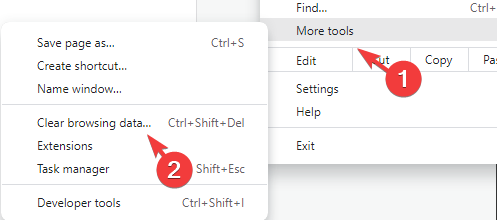
  1. If you are using Chrome, launch the browser and click on the three dots on the upper right. chrome three dots (more)
  2. Select More tools in the menu and then select Clear browsing data. Clear browsing data
  3. In the Clear browsing data window, click on the Advanced tab and set the Time range to All time. Chrome Clear browsing data - advanced
  4. Now, select Browsing history and press Clear data. delete browsing history

Once the browsing history is cleared, relaunch Chrome and check if Naruto Online is working.

You can follow a similar procedure for other browsers also.

2. Update the graphics driver

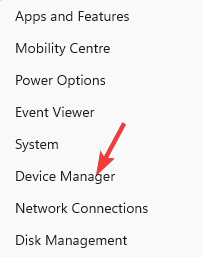
  1. Right-click on the Start button and select Device Manager. select Device manager from Start menu
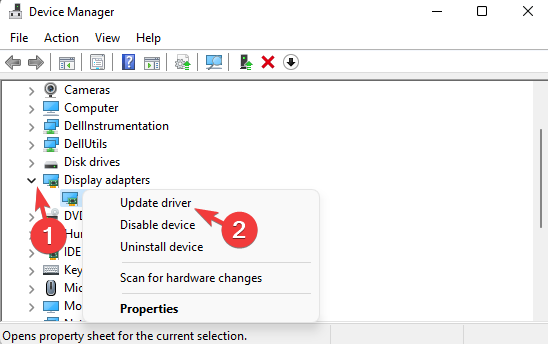
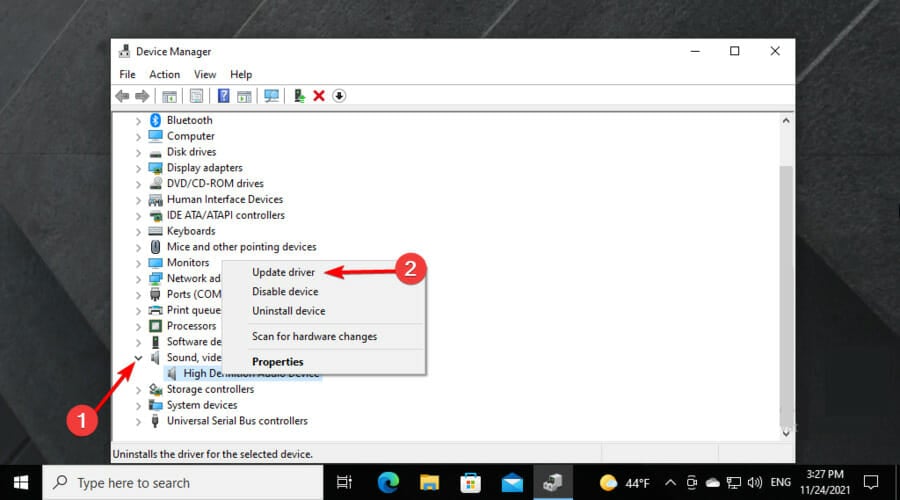
  2. Expand Display adapters, right-click on the graphics card, and select Update driver. update graphics driver
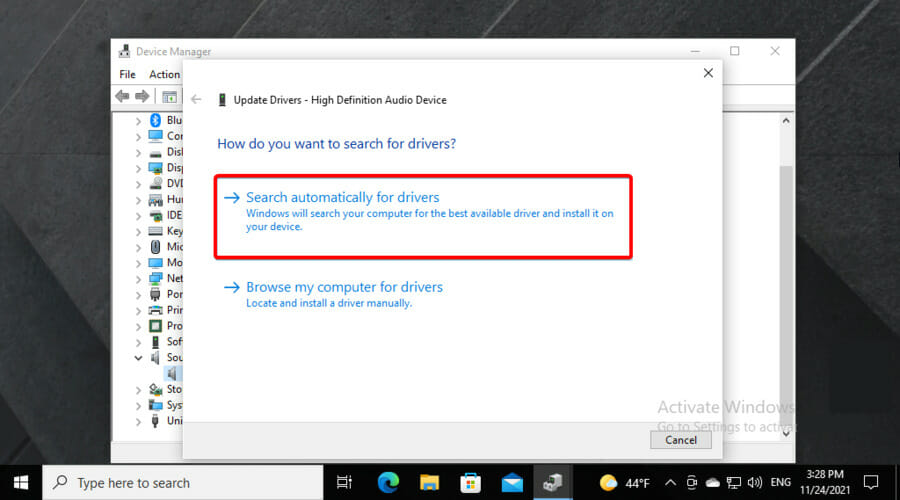
  3. Now, in the Update Drivers window, select Search automatically for drivers. Search automatically for drivers
  4. Windows will now start detecting the latest version of the driver. If found, will automatically install the driver.

Once the drivers are updated, you should be able to open and play the Naruto Online games.

You can also refer to our detailed guide on how to update the graphics driver on your Windows 11 PC.

It is also possible to visit the manufacturer’s official website, and download and install the latest drivers to fix the Naturo Online not loading issue.

However, you can go for a better alternative that will surely help you fix this issue for Naruto gameplay.

Outbyte Driver Updater is the professional software that scans your system for outdated or missing drivers and then updates them in a short time.

So you will have your graphics driver updated automatically and regain the joy of playing Naruto online.

⇒ Get Outbyte Driver Updater

3. Verify the game integrity of the game files

  1. If you are playing the game on Steam, go to its Library. go to steam library
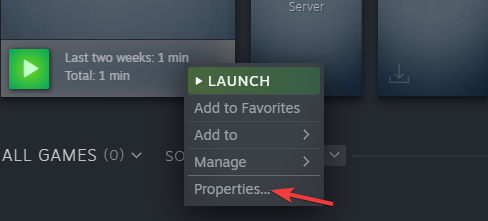
  2. Now, right-click on the Naruto Online game and select Properties. Click on game properties
  3. In the new window, click on Local Files on the left. Click on local files in steam
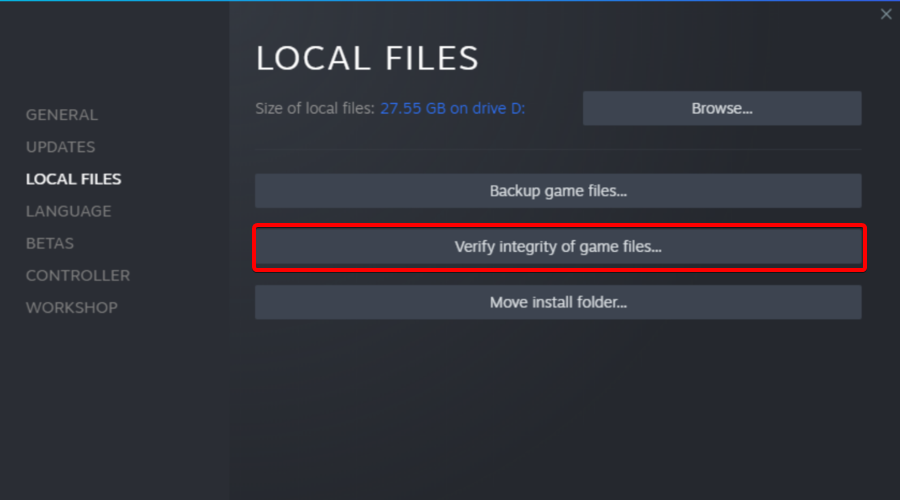
  4. Next, on the right, click on Verify integrity of game files. Verify integrity of game files
  5. Now, wait till Steam completes the game files verification.

Once completed, restart Steam and try playing the Naruto Shippuden game and it should be working now.

Why isn’t Naruto Online loading?

Your Naruto Online game may fail to load due to either of the below reasons:

  • Due to the browsing history of the web browser
  • If the graphics drivers are outdated
  • When game files are not verified
  • If the antivirus is blocking the game
  • Your location is outside the server regions
  • Due to network error

How to play Naruto Online without Flash?

You can still play Naruto Online using the latest versions of the browsers like Firefox, Chrome, or Edge, as recommended by its official website.

On mobile devices running on Android or IOS, you can play the games using the Puffin browser, since it allows you to view the websites in desktop mode.

Moreover, you can also try disabling any antivirus software on your PC because in many cases, it may be blocking Naturo Online.

Alternatively, you should also check if your network connection is up and running, or you may use a VPN (worked in my case), if you are outside the server regions.

Besides, if you want to know how to play the Naruto browser games, you can refer to our detailed guide for clarity.

But if you are still facing any issues with the Naruto Online games, you can leave a message in the comments box below.

5 Best Browsers for Skyworth TV [Web Browsing & Streaming]

Skyworth TV is one of the best TVs on the market. The Skyworth group is a company that manufactures, designs, and sells TV and other audiovisual products.

Its products are of good qualities, integrated features, and visual qualities. However, today’s article will guide you through some of the best browsers for Skyworth TV.

Also, it allows you to operate your TV system in a custom format and download browsers for your Skyworth TV.

Furthermore, we’ll look at the best browsers for Skyworth TV that you can stream with, browse the internet, and do other things.

Does Skyworth TV have Google?

Skyworth TV is Google certified, which means it is authorized to work with Google. It means users can browse and access lots of information on their TVs like movies, games, and favorite shows.

Installing Google Chrome on your TV allows you to google search. A good way of doing this is using Chromecast to connect your device with your TV and set it up with Google.

How do I update my Skyworth TV browser?

  1. Launch Skyworth smart TV, then connect to a stable Wi-Fi network.
  2. Click on the Apps tab and select Google play store.
  3. In Google Play Store, go to the available updates tab and check if there’s an update available for your Skyworth browser.
  4. Click the Update button to install it
  5. Restart your TV to sync the new updates.

How do I search Google with Skyworth TV?

  1. Download the Google Chrome APK through this page.
  2. Move the APK file to a USB drive.
  3. Insert the drive into the USB port of your Skyworth TV.
  4. On your remote, press Home and go to Apps.
  5. Select install APK, then select Chrome and press OK.
  6. Wait till the process is complete.

What browser should I use on my Skyworth TV?

Google Chrome– Best overall performance

Google Chrome is one of the best browsers for Android TVs like Skyworth. Even though it is not pre-installed on the TV, it is still one of the best recommendations as a browser for Skyworth.

Chrome is a Chromium-based browser with lots of features and customizable options. Thus, if you use Chrome on your device, you can access your bookmarks, history, and lots more.

Also, Chrome is known for its overall speed for streaming. So, it is worthy of being considered.

⇒ Get Chrome

Puffin TV browser – Packed with great features

Aside from the fact that the Puffin browser comes with features that make it the best, it is compatible with all Android TVs.

It allows you to operate your browsers with your device remote, which isn’t something most TV browsers allow.

Another amazing thing is that there is a version specially for Android TV like Skyworth. It is fast, light, and easy to navigate.

⇒ Get Puffin browser

Mozilla Firefox– Best for cross-platform access

Mozilla Firefox can work as an android TV browser, even though there is no dedicated version for it. It is fast and easy to navigate.

Firefox’s compatibility level is second to none. This browser supports all devices from Windows and macOS to Linux, iOS, and Android.

Also, it has lots of extensions that you can download to get a better internet experience.

⇒ Get Firefox

TVWeb browser – Ideal for Android users

As the name implies, the TVWeb browser is a browser that is specifically designed for Android TVs. Apart from its lightweight speed, the user interface is basic and easy to navigate.

Also, it allows you to navigate your bookmarks and add favorites. It also uses voice search to browse and is compatible with your device’s remote controller.

⇒ Get TVWeb browser

Brave – Best for privacy and security

This browser is recommended for Skyworth TV because of its privacy and security features on all devices.

It is one of the most compatible browsers for most devices. It uses voice search and allows you to bookmark your favorite websites. Another feature is that you can use Chromium extensions on it to further increase its streaming functionalities.

There are some wireless keyboards with touchpads you can use for your Android TVs like Skyworth, here are our recommendations.

Another thing you should know how to use is how to take screenshots with a Smart TV, and we have a guide on that also.

5 Ways To Bypass DoorDash’s Network Error

DoorDash is one of the most widely used applications in the United States of America. The application is used when ordering food from different restaurants across the US to any location of your choice. However, you might come across a DoorDash network error when using the app.

This can happen on any device, whether Android, iOS, or even the DoorDash website. Encountering this error does not mean that the app is not good. This is something that can happen even with the best applications. Fortunately, you can fix this problem easily without any problems.

How does DoorDash work?

DoorDash works following an on-demand logistics model where the company acts as an intermediary between prospective buyers and merchants. The buyers can make orders from their location and have the products delivered to wherever they want. 

The company was established in 2013 and currently deals with food delivery. As a technology company, they have tried as much as they can to come up with one of the best mobile applications for both Android and iOS, as well as a web-based application.

However, as discussed above, even the best tech companies face challenges with their applications from time to time. This might be caused by several issues such as the inability to log in, or an error validating basket during checkout. Luckily, they can easily be resolved for users to resume normal operations.

How do I troubleshoot the DoorDash network error?

1. Restart the DoorDash application

Android

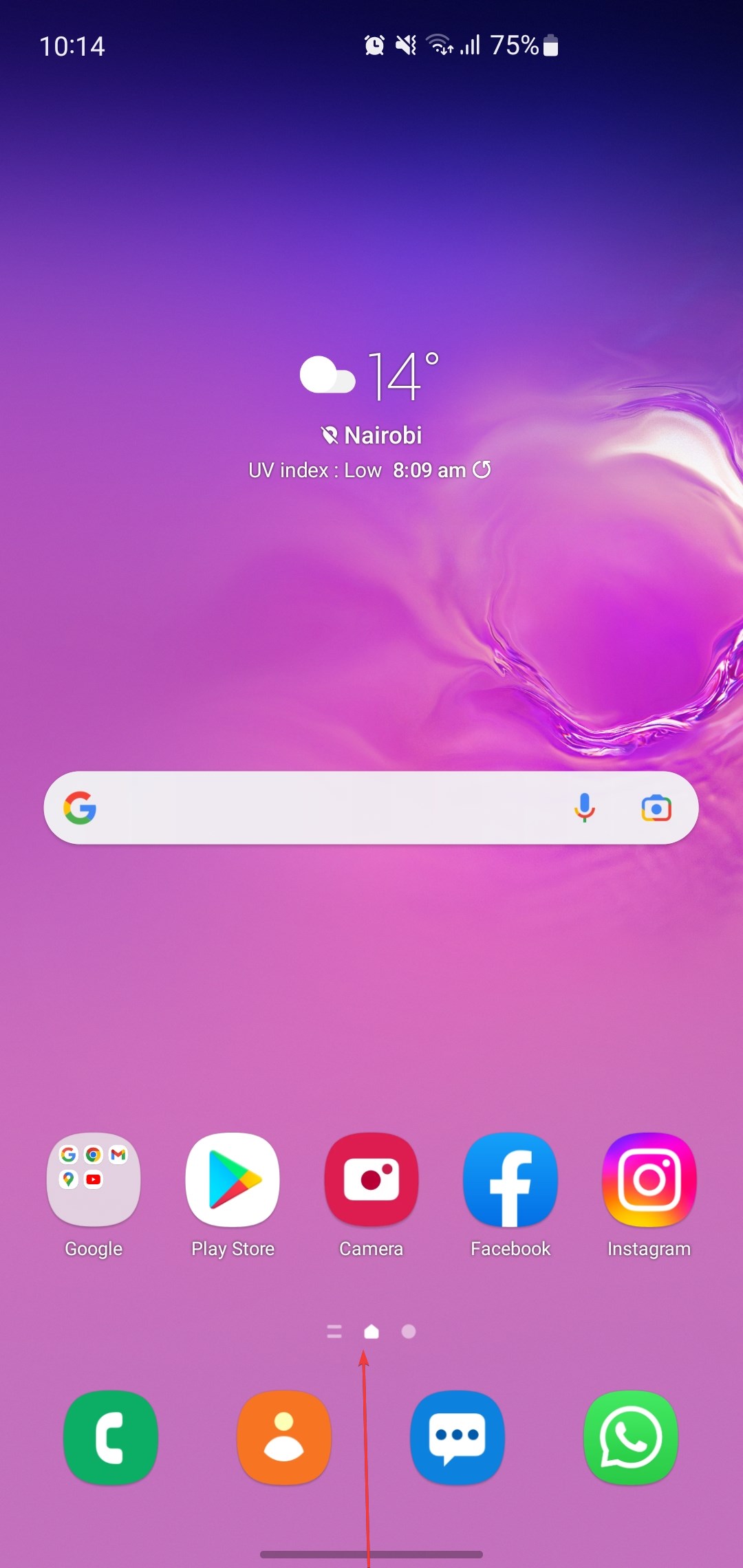
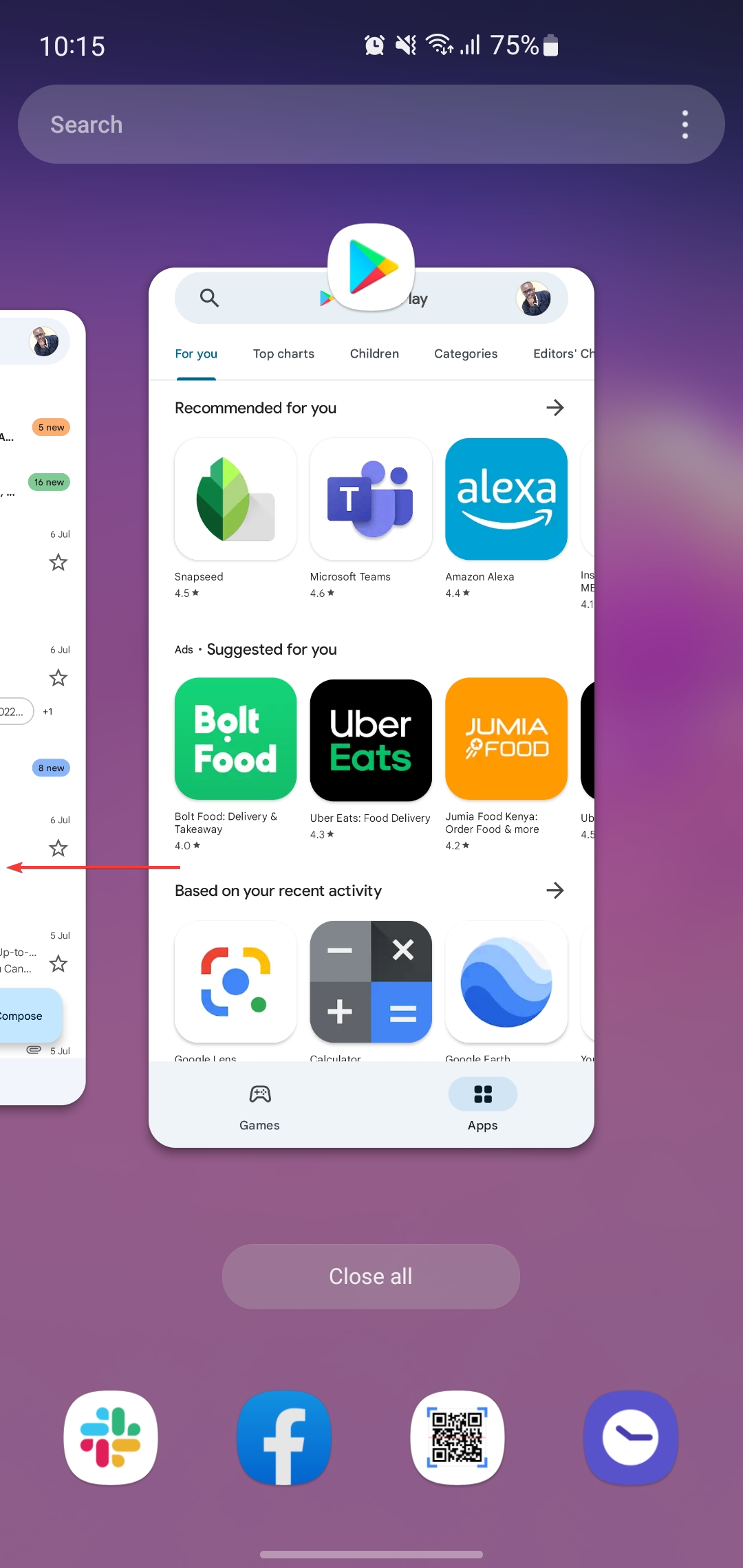
  1. Tap the recent apps shortcut on the homepage or swipe up the homepage.recent apps from home - doordash network error
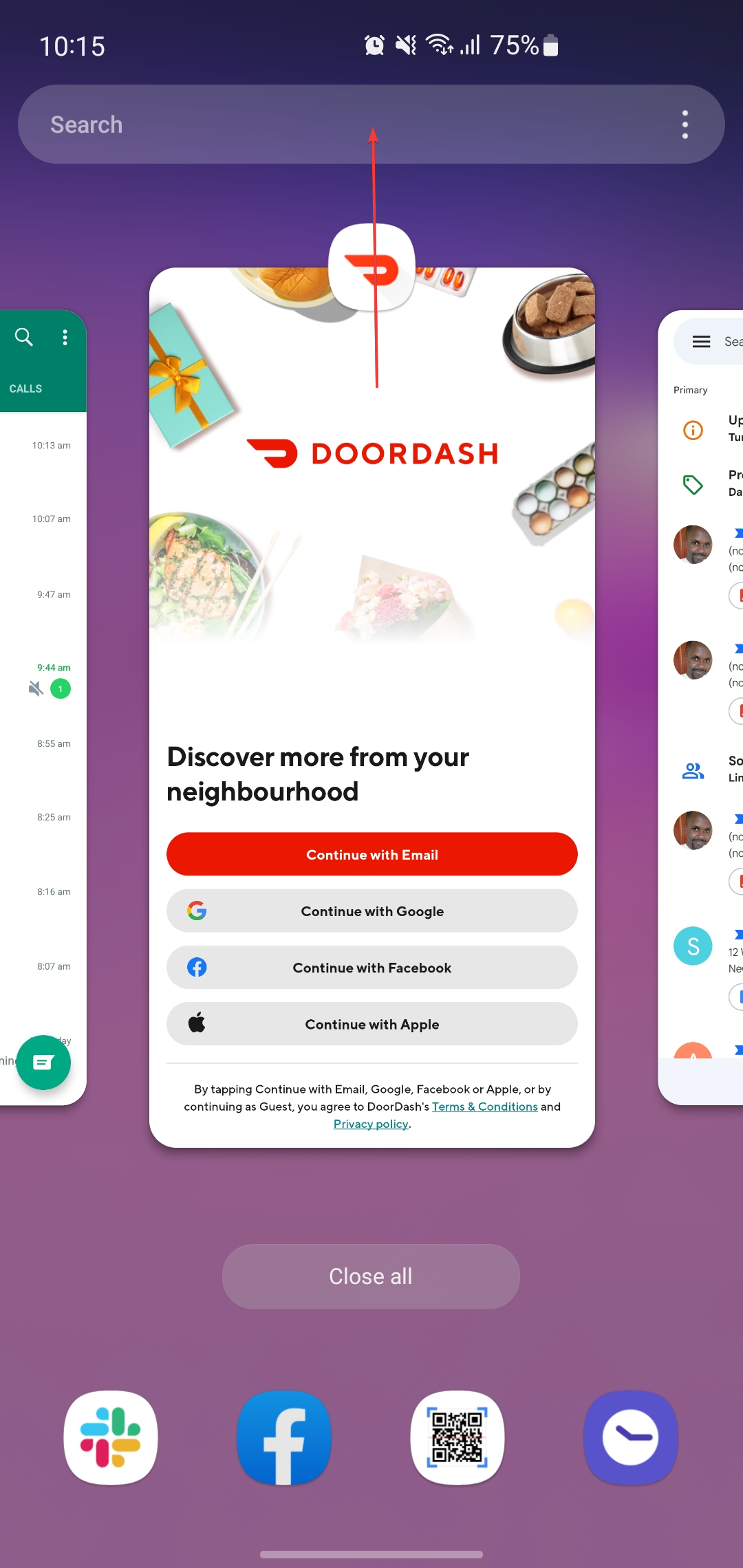
  2. Swipe right or left to locate the DoorDash application.recent apps - doordash network error
  3. Once you locate it, swipe the application up to close it.recent apps - doordash network error
  4. Go to applications and tap on the DoorDash icon to start the application.

iOS

  1. Swipe up from the bottom of the phone to open the app switcher.
  2. While swiping right or left to locate the DoorDash application.
  3. Swipe up on the DoorDash app to close it.
  4. Launch the DoorDash application again.

2. Check your internet connection

check connection - doordash network error
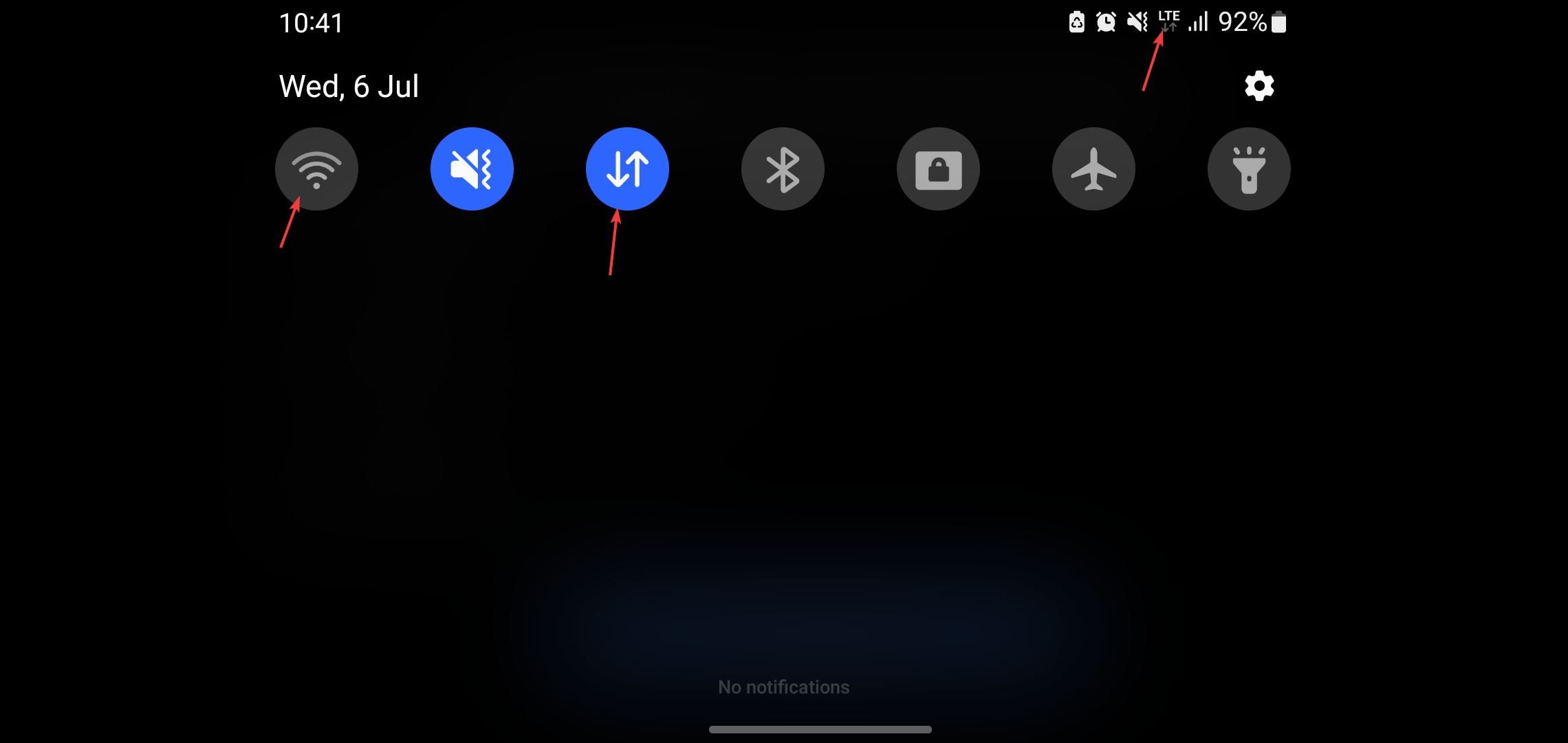
  1. Check if you have a strong cellular signal at the top or rather the status bar of your phone.
  2. Launch your browser and visit another website to see if your internet works.check your browser
  3. If the above options do not work, consider changing from your cellular connection to a Wi-Fi connection.

3. Clear data and cache

Mobile application

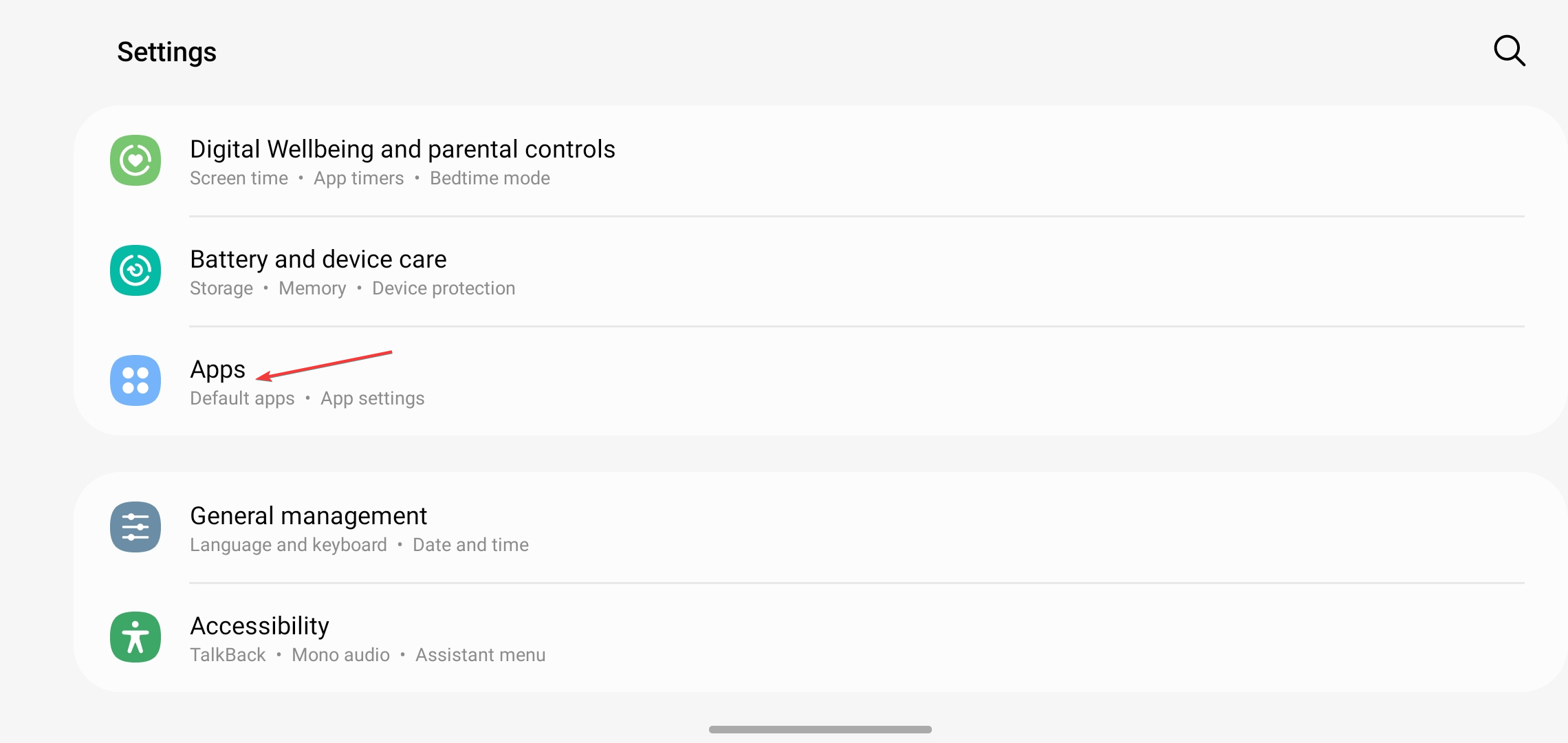
  1. Launch the Settings app on your phone and navigate to Apps or Applications.apps on settings
  2. If you do not see the DoorDash app, click on See all apps.
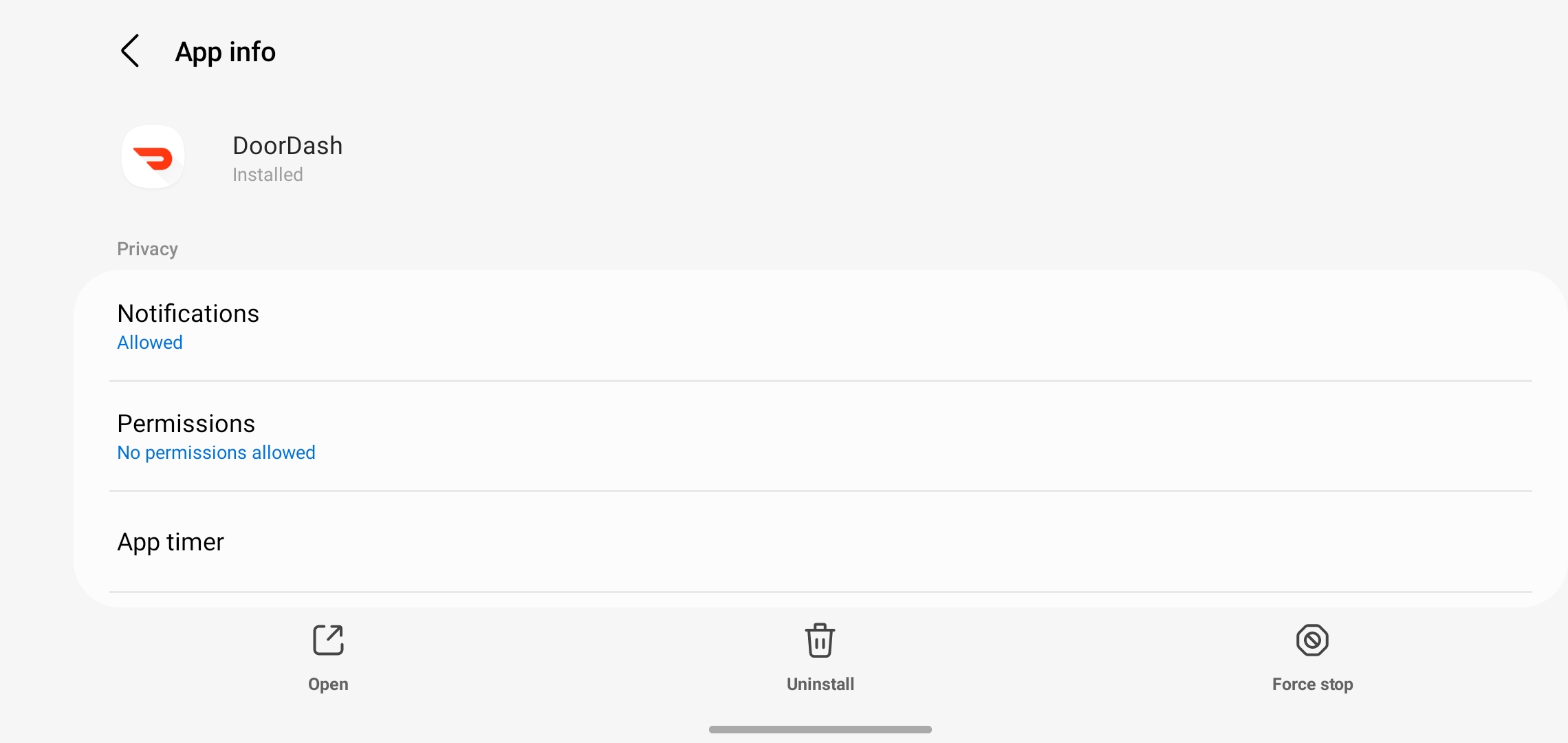
  3. Select the DoorDash application.doordash application
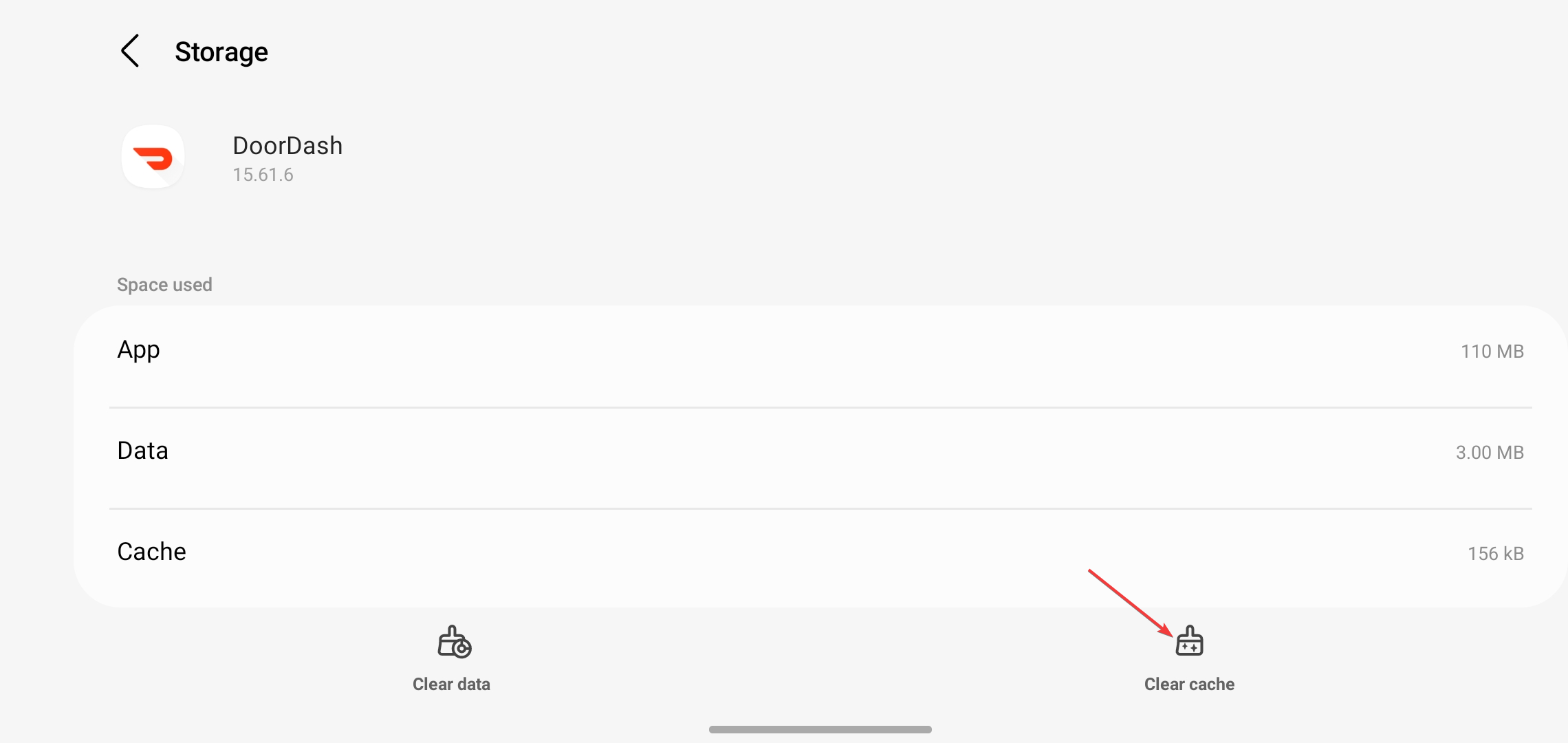
  4. Tap on Storage and cache and then tap on Clear cache.clear cache

Chrome browser

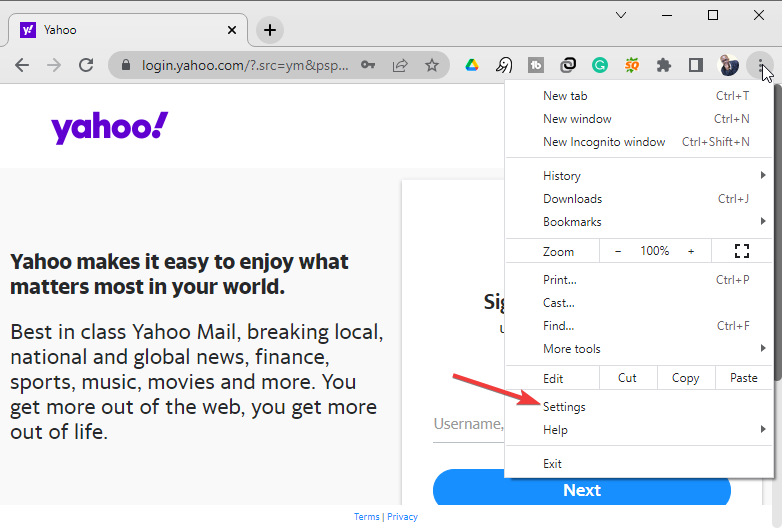
  1. Click on the three dots at the top right of the Chrome browser.chrome settings
  2. Navigate to settings.
  3. Click on Privacy and security on the left-hand side panel.privacy and settings
  4. Select Clear browsing data.
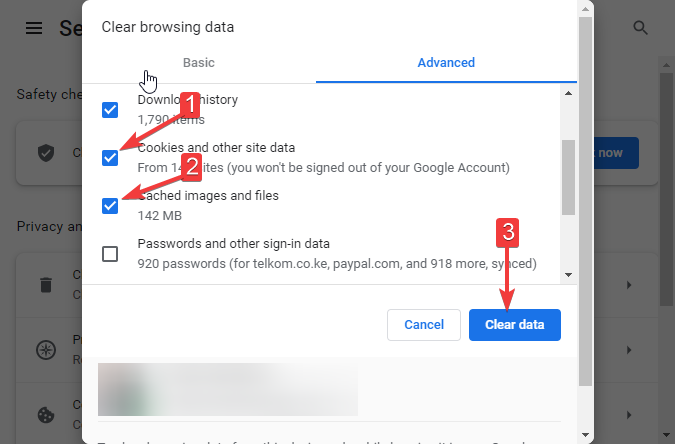
  5. Make sure that Cookies and other site data and Cached images and files are selected.
  6. Click on the Clear Data button at the bottom. clear browsing data
  7. Clear cache on other browsers as well if not using Chrome.

4. Restart your phone

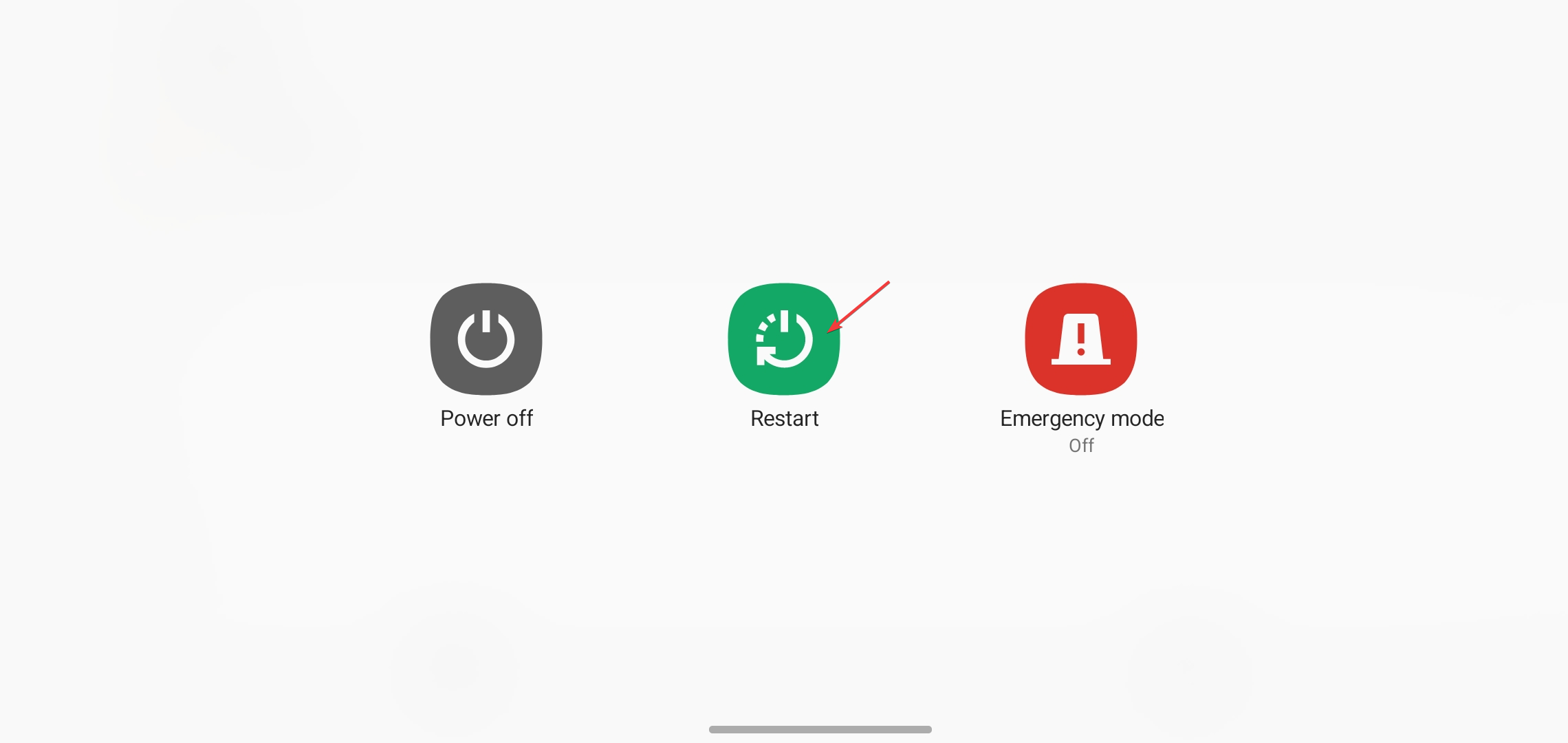
  1. Long press the power button of your phone.
  2. Choose the restart option.restart phone

5. Check if DoorDash is down

doordash network error
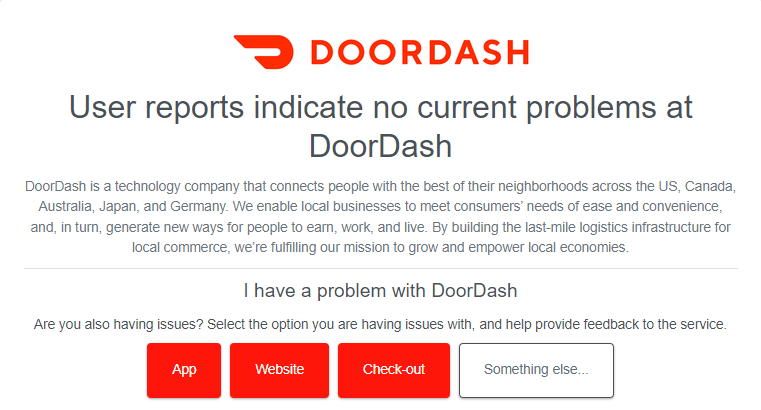
  1. Visit the DoorDash network status page at Downdetector to see if the service is down.
  2. You can also launch a browser and search “Is DoorDash down?”

What else can I do if the DoorDash application does not work at all?

Following the solutions discussed above, you should be able to troubleshoot the DoorDash network error. The application should actually start working with just one of the solutions. However, what can you do when you still have not found a solution?

In that case, it means that the problem is not with DoorDash or your internet connection but with your phone.

This isn’t the only error you can encounter, and many reported DoorDash Payment error, but we have a special guide that addresses that one.

To solve the Doordash network error, try getting another device and accessing DoorDash with it. This can be another phone where you can install the app or maybe a browser where you can order food via the web-based application.

5 Best Browsers For Peacock TV [Hassle-Free]

NBCUniversal’s Peacock TV is one of the surprising streaming service platforms that created a breakthrough in the market today. To watch content on Peacock, you have two options: you can either download the Peacock app or stream Peacock in a web browser.

Many argue that it’s even better and cheaper than Netflix. You can watch classic TV shows, well-loved films, sports, news, and other exciting content. Also, it launched a free streaming option that is not available from other competitors.

In this article, we will explore the best browsers which can provide you with a pleasant viewing experience.

What device does Peacock support?

NBCU’s Peacock was a service available only to Xfinity X1 and Flex Comcast customers initially, then expanded to many devices.

These devices are iOS, Apple TV, Amazon, PlayStation, Roku, and Apple TV HD. Android, including Android TV and Chromecast. Xbox One S, Xbox One X, and PS4. Vizio Smartcast etc. Peacock is available across a variety of devices.

Which browser is best for streaming?

After conducting a survey on the browser that works best for streaming, we discovered Google Chrome is the best option for streaming. Although Peacock TV supports others too, the Chrome browser outshines overall performance.

What are the best browsers for Peacock?

Google Chrome – Best overall performance

It is safe to say Chrome is the father of speedy modern browsers. This is because most of them, with very few exceptions, are based on its open-source Chromium engine.

Chrome offers a minimalistic interface that is suited for the Peacock TV. Also, it is a browser for all devices as it is available on platforms like macOS, Windows, Linux, iOS, Android, and, of course, Chrome OS.

It has the largest extensions store of all browsers, which can be used to extend its functionality as a browser for Peacock TV streaming.

⇒ Get Chrome

Microsoft Edge – Ideal browser for Windows

Microsoft Edge is the built-in browser for Windows PCs, and it’s no surprise it is the best browser for Windows devices. It is a wholly different enterprise from its predecessor – Internet Explorer.

Since its move to the Chromium engine, it has been consistently ranked amongst the fastest browsers. Since speed is integral to enjoying streaming, this browser is also considered suitable for Peacock TV.

⇒ Get Microsoft Edge

Mozilla Firefox – Best for cross-platform access

Firefox has been around for a long time and was one of the most popular browsers before Chrome and others took over. It is not surprising that it is browser compatible with all devices from Windows and macOS to Linux, iOS, and Android.

Firefox has always been fast but has taken things to another level since its Quantum update. This update has elevated it to an incredible speed level, making it a recommendable browser for streaming Peacock TV.

⇒ Get Firefox

Safari – Best for macOS and iOS

Safari is a browser that’s been optimized for Mac and iOS devices. It has a simple design that you can customize to some degree.

Thanks to the unstacked design, it is one of the fastest browsers currently available for streaming. What’s more, it is compatible with Chrome extensions. This allows you to extend its features as you wish.

Lastly, Safari is only available on Apple devices. It used to be a thing on Windows, but it has been stopped officially since 2012.

Other great features:

  • Offers a privacy report
  • Has a tab preview feature
  • Works with extensions

⇒ Get Safari

Brave – Security Juggernaut

If you are looking for a browser to stream Peacock TV with assured privacy and security on all devices, the Brave web browser has everything you want. It has an app with a simple yet well-stocked interface.

Also, it has other security features like fingerprint protection and upgrading website connections to HTTPS. Lastly, it uses low system resources.

Other features:

  • Fast and secure
  • Brave rewards for earning tokens
  • Tab search

⇒ Get Brave

Why can’t I get Peacock on my TV?

This is probably because you are yet to connect your casting device to your TV. Verify your Google Home app is installed on your mobile device. The Google Home app is available in the iTunes Store and Google Play Store.

Make sure your Chromecast device is connected to your TV. Make sure the Chromecast device and your streaming device are both connected to the same Wi-Fi network.

How do I install Peacock on my smart TV?

To get Peacock TV on any one of these smart televisions, simply go into your TV’s App Store, then search for and download the app.

The best browsers for all devices should offer a wide range of compatibility across major platforms. We have shown a list of including individual browsers and how they fit your Peacock TV.

Do you want a more streamlined list like the best lightweight browsers for Windows PC? Then, do not hesitate to check our guide for the top options to select.

Hulu is not Working in Firefox: 3 Ways to Quickly Fix it

Mozilla Firefox has many features that make it a great choice for streaming your favorite movies and TV shows on Hulu. However, users have reported issues with Hulu not working in Firefox. Keep reading to find a quick solution to this problem.

Users also report Hulu acting up on smart TVs and Safari. If you’re having issues with Hulu not working on Chrome, we have solutions for that as well.

Why won’t Hulu play on my browser?

Hulu may not play in browsers that are outdated or not supported. The streaming platform supports the latest versions of Google Chrome, Firefox, Safari, and Microsoft Edge. Hulu also may not work properly with ad and cookie blockers.

Hulu compatible browsers.

Does Hulu not work on Firefox?

Firefox is one of the compatible browsers for Hulu and should work. If you are running into issues with Hulu not working in Firefox, make sure any ad blockers are disabled and you have HTML5 enabled.

Quick Tip:

Opera One is a Chromium-based browser that uses the same engine code base and supports HTML5, JavaScript, and Cookies for Hulu.

With the User-Agent Switcher add-on for Opera One, you may shapeshift it into any other accessible choice in the list, including Firefox.

Opera One

Streaming Hulu on Opera One can be the same as on Firefox, only shape-shifted with the add-on.

How do I fix Hulu if it doesn’t work in Firefox?

1. Check for updates

  1. In Firefox, click on the three lines in the top right corner and select Settings. Open Firefox settings.
  2. In General, scroll until you see Firefox Updates.
  3. Click on Check for updates. Check for updates Firefox.
  4. Perform any required updates.

To avoid any problems or bugs while browsing in Firefox, make sure you keep it up to date. It’s recommended that you allow Firefox to automatically install updates so you don’t have to worry about it.

2. Clear browser data

  1. In Firefox, click on the three lines in the top right corner and select Settings. Open Firefox settings.
  2. Go to Privacy & Security and under Cookies and Site Data select Clear Data. Firefox clear browser data if Hulu not working.
  3. Check the box next to Cookies and Site Data and the box by Cached Web Content. Check the boxes.
  4. Click Clear.

If your cache and site data are backed-up it can cause issues with sites like Hulu. A good indicator of when it’s time to clear the cache is when Hulu won’t load the homepage.

3. Disable extensions

  1. In Firefox, click on the three lines in the top right corner and select Add-ons and themes. Firefox addons and themes.
  2. Go to Extensions and go through and disable your installed add-ons. Disable addons if Hulu is not working in Firefox.
  3. Restart your browser.

Usually, ad blocker extensions can cause issues with streaming websites, but try disabling all your installed add-ons to see if it solves the issue. Because extensions are from third-party companies, they may not be updated or can be faulty leading to problems arising in your browser.

How do I fix compatibility issues in Firefox?

  1. Click on the Start menu and search for Firefox.
  2. Right-click and select Open file location. right-click firefox and open file location.
  3. Select Firefox and right-click then click Properties. Firefox properties.
  4. Under Compatibility, select Run compatibility troubleshooter. Run compatibility troubleshooter.

If you’re having compatibility issues in Firefox, running the troubleshooter will reveal any problems that need to be fixed. Also, make sure that Compatibility mode isn’t turned on to run for Windows 8.

We hope one of the above solutions helped fix any issues with Hulu not working in Firefox. Be sure to let us know which step worked for you or if you have a solution that is not listed above.

Microsoft news recap: Activision acquisition to face UK anti-competitive regulator, Bing Maps gains new features, and more

Microsoft news recap is a weekly feature highlighting the top Microsoft news stories of the past week. Sit back, grab some coffee, and enjoy the read!

Xbox Series X|S has now sold 250,000 units in Japan

Following off the back of recent positive weekly sales figures in Japan, Xbox Series X|S have now crossed over 250,000 unit sales in Japan, continuing to show strong performance in the Japanese market.

Microsoft faces UK anti-competitive regulators over Activision acquisition

The UK’s Competition and Markets Authority has announced that it has launched an investigation into Microsoft’s acquisition of Activision, adding a possible hurdle to Microsoft completing on the acquisition. The aim of the investigation is to determine “whether the deal may harm competition – through higher prices, lower quality, or reduced choice.”

UK CMA Office Logo

Bing Maps can now help you calculate distance, gas prices, and find parking for your road trips

New features have arrived on Bing Maps this week, including the ability to calculate the distance between locations, see gas prices, as well as find parking spots.

bing maps

That’s it for this week. We will be back next week with more Microsoft news.

3 Simple Ways To Fix The PS5 Redirect Error

PS5 is a stunning console with many endearing features. With it, you can play games with mind-blowing graphics and connect to the community of gamers, as you can use Discord on PS5 without a PC.

It is no wonder people are queuing to buy the console that is in limited supply. Unfortunately, users encounter the redirect error that ultimately stops them from accessing the purchase site.

This guide will show you how to solve the PS5 redirect error and get through to buy the console.

Why do I keep getting the redirect error?

The redirect error occurs when trying to purchase a PS5. With the high number of buyer requests, you will need to be assigned a queue number. 

You will eventually be redirected to another page where you must click a link to buy. This is where error codes like rejected or used queue numbers pop up.

These error messages might be due to an unsupported browser or corrupt cookies. Also, the cause might be hard to pinpoint, as Sony has yet to comment on the issue.

How do I fix the PS5 redirect error?

1. Clear browser cookies

  1. Launch your browser and click the menu button (three vertical dots) at the top right corner.
  2. Select the Settings option.
    settings ps5 redirect error
  3. Choose Privacy and security on the left pane.
    security
  4. Click Clear browsing data.
    clear browsing
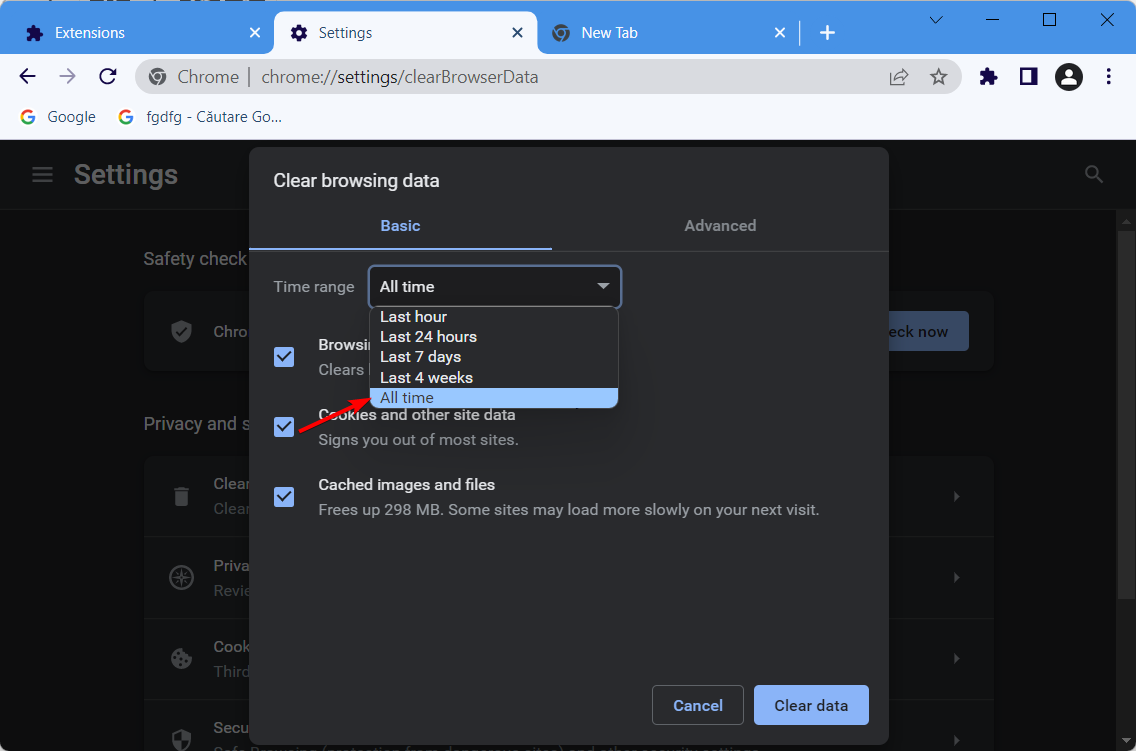
  5. Click the dropdown beside the Time range and select All Time.
    time range ps5 redirect error
  6. Now, check the box for Cookies and other site data.
  7. Click the Clear data button.
    clear button

Corrupt cookies cause many problems and could be why the PS5 redirect error is showing. After clearing the cookies, relaunch your browser and visit the site again.

2. Use a supported browser

Before buying a PS5 console, you must have a PSN account and log in to the Playstation Direct website. However, only the browsers below are supported for the website:

  • Google Chrome version 71 and above
  • Firefox version 64 and above
  • Safari version 11 and above
  • Microsoft Edge version 43 and above
  • Any native mobile browser

Hence, if you log in on any other browser, it might be why you keep facing the PS5 redirect error. So, you will need to change browsers in this case.

3. Contact Sony for help

If all the fixes above prove futile, the only option is to visit the official Playstation customer support page for help. You will need to prepare all the right info, such as the type of device you are using, the browsers, and where you are trying to buy the PS5.

Lastly, note that Sony has limited the purchase of PS5 to one per household. This is because of the high demand. So, don’t bother contacting customer service if you already have one console at home.

The PS5 redirect error can be exasperating, as the cause can sometimes be impossible to pinpoint. However, you should be able to fix the issue by the time you exhaust the solutions in this guide.

Do you want to know how to update your PS5 controller’s firmware? Then check our guide to do it effortlessly.

Feel free to let us know the fix that helped you push your purchase through in the comments below.

5 Ways to Get Past your Browser Can’t Play this Video Pop Up

Many users come across an error, Your browser can’t play this video while trying to play videos on a website or video streaming site.

The glitch is more common with YouTube videos, however, it could also show up with videos on other websites, social media, or other streaming sites.

But if you are facing a problem like a video not playing on your Windows 10/11 PC, you can refer to our detailed article for quick solutions.

However, before we move on to the solutions, let’s understand what the error means.

What does it mean Your browser can’t play this video?

There are several possible reasons why your browser may fail to load videos:

  • Interference by browser extensions or add-ons
  • Too many cache and cookies
  • Outdated browser version
  • Due to network connection issues

Fortunately, we have a couple of solutions that will help you get rid of Your browser can’t play this video error and continue watching your favorite videos.

How do I fix unable to play this video?

1. Turn off Chrome’s hardware acceleration

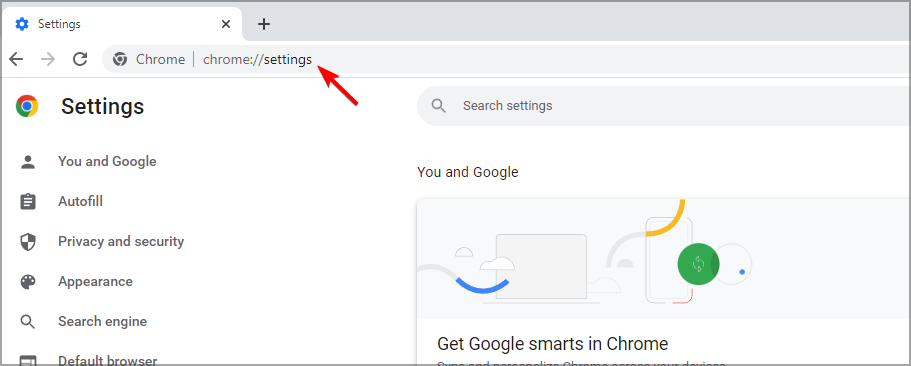
  1. Open Chrome, type the below path in the address bar, and hit Enter: chrome://settings/system
  2. Now, go to Use hardware acceleration when available on the right. disable use hardware acceleration when available
  3. Move the toggle switch to the left to turn it off.

This will free up the GPU from being used for other tasks and can be rather used to render web pages on Chrome.

You can disable the hardware acceleration feature for other browsers also including Opera, Safari, Firefox, and Edge.

2. Check your extensions and cache & cookies

  1. Launch Chrome and click on the three dots at the top right.
  2. Select the New Incognito window option from the menu. New Incognito window
  3. Try opening the video in Incognito mode and check if it plays.

If the video plays in Incognito mode

  1. Exit the Incognito window, and open the new Chrome window (normal).
  2. Navigate to the below path in Chrome: chrome://extensions/
  3. Turn off all of your Chrome extensions.Turn of all chrome extensions
  4. Go to the video on its site and click on the Reload icon on the top left to refresh the page. Reload video website
  5. If the video plays normally, then try turning on each extension to find out which one is creating the problem.
  6. As you detect the problem extension, press Remove to delete.remove problem extension

This should help you fix Your browser can’t play this video error and play the video normally.

But if the video is still not playing, enable all your extensions, and move on to clear the browser history.

If the video does not play in Incognito mode

Clear browsing history, and cache & cookies
  1. If you are using Chrome, open the browser and click on the three dots. chrome menu
  2. Next, click on More tools in the menu and select Clear browsing data. Clear browsing data
  3. It will open the Clear browsing data window in Chrome settings.
  4. Here, click on Advanced and then select All time in the Time range field. Chrome Clear browsing data - advanced
  5. Now, select Browsing history, Cookies and other site data, and cached images files. Press Clear data. clear browsing data chrome

Now, wait till the data is removed. Once done, relaunch Chrome and you should be able to play the videos normally on the web.

This process is also applicable to other browsers including Edge, Firefox, Opera, and Safari.

3. Update the browser

  1. Open Chrome and click on the three dots located at the top right. chrome menu
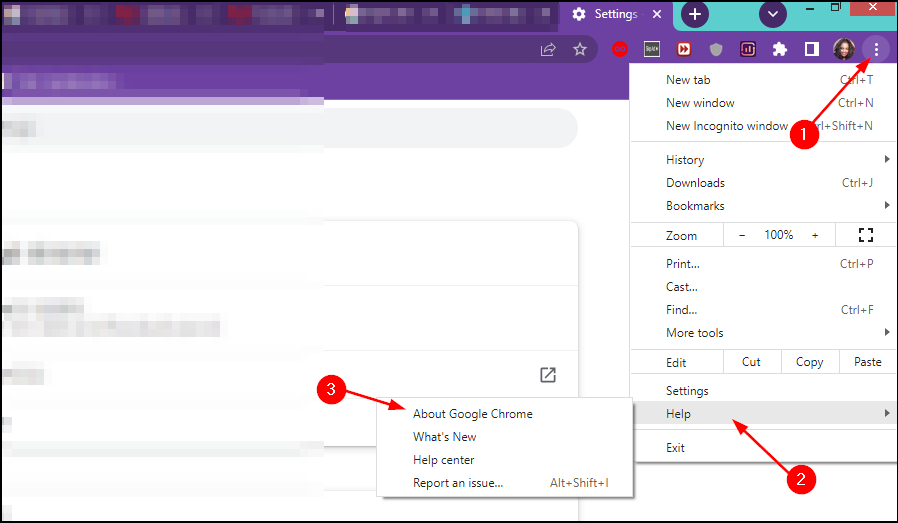
  2. Click on Help and then About Google Chrome in the menu. About Google Chrome
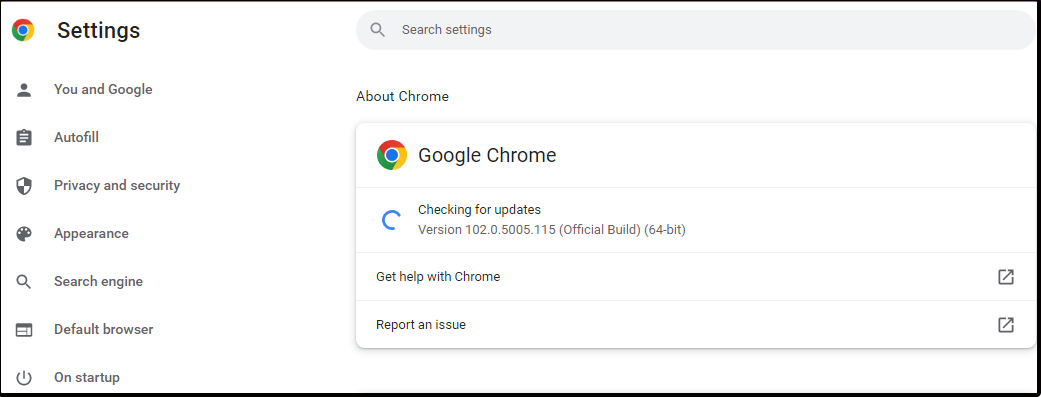
  3. Now, wait till the browser check for any latest updates. If available, it will install the update automatically. chrome checking for updates
  4. Click on Relaunch to restart Chrome and check if the video plays normally now. relaunch chrome

If you are using any other browser, follow a similar method to install the latest update.

4. Reset browser settings

  1. If using Chrome, launch the browser and click on the three vertical dots. chrome menu
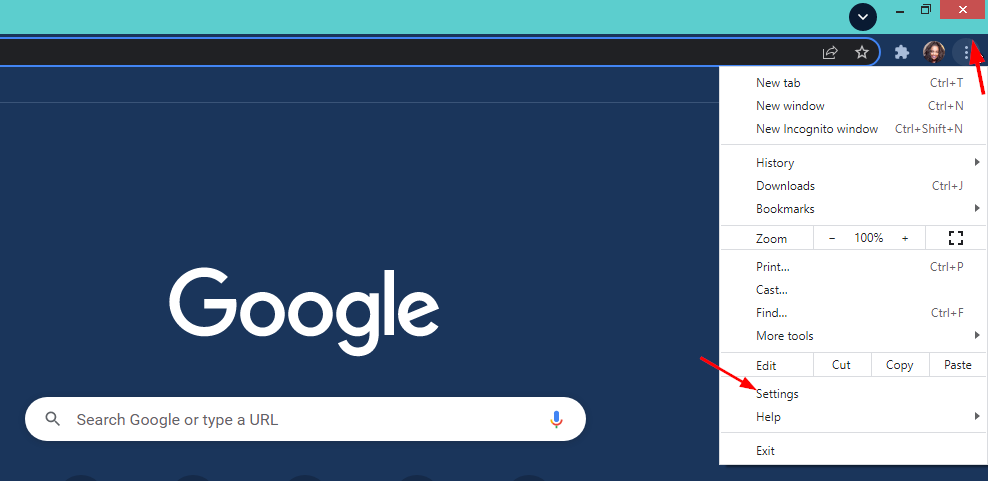
  2. From the menu, select Settings. chrome settings
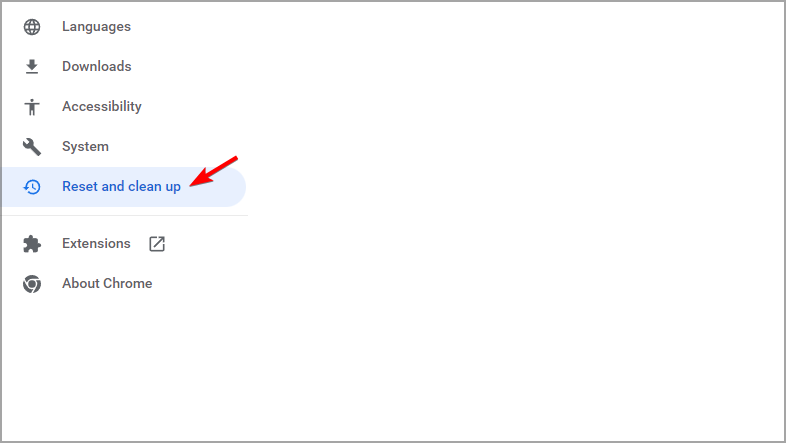
  3. On the Settings screen, click on Reset and clean up on the left. chrome Reset and clean up
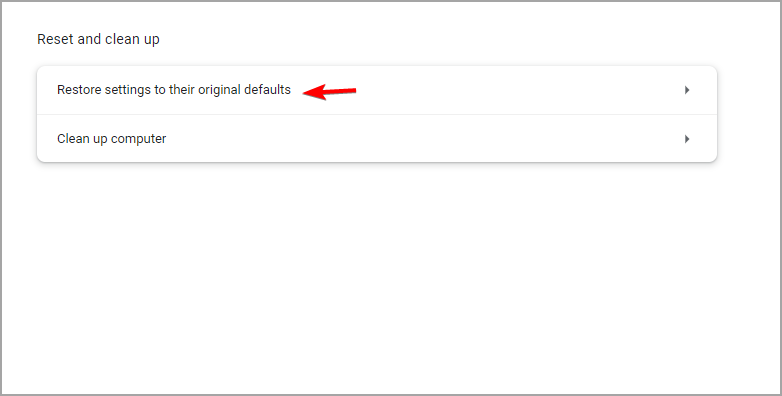
  4. Now, go to the right and click on Restore settings to their original defaults. Restore settings to their original defaults
  5. In the Reset settings pop up, click on Reset settings to confirm. chrome Reset settings

Once done, Chrome will restart automatically. You can now try playing the video on the web and check if the error still persists.

You can reset your browser in a similar manner if you are using anything else apart from Chrome.

5. Reset your Internet connection

  1. Shut down your PC and unplug your modem or the wireless router is a separate device.
  2. Then, wait for about one minute.
  3. Now, plug in your modem/wireless router and wait for till all the lights to stop blinking. unplug modem

Boot up your PC, go to the video on its site, and refresh the page. You should not see Your browser can’t play this video error anymore.

The host server is down, so make sure to check the service status page for information on known issues

Your browser can’t play this video Chrome

Chrome may sometimes disable any external plug-ins including JavaScript for security, hence enable the feature as below:

  1. Open the Chrome browser, and click on the three dots. chrome menu
  2. Next, click on Settings. chrome settings
  3. Now, on the Settings page, click on Privacy and security on the left. chrome -  Privacy and security
  4. Go to the right and click on Site Settings. Chrome - Site Settings
  5. On the next screen, scroll down and under Content, click on Javascript.Chrome - javascript
  6. Next, under Default behavior, select Sites can use Javascript.Sites can use Javascript

Now, refresh the website containing the video and check if it’s playing now.

Your browser can’t play this video Opera

If you notice the error Your browser can’t play this video on the Opera browser, you can fix the issue, by following the below method:

  1. Open Opera, and click on Settings (gear icon) on the left.opera settings
  2. On the browser settings page, click on Advanced on the left and select Browser. Opera settinnsg browser
  3. Now, on the right, scroll down and Reset settings, and click on Restore settings to their original defaults. opera - Restore settings to their original defaults
  4. Press Reset again in the prompt to confirm the action. Restore settings to their original defaults

Once the reset is complete, restart Opera and the video should now play normally.

Alternatively, you can also re-install the browser to check if it helps fix the issue.

Your browser can’t play this video Safari

If the video is not playing on your Safari browser, you can follow the below process:

  1. Click the Apple icon in the browser menu.
  2. Click on Force Quit Safari in the menu.force quit safari
  3. In the Force Quit Applications dialog, click on the Safari app and press Force Quit.force quit safari

Now, relaunch the Safari app and check if this helps you play the videos again on your browser.

Your browser can’t play this video Firefox

If the video won’t play in Firefox, then you can enable the Autoplay feature as explained below:

  1. Open the website in Firefox that contains the video and that’s not playing.
  2. Click on that padlock located on the left side of the URL and click on Connection secure. Firefox padlock
  3. Next, click on More Information.More Information
  4. In the Page Info dialog, select the Permissions tab.
  5. Here, locate Autoplay and deselect User Default.
  6. Now, select Allow Audio and Video.autoplay - allow audio and video

Now, restart your browser, try opening the video and you should not see the error message, Your browser can’t play this video anymore.

Alternatively, the issue could also occur if the host server is down, and in such a case, you must wait till the server is back up and running.

But if the video doesn’t play on your browser because it does not support the video format, you can try using another browser. Speaking of which, we have a whole guide dedicated to videos not playing in Opera, so be sure to check it out.

However, if your browser does not support HTML5 video, you can refer to our detailed guide for some quick fixes. On some websites you may encounter error 101104, but we have a guide that should help you fix it.

If you have any other issues with your browser, you can leave a message in the comments box below.

3 Tips on What to do When YouTube is not Working in Brave

YouTube is our go-to video streaming platform in everyday life to watch music videos, content from our favorite creators, educational stuff, and much more.

While YouTube works and supports all browsers, there are a few users that have brought to light that for them YouTube is not working in the Brave browser.

Brave browser is a well-known security-focused web browser with ad-blockers, built-in VPN, malware and phishing protection, IPFS protection, and much more. You can check out our comparison between Brave, Chrome, and Firefox browsers for an in-depth understanding.

If YouTube is not working in the Brave browser and you are looking for solutions, thankfully, this guide is the one for you.

Here, we will discuss some of the best tips you can apply to fix the issue. Let us check out the guide.

Why is YouTube not working on Brave?

YouTube not working on the Brave browser isn’t a new issue that has crept up for users but has been troubling users for quite some time.

While a simple restart has helped some users, the simple tip hasn’t worked wonders for others. So, we did careful research and found the following reasons that could possibly be triggering the issue for you on the Brave browser:

  • Your current user profile files are corrupt.
  • Host cache files are corrupt, causing conflict with websites.
  • The flush and idle sockets are choked up, and you need to clear them.

What can I do if YouTube is not working in Brave?

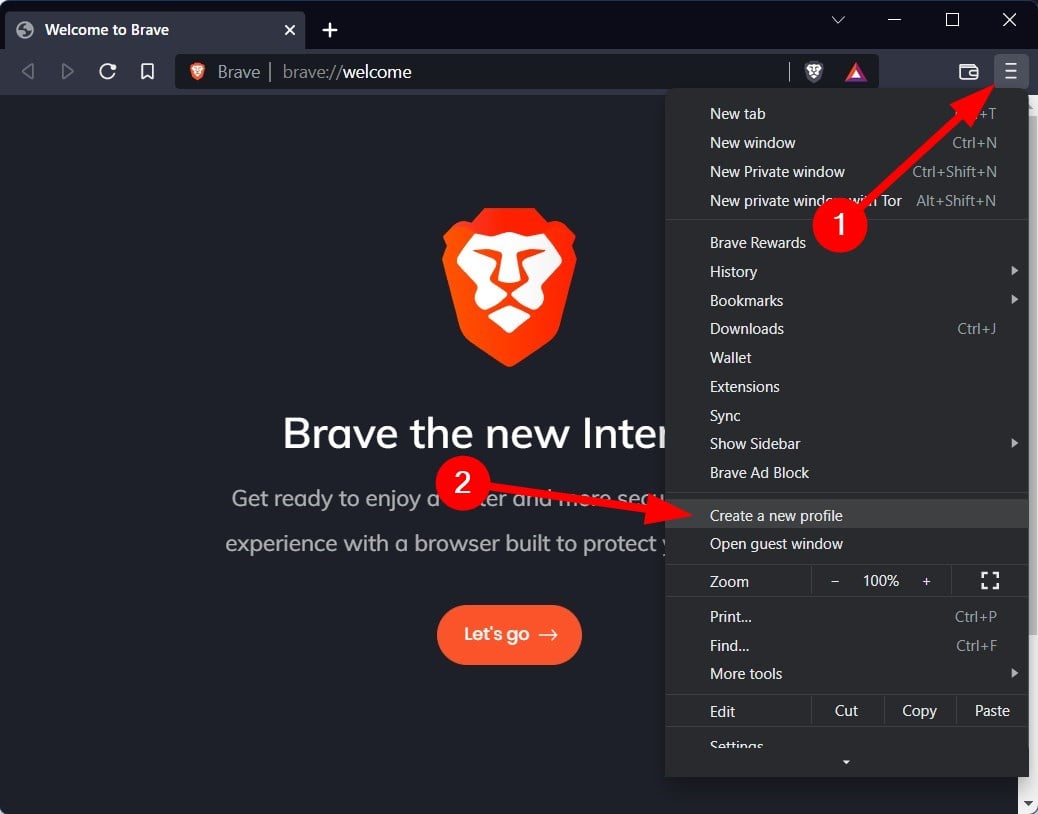
1. Create a new profile

  1. Launch the Brave browser.
  2. Click on the 3-horizontal line menu icon.
  3. Select Create a new profile option.
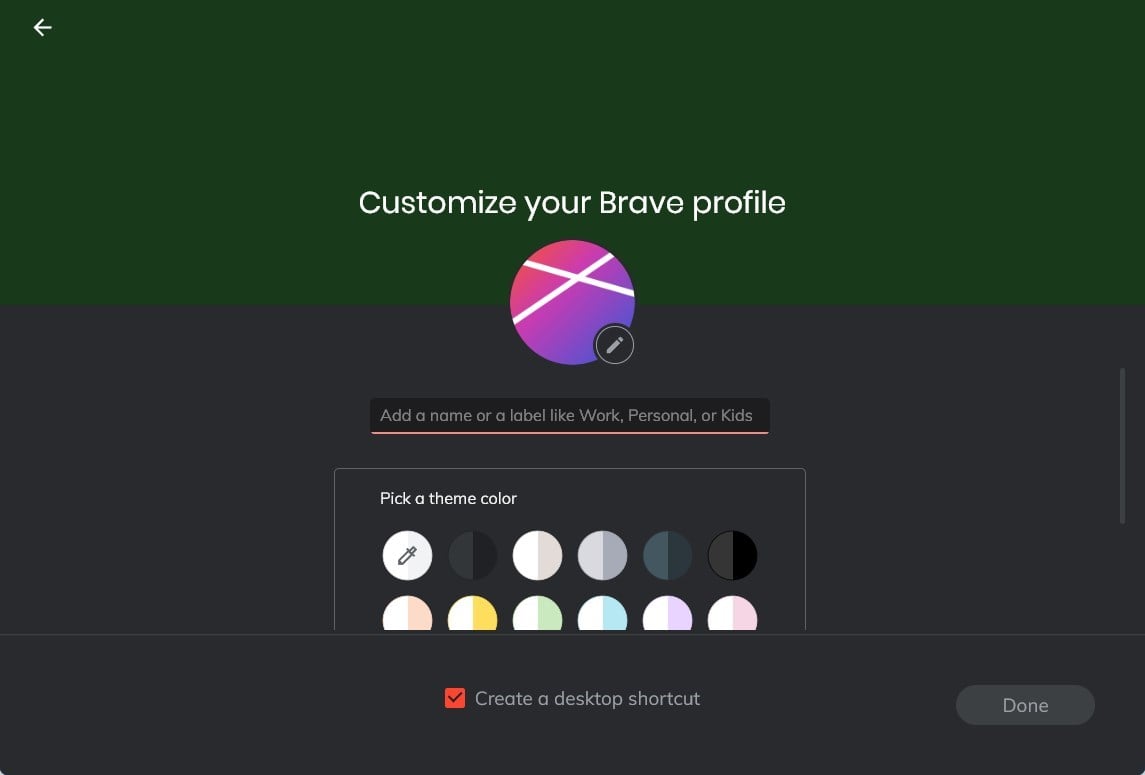
  4. In the new window, you can do the following customizations:
    • Enter your profile name or set a label such as work, student, etc.
    • Choose your profile image.
    • Pick a theme color for your profile.
    • Choose whether you would like to add your profile as a desktop shortcut or not.
  5. After you have selected everything, hit the Done button.
  6. A new Brave browser page will open with your profile loaded along with your profile theme.
  7. Now, try opening YouTube and check if this fixes the YouTube not working on the Brave browser issue or not.

2. Clear host cache

  1. Open Brave browser.
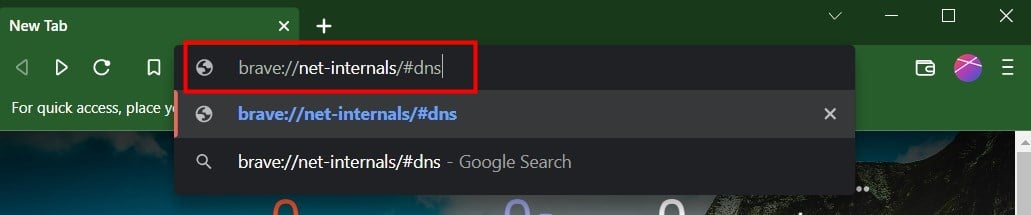
  2. In the Address bar, type or paste the below command. brave://net-internals/#dns
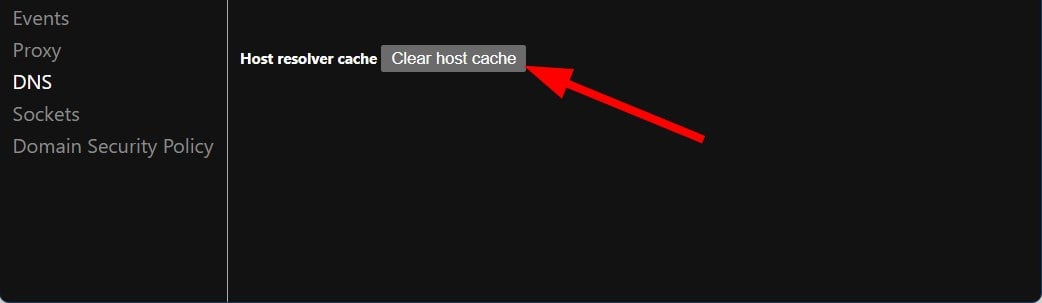
  3. Click the Clear host cache button.

3. Close idle sockets, and Flush socket pools

  1. Open Brave browser.
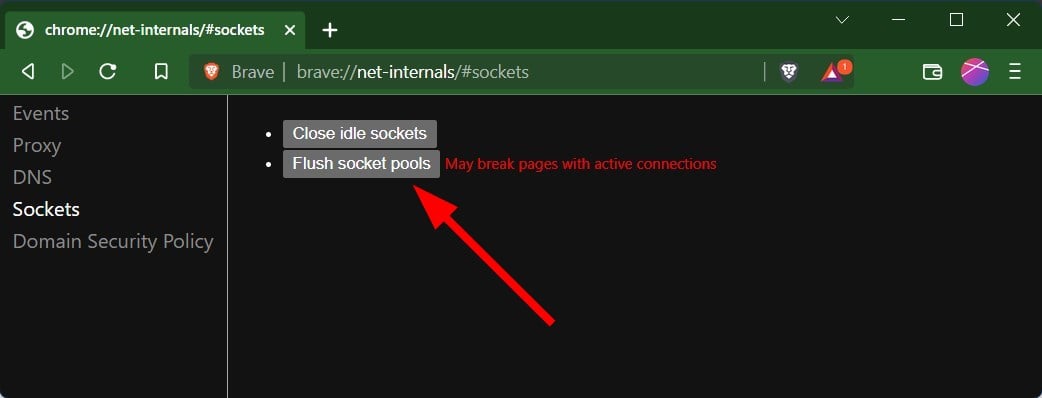
  2. In the Address bar, type or paste the below command. brave://net-internals/#sockets
  3. One by one, click on the Close idle sockets and then Flush socket pools buttons.

For several users, clearing the idle sockets and flush socket pools helped resolve the YouTube not working in Brave error.

How do you get YouTube to play in the background on the Brave browser?

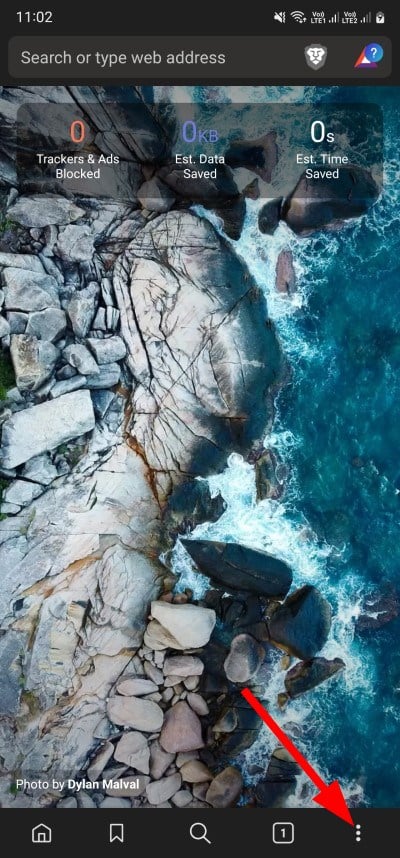
  1. Launch Brave browser.
  2. Click on the 3-dot icon at the bottom toolbar.
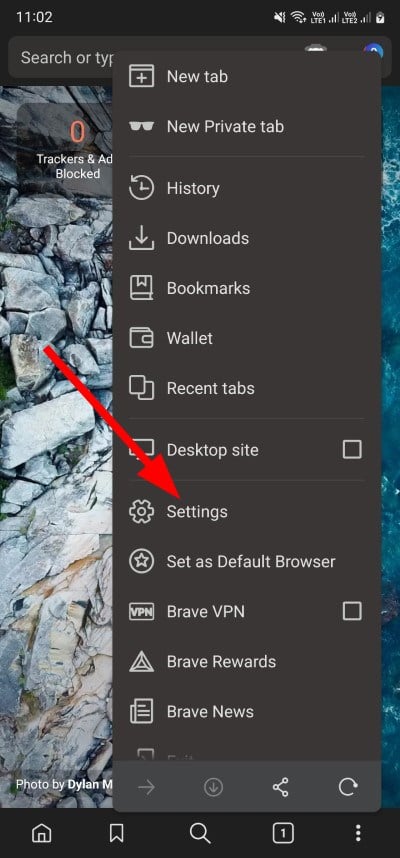
  3. Tap on Settings.
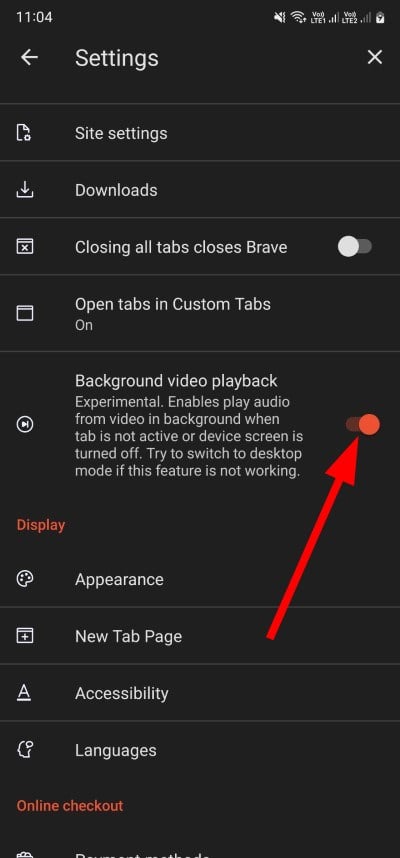
  4. Scroll down and under General, toggle on Background video playback.
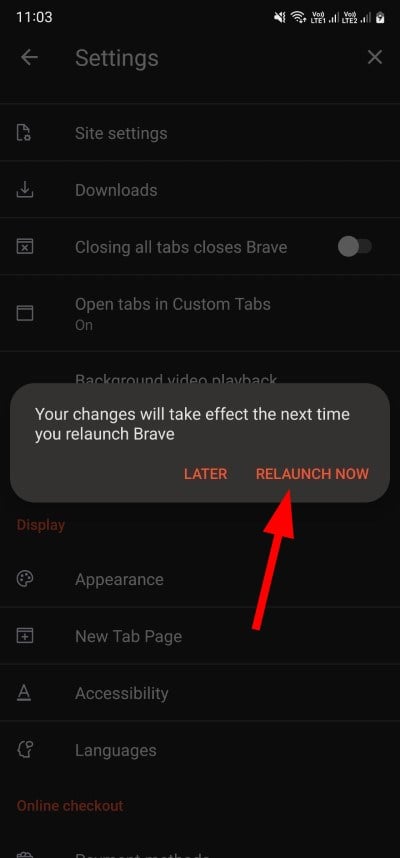
  5. Tap on RELAUNCH NOW.

After this, visit the YouTube website, search for the video, and swipe back to the home screen, and you will hear the video running in the background.

There you have it from us in this guide. Hope this article helped you fix the YouTube not working in the Brave browser issue. For more solutions, don’t forget to visit our This page has been blocked by Brave guide.

In the comments section below, let us know which solution fixed the problem for you.

Links Are Not Working In Firefox: 5 Ways To Fix Them

Firefox is the browser of choice for many people, but it can sometimes be frustrating to use. One common issue that users face is when links are not working in Firefox. 

Sometimes, Firefox is not working and becomes unresponsive but you can refer to our guide on how to easily get it working again.

When links are not working in Firefox, you will see that the link address is not clickable or even highlighted when you hover over it. Other times, when you click on links, a blank page appears.

If you’re trying to open a webpage and the link isn’t working, there are a number of things you can do to fix it. 

Why are some links not loading in Firefox? 

If you’re getting an error message or a blank page when you click on a link, there are several possible reasons:

  • Malware and viruses – Some links don’t load in Firefox because your computer is infected with a virus or malware. Viruses can change how your browser works and cause problems with some sites. In such cases, it is advisable to use antivirus programs for browsing for maximum protection.
  • Your OS is out of date – Software updates often include security fixes that keep your computer safe. Any link may be flagged off as malicious if you have not updated your operating system.
  • Typo in the link – There may be something wrong with the URL itself. This could happen if you have typed in the wrong address by accident or if the site has changed its domain name without updating its links properly.
  • Extensions – The most common cause of Firefox not opening links is addons that have been installed on your system. These programs are usually installed by default when you install another program and they can cause many problems.

Also, if you have been wondering: How do I get Firefox to open links in a new tab? We have an expert article to guide you.

How do I fix Firefox not opening links?  

1. Update your browser

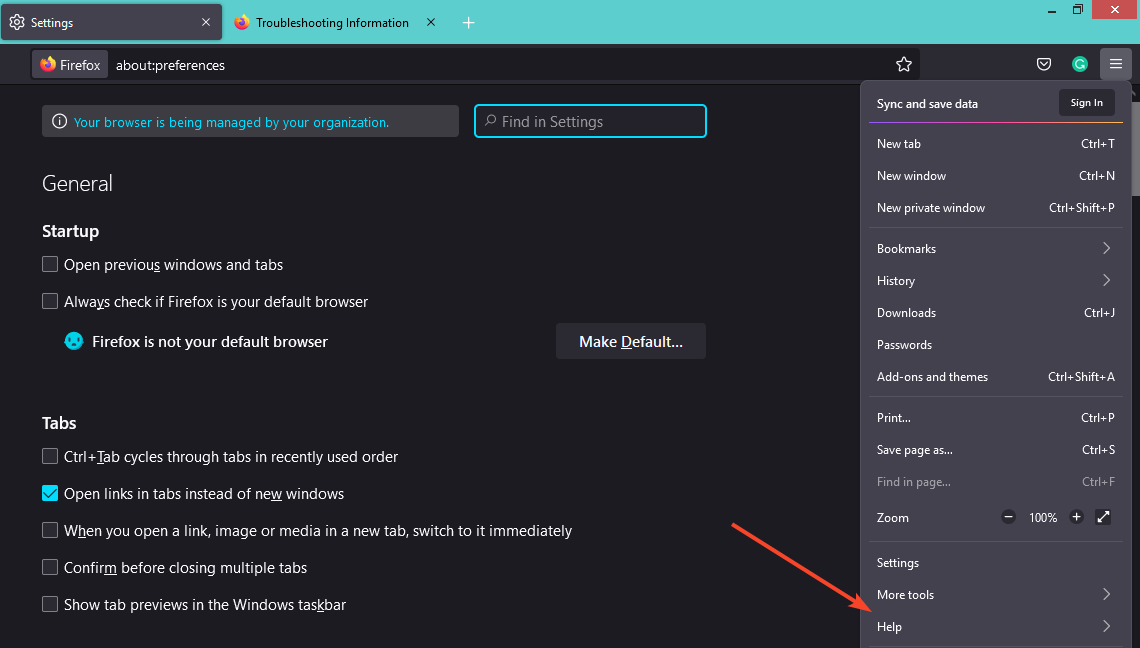
  1. Launch your Firefox browser and click on the three horizontal ellipses in the top right corner.
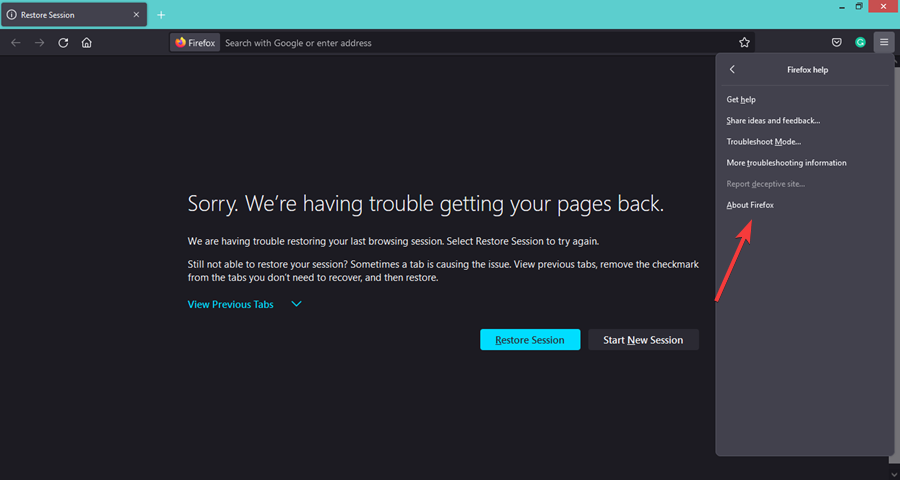
  2. Select Help.
  3. Click on About Firefox.
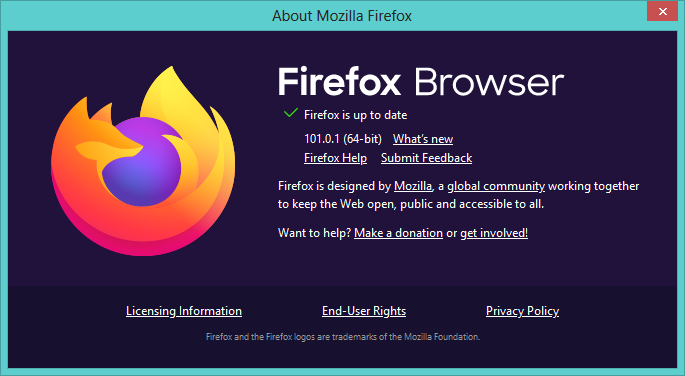
  4. If your browser is up-to-date, you will get the following dialog box.

2. Clear the Cache and Cookies

  1. Launch your Firefox browser and click on the three horizontal ellipses in the top right corner.
  2. Click on Settings.
  3. Select Privacy & Security and click on Clear Data under Cookies and Site Data.
  4. Check Everything from the dropdown and hit OK.

3. Reset Firefox

  1. Launch your Firefox browser and click on the three horizontal ellipses in the top right corner.
  2. Select Help.
  3. Click on More troubleshooting information.
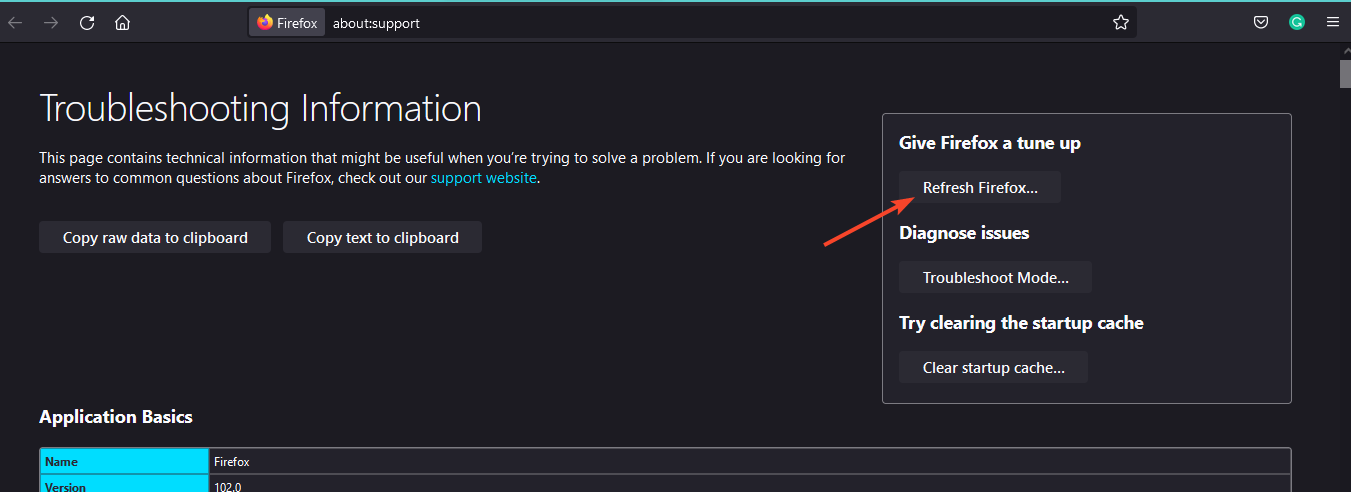
  4. Select Refresh Firefox under Give Firefox a tune up.
  5. Confirm Refresh Firefox in the dialog box that pops up.

4. Disable firewall

  1. Hit the Windows button, select Privacy & security on the left pane and click Open Windows Security.
  2. Click on Firewall & network protection.
  3. Select Public network.
  4. Locate Microsoft Defender Firewall and toggle the off button.

5. Start Firefox in Safe Mode

  1. Launch your Firefox browser and click on the three horizontal ellipses in the top right corner.
  2. Select Help.
  3. Click on Troubleshoot Mode.
  4. Hit Restart in the next window that pops up.
  5. Click Open in the dialog box that pops up.

What can I do if Magnet links are not working in Firefox?

In Firefox, a magnet link is a link that points to a file on the Internet. When you click a magnet link in Firefox, it downloads the file as usual. However, if you’re using an older version of Firefox, you might run into problems when trying to download files from websites that use magnet links.

The most common cause of this error is a corrupted download. If you’ve downloaded Firefox from the Mozilla website, you can try uninstalling and installing it as an update.

What can I do if Hyperlinks are not working in Firefox?

If you see hyperlinks but they don’t work, then it’s possible that there is an issue with the web page. The web page may not be compatible with the browser version you’re using.

In addition, Firefox may not be set as your default browser. If you have another browser installed on your computer, then it may be your default browser. You can set Firefox as your default browser and try again.

If Firefox can’t load websites but other browsers can, it could mean that Firefox is having a problem with its server or facing downtime. You can use an alternative browser and check after some time if the problem persists.

You may also encounter problems where Firefox is not loading pages after an update but we have solutions to help you bypass the issue.

Let us know which method you tried or if you used any solution we have not highlighted in the comment section below.

Can’t Play Twitter Videos in Chrome? Here’s How You Can Fix It

If you are a Twitter user and have a habit of playing videos on the platform, you have probably come across a problem where you can’t play Twitter videos on your Chrome browser.

You may also have come across an issue where you get the Nothing to see here error but we have a comprehensive guide on how to fix it.

The issue of videos not playing in Chrome affects both desktop and mobile platforms and is likely to stem from a bug in the browser version you are using.

If you don’t have the time to troubleshoot, you can opt to use another browser or the Twitter desktop application and the videos should play just fine.

Why are my Twitter videos not playing on Chrome? 

If you can’t play a Twitter video on your Chrome browser, it could be due to one or more of the following reasons:

  • Outdated browser – Make sure you have the latest version of Chrome installed on your computer. If you’re using an earlier version of the browser, it may not be able to play some types of video files.
  • Adblocker interference – Disable any ad blocker you might be using. Some users report that disabling Adblock Plus fixed the issue for them, but it’s not guaranteed to work for everyone. 
  • Cache and cookies – If you have a lot of websites saved in your browser’s cache, they could be preventing the video from playing. You may also come across an issue where Twitter videos are not playing on Wi-Fi. This can be fixed by clearing your cache and cookies. 

Sometimes, it could be an isolated issue with your Chrome browser, and switching to another browser might just do the trick.

What can I do if  Twitter videos aren’t playing in Chrome?

1. Update your browser

  1. Launch your Chrome browser and click the three vertical ellipses in the top right corner.
  2. Click Help then select About Google Chrome.
  3. Check if there is an update available.

2. Clear Cache and Cookies

  1. Launch your Chrome browser and click the three vertical ellipses in the top right corner.
  2. Select Settings.
  3. Click on Privacy and security then select Clear browsing data.
  4. Check Cookies and other site data and Cached images and files then hit Clear data.

3. Disable adblocker

  1. Launch your Chrome browser and in a new tab, enter the following address: chrome://extensions/
  2. Locate your adblocker and toggle the Disable button.

Hopefully, with the above troubleshooting steps, you are able to view Twitter videos. If not, we have an exceptional list of browsers to use with Twitter.

Let us know what solution worked for you in the comment section below.

10 Best Browsers for Elementary OS [Lightweight & Fast]

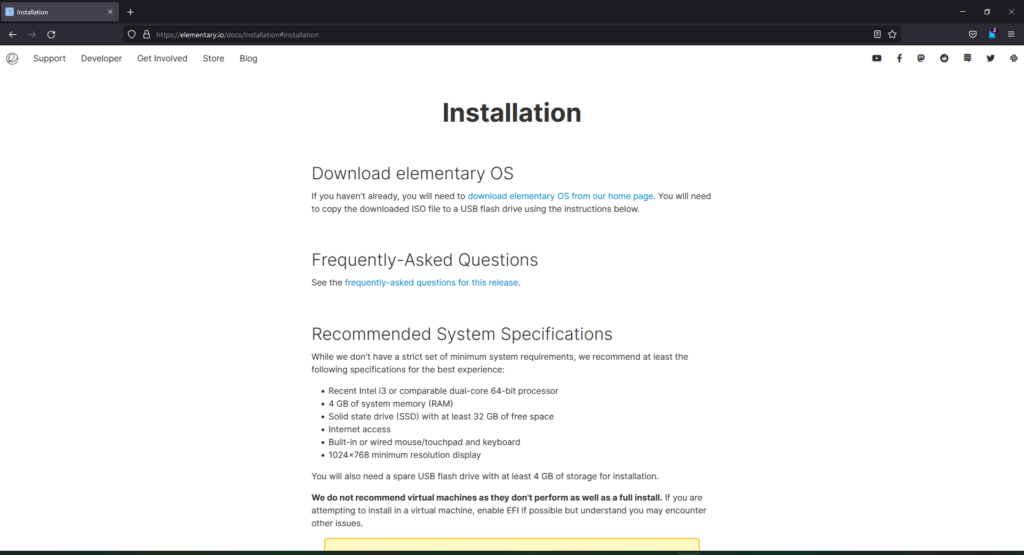
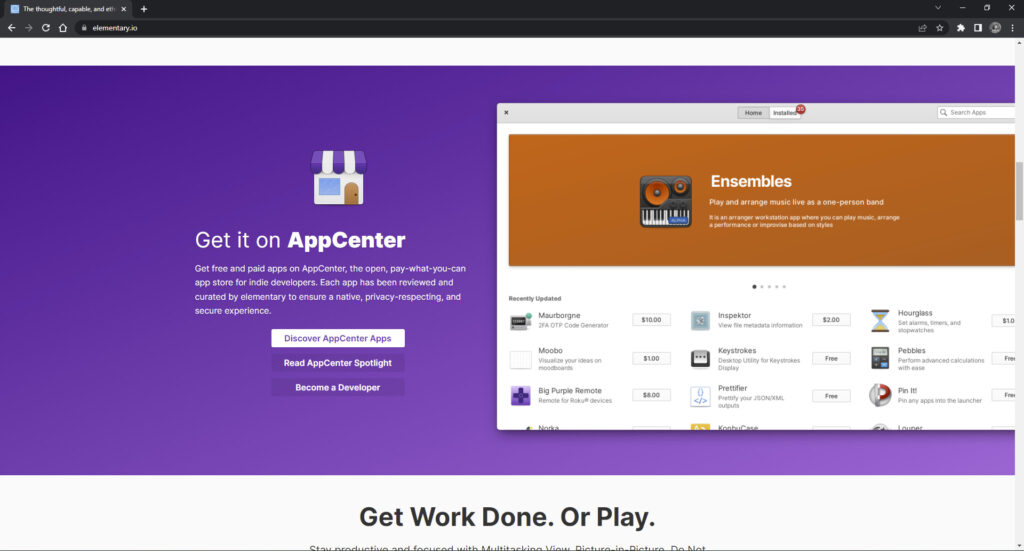
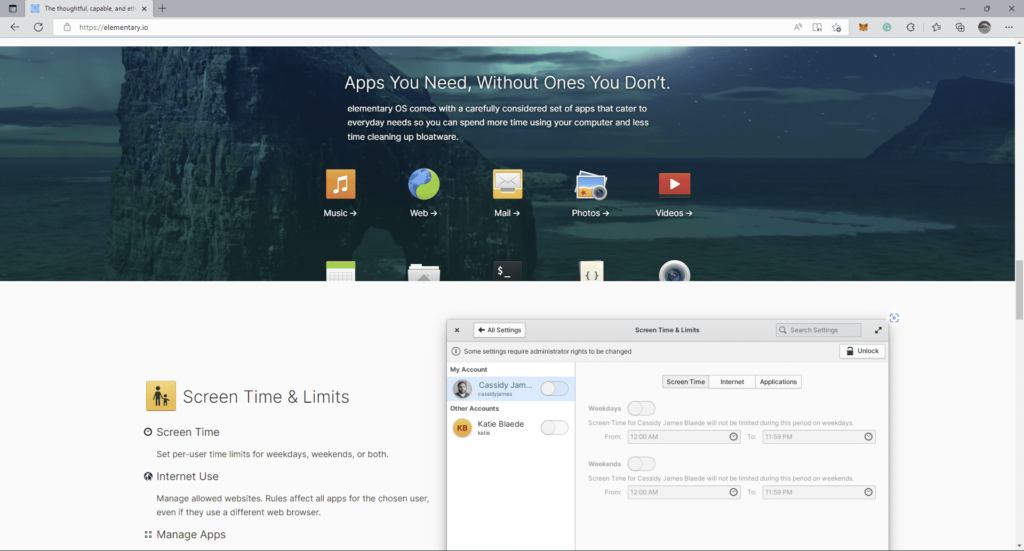
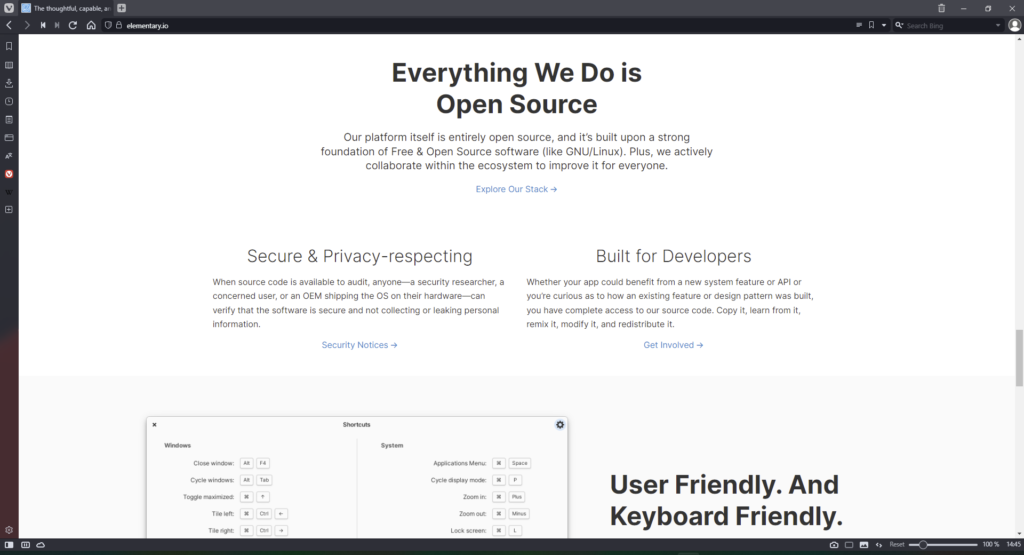
Elementary OS is a Linux distribution that offers a more simple and efficient replacement for macOS or Windows OS. Here are our top ten picks for the best browsers for Elementary OS that are light and fast.

Is Chrome available for Elementary OS?

Google Chrome is available for Elementary OS. Users can download Chrome just like they normally would through the Epiphany browser, which is the default browser for Elementary OS. Chrome will then need to be installed via Terminal.

Chrome download for Elementary OS.

Can I install Firefox on Elementary OS?

Like Chrome, Firefox is not natively installed on Elementary OS, but it is available. Users can install Firefox using their distribution package manager. Because Firefox is an open-source browser, it’s easier to get on Linux than Chrome.

What are the best browsers for Elementary OS?

1. Opera – Uses fewer resources

Opera best browser for Elementary OS.

Opera is a great and efficient browser for many reasons, but it makes the top of our list because of its resource usage. Since it does not consume a ton of RAM and CPU, its a resource-friendly browser that pairs great with Elementary.

Opera also has a battery saver mode that can extend the battery life by up to 50% without sacrificing performance. This is perfect for users who take their laptops on the go a lot. The free built-in VPN also protects users on public WiFi networks.

Key features of Opera:

  • Low resource usage
  • Battery saver mode
  • Free built-in VPN
 Opera

Opera

Use Opera’s battery saver while on the go to extend your laptop’s battery life.

2. Mozilla Firefox – Fastest for Linux

Firefox browser for Elementary OS.

Firefox is another great choice because of its speed and personalization options. This open-source browser claims to be two times faster than Chrome and consumes less memory.

The HTTPS indicator lets users know if the site they are visiting is secure and if it’s recommended to give the site any personal information. Users can adjust their privacy settings to be more or less secure.

Key features of Firefox:

  • Highly customizable
  • Open-source
  • HTTPS indicator

⇒ Get Firefox

3. Google Chrome – Best for multitasking

Chrome fast browser for Elementary OS.

It’s no secret that Chrome is the most popular browser which stretches to Linux users. It is a known resource hog; however, it is extremely fast and has some of the best selection of extensions so users can make it their own.

Its speed is owed to its JavaScript rendering which also enhances each tab and makes multitasking more efficient.

Key features of Chrome:

  • Extension library
  • JavaScript rendering
  • Efficient multitasking

⇒ Get Chrome

4. Microsoft Edge – Most productive

Edge browser for Linux.

Microsoft Edge is a browser that promotes productivity and makes multitasking easy with the vertical tabs feature and the ability to sort tabs in Collections. It also has a grammar and spelling assistant and an immersive reading mode.

Performance-wise it’s on par with Chrome and uses less memory. Edge also supports Internet Explorer legacy apps and sites.

Key features of Edge:

  • Vertical tabs feature
  • Grammar and spelling assistant
  • Internet Explorer legacy support

⇒ Get Microsoft Edge

5. Vivaldi – Most customizable

Vivaldi best browser for Elementary OS.

Vivaldi has become a well-known alternative browser because its filled with unique features like the Notes feature and Web Panels which allows users to place tabs in its own panel for better multitasking.

Since it has one of the most customizable interfaces, users can change the layout of the browser to make it as simple or complex as they like. There are tons of features for users to explore in Vivaldi that make browsing fast and efficient without needing to install addons.

Key features of Vivaldi:

  • Web Panels feature
  • Customizable interface
  • Efficient multitasking

⇒ Get Vivaldi

6. Brave – Best for privacy

Brave browser for Elementary OS.

Brave is an alternative browser that boasts privacy and speed. By eliminating ads and trackers that weigh down web pages, Brave runs three times faster than big-name browsers and makes users more anonymous while browsing.

Moreover, Brave promises its users that it does not store or sell user data on its servers without permission. While the browser strips ads from third-party companies, it offers its users a reward program with Basic Attention Tokens for opting into Brave ads to replace them.

Key features of Brave:

  • Eliminates ads and trackers
  • Offers private browsing
  • Basic Attention Token reward program

⇒ Get Brave

7. Falkon – A user-friendly choice

Falkon browser for Linux.

Falkon (formerly QupZilla) is another well-known browser among Linux users because it’s lightweight and has cross-platform compatibility. It has a similar look and feel to Firefox and Chrome making it user-friendly and easy to use.

Falkon offers extension support and a built-in ad blocker, however, it does not have a syncing feature that would allow users to sync browser data across devices. Nevertheless, it is extremely fast and stable making it a great pick for Elementary OS.

⇒ Get Falkon

8. Epiphany (GNOME) – Lightweight and reliable

Epiphany (GNOME) browser.

Epiphany (aka GNOME), an open-source browser developed by the GNOME Project, is the default browser for Elementary OS and is popular among Linux users. Its lightweight and reliable but doesn’t have as many features as other browsers.

Epiphany does have an immersive reader mode that reduces web page clutter and offers a quick keyboard shortcut. Recent updates have provided better tab options that allow users to easily navigate tabs.

Key features of Epiphany:

  • Open-source
  • Immersive reader mode
  • Enhanced tab navigation

⇒ Get Epiphany

9. Pale Moon – Great for personalization

Pale Moon browser for Elementary OS.

Pale Moon is an open-source browser based on Mozilla Firefox that emphasizes user customization and personalization with a library of extensions and themes.

The browser offers integrated parental control features, and support for HTML5, CSS3, WebGL, and Firefox extensions.

Key features of Pale Moon:

  • Open-source based on Mozilla Firefox
  • Integrated parental control
  • HTML5, CSS3, and WebGL support

⇒ Get Pale Moon

10. Chromium – Best for developers

Chromium Browser.

Chromium is Google’s open-source project and is what many of the big browsers, including Chrome, is based on. While it looks and feels a lot like Google Chrome, it lacks a lot of Chrome features and has some of its own unique functions.

Keep in mind that Chromium is mainly meant for developers and is not very user-friendly for the everyday consumer. For websites like Netflix, users will need to manually add support. Think of it as a playground for browser developers.

Key features of Chromium:

  • Open-source
  • Developers playground
  • Customizable

⇒ Get Chromium

We hope you enjoy our picks for the best browsers for Elementary OS. If you’re looking for a great Linux emulator for Windows, we have some suggestions for that as well. Let us know in the comments before which browser you prefer to use with Elementary.

3 Easy Ways to fix Omegle if it’s not Working on Chrome

Omegle is a popular website that allows you to chat with random Internet strangers. Many users reported that the Omegle camera is not working or that Omegle interests are not working on Chrome.

You can encounter different problems while using this web-based chat service. So, you can expect random error messages, such as server connection errors or microphone and camera disruption.

Sometimes the issue is not related to particular website functionality, but an overall downtime. You can fix most client-side issues by using a browser for Omegle, that is fully compatible with the service.

So in this article, we’ll show you how to fix Omegle issues on Chrome once and for all.

Why Omegle is not working in Chrome?

There can be multiple reasons for Omegle video not working in Chrome, and the server issues are one of the most common causes for it. This can be fixed by waiting out or trying a different browser.

Corrupted cache can also cause this issue, and to fix it, it’s necessary that you clear the cache in your browser, close it and try again.

What browsers work with Omegle?

All modern browsers should work with Omegle without any issues. In case you have any issues with your browser, make sure that it’s up date.

Alternatively, you might want to consider switching to a different web browser.

Quick Tip:

In order to save all the time and effort from fixing other browser’s issues, you should consider Opera One for more accessibility and stability while surfing online.

This new-age browser benefits you with both Twitter and Instagram access, plus integrated messengers in the sidebar to chat with friends more easily.

Opera One

Access your favorite chat platform using this user-friendly and intuitive browser!

What can I do if Omegle doesn’t work on Google Chrome?

1. Do not enter any interests

  1. Visit Omegle.
  2. Don’t fill any interests.
    omegle interests omegle not working on chrome
  3. Now select the video or text chat and check if it works.

Few users reported that this workaround worked for them, so be sure to try it out if Omegle is not loading.

2. Use a VPN

If Omegle is not working on Safari, Firefox, or Chrome, perhaps your ISP is blocking it, or there might be an Internet issue that is causing the problem.

However, you can easily fix this by using a VPN, and we already covered the best VPN for Omegle, so be sure to check out some of these great VPN services.

In some instances, VPN won’t work with Omegle, but we already covered that issue in one of our previous articles.

3. Clear your browsing data

  1. In Chrome click the Menu button and navigate to More tools. Now select Clear browsing data.
  2. Make sure that you set the Time range to All time.
  3. Click the Clear data button to clear the cache. 

If Omegle camera is not working on Chrome, clearing the cache might help with this issue.

Omegle interests not working

If interests aren’t working on Omegle for you, make sure that you’re not using one of banned keywords. Adjust your interests and try again.

It’s also possible that this is a server-side issue, and if that happens, your only option is to contact Omegle and ask them to look into this issue.

Omegle unblocked Chromebook

In case Omegle is blocked on Chromebook, it’s done so by your administrator. There’s no way for you to unblock it on your own.

The only way to do that is to contact the administrator and ask him to whitelist Omegle on your device.

Omegle stranger not loading / camera not loading / video not working

If Omegle is not loading other person, you might be having connection problems. It’s advised to test it on a different network and see if it works.

It’s possible that your network is too slow and it can’t handle the Omegle properly, so switching it might be the best solution.

Not being able to access Omegle can be a problem, but if Omegle mic is not working on Chrome, you can always try accessing it from another browser or use our other solutions.

Some users reported Omegle error connecting to server error, and we tackled this issue in a separate guide.

Did you find a different solution for this issue? If so, let us know in the comments below.

How to play RuneScape in browser

RuneScape is one of the most popular online RPG games, and what makes this game special is its ability to run in your browser.

With new web technologies and new browsers appearing, the question remains how to play RuneScape in your browser and can you still play it? Today we’ll find that out.

Can you play RuneScape on a mobile browser?

You can’t play RuneScape on a mobile browser, or for that matter any browser since these don’t offer support for Java anymore. The same applies if you try to play OSRS in a browser.

Though, the developers launched a mobile app for RuneScape on both the Google Play Store and Apple App Store. Just download it and play your favorite game.

Does RuneScape still use Java?

Yes, RuneScape still supports Java, but that doesn’t mean that you can’t play the game anymore on your computer. You can simply download RuneScape on your computer from the official website and play RuneScape online.

It was released when several browsers like Chrome and Firefox dropped support for Java, and as a result, users couldn’t play RuneScape in a browser.

How can I play RuneScape in browser?

1. Can you still play RuneScape in browser?

browser support play runescape in browser

No, RuneScape can’t be played in modern web browsers anymore. The game is made in Java, and over the years, browsers fully dropped support for Java due to security concerns.

As a result, RuneScape, and any other Java-based games can’t run in modern web browsers anymore. If you want to play RuneScape, you need to download and install its desktop client.

However, RuneScape developers are suggesting that the game might still run in Internet Explorer.

2. How to run RuneScape in Internet Explorer?

  1. Open Internet Explorer.
  2. Go to the Java download page and click on Java Download.

    download java play runescape in browser


  3. After installing Java, try to start RuneScape.

Can you play RuneScape on Xbox One browser?

Yes, it’s possible to play RuneScape with Xbox One on the Edge browser with GeForce Now. Several users have tried it out, and it works seamlessly for most, but some complained about grainy graphics.

So, you can play RuneScape classic in a browser on Xbox One, though you would be asked to sign in with the Steam account. And, the added keyboard and mouse support for the console will only enhance the gaming experience.

Even though RuneScape isn’t available anymore in modern browsers on PC, there are many other games that work. In order to achieve the best performance in those games, it’s advised to use Opera GX.

This browser has low resource usage, and thanks to the GX Control feature you can easily allocate your resources and ensure that both your browser and other applications are running smoothly.

There’s also Twitch integration that allows you to follow your favorite streamers and check your notifications easily. Thanks to the pop-out video player, you can also watch videos while multitasking.

Additional features include a built-in ad blocker and a free and unlimited VPN that should provide you with an extra layer of protection.

Opera

Feel as if you are playing your favorite browser game on the ultimate gaming rig thanks to the fantastic visuals of Opera GX.

Playing RuneScape in modern web browsers on PC isn’t possible anymore, but you might have some luck playing it in Internet Explorer, so feel free to try that.

For the best experience, we would suggest using a specialized client, so don’t miss our Jagex Launcher review for more information.

How To Make Discord Not Show What Game You’re Playing [2026 Tips]

Discord’s VoIP service compatibility with game publishing and distribution platforms like Steam means it can broadcast or show what you are playing to other users on your server. However, you can make Discord not show the game that is running.

How can I make Discord not showing what I’m playing?

  1. Hit the Windows key, type Discord, then open the app.


  2. Click on the little Settings icon (Gear button) in the left bottom corner.

  3. From the left pane, scroll down and open the Activity Status tab.
  4. Toggle the switch to turn off Display current activity as a status message option.
  5. Close the User Settings window, and that’s it.

Once disabled, the app will stop sharing your gaming activity with other users. Thus, you’ll manage to make Discord not show the game that you’re playing.

However, if the app continues to put your game title in the status message, try deleting the game from the Activity Status tab. Hover over the game you want to remove and click the red X icon on top of the right corner.

Can I make Discord show what I’m playing again?

In case of change your mind, you can always enable the option again. You should only follow the above steps, then enable back the Display current activity as a status message, from the Activity Status tab.

If your game is not showing in the list, just click on the Add it button, under the No game detected section, as in the picture below.

If Discord game detection is not working, we suggest checking some efficient solutions to quickly fix it.

Why would I want to make Discord not show what I’m playing?

As mentioned before, if a game uses Discord’s Rich Presence, your friends can even see where you are in-game.

Because cyberattacks are more frequent, it seems like some users are concerned about their privacy. Thus, they are looking for ways to make Discord not show what they are playing.

As you can see, keeping your gaming activity private on Discord is not a complicated or cumbersome process.

If you follow the steps presented in this guide, nobody will ever know what you choose to play, so you can focus on playing without announcing your choice. Lucky for you, Discord also doesn’t have read receipts so if you’re asked about games you’re playing, you’re safe.

Don’t hesitate to share your experience with us by using the comment section below.

Can Minecraft Java Play with Xbox? Here’s How to Play

When it was first released back in 2009, Minecraft took the world by storm. After the Better Together update, Minecraft fully supports cross-platform play between PC and Xbox.

The only catch is that you can only play with friends who have the same version. Sadly, Xbox 360 does not support Minecraft cross-play either.

The game developers at Mojang had an incredible idea:

What if we give our users the ability to play across platforms?

In a historical move, they started working on this project, and they finally did it.

They released a very important update to the Minecraft edition, that allows you to play your favorite game from an Xbox One, Windows 10, Nintendo Switch, and even Android/iOS handheld devices.

Which version of Minecraft can cross-play?

better together update can windows 10 minecraft play with xbox

If you want to play Minecraft with your friends, but you have different versions of the game, you need to consider some important aspects of cross-play.

In case you have the Minecraft: Bedrock Edition, you can play with Windows, PlayStation, Xbox, Switch, and smartphone players.

For the Java Edition of Minecraft, then you can play with Windows, Mac, and Linux players, but you need to redeem your code on your Mojang account in order to cross-play with other platforms.

Now, if you’ve been wondering if you can play Minecraft using your Windows 10 PC with your Xbox-playing friends, you’ve come to the right place.

The short answer to this question is a resounding YES. But it all depends on the version of the game you have, and also the type of platform. Read on to find out more.

Can Minecraft Java play with Xbox?

No, Minecraft Java can’t be played on Xbox. Minecraft Java can only be played on Windows, Mac, and Linux. Also, Minecraft Java can’t be played cross-platform with Xbox or Playstation.

The Bedrock edition of Minecraft can be played on the Xbox, and it was programmed in C++. Only other instances of Minecraft Java, which can run on either Windows or Mac OS, may connect to one another.

Is Minecraft cross-platform Xbox and PS5?

The Xbox One, Series X/S, Nintendo Switch, PS4, PS5, Mobile, and PC versions of Minecraft are all compatible with one another. Additionally, it supports cross-progression between all devices. This means that you may begin the game in a new location just where you left off in another.

Quick Tip:

There is a worthwhile browser that works just perfectly with your Minecraft gameplay, and that is Opera GX.

You can navigate on this browser built for gaming and enjoy benefits like a game’s release calendar or new game deals in the GX Corner. More, you have a RAM and CPU resource limiter to boost your game.

Opera GX

Play your Minecraft sessions on your PC using a gaming browser for better game performance.
Free Download Visit Website

How to crossplay Minecraft on PC and Xbox?

    Crossplay in Minecraft: Bedrock Edition

    To play cross-platform in Minecraft: Bedrock Edition, all you need to do is add and invite your friends to the world you create. Then you will have created common cross-platform servers for Minecraft on Xbox and PC.

  1. 1. Launch Minecraft and log into your Microsoft account from the main menu.

  2. 2. Load an existing world, or create a new world and launch it.

    create-new-world minecraft crossplay xbox pc
  3. 3. Open the in-game Pause menu.

  4. 4. Click Invite to Game, and select Find Cross-Platform Friends.

    cross-platform-friends minecraft crossplay xbox pc
  5. 5. Find your friends, and choose Add Friend.

  6. 6. Under Online Friends, you’ll find those available for multiplayer. Check the box next to their name, and click Send 1 Invite. Once they accept, they will be added to the world you created.

You should take into consideration that not all worlds can be played by users from different platforms in the Bedrock Edition of Minecraft. This is due to the exclusive content that each console has.

Crossplay in Minecraft: Java Edition

  1. Create a server and invite your friends to play together, or use a public Minecraft server.crossplya-servers minecraft crossplay xbox pc
  2. If you are in the same place as the other players, you can share a local area network or LAN.
  3. There is also the paid solution offered by Minecraft Realms, which hosts multiplayer servers.realms minecraft crossplay xbox pc

Minecraft: Java Edition remains the original version of the game that is available for Mac and Linux users. This edition cannot be played on consoles.

Note, however, that Java users are allowed to play with other Java users using a Windows, iOS or Linux operating system.

Needless to say, doing cross-platform on Java becomes more complicated, but not impossible to play. All you have to do is choose the right alternative for you from the 3 available above.

Minecraft cross-play Xbox One & Switch

Cross-play setup on Xbox One is a breeze since, in comparison to other platforms, there are fewer limits placed on the types of material that may be shared. After installing the game, you won’t need to do anything more since the console has direct interaction with Xbox Live.

Users of Xbox One should make sure they are using the original version of Minecraft. Not the incompatible Minecraft: Xbox One Edition.

  1. Enter the Microsoft Store on Xbox One and select the Search field in order to type Minecraft.microsoft-store-xbox minecraft crossplay xbox pc
  2. Choose Minecraft from the available titles and download the game. It will be priced at $51 or free for existing Minecraft: Xbox One Edition owners.

Following the completion of the procedures outlined above, your Xbox One will be ready for Minecraft cross-play with other gaming platforms.

Because of the limits of the Nintendo Switch platform, cross-playing games present a few extra challenges that must be solved. Because your game does not have native connectivity with Xbox Live, you will need to login into a Microsoft account.

In addition, since there is not an integrated web browser, you will need to get assistance from a mobile device or a personal computer.

Users using the Nintendo Switch version should take the same precautions as those using the Xbox One version and ensure that Minecraft rather than the incompatible Minecraft: Nintendo Switch Edition is installed.

  1. Access the Nintendo eShop and search for Minecraft in order to download it.nintedo-shop minecraft crossplay xbox pc
  2. Open the game and select Sign in for free then navigate to the remote connect page on your PC or mobile.code-mic minecraft crossplay xbox pc
  3. Enter the unique code shown on your screen then sign in to your Microsoft account. Your Xbox Live profile will show on your Switch. Select Let’s Play to complete the process. That’s it!

The video game Minecraft may now be played across several platforms thanks to its integration with Xbox Live.

How to choose the best community-based server?

The first thing you need to think about is the content that a certain server provides for its users. From the most basic survival mode to the most complex well-configured advanced playing system, everything will be accessible.

This suggests that you are able to play in a variety of modes while using the same server. On the other hand, you should never stop playing in survival and creative mode. As this will ensure that every second of gameplay is enjoyable.

You are all aware of how crucial word of mouth is when it comes to finding the appropriate server for your gaming needs, and you have all experienced its importance.

A good server will provide you with a variety of unique areas and stuff that you are free to explore without experiencing any lag or technical difficulties.

By reading Internet reviews, you may get a better idea of how reliable the server you’re using is, which can ultimately enhance the quality of your gaming experience.

Join a server with at least 100 other players if you want to take part in large-scale activities or participate in minigames. If you are looking for an online community that has a smaller member count, like 50 or fewer people, this could be the best option for you.

If you choose to build your own Minecraft server that your friends can join, then a wise idea would be to protect your online privacy with a VPN.

Because most servers are community created, which has helped the game thrive over time, there is a distinct possibility that you may need extra protection for your data.

That’s why we recommend choosing a reliable VPN service, and you can choose from our list of the best VPNs for Minecraft on Windows and Mac.

If you are having blank screen issues when running Minecraft, you should take a closer look at our comprehensive guide and fix this issue with ease.

Feel free to let us know if you have any other suggestions or questions regarding this topic by using the comment section below.

Solved: Discord Screen Share No Audio – Discord Guides

Discord offers a wide array of features, including screen sharing, but several users reported that Discord screen share has no audio.

This can be an issue, especially if you’re sharing multimedia, but there’s a way to fix this problem, and today we’re going to show you how to do it.

Why does my Discord screen share have no audio/audio quiet?

In case you’re wondering why is Discord screen shares audio quiet, you should know that a bug probably occurred in your app. Fortunately, it is extremely easy to fix it and you’re going to discover how.

If you notice that there is no sound when you screen share on Discord, it might be due to a corrupted cache/temporary files. We also compiled some easy fixes for this. Remember that some of them might also work if Discord audio keeps cutting out.

In addition, do not forget that there might be some issues with your audio drivers. Because these are the most relevant components in using the Discord screen share audio, make sure you always keep them up to date.

Now, let’s discover what you can do, so make sure you read this guide completely.

What can I do if the Discord screen share has no audio/audio quiet?

1. Update Discord

  1. Use the following keyboard shortcut, then type Discord: Windows + S.
  2. Right-click on the first result and select Run as Administrator.
  3. Allow the program to make changes to your computer.
Note icon NOTE
Keep in mind that Discord will automatically update itself if the program is run as administrator.

The Discord devs are constantly updating the app, so most of the time when you encounter a problem, it will get fixed in the next update.

If there’s no audio while using Discord screen share, make sure that you update Discord to the latest version.

2. Reset voice settings

  1. Hit the Windows key, type Discord, then open the first result.
  2. Click on the Settings icon (marked as a gear in the bottom of the window).
  3. Click on Voice & Video.
  4. In the right window pane, scroll down, then click on Reset Voice Settings.
  5. Click Okay on the window that pops up.

Few users reported that they fixed Discord screen share no audio issue simply by resetting their voice settings, so be sure to try it.

3. Add shared program to Discord

  1. Double-click on your desktop Discord icon, or hit the Windows key, type Discord and click on the first result.
  2. Navigate to User Settings.
  3. From the left window pane, select the Activity Status tab.
  4. In the right window pane, click on Add it.
  5. Click on the drop-down menu and select the program you want.
  6. Then click Add Game.
  7. Make sure you have Overlay toggled on. So, navigate to Game Overlay.
  8. Now, make sure that the Game Overlay button is set On.

After making these changes, check if Discord screen share still has no audio.

4. Update the audio drivers

  1. Hit the Windows key, type Device Manager, then open the first result.
  2. Expand the Sound, video and game controllers section.
  3. Right-click on the audio driver, then choose to Update driver.
  4. Select Search automatically for drivers.
  5. Then, you’ll be notified if there are any drivers to update.

5. Reinstall Discord

  1. Use the following keyboard shortcut, then type Control Panel: Windows + S.
  2. Under View By select Category.
  3. Then select Uninstall a program.
  4. Find Discord, right-click on it, and select Uninstall.
  5. Download Discord from their official site.
  6. Click on the setup wizard and follow the on-screen instructions.

What else should I know about the Discord screen share?

Not only that the Discord screen share might have no audio/audio quiet, but it can also not work at all. From what users say, sometimes Discord’s screen share displays a blank screen instead of the game.

Some of the most common reasons for this problem are missing permissions, poor connections, or temporary bugs. Fortunately, we compiled a list of useful solutions.

In case Discord screen share is not working, do not hesitate to check what can you do to easily fix it.

These are some easy solutions to fix your audio problems during screen-sharing on Discord, so you and your friends can get back to watching your favorite streams or movies together.

If you have any feedback or information related to the article, feel free to leave it in the comment section below.

7 Best Private Search Engines For Windows 10 & 11 In 2026

We discuss here the best options for private search engines for Windows 10 and 11.

Standard search engines like Google and Bing track users’ activities and profile their online behavior. The primary reason for this is to create attractive advertisements.

However, there is always the concern of personal information being compromised due to security breaches, state surveillance, and unauthorized data sharing.

Fortunately, private search engines can help keep your confidential information safe.

Simply put, Private Search Engines, also known as PSEs, use proxy and encrypted search requests to hide your personal information from anyone looking to misuse your data.

Below you will find more information about a PSE, how it works, and where to find the best private search engines on the internet.

Regular search engines vs. private search engines

Everyone knows how a regular search engine like Google.com and Bing.com operates. Users type in what they are looking for, and related links and websites appear.

However, most people don’t know that many popular search engines keep each user’s profile.

This profile is typically used for advertising, as it can tailor your ads. Yet, sensitive private information can also be exposed, harming the user.

Private search engines are becoming more popular as they help keep users’ browsing information confidential. For example, PSEs do not allow cookies to track your browsing history, meaning you won’t have a profile.

While there may still be advertisements on PSE, they will not participate in any behavioral tracking. There won’t be filters based on your previous online behavior.

There are two types of private search engines: independent and metasearch. Independent search engines use their own index and crawler.

In other words, they do not utilize the help of search engine titans such as Bing, Yahoo, and Google.

On the other hand, metasearch private engines use proxies and sometimes encrypted servers to access popular search engines like Google.

Metasearch engines will be more powerful as they can access the extensive indexes of standard search engines.

Why do I need a PSE?

Now that you know what PSE is and how it works, you may ask why should I get one? Individuals typically use PSE primarily for privacy reasons.

But, with a PSE, you will also not be targeted with advertisements based on your previous online activity. Furthermore, you won’t have to worry about your information being sold to third-party trackers.

So, simply put, if you value your privacy and are tired of advertisements using your private information, you will want to use a private search engine.

If you are interested in using a PSE but don’t know where to start, the below list of top PSE on the internet will help point you in the right direction.

How can I get a browser with a built-in private search engine?

Few browsers offer such options as privacy and safe browsing. Usually, you would have to take care of these settings by installing third-party extensions.

But Opera One browser comes with several features that help protect your identity while surfing online.

All you need to do is to install the browser for free and tweak a few options in the Privacy & Security section of the browser’s settings, depending on your preferences.

To mention just a few pros in terms of privacy with Opera One:

  • Built-in ad-blocker to keep annoying ads at bay
  • Tracker blocker to stop tracking attempts
  • Free VPN with no traffic limit
  • Settings control to allow you to choose how Internet sites can access your data
  • Crypto Mining protection to block crypto mining scripts in case your PC gets hijacked

Opera One

Protect your online presence and keep your identity private with Opera One.

Which search engine is best for PC?

Ur Browser – Quick page loads

best search engine for windows 10

UR Browser is one of the most private and self-proclaimed safest browsers. It has multiple safety options, which you can switch on and off according to preference.

Besides being safe, Ur Browser has quick page loads, fast download speeds, and conveniently placed bookmarks. Overall, it is an excellent choice for those who wish to be as safe as possible while using the internet.

UR Browser also includes these key features:

  • Anti-tracking
  • Anti-profiling
  • Light bandwidth usage

UR Browser

Keep your identity private while browsing the internet with UR Browser, the safest and most private search engine!

DuckDuckGo – Aesthetic interface

private search engines ducktogo

With all the cyber-attacks and increased concerns over government Internet surveillance, DuckDuckGo has already surpassed 10 billion searches.

This is what makes DuckDuckGo probably the most popular of all PSE.

Part of its popularity is attributed to the high-security DuckDuckGo promises to users. Searches will produce instant results without any tailored advertisements.

Furthermore, with the filter feature, you can filter searches into categories and regions to easily access the news in a different country or region, for instance.

DuckDuckGo users also can turn off annoying advertisements in their settings.

Users concerned with interface aesthetics will be pleased to know that DuckDuckGo offers customization options. There are six themes to choose from: Retro, Terminal, Contrast, Default, Basic, and Dark.

The colors of backgrounds, search results, typeface, etc., can also all be changed and customized to your liking. This is a great search engine for PC.

Additional features:

  • App store search
  • No ads targeting
  • No social engineering

⇒ Use DuckDuckGo


Lukol – Anonymous search

Lukol private search engine

The great thing about Lukol is that it will not only keep your information safe by using proxy servers but is built to help prevent users from being tricked by internet fraudsters.

In other words, it has a safeguarding feature that keeps users from entering websites that could potentially flood your computer with spyware and viruses.

Lastly, we recommend it as one of the better options for unblocked search engines.

Additional features:

  • Anonymous search
  • Straightforward design
  • Image and video search

⇒ Use Lukol


Oscobo – Distraction-free homepage

best search engine for windows 10

Oscobo is an independent search engine that allows users to search for specific types of content such as videos, images, news, and more. Furthermore, it does not allow any party to store or track your browsing data.

Users of Oscobo also have the option of adding a Chrome extension which will make using the PSE more convenient.

Additional features:

  • Distraction-free homepage
  • Anti-tracking search
  • SSL encrypted

⇒ Use Oscobo


WolframAlpha – Image uploads

WolframAlpha is a special search engine considered among the best for Windows 10 and 11. It is designed specifically to provide users with knowledge. Also, it is unique because it uses its own massive supply of expert-level information.

Additionally, WolframAlpha uses algorithms to quickly and automatically answer questions you input in the search query.

Furthermore, while WolframAlpha can be used to surf the Internet for entertainment and work-related information, it is primarily built for teachers and students.

Users will need to pay a monthly fee to go pro and use the collection of features that can significantly aid students in their struggle for academic success.

Pro users can upload data for analysis, get interactive visuals that can be used for presentations, access optimized web apps, and more.

Additional features:

  • Image uploads
  • Support for academic search
  • Customizable search settings

⇒ Use WolframAlpha


StartPage – Customizable search engine

best search engine for windows 10

StartPage makes our list of the best search engine for Windows 10 and 11. It is perfect for users looking for something simple, minimalist, and aesthetically pleasing.

The search engine offers only a few settings, filters, and just a bunch of options, which is attractive to some people looking for something easy to navigate.

It may not be as powerful as other private search engines, but it is certainly easy to use.

Additional features:

  • No data tracking
  • Customizable search engine
  • No Filter Bubble

⇒ Use StartPage

Qwant – Clean UI

best search engine for windows 10

The Qwant search engine fully prioritizes privacy and takes pleasure in not keeping track of its users’ search queries, and it does not sell their personal information. 

The search engine, which has French roots, has a straightforward user interface.

Your results are categorized by the engine into three primary groups, namely social, news, and web. Additionally, it leverages AI to provide its customers access to a music area created specifically to assist music fans in finding new lyrics and songs.

Lastly, it is about the best search engine for your laptop.

Additional features:

  • Automatic search result categorizing
  • Dedicated children and music section
  • Clean UI

⇒ Use Quant

Is Bing better than Google?

While we have mainly avoided these two search engines, it is wise to note that they are the biggest and the leading pioneers of internet search. However, in more recent years, Bing’s popularity has waned, but Google still holds the larger market share.

That said, Google, for years, has built a vast repository of data; this has been aided by the rise of services like YouTube, and the Gsuite, which are among the most used internet services. Hence, you can expect Google to have larger and better data, resulting in a better search engine.


There you have it our round-up of the best search private engine options for Windows 10 and 11.

So, with the help of these private search engines, you can rest assured that their browsing activities are safe from prying eyes.

If your favorite PSE is not on this list, feel free to let us know in the comment section below, and we’ll surely take a look.


Discord Screen Share Not Working: 7 Quickest Ways to Fix

Discord is an app that enables players to share the gaming experience with other users. However, it seems like sometimes Discord’s screen share is not working.

If you encounter this problem, you’ll probably see a blank display instead of the game. We understand how irritating it can be, so we prepared some methods that will solve it with ease.

Before discovering the best solutions to make your share screen work, let’s examine some reasons that explain why it can occur.

Why can’t I share my screen on Discord?

Several potential reasons explain why you’re struggling to share your screen on this app. Some of the most common ones include:

  • Missing permissions – These mean that one of the programs (the game that you are trying to share or Discord) run using admin privileges while the other is not. This alteration often causes the screen share not working issue.
  • Full-screen mode – Keep in mind that the Discord fullscreen mode might also get you into screen-related troubles.
  • Poor connections – It is important to ensure that you’ve added the game you want to run to Discord. Otherwise, the app won’t be able to recognize it.
  • Temporary bugs – Like any other app or program, Discord might encounter temporary issues. Fortunately, it takes only a few seconds to get rid of them. 

These are some of the resolutions that can fix Discord’s screen sharing not working with a blank screen.

What can I do if Discord screen share is not working?

1. Check you’ve added the game to Discord

  1. First, check that you’ve added the game you’re trying to share to Discord. To do that, open Discord and the game you want to share.
  2. Click the Settings button in Discord’s window.
  3. Then click on Activity Status, from the left window pane.
  4. Click the Add it option.
  5. Click the Select box to choose a game to share.
  6. Press the Add game button.
  7. In addition, turn on the game overlay toggle.

2. Delete the Discord cache folder

  1. Use the following keyboard shortcut: Windows + R.
  2. In Run’s Open box, type %appdata%, then click on OK to open the Roaming folder.
  3. Right-click the Discord subfolder and select Delete.
  4. Restart Discord.

Some users have been able to fix our presented issue by clearing the software’s cache folder. Remember that before following the above steps, you have to close the app.

3. Turn off the Use our latest technology option

  1. Hit the following keys: Windows + S, type Discord, then open it.
  2. Click the Settings button at the bottom left of Discord’s window.
  3. Select the Voice & Video tab.
  4. Scroll down, then toggle the Use our latest technology to capture your screen setting off if it’s on.

4. Turn Hardware Acceleration off

  1. Hit the Windows key, type Discord, then open it.
  2. Go to Settings, from the left bottom of the page.
  3. Select the Advanced tab, from the left window pane.
  4. Toggle Hardware Acceleration off if it’s currently enabled.

Keep in mind that if you’re utilizing an older laptop with lower specifications, the Hardware Acceleration option might harm your optimal activity. So, turning this off might solve the Discord share screen not working

5. Run Discord and the game as an administrator

  1. Press Windows + S keys.
  2. Input the keyword Discord in the search box, then from the right window pane, choose to Run as administrator.
  3. Thereafter, run the game as administrator by right-clicking its EXE file and selecting a Run as as administrator context menu option.

6. Reinstall Discord

  1. Open the Run text dialog box, by pressing simultaneously on Windows + R keys.
  2. Type appwiz.cpl, then hit the Enter button.
  3. In the Windows uninstaller, select Discord, then click on the Uninstall button.
  4. Now, you’ll have to delete any leftover data. To do it, run the same dialog box.
  5. Type %appdata%, then click on OK.
  6. In the Local folder, right-click on the Discord folder and select Delete.
  7. Thereafter, restart your PC.
  8. To install the latest Discord version, access the official website and click on Download for Windows.
  9. Reinstall Discord with the setup wizard.

7. Make sure the game isn’t in fullscreen mode

Also, note that Discord doesn’t support fullscreen sharing for programs. Users can only screen share games when they’re not in this mode. So, we suggest switching the game you’re trying to share to a windowed mode.

What else should I know about Discord’s screen problems?

We consider properly letting you know that not being able to share the app’s screen is just one of the potential issues.

Users also reported that Discord screen share has no audio. To fix it with ease, we recommend checking our dedicated tutorial. Also, do not hesitate to use the same solutions if your screen generates quiet audio.

These types of issues can occur when trying to stream Prime Video on Discord, but we have a special guide that shows you how to avoid any issues while doing that.

Those are a few of the more probable fixes for Discord’s screen sharing not working. Aside from that, try closing third-party background processes with Task Manager to ensure there aren’t any conflicting programs.

We Fixed Err_File_Not_Found Error [Moved, Edited, or Deleted]

Getting a Your File Couldn’t Be Accessed It May Have Been Moved, Edited or Deleted Err File Not Found error? We’re here to assist you.

This issue is somewhat similar to Chrome error code 5. The main culprits are problems with PDF extensions and missing or corrupt files. Here’s how to address it:

How to fix your file was not found error on Chrome for good?

1. Remove the Duplicate Tab extension

  1. Open the Programs and Features tab by pressing the Windows key + R hotkey.
  2. Entering appwiz.cpl in Run’s text box.
    appwiz-cpl
  3. Select the Default Tab, and press the Uninstall button.
    control panel uninstall a program

Duplicate Tab is not a genuine extension. It is, in fact, a browser hijacker that’s bundled with some freeware software distributed on websites. Browser hijackers are viruses that open new tabs, so it’s important to remove them.

Many Chrome users have discovered that the ERR_FILE_NOT_FOUND error is due to the Duplicate Tab extension.

Thus, removing Duplicate Tab will probably fix Error 6. You might find that the Programs and Features tab’s software list includes Duplicate Tab.

2. Disable the Chrome extensions

  1. Click the Customize Google Chrome button at the top right of the browser‘s window. Select More tools, and choose Extensions to open the tab in the snapshot directly below.
    extensions in chrome
  2. You should certainly delete Default Tab if you find it listed there.
  3. Deselect all the selected checkboxes to disable the other extensions.
    chrome extension untoggled to disable
  4. Then restart the Chrome browser.
  5. If that resolves the issue, switch all your extensions back on.
  6. Then you can switch one extension off at a time until the Error 6 is fixed to better identify which add-on you need to remove.

If you can’t find Duplicate Tab listed on the Programs and Features tab, the issue could be due to another extension.

After disabling the problematic extensions, the Your file couldn’t be accessed it may have been moved, edited, or deleted. err_file_not_found error will be gone.

3. Reset Google Chrome

  1. Press the Customize Google Chrome button to open the browser‘s menu. Select Settings.
    settings in chrome
  2. Select Reset and clean up.
    reset and clean up chrome
  3. Now click Restore settings to their original defaults.
    restore settings to their original defaults
  4. Confirm that you want to reset the browser.

Resetting Google Chrome to its default settings might also be an effective resolution for Error 6. That will disable Chrome‘s extensions and themes and clear temporary data.

4. Fixing the error when developing extensions

Some developers have also found that the Your file couldn’t be accessed html error occurs when developing Chrome extensions. This is usually because a popup.html file doesn’t match the popup manifest in a manifest.json file.

Make sure that the popup file exactly matches the popup manifest specified within the JSON code. You can fix the issue by editing either the popup file title or specified popup manifest so that they match.

5. Reinstall Google Chrome

  1. Press Windows key + X and select Apps and features.
    apps and features
  2. Now select Google Chrome on the list.
  3. Click Uninstall.
    uninstall chrome
  4. Now follow the instructions on the screen to remove the software.
  5. After doing that, download and install the latest version of Chrome.

6. Try another browser

If all else fails and you don’t have the time to keep troubleshooting, try another browser. A good alternative that is reliable and in our experience has no file not found type of errors is Opera.

It pretty much has everything you will find in Chrome and a little extra. Both are made using the Chromium engine, however, Opera scores more points when it comes to system requirements, and it is also far more secure since it comes with a  built-in VPN, tracker blocker, and more.

Opera One

Get a fast and reliable browser that might end up becoming your new favorite!

What does ERR_FILE_NOT_FOUND mean?

This error message appears when trying to visit certain pages, and in most cases, it’s caused by your extensions.

Corrupted files can also be responsive for this issue. The error comes in several variations, and here are the most common ones:

  • Err_file_not_found Android webview: If this issue appears on your mobile phone, try using a different browser.
  • Err_file_not_found PDF preview: Missing PDF file can cause this problem. Alternatively, PDF extensions can interfere with this process.
  • Err_file_not_found Firefox, Chrome: Any browser can be affected by this issue. Check your settings to fix this problem.
  • Err_file_not_found Adobe: This issue was reported when viewing Adobe’s website. Clear the cache and check again.
  • Err_file_not_found Outlook: Viewing PDF attachments can cause this problem. Check your extensions to see if that solves the problem.
  • Err_file_not_found Windows 10: This error affects all versions of Windows, so it’s not uncommon to see it on Windows 10.
  • Err_file_not_found HTML, CSS, JavaScript: If you get this problem, check if your components are properly linked.

That’s how Chrome users can fix the ERR_FILE_NOT_FOUND issue. In most cases, the issue is related to the extensions or one of your settings.

This isn’t the only error affected by your settings, and many reported Download failed: Network error in Google Chrome, but we tackled that issue in a separate guide.

Did you find a different solution for this problem? Let us know in the comments section below.

7 Best Browsers for Audio Quality [High Resolution Streaming]

High-quality audio makes you able to enjoy listening, learning, or enjoying. Anything greater than 44.1 kHz sample rate or higher than 16-bit audio depth can be considered good audio quality.

Users can listen to high-resolution audio on websites such as YouTube or subscribe to audio-streaming services such as Spotify or Apple Music and listen to songs and podcasts within their browsers.

But there always remains some confusion when choosing the best browser for audio quality. Don’t worry as we’ve got you covered. Keep reading this post to know the seven best browsers for audio quality.

How can I improve the sound quality of my browser?

Internal computer speakers are powerful. But what if you come across a low-level video, and there is only so much good pressing the volume up button will do. Then it’s a matter of sound quality.

If you are streaming music online and something sounds unpleasant, you cannot necessarily go into the track and remix/remaster it. There are certain steps you need to follow to increase the sound quality of your browser.

For example, you can add extensions to improve the sound quality in Google Chrome. Some of the best extensions are Volumix and Equalizer for Google Chrome.

Which browser has the best audio quality?

Opera One – Built-in VPN

best browser for audio quality

If you want something lightweight but fast, Opera One is the best browser for audio quality. This Chromium-powered web browser is often referred to as a more refined version of Google Chrome.

In terms of bugs, Opera as a web browser does a fantastic job. It is also extremely privacy-conscious, keeping all of your data safe and secure.

Furthermore, Opera will not disappoint you in terms of features. This web browser offers a range of services for modern users, including a VPN service, an ad blocker, a native chat app, and others.

Opera One

Enjoy multimedia audio content at high quality with this fast and light browser!

Firefox – Tabbed Browsing

best browser for audio quality

Firefox is among the best privacy-oriented browsers and is impeccable in terms of audio quality. You don’t need to use any incognito mode to avoid trackers when using this; the browser’s stealth mode is enabled by default.

Firefox offers the best sound quality, with audibly meatier mid and upper bass than the other competitors. Some other features it offers are default ad blocking and tracking, a clean user interface, and Siri shortcuts to clear history with voice commands.

Mozilla’s Firefox is the greatest browser for all of your browsing requirements. However, the lack of tabs might be frustrating, but it is otherwise a good browser app.

⇒ Get Firefox

Google Chrome – Best in cross-browser syncing

Google Chrome is the best browser for audio-quality wireless headphones. As we all know, Chrome’s surfing experience isn’t the most privacy-conscious; nevertheless, it is polished. It also has a variety of add-ons, privacy settings, and a straightforward user interface.


The browser’s cross-platform availability makes it simple to sync data across your devices. It provides a variety of extensions to improve the audio quality of any music, video, or other media you’re listening to.


It also has a website task manager, a visual browser history, and media controls. Chrome is exceptionally quick, especially when loading Google-owned websites like Gmail and YouTube.

Several users complain about Chrome black screen issues. Rest assured that our guide shows you what to do in case that happens.


⇒ Get Google Chrome

Brave – Inbuilt ad-blocker

The Brave web browser is a privacy-first web browser that loads 3x faster without slowing down your computer. It is a Chromium-based web browser that mainly focuses on privacy and automatically blocks ads.


The best thing about Brave is that it allows users to choose any search engine as their default. As a result, this browser will not hamper your surfing experience but rather improve it by enhancing the audio quality of any media you’re listening to.


Keeping aside all these facts, it comes with a built-in ad blocker and a wide address bar, and you’ll also receive rewards for browsing. It is the best browser for audio quality without ads in terms of overall performance.

⇒ Get Brave Browser

Vivaldi Browser – User-friendly interface

Vivaldi is a web browser that belongs to the same family as Chrome. However, unlike Google Chrome or Firefox, Vivaldi lacks in terms of functionality and privacy. Yet, because of its numerous options, it is one of the finest browsers for audio-quality wired earphones.

It lets users customize every feature of the web browser, giving it whatever shape they like. Vivaldi also has some pretty nice features that may be beneficial when exploring. It is one of the greatest Apple TV web browser apps.

⇒  Get Vivaldi

Microsoft Edge – Control Your Privacy

best browser for audio quality

The next browser on our list is Microsoft’s Edge browser. It’s a replacement for the old Internet Explorer.

Edge has enough features and benefits that make it a real alternative to popular browsers like Chrome and Firefox. It now comes with a personalized gaming homepage with exclusive Xbox features and curated content tailored to enhance users’ gaming experiences.

Many users have complained about Microsoft Edge not closing. If you’re among those, read this post to fix this issue.

⇒ Get Microsoft Edge

Comodo IceDragon Browser – Real-time malware scanning

best browser for audio quality

The Comodo IceDragon incorporates all of Chrome’s greatest features in terms of browser audio quality. It features Chromium technology, which was designed to provide online users with an internet browser that outperforms competitors in terms of functional performance, stability, and convenience.

Comodo Dragon is a fast, secure, and feature-rich Internet browser based on Firefox. It is fast, easy to use, and light on PC resources. This browser can easily scan web pages for malware right from the browser.

It also has privacy and performance enhancements over Firefox and has full compatibility with Firefox plug-ins.

⇒ Get Comodo IceDragon

Which browser gives the best performance overall?

  • Best browser for Windows 11: Google Chrome is undoubtedly the best browser available for Windows 11. It might not be the most lightweight browser available, but when it comes to cutting down the response time, it is the best.

    It offers various features and leverages a hardware acceleration mechanism for maximizing its performance. Users can open and use multiple tabs easily with the features Chrome offers.
  • Best browser for audio quality Windows 10: Firefox is impeccable in terms of audio quality. It offers the best, meatier mid and upper bass than other competitors.

    Other than that it offers multiple features like default add blocking/tracking easy-to-use user interface, stealth mode, and Siri shortcuts to clear history with voice commands.
  • Best browser for Android: You can consider the Brave web browser as the best choice for Android users. It is among the fastest and most fully-featured options available.

    The browser offers an inbuilt ad blocker and a privacy-first interface that synchronizes data across all your installation. One unique feature is that it offers its own cryptocurrency wallet to pay creators and websites.
  • Best browser for audio quality Mac: On Mac devices, Apple’s own Safari browser is the best. The Safari browser by Apple is now around for over a decade, and it has gone through certain improvements to be the most generous choice for Apple users.

    Browser off as various advantages like built-in functionality to store your bookmarks and browsing history in iCloud. In terms of security, the browser is above all, as it protects users’ data without changing the default settings.

These were the 7 best browsers for audio quality. If you’re having issues with your browser, such as Opera having no sound, then feel free to try any of these browsers.

If the guide was helpful, do let us know in the comments below.

Google Chrome Takes Forever to Open: Why So Long & How to Fix It

Google Chrome is a browser renowned for its speed and reliability. So, it’s a little surprising that several users have stated on forums that Chrome takes forever to open.

Some users have said that they’re left waiting up to appalling 10 minutes for Google’s flagship browser to open. That’s obviously far too long for the browser to get started.

Learn how to fix the Chrome browser if it takes ages to open in Windows.

These solutions may also help with the following problems:

  • Chrome takes forever to open
  • Why does chrome take so long to open?
  • Google Chrome takes forever to open
  • Chrome taking forever to load
  • Chrome takes a long time to open

Why does Google Chrome take so long to open?

In most cases, it was a problematic extension installed that made Chrome slow to open. Also, if you have several extensions installed, it will affect the loading speed of Chrome.

Besides, the Hardware Acceleration feature in Chrome is often found to cause issues, and disabling it worked for many. Certain services too are found to conflict with Chrome and other applications on the computer.

How do I fix slow opening in Chrome?

1. Switch to another browser

If you’re tired of Google Chrome’s mishaps and want to switch to something similar, but more reliable, faster, and lighter, then look no further than Opera One.

Opera One was built using the Chromium engine and was optimized in such a way that it isn’t as resource-intensive as its counterparts.

Opera One’s extension catalog is also quite vast, so enhancing this already rich browser is extremely easy. more, you gain the added benefit of a few security features, such as an ad-blocker, a built-in VPN, and a tracker blocker.

All in all, even if you do go through the trouble of trying to fix Chrome, it doesn’t hurt to use Opera One in the meantime.

Opera One

If you’re tired of browsers that are slow, sluggish, and take up all of your RAM, then go ahead and try Opera One.

2. Disable all Chrome extensions

  1. Launch Chrome, click on the ellipsis near the top-right, hover the cursor over More tools, and select Extensions.Extensions
  2. Now, turn off the toggle under each extension to disable it.Disable to fix chrome takes forever to open
  3. Alternatively, users can get rid of extensions by clicking Remove.Remove to fix chrome takes forever to open

3. Turn off Hardware Acceleration if Chrome takes forever to open in Windows 7,

  1. Paste the following path in Chrome’s address bar and hit Enter:chrome://settings/system
  2. Turn off the Use hardware acceleration when available setting, and then click on the Relaunch button that appears.Disable hardware acceleration

If Chrome takes forever to load pages, it could be the Hardware Acceleration feature to blame. Though meant to boost the performance, it’s often counterproductive and leads to issues with the browser.

4. Disable the Nahimic service

Note icon NOTE
The Nahimic service is related to the audio enhancement software for the audio driver by MSI. If you are not using an MSI laptop or a system with an MSI motherboard, skip this method and head to the next one.
  1. Press Windows + S to launch the Search menu, enter Services in the text field, and click on the relevant search result.Services
  2. Now, locate the Nahimic service, right-click on it, and select Properties.Properties
  3. Click on the Startup type dropdown menu and select Disable.Disable to fix chrome takes forever to open
  4. Next, click Stop if the service is running, and then on OK to save the changes.Stop to fix chrome takes forever to open

Once done, restart the computer for changes to come into effect and check if the the problem is solved. In case Chrome still takes forever to open, head to the next method.

5. Reset the network adapter if Chrome takes forever to open in Windows 10/11

  1. Press Windows + R to launch the Run command, type wt in the text field, hold the Ctrl + Shift key, and then click OK to launch an elevated Windows Terminal.Terminal
  2. Click Yes on the UAC prompt.Click Yes
  3. Press Ctrl + Shift + 2 to launch Command Prompt.
  4. Paste the following command and hit Enter:ipconfig /flushexecute command to fix chrome takes forever to open
  5. Similarly, execute the following command:netsh winsock resetReset to fix chrome takes forever to open
  6. Restart the computer for the changes to come into effect.

If Chrome takes forever to load first page, it could be a problem with the network settings itself, and resetting them should do the trick here.

6. Reset Google Chrome

  1. Launch Chrome, paste the following path in the address bar and hit Enter:chrome://settings/reset
  2. Click the Restore settings to their original defaults option.restore
  3. Next, click the Reset settings button.Reset settings to fix chrome takes forever to open

7. Reinstall Chrome

  1. Press Windows + R to launch the Run command, enter appwiz.cpl, and click OK.appwiz.cpl
  2. Select Google Chrome and click Uninstall.Uninstall to fix chrome takes forever to open
  3. Follow the on-screen instructions to complete the process.
  4. Restart Windows after uninstalling Chrome.
  5. You can now safely download Google Chrome and install it using the setup.

Chrome takes forever to open on Mac

The issues causing Chrome to take a long time to open on Mac are pretty much the same as Windows, so the solutions too would be similar. Just try them all out on your Mac, and it should fix things.

In addition to these, you can also update the browser in case a newer version is available, or clear the browsing data for Chrome.

Fix: Chrome takes forever to load print preview

  1. Press Windows + E to open the File Explorer, and navigate the following path where UserName is the account you are having problems with. Also make sure that the hidden files are visible since the AppData folder is hidden by default.C:\Users\UserName\AppData\LocalLocal AppData
  2. Next, right-click on the Google folder here, select Rename, and add a different name for it.Rename to fix chrome takes forever to open

You would have to enable syncing in Google Chrome to retrieve the saved data once the process is complete.

How do I give Chrome more RAM?

  1. Press Ctrl + Shift + Esc to launch the Task Manager.
  2. Navigate to the Details tab.Details tab
  3. Right-click on the Chrome process, hover the cursor over Set priority, and select High.Set priority
  4. Click Change priority in the prompt to confirm the changes.Change priority

Those are some of the resolutions that helped a majority of users when Chrome takes forever to open. So try them all out!

Also, find out what to do if Chrome is not properly loading the webpages.

Users who have additional fixes that speed up Chrome’s loading are welcome to share them below.

[wl_navigator]

WebKit Browsers: All Your Questions Answered

Are you curious to know about the WebKit browsers? Go through this article to satisfy your curiosity.

In case you’re not familiar with WebKit, in this article, we will explain what the WebKit engine is and which browsers use it.

What should I know about WebKit browsers?

What is WebKit?

WebKit is a browser engine developed by Apple and used in the Safari web browser. WebKit started as a fork of KHTML from KDE in 2001, and various major contributors developed it.

The project has been developed for years, and in 2010, WebKit2 was announced, bringing various improvements.

Is WebKit a good engine?

Yes, WebKit offers great performance and a great browsing engine. Overall, it’s 10-15% faster than other browsing engines.

Which browsers use WebKit?

  • Safari and all iOS browsers
  • GNOME Web
  • Dolphin Browser
  • Konqueror
  • Split Browser
  • Otter Browser

Keep in mind that only a few of these WebKit browsers are for Windows, so you might not be able to run them.

Is Google Chrome a WebKit?

Chrome used WebKit until 2013. In that year, Google created a fork of the WebCore component of WebKit and created a Blink engine that it still uses. iOS version uses WebKit.

Is Opera a WebKit browser?

Opera doesn’t use WebKit. Instead, it’s based on the Blink engine, the same as Chrome. And just like all other browsers, the iOS version runs on WebKit.

Opera One

Get the best browser on the market today!

Why do all iOS browsers use WebKit?

Apple doesn’t allow developers to use any other browser engine except for WebKit which is developed and maintained by Apple. This can be due to security reasons because Apple prefers to keep its ecosystem closed as much as possible.

Is WebKit going away?

Even though the Blink engine is more popular and more browsers use it, WebKit isn’t going away as long as Safari and iOS devices keep using it, so it’s safe to say that WebKit is here to stay.

WebKit has a long history, and we hope you understand what WebKit is better after reading this article. If you want to try it, you might want to read our guide on downloading and installing Safari on Windows 11.

In case you’re looking for something different, we have a guide on the best browsers for Windows, so don’t miss it.

8 Best Usb Switch Selectors To Buy In 2026 [Ranked By Speed]

A USB switch selector, also known more simply as a USB switch, is a small hub device that has multiple USB ports for other gadgets. For example, a USB switch can connect a webcam, a keyboard and mouse, monitor, and printer together.

You can connect the keyboard and mouse to one monitor and then switch control over to another device. You can also connect multiple computers and a USB driver via a switch to share information across the devices.

There are many different reasons why you would want a USB switch. Now the question is what should you look for while shopping for one?

What should I look for in a USB switch?

Something you should consider when shopping for a USB switch is what type of USB ports it supports. The most commonly supported ports are USB 2.0 and USB 3.0. The latter is the superior version as it has a better transfer rate than the previous.

USB 3.0 has a transfer rate of 5Gbps while 2.0 has 480Mbps. You should also consider how many physical ports it has. The more ports available, the more devices you’re able to connect.

And any switches that have non-USB ports are a plus. This includes switches that have a micro USB or HDMI port.

For this guide, many of these switchers go on sale frequently. So be sure to check on days like Black Friday to get discounts.

What are the best USB switches?

ABLWE USB 3.0 Switch

  • Supports USB 3.0
  • Can connect to many different types of devices
  • A high degree of compatibility
  • Doesn’t require frequent updates
  • Easy to switch
  • Doesn’t connect to many devices

Starting off the list is the ABLEWE USB 3.0 Switch. This device allows you to connect up to four USB devices to two separate computers. Admittedly, the fact that it can only output to two computers is a detriment.

Still, the ABLEWE USB 3.0 Switch is worthwhile because of how many devices it can share. You can almost any type of USB device to those computers such as printers, mice, keyboards, flash drives, and more.

The fact that it’s USB 3.0 enabled means you can expect lightning-fast connectivity speeds. If you have a device that only supports USB 2.0, you don’t have to worry. The ABLEWE Switch is backward compatible with the older standard.

What’s also cool about the ABLEWE Switch is that you don’t have to upload any drivers to your computer. You just plug it in and it’s set to work from the getgo. Switching between sources is easy as all you have to do is press the top button.

Sabrent USB 3.0 Switch

  • Very cheap
  • Easy to setup
  • Supports USB 3.0 for fast speeds
  • Simple and easy to use
  • Single-button for quick computer swapping
  • Low in capacity.

If you’re looking for a really cheap option, then you should look at the Sabrent USB 3. Sharing Switch. At the time of this writing, the Sabrent Switch has a massive discount attached to it; lowering the already low price even further.

Right off the bat, you might see that the Sabrent device isn’t very big. It only has one port for receiving signals and two for directing them to other computers. If you have multiple devices, this might not be the one for you.

That said, it’s still great. Its support for USB 3.0 means fast data transfer speeds and it’s compatible with multiple devices. There’s one button on top that lets you swap between computers.

You won’t have any new drivers to make the device work and it’s really easy to set up. All you have to do is plug your device in and connect the computers. You’re ready to go after that.

Sabrent USB 2.0 Sharing Switch

  • Can connect up to four different computers
  • Can share up to four USB devices
  • Supports USB 2.0
  • Comes with cables in the box
  • Has LED lights to note computers
  • Doesn’t support USB 3.0

If you want a Sabrent switcher that can support more computers, then you should check out their USB 2.0 Sharing Switch. It can support up to four different computers and share data from four different USB devices.

The button used to swap sources is now separate from the main device. That way, the button isn’t taking up room for the extra ports. LEDs can be found on the Sabrent switcher that easily distinguishes which computer currently has the data.

It can be used on Windows computers, as far back as Windows 2000, Linux 2.4 or above, and MacOS 8.6 or above. The USB 2.0 Sharing Switch even comes with USB cables, but it’s unknown how long they are.

According to the official Amazon page, the cables are six feet long. Judging by the concept images in the listing, this seems to be accurate.

The only downside is that it only supports USB 2.0 which transmits data at 480Mbps.

UGREEN USB 3.0 Switch Selector

  • Supports USB 3.0
  • Can share multiple devices through the switcher
  • Ensures a stable connection
  • Has LED indicators
  • Backward compatible
  • Doesn’t support Linux

Next up on the list is the UGREEN USB 3.0 Switch Selector. This device supports USB 3.0 for fast data transfer rates (up to 5 Gb/s as mentioned earlier) and has a high bandwidth for this standard.

It can support up to four peripherals from printers, computer mice, keyboards, scanners, USB disks, digital cameras, audio devices, and more. This makes UGREEN’s device ideal for home surveillance systems.

Sometimes older device runs on USB 1.1 or 2.0. The UGREEN Switch Selector is compatible with those old standards. Don’t worry if you have some pretty ancient devices and feel like you need to throw them out.

There’s a single button on top for easy switching between computers plus an LED indicator so you know which computer has the source signal.

UGREEN’s device works for Windows and Mac computers alike, but it doesn’t appear to work on Linux machines so keep that in mind.

IOGEAR 2-Port USB DisplayPort Cable KVM Switch

  • Multiple styles
  • Can be expanded to a 4-port
  • Supports different kinds of standards
  • Can transmit 4K resolution at 30Hz
  • Comes with built-in cables
  • Has a high price point

Now we have the 2-Port USB DisplayPort Cable KVM Switch from IOGEAR. A KVM, or Keyboard-Video-Mouse, a switch is a special type of USB switcher that lets you control multiple computers from a single workstation.

KVM switchers can be pretty expensive depending on how big they get. The more ports, the bigger it has to be to support everything. Although IOGEAR’s device is one of the smaller ones, it’s still one of the more expensive options on this list.

This particular switcher only supports USB 2.0, making it one of the slower ones, but it makes up for this by supporting a ton of audio/video interfaces. As the product can tell you, the IOGEAR supports DisplayPort.

DisplayPort is the ideal standard for PC gaming as it can support wide bandwidths. This translates to higher resolutions and refreshes rates for hardware-intensive games.

On top of that, the switcher supports HDMI, VGA, and audio channels. It can display resolutions as high as 4L at 30Hz.

Aimos HDMI KVM Switch

  • Supports 4K resolution
  • Supports different operating systems
  • Comes with cables in-package
  • Compatible with different device types
  • Supports wireless keyboard and mouse
  • Can be a little pricey

Another KVM switch, the AIMOS KVM Switch 2 Ports device is a great choice because it’s compatible with so many machines. You can connect it to a PC, laptop, PS4, Bluray player, and even an Apple TV.

Very few switchers support such a wide array of devices and still transmit at a high speed. The only negative is that the AIMOS doesn’t support the PlayStation 5 nor does it appear to work with Xbox Series consoles.

It’s unknown if this device supports USB 2.0 or 3.0, but it should be mentioned that it has a full bandwidth of 10.2 Gpbs. Part of this can be attributed to USB 3.0, but also the different interfaces the gadget supports.

In addition to USB, it can transmit HDMI at a resolution of up to 4K at 30Hz. The final noteworthy feature is the operating system support. You can connect the AIMOS switcher to a Windows Vista computer and Chrome OS and have it work just fine.

HDMI KVM Switch 4 Port

  • Supports USB 3.0
  • Can transmit 4K resolution
  • Supports many different operating systems
  • Can connect to an Apple TV or Android TV
  • Supports hotkey switching
  • Most expensive on this list

The most expensive switcher on this list has to go to this HDMI KVM Switch 4 Port device from xisiweier. The price tag is arguably worth it for what the device can give you. For starters, it supports USB 3.0 for fast upload speeds.

With that interface, you can connect a keyboard and mouse pair with a monitor for up to four different computers or laptops. And you can change between the different sources via hotkeys.

Hotkeys, if you don’t know, are programmable button combinations that you can press on your keyboard to do something. For example, you can press Num Lock, then CTRL, the number one, and Enter at the same time to switch to another computer.

As for compatible OS’, you can connect to Windows systems as far back as Vista, plus macOS and Linux. It supports some lesser-known systems like Ubuntu and Raspbian. No other switch, KVM or plain USB, can do this.

StarTech USB 3.0 Peripheral Sharing Switch

  • Supports USB 3.0
  • Compatible with Mac, Windows, and Linux
  • Can connect four computers to four devices
  • Backward compatible with USB 2.0
  • Allows you to switch computers remotely
  • Another pricey option

And the final entry for the best USB switchers has to go to StarTech’s USB 3.0 Peripheral Sharing Switch. When it comes to a pure USB switch, this is one of the best. Be aware it’s not a KVM switch so it doesn’t work with video games, TVs, or the like.

It’s also pretty expensive so we recommend getting this while it’s on sale. Apart from those restrictions, you’ll be happy to know that the device supports USB 3.0 for assured fast speeds.

It also can be controlled remotely; there are no buttons on this model. Instead, it comes with an attachment that has a button that you can press to switch computers.

You can connect four different computers to four different devices. On top of that, it works with Mac, Windows, and Linux computers. While not as robust as the previous entry, it still covers the main systems.

Feel free to comment below if you have any questions on other Windows 11 apps. Also, leave comments about reviews you’d like to see or information on other Windows 11 features.

What to play on Game Pass: Indie Games

Indie games are great, aren’t they? The indie scene has been a haven for creativity in the medium for many years now, and indie games have given us some of the most memorable gaming experiences ever.

And it’s good to know that Xbox supports small and independent game creators through its ID@Xbox program. The killer selection of Game Pass indie games you are about to see is in part the fruit of that commitment. So without further ado, let’s check them out.

Contrast

With its creative blend of a 3D world steeped in noir with two-dimensional shadows, Contrast provides the kind of original gameplay experience that only indie games can provide.


Hollow Knight: Voidheart Edition

Watch the trailer on YouTube

Hailed as one of the best indie games ever, this metroidvania-style adventure brings new quests, new abilities and new boss fights with this Voidheart Edition.


Infernax

Watch the trailer on YouTube

An homage to 8-bit games like Castlevania, Infernax tells the story of a knight who returns to his homeland to find it plagued with black magic.


Little Witch in the Woods

This charming indie title has you playing the role of Ellie, an apprentice witch endeavoring to become a full-fledged witch by doing good in the world.


Monster Sanctuary: The Forgotten World Update

Watch the trailer on YouTube

A metroidvania/monster collecting game with gorgeous pixel art and addictive gameplay. What more could you want out of an indie game?


Nobody Saves the World

Watch the trailer on YouTube

From the creators of Guacamelee comes this top-down action-RPG dungeon crawler, which boasts an online co-op mode.


Spelunky 2

Watch the trailer on YouTube

In this 2D platformer players control Ana, the daughter of the protagonist of the first Spelunky, as she navigates treacherous lunar caverns in search of her missing parents.


Spiritfarer: Farewell Edition

This Farewell Edition of Thunder Lotus Games’ indie adventure title includes all the added content updates, along with everything that made the original title so memorable.


Turnip Boy Commits Tax Evasion

Watch the trailer on YouTube

Snoozy Kazoo’s 2021 action-adventure indie game is every bit as quirky as its title suggests. Follow Turnip Boy on his epic quest to pay back his massive debt to Mayor Onion.


Wrap up

And there you have it: 9 of the best indie games available on Xbox Game Pass right now. They don’t call it the best deal in gaming for nothing, and this awesome selection of indie games is part of the reason why. Which one are you the most stoked to try out? Let us know in the comments.

And if you don’t have a subscription to Game Pass yet, you can sign up here. If you would like to learn more about Xbox Game Pass you can visit the Game Pass FAQ page. And don’t forget to check out our other Game Pass recommendations posts to find out what to play on Game Pass for other genres.


HLS.js Error: NetworkError – Fatal: True: How to Fix it

Many users encountered hls.js error: networkerror – fatal: true – manifestloaderror while trying to play videos in their browser. Your extensions or antivirus/firewall settings can often cause this problem. Proxy and browser settings can also lead to this issue.

First, check your antivirus and make sure the website you’re trying to access is added to the exclusion list. This applies to Kaspersky antivirus. If you have VPN enabled, disable it.

How do I fix HLS network error?

1. Turn off firewalls temporarily

  1. Go to the Search box in Windows 10.
  2. Type in the keyword firewall. Click Windows Defender Firewall.
    windows firewall searc results
  3. Click Turn Windows Defender Firewall on or off.
    Turn Windows Defender Firewall on or off windows firewall window
  4. Select the Turn off Windows Defender Firewall radio buttons, and click OK to confirm.
    Turn off Windows Defender Firewall  private and public networks
Note icon NOTE
In case you have installed on your device a third-party antivirus software that has a firewall incorporated, make sure to right-click the system tray icon. Next, you should select to disable the antivirus utility’s context menu to temporarily deactivate it.

2. Disable the Proxy Server

  1. Press Windows key + R. Type in inetcpl.cpl into Run and click OK.
    inetcpl.cpl in run window
  2. Next, make sure to select the Connections tab.
    internet options window connections tab
  3. Press the LAN settings button to open the Local Area Network (LAN) Settings window.
    LAN settings button
  4. Go to the Use a proxy server for your LAN checkbox and deselect it.
    Use a proxy server for your LAN unchecked internet options window
  5. Select the Automatically detect settings option.
  6. Click OK to exit the Local Area Network Settings window.

3. Disable your extensions

  1. Open Chrome and click the Menu button. Choose Extensions and then Manage Extensions.
     manage extensions chrome menu
  2. Click the toggle icon next to the extension name.  Do this for all extensions.
    noplugin extension disable chrome
  3. After doing that, check if the problem is resolved.

Go ahead and enable extensions one by one until you manage to find the source of the problem. Many users reported that JShelter extension caused the problem, so look out for it.

4. Clear Chrome’s browser data

  1. Click the Menu button at the top right of the browser’s window. Select the More Tools and then select Clear browsing data.
    clear browsing data chrome menu
  2. Select the All-time option on the drop-down menu.
    all time clear browsing data dialog
  3. Next, select all three data options on the Basic tab for cookies, cache, and browsing history. 
  4. Click the Clear data option.

5. Reset the browser

  1. In Chrome’s URL bar type chrome://settings/
    chrome://settings in address bar in Chrome
  2. Select Reset and clean up.
    reset and cleanup sidebar chrome
  3. Now pick Restore settings to their original defaults.
    Restore settings to their original defaults chrome
  4. Restart your device.

6. Reinstall Chrome

  1. Press the Windows key + R keyboard shortcut.
  2. Type appwiz.cpl and click the OK option.
    appwiz.cpl run dialog
  3. Select from the list Google Chrome.
  4. Next, click the Uninstall option for Google Chrome.uninstall chrome programs and features window
  5. Click Yes on confirmation prompts.
  6. Restart Windows when you’ve uninstalled Chrome.
  7. Go to the official page and download the Chrome browser on your device.
  8. Reinstall it and restart your device as well.

This isn’t the only video issue, and many users reported that YouTube freezes on Chrome, but we covered that in a separate guide.

Many also encountered Your browser doesn’t support video playback and Your browser does not support MP4 videos errors, but we have dedicated guides for them.

6 Best Browsers for Banking [Ranked by Safety & Security]

Banking or other financial-related tasks happen to be one of the most important things that we perform online.

That sure highlights the importance of having secure browsers that can detect or thwart phishing or other such attacks that can undermine your online security and privacy.

However, no matter how daunting it might seem, there sure are browsers with enough security features and privacy tools built in to ensure you carry on with your banking tasks with complete peace of mind.

Should I use a separate browser for banking?

Everyone would recommend using a separate browser for banking and online transactions although this is not a 100% safe approach.

However, this way, you will have this browser specifically set up for protection and privacy while you can have a more open approach on your regular browser.

The best way of securing your transactions is to use a 2-way authentification method on any banking app.

If you want a dedicated tool for your transactions, here is a list of the best such browsers that are among the safest out there.

What is the safest browser to use for banking?

Avast Secure Browser – Integrated banking mode

This greatly private browser is the answer for anonymous browsing especially while performing banking activities online.

Avast Browser raises the stakes for privacy given that it includes anti-tracking and fingerprint guarding, or phishing attacks protection to be always secure.

In other words, it’s specifically developed to provide you with maximum security for online financial transactions and security against risky tracking.

You have effective ways of getting mind peace for online banking such as a privacy cleaner that totally remove browser history, online identity masking, or the extensions guard.

Moreover, there is the bank mode that secures your transactions and enhances the security of web browsing for any other searches as well.

It’s with mentioning you have integrated HTTPS encryption to benefit from malicious websites or infected sources that can compromise your device. In this way, you’re also safe against phishing attacks.

The best features found in Avast Browser:

  • Forbids online tracking and unsafe websites
  • Anti-fingerprint benefit
  • In-built AdBlock
  • Hack check functionality
  • Secure browsing against ransomware or viruses

Avast Secure Browser

Experience complete online banking security with this leading browser.

Opera One – Most secure for online transactions

Opera One browser has come a long way since its early days, back in 1995. The browser has seen a lot of its code being borrowed from the Google open-source project, Chromium, making it more secure than ever.

One of the best security features of the Opera One browser happens to be the VPN that comes integrated into the browser itself.

The feature provides a layer of security by encrypting your Internet connection, thereby making your browsing session off the bounds of others right away.

Further adding to its security credentials is a host of features such as fraud and malware protection which is integrated into the browser.

It can also detect and block those scripts or add-ons that it considers unsafe for the user, making it quite a secure browser for you to carry on with your banking transactions.

Opera One also maintains a blacklist of phishing and malware sites and will warn you if the website you have requested is part of that list.

It will then be upon you to decide whether to load the site or stay clear of it.

Here are some of the best features found in Opera One:

  • Private browsing
  • Tracker blocker
  • Fraud and malware protection
  • Crypto mining protection
  • Frequent updates, usually after every month
  • The clear interface that’s easy to grasp

Opera One

When it comes to choosing a secure browser for banking, this is the top pick.

UR Browser – Good for blocking fingerprinting

UR Browser is one of the rare browsers that focuses extensively on user security and privacy.

The browser comes with its own integrated virus scanner, which will warn you if you face any threat from malicious code.

The browser automatically scans all your downloads, but it will also warn you if you access a malicious or insecure website.

Another way the browser enforces top-notch security is by doubling the RSA key size for SSL Certificates, while also warning you if you attempt to visit a non-HTTPS site.

This way, you can rest assured knowing that your banking information is always safe.

The browser also has various anti-tracking features built in which will prevent even third-party cookies or hidden trackers from collecting information about you.

And if you’re in need of an extra layer of security, there’s also a built-in VPN.

Of course, various customization features and extensions are available, so you won’t miss out on any exciting and advanced features typical of most browsers.

We also have to mention Ninja Mode which refers to private browsing mode. Needless to say, the UR Browser has adequately covered that front as well, or more than what other browsers usually do.

This is achieved by erasing all of your traces when you close Ninja tabs, leaving no trace of whatever you have been up to.

UR Browser might be based on Google’s open-source project, Chromium which comes integrated with trackers.

However, developers behind UR have nullified such trackers to ensure complete privacy and security while you are online.

In fact, with all the advanced security features and a heavy focus on user privacy, UR Browser is one of the best browsers for your banking needs.

Here are its top features:

  • Doubles the RSA key size for SSL Certificates
  • Integrated virus scanner
  • Built-in VPN
  • Blocks tracking to prevent fingerprinting

UR Browser

With a private browsing mode and a built-in VPN, UR Browser is a secure choice.

Google Chrome – Mors popular browser

The Chrome browser is at the forefront when it comes to user privacy and security.

Regarding privacy, Google Chrome uses Web Authentication API wherein you can use security keys as a verification tool for enhanced security.

The browser is also among the most capable of correctly identifying harmful elements such as ransomware, Trojans, and viruses, and will warn you if any of these attempts infiltrate your system.

Another reason Chrome is considered among the best for conducting banking operations is that it can detect phishing attacks fairly accurately.

Google relies on two blacklists, one each for phishing and malware, that will warn you if the site you are trying to visit is potentially harmful.

Then there are the Trusted Platform Modules that serve as a means of verification of the sites. The browser also scans downloads to ensure nothing untoward gets in that way.

Chrome is also among the most frequently updated as well, with the update getting installed automatically behind the scenes.

What that means is the browser is always ready to deal with all present as well as emerging threats effectively.

In fact, Google encourages hackers to continue finding loopholes in the browser so that they can make it even more secure.

Take a look at its key features:

  • Web Authentication API for increased security
  • Trusted Platform Modules for website verification
  • Very frequently updated
  • Blocks malicious intrusions

⇒ Get Google Chrome

Mozilla Firefox – Great for privacy protection

Developed by Mozilla, the Firefox browser is another one that is at the forefront when it comes to offering adequate protection to your online banking transactions.

Its most recent version, the Quantum is already being hyped to be the most secure and privacy-oriented version of Firefox ever.

One reason – among many – why Firefox is considered among the safest is that it restricts scripts on one site from accessing info from another site.

It also uses SSL/TLS to ensure web server communications via the HTTPS protocol are thoroughly secured.

Another inherent positive with Firefox is that it supports HTTPS Everywhere add-on which makes HTTPS mandatory irrespective of whether an HTTPS address is entered or otherwise.

The browser also gets updated quite frequently, which makes it capable of defending against all known and emerging threats.

Bugs discovered as per the bug bounty program that pays the hackers for discovering the loopholes are quickly patched as well.

Plus, the browser also comes with inherent malware and phishing protection features. The browser will also warn you if there is any attempt by any website to install a third-party plugin on the sly.

That is not all, as the browser is also designed to protect against hidden ad trackers that secretly collect information about your browsing habits and pose a security threat as well.

Here are its most important features:

  • Uses SSL/TLS communication
  • Supports the HTTPS Everywhere add-on
  • Frequent updates
  • Malware and phishing protection features

⇒ Get Firefox

Microsoft Edge – Great built-in browser

The default Windows browser has come a long way in terms of protection and security since its launch.

For one, it does away with support for legacy tech such as Toolbars, ActiveX controls, VBScript, JScript, VML, and such which significantly reduces its vulnerabilities against hacking attempts.

It also comes with the Windows SmartScreen feature to prevent phishing and malware attacks.

More recently, it has adopted the Chromium project which Microsoft said will make the Edge better compatible with all websites, besides making it more secure as well.

Another way Edge enforces heightened security is by running in a sandbox, which means the browser processes are practically sealed and kept off the bounds of the computer’s file system and other internal elements.

Plus, Edge will also protect you from dangerous extensions that you might end up downloading.

Let’s review some of its key features:

  • Windows SmartScreen prevents phishing and malware attacks
  • Built-in sandboxing feature
  • Blocks harmful extensions
  • Perfect Windows compatibility

⇒ Get Microsoft Edge

Why do banks still use Internet Explorer?

Most banks used Internet Explorer and still use the IE mode in Edge because they still use some outdated tools like Web Forms and others that integrate with the browser.

Apart from the fact that traditionally, big corporations are reluctant to change, Internet Explorer and now, Edge, offer corporate policy enforcement.

In other words, they can control all of their assets a lot better by using such a browser.

That makes for the list of some of the safest browser for banking to secure your transactions.

If you’re looking for the most secure browser for banking, our top picks are definitely Opera One and UR Browser.

You might also be interested in our selection of the best browsers with VPN and Adblocker already built-in for privacy protection.

Tell us about your preferred browser for online banking. Use the comments section below.

Microsoft explains why it is prohibiting the sale of free open-source apps in the Microsoft Store

Microsoft Store is set to receive a handful of new policy changes come July 16, this year. Among them is a rule that prohibits the sale of free open-source apps on the platform. “The phrasing of the new policy is broad enough that it covers legitimate applications being sold by the makers of the apps. This led to criticism from several members of the developer community”. (via Windows Central)

Giorgio Sardo, Microsoft’s General Manager of Apps, Partners, and the Microsoft Store indicated that this policy was in place to help them protect their customers from “misleading listings”. While this is important and helps them assert quality control, the move still edges out legitimate companies that put up their open-source apps for sale to earn some income.

Sardo’s remarks were a response to a tweet by ani betts that indicated, “I suspect this was designed to catch scammers that lazily repackage FOSS software for $$, probably needs an exception for the copyright owners.” Giorgio further indicated that Microsoft will work on the wording of the new policy to establish clarity.

Microsoft’s intention is to have the app store open as it already supports Win32 apps, Android apps, and PWA apps such as the Official Reddit PWA. that we saw make its way to the Windows 11 App store. However, prohibiting the sale of free open-source apps in the Microsoft Store that are listed for free elsewhere changes this narrative completely. Be sure to also check out our expert guide where we unpack some of the biggest changes that have made it to the app store.

6 Best Browsers to Use on Your Samsung DeX Mobile Device

Samsung Dex Android tablets and mobiles enable users to utilize them more like desktop (or laptop) PCs.

These devices have a Samsung DeX mode that provides an alternative multitasking UI design, with a taskbar. Users can utilize their DeX devices with keyboards, mice, and full-size VDUs.

So, DeX devices are tablets that can provide a desktop experience for their users. The Galaxy Tab S4, S10, S9, and Tab 7 are some of the tablets and mobiles with DeX modes.

What browsers work on Dex?

Most mobile browsers will open in the Samsung DeX mode. Yet, some mobile browsers are better optimized for that mode than others.

So, all the major browsers that also have a mobile app will do just great, especially the ones we set in the top list below.

What are the best browsers for Samsung DeX devices?

Opera One – Best overall browser

This is a full-fledged Opera One browser for mobile devices that shares many of the features of its desktop counterpart.

The Opera One mobile browser has a comparable Speed Dial page on which you can combine multiple shortcuts. It also incorporates a built-in VPN, ad-blocker, Night mode, and crypto wallet.

Another good thing about this mobile browser is that it includes a Desktop user agent setting.

With that setting, you can configure Opera One to always display the desktop versions of all website pages. So, that saves you from needing to toggle the Desktop site option for every page opened.

With its great features, Opera One is definitely the best browser for Samsung DeX.

Other great features:

  • Includes a QR scanner
  • Customizable news feed
  • Flow enables users to share notes, images, and links between devices
  • Its Full-screen option enables users to fully display pages on mobile

Opera One

Easily use this browser on Samsung Dex devices and get amazing browsing speeds.

AVG Secure Browser – Great mobile responsiveness

AVG browser gives its best when it comes to compatibility on multiple devices and privacy support.

You can go for this solution for improved protection against online threats like malware, phishing threats, and malicious websites.

That is because you’re fully covered with strong antivirus tools from AVG software and a privacy guard.

Other practical features to use on Samsung Dex devices are VPN support, an automatic adblocker tool, or Flash protection to stop the overuse of PC resources.

It’s worth knowing that you can enjoy various customization options such as themes, wallpapers, or search engine preferences.

Other great features:

  • HTTPS web encryption
  • Compatible on Android, Mac, Windows
  • Privacy Cleaner for history removal
  • Stealth mode

AVG Secure Browser

Improve your Samsung Dex browsing privacy using this unbeatable browser.

Google Chrome – Great for Android devices

Google Chrome is a browser included with Android devices the world over and the Samsung DeX Chrome desktop mode is pretty nice.

Chrome’s mobile and desktop browser syncing feature and Android integration are good reasons to stick with it for DeX mode.

The mobile version also includes handy voice search, Lite mode, and Dark theme settings. Chrome includes a Desktop site setting.

However, that option only applies to the specific pages you select it for. Some DeX users might prefer to utilize browsers you can configure to display all webpages in desktop mode by default.

In case you need a Samsung desktop browser, Google Chrome is always a safe pick.

Other useful features:

  • Built-in Google Translate feature
  • Extensive repository of Chrome extensions
  • Tap to search feature enables users to select search keyboards on pages
  • Includes a built-in password manager for users

⇒ Get Google Chrome

Brave – Very popular on Android devices

Brave is a fast Chromium mobile browser; the publisher boasts it is three times quicker than Chrome.

That better speed is largely due to its default Shields ad blocker that automatically blocks page ads and trackers. As this is a Chromium browser, its users can also add Chrome extensions to it.

Brave’s permanent Desktop Mode setting for website pages will appeal to most Samsung DeX users.

Its Android sync functionality is another good feature for DeX mobile users who also utilize the Brave desktop version on Windows PCs.

If you need a privacy-oriented browser, then Brave is one of the best browsers for DeX.

Other useful features:

  • Supports WebTorrent
  • Includes a Dark Mode
  • Enables users to support sites with its BAT cryptocurrency
  • Customizable search engines

⇒ Get Brave

Puffin Web Browser – Great for mouse and gamepad control

Puffin is a mobile browser with some novel and useful features. It incorporates a full-fledged download manager, incognito mode, dark theme, and data-savings mode to change the image and video quality.

Puffin’s more novel features are its Mouse and GamePad options for page navigation.

Puffin users can select a Request desktop site option for individual pages or as a default browser display setting.

This browser’s virtual mouse trackpad is also a handy addition for navigating desktop websites. Both those features provide a more realistic desktop experience for DeX mode browsing.

Puffin might not be the best browser for Samsung DeX, but it’s definitely worth checking out.

Other great features:

  • The Puffin Flash Store enables users to play Flash games beyond 2020
  • Its compression algorithm saves bandwidth
  • Flash Theater mode for Flash video content

⇒ Get Puffin Web Browser

Samsung Internet Browser – Best built-in browser

The Samsung Internet Browser is one included with Samsung devices. As this is Samsung’s browser, it is one of the best optimized for the DeX mode on Galaxy devices.

It displays all pages with desktop versions by default in DeX and reverts to mobile pages for the tablet mode.

Although Samsung Internet Browser is a bit more basic than some alternatives, it’s still a reliable and fast browser that incorporates some good features.

It includes advanced Video assistant controls, a QR code scanner, a Dark mode, and a High contrast mode.

Other great features:

  • Syncs with Samsung Cloud
  • Supports Gear VR headset for VR browsing
  • Includes an Autoplay video setting
  • Includes a handy Go to top button for jumping to the top of long pages
  • The Samsung Internet extension enables syncing with Google Chrome

⇒ Get Samsung Internet Browser

How can I make my Samsung DeX better?

Samsung DeX can be an excellent way of using your tremendous mobile power and transform it into a desktop computer.

However, we have some tips on how to improve your experience:

➡ Use a good monitor

You’ll need an HDMI-compatible monitor that supports high resolutions because the latest DeX platform can work with HD+ (1600×900), FHD (1920 x 1080), and WQHD (2560 x 1440) resolutions.

Of course, to connect the mobile to the monitor, you will also need a USB-C to HDMI cable or adaptor.

However, if the monitor has a USB-C input, you can use a USB-C to USB-C cable.

➡ Connect a keyboard and a mouse

Obviously, it wouldn’t be a desktop experience without these two accessories. They have to be Bluetooth compatible and you will be able to pair them with your phone from the Settings menu.

You can still use DeX without a keyboard and mouse, by enabling input from your phone, but that will be just like browsing your phone on a bigger screen.

➡ Enable the Samsung Dex Labs

By default, most of the apps in DeX mode will open in a portrait window, just like they would on your phone.

However, if you open the Settings on your desktop and click/tap on Samsung DeX, you will see a toggle switch for Dex Labs.

If you enable it, all the apps will be forced to open in full-screen mode and if you’re lucky, they will be even resizable.

Those are some of the best browsers for more desktop-like browsing in Samsung DeX mode and, as you’ve noticed, we didn’t recommend Firefox for Samsung DeX.

It’s not because it wouldn’t work but Firefox is not such a great choice to use with a desktop mode on an Android device.

The Chrome and Samsung Internet browsers included with Android mobiles are perfectly adequate for DeX browsing.

However, Puffin, Brave, and Opera One are good alternatives that work well with DeX.

You might also be interested to look at our list including the best fastest & strongest browsers for all devices.

If you’ve tested this feature on your Samsung DeX device, share your experience in the comments section below.

Pixiv Not Loading Images: 6 Quickest Ways To Fix It

Users have reported that Pixiv is not loading images for them, be it the app or the website. If you are one of such users, then you are in the right place.

Follow along to find out the most effective solutions to the Pixiv not loading images issue.

Why is Pixiv not loading images?

The Pixiv not loading images issue can be caused by various issues such as the following:

➡️Server is down – If the server is down you can’t do anything else but wait until the developers solve the problem. You can check the status on the isitdownrightnow page.

➡️Internet connection isn’t stable – If the Pixiv app is unable to connect, then you have to troubleshoot your Internet connection.

➡️Third-party login issues – Check whether your login credentials are correct and if you are actually logged into your account.

➡️Banned account – If you have used the app in ways that were forbidden, your account might have received a ban. If this is the case, you will receive a notice.

➡️Cache – Application, as well as browser cache, can interfere with the functionality of the web page, thus you will have to delete it as we have shown below.

➡️Faulty browser – If the browser you are currently using, doesn’t support Pixiv completely, you will have to switch to another one.

Now that some of the most common reasons you can experience Pixiv not loading images are clear, let us check out the solutions that can help you fix the problem and get back to your world of creativity.

Tip icon Tip
If you are experiencing Pixiv not loading images on your default browser, then we would recommend you use Opera One and check if the problem exists or not.

Our recommendation is that you make use of the Opera One browser. It has a dedicated extension called Pixiv Image Downloader that can be easily installed so you can enjoy Pixiv better.

How can I fix Pixiv not loading images?

Before moving on to more complex solutions, make sure to do the following:

1. Try a different browser

If you are experiencing a Pixiv not loading images issue on your default browser, let’s say Google Chrome, then we would recommend you use a different browser and check if the problem exists or not.

Often, it is not the fault of the website but the browser that you face different issues. We have a list of some of the best browsers that you can check out and opt for the one that best suits your needs.

Thanks to several unique features and stable performance, Opera One is one of the best browsers on the market.

Here are some notable features of Opera One browsers:

  • Offers a pop-up video feature.
  • Comes with Turbo Mode to save data while playing videos and also speed up browsing.
  • Built-in VPN lets you access restricted content.
  • Comes with an integrated and powerful ad-blocker to watch content without any disturbance.

Opera One

Install and use the best browser connection through VPN and download Pixiv images.

2. Check for third-party login issues

When you visit the Pixiv website, it will ask you to either log in or create an account. Of course, you can use your email ID, but there are other different options that allow you to create an account on the website.

Notably, you can use Apple, Twitter, Gmail, or Facebook credentials to login into Pixiv. If you use these third-party login methods to log into Pixiv, then you should also check the server status of these platforms.

Again, you can make use of websites such as Downdetector, IsItDownRightNow, etc. to check the status of all these websites.

3. Check if your account is banned

Pixiv has clearly defined its rules and policies that may result in the cancellation or banning of accounts. You can check that out here.

If you have violated any of the rules set out by Pixiv, then your account may get temporarily or permanently banned. So, always keep checking that you are keeping your account clean and free from content that may result in such a situation.

4. Delete the browser cache

  1. Open Chrome and use the following keyboard shortcut to access the Clear browsing data menu: Shift + Ctrl + Delete and select All time as the time range.all-time-chrome images not loading in chrome
  2. Check the Cached images and files option then click Clear Data to delete the browser cache.clear-data-chrome error-code-224003
  3. Then, go to Pixiv and see if the images will load.

5. Update the Pixiv app

  1. Open Google Play Store on your smartphone.
  2. Click on your profile icon.
  3. Select Manage apps & device.
  4. Click on See details.
  5. Now check if there is a new update available for Pixiv. If yes, then install it and check if this resolves the issue or not.

6. Clear app cache

  1. Long press on the Pixiv app icon.
  2. Select App info.
  3. Scroll down and select Storage.
  4. Hit the Clear cache button.

Cache files are stored by your OS on your smartphone in order to remember your personalized settings and other tweaks that you have made within the app and load them quickly the next time you access the app.

However, if the cache files get corrupted, then this could result in multiple issues, including Pixiv not loading images problem. Some users have reported seeing a black screen when opening the app. To fix this, you need to simply clear the cache data and reopen the app.

What can I do if Pixiv doesn’t display illustrations or manga?

If you are unable to view illustrations or manga on the Pixiv website, then you can try the below solution and possibly fix the error.

Delete the browser cache

  1. Open Chrome and use the following keyboard shortcut to access the Clear browsing data menu: Shift + Ctrl + Delete and select All time next to the time range.all-time-chrome images not loading in chrome
  2. Mark the Cached images and files option and tap Clear data.clear-data-chrome error-code-224003

Log out from Chrome then log in again

  1. Open the app then click the three-dot icon and choose Logout.
  2. Reopen the browser and log in again.

Update the browser

  1. Open the browser and click on the three-dot menu followed by Settings.chrome-settings images not loading in chrome
  2. Click About Chrome from the left side menu then wait to see whether Chrome is up to the most recent version available. An Update button will appear in case it is not up to date.about-chrome can't make chrome my default browser

For more art applications, check out our article with the 8 best software to create NFTs and express yourself.

Let us know in the comments below which of the above methods fixed the Pixiv not loading images problem for you on PC and smartphone.

Posted in Fix