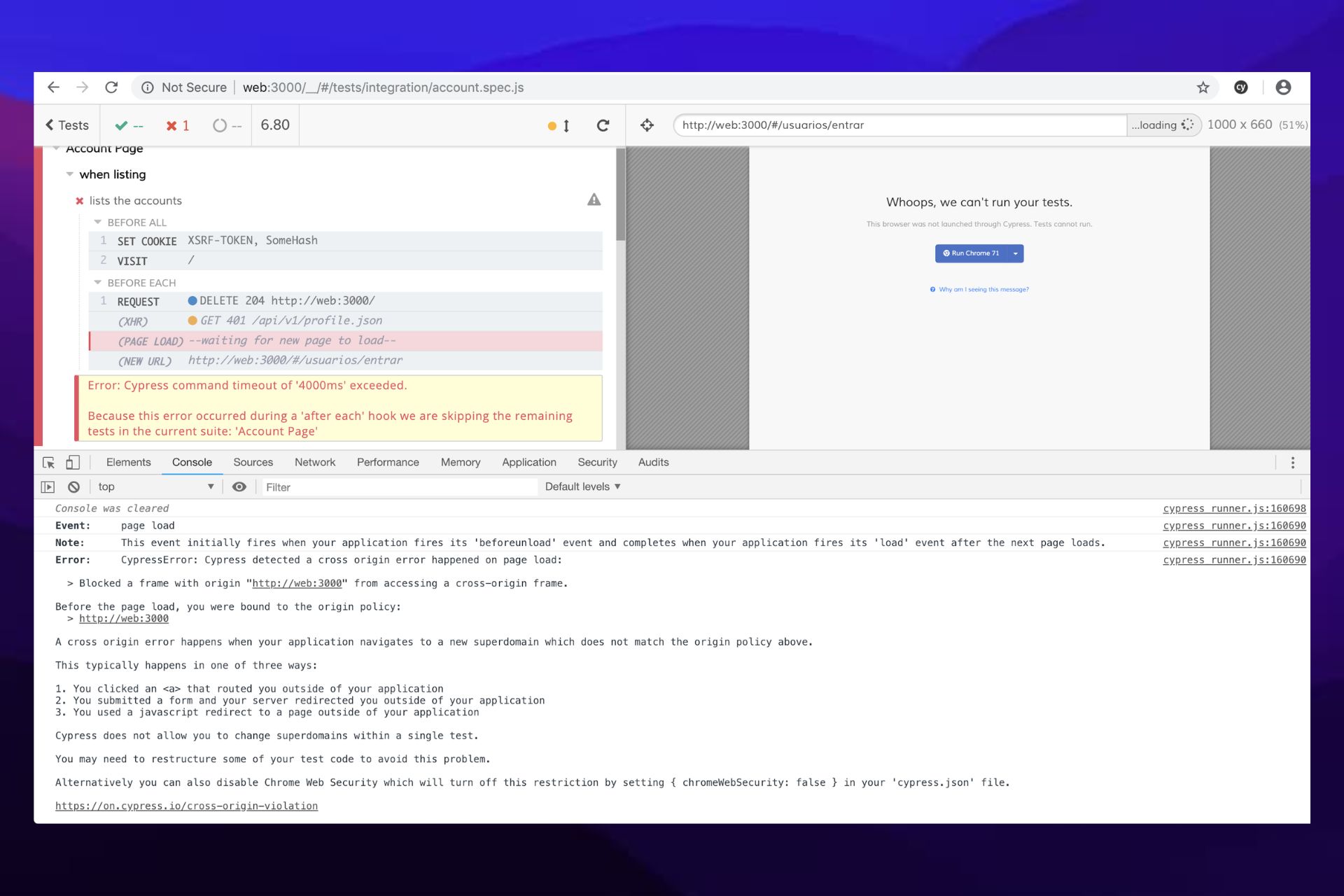
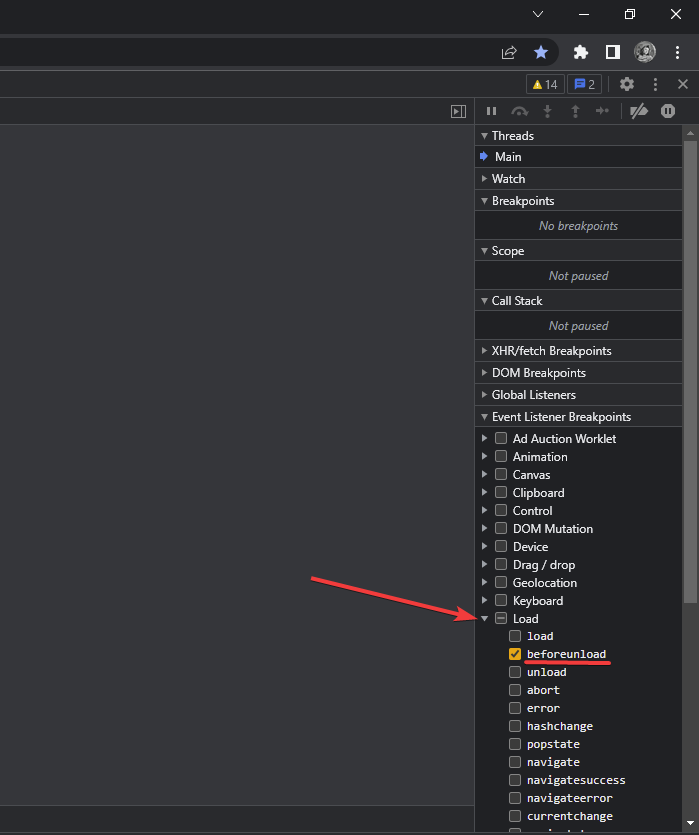
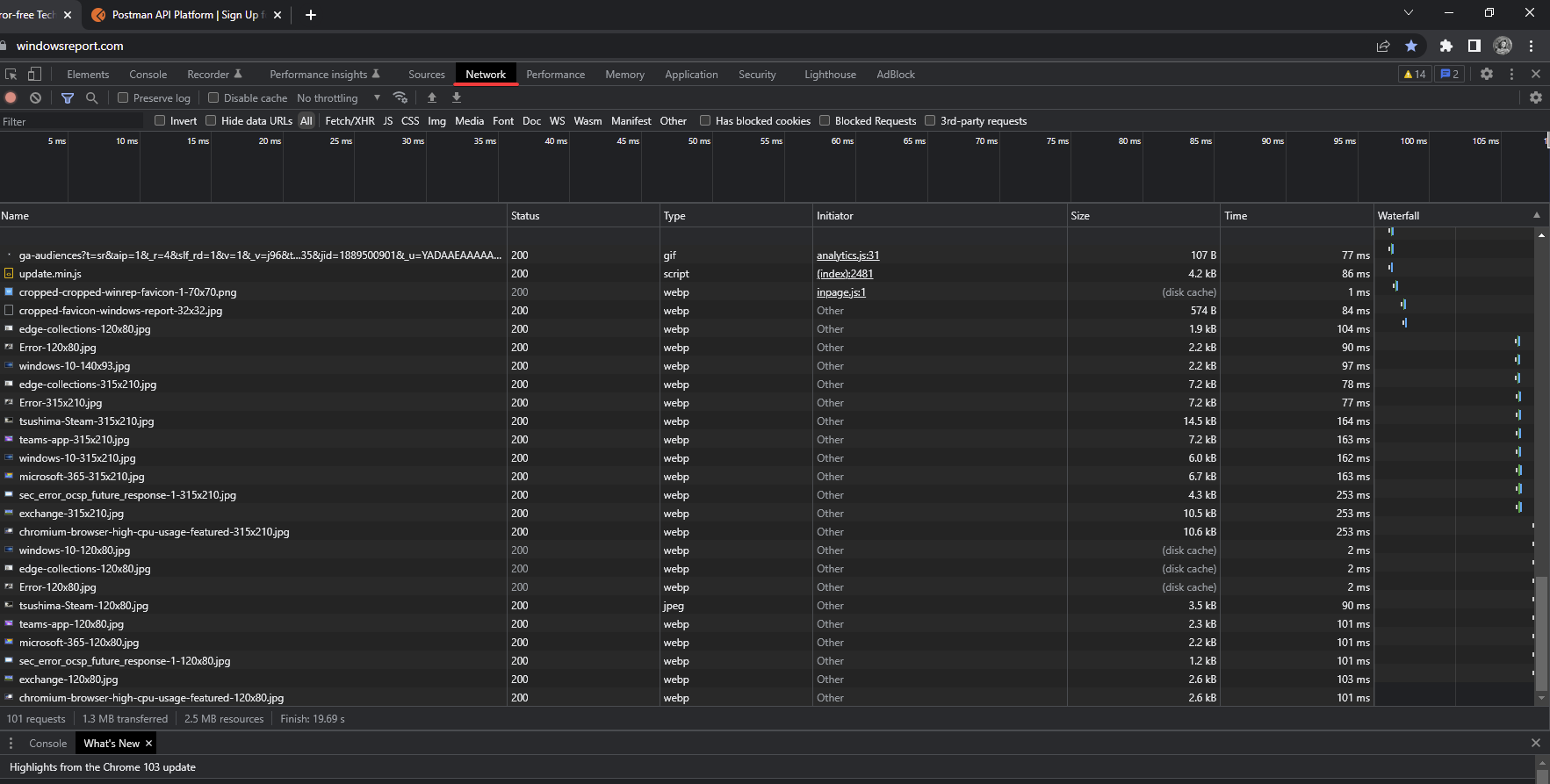
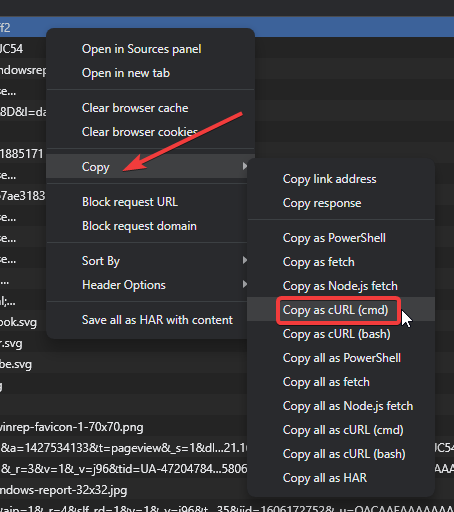
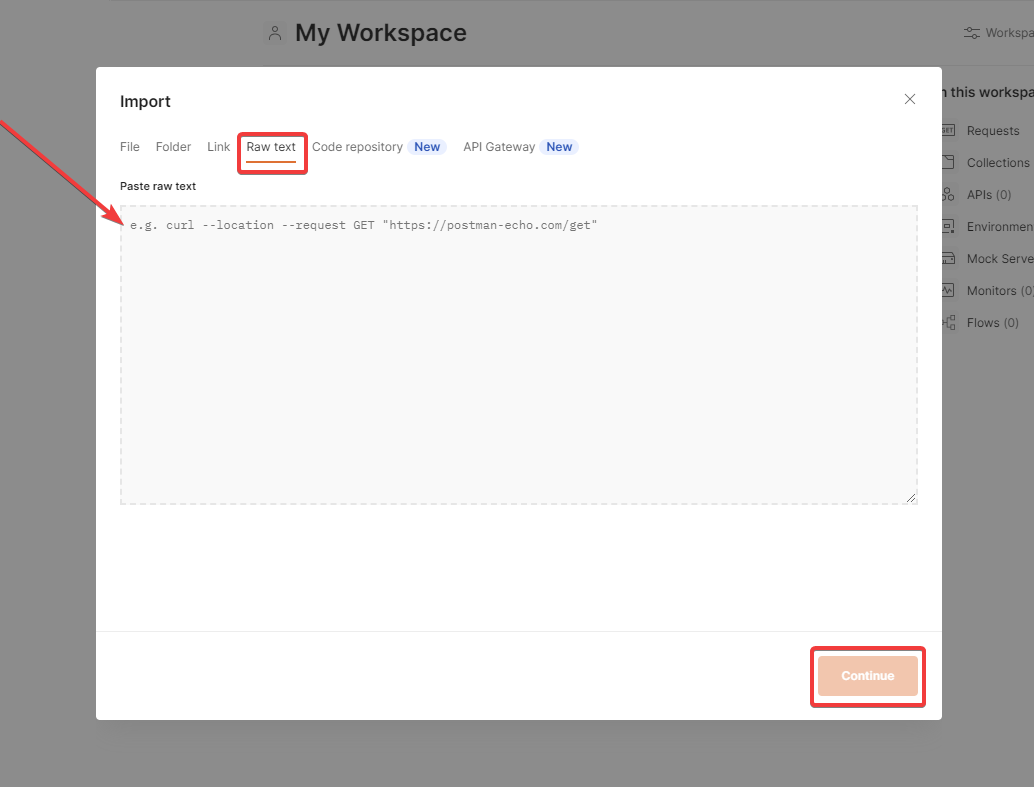
The <!– a padding to disable msie and chrome friendly error page –> comment is a workaround, not an error. It’s added to short HTTP error responses (like 404 or 500) to prevent older browsers like Internet Explorer and Chrome from replacing them with their own “friendly” error pages.
If this line shows up in your web app or API response, it likely signals a misconfigured server. Here’s how to fix it.
How can I fix a padding to disable MSIE and chrome friendly error page?
Before we start, check if there are any issues with the server, such as downtime. If you’re using Zapier with Slack, this problem will appear if the desired channel isn’t found. If you using AWS, whitelist Grafana dashboards.
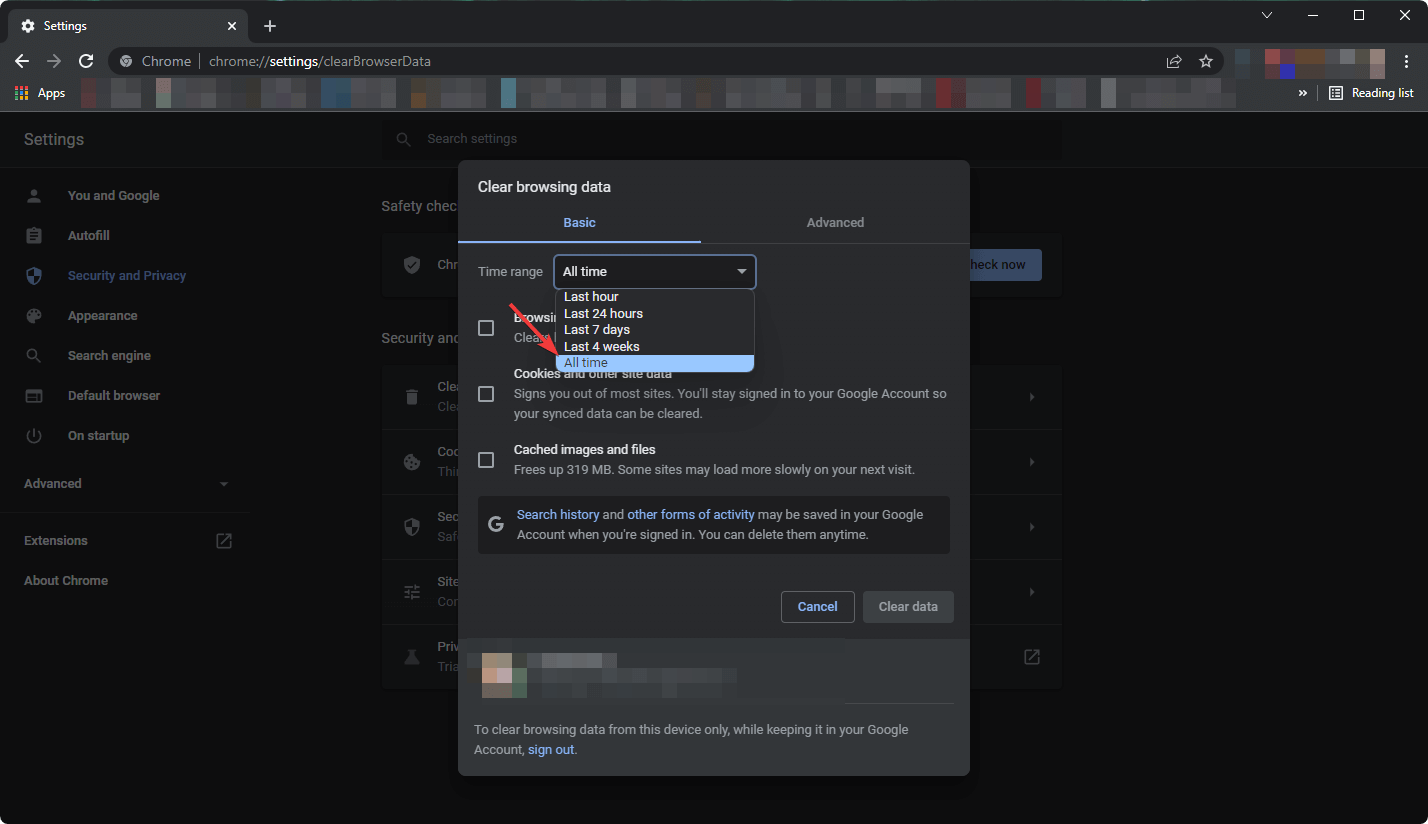
1. Clear browser cache
Launch Google Chrome.
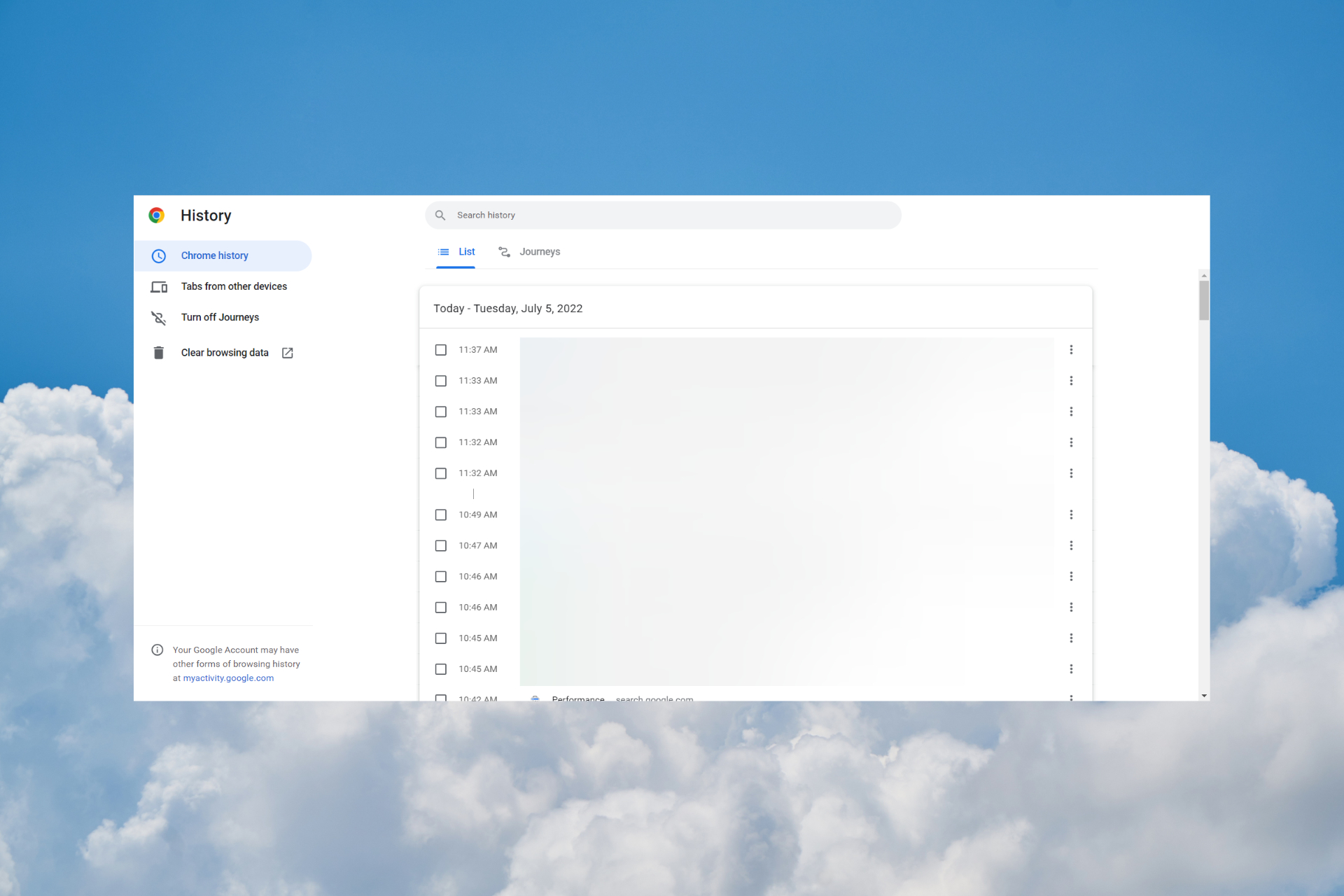
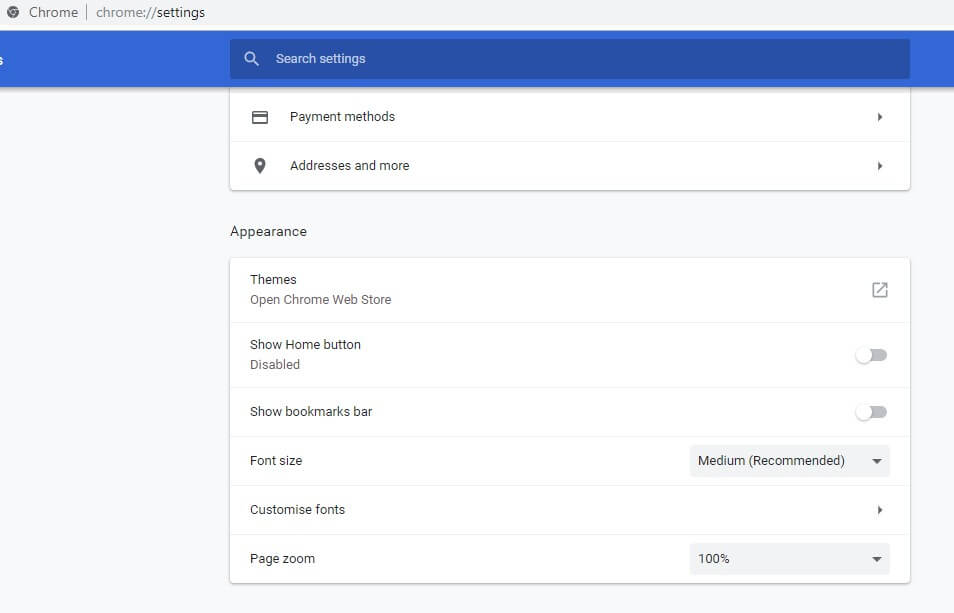
Click the three-dots menuicon and select Settings.
On the Settingspage, scroll down to the Privacy and Security section.
Click on Clear Browsing Data.
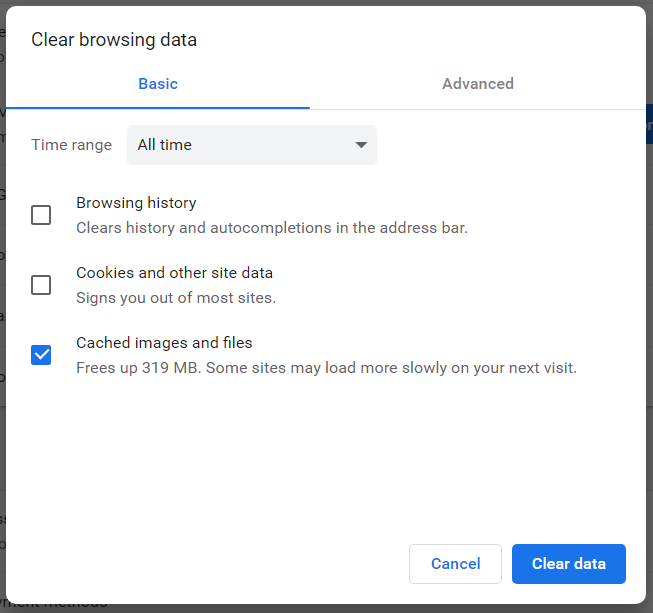
Open the Advanced tab, then select a time range. Next, check all the data that you want to clear. Finally, click the Clear Data button and wait for the browsing data to be removed.
Close and relaunch the browser and check for improvements.
2. Clear local DNS cache
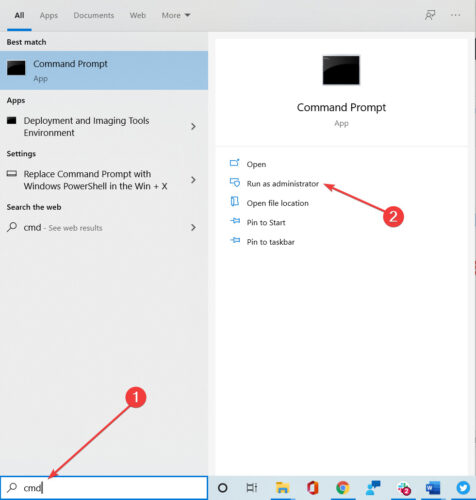
Click on the Start menu, type command prompt, and select the option to Run as administrator.
In the Command Prompt, type the following command and hit Enter to execute: ipconfig /flushdns
You should see the Successfully flushed the DNS Resolver Cache message when it is completed.
Go to Network and choose Network and Sharing Center.
From the left pane, click on Change adapter settings.
Right-click on your network adapter and select Properties.
In the Properties window, locate and double-click on Internet Protocol Version 4 (TCP/IPv4).
Under Use the following DNS server addresses option, enter for the Preferred DNS server and Alternate DNS server the two addresses below in that order: 8.8.8.8 8.8.4.4
Click OK to save the changes.
4. Adjust your AWS configuration
Open your AWS configuration.
Look for the AWSManagedRulesPHPRuleSet rule, it should look like this: { "Name": "AWS-AWSManagedRulesPHPRuleSet", "Priority": 32, "Statement": { "ManagedRuleGroupStatement": { "VendorName": "AWS", "Name": "AWSManagedRulesPHPRuleSet" } }, "OverrideAction": { "None": {} }, "VisibilityConfig": { "SampledRequestsEnabled": true, "CloudWatchMetricsEnabled": true, "MetricName": "AWS-AWSManagedRulesPHPRuleSet" } }
Remove the rule and check if that solves the problem.
If <!– a padding to disable msie and chrome friendly error page –> message appears on your website, you can go ahead and contact the support to look into this error.
Prevent It from Happening Again: Remove Unnecessary Padding
If your web app is still returning the <!-- a padding to disable msie and chrome friendly error page --> comment in error responses, it’s likely due to outdated server configurations. This padding was once used to bypass friendly error pages in Internet Explorer and early versions of Chrome, but it’s no longer needed.
To prevent this issue from recurring:
Check your error handling templates and remove the padding comment if you’re not targeting legacy browsers.
Update your web server or framework settings to send proper error messages without artificial padding.
Test error responses using tools like curl or browser dev tools to ensure modern behavior.
By removing legacy workarounds, you reduce confusion, clean up your codebase, and avoid issues with modern browsers or integrations like Zapier, Slack, or AWS.
When your keyboard isn’t working on Google Chrome but seems to have no issue on any other application, you have to check your browser settings.
Incompatible extensions, hardware acceleration, outdated software as well as an infected device could all lead to such issues. Nevertheless, there are ways to fix it. And in most cases, it takes just a few minutes:
What can I do if my keyboard is not working in Chrome?
1. Uninstall and reinstall Chrome
Start by shutting down all Chrome instances already running on the PC.
Click on the Start menu and click the Settings application.
Select the Apps option on your Settings left pane, then click on the Apps & features menu on the right pane.
Scroll down to the Chrome app, click on the vertical dots, and click the Uninstall option.
Once again, click Uninstall when prompted for the process to begin.
Next, re-download a new version of the Chrome app from the official website by clicking the Download Chrome button.
Double-click the downloaded file and follow the prompts to reinstall Chrome.
To ensure that your data isn’t removed, we advise you to sign in to Chrome and sync your data.
Click on the Start menu, type windows security, and then select the Windows Security app.
Select the Virus & threat protection menu on the left pane, then click on Scan options on the right pane.
Click on the Full scan option, then click the Scan now button.
Depending on the antivirus you have, the process may differ. However, in some cases, when you use third-party antimalware, they may not be perfectly compatible with your OS and will need to be disabled.
3. Temporarily disable or uninstall the antivirus
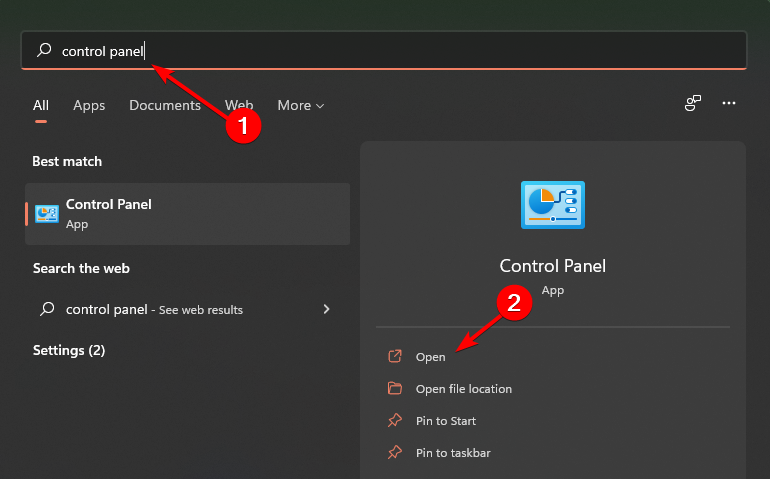
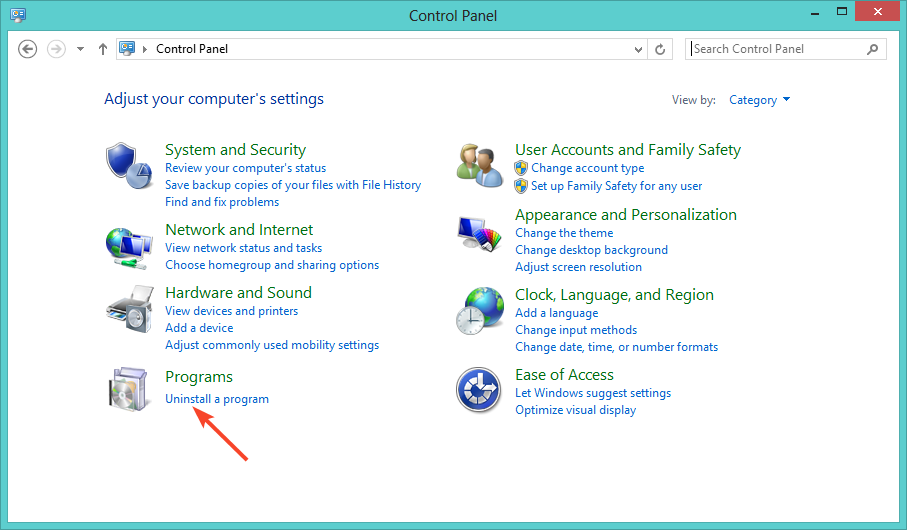
Click on the Start menu, type control panel, and then select the Uninstall a program option under the Control Panel app.
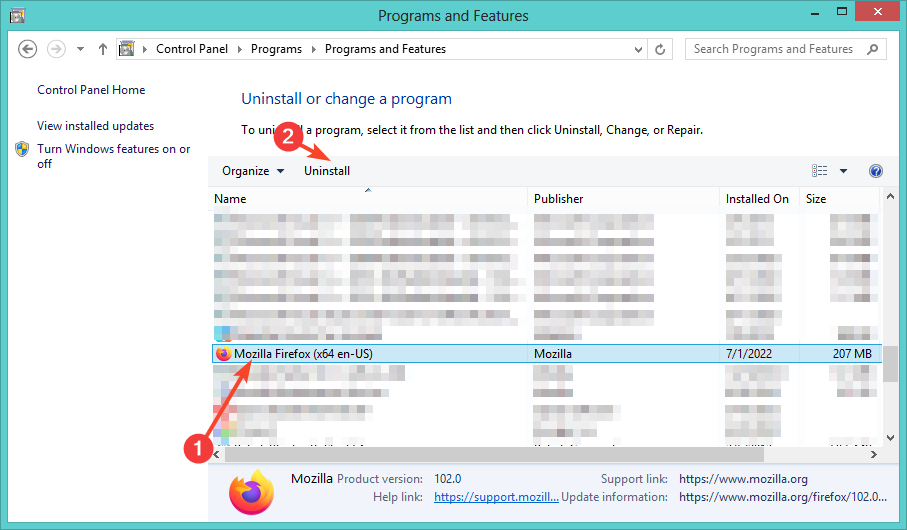
Click on your antivirus and select the Uninstall option.
Follow the prompts to complete the uninstallation.
Tip
Uninstalling your antivirus can fix this issue, but make no mistake: you should always run an antivirus software on your PC. If the one you have now is interfering with Chrome, switch to another option or enable Windows Security.
4. Press the Windows key twice
This is a simple workaround, but it works according to users. For example, if your keyboard isn’t working in Google Chrome, you can quickly fix this problem by pressing the Windows Key twice.
After doing that, your keyboard should start working in Chrome. This is an unusual workaround, but it works according to users, and you’ll have to use it every time your keyboard stops working.
5. Disable the Hardware acceleration
Click on the ellipses or three vertical dots on the top right corner of your browser.
Then select the Settings option.
On the left pane of the browser, click on the Systems option.
Scroll down to the System section, and uncheck Use hardware acceleration when available.
After you uncheck this option, restart Chrome and check if the problem is resolved.
6. Disable extensions
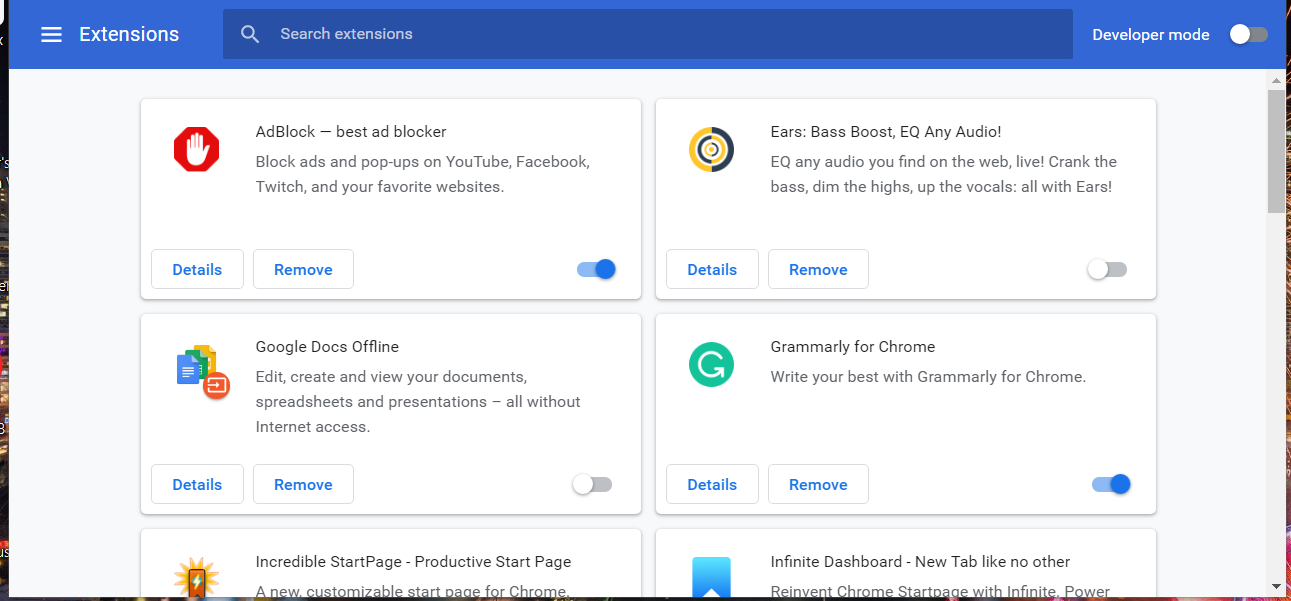
Copy and paste the address onto your Chrome URL bar and hit Enter. chrome://extensions
Search for the recently added extensions, and toggle the switch off to disable the specific extensions.
Verify to see if the Chrome keyboard works.
Users reported that the IDM extension could cause this error, but even Google’s extensions such as Google Docs or Google Docs Offline can cause this issue to appear, so be sure to disable them all.
If disabling the extensions fixes the problem, you should try enabling extensions one by one until you find the one causing this problem.
After finding the problematic extension, you can update it or remove it from Chrome.
7. Clean Chrome’s cache
Click on the ellipses or three vertical dots on the top right corner of your browser.
Selects the More tools option, then Clear browsing data.
Click the checkboxes for Browser history, Cached images and files, and Cookies and other site data, then click on the Clear data button.
8. Try using the Incognito Mode
Click the Menu button in the top right corner.
Select New incognito window from the menu.
A new incognito window will open, and your keyboard should usually start working.
9. Update Chrome
Click the Menu icon in the top-right corner.
Choose Help, and select About Google Chrome.
A new tab will now appear and check for available updates. If any updates are available, they will be downloaded automatically.
Once the updates are downloaded, restart Chrome and check if the issue is resolved.
Paste the address below onto your Chrome address bar and hit Enter. chrome://settings
Click on Reset and clean up on the left pane of the browser.
Now click Restore settings to their original defaults.
Click the RESET SETTINGS button to confirm.
After Chrome resets your settings to default, it will restart itself. Once the browser restarts, check if the issue is still there.
11. Enable Hardware Media Key Handling in Chrome flags
Open Chrome flags by pasting the address below on your URL bar. chrome://flags
In the search box, type Hardware Media Key Handling.
Click the Hardware Media Key Handling dropdown button and select the Enabled option.
Restart the Chrome browser and verify if the keyboard Chrome issue is solved.
If you still can’t type in Chrome, move to the final solution.
12. Check for startup applications
Press Windows Key + R and enter msconfig.
Press Enter or click OK.
When the System Configuration window opens, go to the Services tab. Check Hide all Microsoft services and click Disable all button.
Go to the Startup tab and click Open Task Manager.
When Task Manager opens, right-click the first item on the list and choose Disable. Repeat this step for all startup items.
After you disable all startup applications, close Task Manager and go back to the System Configuration window; now click Apply and OK to save changes. Restart your PC.
Not being able to use your keyboard in Google Chrome can be a significant problem, but we hope our solutions have helped you solve this issue.
There may be a few variations to this issue; it could be a problem of the arrow keys not working in Chrome or the CtrlT not working in Chrome. Regardless, using these solutions, you can have your browser up and running again.
Without a blue light filter on your monitor, your eyes will get fatigued during long sessions of work on your PC.
So, whether you’re a web designer, an accountant, or work a full shift behind the screen, you should definitely use one, or get blue light filter glasses.
How do the blue light filters work?
As you know, the colors you see on any screen are formed by combining the red, green, and blue colors together.
However, the blue light component is pretty harmful to our eyes, especially at long exposure.
The blue light filters, as their names suggest, filter this blue light to an extent, thus protecting your eyes.
Most LEDs on the monitors have a blue light with wavelengths between 400 and 490 nanometers.
Now, you should know that after applying such a filter on your monitor, the image will have a yellowish tint and reduced brightness.
Therefore, when you mount the film onto your screen, you should increase the brightness by 15 to 20%.
Now that we cleared these things up, let’s look at the best blue light filter screens for your 23″ to 24″ monitor.
What are the best blue light filter screens for your monitor?
The VisoBlueX blue light protecting screen covers the 380 to 495 nm and can be installed easily on any 23 to 24-inch monitor.
However, it attaches to the monitor with only a tiny part that is folded to 90 degrees to the screen, so it’s recommended to stick it with a double-sided adhesive strip to prevent it from detaching itself.
The good part is that it works on any brand monitor, but also on TVs and Mac monitors.
The blue light protector filter screen from Vintez blocks up to 95% of UV light from reaching your eyes and 43%-61% of blue light in the range of 420nm-460nm.
It fits any 23”-24” computer monitor, and it simply attaches from the top of the monitor, without any cutting, trimming, or tools required.
With a strong 4H rating for hardness, the 2.2 mm film acts as a barrier against dust and abrasive cleaning wipes that can permanently damage its clarity.
That’s why, in the package, you will also receive a soft cleaning wipe that will help you clean it completely safe.
TikTok is a popular platform for content creators, and while most users tend to use it on their phones, you can also use TikTok in your web browser.
To use this platform on your smartphone you should download the official application. However, if you want to watch the content on your computer, you can do it from your browser.
Do keep in mind that sometimes issues can occur, and we already covered how to fix TikTok network connection error in a separate guide, so be sure to check it out.
This is incredibly simple to do, and in today’s article, we’ll show you how to do it. Moreover, the functionality is exactly like in the smartphone application and you can log in to your account.
Can you browse TikTok without the app?
Yes, the service is available on multiple platforms, and you don’t have to use the mobile app if you want to browse it.
The service is available as a web app as well, so it can be accessed by anyone easily, and in today’s guide, we’re going to show you how to do that.
Just scroll to the next video or use the keyboard shortcuts.
With this method, you can watch TikTok in the browser just like you would on your phone.
As a quick tip, we suggest you consume TikTok content from a featured browser like Opera One that includes dedicated apps for social media navigation.
You can use the in-built video player to watch entertaining content from TikTok, block tracking ads with Adblocker, or get access to various content from other regions using VPN support.
Hence, following TikTok catchy videos can be done more practically from a faster and more secure browser.
Opera One
Enjoy the social media content in one place using this full-integrated browser with TikTok.
Do you get a virus alert on your web browser? This article explains how to get rid of the Microsoft Edge Notification virus.
Why does Microsoft Edge telling me I have a virus?
Edge is a trustworthy browser, so it won’t generate fake virus alerts on its own. However, it may block harmful sites through its SmartScreen Defender.
If you see messages like Your system is infected, or are prompted to install antivirus software, don’t click on anything. It might be because of a malicious extension. These fake alerts are designed to trick users into taking actions like installing software or calling fake support numbers.
How do I get rid of Microsoft Edge notifications for viruses?
1. Disable third-party extensions
Turn off the internet connection by disconnecting the WiFi or unplugging the ethernet cable.
Open Microsoft Edge.
Click on the Extension icon and then on Manage extensions.
Toggle the switch off next to the extensions you want to disable.
In this way, disable all extensions.
Remove any suspicious extensions that you have not installed.
Note: It is crucial to disable the internet connection before trying this or any other methods to fix the Microsoft Edge notification virus problem. The adware extension or program may not let you access the Settings when it gets the internet connection.
2. Clear browsing data
Open Edge.
Press CTRL + Shift+ Del on your keyboard.
Choose All time as the time range.
Check Cache images and files and Cookies and other site data.
Click on Clear Now.
After clearing the data, you should no longer encounter a Microsoft Edge fake virus alert.
Sort by date installed and remove any unnecessary software/ software that you recently added to your PC.
4. Use an antivirus with reliable real-time protection
The Windows Defender is a decent security measure, but modern viruses are clever enough to know how to hide from it.
Therefore, you need something that outsmarts these pesky programs. More precisely, a powerful antivirus software.
Choosing an antivirus that uses advanced algorithms to scan, find, and monitor suspicious activity on your devices would be best.
Besides that, many apps come with extra security measures that protect your data from being stolen. This will guarantee your safety while making online payments.
Having a well-protected PC ensures that all of your data, both online and offline, is safe and people trying to access it will have a hard time getting their hands on your data.
That is why it is very essential to have the best and most updated browsers with advanced security features, and more importantly, an antivirus tool installed on your PC.
Avast is one of the most popular antivirus programs out there. But, what to do when avast is blocking your downloads? We’ve gotten reports such as Avast won’t let me download a file, Avast blocking download manager, and so forth.
That could be frustrating, we can relate. Worry less, in this article, we will show you how to fix these Avast issues on your PC.
Quick Tip:
There are so many different types of security software that you may install on your devices that you don’t have to stick with Avast if it causes too many problems.
TotalAV is another reliable tool for effortlessly managing downloads and attachments in emails. This is more than just another antivirus, it is a true AI assistant that responds to your daily needs.
TotalAV
A true assistant that protects, prevents, and can be easily set up to manage downloads.
You need to know why Avast won’t let you download a file in the first place. Avast blocks downloads and websites because its software and installation program are outdated and need immediate repairing.
This causes the web shield and HTTPS scanner to falsely detect legitimate downloads or websites as unprotected ones. System glitches and errors can sometimes cause Avast to malfunction, too.
Does Avast block torrenting?
Avast can block torrents if you are using the Avast VPN alongside the antivirus. While this is actually anti-malware and a piece of very good news for security enthusiasts, a large number of people have had complications with this protection application.
How do I stop Avast from blocking my file download?
1. Disable Antivirus Auto-Protect
Select the menu options in the low right corner of your PC’s taskbar.
Right-click on the Avast program.
Select Avast Shields Control.
Click Disable for 10 minutes.
2. Update the Avast Antivirus application
Right-click the Avast icon on the computer’s notification bar and click Update.
Select Program and wait for the settings page to pop up.
If it doesn’t update automatically, click Check for Updates.
Wait for Avast to update.
Reboot your device after this process takes effect. Once this is done, Avast should let you download files.
3. Repair Avast installation program
Right-click the Windows Start button and choose Apps and Features.
Click your Avast Antivirus version and tap Uninstall.
Once the Avast Setup wizard appears, select Repair.
Launch the Avast Antivirus application and tap the menu icon.
Click Protection located on the right bar and select Core Shields.
Click and hold the green marker, then slide it to the lowest sensitivity setting
Avast web shield protects your computer from unsafe downloads. Reducing it will help prevent Avast from meddling with download activities on your device.
5. Disable HTTPS scanning
Launch the Avast Antivirus application and tap the menu icon.
Click Protection located on the right bar and select Core Shields.
Scroll down and locate the Configure shield settings section and tap the Web Shield tab.
Then, untick the box next to HTTPS scanning.
With the solutions in this article, you should have successfully resolved any problems blocking your downloads in Avast. If the problem persists, you could equally find out how to uninstall the Avast Secure Browser with just a few clicks.
Let us know in the comments if you have found this article useful.
Is Google thinking you’re in another country, displaying the wrong country or automatically loading websites in another language? If Google, YouTube, or shopping platforms think you’re located elsewhere, it can affect your search results, pricing, and content availability.
The reasons behind incorrect browser location detection include VPN use, inaccurate IP readings, or saved account data. Here’s how you fix the regional mismatched, explained step by step:
What can I do if Google thinks I’m in a different country?
Navigate to Google and click Settings in the bottom left. Select Search settings.
Choose Other settings and then Language & region.
Click on the Results region and set it to your actual location.
2. Change the device location
Press Windows and I to open Settings, then navigate to Time & language followed by Language & region.
Scroll down and select the Country or region that you are in. Changes will automatically apply, however, you might need to reboot your PC and browser. The browser thinks I’m in another country issue will be resolved this way.
You can also check your device’s IP address to see if it matches your country. If that’s the culprit, consider addressing your Internet Services Provider.
3. Check your VPN
Open Settings by pressing Windows + I together, then go to Network & Internet followed by VPN.
Here, make sure to turn off the Allow VPN over metered networks as well as Allow VPN while roaming.
Alternatively, if you are using a VPN service, make sure to set its country to your current one. The Chrome thinks I’m in another country issue will be resolved after.
Using VPN will change your location and that affects all apps connected to the Internet, including your browser. Disabling the VPN will stop it.
Alternatively, to keep the VPN running, you can use split tunneling and only disable it for the browser.
4. Set your location inside the browser
For Google Chrome
On your computer, open Chrome then click on the three-dot menu from the top-right corner followed by Settings.
Click on Privacy and security followed by Site Settings.
Scroll down and click on Location.
Next, make sure to turn on the Sites can ask for your location option.
Restart your browser to check whether it sets the right location now.
For Mozilla Firefox
Type about:config in your browser and then accept the risks.
Search for the geo.enabled setting and make sure its value is set to true. Click on the reverse icon to change its value.
Make sure location permissions are enabled. This way, your browser will automatically check and update your location so you won’t have to manually do it every time you travel.
Open Chrome and click on the three-dot menu followed by Settings.
Select Reset and clean up from the left menu followed by Restore settings to their original defaults.
Next, click on the Reset settings button and wait for the process to finish.
6. Try another browser
If all else fails, consider using a different browser. A good option to overcome location issues is Opera. That’s because it has an integrated VPN that lets you pick your preferred location.
This means that, even if your IP address is at fault or Google just can’t seem to correctly pick up your location based on it, you can adjust to the exact country you want in just a few clicks.
By following the steps above, Google should no longer think you’re in a different country. Let us know which option worked for you and don’t hesitate to ask for further help if you need it.
Avast is one of the best antivirus software on the market. It is a cross-platform internet security app available for iOS, macOS, Windows, Linux, and Android.
Also, it provides browser security that encrypts your internet interaction with the server. It keeps your data safe from hijackers. Likewise, it detects and helps you block loopholes that can be a prone threat.
However, there are several issues that users complain about. A common issue is the ‘can’t end Avast process’. It means the user cannot stop Avast’s activities on his device.
Nonetheless, this article will take you through the fixes for the ‘Can’t end avast antivirus access denied’ issue.
Why can’t I stop Avast in the Task Manager?
Like every other antivirus application, Avast antivirus comes with an inbuilt self-protection module. This feature prevents you from stopping the antivirus task.
Thus, it can be futile to try to stop Avast in the Task Manager. As we go further, we shall enlighten you about how to end the Avast process on your device.
Why does Avast use so much CPU?
Avast performs lots of operations on the device and demands more CPU power.
Activities like scanning, PC cleanup, and virus removal are some real-time operations by Avast. Hence, a larger space of your CPU can be taken by this tool.
One question naturally stands out. Is it okay to uninstall Avast antivirus? Unfortunately, the answer is not that straightforward.
Avast antivirus is helpful for real-time security protection on all your devices. However, you may need to uninstall it if the difficulties you encounter, including high CPU usage, become unbearable.
What can I do if the Avast process won’t end?
Needless to say that disabling your antivirus can leave your system exposed to anything and everything from malware attacks to Web threats from intruders.
Should you decide to proceed, you mustn’t ignore the risks. Here’s what we suggest.
1. Disable Self Defense to bypass the can’t end Avast process error
To fix the Avast process won’t end error, you can disable the Self-Defense option in the app’s settings. Doing this allows you to make whatever changes you want in Avast.
However, with the self-defensive module off, your device can become vulnerable.
1. Launch Avast on your PC and click theMenu button.
2. Choose Settings from the options.
3. Select General, then click Troubleshooting from the menu.
4. Turn Self-Defense mode off by unchecking the box.
5. ClickOkto allow the attempt to disable the Avast self-defense module.
2. Disable Avast Shields to fix the End task, access denied error
Right-click on the Avast icon on your screen.
Go to Avast shields control and select how long you want it disabled.
Click OK to confirm the changes.
This is a short-term fix to stop the functioning of the Avast antivirus from affecting your Computer’s activities.
Right-click and select the Run as administrator option.
Launch the utility and fill in the prompts that follow.
Click Uninstall at the bottom of the screen.
Note that uninstalling Avast antivirus should be the last solution to try when you can’t end the Avast process. The reason is that you will lose all stored data on it and other whitelisted files on it.
Do you want to know how to play MKV files on Windows 10 and 11? This article will help you with some practical methods and suggestions.
Regarding multimedia, Windows 10 and 11 brought several improvements, including native support for MKV file format.
As a result, you should be able to play MKV files without installing any third-party codec such as Haali Media Splitter, CCCP (Combined Community Codec Pack), or Matroska Splitter as you did in the past.
This is excellent news for everyone who enjoys high-quality video content, but it seems that some users can’t watch MKV videos in Windows 10/11.
More precisely, complaints mention that one can’t hear or see anything or that only a black screen is displayed when loading MKV videos. For some, the media wouldn’t play, not even in VLC.
Playback issues seem to occur after uninstalling the third-party MKV codec on Windows 11 and 10.
There are two common errors; the first one is:
Can’t play. Can’t play because the item’s file format isn’t supported. Check the store to see if this item is available there. 0xc1010090 (0xc00d3e8c)
And the second says:
Can’t play. This item is in a format we don’t support. Please choose something else. 0xc00d36b4 (0xc00d36b4)
In this article, we’ll try to shed some light on this matter so you can enjoy listening to or watching your MKV videos.
Does the MKV file play on Windows 10/11?
Yes. The latest Windows Media Player, Movies & TV app, and Windows 11’s native Media Player support MKV files out of the box. So, you can easily play any MKV video on the latest Windows 10 and 11 computers.
Where can I find MKV codec?
If your version of Windows doesn’t support MKV video, you can easily download and install the MKV codec to be able to play such videos. Here are some sources from where you can get the code:
You can easily find these codecs on various famous media players’ websites. Without a proper codec, Windows Media Player will show errors or say no video when you try to run any MKV file.
Even though you can play MKV on the latest Windows natively, that will not give you the best experience. So instead, you can use any of these best MKV Players for Windows 10/11.
You can use any of the players according to your preferences. But, VLC Media Player is completely free and open-source. So, if you don’t need so many features but want to have a good experience, this might be the best choice.
If you encounter the MKV file not playing problem, you can go through the next section of this article.
How can I play MKV files on my PC?
1. Use an alternative media player
Older versions of Windows Media Player couldn’t play MKV files. With the new integration, even if your version of Media Player is more recent, there’s still a chance to encounter errors.
Many video players allow users to play MKV files and enjoy qualitative videos or movies at home. Still, you can experience issues with these high-quality files.
Given that such file types are often large and contain multiple video formats, it can cause playback errors on Windows Media Player.
Therefore, you should consider choosing other efficient MKV players that will convert your files to play crystal clear videos immediately.
2. Play the MKV file in your browser
Open your browser. In this example, we’ll use and recommend Opera One.
Click on the Add to Opera button to get the extension on your browser.
After installing it, go to Extensions and click on MediaPlayer extension.
Then, click on the Play button to add your MKV. format video and play them.
After doing that, the playback should automatically start. This is a solid workaround and works excellent according to users, so you might want to try it out.
Some browsers seem to have all the necessary codecs available so that they can play any video without too much hassle.
However, playing videos in your browser comes with certain limitations. For example, you won’t be able to adjust the picture, apply video or audio effects, or add subtitles.
Note that not all browsers work well to play MKV files. So, it would help if you used a browser capable of playing such files, and thus you can select from the best web browsers for Windows.
3. Convert MKV files to a different format
You can solve many MKV playback issues by creating clean and well structured MKV files from your discs with the help of MakeMKV software, which lets you convert DVDs and Blu rays into high quality video files for smooth playback on Windows.
You can use other applications, and we already covered some of the best MKV converter software in one of our previous articles.
These applications are relatively simple to use and can be helpful if you need to convert a couple of MKV files.
WinX HD Video Converter Deluxe can convert videos to MP4, AVI, WMV, MOV, M2TS, H.264, and 420+ video formats and codecs.
By utilizing the GPU acceleration tech, this great software can convert a video faster without quality loss, making it perfect for the job while converting large MKV files.
The main task of the format conversion software is to prepare files for devices such as smartphones or tablets via predefined profiles. This ensures compatibility with your end devices or PC media players.
If desired, you can customize the conversions individually. Furthermore, there is an integrated editor that allows you to edit videos.
WinX HD Video Converter Deluxe
Convert local video files, download clips and combine photo files into an animated slide show like a specialist with WinX HD Video Converter Deluxe.
When you remove the MKV codec, registry keys are removed, and Windows doesn’t know which codec to use to decode the MKV file.
Fortunately, this can be fixed by downloading this file suggested by the guys at Tech Journey. After you’ve downloaded the .zip, you need to open it and run the Win10-MKV.reg file to add changes to your registry, and that’s it.
After adding this key to your registry, you should be able to play MKV files using the Windows Media Player, Movies & TV, and Xbox Videos apps.
5. Install the missing codecs
MKV format is a container format that combines different file formats into a single file.
Thanks to this feature, the MKV file can contain all sorts of video formats. Unfortunately, this can lead to specific problems, especially if you don’t have the necessary codecs on your PC.
Windows will now check for available updates. Updates will be downloaded automatically in the background if any updates are available. Once the updates are downloaded, you’ll be asked to restart your PC to install them.
Several users reported that installing the latest updates fixed the problem with MKV videos, so be sure to try that. Unfortunately, this isn’t a foolproof solution, so even if your PC is up to date, this problem can still occur.
Software errors are less dreadful if you use our expert advice on the Troubleshooting page.
Yes. You can convert any MKV file to MP4 format without any problem. There are many free and paid tools available for this purpose. Even you can convert without installing using free or paid online services.
So these are our suggestions to help you play your MKV files on Windows 10/11. If you have any other recommendations or questions, reach out in the comments section below.
Fullscreen not working in Chrome can quickly throw off your workflow, especially when you’re trying to focus on a video, presentation, or a web app that needs the whole screen. Instead of snapping neatly into place, Chrome might stay stuck in windowed mode or not respond at all, which can be a real hassle if you rely on it daily. The good news is there are clear reasons why this happens and simple steps you can take to get Chrome’s full screen mode working again.
What can I do if Full Screen isn’t working on Google Chrome?
Here’s what to do to fix full screen issues on Chrome:
1. Update Chrome
Click on the 3-dot icon at the top right of the browser.
Click on Help, then AboutGoogle Chrome on the left side.
This will start an automatic check for updates and download them accordingly.
This is a valuable solution if you encounter issues with YouTube fullscreen not working, Chrome, and many other full-screen bugs on the browser.
2. Disable Hardware acceleration
Click on the ellipses or three vertical dots on the top right corner of your browser.
From the list of options, select Settings.
On your Setting’s left pane, click on the Systems option.
Uncheck the Hardware Acceleration box, then restart Chrome.
3. Change Display scaling settings
Right-click your Google Chrome shortcut and choose Properties from the menu.
If ticked, untick the option for Disable fullscreen optimizations, then click Applyand OKto save the changes.
Restart the browser.
4. Reset the Chrome settings
Click the ellipses or three vertical dots at the top right corner and choose Settings from the menu.
Expand the Advanced and select Reset and clean up.
Click on Restore settings to their original defaults.
Click on the Reset settings button to confirm.
5. Reinstall Chrome
On the keyboard, press Windows + I to open the Settings app.
Click Apps on the left pane of the Settings app, then click on the Apps & features menu on the right pane.
Scroll to the Chrome application, click on its vertical dots, and select the Uninstall option.
When requested, click Uninstall for the process to begin.
Re-download the Chrome app from the official website by clicking the Download Chrome button.
Click the downloaded file to start the re-installation and follow the installation wizard.
Remember that Chrome can leave some leftover files, so you’ll need to find and remove them manually. You can find these files in the following directories:
In most cases, this is caused by browser glitches, and the developers are usually quick to fix them by releasing an updated version that addresses this issue.
Alongside bugs, your settings can also lead to this problem, so be sure to adjust them accordingly or reset them to the default.
How do I quickly go to Full-Screen mode in Chrome?
Going to full-screen mode in Chrome is simple; you need to press the F11 key on your keyboard, and you’ll enable it. To exit this mode, press the F11 key again.
Wrapping up
That’s it. Following the steps above you should have fixed full-screen mode not working in Chrome.
If you need more help or have any questions, contact us in the comment section below.
If you are using Firefox and Outlook, then it is possible that the browser may not be able to connect to Outlook. This is because Microsoft may have made some changes to Outlook, which makes it incompatible with older versions of Firefox.
Outlook works in a variety of ways — including through its own desktop application, via web browser-based access, and through mobile apps. Other times, Outlook won’t open but you can follow our tips and tricks to bypass this issue.
If you are having trouble getting Outlook to work in Firefox, you must find the cause of the problem and then attempt to resolve it using our recommended solutions.
Can you use Outlook on Firefox?
Yes, you can certainly use Outlook on Firefox. All you need to do is open the Outlook login page and sign in to your account. While it works on Firefox, sometimes you may encounter problems. So, Why is Outlook not opening in browser?
Here are some possible reasons:
Outdated browser – If you are using an outdated version of the browser, Outlook may not load on Firefox because of compatibility issues.
Third-party email client – If you’re using a third-party email client as an extension, it may interfere with Outlook and prevent it from loading.
Multiple tabs open – If you have multiple copies of Outlook open on your system simultaneously, one or more of them may be corrupting the process. You may also experience an issue where Outlook live is not working.
Which browser works best with Outlook? Outlook works with all modern web browsers including Google Chrome, Mozilla Firefox, and Microsoft Edge. However, if you want to take advantage of all the features available in Outlook then we recommend using Microsoft Edge.
It offers the best compatibility and performance with web-based services. In addition, both services are from Microsoft so you can expect the ultimate experience.
How do I get Outlook to open with Firefox?
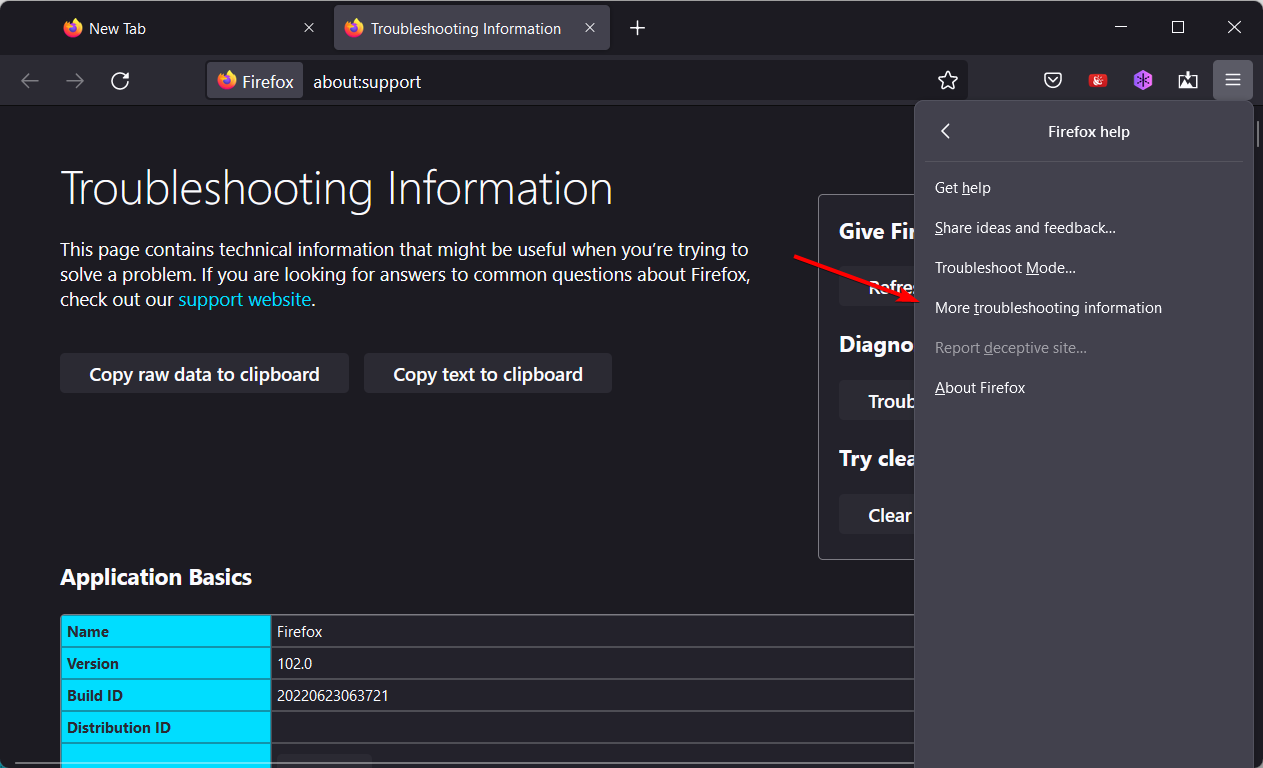
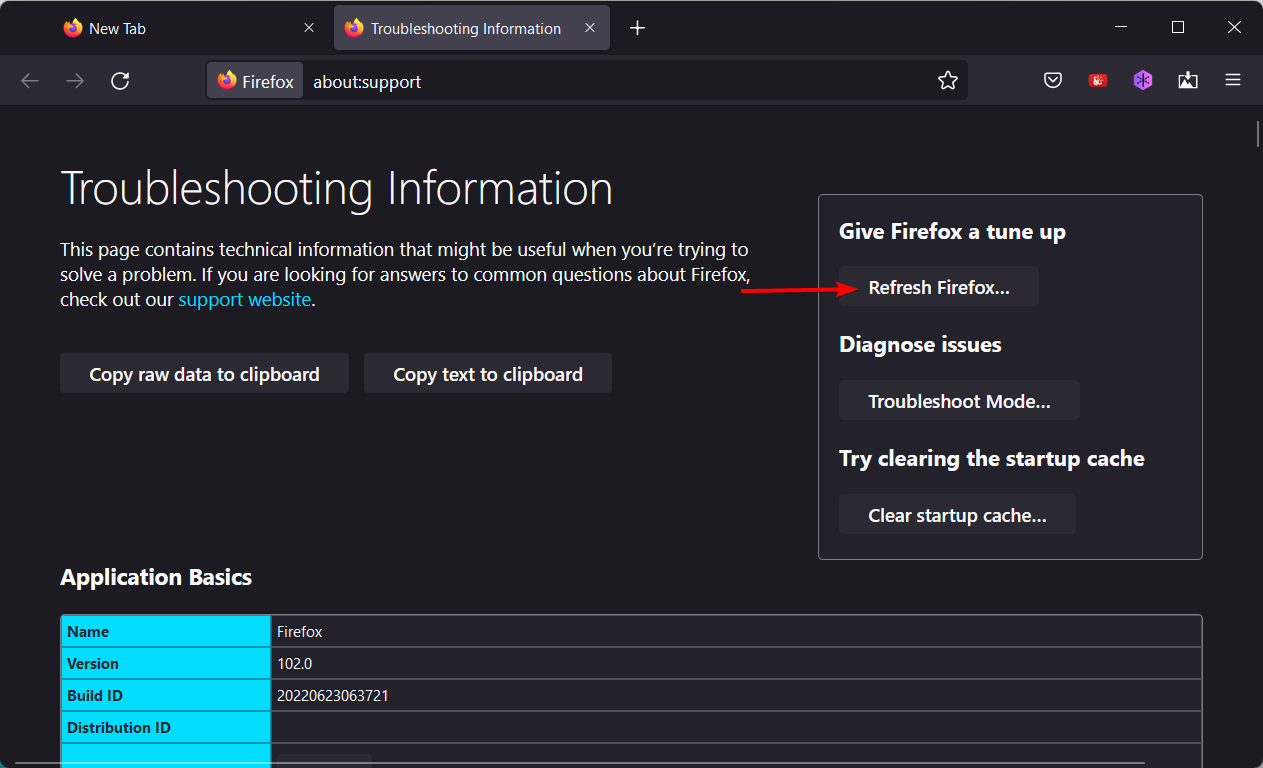
1. Update to the latest version of Firefox
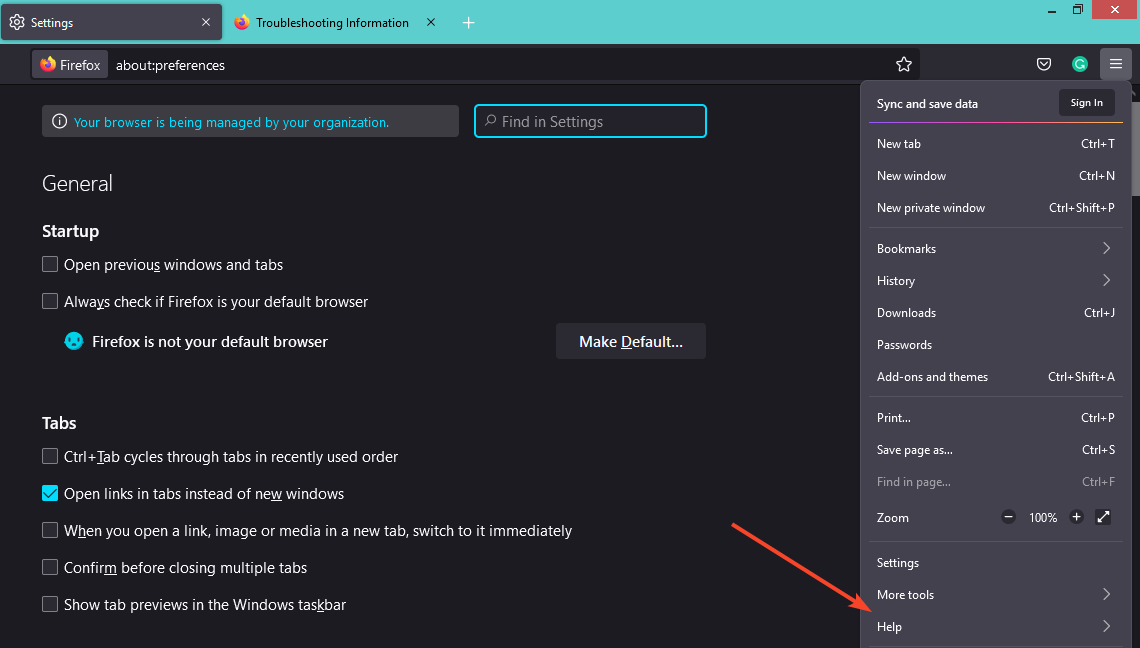
Launch your Firefox browser and click on the three horizontal ellipses in the top right corner.
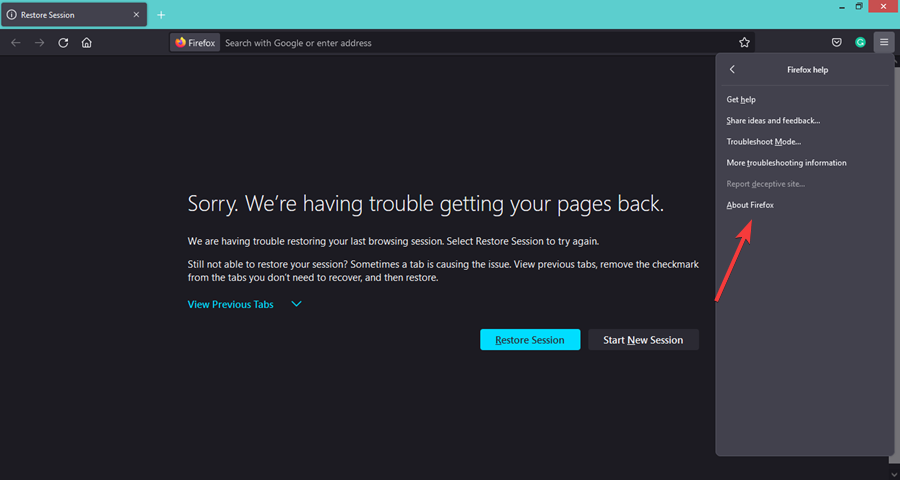
Select Help.
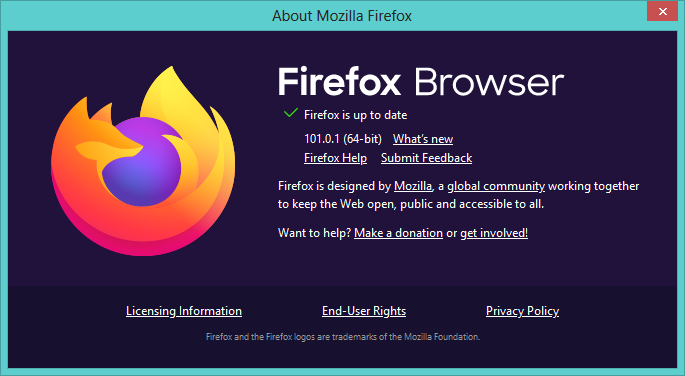
Click on About Firefox.
If your browser is up-to-date, you will get the following dialog box.
2. Restart Firefox/PC
This is an error that occurs when Microsoft Outlook fails to start up correctly and then tries to open. Restarting your browser can solve many problems that occur with email and other programs.
If that doesn’t work, restart your computer. Press and hold the power button for at least ten seconds until the computer turns off. Then press it again to turn it back on.
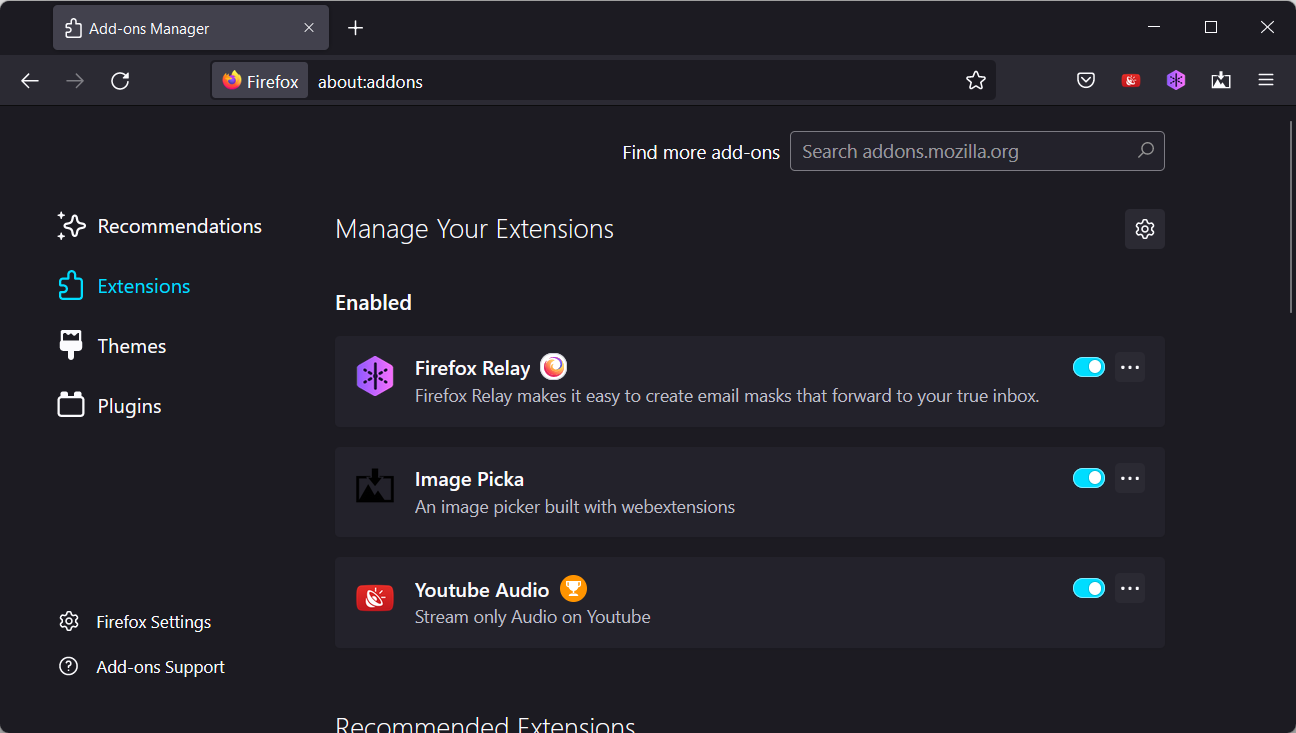
Launch your Firefox browser and click on the three horizontal ellipses in the top right corner.
Select Add-ons and themes.
Click on Extensions then toggle off the Disable button until you find the culprit.
Sometimes you may try all these tips but Outlook is still not opening on Firefox In this case, you can try opening Firefox in safe mode or switch to Outlook-supported browsers.
If you have been successful but Outlook is slow, we have a guide on how you can fix it to solve the lag problem.
Let us know which solution worked for you in the comment section below.
New to Game Pass and don’t know where to start? We’ve got you covered with these Game Pass recommendations for those who like to play with others.
All things are better when shared with others. Video games are no different. While there are a great many Game Pass titles that feature excellent multiplayer, here we are going to focus on the best Game Pass games that are tailored exclusively for the multiplayer experience. So without further ado, here’s what to play on Game Pass for those seeking the best multiplayer experiences around.
Innersloth’s breakout-hit social deduction game has seen over 500 million players across various platforms. it’s easy to see why with the game’s creative premise and addictive cross-platform gameplay for 4-15 players. Can you identify the imposter before it’s too late?
Boundless adventure awaits in this MMORPG. Enjoy exciting combat and siege, exploration, trading, fishing, training, alchemy, cooking, gathering, hunting, and more in Black Desert’s vast open world, all with other adventurers.
The Elder Scrolls Online
Journey to the world of Tamriel in this MMO installment of the legendary Elder Scrolls franchise. And with the game’s newest expansion, High Isle newly released there is more to discover than ever before in The Elder Scrolls Online.
While Fallout 76 got off to a shaky start when it released in 2018, the game is still going and better than ever, with many of its issues rectified. It is a prequel to the mainline Fallout games. An upcoming expansion of the game, titled “The Pitt,” will feature an all-new adventure in the ruins of the former Pittsburgh.
This launch title for the original Xbox is a bonafide classic party game. With 45 multiplayer (1-4 players) minigames and two game modes – Mini-Game Frenzy and Tournament – players will have an absolute blast playing with their friends with 6 playable characters and 22 different game mode variations.
Rocket Arena is an online third-person shooter with a 3v3 competitive multiplayer structure. It features standard Deathmatch and Capture the Flag, as well as Knockout and Megarocket modes. There is also a cooperative multiplayer mode called Rocketbot Attack, in which three-player teams fend off waves of AI bots.
Sea of Thieves
Rare’s swashbuckling online action-adventure is still going strong more than four years after its 2018 release. The game takes inspiration from films like Pirates of the Caribbean and The Goonies, as well as from Nintendo’s own Legend of Zelda: The Wind Waker. Join over 30 million other players in discovering everything the Sea of Thieves has to offer in a shared open-world adventure like no other.
In this multiplayer horror game players take on the role of a group of kids trying to rescue their friend from the Neighbor’s creepy basement. Or play as the Neighbor and use your house to separate, scare and confuse the intruders!
An online first-person shooter of a different breed, this is a sequel to 2014’s mech-battle shooter Titanfall. The critically acclaimed Titanfall 2 features a single player campaign, though multiplayer is where the game really shines with a bevy of modes that run the gamut of gameplay experiences, from cooperative to competitive to player vs. environment.
Wrap up
That’s nine awesome games tailor-made for those who like their gaming to be a social activity. So now that you social butterflies know what to play on Game Pass, which are you going to try out first? Let us know in the comments.
According to a recent filing, the U.K.’s Competition and Markets Authority has launched an investigation into Microsoft’s acquisition of Activision Blizzard as it looks to determine “whether the deal may harm competition – through higher prices, lower quality, or reduced choice.”
With well over 120 acquisitions under its belt over the course of its 47-year lifespan, Microsoft is no stranger to the rigorous and scrutinizing process of gaining regulatory approval for its moves, and after announcing its $68B to acquire Activision Blizzard in late 2021, the company began prepping for a gauntlet of investigations and due-diligence measures by over 220 international bodies representing 130 plus different jurisdictions.
“We will fully cooperate with the CMA’s merger view. We expect and that’s appropriate for regulators to take a close look at the acquisition. We have been clear about how we plan to run our gaming business and why we believe the deal benefits gamers, developers, and the industry. We’re committed to answering questions from regulators and ultimately believe a thorough review will help the deal close with broad confidence, and that it will be positive for competition. We remain confident the deal will close in fiscal year 2023 as initially anticipated.”
The U.K.’s CMA probe is slated to start today July 6, 2022, and run through July 20, 2022 with investigators combing through transactions, provisions and market analysis with an invitation to comment throughout the process. Ultimately, the CMA would like to render a phase 1 decision by September 1, 2022, but also notes the decision date is statutory and contingent on changes that may occur during the inquiry.
While Europe tends to be aggressively consumer-centric in its probes into anti-competitive practices and or behaviors, the news of the CMA investigation has done little to move investors in either direction leaving Microsoft’s stock confidently in place as the company looks to have all probes and investigations concluded by summer 2023.
If you have ever encountered the error that reads: no video with supported format and MIME type found in Tor, keep reading because we will explain how to troubleshoot it.
This error usually means you are trying to access video files that run on outdated plugins, you’re missing Adobe Flash or you have interfering cookies and cached files. Here’s how to get rid of it:
How do I fix no video with supported format and MIME type found in Tor?
1. Reset NoScript
Launch the Tor Browser.
Click on the hamburger (three horizontal lines) at the top right corner of the browser and select the Add-ons and themes option.
Click the three dots in front of the NoScript extension, then select Options.
From the top right corner, click the Reset button.
Relaunch the browser and check for any improvements.
2. Install a Flash plugin
Launch the Tor Browser.
Click on the hamburger (three horizontal lines) at the top right corner of the browser and select the Add-ons and themes option.
Click on the Extensions option in the left pane, type flash player in the search text field on the right pane, then click Enter.
Select the flash player extension.
Click the Add to Firefox button.
In the browser pop-up, select Continue to Firefox installation.
Click the Add button.
Restart the browser.
3. Enable Media in NoScript Add-on
Launch the Tor Browser.
Click on the hamburger (three horizontal lines) at the top right corner of the browser and select the Add-ons and themes option.
Click the three dots in front of the NoScript extension, then select Options.
Under the General tab, make sure the Media option is checked.
Close the extensions tab and relaunch the Tor Browser.
Try accessing the media showing the error and check if the error is resolved.
NoScript extension for Tor Browser allows dynamic content only for trusted websites of the user’s choice to prevent exploitation. However, the extension can cause issues if the media content is blocked by default.
Alternatively, uninstall the extension if you have any other plugin similar to NoScript, such as JS Protection.
4. Add video source to the trusted section
Launch the Tor Browser.
Click on the hamburger (three horizontal lines) at the top right corner of the browser and select the Add-ons and themes option.
Click the three dots in front of the NoScript extension, then select Options.
Open the Per-site Permissions tab.
Type YouTube.com or other video sources in the search and then click the+icon to add the website.
Check all the options that you want to allow for YouTube.
Relaunch the browser and check for any improvements.
If you don’t want to enable media for all the websites, NoScript allows you to add individual sources manually to your trusted exception list. You can add more than one source, repeating the steps above. This fix should also be helpful for Xplay videos that are not playing.
Launch the Tor Browser, click the Shield icon, then click the Change button.
Under the Security Level menu, choose the Standard or Safer option. Standard is the most recommended setting as it does not block conventional media contents.
Relaunch the browser and check if you can play videos without the Tor Browser video format not supported error.
At Standard Level, all Tor Browser and website features are enabled. However, check for extension compatibility issues if the video still does not play and results in an error.
5. Clear Tor cookies and cache
Open Tor Browser.
Click on the menu icon (three horizontal lines) in the top-right corner.
Select Settings.
Go to Privacy & Security.
Under Cookies and Site Data, click Clear Data and select Cached Web Content.
Summary
You should now be able to fix the no video with supported format and MIME type error found in Tor. Resetting No-script gets rid of it for most people, but if it persists, continue with the other solutions until you figure it out.
Chrome Remote Desktop allows you to securely access your computer from your phone, tablet, or another computer. That said, several Chrome Remote Desktop users have reported the app is not working.
The Chrome Remote Desktop not working issue can occur due to a glitch in Chrome or the Remote Desktop app, a problem with the PIN feature, or even permission issues.
Disabling the PIN feature and reinstalling Chrome and the Remote Desktop app seems to have fixed the issue for many.
This article has listed some troubleshooting steps to help you resolve the Chrome Remote Desktop not working issue.
Why is Google Remote Desktop not working?
A bug in Google Chrome or the Remote Desktop program, a difficulty with the PIN function, or even authorization problems are often to blame for the Chrome Remote Desktop issue.
A non-compatible antivirus program may sometimes cause the problem.
Regardless of the causes, here are a few variants of this error you may encounter:
Chrome Remote Desktop not installing
Chrome Remote Desktop can’t click
Hmmm… this is taking longer than expected. You may have a browser extension that blocks the automatic playing of videos. Try disabling all extensions or try connecting in incognito/private browsing mode.
Chrome Remote Desktop freezes
Chrome Remote Desktop stuck on starting
Google Chrome Remote Desktop unable to reach the remote computer
Chrome Remote Desktop there’s nothing to connect to
Google Chrome Remote Desktop keeps disconnecting
Chrome Remote Desktop is starting up on the remote computer. Please try again in a minute.
If you’re unfamiliar with this feature, we strongly suggest reading our Remote Desktop Connection guide for more information.
Quick Tip:
Google Chrome isn’t the only web browser with Remote Desktop capabilities, so instead of trying to fix Chrome, you might as well switch to another browser, such as Opera One.
The browser includes an ad blocker, a tracking blocker, and even a full-fledged VPN. Additionally, it is highly customizable via extensions, and they can also help turn it into a Remote Desktop manager.
Opera One
An ultra-fast web browser that can be tweaked into becoming a remote desktop manager.
What can I do if Chrome Remote Desktop is not working?
1. Check the internet connection
Chrome Remote Desktop works over local networks; if you need it to work over the internet, you should forward the port to a router or use a VPN. In this case, if you do not have a working internet connection, it will not work.
You should check your connection, restart your Wi-fi, or reboot the router; then, you may try again.
This is a good step when Chrome Remote Desktop is not working on Wi-fi. If Chrome Remote Desktop is not working on your Chromebook, iPhone, iPad, Mac, or any other device, you should also start by checking your internet connection.
2. Disable the PIN feature
Press Windowskey + R and enter regedit. Press Enter or click OK.
Navigate to the following key: HKEY_LOCAL_MACHINE\SOFTWARE\Policies
Right-click the Policies key and choose New, and then select Key.
Enter Google as the name of the new key.
Navigate to the newly created Google key.
Right-click the Google key, choose New, and select Key.
Enter Chrome as the name of the new key.
Navigate to the Chrome key you just created.
Right-click the empty space in the right pane, choose New, and select DWORD (32-bit) Value.
Set the name of the DWOD to RemoteAccessHostAllowClientPairing. Double-click the newly created DWORD.
Change Value data to 1 and click OK.
The Chrome Desktop app allows you to connect to your computer using other devices using a PIN.
However, this feature is reportedly causing issues with the connection. Disabling the feature and removing the devices has resolved the problem for many users.
This method is effective when Chrome Remote Desktop is not working on Windows 10/11.
Some of our readers also suggested creating a DWORD inside the Google key called RemoteAccessHostRequireCurtain and set its value to 0.
Note that whenever you install an app that can make a modification to your system or be able to transfer a file, Windows will prompt you to grant permission to the app.
Make sure you have granted the requested permission for the app. If you missed the permission window, check your taskbar to see if it is in the background.
3. Repair the Chrome Remote Desktop tool
Press Windows key + R. Type control panel and click OK.
Go to Programs and Features.
Select Chrome Remote Desktop Host from the list of installed apps. Click the Repair button.
Click Yes when prompted by UAC.
Wait for the repair tool to fix any issues with the app.
Try connecting using the app and check if the issue is resolved.
4. Reinstall Chrome Remote Desktop
4.1 Uninstall the Remote Desktop tool
Press Windows key + R to open Run.
Type appwiz.cpl and click OK.
Select Chrome Remote Desktop Host. Click on Uninstall.
Click Yes to confirm the action.
Once uninstalled, go to Chrome Remote Desktop and reinstall the app.
If the issue persists after uninstalling Remote Desktop Host, reinstall Google Chrome.
Next, press the Start menu, type control, and click on ControlPanel.
Click on Uninstall Program.
Select Google Chrome and click on Uninstall.
Click Yes to confirm the action.
Once uninstalled, reinstall Google Chrome. by clicking on the executable file and following the installation wizard.
Once both the apps are installed, use the Remote Desktop app to check if the connection issue is resolved.
What do I do if Chrome Remote Desktop keyboard is not working?
Here’s another related problem that you could experience. Users have sometimes claimed that remote PCs no longer respond to keyboard input.
Although typed keys are not registered on distant computers, Remote Desktop still connects without any problems in certain circumstances. For example, the transmit Ctrl–Alt–Del button still functions, and you may copy or paste to and from remote systems.
You can still try the solutions in this article to fix this peculiar situation.
If you find that these solutions can’t fix the problem, check out this list of the best remote control software and their most essential features. Finally, there might be a tool that works great for you. We suggest you try Mikogo, one of the most reliable and safe remote desktop software.
The Chrome or Google Remote Desktop not working issue usually occurs due to a glitch in the Chrome or Remote Desktop app. You can fix the problem by reinstalling the applications or simply resetting the PIN feature especially if you keep getting authorization prompts.
Do let us know which feature helped you resolve the issue in the comments. Many reported that Chrome Remote Desktop got blocked by admin, but we have a guide that might help with that.
Microsoft is testing yet another new feature in its Edge browser. The latest, as noted by Redditor Leopeva64-2, is a built-in photos editor, which will let you edit a photo you save it to your PC (via Neowin.)
Similar to the image editor in the photos app in Windows 10 and Windows 11, this function in Edge will let you crop pictures, change the brightness and exposure, and even use filters. Other features include annotation tools, as well as a spot fix tool. Check it out below.
As of right now, this looks to be another feature that is in A/B testing. We don’t have it on our end just yet. You’ll know when you have it if you right-click on an image and see the Edit image option, which will open the editor in the sidebar.
And now the Xbox Team is celebrating Disability Pride Month for the first time as it endeavors to uplift the Gaming and Disability community and make video games inclusive for everyone. This can be seen in a variety of ways. One of which is the ASL (American Sign Language) Xbox Twitch channel for the hearing impaired. The channel features sign interpretation for about 25 hours of livestreams every week.
Also, last Fall Xbox added accessibility feature tags to games to help gamers with disabilities and handicaps find the perfect game. Now, there are over 400 games featuring these accessibility tags, many with multiple tags.
At Xbox, we believe in fostering positivity and inclusivity for everyone in the gaming community. This month for Disability Pride Month, we want to celebrate people with disabilities and empower everyone to game as they are. https://t.co/2hXtaq9yKf
And now, Microsoft Rewards Members in the US and UK can donate earned points to organizations that support gaming and disability communities. Below is a list of such organizations to be featured in July:
We all have heard the phrase If it ain’t broke, don’t fixit at least once. In this fast-paced world, only a few things can survive without being replaced by a new and better method or technology.
Telemarketing is one such domain that has survived for decades and is still considered to be one of the best ways of marketing to generate revenue through sales.
Now, it isn’t to say that telemarketing strategies haven’t changed, but have changed for good.
Automated calling software or Auto-dialers are the results of the evolution of telemarketing.
If you work as a sales manager or have employed someone for the same job, the task probably involves calling hundreds of phone numbers every week.
Why do I need an automated calling software?
Automated calling software can help you to automate the dialing process and connect the call to you only when the potential customer answers the call.
This way you don’t have to dial all the numbers manually and focus more on generating sales and meeting the quota than sorting through big numbers of clients every day.
If you are in the market looking for the best-automated calling software, there are a couple of things to consider before finalizing the purchase of software.
Based on your requirement, check if the software offers predictive dialing, inbound call routing, voice broadcasting, CMR integration, and fixed dialing functionalities.
Go ahead, take note. Make sure you add anything else that you want your auto-dialer to do.
Now that you know what type of automated calling software you need let’s delve into the list of best auto-dialers and predictive dialers for call centers and marketing agencies.
What’s the best automated calling software for call centers?
JustCall is an all-time phone system for international calls in 70 countries that can be ideal for your business’ sales and support teams.
With this tool, your agents will forget about manual dialing and all the logging will be done automatically, without any hustle. That will trigger a productivity increase.
And you will be able to monitor their performance live, by monitoring their calls and provide instant coaching by whispering them advice during the conversations.
You will also be able to check the agent’s availability and working hours and access the call recordings to assess their quality of service.
If the agent’s competence is limited in solving the client’s problem, he can also use smart IVR to route the call to another agent or a superior.
The tool also comes with smart management so that the calls get routed evenly for all your agents or even connect VIP clients to certain agents or managers.
Check out its best features:
International calls in 70 countries
Smart IVR function
Check the agent’s availability and working hours
Access call recordings
JustCall
Enjoy an all-in-one phone system that offers smart management so your calls get routed evenly.
TalkRoute is a top-notch automated calling software for small and big businesses to easily manage calls, messages, and meetings.
It has a virtual phone system that offers you the ability to make and receive calls from any desktop, browser, or smartphone.
You can video conference with up to 100 colleagues or guest participants and you have the aptness to record your meetings, share your screen, chat, and cooperate using the app’s whiteboard.
Furthermore, you can enable email, mobile, and desktop app notifications when you receive a new voice message to never miss any of them.
TalkRoute authorizes you to personalize your voicemail greetings and assign different mailboxes to your team partners, departments, and phone numbers.
Here are other key features of TalkRoute:
Number porting
Forward calls to multiple phones
Texting access permissions
Text-to-email notifications
File sharing
TalkRoute
Manage calls, messages, and meetings in an easy manner with the TalkRoute application.
You can also opt for the NCH telephone software suite which includes all types of automated call center recording software and automated calling software.
Express Dial is an automated predictive dialer that allows you to dial a list of phone numbers sequentially. It is ideal for an environment where a large list of phone numbers needs to be dialed every day.
The application can also be used as a call receiver with a welcome message, a customer feedback collector, to conduct customer research surveys, and to make sales calls.
It can also be used as an add-on to Express Talk, a call center recording program from NCH software.
Express Dial is easy to use with a simple user interface that allows you to create a new contact list, add, edit and dial contacts with ease. You can also add notes to any contact and mention the status of the phone number.
Axon Agent is an add-on for Axon Virtual PBX. The add-on allows you to take advantage of the software’s auto-dialer functionality and make automated calls with a predictive dialer.
Axon Agent is an ideal solution for small outbound call centers, customer service centers calling for feedback, for political and charitable donation campaigns.
The Axon Virtual PBX software allows you to make VoIP calls to reduce phone bills. It can connect up to 64 telephone lines simultaneously depending on the plan.
You can create agents from the control panel and assign a calling list and campaigns independently. The campaign consists of a script feature that shows the information on the screen that the agent will follow during a conversation with the customer.
Apart from making outbound calls, you can put calls on hold and play on-hold music using an IMS on-hold player, transfer or forward calls to superiors or concerned departments, and set up multiple instances on a network for operating a call center.
Axon Agent auto-dialer makes it easy to make automated calls and keep tabs on dialed numbers to avoid redundancy to improve productivity. The software comes with a 14 days trial for you to try before you buy.
You will benefit from the following best features:
EVS Dolphin Power Dialer is an auto-dialer solution for call centers, small businesses, insurance companies, marketing agencies, and more.
The application allows you to automate the calling process to reach potential customers in less time.
The working of the Dolphin Power Dialer is simple. You import the contact list onto Dolphin Dialer and start the dialing process.
When a live person answers the call, you can start the interaction and read from the pre-written script with a sales pitch.
If the voicemail answers the call, you can leave a pre-recorded message with the customer’s name to reach you back.
This Power Dialer software also comes with popular CRM integration including Less Annoying CRM, Leadmaster CRM as well as Zoho CRM. Once the leads are found, the reports can be sent to your CRM for follow-ups.
Dolphin Power Dialer allows you to instantly follow up by email to a potential customer, monitor sales agents, quick call distribution and transfer, and conference call functionality.
You can begin by requesting a quick demo. The free trial should give you a fair idea of whether Dolphin Power Dialer can meet your requirement or not.
CallFire is an automated calling and texting solution, and it comes with a number of plans. There is a pay-as-you-go plan available for companies that don’t need bulk calling and texting options.
CallFire’s Voice Broadcast System allows you to call multiple numbers at once. You can use it to send billing and overdue reminders for unpaid invoices. The system filters out busy signals, bad numbers, and dropped calls for maximum productivity.
The app leaves a pre-recorded voice message if an answering machine is found. If a live person interacts, the call will be connected to a sales manager.
If you are running a campaign or conducting research, CallFire can help with surveys and polls without any human interference.
The CallFire setup process is easy. Begin with setting up call recordings and scripts for the campaign. Upload the contact list in CSV or XLS format and schedule the automated campaign time.
It is an easy-to-use web-based solution, not only cost-effective but extremely easy to use.
Anyone without prior knowledge of using a cloud-based auto-dialer service can learn to use it in a couple of sessions.
Let’s review its best features:
Easy setup and implementation
Schedule the automated campaign time
Call multiple numbers at once
Send billing and overdue reminders for unpaid invoices
Five9 is a cloud-based Contact Center as a Service solution. The company also offers a Predictive Dialer feature, allowing the business to increase efficiency by 300%.
The auto-dialer offered by the company is highly flexible and can be configured according to the time zones, list preparation, compliance laws, and business requirement.
The working of a predictive dialer is similar to other solutions. The system uses algorithms to predict both the average time for an agent to become available as well as the time for the call to be answered by the customer.
It can also predict if any phone number requires automated follow-up or manual handling by the sales rep.
Predictive Dialer only connects the agent when the call is answered by humans and not the answering machine. It can leave pre-recorded messages in voicemails.
The real-time recording feature allows you to monitor agents. By going back to the recordings you can better train your employees based on user feedback.
In addition, it allows you to create campaigns, list management, web call back, Web APIs, DNS Compliance, CRM integration, and more.
Five9 Predictive Dialer is an easy-to-use contact center solution for large and small businesses. The company charges the customer based on the requested features and usage. The plans can be easily upscaled or downgraded based on the requests.
Here are some of its best features:
Extensive CRM integration
Create campaigns, list management, web callback, and web APIs
CallHub is an automated and manual phone banking tool that allows you to make automated calls to run campaigns and surveys using predictive and auto-dialer services.
The app does not have any ready-made packages. The users will pay based on usage. It is a cloud-based solution, so you don’t need to install any software on your PC either.
It offers Predictive and Power Dialer solutions. The Predictive Dialer allows you to make automated calls to thousands of numbers and only connect the agent when real people answer the call.
Power Dialer, on the other hand, allows you to make automated calls in sequence but allows you to skip answering machines and bad calls.
If you want to handle things manually, the Preview Dialer offers the flexibility to call the numbers you want after looking at the contact details in the preview window.
CallHub supports CRM integration and works with SalesForce, NationBuilder, NGP VAN, Zappier, CiviCRM solutions, and more.
In addition, it also offers features such as dial-in campaigns, computer telephony integration, live call monitoring, volunteer management, built-in notes, a survey data collector, and the ability to manage contact and profile data.
Check out its most important features:
Very good CRM integrations
Allows you to skip answering machines and bad calls
Dial-in campaigns and computer telephony integration
Auto-dialer or predictive dialer is among the most popular technologies used for outbound marketing.
Automated calling software makes it easy to filter out bad numbers, removes the hassle of waiting for the customer to pick up the call with quick mathematical calculation, and only connects calls when a person receives the call.
This software can also be used to send large numbers of voice-guided messages to conduct surveys, promote new services, or remind of payment over dues.
Getting the Chrome didn’t shut down correctly error message when you try to launch the browser? Keep reading, we’re here to help you.
For most users, it was misconfigured settings that led to the. And one, in particular, was the Continue running background apps when Google Chrome is closed option.
Extensions, conflicting programs, or corrupt data may also cause Chrome issues. Here’s how to address them:
How do I make Google Chrome shut down correctly?
1. Edit the Preferences File if Chrome didn’t shut down correctly in Windows 11
Press Windows + E to open the File Explorer.
Next, paste the following path in the address bar while replacing the UserName with the one on your computer, or simply navigate to it:C:\Users\UserName\AppData\Local\Google\Chrome\User Data\Default
Right-click on the Preferences file and selectOpen with from the context menu.
Select Notepad and click on OK.
Press Ctrl + F to open the Find box, enter exit_type in the text field, and then hit Enter.
Then delete Crashed and enter normal instead.
Next, press Ctrl + S to save the changes.
Close the Notepad, restart the computer, and then launch the Chrome browser.
Editing the Preferences file is another resolution that some users have confirmed disables the Chrome didn’t shut down correctly error. So, make sure to try it before moving to the other solutions here.
2. Change the Continue running background apps when Google Chrome is closed setting
To do that, paste the following path in Chrome’s address bar and hit Enter:chrome://settings/system
Toggle the Continue running background apps when Google Chromeis closed option off if it’s on. In case it’s already turned on, disable it.
3. Edit the Default Folder title if Chrome didn’t shut down correctly in Windows 10
Open the File Explorer with the Windows + E hotkey.
Now, navigate to the following path or paste in the address bar and hit Enter. Make sure to replace UserName with the one for your account.C:\Users\UserName\AppData\Local\Google\Chrome\User Data
Right-click the Default subfolder and select Rename.
Enter default.old as the new folder title, and press Enter to save the changes.
Now, relaunch Google Chrome.
If Google Chrome didn’t shut down correctly and you still see the Restore tabs button, try changing the Default subfolder’s title to fix the error.
4. Reset the browser if Chrome didn’t shut down correctly in Windows 7
Launch Chrome, paste the following path in the address bar, and hit Enter:chrome://settings/reset
Now, click the Restore settings to their original defaults option.
Finally, click Resetsettings in the confirmation prompt.
5. Chrome didn’t shut down correctly on Mac
The Chrome didn’t shut down correctly error is as frequently encountered on Mac as it is on Windows. And the best fix here is to reset the browser to its default settings.
The process pretty much remains the same and once the reset process is complete, you can start using Chrome without coming across any issues.
6. Chrome didn’t shut down correctly on Chromebook
Creating a new profile on Chrome worked for most users. Try that and check if it helps fix things.
If you still come across the Chrome didn’t shut down correctly error, there’s no option but to uninstall the app, and then download and install it all over again.
Oftentimes, issues creep in during the installation process and cause these errors.
7. Try an alternative browser to avoid crashes
Google Chrome tends to misbehave occasionally and some users probably get fed up with it. There’s an ocean of alternatives, but our go-to is Opera.
Now, you might ask what’s so special about Opera One? The developers who made it, based on the Chromium project architecture, put the focus on privacy and safety.
Opera One
Stable browsing and minimum errors encountered thanks to its versatility.
What do I do if Chrome didn’t shut down correctly and then crashes?
In addition to the methods listed earlier, you may try disabling or removing the installed extensions on Chrome. Some of these are known to introduce conflicts and lead to a bunch of errors.
Also, if this happens when another particular program is open on the computer, uninstalling that app could help eliminate the issue. Besides, updating the browser is also an effective fix in this case.
The above methods have fixed the Chrome didn’t shut down correctly error for numerous users. So, there’s a good chance that at least one of these will fix the issue for you.
New to Xbox Game Pass and don’t know where to start? We’ve got you covered with these Game Pass recommendations for you adrenaline junkies out there. So grab your virtual roller skates, snowboards and mountain bikes for the best thrill rides Xbox Game Pass has to offer right now.
“Extreme downhill mountain biking for the modern era.” RageSquid’s extreme sports game features procedurally generated levels, so every run will offer something a little different. The developers admitted the inspiration to include the feature in Descenders came from roguelikes such as Spelunky, which the team loves. The result speaks for itself.
What started out as a prototype for a pogo stick game (a la Pogostuck: Rage with your Friends) turned into a downhill mountain biking game that is fast, smooth and nauseating (in a good way…sort of).
Shredders
“For riders, by riders,” this independently developed extreme sports game is a love letter not only to snowboarding, but also to classic action-sports games like 1080 Snowboarding, Amped and SSX Tricky.
Shredders doesn’t get too caught up in paying homage to those great games to try and outdo them, however. It has earned for itself the title of “a new king of the slopes,” with a unique control scheme and gameplay that is every bit as silky smooth as the game’s snowy slopes. A must-play for extreme sports fans.
Here is another classic extreme sports title from the Xbox 360 era. Take to the open world of Port Carverton – a skateboarder’s haven – in this third entry in the Skate series. Players assume the role of a university student/aspiring skateboarding mogul. The ultimate goal in the game is to put together a dream team of skaters and sell 1 million boards. And the best part is that everyone can throw down in Skate 3 with the games with the all-new Skate.School feature.
The original Skate (Xbox 360 backward-compatible) is also available on Game Pass for those who would like to check out the origins of this extreme sports franchise.
Take to iconic mountainsides all across the globe in SSX, from the Himalayas to Antarctica. See what made SSX a classic all over again in this backward-compatible Xbox 360 title available on Xbox Game Pass.
SSX offers the most extreme snowboarding action of the SSX franchise yet. It’s so extreme in fact, that players will have to make use of a range of helpful tools to survive these treacherous slopes – from pickaxes and flashlights to more exciting gear like body armor and wingsuits.
Wreckfest
“Drive hard. Die last,” is the basic objective in this demolition derby-style racing game from the developers at Bugbear Entertainment. As the game’s title implies, the races in Wreckfest lean more toward vehicular combat than straightforward racing. Which means you will have to be on your guard and resort to more aggressive tactics like blocking and ramming opponents. It’s all in good fun though as you fight to be the sole survivor of the derby or win the race.
With such an eclectic mix of thrill-inducing games, Xbox Game Pass subscribers should have no trouble at all finding that next adrenaline fix. Have you tried any of the games on this list? If so, which is your favorite? Let us know in the comments below.
The Ultimate Performance power mode is not enabled by default on Windows 11, you have to perform an extra step to turn it on.
On enterprise-level servers and workstations where performance is a priority, this power plan is preferred. Microsoft took out all the power-saving and battery-life extending power options out of this plan to focus specifically on pushing your PC hardware and resources to the max to run 24 hours a day, 7 days a week.
Ultimate Performance power mode features
Starting with Windows 10 version 1803, Ultimate Performance power mode is a preset power policy designed for higher-end PC hardware to get the highest performance possible at all times.
Main features of Microsoft’s Ultimate Performance power mode include:
Hard Disk is never turned off.
Java timer frequency is set to Maximum performance.
Wireless Adapter Settings power-saving mode is set to Maximum Performance.
Hard disk never goes to sleep.
Hibernation is set to Never.
CPU Processor power management is set to 100%
Display is turned off after 15 minutes.
When playing video, the quality of video playing is optimized to enhance it (depends on PC/device hardware).
The Ultimate Performance power plan works to eliminate micro-latency on your PC by prioritizing performance over efficiency.
Enable Ultimate Performance power mode on your PC
Follow these steps to enable the Ultimate Performance power plan on Windows. As a reminder, this power plan will make applications and games run faster but will also consume more power and more battery life.
So, if you are using this power plan on a laptop, you may want to make sure you keep it plugged in because this power plan will deplete the battery faster.
The Ultimate Performance power plan will deplete the battery much faster because it scrapes together every available resource on your PC to get the highest performance possible.
Here’s what you need to do to enable it on your PC:
1. In the Windows 11 Start menu or Search, copy-paste the following command and press “run as Administrator” to run it:
2. Open Control Panel on your PC and in Control Panel, go to System and Security > Power Options.
3. Here, you should see a new “Ultimate Performance” power mode from the list of available options (you may have to open “Show additional plans” under “Preferred plans” by clicking on the down arrow). Click Ultimate Performance to enable and use the power mode on your PC.
Disable and delete Ultimate Performance
If you used the Ultimate Performance power mode and found it doesn’t work well on your PC or is causing you other issues, you can disable it as fast as you enabled it. Here’s what to do.
1. On your PC, open Control Panel and go to System and Security > Power Options and select a different power plan to use. Please note: Windows will not let you delete Ultimate Performance power mode if it is your PC’s current power plan.
2. Once you choose a different power mode, click Change plan settings next to “Ultimate Performance.”
3. Click Delete this plan and then click OK to confirm that you want to delete the Ultimate Performance power mode from your PC.
The last step will permanently remove the Ultimate Performance power mode from your PC. If you want to bring the Ultimate Performance power mode option back, you will need to repeat the steps at the beginning of this guide to re-enable it.
If you cannot print from Edge on Windows 10 or 11, you can follow the solutions featured in this article.
This problem usually signals your settings are incorrect, you have driver problems or registry errors. We’ll help you address all root causes.
All you have to do is closely follow the step-by-step, easy instructions below.
What can I do if I can’t print from Edge?
1. Try using a different browser
If you need to print something urgently from a webpage, you can always use a different browser.
A good option is Opera One because it comes with a built-in printing tool. It can help you tweak and adjust your documents right from within the browser.
Opera One
A feature-packed web browser that offers many useful tools, including the common ability to print out pages.
Microsoft Edge is a universal app and shortcuts are fully supported in Universal apps, which means that you can use print shortcuts inside Edge as well.
Users reported that they couldn’t print in Edge, but by using Ctrl + P shortcut, they were printing without any problems.
3. Run the printer Troubleshooter
Press Win + I to open Windows Settings.
Go to Bluetooth & devices and then Printers & Scanners.
Go to the problematic printer.
Run the troubleshooter and follow on-screen instructions.
Before clicking the Apply fix button, set the printer that you’re troubleshooting as default. After doing that click the Apply fix button.
According to users, you can fix problems with Microsoft Edge and printing by running a Printer troubleshooter.
4. Set a different default printer
Go to the Printers & scanners settings as shown in the previous method.
Toggle off Let Windows manage my default printer.
Now, Go to any of the available printers you want.
Click on Set as default.
Note: After setting a new default printer you need to set your previous printer as a default one again.
In addition, you can also try selecting a different printer in the Edge print dialog before selecting your default one.
5. Select print option from the menu
Open Edge.
Click on the three vertical dots and select Print.
According to some users, you can fix this problem by using the Print option from the menu.
6. Use Print to PDF or any other virtual printer
Press CTRL + P.
Select Microsoft Print to PDF as your printer, and click the Print button.
Choose a save location for your PDF file.
Locate the PDF file and print it using your pre-installed printer software.
7. Try using older drivers
Open Start Menu, type device manager, and hit enter.
Find and double-click on the printer driver.
Go to the Driver tab.
Click on Roll Back Driver and follow on-screen instructions.
8. Use Developer Tools
In Microsoft Edge, Press CTRL + Shift + I to open Developer Tools.
Then, switch to different tabs and close the tool.
Try printing again.
All modern browsers have the Developer Tools feature that allows you to see the source code of a certain website, and so does Microsoft Edge.
This is a rather strange workaround, but users reported that it works for them, so you might want to try it.
9. Edit the registry
Press the Windows Key + R, enter regedit, and press Enter.
Even though you can print anything on Edge using CTRL + P or clicking on the print option from the menu, you may want to add a Print button on this browser for faster interaction. Unfortunately, there is no official way to do it. But, we have the trick.
To add the print button, follow these steps.
Open Edge.
Press CTRL + D on the keyboard.
Click Click on More.
Now, Give the name as Print and URL as the following: javascript:window.print()
Save it.
Cannot print from Microsoft Edge after update
Sometimes, you may find that you cannot print from Edge after updating it. It means the latest version of Microsoft Edge has some issues. So, we recommend you use the older version. To do this, you will need to follow these steps:
Exit Microsoft Edge.
Now, Open File Explorer and go to the following location: C:\Program Files (x86)\Microsoft\Edge\Application\103.0.1264.44\Installer
Right-click on an empty area and choose Open in Terminal.
Run the following command: setup – uninstall – system-level – verbose-logging
Hit the Uninstall button.
Now, Microsoft Edge will be using an older version by uninstalling the latest one. You should not encounter the newly appeared printing error again.
To conclude
Not being able to print from Edge can be a big problem. But, the above solutions will help you to fix the issue of not printing from the Edge browser on both Windows 10 and 11.
If you have any suggestions or got stuck somewhere along the way and need more help, feel free to let us know in the comments and we’ll get back to you!
Having a well-protected PC ensures that all of your data, both online and offline, is safe and people trying to access it will have a hard time getting their hands on your data.
That is why it is very essential to have the best and most updated browsers with advanced security features, and more importantly, an antivirus tool installed on your PC.
With safe browsers, you can explore the web without worrying about your privacy and security issues. Moreover, with an antivirus installed on your PC, you are making sure that your data stored on your PC and when you access the internet is protected all-around.
Avast antivirus is a popular name in the antivirus market and is a good option if you are looking for decent antivirus software for your Windows 11 PC.
However, if you want to try and check other alternatives, then you can take a look at our guide on the best antivirus software for Windows 11 and choose the option that suits you the most.
If you have found a good option over Avast antivirus, then you need to uninstall Avast antivirus in your Windows 11 PC and make way for the new antivirus tool. Did you know that there are various ways you can use to uninstall Avast antivirus software from your PC?
If not, then this guide is here to help you show the different ways to uninstall Avast antivirus in Windows 11. Let us check out the guide.
Does Windows 11 need third-party antivirus software?
Windows 11 was claimed by Microsoft to be the most advanced operating system from them in terms of security and protection, thanks to a trusted platform module (TPM) 2.0 and Secure Boot in order to achieve full compatibility.
However, Windows 11 isn’t going to protect you from all the threats a modern-day computer is exposed to daily.
Do note that TPM 2.0 and Secure Boot will only protect you from threats that they can handle, as for the other threats, you will still need antivirus software installed on your Windows 11 PC.
This antivirus software not only protects you from modern-day threats but also protects you from old threats that still exist. Microsoft Defender in Windows 11 is also capable of protecting you from certain threats, but not all.
How to uninstall Avast antivirus in a Windows 11 PC?
1. Using Control Panel
Open the Start menu.
Search for Control Panel and open it.
Set View by to Large icons.
Click on Programs and Features.
Select Avast antivirus from the list.
Hit the Uninstall button at the top.
Wait for the program to be installed.
Restart your PC to remove all contents of Avast from your Windows 11 PC.
2. Using Windows Settings
Press the Win + I keys on your keyboard to open Settings.
Select Apps from the left pane.
Click on Apps & features on the right side.
In the search bar, enter Avast and locate the app.
Click on the 3-dot icon for Avast, and select Uninstall.
Confirm by hitting the Uninstall button again.
In the Avast Free Antivirus Setup window, click on Uninstall.
Click Yes to confirm.
Wait till the Uninstaller removes the program from your PC.
Launch the program by right-clickingand selecting Run as administrator.
Click Yes to restart the window in Safe Mode.
Again click Yes to immediately restart your Windows 11 PC into Safe Mode.
When the system boots up in Safe Mode, select the location where you have installed Avast antivirus software. If you selected the default installation location during setup, then the tool will pick up the location automatically.
The tool will remove Avast from your PC.
Click on Restart.
4. Using Command Prompt
Open the Start menu.
Search for Command Prompt and run it as administrator.
In CMD, you need to type the below command and press Enter. wmic
Then type the below command and hit Enter. product get name
Input the below command and press Enter. product where name="Avast Free Antivirus" call uninstall
If you have a different Avast product other than the Avast Free Antivirus installed on your Windows 11 PC, then you should enter the title for your Avast Antivirus software within the product name list to uninstall it.
Press Y and Enter keys to confirm the uninstallation.
While the process of uninstalling Avast antivirus from Windows 11 using a command prompt might seem a bit complicated, following the above steps, you can do it easily.
5. Using a third-party tool
Well, another answer to your question of how to uninstall Avast antivirus software in Windows 11 PC is to make use of a third-party tool.
We would recommend you use CCleaner software for this purpose. This tool comes with features that can delete or uninstall any applications from your PC completely without leaving any traces behind.
Using CCleaner, you can easily perform uninstallations without errors for any software on your system, including Avast Antivirus, as many have reported that they aren’t able to uninstall the program from their PC due to multiple errors.
What to do after uninstalling Avast antivirus from my Windows 11 PC?
There is a good chance that you are a person that plans well ahead, and before you uninstalled Avast antivirus from your Windows 11 PC, you already had an alternate option chosen that you would install right away.
However, there are several users that don’t plan much ahead and would like to know what to do after they have uninstalled Avast antivirus from their PC.
While you are still exploring antivirus options, you can turn on Microsoft Defender on your PC and keep it protected from threats in the meantime.
Follow the steps below to learn how you can enable Microsoft Defender on your Windows 11 laptop or PC:
Open the Settings menu by pressing the Win + I buttons on your keyboard.
Select Privacy & security.
Under Security, click on Windows Security.
Click the Open Windows Security button.
Select Virus & threat protection.
Click on Manage settings.
Turn on the Real time protection toggle and other toggles as per your requirements.
This will give your PC good all-around protection, both offline and online, and you can stay safe until you install a third-party antivirus software of your choice.
If you want to learn more about Avast, we have a guide dedicated to Gaming_spy.dll, so you might want to check it out.
That’s it from our side in this guide. Let us know in the comments below which one of the above solutions you picked up to uninstall Avast antivirus software from your Windows 11 PC.
Firefox is one of the best browsers with a series of accessibility features. One of its most-used shortcuts is the Backspace key for navigating to the previous page.
Unfortunately, users have been complaining that this key is not working on some of the newer versions of Firefox. This issue is usually due to the default setting on some version of Firefox and not necessarily problems with the browser.
Thankfully, this guide contains three surefire fixes to get the Backspace shortcut working on your browser again.
Why is Backspace not working?
If you notice that the Backspace shortcut is not working on Firefox 87 and others above, like the 91 version, it is because it has been disabled by default. Mozilla announced that the shortcut would no longer work out of the box to prevent users from losing data when filling out forms.
Thankfully, you can enable the function back from your browser setting, as we will show in subsequent sections of this article.
Is there any alternative key for backspace?
While the Backspace key might not work by default on the latest versions of Firefox, there are combinations of keys you can use.
These keys help you navigate forward and backward like the Backspace and the Backspace+Shift keys.
What can I do if Backspace isn’t working in Firefox?
1. Enable the Backspace key
Launch Firefox and paste the command below into the Address bar. about:config
Click the Accept the Risk and Continue button when prompted.
Type back in the search box and double-click on the browser.backspace_action preference option.
Change its value to 0 and press the Enterkey.
As mentioned earlier, if you are using the latest version of Firefox and the Backspace shortcut is not working, you will need to enable it yourself. After following the steps above, restart your browser to sync the changes.
2. Use alternative keys
The alternative keys combination that performs the same function as Backspace on Firefox is Alt+ Left arrowkeys. When you press these keys together, you get to navigate backward, just like you do with Backspace.
To navigate forward, you can use the Alt+ Right arrowkeys.
If you still can’t get the Backspace key to work on Firefox or prefer not to use alternative keys, you can try an alternative browser in Opera One.
Opera One is an excellent browser with many accessibility features. You can use different combinations of keys or single keys to carry out tasks easily.
Also, the Backspace key works fine on Opera One and has an extension in its Add ons store to ensure you don’t have to enable it manually.
Backspace is one of the accessibility features of Firefox for easy navigation. So, when it’s not working, things become a bit difficult. But with the solutions above, you should get the shortcut working again on your browser.
If you are facing other issues like Firefox not responding, check our detailed guide on how to fix it quickly.
Feel free to let us know how you were able to get the Backspace key working again in the comments below.
If you’re a Twitter user, you might have been greeted with a message that says your browser is no longer supported by the site.
Twitter is a big site. It’s used by many people and it’s got a lot of features. As such, it needs to be able to work with all the different browsers available. But if you’re using an older browser, you may find that some features don’t work as they should.
This can be frustrating, especially if you’re not sure what’s causing the problem or how to fix it. Sometimes, the Twitter app just won’t open and you’ll be forced to use the browser version.
What does this browser is no longer supported mean?
If you’re seeing a message that your browser is no longer supported, it means the site thinks you’re using an outdated browser. You’ll see this error when you try to sign in, tweet, or use other Twitter features.
It’s possible to continue using the site, but some features and functionalities may be limited. In such cases, you should consider upgrading your browser to a newer version or trying another browser.
What browser works best with Twitter? The bad news is that each browser has its own quirks when it comes to displaying and interacting with tweets. The experience can vary widely depending on your location and which device you’re using.
The Twitter sidebar integration in Opera One allows you instant access to your messages and newsfeed. This may be done when searching for anything in the browser, on the same screen, simultaneously.
It also has other social media integrations so you can chat with your friends, post on different apps, and enhance your online activity.
Opera One
Allow the Twitter sidebar integration to ease your access, just by clicking on the icon.
What can I do if Twitter says my browser is no longer supported?
1. Update your browser
If you have an older version of a browser installed on your computer, update it to the latest version before accessing Twitter again.
This seems like a no-brainer solution but it actually works. Not all browsers are set to update automatically so you may have missed the latest update. So, if you haven’t already done so, give it a shot and see if it works for you too.
2. Clear your browser history and cookies
This is the most common solution for people who are experiencing issues with Twitter. This will remove all traces of any Twitter activity from your computer.
Once you’ve cleared your history, close out your browser and restart it. Then, you can start fresh and log into Twitter again.
You can bypass this message by switching to another one altogether — like Microsoft Edge or Google Chrome which still supports Twitter.
Sometimes browsers have bugs that prevent you from accessing some sites and all you can do is wait it out. In the meantime, you can try a different browser.
Opera One is the first major browser that has Twitter natively integrated into the sidebar, thus you can access the Twitter app just by allowing it quick access on any page of the browser.
Moreover, Opera One has full support for the Twitter app, so you can rest assured that you can get all the help you need whenever there is an issue.
And that’s how you can easily bypass Twitter’s browser no longer supported messages. You may also come across a Nothing to see here error but we have adequately addressed these concerns in our guide.
We are aware that certain apps don’t function properly or at all on Windows 11, but some of the situations users encounter really have no apparent root cause. Such is the Firefox freezing in Windows 11 issue.
As reported by our readers, Mozilla’s Firefox browser displays some pretty erratic behavior when you run it on Microsoft’s new system.
After reading this post, one might think that this happens because there are too many addons installed on the browser.
However, there are other Firefox users that utilize this browser on Windows 11 and have a similar number of extensions activated within it but experience no such issues.
Why does my Firefox browser keep on freezing?
We encountered the same problems in Windows 10 and there are plenty of potential reasons for Firefox to freeze or become unresponsive.
Using Opera One as an alternative may not fix your issue, but it’s a lightweight and more organized browser. By switching to Opera One you can even import your bookmarks, saved passwords, and other important data from Firefox.
Additionally, it’s well-known for using less RAM, thus you may have this quick workaround until the issue with Firefox is fixed by following the steps below.
Opera One
Freezes and crashes are not uncommon for a browser, but it handles them faster and proactively.
What can I do if Firefox is freezing on Windows 11?
1. Create a new profile
If Firefox keeps freezing in Windows 11, open Firefox and type about:profiles in the search bar. This will open the Profile Manager.
Click Create a New Profile to start the Wizard.
Select a name for your profile and click on Finish.
You should only use the Choose folder option when you wish to choose where to store the profile on your computer.
If Firefox is crashing in Windows 11, it can be due to an Internet security software that interferes with the browser, and prevents it from opening webpages.
NOTE
If you choose your own folder location for the profile, select a new or empty folder. If you select a folder that isn’t empty and you later remove the profile and choose the Delete Files option, everything inside that folder will be deleted.
2. Disable the Hardware Acceleration from Firefox
Click on the Menu icon from the top-right corner in Firefox and select Settings.
Pick the General tab from the left pane and scroll down on the right until you reach the Performance section.
Uncheck the Use recommended performance settings checkbox, then do the same for the Use hardware acceleration when available feature.
Close Firefox, then open it again to see if Firefox is still freezing.
The hardware acceleration feature is usually a great thing because it’s using your graphics card to take some of the load from the system memory.
However, depending on its settings, this can only do more harm than good. Check any changes in the browser behavior and if things are not better, undo the process.
Click on the Firefox Menu icon from the top-right and select the Help option.
Choose More troubleshooting information.
Click on Open Folder from Application Basics.
Close Firefox and go to the Firefox folder that opened, then find and rename the file places.sqlite to places.sqlite.old and places.sqlite-journal to places.sqlite-journal.old.
Start Firefox and see if it works normally now.
4. Remove the Session Restore files
Click on the browser Menu icon and select the Help option.
Pick More troubleshooting information from the list.
Click on Open Folder from the Application Basics section.
Close the browser then and go to the opened folder to delete the sessionstore.js file and any associated files like sessionstore-1.js and so on. If you don’t have the Restore Session option activated in Firefox, you won’t find any such files.
Start the browser again to see if the solution fixed the problem.
5. Reset the browser
From Firefox, click on the Menu icon, then select Help.
Choose More troubleshooting information.
Find and select the Refresh Firefox option.
Continue the reset process and after it ends, open the web browser again.
This concludes our list of solutions on how to fix Firefox issues in Windows 11 and we hope that by applying them, your browser works fine again.
Programs known as extensions and plugins are able to add individualized functionality to your web browser. These add-ons provide for a more customized experience when surfing, but, using too many of them will slow down your browser.
It’s possible that you may increase the performance of your web browser by removing add-ons and plugins that you don’t use.
Your Firefox browser may become unresponsive if you have too many tabs open at once. Simply shutting the browser tabs that you don’t need at the present is one simple way to make your browser run more quickly. You may always save them to your bookmarks for later use.
On the other hand, there’s a possibility that the slow performance of your browser has nothing to do with the browser itself. Instead, it’s possible that your Internet signal is poor, which is causing your browser’s performance to be less than ideal.
By reinstalling, you can be certain that you are using the most recent version of your browser, which is essential for removing bugs and protecting against risks to your computer’s safety. In addition to this, a totally clean cache will be provided for you.
If you’re one of Facebook’s users, then you might find yourself having trouble with Facebook not working on Firefox from time to time. Facebook has been around for a long time, so it’s not surprising that lots of people use it.
Users often experience issues when trying to use their accounts on browsers like Firefox. These issues can range from Facebook not loading at all, to only certain features working correctly.
If you are using Firefox, you might be facing the issue of Facebook not working properly. Here are some reasons behind this problem:
Addons and extensions – Check your extensions and themes for compatibility issues. Sometimes, Facebook is not loading properly on Firefox because of third-party extensions. Your browser might have some outdated plugins installed which are causing this issue and they need to be updated or removed from your computer altogether.
Cookies and cache – Cookies are stored by your browser to keep information about websites you visit. Sometimes they may be corrupted and prevent you from accessing some sites.
Poor internet – If you’re using mobile data instead of WiFi, it’s possible that your connection isn’t fast enough to handle the amount of data Facebook needs to display.
Low memory – The problem could be with your computer’s memory. If you have a lot of programs running at the same time and one of them is using too much memory, it could cause problems with your browser.
Antivirus is blocking Facebook – Your antivirus software might be blocking access to Facebook. If you’re using an antivirus program to protect your computer from malware, make sure that it’s not blocking access to Facebook by whitelisting it.
Which browser works best with Facebook? Each browser is unique in how it works with Facebook. However, Google Chrome has a clean interface and loads pages very fast.
You can also install various extensions such as Notifier for Facebook to stay in the loop whenever any new activity happens on Facebook.
Quick Tip:
We advise you to consider the skilled browser from Opera One before trying further troubleshoot guides on Firefox.
This customizable browser can enhance your navigation with high speeds and lots of tools. As an example, you have social media apps integration (including Facebook in the sidebar).
Opera One
Have the greatest safety and instant access to Facebook from your homepage.
What can I do if Facebook doesn’t work on Firefox?
1. Refresh your browser
Facebook is a very popular website and can be quite slow at times, especially if you have multiple tabs open.
If you are having trouble with Facebook loading on your Firefox browser, the issue could be resolved by simply reloading the page.
2. Check for browser update
Launch your Firefox browser and click on the three horizontal ellipses in the top right corner.
Select Help.
Click on About Firefox.
If your browser is up-to-date, you will get the following dialog box.
3. Clear cache and cookies
Launch your Firefox browser and click on the three horizontal ellipses in the top right corner.
Click on Settings.
Select Privacy & Security and click onClear Data under Cookies and Site Data.
Check Everything from the dropdown and hit OK.
4. Reset Firefox
Launch your Firefox browser and click on the three horizontal ellipses in the top right corner.
Select Help.
Click on More troubleshooting information.
Select Refresh Firefox under Give Firefox a tune up.
Confirm Refresh Firefox in the dialog box that pops up.
5. Disable add-ons
Launch your Firefox browser and click on the three horizontal ellipses in the top right corner.
Click the Add-ons and themes.
Select Extensions and toggle Disable extensions then try reloading the page until you find the culprit.
6. Use incognito mode
If you’re trying to use Facebook in a public place, like a cafe or library, it may be that the site has been blocked by the owner of the computer.
Once you switch to Incognito mode, this won’t matter because it won’t save cookies. This will allow you to use Facebook without any extensions or other software interfering with it.
Hopefully, one of these solutions has been able to come to your rescue and you are back to enjoying all that the popular social site has to offer. If not, try using a different browser as Facebook may not be loading on Firefox due to a downtime.
Should the issue be that Firefox is too slow, we have covered a step-by-step guide on how to speed it up so you don’t have to be stuck waiting for hours on end.
Be sure to let us know of any other solution that we have not mentioned above but worked for you in the comment section below.
Cypress is a purely JavaScript-based front-end testing tool built for the modern web. It aims to address the pain points developers or QA engineers face while testing an application.
Cypress is a more developer-friendly tool that uses a unique DOM manipulation technique and operates directly in the browser. Cypress also provides a unique interactive test runner that executes all commands.
Regardless of its promising features, users have been complaining that cypress failed to connect to Chrome. On other occasions, users claim cypress docker failed to connect to chrome, or that cypress could not verify that this server is running, amongst others.
It is for this that this article poses solutions to the browser-based problems that users face while trying to execute commands using Cypress.
Does Cypress support all browsers?
Cypress has a critical weakness: it cannot natively run tests against all browser types. At the time of writing this article, Cypress supports only a limited set of browsers: Chrome, Edge, Electron, and Firefox.
That means no support for Safari and Internet Explorer (IE). Cypress also doesn’t support mobile browsers.
However, there is a way to run Cypress tests against any browser type, including Safari, IE, and mobile browsers: using Applitools Visual AI with the Ultrafast Test Cloud.
Does Cypress use Chrome Devtools protocol?
When Cypress controls a Chromium browser, it has an open remote interface connection between Cypress and the browser.
DevTools is invaluable for debugging an application, or understanding why an end-to-end test goes astray. Typically, Cypress uses Chrome Devtools protocol to visit the site and perform special operations like setting cookies or setting the file downloads folder.
During Cypress tests, you can click on any command to see additional information for that command, inspect DOM elements, and observe network calls.
How do I get Cypress to work on Chrome?
1. Update the Chrome browser
On your computer and launch Chrome.
At the top right, click on the More icon.
Click Help and then About Google Chrome.
Click Update Google Chrome. (If you can’t find this button, you’re on the latest version)
Also, check chromium.cypress.io for links to download a specific released version of Chrome (dev, Canary, and stable) for every platform.
2. Use Chrome-flavored browsers
Open Cypress by typing this command in the terminal: node_modules/.bin/cypress open
Run the following command in the terminal: cypress run -browser chrome
The Test Runner window will open, which will show the test case cypressTest1.js.
You can select the browser for the test case from the right-hand side of Test Runner.
All Chrome-flavored browsers will be detected and are supported above Chrome 64, such as Chromium, Chrome Beta, Chrome Canary, and others.
3. Debug the Chrome browser
Enable browser to debug logs using this code: npm run cypress:run-hang
When cy.pause()starts, enter chrome://crash in the URL to view behavior.
Doing this will aid Cypress to function effectively on Chrome
Check Browser.setPermission command to set the permission. By granting the test runner the permission, the browser skips showing the “should this site have access to the clipboard?” user prompt.
5. Do a manual check on the command
It is possible that you wrote an endless loop and that you must fix your own code. It could also be that you are running lots of tests on a memory intense application.
We hope that the above fixes will solve any problem you may encounter. You can also check how to fix chromewebdata buttons error.
Twitch won’t let you sign up, displaying a message that reads Sorry, it looks like you’re not eligible for twitch, but thanks for checking us out?
There’s a solution to every problem. So, start with the troubleshooting steps we provided below and we’ll hopefully resolve the problem at hand.
What can I do if Twitch won’t let me sign up?
1. Make sure you’re entering the proper credentials
Double-check the captcha checkbox. If the application informs you that the username is taken (even though it obviously isn’t on some occasions), close the app and try again after some time.
You can also try creating an account for Curse and sign in with it on Twitch. tv platform.
If you’re still unable to sign up for Twitch, even if you’ve met everything we mentioned above and don’t have a Curse account, continue with the further steps.
Before proceeding with the fixes, ensure your account setup is complete by following this quick guide to activate your Twitch account. This helps prevent sign-up and verification errors that commonly occur during registration.
2. Try the Incognito mode
Press on the Windows key, type your browser’s name, then open the first result (In this case, we’ll present the Chrome process).
Click on the 3-dot/hamburger menu in the top right corner of the browser page.
Select New incognito window (New InPrivate window for Microsoft Edge).
Besides the minor bugs which can cause this issue, we’re more concerned with your browser compatibility.
The affected users who dealt with the sign-up problem changed the browser they were using and seemingly addressed the issue.
Why won’t Twitch let me sign up?
Wrong log-inprocess – One of the most common causes that lead to our presented issue is entering the wrong credentials. In addition, there are some other aspects that you should consider when logging in and you’re going to discover them a bit later.
Temporary errors – In this case, you should try accessing Twitch from an incognito mode. We’ll show you how to do that, so make sure you keep on reading.
Browser-related problems – If Twitch won’t let you sign up, it is probably that your browser got into trouble. To never worry again about this problem, we suggest using a dedicated browser, designed for streaming apps.
What other Twitch issues can I encounter?
Because it is always important to be aware of the most common issues that you might face while using Twitch, we decided to present you with a useful list:
Sorry, it looks like you’re not eligible for Twitch, but thanks for checking us out! – Twitch users report dealing with this problem when changing phones, Internet providers, when creating/changing accounts, or because the app’s Cache hasn’t been deleted in a while.
Unable to change username – Many users reported that Twitch won’t change the username and it can be pretty annoying. If it ever happens to you, make sure you check our dedicated solutions to fix it with ease.
The app can not load on certain browsers – It seems like Twitch won’t load on browsers like Chrome or Firefox. Most commonly, this issue occurs when cookies, cache, or malware are blocking the app.
Chat problems – Another reported issue is that Twitch chat is not loading/connecting. In case you face it, we’ve compiled a series of methods to solve it in a few minutes.
Remember that these issues can originate from you you attempting to create accounts too quickly, so keep that in mind when engaging in such actions.
Also, don’t be afraid to contact Twitch support when Twitch won’t let you sign up, or if you are having trouble with the Twitch account recovery tool.
With that said, we can conclude this article. Don’t forget to check the Twitch status and wait it out a bit as this might be a temporary stall.
For any additional questions or curiosities, do not hesitate to leave a comment in the section below.
Well, we weren’t ready for this one! Over on Instagram, Microsoft is teasing “hardwear” for a drop on July 12 at 7 am PT. Yes, we’re sure that’s not a typo or grammatical error.
The company has obsessively marketed and turned its Instagram page to promote that “hardwear” on July 12. We’re not quite sure what “hardwear” can be, but we’re guessing that it is some new clothing-related item from Microsoft. That’s because of the choice of the word “wear” and the fact that the usual “hardware” is not spelled with the usual “ware” at the end.
Still confused? If this is in fact some kind of “wear” from Microsoft, we’re guessing it probably might end up like the annual Windows ugly sweater that Microsoft sent out to journalists, and recently allowed the public to purchase. It looks to be a summer-related item, though. We can see sneakers, hats, flowers, denim jeans, or jackets in a couple of the posts teasing the “hardwear.” There are 12 posts total about “hardwear.” But interestingly enough, there’s also a photo showing old-school Windows PCs, so there’s that to consider, too. That post mentions “giving us all the nostalgic feels.”
There’s no knowing what Microsoft is up to with this, but the posts do seem to mention “creativity” a lot, so who knows if this is a tease for an actual Surface drop? The Surface Instagram and Twitter have been quiet, and so has Panos Panay, so there’s no telling and it might just be a clothing item after all. Also, Microsoft is just fresh off the launch of the Surface Laptop Go 2, so we doubt this is related to a new Surface
Anyway, we’ll let you be the judge. What do you think this “hardwear” might be? Let us know in the comments below.
Encountering Chrome Failed To Load Response Data Request Content Was Evicted From Inspector Cache in DevTools can hinder web development tasks. This error often arises with large JSON files or cross-domain requests.
Here’s how to troubleshoot it in a few steps:
How can I fix the failed to load response data error in Chrome?
1. Add a breakpoint in the Sources tab
In Chrome DevTools, click on the Sources tab.
Expand the Event Listener Breakpoints.
Expand Load and then check the box next to beforeunload.
Reload request.
Users report that performing this function is better than the window.onunload = function() {debugger; } command because there’s no need to write code.
We have to mention that this problem is somewhat similar to GraphQL unauthorized error that we covered recently, so don’t miss it.
3. Use a different browser
If you keep getting this error time and time again, consider switching to another browser with Dev Tools such as Opera GX.
It uses Chromium, the same engine as Chrome so compatibility standards should be no issue. Plus, the GX Control feature gives you precise control over system resources.
Plus, you can use all the same extensions you would use in Chrome and transfer all your history and bookmarks with minimal effort.
Opera One
Never worry about stability and keep your work organized with this feature-rich browser.
This appears to be a long-running bug with Chrome DevTools, but we hope one of the above solutions helped solve the problem or at least allowed you to view the response data. Let us know in the comments if there is a solution that worked for you that isn’t listed above.
Google Chrome, like all the other modern web browsers, keeps a log of the user’s browsing history.
The browsing history helps in revisiting the web pages that the users may have visited but forgotten the name.
However, some of our readers have reported the Chrome browsing history on their computer has disappeared.
And others even said that the Chrome history is not showing everything it would suppose to.
Quick Tip:
Try using a more reliable browser. We recommend Opera One as an alternative to Chrome because it’s faster and more responsive than Chrome.
Opera One has a fully customizable UI with themes, modes a sidebar display, and more. It also has a Turbo mode feature for enhanced speed, an integrated adblocker, and VPN as well as customizable workspaces.
Opera One
Try faster, 100% private, and ad-free browsing with Opera One.
If you have wondered why did my chrome history disappear, check the browser’s settings regarding how long should it keep your history.
Chrome only holds a visited website in history for 90 days so you won’t find any records older than that.
If you want to extend the history retention time, you can use the History Trends Unlimited extension where you can keep all the history locally, without sharing it online.
However, if it disappeared completely, you either deleted the App data folder from Chrome or cleared it from the browser itself.
Another reason might be that you have set your browser to clear all site data when you close the tabs.
To reverse this option, go to Chrome’s Settings, then access the Privacy and security tab, and uncheck the Clear cookies and site data when you close all windows box.
If your Google Chrome history has disappeared and you need it back, retrieve your browsing history with the solutions we provided below.
Login to your Google account associated with your Google Chrome browser.
After the login, you can view all your past browsing history on My Google Activity page.
You can browse through days and months, check recently visited web pages, etc.
However, you won’t be able to restore the history directly to Google Chrome from here. You can delete any of the browsing histories by clicking on the Options (three dots) and select Delete.
Note: This page only records the browsing history if you are logged into your Google Account at the time of visiting the web page. Any pages accessed without being logged or Incognito mode will not be saved.
2. Restore the previous version of the Chrome folder
Make sure Google Chrome is closed. Open the File Explorer.
Navigate to the following location. C:UsersYour usernameAppDataLocalGoogleChrome
Inside the Chrome folder, right-click on the User data folder and select Restore Previous Version. It will open the User Data Properties window.
Select the User Data folder that you want to restore and click on the Restore button.
Now your Chrome browsing history and other data should be restored and you should be able to access it by pressing Ctrl + H when the Chrome browser is running.
3. Use DNS Cache to see the Chrome History
Type cmd in the Windows Search tab and click on Run as administrator from the results to open Command Prompt with full privileges.
In the command prompt type the following command and hit Enter: ipconfig/displaydns
This command will display all the DNS records.
The disadvantage though is that it can only show the domain and not the specific web pages as you see in history. Also, you can’t restore the browsing history from here but only view it.
4. Reinstall Google Chrome
Press Windows key + R to open Run.
Type control and click OK to open Control Panel.
Click on Programs, then select Programs and Features.
Select Google Chrome and click on Uninstall.
Now, make sure Also delete your browsing data? option is unchecked.
Click on Uninstall to proceed.
Now go to the Google Chrome download page and install the browser.
After the installation, go to the History page and check if your browsing history is visible.
If not, click on the profile icon on the top right corner and select Turn on Sync.
Now enter your Google account credentials and then select Yes, I am In.
That’s it. Now check for the browsing history by pressing Ctrl + H. Chrome should have restored all your browsing history and other data from your Google account.
Can browsing history be recovered once it is deleted?
As you could see above, you can clearly recover the Chrome browsing history if you deleted it from Chrome.
You can even do that if you have sent the folder to the Recycle Bin. However, if you deleted it permanently by using the Shift + Del keys, it’s much more difficult to do so.
It is still possible to recover the data but you will need dedicated data recovery software.
That’s because even when you permanently delete a file from your PC, you’re just marking the spot on your drive so that the system can use it for other data.
If the space on the drive was not overwritten with other information, the data can be recovered.
So, these are the 6 ways that you can use to find and restore Google Chrome browsing data.
Has this article helped you resolve your issue? Do let us know in the comments below.
Funimation is a video-streaming service specifically for Anime cartoons users can utilize with Google Chrome. However, video and log-in issues can arise for Funimation users.
When the Funimation app is not working, users can’t log in to their accounts or selected videos don’t play for them.
Why does Funimation say video not available?
If Funimation displays a video playback error message, such as video not available, it might be a Chrome issue.
Funimation playback issues can arise due to conflicting extensions or corrupted browser data. Certain browser settings might also be blocking playback when videos don’t play.
Why can’t I log into Funimation?
Funimation login issues are often due to users not entering the right login details. So, double-check your log-in details first. Also, note that users who have registered with Funimation via Facebook need to select the Sign in with Facebook option.
Funimation’s unable to connect issues can be due to server outages. Open the Downdetector for status of Funimation to check if there’s a general server issue. If so, you might need to wait a day or two until the server outage is resolved.
Log-in issues can also arise for Funimation users who utilize VPNs. If you utilize VPN software, disable the VPN you’re connected with. Then try logging in to Funimation with the VPN disabled.
Quick Tip:
The videos might play fine in Firefox, Edge, Safari, or Opera One. Utilizing a different browser might not fix the playback issue for Chrome, but at least you’ll be able to watch Funimation’s videos again.
We recommend you try out Opera One, since it comes with an ad blocker so you can watch shows undisturbed, and a VPN so you can access Funimation from anywhere, safely.
Opera One
Watch your favorite Funimation shows undisturbed and ad-free.
Notifications are great, as they can always keep you updated about different events in real life and your system. Your system displays notifications from apps and services, popping up whenever something new is happening – updates, errors, emails, messages, etc.
However, some users would like to know how to disable notifications in Windows 11 for those moments when the OS keeps chiming, and they don’t want to be disturbed.
Fortunately, there are plenty of solutions that will help. Not to mention that they take only a few seconds.
How can I disable notifications in Windows 11?
1. Use the Settings app
Use the following keyboard shortcut to open Windows Settings Menu: Windows + I.
Go to System, then navigate to Notifications.
Scroll-down, then uncheck the Offer suggestions on how I can set up my device option and also the Get tips and suggestions when I use Windows.
Use the following keyboard shortcut to open the Notifications desktop section: Windows + N.
From the Storage settings section, click on the three horizontal dots, to expand the Options menu.
Click on Turn off all notifications for Storage settings.
Turn off all notifications in Windows 11
If notifications from Windows 11 bother you and you want to turn them all off, here’s a guide step-by-step:
1. Open the Settings menu.
2. Go to System, then again to Notifications.
3. Look at the Notifications section, then set the toggle button on Off.
4. If you turn On the Notifications option and click on the arrow listed next to the toggle button, you can customize additional notifications settings. There, you can choose to disable the lock screen notifications, the reminders and the incoming VoIP calls on the lock screen. Moreover, you can turn off notifications sounds.
2. Deactivate notifications for individual apps
Go again to the Notificationspage, from the Settings menu.
Look at the Notifications from apps and other senders section and search for the apps you would like to disable notifications for (you can also sort the list in alphabetical order, so it would be much easier to find the needed ones).
Under the Notifications from apps and other senders section, look for your targeted app, then click on it.
In the Snip & Sketch page, uncheck the Show notification banners box.
Note that in the same page you can choose to uncheck the Show notifications in notification action center box.
4. Mute Windows 11 Notifications
Open the Windows Settings menu.
Go to System, then navigate to Focus assist.
There, if you enable the Focus assist, you’ll find a list of priority apps.
If you checkmark the Priority only option, you’ll get notifications from a list of priority apps.
To specify them, you can choose to Customize priority list.
5. Clear all Windows 11 Notifications
Use the following keyboard shortcut: Windows + N.
At the right-top of the page, you can click on the Clear all button to dismiss all Windows 11 notifications.
Why should I disable Windows 11 notifications?
Notifications are great, but they also can be pretty annoying when you need to concentrate on work or other tasks. They can be noisy and irritating when displayed on your screen.
Also, some notifications are not urgent, so an instant reaction is unnecessary.
Where can I see notifications in Windows 11?
Windows 11 displays notifications in a quick action center at the bottom-right corner of your screen. You can easily access them by clicking on the respective tile.
You can quickly get into the notifications section using the following shortcut: Windows + N. Also, the Windows 11 Settings menu allows you to view the all-app notifications list.
Can I enable back Windows 11 notifications?
If you change your mind, you can always choose to enable back notifications in Windows 11. And the easiest way to do it is through the Settings menu.
You should follow the steps listed in the first and the third solutions, but instead of turning them Off, you need to switch them on.
These are the best ways to disable notifications in Windows 11. We ensured that we delivered a complete guide, so you’ll not have to bother yourself with searching for additional options.
As you can see, the latest OS offers you multiple ways to customize your digital environment. Windows 11 truly provides some other useful tips and features.
If you have other questions or thoughts, do not hesitate to leave a comment in the section below.
New to Xbox Game Pass and don’t know where to start? We’ve got you covered with these Game Pass recommendations for racing enthusiasts. There is a great selection of racing games on Game Pass so strap on your helmet, put the pedal to the metal and let’s get started!
Dirt 5
Dirt 5 is the premiere off-road simcade racer. One of the launch titles for the next generation of consoles, Codemasters’ last game as an independent company does little to disappoint. Tear up roads all over the globe — Brazil, Greece, China, Italy, New York City, Norway, South Africa and more – all with dynamic weather and seasons.
Hone your off-road driving skills in a variety of racing styles, from Rallycross to Ice Racing to Stadium Trucks and Buggies.
Also check out on Game Pass:
Dirt 4
Dirt Rally
Dirt Rally 2.0
F1 2021
The 2021 edition of the official F1 video game franchise introduces a brand-new story mode in addition to new circuits Imola, Portimão, and Jeddah (which were added in post-release updates).
Braking Point is the new story mode, which according to a statement from developer Codemasters, “immerses players into the glamorous world of Formula One, giving a taste of the lifestyle both on and off the track: the rivalries, emotion and dedication needed to compete at the highest level.”
The latest installment of the Forza franchise puts players in an enthralling open-world interpretation of Mexico. See what 20 million players are hyped about in this universally acclaimed, multiple award-winning racer.
And with next-generation technology such as the use of photogrammetry, the racing has never looked better, especially on Xbox Series X|S. You’ll appreciate fine details like the individual needles of a cholla cactus or the weather marks of roadside rocks – if you can slow down enough to see them, that is.
Also check out on Game Pass:
Forza Horizon 4
Grid
Codemasters’ long-running road racing simcade is better than ever in this fourth installment. In Grid players will have to master a medley of racing disciplines including Touring, Stock, Tuner, GT, open-wheel FA racing, and a special Invitational series.
And don’t think you will be able to just shove your way through the ranks of the Grid World Series. With the game’s Nemesis System, each of the 400 unique AI opponents will remember every slight done to them out on the track. So it’ll be in the player’s best interest to mind his/her manners out there.
To be clear, this is a 2015 reboot of the legendary arcade racing series. Need for Speed is an always-online open-world racer set in the fictional city of Ventura Bay (loosely based on Los Angeles). It features 5 different game modes: Speed, Style, Crew, Build, and Outlaw.
The Need for Speed franchise is well-represented on Xbox Game Pass, with 5 NFS games available on the service at the time of this writing. So there is bound to be one suited for any type of speed demon.
A racing game of a different sort. ScreamRide offers 50+ levels and three distinct game modes: Engineer, ScreamRider and Demolition Expert. The game also has a sandbox mode in which players can build their own rollercoasters complete with props, ride pieces and scenery.
The racing – or rather, ScreamRiding – itself serves up something a little different from the typical racing game, as well. As one would expect the roller coaster rides are quite linear, being literally on-rails as they are. Players have (limited) control over leaning, braking, accelerating, boosting and so forth. Needless to say, it provides a different kind of racing(esque) experience.
As you just saw, Xbox Game Pass has quite an awesome lineup of racing games, with both AAA blockbuster titles and lesser-known but equally enjoyable cult-classics, as well as everything in between. Which of these racing games do you prefer for your speed fix? Let us know in the comments. And if you don’t have a subscription to Game Pass yet, you can check it out below.
While there are different ways of reading manga comics, such as downloading the PDF file or reading it online, a few prefer using the Manga Browser on their smartphones or tablets.
For those who don’t know, Manga Browser does precisely what the name implies, it lets you read your favorite manga simply and efficiently.
Multiple features make Manga Browser a good-to-have application on your smartphone if you love reading manga comics.
Features such as the ability to search for your favorite manga with a single keyword, browse through all of your manga in one place, zooming options, viewing images in landscape and portrait mode, and compatibility with multiple formats including PNG, JPEG, BMP, and GIF, etc., make it an efficient manga reader or browser.
However, there are a few users that are reportedly facing an issue where the Manga Browser is not working on their smartphones or tablets.
If you are one of those users and are looking for ways to fix this problem, then you are in the right place. Because this guide will list down some of the best ways in which you will be able to resolve the Manga Browser not working issue for good and get back to reading your favorite manga.
Why is Manga Browser not working?
There can be several reasons for an application to misbehave or not work at all. While there could be a bug present in the current version of the app that is causing the issue, there could be a bunch of other issues that are preventing the app from malfunctioning.
In the case of Manga Browser, users’ reports indicate that this is one of the reasons they were facing the Manga Browser not working issue.
Due to poor internet connection
Because of corrupt cache and data files
Due to a failed session
The app installed is not the latest version
The OS does not support the app version
The app server is down
These are some of the most common reasons you will come across issues such as Manga Browser not working.
Thankfully, we have compiled a list of solutions that will possibly help you resolve the problem at hand.
Quick Tip:
A practical workaround to avoid Manga Browser malfunctions is to utilize a new browser that promises faster navigation and useful reading tools for your manga books. We are talking about Opera One.
The Opera One browser comes with features that help you better organize not just your manga reading, but browsing over all. It comes with the very useful workspaces and tab islands and even a native AI.
Opera One
Have all your reading lists on this customizable browser to read your Manga anytime.
There could be an important file related to the Manga Browser app that failed to load during the previous session.
In such a case, we would advise you to go with the bare-bones solution, i.e., to simply restart your smartphone or tablet. After booting up, launch the app and check if this fixes the issue or not.
2. Check your internet connection
Internet is the most important thing for online apps to run perfectly. Any issues with your internet connection will trigger issues with the app.
We would advise you to make use of websites such as Fast.com or Speedtest to find out the actual speed and ping of your internet.
If you find any issues with your internet, then you can check in with your ISP and get your internet fixed.
Your smartphone stores cache files in order for them to remember your personalized settings and other aspects of the app. However, if for any reason, these cache files get corrupt, the app may find it difficult to function properly.
So, if you are facing Manga Browser not working issue, then we would advise you to clear the cache files of the app and relaunch the app and check if this fixes the issue or not.
4. Check for the update
Open Play Store.
Click on your profile icon.
Tap on Manage apps & device.
Click on See details button.
Check if a new update is available for the Manga Browser app or not. If yes, then tap the Update button and let the Play Store install the latest update.
Due to a bug or glitch present in the previous version of the app, it will throw up multiple problems.
To avoid this issue, it is always recommended that you not only keep the Manga Browser app, but all other apps, up to date to avoid any issues with them.
5. Reinstall the app
Long press the app icon.
Select Uninstall.
Go to Play Store.
Search for Manga Browser and download it on your phone.
6. Check for new OS update
Open Settings on your smartphone.
Scroll down and tap on Software update.
Hit the Download and install button.
Let your smartphone check for a new update. If a new update is available, install it.
Often, when the operating system isn’t updated, certain apps become incompatible as newer versions are released by the developers.
There is a chance that your OS isn’t compatible with the version of the Manga Browser app. So, you should always keep your phone up to date with the latest available update, not only to run apps smoothly but to enjoy the latest features as well.
Why is Manga Browser not updating?
There can be different reasons why the Manga Browser app isn’t updating. Well, the above solutions should suffice and do the job as they cover the most simple to advanced methods to resolve the problem.
However, if nothing works, then we won’t suggest extreme solutions such as resetting your smartphone, because, in reality, Manga Browser isn’t worth that much.
If you are really interested in reading manga comics, then you can find tonnes of online manga websites, where you can easily read, bookmark, or even download manga comics.
There are few online options such as Manga Kakalot, Manga Owl, Manga Reborn, or even Crunchyroll.
There you have it from our side in this guide. Let us know in the comments below, which one of the above-mentioned solutions fixed the Manga Browser not working issue for you.

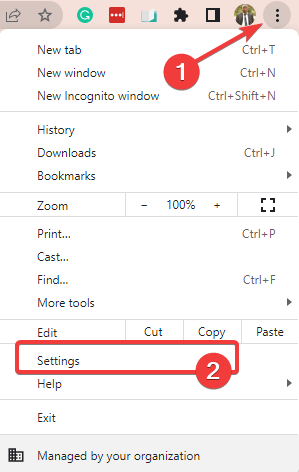
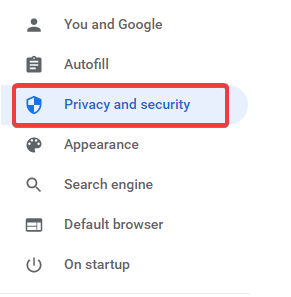
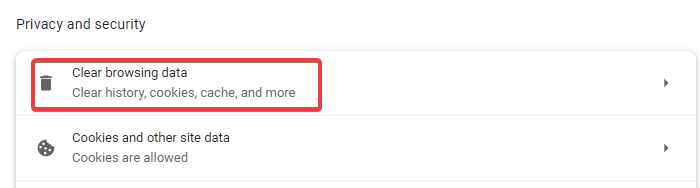
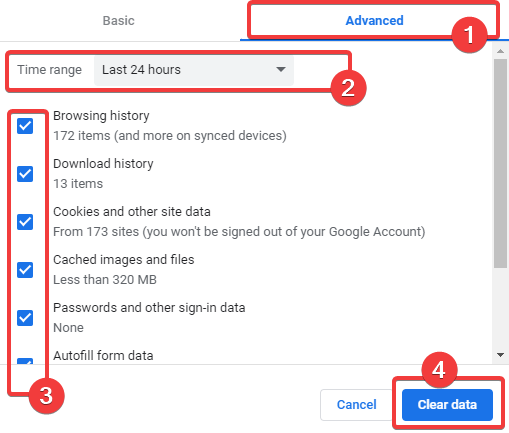
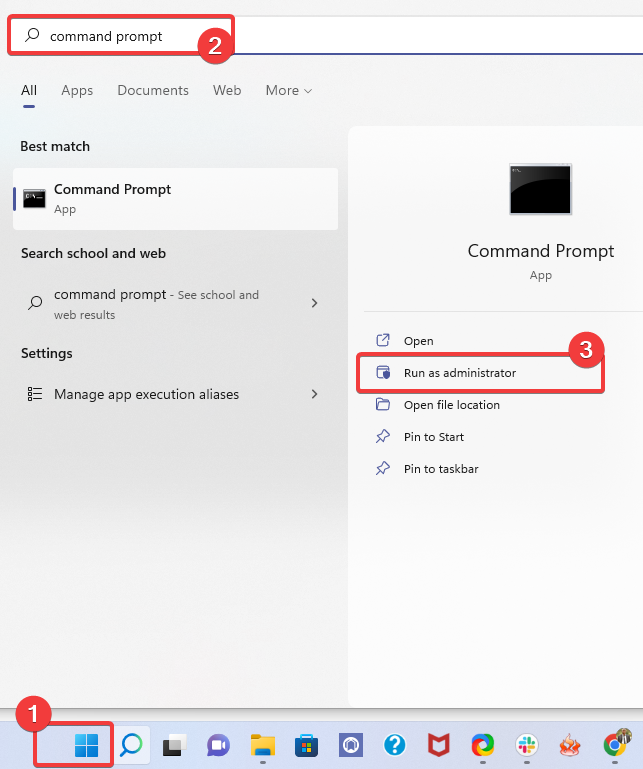
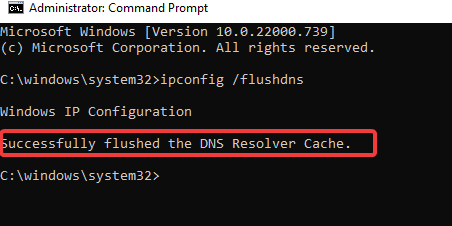
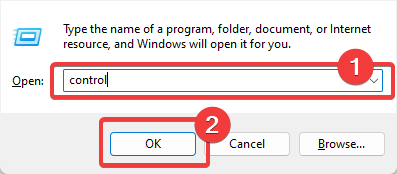
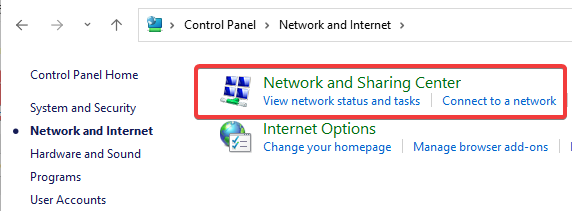
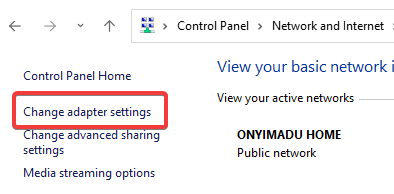
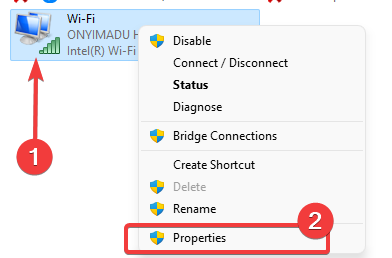
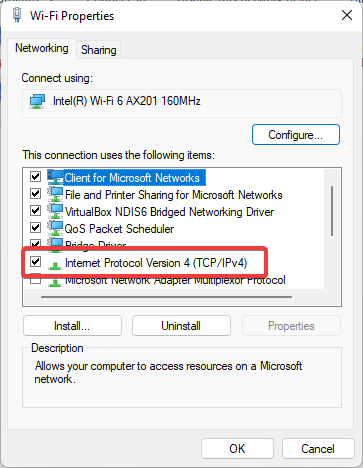
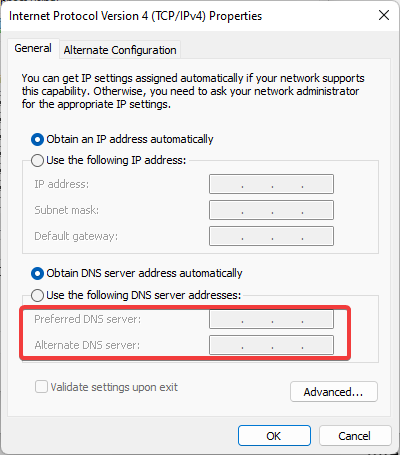
![Fix Keyboard Not Working in Chrome [2026 Step-by-Step Guide]](https://windowsreport.com/wp-content/uploads/2018/08/Google-Chrome-3.jpg)


![4 Best Blue Light Filter for 23-24 inch Monitors [UV Light]](https://windowsreport.com/wp-content/uploads/2022/07/blue-light-filter-screens-for-monitor.jpg)


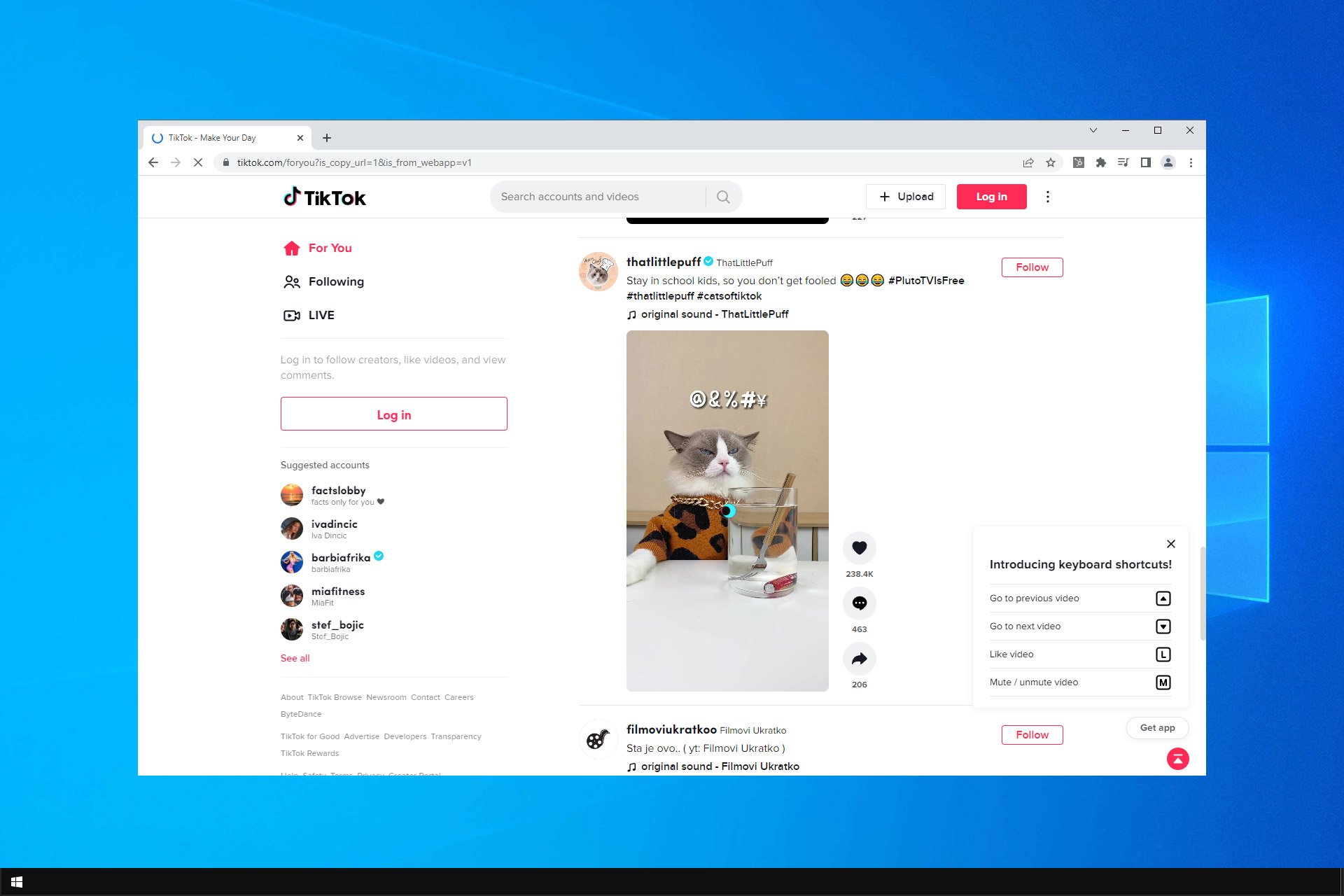


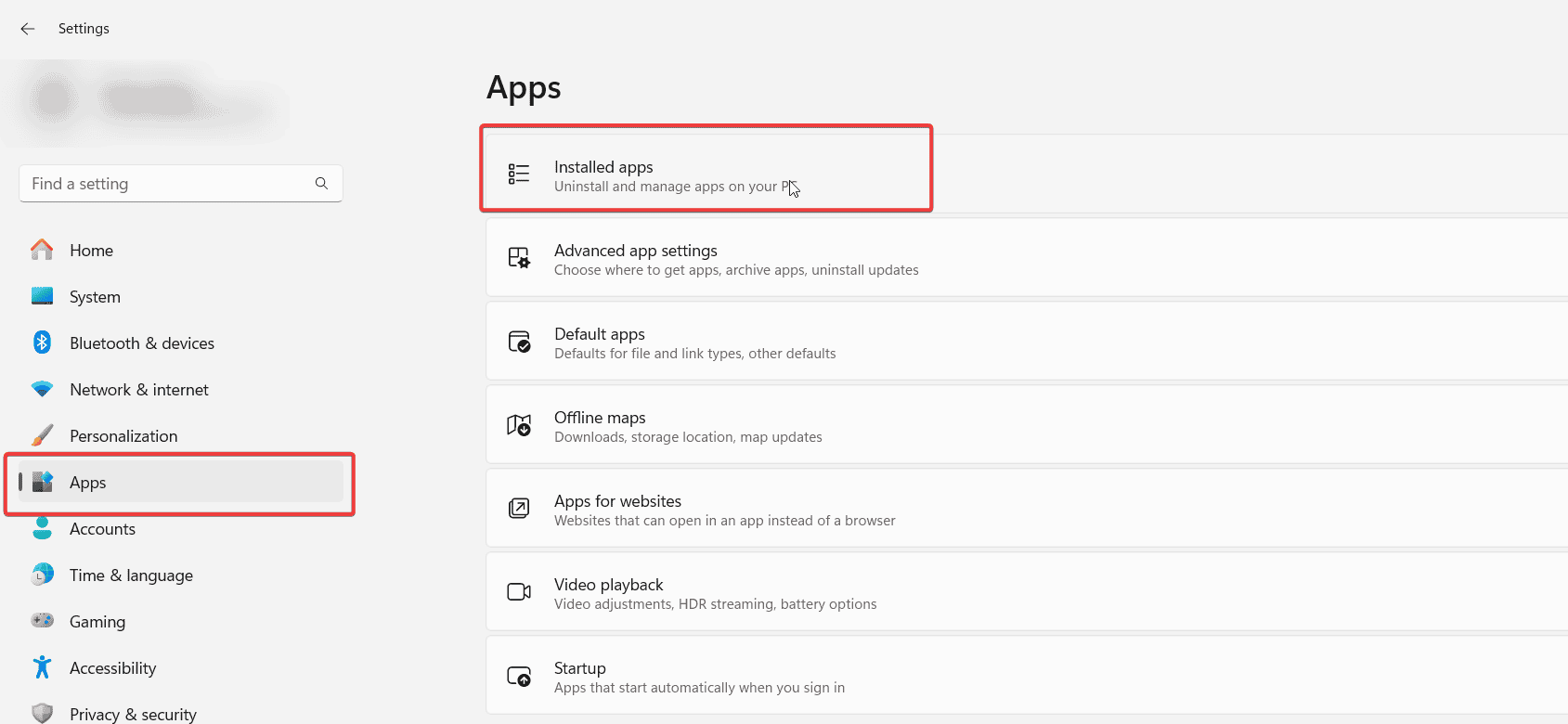

![How to Stop Avast From Blocking Downloads [5 Ways]](https://windowsreport.com/wp-content/uploads/2022/07/best-browser-for-google-workspace-30.jpg)

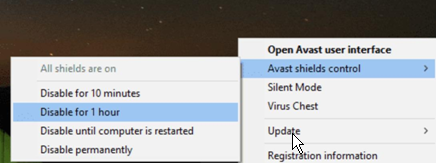
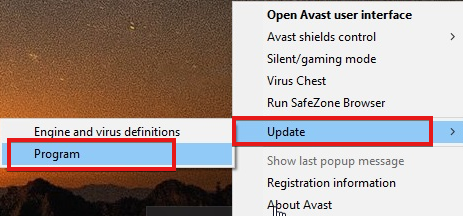
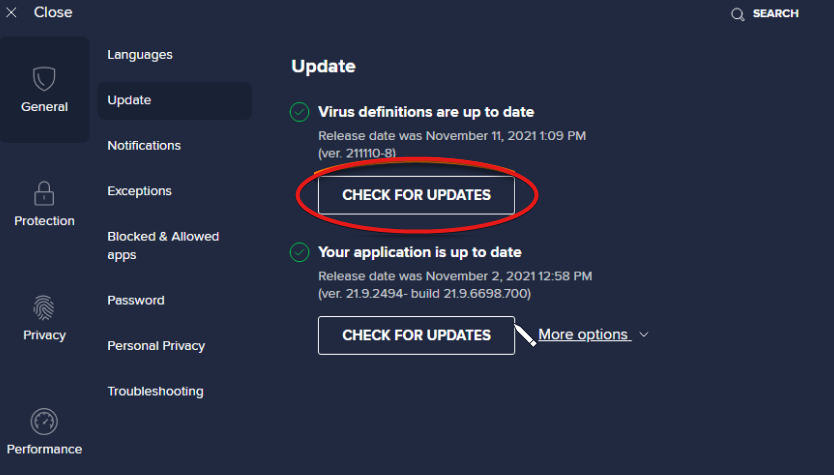
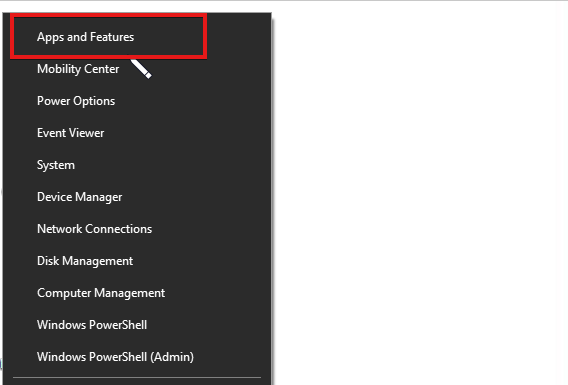
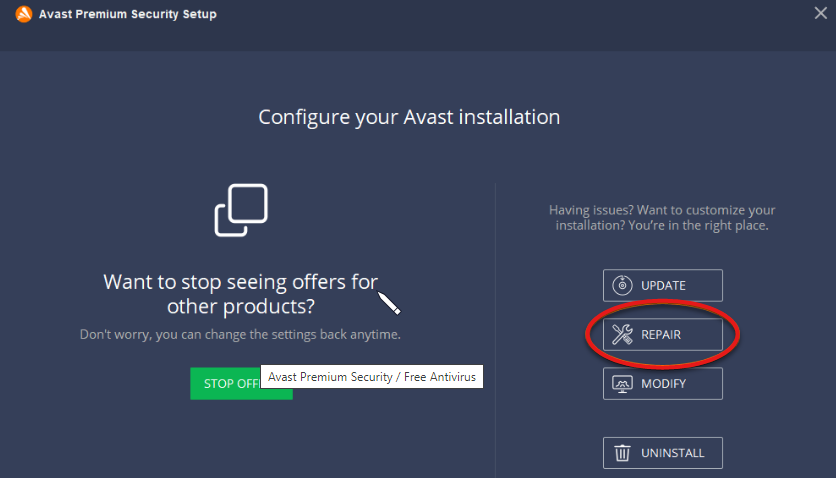
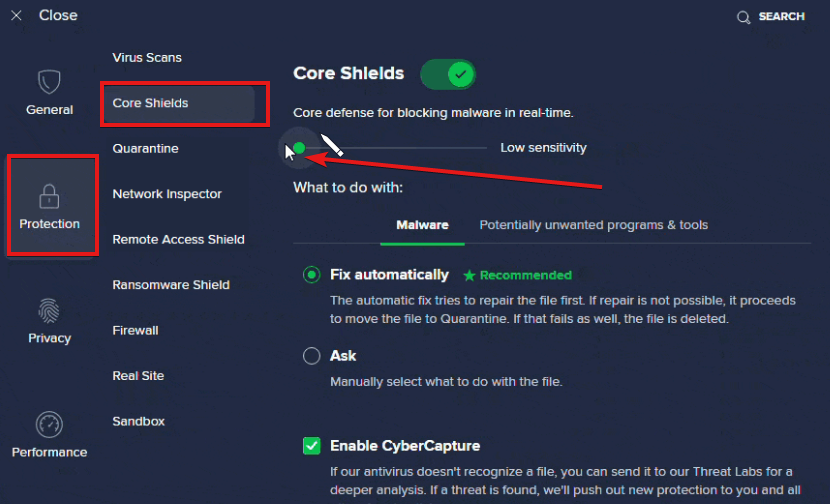
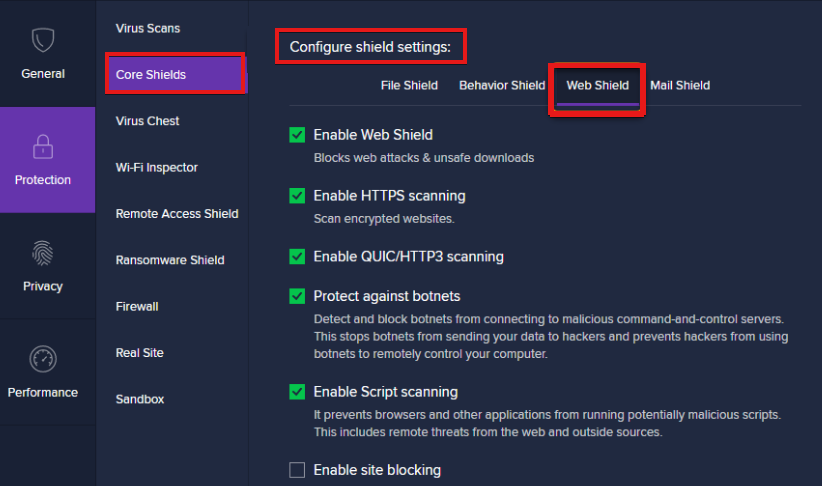
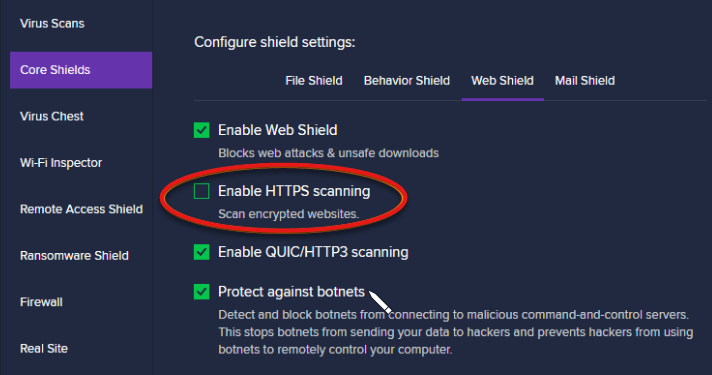
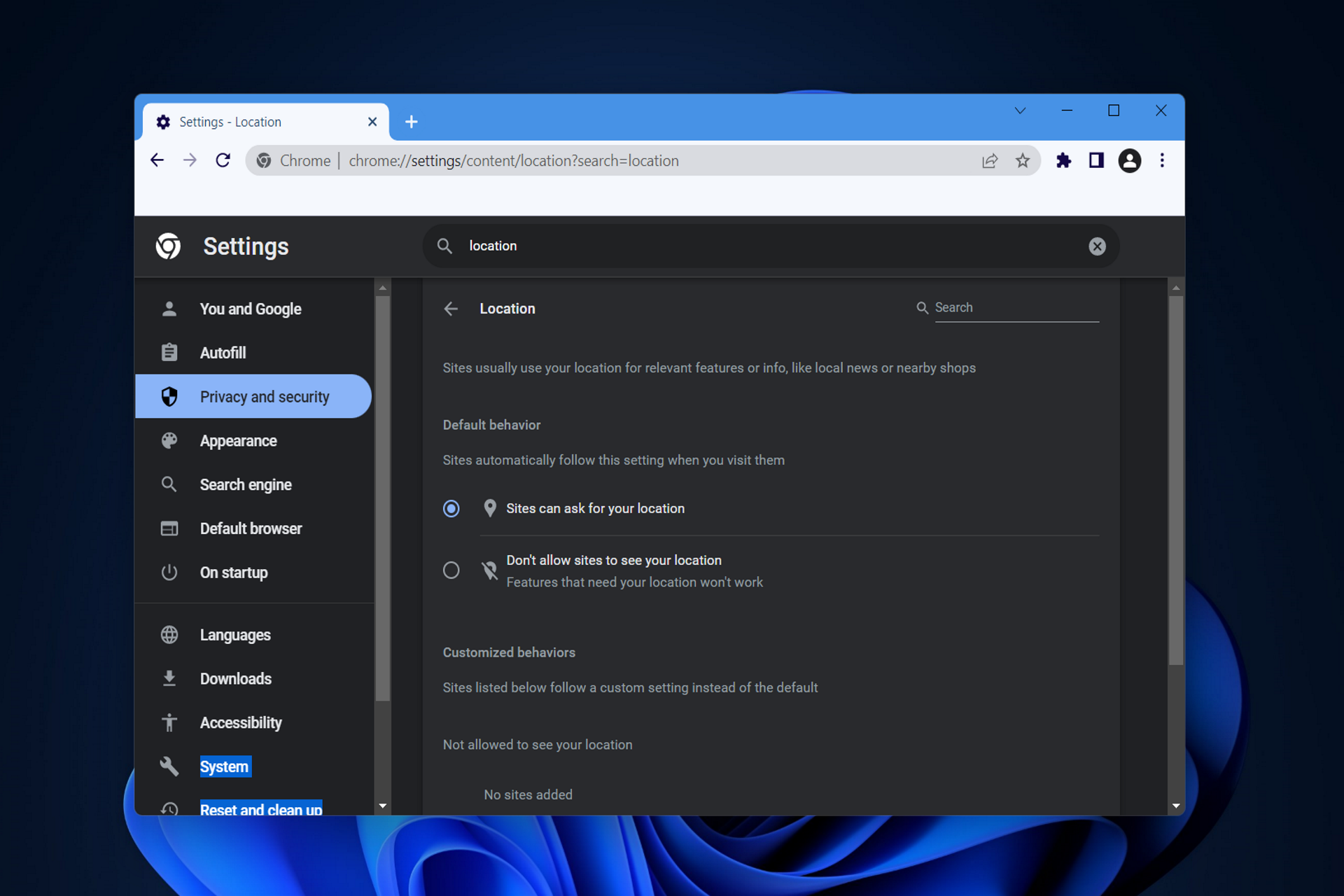


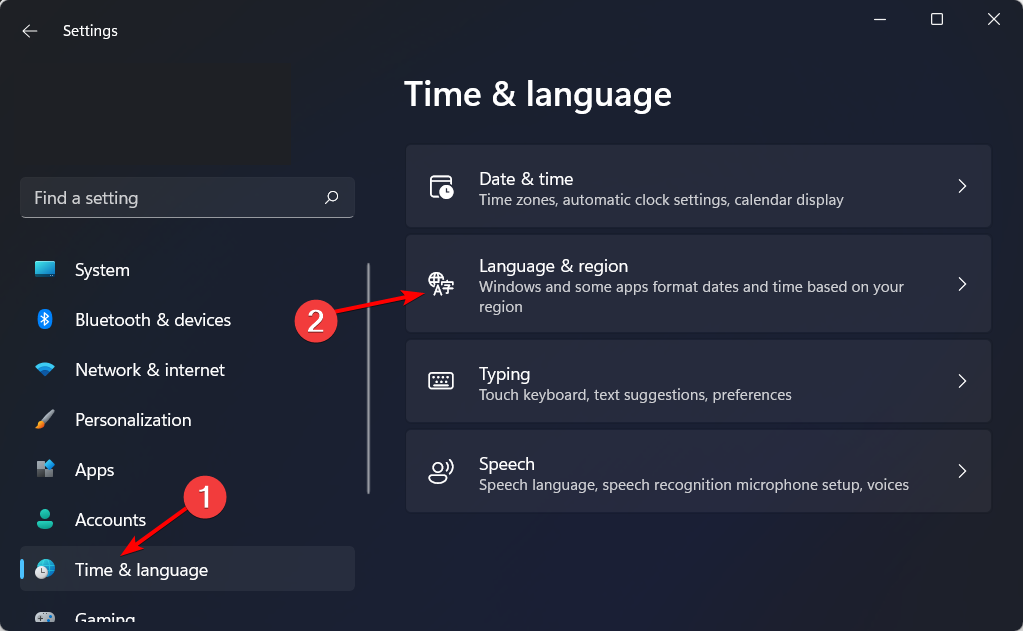
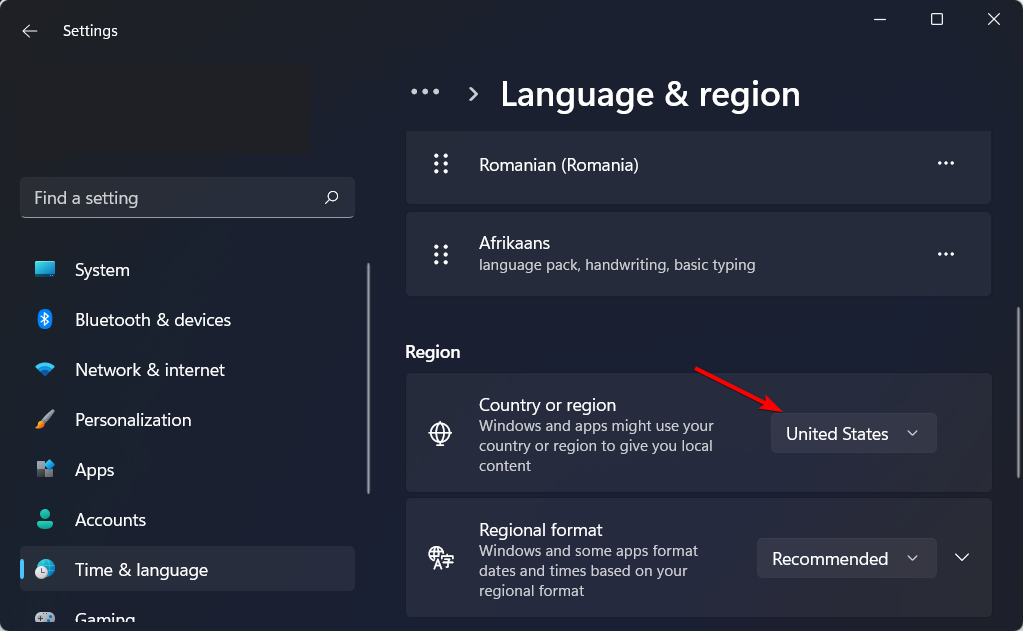
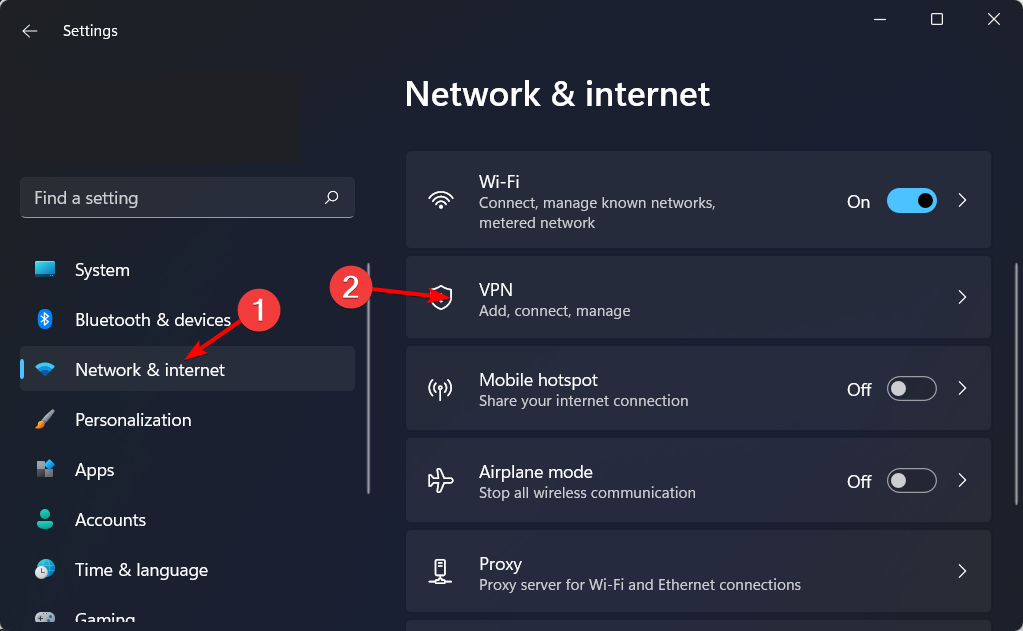
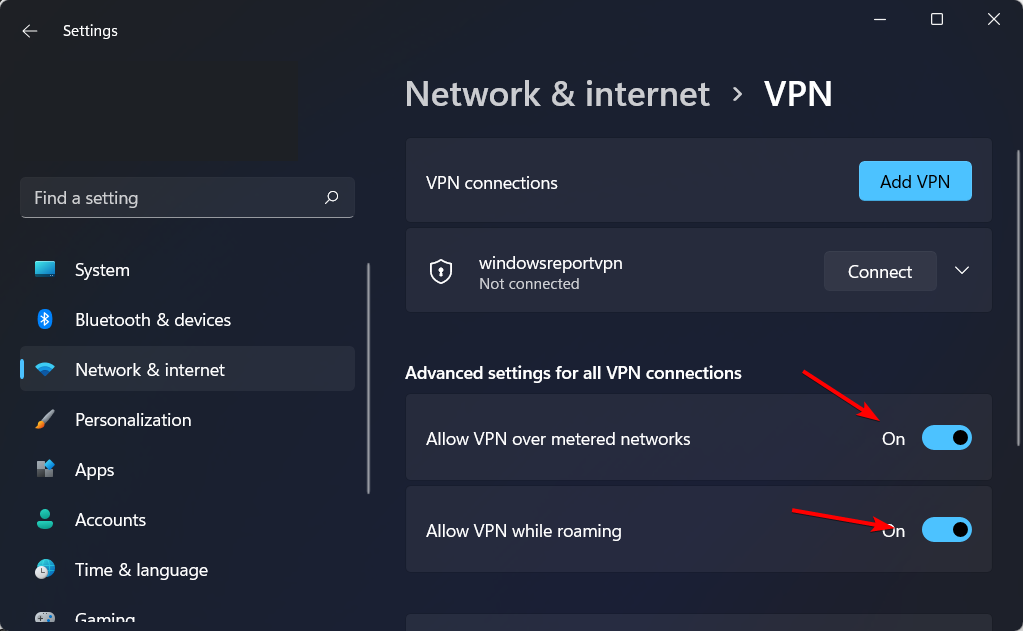
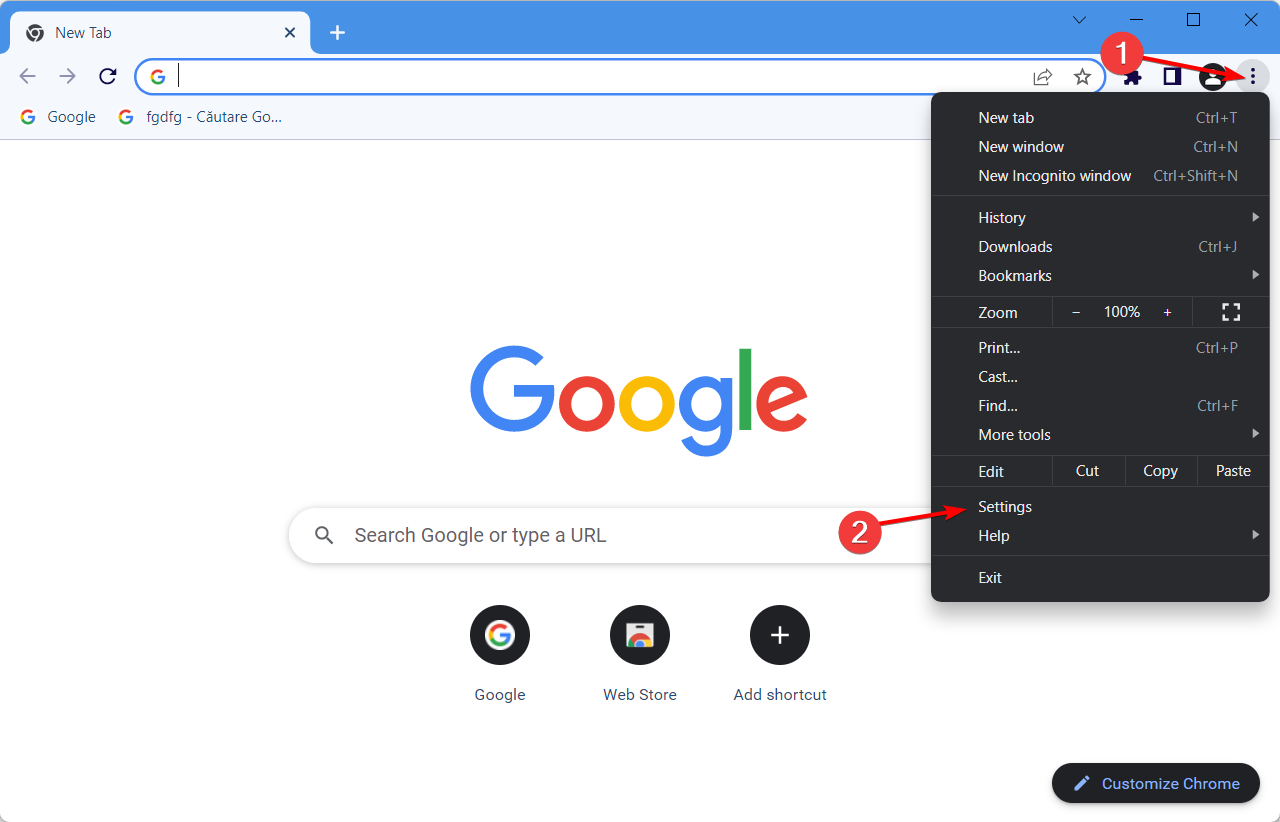
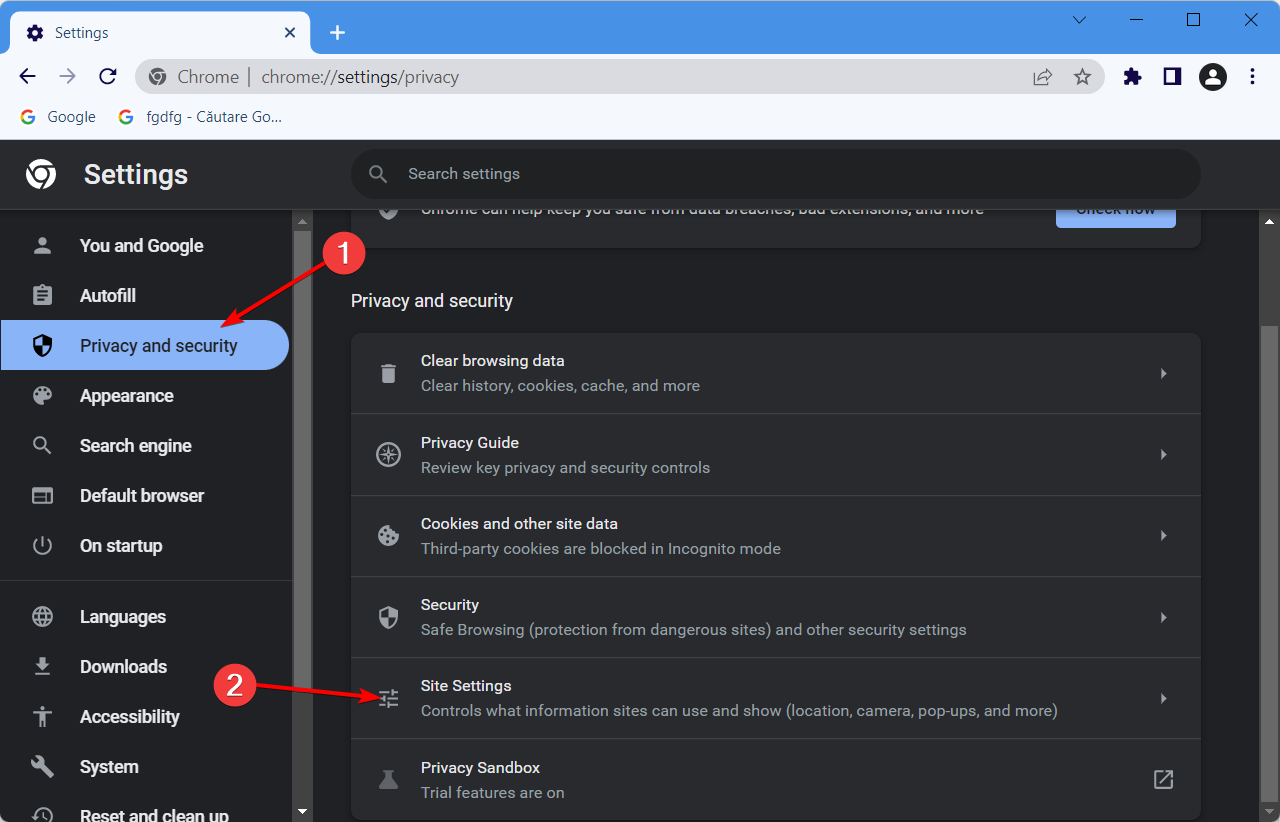
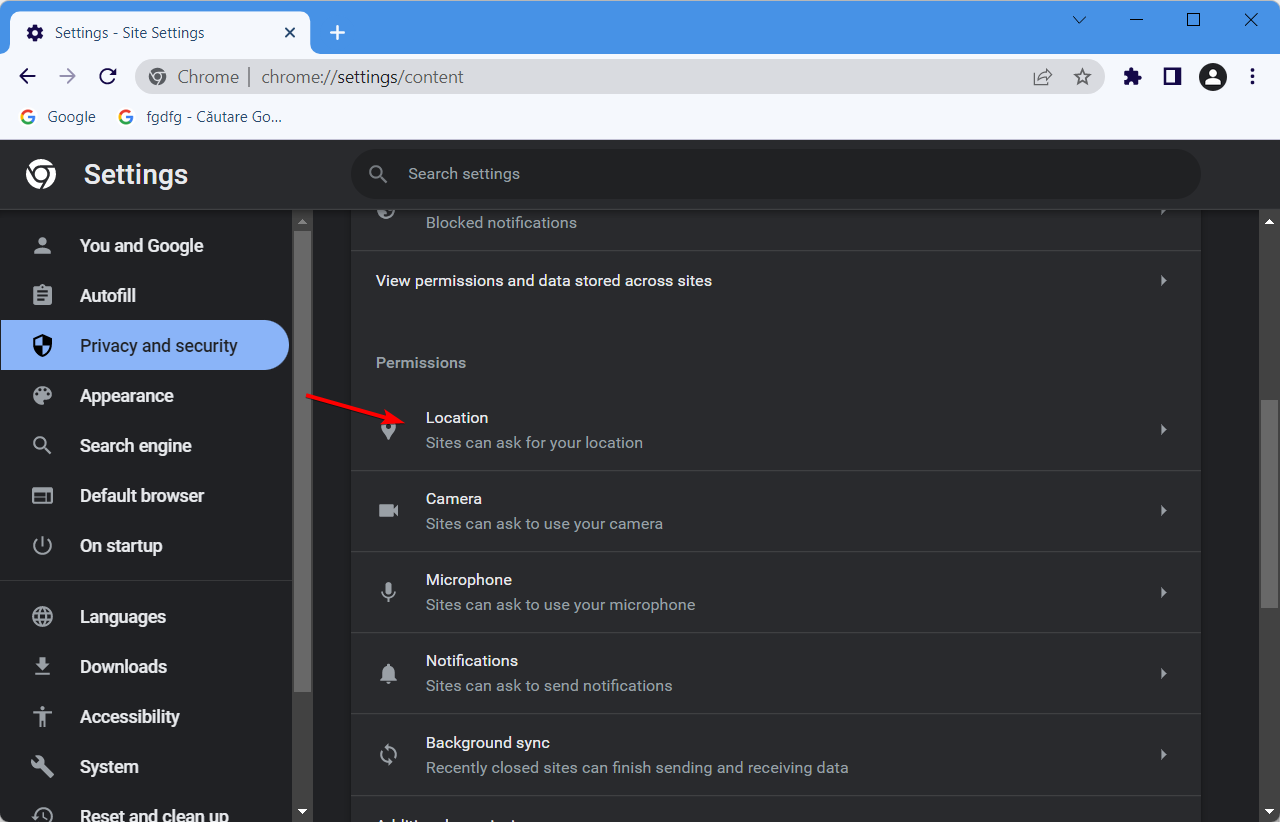
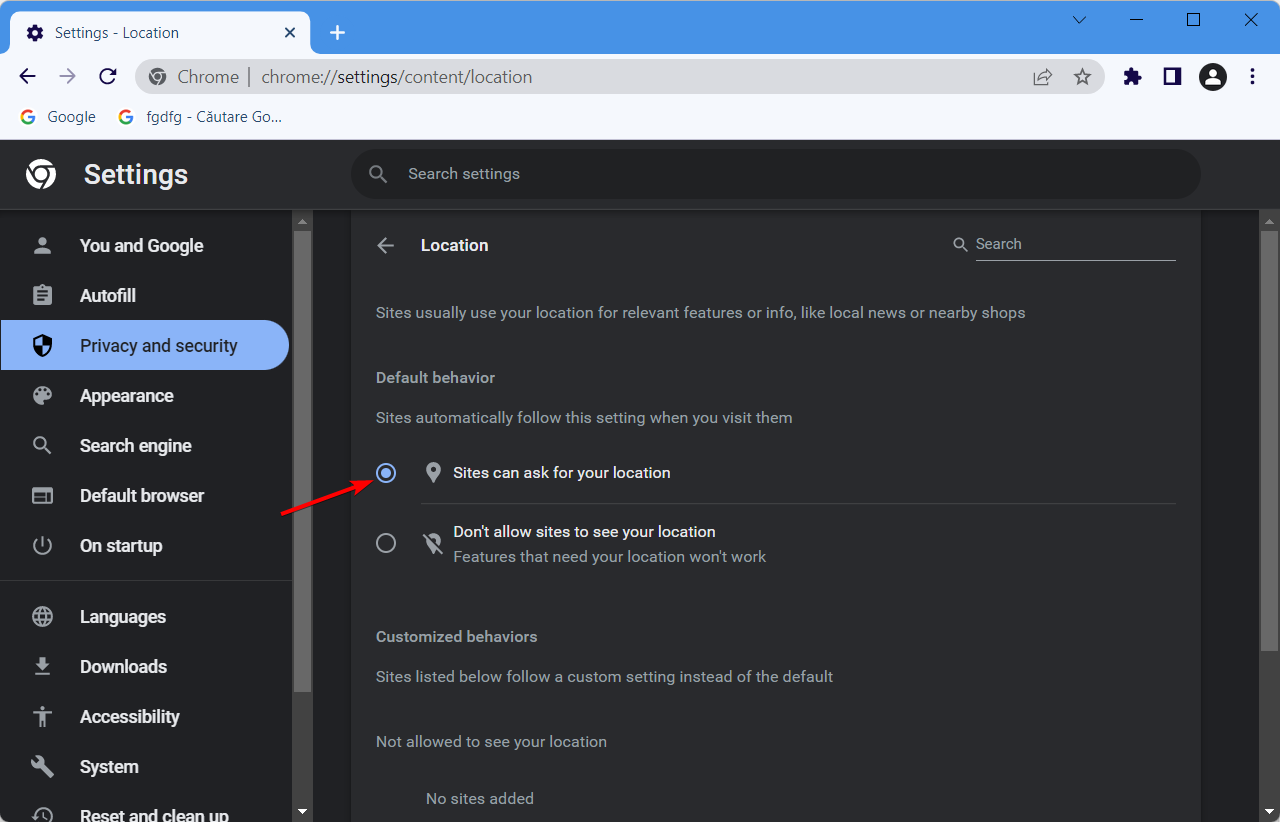
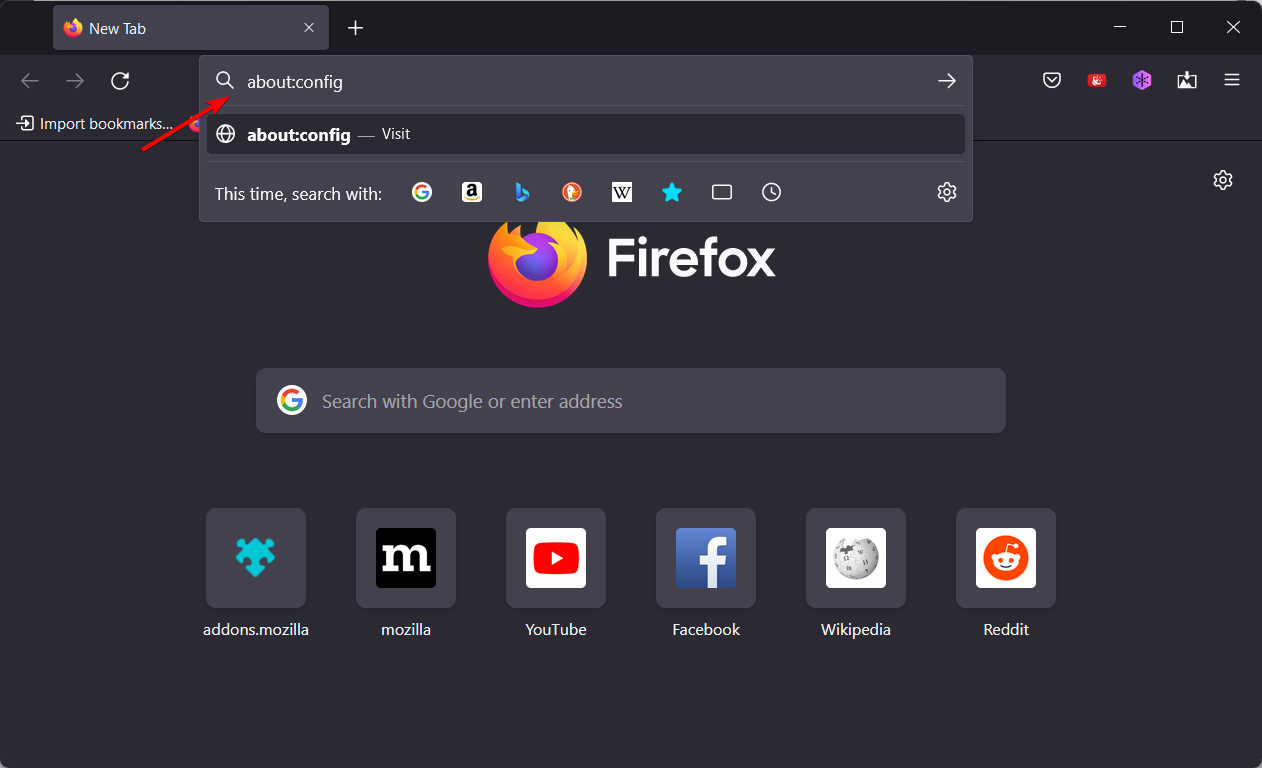
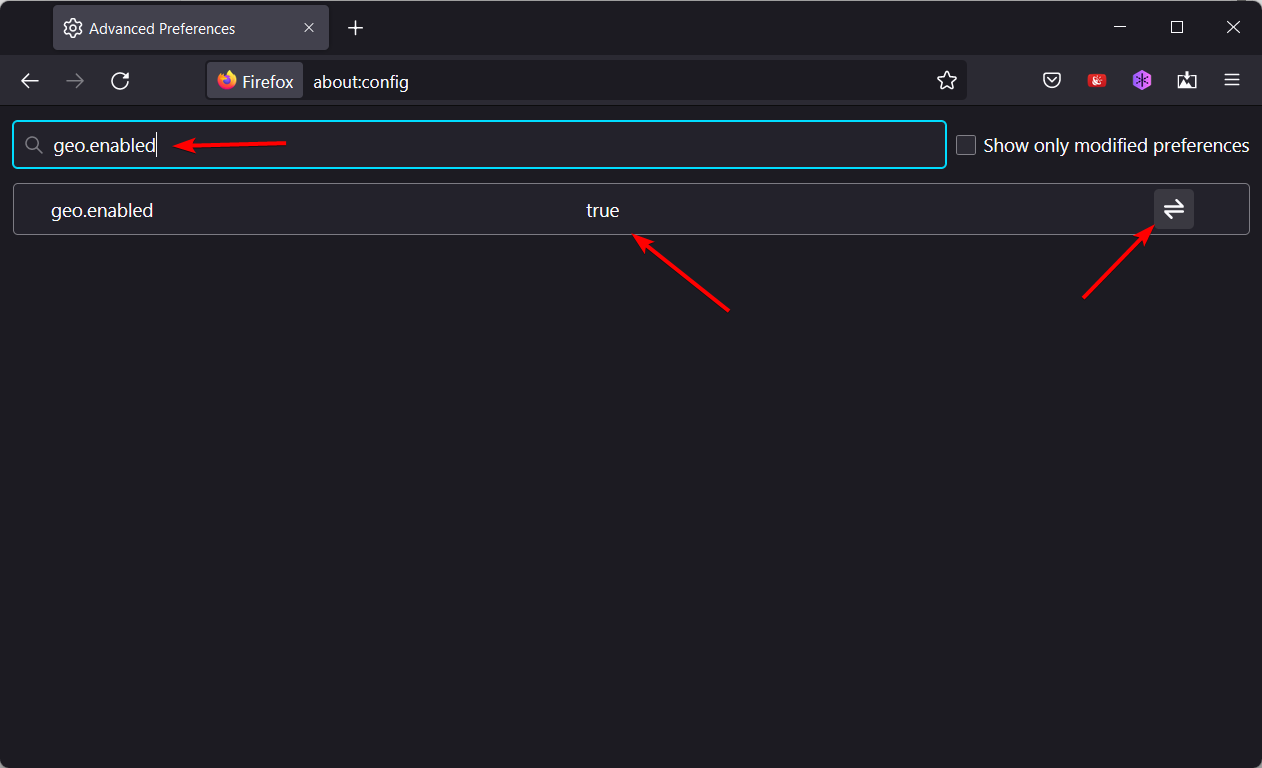
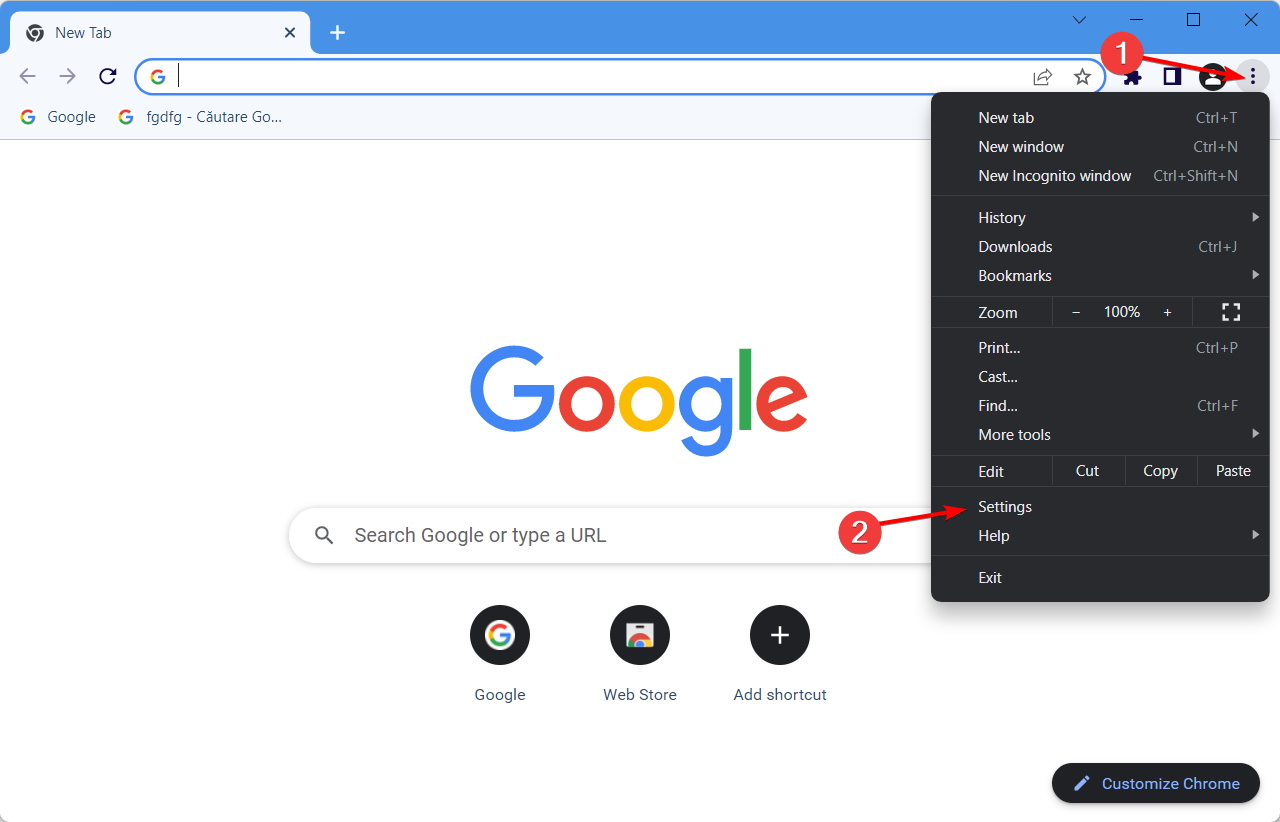





![How to Play MKV Files on Windows 10/11 [Best Codecs & Players]](https://windowsreport.com/wp-content/uploads/2019/09/music-player.jpg)
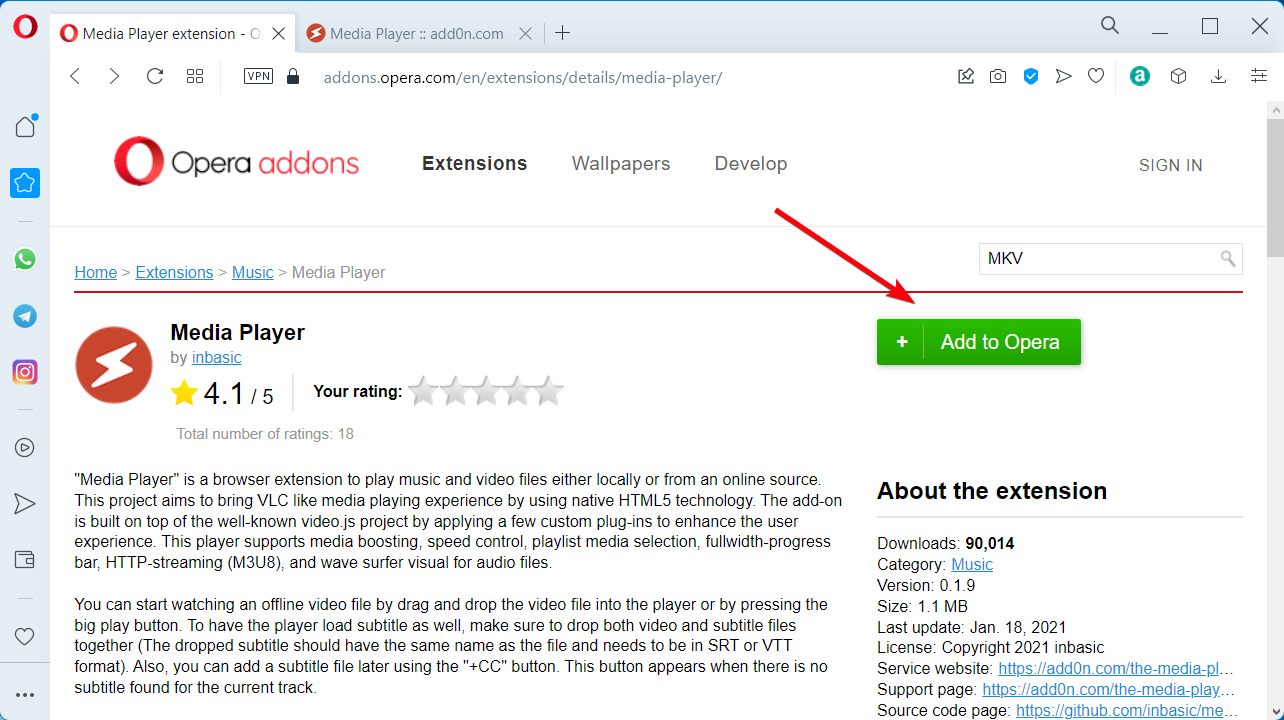
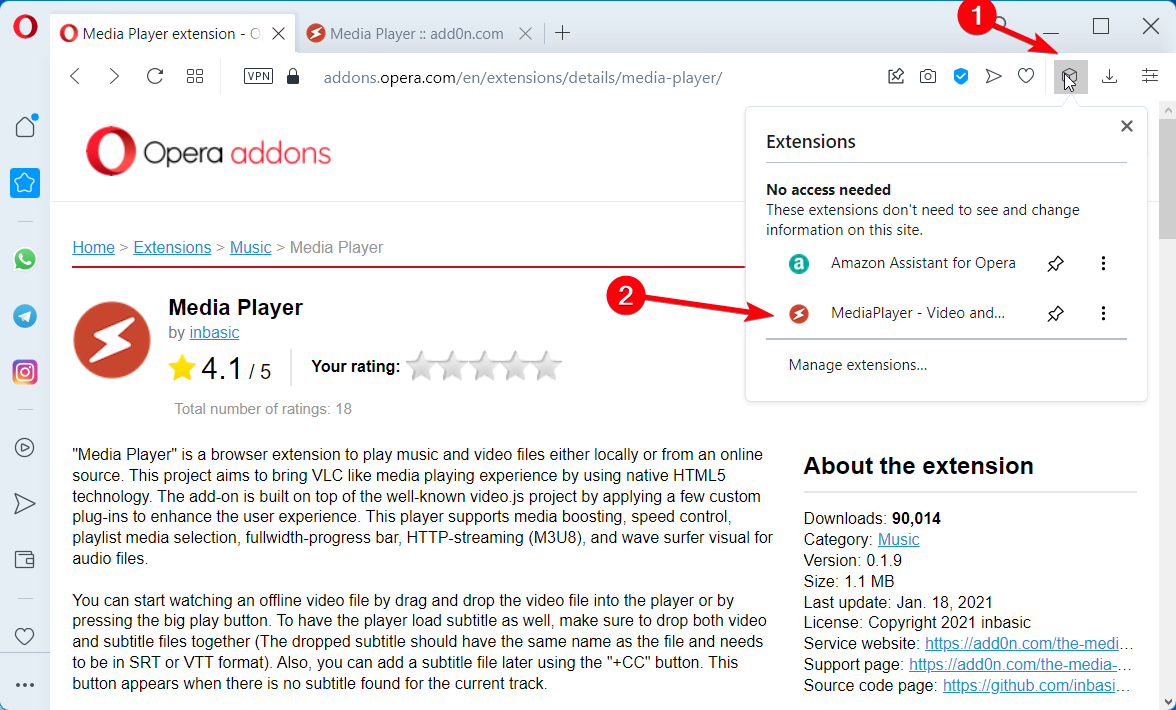
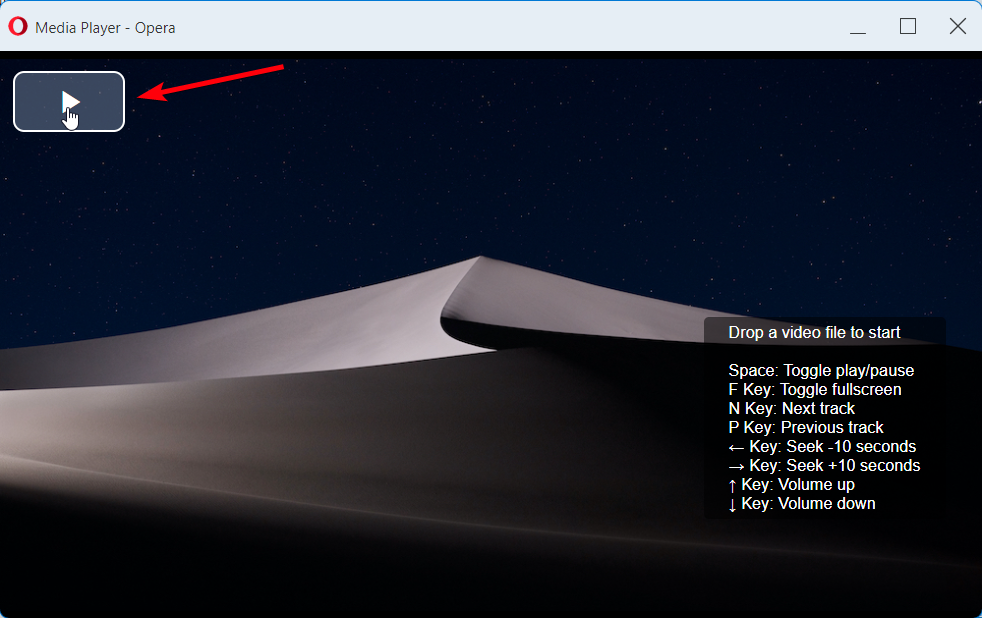


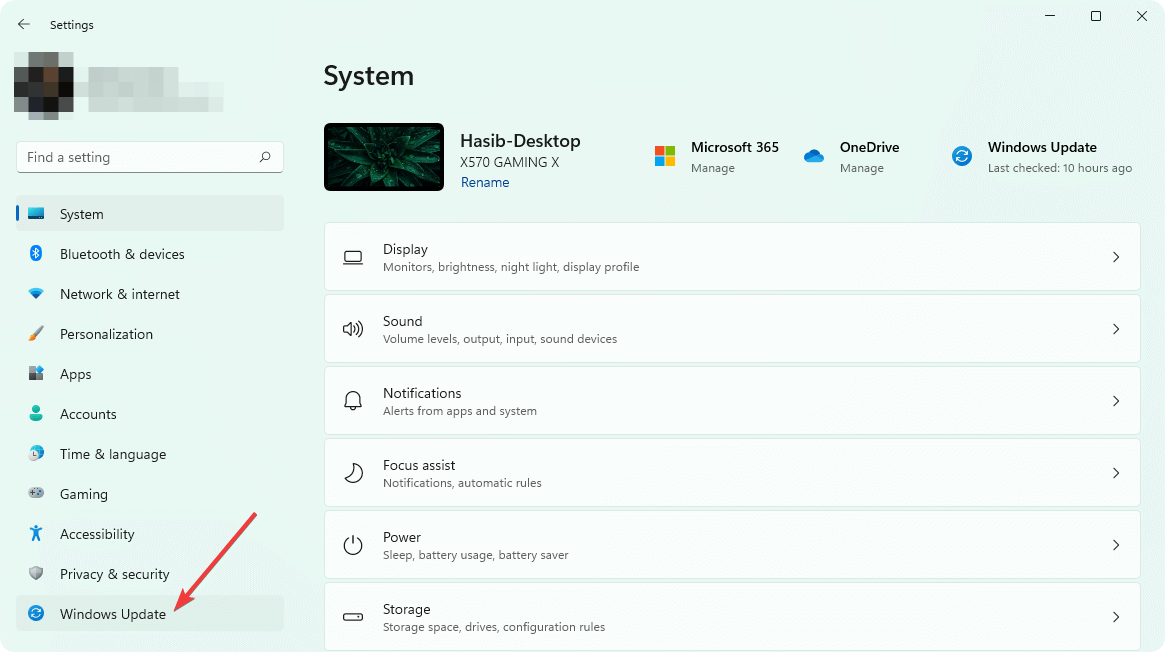
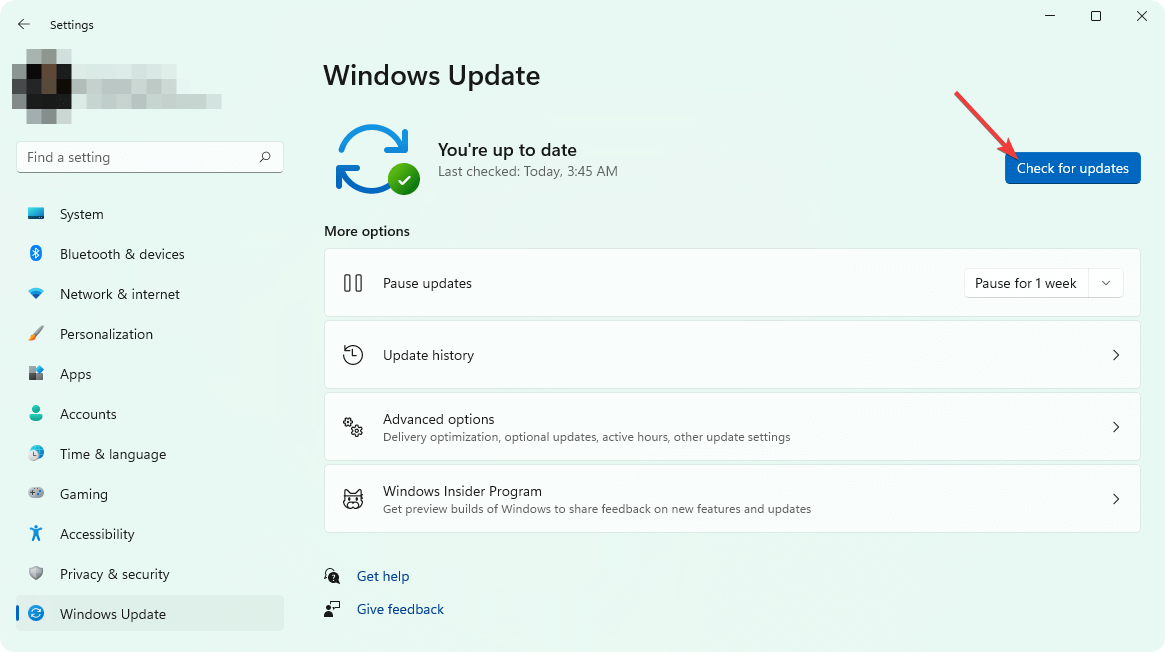


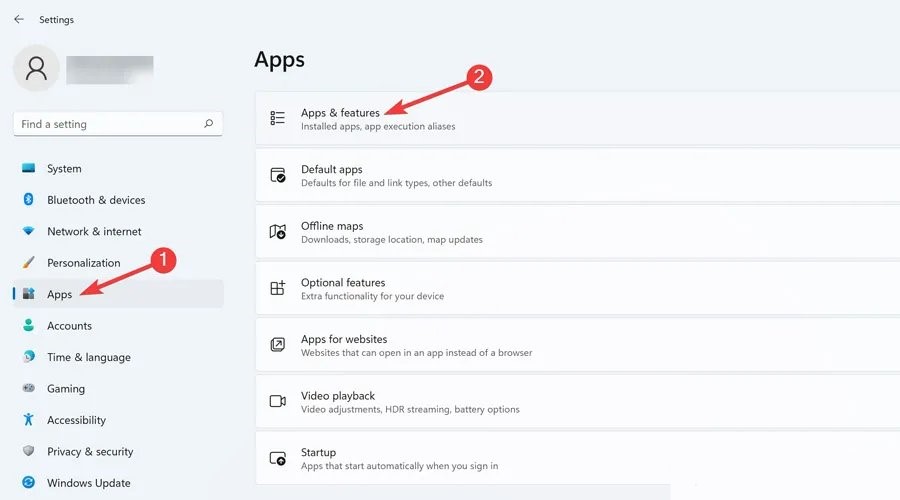

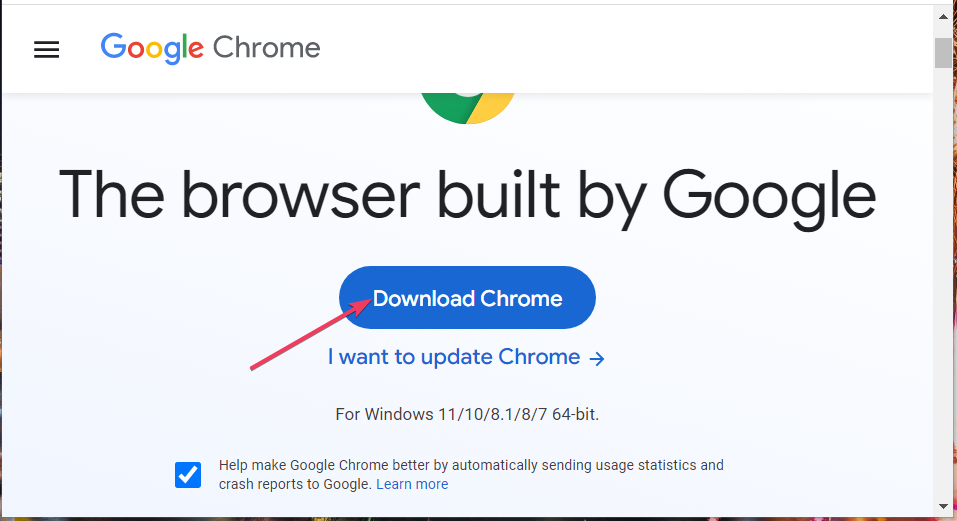


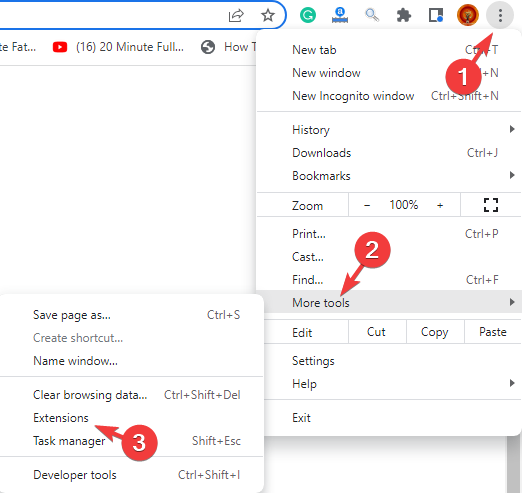
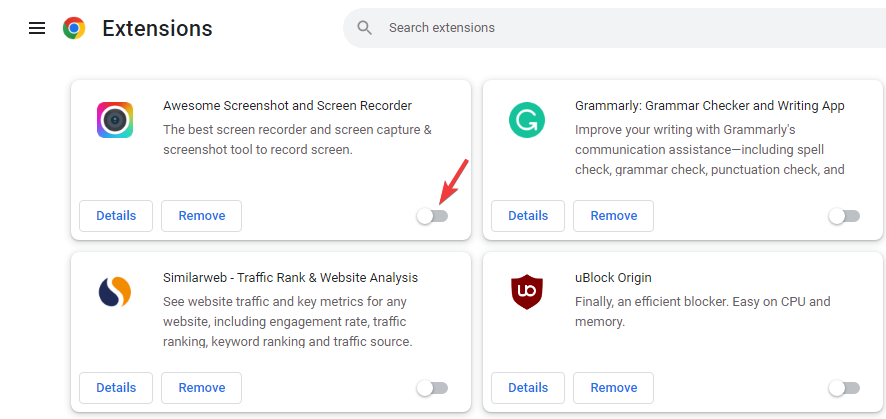
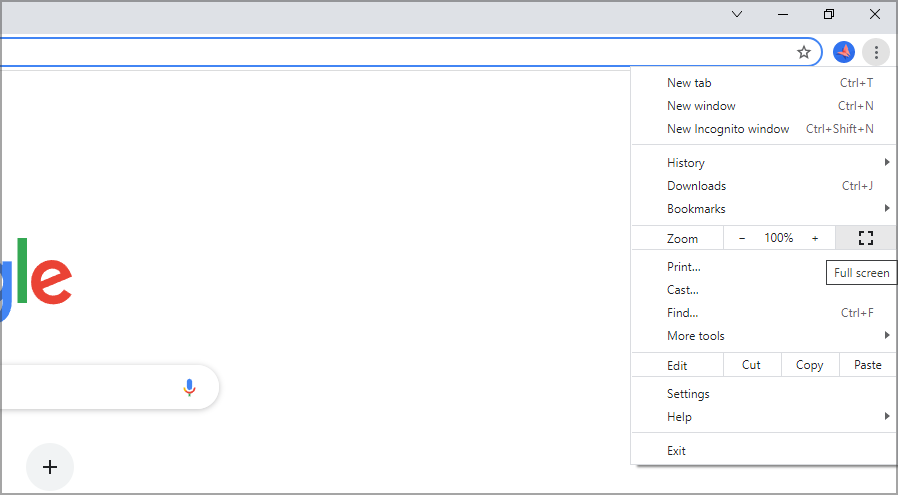














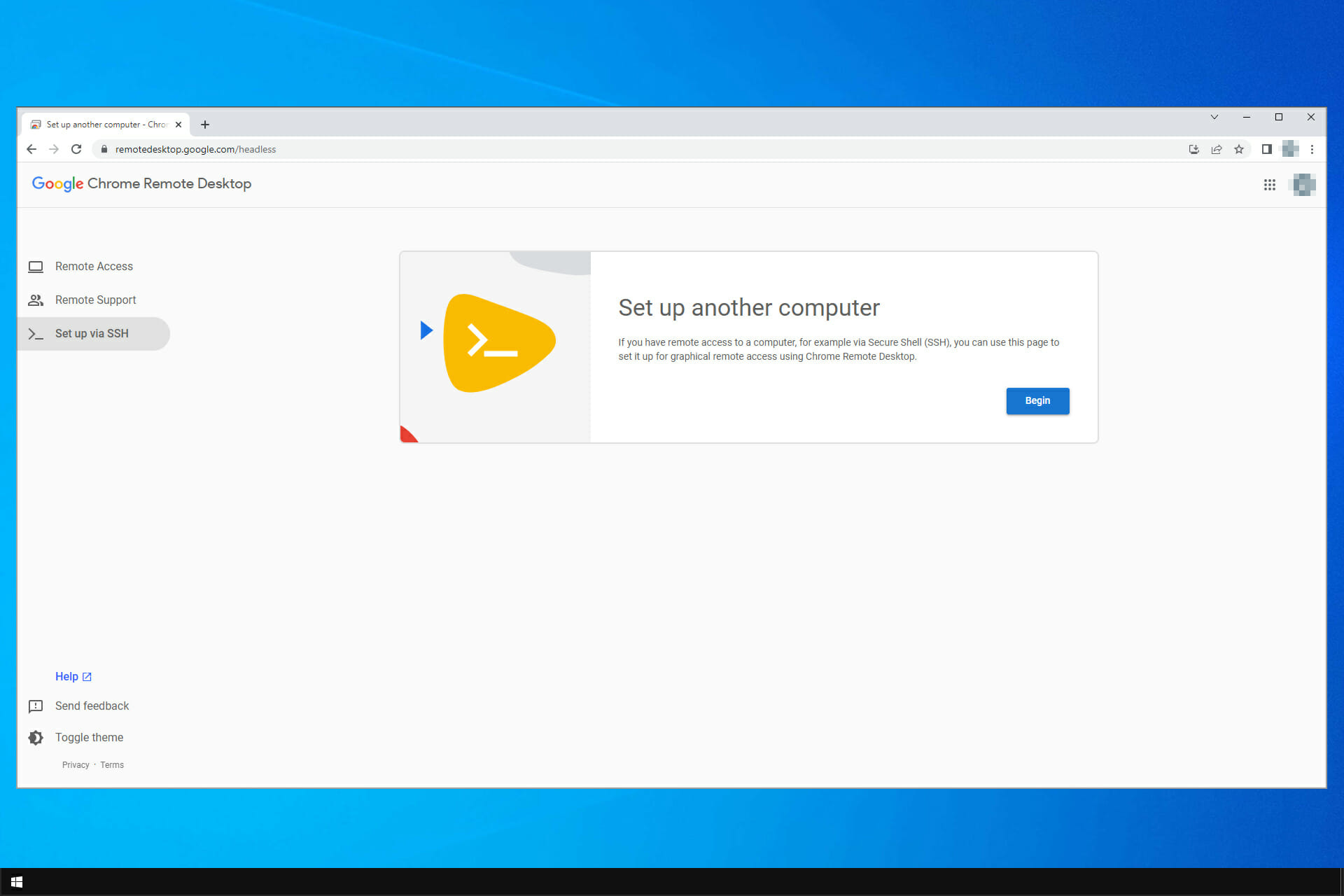
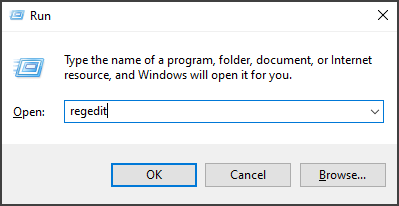


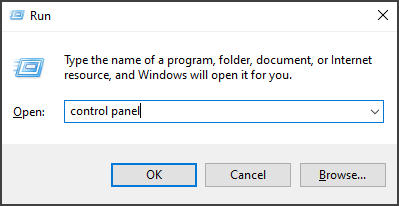


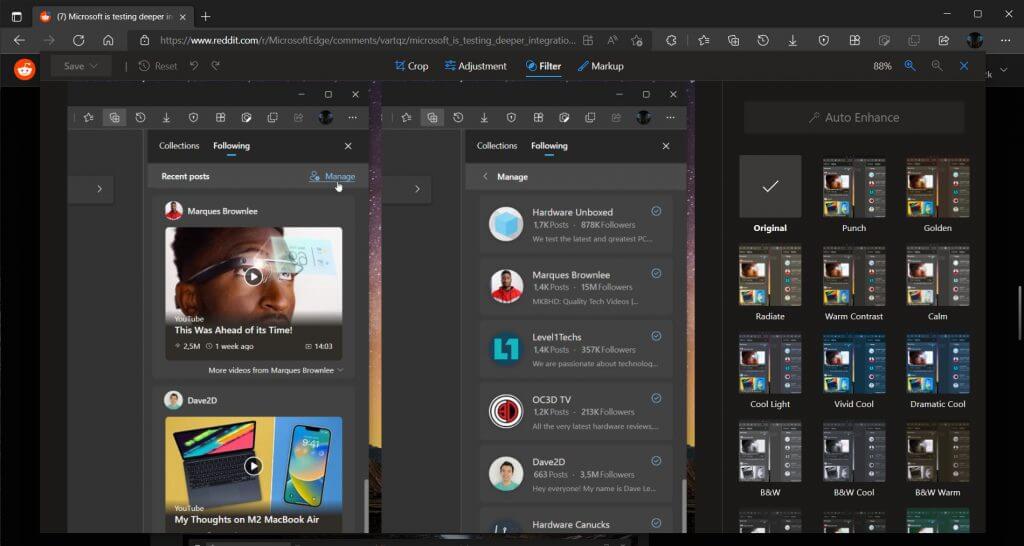

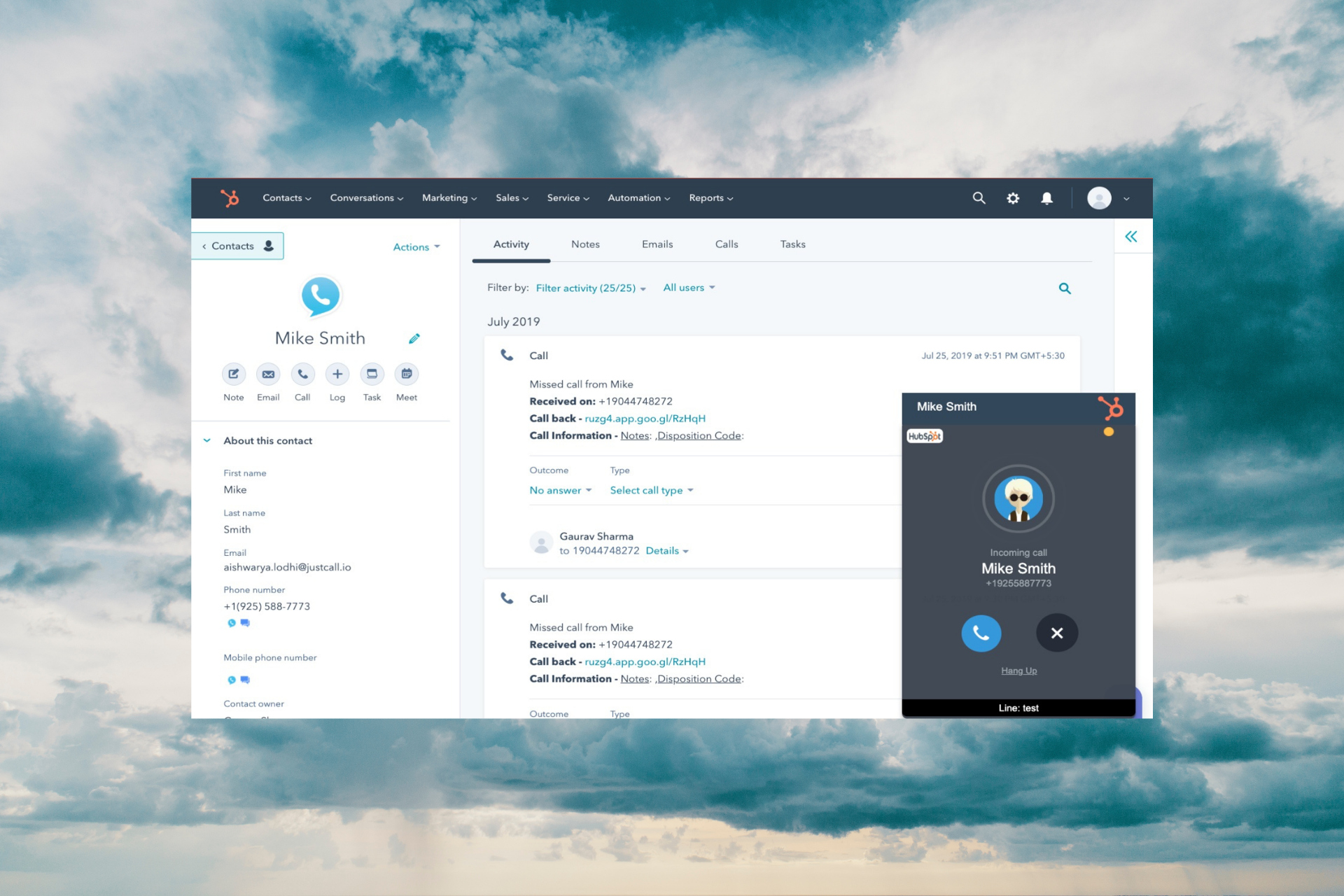





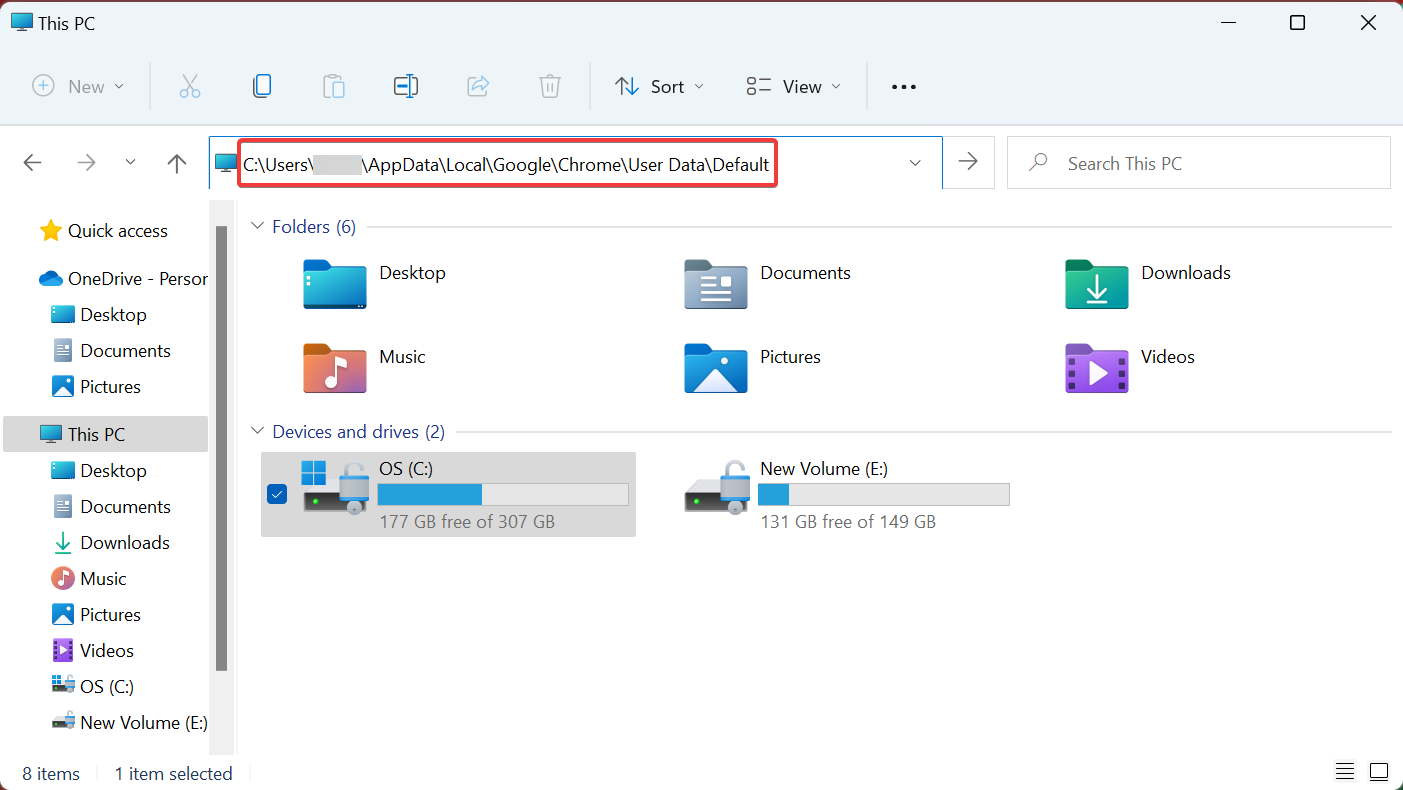
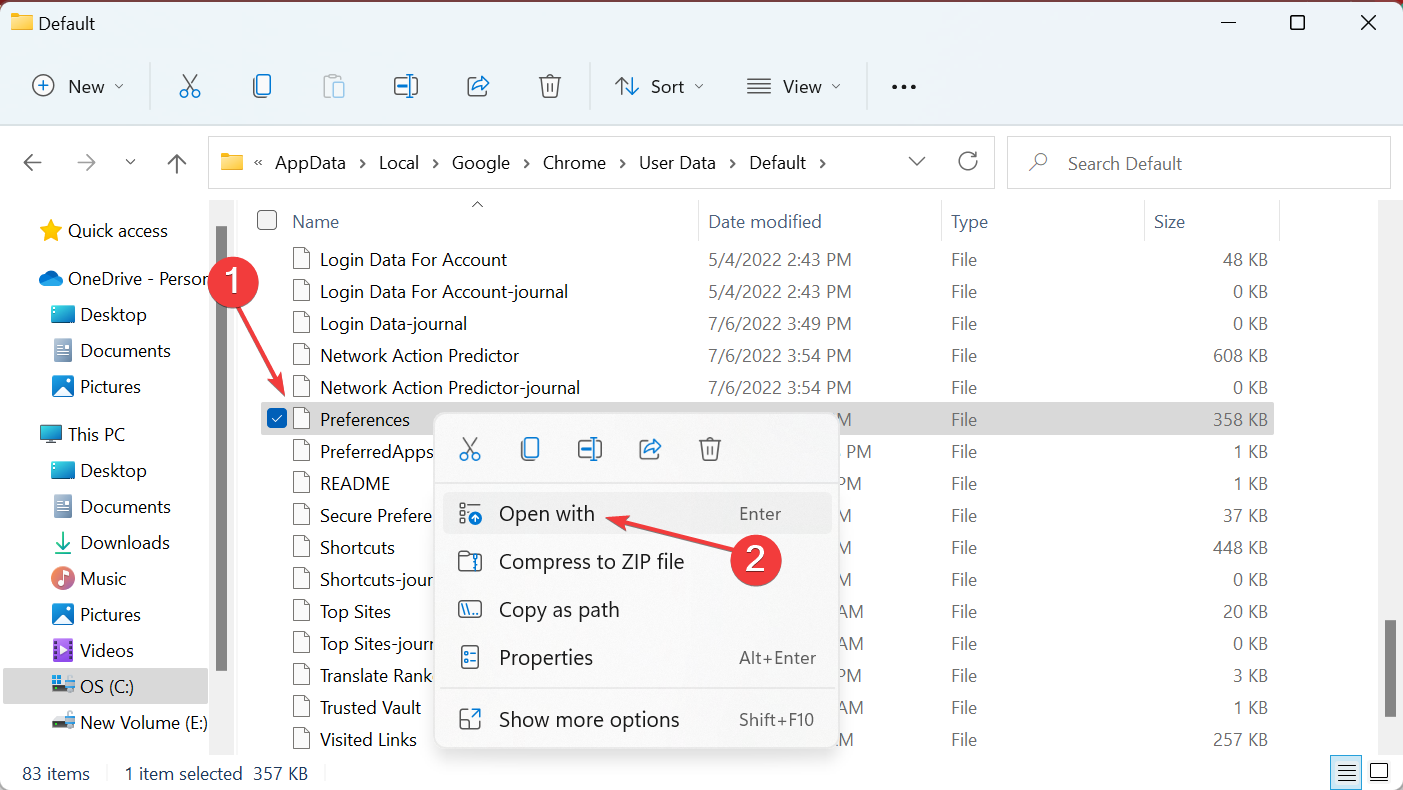
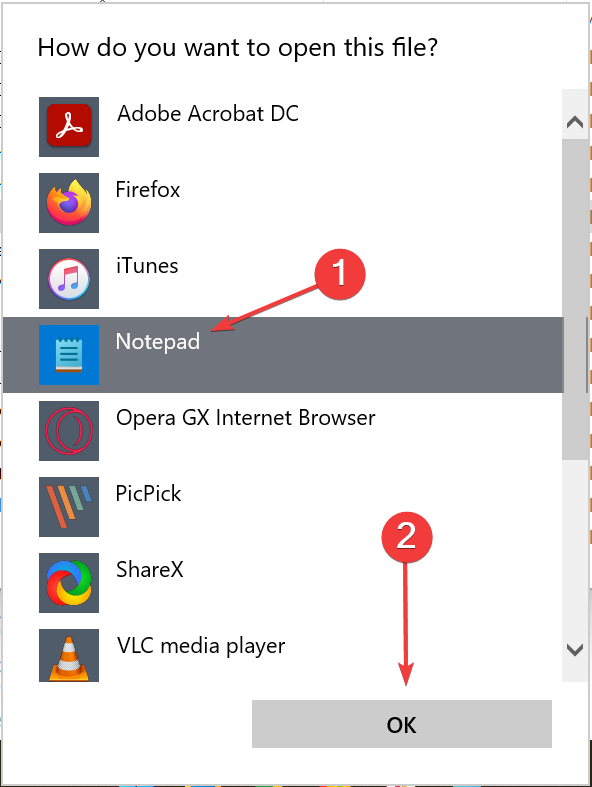
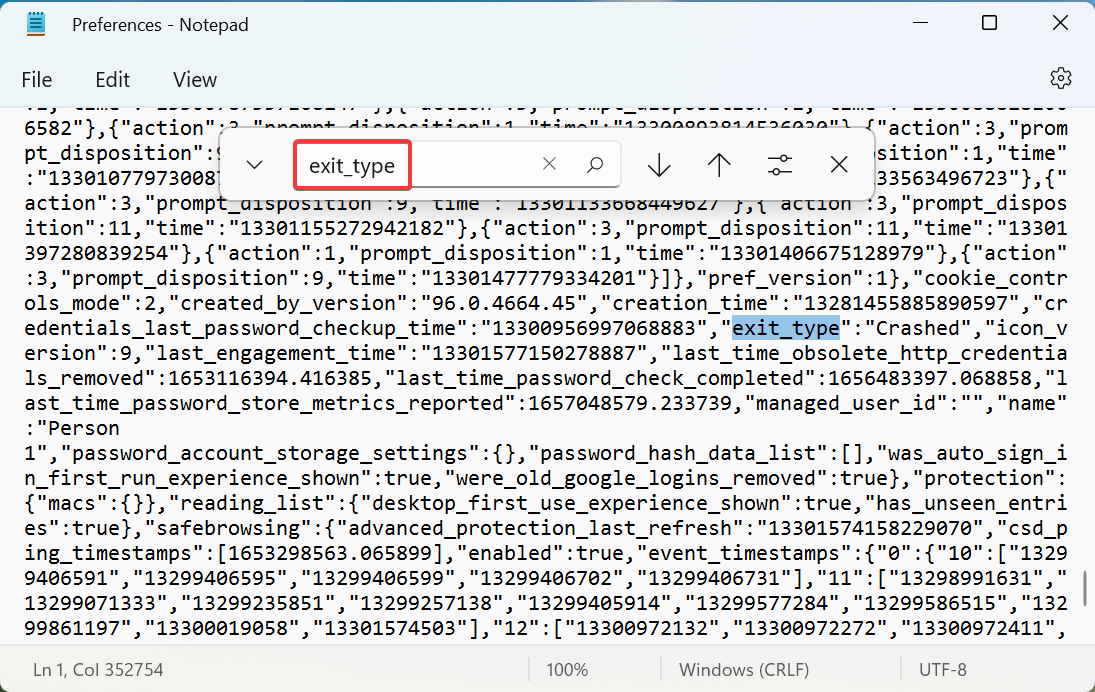
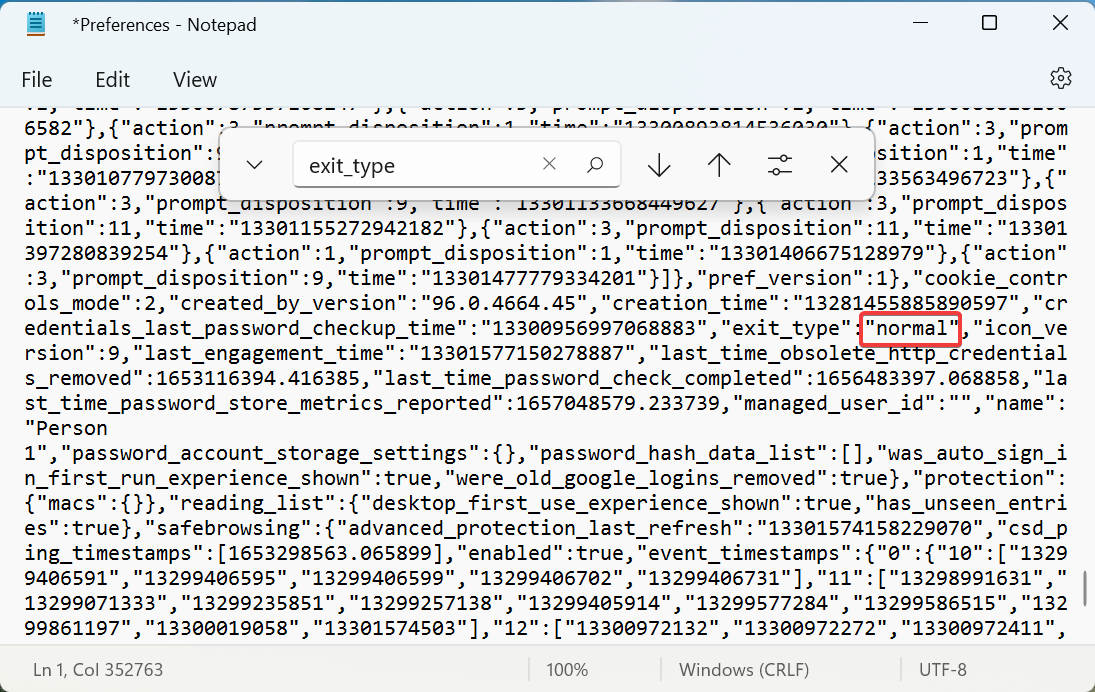
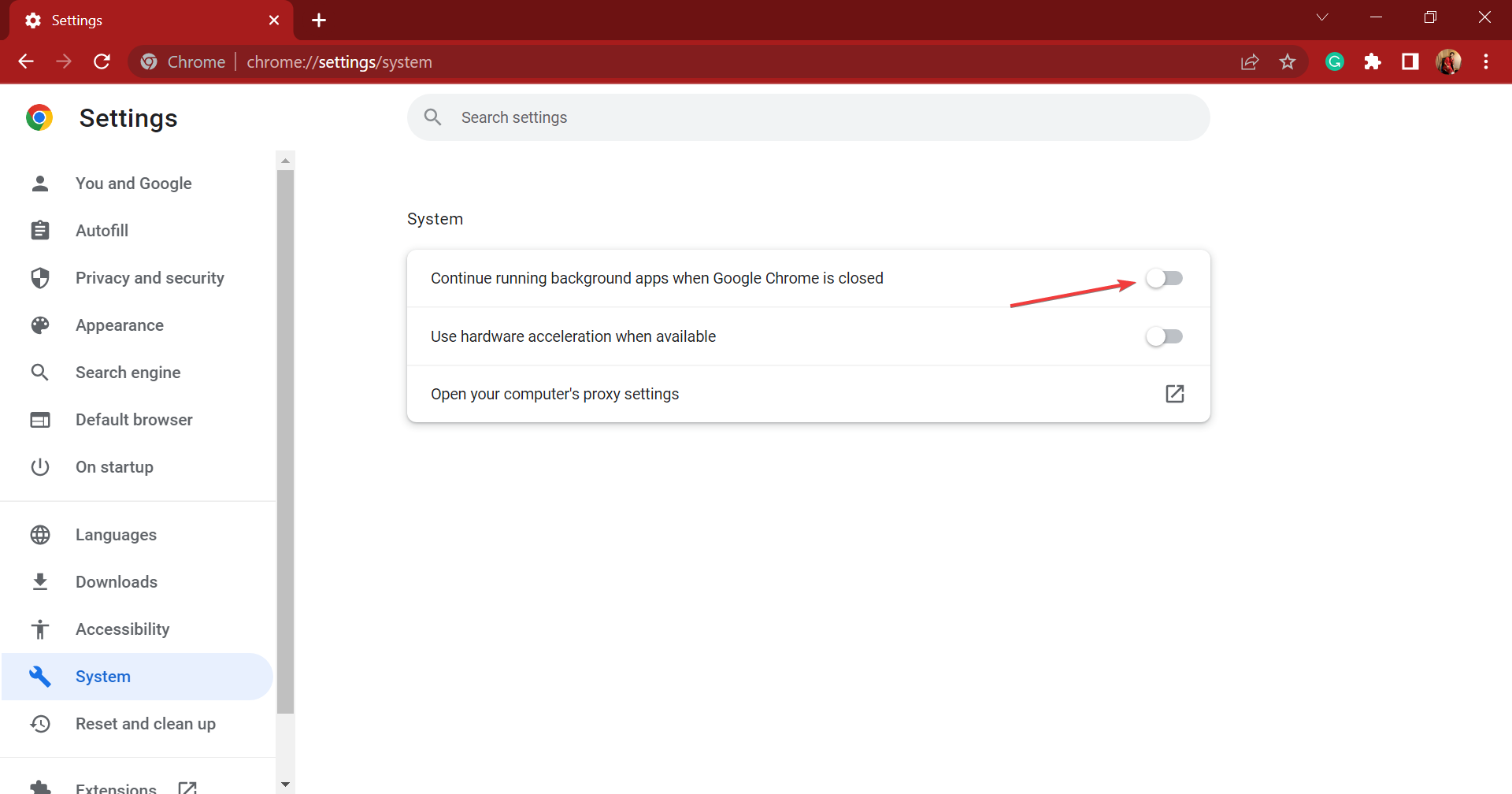
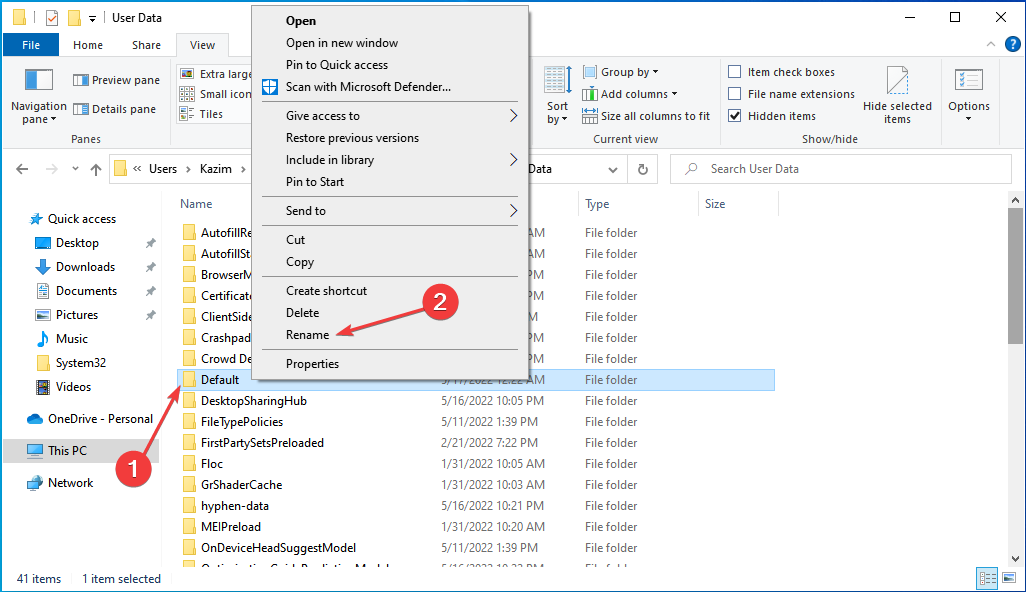
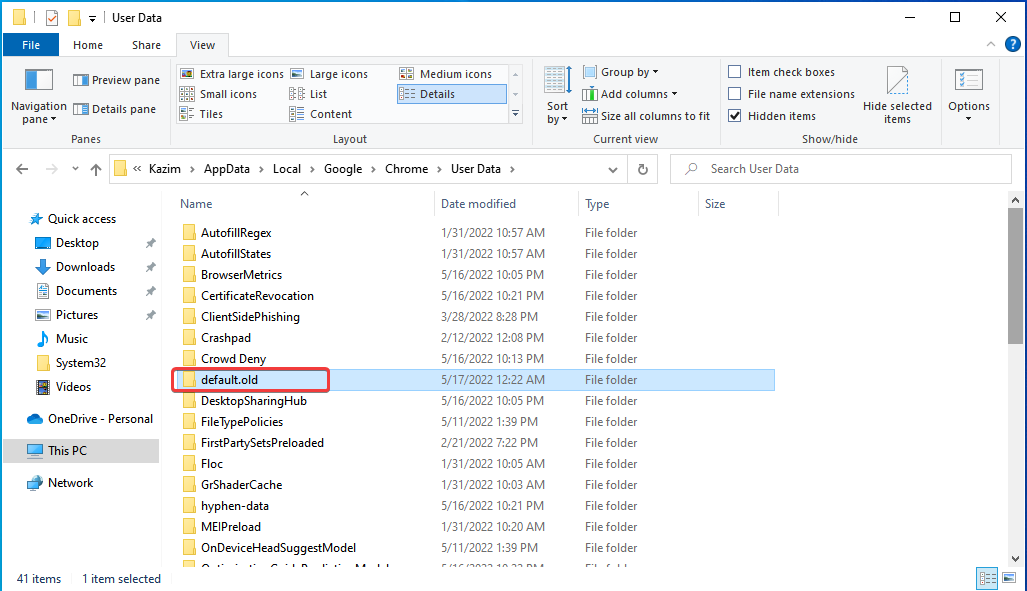
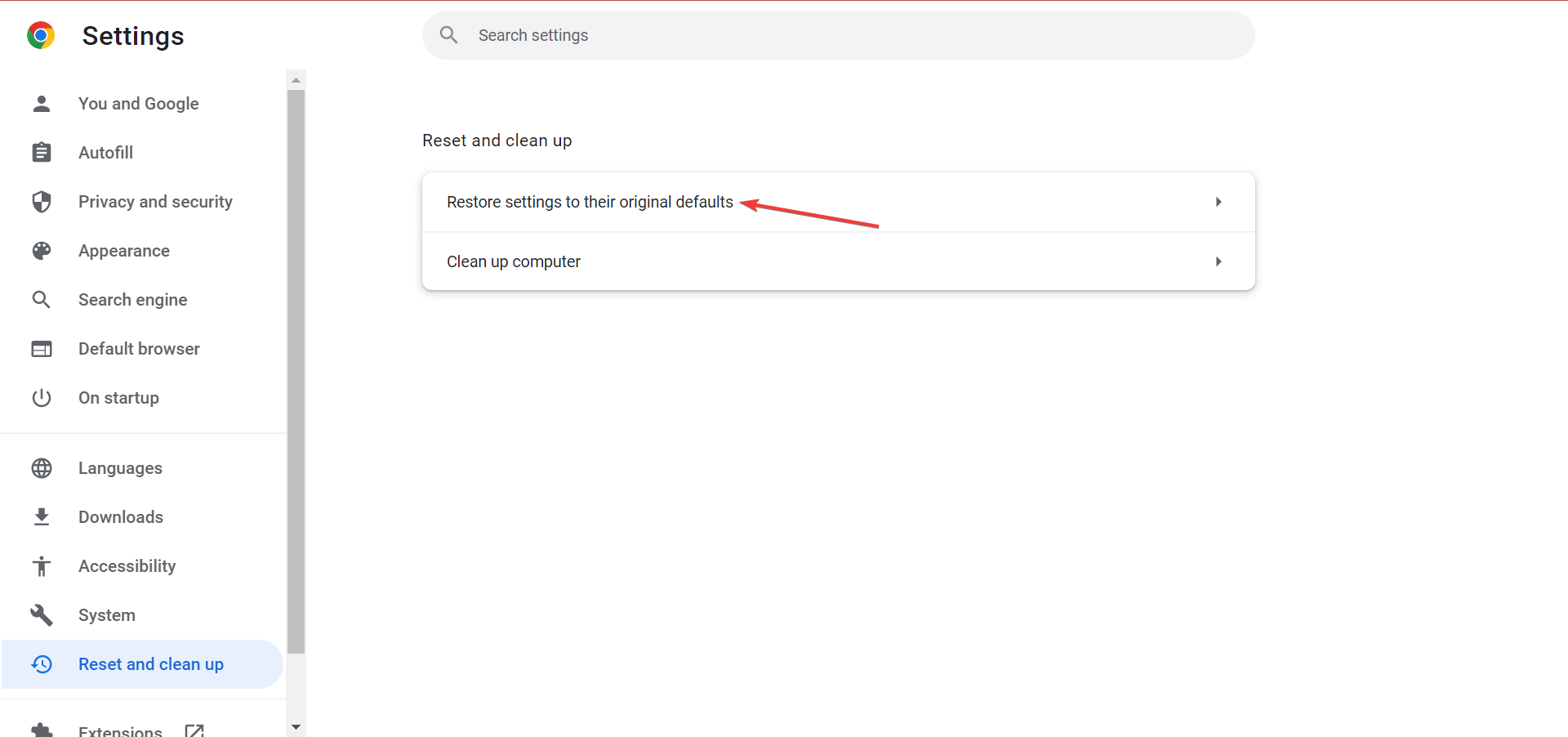
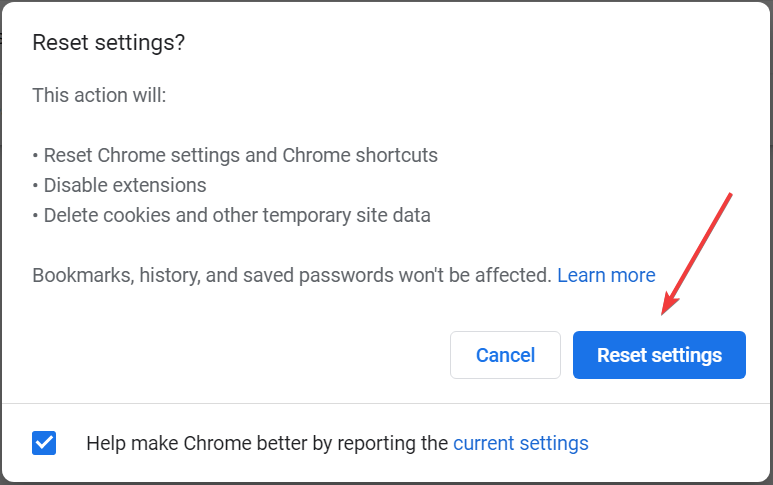





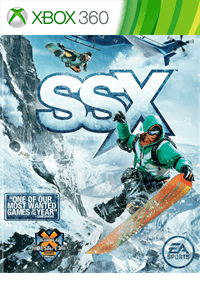



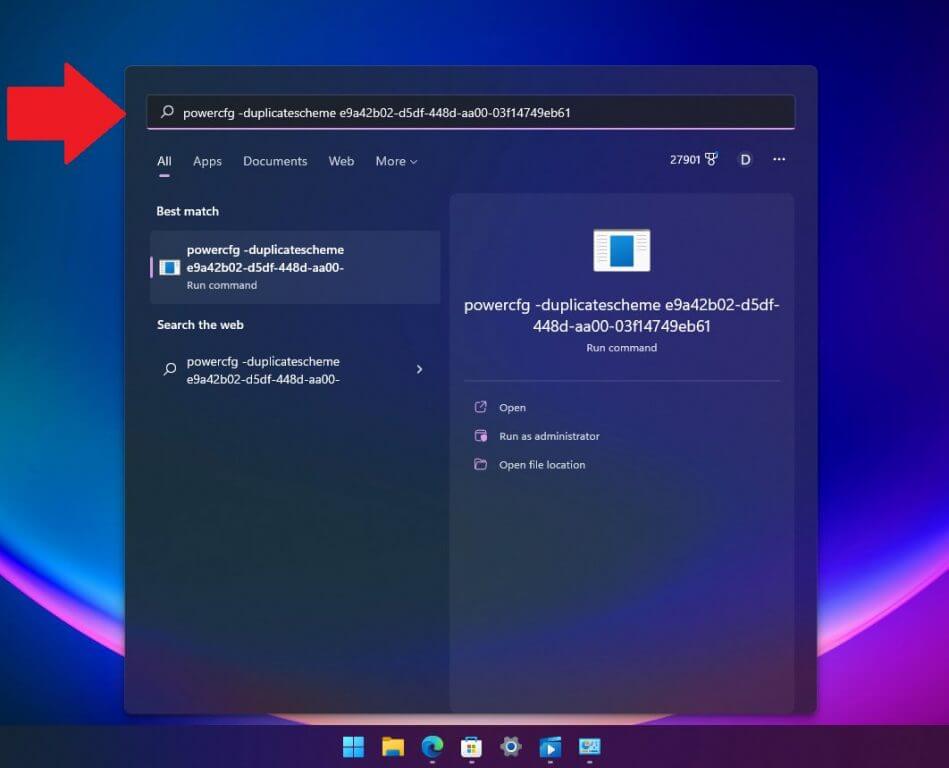
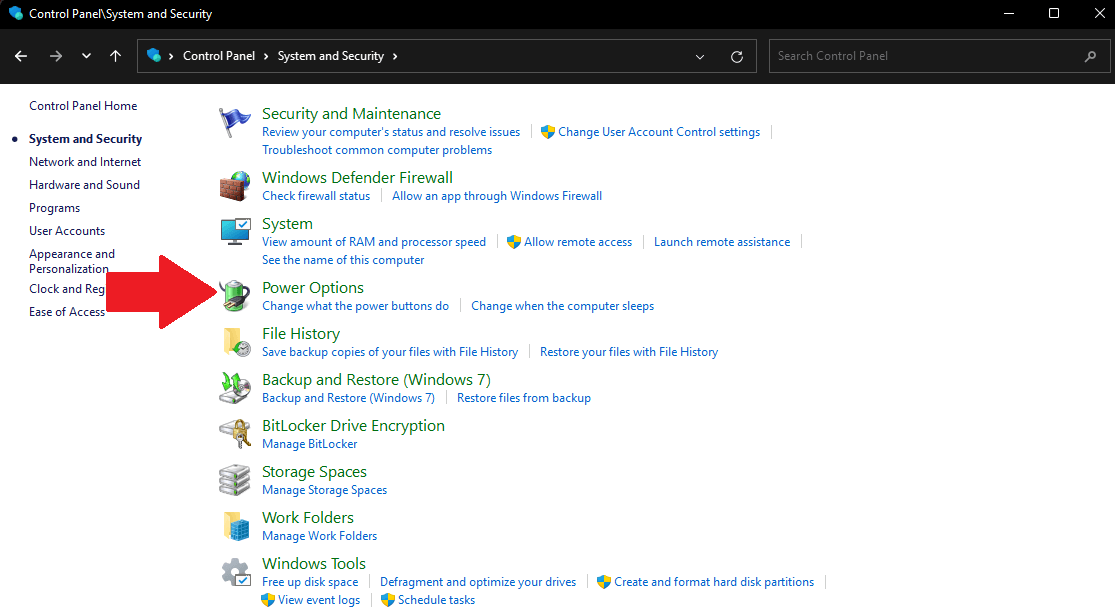
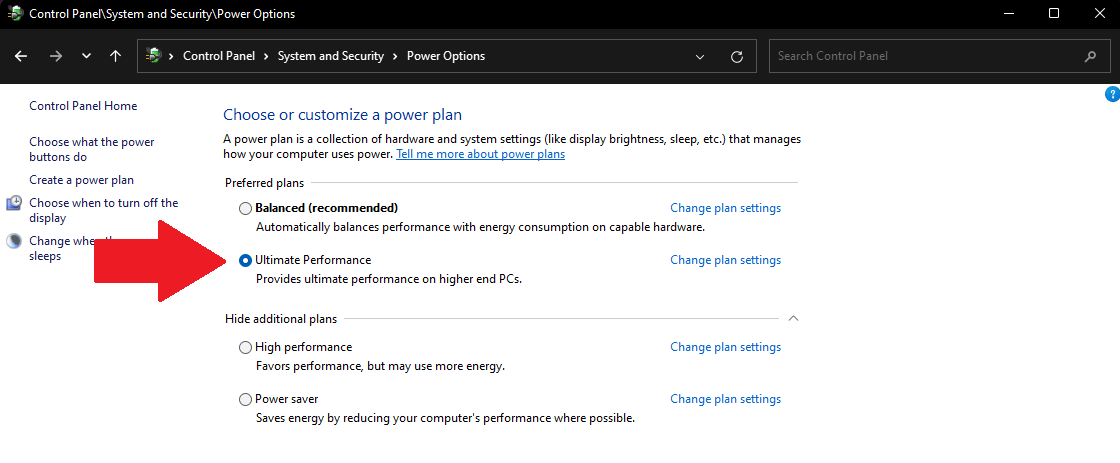
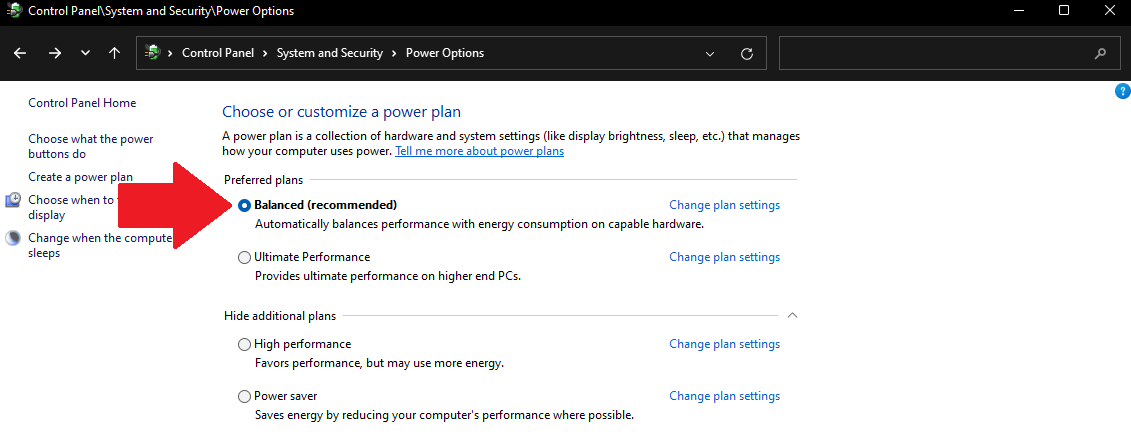
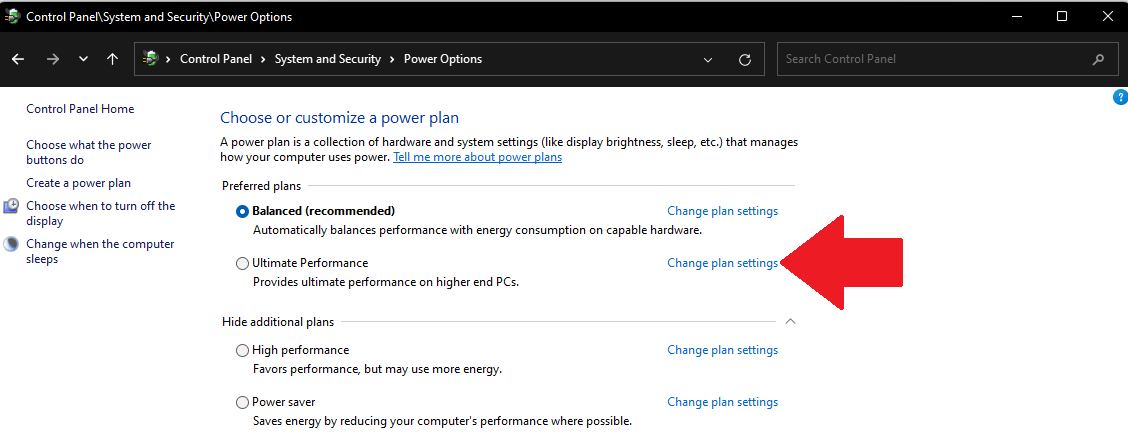
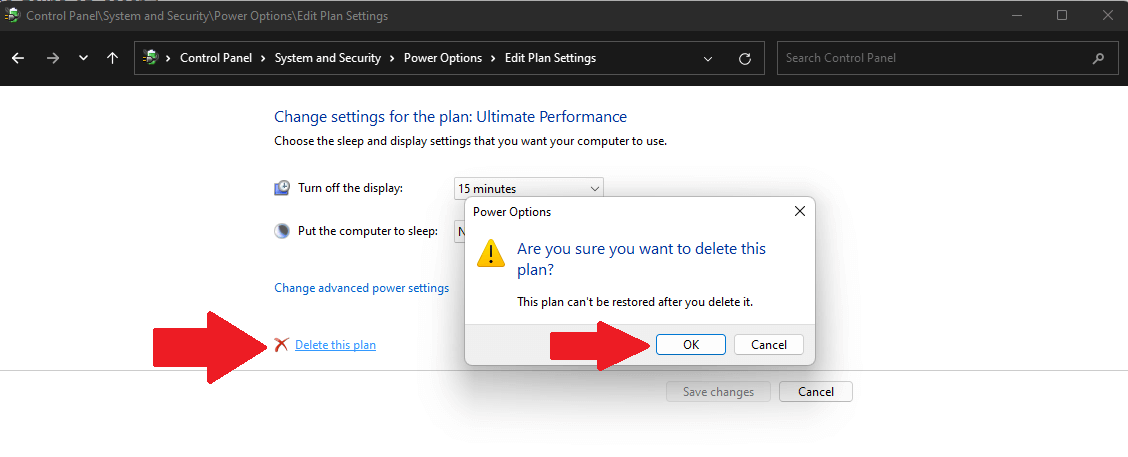



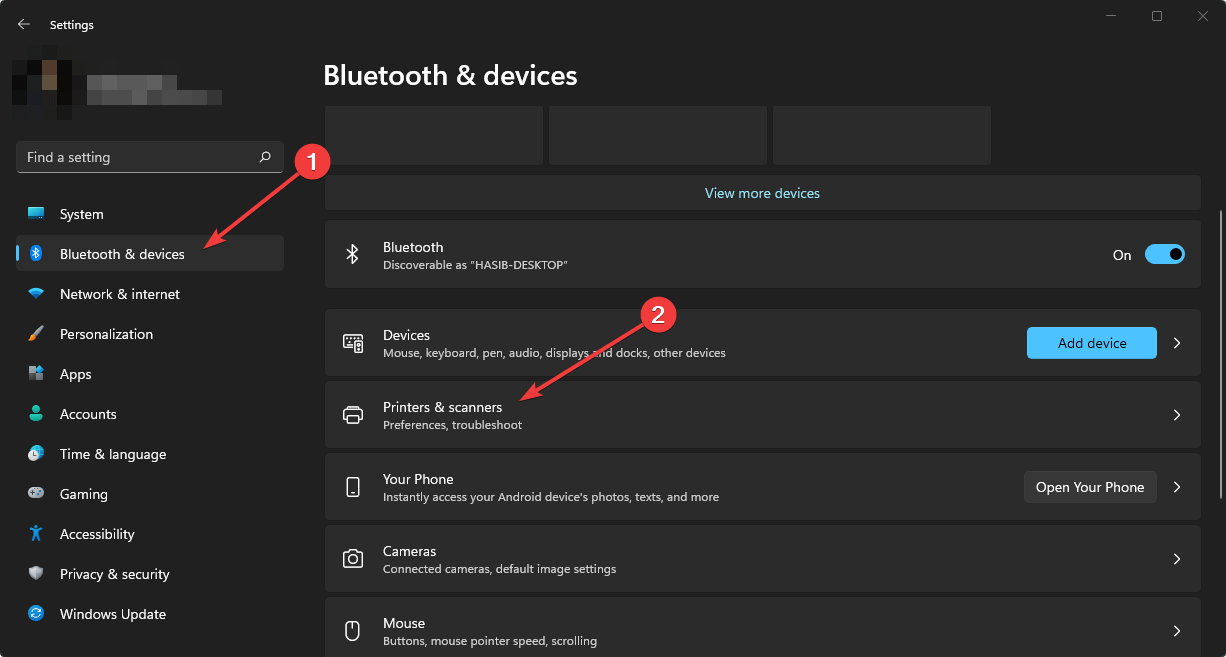


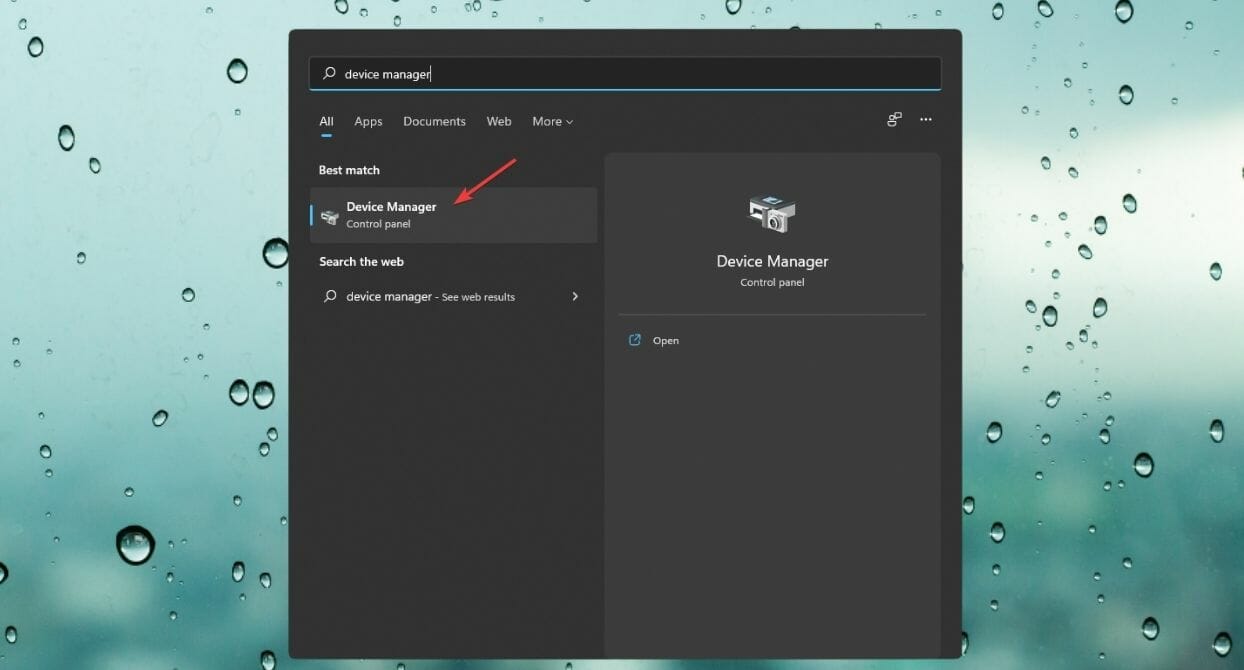


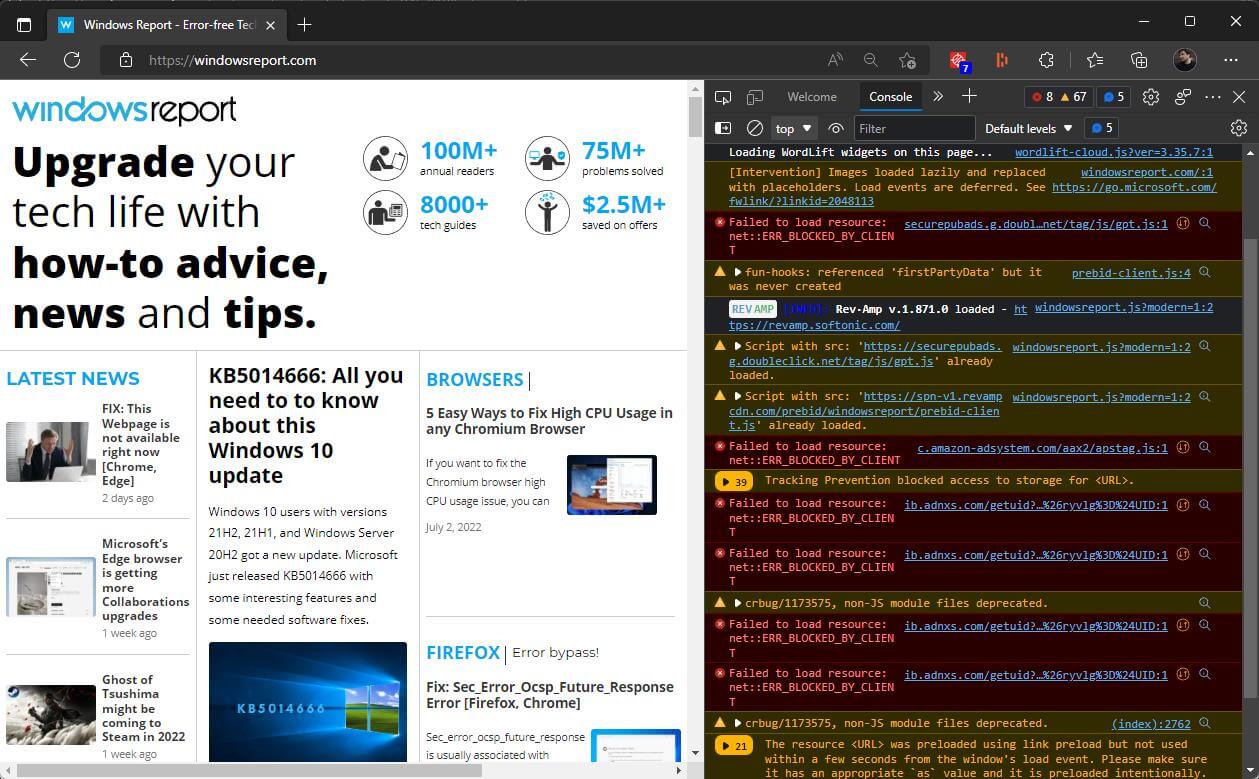
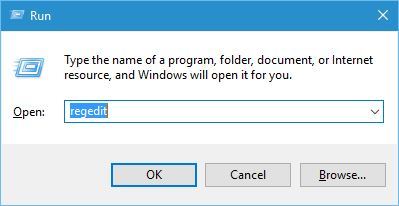


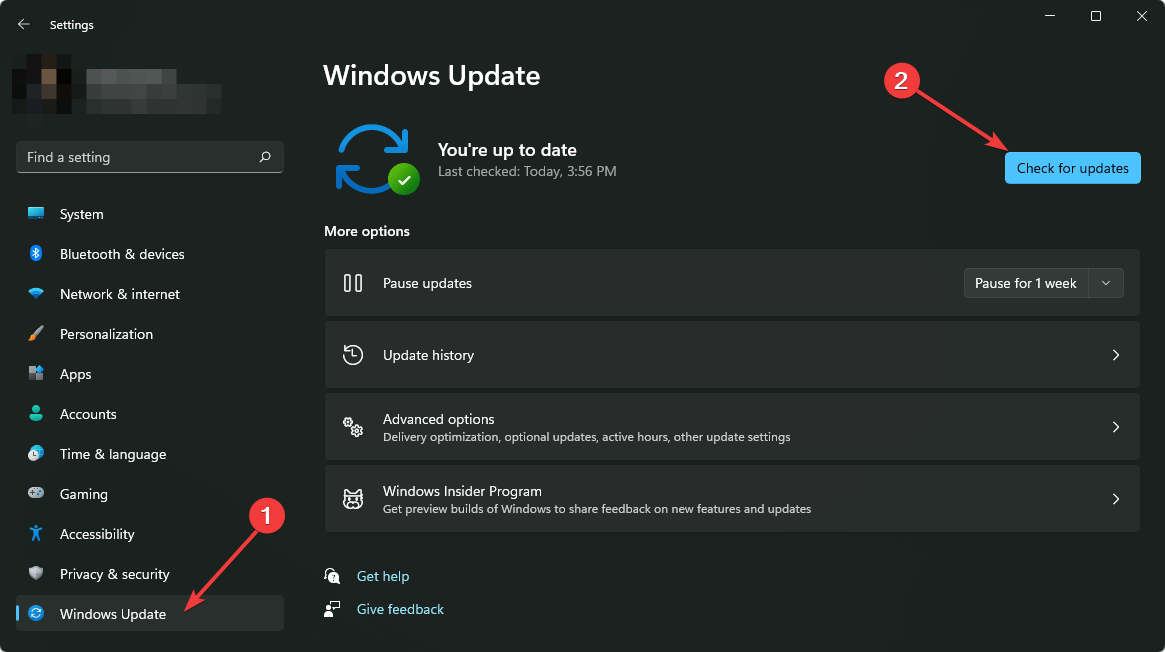


![How to Uninstall Avast Antivirus in Windows 11 [5 Ways]](https://windowsreport.com/wp-content/uploads/2022/07/avast-antivirus.jpg)