6 Best VPNs For Acer Laptops

Whether you work from home or often travel to various parts of the world for business, you need a VPN for your Acer laptop to keep your work documents safe.

A virtual private network solution is ideal for Internet-enabled Acer notebooks.

You can use it to protect your device from cyber-criminals when connecting to public Wi-Fi in airports, restaurants, pubs, hotels, etc.

But a VPN also adds entertainment value to your laptop. For example, you can watch your Netflix library anywhere in the world while traveling.

Whatever the case, if you wish to fit your Acer laptop with a reliable VPN, here are the 5 best options.

By the way, if you want to replace your old notebook, check out the best Acer laptops for business and gaming.

What are the best VPNs for my Acer laptop?

ExpressVPN – best VPN for Acer laptops
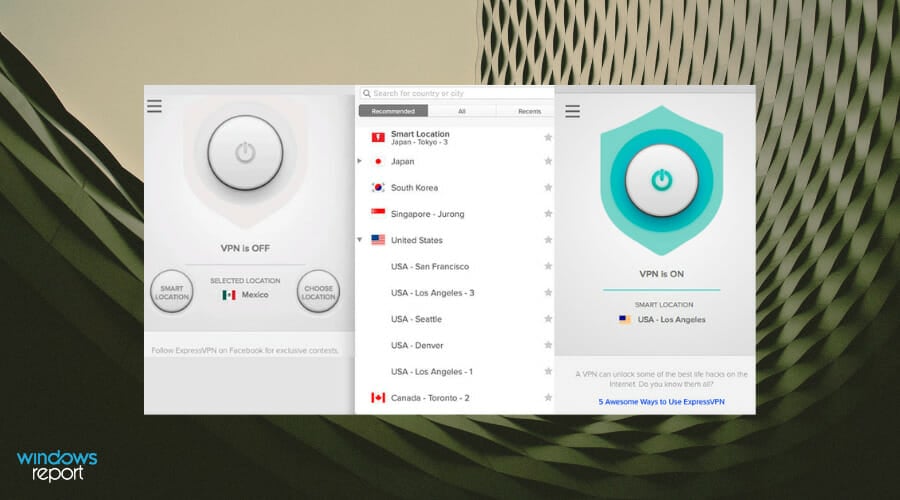
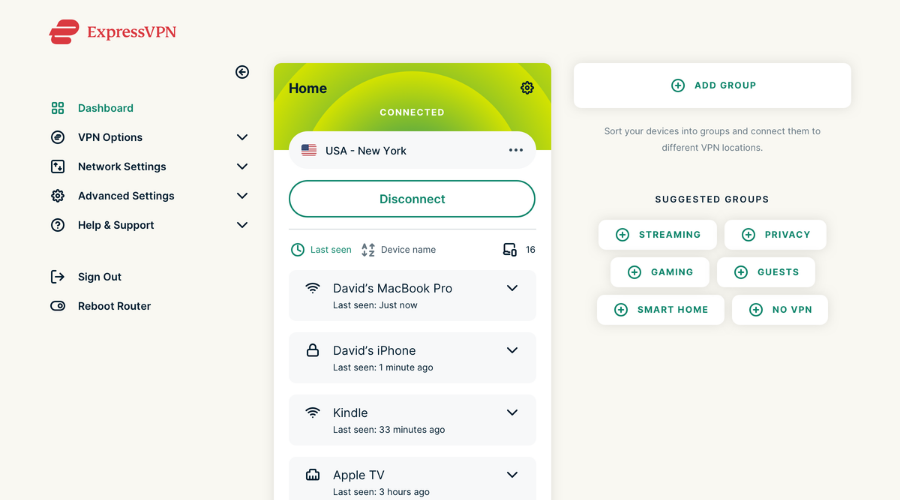
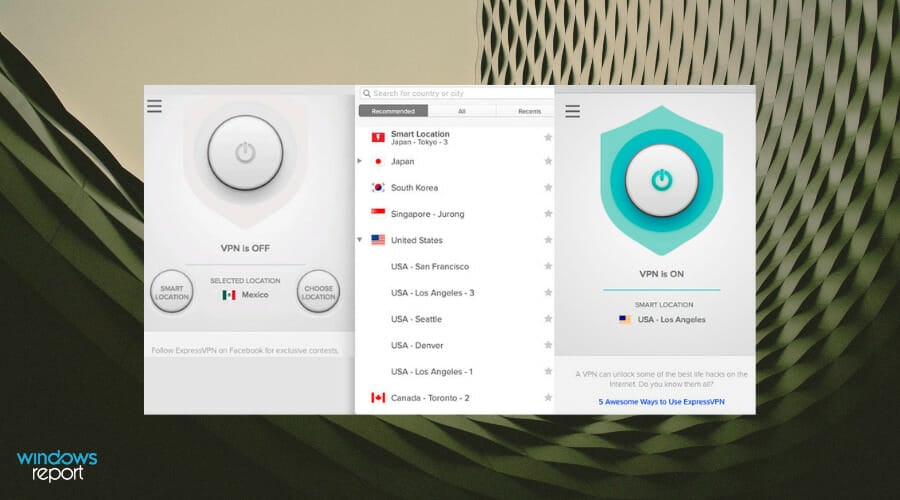
ExpressVPN running on the background

ExpressVPN markets itself as a premium option and costs accordingly. This implies that it is more expensive than most of its competitors, but the features and services it provides are well worth the money.

When you have an ongoing need to travel with your Acer laptop, for personal or business purposes, it may be risky to encounter dodgy hackers whenever you connect to a public WiFi network. 

ExpressVPN has the Traveler VPN feature to keep you connected with friends and family, can let you access your social networking accounts, unblocks your favorite entertainment sites, and secures your online business. 

Why chose ExpressVPN as your security assistant:

  • 3000+ servers in 160 different locations, 94 countries 
  • Military-grade 256-bit AES encryption, no leaks, split tunneling
  • 24/7 user support 
  • 30-days money-back guarantee
  • Best for working abroad, or doing online business

ExpressVPN

Travel, work, shop safely with military-grade encryption and 24/7 user support with the fastest VPN on the market!
Check price Visit Website

Private Internet Access – No logs or leaks

Private Internet Access (PIA) is the best overall VPN for your Acer notebook, thanks to its VPN connection speed, security features, number of simultaneous connections, and cost.

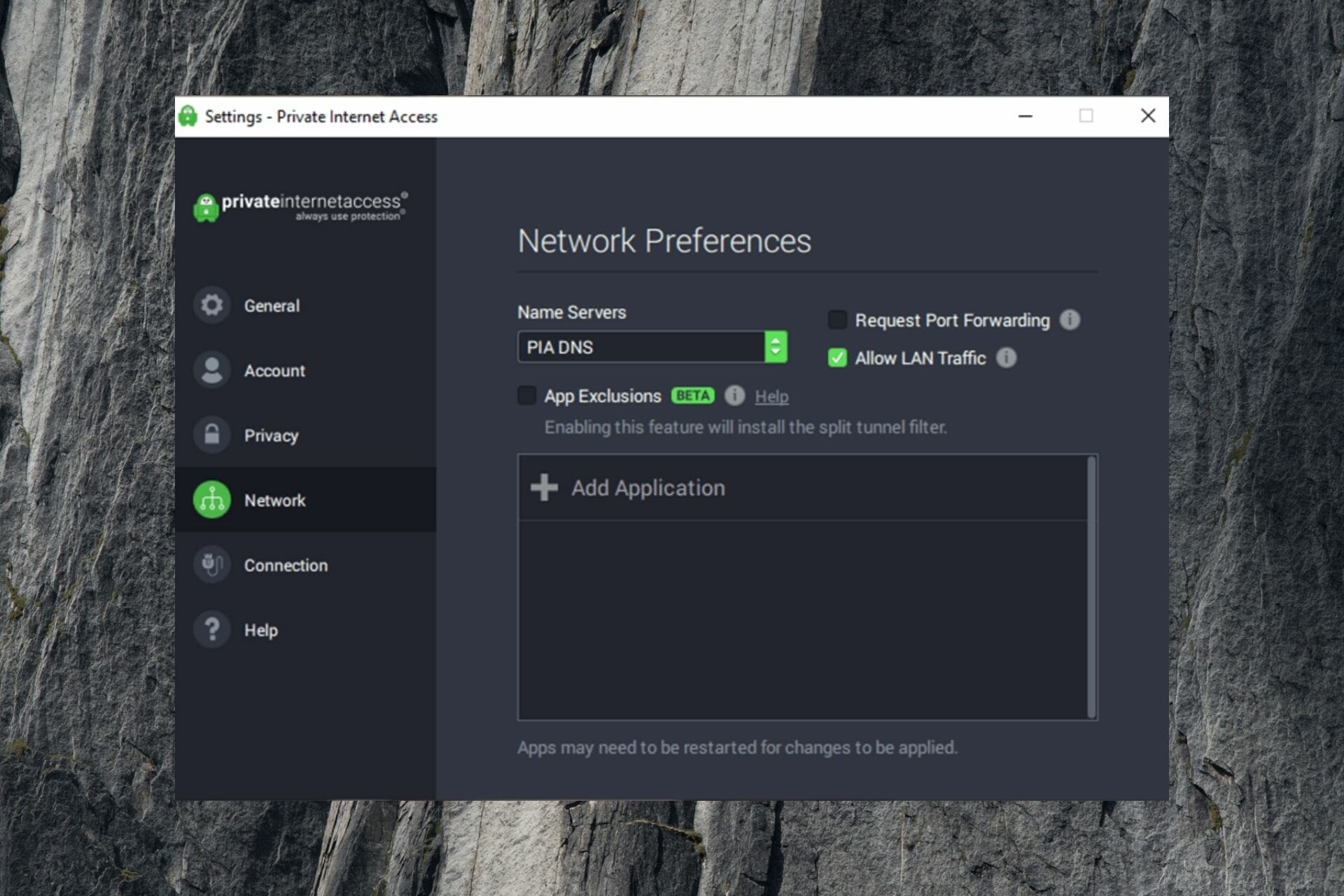
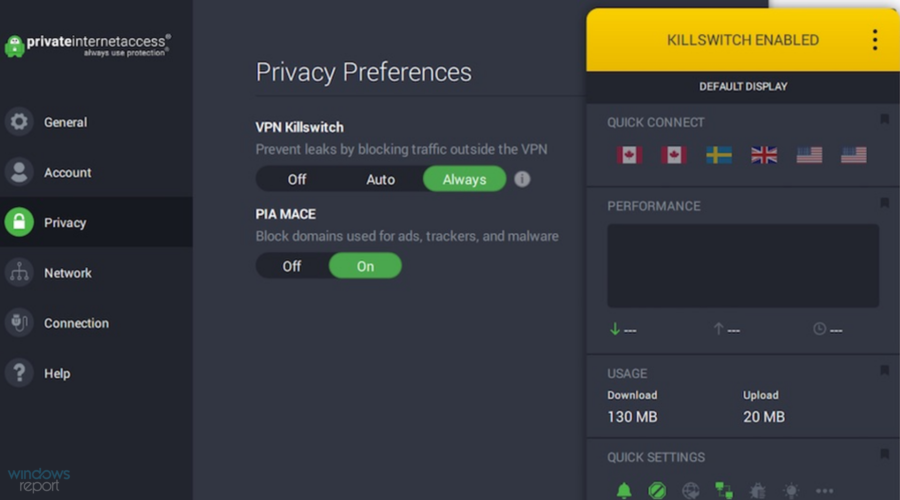
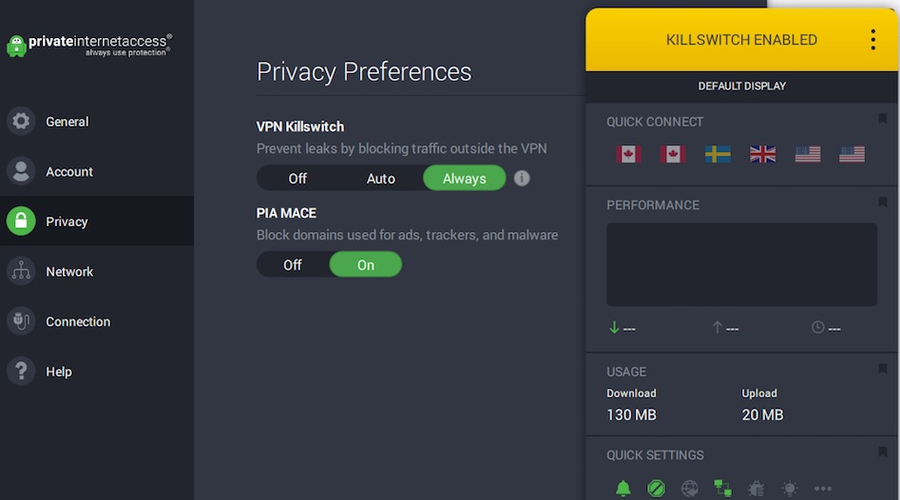
PIA uses OpenVPN to encrypt your data without sacrificing the connection speed. It has an integrated kill switch, port forwarding, split tunneling, and private DNS servers to protect your DNS requests.

You can even disable VPN encryption if you need more speed, although this shouldn’t be necessary. The virtual private network solution allows 10 simultaneous device connections and provides 24/7 live chat support.

What else you should know about PIA:

  • +3,300 VPN servers in 48 countries
  • No logs or leaks
  • Compatible with all major platforms
  • 30-day money-back guarantee (no free trial)

Private Internet Access

Protect your Acer laptop from the dangers of the Internet using this dependable VPN.
Check price Visit Website

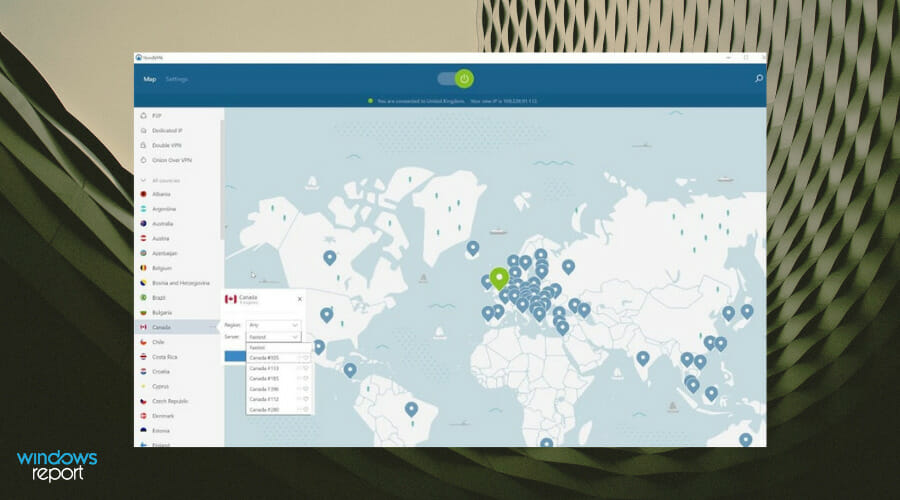
NordVPN – best for security

NordVPN is the most secure VPN for your Acer laptop, thanks to its advanced safety options that can be easily toggled.

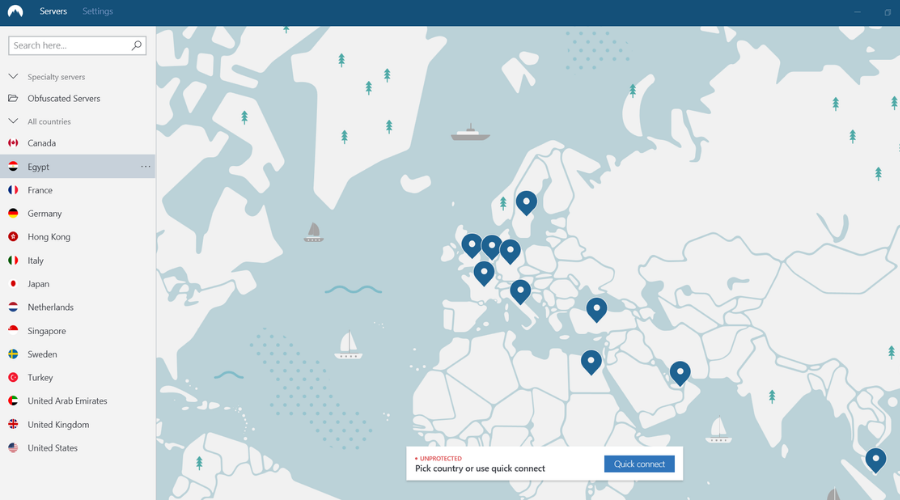
It has VPN servers organized in various groups, such as dedicated VPNs and Onion-over-Tor VPNs, if you want to maximize your security by joining the Tor anonymous network while staying connected to the VPN.

What’s more, NordVPN has an obfuscation mode in case your VPN gets blocked. If the remote host rejects your regular VPN connection, you just have to connect to an obfuscated VPN server to make it look like typical HTTPS traffic.

What else you should know about NordVPN:

  • +5,100 VPN servers in 59 countries
  • No logs or leaks
  • Compatible with all major operating systems
  • 30-day money-back guarantee (no free trial)

NordVPN

Make your journeys more secure by installing this reliable VPN on your Acer laptop.
Check price Visit Website

Surfshark – best for unlimited connections

Developed by Surfshark LTD, Surfshark is a budget-friendly VPN solution for your Acer notebook.

What’s more, you can use it to protect the devices of your entire family by installing the VPN client, since one Surfshark account allows any number of simultaneous connections.

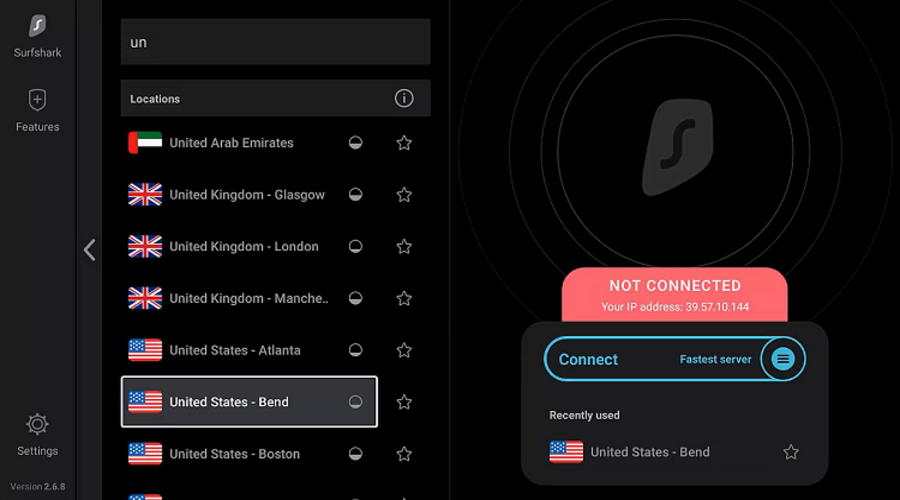
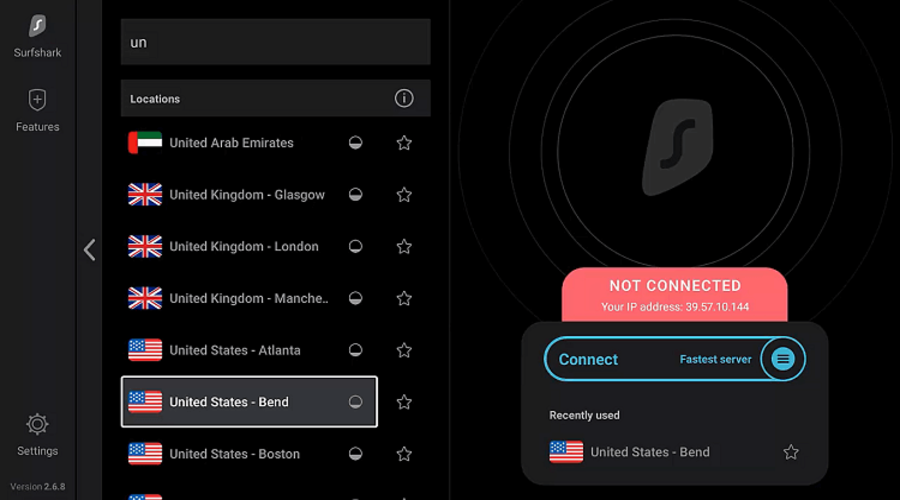
But its functionality doesn’t end there. Surfshark also boasts some top-notch security features that other VPNs envy, including an ad and malware blocker, split-tunneling mode, and obfuscated servers.

Plus, if you want to change your GPS location with a VPN, Surfshark is the only app we know that does that by default. Although it has the lowest count of VPN servers here, it protects each of them with private DNS.

What else you should know about Surfshark:

  • +1,700 VPN servers in +63 countries
  • No logs or leaks
  • Compatible with all major operating systems
  • 30-day money-back guarantee
  • 7-day free trial for iOS and Android

Surfshark

Protect all your household devices using a single and affordable VPN account.
Check price Visit Website

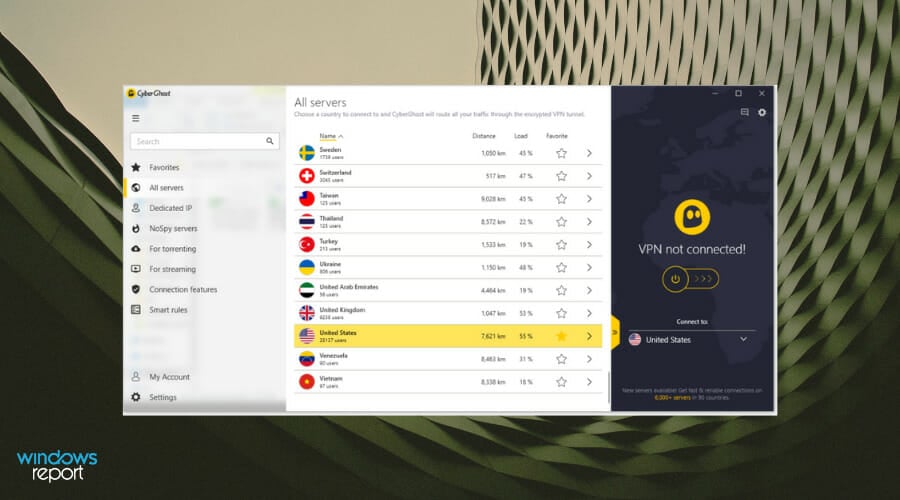
CyberGhost VPN – best free VPN

CyberGhost server locations

CyberGhost VPN is the best free VPN for your Acer notebook, thanks to the fact that it’s a premium service that offers a free trial (no credit card required).

CyberGhost VPN has the biggest network of VPN servers on this list. It can be used to circumvent geo-restrictions and unlock all popular Netflix catalogs, including Netflix US, UK, Australia, Germany, and Canada.

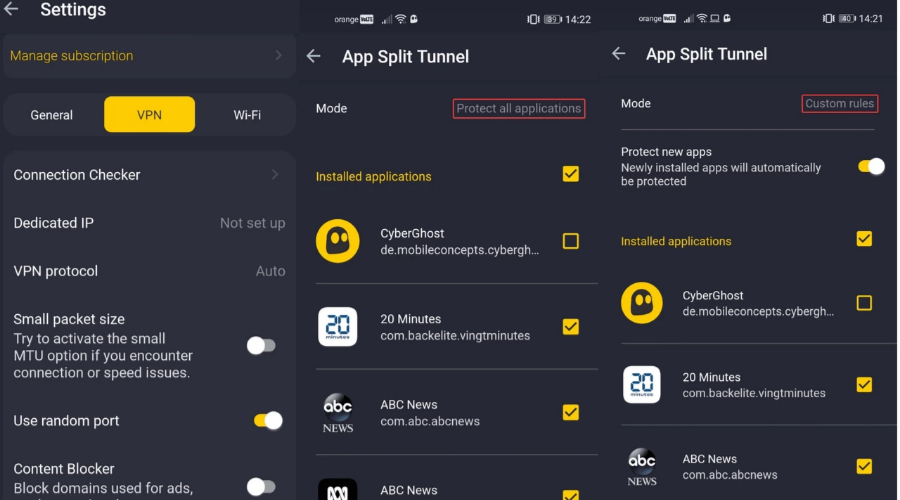
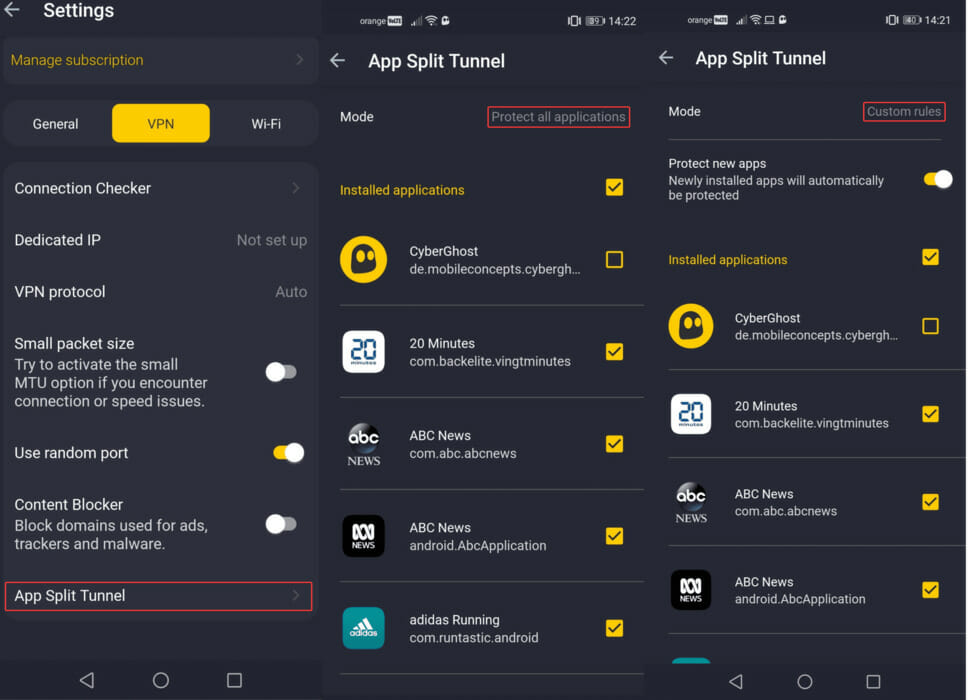
It supports exclusive DNS servers, trusted Wi-Fi networks, a kill switch, an ad and malware blocker, OpenVPN, and up to 7 device connections at the same time.

Plus, you can make Windows 10 auto-connect to this VPN on OS boot.

What else you should know about CyberGhost VPN:

  • +6,500 VPN servers in 89 countries
  • No logs or leaks
  • Up to 45-day money-back guarantee
  • 1-day free trial for Windows
  • 7-day free trial for iOS and Android

CyberGhost VPN

Preserve your online anonymity when connecting your Acer notebook to the Internet, thanks to this trustworthy VPN.
Free trial Visit Website

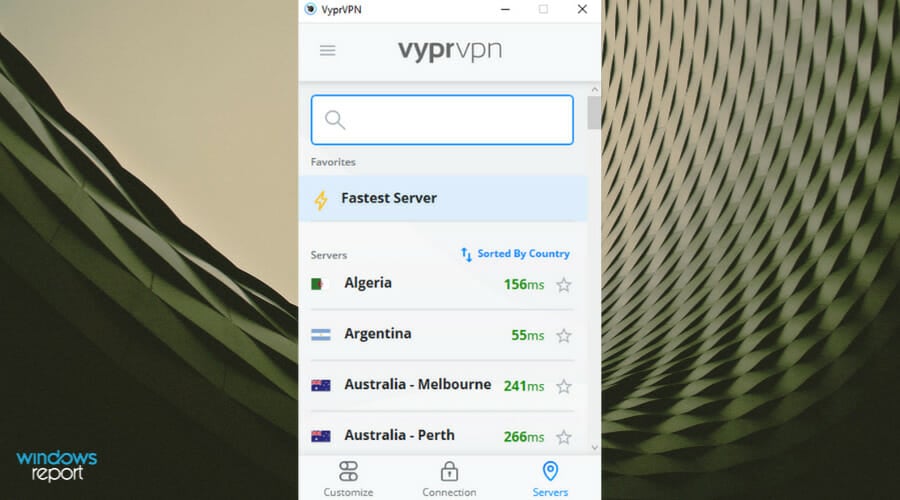
Vypr VPN – best for streaming

Vypr VPN is one of the fastest VPNs for streaming on PC and Mac. You can use it to secure all incoming and outgoing Internet connections, making sure that you’re safe from hackers.

The VPN service is produced by Golden Frog, a renowned security company. You can easily set it up on your Acer notebook to shield your router from cyber-criminals, as well as use it in your travels to unblock streaming services like Netflix.

Vypr VPN supports OpenVPN. It can be installed on 5 devices to protect all of them using the same account. However, it’s possible to set it up on your router to share your VPN account with all connected devices (it doesn’t matter how many they are).

What else you should know about Vypr VPN:

  • DNS protection
  • Secure kill switch in case the connection drops
  • Public Wi-Fi protection
  • Access to Chameleon protocol
  • 700+ servers nd 30, 000 IP addresses
  • No logs policy

Vypr VPN

Connect your Acer laptop to a Vypr server and get complete online privacy.
Check price Visit Website

To sum up, it’s not mandatory to download and install a VPN on your Acer laptop. But it’s highly recommended to increase its security level and protect your online identity this way, especially if you’re always on the move.

Granted, you can set up a VPN between two PCs to connect to the workplace and use your company’s internal resources as if you were on the same LAN.

But a VPN comes with numerous other benefits, including anti-hacker and anti-DDoS protection.

If you can’t decide between the 5 VPNs, we suggest opting for Private Internet Access since it’s the best overall. And local TV content availability can be one of the reasons you need something as specific as Pennsylvania VPN servers. In such a case, we’ve got you covered as well.

Minecraft Launcher Black Screen: Here’s Why & How to Fix

One of the most popular games in the past few years was Minecraft, but many users reported Minecraft black screen issues that prevent them from starting the game.

This can be a big problem for gamers, so today we’re going to show you how to fix this issue.

There are many issues that can occur with Minecraft, and speaking of issues, here are some common problems that users reported:

  • Minecraft launcher black screen Windows 10 – Sometimes problems with Minecraft can be caused by your antivirus or drivers. To fix the issue, we advise you to temporarily disable your antivirus and make sure that your graphics card drivers are up to date.
  • Minecraft Windows 10 edition black screen – Problems with the Windows 10 edition of Minecraft can occur due to your graphics card settings, so be sure to disable 3D Display Mode and the Stereoscopic 3D feature.
  • Minecraft black screen on startup, after launch, crash – These are some common problems that can occur with Minecraft, but you should be able to fix most of them by using one of our solutions.
  • Minecraft black screen when alt tabbing – This can be caused by an incompatible or incorrectly set resolution from its settings.

How do I fix Minecraft black screen issues on Windows 10?

1. Check your antivirus

If you’re unable to start Minecraft, the first thing that you need to check is your antivirus software.

Many third-party antivirus tools tend to interfere with certain applications, and sometimes your antivirus can prevent you from running Minecraft and other games.

If you’re getting a black screen while trying to run Minecraft, be sure to check if your antivirus is blocking Minecraft. You can also add Minecraft to the list of exclusions in your antivirus and check if that helps.

If Minecraft isn’t blocked, try disabling certain antivirus features or your antivirus altogether. Sometimes this might not be enough, so your best choice would be to uninstall the third-party antivirus.

Once you remove the antivirus, try running Minecraft again.

If removing the antivirus solves the problem, you might want to consider switching to a different antivirus.

If you’re a gamer, and you want to be sure that your antivirus doesn’t interfere with your gaming sessions, you might want to try out antivirus software with gaming modes.

2. Reinstall your graphics card drivers

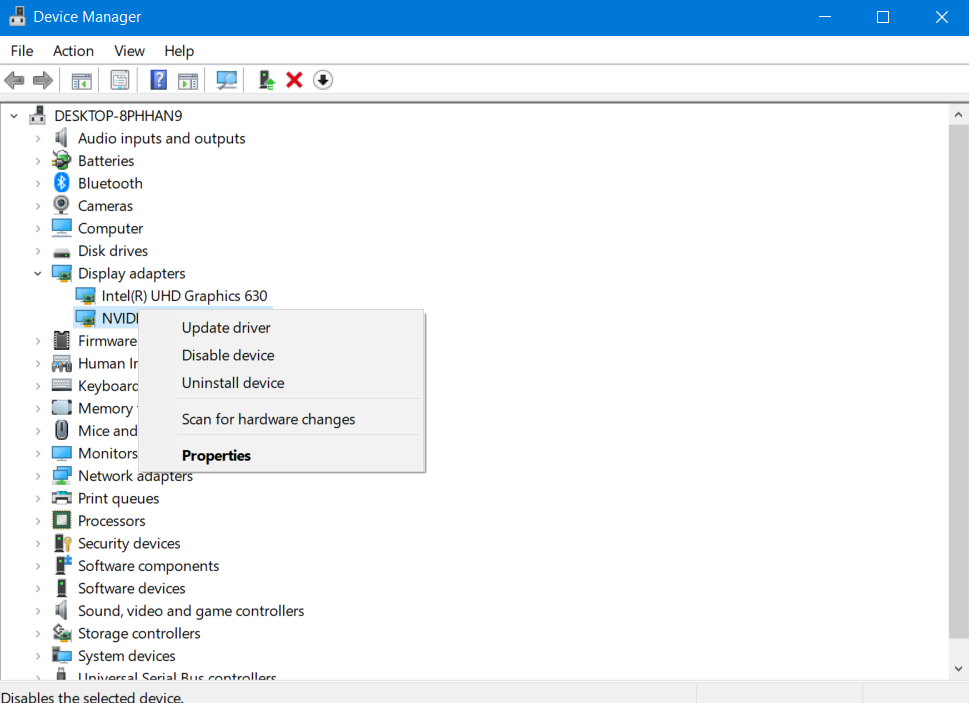
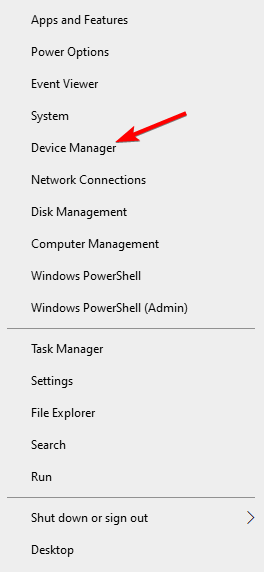
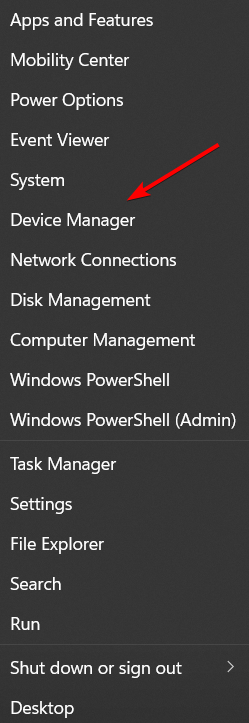
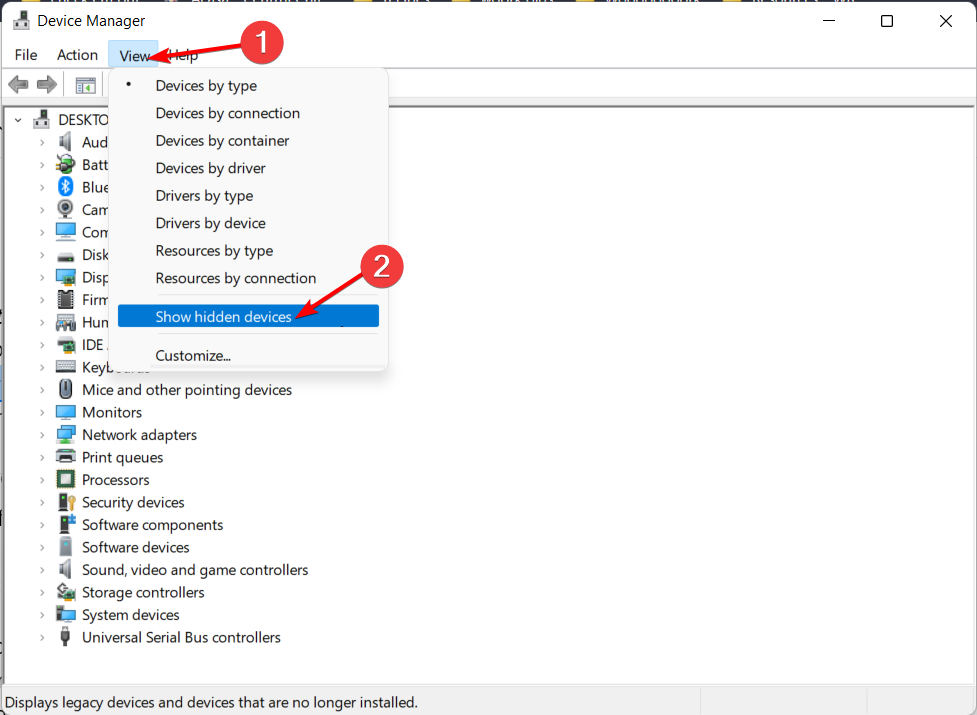
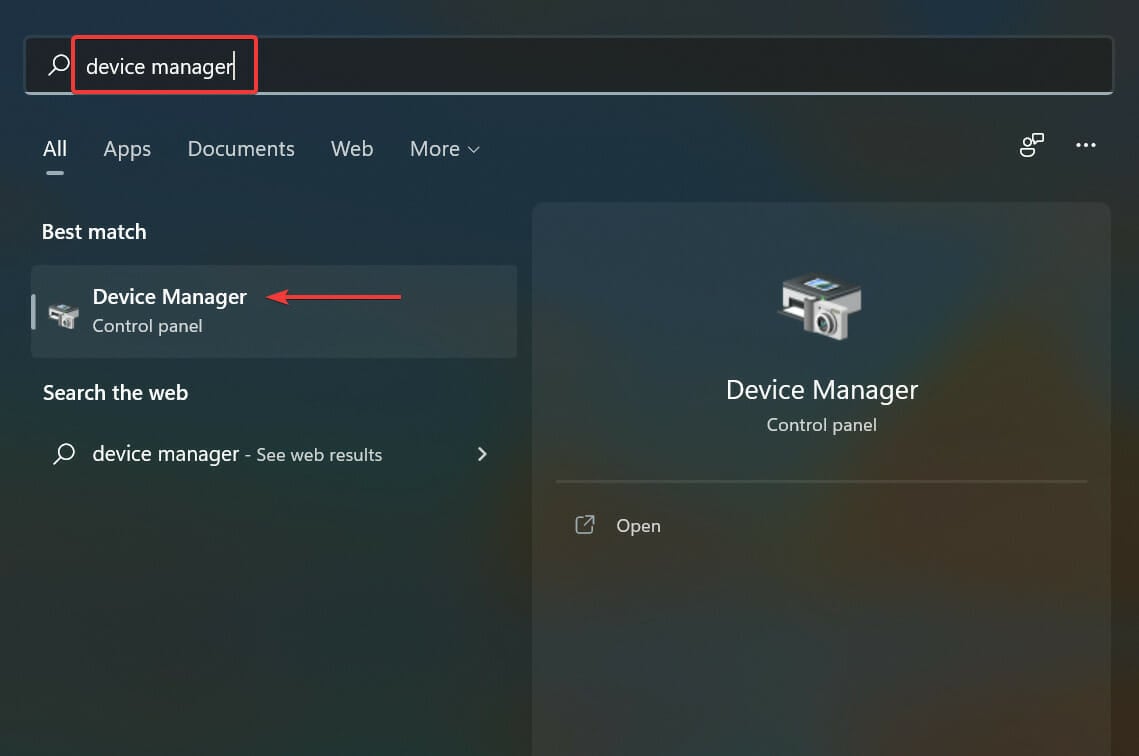
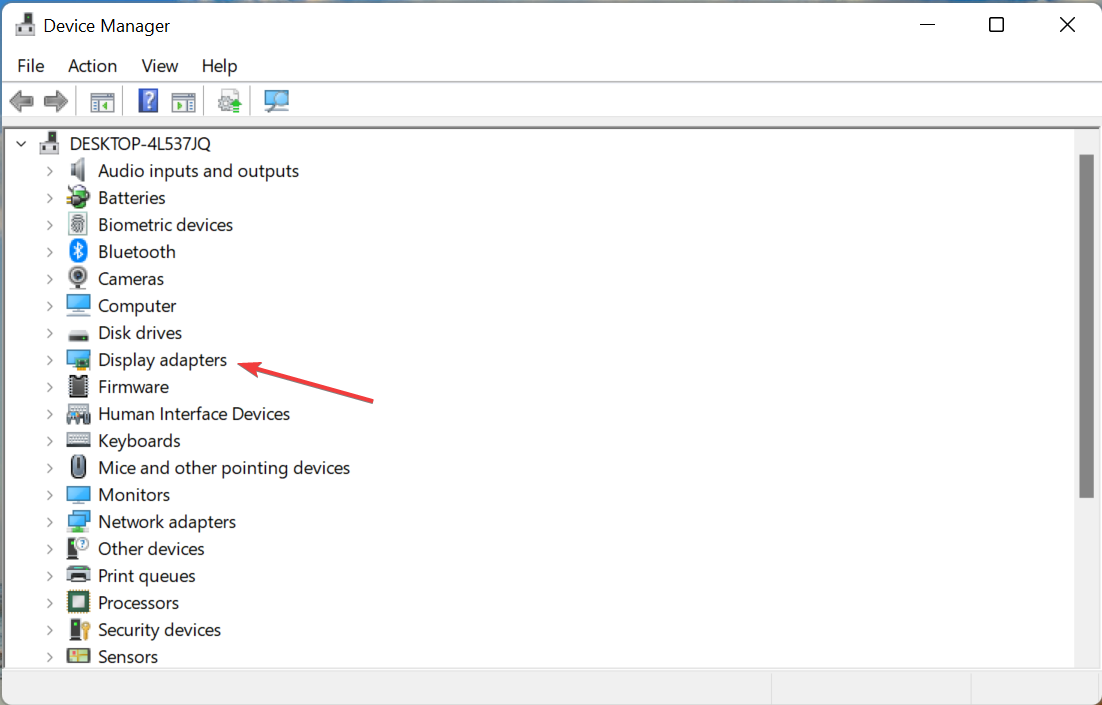
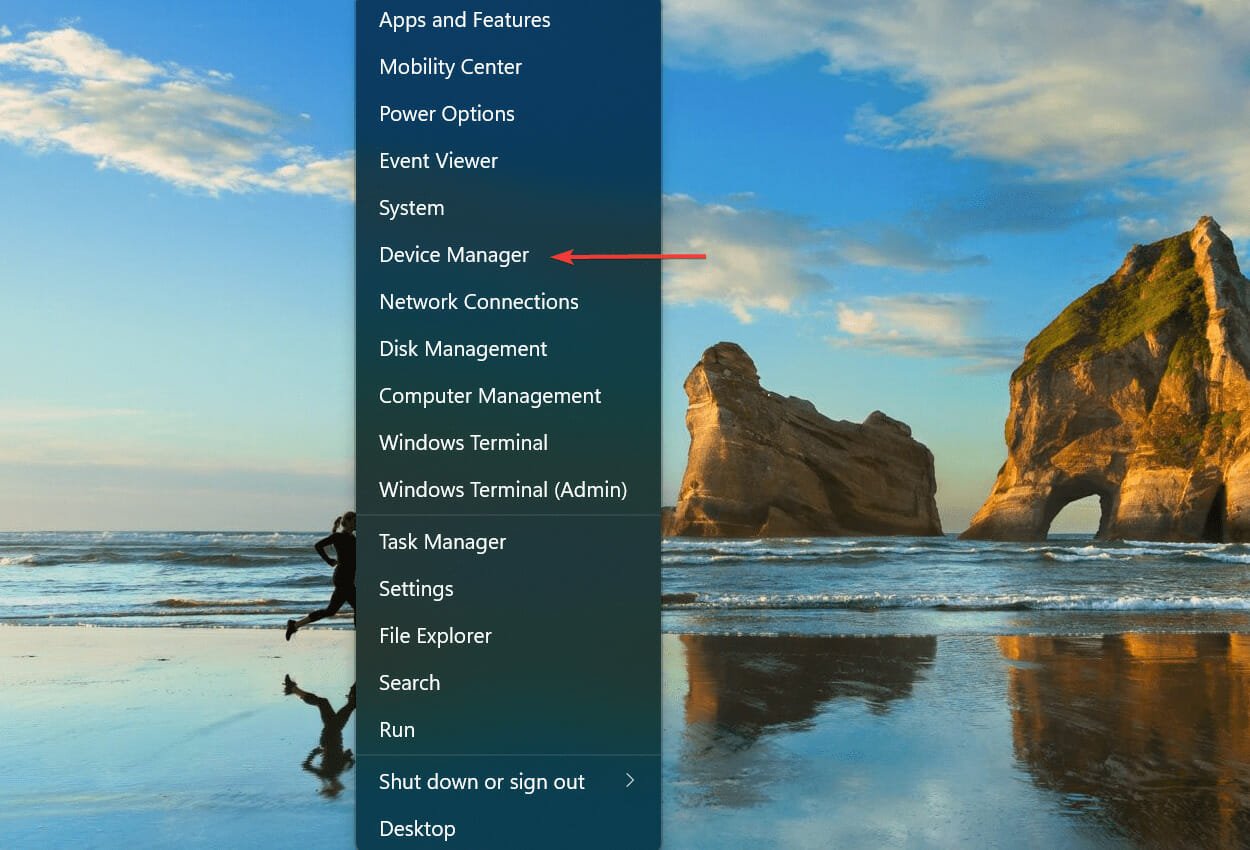
  1. Open Device Manager by pressing Windows Key + X and choosing Device Manager from the list.
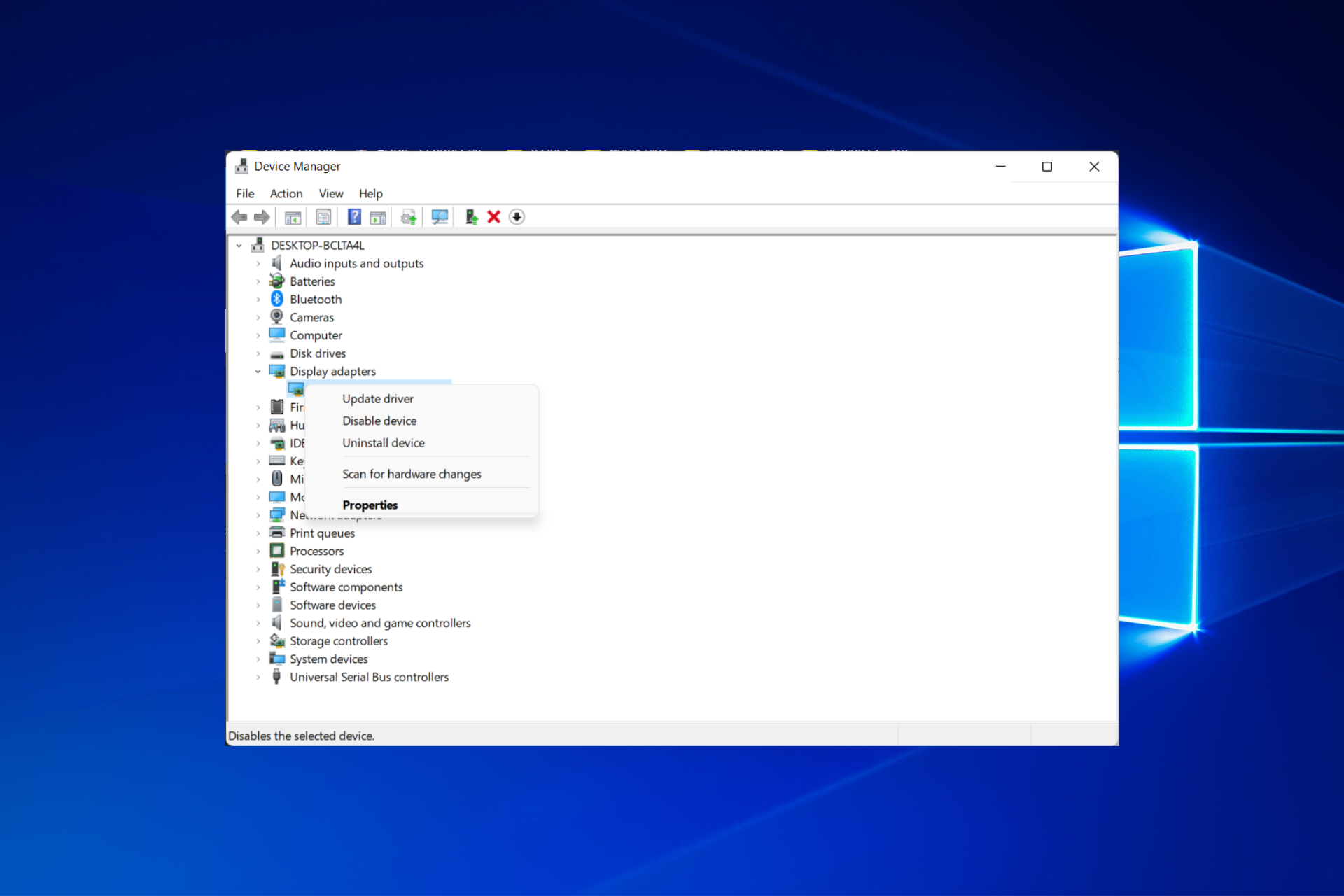
    device manager minecraft black screen
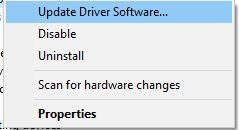
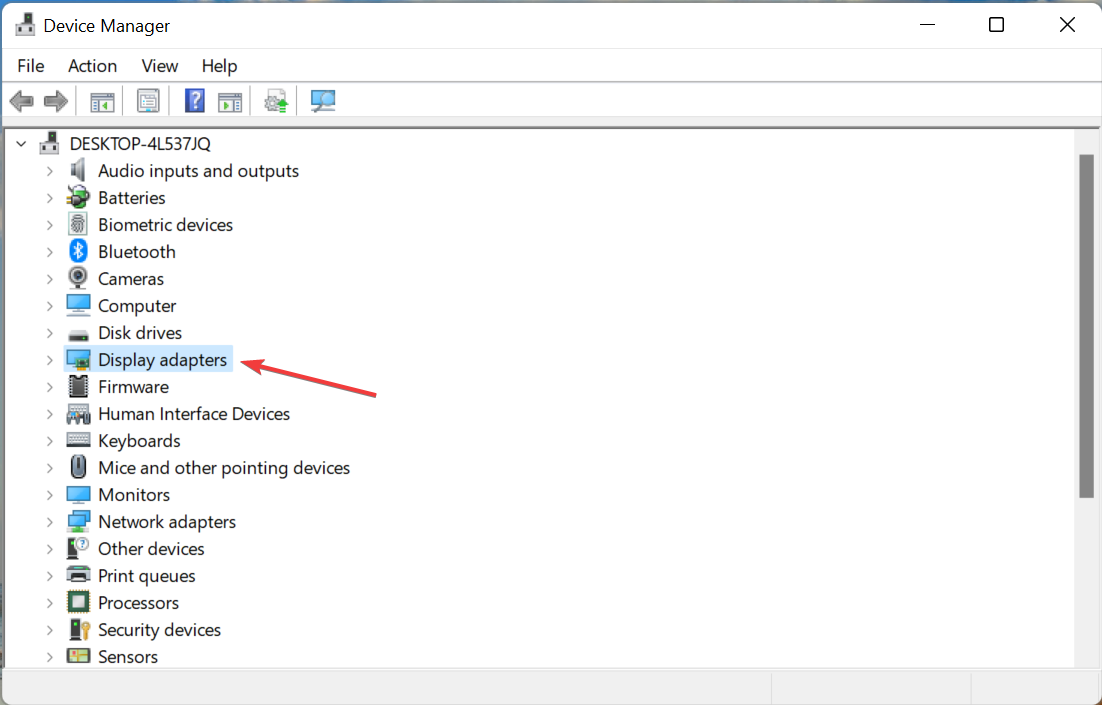
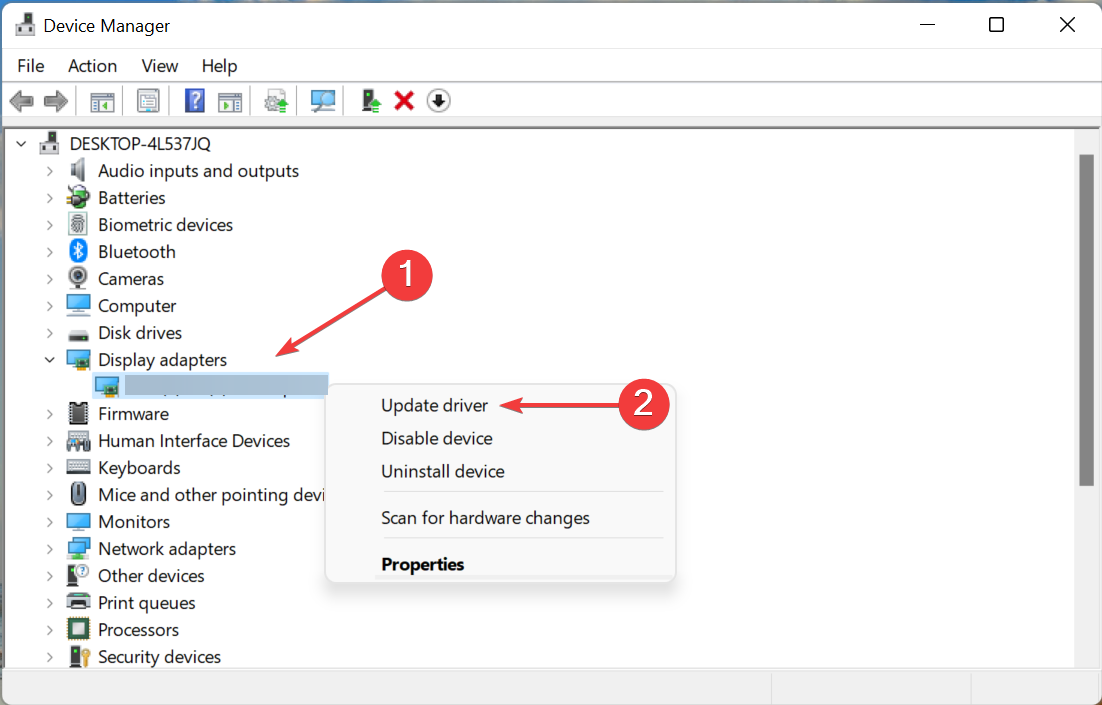
  2. Locate your graphics card driver, right-click it and choose Uninstall device.
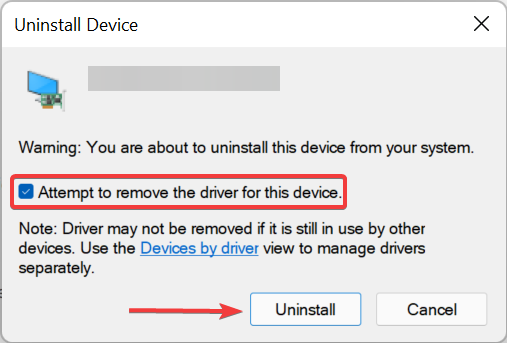
    uninstall device minecraft black screen
  3. If available, check Remove driver software for this device Now click on Uninstall.
    uninstall confirm minecraft can't run
  4. After the driver is removed, click Scan for hardware changes icon.
    scan for hardware changes minecraft black screen

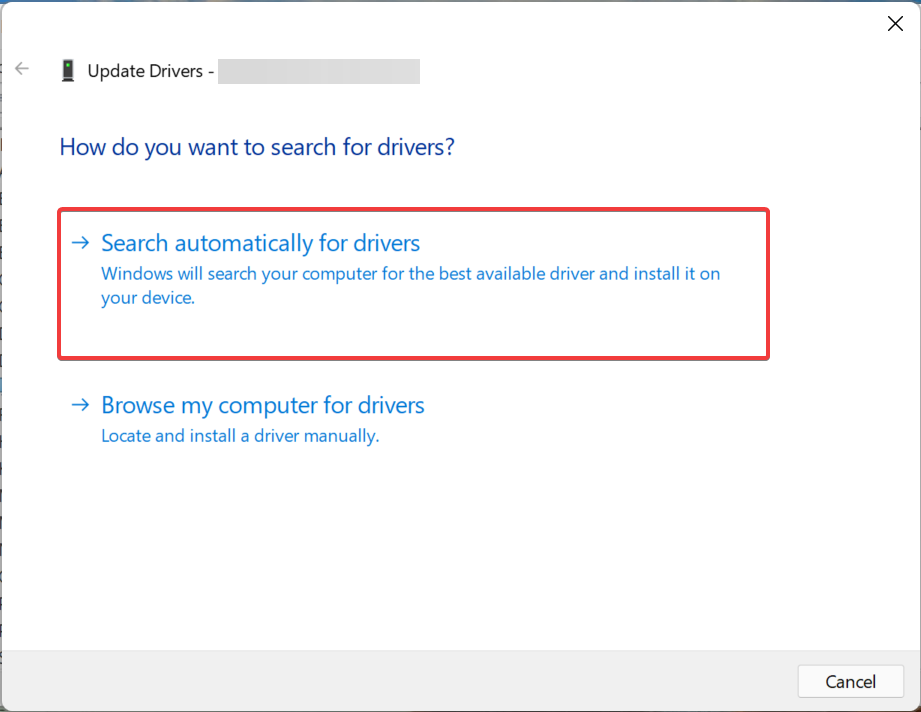
Of course, you can use Device Manager or you can even look for the driver by visiting your graphics card manufacturer’s website and downloading the latest drivers for your model.

However, the easiest way to update your driver is by using a third-party tool such as Outbyte Driver Updater that will work through the whole process automatically.

You only need to download and install Outbyte Driver Updater, then open it. You don’t have to click on anything because the software will automatically run a driver scan on your PC.

After a short while, there is only one step left, deciding whether to install the drivers separately or all together.

For the first option, you have to check the boxes on the left of the drivers and then click the update boxes from their right. For the second, you just click on the Select All box.

Outbyte Driver Updater

Reinstalling your graphics card driver is a breeze with Outbyte Driver Updater because the whole process is automatic.
Check price Visit website

3. Try using WinZip as an archiver software

If you’re using a Java version of Minecraft, perhaps the black screen is caused by your file archiver software.

In order to run the Java version of the game, your PC needs to be able to unzip the Java files, and if that doesn’t happen, you might have to switch to a different file archiver software.

According to users, they reported that the problem was fixed after switching to WinZip software, so you should definitely try it out.

The procedure is as easy as right-clicking the Java files and selecting the extract option.

After solving the Minecraft problem you will still have an excellent compression tool that also connects to Dropbox or Google Drive.

4. Disable the 3D Display Mode feature

  1. Open the Settings app. The fastest way to do that is to use the Windows Key + I shortcut.
  2. When the Settings app opens, navigate to the System section.
    system settings minecraft black screen
  3. In the right pane scroll down and select the Advanced display settings.
    advanced display settings minecraft black screen
  4. Locate 3D Display Mode option and disable it.

Note: Bear in mind that not all PCs support this feature, so if it’s not available on your PC, you should try a different solution.

5. Disable the SLI mode

According to users, you can experience Minecraft black screen issues if you’re using two graphics cards in SLI mode. In case you don’t know, some users tend to use two graphics cards for gaming in order to get better performance.

Although this feature can be useful, sometimes it can lead to various issues, such as this one. To fix the problem, users are suggesting disabling the SLI feature and the problems with Minecraft should be resolved.

6. Disable the Stereoscopic 3D feature

If you’re having issues with Minecraft black screen on your PC, the problem might be the Stereoscopic 3D feature.

Some graphics cards support this feature, and if you have it enabled, it might give you problems while trying to run certain games.

To fix the issue, it’s advised that you check your graphics card control panels software, such as the Nvidia Control Panel or Catalyst Control Center, and disable this feature.

Once you find and disable the Stereoscopic 3D feature on your PC, start Minecraft again and check if the issue is still there.

7. Run the game in compatibility mode

  1. Locate the Minecraft.exe file, right-click it and choose Properties from the menu.
    properties minecraft black screen
  2. Navigate to the Compatibility tab and check Run this program in compatibility mode for option.
  3. Select the desired version of Windows and click Apply and OK to save changes.
    compatibility mode minecraft won't start

Note: Bear in mind that you might have to experience different settings until you manage to find the one that works for you.

It’s also worth mentioning that this solution doesn’t work for the UWP version of Minecraft, so if you’ve downloaded your copy from the Microsoft Store, this solution won’t work for you.

8. Use the Ctrl + Alt + Del shortcut

  1. Start the game normally.
  2. When the black screen appears, press the Ctrl + Alt + Del keys.
  3. Click Cancel to return back to Windows.

The black screen should be gone and you’ll be able to run the game again without any issues. Bear in mind that this is just a workaround, so if this solution works for you, you’ll have to repeat it every time this problem appears.

9. Run the game with integrated GPU

If your PC or laptop has both integrated and dedicated graphics, the problem can occur if you’re using the dedicated graphics to run Minecraft.

The dedicated graphics almost always offer better performance, but sometimes it can cause issues with games.

If you’re having Minecraft black screen problems on your PC, perhaps you should try running the game using the built-in graphics. To do that, just right-click the shortcut and choose the Run with graphics processor option.

If this method works, you might want to change your graphics card settings and set your built-in graphics as the default GPU for Minecraft.

Bear in mind that your integrated graphics don’t have the same performance as your dedicated one, so use this solution as a temporary workaround.

Of course, the list is not exhausting and users reported many other related issues including Minecraft black screen when joining the server, blank screens, and of course, variations across various Windows versions including Windows 11.

But one particular problem caught our attention due to its apparently harmless nature (that can easily turn into a nightmare, though). We’re talking about the Minecraft black screen when Alt-tabbing/fullscreen.

My Minecraft goes black screen when alt tabbing:

In fact, users mentioned that this happens across all versions of Minecraft, sometimes when using the Alt + Tab shortcut, other times when exiting the game and there’s nothing they can do about it.

The interesting part is that none of the solutions mentioned above seem to work here. But that does not mean it’s a lost cause.

Here’s what we suggest:

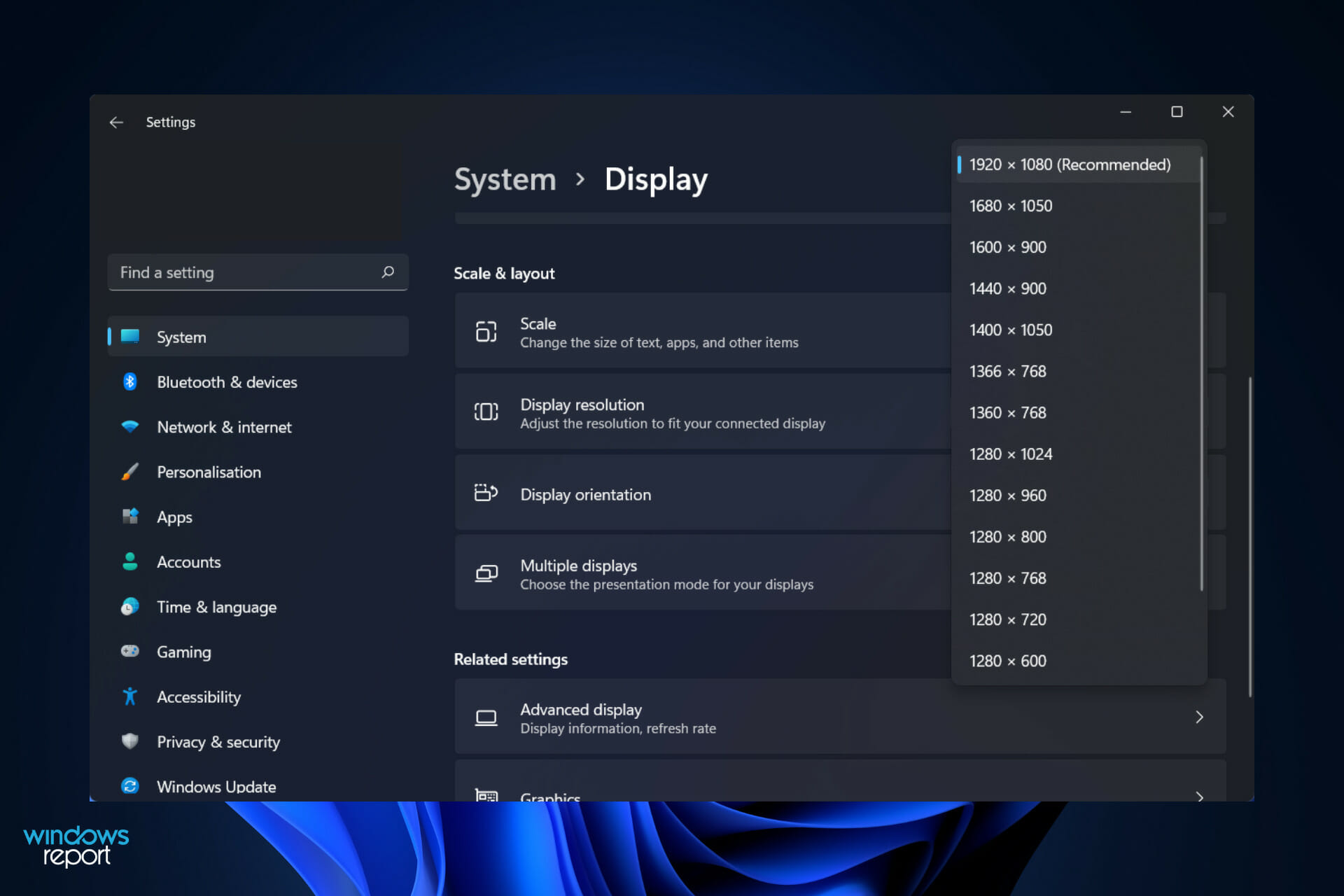
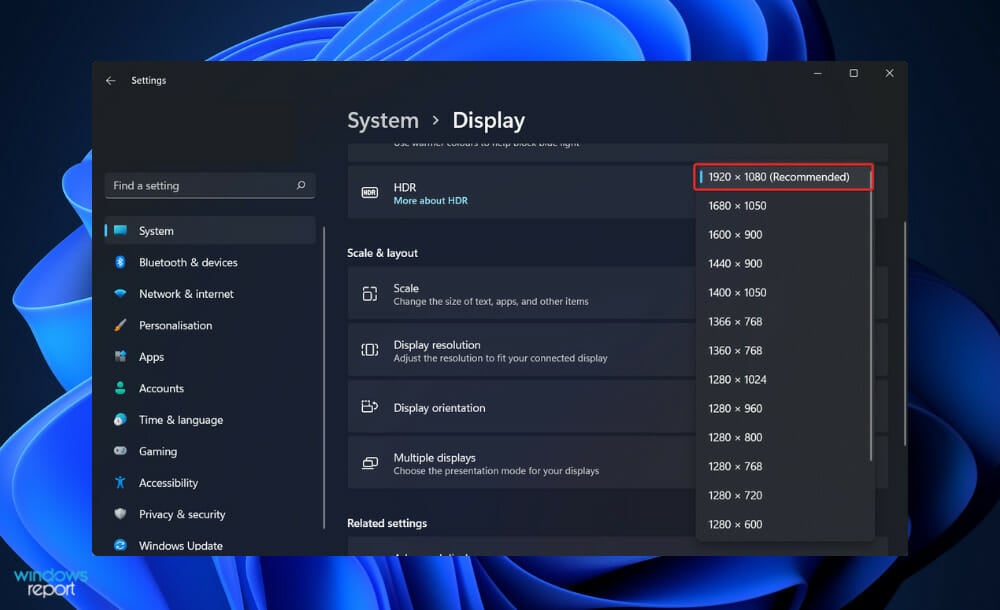
  • Make sure your display resolution as well refresh rate match the in-game settings
  • Disable HDR and check if that solves the issue
  • Run the game in full-screen Windowed mode (which is different from full screen)

Note that this distinction is important since you might encounter the same issues by using the standard option and Windows 10 games simply won’t go fullscreen.

Minecraft black screen issues can be quite problematic, but in most cases, these problems are caused by your settings or drivers, and we hope that you managed to solve them using one of our solutions.

This isn’t the only error that can be caused by drivers, and we wrote about Bad video card drivers error in Minecraft in our previous article.

If you have any additions or suggestions, please leave them in the Comments section below.

Don’t expect to find a lot of Dell PCs with the Microsoft Pluton chip

Microsoft’s Pluton chip promises a lot of advancements for keeping your device safe from the latest security threats, but not every PC maker is fully on board with the technology just yet. As first reported by The Register, Dell says that it isn’t fully ready to include the Pluton chip in “most” commercial PCs.

More specifically, in a statement to The Register, the laptop maker said that “Pluton does not align with Dell’s approach to hardware security and our most secure commercial PC requirements.” The reason why? It has to do with the fact that Intel isn’t using Pluton technology in 12th generation processors, instead opting for the Platform Trust Technology. Dell’s commercial PCs mainly have these types of processors inside, which also use Platform Trust Technology to meet FIPS 140-2 standards.

But all hope is not lost. Another statement from Dell indicates that the company will “continue to evaluate” Pluton ” to see how it compares against existing TPM implementations in the future.” This builds on Dell’s own software and hardware technology, which can help defend against cyber attacks. Microsoft also offered this statement to the publication on the matter.

Microsoft and our partners are giving customers the flexibility and choice to configure Pluton to meet their specific needs. Microsoft is committed to working with partners and customers in the coming months and years to continue to bolster security with Pluton.

Dell isn’t alone in this decision though. Lenovo’s latest Intel-powered ThinkPads do not support Pluton at launch, yet AMD Ryzen Powered ThinkPads do, even though it is disabled by default. The ThinkPad X13s, meanwhile, does have the Microsoft Pluton chip inside, as we detailed just a few weeks ago.

Oculus has detected a problem with graphics drivers

Some Oculus Rift users have posted on the NVIDIA forum about an Oculus has detected a problem with graphics drivers error.

When that issue arises, the Oculus Rift headset doesn’t turn on or display anything for users. That issue typically arises after updating Oculus software.

What can I do if Oculus has detected a hardware issue?

There are many problems that can occur with Oculus, and according to users Oculus not working on Windows 11 for many users. This is mostly a driver issue and it can be easily fixed.

Unfortunately, sometimes this isn’t as easy to perform, and sometimes you might get Sorry we’re having trouble updating Oculus error while trying to update your device.

If you have this or any other issue, we suggest reading our VR problems on Windows guide to see how to properly deal with those issues.

How can I fix the Oculus problem with the graphics driver error?

1. Use Outbyte Driver Updater

Outbyte Driver Updater software oculus has detected a problem with your graphics drivers


First, try updating your graphics card driver with driver updater software, such as Outbyte Driver Updater. Outbyte Driver Updater Pro will download and automatically install the latest drivers for your PC hardware.

Outbyte Driver Updater has a big driver database that includes more than 18 million drivers. Furthermore, this software also scans very quickly so that you don’t have to wait about much to see what drivers need updating.

Other useful Outbyte Driver Updater features

  • Enables users to schedule driver scans
  • Includes a download manager that displays download progress
  • Live chat support provided for Outbyte Driver Updater
  • Includes a driver backup utility
Outbyte Driver Updater

Outbyte Driver Updater

Fix any issues with Oculus by quickly installing the missing drivers today!
Free trial Visit website

2. Reinstall the graphics card driver

  1. Navigate to your graphics card company website.
  2. Download the latest driver for your graphics card.
  3. Click the Type here to search button on your Windows 10 taskbar.
  4. Type Device Manager in the search box and open it.
    Device Manager oculus has detected a problem with your graphics drivers
  5. Double-click Display adapters to expand it.
  6. Right-click your graphics card and select Uninstall device.
  7. Select the Delete the driver software for this device checkbox on the confirmation prompt that opens.
    Uninstall Device window oculus has detected a problem with your graphics drivers
  8. Press the Uninstall button.
  9. Thereafter, restart Windows.
  10. Then install the graphics card driver you downloaded from NVIDIA or AMD’s website.

3. Check your AMD or NVIDIA graphics card is enabled

  1. Open Device Manager as outlined for the second resolution.
  2. Double-click the Display adapter category to expand its device list.
  3. Right-click the NVIDIA or AMD graphics card to open its context menu.
    Device Manager window oculus has detected a problem with your graphics drivers
  4. Select the Enable device option if it’s disabled.

4. Uninstall video-capturing software

  1. Try uninstalling video-capturing software, such as Bandicam, by pressing the Win + R hotkey.
  2. Enter appwiz.cpl in Run and click OK to open the Windows uninstaller.
    Programs and Features oculus has detected a problem with your graphics drivers
  3. Select an installed video-capturing utility.
  4. Then click the Uninstall option for the selected video-capturing software.
  5. Click Yes to provide further confirmation for any prompt windows that might open.

Those are some of the resolutions users have fixed the Oculus has detected a problem with the graphics drivers issue with.

If other potential fixes are needed, however, you can send a support request at the Submit a request Oculus support page.

[wl_navigator]

Fix: Dropbox installer failed to start

Dropbox is one of the most established and dependable cloud storage platforms available. Since its inception in 2008, it has provided one of the most user-friendly graphical user interfaces. Thus, we will show you today what to do if the Dropbox installer failed to start.

Cloud storage has fully eliminated the need to carry about actual portable storage devices as a result of the rising prevalence of the internet and our need for convenience.

The app can work wonders for you if you are someone who frequently sends and receives data to people in your immediate vicinity or if you do not always have access to your personal computer while traveling.

Follow along as we will show you how to troubleshoot the Dropbox installer failed to start error, right after we see in more detail what Dropbox’s main functionality is. Keep up with us!

What does Dropbox do?

In addition to being a file-hosting service, Dropbox is sometimes referred to be a cloud storage service. Despite the fact that it is one of the most established and widely used cloud storage systems available today, there are numerous competitors such as Microsoft OneDrive, Box, Sync, and Google Drive.

dropbox startup dropbox installer failed to start

Whenever you sign up for Dropbox, you will be given a set amount of storage space on an online server, which is referred to as the cloud.

Following the installation of the app on your computer, or mobile device, any files that you keep in your Dropbox locally will be copied to the server as well as the server’s backup. If you make modifications to these files in a single location, the changes are automatically replicated throughout the system.

By synchronizing your Dropbox files both locally and online, you will be able to access them from any location and share them with others with greater ease and accuracy than before. But now, let’s jump into the methods to fix the Dropbox installer failed to start.

How can I fix Dropbox installer failed to start?

1. Run a quick SFC scan

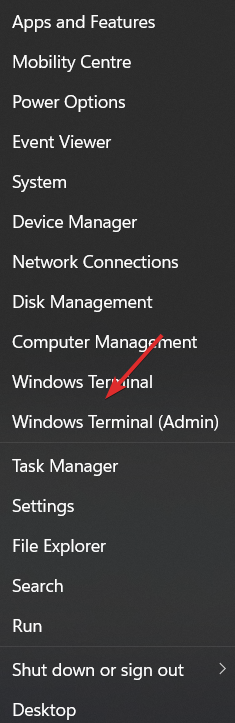
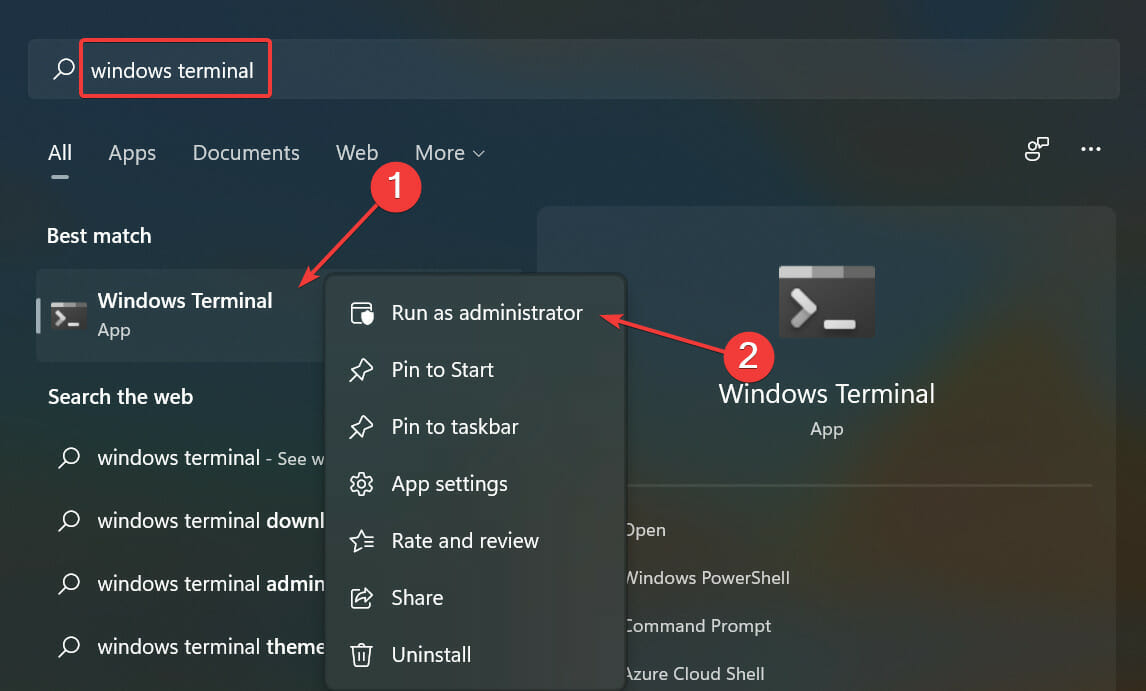
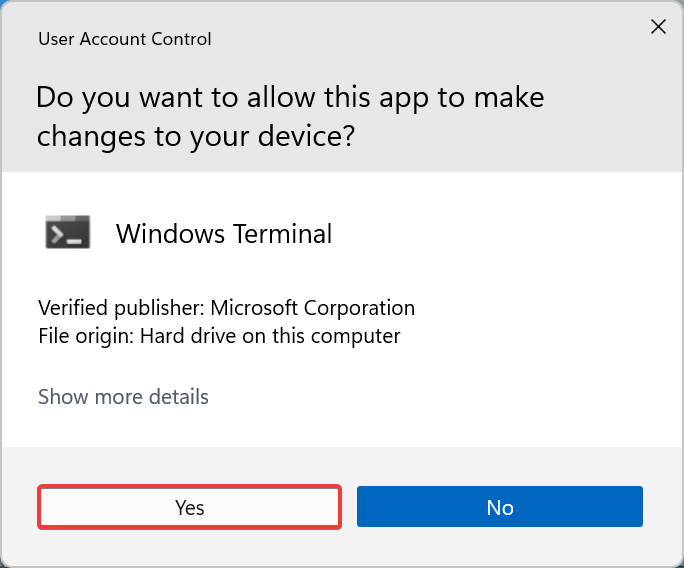
  1. Right-click on the Windows/Start icon from your Taskbar and choose Windows Terminal (Admin).terminal dropbox installer failed to start
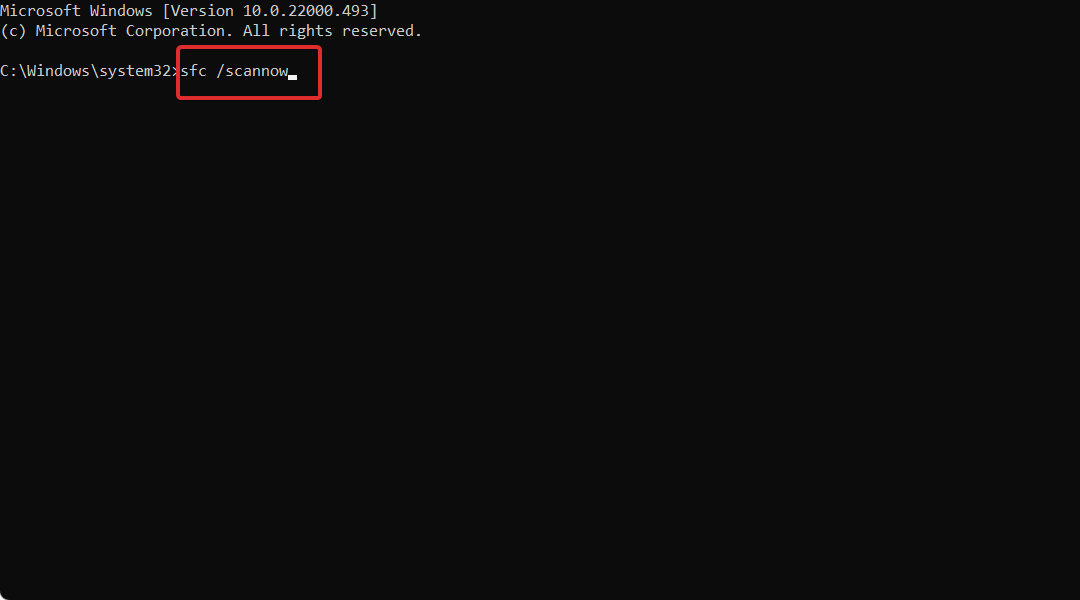
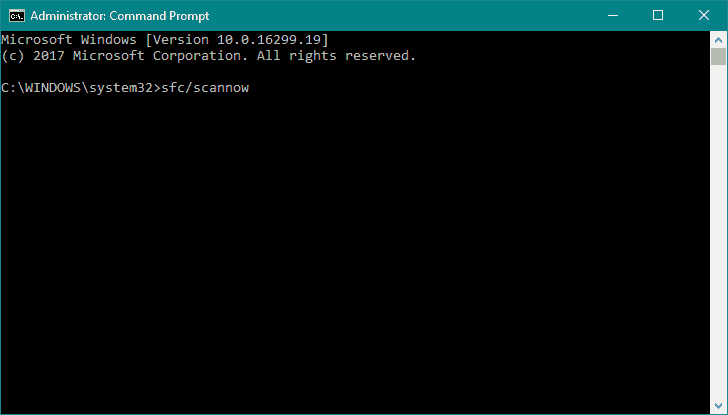
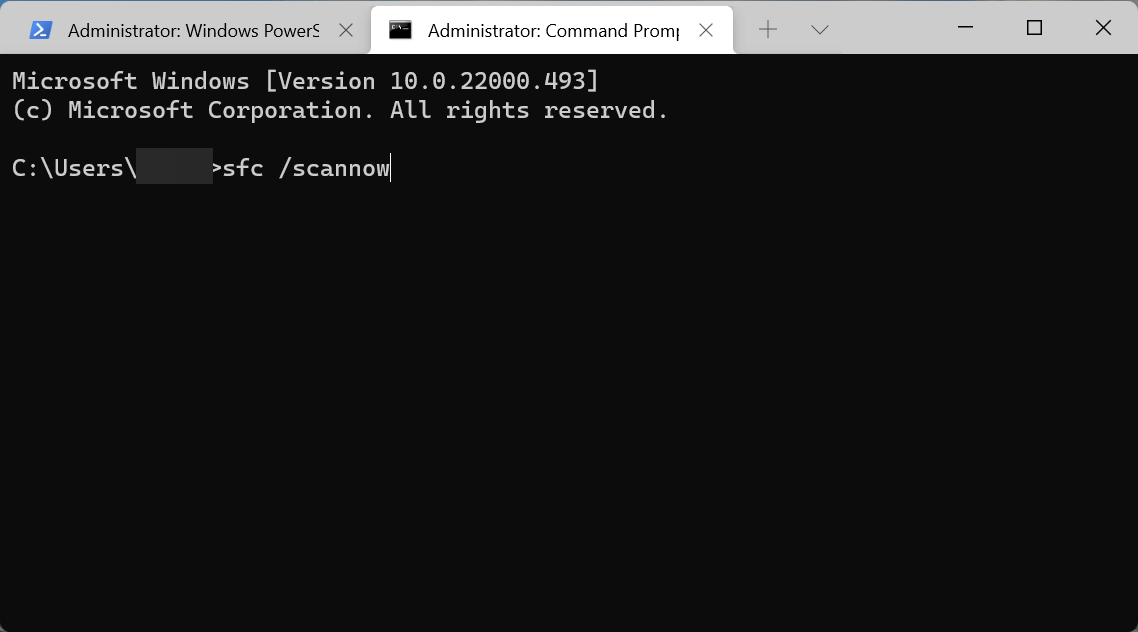
  2. Now type or copy-paste the following command and let it run: sfc /scannowsfc-scannow dropbox installer failed to start

2. Run DISM

  1. If you exited the Windows Terminal as an admin, you should access it again as we have shown above.
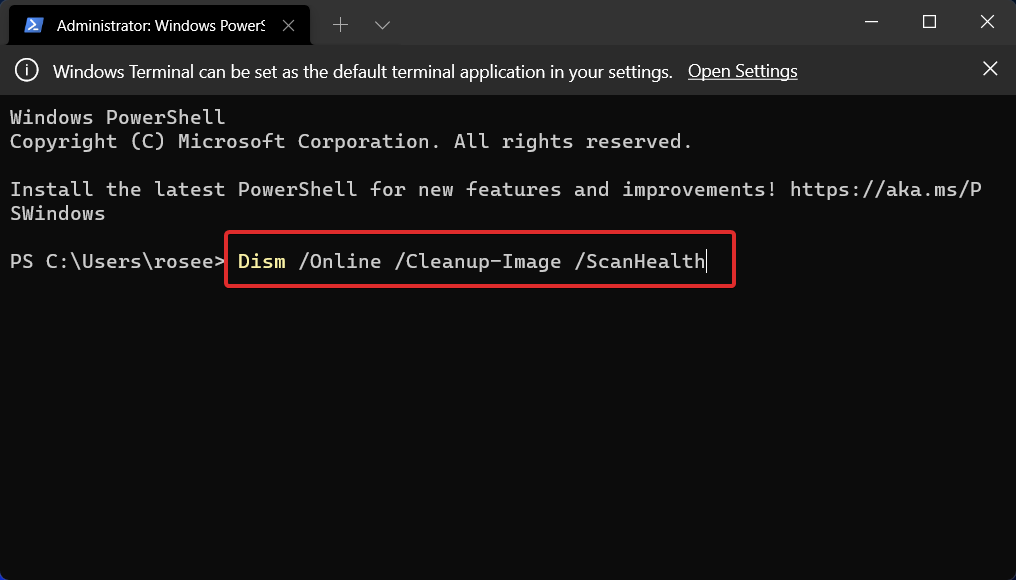
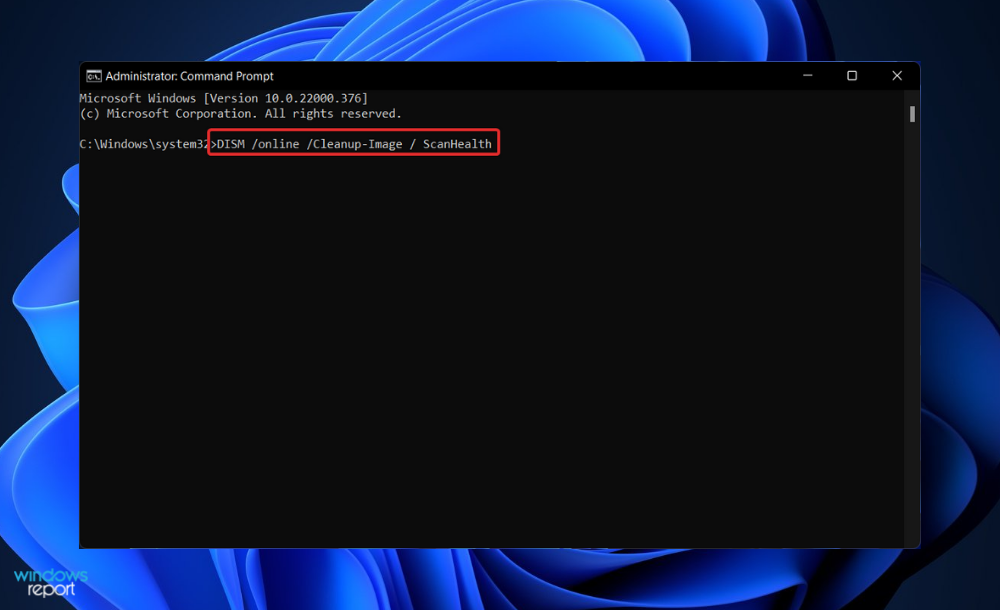
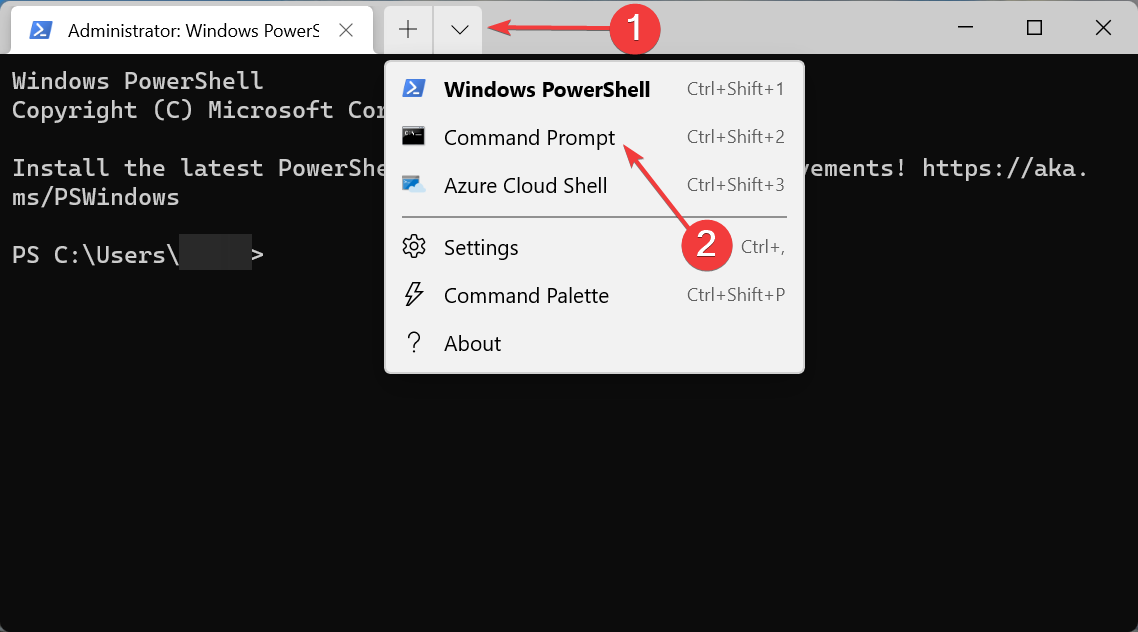
  2. Now, type or paste inside it the following commands, pressing Enter after each one of them: Dism /Online /Cleanup-Image /ScanHealth Dism /Online /Cleanup-Image /CheckHealth dism-tool dropbox installer failed to start
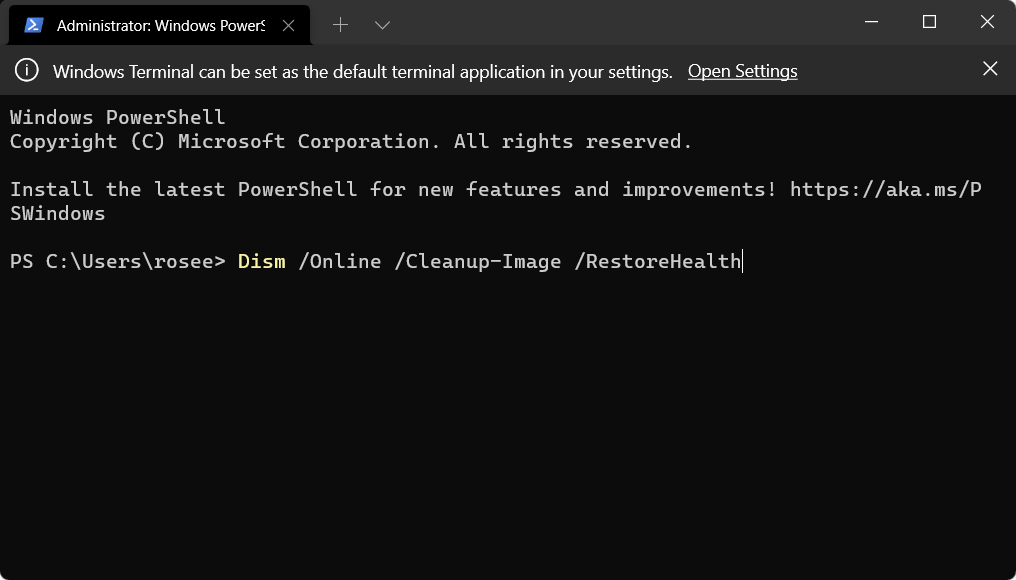
  3. The DISM tool will report whether the picture is healthy, repairable, or non-repairable based on the results of the analysis. Assuming that the image can be repaired, type or paste in the following command: Dism /Online /Cleanup-Image /RestoreHealthdism-clean dropbox installer failed to start

That’s it! The Dropbox failed to install error should now be gone. However, we also recommend that you try out alternative software applications that have the same or similar functionality as Dropbox. One of them is Sync which we use on a daily basis and support in you doing the same.

What are the advantages of using Dropbox?

When you sign up for a Dropbox account, you’ll automatically receive 2 gigabytes (GB) of storage space for your photos and videos.


There are no upfront fees or additional charges once you begin using the service, and there are several ways to increase storage space, including sending out fan mail about Dropbox, connecting it to social media, and inviting others to join it.

An additional paid option, which will provide you with 2 TB of space, which can be used to store numerous backups of your hard drive, is available as well.

Dropbox is simple to use, and everyone who has access to the Internet can take advantage of this technology. You can easily install the application on your smart devices as well as your computer. Every file will always be the most recent version available to you.

In order to share files using the software, all you have to do is place the files in a folder that has been marked for sharing with authorized users and if you need to exchange files with colleagues or other stakeholders, Dropbox makes the process simple and straightforward.

For more information on Dropbox and potential solutions to troubleshoot it successfully, check out our post on Dropbox not syncing on Windows 11.

Another good source of troubleshooting guidelines is our article on Dropbox sync icons missing on Windows 10/11. Don’t miss it out if you still need help!

Alternatively, if you got it up and running, take a look at how to add Dropbox to File Explorer and make your tasks even swifter.

Was this guide helpful for you? Tell us in the comments section below as well as whether you have more solutions in mind. Thanks for reading!


Posted in Fix

Developer provides instructions on how to install Windows 11 on the Surface Duo

Developer Gustave Monce has been working on installing Windows 11 on their own Surface Duo for a while now and now you can try it on your own at your own risk as a guide of sorts is now available (via Neowin.)

Available on Github, this new guide is the result of Gustave’s tweaking. It is only for the 128GB Surface Duo (the Duo 2 is not supported,) and is not an easy task, to say the least. As you’d expect, it involves using a custom UEFI and dealing with drivers and other sensitive things. You’ll also have to unlock the bootloader, and create custom partitions, too.

If all goes well, you can end up enjoying native Windows 11 on your Duo, though some things in Windows like touch, cellular, cameras, might not work right.  Fair warning, as another developer puts it, “almost nothing works right now.”

So, if you decide to try this at your own risk, you’ll pretty much end up with a niche device that can’t do much. Still, it’s a nice little side project, especially if you’re highly technical, and want a peek at what things would have been like if the dual-screen Surface Neo tablet was never canceled.

Aggregator Host: What is it & What Does is do?

Many users noticed aggregatorhost.exe in Task Manager, and naturally, some are curious about this process.

In today’s guide, we’re going to take a closer look at this process and see what it does.

How can I know if aggregator host.exe is safe in Windows 11?

1. Run the SFC scan

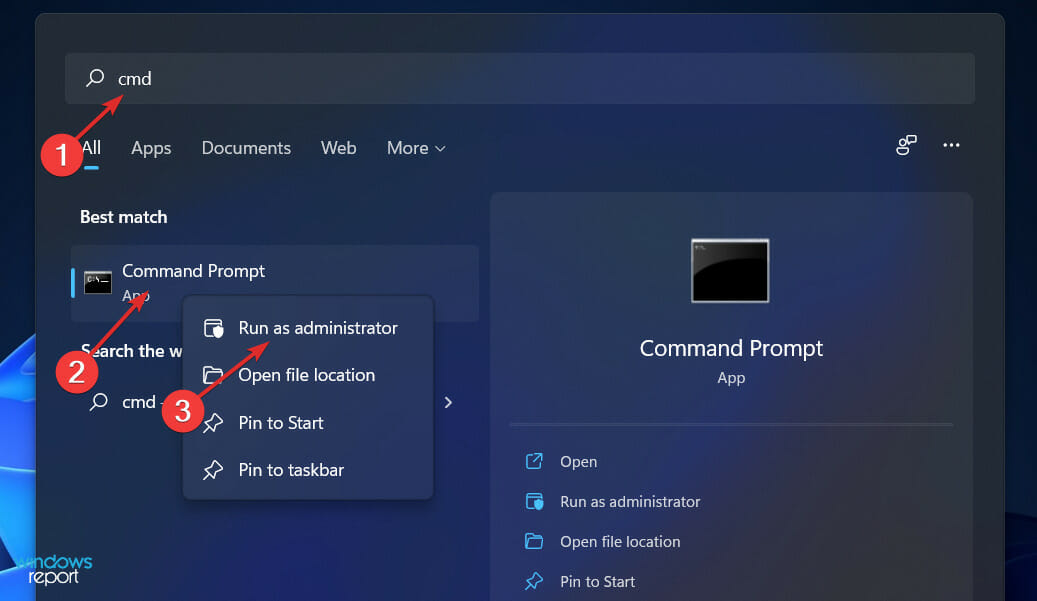
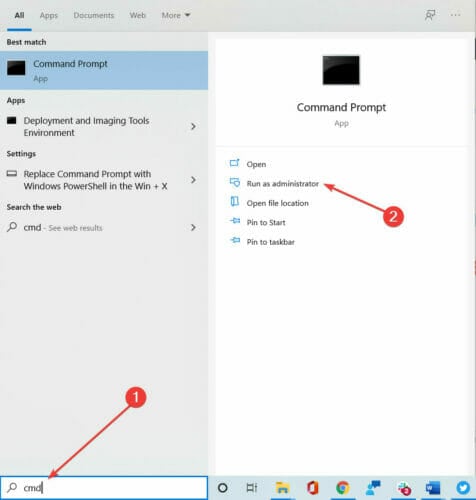
  1. Start by pressing the Windows + S keys together to bring up the Search box. Type cmd into the search bar, and then right-click on the most relevant result to run it as an administrator.cmd run as admin cmd line
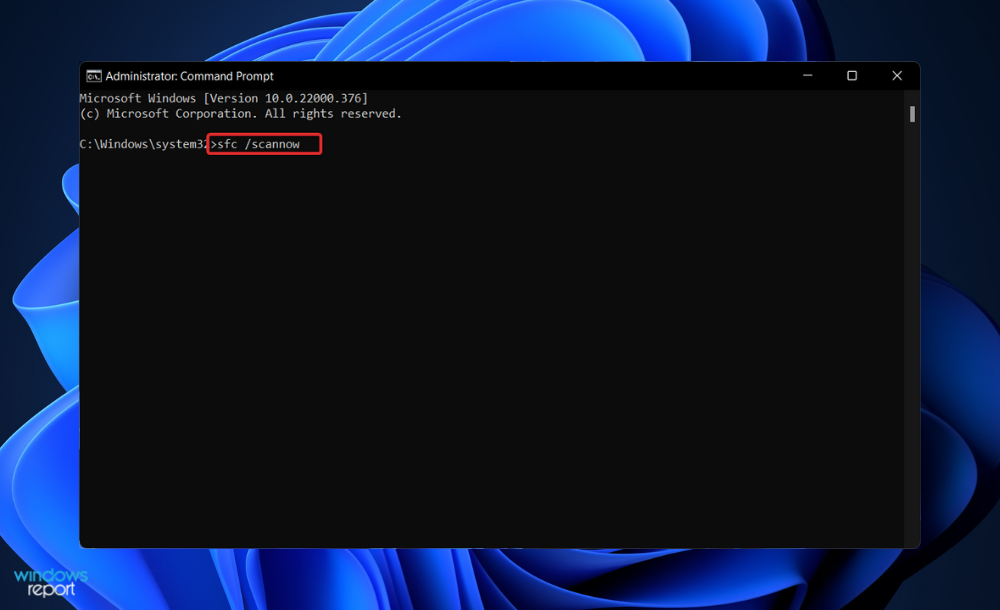
  2. Type or paste in the following command and press Enter: sfc /scannowsfc-scan asus motherboard fan control service stopped working

2. Run the DISM scan

  1. To access the Search bar, press the Windows + S keys. Type cmd and right-click on the most relevant result to run it as an Administrator.cmd run as admin cmd line
  2. Type or paste in the following commands and press Enter after each: DISM /online /Cleanup-Image / ScanHealth DISM /Online /Cleanup-Image /RestoreHealthdism asus motherboard fan control service stopped working

Relax and wait patiently for the process to be completed in its entirety. The process could take up to ten minutes, so please keep this in mind.

3. Run a virus scan

  1. Click on the carrot arrow in the right corner of your taskbar to locate the antivirus program you’ve installed, then right-click on it and select the option that opens the app interface.open-antivirus asus motherboard fan control service stopped working
  2. Now click on the button that performs a Smart scan or anything similar to a virus scan.smart-scan asus motherboard fan control service stopped working

We strongly recommend that you use a professional antivirus software that will take care of your computer’s security such as TotalAV.

4. Check the location of the file

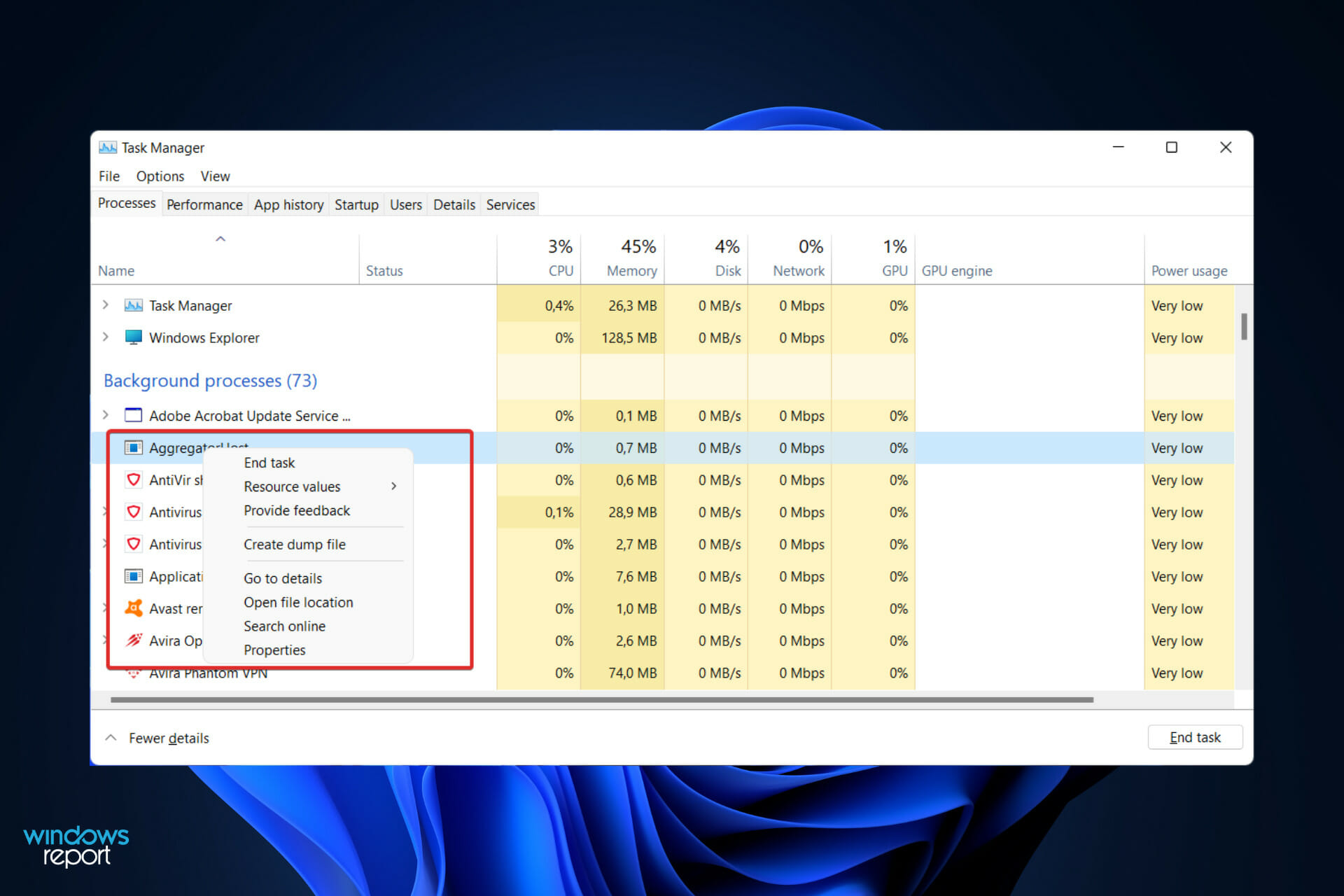
  1. Press CTRL + SHIFT + ESC to open the Task Manager window, locate the aggregator host.exe process, and right click on it to choose Open file location.task-hostexe aggregator host.exe windows 11
  2. If it takes you to this folder, then it means it is a safe process that has to do with the Windows OS:  C:\Windows\System32 

Is Aggregator Host a virus?

No, this is a legitimate Windows file, and it poses no threat to your PC. If you suspect that it’s malicious, you can always scan it.

And lastly, users have reported that their virus and threat protection is not working in Windows 11, to which we have responded with a guide on how to fix it. Make sure to check the article linked below if you encounter the same problem.

To learn more about lesser-known files, we have guides on Startmenuexperiencehost.exe and Wwahost.exe, so don’t miss them.

Don’t hesitate to let us know in the comments section below whether this guide was helpful for you. Thanks for reading!

Classic/Open Shell for Windows 11 [Download & Install]

Customizing your operating system is a fantastic way to make your regular life a little more enjoyable. You have the ability to change the user interface, apply a custom theme, add widgets, and much more. Thus, we will show you today how you can install Classic Shell on Windows 11.

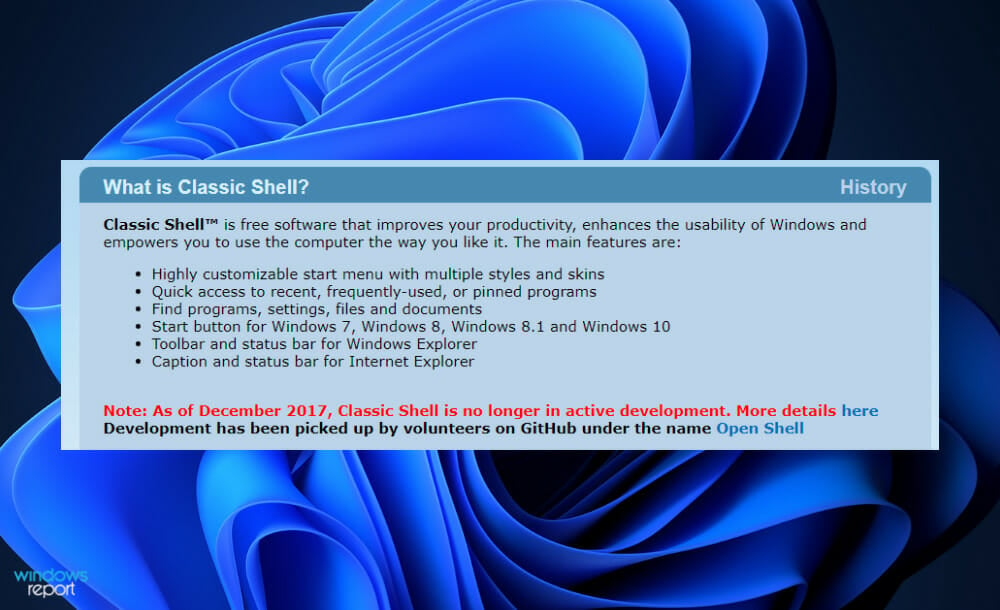
The program has been around for a long time and allows you to modify the OS. Volunteers have now taken up the running of the organization, which was disbanded in 2017. The new project is titled Open Shell, and it is presently available on Github for those who are interested.

Follow along as we will show you how you can download and install the software on your computer, right after we see a little bit of its history. Keep up with us!

How are Open Shell and Classic Shell related?

A derivative of the popular but now-defunct Original Shell program for Windows, Open Shell can be used to restore the classic Start Menu, Explorer, and Internet Explorer shells to a computer’s operating system.

You can learn more about restoring the classic interface by reading this guide on the Open Shell Classic Start Menu.

Classic Shell was a popular software that allowed users to restore functionality to OS iterations that had been discontinued by Microsoft. After the first introduction of Windows 8, the software gained in popularity as users chose to operate with a traditional Start Menu rather than the Start UI.

old website How to install Classic Shell on Windows 11

It was not the only program to see an increase in user numbers as a result of the record-breaking amount of Start Menu programs that were downloaded.

Classic Shell’s principal developer said in 2017 that he would no longer be working on the project. He made the decision to make the software’s source code public in order to allow other developers the opportunity to fork the program and continue development.

The name of one of the very first forks was Classic Start. It was published in June 2018 that the initial version of Classic Start was made available. When the first stable version of the application was launched in September 2018, the program was renamed Open Shell.

Their project is not defunct, as work on the Nightly versions of the software is still ongoing. Users are welcome to download and install these Nightly versions, which can be seen on the main GitHub page. Below, we will show you how you can get Classic Shell on your Windows 11 PC.

How can I install Classic Shell on Windows 11?

1. Download the Open Shell asset

  1. Visit the Github repository and expend the Assets section under Periodic update.
    assets-classicshell How to install Classic Shell on Windows 11
  2. Now click on OpenShellSetup_4_4_169 to download the file to your PC.
    openshell How to install Classic Shell on Windows 11
  3. Double-click on the setup file and follow the on-screen instructions in order to install OpenShell on your system. 
    doubleclick How to install Classic Shell on Windows 11

Once installed, you can launch the app from your Start menu and customize Windows 11 according to your liking. Optionally, some computers may require a reboot.

2. Use a third party website

  1. There are other secure websites from which you can download Classic Shell from such as SourceForge.
    cnet How to install Classic Shell on Windows 11
  2. The interface of all of them is simple enough to just click a button and get delivered what you had came for.
    download-cnet How to install Classic Shell on Windows 11

Keep an eye out for websites that appear to be untrustworthy by having Not secure next to their link at the top of your browser’s window. You should definitely refrain from interacting with them.

To ensure your computer’s privacy and security, we recommend that you use a specialized and trustworthy tool such as TotalAV.

Why shouldn’t I use an old iteration of Windows?

Unlike other items in our lives, computers are not something that we replace frequently. When compared to cellphones, which typically have a lifespan of two to three years, a computer has a lifespan of more than five years.

If it’s of good quality, it should be able to last for at least 10 years after you initially purchased it. However, a large number of people have a propensity not to update their hardware at all.

Windows 7 and Windows XP are two Windows iterations that we all hold dear to our hearts. However, if we were to go on a nostalgia trip and use them on an older system, we would most likely want to keep that machine away from the Internet in order to maintain privacy.

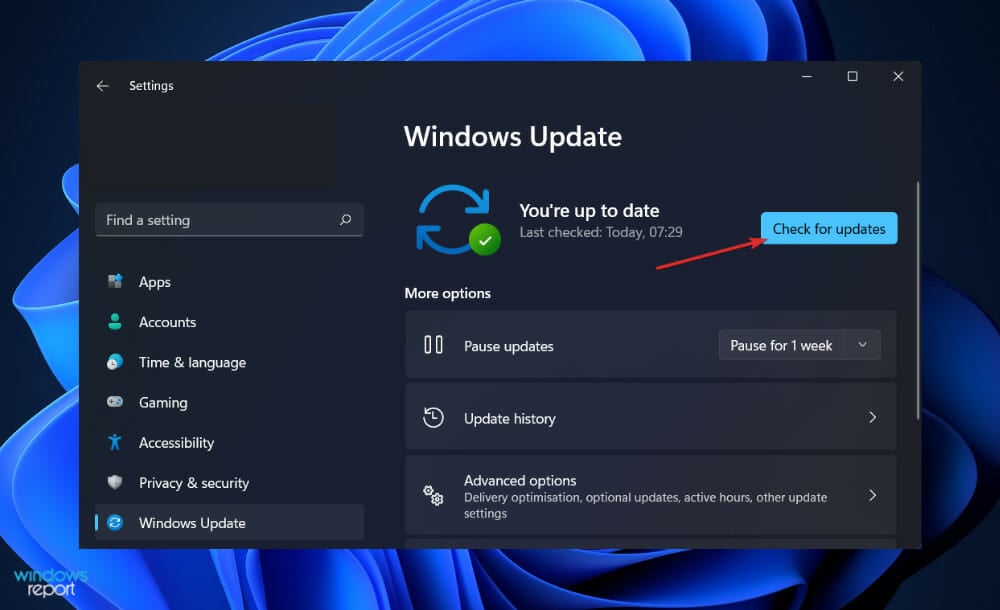
check updates How to install Classic Shell on Windows 11

The problem with obsolete and discontinued Windows iterations extends beyond simply upgrading to a newer iteration of the operating system. The underlying problem is that the company has already stopped providing maintenance for these systems.

This implies that if a severe security vulnerability is discovered in Windows XP or Windows 7, you will not be able to receive any updates to address it. In the coming years, Windows 8.1 and 10 will be confronted with the same problem, and you can anticipate that viruses will emerge.

However, if a vulnerability is severe enough, Microsoft has been known to defy its own standards on occasion. For example, it is well-known for issuing patches for the Meltdown and Spectre vulnerabilities in Windows XP.

But, for the vast majority of reasons, Microsoft considers Windows XP and 7 to be out-of-date platforms that they no longer provide support for. Other difficulties, such as major browsers or even device drivers ceasing to support your system, could potentially result in your PC being inoperable.

For further information and changes, you can make to your OS, check out our article on how to change Windows 11 to classic view. Alternatively, you should take a look at five best Windows 11 tips to streamline your OS.

And lastly, since we talked about privacy and security, don’t miss out on our post with five of the best antiviruses for Windows 11.

Let us know in the comments section below whether the guide was helpful for you as well as how you will change your OS with Open Shell.


5 Best VPNs For Asus Laptops To Secure Your Connection

Virtual private network tools, including ASUS laptops, are indispensable for your computer’s privacy and security.

You can use a VPN to protect your browsing sessions from phishing and keep hackers at bay by encrypting all Internet traffic. But there are countless other cases where a VPN can help your laptop.

For instance, if you can’t access restricted content due to your geographical position, you can use a VPN to bypass firewalls, circumvent geo-blocks, and access blocked websites. For example, we’ve carefully selected the best VPN services with Pennsylvania servers.

Although you might be tempted to use a free VPN, we advise against it. Free VPN service providers are dangerous, but a premium VPN is worth the money.

Here are the 5 best VPNs for your ASUS laptop, designed to maximize your laptop’s security and help you freely navigate the Internet.

What are the best VPNs for my ASUS laptop?

Express VPN – best VPN for ASUS laptops

Express VPN is another suitable option for Asus laptops. It has an extensive set of features that provide everything you need from a VPN.

The tool focuses on providing high levels of privacy and performance without compromising.

It has applications dedicated to all major operating systems, including Windows, macOS, and Linux. It is easy to configure; you can connect to a private network with just one click.

It fights against online attackers that try to steal your sensitive data. ExpressVPN hides your real IP address and uses AES-256-bit encryption to protect your privacy.

Express VPN uses private DNS on every server, contributing to even better privacy and increasing speed rates.

Other key features of Express VPN:

  • Network kill switch in case the connection drops
  • No logs policy
  • VPN split tunneling
  • Compatible with all devices
  • Blocks trackers and threats

ExpressVPN is available under several subscription plans. Each plan includes a 30-day money-back guarantee.

Express VPN

Check price Visit Website

Private Internet Access – best for streaming

Private Internet Access is the top VPN on this list for your ASUS notebook, thanks to numerous VPN servers and advanced security features.

It supports exclusive DNS servers that can speed up your Internet connection and secure your DNS queries simultaneously.

Instead of adding manual VPN connections to Windows 10, you can download and install PIA’s desktop client to use OpenVPN or WireGuard.

And if you do stumble upon any problems with PIA, you can always resort to its 24/7 live chat support.

More about PIA:

  • +3,300 VPN servers in 48 countries
  • Port forwarding and kill switch
  • Protects up to 10 devices
  • No identifying logs

Private Internet Access is a subscription-based service with a 30-day money-back guarantee for all the plans available.

Private Internet Access

Use the best VPN for your ASUS laptop to enhance its security and protect your online identity.
Check price Visit Website

NordVPN – best for security

NordVPN is a super-secure VPN for your ASUS notebook, which you can use for streaming, torrenting, gaming, and secure browsing.

For instance, if you’re into crypto-trading, you can use this VPN to protect your Binance transactions. Also, NordVPN supports obfuscation mode to help you bypass VPN blocks.

For example, if Instagram isn’t working on a VPN because the social media site rejects VPN connections, you can connect to NordVPN’s obfuscated servers to hide the VPN identifier and make it look like HTTPS traffic.

The virtual private network tool is compatible with all major platforms and has CyberSec malware blocker.

More about NordVPN:

  • +5,100 VPN servers in 59 countries
  • An integrated kill switch
  • 6 simultaneous connections
  • No logs
  • 30-day money-back guarantee (no free trial)

You can install it on your computer or on your ASUSWRT router. It features 24/7 live chat support.

NordVPN

Ensure the security and privacy of your ASUS laptop using a premium VPN app.
Check price Visit Website

Surfshark – best for multiple devices

Developed by Surfshark LTD, Surfshark is another great VPN for ASUS notebooks.

It’s the most affordable VPN on this list and can be installed on all major platforms without any problems. You can also use it to block bandwidth limitations set by your ISP, such as AT&T throttling.

This VPN app supports OpenVPN, WireGuard, and IKEv2 protocols, together with the Shadowsocks proxy server. It has obfuscation mode and a malware blocker.

You can even make Windows 10 auto-connect to this VPN so that you can secure your Internet connections as soon as you boot the operating system.

This tool has VPN servers optimized for torrenting and streaming and private DNS on each server to preserve your anonymity.

More about Surfshark:

  • +1,700 VPN servers in +63 countries
  • Split tunneling and kill switch
  • Unlimited device connections
  • A strict no-logging policy
  • 30-day money-back guarantee
  • 7-day free trial for iOS and Android

You can safely access files through this VPN without having to worry about eavesdroppers.

Surfshark

Use this dependable virtual private network solution to take your ASUS laptop’s security to the next level.
Check price Visit Website

CyberGhost VPN – best free VPN

CyberGhost VPN is another top VPN for your ASUS laptop. It uses the OpenVPN protocol to encrypt your traffic. You can even install it on ASUSWRT and other firmware at the router level.

This VPN tool comes with private DNS servers and DNS leak protection. You can use it to increase the security of your ASUS notebook and fix VPN errors.

What makes CyberGhost VPN one of the best VPNs for Windows 10 laptops is its impressive network of VPN servers, top-grade security features, and the fact that it can unblock most Netflix catalogs.

More about CyberGhost VPN:

Plus, it’s the only free VPN for ASUS laptops that you can trust with your data.

  • +6,500 VPN servers in 89 countries
  • Split tunneling and kill switch
  • 7 simultaneous connections
  • No traffic logs
  • 1-day free trial for Windows
  • 7-day free trial for iOS and Android

CyberGhost VPN is a subscription-based service with several plans available. Each plan includes a money-back guarantee.

CyberGhost VPN

Protect your ASUS laptop from all Internet dangers, thanks to this fast and reliable VPN.
Check price Visit Website

Taking everything into account, you can use the best VPNs for your ASUS laptop to raise its security level, maintain your online anonymity, and safely navigate the web.

If you can’t make up your mind about the 5 VPNs we handpicked for you, we recommend going for Private Internet Access because it hits all marks.

3 best VPNs for Terraria to reduce ping and lag

Terraria is an action-adventure game available on Steam, where you can explore a voxel-based world to dig, build, and engage in combat. It’s the 2D equivalent of Minecraft, making it possible to seek fortune, fight various creatures to survive, and construct towns for others to move in.

Terraria is one of the best survival games on Steam. It hosts many gaming servers all over the world, including the US, UK, Europe, Russia, Brazil, Turkey, and Germany.

If you are having trouble when trying to play Terraria on your computer, use a VPN to improve your ping. The way it works is easy: you connect to a VPN server close to the game server, launch Terraria, and start playing.

What a VPN does is hide your IP address to make it look like you’re closer to the Terraria game server. And a shorter distance means better connection speed. But you need the best VPN software to play Terraria, and we’re here to help.

What are the best VPN apps to play Terraria?

Private Internet Access

Made by Kape Technologies, Private Internet Access (PIA) is our first choice when it comes to VPN software to play Terraria and reduce ping.

It’s also evaluated as one of the best Terraria VPNs for Android users.

It has numerous fast VPN servers from which you can choose, along with exclusive DNS servers to further optimize your Internet connection.

If you’re not sure how to begin, you can quickly connect to the PIA recommended server and join a Terraria server to inspect your ping.

Private Internet Access secures your data even in rare cases when the connection drops. The kill switch feature automatically triggers when you get disconnected and blocks all traffic data.

This protects you against any malicious third-parties getting access to your personal information but also prevents your ISP from throttling your traffic.

What you need to know about PIA:

  • More than +3,200 VPN servers in 46 countries
  • Install it on Windows, Linux, macOS, Android, iOS, Chrome, Firefox, Opera
  • Connect up to 10 devices from the same PIA account
  • 30-day money-back guarantee (no free trial)

Private Internet Access is a subscription-based software. Users can benefit from frequent offers and sales.

You generally get the best deal if you subscribe for a longer period of time. Each plan includes a 30-day money-back guarantee.

Private Internet Access

Decrease your ping time with PIA when playing Terraria on Steam.
Check price Visit website

Nord VPN

Another reliable VPN software that can help reduce ping and lag is NordVPN.

This tool has an impressive number of over 5 000 fast-responding servers across 60 countries all around the globe.

It uses advanced encryption and privacy features in such ways that not even the fact that you use a VPN in the first place can be detected by third parties.

This removes the risk of your ISP placing restrictions on your traffic and it ensures that you will be able to bypass geo-restrictions and access international websites as platforms with no hassle.
NordVPN has a strict no-logs policy. They keep no record of your identity, browsing history, or location.

They use their own version of the WireGuard protocol which has been thoroughly tested and proven to provide both high-speed rates and great security.

Other key features of NordVPN include:

  • Anti tracking
  • Split tunneling
  • Secure kill switch
  • Malware blocker
  • Obfuscated servers
  • Compatible with most devices

NordVPN is a subscription-based VPN service with multiple plans available. Each plan includes a 30-day money-back guarantee.

Nord VPN

Connect to a fast and secure NordVPN server and enjoy Terraria without interruptions.
Check price Visit website

CyberGhost VPN

Also owned by Kape Technologies, CyberGhost VPN is another excellent VPN to help you improve ping when playing Terraria.

Just like PIA, it automatically detects the fastest VPN server based on your current location.

At the same time, you can explore a wide range of servers all over the world. Ideally, you should connect to a VPN server that’s in the same region as your Terraria game server.

CyberGhost VPN, just like the other options on this list, combines multiple security features to make sure your connection stays private.

This is essential especially when you frequently engage in online gaming. Unfortunately, many malicious third parties try to steal data from gaming platforms users.

Thankfully, a good VPN like CyberGhost will hide your IP address and encrypt all your traffic data with powerful end-to-end encryption, so no one will be able to detect your activity or identity.

What you need to know about CyberGhost VPN:

  • Over 6,400 VPN servers in 89 countries
  • Compatible with Windows, Linux, macOS, Android, iOS, Chrome, Firefox
  • Supports up to 7 simultaneous connections

CyberGhost VPN users can try out the VPN for free for one day. The software is subscription-based and each subscription includes a 45-day money-back guarantee.

CyberGhost VPN

Boost your Terraria gaming experience by eliminating lag with this VPN tool.
Check price Visit website

All aspects considered, Terarria is a wonderful 2D game that you can play on Steam whenever you need a break from work.

However, if you can’t fully enjoy the game due to lags, delays, and Internet connection issues, the VPN apps on this list should fix that.

5+ best VPNs for Netflix on Mac that don’t get blocked

Netflix is a fantastic streaming service, but it doesn’t offer the same library of movies and TV shows to all countries. Due to copyright issues, Netflix only provides a limited range of titles for each region.

However, you can fix this problem with a VPN. By concealing your true IP address and connecting to a VPN server from another country, you can change your region to unblock Netflix libraries from other countries.

For example, if you live in the US and want to watch Netflix UK, you just have to connect to a UK VPN server and then fire up the Netflix app or access the streaming service in your web browser. You just need a VPN for Netflix UK.

It’s all incredibly easy but only if you have the right VPN in your hands. Because Netflix has a no-VPN, no-proxy policy, you can rarely find a VPN that won’t get blocked.

Fortunately, you don’t have to buy and test numerous VPNs just to find one that works with Netflix on your Mac since we already handled it.

What are the best VPNs that work with Netflix on Mac?

Private Internet Access

use PIA for Netflix on Mac

Developed by Kape Technologies, Private Internet Access (PIA) is one of the fastest VPNs for streaming on Mac. It supports numerous VPN servers and comes bundled with some cool security features.

For instance, PIA runs an ad and malware blocker to protect your browsing sessions. It works with OpenVPN and WireGuard, as well as SOCKS5 and Shadowsocks proxy. You can even temporarily disable the VPN encryption if you need a speed boost.

PIA is compatible with all major platforms, including Mac and iOS. It has port forwarding, split tunneling, and a kill switch. Plus, it’s one of the few VPNs with 24/7 live chat support. It’s also one of the best VPNs for Microsoft Edge.

More about PIA:

  • +3,300 servers in 48 countries
  • Unblocks Netflix US
  • 10 simultaneous connections
  • No logs
  • 30-day money-back guarantee (no free trial)

Private Internet Access

Start watching Netflix US on your Mac by masking your true location with PIA.
Check price Visit website

NordVPN

use NordVPN for Netflix on Mac

NordVPN is one of the best VPNs for Windows 10 and Mac. You can use it to unblock a wide range of streaming services, including Netflix, by connecting to its numerous VPN servers spread across the globe.

Created by Tefincom & Co., NordVPN has its own antimalware tool for browsers called CyberSec. It also supports private and custom DNS servers, P2P activities like torrenting, OpenVPN, and a kill switch.

Moreover, you can connect to NordVPN’s obfuscated servers to defeat censorship and access blocked websites in case your VPN connection gets blocked. It’s compatible with all major devices.

More about NordVPN:

  • +5,100 servers in 59 countries
  • Unlocks Netflix US, UK, Canada, Australia, Germany, France, Japan, the Netherlands
  • Allows 6 simultaneous connections
  • No traffic logs
  • 30-day money-back guarantee (no free trial)

NordVPN

Watch the most awesome Netflix catalogs using this reliable VPN.
Check price Visit website

Surfshark

use Surfshark for Netflix on Mac

Surfshark can help you unblock websites on your Mac, including streaming services like Netflix. It’s a virtual private network created by Surfshark LTD, which can be installed on all major platforms.

This VPN service has servers optimized for streaming and torrenting. It can encrypt your data traffic using OpenVPN, IKEv2, WireGuard, or L2TP, depending on your preferences. Furthermore, it runs private DNS on each VPN server.

Similar to NordVPN, Surfshark has obfuscation mode. It also contains an ad and malware blocker, a kill switch, and a split-tunneling mode to isolate your VPN traffic from the rest of your Mac.

More about Surfshark:

  • +1,700 servers in +63 countries
  • Unlocks Netflix US, UK, Canada, Australia, France, Japan, India, and others
  • Unlimited connections
  • No data logs
  • 30-day money-back guarantee (no free trial)

Surfshark

Get access to numerous Netflix libraries, including the US and UK, using this trustworthy VPN.
Check price Visit website

CyberGhost VPN

use CyberGhost VPN for Netflix on Mac

CyberGhost VPN is also a virtual private network solution that belongs to Kape Technologies. It has the most impressive network of VPN servers on this list, and you can use it to circumvent geoblocks and watch Netflix on your Mac.

The tool features exclusive DNS servers that protect your DNS queries and make your Internet connection faster. It can be installed on all major devices, including Mac, and it’s the only free VPN for Netflix on this list.

CyberGhost VPN supports OpenVPN, an ad and malware blocker, split tunneling, and a kill switch. What’s more, it has a special category of VPN servers optimized for streaming.

More about CyberGhost VPN:

  • +6,500 servers in 89 countries
  • Works with Netflix US, UK, Canada, India, France, Germany, and others
  • 7 connections at once
  • Zero logs
  • Up to 45-day money-back guarantee (1-day free trial)

CyberGhost VPN

Unlock the entire Netflix catalog on your Mac with the help of this VPN service.
Check price Visit website

ExpressVPN

There’s no need for a fancy introduction to this software because its services speak for it. ExpressVPN is definitely your solution when you want to access blocked websites. 

This software features useful options in terms of browsing speed, data encryption, or multifunctionality. Above all, it has the capability to give access to streaming platforms like Netflix or more. 

Except for a few locations where Netflix can’t be accessed, you have the doors open for servers worldwide who can give you access to restricted content. Thus, anyone can watch preferred content from Netflix or other streaming websites on Mac or other operating systems

More about ExpressVPN:

  • More than 20 devices support 
  • Available content for Netflix US, UK, Canada, Australia
  • Network lock kill switch
  • 3000 servers in 94 countries
  • 30 days money-back guarantee 

ExpressVPN

Enlarge your content library from Netflix with immeasurable help from ExpressVPN.
Check price Visit website

ProtonVPN is a Swiss VPN software that will unblock your streaming content on Netflix or other platforms with secure servers worldwide.

Using such VPN support on your Mac device will be of great help to encrypt the internet connection and improve privacy on every web destination.

Back to streaming benefits, this VPN is packed with servers in 60+ countries that give you access to thousands of TV shows or series on Netflix and other popular streaming apps.

Plus, you have double safety due to Secure Core functionality which routes the traffic through multiple servers.

More about ProtonVPN:

  • High-speed server connections
  • NetShield feature to block ads and trackers
  • Strict no-log security
  • Maximum encryption with AES-256 bits

ProtonVPN

Watch all your Netflix shows without geo-blocking limitations using this unblocking VPN tool.
Check price Visit website

To conclude, you can use one of the 5 VPNs above to unblock Netflix on your Mac, depending on which Netflix library you’re interested in.

You might visit our Netflix Troubleshooting Hub to handle all Netflix-related issues. Also, we recommend the Streaming section to read the best reviews and guides.

6 Best VPNs To Watch NHL Gamecenter/All Games/Preseason

If you’re a hockey fan looking for the best ways to watch NHL Gamecenter, all games, or preseason, you need a powerful VPN that can quickly connect you to the NHL streaming website.

The role of a VPN isn’t only to conceal your IP address and encrypt your Internet traffic. You can also use a virtual private network solution to speed up your Internet connection for gaming, get better online deals like cheaper flights, as well as lift geo-restrictions on streaming services.

We handpicked the 5 best VPNs to help you watch NHL games, whether you’re interested in the preseason, Gamecenter, or all games.

What are the best VPNs to watch NHL streaming?

Private Internet Access

Created by Kape Technologies, Private Internet Access (PIA) is the best VPN for streaming. You can use it to not only watch NHL games but also unlock Netflix libraries from all over the world, including Netflix US.

PIA is a great solution to evade geoblocks and access blocked websites. You can use it to defeat online censorship, protect your browsing sessions from malware attacks, and even host game servers for you and your friends.

PIA supports exclusive DNS servers, OpenVPN and WireGuard, static and dynamic IP addresses, SOCKS5 and Shadowsocks, port forwarding, split tunneling, and a kill switch. Plus, it comes with 24/7 live chat support.

What else you should know about PIA:

  • +3,300 VPN servers (48 countries)
  • 10 simultaneous connections
  • No logs

Private Internet Access is a subscription-based VPN service with several plans available. Each plan includes a 30-day money-back guarantee if you are not satisfied with the service.

Private Internet Access

Watch NHL Gamecenter, preseason, and all games using this fast and secure VPN.
Check price Visit website

NordVPN

NordVPN is one of the most secure VPNs on the market and is ideal for watching NHL online.

Owned by Tefincom & Co., this app has a lot of cool features under its hood, including obfuscation mode.

Therefore, if your VPN gets blocked by the remote host, you can connect to obfuscated servers to hide the fact that you’re using VPN.

NordVPN uses OpenVPN to apply encryption. It has exclusive DNS servers, a malware blocker called CyberSec that protects your browsing sessions, along with a built-in kill switch.

What else you should know about NordVPN:

  • +5,100 VPN server (59 countries)
  • 6 connections at the same time
  • A strict no-logging policy

NordVPN is a subscription-based service with a 30-day money-back guarantee.

NordVPN

Unblock NHL streaming services and watch hockey games using this VPN app.
Check price Visit website

Surfshark

Surfshark is an excellent VPN service to help you watch NHL preseason, Gamecenter, or all games. Developed by Surfshark LTD, you can use it to optimize your entire network for streaming. It provides you with exclusive DNS on each VPN server.

You can use Surfshark not only to unlock streaming services but also to get around censorship, find cheaper prices online, and enhance your gaming experience by fixing lag and minimizing jitter.

Surfshark has an ad and malware blocker for browsers, Shadowsocks proxy server, kill switch, and split-tunneling mode.

What else you should know about Surfshark:

  • +1,700 VPN servers across +63 countries
  • Unlimited connections
  • No logs

Surfshark is a subscription-based service with a 30-day money-back guarantee available for all plans. The mobile applications have free trial versions.

Surfshark

Watch NHL online streaming by connecting to the high-speed servers of this VPN.
Free trial Visit website

CyberGhost VPN

Also a product of Kape Technologies, CyberGhost VPN can be used to spoof your IP address and connect to another region to unlock NHL streaming. It has an extensive number of VPN servers and can be used to redirect your entire network traffic through VPN.

CyberGhost VPN has special categories dedicated to streaming and torrenting. Plus, you can connect to the recommended VPN server to get the best possible speed and fix network congestion.

This VPN service features private DNS servers and DNS leak protection, a built-in ad, and a malware blocker to protect your browsing sessions from phishing, together with a kill switch and split-tunneling mode.

What else you should know about CyberGhost VPN:

  • +6,500 VPN servers (89 countries)
  • 7 connections at the same time
  • No identifying logs

CyberGhost users can get various subscription plans, depending on how long they want to keep the service. Each plan has a 1-day free trial and a 45-day money-back guarantee.

CyberGhost VPN

Watch NHL streaming from anywhere in the world with the help of this reliable VPN app.
Free trial Visit website

ExpressVPN

ExpressVPN running on the background

Your fastest way to watch your favorite sports TV through a private DNS and military-grade encryption is ExpressVPN.

Although we all enjoy watching a good game, networking on free websites might expose you to spyware, data breaches, and plenty of other viruses.

To avoid shady live broadcasts, we recommend using safe servers provided through your trusted VPN.

ExpressVPN locks your traffic across servers and hides your IP location, so you can enjoy a live game without the hassle of third-party intrusion.

Get hold of ExpressVPN if you want:

  • Reach over 94 countries with 160 distinct locations 
  • Unrestricted downloads and no ISP throttling
  • Rigorous confidentiality for your time online

ExpressVPN has several subscription plans available and a 30-day risk-free money-back guarantee.

ExpressVPN

With this high-end VPN supporter, you can watch sports at lightning-fast speeds and in complete anonymity.
Free trial Visit website

Vypr VPN

Vypr VPN is a reliable VPN service that allows users to bypass restrictions and watch NHL GameCenter. The VPN can automatically detect the best server for your particular configuration, but you can also select it yourself.

It offers the possibility to connect to multiple types of ports such as Chameleon, WireGuard, Open VPN, and L2TP/IPSec.

All these ports are well tested and promise high-speed rates and great security. Vypr VPN secures your connection with powerful AES-256-bit encryption.

Other key features of Vypr VPN include:

  • Automatic Troubleshooting
  • Public Wi-Fi safety
  • Kill switch
  • Automatic reconnect

To connect to Vypr VPN servers, you will have to get a subscription. There are two major plans available, each with a 30-day money-back guarantee.

VyprVPN

Protect your data and watch NHL at the top-level video quality.
Check price Visit website

In conclusion, you can watch NHL Gamecenter, preseason, or all games by getting equipped with a reliable VPN service. The 5 VPNs we presented above should meet your expectations. However, if you can’t decide between them, we suggest going with PIA.

If you have technical difficulties with your VPN, see our VPN Troubleshooting area.

Visit our Streaming Hub to discover what other streaming services you can unlock.

5 Best VPNs For Laptops On Windows 10

If you’re looking for the best VPN for your laptop running Windows 10, it means that you want to protect your device from hackers when connecting to public, unencrypted Wi-Fi hotspots.

That’s just one of the benefits of using a virtual private network solution on laptops.

You can also use a VPN on Windows 10 while waiting at airports, checking in to hotels, getting online at pubs or restaurants, or when trying to work at your local Starbucks.

It’s also possible to stay connected with your country’s Netflix library while traveling abroad. Needless to say, a VPN is indispensable for traveling.

However, not VPNs are equal. If you’re interested in finding the top VPN for your personal notebook, don’t hesitate to check out our recommendations below for Windows 10.

What are the best VPNs for Windows 10 laptops?

Private Internet Access – best overall

Private Internet Access is the top-ranked VPN on this list. It’s wrapped in a super-intuitive interface and features advanced options to preserve your online anonymity.

You can use it to redirect your entire network traffic through a VPN and keep your confidential information away from prying eyes.

PIA can be installed on all major operating systems and devices, including Windows 10 laptops.

You can use it to get around geographical restrictions, watch Netflix US from anywhere in the world, and protect your financial info while shopping online.

What else you should know about PIA:

  • +3,300 VPN servers in 48 countries
  • 10 connections at once
  • No logs
  • 24/7 live chat support
  • 30-day money-back guarantee (no free trial)

Private Internet Access supports port forwarding, split tunneling, a kill switch, exclusive DNS servers, an ad and malware blocker, together with OpenVPN and WireGuard.

Private Internet Access

Protect your Windows 10 laptop from hackers and other Internet dangers using this reliable VPN.
Check price Visit website

NordVPN – best for security

NordVPN excels in security, which is the most important feature you should take into account when looking for a VPN for your Windows 10 laptop.

This VPN service has obfuscated servers that help you bypass firewalls if your remote connection is refused by the host. It’s practical for accessing blocked sites that intentionally reject VPN traffic.

Furthermore, NordVPN supports OpenVPN, a malware and ad blocker called CyberSec, and a kill switch. You can also create a list of hotspots to prevent the VPN from auto-connecting to trusted networks.

What else you should know about NordVPN:

  • +5,100 VPN servers in 59 countries
  • Protects up to 6 devices
  • No tracking logs
  • Most secure VPN for Windows 10 laptops
  • 30-day money-back guarantee (no free trial)

NordVPN

Maximize the security of your Windows 10 laptop by turning to this dependable VPN.
Check price Visit website

Surfshark – best for unlimited connections

Surfshark is frequently a top choice in the VPN user community, thanks to its affordable subscription plans. Developed by Surfshark LTD, this tool is one of the best VPNs for your Windows 10 laptop.

For example, Surfshark is the only tool on this list that can change your GPS location with a VPN.

It has private DNS on each VPN server, obfuscation mode, OpenVPN and WireGuard, split tunneling, and a kill switch.

What else you should know about Surfshark:

  • +1,700 VPN servers in +63 countries
  • Unlimited simultaneous connections
  • No logs
  • Best budget-friendly VPN for Windows 10 laptops
  • 30-day money-back guarantee
  • 7-day free trial for Android and iOS

Surfshark

Protect all your household devices using this affordable and secure VPN.
Check price Visit website

CyberGhost VPN – best free VPN

CyberGhost VPN is the top free VPN for your notebook. Unlike the other VPNs on this list, it’s a premium-level service that offers a limited free trial for Windows 10 users (no credit card required).

Plus, it has a huge network of VPN servers worldwide and comes delivered in an intuitive graphical interface.

But there aren’t too many configuration options available for skilled individuals.

Nevertheless, CyberGhost VPN has an integrated kill switch, exclusive DNS servers, DNS leak protection, split-tunneling mode, and special categories of VPN servers dedicated to streaming and torrenting.

What else you should know about CyberGhost VPN:

  • +6,500 VPN servers in 89 countries
  • 7 simultaneous connections
  • No logs
  • 24/7 live chat support
  • 45-day money-back guarantee
  • 1-day free trial for Windows (no credit card)
  • 7-day free trial for iOS and Android

CyberGhost VPN

Use one of the best VPNs for your Windows 10 laptops while traveling.
Check price Visit website

ExpressVPN offers a well-rounded set of features. The tool provides pretty much everything you need from a VPN and packs it all up in a simple-to-use application.

This VPN allows you to connect to virtual locations across the whole globe. It has 160 server locations in over 90 countries.

You can benefit from a fast connection regardless of your actual location. It can also help you access geo-restricted websites or content platforms.

Express VPN combines several privacy-oriented features to make sure that your data is private. It masks your IP address, activates a kill switch in case the connection drops, and more.

Other key features of ExpressVPN include:

  • Split tunneling
  • Trusted server technology
  • Unrestricted torrenting/P2P
  • Unlimited data
  • Dedicated apps for multiple platforms

You can install ExpressVPN directly to your new laptop, but you can also secure your whole household by adding it to your router. ExpressVPN is subscription-based, with a 30-day money-back guarantee.

Express VPN

Secure your laptop and benefit from unlimited data and fast servers.
Check price Visit website

Conclusion

All aspects considered, you can use the best VPNs to strengthen the security of your Windows 10 laptop, especially when you’re always on the move and must often connect to public hotspots.

If you have a hard time deciding which VPN service to choose between the five options, we recommend going with Private Internet Access.

Without a doubt, PIA is the best VPN for Windows 10.

5 Best VPNs For Macbook [Buying Guide]

If you’re a Macbook user who often travels, you can use a VPN to increase your online safety and privacy. With a virtual private network service, you can fake your IP address, change your geo-location, and access restricted content on the Internet.

Furthermore, a VPN provides the necessary security when you must use public, unencrypted Wi-Fi to get online and send confidential data.

By encrypting your traffic, you are basically protecting your data from hackers. Even if a cybercriminal manages to get hold of your critical documents, they won’t be able to unscramble the coded message.

Besides, a VPN can also make your Internet browsing sessions more entertaining. For instance, you can watch Netflix US with a VPN even if you’re not currently in the United States territory.

However, not all VPNs are the same. Here are the 5 best VPNs for your Macbook to boost its security, improve your Internet connection speed, and protect multiple devices at the same time.

What are the best VPNs for my Macbook?

Express VPN – best VPN for Macbooks

ExpressVPN is another great option for Macbook users. It has a native macOS application that is very easy to use. Users can access a secure virtual server in just a few clicks.

This VPN provides a good balance when it comes to data privacy and performance. It encrypts all traffic without negatively impacting speed rates.

ExpressVPN has servers all over the world. Users of this VPN can access over 160 virtual locations and bypass any geographical restrictions.

ExpressVPN uses AES-256-bit encryption and private DNS so no third party can have any information regarding your activity or identity.

The tool also implements advanced VPN features such as a kill switch, split tunneling or public Wi-Fi protection.

Other key features of Express VPN include:

  • Works with streaming services
  • Suitable for torrenting and P2P
  • Zero logs policy
  • 24/7 support

ExpressVPN is a subscription-based service with a 30-day money-back guarantee for each plan.

Express VPN

Install ExpresVPN to your Macbook and connect to a fast and secure server in just a few clicks.
Check price Visit Website

Private Internet Access – Port forwarding support

Created by Kape Technologies, Private Internet Access (PIA) is a premium VPN service that has a bit of everything: a vast network of VPN servers, great connection speed, and advanced security settings.

PIA protects your Macbook using the OpenVPN or WireGuard protocols, depending on what technology you prefer. It keeps your DNS requests safe by rerouting them through exclusive DNS servers. Plus, you can use the VPN to access Binance or other blocked sites.

The virtual private network solution supports port forwarding, split tunneling, a kill switch, SOCKS5 and Shadowsocks proxy, malware blocker for browsers, and 24/7 live chat support. You can even enable debugging mode to monitor your VPN connection and detect any issues.

More about PIA:

  • +3,300 VPN servers (48 countries)
  • No logs or leaks
  • 10 connections
  • 30-day money-back guarantee (no free trial)

Private Internet Access

Protect your Macbook when you’re on the go using this fast and secure VPN.
Check price Visit Website

NordVPN – No logs or leaks

NordVPN is a popular tool for users interested in a premium VPN solution. Created by Tefincom & Co., it’s a top VPN for your Macbook because it offers a bunch of advanced security options that other VPNs lack.

For example, if you don’t want to trust the VPN provider with your VPN traffic, you can join the Tor anonymous network to increase your online privacy. But you don’t have to do it by downloading the Tor browser since NordVPN has integrated support for Onion-over-VPN servers.

Additionally, NordVPN can obfuscate your VPN traffic to bypass VPN blocks. It supports OpenVPN, a malware blocker called CyberSec, exclusive and custom DNS servers, and a kill switch. You can even use it to stop Verizon throttling or other ISP limitations.

More about NordVPN:

  • +5,100 VPN servers (59 countries)
  • No logs or leaks
  • 6 connections
  • 30-day money-back guarantee (no free trial)

Nord VPN

Maximize the security of your Macbook by turning to this dependable VPN app.
Check price Visit Website

Surfshark – Unlimited connections

Last but not least, Surfshark makes the cut on the list of best VPNs for Macbook thanks to its affordable subscription plans and unlimited device connections. You can basically connect any number of devices using the same VPN account to protect your entire family’s devices.

But Surfshark brings other cool features to the table, too. For instance, it features support for obfuscation mode to make your VPN traffic look like HTTPS traffic. It’s a great way to access websites that normally block VPN connections. The service is owned by Surfshark LTD.

Furthermore, Surfshark is the only VPN that can spoof your GPS location (that we know of). It has private DNS on each VPN server, OpenVPN, WireGuard and Shadowsocks, split-tunneling mode, and a kill switch.

More about Surfshark:

  • +1,700 VPN servers (+63 countries)
  • No logs or leaks
  • Unlimited connections
  • 30-day money-back guarantee (no free trial)

Surfshark

Ensure the protection of your entire family’s devices using this budget-friendly VPN solution.
Check price Visit Website

CyberGhost VPN – best free option

CyberGhost VPN is the best free VPN for your Macbook since it’s a premium service that offers a limited free trial. Owned by Kape Technologies, the tool has the most extensive network of VPN servers on this list.

You can unblock Netflix libraries from all over the world if you can’t watch your favorite movies or TV series due to geo-restrictions. Moreover, you can enable split tunneling on networks with limited bandwidth.

CyberGhost VPN has private DNS and DNS leak protection, streaming and torrenting categories, OpenVPN, ad blocker, trusted Wi-Fi networks, and a kill switch. Also, it’s wrapped in a user-friendly UI.

More about CyberGhost VPN:

  • +6,500 VPN servers (89 countries)
  • No logs or leaks
  • 7 connections
  • Up to 45-day money-back guarantee (1-day free trial)

CyberGhost VPN

Ensure the online privacy and security of your Macbook using this reliable VPN service.
Check price Visit Website

To summarize, you can use one of the top-ranked VPNs to protect your Macbook, especially for frequent travelers.

Besides, you can also enhance your entertainment and gaming experience with a VPN. For instance, you can unblock Netflix libraries on Mac and reduce your ping with a VPN while gaming.

All you have to do now is find and install the appropriate VPN for your Macbook. And, if you’re having trouble deciding, we’re confident that these articles will help you clarify your thoughts and pick the best product for your specific needs. 

Even more, if you want a VPN that comes with servers that are physically located in Pennsylvania or, at least, virtual servers that location services won’t identify as outside of Pennsylvania, rest assured that our guide can help.

Join our Mac section to stay tuned with Apple-related news and troubleshooting guides.

If you’re a globetrotter, visit our Traveling Hub to see how a VPN can help.

Elden Ring No Sound or Sound Cutting Off? Try These!

Elden Ring players pointed out that after starting the game, the sound either cuts out, or there’s no sound to begin with. Today we’ll show you how to quickly fix this audio issue in just a few easy steps.

Let’s get started.

How can I fix the sound problems in Elden Ring?

1. Check volume mixer

  1. Click on the speaker icon in the system tray.
  2. Open Volume Mixer and adjust Elden Ring sound volume.volume mixer
  3. Make sure it’s set to an audible volume and unmute it if necessary.

2. Verify integrity of game files

  1. Open Steam and go to your games.
  2. Right-click on Elden Ring and select Properties.
  3. Click Local Files.
  4. Check game file integrity for Elden Ring.lost ark steam game files

3. Reinstall audio drivers

  1. Open Device Manager by right-clicking the Start button.
  2. Expand Sound, video, and game controllers.
  3. Right-click your audio device and choose Uninstall device.reinstall audio drivers
  4. Restart PC. Windows will automatically re-install them.
  5. Check if the Elden Ring issue persists

Elden Ring is definitely no short of errors. Either players can’t summon ashes, get in-game horizontal lines, have no haptic feedback, or are stuck at a 60 FPS cap.

Hopefully, you won’t have to install the audio drivers, and checking game file integrity will be enough. If it isn’t, however, go ahead and do that as well.

Have you managed to restore proper audio functionality in Elden Ring? Share your experience with us in the comments section below.

3 best VPNs for Stardew Valley to fix lag and lower ping

Stardew Valley is a country-life RPG with an open world and no story mode but plenty of unique content. It’s available on Windows (Steam), macOS, Linux, PlayStation 4, Xbox One, Nintendo Switch, PlayStation Vita, iOS, and Android.

After inheriting your grandfather’s old farm and starting from the ground up, you can work the field using various tools, grow crops, raise animals, improve your skills, and join the local community.

The game has plenty of solo content, and you can also switch to multiplayer mode and invite up to 3 other players to help you build your farm. As such, you can join online sessions and host game servers.

Unfortunately, many players stumble upon Stardew Valley lag when trying to enjoy the game with their friends. If you’re one of them, you can easily reduce high ping and go back to a smooth gaming experience by getting equipped with a powerful VPN app.

Not only can a VPN lower your ping, but it can also protect your online privacy, defend your router from hackers, and provide anti-DDoS protection. However, not all VPNs work best with Stardew Valley, so here are the ones that interest you.

What are the best VPNs to fix Stardew Valley lag?

Private Internet Access

use Private Internet Access to fix Stardew Valley lag

Private Internet Access (PIA) is your best shot to eliminate Stardew Valley lagging, thanks to its blazing-fast VPN servers and superior security features. The virtual private network solution can fix packet loss and enhance your Internet connection speed.

Made by Kape Technologies, PIA is compatible with all popular devices and allows 10 simultaneous connections. It’s the only VPN on this list that supports port forwarding. Plus, it has 24/7 live chat support.

PIA’s key features:

  • +3,300 VPN servers in 47 countries
  • Disable VPN encryption to enhance speed
  • Static and dynamic IP addresses
  • No-logging policy
  • Great for Stardew Valley multiplayer lag
  • 30-day money-back guarantee (no free trial)

Private Internet Access

Easily deal with Stardew Valley lag spikes by relying on this fast and secure VPN solution.
Check price Visit website

NordVPN

With NordVPN it’s possible to resolve gaming lag issues and enjoy this relaxing game in your free time without experiencing latency.

Using a VPN tool is beneficial for improving gaming performances, and also protecting your online privacy against cyber attacks.

With secure internet servers worldwide, it’s easy to connect to various locations and have better results in this RPG gameplay.

You can as well profit from double protection and change your IP address twice for increased security. Plus, there is a private DNS and no data leaks for your data.

NordVPN key features:

  • One account for up to 6 devices
  • 5400+ servers across 60 countires
  • Unlimited content on restricted locations
  • Access for content limitations
  • Threat protection for malware or data theft
  • Strict no-log policty

NordVPN

Fully appreciate Stardew Valley without any lag or high ping in the game using this proficient VPN.
Check price Visit website

CyberGhost VPN

use CyberGhost VPN to reduce Stardew Valley lag

CyberGhost VPN is a tool that deserves your attention when it comes to fixing Stardew Valley cursor lag and other latency issues. It’s owned by Kape Technologies and can be used to fix Wi-Fi packet loss.

The VPN service can minimize jitter and significantly improve your gaming experience, thanks to its extensive network of VPN servers optimized for streaming, gaming, and torrenting.

You can install it on all popular devices, even if you want to deal with Stardew Valley PS4 lag. It’s the only free VPN on this list and allows up to 7 connections at the same time.

CyberGhost VPN’s key features:

  • +6,400 VPN servers in 89 countries
  • Protects your DNS queries using exclusive DNS servers
  • Create whitelists and blacklists in split tunneling mode
  • Zero-logging policy
  • Works best with Stardew Valley mouse lag
  • 45-day money-back guarantee (1-day free trial)

CyberGhost

If your Stardrew Valley ping time is too high, use this reliable VPN app to reduce it easily.
Check price Visit website

To conclude, Stardew Valley is a highly entertaining game that can be best enjoyed with your friends. However, if high ping in Stardew Valley is causing hosting issues, use a VPN like Private Internet Access to lower it in no time and fix all latency-related problems.

3 best VPNs for EU4 to fix lag and reduce ping

Europa Universalis IV (EU4) is a grand strategy game part of the Europa Universalis series, where you can evolve a nation from the Late Middle Ages through the Early modern period.

It has diplomacy, military, colonization, administration, and trade features. You can play it on Windows, OS X, and Linux. It’s available on Steam.

The game has a multiplayer mode, where you can join online sessions or host game servers for others to join. However, a lot of players experience EU4 lag, which can become really annoying. If you’re looking for a quick EU4 lag fix, you can use a VPN to improve your ping and gameplay.

Although the main purpose of a virtual private network solution is to conceal your IP address and encrypt your Internet traffic, it can also be used to achieve better connection speeds during gameplay and to circumvent geoblocks.

What are the best VPNs to fix EU4 lag?

Private Internet Access

If EU4 late-game lag is your biggest issue during gameplay, you can count on Private Internet Access (PIA). It’s one of the best VPN apps for your computer that can fix packet loss and speed up your Internet connection.

Made by Kape Technologies, PIA gives you the possibility to disable VPN encryption if you need a speed boost. It comes with private DNS servers, port forwarding, and 24/7 live chat support.

What you should know about PIA:

  • +3,300 VPN servers in 47 countries
  • Static and dynamic IP addresses
  • Compatible with Windows, Mac, Linux
  • Ideal when EU4 is lagging late in the game
  • Allows 10 connections at once
  • 30-day money-back guarantee (no free trial)

Private Internet Access

If you have EU4 lag late in the game, use PIA to fix high ping.
Check price Visit website

NordVPN

Choosing NordVPN to enhance your digital security and privacy is exactly what you need, plus improving gaming results as well.

With the fastest servers on the market, this VPN tool can definitely protect your digital presence or secure the internet connection with unbreakable encryption.

You can pick from thousands of servers across 60 regions and connect right away to resolve privacy issues. Plus, you can fix the lag in EU4 gameplay by connecting to faster servers.

In addition, you have unlimited content from restricted areas to access streaming shows or have game updates unavailable in certain areas.

What you should know about NordVPN:

  • 5400+ server locations
  • AES 256-bit encryption
  • Automatic kill switch option
  • Reliable and fast P2P
  • Threat Protection against malware
  • Worldwide access from 60 countries

NordVPN

Take advantage of this leading VPN software and reduce high ping on the EU4 strategy game.
Check price Visit website

CyberGhost VPN

When every click causes lag in EU4, you can use the high-speed VPN servers provided by CyberGhost VPN. It’s a virtual private network solution that can minimize jitter and enhance your gaming experience by lowering your ping time.

Owned by Kape Technologies, CyberGhost VPN has an extensive network of servers optimized for gaming. It also comes with exclusive DNS servers and split-tunneling mode to create whitelists and blacklists, so that you can optimize your Internet traffic for gameplay.

What you should know about CyberGhost VPN:

  • +6,400 VPN servers in 89 countries
  • DNS leak protection
  • Works with Linux, Mac, Windows
  • Fixes EU4 when you’re lagging behind
  • Permits 7 simultaneous connections
  • 45-day money-back guarantee (1-day free trial)

CyberGhost

If you’re wondering how to fix EU4 lag late in the game, use this VPN solution to decrease your ping.
Check website Visit website

In conclusion, if you’re experiencing EU4 lag, you don’t have to join another group of players or exit multiplayer mode and try again later. The quickest way to reduce your ping in the game is by connecting to a VPN server that’s in the same region as the remote host.

Whenever your VPN service throws unknown errors, consider visiting our VPN Troubleshooting area. As well, join the Gaming VPN Hub if you often have ping and packet loss issues in games.

You just need the right VPN app for the job. And, if you can’t decide between the three options for Europa Universalis IV, we suggest picking Private Internet Access, thanks to its superior speed and excellent security features.

[Fix] Elden Ring: Can’t summon ashes

What else can be said about Elden Ring, except that most people consider this title to be an actual masterpiece?

That it’s a terrible game, a rip-off, a buggy disappointment, or that it’s a complete waste of time. At least, that’s what the other people are saying about Bandai Namco’s latest game.

Whichever side you want to take, make sure that you at least try it, as the adventures and foes in Elden Ring are both really fun, and incredibly challenging.

However, on the off chance you do decide to take it for a test drive and have to deal with all sorts of bugs and errors, you came to the right place.

Lately, a lot of Elden Ring users have been complaining about not being able to summon ashes in the game, such as the wolves or the jellyfish.

Before you do that though, you have to keep in mind that there are certain things you have to consider when summoning.

Why can’t I summon ashes in Elden Ring?

Not being able to summon wolves, jellyfish, or other help in Elden Ring can be very frustrating.

It’s true that it isn’t always obvious why players can’t use ashes to get help from spirits, which can lead to confusion, anger, and rage quits.

Generally, gamers can’t summon spirits in Elden Ring because they are in an area where they can’t summon, they don’t have enough FP for the summon cost, or they don’t yet have the Spirit Calling Bell.

When you are in an area where spirit summoning is available, a purple icon appears on the left side of the screen.

Needless to say, if you aren’t in one of the above-mentioned areas, you will never ever be able to do that.

How can I fix this?

Usually, this is down to players not knowing enough about the summoning ritual in order to properly perform it and get the results they want.

There have been documented cases in which all the criteria were fulfilled, but the feature still wouldn’t work. All that was fixed with a simple restart of Elden Ring.

If that’s not the case for you, just make sure you look for the purple icon on the left side of the screen to know when you can summon.

Also, either use your flash to recover FP or level up to get more max FP. These are pretty much the choices you are looking at right now.

What other bugs have you come across while playing Elden Ring? Share your experience with us in the comments section below.

Microsoft’s latest sustainability effort report includes some good news for keeping Xbox energy friendly

Microsoft has published its annual sustainability report, looking at its progress on the effort in 2021. The report looks at how Microsoft is moving closer to becoming a carbon negative, zero waste company by 2030. In addition, a separate post from the Xbox team also looks at how Xbox is looking to stay green heading and deliver on Microsoft’s goals.

Generally speaking, Microsoft says that it has seen an overall reduction in scope 1 and scope 2 emissions of about 17% year over year. This is through purchasing of renewable energy. Meanwhile, scope 3 emissions went up 23% year over year.

For those unfamiliar, scope 3 emissions are hard to control. It includes the materials in Microsoft buildings, the business travel of its employees, and the full life cycle of its products, including the electricity customers may consume. As for scope 1, and scope 2, those are direct carbon emissions, and indirect emissions like exhaust, and the things that come from energy production. Microsoft explained this in a separate post from 2020.

Microsoft is hoping to reduce scope 3 emissions by accelerating work to set business-group-specific annual carbon intensity targets. Also in the plan is restructuring and increasing Microsoft’s internal carbon fee to better match the underlying cost of carbon abatement.

As for what’s in the plans for Xbox, there’s a lot in the docket. Microsoft is planning to design Xbox products and accessories to be 100% recyclable by 2030. This builds on the fact that Microsoft switched to using post-consumer recycled resins on Xbox Series S consoles. Elsewhere, Microsoft is also allowing system and game updates to be downloaded while an Xbox is in Energy Saver mode.

Other plans include the fact that Microsoft has embedded an enhanced power monitoring system in a small subset of consoles. This is for anonymous, telemetry collection. Basically, this helps Microsoft identify the best opportunities to introduce future improvements to help save power. You can learn more about these changes over on the Xbox Wire.

You can now run Windows 10 on the Steam Deck, with some limits

The Steam Deck launched without official support for Windows, but the moment has finally arrived if you’re one of the lucky few who have one in your hands. As spotted by The Verge, it’s now possible to install Windows 10 on the Nintendo Switch-like portable gaming console, and it’ll work without any big issues.

Valve has an official support page for running Windows on the Steam Deck, which explains how Microsoft’s operating system works on the device. Now that Wi-Fi, GPU, and Bluetooth drivers are available through the page, you can install Windows 10 in place of SteamOS. However, it’s important to note that Dual-Boot is not supported, and if you opt to run Windows, you’ll have to wipe your Steam Deck. A separate support page provides instructions on how to do that.

This is because while Steam Deck is fully capable of dual-boot, the SteamOS installer that provides a dual-boot wizard isn’t ready yet. Valve says support will ship alongside SteamOS 3 once it’s complete. Some other notes with running Windows on the Steam Deck involve the speakers and headphone jack not working. As The Verge notes, you’ll have to use Bluetooth or USB-C audio to enjoy your games properly with Windows.

If you’re hoping to upgrade your Steam Deck to Windows 11, then there’s more bad news. Valve is still preparing a BIOS update that will enable fTPM, which is needed to install Windows 11. You can stay tuned to this support page for more information on when that becomes possible.

In other news, Microsoft did provide an update on which Xbox Game Studios games will work on the Steam Deck. You should expect most titles to work fine. However, Gears 5, Halo: The Master Chief Collection, Halo Infinite, and Microsoft Flight Simulator won’t run for anti-cheat reasons.

Inspecting other players in Lost Ark is easier than you think [Guide]

As with other online multiplayer games, what’s the point of getting the best armor pieces and weapons in the game if you can’t compare your gear to other players?

Inspecting a fellow Lost Ark player you find on the map can tell you a lot about his experience, the places he’s been so far, and the foes he managed to defeat.

You can pretty much learn whatever you want about that specific person just by looking at skills, stats, character and item levels, PvP rank, guild, and much more.

However, many Lost Ark players don’t know how to do that yet but don’t worry, because we’re here to show you exactly that.

So, next time you find someone on the map and you need a bit of background information, you’ll know exactly what to do.

How can I inspect other players in Lost Ark?

It’s actually easier than you might think, considering the commands you have to input in order to get this done are used in many other games or software.

So let’s get right into it and find out how to inspect any players we find in the open world of Lost Ark.

First of all, you need to start the game, as this can’t be done outside of the title itself. This is not World of Warcraft, so we don’t have an Armory where we can stalk our friends or rivals.

  1. Run Lost Ark.lost ark menu
  2. Hold Ctrl and right-click on the character you want to inspect.lost ark inspect
  3. Click on Character Profile.character profile lost ark
  4. Get all the info you need.lost ark character inspect

That’s basically all you have to do if you feel like peaking at some other players and finding out what weapons they’re using, or what build they are running.

This type of information can be really useful to people just coming into Lost Ark for the first time, as they can see other players with the same class and learn something from them.

Next time you need to balance stats or change a piece of gear and you aren’t sure, peek at other Lost Ark users with the same type of character and learn.

It doesn’t really matter who you inspect, they can even be from different servers. That being said, find out how you can add people from other servers to your friend list.

However, many users also said that Lost Ark won’t install on Steam for them, so make sure you look into that too, before playing.

Have you discovered any other bugs that ruin Lost Ark’s gameplay? Share your experience with us in the comments section below.

5 best VPNs to fix Titanfall 2 ping spikes

If you’re looking for an easy way to fix Titanfall 2 ping spikes, just use a VPN.

Created by Respawn Entertainment and published by Electronic Arts, Titanfall 2 is a first-person shooter released in 2016. It’s available for Windows, PlayStation 4, and Xbox One. You can find it on Steam and Origin.

In multiplayer mode, the game runs dedicated servers so that you can join an existing network of players or start your own and invite friends. Unfortunately, many users experience Titanfall 2 ping spikes and lag issues in the online PvP mode, which negatively affect their gameplay.

To reduce Titanfall 2 multiplayer lag on PC, you can update your operating system and get the latest game patches, minimize your graphics settings, and switch from a wireless to a wired Internet connection.

However, if these steps don’t fix your Titanfall 2 network lag, use a VPN to improve your ping. By rerouting your gaming traffic to a VPN server that’s closer to the remote host, you can speed up your Internet connection and lower ping.

Furthermore, you can minimize packet loss with a VPN. You just need a powerful Titanfall 2 VPN that provides you with a wide network of high-speed servers and gaming security features.

What are the best VPNs to fix Titanfall 2 ping spikes?

Private Internet Access

PIA is the best VPN for Titanfall 2

Private Internet Access (PIA) is the best VPN that can deal with severe lag in Titanfall 2. Made by Kape Technologies, PIA can help redirect your entire network traffic through VPN if you want to protect all your web-enabled applications, not just your games.

PIA gives you the possibility to forward ports without configuring router settings, thanks to a built-in feature. This is actually a VPN requirement if you’re interested in hosting game servers for you and your friends.

Moreover, PIA can encrypt your gaming traffic to fix Titanfall 2 ping spikes using OpenVPN or WireGuard, depending on your preferences. You can bypass geo-blocks and pick between static and dynamic IP addresses. Plus, PIA offers 24/7 live chat support.

More about PIA:

  • +3,300 VPN servers (48 countries)
  • 10 simultaneous connections
  • Works with Windows, PS4, Xbox One
  • No traffic logs
  • 30-day money-back guarantee (no free trial)

Private Internet Access

Get rid of PC lag in Titanfall 2 by turning to this fast and secure VPN.
Check price Visit website

NordVPN

use NordVPN to lower Titanfall 2 ping

Another way to fix Titanfall 2 PC laggy issues is by using NordVPN. Designed by Tefincom & Co., this VPN solution can not only make your Internet connection faster but also minimize jitter. It puts a huge network of VPN servers at your disposal.

NordVPN supports private DNS servers, an ad, and a malware blocker to protect your browsing sessions (CyberSec) while fixing Titanfall 2 ping spikes, together with an emergency kill switch. It uses the OpenVPN protocol to secure your Internet traffic.

Besides fixing Titanfall 2 unstable ping, you should also know that NordVPN lets you connect to obfuscated servers if you need to get around VPN blocks. It’s an advanced technology that cloaks your VPN traffic to make it look like HTTPS.

More about NordVPN:

  • +5,100 VPN servers (59 countries)
  • Connect up to 6 devices at the same time
  • Can be installed on Windows, PS4, Xbox One
  • No-logging privacy policy
  • 30-day money-back guarantee (no free trial)

NordVPN

Get rid of Titanfall 2 ping issues on PS4, Windows, and Xbox One with this VPN.
Check price Visit website

Surfshark

use Surfshark to fix Titanfall 2 ping spikes

If you’re looking for a simple way to lower in-game high ping for Titanfall 2, check out Surfshark. Operated by Surfshark LTD, this VPN tool has an extensive range of VPN servers, together with private DNS on each server. You can also use it to fix network congestion.

Surfshark features support for OpenVPN, IKEv2, WireGuard, L2TP, and Shadowsocks. Besides speeding up your connection to fix Titanfall 2 ping spikes, you can use an integrated ad and malware blocker for all your browsers, a kill switch, and split-tunneling mode.

You can quickly handle Titanfall 2 extreme lag issues by resorting to the fast VPN servers provided by Surfshark. Moreover, you can connect to the recommended server to automatically get the best possible speed while applying encryption to your entire data traffic.

More about Surfshark:

  • +1,700 VPN servers (+63 countries)
  • Allows an unlimited number of simultaneous connections
  • Works with Windows, PS4, Xbox One
  • Zero logs
  • 30-day money-back guarantee (no free trial)

Surfshark

Easily eliminate Titanfall 2 lag on PC, Xbox, and Windows using this powerful VPN.
Check price Visit website

CyberGhost VPN

use CyberGhost VPN to fix Titanfall 2 ping spikes

CyberGhost VPN is an excellent VPN for Titanfall 2 that can optimize your Internet connection. Owned by Kape Technologies, this VPN service has a vast network of VPN servers for gaming, streaming, torrenting, and secure browsing.

With the help of CyberGhost VPN, you can quickly fix Titanfall 2 ping spikes on Xbox One and other platforms, minimize Wi-Fi packet loss, defend your router from hacker attacks, and protect your DNS queries with exclusive DNS servers and DNS leak protection.

Furthermore, CyberGhost VPN supports split tunneling mode so that you can easily create whitelists or blacklists if you don’t wish to encrypt your entire network traffic. It supports the OpenVPN protocol. Plus, it’s the only free VPN on this list.

More about CyberGhost VPN:

  • +6,500 VPN servers (89 countries)
  • Up to 7 connections at once
  • Compatible with Windows, PS4, Xbox One
  • Zero-logging policy
  • 45-day money-back guarantee (1-day free trial)

CyberGhost

Lower your Titanfall 2 high ping on PS4, Xbox One, and Windows with this VPN.
Check price Visit website

ExpressVPN

With ExpressVPN you have all-around protection in the digital world and increase gaming results with extremely fast servers.

If you need to improve low FPS on Titanfall 2 gameplay, you can definitely start by employing this VPN with thousands of servers in 90+ locations.

This VPN solution works perfectly on multiple devices and ensures unrestricted content regardless of your location. You can access free content online without region limitations.

Hence, there is powerful encryption for your data and rapid connectivity to reach the maximum game results on Titanfall 2.

More about ExpressVPN:

  • 160 server location across 94 countries
  • Access on multiple devices (Windows, Mac, Linux, iOS, Android)
  • Increased anonimity for financial activities
  • VPN split tunneling
  • TrustedServer technology
  • Kill Switch option

ExpressVPN

Maximize the security and privacy of essential information stored online with this capable VPN tool.
Check price Visit website

In conclusion, you can use a dependable VPN tool to easily fix Titanfall 2 latency issues and packet loss, no matter which platform you’re using. And, if you can’t decide which of the five VPNs is best for gaming, we suggest going with PIA.

You can join our Titanfall 2 Hub to find out what else you can do to improve your gameplay. If you often have in-game ping spikes and packet loss, visit the Gaming VPN area.

Here are some of Windows 11 22H2’s upcoming features

You’ve surely heard talk of the first major update for Windows 11, so you must have an idea about what this software package brings to the table, besides all the bugs.

The 2022 update for the latest Microsoft-designed operating system will also revamp certain areas of the OS, making it more practical and easy to access.

We are going to show you some of the features you can expect in the near future, most likely towards the end of this month, and even in early January 2023.

Some of these new features you’ve already seen in our cumulative update articles, which means that some of you are already familiar with the upcoming changes.

What improvements to look for in the near future

Let’s start by saying that the tech giant is now working on updating the weather widget on Windows 11’s taskbar.

On that note, the latest Windows 11 preview build brings a new set of theme-aware icons to make the widget easier on the eyes and improve its glanceability.

These above-mentioned icons’ overall design remains the same, but now they feature slightly different shades and colors with improved contrast on dark and light backgrounds.

Microsoft says the higher contrast ratio and new tones make the information clearer, especially for users with low sight.

Keep in mind that Microsoft updates Windows 11’s widgets using the so-called Windows Web Experience Pack from the Microsoft Store.

Therefore, you can expect the updated weather icon to show up on Windows 11 22H2 and 21H2 once the company is done with testing them in the Dev Channel.

Tech-savvy users have now found a dedicated Settings page for USB4 devices inside the new build 25314, which was recently released to the Canary Channel.

The screenshot of the Settings app shows a new USB4 Hubs and Devices page inside the USB section, so there’s something to look forward to.

We can understand that the USB4 devices that are connected, which, in this instance, are none as the user did not have any USB4 devices.

You should know that, on the previous Dev channel build, the USB page is pretty much like how it is on Windows 10 as well, ie, it shows notifications when USB devices have issues connecting to the system.

This new USB4 page is hidden which means it is disabled by default. However, it can be enabled using velocity ID 39305332, not recommended since these are work-in-progress features and are often quite unstable).

This means that there’s a lot to look forward to in terms of Windows 11, so if you haven’t upgraded yet, you should definitely get on it.

Microsoft is also testing a new and modern-looking Windows 11 volume mixer accessible via the taskbar Quick Settings panel that helps adjust the volume on a per-app basis and switch between audio devices.

Indeed, this new feature was announced earlier this week and is now rolling out to Insiders in the Dev Channel running the Windows 11 Insider Preview Build 25309.

Insiders now need to open the Quick Settings panel to access it after clicking the volume icon in the Windows tray or use the new global keyboard shortcut Win + Ctrl + V for even faster control.

Please keep in mind that, while Redmond just announced it, the feature has been available since at least January, and it could be enabled using the ViVe tool.

​This Windows 11 Dev build also adds a quick access list for additional available spatial sound options such as Dolby and DTS, and you can find out more in our dedicated article.

In case you didn’t already know this, Windows 11’s Settings app is about to get a host of new features and improvements.

Indeed, Microsoft is working on letting you add VHD/VHDX drives, improved keyboard options, a brand-new Home section, and more.

As the Twitter leaks suggest, Windows 11 users will soon be able to create virtual hard drives inside the Settings app.

You might have missed it because the feature is buried deep inside the operating system and has no ID for the Vivetool app yet.

However, unearthing it lets you generate a fixed or dynamic VHD (up to 2TB in size) or VHDX (up to 64TB plus resilience to power failures), specify the location, and select a partition style (GPT or MBR).

Another important change will please those with two or more keyboard languages, as the updated Keyboard section lets you rearrange the language order in the input language flyout and set a keyboard to use by default on the sign-in screen and boot.

Keep in mind that, unlike the option for creating virtual hard drives, you can already test the updated keyboard settings using the Vivetool app.

We’ll continue by saying that it appears that Microsoft is preparing to give users more taskbar customization features.

On this note, newly found strings in Windows 11 build 25300, the latest Dev release, point to the option responsible for toggling on and off the taskbar clock and date.

Tech-savvy users discovered that we will soon benefit from features such as:

  • Hide taskbar clock
  • Hide time and date in the System tray
  • Turn this on to hide your time and date information in the corner of your taskbar

It is also worth noting that the existence of those strings does not mean Microsoft will implement the ability to disable the taskbar clock.

That being said, it is undoubtedly interesting to see Microsoft considering adding such an option while ignoring customers wanting to separate the Wi-Fi, volume, and battery indicators or refusing to allow Windows 11 users to place the taskbar on top of the screen.

Soon, Microsoft will add a new way to end unresponsive processes in Windows 11 in the form of a new option that will show up when right-clicking an app’s taskbar icon.

A tech-savvy Windows Insider that usually spots changes discovered and tweeted about the feature and shared a screenshot showcasing it earlier this week.

While this Microsoft’s efforts to add additional features will be welcomed, this could likely mean trouble for those accidentally clicking the new End Task option and closing their apps without saving.

Many think that a better idea would be to have this show up when pressing a modifying key like CTRL or ALT in a similar fashion as the one used by Apple’s macOS to hide some (context) menu options.

If you also want to enable this hidden feature, you can use the ViVe tool. However, we have to warn you that these experimental features can be unstable and cause crashes.

Know that once toggled on, the new End Task option will be displayed in the Jump List shown when right-clicking apps’ icons in the Windows 11 taskbar.

This new and interesting functionality is currently in development as a hidden feature of Windows 11 build 25300 in the Windows Insider Dev Channel. 

The new icons play neat animations when you click them, a feature that will be accessible through the Settings app soon.

The visual change is pretty discreet, so if you were expecting full-blown animations, you might be waiting in vain, at least for the time being.

Still, this will be a nice addition, considering that even such a small change will make the operating system seem more alive and responsive.

Finding stuff on your PC will become even easier once Microsoft permanently adds the new search bar to the taskbar.

An apparent insignificant change that will make all the difference when you are multitasking and time is of the essence.

Even though clicking on the Start menu icon and then typing in your query wasn’t complicated at all, the tech giant sought to further simplify the process.

We’ve first shown you this new feature when we presented Dev Channel Insider Build 25252, so you were probably already familiar with it.

After already getting significant improvements, the Windows 11 Task Manager is also getting a search bar for itself.

Needless to say, this will make finding the processes you are looking for a lot easier, thus allowing you to quickly and efficiently optimize your device’s performance at any given time.

When talking about upcoming features for Windows 11, it would be impossible to mention the new Dark Mode button that will be added to the Action Center.

Users seeking a more eye-comfortable experience will soon have the ability to turn the Dark Mode feature on or off with only a couple of clicks.

We’re also going to get an improved version of Widgets in the upcoming Windows 11 22H2 updates, so let’s also keep that in mind.

With build 25201, we’ve explained that Microsoft is introducing an Expanded View in Widgets, which you can use to expand or collapse the size of your widgets board.

Also, since we’re on the topic of Widgets, since Dev Channel build 25227, both vertical and horizontal header position styles were being tested.

Now, the Redmond company has now begun rolling out the update to all Windows 11 users and the change was once again first spotted by Twitter users.

However, Microsoft says it will be a gradual rollout and if you don’t find it immediately, there is nothing to be anxious about.

Even though it is not exactly the same thing, it looks like a part of that change will now be available to the wide public.

Furthermore, there is a home button now, and a video button, though it looks different from the one that was in Build 25227 before.

Not to mention that it also replaces the section where previously time was displayed and clicking on the section loads up MSN weather news.

Another interesting and equally useful upcoming feature is the change the clock on the taskbar is about to undergo.

We are actually talking about the fact that we will also be able to see seconds displayed on the clock, something that was missing so far.

You might remember enjoying this feature while using the good old Windows 10, so Microsoft decided to do right by its users and add it to Windows 11 as well.

As many of you know, Microsoft keeps refusing to give up and allow users to disable the Recommended section on the Start menu.

Furthermore, the company is actually proceeding with the idea to the extent of displaying ad-like recommendations of various websites.

So, we will soon be able to access our most visited websites directly from the Start menu, with only one or two clicks.

Don’t worry, you will still be able to force-disable website recommendations in the Start menu if you really don’t want to see them there.

You should also know that, since there were so many users unhappy with Windows 11 showing more ads on the Start menu, developers removed recommended websites in the latest preview build.

Thus, Microsoft is removing the suggestion action for searching copied text in Microsoft Edge and showing recommended common websites on the Recommended section in Start, both of which began rolling out with Build 25247.

Based on feedback from Insiders, features, and experiences you see in the Dev Channel may get removed and never released beyond the Dev Channel.

It is really interesting, to say the least, to see Microsoft removing the ability to search highlighted text in Edge, especially considering that Windows 11 lets you modify it to work with other browsers.

The tech giant might bring the feature back in future updates or remove it for good due to negative feedback, low usage among insiders, or other factors.

That being said, whatever the motivation behind the decision, most users will be happy to see Microsoft making the Start menu arguably less annoying.

Let’s also talk about the new Windows Search box on the Start menu, which we’ve shown you above, and the Search Highlights we will start seeing on it.

What are those? They are small images representing holidays and other events, which Microsoft place in that box almost on a daily basis.

Many say that, apart from confusing the users with constantly changing graphics, those highlights create an illusion of extra misaligned apps on the taskbar.

Then again, we as people, have a tendency to be reluctant to new things, so maybe we will get used to it in the future.

Another interesting change to look for in this new version of the Windows 11 operating system is the helpful banners Microsoft has now implemented for the Search feature.

If you remember, kept Microsoft displaying banners above the taskbar to promote the new Edge, so you’re pretty much going to get deja vu with this one.

Yes, those are back to drive attention to Windows Search filled with ads, which has many wondering why they have to put up with this.

The Redmond-based tech company tries to excuse itself, claiming that the change is here to improve the value of Search shortcuts and reduce friction in the broader Windows Search experience.

On the more useful side of things, we are getting an easier way to find what we need on the Internet, with just a couple of clicks.

It all starts with the fact that Microsoft does not want to deal with the idea that some users prefer browsers other than Edge.

Therefore, the latest improvements to the Suggested Actions feature are yet another way to impose Edge on unsuspecting users.

Selecting text in Windows 11 now displays a small banner with a button allowing you to search the internet with Bing and Microsoft Edge only.

We are also going to get a lot more notifications and warnings where we expect them the least, so don’t be surprised when stumbling across them.

That being said, Microsoft will now place various Settings-related alerts in the menu that appears on the screen when you click your profile on the Start menu.

This new feature can display ad-like prompts to set up OneDrive, sign in with a Microsoft Account, back up files (in OneDrive), or complete your profile.

Most of these recommendations can live peacefully in the Settings app, where I will most likely change or enable something.

And, to make these recommendations look more critical, it uses the same orange dot that appears on the power button when Windows wants to complete the update procedure. 

These are only some of the upcoming tweaks that the operating system is about to undergo, but we will probably be looking at more.

We’ll keep you posted on any important changes coming to Windows 11 in the future, so make sure to keep an eye on us.

What other utility features do you think Windows 11 should receive? Share your thoughts with us in the comments section below.

Easy Way to Remove Elden Ring 60 FPS Caps

Today we’ll show you how to get rid of the Elden Ring 60 FPS caps. Developers of Elden Ring didn’t want this, but thanks to some players, you can add a mod to your PC that supports higher FPS.

Here’s how to install it:

How to unlock the FPS cap using a mod for Elden Ring

  1. Download the mod from Github.github elden ring 60 fps mod
  2. Install mod.elden ring 60 fps
  3. Disable EasyAntiCheat.easy anti cheat
  4. Run Elden Ring in offline mode.elden ring offline mode

The creator of this mod also states that no game files are modified. It also should work with any Steam version. Besides FPS, it also lets you remove the 60 Hz limit, allowing you to use high refresh rate monitors.

That being said, there’s also added support for widescreen monitors and an option to keep your Runes upon death.

Once you finish installing this mod, you will have a menu that you can open to change your FOV, refresh rate, FPS limit, and more.

White screen errors, a lot of screen tearing and horizontal lines, Steam restart loops, and not being able to run it on DirectX 11 are just some of the problems of Elden Ring.

Have you already used the mod? Share your experience with us in the comments section below.

How to add your cross-server friends in Lost Ark

Ever since Lost Ark became available for free to all European and US players, the game’s fan base absolutely exploded.

A lot of people were eager to try this Smilegate title, a most of them are still playing it today, on Steam.

That just goes to show that fans are loyal to an amazing game, even if it did come with tons of bugs and glitches.

So, whether you can’t install Lost Ark on Steam, you are getting Authentication Error 10010, or EasyAntiCheat error codes, there are solutions for most of the existent problems.

However, Lost Ark players are now wondering how they can add their buddies from different servers to the friend list.

People from other servers can’t be added as friends or guildies

A little while back we discussed character server transfer for Lost Ark and found out that this feature is only available in Korea, with little hopes of us getting it as well.

And, since this is impossible, unfortunately so is adding people that play on a different server than your own to your friend list.

This is a question that has been asked since Lost Ark first became available and nothing has changed in the meantime.

Bottom line is, you can’t add cross-server players to your friend list or guild, which means that you definitely can’t create a PvP premade with someone from another server.

Also, guild versus guild, as well as stronghold visits, are server limited. Basically, you are looking at these restrictions:

Cross Server (region wide)

  • Raids
  • Dungeons
  • Cube
  • Platinum Fields
  • Auction House
  • Character Name
  • Boss Rush
  • Ranked PvP Arena

Server specific

  • Guilds
  • Friends (list)
  • Islands
  • Open World
  • Strongholds
  • Guild versus Guild (not available at launch)
  • Life Skills
  • Arena Premade (unranked only)

That being said, if you still want to play with your friends, the answer is the group finder. All you have to do is create a group, select the dungeon or raid you want to run, and have them join.

If you are unsure where to find the group finder, look under the Community Button in your Lost Ark UI.

A lot of things can still change though, we just have to be patient and hope that enough players request certain features, that developers feel obligated to add them in the game.

Until then, however, if you really want to be able to do everything with your friends in-game, make sure you are both on the same server.

What’s your impression of Lost Ark so far? Share your thoughts with us in the comments section below.

Elden Ring’s haptic feedback seems to be missing for some users

Having fun playing Bandai Namco and From Software’s latest title? Yes, we are talking about Elden Ring and everything that comes with this experience.

Ever since the game was officially released, on the 25th of February, users have both enjoyed and raged over Elden Ring.

Why rage? Well, even though developers mentioned that they are doing everything in their power to make it as stable as possible, Elden Ring came with a ton of bugs.

But users are now wondering about the haptic feedback feature that the game was also supposed to have but is somehow missing for some players.

Only PC and Xbox players apparently get haptic feedback

Recent reports have people that spent their hard-earned money on Elden Ring a bit concerned, as one of their favorite features is not even in the game.

Yes, we are talking about haptic feedback, which is a mode of communication rather than a specific technology or application.

In short, it’s nothing less than an entirely new way for machines and humans to communicate. In this case, we’re talking about the controller feedback you get when something happens in the game.

PlayStation 5 Elden Ring players, in particular, complain about not getting even the slightest vibration in their controller while playing.

That being said, other PS users claim that all they can feel is a discreet rumble, but nothing more. To make matters worse, Xbox players say that they have haptic feedback for Elden Ring.

Yes, the Xbox Series X controller also has haptic feedback, but it is not as advanced as what you experience when using the DualSense controller on the PS5.

That being said, PC users tried playing Elden Ring with a PS5 controller, hoping that they would be able to take advantage of this new interactive feature.

Apparently, this works so if you also want to enjoy everything Elden Rings has to offer, including haptic feedback, you have to play it on PC or Xbox.

This, however, doesn’t appear to be a certain thing. Although some PC players report haptic feedback working while using a PS5 controller, others say it’s missing altogether.

From Software and Bandai Namco promised Elden Ring would have this feature for all platforms, so we might see a fix for this issue coming soon.

Have you got haptic feedback for your Elden ring game on the platform you are playing it on? Share your experience with us in the comments section below.

Slack got stuck while processing the uploaded file [Fix]

A few Slack users have had a hard time uploading files to the shared channel or via direct messages. Allegedly, the upload was stuck and Slack was processing the file without any signs of success.

Slack, the team collaboration service, is one of the most used services in the niche. There’s a large array of available features, and it covers everything an organization needs.

Now, if you’re facing the same issue, firstly, make sure that the file isn’t corrupted. Secondly, there’s a size limit, so uploading files over a few dozens of megabytes won’t work all that well.

In case you encounter this problem, you should definitely check first if Slack servers are down. To easily do it, just access the Slack status official page.

On the other hand, if you’ve covered those two and the issue persists, check the alternative steps we enlisted below.

What files can I upload on Slack?

To improve your work efficiency with your team, you can add files to your Slack workspace. Files are searchable and shareable across Slack, so it’s handy for everyone to find the information they need and work together.

Keep in mind that you can share just about any file type up to 1GB in size in Slack from your device, or add them from a file management app like Box, Dropbox, Google Drive, or OneDrive.

Posts let you collaborate and share fully-formatted documents with your teammates directly in the app. Do not forget that even if you’re allowed to view posts on Slack’s mobile apps, you’ll need to use the desktop client to create and edit them.

Now, let’s see what you can do if Slack got stuck while processing the uploaded file.

What can I do if Slack is stuck while processing uploaded file?

1. Check your Internet connection

First things first. A mere glance at this issue is enough to concur something’s wrong with your connection. Uploading files should be an integral part of the application, both for desktop and in the browser.

We suggest trying to upload some files in the desktop app (if uploads get stuck in the web app) or the web app. If you’re still unable to upload files to Slack, some connection troubleshooting is more than welcome.

Here are some steps you should follow:

  • Update Slack.
  • Restart your PC and router.
  • Update router’s firmware.
  • Use a wired connection instead of Wi-Fi.

2. Use an alternative browser

Sometimes, the best way to get rid of Slack issues is by switching to a specialized browser and accessing the app from its main context menu. In this matter, we strongly recommend trying Opera One.

When you switch Internet browsers to Opera One, you will automatically be prompted to import whatever data you want from your old web browser.

For those of you who are already using Opera One, keep in mind that you can import everything by following the steps below. Lose nothing, gain everything when you switch Internet browsers.

This option offers a Sidebar, located in the left window pane. There, you’re allowed to quickly access your Workspaces, Messengers, Speed Dials, Flow, bookmarks, personal news, tabs, history, extensions, downloads, and preferences.

Thus, you’ll always be able to add Slack to Opera One Sidebar and use it in no time.

If you choose Opera One, you can easily customize it to meet your needs, find thousands of extensions in the Opera One add-ons store, and use Chrome extensions as well.

The built-in ad blocker not only removes distractions and speeds uploading but also includes cryptocurrency mining protection. So, you won’t have to worry about data leakage when keeping in touch with your colleagues on Slack.

Check out Opera One’s best features:

  • Built-in VPN and Ad Blocker
  • Easy to use and fully customizable
  • Workspaces and Tab Islands
  • Native AI and modular AI-ready design

Opera One

If Slack got stuck while processing the uploaded file, try Opera One and never worry about this kind of issue.
Free Download Visit website

3. Clear browsing data (for browser version)

3.1 Google Chrome

  1. Hit the Windows key, type Chrome, then open the browser.
  2. Use the following keyboard shortcut to open the Clear browsing data window: Ctrl + Shift + Delete
  3. In the Time range section, choose the All time option.
  4. Make sure you checkmark the Cookies and other site data and Cache images and files.
  5. Click on the Clear Data button.
  6. Restart the browser and log into Slack again.

3.2 Mozilla Firefox

  1. Hit the Windows key, type Firefox, then open the first result.
  2. Press simultaneously on Ctrl, Shift and Delete on your keyboard to open the Clear All History window.
  3. In the Time range to clear section, make sure you choose Everything.
  4. Then, checkmark the Cookies and Cache boxes, then select the OK button.
  5. Restart your browser and check if the issue persists.

3.3 Microsoft Edge

  1. In the search box located on the bottom-left corner of your Windows Taskbar, type Edge, then open te browser.
  2. Use the following keyboard shortcut to open the Clear browsing data window: Ctrl + Shift + Delete.
  3. Check all the boxes and click on the Clear now button.
  4. Restart Edge and log in to Slack again.

If you’re accustomed to the web app and the problem with uploads keeps reappearing on regular basis, try using Browser Refresh to refresh caches of several browsers. The cache and cookies tend to pile up fast.

In the long run, this can affect the performance of the browser: slow down the loading and prevent traffic on the individual pages.

It can, as well, inflict the issue at hand. You can discover above how to clear browsing data on the 3 most-used browsers for Windows 10 or 11.

If Slack is still stuck while processing the uploaded file, make sure you also verify the other listed solutions.

3. Disable antivirus temporarily

  1. Hit the Windows key, type Control Panel, then navigate to the first result.
  2. Navigate to System and security.
  3. From the left window pane, choose to Allow an app through Windows Firewall.
  4. Now, in the right side of the window, select Turn Windows Defender Firewall on or off.
  5. Make sure you turn of both sections shown below.

Some users in distress addressed the issue by disabling the antivirus temporarily. Namely, the best Windows 10/11 antivirus software may slow down or even block Slack’s execution.

This mostly concerns the desktop application, but the web-based app can be blocked by the protective solutions, too.

Even though this mostly doesn’t apply to Windows Defender, you can try disabling the web-based protection for the time being and look for improvements.

4. Allow Slack in Windows Firewall

  1. In the Windows Search bar, type Firewall, and open Allow an app through Windows Firewall.
  2. Click Change settings.
  3. Allow Slack to communicate freely by checking both Private and Public boxes.
  4. Confirm changes and restart your PC.
  5. Start Slack and look for changes.

For free team communication, which includes files sharing, Slack needs to works freely. The common limitation which affects Slack’s performance is Windows Firewall.

Namely, even though it should be allowed by default, we encourage you to check the related settings and confirm it.

If Slack still seems to be stuck while processing the uploaded file, we have one more option you can try, but you should use it only in the last instance.

5. Reinstall the app

  1. Use the following keyboard shortcut to open Windows Settings: Windows + I.
  2. Go to Apps.
  3. In the right window pane, search for Slack.
  4. Once you see the result, click on it, then choose to Uninstall the app.
  5. Confirm the process by clicking again on the Uninstall button.
  6. Now, navigate to the Slack download official page and reinstall it.

Finally, if Slack got stuck while processing the uploaded file and you’re using the desktop client for Slack, reinstalling it should be a good idea. Even though it’s unlikely, the corruption of installation files can happen.

And if that’s indeed the case, the best way to fix it is to completely reinstall the app. In addition, Slack comes in various versions.

So, if you’re having a hard time with the desktop client, the UWP version from Microsoft Store might do you good.

That’s it. If you’re aware of some alternative solutions, we encourage you to share them with us in the comments section below.

How do I stop processing upload in Slack?

Slack stuck on the upload screen is a temporary error that was reported frequently and you can quickly stop the processing loop with a Reload from the Menu (or using the shortcut: Ctrl + R).

In conclusion, this is what you can do if Slack got stuck while processing the uploaded file. We ensured to deliver only the best options, so you’ll surely manage to fix today’s annoying issue.

If you encounter any additional questions, do not hesitate to leave a comment in the section below.

Custom Resolution on Windows 11: How to Fix & Change it

As many of you know, Windows provides the ability to adjust the screen resolution. However, it does provide certain fixed numbers, thus users need to create a custom one. Unfortunately, custom ratios aren’t supported on internal displays, only on internal ones such as a second monitor.

The ability to choose the optimum display settings for their PC based on the monitor they are using is something that some users desire. They might want to modify the screen resolution or color depth or refresh rate, among other things.

By altering or personalizing the resolution settings, you can alter the appearance of your screen, including the size of icons, the size of fonts, and the depth of color. Which tool to use will be determined by your system’s hardware specifications.

Setting the correct ratio for your monitors is critical while using a computer. The appearance of things will be off if you use a resolution that is too low for your current monitor. Similarly, certain older apps will perform better at lower ones.

Follow along as we will show you what to do if custom resolution is not working in Windows 11, right after we see what the correct aspect ratio is for your monitor. Keep up with us!

What is the correct screen resolution for my monitor?

Computer displays, like many other types of hardware components, are available in a range of designs and sizes. When attempting to determine what aspect ratio your monitor should be set to, there are a few factors to take into consideration.

The term native resolution refers to the highest number of pixels that your monitor is capable of displaying. As a matter of fact, all liquid crystal displays (LCDs) have a set number of pixels. Even when a signal of variable size is fed into the monitor’s input, the no. of pixels displayed remains constant.

reccomended res custom resolution not working windows 11

Instead, the LCD’s technology adapts the image to fit the panel’s native resolution, which is displayed on the screen. The image on the screen may appear blurry or unclear when it is scaled since there is no longer a one-to-one pixel mapping relationship between the pixels in the image.

As a result, whenever possible, set your display’s ratio to the original resolution of your LCD screen. Many of today’s displays have extremely high ones, which makes them ideal for gaming. In the case of computer gamers, these can be extremely taxing on the system.

Consider the following scenario: if you have recently purchased a 4K display but are using an older video card, you may need to scale the resolution of your monitor down in order to get acceptable frame rates.

For those who do wish to do so, we recommend that you select a resolution that has the same ratio as the native one of your monitor. If you don’t, you’ll see black bars at the top and bottom of the screen, as well as on the left and right sides.

What can I do if custom resolution isn’t working in Windows 11?

1. Use the Intel Graphics Command Center

  1. First and foremost you need to keep in mind that you can’t set a custom resolution for an internal display, but only for an external one such as a second monitor. To access Intel Graphics Command Center, press Windows + S and type in the name of it, then click on the most relevant result.intel-command  custom resolution not working windows 11
  2. Now head to Display from the left panel followed by General on the right side.intel-display custom resolution not working windows 11
  3. Under general you will find the Resolution section which has a drop down menu next to it and a plus button. To create a custom resolution press on the plus button. plus-custom  custom resolution not working windows 11
  4. You might need to restart your computer to apply the changes made in case you won’t see the resolution applied right away.

2. Update Windows

  1. Press the Windows key + I to open the Settings app and tap on Windows Update from the left sided menu.update-windows windows live photo gallery encountered an error loading wix photoviewer.dll
  2. Now click on Install now or Check for updates depending on what you get.check-updates windows live photo gallery encountered an error loading wix photoviewer.dll

It is possible that the problem is caused by an older version of Windows, and that it can be remedied by upgrading to the most recent version. It is almost guaranteed that the problem will be rectified in a future software update.

3. Update drivers

  1. To launch the Settings app, press the Windows key + I on your keyboard. Then select Update & Security from the left-hand panel, followed by Advanced settings on the right-hand side.update-advanced subnautica not saving settings
  2. Scroll down until you find the Additional options section, then click on Optional updates.optional-update subnautica not saving settings
  3. Now click on the Driver Updates option then select all the driver updates you are presented and lastly click on the Download & install button.install-update subnautica not saving settings

Despite the fact that Windows is normally in charge of driver updates, if you are having trouble, you can manually search for updates. However, we strongly advocate using a specialist program such as Outbyte Driver Updater to do automatic scans for out-of-date drivers.

Is a 4K monitor worth it?

The value of a 4K monitor is determined by the applications for which it will be used. They are worth the investment for both professional and everyday use, especially now that they are becoming more inexpensive.

For PC gaming, we don’t suggest them since the UHD resolution is quite demanding, and the boost in visual quality over a good 1440p monitor is rarely worth the speed impact caused by the higher ratio.

As a result, 4K monitors are more appropriate for console gaming, as most games are designed to run at a fixed frame rate of 30FPS or 60FPS, depending on the title at hand.

4k custom resolution not working windows 11

With more and more content being available in high quality on a daily basis, purchasing a 4K display appears to be an unavoidable decision. High details and better image quality for your favorite television shows, movies, and games as well as more screen real estate are all attractive benefits.

Like we said, whether or not investing in a high-resolution monitor for your computer is a good choice depends on what you want to use your computer for. Do you enjoy video games, do you work as a content developer, or do you simply want everything to be as clear and sharp as possible?

If you are a content creator, investing in a 4K monitor may be a tempting option because you will be able to present your subscribers with the highest possible visual quality on your screen.

It is also more pleasurable to do video or photo editing because of the greater image quality with more vivid details and the larger screen real estate.

One aspect to consider is your computer’s hardware configuration. Rendering high-resolution footage necessitates a large amount of RAM, a powerful GPU/CPU, and additional storage space, which varies depending on how sophisticated your videos are and whatever format you’re utilizing.

For further information and possible solutions, you can take a look at our article on what to do if you can’t change the screen resolution in Windows 11.

Alternatively, we have also prepared for you a guide on how to fix the screen dimming issue in case you experience this issue like the other users.

And lastly, if auto HDR is not working in Windows 11, make sure to check out the linked article to learn how to solve the error.

Comment below and let us know if this article was helpful for you as well as whether you will switch to a 4K monitor soon. Thanks for reading!

Participate In The March 2022 Microsoft Windows 11 Bug Bash And Win Rewards

Indeed, the Bug Bash event is back and Microsoft is again relying on its Insider community to find and flag whatever bugs still remain embedded in the system.

So, if you are also an Insider and you would like to complete various tasks in the Feedback Hub and also earn rewards while doing so, then this event is for you/

Microsoft is rallying users to improve Windows 11

You can now find a lot of special quests in the Feedback Hub, as a part of this second 2021 fresh Bug Bash. This includes completing tasks that involve the Start Menu, Snapping or Windows,

Other activities you can undertake address the Notification Center, app animations, Snapped layouts, as well as Widgets. In total, there are 22 quests currently available, including the above-mentioned ones.

You might also need to install a progressive web app on Microsoft Edge or test out the new tablet rotation animation.

A smart move from Microsoft, engaging people into this new experience even more and making sure they constantly have a continuous supply of reports.

From March 16th to March 22nd, the Redmond tech giant will host a Bug Bash covering the latest Insider Preview builds.

Interested parties should keep an eye on the Feedback Hub under the Announcements section where new details will be posted as the start date approaches.

Insiders who participate in the Bug Bash by completing Quests and filing feedback during this time will be awarded a Bug Bash badge in Feedback Hub.

Remember that you need to be a Windows Insider and have the new operating system installed on your device, in order to participate in this online event.

If you aren’t an Insider yet, you can learn all about how to become one from our detailed article.

Also keep in mind that you can also apply for a position as an Office Insider, thus gaining the ability to test the new version of Microsoft’s Office suite.

As you probably remember, the last Windows Insider bug bash that Microsoft organized was back in May and was centered around Windows 10.

Are you already a Windows 11 Insider? Tell us about the bugs you stumbled upon while testing the upcoming OS. in the comments section below.

0xc004f074 on Windows 11: How to Fix This Activation Error

Activating your copy of Windows 11 is the main thing to do after you have installed the latest operating system on your PC.

Not only does it unlock the true potential of the Windows 11 OS, but it will get rid of the annoying message that says “Activate your Windows 11.”

However, for several users, the smooth process of activation is being hurdled by the Windows 11 activation error 0xc004f074.

This error notably prevents the user from activating Windows 11 and forces them to use the OS with limited features.

The Windows 11 activation error code 0xc004f074 is related to the Key Management Service. When the KMS becomes unavailable, you will run into this problem.

Well, that is where this guide comes into the picture. Here, we have listed some of the best solutions, that can help you resolve the Windows 11 activation error 0xc004f074.

What are the reasons for the Windows 11 activation error 0xc004f074?

Reportedly, when users try to activate the Windows 11 KMS (Key Management Service) client, they are treated with an error message “The Key Management Server (KMS) is unavailable.”

Similar to other error codes, this error code doesn’t just appear for Windows 11 users. It is a pretty common error for Windows 10 OS users as well.

It can be because of a mismatch between the KMS client and the KMS host server. So, for this error to vanish, the KMS client needs to be updated to match the KMS host server version.

Moreover, Windows 11 activation error 0xc004f074 could also appear for multiple other reasons. Some of these are mentioned below:

  • Because of a time difference between the KMS client and KMS host machine.
  • It can occur after the installation of a cumulative update.
  • Not using a genuine serial key to activate Windows 11.
  • The product key is already used in another copy of Windows 11.
  • Corrupt Windows 11 system files.
  • It could be because the Windows Firewall or Windows Defender is interfering with the activation process.

Now that you have understood the reasons that could trigger Windows 11 activation error 0xc004f074 on your PC, let us take a look at the remedies for it.

How can I fix Windows 11 activation error 0xc004f074?

1. Use the Software Licensing Management Tool

  1. Open the Start menu.
  2. Search for Command Prompt and run it as an administrator.cmd admin
  3. Type the below command and press Enter.slmgr.vbs/dlv
  4. Execute the below command to uninstall the existing product key.slmgr.vbs /upk
  5. Type the below command to re-install product key and press Enter.slmgr.vbs /ipk <New_product_key>

In the last command, you need to replace the <New_product_key> with the actual product key of your Windows 11 copy.

Once the command executes, reboot your PC and see if this fixes the issue or not.

2. Use specialized software

Another feasible method to solve this Windows activation error is with a dedicated repair tool. You can thus fix system errors, including the annoying Blue-Screen of Death error, Windows update errors, etc.

These tools can also fix damaged DLL files, detect apps that are crashing frequently, remove privacy threats and malware from your PC, and much more.

3. Repair Windows system files

  1. Open the Start menu.
  2. Search for Command Prompt and run it as an administrator.cmd admin
  3. Type the below command and press Enter.sfc /scanowsfc-scannow
  4. You PC will start scanning and in the process, will try to fix the issue as well.
  5. Reboot your PC.
  6. Open command prompt again.
  7. Type in the below command and hit Enter: chkdsk C: /f /r /x
  8. After process completion, enter the below command and press Enter: DISM.exe /Online /Cleanup-image /Restorehealth
  9. You will see “The operation completed successfully” message.
  10. Close the window and reboot your PC.

4. Use SLUI 04 command

  1. Press Win + R to open the Run command.
  2. Execute the below command. SLUI 04SLUI 04
  3. Click OK.
  4. Follow the on-screen instructions to complete the activation.activation process

5. Run Windows update troubleshooter

  1. Open the Start menu.
  2. Search for Troubleshoot other problems and open it.troubleshoot other settings
  3. Hit the Run button next to Windows update.windows update troubleshooter
  4. The troubleshooter will begin detecting the problem.troubleshooter
  5. Apply the recommended fixes.
  6. Restart your PC.

As mentioned above, there is a chance that because of a recently installed cumulative update, you are experiencing the Windows 11 activation error 0xc004f074.

Alternatively, if your copy of Windows 11 isn’t activated, then you can follow the steps below to open the Windows Activation troubleshooter.

  1. Press Win + I buttons to open System.
  2. Click on Activation.
  3. Select Troubleshoot.

6. Disable Windows Firewall and Windows Security

  1. Open Control Panel.
  2. Select Windows Defender Firewall.windows defender firewall
  3. From the left-side select Turn Windows Defender Firewall on and off.turn off windows firewall
  4. Check the box next to Turn off Windows Defender Firewall on the Domain and Public network settings. turn off defender
  5. Press OK to close the tab.

7. Turn off Fast Startup

  1. Press Win + R buttons to open the Run dialogue.
  2. Type the below command and hit Enter. powercfg.cpldisable fast startup command
  3. Click on Choose what the power button does from the left side.disable fast startup
  4. Select Change settings that are currently unavailable.fast startup changes
  5. Uncheck the Turn on fast startup (recommended) option.turn off fast startup
  6. Hit Save changes and restart your PC.

What if I don’t activate my copy of Windows 11?

Well, there are a few caveats if you do not activate the Windows 11 operating system. Below are some of the limitations:

  • You won’t be able to apply Dark Mode.
  • Security updates won’t be available for your PC.
  • You cannot tweak or modify personalization settings.
  • You won’t be able to set wallpapers, change lockscreen, etc.
  • The taskbar cannot be customized.
  • There will be an “Activate Windows” watermark visible on your desktop.
  • You will receive a persistent notification to activate Windows 11.

The above list is good enough to make you understand that you should activate your copy of Windows OS to enjoy the latest and greatest from Microsoft.

We hope that this guide helped you fix the Windows 11 activation error code 0xc004f074. Do let us know in the comments below which solution did the job for you. You can also let us know if there are any other solutions to fix this problem.

How to update your Microsoft Teams status using Power Automate

The ability to set your Microsoft Teams status automatically can help break up your workday so you don’t feel chained to your PC as you work from home. Of course, you can always go into Microsoft Teams to manually change your status, but wouldn’t it be better to have the ability to change your Microsoft Teams status without ever opening the app?

Built for Microsoft 365, using Power Automate saves time by streamlining tasks and workflows through automation. No need to worry if you’ve never created or automated a workflow, or “flow,” as there are many popular app templates available.

Set your status

This guide is based on a guide by Damien Bird, a Microsoft MVP who created a post on how to perform a Teams Status Update via Power Automate. I will reiterate the warning Damien Bird left at the beginning of his guide as well.

This is an undocumented method and should not be used in production flows, it works, but not all the time, and there is a limit on the number of flows you can perform per day. So, it’s important to keep your expectations in check.

Here are the links as they appear in Damien Bird’s post:

https://presence.teams.microsoft.com/v1/me/forceavailability
https://presence.teams.microsoft.com/v1/me/publishnote

In the USA?? Or using a US tenant? You might need to use https://noamdf.presence.teams.microsoft.com or https://presence.gcc.teams.microsoft.com or you will get a Status 301 error when the action runs.

Here’s what to do to set your Microsoft Teams status in Power Automate:

1. In Power Automate, click My flows from the navigation pane on the left.
2. Click New flow.
3. Here, you have three options: Automated cloud flow, Instant cloud flow, or Scheduled cloud flow. For this example, we will use Instant cloud flow.
microsoft teams status4. Create a Flow name and click an option under Choose how to trigger this flow. For this example, we will use Manually trigger a flow. Click Create when you are finished to confirm.Microsoft Teams status
5. After you click Create, you will find your new flow is created and it starts with a manually trigger, so you must pick the next step, click Next step.
microsoft teams status
6. Search for “SharePoint” in the search box and scroll and click Send an HTTP request to SharePoint. Microsoft Teams status

Set your Microsoft Teams status

1. In the next menu, you will need to complete the HTTP request to SharePoint. Your SharePoint request should look exactly like the image below.
Microsoft Teams status
You can change your “availability” status in the body of the flow to “Available”, “Busy”, “BeRightBack”, “DoNotDisturb”, or “Away”. I was unable to get the option for offline/offwork to function, so I can’t include it in this guide.
2. Click Save when finished.
3. Next, your flow is ready to go, so you need to test it. It is not only recommended that you test it, but it’s also required when you set up your first flow. Click Test.
Microsoft Teams status
4. At the next screen, you need to indicate how you want to test your flow, either Manually (you trigger it) or Automatically (based on a previous run of another flow). Select Manually, the only choice at first flow setup. Click Test to confirm.Microsoft Teams status
5. Depending on your permissions level, Power Automate may prompt you to sign into your Microsoft account to confirm your permissions to make the flow function. As indicated, I am ready to go because I already have the necessary permissions already as designated by the green check mark. Click Continue.
Microsoft Teams status
6. Finally, click Run flow to run the flow.
microsoft teams status
Once you click Run you will see a green check mark showing that your flow successfully started with a link to check the flow status on the Flow Runs Page. You can also check your Microsoft Teams status to see if it changed when you ran the flow.

Set your status message

To set your status message, you just need to create another Power Automate flow almost identical to the one above, except for a couple of changes. Here’s what your flow should look like.
MICROSOFT TEAMS STATUS

Create a custom Microsoft Teams status connector

While looking up content for this guide, I came across a really cool Spotify project by another Microsoft MVP, Loryan Strant. It takes a Spotify custom connector with a thorough guide created by That API Guy and updates their Microsoft Teams status to show what song and artist they are listening to on Spotify.

After following along with his guide, I found that another Microsoft MVP, Luise Freese provided a more efficient solution for the flow. So, my end result is a combination of both of their combined work combined with trial and error. Their guides were missing important explanations of dynamic values and expressions and what they do, but their guides are not meant for new Power Automate users either. After following both their guides, I created a Spotify custom connector with Microsoft Teams that aligns more with Freese’s solution, but if you have an even better solution, please share it.

If you are looking for an easier option, copy the code exactly as it appears below to either:
1. Set your Microsoft Teams status to Away
{"id":"6e453f83-f22d-4715-bdb6-5cbe7b44b6fa","brandColor":"#036C70","connectionReferences":{"shared_sharepointonline":{"connection":{"id":"/providers/Microsoft.PowerApps/apis/shared_sharepointonline/connections/5d9bafd92370456789caa39b6c3f2277"}}},"connectorDisplayName":"SharePoint","icon":"https://connectoricons-prod.azureedge.net/releases/v1.0.1554/1.0.1554.2707/sharepointonline/icon.png","isTrigger":false,"operationName":"Set_Microsoft_Teams_status_to_Away","operationDefinition":{"type":"OpenApiConnection","inputs":{"host":{"connectionName":"shared_sharepointonline","operationId":"HttpRequest","apiId":"/providers/Microsoft.PowerApps/apis/shared_sharepointonline"},"parameters":{"dataset":"https://presence.teams.microsoft.com","parameters/method":"PUT","parameters/uri":"/v1/me/forceavailability","parameters/headers":{"content-type":"application/json"},"parameters/body":"{\n\n\"availability\": “Offline”, \n\"activity\": “OffWork”\n\n}"},"authentication":{"type":"Raw","value":"@json(decodeBase64(triggerOutputs().headers['X-MS-APIM-Tokens']))['$ConnectionKey']"}},"runAfter":{},"metadata":{"operationMetadataId":"e3433a3c-7e7c-40d5-b804-696b2b1d0398"}}}

2. Update your status message note
{"id":"638a81c6-7d9b-481a-8875-97a08dcf18b7","brandColor":"#036C70","connectionReferences":{"shared_sharepointonline":{"connection":{"id":"/providers/Microsoft.PowerApps/apis/shared_sharepointonline/connections/5d9bafd92370456789caa39b6c3f2277"}}},"connectorDisplayName":"SharePoint","icon":"https://connectoricons-prod.azureedge.net/releases/v1.0.1554/1.0.1554.2707/sharepointonline/icon.png","isTrigger":false,"operationName":"Set_Microsoft_Teams_status_message_note_","operationDefinition":{"type":"OpenApiConnection","inputs":{"host":{"connectionName":"shared_sharepointonline","operationId":"HttpRequest","apiId":"/providers/Microsoft.PowerApps/apis/shared_sharepointonline"},"parameters":{"dataset":"https://presence.teams.microsoft.com","parameters/method":"PUT","parameters/uri":"/v1/me/publishnote","parameters/headers":{"content-type":"application/json"},"parameters/body":"{\n\n\"message\": \"I am away from my desk. I went to grab lunch\"\n\n}\n "},"authentication":{"type":"Raw","value":"@json(decodeBase64(triggerOutputs().headers['X-MS-APIM-Tokens']))['$ConnectionKey']"}},"runAfter":{},"metadata":{"operationMetadataId":"05f65dba-6bef-458a-81ac-b4fc08c290db"}}}

You can paste it straight into Power Automate by going to New step > My clipboard. Paste it directly to the clipboard when you set up your Power Automate account.If you have any questions or need any help setting up this flow, have advice, or can give me input to make a better flow, please reach out to me on Twitter.
How to Repair a Corrupted Database in SQL Server

Of course, it’s frustrating to discover a corrupted database on your SQL Server for apparent reasons. You can’t access the information, and your work stops.

However, you can fix this problem in many ways with manual solutions or by using a smart, dedicated third-party tool called Recovery Toolbox for SQL Server.

But before starting the troubleshooting, let’s understand and investigate why this problem is happening in the first place.

What is an SQL Server, and how can we identify the database?

An SQL Server is a database system developed by Microsoft that is used for managing, storing, and retrieving data by other applications.

There are three types of files to store and manage data in an SQL Server: primary files (with a .MDF extension), secondary files (with the .NDF extension), and log files (with the .LDF extension).

We are particularly interested in those MDF files because those are the ones that provide the database storage.

Why does a database become corrupted on an SQL Server?

There are a lot of possible reasons why your SQL server database can become corrupted, from a simple overwrite or accidental file deletion to virus infections and incorrect configuration.

Let’s go through some of the most common causes for this issue:

  • Overwriting a file – If you write over an existing MDF file by mistake, you risk corrupting the database
  • Trying to unlock the SQL database – If you forgot the SQL password and enter it wrong too many times, this can lead to SQL Server Corruption
  • Failure on your storage drive – It goes without saying that a drive malfunction can produce file corruption, including the database
  • Problems with SQL database configuration – If the SQL configuration changes, that can disable the access on MDF files
  • Virus infection – This is a common problem for any file corruption, not only the SQL database files and even if you remove the virus by using the best antiviruses, unfortunately, you might still lose some data
  • SQL internal bugs – Although it’s a strong solution, it may still have its bugs that can cause MDF files corruption

That said, follow our step-by-step guide to learn how to repair an SQL database file on an SQL Server.

How can I repair a corrupted database in SQL Server?

Note icon NOTE
Before starting anything, perform a backup of the SQL library.

1. Restart the SQL Server

  1. Open a terminal and enter the following command to stop the SQL Server: systemctl mysql stop
  2. To check the status of the SQL Server, type the following command and press Enter: status mysql.service
  3. Now restart the SQL Server by performing the following command in the terminal: restart mysql.service

Sometimes, you can solve the problem just by restarting the SQL Server. Of course, it doesn’t work every time but it’s so easy to perform that it wouldn’t hurt to perform.

2. Repair a damaged table

  1. Start the SQL Server.
  2. Type the following command and press Enter to run it: CHECK TABLE name_of_the_table;
  3. If it detects any problems with the table, type the following command and press Enter: REPAIR TABLE name_of_the_table;

The REPAIR TABLE will help you repair a table and you can do the same for any other corrupted ones but this way, you might lose some data from the table.

3. Use the mysqlcheck command

  1. Open a terminal and type or paste the following command to reach the database folder and press Enter: cd /var/lib/mysql
  2. Now, type the following command to test a table and press Enter. Make sure you replace <database> and <table name> with the actual names: mysqlcheck <database> <table name>
  3. If you get the message that the table is corrupted, type the following command to repair it and press Enter: mysqlcheck -r <database> <table name>

4. Use the ALTER TABLE commands

  1. Type the following command to check your table type (in our case, it’s an MyISAM table): SHOW CREATE TABLE <table name>;
  2. To rebuild the table, type the following command and press Enter: ALTER TABLE <table name> ENGINE = MyISAM;
  3. If you have a InnoDB database, type the following command instead: ALTER TABLE <table name> ENGINE = InnoDB;

5. Repair the database using Recovery Toolbox for SQL Server

  1. Go to the Recovery Toolbox for SQL Server dedicated page and click the Download button.
  2. Install the app after choosing the language and accepting the license agreement.
  3. Click Finish to launch the SQL Server MDF repair tool.
  4. Select the corrupted *.mdf file by clicking the source folder icon.
  5. Once you’ve selected it, click the Next button.
  6. You will now be able to preview the data that can be retrieved from the corrupted Microsoft SQL Server database. Click Next on the Microsoft SQL MDF recovery tool window to start the process.
  7. Now, you only need to choose the method of the data export. You can save it as SQL scripts to disk and even execute the SQL script directly on the database.
  8. Finally, choose what data to save and click on Start Recovery.

So, this is how to repair SQL server database files with this simple and effective tool. As you can see, it will get the job done much faster.

The MS SQL server recovery tool will also help you if you’re facing the following problems with the MDF database:

  • Microsoft SQL Server error 5172 – The FILE SIZE property is incorrect
  • SQL Server Detected A Logical Consistency-Based I/O error – It’s an incorrect Checksum, otherwise known as error 824 in the SQL Server
  • The Index Allocation Map (IAM) page is pointed to by the Next Pointer of an IAM Page – It’s a pretty common problem
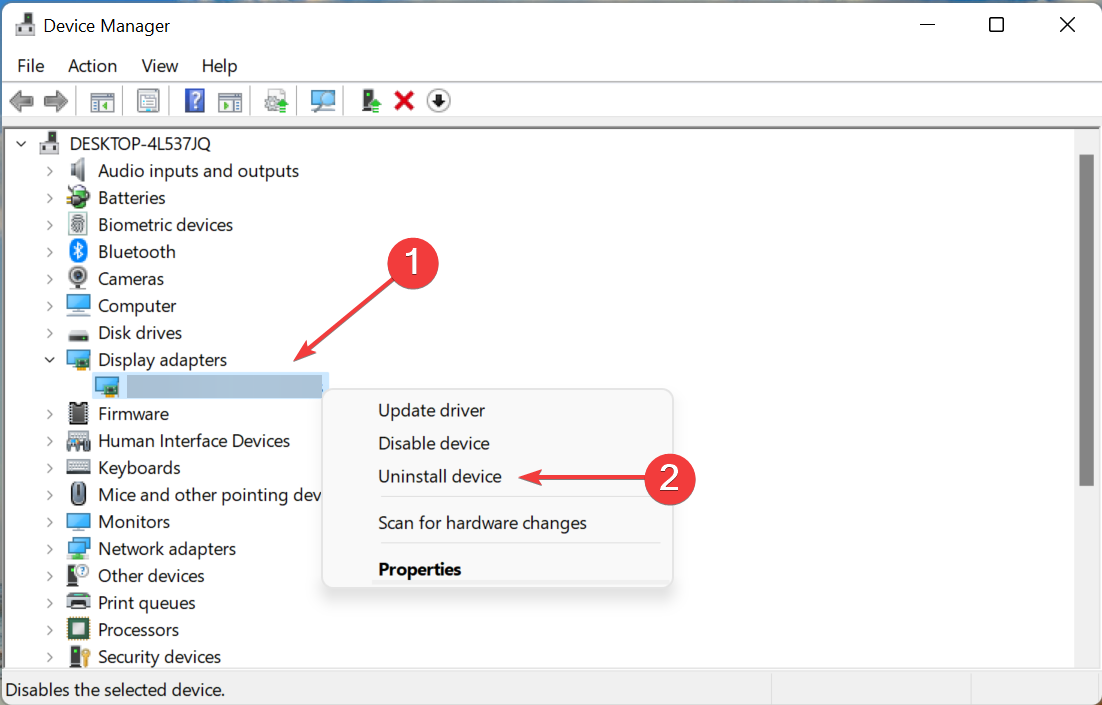
  • I/O error, bad page ID, detected when reading at offset 0x###### in file FileName.mdf – This doesn’t appear too often, but you can still repair it with this small tool
  • File appears to have been truncated by the Operating System error – Most likely caused by a configuration problem
  • An Error Occurred At Log Record ID – It occurs during the redoing of a logged operation in the database

Actually, the Recovery Toolbox for SQL Server repairs all objects of corrupted .mdf files, including data types, table cell data, views, stored procedures, custom functions, triggers, indexes, primary and foreign keys, restrictions, and others.

And the great advantage is that you can seamlessly export the repaired data into the Microsoft SQL Server from the app.

This is it! Now you know how to repair your SQL Server database manually, or by using a dedicated tool, you can export it to Excel and open it to analyze the data.

To learn more about SQL issues, we have a great guide on how to fix Arithmetic overflow error converting expression to data type int error, so don’t miss it. We also have an article on MySQL Fatal error, so you might want to check it out for more information.

If you know additional methods or have any questions, we await them in the comments section below.

DRIVER VERIFIER DMA VIOLATION Error in Windows 10 & 11 [Fixed]

BSoD errors are one of the most serious errors that you can encounter, and it’s common for these errors to crash Windows 10 & 11 and restart your PC to prevent damage.

These types of errors can be serious; therefore, today we’re going to show you how to fix DRIVER VERIFIER DMA VIOLATION error.

What causes the DRIVER VERIFIER DMA VIOLATION error?

There are many causes for the DRIVER DMA VIOLATION error, but we will highlight the most important here:

  • Old or corrupt drivers – This issue is similar to Driver Verifier Detected Violation, and it’s caused by old or corrupt drivers, so updating them would be the best thing to do if you want to fix the issue.
  • Incompatible driver – Driver Violation error can also appear if you install new drivers that are not compatible with your system. Consider rolling back to the older version, or using the default drivers.
  • Hardware issues – Driver Verifier Iomanager Violation and similar errors can be caused by your hardware; therefore, we suggest that you check the components and ensure that they are working properly.
  • Corrupted system files – If the system files are corrupted, this may trigger the blue screen DRIVER VERIFIER DMA VIOLATION.

Now that we know the reasons behind the DRIVER VERIFIER DMA VIOLATION stop code let’s apply the solutions below to fix it.

How do I fix the DRIVER VERIFIER DMA VIOLATION BSoD error?

1. Update your drivers

  1. Press Windows key + X on your keyboard to open the Power User menu and choose Device Manager from the list.
  2. When Device Manager opens, locate the driver you wish to update, right-click it and choose Update Driver Software.
    driver-verifier-dma-violation-update-driver-software
  3. Select Search automatically for updated driver software. Windows 10 will now download and install the best driver for your PC.
    driver-verifier-dma-violation-driver-software

Every PC requires drivers in order to work properly with hardware, and if your drivers are outdated or just not compatible with Windows 10, you’ll probably encounter the Driver Verifier DMA error.

Many users tend to download their drivers manually since Device Manager doesn’t always download the latest drivers.

However, there’s a faster and better way to update your drivers. With third-party driver updater software, you can automatically update your drivers easily and safely.

2. Run SFC and DISM scans

  1. Click the Start button, type cmd, and select Run as administrator to open Command Prompt with full privileges.
  2. Enter the following line and press Enter: sfc/scannow
  3. Wait until the process is done, then type or paste the following command and press Enter to start a DISM scan: DISM /Online /Cleanup-Image /RestoreHealth
  4. If the solution is found, it will automatically be applied.
  5. Now, close the Command Prompt and restart your computer.

The System File Checker and DISM scans will help you fix all the problems with the system files and disk issues.

3. Update your SSD firmware

Note icon NOTE
Updating SSD firmware can be risky, and if you don’t perform it properly you can cause permanent damage to your SSD and lose all your files, so be extra careful.
  1. Right-click the Start button and select Device Manager.
  2. Expand Disk drives, right-click on the SSD, and choose Properties.
  3. Head to the Details tab, choose Hardware Ids from the dropdown menu, and note the one for the SSD.
  4. Now, search for the Hardware ID using Google or another search engine and open the firmware update webpage on the manufacturer’s website.
  5. Download the firmware and run the setup to complete the installation process. Since we are running a Dell computer, we went to its official website. In your case, it might be different depending on the manufacturer.

After downloading and installing the firmware update, check if it can fix the dead SSD. For many users, it did the trick, and we recommend you update the SSD firmware.

If you have Windows 10 installed on your SSD, we suggest that you update your SSD firmware.

Outdated firmware can sometimes cause DRIVER VERIFIER DMA errors and other BSoD errors, so be sure that you update it.

4. Update your BIOS

  1. Download the newest BIOS version from your motherboard manufacturer’s website and copy it onto a USB flash drive.
  2. Open the Start Menu and click the Power button.
  3. Hold the Shift key and choose the Restart option.
  4. You should see several options available. Choose Troubleshoot.
  5. Now select Advanced options and select UEFI Firmware Settings.
  6. Hit the Restart button and your computer will now boot to BIOS.
  7. Now, look for the BIOS update option and select it.
  8. Finally, choose the BIOS update file from your USB flash drive and wait while your BIOS updates.

Sometimes outdated BIOS can cause Blue Screen of Death errors to appear, and if your BIOS is outdated, we advise that you upgrade it to a newer version.

For more information, we also have a complete guide on how to update your BIOS on Windows 10.

5. Perform System Restore

  1. Restart your computer few times during the boot sequence to start Automatic Repair.
  2. Select Troubleshoot and go to Advanced options. Now select System Restore.
  3. Select your username and enter your password.
  4. Select Choose a different restore point and click Next.
  5. Choose a restore point you wish to return to and click Next.
  6. Wait for the process to finish.

Windows stop code DRIVER VERIFIER DMA VIOLATION can be caused by certain third-party software, but you can easily fix it by performing a System Restore.

6. Reset Windows 10

  1. Start Automatic Repair by restarting your computer a few times during the boot.
  2. Choose Troubleshoot and select Reset this PC.
  3. Go to Remove everything. You might get asked to insert Windows 10 installation media, so be sure to have a bootable USB flash drive ready.
  4. Select Only the drive where Windows is installed and select Just remove my files and click the Reset button.
  5. Follow the instructions on the screen and complete the reset.

If System Restore didn’t fix the problem, you might have to perform Windows 10 reset.

Before you start resetting your PC, we strongly suggest that you create a backup for your important files since this procedure will delete all files from your C partition.

You might also need a bootable USB flash drive with Windows 10 in order to complete this step, so be sure to create one. To perform Windows 10 reset, do the following:

7. Check for faulty hardware

Hardware issues are a common cause for BSoD errors. Therefore we strongly advise you to check if your hardware is working properly.

Several users reported that DRIVER VERIFIER DMA VIOLATION error was fixed after replacing the faulty RAM, so be sure to check your RAM first.

If RAM is not the problem, check if all other hardware components are working properly.

How do I fix the DRIVER VERIFIER DMA VIOLATION error on Windows 11?

Luckily, Windows 11 is not so different from the older version, so all the solutions from our guide also work on the new OS.

Blue Screen of Death errors such as DRIVER VERIFIER DMA VIOLATION can create many problems, but you can easily fix this error using one of our solutions.

We also wrote about Dma_Common_Buffer_Vector_Error in our latest guide, so don’t miss it.

Fix: Nvidia Graphics Card Not Detected on Windows 10

Your graphics card is one of the most important hardware components on your PC. Unfortunately, many users reported issues with their graphics cards. And according to some, their Nvidia graphics card isn’t being detected on Windows 10.

Follow along as we will show you the reasons behind this issue, as well as how to successfully troubleshoot it in no time.

Why my Nvidia graphics card is not detected?

There are many reasons behind the Nvidia graphics card not being detected, and some of the most common ones are the following:

  • Outdated BIOS – An outdated BIOS can cause issues between your software and hardware. This can be the main cause of the Nvidia graphics card not being detected. Thus it is recommended to update the BIOS.
  • Faulty GPU – Check whether your GPU is connected correctly to your motherboard, or if it has any damage to it. This is another common cause of the detection issue, which can’t be fixed unless you change your GPU.
  • Faulty Windows updates – Windows updates can improve your PC’s performance and its user interface, along with security. However, they also bring new bugs that cause your computer to act abnormally. In this case, you need to uninstall the latest update as we have shown below.
  • Outdated drivers – Updating your drivers is a task that everyone needs to fit into their weekly schedules. Not only will they slow down your PC, but they will also impact its functionality. In order for the Nvidia GPU to be detected, you will need the latest drivers out there.

Speaking of issues, users reported the following problems:

  • Nvidia graphics card not detected in Device Manager, BIOS – It’s possible that your graphics card isn’t properly connected, or this is usually caused by incompatible drivers, so be sure to update them.
  • Nvidia graphics card not detected/working after driver update or Windows 10 update – If this problem started appearing after a driver update or a Windows 10 one, you might be able to fix the problem simply by rolling back to the previous version of the driver or OS.
  • GPU is not detected, but the fan is spinning – Despite the fact that this eliminates one potential source of the issue, electricity, there is still a possibility that the issue is caused by any one of a large number of physical or software components.

We prepared a list of possible solutions that should come in handy. Make sure to check them out below.

What can I do if Nvidia graphics card is not detected in Windows 10?

1. Check if the graphics card and hidden devices are enabled

  1. If the GPU is not detected, right-click the Start icon, then select Device Manager.device-manager-w10 amd driver install problems
  2. Click the View button then select Show hidden devices.view-hidden-devices nvidia graphics card not detected windows 10
  3. Now expand the Display adapters section, double-click the Nvidia graphics card driver and go to the Driver tab in order to click the Enable device button followed by OK. If the button says Disable Device instead, it means it is already enabled.enable-device nvidia graphics card not detected windows 10

It’s not unusual that your graphics card is not displaying, and your primary approach should be to check whether it’s enabled. Re-enabling the device will also work for the An Nvidia graphics card was not detected in your system error.

2. Install or update to the latest Nvidia drivers

Tip icon Tip
Before installing the latest Nvidia drivers or updating them, make sure to unplug and replug your graphics card.

2.1 Use Device Manager

  1. Right-click the Start icon, then select the Device Manager option.device-manager-w10 amd driver install problems
  2. Expand the Display adapters section, right-click your Nvidia graphics card, and select Update driver.update-driver-w10 amd driver install problems
  3. Select Search automatically for drivers in the Update drivers window then restart your computer after the process is done.Search automatically for drivers

2.2 Use Windows Update

  1. Press the Windows + I keys, then click Update & Security.update-security nmi hardware failure windows 10
  2. Click View all optional updates.opt-updates faulting application path
  3. Expand the Driver updates section, check all the updates listed then select Download and install.drive-install-updates faulting application path

2.3 Use the manufacturer’s website

  1. Go to Nvidia’s official website then select your Product type, series, your OS, download type and language that you need, then hit the Search button.nvidia-search nvidia graphics card not detected windows 10
  2. The right driver will show up, click Download then double-click the exe file to install it on your PC. Reboot your PC afterward. The GeForce Experience not detecting GPU issue will be fixed.download-driver nvidia graphics card not detected windows 10

2.4 Install the latest drivers automatically

Although this operation is usually simple, some users might have issues downloading the appropriate drivers for their graphics cards manually.

And you might also get in trouble if the NVIDIA driver is not compatible with your Windows version.

We strongly recommend using a professional tool to update your drivers in order to avoid damage to your computer by manually downloading the wrong driver versions.

3. Use Command Prompt

  1. Tap Windows, then input cmd and select Run as administrator.cmd-run-admin 0x80070002 windows update
  2. Type the following command, then press Enter to run it and restart your PC afterward. The Nvidia GPU not detected on Windows 10 issue will be solved: bcdedit /set pciexpress forcedisablebcdedit nvidia graphics card not detected windows 10

If you can’t access the Command prompt as an administrator, we’ve got you covered!

4. Uninstall recent updates

  1. Press the Windows + I keys to open the Settings app then click Update & Security.update-securty-w10 opera keeps crashing
  2. Click View installed update history from down the page.view-update-history-w10 opera keeps crashing
  3. Next, click Uninstall updates.uninstall-updates opera keeps crashing
  4. Select the latest update installed then choose Uninstall in order to remove it.uninstall-latest-update-w10 opera keeps crashing

If removing the updates solves the Nvidia graphics card not being used issue, you need to block those updates from installing again. Be sure to check our guide on how to prevent Windows from installing certain updates.

5. Update your BIOS

BIOS is in charge of your hardware, and by updating the BIOS, you allow your motherboard to work with new hardware.

We have to mention that updating BIOS can sometimes be a potentially dangerous procedure. Therefore use extra caution in order to avoid causing permanent damage.

Even if you have the latest version of BIOS installed, perform the update again just to fix things when the Nvidia graphics card is not working on Windows 10.

How to fix Nvidia graphics card not detected in Windows 11?

If Windows 11 fails to detect your Nvidia GPU, it is likely that you somehow managed to conceal it. It may sound trivial, we know, however, quite a few users reported that they accidentally hid this component and simply forgot about it.

To rule out this possibility, we advise your to show hidden devices. And here’s how to do it quickly:

  1. Right-click the Start icon, then find and open the Device Manager.device-manager bluetooth won't turn on windows 10
  2. Next, click on View (situated at the top of the window) and select Show hidden devices.view-hidden-devices nvidia graphics card not detected windows 10

If your GPU is revealed, the problem should be solved. Nevertheless, we prepared more useful yet equally easy solutions for you to try out in case your Nvidia graphics card is not detected in Windows 11.

As we already mentioned, your graphics card is one of the most important hardware components, and if Windows 10 can’t recognize it, be sure to try some of our solutions.

If you have any other suggestions or questions, feel free to post them in the comments section below.

ASUS TUF Fan Control not Working: 4 Simple Ways to Fix It

Asus provides an AI Suite that allows users to adjust their fan settings and various other tools for controlling their components. However, in rare situations, users complain that the Asus TUF fan control is not working.

We have investigated this problem, and in this guide, we explore with you the most likely triggers and introduce very efficient solutions to the problem on Windows 11 devices.

Why is the ASUS TUF fan control not working?

After investigating, we realize that a few of the following factors may cause the ASUS TUF fan control not to work:

  • Driver issues – In most cases, this will be outdated or corrupted device drivers. Since drivers are a vital link between software and hardware, when they are not functional, you will expect some problems.
  • Configuration – Most users will experience the problem when their BIOS settings are not configured correctly.
  • Software-related issues – Like is the case with drivers, if the fan control software is not installed or not updated, you may expect it not to work.
  • Overheating – For some users, the device may be overheating, and this will cause the fans to malfunction.
  • Malware – On every computing device, malware is a considerable threat. They will cause the dysfunction of standard processes and have been reported to trigger issues of the Asus TUF fan control not working.

Follow along as we will walk you through a list of solutions to fix your error.

How can I fix ASUS TUF fan control if it’s not working?

1. Reinstall AI Suite

  1. This step only applies if your PC supports the AI Suite and you have it already installed. To check whether your computer supports the feature, head to Asus’s official page and type in the search bar your computer version, then look for AI Suite under the utility section.asus-product asus motherboard fan control service stopped working
  2. If not, you can skip this step and head toward the next one. Otherwise, press the Windows key + I to open the Settings window and click on Apps followed by Apps & features or Installed apps.apps-and-features asus motherboard fan control service stopped working
  3. Once inside the Apps & features window, please search for the AI Suite app by typing it in the search bar and click on the three-dot menu, followed by Uninstall.
    asus tuf fan control not working
  4. Go to Asus’ page, enter your computer version, and reinstall the AI Suite. Follow the steps displayed on the screen, and that’s it!

2. Run a quick SFC scan

  1. To open the search bar, press the Windows + S key, type cmd, right-click on the most relevant result and choose Run as administrator.cmd run as admin cmd line
  2. Type or paste in the following command and press Enter: sfc /scannow
    sfc-scan asus motherboard fan control service stopped working

As soon as the process is completed, it is necessary to restart your computer (which could take some time).

3. Run a DISM scan

  1. To enter the Search bar, press Windows + S, then type cmd. Right-click on the most relevant result to run it as an administrator.cmd run as admin cmd line
  2. Type or paste in the following commands and press Enter after each:
    DISM /online /Cleanup-Image / ScanHealth
    DISM /Online /Cleanup-Image /RestoreHealth
    dism asus motherboard fan control service stopped working
  3. Finally, wait for the process to execute.

It’s important to remember that the process could take up to ten minutes. Once you’ve completed this step, restart your computer to ensure the modifications are applied.

4. Check for viruses

  1. To discover the antivirus you’ve installed, click the carrot arrow in the right corner of your taskbar, then right-click on your antivirus icon and select the option that opens the app interface, as shown below.open-antivirus asus motherboard fan control service stopped working
  2. Now click on the button that performs a Smart scan or anything similar to a virus scan.smart-scan asus motherboard fan control service stopped working

New .exe files may be generated by virus programs, which will interfere with the operation of existing files. By doing a system scan, you will almost certainly discover whether this was your problem’s root cause.

We recommend that you use a professional antivirus compatible with Windows 11, such as TotalAV.

The solutions in this guide will suffice if your Asus TUF fan control is not working. Most complaints border on antimalware, so you must pay attention to the kind of antivirus your deploy on your computer.

If you experience issues with your protection, don’t miss out on our guide for virus and threat protection issues in Windows 11.

Alternatively, check out our article on five of the best antiviruses for Windows 11 to ensure your computer’s security and vitality.

And lastly, for more solutions to the above error, you can also take a look at our post on Server execution failed Asus Fan Control Service error in case the methods presented here proved to be insufficient.

Let us know in the comments section below which solution worked best for you as well as how often you perform a virus scan on your computer.

Posted in Fix

Nvidia Driver Crashing on Windows 11: How to Fix it

The Nvidia graphics card is probably one of the best out there, with a lot of users getting it for the system, owing to its exemplary performance. However, several users have reported that the Nvidia driver keeps crashing in Windows 11.

Drivers play a critical role in the effective functioning of every piece of hardware connected to the PC. They relay commands between the OS and the device and are specific to both.

If these cease to function or crash, you are likely to encounter issues with that particular device. For instance, if the printer driver is not working, you will not be able to use the printer but the other components will work fine.

However, that’s not the case with the display driver, since these are critical and their crash could cause the screen to black out in Windows 11.

Therefore, it becomes imperative that you identify what’s causing the Nvidia driver to keep crashing in Windows 11, along with the most effective solutions to the problem. Read ahead to find out the answer to both these questions.

Why does the Nvidia driver keeps crashing in Windows 11?

If the Nvidia driver keeps crashing in Windows 11, it’s most likely that it is either corrupt or outdated. Identifying and fixing the former is rather easy, while the latter will take up some of your time.

Apart from that, it could also be a bug in the current version of the driver itself. This should be evident if you started encountering the problem after updating it.

In case you are running low on GPU memory, the Nvidia driver may, just as well, crash. So, learn what to do if the GPU memory is full in Windows 11.

Misconfigured settings and corrupt system files too could cause the Nvidia driver to crash. Also, certain apps, generally third-party antivirus, conflict with the functioning of the driver and the OS, and cause it to fail in Windows 11.

No matter the underlying cause, there’s always a solution for it. In the following sections, we have listed the best methods to fix issues causing the Nvidia driver to keep crashing in Windows 11.

What do I do if the Nvidia driver keeps crashing in Windows 11?

1. Reinstall the Nvidia driver

  1. Press Windows + S to launch the Search menu, enter Device Manager in the text field at the top, and click on the relevant search result.Device manager
  2. Next, double-click on the Display adapters entry to expand and view the graphic cards under it.Display adapters to fix nvidia driver keeps crashing windows 11
  3. Right-click on the Nvidia adapter, and select Uninstall device from the context menu.Uninstall device to fix nvidia driver keeps crashing windows 11
  4. Tick the checkbox for Attempt to remove the driver for this device, and click on Uninstall at the bottom. Remove driver to fix nvidia driver keeps crashing windows 11
  5. Now, restart the computer, and once it turns on, Windows will automatically install a fresh copy of the driver.

If the currently installed driver is corrupt, the Nvidia driver will keep crashing in Windows 11. A corrupt driver has a warning sign near the bottom-left corner of its icon in the Device Manager, which helps easily identify these.

2. Update the Nvidia driver

  1. Press Windows + X or right-click on the Start icon to launch the Quick Access menu, and select Device Manager from the list of options.Device Manager to fix nvidia driver keeps crashing windows 11
  2. Double-click on the Display adapters entry.Display adapters
  3. Locate and right-click on the Nvidia adapter, and select Update driver from the context menu.Update driver to fix nvidia driver keeps crashing windows 11
  4. Select the Search automatically for drivers option in the Update Drivers window.Search automatically for drivers to fix nvidia driver keeps crashing windows 11
  5. Windows will now scan your system for the best available driver and install it for the graphics card.

If you are unable to find the latest version using the Device Manager, do not forget to check the Windows Update section for driver updates.

Manually updating the driver can be both tricky and time-taking. We recommend using Outbyte Driver Updater, a dedicated tool that will scan the web for the latest version, and install these updates for all the drivers on your system, thus ensuring that they are always up-to-date.

Also, learn how to fix the outdated drivers error in Windows 11.

3. Download Nvidia driver from the official website and install it

  1. Press Windows + R to launch the Run command, enter dxdiag in the text field, and either click on OK or hit Enter to launch the DirectX Diagnostic Tool.DirectX diagnostic tool to fix nvidia driver keeps crashing windows 11
  2. Navigate to the Display tab, and check all the information regarding the installed Nvidia graphics card.Display tab
  3. Open any web browser, go to Nvidia’s official website, choose the relevant options from each of the dropdown menu, depending on the Nvidia graphics card installed on your system, and click on Search.Search for Nvidia driver
  4. Now, click on the Download to get the driver setup.Download updated version to fix nvidia driver keeps crashing windows 11
  5. Again, click on the Download button on the next page.Confirm download
  6. After the download is complete, double-click on the file to launch the installer, and follow the on-screen instructions to complete the installation process.Launch installer to fix nvidia driver keeps crashing windows 11
  7. Once done, restart the computer for the changes to come into effect and check if Nvidia driver still keeps crashing in Windows 11.

4. Reconfigure settings in Nvidia Control Panel

  1. Launch the Nvidia Control Panel from the search menu.
  2. Next, select the Manage 3D Settings option under 3D Settings from the navigation pane on the left.Manage 3D settings to fix nvidia driver keeps crashing windows 11
  3. Click on the Vertical sync dropdown menu, and select Off from the list of options.Turn of Vertical sync to fix nvidia driver keeps crashing windows 11
  4. Also, make sure that Power management mode is set to Prefer maximum performance.Set power management mode
  5. Save the changes, restart the computer, and check if the error is fixed.

5. Run DISM tool & SFC scan

  1. Press Windows + S to launch the Search menu, enter Windows Terminal in the text field, right-click on the relevant search result, and then select Run as administrator from the context menu.Launch Windows Terminal
  2. Click on Yes in the UAC (User Account Control) prompt that pops up.Click Yes
  3. Click on the downward-facing arrow at the top, and select Command Prompt from the list of options. Alternatively, you can press Ctrl + Shift + 2 to launch Command Prompt in a new tab.Command Prompt
  4. Now, paste the following commands one at a time, and hit Enter after each to run the DISM tool:Dism /Online /Cleanup-Image /ScanHealth Dism /Online /Cleanup-Image /CheckHealth Dism /Online /Cleanup-image /RestoreHealth
  5. Once done, execute the following command to run the SFC scan:sfc /scannowRun SFC scan to fix nvidia driver keeps crashing windows 11

The DISM (Deployment Image Servicing & Management) tool checks for issues with the OS and resolves them. Also, it can modify the Windows image or Windows installation files, if required to fix the issue.

The SFC (System File Checker) scan is used to identify corrupt system files, and then replace them with their cached copy stored on the system. Corrupt system files are known to cause a bunch of issues, and it’s necessary to run the SFC scan to fix the problem.

After both the commands are executed, check if the Nvidia driver still keeps crashing in Windows 11. If that’s the case, head to the next method.

6. Uninstall conflicting applications

  1. Press Windows + I to launch the Settings, and select Apps from the tabs listed in the navigation pane on the left.Apps
  2. Next, click on Apps & features on the right.Apps & features
  3. Locate the conflicting application, click on the ellipsis next to it, and select Uninstall from the menu.Uninstall app to fix nvidia driver keeps crashing windows 11
  4. Again, click Uninstall in the confirmation prompt that pops up.Confirm Uninstall

If you started encountering the error after installing an application, it’s likely that the app is conflicting with the functioning of the driver, and we recommend uninstalling it right away.

Certain third-party antiviruses are known to cause the Nvidia driver keeps crashing in Windows 11 error. If you have any installed, remove it. Also, some of these come with a dedicated tool to effectively uninstall them. Make sure to use it, if there’s one.

7. Run the Windows Memory Diagnostic tool

  1. Press Windows + S to launch the Search menu, enter Windows Memory Diagnostic in the text field, and click on the relevant search result that appears.Windows Memory Diagnostic tool to fix nvidia driver keeps crashing windows 11
  2. Next, select the Restart now and check for problems option.Restart now and check for problems

Make sure to save any open files before you proceed with this method to avoid data loss since your computer will restart during the process.

8. Reset Windows 11

If none of the fixes listed above have worked, you are left with no option but to reset Windows 11 to its factory settings. Resetting the system eliminates all sorts of software-related issues.

Though, the process will remove all the data on your computer and reconfigure the settings to their default state. So, make sure to use this method as a last resort.

How can I disable automatic Nvidia driver updates in Windows 11?

  1. Press Windows + S to launch the Search menu, enter Change device installation settings in the text field at the top, and click on the relevant search result.Change device installation settings
  2. Now, select the checkbox for the No (your device may not work as expected) and click on Save changes at the bottom.Select No

If you don’t want the drivers or other features to automatically download in Windows 11, making these changes could help. Do remember that this might affect your experience while connecting new peripherals to the computer.

With the Nvidia driver keeps crashing in Windows 11 problem solved, you can resume working on your PC, without encountering frequent crashes anymore.

Also, do not hesitate to find out what to do if the Nvidia driver is not installing in Windows 11. And it’s not just the Nvidia drivers that crash, check the best methods to fix the AMD driver crashing problem as well.

Besides, the issue is not new, it’s there with every iteration of Windows, so make sure to check our guide on resolving the Nvidia driver crashing problem in Windows 10. Also, users who reported about Intel driver crashing in Windows 10 were able to fix it using our methods.

In case you plan to install a new graphics card, check our curated guide for the best ones.

Do not hesitate to tell us which fix worked and your experience of Windows 11 thus far, in the comments section below.