Google Chrome Journeys: What is it & how to turn it off

Google Chrome is by far one of the most used browsers out there, and there’s not even worth debating that, as numbers speak for themselves.

Sure, some of us use Opera, Brave, Firefox, or Edge, but Chrome has remained a user favorite throughout the years, even though it’s not at all a light app when it comes to resource usage.

Google spends a lot of time and resources constantly perfecting everyone’s go-to browser, so new features and fixes are always cooking and on the way.

We can’t always tab every website we visit, so having neat features such as browser history is really helpful when you’re trying to go back to the same pages.

But what if we tell you there’s an even better way to group up your searches and find all you need a lot faster and better arranged?

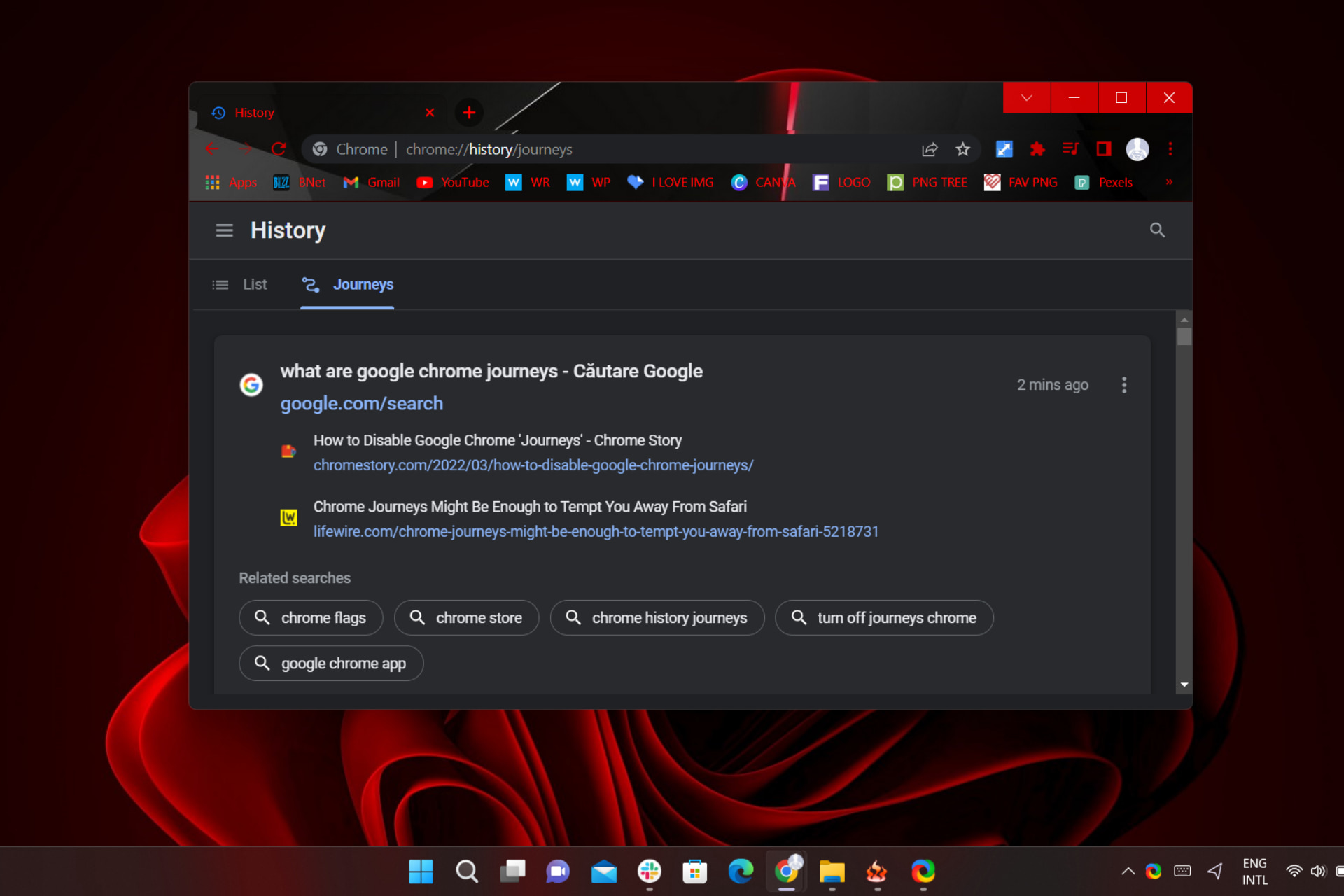
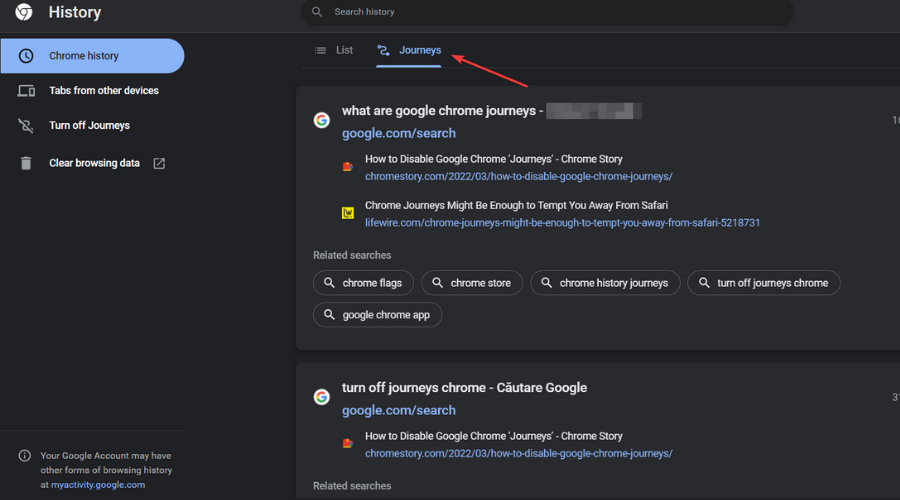
Yes, you guessed it. We’re actually talking about the Journeys feature for Chrome, which you can find by accessing the History page.

What is Journeys in Google Chrome?

We all know by now that finding stuff on the internet is pretty easy. That being said, what’s hard is finding that exact web page you knew you were reading last week.

And, even though you know what it was about, no matter how hard you try or how much time you spend, you just can’t find it in your history or even a regular search. 

This is where the Journeys feature comes into play. When you type in a word from a previous research session, Journeys asks if you want to resume your research and takes you back to where you left off. 

It will also show you a list of relevant sites you have already visited. sites you have spent more time interacting with are bumped up the list. How handy is that?

However, if you feel like you have little use for this neat little software help, you can always turn it off and we’re about to show you how to do so.

How do I remove journeys from Chrome?

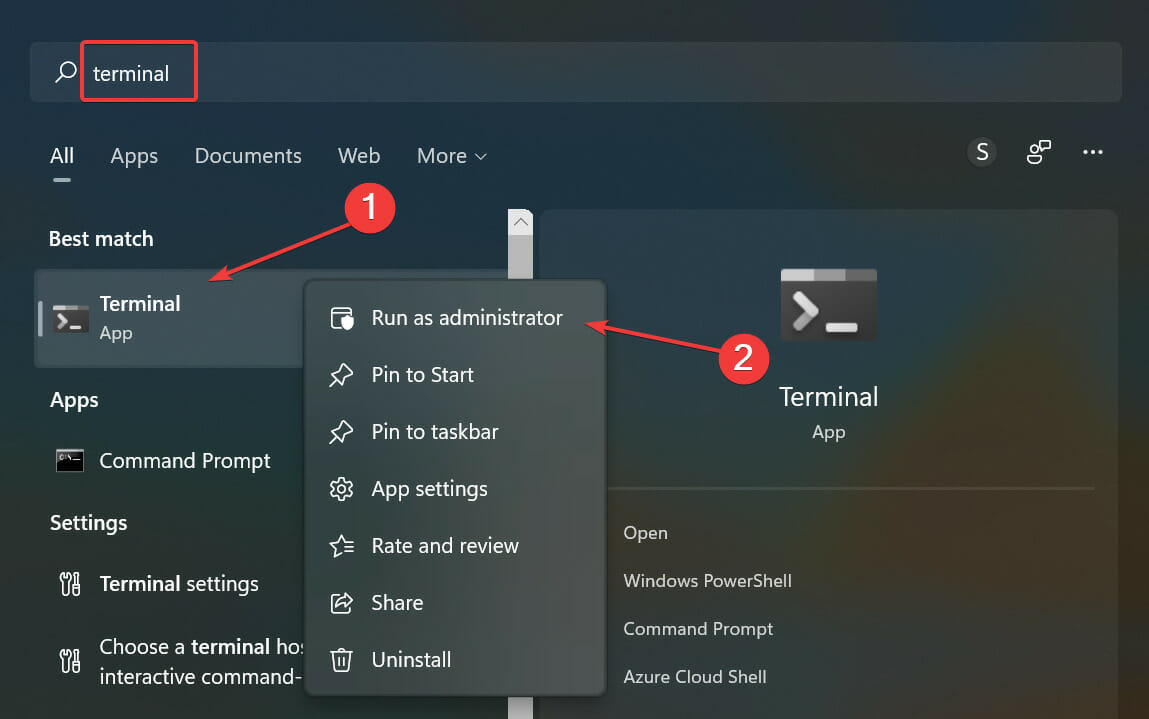
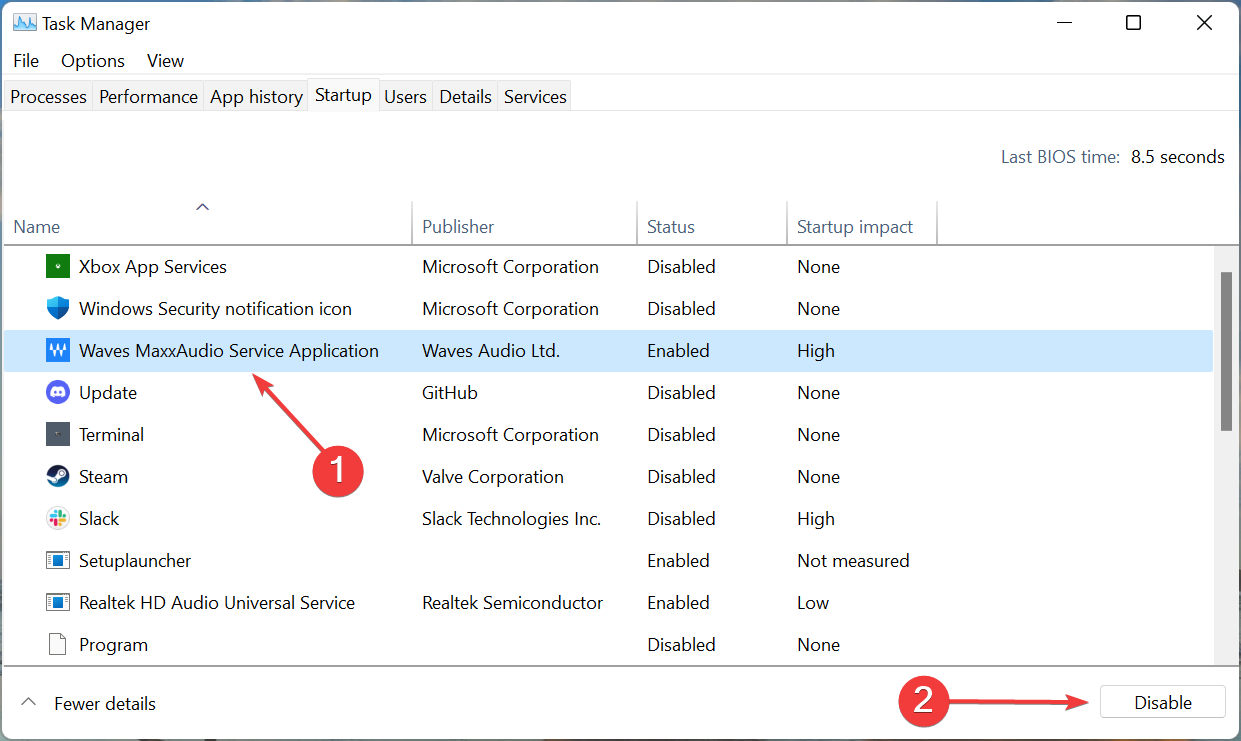
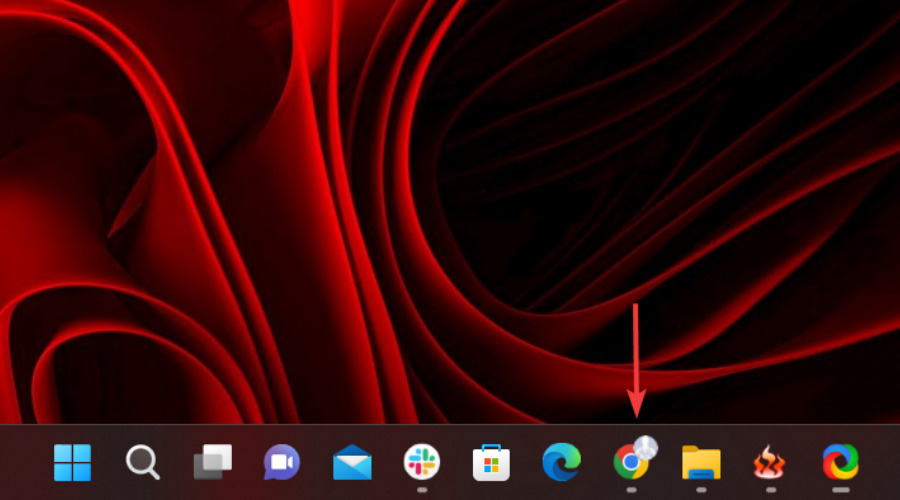
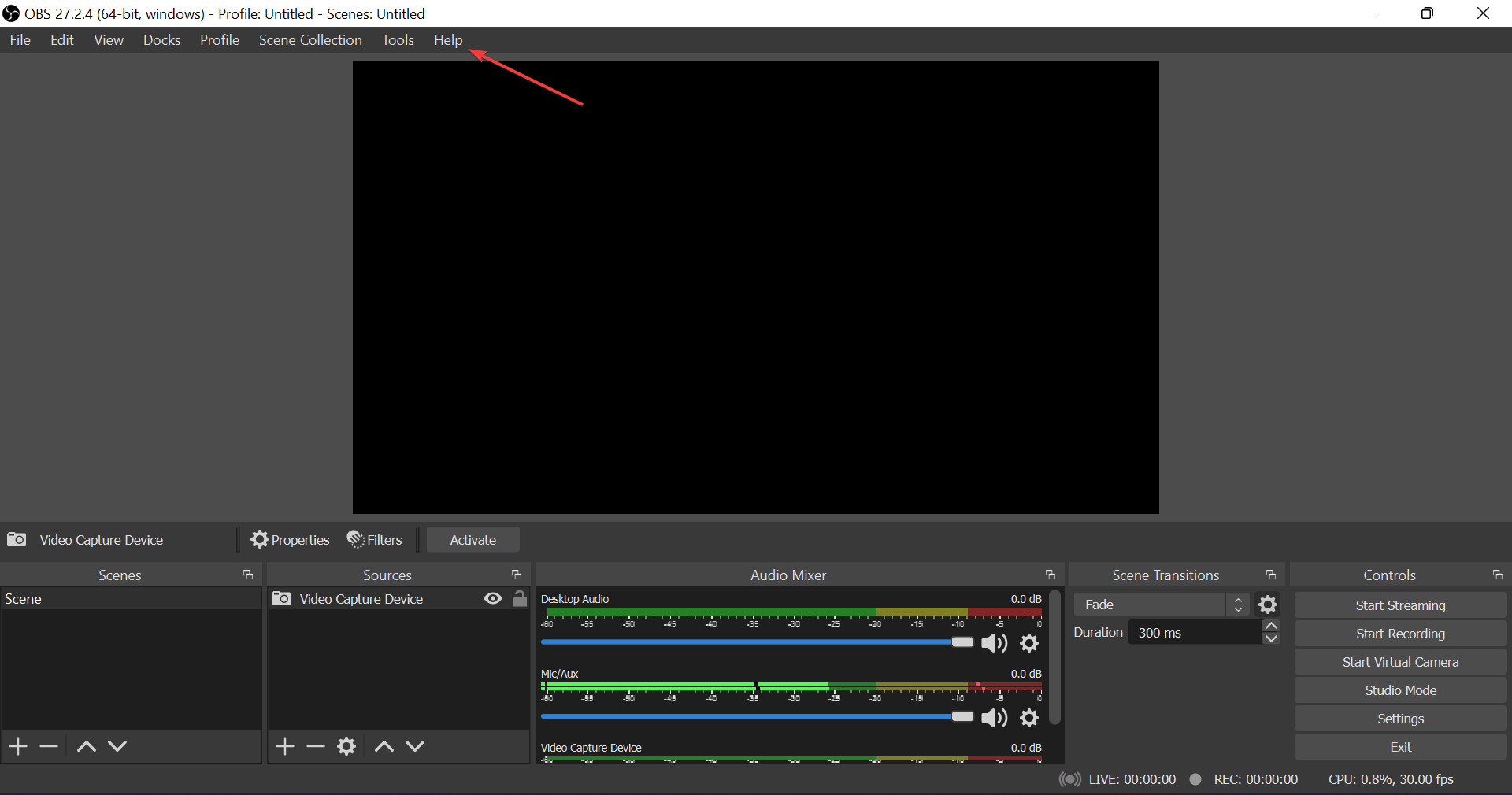
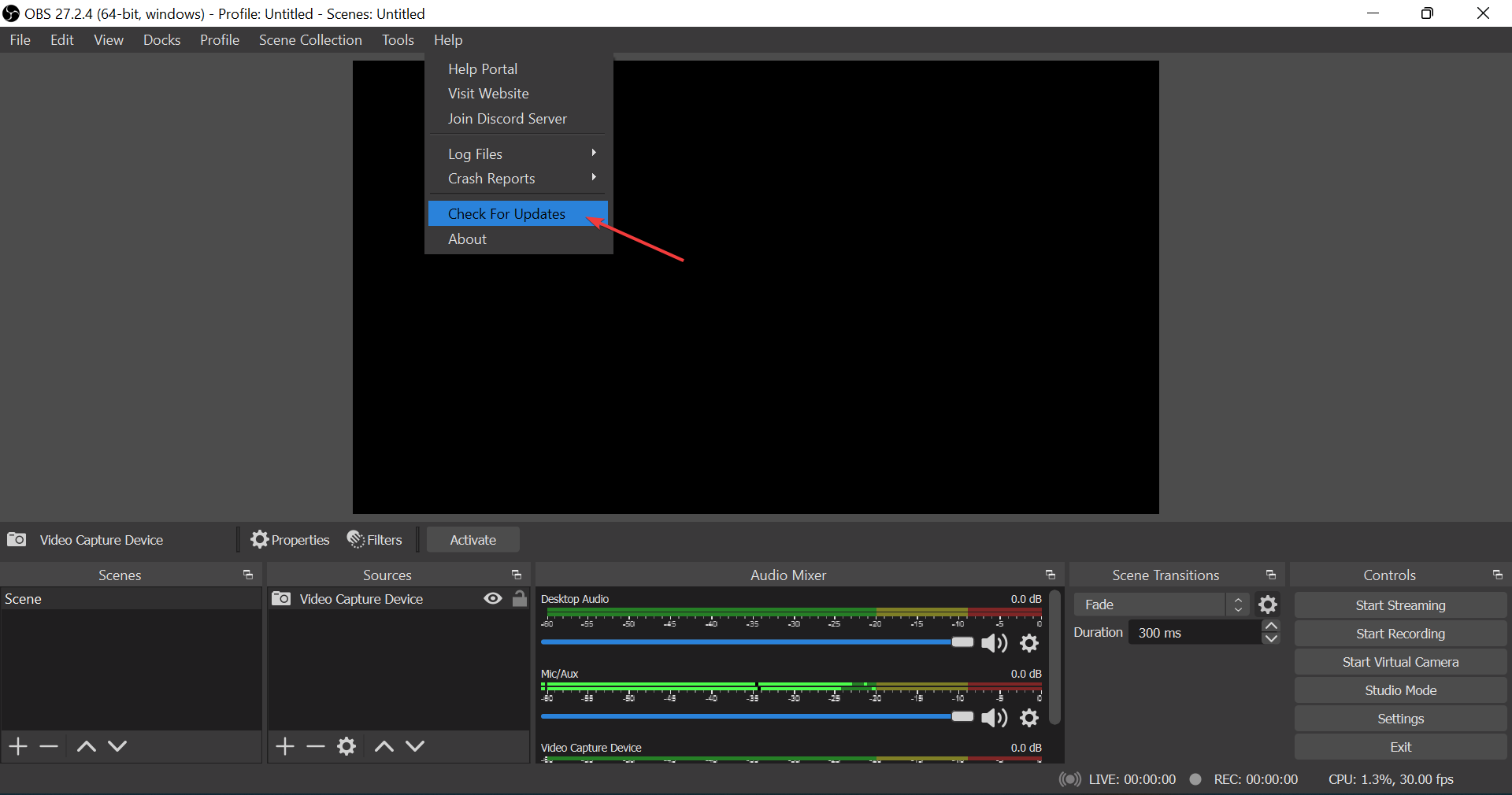
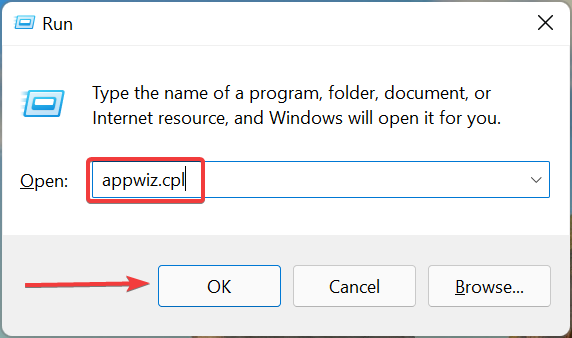
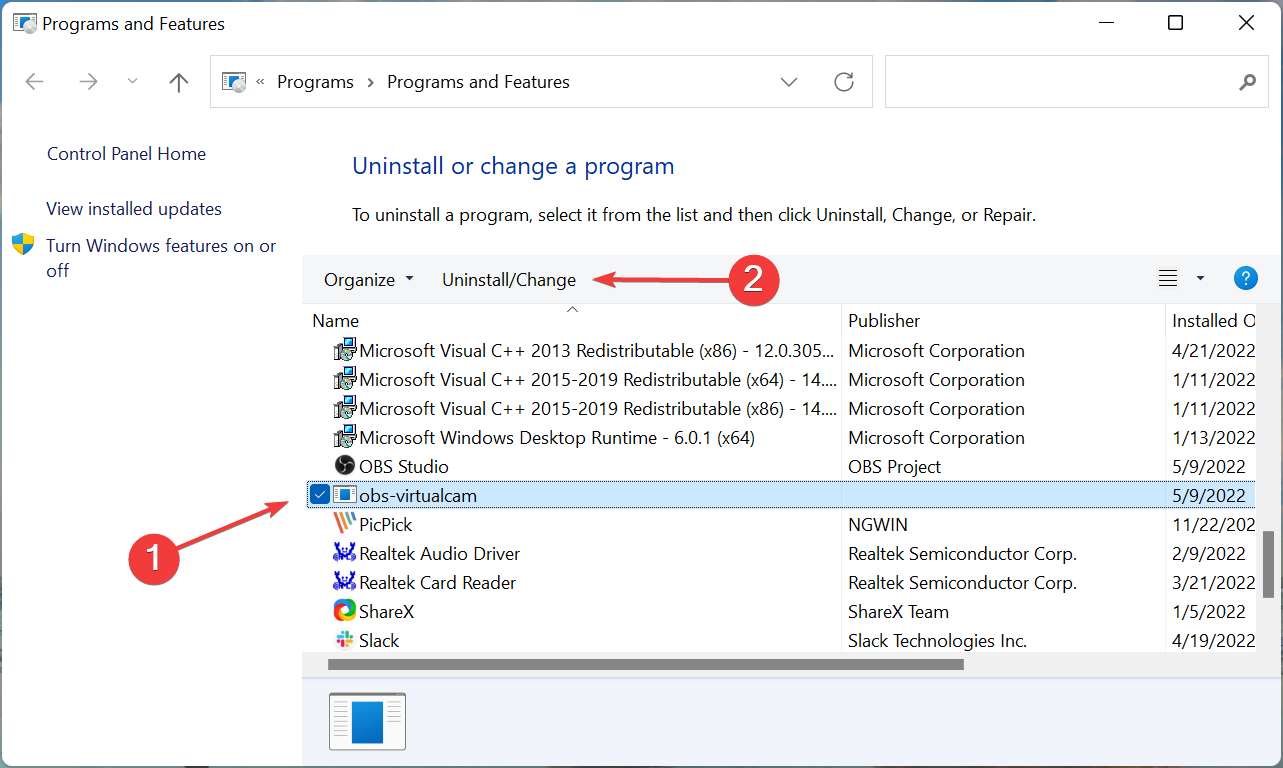
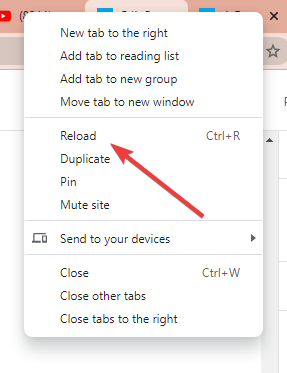
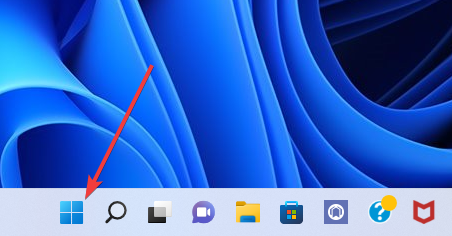
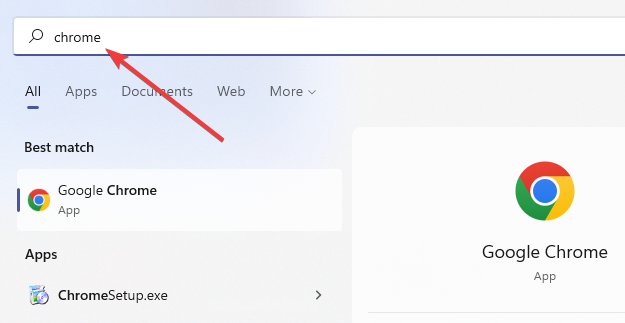
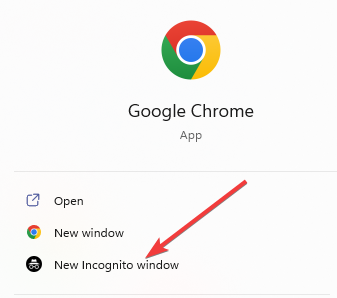
  1. Open Google Chrome.open chrome
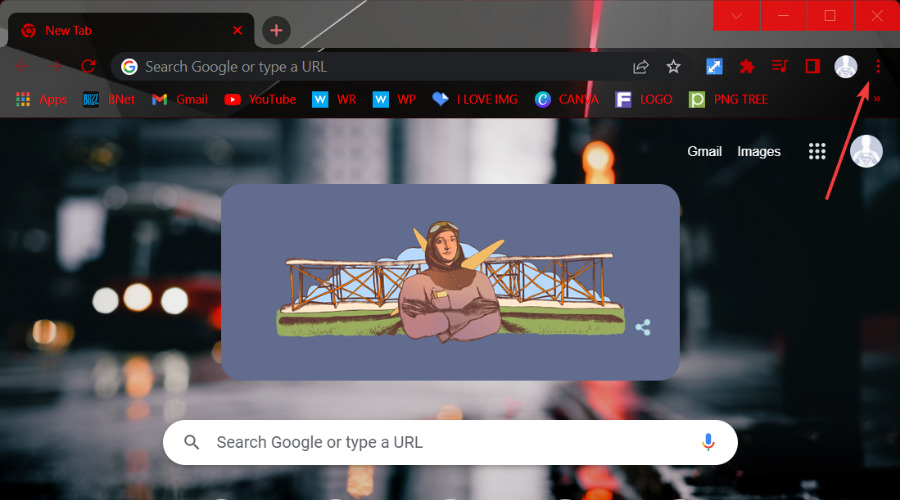
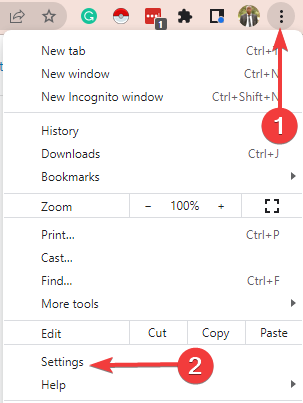
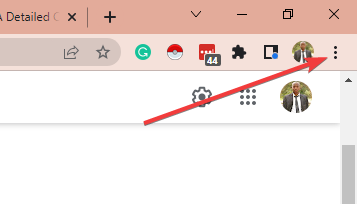
  2. Click on the three dots in the top right corner.chrome options
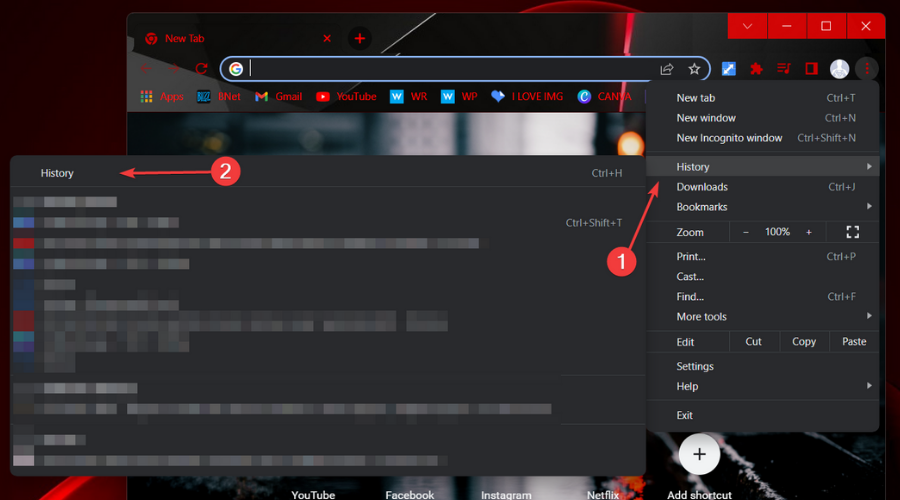
  3. Select History.history chrome
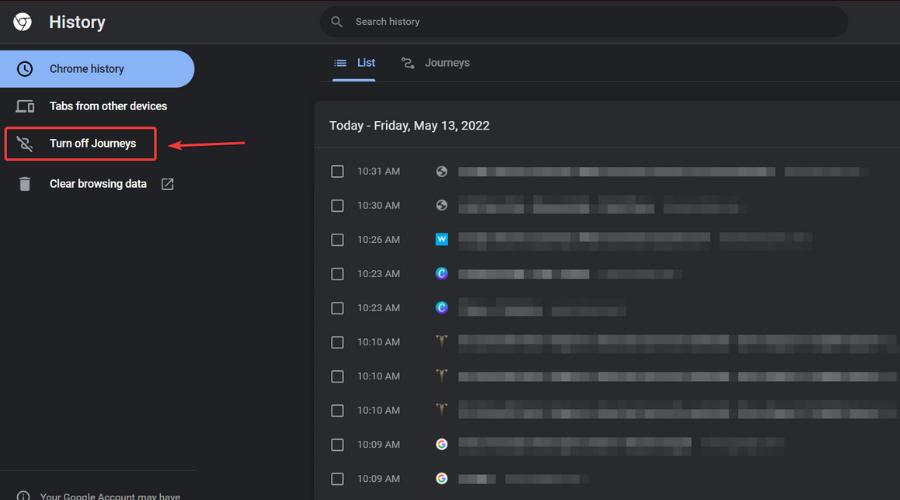
  4. Press the Turn off Journeys button.turn off journeys

How do I delete journeys?

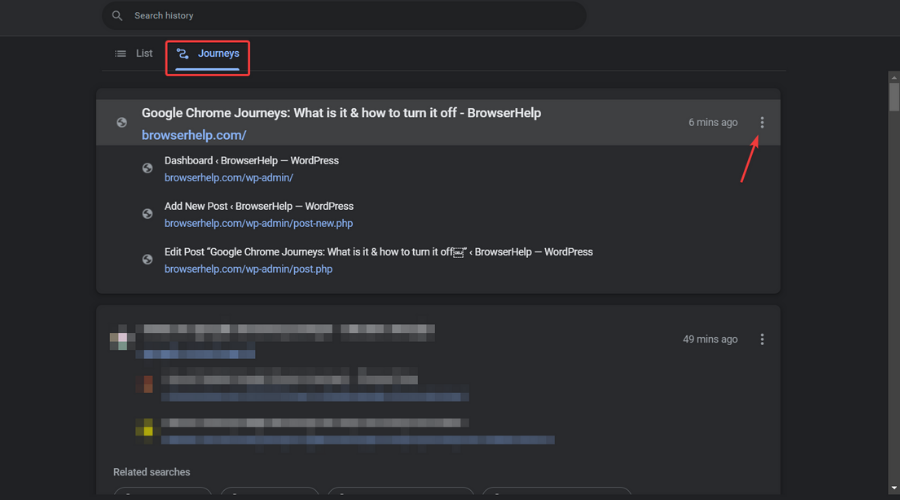
  1. On the Journeys tab, click on the three dots next to the first one.Journeys tab Chrome
  2. To delete only one webpage from the Journeys, select it and click on Remove from History.remove from history
  3. To delete the entire Journey, click on Remove all from History.remove all from history
  4. Click on the option you want and then press the Remove button.remove Journeys

There you have it! If you feel like this feature’s utility has run its course and you have no use for it whatsoever, this is what you need to do in order to deactivate it.

Of course, if at some point you feel you could make use of it, simply follow the same steps and turn it back on at your leisure.

It’s a simple process that will only take up a minute of your time, so don’t be discouraged by thinking it’s a daunting task.

Has this guide been helpful in achieving your goal? Share your experience with us in the comments section below.

5 Best HTML5 Online Photo Editors To Use In 2026

An HTML5 online photo editor offers a number of advantages over native applications.

For one, they are compatible with all major browsers such as Microsoft Edge, Google Chrome, Firefox, Tor, Opera, etc.

This means users can use HTML5 editors on all platforms, from Windows 10 to iOS and Android.

Furthermore, HTML5-based applications tend to load faster due to having lighter coding. Users also do not have to waste time downloading additional plugins to get the online editor to work.

If you are interested in using an HTML5 online photo editor, then you will want to take a look at the list below.

All of the photo editors in this list are based on HTML5 and can only be accessed online. It is important to note that there are of course other top online photo editors found on the Internet.

This list is merely meant to help point users in the right direction. In addition, the photo editors in this list are not ordered from best to worst.

Rather, each of these applications is unique, and will hopefully help each reader out in his/her quest for an HTML 5 online photo editor.

What are the best HTML5 online photo editors?

Fotor – Best HTML editor for professionals

fotor HTML5 image editor

Fotor is an online editor software you can use for graphic designing, editing images, collage maker, or NFT creation.

With this free photo editor, you have a world of possibilities in terms of editing tools for professional photos or designs.

For instance, these next editing features are helpful for both beginners and professionals who need impressive pictures.

You have a photo enhancer that helps to improve image quality with HDR, plus background remover, blemish removing tools, photo effects, and so on.

The editing process couldn’t be more simple. You just need to select your photo and upload it, choose from multiple features and edits, adjust the last details for preview – and download your photos.

More so, there is the graphics tool. You can choose from thousands of templates and graphic elements for social media designs, book covers, invitations, or flyers.

So you can’t go wrong choosing this online photo editor that works for any online browser with HTML5 support.

Fotor key features include:

  • Manipulate fonts, image shapes, icons, clip arts, stickers, shadow, color, and much more
  • Thousands of preset templates are available
  • Create posters, cards, social media covers, blog designs, advertisements, etc.
  • The beauty retouching feature allows quick touch up for photos
  • Quick access to easy-to-follow tutorials

Fotor

Create your most expressive photos with this thrilling editing and graphic creator software.

Photopea – Best photo editor for beginners

photopea HTML5 online photo editor

More powerful than Picozu, Photopea has often been called online Photoshop because of its handy features.

Designed more for users who have had experience editing photos, Photopea can be overwhelming for first-timers.

The great thing about Photopea is that it doesn’t trouble itself with a fancy, artistic user interface to entice users. Instead, it relies on its powerful tools and features to keep users coming back for more.

You simply have to click on the link and use the online photo editor. It does not require the download of a plugin.

The program supports PSD format, which is the format Photoshop uses for its shortcuts but you can also save your images in JPG, PNG, and SVG.

It works great on all major browsers and usually does not have any lag when you are editing photos.

So, if you are someone who prefers a clean application with highly effective tools to work with, then you will want to consider using Photopea.

Here are some of its best features:

  • Supports the PSD format but also JPG, PNG, and SVG
  • No plugin download required
  • Works great on all major browsers
  • Friendly interface and straightforward usage
  • Perfect for beginners

⇒ Get Photopea

DeviantArt Muro – Best photo editor with drawing capabilities

deviant Art muro HTML5 editor

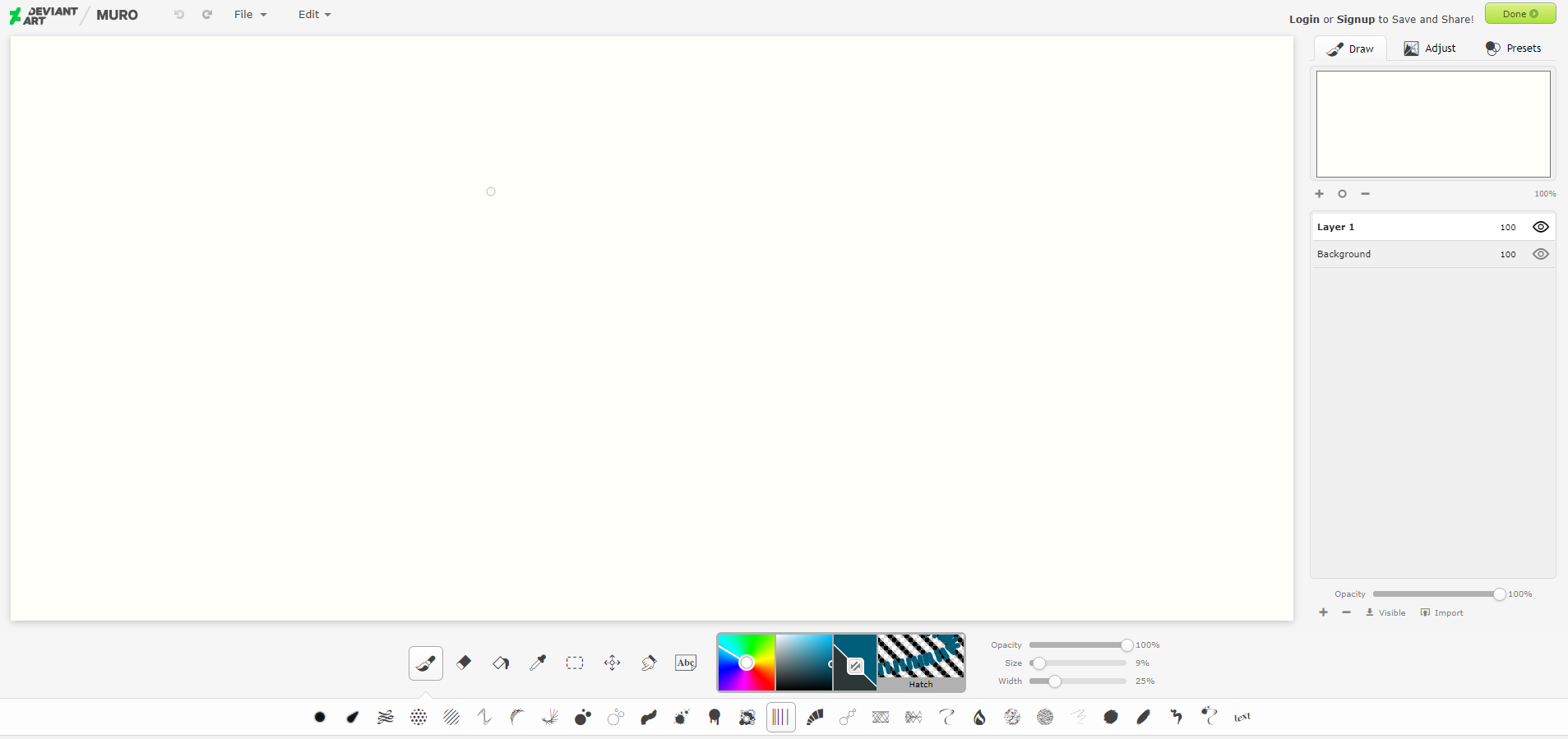
Specifically built for artists, DeviatArt lets you edit photos as well as use a number of tools to create art.

If you’re looking for more drawing tools than editing tools, you will certainly enjoy this application more.

Users looking for an outlet for their creativity should check out this HTML 5 photo editor. While DeviantArt muro is simple, it has a pleasant interface and offers some neat layering options.

This application runs entirely on HTML 5, so you can also quickly access the editor with a simple click of its link. No additional plugins are required to be installed.

DeviantArt muro is a niche application that caters to individuals who want an editor that has drawing features.

However, you can’t make modifications to the filters and that makes it a bit too simplistic for the likes of professionals.

Take a look at DeviatArt muro’s key features:

  • Projects are automatically saved if you sign in to a DeviantArt account
  • Highly effective drawing tools  
  • Simple access and convenient layout
  • Save your work in vectorial formats
  • Graphical interface based on layers

⇒ Get DeviantArt muro

Pixlr Editor – Best HTML editor with free templates

Pixlr Editor is an excellent HTML5 online photo editor that’s very easy to use. The user interface is very intuitive. If you’ve used Microsoft Paint before, you’ll quickly get the hang of Pixlr Editor.

The platform offers a series of advanced photo editing options that allow you to create impressive images or improve the quality of the pictures you upload.

Besides photo retouching, this online tool allows you to save your work in PDF and PXZ formats, the last one being ideal for collaboration.

You can do a lot with this app for free but there is also a premium version available that allows you to unlock many useful design templates, stock images, and editing features.

Check out some of its key features:

  • Work on multiple layers
  • Simple and easy to use photo retouching features
  • Save your work in JPG, PNG, WEBP, PDF, and PXZ formats
  • Great set of editing tools arranged conveniently
  • Create photo collages with ready-made layouts

⇒ Get Pixlr Editor

Fix the photo – Best photo editing professional service

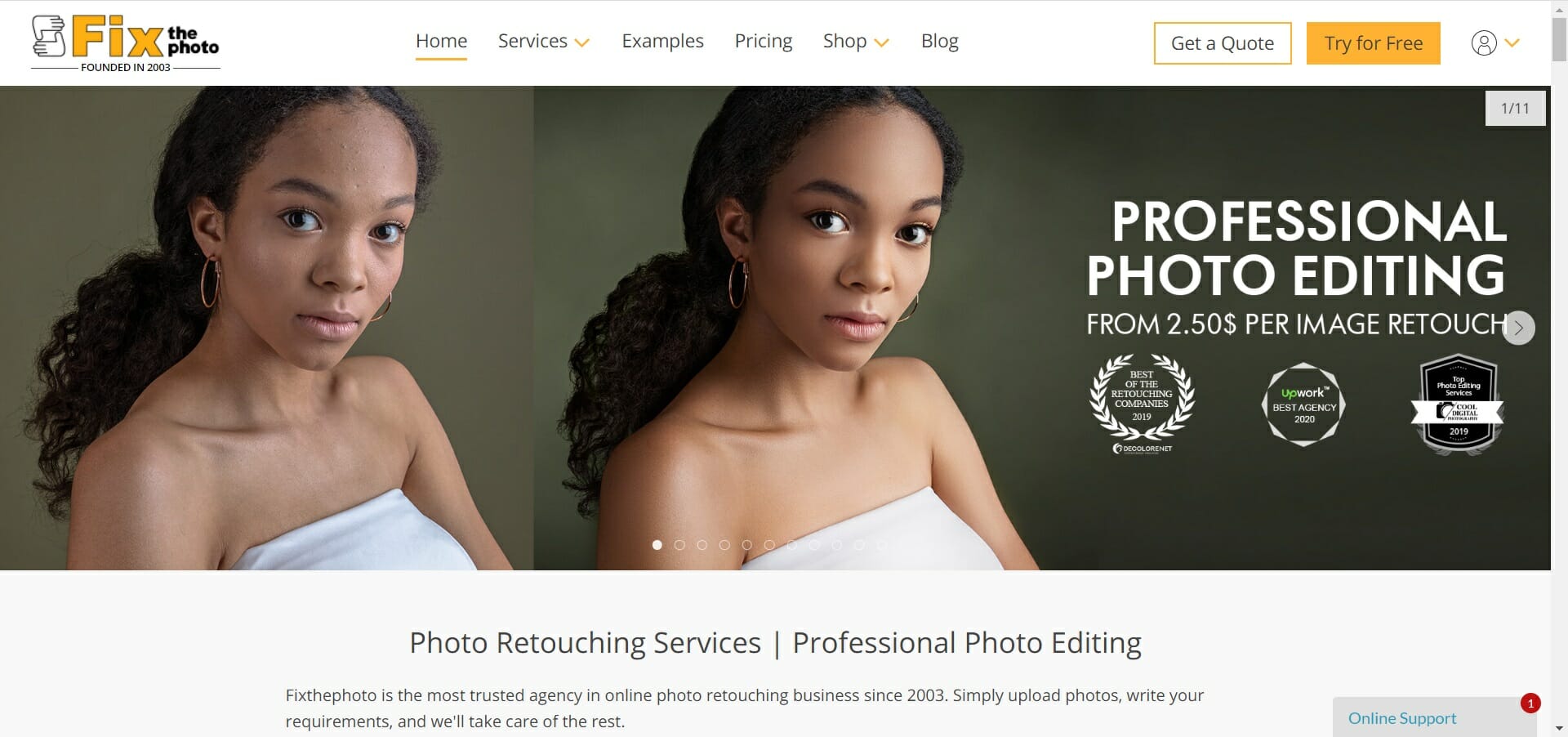
Although Fix the photo is not an editing app, it is extremely convenient if you want to save your time and benefit from professional-level results.

It is actually a service that provides photo fixing and retouching according to your desired specifications.

And the usage is very straightforward. Simply upload photos, write your requirements, and a dedicated team of graphical specialists will take care of the rest.

For a small per-photo fee, they will make portraits, wedding, body, product shots, or any other photos look great, even ready for magazine publishing.

They will enhance body shapes and skin texture, remove all unwanted elements, editing the images in a realistic fashion.

So, with this service, you no longer need to have any skills or worry about filters, colors, and whatnot.

Take a look at its key features:

  • Professional photo retouching services
  • Just upload photos and describe your requirements
  • Fast and reliable service
  • Easy to use, just by creating an account
  • No download and graphical skills required

⇒ Get Fix the photo

An HTML5 online photo editor offers many advantages over traditional editing applications.

Faster, easier, and more flexible, HTML5 applications are a highly effective solution to your editing problems.

With this list, you will find it easier to find the online photo editor that meets your unique needs.

We also included a professional photo retouching service in case you don’t want to spend any time and get the best results.

You should also look at our selection of the best free photo editors for Windows 11 because you might also get some suggestions. Don’t worry, they also work in Windows 10.

Have you tried any of these apps? Let us know about your experience in the comments section below.

Microsoft celebrates the new Top Gun movie with custom Xbox and Microsoft Flight Sim DLC

Microsoft is celebrating the release of Top Gun: Maverick with a new custom Xbox Series S console as well as new DLC for Microsoft Flight Simulator.

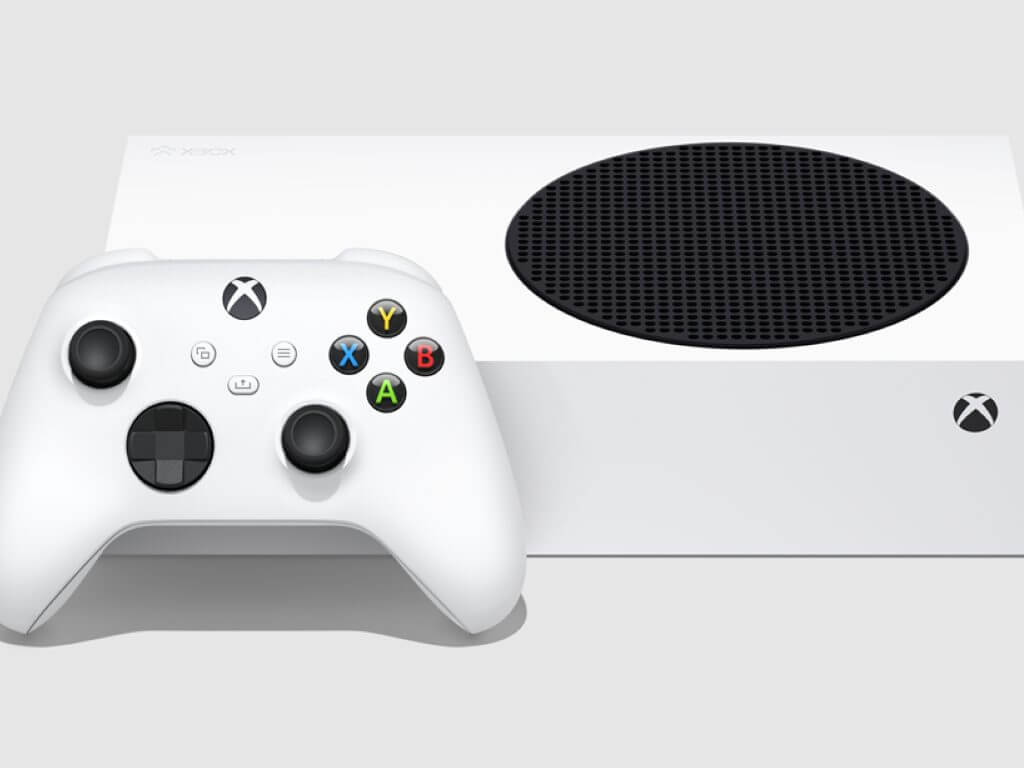
The Top Gun Series S console features a unique skin inspired by the new film, with a matching controller. This isn’t a console you can go out and buy, though. Rather, it is up for grabs in the latest Xbox custom console competition, which U.S. residents can enter over on Twitter by retweeting the tweet below and following @TopGunMovie.

The prize also includes a pair of aviator sunglasses and an advance screening ticket for the movie. The official rules for the sweepstakes can be found here.

The Top Gun DLC pack for Microsoft Flight Simulator will coincide with the movie’s release on May 25. Details on just what content will appear in the DLC still remain scanty at this point, though you can rest assured it will delight any fans of the Top Gun franchise.

As mentioned, Top Gun: Maverick will premiere later this month. The Paramount Pictures movie stars Tom Cruise and is a sequel to the 1986 classic Top Gun. The new film is projected to earn anywhere from $94 million to $130 million in its first week.


Here is next week’s lineup for Xbox game releases

It is looking like another solid week in Xbox next week, with 9 more titles slated for release from May 16—20. While there aren’t any blockbuster AAA games coming out next week, there is a good variety of quality games releasing if you’re in search of a new favorite.

Umurangi Generation Special Edition – May 17

A retro-futuristic, first person photography game that has players documenting an alien invasion in the New Zealand town of Tauranga. This special edition of the game will hit both Xbox Game Pass and PC Game Pass when it releases on Tuesday.

Behind Closed Doors: A Developer’s Tale – May 18 

Have you ever wanted to play as a video game developer trapped inside his own game? In this pixel art game you play as Ethan, who works for a small video game developer who somehow gets sucked in the game world after getting a strange call in the middle of the night.

Divination – May 18

As the Diviner, you will play an enigmatic fortune teller in this rather unique game set in a dystopian cyberpunk metropolis full of uncertainty and despair. Meet a range of characters – humans, robots, and hybrids – and scry their futures via a pair of hands that can foretell the future.

Endzone – A World Apart – May 19

This survival/city-building game is set in an alternate world which was brought to the brink of annihilation in the year 2021 by a nuclear cataclysm. Those who managed to survive escaped to underground “Endzones.” Now, 150 years later, players must guide humanity as it returns at last to the surface – a dangerous world plagued with contamination, climate change, and raiders.

They Always Run – May 19

Gamers play as a three-armed mutant bounty hunter in this side-scrolling adventure. Hunt down the most nefarious, most dangerous criminals in the galaxy using your additional appendage to manipulate the environment, destroy objects and use targeted throws, all in gorgeous 2.5D.

Vampire: The Masquerade – Swansong – May 19

Guide the fates of three main characters in the latest installment of this cult-classic narrative rpg series. When you pre-order this game you will be able to immediately install and play Vampire: The Masquerade – Coteries of New York. (Pre-ordering the game will also nab you the Alternate Outfits Pack DLC). Note that this is the Series X|S version of the Vampire: The Masquerade – Swansong, and is not playable on Xbox One.

Deadcraft – May 20

This zombie apocalypse title puts gives a fresh take on the genre in which you play as a half-zombie named Reid. Reid can plant the corpses of his zombie foes to grow into zombie followers to do his bidding. This in addition to a crafting element that allows Reid to forge new weapons and tools (and even create some post-apocalyptic cuisine) make him an unstoppable force against all enemies, human and zombie alike.

Dolmen – May 20

Journey into the hostile alien world of Revion Prime and bring back samples of the Dolmen – crystals that can facilitate interaction between alternate realities. With a rich combat system and gorgeous visuals, Dolmen looks like a promising title, especially for space-starved gamers.

Nirvana: Pilot Yume – May 20

Neon lights, beautiful women and ultra-fast spaceships are the order of the day in this low-poly, retro-inspired racing game that blends anime cutscenes and spaceship racing, with a story that features 5 different endings.

So there you have it: another week in Xbox releases, another respectable lineup. There is something in the lineup to suit just about all kinds of gamers, with racing, action, role playing and adventure games all accounted for.

Disk Has Been Surprise Removed [Event ID 157 Fix]

The disk has been surprise removed is an error in the system event log on Windows devices. It’s an unusual issue on the virtual disk that all XBOX Live PC and Microsoft PC installations depend upon.

Usually, this issue occurs when something disrupts the system’s communication with a disk.

The Event ID 157 disk has been surprise removed in Event Viewer disables the user from using the designated virtual drive to install the games. This virtual drive won’t be visible in File Explorer like other drives.

You could also encounter the Disk has been surprise removed VMWare issue. And the solutions below will fix the problem but you will have to do the changes directly in the emulated OS from VMWare.

As it’s an issue of concern, it should be fixed right away. In this guide, we will be looking at some troubleshooting methods that will surely help you.

What does the Disk has been surprise removed mean?

The PNP manager does something called enumerations. An enumeration could be understood as a request sent to the drive that controls a bus, such as PCI.

These take an inventory of the devices on the bus and report back a list of all. Enumerations like these occur for several reasons.

When an enumeration request is received, the bus drivers will reach the bus for all devices. It will then issue commands to the existing devices as looking for new ones.

When these commands fail on an existing unit, the driver will mark the device as missing. Then it won’t be reported back to the PNP in the inventory.

Once the PNP determines the device isn’t available in the checklist, a surprise removal request will be sent to the bus driver to remove the device object.

As the CLASSPNP driver controls the device tag and receives a request for the disks, it sees the surprise removal request and logs an event if the disk is non-removable.

As a result, the disk would disappear from the system with no indication, and the message Disk has been surprise removed will appear.

How do I fix the Disk has been surprise removed error?

1. Update Storage Spaces Controller Driver

  1. Click on Start, type device manager, and select the app from the results.
  2. Expand the Storage Controllers section.
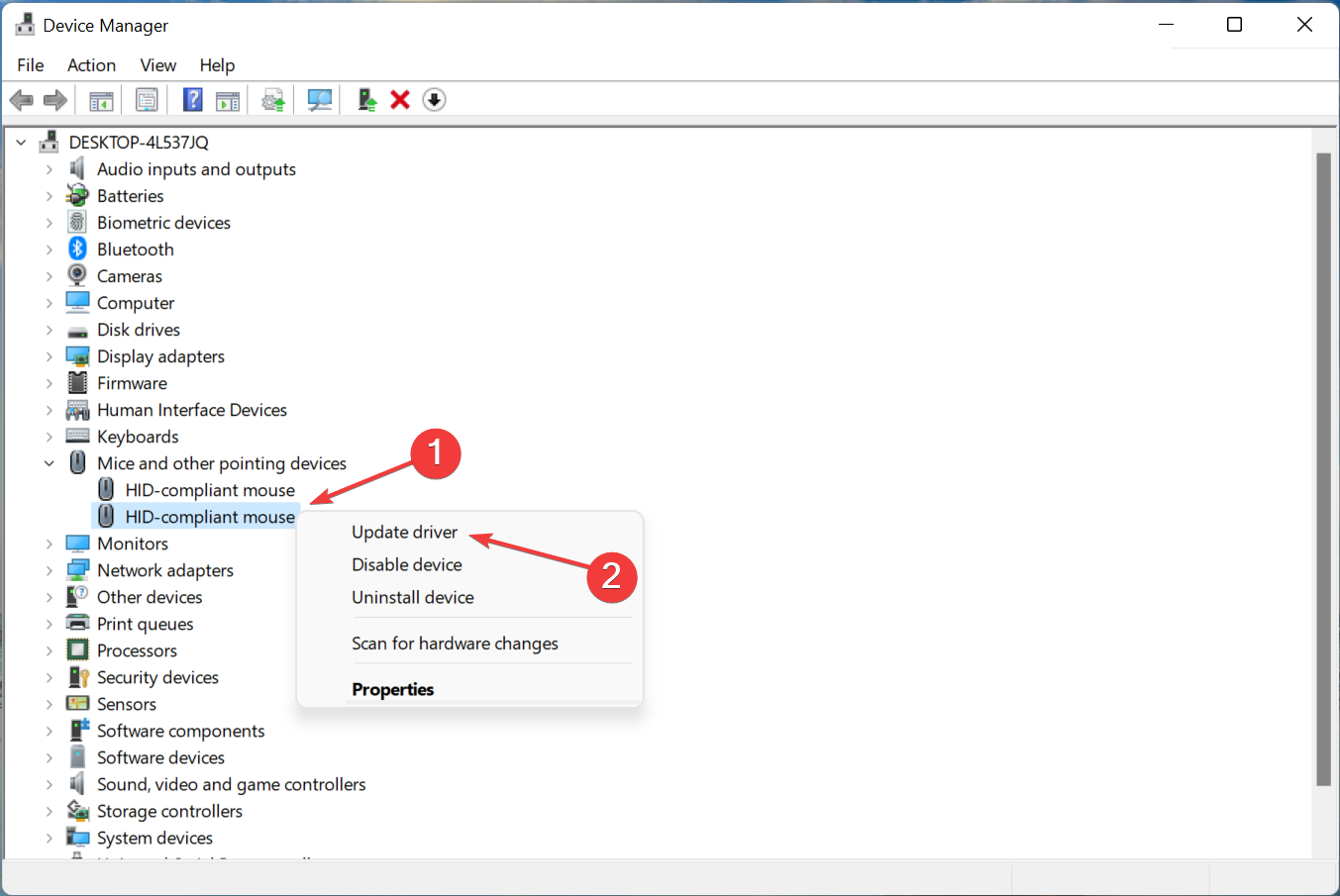
  3. Right-click on Microsoft Storage Spaces Controller and choose Update driver.
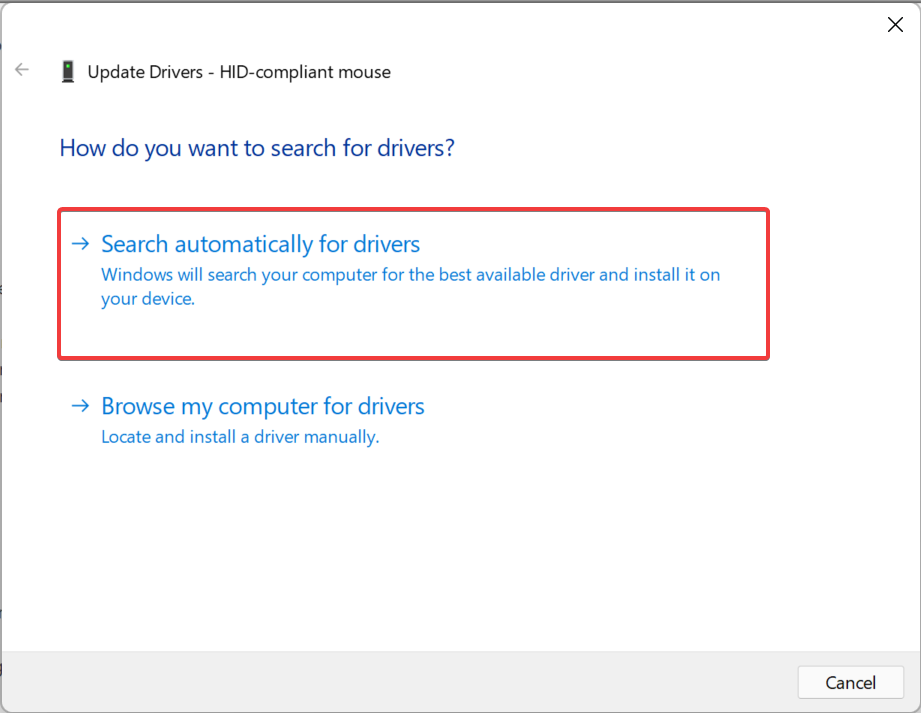
  4. In the next popup screen that appears, click on Search automatically for drivers.
  5. Once done, Windows will now automatically search and install any driver updates on your device.

The storage controllers are in charge of your storage drive ports, i.e., the SATA ports. If your storage controller drivers are out of date or corrupted, you may encounter the Event ID Disk has been surprise removed Xbox issue.

The majority of device driver issues on Windows are caused by missing, corrupted, or out-of-date drivers. This is just one of many reasons why you should maintain your device drivers up to date.

A computer cannot handle video cards, XBox controllers, sound cards, or other hardware; they must be managed by a driver. You can update drivers manually if you are completely familiar with the drivers your PC requires.

The ideal option is a driver updater program like Outbyte Driver Updater, which not only replaces but also backs up broken drivers.

The error will be resolved once you have downloaded and installed the most recent drivers. You will also notice an improvement in the performance of your device, and The disk has been surprise removed error will be eradicated. 

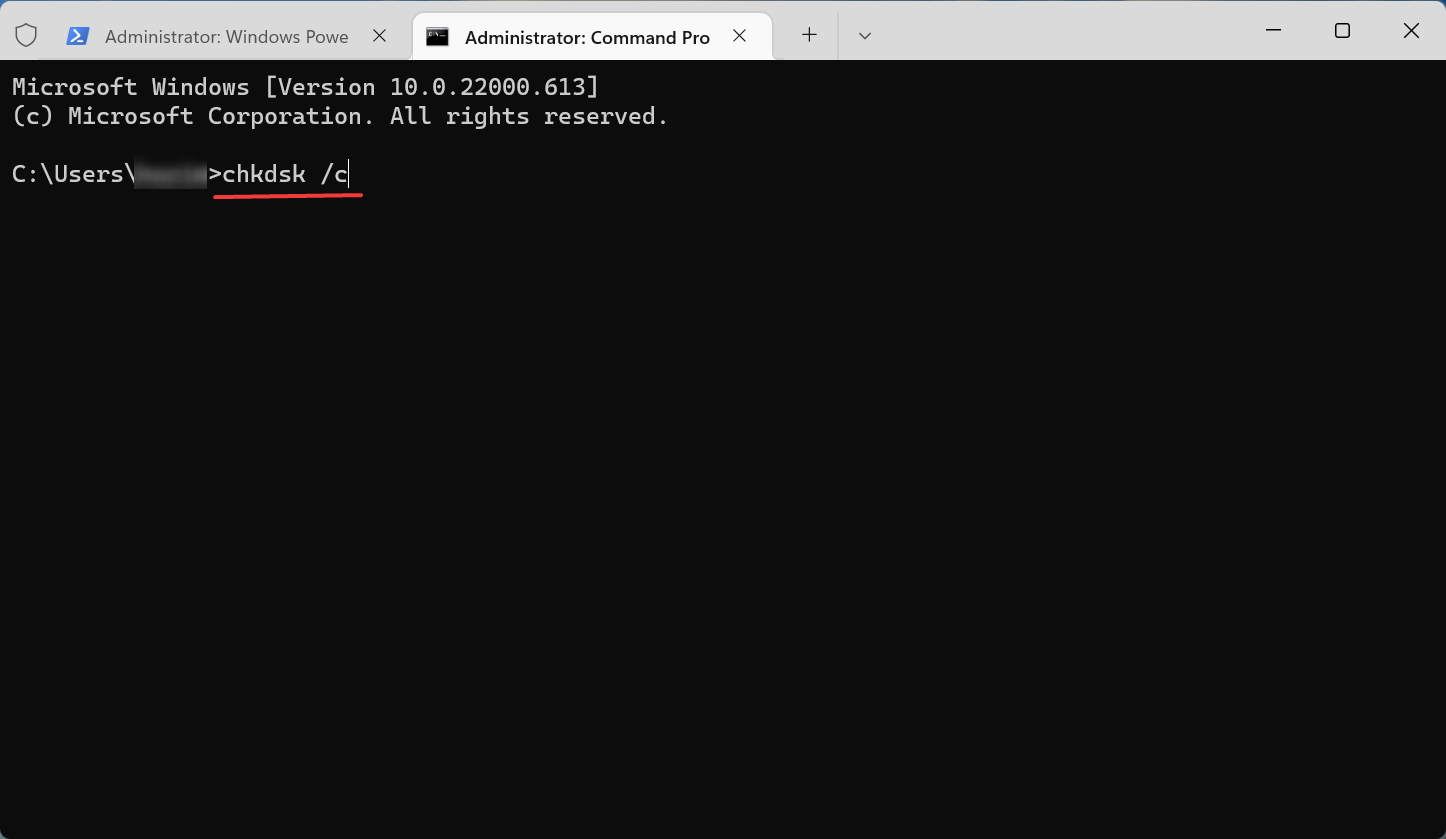
2. Run a CHKDSK scan

  1. Click on Start and search for cmd, then click on Run as Administrator.
    Disk has been surprise removed
  2. Type the following command and press Enter.
    CHKDSK C:/f/r/x
  3. The command won’t start running as your device’s root drive is already in use. Instead, it will ask you to begin scanning when you restart your PC.
  4. Type Y, press Enter, then reboot Windows and wait for the procedure to complete.
    Disk has been surprise removed

This issue can also occur if any hard drive parts are corrupted and running a CHKDSK can help fix this issue. CHKDSK is an inbuilt Windows Utility that scans and repairs system disk errors.

Several users complain about the fact that CHKDSK sometimes gets stuck in Windows. Rest assured that our guide shows you what to do in case that happens.

3. Tweak the Registry

Note icon NOTE
Before getting started with this method, create a System Restore Point or back up your Registry. So, if in case anything goes wrong you can restore it and your Windows system will be back to normal.
  1. Click Windows key + R to open the Run dialog box.
  2. Type regedit and hit Enter.
    regedit
  3. Once the Registry Editor opens, navigate to the following path:
    Computer\HKEY_LOCAL_MACHINE\SYSTEM\CurrentControlSet\Services\disk
  4. Right-click on TimeOutValue in the right pane and select Modify.
    Modify
  5. Set Base to Decimal.
  6. You will now see the default value in the Value data as 60, so set it to 61 instead.
  7. Once done, click on OK to save the changes and close the Registry Editor.
    Disk has been surprise removed
  8. Restart your device and check if the issue is fixed.

4. Clean boot your PC

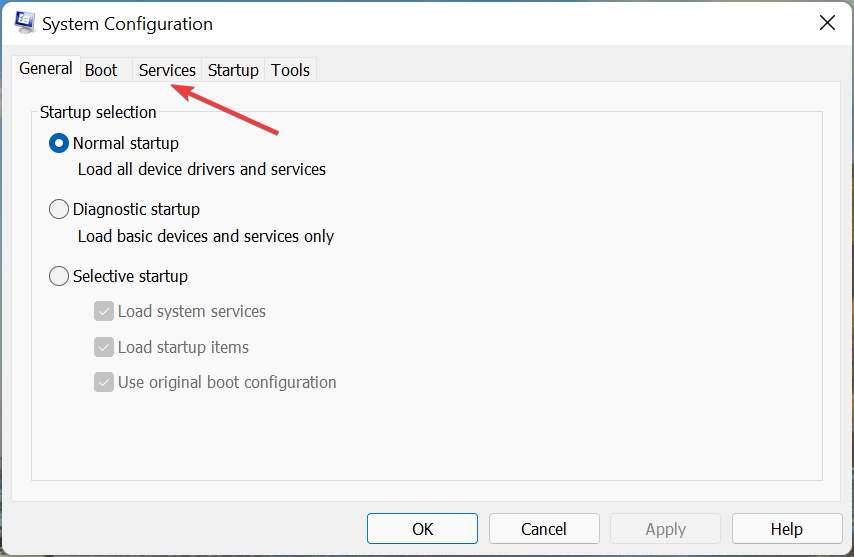
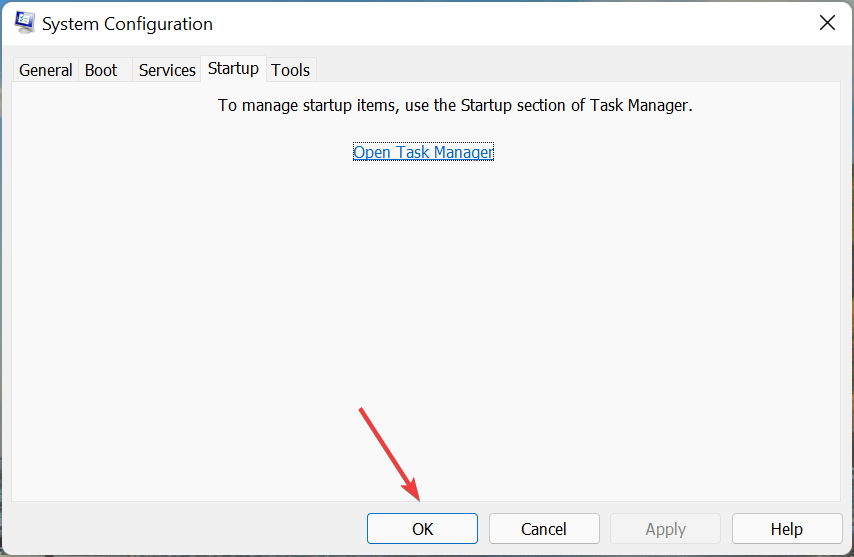
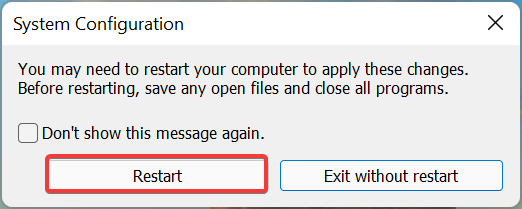
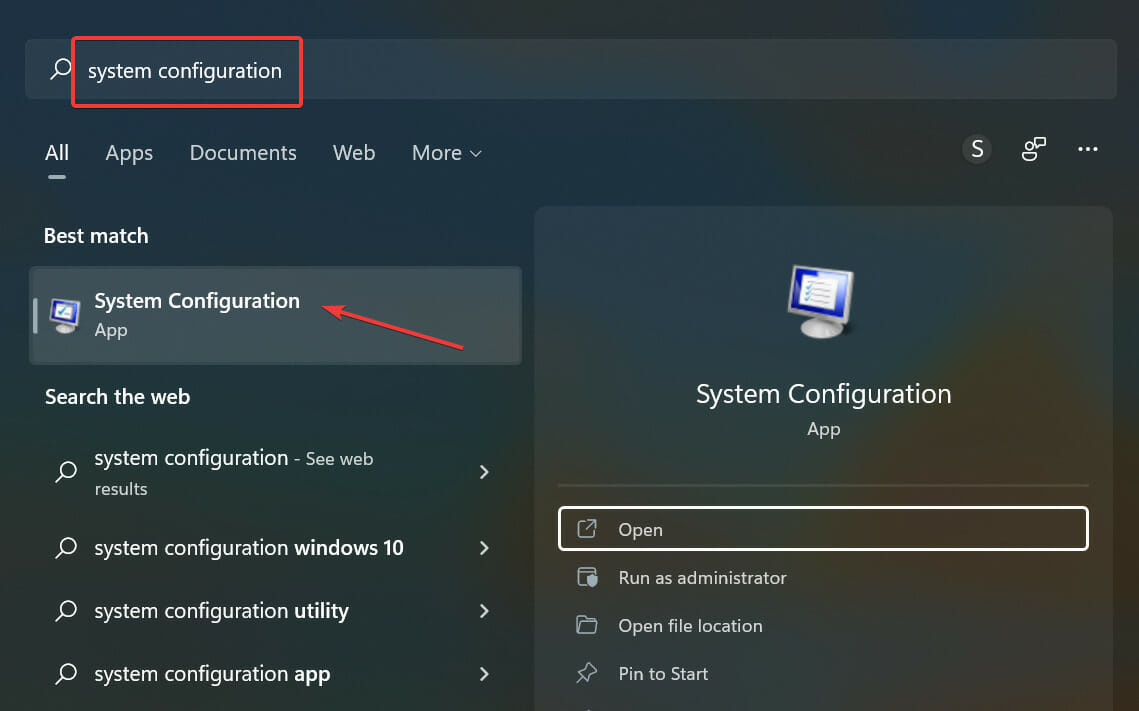
  1. Click on Start, search for system configuration and open it from the search results.
  2. Navigate to the General tab, check the Selective Startup and Load System Services options under it.
    Disk has been surprise removed
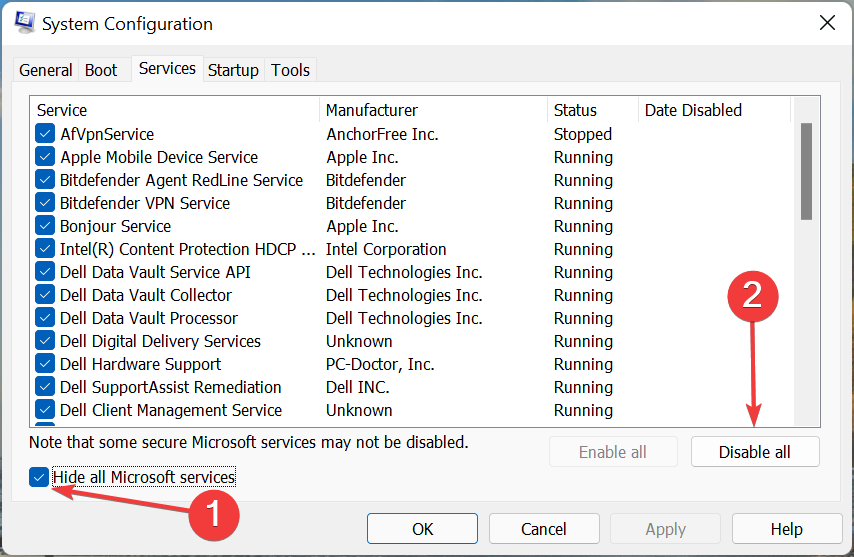
  3. Now navigate to the Services tab and check the option Hide all Microsoft services.
  4. Now click on Disable all at the bottom right corner and click on OK to save the changes.
    Clean Boot

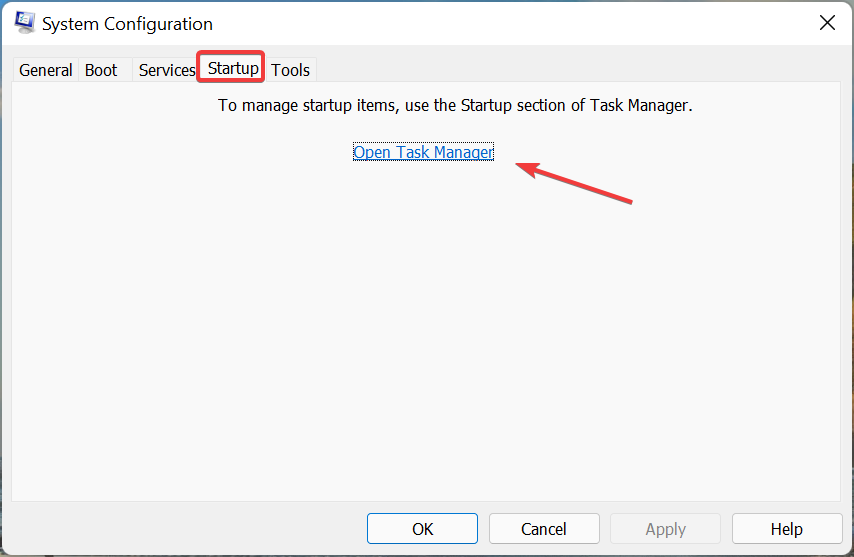
Windows will start with a minimum set of required drivers and programs by performing a clean boot. It will ensure if a third party or background program is causing an error.

The disk has been surprise removed Windows may also arise when a drive is damaged or when a user unplugs a disk while the system is running. To correct this, you will need to verify the health of the disk subsystem.

Well, that’s all from our side on how to fix the Disk has been surprise removed and we hope that our solutions helped you solve this issue.

If the troubleshooting methods didn’t solve this error, try reinstalling Windows. But this should be only a last resort.

If you still have any issues, feel free to drop a comment below. We’re eager to hear from you.

May’s Windows 11 Patch Tuesday Update could cause authentication issues

We recently reported on both Windows 11 and Windows 10 May Patch Tuesday updates and gave you a rundown of what changes and updates to expect. But as it now seems, some users that made the update are experiencing authentication issues such as Network Policy Server (NPS), Routing and Remote access Service (RRAS), and Radius among others as confirmed by Microsoft via the Windows Health Dashboard.

In the report, Microsoft identifies Windows Servers machines used as domain controllers to be the most affected by these bugs.  However, client Windows devices and non-domain controlled Windows Servers have not been affected by these challenges.

Microsoft has indicated that they are currently investigating the matter and will provide an update during the upcoming release where they will hopefully come up with a permanent fix for this issue. But in the meantime, as a workaround, Microsoft recommends manually mapping certificates to a machine account in Active Directory to bypass the authentication challenges. Users can visit Certificate Mapping documentation for a more detailed account of how to go about this process.


You can now try a native VPN feature in Microsoft Edge Canary

On May 12, Microsoft indicated it’s testing out Microsoft Edge Secure Network in the Canary channel of Microsoft Edge. Edge Secure Network’s purpose is to help users enhance their privacy and security on their devices while connected to public Wi-Fi, by hiding their IP address.

Furthermore, the tool helps protect your data and routs it “through a secure network (powered by Cloudflare) to a server that is geographically co-located” which essentially makes it even harder for attackers to gain access to your device passwords.

Users will be provided with “a small amount of free Secure Network bandwidth to use however they see fit”. Its usage varies depending on your activities on the web, therefore, Microsoft encourages the use of in-built controls for better management.

Microsoft has partnered up with Cloudflare to ensure that the VPNs are widely available, such that, the user will be able to get accurate results tailored to their specifications without compromising their security as their location will still remain undisclosed.

According to the blog post Edge Secure Network:

It also prevents your internet service provider from collecting your browsing data, like details about which websites you visit, and helps prevent online entities from using your IP address for profiling and sending you targeted ads.

However, it is mandatory for the user to sign into Edge using their Microsoft Account. With that said, this preview is will be availed to a small number of people as it is still in the testing phase. Microsoft hopes to use the feedback and recommendations that they get from the audience to improve its user experience, which might eventually help it to reach general availability.


New patent suggests Microsoft is developing an external disc drive for the Xbox Series S

A few days ago it was reported that a new Microsoft patent demonstrated a method for validating and converting Xbox game discs to digital downloads. A deeper look at the patent description suggests that the process may involve a “secondary device” which in all likelihood would come in the form of an external disc drive that could be connected to the Xbox Series S.

According the patent summary, the process of validating physical game discs would involve two devices, the first of which would be the game console. The second device, for example, “may comprise an optical disc comprising the electronic content…If the second device is able to validate the user’s ownership of the electronic content, the first device is provided access to the electronic content.”

The second device being described is clearly an optical disc drive, and judging from the patent description it would be able to connect to Xbox servers independently. At present the Xbox Series S has no external disc drive solution. Such a device would certainly be a boon for those eyeing the more affordable (albeit digital-only) next generation Xbox who are concerned over backward-compatibility with their previous generation games.

Of course, many patents never see the light of day on the consumer retail market, though many have been speculating since before the platform’s launch that Microsoft would eventually implement such a feature for its all-digital console.


Microsoft Teams adds support for Ukrainian, Somali, and Zulu languages

Microsoft strives to mitigate the needs of every student by trying to make classroom tools accessible to everyone. In an attempt to achieve this, through a recent update, Microsoft Teams has added support for Ukrainian, Somali, and Zulu languages, bringing the total number of supported languages to 105.

The addition of these languages is an elaborate measure employed by Microsoft to ensure that all the students from Ukraine get to have a smooth transition and do not miss out on their studies because of the language barrier.

With that said, the auto-detect speech detection for the Ukrainian language in Reading Progress has already reached general availability. Ukrainian students can now make use of the tool to translate whatever is being taught in class, which in return makes the learning and teaching process more effective and efficient.

Immersive Reader and Microsoft Translator are also part of the initiative that will help students progress with their studies as they provide support for the Ukrainian language and are also available in tools across Microsoft 365. Microsoft has also rolled out Read Aloud support for Somali and Zulu in Immersive Reader. Be sure to check out our expert guide on how to use Immersive Reader.


5 Ways to Fix ODBC Issues on Control Panel in Windows 10

ODBC is quite useful for application access routines, especially for professional users. And, seemingly, there are a plethora of ODBC issues on Windows 10, when launching it through Control Panel or executing tasks.

The issues are all different here. For some, ODBC, both 32-bit and 64-bit, failed to load altogether, while others faced issues working on it. It’s generally encountered by users who either upgraded from Windows 7 or updated the Windows 10 version to the latest release.

This puts users in a fix since there’s not much information available on the web. If you’re one of them, check the solutions listed below for ODBC issues on Control Panel in Windows 10.

How do I fix the Control Panel ODBC issues in Windows 10?

1. Remove SMBv1 and enable SMBv2

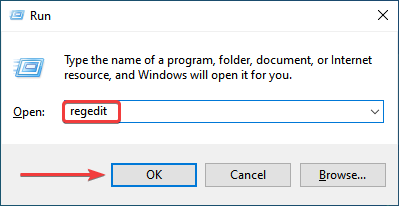
  1. Press Windows + R to launch the Run command, enter regedit in the text field, and either click on OK or hit Enter to launch the Registry Editor.
    regedit to fix windows control panel odbc
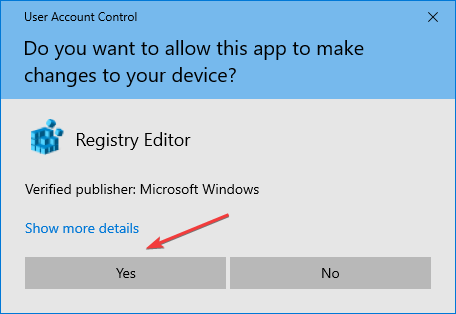
  2. Click Yes on the UAC (User Account Control) prompt that pops.
    Click Yes
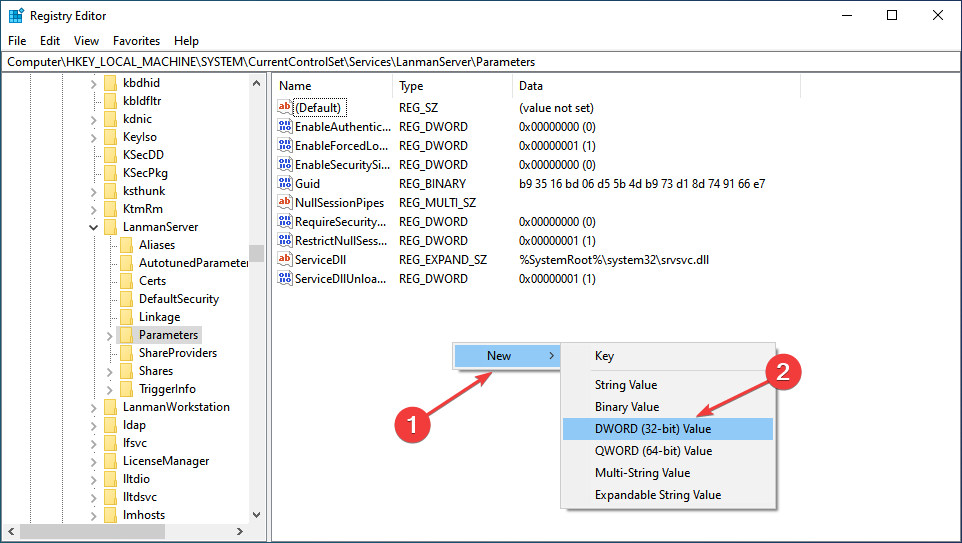
  3. Now, paste the following path in the address bar at the top, and hit Enter:Computer\HKEY_LOCAL_MACHINE\SYSTEM\CurrentControlSet\Services\LanmanServer\Parameters
    Go to path
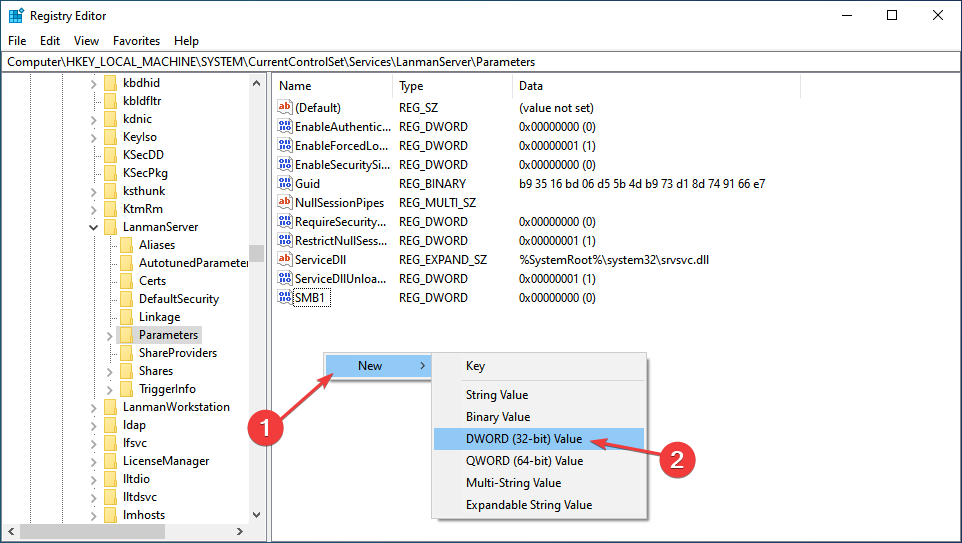
  4. Right-click on the empty space, hover the cursor over New, select Dword (32-bit) Value, and name it SMB1.
    DWORD
  5. Next, double-click on the newly created entry to modify the value data.
  6. Enter 0 in the Value data text field, and click on OK to save the changes.
    0 to fix windows control panel odbc
  7. Again, right-click on the empty space, hover the cursor over New, select DWORD (32-bit) Value, and name this one SMB2.
    SMB2
  8. Now, double-click on it to open the Properties.
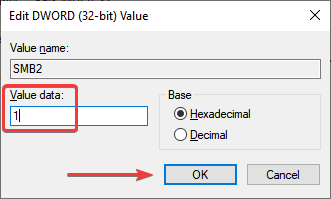
  9. Enter 1 under Value data and click on OK.
    1
  10. Close the Registry Editor.

After making the changes, restart the computer for these to fully come into effect. This is one of the quickest ways to repair ODBC control panel issues in Windows 10.

2. Disable Windows Firewall

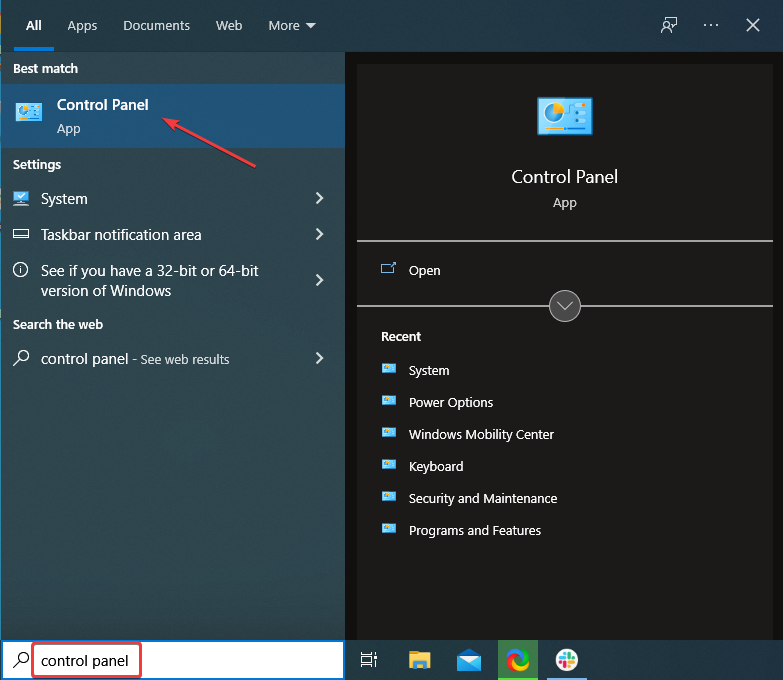
  1. Press Windows + S to launch the Search menu, type Control Panel in the text field, and click on the relevant search result.
    Control Panel
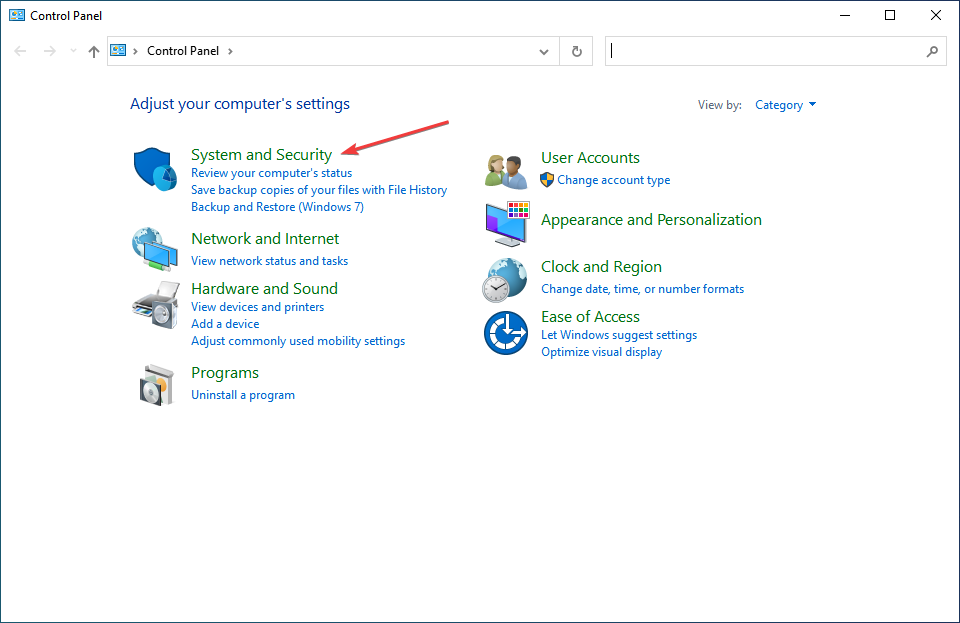
  2. Select System and Security from the options listed here.
    System and Security to fix windows control panel odbc
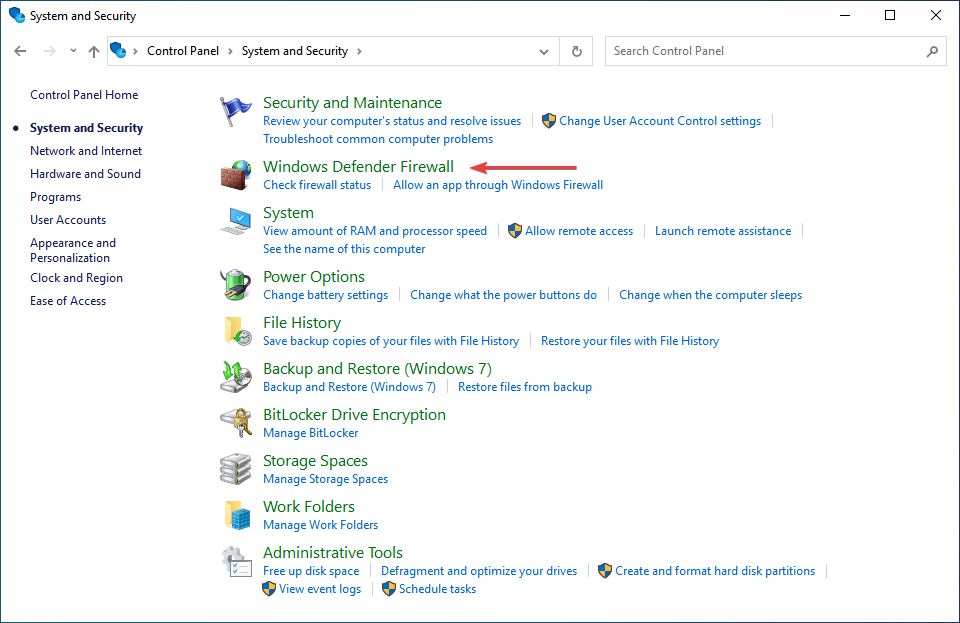
  3. Next, click on Windows Defender Firewall.
    Windows Defender Firewall
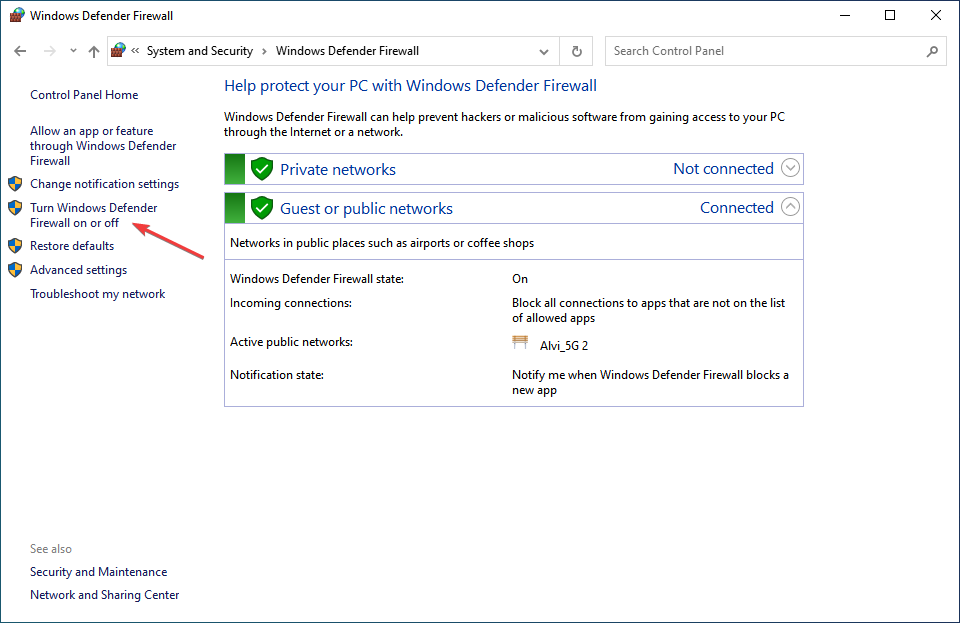
  4. Click on Turn Windows Defender Firewall on or off from the options listed on the left.
    Turn Windows Defender firewall on or off
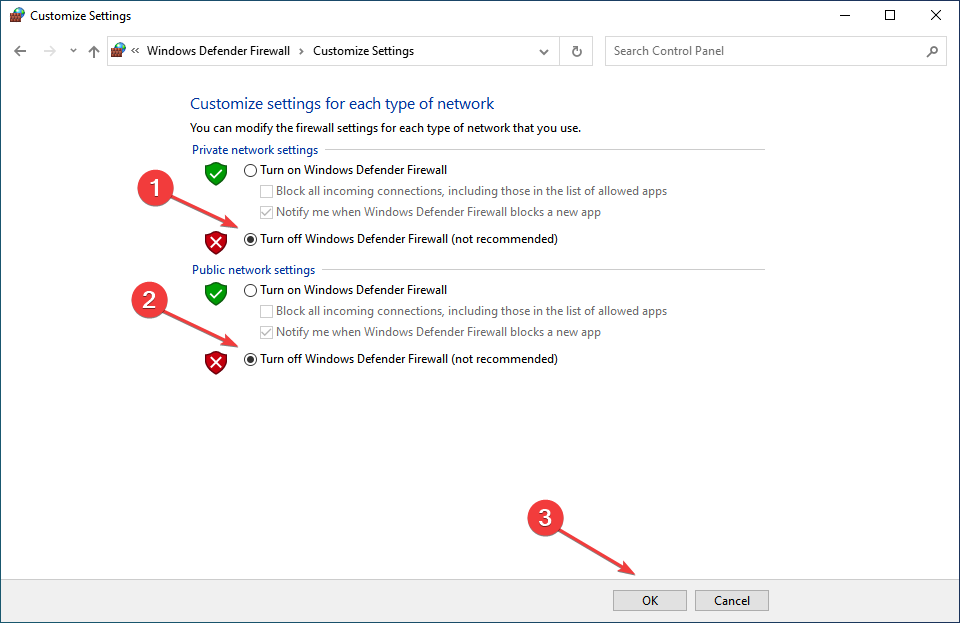
  5. Now, tick the checkboxes for Turn off Windows Defender Firewall (not recommended) under both Private network settings and Public network settings, and click on OK to save the changes.
    disable

In some cases, users found that it was the configured firewall causing issues with ODBC in Control Panel on Windows 10, and disabling it did the trick.

Remember, the steps listed here are for the Windows Defender Firewall. In case you have a third-party firewall installed, make sure to disable it.

3. Update drivers

Oftentimes, you will need to manually install an ODBC driver if Windows does not include them. And there are several of these, for instance, the ODBC driver for Oracle or the ODBC Driver 17 for SQL Server.

The process here is not the same as updating the device drivers. It’s a lot more intricate and requires a proper understanding of the process before you proceed. But once you are done updating the ODBC driver in Windows 10, there shouldn’t be any issues with it in the Control Panel.

Also, remember that while updating the ODBC driver, you would be provided the option to overwrite the one already installed, but it’s recommended that you first remove it, and then install the latest version.

To speed up the process and ensure you install the correct ODBC driver version, you can use dedicated software. Outbyte Driver Updater for instance can automatically detect what driver you need and install it using its own up-to-date database.

4. Update Windows 10

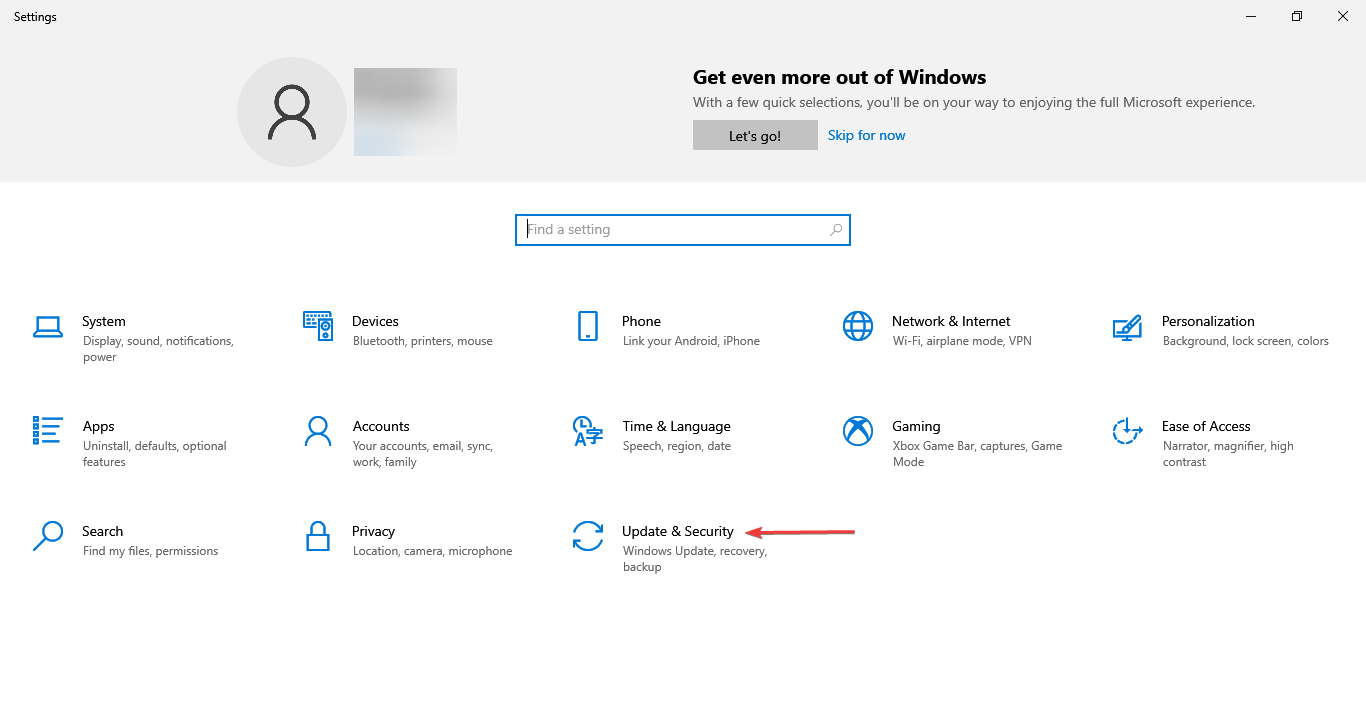
  1. Press Windows + I to launch Settings, and select Update & Security from the options listed here.
    Check for updates
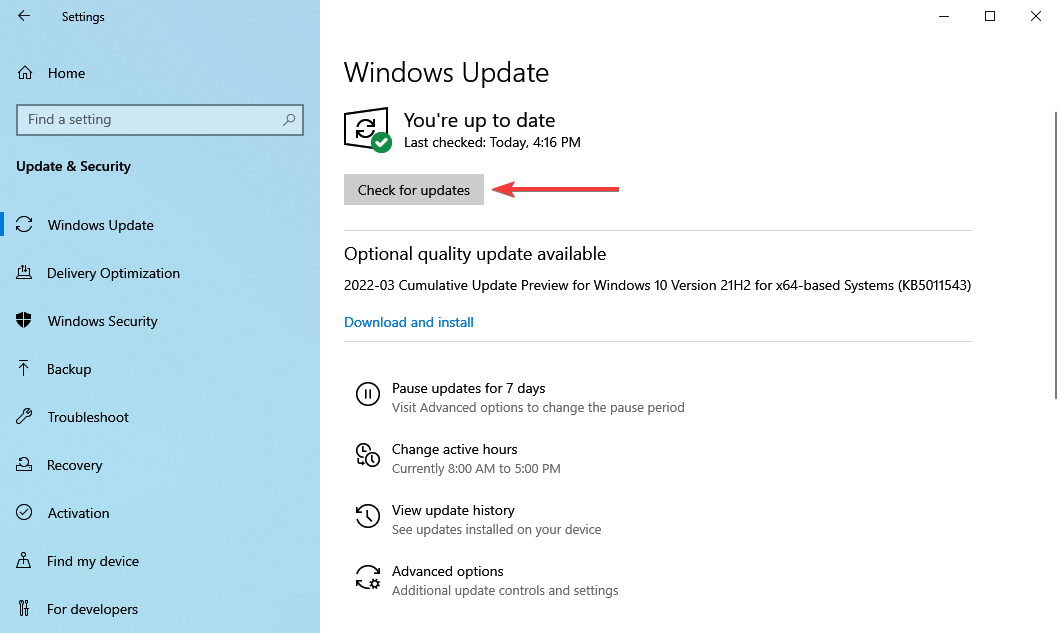
  2. Click on the Check for updates button on the right in the Windows Update tab.
    Check for updates to fix windows control panel odbc
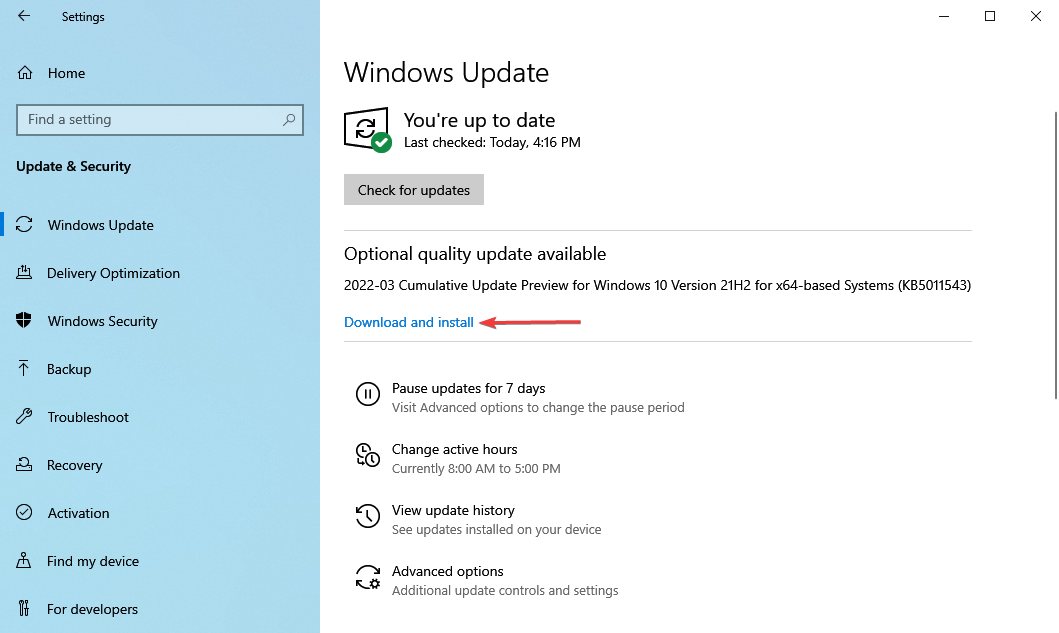
  3. If an update is listed after the scan, click on the Download and install button to get it.
    Download & install

If you are running an outdated version of Windows 10, there is a chance of encountering issues with ODBC in the Control Panel.

Also, if the error started after installing an update, the best way here is to check if there’s a newer version available since it would most likely have a patch for the issue. If there are no updates available, head to the next method.

5. Uninstall the recent Windows update

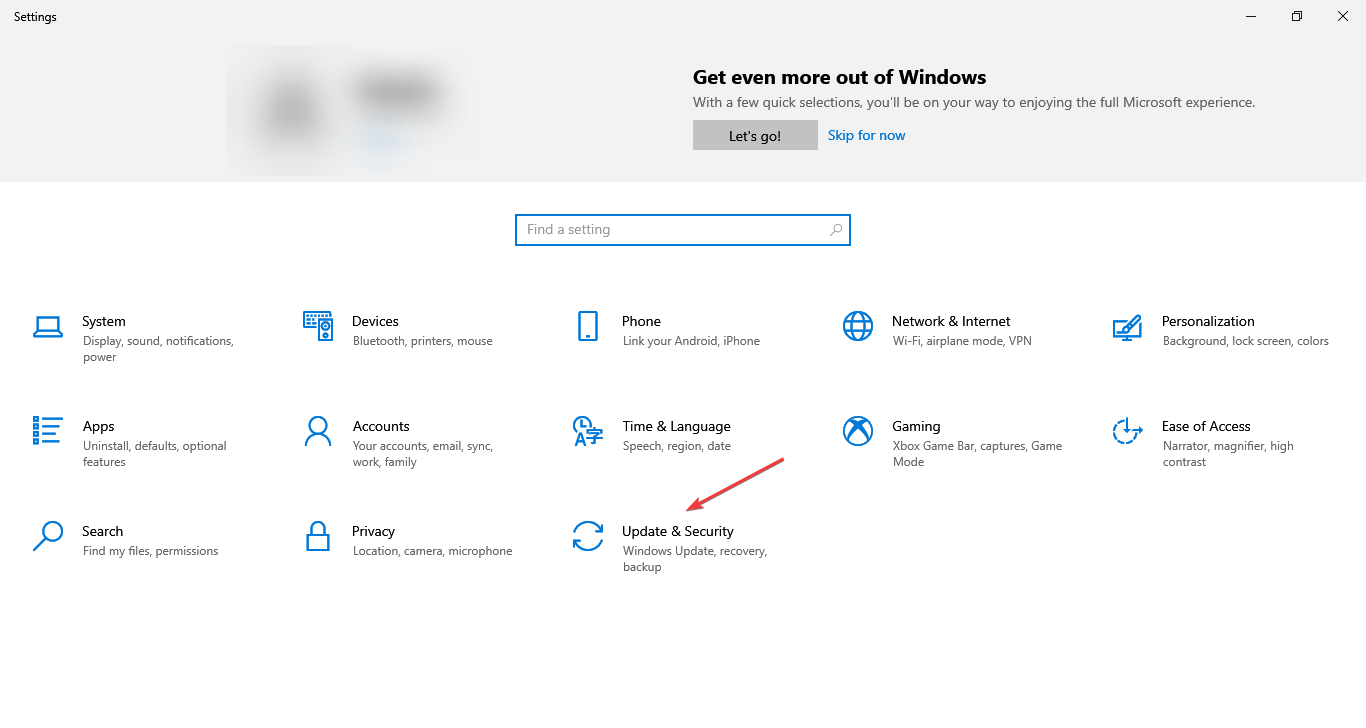
  1. Press Windows + I to launch the Settings app, and select Update & Security here.
    Update & Security
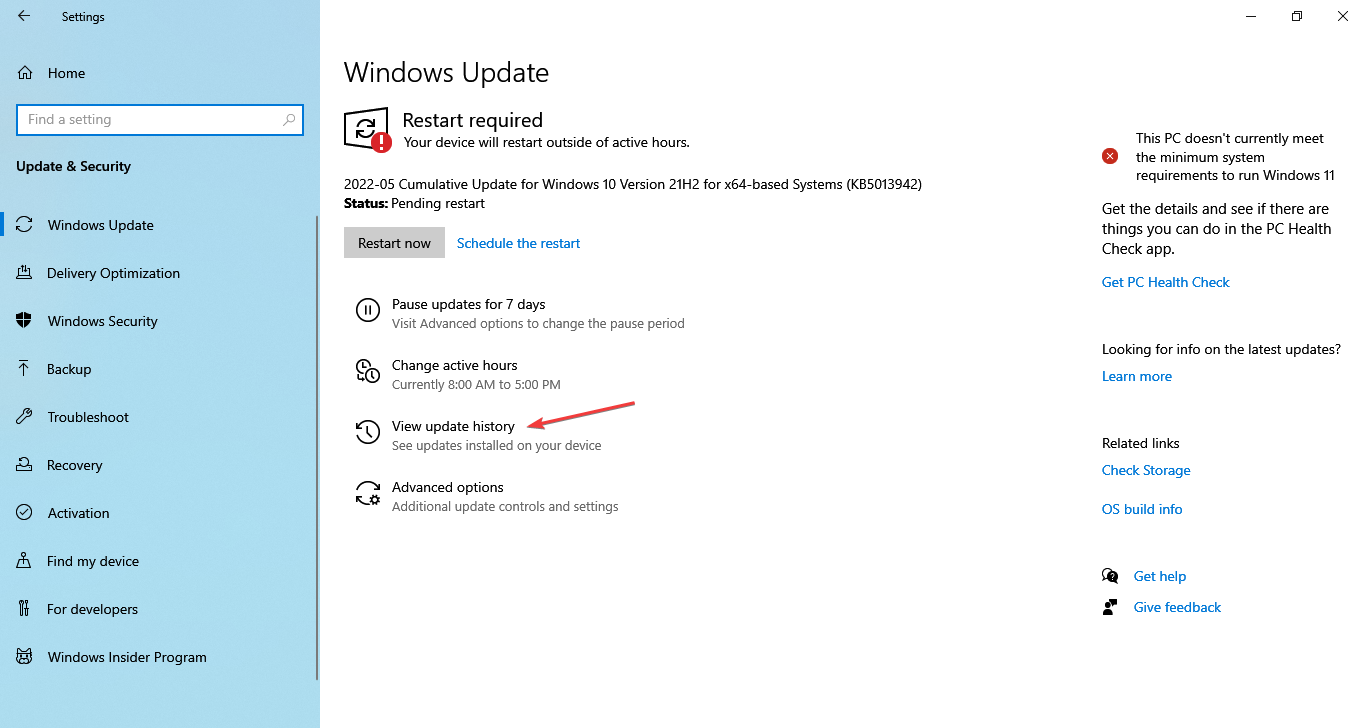
  2. Now, click on View update history on the right in the Windows Update tab.
    View update history
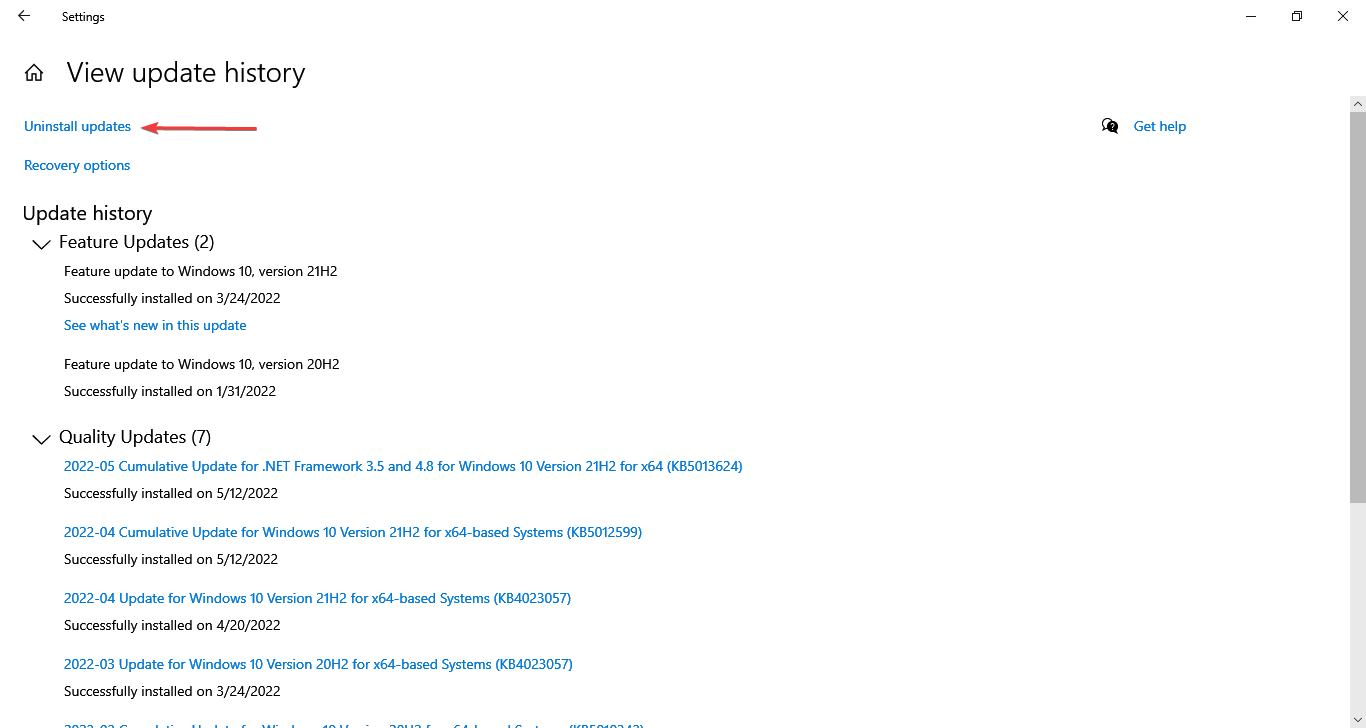
  3. Click on the Uninstall updates option.
    Uninstall updates to fix windows control panel odbc
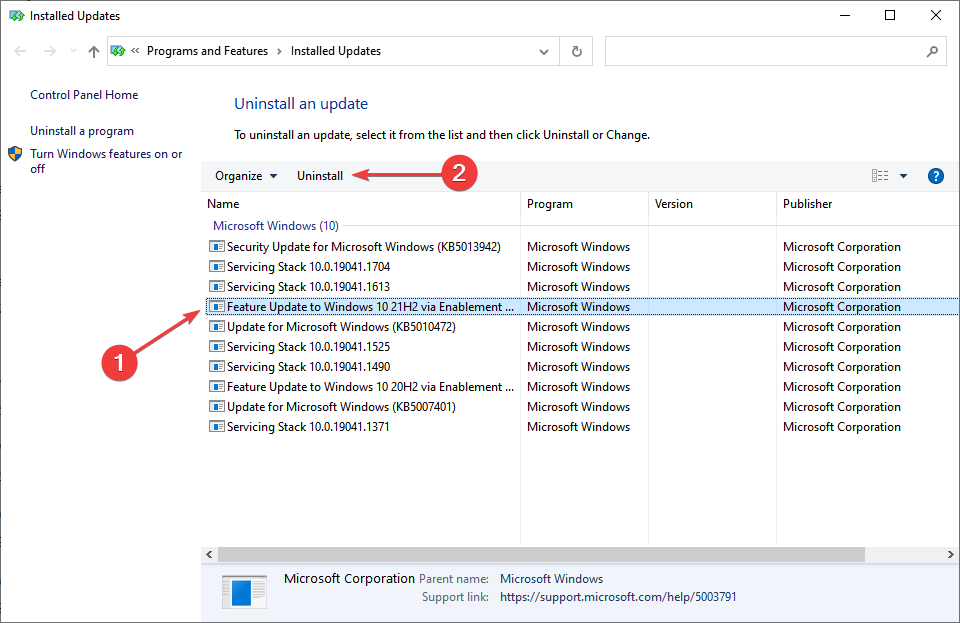
  4. Locate the problematic update, select it, and click on Uninstall.
    Uninstall to fix windows control panel odbc
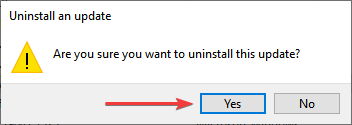
  5. Click Yes in the confirmation prompt that pops up.
    Click Yes

If the problem started after installing an update for Windows, the easiest way out here is to uninstall it and wait for the next one before making the upgrade. Once done, the issues with ODBC Data Base Administrator in Windows 10 would be eliminated.

How do I open ODBC in Control Panel on Windows 10?

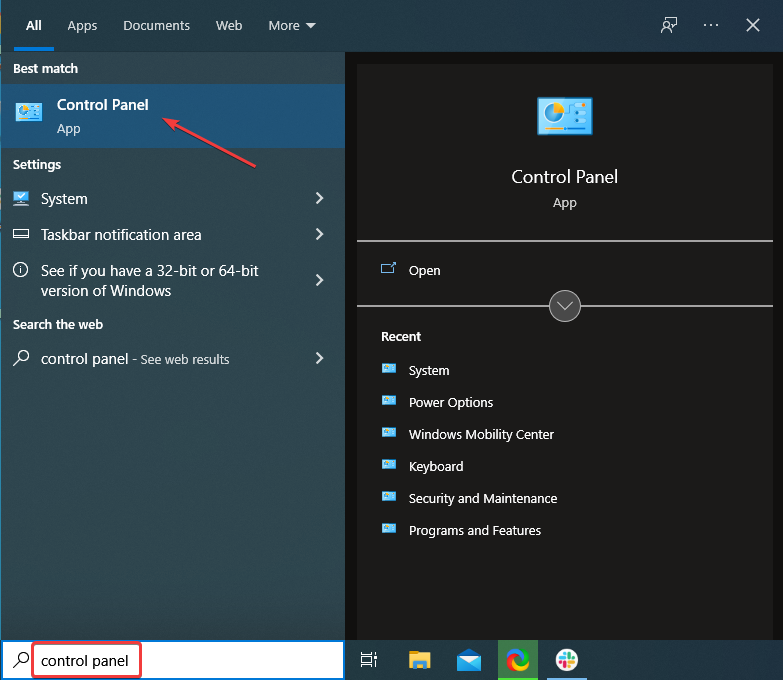
  1. Type Control Panel in the Search bar, and click on the relevant search result.
    Control panel
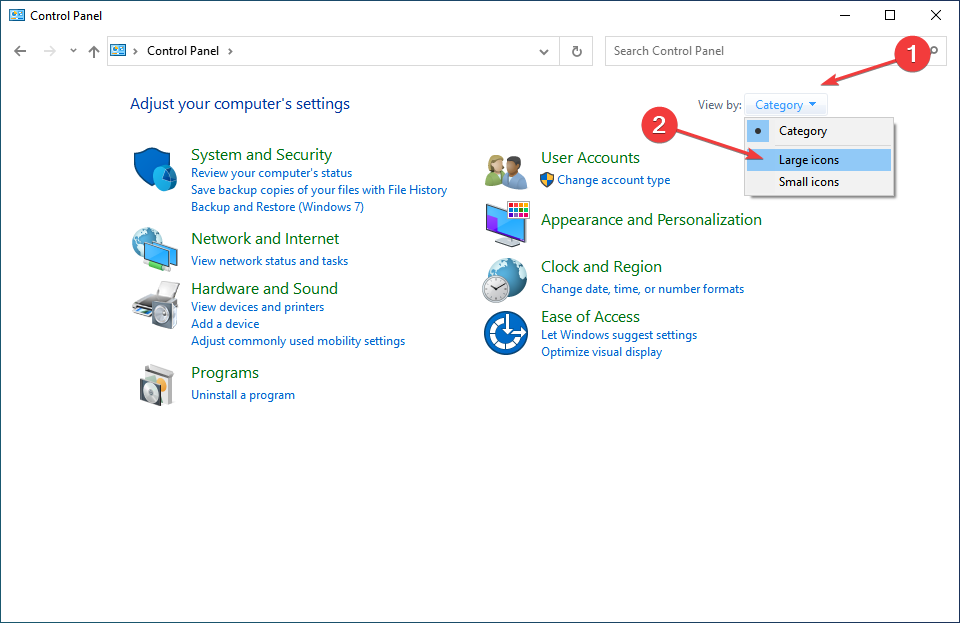
  2. Click on the View by dropdown menu, and select Large icons from the list of options.
    Large icon
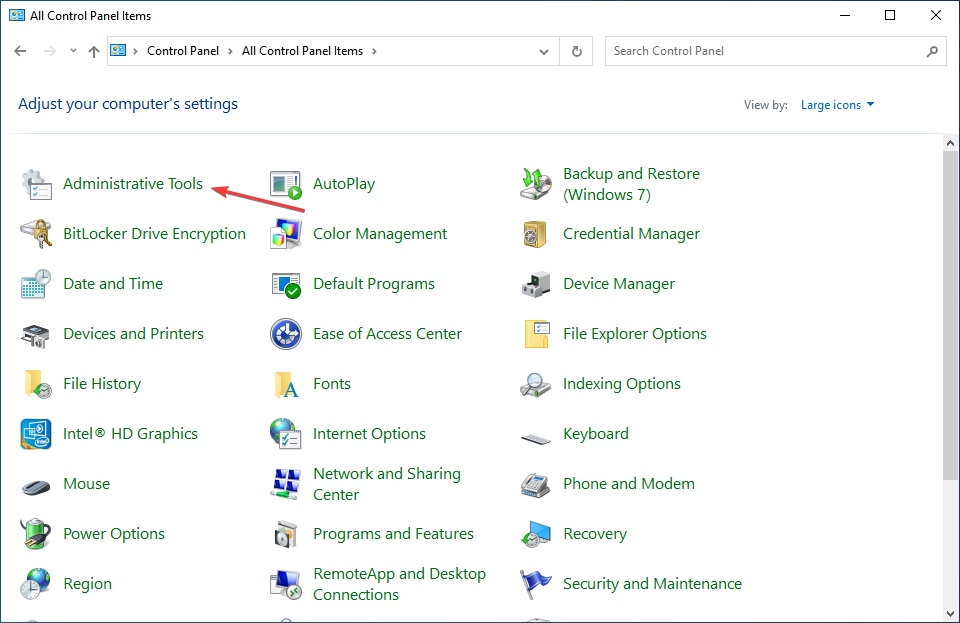
  3. Now, locate and click on Administrative Tools here.
    Administrative tools
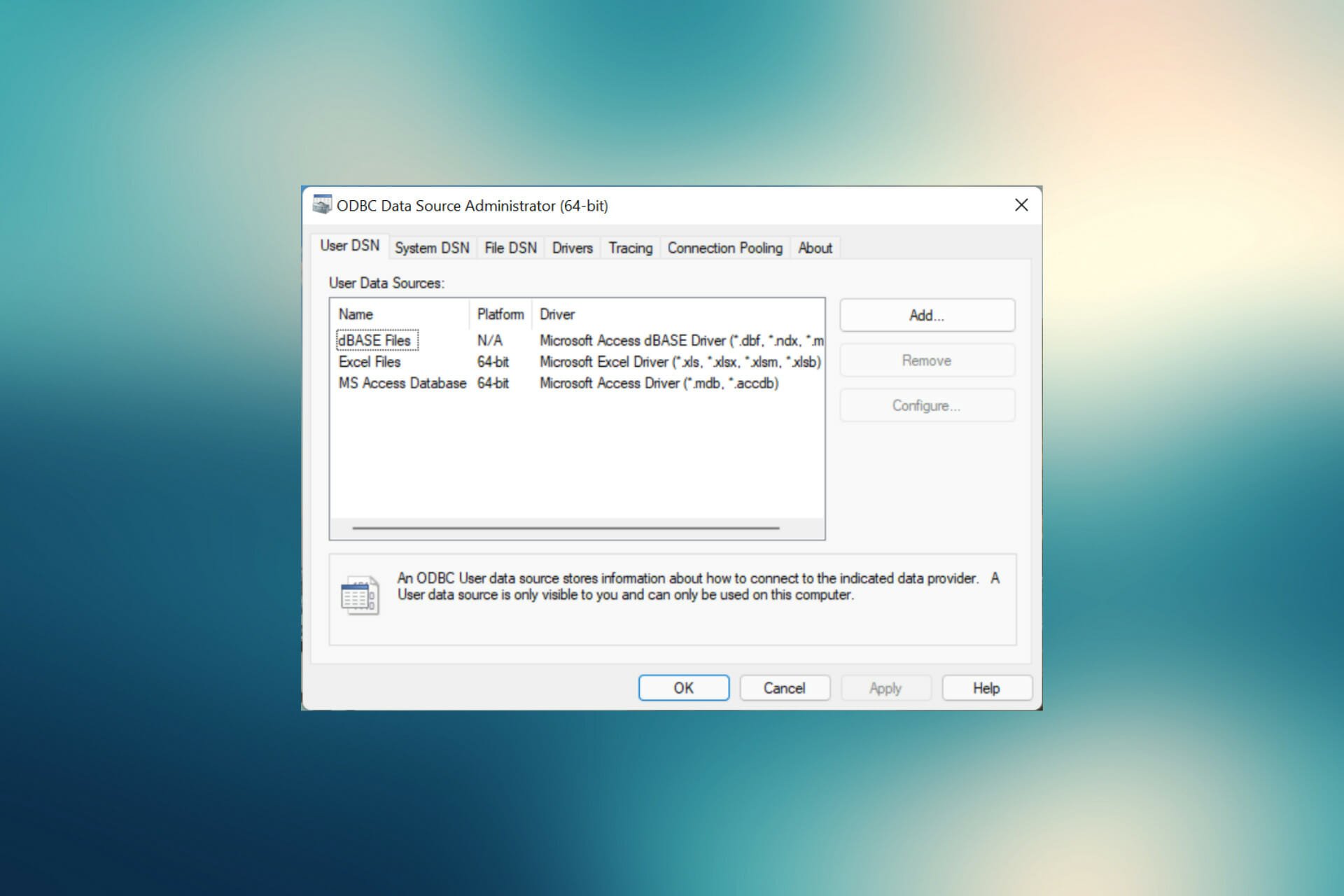
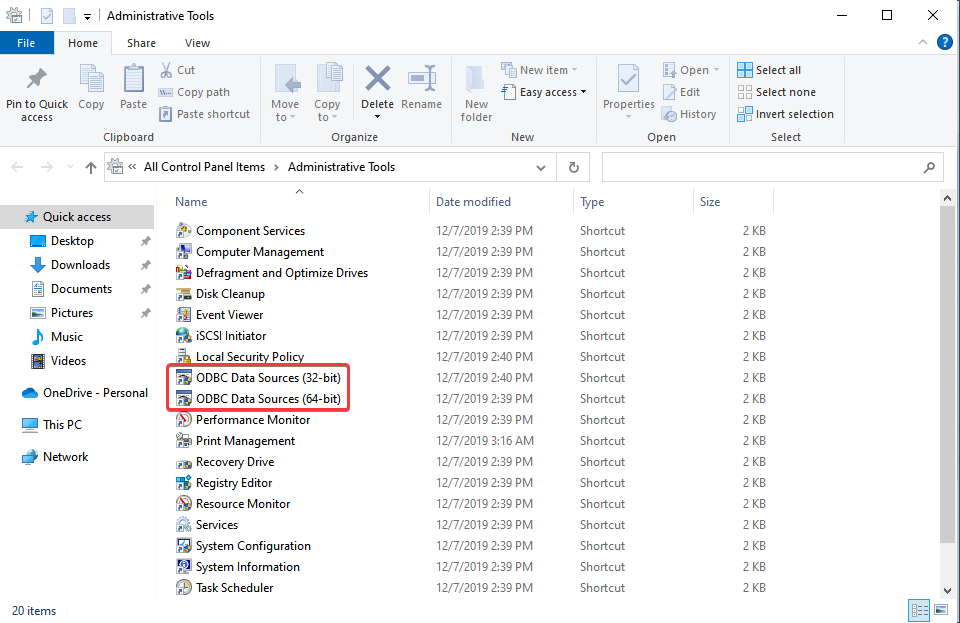
  4. You will now find the ODBC 64-bit and 32-bit options listed here depending on the architecture of the OS installed.
    Open ODBC

There are other methods as well to open the ODBC manager in Windows, but this is probably the simplest of all.

These are all the ways you can fix a plethora of issues with ODBC. Also, the methods listed here would help eliminate problems with ODBC in Control Panel on Windows 7 and Windows 11 as well. Though on the latest iteration, it is listed under Windows Tools.

Also, find out how to install and configure the MySQL ODBC driver.

Tell us which fix worked for you in the comments section below.

Outlook Message Body Disappears? Pick from These 4 Fixes Now

While users have reported that sometimes their Outlook message body disappears, numerous experts have attempted to offer some possible solutions.

For people with busy schedules and complex timetables, this application, like other Microsoft applications, is a must-have.

As a result, many people are irritated by this issue because it stops users from seeing the entire email text, forcing them to look for other ways of reading the email.

Quick Tip:

If you find yourself in a situation where the body of an Outlook message disappears, there is a third-party repair solution that can assist you in resolving these issues.

The trustworthy professional software  Stellar Repair features an Outlook scanpst.exe program that diagnoses and repairs issues in your Outlook data file (.pst).

Stellar Repair for Outlook not only restores damaged PST files but also recovers unintentionally deleted or lost mailbox items such as emails, contacts, notes, tasks, and journals. Following restoration, the program indicates damaged mail items in red, which you may then pick and save as a PST, HTML, EML, MSG, RTF, or PDF file.

Stellar Repair for Outlook

Repairs faulty PST files, retrieves all mailbox contents, and recovers lost emails.

What causes the Outlook message body to disappear?

Many users have noted that this issue only happens on their PC version of Outlook, not the mobile version, implying that Add-ins are used on the desktop version of this app.

The Avgoutlook is primarily to blame for the problem. AVG Addin or any other third-party extensions that cause conflict and incompatibility can cause the issue.

It’s worth mentioning that these factors can also result in the body of emails missing when forwarded or replied to.

Follow the instructions below to resolve this issue, as well as any others comparable to it, such as incoming emails that are blank when opened, the body of the email missing in Outlook 365, Outlook text missing, and Outlook text invisible.

Some of our readers also experience issues where the body of email messages are missing when you forward or reply to them.

What do I do if the Outlook message body disappears?

1. Disable AVG and other add-ins from Outlook

  1. Open Microsoft Outlook and select File.file section in outlook
  2. Select Options from the File menu.options section in outlook
  1. Navigate to the Add-ins tab in the Outlook Options window, then click the Go button next to the Manage COM add-ins option.addins section and then the go button
  2. Next, uncheck the add-in’s checkbox and then press the OK button if you only want to disable it temporarily.unchecking the addins checkbox
  1. Restart Outlook to see if the issue persists.

As previously stated, the Avgoutlook.Addin AVG Addin is largely to blame for the problem. So, try disabling or deleting it and see whether the problem persists.

If you have another antivirus program for Outlook installed, turn it off or uninstall it because it may be causing the issue with the outlook message body disappearing.

2. Restart Outlook in Safe Mode

  1. Simply open the Run dialog box by pressing Windows + R hotkey.
  2. Type outlook.exe/safe in it and then press the OK button. typing outlook in the run app

The body of an email or text missing issue may be resolved by restarting Outlook in Safe Mode just by following the steps above. 

After that, you should now be able to see the body and text of your Outlook emails.

3. Disable hardware acceleration

  1. To disable it, open the Outlook application and go to File.file section in outlook
  1. Select Options.options section in outlook
  1. After that, go to the Advanced tab and scroll down to the Display section. Make sure the Disable hardware acceleration option is chosen. If not, uncheck the box and press the OK button.disable hardware acceleration

4. Update Outlook

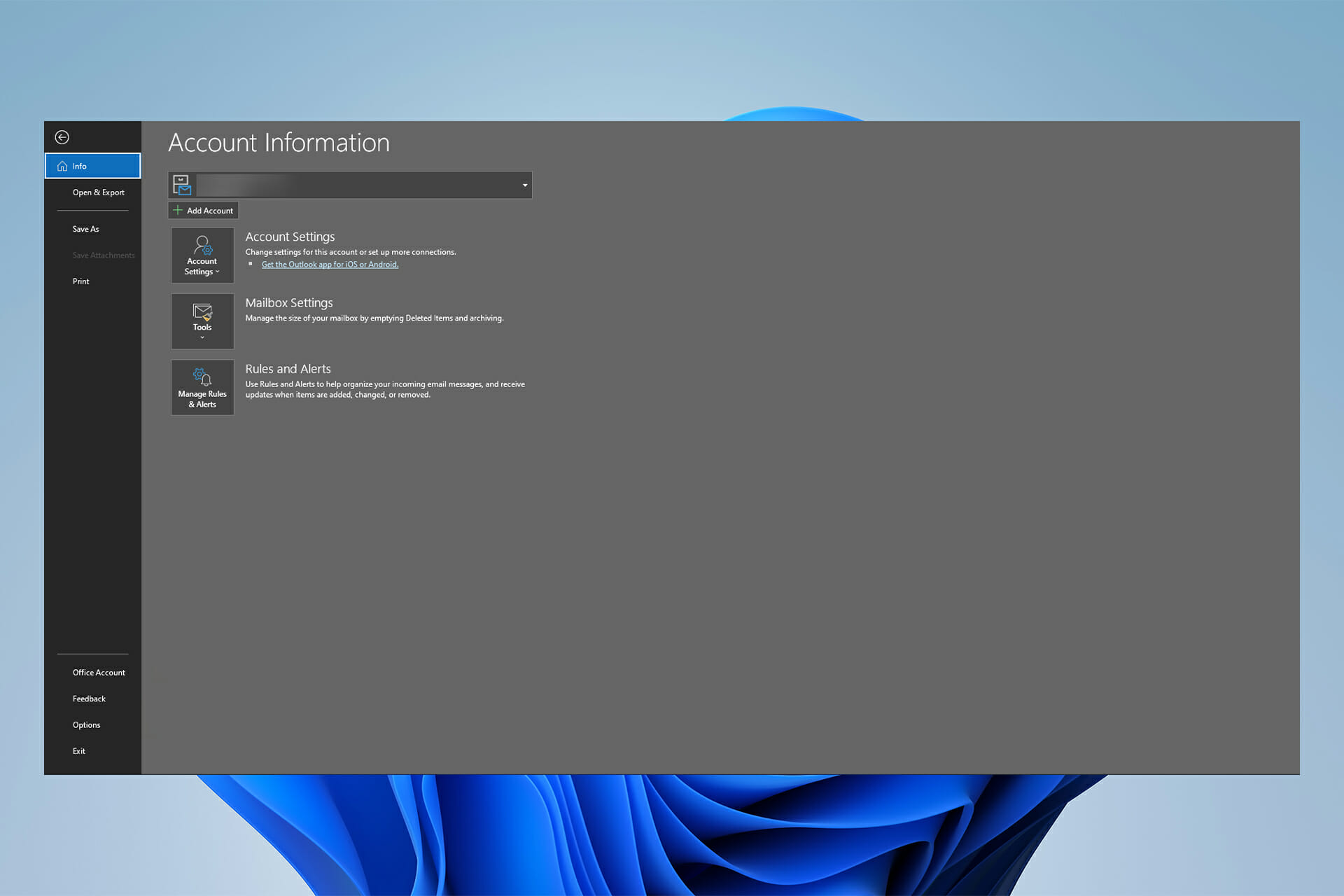
  1. Go to File and then Office Account, and click on the Update Options drop-down button.locating the update button in outlook
  2. The last thing to do is to click the Update Now button. update now from dropdown

Updating this application can fix flaws and difficulties, so follow these steps to update it and check if the problem with Outlook not displaying the body of the message persists.

What other alternatives can I use instead of Outlook?

If Outlook is not displaying email content correctly, try utilizing an alternative. There are many other e-mail clients out there with great potential.

Take a look at our selection of the best Windows 10 email clients & 3 best apps to use and make your informed selection.

Returning to our subject, because Outlook is the default personal information management app on most Windows devices, Microsoft should fix the bugs in the app.

However, the email display issues could be caused by a user’s incorrect settings in the app, which can be undone to resolve the issue.

Ultimately, users can install other software that provides the same functions but without the annoying errors and problems.

Let us know if you were able to resolve the Outlook message body disappears or any other similar issue in the comments section below.

7+ Hacks to Fix Windows has Detected an IP Address Conflict

Your router is the gateway between your home network and the public Internet. When it receives information from the outside web, it relays the message to a specific device on your LAN.

To do this, it takes into account the device’s local IP address. Otherwise, it wouldn’t be able to tell your printer apart from your smartphone or air purifier, for example.

What we draw from this is that every device with Internet access must have a unique private IP address, including Windows computers.

If you’re getting the Windows has detected an IP address conflict error on a computer, it means that another device in your local area network is already using that local IP address.

Here’s what it looks like:

Network error: Windows has detected an IP address conflict

What does it mean when Windows has detected an IP address conflict error occur?

This error message indicated that more than just one device on your network uses the same IP address.

Obviously, this should not happen. Your router is meant to automatically assign unique IPs to all devices connected.

Luckily, for the most part, the issue is caused by minor irregularities within your network configuration. It is possible that due to some errors your router used the same IP address for two or more devices.

This happens when you have not reset your router in a long time. Some users report also having it happen when they connect older devices that have not been used in a while.

Some attribute the Windows has detected an IP address conflict to a hacker attack. That can happen, but very rarely. It is difficult to access a network or connected device without an account and a password.

You can check all connected devices with the help of a network monitor. If there is an unrecognized device, change your credentials immediately.

How do I fix the Windows has detected an IP address conflict network error?

1. Restart your router

  1. Pick up your router and locate the power button on the back
  2. Press the power button to disable all Internet access in your household
  3. Wait a couple of minutes
  4. Turn the router back on

In most cases, the Windows has detected an IP address conflict message appears due to certain glitches with your router.

Join our Router Troubleshooting Hub to fix any router-related issues.

2. Reset your IP address using CMD

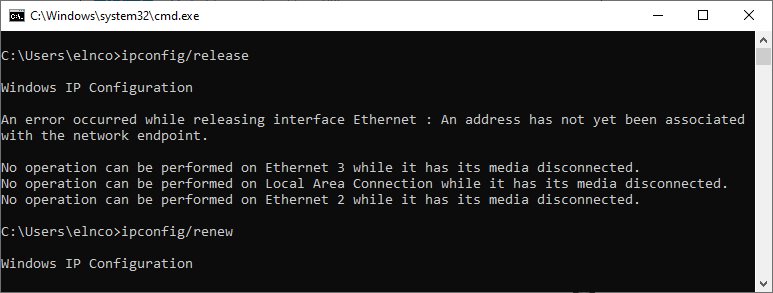
use ipconfig/release and ipconfig/renew in CMD
  1. Run Command Prompt: press Win + R , type cmd, press Enter
  2. Type ipconfig/release and press Enter to release your current IP
  3. Enter ipconfig/renew to reset your IP

A good way to fix Windows network errors is by releasing and renewing your IP address.

Don’t worry if you won’t have Internet access after using the ipconfig/release. You’ll get back online after inputting ipconfig/renew, which sends a request for a new IP address from your DHCP server.

3. Refresh your network settings

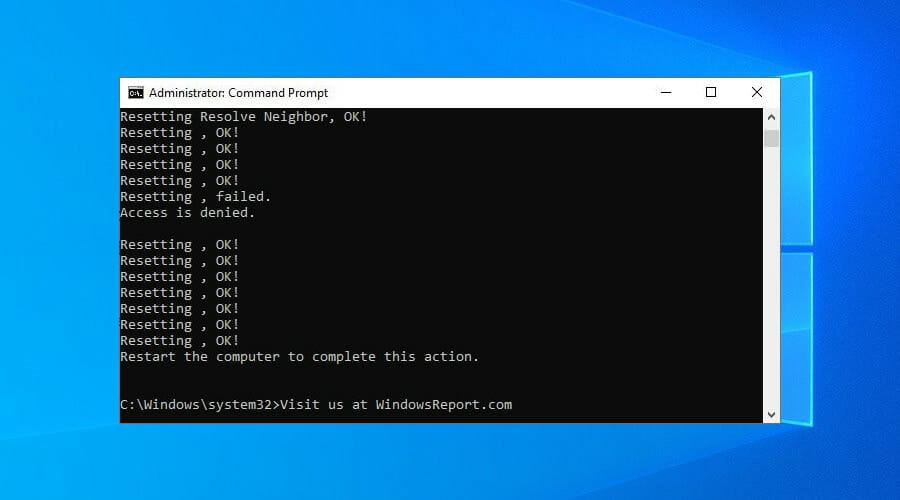
flush DNS servers in Windows 10
  1. Run Command Prompt as admin
  2. Copy and paste the next lines (press Enter between each line)
ipconfig /flushdns
ipconfig /registerdns
NETSH winsock reset catalog
NETSH int ipv4 reset reset.log
NETSH int ipv6 reset reset.log
exit

After quitting CMD, make sure to restart your PC.

Network conflicts can be often resolved by flushing your DNS servers and resetting Winsock, which is in charge of your TCP/IP configuration. It’s the IP equivalent of turning your Internet off and on again.

4. Disable or reconnect to the VPN

connect to VPN on Windows 10

If you’re using the Windows 10 built-in VPN service to create a secure tunnel to the public Internet, it could cause network errors.

For instance, your VPN might have trouble attempting to reconnect to the web when your PC wakes up from hibernation mode.

To fix this problem, disable or manually reconnect to the VPN service. However, if you’re looking for a long-term solution, consider using a premium VPN instead of a manual VPN connection.

Dedicated VPN providers have a larger set of features than the inbuilt VPN such as split tunneling, kill switch, and built-in ad blockers.

The best VPNs for Windows 10 have top-level encryption, a large number of servers across the globe, as well as support for multiple devices and operating systems.

5. Use a dynamic IP address

Obtain an IP address automatically in Windows
  1. On Windows 10, right-click the Start button and go to Network Connections
  2. Click Change adapter settings
  3. Right-click your Internet connection and select Properties
  4. Double-click Internet Protocol Version 4 (TCP/IPv4)
  5. In the General tab, select Obtain an IP address automatically
  6. Click OK

If you have IPv6 connectivity, then double-click Internet Protocol Version 6 (TCP/IPv6) and select Obtain an IP address automatically there, too.

A static IP address could be the reason why you keep seeing the Windows has detected an IP address conflict message.

But you can fix the problem by forcing your PC to obtain a dynamic IP address automatically from your ISP.

Private Internet Access supports both static and dynamic IP addresses.

If you have trouble with modifying the static IP address on your PC, try forcing this option using PowerShell or Command Prompt (our guide shows how).

6. Disable IPv6 connectivity

disable IPv6 in Windows
  1. Go to Network Connections and click Change adapter options
  2. Right-click your Internet connection and go to Properties
  3. Deselect Internet Protocol Version 6 (TCP/IPv6)
  4. Click OK

If your ISP didn’t assign an IPv6 address on your home network, there’s no point in keeping it enabled. In fact, it might clash with IPv4 and cause network errors due to incorrect IP assignments.

The steps above apply only to your Windows computer. If you want to be thorough about it, then you should disable IPv6 connectivity in your router admin panel.

disable IPv6 in the router admin panel

7. Reinstall network adapters and update drivers

unintall a device using Device Manager
  1. On Windows 10, right-click the Start button and go to Device Manager
  2. Expand the Network adapters menu
  3. Right-click your network adapter and click Uninstall Device
  4. If you’re using a VPN, do the same for all TAP and Miniport entries
  5. Open the Action menu and select Scan for hardware changes

To get rid of the Windows has detected an IP address conflict message, it’s a good idea to reinstall your network adapters.

And, if this doesn’t fix the problem either, then make sure to update your network drivers to the latest version. You can do this manually or by using a driver updating tool.

8. Change your DNS servers

Use the following DNS server addresses in Windows
  1. Head over to Network Connections > Change adapter options
  2. Right-click your Internet connection and select Properties
  3. Double-click Internet Protocol Version 4 (TCP/IPv4)
  4. Select Use the following DNS server addresses
  5. Set Preferred DNS server to 8.8.8.8
  6. Set Alternate DNS server to 8.8.4.4
  7. Click OK

If your DNS resolver is faulty, it could cause various network errors, including IP conflicts on your local network. But you can fix this issue by modifying your DNS server addresses.

In our example above, we listed the free and public DNS server addresses provided by Google Public DNS.

However, if you use a premium VPN service like Private Internet Access, you don’t have to worry about DNS issues.

While staying connected to the VPN, PIA redirects your network traffic through its private DNS servers to make your Internet connection faster and protect you from DNS hijacking.

Conclusion

To sum up, you can fix PC network errors like the Windows has detected an IP address conflict message by restarting your router, resetting your IP address through Command Prompt, and refreshing your network settings.

But you can also disable or reconnect to your VPN, use a dynamic IP address instead of static, disable IPv6 connectivity if you don’t use it, change your DNS servers, as well as reinstall your network adapters and update your network drivers.

We also have a guide on what to do if Ethernet doesn’t have a valid IP configuration, so don’t miss it.

How did you manage to fix the network error? Did you use a solution not listed in this article? Let us know in the comment section below.

Overwatch Lost Connection to Game Server [LC-202 Error Fixed]

Overwatch is a popular vibrant, team-based shooter game that offers some futuristic gameplay. That said, several overwatch players have reported the lost connection to game server error when playing the game.

This issue can occur due to many reasons, including malware infection. The Overwatch error lc-202 can be resolved by performing basic troubleshooting steps like troubleshooting your home network and updating drivers, resetting Winsock data, and changing the DNS server.

If you are also troubled by this, here are a couple of troubleshooting tips to help you fix the Overwatch lost connection to a game server error on your Windows computer.

How do I fix Overwatch lost connection to the game server?

1. Scan your PC for virus

This error can occur if malware or virus creates an issue with the game functionalities or your network. To fix the issue, try performing a full scan of your PC.

The easiest way of completely protecting your PC from all types of cyber threats is to install one of the best antiviruses available, which is TotalAV, which is truly effective in removing malware and adware hidden deep inside your directories.

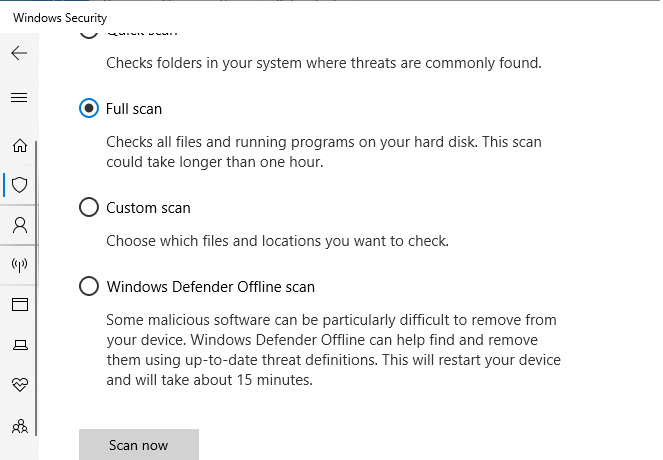
If you prefer to use Window Defender instead, here is how to perform a full scan.

overwatch lost connection to game server
  1. Click on Start and select Settings.
  2. Go to Update & Security.
  3. Click on Windows Security.
  4. Click on Virus and Threat protection.
  5. In the new windows, click on Scan options.
  6. Select the Full Scan.
  7. Click Scan now to initialize the scanning process.
  8. The scanning may take some time to complete.
  9. Windows Defender will alert and remove malware and adware that you can delete from the Quarantine page.

2. Restart your home network

  1. Disconnect your PC from the network.
  2. Power of the router and the modem.
  3. Disconnect the ethernet cable from the modem.
  4. Leave the network device idle for a few minutes.
  5. Power on the router/modem and wait till all the lights stop blinking.
  6. Connect your PC to the network and check for any improvements.

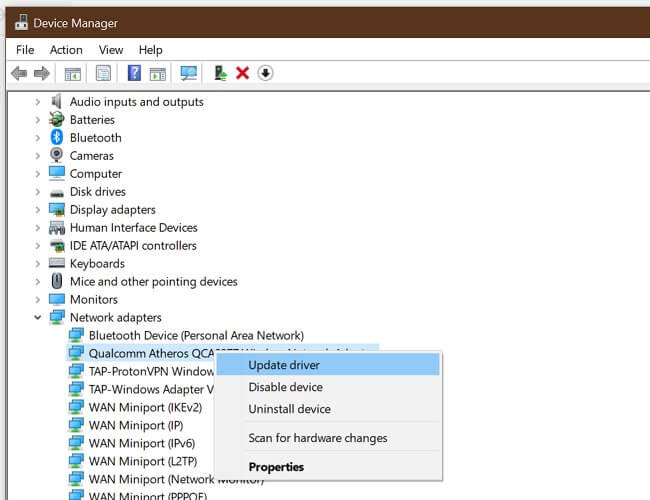
If restarting the network didn’t fix the issue, try updating the network driver from the device manager.

Update Network driver

overwatch lost connection to game server
  1. Press Windows Key + R to open Run.
  2. Type devmgmt.msc and click OK.
  3. In Device Manager, expand the Network Adapters category.
  4. Right-click on your network adapter.
  5. Select Update Driver.
  6. Select Search automatically for Updated drivers software.

Windows will scan and download any pending updates for the driver, which can help you fix the Overwatch 2 keeps crashing issue.

3. Reset the Winsock catalog

overwatch lost connection to game server
  1. Press the Windows key.
  2. Type cmd.
  3. Click on Run as Administrator for Command Prompt.
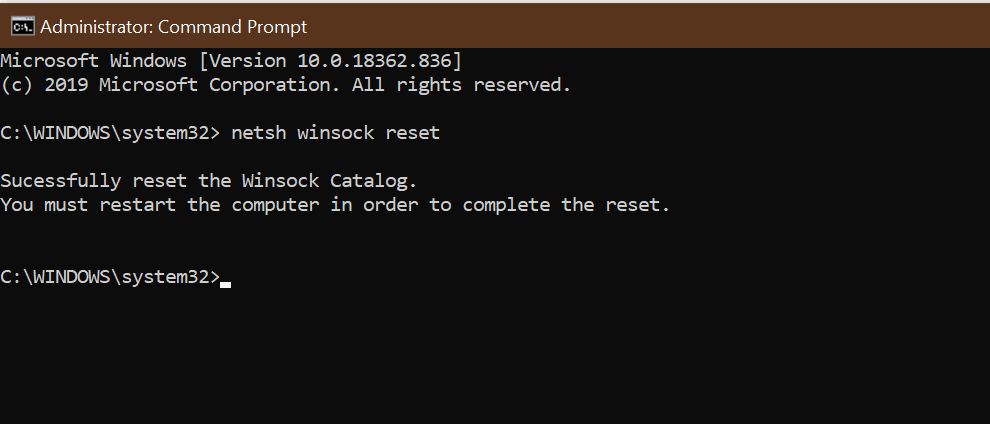
  4. In Command Prompt, enter the following command and hit enter:
    netsh Winsock reset
  5. Close the Command Prompt window and reboot the computer.

After the restart, reconnect to your network to see if the Overwatch lost connection to the game server error is resolved.

Stop background apps using network resources

Overwatch connection error

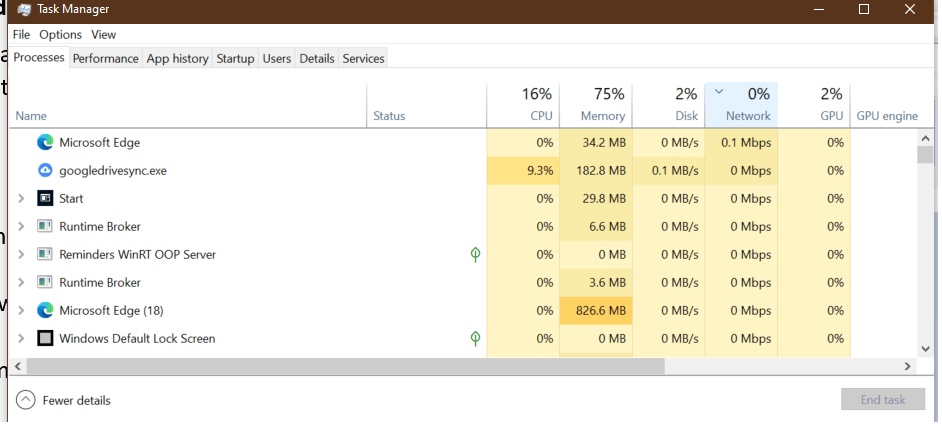
If you have background apps that are hogging all the network resources, the game may display an error due to an unstable network connection.

  1. Right-click on your taskbar.
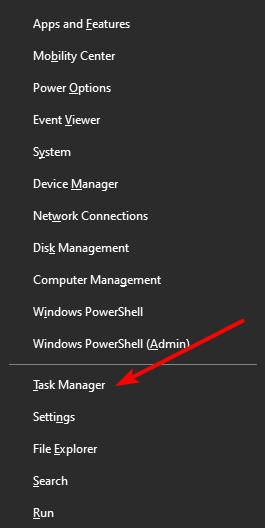
  2. Select Task Manager.
  3. Check if any app is using a considerable amount of network resources.
  4. Usually, the Windows update services download update packages automatically.
  5. Try ending or disabling the process completely to see if that resolves the issue.

4. Change DNS server

Overwatch connection error
  1. Press the Windows key.
  2. Type control and click on Control Panel.
  3. Go to Network and Internet.
  4. Click on Network and Sharing Center.
  5. From the left pane, click on Change adapter settings.
  6. Right-click on the network adapter.
  7. Select Properties.
  8. Double-click on Internet Protocol Version 4 (TCP/IPv4).
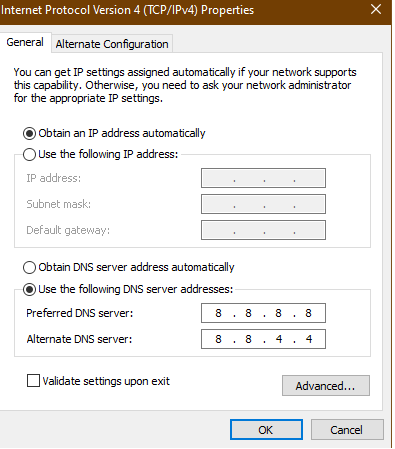
  9. Select Use the following DNS server addresses
  10. Enter the following DNS server address in the Preferred and Alternate DNS server field.
    8.8.8
    8.8.4.4
  11. Click OK to save the changes.
  12. Relaunch the game and check if the error is resolved.

 5. Overwatch game server connection failed

game server connection failed
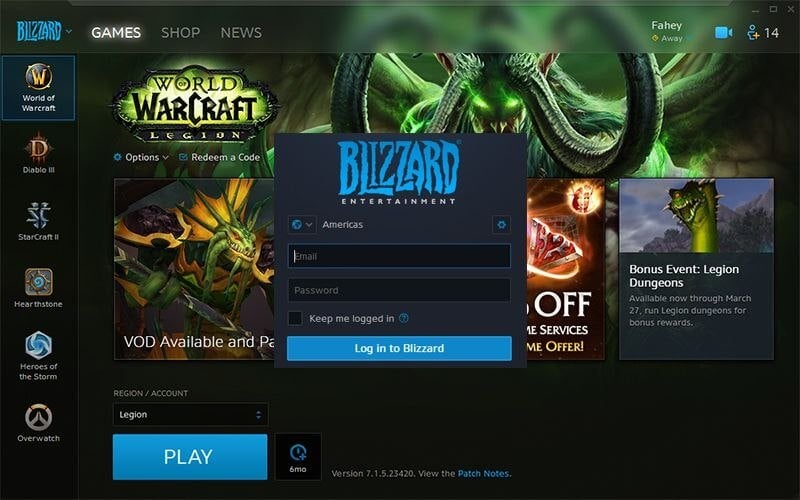
  1. Quit the Battle.net desktop app.
  2. Restart the computer.
  3. After the restart, launch Battle.net again.
  4. Install pending updates. The desktop app will prompt you to install the updates.
  5. If no updates are suggested, try to update your game manually.
  6. At times, it may take more than an attempt at updating the game for the update to download and install.

The Overwatch lost connection to game server error usually occurs due to issues with your home network. In rare cases, it can also occur due to malware infection.

You have the chance to explore more useful fixes and guides by visiting our detailed Blizzard Hub. 

For more guides to fix game issues on Windows, there is our thorough Gaming Troubleshooting webpage.

Make sure to follow the steps to troubleshoot your home network and scan your PC for malware and adware to fix the error.

Destiny 2 Isn’t Updating On Steam: 7 Quick Ways To Fix It In 2026

Destiny 2 is one of the greats in the current meta of online shooters. However, because various in-game bugs too often plague this Activision-produced game, it requires maintenance and adding in-game features.

Note icon NOTE
Since 2019, all eight Destiny 2 videogames have been exclusively accessible for Windows PC via the Steam gaming platform, migrated from Battle.net. The game is available for purchase through the Steam Store, including in special bundles offered by Steam.

Both are provided via frequent updates. And that’s the problem we’re trying to tackle today. Namely, many users cannot update the game through the Steam client since the update is stuck on initialization.

What can I do if Destiny 2 won’t update on Steam?

1. Check the connection

Obviously, this is a matter we can’t avoid when it comes to updating and running games in the Steam client.

Even though we’re quite certain you’re well aware of network performance, we still encourage you to check everything out before we move to additional steps. So, check whether your PC can connect to the internet.

If the issue is widespread and we can’t ascribe it solely to Ubisoft, follow these steps to troubleshoot network issues:

➡️ Restart your PC
➡️ Use the wired connection
➡️ Restart router and modem
➡️ Flush DNS
➡️ Make sure the ports
➡️ Make sure the client can communicate freely through Firewall. Open the Firewall and check the list of allowed apps. Confirm that Steam is allowed to connect to both public and private networks.

In case you are facing other issues we have a guide that can help you fix Destiny 2 stuck on initializing and other problems, so don’t miss it.

2. Restart the Steam client

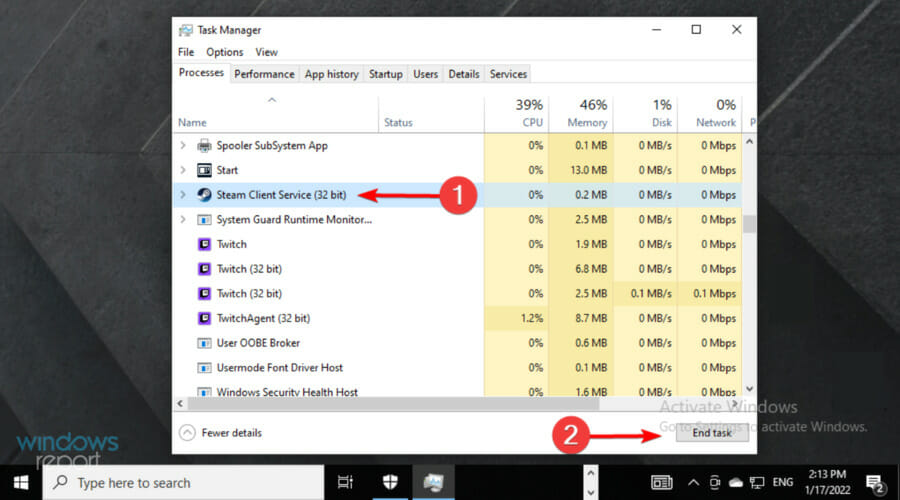
Firstly, restart your PC and try rerunning the Steam desktop client. If the issue persists, you might need to kill the client process and allow it to restart the update sequence from the get-go.

You can do so in Task Manager, with a particular focus on the Steam agent’s process.

Here’s what you’ll need to do:

  1. Close the Steam desktop client.
  2. Right-click Start and open Task Manager.
  3. Terminate all Steam-related tasks, including Steam Update Agent.
  4. Restart the client and try updating Destiny 2 again.

In addition, you can right-click on the Steam desktop app and run it as admin. It might help overcome certain system-imposed limitations for third-party apps.

3. Reinstall the client cleanly

Reinstalling the client might help, as well. There are multiple reports garnering around the lackluster desktop client provided by Ubisoft.

And the developer is, seemingly, working on addressing all of those. However, we recommend reinstalling the client when a certain game fails to update.

Here’s how to uninstall and install again the Steam client on Windows 10:

  1. Navigate to Settings > Apps > Apps & features.
  2. Uninstall the Steam desktop app.
  3. In the Windows Search bar, copy-paste %ProgramData% and press Enter.
  4. Delete both Steam and Destiny 2 folders. You might need administrative permissions to do so.
  5. Navigate to the Steam Store official site and download the client again.
  6. Install it and sign in.
  7. Wait until it synchronizes with the installed games. Try updating Destiny 2 again.

After removing game patches, files, and directories, you will have numerous leftovers and cache you will not need.

We recommend using third-party professional software like CCleaner to remove the Steam desktop client from your computer thoroughly.

Persistent data may not be removed manually; therefore, CCleaner is an excellent tool for thoroughly removing any stored local files. If the software has been uninstalled but the program name remains, use CCleaner’s Delete Entry to delete the Steam desktop client uninstall entry.

4. Clear Steam download cache

  1. Open the Settings panel from the top left client menu in the Steam Client.
  2. Select the Downloads tab in the Settings panel.
  3. Click the Clear Download Cache option at the bottom.
  4. Then click OK to confirm and agree that you will need to log back into Steam.

5. Verify files integrity

Of course, this is rare but it can cause the updates to be stuck on initialization. If some game files are corrupted or incomplete, the client won’t be able to update them accordingly.

Because of that, we encourage you to check for the integrity of the game files and then move to the updating process.

Here’s what you’ll need to do:

  1. Start the Steam client.
  2. Go to the Library tab, right-click on Destiny 2, and then select Properties.
  3. Navigate to Local Files and then click Verify game file integrity.
  4. Wait till the verification process is complete.

6. Remove the game folder and restore it before updating

Some users managed to resolve the issue at hand with one simple witty trick.

It seems that the updating process is having issues determining where the game installation is stored.

For that reason, the update process gets stuck. And, seemingly, no matter how many times you restart it — the result is the same. With this approach, you should be able to update Destiny 2 without any issues.

Follow these instructions closely and be patient:

  1. Follow the instruction from the above-mentioned step to completely shut down the Steam client.
  2. Navigate to C:Program Files (86x) and drag the Destiny 2 folder to the desktop.
  3. Open Steam and click Install.
  4. Before the Install starts, stop at the pop-up window.
  5. Move the Destiny 2 folder back to C:Program Files (86x).
  6. Start the update and wait until all files are checked and updated and, hopefully, successfully downloaded.

7. Wait for the servers to respond

Eventually, if the issue persists and you cannot update Destiny 2, we advise you to wait. Sometimes, servers will be clogged, and you must wait until the update is successfully downloaded and installed.

In addition, don’t be discouraged if the UI shows download speed 0 kb/s. That’s hardly the case, and we’re looking at the bug. Just restart your PC and wait until they fix what’s broken.

We covered a similar problem in our Destiny 2 CAT error when no update is available guide, so don’t miss it.

Also, don’t forget to share your experience with the update error on Destiny 2 and related questions or suggestions. You can do so in the comments section below.

Fix: Xbox Cloud Gaming Controller Not Working [5 Easy Ways]

Are you looking for a solution to your Xbox cloud gaming controller not working? Although Microsoft has created a state-of-the-art controller to go with their console, it has flaws. Therefore, we’ve come up with fixes that will hopefully resolve any issues you might have.

Cloud gaming is the most recent and advanced technology, gaining popularity in the gaming industry. It allows users to access and play games without traditional hardware remotely.

The technology is quite similar to cloud computing in that it only requires the end user to have enough bandwidth and processing power to decode and render the video stream. The technology works well with a controller.

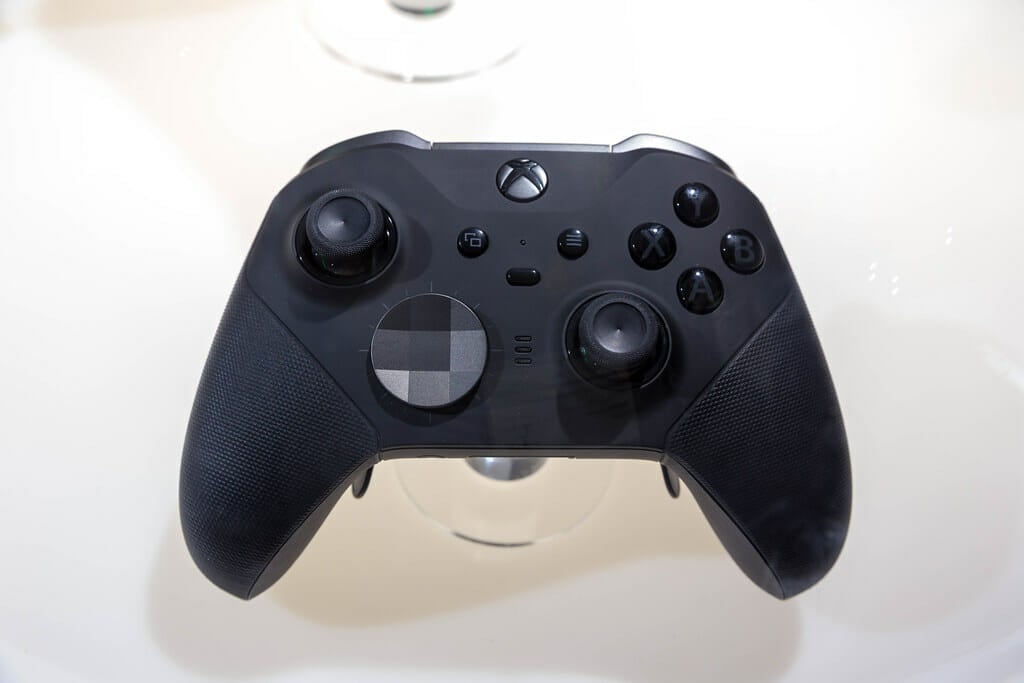
The best Xbox controllers come with a variety of buttons, triggers, and joysticks that help you to control the game. Each device has a unique design and grouping of buttons.

However, at times, the wireless Xbox controller doesn’t work too well with cloud gaming. If you are facing the same issue, read this article for the resolution.

Why is my Xbox controller connected but not working?

There are many possible causes of the Xbox cloud gaming controller not working in a game, and some of the most common ones are:

  • The Xbox cloud gaming controller software is outdated: You can fix this problem by updating it.
  • Incompatible USB: The USB cable, which is usually shipped with the controller, may not be compatible with your PC.
  • PC is not detecting the controller: Sometimes, the PC isn’t detecting the controller properly. Try reconnecting it using a different USB port and see if that works.
  • The controller’s battery is low: Charge your controller’s battery for a better gaming experience.

Now, let’s look at the steps that will do the trick to fix the Xbox cloud gaming controller not working on the PC issue.

What should I do if my Xbox cloud gaming controller is not working?

1. Check the battery of your controller

The most common reason your controller won’t work is that the battery is drained. Thus, charge the batteries of your controller sufficiently and insert them correctly before powering on your controller.

If it still doesn’t power on, get the batteries replaced.

You can also disconnect the controller from your console and try pairing it again on a different USB port. This will be especially helpful if your PC is not detecting the controller properly.

However, if the battery and USB are working fine, you can skip this step and move on to the next resolution to fix the issue.

2. Update your controller on the PC

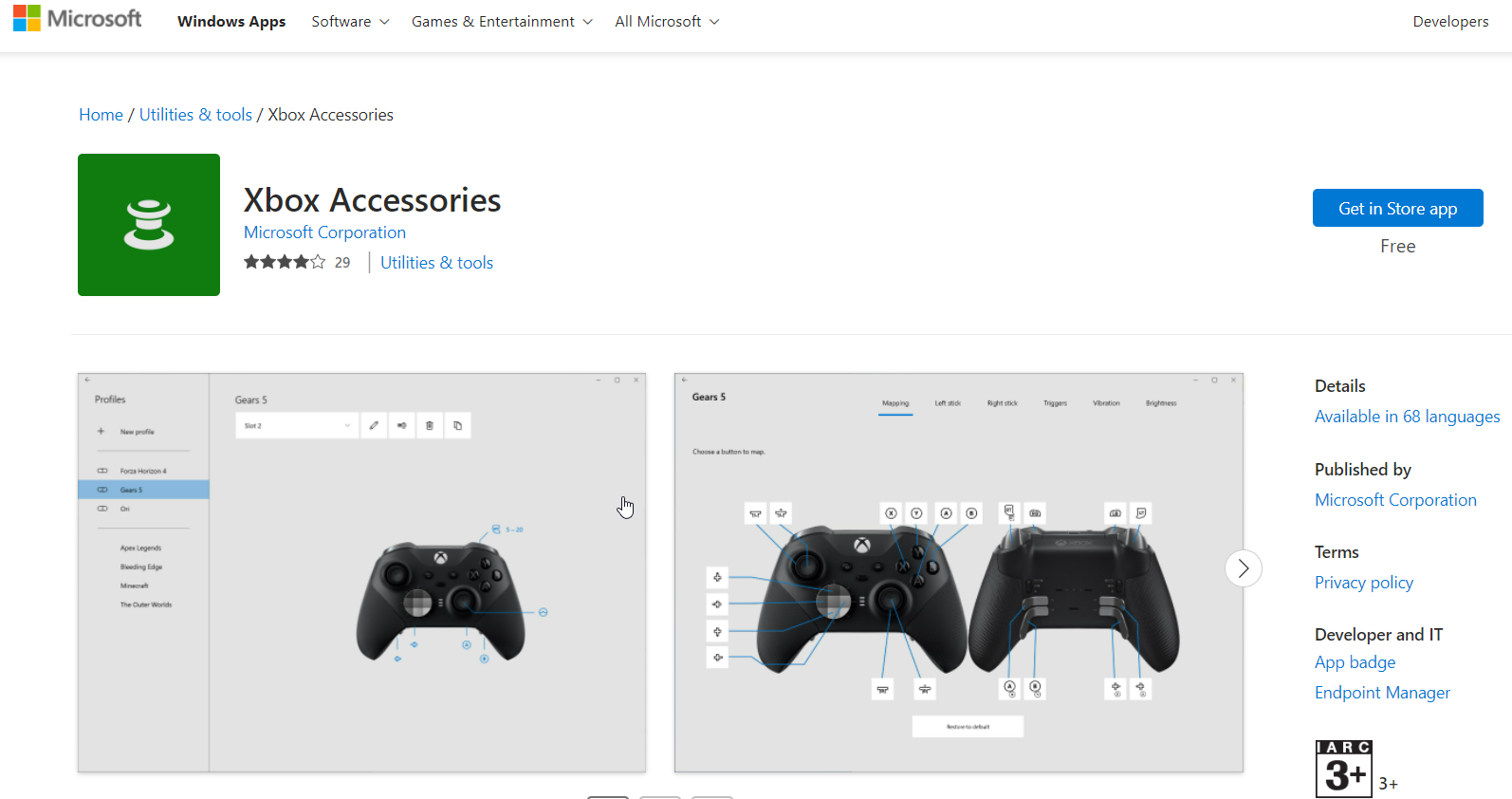
  1. Visit the Microsoft Store and search for Xbox Accessories.
  2. Next, open the Xbox accessories app and connect your controller with a USB cable or via the Xbox wireless adapter for Windows.
  3. If an update is required, the app will offer instructions on how to install it.

Updating your controller with the latest software allows you to use its full capabilities and makes it compatible with other devices.

Therefore, it may help fix the Xbox cloud gaming controller not working. If the problem persists after updating your controller, move on to the following resolution.

3. Unpair and then re-pair your controller

Unpair your controller

  1. Press Windows + I key on your keyboard simultaneously to open up the Settings app.
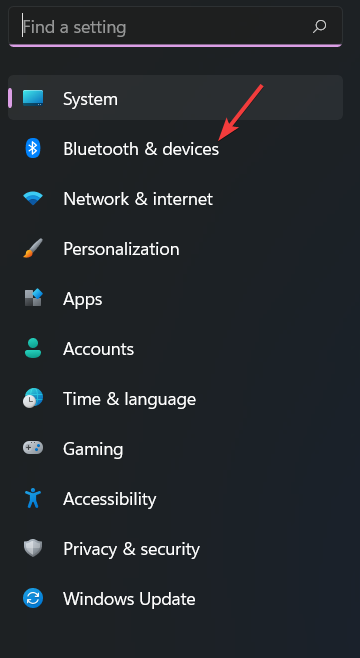
  2. Scroll down and select Bluetooth and devices.
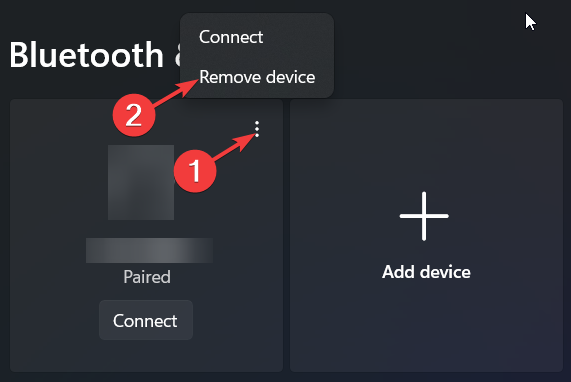
  3. Next, click the three dots beside your controller.
  4. Hit Remove Device.
  5. After waiting for a few seconds, enter the pairing process again.

Re-pair your controller

  1. Press the Windows + I key combination again.
  2. Next, select Bluetooth and devices from the list.
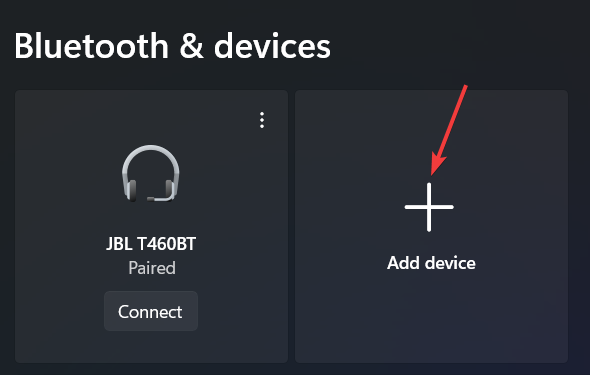
  3. Once you do that, click the + icon for Add device.
  4. In the Add a device window, choose Everything else.
  5. Select your controller from the list of devices that pop up right after.
  6. Finally, choose Connect.

Once done, check whether your Xbox cloud gaming controller is working. If it doesn’t work as expected, don’t hesitate to apply the following workaround.

4. Power cycle your Controller

  1. To turn off your Xbox controller, press and hold the Power button for five to ten seconds.
  2. Wait for fifteen seconds.
  3. To turn it back on, press and hold the Power button for five to ten seconds before releasing it.

Many Xbox cloud gaming controller issues can be easily fixed by performing a power cycle. Therefore, you must apply these steps to get your controller working again.

5. Switch to Xbox type controller

  1. Press the Menu and View buttons at the same time for three seconds, then release.
  2. Your Xbox cloud gaming controller should be listed as a connected device.
  3. Connect it and check if your controller works fine now.

Xbox controller manufacturers like MOGA make designated controllers for mobile and cloud gaming, but the controller might stop showing up when connecting it to a PC.

This is because it will only work as an Xbox-type controller (XInput support) via a USB cable.

Some PC titles may not be compatible with the controller when Bluetooth connect and will require you to switch the controller to XInput support.

What controllers can I use with cloud gaming?

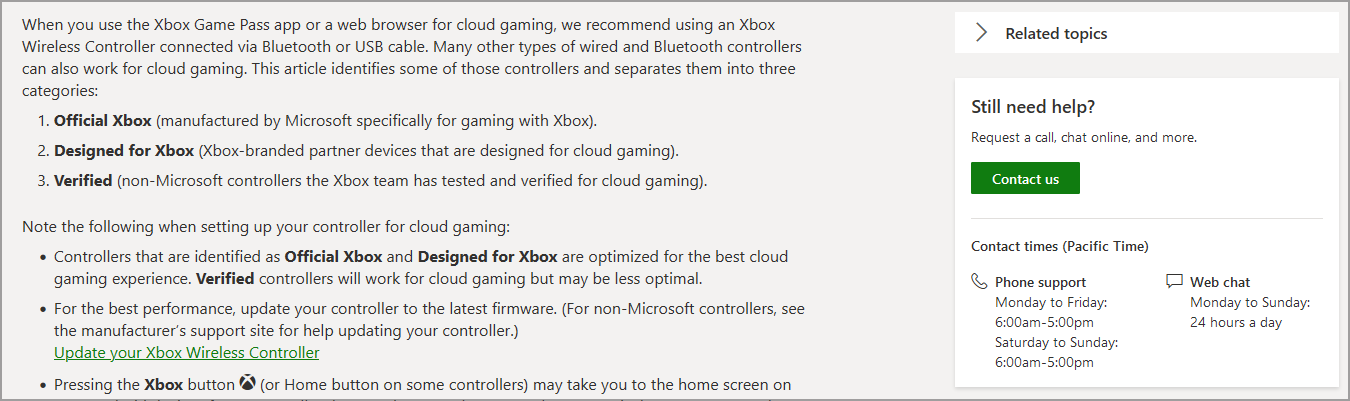
If you want to play Xbox games in the cloud, any controller compatible with the console can be used. However, if you’re using a web browser to play cloud games, the Xbox Wireless Controller is currently the only officially supported controller.

If you have any issues with the Xbox cloud gaming controller not working on iOS, Mac, or Android, you can contact Xbox controller support for further assistance.

That’s it, our guide on the Xbox cloud gaming controller not working has been concluded. We hope the workarounds listed above have helped you solve the issue.

If you can’t edit your avatar on Xbox One, be sure to click the link and go through our detailed guide for the resolutions. With Xbox-specific devices, users found out that the controller only works in Steam, but that’s easy to fix!

We also have a great guide on how to get Xbox Cloud Gaming unblocked, so you might want to check it out.

If your controller works fine but you’re still dealing with Xbox Cloud Gaming not working in browsers, the issue might be unrelated to your gamepad. In that case, you can troubleshoot browser-specific problems to make sure the service runs smoothly.

Have any questions or feedback that you may want to share with us? leave us a comment in the section below. We would love to hear from you.

5 Best Cross Browser Testing Tools

Cross browser testing tools are game-changers in the website and app development industry. In the past, developers and QA experts tested their websites manually. This was not only time-consuming but expensive.

With time, developers came up with automated testing tools that simplified the website testing process. This, with other improvements like the release of the best coding browser extensions, has made working with browsers enticing for developers.

However, choosing the right testing tool might be difficult due to the number of products out there. To ease your search, we have picked five of the best cross browser testing tools for you.

What is cross browser testing?

Cross browser testing is a nonfunctional test that ensures websites and web apps work as planned on different browsers across various devices.

The goal is to ensure end-users get the intended performance level irrespective of browser or device. Some of the tested parameters are speed, style, and other UI elements.

How is cross browser testing handled?

Cross browser testing could either be done manually or automatically. The choice depends on the complexity of the task and preferences.

Below is a quick rundown on the two methods:

1. Manual cross browser testing

cross browser manual testiing

In manual testing, you need to install the browsers you want to use for the test and their various versions. This will be done for different operating systems on desktop and mobile.

Also, you will write out the test cases for testing. This will be run on each browser on various devices, with debugging done manually.

Manual testing is effective for small projects. However, it can be time-consuming, and stressful when dealing with medium to complex websites.

2. Automated cross browser testing

automated test

Automated testing is done with online testing tools. These tools have been built to carry out all the difficult tasks. You only need to enter your website name or URL, the test cases, the browsers, and the operating systems to test.

More importantly, some of these automated tools provide the option of manual testing. This allows you to write custom codes to test your websites and pages to your satisfaction.

What are the best tools for cross browser testing?

LambdaTest – Best for online testing

lambdatest

LambdaTest is a tool that allows you to carry out cross-browser testing online on over 2000+ real browsers.

You can test with various operating systems, using different screen resolutions. Whether it is a mobile or desktop app, LambdaTest ensures its compatibility with all browsers across devices.

What’s more, it supports the oldest versions of popular browsers like Opera, Chrome, and Safari. With this, you are sure your web page will work with all versions of the browsers.

Other features:

  • Local testing on hosted pages.
  • Provides Smart Visual Regression testing option.
  • Allows automation tests on a Selenium grid.
  • Live chat support.

LambdaTest

Test all the browsers out there and decide what is the best choice for your needs and online activities.
Check price Visit website

Selenium – High-level automated testing

selenium browser testing

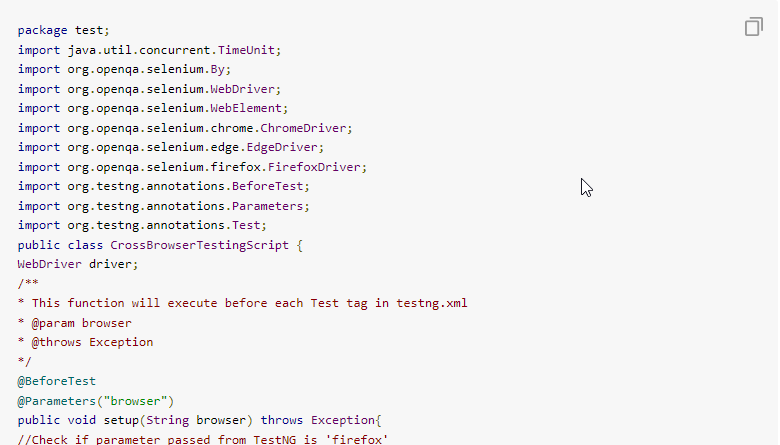
Selenium is a popular open-source cross browser testing tool. It has an interface that allows you to write test scripts in languages like PHP, Python, and Java.

This allows you to automate your web page and app testing process. Selenium testing tool is simple to use, thanks to its components that cover all you need.

With its IDE, WebDriver, and Grid components, you can carry out the same test cases on various browsers. It just about puts the control of your website testing in your hands.

Other features:

  • Automation-aided exploratory testing.
  • Regression automation testing.
  • Record and playback feedback on tests with browsers.

⇒ Get Selenium

CrossBrowserTesting – Free lifetime testing

crossbroswertesting tool

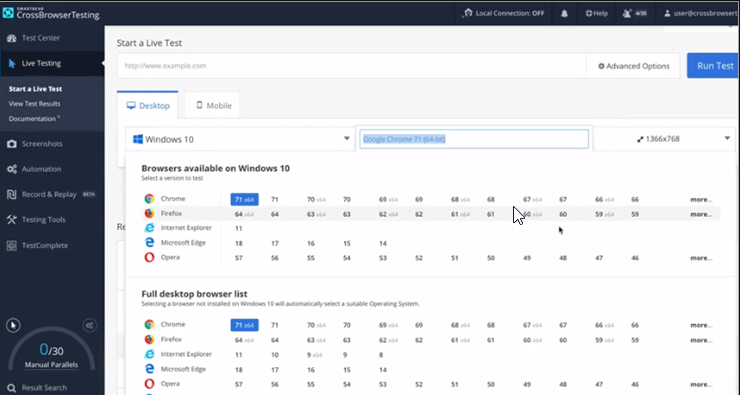
This is a cross browser testing tool created by SmartBear for easy website and app testing. It ensures you get the perfect web experience on all devices with its cloud-based lab.

CrossBrowserTesting is a paid tool with a free lifetime trial. It allows you to live test and debug your website on over 2050 real mobile and PC browsers. This makes it the best free cross browser testing tool you will find.

With this tool, you can view the performance of your website on multiple browsers at once for live debugging.

Lastly, it is one of the few tools that run automated cross browser testing in Selenium and Appium.

Other features:

  • Allows running of regression tests.
  • Offers tools and extensions like Chrome Dev.
  • Visual testing is available.
  • Record and replay for recording live tests.

⇒ Get CrossBrowserTesting

BrowserStack – Effective manual testing

browserstack

BrowserStack is a household name in the industry. It allows its over 50,000 users to perform cross browser testing manually. Note that it is also one of the best tools for automated testing.

It claims to drive over 2 million tests daily with little to no delay. This shows the power of its 15 data centers across the world.

Finally, it gives you access to over 3000 devices and browsers to test your website and app. Based on a reliable cloud structure, it easily scales its resources to the requirements of its users.

Other features:

  • Offers integration with all major CI/CD tools.
  • Automated Visual tests.
  • Offers support firewall and Active Directory.
  • Works with the major test automation frameworks.

⇒ Get BrowserStack

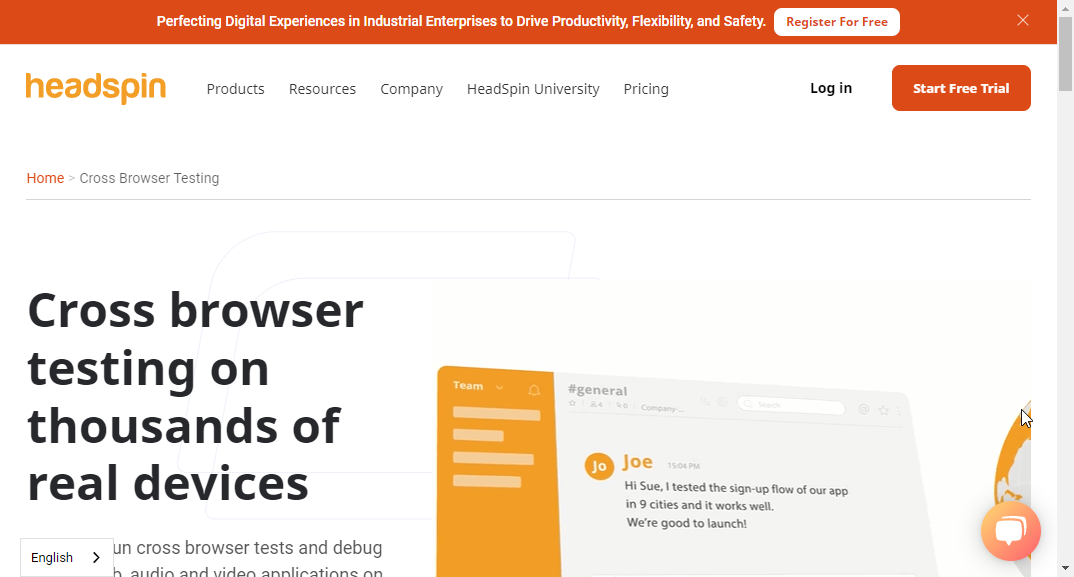
HeadSpin – The highest number of real devices for testing

headspin cross browser testing

This top-level cross browser testing tool allows you to test apps and websites on thousands of real devices. One of its biggest advantages is the level of accuracy.

It helps test core parameters such as load testing in mobile apps or web pages. This test is carried out in real environments for 100% accuracy.

What’s more, HeadSpin provides a scalable and distributed system to improve automated testing. There are also the Appium, Selenium, and Appium Inspector integrations to easily test website and mobile apps.

Other features:

  • Compatible with a host of apps like Slack, Flutter, Jenkins, etc.
  • Can monitor non-noise interference data.
  • Resources are scalable.

⇒ Get HeadSpin

When can I perform cross browser testing?

The time to perform cross browser testing depends on your preference. Generally, there are three stages for testing:

  • At the start of website development: This involves testing a website or web app immediately after a page is developed. This test will be repeated for every page till the project is complete. While this can be time-consuming and tiring, it helps to detect errors at early stages.
  • After development: This is the process of testing the functionality of the app or web page after the development is complete. This allows you to fix the errors at once before releasing it to the end-users. This method does not usually take much time, but it might be problematic if you run into complex problems.
  • After the release of the website: In this case, you release the website to end-users before testing. This can be costly, as it might require multiple deployments based on the bugs fixed.

With the rate at which websites are developed, cross browser tools are now more important than ever. The best of them gives you so many options and delivers accurate results.

Do you need the tools that will ease your website design task? Check out our list of best website design software without coding to make an informed decision.

Be free to discuss the tool you used from our list in the comments section below.

Is Y8 Browser Safe to Download? All You Need To Know

Y8 Browser is generally safe. It uses HTTPS security protocols and gets regular updates and security patches.

However, it doesn’t have as many advanced data protection features as other mainstream browsers do. Its support of the outdated Flash Player could also pose some risks.

Let’s take a closer look.

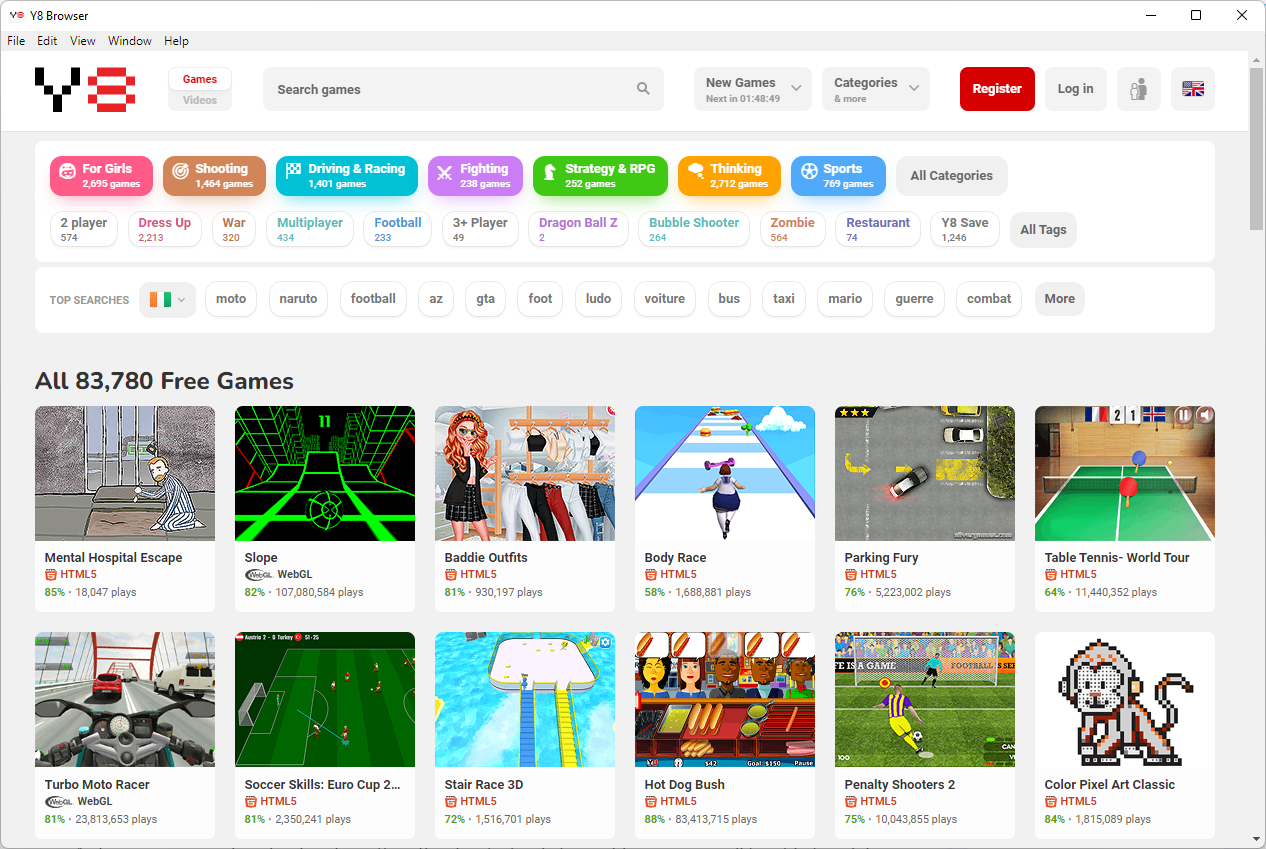
What is the Y8 browser?

y8 browser

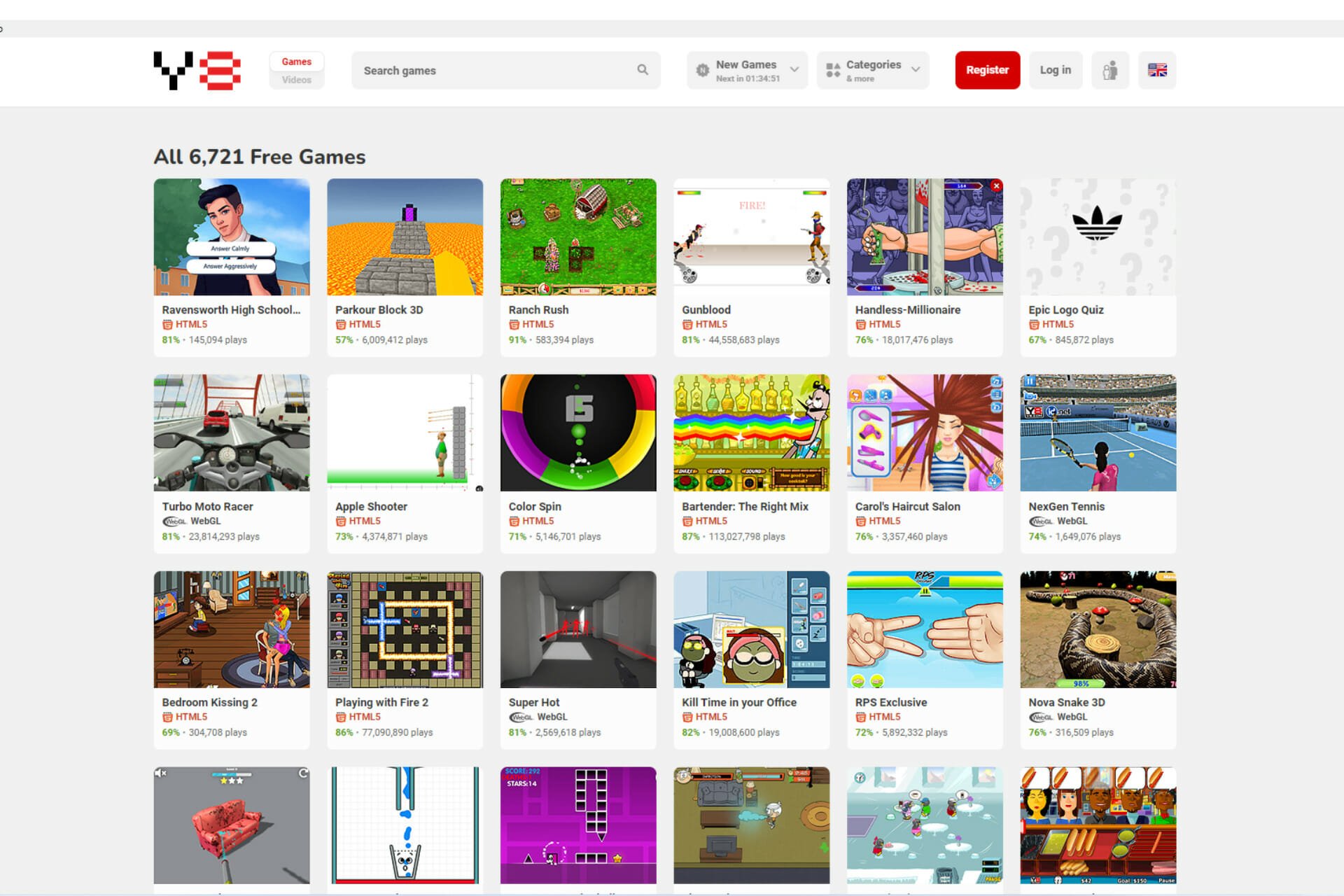
Y8.com is a prominent website with free online games. The Y8 Browser is built specifically to offer support for these games. The platform’s gaming library comprises WebGL, Adobe Flash, and HTML5 games.

It hosts more than 60,000 online browser games at Y8 Games, including dress-up and Unity3D automobile games.

Is the Y8 browser trustworthy?

Yes, the Y8 browser is trustworthy. Just make sure to download it from the official website. The tool is legit and has been around for over 10 years, with millions of downloads.

⇒ Get Y8 browser

Do Y8 games have viruses?

The Y8 website doesn’t have any known virus reports or problems. However, it hosts a lot of ads which could lead to suspicious pages and services, so be cautious about what you click on.

In general, just playing games on the site should be safe. However, for maximum protection, consider using an antivirus with real-time protection so it can quickly detect and stop any potential threat.

Is Y8 games still working?

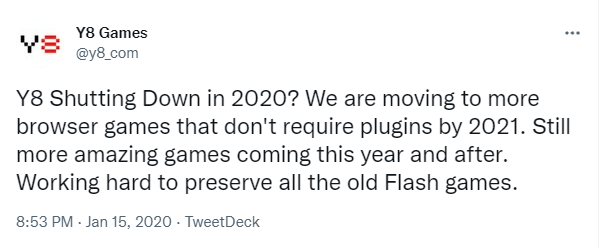
Yes, Y8 games is still working. In 2020 there were rumors that Y8 would be closing down, but these misrepresented the company’s Twitter post that talked about fading out some types of games.

y8 browser safe

4 years since that scare, Y8 games are still working, and you will still be able to enjoy many of your favorites.

If some of the phased-out games are classics you would still love to play, then you should consider playing browser games on Opera GX. This is the first and most robust browser dedicated to gaming.

It has all the cool advantages of the Opera browser. This includes customization and a vast extension library, and the added benefit of gaming features like a RAM and CPU limiter.

⇒ Get Opera GX

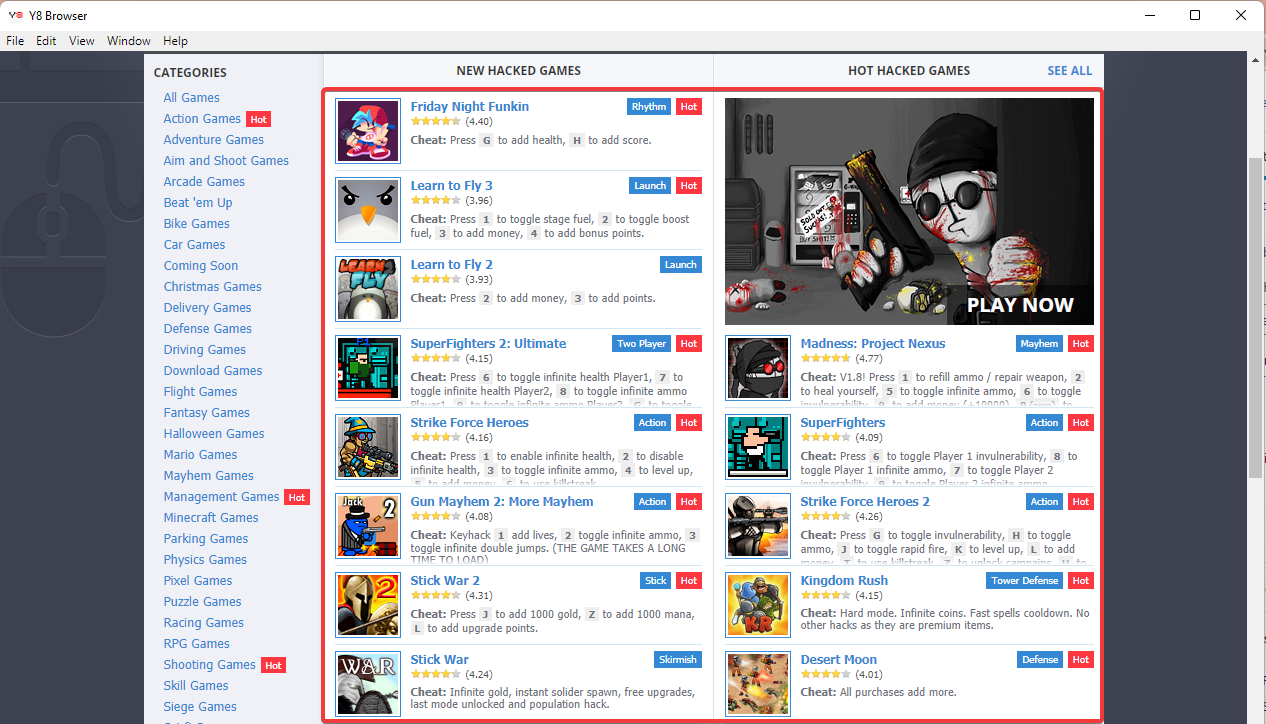
How can I play Y8 browser hacked games?

  1. Launch the Y8 game browser.
  2. On the menu tab, click View, then from the list of options, select Toggle Developer Tools.
    y8 browser safe
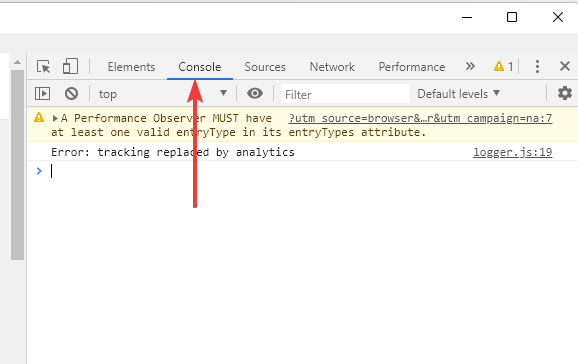
  3. Click on the Console tab.
  4. Enter the following code and hit Enter.
    location.href="https://nameofthewebsite.com"
  5. Click on any of the new hacked games to start playing.

Now you will be able to play any of your favorite hacked games on the Y8 browser.

We hope this article has been helpful. Browser games are increasingly becoming popular, and as browser tech improves, you can expect more quality games on your favorite browsers.

If you would like an alternative for playing flash games, you could pick from any of the best browsers to play Flash games.

Eligible Hulu subscribers can get three months free of PC Game Pass

Hulu has announced that it is partnering with Microsoft to give gamers an interesting offer. Subscribers to The Walt Disney Company’s streaming service in the U.S. in “good standing” can now get three free months of PC Game Pass if they have never tried PC Game Pass before.

Available on this webpage, Hulu says that this offer is part of its ongoing commitment to providing its subscribers with added value. This offer will be available through July 23, 2022, and will give members access to over 100 high-quality games on Windows PCs like Minecraft, Microsoft Flight Simulator, and even titles from the EA Play on PC catalog. The offer is a perk from the Hulu Friends with Benefits program, which is a way to reward fans the way a friend would.

“At Hulu, every decision we make starts with the viewer. We do this through the stories we bring to life, and by giving Hulu subscribers the opportunity to engage with their favorite shows, films, and brands through select perks and activations, including the “Hulu Friends with Benefits” initiative, Hulu’s way of thanking you for simply being a fan – because that’s what friends are for,” explained Hulu in an emailed press release.

OBS Studio Virtual Camera Not Showing Up? 5 Simple Solutions

OBS Studio is one of the best screen recording and streaming software. With Window’s built-in recording tools not offering many options, users go with third-party apps like this. However, some reported that the virtual camera is not showing up in OBS Studio.

The virtual camera in OBS is a great utility since it allows us to modify the video output of the webcam, and enhance the video quality. This becomes all the more important in present times when video conferences have become a part of life.

So, let’s walk you through the OBS Studio virtual camera not showing up problem and the most effective fixes for it.

Why is the OBS Studio virtual camera not showing up?

The problem can be encountered on several apps, but generally, users talk about the following apps as being affected:

  • OBS Studio camera not showing up in Zoom – most commonly encountered due to incorrect camera selection
  • Also, the OBS Studio camera is not showing up in Teams – the issue is not as frequent as the other three
  • OBS Studio camera not showing up in Discord – it could be due to a lot of reasons, both on Windows and macOS, and requires proper troubleshooting
  • Another issue is that the OBS Studio camera is not showing up with Google Meet – incorrect webcam selection or a problem with OBS Studio itself is most likely the underlying cause

In most cases, users later realized that the Virtual Camera feature was not enabled in OBS Studio. Apart from that, if you are using an older version of the software, chances are that it doesn’t include the virtual camera feature. Updating the software is the best option in this case.

Also, if OBS Studio does not have the necessary permissions while running, you might come across the issue. This can be seen when the OBS Studio virtual cam is not showing up in Google Chrome. Besides, it could have to do with hardware acceleration as well.

Now that you have a basic understanding of the underlying causes, it’s time we head to the fixes.

What do I do if OBS Studio virtual camera is not showing up on Windows 11?

1. Restart the computer

  1. Press Alt + F4 to launch the Shut Down Windows box and select Restart from the dropdown menu.Restart to fix obs studio virtual camera not showing up
  2. Next, click on OK to restart the computer.OK

Several users reported that OBS Studio is not showing up in Teams due to a conflict. Here it’s generally a minor bug or some background process that’s conflicting with the functioning of the software. If restart the PC doesn’t fix the issue, head to the next method.

2. Run OBS Studio as administrator

  1. Locate the shortcut for OBS Studio, right-click on it, and select Properties from the context menu. Alternatively, you can select it and hit Alt + Enter.Properties
  2. Navigate to the Compatibility tab.Compatibility tab
  3. Now, tick the checkbox for Run this program as an administrator, and click on OK at the bottom to save the changes.Run this program as administrator to fix obs studio virtual camera not showing up

There are several permissions a program may require to run, and while some programs are good to go with just a few of these, others may require administrative privileges. So, set OBS Studio to run as an administrator and check if the virtual camera starts showing up in Windows 11.

3. Make sure the virtual camera is turned on

  1. If you see a screen like this on Zoom or other apps when using OBS Virtual Camera, it indicates that the feature is not turned on.Screen
  2. Open the OBS Studio app, and click on the Start Virtual Camera option near the bottom-right corner.Start Virtual Camera to fix obs studio virtual camera not showing up
  3. Once done, also verify that it’s been Activated. For that, just make sure the button next to Filters reads Deactivate.Activate to fix obs studio virtual camera not showing up

After you are done making the changes, the OBS Studio virtual camera not showing up in Zoom issue should be eliminated, and you should have the software effectively projecting video on other apps. If this method doesn’t work, head to the next one.

4. Update OBS Studio

  1. Launch the OBS Studio app, and click on the Tools menu from the top.Help menu
  2. Now, select Check For Updates from the listed options.Check fo updates to fix obs studio virtual camera not showing up

As discussed earlier, the feature was not present in the previous versions of the app, and therefore, if you haven’t updated OBS Studio in a while, make sure to do that. Once done, check if the OBS Studio virtual camera not showing up with the Google Meet problem is fixed.

5. Reinstall OBS Studio

  1. Press Windows + R to launch the Run command, enter appwiz.cpl in the text field, and either click on OK or hit Enter to launch the Programs and Features window.appwiz.cpl
  2. Now, locate the OBS Studio and OBS-virtualcam entries here, select each individually, and click on the Uninstall button.Uninstall to fix obs studio virtual camera not showing up
  3. Click Yes on the UAC (User Account Control) prompt that appears.Yes
  4. Follow the on-screen instructions to complete the process.
  5. After uninstalling both, restart the computer for the changes to come into effect, and then again download OBS Studio.

If none of the methods listed earlier worked to fix the OBS Studio virtual camera not showing up in Windows 10, you are left with no option but to reinstall the app. When you reinstall it, any issues that might have crept in during the installation process will be eliminated.

In case you are running the latest iteration, find out here how to install OBS Studio in Windows 11. Also, if the OBS Studio virtual camera is not showing up in the Tools menu, just download the OBS-VirtualCam plugin.

6. Use an alternative video recording software

If you have tried all these solutions and don’t seem to solve the issue, a quick fix would be to try an alternative software.

There are other reliable screen recording software that offer a similar feature set to OBS Studio. One of the best alternatives is Camtasia.

It comprises both a screen recorder and a video editor. You can use only this app to create videos from start to finish.

It includes everything you need to create professional-level content. It offers templates, presets, drag-and-drop video editing, built-in royalty-free music and images, web camera capture, and many more.

⇒ Get Camtasia

What do I do if OBS Studio virtual camera is not showing on Mac?

1. Run code in Terminal on Mac

  1. Click on the Launchpad icon at the bottom.launchpad
  2. Next, click on Other from the options listed here.Other
  3. Select, Terminal.Terminal to fix obs studio virtual camera not showing up
  4. Now, run the following code here:sudo codesign --remove-signature /Applications/Discord.app/Contents/Frameworks/Discord\ Helper\ (GPU).app /Applications/Discord.app/Contents/Frameworks/Discord\ Helper\ (Plugin).app /Applications/Discord.app/Contents/Frameworks/Discord\ Helper\ (Renderer).app /Applications/Discord.app/Contents/Frameworks/Discord\ Helper.app

Once done, restart your MacBook for the changes to fully come into effect. This method has worked for users facing the OBS Studio virtual camera not showing up in Discord issue on macOS. So if you too are unable to access the virtual camera on Discord, try this.

2. Reinstall an older version of OBS Studio

  1. Go to the Download page for OBS Studio, and click on the Previous Releases option.Previous releases
  2. Now, locate the previously installed version here, and click on the relevant link to download it.Dowload to fix obs studio virtual camera not showing up
  3. Once the download is complete, run the installer.

Though it’s not generally recommended, you can try installing an older version of OBS Studio if the problem started after an update. Many a time, it’s a bug in the current version that leads to the OBS studio camera not showing up on apps on Mac.

How do I enable the virtual camera in OBS Studio?

  1. Launch the OBS Studio app, and click on the Add icon under Sources at the bottom.Add to fix obs studio virtual camera not showing up
  2. Now, select Video Capture Device from the flyout menu.Video capture device
  3. Make sure that option for Create new is selected, enter a name in the text field or go with the default one, and click on OK at the bottom.Create new
  4. You can now modify the various properties here, but we recommend keeping it as is for now. Finally, click on OK.OK

That’s it! A virtual camera has now been added to OBS Studio and it will appear in other apps from now on.

These are all the ways that might help if OBS Studio virtual camera is not showing up on other applications on the Windows 7, 10, 11, and macOS ecosystems.

Also, find out what to do if OBS Studio keeps crashing in Windows.

Tell us which fix worked and your experience of OBS Studio, in the comments section below.

Asus Touchpad Not Working on Windows 11: How to Enable it

A touchpad is similar to a mouse and helps control the cursor. It’s the first choice for many laptop users, given that it’s inbuilt and to some extent, more convenient. However, several users reported that their Asus touchpad is not working in Windows 11.

For most users, the problem arises out of the blue without any indication whatsoever which leaves them perplexed. But, don’t worry! It’s most likely not a hardware issue and can easily be fixed. Other users with different laptops too face issues with the touchpad in Windows 11.

To find out all about why the Asus touchpad is not working in Windows 11 and the most relevant fixes for it, read the following sections.

Why is the Asus touchpad not working in Windows 11?

The most common reason here is that you might have mistakenly disabled the touchpad. There is an option for it in the Settings.

Also, if you started encountering the problem after updating the OS, it’s could be that a new driver was downloaded for the touchpad which is not functioning properly.

Besides, third-party applications are often found to conflict with the functioning of the touchpad. If you have installed a software to alter the touchpad’s performance, this could be the reason why the one on your Asus laptop is not working in Windows 11.

Another reason, though not as likely as the ones mentioned earlier, is the presence of conflicting hardware. Here, simply remove all the non-critical ones and reconnect them one at a time to identify the faulty device.

Let’s see the various models where the problem can be encountered:

  • Asus ZenBook touchpad not working
  • Touchpad not working in Asus VivoBook on Windows 11
  • Many also found the Asus ExpertBook touchpad to be not working
  • Another model with the touchpad not working is Asus Rog

The problem also arises in different situations for users. For some, the Asus touchpad stopped working when it was plugged in, while others reported that the Asus touchpad stopped working when the mouse is disconnected. In the case of the latter, a simple restart should do.

Let’s now walk you through the most effective fixes.

What do I do if the Asus touchpad is not working in Windows 11?

1. Make sure the touchpad on your Asus laptop is enabled

  1. Press Windows + I to launch the Settings app, and select Bluetooth & devices from the tabs listed in the navigation pane on the left.Bluetooth and devices to fix asus touchpad not working windows 11
  2. Next, click on the Touchpad entry here.Touchpad
  3. Now, make sure that the toggle for Touchpad is enabled, and if it is not, click on the toggle.Enable to fix asus touchpad not working windows 11
  4. Also, check that the configured touchpad settings match the expected behavior and make the necessary changes if required.check settings

Once you are done making the changes, restart the computer for these to fully come into effect, and check if the Asus touchpad now starts working in Windows 11.

2. Update the touchpad driver

  1. Press Windows + S to launch the Search menu, enter Device Manager in the text field at the top, and click on the relevant search result.Device Manager
  2. Double-click on the Mice and other pointing devices entry here.Mice and other pointing devices
  3. Now, right-click on the malfunctioning touchpad and select Update driver from the context menu.Update driver to fix asus touchpad not working windows 11
  4. Finally, select Search automatically for drivers from the two options in the Update Drivers window.Search automatically for drivers
  5. Wait for your computer to install the best available driver.

If the Asus touchpad stopped working after an update, installing the latest driver version could fix the issue. If that’s the case, a newer version with a patch for the bug would be released soon.

In case the Device Manager method didn’t work, you can also manually install the latest driver in Windows 11. Besides, if the Asus touchpad driver is not showing in Device Manager, there are a few quick ways to access it.

Alternatively, to save time and automate the task, you can use dedicated software. We recommend Outbyte Driver Updater because it’s up-to-date, error-free, and easy to use.

3. Remove conflicting third-party apps

  1. Press Windows + R to launch the Run command, enter appwiz.cpl in the text field, and either click OK or hit Enter to launch Programs and Features.appwiz.cpl
  2. Now, locate the problematic program, select it, and click on Uninstall.Remove app to fix asus touchpad not working windows 11
  3. Follow the on-screen instructions to complete the process.

If the Asus touchpad is not working after a few minutes, it could be a third-party application conflicting with the functioning of the system.

Just, recollect when you first encountered the problem, and individually remove the apps installed around the same time until you identify the problematic one.

These are the three ways you can fix the problem in Windows 11. Also, the methods listed here would work just fine if the Asus touchpad is not working in Windows 10 or Windows 7.

In case you are looking for ways to customize the OS, learn how to set touchpad gestures in Windows 11.

Tell us which fix worked for you in the comments section below.

KB5013943 causes apps like Discord and Teams to crash inexplicably

More problems for Windows users that went ahead and installed the May 2022 security updates from Microsoft.

It seems that KB5013943, which is the mandatory security update, is crashing apps that use .NET framework with the error code: 0xc0000135.

As detailed by affected users, these crashes are common among apps that use .NET Framework and apps like Discord or Microsoft Teams are also affected.

.NET Framework apps affected by another Windows update

It was only days ago when we were talking about yet another Windows security update that was messing with the .NET Framework apps.

Now, we appear to have another compatibility issue between the .NET framework and Windows 11. Of course, users took to social media and forums to report these issues.

People reported issues with ShareX, KeePass, Microsoft Teams, Visual Studio installer, and Discord, which is concerning, to say the least.

Another user posted on the Feedback Hub that he is unable to start the Teams app due to the error message process exited with code 3221225781 (0xc0000135).

What can I do to fix this issue?

  1. Open the Start menu and search for Turn Windows features on or off.turn windows
  2. Disable and enable all .NET frameworks and press the OK button.framework
  3. Reboot your system.reboot pc

This is the recommended path to take until Microsoft deals with this problem from their end, only to avoid unpleasant experiences.

How do I uninstall KB5013943?

  1. Press Windows + I in order to open Settings.
  2. Select the Windows Updates tab, then click on Updates history.update
  3. Click on Uninstall updates.uninstall updates
  4. Click the Uninstall button for the update you want to remove.update uninstall

We will keep you posted on any development in this situation, so rest assured you will be among the first ones to know when anything changes.

Were you also affected by this annoying bug delivered by KB5013943? Share your experience with us in the comments section below.

8 Best Turtle Beach Headsets To Buy Today

Whether you are looking for the most premium gaming headset that money can buy or you’re on a budget, Turtle Beach has got you covered.

Turtle Beach is known for its premium quality gaming accessories, and its gaming headset are no different. These headsets are usually compatible with PCs as well as gaming consoles and come in both wired and wireless connectivity options.

In this article, we have listed the best Turtle Beach gaming headsets to hear every move that your opponent makes and stay a step ahead during intense gaming sessions.

Note: Deals are subject to change. Keep in mind that the price tag often varies. We recommend going on the vendor’s website to check the price. Some of the products may be out of stock by the time you’ve made your purchasing decision. So, hurry up and hit the buy button.

What are the best Turtle Beach headset deals to get?

Turtle Beach Stealth 700 Gen 2 Headset – Bluetooth connection accuracy

The Turtle Beach® Stealth 700 Gen 2 is the successor to the best-selling premium gaming headset built for the PlayStation 5 and PlayStation 4.

Long-lasting durability and comfort are provided by new Aerofit cooling gel-infused memory foam ear cushions enclosing improved 50mm Nanoclear Speakers and a redesigned metal-reinforced headband.

The Stealth 700 Gen 2’s battery life has also been greatly improved, with a 20-hour life at a far cheaper price than the competitors. A new wireless mini-USB Transmitter wirelessly links your PlayStation to the headset, making connectivity simple. The Stealth 700 Gen 2 also supports Sony 3D Audio for PS5.

  • Excellent audio quality
  • There are two types of wireless connections.
  • Excellent microphone
  • Tight earcups
  • Unstable volume levels

Turtle Beach Stealth 600 Gen 2 MAX – Best battery life

The Turtle Beach Stealth 600 Gen 2 offers simple Xbox Wireless networking, as well as rich Windows Sonic, surround sound.

A bigger flip-to-mute mic for better conversation clarity that blends into the headset when muted is new for Stealth 600 Gen 2, and distinctively re-shaped, ventilated ear cushions with ProSpecs technology enable glasses-friendly comfort throughout lengthy gaming sessions.

Turtle Beach’s acclaimed Superhuman Hearing technology provides you with an unrivaled auditory edge, delivered via precision-tuned 50mm speakers for a highly immersive, distortion-free audio experience. In addition, it has dual-foam ear cushions with softer foam in the area that sits against your glasses.

  • Lightweight and comfy.
  • Excellent value that works on multiple systems.
  • Extremely long battery life.
  • Solid audio with a variety of preset choices.
  • No Bluetooth support.
  • Additional cost for improved audio quality

ROCCAT Syn Pro Air Headset – Immersive 3D Audio surround sound

Turtle Beach and ROCCAT have joined forces, and headsets like Syn Pro Air exemplify the two brands’ ideology. The AIMO light system, which is integrated into either side of each earcup, sends pulses of neon light shimmering across either side in a hexagonal, honeycomb pattern.

Each earcup has a digital volume wheel on the rear, with the left controlling system volume and the right controlling microphone monitoring/sidetone volume. The power button and USB Type-C charging connector are also located on the left earcup. There’s a Type-A to Type-C charging cable, a Type-A transceiver, and a Type-C to Type-A converter in the package, so you should be covered for all possible connections.

  • The surround sound in 3D is excellent.
  • The microphone is of average quality
  • The shape is comfortable.
  • Compatibility with consoles and mobile devices
  • The RGB lighting isn’t very bright.
  • Slow to connect to the dongle
  • No cable connection.

Turtle Beach Elite Atlas Aero – Best audio adjustment

Turtle Beach Elite Atlas Aero is a premium wireless headset designed for gamers mainly. 

It comes with  Waves Nx 3D Audio and  PC-optimized Superhuman Hearing for crisp audio performance.

Turtle Beach Elite Atlas Aero features large 50-millimeter Nanoclear speakers for better audio tuning. The Pro Gaming Mic with Truespeak Technology with optimized noise-canceling ensures your voice is loud and clear.

  • Excellent build quality
  • Various audio enhancing features
  • Works on a variety of platforms
  • Bends easily
  • Low microphone quality
  • Headband is tight-fit

Turtle Beach Recon Spark – Powerful sound and crystal-clear chat

Turtle Beach Recon Spark is the latest mid-range offering from the company. It comes in cool color schemes for people who like funky stuff with solid build quality.

Turtle Beach Recon Spark has a flip-up mic that allows you to mute the mic when flipped up. It is a highly sensitive mic that picks up the user’s voice with little to no background noise. You can connect the headset with Xbox One, PSD4, Nintendo Switch as well as your PC.

  • Excellent for music or TV
  • Innate noise canceling.
  • Glasses-friendly cushions.
  • Responsive to different equalizer mixes.
  • Shorted wires
  • Due to the tight fit of the ear cups, it gets a little warmer in a short time

Turtle Beach Recon 70 – Best cross-platform adaptability

Turtle Beach Recon 70 is a budget gaming headset from the company with premium ear cushions providing added comfort, improved bass response, and better noise isolation.

Similar to other Turtle Beach headsets, Turtle Beach Recon 70 also comes with a Flip-up mic offering crystal clear voice and auto-mute function. It also features high-quality 400mm speaker drivers allowing you to hear every footstep heading your way.

  • Lightweight and comfy
  • Flip-to-mute microphone
  • Compatible with any system
  • Super-affordable
  • Rigid microphone
  • Sharp highs and muddy bass

Turtle Beach Stealth 600 Gen 2 – rock-solid connection and precision

Stealth 600 is Turtle Beach’s premium wireless gaming headset for a competitive price tag. It is available for Xbox, PC, and PS4; however, make sure you buy the right model.

Coming to the aesthetics of the device, it looks like a typical gaming headset with two color schemes and the company’s logo in multiple places. That said, Turtle Beach Stealth 600 offers Windows Sonic Surround Sound delivering virtual surround sound to bring your games to life.

  • Excellent gaming and music audio quality
  • Soft ear cups
  • Steady wireless connections
  • Tight-fit earcups
  • Low-end microphone design
  • Limited PC compatibility

Turtle Beach Elite Pro 2 – cooling comfort and passive noise isolation

While the newer version of this headphone is already available, Turtle Beach Elite Pro is still one of the best gaming headsets you can buy in the price range.

Turtle Beach Elite Pro is a wired gaming headset with Aerofit Ear Cushions for ultimate comfort along with ComforTec Fit System for personalized fit and comfort. Under the hood, it comes equipped with a 50mm Nanoclear speaker.

  • Extremely comfortable
  • Average sound quality
  • Fully adjustable
  • Sturdy build and design
  • Simple stereo headphones
  • Over budget and pricey accessories

Turtle Beach makes some of the finest gaming headsets for everyone. From sub $50 headsets to the more premium $300+ gear, these headsets offer superior comfort, ergonomic design, and excellent performance for the right price.

Have you made your choice yet?

Windows 11 Insider Preview Build 22621 (Beta): All you need to know

Were you thinking it was about time for a new Insider Build? If that’s the case, know that Microsoft thought the same, thus a new Build has been released to the Beta Channel.

This new software update comes with changes to the Taskbar and File Explorer, among others. Let’s get right into it and discover what’s new together.

What’s new with Windows 11 Beta Build 22621?

This is a pretty light update even by Microsoft standards, so don’t expect anything spectacular to have happened while you weren’t paying attention.

Here is the full changelog of Build 22621, as detailed by the tech giant on the official release page:

Changes and improvements

[General]

  • [REMINDER] The build watermark at the lower right-hand corner of the desktop is no longer present in this build. This doesn’t mean we’re done, and the watermark will return to Insiders in a future build.

Fixes

[General]

  • Updated the underlying speech platform to improve voice activity detection for voice access, live captions, and voice typing, as well as address some issues with how punctuation is recognized.

[File Explorer]

  • Fixed an issue leading to Insiders seeing error 0x800703E6 when copying files from Google Drive.
  • Fixed an issue where if you had ever opened the context menu, doing CTRL + ALT + DEL and cancelling would lead to explorer.exe crashing.

[Taskbar]

  • Fixed an issue related to loading the system tray icons in Settings > Personalization > Taskbar which could cause Settings to crash when opening that page recently. This issue may have also led to some explorer.exe crashes for impacted Insiders.

[Windows Security]

  • Fixed an issue which could result in Smart App Control unexpectedly blocking correctly signed applications.

Known issues

[Live captions]

  • Certain apps in full screen (e.g., video players) prevent live captions from being visible.
  • Certain apps positioned near the top of the screen and closed before live captions is run will re-launch behind the live captions window positioned at top. Use the system menu (ALT + Spacebar) while the app has focus to move the app’s window further down.

How do I get this update?

  1. Press Windows + I to access Settings.
  2. Select the Windows updates tab and click Install all.install Windows updates
  3. If no updates are queued for installation, press the Check for updates button.check for updates

Have you found any bugs while experiencing this new Windows 11 Beta Channel build? Let us know in the comments section below.

Hate the new Windows 11 Start Menu layout? Replace it with these 5 freeware apps and skins instead

Microsoft provides plenty of documentation about how the Windows 11 Start Menu layout can be customized to look the way you want it. For various reasons, many users are dissatisfied with the new Start Menu on Windows 11. Freeware is just free software

This guide won’t show you how to customize your Windows Start Menu, but instead show you the free (freeware) apps that are available in the Microsoft Store, GitHub, and elsewhere to use to replace the Start Menu on Windows 11.

Replace the Windows 11 Start menu layout

The new Windows 11 Start Menu layout has limited options for customization. Using applications such as Stardock’s Start11 allow you to make Windows 11 look and act more like Windows 10. The problem is Start11 is not free, and I am not sure I want to pay for another app that doesn’t have all the features I want.

There are similar paid apps out there, but they are often outdated. StartAllBack (formerly StartIsBack) is a tool to edit the Windows 10 Start Menu only, but it can’t be used on Windows 11.

Another, Start Menu X is free to download, but  charges $10 for the “pro version” of software that looks like it was created in the very early days of Windows 10,

Windows 11 users (and those remaining on Windows 10) want the power to edit and customize their Start Menu how they want it. In this guide, we will look at the best free Github projects to customize Start menu layout on Windows 11.

1. SystemTrayMenu

SystemTrayMenu is an “open source ‘Desktop Toolbar’ or ‘Start Menu’ alternative” available on GitHub. SystemTrayMenu expands the System Tray menu to act as a Start Menu from the right side of your screen.

windows 11 start menu layout
(via SystemTrayMenu on GitHub)

SystemTrayMenu also gives the user more control over access to specific file and folder paths to launch apps, folders, and files.

An added bonus is SystemTrayMenu is portable, so it doesn’t need to be installed right away. After downloading it, you can install it whenever you want by unzipping the folder and clicking SystemTrayMenu.exe to start. If you prefer to install the app on Windows 11, you can download SystemTrayMenu from the Microsoft Store.

2. Open-Shell-Menu

Open-Shell-Menu, otherwise known as “Classic Shell Reborn,” is available on GitHub (Classic Shell was discontinued in December 2017). Open-Shell-Menu is free software that allows you to set your Start Menu layout to your favorite Windows operating system (Windows 7, 8, 8.1, 10).

windows 11 start menu layout

Though Open-Shell-Menu does not specifically indicate it is compatible with Windows 11, your best option to install this software is to download the Open-Shell-Menu setup file from the home page.

3. Rainmeter

Rainmeter is a desktop customization tool that can help you customize your whole Windows 11 desktop, not just the Start Menu.
windows 11 start menu layout

Rainmeter has a vast array of customization options in available, with the ability to add customizable skins to your desktop, that include PC (and peripherals) hardware usage meters, audio visualizers for Spotify, and more!

Rainmeter has a large GitHub repository, but you will have to download the tool from their website.

4. Launchy

Launchy is an open source, and cross-platform keystroke launcher utility that helps you get rid of your Windows 11 Start Menu layout completely. Launchy is a free download on Windows 11, but the developer does ask for an optional $3 donation to keep the app up and running.

windows 11 start menu layout

Launchy can also help you get rid of Windows 10 and Windows 11 icons and File Explorer too. Launchy indexes the programs in your Windows Start Menu, so you can launch documents, project files, folders, and bookmarks with just a few keystrokes.

Launchy has plugins available for additional features, including the ability to allow you to index special system folders and files.

5. ValliStart (Rainmeter Skin)

windows 11 start menu layout

ValliStart is a Start Menu replacement to change the default one on Windows 11. ValliStart is not an app, but rather a Rainmeter skin you can download and install the skin into Rainmeter. ValliStart features 8 different color schemes and 15 other customizations.

Be sure to check out all of the other JaxOriginals Rainmeter skins and modules.

What you use to replace the Start menu on Windows 11? Let us know in the comments!

Windows Resource Protection Found Corrupt Files [Error Fix]

Whenever the computer feels buggy or does not respond to commands properly, our first hunch is to check for corrupt system files. However, many users came across the Windows Resource Protection found corrupt files but was unable to fix some of them message.

The message is seen when running the SFC (System File Checker) scan to automatically identify and replace the corrupt system files on the computer.

But, as is the case with other errors, there are many ways to fix this problem as well. Read the following sections to find out all about it and the most effective solutions.

What are corrupt files?

Corrupt files are often confusing since these exhibit a behavior similar to malware or virus. If you try to open one, it would either lead to a crash or display an error. Distinguishing these is a tricky affair but with the built-in tools provided in Windows, you can easily fix these.

A file may corrupt due to a number of reasons. One of the common ones includes power failure and the subsequent crash of the PC. If you are trying to save the file during this period, there’s a likelihood that it would corrupt.

Also, several third-party applications may corrupt a file while modifying it, though if you are careful with the apps you install on the system, this wouldn’t happen. Oftentimes, the bad sectors on the disk too can lead to corruption of the files stored on them.

Therefore, it’s recommended that you periodically defragment the hard drive to ensure that it remains in a healthy state. But, never defragment an SSD (Solid State Drive), since it could affect the state of the drive and reduce its life.

Whatever be the underlying cause, the SFC scan is usually able to take care of things. However, if the SFC scan found corrupt files but is unable to fix them in Windows 11, there are a bunch of ways to fix the problem.

What do I do if Windows Resource Protection is unable to fix corrupt system files?

1. Run the DISM tool

  1. Press Windows + S to launch the Search menu, enter Terminal in the text field at the top, right-click on the relevant search result, and select Run as administrator from the context menu.Windows Terminal to fix windows resource protection found corrupt files but was unable to fix some of them
  2. Click Yes in the UAC (User Account Control) prompt that pops up.Click Yes
  3. In Windows Terminal, click on the downward-facing arrow and select Command Prompt from the menu to open it in a new tab. Alternatively, you can hit Ctrl + Shift + 2 to launch Command Prompt.Command Prompt
  4. Now, paste the following three commands one at a time and hit Enter after each:DISM /Online /Cleanup-Image /CheckHealth DISM /Online /Cleanup-Image /ScanHealth DISM /Online /Cleanup-Image /RestoreHealth

Once done, restart the computer for the changes to come into effect, and check if the Windows Resource Protection found corrupt files but was unable to fix some of them error is eliminated. In case, the SFC scan is still unable to fix corrupt system files, head to the next method.

2. Perform a Startup repair

  1. Press the Windows key to launch the Start menu, click on the Power icon, hold the Shift key and then select Restart from the list of options.Restart
  2. Your computer will now restart in the Windows RE (Recovery Environment).
  3. Select Troubleshoot from the options that appear here.Troubleshoot to fix windows resource protection found corrupt files but was unable to fix some of them
  4. Next, click on Advanced options.Advanced options
  5. Now, select Startup Repair from the options listed here.Startup repair to fix windows resource protection found corrupt files but was unable to fix some of them
  6. Choose an account to proceed with.choose account
  7. Enter the password for the account and click on Continue. If you haven’t set a password, simply leave the field blank.enter password
  8. Now, wait for the repair process to complete.

Startup repair is a great built-in utility that automatically checks for corrupt or missing system files and takes the necessary action. As the name suggests, it usually comes in handy when you are unable to start the computer and boot Windows.

Run it and check if the Windows Resource Protection found corrupt files but was unable to fix some of them error is resolved, and the corrupt system files are replaced with their original versions.

3. Run the Check Disk (CHKDSK) tool

  1. Press Windows + R to launch the Run command, enter wt in the text field, hold the Ctrl + Shift keys, and click on OK to launch Windows Terminal.wt
  2. Click Yes in the UAC prompt that appears.Yes
  3. Now, click on the arrow at the top, and select Command Prompt.Command Prompt to fix windows resource protection found corrupt files but was unable to fix some of them
  4. Type/paste the following command and hit Enter to run the Check Disk tool:chkdsk /cCheckdisk to fix windows resource protection found corrupt files but was unable to fix some of them

The command listed above will scan the files on the C: drive. In case you want to run a scan for the others, simply add their drive letter in the command instead of the C: drive. The scan might take some time to complete depending on the data stored and the health of the disk.

In case the problem persists after the scan, head to the next method.

4. Perform a clean boot

  1. Press Windows + S to launch the Search menu, enter System Configuration in the text field, and click on the relevant search result.System configuration to fix windows resource protection found corrupt files but was unable to fix some of them
  2. Navigate to the Services tab from the top.Services tab
  3. Tick the checkbox for Hide all Microsoft services, and click on Disable all.Disable to fix windows resource protection found corrupt files but was unable to fix some of them
  4. Now, go to the Startup tab and click on Open Task Manager.Open Task Manager
  5. Locate the programs that are configured to launch at boot, select them individually, and click on the Disable button. Once done close the Task Manager.Disable startup apps to fix windows resource protection found corrupt files but was unable to fix some of them
  6. Now, click OK in the System Configuration window.OK
  7. Finally, click Restart to launch Windows in a clean boot environment.Restart

Clean boot is a state where Windows runs with just the critical drivers, services, and programs. Once in clean boot mode, check if you still encounter the Windows Resource Protection found corrupt files but was unable to fix some of them error on running the SFC scan.

If not, then it’s most likely a conflicting driver, service, or program that’s causing the issue. The quickest way to identify the one conflicting with the SFC scan is to enable half of them at a time.

For instance, you can enable the first half of the services disabled earlier, and check if the problem reappears. If it does, one of these is responsible for the conflict. In case you don’t encounter the problem, it’s a process or service from the other half.

Now, further, divide the problematic half into two, and proceed similarly until the problematic service is identified. Also, you can follow the same approach with the startup programs disabled earlier, and check if any of these are responsible for the error.

5. Perform a System Restore

Many a time, the error is caused to a combination of several factors, and identifying and fixing each of them is a tricky and time-consuming task.

In this case, performing a system restore would do the trick. It’s one of the best troubleshooting techniques that can fix even the most intricate of the issues. But, remember to choose a restore point created before you first encountered the problem.

Can SFC (sfc /scannow) scan cause problems?

The SFC scan is a built-in tool and completely safe to run. However, you should run it only if there seems to be an issue due to corrupt system files. In most cases, after running the SFC scan, you will receive the Windows Resource Protection did not find any integrity violations message.

Though the SFC scan has been found to provide unreliable results and false positives. So, you cannot always depend on it and should try running the DISM tool or the Startup Repair utility to fix problems.

How do I manually fix a corrupted file?

In all likelihood, the Windows Resource Protection found corrupt files but was unable to fix some of them issue should be fixed by now, but you might need to manually fix a corrupted file in the future.

To do that, simply identify and replace the corrupt file with a fresh one, that’s exactly what these tools do. For instance, if a game file is corrupt, just head to the official download source and look for that particular file.

There’s also a simple way out here, use a reliable third-party tool. The best part about using software is that it will automatically scan and fix/replace the corrupt files. So, you wouldn’t come across any errors or have to execute these lengthy troubleshooting methods.

These are all the ways you can fix the error in Windows 11 and get your computer up and running. Also, if the SFC scan found integrity violations but was unable to fix them in Windows 10 and Windows 7, the methods listed here would work.

Besides, find out how to fix a corrupt ZIP file after download.

Tell us which fix worked for you in the comments section below.

Play these 3 video games for free on Xbox consoles this weekend

The Free Play Days section on the Xbox dashboard updated today with the three video games that will be free to play for all Xbox Live Gold subscribers this weekend.

The three Free Play games for both Xbox One and Xbox Series X console owners this weekend are Tom Clancy’s The Division 2, WRC 10 FIA World Rally Championship, and Lawn Mowing Simulator.

Note that there are separate Xbox Series X and Xbox One versions of WRC 10 so that, while Xbox Series X console owners will be able to play both versions, they should select the one made for the Series X if they want the superior gameplay and visual experience.

As is usual with Free Play Day promotions, all of the above games will be completely free to play from Friday night until Monday morning as if the titles were owned outright. After the period is over, gamers will have to buy them to continue playing.

However, there is one exception this weekend as Lawn Mower Simulator is currently in Xbox Game Pass which means that anyone with an active Xbox Game Pass subscription will be able to play it for free until it leaves the Game Pass library sometime in the future.

After more Xbox news? Follow us on Facebook and Twitter.

Here’s How to Export Bookmarks from Chrome to Opera

With Opera being one of the best modern-day browsers with a built-in VPN, users are looking to switch from other popular browsers like Chrome or at least combine them.

However, there is a holdback in knowing how to export bookmarks from Chrome to Opera for continuity. This is especially important if you have bookmarked some pages without knowing their URLs.

Thankfully, most browsers now have features that allow you to transfer your favorite sites across different platforms.

In this guide, we will take you through how to effortlessly export your bookmarks transfer from Chrome to Opera. All you need to do is follow the steps to the letter, and it will be a cakewalk.

Can I transfer bookmarks from Chrome to Opera?

Yes, you can export your bookmarks from Chrome to Opera. Opera has an import feature that allows you to transfer your bookmarks and other browsing data from other browsers.

Some of the supported browsers, aside from Chrome, are Firefox, Internet Explorer, Safari, Microsoft Edge, and even older versions of Opera. What’s more, the process is simple and only takes a few minutes.

How can I export bookmarks from Chrome to Opera?

1. Use the Opera import feature

  1. Open Opera and click the menu button (three horizontal lines) in the top right corner.
  2. Select the Go to full browser settings option.
    full browser setting chrome export bookmarks to Chrome
  3. Scroll down to the Synchronization section and select Import bookmarks and settings.
    import bookmarks and settings
  4. Select Chrome from the dropdown in the prompt displayed.
    Chrome export bookmarks  from to opera how
  5. Check the checkbox for Favorites/Bookmarks and click the Import button.
    bookmarks import buttton

The process is the simplest of the two and does not take time. It is also the go-to method if you are wondering how to import bookmarks and other data from Chrome to Opera GX.

2. Use Chrome Export feature

  1. Open Chrome and click the menu button (three vertical dots) at the top right corner.
  2. Select the Bookmarks option.
  3. Choose Bookmark Manager from the options displayed.
    settings bookmarks manager
  4. Click the menu button beside the bookmarks search box and select the Export bookmarks option.
    export bookmarks from chrome to opera
  5. Save the file as HTML Document.
    save bookmarks as html chrome from opera to export
  6. Open Opera and copy the command below in the Address bar. opera://settings/importData
  7. Select Bookmarks HTML file from the dropdown at the top and click the Import button.
    import button
  8. Click the Choose file button.
  9. Select the bookmark file you saved in step 6 and click the Open button.
    select bookmarks
  10. Click the Done button when Your bookmarks and settings are ready prompt is displayed.
    bookmarks successful chrome to opera export

While this is a lengthy process, it is particularly useful if you want to import bookmarks to Android Opera from Chrome, just like you did on PC.

How do I Sync my Chrome bookmarks with Opera?

There is no way to sync bookmarks across different browser platforms. Instead, you can only export your bookmarks from Chrome to Opera, as shown above.

However, you can sync your bookmarks on the same browser across different devices. Below are the steps to follow on Opera and Chrome:

How to Sync bookmarks on Opera

  1. Open an Opera account.
    sign up opera account
  2. Log in on the account in Opera on all your devices.
    opera sign in export from chrome how to
  3. Your bookmarks and other browsing data will be displayed automatically.

How to Sync bookmarks on Chrome

  1. Sign in to Chrome on all your devices with your Google account.
  2. Open Chrome on your PC and click on the menu button.
  3. Select the Settings option.
    settings chrome bookmarks
  4. Click the Sync and Google services option.
    sync and google services
  5. Select the Manage what you sync option.
    manage what you sync
  6. Check the Customize sync radio button.
  7. Finally, toggle the Bookmarks switch forward to activate it.
    customize sync chrome bookmarks export to opera

There you have it: everything you need to know on how to export bookmarks from Chrome to Opera GX and the regular version.

The solutions in this guide are not just limited to PC but can also be used to import bookmarks to your Android Opera.

Are you looking to export bookmarks from Opera instead? Check this guide on how to do it with ease.

To learn more about this feature in Opera, we have a great guide on favorites in Opera, so don’t forget to check it out.

Feel free to let us know if you have any problem exporting your Bookmarks from Chrome in the comments section below.
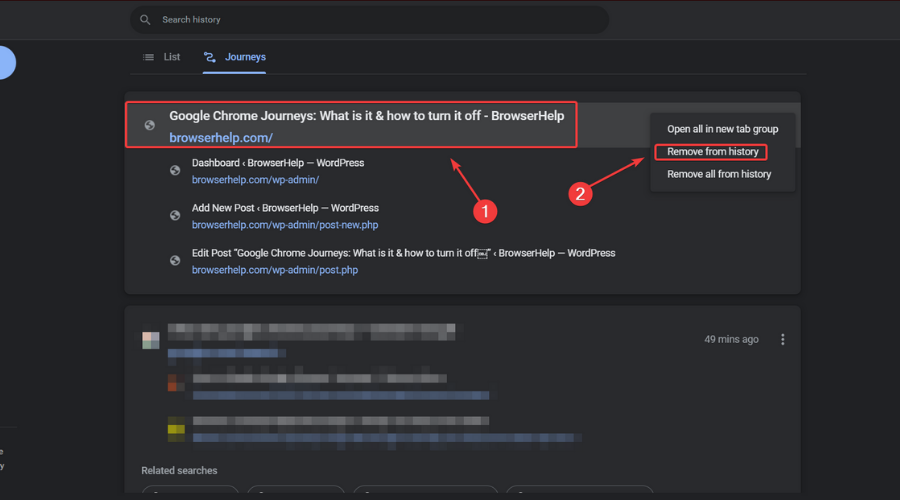
Unable to Log in or Reset Password for Discord in Browser [Solved]

Discord login not working on browser can be a daunting experience, especially when you don’t want to go through the stress of downloading the desktop app.

While it is not as serious an issue as Discord won’t open on PC or Mac, it denies you access to your account and eliminates the convenience of using Discord on the browser.

The causes of this problem vary, ranging from issues with Discord itself to problems with your browser. Irrespective of the reason, this guide will take you through five simple yet effective fixes for this issue.

Note that we have used Chrome as an example, as it is one of the most used browsers. But the fixes can be applied in other browsers, albeit with slightly different steps.

Why can’t I login on Discord in browser?

The reason for Discord login not working on browser is diverse and can sometimes be difficult to pinpoint. Below are some of the well-known ones:

  • Problems with Discord server.
  • Corrupt browser data.
  • Activation of VPN
  • A browser setting is disrupting the activity of Discord.

How do I fix Discord login issues in browser?

1. Check Discord server

  1. Open Chrome and type discord server status in the Address bar.
  2. Select the Discord Status option (it is usually the first result).
    discord server status result
  3. You will see a full report on the status of the Discord server.
    discord server status browser login not working

Sometimes, the predictable fix might be the most effective. If you can’t login to Discord on your mobile browser or PC, it might be because of Discord server downtime.

While this rarely occurs, it still happens once in a while. If the problem is with the server, there is little you can do than wait for it to be resolved.

2. Temporarily deactivate VPN or Proxy server

  1. Press the Windows key + I to the open settings app.
  2. Select the Network & Internet option.
    network settings
  3. Choose VPN on the left pane.
    vpn option discord browser not login working
  4. Choose your VPN service and click the Disconnect button.

Using VPN keeps your identity safe online. However, it has been proven to be why Discord login is not working on the Chrome browser at times.

This is because the VPN might route your connection to a location where Discord is not supported. Hence, you should temporarily disable your VPN and check if the issue is fixed.

3. Restart Chrome

  1. Press the Windows key + X and select Task Manager.
    task manager discord browser login not working
  2. Select Google Chrome from the options and right-click on it.
  3. Choose the End task option.
    end task

Your Discord login might not be working on the Chrome browser because of some glitches. Before getting to the other sophisticated fixes, you should force close Chrome and relaunch it.

This will allow Chrome to restart its processes, including those with the problems stopping you from logging in.

4. Clear browsing data

  1. Click on the menu button in the top right corner and select the Settings option
    settings discord browser login not working
  2. Choose Privacy and security on the left pane.
  3. Select the Clear browsing data option.
    privacy and security
  4. Check the checkboxes for Browsing history, Cookies and other site data, and Cached images and files.
  5. Click the Clear data button.
    clear browsing data button

If you have been using Discord on your Chrome browser in the past, it (your browser) would have accumulated some site data. This is to help improve your experience and automate some processes on Discord when you visit again.

While deleting your cookies is beneficial for freeing up space on your hard drive and boosting PC speed, doing it manually every time might get tedious.

A professional tool like CCleaner can search your computer for cookies and browser history and erase them all at once, so you don’t have to do it separately for each browser.

CCleaner program removes browser cache, image cache, typeface cache, DNS cache, and other data with a single click when you are unable to log in or reset the password for Discord in the browser.

However, if this data gets corrupted, it might lead to issues like invalid Discord login, despite entering the correct info. In this case, clearing the browser data and relaunching Chrome should help restore normalcy.

5. Reset Chrome settings

  1. Click the menu button and choose Settings from the options.
    settings discord browser login not working
  2. Select the Advanced option.
  3. Click the Reset and clean up option from the dropdown.
    advanced clean up and reset
  4. Now, choose the Restore settings to their original defaults option
    reset and clean discord browser login not working
  5. Finally, click the Reset settings button
    reset settings button

If all the fixes above fail to solve the Discord login not working on the browser issue, you might’ve tampered with the wrong settings on Chrome. Resetting Chrome helps to return all the settings to the default.

Ensure to relaunch Chrome after the process is complete to effect the changes.

Lastly, it is worth noting that resetting Chrome to default does not affect your important data like saved passwords and bookmarks. So, you don’t have anything to lose.  

What is the best browser for Discord?

Discord works on different browsers like Chrome, Firefox, and Microsoft Edge. While these are reputable options, the undoubted best browser for Discord is Opera GX.

Opera GX is widely accepted as the first web browser specifically built for gamers. And with Discord being a VoIP service primarily dedicated to gamers, it is a match made in heaven.

This browser has a sleek design that enhances its gaming feel. The GX control panel also gives you access to a CPU, RAM, and bandwidth limiter. This ensures that Opera GX does not interfere with your gaming activities.

What’s more, this browser is not just limited to gaming. It has all the regular and security features of the native Opera.

It just combines the best features of the modern browsers with a unique gaming edge that ensures Discord issues such as login not working is never a problem again.

⇒ Get Opera GX

Being denied access to your Discord account on your browser because the login is not working can be exasperating. But it is not an issue that is impossible to solve, as shown by the fixes above.

If you face other issues like Discord not playing any sounds in browsers, you can check our guide to fixing it.

Feel free to discuss the solution that helped you regain access to your Discord account on your browser in the comments section below.
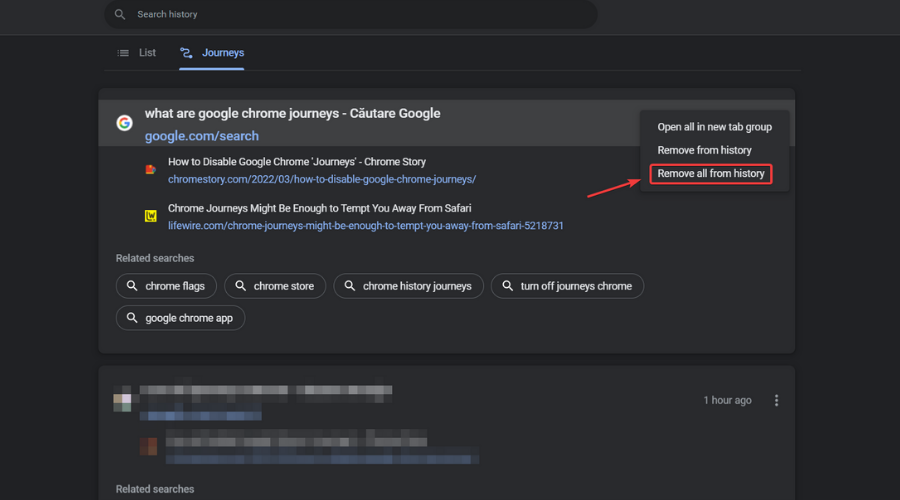
Reddit Unauthorized Error 401? 5 Solutions to Fix It

Reddit unauthorized 401 error code means that Reddit has blocked you from accessing the website. You’ll see this error ‌because it lacks valid authentication credentials for the requested resources.

Aside from the error code 401 access denied, another common error you can run into is your Reddit session expired error.

You often see this error when accessing membership websites that require a username and password, such as Reddit. Here are ways you can fix this 401 error.

How do I fix Reddit unauthorized 401 error?

1. Check the URL of the website

  1. Ensure you’ve entered the correct URL address.
  2. If it’s wrong, re-enter the right one.reddit unauthorized error
  3. Press Enter to gain access to the website.

Sometimes Reddit blocks access to its content because of an incorrect URL. Check the URL you’ve entered to ensure it’s correct, and reload the webpage.

The wrong URL address is a widespread error that’s easy to overlook.

2. Check your authentication credentials

  1. Close the Reddit webpage you’re trying to open.
  2. Reload and click on Login.
  3. Enter your login credentials.

Sometimes a wrong username or password can cause the Reddit unauthorized access error. One way to troubleshoot is to sign out and sign again.

Logging out and logging in usually solve the problem. However, if that doesn’t solve the problem, move on to the next solution.

3. Flush your DNS records on Windows

  1. Press Windows + R simultaneously to open the Run search box.
  2. Type cmd and then press Enter.cmd dialog box
  3. In the command prompt window, type ipconfig/flushdnsflush dns
  4. Press Enter to clear the DNS.
  5. You’ll receive a message showing the successful clearance of the DNS records.dns cleared

You can clear the DNS to resolve the Reddit unauthorized error 401. The old record may contain outdated information, making it difficult to access the website.

Clearing the DNS cache will help resolve connectivity issues, such as unauthorized 401 errors and other security issues.

4. Clear your browser’s cache

  1. Open the Chrome browser on your PC.
  2. At the top right, click on More.reddit unauthorized error 401
  3. Click on More Tools and then select Clear browsing data.reddit unauthorized error
  4. Select the Advanced tab.error 401 unauthorized
  5. Choose a time frame, such as Last hour or All time.
  6. Ensure that you only check the cache images and files box.reddit unauthorized error 401
  7. Click on Clear data.error 401 unauthorized
  8. Reload the website.

Browsers store local copies on your computer data so that they don’t have to load the website from scratch every time you visit a website.

It’s essential to clear your browser’s cached data because it might store old and incorrect login information. 

Clearing the browser cache data will help the website load from scratch with updated information.

5. Try another browser

Have you tried all the above solutions in your current browser, but you’re still facing a Reddit unauthorized access error?

Try switching to the Opera One browser. It’s a Chromium-based browser like Google Chrome.

The Opera One browser has many unique features that make it an excellent alternative for anyone fed up with Google Chrome. Plus, it comes with built-in AI.

It has integrated ad-blocking and track-prevention components. Using the Opera One browser can help you bypass the Reddit access denied error.

⇒ Get Opera One

These are the methods you can use to regain access to the Reddit website. These 401 error doesn’t occur only when you’re trying to log into a password-protected such as Reddit.

Another common error you’ll see is that the website is not allowed when you try accessing a website.

Which of the above solutions discussed did you find helpful? Let us know in the comment section below.

5 Fixes You Must Try When Tabs Won’t Open in Chrome

In the article, we will focus on helping you if tabs won’t open in Chrome. Some of the solutions are general and will be handy in some related browser problems.

What should I do when tabs won’t open in Chrome?

1. Restart the Chrome browser

  1. Right-click on the Start menu and select the Task Manager option.
    tabs won't open in chrome
  2. Click on the Processes tab, right-click on the Google Chrome process, and then select End task in the context menu.
  3. Double click on your Chrome icon to relaunch it.

Now you should check to see if you can load new tabs.

Restarting the browser is very effective, as it serves as a mini reset. It clears the memory and helps your browser return to its defaults. If there are minor browser issues, like Chrome not loading pages or tabs, it could be a valuable fix.

2. Restart the computer

  1. Click on the Start menu.
    tabs won't open in chrome
  2. Click on the Power icon.
  3. From the options, select Restart.
  4. Double click on the Chrome icon to relaunch it when your computer has rebooted.

Your computer will function more smoothly if you reboot it. This process clears the memory, putting an end to any processes using RAM.

An app can use your memory even after you’ve closed it. Restarting Chrome ensures it performs as optimally as possible. With many users reporting that tabs won’t open in Chrome on Windows 10, Windows 11, Mac, and Android, this should serve as a useful fix as well.

3. Select Open the New Tabe page setting

  1. Click on the ellipsis at the top right of your browser and select Settings from the options.
  2. On the left pane, click on the On startup option.
  3. Select the Open the New Tabe page radio button on the On startup options.
    tabs won't open in chrome
  4. Close and restart the Chrome browser.

4. Keep browser window active

  1. Open the Chrome browser.
  2. Right-click on the unresponsive tab.
    tabs won't open in chrome
  3. Select Reload from the options.

Chrome tabs not loading in background is not uncommon. So, when you open a new tab, you may have to keep it active to load correctly.

This will be a solution if the tabs open but remain inactive. The problem often happens when you right-click and use the Open link in new tab function without clicking on the new tab while it loads.

5. Reinstall the browser

  1. On the Start menu, type control panel, then select the option to Uninstall a program.
    tabs won't open in chrome
  2. From the list of programs, click on Google Chrome, and select the Uninstall option at the top.
    tabs won't open in chrome
  3. Download a new Chrome executable file.
  4. Double-click on the download to start the installation.
  5. Relaunch Chrome after the installation is completed.

You may also want to consider switching browsers. Opera One is a very advanced option and will guarantee you do not have to battle with as many browser errors.

⇒ Get Opera One

Why are tabs not opening in Chrome?

We can not be sure why tabs on the Chrome browser may not open. A corrupt installation is one of the few known culprits.

Whatever the case is, issues relating to tabs on your browsers should be easily fixed with a few steps.

We, however, recommend that you have a good antivirus running to eliminate the risk of computer issues triggered by malware.

Tabs are an essential feature of every browser. They make it possible to search the web for multiple entries concurrently. When they stop working, you should try the fixes in this article to repair the problem.

Some of the fixes here are general and would be helpful for other problems, including when peripherals like your keyboard stop working with Chrome.

What solution did you use to fix this problem? Let us know in the comments section below!

How to Uninstall McAfee Completely on Windows 11

Removing McAfee completely on Windows 11 can be frustrating, especially when the built-in uninstaller fails or the program keeps coming back.

Whether you’re dealing with an expired trial, a stubborn pre-installed version, or just want a clean system, this guide will show you how to uninstall McAfee completely. We’ll walk through every method, starting from the simplest and ending with the more advanced fixes.

How do I uninstall McAfee from Windows 11 completely?

1. Use the Settings app

  1. Search Apps and Features in the taskbar and choose the first option.search apps and features in the taskbar
  2. Scroll down to find the McAfee product you’re trying to uninstall and click the three-dot menu next to the mentioned size.find mcafee product in the apps and features then remove
  3. The uninstaller should now appear. Select all of the McAfee products that are currently installed from this list and then click Remove.remove button on uninstaler
  4. Click on Remove again. remove button again on the uninstaler of mcafee

2. Use a reliable removal tool

  1. First, download the CCleaner tool.
  2. Run the application.
  3. Launch the CCleaner app on your PC.
  4. Go to Tools.
  5. Search the McAfee antivirus in the list and press Uninstall.

You can as well use the Custom Clean function to analyze your computer and erase junk files or registry entries left behind from uninstalled apps.

This way, your system will get rid of useless software files and increase the overall speed and performance while performing more complex tasks.

3. Use CMD

  1. In the taskbar search for CMD. Right-click on it and select Run as administrator once the Command Prompt app shows up in your search results.search cmd in task bar - uninstalling mcafee
  2. Now enter the following command and press Enter on your keyboard.
    wmicrun wmic command
  3. Following that, type this command to get a list of all installed programs.
    product get namerun product name command - uninstalling mcafee
  4. Look for McAfee products in the list on your screen and note down their names. list of the product names
  5. Once done, enter the following command, and press Enter on your keyboard to execute it. Replace PROGRAMNAME with the name you noted down earlier.
    product where name="PROGRAMNAME" call uninstall unistalling mcafee using command prompt

4. Use PowerShell

  1. To begin, open the taskbar and type in PowerShell. Click on Run as administrator once the app shows up in your search results. run powershell as administrator
  2. Run this command: Get-WmiObject -Class Win32_Product | Select-Object -Property Name.the powershell command first step
  3. Note down the product name for the concerned McAfee app.list of product name in powershel
  4. Now to uninstall the app run the following command but replace the PRODUCTNAME with the name of the concerned McAfee product:
    $app = Get-WmiObject -Class Win32_Product `
    -Filter "Name="PRODUCTNAME"".

The official Microsoft virus detection program hasn’t bothered many users, but McAfee users have complained.

Read this article if you encounter a communication error with the Event Log in McAfee.

Overall, removing McAfee can save users headaches as well as some system energy and CPU consumption. It can also help with Uihost.exe application error. Users can get rid of this anti-virus by following the techniques above. Do not hesitate to apply them if you can’t uninstall McAfee from Windows 10.

If you want to learn about Vsmain.exe errors on your computer, we have a separate guide with detailed solutions for you. McAfee is the common culprit for error code 2738 in Epic Installer, so it’s important to know how to properly remove it.

If you could successfully uninstall McAfee on your Windows PC, please let us know in the comments section below.
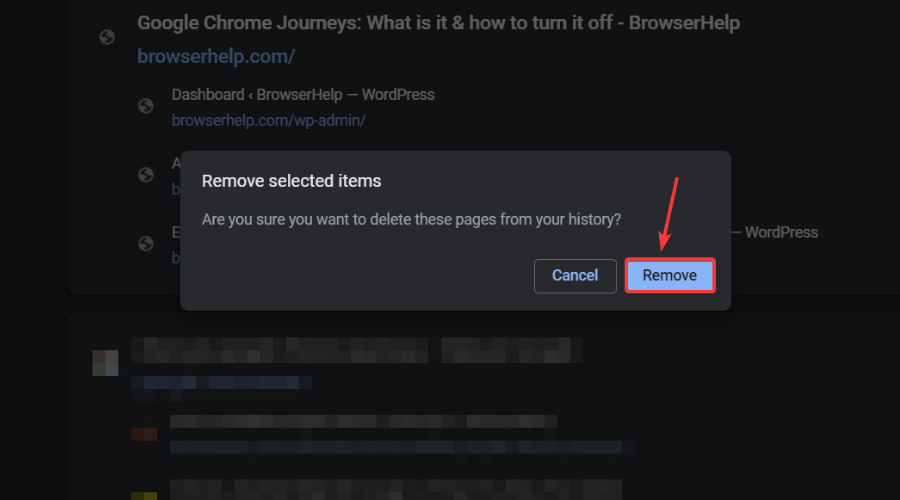
Quick Guide to Install Java JDK 11 in Windows 10

Java is an object-orientated programming language that programmers use to develop Java software. For that, they need to download a JDK 11 (Java Development Kit) installer for Windows.

Java 18 is the latest JDK development kit for Windows, Linux, and macOS platforms. If you are a beginner and looking for regular updates for a prolonged period, we recommend going with Java SE 11.

So without further ado, let’s walk you through the process of downloading JDK 11 installer for Windows.

How do I check if my computer is compatible with JDK 11? Open System information and see if you have a 64-bit system. If so, you are ready to go.

Once you have verified that your PC is compatible, let’s go straight to the process to download JDK 11 installer in Windows 10.

How can I install JDK 11 in Windows 10?

1. Download and install Java SE 11

  1. To get Java SE 11, open the Java SE Downloads page in a browser.
  2. Scroll down, select Java 11, and then click on the Windows option from the available ecosystems.Windows and Java 11
  3. Next, click on the download link next to the installer package (.exe file).Download to jdk 11 download windows installer
  4. Tick the checkbox for I reviewed and accept the Oracle Technology Network License Agreement for Oracle Java SE, and then click on the download button at the bottom.access terms
  5. If you have already signed up, enter the credentials to log in. Otherwise, you can create an account to proceed.Login or create to account to jdk 11 download windows installer
  6. Once the download is completed, press Windows + E to launch the File Explorer and head to the location where the downloaded file is stored.
  7. Now, right-click the jdk-11.0.15.1_windows-x64_bin (version may differ) file, and select Run as administrator from the context menu.Run as administrator tojdk 11 download windows installer
  8. Click Yes in the UAC (User Account Control) prompt that pops up.Click Yes
  9. Click the Next button.Next
  10. You can click Change to select an alternative folder to install Java SE 11 or click on Next to continue with the default location right away.Change location
  11. Now, wait for the installation to complete.

Once it’s done, you have completed half the task, i.e, downloaded and installed JDK 11 in Windows 11. However, you still have to set up a path variable for it to get things up and running. Follow the steps in the next section to do that.

2. Set Up a Path Environment Variable

  1. Press Windows + S to launch the Search menu, enter View advanced system settings in the text field, and click on the relevant search result.View advanced system settings to jdk 11 download windows installer
  2. Click on the Environment Variables button in the Advanced tab.Environment variables
  3. Select the PATH variable, and click on the Edit button.Path
  4. Next, click on New on the right.New to jdk 11 download windows installer
  5. Paste the full JDK 11 bin folder path as given below. It may differ on your computer if you have changed the location earlier during the installation process, so make sure to verify it once.C:\Program Files\Java\jdk-11.0.15.1\binPaste path
  6. Click the OK button after entering the bin folder path.OK
  7. Again, click OK in the Environment Variables window to save the changes.OK to jdk 11 download windows installer

That’s it! You can start working on it right away.

How do I check if JDK 11 is installed on my computer?

  1. Press Windows + R to launch the Run command, enter cmd in the text field, and either click OK or hit Enter to launch the Command Prompt.cmd
  2. Now, type or paste the following command and hit Enter to view the Java version.java -versionjava version to check jdk 11 download windows installer
  3. If the Command Prompt lists the version number along with other relevant information, you have JDK installed on the computer.check
  4. However, if you receive a response that ‘java’ is not recognized as an internal or external command, operable program or batch file, it means that you don’t have JDK installed yet, and can follow the steps above to get it.run command

While earlier, there were ways to download JDK 11 Windows installer without login, you now have to create an account. Looks like Oracle found a way to disable all these.

So, that’s how users can download and install JDK 11 in Windows 10 for free. Thereafter, they can compile their Java code text files with the javac command. Also, the methods listed here would help download JDK 11 in Windows 7 as well.

Besides, find out how to install Java in Windows 11, in case you are running the latest iteration of the OS from Microsoft.

If you have any other queries, drop a comment in the section below.

Bitdefender Services Not Responding? 4 Ways to Fix it

Bitdefender is one of the best antimalware software that helps keeps the system secure and is relatively prone to errors. However, several users have reported that its icon in the system tray reads Bitdefender services are not responding.

Also, in this case, the icon would be greyed out and you wouldn’t be able to open the Bitdefender interface. This leaves your computer unprotected and makes it all the more important to identify the underlying cause and eliminate it.

So, read the following sections to find out all about the Bitdefender services are not responding problem and the most effective fixes for it.

Why is Bitdefender not working?

There are various issues that could affect the functioning of Bitdefender, however, three of them are primarily found to lead to the Bitdefender services are not responding issue.

First, if your PC does not meet the minimum requirements for the antivirus software, it could lead to this problem. Another reason behind it is the presence of other antiviruses on the computer, thus leading to a conflict between them and Bitdefender.

The third reason why you might be encountering the issue is due to problems with the current version of Bitdefender or if the installation did not go through successfully.

In the next section, we have listed the solution for each of these problems, and once you are done executing these, the Bitdefender services are not responding issue should be fixed.

What do I do if the Bitdefender services are not responding?

1. Make sure the minimum requirements for Bitdefender are met

First, check the system specifications and verify that they meet the minimum requirements for Bitdefender because it’s often incompatibility that leads to issues, and may cause the software to malfunction. The requirements are as follows:

  • OS: Windows 11, Windows 10, Windows 8.1, Windows 8, Windows 7
  • Architecture: 64-bit and 32-bit
  • Processor: Minimum Intel Core 2 Duo or equivalent CPU
  • Memory: 2GB RAM or higher
  • Storage: Minimum 2.5 GB of free space

If your computer meets these requirements, the methods listed below would help eliminate the Bitdefender services are not responding issue. However, even if your PC doesn’t meet these, you can still try the methods, in case they work.

2. Restart the computer

  1. Press Alt + F4 to launch the Shut Down Windows box, click on the dropdown menu, and select Restart.Restart to fix bitdefender services not responding
  2. Now, click on OK to restart the computer.OK

When you encounter the Bitdefender services are not responding issue, the software would itself recommend you to restart the computer. Thus, that should be your primary approach. If the issue persists after a restart, head to the next method.

3. Uninstall other third-party antiviruses

  1. Press Windows + I to launch Settings, and select Apps from the tabs listed in the navigation pane on the left.Apps
  2. Click on Apps & features on right.Apps & features
  3. Locate the third-party antivirus, click on the ellipsis next to it, and select Uninstall from the flyout menu.Uninstall to fix bitdefender services not responding
  4. Again, click Uninstall in the confirmation prompt that appears.Confirm
  5. Similarly, remove the other antiviruses, if any, installed on the computer.

You can also use an application like CCleaner, which displays a list of your installed programs and allows you to instantly eliminate files with ease.

Once you have uninstalled all the other antiviruses, restart the computer for the change to come into effect and check if the Bitdefender services are not responding issue is fixed.

4. Reinstall Bitdefender

  1. Press Windows + R to launch the Run command dialog box, enter appwiz.cpl in the text field, and either click OK or hit Enter to launch the Programs and Features window.appwiz.cpl
  2. Now, locate all the Bitdefender entries, select them individually, and click on Uninstall.Uninstall to fix bitdefender services not responding
  3. Click Yes in the UAC (User Account Control) prompt that pops up.Click Yes
  4. Now, click on the Remove button under I want to uninstall Bitdefender, and wait for the process to complete.Remove
  5. Once done with the uninstallation, again download Bitdefender on the computer and go through with the installation like you did the last time.

If there was an issue with the installation initially, you may come across a bunch of errors with the software including Bitdefender services are not responding. Here, the best option is to remove the program and then reinstall it.

These are the ways you can get Bitdefender up and running on your system in no time. The methods listed here would also work if you encounter the Bitdefender services are not responding issue in Windows 10 or Windows 7.

Also, find out what to do if you receive an unsafe Wi-Fi network notification from Bitdefender. Besides, if you are looking for another software, check the best antivirus for Windows 11.

If you have any other queries or know of a method that’s not listed here, drop a comment in the section below.

Chrome Incognito vs Safari Private Browsing: Who Wins? [Detailed Comparison]

The web holds essential information on all subjects, making surfing the internet invaluable to our daily routines.

There are thousands of resources to answer our teeming questions, from music to sports to politics to tech. However, leaving digital footprints and being exploited of sensitive info on the web has raised concerns in recent years.

Browsers adopt incognito or private modes to ensure that we are not tracked and that our information is safe.

This article compares Google Chrome’s incognito mode against Safari private browsing. We like to show you how they stack up against each other and help you determine which is the better way to go.

This feature is a valuable part of your browser, and it takes only a few steps to start a private browsing session.

Chrome incognito vs Safari private browsing; which do I use?

Google Chrome Incognito Mode

chrome incognito vs safari private browsing

Before using the Google Chrome incognito mode to perform any work, be sure you understand what is or isn’t recorded.

Although this private mode prevents Chrome from saving files that you download, they are still stored on your local computer once you exit it.

Google Chrome also saves all of your bookmarks and your accessibility and preferences settings.

The incognito option disables storing your browsing history by your web browser. However, your activities and location may still be exposed to the following:

  • Your system administrators (if you are on a public network)
  • Your ISP (Internet service provider)
  • The firms behind the resources and  advertisements used on the websites you visit

Incognito mode in Chrome also allows search engines, internet providers, and online services to see:

  • Your geographical location using your IP address 
  • Activities performed on a web service
  • The user identity if you have signed up for some service with your email

Even if you have a VPN, you will still have this level of exposure. As long as you are logged in to your Google account, the browser remembers your location.  

In fact, the location restrictions you have on your Google account will still apply if the same accounts are logged into an incognito browser. 

⇒ Get Google Chrome

Safari Private Browsing

Many individuals have trusted Apple’s ecosystem, which includes a wide range of items tied to a single account. Kind of similar to Chrome, which is connected by a single email account. 

This singular account model is critical, as it connects your preferences, bookmarks, and searches across devices and services. 

The ability to use them across a range of products is time-conserving. But the real question is if a private browser mode is worth it if it doesn’t hide your tracks?

On the plus side, Safari’s private browsing mode does not record your search history, but it comes with certain downsides:

  • Services and websites you use may still see your IP address
  • Your search history is still visible to the service provider
  • Your internet activities will still be visible to your network administrator
chrome incognito vs safari private browsing

Unfortunately, it does not stop here. Your privacy on a particular device may be preserved, but it won’t hide the user’s behavior or prevent you from identity theft.

Your internet protocol (IP) address will be revealed, allowing third parties to monitor your online activities.

Above all, it will not prevent websites from employing near-perfect browser fingerprinting methods to identify you.

⇒ Get Safari

The verdict: Is incognito better than private browsing?

Chrome and Safari private browser mode serve the same purpose.  They prohibit your device from storing any browser history or data linked with a specific browsing session. 

This means that anybody else who uses your smartphone, computer, or whatever device you have used won’t be able to know what web services you had visited or what Google searches you performed.

However, none of them is the solution to total internet protection. So we can say they are very similar, and in this chrome incognito vs safari private browsing comparison, there is not much to tear them apart.

Does private browsing show up on other devices?

When you launch in a private browsing session, your local computer shops logging history and browser session. This means that at the end of the session when you close the window, it will all be lost.

This is also true for all your autofill information. Since they are lost after the session, if you switch devices, you will not be able to transfer them.

Can private browsing be traced on Wifi?

Just like we mentioned above, your browsing history and auto-fills are not logged in private mode. But this only applies to the computer you use for surfing.

chrome incognito vs safari private browsing

Your browsing habits are still logged by your Wifi routers. This implies that an admin may still be able to access your history even though it no longer exists on your computer.

Is private browsing safe?

Browsing in private mode is safe, and relatively a better option than normal surfing if privacy and security are your concerns. It gives you a degree of anonymity. If you use public computers, it will ensure that your credentials are not logged on the computer.

However, if you are on public networks, you must note that the network admin will still be able to access your browsing trends and history.

Modern browsers however can make your browsing experience safer and more protected. We like to recommend Opera One because it comes with a built-in VPN. This means your browser location is masked, a feature that private/incognito browsing will not offer.

Combining its private mode, and VPN makes it the most secure browser option.

⇒ Get Opera One

How to turn on private browsing in Chrome?

1. Use the private browsing shortcut

  1. Click on the Start menu.
  2. Type Chrome in the search field.
  3. From the options beneath the Google Chrome app, select the New Incognito window option.

2. Open new incognito window

  1. Launch the Chrome browser.
  2. Click on the ellipsis at the top right of the browser.
  3. From the options list, select the option for New Incognito window.
    chrome incognito vs safari private browsing

How to turn on private browsing in Safari

  1. At the top left corner of your computer, click on the Safari File menu.
  2. Then from the dropdown menu, click on New Private Window.
    chrome incognito vs safari private browsing

That is it for this chrome incognito vs safari private browsing comparison. They both are among the best browsers you have on the market. However, their private modes may not be all you need to stay safe.

But you may not be offered 100% privacy and protection using any of them; you can ensure your IP is protected and your data is not stolen by using a good VPN or a browser with a built-in VPN.

Which browser do you prefer and why? Let us know in the comments section below.
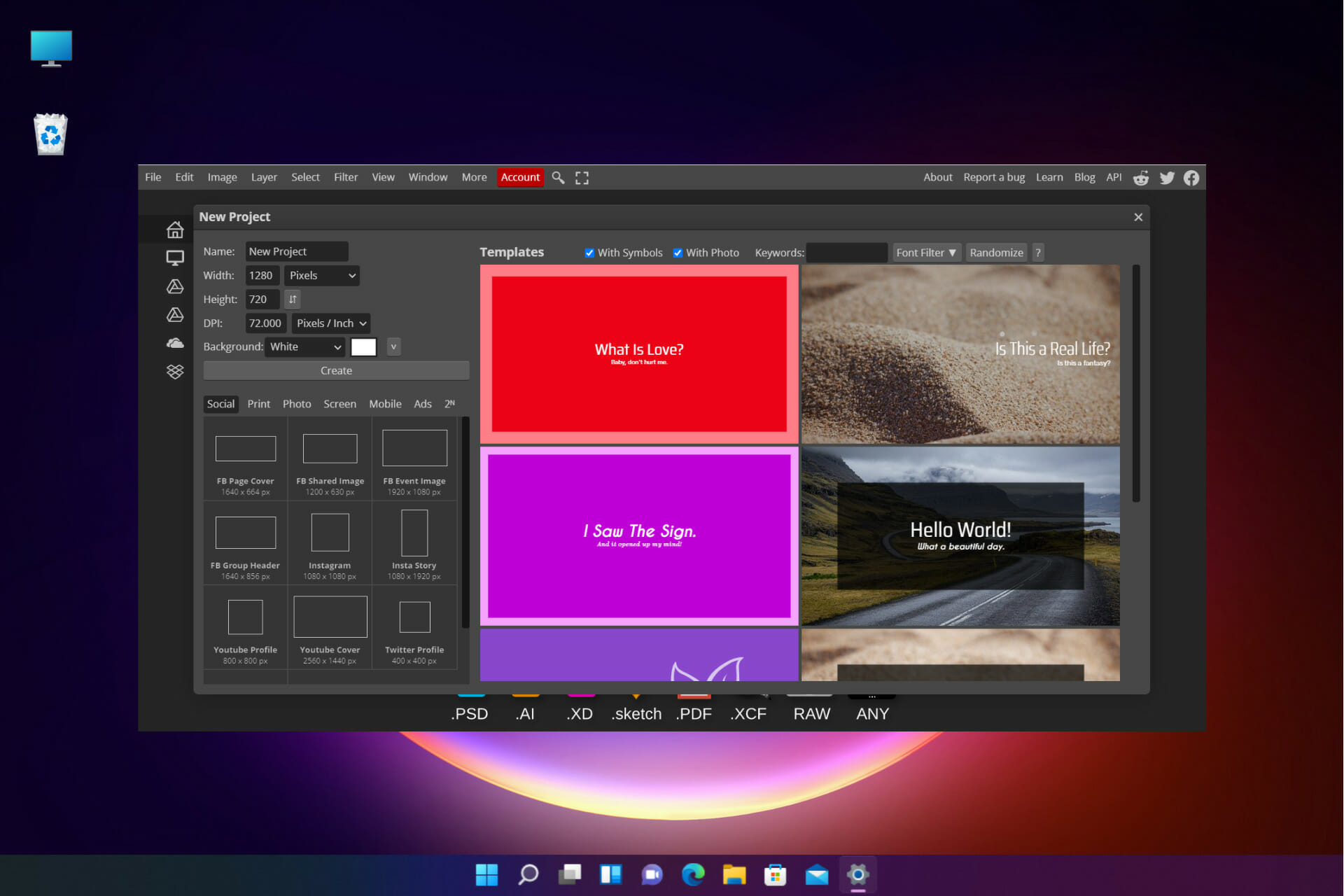
8 Best Tips To Get the Most of the Firefox Kiosk Mode

As people increasingly depend on the web to do their tasks, Firefox Kiosk Mode becomes an increasingly appealing option.

Whatever the reason, internet surfing has significantly influenced practically every aspect of life, and its role in transforming corporate procedures is almost apparent.

However, browsers are the most common attack points for hackers looking to target enterprises. For example, identity theft and cyber-attacks are possible on unattended public surfing locations and shared devices, necessitating adequate endpoint protection.

Staying ahead of cyber dangers requires an adequately configured secure browser that does not complicate the end-user experience. As a result, kiosk browsers have become a valuable security tool.

In fact, you can also set up a Kiosk Mode on Windows 11, and we wrote in great detail how to do that in a separate guide.

In this article, we will explore the Firefox Kiosk Mode and explain some of the best tips to help you get by in this mode.

What is browser Kiosk Mode?

Kiosk Mode is a computer configuration that shuts down your whole computer, leaving just one program available.

Computers running this mode, also known as Kiosk Machines, are put in various locations for customers to use, but exclusively for the purpose of accessing a specific program.

This is frequently done so that you may concentrate your attention on a particular task at hand rather than using the computer for broader purposes.

Because Kiosk Mode focuses on a single program, it’s good to impose these limits on computers in malls, libraries, stores, and other terminals like sales presentations and vending machines.

These restrictions or limits are implemented when Firefox is launched in Kiosk Mode:

  • The browser runs in full-screen mode, which you cannot escape.
  • You can’t access any menus or choices since all toolbars, bookmarks bar, tab bar, title bar, navigation bar, and menu bar have been removed/disabled.
  • The close, maximize, and minimize buttons have also been deleted, making it impossible to shut down the Firefox window.
  • Using the F11 key will not help you exit the full-screen mode.
  • There is no contextual menu when you right-click on any web page.
  • The status bar is concealed, so lingering over hyperlinks does not reveal website URLs.

Note that there is no Firefox Kiosk Mode multiple tabs support, so you will have to go one tab at a time.

What are the best tips for using Kiosk Mode on Firefox?

1. Open Firefox Kiosk Mode from the Run command

  1. Press keyboard shortcut Windows + R.
  2. In the Run dialog, type the following command and hit Enter: Firefox -kiosk

This is the fastest way to open Kiosk Mode, and unlike in the method described later, you do not want to go through the multiple steps of creating desktop shortcuts.

2. Open websites in Kiosk Mode from the Run dialog

  1. Press keyboard shortcut Windows + R.
  2. Type the following command in Run dialog and hit Enter.
    Firefox -kiosk https://windowsreport.com/

You will have to replace https://windowsreport.com/ with the website you want to visit.

3. Open websites in Private Mode

  1. Press keyboard shortcut Windows + R.
  2. Input the Firefox Kiosk Mode command line in the Run dialog and hit Enter:
    Firefox -kiosk -private-window https://windowsreport.com/

You will have to replace https://windowsreport.com/ with the website you want to visit.

4. Hotkeys on Kiosk Mode

  • New blank tab: Ctrl + T
  • Reopening closed tabs: Ctrl + Shift + T
  • Find page features: Ctrl + F
  • Storage Inspector: Shift + F9
  • Open Browser Toolbox: Ctrl + Alt + Shift + I
  • Launch Browser Console: Ctrl + Shift + J
  • Open Toolbox (with the most current tool turned on): Ctrl + Shift + I
  • Inspect Element: Ctrl + Shift + C
  • Open the Web Console: Ctrl + Shift + K
  • Firefox kiosk mode back button: Ctrl + Back button

These hotkeys will save you a ton while running Kiosk Mode since you will not have all the regular buttons and navigations.

5. Print from Firefox Kiosk Mode

  1. Press keyboard shortcut Windows + R.
  2. Type the following in the Run dialog and hit Enter: Firefox –kiosk –printing

This command prints the present page in Firefox’s Kiosk Mode without bringing up the browser’s default Print dialog box.

6. How do I start Firefox in Kiosk Mode?

  1. Navigate to where you have your Mozilla app; this is in the Programs Files by default.
    C:\Program Files\Mozilla Firefox
  2. Right-click on the Mozilla app and select Show more options.
    Firefox kiosk mode
  3. In the context menu, select Create shortcut.
    Firefox kiosk mode
  4. Right-click on the newly created shortcut and select Properties.
  5. Click the Shortcut tab, add the and the end of the Target field add –kiosk. Now click OK, then Apply.

  6. Now go ahead and double-click on the shortcut.

This Firefox kiosk mode shortcut is an easy way to always get into Kiosk Mode, and when your Firefox is running on Kiosk Mode, all you have is a plain screen with a few widgets.

7. How do I get my Firefox out of Kiosk Mode?

  1. Use the keyboard hotkeys Alt + Spacebar.
  2. Click on the Close option.

Alternatively, use the keyboard hotkeys Alt + F4 or Ctrl + T.

8. How do I get my Firefox out of Kiosk Mode using the Task Manager?

  1. Use hotkeys Ctrl + Alt + Delete.
  2. Select the Task Manager option.
  3. Select the Processes tab, Right-click on Firefox from the list of apps, then select the End task option.
    Firefox kiosk mode

If you have read this far, you probably now know all that there is to know about the special browser mode. You will accomplish all you normally will do when the browser is run normally, however, we advise mastering some of the shortcuts.

Before you run your browser in kiosk mode ensure that any Firefox issues you are having are first resolved.

We have enjoyed sharing this with you and will love to know which of the tips you find most helpful. Please drop us your comments below.

Voice Recorder for Windows 11 just got revamped

Ever since the new operating system came out, the Redmond-based tech giant took it upon itself to also revamp each and every corner of it.

That means applying the same sleek Windows 11 design to all of the apps and elements of the OS, to make it feel more like a whole than just a makeover.

Now, the Voice recorder app has been modernized and brought to the year 2022 with the same Windows 11 design language that everyone fell in love with.

Say hello to the new and improved Sound Recorder

After Paint, Clock, Notepad, Task Manager, Snipping Tool, Photos, and Media Player, Microsoft decided to also redesign Voice Recorder.

Not only the design has changed, but also the software’s name. Voice Recorder is now Sound Recorder for Windows Insiders in the Dev channel, and the update is available in the Microsoft Store for public testing.

Packaged with this stylish new look are icons, controls, and layouts. There is also a new visualization for audio during recording and playback that looks somewhat iOS-inspired.

Besides all the bells and whistles, the tech giant also added the option to change the recording device and select file format within the app.

Thus, if you have more than one microphone connected to your PC, you can choose the one you need directly on the app’s main screen.

Furthermore, different recording formats are available in the settings, and you can pick m4a, mp3, wma, flac, and wav.

Sound Recorder also allows you to change audio quality and select the theme (light, dark, or system).

Where can I get the new Sound Recorder?

If you want to take it for a spin, you can download the new Sound Recorder from the Microsoft Store with just a few clicks.

That is if you aren’t already a Dev Channel Insider, in which case you already have it after the latest update, along with the new Task Manager for Windows 11 22H2.

More good things are to come for the latest operating system, according to voices from the Redmond company, so we just have to wait and see.

Don’t forget that Sun Valley 2, as Windows 11 22H2 is also called, is RTM and we should see it available pretty soon.

Have you tried out the new and improved Sound Recorder? Share your experience with us in the comments section below.