Welcome to Xbox Classics Revisited. In this new series we aim to take a look back at the previous three generations—the original Xbox, the Xbox 360, and the Xbox One—of Xbox games. These mini-retrospectives serve as a tribute to some of the best gaming that Xbox has given us over the last 20+ years.
For those who were lucky enough to have been there for all of it, read on and savor the nostalgia. For those Xbox fans too young to remember Maude Flanders or Pepsi Twist: get ready to meet your Xbox gaming backlog.
MechAssault (Xbox)—November, 2002
The original MechAssault reached cult classic status on the first Xbox with its fast, satisfying third-person shooting and destructible environments. It was also one of the first games to feature Xbox Live multiplayer.
This Xbox 360 Classic is the game that spawned one of Xbox’s biggest franchises. Gears of War was hotly anticipated leading up to its release back in 2006, almost exactly one year into the 360’s lifespan. Having won over 30 game of the year awards, it became an instant classic with its thrilling sci-fi horror setting and masterfully-implemented tactical third-person shooting.
Gears of War got a remaster in 2015 with the Ultimate Edition. The franchise is still going strong, with many sequels, prequels, and spinoffs in addition to other related media in the form of books, comics and an upcoming Gears of War film.
2019’s Control is a third-person action-adventure game set within a structure known as the “Oldest House” in New York City. The game has a huge nonlinear world map, however, for the Oldest House contains a supernatural realm where the laws of spacetime do not apply.
The game has definitely made a mark with the 10+ million who’ve played it, thanks to its thrilling combination of psychokinetic powers and reactive environments. But what really makes Control a modern classic is that it’s chock-full of those watercooler moments that’ll have gamers talking about—and replaying—it for years to come.
Wrap up
We hope we’ve gotten off to a decent start with this series. What are your favorite Xbox classics? Do you have any special memories from the games featured here? Share them in the comments.
One of the most popular laptop series is the Dell XPS lineup. But, like any other laptop, the Dell XPS series isn’t perfect, and users sometimes run into technical issues.
You may resolve most of these issues by updating the driver according to the forums; however, others call for specific actions to be taken to fix the problem.
In this article, we are going to discuss the top 15 Dell XPS 13 problems.
Is it worth getting a Dell XPS 13?
The XPS 13 is a reliable little laptop ideal for corporate applications. The portable device is compact and has a high-speed CPU.
It won’t be difficult for you to accomplish a little bit of anything, such as creating presentations, streaming videos, and playing low to medium spec games. So, it isn’t made for graphically intensive applications.
What are the common problems with Dell XPS 13 laptops?
1. Bluetooth problems
Enter BIOS by pressing F2 while the system is booting.
Select Reset BIOS to factory settings.
After the PC restarts, disconnect the Bluetooth accessory.
Search device manager in the taskbar and select the best match.
Right-click on Dell Wireless 1820A Bluetooth 4.1 LE device and select Update Driver. This will download and install an update.
Restart your PC.
A simple driver update will fix the Dell XPS 13 Bluetooth not working issue, but some users claim that you need to do a factory reset in BIOS for the problem to disappear.
2. Wi-Fi/internet connection issues
In the search box, enter troubleshoot and select the best match.
Click View all or Other troubleshooters.
Then select Network Adapter.
Running the troubleshooter requires following the on-screen directions.
The first step in identifying the cause of dell XPS 13 not connecting to the internet should be troubleshooting network issues.
However, if the problem persists, you should take your laptop to a technician and request that they replace the wireless adapter.
This is because the original one is to blame for having bad performance and causing the Dell 13 not to connect to Wi-Fi.
3. Camera detection issues
To reinstall the webcam drivers, shut off any programs using the webcam. Any open apps should be saved and closed since the laptop needs to restart.
Click on Start menu, type device manager in the search field, and select the best match.
Click the arrow to the left of the Cameras option.
Right-click the integrated webcam or USB camera and click Uninstall.
Clicking OK will confirm the removal procedure.
Restart the computer after uninstalling.
Reinstalling the webcam drivers will help your laptop to recognize the camera and solve the dell XPS 13 camera not detected an error.
After following the steps above your PC should be able to identify the camera now.
Still, if you are using an external camera, then the Dell XPS 13 camera not working issue might be due bad port or an incompatible camera brand.
4. Dell XPS 13 not detecting headphones
Press Ctrl + Alt + Delete, and select Task Manager.
Select the Startup tab and look for the MAXXAUDIO program.Right-click on it and select enable.
A preinstalled piece of software is at blame in this situation. If you have turned it off, the headphones won’t function.
The Waves MAXX AUDIO program takes care of the XPS 13’s need to distinguish the output and regulate the switching procedure.
Therefore, the MAXXXAUDIO program, which isn’t necessary for audio but is for switching, is turned off if you have switched off nonessential software at startup.
So that it can recognize your headphones and fix the Dell XPS 13 not detecting headphones issue, you should ensure that you have enabled it at launch.
5. Hard Drive not recognized
While booting the laptop, rapidly press F2 to enter BIOS.
Check the setup to see whether the laptop recognizes the hard drive. If it doesn’t, the hard drive has either died or disconnected.
If the hard drive is recognized, you must install the operating system onto it.
Next, put the USB drive with the Dell Windows Recovery Image in the computer (the instruction can be found on the website linked below.)
Restart your computer, and when you see the Dell logo, press the F12 key on your keyboard. The boot menu should show up.
Then, choose the UEFI boot option.
Choose your keyboard layout and language.
After that, select the Troubleshoot menu option.
Choose Recover from a Drive.
To perform a clean installation, choose one of the recovery alternatives.
For the procedure to begin, click Recover.
Dell gives the customer an ISO-formatted recovery disk for Windows 11 and 10. This Dell Windows Recovery Image ISO recovery media is available from this page.
You can use this ISO file again if a subsequent reinstallation is required because it is not directly linked to the computer’s service tag.
You can use it to install or reinstall Windows 11 or Windows 10 on a different Dell laptop.
By following the steps on the official page, you can create a bootable image and reinstall Windows on the drive, which your machine fails to recognize and displays the Dell XPS 13 not detecting hard drive error.
6. Black display
After turning the system off, hold the D key while pressing the power button to bring up the built-in LCD self-test.
If the test fails to diagnose the problem, the LCD cable would need to be changed; if that didn’t work, the LCD assembly would need to be changed.
A poor connection between your graphics drivers and operating system is the major root of the Dell XPS 13 display not working problem.
A defective LCD or display panel is another potential factor. Either way, a technician must disassemble the laptop to determine the problem.
7. HDMI problems
The cause of the Dell XPS 13 HDMI not working should be a hardware problem if you’ve successfully tested the adapter and cord with another system.
We suggest using a console or another device to test the display.
Nothing could go wrong with this laptop because of its simple setup other than display and laptop compatibility issues or hardware problems.
8. Keys/keyboard issues
Turn off the computer.
Turn on the computer while holding down the Fn key.
Allow it to run the test. If everything is fine, proceed to restart the computer.
During the reboot, keep the F2 key pressed.
Select Load default setup config from the Exit menu.
ClickSave, Exit, and then restart.
If you encounter a Dell laptop keyboard not working intermittently, you should update the driver first to see if it helps.
The fix presented above is mainly for those who encounter the Dell XPS 13 keyboard not working completely. You can also apply it for Dell XPS 13 keys not working issue.
To open the Settings app, press Windows + I and select Privacy & Security from the tabs on the left.
Scroll down and choose Microphone under App permissions.
Ensure the Microphone access and Allow apps to access your microphone toggles are switched on.
You should reinstall the Realtek driver if this doesn’t work.
Reinstall Maxx Audio Driver next.
Ensure that you have permitted the apps to use the microphone. If this doesn’t help, you might want to update the drivers as the last resort to solve the Dell XPS 13 microphone not working issue.
10. Mouse and touchpad problems
Let us talk about the touchpad first and then about the mouse itself. The most typical reason for the touchpad to stop working is that the user accidentally disables the touchpad feature.
Most laptops have a TouchPad-specific function key merged with the F keys. The F9 key is the most used location.
To re-enable the touchpad on your Dell computer, press the button with an icon that looks like a TouchPad and verifies if the TouchPad functionality returns.
Specific models need you to hold the Function key while pressing the TouchPad key.
However, if your mouse has a problem, ensure it works properly. If it does, change the port to see if the Dell XPS 13 mouse not working problem persists.
11. PEN connection issues
PEN would frequently lose screen contact and changing the battery is typically sufficient to fix the issue.
However, pressing gently on the barrel near the tip will also restore the connection and potentially fix the Dell XPS 13 pen not working problem.
12. USB recognition problems
If the USB cable or the computer’s USB ports are damaged, USB issues such as Dell XPS 13 not recognizing USB could occur.
When you attach a USB device to a computer, you could notice symptoms like the apps stop working, USB operating only occasionally, or the USB cable wiggles.
The factors that USB cables and ports are exposed to could result in a buildup of dust or even physical harm resulting in the Dell XPS 13 USB not working.
Use a can of compressed air to clean the ports and connectors if you see any dust or other pollutants there.
Unplug the USB device from the computer and plug it into another computer to see if the USB device is malfunctioning.
The USB device is defective if it cannot be identified and does not function on a different computer that is known to be reliable.
To learn about the USB device’s repair options and warranty status, get in touch with the manufacturer.
13. External monitor detection issue
Ensure that the laptop is connected to the monitor using the proper cable. Damaged cables will fail to transmit data to the display resulting in Dell XPS 13 cannot connect to the external monitor problem.
You might try utilizing a USB-C to DisplayPort cable to connect to your monitor as a workaround for Dell XPS 13 not detecting external monitor issues if you’re not using the USB-C port for anything else.
14. Fast draining battery
The Dell XPS 13’s battery lasts a long time; however, it sometimes runs out sooner than planned for various reasons.
Naturally, if you use your XPS 13 for work, you’ll want to remedy this issue immediately because you’ll need a portable device that won’t need immediate charging.
You can decrease the screen brightness on your laptop to use less power and extend the battery life. You can also update the BIOS to extend battery life by up to 25%.
Finally, if none of these fixes worked, you might need a new battery.
15. Shutting down issues
There may be issues with your XPS 13 shutting down. No matter what you use your laptop for, this is a real pain.
You might try uninstalling third-party applications like antivirus software by going to the apps and features menu in the Settings app and closing background-running programs.
Dell Inspiron laptops are targeted toward the lower end of the market with lower price points. In other words, the more you spend on a laptop, the better its performance.
The fixes offered above are all tried-and-true fixes that the Dell forum has validated working for laptop users.
You can take your laptop to a specialist if the problem you are trying to resolve still exists after the fix.
Dell typically offers warranties or replacements if you just purchased it, allowing you to switch out your laptop or have it serviced by Dell professionals.
Such issues are unavoidable, which is why the manufacturer provides take-back services, allowing you to get a new device if something goes wrong with your old one.
In the comments section below, let us know what was your Dell XPS 13 problems and how did you fix them.
Even Windows 10 users are having audio issues after installing one the more recent cumulative updates from Microsoft.
Now, Microsoft has released an update for Windows 11 Build 25182, which was released to Windows Insiders last Wednesday.
What’s new in KB5017600 for Windows 11?
Well, the truth is that this update brings nothing new, as the Redmond-based tech giant designed it to test its servicing pipeline.
These types of updates are sometimes released by Microsoft, much to the disappointment of Insiders everywhere, so we just have to live with it.
That being said, there still are a lot of new things to check out with this build, or rather its previous form, so we’re going to go into that.
However, since maybe you weren’t completely up to date with the latest changes and innovations for the Dev Channel builds, we will show you what you missed.
The Camera app can now understand the state of the privacy shutter on supported hardware, such as the Microsoft Modern Webcam or the integrated camera on many new Windows 11 laptops.
That being said, if the shutter is blocking the view or if the laptop lid is closed, the Camera app will inform you and offer guidance.
Microsoft also stated that it has actually improved the Camera app experience on Arm64 devices, which means you will see faster and better performance when you use the app.
The tech giant also began to roll out a Microsoft Store update (version 22207.1401.x) with the following improvements:
Screenshots in search results: View screenshots in search results to help improve your browsing experience.
Install games directly from the Microsoft Store app: When you find a game you like, you can install it right from the Microsoft Store, without switching apps.
Fixes
[General]
Fixed the issue that was causing devices with low disk space to receive download error 0x80070001 in Windows Update trying to install the latest Dev Channel build.
Fixed an issue leading to some Insiders experiencing a decrease in FPS when playing certain games in recent flights due to the wrong graphics card being used.
[Taskbar]
Fixed an issue which could lead to the taskbar overflow flyout unexpectedly appearing on the opposite side of the screen. This was incorrectly noted as fixed in Build 25179.
Fixed an issue that was causing the animation on the taskbar that plays when a user switches from using a device in tablet posture to desktop while in overflow to incorrectly show when logging in.
Fixed an explorer.exe crash which could happen when determining if the taskbar overflow should display. This could happen when switching out of a full screen game.
[Start]
Fixed a Start menu crash that could prevent apps from launching from Start.
[File Explorer]
Fixed an issue causing the left-half of the File Explorer title bar to not be draggable via mouse or touch for some Insiders.
Fixed an issue causing Home, Documents, Pictures, and potentially other folders to become unexpectedly duplicated in File Explorer’s navigation pane or appear on the desktop.
Selecting multiple folders and then using the context menu option to open them in a new tab will now actually do that, rather than opening the first folder in a new tab and all the others in a new window.
Updated the logic for Narrator so that if you navigate to a OneDrive folder using the navigation pane in File Explorer, Narrator will now explicitly say it’s a OneDrive folder, and not just something like “YourName – Personal”.
[Other]
Fixed an issue which could cause the camera light on a laptop to get stuck on after logging into your PC.
Fixed an issue believed to be the root cause of some Insiders seeing bugchecks when opening and copying files from network locations.
Known issues
[General]
Some games that use Easy Anti-Cheat may crash or cause your PC to bugcheck.
Looking into reports that audio stopped working for some Insiders after upgrading to the last flight.
Investigating reports of a few different apps having started crashing in recent builds.
A small percentage of Insiders are experiencing repeated explorer.exe crashes after attempting to access certain folders on your system on Builds 25179+. Insiders who have the Xbox Dev Kit installed will hit this. We’re working on a fix for this in a future flight.
[File Explorer]
The up arrow is misaligned in File Explorer tabs. This will be fixed in a future update.
Working on the fix for an issue where the search box background in File Explorer might be the opposite color of your current mode.
Working on the fix for an issue causing the delete key to unexpectedly not work on files in File Explorer. If you encounter this, you should still be able to use the context menu to delete.
Working on the fix for an issue where the taskbar isn’t able to display if File Explorer is maximized and you have the taskbar set to auto-hide.
[Widgets]
Notification badge number may appear misaligned on the taskbar.
In some cases, the notification banner for some badging will not appear in the widgets board.
[Printing]
Working on the fix for an issue in recent Dev Channel flights causing lines to not be included when printing tables from certain apps.
What can I do if Build 25182 fails to install?
Press Win+ I to access Settings.
Select the System category and click on Troubleshoot.
Press the Other troubleshooters button.
Press the Run button next to Windows Update.
Be sure to report any other issues you might come across, in order for Microsoft to address and improve the overall OS experience for us all.
There you have it, folks! Everything you can expect if you are a Dev channel Insider. Leave a comment below if you found any issues since installing this build.
In the ad, Jennifer Walters, aka She-Hulk, uses a Surface Pro 8 to manage her busy day as part lawyer and part superhero with setting client meetings via Outlook, trial research, web browsing, and more casual use at home with a presumably made-up dating app designed for Windows 11’s tablet mode.
At the end of the day, the ad does a decent job of showcasing the Surface Pro 8’s versatility as well as informing the customer that there is a dedicated app in the Microsoft Store to stream the latest Marvel show.
As a fan of both Surface devices and the comic character She-Hulk, I think Microsoft could have sold a few of its left-over Surface Studios with its She-Hulk promotion. For one, she’s much larger than the average woman or man and a Surface Studio might be more up her alley as well as her cousin Bruce, (Hulk).
Secondly, they’ve already shown a Surface Studio being used in the courtroom during the first episode of the show. Perhaps, after whatever Surface event we’re given, Microsoft may revisit its Marvel Entertainment promotions calendar.
The She-Hulk tie-in is perhaps the most public display of Microsoft and Marvel Entertainment coming together, but Surface devices have been popping up in Marvel properties over the past decade with notable appearances in Agents of S.H.I.E.L.D frequently, Shang Chi and Marvel Defenders.
Microsoft has also ramped up its appearances in other Netflix and network shows such as Never Have I Ever where everyone uses a Surface Pro or Surface Laptop as well as in famously showing off the Surface Neo that never-was in Netflix’s Red Notice.
I suspect we’re nowhere near the apex of Microsoft’s Surface product placement or entertainment partnerships with this latest Marvel She-Hulk ad.
In this article, we’ll show you how to update your keyboard drivers on Windows 11. It’s a simple process that can fix issues like unresponsiveness and unusual behavior and also boost performance.
Sounds good? Here’s how to do it:
How do I update my keyboard drivers in Windows 11?
1. Update via Manufacturer’s website
If you’re using a keyboard from one of the more popular manufacturers, then it’s likely that you can download the latest drivers from their website (In this case Dell). This is the easiest way to update your keyboard drivers because it doesn’t require any technical expertise.
Some manufacturers also offer a downloadable software app that allows you to check if there are any updates available for your device. If there are updates available, then the app will automatically download and install them on your PC without requiring any input from you.
You can also let specialized software do all the work for you. With its help, you can scan, identify, and install all the drivers you need in just a few minutes.
Hit the Windows key, type Device Manager in the search bar, and click Open.
Expand Keyboards.
Right-click on your keyboard and select Update driver.
Select Search automatically for drivers.
3. Update via Windows Update
Hit the Windows key and select Settings.
Click on Windows Update on the left pane then select Advanced options on the right pane.
Now click on Optional updates.
Select Driver updates then check the updates you wish to install.
How to reinstall keyboard drivers for Windows 11?
Uninstalling drivers is a common practice in the computer world. It allows you to remove old drivers and replace them with newer ones. To do so, follow the steps below:
Hit the Windows key, type Device Manager in the search bar, and click Open.
Expand Keyboards.
Right-click on your keyboard and select Properties.
Navigate to the Driver tab, click on Uninstall Device then press OK.
Restart your PC and the drivers will automatically reinstall.
Alternatively, you can install driver removal tools that do the job faster and more efficiently. They ensure there are no corrupt files left behind and free up storage space.
Saints Row is out now for Xbox consoles. This series reboot puts you in the role of “The Boss,” (who is completely customizable, especially when you download the Boss Factory) joined by your allies Neenah, Kevin, and Eli. The game brings a new city to explore, with new characters and a new story.
There are three new factions to contend with as you endeavor to build up your empire: Lost Panteros, The Idols, and Marshall Defense. Rising to the top will involve a fair share of gunfighting and high-speed chasing through the city of Santo Ileso. Thankfully, you will be able to modify your arsenal as well as your fleet of vehicles and eventually even your headquarters.
The entire campaign can be played cooperatively with two players, and is a great way to experience the game. Plus, players who register and link their Saints Row profile on SaintsRow.com will receive the Marshall Rocket Launcher to get their journey started off right.
Head over to the Xbox Store to get the game. It is available in Standard, Gold and Platinum editions.
In a press release provided to news media, Kalypso Media has announced that two of their recent titles, Railway Empire 2 and Dungeons 4, are coming to Xbox Game Pass in 2023. The announcement, coming with an unveiling at gamescom 2022, reveals that both titles will be released in 2023 for the PC, Xbox Series X|S, PlayStation 5, and the Nintendo Switch, as well as Game Pass for both Xbox and PC (via GamingTrend).
Railway Empire 2
The announcement trailer released by Kalypso gives some glimpses of the Railway Empire 2 train simulator. Those who love to play simulation games like this should keep eye on Railway Empire 2.
Dungeons 4
Dungeons 4 is the fourth upcoming part of the Dungeons franchise, continuing the legacy of its predecessors. Fans can expect an updated take on the concept when the game will release.
What are your thoughts on the upcoming games for Xbox? Let us know in the comment box.
What do you do when a greater Flash version is required? We will tell you all about this in this guide.
Installing Adobe Flash Player isn’t necessary anymore. All browsers come with the built-in Flash Player provided by Adobe. However, this isn’t a rule of thumb for some.
You also need to know that as Adobe Flash reached its end of life on December 31st, 2020, fewer browsers support Flash by the day.
Some users experienced issues when trying to play videos or access any Flash-related content. They were met with the Flash version 10.1 or greater is required error.
We decided to shed some light on this issue and provide possible solutions below.
Can you still use Adobe Flash in 2022?
For about two years, Adobe Flash has been retired. So in 2022, you will not be able to use it, but there are still a few alternatives that will work, and we will discuss them in this article.
You must note that Flash is no longer supported natively by almost all the major browsers, and users will rely on third-party vendors.
However, it would help if you were cautious of using any Flash technology since the tech is old and can be very vulnerable to viruses and other attacks.
What can I do if Flash version 10.1 or greater is required?
1. Use the Opera One browser
Opera One, like many of the new browsers, does no longer support Flash natively. So you might be wondering why to bother using it.
Well, in the absence of native support, thanks to its extensive extension library, you would find extensions that plug the Flash gap perfectly.
One of our favorites is the Flash Player for YouTube. You may set Flash player as the default player for YouTube, and it is very light with little memory and CPU utilization.
But that’s not all. Opera One has many valuable features like an ad-blocker, integrated social media buttons for WhatsApp, Facebook, and Instagram, smartphone integration, and many more.
The browser even comes with a free, unlimited, built-in VPN service that will protect your privacy from your ISP.
Opera One
Opera One supports Flash natively, so it’s the best possible browser to enjoy your content. And it’s free!
Note that the two extensions mentioned will work on all Chromium browsers, especially Opera One. So you do not have to use Chrome if it is not already your default browser to get the most out of these extensions.
In the past, you will be able to allow Flash by navigating to your Site Settings in Chrome. However, this is no longer true in Chrome and most modern browsers. The only way you will enable Flash is by using any of the methods listed above in this article.
That is all you must know about Flash. It is a dying tech, and we recommend not using it, but if you must, be careful what sites you visit and make sure you trust the content on such sites.
You can still play Flash content using the extensions discussed without downloading a free standalone Flash player.
With that said, we can conclude this article. If you have any additional questions, suggestions, or explanations, feel free to share them with other readers in the comments below.
Myst was released in 1993, and it’s one of those old-school games that will never be forgotten. Back then, gamers had never seen such a game, and it inspired many games we’re playing these days.
Next year the game will have existed for three decades, and there has been a lot of evolution.
Many are geared towards adapting the game to newer operating systems. So, in this article, we shall explore how you can play Myst game on Windows 10 and 11.
Is there a Myst game for Windows 10?
Installing and running Myst on 64-bit PCs running Windows 10 or 11 will be impossible if you use the original Myst CD. This is due to Myst’s 16-bit installer, which won’t run on 64-bit systems.
So really, is there a Myst game for Windows 10? The answer is yes. And we will be showing just how to enjoy the game on recent Windows OSs.
These tips will work for Windows 10 and 11.
Quick Tip:
To have a smooth experience when playing Myst, we recommend you connect to the game from a dedicated gaming browser. Opera GX is a great option.
It’s specifically optimized to reduce latency issues and let you play without interruptions. It’s packed with performance-oriented features such as a RAM and CPU limiter, hardware acceleration, and much more.
Opera GX
Play the Myst in-browser version for great quality and reduced risk of latency.
Myst and Myst: Masterpiece Edition are 2D games, but realMyst is a 3D game. This is the primary distinction between the two games, except for the Rime age, which is absent from the 2D games, both recount the same tale.
You may only go to specific areas and turn to fixed perspectives in 2D versions of Myst. However, Myst’s 3D version allows you unlimited exploration.
Additionally, realMyst has a 24-bit color palette compared to Myst’s 8-bit one. If you compare the two games, you can clearly see the difference.
Finally, realMyst employs newly created textures of considerably better quality and operates at a higher screen resolution.
Now you can play your favorite Myst game on your Windows 10 and 11 devices. Simply follow the steps above.
We are curious to know your favorite Myst game. Please tell us in the comment section and also let us know which of the solutions you prefer for playing the game on your PC.
The operating system is a key element of the computer, so you should choose it with care. Microsoft has always been trying to make Windows more secure, and the versions discussed here are no exception.
The latest version of the software comes with many security features that make it one of the most secure operating systems available.
Despite the mounds of criticism that have been heaped on Microsoft’s latest operating system, Windows 11, its adoption rate is actually increasing quickly. Even more interesting, many users are switching to other versions, notably the Pro version.
Both Pro and Pro N are the two most prominent versions of Microsoft’s flagship operating system. They are both professional editions of Windows, but they have some distinct differences that make one better than the other for certain uses.
So, let’s find out, of the two, Windows 11 Pro vs Pro N, which is better?
What is N version of Windows 11?
N version of Windows 11 is a special edition of Windows. It is designed to meet the requirements set out by the European Commission’s anti-competitive law.
The N version also includes other features in other Windows versions, but there is no such thing as Windows Media Player. However, these features can be downloaded from the internet for free after the installation of the operating system.
What’s the difference between Windows 11 Pro and Pro N?
The Pro and Pro N are both versions of Windows that can be installed on your PC. They share the same code base, but they have different features and licensing options.
Pro is the professional version of Windows 11. It’s designed for business users, and it includes more features than the standard version of Windows 11. It’s for people who need to do more than just get things done at work.
This version delivers a range of new features and enhancements that will make you more productive, help you connect with others more effectively, and make you feel safer and more secure online.
When it comes to Pro N, it is similar to Windows 11 but without media-related technologies. Media-related technologies are those that enable digital media and entertainment experiences on Windows devices.
For example, if you want to play music or watch videos on your device, you need the appropriate codecs installed.
Security
Pro offers better security with enhanced protection against cyberattacks by using the Microsoft Defender antivirus software.
This can be used to protect your devices from harmful viruses, malware, spyware, and other types of malicious programs that can affect your computer’s performance.
In addition, the cloud management feature comes with multiple layers of protection which comes as a big plus for business owners who deal with sensitive and confidential information all the time. For Pro N, the security features are pretty much similar to those of Pro.
Performance
Pro provides improved performance by offering better multitasking capabilities along with faster boot times and shutdowns.
The OS also allows you to easily switch between apps without any issues or delays in between tasks. You can easily access virtual desktops especially if you work with multiple monitors or windows at once.
It’s hard not to feel impressed by Pro N. The operating system runs smoothly and consistently, with little in the way of performance issues or bugs. Booting is done quickly, and applications open almost instantly.
Gamers are the obvious winners with this feature as they get to enjoy less lagging while playing and experience a faster response time.
Productivity
The Pro version is a productivity-focused operating system that allows users to get the most out of their devices. It’s ideal for businesses and individuals who want to run multiple applications at the same time while also having access to advanced security features.
With the Pro version, you can use multiple apps simultaneously without having to close them down manually every time you want to work on something else.
You can even use multiple desktops to keep all your workspace organized so that you don’t get distracted while working on something important.
Pro N wasn’t designed with productivity in mind given the absence of some of the productivity-focused features. While they may be missing, you can certainly install productivity apps to boost your performance.
Windows 10 Pro N is a great platform for gaming. It has all the advantages of Microsoft’s latest operating system, plus some extra features that can improve your PC experience and make it easier to game. And the same applies to Windows 11 Pro vs Pro N for gaming.
The main reason why you’d want to use Windows 10 Pro N is because of Game DVR, which allows you to record game highlights.
Another great thing about this version of Windows 10 is that it allows you to create virtual machines on your computer. This means that if you want to use multiple operating systems on one computer, then you can easily do so.
A controversial reason is that since most apps do not come pre-installed in the N version, the computer does not consume too much CPU because of too many programs, and hence its performance is enhanced.
This makes playing games smooth and enjoyable. On the downside, users complain about some games that are not able to run properly because they require certain features not included in this edition of Windows 10.
Windows 11 Pro vs Pro n vs Education
Microsoft features an Education OS that is tailored for use in education environments. It is designed to meet the needs of both students and teachers.
Given that the three versions all serve different purposes for select audiences, the absence or presence of some features may not be considered a hit or a miss.
That being said, the Pro version is definitely the superior version of the three because of its enhanced features. If you need more advanced features like remote desktop or encryption, then it is a no-brainer.
For the education version, a few features are stripped down from Windows 11 and a few restrictions but with an impeccable list of tools for education.
It’s essentially the same thing as the Pro version, except it includes additional security features specifically aimed at schools and universities. You can also play some games on the Education version, so it is not entirely all work and no play.
A tabular comparison below showcases some of the common features in all versions.
Windows 11 Pro
Windows 11 Pro N
Windows Education
Microsoft Store
✓
✓
✓
Remote Desktop
✓
✓
✓
Limited functionality
✖
✓
✓
Cortana
✓
✖
✖
Webcam
✓
✖
✓
Windows versions are not the only OS we have the scoop on. You can also find our detailed comparison of Windows 11 and Linux to find out if either is a match for you.
If you’re also comparing broader editions beyond Pro and ProN, check out this guide on the differences between Windows 11 Home, Pro, and Enterprise.
Be sure to let us know which of the versions you find appealing in the comments section below.
Gone are the days when you need an expensive setup to record videos. These days, some tools allow you to take recordings with ease on some of the best browsers.
There are many online services you can use. Some are available as extensions, while you only need to use the web version of others.
In this guide, we will show you the best webcam recorders to use on your browser for quality recording.
How can I record my webcam online?
Recording your webcam online is easier now than it has ever been. You can install some free or paid recording extensions on your browser.
Also, there are web apps to use that will capture everything you do on your browser. So, you are not short of quality options.
Can you screen record on Chrome?
Thanks to its extensive functionality and massive extension store, Chrome is one of the most used browsers. The Chrome Web Store houses a series of screen recording extensions to record your screen on the browser.
What’s more, you can use other available web apps to record Chrome’s screen. Actually, it’s incredibly simple to capture video with Chrome using this guide, so don’t hesitate to take a closer look.
This webcam recording software is ideal for communication efficiency without typing one single word to transmit essential information.
The first aspect, the tool can be used for free and is designed for different work areas to enhance productivity for team management, sales, engineering, and so on.
Loom is perfectly suited to sending quick videos in various contexts, such as meetings directions or details. This way, you can connect and better interact with other people in the company.
You can record your screen and use the webcam to explain any project to your team or present an important deck to the whole team more efficiently.
In other words, you can share useful insights with different employees or in your team. The video support can help anyone to retain more information and understand tasks practically.
In conclusion, you should suggest and implement the method offered by Loom for real communication with your team in work-related environments.
Loom
Accelerate direct communication within your organization with this video recording tool designed for every department.
Bandicam – Browser webcam recorder with file compressor
Bandicam is another efficient screen recorder tool for Windows you can utilize to capture anything on your PC, including awesome gaming sessions.
This tool can record the screen at maximum quality and show anything in detail, so you have no reasons to worry about graphics.
You can capture the screen with a full compression ratio while keeping the video quality in its original state.
This free-to-use recording tool can help anyone capture their desktop and compile descriptive guides or record long gameplay sessions.
If you wonder about webcam recording, don’t worry; Bandicam supports external devices like webcams, Xbox or Play Station, mobile phones, or IPTV devices.
There are practical features to use with this tool, including real-time drawing to outline your video, webcam overlay for games, scheduled recording time, recording the system audio and voice at once, or chroma key effects.
Hence, try this professional recording software and catch detailed videos on your PC to best serve your purposes.
Bandicam
This trusted software provides the highest quality videos or 24-hour long screen recordings.
This helpful software is an open-source and productivity solution to capture your screen or record it to share what you need.
With ShareX, it’s possible to capture every part of your desktop. Using multiple screenshot options, you have customizable workflows and multiple options to screenshot your desktop.
There are multiple capture methods that can be useful for showing various screenshots. For example, you have region capture, full-screen capture, active windows capture, and so on.
Furthermore, the after-capture tasks are of great help in managing screen pictures. You can edit the screenshot, copy the images to the clipboard, save to the desktop, or print them. So, you manage all your shots instantly from the main panel.
In addition, the upload option lets you add images easily in the tool using different methods, including URL sources or drag-and-drop upload.
You can benefit as well from productivity tools on the platform. The image editor is perfect for displaying your guides, video converter options, screen color picker, image splitter, video thumbnails, etc.
Capture screenshots with various desktop windows and create descriptive guides or recordings in a short time.
Therefore, this desktop capturing software improves work productivity with intelligent tools and intuitive utilities.
Webcamera.io allows you to record webcam videos easily. The web app can process files quickly and record videos of any length.
You can adjust the video quality or volume if needed to minimize the echo effect. As for storage, you can save recordings locally or on Google Drive and Dropbox.
This is a simple-to-use webcam recording tool that you can use directly in the browser with no additional extensions or tools.
Practically, it’s possible to set up video or audio settings in the browser and configure video parameters to change the quality or switch the webcam window size.
You should know that if you’re using the Opera browser, it’s possible to use this webcam recorder as an extension for this modern-age browser.
Moreover, it’s possible to record long video sessions to cover anything you need to say. Whether you record a tutorial or talk to a friend, it’s all covered.
HTML5 Webcam Recorder is incredibly simple to use, and you need to visit the page and allow the browser to access the camera.
Now click the Record button, and that’s it. The web app allows you to upload videos directly to YouTube, or you can save it locally for further editing.
Using this webcam tool, you should not worry about privacy threats because the recording is local and not transferred to other remote parties.
At the same time, the website uses the native recording capabilities of your browser and delivers qualitative video results.
That said, go with this video recorder for enjoyable webcam video sessions and instantly share them online.
Clipchamp works as a video editor, but it also supports webcam recording. Create a Clipchamp account and go to the Webcam Recorder section.
After that, click the Record button, and that’s it. Your recording will appear in Media Library, and you can use it inside the video editor.
Bear in mind that Clipchamp is available only in Google Chrome.
In addition, using this recording option, you have flexible tools that make your work as simple as possible. You can turn on your camera on the sidebar, select camera settings and you’re all set.
Afterward, you can edit the recorder video using drag and drop options and improve your clips. You have options like trim or cut, split, crop, and rotate videos, plus add audio and images to your recordings.
This video provider is also suitable for creating video clips for social media platforms like YouTube, only using your webcam and the in-house editing features.
Webcamtests is another web app that can easily record your webcam and microphone audio. You can also configure the bitrate and resolution while recording.
The service supports various formats and codecs when downloading videos, but some browsers have limited format support.
It’s worth mentioning that all videos that you create are private, and only you can view or download them.
Plus, the advantage offered by this online webcam tool is that you can check your webcam functionality with one click without installing other additional tools.
Windows 10 has a built-in screen recorder. It is originally meant for Xbox gaming. However, you can use it to record anything on your screen, including your browser.
To use the tool, press the Windowskey + G. This will open the Xbox game recorder, and you can begin to record your screen.
Concluding here, you can use any of the listed solutions to record qualitative webcam sessions on your Windows 10 PC.
Using webcam software for online meetings or efficiently recording your screen without other advanced knowledge or requirements is intuitive.
Using a webcam recorder in your browser can be done in minutes, and if you found this article helpful, let us know in the comments below.
Heroes of Might and Magic 3 is a retro game 3DO Company initially released in 1999. It has gained widespread popularity amongst the gaming community, and several users have been looking for ways to play Heroes of Might and Magic 3 in Windows 10/11 and Mac
Many Heroes of Magic fans regard HOMM 3 as the best addition to its series. In 2015, Ubisoft even released a remastered Heroes Might and Magic 3 version for Windows.
So, let’s find out how you can play the game on Windows 10 and Mac, along with all the other relevant information pertaining to it.
Can you still play Heroes of Might and Magic 3?
Yes, there are several ways for users to play Heroes of Might and Magic 3, including Steam, in Windows 10.
Install the CrossOver software with its downloaded installer.
Click the CrossOver icon on your Dock to open the window in the snapshot directly below, and click the Try Now button on the dialog box that opens.
2.2 Install the game
Launch Crossover Software Installer, and click the Install a Windows Application button.
Type heroes in CrossOver’s application search box, select the Heroes of Might and Magic III Complete, and click the Continue button.
Click the Choose Installer File option.
Select the folder that includes the HOMM 3 installer, and launch the setup file.
Click the Use this installer button, and then click on Continue with HOMM 3 installer selected.
Then click Install to confirm, and wait for the Heroes of Might and Magic 3 setup window to open.
Click the Install button on the setup window to proceed with the installation.
2.3 Use the patch
When you’ve installed HOMM 3, search for Other Applications and Select an Installer to open further options.
Click Choose Installer File and select the patch updater.exe file for HOMM 3.
Select the Use this installer option.
Now, click Will install into a new Windows XP bottle, select Heroes of Might and Magic 3within the Compatible Bottles box, and click the Install button.
Press the Update button on the GOG Update window that opens.
Select the Launch Game option.
The above CrossOver installation method for Heroes 3 doesn’t work on the macOS 10.15 Catalina platform, though it would work on all other versions.
Do Heroes of Might and Magic 3 HD include expansions?
Yes, Heroes of Might and Magic 3 HD includes two expansion packs, Armageddon’s Blade and The Shadow of Death, which can be downloaded along with the game to enhance the experience, and include the random map generator, along with other features.
The expansion packs for the HD edition were not released initially since the source code was lost. But, it was later added and users can now easily get them.
Windows 11, the latest iteration from Microsoft, is the most advanced, though it is also prone to errors. The jury is still out on whether the frequency has gone up from the previous iterations. One such error users have reported encountering is Windows 11 is stuck in a reboot loop.
In this case, when you power on the device, instead of booting the OS and taking you to the sign-in screen, the system is stuck in a loop where it keeps loading Windows and crashing on each attempt.
In the following sections, we will walk you through the underlying causes of the reboot loop error in Windows 11, along with the most effective methods to fix it.
Why is Windows 11 stuck in a reboot loop?
You could be encountering the error due to several reasons. While some might be fixed within a minute, others will require a holistic approach and take time. Here are the common reasons behind the Windows 11 stuck in reboot loop error:
Problems with the current version of Windows
Corrupt system files
Running an outdated driver
System infected with malware or virus
Secure boot disabled
Incompatible or malfunctioning apps
Now that you know the various underlying causes, see if you can identify the one with your device. If you do, head to the relevant fix and execute it, or proceed with them in the sequence listed for quick troubleshooting.
How can I boot Windows 11 in Safe Mode?
First, turn on the computer, and as soon as Windows starts booting, press and hold the Power button to shut it down.
Again, follow the same steps by starting the system and turning it off when the OS is about to boot.
Repeat the process thrice.
When you boot Windows 11 for the fourth time, your computer will launch Startup Repair, a built-in utility that fixes problems preventing the OS from booting.
Wait for the process to complete.
Your device will most likely show the Automatic Repair couldn’t repair your PC screen. Now, click on Advanced options.
Select Troubleshoot from the listed options.
Click on Advanced options.
Next, select Startup settings from the six options listed here.
Click the Restart button.
Now, click on any of the keys from either 4–6 or F4–F6, to launch the various types of Safe Mode.
NOTE
You would be required to enter the Safe Mode from the second fix onwards in the following sections. So, be sure to understand the process for quick and effective troubleshooting.
If you cannot boot Windows 11, most of the fixes listed here wouldn’t work. But, a quick way around the problem is to get into the Safe Mode and execute these.
Safe Mode is primarily a troubleshooting environment with minimum drivers, background apps, processes, and services running in the background.
There are multiple ways you can boot Windows 11 in the Safe Mode, but since you cannot access the system, the force shutdown method is your best bet.
What can I do if Windows 11 is stuck in a reboot loop error?
Tip
Before we proceed, a quick fix is to restart the computer. This also works when you have the Windows 11 Updates are underway message and are stuck in a restarting loop.
1. Remove external peripherals or devices
In many cases, an external peripheral, such as the printer, speakers, or microphones, that’s causing the reboot loop error in Windows 11. If the connected peripheral is incompatible or malfunctioning, it may prevent the OS from loading.
A quick fix is to remove all such peripherals, with just the basic ones connected to the system. Now check if the reboot loop error in Windows 11 is resolved. If the problem persists, it lies elsewhere; hence, head to the following method.
2. Uninstall recent Windows updates
Press Windows + I to launch the Settings app.
Select Windows Update from the tabs listed in the navigation pane on the left.
Click on Update History.
Click on Uninstall updates under Related settings.
Select the recent Windows update and click on Uninstall to remove it.
Click Yes on the confirmation box that pops up.
Problems with the recent Windows update also cause the reboot loop issue in Windows 11. In this case, it’s recommended that you uninstall the recent update and wait for a newer one to release before updating.
Although updates are meant to release new features and boost the system’s performance, they may sometimes act counterproductive and introduce instability. After uninstalling the update, check if the problem is resolved and if Windows 11 boots properly.
3. Enable Secure Boot
Secure boot is one of the critical system requirements, and you must enable it before installing Windows 11. If it’s somehow disabled while running the latest iteration, you might encounter the reboot loop error in Windows 11.
Although there’s no credible evidence to suggest that disabling Secure Boot may cause the reboot loop issue, re-enabling it worked for many users. Also, since Secure Boot is a system requirement, it makes no sense to disable it on Windows 11.
It’s pretty simple to enable Secure Boot on your computer, and you can follow our dedicated guide for the process. If you haven’t disabled Secure Boot or allowing it didn’t fix the issue, head to the following method.
4. Update Windows 11
Press Windows + I to launch the Settings app.
Select Windows Update from the tabs listed in the navigation pane on the left.
Click on Check for updates to look for any newer OS versions available for download.
If one is available, install it.
As discussed earlier, a bug in the current version could be causing the reboot loop error in Windows 11. So, if there’s a newer version available, installing it should solve the problem.
Microsoft identifies the bugs in the recent versions and releases patches for them in the subsequent updates. Hence, in all likelihood, the latest version would have a patch for the bug causing the reboot loop error.
5. Delete files in the Software Distribution folder
If a Windows Update didn’t go all the way through and an error was encountered during the process, the OS may fail to load. To fix this, follow these steps to delete the relevant temporary files, and then try to update Windows 11.
1. Press Windows + S to launch the Search menu.
2. Enter Windows Terminal in the text field at the top, right-click on the relevant search result, and select Run as administrator from the context menu.
3. Click Yes on the UAC (User Account Control) prompt that appears.
4. Then, click on the downward arrow at the top, and select Command Prompt from the list of options to launch it in a new tab. Alternatively, you can press Ctrl + Shift + 2 to launch the Command Prompt tab.
5. Type/paste the following command and hit Enter:net stop wuauserv
6. Next, type/paste this command and hit Enter to run it:net stop bits
7. After disabling the two services, press Windows + R to launch the Run command, enter the following address in the text field and click on OK:C:\Windows\SoftwareDistribution
8. Press Ctrl + A to select all the files and hit the Del key to delete them.
9. Choose the appropriate response in case a confirmation box pops up.
10. Now, restart the computer and check if the reboot loop problem in Windows 11 is resolved.
6. Remove recently installed applications
Press Windows + I to launch the Settings app.
Select Apps from the tabs listed in the navigation pane on the left.
Click on Apps & features on the right.
Click on the ellipsis next to the recently installed app and select Uninstall from the list of options.
Again, click on Uninstall in the confirmational prompt.
Certain apps are known to conflict with the functioning of the OS and could as well cause the reboot loop problem in Windows 11. If you encounter an error after installing a specific app, removing it from the system can fix the issue.
Removing these apps one at a time is best to verify if the error is fixed. This way, you will be able to identify the conflicting app and reinstall the others removed during the process.
If uninstalling the recent apps didn’t solve the issue, head to the following method.
7. Update drivers
Press Windows + S to launch the Search menu.
Enter Device Manager in the text field at the top and click on the relevant search result that appears.
Double-click on any of the hardware devices categories.
Right-click on the device and select Update driver from the context menu.
Next, select Search automatically for drivers from the two options in the Update Drivers window.
Similarly, update the drivers for other external hardware devices connected to the system.
Running outdated drivers for connected hardware is also a known cause of the reboot loop error in Windows 11. Therefore, it’s recommended that you always keep the drivers up-to-date to eliminate the chances of encountering issues and boost the system’s performance.
The Device Manager method listed above only searches for an updated version of the driver already downloaded on the system, basically acting as an offline update.
You can also use a dedicated third-party utility if the above methods sound too intricate. We recommend using Outbyte Driver Updater to scan the web for updates and keep the installed drivers up-to-date.
8. Run a quick SFC scan
Press Windows + S to launch the Search menu.
Enter Windows Terminal in the text field at the top, right-click on the relevant search result, and select Run as administrator from the context menu.
Click Yes on the UAC (User Account Control) prompt.
Next, click on the downward arrow at the top, and select Command Prompt from the list of options.
Type/paste the following command and hit Enter to run the SFC scan:sfc /scannow
After the scan is done running, restart the computer.
Corrupt system files are also known to cause problems with the functioning of the OS. And in this case, it’s the SFC (System File Checker) scan comes to the rescue.
An SFC scan locates the corrupt system files and replaces them with their cached copy stored on the computer. If the above fixes have not worked, running the scan might help fix the reboot loop problem in Windows 11.
Enter Windows Security in the text field at the top, and click on the relevant search result to launch the app.
Click on Virus and threat protection from the six options listed here.
Next, click on Scan options under Current threats.
Select the option for Full scan and click on Scan now.
Wait for the scan to complete. Depending on the amount and size of files, it would take some time to be scanned.
If none of the methods listed above worked, it is most likely that your computer is infected with malware or virus, which is causing the reboot loop error in Windows 11.
Many also encountered another similar error where Windows 11 failed to boot. While the system didn’t automatically reload the Windows in this case, it couldn’t load it either.
If you are facing any other errors, check our linked guides for quick and effective troubleshooting.
That’s all there’s to the Windows 11 reboot loop problem. Next, execute the above methods in the same sequence as they are mentioned.
It’s fairly simple to play Twine games, especially if you are using a browser that supports this type of game.
There are many aspects to take into consideration when deciding which browser is the best, and most of the time, this is also time-consuming.
Don’t worry! We have done all the work for you, and after multiple tests, will detail in this article the best browsers you can use to play Twine games for free.
How to use Twine?
Twine is basically a tool to create simple and captivating games, with a plethora of customizations available. Initially released in 2009, Twine, an open-source tool, has had a successful run and revolutionized the gaming industry.
Yes, you can play Twine games on Android. Though the platform hasn’t yet launched an Android app, there are several of its games available for Android.
To find games compatible with Android devices, simply search for Twine games for Android, and you will find several great options.
Though there are several options, and we have listed them here, Opera GX remains the best of all. With a plethora of customizations, the ability to change resource consumption, along with a bunch of additional features, the browser has made a name for itself.
Opera GX is a gaming-oriented browser, particularly for browser games, and works well with most of these. If you play Twine games on itch.io, try using Opera GX and witness the enhanced performance.
These are some of the best browser you can use to play Twine games without having to worry about interruptions or popups. Also, you would find several Twine romance games if that’s what you are looking for.
The United Arab Emirates is one of the countries that enforce Internet censorship. It blocks access to certain websites and online services, including Wikipedia pages and Skype.
It’s why many Internet users turn to VPN services. A VPN helps bypass government censorship and access blocked pages by hiding the IP address and encrypting all data traffic.
However, UAE has gotten smart at detecting and blocking VPN traffic, in an effort to weed out Internet circumvention tools that defeat geoblocks.
If your VPN is not working in Dubai and UAE, we’re here to help.
Why is VPN not working in UAE?
If your VPN is not working, is probably because you are using a bad client that doesn’t have suitable servers for that area.
It’s also possible that you are on a VPN that has been banned on the specific webpage you are trying to access. Try opening another page or switching to a different server.
Is VPN banned in UAE? UAE has pretty strict online security and regulations. VPN usage is not banned, but online activity can sometimes be monitored.
How can I make my VPN work in Dubai and UAE?
1. Stop using free VPN
Get started by dropping any free VPN you might be using. They are notoriously unreliable, have few VPN servers, and usually log your traffic.
A free VPN will always get blocked by ISPs with a strict policy against VPN usage. Because they use public IP addresses that get immediately blacklisted.
2. Use a VPN with advanced security features
We recommend using Private Internet Access because it’s the best VPN with advanced security options, ideal for a country like UAE that detects and blocks VPN traffic.
PIA has more than 35,000 VPN servers in 80+ countries, including servers in UAE. It supports the OpenVPN, WireGuard, and other VPN protocols with up to 256-bit military-grade encryption, and a kill switch.
Furthermore, PIA has double VPN, streaming optimized servers and it also supports private DNS, streaming, torrenting, and a built-in malware blocker called CyberSec.
More about PIA:
Largest server network in the world
A zero-logging privacy policy
24/7 live chat support
30-day money-back guarantee
Private Internet Access
Use PIA to encrypt traffic and browse securely in the UAE!
It may sound redundant, but it’s essential to keep your VPN client updated to the latest version.
This way, you will always take advantage of the newest features, security improvements, and bug fixes.
Usually, a VPN app checks for updates automatically. But if it doesn’t, you have to do this on your own.
However, stay away from beta updates since they’re not stable.
4. Connect to the nearest VPN server
Most VPN apps offer a quick-connect or recommended VPN server. It’s different for every user, depending on their current location.
The nearest VPN server usually provides the fastest connection. It’s a particularly good solution for Internet users with an unstable VPN connection.
5. Change the VPN protocol
If your VPN connection is not working with Dubai and UAE, it could be because Etisalat blocks all VPN traffic by protocol and port.
So you can try changing the VPN protocol before connecting to a server. For instance, you should drop PPTP and L2TP because they are old and obsolete.
Instead, you should opt for modern and secure protocols like OpenVPN and WireGuard. They keep you safe online without decreasing your connection speed.
6. Use obfuscation mode
Obfuscation mode, also known as stealth mode, is a technique adopted by a limited number of VPN providers. It disguises your VPN traffic to make it look like HTTPS.
Private Internet Access is one of the best in the business when it comes to obfuscated VPN servers. You just have to enable obfuscation mode from the settings panel and then connect to one of the available VPN servers.
7. Change your DNS servers
Right-click the Windows 10 Start button and select Network Connections
Click Change adapter options
Right-click your Internet connection and select Properties
Double-click Internet Protocol Version 6 (TCP/IPv6)
Select Use the following DNS server addresses
Set Preferred DNS server to 8.8.8.8
Set Alternate DNS server to 8.8.4.4
Click OK
Your ISP assigns your DNS servers by default. However, if they’re not fast or safe enough, this could cause VPN connection issues in Dubai and UAE.
Not to worry since you can easily change your DNS servers to anything you want. We use Cloudflare in our example above because it offers free, public, and safe DNS servers.
However, if you use a premium VPN service that runs its exclusive DNS servers, you can skip this step altogether.
8. Use a VPN kill switch
A VPN kill switch maintains your online anonymity by cutting off all Internet access if your VPN connection drops without warning.
Let’s assume that you managed to unblock a website over VPN in Dubai, but failed to access the same site a few minutes later.
It could be because your VPN got disconnected and, in the time it took to re-establish the connection, your web browser revealed your true IP address and location.
9. Disable WebRTC in your web browser
Modern web browsers like Google Chrome or Mozilla Firefox support WebRTC. The technology has nothing to do with VPN. But it can leak your true IP and location.
So, if you used a VPN desktop app to connect to a VPN server, the connection might get detected and blocked in the UAE due to WebRTC leaks.
The solution is easy: disable WebRTC in your web browser. You can do this manually or by installing a free browser extension (just look up disable WebRTC in Chrome Web Store or Firefox Add-ons).
Certain VPN services like NordVPN (buy here) have built-in functionality in their browser extensions for deactivating WebRTC, so you don’t have to install anything extra.
Reputable VPN clients should work fine. Private Internet is our top pick because it has thousands of fast servers and a very small rate of issues in the UAE.
Some good and reliable VPNs have given certain users issues in the UAE, most notably:
NordVPN not working in UAE
ExpressVPN not working in UAE
Surfshark not working in UAE
Opera VPN not working UAE
Personalvpn API is currently unavailable
Hotspot Shield not working in UAE
Norton VPN not working in UAE
To summarize, if your VPN is not working in Dubai and UAE, you can get started by avoiding free VPN and using a premium service with advanced security features.
Try solving the problem by updating your VPN app, connecting to the nearest VPN server, changing the VPN protocol, and turning on obfuscation mode.
Furthermore, you should change your DNS servers, use a VPN kill switch, and disable WebRTC in your web browser.
But you need a reliable partner to help you with all of this, and we can’t think of a better option than NordVPN (buy here).
Has your Skype call failed? Sadly as frustrating as this may be, you are not the only one experiencing it.
Skype is a great app that offers useful services for those who want to chat with their friends, initiate video calls for free, debate projects with business partners in real-time, share files, and more. It can be easily used on any platform, and the app works without problems on any Windows device.
Recently, more and more users have been complaining about a new system issue caused by Skype. To be more accurate, the users say they cannot use Skype to call their friends or connect with others through a video call.
What does call failed means on Skype?
When a call fails on Skype, the call cannot be established, or the connection is lost during the call. There are several reasons why a call may fail on Skype, including:
Poor internet connection – If you have a slow or unstable internet connection, it can cause problems with Skype calls, such as poor call quality, dropped calls, or call failure.
Network issues – If there are issues with the network or the Skype servers, it can cause problems establishing or maintaining a call.
Software or app issues – If there are bugs or glitches in the Skype software or app, it can cause problems with the call, such as freezing, crashing, or call failure.
Incorrect login details – If you use incorrect login details, such as an incorrect username or password, it can cause problems with making or receiving calls.
Blocked contacts – If you have blocked someone or they have blocked you, it can cause problems with making or receiving calls to that person.
Outdated Skype version – If you are using an outdated version of Skype, it may not be compatible with the latest features or have bugs that can cause problems with the call.
Hardware issues – If there are issues with your microphone, speakers, or camera, it can cause problems with the call, such as poor audio or video quality or call failure.
1. First of all, ensure that theSkypeapp is closed on your device.
2. Press theWindows key + Rkeyboard keys at the same time to open theRun dialog.
3. In the Run box type: %appdata%skype.
4. Press Enter or click OK.
5. Search for theshared.xml file in the window that opened on your device. Do note that your file might be named shared if the file extensions feature is not enabled on your computer.
6. Right-click on it and select Delete from the list of options.
7. Once you delete the shared.xml file, try running Skype again and check if the issue still persists.
Another fix is to manually delete the shared.xml file on your device. It might be damaged or corrupted, thus creating the calls failing issue. After you delete it, Skype will automatically replace it. This will ensure a clean reset of your app, without you having to completely re-install it.
2. Check if Skype is up to date
Open Skype.
Now go to Help, then select Check for Updates.
Skype will now check for available updates and download them in the background. After you update Skype to the latest version, the issue should be resolved, and you can use Skype without any problems.
3. Use System Restore
Press Windows Key + S and enter system restore. Next, select Create a restore point from the menu.
The System Properties window will now appear. Next, click on the System Restore button.
When the System Restore window opens, click on Next.
If available, check the Show more restore points option. Then, select the desired restore point and click on Next.
Now follow the instructions on the screen to complete the restore process.
Once your PC is restored, your Skype calls should start working again. If you’re not a fan of System Restore, you can also restore your PC using a hard disk image.
4. Reinstall Skype
Open the Settings app. You can do that quickly by pressing Windows Key + I shortcut.
When the Settings app opens, navigate to the Apps section.
A list of all installed applications will now appear. Select Skype from the list and click on Uninstall.
Follow the instructions on the screen.
You can also uninstall Skype by doing the following:
Press Windows Key + S and enter Control panel. Select Control Panel from the list of results.
When Control Panel opens, select Programs and Features from the menu.
A list of installed applications will now appear. Double-click on Skype to uninstall it.
Follow the instructions on the screen to uninstall Skype.
If you have multiple versions of Skype available, uninstall them all and then download the desktop, also known as a classic version of Skype and install it. Once you reinstall Skype, the issue should be resolved entirely.
Sometimes Skype calls don’t go through due to your call forwarding settings. If you use this feature, you might want to check your settings and see if everything is in order.
According to users, their call forwarding was set to 1 second by accident, and that caused this issue to appear.
To fix the problem, go to Skype’s website, log in with your user account, and set the call forwarding timer to any other value.
After doing that, the issue should be resolved entirely, and your calls should start working again.
Remember that the call forwarding feature is disabled by default, and if you never enabled or used this feature, this solution doesn’t apply to you.
Press Windows Key + S and enter internet options. Select Internet Options from the menu.
Go to the Advanced tab. Ensure that the Use SSL 3.0, Use TLS 1.0, Use TLS 1.1 and Use TLS 1.2 options are checked. Now click on Apply and OK to save changes.
After doing that, your Skype calls should be able to connect without any problems.
7. Make sure that Quiet hours aren’t enabled
Open the Action Center by clicking its icon in the bottom right corner. Alternatively, you can use Windows Key + A shortcut.
Look for the Quiet hours option. If you don’t see it, click on Expand.
Locate Quiet hours and make sure that this option is disabled.
Once you disable this feature, the problem with Skype should be resolved. Remember that this solution works only with the Universal version of Skype. If you’re using a desktop version, this solution won’t apply.
A great number of users have encountered the Sorry we can’t get to your account right now Excelerror. This error seems to happen on almost all Office 365 applications, and it can cause a lot of stress.
This can, of course, cause complications at your workplace, stop you from finishing that project for school, etc.
Because of the fact that we understand how important it is for you to be able to access your Excel data whenever you need it, in this article we will show you how to fix this issue.
How can I fix the Sorry we can’t get to your account right now Excel error?
If you are getting the Sorry we can’t get to your account right now error, there are multiple possible ways in which you can fix it. Depending on what is causing the issue, different methods will work. Try them out in order and see which one works best for you.
1. Sign out and sign in again
To follow this method, you can simply open Microsoft Excel, log out of your Office 365 account, and then log in like you normally would. In case this method doesn’t help you, please try the next method.
Even though this might seem like a silly fix, some users have reported that it helped them. Because it is a very easy step to try, it is recommended that you see how your PC reacts to doing this.
This solution works because it sends a packet of information to the Microsoft servers, thus refreshing the data transfer between the servers.
2. Re-enable two-factor verification
If you have two-factor verification enabled on your device, it might be malfunctioning. Therefore, re-enabling it should do the trick. What you need to do is:
Navigate to your Microsoft Account’s Settings.
Disable the two-factor authentication.
Set up a new two-factor authentication.
3. Run a SFC scan
PressWin+Xkeys -> selectPowerShell (Admin)from the list.
Type this command in PowerShell ->sfc/scannow ->pressEnter.
Wait for the process to complete -> typeExit-> pressEnter.
4. Run a DISM scan
PressWin+Xkeys on your keyboard -> selectPowerShell (Admin).
Inside the PowerShell window, type:DISM.exe /Online /Cleanup-image /Restorehealth
PressEnter and wait for the process to complete (the process might take a few minutes to start and about 30 minutes to complete).
Wait for the process to complete, then type Exit and hit Enter.
5. Check your Windows Firewall and antivirus software
If you are using Avast antivirus, try stopping it, or closing the antivirus protection temporarily (no matter if it’s Avast or another program), and then try to log into your account on Microsoft Excel.
This method should solve your issue. In the case that you can log into Excel normally after this step, you can choose from two options:
completely uninstall Avast antivirus and change it with another antivirus.
update your Avast antivirus to the latest version (the developers at Avast have worked on a fix to this issue).
6. Disconnect your account using Windows Settings
Go to Windows Settings > Accounts > Access work or school.
Find your account in the list.
Click on it and select Disconnect from the list of options.
Windows 11 comes up with some great new features and improved capabilities. However, like any other software piece, it can sometimes get into trouble.
This time, we choose to talk about a popular issue. Some users claim that their microphone is not working in Windows 11, which can be related to various reasons.
It can happen for internal and external microphones, but the manifestations are similar. Fortunately, it is not uncommon to encounter that, so plenty of options exist to fix this annoying issue.
But first, let’s look at a series of microphone problems. Make sure you read it to find where your situation fits in.
The most common microphone issues:
The device is not connecting/the mic is not recognizable – This seems to be one of the most popular. Fortunately, this can be easily fixed with our recommended options.
The frequencies are too bassy – This one might appear when your microphone gets closer to a sound source. The low frequencies picked up by your microphone increase.
Mute sound – You might sometimes notice that your microphone’s sound is not working, so you won’t be able to hear anything.
What can I do if the microphone is not working in Windows 11?
1. Verify the connection
The first way to make your microphone work in Windows 11 is by checking its connection. If it happens to use an external device, but you’re unable to access it on apps, it could be due to loose connections.
You should reconnect the microphone and verify if it works. If it doesn’t, connect the microphone to another device and check it again.
If your microphone is still not working, it’s probably faulty, and you need to repair or replace it.
If it works on another PC, the problem is related to your device. In this situation, check out the other solutions.
2. Check if Windows 11 microphone is enabled
Press on the Windows key, type Device Manager, and open it.
Expand the Audio inputs and outputs section.
Right-click on Microphone, then choose to Enable device.
Some users might forget about this essential aspect, so make sure you’re not one of them.
If it happens to be already enabled, you will find the Disable device option instead of Enable device. In this situation, you should keep on reading our solutions.
3. Check the default device
Hit the Windows key, then type Change system sounds, and open it.
Click on the Recording tab, click on the desired Microphone or Headset, then select Properties.
At the bottom of the page, look at the Device usage section, then make sure it is set on Use this device (enable).
If it isn’t, choose it from the drop-down menu.
To save the changes, click on Apply, then on OK.
This option would help if you have connected multiple microphones to your computer or Windows may have selected the wrong microphone.
To solve this, ensure the same microphone has been selected as the default system microphone.
4. Inspect Privacy Settings
Hit theWindows key, then open the Settings menu.
Go to Privacy & security, then scroll down to the App permissions section, and click on Microphone.
Look at the Microphone access and Let apps access your microphone sections, then make sure that the toggle button is turned On.
Check if your mic is working now.
5. Run the audio troubleshooter
1. Press the Windows Key and type settings in the search box.
2. Click on the result to open the Settings menu.
3. In the Settings menu, choose System from the list of options.
4. Scroll down to the Troubleshoot section, and click on it.
5. Select Other troubleshooters.
6. Scroll down to the Recording Audio section, then click on the Runbutton.
7. Your system will now automatically run and scan for any issue that’s making the microphone not working in Windows 11.
8. If any troubles are found, some instructions will be displayed to resolve them and close the troubleshooter.
9. If there are no problems found, try another solution from our guide.
If your Windows 11 microphone is not working, you should use the built-in Troubleshooter to scan your device for any audio issues. This is a safe and easy to use tool which can find and solve problems that prevent your microphone from functioning properly.
6. Update related drivers
Open the Device Manager.
Expand the Audio inputs and outputs section, right-click on the microphone needed, and choose Update driver.
Choose to Search automatically for drivers.
Your system will search for updates and apply them as needed.
If Windows 11 can’t find any driver updates, it’s still likely that an update exists on the manufacturer’s website, or you can use specialized driver updating software that scans your PC for missing or outdated drivers and asks you which ones to update.
How to prevent your Windows 11 microphone from not working?
Because you’ve seen the most common microphone problems and how you can solve each of them, we consider properly showing you some interesting tips to prevent your device from getting into trouble.
Always check the batteryand the connection – If you’re using a headset, whatever, and whenever you do, always make sure that the battery is charged enough in the wireless microphones to get you through the needed device. Also, ensure that the connectivity works appropriately, as learned before
Constantly check for updates – Whether we talk about general Windows or driver-related updates, it is always essential to keep them refreshed.
Make sure you don’t get viruses – Because both software and hardware pieces can occur by different digital attacks, you’ll need to pay more attention to what you download or allow to run on your PC. However, we put this Windows 11 antivirus options list, you should definitely try out today to keep your system always safe.
Keep your microphone in proper condition – If you use an external device, you should always ensure it is clean; you do not sit on it, throw water, or other similar situations that could harm its overall performance.
So, after conducting a series of researches, we found out that these solutions are the best to try if your microphone is not working in Windows 11.
If you are not using Windows 11 yet and are curious about its system requirements, we have an article to enlighten you on this subject.
Abercrombie & Fitch is an American retailer located in New Albany, Ohio, which mainly sells casual wear. Although the website is available in multiple parts of the world, it personalizes the online content based on your region.
For example, if you try to access Abercrombie & Fitch from Europe, the website redirects you to the EU version automatically. And many customers are interested in Abercrombie US website access since this catalog offers more options.
If you’re one of these customers, you have probably tried changing the shipping location to the United States. But that’s impossible if you’re not actually living in the US.
To make it possible, you have to evade geoblocks and bypass regional restrictions with the help of a VPN. What you need is a powerful VPN that supports US servers.
How do I access Abercrombie US from Europe?
Pick a VPN service and get a subscription plan. We recommend using Private Internet Access because it has the biggest US server network.
Launch the app and log in with your credentials.
Click on the VPN Server option under the power button in the main UI to open the PIA server list.
Type US in the search bar to see all the servers from the states. Select one and connect.
Designed by Kape Technologies, Private Internet Access (PIA) is the best VPN you can use to unblock websites and access Abercrombie US. It comes with a huge network of VPN servers and top-notch security features to ensure your online privacy and security.
PIA has static and dynamic IP addresses, exclusive DNS servers to protect your DNS queries, OpenVPN and WireGuard protocols, Shadowsocks and SOCKS5 proxy servers, port forwarding, split tunneling, and integrated kill switch.
Furthermore, PIA can be installed on all major platforms, including Windows, Mac, Linux, Android, and iOS. This means you can access the Abercrombie US site with any device. And, if you stumble upon any technical errors, you can take advantage of 24/7 live chat support.
What else you should know about PIA:
+3,300 VPN servers in 48 countries, including the US
Up to 10 simultaneous connections
No logs
30-day money-back guarantee (no free trial)
Private Internet Access
Easily gain access to the US catalog of Abercrombie & Fitch using PIA.
NordVPN is one of the most popular VPNs on the Internet, thanks to its superior connection speeds and low prices. Owned by Tefincom & Co., this VPN service can help you access the US catalog of Abercrombie & Fitch with minimum effort.
NordVPN gives you the possibility to configure DNS servers to make your Internet connection faster. It has a built-in malware blocker called CyberSec, which protects you from phishing attempts while shopping online.
Moreover, NordVPN can help you find better online deals, such as cheaper flights. It has a built-in kill switch, obfuscated VPN servers, and many other cool perks, like fixing network congestion.
What else you should know about PIA:
+35,000 VPN servers in 59 countries, including the US
Permits 6 connections at once
No logs
30-day money-back guarantee (no free trial)
NordVPN
Use this fast and trustworthy VPN service to quickly access the Abercrombie US website.
Also owned by Kape Technologies, CyberGhost VPN is another great tool that can help you gain access to the Abercrombie US website. It has the most impressive network of VPN servers on this list, backed by equally excellent security options.
For example, CyberGhost VPN provides anti-hacker protection to your home router so that you can safely share VPN access with all household devices. It has private DNS servers, OpenVPN, split-tunneling mode, and a kill switch.
CyberGhost VPN can redirect your entire network traffic through VPN. Besides, it’s compatible with all major platforms, so you can set it up on any preferred device. And it’s the only free VPN on this list.
What else you should know about CyberGhost VPN:
+6,500 VPN servers in 89 countries, including the US
Allows 7 connections at the same time
No logs
Up to 45-day money-back guarantee (1-day free trial)
CyberGhost
Quickly unblock the Abercrombie US website using this reliable VPN.
The principle is pretty much the same. To browse a local website, you just have to use a VPN with a server in that location.
So if you want to connect to Singapore, open your VPN and find a suitable server.
In conclusion, you can use a dependable VPN service to unblock websites, including the US catalog of Abercrombie & Fitch. All you have to do is connect to a US VPN server. Then you can use your web browser to instantly access Abercrombie US, regardless of your current geographical position.
Apex Legends is a battle royale game that you can play on Steam and Origin for free. In addition to Windows PC, it’s available for PlayStation 4 and Xbox One.
You team up with 2 other players and fight up to 19 other squads to determine the winner. All teams land on an island and have time to look for weapons and gear before the battle begins.
Apex Legends has servers all around the world, including the US, UK, Brazil, Netherlands, Belgium, Germany, Hong Kong, Taiwan, Singapore, Japan, and Australia.
Ping spikes are reported to occur on any of these servers, so it’s not a regional issue that should be addressed for a specific server.
How do I stop Apex ping spikes?
Apex Legends lets you pick your gaming server from a list.
While you can switch to any preferred server, it’s recommended to select the one closest to your region for optimal performance.
Even in those conditions, some players report high ping when playing Apex Legends. It can be extremely troubling since you must time your actions to defeat other players.
The VPN you’re looking for should have game servers in all regions supported by Apex Legends. Moreover, it should deliver excellent performance and protect you from DDoS attacks.
Does Apex favor high ping?
There are a few factors that can contribute to high ping, and whereas some of them depend solely on your Internet Service Provider, others can be influenced in a positive way by using a top-notch VPN service.
Some of the factors that can contribute to a Ping increase are:
? Internet Service Providers (ISP). Choosing the adequate ISP may be challenging sometimes. That is why you need to take a few key factors into account before picking an ISP that is suited for gaming. Some of them are: download and upload speed, wired or wireless connection, equipment, data, etc.
? Connection Speed. Your internet connection speed is very important, as it can significantly affect your ping or latency. With a high connection speed, you send and receive data faster, which will result in a lower ping. On the other hand, with a low connection speed, the opposite will happen.
? Bandwidth throttling. ISPs, schools, workplaces can throttle your bandwidth for various reasons, such as torrenting, gaming, etc. Bandwidth throttling will cause a high ping, but with a VPN, you will prevent it since your online activity will be concealed.
? Geographical location. If you connect to a gaming server that is very far from your current location, then you can expect a high ping. With a VPN, however, you can connect to a server closer to your location.
Private Internet Access (PIA) is our top recommendation for Apex Legends. It is a very popular VPN service based in the United States and is owned by Kape Technologies.
With more than 15 million users worldwide, this VPN is the go-to solution for many, whether it be for protecting their daily online activities, bypassing geo-blocking, or enjoying a faster and smoother gaming experience.
PIA is available on all major devices, including Windows, macOS, Linux, Android, iOS, and also as browser extensions for Chrome, Firefox, and Opera.
You can also set it up on your router to enjoy protection for all the devices connected to it. This way, you’ll also be able to play Apex Legends on PlayStation 4 and Xbox One gaming consoles.
PIA offers excellent connection speed and gives you the possibility to connect to multiple VPN servers all over the world, including the regions supported by Apex Legends game servers. As far as servers are concerned, there’s no other VPN service that provides as many as this VPN.
In addition to helping you reduce ping and lag while playing Apex Legends, Private Internet Access will also ensure your online privacy and security by using AES-128 or AES-256 military-grade encryption, which represents the most powerful encryption standard currently available.
It uses the OpenVPN and WireGuard VPN protocols in order to determine how your data is routed between the VPN client and the VPN server. OpenVPN has been around for several years and is very reliable, while WireGuard is aimed at providing higher speeds, which will help you reduce ping and lag when playing Apex Legends.
Private Internet Access is packed with a bunch of great features, such as VPN Killswitch, PIA MACE, Split Tunnel, Port forwarding, Connection Automation, Dedicated IPs, unlimited bandwidth as well as P2P and torrenting support.
The VPN Killswitch will prevent traffic leaks by stopping your internet connection if the VPN connection drops unexpectedly, the PIA MACE is an ad and malware blocker, while the Split Tunnel or split tunneling allows you to select which apps use the VPN connection and which ones have access to the regular connection.
Connection Automation allows you to create rules by which you can choose to connect or disconnect the VPN client when joining a particular network. PIA also offers the option to purchase a Dedicated IP that will be for your own use only and can help you access restricted networks. Also, it can be used for gaming platforms, as it decreases the chances of being banned.
More about PIA:
32,000+ servers in 101 locations across 78 countries.
No traffic or request logs.
Up to 10 simultaneous connections.
Risk-free 30-day money-back guarantee.
24/7 live chat customer support.
If you’re tired of lag and high ping times while playing Apex Legends, then you should give Private Internet Access a try, and you’ll notice a significant improvement in your online gaming experience.
Private Internet Access
Team up with PIA VPN to lower your ping time and make Apex Legends work as fast as you can do battle.
NordVPN is another great VPN solution both for online gaming as well as for enhanced security and privacy. Since it’s used by more than 14 million users, this is confirmation that its reliability and features are simply top-notch.
It has a very user-friendly interface and is available on all major platforms as a downloadable app. Obviously, you can configure it on your WiFi router as well, which will allow you to use it when playing Apex Legends on your PlayStation 4 or Xbox One.
NordVPN comes with plenty of servers spread across various countries, so you’ll have many options to choose from, no matter where you’re currently located.
All you need to do is select one close to your physical location, connect to it and start playing Apex Legends at high and constant speeds, without worrying about bandwidth throttling.
If Apex Legends is blocking your VPN connection, you can use NordVPN to overcome this problem. This VPN service supports a very unique VPN feature called Obfuscated Servers or obfuscation mode so that you can hide the fact that you’re using a VPN altogether.
Obfuscated servers are specialized servers that change your data packets so that your ISP will not know that you’re using a VPN service to reroute your traffic. Without obfuscation enabled, although your ISP can’t see what you’re doing online, it does seem, however, that you’re connected to a VPN.
If you’re already using NordVPN but it won’t let you connect to Apex Legends, just switch to obfuscation mode before connecting to any VPN servers.
For NordVPN, online anonymity and security are also very important. As such, it employs AES with 256-bit keys encryption and the OpenVPN, IKEv2/IPsec, and NordLynx VPN protocols in order to encrypt your traffic.
Therefore, when connected to NordVPN, you’ll surf the web in a secure and private way, without worrying about surveillance, trackers, or hacker attacks.
NordVPN also comprises some nice features that will bring some extra benefits in addition to an optimized Apex Legends gaming session. These are: Kill Switch, NordVPN CyberSec (blocks ads and malware), Split tunneling for Android and Windows, Double VPN or multi-hop, Onion Over VPN, dedicated IPs, and P2P.
More about NordVPN:
5,400+ servers in 59 countries.
Strict no-logs policy.
Up to 6 devices connected simultaneously.
30-day money-back guarantee.
24/7 live customer support.
If you like what NordVPN offers, then you should get a subscription, as this powerful VPN service will work well with Apex Legends. If you pick the right server, high ping and lag will be a thing of the past while playing Apex Legends.
NordVPN
Reduce your ping and bypass VPN blocks while playing Apex Legends with NordVPN.
Surfshark – unlimited bandwidth and thousands of servers
Surfshark is another viable option that will help you play seamlessly and remove the risks of ping and lag.
This Surfshark Ltd.-owned VPN service is a great choice if you want a decent set of standard features at a competitive price.
When it comes to gaming, it is a strong option because it has good server coverage and some performance-focused features.
It has a large number of 3200+ servers in 65 countries so you will be able to get the best server for your configuration.
This VPN service puts a lot of emphasis on online privacy. It has a strict no-logs policy which means that neither Surfshark nor any other third-party can get any access to any data regarding your browsing activity.
This will help you keep important data private and surpass trackers. It can also benefit your overall gaming performance because your ISP won’t be able to put any restriction on your traffic.
This takes throttling out of the picture and ensures that you will be able to play Apex Legends without any latency issues.
Moreover, similarly to the above-mentioned apps, Surfshark has a built-in split tunneling feature. You can find it under the Bypasser name within the UI and it lets you allow specific apps to bypass the VPN.
You can use this feature to prioritize your traffic towards Apex Legends and improve performance and speed even more.
Surfshark is very stable, but it is prepared to keep your data private in case the connection drops. The Killswitch feature blocks any data leakage until the connection is restored.
More about Surfshark:
AES-256-GCM encryption
Changes your IP adress
IKEv2/IPsec secure protocols
OpenVPN
NoBorders mode
Surfshark is a subscription-based service. There are three major plans available, but you can try it for free for 7 days.
Another key benefit of this service is that imposes no restriction on the number of devices you can connect with one subscription plan.
You can secure all your devices, desktop, and mobile. It is compatible with all major platforms.
Surfshark
Remove latency issues and enjoy seamless gaming on any device.
Last but not least, you can try CyberGhost VPN – a very reliable VPN service based in Bucharest, Romania, which is trusted by an astounding number of 36 million users worldwide.
You can also eliminate ping and lags in Apex Legends with the help of CyberGhost VPN. Made by Kape Technologies, it’s ideal for gaming.
CyberGhost VPN can be used on Windows, macOS, Linux, Android, iOS, Chrome, Firefox, Amazon Fire TV, Android TV, Apple TV, Samsung Smart TV, LG Smart TV, Roku TV, Google Chromecast, Xbox, and PlayStation.
It has a user-friendly client for Windows, and if you want to play Apex Legends on PlayStation or Xbox, you can set CyberGhost VPN on your WiFi router as well.
With this VPN, you can have access to NoSpy servers, which are part of a data center that was built with the intent of keeping its users safe from surveillance or third-party interference.
Cyberghost VPN also offers dedicated servers, which are optimized for gaming, torrenting, and streaming. They also offer incredible speeds that will ensure the best possible VPN connection speed while you play Apex Legends with your friends.
CyberGhost VPN is very effective at bypassing geo-blocks and improving the overall quality of your gaming experience. As such, you shouldn’t be concerned about lag or ping anymore. Just connect to one of its For Gaming servers and start playing Apex Legends hassle-free.
It also excels at security and privacy in order for you to protect your online data and hide your online activity from prying eyes. Thus, CyberGhost VPN uses AES 256-bit military-grade encryption, which represents the industry standard and is also used by top intelligence agencies worldwide.
CyberGhost VPN routes your PC with the aid of the OpenVPN, IKEV2, WireGuard, and L2TP/IPSec VPN protocols. WireGuard was recently added and is a fast and modern VPN protocol that provides high connection speeds, which are so useful for online gaming to help you reduce ping and lag.
Other useful features include Kill Switch, App Split Tunnel (split tunneling) for Android only, Dedicated IP, and P2P. CyberGhost also offers a 1-day all premium features free trial that will allow you to test the waters before making a decision.
More about CyberGhost VPN:
7,200+ servers in 91 countries.
No-logs policy.
Up to 7 devices are connected simultaneously.
45-day money-back guarantee.
24/7 email & live chat customer support.
All in all, you can confidently give CyberGhost VPN a shot, as it is indeed well-reputed, takes care of your online security and privacy, helps you get around geo-blocks – and most importantly in this particular situation – it will help you reduce ping and lag while playing Apex Legends.
CyberGhost VPN
Use CyberGhost to turn off lag and turn on your Apex Legends connection speed.
ExpressVPN is owned by ExpressVPN International Ltd. and is registered in the British Virgin Islands, which is a great location for privacy since it does not have any data retention legislation.
The service is very easy to use and is compatible with all major devices, including Windows, macOS, Linux, Android, and iOS. It can also be enabled as a browser extension for Chrome, Firefox, and Edge.
You can also set up ExpressVPN on your router. This way you’ll enjoy its benefits on all of your devices connected to the router, and you’ll also be able to play Apex Legends on PlayStation 4 or Xbox One.
Express VPN is one of the best VPNs out there. It has an extensive set of features that ensure private and restriction-free browsing at a high speed. It can be a good solution for ping and lag problems.
The software has a built-in speed test within the Turbocharge ExpressVPN feature. This automatically looks up the best-suited server location for your network and connects you to it. ExpressVPN has a large number of servers all over the world, so you don’t have to worry about geo-restrictions and play Apex smoothly regardless of your physical location.
On top of that, the security provided by ExpressVPN is up to standard. You are completely protected in terms of identity and privacy because the software doesn’t log any traffic data or DNS queries.
If you’re concerned about your online privacy and security – and you should be – then ExpressVPN will take care of that by using AES with 256-bit keys encryption with the following VPN protocols: Lightway, L2TP/IPsec, OpenVPN, IKEv2, PPTP, WireGuard, and SSTP.
Therefore, in addition to a smoother Apex Legends gaming experience with reduced lag and low ping times, you’ll also benefit from the highest security and anonymity, which will allow you to browse the internet without interference or surveillance from third parties.
Moreover, ExpressVPN is also bundled with the following features: Network Lock (the kill switch), Split tunneling, Private DNS, and P2P and torrenting support.
The Network Lock keeps your data safe by stopping all internet traffic if your VPN connection drops until protection is restored, while Split tunneling lets you route some of your apps via the secure tunnel, while the others will access the internet as usual.
More about ExpressVPN:
3,000+ servers in 160 locations across 94 countries.
No activity or connection logs.
Up to 5 devices connected at the same time.
Risk-free 30-day money-back guarantee.
24/7 live chat support.
If you’re tired of lag and high ping times and want to also benefit from strong unblocking, security, and privacy features, then ExpressVPN can be a very effective solution for you.
ExpressVPN
Use ExpressVPN for high-speed and secure online gaming, plus many more great features.
Apex Legends is a highly entertaining battle-royale online game that you can enjoy with your friends. The best thing about it is that it’s completely free to play.
However, if you keep losing fights because you can’t time your actions due to high ping, use one of the VPN solutions above to fix this problem.
Private Internet Access is the fastest VPN app, closely followed by CyberGhost VPN. But if your VPN connection gets regularly blocked during gameplay, switch to NordVPN’s obfuscated servers.
There you go, you’re all set for battle. Let us know if you noticed any improvements in your gameplay after trying one of these VPNs by reaching for the comments section below.
Skype is a great tool for instant messages and calls. However, some users reported that video is not working on Skype.
This can be a problem, especially if you tend to make video calls frequently, so today we’re going to try and fix this problem.
Video issues in Skype can cause many problems, and speaking of issues, here are some common problems that users reported:
Skype video not working Windows 10, showing other person – This problem is usually caused by your drivers, and in order to fix it, it’s advised that you update your drivers to the latest version and check if that helps.
Video not loading on Skype – Sometimes third-party applications can interfere with Skype and cause this problem. To fix it, find and remove the applications that are interfering with Skype.
Video call not working on Skype – This issue can occur if you don’t have the latest updates installed. To fix the problem, be sure that both your system and Skype are up to date.
Skype video won’t turn on, connect, load, keeps freezing, black screen – These are various issues that can appear with Skype, and if you encounter them, be sure to try some of our solutions.
Make sure to check out our dedicated Skype section for more related articles.
How can I fix video not working on Skype in Windows 10?
3. Navigate to the Cameras section and click on it to expand it.
4. Locate your webcam driver in the list that appears and right-click it.
5. Select Update driver from the menu.
6. ChooseBrowse my computer for driver software.
7. SelectUSB Video Deviceand clickNext.
8. Follow the instructions on the screen to complete the process.
Sometimes the video is not working on Skype due to your graphics carddriver. Your drivers might be out of date, and that can cause this issue to appear. To fix the problem, users are suggesting to update your webcam driver to the latest version. You can do this from the Device Manager menu.
3. Manually update your webcam driver
This is fairly simple to do, and you can do it by visiting your webcam manufacturer’s website and downloading the latest drivers for your webcam model.
If this method seems a bit complicated to you, you can always third-party tools such as Outbyte Driver Updater to update your drivers automatically with just a couple of clicks.
Once your webcam driver is up to date, check if the problem is still there.
Sometimes third-party applications can interfere with Skype and that will cause video not to work. This can be a problem, but in order to fix it, you need to find and remove the problematic applications.
The cause for this problem is usually virtual video capture software, such as CyberLink YouCam, and in order to fix the problem, you need to find and remove the problematic application.
Bear in mind that any other camera software can cause this issue to appear, so keep an eye out for all camera applications.
Once you find the problematic application, it’s advised that you remove it. There are several ways to do that, but the most effective one is to use one of the best uninstaller software on the market.
In case you’re not familiar, uninstaller software is a special application that can easily remove any software from your PC.
In addition to removing software, the uninstaller application will also remove all files and registry entries associated with the application you’re trying to remove.
As a result, the application will be completely removed, and there won’t be any leftover files that can interfere with your system.
5. Make changes to your registry
Press Windows Key + R and enter regedit.
Press Enter or click OK.
In the left pane, navigate to the ComputerHKEY_LOCAL_MACHINESOFTWAREWOW6432NodeMicrosoftWindows Media FoundationPlatform
In the right pane, right-click the empty space and choose New > DWORD (32-bit) Value.
Enter EnableFrameServerMode as the name of the new DWORD.
Double-click the newly created EnableFrameServerMode DWORD and make sure that its Value Data is set to 0.
If everything is in order, close Registry Editor.
6. Make sure that your webcam is properly configured
Open Skype and go to Tools and select Options.
Select Video settings from the menu on the left.
In the right pane, make sure that the correct camera is selected.
Now click the Save button to save changes.
7. Reinstall Skype
According to users, if the video is not working on Skype, perhaps the issue is related to your Skype installation.
Sometimes your installation can become corrupted, and that can lead to this and many other problems. To fix this problem, users are suggesting to reinstall Skype completely.
There are several methods you can use, but if you want to completely remove Skype, it’s best that you use uninstaller software.
Once you remove Skype, install it again, and check if the problem is still there.
Some users are also recommending to download and install the older version of Skype, so you might want to try that as well.
8. Perform a System Restore
Press Windows Key + S and type system restore.
Select Create a restore point from the menu.
When the System Properties window opens, click the System Restore button.
Click the Next button to proceed.
Check Show more restore points option, if available.
Select the desired restore point and click the Next button.
Follow the on-screen instructions to complete the process.
Once your system is restored, check if the problem with Skype video is still there.
Want to learn more about encrypting data? Go to our amazing Software Hub to find out more.
Video problems in Skype can be annoying, especially if you tend to make Skype calls frequently. However, we hope that our solutions helped you solve this problem.
If you have additional suggestions or recommendations, make sure to let us know in the comments section below.
At times, players may find that their settings have been reset. Whenever this happens, the game will often show an error message saying Valorantfailed to save settings to the server. In other cases, users have reported encountering Valorant errors retrieving sets from the server.
Valorant is a game developed and released in 2020 by Riot Games. It is a free-to-play first shooter game for users who enjoy shooting games. However, since its release, the app has been experiencing some technical issues that users have reported.
Should you encounter error retrieving settings from the server in Valorant, and you do not know why it is happening. Worry less; in this article, we’ll explain why Valorant will fail to save settings to the server and what you can do to fix it.
Why does Valorant fail to save settings to the server?
Servers Connection Issues: If Valorant has failed to save settings to the server, it could be that the servers are down or unstable. However, in some cases, internet connection issues could also cause the Valorant to be unresponsive to saved settings. Most times, the settings will be returned to the default.
Inability to Verify Local Data: When the Valorant client can’t verify your local data in saving your game settings, this can lead to Valorant failing to save settings to the server.
Quick Tip:
All of us use the browser while gaming, so this can take some of the network needed for Valorant. That’s why we recommend trying a browser that can limit its use of bandwidth.
Opera GX is a gaming browser that can set the limit of the network used by the browser so your game can run with no problems. On top of this, limits can also be set to CPU and RAM for a smooth gaming experience.
Opera GX
Don’t limit yourself while gaming, set the limits with Opera GX.
How do I fix failed to save settings to the server?
1. Check Network speed and quality
Firstly reboot your Windows PC.
If you are using a cable connection, ensure everything is connected correctly and if it’s a wireless connection, check for a limited connectivity symbol on your connection.
Unplug everything from the connection source if there is a problem with the internet connection.
Also, unplug the router from the power socket.
Re-connect the router to the power socket after 30 seconds of waiting.
Then restart the connectionto your device and check if it is stable and working fine.
Sometimes, a Valorant cfg error might pop up due to an unstable internet connection, disrupting your ability to retrieve server settings.
2. Close the game when the server is down
Click on Alt + F4 to close the game.
Immediately you try to save, and you get the failed to save settings notice; close the game. When you complete the game client quickly enough, it will prevent Valorant’s settings from reset.
3. Back up your Valorant settings
Press the Windows button, search for Regedit and launch it.
Navigate through the following path: Windows%LOCALAPPDATA%\VALORANT\Saved\Config
Locate your Valorant’s settings folder and copy the settings.
Then, on the Desktop menu, right-click anywhere and choose New from the pop-up options.
Select Text Document from the options available.
Then, paste the copied Valorant settings into the Text document.
You need not try all the solutions provided above. Instead, scroll down the answers to know which suits your Valorant error issue best.
Locate Settings on the Crosshair page where you can upload and download.
Select the upward arrow icon to export code to your clipboard. (you’ll notice 20 random characters and values)
Then, upload them online or share them with your friends.
The above solutions should fix the Valorant error retrieving settings from the server. In addition, most users claim that keeping a backup is essential to safekeeping their settings.
Gaming has always been one of the fundamental uses of a house PC. A while ago, many games had official dedicated multiplayer servers you could connect to and play with your friends.
However, times have changed and users now prefer a more personal approach. Thus, instead of using dedicated hosting servers (if any), they create and manage their own game servers.
Can I use a VPN to host a server?
The answer is affirmative. You can host your own VPN server and use it to create game servers as you please.
It’s possible to host a personal server with your VPN software either on the cloud or with your router.
This way, your games in multiplayer mode will turn into fun and intense experiences with your friends.
The benefits of hosting game servers
The perks of hosting your own server range from being able to control the number of connected players, manage hardware, and even solve any issue that might occur (if you have the know-how).
However, hosting a public server often means that you have to forward some ports and stick to a static IP address.
If you don’t plan security and privacy carefully enough, you might jeopardize your network’s integrity in no time.
Alongside firewalls and blacklisting/whitelisting, VPNs might seem like a good idea in this scenario.
This type of service can secure your connection and give you a much-needed privacy boost. You can also improve your ping with VPN.
Let’s see how all of this fits with hosting a game server.
VPN requirements for hosting a game server
? Native port forwarding – if a VPN doesn’t support port forwarding, your friends won’t be able to see your server
⏩ Dedicated, static IP address – if the IP address isn’t stable, your clients will disconnect every time the IP changes
⏩ Low ping – playing on a high-latency server is never a pleasant experience to anyone
It only makes sense that we’ll only target VPN services that can meet at least the three requirements above.
Private Internet Access is an excellent VPN solution from Kape Technologies that covers a broad range of needs.
Whether you want to keep your online whereabouts to yourself or look for a corporate VPN solution, PIA has you covered.
This service can cloak your real IP address and assign you a new one. That way, pesky tracking services can’t identify you, regardless of the online activities you choose to engage in. Obviously, that includes gaming.
You can use this VPN on a broad range of devices, such as PC, iOS, Mac, Android, and more.
PIA holds an impressive count of over 3,000 servers distributed wide across 66 locations in 46 countries.
It uses popular, secure technologies including PPTP, OpenVPN, SOCKS5 (Proxy), and IPsec/L2TP to keep your connection both private and fast.
Take a look at PIA’s key features:
Zero-logging policy
Browse anonymously
Supports port forwarding
Lets you use a static IP address through OpenVPN
Integrated firewall blocks outside connections
A wide network of VPN servers
Fast, low-ping servers
Private Internet Access
Want to host a game server through VPN? PIA supports any requirements for that.
This VPN solution is ideal to host your own servers and play games freely without various glitches or privacy issues.
NordVPN offers the most extensive server network in many different locations, so you can choose the regions that suit your needs.
Thus, you have 5000+ servers across 59 countries with the latest VPN protocols like WireGuard or Onion over VPN for enhanced anonymity.
With such a rich network, you can host your own servers with supersonic connection speed for smooth gaming and improved performance.
In addition, this VPN gives you open access to restricted content no matter the location, obfuscated servers to hide your traffic, and much more to come.
It is worth noting that you have double protection tool that allows you to change the IP address twice for even more privacy.
Take a look at NordVPN features:
Complete DNS leak protection
Unblocking any streaming content
Extension support for Chrome, Firefox, Edge browsers
Split tunneling tool
Support for 6 devices at once
Compatible with all major platforms
NordVPN
Pick from thousands of servers and host your own ones using this top VPN app.
ExpressVPN is not just a random VPN in the list, but it comes with the best connection speed and support for many server locations worldwide.
Firstly, this solution takes the stage for connection speed and privacy. You have the latest VPN protocols and ISP throttling block to get increased speed.
This is offering you the support to host personal servers using your PC or router, without taking digital risks around your private data.
To give you a better image, this software has rich server coverage in 94 different countries. So you have an infinity of options to host your servers using ExpressVPN.
In addition, it delivers leading data security tools like TrustedServer technology. That means your data is wiped out every time you reboot the PC.
More so, any of your servers will not write to the hard drive in order to minimize data theft and cyber-attacks.
Network kill switch
Split tunneling functionality
Latest data encryption
Private DNS for each server
No connection data logs
ExpressVPN
Benefit from the widest server network and host your servers using this popular VPN.
PureVPN is a great service from GZ Systems Limited you can use to give your connection a privacy boost. You can safely use it in a wide array of scenarios, like making a Minecraft server for you and your buddies.
As promised, we’re only going to deliver VPN solutions that check off the requirements on our list above.
Not only does PureVPN offer port forwarding support, but you can also buy a static, stable IP address for your server.
However, note that both port forwarding and dedicated IP features are add-ons. Therefore, you’ll have to purchase them separately from the base PureVPN subscription.
Last, but not least, its servers are fast enough and can take the heat of running a game server.
Let’s take a look at PureVPN’s key features:
Automatically turns on the VPN when connecting to Wi-Fi
Hide.me is an efficient VPN service from eVenture Ltd. that can protect your online privacy and secure your connection. It almost checks off all of the requirements we’ve listed above.
Thus, you can use it if you want to host a game server.
However, note that it only supports dynamic port forwarding. The team behind the project considers static port forwarding a security risk (as it should).
More so, Hide.me doesn’t offer dedicated IP addresses, but it has the Fixed IP address feature.
You can reserve an IP address on the VPN server and you’ll be assigned that address every time you connect to said server.
However, if the server is very loaded, there’s a chance that someone else will receive your reserved IP.
The same goes for port forwarding. The port you want to forward might’ve grabbed it before you, so some risks are involved if you want to emulate static port forwarding.
The main difference is that VPS (Virtual Private Server) is used especially by those who manage their own website, while a VPN is utilized by all users for more privacy.
You can use both of them according to your needs to enhance your online privacy, both as a user and website owner.
While using a VPN might surely increase both your privacy and security, configuring to support hosting a game server can be somewhat tricky.
First of all, you’ll need to have the know-how, since it’s a quite complex process. Assuming that you do, you’ll have to tackle the following challenges:
➡️ Using a certain VPN might result in higher latency, which is not desirable when hosting a game server
➡️ You can’t control which port gets forwarded and when which can make it difficult/impossible for your clients to see or connect to the server
➡️ For security reasons, the forwarded port periodically changes, which will result in your clients getting disconnected until they update the port number
➡️ If the VPN connection drops, your server will go offline as well
➡️ Depending on the location of your choice, your IP will change and the connection details of your server will subsequently change
The bottom line is that you can successfully host a game server through a VPN.
However, you have to go to extreme lengths to make sure it stays online all the time and it’s stable enough that your clients can connect to it and remain connected.
This article is for you if you want to play Sims 4 for free on your PC. Here, you will find some other valuable information along with the steps.
While there are many popular video game franchises, few have resonated with such a worldwide following, for such a long time, as The Sims.
Whether you’re a true gamer or you’ve never touched a computer outside of checking your email, there’s a big chance that you at least know what The Sims is.
The game is about creating a fictional character who has to go through all the different stages of life. Players can dress them up, buy them houses and properties, get them a job and send them to work, and virtually anything else they can think of.
The series is so popular because it is an active response to the age-old question, “What do you want to be when you grow up?“
Many children got an opportunity to actively put that question to the test, having their Sim become whatever they’d like to do when they grow up.
Is The Sims 4 free on PC?
Yes. Since October 2022 The Sims 4 game has become free, but that only applies to the basic game, if you want to play and benefit from stuff offered in its 14 expansion packs and 12 game pack you still need to purchase those.
Quick Tip:
Another option for free Sims-like games is to use the Opera GX browser, which is intended for those who wish to play free online games. The GX Corner is brimming with fresh updates, games, and insights.
A game generator if you want to create your own game. Chats are available in the sidebar integrations, and RAM and CPU limiters allocate just the resources required to play in this browser.
Opera GX
Join the largest gaming community browser-based, with the best customization and resource limiters.
While most people that know and love the franchise have already played countless hours of The Sims 4, there are still out there that might not have had the opportunity to do so.
After all, some have real jobs to go to before taking care of their fictional jobs and families. Ultimately, those that would like a crack at The Sims 4 without paying can check out the free trial, which is now available on EA Access.
The free trial for The Sims 4 has been promised for a while now, it’s currently for just 48 hours, but it’s finally here.
It’s great that a well-known franchise has made its way to the platform. This gives parents the perfect excuse to introduce their kids to The Sims without paying, so it’s a great opportunity.
What’s EA Access?
EA Access is a service platform launched by the game company EA (which also publishes The Sims). On this platform, users get to try out all the games put out by EA even a week before officially releasing them to the public.
Members pay a monthly subscription fee and get to play a bunch of games as a benefit. One of the games they can play is The Sims 4. While users might get all kinds of discounts for EA titles, some, like The Sims 4, are also available to try for free.
So, it’s not an entirely free option but rather a way to utilize the “EArly” Access features. EA had received a public backlash for the way it’s monetizing its games, and knowing that they make the most money on the add-ons and DLC packs for The Sims 4, we’re sure they’ll be okay with it.
How can I play Sims 4 without Origin?
If you want to play Sims 4 without opening or installing Origin, you will be disappointed. Currently, there is no way to do so.
Even though the Sims 4 is available on Steam or Microsoft Store, you will still require Origin. Launching multiple launchers for a single game seems weird, but it is still there.
EA is currently developing a replacement for Origin, the EA app, which is available as a public beta. So if you wish, you can also use that instead of Origin.
Alternatively, you can run Origin in offline mode if you want to avoid unwanted interactions.
If you want to install Sims 4 mods, check out our dedicated article to find out how to do it.
This article has shown how you can download and play Sims 4 for free on a Windows 11 or 10 computer. If you have any questions or opinions on this topic, feel free to let us know in the comment box.
All files on your computer have an extension, but in most cases it is hidden, and you’ll just see the name of the file.
This applies to most common file types since users are often concerned only with the actual file name rather than its extension.
However, sometimes you need to reveal the file extensions of your documents to find a specific one in no time or to perform a certain task.
This is pretty simple to do, and in today’s guide, we’re going to show you how to see file extensions for a file on Windows 11 but not before understanding what extensions really are and if some of them are revealed by default.
What is a file extension?
The file extension is located at the end of the file name, and it’s used as a file type identifier. This extension consists of a period followed by 2-4 characters.
When you try to open a certain file, Windows analyzes those characters and starts the application that is assigned to that file type.
There are more than a thousand file extensions available, and many applications have unique extensions that they use.
Are certain file extensions shown by default?
File extensions on Windows 11 aren’t revealed by default for most file types. This includes executable files, pictures, etc. However, certain extensions, such as ones for DLL files are revealed.
This is a clever design choice because many users don’t know the difference between a file name and a file extension, and less experienced ones might change the file extension by accident.
How can I view file extensions in Windows 11?
1. Use the View menu
Open the desired directory in File Explorer.
Now click on View, expand the Show section and click on File name extensions.
Keep in mind that the same option can be used to hide file extensions in Windows 11 with just two clicks.
2. Change File Explorer options
Click on the Search icon in the Taskbar to open the Search menu.
Now type file explorer options. Select File Explorer Options from the results.
Head to the View tab and uncheck Hide extensions for known file types. Click Apply and OK to save the changes.
Once you save the changes, you’ll be able to view file extensions for all file types.
1. Press the Windows + R keys at the same time on your keyboard.
2. The Run dialog box will open.
3. Type regedit in it and then click OK.
4. The Registry Editor window will open.
5. Navigate to the following key: Computer\HKEY_CURRENT_USER\Software\Microsoft\Windows\CurrentVersion\Explorer\Advanced
6. Now double-click the HideFileExt DWORD.
7. Set the Value data to 0 and click OK.
8. For file extensions to appear, you might have to restart your Windows 11 PC after the procedure.
If you are looking to view file extensions on your Windows 11 device, you can also tweak the Registry. By modifying the HideFileExt DWORD, you can enable or disable the hiding of file extensions.
What happens if I change the file extension of a file?
Windows already has a system that prevents this from happening, and if you try to change the extension, you’ll get a warning message telling you that the file extension will become unusable.
But if you manage to change the extension, there are several results depending on the file extension and the file type.
Assuming that you rename the file and accidentally remove its file extension, then you won’t be able to open that file anymore.
However, you can easily fix that by renaming the file and adding the file extension at the end. What happens when you change one file extension to another?
If you, for example, change the extension of a .jpg file to .png, since the file types are similar, the file should still work.
But if you change it to a different format, such as .txt, the file will be opened by another app and it won’t work properly, but changing the extension back to the original one should fix the problem.
When should I show file extensions?
For most everyday users there’s no need to view hidden file extensions. But if you’re an advanced user, and you’re looking for a specific file type or if you want to change a file extension of a file, then you can go ahead and reveal file extensions.
Another example when it might be useful to show file extensions is when dealing with malware. It sometimes tries to copy the name of a regular file and trick the users into running it.
However, by revealing file extensions, it should be easy to detect a malicious file that is imitating the normal file.
These are just a couple of simple methods that you can use to reveal file extensions on Windows 11, so be sure to give them a try.
In most cases, there’s no need to enable file extensions for all file types, but if you choose to do so, be sure not to change or remove the file extension when renaming files.
What method are you using to reveal file extensions? Let us know in the comments section below.
Using an edge swipe on Windows 10 can be very useful if you want to shorten your operating time on the Windows 10 PC.
Then again, it can get very frustrating if you are trying to do something on the PC and you accidentally open something with the edge swipe.
The edge swipe in Windows 10 can be used for example to change between a currently opened app to a previously opened app (swipe from the left edge to the center), a swipe from the right edge to the center closes or opens the Charms bar in Windows 10 and a swipe from the upper edge to the center closes or opens the Applications bar.
So you can see that it can get a little frustrating if you work on your PC and you accidentally open one of the above therefore we will see in a few short steps how to disable the edge swipe on Windows 10.
How can I turn on or off Edge Swipe on Windows 10?
The Edge Swipe can be easily managed using the built-in Registry Editor. From there, you can enable or disable this feature in just a few clicks.
1. Press the Windows + R keys at the same time to open the Run dialog.
2. Type regedit in the text box and press Enter.
3. TheLocal Group Policy Editor will open on the screen.
4. Navigate to the following location:Computer Configuration/Administrative Templates/Windows Components/Edge UI
5. Double-click on the Allow edge swipe policy. This will allow you to edit it.
6. To turn off this feature, select Disabled from the list of options.
7. Press OK to save the changes.
8. If you want to enable the Edge Swipe feature, you need to go back to the previous menu and choose the Enabled or the Not Configured option.
9. After you made your selection, close the Registry Editor window.
By following this method, you should be able to enable or disable Edge swipe however you please. Let us know if this helped you by leaving us a message in the comments section below.
Microsoft’s Windows 11 has brought its users some really cool new features and major performance improvements, although it does demands a lot of space to install and run properly.
And even if you’ve met the upgrade conditions, additional storage space might be required to download updates and enable specific features.
So, if you need to free up some space or if you want to improve your overall computer’s performance, you might consider uninstalling apps you no longer use.
What apps and programs can I uninstall?
Chances are you need to free up some space but you don’t know where to begin and what to uninstall.
You can start with removing cleanup apps such as CCleaner or MyCleanPC that can be found on anyone’s computer.
Most of these programs don’t go all the way to the Registry to clean residual files and neither one of them improves your PC’s performance whatsoever.
If you absolutely need all your existing apps and programs, try uninstalling the games you’re no longer playing.
They usually take up a lot more space on your device, so uninstalling only one of them might make a big difference.
You can also take a look at the junk you’ve accumulated in your browser and toolbars and clear them out. Some of the add-ons and extensions might not even be available anymore.
And to identify which programs you can’t uninstall, you can quickly see that the uninstall button is missing for a number of Windows apps.
Now, the new OS does offer some build-in uninstaller tools that you can use and today we’ll go through them all.
How can I uninstall apps in Windows 11?
1. Use the Start Menu
Click on the Search iconand look for the app you want to remove.
Right-click on it and select Uninstall.
2. Use Settings
1. Press the Windows key to open the search box on your taskbar.
2. Type Settings in the box.
3. Click on the first result to open the Settings menu.
4. Navigate to the Apps section on the left pane.
5. Now you will be able to see a list of all the apps and programs that are installed on your PC.
6. Choose the app you want to remove and click on the three dots next to it.
7. A menu with options will open. You will be able to choose between Modify and Uninstall.
8. Select Uninstall.
9. Wait for the removal process to complete. This can take a few moments.
Uninstalling apps and programs via Settings is one of the easiest possible methods. What you need to do is navigate to the Apps & Features center, and manually choose which apps you want to remove from your device.
3. Via Control Panel
3.1. Open Control Panel from Start
Click on Start, type in control paneland launch it.
Go to Programs.
Under Programs and Features, click on Uninstall a program.
Right-click the program you want to remove, and select Uninstall.
3.2. Open Control Panel using the Run box
Press Windows + R keys to open the Run box.
Type appwiz.cpl and click on OK.
As in the previous solution, go to the program you want to remove, right-click on it and select Uninstall.
4. Use Power Shell
Click on the Search icon, type power shell and click on Run as administrator to launch it.
Enter the following command line to remove all apps at once: Get-AppxPackage -AllUsers | Remove-AppxPackage
Wait for the process to finish and restart you PC.
Using this command will remove all of Windows default apps at once. Do this only if you are certain you don’t need any of the OS’s default apps.
Find out how to remove apps from a single user account, yet keep in mind that you can also remove a certain app from all users, or reinstall Windows built-in apps if you need them.
How can I make my PC faster?
Uninstalling programs is one of the best ways to make your PC faster, but keeping it updated is also important. Verify regularly if your OS has any updates available and install all of them.
You should also upgrade or limit your RAM usage. It is important to know that the more RAM you have, the more processes your computer can perform at the same time.
Try closing the tabs you do not use on your browser and delete the big files you don’t need from your computer, such as videos or photos.
Even more, removing apps using any of the above options doesn’t actually ensure a clean uninstall as programs can leave old registry entries and residual files behind, which can make your PC work harder. Worse still, some apps may fail to uninstall using any of these methods.
To avoid this from happening and to surely clean up your computer of unwanted apps, we recommend you use IOBit.
Expert in computer health and removal solutions, this third-party program can delete all junk files leaving you with a cleaner and faster PC.
We hope that this guide helped you clean up your device and improve its performance. If you have any questions or suggestions, just head over to the comment section below.
Those who develop dynamic or standalone projects on their system tend to use more than one screen for a better user experience while coding and testing the product.
Recently, we have noticed that many Dell laptop users are experiencing an issue where they cannot connect any external monitor to their laptops. It could be due to outdated drivers, overheating, or even HDMI issues.
This article below discusses three easy ways to fix this issue with the external monitor not working on your Dell laptops.
How do I get my Dell to recognize my second monitor?
1. Check for any physical damages
Whenever problems arise related to the connectivity of any external device to the Windows system, the system may not be responsible for this issue.
The external device might be damaged, so please check for physical damage. Also, don’t forget to check the cable wire used to connect the monitor to the system externally.
If the external monitor or cable wire is faulty, we suggest you replace it with a new one.
2. Force detect the external monitor
Press the Windows + I keys together to open the Settings app.
Click the System option on the left menu, then select the Display option on the right-hand side.
Scroll down the Display page to the Scale & layout section and click the Multiple displays option to expand it.
Now, look for the option called Detect other display and hit the Detect button.
After it detects any external monitor, you can select it from the list, and it will get connected to your system.
Open the Device Manager app on your system by pressing the Windows key and typing device manager.
Click Device Manager from the search results.
In the Device Manager window, locate the Display adapters from the list of devices end expand it.
Right-click on the graphics card adapter and select Properties from the context menu.
Go to the Driver tab and click the Update driver option.
Select Search automatically for drivers to start updating the graphics card driver.
If the problem persists, you need to uninstall the graphics card by right-clicking on the graphics driver and clicking Uninstall device from the context menu.
After uninstalling, restart the system, and it will install the default graphics driver on the system.
If you’re looking for something quicker and easier, you can use a third-party tool like Fortect Driver Updater to update all the necessary drivers automatically.
How do I know if my HDMI port is working?
For connecting the system to a high-definition external device such as a monitor, it needs a perfectly working HDMI port on the system.
Here is a guide to fixing the HDMI ports that are not working on Windows systems. Follow the steps below to know the status of your HDMI port on the system:
Right-click the Start icon and select Device Manager from the list.
Go to the Display adapters from the list and expand it.
Locate the HDMI port on the list and open its properties window bydouble-clicking it.
Go to the General tab, it will display the device status.
If the Device status says This device is working correctly, the HDMI port is working on your system.
Why is my Dell laptop not connecting to an external monitor?
Outdated graphics driver – Users usually forget to update the graphics card driver, which causes problems with the system, as discussed above in this article
Faulty external monitor – Sometimes, the problem is directly linked to external hardware, like a monitor, USB keyboard, external mouse, etc., and it might have been damaged.
Damaged cable – If the external accessories, such as a keyboard, mouse, monitor, etc., are connected to the system using the wired cable. If it is broken, it does not connect the external device to the system.
How do I mirror my Dell laptop to my TV without HDMI?
You will probably need a media streaming device, such as Google Chromecast, Microsoft Miracast, or Apple Airplay, to mirror the Dell laptop to the TV without HDMI.
All you have to do is configure the media streaming device, your laptop, and your TV to mirror the display from laptop to TV wirelessly via the media streaming device.
Device-specific issues are also common—like external monitor problems on a Surface Pro or a Chromebook. And if you’re using a dock, the monitor may not be detected through the docking station, requiring a few extra steps to resolve.
Indeed, one of the main talking points about Windows 11 is the redesigned taskbar, an element that has been written from scratch in the modern design language.
Thus, some features are missing in the Windows 11 taskbar compared to Windows 10, like drag and drop items between applications, no clock on the second display, smaller design, etc.
Users have complained about these features not being there since the new OS was born, so Microsoft decided to make some of these requests a reality.
How do I display the taskbar clock on all monitors?
For example, the tech giant will add the ability to further customize the Start menu by controlling how much it will display pins or recommendations.
Until now, if you used multiple monitors on your Windows 11 setup, the date and time would only be displayed on the main one.
And seeing how this feature was removed, we had to use third-party software such as ElevenClock to make this possible again.
However, for a small number of Insiders, this has become possible again with build 22509.
Although not exactly clear at this moment, the process of enabling the clock to be displayed on the taskbar of a second or even a third monitor will not be a hard one, rest assured.
Display the clock on all monitors using ElevenClock
2. Download ElevenClock from the Assets section on the page. You need to click on the EleventClocl.Installer.exe file to start the download.
3. After the download finishes, right-click on the installer to start the installation wizard.
4. Complete the installation process.
5. After you finish the installation, launch ElevenClock.
6. Customize the Clock Settings to your liking.
For the time being, ElevenClock is the best chance to show time on all monitors on Windows 11, as the functionality still hasn’t found its way to the Stable channel. The app is very easy to use, and you can configure your Clock Settings in just a few clicks using it.
Looking for even more clock options? Check out these useful clock widgets for Windows 10 to enhance your desktop.
Although the feature hasn’t been introduced to the general public, see the video above to understand where it will most likely end up when it does roll out.
As we mentioned, for the time being, only a limited number of Dev Channel insiders can fiddle with this new option.
If you want to add the clock back on the Windows 11 taskbar for secondary monitors, download and install the ElevenClock utility.
Install the latest build version if you’re enrolled in the Windows Insider program. The next major Windows 11 stable release will probably return the clock icon to the Taskbar.
But don’t worry, as it is most likely going to become available to us all at the beginning of mid-2022. In addition to the clock, you can also show system tray icons on all monitors on Windows 11 with a few tweaks.
is this a feature you’ve wanted ever since Windows 11 came out? Let us know in the comments section below.
You can find Internet Explorer in every Microsoft Windows version, starting with Windows 95. It is the first web browser developed by Microsoft and included in the OS.
Microsoft intrigued a lot of users when it decided to replace Internet Explorer with Edge. But a change was needed because even the company knew about users’ dissatisfaction with the old browser.
As things stand, reviews of Microsoft Edge are quite positive, with users rating it among the best browsers for all devices. This is not surprising as Edge is probably Microsoft’s last chance to create a fitting default browser for its operating systems.
Since Edge has replaced it, the Internet Explorer browser is almost nonexistent on Windows 10. It is nowhere to be found on the taskbar or the start menu.
However, IE is still present on Windows PC. And if you want to open it for some reason, this guide contains the steps to follow.
Where is Internet Explorer in Windows 10?
Internet Explorer is located among the programs on your PC. You can find the browser from the start menu in another folder.
Also, to get to the location of the Internet Explorer file, you need to go through your hard disk partition and check the program files. We will show you how to do this later in this guide.
Can I still download Internet Explorer for Windows 10?
Internet Explorer comes with your Windows 10 browser by default. So, you don’t need to download the browser.
You only need to know how to find and use it on your PC.
Can you still install Internet Explorer?
You can still install Internet Explorer on Windows 10, but not with a standalone installer or any downloaded tool.
Instead, if you can’t find the browser by default on your device, you will need to enable it as a feature. With this, you will be able to use it.
Quick tip:
We recommended Opera One because is an open source and free to use for all devices. The browser is very fast, and it has a minimalistic and intuitive interface. It has a lot of useful features that make the browsing experience better.
Also, It’s a browser that focuses on content rather than the underlying technology. Opera One is loaded with many useful features by default, such as VPN, Ad Blocker and even AI.
Opera One
Use this friendly browser which can be customized as per user requirements.
Press the Windows key + S and type internet explorer.
Click on Internet Explorer to open it.
Also, you can right-click on it and select Pin to taskbar or Pin to Start to access it later.
You can find Internet Explorer just like you do everything else in Windows 10, with Cortana. However, it is advisable to pin the browser to make it easier to access later.
2. Go to IE file location
Open File Explorer and click the Local disk (C:).
Select Program Files (x86).
Select the Internet Explorer folder.
Double-click iexplore to open the browser.
All programs installed on your computer are in the Programs files folder on the Windows partition. Therefore, you can locate the Internet Explorer folder on that partition, following the file path above on Windows 10.
You can also access internet Explorer from Start Menu. It is not located at the letter I as you may think but under the Windows Accessories folder.
On the Start Menu, it is placed alongside other Windows accessories, like Paint or Notepad. So, to open it, navigate to the letter W, click on the Windows Accessories folder, and then select Internet Explorer.
Why can’t I see Internet Explorer in Program and Features?
If you can’t find Internet Explorer in the program and features on your PC, it is most likely because you have uninstalled or disabled it.
The only way to find it is to enable it from optional features in the settings on your PC. With this, you will be able to use the browser.
So, as you can see, Internet Explorer didn’t disappear from Windows 10 completely. But, all the attention is centered on Edge, so you probably won’t even notice that Internet Explorer is there.
Even if you are the greatest Internet Explorer fan in the world, it’s better to use a better modern browser instead: Opera One, Edge, Chrome, Firefox, or privacy-oriented browsers.
Modern browsers feature the latest security improvements so that you can safely use the internet. On the other hand, Internet Explorer is vulnerable to many threats, so choose wisely.
What are your thoughts about Microsoft Edge? Is it a worthy successor of Internet Explorer, or has Microsoft missed the thing again? Let us know your impressions and thoughts in the comments below.
If you ever need to do a clean Mac OS X install, you’ll need a bootable USB drive.
Sure, you can always set up a bootable USB of Mac OS X on your Apple system; but you can also do the same thing in Windows 10.
So, if something goes wrong with an Apple computer, a Mac OS bootable USB with the installation program is needed.
Therefore, you should consider making a Mac OS bootable USB, even though your computer is working properly.
This is how Mac users without access to bootableMac system can set up a Mac OS bootable USB media in Windows 10.
There are a few things you’ll need to set up a Mac OS bootable USB media in Windows. The first is a large USB flash drive with up to 16 GB storage space.
That flash USB drive should be empty and compatible with the Mac OS X filesystem. So you might need to format the drive for full Mac OS compatibility.
Secondly, you’ll need a Mac OS X DMG file. You can save a Mac OS X Yosemite DMG to Windows 10 from the Apple Store.
To get the DMG from Apple Store, you’ll also need an Apple ID.
Finally, the TransMac software for Windows 10 is also required.
Make macOS bootable USB on Windows 10 with TransMac
An easy way to create a bootable USB for mac on Windows 10 is to use the third-party app called TransMac. There’s a shareware version of this app that expires after 15 days. It will aid you in setting up your bootableUSB drive.
In the online world, pictures speak more than any other form of content, and the ability to customize makes things even better. But, several users reported that websites wouldn’t show JPG.
So when a website won’t show JPG and your pictures are in this format, there’ll be consequences as your website traffic, engagement, and viewer sessions will be affected, with the short attention span of audiences today.
Also, for users, if the images are not showing on the website HTML, this could affect the website’s readability and experience. When ideas fail to load, the website’s design looks broken and messes with the user experience altogether.
Other similar issues related to images not loading or showing on the website include:
BBC website not showing images
Chrome not loading images on Android
Website won’t show jpg WordPress
So, let’s find out all there’s to about the problem and the solutions that worked for most users.
Why are images not displaying in Chrome?
Some causes when a website won’t show JPG include incorrect file paths to the location in your directory structure where the image files reside, misspelled file names for the images, and wrong image file extensions like .jpg or. JPG (case sensitivity matters) or missing files.
Also, the website may be down, or there could be a problem transferring the image when requested by the browser first.
Besides, issues at the website administrator’s end are standard or high traffic could affect the host system’s ability.
How do I fix websites not loading pictures?
1. Try a different browser
If you notice that your browser continues having this issue no matter what solutions you try, you should consider trying Opera One. With specific extensions can make it easier for you to turn Opera One into a dedicated photo viewer.
As a bonus, you get free ad-blocker, tracker-blocker, crypto wallet, VPN and AI.
Opera One
A web browser can also efficiently act as a photo viewer, streaming platform, and more, all thanks to Opera’s technology.
One of the first things to check is how your directory structure set up on the host site is, how you upload files, and check to ensure the image folder isn’t the root directory of your website.
The index.html file resides in the root directory and points to the images folder for the pictures.
Try moving the image folder or copying it to the HTTP documents folder (the equivalent of my public_html folder). You can also create a new folder on your desktop and save everything to make it more organized and easier to navigate.
Put all pictures you want to use into the same folder with the index.html file so it can be relevant, and shorten the file path to just the picture name and file type, e.g., logo.jpg.
NOTE
Where the filename has uppercase characters for the file type, reference it using .JPG and not .jpg. You can fix your links or try to rename all images with uppercase or lowercase kinds depending on the characters on your file type.
Make sure not to use inline CSS. Instead, always separate the website structure, presentation, and behavior by linking to the documents: HTML, CSS, and JavaScript/JQuery, respectively.
These are just some general guidelines, but they can be helpful if images won’t appear on the HTML page website.
3. Disable any user script manager
Some users have discovered that disabling a user script manager like Greasemonkey can fix the issue when the website doesn’t show JPG.
Sometimes the anti-Adblock killer script for Greasemonkey may interfere, and when re-enabled one by one, you can tell which one is causing the problem.
Once done, verify if the website still won’t show JPG. In that case, head to the following method.
4. Clear cookies and cache
Launch your browser, and press Ctrl + Shift + Del to open the Clear Browsing Data window.
Now, click on the Time range dropdown menu, and select All time.
Select all the options listed here, and click the Clear data button.
Clearing the browser’s corrupt cookies and caches helps fix many issues, including when websites won’t show JPG.
Running an outdated browser version may also lead to problems with it, and updating the browser should fix things.
Also, there may be bugs in the installed version of the browser. In this case, the developers release a patch for it in the subsequent versions. So make sure you check for it and install the latest version.
6. Check image permissions
Click on the View site information icon in the address bar, and select Site settings.
Now, locate the Images option, click on the dropdown menu next to it, and select either Allow or Allow (default) from the list of options.
Also, several browsers have a built-in option to disable loading images on the website. So, check for it and enable loading if the website won’t show JPG.
7. Refresh your browser
Click on the hamburger icon near the top-right corner, and select Help from the menu.
Now, click on Troubleshoot Mode.
Click Restart in the confirmation prompt.
Next, click on the Refresh Firefox button.
Finally, select the Refresh Firefox button once again to confirm the change.
This applies to the Firefox browser, so you can try and refresh to see whether the website still won’t show JPG images.
This feature fixes many issues by restoring Firefox to the default state while saving important information like passwords, bookmarks, and open tabs. However, it removes extensions and extension data.
The refresh feature creates a new profile folder while saving essential information.
Add-ons stored in the profile folder are removed, including themes, and other add-ons stored elsewhere like plugins won’t be removed, but modified preferences will be reset like disabled plugins.
Your old profile will be placed in a folder called Old Firefox Data, so if refreshing didn’t fix the problem, you could restore some information by copying files to the newly created profile, then delete the old folder.
How do I get images to show on my website?
If images don’t show on your website, verify that they are added correctly and that the hosting servers work fine. In many cases, the server is either down facing too much traffic.
Also, verify the format is compatible with the website settings. When uploading an incorrect format, the website should ideally throw an error, but even if it doesn’t, check the same.
By leaving a comment in the section below, let us know if any of these solutions helped fix the issue when your website won’t show JPG.
Microsoft’s Windows 11 is great for a lot of things from the advanced features and improved interface that could easily make it a battery hog.
The truth however is that battery life isn’t determined by your operating system. It’s determined by the hardware you have.
There are some circumstances in which it uses more power like when you are playing games or running multiple apps but you can easily tweak your settings to reduce the power usage.
Does Windows 11 use more battery?
If you have an older version of Windows installed on your device, upgrading to the latest Windows 11 may be draining your battery faster than usual.
This is because of the system requirements of Windows 11, which uses more resources and power than previous versions of Windows.
Because of these changes, it’s recommended that you update any outdated software that may be affecting your battery life.
Under Battery saver, select Turn battery saver on automatically at and choose a percentage level when it should automatically turn on.
2. Change Power settings
1. Hit the Windows + I keys at the same time.
2. Choose Settings from the menu that opened.
3. Navigate to System on the left pane and select Power & battery from the right pane that opened.
4. Scroll down to the Power mode section and click on it.
5. A drop down menu will open.
6. Select Best power efficiency from the menu.
7. Close the window to apply the changes.
Another great method to improve your battery life on your Windows 10 laptop is to set the Best Power Efficiency Mode on. This can be easily done from the built-in Power & Battery settings menu.
Alternatively, if you would like to incorporate an automatic battery saver tool, Avast Battery Saver is a great option that keeps your PC running for longer by intelligently managing your battery life.
The app can extend the life of your PC by up to an hour, depending on its power and how you use it. It also improves your PC’s power efficiency by automatically turning off unnecessary processes when the battery is low and turning them back on when it’s fully charged.
Battery life is a concern for most laptop users. Although Windows 11 is a powerful OS, it also depends on your laptop. Some models will see a battery life increase thanks to improvements in power management technologies.
Other laptops may get worse battery life in Windows 11 due to more aggressive power-saving features that can cause longer wake from sleep times.
Dell is one of the world’s oldest computer products and has been around for a long time. Over time, Dell has become one of the best computers for work and business. However, some issues users complain about with the Dell computer. One of the issues is Dell XPS 13 not booting and Dell XPS 13 not charging.
Dell XPS is a new generation computer that features the best qualities of a computer. The Dell Extreme Performance System (XPS) 13 is one of the fastest computers on the market. It operates at high speed, which helps it respond quickly to inputs and requests.
Also, it features a Core i5 6th gen processor that prevents it from lagging or slowing down regardless of how many tasks are running simultaneously. Likewise, it has advanced graphics quality and high memory features like 8 GB RAM.
Nonetheless, the Dell XPS 13 not booting issue plagues many users and can prevent them from being able to access their computers.
However, there are various reasons why the Dell XPS 13 won’t boot, or Dell XPS 13 is stuck on Dell logo errors, like power and hard drive issues. Hence, this article will discuss ways to fix this error.
Why is my Dell XPS 13 not booting?
Power supply or battery issues: There is a possibility that the battery of your laptop is not working properly. Hence, it will affect the power supply to the PC and prevent it from booting up or starting. This issue can result in the Dell XPS 13 won’t turn on unless plugged in problem. However, if the power supply to the system is cut off or not stable, it can cause the Dell XPS 13 not booting error.
Interference with the USB or memory card plugged in: When you have your USB drive, or memory card plugged into your PC, it can prevent it from booting or turning on. Many users have complained that the external drive is the cause of the issue. However, if the system finds it difficult to read or identify the external drive, it may not be able to process boot.
Hardware issues: The hardware issue occurs when you have a new memory or hardware installed on your computer. However, the newly added component can affect the system if it is incompatible with it, preventing it from booting. Likewise, it can cause the Dell XPS 13 stuck on the Dell logo issue.
Graphics drivers issues: A problem with your graphics drivers can cause the Dell XPS 13 to black screen on startup issue. Several other things can cause the Dell XPS 13 not booting issue. Nonetheless, the problem is not threatening, and you should be able to fix it after one or two troubleshooting.
How do I fix my Dell XPS 13 that won’t boot up?
1. Check the power supply
The first thing to do when your computer isn’t booting or turning on is to check the power supply. However, you can connect your PC to the charger plugged into the wall socket.
Likewise, check if you are using the required adapter for your PC. The Dell XPS and other devices have different power features and voltage requirements. Consequently, your computer may not turn on or work with the wrong adapter. So, use the required adapter.
2. Unplug external drives/memory cards
Peradventure, you have external drives plugged in, unplug them from the USB ports, and try to boot your system.
3. Perform a power cycle on your system
Another solution is to power cycle your laptop. After you’ve unplugged the external devices like USB drives and memory cards, unplug the power source.
Then, hold down the power button for 15-20 seconds. It should fix the issue.
4. Run the Dell diagnostic tool
Press the Power button on your Dell XPS 13 laptop.
Press the F12 key repeatedly to prompt the One Time Boot Menu.
Select Diagnostics and press Enter. If there are any issues, the diagnosis will display error codes.
Although running a diagnostic won’t fix the issue immediately, it can effectively fix Dell XPS 13 without booting past the Dell logo specifically.
Press Windows + Ctrl + Shift + B keys simultaneously.
If the Dell laptop is not turning on, but the keyboard light is up, this fix might be more suited. The hotkey combination should restart your device’s graphics drivers and fix the Dell XPS 13 black screen on startup issues.
6. Boot from a rescue disk or USB
Make sure your computer is off.
Plug in the USB drive containing the operating system.
Press the power button to switch on the PC and press F12 repeatedly to open the One Time Boot Menu.
Select the USB drive to boot.
If you have a rescue disk, you can insert it into the computer and follow the steps above. This fix is an alternative solution to consider if the Dell XPS 13 not booting from USB.
7. Boot in Safe Mode
Press the Power button to turn on the PC.
Press the F8 key to prompt the Advanced Boot Options menu.
Select Safe Mode and press Enter.
Your PC will reboot, and it should fix the issue.
How do you do a hard reset on a Dell XPS 13 laptop?
Disconnect external devices from the laptop (PC charger included).
Press and hold the Power button for 15-20 seconds.
Plug into the power source and turn on your laptop.
Many users have reported that the copy-paste function doesn’t work inside their browser, and an error message appears saying Your browser doesn’t allow clipboard access.
It can affect the speed at which you can copy-paste texts in your browser.
This issue is a security feature implemented inside browser software that protects you from third parties getting access to your computer’s clipboard data. This action is performed by JavaScript not being given access to your clipboard.
Your browser can’t access the clipboard issue may appear on any websites or services like Excel Online, PowerPoint Online, Google Docs, or Microsoft Teams on devices like Mac, Windows PC, iPad, iPhone, Linux, etc.
When you face this type of issue, you may see a message like the followings:
Unable to read from the browser’s clipboard. Please make sure you have granted access to this website to read from the clipboard. You need to grant access to your clipboard to use the copy/paste functionality.
Because of your browser security settings, the editor is not able to access your clipboard data directly. You are required to paste it again in this window.
What it means is that in some cases, you will not be able to use the copy-paste function from the right-click menu. At the same time, it protects you from releasing important information online like credit card details, log-in passwords, IDs, etc.
Why can my browser not access the clipboard?
There are multiple reasons your web browser is not able to access the clipboard or copy-paste feature of the OS. After doing some research, we have found the followings:
The browser has a permission issue on your device
Internal components of the browser have been corrupted
It’s a known bug of a specific browser or a specific version of the browser
Any of the third-party extensions or services is preventing your browser from accessing the clipboard
If this problem occurs, you may not get any clue what is actually causing this error. However, you can easily fix it.
We will explore in this article a few methods that can help you copy-paste your content no matter what browser you’re using. Read on to find out how.
How do I make my browser access my clipboard?
1. Use a different browser
In some cases, this issue can be related to your browser. For example, in the past, we saw people faced your browser can’t access the clipboard issue on Safari, Chrome, Edge, or Firefox, but not in some other browsers.
So, in order to fix it, switching to a different browser might be the best solution. In this case, We suggest you consider using Opera One.
This browser is built on the Chromium engine. Therefore, it supports all the same features and extensions. In addition to that, Opera One also has some fantastic free add-ons for the clipboard that you can use.
The clipboard add-on allows you to choose from several filters when you are trying to paste a text. For example, you may want to filter only words that are longer than five characters in search engines.
To install the clipboard add-on, do the following:
On the Skim the clipboard section, select Add to Opera.
You have much more flexibility when using Opera One, as you can customize your keyboard shortcuts. With these shortcuts, you can replace most of the clicking and pointing that you are doing when navigating the internet.
It’s definitely worth giving it a try for a much faster and enhanced web experience.
Opera One
Enhance your web experience with Opera One’s amazing features.
Please use caution when activating the JavaScript access to your computer’s local clipboard, as this can pose a security threat. Make sure to use these items only on sites that you are sure don’t pose any third-party phishing possibility. The details regarding why this is a risk were mentioned above.
Using these extensions has some cool advantages. Even if something prevents your browser from accessing the clipboard, these extensions still work great.
In many cases, you may have seen a message like: Pasting from the clipboard is currently turned off by your browser. Local data will be used. When you have a proper extension, you can easily overcome this type of issue.
This is a workaround, but it can come in handy if your browser can’t access the clipboard.
In this article, we discussed why your browser doesn’t normally allow clipboard access and what you can do to change that.
Please feel free to let us know if this article helped you solve your issue by using the comment section found below this article.
It was about time we had another look at Microsoft’s flagship browser, which is of course Edge. The last time we spoke of this software was to take a closer look at Dev Channel Build 105.0.1336.2
If you weren’t completely caught up, Microsoft brought some pretty neat improved reliability features, such as:
Performance improvements to IMap properties
Improved iOS tooltips
Improved Android shared device support
Optimized read-aloud voice options page for Android
Improved Android shared device support
Let’s not forget that the Bing search engine now also has an annotation feature that shows price history & coupons.
That was only to get you up to speed with the latest developments concerning your favorite Microsoft-designed internet browser.
However, recently, Microsoft released a new version of the Edge web browser, Edge 104, which is a new stable update that introduces the sidebar to the stable population.
The latest version of Edge Stable introduces a sidebar
Yes, you’ve heard correctly, Microsoft Edge 104.0.1293.63 is already available and is surely installed on most user systems already.
As you can tell from the title, the main new feature of Microsoft Edge 104 is the addition of the highly-requested sidebar.
This new sidebar is actually displayed on the right side of the Edge window and includes a mix of features that all open in an expanded sidebar in Edge.
The above-mentioned tools that you can find on the sidebar include Bing Search, Discover, Office, Outlook, Games, and Tools.
If you, let’s say, select the Bing icon, you can therefore run searches on Bing from the sidebar, while another website is displayed in the same window.
The Discover feature will display information about the active website or related content, while Games is powered by MSN, but individual games open in the main area and not in the sidebar.
You should also know, just in case you need this information, that Games can also be turned off by administrators by using the Allow Games Menu policy.
Moving on to the Tools button, know that it is specific to Edge and it includes a calculator, unit converter, Internet speed test, translator, and other services that all open and run in the sidebar of the browser.
As you would have already imagined, Outlook displays Outlook emails and calendars directly in the sidebar.
We also mentioned Office, so know that it links to the various Office applications and recently used documents, provided that the Edge user is signed in with a Microsoft account.
You will surely want these features as well, so know that the sidebar integration will actually roll out gradually to the entire Edge user community.
That being said, don’t be discouraged if you don’t find it in your browser right away. it will become available in a short time.
Another aspect to take into consideration is that Microsoft Edge’s sidebar is not a unique or exclusive feature, as other browsers such as Vivaldi and Opera One already have one.
But, if you chose to go with Edge for your browsing needs, then you surely have reasons to celebrate this latest integration.
What other features do you feel Edge users would benefit from? Share your thoughts with us in the comments section below.


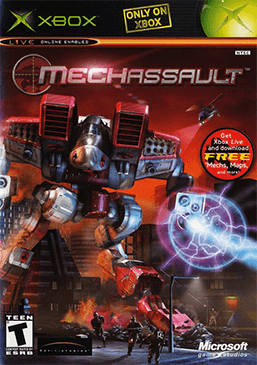


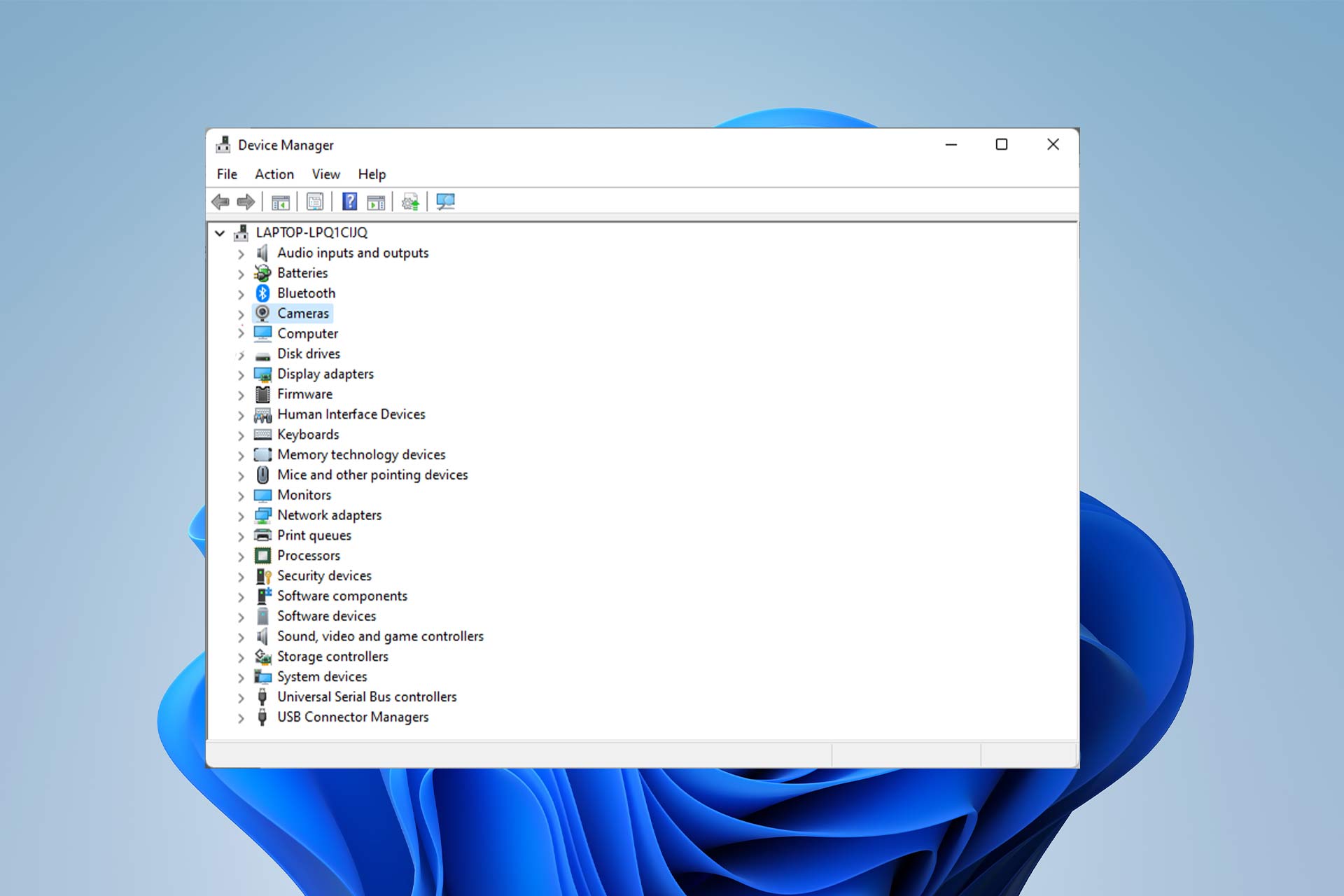


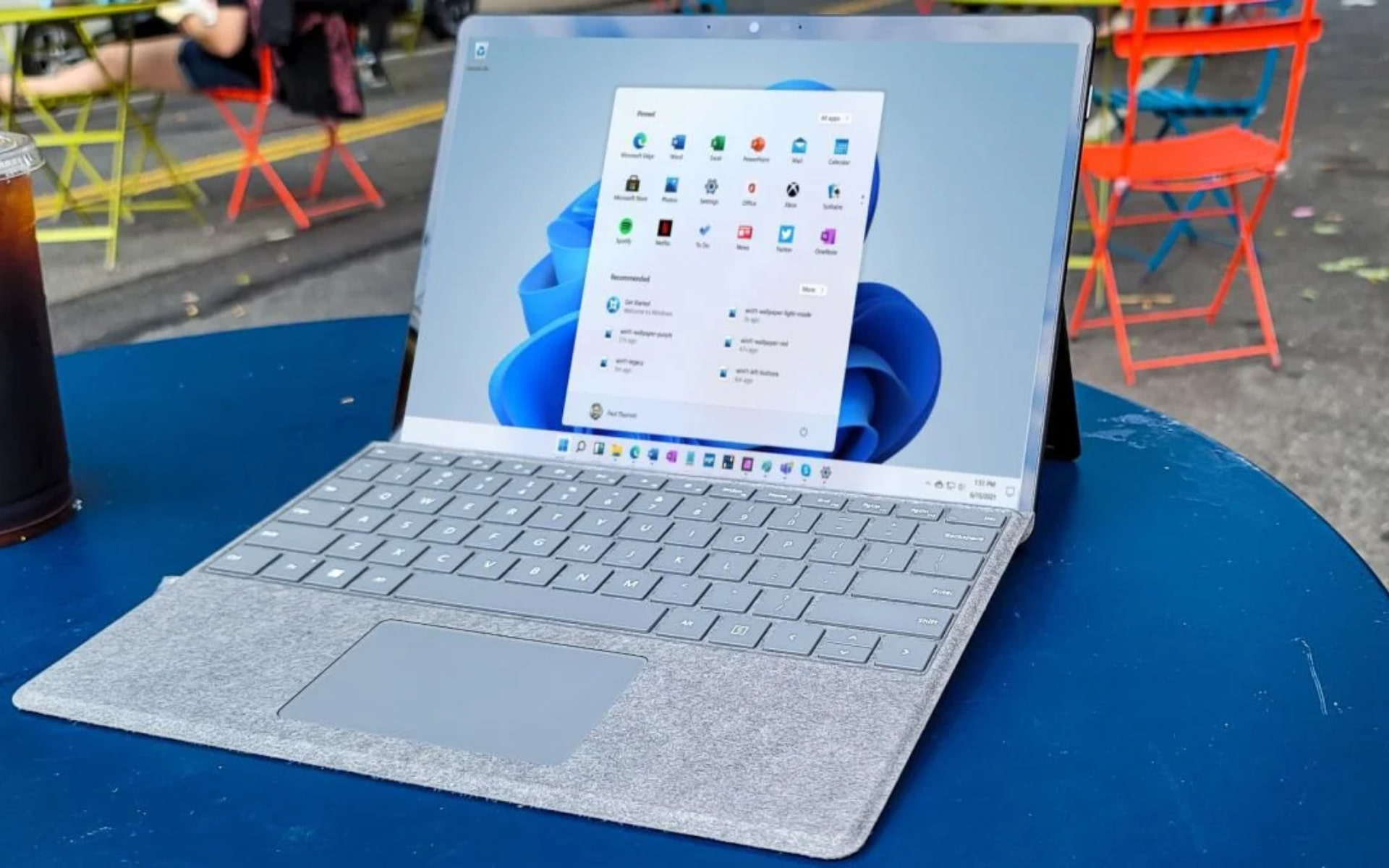
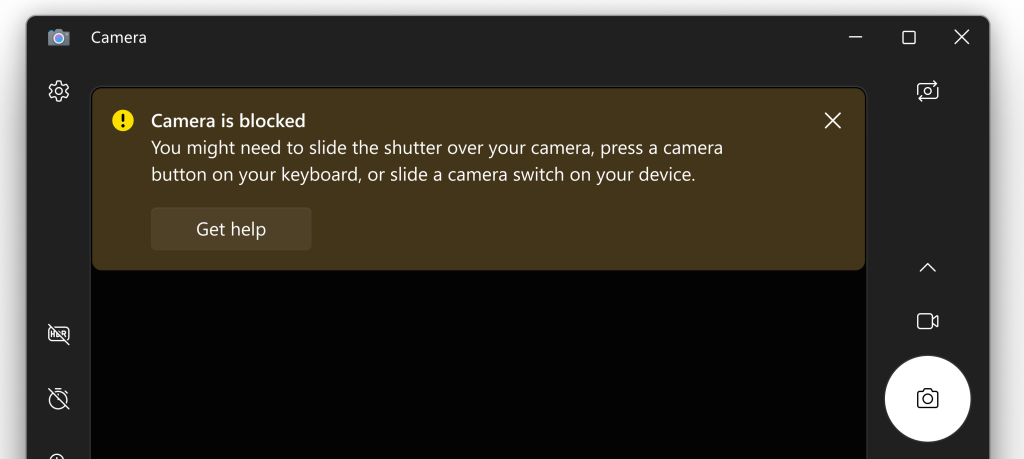
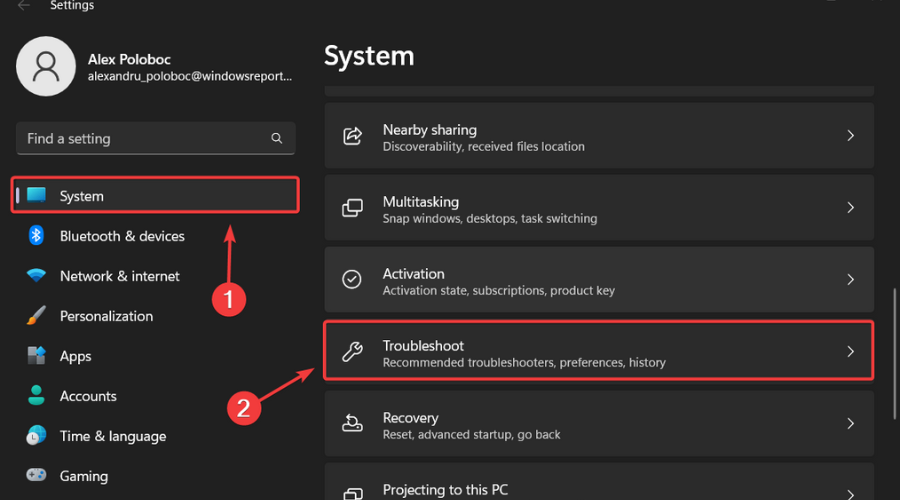
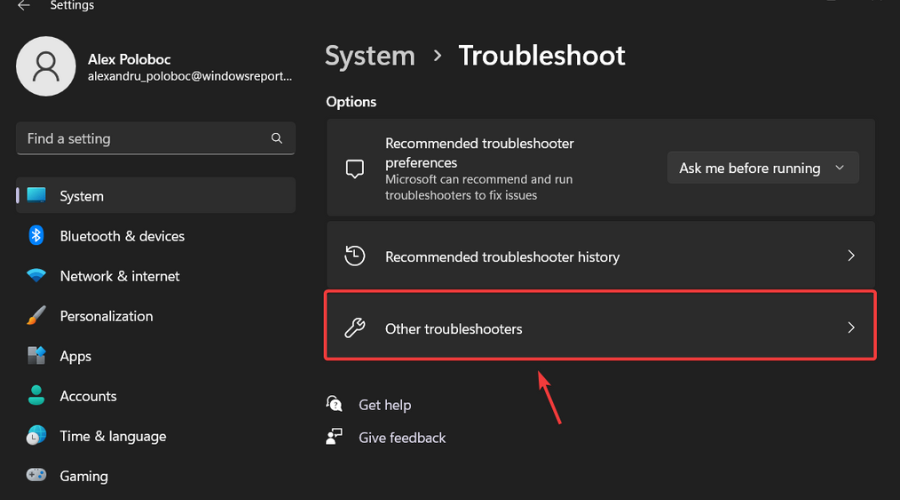
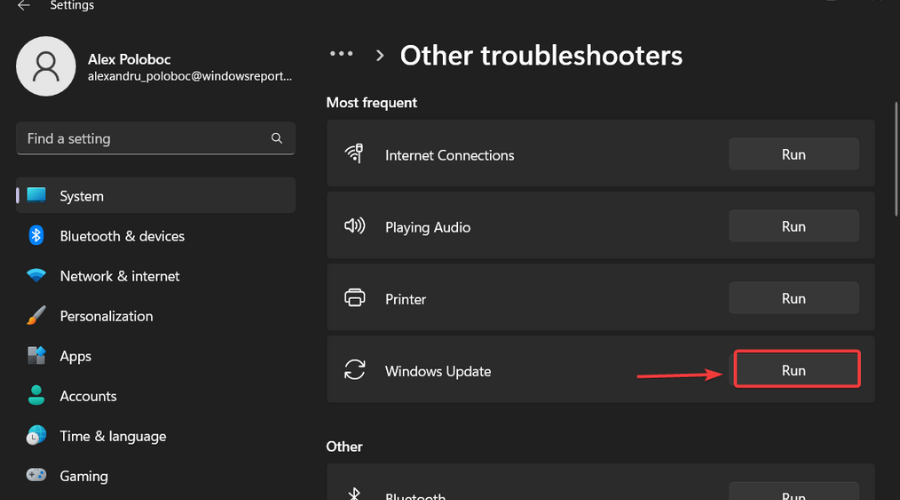
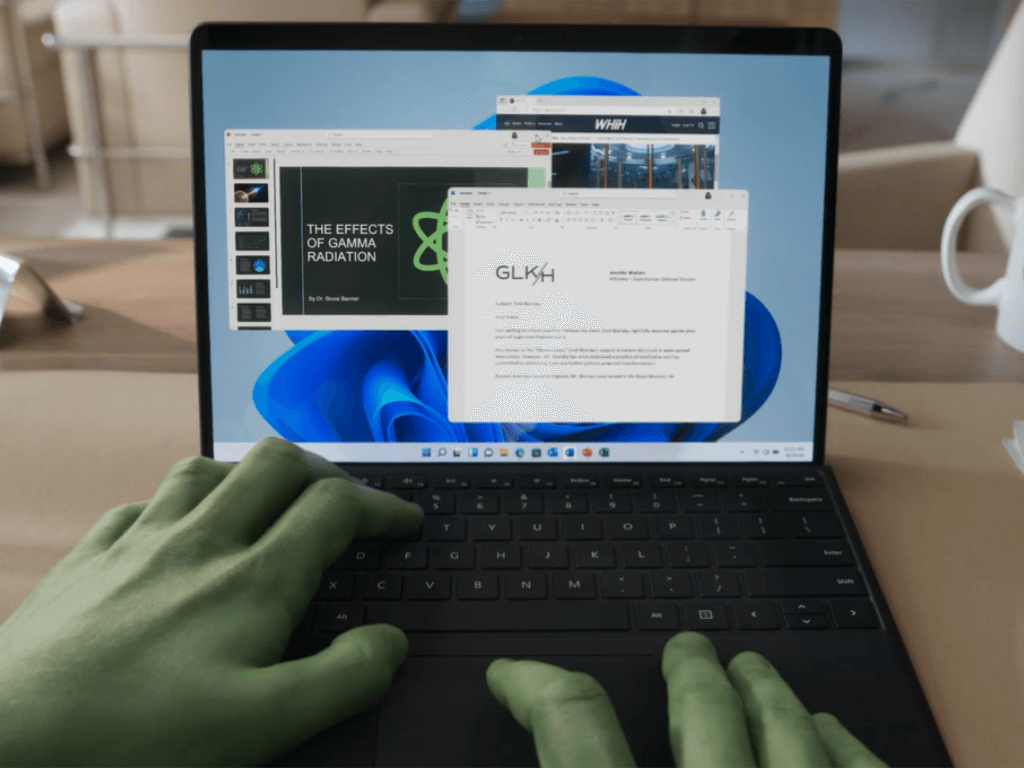

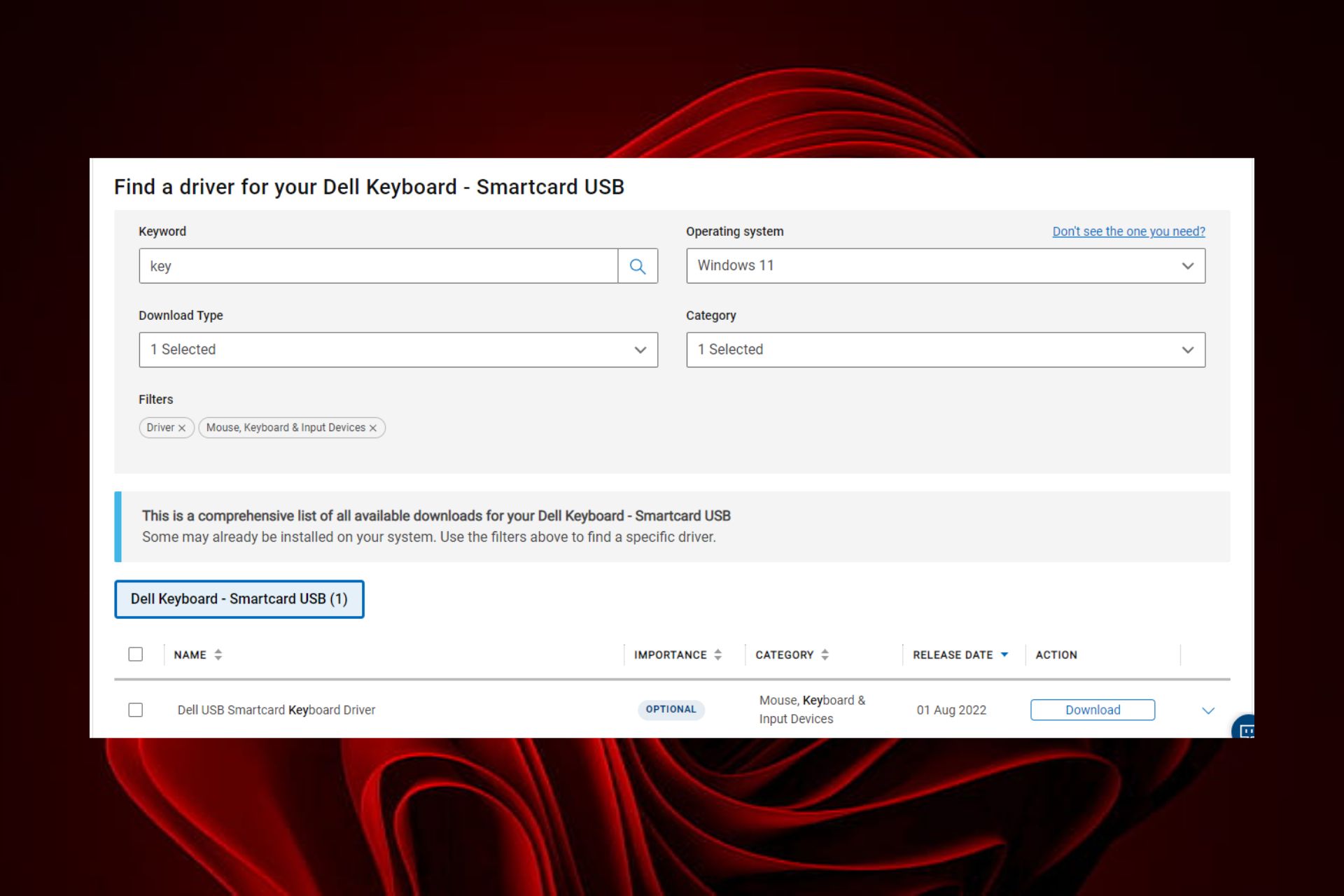

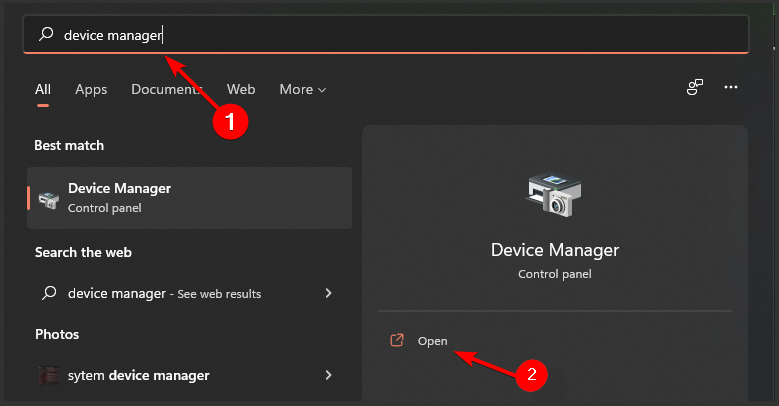


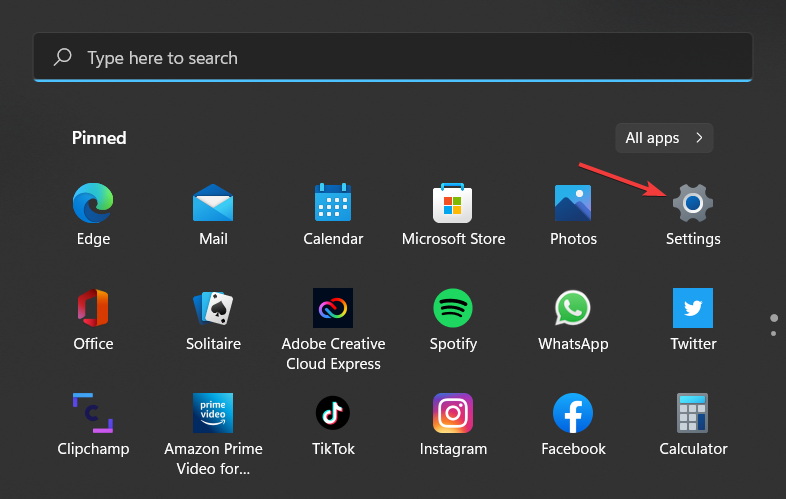




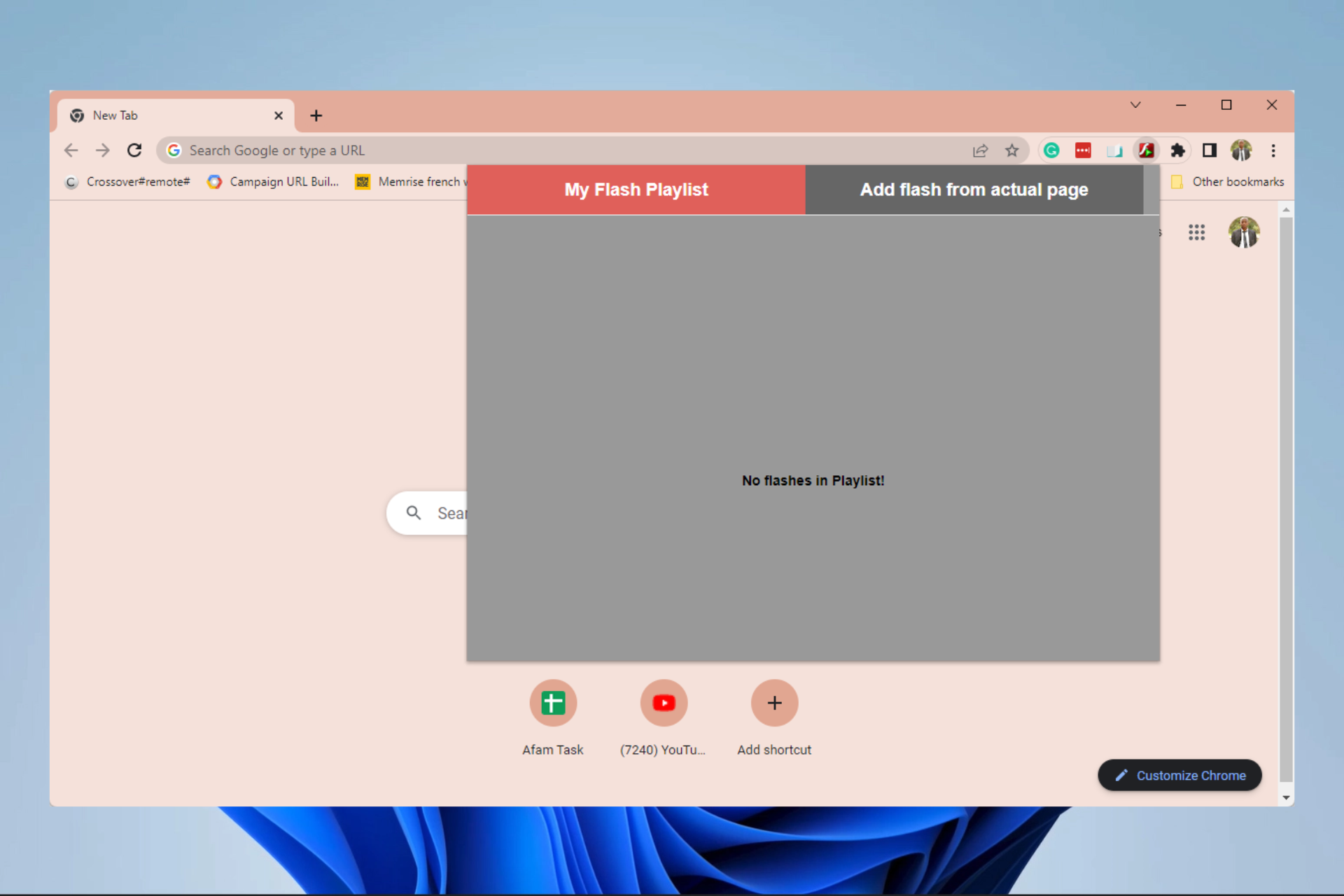




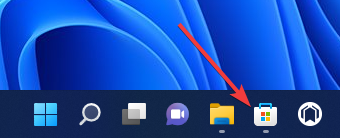

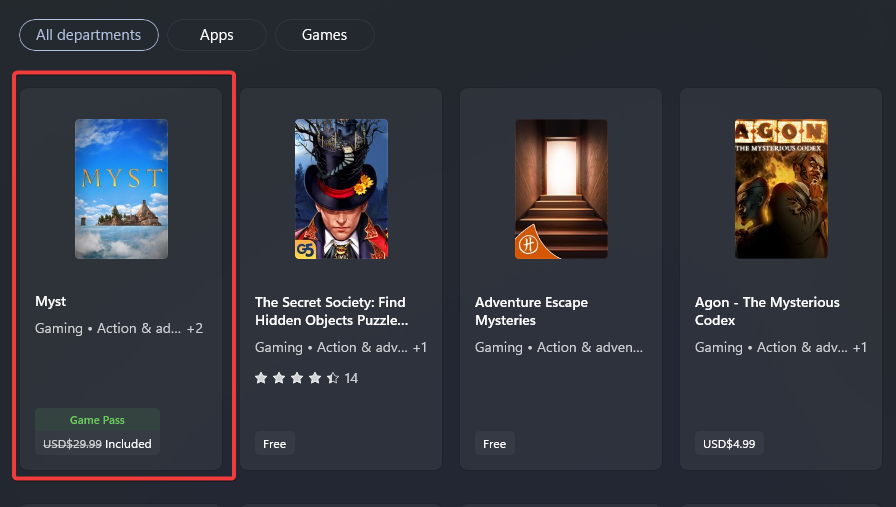
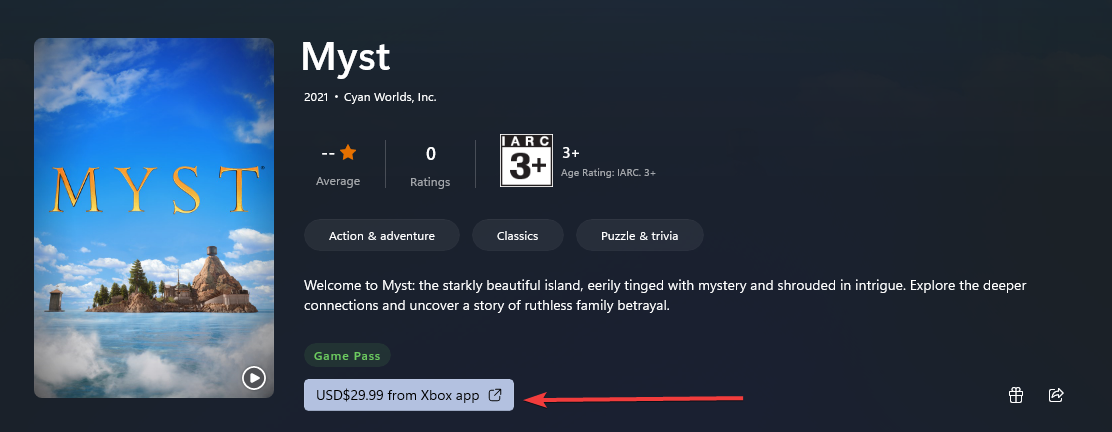
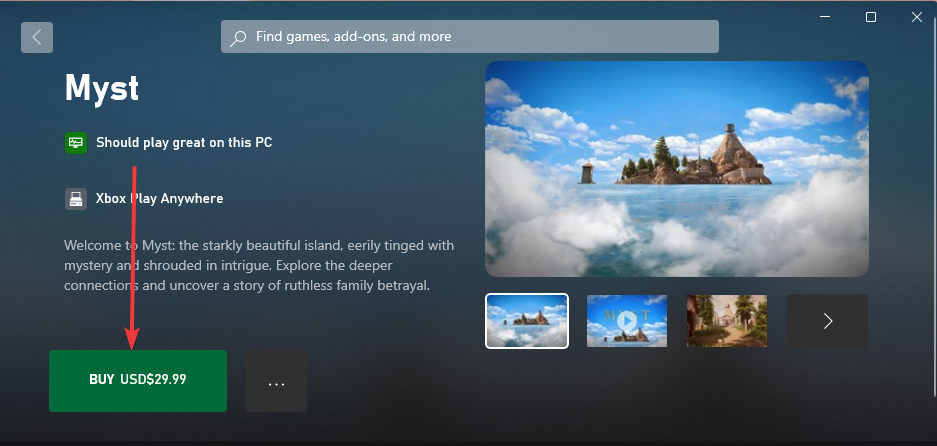


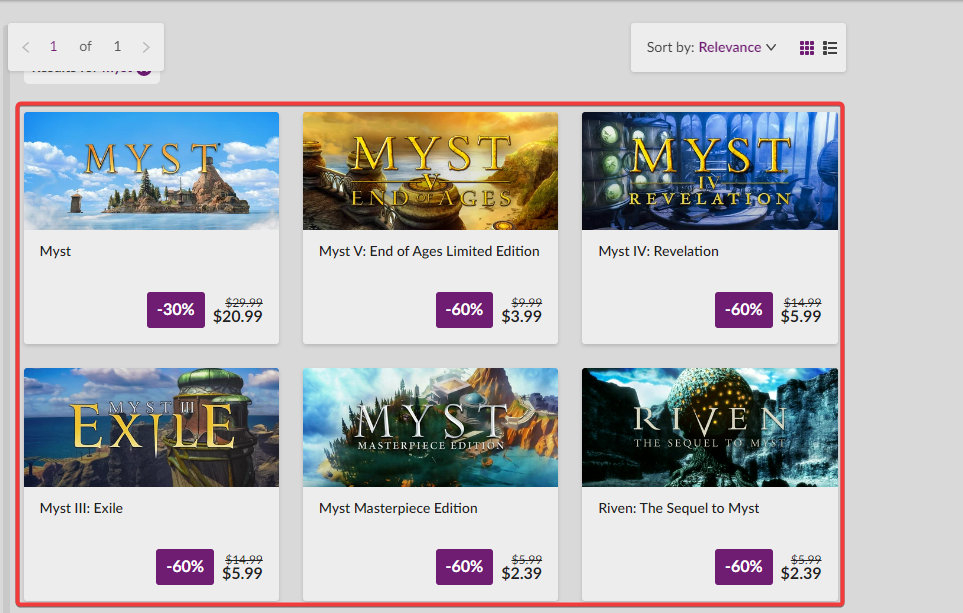


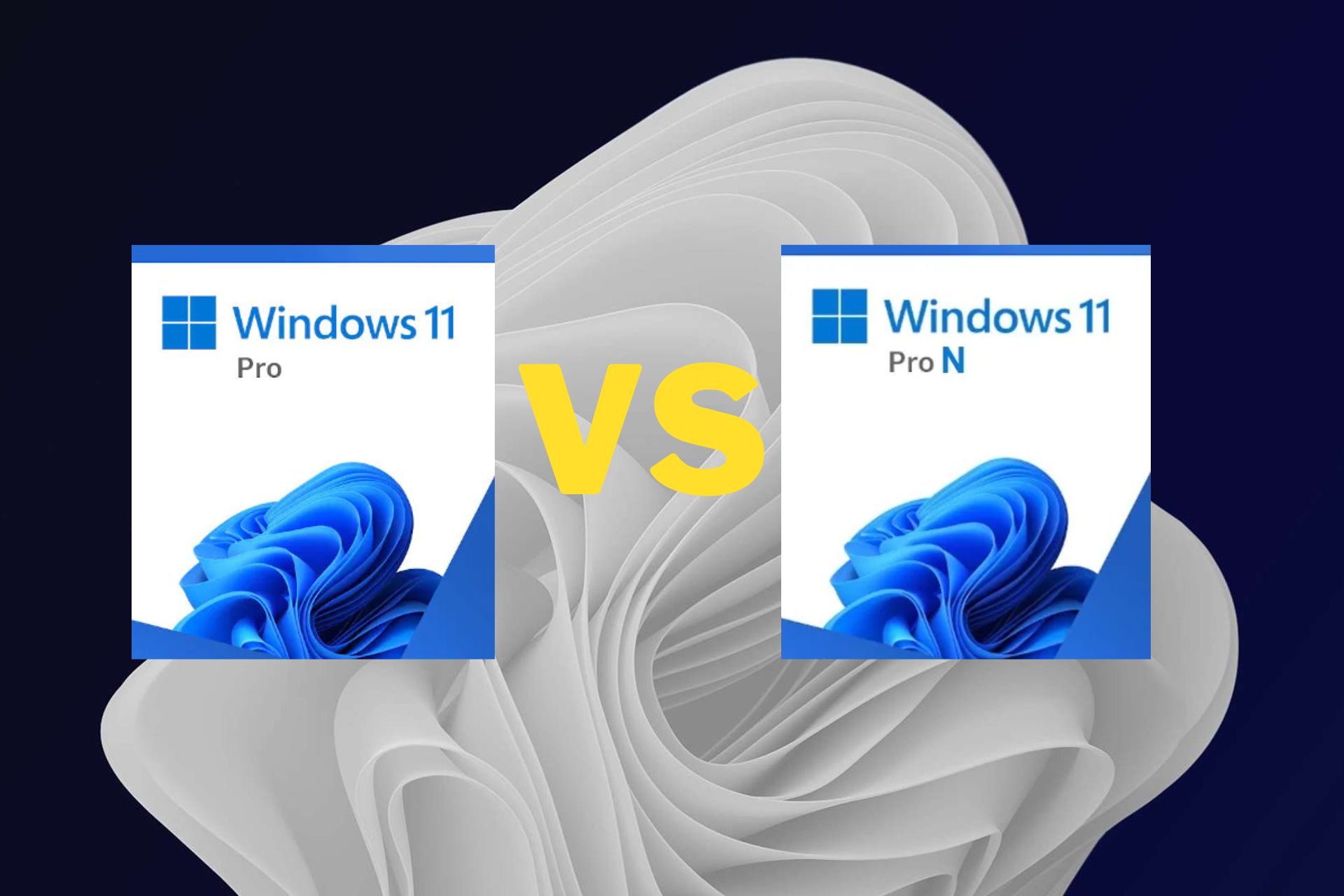


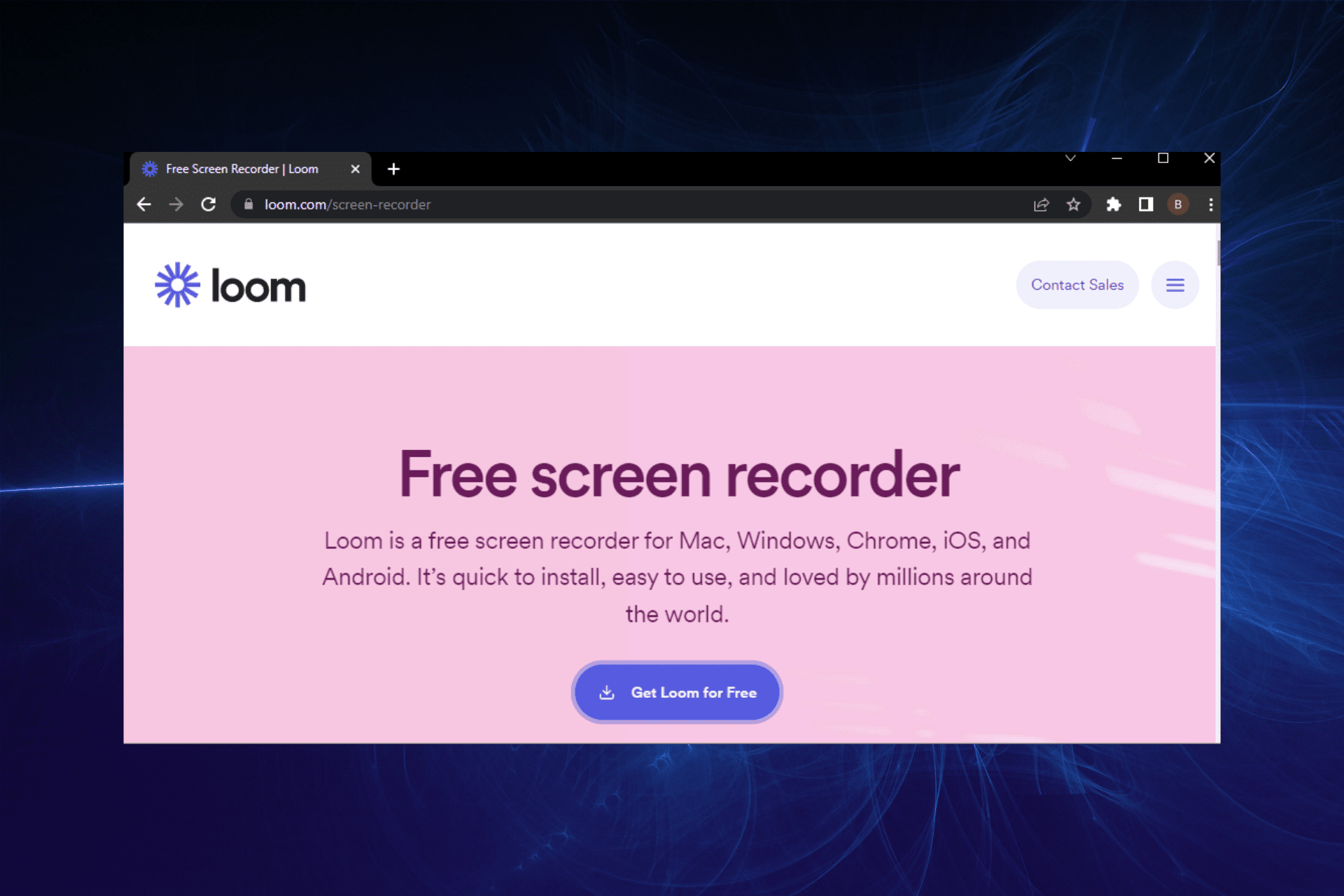
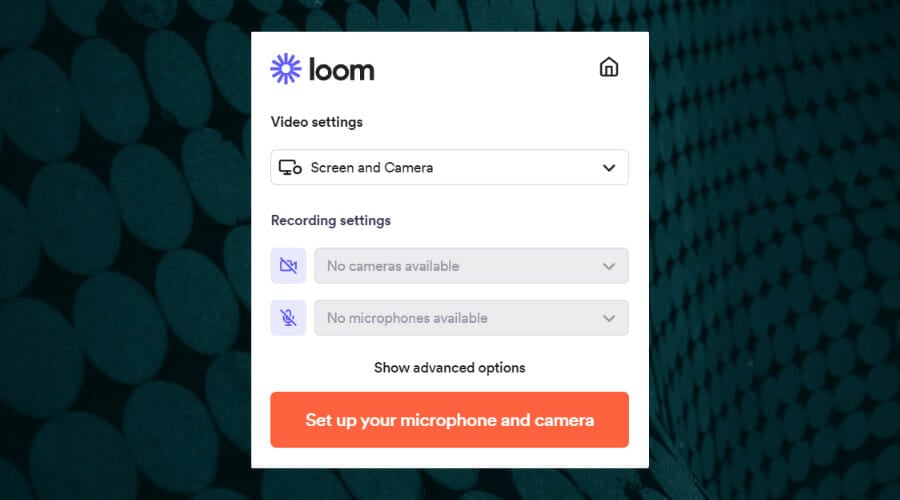

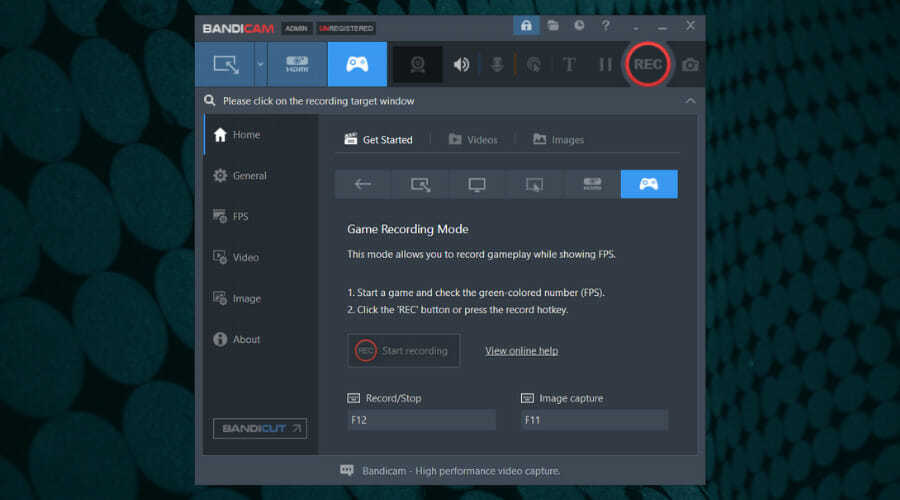

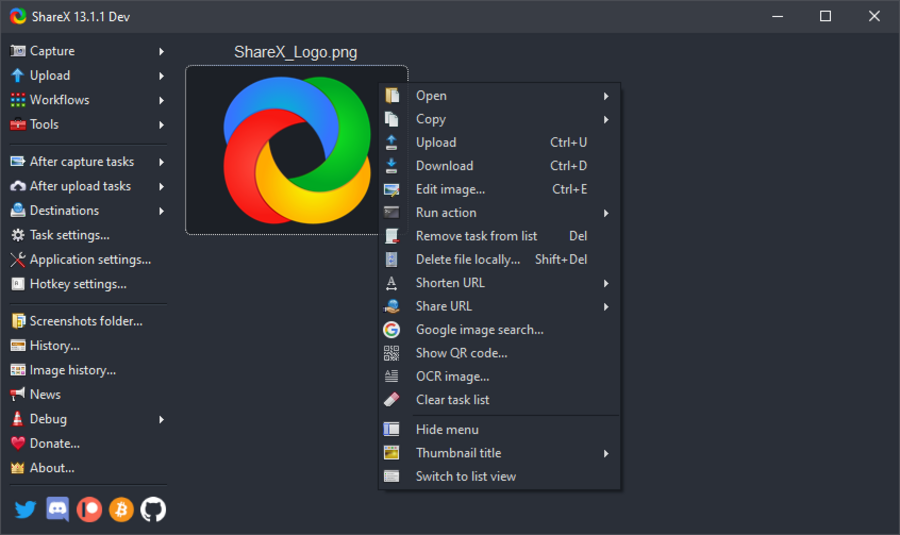
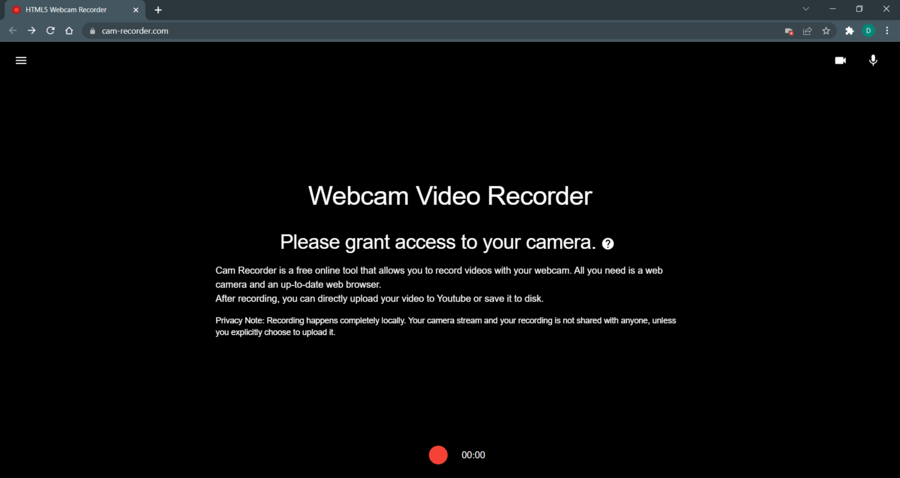
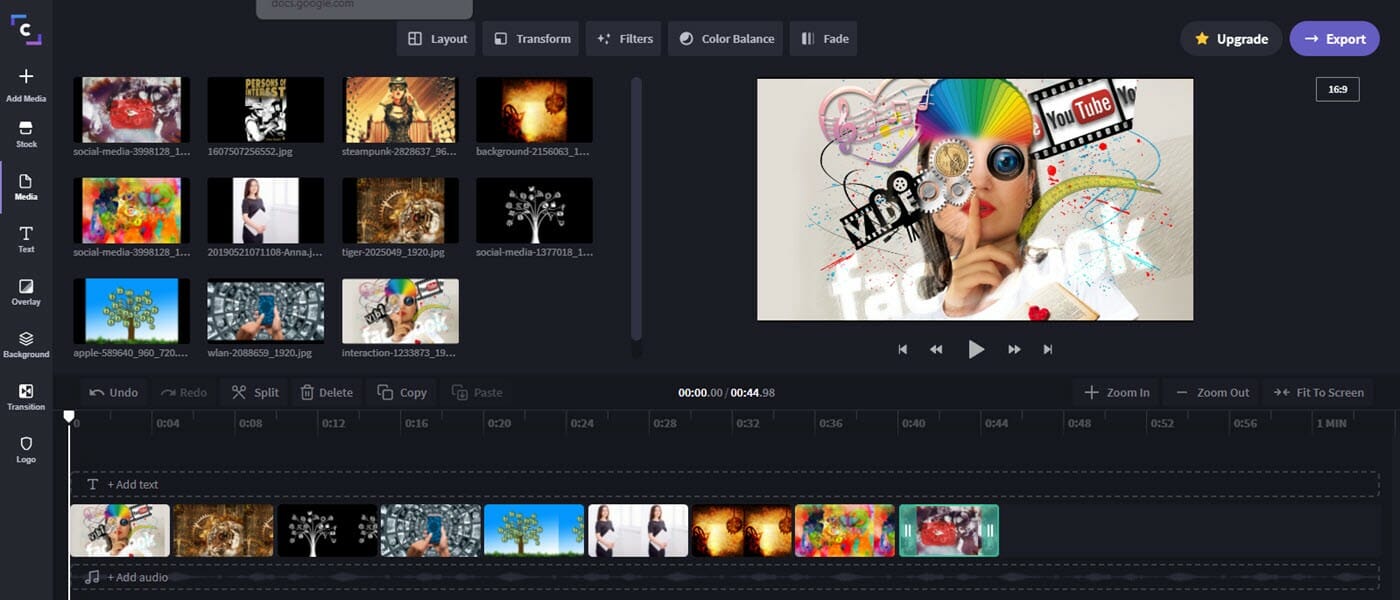
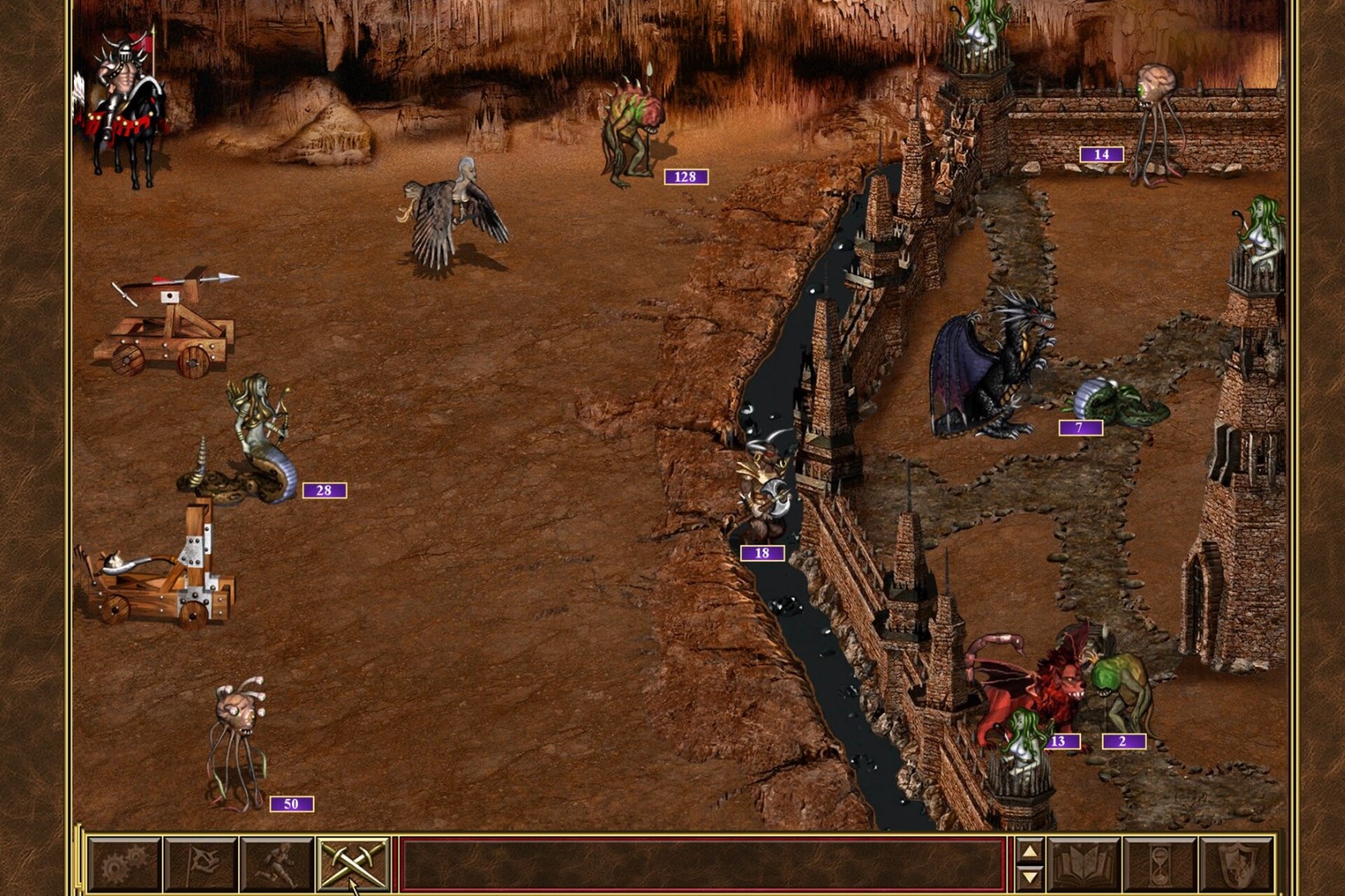


![Windows 11 Boot Loop When Updates are Underway [Fix]](https://windowsreport.com/wp-content/uploads/2021/12/Windows-11-stuck-in-a-reboot-loop.jpg)
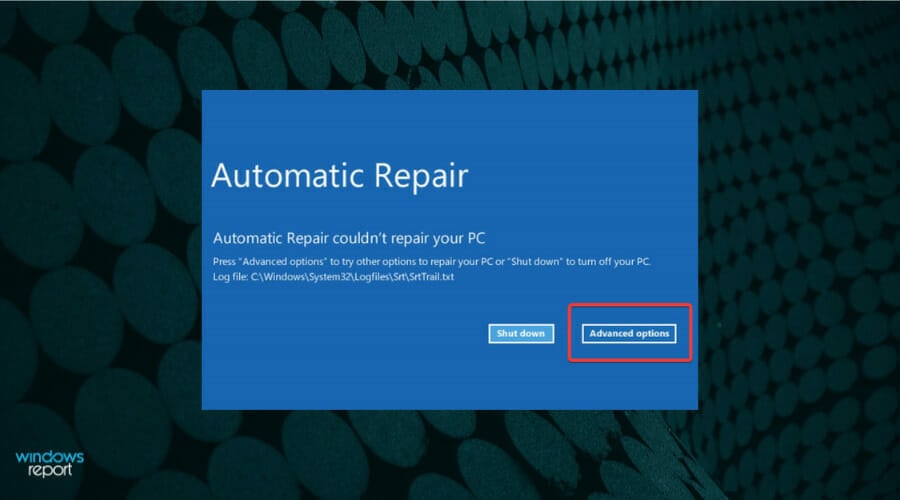
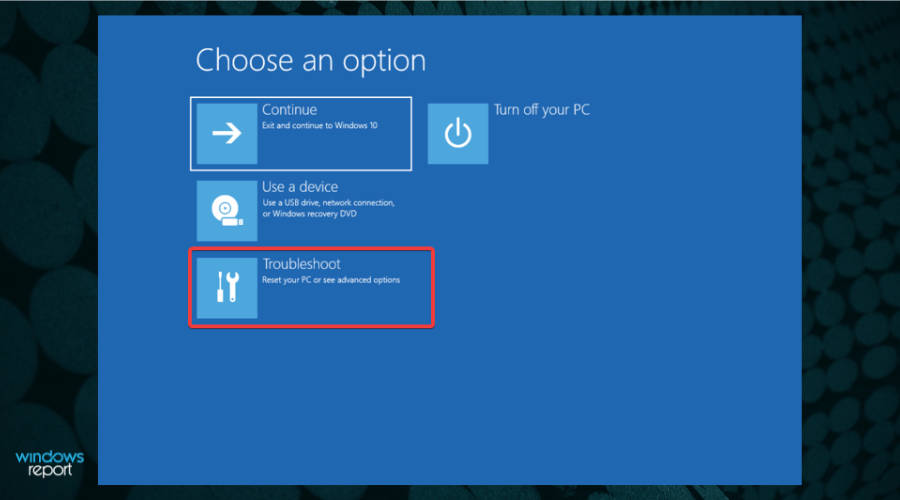
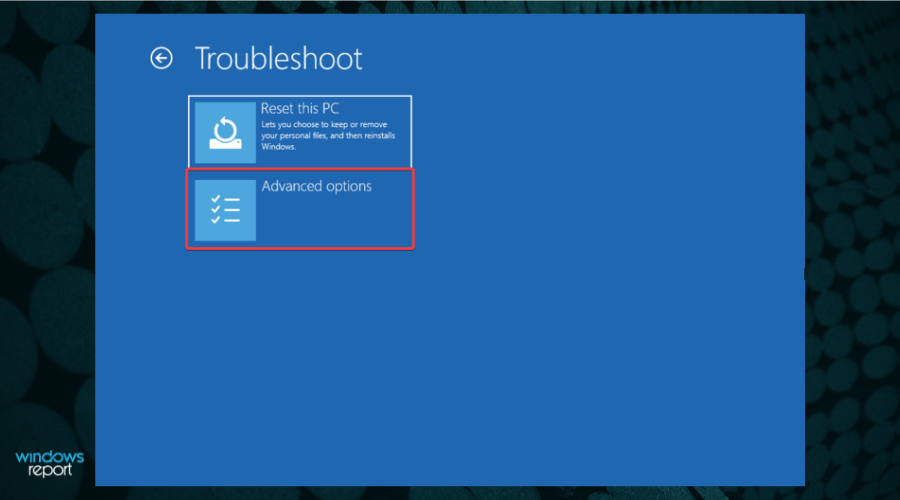
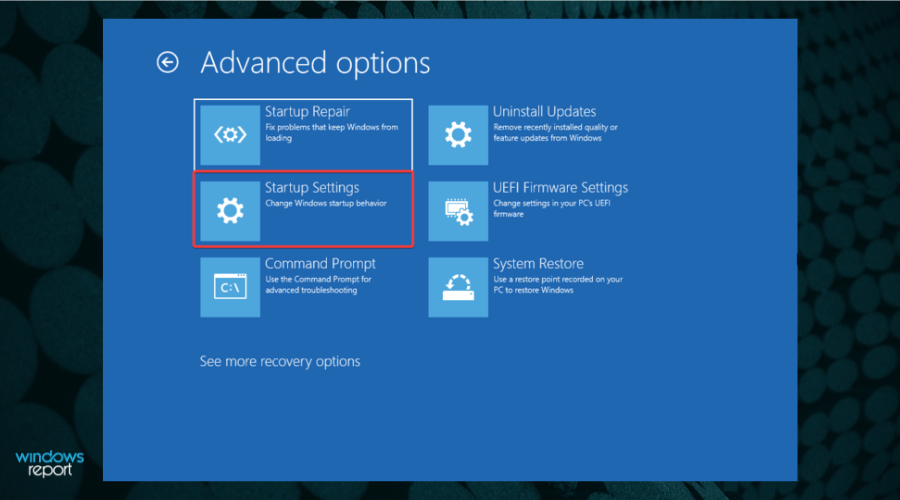
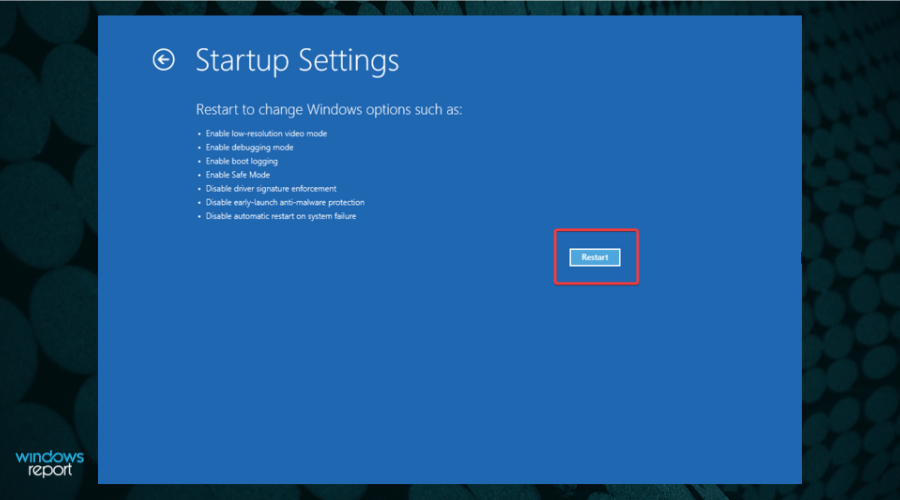


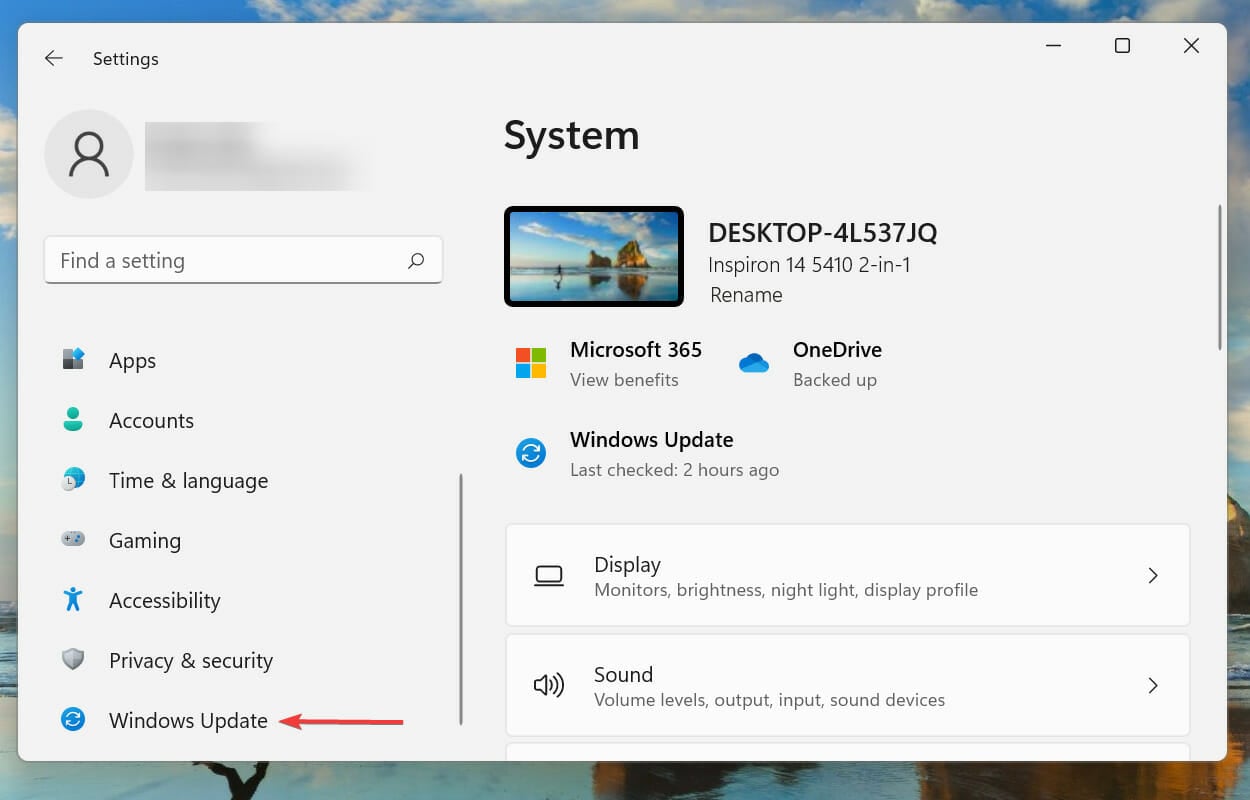
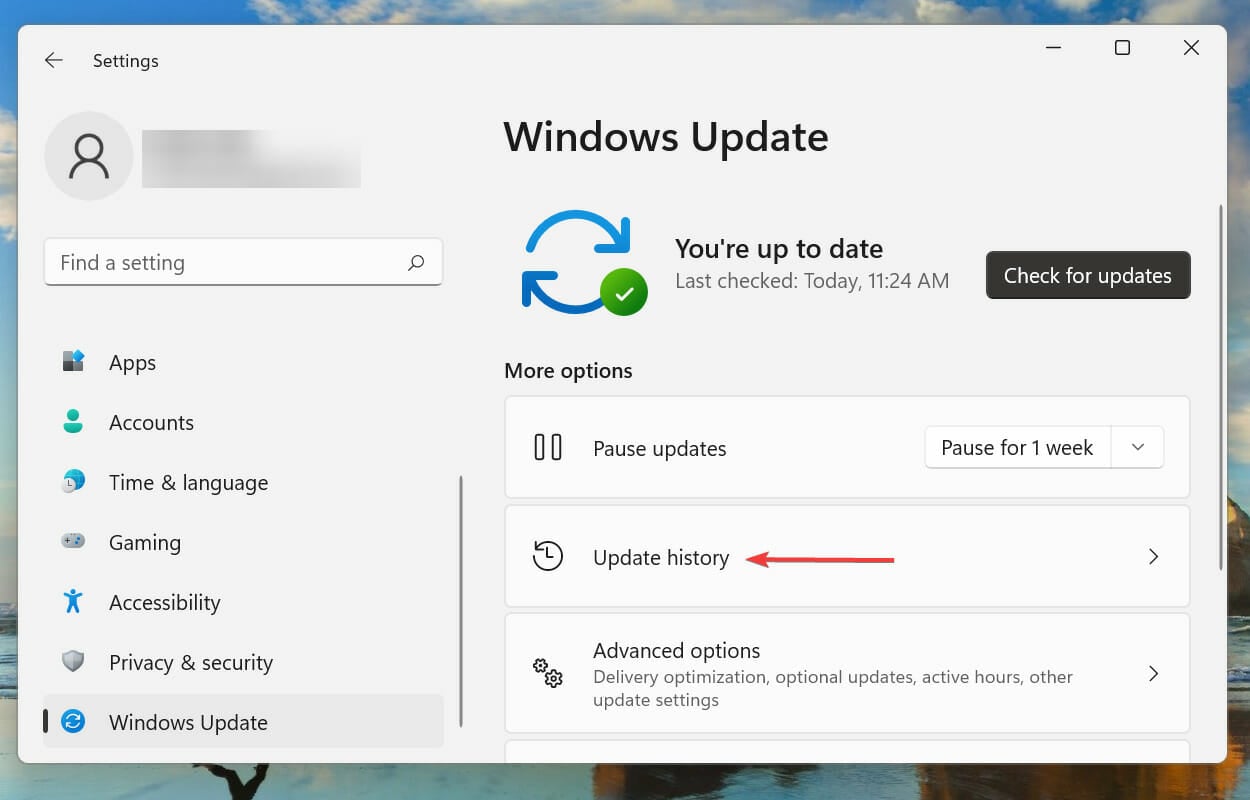
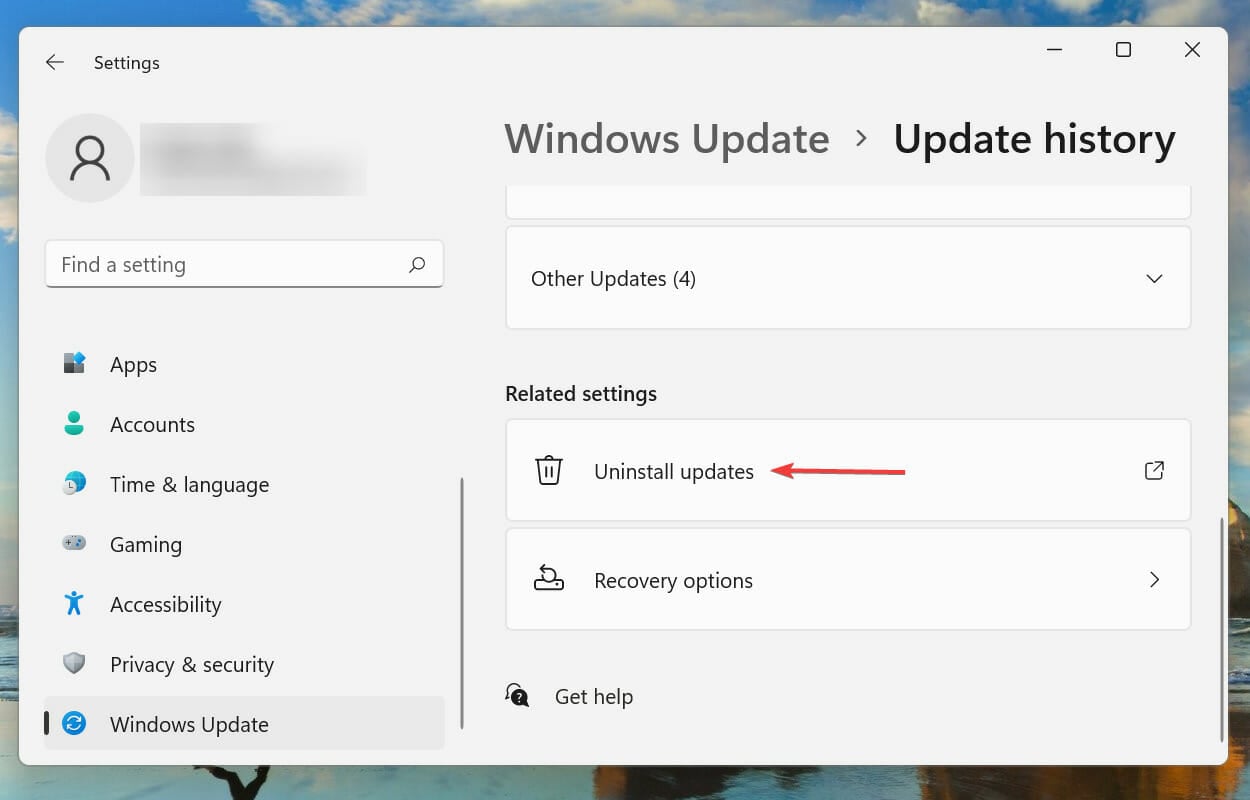
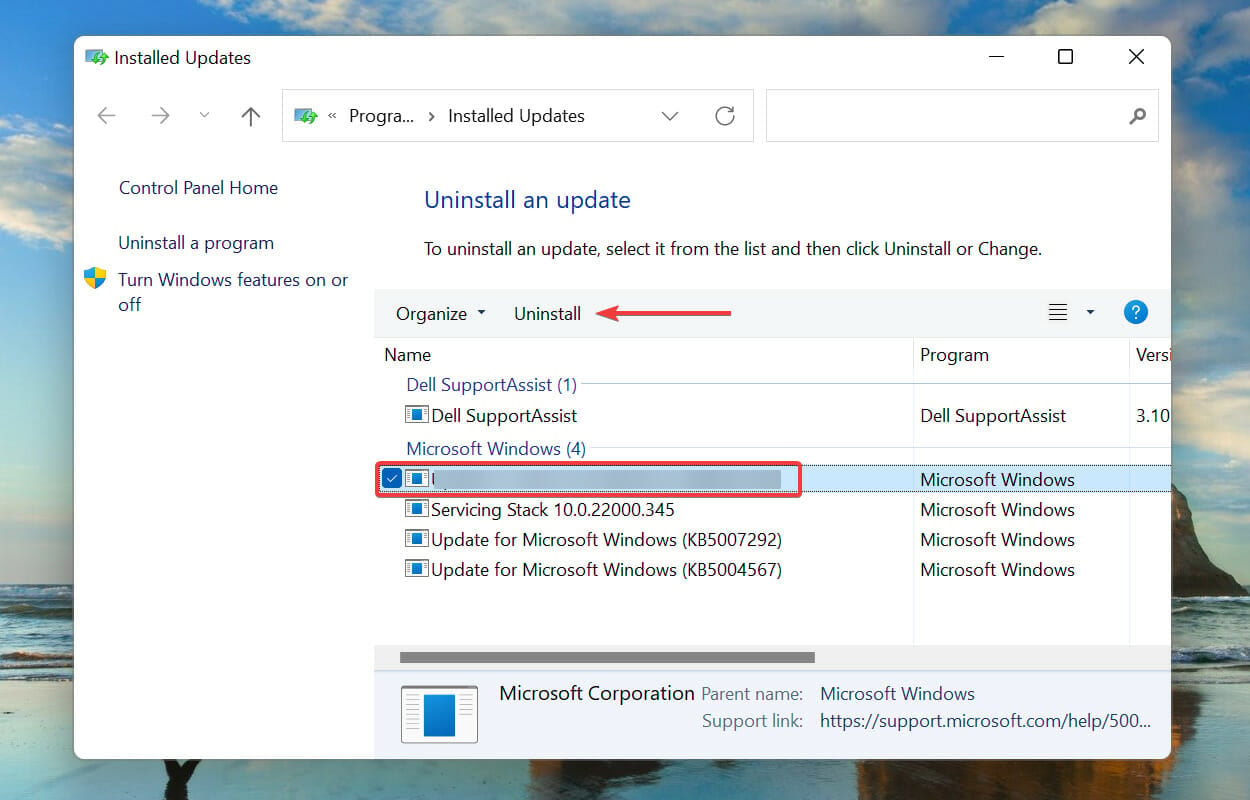
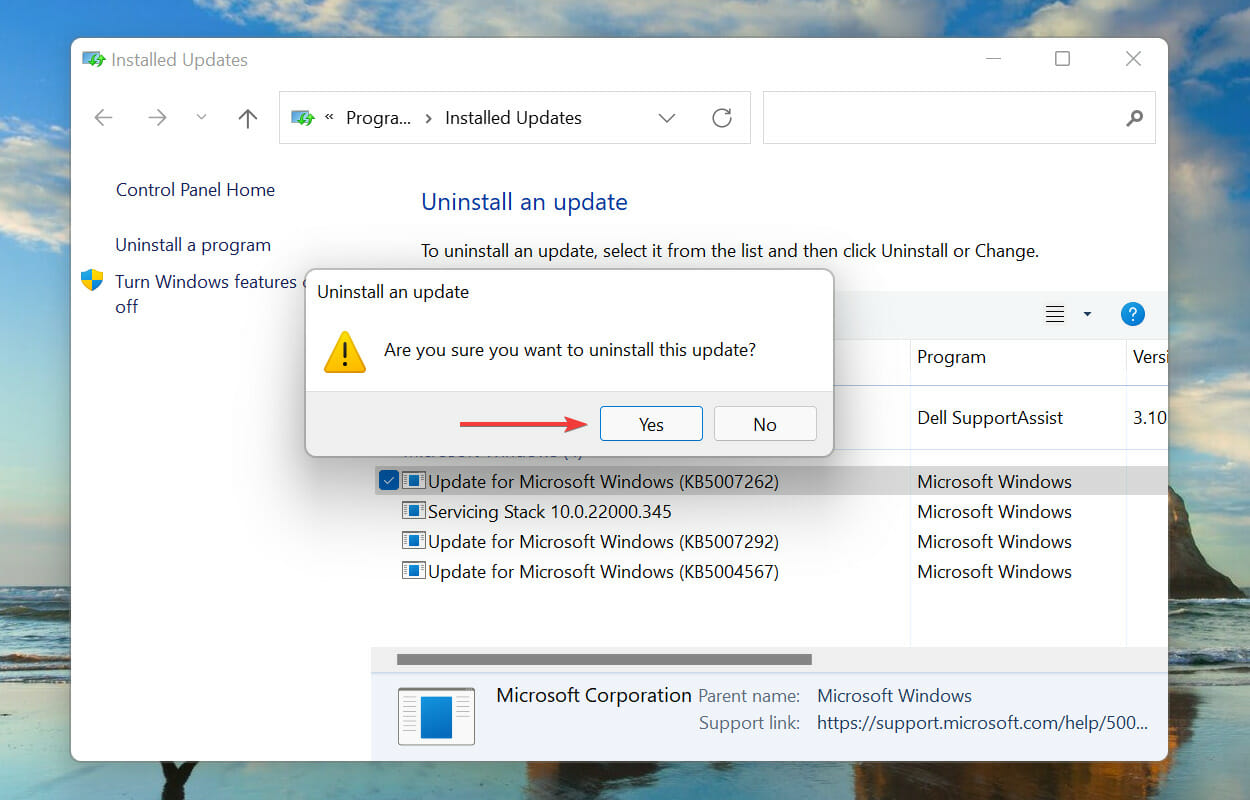
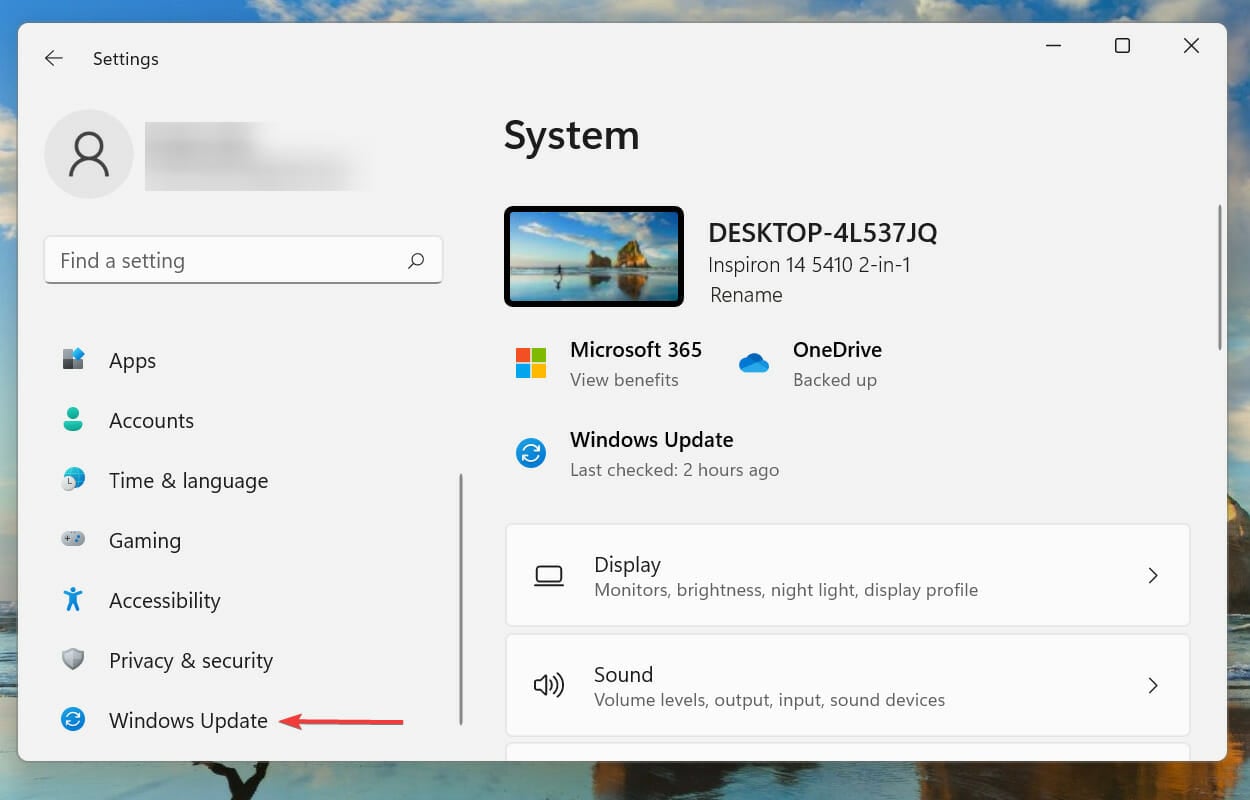
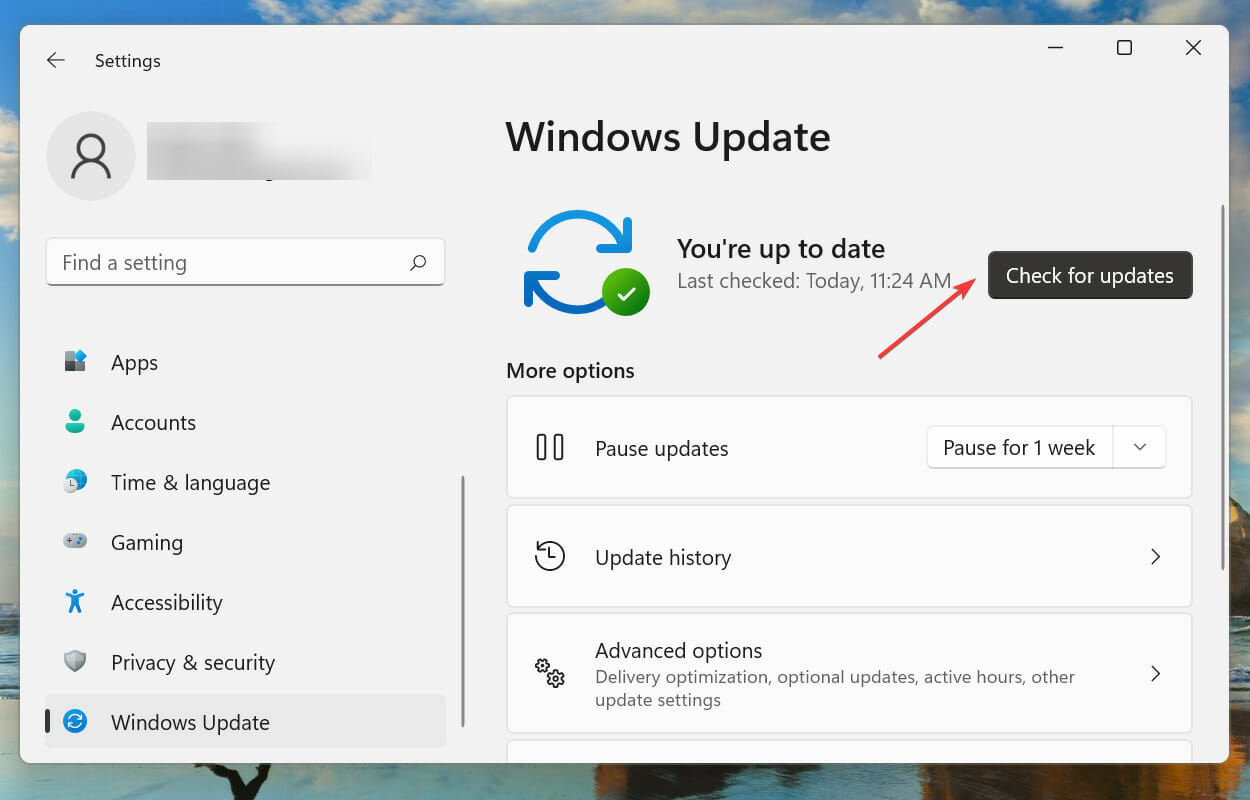


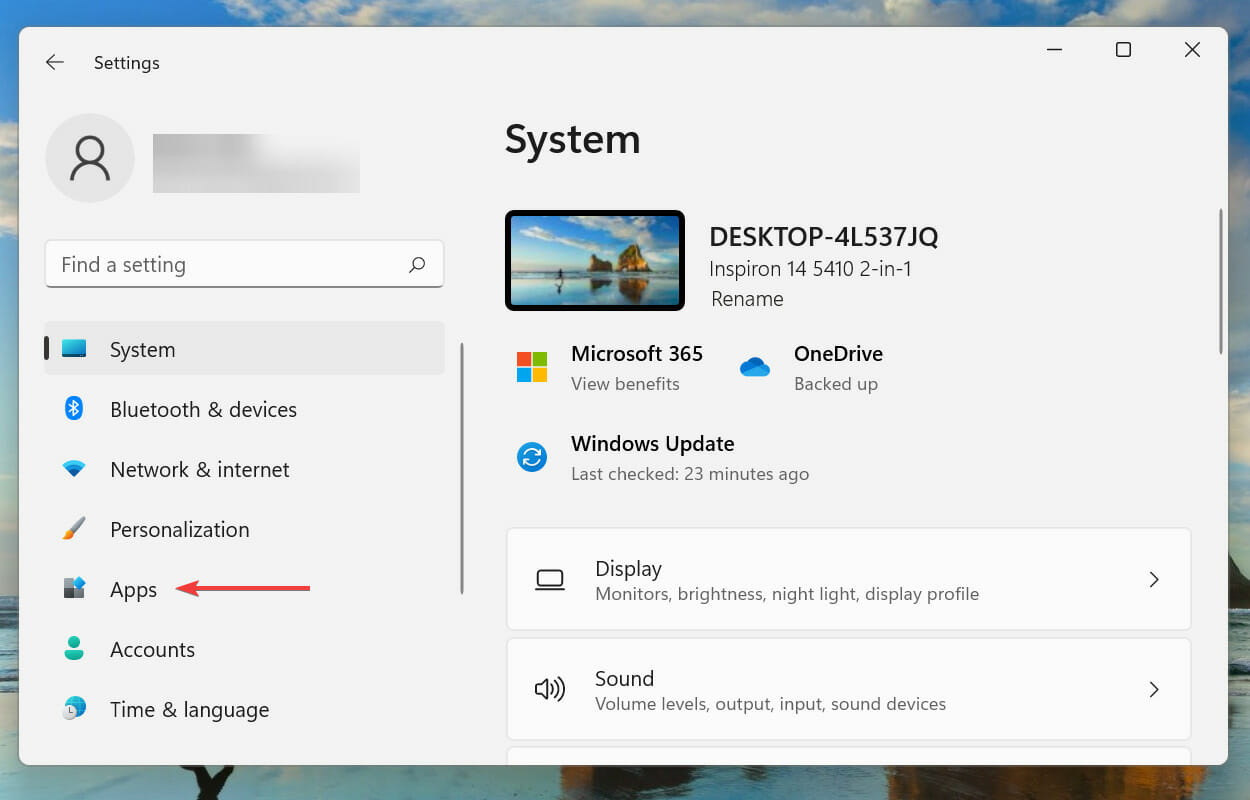
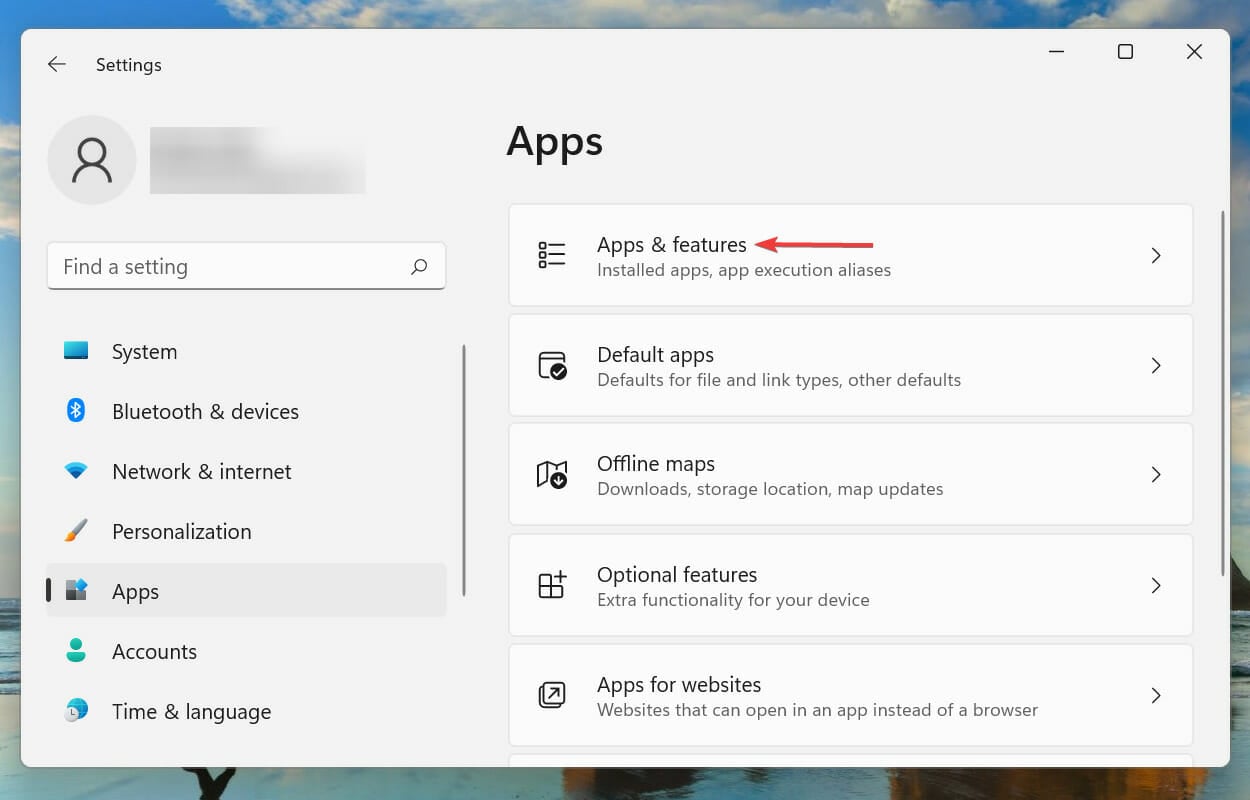
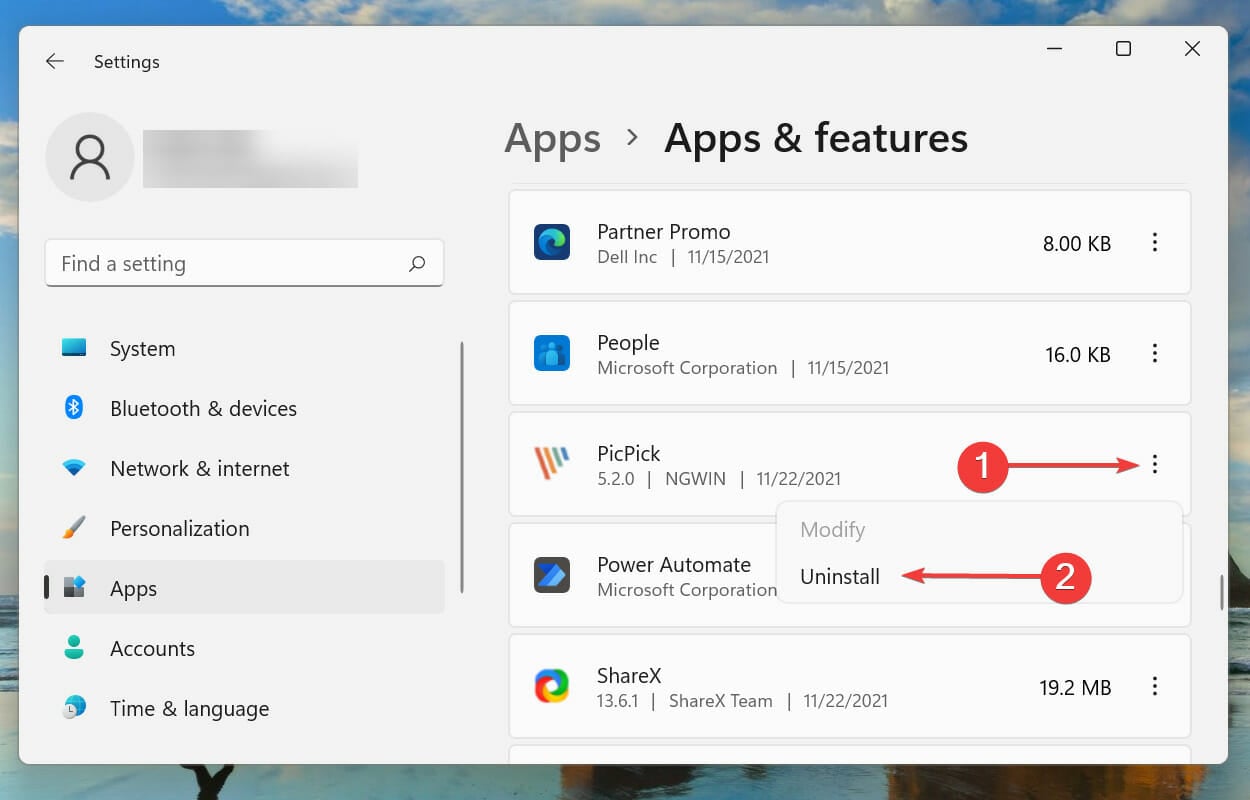
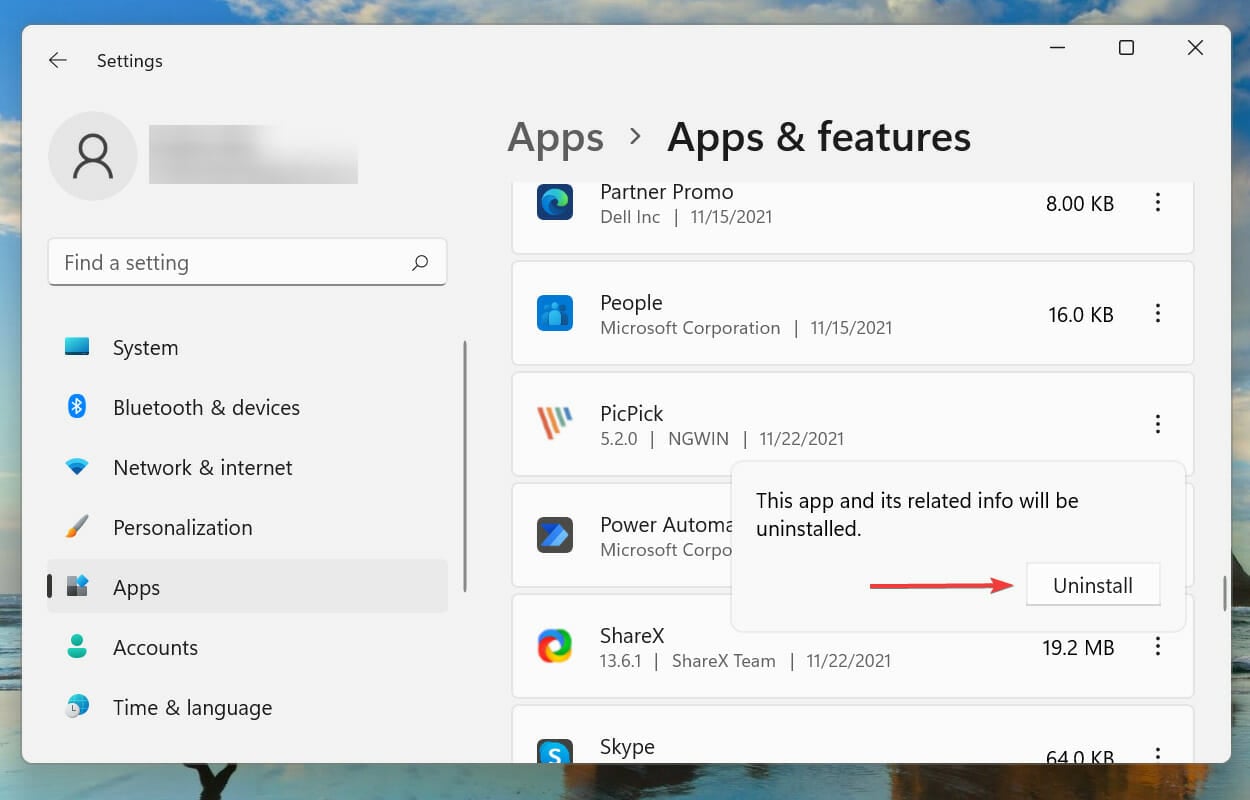
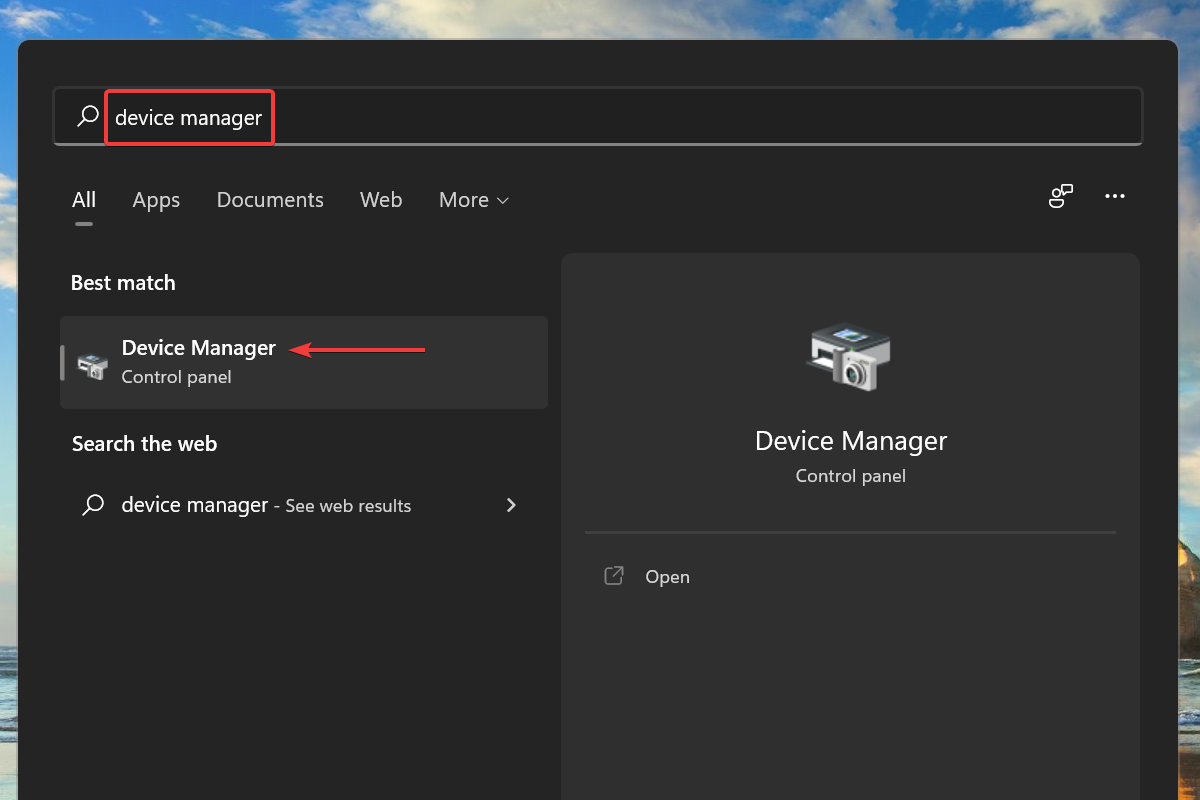


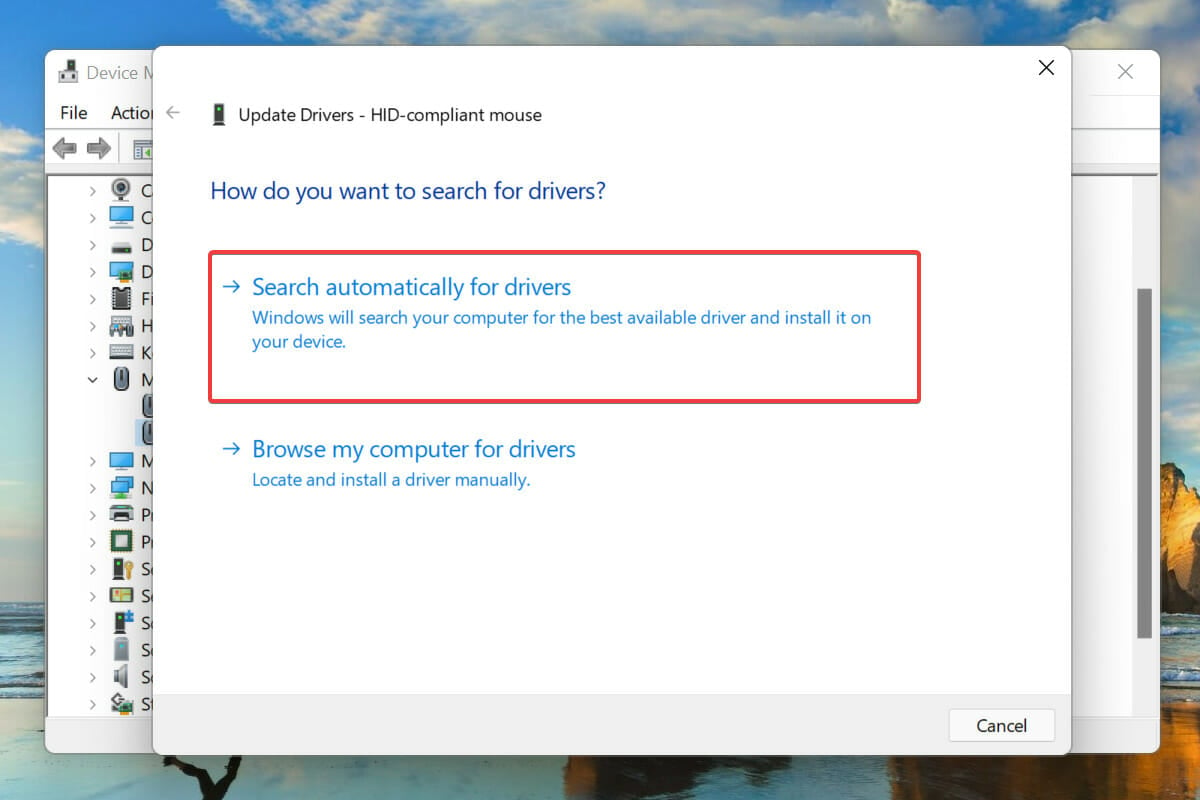
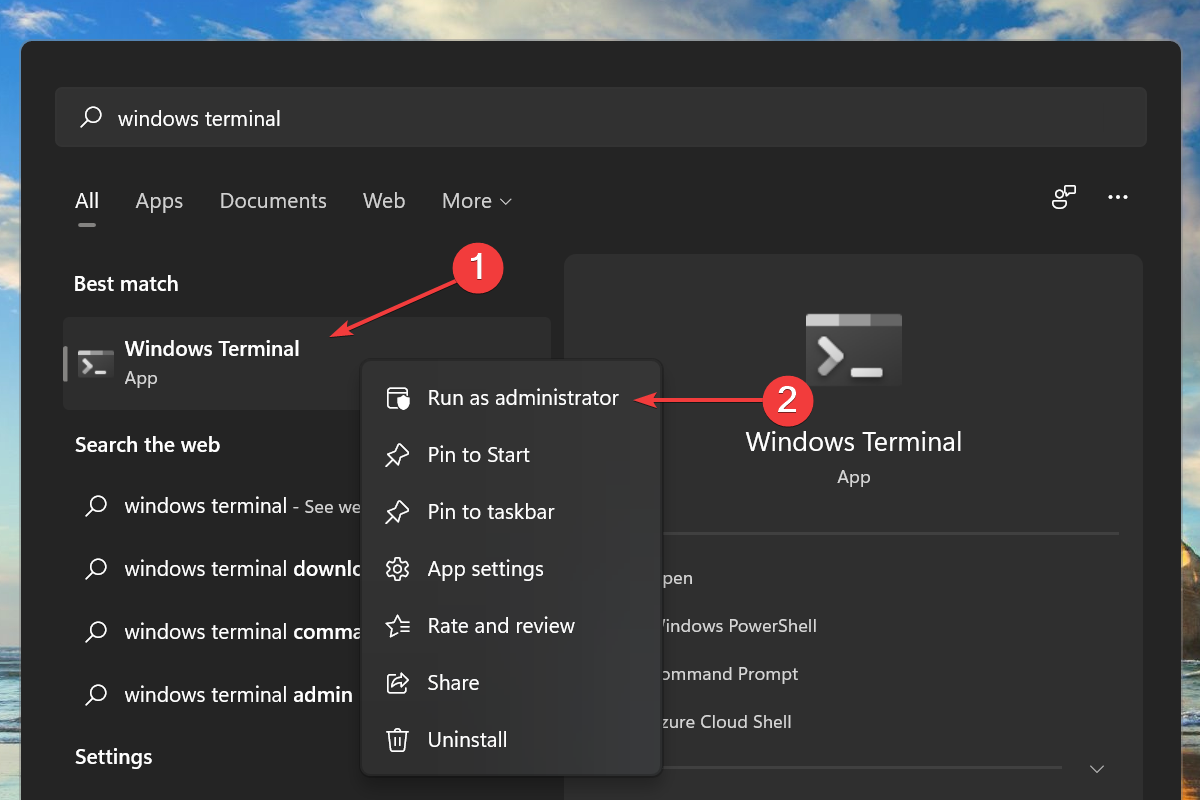
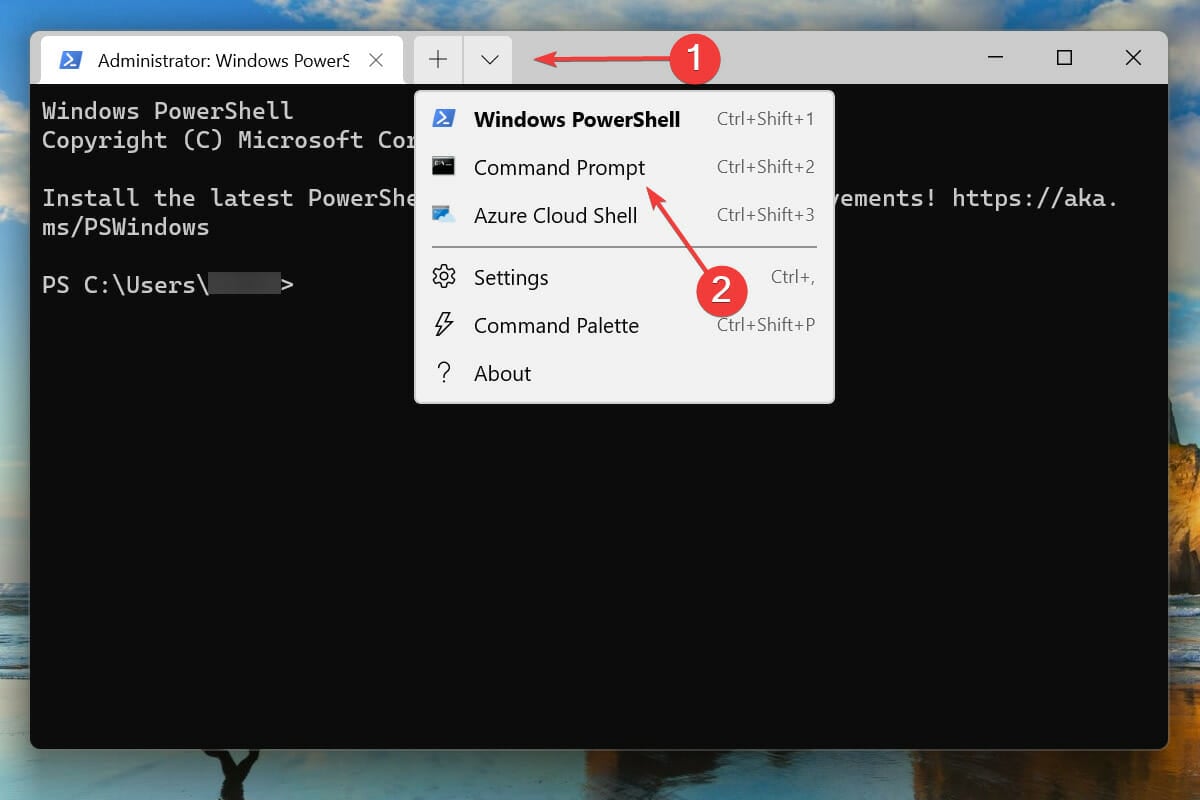
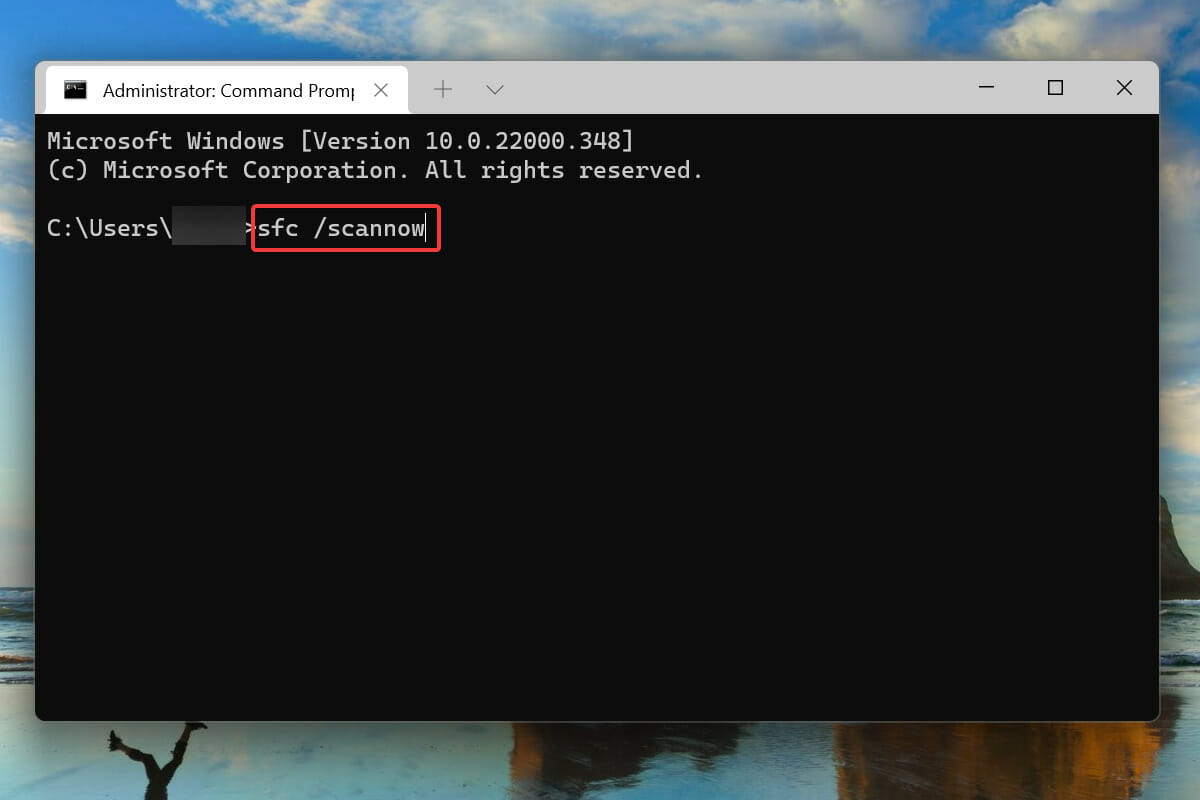
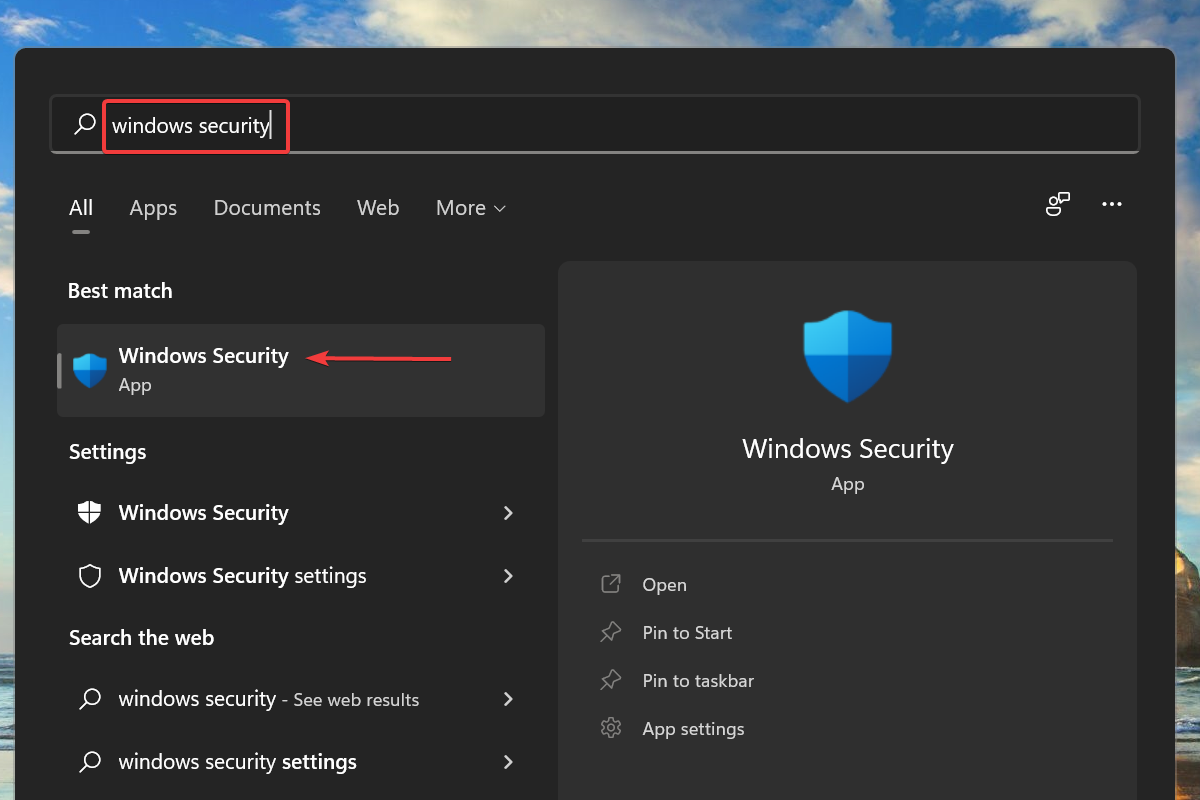
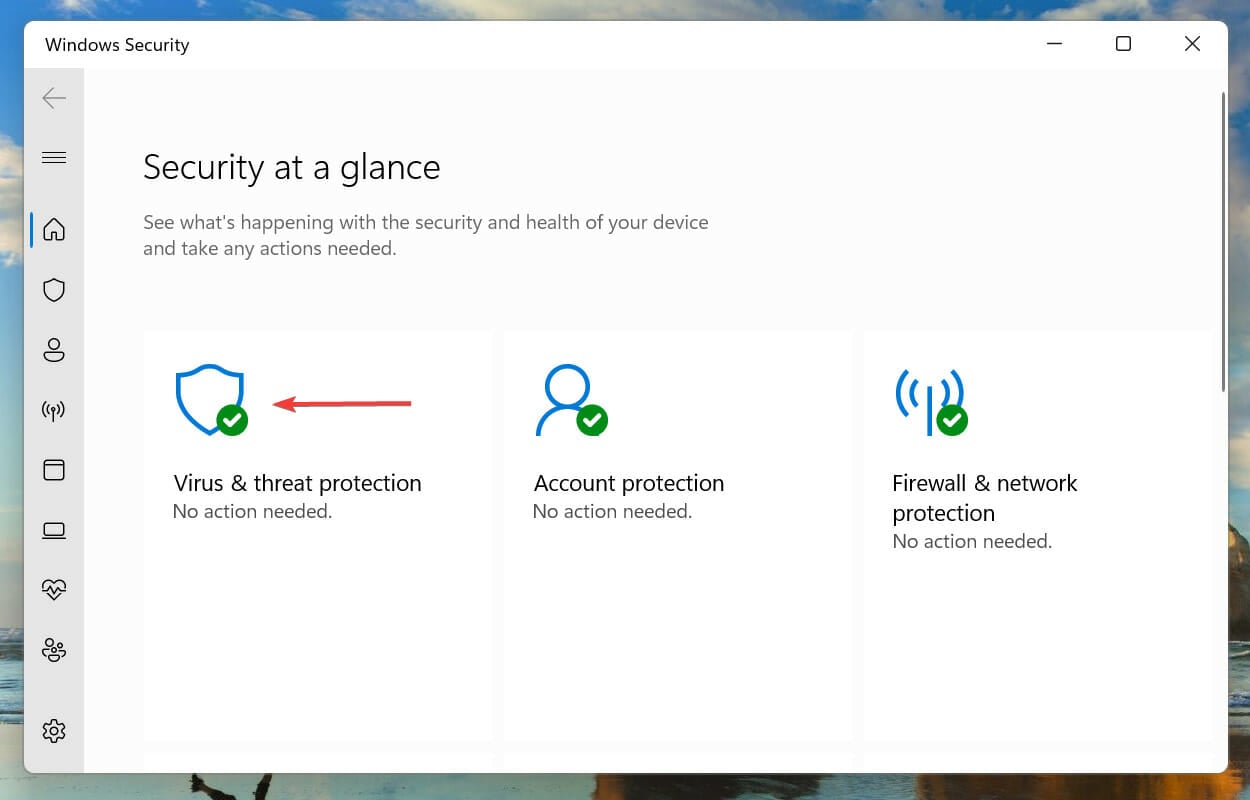
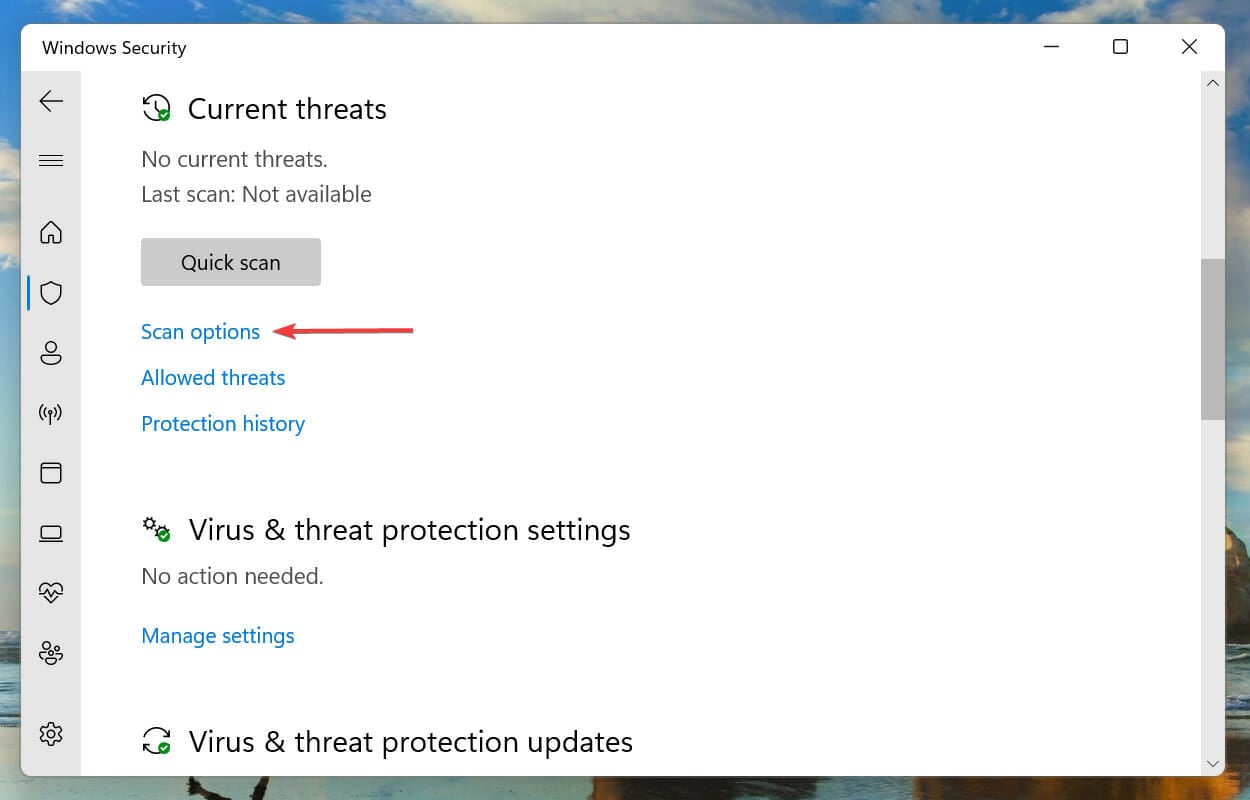
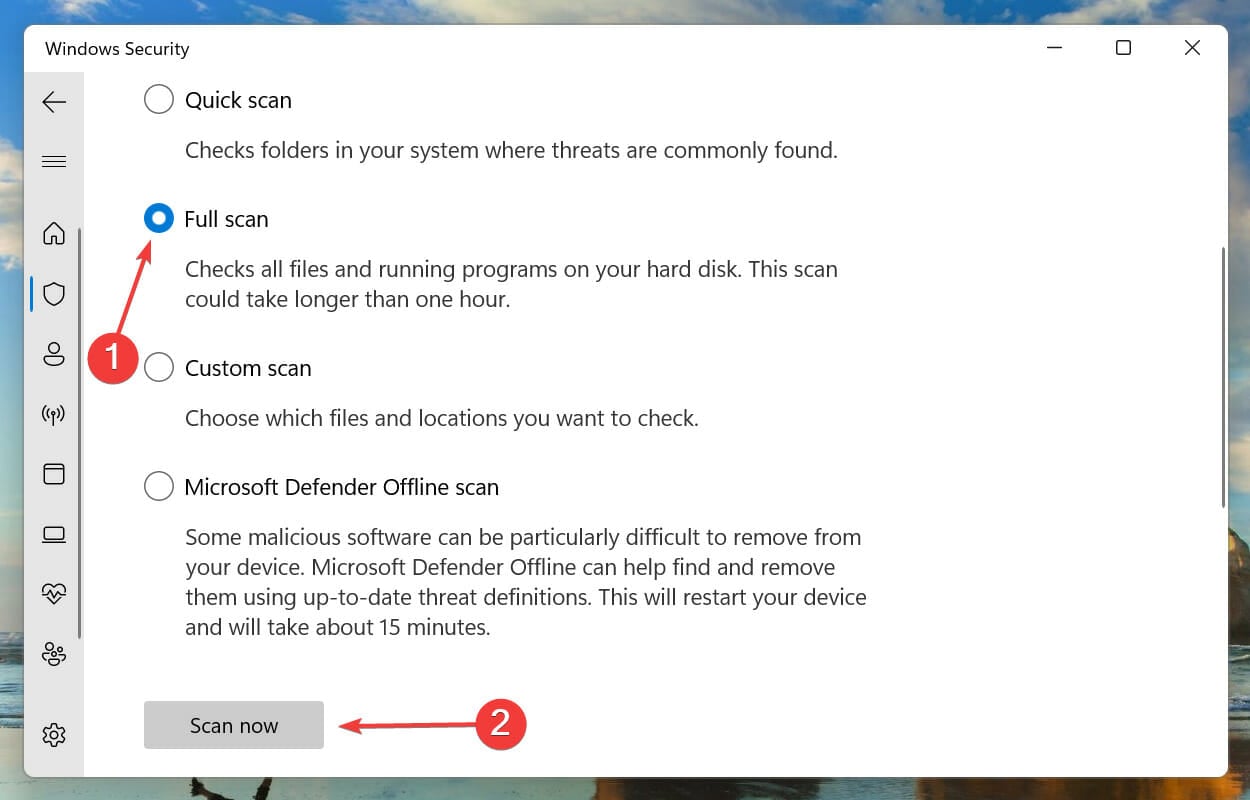




![Fix: VPN Not Working in UAE & Dubai [9 Foolproof Methods]](https://windowsreport.com/wp-content/uploads/2019/03/VPN-not-working-Dubai-UAE.jpg)





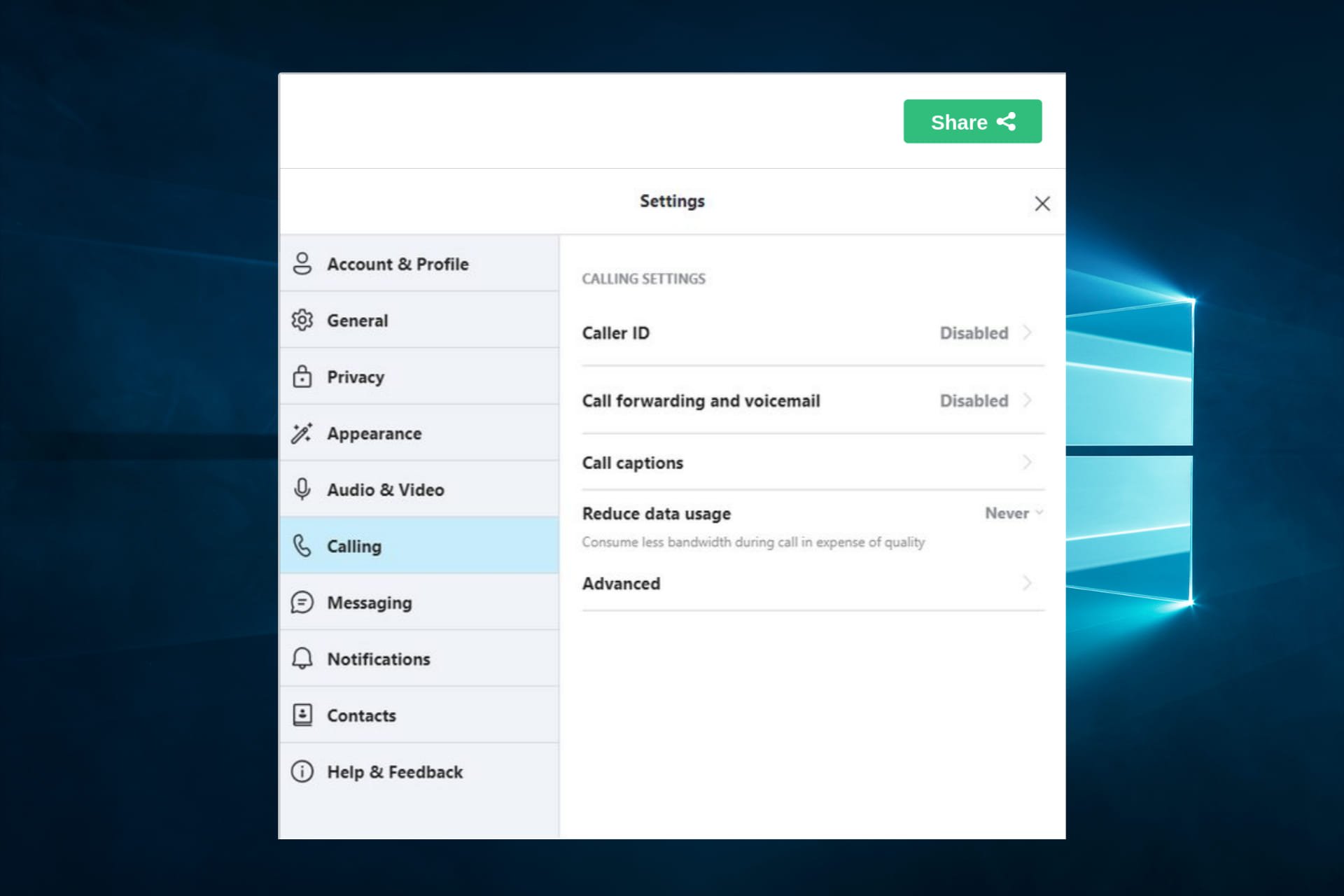
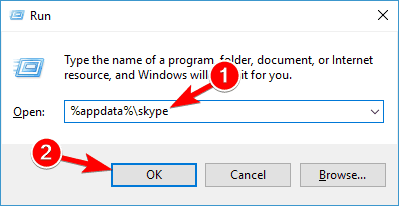
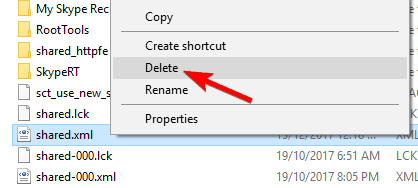
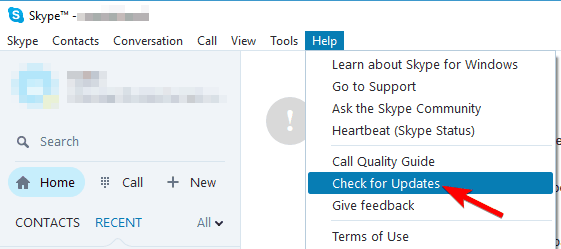
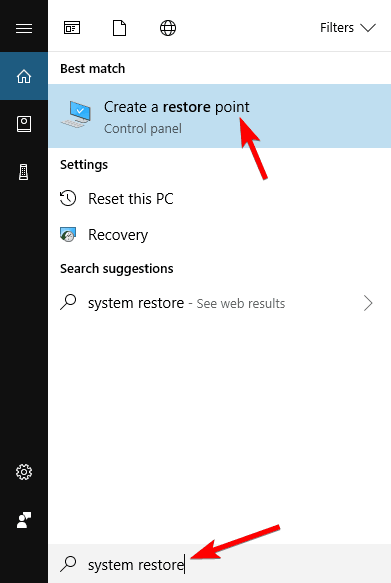
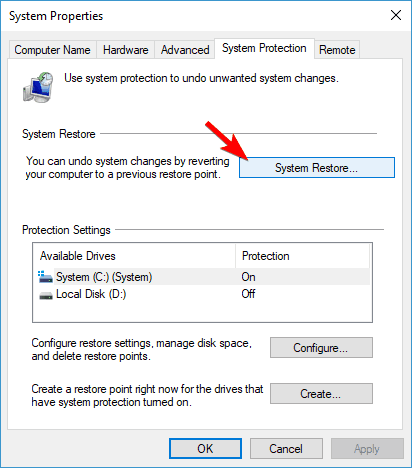
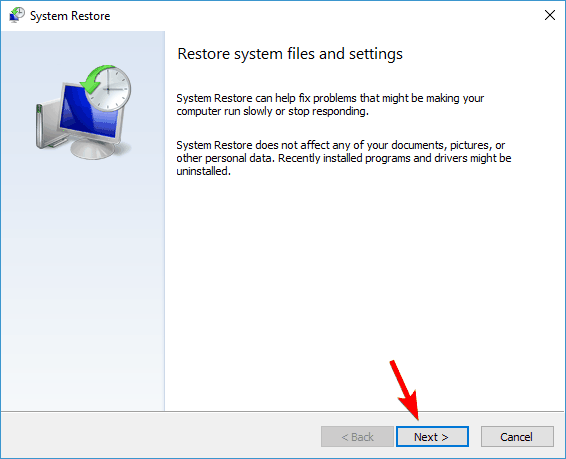

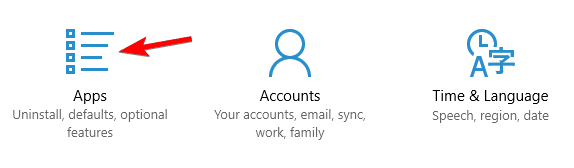





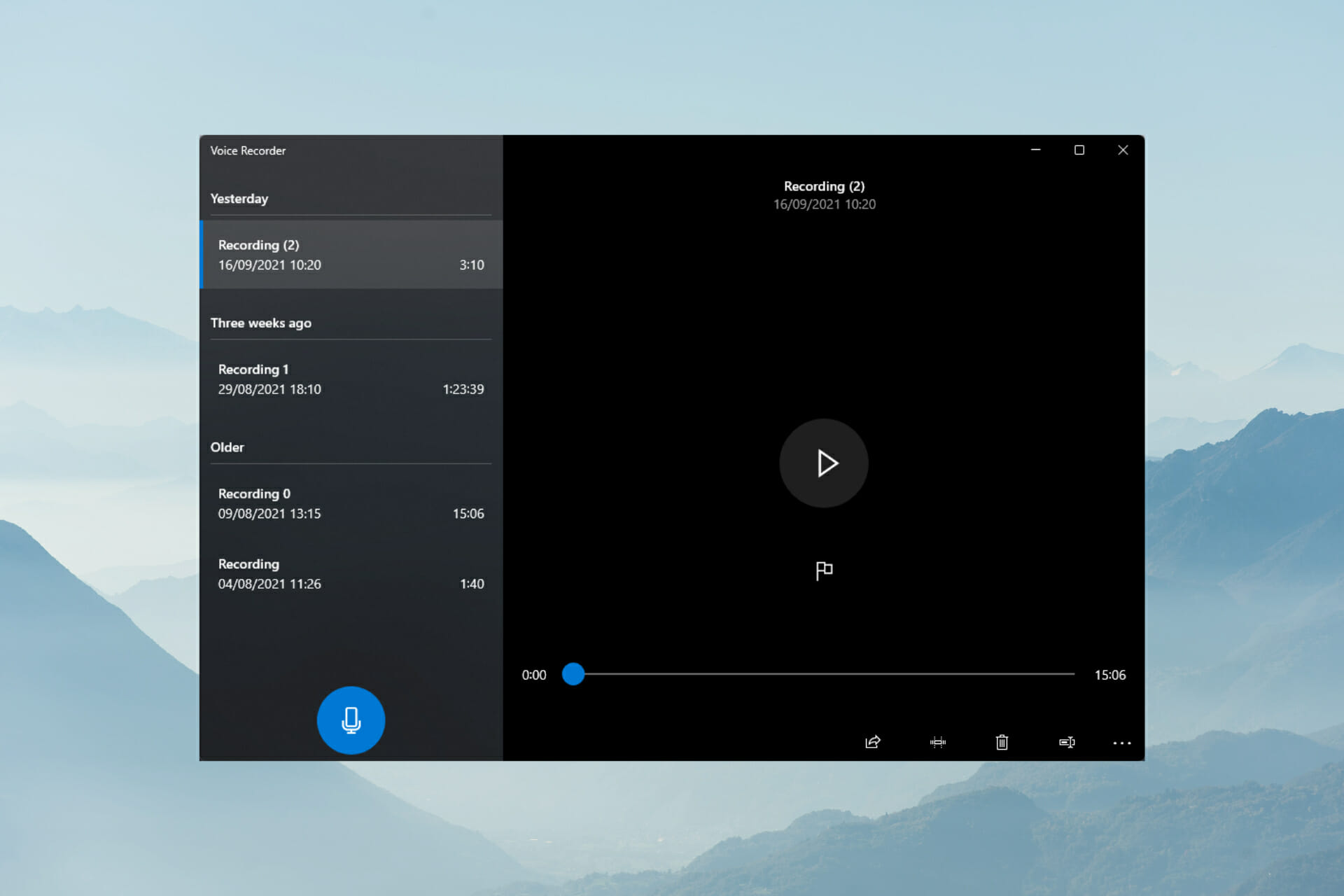
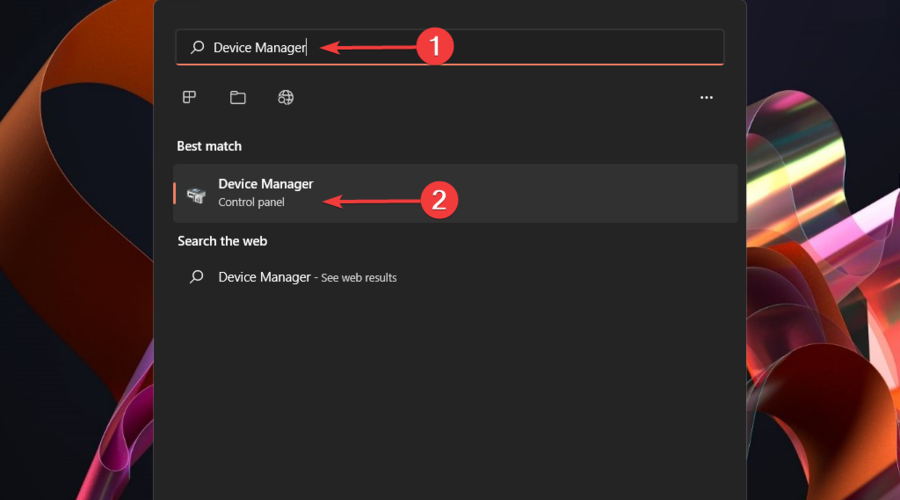


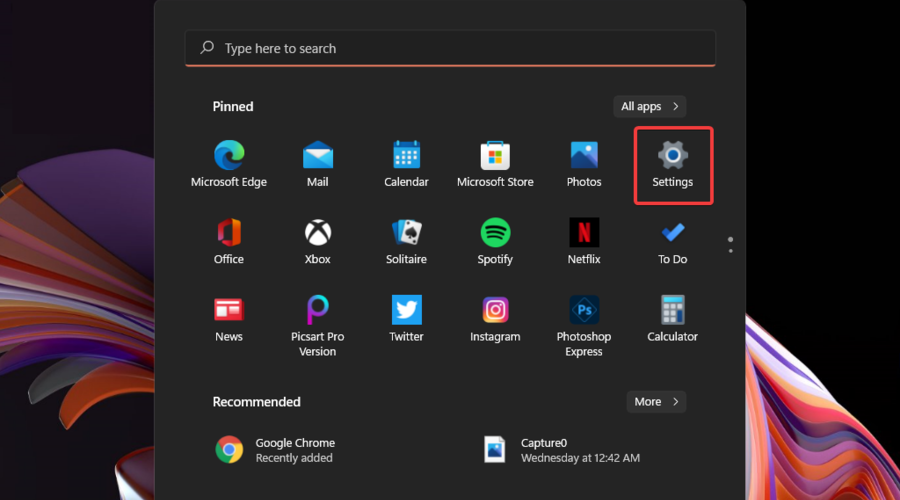


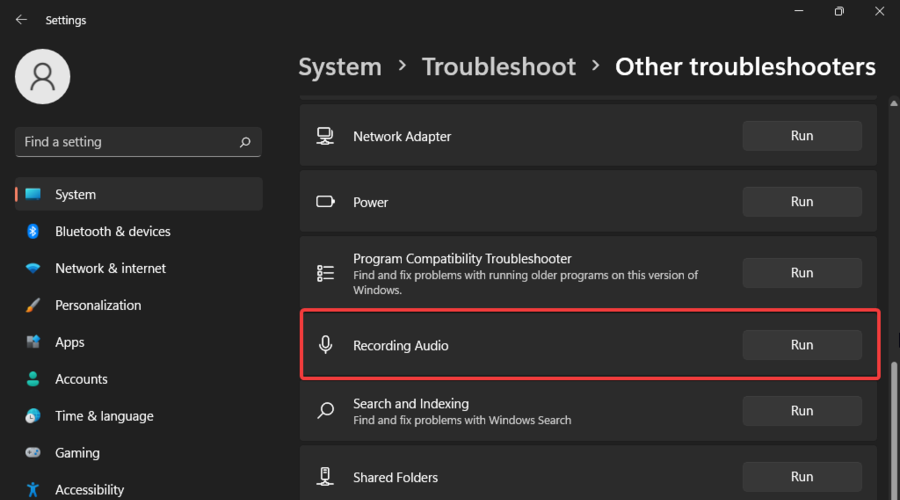





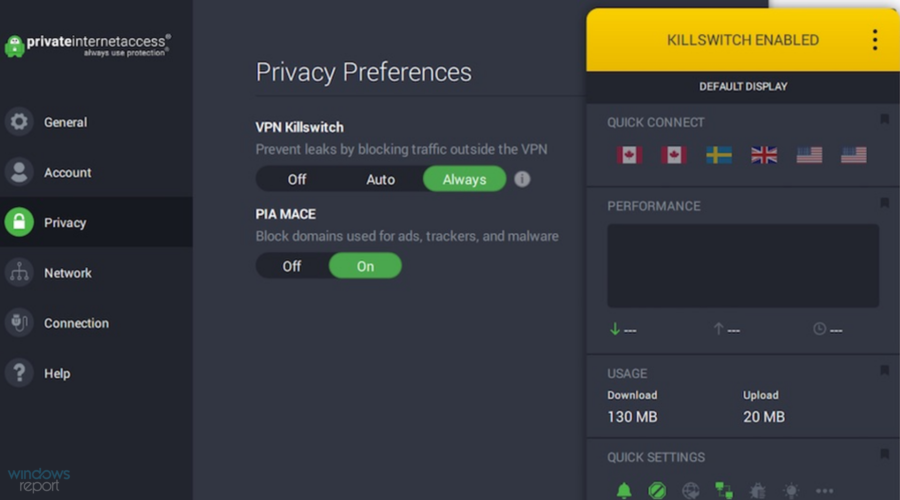
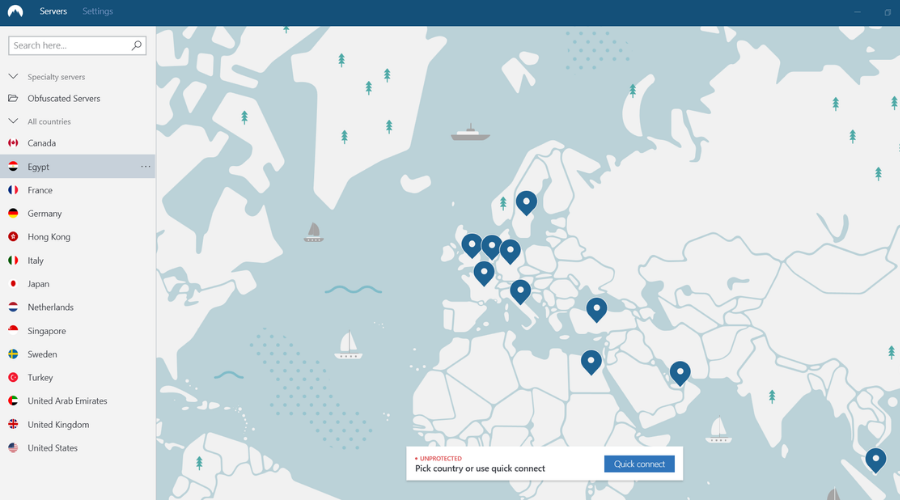

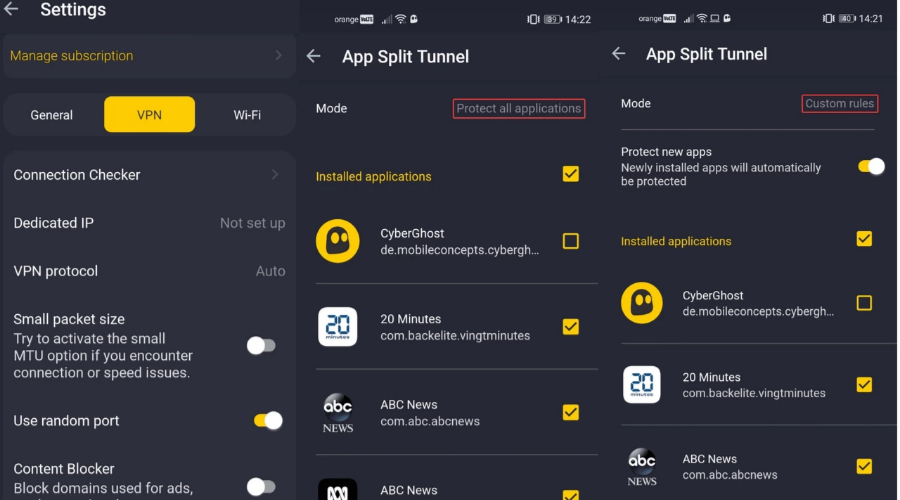

![5 Best VPN for Apex Legends [No Lag & Best Ping]](https://windowsreport.com/wp-content/uploads/2020/05/apex-legends-vpn.jpg)





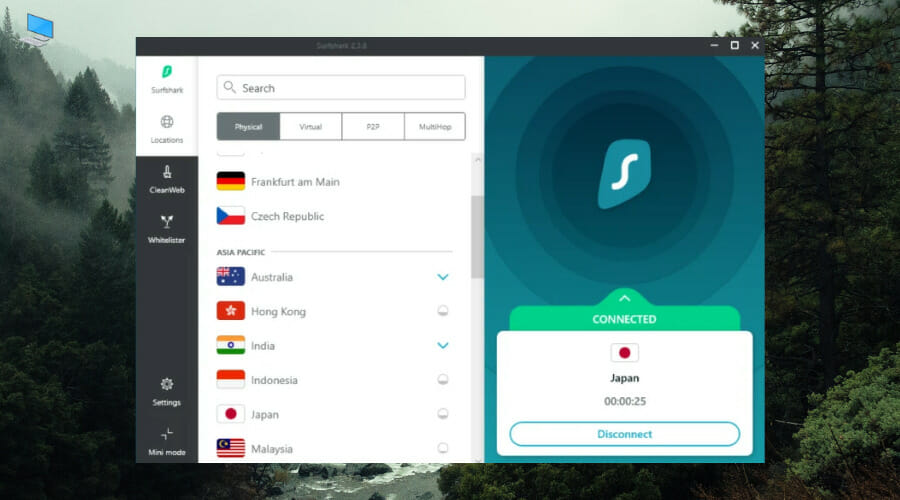
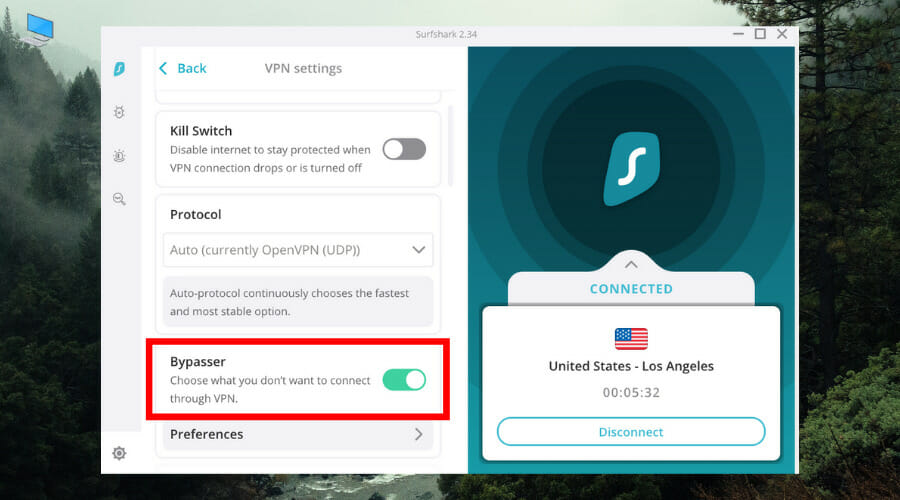



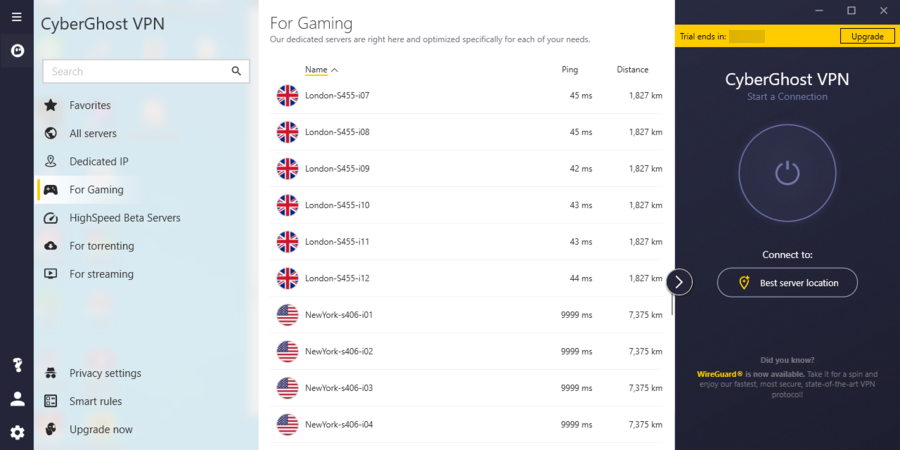




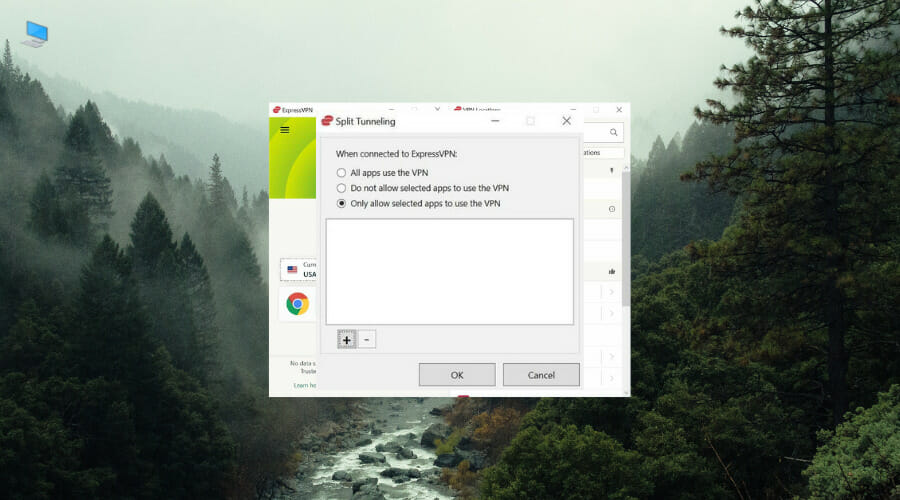










![5 Best VPN for Server Hosting [Safe & Fast Gaming]](https://windowsreport.com/wp-content/uploads/2020/05/Best-VPN-software-to-host-game-servers-1.png)
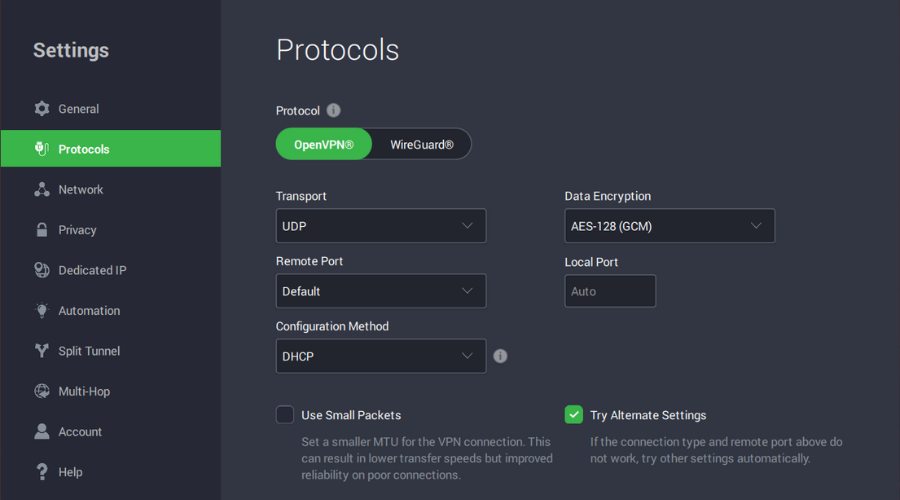
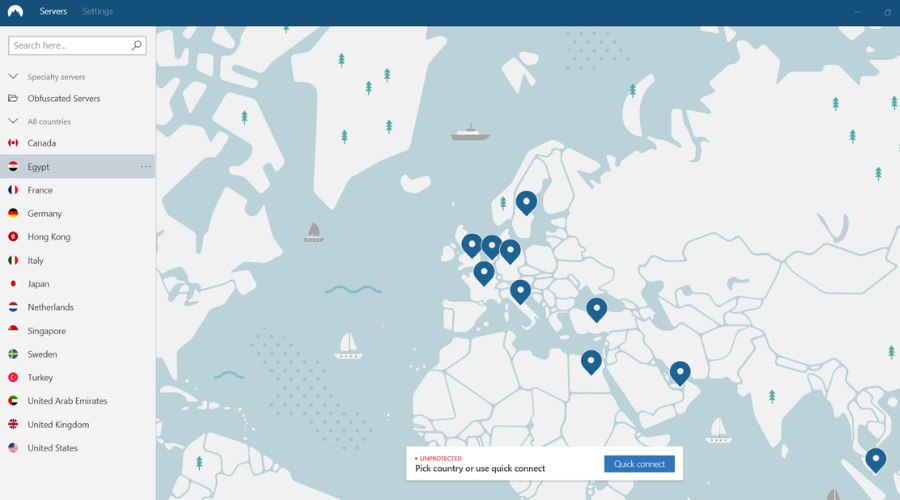
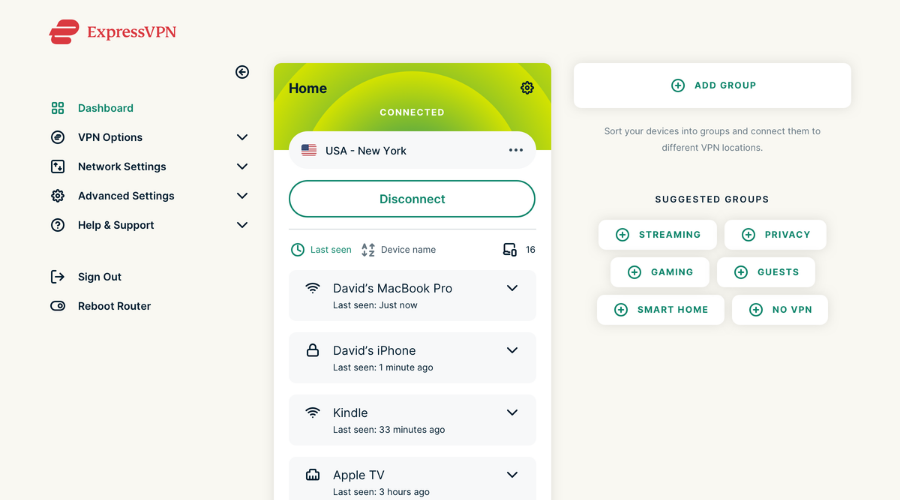

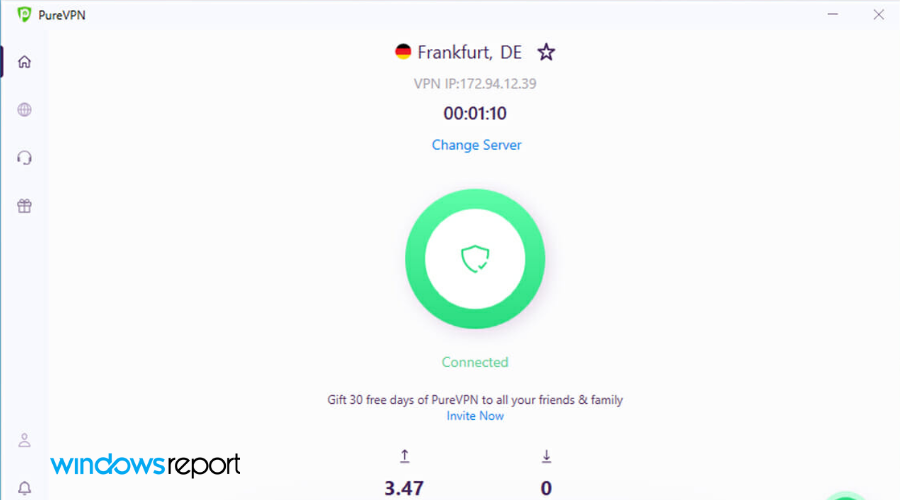

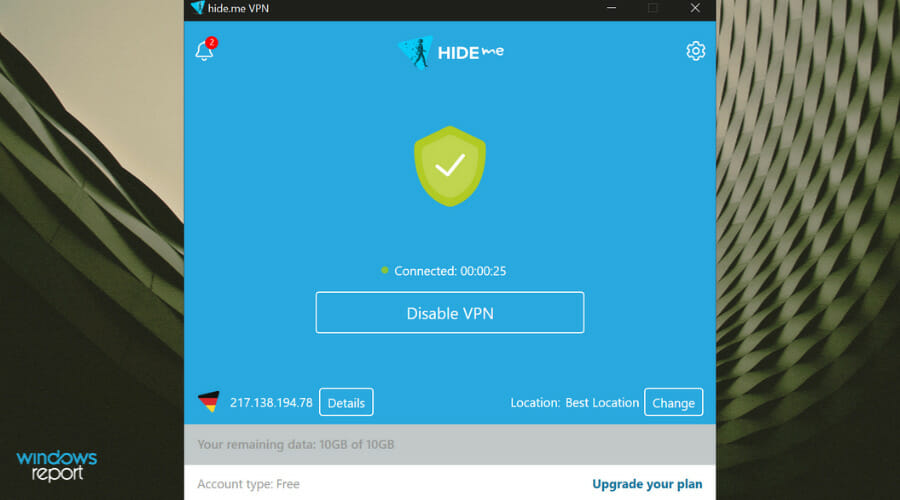

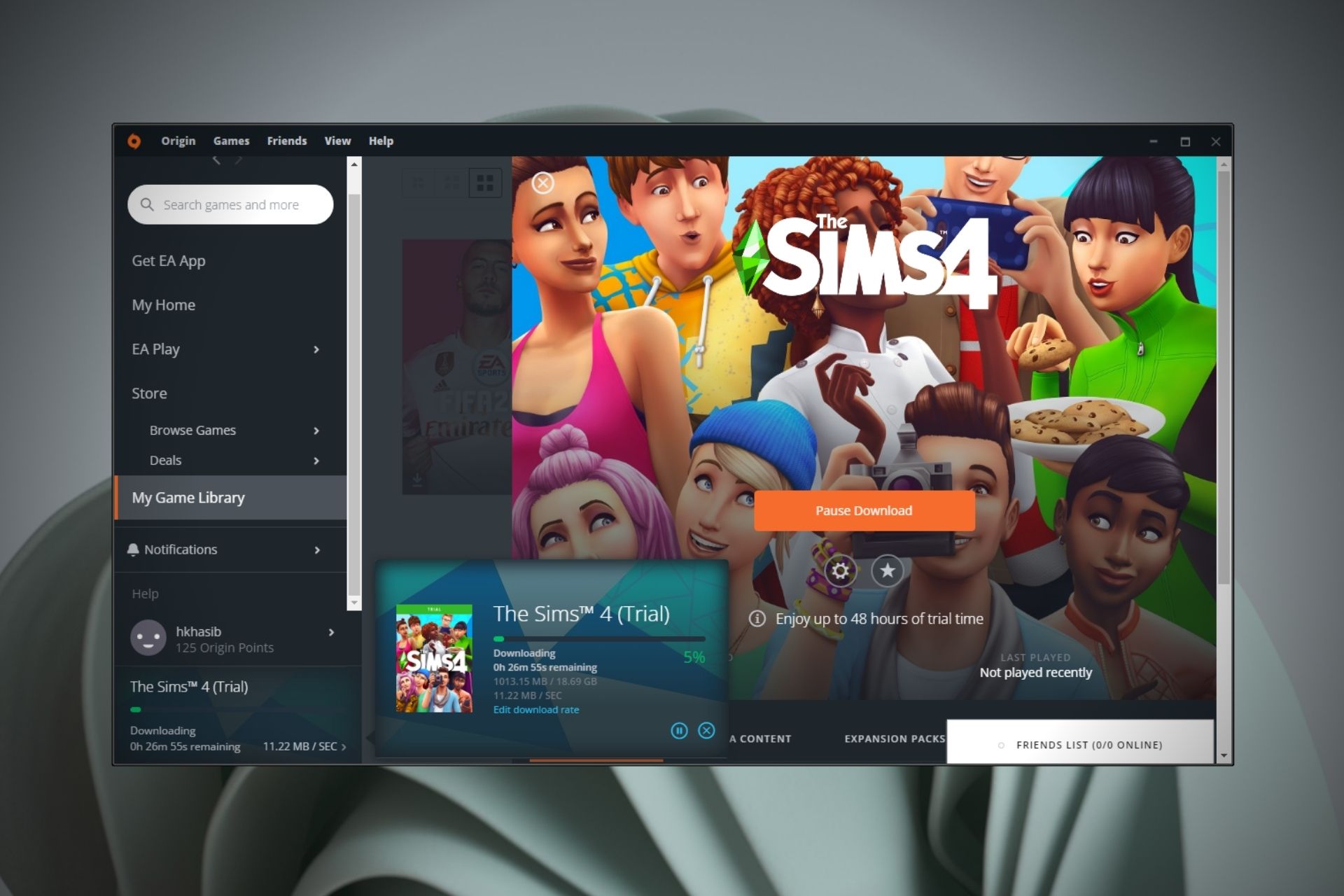

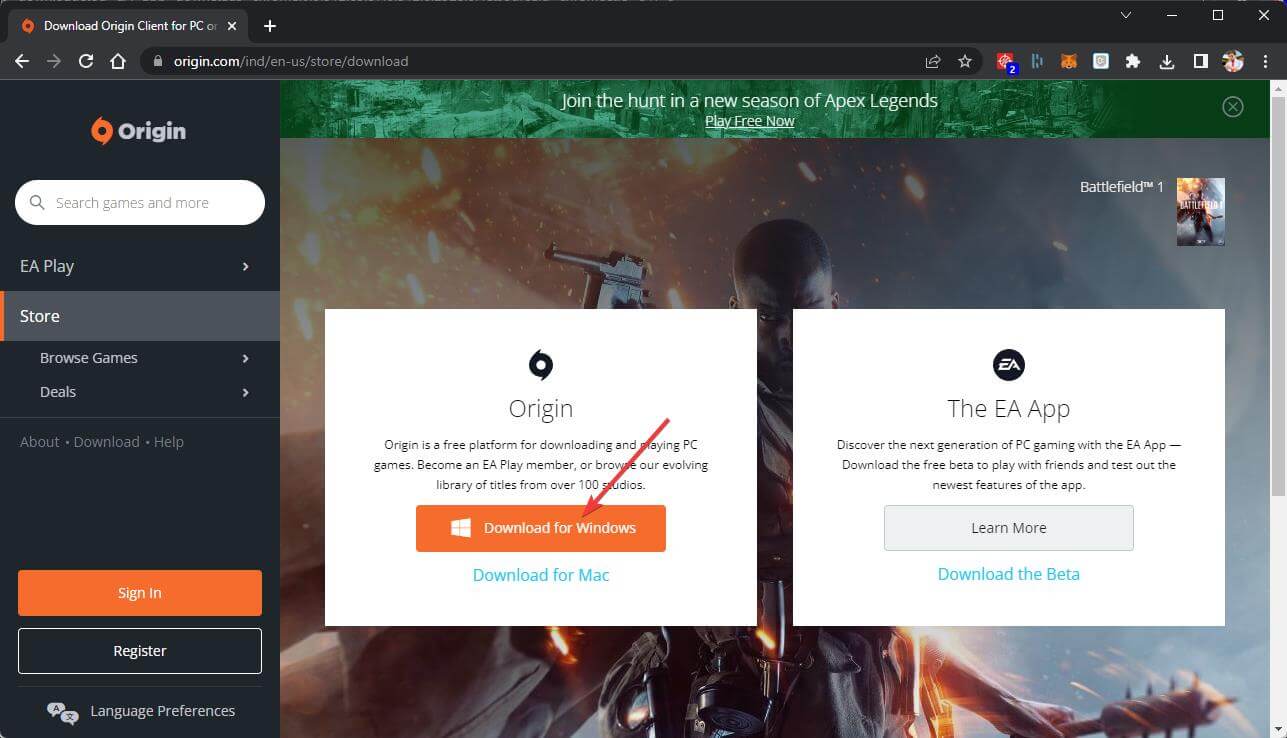
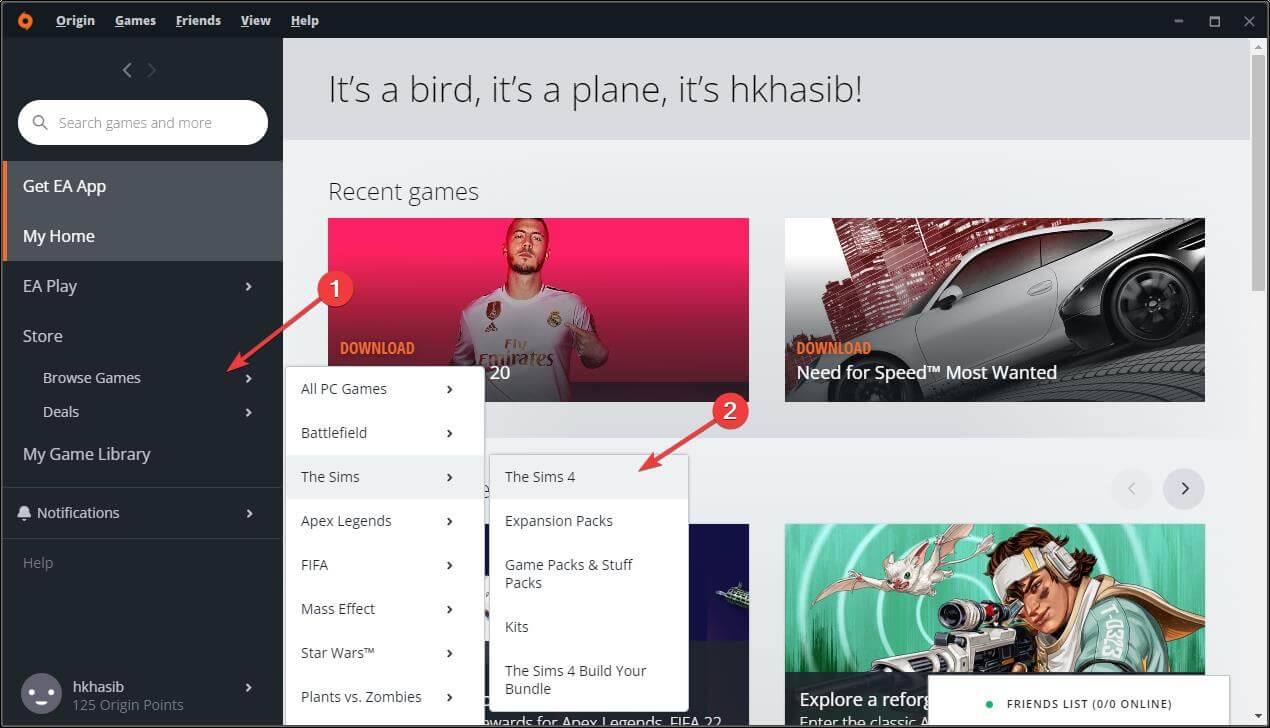


![Show File Extensions on Windows 11 [3 Different Ways]](https://windowsreport.com/wp-content/uploads/2021/09/windows-11-file-extensions.jpg)
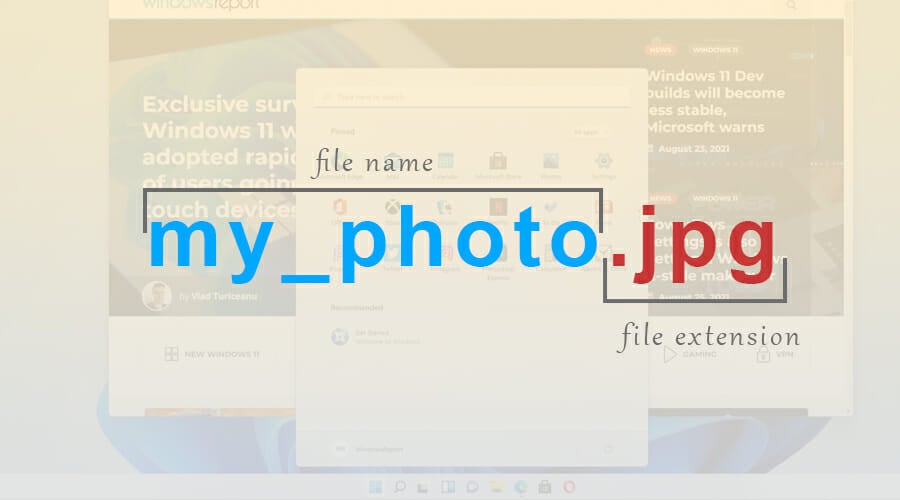

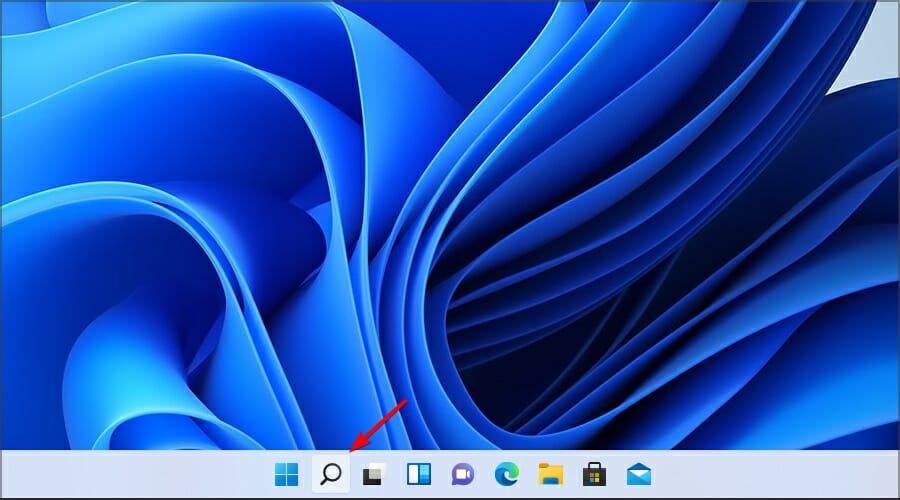


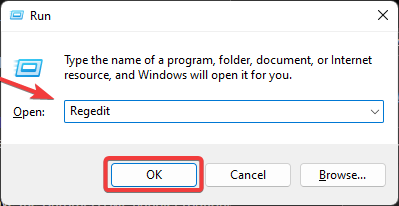


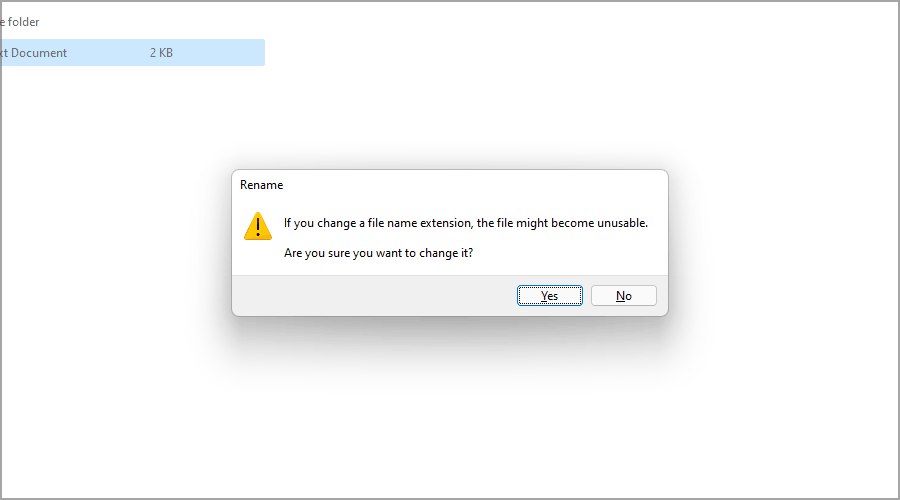
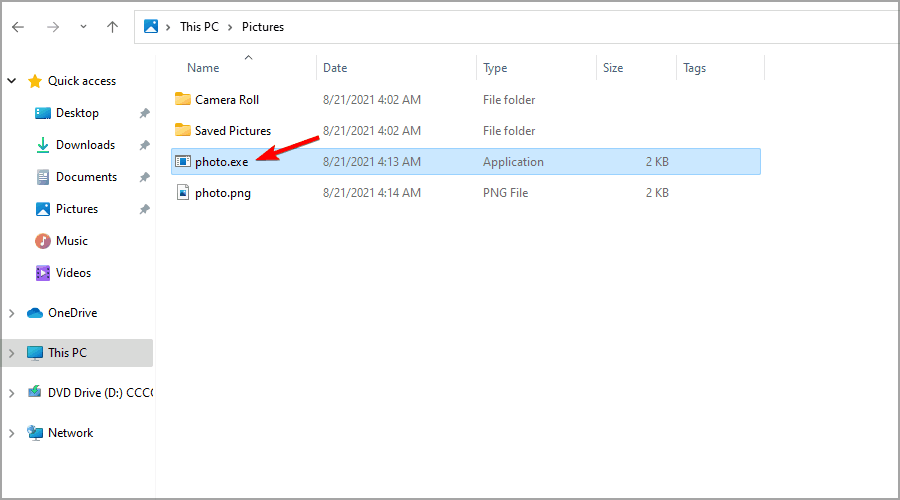


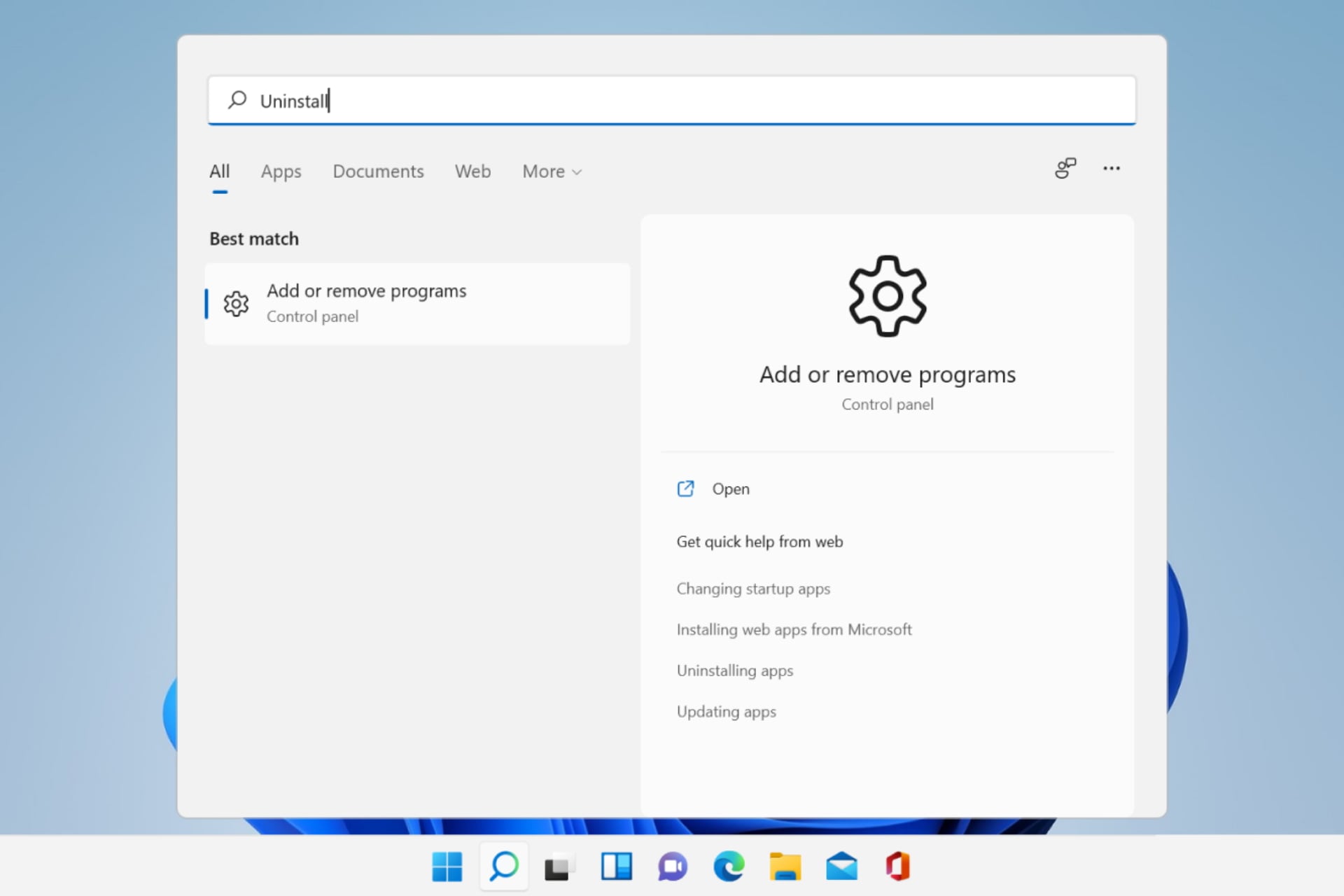


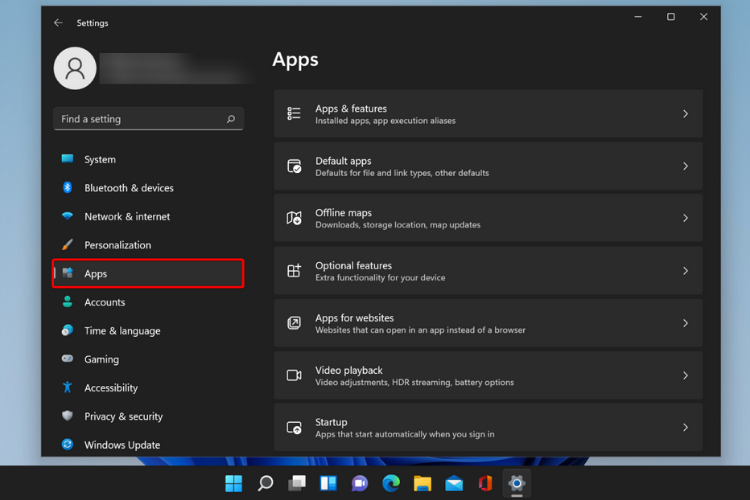
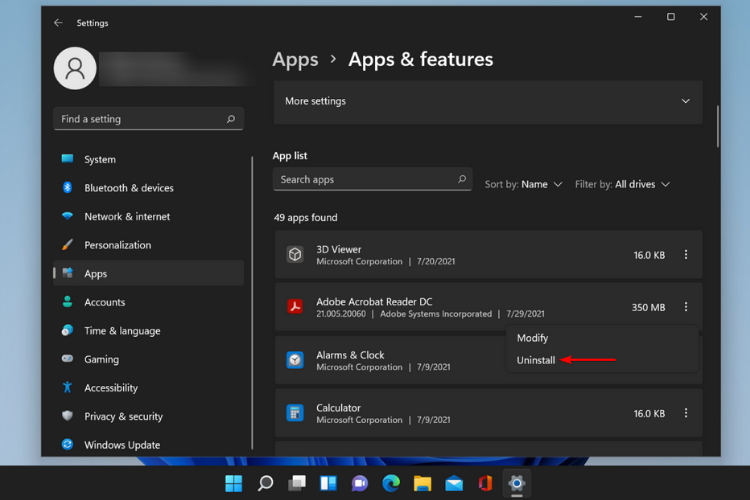


![How to Fix Dell Laptop Not Detecting Monitor [3 Ways]](https://windowsreport.com/wp-content/uploads/2022/08/dell-laptop-external-monitor-featured-image_final.png)


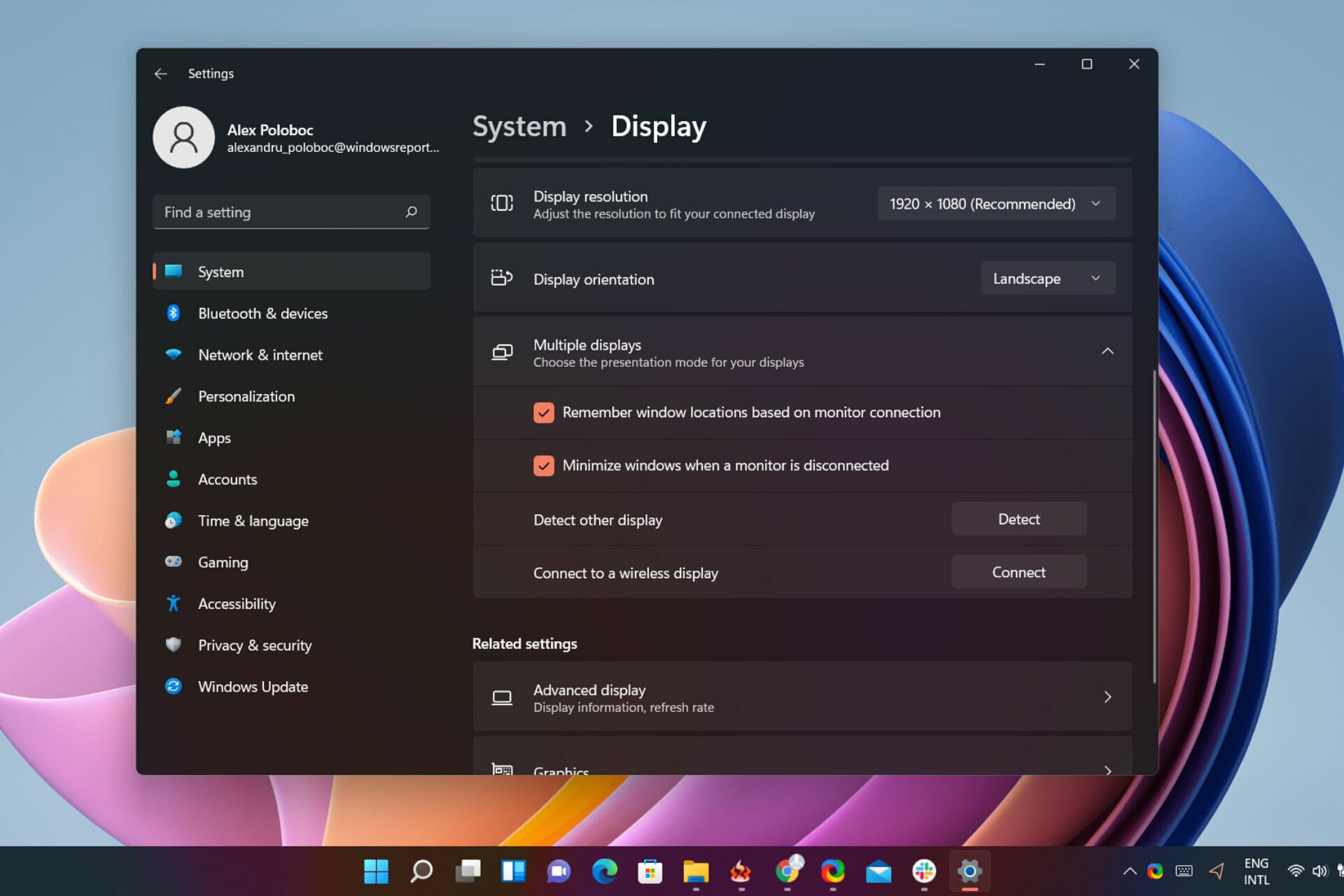


![How to Access Internet Explorer in Windows 10 [File Location]](https://windowsreport.com/wp-content/uploads/2022/08/internet-explorer-file-location.png)


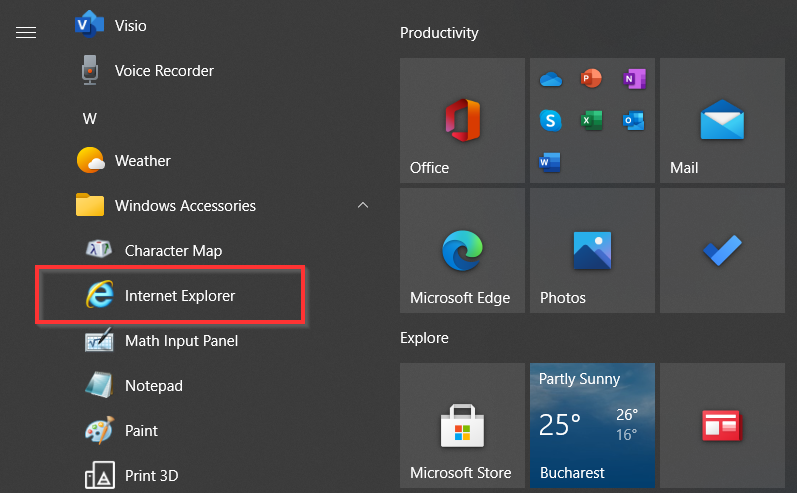

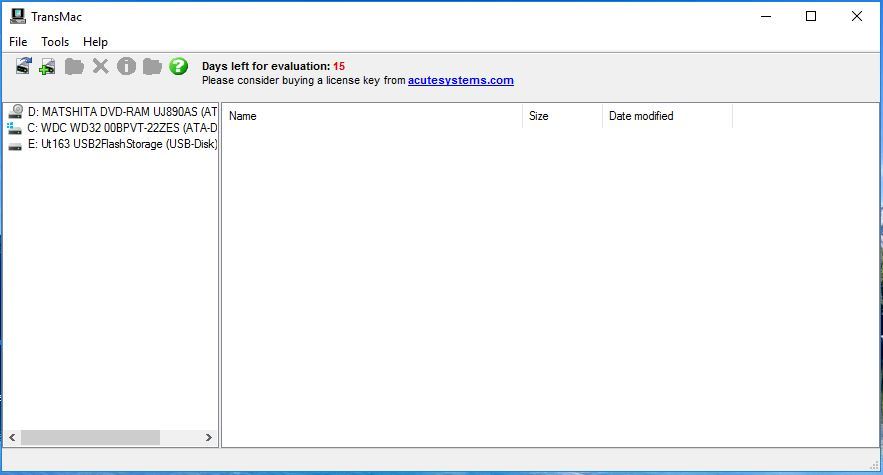
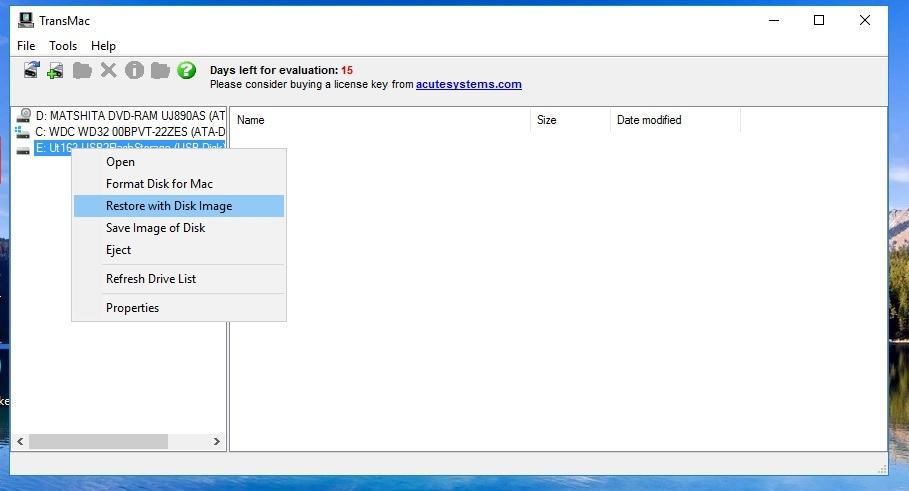


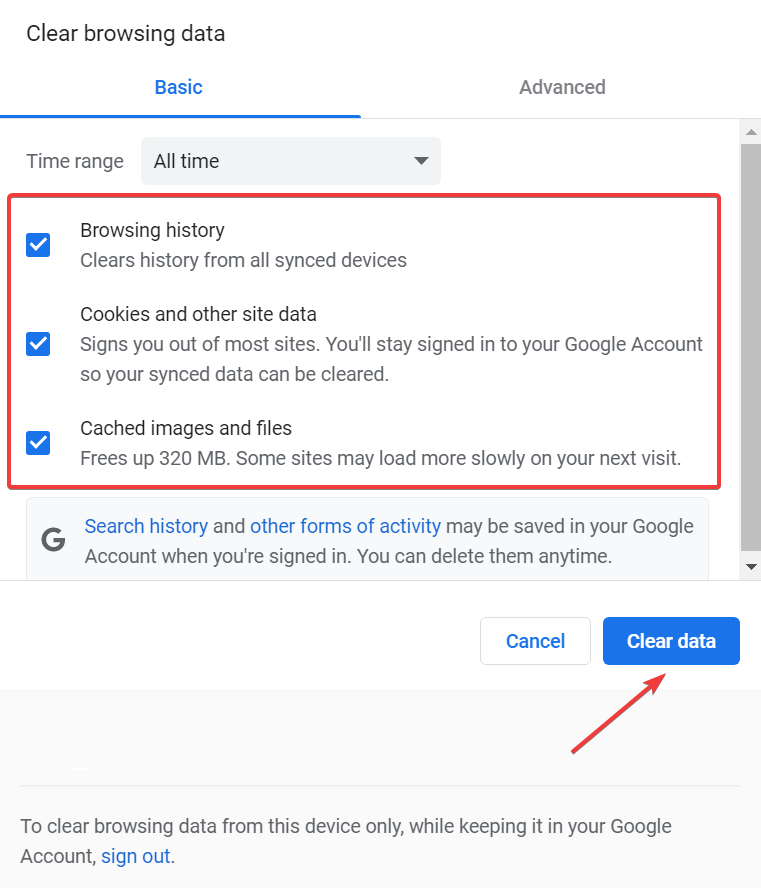


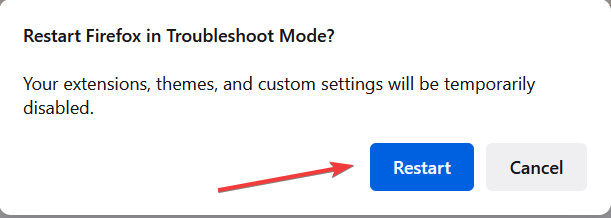

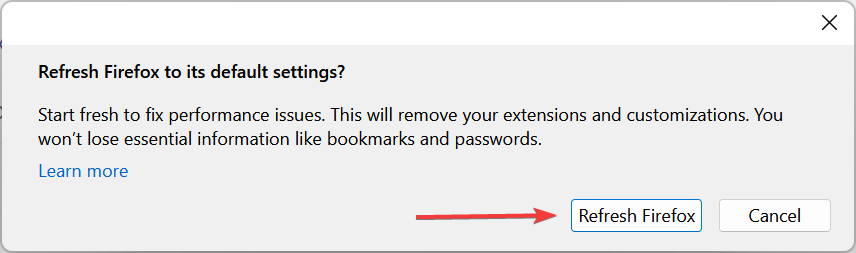
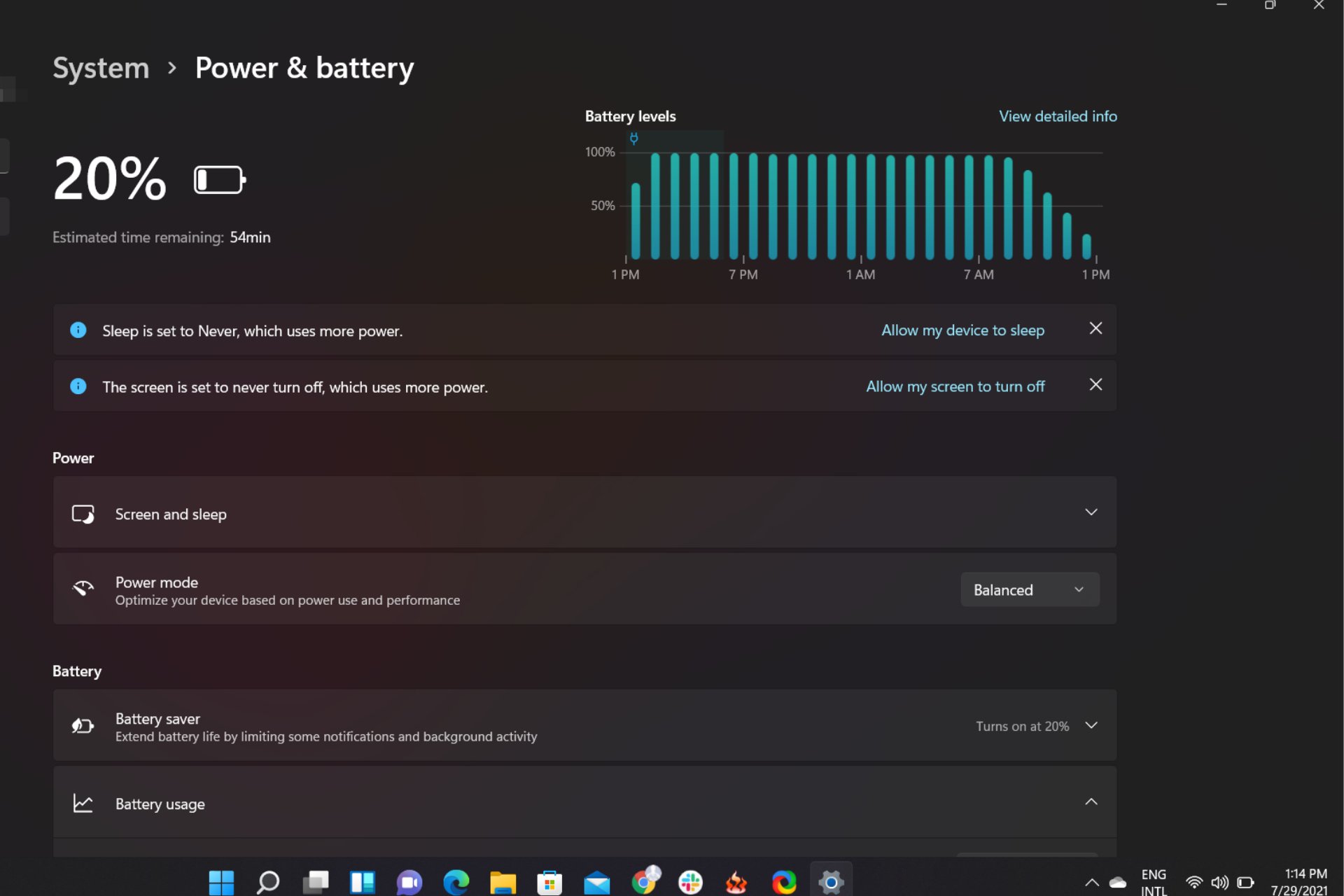
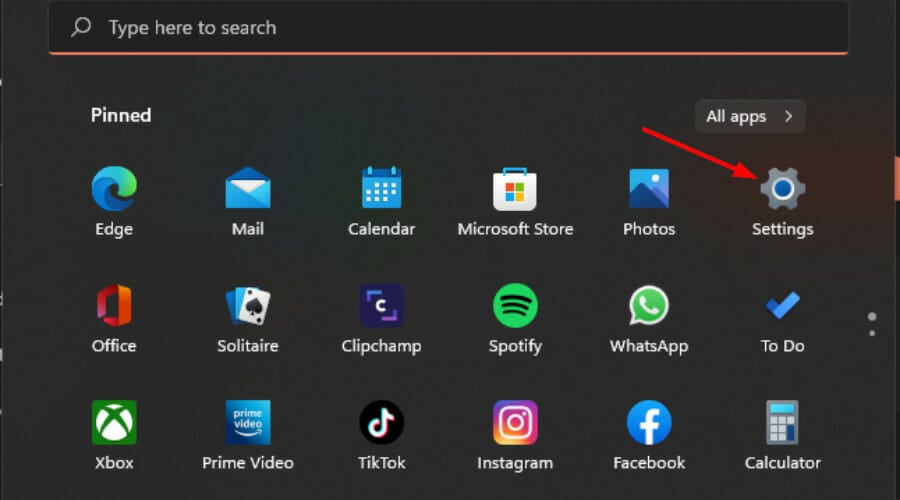
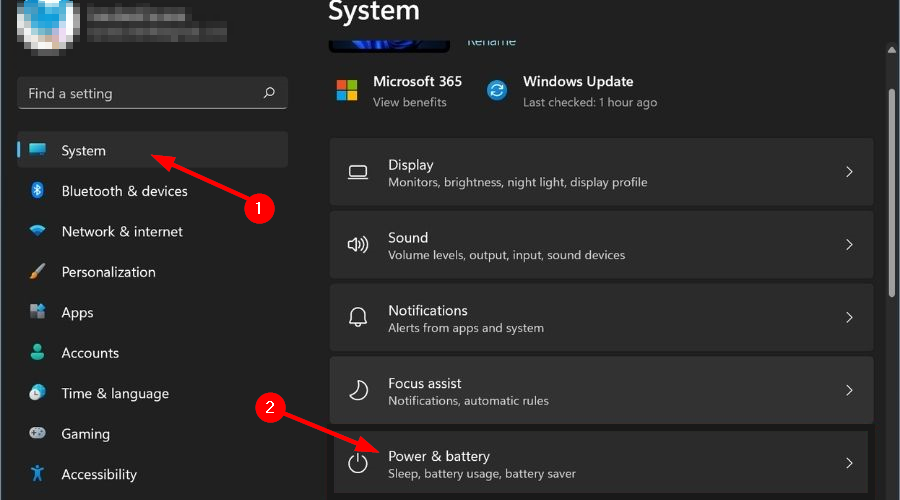
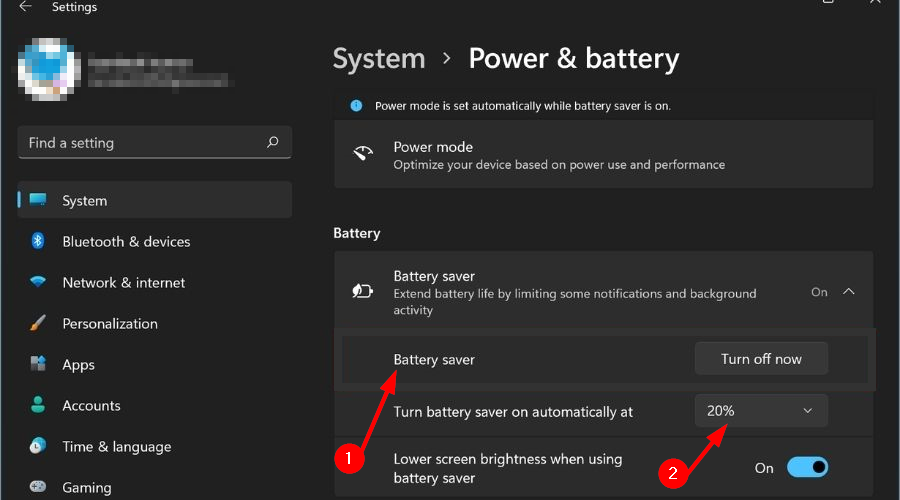
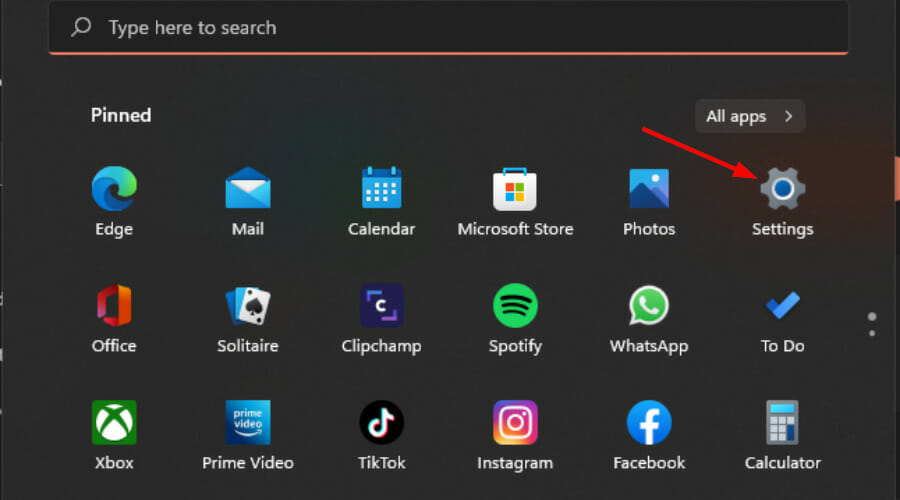


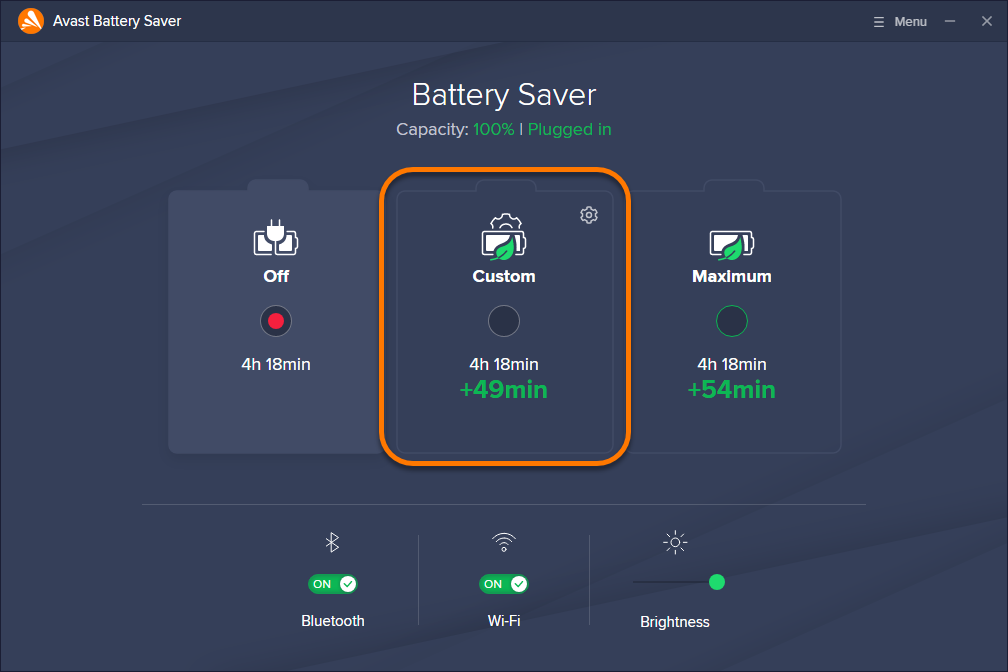
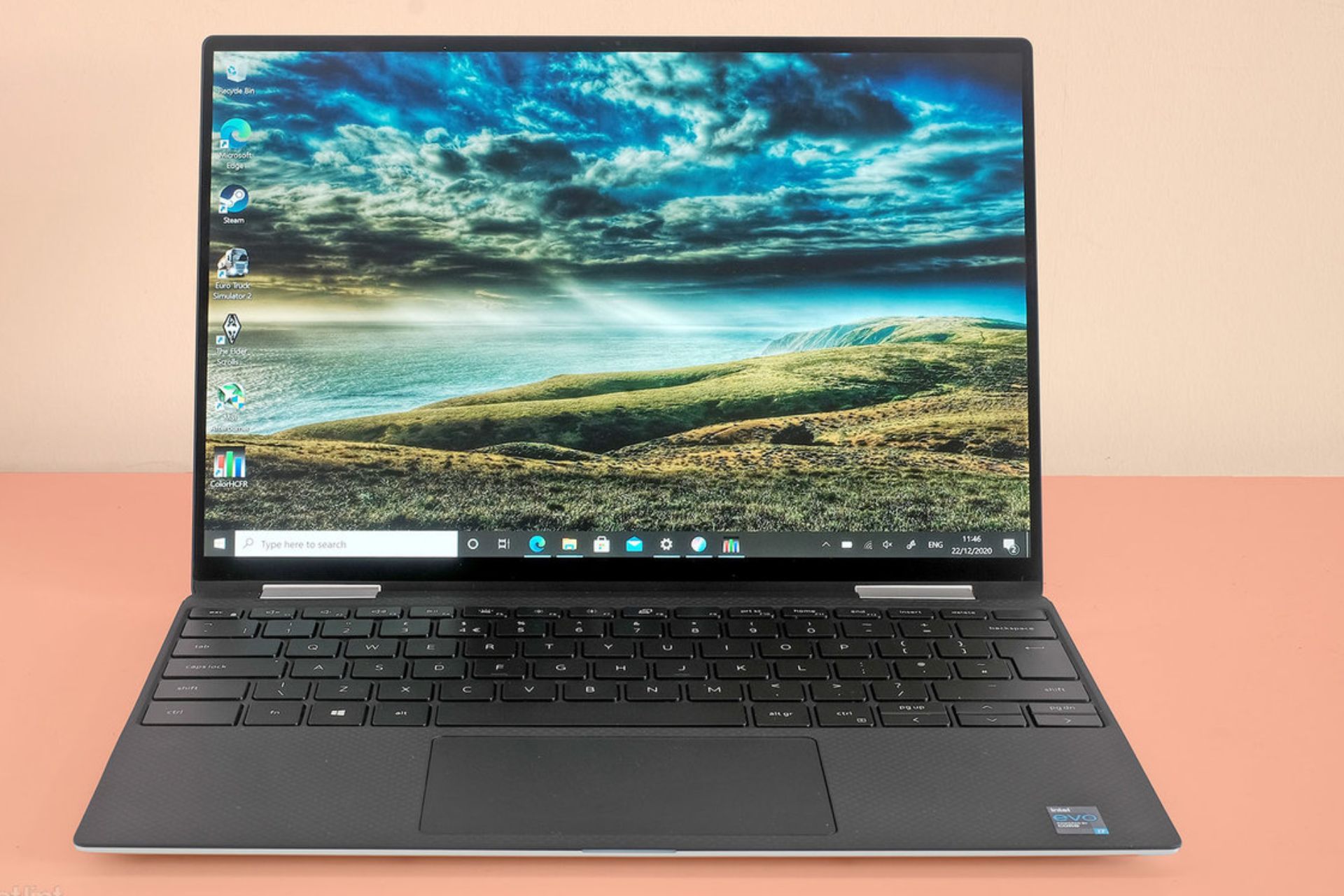


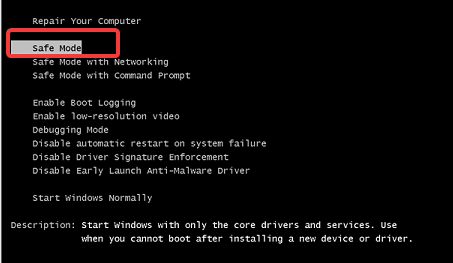
![Your Browser Can’t Access the Clipboard [Multiple Devices & Apps]](https://windowsreport.com/wp-content/uploads/2021/02/browser-clipboard-issue.jpg)