Pokemon is a popular video game series by Game Freak. It is one of the oldest games in the series, and it’s been through several changes over time. It has features like the oddball RPG, fierce battles, characters, and legends. The game has millions of players following up from the start, which is amazing for such an old game.
Though the changes over time aren’t as interesting to some, the game is still one of the best in the market.
Pokemon Showdown is a battle simulator for Pokemon that allows you to play with a specific player or random players. We shall take you through how to set up your private server in this article.
How do you do a private battle on Pokemon Showdown?
Doing a private battle on the Pokemon showdown means you want to challenge a particular player. It is a tool for competitive play. You can do this with these steps:
Click the user’s username to prompt their profile or Find a user option in the Main Menu, then type in their username.
After selecting the player of your choice, click Challenge to apply for a battle.
Then choose the format you want to play (Also, you can build teams to challenge in Showdown)
Can you friend in Pokemon Showdown?
Yes, you can friend in the Pokemon showdown. It is a feature that allows you to have a friend list where you can add friends or help friends. You can add friends by using this command: /friend add <insert username>
You can also view your list of friends with the command /friends
How can I create a private server in the Pokemon showdown?
1. Set up your server
Download and install Node.js before attempting to create a private server.
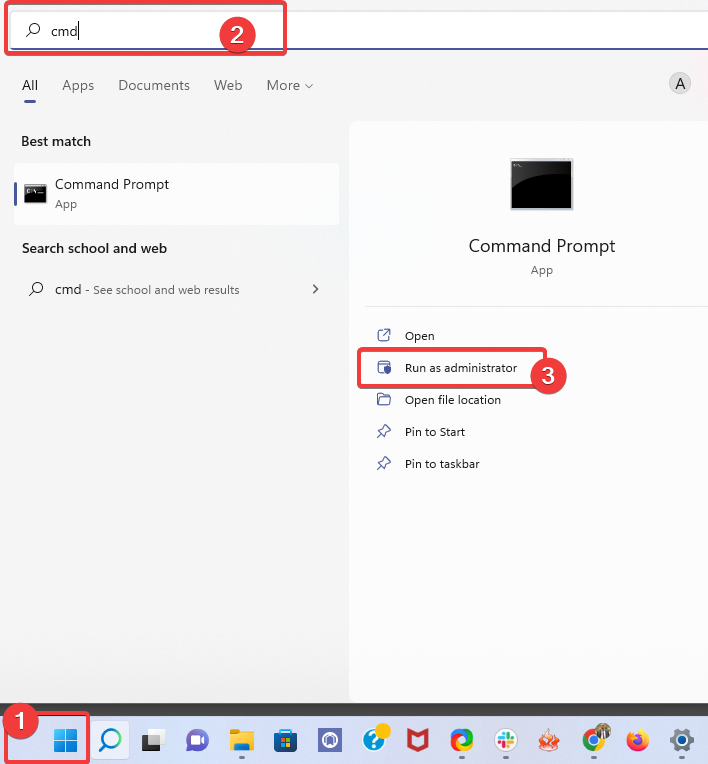
Press the Windows key, search for the command prompt and launch it.
Run the following command to start the Pokeman showdown: node pokemon-showdown 8000
Then visit your server at https://SERVER:8000
You can replace the SERVER with your domain or IP. (e.g https://localhost:8000)
You will be redirected to https://SERVER.psim.us
2. Create an Administrator account
Create a file named config/usergroups.csv and it will contain USER,&
Change the USER to your Pokemon shutdown username.
This is how to set up your own Pokemon Showdown server. However, your computer will be the server computer that others will connect to via port forwarding.
Pokemon Showdown is a simulator that allows you to battle with other players. However, there isn’t much you can do with Showdown without an internet connection.
It is because you need to play with others through an online connection, and there’s no way this can be possible offline. So, to use showdown, you need to be online to add opponents.
Games like Pokémon are fun to play. They have many features that you can enjoy. Also, Pokémon showdown makes it even better because you can set up battles with friends and specific players. Furthermore, there are Pokémon browser games that you can access on your browsers.
We will explore the best browser options for Google Drive (Docs and Sheets). Here is what you should know.
Google Drive is famous for being a well-structured and organized cloud storage option. Within Google Drive, however, there is much more than storage. Two impressive components are Google Docs and Google Sheets.
You can create the most impressive text documents between the two and perform some magic on numbers, records, and general data.
However, since these are web-based applications, manipulating them will require only the best web browsers.
For these reasons, in this article, we will explore some of the best browser options on the market that will improve your workflow with Google Docs and Sheets and enhance your overall text-processing experience.
Google Drive is famous for being a file-syncing and storage service created by Google. Drive was introduced on April 24, 2012, and enables you to sync, share, and save files on the cloud.
Officially it works with Chrome, Firefox, Microsoft Edge, and Safari. Still, interestingly, there are other browsers where it performs excellently even though they are not part of the official listing.
We will take a look at the best of this lot.
Does Google Docs work with all browsers?
At the moment, Google Docs is not supported in every browser. Even though it may work on many browsers, you will get the best out of the web app using it on supported browsers.
Now let’s explore the best browser options for Google Drive.
What are the best browsers for Google Docs & Sheets?
We recommend Opera One as the best browser for accessing, editing, and sharing Google Docs documents because it has fast webpage loading speeds and excellent security and privacy features. Hence Google Docs and Sheets on Opera One work seamlessly.
If you want to access and view your documents on the platform quickly, Opera One will connect you to your Google account within milliseconds. The built-in ad blocker helps to reduce the webpage loading time.
Moreover, Opera One uses very little computer processing power, allowing your machine to direct resources where they are most needed.
If you use Google Docs for work and business purposes, you want to ensure nobody can access your documents. This is where Opera One’s excellent security and privacy options come into action.
You’ll love Opera One’s data sync feature if you access Google Docs on multiple devices. This option syncs all your bookmarks, tabs, passwords, and other data types across all your devices.
The integrated messengers allow you to quickly connect with your colleagues and inform them about significant changes you made on shared documents.
Additional features:
Snapshot tool
Integrated messengers
Workspaces
Opera One
Improve your workflow in Google Docs using Opera One’s multiple productivity features.
UR browser is a very powerful software built with speed and privacy in mind, and it’s one of our top picks for the best browser option for Google Docs and Sheets.
Its fast loading time for web pages is beneficial if you use this browser with Google Docs or any other application that depends on speed to save changes and find documents.
Another detail that makes the UR browser stand out from the crowd is the set of built-in security features.
You won’t need to download add-ons, and the operating speeds won’t be affected by the clutter of extensions running in the background.
UR browser also has potent filters for ads, trackers, and other online threats. It blocks access to any malicious third-party entity that would be able to get access to your private information and files.
You can choose from 3 levels of privacy: low, medium, and high. The last one also activates the built-in VPN (Virtual Private Network) to allow full anonymity online.
All these features ensure that your experience with Google Docs on the UR browser will be flawless, and we encourage you to try it. It is one of the best browser options for Google Drive.
Additional features:
Invisible tracker blocker
Third-party cookie blocker
Virus scanner
UR Browser
Make the most of your Google Docs experience with this lightweight, fast-loading, and fully secure browser.
Google Chrome is the most used browser software option on the market, and for a good reason.
The wide range of customization options allows you to tailor the way it looks and choose from an extensive range of extensions.
This gives you the power to extend Chrome’s capabilities to fit your needs with just a few clicks.
In terms of speed, even though this software is quite an obvious choice for Google Docs, it doesn’t stand a chance against the UR browser.
The possible reason for Chrome’s less-than-speedy performance is that every new tab you open will start a new process on your PC. So, if you use many extensions and open many tabs, Chrome tends to get laggy.
The privacy settings you have access to in Chrome give you some protection from online threats. But Chrome doesn’t have a built-in VPN; today, it’s essential to protect your information.
Not to mention that Chrome removed the ad-block extensions completely for home users. Another detail to take into consideration. It is one of the best browser options for Google Drive.
AVG Browser is a suitable choice if you need excellent efficiency while working on Google Suite like Docs or Sheets.
The main advantage of this full private browser is its lightweight usage while working on multiple projects on Google services.
You can also utilize the anti-tracking utility and enhanced privacy in order to stop malicious websites that use personal information for marketing purposes.
It’s worth knowing that you have easy VPN integration and antivirus defense to stop cyber attacks from stealing official data from your worksheets.
Additional features:
Mandatory HTTPS security
Customizable homepage
Privacy cleaner tool
Anti-hack feature
AVG Secure Browser
Work on different projects on Google Suite apps with great privacy.
Mozilla Firefox is another good software option to use with Google Docs. This classic browser’s wide range of features makes it a good candidate for our top pick.
In addition to a great experience using Google Docs on Firefox, Google Sheets also works seamlessly. Because the browser is not a resource hog, it is easy to work on extensive documents seamlessly.
You can customize how Firefox looks and how it reacts to different online threats.
The built-in privacy settings are not as extensive as the ones found in Chrome or UR browsers, but you can still browse the Internet securely if you add some extensions.
Because Firefox doesn’t have a built-in ad-blocker, you will need to download a third-party add-on to make sure your working process doesn’t get interrupted.
Regarding page loading speed, Firefox’s performance is above Chrome’s (though not by much) but significantly lower than Opera One’s.
Some extensions are available in the store promise to improve loading speed, but this implies installing and giving permissions to third-party applications. That can cause a breach in your online security. It is one of the best browser options for Google Drive.
Nothing is better than using a highly customizable tool with a highly customizable browser. In this sense, Google Drive and the Vivaldi browser go hand in hand.
Although it has many great features, our favorite part is that practically everything can be changed, making it a browser you can call your own.
Because it is based on the Chromium engine, you may expand its functionality by utilizing Chrome’s web store extensions.
You may have numerous users on a single Vivaldi account, which lets you create profiles with specific themes to suit the job you need to do.
Finally, the developers have maintained a clean, user-friendly design despite the abundance of functions that are easily accessible.
In this article, we explored some of the best browser options for Google Drive. Our top pick is Opera One because of the amazing set of privacy features and unchallenged loading speeds.
Please feel free to let us know about your experience with these browsers by using the comment section below.
Google Chrome is one of the most popular web browsers for the Windows platform. But, several users reported that Chrome can’t access the camera or microphone.
When the browser tells you that an error occurred when trying to get access to the camera and/or microphone, the first thing to do is check the settings for that hardware.
Try the solutions below and we hope that you’ll get rid of the error in no time.
Why can’t I access my camera or microphone?
If Chrome can’t access the camera or microphone, it could be due to issues with the browser settings, website settings, or even the system settings.
In case the problem is limited to a particular website, it’s likely that the relevant permissions have not been granted and the website settings need to be modified. While if the issue is encountered across websites, it’s the browser or system settings to blame.
Conflicting programs or corrupt/outdated drivers may also lead to the problem. Several users also reported that the issue started after updating the OS, and the simplest solution for it would be to wait for the next version.
Some of the error message that you might come across are:
Although you granted permission to use the appropriate devices, there was a hardware error at the operating system, browser, or web page level that prevented access to the device.
Check your device camera and microphone hardware
Let’s now head to the solutions when Chrome can’t access the camera or microphone in Windows.
How do I get Chrome to access my camera & mic?
1. Consider using a different browser
If the problem persists even after trying all troubleshooting steps, then your only option left is to simply switch to another browser.
One browser that is just as good, if not better, than Chrome is Opera One. Both tools are based on the Chromium engine, so their extensions are cross-compatible, but Opera One focuses more on speed and a high level of customization.
More so, it is updated frequently, so any potential errors that you may find will not be there for long, especially since you can easily send error logs if they do happen somehow.
Finally, if you love private browsing, you’ll like knowing that Opera One has a built-in VPN and an ad-blocker, unlike most browsers that have these only via extensions, and most of the time those are limited anyway.
Opera One
Excellent web browser that offers many useful tools, including the ability to save and print your web pages.
2. Turn access for camera and microphone for Chrome in Windows
Press Windows + I to launch Settings, and then select Privacy & security from the tabs on the left.
Under App permissions select Camera.
Make sure that Let desktop apps access your camera toggle is enabled, and that Google Chrome is listed under it.
Go back to the previous window, select Microphone, and make sure the same options are enabled for it as well.
Restart your PC and check for any improvements. If Chrome still can’t access the camera or microphone, head to the next method.
3. Enable camera and microphone access in Chrome
Launch Chrome, paste the following path in the address bar and hit Enter:chrome://settings/content
Click on Camera under Permissions.
Now, make sure that the desired camera is selected from the dropdown menu, and then select the option for Sites can ask to use your camera.
Also, verify that no websites are blocked from accessing the camera. If there are any listed here, click on Delete icon.
Navigate to Microphone, and make the same changes there as well.
Relaunch the browser for the changes to come into effect.
If you have blocked access to your camera for any website, you may see that a hardware error has occurred for the webcam.
4. Remove recently installed hardware
Press Windows + I to launch Settings, and select Bluetooth & devices.
Click on Devices on the right.
Look for any of the recently installed hardware like a Mouse or Bluetooth speaker.
If you find any, click on the ellipsis next to it, and select Remove device.
If you noticed that Chrome can’t access the camera or microphone after you installed a new hardware device to your PC, remove the device or uninstall it.
Some hardware devices such as Bluetooth speakers and other wireless devices can create conflict with the web browser and apps, resulting in this error. Make sure you uninstall the hardware device completely and restart the PC.
5. Remove recently installed software
Press Windows + R to launch the Run command, type appwiz.cpl in the text field, and click OK to launch the Programs and Features window.
Select the problematic software and click on Uninstall.
Follow the on-screen instructions to complete the process.
Third-party software might lead to this issue due to the incorrect configuration. To fix the error, it’s best to uninstall them and prevent future conflicts.
6. Update camera and microphone drivers
Press Windows + S to launch the Search menu, enter Device Manager in the text field, and click on the relevant search result.
Expand the Cameras entry.
Now, locate the problematic webcam and select Update driver from the context menu.
Next, select Search automatically for drivers.
Restart the PC after the drivers are installed for the changes to apply.
A better way to update your drivers is to use third-party tools such asOutbyte Driver Updater. By using it, you’ll be able to automatically update all drivers on your PC with just a couple of clicks.
Disclaimer: Some functions of this tool might not be free
7. Update Windows
Press Windows + I to launch Settings, and select the Windows Update tab.
Click on the Check for updates button on the right.
If an update is available, click on Download & install to get it.
If Chrome can’t access the camera or microphone after an update, it’s likely a bug in the current version, and a patch for it should be available in the subsequent releases.
Fix: There was an error trying to activate your camera or microphone
This error message is encountered due to the same reasons as the ones discussed earlier, and the solutions for it too pretty much remain the same.
In addition to these, you can also try disabling the antivirus for a while to verify if that’s preventing your camera or microphone from activating. Also, terminate tasks that are currently using the camera to fix the error.
How do I grant my browser permission to use my webcam?
NOTE
We have listed the steps here for Chrome, but the concept pretty much remains the same for all the browsers.
Paste the following path in Chrome’s address bar and hit Enter:chrome://settings/content
Next, click on the website that you want to specifically grant access to the webcam on the browser.
Click on the dropdown menu next to Camera, and select Allow from the options.
Similarly, grant permission to all the required websites to use the webcam through the browser.
These are our proposed solutions if Chrome can’t access the camera on Windows, and one of the must-have fixed the error for you.
Many reported that only Google works on their Internet and this will make browsing the web impossible. Luckily, there are several ways you can use to fix this issue.
Why is no website opening except Google?
In most cases, this is caused by issues with your DNS, IPv6, or your firewall settings.
What can I do if only Google sites work?
Before we try anything else, try restarting your router or your wireless connection. If possible use a different connection to install the latest network drivers. Remove any recently installed network applications and hotspots.
1. Change the DNS Settings
Press Win + I on the keyboard to open Windows Settings.
Click on Network & Internet.
Go to Ethernet or Wi-Fi, depending on the connection you are using.
Click on Edit next to the DNS server assignment.
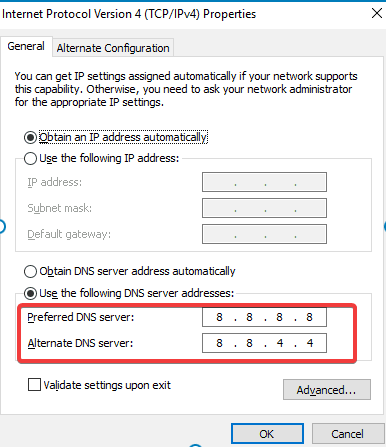
Now, type your preferred DNS server addresses. Usually, 8.8.8.8 and 8.8.4.4 (Google DNS) is best for all-purpose.
Click on Save.
If the Internet is connected but only Google works, you can try using a different DNS as shown above. You can also try these alternative addresses
Open DNS address: 208.67. 222.222 and 208.67. 220.220
Cloudflare DNS address: 1.1.1.1
2. Restore the Windows Firewall to default
Open the start menu, type Windows Defender Firewall, and hit Enter to open it.
Click on Restore defaults.
Next, click on Restore defaults on the new window.
Windows Defender Firewall can block the websites you are trying to access, so restoring it to the default settings might fix the issue for some users.
3. Diagnose the connection
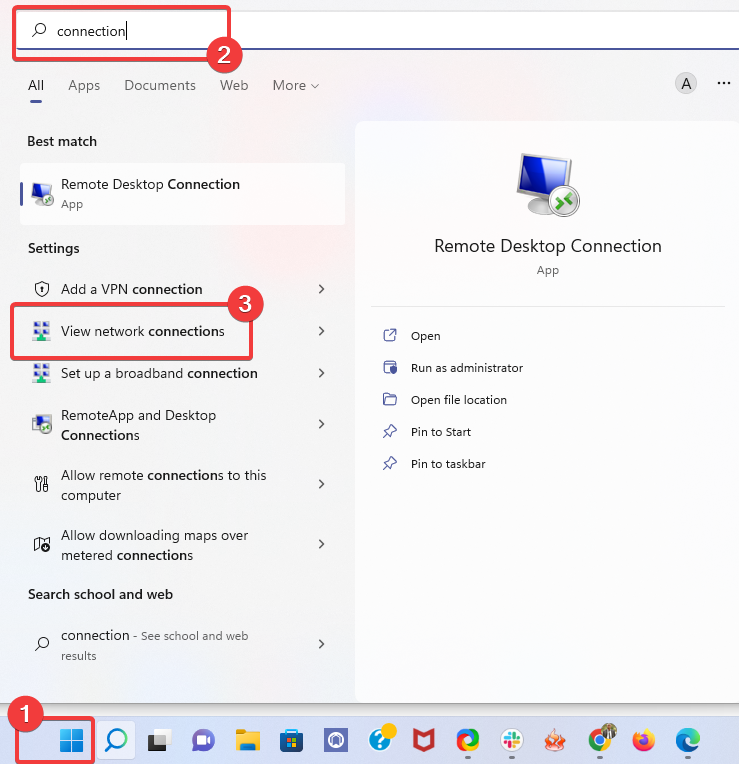
Press the Windows key + S and type network connections. Choose View network connections.
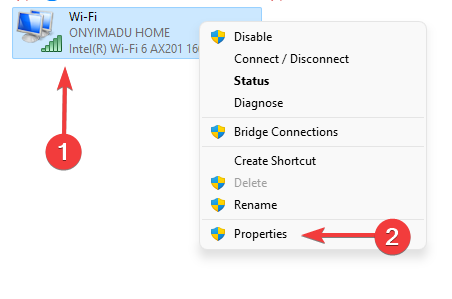
Locate your connection, right-click it, and choose Diagnose.
The error is not specific to a particular browser. However, try switching to another one and check if the problem is solved. A stable, secure, and mostly error-free option we recommend is Opera.
It gets frequent updates, is easy to use, and offers full support for data transfer from other Chromium- based browsers, so if you want to make a full transition, you don’t have to worry about losing data.
Recently, a few users complain about WhatsApp web not connecting. This becomes a major problem because using the service on your devices is a huge boost for convenience.
Using the web service means you can communicate with all your WhatsApp contacts from a web browser on your computer. Of course, you would need to activate a few settings with the phone and computer before enjoying the web service.
A few things will trigger this situation, but do not worry because this guide covers causes and the best solutions to resolve the problem.
Quick Tip:
Access WhatsApp web using a browser equipped with specialized support for the messenger, like Opera One. It has a pre-installed WhatsApp integration; you must add your credentials.
Plus, it’s available on all major platforms so that you can access WhatsApp web from almost any device. You get non-intrusive notifications about new messages and can reply instantly without opening a new tab.
Opera One
Stay connected with your peers using this fast browser with quick access to messengers and social media!
If you are on a bel to access WhatsApp on your browser, it is often because of any of the following:
Connection issues– Thi is a first call as your network connection may be weak or unstable, which will mean that certain services will cease to function properly.
Browser issues – A host of browser problems will also trigger the problem. You must investigate to ascertain what specific problem is restricting your WhatsApp connection.
Server issues – There is always the off chance that the WhatsApp server is having an issue, and at such time, you would have to wait it out.
Firewall or antivirus problems – While antimalware is always recommended, you may be using one that is not best suited to your OS, and this means it may block out some applications or services that you need to access.
Since we have covered the possible cause, let us introduce you to some of the most efficient solutions.
What can I do if WhatsApp Web is not connecting?
Before going into any of the solutions that we recommend:
Remember that you may use the desktop application downloaded from the Microsoft Store.
You may consider waiting it out, as it may be a WhatsApp server-side issue, in which case, non of the below fixes will work.
Also, ensure you are connected to a reliable internet source, as this may often trigger the problem.
1. Relogin to fix phone not connected when locked to WhatsApp Web
Press the ellipsis at the top-right and select Log out from the menu.
Again, click Log out in the confirmation prompt.
Once done, follow the instructions in the image below to log back in.
Before trying any fixes below, you need to ensure you have a strong and stable internet connection both on your phone and computer to use WhatsApp Web.
Usually, if the connection is off, a yellow bar will display at the top of the chat list that reads computer not connected, so check if the connection is active.
If it persists, refresh the page, or log out, then log back in to reactivate your web session.
If WhatsApp web is not working on Chrome, update the browser. Also, do this for Firefox, Opera One, Safari, or Microsoft Edge to use the service. Internet Explorer is not supported.
Check whether you’re on a managed Wi-Fi network, like in your office or school/college, as the network may be configured to block or limit WhatsApp Web connections.
2. Update WhatsApp on your phone
Open the Play Store or the App Store (depending on the ecosystem you operate).
Search for WhatsApp.
Click on the Update button (You will see an update button only if you need an update).
Sometimes, when your phone is not connected to WhatsApp Web, check for any notification from WhatsApp reporting that you may not be able to connect over a specific Wi-Fi connection.
If so, you may be on a captive Wi-Fi network. Such hotspots require you to sign in before connecting to the internet.
If you’re on such a connection, you can either disconnect from it and then use your cellular data to connect to the internet or log into the Wi-Fi network and navigate to your home page.
If the issue persists even when you’re signed in, disconnect from the Wi-Fi and forget the connection in the Wi-Fi settings, or check with the network admin to ensure you can connect through the Wi-Fi hotspot.
That’s all you need to know about WhatsApp web and how to fix things when your phone is not connecting to it.
Google Chrome is one of the most popular browsers out there because of its multitasking abilities and performance. However, users have reported receiving the error: Chrome detected unusual code on this page and blocked it. Here are our solutions to fix this issue.
Why am I getting the Chrome detected unusual error?
The error: Chrome detect unusual code on this page and blocked it is an issue associated with XSS protection in Chrome. The error occurs to protect your personal information when filling out forms in Chrome.
Google has this error because there is a chance that there may be some malware in the XSS script, but in blocking the code they also prevent secure code. For more information on how to avoid browser attacks, we have a guide for that.
How can I fix the Chrome detected unusual code error?
1. Use a different browser
Browsers like Microsoft Edge, Firefox, and Opera do not block embed code and thus this error will not occur. We recommend using Opera Browser as if offers some of the best security features, like a free built-in VPN and ad blocker.
Opera also lets users know if the website they are visiting is secure with HTTPS certification that can be found in the address bar. That way, users know that it’s safe to enter personal information on that site.
Opera Browser
Browse securely using Opera’s free VPN and avoid unusual code errors.
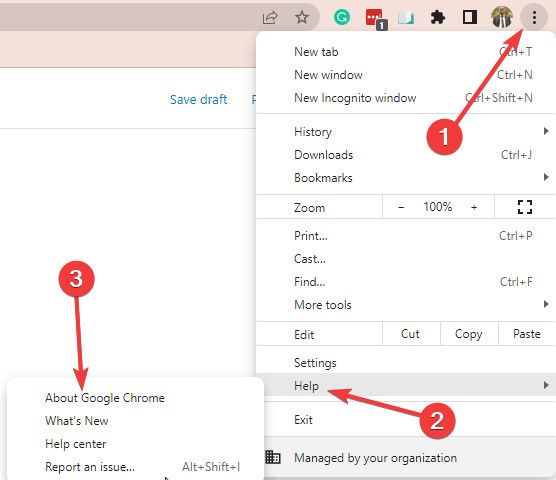
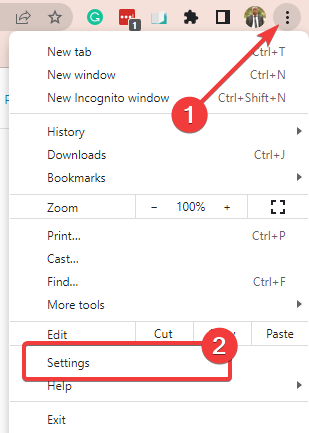
In Chrome, click on the three dots in the top right corner and select Settings.
Click About Chrome to reveal any necessary updates.
Update your browser if prompted.
An out-of-date browser can lead to many issues, one of which is the unusual code error. Regularly check for Chrome updates if it’s not set to automatically update.
Click on the Start menu and search for Google Chrome.
Right-click on Google Chrome and click Open file location.
Select Google Chrome and then right-click and select Properties.
Locate Target and add -disable-xss-auditor to the end of the current text.
Click Apply and restart Chrome.
By disabling XSS protection, Chrome will ignore any XSS errors and thus remove the unusual error code from occurring.
We hope one of the above solutions helped solve the error: Chrome detected unusual code on this page and blocked it. Let us know in the comments which solution worked for you or if you have another solution that worked and isn’t mentioned in this article.
Minecraft is one of the most popular games of the last decade, and rightfully so, the game has sold millions of copies and is available on all major platforms.
But did you know that you can play Minecraft in your browser, for free? That’s right, Minecraft Classic is available to play online, and you can access it simply by visiting its website.
However, for the best performance and experience, you’ll need a good browser, so today, we’ll show you the best browsers for playing Minecraft.
If you love playing Minecraft Classic, you should also check out some of the best browser games on the internet.
Can you play Minecraft on a browser?
It may feel a bit strange since talking of a browser Minecraft game specifically since, in the past the game has been more famous on consoles like the Nintendo Switch edition, or on PC.
Well, there is an option to play on the browser. It is called the Minecraft Classic edition. This is just as you remember the original game, with the exception of it working with a browser.
Without a doubt, it is the Opera GX browser. It is famous for being the first major for-gaming browser. We will talk more about it later in the article.
Opera GX is the right browser for the job if you want to play Minecraft in your browser.
The browser has an integrated GX Control feature that allows it to allocate your PC’s resources evenly. Doing so will enable processes to run smoothly alongside even the more heavy-resource games.
The browser also has a built-in messenger and Discord integration, allowing you to contact your friends or communicate while gaming easily.
Twitch integration is also available to follow your favorite streamers anywhere.
Thanks to a built-in ad blocker, you won’t see any ads, and the website loading speed is optimal because tracking scripts are blocked.
We also have to mention that Opera has a built-in VPN for an extra layer of security if needed. The VPN is completely free, and it comes with unlimited bandwidth.
Notable Opera GX features:
Light on resources
Support for Chrome extensions
Built-in adblocker and instant messenger
Resource allocation with GX Control feature
Twitch integration
Built-in VPN with unlimited bandwidth
Opera GX
Try Opera GX today to benefit from all the exclusive gaming features and take your Minecraft experience to the next level.
Another browser that should be able to handle Minecraft is Firefox. The browser is light regarding system resources, so it’s excellent for multimedia and gaming.
Regarding privacy, a built-in Enhanced Tracking Protection feature will block tracking cookies and ads.
As for other features, Firefox offers a customizable user interface, allowing you to remove elements you don’t need easily.
There’s also a password manager you can access with a dedicated extension.
Notable Firefox features:
Privacy-focused
Built-in tracking protection
Available on all major desktop and mobile platforms
Probably one of the most popular browsers on the list is Google Chrome. This application is optimized for multitasking, so it should work efficiently with multiple tabs.
As for security, Chrome comes with a built-in password manager.
Of course, the developers release frequent security updates, so you won’t have to worry about your security online. But it’s also recommended that you use third-party anti-malware software.
We also have to mention that Chrome has a built-in ad blocker that will keep all ads at bay.
Notable Chrome features:
Thousands of available extensions
Search suggestions from Google
Built-in adblocker
Translate feature
Availability on all major platforms, desktop, and mobile alike
Another browser that is great for gaming and Minecraft is Microsoft Edge. This browser was revamped, and now it runs on the Chromium engine and has an improved user interface.
This version of Edge comes with better tracking protection, allowing you to block websites from tracking you.
In addition, thanks to the Microsoft Defender SmartScreen, you’ll be protected from malicious websites and files.
Notable Edge features:
Built on Chromium engine, has support for Chrome extensions
Another browser that can handle gaming is Vivaldi. This browser is privacy-focused, so it won’t track you or sell your data to third parties.
The browser is highly customizable, allowing you to modify the user interface easily.
Vivaldi offers advanced tab management with Tab Stacks, and with the Hibernate feature, you can temporarily disable specific tabs to save your resources.
Notable Vivaldi features:
Quick Commands feature that lets you search the Web and open tabs
There you go; these are the best browsers to play Minecraft. While our list gives you the best alternatives, we hope your final decision comes down to your personal preferences.
Opera will be the overall best gaming browser. Still, in our experience, using more than one browser is never a bad idea, as there are often practical advantages that are not shared across all browsers.
What is your browser of choice? Let us know in the comments below.
Be it Windows 10 or Windows 11, personal data is the most important thing stored on your PC. Taking into consideration the current situation, we are using our PCs or laptops more than ever before, all thanks to COVID-19.
Because of the pandemic, the work-from-home culture has become prevalent in society. People are working from their homes, or students are attending classes online, all on their computers.
Due to such high daily usage, large volumes of data are stored on our PCs. It would be frustrating to lose all of your important data through accidental deletion or data corruption.
To deal with such a scenario and avoid the loss of important files, you need to have reliable data recovery software for your Windows 11 system.
Thankfully, in this guide, we will share with you some of the best data recovery software developed to recover lost data, specifically supported on Windows 11. These data recovery tool has their own set of features, and you can choose any of them, based on your preferences.
How to select the best data recovery software for Windows 11?
Picking the best data recovery software for your Windows 11 machine can depend on various factors. The decision may also not be very easy, as there are tonnes of data recovery tools available on the market that offer features that are better than the others.
You can’t just go to a data recovery software website and download it. There are only a handful of such tools available for free online.
So, the first factor that you need to consider in choosing the best data recovery software for yourself, is to check the pricing of its different packages. You should select the one that offers the required features at a good price.
Another thing to look out for is whether the software is compatible with different storage devices or not. That is, the tool should be capable of recovering data from storage devices with NTFS, exFAT, FAT16, and FAT32 file systems.
If you need it, then you should also check if the software supports the recovery of encrypted media or not. Other things to look out for should also include, recovery from formatted or corrupted drives, supported file types, updates, support, etc.
One of the most essential features that you should look out for in data recovery software is if it offers a preview option.
This option comes in handy as it lets you preview the recovered file before downloading. So, you can make a more informed decision on which files to recover and which ones to leave out.
We’ve already written a guide on the 5+ best data recovery software for Windows 10. For users specifically looking for recovery software for their Windows 11, you can check out the list below.
What is the best data recovery software for Windows 11?
Starting off the list is the Minitool Power Data Recovery software. It is one of the most reliable options if you are looking to recover your lost data.
This software supports Windows 11 and lets you access files from damaged hard drives, SSDs, USB drives, SD cards, and other storage devices.
One of the key features of this tool is that it supports the recovery of up to 70 file types. Additionally, it offers the option of showing a preview of each file before you go ahead and download it.
The user interface is easy-to-understand and offers a simple three-step process to recover your files. Using this software, you can rest assured that it will deeply scan the drive and dig out deleted files with ease.
Here are some of the key features ofMinitool Power Data Recovery software:
Supports recovery of up to 70 file types
Free version allows 1GB of data recovery
Offers preview the file before recovery option
The interface is smooth and simple to use
Minitool Power Data Recovery
Easy-to-use data recovery tool compatible with Windows 11, offers support for 70 file types.
If you are looking for a more user-friendly and effective data recovery software for your Windows 11 PC, then EaseUS Data Recovery Wizard is your option.
This tool also offers a three-step data recovery process. There are two scanning options, i.e. Quick and Advanced. The latter deeply scans your PC sector-by-sector for a complete recovery process.
Fun fact, it is one of the oldest data recovery software, available in the market since 2004. Users in over 160 countries across the globe trust this tool for data recovery.
You can use this tool to recover lost files on any Windows OS running device. One of the key highlights of this tool is that it also gives you a free file repair tool.
This would come in handy when after the data recovery, some files get corrupt due to deleting or formatting. Using this feature, you can recover damaged images, broken MP4 or MOV files, and even repair corrupt documents like Excel, Word, PDF, PPT, etc.
Here are some of the key features of the EaseUS Data Recovery Wizard:
Light in size
Supports recovery of more than 1000 file types
Offers export-import sessions
Ability to filter specific file types
Preview the files before recovery
EaseUS Data Recovery Wizard
Excellent and dependable data recovery software for Windows 11 is small in size.
Developed by Cleverfiles, DiskDrill data recovery software when launched for Windows in 2015, instantly became a hit among Windows users for data recovery.
Cleverfiles has adopted Recovery Vault technology. It runs in the background and saves metadata for all files, protecting them from any accidental deletion.
The vault plays an extended role of a Recycle Bin that does not require additional storage on your PC but offers a one-click recovery option.
It supports multiple files systems such as FAT, NTFS, NTFS5, HFS+, ext2, ext3, and ext4. You can recover any type of file using DiskDrill using either Quick scan or Deep scan.
Moreover, this tool also supports recovery from storage devices like internal HDDs, USB Drives, SD and CF cards, memory cards, digital cameras, SSDs, and flash drives.
Here are some of the highlights of DiskDrill data recovery software:
Free version offers 500MB of data recovery
One-click recovery using Recovery Vault technology
Preview of scanned files before recovery
Simple user interface
Supports recovery of variety of devices
DiskDrill
Simple data recovery tool, with one-click data recovery option using Recovery Vault technology.
From the house of Wondershare, we have the Recoverit data recovery software. This tool offers support to recover over 1000 file formats and a variety of file systems such as NTFS, FAT, HFS+, APFS.
Taking things to the next level, Wondershare has developed Recoverit as a tool that helps you recover data from 2000+ devices.
These include internal HDD, USB flash drive, SSD, external HDD, pen drive, floppy disk, action camera, drone camera, dashcam, camcorder, video player, music player, etc.
The official website boasts that it has a 95% successful recovery rate, which falls in line with its top competitors. You can use this tool to recover your data from over 500 scenarios.
Do note that using Wondershare Recoverit, you can even recover or restore Ultra HD, 4K, and 8K videos as well. It also offers the option to repair damaged files and preview files before recovery.
Here are some of the best features of Wondershare Recoverit:
Supports 1000+ file formats and 2000+ devices
It supports mulitple languages
Can restore 8K video files
Repair multiple files at once
Wondershare Recoverit
Excellent data recovery tool that supports file recovery from over 2000 devices on your Windows 11 PC
The team behind the popular system cleaner, CCleaner, has developed the Recuva data recovery software. Recuva lets you recover files from any scenario, be it an accidental deletion or a system crash.
You can recover popular file formats from a range of supported devices, including, memory cards, external hard drives, USBs, etc.
Recuva’s Deep Scan mode is one of the most powerful scanning modes in data recovery software. It scours your drives to make sure not a trace of a deleted file is left behind from recovery.
Apart from being a data recovery tool, Recuva can also act as a secure file deleted. Often you would like a file to be gone for good from your PC.
In such cases, you can make use of Recuva’s Secure Overwrite feature, and the file will be completely wiped off from the system memory.
Recuva is easy to install and also very easy to maneuver. Although it offers fast scanning, there is no option to preview before recovering any file, which could be a letdown for some.
Here are the key highlights of Recuva:
Offers superior deep scan mode
Recovery from damaged or newly formatted disk
Option for secure deletion
Available as a portable version
Recuva
Recuva is a simple yet powerful tool that can help you recover lost files and also securely delete files you don’t need.
Last but not least, we have AnyRecover in our list of the best data recovery software for Windows 11. Just like any other recovery tool, AnyRecover lets you recover deleted files from your storage.
It supports the recovery of over 1000 file types and supports the Windows 11 operating system. AnyRecover can recover data from a variety of devices, including SSD/HDD, USB, SD cards, digital cameras, pen drives, and so on.
While scanning, if you come across a file that you wish to recover, you can pause the scan and recover that file instantly.
You can use the filter function to sort out deleted or existing files. AnyRecover even allows you to search for a specific file manually.
Here are some key features of AnyRecover:
Recovery of 1000+ file formats supported
Recovered data is stored in a separate folder with date and time attached to the name
Recovery time is less
Offers file filtering
Support the ReFS file system for deep data recovery.
AnyRecover
A decent data recovery tool to recover data from any situation, especially if you have small disk drives.
What points should I keep in mind before selecting a data recovery software for Windows 11?
We make rash decisions when we are in desperate need of a solution to recover our lost important data.
By rushed decisions, we mean not heading over to genuine websites, let alone downloading genuine software. It is highly recommended that you carefully download the recovery software of your choice from their official websites only.
The next thing you should keep in mind before downloading is compatibility with the version of your system’s OS. If you are running Windows 11, then your software should support it.
This will eliminate the hiccups that you may come across during the usage of an incompatible tool.
Make sure there are enough detailed guides available for the software that you will be downloading. Having a step-by-step guide on how to use such tools helps you make informed selections.
Also, check if the software that you are downloading provides technical support or not. It could be via email, live chat, phone call, or another medium. This will come in handy if you have any problems with their software.
Although data recovery software is meant to let you recover lost data from your drives, there is no guarantee that even the most expensive and feature-loaded tool can bring back 100% of your files.
There are certain software limitations, and the recovery of files depends on various factors, including whether the data was overwritten multiple times, the level of damage to your HDD, etc. As a result, keep realistic expectations from such tools in mind.
Waking up to your PC with your data gone can be a nightmare. For that reason, we have a separate section for some of the best recovery solutions which can help in recovering any lost or corrupted file on Windows PCs.
Opera One is a popular browser choice. It has an integrated VPN, good security, and a modern yet intuitive UI. You can use Opera older versions on your Windows XP PC.
More exactly, there is Opera 36 version for Windows XP/Vista that includes all the functionalities and improved navigation right on your device.
It’s possible to browse uninterrupted by activating the integrated Adblocker, integrating social media, and more.
Mozilla Firefox does not provide Windows XP support for newer versions, but you can still use the browser on your PC if you run the Firefox 48.0 version on your PC.
Sea Monkey is an open-source browser software that is still usable on Windows XP. However, this is not a browser that is very powerful like Chrome or Edge, or Opera One. But, for XP users, it is still a great choice.
This edition is easy to set up and configure, uses little system resources so your computer won’t have lagged, and doesn’t nag you with an upgrade to premium suggestions. It fully supports XP.
This comes with a heuristics engine that can detect previously unknown viruses and malware, plus it is the most installed antivirus product, and fully supports Windows XP too.
This is a fully-fledged antivirus and anti-spyware software with scheduled scanning, email and link scanners, automatic updates, and much more. You get it as a free download and enjoy it with Windows XP on your PC.
This was previously the Panda Free antivirus and protects your PC from malware and other threats. It works from the cloud so it won’t slow down your computer, freeing it up to work as it should while protected.
Malwarebytes works great against malware, adware, and other common security threats. Even though the latest version of this software doesn’t work on XP or Vista, the older version still works great. You also can get protection by using any of these versions.
ExpressVPN is recognized as one of the best VPN software worldwide.
It has a very large geographical coverage, with servers in over 90 countries.
It is also highly secure, with AES-256 encryption.
You can use ExpressVPN on Windows XP PCs and the software company provides technical support for bugs and errors for the XP-compatible version of the app.
However, you can still use PrivateVPN, known for allowing access to blocked sites like Hulu, Netflix, Amazon Prime, BBC iPlayer, and others. It also gives you unlimited bandwidth and data transfer, plus anonymity.
Other features include real IP address masking, secure internet connection even with public WiFi, protection against malware, phishing, and spam, plus fast connections for high-speed browsing.
You can also get the premium version for extra features and enjoy anonymity on Windows XP.
If you still insist on using Microsoft Office, there’s no modern version for XP, as Office 2013 and 2016 only work with Windows 7 or later versions. The latest Office version for XP is the Office 2010 32-bit edition.
Office 2007 or earlier versions are still compatible with XP but have not been supported by Microsoft since October 2017, but for Office 2010, you can download with a valid product key or get an Office license online, though this can be expensive.
WPS Office is an all-in-one office suite that offers support for writing text documents and creating presentations, spreadsheets, and PDFs.
You can simultaneously create and edit multiple types of documents from just one window, using different tabs.
Despite the fact that it comes with a large set of templates and other extras, WPS Office is very lightweight.
Windows XP users can run WPS Office 2016. Even though it is not the latest version, it offers all the above-mentioned features and is constantly updated.
LibreOffice is another open-source office software that is available for Windows, Linux, and Mac. Some of the modern versions of this software still work on Windows XP.
GIMP, or GNU Image Manipulation Program, is a free photo editing software for XP, though it requires some extra skills or time to understand and use it so it’s not as simple as most free photo editors.
It not only lets you add layers, masks, curves, and levels, but you can even clone, create your own custom brushes, apply perspective, and much more using its smart selection tools. You can access so many plugins from GIMP’s collection, created by the community of users plus install Photoshop plugins as well.
The latest version of the software doesn’t support Windows XP. However, you can use Gimp 2.8 with no issues.
Provided by NCH Software, PhotoPad is one of the simplest, yet most effective photo editors that allow you to make quick edits to your pictures.
You can run it on Windows XP and make use of all its features. It comes with the basic crop, rotate, and resize options, as well as blur, sharpening, multiple layers features, an impressive set of filters, and more.
IrfanView is an image editor and viewer software that still works great on Windows XP. It has both 32 and 64-bit versions. So, It doesn’t matter which version of OS you are using, IrfanView is fully compatible with it.
In fact, IrfanView is one of the very rare modern Windows XP programs that still work in 2025.
Outbyte Driver Updater provides driver management solutions for multiple Windows operating systems, including Windows XP.
The software helps you boost the performance of your PC by keeping your drivers up-to-date and creating driver backups. It can also help you fix broken files, bugs, and more.
IObit Driver Booster can be used with no issues on Windows XP. The software is constantly updated, ensuring good security and performance.
The Driver Booster can repair all sorts of driver errors, help you manage your driver, create backups, clean your PC, and more. It also scans for available driver updates and allows you to install them.
You can use Device Doctor to detect drivers and update them. This is a free Windows app that scans your computer hardware and checks for any new driver updates available for your computer or device. It also locates drivers for unidentified devices in the Windows Device Manager.
Once you click Begin Scan, Device Doctor queries its manufacturer driver database and immediately fetches the correct driver files for your computer or device.
It updates drivers for over 13 million individual devices and computers, with more added every week. Other features include consistent updates (including new driver versions soon as they’re released), future proof with Windows versions and 64-bit support, offline scans, and it provides device names for unknown devices before updating drivers.
To use it, you need your Windows XP and 10 MB of available hard drive space.
Windows XP has no built-in tool for snipping or taking screenshots, but you can install ShareX, a great tool that gives clear quality screenshots instead.
Nothing beat the VLC media player for specific cases. If you are still using Windows XP, some versions of VLC can be the best choice for you to play any audio and video files.
As Microsoft no longer supports the XP, it has more chance to get easily corrupted. So, Backup is important. For this, you can use AOMEI Backupper which is one of the must-have software for Windows XP that still works without any problem.
Windows XP is no longer supported by WinRar. In fact, there are no available versions that work on this OS. But, the open-source file archiver 7-Zip has some versions available that still work on Windows XP.
The PeaZip is one of the best Windows XP apps available right now. This is an open-source file achiever utility that still works on this old operating system. If you don’t like 7-zip, this is a great alternative.
To read documents like PDF and other formats, Windows XP doesn’t have a dedicated tool. Unfortunately, no well-known tools’ current versions can do it either. In this case, you can check out some versions of Foxit Reader that still works well on Windows XP.
It is not very practical to use an operating system forever. But, for Windows XP, you will have to do it only when you don’t want to switch to another OS.
To use XP forever, the first thing is to isolate this OS as much as possible. The best way would be not to use the Internet at all. You can keep using the existing software without any problem. We have the to-do list for using XP forever. Here are they:
Keep backup of the installers for Windows XP and the software you may use.
Don’t use the internet or use it only when it is necessary.
Block network activity in every possible place.
Use an antivirus.
Do not attempt to update anything.
Doing the above things can be harder. But, you can try them to keep using Windows XP forever. However, we have a separate guide on this. Read: How to keep using Windows XP safely
While some software still works with XP, it is important to note that the developers of such software can drop them with little or no notice, so you need to stay abreast of what works currently and in the future for XP.
Avast antivirus is a tool that protects your internet connection and devices from viruses and malware. It is available across different operating systems like Linux, Microsoft Windows, iOS, and android.
Unlike most antivirus apps, Avast is very intelligent. It operates automatically in detecting and blocking any form of attack.
Avast comes with a Firewall feature that allows it to block threats, although it has its own shortcomings too.
Users complain about several difficulties they encounter with Avast. In this article, we’ll be examining Avast blocking the remote desktop.
By default, the Avast firewall is not always on. It means that when your Windows Firewall is active, Avast won’t run its Firewall system. However, Avast does not disable the Windows firewall if you have not allowed it.
But, if Avast Firewall is running on your Windows, the Windows Firewall will be disabled. It happens to avoid conflict between the two defenders.
More so, running both Windows and Avast Firewall on a computer can be conflicting and cause some troubles.
Should I turn off Windows Defender if I have Avast?
The Avast Firewall Defender is a feature that comes with the Avast antivirus. As said earlier, running two different Firewall defenders on a desktop can cause issues.
So, turning off Windows Firewall when you have a third-party antivirus like Avast can help. It allows the Avast defender to function smoothly without interference.
Some benefits come with selecting Avast defender for your computer. For instance, Avast Firewall allows Remote Desktop. Thus, you should use a reliable third-party antivirus like Avast instead of Windows Firewall.
Can I run Avast and Windows defender at the same time?
There is a possibility that the Windows and Avast Firewall Defenders are running simultaneously. However, it will result in a conflict and can cause the system to malfunction or become sluggish.
Running these two Defenders on your desktop at the same time causes miscommunication in security. This happens because only one Firewall can run at a time on a desktop, and it controls how the protection system works.
So, the simple answer to this question is no. It is not advisable to run Avast and Windows defender at the same time.
What can I do if Avast is blocking the remote desktop?
1. Turn on Remote Desktop Connections
Launch Avast antivirus and navigate to Protection, then select Firewall.
Click Settings in the right-hand corner, then go to View Firewall rules.
In View Firewall rules, select Basic Rules.
Click on the switches in front of the Allow incoming Remote Desktop (RDP) connections.
Turning them on will unblock your Remote Desktop and give you access to your computer remotely.
Press the Windows + I keys to launch the Settings app.
Select System and choose Remote Desktop in the left pane.
Toggle the icon beside the Enable Remote Desktop.
Enabling this will ensure your computer is fully aware of every connection, and it also prevents Avast from overriding it.
Following the guide above, you should be able to fix the avast blocking remote desktop connection issue. For further information, you can read how to fix the Remote Desktop connection not working.
Another solution you can try if you are unable to fix the issue with the guide above is to uninstall the Avast antivirus app. It will reset all the configurations and settings on Avast and allow you to start afresh.
Nonetheless, you can learn about how to fix Remote Desktop app issues on Windows 10/11.
Nowadays people are quite busy and often don’t have the skills or the time to handle everything themselves. Therefore the handyman businesses have bloomed and stepped into the technology era.
If you are running such a business it is advised that you also get good handyman software. These tools will help you manage everything you need for your work.
Specialized software can help you send digital quotes, assign work to handymen, send invoices, and even general accounting.
The very best software for the handyman business will come with additional utilities such as secure payment processing and an advanced customer service portal to make everything smooth and efficient.
Now, we will be exploring the best software for handyman businesses and their powers in this article. But just before we venture into the deep end, here are some tips to help you decide which software would serve you best.
How can I choose the right handyman business software?
As you will see shortly, there are quite a number of products. Here are some useful questions to help you select.
➡ How big is your business? – The number of jobs you receive matters a lot and that’s because some software is targeted at different-sized businesses; some can handle sophisticated tasks, others not as much
➡ How customizable is the software? – A program you can tailor is likely to better accommodate your entire business requirements
➡ Does it have a corresponding mobile app? – Your field team will appreciate real-time updating of their job status and related issues. Since they will have their smartphone always, a mobile app would be very handy.
➡ Does the software integrate with other essential programs? – Software that integrates with other business support applications is more efficient. For instance, those that link with QuickBooks make bookkeeping super simple.
Here now are the best software that made the cut for your handyman business.
What is the best software for the handyman business?
QuickBooks is a well-known software, mostly for money-handling parts of a business or company. But that is also what makes it one of the best tools for handling your handyman business.
This software comes with a lot of great features that will help you better manage, your work, schedule, employees, and of course finances.
Quickbooks is packed with powerful tools such as business analytical, app integration, inventory tracking, mileage tracking, cash flow, and many more.
This software stands out also for it 24/7 support it offers to its customers. You can’t go wrong with this tool if you need some help managing your handyman business.
Here are just a few of the key features QuickBooks is offering:
Track income & expenses
Allows multiple users
Maximize tax deductions
Create custom fields
Automate processes & tasks
QuickBooks
Try this amazing software that will help you better manage your handyman business.
Synchroteam is a field service management and scheduling software that serves industries that require direct contact with customers.
It works great for medium-sized companies and enterprises in electrical, cleaning, inspection, maintenance, plumbing, HVAC, and many more.
It is a cloud-based SaaS that integrates with iOS, Android, and also Quickbooks for seamless invoice issuing.
You can easily drag and drop jobs into employee schedules based on qualifications and location. It also provides a real-time view that is especially helpful for dispatchers.
The API integration lets you synchronize the app with your preferred CRM tool.
ServiceCEO is one of the most comprehensive software for managing a handyman business.
It does practically everything in a breeze so you can concentrate on writing your own business’s success story and not drown under a flood of cumbersome papers.
You will love the extreme customization while it’s also web-based meaning you can run your business from anywhere on the planet. The ServiceCEO mobile app is similarly resource-rich.
Best of all? ServiceCEO is super easy to learn- thanks to the easy interface and you should get the hang of its operations in no time.
Rated as one of the very best in the handyman business, Housecall Pro delights with its amazing automation.
Essentially, the software digitizes every aspect of your business – while remaining easy to use- enabling you to deliver premium services whether you’re tech-savvy or not.
From email marketing automation, auto job SMS/ email notifications, GPS and online time tracking, online client booking, and even in-the-app/web payments, I can’t think of something this program won’t do.
Interestingly, it’s one of the most affordable software for handyman business.
Housecall Pro is the ultimate all-in-one operations software to run every handyman business. It’s also very affordable.
Field Promax is one of the ideal choices for your handyman business because it takes care of all aspects, from scheduling to payments.
To be more precise, this solution helps you manage your team of technicians, communicate with your customers, handle the work orders digitally, and standardize your workflow.
And all that without any paperwork! Moreover, Field Promax has a cloud dashboard you can access from anywhere, on almost any device.
At the heart of this tool, there are the scheduling functions to create and dispatch work orders, auto-generate work orders for recurring jobs and convert the service requests to orders.
Because it’s also available on mobiles, the field technicians can see any pending jobs and update their progress on the spot.
On the other side, the supervisors will be able to track every technician’s moves in real-time.
Jobber prides itself as the go-to software for business people overwhelmed by routine tasks such as preparing quotes, scheduling, invoicing, and chasing payments.
And true to its word, Jobber’s array of tools can potentially transform the way you deliver services.
You will have all the necessary info to help organize and dispatch teams at your fingertips while each team member is kept up-to-date by the Jobber app.
Users also enjoy Jobber’s solid invoicing process, elaborate reporting, precise time tracking, and meticulous accounting.
You, your teams, and even your customers will find Jobber easy, available, and importantly, reliable. As the company proudly proclaims, Jobber always delivers!
The key features include:
Xero and Quickbooks sync
Client hub
Route the day’s tasks for your team and assign new jobs to the nearest technician on the map
Easily track chemical/pesticide usage and report on the same
We started by looking at how you can identify the best software for the handyman business before coming to a summary of the options.
I now believe that you are now in a position to make an informed decision so go ahead and good luck.
Whether you are looking for a general management tool or just an accounting tool to help you with your finances, it’s always a good idea to do thorough research when picking the software you work with.
Avast is available for all operating systems (OS). It is one of the best antivirus apps that it’s widely accessible. It detects viruses and malware by scanning your devices and also blocking the impacts of these viruses.
Likewise, it makes use of a highly secure system to protect your device from external attacks and also protects your internet connection.
However, the Avast antivirus can develop faults, and they can affect some parts or the whole system.
There are lots of issues that you can come across while using the Avast antivirus. A common one is the Avast RPC server unavailable which we’ll be discussing in this article.
It means that the Avast antivirus RPC server is not accessible. It is common on Windows and can occur due to different reasons.
Why is Avast not working on Windows 10/11?
1. Outdated Windows
Avast antivirus is an intelligent software that requires a stable system to function. However, if you are trying to run it on outdated Windows, you may encounter some issues.
Some features are expected to be available on your Windows but are missing due to a lack of updates. So, running the Avast on outdated Windows may prevent it from working.
2. Firewall Defender interference
The Firewall protects your computer from incoming threats. However, if it perceives Avast as a threat, it can prevent it from working or installing on your Windows.
3. Avast needs a repair
Like other software, Avast may stop working if there’s something wrong while installing or configuring it. So, it may not work on Windows because it requires you to run a software repair on it.
Can Avast deliberately slow down my computer?
Avast, like other antivirus software, can slow down your computer. This is due to the real-time protection it offers. So, the activities of the Avast antivirus may have some effects on your computer.
Some app components install with the Avast antivirus, these apps can draw down the speed of your computer. However, you can disable these apps in Avast settings.
What can I do if the Avast RPC server is unavailable?
1. Repair system error using Windows Troubleshooting Tool
Click the Start icon on the left-hand bottom of the screen.
Select Settings and click Update & Security.
Click Troubleshoot and select the type of troubleshooting you want to initiate, then select Run the troubleshooter.
Follow the prompts, and once it detects an error, click the Repair All errors option.
Reboot your computer.
2. Repair corrupted registry files
Press the Windows + R keys to launch the Run dialog box.
Type Regedit in the search box and click the OK button to execute the command.
Go to the following directory or path: HKEY_LOCAL_MACHINE\SYSTEM\CurrentControlSet\services\RpcSs
Double-click on the Start folder under the RpcSs to correct the Remote Procedure Call.
Set the Value data to 2 and click the OK option to save the changes.
Restart your computer to sync the changes.
If the errors stem from corrupted files, making these changes will fix them directly in the registry editor.
As an alternative, you have automatic methods that will do your job in less time and without causing other issues.
For instance, you may use a repairing tool created to fix broken system files in your registry and replace them from its official online repository.
This way, you resolve corrupted registry files and fix the connection errors with Avast servers now.
3. Configure Windows Firewall filter
Press the Windows key, input the Control panel, and launch it.
Select Windows Firewall and click on the Allow an app through Windows Firewall option.
This is an effective alternative to fix complications that could have risen from the package installation process. However, uninstalling the Avast app should be the last option to try. It will completely delete the app’s saved data from your device, and you’ll have to reinstall it again.
Also, Updating your Windows is another effective fix for the Avast RPC server not available’ issue. You can also check this guide on the RPC server is unavailable problem to understand the wider connection failure that affects Avast and other Windows components.
It should not break when you need it the most, or you end up in a soup, running for printouts at the eleventh hour.
Hence, you would need a dedicated and good-quality USB printer cable that can easily manage all your extensive printing needs.
What are the different types of USB printer cables?
There are different types of USB printer cables, viz., USB Type A, Type B, Mini B4, and B5 pin, and Micro USB A-B.
However, most of the printers are compatible with a USB 2.0 A/B cable, which is a standard cable and is easily available.
Having said that, there are numerous such USB printer cables available online, but not all are worth the money.
Hence, in this post, we recommend a list of some of the best USB printer cables. These are not just sturdy and reliable, but make an overall good-quality purchase.
Rated number 1 in the best quality USB printer cable category, this FT long USB 2.0 A Male to B Male cord is perfect for connecting your thermal printer, MIDI controller/keyboard, etc.
From Canon or Dell to Epson, HP, and Panasonic it supports a wide range of printers with USB 2.0 B port, and other USB A-based devices.
It boasts a high-speed transfer rate of up to 480Mbps and backward compatibility with USB 1.1 and USB 1.0.
Best of all, the gold-plated connector and the aluminum shell extends its life span and offers a stable connection.
From a scanner or printer to camera or piano, the UGREEN USB 2.0 printer cable connects a broad range of USB-enabled devices for data transfer.
One of its other USP is high-speed data transmission of up to 480 Mbps for USB 2.0 devices.
The USB Type B cable is backward compliant with full-speed that’s faster than a Wifi, and provides a more stable data transmission comparatively.
Talking of it’s compatibility with printers, there’s less competition since it supports most devices that includes, Canon, HP, Epson, Brother, and so on.
The nylon braid look and the gold-plated connectors make it easily the best-looking USB printer cable of all.
While it sports a clean tangle-free design and corrosion-resistant connectors, it also supports high-speed transfer up to 480 MBPS.
At the same time, it’s compatible with a long list of scanners, printers, servers, and cameras of most of the big names like HP, Canon, Dell, Xerox, Samsung, etc.
Best of all, you get a USB B-type cord length in three colors, Red, Blue, and Grey, and in three different sizes, 6.6 Ft, 10 Ft, and 15 Ft.
Therefore, if you are in the hunt for the best USB printer cables that are fast, stable, long yet durable and damage-resistant, you can refer to our recommendations.
Mozilla Firefox is one of the many available browsers to help you browse the Internet faster, safer and easier. It is free, open-source, and developed by the Mozilla Foundation.
As with other browsers, this one will install all the features with default options. However, Firefox allows you to change some of these defaults.
When you click on a link, the way it will open by default depends on the webpage settings. It can either open in a new tab or in the same tab.
When speaking about how to open all links in a new tab on Firefox, instead of the same tab as the default settings of the site, there are two ways to do that.
Quick Tip:
As a more effective option than Firefox, you can utilize the featured browser from Opera One.
Containing numerous practical features, this browser also offers quicker navigation or optimization tools like battery saving and light system resource usage. Plus, you can easily customize everything on your homepage, including opening links in a new tab.
Opera One
Navigate seamlessly on this new browser and open links how you prefer.
While there is no clear data available on this, the number should be around 5,000-10,000 given that Chrome has set the limit at 9,000. But, most of you wouldn’t be able to open these many tabs ever!
Most users generally open a few and close the ones not required anymore and that should be the ideal approach. The number of tabs a normal user would generally open is 5-10, or at max 20.
What happens if too many tabs are open?
When too many tabs are open, Firefox would most likely crash. There is no specific number here but it all boils down to the installed RAM and how much resources the tab consumes.
For instance, opening the Google homepage on several tabs wouldn’t require a lot of resources, but using an online map or watching a high-definition video in a single tab will.
First, the computer will start to slow down as you open more tabs in Firefox, and if you keep adding more, the browser will crash after a while.
How do I force Firefox to open links in a new tab?
1. Use the dedicated shortcut
Hover the cursor over the link that you want to open in a new tab.
Now, press and hold the Ctrl key, and then left-click on the link.
How do I get Firefox to automatically open links in a new tab with the keyboard? Assuming that’s your question too, rest assured that you’re in the right place to find answers.
Let us tell you from the start that there is a simple keyboard shortcut to have Firefox open link in new tab. Just refer to the above steps in that regard.
Launch Firefox, paste the following path in the address bar, and hit Enter:about:config
Click on Accept the Risk and Continue.
In the Search preference name bar, enter browser.search.openintab.
It has to be set to true (false by default). Just click on the toggle from the right side to do that.
Set these three, browser.urlbar.openintab, browser.newtabpage.enabled, and browser.tabs.loadBookmarksInTabs, to true as well.
Now, search for browser.link.open_newwindow, click on the Edit icon, and set the the value 3.
Similarly, set the value forbrowser.link.open_newwindow.restriction to 0.
Restart Firefox for the changes to come into effect.
If you always want to have Firefox open all links in new tab when you normally click on them, modifying the advanced configuration settings would do the trick.
Both methods presented above are easy and work each time. From now on, you can have Firefox open link in new tab without switching, no matter the default site settings. Just choose the method you feel more comfortable with.
Also, if the Firefox open link in a new tab feature is not working, it’s likely a conflicting extension, and launching the browser in Troubleshoot Mode will help identify it.
Avast Cleanup Premium has been developed by one of the most reliable and oldest software companies in the world. This means that its performance is expected to match the experience they have had. However, it is not uncommon to face issues with the application. Some users have raised concerns about Avast Cleanup not opening.
However, if you are facing this problem, it does not mean that that is the end of the road for you. This is because you can fix the problem easily without seeking any technical help. You do not even need to have technical skills to handle this issue.
Is CCleaner better than Avast cleanup?
Apart from the experience that the developers of this application have, CCleaner comes with some of the best features that make it stand out from its competitors. For instance, it has an advanced bloatware removal tool that scans an entire computer looking for unwanted files, apps, and any junk data for removal.
Avast Cleanup Premium comes with an interactive design that is easy to use. You do not need any help when cleaning up your computer. Avast came into view notoriety due to its antivirus software, but the brand now offers much more, including its own VPN, private browser, and registry cleanup.
In a nutshell, if you are looking for a security-oriented cleaner and protection software, Avast Cleanup Premium is the tool for you. On the other hand, CCleaner is the safest choice if you need a tool fit for removing unwanted apps, optimizing your PC health checker, and boosting your pc performance.
What can I do if Avast Cleanup won’t open?
1. Uninstall Avast Cleanup
Right-click the Windows start button and select Apps and Features.
Select Apps and Features on the left panel.
Click on Avast Cleanup on the list of applications.
Select Uninstall.
Click Yes to give permission for the uninstallation process to begin.
Click Uninstall on the Avast Cleanup Premium setup window that appears.
If you wish, click on the checkbox next to Delete all backups and log files and then click on the Uninstall button.
Wait until the uninstallation process completes and then click on Done.
Right-click on the downloaded setup file and select Run as administrator.
Click Yes to give permission for the installation to begin.
When Avast Cleanup Premium opens, you can review the terms of the agreement and then click Install now.
Wait for the installation to complete. You can now start the maintenance scan.
What can I do if a face an unexpected problem or suspected bug?
Sometimes, you might face an unexpected problem or a suspected bug with Avast Cleanup Premium. When this happens, it is always advisable to report the problem or suspect bug to Avast support.
However, you have to make sure that you send a detailed description of the problem. You should also include the version of Windows OS you are using, your computer’s brand and graphics card, the error message produced, and any changes on your computer after installing Avast Cleanup.
Electricity is an essential utility that helps us navigate through our day-to-day activities with ease, and at the same time helps reduce the rate of pollution. For instance, Ireland has approximately 400 wind farms that harness more than 35% of the island’s electricity, which is of course affected by the variation of the intensity of the wind.
“As the supply of renewable energy increases, a growing problem for electric power grid operators is created. That’s because they need to only put on the exact amount of energy that users are pulling out,” says John Roach. As such, Microsoft is intending to use the Banks of lithium-ion batteries at the data center in Dublin to counter this issue. Essentially, they will serve as backup power for the datacenter in the event of a power outage or emergency, thus, allowing uninterrupted service provision.
This will in return help lower the overdependency of power grid operators on running coal and natural gas fired power plants to help maintain balance and ensure that it’s business as usual. A better alternative that will help them maintain the “spinning reserve” as the batteries feature a new technology that enables real-time interaction with the electric power grid.
These batteries are part of the uninterruptible power supply(UPS) for the datacenter. Therefore, if this new approach takes effect “about two million metric tons of carbon dioxide emissions could be avoided in 2025”, according to Baringa, an energy advisory firm that Microsoft commissioned to analyze the potential impact of the technology. Ultimately helping Ireland save “tens of millions of dollars” that they would have otherwise spent on fuel required to keep the spinning reserve afloat.
To ensure that datacenters continue to provide “five nines” of reliability, the operators depend on the batteries in the UPS to step in whenever there is a power outage whilst waiting for the backup generators to take charge. “The main purpose of the UPS system is to provide power conditioning for the servers. The UPS system is always on, providing protection to the servers”.
“Grid frequency is becoming more volatile as the supply of variable renewable energy on the grid increases,” noted Christian Belady, distinguished engineer and vice president of Microsoft’s datacenter advanced development group.
We have this battery asset in the datacenter that is just sitting there, Belady said. Why don’t we offer it to the grid and come up with a dynamic way of managing it as a dual-purpose asset and thus drive more efficiency and asset utilization? That’s what drove this win-win situation.
They continue to strive to ensure that they are providing a similar, if not more efficient arrangement to that of UPS while “at the same time, providing ancillary services back to the grid with secure communication between the datacenter and the utility”,
As such, Microsoft saw it fit to invest in Ireland based on the fact that its variable renewables already account for more than 35% of the island’s electricity, which is expected to exponentially grow to 80% by 2030.
The iframe has not configured – see warning in console message signals an issue that will prevent certain components of the website from properly rendering, but you can easily fix this issue.
How can I fix The iframe has not configured – see warning in console?
1. Disable all add-ons from your browser
In Chrome, select the three dots at the top-right side of your screen, select More tools, then choose Extensions.
Inside the Extensions window, de-activate all add-ons.
Try to see if this method solved your issue.
If iframe not working in Chrome or any other browser, disable extensions that interfere in real time with pages such as uBlock or Privacy Badger and check if that helps.
2. Disable/enable iFrames from Internet Options
Click on the Windows Search tab,type inInternet Options, and select the first option.
Select the Security tab.
Click on the Custom level button.
Scroll down to Launching programs and files in an IFRAME option.
Now, select Disable if you want to remove it completely, or Promptto choose for each website you visit.
Repeat steps 4 and 5 of this method for each of the desired security zones.
Click Ok to apply and exit the Internet Options menu.
Check to see if this method solved your issue.
3. Stop your antivirus service
Depending on the antivirus software you’re using, these steps will vary. (we are using BitDefender for this example).
Open up BitDefender.
Select the Protection tab.
Select Settings under the Antivirussection and toggle the blue button to deactivate protection.
Check to see if the issue still persists.
We have shown you how to disable the feature in BitDefender but the method is very similar in all other antiviruses.
Restart Firefox and check to see if the issues are resolved.
Hopefully, these methods heled you fix the iframe has not configured – see warning in console error. You can also read our guide on fixing This content cannot be displayed in a frame error which addresses the issue on Internet Explorer.
Hundreds of worldwide players report that Roblox won’t work in Google Chrome. Despite its huge popularity, the complex game platform faces serious issues preventing it from starting.
To use Roblox in Google Chrome, it is essential to ensure that everything is up to date and that no app or process in your system interferes.
This isn’t the only error, many reported Error Code 264 in Roblox, and we covered this issue in a separate guide.
Many underlying issues can cause this, so if you wonder what you can do if Roblox says Google Chrome OS can’t open this page or other similar messages, we’ve got you covered.
Your browser files may be corrupt, so the Roblox app won’t open in Google Chrome. Consider looking at the permission settings as well.
Some also report experiencing an endless install loop or crashes when attempting to open or connect to an online game.
This type of issue signals that your temporary files may be corrupt or your firewall prevents Roblox from starting.
Why is Roblox not working in Google Chrome?
Many users report having problems with the Roblox web app when accessing it from Google Chrome. Most common issues that cause this include:
Your browser is outdated: Roblox may not be able to load correctly on an old browser version
Multiple tabs are open: Chrome is notorious for having issues when you have too many tabs open at the same time
Corrupt browser files: make sure to check and reinstall your browser if necessary
Your antivirus or firewall is blocking Roblox
Faulty browser settings block the game
Roblox servers are down: in which case you will have to wait until their team remediates it
Continue reading for step-by-step instructions on how to check your applications and make Roblox work again in Chrome OS and in the Google Chrome browser running on Windows.
These tips also apply if you get other similar message prompts like Roblox is not found by your browser.
Quick Tip:
While Chrome is an industry-leading browser, it’s known for using up many system resources. This can cause your Roblox problems, so switching to a lighter browser like Opera GX is optimal.
Opera GX is similar in functionalities and user experience; you can customize it with themes, add your favorite add-ons, and get the best of your gaming by enabling the Opera GX Corner.
Opera GX
Enjoy Roblox with no interruptions with this performance-oriented browser.
Click the menu button, which looks like three lines in your Google Chrome browser on the top right.
Select More Tools in the pop-up menu.
Open Task Manager.
Find the process or program that you wish to force quit and click End Process on the bottom-right of the screen.
When the Roblox website is not loading in Chrome, a simple restart of the application may fix the problem. It will force the browser to reconfigure and stop any unnecessary resource-consuming process.
In case you’re getting Roblox requires Microsoft Internet Explorer 6.0 or greater message, update your browser or switch to a different one.
Sometimes connection or launch issues are mistaken for login problems, so it helps to first check that you can login to Roblox successfully before troubleshooting Chrome-specific errors.
2. Restart your device
In the taskbar, click your account photo select Sign out, and then Turn off.
Press the power button to turn it back on once your device has been powered down for 30 seconds.
Reopen the Roblox app.
3. Update date and time
Type settings in the taskbar to open the Settings panel.
Scroll to the bottom of the Settings page
Select Time and Language and update the data.
Click on Sync now to update date and time.
4. Reset internet options for Windows
Open Google Chrome
Click the three dots to open Settings
Select Settings
In the left pane, click on Reset and clean up.
Click Restore settings to their original defaults.
Click the Reset Settings button.
If you find that Roblox won’t work on Google Chrome, reset your computer’s internet options, as this fixes many problems even for players using Internet Explorer or Firefox.
Once you reset, close Google Chrome to allow the changes to take effect, then go back to using your web browser of choice.
Resetting the browser can help you fix the Privacy error on Roblox issue; read this guide to learn about other solutions.
Press Windows key + S and enter cleanup. Select Disk Cleanup.
Select your system drive and click OK.
Make sure that Temporary Internet Files are checked and click OK.
Wait for the process to finish.
An important step in any uninstall or reinstall process is to clear your browser’s temporary internet files, so as to help with any corruption issues that might have arisen.
6. Check your Firewall
1. Firewall/Security programs
Type allow an app in the taskbar and open Allow an app through the firewall.
Find Roblox and allow unrestricted access to the internet.
Open Chrome again and try to run Roblox.
If Roblox website not loading in Chrome, it’s possible that your firewall or certain extension is causing this.
NOTE
For help with specific software, consult your program’s help manual or manufacturer’s website.
2. Antivirus
Your antivirus or antimalware could be running in the background and act as an overly cautious firewall, thus preventing important communication between Roblox/Roblox Studio and related servers. To fix this, update your antivirus or add Roblox to your whitelist.
In some cases, Roblox is flagged as a concern by your antivirus, but note that it is virus-free and has no malware. This happens because sometimes antivirus flags programs incorrectly, something called a false positive. To resolve this, do the following:
Update your antivirus to the most recent version
Flag the report as a false positive and set it as a permitted program for any antivirus or antimalware app. When searching for exclusions on Windows, Roblox files are found in the folder: C:\Users\(Your Windows Username)\AppData\Local\Roblox
Roblox isn’t bound to use specific ports for outgoing data, but it scans to find any free port on your machine. If your router is blocking UDP packets on any port, then Roblox won’t work on Google Chrome. Ports for Roblox are selected and assigned for each game dynamically.
Check your router’s manual to see how to unblock, and if you run a DSL modem that blocks ports, check with your ISP for instructions on how to do this.
7. Re-install the App
In the address bar, enter: chrome://plugins/
Press Enter.
Where it lists Roblox Launcher Plugin, make sure it is allowed
If Roblox is unable to run or provides a prompt to download Roblox, even though it’s already installed, you should check if the Roblox plug-in is allowed in your preferred browser. To do this:
NOTE
Chrome no longer supports plugins as of version 42, so these only work in older versions of Chrome.
8. Reinstall Roblox
Type remove to open the Add or remove programs settings panel.
Locate Roblox in the app list, select it and click on the Uninstall button.
Wait for the process to complete.
Here’s how to reinstall:
Roblox player
Go to the Roblox website and log into your account.
Visit any game and click on the green Play. A pop-up window will appear informing you that Roblox Player is installing, then the game will automatically open.
A secondary pop–up window may appear asking you to select a program, in which case select Roblox and confirm. If you select to remember your choice, you will not need to perform this action in the future.
Roblox Studio
Go to the Roblox website and log into your account.
Visit any of your games, click the three square (dots) in the upper-right corner, and select it. A pop-up window will appear informing you that Roblox Studio is installing, and Roblox Studio will automatically open.
A secondary pop–up window may appear asking you to select a program, in which case select Roblox and confirm. If you select to remember your choice, you will not need to perform this action in the future.
Restart your computer.
If you have issues during the re-installation, clear Temporary Internet Files as this will help with any corruption issues that might have arisen.
Roblox not working on Chromebook
1. Restart Chromebook
Click your account photo.
Next, click on Turn off.
Wait for 30 seconds and press the Power button to start it again.
2. Reinstall the app
Open the Launcher.
In the All Apps menu, locate the Roblox.
Right-click the app icon.
Select Remove from Chrome.
In the confirmation window, click Remove.
3. Make sure date and time are correct
Click the status area on the Taskbar and then pick Settings.
Click on Show advanced settings.
Now in the Date and time section, make sure your date and time are correct.
If Chrome OS can’t open this page in Roblox, then be sure to try one of the methods mentioned above.
Were you able to resolve Roblox won’t work on Google Chrome using the solutions here? Let us know in the comments section below.
Want to know more about Roblox? We cover guides and fixes on our Roblox page. Once you fix Roblox in Chrome, it is equally important to secure your account. Learn step by step how to sign out of Roblox on any device to prevent unauthorized access.
Some Windows 10/11 users that have been using Avast Antivirus claims to see something unusual upon checking their Event Viewer logs or Reliability Monitor. They are seeing regular Avast Update Helper Errors 1316, 1638 or 1603 listed (every hour or so).
Although the issue doesn’t manifest itself outside Event Viewer, neither does it have an adverse effect on the PC. Some affected users are however concerned that due to this issue, they are leaving their system exposed to security issues.
If the Avast Update Helper Errors 1316, 1638, or 1603 has occurred on your Windows 11/10 PC, you can try our recommended solutions. Follow the order presented below and see if that helps to resolve the issue on your system.
Why is Avast not updating?
The major reason for Avast not updating the virus definitions is incompatibility issues. Your Avast version may not be compatible with the Windows version installed on your system.
This can pose a problem if you don’t regularly update your Windows and other software. You can also face this error if you have Avast installed incorrectly. This can occur if an update failed or was canceled during installation.
How often should Avast antivirus be updated?
It is important to constantly update the anti-virus software on a computer because computers are regularly threatened by new viruses. The anti-virus updates contain the latest files needed to combat new viruses and protect your computer.
Your security software should be set to check for updates at least once a day. This will already be the default setting for most current security programs, although it’s worth investigating your program’s settings to make sure this is the case.
How can I fix the Avast error 1638 on my PC?
1. Update Avast to the latest version
Right-click the Avast icon on the computer’s notification bar.
Click Update and select Program.
If it doesn’t update automatically, click Check for Updates.
Wait for Avast to update.
If prompted, tap Restart now to complete the update process.
Clicking the Restart now button will restart your computer. And reboot your device alongside the Avast Antivirus application.
2. Repair Avast
Right-click the Windows Start button and select Apps and Features.
Click your Avast Antivirus version and tap Uninstall.
If the User Account Control dialog pops up, click Yes.
Once the Avast Setup wizard appears, select Repair.
Tap Yes to confirm the action.
Click Done.
If prompted, click Restart computer.
Due to a partially corrupted Avast application installation, the Avast update helper errors can be triggered. In this case, to make the errors go away, you can repair Avast using the application inbuilt function.
3. Disable or Uninstall Avast Secure Browser
Press Windows + Ito open the Settings app.
Click on the Apps from the Settings app.
Locate Avast, click on it, and select Uninstall.
Follow the instructions on the screen to uninstall.
After uninstalling, go to the Avast official website and download the latest Avast antivirus. Then install the software.
That’s it from our side in this guide. Let us know in the comments below which one of the above solutions works best for you.
Xbox Free Play days is back with another incredible lineup of games for Xbox Live Gold and Game Pass Ultimate members to install and play. These will be available from Thursday (July 7) through Sunday (July 10). Let’s check out what’s available this week.
As president of the United States of America, you must save the world from an alien invasion. The game includes a whopping amount of content including DLC mission, weapon, wardrobe and vehicle packs, as well as some visual enhancements.
The official GT World Challenge video game. Not to mention one of the most authentic road racing simulators to hit consoles. Strap in and get ready for the ultimate GT racing experience.
Explore America from coast to coast in this open-world driving game – one of the largest ever created. Take the wheel of a variety of vehicles: cars, motorcycles, planes, boats and more.
How to get started
You can check out each game’ details page over on Xbox.com. And if you would like to learn more about Xbox Free Play Days, check out the FAQ page.
This week’s Free Play Days lineup looks particularly sweet, with three blockbusters that are more than worth checking out. Which are you most excited to play? Let us know in the comments below.
The error 502 is one of the prominent issues stopping users from accessing the eBay website even on some of the best browsers for eBay sellers. This has cost a lot of people, as it prevents them from bidding for items and completing checkouts.
Many factors can cause this issue, from problems on eBay’s end to browser issues. Thankfully, it is an error that is easy to fix.
This guide will show you four quick ways to solve error 502 and get back to shopping on the top-notch platform.
Quick Tip:
Try loading eBay from a different browser. We suggest Opera because it is fast, with its built-in adblocker that reduces loading times, and additional performance features like a VPN and hardware acceleration.
Opera
Access eBay securely and hassle-free with one of the fastest browsers in the game!
Why do I keep getting the bad gateway error 502 on eBay?
Error 502 is generally down to server downtime, and eBay is not different. Also, it can be due to the accumulation of corrupt browser data.
Thankfully, the issue is easy to fix, as we will show in subsequent sections of this guide.
How do I get rid of error 502 on eBay?
1. Reload page
Sometimes, the issue with the eBay website might be temporary and resolved quickly. Hence, if you are getting the error 502 on eBay, wait a few minutes and reload the page.
2. Check eBay server status
Launch your browser and type ebay server status in the Address bar.
Choose one of the trusted websites like Downdetector.
You will see a live update on the status of the eBay server.
If the results show that the error 502 on eBay is due to server downtime, there is nothing you can do but wait for it to be resolved.
3. Clear browsing data
Open your browser and click the menu button.
Select the Settings option.
Now, choose the Privacy and security option on the left pane.
Select Clear browsing data.
Click on the dropdown next to Time range and select the All time option.
Check the boxes for Cached images and files, Cookies and other site data, and Browsing history.
Finally, click the Clear data button.
Accumulating corrupt browser data can cause problems, including the error code 502 on eBay. Clearing and allowing your browser to gather fresh data is a quick way to fix this issue. We used Chrome as an example here but you can apply the fix to other browsers.
If you want to save time and automate the task a little bit, use a dedicated utility instead. We suggest CCleaner because it’s user-friendly and safe.
You might need to switch to another browser if you still can’t get past the error 502 after clearing your data. You can always use some of the best browsers for all devices like Opera, Chrome, and Firefox.
This is because the issue might be down to the particular browser you are using at the time.
The error 502 on eBay can be costly, as it can prevent you from closing important deals. This is why it is important to apply the fixes in this guide.
We’re excited to confirm that Xbox will be back on the show floor at Gamescom 2022 in Cologne, Germany. Fans in Europe and around the world can expect updates on some announced games coming to Xbox in the next 12 months.
What we may also glean from the statement is that Xbox will stick with the messaging from June’s Xbox & Bethesda Games Showcase events, with a focus on the next 12 months of gaming.
The statement also seemed to emphasize “updates on announced games.” Which probably means we shouldn’t expect any surprise game reveals. Still, the prospect of getting some new info on upcoming games that we’ll be able to play in the next year is an exciting one.
Here’s hoping we see more on the likes of Redfall, the new Forza Motorsport and Starfield come August. Gamescom will be broadcast from Wednesday, August 24 to Sunday, August 28. The event will be a hybrid one, with both in-person and online aspects.
It has been known since June that the annual Electronic Entertainment Expo (E3) will return as an in-person event in 2023, but we now finally know the details as to what to expect. This is all thanks to the parent company of the expo, ESA, which announced on Twitter that they’ve partnered with ReedPop (which runs New York Comic Con) to be responsible for the biggest video game event.
We're back! ????#E32023 will take place in June at the Los Angeles Convention Center— with new partner ReedPop (the folks behind @PAX!)
With ReedPop behind it, E3 2023 will be held in Los Angeles, California, at the Los Angeles Convention Center, timed for the second week of June. That means both in-person showcases, as well as digital showcases. Media, meanwhile, will be invited to register to attend later this year.
“We are thrilled to bring back E3 as an in-person event with ReedPop, a global leader in producing pop culture events,” said ESA president and CEO Stanley Pierre-Louis.
There’s no word yet if any of the major players in the video game industry will plan to attend this in-person E3 event. Microsoft hasn’t attended in a while, instead doing its own Xbox Games showcase via a live stream. The same also applies to Sony and Nintendo.
Microsoft’s Xbox Cloud Gaming game streaming apparently takes a performance dive when running on Linux. This is according to a Reddit user who conducted a test of xCloud streaming in both Windows and Linux.
The user posted his findings earlier this week, noting that visual quality saw a noticeable dip in Linux (Manjaro). As you can see in the GIF below, edges are considerably sharper in Windows. Also colors have a washed-out appearance in the Linux image, and the text and logo are blurry in comparison to that of the Windows image.
But even more interesting is that when Clarity Boost is activated, the quality dip vanishes. Clarity Boost is, of course, exclusive to Microsoft’s Edge Browser. Could this be intentional on the part of Microsoft in an effort to attract more xCloud users to Windows OS and/or Edge browser, or perhaps just a bug?
If you want to know about the best Chrome start pages, this article can help you with exciting information.
Google Chrome’s default New Tab (or start) page might be a little threadbare for some users. Sure, you can add custom wallpapers, shortcuts, and alternative background colors to it.
However, that’s about all the customization options Chrome’s New Tab page includes at the moment.
Nevertheless, there is a wide variety of Chrome start page extensions that can help you transform that browser’s New Tab page.
You can add those special start page extensions to Google’s flagship browser by clicking the Add to Chrome buttons on their Web Store pages. In this article, we’re going to see which is the best homepage for Chrome.
How do I customize my startup page in Chrome?
You can set any web pages or anything as your chrome home page. You can set any custom web address as your home page by following these instructions:
Open Google Chrome.
Type the following address in the address bar and press enter to open Chrome settings: chrome://settings/
Go to Appearance from the sidebar.
Toggle on the Show home button.
Check Enter custom web address and type your preferred web address.
You also can set a specific page as a startup page from here.
What is the most popular home page?
Right now, the Google search page is the most popular home page in the world. As Chrome is holding the majority of the browser market share, it helps to make Google the number one home page.
In past, we saw Yahoo or MSN as the most popular ones. But, it has been changed.
Even though the default home page for Chrome is simple and perfect for most users, you still may need something more powerful, elegant, and flexible. So, we have prepared a list of the best Chrome start pages. In the next section of this article, you will know about them.
Quick Tip:
If you want more freedom to organize your start page, try Opera One instead. It’s more customizable than Chrome while being very easy to use and adjust to.
You can pick your theme and wallpaper, change the language, set up startup preferences, and integrate thousands of extensions.
Opera One
Create your very own start page from design, custom search engine, extensions, and more!
Infinity New Tab is an extension that adds a start page with circular or square icon shortcut icons to Google Chrome.
It packs in more than 200 shortcut icons for a wide variety of big websites. You can add your own shortcuts to the page with customized colors and image icons.
You can also select to add weather, page history, bookmarks, browser extension, calculator, note, and to-do lists apps to your Infinity New Tab page among others.
Aside from adding your own background images, you can click a windmill button at the bottom right of Infinity’s start page to select from random wallpapers.
Alternatively, you can include Bing wallpapers on the New Tab page by selecting Infinity’s Sync Bing wallpaper option.
So, this extension provides users with a huge variety of alternative HD wallpapers for the New Tab page.
Speed Dial [FVD] is rightfully considered a very visually appealing Chrome start page extension. It displays your webpage shortcuts with 3D page dials.
Speed Dial also displays your most visited and recently closed pages for easy access. This extension includes various customization options for its page’s fonts, dial shortcuts, and background.
You can also sync FVD Speed Dial with the EverSync extension. EvernSync enables you to sync this extension’s speed dial shortcuts between different devices and browsers.
Then you can access all your dials from alternative devices.
If you’re looking for the best Chrome start page Incredible StartPage then this is a perfect choice that includes features such as My Bookmarks, My Apps, and Most Visited tabs.
My Bookmarks tab displays all your bookmarked webpages and apps within a customizable frame for quick access. You can add your own custom backgrounds to the frame or select from a variety of themes included with the extension.
This extension also includes a handy notepad. With that, you can note down webpage login details, numbers, or anything other reminders for browsing.
Infinite Dashboard is an extension that displays a clutter-free New Tab page with a customizable background and search bar.
It combines that with a separate Hub window, so users can add bookmark shortcuts there easily.
The Hub includes a wide variety of Google, iCloud, messaging, and game app shortcuts that you can open directly from Infinite Dashboard. In addition, the Hub incorporates a calendar and notepad for users.
Infinite Dash incorporates good background customization options. It includes Unsplash images for you to choose from. You can also select to add a variety of Flixel video backgrounds to the New Tab page.
The best thing about Infinite Dashboard, however, is its browser sessions manager. With that, you can save a combination of page tabs open in your browser.
You can utilize the sessions’ manager as a more flexible bookmarking tool to save and open groups of website pages.
ProductivityTab is one of the most comprehensive and flexible New Tab extensions for Google Chrome. This extension currently provides 43 widgets for users to add to its New Tab page.
Users can add site links, bookmarks, clock, weather, search, calendar, notes, apps, RSS, to-do, calculator, and even system stat widgets to their Productivity Tab pages among others.
Therefore, the Productivity Tab page can be so much more than just a Chrome start page for bookmarks.
This extension also has good theme options. Aside from adding your own wallpapers, you can select from a wide variety of theme backgrounds included with it.
Some of those themes are live video ones. Alternatively, you can add website images with their URLs.
Without the extension, you cannot set a customizable dynamic page as your home page. It is also safe to use start page extensions if it comes from a trustable source like Chrome Web Store.
In our above list, we have mentioned some home pages which can be installed via their official extensions. In addition to the list, you also can consider using Live Start Page – Living Wallpapers. This is an excellent extension that helps to build an elegant home or start page on Chromium-based browsers.
Those are some of the best homepage extensions for Chrome that add much more appealing and customizable New Tab pages to that browser.
You can also install the above extension on other Chromium-based browsers. That means you can add those extensions to Microsoft Edge, UR, Vivaldi, and Opera One as well!
We’d like to hear more from you on this subject, so drop us a comment in the section below.
We recently reported on the latest Google Chrome release which was in place to address zero-day vulnerabilities for Windows users. And as it now seems, Microsoft has followed suit by releasing an updated version of Edge which is slated to address the same issue as spotted by Neowin.
Here’s the information Microsoft provided regarding this update on Edge’s changelog:
This update contains a fix for CVE-2022-2294, which has been reported by the Chromium team as having an exploit in the wild.
Your browser should auto-update to the latest version, however, if this does not happen you can trigger it manually by navigating through Microsoft Edge’s menu, then selecting Help and Feedback, and finally clicking on the About Microsoft Edge option. Wait for the update to complete the download then restart your browser.
Virtual Private Networks (VPNs) provide cybersecurity for users while browsing and allow users to access geo-restricted content by masking locations.
Typically, users must download and install a separate app or add-on to access VPN or adblocking services. But luckily, there are browsers with these features already built-in, and some even provide users with free VPN services.
Keep reading for an in-depth look at the best browsers with VPN and adblockers built-in.
It’s not required, but it’s highly recommended. With so much of our lives revolving around the internet, protecting sensitive information is vital.
When you browse without a VPN, your data is susceptible to cyber-attacks and third-party trackers that collect and sell your personal information.
If you’re using a browser without a built-in VPN or you want to add an extra layer of protection, it’s recommended that you get a VPN. Keep your data protected with a good VPN for your laptop if you travel a lot or use public Wi-Fi.
Can I use VPN and ad blocker?
Yes, you can use a combination of the two. They serve different functions. While a VPN masks your IP, an ad-blocker keeps the incessant ads off your browsing experience.
Is there any browser with built-in VPN?
There are a few excellent options for browsers with VPN. One such browser that we will be highlighting in this article is the Opera One browser.
Even though a built-in VPN for browsers may not have all the bells and whistles of a stand-alone VPN, they are efficient and will give you some server customization options.
What are the best browsers with VPN and adblocker?
Opera One has hundreds of millions of users and for good reason. This browser is full of features to provide fast and secure browsing, including a built-in VPN and adblocker.
Opera One VPN is easy to use and is free for all users. It doesn’t require any registration or sign-up. The built-in VPN also has unlimited data and doesn’t slow browsing speed.
However, users cannot select a specific country with the VPN, so users cannot bypass geo-restrictions to get access to specific content.
The built-in ad blocker prevents annoying ads from weighing down web pages and protects user privacy by blocking malicious ads. The adblocker provides a clutter-free browsing experience and speeds up the loading time of web pages.
Some websites can detect ad blockers and won’t work correctly when enabled. Users can manage what sites they want the adblocker to work on and which sites they wish to be excluded from for a customizable experience.
The browser has one of the best free VPNs with Adblock.
Key features:
Opera One VPN is unlimited and free
No hidden fees or premium version
Customizable adblocker
VPN and adblocker easily toggled from the menu bar
Opera One
Have a secure and clutter-free browsing experience with a browsing free VPN and ad blocker.
UR Browser is a Chromium-based browser known for its built-in security features. It has an integrated virus scanner and redirects users from insecure websites.
In addition to its long list of privacy protection features, UR Browser also has a built-in VPN and adblocker.
The VPN has no limits and offers 16 locations to choose from. However, users do need to register to use it. After making an account, users have access to the VPN, but they still need to upgrade to get the full perks of it via a monthly subscription.
If users upgrade to the premium VPN, they will have access to all the locations and can connect up to four devices. With premium, the VPN will work on all PC apps, not just UR Browser.
UR Browser has three levels of privacy for users to choose from low, medium, and high. The adblocker is only enabled on medium and high levels of security. Users can easily toggle the adblocker and other security features from the icons above the search bar.
Key features of UR Browser:
Integrated virus scanner
Free and unlimited VPN
Adjustable levels of privacy
Adblocker and VPN are easily accessible
UR Browser
Keep your data protected using UR Brower’s unlimited VPN.
Epic Privacy Browser is another browser that puts user privacy first. It has a no-logs policy and a download manager that protects users from malicious attacks.
Epic’s Encrypted Proxy (VPN) is free to use and does not require registration. When the encrypted proxy is enabled, user data is encrypted in a secure tunnel between Epic browser and remote servers. The service also hides user IP addresses and locations.
The VPN and ad blocker are easily accessed from the menu bar and allow users to select from nine countries. In addition, users can customize what sites the encrypted proxy works on by whitelisting them.
Epic’s adblocking feature has advanced options that users can adjust to customize what types of ads are blocked on certain pages.
Key features of Epic Privacy Browser:
Strict no-logs policy
Epic Encrypted Proxy is free and doesn’t require sign-up
Easy access to VPN and ad blocker from the menu bar
Avast Secure Browser is another browser that values user privacy. This browser is free, but to have access to the VPN, users must upgrade to Avast Secure Browser PRO.
Users can try the Avast SecureLine VPN for 30 days to see if it’s to their liking. The VPN protects user browsing activity and has a no-log policy, meaning Avast doesn’t collect data from users. The VPN protects users on public WIFI and home networks with bank-grade encryption.
The built-in ad blocker allows users to filter the websites that require the ad blocker to be turned off. Users can also adjust the strength of the adblocker between essential, balanced, and strict.
Brave browser is an up-and-coming browser because of its security features and speed. This browser does offer a VPN and firewall service, but not for free. In addition, the VPN operates on a monthly subscription basis.
With the VPN, users can have a secure connection everywhere they go, and it works on all apps, not just on Brave. The VPN is built into the browser for subscribers; there is no need to deal with a separate app. The service is fast, offers unlimited data, and allows up to five connected devices.
The Brave adblocker, however, is 100% free, and the level of protection can be adjusted between standard and aggressive. Users can take the adblocker a step further and apply additional filters to types of ads.
Key features of Brave:
Offers firewall service in combination with the VPN
Aloha Browser is an alternative browser that is not as well known. However, it’s another privacy-oriented browser with many unique features, including a secure file manager and a built-in player for streaming.
Aloha’s VPN is more than an average proxy. It has unlimited data and automatically chooses the fastest server near you. The VPN is free for users to access its basic features, but it has a Premium version that provides more options for subscribers.
This browser also comes with the Adblock Plus plugin already installed. Adblock Plus is the leading free adblocker and is an extension that users typically need to install onto their browser.
However, Aloha Browser was built for Android and iOS, and the PC version is still in beta. The desktop browser provides VPN and adblocker access, but it’s not as advanced as the mobile app.
Blocking dangerous sites and 3rd-party trackers is where VPNs shine. For this cause, investing in a dependable ad blocking add-on that blocks ad content in addition to your VPN is highly recommended. For best security, combine ad blocker and anti-tracker technologies in this manner.
That said, it is possible to have a combo of VPN and ad-blocking in one software, which may be the ultimate security package.
We hope you enjoyed our selection of the best browsers with built-in VPNs and adblockers. Cybersecurity is something everyone should prioritize. Using a browser that gives you peace of mind with the knowledge that your data is secure while surfing the web is essential.
These browsers make it easy to remain protected while browsing with built-in security functions. So let us know in the comments below what browser you use to stay secure.
Many want to know if is it still possible to download Adobe Flash Player for Windows 10 64-bit or newer, and in this guide, we’re going to answer this question once and for all.
How do I download Adobe Flash Player for Windows 10 64-bit?
Risks include vulnerabilities, exploits, and compatibility issues. Installing an old version is still possible, but proceed with caution.
Can you download Flash Player on Windows 10?
It might be possible to download Flash Player from third-party websites, but that isn’t advised. The setup file might be malicious, and there’s a strong chance that Flash won’t work with your current browser.
What is the replacement for Adobe Flash Player?
Adobe Flash has been phased out as a technology by HTML 5 and other modern technologies. If you still want to view Flash content, then you might have to rely on browser extensions.
Finally, let us note that Flash is phased out for a good reason, so if you are looking to use the tech, you should be careful because of its security risks.
Jira is one of the best project management tools in the market, and it’s getting better with every update. However, one of its biggest limitations is that it is browser dependent.
This means that if you’re using a browser that is not supported by Jira then you won’t be able to access your projects or work on them. This can be very frustrating for users who want to do their work from any device or computer they have access to.
Luckily, there are some browsers that are fully compatible with Jira and we’ve compiled a list of them for you below.
With the Jira platform, you may also benefit from Desktop monitoring Web Apps to keep track of all your activities.
Is Jira browser-based?
Jira is a web-based application, so you can access it on any device that has a web browser, including Android phones and tablets. However, you may not have the latest features if you’re using an older browser version.
Since Chrome is one of the most popular browsers in the world, it is common for most users to ask: Does Jira work in Chrome? Yes. Jira is fully supported in all modern browsers including Chrome.
So, How do I access Jira in my browser? Easy. Simply launch your browser, navigate to the Jira website, and log in or sign up.
Google Chrome is one of the most widely used browsers in the world. It has been around for quite some time and supports the most recent web standards and technologies for Jira.
One thing about the browser is that it is also very fast, reliable, and secure. For the best performance, ensure you are running the latest version.
Mozilla Firefox is a free open-source browser. It continues to innovate by adding new features like extensions and themes while maintaining backward compatibility with older versions of websites.
The latest version of Firefox is fully supported by Jira but older versions may not be compatible with some features or bugs may occur when using them.
Microsoft Edge is the default web browser on most Windows devices, but it can be installed on any other computer as well.
It’s fast and secure and offers a great user experience with little to no crashes or errors. It works best with Jira when you run the latest stable version.
Safari is the default web browser on Mac OS X devices, but you can install it on other operating systems as well. It’s fast, secure, and easy to use for everyone.
However, when it comes to Jira, the platform will only work on the browser on the specified operating system and the latest stable browser version.
Sometimes, when you try accessing Jira, you may get a message that says: Apologies start Atlassian com doesn’t work on your browser. Chances are that you are running an outdated version of the supported browser or your selected browser is no longer supported.
You can check from the official Jira website to see if support for the browser has been withdrawn and try another one that meets the requirements.
The Hmmm… can’t reach this page message will prevent you from opening your favorite websites, and it can negatively impact your browsing experience.
This is a common problem, and it’s usually caused by issues with your DNS or network connection.
Luckily, it can be fixed with the solutions below.
How do you fix can’t reach this page?
1. Clear browsing data
Launch Edge, click on the three-dot menu, and select the Settings option.
Click on Privacy, search and services on the left pane.
Scroll down to the Clear browsing data section and click the Choose what to clear button.
Pick a Time range, tick the checkboxes for Browsing history, Download history, Cookies and other site data, and Cached images and files, then click the Clear now button.
Relaunch Edge, then visit the webpage that triggered the can’t reach this page error in Edge to see if it still occurs.
2. Change DNS server addresses
Click on the Start menu, type connection, then open View network connections.
Right-click on your current network connection, and go to Properties.
Now, double-click on Internet Protocol Version 4(TCP/IPv4).
Check Use the following DNS server addresses, and enter the following values:
Preferred DNS server: 8.8.8.8
Alternate DNS server: 8.8.4.4
Click OK.
Concerning changing DNS settings, it is worth mentioning that Cloudfare’s 1.1.1.1 server is more secure than Google’s. You can use this one or 1.0.0.1 as your DNS settings to see if this fixes your problem.
Type cmd in the Start menu, click on Run as administrator.
Run the following commands one by one and press Enter after each one: netsh winsock reset netsh int ip reset ipconfig /release ipconfig /renew ipconfig /flushdns
Launch the browser and see if the error is gone.
4. Reset network connection
Press Windows key + S and enter network reset. Select Network Reset from the list of results.
Click on the Reset now button.
Follow the instructions on the screen.
5. Edit hosts file
Press the Windows key + S and type notepad. Right-click Notepad and choose Run as administrator.
Next, go to File and select Open.
Navigate to C:\Windows\System32\Drivers\etc\hosts
Set Text Files to All files and open hosts file.
If you notice that a website you’re trying to access is on the list, delete it.
It has been reported that antivirus can sometimes modify the hosts file, so to fix this you might need to reset the hosts file.
We also covered Webpage might be temporarily down error that is similar to this one, so don’t miss it. This site can’t be reached error is similar to this one, so don’t miss its dedicated guide for more solutions.
Since this is usually a DNS problem, our guide on DNS issues might be able to provide you with some useful information.
Ctrl + F is the keyboard shortcut to quickly find something on a page. It’s used by many people every day on the web and in software applications, but what if it’s not working?
Firefox uses Ctrl + F to search the page you’re currently viewing, so if the browser doesn’t respond when you press the shortcut, it can be frustrating.
Fortunately, there are a few quick fixes you can try in order to make Ctrl + F work properly in Firefox. You can also check out other useful keyboard shortcuts to boost your productivity.
Does Ctrl F work on Firefox?
Ctrl + F is one of the most commonly used keyboard shortcuts in Firefox, yet sometimes even this simple function can stop working. It is important to note that Ctrl + F is not a browser-specific shortcut, but an operating system shortcut.
How do I force a shortcut to open in Firefox?
If you want to create a shortcut, follow the steps below:
Select the site you want to force open with a shortcut.
Navigate to the address bar, click and hold on the lock icon.
Drop the address on the desktop.
What can I do if Ctrl f doesn’t work in Firefox?
1. Restart Firefox
Restarting Firefox fixes a lot of problems. When you restart Firefox, it clears the memory cache and closes out any open tabs and windows.
This gives the browser a fresh start without any lingering problems or settings that might be causing the problem with Ctrl + F not working.
If Ctrl + F isn’t working, it could be because you have Sticky Keys enabled. Sticky Keys is an accessibility feature that allows people who have trouble pressing multiple keys at once to use keyboard shortcuts by holding down one key at a time.
You may have enabled them accidentally so you can disable the Sticky Keys by pressing Shift five times in a row.
3. Restart in Safe Mode
Launch Firefox and click on the menu icon at the top right corner.
Select Help.
Click on Troubleshoot Mode.
Hit Restart in the window that pops up.
Hopefully, you are now able to use the Ctrl + F shortcut with ease again after attempting these solutions. We also have a useful guide if your desktop shortcuts are not working so don’t hesitate to check that out.
This isn’t the only problem and many reported that the Firefox search bar is not working, and we have a special guide that tackles this issue, so don’t miss it.
As always, your feedback matters to us so let us know what solution worked for you in the comment section below.
Users with a wide range of PC configurations have complained via online forums that their Twitch extensions are not working.
In some cases, these fail to load entirely or don’t appear in the list of the installed extensions. Because the possible causes for this issue could vary a lot from user to user, we compiled some of the best troubleshooting steps that are worth trying out.
Follow the methods we listed in this article carefully, and check to see if the issue is resolved after trying each one out.
Why are the Twitch extensions not working?
There are many possible intricate reasons why the Twitch extensions stopped working, but some of the most common ones are the following:
Twitch servers are down – This is one of the most common reasons that explain our presented issue. Fortunately, you can always check the Twitch server status and we’re going to show you how.
Browser-related issues – Like any other app or program, your browser might randomly get into trouble. However, we strongly recommend using a dedicated option, that will never fail while streaming on Twitch.
Outdated extensions – It is important to keep your elements always up to date. If your Twitch extensions are outdated, it is probably that they won’t work in proper condition. You’ll discover how to update them later in this guide.
Users reported a plethora of Twitch extensions that failed to load or function properly. Some of them are the following:
My Instagram extension Twitch not working – In this case, updating your browser extensions will fix the error.
Destiny 2 Twitch extension not working – Uninstalling and reinstalling your extensions is another way to address the issue.
Own3D design panels not working – Don’t forget to check out their servers to see if the extension is being updated or tweaked.
Giphy Twitch extension not working – Issues with the Giphy extension are most probably from their side as was indicated in an earlier announcement.
Twitch Spotify extension not working – Don’t hesitate to contact the support team for the Spotify extension in order to find out what to do about it, in case the solutions below are not working.
EchoCast Twitch extension not working – Clearing your cookies and cache proved to be an efficient solution to the EchoCast Twitch extension not working error.
Twitch Now not working – Switching to another browser is yet an alternative method to fix extension issues.
The reason why your Twitch extensions are not working might be your browser so the smartest and easiest solution to this problem can be to switch to a more reliable browser like Opera GX.
Such a browser was specially designed for game streaming so it’s optimized to offer the best experience for that purpose. Not only that, it won’t interfere with Twitch due to the widget on its sidebar.
Opera GX
Obtain the most out of both gaming and surfing using Opera GX unique tools.
What can I do if Twitch extensions are not working?
1. Make sure Twitch servers are not down
Even though this method won’t help if Twitch extensions are not working, it is very important to try it out. This will allow you to be sure that all the troubleshooting methods you will be trying are not in vain.
You can check if the servers are up and running by visiting the Twitch status website and checking their stats.
In addition, you can also try running the online troubleshooter called the Twitch Inspector. You only have to log in withyour Twitch credentials, then authorize the inspector.
2. Try using the Twitch client instead of the website
Follow the on-screen instructions to install the desktop app then login with your Twitch credentials and start the app.
Some users have had success by simply swapping their online Twitch use with the downloadable Windows 11 client.
3. Allow Twitch and extension manager through antivirus
Make sure that your Twitch app is allowed to run without interruptions by both your antivirus software and firewall service.
If you want to stay protected but don’t want to mess up your system by disabling your antivirus, you need a reliable solution for gaming.
One reliable solution is TotalAV which won’t interfere with your Twitch streaming or gaming sessions since it comes with a Gamer Mode.
This can be activated whenever you stream or play any kind of game since it’s specially designed for optimizing your gaming experience.
All pop-up windows will be disabled, no extensions will be interfered with, and the scheduler’s activities will be completely halted if you choose this option.
4. Update your Twitch extensions
Hit the Windows key, type your browser’s name, then open the first result (In this case, we’re using Chrome as an example).
Now, click on the three-dot menu from the top right corner of the window, then hover over More tools and click on Extensions.
From the top-right corner of the page, turn on the Developer mode.
Next, click on the Update button.
Restart your browser and check if the problem is still there.
In some cases, the reason for extensions such as the Twitch Now extension not working properly is that they are outdated. Fortunately, you can easily update them and the process is somehow similar for all the available browsers.
We recommend making sure to download the latest version of the extension/extensions with issues and check to see if this fixes the problem.
Hit the Windows key, type Chrome, then click on the first result.
Use the following keyboard shortcut to open the Clear browsing data menu:Shift + Ctrl + Delete and select All time as the time range.
Checkmark the Cookies other site data and Cached images and files sections.
Click on the Clear Data button.
5.2 Mozilla Firefox
Press on the Windows key, type Firefox, and open the first result.
Click on the hamburger menu button from the top right corner.
Navigate to History.
Click on Clear Recent History.
Click on the Time range dropdown menu and select Everything.
Checkmark anything you want to clear from the History and Data sections. We recommend checking all the boxes except Active logins.
Click on OK and go again to the Firefox general menu.
Navigate to Settings.
From the left window pane, choose Privacy & Security.
Scroll down to Cookies and site data, then click on the Clear Data… button.
You can try this method manually, by opening each of the browsers you use with Twitch and clearing cookies and cache.
If you want to make the entire process a lot simpler and more efficient, you can use a PC optimizer tool to clean everything up.
The tool will perform not only a system optimization but will also carry out an in-depth cleaning and provide a simple read of the report.
You don’t need to read extensive manuals. With only one click all the optimization processes will run seamlessly. Even the useless Registry entries will be wiped out in the process.
6. Contact Twitch support
In case none of the methods presented above were successful for you, our recommendation is that you let the professionals handle the matter.
You may report a problem with your account by going to the Contact us page on Twitch and getting in touch with their customer support.
Please provide the specifics of your account, including the extensions that you are using, as well as any other information that may be required to complete the procedure.
What are the best Twitch extensions?
Twitch splits extensions in various ways within its Extensions Discovery page. Firstly, it divides extensions by general purpose into:
Viewer Engagement
Loyalty and recognition
Games in Extensions
Extensions for Games
Schedule and Countdowns
Streamer Tools
Polling and Voting
Music
Take a look at the list below and discover the most popular and efficient Twitch extensions to try today.
This professional live streaming platform will help you host your streams on all channels. The tool’s notable advantage is its multistreaming support.
Using this Twitch extension, you’re able to stream on Twitch of course, and other essential platforms that will bring you closer to the right audience.
You can therefore go live on 2 up to 8 channels and interact with your public in one integrated chat. Plus, it’s possible to schedule your streams, store them in a secured cloud and track analytics results.
This complete video-streaming and studio production software offer everything you need, from professional camera inputs to screen-sharing tools and multistreaming presets for multiple channels.
Hence, you can improve the entire workflow of your Livestream content using professional audio/video tools and produce your content for the broadcast channels like Twitch or YouTube.
That said, using this complex live streaming tool will enhance your video content quality and help with practical streaming features.
This one is an all-in-one tool. Thus, a streamer’s viewers can earn loyalty points, request songs, vote in polls, enter giveaways, and play mini-games that will keep them coming back to the channel.
Technically, only the downloadable Streamlabs widgets are Twitch extensions. These are available from the Twitch Extension Manager and include widgets for Alertbox, ChatBox, Event List, Loyalty, Guilds, Donation Goal and Ticker, The Jar, and All-Stars.
Snap Camera brings one of the most popular features of Snapchat to Twitch – Snapchat Lenses. You can choose from thousands of face Lenses— from iconic classics to Lens Studio community creations.
You can unlock whatever Lens a steamer is wearing. Keep in mind that if you’re a Twitch affiliate partner, you can even drive subscriptions to their channel with this extension. The Lens activates whenever someone subs for a custom way to thank the streaming community.
It lets a channel’s viewers become part of the game by exchanging coins for items that can help or hinder your in-game progress.
Crowd Control works with multiple games and the first three that it supports are Super Mario Brothers 3 (SMB3), Super Mario World (SMW), and The Legend of Zelda: A Link to the Past (ALLTP).
However, developers are working on expanding Crowd Control to cover other games, so make sure you keep an eye on updates.
This extension allows streamers to upload their own sounds or select sounds from other streamers and assign them multiple buttons.
They are allowed to let their viewers press a button using Bits to play the sound on the stream. The broadcaster receives 20% of the money paid for the Bits used.
How many Extensions can you have on Twitch?
Through the use of Twitch Extensions, third-party developers are given the ability to design interactive experiences that may be integrated directly into the Twitch video player, the panels’ section, and on mobile devices.
Extensions may assist producers in generating cash, communicating critically needed information, and even creating extra options for user participation.
You are only allowed to have a maximum of three-panel Extensions, one overlay Extension, and two-component Extensions active at any one time. This restriction applies to all types of Extensions (for a total of 6 Extensions).
It should be noted that Mobile Extensions do not constitute their own category. An Extension may have the capability to work with mobile devices, but it does not have its own dedicated mobile slot.
So, these are the best solutions to try if your Twitch extensions are not working. Be sure that at least one of them will work for your particular case.
Also, many users reported that their Twitch achievements are not updating. If it’s happening to be on the same boat, make sure you check our dedicated guide.
Please feel free to let us know if your issue was solved by any of these troubleshooting steps. You can send us a message by using the comment section below.
Opera browser has come a long way since its initial release in 1995. Today, it is one of the most popular alternative browsers available. In recent years, Opera expanded and released browsers to cater to specific user needs, including the Opera GX gaming browser.
Opera GX has all the same functions as Opera but with some extra features to optimize gaming. Like all Opera browsers, Opera GX is a Chromium-based browser that values speed and security while adding its unique touch.
However, Microsoft Edge has made some significant changes and has laid its previous reputation as Internet Explorer to rest. Edge has gone through a serious redesign and was rebuilt on the Chromium engine, placing it on par with other popular browsers.
This article will look at the features of both Opera GX and Microsoft Edge in a head-to-head comparison of the two browsers.
What’s the difference between Opera and Opera GX?
Opera and Opera GX share many of the same features, but they are two very different browsers. Many consider Opera GX the more advanced version of Opera because of its extra features that enhance gaming.
Opera GX has a limiter for Network, CPU, and RAM so it doesn’t hog PC resources while gaming. It also has a different feel from Opera, which is much more minimalist. The customization features on Opera GX go far beyond any browser with customizable background music and sounds.
Opera GX
For what is worth, this browser was designed for gaming needs with interactive UI and resource limiters.
While both Opera GX and Microsoft Edge are Chromium-based, they look very different from one another.
Opera GX is designed for gamers with a dark theme and customizable colored accent that gives a cyberpunk feel. Customization is endless with the option for users to upload their wallpaper.
With force dark pages, users with a sensitivity to bright web pages or who prefer to browse in the dark can enable dark mode on any page.
Microsoft Edge, on the other hand, has a much more minimalistic appearance. While users can adjust the theme and toggle between light or dark mode, it doesn’t offer as many customization features as Opera GX.
However, the number of personalization options might be a little overwhelming for users that just want a simple and minimalistic browsing experience. It’s up to the user which interface they think is best.
➡ Productivity features
Microsoft Edge caters to the user with the My Feed page. This feature displays news stories, articles, and videos that are curated to the users’ interests.
Edge also has features that help with organization and productivity, such as the Collections feature which allows users to group web pages. With the vertical tabs feature, users can easily access a webpage from their multiple tabs.
While Opera GX caters to gamers with Twitch and discord integration, it also helps with productivity. Users can use the workspaces feature to keep different subjects separate. Opera GX also has messaging services that can be accessed right from the sidebar so users can keep up with their social media.
The video pop-out feature on Opera GX, allows users to continue watching a video after leaving the tab. The video stands in its frame that can be moved around the screen and it is adjustable. This feature is perfect for multitasking.
Edge works seamlessly with Windows Defender through the SmartScreen security feature. This feature automatically checks websites for reputation and any suspicious activity. Edge also has tracking prevention with adjustable tiers of security.
Opera GX has all the same security features as Opera, such as the built-in VPN and ad-blocker. It has a tracker blocker that prevents trackers from collecting user data. These features not only protect user privacy but also make pages load faster.
For many users, resource consumption is a big deal. Opera GX has built-in resource controls that allow users to limit the amount of RAM and CPU usage. This is especially important for gamers or those with less powerful PCs.
With the GX Cleaner, users can quickly clean excess browser files. Browser caches, cookies, and history can weigh down browsers over time. With GX Cleaner, junk files can be cleared and it will improve Opera GX performance.
To save memory and CPU usage, Microsoft Edge has a feature called sleeping tabs. This feature puts unused, background tabs to sleep after a couple of hours of inactivity. Sleeping tabs frees up resources and improves the performance of active and new tabs.
With efficiency mode, Edge’s resource usage is reduced to save battery by activating sleeping mode after a few minutes of inactivity. This increases browsing time for users by saving power on an unplugged laptop.
Is Opera faster than EDGE?
With a plethora of built-in features, Opera has also time and again proved to be faster than Edge. Various tests conducted in recent days reported Opera as one of the fastest browsers.
So, if you are wondering which one wins the Edge vs Opera debate, it’s most certainly the latter. At times you may notice Opera taking too long when using the VPN feature, but that’s the case with any browser if you set up a VPN. At least you get one built-in with Opera.
Opera GX vs. Microsoft Edge: Final verdict
After analyzing the features and functions of each browser, it’s tough to say which is the better browser.
Opera GX is highly customizable and offers resource-saving features to optimize browsing. Although it was designed with gamers in mind, it’s also optimized for the average user with features to promote organization and productivity, making it a versatile browser.
Microsoft Edge offers a simple, effortless approach to browsing. It’s fast, reliable, and secure with the collection feature and the efficiency mode.
Because these are two very different browsers that cater to different types of users, it’s impossible to definitively say one is better than the other. If you’re an avid gamer, then Opera GX is a clear choice, but if you’re looking for something more minimalistic and simpler, then Edge is the browser for you.
We hope you enjoyed this comparison of Opera GX and Microsoft Edge. Both are great browsers, but it’s ultimately up to you, the user, to decide which is best.
While we could have drawn a comparison between Opera GX vs Chrome vs Edge, Chrome is a resource-hungry browser and we left it for now. If you are interested, we already did a review of Google Chrome and you can read it.
Let us know in the comments down below which browser you like best.
When you’re trying to convert a video, few tools are able to transform it into the format you need. Wondershare UniConverter 14 does that seamlessly and without any video quality loss.
We are used to this kind of performance from this solution, but the new version comes with a lot of major improvements that we will talk about in this article.
Moreover, we will highlight the best features, installation, and use of Wondershare UniConverter 14 so you can decide if you want to buy it.
But first, let’s go through the main features you will find in this complex tool.
How can Wondershare UniConverter 14 help me?
Definitely, as its name suggests, Wondershare UniConverter 14 is a video conversion software designed for beginner and intermediate video creators.
However, this app has a lot more to it apart from converting to and from over 1000 video formats. Let’s go through them quickly:
Downloader – It supports downloading videos from more than 10.000 dedicated websites; just pasting the URLs (yes, you can download more at the same time) and hitting the Download button will het them on your PC
Compressor – UniConverter 14 can get your video to 1/9 of its original size quickly and effortlessly
Editor – The built-in video editor can help you trim and crop your video, add watermarks, effects, audio, subtitles, or change its speed
Merger – Joining two or more videos is a child play just by adding your clips and hitting a button
Screen Recorder – Everything on your screen can be recorded with this feature, including your webcam, an app, the full screen, or just a selection
DVD Burner – After you finish converting, compressing, or editing your videos, just add them to a burning list, select a template, and hit a button to create your own video DVD
Wondershare UniConverter 14 has many more features under its sleeve including a whole set of AI tools, an image converter, a GIF maker, media fixer, data transfer tool, and even a VR converter.
What are the Wondershare UniConverter 14’s new features?
1. AI audio function
We often record our videos in a noisy environment but that can be very problematic when we are editing a conference recording for instance.
With the new Noise Remover feature from Wondershare UniConverter 14, we can say goodbye to those cars, wind, rain, and other sounds that interfere in the background.
It’s enough to load your video into the app and start the Noise Remover function and after a few seconds, you get the clean result.
In the same way, you can use the Vocal Remover feature to get rid of any vocals in a music video for example.
After analyzing the clip, you will get the separate audios of the voice and the one without any voice so you can decide which one to keep.
Now, Wondershare UniConverter 14 is even faster, with a 50% increase and that’s because now it supports multi-file simultaneous GPU acceleration and GPU batch processing.
It also features 4K/8K HDR HD video full-process GPU acceleration which means that it will take advantage of your powerful graphics card to perform the conversion a lot faster.
3. Lossless compression
Your video almost fit into the email, cloud storage, memory stick? You need to slim it down and there are lots of video compressors out there.
However, most of them will mess up the quality of your video, cutting up its framerate or causing other undesired effects.
The Compressor tool from Wondershare UniConverter 14 can make your clip for up to 1/9 of its original size but without losing any of that precious quality.
Moreover, you can set up any compression rate you want by just dragging a percentage slider from the tool’s settings.
4. Incredible format support
Wondershare UniConverter 14 is a video conversion software at its base but it also has a dedicated player.
But it’s not your simple average player. It supports playback and conversion of over 1000 formats such as RMVB (which we’ve never heard from before) apart from the most popular ones.
It’s also fast and smooth because it supports GPU decoding and 4K/8K video playback without any interruptions.
Well, let’s just say that is on par with the VLC professional player but with the set of editing tools right there, in the app.
5. Special encoding methods
In the screenshot above, we convert a MOV video which is pretty hard for some other conventional tools.
But the new feature within Wondershare UniConverter 14 is that it supports HEVC encoding in both MP4 and MKV outputs.
Also, for MKV and WEBM formats, the software can use the AV1 encoding which is outstanding.
The cherry on top is the MP4 output format in CFHD encoding which is also known as CineForm and is usually used only for AVI and MOV videos.
To top up the list, UniConverter 14 added the MP4 (Alpha) and WEBM (Alpha) formats, supports the Alpha transparent output, and its corresponding encoding methods: CFHD, VP8, and VP9.
Other improvements can be seen in the user interface itself. It is even more focused on the services and core functions of the software.
They’ve also reduced the amount of advertisements, and added file management to better the file search function.
How do I convert a video quickly using UniConverter 14?
Open UniConverter 14.
Click on the Converter option from the main dashboard.
Now, you can either click the big folder button or simply drag and drop your files right in the window.
The file will be loaded and if you want to speed things up, you can hit the High Speed Conversion button and enable the option for your graphics card. But for that, you need a Premium account.
Before converting the file, you may also use the Trim, Crop, and Effect options to edit your video quickly.
Click on the Choose Format button and select the format you want to convert your file from the left pane, then select the resolution from the right pane.
Now, if you don’t know much about formats, click on the Device tab, select the product from the left, then the resolution from the right to convert the video exactly for the device you want to view the clip on.
In the same way, you can select the Web Video tab and convert your video to upload it straight to the social media platform of your choice, whether it’s YouTube, Facebook, Instagram, or others.
If you don’t know much about encoding, you should be fine just clicking the Convert button but if you do, hit the Settings button. Here, you can change the name, select the quality, the video and audio encoding and click the Save button after that.
The only thing left to do is either hit the Convert button from the right side of the video, or, if you have more videos, click on the Start All button below.
As you might have noticed, you may also merge your videos or even upload them to your Cloud account and the selection is remarkable.
After the conversion is done, just select the Finished button to see the result. All the files have all the details necessary, you can open them or their file location, and add them to a burning or compression lists.
As you could clearly see, it’s extremely easy to convert a video. And although it looks like there are a lot of steps, once you configure the app, you will be able to skip a lot of them.
You will receive an installer file and after you open it, click Next to install Wondershare UniConverter 14.
Accept the terms and select Next.
After you have chosen the installation location, click Install.
At the end of the process, hit Finish to start the app.
We left this part at the end because it’s the easiest one of all. As you can see, we recommend getting the Trial version first to test all its features, with some limitations, of course.
But at any point, you can go back to the website, buy a licence and change your account with the one you made the acquisition with.
Wondershare UniConverter 14
Get the ultimate conversion software and transform your videos losslessly into genuine works of art.
This is an easy to use software dedicated to both beginners and advanced users that can help you do more than converting your videos.
Pros
Simple and friendly user interface
Converting to and from more than 1000 formats
Downloads videos from more than 10,000 websites
Ultra-fast conversion with GPU acceleration
Converts videos directly for devices and social media
Cons
The Free trial version has limited features
Final impressions
As we’ve mentioned above, we already tested the previous versions of Wondershare UniConverter and its latest iteration didn’t disappoint one bit.
The sheer number of tools inside this software is incredible. You can do absolutely everything to your videos, from editing and conversion to extreme compression.
And now, if you have a potent GPU, everything will be carried out at haft the time of the previous version.
The amount of supported formats and encodings is also impressive. And the fact that you can convert a video for a specific device or social media website is great for beginners.
But the friendly interface and usage, with guidance for every step won our appreciation the most.
You stumbled on this article because you got the error message that read this version of Chrome is no longer supported.
Chrome is far and beyond the most popular web browser of this era. Even though people complain about high RAM usage and privacy issues, Chrome is still one of the best browsers.
However, a strange error seems to bother some users, which states that this version of Chrome is no longer supported.
Now, you need to know that some Chrome features won’t work if you’re determined to stick to an outdated version. Updating is mandatory and hard to circumvent.
On the other hand, if updates are just not coming on their own, try getting rid of this error message with the steps we shall be discussing.
Some Chrome users have experienced similar issues of Chrome plug-ins not supported; you would also be able to scale through in a few clicks.
What does it mean when my browser is no longer supported?
This message means that the website or web app you are trying to access has features that your current browser version can not render.
The leading cause is old browser versions that have not been updated. You may also use the following variations of the error:
This version of Chrome is no longer supported – It’s unfortunate to have to deal with this issue, so don’t postpone scanning for malware and PUPs.
Browser no longer supported – If that’s the issue you encounter, don’t hesitate to clear Chrome’s cache or disable all extensions.
It looks like your browser is no longer supported – When getting this error message, it’s time to act fast. You may try to download an alternative version of Chrome.
This version of Google Chrome is no longer supported – If Chrome constantly fails to meet your expectations, do note that Opera One is a well-worthy alternative.
How do I fix Chrome browser is not supported?
1. Switch to a new browser
When finding a constantly updated browser to meet the users’ demands, we can’t avoid recommending Opera One.
This web browser is built on the Chromium platform, with an increased focus on users’ privacy and online safety, not to mention that you’ll feel right at home when using it.
On top of that, making the actual switch is far from being a burden. Once installed, Opera One automatically prompts you to import whatever data you want to keep from Chrome.
Opera One
Try Opera One and enjoy an error-free browser experience.
Click on the Start menu, type Windows Security and click on the Windows Security app.
Choose Virus & threat protection on the left pane.
Choose Scan options.
Select Windows Defender Offline Scan, save everything you’re doing in this mode, restart the PC, then clickScan now.
We recommend you use an adware antivirus removal tool to make sure you remove this issue. It will get rid of malicious browser add-ons and pop-ups.
3. Clear Chrome’s cache
PressShift + Ctrl + Delete to open the Clear browsing data menu.
Select All time as the time range, tick the checkboxes for Cookies and other site data and Cached Images and Files, then click on the Clear Data button.
Relaunch the browser, click on the ellipses (3 dots) at the top right corner, choose Help, and then About Google Chrome.
If Chrome still doesn’t update, try the next step since there might be internal issues with the Google Chrome browser.
4. Disable all extensions
Launch the Chrome browser.
Click on the 3-dot menu, click More Tools, and then Extensions.
Toggle the little switch to disable an extension and do this for all your extensions.
Restart Chrome.
Faulty extensions can also be the reason for some Chrome issues, and disabling or uninstalling them, should help in this case.
5. Reset Chrome to factory values
Launch the Chrome browser.
Click on the 3-dot menu and open Settings.
On the left pane, click on the Reset and clean up option.
Please select the option to Restore settings to their original defaults.
Click the Reset settings button.
6. Uninstall and reinstall Chrome
Close every open instance of your Chrome browser.
Click on your Start menu and choose the Settings app.
On the left pane of the Settings app, select Apps and the Apps & features option.
Scroll down to Google Chrome, click its vertical dots, then click Uninstall.
Click on the newly-downloaded file and follow the wizard to reinstall Chrome.
If you still see the error message, your chrome browser version is not supported, a reinstall is the most reliable solution to try.
Try the last step below if you’re met with the same error despite the previous solutions.
7. Download an alternative version of Chrome
There are various Chrome alternatives based on Chromium, so that you might try them out. Or, you can wait until Google resolves the problem with a new update.
This version of Chrome is no longer supported; error rarely appears so that they might be addressed swiftly.
How do I force Chrome to update?
Any of the steps in this guide should force your Chrome to install. For extreme cases, you will have to install a fresh browser copy. This is the most trusted way of resolving the Chrome problem.
In extreme cases, problems with your OS could need to be sorted out first. Therefore, we will recommend ensuring the OS is updated before proceeding with any of the solutions we have proffered.
If your browser is no longer supported, you should have been able to fix it by now. However, please do not use Chrome44 or an older version as they are most vulnerable to this error and generally do not offer as much as newer editions.
With that said, we can conclude this article. If you have any questions or suggestions regarding this issue, feel free to tell us in the comments section.
You found this article because you want to know the best browser for Roll20, and here is all you need to know.
Roll20 is an internet site comprised of all the tools for role-playing games. These tools are essential aids for playing remotely or in-person and are referred to as virtual tabletop.
This website had a fruitful Kickstarter campaign and has not looked back since 2012
With many big games to its credit, most people will remember Dungeons and Dragons as a big performer.
In today’s article, we’ll show you the best web browser you can use with Roll20. Many of these also make up the best browsers for gaming.
Does Roll20 work on Opera One?
In recent years, Opera One has become the go-to browser for many users because of its sleek and easy-to-use design and performance.
That said, for gamers and any gaming-related application, Opera One is an easy choice, and this holds for Roll20, where Opera One works perfectly.
Does Roll20 work better in Chrome?
We will say Opera One is easily the best browser to use for Roll20.
While two primary considerations for the web-based application remain the network connection speed and the graphics rendering ability of the client machine, Opera One helps provide a hitch-free use and makes the most efficient use of system resources for Roll20.
Now let’s get to our list of Roll20-supported browsers in 2022.
Opera GX is a dedicated gaming browser, so it’s perfect for services such as Roll20 and similar.
The browser has a GX Control feature that allows you to allocate resources to your browser. Doing so will ensure that browser and other applications are running smoothly.
Opera GX also has a Hot tabs killer feature that allows you to see how much CPU and RAM each tab uses. Of course, you can use the feature to close a specific account quickly.
The browser has Twitch integration so that you can keep track of your favorite streamers at all times. In addition, thanks to the video pop-out feature, you can watch videos while working on other tasks.
Discord integration is also there, so you can easily communicate with your teammates without closing your game tabs.
The browser supports Workspaces, and you can easily organize your tabs. Features such as ad blocker, tracking protection, and built-in unlimited VPN are also there.
If you’re looking for a browser that can handle browser games, Opera GX is the best way to go.
Additional feature:
Built-in resource limiters
VPN
Private browsing mode
Opera GX
Be the best at tabletop games in physical and digital form by using the best browser for gamers today!
Firefox offers low resource usage, so it’s perfect if you’re planning to multitask or use an older PC. It is one of the best browser options for Roll20.
A non-profit company makes the browser, so you can rest assured that your browsing data is safe from third parties.
Firefox offers tracking protection, so you’ll be safe from tracking scripts and cookies. This feature will also block most of the ads out of the box.
It’s worth mentioning that the browser supports extensive customization, and you can customize your user interface any way you want.
Of course, there are hundreds of extensions available as well.
Google Chrome is one of the most popular browsers on the market, and it’s perfect for services such as Roll20.
There’s support for extensive customization, and the Chrome web store offers thousands of extensions.
Of course, the sync feature is available, so you can easily sync browsing data with your phone.
Chrome also has built-in protection that will detect malicious websites and downloads. There’s also a built-in ad blocker, so you won’t ever have to deal with ads.
The browser is fast, and it can easily handle multiple tabs with ease, so you might want to try it out.
Another great browser that might be an excellent choice for Roll20 is Vivaldi. This browser has its tracking protection to block tracking cookies and scripts.
In addition to tracking protection, the browser has a built-in ad blocker, so you won’t have to deal with ads again.
Vivaldi supports advanced tab management, so you can group or tile two tabs and show them side by side in a single tab.
The browser also supports various quick commands and can work with Chrome extensions, a significant plus.
Microsoft Edge is another solid browser; the newest version brings some significant changes. First, it offers a better performance so that websites will open faster than before.
The new version also has better tracking protection, and thanks to the Microsoft Defender SmartScan feature, you’ll remain protected from malicious websites and files.
Edge is built on the Chromium engine and works with Chrome extensions. It’s also available on older Windows, Android, macOS, and iOS.
These are the best browsers that you can use for Roll20. Opera GX is our number one choice due to its Twitch and Discord integration.
Additional features such as GX Control, low resource usage, tracking protection, and built-in VPN are also great features that will be useful to gamers and regular users.
Not all browsers will work optimally with the web application, and we advise against using any Roll20 unsupported browser.







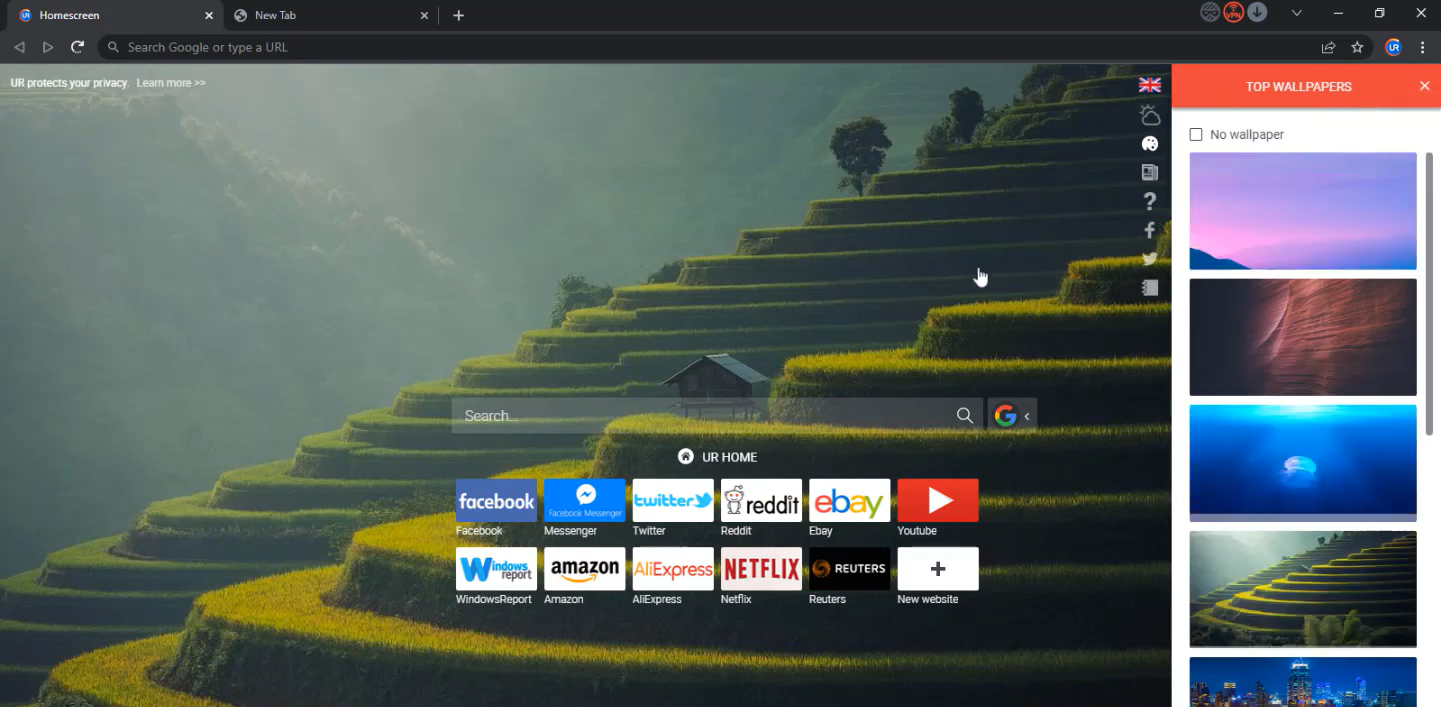

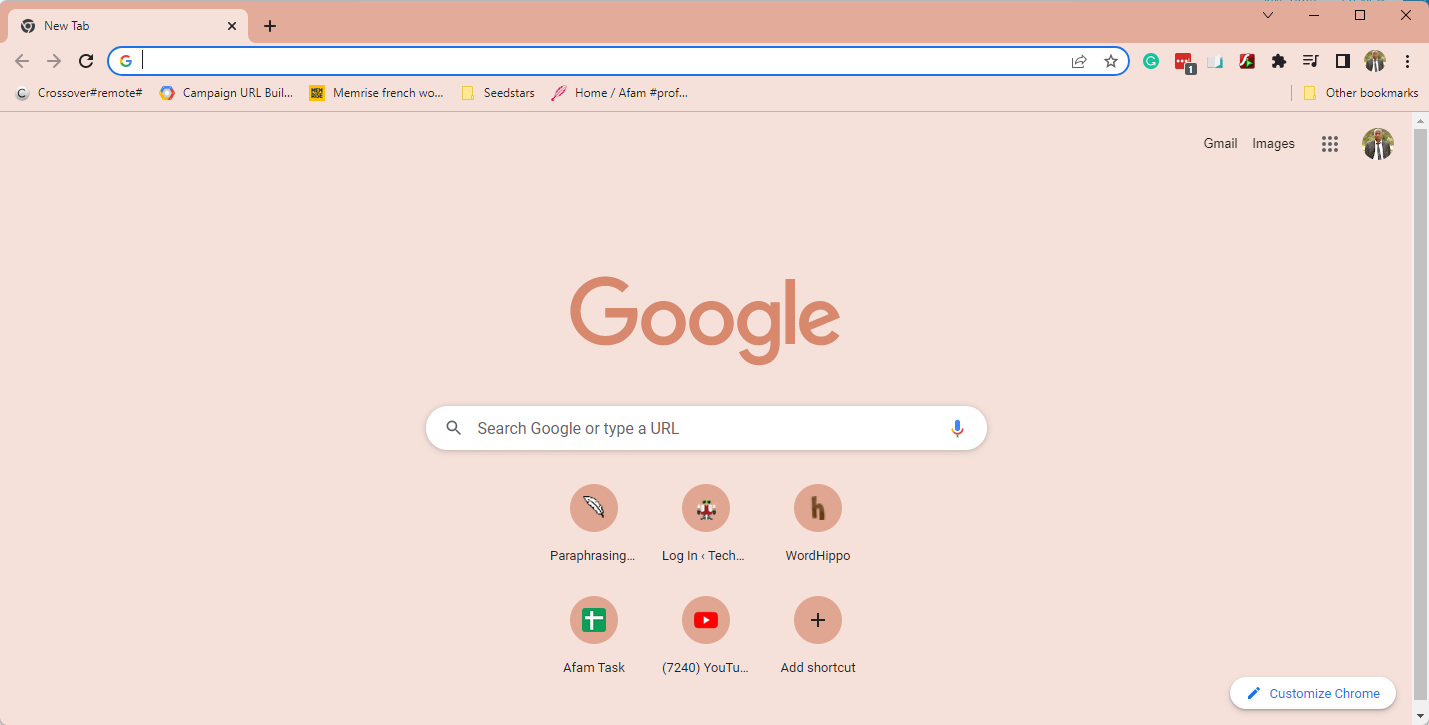

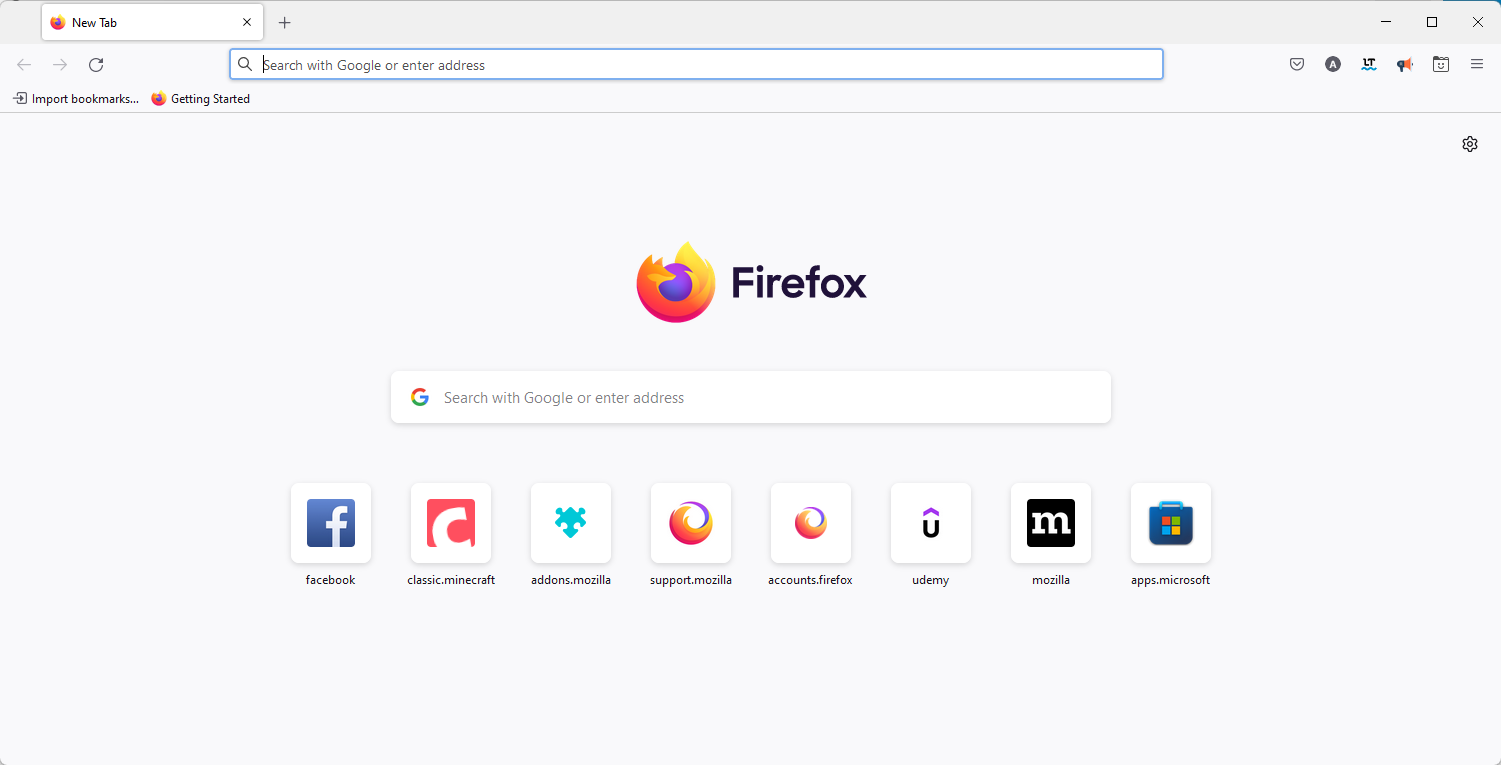
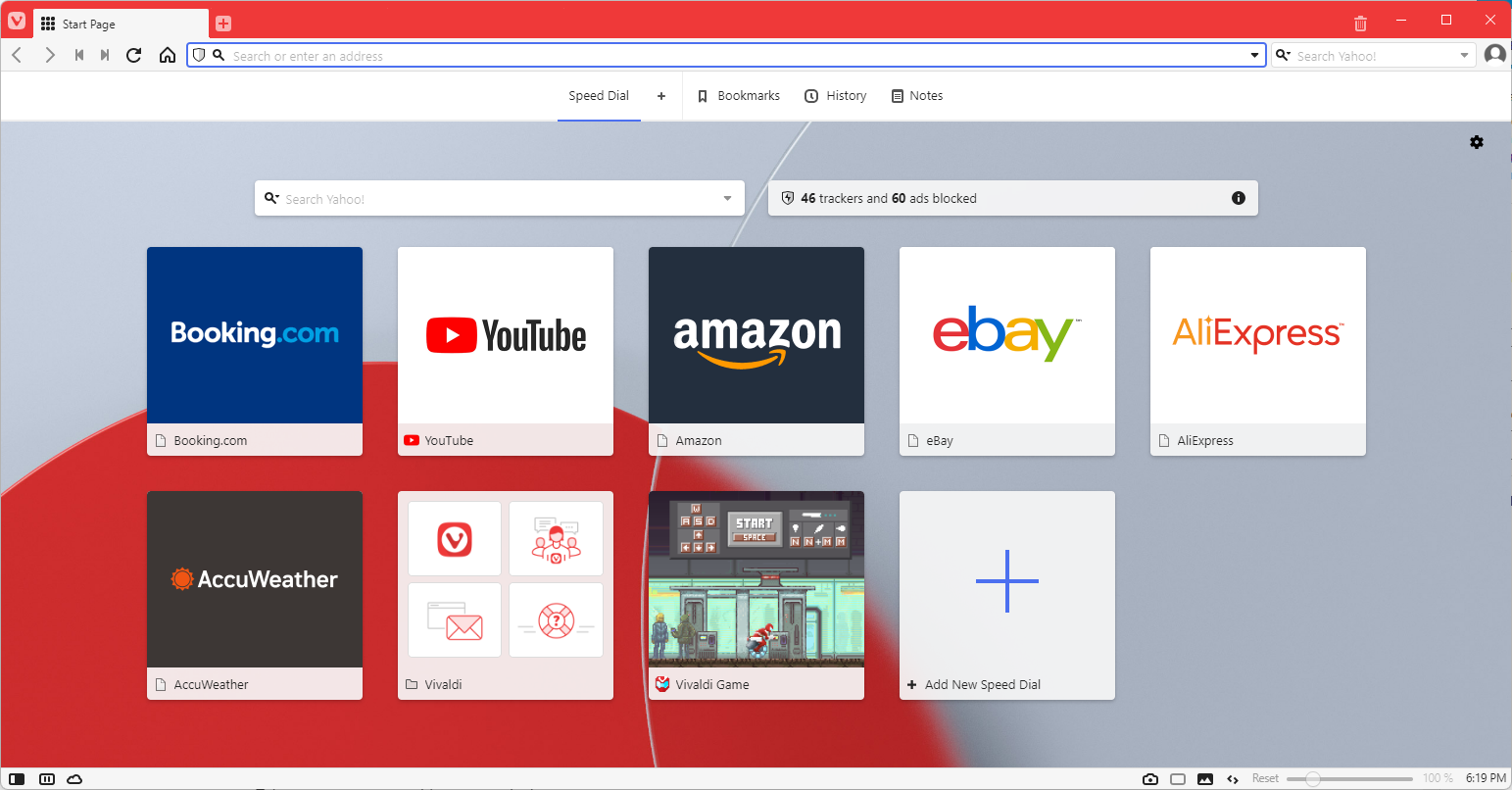


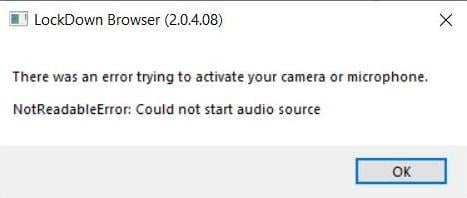


![Only Google Works on my Internet [Fix]](https://windowsreport.com/wp-content/uploads/2022/07/Windows-11-canva-111.jpg)
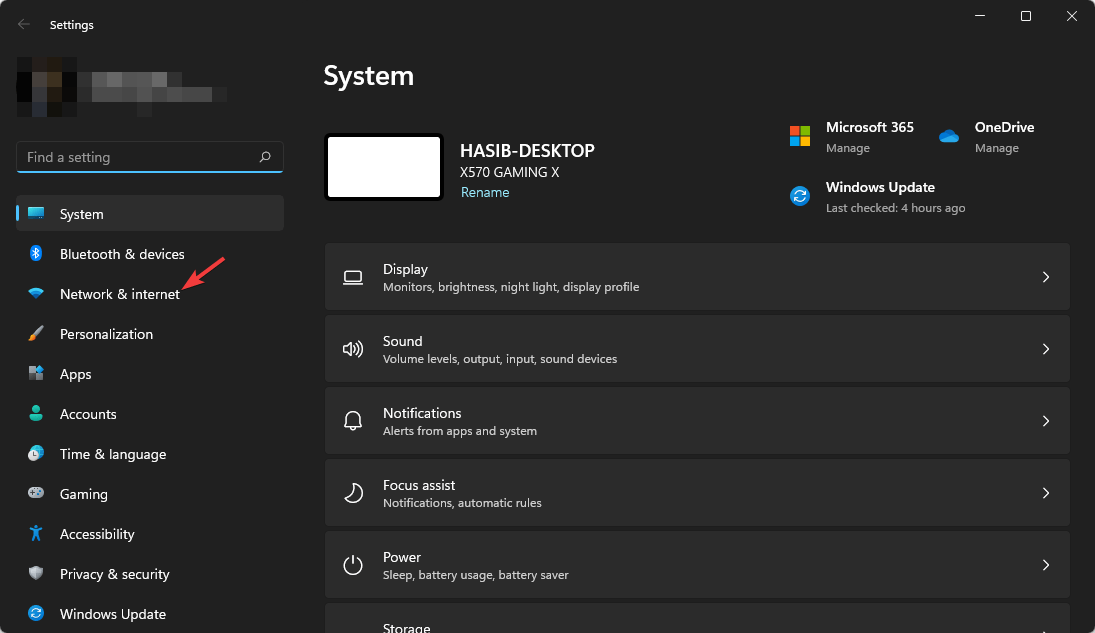
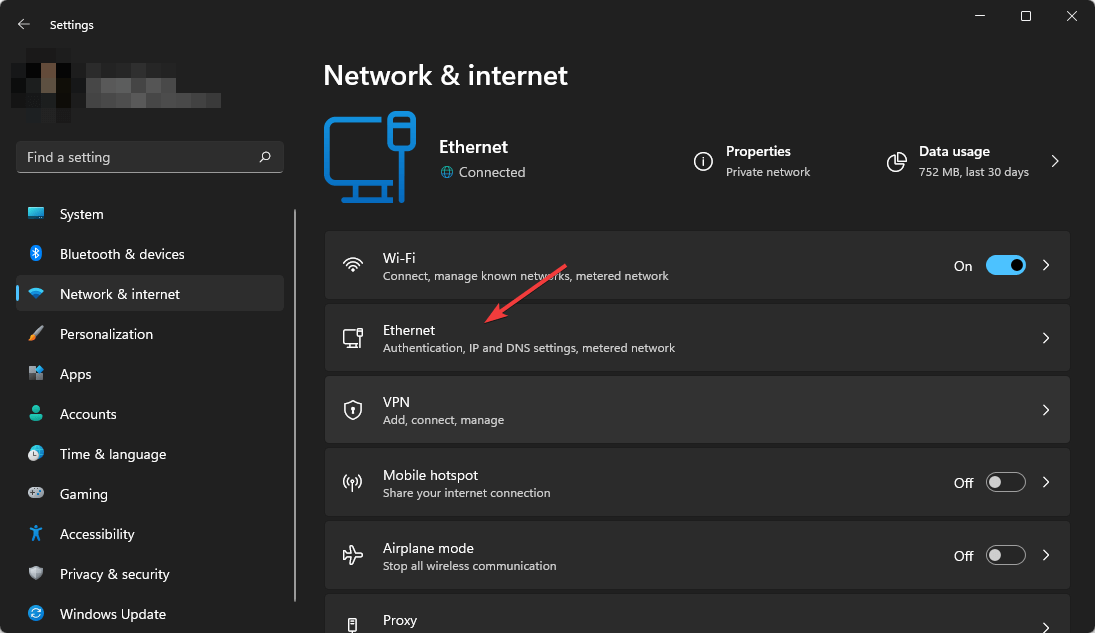
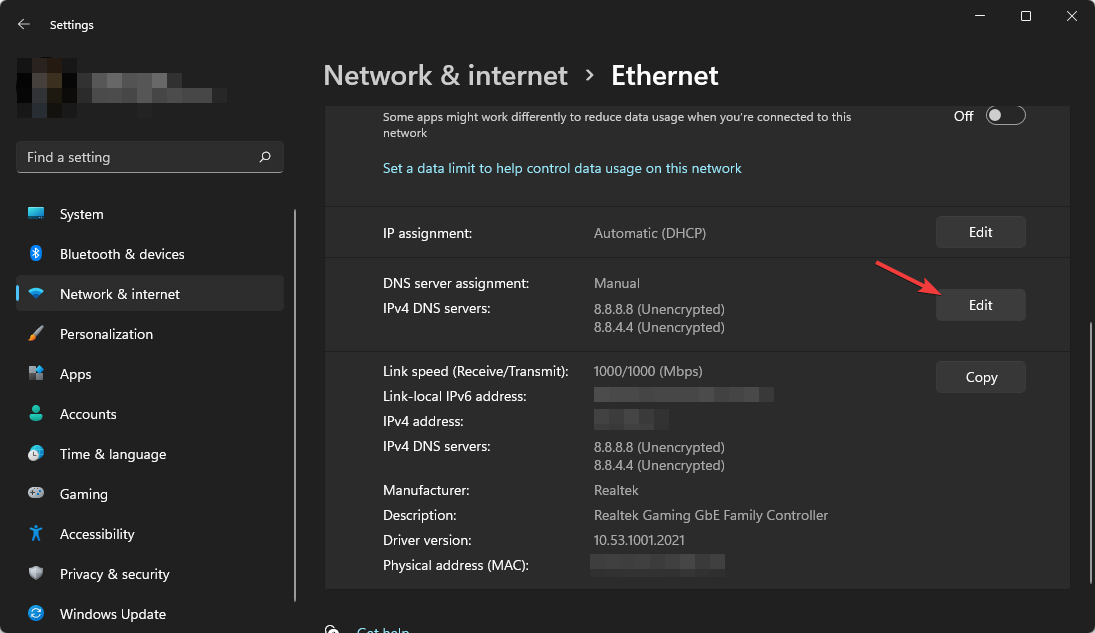
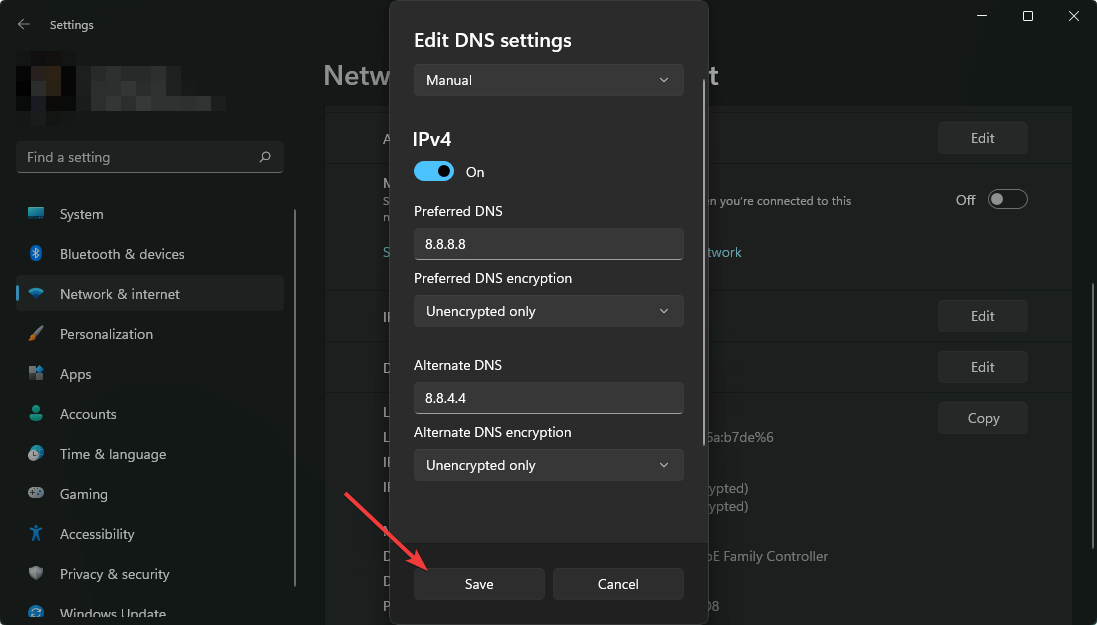
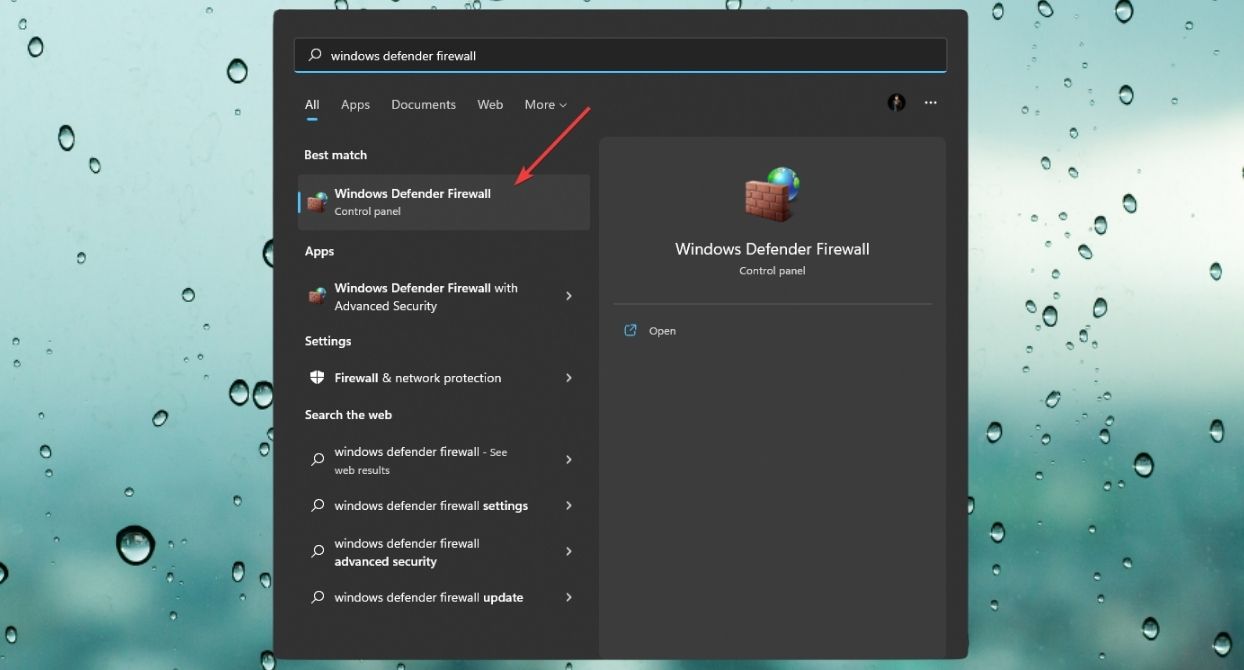
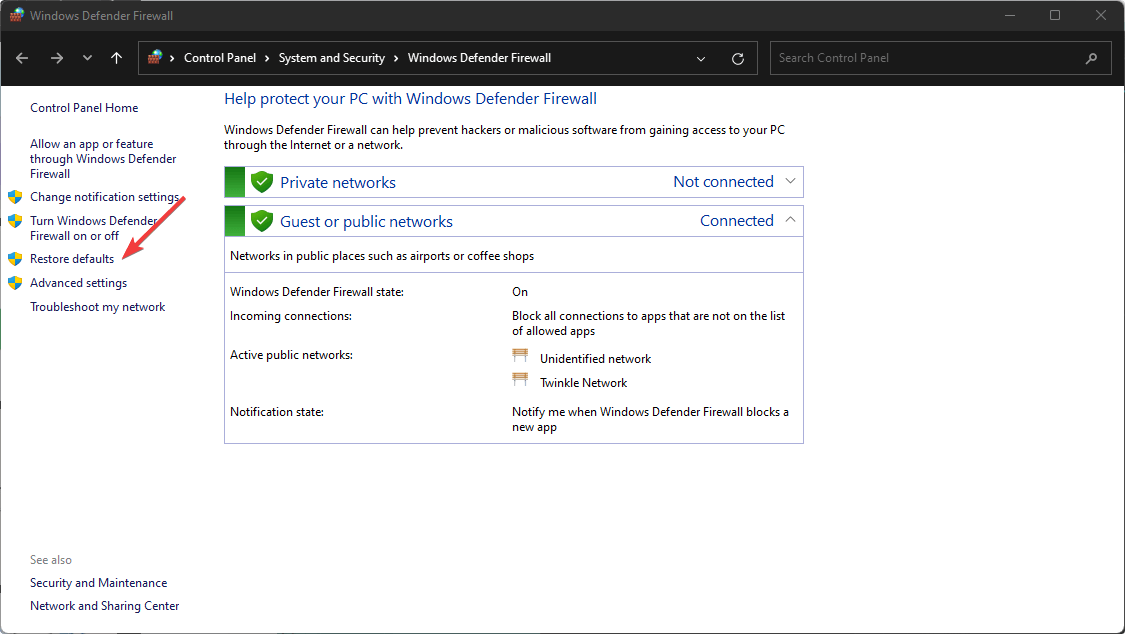
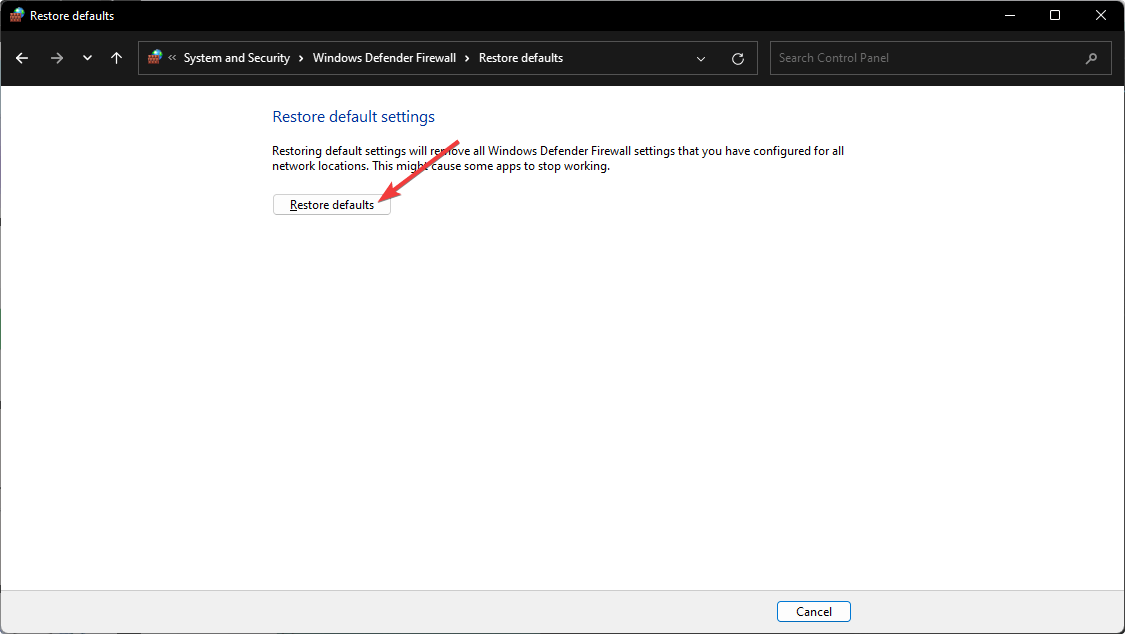
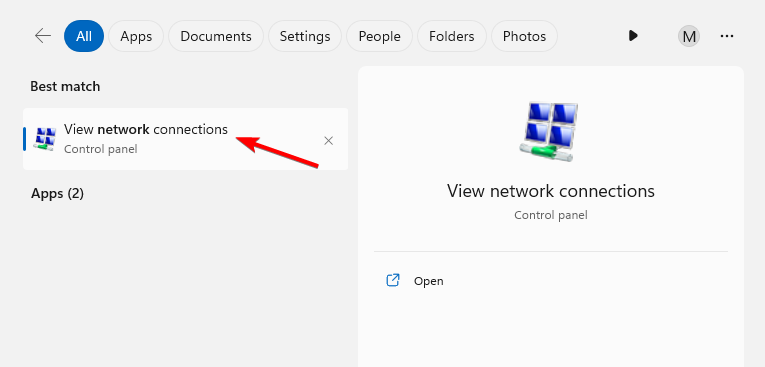


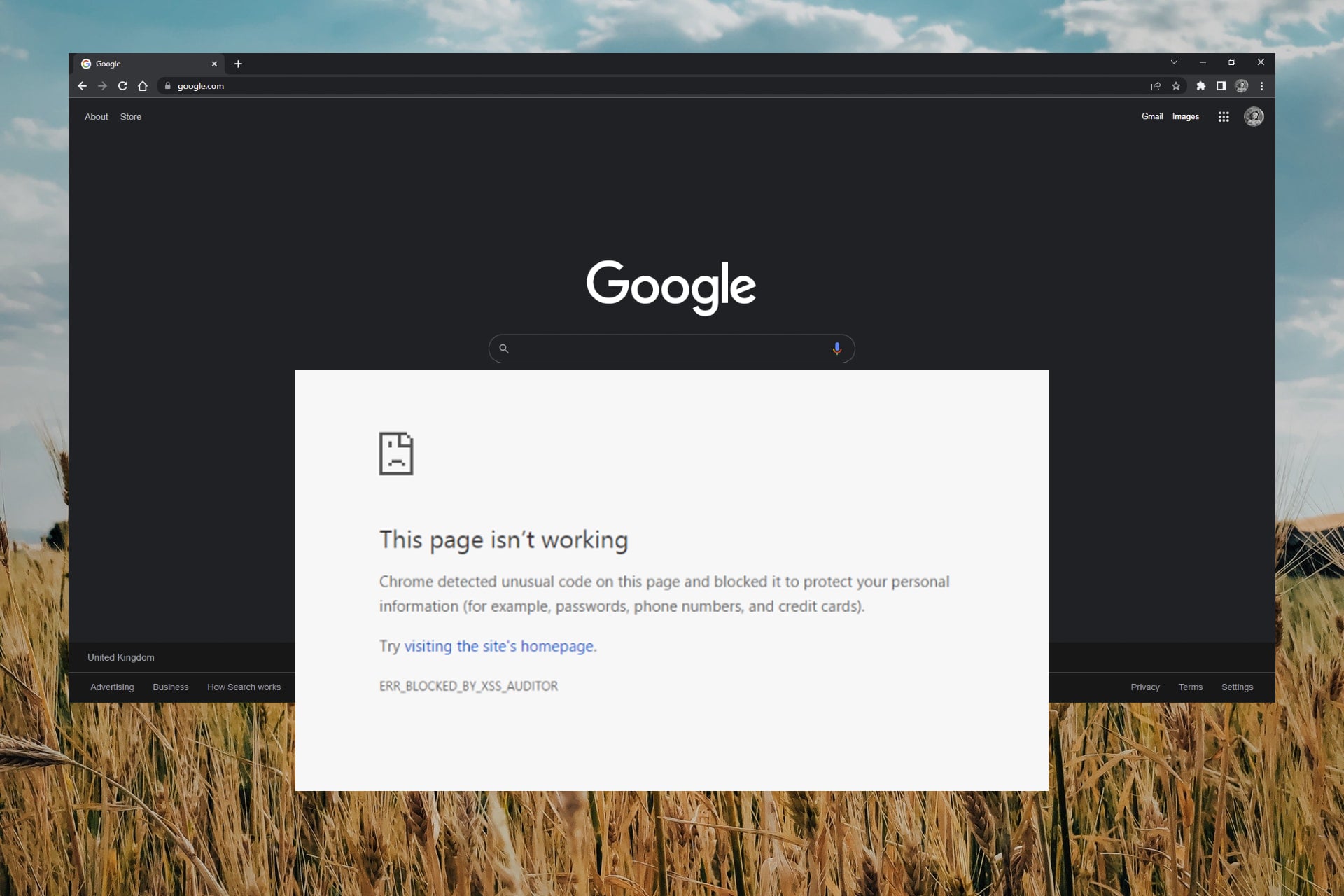
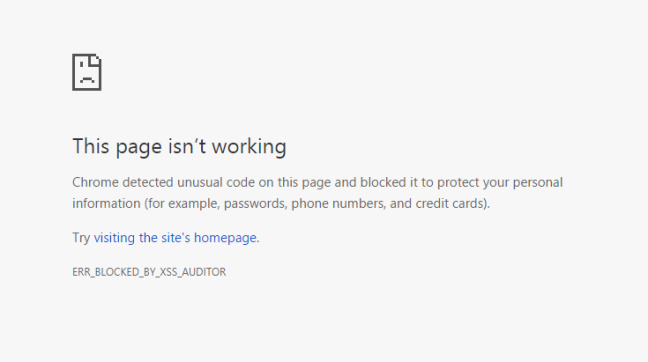

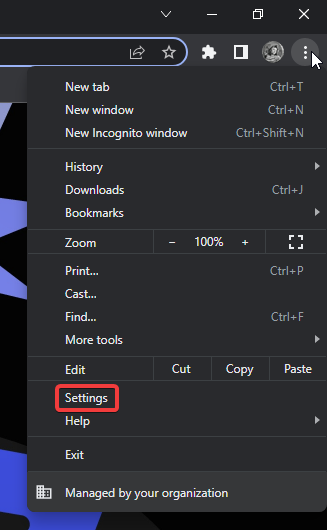
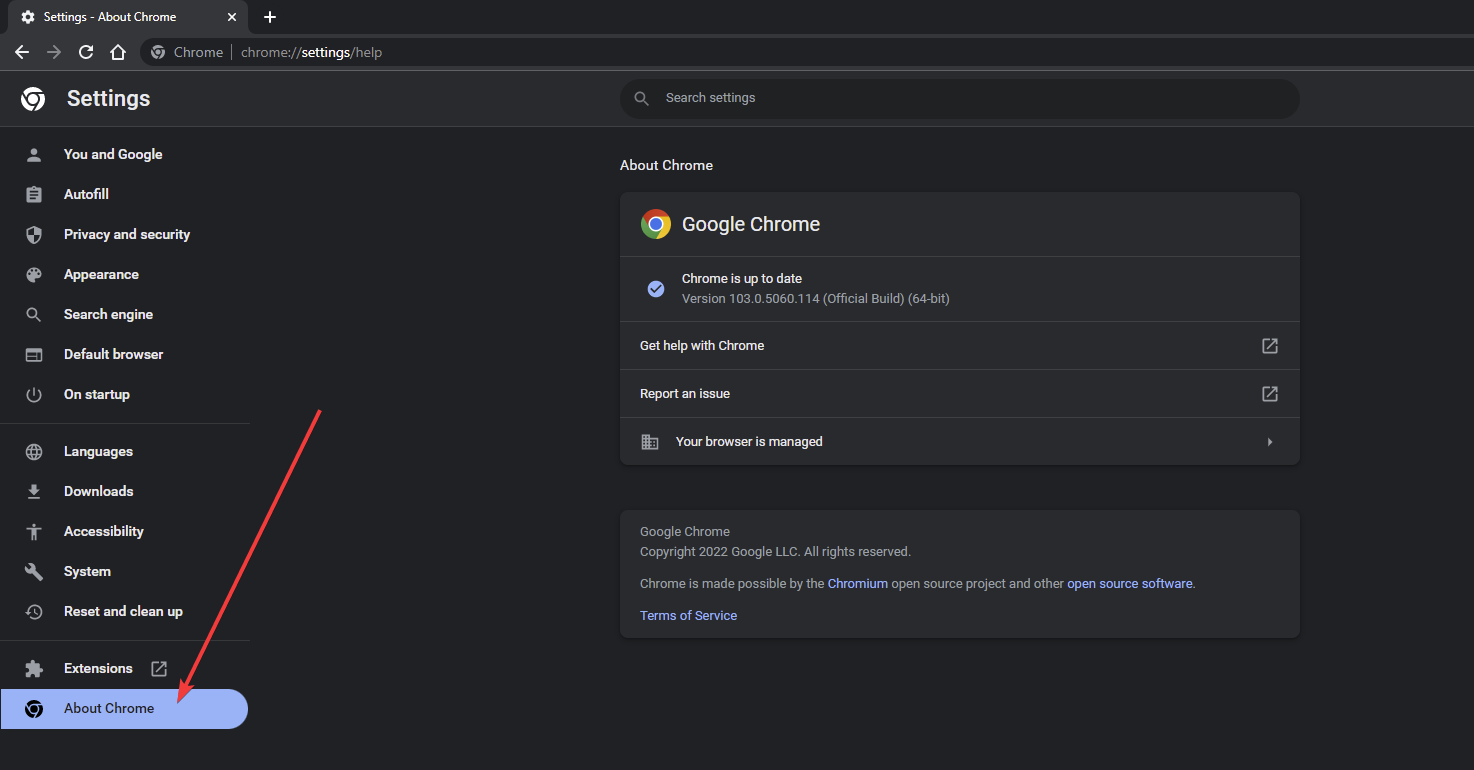
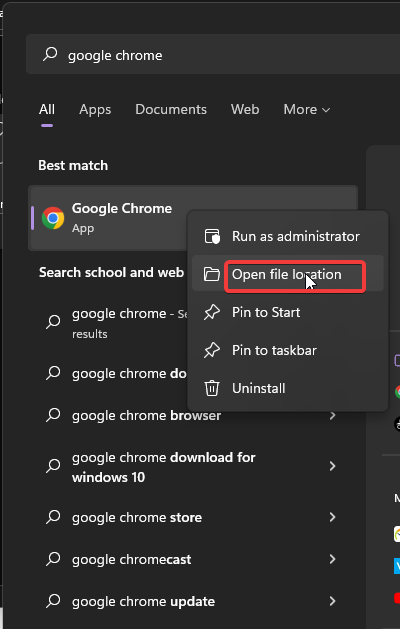
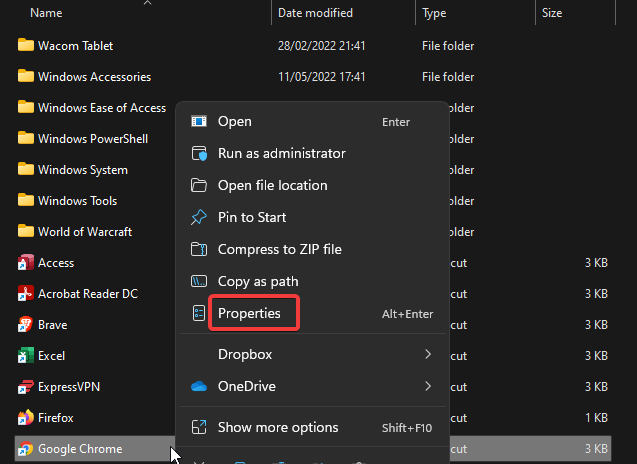
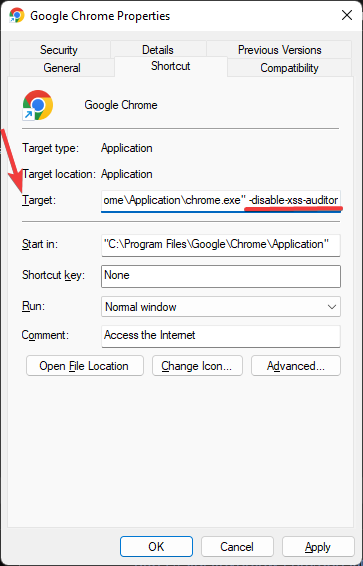
![5 Best Browser To Play Minecraft In 2026 [Ranked By Speed]](https://windowsreport.com/wp-content/uploads/2020/04/minecraft-browser.jpg)
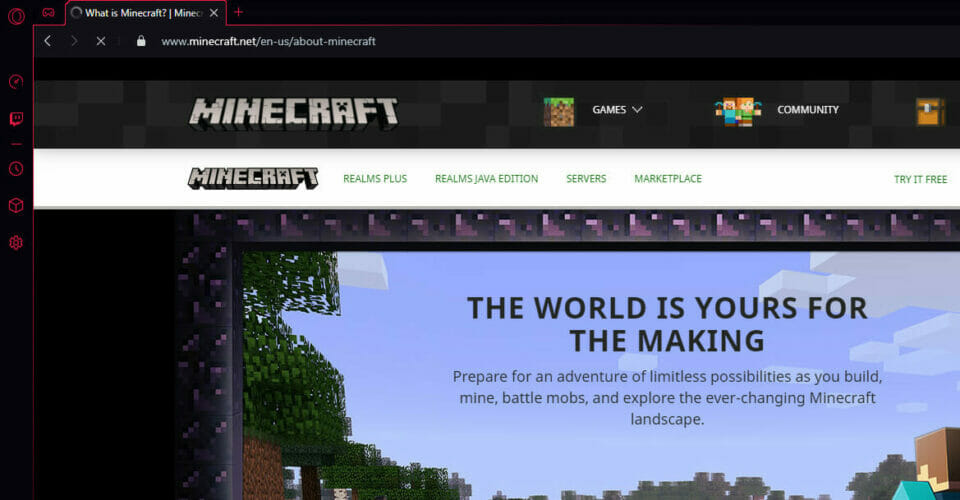

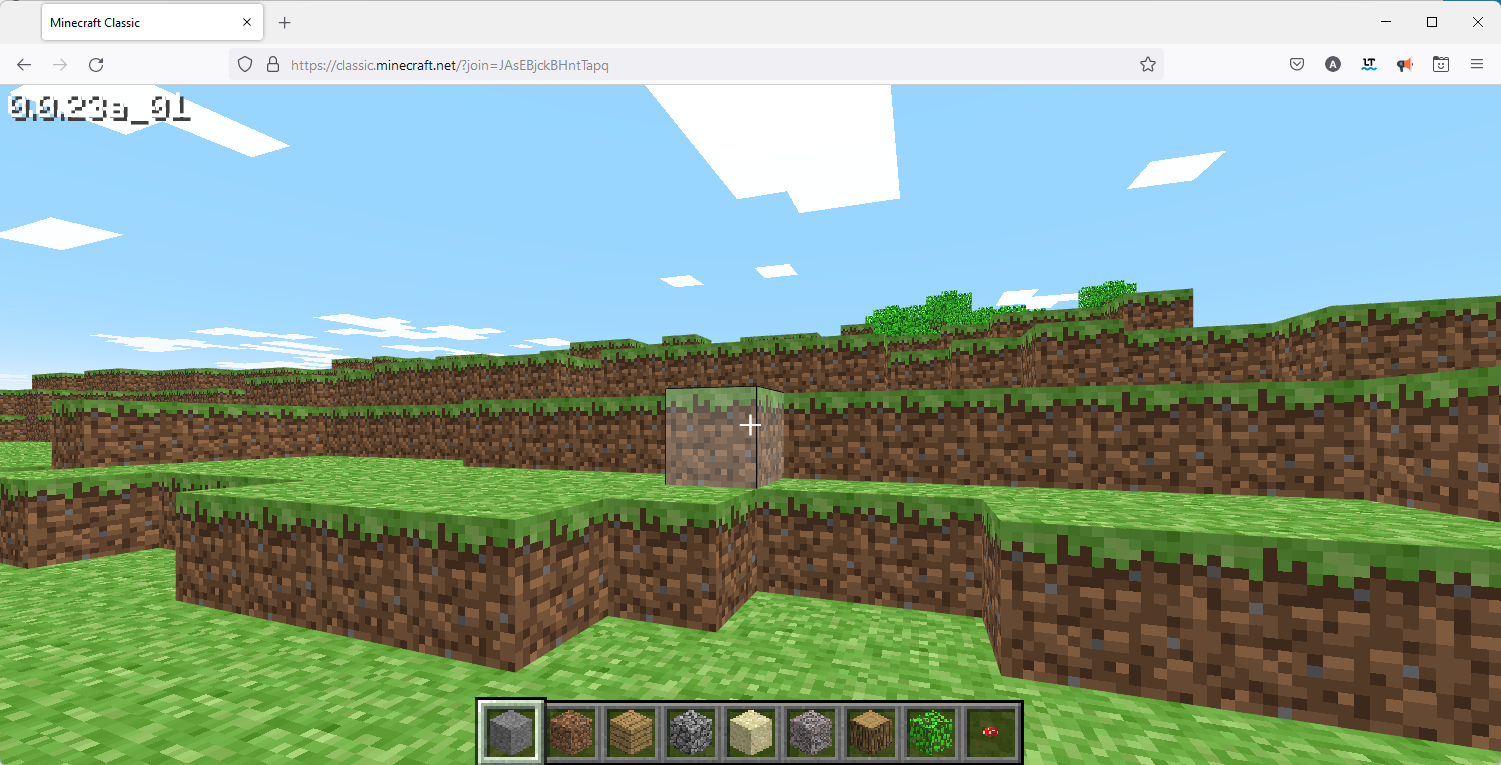
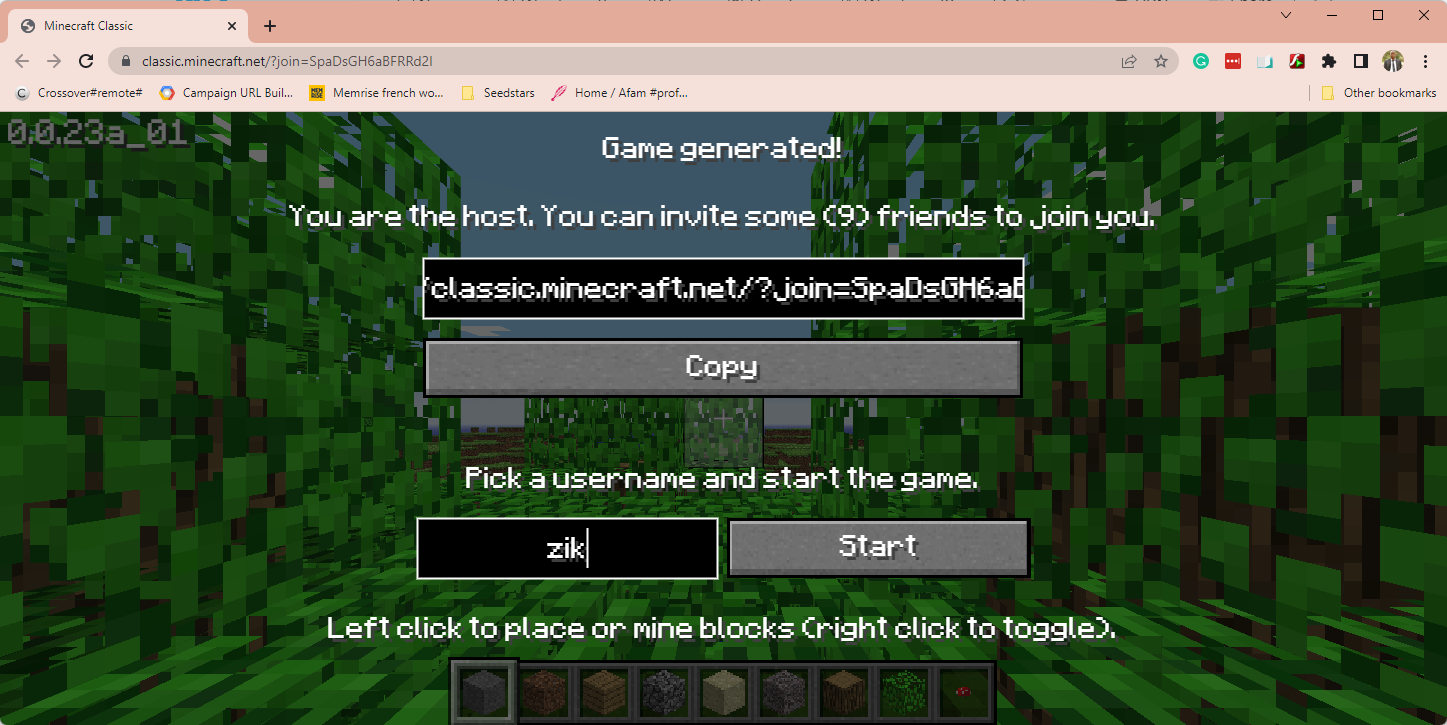
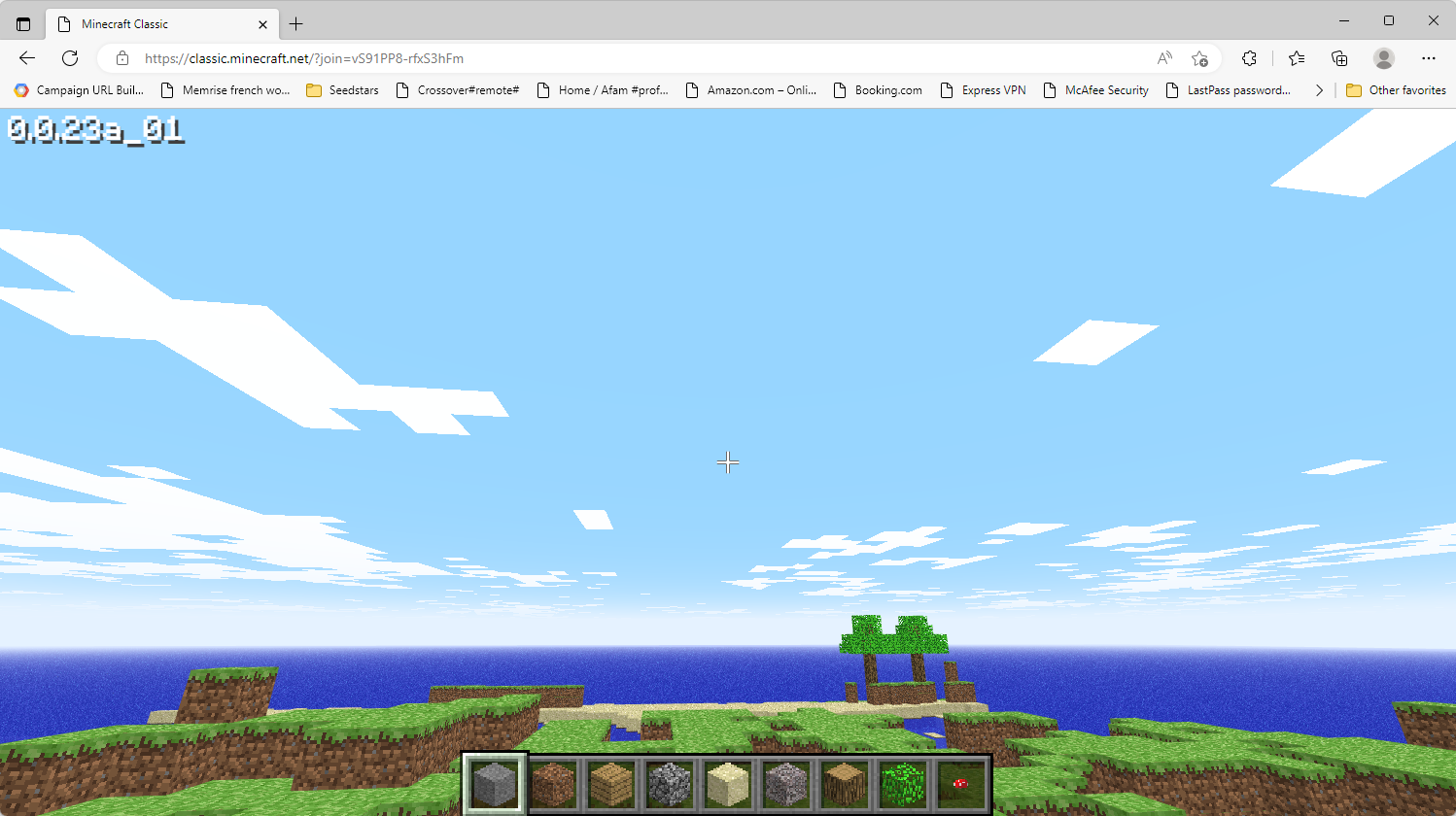
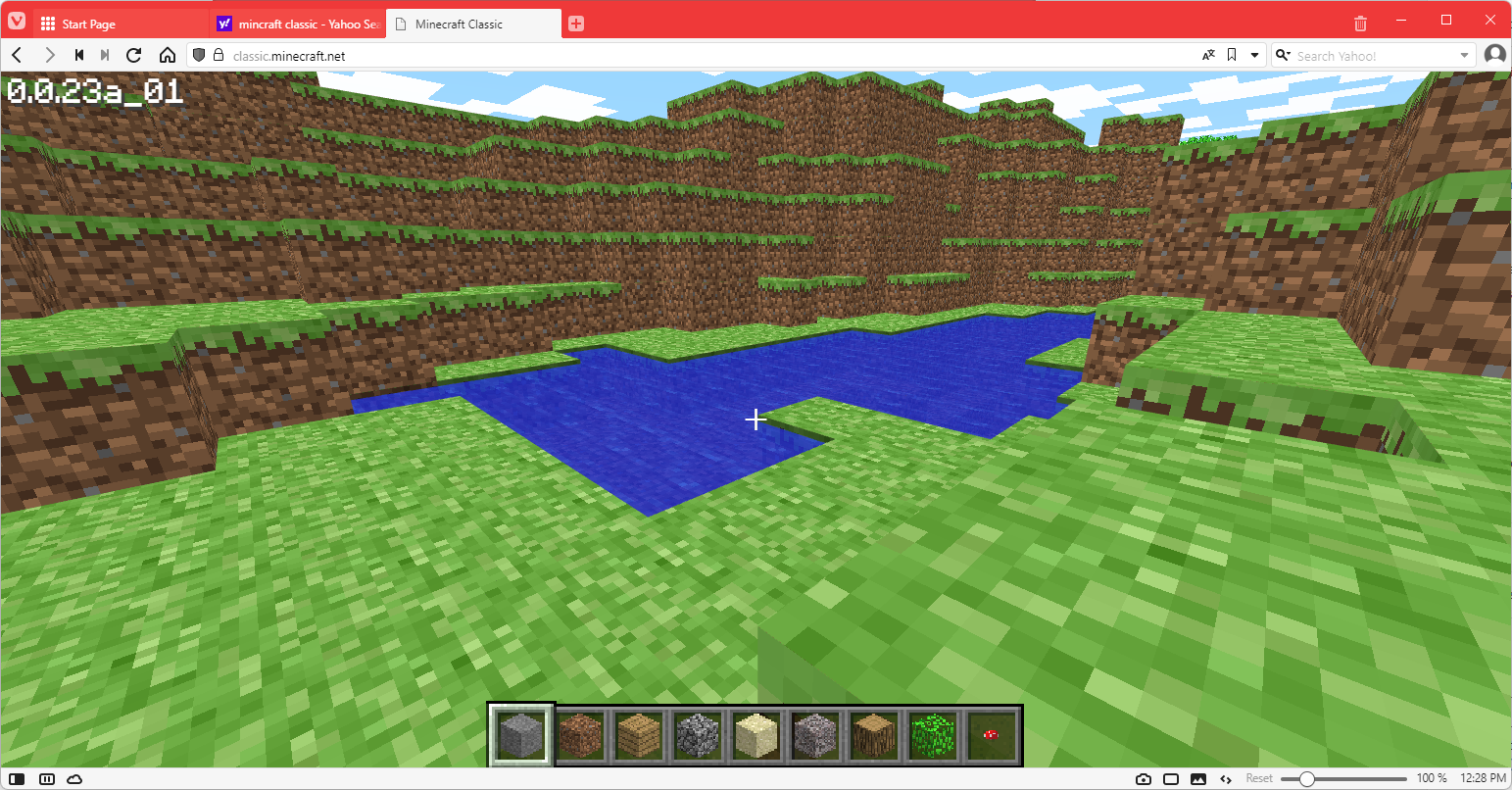
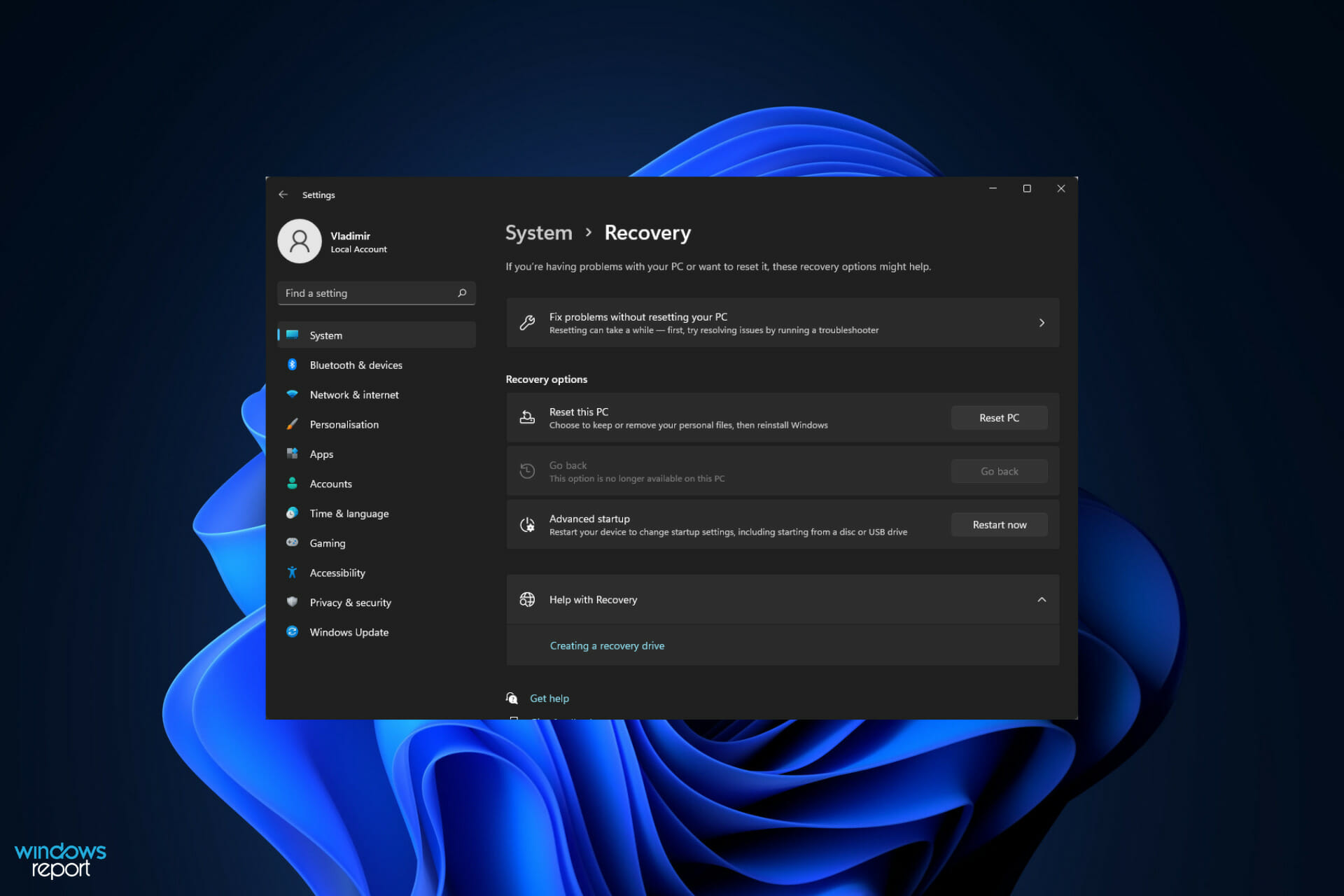





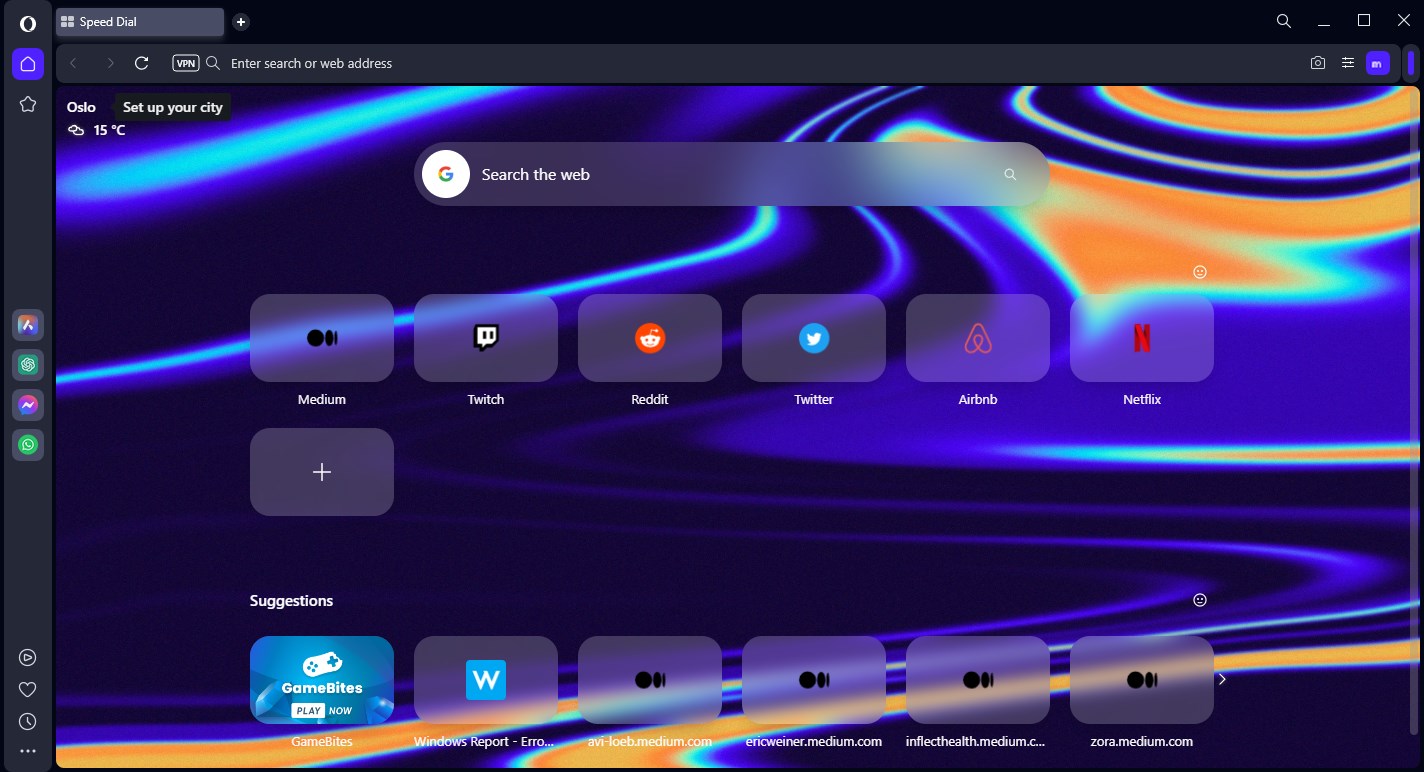


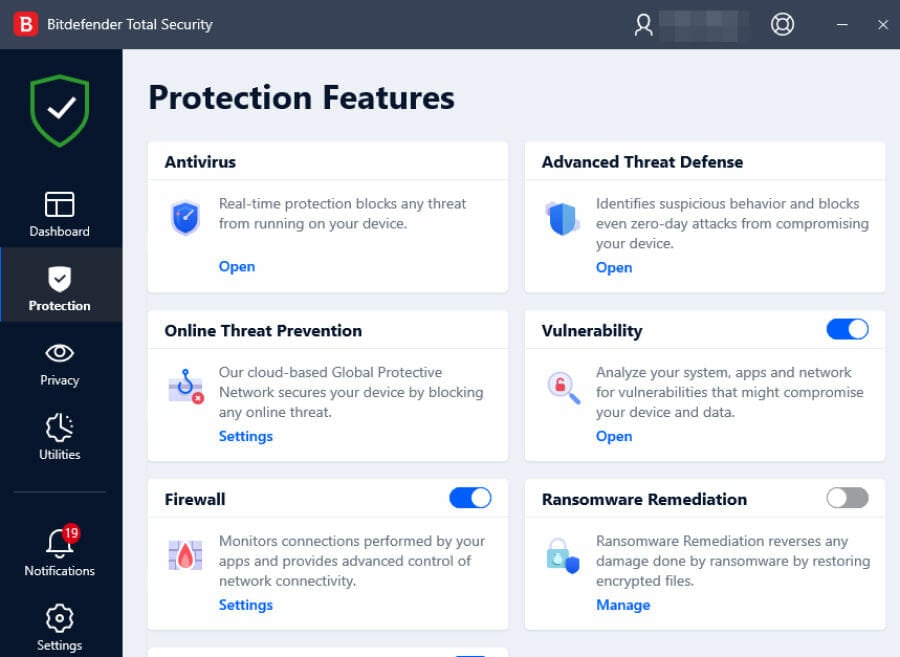
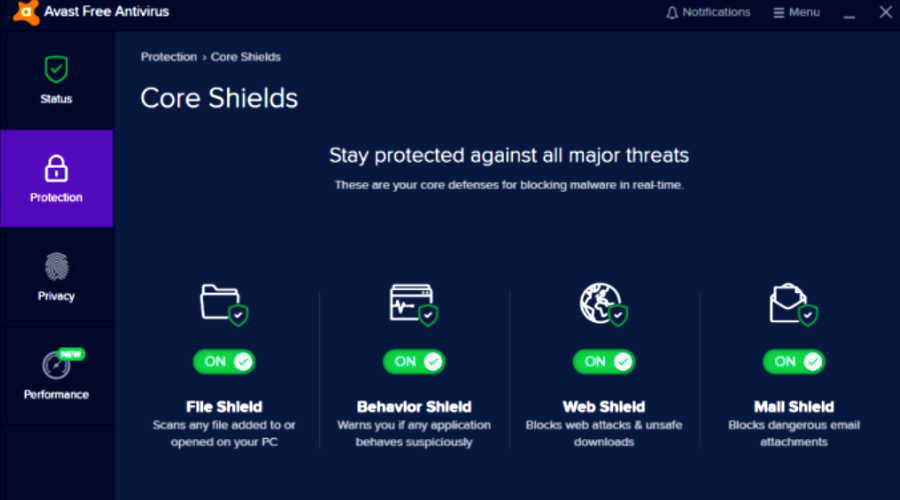


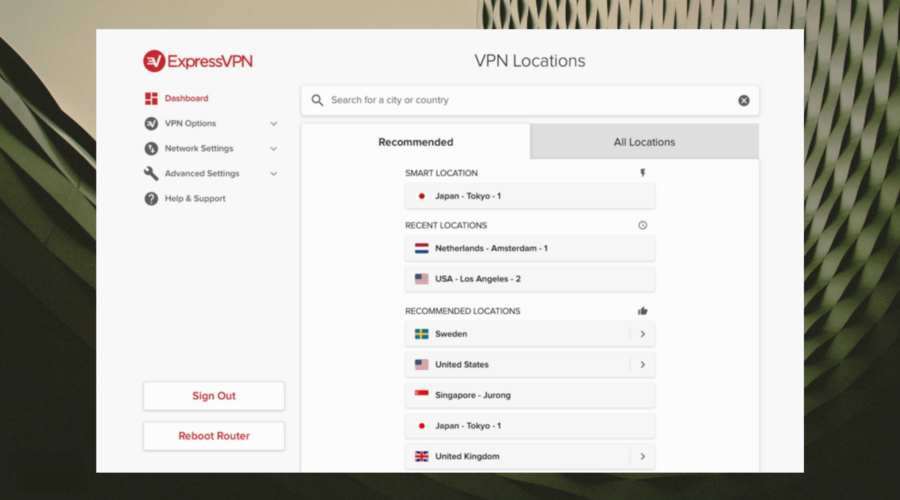







![How to Fix Avast Blocking Remote Desktop [Quick Guide]](https://windowsreport.com/wp-content/uploads/2022/07/best-browser-for-google-workspace-33.jpg)


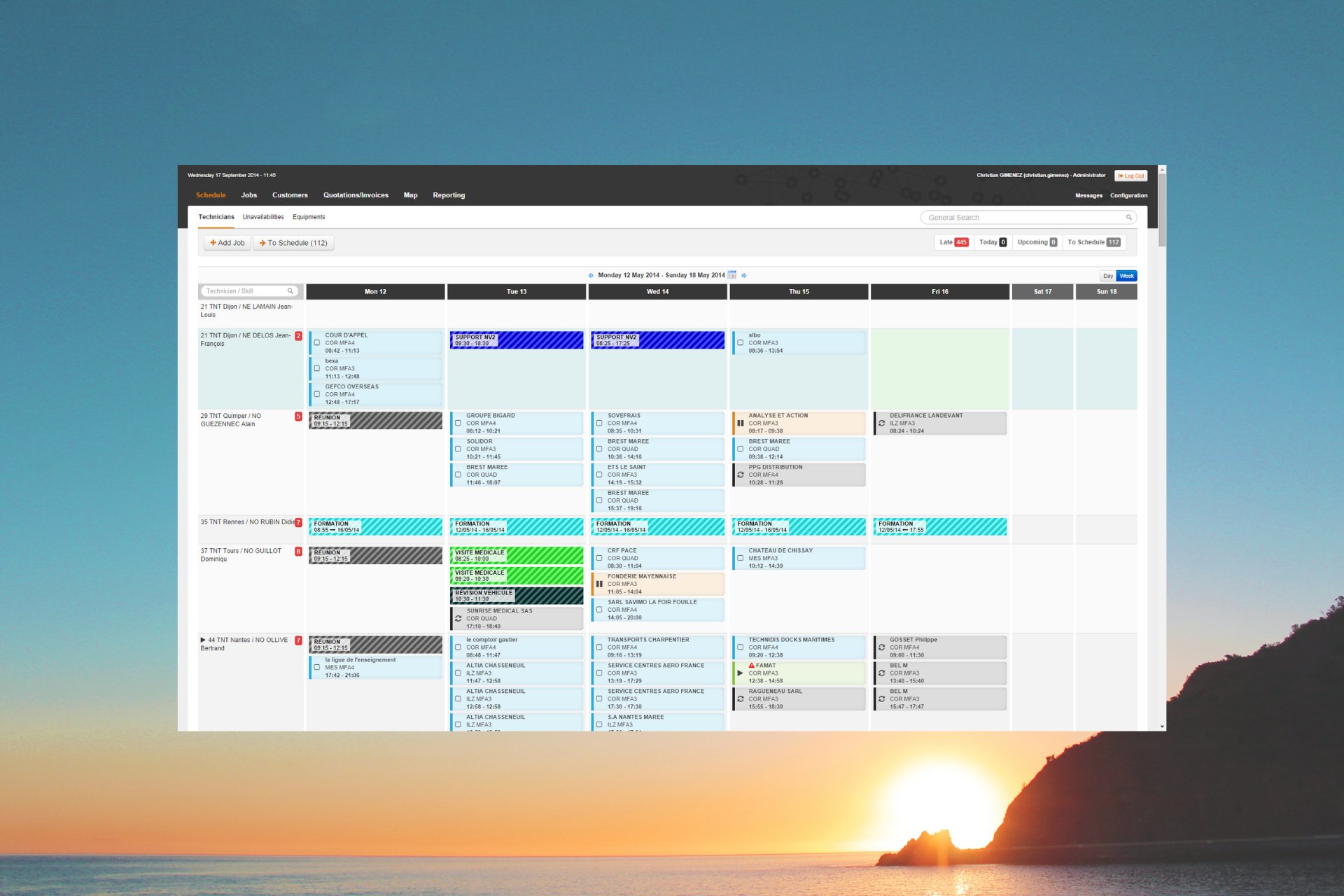
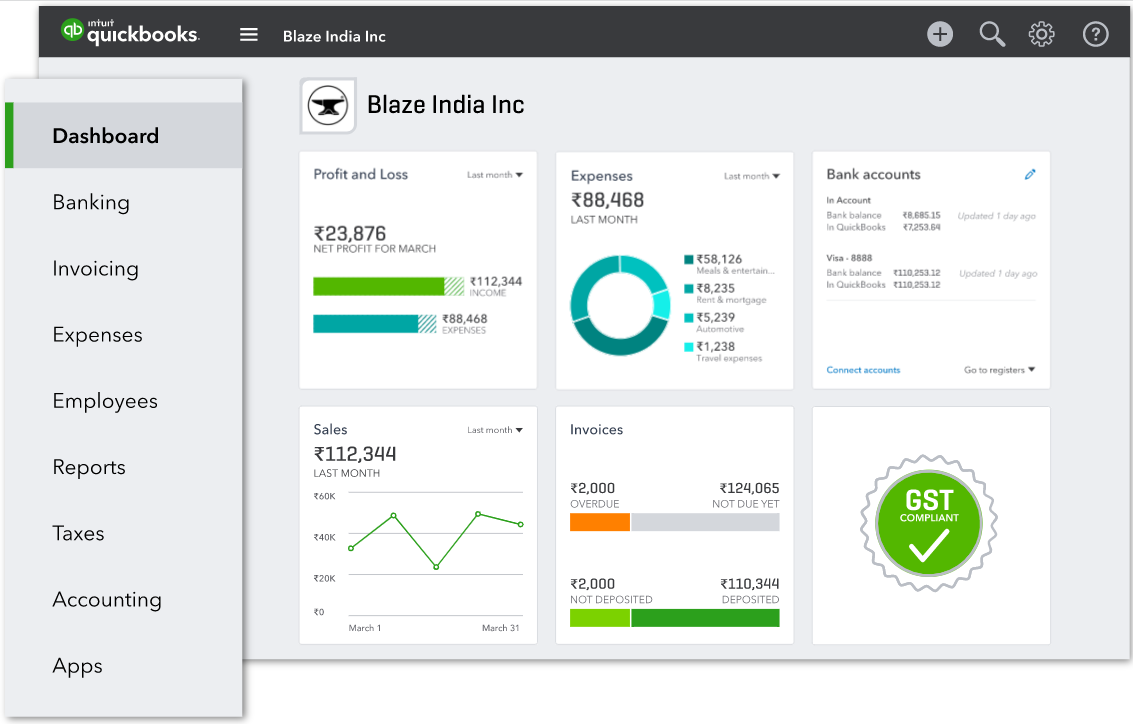


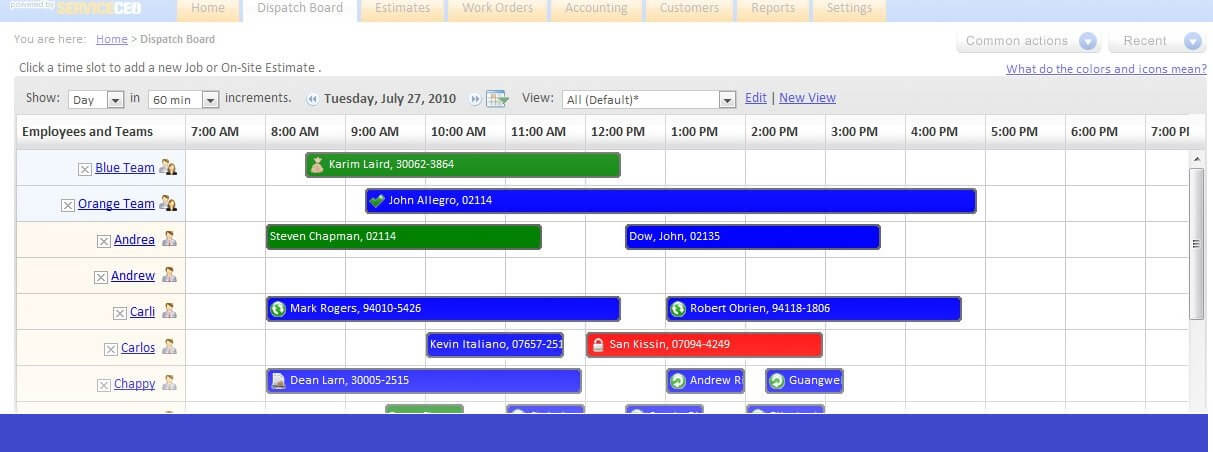




![5 Best USB Printer Cables To Buy [Fast & Reliable]](https://windowsreport.com/wp-content/uploads/2022/07/Untitled-design-2022-07-07T014209.812.png)




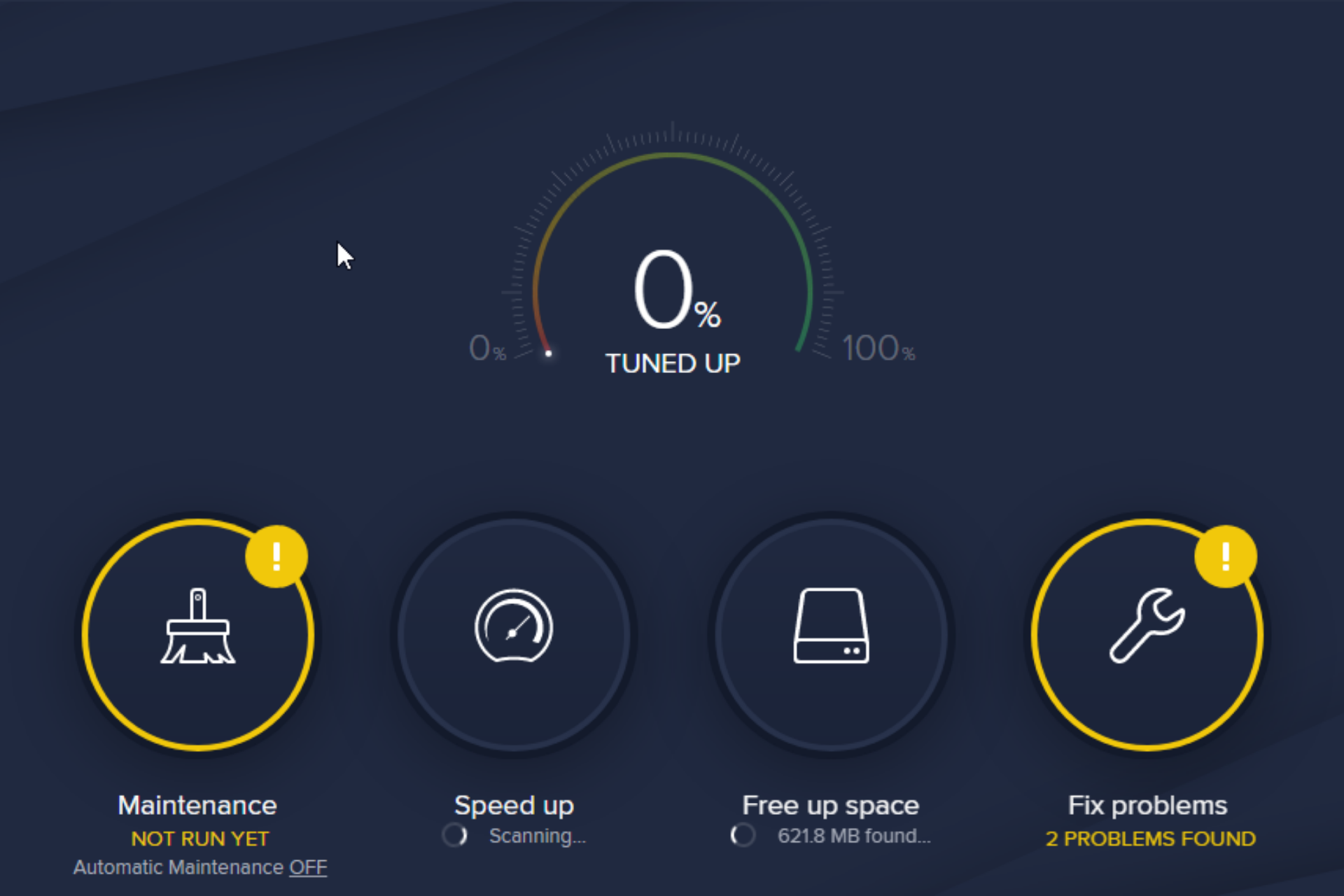
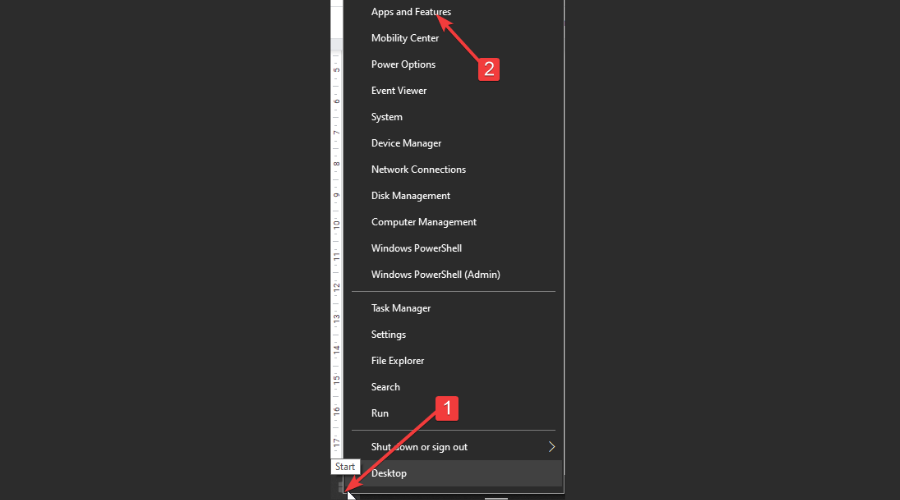
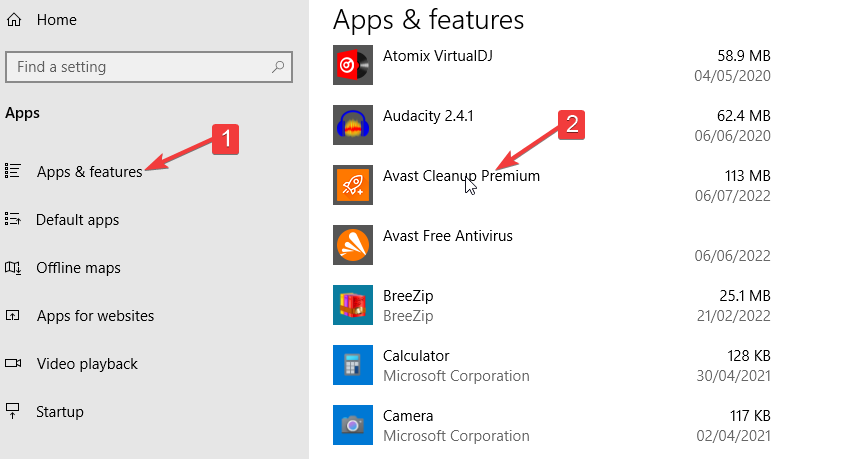
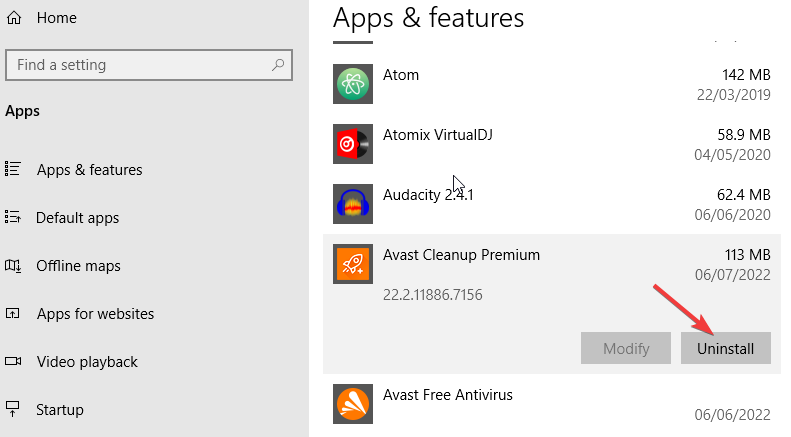
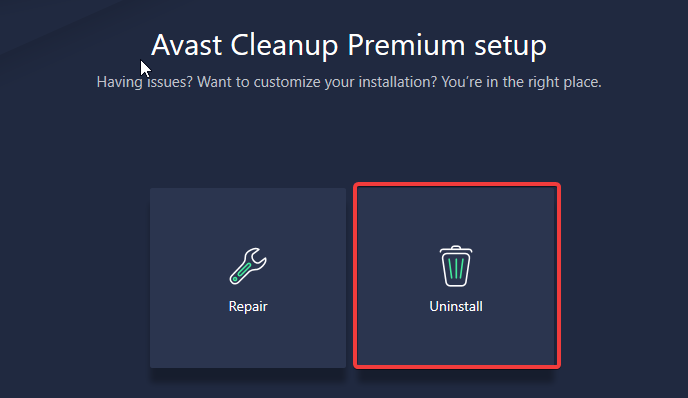
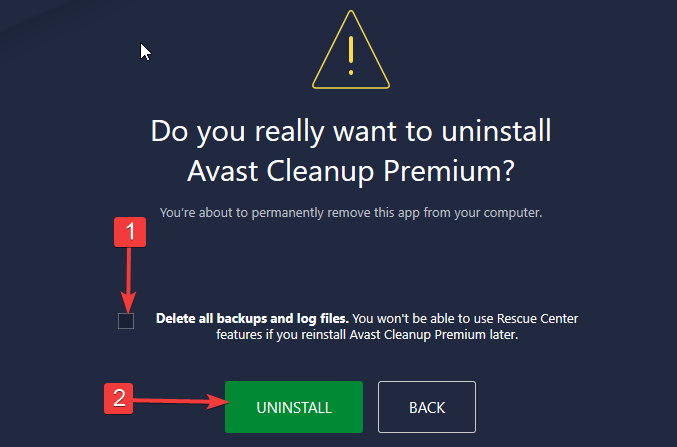
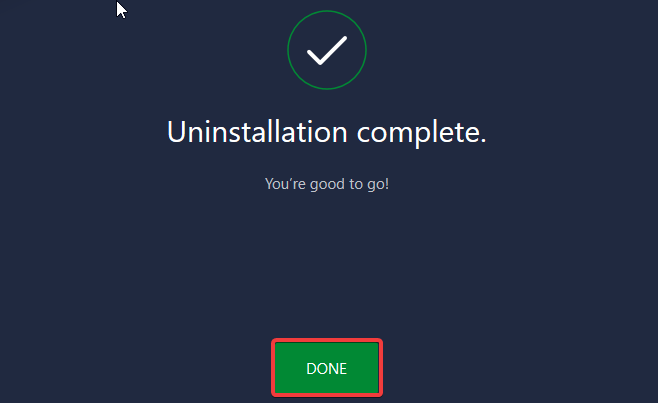
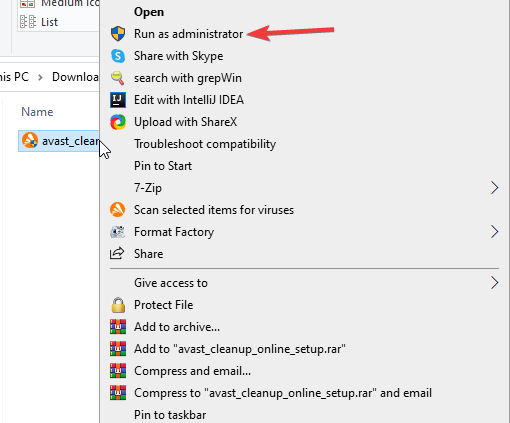
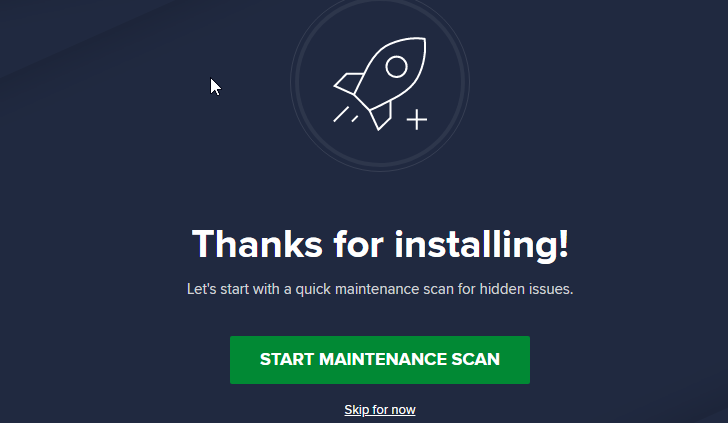

![The Iframe Has Not Configured – See Warning in Console [Fix]](https://windowsreport.com/wp-content/uploads/2021/03/iFrame-not-working-in-chrome.jpg)

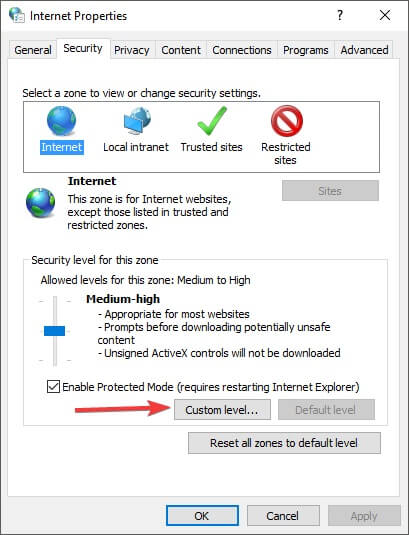


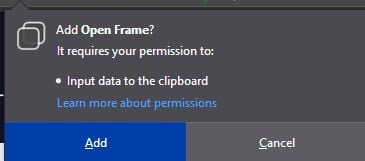



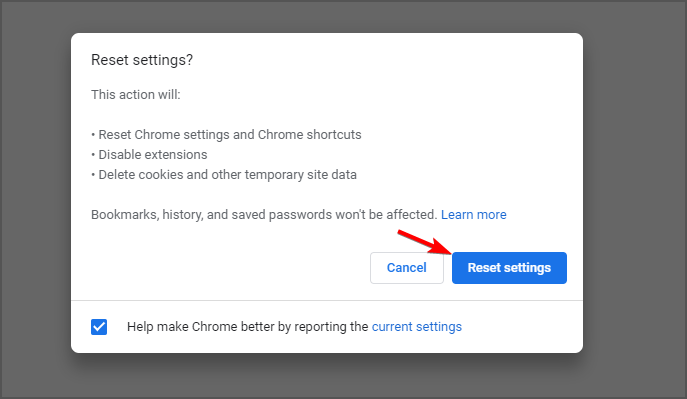


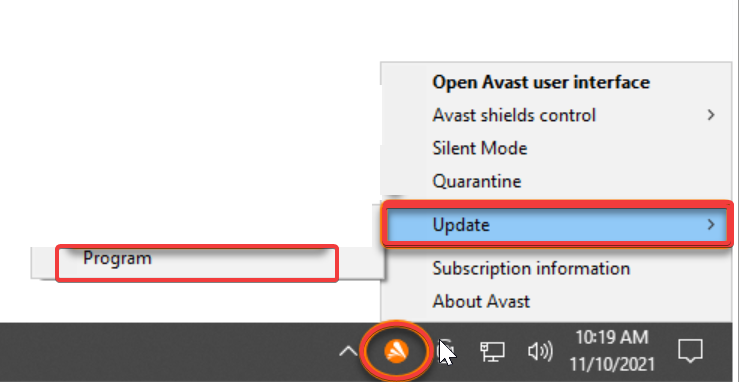
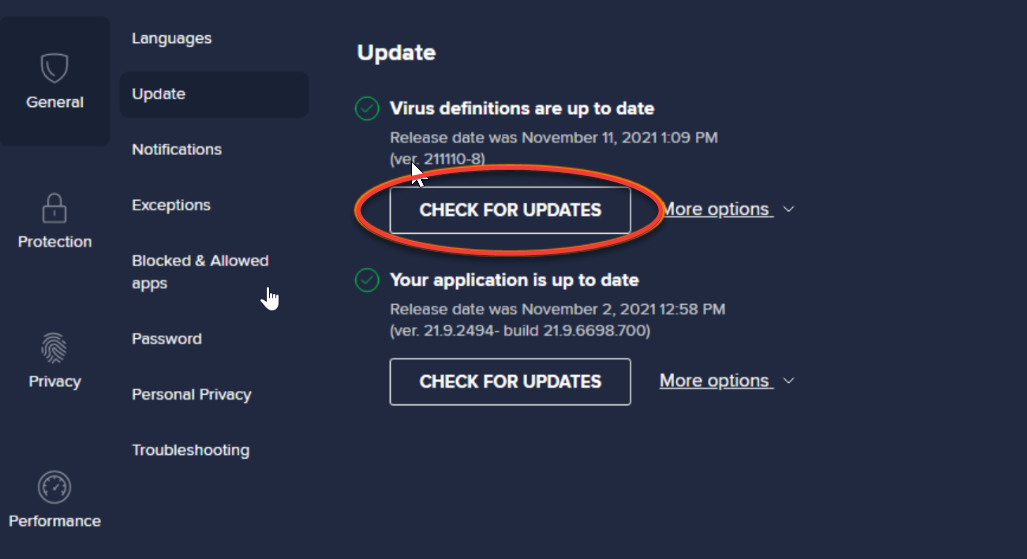
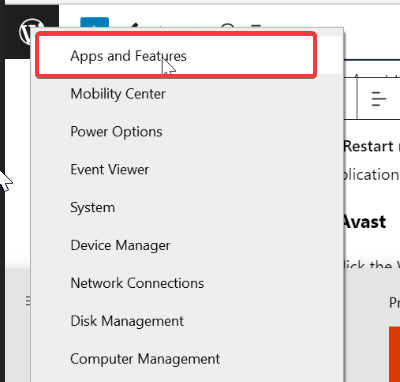
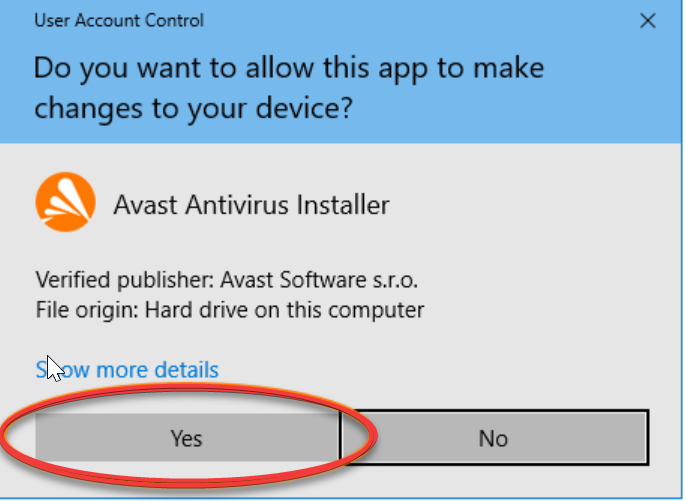
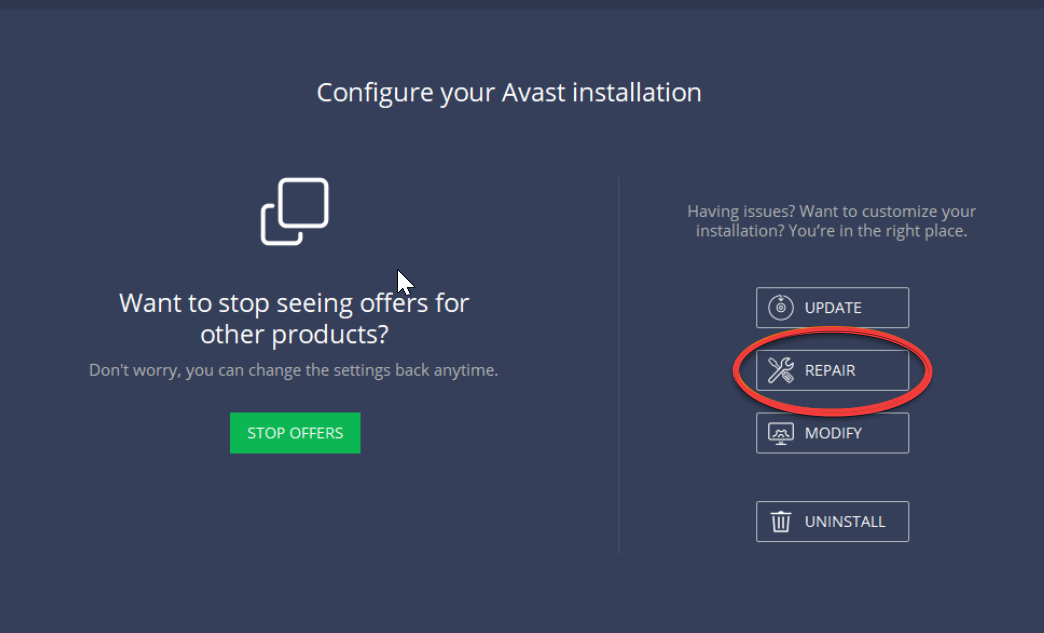
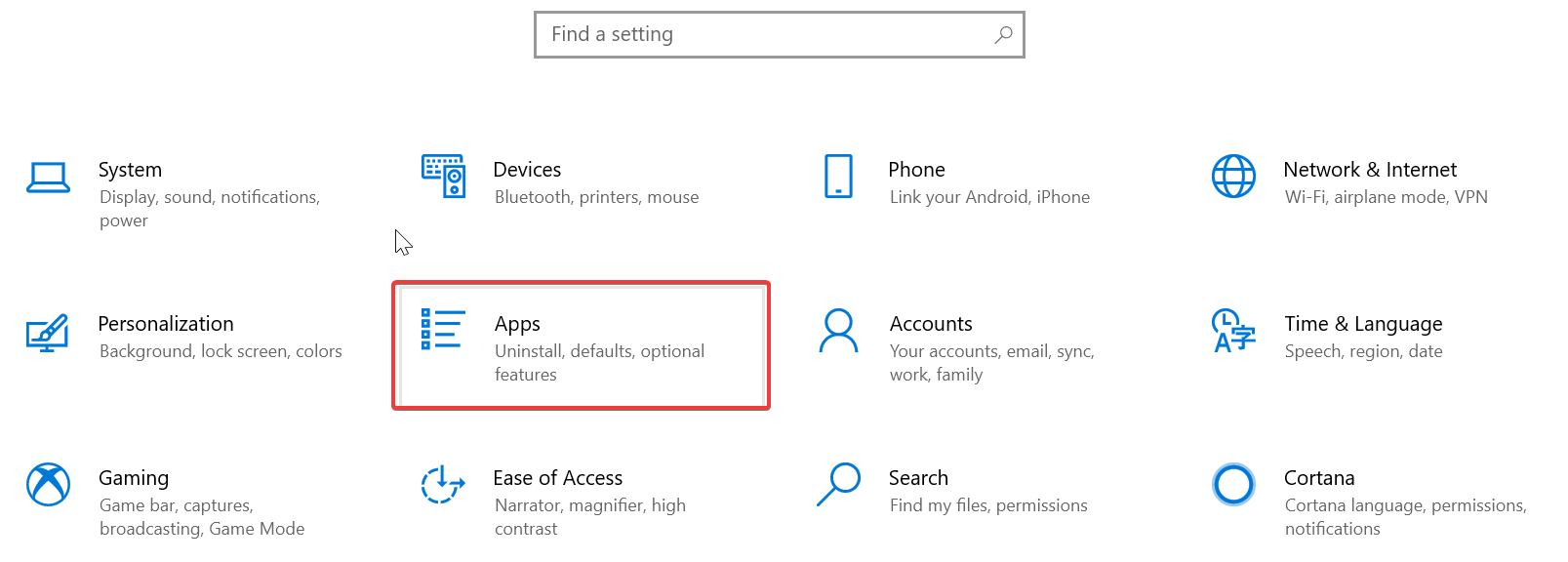
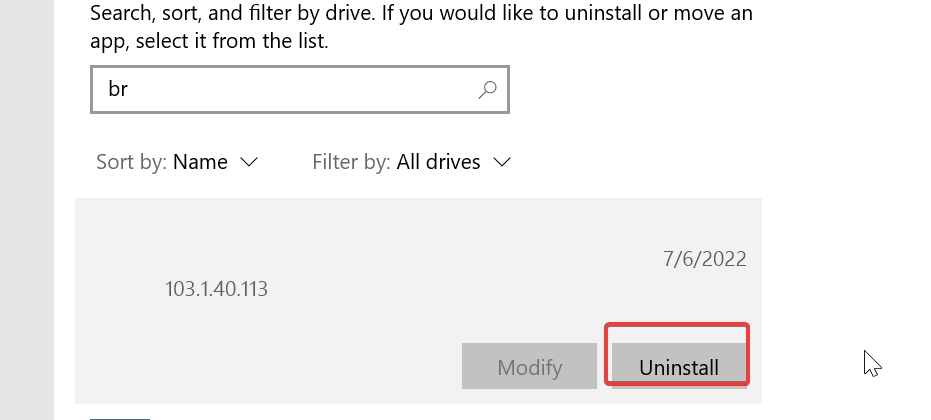



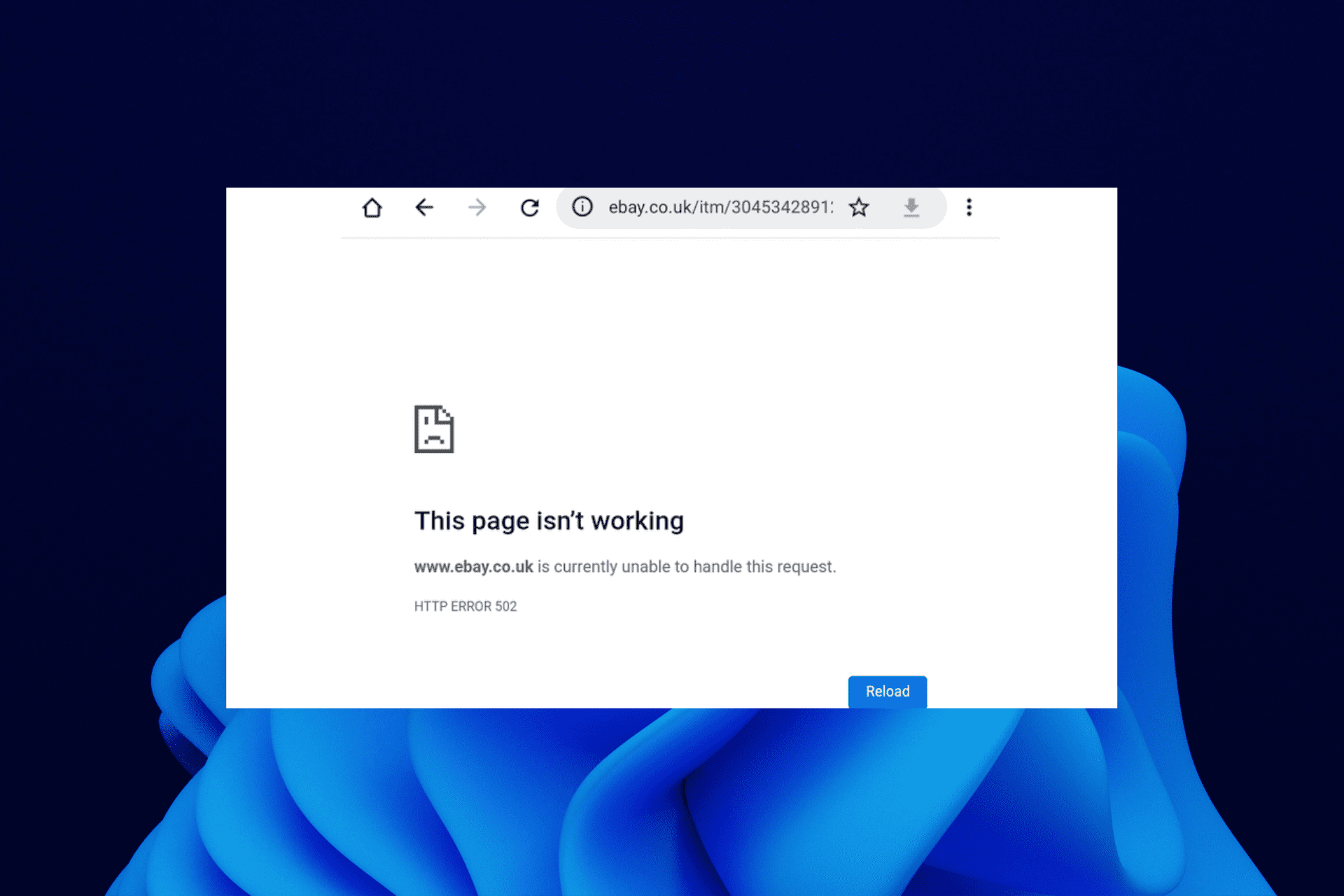





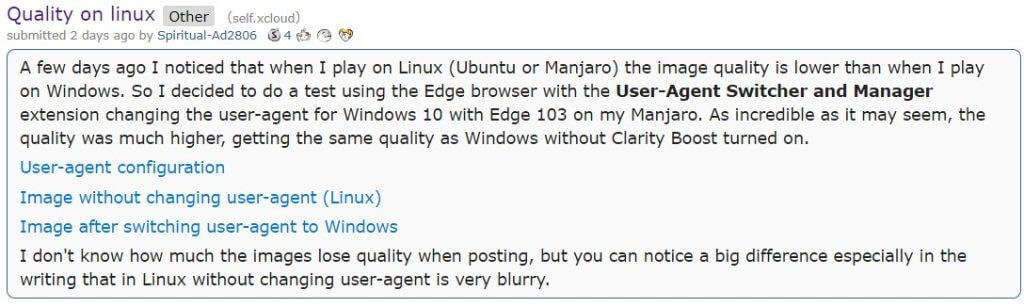
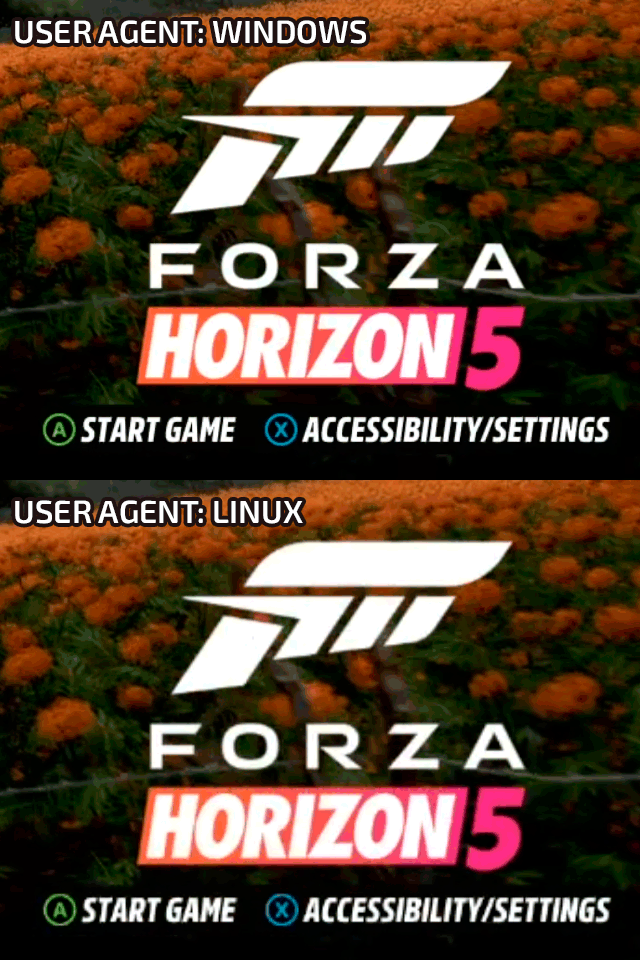
![5 Best Start Pages for Chrome [Custom Homepage, Extensions]](https://windowsreport.com/wp-content/uploads/2022/07/best-chrome-home-page-featured.jpg)


![Speed Dial [FVD] best chrome start page](https://windowsreport.com/wp-content/uploads/2020/08/Speed-Dial.jpg "The Speed Dial [FVD] extension")