Horizon Forbidden West vs Breath of the Wild 2 [Gamer Guide]

Choosing the best game might be one of the hardest decisions you have to make and it seems like tons of worldwide users are struggling with this kind of situation.

Our research indicated that many players are interested in discovering what is the best option between Horizon Forbidden West and Breath of the Wild 2.

Some users are not interested in investing in two different games. Plus, it seems like a wide range number of them also do not have sufficient time to spend on two masterpieces.

We’re here to present everything you should consider about Horizon Forbidden West vs Breath of the Wild 2. So, at the end of this guide, you’ll definitely know what to choose.

Horizon Forbidden West vs Breath of the Wild 2: General approach

Horizon Forbidden West

This game was recently released, but it is no longer a surprise that it offers a one-of-a-kind experience every time gamers decide to access the action open-world of Aloy.

For those of you who already tried the Horizon Zero Dawn version, keep in mind that Forbidden West is no more than the second part of Aloy’s journey.

If you’re not already familiarized with Horizon scenarios, keep in mind that the protagonist is Aloy, a Nora brave, seeker, and machine hunter of unparalleled skill.

She leads enormous companions groups and the game places you in a dying land, with vicious storms, and different impressive battles, making your experience one of the best you’ve ever had.

Post-apocalyptic California, Utah, and Nevada create an awesome video-game experience, where players are able to explore wider and deeper into a huge and well-organized map.

You can also engage in strategic battles against dangerous machines and mounted human enemies by using weapons, gear, and traps.

Breath of the Wild 2

The Legend of Zelda: Breath of the Wild 2 is the in-development Nintendo Switch exclusive any gamer wants to experience as soon as possible.

However, Nintendo doesn’t seem to be in any great hurry to lay all its cards on the table. In this matter, we’re still waiting for confirmation of its official title and the specific release date.

For the moment, all we know related to that highly-anticipated release date are rumors that it could be in the latter half of the year.

Keep in mind that Internet users already came up with some fan theories based on The Legend of Zelda: Breath of the Wild 2 E3 trailers.

So, going back in time is one of the speculations. The music at the start of the 2019 BotW 2 trailer sounds reversed, which led some to believe that this is a clue, perhaps the BotW 2 story starts by going back in time.

The two Links are other aspects you should consider. This theory is strongly related to the 2021 BotW 2 trailer.

There we can see Link in the normal Hyrule wearing his traditional clothing and hairstyle. However, Link in the floating island realm is wearing a new set of clothes and loose hair.

In these terms, many gamers are wondering if he just changes his look or if floating island Link actually Links from the past.

The Secret Zelda is another important theory. Again, floating island Link could not be Link at all. The loose hair is not too long, and we already saw Zelda with shorter loose hair in the 2019 trailer. It’s not unlikely that BotW 2 will feature both Link and Zelda as playable characters.

Horizon Forbidden West vs Breath of the Wild 2: Main Differences

1. Supported devices and platforms

Horizon Forbidden West

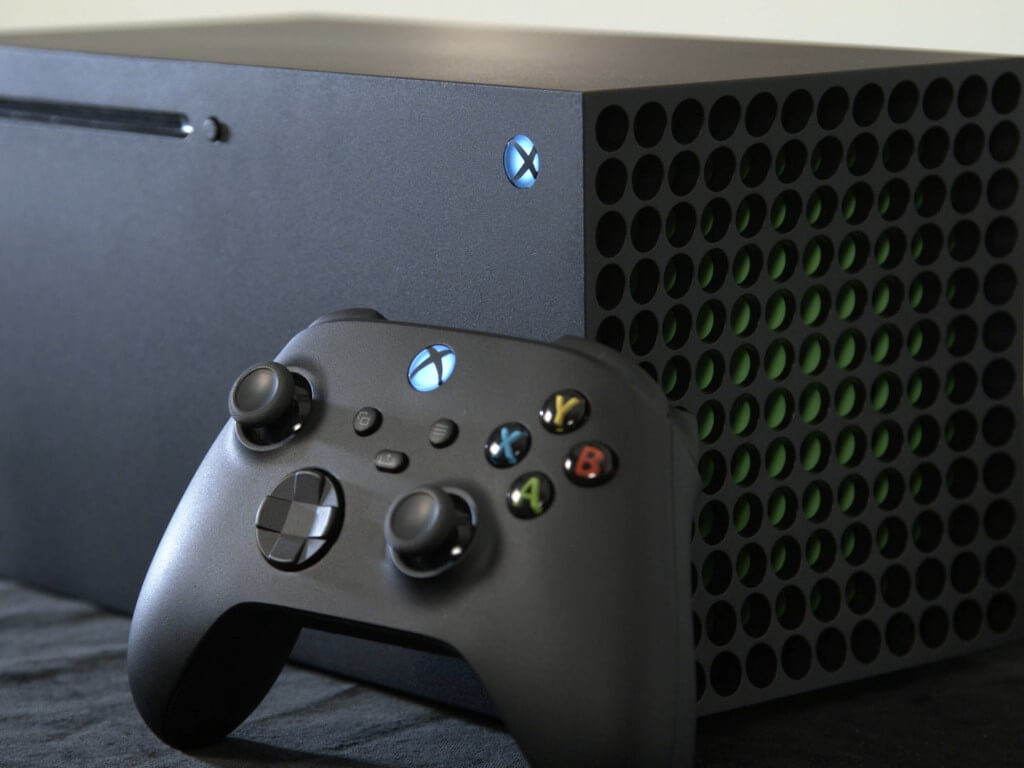
Keep in mind that Horizon Forbidden West is only available to play on the latest PlayStation versions, like PS4 and PS5.

Unfortunately, if you’re looking for a game that would work on PC, you should go for another masterpiece.

Breath of the Wild 2

When it comes to Breath of the Wild 2, worldwide players will only be able to run it on Nintendo Switch.

2. Size requirements

Horizon Forbidden West

If you’re wondering what are the Horizon Forbidden West size requirements, do not forget that it will take around 90 GB on PS5.

However, there are variations depending on the region. In the US, the PS5 edition is around 87 GB with the day one patch installed.

Breath of the Wild 2

The Legend of Zelda: Breath of the Wild will require around 14GB of free space if you wish to download the game to your Nintendo Switch.

Horizon Forbidden West vs Breath of the Wild 2: Reported issues

Horizon Forbidden West

It is no longer a surprise that any game or software might sometimes generate specific problems. We’re here to highlight the most popular issues that you can encounter while running Horizon Forbidden West, as follows:

Breath of the Wild 2

Of course, similar to Horizon Forbidden West, even if Breath of the Wild 2 is a newly released game, it can also run into some troubles:

  • Breath of the Wild’s lack of traditional dungeons – When worldwide gamers are asked about their BOTW 2 complaints, the lack of traditional Zelda–style dungeons is the first thing that comes up.
  • Breath Of The Wild’s Unimaginative Boss Fights – In other terms, keep in mind that it is a similar complaint to the lack of variety found in BOTW‘s Divine Beasts. However, the game’s boss fights are an even more egregious example of a lack of creativity. 

So, we hope that this guide helped you with choosing between Horizon Forbidden West vs Breath of the Wild 2.

Are you still questioning which is the best option? Feel free to leave a comment in the section below and we will come up with any detail you need.

How to Increase FPS on Windows 11 [Best Settings]

Many gamers argue that the FPS settings in Windows 11 haven’t changed, and in some cases, it performs worse than Windows 10.

However, according to Microsoft, recent gaming technologies like Auto HDR and DirectsStorage have been integrated into this newly launched OS.

That being said, some of the settings in Windows 11 can be tweaked so that gamers can achieve better frame rates and have a better gaming experience.

This article goes through a few solutions for enhancing the FPS and performance in Windows 11 for a lag-free gameplay experience. So, let’s dive in.

First, you could consider installing a driver updater that will automatically take care of all of your drivers without any complicated methods or steps.

Keep in mind that faulty GPU drivers can mainly cause FPS drops, but you can easily fix that with just a couple of clicks. So, ensuring everything is updated is helpful before trying the steps below.

⇒ Get Fortect Driver Updater

What are the best FPS settings for a better gaming experience on Windows 11?

1. Enable Game mode

  1. Press Windows + I keys to open the Settings app.
  2. Select Gaming from the left sidebar then go to the Game mode.Gaming Mode
  3. Now, enable the toggle from the following menu.Enabling Game Mode

When you enable Game Mode, Windows will prioritize the gaming experience on PC and disable background tasks, Windows update services, driver installation, etc.

It is worth noting that the Game mode wasn’t effective before, but Microsoft has improved this feature significantly. This option will help to stabilize the frame rate.

2. Set a GPU priority for a specific game

  1. Go to Settings by pressing Windows + I keys.
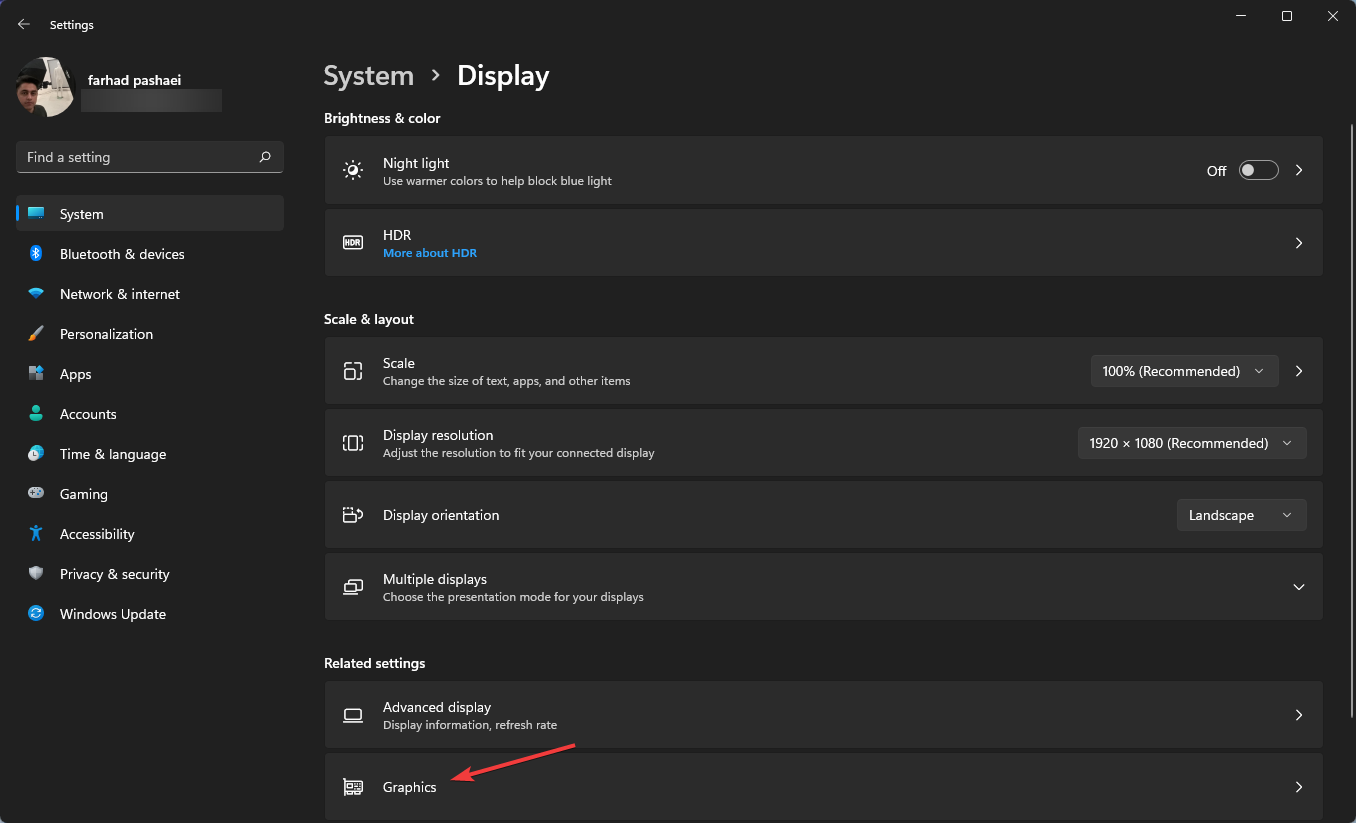
  2. From the left pane, choose System, then Display from the right pane. Display Settings
  3. After that, scroll down and select Graphics option.Graphics option
  4. Select a game and click on Options.
  5. Now, choose the High Performance option and click Save.High Performance

Using the Windows 11 Settings app, you can assign a specific application to a certain graphics card.

In order to get the best performance out of your computer, you can select which apps exclusively use the discrete GPU instead of the integrated GPU.

3. Disable restartable apps

  1. Open the Settings app by pressing Windows + I keys.
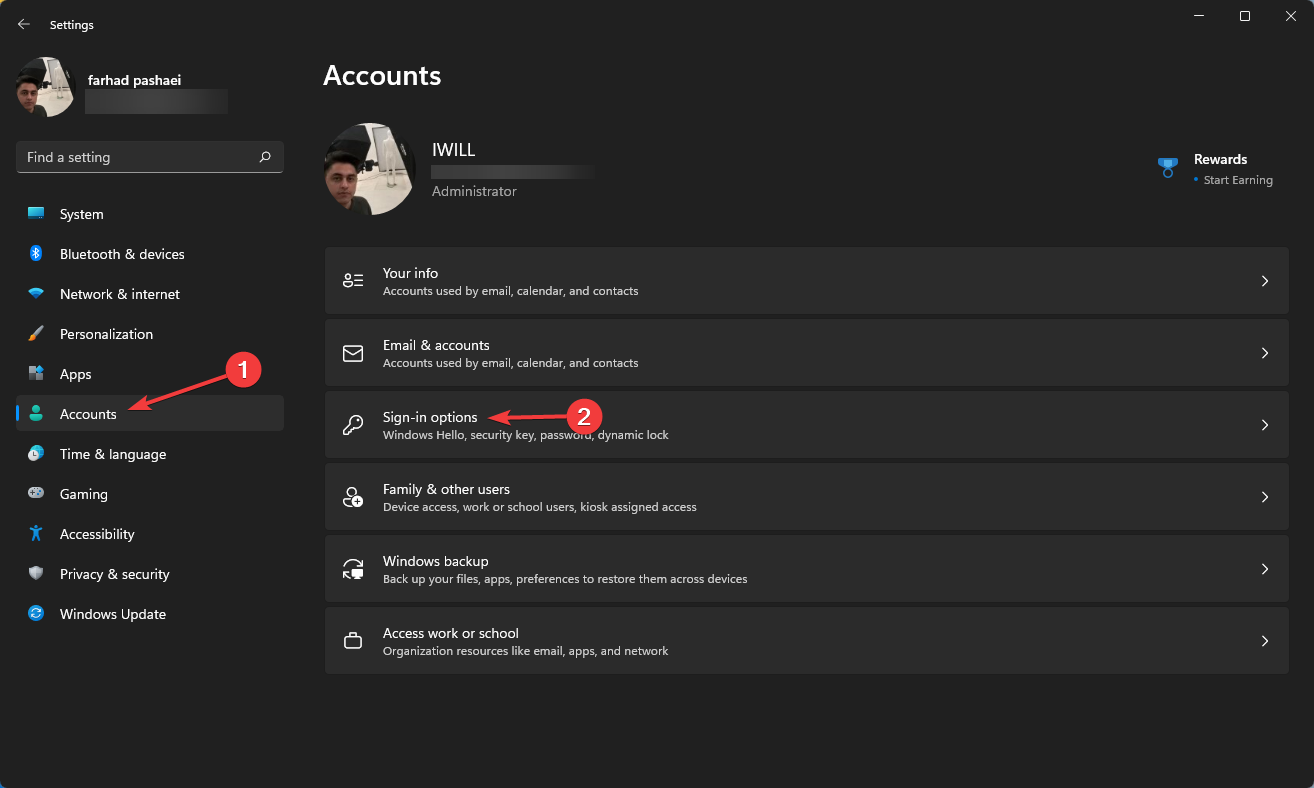
  2. Click Accounts then select Sign-in options.Sign-in option
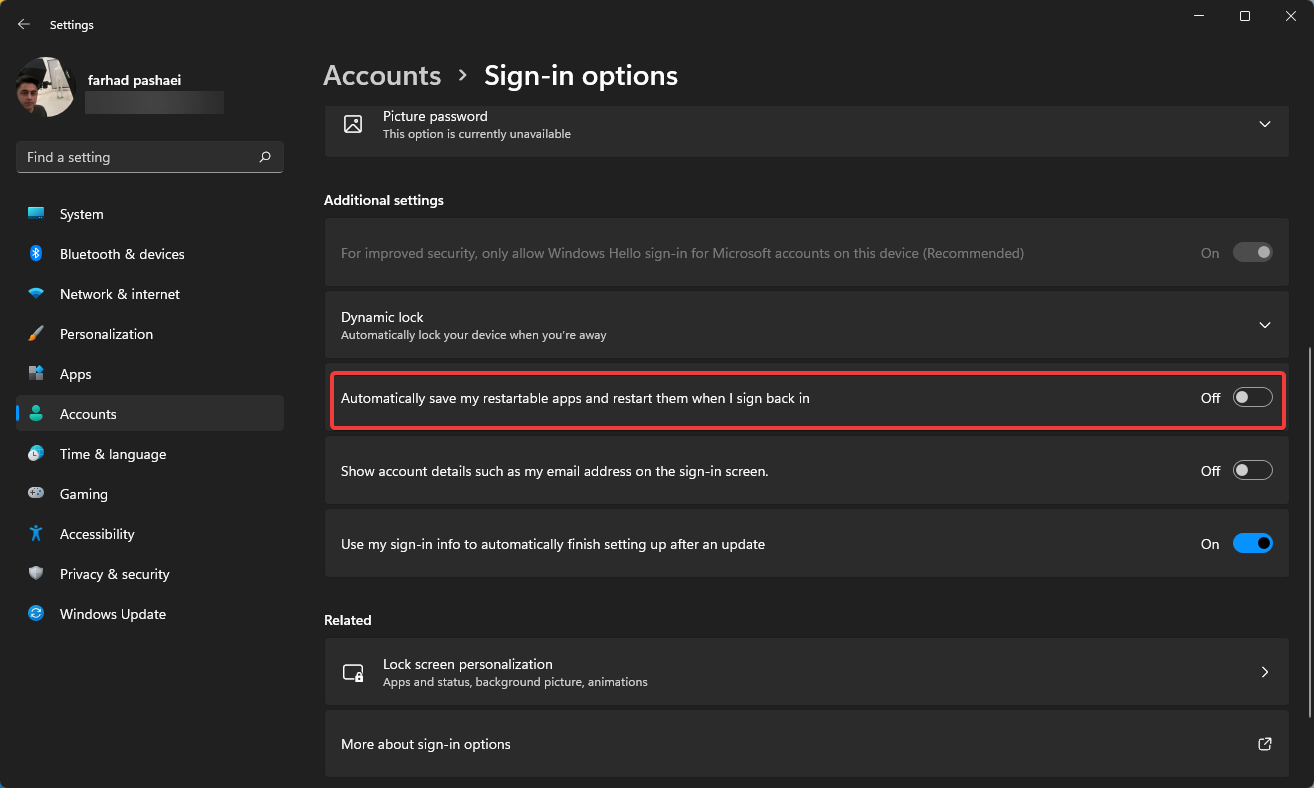
  3. Now, disable Automatically save my restartable apps and restart them when I sign back in.Disable restart apps

4. Turn on High-Performance mode

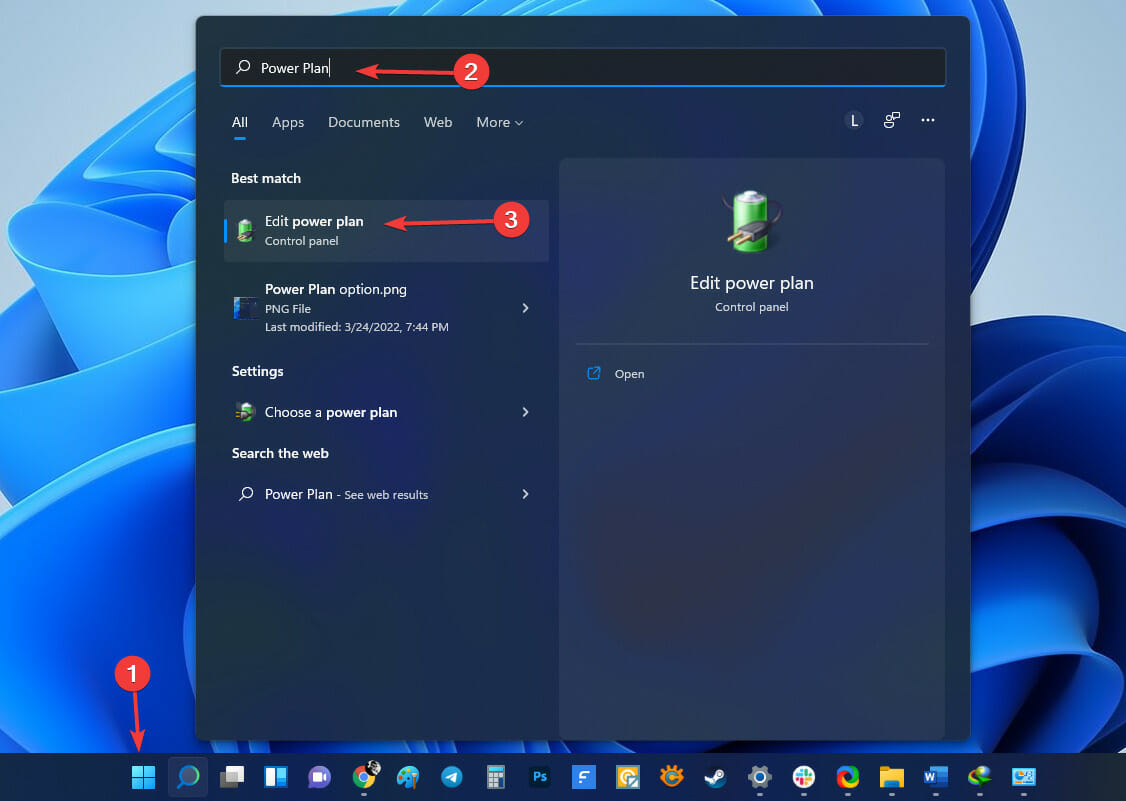
  1. Go to the Start menu, type Power Plan then select Edit Power Plan.Edit Power Plan option
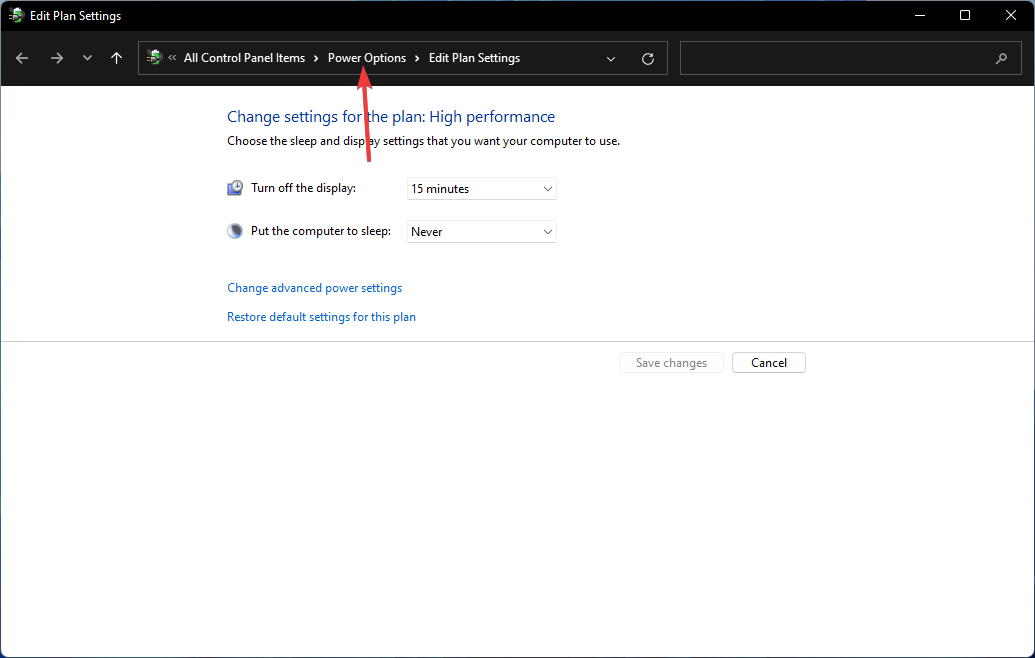
  2. Once the window opens, select Power Options.Power Options
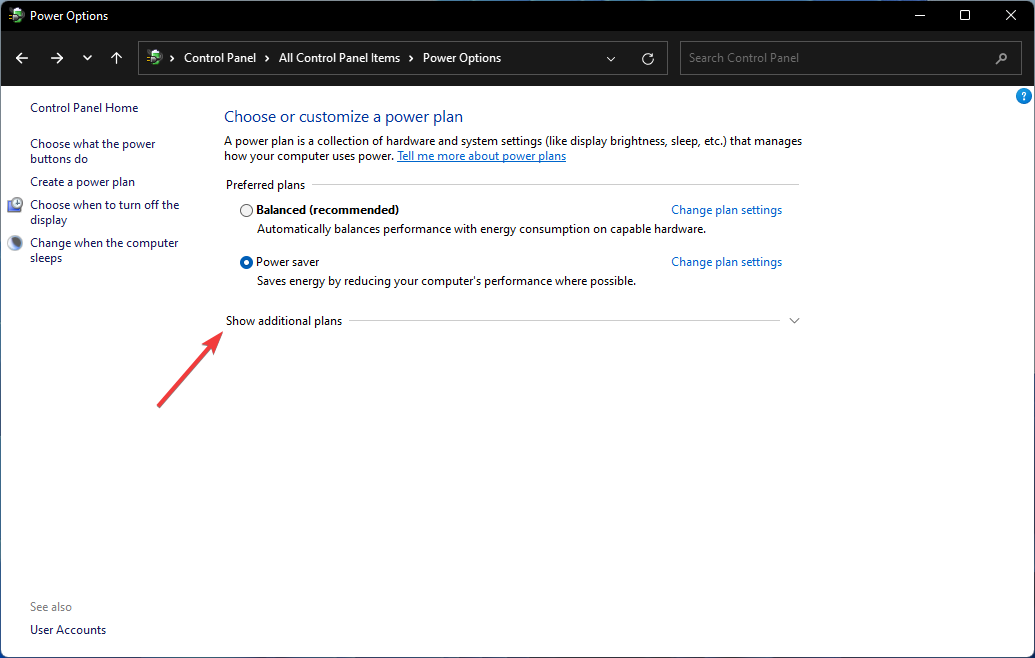
  3. Click Show the additional plans if High Performance isn’t visible.High Performance option
  4. Select High Performance from the list.Enabling High Performance power option to boost FPS in Windows 11

The difference between Power Saving and High-Performance modes is noticeable, as the latter will burn through your laptop’s battery at speeds you may never expect.

However, it’s always the recommended option if you want to achieve higher FPS numbers.

Note icon NOTE
This setting is mainly for laptops, as PCs won’t need internal batteries to run.

5. Enable Auto HDR

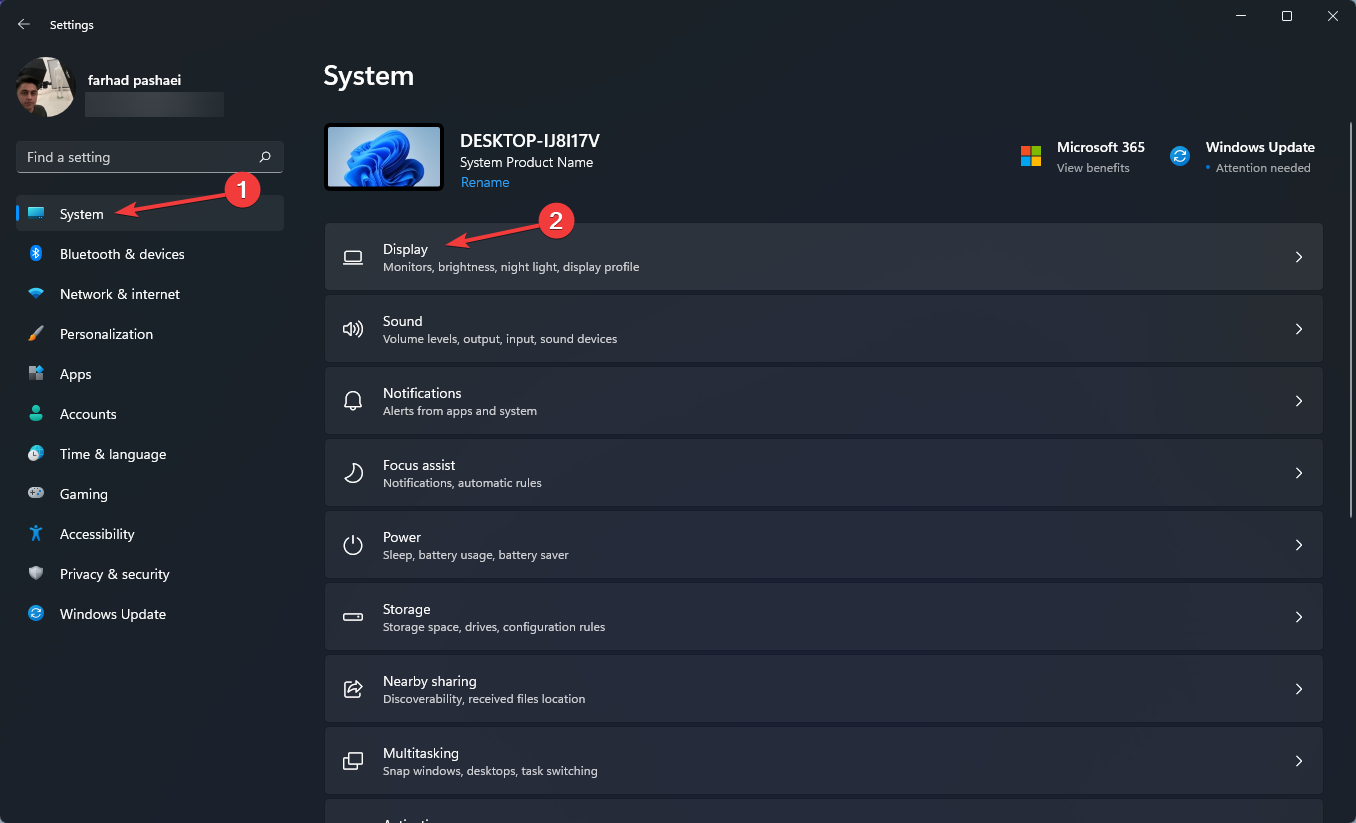
  1. Open the Settings app by pressing Windows + I, then select Display option on the System tab.Display Settings
  2. Ensure Use HDR is enabled.
  3. Click Use HDR to open the HDR settings menu.
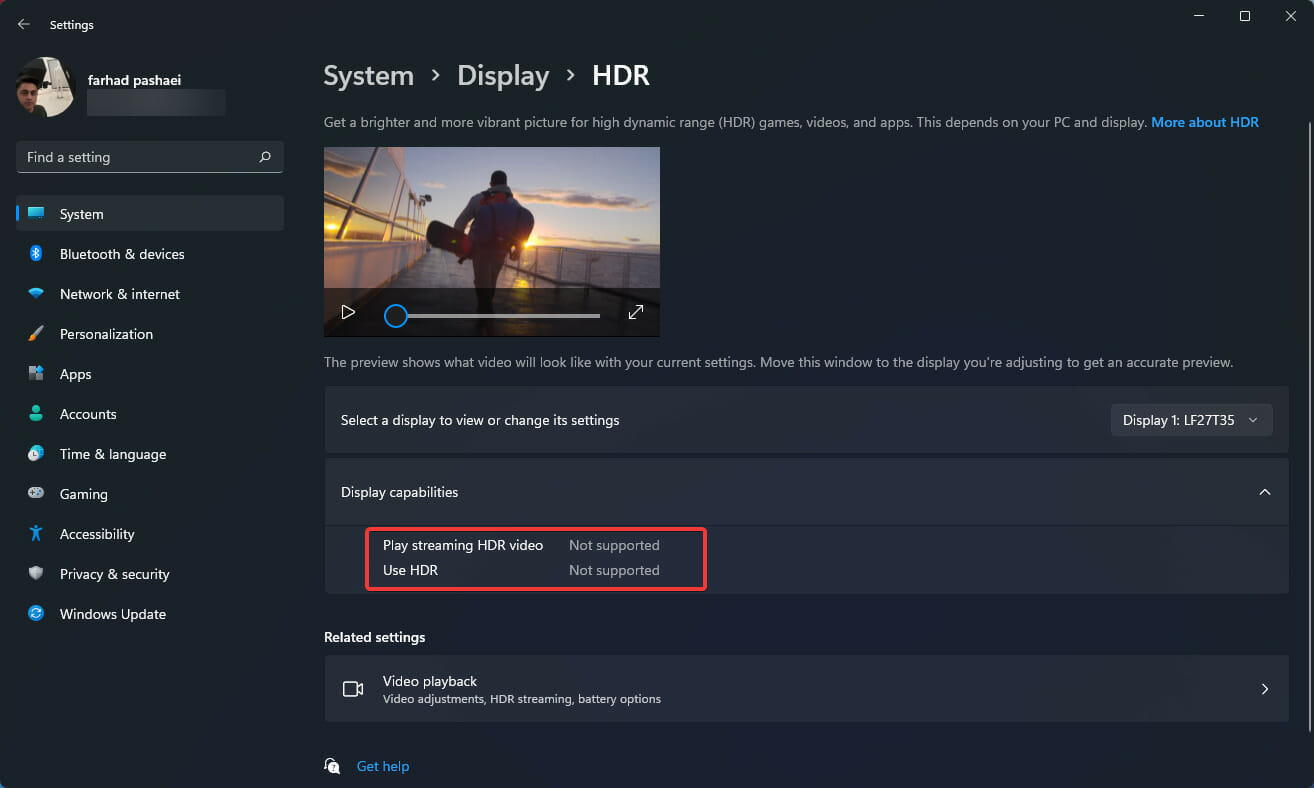
  4. Ensure Auto HDR is enabled. If your monitor doesn’t support HDR, you will not have this option.Unsupported HDR

For a more lifelike gaming experience, you’ll want to choose a monitor with HDR capabilities. A wide color range, excellent brightness, and high resolution are advantages of an HDR-supported monitor.

Even if you don’t compare them side by side, the difference between SDR and HDR is noticeable.

This option improves your gaming experience, but as previously stated, it requires an HDR-supported monitor, which is highly recommended for gamers.

Having the best FPS is essential for gaming because lower FPS, besides causing a less smooth game experience, can also put you at a disadvantage against your gaming opponents.

Remember many factors determine the FPS rate, such as computer hardware (graphics card, motherboard, CPU, memory), graphics and resolution settings within the game, and how well the game code is optimized and developed for graphics performance.

Therefore, make sure that you have all the right equipment and other settings, such as in-game settings, checked for optimum performance. Also, be careful on what settings you enable as V-Sync can lower your game’s FPS.

Even though all the methods listed above work on laptops, you might want to read our dedicated article on laptop FPS. Don’t hesitate to discover the best DualSense Edge settings for Fortnite & other games right away, as well as more tips on Warzone FPS optimization.

Best File Manager for Windows 11 [12 Alternatives Ranked]

File Manager on Windows 11 is great but can lack certain advanced features that users need. You’re in the right place if you’re looking for the best File Explorer on alternative Windows 11.

What are the best Windows 11 File Managers?

1. WinZip – Best overall

winzip best windows 11 file manager

WinZip is a renowned Zip utility. It is not just your regular File Manager, as it incorporates astonishing features that put it in a league of its own.

It carries out all file management tasks with relative ease. It does it all with aplomb, whether it is a file edit, search, transfer, or organization.

WinZip also offers a level of security not seen in other File Managers. To protect your data, you can easily encrypt your files as you Zip them. This app also helps you Unzip all major formats with just a mouse click.

As impressive as WinZip is, it constantly evolves with new features to provide a better user experience. A recent upgrade saw a ribbon look-and-feel feature that adapts the software to whatever you are doing. It is indeed the complete package you can get.

Other features:

  • Can create Pdf with watermark.
  • Can share files anywhere, including email, cloud, social media.
  • Auto cleaning and management of computer.

WinZip

Manage files easily and take care of all your archiving needs with this powerful software.
Free Trial Visit Website

2. FreeCommander – Great freeware solution

freecommander-windows-11-file-manager

FreeCommander is a classy app that offers two customizable panes for easy access when working on multiple files. If you don’t need the dual pane, you can switch to single pane mode.

It is a high-level manager that allows you to use tabs when working on multiple folders simultaneously. It also has a tree feature for effortless file organization.

FreeCommander is a freeware package that boasts Windows integration and allows you to access the DOS command line, Start menu, control panel, and system folders.

Lastly, it has an intuitive and customizable interface that can be set to your taste.

Other features:

  • Supports drag and drop.
  • Supports linked browsing.
  • Zip archives support.

⇒ Get FreeCommander

3. One Commander – Great user interface

onecommander windows 11 file manager

One Commander is an excellent file manager with unmatched portability. Unlike most other file managers, you don’t necessarily have to install this software.

You can save it on an external drive and take your files wherever you go. This eliminates delays and gives the versatility of using it on multiple devices.

Furthermore, this app allows you to switch between two panes. This makes your work easier and increases productivity when working on multiple files.

This app is right up there in terms of organization. You can use its seven colors to tag your files and organize them into specific patterns. It is just a blend of style and effectiveness.

Other features:

  • File Automator for file conversion.
  • Customizable folders.
  • Offers light and dark themes.

⇒ Get One Commander

4. Total Commander – File management veteran

total commander best windows file manager

Total Commander is a household name in the third-party file manager industry. It is a paid app with a 30-day free trial to get a sneak peek into what you will be getting.

It packs in some excellent features and powerful utilities. One of its endearing features is the intuitive and customizable interface that is easy to use.

It has extensible plugins and addons for premium experience and customization. This makes it suitable for advanced file organization and file management.

What’s more, it is ideal for large file transfers as you can set the file transfer speed limits. It is indeed one of the best Windows 11 file managers out there.

Other features:

  • Allows you to compare files.
  • Has portable versions.
  • Allows thumbnail and image previews.

⇒ Get Total Commander

5. Xplorer² – Offers a wide array of features

xplorer best windows 11 file manager

This is a premium paid file manager with extensive features. It has two versions – The professional edition and the Ultimate edition – both available on a 21-day free trial.

Xplorer² is a modern-looking file manager with two horizontal panes for multitasking. It features a tree along the left that can be customized for file organization and management and its tab feature.

Another nice feature is the stick selection. This feature makes sure the files you have selected will not be accidentally unselected when you click other parts of the screen.

Also, it allows you to use color code to organize your files. It is a fully packed app with style and substance.

Other features:

  • Can identify duplicate files.
  • Modern and neat interface.

⇒ Get Xplorer²

6. TagSpaces – Comes with advanced tagging support

tagspaces windows 11 file manager

This is an open-source app known for high-level organization and coordination. It is suitable for people that seldom use file managers but cherish neat and well-organized files.

TagSpaces allows you to add tags like photos and colors to files to organize them into groups and patterns.

Another impressive feature of this app is that it allows you to separate the files you have worked on from the others when using multiple files.

Finally, it gives you the option of adding file descriptions for easy identification and location of files.

Other features:

  • Allows you to monitor file changes.
  • Has geotags.
  • Has Chromecast support.

⇒ Get TagSpaces

7. Altap Salamander – Great freeware solution

altap salamander best windows 11 file manager

Altap Salamander is a highly secure file manager. It has a built-in password manager that allows you to protect your sensitive files and folders.

Compared to Windows File Explorer, this app features an extensive list of networking tools for file transfer. It supports FTPS, FTP, SCP, and SFTP to make your online file transfer effortless.

Also, the built-in SFTP and FTP clients give you total control of your file history. Altap Salamander boasts a file comparator that makes it easy to compare two or more files you are working on.

Other features:

  • Has a powerful renamer login.
  • Supports different archive file types.
  • It is free.

⇒ Get Altap Salamander

8. Explorer++ – Clean and simple UI

explorer++ best windows 11 file manager

If you are looking for a file manager that gives you peak Windows experience, Explorer++ is everything you want and more.

It is a free, open-source app packed with features that rival some of the best-paid file managers. It incorporates a fully customizable interface that can be tweaked to your taste.

Also, it is endowed with two panes for browsing. This makes it easy to sort and split your files as you wish. There is also the Onedrive integration that cannot be found in the Windows File Explorer.

With this, you can create a sync to save and manage your files on the cloud platform.

Other features:

  • Has a Bookmark function.
  • Can perform advanced searches.
  • Offers folder tabs.

⇒ Get Explorer++

9. Files – File Explorer clone

files windows 11 best file manager

This is another free, open-source file manager with impressive features that complement Windows 11 perfectly.

It has a neat, user-friendly interface that is easy to navigate. One feature that quickly sets it apart from the Windows 11 File Explorer is its access to cloud storage, such as Google Drive and OneDrive.

With this feature, you can easily access your files from this cloud storage without a browser.

Files also give you access to your PC’s partitions. This software provides just about everything you need for file management and organization.

Other features:

  • Supports multi-tab.
  • Has themes and addons.
  • It can play videos in its preview plane.

⇒ Get Files

10. Directory Opus 12 – Feature-rich

directory opus windows 11 file manager

Directory Opus is a paid app similar to Total Commander in design, albeit with a more modern feel. This excellent third-party app can completely replace the Windows 11 File Explorer.

It does everything Explorer does and more. Interestingly, it can also be launched with the Windows + E hotkeys used for File Explorer.

What’s more, Directory Opus features folder tabs that make it easy to keep multiple folders open at a time. Its search feature is as fast as they come, allowing deep searches in seconds.

Lastly, it has an easily configurable interface that allows you to tweak it to suit your preferences.

Other features:

  • Keyboard shortcuts can be customized.
  • FTP support.
  • High-resolution image preview.

⇒ Get Directory Opus 12

11. Q-dir – Simple and freeware solution

q-dir best windows 11 file explorer

Q-dir is a free file manager especially suitable for users who frequently transfer files. It is unique because it displays four file management panes by default.

This app uses the native Windows 11 icons for Download, Desktop, Desktop directories to give users a more familiar feel.

It is lightweight and has a portable version that can be installed. The Q-dir file manager allows you to organize your files in a pattern of your choice.

Also, you can customize the folder tab to suit your multitasking needs. Lastly, it makes file transfer easy thanks to its Quad (Q in Q-dir) panes.
Other features:

  • Offers tabbed browsing.
  • Has a bookmark function.
  • Layouts can be saved.

⇒ Get Q-dir

12. RX Explorer – Familiar user interface

rx explorer windows 11 file manager

RX Explorer is more than just a file manager. It is a paid all-rounder app that packs in excellent features and capabilities.

RX Explorer allows you to create file tabs when working on multiple files for easy access. It also allows tabbed browsing for top-level file organization.

It has a fully customizable interface. You can switch the navigation menu to the left and customize fonts, colors, transitions, animations, and backgrounds, among other things.

Lastly, it has powerful in-app tools like video and image editors and encryption features.

Other features:

  • Dual-pane.
  • Advanced search.
  • It can be stored on an external drive.

⇒ Get RX Explorer

Does installing third-party software affect my PC?

No, installing third-party software from this list won’t affect your PC in any way. To be on the safe side, you might want to use your antivirus software to scan third-party software and ensure that it’s not malicious.

File Explorer ticks just a few of those boxes, making this list of the best Windows 11 File Managers all the more important.

Before you leave, you might want to check our guide on the best file manager for Windows 10, for more alternatives.

We also have guides on top dual-pane file managers and the best file managers with tags, so don’t miss them.

Many of these tools can sort files and folders together, which can come in handy if you’re organizing your files.

This list is not arranged in any particular order. Let us know which of the apps you find particularly useful in the comments section and if there is any product you would like us to add.

How to Fix The Video Driver Issues in Windows 11

A distorted or glitchy display can be quite problematic, especially for gamers or those into graphic editing. And most of the time, it’s the video driver issues to be blamed in Windows 11.

The three terms, graphics, display, or video are used interchangeably when it comes to drivers, and they have all got to do with the display adapter on your PC.

So, in case you are facing problems with the display clarity or running into issues with the driver, you know where to head to.

Here are the most effective fixes for video driver issues in Windows 11. Just follow them in the listed sequence and you should have the problem resolved real quick.

How do I fix video driver issues in Windows 11?

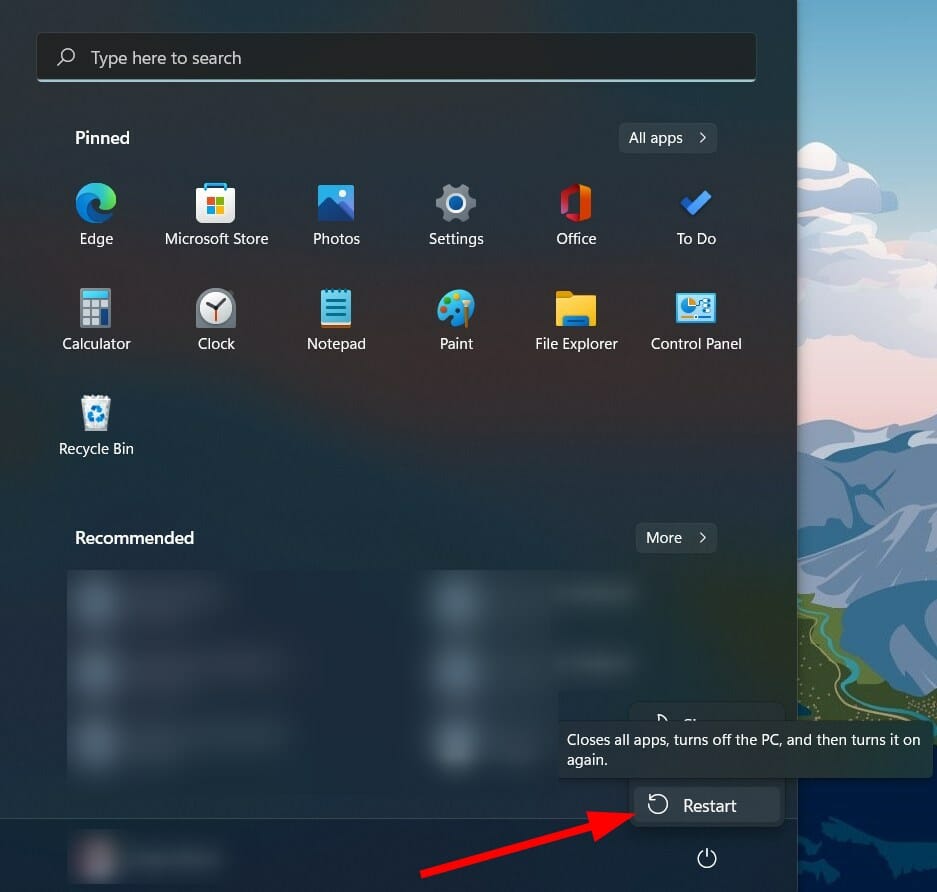
1. Restart the PC

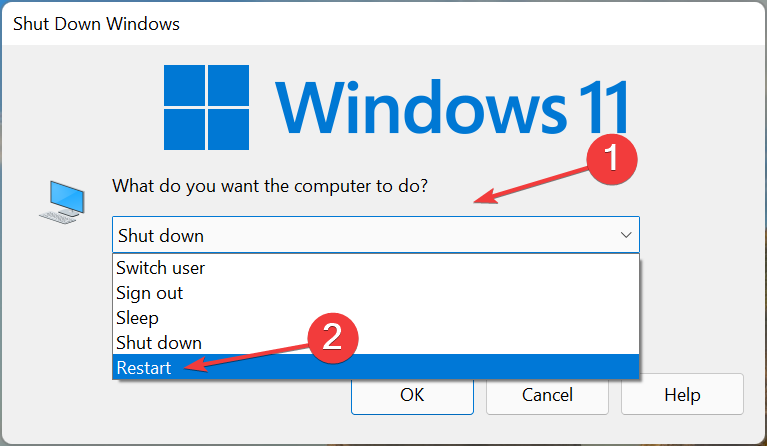
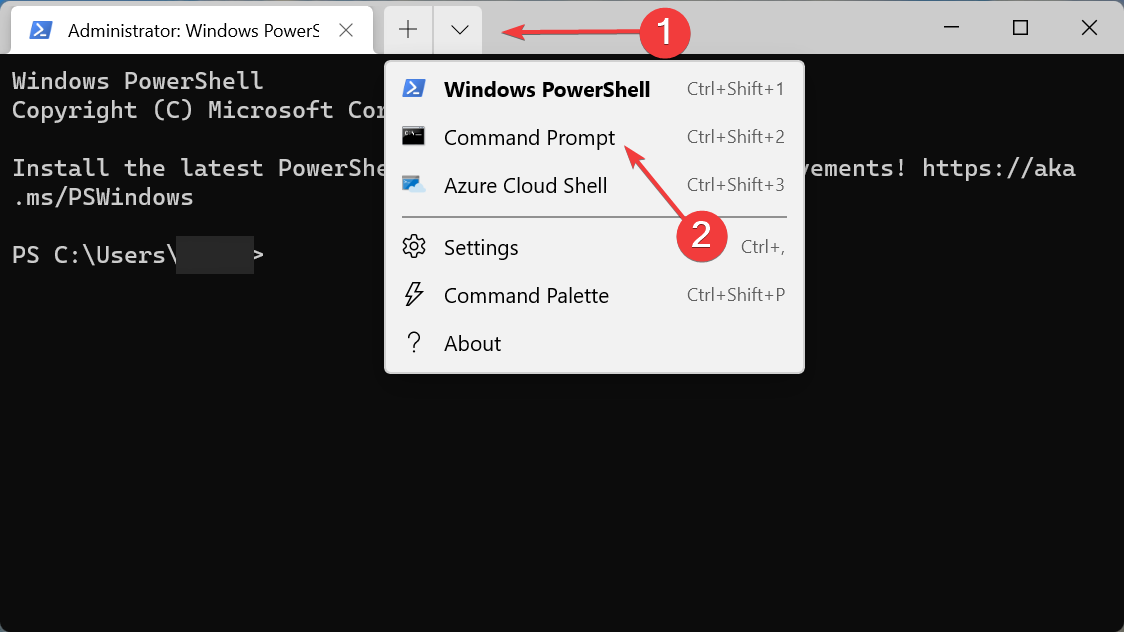
  1. Go to the desktop, press Alt + F4 to launch the Shut Down Windows box, click on the dropdown menu and select Restart.Restart to fix windows 11 video driver issues
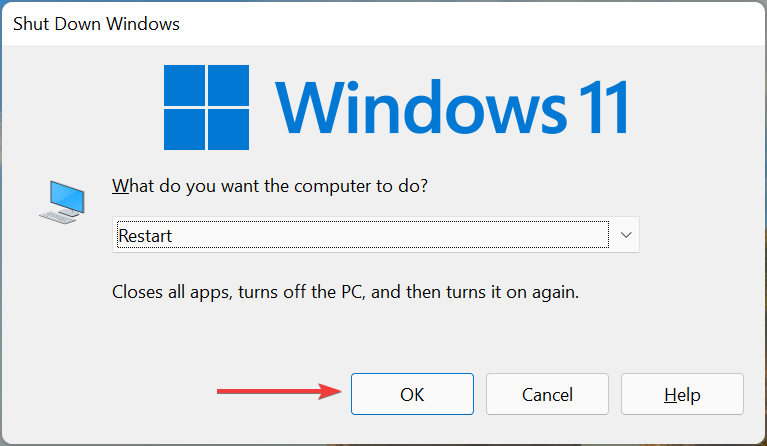
  2. Next, click on OK.Confirm

Whenever troubleshooting an error, you should first restart the computer. In many cases, it’s a trivial bug or a background process behind video driver issues in Windows 11. And, a simple restart should help eliminate that.

2. Update the video driver

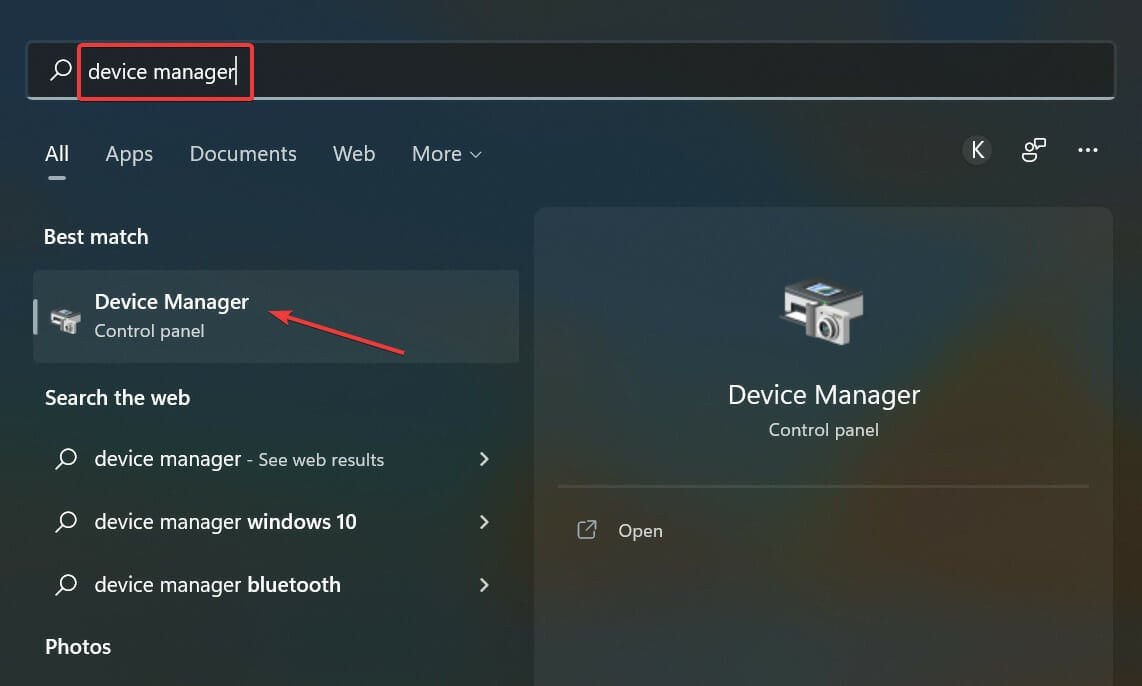
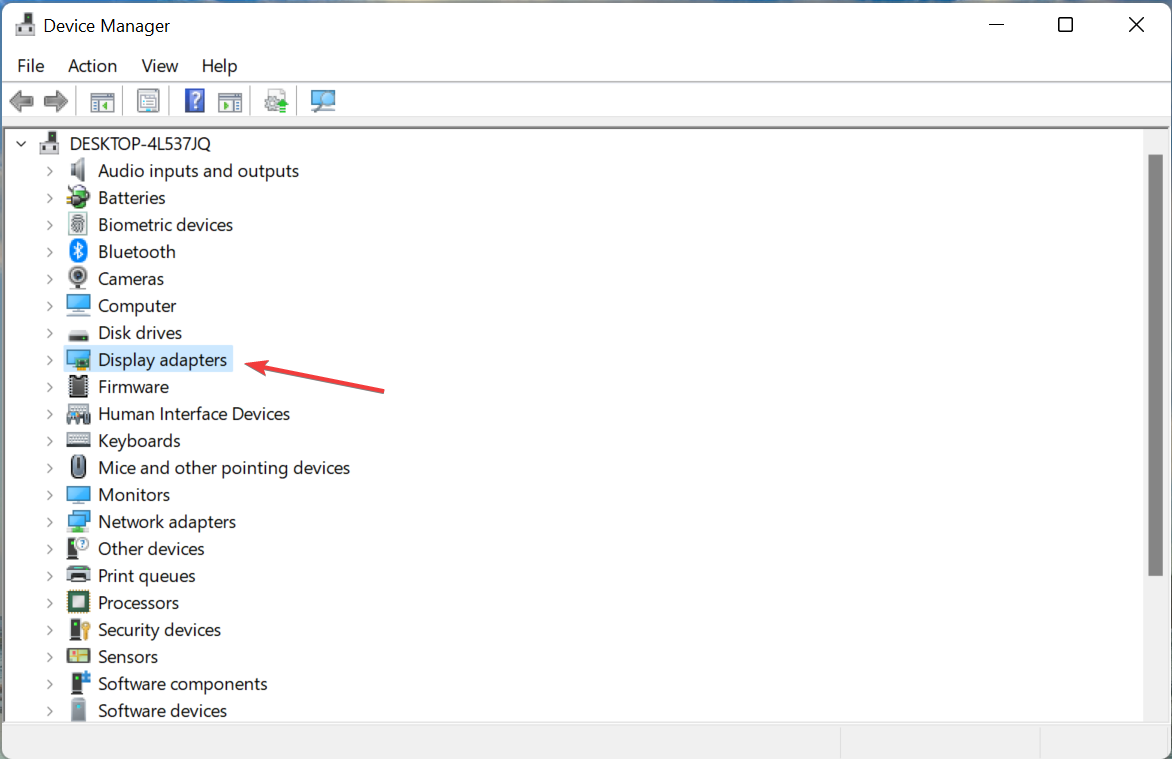
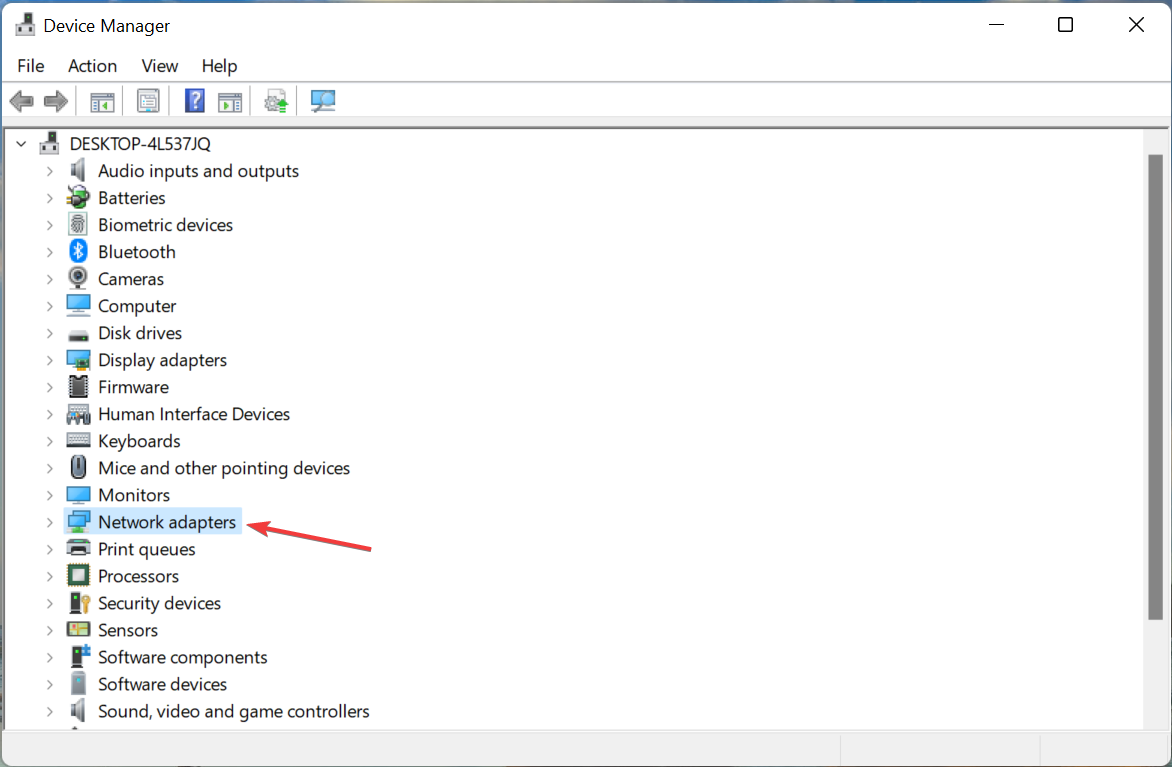
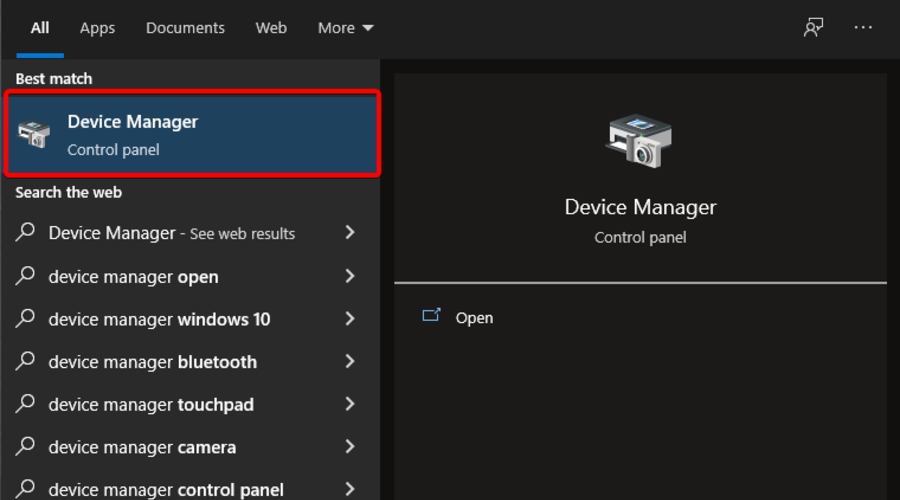
  1. Press Windows + S to launch the Search menu, enter Device Manager in the text field at the top, and click on the relevant search result that appears.Device Manager to fix windows 11 video driver issues
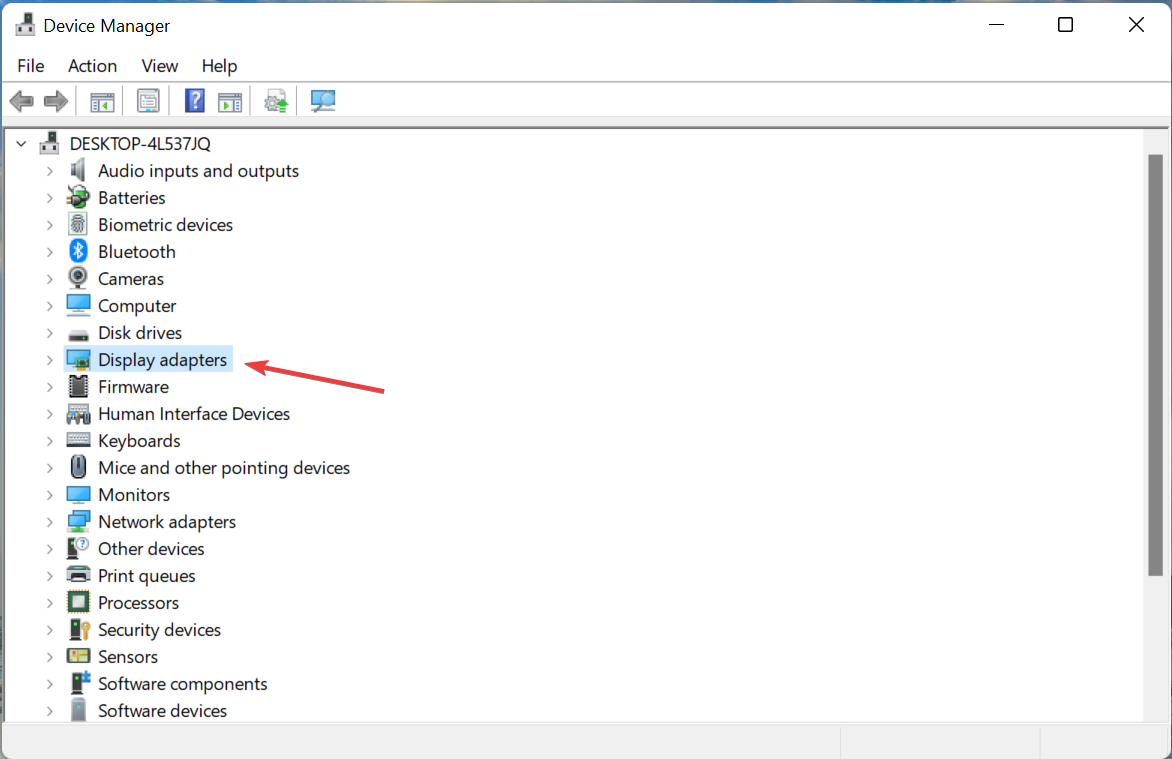
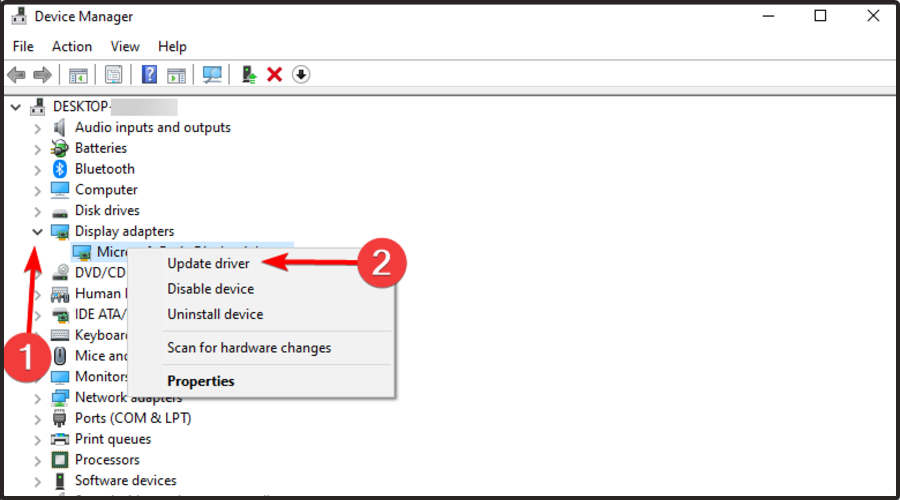
  2. Double-click on the Display adapters entry here to expand and view the devices under it.Display adapters
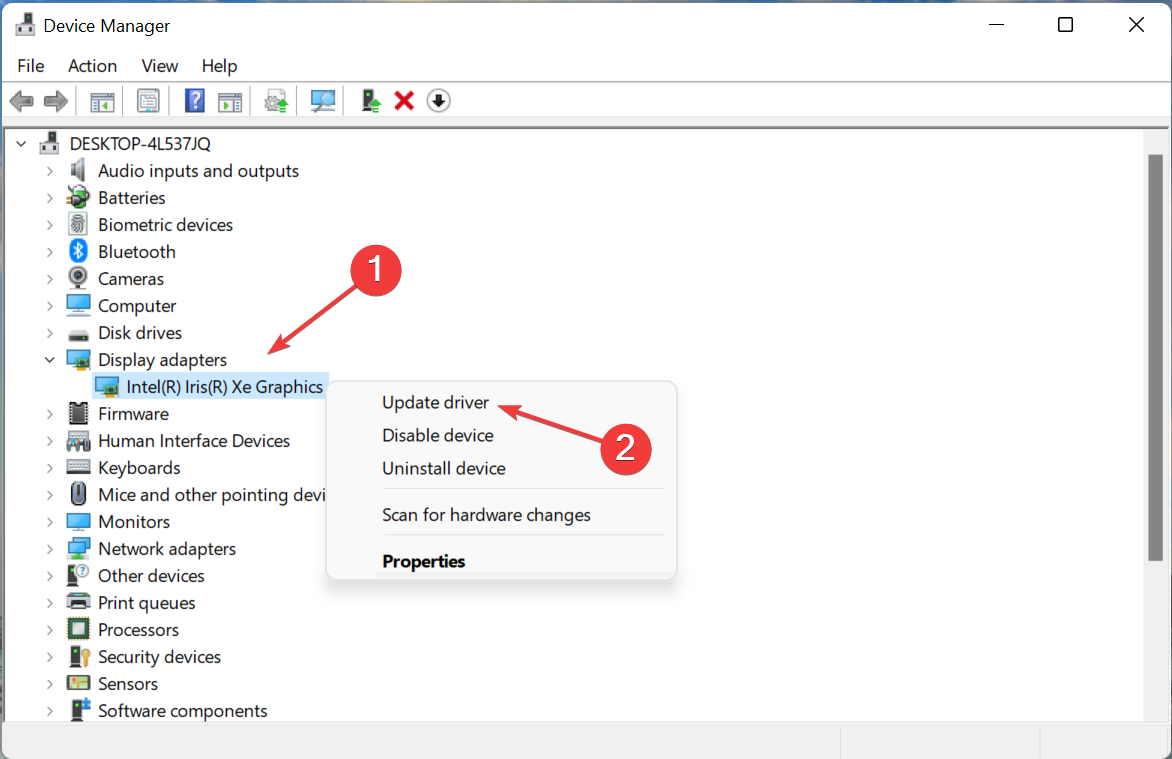
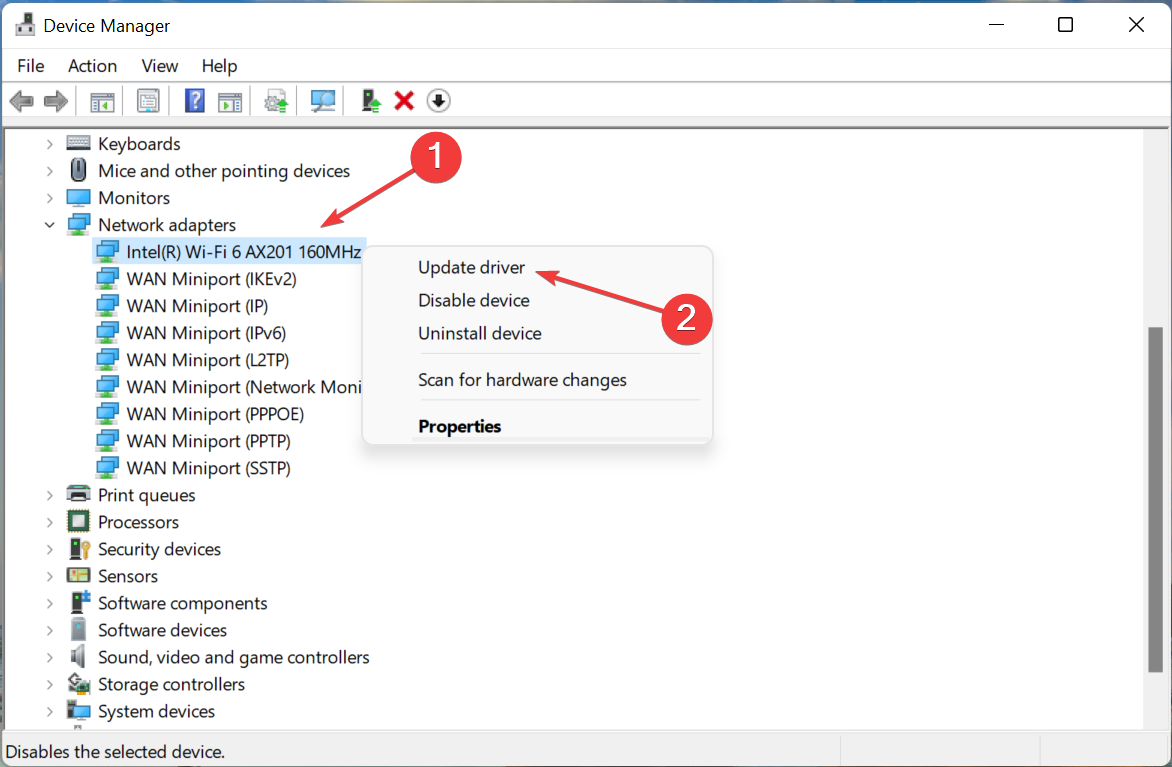
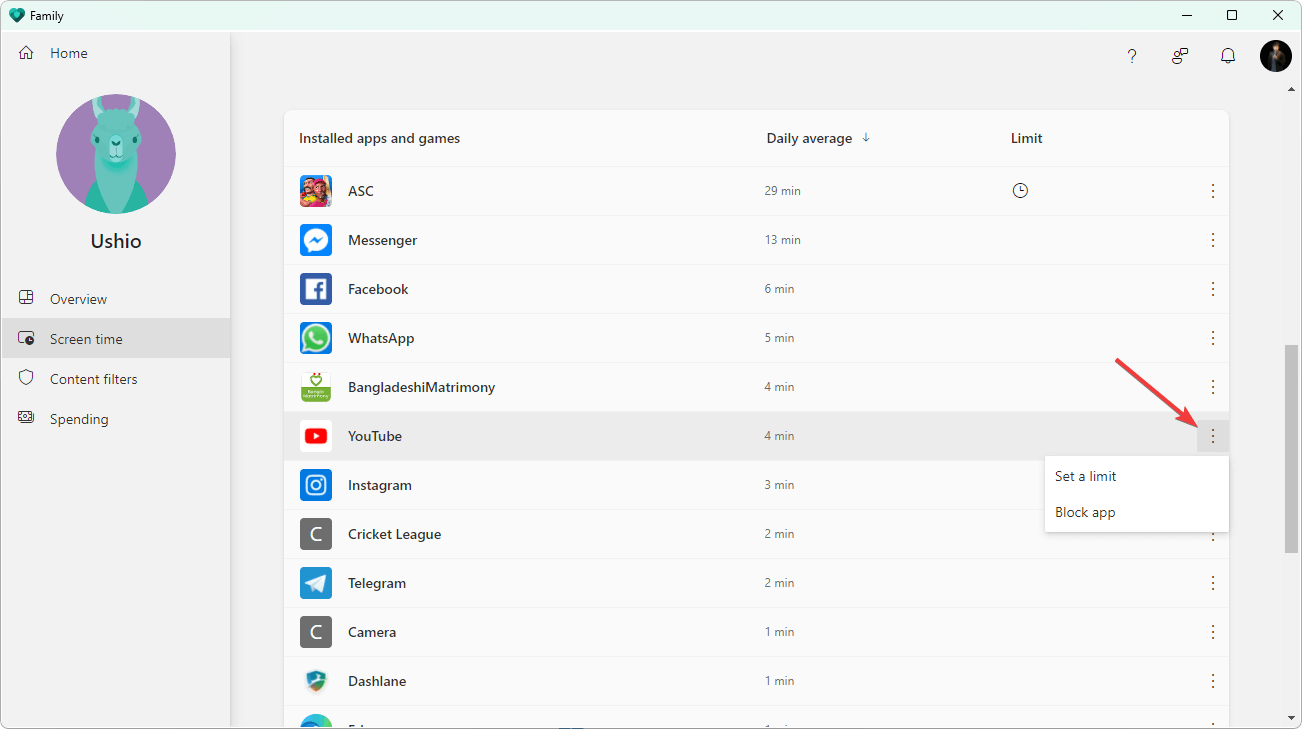
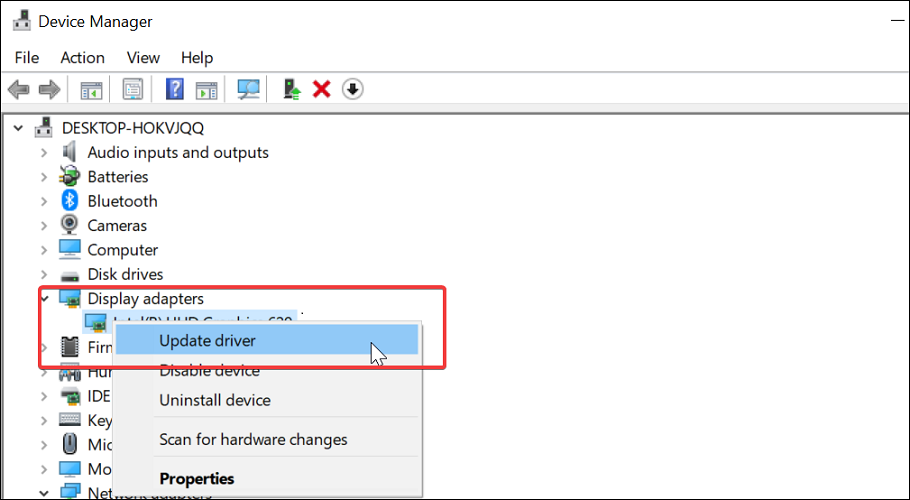
  3. Right-click on the graphics card, and select Update driver from the context menu.Update driver to fix windows 11 video driver issues
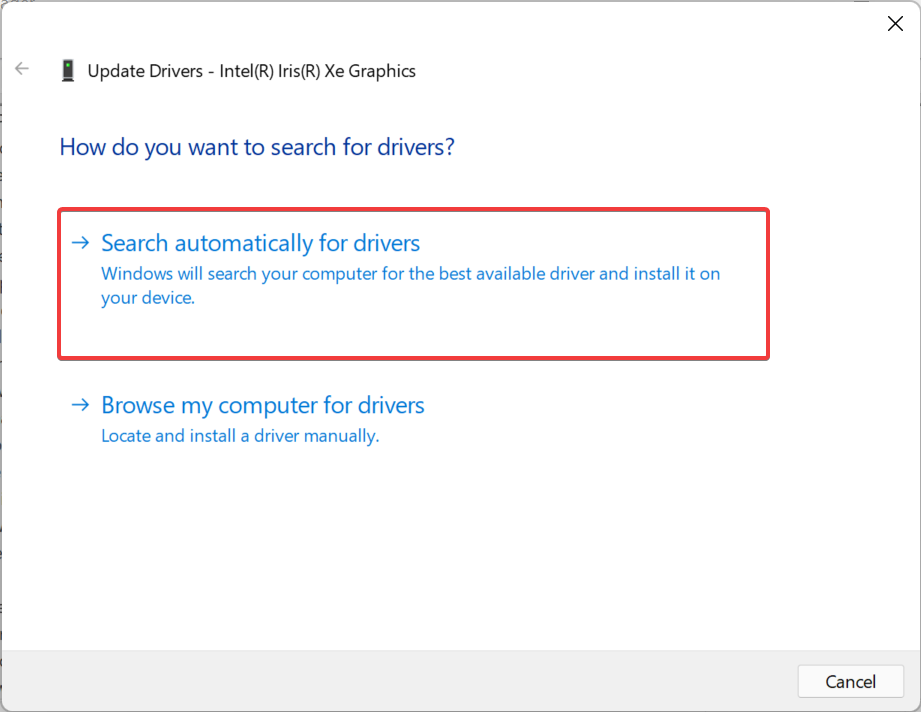
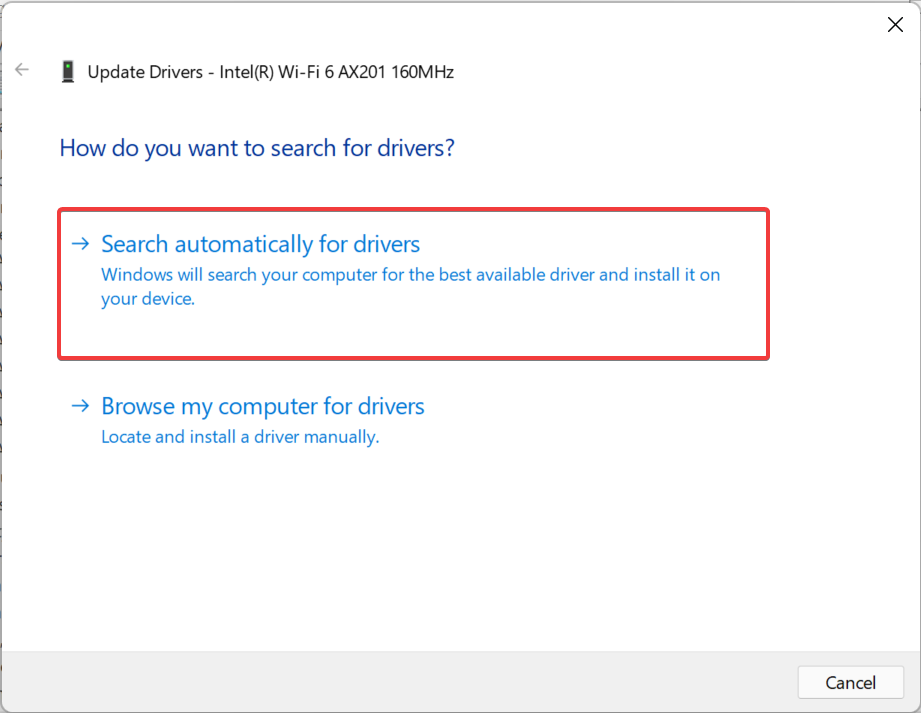
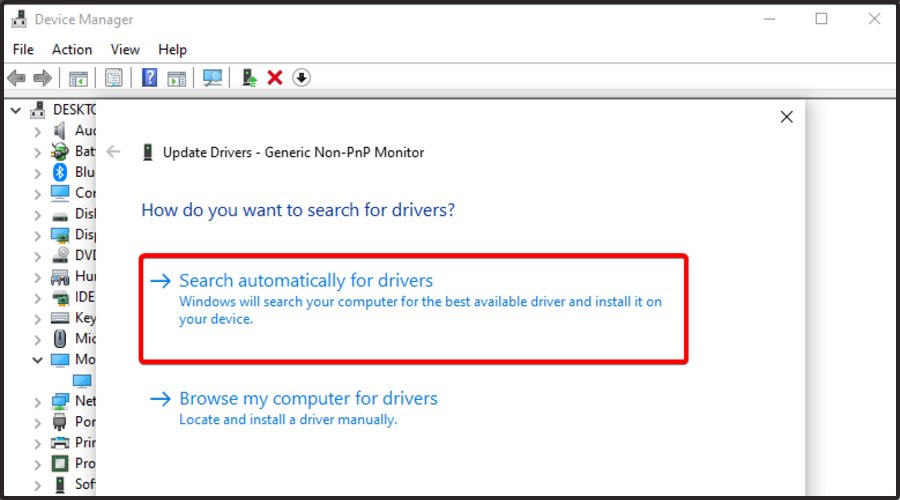
  4. Now, select Search automatically for drivers from the options listed in the Update Drivers window.Search automatically for drivers
  5. Your computer will now scan for the best available video driver on the system and install it.

Another common reason behind issues with the graphics is an outdated video driver in Windows 11. Most manufacturers release regular updates, some through Windows Update while others make it available directly on their official website.

With each update, you get better driver performance, some new features, and patches for previously known bugs.

If you couldn’t update it with the method listed above, try the other ways to update a driver in Windows 11. There are a bunch of them, including manually downloading and installing from the manufacturer’s website.

But, there’s also an easy way out, use a reliable third-party app. We recommend using Outbyte Driver Updater, a dedicated tool that automatically scans the web for newer versions of the drivers on your PC, and installs them, thus keeping them all up-to-date.

⇒ Get Outbyte Driver Updater

3. Reinstall the video driver

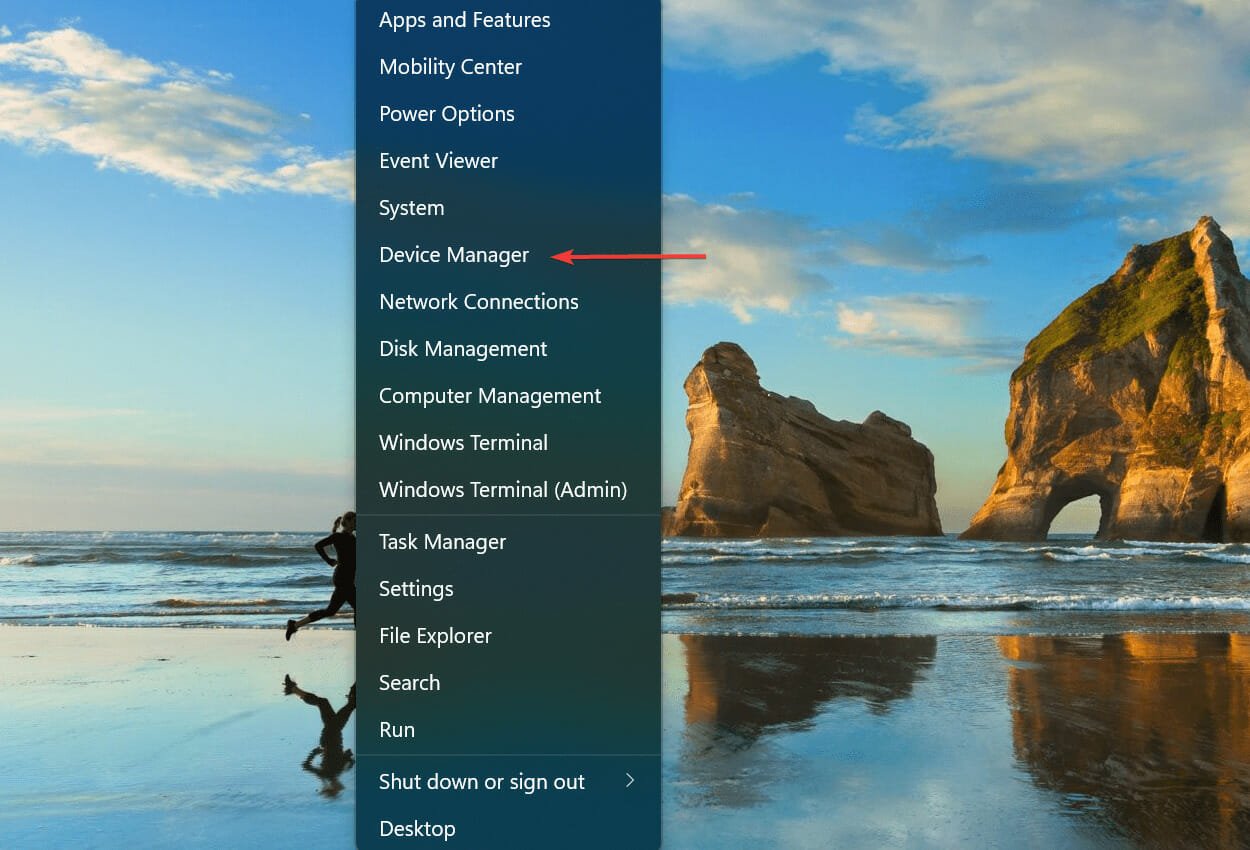
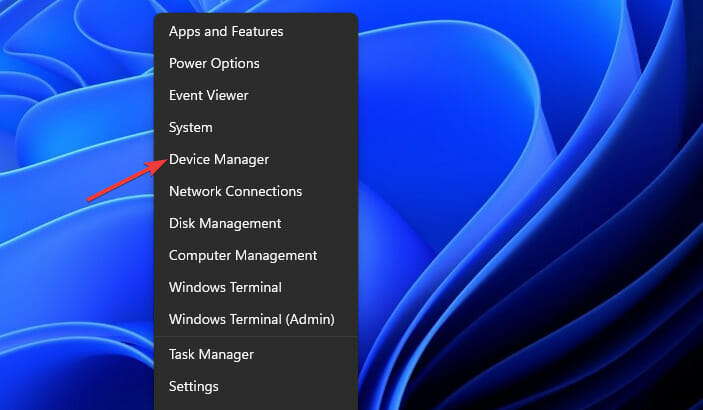
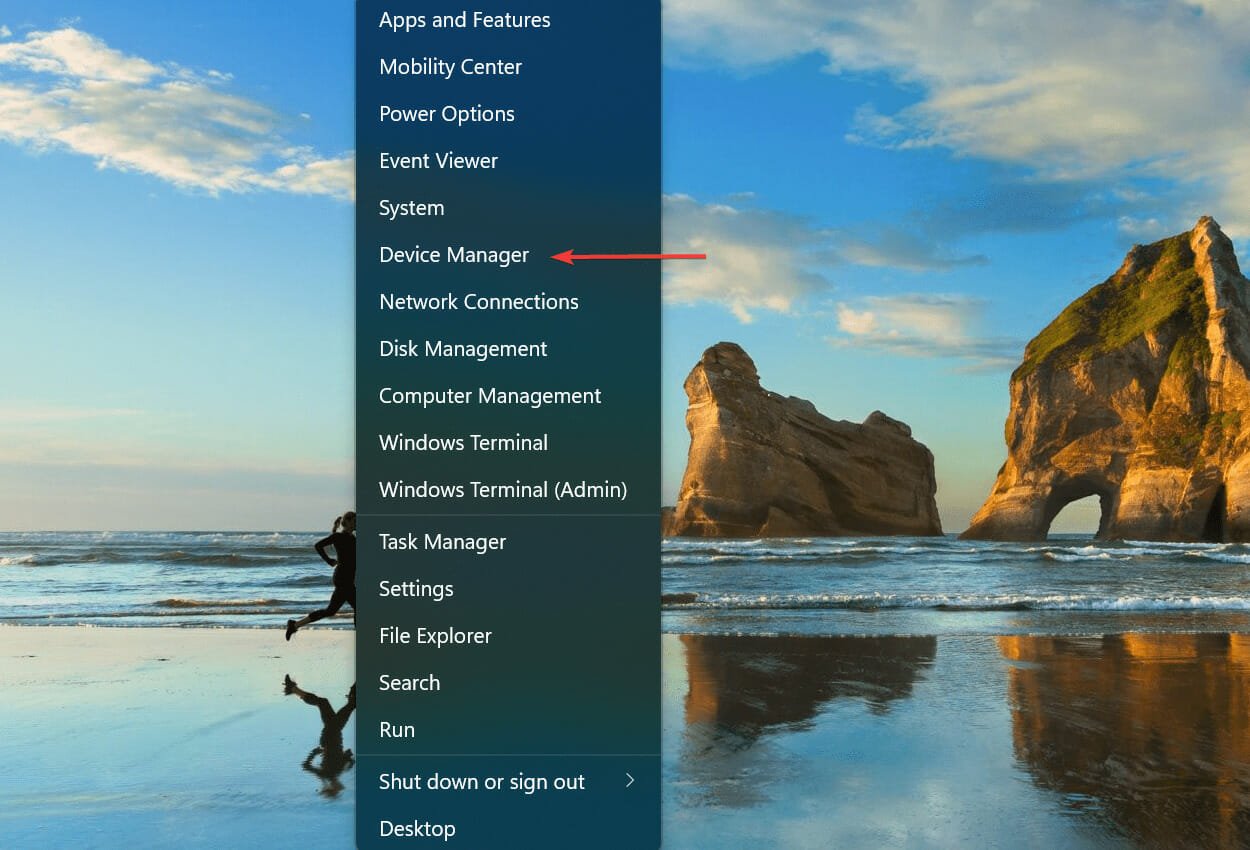
  1. Press Windows + X to launch the Quick Access menu, and select Device Manager from the list of options.Device Manager
  2. Double-click on the Display adapters entry.Display adapters to fix windows 11 video driver issues
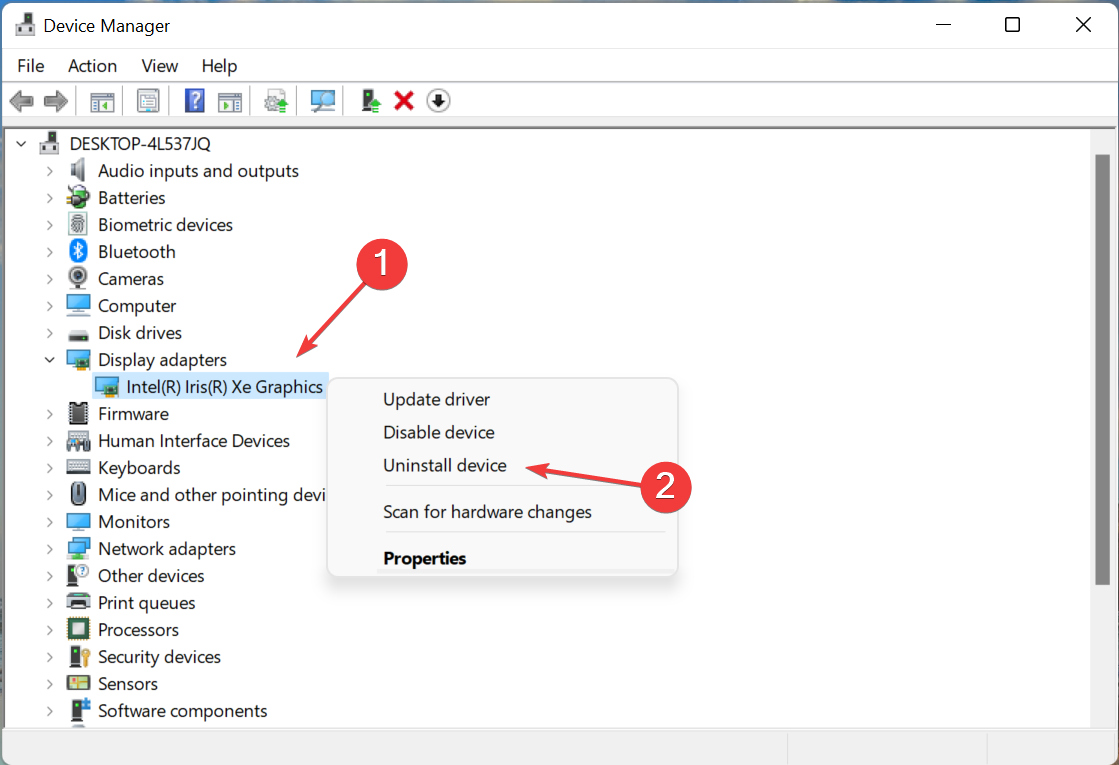
  3. Right-click on the graphics card, and select Uninstall device from the context menu.Uninstall device to fix windows 11 video driver issues
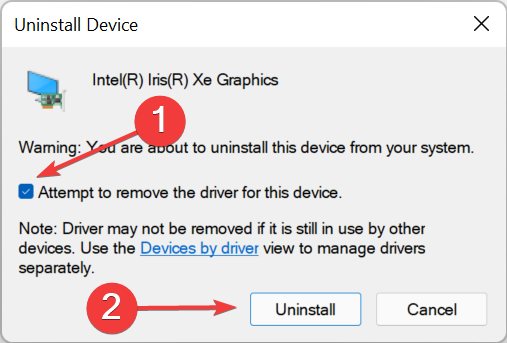
  4. Tick the checkbox for Attempt to remove the driver for this device, and click on Uninstall.tick checkbox
  5. Once done, restart the computer and Windows will automatically install a fresh driver.

If you find a warning sign at the corner of the driver icon in the Device Manager, it denotes that the driver is corrupt, and this could be leading to Windows 11 video driver issues. In this case, reinstalling the driver should fix the problem.

4. Roll back the video driver

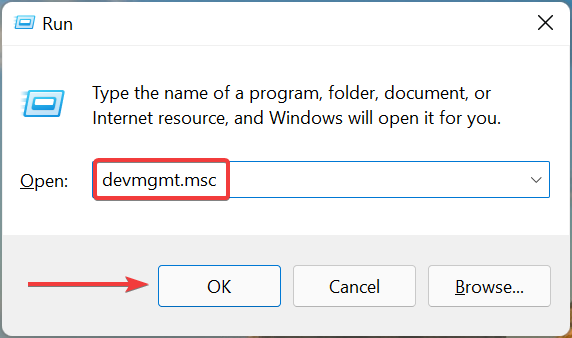
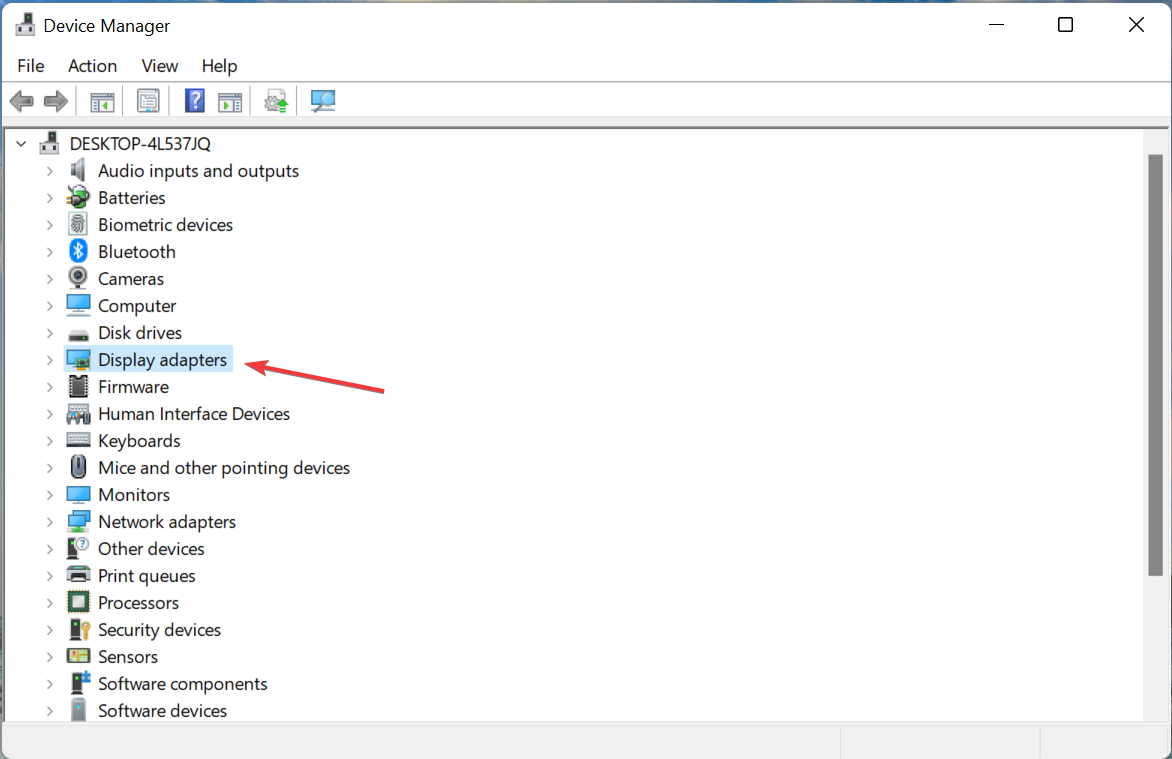
  1. Press Windows + R to launch the Run command, enter devmgmt.msc in the text field, and either click OK or hit Enter to launch the Device Manager.Open Device Manager
  2. Next, double-click on Display adapters.Display adapters
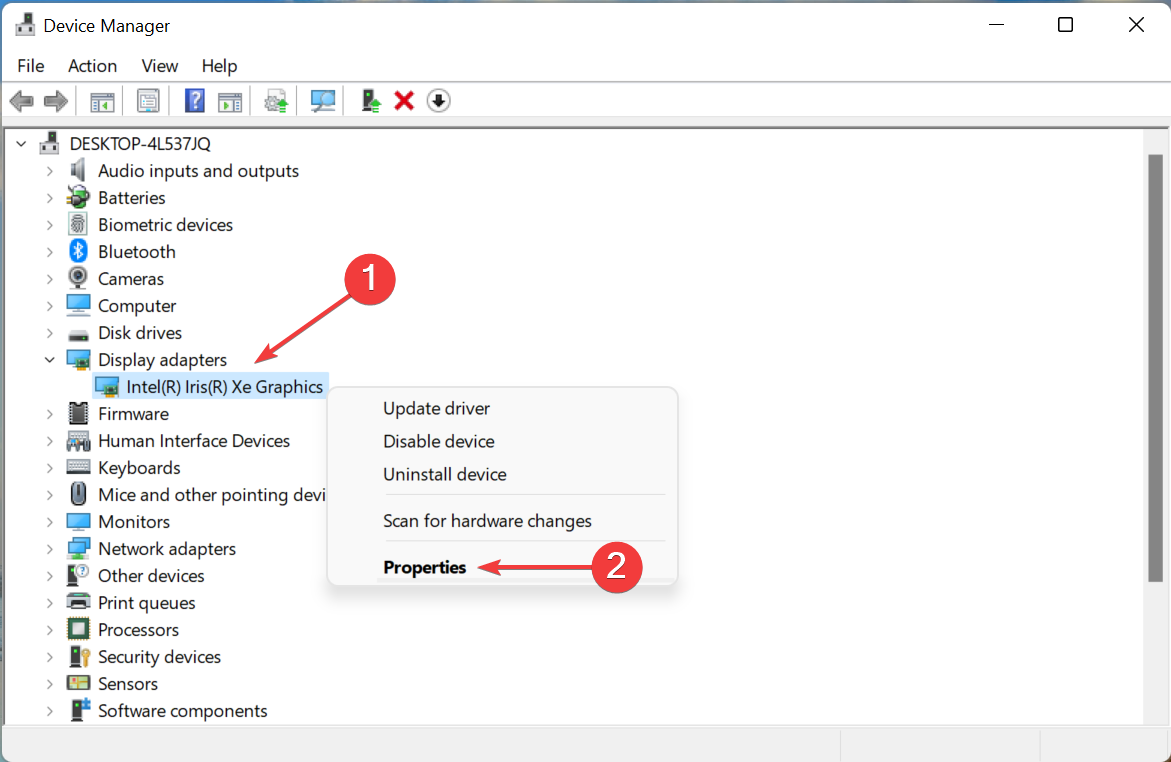
  3. Right-click on the graphics card, and select Properties from the context menu.Properties to fix windows 11 video driver issues
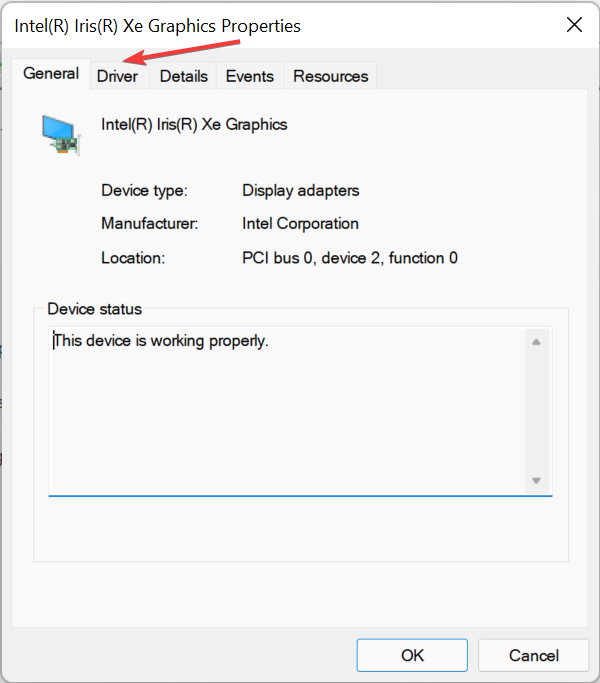
  4. Now, go to the Driver tab from the top.Driver tab
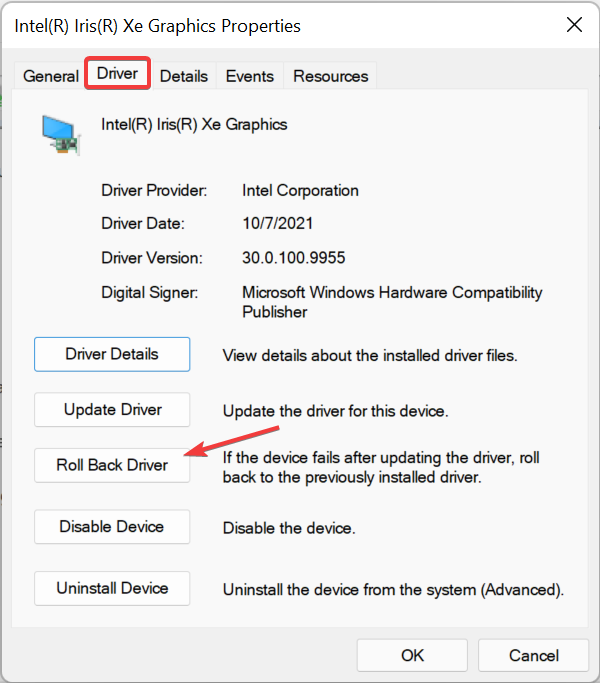
  5. If the Roll Back Driver button is not greyed out, click on it.Roll Back driver to fix windows 11 video driver issues
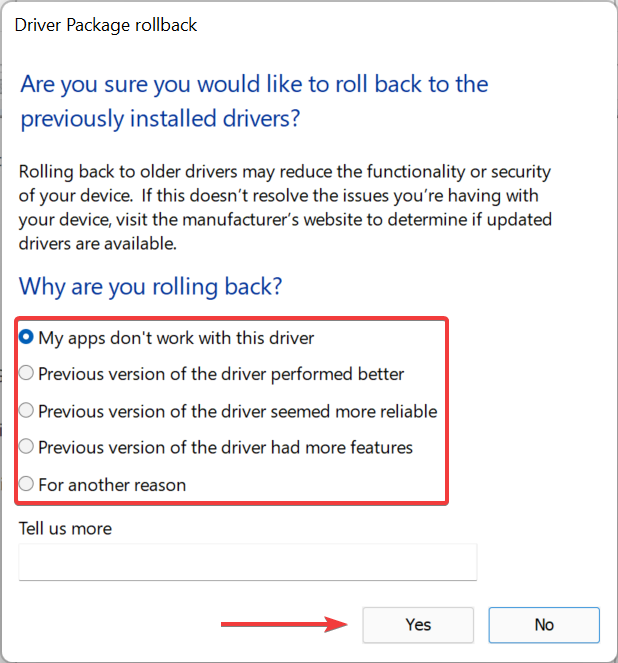
  6. Select a reason from the ones listed here, and then click on Yes at the bottom.select reason

If you started encountering issues with the video driver in Windows 11 after installing an update, it could well be a bug in that. Instead of manually installing the previous version, you can simply roll back the driver and get the one that you had earlier.

Windows generally stores the files for the previous version, in case you start to encounter issues with the one installed and intend to roll back.

If the roll back driver option is greyed out, either it was not updated or the driver files were not kept by Windows 11, which is when you will have to manually install the graphics driver.

These are all the ways you can fix the Windows 11 video driver issues and get the best display output from the installed graphics card.

Also, several users have reported facing the outdated driver error in Windows 11, which, as the name suggests, is encountered when the installed drivers are not updated in a while. Check the linked guide for more on that.

Tell us which fix worked and the graphics card installed on your computer, in the comments section below.

Fix: Microsoft Photos Rotates RAW Images in Windows 10/11

Microsoft Photos is a simplistic and intuitive photo viewer designed to be used as a Windows 10 default photo viewer app.

However, some users have been reporting on Microsoft’s forums that Photo Viewer in Windows 10 is rotating their raw photos.

[…] lately any vertical photos will flip sideways automatically. When I try to rotate it, I now get “That didn’t work, RAW files don’t rotate. Select edit to rotate and save it as a different file type.” This has never happened before. I work with multiple photos and I really don’t want to have to change.

The problem seems quite common, as people with a wide variety of Windows 10 versions and cameras are having similar issues. More so, it would seem that uninstalling and reinstalling the app did not solve the problem.

How do I fix the rotating RAW photos issue?

1. Update Photo Viewer to the latest version

Store apps don’t update themselves by default unless you open the Microsoft Store. Once you do that, they will start automatically updating. However, there are cases when you have to force a store app to update manually.

You can do this by following these steps:

  1. Press Windows
  2. Type in Microsoft Store
  3. Press the 3 dots in the upper-right corner of the window, next to Search
  4. Select Downloads and updates from the dropdown menu
  5. A list of all of the Store apps you have installed will appear, and when it does, press Get updates
photo viewer in windows 10 is rotating my raw photos

2. Update Windows 10 to the latest version

Sometimes an old Windows 10 version can come in conflict with a newer version of Photo Viewer.

  1. Press Windows
  2. Click on Settings (the cogwheel-shaped button)
  3. Select Updates & security
  4. Click Check for updates
photo viewer in windows 10 is rotating my raw photos update windows 10

Updating the OS also helps when portrait photos are showing in landscape mode.

3. Try a different photo viewing app

Third-party photo viewer software may be the quickest fix to this issue. As a bonus, most alternative solutions have more photo library management features than Microsoft Photos.

There are multiple options available. You can get a plain and simple photo viewer, or you can get specialized software built for handling any type of file, such as FileViewer Plus.

FileViewer Plus is compatible with over 400 format files, including RAW images.

You will be able not only to open and rotate the images but also take advantage of FileViewer Plus’s editing features, such as resizing, cropping, adjusting brightness and colors, plus many more.

FileViewer Plus

Never worry about not being able to open any files with this powerful software.
Free Trial Visit Website

4. Run the app troubleshooter

  1. Open the Settings app from Start Menu.
  2. Go to Update & Security > Troubleshoot.
  3. Select the Windows Store apps option, and choose Run the troubleshooter.
  4. Follow further on-screen instructions to finish the process.
  5. Reboot your computer.

The finest feature of Windows is that it includes a troubleshooter for almost every tool, even programs acquired from the Microsoft Store.

So, if the Photos app or any other program isn’t operating correctly, you may try running the app troubleshooter on Windows.

5. Make sure Photo Viewer supports the file format you are trying to open

You can find a file’s format either through the name (if it has an extension) or by right-clicking it and looking at the file properties.
Once you see the file’s format, head to Photo Viewer’s download page or look into the help documentation to see if that format is supported.

photo viewer in windows 10 is rotating my raw photos file format

Although there is no save option in Windows Photo Viewer, when you quit the program after rotating an image, you will see the Saving message show briefly on the app.

Normally, Windows Photo Viewer encounters issues only when there is a problem with the file being viewed. It’s primarily a straightforward program that works well.

The only exception is if the program cannot read EXIF data, which contains information about the orientation of the file. In that scenario, switching to a different app is an excellent option.

Professional image editors like Adobe Photoshop are excellent for opening RAW photos, as well as fixing any issues related to them. More troubleshooting guides can be found on our Windows 10 Fix page as well.

By following these steps, you should no longer have issues with your PC rotating RAW photos. Let us know which solution helped you by leaving us a message in the comments section below.

How to install Radeon driver without software

AMD offers drivers for its GPUs and CPUs through its proprietary software. Using the software, you can update existing drivers to install updates or set up new hardware on a new computer.

However, what if you want to find out how to install the Radeon driver without Adrenalin software? You may require to install the Radeon driver this way if you determine the utility to be causing system instability or crashes.

Fortunately, AMD and Windows make it easy and offer multiple ways to update the driver. In this article, we show you how to install AMD drivers without Adrenalin software on your PC.

How to manually install AMD drivers?

If Windows prevents the installation of AMD drivers, then your only option is to update them manually, and you can do that from the Device Manager.

Keep in mind that regular methods won’t work, so to update AMD Radeon drivers, you’ll need to use a different approach.

To learn how to do it, you might want to visit our guide and learn how to install older AMD drivers, or you can just follow the solutions listed in this guide.

How do I install the Radeon driver without software?

1. Install drivers with Device Manager 

  1. Make sure to close any AMD programs that are running. Use the Task Manager to end the process.
  2. Next, go to the AMD download centre and download the ADM driver package you want to install.
    install Radeon driver without software
  3. Next, download the AMD clean-up tool. Double-click on the AMDCleanupUtility.exe file to run the tool. When the Safe Mode prompt appears, click Yes. Wait for the computer to boot into Safe Mode.
  4. In Safe Mode, click OK to remove AMD drivers and applications from your computer. This will remove all the AMD drivers, including the graphics card, audio, and Radeon software.
  5. Follow on-screen instructions to reboot your computer. 

Install new drivers 

  1. Open Device Manager. To do this, press the Windows key + R to open Run.
  2. Type devmgmt.msc and click OK.
  3. In Device Manager, expand the Display Adapters section.
    install Radeon driver without software
  4. Right-click on your AMD GPU and choose Update Driver.
  5. Choose Browser my computer for driver software.
  6. Next, click on Let me pick from a list of available drivers on my computer.
    install Radeon driver without software
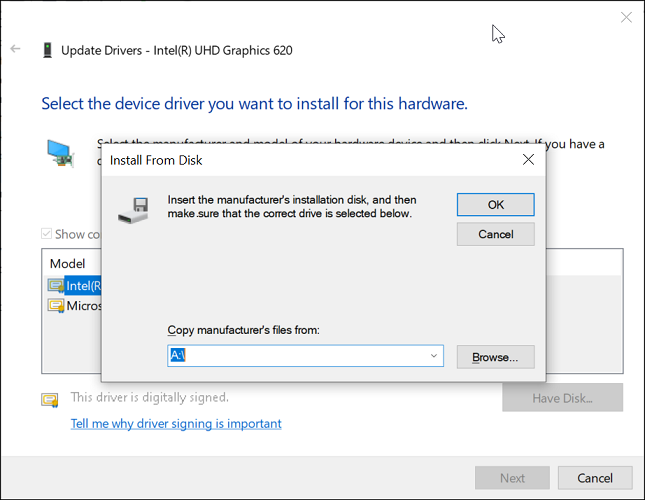
  7. Click the Have Disk button.
  8. Navigate to the following location depending on where you have stored the download driver package.
    C:AMDWin10-64Bit-Radeon-Software-Adrenalin-XXXXXPackagesDriversDisplayWT6A_INF 
  9. Select the C0XXXXXX.inf file. XXX is the file version, so it could change depending on when you update the driver.
  10. Click OK, choose a card from the list, then click Next.
  11. Windows will now install the driver from the selected package without installing the Radeon software.

If this method did not work for you or if you want to install some drives from the Adrenalin 2020/2021, you can do it from the Device Manager.

After installing the GPU driver, if you notice any mismatch, check out this guide to fix the Radeon settings and driver do not match issue.

2. Install AMD drivers manually from the AMD Adrenalin software

  1. Download the Adrenalin 2021 software package to your computer.
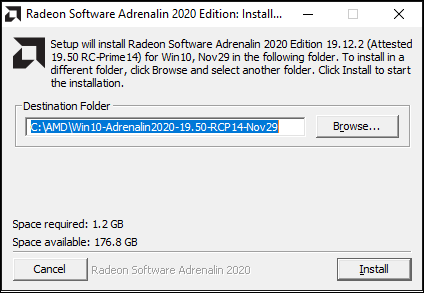
  2. Run the Adrenalin package and copy the installation path that is shown on the screen. Save the file path in a notepad file just in case you clear your clipboard.
  3. Click on Install. This will not install the tool yet but will begin the extraction process.
  4. Once extraction is complete, an Adrenalin screen will appear. Click the Cancel button on the left corner to abort the installation. Click Yes to confirm the action.
  5. Next, open Device Manager and expand the Display adapters section.
  6. Right-click Microsoft Basic Display Adapter and choose Update Driver.
  7. Click on Browser for drivers on your computer. 
  8. In the location field, paste the copied location from the Adrenalin installation setup.
  9. Click Next and proceed with the on-screen instructions to complete the installation.

Up next, launch any hardware information tool to check if you have the latest version of the AMD Radeon drivers installed.

You can have many reasons for not installing the AMD Radeon software to install the drivers. The additional tools such as benchmarking, gaming, and social media tools that come with the Radeon software could be useless to some users. 

While you will not have access to any of the Radeon software tools, you can install the AMD Radeon driver without software by following the steps in this article.

For simplicity, sometimes it’s better to use specialized software such as Outbyte Driver Updater. Doing so will make the whole process faster, and fully automated, so you might want to try it out.

Let us know if you managed to do so in the comments area below.

Best Calculator for Windows 11 PCs (Free Tools & Classic Options)

Looking for the best calculator for Windows 11 PCs? Whether you’re after scientific functions, unit conversions, or the old classic calculator for Windows 11, there’s a perfect tool for you. Below are the top free calculator apps you can download and use on your Windows 11 PC.

What are some of the best Windows 11 calculator apps?

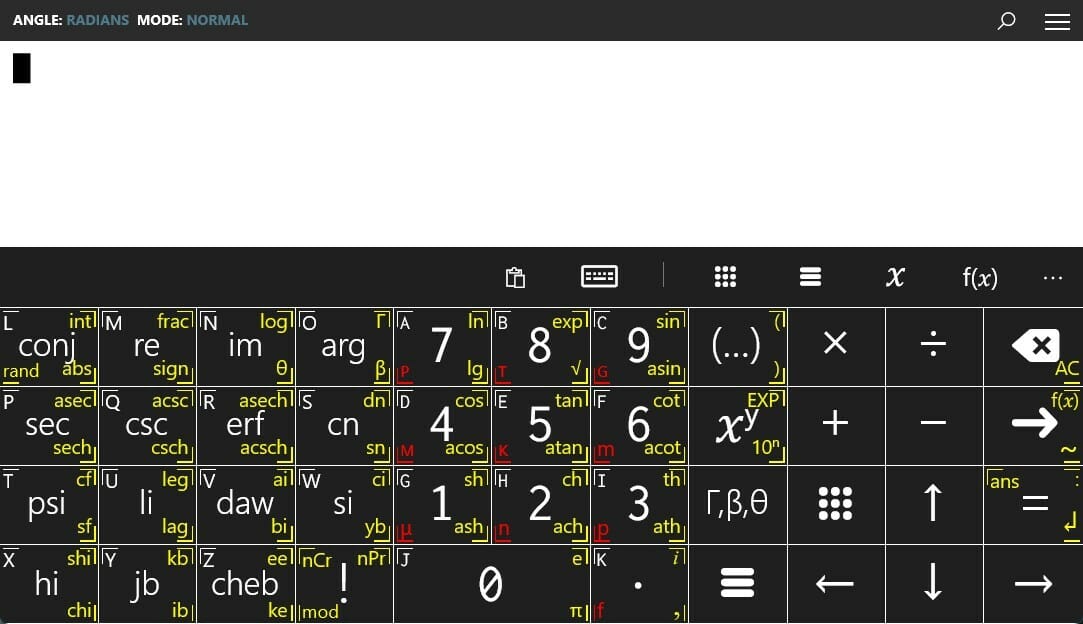
HP Prime Pro

hp prime pro

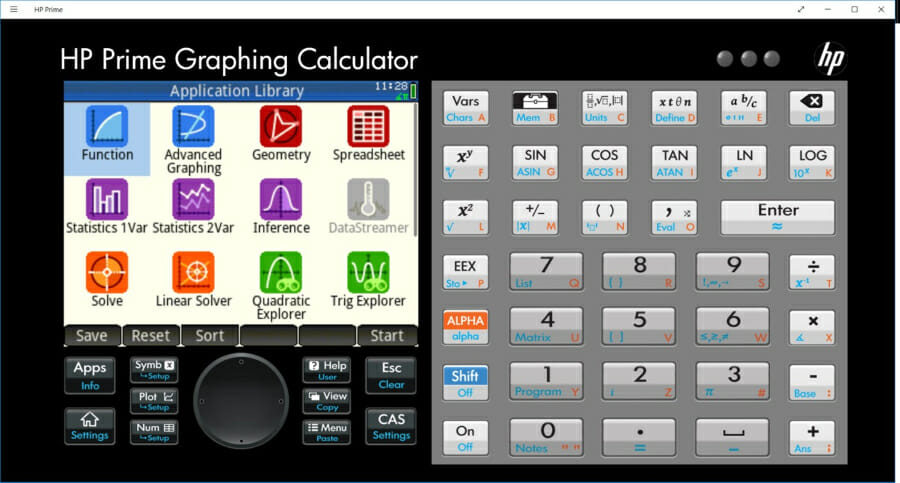
The HP Prime Pro is an advanced calculator that comes with an extensive range of functions. It is best suited for professionals and even students who wish to solve problems.

The calculator can be used to perform various graphical calculations, along with the option to trace or build tables of points.

There are other features such as pinch-to-zoom features to view graphs clearly, offering units and base conversions, a fully-featured programming language, and more.

It also offers easy toggles to change between special values and allows users to solve single equations and systems of equations.

Below are the key highlights of HP Prime Pro:

  • Offers multiple advanced computational capabilities.
  • Allows solving single and system of equations.
  • App interface is easy to manuever.
  • Also comes with a graph 3D feature to plot graphs on the z, x, and y-axis.

HP Prime Pro

It is an advanced calculator that can perform complex calculations easily.
Check price Visit website

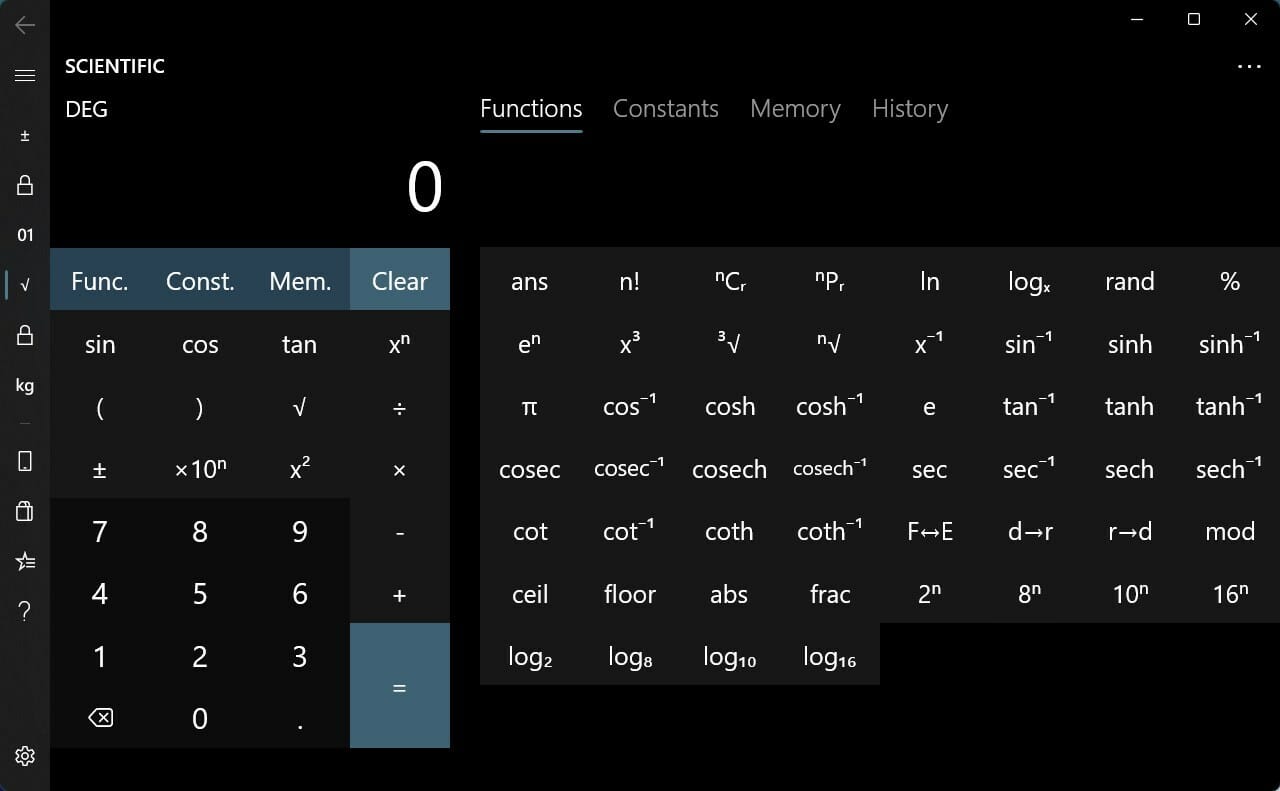
Calc Pro HD Free

calc pro free hd

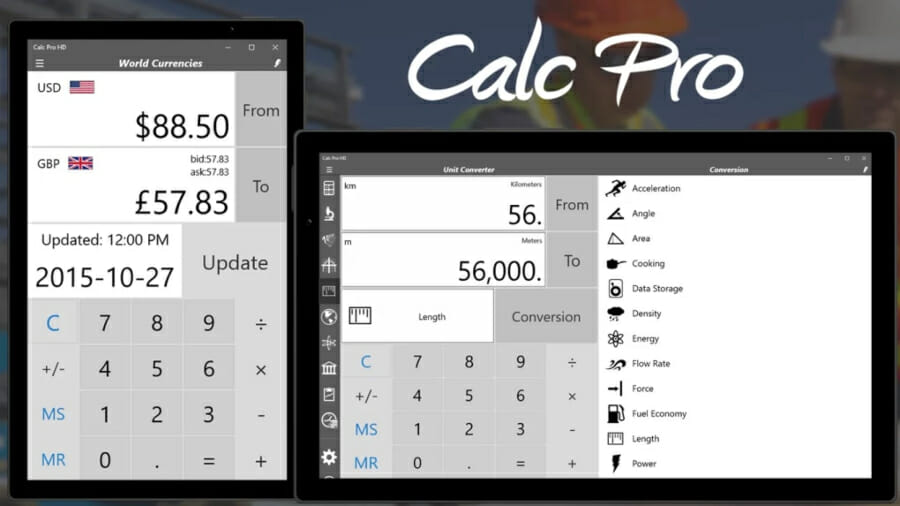
Calc Pro HD Free comes with all the basic features of a calculator along with some additional features.

One of the best things about Calc Pro HD Free is that it lets you customize the calculator. You can do that by simply purchasing only those calculators which you need.

There are a total of eight calculators to choose from. You can use this calculator to convert between eight different number bases. It offers advanced graphing functions and can perform 3,000 conversions in 19 categories as well.

Moreover, there is a world currency converter that can convert 150+ currencies, and it is updated on a daily basis.

You can tweak multiple in-app settings such as button style, button color, change sounds, change language, and much more.

Here are some of the key features of the Calc Pro HD Free calculator:

  • Offers up to 8 calculators to purchase.
  • The interface is clean.
  • Has currency, units, constants, statistics, and many more calculators.
  • The free version includes the standard and scientific calculators.

Calc Pro HD Free

Offer multiple calculators with the option to convert 150+ currencies.
Check price Visit website

Calculator+

calculator+

If you are looking for an advanced calculator that can solve differentiation, integration, and simplification queries, then you can check out Calculator+.

You can use this calculator to plot graphs, complex numbers, matrices, and more. It also offers the option to solve calculations in bin, oct, and hex modes.

As far as the interface is concerned, you can switch between light and dark modes and match it with the theme of your Windows 11 PC.

It is free to use, and all of your past calculations can be viewed under the History section. Overall, a feature-packed mathematical calculation tool.

Here are some of the best features of Calculator+:

  • Ability to solve calculations related to mathematical, trigonometrical, hyperbolic, and special functions.
  • Supports light and dark themes.
  • Use it to solve differentiation, integration, and simplification problems.
  • Add a custom function for ease of access.

⇒ Get Calculator+

Calculator²

calculator square

Calculator² or Calculator Square is another alternative to the Windows 11 calculator app that can be used by anyone, including professionals and students.

It comes with a currency converter that can convert over 150 currencies. Moreover, there is a unit converter as well that can handle the conversion of 200+ units.

Calculator² includes multiple calculators, including a scientific calculator, a programmer calculator, a financial calculator, a unit and currency converter, along with the basic calculator.

In order to unlock the financial calculator and currency converter, you need to make an in-app purchase.

Some of the best features of Calculator² are:

  • Comes with a scientific, programmer, and financial calculator.
  • Also offers unit and currency converters.
  • Supports light and dark modes.
  • The user interface is pretty modern and sleek.

⇒ Get Calculator²

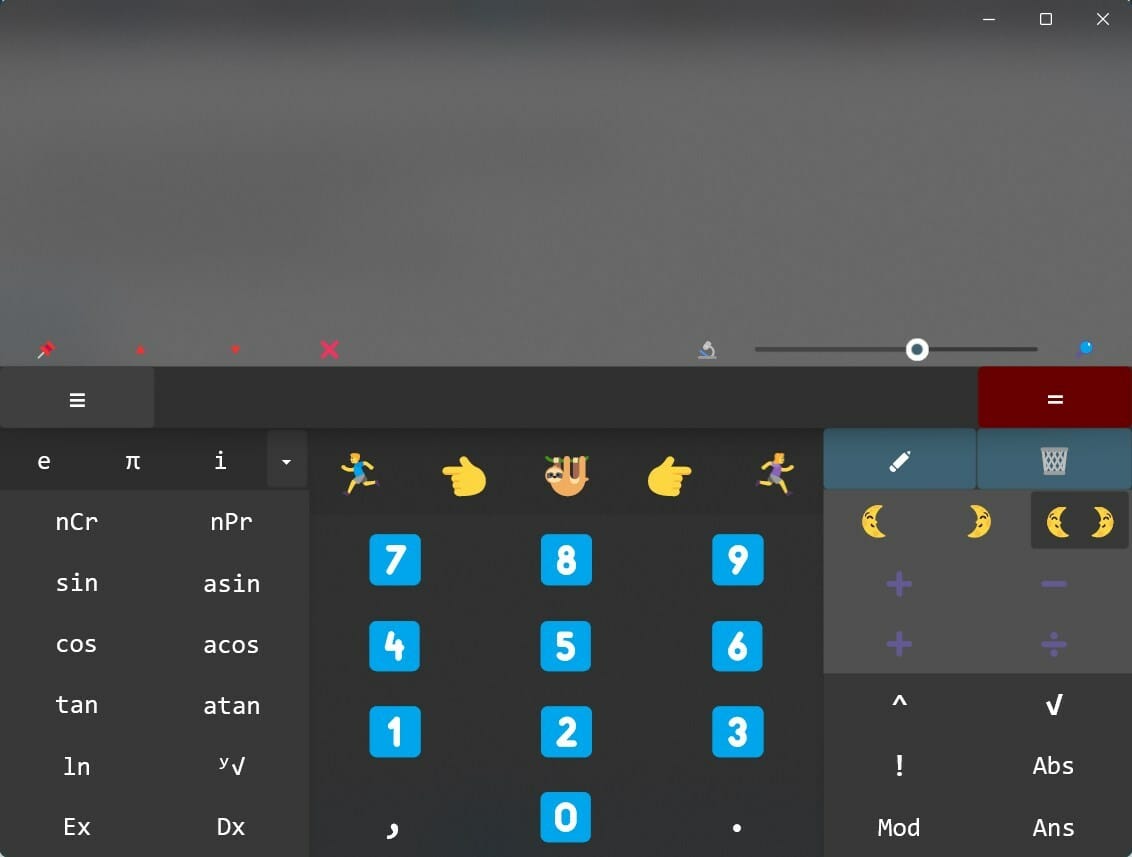
Naturplay

naturplay

Naturplay is a free calculator that can not only handle all the general calculations but can also solve formula-embedded expressions as well.

It lets you do step-by-step calculations and write line by line until the answer is reached. Moreover, in order to input powerful functions, you do not need to press the Shift button and enter them.

The integrated panel itself contains all the functions, and matrix, statistics, and complex number operations can also be implemented using this panel. The emoji interface is pretty fun to use as it depicts certain actions with emojis.

The Naturplay calculator also negates the need to use the equal key. Other features include the option to save results as pictures, showing your last calculation as a live tile, integrated Cortana command, and more.

Check out the best features of the Naturplay calculator:

  • Option to zoom into your complex calculations.
  • Store results as images.
  • Does not require you to press the Equals key to generate results.
  • Comes with light and dark theme support.

⇒ Get Naturplay

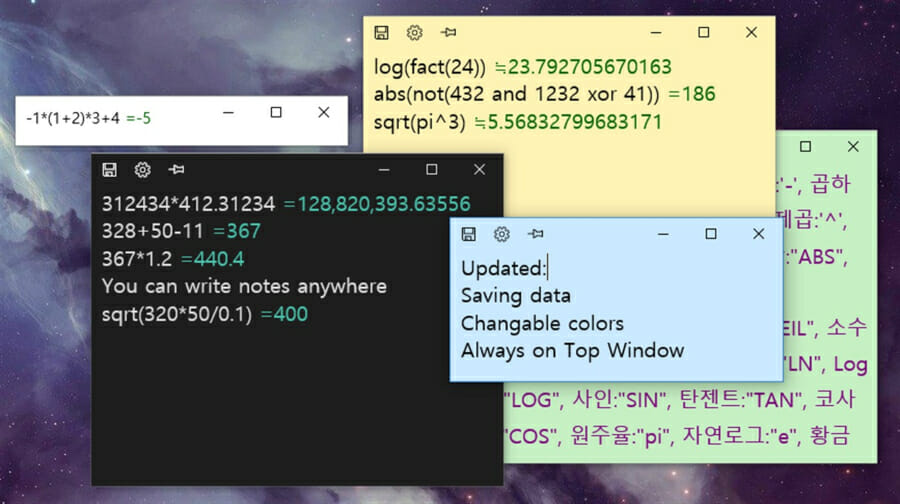
Sticky Calculator

sticky calculator

A different calculator that brings together the option to type the entire expression that you want to solve directly from your keyboard.

The window size is pretty small since there is no Numpad. Moreover, you can also write notes while carrying out calculations, which makes it an awesome option to take notes while calculating.

The Sticky Calculator app is free to download. The supported features include Plus, Minus/Negative, Multiplication, Division, Modulus, Exponent, Root, Parenthesis, etc. functions.

Check out some of the best features of Sticky Calculator:

  • Support multi-window.
  • Option to create memo while calculating.
  • All functions are available for free.
  • Calculates functions automatically per line.

⇒ Get Sticky Calculator

How to Enable the Calculator in Windows 11

If the calculator is missing or disabled, you can enable the Calculator in Windows 11 through these steps:

  1. Press Windows + I to open Settings.
  2. Go to Apps > Installed Apps.
  3. Search for Calculator.
  4. If missing, click Optional Features > Add a Feature.
  5. Search for “Windows Calculator” and install it.

How to use a keyboard shortcut to open Windows 11 Calculator?

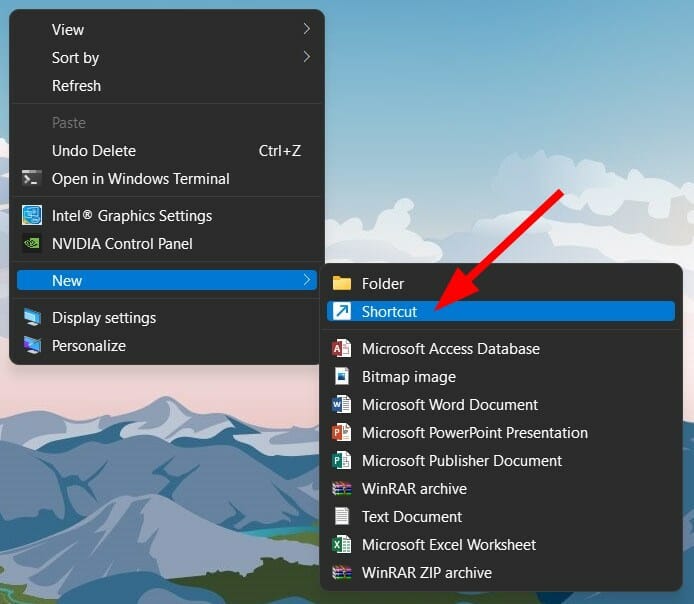
  1. Right-click on the blank space on your desktop.
  2. Select New > Shortcut.
    best windows 11 calculator 1
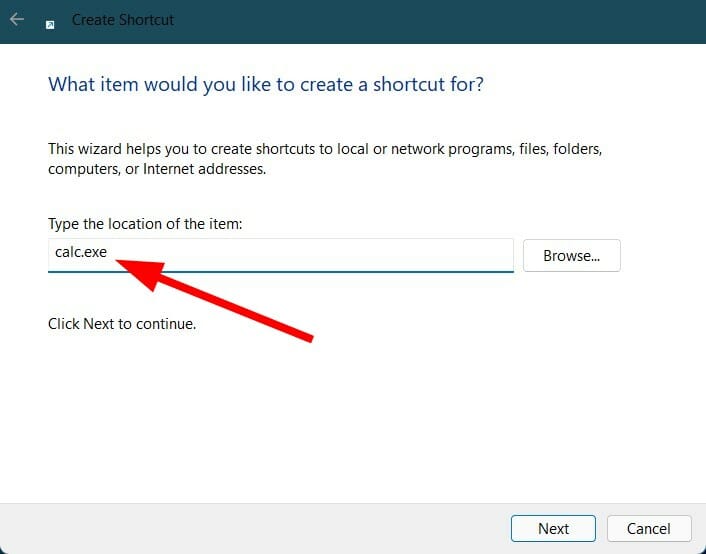
  3. In the text field, type calc.exe and click the Next button.
    best windows 11 calculator 2
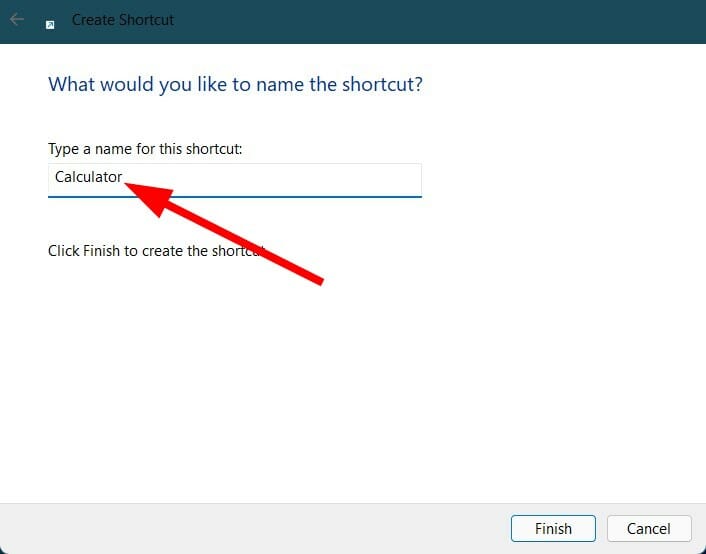
  4. Name the shortcut as Calculator and hit the Finish button.
    best windows 11 calculator 3
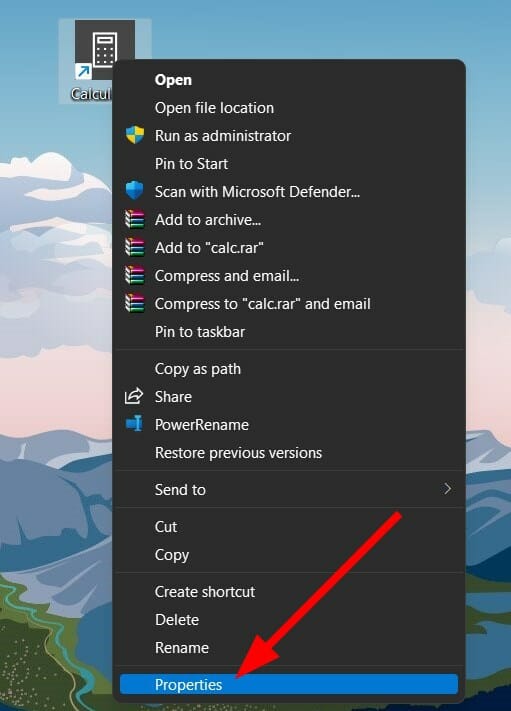
  5. Now, right-click on the shortcut you created and select Properties.
    best windows 11 calculator 4
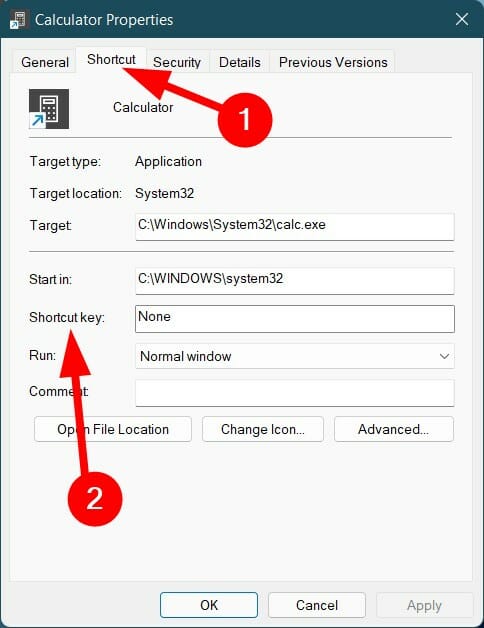
  6. Switch to the Shortcut tab.
  7. Click the Shortcut key field.
    best windows 11 calculator 5
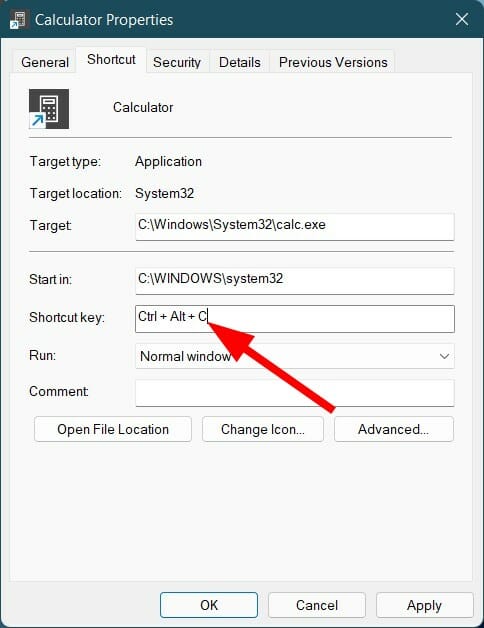
  8. Type in the shortcut key you wish to assign to open the Calculator app.
    best windows 11 calculator 6
Note icon NOTE
Do note that Windows will automatically add Ctrl + Alt to the selected shortcut. So, for example, if you choose C as the shortcut key, then Windows 11 will make the keyboard shortcut as Ctrl + Alt + C.

Once you are happy with the keyboard shortcut, simply hit the Apply button and OK button to save the changes.

From now on, pressing the Ctrl + Alt + C buttons on your keyboard will launch the Windows 11 Calculator app.

If you are in a profession that requires calculations to be at your fingertips, then you should consider checking out the list of calculators above.

What’s new in the Windows 11 calculator app?

When Microsoft released the preview build of the Windows 11 OS, most details about the new calculator app were out.

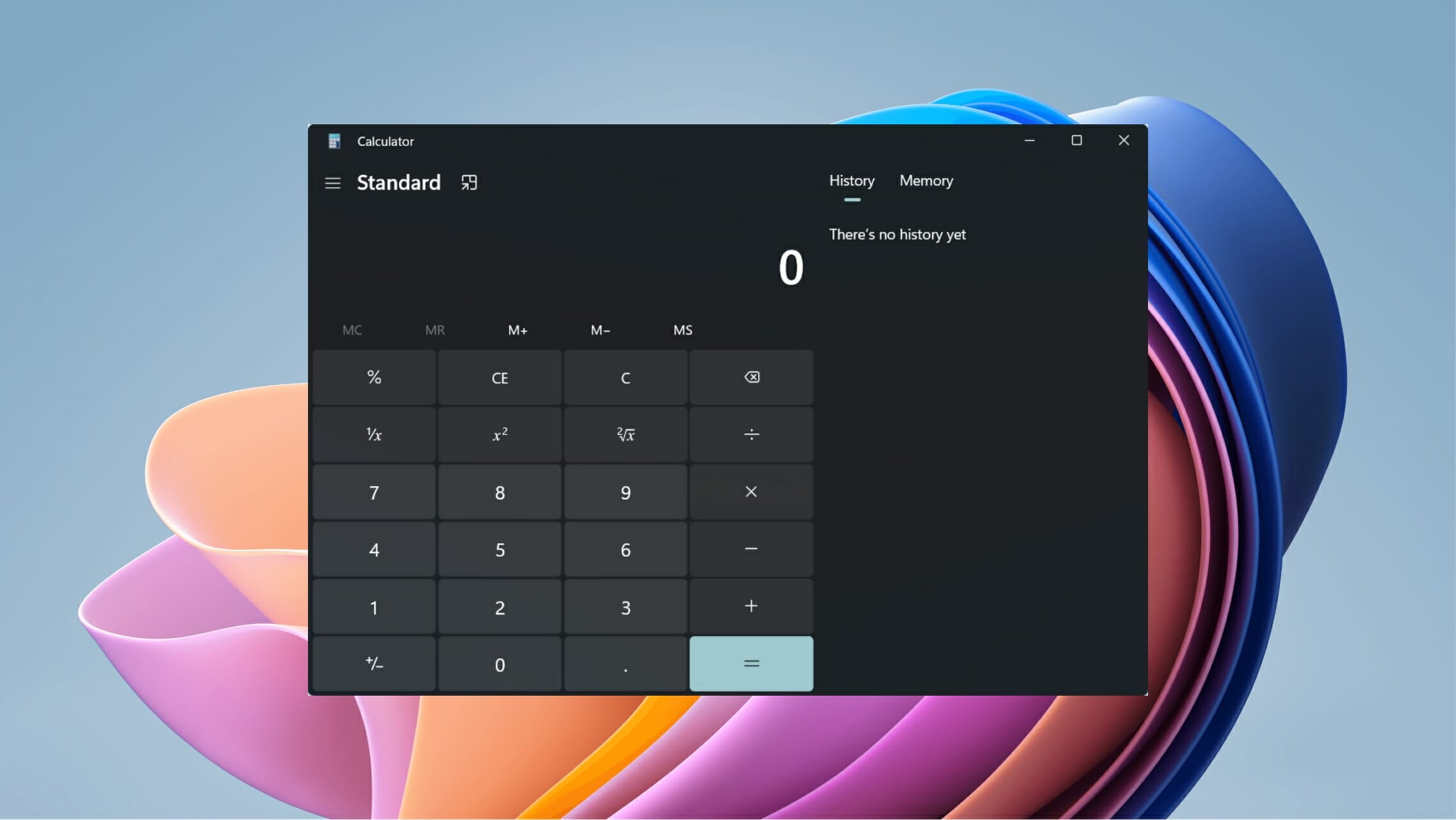
Speaking of features, the new calculator app looks pretty powerful. Notably, it gets the Windows 11 theme treatment, which makes it look modern and appealing to use.

best windows 11 calculator 1

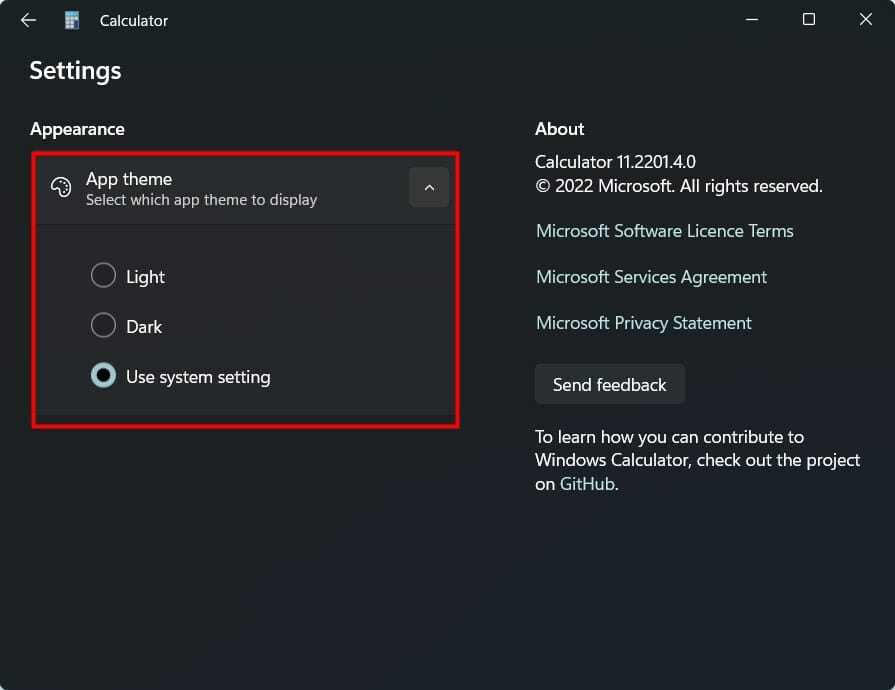
Moreover, it also supports Microsoft’s app theme settings, allowing you to set light or dark themes or use the system settings to automatically detect the mode.

Additionally, the Windows 11 calculator features a standard calculator, along with a feature-packed scientific calculator as well.

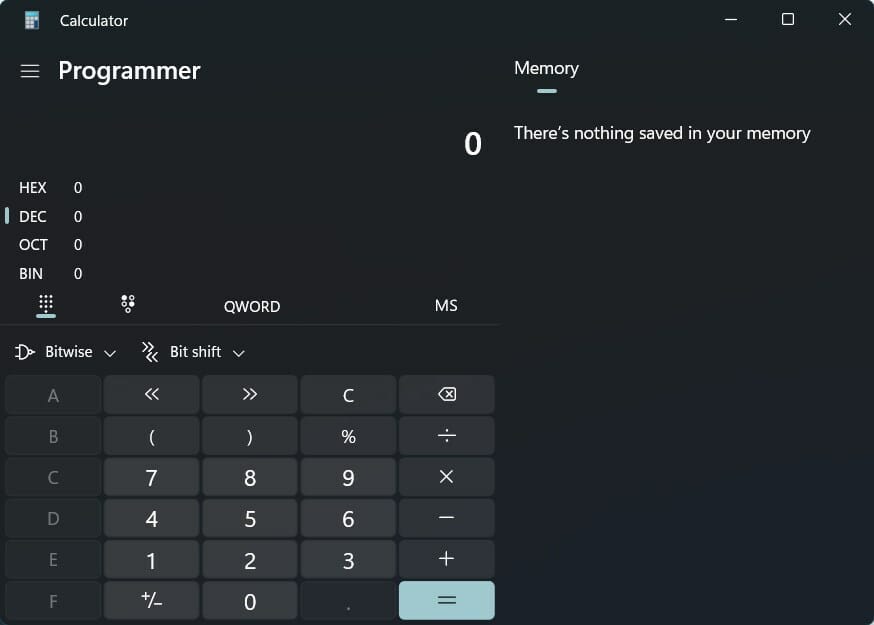
There is even a Programmer mode as well. This mode is specifically designed to handle complex programming and engineering calculations.

best windows 11 calculator 2

There are other modes as well in the Windows 11 calculator, namely, a graphing mode that lets you visualize a graph.

Furthermore, the Windows 11 calculator also has converter features that can convert 100 different units and currencies.

best windows 11 calculator 3

The Windows 11 calculator is a powerful calculation tool. However, if you are looking for more options, then check out the list below of some of the best Windows 11 calculator apps that you can download.

Frequently Asked Questions

How to reinstall Calculator app in Windows 11?

Go to the Microsoft Store, search for Windows Calculator, and click Install. You can also run the command Get-AppxPackage *windowscalculator* | Reset-AppxPackage in PowerShell.

Why is my Calculator app not working in Windows 10 or 11?

It may be due to corrupted app files. Try resetting the app via Settings > Apps > Installed Apps > Calculator > Advanced options > Reset, or reinstall it from the Store.

Is the Calculator app missing from Windows 11 by default?

No, it’s included by default. But if removed, it can be easily reinstalled via the Microsoft Store or Optional Features in Settings.

Wrapping up

The above-listed calculators make your tasks, especially calculations, pretty easy, as we have created a curated list that can help you solve standard calculations as well as complex calculations, including formulas and expressions.

Let us know which of the above-mentioned calculator apps you liked in the comments section. You can also share other calculator apps that you use in the comments section below.

Can’t Preload Horizon Forbidden West? Here’s What You Can Do About It

It’s safe to say that every self-respecting gamer has already played, seen a gameplay video, or at least heard about Gorilla Games’ new Horizon Forbidden West title.

Many say this is a gaming masterpiece but, like all the other games in existence, it too came with a wide array of bugs and glitches since launch.

Players reported Forbidden West not detecting HDR, or not working at all, but all these issues are easily fixable and you came to the right place to do just that.

We can also show you how to transfer PS4 saves to your new PS5, and also provide you with information such as the latest updates and Patch Notes.

However, before playing and observing all these bugs, you must first preload and install the game. There are some that said they can’t preload Horizon Forbidden West.

Don’t worry, we’ll show you some workarounds that did the trick for a large number of people that purchased the title and ran into the same issue.

What can I do if I can’t preload Horizon Forbidden West?

1. Power cycle your PlayStation

Most of the time, such peculiar behavior can be caused by some minor system errors that could end up preventing your game from preloading.

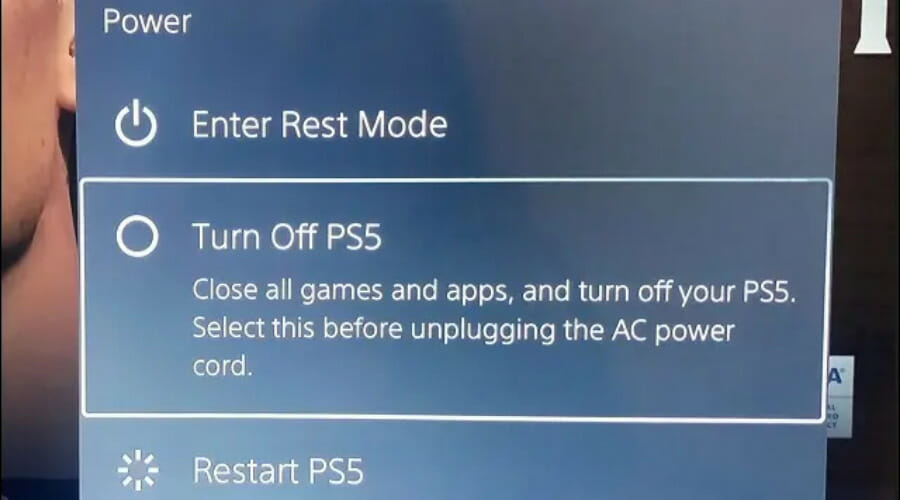
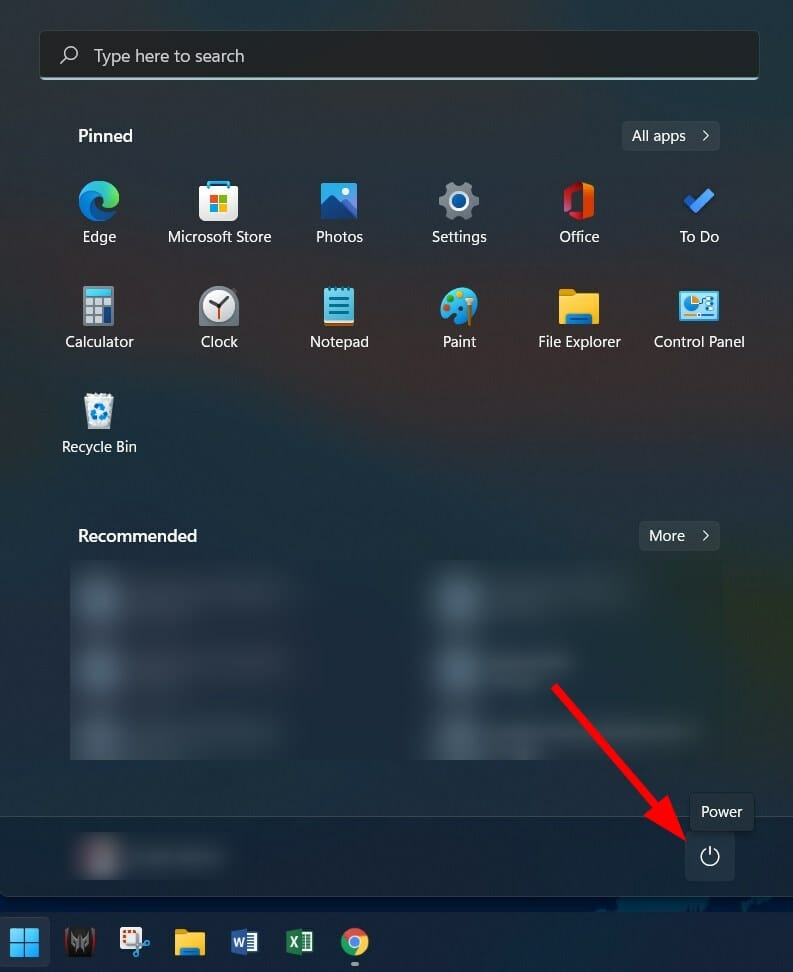
The safest way to move past this is to shut down and then restart your PlayStation console. Whether you have a PS4 or a PS5, simply select Turn Off PlayStation, give it a few minutes, and turn it back on.

2. Update your console

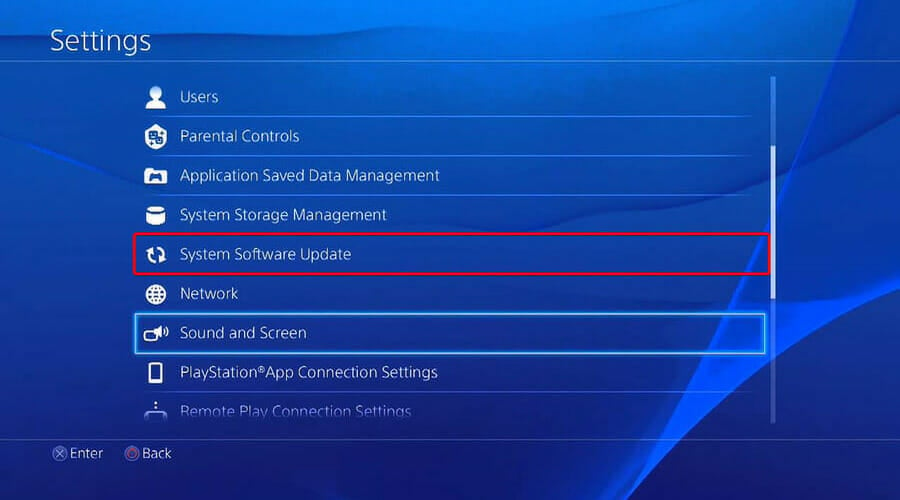
1.1 PS4

  1. Make sure that the connection between your PS4 and Internet is stable.
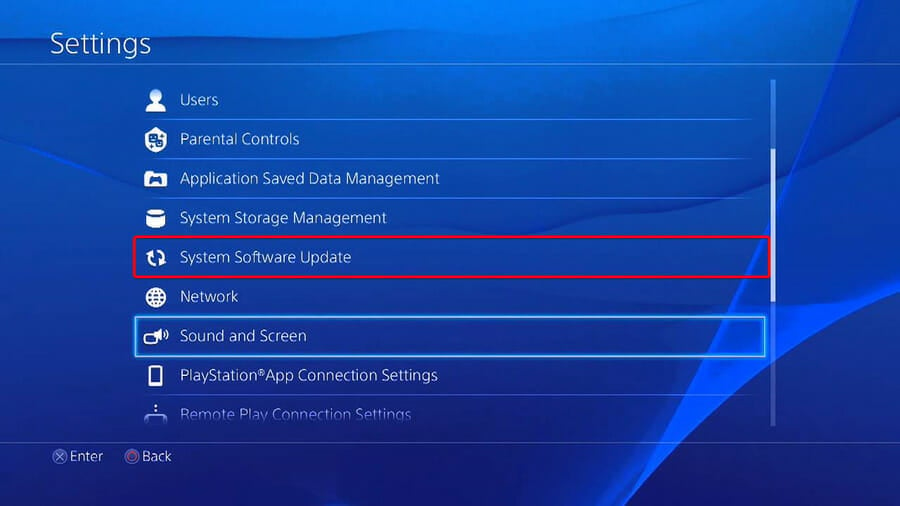
  2. Now, navigate to PS4 Settings.
  3. Click on System Software Update.ps4 1
  4. Press on the X button.
  5. You’ll get a message that informs you if the latest version of your system console has already been installed.
  6. Otherwise, the message will let you know that you should upgrade your system. To install it, click on Upgrade now.

1.2 PS5

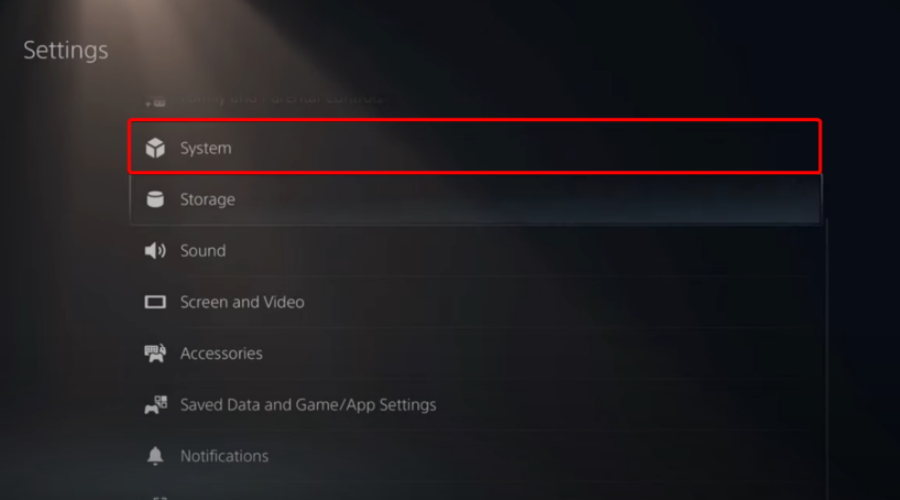
  1. Open Settings.
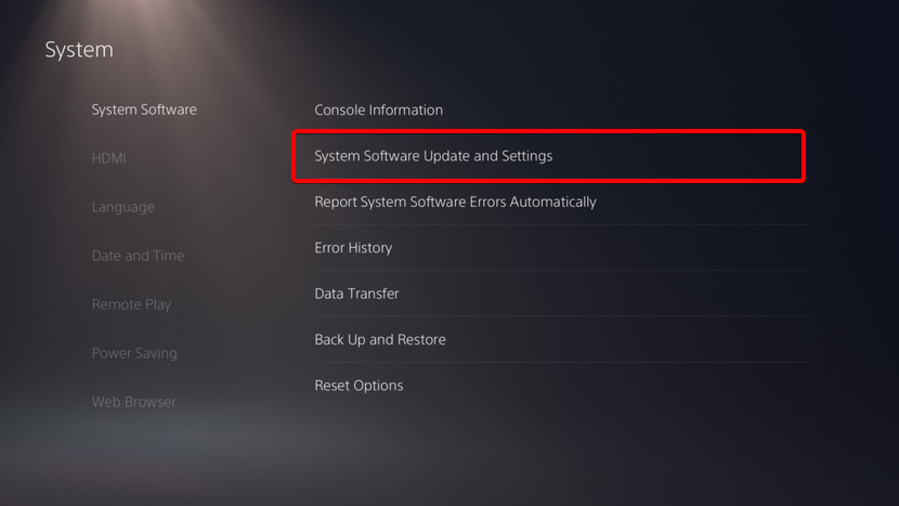
  2. Go to System.PS5 1
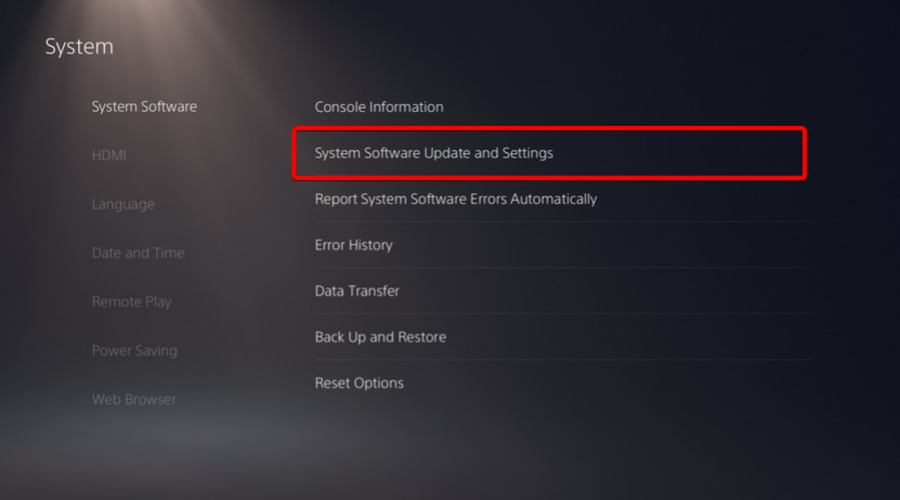
  3. In the System Software section, click on System Software Updates and Settings.PS5 2
  4. Choose the type of update you want to perform.
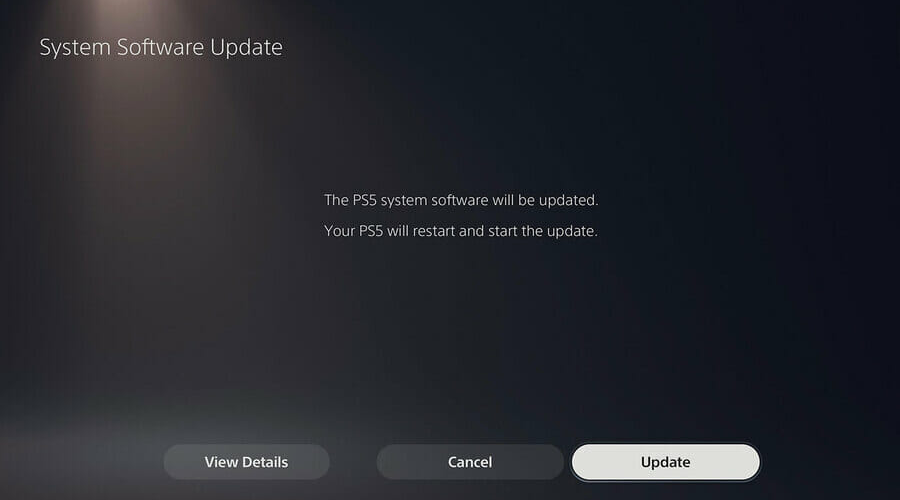
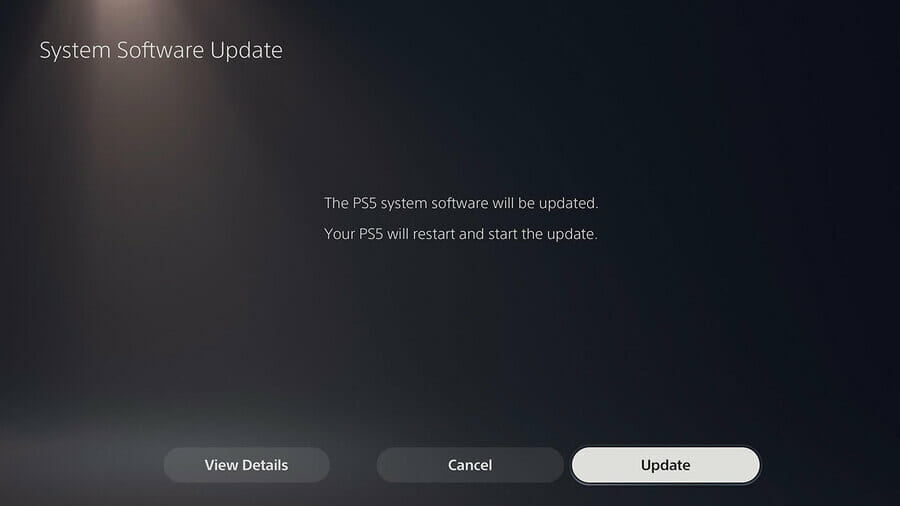
  5. Click on the Update button, then wait until your console is updated and restarted.PS5 3

3. Clear your console’s cache

  1. Completely turn off your PS4 or PS5 (Keep in mind that the Rest Mode won’t work).
  2. Wait until the indicator light stops blinking and goes black.
  3. Do not unplug your PS4 while in the Rest Mode.
  4. Disconnet the PlayStation 4 or PlayStation 5 power cord from the back of your device.
  5. Wait one minute, then plug the cord back into the PS4/PS5 and turn it on.
  6. Now, you’ve power cycled your PS4/PS5 and you should’ve cleared the cache.

4. Free up some storage space

3.1 PS4

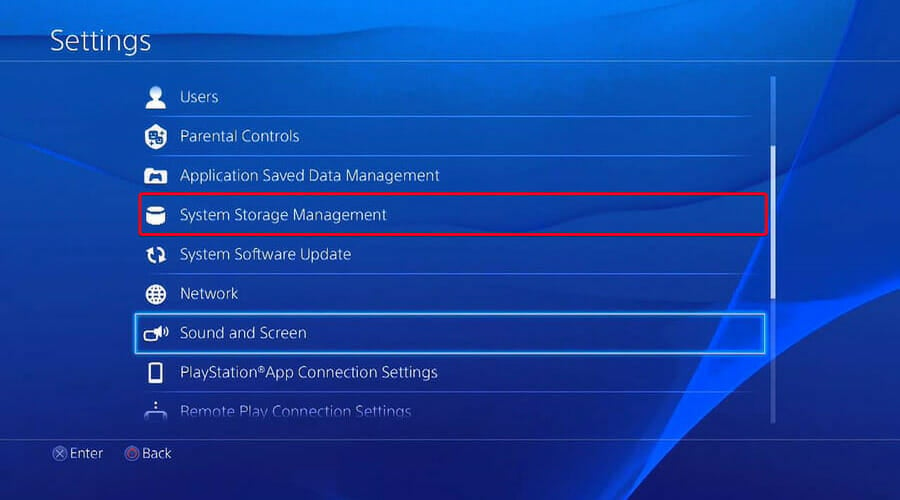
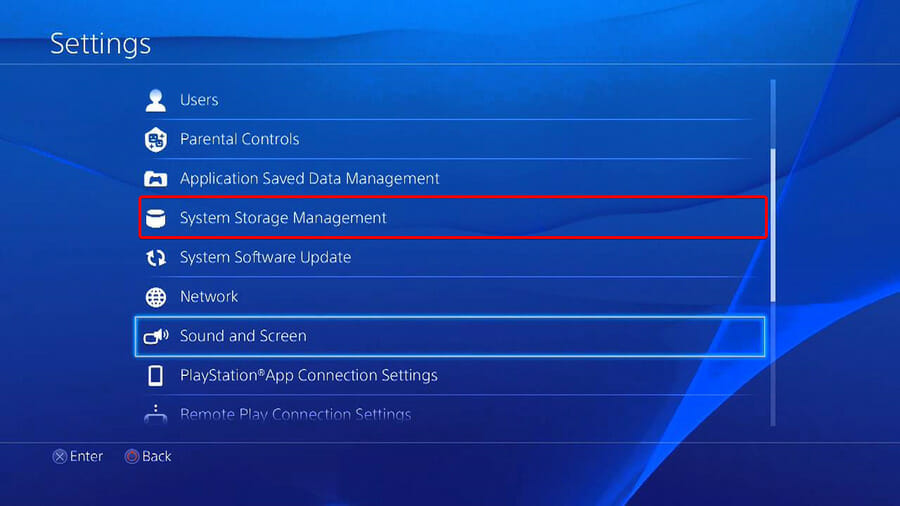
  1. Go to Settings.
  2. Scroll down to System Storage Management.ps4 2
  3. On the opened page you’ll see how the disk space is distributed and how much free space you have.
  4. Make sure that you have enough to download Horizon Forbidden West.
  5. If not, delete you should delete other saved data.
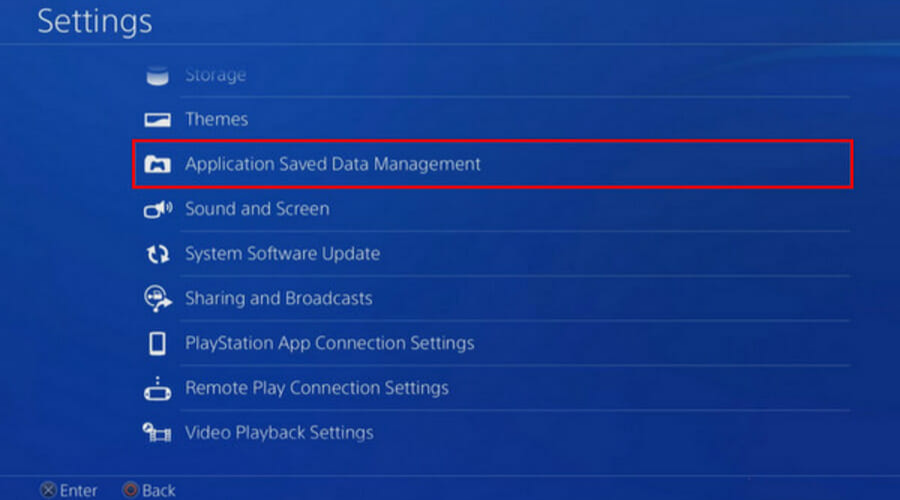
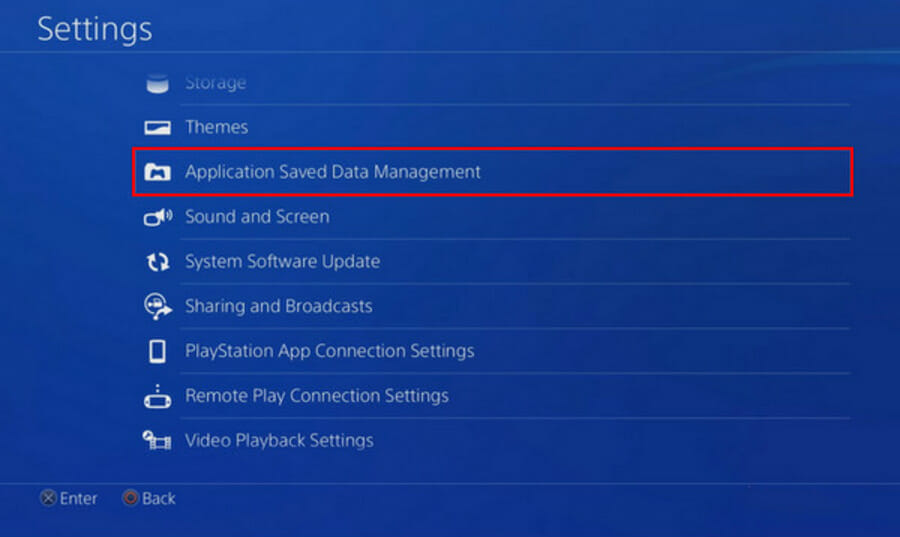
  6. To do so, go back to your Settings menu, and choose the Application Saved Data Management section.PS4 3
  7. Choose what you want to clear.
  8. Click on Delete.

3.2 PS5

  1. Open PS5 Settings.
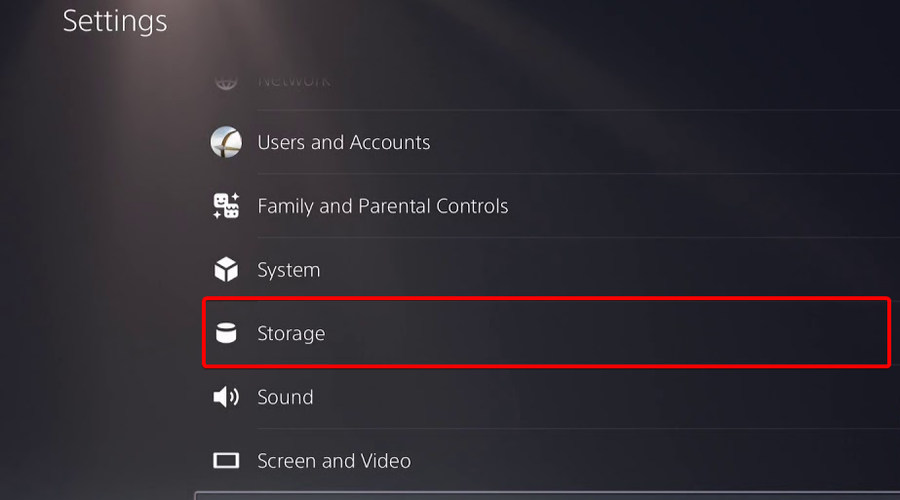
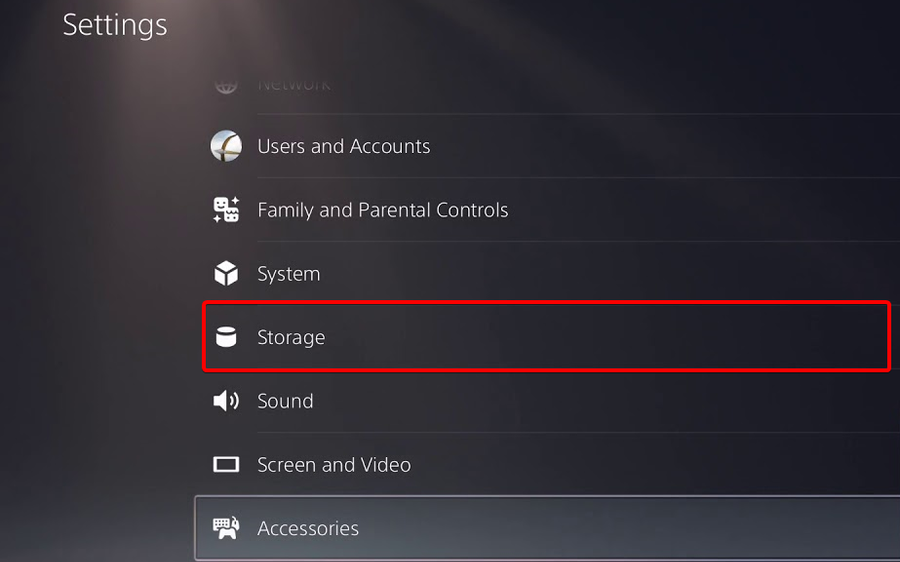
  2. Scroll down to Storage.PS5 4
  3. There, you’ll be able to view both the Console Storage and the Extended Storage.
  4. Click on each of them and check the free disk space.
  5. If you don’t have enough, make sure you delete other saved data.
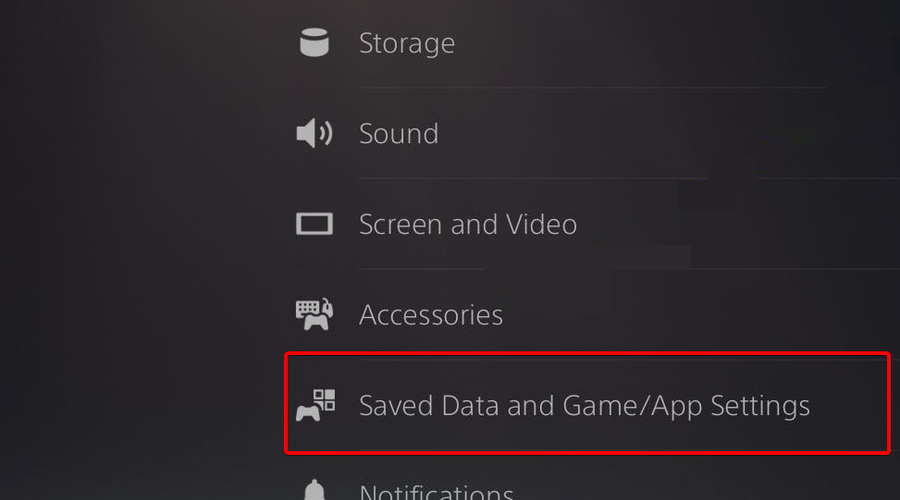
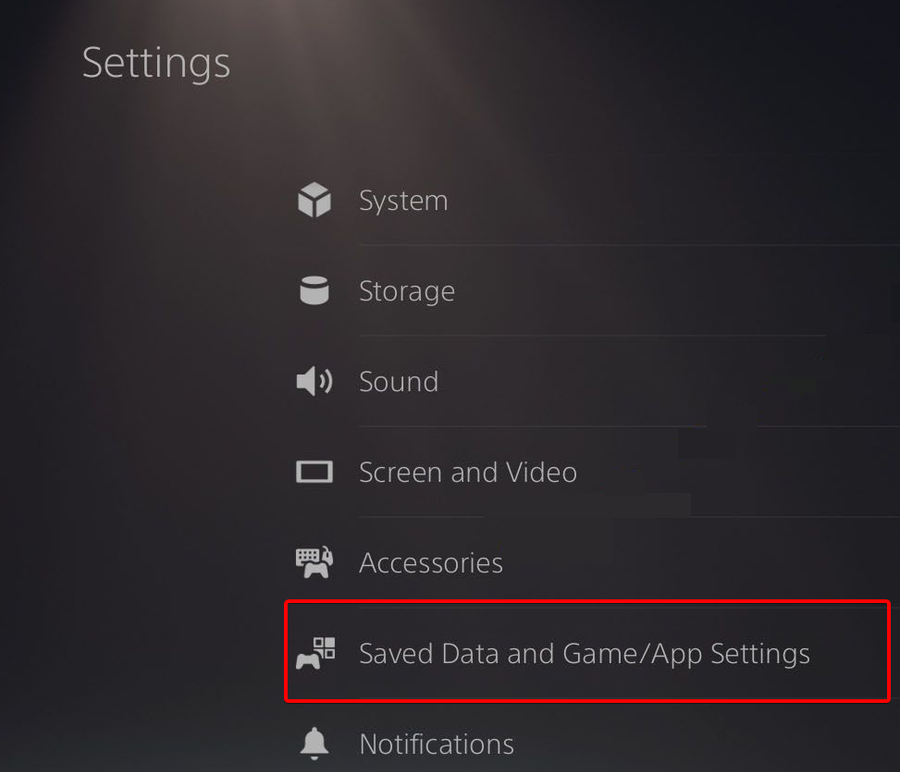
  6. To do so, go back to your PS5 Settings, navigate to Saved Data and Game/App Settings.PS5 5
  7. Choose from Saved Data (PS5) or Saved Data (PS4).
  8. Select Console Storage.
  9. Click on Delete.
  10. Tick the box next to the files you want to delete and select Delete.

If Horizon Forbidden West is not downloading, you’ll probably need to free up some disk space. However, if this solution seems not working, we have one more option you can try.

These are the solutions that other players in the same situation said worked. Thus, if you are facing the same odds, don’t be discouraged, follow our guide and all will be well.

It’s true that there are other exciting options out there, so we’ve compared them for you, in case you need a little bit more info before making a choice.

Has this guide been helpful to you? Let us know in the comments section below.

Word experienced an error trying to open the file [Full Fix]

Some Word users have encountered an error message that states, Word experienced an error trying to open the file.

This error arises for some users when they try to open MS Word document files.

As a consequence, documents don’t open when Word displays this error message:

There are a few confirmed fixes for this issue, and in this guide we will discuss them all.

Why am I getting Word experienced an error trying to open the file message on Windows 11?

If you get this message, it’s possible that the file is in use by another application, and that’s what preventing you from opening it.

It’s also possible that the installation is damaged because Microsoft Office encountered an error during setup, and if that’s the case, you might have to reinstall it.

This isn’t the only issue that you can encounter and many have reported that Microsoft Word has stopped working, so you might have to check your installation.

How can I fix the Word experienced an error to open the file?

1. Use specialized repair software

This issue can occur if your Word file is corrupted, and if that’s the case, you might have to repair it with a specialized software such as Stellar Repair for Word.

Using this tool you can repair multiple documents simultaneously, and preview the recovered files before saving them. Regarding compatibility, the software works with all versions of Word.

As for the recovery process, there are three methods available, so you can easily recover any corrupted Word document.

Stellar Repair for Word

Try using this program to repair your files without modifying the original content.
Check Price Visit Website

2. Unblock your Word file

  1. Right-click the document file that the error arises in.
  2. Select Properties.
  3. Press the Unblock button on the General tab if you can see it.
  4. Click the OK button to close the window.

3. Disable Word’s Protected View options

  1. Click onWord’s File tab.
  2. Next, click Options on the left of the File tab.
  3. Select the Trust Center tab.
    Trust Center tab word experienced an error trying to open the file
  4. Press the Trust Center Settings button.
  5. Click Protected View to open the options shown directly below.
    Protected View options word experienced an error trying to open the file
  6. Deselect all three of the selected Enable Protected View checkboxes.
  7. Press the OK button to close the Trust Center window.
  8. Click OK to exit Word Options.

4. Add the files to a trusted folder location

  1. Open File Explorer with its Windows key + E hotkey.
  2. Move all the document files the Word experienced an error issue arises for, to an alternative folder.
  3. Open the Word application.
  4. Click the File tab and choose Options.
  5. Press the Trust Center Settings button on the Trust Center tab.
  6. Select the Trusted Locations tab shown directly below.
    Trusted Locations tab word experienced an error trying to open the file
  7. Press the Add new location button.
  8. Click the Browse button.
  9. Select the folder that you moved the Word documents to.
  10. Click the OK option.
  11. Select the Subfolders of this location are also trusted checkbox.
  12. Finally, click OK on the Microsoft Office Trusted Location window.

5. Repair the MS Word document

  1. Open MS Word.
  2. Click Open on Word’s File tab.
  3. Select the Browse option.
  4. Select the Word document the error arises for.
  5. Click the Open button’s small arrow to open the submenu in the shot directly below.
    Open and Repair option word experienced an error trying to open the file
  6. Select the Open and Repair option.

For more details on how to repair MS  Word documents, you can always check out this thorough guide.

6. Open the document with an alternative word processor

The Flip Writer word experienced an error trying to open the file

This resolution is more of a workaround than a fix. However, your MS Word document might open fine with other software that supports its file format.

Lots of word processors support MS Word file formats. So, try opening the file the issue arises with alternative software.

Then you can view and edit the document as required if it opens ok in alternative word processors.

The above resolutions will probably fix the Word experienced an error issue for most users, and if you are included in that group, feel free to share you experience with us.

You can do so by using the comment section below this guide.

[wl_navigator]

10 Best Local SEO Software [Free, Paid]

Numerous surveys have shown that more than 70% of consumers search online before visiting a business or making a purchase.

Search engine optimization (SEO), also known as organic search marketing, is simply a process that sends signals to search engines that your site is the best, most trusted, and most authoritative in your industry.

What is the best way to do local SEO?

They’re a great source for targeted traffic, so to prove that yours is the best site worth showing to your target audience, you can do either of two things:

  • Get an SEO specialist to ensure you rank at the top of search engine results
  • Get an SEO software tool that can analyze your site and help you rank better.

A specialist will analyze, review, and implement changes to your site to optimize it for search engines – in short, they know which buttons to press to get you to the top.

They understand site requirements such as keyword research, SEO copywriting, website layouts, internal and external links, as well as search engine marketing and advertising techniques for SEO.

Identifying and implementing the right local SEO software and implementing it can make all the difference in a local business’s online visibility.

What parameters should I look for in local SEO software?

An effective keyword tool research includes competition analysis and insights into strategies you employ to get a higher position and a clear outcome.

Consider the local SEO software provider’s ability to offer you a website audit with suggestions for improvement in search engines, depending on your location.

Online businesses that use current, scalable search engine optimization best practices as part of their overall digital marketing strategy may gain a major competitive advantage and become the best answer when it matters the most.

SEO execution on several platforms, including social, mobile, and desktop, with change tracking and monitoring data, is a cornerstone of an active online presence and a consumer trust builder.

Lastly, customer support with ongoing expert coaching is essential when selecting a local SEO software provider.

Remember that in such a competitive industry, you should only get the service from a trustworthy vendor, through the company’s official website to avoid scams or money waste.

Now that you know what SEO software can do for you and what to consider as you look for one, the next step is to find a reliable tool.

What is the best local SEO software to boost my rankings?

SEMrush

semrush SEO

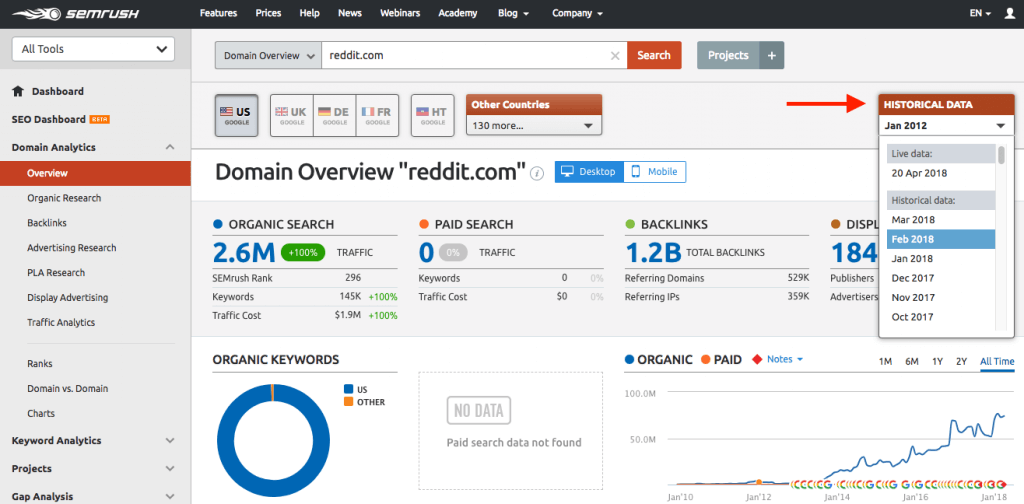
This tool offers comprehensive keyword research, domain analytics, backlink tracking, as well as search breakdowns on desktop and mobile platforms.

Although it is not as compact as Moz Pro, this tool has a fantastic feature called SEO ideas, which gives it a competitive edge over other tools.

The SEO ideas feature lets you identify your site’s high-value pages so you can optimize based on click-through rates (CTRs) and impressions, among other page metrics. Once you select the pages, SEMrush lets you know how to prioritize them, and how much traffic you can get based on this alignment.

It also comes with Trello integration, which means you can create a task and delegate to your team.

Why we like SEMrush:

  • Its SEO ideas feature offers unique value
  • Identifies high-probability ranking pages
  • Hyper-local SEO targeting
  • Keyword Suggestions
  • Proactive SEO recommendations
  • Custom business solutions for special marketing needs, such as on-site training, add-on features, and custom keyword databases
  • Position tracking tool checks which keywords trigger different SERP features, both owned by you and those owned by your competitors

SEMrush

All the tools and reports your business needs nowadays to stay ahead of the competition and attract growth.
Free trial Visit website

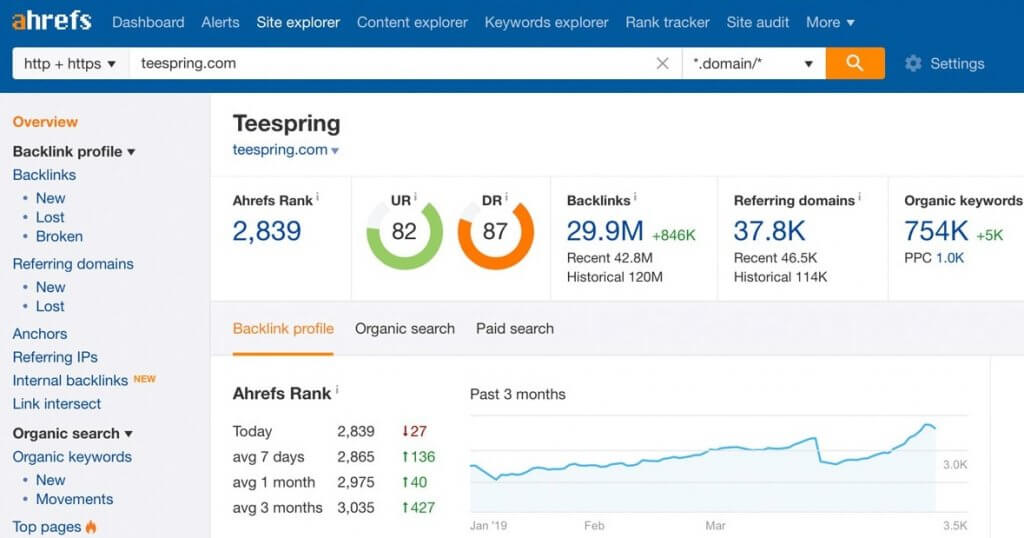
Ahrefs

Ahrefs SEO software

This tool is revered for its exceptional web crawling capabilities (over 6 billion pages on a daily basis), comprehensive domain monitoring and analysis, as well as in-depth SERP analysis.

Ahrefs comes with a dashboard that displays everything you need to execute your SEO activities, both in summarized and detailed formats.

This SEO software tool meets all your SEO needs by providing comprehensive reports, competitor analysis, keyword research, backlink checks, research on what content works for your niche, keyword rank tracking, and monitoring your niche through alerts.

It also comes highly recommended by leading marketing and SEO names such as Neil Patel (KissMetrics), Brian Dean (Backlinko), and Jon Cooper (Pointblankseo), among others.

Why we like Ahrefs:

  • Displays exact words competitors rank for
  • Has a 240+ million keyword database in the US and in more than 100 other countries
  • Mammoth database of 3 billion keywords
  • Covers all your bases in keyword research and ongoing monitoring
  • Exceptional domain analysis
  • Provides insights on searcher behavior
  • Runs the world’s largest, top-notch index of live backlinks (over 12 trillion)
  • Crawls over 4 billion web pages every 24 hours, with fresh data updates every 15 minutes
  • Site explorer feature helps you see all backlinks and SEO metrics for any website
  • Content explorer feature helps you know which sites don’t link back to you, which best-performing content, and search traffic
  • Provides automated daily/weekly/monthly ranking reports
  • Tracks keyword rankings from any location
  • Provides graphical ranking history report
  • You can set up keyword alerts related to your business and the tool sends you an email notification of this (helps you get new opportunities to serve your audience)

⇒ Get Ahrefs

CWVIQ

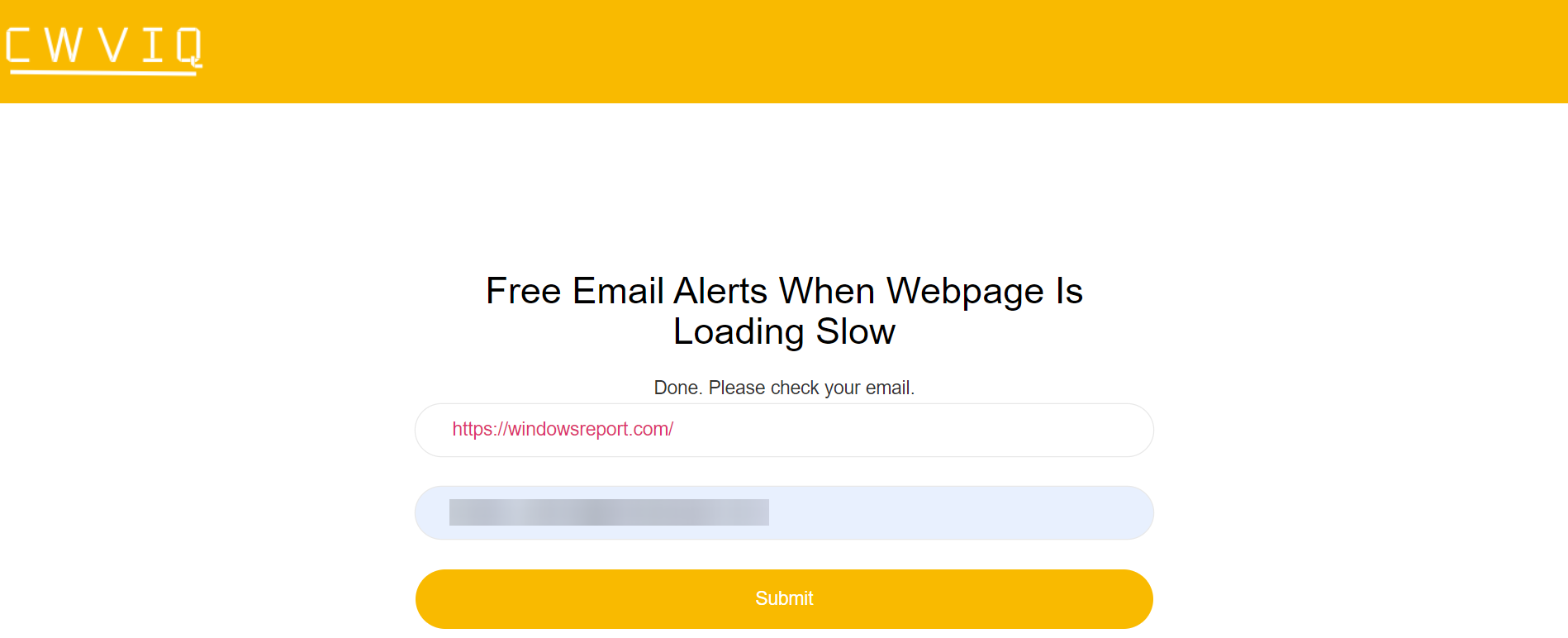
It’s important to access the core metrics of your website quickly, and CWVIQ (pronounced Quick), is a free web service that will help you with the numbers on the spot.

In essence, it is a free email notification system for website speeds. All you need to do is to enter a URL you need to monitor and your email address, and in just a few seconds, you will get a message with its metrics.

You will find out the speed metrics, the time needed until interaction, the first CPU idle time, the time for the first contentful print, and the first meaningful paint.

Upon our request for the Windows Report website, we found a speed index of 0.85 and 0.6 seconds of access time, which is very good. Anything over 5 s means that the website is pretty slow, and you need to take action.

CWVIQ is very good for monitoring your website but is also a great way to find out if the website you’re trying to access has any problems.

Why we like CWVIQ:

  • It is 100% free for everyone to use
  • Provides the core metrics of any website in seconds
  • You have access to the data directly on your e-mail address, where you can forward it to any other recipient
  • It’s extremely easy to use from any device with a browser

CWVIQ

Get the core metrics for any website in seconds with this smart free web app!

SEO PowerSuite

This toolkit has four sections that are jam-packed with features that make it appropriate for your SEO requirements, which include SEO Rank Tracker, Website Auditor, SpyGlass, LinkAssistant.

The Rank Tracker allows you to monitor your search rankings by tracking your keywords and checking them within a specified time schedule.

Within the Rank Tracker are features such as keyword suggestions, results comparisons, and reports that can be exported, all at the click of a button.

This feature lets you see where you rank based on keywords, and the best part is that its interface is user-friendly, while providing accurate data and additional insights for decision making.

Why we like SEO PowerSuite:

  • Unlimited free trial option (but with limited features)
  • If you get this tool, you can opt to get its four elements separately (if you don’t need all of them)
  • Helps track your site’s rankings
  • Helps you optimize your site, posts, and pages
  • Helps you identify link-building opportunities
  • Detailed reporting with customizable templates

With SEO SpyGlass you may take a peek at your competitors’ backlinks, and in turn, help you identify viable or suitable link-building opportunities for your site.

It also helps you identify possible harmful domains, gives detailed statistics for your backlinks, offers multiple backlink data information/sources, and generates useful reports for decision-making.

The Website auditor lets you optimize your website to rank well based on keywords.

It literally does all the legwork, giving you helpful analysis of your content, an overview of your domain, and generates a full audit of your site thus, you’re able to identify what’s wrong and take the necessary measures to correct and/or optimize your site.

The Link Assistant allows you to identify what sites you can approach, manage your emails, and still track links you may have earned in the long run.

It also comes with Google Analytics integration and helps you identify link-building opportunities you otherwise wouldn’t have seen.

SEO Power Suite

It includes everything necessary for the SEO field, such as SEO analysis tools, keyword research tools, backlink checkers, content editors, and PPC ad optimization.
Free trial Visit website

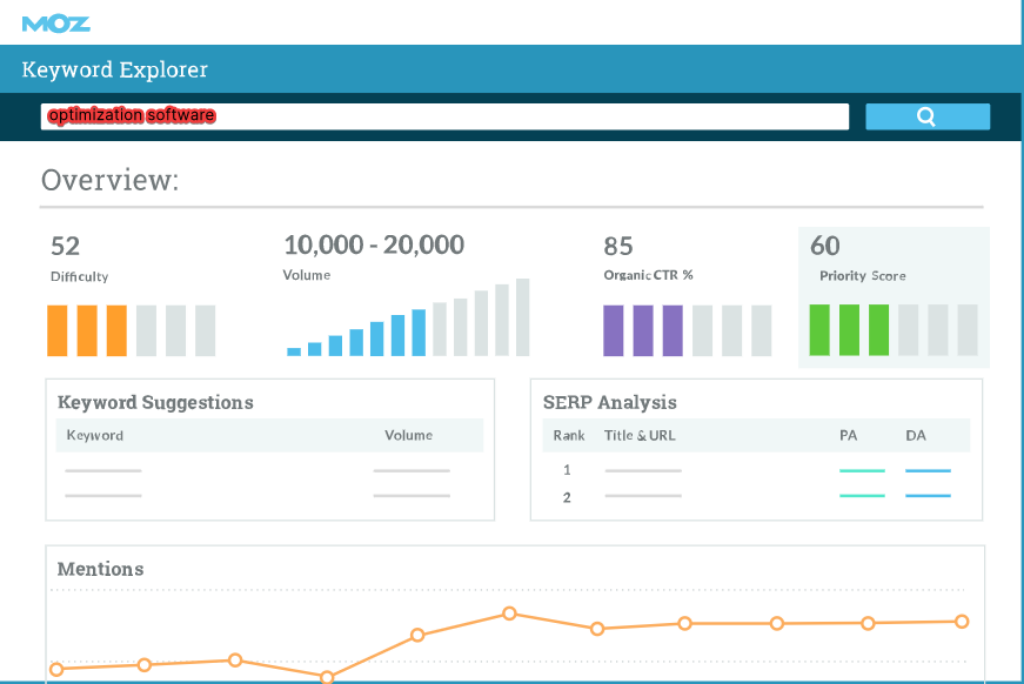
Moz Pro

You cannot search for SEO software tools without coming across Moz Pro.

This tool helps you improve your search engine visibility and rankings by deciphering the volumes of data online, to give you the highest quality of data and actionable insights for decision-making.

Salient features include keyword rankings, keyword research, link analysis, site crawling, page optimization, and comprehensive reporting with action-based recommendations.

Why we like Moz Pro:

  • It is an all-in-one SEO software tool combining all elements of the perfect SEO tool into one single suite
  • It is user-friendly, no need for expert technical knowledge on SEO to operate it
  • Ties SEO data directly to business outcomes
  • Access to SEO metrics for every page you visit online
  • Identifies outreach opportunities for rich backlinks
  • Benchmarks your site versus those of competitors
  • Identifies helpful, valuable, and strategic content topics for your site
  • Monitors the web for mentions of your brand, products, and competitors
  • Access to inbound marketing resources

⇒ Get Moz Pro

WordLift

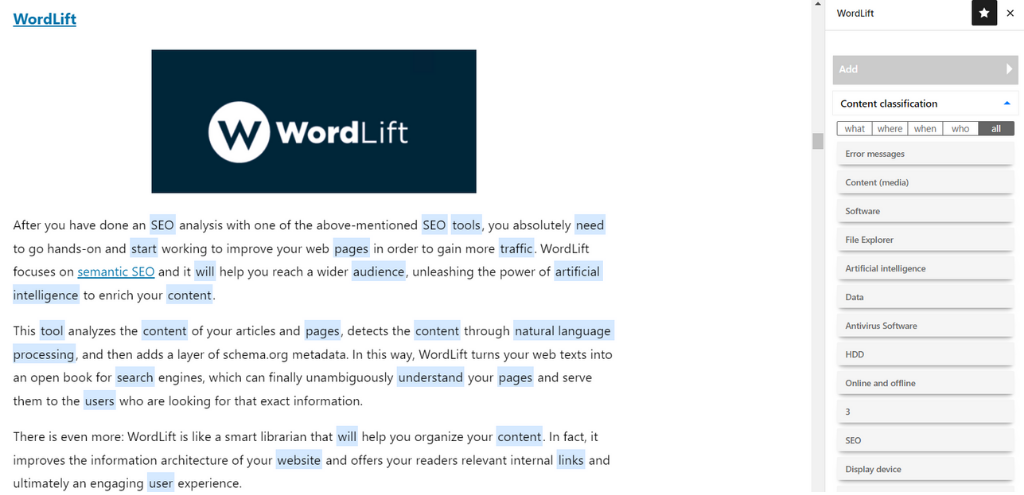
After you have done an SEO analysis with one of the above-mentioned SEO tools, you absolutely need to go hands-on and start working to improve your web pages in order to gain more traffic.

WordLift focuses on semantic SEO and it will help you reach a wider audience, unleashing the power of artificial intelligence to enrich your content.

This tool analyzes the content of your articles and pages, detects the content through natural language processing, and then adds a layer of schema.org metadata.

In this way, WordLift turns your web texts into an open book for search engines, which can finally unambiguously understand your pages and serve them to users looking for that exact information.

There is even more: WordLift is like a smart librarian that will help you organize your content. In fact, it improves the information architecture of your website and offers your readers relevant internal links and, ultimately an engaging user experience.

Why we like WordLift:

  • Offers a unique and comprehensive approach to semantic SEO
  • Adds to your content the schema.org markup, allowing search engines to best index and display your website
  • Organizes your content, building a publicly available knowledge graph of your website
  • Extends the average dwell time of your website, keeps readers engaged with relevant content recommendations
  • Enriches your content with a meaningful internal linking
  • Supports your writing process with trustworthy and contextual facts
  • Expands your website with an internal vocabulary, which adds a great value in terms of SEO, because it helps search engines understand the semantic domain of your website.

There are several plans, to meet the needs and expectations of businesses and websites of any size. WordLift Business Subscription also includes full access to WooRank, an SEO platform that analyzes your website and allows you to measure your progress in terms of SEO rankings.

WordLift is available both as a plugin for WordPress and as a Cloud service, that can be used on any CMS thanks to an easy-to-install javascript library.

⇒ Get WordLift

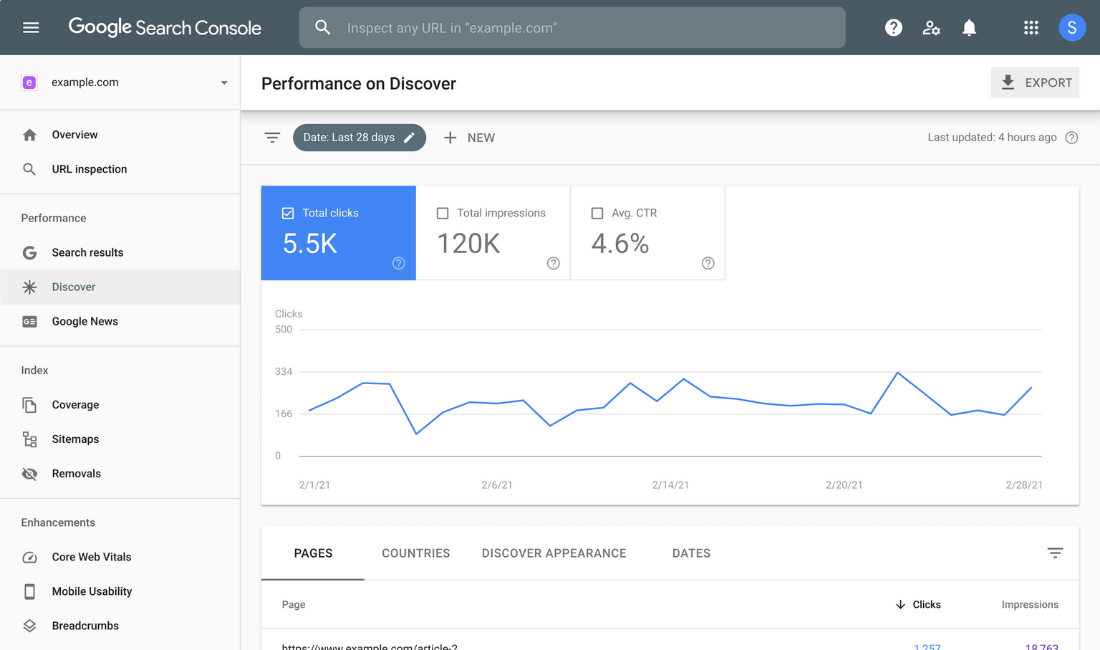
Google Search Console

Google Search Console is a free SEO tool provided by Google that allows you to monitor, maintain, and troubleshoot the visibility of your website in Google Search results.

You don’t have to sign up for Search Console to appear in Google Search results, but it can help you understand and improve how Google perceives your site.

The primary difference between Search Console and the other tools we’ve reviewed is that it only provides statistics on your own domain, not your competitors’.

To activate it, you must first authenticate that you own the website by connecting it to your Google Analytics account or submitting a file or meta tag to it. By doing so, you have access to a wealth of helpful and free data from Google.

Let’s see the main features of Google Search Console:

  • Detects coverage issues
  • Identifies crawl errors
  • Offers sitemap information
  • Detects mobile compatibility issues
  • Scans for security issues

The Google Search Console message system will notify you if the website’s health is threatened by malware or hacking. The messaging system also notifies you if vital pages have been deleted or if robots.txt has blacklisted key pages.

⇒ Get Google Search Console

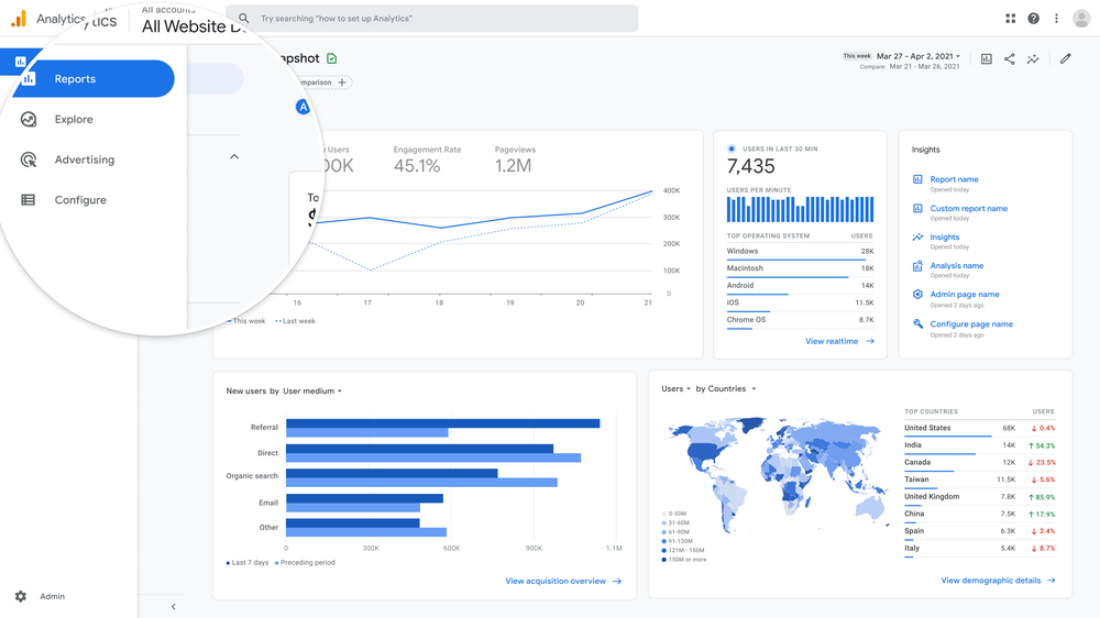
Google Analytics

Google Analytics is an excellent free SEO tool for a variety of reasons, the most important of which is its zero cost.

Another significant benefit for site owners is the ease with which it can be set up. You can track the majority of your website’s visitors in just a few easy steps.

You may track a plethora of information about site visits by signing up for an account and inserting a little bit of tracking code to every page.

Let’s take a look at the main benefits of Google Analytics:

  • Browser report for device compatibility
  • Visitor purchase report
  • Customer behavior report
  • Mobile performance report
  • Page timing report

The website report is the most essential component to consider when considering improvements to the website. A well-planned and stated report may help you increase visitors to your website while also increasing conversion rates.

When you operate an online business, you will want to employ Google Analytics for your website to get a better understanding of your customers and their behavior on your website.

⇒ Get Google Analytics

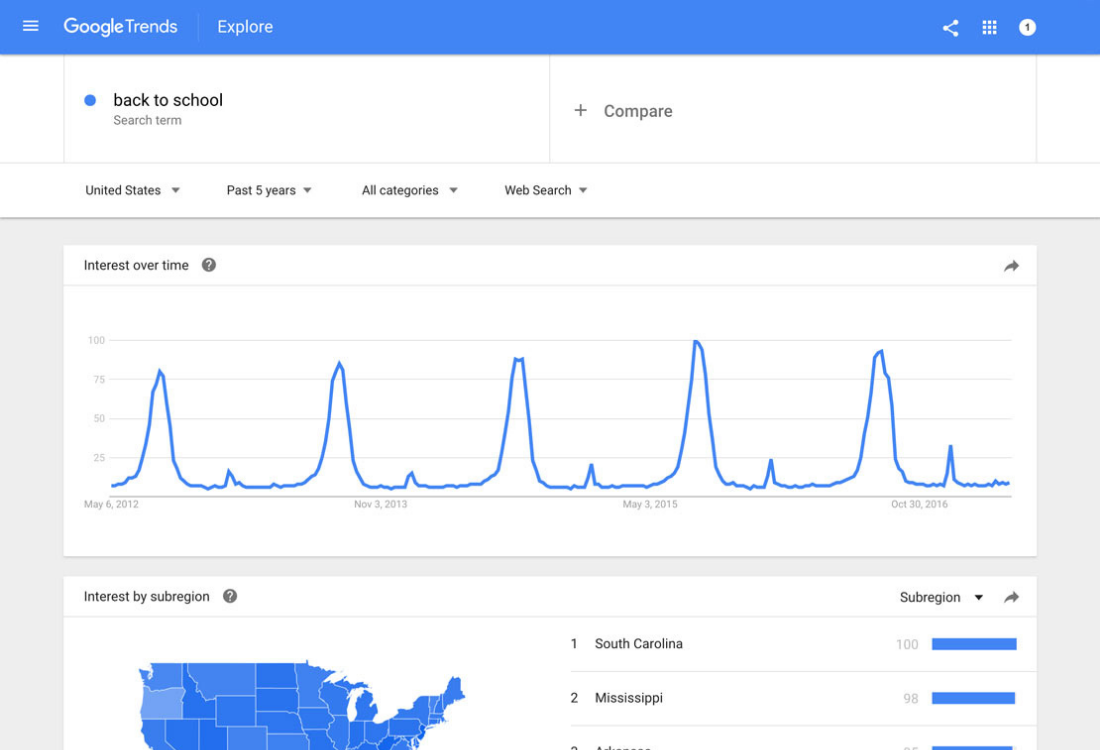
Google Trends

Google Trends is a free SEO tool that allows you to explore which cities or sub-regions look for specific keywords or search phrases over time. This is an important asset for your local business since it works perfectly in parallel with Google Analytics.

You may explore people’s search interests and discover extra information such as the most relevant articles, interest over time, interest by location, trending searches, and related topics.

Let’s have a look at the main benefits of Google Trends:

  • Geographical keyword-related data reports
  • Frequency of a search term in Google
  • Comparative keyword research for event-triggered spikes
  • Popular and rising keywords per industry

When you search for a phrase, you will get a map that indicates the world’s regions where the term is most popular.

You may also travel back in time and compare distinct phrases from 2006 for example, to the recent 36 hours to better comprehend the relationship between them.

⇒ Get Google Trends

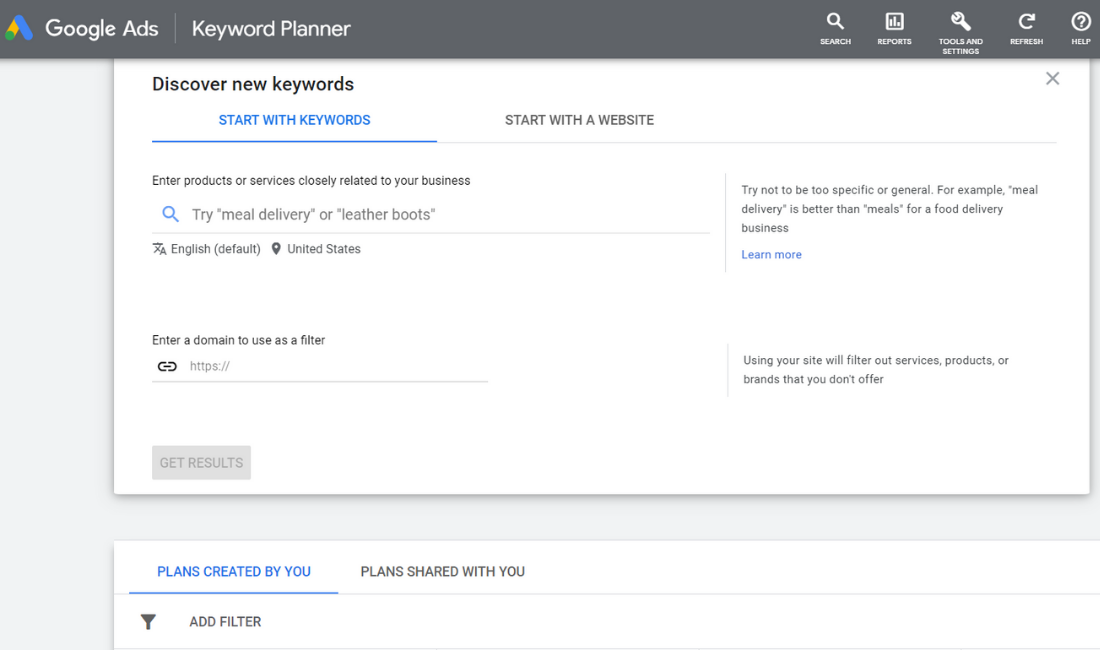
Google Ads Keyword Planner

The free SEO tool Google Ads Keyword Planner assists you in researching keywords for your search campaigns and is such a great tool to use especially for local campaigns.

You can use this asset to find new keywords linked to your business and obtain estimates of the number of searches they receive as well as the cost to target them.

Google Ads Keyword Planner is one of the top keyword research tools for finding blogging keywords. As they always have been, the most essential factors are relevancy and search intent.

To accomplish this, type the search word into Google and observe who and what is ranking. You must have monitored your ad with Google Analytics to access statistics from previous ad campaigns.

Let’s have a look at the main benefits of Google Ads Keyword Planner:

  • Discover new keywords
  • See monthly searches
  • Determine the cost for ads
  • Organize keywords
  • Create new campaigns

Google Ads Keyword Planner also allows you to create search campaigns based on in-depth keyword research. You need to have a Google Ads account to utilize the Google Keyword Planner. If you don’t already have an AdWords account, you can create one in a matter of minutes.

We recommend that you use this free Google Ads tool to generate keyword ideas anytime you optimize your website. This can help significantly in the ranking of your website on search engines as well as keyword research.

⇒ Get Google Ads Keyword Planner

What is the difference between traditional SEO and local SEO?

Both traditional and local SEO services seek to enhance your rankings in internet search results so that more people can find, contact, and purchase from your e-business.

Traditional SEO focuses on improving your site’s exposure on a national or global scale, whereas local SEO assists you in capturing local search territory and interacting with local customers.

Furthermore, local SEO solutions employ tailored strategies to help you connect with customers in your specific geographic region in a detailed and more focused niched market.

Why is local SEO software good for me?

Keyword research, backlink tracking, and trend analysis give insights into your pages so you can track the results in a search engine.

You can select the most effective strategies for increasing your site’s search relevance, offering information based on your geographic position above your competition.

As background information, industry analysis provides recommendations on elements on your website that may be improved; thus, reports on optimization metrics are easily generated. 

Some e-businesses are opt-in for paid search optimization tools that look at pay-per-click advertising, conversion metrics, and ad placement.

The SEO software market is constantly getting new tools, so if you’re confused about which tool to pick for your site, you can also read about automatic SEO software that can give you a glance at the best-optimizing practice with an all-in-one assistant.

Hopefully, now you are on a secure path of ranking and optimizing your local business with these great tools that can greatly impact your visibility and e-commerce sales.

Please leave a comment below if you have questions on the topic.

Guild Wars 2: End of Dragons Update Fixes Multiple Event Chains Bugs [Patch Notes]

As we all know, Guild Wars 2: End of Dragons is the third expansion for the award-winning and critically acclaimed MMORPG Guild Wars 2.

This time around, the dragon cycle that has sustained and blighted Tyria for ages is collapsing, leaving mortal hearts and choices to define this moment in history, and echo in the future forever.

And, just as with any other game, Guild Wars 2 also needs to constantly receive a constant flow of updates that are designed to fix known bugs and improve gameplay.

We are about to take a look at the latest Patch Notes released for Guild Wars 2: End of Dragons and find out what’s new.

What’s new in Guild Wars 2: End of Dragons?

You should know that the last patch issued by ArenaNet for Guild Wars 2: End of Dragons was on March 17th, and it brought quite a few fixes to the game.

Although players deem the experience stable enough, there were still some problems that needed to be sorted out in order to improve the title as a whole.

As such, let’s take a look at the latest Patch Notes for this beloved game:

  • Updated the defiance bar mechanic of the final encounter in the Battle for the Jade Sea meta-event to be more consistent and not reliant on chance. This change should ensure more opportunities for players to engage with the defiance bar mechanic and allow for additional damage phases.
  • Reduced the amount of control effects needed to break the defiance bar of whirlpools in the final boss encounter of the Battle for the Jade Sea meta-event.
  • Fixed an issue that could cause the Igne Mossheart event chain to stall.
  • All light refuges while fighting Igne Mossheart will now correctly protect players.
  • Fixed an issue with the Cleansing Resonance skill in Seitung Province that could sometimes cause server crashes.
  • Fixed a server crash.
  • Fixed an issue that could cause Verasha‘s scouting party to get left behind in the Igne Mossheart event chain.
  • Fixed an issue that could cause the Defeat the corrupted moa before it escapes event chain in Echovald Wilds to stall.
  • Fixed a crash that could occur when reviving repair crew members during the Protect the repair crew events in New Kaineng City.
  • Fixed a rare crash in the Seitung Province meta-event.

We’re pretty much looking at a wide array of game-breaking and server failure fixes, so we can breathe a sigh of relief that we won’t have to deal with those anymore.

Outbyte Driver Updater is a valuable option that you should definitely try, as it will scan for new drivers and update the older ones just like an expert.

With this tool, you’ll be able to keep your drivers up to date with just a simple click. Plus, you’ll have complete access to a huge database, so the processes don’t limit to graphics components.

This software will also provide a detailed report of all of your out-of-date device drivers, in order to know where the issues may come from.

⇒ Get Outbyte Driver Updater

All these changes were a part of Build 126,713. Have you discovered any other issues that might need a quick fix? Share your experience with us in the comments section below.

5 Best Windows 11 Dark Themes to Download

Everything looks nice and attractive on Windows 11. New wallpapers and themes of the highest quality matched with a modern-day interface and glossy texture.

However, the diversity of the built-in themes is limited – just five of them. This limitation is more noticeable when you need a customizable dark theme for a change, only to be stuck with its less dynamic dark mode.

With the visuals of Windows 11, you sure deserve more attractive options than its dark mode offers. And this is exactly what the best dark Windows 11 themes offer at exceptional levels.

When these themes are matched with impressive features of the new OS, the possibilities of attractiveness will be endless while keeping your young eyes safe.

Does applying new themes affect my battery life?

An installed theme contains files that majorly determine the appearance of your PC. It has nothing to do with power consumption. Even third-party themes only make changes to your system files.

However, it should be noted that you need to create a restore point before you start installing a new theme. This will allow you to restore the original files and configurations if there is a problem during or after installation.

What are the best Windows 11 dark themes?

Grey Eve Skin

grey eve windows 11 theme

This is a great theme to protect your eyes if you use your PC for long hours. Unlike dark themes that do not clearly show text, the Grey Eve skin creates a nice balance between a classy black mode and clarity.

It has a friendly interface that can be customized as much as possible. Also, it has a high-contrast theme with quality viewing. But this can make some features look different from what you are used to.

⇒ Get Grey Eve Skin

Ubuntu dark theme for Windows 11

ubuntu best windows 11 theme

This is a fantastic theme that adds some Ubuntu flair to Windows 11. With orange hues and many flat iconographies, it is safe to say that its inspiration is from the well-known Linux distro.

Another good thing about this theme is that it is completely ad-free. It does bring any unnecessary notifications and recommendations.

Moreover, you can customize the Ubuntu dark theme to any length to suit your needs. Note that you should run the UxThemePatcher before installing this theme for a smooth and error-free installation.

⇒ Get Ubuntu dark theme for Windows 11

Nightfall Camo special edition

nightfall camo windows 11 theme

This is one of the best dark Windows 11 themes, thanks to its special abstract images. It is available for free on the Microsoft Store. It incorporates a camo design that adds a cool hue diversity to your visuals.

The Nightfall Camo Special Edition packs in 9 amazing images. These images are different variations of dark blue colors. They are all eye-catching and do not strain the eyes after long-term use.

⇒ Get Nightfall Camo special edition

The Northern Lights

northern lights windows 11 theme

If you love the view of the northern lights, then you will surely appreciate this dark theme. It packs in a nice collection of wallpapers that gives your PC a unique style and an interface that looks like the night.

Night Skies Premium has a total of 20 premium 4k wallpapers. These wallpapers include stars, moons, the Milky Way, and many more eye-catching views.

Note that this theme is not a complete package. It lacks all the special icons and other tools in the complete theme packages. But its excellent wallpaper collection alone is enough to make you consider it.

⇒ Get The Northern Lights

Everforest for Windows

everforest windows 11 theme

The Everforest is a night-only theme with some outstanding features. It includes three-night themes for Windows 11 and 10, which allow you to change between them as you wish.

There are many Wallpapers for you to choose from. It also features a much-heralded dock for easy file access.

There is also the StartIsBack and StartAllBack custom start menu, start orbs and taskbar for full customization. Add the endless tools and extras, and you have a well-packaged and effective Windows 11 dark theme.

⇒ Get Everforest for Windows

How to change Windows 11 theme

  1. Right-click on any space on the desktop and select the Personalize option.desktop personalize best windows 11 theme
  2. Click the Themes option on the left pane.personalisation windows 11 dark theme
  3. Select any theme of choice.

Changing the Windows 11 theme is as straightforward as it can be, as shown above. And if you are looking for darker options, use the built-in high-contrast themes in Windows 11 instead of downloading one.

Aside from this list of best Windows 11 dark themes, you can also check out our selection of the best Windows 11 themes containing magnificent picks to diversify your theme collections.

In the comments section below, let us know if any themes pique your interest. Also, you can suggest some other stunning dark skins missing from this list.

7 Best Windows 11 Wallpaper Apps to Customize Your Background

Looking for the best Windows 11 wallpaper app to refresh your desktop? Whether you want dynamic backgrounds, daily auto-rotation, or high-res visuals, these apps help you customize your experience easily.

Can Windows 11 have animated wallpapers?

The Windows 11 operating system has a built-in feature that allows you to change the desktop background periodically – Slideshow. Unfortunately, when it comes to animation, this feature is not available. However, with the help of third-party software, you can enable it.

You might be wondering why you would want to change your wallpaper, but there are some good reasons for doing so. For example, if you’re using Windows 11 on a laptop or tablet, you may find that it doesn’t have much screen real estate. 

It may also be difficult to see what’s going on in the background because it’s too dark or too light. By changing your wallpaper, you can make it easier for yourself to see what’s happening in the background without having to squint or strain your eyes.

In addition, changing your wallpaper can make you more productive as it breaks the monotony of seeing one similar image throughout the day.

To customize your Windows 11 desktop, you’ll need to get some cool wallpapers. Below, we explore some of the top wallpaper apps that will upgrade the look and feel of your Windows 11 PC.

What are some of the best Windows 11 wallpaper apps?

1. Lively Wallpaper

While Windows 11 has decent wallpaper options, you can’t set live wallpapers on your desktop. A live wallpaper is not a novelty anymore. Rocksdanister is the brains behind this amazing app. Not only is this app free but it is also compatible with most Windows PCs.

The best part is that it doesn’t eat a lot of resources. A lot of people are skeptical about having a live wallpaper as it can affect the PC’s performance but not this app – as long as you meet the recommended 8GB memory requirement. 

It’s more efficient than using the default Windows 11 wallpaper slideshow. Lively Wallpaper supports multiple video formats.

Before setting a video as your live wallpaper, Lively Wallpaper will show you a preview of what it would look like on your desktop. If everything looks good, go ahead and set it.

Some of the additional benefits of using this app include:

  • Supports both dark and light themes.
  • Puts minimal strain on PC to avoid lagging.
  • Lightweight to avoid taking up too much space on your PC.
  • Supports multiple displays so you don’t have to worry about getting stuck with one monitor.
  • Has excellent display scaling that fits your display resolution without compromising on quality.

⇒ Get Lively Wallpaper

2. DeskScapes

Developed by Stardock, this is yet another live wallpaper app you’ll want to get your hands on. Although it is a paid app – $3.99, you get a grace period of 30 days for trial.

The app is feature-packed you’ll want to move to the paid version once the trial period is over. Unlike other apps that come with pre-determined live wallpapers, you have the option to create your own!

The app also has its own set of live wallpapers but with the next-level customization capabilities, you may not find time to use them. You also have up to 60 effects to choose from and can add videos directly from the Internet.

Some of the additional benefits of using this app include:

  • You can create a playlist of your favorite wallpapers to be on rotation.
  • If you are using multiple monitors, you can create a different background for each one.
  • You can select the type of information displayed on your desktop with different fonts, sizes, and text color.
  • The app supports multiple video formats.

⇒ Get DeskScapes

3. Wallpaper Engine

This is yet another paid app with no free-trial period but for $3.99, you get to experience a wide range of graphics. Created by the Wallpaper Engine Team, this app boasts of one of the largest collections of live wallpapers.

You can select videos from your library, use downloaded videos, or even use websites as wallpaper. 

If you are big on gaming, you are going to appreciate that it automatically pauses during games so that you don’t experience a slowed-down performance. 

Some of the additional benefits of using this app include:

  • Supports multi-monitor mode.
  • Has mouse-interaction support.
  • Supports multiple video formats.
  • You can block unwanted websites from being set as wallpapers.

⇒ Get Wallpaper Engine

4. RainWallpaper

Rainysoft is the developer behind this awesome live wallpaper app. Although the developer isn’t updating the app anymore, it does work on Windows 11. If you are looking for more customization options absent in other live wallpaper apps, then RainWallpaper is an excellent choice.

The free trial version comes with all of these features but if you want to remove the watermark from wallpapers and get rid of ads, then you will have to upgrade to the pro version for $3.99.

It offers a nice collection of animated and 3D live wallpapers which you can save as videos or set as your desktop background. The best part about RainWallpaper is that it also supports GIF image files, allowing you to use them as your desktop background.

Some of the additional benefits of using this app include:

  • RainWallpaper offers support for multiple monitors.
  • It supports animated backgrounds, sound effects, and weather effects, and it only takes a few clicks to customize the look of your desktop.
  • It has minimal CPU and RAM usage. The battery consumption for RainWallpaper is also extremely low during runtime.

⇒ Get RainWallpaper

5. DesktopHut

DesktopHut is a great resource for finding awesome wallpaper backgrounds for your computer or laptop. It’s easy to use, and you can search by categories.

The app has hundreds of backgrounds and wallpapers categorized by genre: anime, sci-fi, and games. There is something here for everyone. You can also find a pretty cool collection of themes and icons packs as well.

With DesktopHut, you can customize your home screen with different themes, icons packs, fonts & colors. You can also create your own customizable theme within the app itself.

There are many animation effects available in the app. The animation effects include water ripples effect, snowflakes effect, and raindrop effect. You can also set the speed of the animation effects according to your liking (slow/normal/fast).

Some of the additional benefits of using this app include:

  • The UI is smooth and easy to navigate through all the customization options.
  • DesktopHut has over a thousand video wallpapers all available for free in HD resolution.
  • The app is lightweight on your PC so you don’t have to worry about storage space.

⇒ Get DesktopHut

6. WinDynamicDesktop

If you are someone who likes to have a beautiful wallpaper on your Windows desktop and you spend a lot of time at the computer, you are probably looking for something that does not become boring or annoying.

The program can be configured to change the desktop wallpaper automatically at a specified time interval. In addition, it is also possible to replace the standard Windows screen saver with an animated screen saver that displays the current weather conditions.

WinDynamicDesktop has a ton of options for you to play around with, and it lets you set different images for each time of the day. You can also create your own themes from scratch, and share them with other users.

Some of the additional benefits of using this app include:

  • Supports virtual desktops.
  • Lightweight so you don’t have to worry about apps competing for resources.
  • Has macOS wallpapers available for Windows users.
  • You can set up a slideshow of your favorite wallpapers.

⇒ Get WinDynamicDesktop

7. PUSH wallpaper

With PUSH Video Wallpaper you can greatly enhance your desktop by playing any video as a background wallpaper. 

The PUSH Wallpaper app has a simple interface with a ton of features that makes it easy to select the video of your choice and set it as your background. 

If you are looking for something that’s more visually appealing as opposed to being highly optimized and full of features, then this app is definitely worth checking out.

Some of the additional benefits of using this app include:

  • A wide range of Wallpaper categories is available to choose from such as 3D and 2D animations, websites, videos, and even your personal photos.
  • Doubles up as a screensaver when your screen is idle.

⇒ Get PUSH

Where can I download Windows 4K wallpapers?

If you’re wondering where the wallpapers come from, there’s a pretty wide selection. Windows has a lot of beautiful wallpapers built-in, but you can get more online from other sites. 

Finding the perfect wallpaper takes time since there are a ton of amazing sources for 4K wallpapers out there. Luckily for you, we have already done the hard work and listed only the best sources for Windows 11 4K wallpapers that you can find on the Internet right now.

Some of the sites include:

1. WallHaven

If you are looking for the best Windows 4K wallpapers, then WallHaven is the place to be. Featuring an awesome collection of high-resolution images that can be downloaded very easily, this wallpaper website is a must-visit.

Searching through all its options will take some time since there are so many choices. The only thing that can help you here is the active community that keeps on rating and commenting on every wallpaper, so you can easily find what might be interesting for you.

2. DevianArt wallpapers

DeviantArt is an online community in which people share artwork, writing, media, and other user-generated content.

This website is a heaven for designers, artists, or photographers who want to share their work with the world or even make some money by selling it. It is one of the most-visited websites in the world, and it’s easy to see why.

3. HDwallpapers.net

HDwallpapers is the best possible source to find out the latest and quality wallpapers for your desktops.

The website has a huge collection of wallpapers ranging from almost every category. Moreover, it provides you with various interesting options like editing, cropping, merging, etc.

After having chosen an image, you get the option to choose from a wide range of formats that are custom-designed for a device. 

Given the rich list we’ve just shared, you’ll definitely be spoilt for choice when it comes to customizing your desktop with lively wallpapers.

You can also apply custom wallpaper on virtual desktops if that is something you are into. The options are endless.

Feel free to refer to our dedicated guide if your wallpaper goes black and apply our recommended fixes.

Looking for the best software that auto changes wallpaper? Check out our auto change wallpaper guide to find top-rated tools that keep your desktop fresh with stunning visuals.

Let us know in the comment section which wallpaper app you are currently enjoying or share any we have not mentioned in the list above.

vmmem Windows 11: What is it & How to Fix its High Memory

Users reported their RAM was occupied by an unknown process, thus today we’ll look at Windows 11’s vmmem high memory usage issue and see what to do about it.

Vmmem is a Windows memory management tool that not everyone is familiar with. If you open the Task Manager, you may notice that this process is running without many details.

Follow along as we will first see in more detail why vmmem is using high memory in Windows 11 and then address the problem with the three solutions we found to be the most helpful.

How can I fix vmmem high memory usage in Windows 11?

1. Restart Windows Subsystem for Linux

  1. Open the Windows search function and type cmd inside it. Right-click on the top result and choose Run as administrator.cmd-search vmmem windows 11 high memory
  2. Next, type or paste the following command in order to restart Windows Subsystem for Linux and press Enter: wsl --shutdownwsl vmmem windows 11 high memory
  3. However, if the command threw an error, head to File Explorer and enter the following path in the search bar: C:\Users\your-username.wslconfigwsl-file-explorer vmmem windows 11 high memory
  4. Now add the following text to the file and save it:[wsl2] guiApplications=falsewsl-text vmmem windows 11 high memory
  5. Restart your computer to ensure that WSL will restart. Please keep in mind that if you make this modification, you will not be able to utilize Linux GUI applications until you remove the added lines from the file. Now the Windows 11 vmmem high memory issue should be resolved.restart-button vmmem windows 11 high memory

The Windows Subsystem for Linux (WSL) is a component of the Windows operating system that allows you to run a Linux file system, as well as Linux command-line tools and graphical user interface (GUI) applications, directly on the OS.

2. Limit the RAM usage

  1. Open File Explorer and enter the following path inside the search bar: C:\Users\your-username.wslconfigwsl-file-explorer vmmem windows 11 high memory
  2. Now type in the following commands and save the file. This will limit the amount of RAM vmmem will use, thus fixing the vmmem high memory usage problem: [wsl2] memory=2GBmemory-text vmmem windows 11 high memory

3. Use a third-party tool

PC problems will always arise, and resolving them is not always as simple as it appears. However, there are specialized repair programs available, that may help you resolve these issues.

These tools allow you to perform in-depth scans of your computer and deploy the correct fix based on the results of that scan.

Why is vmmem using high memory in Windows 11?

Computer memory is one of the most critical components of a PC. RAM (Random Access Memory), ROM (Read Only Memory), and cache are the three forms of memory.

To put it another way, when the computer is in use, the CPU will transport the data that needs to be operated into memory for operation and then communicate the result after the operation is finished.

WSL (Windows Subsystem for Linux) reserves a large amount of RAM even when it is not required. It can consume up to 80% of your available memory. This has been lowered to 50% in current iterations of Windows, up to a maximum of 8GB.

task manager vmmem windows 11 high memory

The interaction between vmmem in Windows 11 and Docker is also problematic. According to some, Docker eats up to 70% of available RAM, causing their machine to slow substantially.

Vmmem is in charge of virtual machine processes and memory management. This means that the process is the virtual machine’s beating heart, where all of the VM’s activities and applications take place.

In our daily lives, virtual machines (VMs) are commonly employed, and they need the use of host system resources such as the CPU, memory, storage, and network.

Users setting virtual machines with a large amount of memory and CPU is the major reason for vmmem demanding a large amount of memory since this typically results in their consuming all of the resources available.

In order to prolong your computer’s life, you need to perform regular maintenance check-ups. We’ve gone through the most relevant solutions that can solve the Windows 11 vmmem high memory usage issue.

If you need additional support, head to our post on how to fix vmmem high memory usage in Windows 10 and see if you find anything helpful.

Alternatively, if you encounter high CPU usage issues as well, take a look at our guide on how to fix high CPU usage in Windows 11.

Leave us a comment in the section below and tell us what you think as well as whether you have more solutions in mind.

Defender SmartScreen for Windows 11 can trigger video playback issues

What can be said about Microsoft’s antivirus solution? Well, even though it’s not as popular as other similar software out there, it is still ranked pretty high, efficiency-wise.

There still are a lot of people that rely on Defender for protection and it seems to be pretty stable. At least, it seemed to, until Microsoft released the latest Windows 11 Beta build.

Things going haywire isn’t something new on the tech giant’s plate, but having issues with the one software that is supposed to keep you safe isn’t something to take lightly.

Many users that have been actively testing build 22581 are reporting severe video playback delays that are caused by the antivirus.

MKV files seem to be the victims, but other video container formats may also be affected, as ISOs are apparently also facing this delayed execution problem.

This caught many off-guard, as this issue isn’t listed among the known problems for the build which means it probably went undetected during testing.

However, not all is lost, as with every problem, there is bound to be a solution, even if we are talking about a temporary one, for the time being.

A simple workaround for this issue is disabling the Check apps and files option under SmartScreen settings.

Users trying this were able to resolve the issue. But before proceeding to apply this workaround, make sure the file type is actually trustworthy.

Have you also encountered this issue with Defender on Windows 11’s latest Beta build 22581? Let us know in the comments section below.

Best Photo App for Windows 11: Best Free Editors Right Now

Find below the best photo app tools for professional-level outcomes that don’t break the bank. Some use vector graphics, cropping, distortions, masks and other advanced editing features.

Others are a bit more straightforward, with presets, filters, and quick-edit features. Whatever your needs are, you’ll find a good pick below.

What are the best Windows 11 photo editors?

1. Adobe Photoshop Express Editor – Best Windows 11 photo editor

Adobe Photoshop Express offers a quick and easy way to edit photos with essential features and a simple interface.

This free tool is perfect for users who need basic adjustments like cropping, resizing, and applying filters.

It’s optimized for both PC and mobile, and you can share your creations directly to social media platforms.

Key Features:

  • Cropping, rotation, straightening, and flipping photos
  • Exposure, contrast, saturation adjustments
  • Text addition, blemish removal, watermarking
  • Lightweight and fast to use
Adobe Photoshop Express

Adobe Photoshop Express

Enhance your photography with industry-leading editing tools!
Free Trial Visit website

2. Fotor – AI features

Fotor is a free editor that enhances the look of a photo in less time. The whole process of using the editor is straightforward.

No advanced skills are required since cropping and editing images have never been easier.

Some of its main features include:

  • Improve portraits by removing blemishes, wrinkles
  • Ability to change backgrounds
  • Other functionalities like crop, edit, or rotate
  • Using photo effects and enhancements to improve the visual look of the image
Fotor

Fotor

Quickly access this web based editor for both advanced and new users!
Free Trial Visit Website

Picsart Photo Editor is one of the most commonly used photo editors with over 100 million users. It’s available free on the Microsoft app store.

It offers different features that work well with the templates. They provide quick results and blend with the rest of the features like stickers, collages, filters, effects, etc.

Some of the key features of the editor include:

  • Using photo effects and filters like double exposure edits, cartooning yourself, driparts, canvas
  • Ability to add over stickers that are more than 50 million during editing
  • You may add collages to the photos
  • Adding and cropping photos
  • Adding geometric shapes to the images
  • Layering images
Picsart Photo Editor

Picsart Photo Editor

Enjoy editing your materials by benefiting from all of Picsart’s great features.
Free Trial Visit Website

4. Movavi Photo Editor – Easy to use

Movavi is a free photo editing tool good for all skill levels from beginners, to intermediates, and experts.

It includes sharpness adjustments to remove blur and improve the texture of a photo. It’s easier to achieve a natural look with the use of an object removal tool.

Movavi also improves productivity and creativity by providing many tools, e.g., support of raw images, text insertion, color correction, cropping, rotating, flipping, etc.

Some of the other key features include:

  • Use AI to provide excellent results by optimizing and improving contrast in images
  • Easier to remove and change image backgrounds 
  • Easy to restore the old images by removing stains and scratches
  • More than 100 effects and filters to change the outlook of the photos
Movavi Photo Editor

Movavi Photo Editor

Increase your productivity and creativity by using Movavi’s unique features.
Free Trial Visit Website

5. Canva – Great user interface

Canva is a web-based editor and has a desktop application that you can install on your Windows 11 PC. It has over 20 million users worldwide. It doesn’t require any experience to use it, and it’s user-friendly.

It promotes teamwork as you can create a team on the app and collaborate. Also, it saves business owners and professionals time as it takes less than five minutes to do a photo edit.

Some of the other key features Canva has include:

  • It has drag and drop that enables users to change elements and effects in a short period
  • Over 10,000 prebuilt templates that you can choose from and work with
  • Basic editing effects – grids, cropping, adding text that you can use on your project
  • A lot of fonts that you select that fit your project

⇒ Get Canva

6. GIMP – Basic photo editing features

GIMP, popularly known as GNU Image Manipulation Program, it’s free to download and open source, making it work well with the community, and everyone can work on the source codes.

It helps in the transformation of images into unique photos. It has a lot of elements that make producing mockups, interfaces, icons easier and faster.

The majority of the users who use it have basic knowledge of photo editing skills, so it might not be the best option for complete beginners.

 Some of the important features of the GIMP editor include:

  • It works with programming languages like Python, Perl, C, C++ to manipulate images
  • Has high color management features used in workflows to produce high-quality print media
  • Easier to customize with its large number of scripts and plugins
  • It gives the users to customize the interface to meet their desired look

⇒ Get GIMP

7. KVADPhoto+ 2 – Over 150 filters

KVADPhoto+ 2 is a free Microsoft photo editor found on the app store. It has a lot of effects, colors, shapes, tools, and many others that help in image processing.

It has filters that get categorized into categories – black and white, cold tones, Vintage, Warm tones, giving you many options to choose from.

Some of the other features include:

  • Many photo adjustment tools i.e color, brightness, hues, sharpening, blur
  • It offers farmers on special days, i.e. Valentine’s Day, Mothers Day, Christmas Day
  • More than 150 photo filters
  • Over 200 shadow effects for photo enhancement

⇒ Get KVADPhoto+ 2

Wrapping up

Choosing the best photo editing software gives you more power and control over the result you want. The majority of these editors have little weight making them serve you better on your PC. Some of these tools lack features, forcing professionals to seek paid alternatives.

If you have more free photo editing software that you would like us to discuss, drop a comment below.

What does .NET 5 end of support mean for you?

.NET 5 will reach end of support in just a couple of months. After the May update, this version of .NET won’t see any more servicing, security updates or receive technical support. Thankfully upgrading to .NET 6 to remain supported is not a huge deal.

Now with that said, this doesn’t mean apps built on .NET 5 will suddenly stop working come May. However since .NET 5 is not an LTS release, it was only to be officially supported for 18 months or 6 months after the next release ships, in this case .NET 6.

Upgrading to .NET 6.0

As always, before doing any upgrade I recommend checking for breaking changes. You can check your apps compatibility by going to Microsoft’s official documentation on the subject.

The next thing I like to do is make sure my development environment and tools are updated and ready. Check out the links below for more information and links on how to get up to date.

The last step would be to make sure you have a backup of your code before you go forward with the upgrade. Once you’ve made sure you have something to go back to in case of a problem, the process is very simple!

Open your project file, change .net5 to .net6. and you’re off to get started with .net6 on your existing app.

dotnet 5 end of support update to dotnet 6

It might seem impossible to keep your applications up to date, the biggest reason my team keeps up with these are security threats. Your best bet at staying safe and secure is to be on the latest supported version. You never want to be in a situation where you are rushing an upgrade because the patch you need is not available in the version of the framework you are running.

For more information on this topic and access more resources on how to upgrade, check out the official post from Microsoft here.

Rumor: Resident Evil Village coming to Xbox Game Pass?

The rumor mill is churning once again, and the latest bit of speculation to come out of it is that the critically acclaimed horror game Resident Evil Village will be coming to Xbox Game Pass sometime in the not-too-distant future.

This rumor is based on a Polish website XGP has a screenshot taken from the Polish version of the Xbox Store, showing the game’s listing featuring the “Included in Game Pass” badge. The badge has since been removed, and at this point that seems to be all the rumor has to go by.

Of course, it’s entirely possible that it was just a temporary glitch on the storefront and nothing more, so at this point the story shouldn’t be taken too seriously. Although it wouldn’t be too surprising if there didn’t turn out to be some truth to it, for Xbox seems to be on a mission to bolster the Game Pass service here of late, and they haven’t been shy about adding high-profile, AAA games to Game Pass.

Resident Evil Village released last year to wild success both commercially and critically. Could the game join other great horror titles on Xbox Game Pass like Dead by Daylight and The Evil Within? We may soon find out.

Microsoft announces upcoming Office 365 Government Secret cloud

Microsoft has been working with the US Government to provide Secret and Top Secret Azure clouds for use by the Department of Defense and other critical government agencies, and today it’s announcing that it will soon provide an Office 365 Government Secret cloud, which is currently pending review, and is expected to become available later this year.

Microsoft has built out both Azure and Office 365 to meet a full spectrum of government needs for secure cloud environments, serving everything from State and local governments to Federal Government Partners who need to meet security compliance restrictions, all the way up to the Department of Defense. Microsoft is working closely with the government to provide a secure infrastructure:

This new environment will run the latest enterprise-grade Office 365 Government productivity, security, compliance, and collaboration applications. We have a comprehensive approach to build, test, onboard, and audit our products to be compliant with government regulations, which will help ensure security and compliance for the environments. We work to drive efficiencies internally and with government regulatory bodies to help improve the timeliness of products to market.

Microsoft was embroiled in a fight with Amazon over a winner take all JEDI contract with the Department of Defense, with the DoD ultimately pulling back and rethinking its cloud strategies after awarding the company the contract only to have Amazon loudly complain about improprieties. Still, the company continues to build out its offerings for government and defense as it competes head to head with Amazon.

Logitech G Hub Not Working on Windows 11: How to Fix it

Logitech G Hub is software for users to manage their Logitech peripheral devices. That software is compatible with Windows 11.

However, some users have reported Logitech G Hub doesn’t work for them in Windows 11. Our readers reported that the software gets stuck loading when they try to launch it. Consequently, they can’t utilize that software when it doesn’t open for them.

Are you also trying to fix Logitech G Hub not working in Windows 11? If yes, the potential resolutions below might kick-start Logitech G Hub.

Why Logitech G Hub isn’t working in Windows 11?

Some of our readers signaled that the LGHUB Updater Service for the Logitech G Hub software is the culprit. When you open the app, it tries to update continuously because it doesn’t find any reply from the server, it remains stuck.

That may be caused by a bug within the app or a local connectivity problem. And if there’s nothing wrong with your connectivity, we’re leaning on the first probable cause.

Of course, there might be other possible reasons for this issue:

  • Corrupt or missing files – The software might not work correctly because it has one or more corrupt files. In this case, reinstalling Logitech G Hub will be a likely solution.
  • Faulty drivers – Problematic or outdated device drivers on your PC can be another potential factor behind this issue. Thus, you might need to update some device drivers on your PC to fix it.

Now that we know what the problem is all about, let’s try to fix it using the solutions below.

What can I do if Logitech G Hub not working in Windows 11?

1. Stop the LGHUB Updater Service

  1. Start Logitech G Hub and while it is stuck in the loading screen, right-click the Start button and select Task Manager from the list.
  2. Now, go to the Details tab, and look for lghub_updater.exe.
  3. End the task and return to the Logitech G Hub to see if it is working.

This is a tested solution that worked for some of our readers so you should definitely try it.

However, note that after configuring all the Logitech peripherals and mapping their keys, save the configurations, close the app, and start it again.

2. Run Logitech G Hub as an administrator

  1. Click Start on the taskbar, and select All apps on the menu.
    All apps button logitech g hub windows 11 not working
  2. Right-click the Logitech G Hub software on the Start menu to select More, and choose Open file location.
    The Open file location option logitech g hub windows 11 not working
  3. Then right-click the lghub.exe file to select the Properties option for it.
  4. Click Compatibility to view that tab’s settings.
  5. Select the checkbox for the Run this program as administrator setting on that tab.
    The Run this program as an administrator option logitech g hub windows 11 not working
  6. Press the Apply button on the Logitech G Hub Properties window.

The Compatibility tab also includes a Run compatibility troubleshooter option. Clicking that troubleshooter option might also help you fix Logitech G Hub not working in Windows 11.

3. Update faulty or outdated device drivers

To generally update outdated or faulty device drivers, it’s best to run a scan with reputable third-party driver updater software.

Fortect Driver Updater is one such utility with which you can scan your PC’s device drivers. Its scan report will list all faulty and outdated drivers that need updating.

The software includes the option to run automatic scans, so you will get notified when your drivers are going out of date.

➡️ Get Fortect Driver Updater

4. Restart the Logitech G Hub services

  1. Press the Windows + X key combination and select Task Manager from the list.Task Manager logitech g hub windows 11 not working
  2. Select and disable the Lghub_updater.exe, Lghub_agent.exe, and Lghub.exe services on the Processes tab by clicking the End task button.
  3. Press the Windows key + E to open File Explorer.
  4. Click Explorer’s taskbar button and open the Logitech G Hub folder. The default folder path for that software is: C:\Program Files\LGHUB
  5. Right-click the Lghub_agent.exe and Lghub_updater.exe files to select Run as administrator for them.
    Run as administrator option logitech g hub windows 11 not working
  6. Then run Lghub.exe by selecting its Run as administrator option.

This procedure will basically restart the Logitech G Hub services and that will refresh its processes.

5. Reinstall the Logitech USB Input Device

  1. Click the Search icon from the taskbar, type device manager, and select the app from the results.
  2. Select Human Interface Devices to expand that category.Human Interface Devices category logitech g hub windows 11 not working
  3. Right-click Logitech USB Input Device to select an Uninstall device context menu option.Uninstall device option logitech g hub windows 11 not working
  4. Select the checkbox for the Delete the driver software for this device option and hit Uninstall to confirm.
    The Delete the driver software for this device option logitech g hub windows 11 not working
  5. Restart your PC to automatically reinstall a generic driver then try launching Logitech G Hub again.

6. Clean Boot Windows 11

  1. Press the Windows + R key combination to start Run, type msconfig and press Enter or click OK.
  2. Uncheck the checkbox for the selected Load startup items option on the General tab.The Load startup items option logitech g hub windows 11 not working
  3. Then click on the Services tab and select Hide all Microsoft services.Hide all Microsoft services option logitech g hub windows 11 not working
  4. Click Disable all to deselect the checkboxes for the other services.The Disable all button logitech g hub windows 11 not working
  5. Press the Apply button to save your new boot configuration and hit OK to exit MSConfig.
  6. Click Restart on the dialog box confirmation.The Restart button logitech g hub windows 11 not working
  7. Try launching Logitech G Hub after clean-booting Windows.

If there is any software conflicting with Logitech G Hub, performing a clean boot will reveal this issue.

You’ll need to identify what software caused this problem and disable it from the Startup list or uninstall it altogether.

To restore the original boot settings, open MSConfig again. Select Load startup items on the General tab. Click Enable all on the Services tab. Then press Apply to save your selected options.

7. Reinstall Logitech G Hub

  1. Press the Windows key + R to start a Run console, type appwiz.cpl and press Enter or click OK.Run accessory logitech g hub windows 11 not working
  2. Select Logitech G Hub in the Programs and Features applet.
  3. Click the Uninstall option for Logitech G Hub to remove the software.
    Uninstall option logitech g hub windows 11 not working
  4. Press the Windows key + R to open Run again, then input the following command and click OK: %appdata%
  5. Select the leftover LGHUB folder and click the Delete button on your keyboard.Delete button logitech g hub windows 11 not working
  6. Press the Windows key + E to start File Explorer, then navigate to the following folder: C:\ProgramData
  7. Select the LGHUB folder and hit the Delete button on your keyboard.
  8. Restart your PC.
  9. Click Download for Windows 10 button on the Logitech website.THe Download button logitech g hub windows 11 not working
  10. Then reinstall Logitech G Hub with the setup wizard you just downloaded.

To uninstall Logitech G Hub more thoroughly, check out the freeware IObit Uninstaller.

IObit Uninstaller is a third-party uninstaller utility that you can select to eradicate all leftover residual files and registry entries after uninstalling the software.

Those potential resolutions will help you kick-start Logitech G Hub in Windows 11 and restore it to working conditions.

If you still can’t start the software after applying those resolutions, consider contacting Logitech support.

You can discuss the issue with a support agent by clicking Chat on Logitech’s Contact Support page. Alternatively, you can post about the issue on Logitech’s support forum.

You’re also welcome to discuss Logitech G Hub not working in Windows 11 in the comments section for this page.

That’s an excellent place to add questions or even share other potential fixes for Logitech G Hub not working.

Can’t find the Xbox Series X? Try buying a refurbished one from Microsoft instead

For many gamers the Xbox Series X has proved an elusive item to find. Restocks pop up here and there, only to see supplies get scooped up as soon as they appear.

The ongoing pandemic is largely to thank for this situation, creating a heightened demand for home entertainment devices while at the same time creating the conditions that have lead to a component shortage for such devices (such as the semiconductor chip famine).

One option which gamers hankering for the latest gaming hardware might consider is buying a refurbished Series X directly from Microsoft. While some may be loathe to buy refurbished, it presents a viable option if you can’t find one anywhere else.

But it is worth emphasizing the point that if you want to go this route, it’s best to buy directly from the source and avoid places like eBay. Buying a Series X from Microsoft eliminates much of the risk in buying from the second-hand market, as these units undergo professional quality tests and repairs. They also come with 12 month warranties, and extended warranties are also available with the Microsoft Complete program. Refurbished unites usually come at a discount – normally around 5 or 6%. It should be noted that the U.S. Microsoft Store requires you to buy a bundle with a game and controller. Similar deals are available for the Series S as well, for those interested in that console.

It’s been nearly a year and a half since the most powerful Xbox in existence was unleashed on world. If you haven’t been able to find one and are tired of the wait, buying a refurbished unit might just be your best bet.

Featured image courtesy of techradar.com.

Windows 11 Scanner Not Detected: How to Fix it

Have you connected your scanner to your Windows 11 PC only to find out that your PC is not being detected by it?

If you are facing Windows 11 scanner not detected problem, then you aren’t alone. There are multiple users who have reported this issue with Microsoft’s latest operating system, Windows 11.

Be it HP, Canon, EPSON, or any other scanner, Windows 11 throws up compatibility issues when you connect a scanner to it.

Scanners are devices that have helped users that help you scan documents or anything and bring them to their PC. You can scan your drawing and load it on your PC to view it digitally. The same is the case with documents.

Corporates and workplaces make use of scanners and fax machines in high volumes. Imagine the chaos if the scanner stopped working in Windows 11 in a corporate or workplace.

Notably, the Windows 11 scanner not detected problem isn’t anything new. This issue has been consistent with older Windows OS versions as well.

If you are looking for solutions to fix the Windows 11 scanner not detected issue, then you have landed in the right place.

In this guide, we will give you a curated list of solutions that will help you fix the Windows 11 scanner not detected error. Let us check them out.

Why is my Windows 11 PC showing scanner not detected errors?

Device driver compatibility issues aren’t something new for Windows operating systems. When hardware fails to communicate with the PC, your PC will show an error message.

If the scanner is connected via USB or a serial port and it is still not detected by the PC, then the reason behind this could be outdated drivers, corrupt system files, or the presence of a bug in the installed version of Windows.

The Windows 11 scanner not detected error can take various forms. It affects scanners from not only one brand, but all major brands, including Epson, Canon, HP, Image Access, Panasonic, etc.

Here are the possible reasons behind Windows 11 scanner not detected error:

  • The Windows 11 system files are corrupt
  • Damaged USB port
  • Presence of bug in the version of Windows installed
  • Due to virus or malware
  • A third-party app is conflicting with the scanner driver
  • Outdated scanner drivers
  • Registry issues

Well, these are only a few reasons why you are experiencing a scanner not detecting an error on your Windows 11 PC.

There are multiple versions of this error, but the below-listed solutions will definitely help you cure and resolve this issue. Let us take a look at the solutions, one by one.

How can I fix Windows 11’s scanner not detected issue?

1. Restart your PC

  1. Open the Start menu.
  2. Click on the Power button.shut down PC
  3. Select Restart.restart-PC windows 11 scanner not detected error

When you restart your PC, all the unnecessary files or processes are put to sleep, and when the system boots up again, important system files are re-loaded.

There is a chance that some important scanner-related files did not load during the previous installation. Try restarting your PC, connecting your scanner back again, and checking if this fixes the issue or not.

2. Reinstall scanner drivers

  1. Right click on the Start menu icon.
  2. Select Device Manager.device-manager
  3. Expand the Imaging devices section.
  4. Right-click on the problematic scanner and select Uninstall.
  5. Reboot your PC.
  6. Visit the official website of your scanner’s manufacturer’s website.
  7. Download the appropriate scanner driver.
  8. Install it and see if this fixes the issue or not.

During your previous installation, the scanner software might have failed to load some important communication files. That may be the reason you are experiencing the Windows 11 scanner not detected issue.

A simple solution to this would be to uninstall the current scanner driver installed on your PC, and reinstall it. This time, make sure not to interrupt the installation process.

Now, instead of making efforts to visit the scanner manufacturer’s website and download the update, you can make use of professional driver updating software.

Outbyte Driver Updater is a one-stop solution for all your driver-related needs. With just a simple click, it will scan for all outdated drivers, show you the result, and prompt you to install all the updates, all from within the software itself.

It can help you fix errors related to faulty or broken driver files, update old device drivers, locate missing drivers, and much more.

3. Repair corrupt system files

  1. Open Start menu.
  2. Search for Command Prompt.
  3. Select Run as administrator.command prompt
  4. Type the below command and press Enter:sfc /scanowsfc scannow
  5. You PC will start scanning and possibly fix the issue as well.
  6. Reboot your PC.

The SFC Scan is a very powerful in-built Windows troubleshooting tool that scans all of your system files and replaces all the corrupted ones.

All you need to do is execute a command in the CMD, and everything else will be done automatically. You can try using the SFC Scan tool and see if this fixes the Windows 11 scanner not detected error.

Otherwise, you can use trusted third-party repair software. It can help you fix multiple errors on your PC. If you think the Windows 11 scanner not detected error is caused by corrupt system files, then this tool can come in handy.

4. Set scanner services to open automatically

  1. Open the Start menu.
  2. Search for services and open it.windows services
  3. Locate Windows Image Acquisition (WIA) on the right-side and double-click on it.windows 11 scanner not detected services
  4. Under Startup type, select Automatic.windows 11 scanner not detected startup
  5. Click Start.
  6. Select Apply and OK.

5. Scan your PC for virus

  1. Click on the upward arrow located in the bottom-right taskbar.see all apps
  2. Select Windows Security.windows security
  3. Click on Virus & threat protection.virus and threat protection steam error e502 l3
  4. Choose Quick Scan and let Windows Security scan your PC for virus and malware.quick scan
  5. You can also select the Scan options button.scan options
  6. Under Scan Options, you can also choose Full scan to deeply scan your PC for virus or malware.full scan

We made use of Windows Security Defender to show the steps to scan your PC for viruses, as we don’t have any third-party antivirus applications installed on our Windows 11 PC.

But the above steps would give you an idea that you need to perform a scan to check for any viruses or malware present on your PC.

The presence of a virus or malware not only causes several issues, such as the Windows 11 scanner not detected issue, but it will also affect the smooth functioning of your PC.

Viruses and malware are of different types. So, they can trigger different problems, and it would be a safe bet to check your PC for viruses.

6. Check for Windows updates

  1. Press Win + I buttons to open Windows Settings.
  2. Select Windows Update from the left-pane.
  3. Click on Check for updates button.check for updates

There are chances that due to a bug present in the previous version of the Windows update, the scanner isn’t able to communicate properly with your PC.

It is recommended that you keep your PC up-to-date as Microsoft rolls out new updates that not only bring new features but bug fixes for such errors as well.

7. Check for faulty cables

Scanner not detected error is caused by more than just faulty drivers or system files. It is also caused if the wire connecting your scanner to the PC is damaged.

We advise you to check if the scanner cable is free from damage. You can check if the cable is working or not by connecting it to a different PC and see if this works on it or not.

8. Reset Windows 11

  1. Press Win + I buttons to open Windows Settings.
  2. Click on Recovery from the right-side.recovery-page how to enter recovery mode windows 11
  3. Under Recovery options, press the Reset PC button.reset
  4. Select the type of factory reset your want to perform.type of reset
  5. Choose the option how you would like to reinstall Windows.install windows
  6. Click Next.next
  7. Hit the Reset button.reset

You should reset your PC only if the above solutions did not help you fix the Windows 11 scanner not detected issue. This is one of the different ways via which you can reset your PC.

Do note that your PC may reboot multiple times during the reset process. But that is normal and nothing to worry about as it is a part of the reset procedure.

What else can I do to fix the Windows 11 scanner not detected error?

Well, there are few chances that the above-mentioned solutions won’t help you fix the Windows 11 scanner not detected issue.

However, if you are having a tough time fixing this problem, there are a few other solutions that you can apply and hopefully fix the problem at hand.

➡ Run scanner in compatibility mode

If your scanner isn’t working on any of the Windows 11 PCs, then we would recommend running it in compatibility mode.

Simply right-click on your scanner icon and select Properties. Switch to the Compatibility tab and select the option Run this program in compatibility mode. Finally, hit the OK button to activate.

➡ Run the troubleshooter

You can also make use of the Windows Troubleshooter tool to fix issues related to your hardware. Simply navigate to the troubleshooter page and press the Run button next to Printer.

The troubleshooter will identify the reasons that are triggering the issue and also prompt you to do what is necessary to fix it.

Let us know in the comments below which one of the above solutions helped you fix the Windows 11 scanner not detected issue.

Feel free to share any other solution that you applied and resolved the problem so that others experiencing the issue can try that as well.

Error 720 on Windows 11: What is it & How to Fix it

A VPN (Virtual Private Network) is a tool that can be used to gain access to another network. It could be used to access resources or even mask your identity over the web. But, several users have reported getting the VPN error 720 in Windows 11.

This will prevent you from establishing a VPN connection. The error message that accompanies it reads: A connection to the remote computer could not be established. You might need to change the network settings for this connection.

There isn’t much in the error message to help you troubleshoot the issue. So, if you are encountering the Windows 11 VPN error 720, just try the fixes listed in the following sections to eliminate it.

Why am I encountering the VPN error 720 in Windows 11?

There are a bunch of reasons that could lead to this error. Issues with Internet connectivity or slow speed could be the cause. Also, the Windows Firewall or other similar third-party applications could be blocking the connection.

Other than that, corrupt or outdated network drivers too are known to cause the Windows 11 VPN error 720. A corrupt one can be easily be identified by the warning sign near the driver icon in the Device Manager.

Issues with the WAN Miniport driver are just as likely to cause the error. Also, make sure that you are entering the correct credentials and that the network you are trying to connect to is working fine since problems with either of these are a probable reason.

With a basic understanding of the underlying causes, you are now in a far better position to troubleshoot. So, let’s walk through the most effective fixes for Windows 11 VPN error 720.

How do I fix the Windows 11 VPN error 720?

1. Check if the VPN IP address is correct

  1. Press Windows + S to launch the Search menu, enter Control Panel in the text field, and click on the relevant search result that appears.Launch Control panel to fix windows 11 VPN error 720
  2. Click on the Network and Internet option here.Network and Internet
  3. Next, click on Network and Sharing Center.Network and Sharing Center to fix windows 11 VPN error 720
  4. Click on Change adapter settings from the list of options on the left.Change adapter settings to fix windows 11 VPN error 720
  5. Now, right-click on the VPN you are trying to connect to, and select Properties from the context menu.VPN properties
  6. Next, navigate to the Networking tab from the top.Networking
  7. Select the Internet Protocol Version 4 (TCP/IPv4) and click on the Properties button.IPv4 properties
  8. Tick the Use the following IP address option and enter the correct IP address and DNS server in the designated fields, and click on OK at the bottom to save the changes.Use the following IP address

After you have made the changes, restart the computer and check if the Windows 11 VPN error 720 is fixed.

2. Disable the firewall

  1. Press Windows +S to launch the Search menu, enter Windows Defender Firewall in the text field at the top, and click on the relavnt search result.Windows Defender Firewall
  2. Next, select Turn Windows Defender Firewall on or off from the options listed on the left.Turn Windows Defender Firewall on or off
  3. Now, tick the option for Turn Windows Defender Firewall off under both Private network settings and Public network settings, and click on OK at the bottom.Turn of Firewall to fix Windows 11 VPN error 720

Oftentimes, the Windows Defender Firewall may block you from establishing a VPN connection. So, it’s best that you disable it and check if the Windows 11 VPN error 720 is fixed.

Also, if you use a third-party antivirus or firewall, make sure to disable it from there as well, or you can simply uninstall the app.

3. Reinstall the WAN Miniport driver

  1. Press Windows + X or right-click on the Start icon to launch the Quick Access/Power User menu, and select Device Manager from the options listed here.Open Device Manager
  2. Double-click on the Network adapters entry to expand and view the devices under it.Network adapters
  3. Right-click on the WAN Miniport entry here, and select Uninstall device from the context menu.Uninstall device to fix windows 11 VPN error 720
  4. Click Uninstall in the prompt that pops up.confirm change
  5. Now restart the computer, and Windows will automatically install a fresh driver for the device.
  6. Repeat the same steps for all entries here that read WAN Miniport.

4. Update the network driver

  1. Press Windows + S to launch the Search menu, enter Device Manager in the text field at the top, and click on the relevant search result.Device Manager to fix windows 11 VPN error 720
  2. Now, double-click on the Network adapters entry.Network adapters
  3. Locate the network adapter driver, right-click on it and select Update driver from the context menu.Update driver to fix windows 11 VPN error 720
  4. Select Search automatically for drivers from the two options that appear in the Update Drivers window.Search automatically for drivers

If it was a bug in the current version of the driver or it was simply malfunctioning, there’s a chance of you encountering a bunch of errors. After the network driver is updated, the Windows 11 VPN error 720 should be fixed.

However, there’s a chance that you may not be able to install the latest version using the Device Manager. In which case, you can try the other methods to update the network driver.

But there’s an easy way to keep all the drivers on your system up-to-date, use a reliable third-party app. We recommend using Outbyte Driver Updater, a dedicated tool that automatically scans for the latest driver version and installs it on your computer.

5. Reset network settings

  1. Press Windows + S to launch the Search menu, enter Windows Terminal in the text field, right-click on the relevant search result, and select Run as administrator from the context menu.Windows Terminal to fix windows 11 VPN error 720
  2. Click Yes on the UAC (User Account Control) prompt that pops up.Click Yes
  3. Click on the downward-facing arrow at the top, and select Command Prompt from the options. Alternatively, you can hit Ctrl + Shift + 2 to launch Command Prompt in a new tab.Open Command Prompt
  4. Now, paste each of the following commands one a time, and hit Enter after each to flush the DNS and reset Winsock:ipconfig /flushdns ipconfig /registerdns ipconfig /release ipconfig /renew NETSH winsock reset catalog NETSH int ipv4 reset reset.log NETSH int ipv6 reset reset.log
  5. Once done, restart the computer for the changes to come into effect.

After making these changes, the Windows 11 VPN error 720 should be fixed, and you can now establish a connection.

6. Use a premium VPN

If nothing else works, you always have the option to use a reliable VPN. And, we recommend using the PIA (Private Internet Access) VPN. This one actually walks the talk, they don’t store your data in any form, it’s open-source, and offers 24×7 support.

Apart from that, you can use it on up to 10 devices at no extra cost with a dedicated app for each. Once you have it up and running, the Windows 11 VPN error 720 should be fixed, and you would no more face trouble establishing a VPN connection.

⇒ Get PIA

That’s it! With the error finally solved, you can try some of the best VPNs for Windows 11 for better connectivity and enhanced privacy. Also, find out how to fix other issues with the VPN, in case there’s no specific error code.

Tell us which solution worked and if you are using a third-party VPN, in the comments section below.

WMIC is Not Recognized on Windows 11? Here’s What to do

We all know Wmic as a command-line and scripting interface that simplifies the use of Windows Management Instrumentation (WMI) and systems managed through WMI.

Wmic actually operates in two modes. The first one is interactive, which allows commands to be entered one line at a time, and non-interactive, which allows commands to be scripted for use in batch files.

You should know that Microsoft removed WMIC from Windows 10 and Windows 11, but you can add the functionality back to your PC if that’s what you choose.

However, users that did add Wmic back to their Windows 11 machines are reporting dealing with the Wmic is not recognized as an internal or external command error.

Don’t worry, we can show you how to fix that in just a few minutes by going through our simple but effective troubleshooting process.

How do I add Wmic to Windows 11?

Starting with Windows 11 build 22572, WMIC is only available as an optional feature that can be uninstalled or reinstalled.

This process is extremely simple and it only requires you to make a few adjustments in the Settings menu of your Windows 11 device.

Before we start, keep in mind that you must be signed in as an administrator to add and remove this optional feature.

  1. Open the Start menu and access Settings.
  2. Select Apps and then click on Optional features.
  3. Press the View feature button.
  4. Search for Wmic, check the box next to it and press Next.
  5. Click the Install button.

Now that we’ve successfully added Wmic to Windows 11, its time to take a look at the error users have been flagging.

How do I fix Wmic not being recognized by Windows 11?

When you get the Wmic is not recognized as an internal or external command error, it means that the utility’s directory is not found on your Path.

We can easily fix this and here is what you need to do in order to solve this matter once and for all.

  1. Opem the Start menu and open Command Prompt.cmd prompt
  2. Run the following command: SET PATH=C:\Windows\System32\wbem\;%PATH%;cmd command

After setting the path variable using the command above, run the following command to confirm whether Wmic is picked properly:

where wmic

If the results come back as C:\Windows\System32\wbem\WMIC.exe, you have done your job admirably and we can move on.

However, Path Environment variable set by using the above SET command will be available only for the active cmd session and has to be done every time, when new command prompt session is launched.

To make this change permanent, all you have to do is:

  1. Open the Start menu and access Settings.family settings
  2. Select System and click on About.system about
  3. Click on Advanced system settings.advanced system settings
  4. Press the Environment Variables button.environment variables
  5. Under System variables, select Path and press the Edit button.edit path
  6. Add %SystemRoot%\System32\Wbem and press Ok.add path

That’s it! Now your Windows 11 operating system will recognize Wmic and you can resume your hard work, knowing that if it happens again, you will be on top of the situation.

Was this guide helpful to you? Let us know in the comments section below.

Free Windows 11 RDP: 5 Best Picks to Choose From

With increased remote work, it is clear why you may need to access your office computer from your home at some point. Remote access means you can use processes and applications as if you were physically on that computer.

This is a fascinating feature of the windows OS powered by software, including the Remote Desktop Protocol (RDP). This software is handy for technical support, collaborative work, and demonstrations.

This article looks at the very best free-to-use remote desktop applications and tells you why they may be your best options.

How does remote access work?

Remote access requires a stable internet connection. In most cases, you’ll have to install and activate the software on both devices that will be connected. For example, you may install this software on your office and home computers. 

You can use Windows inbuilt Remote Desktop Connection (RDC) app or a third-party application for the connection. You will have to give access and exchange credentials between the RDC on the connecting devices.

Is it safe to use remote desktop software?

While remote desktop software has many use cases and advantages, does it also make you vulnerable to cybercriminals? It could.

Hackers can use the remote desktop protocol to gain access to your computer. We recommend that this feature be disabled on Windows 11 when you are not deliberately trying to establish a remote connection.

You should have no worries once you use strong passwords and do not leave this feature enabled when not in use.

What are the best free remote desktop software?

TeamViewer

windows 11 free rdp

Like many we will discuss, this software was created to help with the maintenance of PCs and other devices. It was released in 2005 and has consistently increased in functionality.

Even though it is proprietary software, it does not require user registration and offers free services for non-commercial use.

This software is user-friendly and includes features for remote windows control, desktop and screen share, and remote launching of applications. All the features of this remote desktop software are available on the Windows 11 installation.

One great functionality of this software is that it allows interconnectivity between different operating systems. For example, you can connect from your Windows 11 to a macOS.

It maintains a high standard for the security of your information by using an RSA private/public key between connected devices. This implies that nonauthorized devices will not be able to participate in a session.

There is AES (256-bit) end-to-end encryption during Windows remote sessions to eliminate the risk of data interception.

Additional features:

  • Ad-hoc support for employees and clients
  • Sticky notes for remote computers
  • Mobile Device Management integration

⇒ Get TeamViewer

UltraVNC

windows 11 free rdp

This free and powerful remote desktop software is distributed under General Public License (GNU) terms. It allows you to take control of a second PC using your keyboard and mouse as you would on your computer.

It uses VNC, a Frame buffer protocol, to remotely view and command desktops over the internet. To establish a remote session, you must run a VNC client on the PC that will be controlling and a VNC server on the PC that will be accessed.

It is backward compatible with Windows editions and is cross-platform compatible with other operating systems.

A downside to this tool is the steep learning curve and a slow innovative pace compared with others on this list.

Additional features:

  • File transfer functionality
  • Compatibility with RealVNC and TightVNC
  • Encryption plugins for improved security

⇒ UltraVNC

Remote Utilities

For free software, Remote Utilities has a competitive set of functionality. Once the pairing is done using the Internet ID, you can access as many as ten remote computers.

For connection, Remote Utilities provides a viewer for the controlling PC and Hosts for the remote computers. The Hosts guarantees you can connect with unattended access. It also has a run-only agent that allows spontaneous access and a feature to route remote connections.

The many features of this tool make it an excellent option for enterprise and personal use. The controlling computer will be able to access a task manager, control the power, transfer files, and chat. This tool is great for Windows 11 but will not be able to work on other operating systems.

Additional features:

  • 2-factor authentication
  • Self-hosted server
  • Active Directory support

⇒ Remote Utilities

Zoho Assist

windows 11 free rdp

Unlike other remote connection software on this list, Zoho Assist is cloud-based. Even though you do not need an installation on your computer, it is one of the best ways to connect with Windows 11 remotely. It takes just a few seconds to be set up and render remote assistance to customers.

The Zoho Assist web-based console offers a range of features, including adjusting the remote screen’s quality, switching between monitors, chatting, and file transfers.

You will like the unattended feature that allows the management of PCs anywhere around the world, even without someone present at the computer being accessed.

Additional features:

  • Bulk deployment options
  • Reboot and reconnect
  • Voice and Video Chat
  • Multi-Monitor Navigation

⇒ Zoho Assist

Microsoft Remote Desktop

windows 11 free rdp

The name gives it away. It is the Remote Desktop owned by Microsoft. It will be the first try for many since it should be most compatible with Microsoft software and Windows 11.

This remote desktop app offers basic features and may have a few limitations, but it is totally free. You will be able to access Windows computers from mobile devices, Macs, and other Windows computers.

You, however, will not be able to gain access to a Mac from your Windows computer, it is not bidirectional. It is backward compatible down to the Enterprise, Ultimate, and Professional editions of Windows 7.

If you connect to your PC, it does not require authorization, but essential features like file sharing are not supported.

Additional features:

  • High quality audio and video streaming
  • Rich multi-touch experience with support for Windows gestures

⇒ Microsoft Remote Desktop

How can I stay protected when using remote desktop software?

How you stay safe while using remote desktop software is similar to how you protect yourself while connected to the internet.

These are a few precautions you should take:

  • Always use strong passwords
  • Set an account lockout policy on your computer
  • Use a trusted Virtual Private Network (VPN)
  • Limit the number of users with remote access
  • Regularly update your software

This list is in no particular order. All these windows 11 free RDPs discussed may vary in features but will help you successfully remotely access another desktop.

If you are a gamer, check out some of the best remote desktop software for gamers.

Let’s know in the comment section which remote desktop app works best for you.

If you need to fix Remote Desktop app issues on Windows 10 and 11 will be an essential read if you have problems with your remote desktop software.

How to Disable Show More Options on Windows 11 [2 Ways]

More and more people are experiencing the new and improved Microsoft operating system, but it seems like some of them still prefer the old school design.

There is no doubt that the new context menu brings up impressive consistency to Windows 11.

If we think about Windows 10, the fact that each application had its own context menu elements created a serious mess for some people.

From the Windows 11 transparent taskbar to round corners, this OS is a masterpiece. In this matter, worldwide users are interested in discovering how to quickly disable the Windows 11 Show More Options menu.

The process is pretty simple, so if you’re in the same boat, make sure you check this guide entirely because it is dedicated only to you!

How can I disable the Windows 11 Show More Options Menu?

    Disable show more options using Command Prompt

    Command Prompt is a very handy and helpful built-in app on your OS that helps you communicate with it. You can use cmd to disable the show more options menu on Windows 11 in just a few simple steps:

  1. 1. Hit the Windows key to open the Start Menu.

  2. 2. Type cmd in the search box to search for Command Prompt.

  3. 3. Right click on the first result and select Run as Administrator.

    disable show more options cmd
  4. 4. In the opened window, input the following command: reg add HKCU\Software\Classes\CLSID\{86ca1aa0-34aa-4e8b-a509-50c905bae2a2}\InprocServer32 /ve /d "" /f

  5. 5. Press Enter. Command Prompt will now execute your command.

  6. 6. Restart your PC.

Revert File Explorer to the old look

  1. Use the following keyboard shortcut to open Windows 11 File Explorer: Windows + E.
  2. Click on the 3-dots menu at the top, then choose Options.
  3. Once you’re inside the Folder Options menu, navigate to the View tab.
  4. Now, scroll down through the options and check the box associated with Launch folder options in a separate process.
  5. Click Apply to save the changes, then on OK.
  6. Restart your PC for the changes to take effect.

So, these are the already tested methods you can try to disable the Windows 11 Show More Options menu. As you can see, both processes are pretty simple and don’t consume time.

Because it is always important to keep your system safe, we strongly recommend also checking the best security & privacy features in Windows 11.

Before you leave, don’t hesitate to check our guide on how to get back the old right-click menu in Windows 11.

Was this guide helpful for your situation? Make sure to share your experience by leaving a comment in the section below.

How to Install Windows 11 on a HDD

Installing Windows 11 on a solid-state drive (SSD) is no different than installing it on a hard-disk drive (HDD).

First, we should mention that SSDs are preferred over hard drives for installing operating systems because they are faster.

But, since you’ve made up your mind, we’ll walk you through the process of installing Windows 11 on a hard drive.

The procedure is straightforward: first, download the Windows 11 ISO file and then use the Rufus application to create a bootable file that can be installed using a flash drive.

Before stepping into installing Windows 11 on HDD, let’s check out how long it takes to install it.

How long does it take to install Windows 11 on HDD?

To answer this question, it depends on a few factors, such as the HDD model and computer performance.

It goes without saying that if you have an older HDD, the time it takes to install Windows 11 will be longer compared to newer models with a higher RPM.

To give you an estimate of how long it will take to install Windows 11, it will take about 45 minutes.

When calculating the time it takes to download then install Windows 11, you should also consider the internet speed. The download and installation of Windows normally take an hour and thirty minutes.

System requirements for installing Windows 11 on HDD

  • 4 Gigabyte of RAM
  • A Dual processor (1 gigahertz (GHz) or faster)
  • 64 Gigabyte of storage
  • A compatible graphic card with DirectX 12 or later
  • An HD display (720p) or higher

After checking your system requirements, it’s time to install the OS on your HDD. The first step is to download the Windows 11 ISO file.

How can I install Windows 11 on HDD?

1. Download Windows 11 ISO file

  1. Visit the official Windows 11 download page.
  2. Scroll down to Download Windows 11 Disk Image (ISO) and select Windows 11 (multi-edition ISO) from the drop-down menu, then click the Download button.Download Windows 11 ISO file
  3. After that, select Language.
  4. To begin the download, select the 64-bit Download option.Download 64bit windows 11

2. Create a bootable Windows 11

  1. Go to Rufus website.
  2. Download portable Rufus.Download RUFUS
  3. Plug in your flash drive.
  4. Launch Rufus app. Then, on Device section, select your flash drive.
  5. Then, click on the SELECT option to choose the ISO file.
  6. expand Show advanced drive properties, then select the list USB Hard Drives check box.Enabling list USB Hard Drives in Rufus
  7. Select Standard Windows 11 Installation (TPM 2.0 + Secure Boot) from the Image option.
  8. Choose GPT as the Partition Scheme and type a name for the file in the Volume Label field.Creating bootable win 11
  9. Click START.
  10. Then, a warning message says that All of your data on the device will be removed, so make sure to back up your flash drive before clicking on OK.
  11. Close the window once the process is completed.

We must make the Windows 11 ISO file bootable in order to install Windows 11 using a flash drive. Rufus can be used for this purpose.

3. Change boot order

  1. Turn on your computer, then press the BIOS key while it is booting up. F10, F2, F12, F1, or DEL could be the BIOS key.
  2. Then, go to Boot tab.
  3. Change the boot order to Removable devices.Change boot option
  4. Following that, save the changes and exit.

To install Windows 11 using a flash drive, you must first change the target computer’s boot option to removable devices.

4. Install Windows 11

  1. When your computer boots up, you’ll notice a message that says, Press any key to continue. You must press a key on your keyboard as requested in this step.
  2. Select a Language then click the Next button to proceed.Windows 11 Language
  3. Click Install now.Install now
  4. Input the product key or select the I don’t have a product key option in the next step.
  5. Select the Windows version you want to install, then click Next.select Windows 11 version
  6. After that, to complete the installation, follow the on-screen instructions.

The process is the same whether you are installing Windows 11 on a hard drive (HDD) or a solid-state drive (SSD). So, if you’re wondering what the difference is, it’s actually their overall performance.

As a result, we recommend that you always install operating systems on SSDs if it is possible for you to do so.

Make sure your computer meets the system requirements before installing Windows 11. If it doesn’t, you won’t be able to install the operating system.

Have you succesfuly completed the above procedure? Let us know in the comments area below.

How to Disable Windows Error Reporting Service on Windows 11

When there was a problem or crash in earlier Windows editions, you would receive a prompt asking if you wanted to send an error report. This way, you could decide at every point if you wanted details of your system errors to be logged in a giant Microsoft database.

With the more recent Windows version, a lot has changed. You will no longer get the pop-ups seeking your consent to report errors, but these errors are still reported.

You can learn how to enable or disable error reports for Windows 10 to ensure that you’re ready to deal with this task no matter what OS you’re using.

This article explains what error reporting is and how it can be disabled in Windows 11.

What is Microsoft Windows error reporting service?

Error reporting is critical to finding software bugs and necessary for fixing them. Microsoft developers need to understand what processes the PC was running when a problem occurred for solutions to be found.

They also need to know what other computers had the same crash and if the problem is specific to a manufacturer.

The Windows error reporting (WERP) service is robust and will send out errors even for virtual machines hosted on your PC.

The reports created are very detailed and may include: 

  • The sevierity of the problem.
  • What part of a software or hardware the problem occurred.
  • Logs that are important in explaining the problem.
  • Information about your hardware or software.
  • Possible compatibility issues.

The WERP service generates a GUID or a globally unique identifier on your computer. This GUID stored on your computer will be sent along with an error report to represent your PC uniquely.

Microsoft’s WERP service provides a Setup Repair. This tool may be triggered to run if there is a problem during the Windows setup. Your PC errors are processed automatically if you chose the recommended settings while setting up Windows 11.

How can I check the error logs on my Windows 11 PC? 

When you have an error or Windows malfunction, you may start panicking without knowing what caused the problem. The error logs gives a good clue of the cause, and helps you know what fixes you may apply.

On Windows 11, error logs can be seen using the Event Viewer. This utility shows application logs and system messages, including warnings, errors, and information messages.

Our guide on checking for error logs on Windows 11 explains how to view error logs on the Events Viewer.

Even when your PC seems to be functioning perfectly, the Event Viewer may still show errors and warnings in the log. Therefore, it is good maintenance practice to note and resolve the warnings before they escalate into real PC problems.

How can I disable the error reporting service?

1. Through the Services Windows

  1. Open the Run dialog using hotkeys Windows + R, then type services.msc and hit enter or the OK button.
    windows 11 hands free audio
  2. In the Services Window, right click on Windows Error Reporting Service in the right pane and select Properties.
    windows 11 hands free audio
  3. Click on the General tab. From the dropdown menu in the Startup type section, select Disable, click Stop under the Services status section, and click Apply the OK.
  4. Restart your PC.

2. Using the Registry editor

  1. Once again launch the Run dialog (Windows + R).
  2. Type in regedit and hit the OK button or click enter.
  3. Paste this path in the navigation bar:
    HKEY_LOCAL_MACHINE\SOFTWARE\Microsoft\Windows\Windows Error Reporting
    windows 11 error reporting
  4. Right click on the Windows Error Reporting folder, from the context menu select New, and select DWORD (32-bit).
    windows 11 error reporting
  5. Name the newly created file Disabled.
  6. Change the value of Disabled to 1, and click OK.
    windows 11 error reporting
  7. Restart the computer.

3. Using the Group Policy Editor

  1. Once again open the Run dialog.
  2. Type in gpedit.msc and hit the OK button or click enter.
    windows 11 error reporting
  3. Navigate to Computer Configuration / Administrative Templates / Windows Components / Windows Error Reporting.
    windows 11 error reporting
  4. On the right pane, double click on Disable Windows Error Reporting.
    windows 11 error reporting
  5. In the Disable Windows Error Reporting window, select the Enable radio button, click Apply and OK.
    windows 11 error reporting
  6. Restart the computer.

Does disabling the Windows error reporting service pose a security risk?

Disabling the service does not pose a risk, but you should exercise some restraint. The service benefits you as well as Microsoft. For example, Microsoft can develop service packs and updates to deal with system glitches, which improves the user experience on Windows 11.

We recommend this service is not diabled, but if you are low on memory, that may be reason to disable some services.

Let me know which of these three solutions you find the easiest in disabling the reporting service. If you want to learn about specific processes associated with WERP check out our guide on WerFault.exe error.

How to do a Voiceover on Clipchamp [Easy Steps]

You can create the most spectacular video known to mankind, with effects that would inspire and captivate the imagination of generations to come.

However, if the audio part of your clip doesn’t equally match the video content in intensity, you might as well just delete it, because it will never have the desired impact.

Indeed, visual and audio queues go hand in hand, especially when you are trying to tell a story using video as your means.

Whether you decide to use music, weather, or cartoon sound effects, white noise, or the soothing voice of a narrator, audio can make or break a clip.

And, if you decide to go the voiceover path and narrate what is happening in the clip, we’re about to show you how to properly do it.

How can I use voiceover in Clipchamp?

This is extremely simple, so don’t be discouraged at the prospect of a daunting task. In order to begin, all you have to do is download and install Clipchamp from the Microsoft Store.

After you successfully completed the above-mentioned step, we can get into how you can use Clipchamp’s text to speech feature.

  1. Open Clipchamp and press the Create a video button.clipchamp create video
  2. Click the Record & create tab in the sidebar and select Text to speech.clipchamp record and create
  3. Choose the desired language and narrator, type the text, select speed, then click on Save to media.clipchamp narrator
  4. Drag the created voiceover and place it wherever you need it to play in the clip.clipchamp drag audio
  5. When finished, press the Export button to save your final video.clipchamp exporting

That’s pretty much it! There’s no secret, no special recipe, just hard work and knowing how to use the available tools to your absolute advantage.

Trimming videos is also simple with Clipchamp, as is the entire editing process, so don’t even worry about wasting too much time on your project.

If you want to remove or split parts of your footage, see this step-by-step guide on how to cut video in Clipchamp.

Microsoft’s video editing software is actually a great way to learn how to use such programs if you are new to the clip tweaking scene.

However, there are tons of other video editing software alternatives out there as well, if you feel that Clipchamp just won’t do enough for you.

⇒ Get Clipchamp

Was this guide helpful to you? Share your thoughts with us in the comments section below.

How to Make Green Screen Videos in Clipchamp

Making the best videos in the world isn’t only the job of high-paid movie producers or skilled influencers. In fact, anybody can make an awesome video, provided he has the right tools for the job.

It’s always a nice feeling when you spend a little time and create visual masterpieces for your workplace or for the people you cherish.

People say that the more time and effort you put into your work, the more satisfying and impeccable the results will be.

However, we’re here to show you that you can actually create some pretty spectacular stuff in only a matter of minutes, with Clipchamp.

You might know that Microsoft bought the video editing software and is adding it to Windows 11 really soon, so learning how to use it will definitely come in handy.

And, since we mentioned the words spectacular and masterpiece, let’s get into how using Clipchamp’s green screen effect can turn you into the next Steven Spielberg.

How can I create green screen videos using Clipchamp?

The biggest visual experiences of these last years would have never been possible without a video effect that is called green screen.

Green screen allows film production to remain within a certain area, but depict different locations and sequences after the editing process is finished.

You didn’t really think the Avengers movie was really shot in outer space, did you? Producers used green screen to transform this make-belief world into reality.

And you can use this effect to your advantage as well. In order to begin, all you have to do is download and install Clipchamp from the Microsoft Store.

  1. Open Clipchamp and press the Create a video button.clipchamp create video
  2. Select Stock video from the leftside panel and search for greenscreen or chromakey.clipchamp greenscreen
  3. Hover with the cursor above the desired video and click on the tiny Add button.clipchamp add greenscreen
  4. Press the Filters button and select Green Screen filter.clipchamp greenscreen filter
  5. Go back to Stock video and select another clip you want to add.clipchamp select video
  6. Click on the desired video and drag it underneath the existing one.clipchamp drag video
  7. The videos will sincronize and you will get the desired effect.clipchamp voila
  8. Once happy with the results click the Export button and save your work.clipchamp export

Pretty easy, right? A fairly simple process that shouldn’t take more than a few minutes, depending on the complexity of the project itself.

If you also want to refine your footage by removing extra parts, check out this tutorial on how to cut video in Clipchamp.

Clipchamp offers simple and fast solutions for video editing, so you can enjoy the rest of your free time admiring your awesome creations.

⇒ Get Clipchamp

However, there are tons of other video editing software alternatives out there as well, if you feel that Clipchamp just won’t do enough for you.

Was this guide useful to you? Share your experience with us in the comments section below.

Assassin’s Creed Valhalla is not updating? Fix it now

Even if Assassin’s Creed Valhalla stands on the top of the action-role playing games, it seems like it can sometimes cause serious headaches. In these terms, some users claimed that the game is not updating.

Of course, this might probably be better than noticing that Assassin’s Creed Valhalla keeps updating. However, it is still pretty annoying.

Below you can discover what players had to say about this particular issue on the most popular forums:

For moths assassins creed Valhalla as been saying updating 11.64GB of 11.64 GB and I can’t access the game. I called Xbox and they tried but they said to contact Ubisoft. So I thought id ask the forums as well.

Hey everyone, the headline says it all. I’m getting the 0x8b050033 error message and have tried pretty much everything that YouTube, Xbox customer support and Ubisoft customer support suggests. If ANYONE has a solution shoot it my way please. 

In today’s guide, you’ll discover some dedicated steps that will help you fix this annoying issue in no time.

Plus, at the end of this article, you’re going to find some extra information, so make sure you read it completely to be aware of the most popular issue of Assassin’s Creed Valhalla on PS5.

What can I do if Assassin’s Creed Valhalla is not updating?

1. Install it from the Xbox mobile app without the disc in the tray

  1. Delete the game from Xbox with the disk still inside the Xbox.
  2. Then, go to Settings.
  3. Navigate to Devices & connections.
  4. Turn on Remote features.
  5. On your phone, launch the Xbox app.
  6. Go to Search and type the game title in.
  7. There, you should see an option that allows you to download the game with the update.

2. Check if your console has enough room available

For the PS4 and PS5 devices, the process would be pretty similar. You’ll have to open up Settings from the home screen, then choose Storage and Console Storage. Right at the top, you’ll see how much space is left on your console.

If you’re using the Xbox One console, go to My Games & Apps from the home screen, then on the left side of the screen, you will get details of the storage space available on the internal hard drive.

The Nintendo Switch users should navigate to the System Settings, then scroll down the menu on the left-hand side and select Data Management. The available space will be displayed on the top of the screen.

3. Update your graphic drivers

  1. Hit the Windows key, type Device Manager, then open the first result.
  2. Expand the Display adapters section, then right-click on the desired driver, and choose to Update driver.
  3. Then, select to Search automatically for drivers.
  4. You OS will scan for any available option.

Today’s annoying error might appear due to some outdated graphics drivers, but with the above solution, you’re going to fix it fast.

The presented steps are good, but there is another way you should definitely consider.

What can I do if I can’t update Assassin’s Creed Valhalla on PS5?

One user recently reported the following:

So, I’m trying to install a PS5 updat for AC Valhalla, but I get the error code of:

Something went wrong (E2-00000000)

I have tried searching the error, but found it no where. Anyone else had this error and can tell me a workaround please?

If you’re running Assassin’s Creed Valhalla on your PS5 and you notice something similar to the not updating issue, you’ll probably need to check the information below.

Some players claimed that they canceled the update and now the game is launching, without giving any messages related to needed updates.

However, you should also verify these steps:

  1. Uninstall the game completely.
  2. Eject the disc, then put the disc back in and hit copy once.
  3. Then, leave it alone completely. Just let your PS5 sit for about 20-30 minutes.
  4. Keep in mind that you won’t need factory reset. Just uninstall the game, reinstall and let your PS5 sit (leave it on, don’t restart anything).

Of course, if you want to be sure that you’ve performed the uninstall process in proper terms, you should use dedicated software that will guarantee a clean system.

IObit Uninstaller is one of the best programs that uninstall apps and remove leftovers for a refreshed and brand new PC.

It will provide real-time protection to scan and block malware, viruses, spyware, adware. Plus, it offers system tune-up optimization tools: boost startup & Internet for smooth surfing.

So, here you are with a quick guide that will surely help if Assassin’s Creed Valhalla is not updating. Good optimization should also help with AC Black Flag not starting.

Even if it is a great game, it seems like some players are still not able to save or auto-save their Assassin’s Creed Valhalla games. If you experience the same situation, make sure you check how to easily fix it.

In case of encountering any additional questions, feel free to use the comments section listed below.

Realtek Audio Driver for Windows 11 [Download & Install]

Realtek audio drivers are a useful piece of software that helps enhance the sound output and improve the system’s connectivity with external audio devices. Owing to these benefits, you may want to download the Realtek audio driver in Windows 11.

But many are clueless as to how to get Realtek audio driver installed on their computer. And with Windows 11 still in the early stages, this is expected.

If you too had been trying to download and install the Realtek audio driver in Windows 11, read the following sections to find out how you can do that.

How does installing the Realtek audio driver help in Windows 11?

Drivers, as we know, are critical for the effective functioning of every piece of hardware connected to the PC. Be it keyboard, mouse, printer, or the graphics and sound card.

First, the Realtek audio driver is one of the most user-friendly options available out there. Apart from that, it delivers high-quality audio not just with the built-in speakers and microphones but also if you connect external ones.

And the best part, you are unlikely to encounter issues with the connectivity. On the contrary, the driver would actually help improve it. Also, with each driver update, you are likely to see better performance and patches for previously known bugs.

So, let’s now see how you can download the Realtek audio driver in Windows 11.

How can I install the Realtek audio driver in Windows 11?

To make things easier, we will take up individual manufacturers in the following sections, and you can directly head to the one that you are using.

Also, we will be manually searching for the driver. But, several manufacturers offer a tool to automatically detect the device and list out the available drivers for it and you can use it, if available.

1. Realtek audio driver for HP in Windows 11

  1. Go to the driver section of HP’s official website, and select your device from the option listed here.select device to realtek audio driver windows 11 download
  2. Now, enter the product name or serial number in the provided text field, and click on the Submit button.Serial number
  3. Click on the All drivers entry to check out the various available ones. Also, make sure that the latest iteration is selected as the operating system. In case it isn’t, click on Choose a different OS and select Windows 11.All drivers
  4. Now, locate the Realtek audio driver, and click on the Download option next to it.click download to realtek audio driver windows 11
  5. You can now download the install assistant or click on No thanks, I will download and install manually. We choose the latter.Choose
  6. Once the setup is downloaded, click on it to launch the installer.Launch installer for realtek audio driver windows 11 download
  7. Click Yes on the UAC (User Account Control) prompt that pops up.Click Yes
  8. Now, follow the on-screen instructions to complete the installation process, and restart the computer once it’s done for the changes to fully come into effect.Complete installation for realtek audio driver windows 11 download

Once done with the steps listed here, you would have the Realtek audio driver downloaded and running in Windows 11.

Also, if you don’t want to go through the trouble of manually searching for the driver, use a reliable third-party app. We recommend using Outbyte Driver Updater, a dedicated tool that will automatically download and update the relevant drivers on your system.

2. Realtek audio driver for Dell in Windows 11

  1. Go to the driver dowloads section on Dell’s website, enter a product identifier in the designated text field, and click on Search.Enter product identifier for realtek audio driver windows 11 download
  2. Now, click on the Find drivers option to manually search for the Realtek audio driver.Find drivers
  3. Enter Realtek audio in the Keyword text field and choose Windows 11 from the Operating system dropdown menu.Search for it to get realtek audio driver windows 11 download
  4. Now, scroll down and click on the Download button next to Realtek audio driver.Download
  5. Once the setup is downloaded, click on it to launch the installer.Launch setup for realtek audio driver windows 11 download
  6. Click Yes on the UAC (User Account Control) prompt that pops up.Click Yes
  7. Next, click Install and follow the on-screen instructions to complete the process.Click Install for realtek audio driver windows 11 download

Once you have downloaded and installed the Realtek audio driver in Windows 11, restart the computer for the changes to come into effect, and you are good to go.

3. Realtek audio driver for Lenovo

  1. Go to the technical support page for Lenovo, hover the cursor over PC from the options listed here, and select View PC Support.View PC support for realtek audio driver windows 11 download
  2. Now, enter the device name in the designated text field and select the relevant option once it appears in the search results.Enter device name
  3. Select Drivers & Software from the navigation pane on the left.Drivers and Software for realtek audio driver windows 11 download
  4. Now, select the Manual update tab.Manual Update for realtek audio driver windows 11 download
  5. Click on the Audio entry from the various components listed here.Audio
  6. Next, click on Realtek audio driver for Windows 11.Click entry to get realtek audio driver windows 11 download
  7. Click on the Download icon next to the Realtek audio driver.Download to get realtek audio driver windows 11
  8. Once the setup is downloaded, click on it to launch the installer.Open installer
  9. Click Yes in the UAC (User Account Control) prompt that pops up.Click Yes
  10. Now, follow the on-screen instructions to complete the installation process.Complete installation for realtek audio driver windows 11 download

Once done with the download and installation of Realtek audio driver in Windows 11 on Lenovo device, restart the computer for the changes to come into effect.

4. Realtek audio driver for Asus

  1. Go to Asus support, and either enter the model name and select the relevant option from the search results, or you can manually find your product.Enter product number to get realtek audio driver windows 11 download
  2. Click on the Driver & Utility option on the right.Drivers and Utility
  3. Now, select your model name from the dropdown menu and click on Okay, if prompted.Select Model for realtek audio driver windows 11 download
  4. Scroll down, click on the Please select OS dropdown menu, and select Windows 11 from the list of options.Windows 11
  5. Again scroll down, and click on Show all under the Audio section.Show all for realtek audio driver windows 11 download
  6. Click on the Download button next to the Realtek audio driver entry.Download
  7. Once you have the setup downloaded, click on it to launch the installer.Launch Installer
  8. Next, click Yes in the UAC (User Account Control) prompt that pops up.Click Yes
  9. After the installer is launched, follow the on-screen instructions to complete the installation process.Complete installation for realtek audio driver windows 11 download
  10. Once done, restart the computer for the changes to come into effect.

That’s it! You have now downloaded and installed Realtek audio driver in Windows 11 on the Asus device. In case you want to be sure, just head to the Device Manager and verify the same.

How can I fix issues with the Realtek audio driver in Windows 11?

Downloading the Realtek audio driver in Windows 11 was relatively simpler, the real task is troubleshooting issues with it. Though the chances of you encountering an error are bleak, you must always be prepared for such a situation to effectively handle it.

If you want to fix issues with the Realtek audio driver in Windows 11, first verify if the connections are in order. Also, check if there’s a newer version available and if you find one, update the driver. In case the driver is corrupt, reinstalling it should do the job.

Besides check for misconfigured sound settings and disable audio enhancements. If nothing else works, you can always perform a system restore in Windows 11, and get your PC back to a healthy state.

You now know how to manually download Realtek audio driver in Windows 11, and fix issues with it. So from now onwards, the audio quality on your system would always be up to the mark, with no major glitches.

Also, you must have noticed that all the manufacturers listed here have a tool on their website to automatically list out the various available drivers or their updates.

So try using it for a quicker experience, but if that doesn’t help, you can always follow the manual approach. Besides, find out what to do if there’s no sound in Windows 11.

Tell us your experience with the Realtek audio driver and if you noticed any improvement with the audio quality in the comments section below.

Mouse Wheel Stuck on Zoom: 5 Easy Ways to Unstuck It

Using peripheral mice while working on a PC can drastically improve the efficiency of our actions; thus, having a faulty one can cause a lot of stress these days. But things weren’t as good for many, and they reported that the mouse wheel got stuck on zoom.

It ends up zooming into extremely small characters or, conversely, into a too-large option. This article will be your support to fix things when the scroll wheel is stuck on zoom.

Why is my mouse wheel zooming instead of scrolling?

From interaction with users, any of the following elements may be a factor:

  • Enabled features – The Zoom feature may be enabled on your computer. 
  • Conflicting settings – The settings of the specific application you use may control how the mouse wheel behaves. Some applications, such as web browsers, have settings that control the behavior of the mouse wheel.
  • Hardware issues – Your current mouse may have a hardware issue causing it to zoom instead of scroll. This could be caused by a malfunctioning mouse wheel or another issue with the hardware.
  • Driver issues – Outdated or incorrect mouse drivers can cause issues with the mouse wheel. Ensuring your mouse drivers are up-to-date and compatible with your operating system is essential.
  • Third-party tools – Third-party mouse software installed on your computer may interfere with the mouse wheel’s functionality. This can happen if the software is incompatible with your mouse or operating system or if there is a conflict with other software installed on your computer.

Regardless of the triggers, you will find the suggestions below adequate to rectify the problem.

What can I do if the scroll wheel is stuck on zoom?

1. Check for stuck keys

  1. Press Windows + R to open the Run dialog box, type osk, and click OK.
  2. After the On-screen keyboard utility appears, check if you’re dealing with a stuck key.osk to fix scroll wheel stuck on Zoom
  3. If you notice that one of the two Ctrl keys is pressed, try to get it unstuck by pressing it a few times.

The Windows key has multiple functionalities, which you’ve seen are necessary for the above procedure. Once done, verify if the problem with the scroll wheel stuck on zoom is fixed.

In case of experiencing any issues, check out how to fix Windows key not working issues.

2. Disable the Pinch zoom option

  1. Press Windows + I to open Settings, and then select Devices.
  2. On the left side, select Mouse, and then click on Additional mouse options.
  3. In the Mouse Properties pop-up window, select the Device Settings tab.
  4. Click on the Options button, and open the specific Synaptic settings.
  5. Inside the Synaptic Touchpad Properties window, select the Pinch zoom option, then uncheck the option associated with Enable Pinch Zoom.
    mouse wheel stuck on zoom
  6. Restart your PC.

3. Update your drivers

  1. Press Windows + X and select Device Manager.
  2. Expand the Mouse and pointing devices category, right-click on your driver, and select Update driver.
    mouse wheel stuck on zoom
  3. Select Search automatically for drivers.

A solution for this type of error is to use a specialized tool that can scan your device drivers and find them the proper update from its database.

4. Disable the Zoom on roll with the IntelliMouse option

  1. Open Microsoft Excel, and click on the File menu near the top-right corner.file menu to fix scroll wheel stuck on zoom
  2. Next, click More and select Options from the flyout menu.options to fix scroll wheel when stuck on zoom
  3. Select Advanced from the navigation pane, and uncheck the Zoom on roll with IntelliMouse box.
  4. Click on OK to save the changes.
  5. Restart your PC.

5. Uninstall conflicting apps

  1. Press Windows + R, type appwiz.cpl, and hit Enter.
    mouse wheel stuck on zoom
  2. Search for your most recently added software on the list of applications. Click it and select the Uninstall button.
  3. Follow the wizard to complete the uninstallation.

This was our suggested list regarding how to deal with the mouse wheel stuck on zoom issue. At least one of them should be able to solve this problem.

Also, find out how to fix the scroll wheel not working in Chrome, so you’ll never worry about this issue again.

In addition, let us know which of the recommended options worked for you. Thus, feel free to leave a comment in the section below.

WMIC Access is Denied? Fix it in 3 Simple Steps

Everyone that is familiar with Wmic knows it as a command-line and scripting interface that simplifies the use of Windows Management Instrumentation (WMI) and systems managed through WMI.

Wmic actually operates in two modes. The first one is interactive, which allows commands to be entered one line at a time, and non-interactive, which allows commands to be scripted for use in batch files.

That being said, Microsoft removed WMIC from Windows 10 and Windows 11, but you can add the functionality back to your PC if that’s what you choose.

Users that did add Wmic back to their Windows 11 machines are reporting dealing with the Wmic is not recognized as an internal or external command error.

Don’t worry, we can show you how to fix that in just a few minutes by going through our simple but effective troubleshooting process.

What can I do if Wmic access is denied?

The first and most important step is not panicking and treating the situation with the utmost calm. Second, we are about to give you the solutions, so you don’t have to worry about that either.

A lot of people are dealing with this issue right now and it’s important to know that it is totally fixable, just in case you had any doubts.

1. Set DCOM permissions

  1. Open the start menu, search for Dcomcnfg and open the app.open dcomcnfg
  2. Expand Component Service, select Computers, then My computer.component services
  3. Right My Computer and select Properties.my computer
  4. Select the COM Security Tab.com security
  5. Click on Edit Limits under Access Permissions, and ensure the Everyone user group has Local Access and Remote Access permission.edit permisiions
  6. Click on the Edit Limit for the Launch and Activation Permissions, and ensure Everyone user group has Local Activation and Local Launch permission.permisions

2. Set Permission for the user to the WMI namespace

  1. Open the Start menu, search for WMImgmt.msc, and open the app.WMImgmt.msc
  2. Right click on WMI Control and select Properties.WMI control properties
  3. Go to the Security tab.wmi security
  4. Select Root and open Security.root security
  5. Ensure Authenticated Users has Execute Methods, Provider Right and Enable Account right.permisions 2
  6. Ensure Administrators have all permission.permisions 3

3. Verify WMI Impersonation Rights

  1. Open the Start menu, search for gpedit.msc, and open the app.open gpeditmsc
  2. Under Local Computer Policy, expand Computer Configuration, and then expand Windows Settings.local computer policy
  3. Expand Security Settings, expand Local Policies, and then click User Rights Assignment.user rights assignment
  4. Verify that the LOCAL SERVICE account is specifically granted Impersonate a client after authentication rights. impersonate rights

Going through this troubleshooting process will fix your problem and you can go on about your day as if nothing ever happened.

Was this guide helpful to you? Let us know in the comments section below.

Windows 11 Startup Folder Not Working? Fix it in 6 Steps

We have all got certain apps that are booted along with the OS when the computer is turned on. And these are stored in the startup folder. But, you might encounter issues with them if the Windows 11 startup folder is not working.

The startup folder here contains just the shortcuts for the apps that you want to load when your turn on the system. Microsoft has now made adding or removing these simpler. So, instead of going to the folder, you can directly manage these from the Task Manager.

Though with the Windows 11 startup folder not working, things won’t be as smooth and you might experience issues. If that’s the case, go through the following sections to find out the most effective solutions.

Why is the Windows 11 startup folder not working?

One of the most important things, before you begin troubleshooting any error, is to find out what’s actually causing it. And once identify that, eliminating the error becomes a cakewalk.

The primary reason here is problems with the program itself. So, if an app has not been properly installed or some of its critical files are missing, it wouldn’t load at startup. Also, a misconfigured Registry too can cause issues with the startup apps.

Apart from that, issues with the UAC (User Account Control) may also lead to Windows 11 startup folder not working. This is because certain apps require administrative permissions and if these are not granted by the UAC due to issues, the app may fail to launch.

If you are able to identify the problem here, just head to the relevant fix and execute it. Otherwise, follow the steps in the listed sequence for quick troubleshooting.

What do I do if the Windows 11 startup folder is not working?

1. Verify if the app is meant to load at boot

  1. Press Ctrl + Shift + Esc to launch the Task Manager, and navigate to the Startup tab from the top.
    Startup tab
  2. Locate the program that’s not loading along with the OS here, select it, and click on the Enable button, if it appears.
    Enable program to fix windows 11 startup folder not working
  3. Once done, restart the computer for the changes to come into effect and check if the app now loads at boot.

In most cases, users found that the app they had trouble with was not configured to load at startup. Therefore, we recommend that you check that first and enable the app to fix the Windows 11 startup folder not working issue.

In case the app was already enabled and yet doesn’t launch, head to the next method.

2. Check app settings

Note icon NOTE
We can’t list out the steps for all the programs, so we chose Discord as an example here. It will provide a basic understanding of the concept, and you can then check the other apps as well.
  1. Launch the Discord app, and click on the User Settings icon near the bottom-left.
    User settings windows 11 startup folder not working
  2. Now, select the Windows Settings option under App Settings from the navigation pane on the left.
    Windows Settings
  3. Make sure the toggle for Open Discord is enabled.
    Enable app to launch at startup to fix windows 11 startup folder not working

Most of the apps offer a similar option to launch that particular one when you boot Windows. So, check if it’s enabled as well along with having the relevant permission in the Task Manager.

3. Disable UAC

  1. Press Windows + S to launch the Search menu, enter Change user account control settings in the text field, and click on the relevant search result that appears.
    Change user account control settings to fix windows 11 startup folder not working
  2. Now drag the slider to the bottom, i.e., to Never notify, and click on OK at the bottom to save the changes.
    Never notify
  3. Click Yes in the UAC (User Account Control) prompt that pops up.
    Click Yes

As discussed earlier, certain apps require administrative permission to load. If there is a problem with the UAC and it doesn’t launch, this could lead to Windows 11 startup folder not working. The best resort here is to disable it.

But remember that disabling UAC exposes your system to threats and it’s not as secure anymore. So if this solution doesn’t work, make sure to re-enable it.

4. Manually add the shortcut to the Startup folder

  1. Navigate to the folder where the launcher (.exe file) for the problematic app is stored, select it, and click in Copy icon in the Command Bar at the top.
    Copy launcher
  2. Press Windows + R to launch the Run command, type shell:common startup in the text field, and either click on OK or hit Enter to launch the Common Startup folder.
    Launch Common Startup to fix windows 11 startup folder not working
  3. Now, right-click here and select the Paste icon. Alternatively, you can hit Ctrl +V to paste the launcher.
    Paste launcher to fix windows 11 startup folder not working
  4. Click Continue in the confirmation prompt that pops up.
    Confirm change
  5. Once done making the changes, restart the computer for these to fully come into effect.

5. Run SFC scan and DISM tool

  1. Press Windows + S to launch the Search menu, enter Windows Terminal in the text field, right-click on the relavant search result, and select Run as administrator from the context menu.
    Run Terminal to fix windows 11 startup folder not working
  2. Click Yes on the UAC (User Account Control) prompt that pops up.
    Click Yes
  3. Now, click on the downward-facing arrow at the top, and select Command Prompt from the list of options. Alternatively, you can hit Ctrl + Shift + 2 to launch Command Prompt in a new tab.
    Open Command Prompt
  4. Type/paste the following commands one a time, and hit Enter after each to run the DISM tool:DISM /Online /Cleanup-Image /CheckHealth DISM /Online /Cleanup-Image /ScanHealth DISM /Online /Cleanup-Image /RestoreHealth
  5. Once done, type the following command and hit Enter to run the SFC scan:sfc /scannow
    Run sfc scan to fix windows 11 startup folder not working

If it was the corrupt system files or a problem with the Windows installation files causing the Windows 11 startup folder not working issue, running the SFC scan and DISM tool should fix it.

6. Modify the Registry

Note icon NOTE
Before you proceed, make sure to create a backup of the Registry. Also, do not make any changes other than the ones listed here, since it could harm your computer.
  1. Press Windows + R to launch the Run command, enter regedit in the text field, and either click on OK or hit Enter to launch the Registry Editor.
    Launch Registry to fix windows 11 startup folder not working
  2. Click Yes in the UAC (User Account Control) prompt that pops up.
    Yes
  3. Paste the following path in the address bar at the top and hit Enter to navigate to it:HKEY_CURRENT_USER\SOFTWARE\Microsoft\Windows\CurrentVersion\Explorer\User Shell Folders
    Paste path
  4. Verify if the Startup string here has the following Value Data:%USERPROFILE%\AppData\Roaming\Microsoft\Windows\Start Menu\Programs\Startup
    Verify
  5. Now, navigate the following path:HKEY_CURRENT_USER\SOFTWARE\Microsoft\Windows\CurrentVersion\Explorer\Shell Folders
    Go to address
  6. Now, verify the Startup string has the following Value Data.C:\Users\User\AppData\Roaming\Microsoft\Windows\Start Menu\Programs\Startup
    Verify Startup
  7. Finally, go to the following location in Registry.HKEY_LOCAL_MACHINE\SOFTWARE\Microsoft\Windows\CurrentVersion\Explorer\Shell Folders
    Paste path to fix windows 11 startup folder not working
  8. Again, verify if the Common Startup string has the following under Value Data:C:\ProgramData\Microsoft\Windows\Start Menu\Programs\Startup
    Verify Common Startup
  9. If you find the data value to be different, just replace it with the correct ones listed here. In case everything is in order, there’s the option to manually add the app you want to load at startup to the Registry.
  10. To do that, navigate the following path. Do remember the changes you make here will reflect throughout the system, i.e., for other user accounts as well:HKEY_LOCAL_MACHINE\Software\Microsoft\Windows\CurrentVersion\Run
    Navigate path
  11. Next, right-click anywhere on the empty portion on the right, hover the cursor over New, select String Value from the context menu, and enter the name of the desired app.
    Create string value to fix windows 11 startup folder not working
  12. Navigate to the location where the desired app is stored, right-click on the launcher, and select Copy as path.
    Copy as path to fix windows 11 startup folder not working
  13. Double-click on the the string you just created to add the Value data.
    String value
  14. Now, paste the path for the app in the Value data text field, and click on OK to save the changes.
    Add path
  15. Once done, restart the computer for the changes to come into effect.

These are all the ways you can fix the Windows 11 startup folder not working error. In case the error persists, you have no option but to reset Windows 11 to its factory settings.

Also, once you have it up and running, find out how to use the Startup folder in Windows 11. Besides, the methods listed here should work on the previous iteration as well, so you shouldn’t face any trouble fixing issues with the Startup folder in Windows 10.

You can also read a guide on how to make a program run on startup in Windows 11 to ensure your preferred applications launch automatically at boot.

Do not hesitate to tell us which solution worked for you in the comments section below.

That’s how you can block YouTube on Microsoft Family

In order to protect your kids and other family members, you need suitable parental control software from a trusted source and Microsoft Family can be the perfect solution for your own needs.

You can use Microsoft Family to block just specific sites, like YouTube. However, it doesn’t show any categories that you can use to block certain types of websites more efficiently.

This is how one user described the situation:

My son is 14 year very savvy PC gamer. We have found that Microsoft Family is the best way to control the time he spends in front of his computer.

He has in own Msoft email, Windows login for his computer, but when he is attending virtual class he has Msoft teams in one screen and Youtube in the second screen.

How can I block YouTube on microsoft family?

NOTE: he uses Chrome browser

Now, if you’re facing the same questions, let’s see what you can do to easily restrict the app on Microsoft Family.

To discover more about this cool Windows feature, feel free to check our Microsoft Family review.

Because it is important to always ensure your family’s online security, do not hesitate to try one of the best antivirus software tools with parental control.

How can I block YouTube on Microsoft Family?

Use the basic settings

  1. In the MS Family app, go to your kid’s profile.
  2. Go to Screen time and click on Apps and games.
  3. Click on the three vertical dots next to the app you want to block or limit.
  4. Choose to Block app or Set a limit depending on your preference.

So, if you were wondering how to block YouTube on Microsoft Family, the easiest way you can do it is by following the above steps.

In order to fully personalize your system according to your needs, we strongly recommend also checking how to change Microsoft Family settings.

Because your opinion really matters to us, feel free to share it by leaving a comment in the section below.