5 of the Best Escape Room Games to Play Online

Online escape room games can be as much fun as real ones, despite the fact that one is missing the team spirit and adrenaline sharing.

You have a lot of virtual escape rooms, which offer as many challenging ways to feel like you’re breaking free – from a confined room, from a prison, from the office, from all sorts of rooms, from a castle, and so on.

The rooms usually consist of a locked door, different objects to manipulate as well as hidden clues or secret compartments. The player must solve several rooms until he reaches the end.

Most of the games are played just using the mouse. And, of course, your brain.

Can you play an escape room online free?

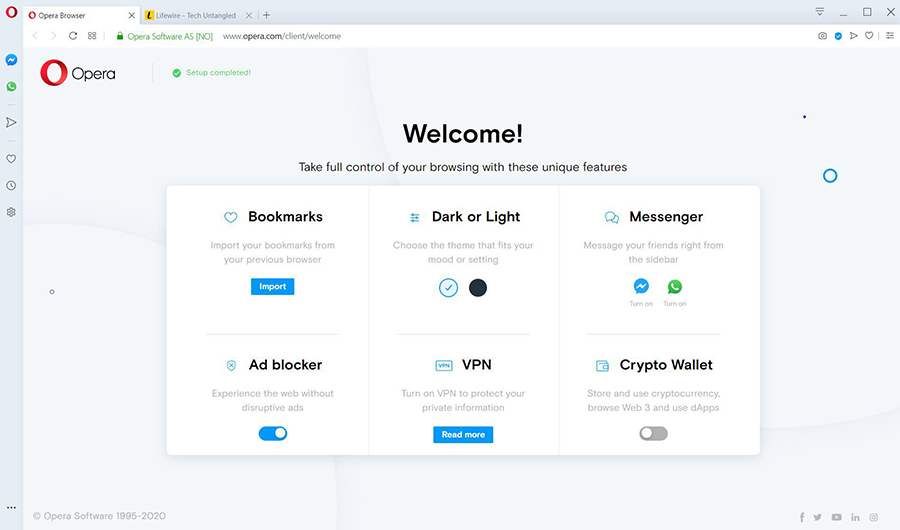
Of course, you can play escape room games online free but for that, we recommend a browser that is both reliable and distraction-free.

Opera GX was designed especially for gaming and aside from its cool integrations like Twitch, it blocks all unwanted ads and trackers.

But most of all, with Opera GX, you can prioritize the resources of your PC on your game so it will run very smoothly.

So here’s a list of some of the best online games that you can find online. All these titles are escape room games online without Flash because, as you know, it’s not supported anymore.

Opera GX

Play free online escape room games right from the browser with Opera GX.

What are the best online escape room games?

The Submachine Series – Popular choice

This is a series of 13 underground labyrinths, an abandoned lighthouse, a padded white cell, and more, that you have to escape from.

You can start playing any of the games since they are independent of one another. The background music keeps you on your toes.

⇒ Play The Submachine Series

Crimson Room – Guaranteed fun

Crimson Room was among the first escape room online games to be launched and, thus, it is also a classic.

It displays the typical room that you have to escape from, using various clues that you find around you.

You may consider it a black noir online escape room game but you will definitely have fun with it.

⇒ Play Crimson Room

Hogwarts Digital Escape Room – Basic knowledge of the Harry Potter books

A Harry Potter-themed escape room created by a Pennsylvanian librarian, hosted by Google Docs.

The game requires basic knowledge of the Harry Potter books, and it can be played solo, as a group, or competing against friends.

⇒ Play Hogwarts Digital Escape Room

Minecraft Escape Room – Involves problem-solving and videos

Similarly to the previous game, this one was also created by a librarian. The graphic reminds vaguely of the Minecraft games, hence the name.

The game involves problem-solving and videos. It is quite easy to follow and it’s one of the best adventure escape games online.

⇒ Play Minecraft Escape Room

100 Doors – Escape from School – Classic game

Another classic escape room, where you go through the same doors over and over again, until you find the missing pieces that open the closed ones.

The game can become fast-paced with all the going back and forth trying to figure out which door led where.

It’s one of the best escape games online free and unblocked you can play anywhere on your browser.

⇒ Play 100 Doors – Escape from School

Can you play Escape Room on Zoom?

You will be surprised but yes, you can actually play virtual escape room games on Zoom. It’s a new type of online escape room multiplayer game.

All you need to do is to visit The Escape Game website. There, you can choose a location from the U.S., and then you and up to 7 other friends can play virtually in one of the 7 available escape rooms.

On the screen, you will actually see each other’s cams but also the room, the indications, and everything you need to solve the puzzle.

There are several other websites that offer virtual escape rooms but you should know that none of them are free for obvious reasons.

We hope that this guide has helped you choose the perfect escape room games online unblocked for you, but if you have any interesting suggestions, don’t hesitate to leave us a comment.

You might also be interested in our list of top 15 VR games you can find on Steam because they can be also extremely entertaining.

Do you know any other escape room games worthy to be on our list? Feel free to tell us about them in the comments section below.

Download & Install Sidekick Browser for Windows 10 & 11

There are a lot of developers out on the internet working on the next great web browser. You have more generalist browsers like Chrome and Edge that most people use for browsing the internet.

But some people want browsers with more specific uses; specialized tools. Opera GX, for example, is great for gamers with its many video game tools and features. Brave is great for those who value privacy.

And now we have the likes of Sidekick, which has been specifically designed for enhancing productivity.

What is the Sidekick browser used for?

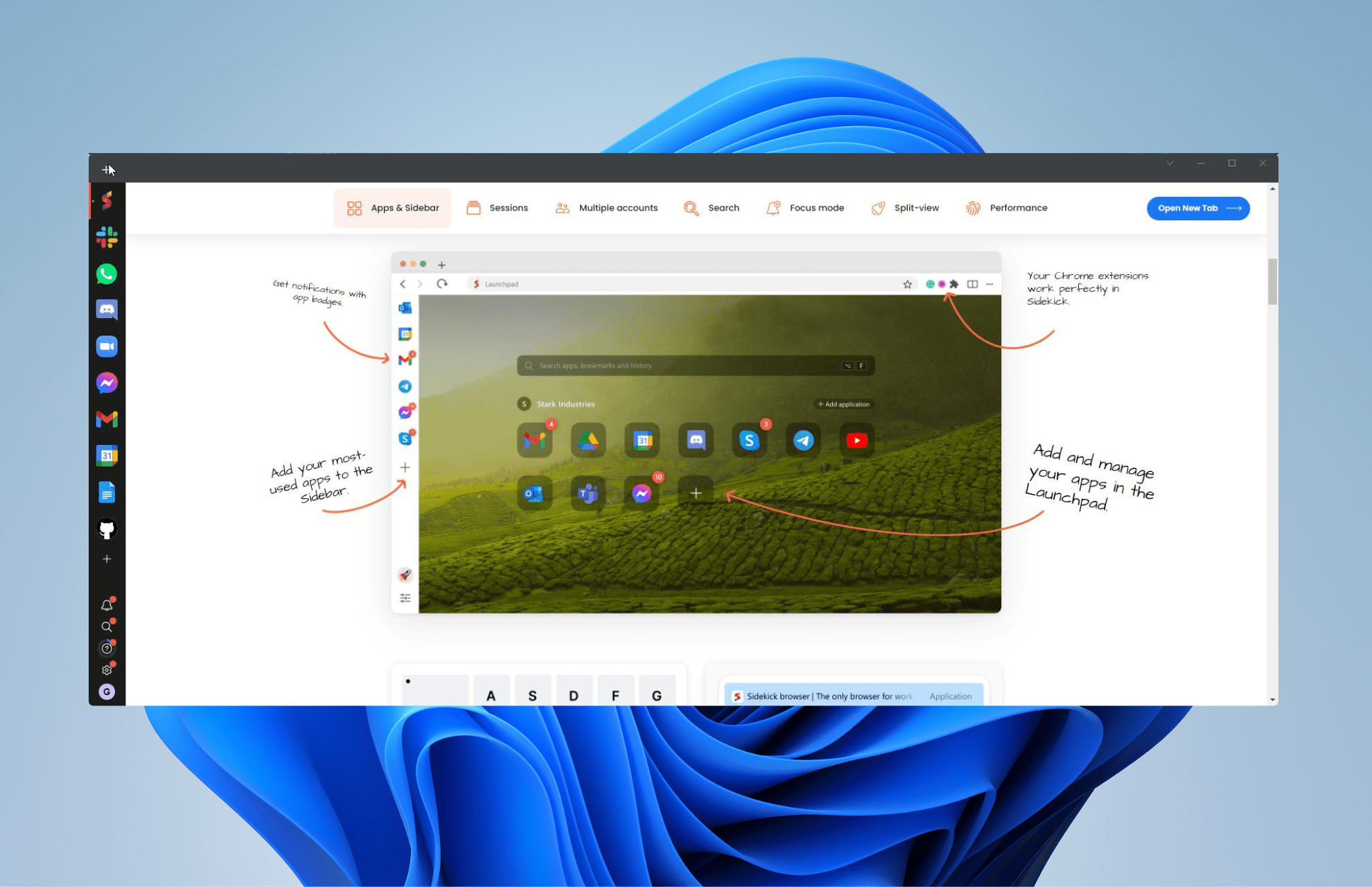
To be honest, the best way to think of Sidekick is to consider the work version of Opera GX. It’s a highly specialized web browser with a sidebar filled with easy access to productivity and messaging apps.

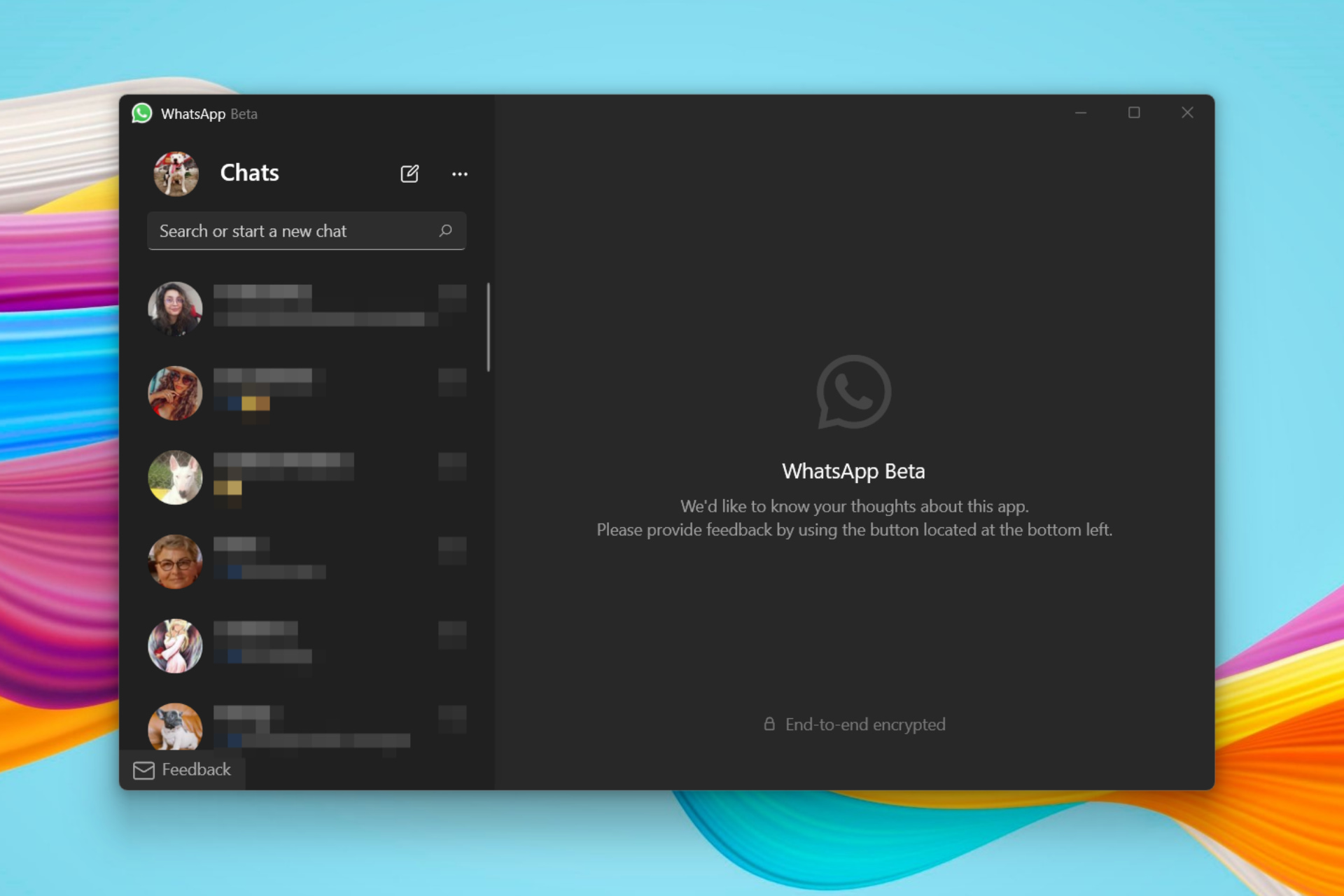
On the left-hand side, you will see the likes of Slack, Skype, and even WhatsApp. Sidekick also offers an Opera-like feature in Sessions which lets you save the tabs in groups.

That way you won’t lose your spot if you decide to open a new window. It even has a built-in search feature to browse through your tabs.

It should come as no surprise that Sidekick is built on the Chromium browser engine, just like Opera One. This guide will show you how to download Sidekick on Windows 11 and Windows 10.

Quick Tip:

If you prefer a robust and organized web app for organized workspaces, the sophisticated version of the Sidekick browser is Opera One. The difference is that Opera One has a built-in proxy VPN and ad-blocker.

You can establish user accounts and leverage Messenger, WhatsApp, Instagram feed, Telegram, and VK chat integrations, as well as a Video-Pop out for meetings and calls. You can also stay more organized with workspaces, tab islands and built-in AI

Opera One

Always up-to-date, stable, and organized workflow with built-in chats and Video Pop-out.
Free Download Visit website

How do I download the Sidekick browser?

How to download Sidekick on Windows 11

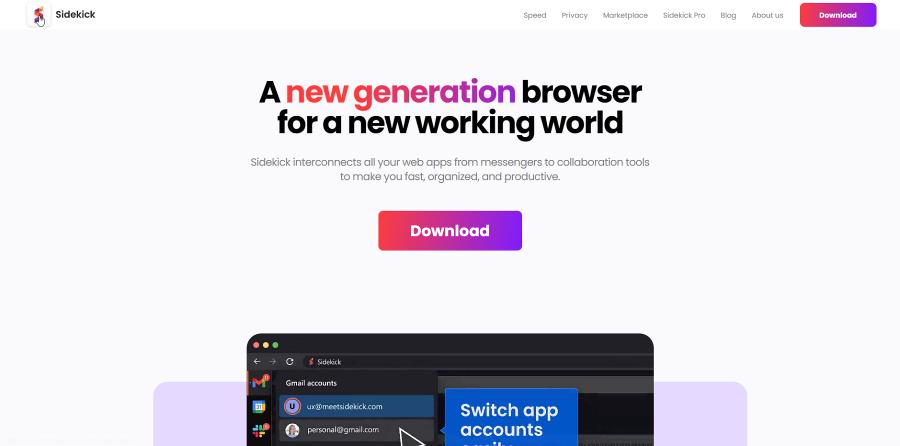
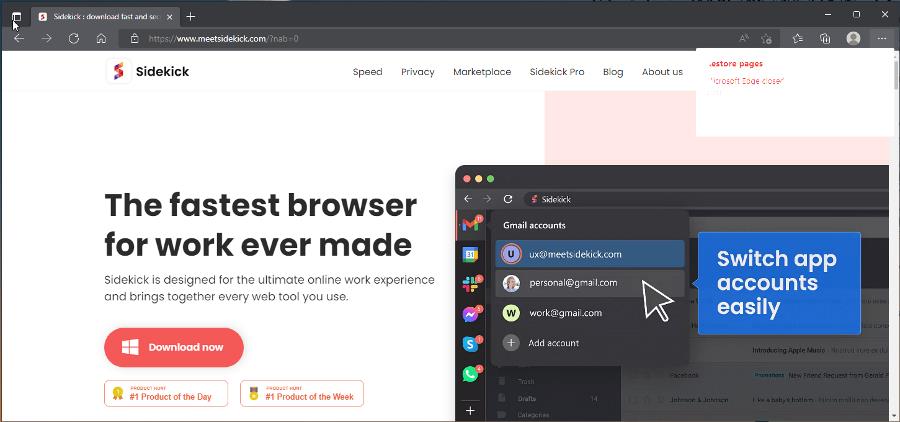
  1. Start by going to the Sidekick browser website.
  2. Click the Download button in the middle.
  3. Click the middle button on this new page.
  4. Save the application and go to the downloaded file’s location.
  5. Double click the file and it will immediately install. You don’t have to go through an installation wizard asking you where you want to save the app.
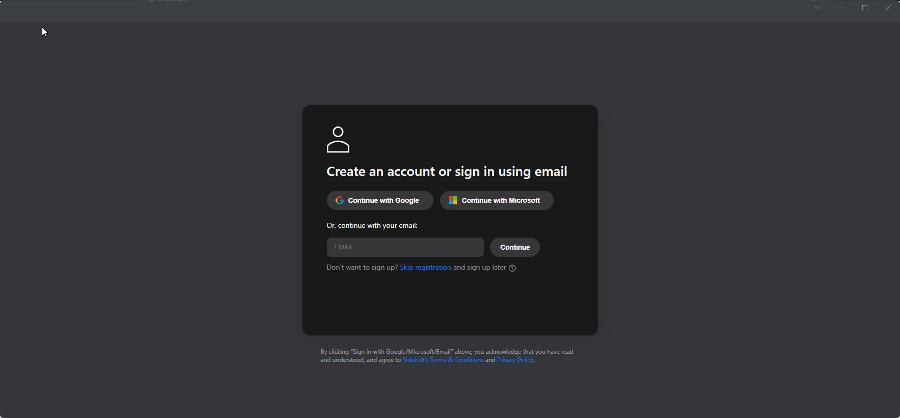
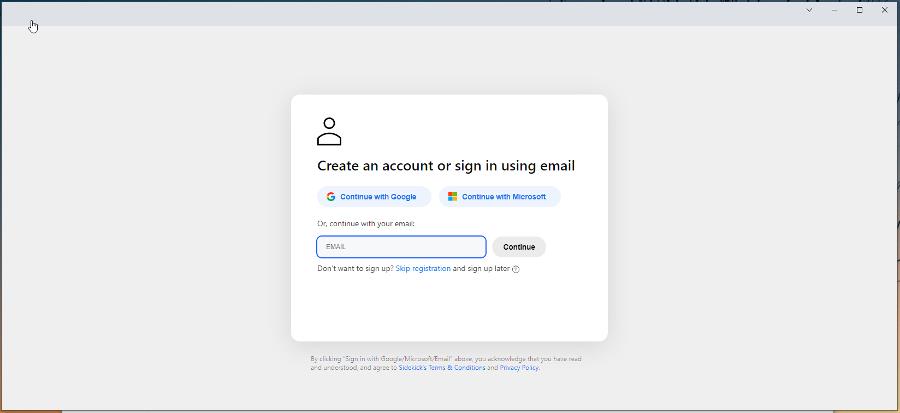
  6. Once Sidekick finishes installing, it will open up and ask you to register by adding your email. Or you can click Skip registration below the email input.
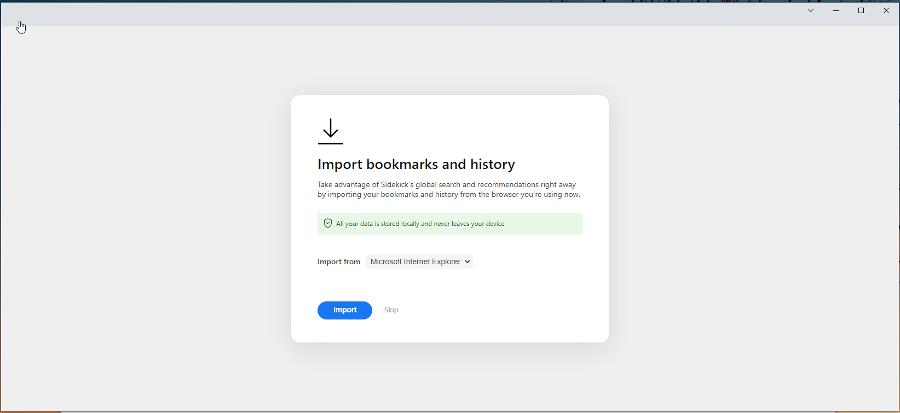
  7. If you do decide to register, you will be asked if you want to import bookmarks and browsing history. Click Import to migrate bookmarks over or hit Skip.
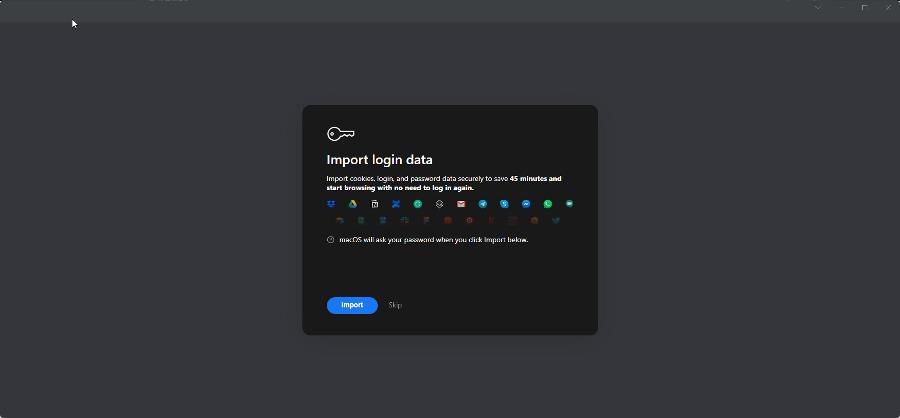
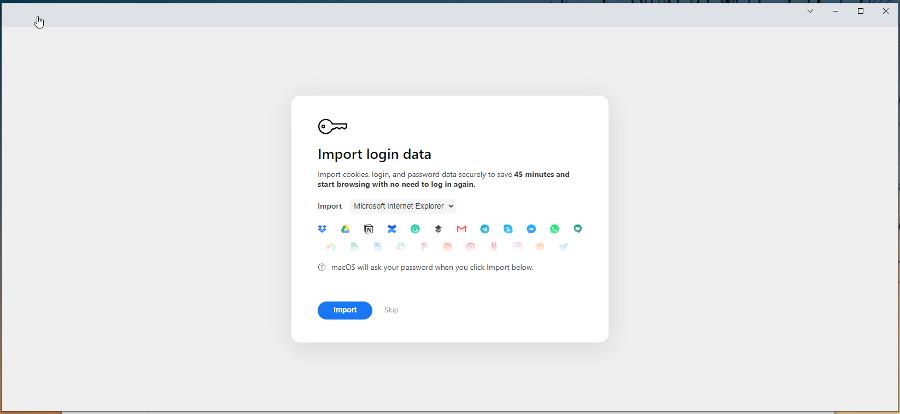
  8. Next, you can choose to import login data.
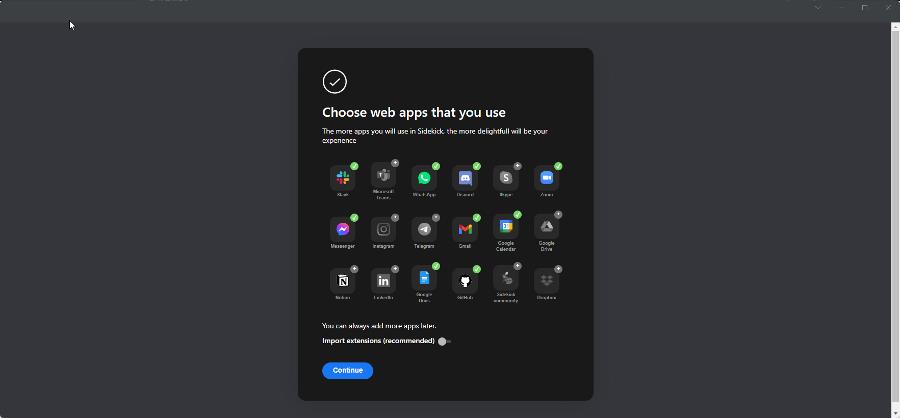
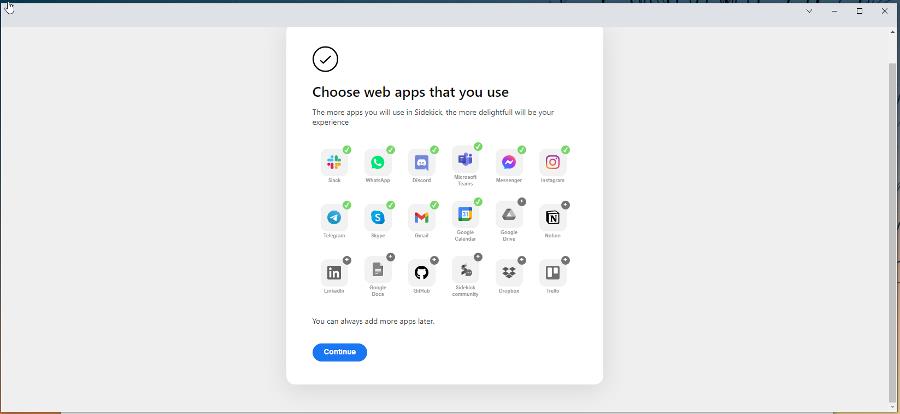
  9. Now you can select which web apps you use. These will appear on the left side bar. You can also import extensions from a previously selected browser.
  10. Now you can make Sidekick your default browser or do it later.

How to download Sidekick on Windows 10?

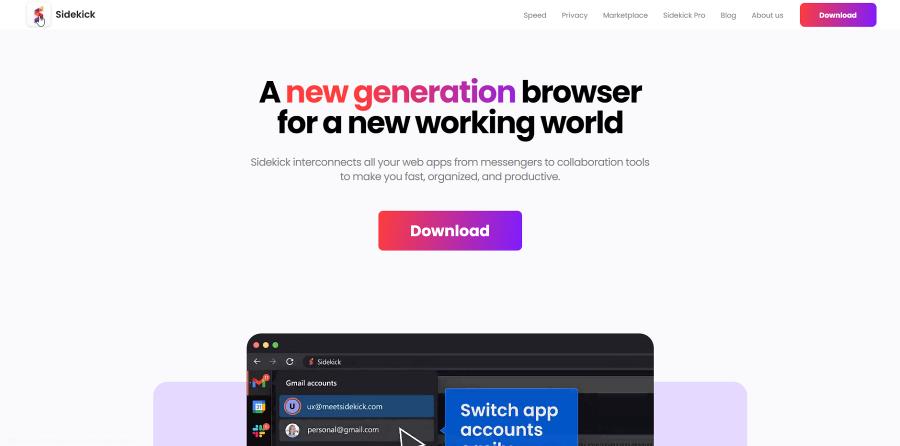
  1. On Windows 10, go to the Sidekick website.
  2. Click the Download now button.
  3. Click the Download button for your respective operating system.
  4. Go to the downloaded file’s location and double-click it to install it.
  5. Like Windows 11, Sidekick will install automatically.
  6. When Sidekick opens, create an account by signing in with your email.
  7. Import bookmarks and history, if you’d like.
  8. Then import login data or skip it.
  9. Choose the web app you want.
  10. You then have the opportunity to make Sidekick your default browser.

How do I use the Sidekick browser?

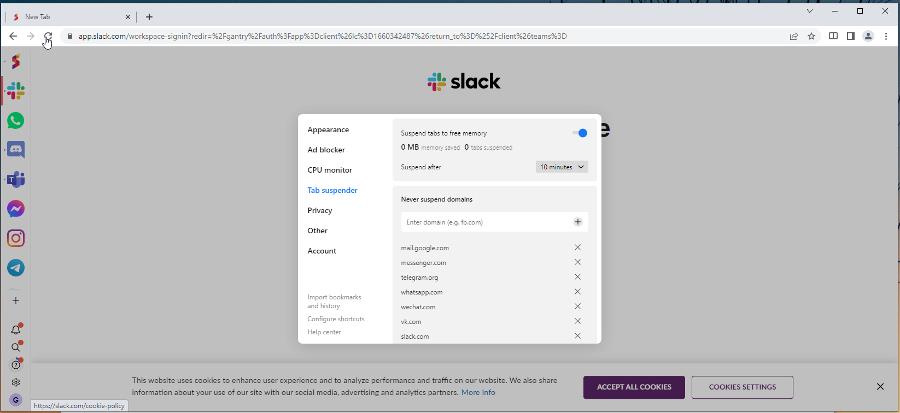
You pretty much use Sidekick as any old browser, but what’s unique about it is those sidebar easy-access apps. You click on any one of those messaging apps and you’re taken to a sign-in page.

Enter your credentials for that messaging app and you’re in. You use it like you would the desktop app. Sidekick also has an ad blocker to stop annoying advertisements on web pages.

Plus the browser has a CPU monitor and tab suspender so you can keep an eye on how much of the processor Sidekick uses. If one tab is using too much, you can suspend it.

Feel free to leave a comment below if you have any questions on other apps or if you have some that you recommend. Also, feel free to leave comments about guides you’d like to see or information on other web browsers.

Here are The Best Ways to Set Up Conan Exiles Private Server

Conan Exiles is one of the best role-playing games that challenges players to stay alive in a harsh environment where only the strongest live.

At the same time, the game has also tested player patience since its launch. Many gamers have reported server connection issues, but the good news is that Funcom recently fixed most of these bugs.

Conan Exiles has a limited number of public servers, but fans can create their own to spend time with just the people they want to play with. If you’re interested in creating your own Conan Exiles server, follow the steps listed in this guide.

Can you make private servers on Conan Exiles?

As mentioned earlier, Conan Exiles’ public servers are limited. Hence, it will be difficult for all gamers to play in multiplayer mode.

Thankfully, gamers can create their private servers and play with a specific number of people. With this, you can enjoy the game with other players online.

How do I run the dedicated Conan Exiles server?

To run a dedicated private Conan Exiles server, you need to set it up from the settings. After the setup, you need to configure the server before you can run it.

All these will be detailed in the next section of this guide.

How do I set up my own dedicated Conan Exiles server?

1. Set up Conan Exiles private server with SteamCMD

1.1. Create the server

1. Download SteamCMD.

2. Extract the content of the .zip file.

3. Open a terminal window on the folder you chose.

4. Create a different folder to install the server into, for example, C:Exiles.

5. To create the server, run these commands: login anonymous
force_install_dir C:YOURFOLDERNAMEHERE
app_update 443030
quit

1.2. Running the server

  1. Make sure you do not have a Steam client running.
  2. If you do, you’ll see some errors regarding Steam DLLs that you can ignore.
  3. From C:Exiles, run the ConanSandboxServer.exe file.
  4. By default, it will listen on UDP ports 27015 and 7777.
  5. Add an exception in your firewall to get the server to appear in the Steam server browser.
  6. Use the following command line parameters: ConanSandboxServer.exe -log -MaxPlayers=16
    -log
    MaxPlayers=70
    ServerName=ConanExilesServer
    MULTIHOME=aaa.bbb.ccc.ddd (select network interface by ip)
    QueryPort=27015 (steam queryport)
  7. Specify the following settings in the Engine.ini file located at this address: ConanSandboxSavedConfigWindowsServerEngine.ini [/script/onlinesubsystemutils.ipnetdriver]
    NetServerMaxTickRate=30
    [OnlineSubsystemSteam]
    ServerName=YOUR_SERVER_NAME_HERE
    ServerPassword=YOUR_DESIRED_PASSWORD_HERE
  8. You can also add other server settings in the Game.ini file (ConanSandboxSavedConfigWindowsServerGame.ini): [/script/engine.gamesession]
    MaxPlayers=70

If you don’t want to use this manual method, you can download the latest version of the Conan Exiles dedicated server app.

2. Set up your Conan Exiles server with Host Havoc

havoc conan exiles server private set up

You can easily set up your Conan Exiles game server using Host Havoc with a custom control panel where you can change maps and install further modifications to your server in seconds.

We suggest you try this high-performance server with excellent 24/7 technical support that helps you fix any issue easily. You can follow their tutorial about creating your server to do great installing.

Here are some of its main features:

  • Instant Server Setup
  • Complete Control of Your Server
  • Easy Configuration
  • 24/7 Customer Support
  • Full FTP Access
  • Daily Backups Available
  • Switch Games Any Time
  • Free DDoS Protection

With a powerful control suite, unique features, and installers, this server hosting is quite simple for novice and advanced users.

Host Havoc

Host Havoc

High-performance hosting services with DDoS protected networks and 24/7 support.
Check priceVisit website

How much does a private server cost Conan Exiles?

The cost of owning a private server for Conan Exiles on PC depends on the host. Also, it depends on the number of players you want to allow on the server.

So, there is no general price to look forward to. However, you can choose a budget-friendly host like Host Havoc.

When you set up your Conan Exiles private server, it removes the limitation of playing the single-player mode alone. With this, you can compete with your friends on the highest level in multiplayer mode.

While we are still at it, if you need the list of the best game server control panels to download for free, you can check our guide on the topic for some excellent options to use.

Feel free to let us know in the comments below if you encounter any problem setting up your server.

Microsoft shutters “Olympia Corp,” which was used to test beta versions of Windows in enterprise

As Microsoft continues to figure out its development and release cycles for Windows 11 and the inevitable OS that follows, it seems the company is putting Windows 10 and its related projects further in the rearview as it shuts down Olympia Corp.

According to a report from journalist Mary Jo Foley over at ZDNet, Microsoft is shutting down the Olympia program in a month’s time and thus signaling the end of Windows 10 testing for Enterprise users.

In 2017, when Microsoft originally launched the Olympia project which later evolved into the Olympia Corp, it intended to host a separate enterprise-oriented Insider program to test the release of business-related features and patches for Window 10.

As Windows 10 development and support wind down to its end-of-life (EOL) deadline in 2025, it now seems the Olympia program, designed to test the release of Windows 10 enterprise features is no longer needed.

Windows Insider MVP Chris Gahlsdor shared an email issued from Microsoft about Olympia Corp being shuttered via Twitter.

Hi Olympia participant,

We are sending this email to notify you that we will formally be shutting down the Olympia program in a month. We will be unassigning Olympia licenses and deleting the Olympia feedback path.

Action Required: Take a backup of any data if you are using the provided Olympia licenses in the next 30 days, by September 12, 2022.

Thank you for your participation and feedback ? Let us know if you have any questions!

Thanks,
Olympia Team

As of now, Microsoft isn’t not sharing any details officially as to why the Olympia project is no more, but it seems reasonable to wager that as Microsoft further streamlines the development and release cycles of its operating systems by moving to a 3-year cadence and prioritizing enterprise and consumers separately, related Insider programs such as Olympia and others, will either evolve or die off.

Can you Share a VPN Account? Is it Safe?

A VPN is, without a doubt, one of the most valuable tools you can have under your belt if you’re constantly online.

Even if you’re an occasional web surfer it wouldn’t be such a bad idea to invest in a good VPN.

These times we live in, many want to get their hands on your private data for various reasons. Monitoring your every step, targeting you with ads, stealing your data, and even locking your files behind a ransom wall.

VPNs aren’t universal when it comes to protecting your devices against cyberattacks, but they’re a vital addition. Essentially, they route your data through private tunnels and encrypt it.

Therefore, even if someone were to intercept your Internet traffic, it would all be for nothing.

However, what happens if you have more than one device you’d like to use a VPN on? Do you have to purchase multiple licenses or can you use several devices on the same account?

We discuss below whether it’s safe to share a VPN account and if providers allow it.

Can VPN be used on multiple devices?

Generally speaking, the answer is yes. Every VPN provider allows you to share your account between multiple devices so that you won’t need to purchase additional subscription plans.

However, the maximum number of devices you can use on the same VPN account greatly depends on the provider. Some of them are more generous than others.

So, it’s a matter of who you choose to go with in the long run. As long as you keep the number of devices under the maximum number accepted by your service, things should be good.

Even if you accidentally exceed that number, you’ll most likely be asked to remove one of the previous devices to make room for the new one.

Quick Tip:

In order to share your VPN connection with family or other people in your social network, you should rely on flexible software.

PIA (Private Internet Access) is that one when it comes to VPN sharing because it supports 10 connections at once for any major platforms like Windows, macOS, Apple, or Android.

Private Internet Access

Share your VPN connection with your peers using this exhaustive privacy software.
Check price Visit website

Can I share my VPN with my family and friends?

Many VPN providers are OK with this, especially ones who offer router VPN solutions.

Therefore, you don’t even need to use a VPN on each device. It’s enough to install the VPN on the router (or routers, depending on your setup) that your family members have access to.

More so, some VPN services even provide you with safety instructions on how to use VPN on multiple devices on the same account so that your account won’t be compromised.

Can I share my VPN with another household?

If your household accommodates more than just one member, you might want to protect your loved ones with a VPN. But what if you need to share it with a different household?

This can be possible as well depending on your VPN subscription. The majority of providers offer multiple or even unlimited connections using one account.

You may benefit from 5 simultaneous connections or more within one subscription. So multiple people can benefit from a shared VPN account.

In any case, you should be aware of the VPN terms of use before sharing it with numerous households to avoid account restrictions.

Can you share a VPN with someone else?

You probably considered purchasing a VPN subscription plan and splitting the bill with others, who are not necessarily strangers, but they’re not family members, either.

While that’s a great way to cut costs, since you can split the bill with a bunch of people, it’s worth mentioning that this practice is kind of frowned upon.

Actually, scratch that. VPN providers have nothing against sharing plans with your peers, otherwise, they wouldn’t allow multiple devices on the same account (and so many of them, too).

However, what they do have something against is denying responsibility. So you should know that the person who makes the purchase must claim 100% responsibility for everything that happens on the account.

Thus, if you purchase a plan, split it with your friends, and one of your peers decides to go ahead and engage in unlawful behavior, you’d be responsible.

Is it safe to use someone else’s VPN account?

Yes, in certain conditions.

If you’re using a zero-logging VPN that doesn’t access your data, you should be fine (regarding authorities and whatnot).

However, most VPN providers passively monitor some of the traffic and can terminate your account if they detect something fishy on your account, even if it’s not you who did it.

Don’t believe us? Try reading the Privacy Policy and Terms of Use documentation for once. You’ll find it all there.

How many devices can I use with one VPN account?

As we’ve briefly mentioned above, that greatly depends on the generosity of the provider.

Below you can find some of the best VPNs for multiple devices, including the number of maximum devices you can use on the same account.

Product NameMaximum devices per accountCompany Name
Private Internet Access10Kape Technologies
CyberGhost VPN7Kape Technologies
BullGuard VPN6BullGuard
NordVPN6Tefincom & Co., S.A.
Surfshark VPNUnlimitedSurfshark LTD
VyprVPN5Golden Frog GmbH
IPVanish10StackPath, LLC
ExpressVPN5Express VPN International Ltd.
ProtonVPN5Proton Technologies AG
Hide.Me VPN10eVenture Ltd.
Private VPN6Privat Kommunikation Sverige AB
Pure VPN10GZ Systems Limited

How to share a VPN connection?

  1. Sign up for a VPN that allows multiple connections. ❗To protect your data, don’t use your primary email address or a password you have on other accounts.
  2.  Then, once your account is up, you can share your VPN credentials.
  3. Optional: Use a password manager that allows sharing.
    This way, your password is safely stored in a vault protected by encryption. Sharing via social media or text may not be as secure.

You can check your VPN admin panel to keep track of which devices are connected.

But what if you don’t have a VPN that supports multiple connections? Can you still share your VPN with your family and friends? Well, yes, but you have to be on the same network.

You can secure a whole household with a VPN if you install it directly on the router.

You can share a VPN account, but be cautious about it

So, can you share a VPN account safely? We believe so, yes, but you should be extra cautious about it, especially if you don’t plan on sharing it exclusively with your family members.

While some VPN providers will even encourage you to share your VPN account, most of them advise against it and hold you solely responsible for whatever happens on your account.

We strongly advise you to choose a VPN service and give its privacy policy and terms of service documentation a thorough read before attempting to share your account.

You might even end up with your account suspended if you’re not careful enough.

Finally, you have our best VPNs that can protect your online privacy. Plus, visit our VPN Hub to discover more guides and tools to help you protect your online identity.

CPU OPT vs CPU FAN: When & Why to Use Each of Them?

When building a PC, one of the most important parts is the central processing unit, better known as the CPU. This is the piece of hardware that controls all of the different parts of a computer by sending out instructions.

The full capability of a computer is directly tied to how good your CPU is. So if you ever wonder why whenever Intel or whoever releases a new CPU it’s such a big deal, it’s because companies like that have set the standard. Intel creates some of the best CPUs on the market today.

A CPU is made up of several different components such as a control unit and an arithmetic logic unit. Certain CPU models come with a fan attached to them to keep them from overheating.

You place the CPU unit directly onto the motherboard. But as you look down, you may see some writing on the motherboard header that reads CPU OPT and CPU FAN.

CPU FAN is self-explanatory; this is where you hook up the fan to, but what about CPU OPT? What does that mean and is it at all like the CPU FAN attachment?

Are CPU FAN and CPU OPT the same?

No, but they are similar in function. CPU FAN is the header where the main cooling fan will go, some may call this the heatsink. Without a cooling fan attached to the CPU, your computer will not boot.

It’s crucial that your computer stays at an optimal temperature because overheating can cause damage to the machine. In fact, if someone managed to turn your computer on without a cooling fan, it will shut down automatically if it detects high temperatures.

Check CPU temp in Windows 11
Source: Joseph Greve/Unsplash

CPU OPT stands for CPU Optional. As the name suggests, it’s an optional header for a second heatsink. This could be a second fan or a liquid cooling system.

Either way, it’s not necessary to connect something there. Your computer will still boot up as normal and won’t shut down if it detects something wrong with the optional heatsink.

What are the differences between CPU OPT vs CPU FAN?

There are a few differences between the two. As stated earlier, it is mandatory to have a fan connected to the CPU FAN header. On CPU OPT, it’s totally optional to have something there and your computer will turn on as normal.

Source: tookapic/Pixabay

The second difference also mentioned earlier, is how your computer reacts. Your computer will not boot if there isn’t a fan connected to the CPU FAN. It also shut down if the machine detects high temperatures.

And the final difference relates to what kind of devices can be connected. Yes, you can connect a liquid cooling system to CPU FAN, but it’s recommended that you don’t.

It’s better that you connect a fan to CPU FAN to serve as the primary heatsink. A cooling fan doesn’t have as much power and certain motherboards may have a limit on how much amps a header can take.

Source: axonite/Pixabay

Some motherboard fan headers have a limit of 1 amp. A typically cooling fan consumes around 0.20 amps of power whereas most liquid coolers take around 2 amps. If you connect something that exceeds the motherboard’s limit, you can damage the motherboard.

There are exceptions, so it’s best to double-check with the manufacturer or any documents you have for the motherboard and check its amp limit.

When should I use CPU OPT and when should I use CPU FAN?

When it comes to the CPU FAN, it’s not a matter of whether you should or shouldn’t connect a cooling fan there. You must connect something to the CPU FAN header in order for your computer to boot.

CPU OPT can be used if you want that extra cooling system, but most of the time, it’s really necessary. A single cooling fan is enough to get the job done on most computers.

Source: Dave Morgan/Pexels

But if you plan on overclocking your computer or pushing its hardware, then it’s recommended that you do get an additional fan.

How many fans do you need for one header?

You just need one. You can connect multiple fans to one header using a fan splitter cable, but you have to be careful to not connect too many.

Too many fans on one header can exceed the amp limit on a motherboard which can damage it. We recommend checking what the amp limit is on your motherboard.

CPU OPT vs CPU fan vs AIO pump

AIO stands for All In One and it refers to a liquid cooling system that’s easy to install. All you have to do is plug it into a header and it’ll work, but the question is which one?

Source: Nathan B. Caldeira/Pexels

It’s best to connect an AIO pump to the CPU OPT header and connect a fan to the CPU FAN. That way if it fails, you still have a fan working for you. Plus as stated earlier, connecting an AIO pump may exceed the amp limit on CPU FAN.

Feel free to leave a comment below if you have any questions on other pieces of hardware or if you have some that you recommend. Also, feel free to leave comments about guides you’d like to see or information on other computer parts.

2 Easy Methods to Enable Reserved Storage in Windows 10

Users can’t update Windows 10 when their hard drives lack sufficient storage space for the updates. As such, Windows 10 version 1903 will include new reserved storage when the 19H1 update rolls out.

That is storage that is automatically reserved to ensure there’s enough space for Windows updates. And you can later disable or enable Reserved Storage at your own volition.

Microsoft announced reserved storage within its Windows 10 Insider Preview Build 18312 blog post. The new 18312 preview build is the first to showcase reserved storage. However, Windows Insiders need to modify the registry to enable reserved storage.

The new feature is currently available for those users running build versions from18298 to the latest one This is how users can activate reserved storage in those Windows 10 preview build versions.

How to enable Reserved Storage in Windows 10?

1. Use the DISM command in Command Prompt

    Reserved Storage can be easily enabled through the usage of the built-in Command Prompt. The DISM command can toggle Reserved Storage on and off in just one line.

  1. 1. Press the Windows + X hotkey to open the WinX menu.

  2. 2. Select Command Prompt (Admin) from the list. Users need to be logged in with an admin account to enable reserved storage.

    cmd admin
  3. 3. Input the following command: dism /Online /Set-ReservedStorageState /State:Enabled

  4. 4. Press Enter to run the command.

  5. 5. Reserved Storage is now enabled on your device.

2. Use the Registry Editor

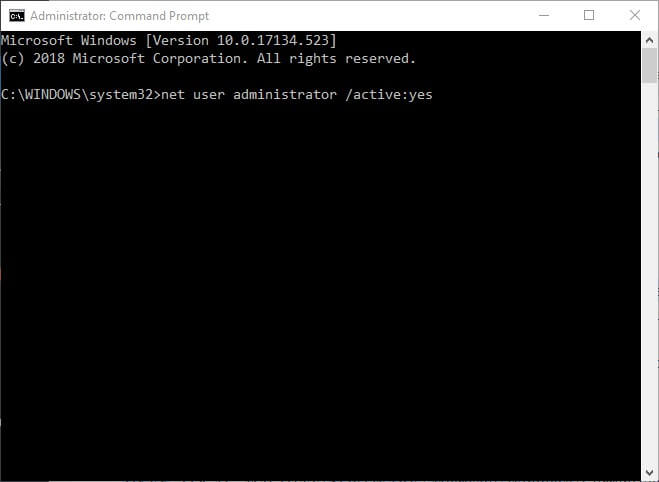
  1. Run cmd as an admin. Those users who aren’t logged in to administrator accounts can activate the built-in Windows 10 admin account by pressing the Windows key + X hotkey and selecting Command Prompt (Admin).
  2. Then input ‘net user administrator /active:yes’ in the Command Prompt and press Enter.
  3. Restart Windows 10, and select to log in with the new admin account.
  4. Launch Run with its Windows key + R keyboard shortcut.
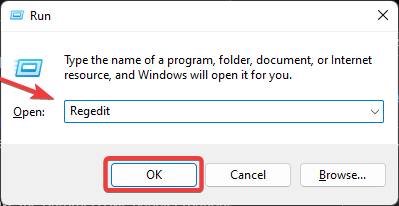
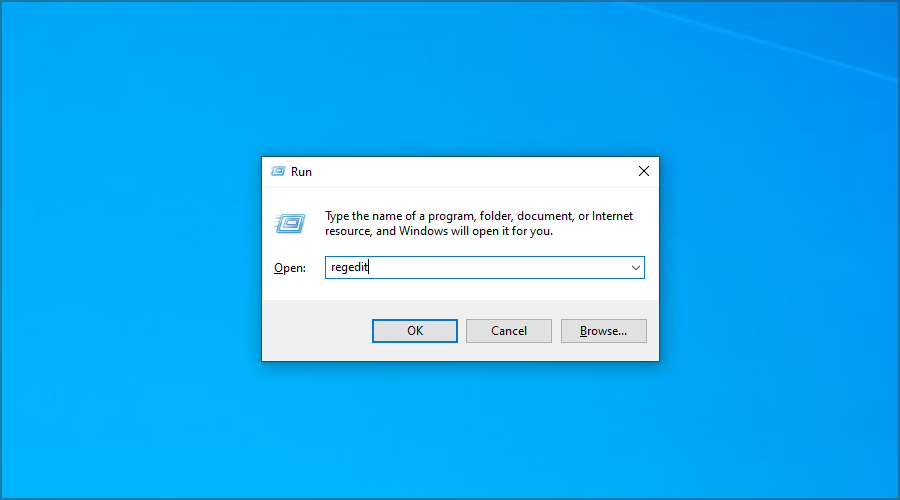
  5. Enter ‘regedit’ in the Run accessory, and click the OK button.
  6. Then go to this registry path within the Registry Editor: HKEY_LOCAL_MACHINE\SOFTWARE\Microsoft\Windows\CurrentVersion\ReserveManager. Users can copy and paste that registry path into the Registry Editor’s address bar with the Ctrl + C and Ctrl + V hotkeys.
  7. Click the ReserveManager key on the left of the window.
  8. Then double-click the ShippedWithReserves DWORD.
  9. Enter ‘1’ in the Value data text box.
  10. Press the OK button to close the Edit DWORD window.
  11. Restart Windows after editing the registry.
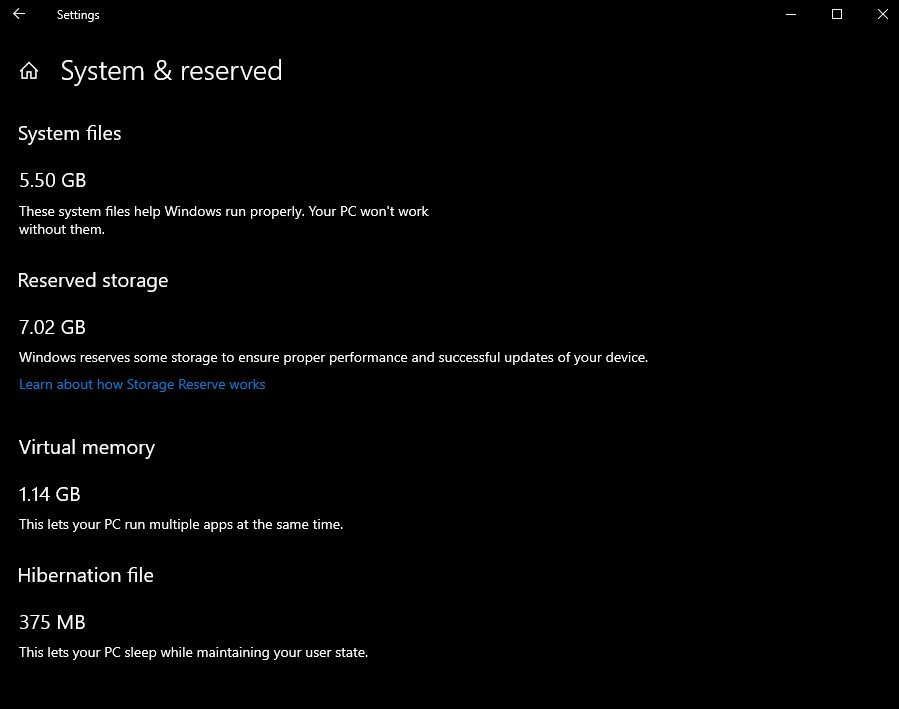
  12. Thereafter, users can see what the reserved storage amounts within the Settings app. Click Cortana’s Type here to search button, and then enter the keyword ‘storage’ in the search box.
  13. Select Storage to open the Settings app.
  14. Then click Show more categories, System & reserves and Reserved storage within the Settings app to open the reserved storage details shown in the snapshot directly below. That’s one way to enable Reserved Storage.
enable Reserved Storage

— RELATED: How to solve memory leaks in Windows 10

Uninstall Options Features to Reduce Reserved Storage

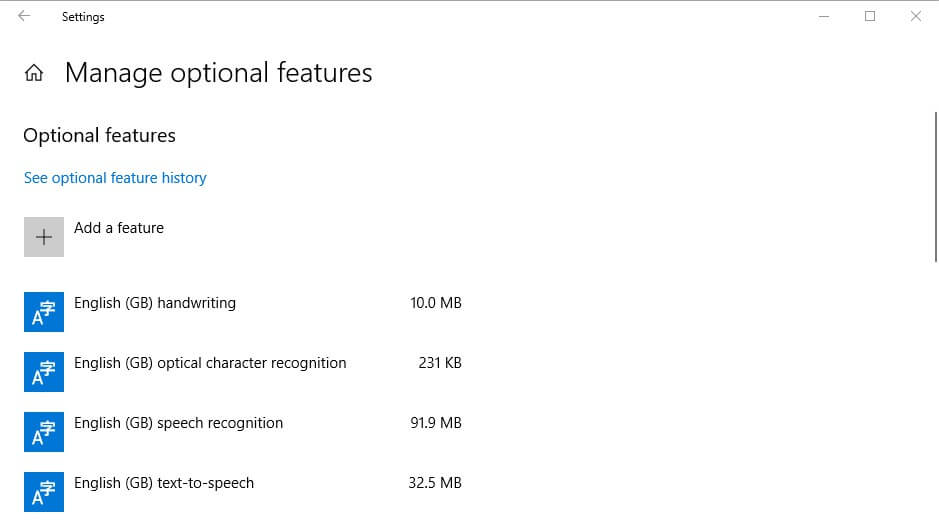
In the snapshot above, reserved storage amounts to about seven GB. The amount of reserved storage partly depends on the number of optional features Windows 10. Thus, removing optional features might reduce the reserved storage value. Users can uninstall optional features as follows.

  1. Open the Cortana search box.
  2. Enter ‘optional features’ in the search box.
  3. Then select Manage optional features to open the window shown directly below.
    enable Reserved Storage
  4. Select a listed feature, and click the Uninstall button.

So reserved storage might come in handy for users with small hard drives. The 19H1 update will introduce reserved storage to most users when it rolls out during spring 2019. This read should help you disable, allocate space, or enable Reserved Storage.

RELATED STORIES TO CHECK OUT: 

Service.msc – How to Open & Use The Windows Service Manager

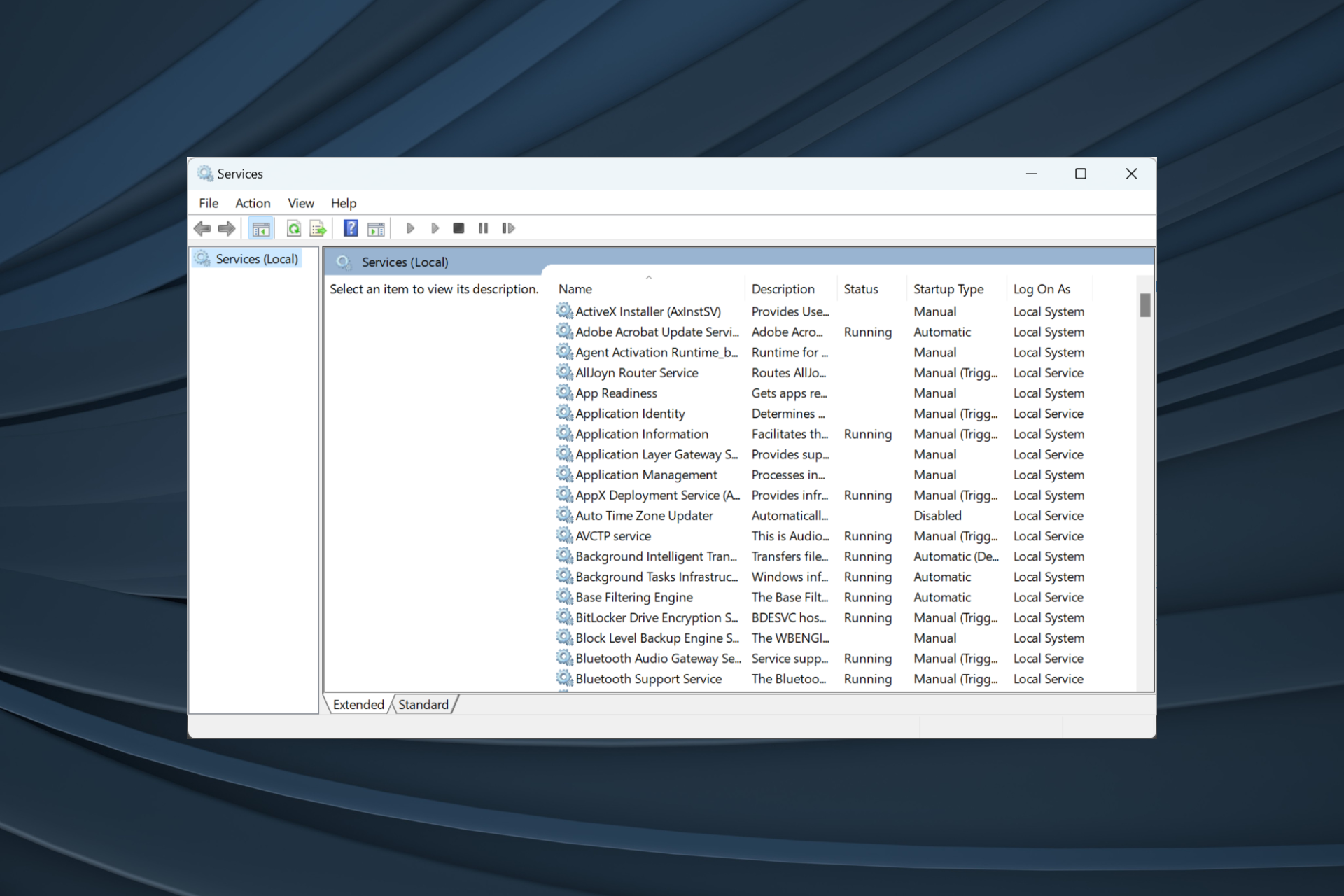
Services.msc is a built-in tool in Windows that allows you to access and modify various services running on your computer. Some services are native to the OS, while others are installed by third-party applications.

Today, we’ll show you a few different ways to open it and give you some tips on the best ways to use it and what for.

How can I open services.msc (Windows Service Manager)?

1. How to open services.msc from the Run window

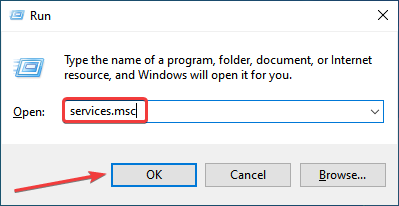
  1. Press Windows + R to open Run.
  2. Enter services.msc and press Enter or click OK.
    run services windows
  3. The Services window will now appear.

This is the fastest method that you can use to access services.msc, and it’s one of the methods that we most commonly use.

2. How to open services.msc from Command Prompt

    You can easily open Windows Services Manager through a command input in Command Prompt.

    All you need to do is input the command line and press Enter.

  1. 1. Press Windows + S and type Command Prompt in the text field, then click on the relevant search result.

    command prompt
  2. 3. Type services.msc in the box.

    services cmd line
  3. 4. Press Enter to execute the command.

  4. 5. The Windows Services Manager is now opened.

3. How to open the Windows Services Manager using Powershell

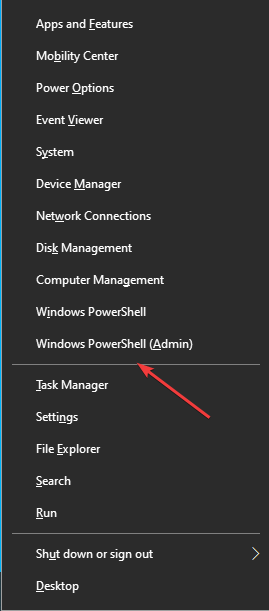
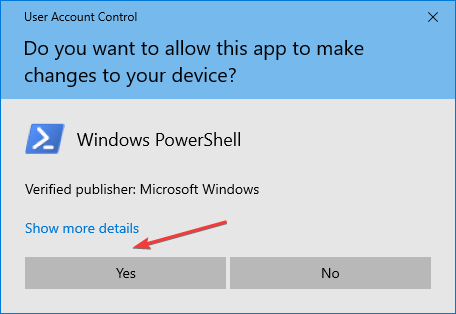
  1. Press Windows + X and select Windows PowerShell or Windows PowerShell (Admin).
    powershell windows
  2. Enter services.msc and press Enter.
    powershell services windows

As you can see, both methods are almost the same, and it doesn’t make a difference if you’re using Command Prompt or PowerShell.

You can also run both of these applications without administrative privileges, and you’ll be able to open the Services window without any problems.

Use our detailed guide if you’re having trouble accessing Command Prompt as an admin. Our quick workarounds are exactly what you’re looking for.

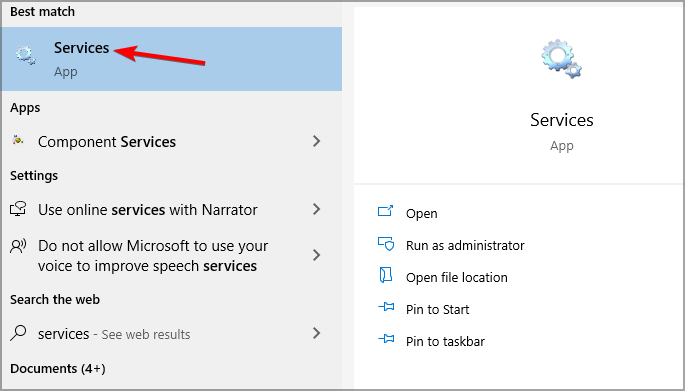
  1. Press Windows + S to open the Search window, and type services in the search field.
  2. Now select the Services from the search results.
    search results for services

This is one of many different ways to access services.msc, and since it’s quick and easy, we encourage you to try it out.

5. How to open services.msc from the Start menu

  1. Press Windows to open the Start menu.
  2. Now scroll down to the Windows Administrative Tools section and expand it.
    administrative tools windows
  3. Select Services.
    services start windows

This is another easy-to-use method that you can use to open services.msc, but in our opinion, it’s not the fastest one.

6. How to open services.msc through the Control Panel

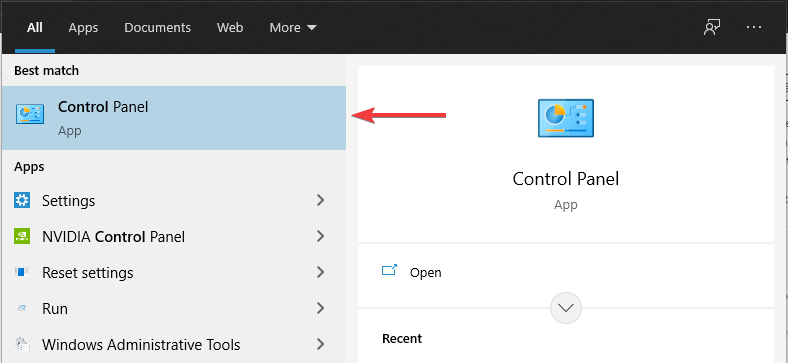
  1. Press Windows + S, then enter control, and select Control Panel from the list of results.
    control panel open
  2. Go to the Administrative tools section.
    control panel administrative tools windows
  3. Now select Services from the list of results.
    control panel services

7. Use Computer Management to open Services

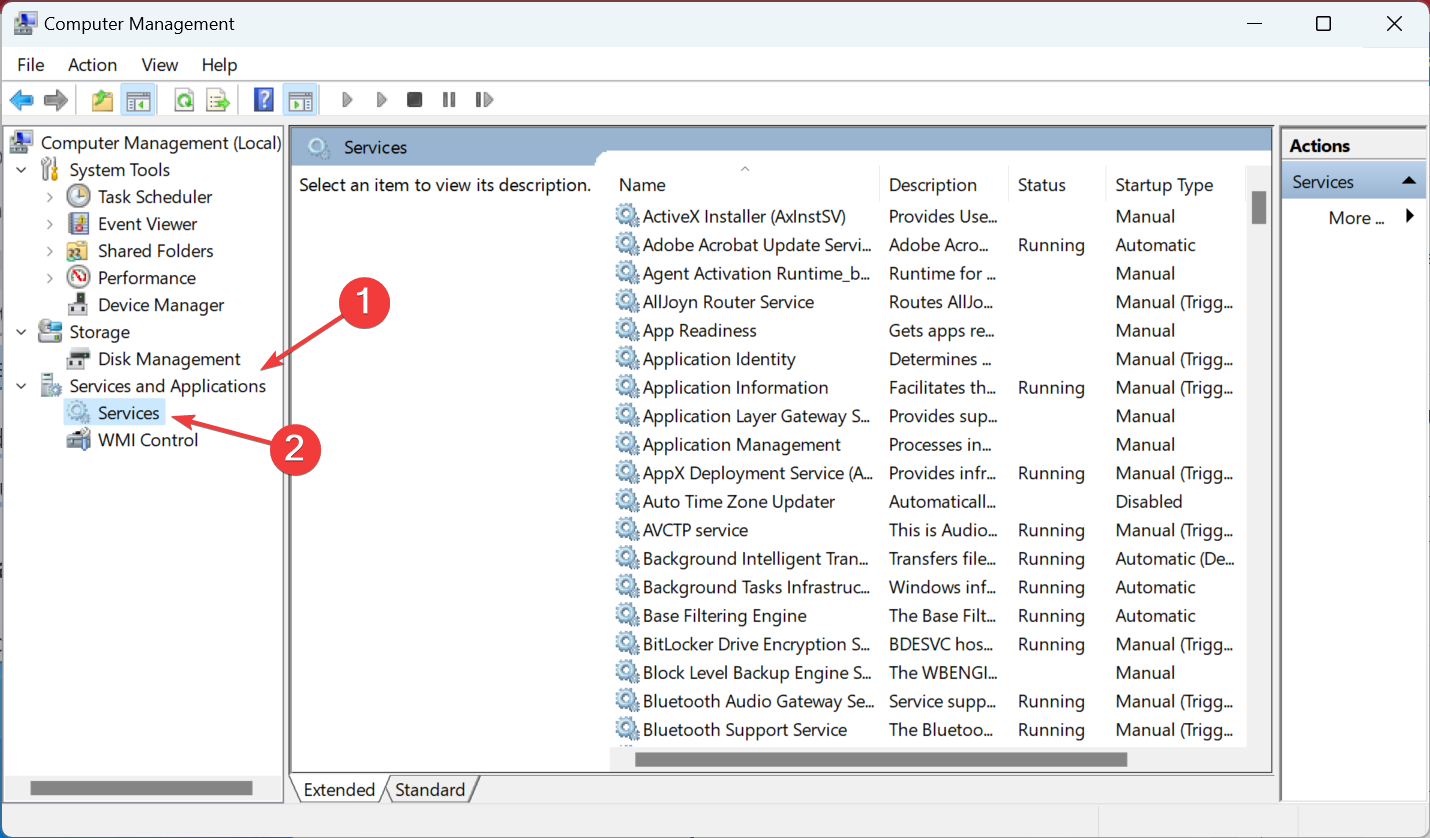
  1. Open Computer Management. You can do that by using the search option or any other method.
    computer management search results windows
  2. Now expand Services and Applications from the navigation pane, and select Services under it.services.msc

This method can be useful if you’re using the Computer Management window frequently. If that’s not the case, then our previous methods might prove better.

8. Create a Desktop shortcut for Windows Services Manager

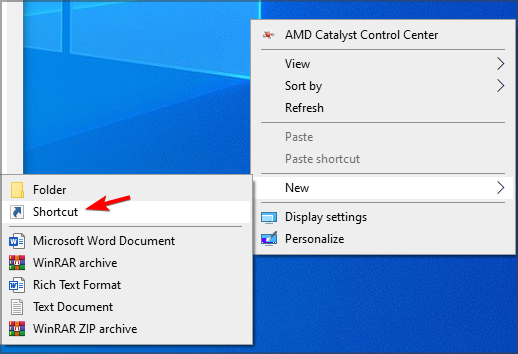
  1. Right-click your desktop and expand the New menu. Now select Shortcut.
    create new shortcut windows service manager
  2. Enter services.msc in the input field and click Next.
    open services.msc shortcut
  3. Now enter the name that you want to use for the shortcut and click on Finish.
    finish shortcut services

There are several different ways to access services.msc on your PC, and we encourage you to try them all. But once you are aware, choose one that seems the most convenient and quick.

How can I run services.msc as admin?

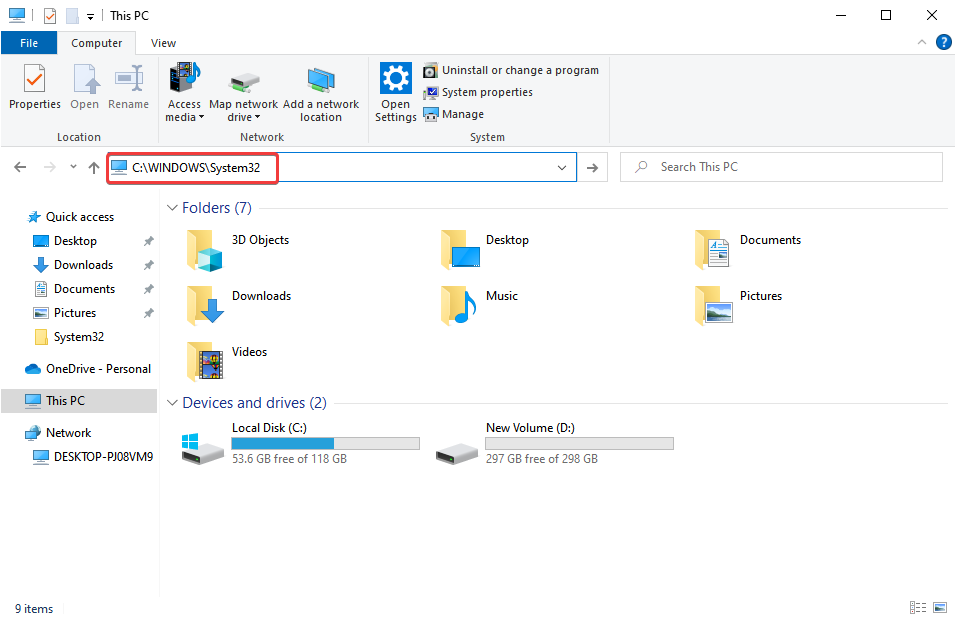
  1. Press Windows + E to open File Explorer, paste the following path in the address bar, and hit Enter:C:\WINDOWS\System32path
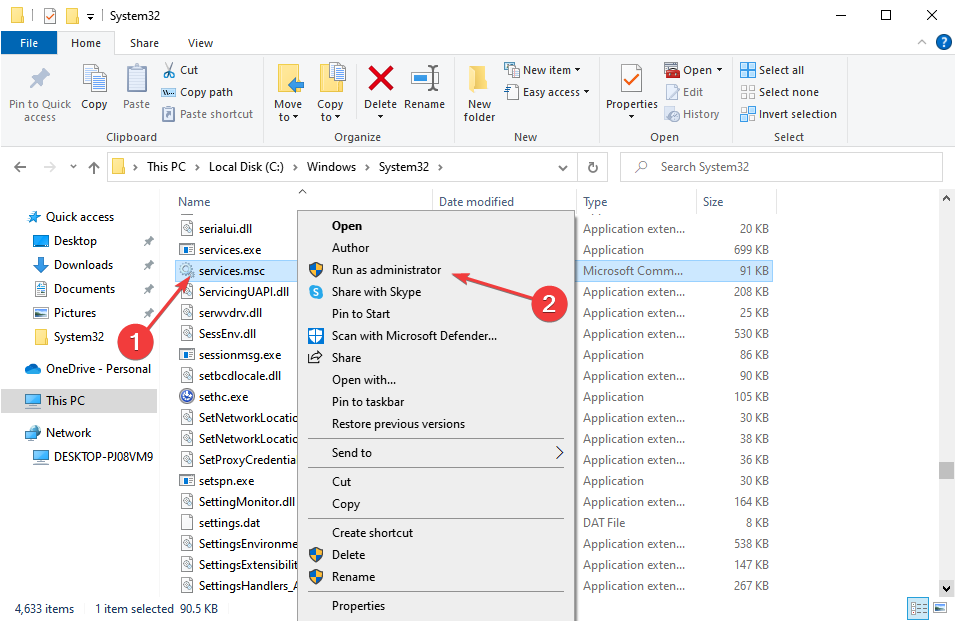
  2. Right-click on the services.msc file, and select Run as administrator.services.msc

What is Services MSC used for?

Here are a few key features of Services.msc:

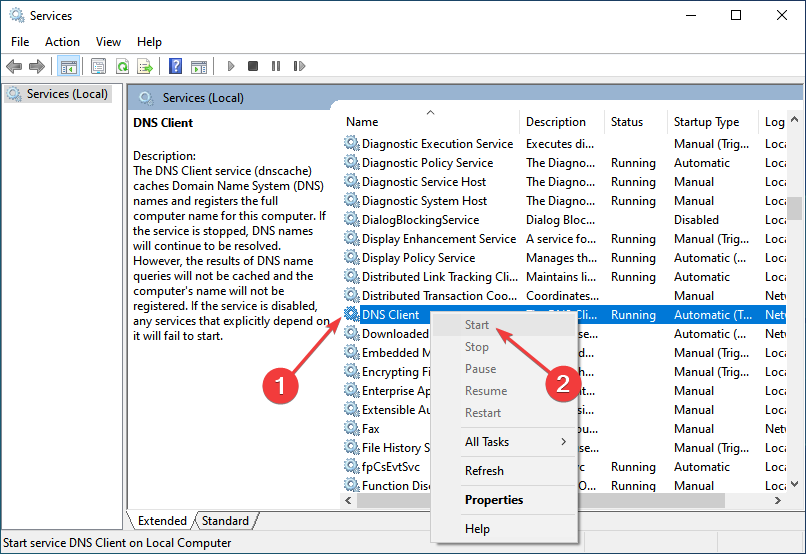
  • Lists all services in one place: With the built-in tool, you can view all the services in one place, that, too, in alphabetical or reverse-alphabetical order.
  • Allows starting or stopping a service: Several need to be run while other services are to be disabled for specific operations to complete, and the tool provides an easy way to do that.
  • Lets users change the startup type: Configuring the startup type comes in handy, as it allows you to choose whether a service starts running automatically at boot or has to be manually triggered.
  • Provides insights on dependencies: Services are often interlinked with each other in the sense that stopping one will stop the others that depend on it. And you can easily verify this through the built-in Services.msc.

What is services.msc file location?

Like any other tool and application, Services, too, has the relevant launcher files stored in the C: drive. Both the services.exe and services.msc files can be found in the System32 folder found in the following location:C:\WINDOWS\System32

System32 Folder

Besides the other methods listed here, you can always navigate the path and easily open Services.msc.

Speaking of the Services window, many users reported that services.msc is not opening in Windows, but that, too, is easily fixable.

Did you know you can use services.msc to connect to another computer? That’s right, and we have an entire guide dedicated to it.

What is your preferred method of accessing the Services window? Do not hesitate to share it with us in the comments below.

How to use Cover Browser and View Covers Online

When it comes to books and other print media, one of the most interesting and visually appealing things about it is the cover.

Over the years, we saw all sorts of great covers, and in today’s article, we’re going to show you how to view various covers in your web browser.

What is a cover browser?

Viewing covers in your web browser is simple, and there are several websites, called cover browsers, which can help you with that.

These websites are neatly organized, allowing you to easily find the cover that you need with just a few clicks.

How to use a cover browser?

  1. Visit the Cover Browser website.
  2. Now select which category you want to view.
  3. You should see the covers for the selected category. If needed, you can zoom in and view the cover up close.
    covers cover browser

Cover browsers are great if you’re a comic book or a book fan. Most covers have amazing artwork, and now you can view them from your browser with ease.

Quick TIp:

Although Cover Browser will work in almost any web browser, for the best results we suggest using Opera.

The browser is built on Chromium, it’s similar to Chrome, and it will work with Chrome extensions without any issues.

The browser also has an ad blocker, so you won’t have to deal with ads ever again. There are also tracking protection that will block tracking scripts and cookies.

Opera

Discover Opera’s features with free VPN, Ad Blocker and Battery Saver, offering real solutions for the way we all use the internet. 

Among our greatest finds on Cover Browser, we have to name Astonishing Tales and comic book covers by Marvel.

And if you’re looking for a comic book cover maker, you’re going to find it on our list of the best magazine design software.

If you have any other suggestions, don’t hesitate to let us know all about them in the comments section below.

Convert black and white photos to color online [Best Tools]

Black and white photos have their own particular flavor, however, sometimes they might seem lifeless and impersonal. On the other hand, colored photos look natural, more familiar, or more relatable.

You might have come across a lot of posts or articles with comparisons between before and after colorizing certain images, especially family or city life photos.

Nowadays, one can find a bunch of useful tools that can be used to turn a black and white photo into a colored image. Some use AI and perform the action within seconds; Some of the options are more laborious; some are free, and some are paid.

In this article, we’re going to explore some methods to convert black and white photos to color.

How can I use to turn black and white photos into color online?

1. Adobe Photoshop

add color to black and white photos with photoshop

Adobe Photoshop is probably the best-known photo editor out there, and one of the most powerful ones.

This software features a multitude of tools that you can alternate to edit your photos and get the best results.

Because of the many options, Photoshop is perhaps harder to master, and the photo processing takes longer. Even if that’s the case, the results are top-notch.

That’s why Photoshop is among the most preferred photo editors both among professionals and amateurs.

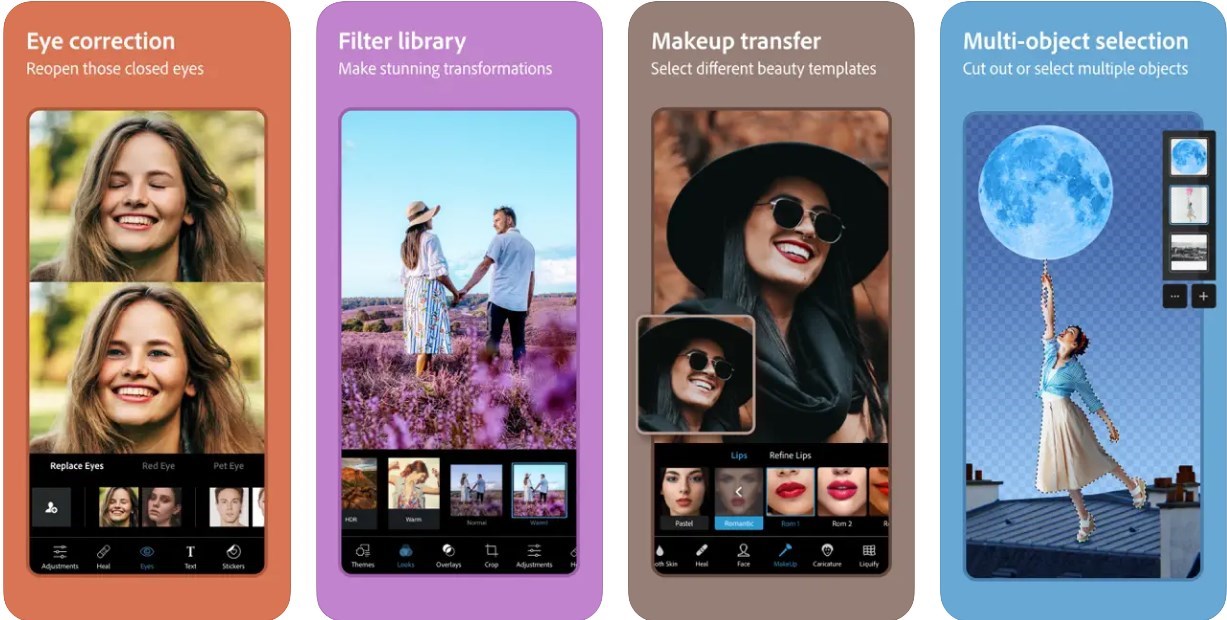
Some of the most commonly used features are cropping, removing small imperfections such as lens dust or red eyes, adding watermarks, replacing objects or people, changing the background, or adding filters.

However, Photoshop also includes certain particular features such as personalized brushes, brush symmetry mode, or live blend mode preview.

Adobe Photoshop

Adobe Photoshop

Add color to your black and white photos with Adobe's professional tool and get the best results.
Fee trial Visit website

1.1 How to colorize a black and white photo in Photoshop

    Converting a black and white photo to color in Photoshop can be easily done using the app’s built-in tools. You can choose what color you want to use on your photo, as well as where exactly to use it.

  1. 1. Open the image in Photoshop.

  2. 2. Look for the Quick Selection tool in the menu.

  3. 3. Use the tool to select a large area of the image that will have the same color.

    use the quick selection tool
  4. 4. Make a solid color fill layer by using the specific tool and clicking on the solid color option.

    solid color tool
  5. 5. Choose your desired color.

  6. 6. Select the fill layer from the Layers tab.

  7. 7. Open the dropdown menu next to Opacity and choose overlay.

  8. 8. Use the brush tool to correct the edges where the color got overlayed with the subject.

  9. 9. Save the file to your device.

You can undo your actions as many times as you want until you get the desired results.

2. Algorithmia

color photos with algorithmia

This is a very simple tool that you can use in your browser to colorize your photos. There’s no need for a subscription or any download.

As you can imagine, the tool can be used for free. The only disadvantage is that you’ll get a watermark on the final photo, but you can remove it using another photo editing tool.

Adding color to your black and white photos with Algorithmia is very easy. Just copy/paste the photo URL from your PC or upload the photo in the tool.

You’ll get a half-colored photo just so you can have an idea of the final result. But on downloading it, you’ll see that it is fully colored.

⇒ Use Algorithmia 

3. Color Surprise AI Pixbim

add color to photos with color Surprise AI

Color Surprise AI Pixbim is another easy-to-use tool that does not require any photo editing knowledge.

Adding color to your black and white photos can be done in just a few simple steps.

In order to start, you will first need to download the tool and install it on your PC. After you can simply open the software and it will automatically generate a preview and show both variants side by side.

If you’re happy with the result, click on Start-Process Full Image and Save. The whole process takes only a few minutes.

⇒ Get Color Surprize AI Pixbim

4. MyHeritage In Color™

color black and white photos with myheritage in color

MyHeritage In Color™ is a tool designed specifically to bring your black and white family photos to life by adding color to them.

Although using the tool is free, you’ll have to create an account to be able to use it and get access to all its features.

Once you are logged in, you can simply upload a photo in the browser or drag & drop a photo in the frame. Wait for a few seconds until you get the result.

Once the tool returns the colorized photo, you also get a few options for the next action: you can save the photo on your PC, share it on social media, or continue by uploading another photo.

The advantage of creating an account is that you can upload full family photo albums and colorize them in your own time, then build a family tree.

Each edited photo will get a colored icon at the bottom so that you can keep track of them. If you choose to delete an edited photo, the original will remain. But if you delete an original photo, the colored one will be deleted as well.

⇒ Get MyHeritage In Color™


More similar tools can be found in our thorough Software section.

If you encounter issues constantly, you’ll find that our How-to Hub is quite useful.

So these are a few tools that you can use to convert a black and white photo into a colored one. It’s important to know that all o them preserve the resolution of the original photo.

If you’ve come across another tool that you find worth mentioning for this particular process, please share your opinion in the comments section below.

VBA Error 400: What Is It And How to Fix It [3 Easy Ways]

When you have a set of actions that you do constantly, creating a Macro in Excel is crucial.

Once you create it, it runs on its own and delivers great reports. That is if you don’t get any error.

Some users seem to be getting a VBA error 400 when trying to run their Macro in Excel. There are no further indications only a box with an OK button.

How can I solve VBA error 400 in Excel?

Either way, don’t worry we have some simple solutions for you.

We suggest that you follow the steps mentioned in this article in the presented order. Hopefully, they will help you solve your problem.

    1. Fix VBA error 400 by moving your Macros to another Module

    If you are getting the VBA error 400 in Excel while trying to run your Macros, moving them to a new Module can fix it.

    There could be a problem with the old Module, therefore switching to a new one might fix the error.

  1. 1. Open Microsoft Excel.

  2. 2. We need to create the new Module to transfer your Macros to. Click on the Developer tab from the Ribbon menu.

    how to fix vba error 404 developer tab
  3. 3. Select Visual Basic from the options.

    visual basics how to fix vba error 400
  4. 4. In the VBA menu, click Module on the Insert menu.

    fix vba error 400 select module
  5. 5. Paste the VBA code that you want to use.

  6. 6. Navigate to the File menu and click Save Global. Now your Macros are successfully moved to the new Module.

  7. 7. Delete the old module.

2. Fix VBA error 400 by turning on the trusted access

how to resolve excel VBA error message
  1. Go to the Developer tab (If this is not available click File > Options > Customise Ribbon > choose the Developer checkbox).
  2. In the  Code group – go to the Developer tab.
  3. Click Macro Security.
  4. Select Developer Macro Settings – choose Trusted access to the VBA project.

3. Check your code for mistakes to fix VBA error 400

how to fix VBA error in excel macros

Make sure to always check your code for any mistakes. Additionally, checking for any macros corruption is necessary as well.

That’s about it. We hope that doing these confirmed solutions will fix your VBA 400 Error. In case you have other confirmed suggestions please let us know in a comment below.

5 Best EPS File Viewers: How to Open EPS Files in 2026

EPS is a graphics file saved in the Encapsulated PostScript format.  EPS files are usually used to save pictures of art such as drawings, logos, or objects.

In addition, it is also the standard file format for transferring image data between different operating systems. These files are used by different graphic and design editing applications that support the format.

However, supported graphics software is then used to convert these EPS files into PDF, JPG, and PNG file formats.

This guide highlights the best EPS software that not only supports this file type, but can be used to modify, edit and tweak EPS on Windows 10.

Open EPS files without Illustrator – Is it possible?

This is a special format that cannot be simply opened in your OS.

In order to open EPS files on Windows 10 PC, you will need standalone graphics design software. To good news is that you are, in fact, spoiled for choice.

While it’s certainly the most famous name, Illustrator is far from being the only available option as far as EPS software is concerned.

So, without further ado, here are the best graphic design software which can be used to open EPS files in Windows 10.

How do I open an EPS file on Windows?

Use Adobe Illustrator to open EPS files

adobe illustrator windows

Adobe Illustrator is a popular and widely used drawing program used by designers to create and edit vector graphics. It is a powerful software that can edit EPS files.

This software uses image maps instead of bitmaps to make images, allowing for the drawing to be modified and reshaped without losing quality. Illustrator is the industry standard for creating logos, digital art, and drawings.

In addition, Adobe illustrator supports numerous graphics file formats such as SVG, DWG, PDF, FXG, and most especially EPS.

The feature-rich graphic software is a must-have for Windows 10 users who interact with EPS files on a daily basis, thereby producing neat, professional-quality graphic content.

Let’s quickly look at its key features:

  • Extensive type toolkit for stunning typography
  • Full vector support for limitless scalability
  • 100X canvas to create large-format projects
  • Design previews available for real-time rendering
  • Step-by-step, in-app tutorials and more inspirational content to get you started

Adobe Illustrator

Open and edit EPS files effortlessly with the world’s most cherished vector graphics software.
$20.99/mo Visit website

Use Adobe Photoshop to open EPS files

adobe photoshop windows

Adobe Photoshop is the most popular graphics editing program used across the world. This industry-standard software is primarily used to edit graphical and digital images. Photoshop can be used on Windows to open an EPS file.

Photoshop possesses a unique patch tool that removes blemishes from designs automatically and a content-aware feature that matches your work background with surrounding areas while removing unwanted pictures from your work project.

Furthermore, the tool also supports various document and image formats such as SVG, DWG, PDF, and most especially EPS files.

This tool enables easy editing and modification of EPS files by allowing you to customize the image, color, size, and other numerous enhancements.

Let’s quickly look at its key features:

  • Professional photo editing tools (crop, remove, resize, add colors, effects and more)
  • Unlimited layers and masks and a diverse range of available brushes
  • Automatically save your work in the cloud to access it anywhere, at any time
  • Create fast and precise selections with the Object Selection Tool
  • Adobe Camera Raw improvements

Adobe Photoshop

Dealing with EPS files? Not a problem for the world’s best imaging and graphic design software!
$20.99/mo Visit website

Use Adobe Acrobat Reader

adobe acrobat reader windows

The Reader is practically synonymous with PDF – the link between these two is so deeply rooted that you simply cannot conceive one without the other.

However, this powerful PDF tool supports a plethora of file formats including the not-so-common EPS files which you can easily open with the Reader by converting them into another format. Automatically, of course.

Adobe Acrobat Reader is a collaboration and productivity-oriented software that you can access from anywhere, across all your devices, and always achieve crisp-looking documents, fast.

Let’s quickly look at its key features:

  • Conversion tools to transform any file (EPS, JPG, PPT, XLS, DOC, even web pages and more) into a PDF
  • Compression tools to reduce the size of your files and clear precious hard disk space without losing quality
  • PDF editing toolkit (split, merge, rotate, delete, crop, rearrange, compare and more)
  • Scan to PDF, Print to PDF, unlock PDF, export PDF into other file formats, and even edit text within PDFs
  • Powerful collaboration features (share, review, annotate, fill and sign across devices)
  • Set and remove passwords and permissions

Adobe Acrobat

Open EPS files in less than one minute with the most famous PDF tool on the globe!
Free trial Visit website

    How to open EPS file in Adobe Acrobat Reader

    Adobe Acrobat Reader can help you easily open your EPS files on your computer. All you need to do is download and install the app, then convert the files into a portable document format.

  1. 1. Download Adobe Acrobat Reader from the Microsoft Store.

  2. 2. Open Adobe Acrobat Reader.

  3. 3. Go to the File menu.

    adobe acrobat reader menu file
  4. 4. Select Create PDF.

    create pdf adobe acrobat reader windows
  5. 5. Then click on Select Files to Convert to PDF.

    adobe reader select files to convert
  6. 6. Browse to the location where the file is stored.

  7. 7. Select File and Open.

  8. 8. Save the new PDF file.

Use the CorelDraw Suite to open EPS files

coreldraw graphics suite 2020 WR

CorelDraw is a graphics suite developed by Corel. This graphic suite consists of various tools such as CorelDraw which is a vector illustrator tool. CorelDraw is a good alternative to Adobe Illustrator if you want to open EPS files.

In addition, CorelDraw is used to create and modify vector graphics with the software comprising of a huge library of fonts, templates, and images which can be used to enhance your design.

The software supports over 120 file formats including popular formats such as word documents and camera files.

This is a great software to edit EPS files so it’s definitely worth checking out.

⇒ Get now Corel Draw

Use PaintShop Pro to open EPS files

PaintShop Pro 2020 open .eps files

If you intend to open EPS files in Windows 10, alongside advanced image editing and digital photos; PaintShop Pro excels with numerous features.

The tool includes advanced editing features for, batch image processing, HD video generation, web publishing, and layer-based editing.

PaintShop Pro allows you to take images from your system and convert them into uniquely digitally altered images with excellent quality. Plus, it supports over 100 file formats including the EPS format.

You can quickly modify the tone, brightness, and color of the graphic content in your EPS file using several built-in effects.

In addition, this tool also enables you to create image thumbnails and store metadata and custom tags. Hence, PaintShop Pro is a powerful graphics tool that gives amazing features for photo editing.

⇒ Get PaintShop Pro

The programs we mentioned in this article have been tested on Windows 10 extensively to ensure that they can open EPS files.

Do you know of any other ways to open EPS files in Windows 10? Feel free to share your experience with us in the comments section below.

How to Speed Up Windows 10: Best Tricks in The Book

To speed up Windows 10 you have to get rid of useless apps and processes that slow down your computer. Unnecessary design elements that might interfere with performance can also be minimized.

Let’s check out all the ways you can reduce PC sluggishness for better overall performance.

How can I speed up the computer in Windows 10?

1. Disable startup programs

  1. Press Ctrl + Shift + Esc to launch Task Manager.
  2. Pick the Startup tab, look over the Startup Impact section, and disable the processes that contain the high startup impact.
    startup task manager speed up windows 10

Some apps start automatically when you boot your PC. Most of these apps are non-essential, but they strain your PC’s speed. Disabling them could lead to faster startup and fewer useless background apps.

2. Disable animations, shadows, and other special effects

  1. 1. Press the Windows + R keys at the same time to open the Run dialog.

    run dialog w10
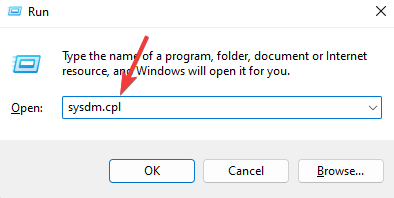
  2. 2. Type sysdm.cpl and then press Enter.

    sysdm.cpl command
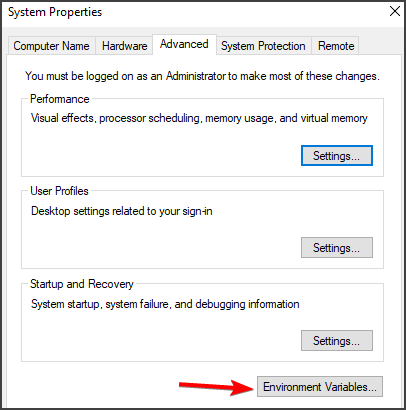
  3. 3. The System Properties menu will open. Navigate to the Advanced tab.

  4. 4. Go to the Performance section and click on Settings.

  5. 5. Choose Visual Effects from the list of options.

    performance options
  6. 6. In the Custom section, uncheck Animate windows when minimizing and maximizing, Fade or slide menus into view and Fade or slide ToolTips into view.

  7. 7. Save your changes and close the System Properties window.

Windows 10’s animations could hinder PC performance. Reduce or disable special animations and special effects for better speed on Windows 10.

3. Enable your antivirus

  1. Open the Start menu and select Settings.settings menu windows 10
  2. Go to Update & Security and then Windows Security.windows security on windows 10
  3. Click Virus & Threat Protection.
  4. Select Manage Settings.
  5. Ensure that Real-time protectionis turned on. If it’s off, toggle the switch to turn it on.Real-time protection

If you don’t like Windows Security, choose a reputable third-party antivirus. Most options nowadays are made to use as few system resources as possible while keeping your system protected in real-time.

Just make sure to always keep it enabled to prevent any infections that could slow down your Windows 10 PC.

4. Choose the High Performance Power plan

  1. Press Windows + S to open the search bar, type Control Panel, and press Enter.
  2. Select System and Security, then click on Power Options.
  3. Click on Show additional plans, then select High performance.high performance power options

For maximum speed, select the High Performance mode on Windows 10, which runs the CPU at full power.

6. Clean your registry

  1. Open the Start menu.
  2. Type Create a restore point and select Create option under System Protection.system restore point windows 10
  3. Once created, press Windows + R to open the Run dialog box.run dialog box
  4. Type regedit and press Enter to open the Registry Editor.
  5. Navigate to sections of the registry (e.g., HKEY_LOCAL_MACHINE\Software).
  6. Carefully delete obsolete entries to improve performance, but avoid deleting important system entries.

Installing and running various programs will eventually have an direct impact on Windows Registry database.

6. Optimize hard drive performance

  1. Go to your Home Screen and from there access your Charm bar.
  2. In the Search box type defrag and press enter in the end.
  3. Within the search results choose Defragment and optimize your drives and the Optimize Drivers windows will be then displayed on your computer.
  4. First, for each driver pick Analyze in order to see if a defragment operation is being required or not.
    optimize drive speed up windows 10
  5. If you need to repair your hard drive just pick the Optimize option.

We all know that if there are problems with the hard drive your computer will run slower, with lags and with various errors.

Well, that’s why you should periodically check the performance of your hard drive in order to optimize it and, of course, for ensuring much power and better performances.

7. Check for bad sectors on your hard drives

  1. Right-click on the drive you want to analyze.
  2. Choose Properties.
  3. Select the Tools tab and just pick Check in order to see if there are any errors.
    check drive speed up windows 10
  4. Your Windows OS will check for issues on your drive and also it will prompt you with the proper results (then you will be able to see if there are bad sectors or not).

Another problem that might be related to your hard drives is the bad sectors issue. Well, in order to make things better and for bumping the speeds on your Windows 10 powered device, you should check for bad sectors.

If there are bad sectors, the Windows OS will separate the same from the rest of your hard drive – if you will experience relevant bad sector issues, then the best will be to replace your hard drive with a new one.

8. Uninstall apps and programs that you don’t need

If you don’t regularly use particular apps and software, it’s easy to forget you installed them on your computer. Some of these apps may even run in the background thus using your computer’s resources.

The best solution is to simply go through the list of apps and programs installed on your machine and uninstall those that you no longer need.

9. Clean temporary files

  1. In Start, type Disk Cleanup.
  2. Open the utility and select a hard drive (usually C, but you can pick each of them one by one).
  3. The utility will show you categories of temporary files that are safe to remove. Select the ones you want to delete and click ok.choose drive on disk cleanup

These are the main optimization tips and tricks that you can apply to improve the speed of your Windows 10-based device.

If you are interested in acquiring some of the best PC optimization software, check out our article to find our recommendations.

All the operations from above can be easily completed even by a newbie so don’t hesitate and test the same in order to check the results.

Of course, in the end, don’t forget to provide us with feedback about your experience.

What To Do If Rogers ISP is Blocking a Website? [Quick Fix]

Owned by Rogers Communications, Rogers is an Internet service provider that operates in Canada.

Unfortunately, many users have reported that they can’t access specific sites and suspect that the Rogers ISP is blocking them.

If you’re one of them, you might be tempted to drop this ISP and find a more reliable Internet service provider.

Before doing that, however, check out our simple instructions below to bypass Rogers blocks and access any website on your computer.

Why is Rogers blocking my website?

You can have website blocking from Rogers ISP due to your DNS server configuration or parental control in some cases.

One of the most recurrent cases is with Rogers blocking IPTV. This situation arises when your Internet provider is blocking you.

As a consequence, you can use a VPN to bypass the problem or contact Rogers ISP for other solutions.

In addition, this issue may appear due to content restrictions for the UK or Canadian users to stop illegal services linked with copyright breaking or even child exploitation crimes.

How do I unblock a website on Rogers?

1. Use a premium VPN

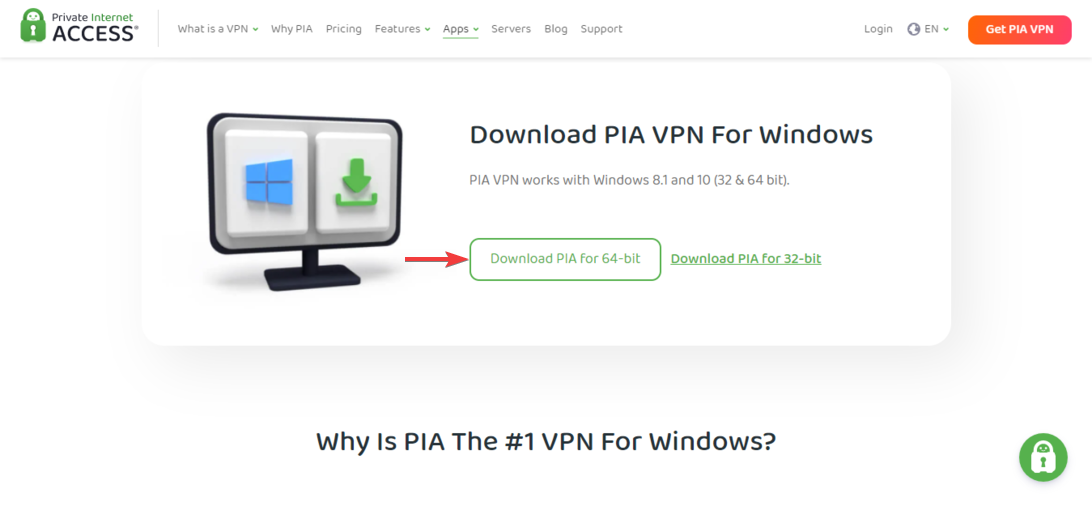
  1. Get a subscription plan for a premium VPN (we suggest PIA).
  2. Download and install the VPN app on your PC.
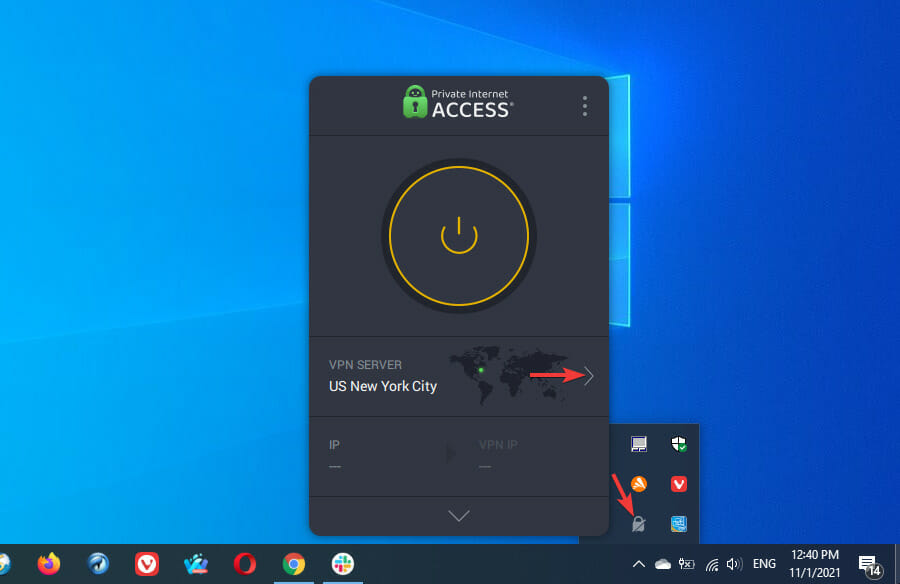
  3. Launch the app and sign in with your VPN credentials.
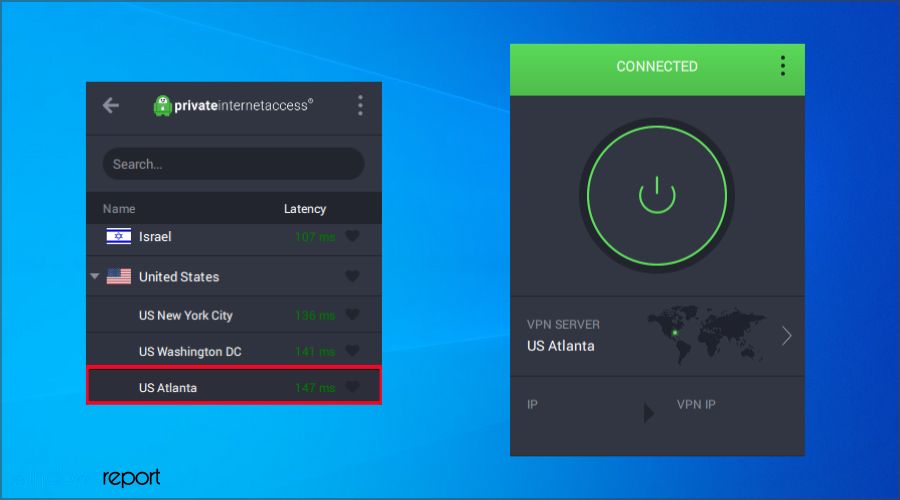
  4. Connect to a VPN server.
  5. Try accessing the blocked website.

Using a dependable VPN is one of the best ways to access blocked websites by bypassing ISP blocks, even if your ISP is Rogers.

The reason why we recommended PIA in our example above is that it’s the best VPN overall.

Created by Kape Technologies, you can use Private Internet Access (PIA) to avoid geoblocks, bypass firewalls, and view restricted content on the web.

It hides your IP address and encrypts your data, thus concealing your browsing activity from your ISP.

If Rogers can’t see what websites you access, it can no longer block them. PIA uses OpenVPN with up to 256-bit military-grade encryption, exclusive DNS servers to protect your DNS queries, and a kill switch.

More about PIA:

  • Protects up to 10 devices
  • A zero-logging policy
  • No IP or DNS leaks
  • 24/7 live chat support
  • 30-day money-back guarantee

Private Internet Access

Hide your browsing activity from your ISP to access websites blocked by Rogers right now.
Check price Visit website

2. Disable ad blockers and other add-ons

A lot of websites don’t load properly (or at all) if you have an ad blocker enabled. Similarly, you might face functionality issues caused by your web browser’s extensions.

Before pointing a finger at Rogers ISP because you can’t access a certain website, try disabling your ad blocker and any other browser add-ons. It might just do the trick.

3. Verify and change your DNS settings

3.1 Check your DNS settings

By default, your ISP is responsible for processing your DNS requests. However, if its DNS servers are not working properly, this might be the reason why websites get blocked.

Fortunately, you can change the DNS servers of your computer and set up custom DNS servers.

If you have a reliable VPN like Private Internet Access installed, you can use its exclusive DNS servers to unblock websites on the web.

Otherwise, you can set free, public, safe, and fast DNS servers using services provided by Google Public DNS, Cloudflare, OpenDNS, and others.

3.2 Flush your DNS and reset Winsock

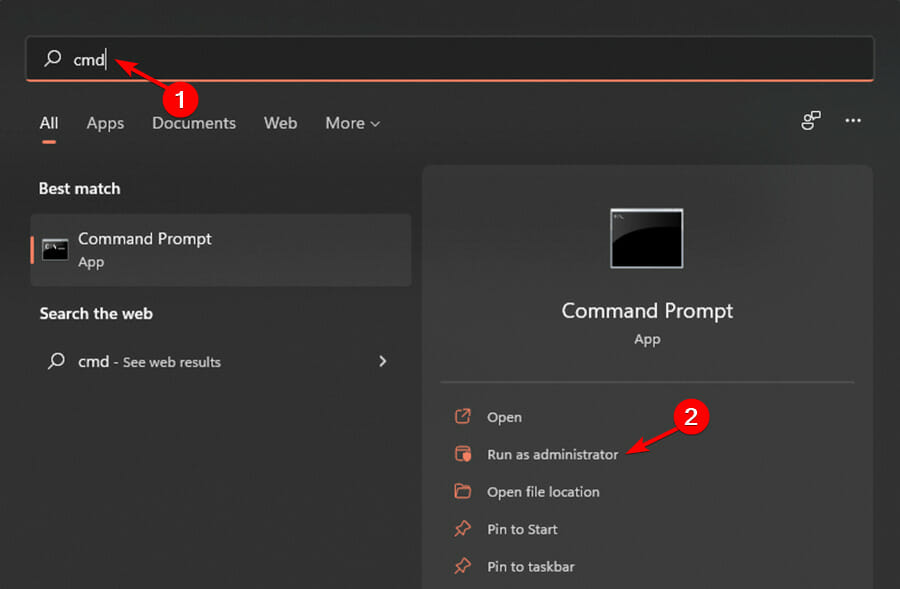
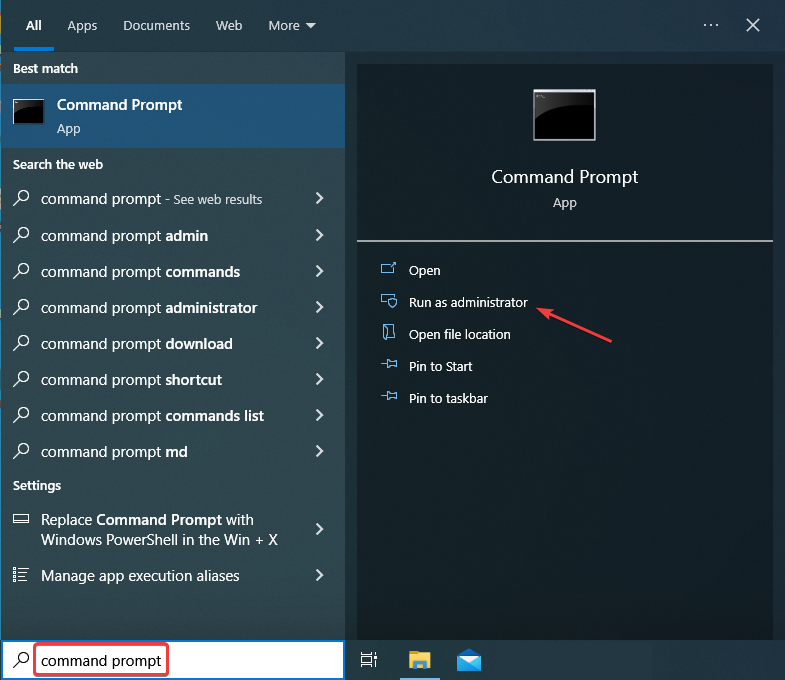
  1. Launch Command Prompt as admin by searching for cmd and clicking on Run as administrator.
  2. Type the following code and press Enter after each command:
    • ipconfig /flushdns
      ipconfig /registerdns
      ipconfig /release
      ipconfig /renew
      NETSH winsock reset catalog
      NETSH int ipv4 reset reset.log
      NETSH int ipv6 reset reset.log
      exit
  3. Restart your PC.

4. Change your web browser

If you can’t access a specific website, it might not be Rogers ISP’s fault but your web browser’s. To put this theory to the test, consider using a different web browser. It’s free, after all.

If you want our advice, go with Opera One. It’s a high-speed web browser that puts great emphasis on online privacy and security.

Besides, it has an integrated VPN service that you can use for free, so it’s like killing two birds with one stone. And it comes with a built-in AI.

⇒ Get Opera One

On the other hand, if you want to maximize your online privacy, you can use Tor Browser.

It works differently from a VPN because it redirects your network traffic through multiple servers to make sure you can’t be traced. It’s an excellent choice for accessing websites blocked by your government.

⇒ Get Tor Browser

5. Disable the parental controls

All modern routers have a parental control feature to prevent children from accessing websites with inappropriate content, like the ones promoting violence, drugs, or pornography.

Make sure to access your router’s admin panel and turn off the parental control feature.

Otherwise, you might have a parental control software application installed on the PC that prevents you from accessing certain websites.

For example, some Internet security packages incorporate both antivirus and parental control components.

6. Use a proxy server or Internet circumvention tool

Using a proxy server or Internet circumvention tool doesn’t offer the same level of privacy and security as VPNs, but it should be enough to access websites blocked by ISPs like Rogers.

For instance, you can try HMA’s proxy, Hidester proxy, Psiphon, or Lantern. All of them are completely free to use, so you can experiment with multiple options.

More solutions

➡️ Temporarily disable your antivirus or firewall

➡️ Access the blocked website by IP address instead of URL

➡️ Check the system Hosts file for blocked domains

➡️ Make sure to update your drivers and operating system

➡️ Check out Wayback Machine or Google Cache

➡️ Use Google Translate or an RSS reader

➡️ Switch to the site’s mobile version

In conclusion, if you can’t access specific websites because they were blocked by Rogers ISP, you can use the methods above to get around this issue and view restricted content on the web.

If you managed to get past the Roger ISP block by using one of our solutions, leave us a comment below.

How to Easily Export & Import Favorites on Internet Explorer

If you’re still using Internet Explorer to access the web, it might be the time to export favorites from Internet Explorer and move to the better browser version, Microsoft Edge.

Microsoft browsers offer a built-in bookmark manager for saving and organizing frequently visited pages like Chrome, Firefox, and other browsers.

Here’s how to export your bookmarks from your current browser and import them into Microsoft Edge, the upgraded version of Internet Explorer.

Where are the favorites stored in Internet Explorer 11?

Microsoft stores the information about your bookmarked pages in a folder on your computer. It can be accessed to assess your favorites or to extract them from the folder to move them.

You can find your Internet Explorer favorites in the following place: C:\Users\Favorites\

If you altered the browser’s storage location, the location might have changed, so try looking in different folders.

Quick Tip:

Even though Internet Explorer is still usable, it lost all support from Microsoft. If you want a browser that is faster and gets regular updates you should try Opera One. It also comes with a great deal of bonus features.

Opera One is a browser that incorporates speed and customizability into an award-winning design. The browser comes with unique features, such as built-in VPN, native AI and an Ad blocker.

Opera One

Highly customizable, user friendly and all the integrated features to create an amazing browser.
Free Download Visit website

How do I export and import favorites from Internet Explorer 11?

1. Export process

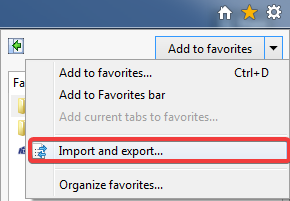
  1. Click Favorites (the star icon) in Internet Explorer, click the down arrow next to Add to Favorites, and select Import and Export.import and export option in internet firefox
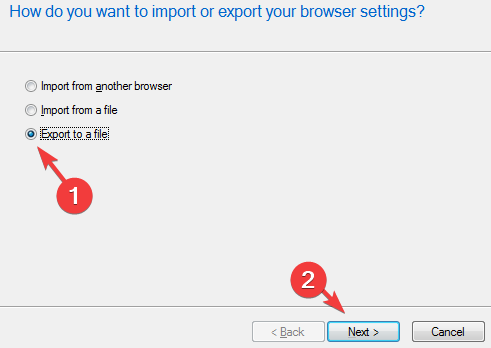
  2. Click Next after selecting Export to a file.the export window of intenet explorer
  3. After checking the Favorites checkbox, click Next.
  4. You should now be able to choose where to save the HTML file containing your favorites.

The exporting process differs between versions of Internet Explorer; however, this method is exclusive to version 11.

2. Import process

Microsoft Edge:

  1. Find the HTML file that Internet Explorer exported.
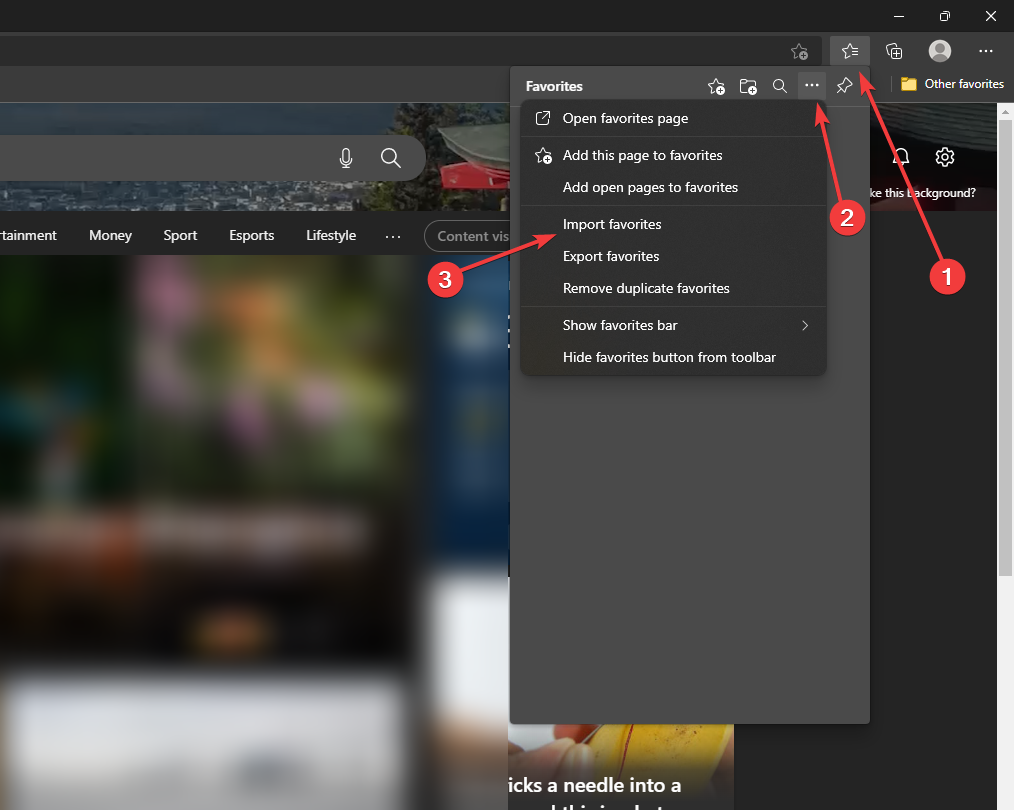
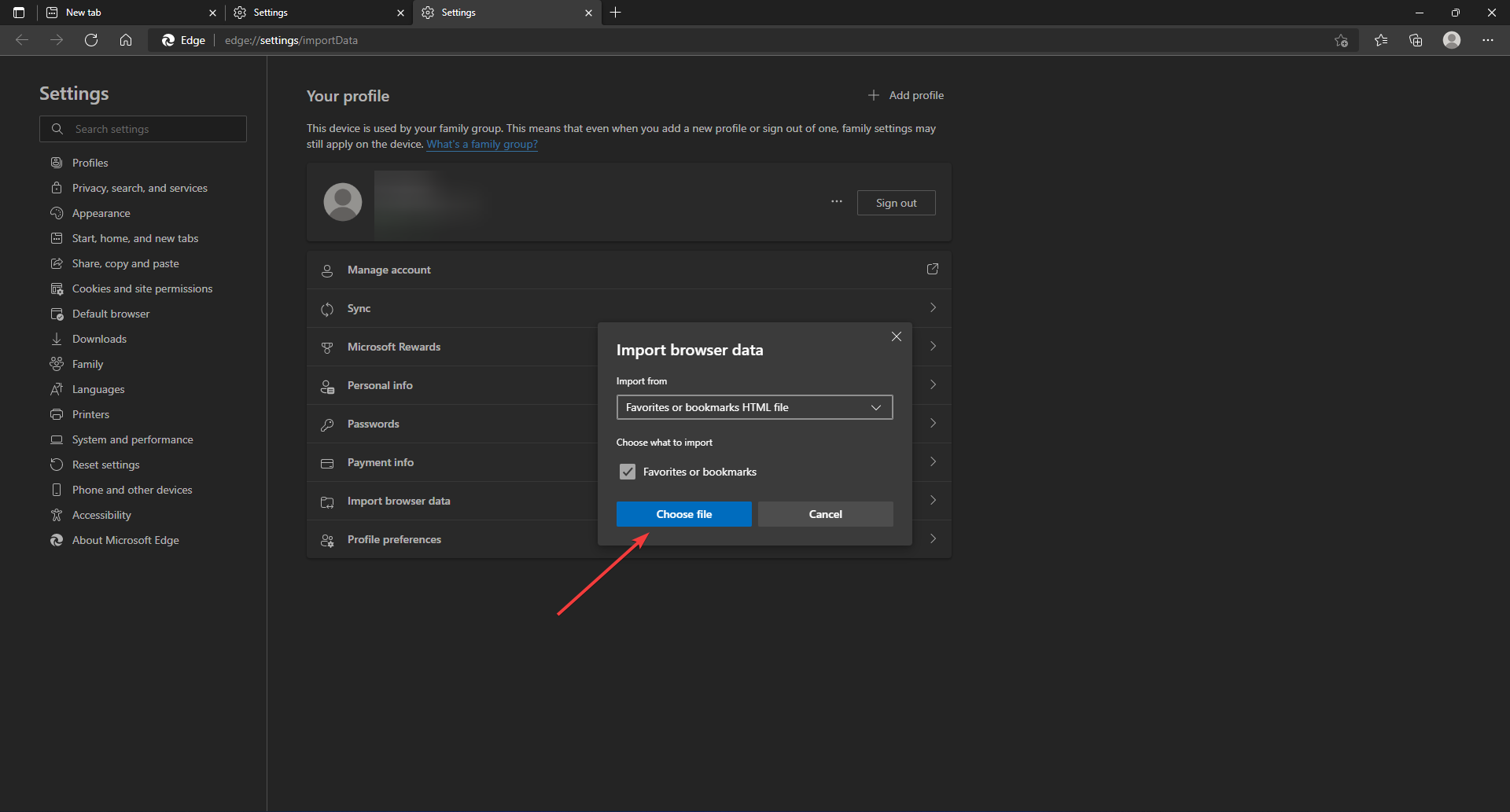
  2. Choose Favorites, More options, then Import favorites.import and export option in Microsoft edge
  3. Select the file from your PC, and Edge will import your favorites. Importing form an HTML file
  4. Go to Favorites in Microsoft Edge to see your imported favorites.

Because Microsoft Edge is a superior and enhanced version of Internet Explorer, you should export favorites from Internet Explorer to Edge to browse the Internet faster.

Chrome:

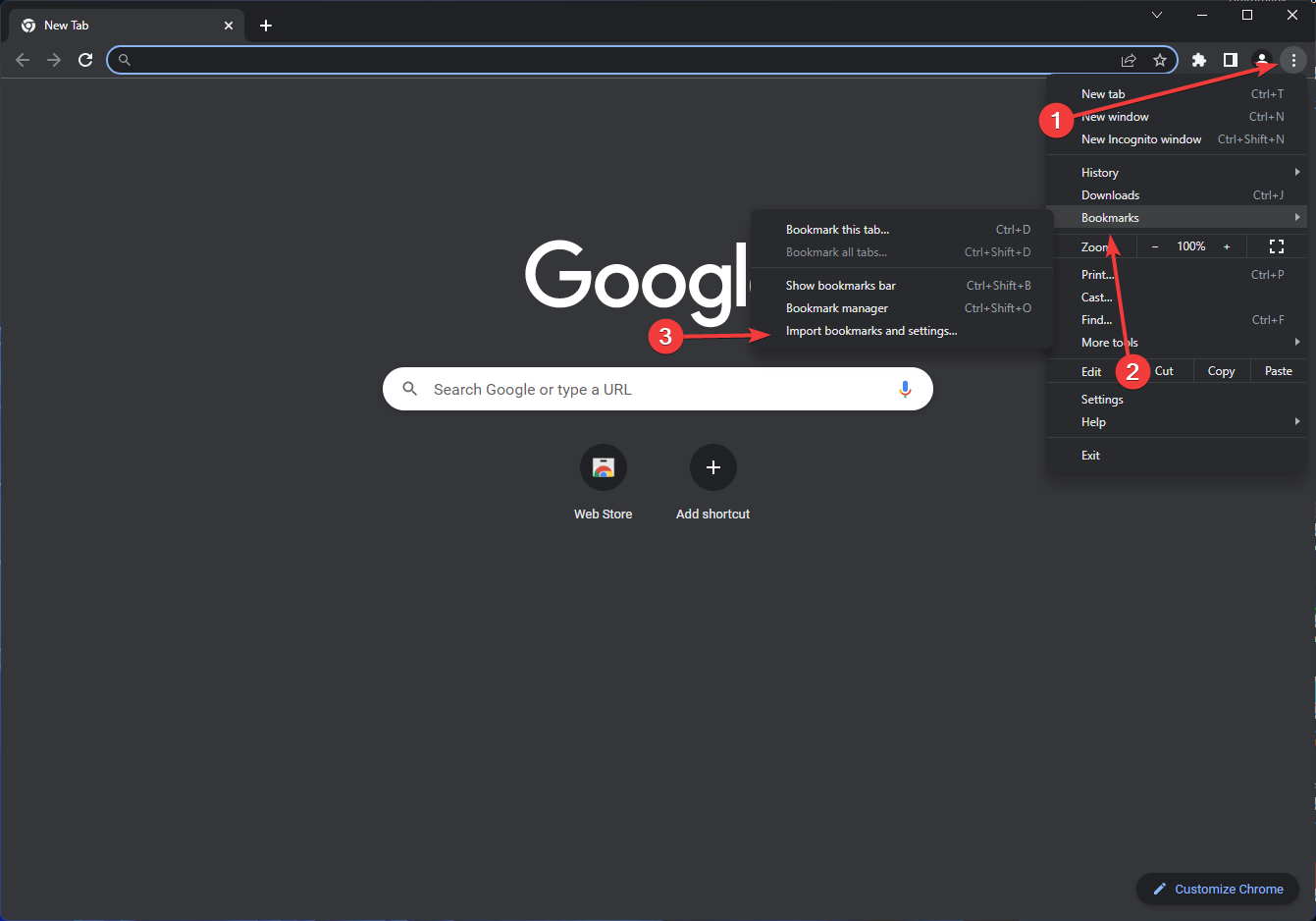
  1. Open Chrome.
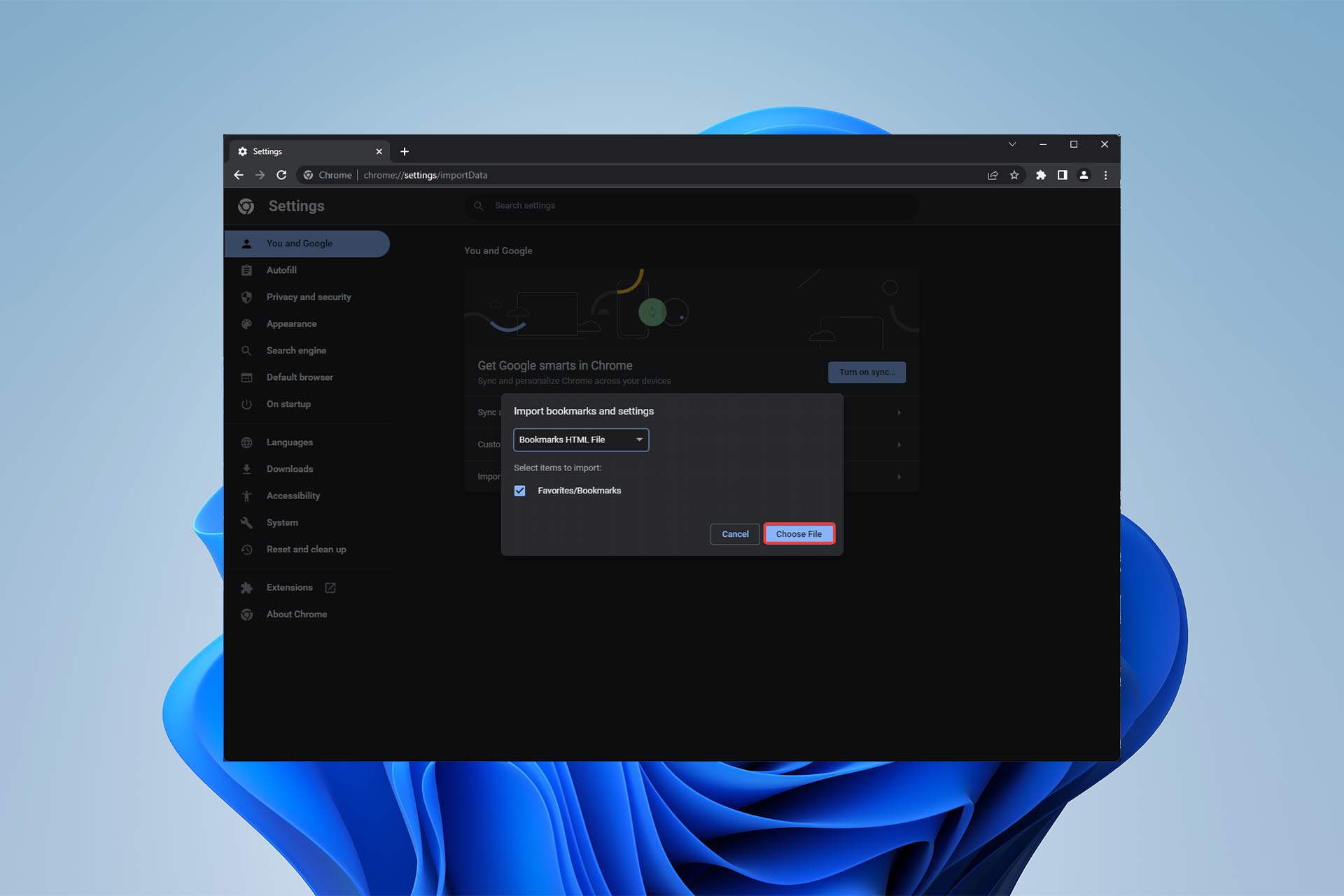
  2. At the top right, click More, select Bookmarks, and then Import Bookmarks and Settings.Google chrome importing bookmarks option in More tab
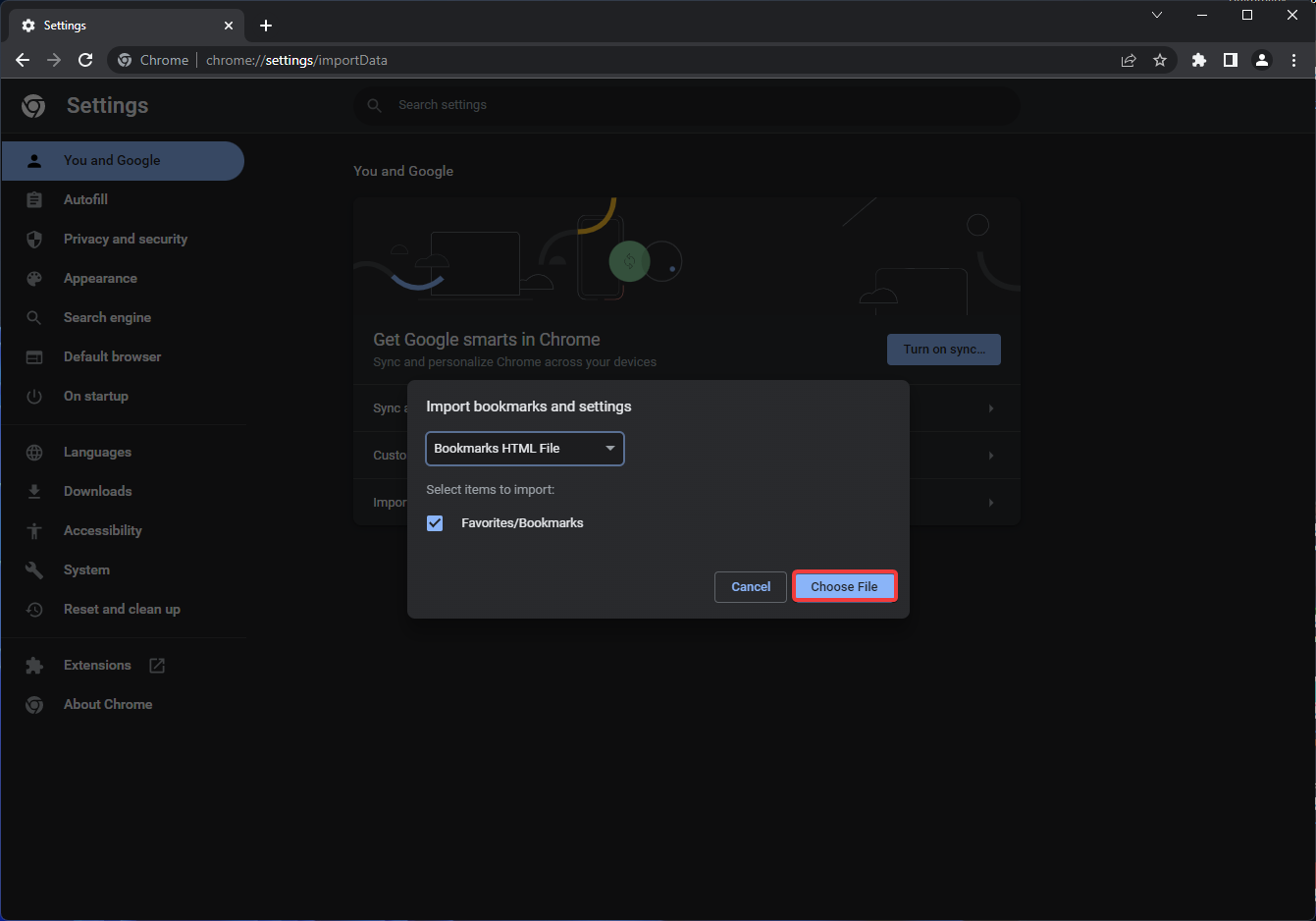
  3. Select the file that contains the bookmarks you’d like to import.selecting and importing from an HTML file in chrome
  4. Click Import and then Done.

To export favorites from Internet Explorer to Chrome, follow the steps above. As you can see, the procedure refers to favorites as bookmarks. They are the same item but are referred to differently in different browsers.

Firefox:

  1. Select the More Icon, then choose Bookmarks.
  2. Click Manage Bookmarks.manage bookmarks settings in firefox
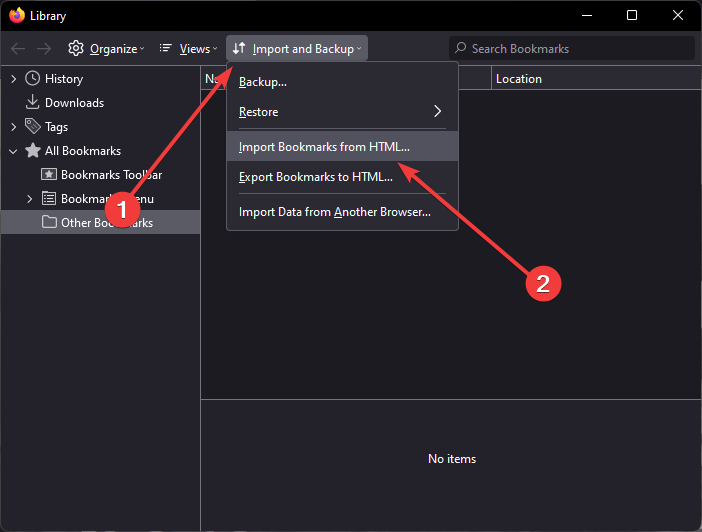
  3. Select the Import and Backup option and then click Import Bookmarks from HTML. bookmark management window of firefox
  4. Navigate to the bookmarks HTML file you want to import and select it.
  5. Select the Open option. The Import Bookmarks File window will close.
  6. Close the Library tab.

Many people prefer to export favorites from Internet Explorer to Firefox since Firefox is easier to work with and is much more secure.

How do I export and import bookmarks from Internet Explorer?

The above-mentioned exporting process can be used to export both favorites and bookmarks. You don’t need an add-on or to know where your bookmarks are kept exporting your Internet Explorer bookmarks.

Following the exporting process, the file containing favorites and bookmarks should be an HTML file that can be used to transfer your favorite websites to other browsers.

While you must initially learn how to use the new browser, you will undoubtedly want to move everything you had saved in your former browser to the new one.

Learning the basics of a browser may take time, but attempting to export favorites from Internet Explorer to another computer or browser may take just a few minutes.

Using the abovementioned techniques, you can move your Internet Explorer favorites or even bookmarks to your new computer or browser.

You should also remember that each browser has its user interface, so locating the correct settings to transfer your favorites or bookmarks may be difficult if you do not follow our instructions.

10 Ways to Reset Your Windows 7 Password Without Logging in

Want to reset your Windows 7 password without logging in? It is possible, and in today’s guide, we’re going to show you how to do it properly.

How do I reset my Windows 7 password without logging in?

1. Via Password Hint

  1. On the login screen, click the Password hint icon.
  2. Now try to remember your password.
  3. If you do, enter it in the password field.

2. Via third-party password recovery software

  1. Buy and download Stellar Password Recovery software.
  2. Open the program on your Windows PC.
  3. Use bootable media created within the Stellar tool.
  4. Choose your account and click the Reset Password button.
  5. Wait for the password to be changed and click on Reboot to finish.

Stellar Password Recovery is a password recovery tool developed to reset Admin or user passwords on Windows 7, 8, 8.1, and 10.

This suitable method will help you recover any login password using the bootable media drive. So, you have support for both BIOS and UEFI systems to reset your password without login in on your PC.

In addition, this solution comes with great compatibility for Windows devices, multiple languages support, or extremely effective and simple UI.

Stellar Password Recovery

Forget about complicated steps to reset your password on Windows 7, this software does it in seconds.
Check price Visit website

3. Use the Windows 7 Password Reset Disk

  1. Connect the password reset disk to your PC.
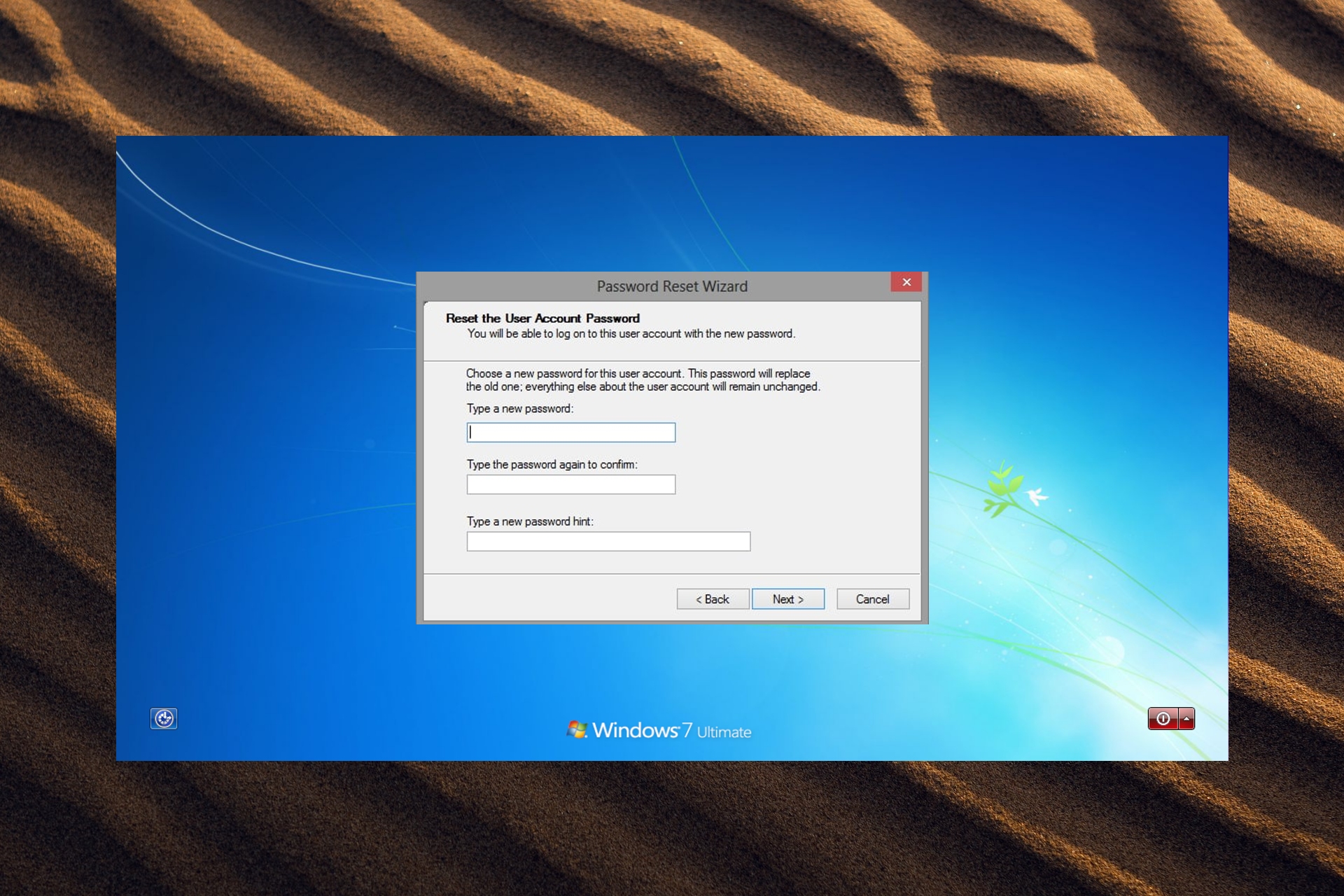
  2. Choose the Reset password option.
  3. Set up a new password and use it to log in.
Note icon NOTE
This method only works if you have made a Password reset disc beforehand.

4. Use the Administrator account

  1. Log in to the administrator account.
  2. Open Control Panel.
  3. Navigate to User Accounts.
  4. Select the affected account and choose the option to change its password.

5. Using Safe Mode

  1. Restart Windows 7 and press and hold F8 while powering on.
  2. In the Advanced Boot Options, select Safe Mode with Command Prompt and press Enter. how to reset Windows 7 password without logging in using advanced boot options.
  3. Enter the command: net user and hit Enter to see a list of all users on the PC.
  4. Enter the command: net user username new_password. Substitute username for your account name and new_password for your new password. reset windows 7 password without logging in.
  5. Close Command Prompt and log in with the new credentials.

6. Using the hidden Administrator account

  1. While powering on your Windows 7, press Shift five times once the log-in screen appears. Windows 7 login screen.
  2. If you have the hidden administrator account enabled, the profile will appear here. Open hidden admin account.
  3. Enter the hidden Administrator account and access your PC without a password.
  4. Select the This PC icon, then Computer Management from the drop-down menu.
  5. Select Local Groups and Users, then select Users. Open local users and groups.
  6. Right-click on the account you forgot the password for and click Set Password. Reset Windows 7 password.
  7. After setting a new password, log out of the hidden administrator account then log into your account using the new credentials.

7. Via the Utility manager

  1. Boot your PC using the Windows 7 installation disk. Once the Install Windows screen appears, press Shift + F10.
  2. In the Command Prompt, type in the commands below, hitting Enter after each line. If you did not install Windows 7 in the C drive, then replace C with the location where Windows 7 was installed. enter the commands to reset windows 7 password without logging in.
    • C:
    • cd windows\system32
    • ren Utilman.exe Utilman.exe.bak
    • copy cmd.exe Utilman.exe
  3. Close Command Prompt and click Yes in the Install Windows pop-up. Click Yes in the install Windows popup.
  4. Allow Windows 7 to boot normally then click on Ease of Access at the login screen.
  5. In the Command Prompt window type net user username new_password. Replace username with your account name and new_password with your new password. reset windows 7 password without logging in.

8. Adjust sethc.exe

  1. Power up Windows 7, while it’s turning on, press and hold the power button to force shut down the PC.
  2. Turn the computer back on to reveal the Windows error recovery screen. Click Launch Startup Repair (recommended). launch startup-repair to reset windows 7 password without logging in.
  3. Click Cancel when it asks to restore the PC. Allow the analyzing process to run its course.
  4. In the dialogue box, click View Problem Details and scroll to the bottom of the report. Click on the last link beginning with X:\windows\system32\. click on the link at the bottom.
  5. The notepad will appear with the online privacy statement. Select File then click on Open. Click on file then open.
  6. Next to Files of type, set it to All Files. Under the System32 folder, locate and select sethc and rename it to anything. rename sethc to anything to reset Windows 7 password.
  7. Still in the System32 folder, locate and select cmd.exe and rename it to sethc.exe. rename cmd to sethc.exe.
  8. Close all dialogue boxes and restart Windows 7. While the PC is powering on press Shift five times.
  9. The Command Prompt will appear at the login screen, type net user username new_password. Replace username with your account name and new_password with your new password. how to reset windows 7 password without logging in.
  10. Close Command Prompt and log in with the new credentials.

9. Reset using System Restore

  1. Restart Windows 7 and press and hold F8.
  2. In the Advanced Boot Options, select Safe Mode with Command Prompt and press Enter. how to reset Windows 7 password without logging in using advanced boot options.
  3. Enter the command: cd restore and press enter then type the command: rstrui.exe and press Enter. Enter the following commands to reset windows 7 password.
  4. In the System Restore pop-up, click on Next. System restore windows 7.
  5. Choose a restore point then click on Next, then Yes to confirm.

The System Restore feature does not affect documents, photos, or other data, however, it may uninstall recently installed applications.

10. Reset to factory settings

This is a last-resort solution. If none of the above solutions worked for you, then you may have no choice but to completely reset your PC. Performing a factory reset will wipe all data from your Windows 7 which is why this solution is a last-case scenario.

Factory reset Windows 7.

How do I bypass the login screen on Windows 7?

  1. Press the Windows key + R on your keyboard.
  2. Type this command: netplwiz and press Enter. Type the following and hit enter.
  3. Click your account name. Click on your Windows 7 account.
  4. Uncheck the box that requires users to enter a password then click OK.
  5. Enter your password when prompted and click OK.

Where does Windows 7 store passwords?

Passwords are stored in the Security Account Manager (SAM) database file on Windows 7. Stored passwords use a one-way hash format and are not accessible by non-administrative users.

Security Account Manager (SAM) database file.

Performing this action will bypass the login screen every time you start up your Windows 7 and will log you in automatically.

We hope one of the above solutions helped show you how to reset your Windows 7 password without logging in.

Let us know in the comments which method worked for you or if you have a suggestion for a solution not listed in this guide.

Microsoft Office for Students: Download & Install It for Free

Microsoft Office is one of the most popular and widely used applications for office work. Millions of students, professionals, and small businesses use it to create documents, spreadsheets, and presentations. The easiest way to get Microsoft Office is by buying it online.

You can also get it on your PC or Mac by installing the software directly from Microsoft’s website. This method works well if you already have a copy of Windows or macOS installed on your computer. You must also have an internet connection to download the software from Microsoft’s site.

While this may seem like the easiest route, it is not always possible. The subscription-based software comes at a price and not everyone can afford to purchase the software.

Although some users have been able to install the software through various means, they sometimes encounter the we’ve run into a problem with your Microsoft 365 subscription error message.

Microsoft Office for Students is a free version of the popular office suite that comes with some limitations. The app can be installed on up to five PCs or Macs and the user must be enrolled in an eligible academic program.

Do you get Microsoft Office free as a student? 

There are many different ways to get Microsoft Office for free. The most common way is through a student discount. If you are a student, you can download and install Microsoft Office for free. This includes Word, Excel, and PowerPoint applications as well as the Outlook email client. 

It’s a stripped-down version of the full Office experience that doesn’t include all the features and functions of the paid versions, but it’s still more than enough to get work done.

To qualify for the Office 365 for students plan, you must be an active student enrolled in a qualifying college or university and be 18 years of age or older. You’ll need your valid university email address alongside other system requirements to get this offer. 

The Microsoft Office for Students program is designed for students, teachers, and schools to get the latest version of Office for free. You can use your Microsoft account to log in and access your documents from all your devices at any time and allows up to five devices.

How do I download Microsoft Office for free as a student? 

  1. Launch your browser and navigate to the Microsoft Office website.
  2. Type in your student email address and click on Get started.
  3. Select I’m a student option.
  4. Microsoft will then send you a confirming email to your student email.
  5. Click on the link in your email then proceed to create your password.

How do I install Microsoft Office for free as a student?

  1. Launch your browser and go to the Office 365 Portal.
  2. Type in your University email and click Next.
  3. Enter your password and click Sign in.
  4. Click Install Office.
  5. Wait for the software to install and ask you to log in. 
  6. Ensure you enter your University email address and password again to activate.

Is Office 365 free forever for Students?

Office 365 Education is free for faculty and students at qualifying institutions. To qualify for Office 365 for Students plans, your school must be an accredited university or college.

As a student, you can take advantage of Microsoft’s Office 365 free plan for as long as your student email is valid and verifiable.

However, it does have some limitations. Microsoft may ask you to verify that you are a student at any time and revoke some functionalities if they find you are no longer eligible.

How long can I use Office 365 student?

You can use Office 365 for students for as long as you’re a student, whether it’s for 4 years or 10 years. If you leave your school, or if Microsoft confirms that you are no longer attending, they will deactivate your account and shut down its features.

This means that you’ll no longer be able to sign in to any of the services associated with your account. You can create a new one with a valid email address and continue enjoying the features.

Once you are fully set up with the software, you may find the need to use a VPN especially if your work is highly confidential. We have recommended the best VPNs to use alongside Office 365.

After using it for a while, you may come across some common Office 365 issues and errors but we also have a fix guide to address all these problems.

If you are an Office 365 user for the free version, we’d like to hear from you. Let us know of all the features that make it a smooth ride.

GIMP vs Photoshop: Which is Better? [Similarities & Differences]

Taking good photos is only half of the job done. Post-processing or editing is the other half that photographers rely on to really make the images pop.

With multiple image editing software available on the market, it is really confusing which one to go for. However, professionals opt for only a handful of tools, like Photoshop or GIMP.

Photoshop is arguably the most popular professional photo editing tool. It is so popular that when you want to say someone to edit the photos, you would simply say Photoshop the photo.

GIMP on the other hand is an open-source and free photo editing tool. It is compatible with all operating systems and comes with multiple third-party plugins to enhance its features.

Now if you are a photo editor, or just starting out, there might be some questions related to GIMP vs Photoshop, in your head. Which one should you go for? Which is more beneficial? Which one is simple to understand? etc.

Well, this guide will give you all the answers to your questions, as we will compare GIMP vs Photoshop in this guide. Let us check it out.

GIMP vs Photoshop similarities

Before we check out the similarities between GIMP and Photoshop (yes, there are a few) let us get ourselves an overview of both these image editing software.

GIMP – Overview

GNU Image Manipulation Program, in short GIMP, is a free and open-source photo editing program. It is compatible with all available operating systems, except for smartphones. GIMP is a very light program, making it more portable than Photoshop.

You can open PSD or Photoshop Document format, which is a native of Photoshop in GIMP as well, and continue with your editing. It has super fast batch processing.

GIMP cannot open RAW files by default, you need to install a plugin in order to do so. Beginners would love GIMP because it is available free of cost, and is a nice tool to know about the workarounds of professional editing.

Photoshop – Overview

Adobe Photoshop is the one-stop shop for all of your image editing needs. It is the most popular image editing software.

There are different types of Photoshop programs, such as Photoshop Lightroom, Photoshop Express, etc., but you get everything with the Photoshop program.

Photoshop lets you retouch your images, damage photo restoration, and apply multiple filters. Basically, you can do almost whatever you want to do to an image and get the desired output.

Photoshop support every operating system and even has a mobile or smartphone version of it. Since Photoshop isn’t just for editing, it also facilitates designing, illustrating, and many other disciplines, the learning curve can be a bit overwhelming, especially if you are a beginner.

Photoshop

Transforms your digital creative world into a canvas and brings it to life.
Free trial Visit website

Similarities between GIMP and Photoshop

First, both are powerful tools that can be used by professional photographers and graphic designers. Here are some of the similarities between GIMP and Photoshop:

  • Both can open and edit images.
  • GIMP can also open and edit PSD (Photoshop Document) files same as Photoshop.
  • GIMP comes with the same set of brushes and options (sometimes more) as Photoshop.
  • Photoshop support all major operating systems, just like GIMP.

Can GIMP do everything that Photoshop can?

The simple answer to whether GIMP can do everything that Photoshop does is NO. However, there are certain areas where GIMP and Photoshop have similar features, which we have listed above.

There are certain areas where GIMP offers more as compared to Photoshop, and there are times when you will feel limited options when editing an image in GIMP. So, it really depends on what you are looking to do with this software.

If you are deep into professional photography and graphic designing, etc. then you would opt for Photoshop because of its versatility. Otherwise, GIMP is a capable product.

What are the differences between GIMP and Photoshop?

We are not going to do the same old table-style comparison between GIMP and Photoshop, instead will give you an interesting comparison between the two photo editing software, which will help you decide which is the one for you.

1. Selection tools – Photoshop does it in a blink

Manual selection in GIMP and Photoshop offers the same experience. But when it comes to automatic image selection, Photoshop is the clear winner here.

GIMP takes a tab bit too long to understand what the user is trying to select in the image, especially when the background is not a solid color. On the other hand, Photoshop does it quickly, in fact, as soon as you finish clicking.

Moreover, Photoshop offers a wide variety of selection tools such as feather, expand/shrink, and automatic mask, whereas GIMP has only a limited set of selection tools on offer.

2. Automatic corrections – Photoshop does a clean sweep

Thanks to the addition of the Neural Filter with Photoshop version 22.0, when it comes to automatic adjustments such as brightness, contrasts, and colors, Photoshop is a clear winner

With advanced AI and machine learning, Photoshop better understands and applies the best possible automatic corrections to your images, which GIMP, unfortunately still struggles with.

There are other filters on offer by Photoshop that instantly perfects your skin, changes your facial features, and give you a range of effects that you won’t find in GIMP.

3. Learning curve – GIMP wins it here

If you are a beginner and just starting out in the world of photo editing or graphic designing, and have no prior experience in using a professional editing tool, then GIMP is a good choice.

Since Photoshop serves a wider audience, GIMP is made especially with digital photography in mind. So, you will find GIMP cutting down the chase and offering you the tools that you would need the most.

4. Price – GIMP is FREE

Hands down this section belong to GIMP if you are looking for photo editing software that is available for free.

Photoshop is available from Adobe monthly subscription cost of $9.99. It used to be available for a staggering $700 price where once you paid the fee, Photoshop was yours forever, but the deal is now long gone.

For $9.99 not only do you get Photoshop, but you also get Adobe Lightroom CC, Adobe Lightroom Classic CC, Photoshop for iPad, and 20GB of cloud storage space. Overall, GIMP is the best choice if you want to try your hands at editing and don’t want to spend a million to do that.

5. Editing on the go – Photoshop wins

GIMP does not have a smartphone app that you could easily open on your phone and carry on with your editing.

On the other hand, Photoshop has a smartphone app, that brings Lightroom presets to your phone, Photoshop Fix and Photoshop Mix feature, and access to Adobe Cloud, making it the best on-the-go tool to edit photos.

What are the main features of GIMP?

Here are the main standout features of GIMP:

  • GIMP comes with a full suite of painting tools including a brush, pencil, airbrush, etc.
  • It supports sub-pixel sampling
  • You can create your own custom brushes and patterns
  • It is very lightweight, making it super portable
  • Comes with superior batch processing
  • Offers advanced manipulation tools
  • Third-party plugins to enhance its functionalities
  • Supports multiple file formats including bmp, gif, jpeg, mng, pcx, pdf, png, ps, psd, svg, tiff, tga, xpm, and many others
  • It is available for free

What are the main features of Photoshop?

Here are the main standout features of Photoshop:

  • Photoshop is available for both Android and iOS
  • It has a wide range of tools compared to GIMP
  • Offers support for more color profiles than GIMP
  • Natively supports RAW and other complex formats
  • The interface and functions feel polished
  • Advanced selection tools
  • Filters are pinpoint and accurate
  • Overlays and warp features are absolutely spot on

What are the advantages of GIMP?

Check out the advantages of GIMP software:

  • It is best for beginners since it is available for free
  • GIMP is light in weight. So, it does not eat a lot of your storage space
  • The interface is not overwhelming and can be understood easily
  • The interface is also very customizable
  • You can re-assign keyboard shortcuts
  • Gets support from an active community giving you access to new plugins
  • Comes with superior batch processing

What are the advantages of Photoshop?

Check out the advantages of Adobe Photoshop software:

  • You can edit your images on the go with the mobile app
  • You can redeem the subscription cost as a business expense
  • Not only Photoshop is suitable for image editing but it also serves as a powerful tool for graphics design, illustrations, and other disciplines
  • It has superior compatibility with other Adobe programs such as Adobe Lightroom, Adobe Cloud, etc.
  • Photoshop supports CMYK mode for high-quality prints
  • Receives critical updates very often

Conclusion

In our conclusion, we will keep it short. If you are a professional and very deep into your profession, then there is no doubt that you should opt for Adobe Photoshop. Because of its professional set of tools, regular feature updates, and a suite of curated plugins, make Photoshop the best choice for you.

However, if you are on a budget, then there is no better alternative to Photoshop than GIMP. With GIMP, you will be sorted to accomplish all of your tasks. Though there will be some limitations, remember that you get GIMP absolutely for free.

You can check out our guide on the best photo-editing software for Windows 10/11. Also, we have a guide that lists some of the best advanced photo editing software for Windows 10/11.

GIMP vs Photoshop vs Krita

GIMPPhotoshopKrita
It is available for free.It comes at a subscription cost.It is available for free.
GIMP is best for image editing, adding filters, and animation.Photoshop serves a wider purpose including design, illustrations, and other professional disciplines. Krita can be used for illustrations and comic books.
GIMP offers a basic set of brushes, which can be expanded by downloading third-party brushes.Photoshop offers an extensive range of brushes.Krita offers a basic set of brushes, which can be expanded by downloading third-party brushes.
GIMP isn’t available for smartphones.Photoshop is available on smartphones, both Android and iOS.Krita isn’t available for smartphones.
GIMP is also available on Linux, alongside Windows and Mac.Photoshop is available for Windows and Mac.Krita is available for Linux, Windows, and Mac.
GIMP is small in size.Photoshop, being a professional tool, is bigger in size.Krita is small in size.

That is it from us in this guide. We hope that this guide made everything clear in terms of GIMS vs Photoshop and gave you a clear idea of which software you should go for.

5 Ways to Fix Microsoft Office Click to Run High CPU Usage

Microsoft Office Click to Run is frequently guilty of excessive CPU usage, resulting in system freezes, hangs, or performance lags.

Today, we will give you 5 of the best solutions to help you fix the high CPU usage problem of the Microsoft Office Click-to-Run service. Let us take a look at the solutions.

How do I fix the Microsoft Office click to run high CPU usage?

1. Repair Microsoft Office client

  1. Open the Start menu.
  2. Search for the control panel and open it.
  3. Select Programs and Features.control panel programs and features
  4. Click on Microsoft Office.
  5. Select Change.
  6. Click on Quick Repair and hit Repair to start the repairing process.
  7. Restart your PC and check if this fixes the error.

Since Microsoft Office Click to Run is an installer component, there are chances that because of some missing files or bugs, the process is eating up your CPU memory.

You can easily fix that by running the repair of the program following the above steps.

2. Scan your PC for malware

  1. Open the Start menu.
  2. Search for Windows Security and open it.
  3. Select Virus & threat protection.virus and threat protection steam error e502 l3
  4. Hit the Quick Scan button to begin the virus scan.

A virus can not only make your PC slow or freeze, but it will trigger multiple other issues.

So, it is very important that you have an antivirus installed on your PC.

3. Reinstall Microsoft Office

  1. Open the Control Panel.
  2. Select Programs and Features.control panel programs and features
  3. Click on Microsoft Office and select Uninstall from the top.
  4. Follow the on-screen prompts to uninstall the program from your PC.
  5. Visit the official website.
  6. Download Microsoft Office and check if this resolves the issue or not.

Reinstalling not only fixes the Microsoft Office issues caused by corrupt or missing important files, but it also installs the latest available version of the program.

4. Disable Click-to-Run Service

  1. Press the Win + R keys to open the Run dialogue.
  2. Type the below command and press Enter. services.msc
  3. Locate Microsoft Office Click-to-Run service.
  4. Right-click on it and select Properties.
  5. Under the General tab, go to Startup type and select Disabled.
  6. Click OK.
  7. Restart your PC.

Disabling this process isn’t recommended. But if you are still experiencing lag and high CPU usage issues with this service, then you can go ahead and disable the process.

5. Uninstall Click to Run

  1. Open the Control Panel.
  2. Select Programs and Features.control panel programs and features
  3. Click on Microsoft Office Click to Run and select Uninstall from the top.

If you have Microsoft Office Click to Run installed on your PC, then you can uninstall it from the Control Panel.

We have a dedicated guide covering how you can get the Click to Run service back on your PC after you have uninstalled it if you change your mind afterward.

How to check if you have Microsoft Office Click to Run

Microsoft Office Click to Run is a background service that uses streaming and virtualization technology to keep the Office apps up-to-date and allows users to run multiple instances of the Office apps.

You can also check if you have the Click to Run installed for Microsoft Office or not by following the below steps:

Via Office app

  1. Open any of the Microsoft Office apps such as Excel, Word, or Outlook 2013 or 2016.
  2. Navigate to File > Office Account > About Outlook (or any other app).
  3. On the right side, you will see About Microsoft.
  4. If the installed version is the Click to Run version, then you will see the text Click to Run.

Via Control Panel

  1. Open the Start menu.
  2. Search for the control panel and open it.
  3. Select Programs and Features.control panel programs and features
  4. Click on Microsoft Office.
  5. Right-click on Microsoft Office, and then click on Change.
  6. If it shows How would you like to repair your Office programs? and has two options to do Quick Repair or Online Repair, then you can understand that it is the Click-to-Run version.

What happens if I disable Microsoft Office Click to Run?

Once you disable or remove the Microsoft Office Click to Run, your Microsoft Office apps won’t get automated services. That is, they will not be automatically updated or installed with the most recent feature or security patches.

KB5016693 For Windows Server 2022: A Closer Look

The new Insider Preview Build for the Windows 11 Release Preview Channel (KB5016691) isn’t the only new software that Microsoft released today.

Microsoft also released a cumulative update, which is actually a C release, for the Windows Server 2022 OS in the form of build KB5016693 (build 20348.946).

You should know that this new software brings improvements to Microsoft Defender for Endpoint, file compression, and storage replica.

Furthermore, we are also looking at some long overdue fixes in TPM and BitLocker, among others, as you are about to see below.

What’s new in Windows Server 2022 build 20348.946?

Let’s start by saying that the tech company stated that there are absolutely no known issues with this release, which is an added bonus.

However, users are probably bound to stumble upon one after testing this brand new Insider build for Windows Server 2022.

Let’s have a closer look at the release notes and discover what this new software version brings to the table:

  • Enhances Microsoft Defender for Endpoint’s ability to identify and intercept ransomware and advanced attacks.
  • Compresses a file regardless of its size if you have configured Server Message Block (SMB) Compression.
  • Improves storage replication that occurs over low bandwidth or congested wide area networks (WAN).
  • Addresses an issue that prevents the Startup Task API from working as expected for certain apps.
  • Addresses an issue that causes Kerberos authentication to fail. The error is 0xc000009a (STATUS_INSUFFICIENT_RESOURCES “Insufficient system resources exist to complete the API”). This occurs when a client uses the Remote Desktop Protocol (RDP) to connect to a device that has enabled Remote Credential Guard.
  • Addresses an issue that causes ServerAssignedConfigurations to be null in a few full configuration scenarios.
  • Addresses an issue that prevents a private virtual LAN (PVLAN) from providing tenant and virtual machine (VM) isolation.
  • Addresses an issue that delays a client’s acquisition of the Internet Protocol version 6 (IPv6) address for extended periods in an IPv6 environment.
  • Addresses a known issue that causes Microsoft Edge to stop responding when you use IE mode. This issue also prevents you from interacting with a dialog.
  • Addresses an issue that might generate error 0x1E when you shut down or restart a device.
  • Addresses an issue that affects the installation of Microsoft Store apps when you have enabled Control-flow Enforcement.
  • Addresses an issue that prevents virtualized App-V Microsoft Office applications from opening or causes them to stop working.
  • Addresses an issue that might cause the deployment of the Windows Hello for Business certificate to fail in certain circumstances after you reset a device.
  • Addresses an issue that degrades BitLocker performance.
  • Addresses an issue that might prevent Windows from taking ownership of a Trusted Platform Module (TPM) device.
  • Addresses an issue that might cause a Windows device that is using BitLocker to stop working.
  • Addresses an issue that causes the Resultant Set of Policy tool (Rsop.msc) to stop working when it processes 1,000 or more “File System” security settings.
  • Addresses an issue that might cause Remote Desktop Session licensing to display a 60-minute disconnection warning after reconnecting.
  • Addresses an issue that causes the Settings app to stop working on server domain controllers (DCs) when accessing the Privacy > Activity history page.
  • Addresses an issue that prevents devices from receiving an offer from Windows Update for the same extension driver when that extension driver is already installed without the base driver.
  • Addresses a race condition that causes the Local Security Authority Subsystem Service (LSASS) to stop working on Active Directory domain controllers. This issue occurs when LSASS processes simultaneous Lightweight Directory Access Protocol (LDAP) over Transport Layer Security (TLS) requests that fail to decrypt. The exception code is 0xc0000409 (STATUS_STACK_BUFFER_OVERRUN).
  • Addresses an issue that affects a lookup for a nonexistent security ID (SID) from the local domain using read-only domain controller (RODC). The lookup unexpectedly returns the STATUS_TRUSTED_DOMAIN_FAILURE error instead of STATUS_NONE_MAPPED or STATUS_SOME_MAPPED.
  • Addresses an issue that affects input and output in the Storport driver and might cause your system to stop responding.

What can I do if KB5016691 fails to install?

  1. Press Win+ I to access Settings.
  2. Select the System category and click on Troubleshoot.w11 troubleshoot
  3. Press the Other troubleshooters button.other troubleshooters windows 11
  4. Press the Run button next to Windows Update.windows update troubleshooter

There you have it, folks! Everything you can expect if you are a Beta channel Insider. Leave a comment below if you found any issues since installing this build.

FIX: The requested resource is in use [Error Solved]

This message The requested resource is in use looks harmless when it first pops up on your computer screen. But, if it appears on your PC every time you try to open a program, it should worry you.

The error message is usually a warning for something quite serious – a Trojan horse malware that is called SmartService.

The Trojan horse‘s name is, sadly, well earned. The malware behaves in a very smart way, from the multiple ways it can worm itself onto your PC and expose it to threats.

Like other destructive malware, its strain can leave a trail of damage that includes: installing programs that steal your personal information, spying on your online activity, and relaying the data to hackers.

This all sounds scary. But the Trojan‘s reign of terror does not end there. Without a doubt, its most destructive effect is the ability to block the antivirus software installed on your computer. 

By doing this, the malware opens the door for other viruses and malware to infect your computer.

The compound effect is your computer becomes an inlet through which cybercriminals can have free passes over your banking and other personal information.

Because of this ability to infiltrate computers and, at the same time, disabling their malware defenses, SmartService is often the weapon of choice for ransomware attackers.

It also messes with your browser. Your browsing experience will be characterized by constant popups, annoying redirects, and dubious browser extensions.

From the point your PC gets infected, the virus can sit there for a long time before you even notice anything unusual.

During that whole time, the Trojan will be busy at work, stealing your personal information, spying on you, and installing vicious software on your computer.

It is thus horrifying to imagine the malware may already be done with whatever malicious act it was charged with by the time you detect it.

In this article, we’ll discuss ways of removing the Trojan if you have unfortunately been hit already. First, let’s look at the ways the malware can infect your computer.

How the SmartService malware infects your computer

Seeing how difficult it usually is to detect this Trojan infection and how destructive it is, prevention is indeed better than cure, in many ways than one.

The most effective way to avoid infection is to be vigilant in the way you use your own and interact with other computers.

SmartService can infiltrate your PC in any one of the following ways: malicious attachments to emails delivered to your inbox, or ads you click on the websites you visit.

You can also get it from infected files you install as part of the software downloaded from the Internet, content you download from social media, cookies on torrents’ platforms, and other freeware sites.

Quick Tip:

Most often this error can be caused by malware, and we all know that the only effective way to deal with malware is via reliable antivirus software.

That being said, we recommend that you try out an AI-based antivirus, as it will stop all manner of cyber-threats before they even enter your PC, so you never have errors again.

TotalAV

Prevent the infection with malware, trojan, and other viruses, with one of the best cyber security options.
Check Price Visit Website

How to fix The requested resource is in use error?

1. Restart your computer in Safe Mode

    In the case of SmartService, the error message itself is evidence of system contamination. Rebooting in Safe Mode is a good way of running your antivirus without being blocked. Safe Mode prevents the malware from running as this mode only runs the PC’s basic services.

  1. 1. Press the Windows key to open Windows Search.

  2. 2. Type msconfig in the search box.

    msconfig windows
  3. 3. The System Configuration app will now open.

  4. 4. Navigate to the Boot folder. You should see the Boot options listed at the bottom.

  5. 5. Choose the Safe Boot option. It should have the Minimal sub-option already checked.

    msconfig boot options
  6. 6. Click OK after you make your selection.

  7. 7. A popup screen will appear. Just choose Restart and your computer should safely reboot in Safe Mode.

If Windows 10 Safe Mode is not working and your computer starts normally, you can use our dedicated guide to fix the issue.

2. Use third-party malware removal software

We have mentioned already how the SmartService trojan can bypass some antivirus software as if they are not even there.

This means you can’t just use any antivirus software to scan or remove this rather sophisticated malware. It will simply respond with it is annoying The requested resource is in use error message.

However, there are other quality malware removal software tools you can use. We recommend you to try any of these best anti-malware software.

Bear in mind, in order to unlock the malware removal features with some of these tools, you will have to buy the license.

Just as well, you may want to be sure that the antivirus will itself not be blocked by the trojan before you spend money buying the license.

Still, you can prevent this from happening by first rebooting the PC in Safe Mode. Most malware removal tools come with instructions to guide you through installation to actual malware removal.

3. Uninstall malicious programs

  1. Open the Run dialog box by pressing the Windows and the R key simultaneously.
  2. Type in appwiz.cpl and hit enter.
    • This will open the Programs and Features folder, from which you can identify and uninstall all programs maliciously installed by the trojan horse.
programs and features Requested Resource is in Use

You should be able to tell which programs you have installed yourself from the ones maliciously installed by the malware.

Uninstall all suspicious-looking programs whose purpose you can’t verify. One of them might be the cause of The requested resource is in use malware. Afterward, proceed to the next step below.

However, many apps can’t be completely removed. Thus, we recommend you to use any of these best uninstaller software to get rid of residual files left behind.

4. Scan the System Configuration folder for malicious software

  1. To open the System Configuration folder, click the Windows startup icon and type msconfig in the search bar and press Enter.
    system configuration window Requested Resource is in Use fix
  2. Click the Startup option and a list of all programs that start running as soon as you start your PC will appear.
  3. Look out for those whose manufacturer is marked as Unknown.
    • There is a good chance all these are malware.
    • If they were indeed important, their publisher would be happy to be identified with them.
    • On some PCs, you may be directed to the startup section of the Task Manager.
    • Click the link.
  4. It will open this Task Manager window.task manager startup
  5. You will still see all the programs set to run automatically, on startup.
  6. Again browse the list to pick those whose publisher is marked as unknown.
  7. Disable all those.

You will be able to permanently delete them using the regedit solution we will discuss later.

Most malicious malware strains are so hard to detect, and such a pain to remove because they attach themselves to your PC’s startup folder.

As soon as you start your machine, these apps are up and running. This SmartService trojan horse behaves in the same way.

You thus must make sure to scan the Startup folder and remove all suspicious-looking programs from there. This is an important step, as even the really good antiviruses may still get blocked.

5. Delete all malicious IP addresses

  1. Press both the Windows and R keys simultaneously to open the Run dialog box. Once it pops up, paste the command thread below and click OK.
    • %WinDir%System32DriversEtc
  2. Open the Hosts file in the Notepad.
  3. You should get this:
hosts notepad Requested Resource is in Use fix

The two IP addresses you see at the bottom are for the PC’s, or localhost, and should be kept there. If you have been hacked, there will be other IPs listed below those.

Normally that’s evidence that you have been hacked. Those IPs should be removed. It is also advisable to seek the help of a cybersecurity professional at this stage. You are still not done.

Sometimes, the malware is deployed to carve a gateway for a hack or ransomware attack. Both are scary. And that’s why you should address The requested resource is in use immediately.

6. Remove malicious Windows Registry entries

  1. Press the Windows and R keys together and type regedit into the search box that opens.
    • This will bring up the Registry Editor.
  2. The quickest way to find the malware once in the registry is to use the Ctrl+F keys shortcut. It will bring up this popup:
    find registry Requested Resource is in Use fix
  3. Remember, to use this shortcut, you need to know the name of the trojan you are dealing with. In this case, start with SmartService.
    • But it may be better to have a list of trojans that behave in the same way and search for all of them.
  4. If the Find prompt does locate the trojan, you want to delete and remove it from there. Repeat the process until the search prompt brings up this popup:
search finished registry Requested Resource is in Use fix

Again, be careful when making changes to the Registry. Deleting the wrong Registry files can lead to serious PC malfunction.

Now, in cases of serious malware infections like this trojan horse, there is usually some malicious changes and entries made to the Windows Registry. Your PC won’t be clean until you remove these.

But sometimes you don’t know what the trojan‘s name is. You will thus need to manually search for all suspicious-looking programs in all folders with Run in their title.

These are programs that run automatically, from the moment you start your PC. There is likely to be malicious entries in those folders.

You will have to navigate to the CurrentVersion folder to find these auto-run programs. Use this sequence to get there:

Computer\HKEY_LOCAL_MACHINE\SOFTWARE\Microsoft\Windows\CurrentVersion

Once you are in the CurrentVersion folder, look for all folders with Run in the title. It can be Run, RunOnce, or others. Click once on each to reveal all the programs in the folders:

currentversion registry editor Remove the Requested resource is in use malware

Scan the listed files and look for suspicious names, which you feel could be malware. If you are unsure about any, look them up before deleting them.

7. Prevent malware infection

Trojans like this SmartService, that leads to the error message The requested resource is in use are difficult to detect, and a pain to remove.

By disabling antiviruses, they make your task more difficult. Because of this, it would seem best to be vigilant about the way you use your PC.

You will want to desist from connecting external devices to your PC without first making sure they are clean.

This includes portable USB drives and external hard drives. There are many USB flash drive antivirus solutions that you can use. Also, avoid torrents and other freeware sites with questionable security.

Be careful when installing the software you downloaded from the Internet. Many people unknowingly grant malware programs permission to install in this way.

We hope that these solutions will help you to get rid of the error code error 0x800700aa: The requested resource is in use.

Feel free to tell us if our article helped you, and if you have any other suggestions for us, in the comment section bellow.


How to Set a Static IP Address on Windows 11: 3 Ways

In this guide, we’ll show you how to set up a static IP address for your computer. A static IP gives you a fixed, unchanging number, making it ideal for gaming, hosting websites, and using VoIP services.

Sounds good? Keep reading to learn how to get a stable and consistent connection for all your online needs.

How can I set up a static IP address in Windows 11?

1. Use Settings to set a static IP in Windows 11

  1. Press the Windows + I keys combination to open Settings.settings windows
  2. Navigate to Network & internet and click Open.network and internet settings
  3. Click on Wi-Fi and find your current connection.clicking wifi settings win11
  4. Click on Edit IP settings and select Manual settings.edit IP settings windows
  5. Toggle on the IPV4 button.enabling ipv4 dns win11
  6. Set a static IP address from the details in solution 1 and click the Save button.

2. Use Control Panel to set a static IP in Windows 11

  1. Hit the Windows key, type Control Panel in the search bar and click Open.control panel windows open
  2. Navigate to Network & Internet. network internet windows
  3. Select Network and Sharing Center.windows network and sharing center
  4. On the left pane, select Change adapter settings.windows change adapter settings
  5. Right-click your network connection and click the Properties option.windows adapter properties
  6. Select the Internet Protocol Version 4 (TCP/IPv4) option and select Properties.windows properties ipv4
  7. Select Use the following IP address option, enter the details in 1 above and under Use the following DNS server addresses set Preferred DNS server and press the OK button.windows use the following ip

3. Set a static IP using Powershell

  1. Press the Windows key, type Powershell in the search bar and click Run as administrator.windows open powershell
  2. Type the following command and press Enter and take note of the details: Get-NetIPConfiguration powershell get IP command
  3. Next, enter the following commands: New-NetIPAddress -InterfaceIndex 4 -IPAddress 10.1.2.220 -PrefixLength 24 -DefaultGateway 10.1.2.1   Set-DnsClientServerAddress -InterfaceIndex 4 -ServerAddresses 10.1.2.1 powershell command for ip

    4. Set a static IP on WIndows 11 in cmd

    A quick and easy method to set a static IP on your Windows 11 PC is to do it through Command Prompt. All you need to do is input a few commands in it, and you will have a new static IP.

  1. 1. Hit the Windows key and type cmd in the search bar.

  2. 2. Select the first result and click Run as administrator.

    cmd windows admin
  3. 3. Type in the following command and press Enter: ipconfig /all

    ipconfing cmd
  4. 4. Next, type in the following command and hit Enter: netsh interface ip set address name="Ethernet0" static 10.1.2.220 255.255.255.0 10.1.2.1

    netsh cmd
  5. 5. Finally, type in the following command and press Enter to assign an alternate DNS address:netsh interface ip add dns name="Ethernet0" 8.8.8.8 index=2

    cmd change dns

Does a static IP increase internet speed?

The stability of a static IP address is one of the most significant advantages it has over a dynamic IP address. Using it, however, does not increase speed because it does not make any difference to your internet connection speed.

It is the bandwidth that decides how fast you can download from the internet.

internet speed test windows

The static IP address will however ensure that your website is always available to users on the internet. Another advantage is that other computers will always be able to find it on a local network for file-sharing or remote desktop connections without having to check what the address is every time.

What’s the difference between a static and dynamic IP address?

If you are new to networking and have heard the terms static IP or dynamic IP address and wondered what the difference was between the two, here’s a quick overview.

In simple terms, a static IP address is one that doesn’t change. You set it manually, and it stays that way until you change it.

A dynamic IP address is one that changes from time to time and is issued by your Internet Service Provider (ISP).

ipv4 properties

A static IP address gives you more control over your connection since you can always find the same computer on your network by typing in the same address every time.

Setting up a static IP is especially helpful if you need to access your computer remotely or if you run a server. If you have a dynamic IP address, then you can’t access your computer remotely because you don’t know what that address will be.

Pros of using a static IP address:

  • Improve speed when downloading large files.
  • Can be used for remote desktop connections.
  • Allows access to various programs without having to forward ports.
  • Can be used for gaming online.

Cons of using a static IP address:

  • It’s not always available from ISPs (Internet Service Providers) and can cost extra money.
  • Offers less security than dynamic IPs because hackers can more easily figure out your location.

Is a static IP good for gaming?

Yes, a static IP is good for gaming. It provides consistent connectivity, making it easy for servers to locate your system, which is beneficial for hosting websites and managing email servers.

However, it can be more vulnerable to hackers, so using a VPN is recommended for added security. For this purpose, we recommend Private Internet Access.

You can also set up a secondary IP address if you want to bypass firewalls, host multiple SSL certificates, or simply avoid a network outage when migrating from one subnet to the other.

Also, if you are still using Windows 10, follow our guide to set up your static IP address.

Wrapping up

If you had problems setting up your static IP we hope this guide was able to help you and your activity on the Internet is now more seamless. Using a static IP can help with errors such as ERROR_IP_ADDRESS_CONFLICT2, so don’t hesitate to use it.

We’d love to hear about your experience while setting up so feel free to share your thoughts in the comment section below.

Windows 11 Build 22000.917 is now in the Release Preview Channel

You guessed it! The time has come for us to check out a brand new Insider Preview for Windows 11 that has just been released by Microsoft.

Yes, the Redmond-based tech giant has released a new build for Windows 11 Insiders on the Release Preview Channel.

Build 22000.917, or KB5016691, brings the ability for IT administrators to add and manage languages remotely.

Also, Microsoft Defender for Endpoint received updates to better identify and intercept ransomware and advanced attacks.

And, speaking of updates, don’t forget that Microsoft recently had its August Patch Tuesday security software rollout.

What does KB5016691 bring to Windows 11?

Indeed, not only Beta and Dev Channel Insiders constantly get new software to play around with and test, although the first mentioned channels receive it a bit more often.

We’re about to take a more in-depth dive into this official release post and explore all the changes, improvements, and fixes that come with this new build.

  • Gave IT admins the ability to remotely add languages and language-related features. Additionally, they can now manage language scenarios across several endpoint managers.
  • Compressed a file regardless of its size if you have configured Server Message Block (SMB) Compression.
  • Enhanced Microsoft Defender for Endpoint’s ability to identify and intercept ransomware and advanced attacks.
  • Fixed an issue that causes ServerAssignedConfigurations to be null in a few full configuration scenarios.
  • Fixed an issue that affects the automatic high dynamic range (Auto HDR) feature for cross-adapter resource scan-out (CASO)-capable GPU drivers.
  • Fixed a known issue that causes Microsoft Edge to stop responding when you use IE mode. This issue also prevents you from interacting with a dialog. 
  • Fixed an issue that prevents virtualized App-V Microsoft Office applications from opening or causes them to stop working.
  • Fixed an issue that might cause the deployment of the Windows Hello for Business certificate to fail in certain circumstances after you reset a device.
  • Fixed multiple issues related to USB printing, such as:
  • A printer malfunctions after you restart or reinstall it
  • Being in the wrong mode after you switch from an Internet Printing Protocol (IPP) Class Driver to an independent hardware vendor (IHV) driver
  • Experiencing bidirectional communication issues that prevent you from accessing device features
  • We fixed an issue that affects the ProjectionManager.StartProjectingAsync API. This issue stops some locales from connecting to Miracast Sinks.
  • Fixed an issue that degrades BitLocker performance.
  • Fixed an issue that prevents Windows 11 SE from trusting some Microsoft Store applications.
  • Fixed an issue that prevents HyperVisor Code Integrity from being enabled automatically on systems that have Arm64 processors.
  • Fixed an issue that stops non-Windows devices from authenticating. This issue occurs when they connect to a Windows-based remote desktop and use a smart card to authenticate.
  • Fixed an issue that causes the Resultant Set of Policy tool (Rsop.msc) to stop working when it processes 1,000 or more “File System” security settings.
  • Fixed an issue that causes the Take a Test app to remove all policies related to lockdown enforcement when you close the app.
  • Fixed an issue that causes the Settings app to stop working on server domain controllers (DCs) when accessing the Privacy > Activity history page.
  • Fixed an issue that might cause certain Bluetooth audio headsets to stop playing after a progress bar adjustment. This issue affects modern systems that support Advanced Audio Distribution Profile (A2DP) offload.
  • Fixed an issue that prevents devices from receiving an offer from Windows Update for the same extension driver when that extension driver is already installed without the base driver.
  • Fixed a race condition that causes the Local Security Authority Subsystem Service (LSASS) to stop working on Active Directory domain controllers. This issue occurs when LSASS processes simultaneous Lightweight Directory Access Protocol (LDAP) over Transport Layer Security (TLS) requests that fail to decrypt. The exception code is 0xc0000409 (STATUS_STACK_BUFFER_OVERRUN).
  • Fixed an issue that affects a lookup for a nonexistent security ID (SID) from the local domain using read-only domain controller (RODC). The lookup unexpectedly returns the STATUS_TRUSTED_DOMAIN_FAILURE error instead of STATUS_NONE_MAPPED or STATUS_SOME_MAPPED.
  • Fixed an issue that might cause the Local Security Authority Server Service (LSASS) to leak tokens. This issue affects devices that have installed Windows updates dated June 14, 2022 or later. This issue occurs when the device performs a specific form of service for user (S4U) in a non-Trusted Computing Base (TCB) Windows service that runs as Network Service.

What can I do if KB5016691 fails to install?

  1. Press Win+ I to access Settings.
  2. Select the System category and click on Troubleshoot.w11 troubleshoot
  3. Press the Other troubleshooters button.other troubleshooters windows 11
  4. Press the Run button next to Windows Update.windows update troubleshooter

There you have it, folks! Everything you can expect if you are a Beta channel Insider. Leave a comment below if you found any issues since installing this build.

How to enable Cortana in Windows 10 Lock Screen in

At last week’s BUILD conference Microsoft announced a lot of improvements for its virtual assistant, Cortana. One of these additions is the ability to activate Cortana while on the Lock Screen, which should arrive to all users with the Anniversary Update.

But Microsoft already included this feature in the latest Windows 10 Preview build 14316, so Insiders on the Fast Ring can test it right now. However, Microsoft didn’t officially announce the feature yet, and it is still hidden in Windows 10 Preview, but there’s a way to enable it.

The reason why Microsoft didn’t officially present Cortana on the Lock Screen is that the feature is still buggy, and it doesn’t perform well.

Microsoft’s development team is still working on it, and we expect it to be officially presented to Insiders in one of the future Windows 10 Preview builds.

Enable Cortana on the Windows 10 Lock Screen

    Although Cortana on the Lock Screen is a hidden feature for builds before the Anniversary update, there’s a way to enable it. What you need to do is perform a simple registry tweak.

  1. 1. Press the Windows + R keys. The Run dialog will open.

  2. 2. Type regedit in the text box and click on OK.

    Run regedit and click ok.
  3. 3. Go to the following path: HKEY_CURRENT_USER\SOFTWARE\Microsoft\Speech_OneCore\Preferences

  4. 4. Right click on an empty place and select New >DWORD(32-bit) Value.

    enable cortana in windows 10 lock screen create new dword
  5. 5. Name the new value VoiceActivationEnableAboveLockscreen.

  6. 6. Set the value of VoiceActivationEnableAboveLockscreen to 1.

    enable cortana on the lockscreen value 1
  7. 7. Click OK.

  8. 8. Reboot your computer.

Next time you turn on your computer, you’ll be able to talk with Cortana directly from the Lock Screen. Simply say Hey Cortana and the virtual assistant will get activated.

When Cortana answers, you can ask her some basic questions, like what’s the weather like outside, or where’s the nearest Chinese restaurant.

Be aware that Cortana on the Lock Screen isn’t officially presented by Microsoft, and it works slow and buggy, so having it enabled all the time is maybe not a good idea.

Let us know in the comments about your impressions of having Cortana on the Lock Screen, if you tried the feature yet.

Xbox Adaptive Controller support will soon come to Linux machines thanks to one software engineer

As part of Xbox’s ongoing drive to make gaming more accessible to everyone, the Xbox Adaptive Controller was released in 2018 to meet the needs of gamers with limited mobility. The XAC also functions as a hub for multiple gaming devices that make gaming more accessible for those with disabilities.

Available at a range of retailers including Amazon, Target, Gamestop, Newegg, Best Buy, Walmart and of course the Microsoft Store, the $99.99 Xbox Adaptive Controller has been a great boon for gamers with disabilities and limited mobility on Windows PC, Xbox One, and Xbox Series X|S.

But what about Linux gamers? Unfortunately, the benefits of the XAC haven’t been available to gamers on Linux machines. But that is about to change all thanks to a single software engineer.

Nathan Yocom, who is also co-author of The Definitive Guide to Linux Network Programming, has been working to expand the existing XAC driver code. And with each update he comes a little closer to bringing full XAC support to Linux users. While full implementation isn’t quite there yet, you can expect it to be ready for prime time in the not-too-distant future.

Featured image courtesy of xbox.com. 

Join Party Error in Fall Guys: 3 Ways to Fix it

We all know how annoying it can be for errors to pop up during our gaming sessions. However, there are many errors you can encounter while playing games on your consoles like Xbox, PlayStation, and others.

The Fall Guys is a game on Xbox that allows you to play with other players. Hence, an error that users complain about frequently is the Fall Guys join party error in Xbox.

The Fall Guys is a multiplayer game available on different platforms and consoles. It models after the Battle Royale game and allows you to compete with other players by party matchmaking.

Some users have reported that playing Fall Guys and trying to join a party on Xbox produces an error code mentioning a different content version.

However, you shouldn’t panic if you’re struggling with this error. Likewise, we’ll discuss the ways you can fix the error.

Why can’t I join parties on Fall Guys?

Even though the exact reason for why your version of Fall Guys doesn’t work will depend on a multitude of factors, let’s have a look at some of the most common reasons:

  • Outdated game: You can encounter many issues if your game is ancient or has a new update that you are yet to download. Likewise, the Fall Guys can run into errors if the latest update is required to help it run smoothly. Hence, errors like the Fall Guys join party error in Xbox One can pop up.
  • The Fall Guys server issues: Whenever a problem with the Fall Guys game server or a maintenance session goes on, it can interfere with the game. So, the Fall Guys join party error can occur if it’s having issues connecting to the server.
  • Network connection problems: The Fall Guys require a stable internet connection to connect to a party matchmaking. However, when your network isn’t working correctly, it can cause difficulties connecting the game with its servers. Likewise, using a wired cable router can cause network lag and instability.

Let’s move on to some of the best fixes to resolve this issue once and for all.

How do I fix the Fall Guys join party error on Xbox?

1. Restart your console

  1. Press and hold the Xbox button in the controller’s center to prompt the Power center tab.
  2. Select Restart console.
  3. Click on Yes.

It will perform a power cycle on your console and help it boot properly. Next, check and see if the issue persists.

Restarting your console can also help fix issues like Fall Guys error code 200_2147483647, read this guide to learn more.

2. Check if there’s a server breakdown

The Fall Guys, just like every other game, functions by having a smooth connection to its servers.

Hence, you should also consider checking for any information about maintenance or server issues on their social media platforms.

Peradventure, there’s an update; it’ll be on their Twitter page. However, the only way out of this is to wait while they resolve the issue.

3. Make sure the Console is up-to-date

  1. Press the Xbox button at the console’s center to prompt the Guide panel.
  2. Select Profile and system from the panel and click on Settings.
  3. Click System, then select Updates.
  4. On the Updates page, you’ll see if there are any updates available.

Another easy way to fix the Fall Guys joins party error is switching to a wireless connection. It’ll help you have a faster and smooth internet connection.

How do I join a fall guy cross-platform party?

  1. Ask your friend to send you a friend request.
  2. Go to Menu in the top-right corner of the screen and click on the Friends Request icon or press RB/R1.
  3. Click on Accept to add friends.

This way, your friends can add you to a cross-platform party.

In conclusion, the Xbox console can run into several difficulties, and this is one of them. However, if you have followed the steps outlined in this article, you should have fixed the fall guys join party error on your Xbox.

Also, you can read through how to fix issues like the Xbox One Multiplayer won’t work.

You can leave your questions and suggestions below in the comments section. We’d like to hear from you.

The WhatsApp UWP app for Windows is now live

We know that many of you are fans of the WhatsApp application, so we come bearing some pretty good news.

As you probably already know, until now, WhatsApp for the Windows operating system was based on the Electron framework, one that leverages web technologies to build desktop apps.

This required a lesser development effort, as you wouldn’t need to rebuild your web app from scratch to cater to desktops.

However, it is also known that it sometimes resulted in relatively poor performance and consistency issues.

In order to fix that, WhatsApp has been working on a new Windows app based on the Universal Windows Platform (UWP).

And, now the app has graduated from its beta state and is generally available to all interested Windows users from the Microsoft Store.

Quick tip:

Another solution for the purpose of using WhatsApp is to install the Opera One browser. It offers a complete web experience and it was chosen by millions of users because of its versatility and reliability.

WhatsApp Web is integrated with your sidebar in Opera One for desktop, so you’ll never miss a message. Plus, this browser comes with built-AI, VPN and Ad blocker.

Opera One

Use this faster and more efficient browser that offers a complete web experience.
Free Download Visit website

Find the new WhatsApp UWP on the Store

WhatsApp developers announced this through a recent support article where they highlighted that the WhatsApp UWP app for Windows is now generally available.

Even though the company doesn’t exactly say that it leverages UWP, it does refer to native technologies being used to build the reavamped application.

According to the same source, these are the advantages that we get from switching frameworks:

  • Increased reliability and speed
  • Designed and optimized for your desktop operating system
  • Continue to receive notifications and messages even when your phone is offline

To be completely truthful, the first two options described by the company should really be a given, considering the migration to native Windows technologies.

However, the third one actually confirms that WhatsApp for the Windows operating system can now function as a standalone app where you don’t need to be connected to your phone all the time.

WhatsApp users will surely know that the above-mentioned functionality has been touted for some other platforms as well.

While still in Beta, WhatsApp had been introducing new features to its app rather quickly. Among them were message reactions, better chat filters, enhancements to voice notes, and view once content.

As we said at the beginning of the article, the new WhatsApp for Windows can be downloaded from the Microsoft Store.

Remember that WhatsApp confirmed that a native macOS app is in development too and those interested can sign up for the beta.

Have you already tried the new UWP WhatsApp software? Share your experience with us in the comments section below.

Clownfish Voice Changer in Discord [Download, Set & Use]

Many users utilize the Discord app for voice calls and text messaging. However, Discord lacks voice customization options for messaging.
So, some Discord users utilize Clownfish Voice Changer to apply different voice effects called voice mods to their messages.

In today’s article, you’re going to discover how you can easily configure this amazing app. Of course, for more information, you can always check the Clownfish Voice Changer official page.

Is Clownfish Voice Changer safe?

Yes, Clownfish Voice Changer is definitely safe although you should only download it from the official page we provided above.

It is risky to get it from an unofficial source because then, you won’t be completely sure if it’s infected with some virus.

But that goes from any other software out there, not only for the Clownfish download.

Does Clownfish work on Discord?

Clownfish Voice Changer is software that enables its users to change voices for messaging. At it gets installed at a system level, it applies voice effects to all apps that utilize microphones.

Clownfish Voice Changer is software that enables its users to change voices for messaging. At it gets installed at a system level, it applies voice effects to all apps that utilize microphones.

Therefore, Clownfish certainly works for Discord, Skype, Hangouts, and other notable messaging apps.

Some people use voice changers because it feels as if they make said people more anonymous. Some trolls use them so that they may harass people more menacingly.

Now, let’s see how to quickly get it on your PC. To find more interesting details about this app, make sure you read the entire guide.

How can I use the Clownfish Voice Changer in Discord?

1. Download and Installation

  1. Open the download page for Clownfish Voice Changer.
  2. Click a 64 or 32-bit download option for Clownfish depending on your Windows system architecture.
  3. Open the File Explorer utility with the Windows + E hotkey.
  4. Then, open the folder you downloaded Clownfish to.
  5. Click on VoiceChanger to open the setup window for Clownfish shown directly below.
  6. Press the Next button.
  7. Select all the component checkboxes, and click Next to continue.
  8. Click Browse to choose a custom installation path for Clownfish. Alternatively, you can install the software at the default Program Files path without selecting a different one.
  9. Then, select Next and Finish to install Clownfish.

2. Adjust Clownfish Voice Changer’s settings

  1. Double-click on your Clownfish desktop icon.
  2. Select the Set Voice Changer option on the context menu.
  3. Choose one of the available alternative voices for your Discord messages on the Clownfish Voice Changer window.
  4. To listen to voice previews, double-click on the Clownfish Voice Changer desktop icon and select the Hear microphone setting.
  5. Drag the Pitch bar to left and right to adjust the pitch for voices.
  6. You can apply effects to the voices by clicking the Sound effect buttons.
  7. Click the arrow button for the Effect mixer option to combine two different voices.
  8. To utilize Clownfish with non-default audio input devices, double-click again on the Clownfish desktop icon.
  9. Select Setup, then System Integration.
  10. Then you can select Install options for other audio capture devices on your PC.

3. Select your default input in Discord

  1. Open the Discord app (Windows or web).
  2. Click on the User Settings button near the bottom of Discord’s window.
  3. Then click Voice & Video on the left side of Discord.
  4. Clownfish is installed to capture sound with your PC’s default audio input device. So, select your default audio input device on Discord’s Input Device submenu.

How to use Clownfish Voice Changer?

Basically, after you perform the first two steps of our guide above, you will be able to integrate Clownvoice Voice Changer in any sound recording or broadcasting app.

As long as the voice-changing app is running, it will take effect on all the software that is using the microphone.

If Clownfish is not working, check if you set it up properly by using the steps above or uninstall and reinstall the app.

You should know that there is even a Clownfish Voice Changer apk so you can use it on your mobile as well.

The Clownfish Voice Changer mobile version can be used exactly as the one for the desktop so try it out.

Clownfish proved to be a safe app in several cases. However, because cybercriminals are always looking for new ways to access your data, we recommend choosing from the best antiviruses compatible with Windows 10.

A few users have said they’ve encountered microphone and audio issues after installing Clownfish. Clownfish issues can often appear due to incorrectly installed microphones, etc.

If it’s ever happening to can’t hear anyone in Discord, make sure you verify how you can easily fix this issue.

With our presented solutions, Clownfish’s voice settings will be played through your microphone and applied to Discord messaging whenever the CVC app is running.

Overall, Clownfish is fun and straightforward to utilize software that’s among the best voice changer apps for Windows.

If you face any additional questions in using this app, do not hesitate to leave a comment in the dedicated section below.

How to Disable TLS 1.0 and 1.1 and enable TLS 1.2 and 1.3 on Windows Server

TLS 1.0 and 1.1 are outdated and no longer secure. Microsoft started disabling them in Windows 11 Insider builds back in September 2023, and they’re gone for good in future releases.

If you’re on an older version of Windows, you can still disable these protocols yourself and make sure TLS 1.2 is enabled. Here’s how to do it right.

How do I disable TLS 1.0 and 1.1 on Windows Server?

  1. Press Windows key + R and enter regedit. Now press Enter.
  2. Navigate to the following key: HKLM\SYSTEM\CurrentControlSet\Control\SecurityProviders\SCHANNEL\Protocols
  3. Right-click the right pane, expand the New section and select Key.
  4. Name the new key TLS 1.0 and move to it.
  5. Create a new key called Client and move to it.
  6. Now right click the right pane, and select DWORD (32-bit) Value from the New menu.
  7. Name the new DWORD Enabled and double-click it to open its properties.
  8. Set the Value data to 0 and click OK to save changes.

If you want to disable TLS 1.1 instead, you will find it under the Protocols and proceed with the same steps.

Check if TLS 1.2 is enabled on Windows Server

  1. Press the Windows key + R to start Run, type regedit, and press Enter or click OK.
  2. Now go to the following key and check it. If it’s present, the value should be 0: HKEY_LOCAL_MACHINE\SYSTEM\CurrentControlSet\Control\SecurityProviders\SCHANNEL\Protocols\TLS 1.2\Client\DisabledByDefault
  3. Also, check the following key. If you find it, its value should be 1: HKEY_LOCAL_MACHINE\SYSTEM\CurrentControlSet\Control\SecurityProviders\SCHANNEL\Protocols\TLS 1.2\Client\Enabled
  4. If you can’t find any of the keys or if their values are not correct, then TLS 1.2 is not enabled.

There are four versions of TLS available, with the latest and safest one being 1.3, so be sure to use it along with reliable antivirus for Windows Server for maximum protection.

Enable TLS 1.2 on Windows Server by modifying the registry

  1. If you are running Windows Server 2008, check this Microsoft’s article regarding the necessary update in order to enable TLS 1.2. Once you’ve installed updates, move to the steps below.
  2. Open Registry Editor by pressing Windows key + R and entering regedit.
  3. Since we are dealing with registry, we strongly suggest backing up the current registry state. Incorrect changes to the registry might have detrimental effects on your system.
  4. Once we’ve dealt with that, follow this path:
    Computer\HKEY_LOCAL_MACHINE\SYSTEM\CurrentControlSet\Control\SecurityProviders\SCHANNEL\Protocols
  5. Right-click on the empty space in the right pane and choose New and then Key.
  6. Name the new key TLS 1.2 and click to expand it.
  7. Navigate to TLS 1.2, click on the empty space in the right pane and add two new keys. Name the first one Client and the second one Server. It should look like this.
  8. Now, select the Client key, right-click in the right pane and select New and then DWORD (32-bit) Value.
  9. Name the DWORD DisabledByDefault, and double-click it.
  10. Ensure that the Base is Hexadecimal and the value is 0 (zero).
  11. Create a new DWORD and name it Enabled and double-click it.
  12. Ensure that the Base is, again, Hexadecimal and the Value is set to 1.
  13. Repeat this for the Server key with the exactly the same DWORDS and values.
  14. Close the Registry Editor and reboot your server.
  15. If you want to revert back to the initial settings, just restore the Registry state from the backup.

To avoid any unplanned issues, it might be a good idea to use reliable backup software for Windows Server.

Enable TLS 1.2 with Powershell on Windows Server

  1. Press Windows key + X and select Windows PowerShell (Admin) from the menu.
  2. When PowerShell opens, run the following commands:
    New-Item 'HKLM:\SYSTEM\CurrentControlSet\Control\SecurityProviders\SCHANNEL\Protocols\TLS 1.2\Server' -Force
    New-Item 'HKLM:\SYSTEM\CurrentControlSet\Control\SecurityProviders\SCHANNEL\Protocols\TLS 1.2\Client' -Force
    New-ItemProperty -Path 'HKLM:\SYSTEM\CurrentControlSet\Control\SecurityProviders\SCHANNEL\Protocols\TLS 1.2\Server' -name 'Enabled' -value '1' –PropertyType 'DWORD'
    New-ItemProperty -Path 'HKLM:\SYSTEM\CurrentControlSet\Control\SecurityProviders\SCHANNEL\Protocols\TLS 1.2\Server' -name 'DisabledByDefault' -value '0' –PropertyType 'DWORD'
    New-ItemProperty -Path 'HKLM:\SYSTEM\CurrentControlSet\Control\SecurityProviders\SCHANNEL\Protocols\TLS 1.2\Client' -name 'Enabled' -value '1' –PropertyType 'DWORD'
    New-ItemProperty -Path 'HKLM:\SYSTEM\CurrentControlSet\Control\SecurityProviders\SCHANNEL\Protocols\TLS 1.2\Client' -name 'DisabledByDefault' -value '0' –PropertyType 'DWORD'

So, by applying these commands you trigger Windows Server to enable TLS 1.2 using PowerShell.

Is there any tool to enable TLS 1.2 on Windows Server?

  1. Download ISS Cryptio GUI.
  2. Once you download the application, run it.
  3. Check TLS 1.2 and click on Apply.

How to enable TLS 1.3 on Windows Server?

  1. Make sure you’re using Windows Sever 2022.
  2. Press Windows key + S and enter command prompt. Select Run as adminsitrator.
  3. Run the following command:
    reg add "HKEY_LOCAL_MACHINE\SYSTEM\CurrentControlSet\services\HTTP\Parameters" /v EnableHttp3 /t REG_DWORD /d 1 /f

Is TLS 1.2 enabled on Windows Server 2016?

The good news is that starting with Windows Server 2016, TLS 1.2 is supported by default for WSUS.

In other words, there is no need to enable TLS 1.2 on Windows Server 2016 or Windows Server 2019.

Therefore, you only need to update TLS 1.2 on Windows Server 2012 and Windows Server 2012 R2 WSUS servers.

That’s how to enable or disable TLS on Windows Server. With those steps, TLS 1.2 is enabled and TLS 1.0 disabled with ease.

All of these solutions require you to modify your registry, so be sure to create a backup beforehand. Also, we advise you to check our guide on how to restore Windows registry without a backup for more information.

To keep your system secure, it’s best to disable outdated protocols like TLS 1.0 and stick with TLS 1.2. If you’re not sure how, check out this guide to disabling TLS 1.0, how to enable TLS 1.2 on Windows 11, and how to reset TLS settings to default for a quick tune-up.

What method do you use to enable TLS 1.2 on Windows Server? Let us know in the comments section below.

Latest Windows Web Experience Pack update brings widget notifications to more Windows 11 users

Microsoft has started rolling out an update for the Windows Web Experience Pack that powers Windows widgets and will now enable widgets notifications on the taskbar. Widgets are small cards that show dynamic content from users’ favorite apps and services on users’ Windows desktops, like the weather and news widgets.

The latest Windows Web Experience Pack update is aimed to provide more relevant and live content on the taskbar. Most widely known for the weather forecast, there are also other widgets like health, sports, finance, and breaking news. Microsoft also said that, Windows will get Windows 11 22H2 first major update for the operating system, expected will release in late September 2022.

As per the Neowin story,  the taskbar shows the weather news most of the time changing from time to time to other widgets. If a user doesn’t interact with the notifications that show on the taskbar, the taskbar will return to show the weather news.

The latest Windows Web Experience Pack update will start to roll out in a few weeks, says Microsoft. If you are a new user of Windows 11 and want to know more about Windows 11 and its widgets, then Microsoft’s official documentation will help you to know the information about Windows widgets, personalization options, and other features.

For more latest and exclusive tech news updates follow us on Google News.

Xbox and the Special Olympics to partner once again for Gaming for Inclusion 2022

Following its debut last year, the Gaming for Inclusion e-sports event will make its return in 2022. And once again, Xbox will be partnering with Special Olympics to bring disabled and handicapped athletes together for a Rocket League e-sports competition.

Contestants will be competing for a chance to play alongside Special Olympics celebrity supporters including Jamaal Charles of the NFL, TikToker vaultboy, and various stars from WWE wrestling. The Celebrity Showcase will stream on September 17.

Also, this year’s Gaming for Inclusion will give three Special Olympics athletes a chance to shine as shoutcasters and hosts at the event. These are Jose Moreno from Special Olympics Illinois, Amber Gertsch from Special Olympics Utah, and Ben Gregory from Special Olympics Indiana.

Each of these lucky athletes will get to travel to Redmond, WA for two-day training at Microsoft’s campus where they’ll learn how to analyze e-sports games and provide commentary. Of the opportunity, Moreno had this to say,

I appreciate Special Olympics and Microsoft for providing me with this incredible leadership opportunity to become a shoutcaster at this year’s Gaming for Inclusion event. Gaming creates a common bond and a fun way to connect with people of all abilities around the world. I’ve made new friends through gaming because we love it, and anyone can play.

The Rocket League tournament will be held on Saturday, September 10 with the Celebrity Showcase following a week later on the 17th. You can watch these streams on the official Xbox Twitch channel as well as on the Special Olympics YouTube channel.

Microsoft Edge Not Connecting to Internet: Fix & Make It Work

Microsoft Edge is just one of many new features of Windows 10, and just like it’s the case with other notable features, users are satisfied with it. But some users reported that Microsoft Edge is not working.

This could be due to a range of issues, including both problems with the browser and your computer itself.

So we prepared a list of the solutions that worked for most users to help everyone who faces this problem.

But first, here’s the list of all the potential Edge problems you can resolve with the solutions we presented:

  • Microsoft Edge won’t open
  • Microsoft Edge crashes
  • Microsoft Edge runs slow
  • Microsoft Edge not working after update
  • Microsoft Edge keeps freezing 
  • Microsoft Edge crashes after opening a tab

Why is my Microsoft Edge not working?

As is the case with other browsers, Micorosft Edge too could not be working if the Network Settings on your device are misconfigured. So, make sure you check them and revert any recent changes.

Other than that, running an outdated version of the browser or having such extensions installed too can cause issues with Edge. Also, make sure that your computer is not running low on resources since that would affect the functioning of apps, including that of Microsoft Edge.

Besides, the presence of malware, corrupt system files or browsing data, third-party app conflicts, or an improper installation of the browser is just as likely to be the culprit here.

If you can’t pinpoint the underlying cause when Microsoft Edge is not working, try the solutions in the listed sequence to quickly eliminate the problem.

Continuously having problems with your browser is enough reason to consider switching to a new one, at least for the time being. Not only it’s frustrating to have to stop whatever you are doing in order to fix your browser not working, but it’s also time-consuming.

Quick Tip:

There are plenty of good browsers out there, but we believe Opera One has all the elements that will make any user happy. The primary goal is efficiency and easy workflow management.

Workspace, tab islands, free VPN, integrated social media in the taskbar, video pop-out, integrated messenger and AI are just a few of the features that Opera One brings. See for yourself if it’s a match for you.

Opera One

Designed to make your virtual life easier and your workflow even more organized.
Free Download Visit website

What can I do if Microsoft Edge stops working in Windows 10?

1. Switch to Private Network

  1. Press Windows + I to open the Settings app, and then select Network & Internet.Network & internet
  2. Select Wi-Fi from the left, and then click on the current network.current network
  3. Next, select the Private option here.Private to fix microsoft edge not working
  4. Restart your computer for the changes to come into effect.

This option sets your iInternet connection to Private, and Microsoft Edge won’t recognize any threats to your privacy. If Microsoft Edge is still not working, head to the next method.

2. Enable DNS Client

  1. Press Windows + R to launch Run, type services.msc in the text field, and click on OK.services.msc
  2. Find DNS Client and check its Status. If the service is not running, right-click on it and choose Start.start to fix microsoft edge not working
  3. Restart your computer for the changes to come into effect.

3. Register app packages 

  1. Press Windows + X to open the Power User menu, and then select Windows PowerShell (Admin).Windows PowerShell (Admin)
  2. Click Yes in the UAC prompt that pops up.yes
  3. Now, paste the following command and then hit Enter:Get-AppXPackage | Foreach {Add-AppxPackage -DisableDevelopmentMode -Register "$($_.InstallLocation)AppXManifest.xml"}command to fix microsoft edge not working

Once done, restart your computer for the changes to come into effect. If Microsoft Edge is not working but Chrome is, this method might help fix the problem.

4. Run the App Troubleshooter

  1. Press Windows + I to open Settings and select Update & Security.update & security
  2. Select Troubleshoot from the tabs on the left.troubleshoot
  3. Click on Additional troubleshooters.additional troubleshooter
  4. Now, select Windows Store Apps, and then click on Run the troubleshooter.Windows Store apps to fix microsoft edge not working
  5. Restart your computer for the changes to come into effect.

5. Run the SFC scan

  1. Press Windows + R to open the Run command, type cmd in the text field, hold Ctrl + Shift, and then click on OK.cmd
  2. Click Yes in the UAC prompt.click
  3. Paste the following command and then hit Enter:sfc /scannowsfc scan to fix microsoft edge not working
  4. Wait for the process to finish, and then restart your computer.

Once done, check if the Microsoft Edge not working problem is resolved. In case the browser is still not working, head to the next method.

6. Run DISM

  1. Type command prompt in the Search bar, and then click on Run as administrator.command prompt
  2. Click Yes in the UAC prompt.click Yes
  3. Paste the following command and press Enter:DISM.exe /Online /Cleanup-image /Restorehealthcommand to fix microsoft edge not working
  4. Wait for the process to finish, and then restart your computer.
  5. In case the DISM can’t obtain files online, try using your installation USB or DVD. Insert media and then execute the following command:DISM.exe /Online /Cleanup-Image /RestoreHealth /Source:C:RepairSourceWindows /LimitAccess
  6. Make sure to replace C:RepairSourceWindows path of your DVD or USB and follow the on-screen instructions to complete the process.

7. Clear the cache and data

  1. Open Microsoft Edge, and then press Ctrl + Shift + Del to open the Clear browsing data utility.
  2. Click on the Time range dropdown menu, and select All time.all time
  3. Select all the entries here, and then click on the Clear now button.clear now to fix microsoft edge not working

8. Turn off the firewall

  1. Go to Search, type Windows Defender Firewall, and then click on the relevant search result.windows defender firewall
  2. Select Turn Windows Defender Firewall on or off.Turn Windows Defender Firewall on or off
  3. Select Turn off Windows Defender Firewall for both Private and Public networks, and then click OK to save the changes.disable to fix microsoft edge not working

Once done, verify if Microsoft Edge starts working, and you can both open and access it without any trouble.

9. Change your antivirus

It’s already known that third-party antivirus programs don’t live in harmony with Windows 10 and its features. Sure, you might not experience any problems whatsoever.

But it’s quite possible that switching to another reliable and effective antivirus where users have not reported this error would do the trick.

10. Install the latest updates

  1. Press Windows + I to launch Settings, and then select Update & Security from the options here.update & security
  2. Click on Check for updates on the right.check for updates to fix microsoft edge not working
  3. If any updates are available, download and install them.

Microsoft delivers Edge updates through Windows Update. So, if the problem that’s bothering you is widespread, the company, most likely, has already released a solution or is working on it.

Once the updates are installed, the Microsoft Edge not working problem should be fixed. If not, head to the next method.

11. Uninstall the latest updates

  1. Press Windows + I to open Settings, and then click on Update & Security.update & security
  2. Select View update history from the options on the right.view update history
  3. Click on Uninstall updates.uninstall updates to fix microsoft edge not working
  4. Select the last installed update, and then click on Uninstall.uninstall
  5. Click Yes in the confirmation prompt.click Yes

Once done, restart the computer for the changes to apply and check if the Microsoft Edge not working problem is eliminated.

12. Change the security permissions

  1. Press Windows + E to open the File Explorer, paste the following path in the address bar, and then hit Enter:C:\ProgramData\Microsoft\Windows
  2. Locate the WER folder, right-click on it and then choose Properties.properties
  3. Go to the Security tab and then click the Edit button.edit to fix microsoft edge not working
  4. Select APPLICATION PACKAGES user and check the Read & execute, List folder contents, and Read options in the Allow column.
  5. Click Apply and then OK to save changes.

Once done, Microsoft Edge would now start working, and you should not encounter problems with it anymore.

Can I reinstall Microsoft Edge?

Yes, you can reinstall Microsoft Edge, and the tool for it comes built-in with Windows. It comes in handy for users facing issues with the browser and when the other methods fail to work.

To do that, simply try to Modify/Uninstall Edge, and it will automatically open the Repair tool, which will reinstall the browser. The best part about it, your browser data and configured settings remain unaffected after the process.

That’s it, we hope these solutions helped you solve the problem with the Microsoft Edge browser.

Also, find out how to reduce Edge’s CPU usage in Windows.

If you have any comments, questions or suggestions, just let us know in the comments below.

How to Fix Skype if the Verification Code is Not Received

If you forget the Skype credentials, a 6-digit verification code is sent to the registered account email to retrieve the information. While trying to perform the account recovery, some users reported not receiving the verification code. This issue becomes very annoying as users are not able to access their Skype accounts anymore.

If you are not receiving the verification code from Skype, it might be because of some issues with your email provider. Also, sometimes, you might receive the code but not in your inbox. Instead, it might be in the Spam/Junk folder. Lastly, it might be down to a problem with your Skype account.

What do I do if the Skype verification code isn’t received?

1. Verify Spam/Junk

check spam emails

Try looking into the Spam/Junk folder and see if you have any email messages from the Microsoft verification team. Sometimes, your code may land in your junk folder, not your inbox.

2. Make sure to check the primary email address

Check the primary email address if you have more than one linked to your Microsoft account.

The recovery code is not sent to all the linked email addresses, so checking the correct address is imperative.

3. Check your email service provider

Sometimes, the email service providers encounter server issues. Therefore, it is important to ensure that their servers are up and running.

Try sending emails or ask people to send you an email/force an email request from another website.

If you notice that you still aren’t receiving emails with a fully working internet connection, you might have to wait a while for the service to start working again.

4. Use the recovery form

form

If performing the regular account recovery doesn’t work, try completing the recovery form on the Microsoft website.

There, you need to provide the required account information. Answer specific questions to help Microsoft to identify you.

The verification form is sent to an agent that will review your account and provide an answer as quickly as possible. This will not take longer than 48 hours.

Quick Tip:

We recommend you log in on the Opera One browser and try to retrieve your Skype verification code from there. It is optimized to run on Windows 10 while maintaining a stable connection through its servers.

As for email recovery and management, Opera One is extremely customizable via extensions, allowing you to build it in a way that optimizes email correspondence. Also it comes with it’s own AI.

Opera One

Opera One

Recover your Skype emails easily thanks to this reliable and ultra-lightweight browser.
Free Download Visit website

How do I get my Skype verification code?

To get a Skype verification code, you need to log in on a new device or from a new location. Also, if you forget your username and need to retrieve it, you will be sent a security code.

However, if the verification code is not received via email or SMS, there might be a problem. We will show you how to fix that in the subsequent sections of this article.

Some users reported receiving the recovery code after logging on to their email through another internet browser.

Why is Skype asking for a code?

Skype, like other Microsoft accounts, requests a verification code when it notices a strange login activity on your account. This can be because you are signing in on a new device or a device you have not used for long.

Also, if you sign in on another device from a new location, you will be asked to provide the verification code sent to your email. This is all to protect your account from hackers.

The Skype verification code not received can be frustrating. This is because it prevents you from logging into your account. This can make you miss important meetings.

But with the fixes provided in this guide, you should be able to solve the problem with ease.

Are you facing other issues like Skype not working on Windows 10/11? Then, check our detailed guide on the topic to solve the problem effortlessly.

Feel free to let us know the solution that helped you fix the issue in the comments below.

PowerToys is getting the ability to copy text from an image

There’s yet another new feature in the works for Microsoft’s PowerToys app on Windows. This time around, it is PowerOCR, which is a new tool that will let you copy text from any image you have open in Windows (via Neowin.)

The mention of the PowerOCR tool was first spotted on a Pull Request for PowerToys on GitHub. There, Windows app developer Joe Finney initially entered the request, detailing how this tool will work. It’s also been tagged as validated and in manual testing.

And yes, if you’ve used Text Grab before, then the way PowerOCR works should be familiar! Just highlight a region of your screen, and Windows automatically will copy the text over to your clipboard. This is all powered by the Windows OCR API, which captures the text from the image and pastes it to your keyboard. Check it out in the GIF below.

This PowerOCR tool is still in the early testing stage, and it might be a while until it gets fully integrated into PowerToys. There are still a lot of tests to be done such as right-clicking image and capture cursor to keep within each monitor. But, in the meantime, if you want to enjoy an app that has this feature, check out Text Grab from Joe Finney!

Text Grab
Text Grab
Developer:
JoeFinApps
Price:
$9.99

Twitch Failed To Retrieve The Stream Key [Expert Fixes]

Twitch is one of the best streaming platforms and is getting more popular daily. To stream on Twitch.tv, you’ll need a Twitch Stream key.

If you frequently use this app, you’re probably aware of the issues with the service’s data breach due to access from other services like Streamlabs OSB.

After those, many streamers started getting the Twitch failed to retrieve stream key error. Here’s what one user had to say about the error:

I just opened OBS to start streaming, and OBS said it couldn’t connect me. I opened Twitch to check my stream key, and I just keep getting this error. Anyone else having issues? Thanks.

That’s why they decided to keep the viewer’s logging sequence as simple as before, but streamers will need to enroll in the 2FA (two-factor authorization) to retrieve the stream key. Learn how to fix this with the steps below.

What is a stream key?

For those who don’t know, by stream key, we mean a special code that allows OBS to link/communicate with a streaming platform (like Twitch). Then, it sends your video content for live streaming.

Each streaming platform has a unique stream key. You’ll need to find this key in your account settings if you want to link OBS with your preferred platform.

Your Twitch stream key lets the software know where to send your video. Keep in mind that every Twitch channel has one, and most streaming apps require you to enter your key before you start recording.

Why can’t I get Twitch stream key?

The reasons you are not getting your stream key are within a close circle. Below are some of the causes:

  • Insecure account: Every streamer should always secure their Twitch account with 2FA authentication. This protects your stream key and your account from being hijacked.
  • Complex verification method: While SMS verification for 2FA in Twitch is secured, you can use a simpler one in Authy. This allows you to access your account quickly.

Now, let’s see what you can do if Twitch failed to retrieve stream keys. To discover the solution that suits you the most, make sure you read this guide completely.

Quick Tip:

To fix this problem, try using a different web browser. Opera GX is integrated within a modern UI that is easy to navigate. It is specifically built to cater to the world of streaming and gaming.

This browser lets you connect to your Twitch account from the Speed Dial. Just enter your credentials and set it up to get real-time notifications about your channels and access the platform in one click.

Opera GX

This browser offers a complete web experience, where you can always stream without any problem.

What can I do if Twitch failed to retrieve stream keys?

1. Set the two-factor verification with a phone

  1. Navigate to the Twitch web version.
  2. Click the Log In button in the upper right corner of the window.
  3. Enter your Twitch credentials, then click again on Log In.
  4. In the top-right corner of the window, click on your profile image.
  5. Navigate to Settings.
  6. Click on Security and Privacy.
  7. Scroll down to the Security section, look at Two-Factor Authentication, and click on Set Up Two-Factor Authentication.
  8. This will take you to the 2FA page. There, click on the Enable 2FA button.
  9. Enter your phone number, then click on Continue.
  10. Type the 7-digit security code received on your phone.
  11. Scan the QR code with your phone, then enter the 6-digit verification code received (Or you can choose to Skip & Use SMS).
  12. Click on Done.
  13. What you’ll need to do now is try retrieving the stream key again.

Setting up the 2FA verification not only secures your account but also solves issues like Streamlabs stream key error on Twitch, OBS can’t access streaming, or not connecting.

2. Use Authy for two-factor verification

  1. Download the Authy app on your Windows PC.
  2. Install the application and set up your Authy account.
  3. Navigate to the Twitch web version. Click on Log In from the top-right corner of the window.
  4. Type your Twitch credentials, then click again on Log In.
  5. In the top-right corner of the window, click on your profile image.
  6. Go to Settings.
  7. Click on Security and Privacy.
  8. Scroll down to the Security section and click on the Set Up Two-Factor Authentication button.
  9. Enter the password and the phone number associated with Authy.
  10. Choose how you want to receive a log-in token (via SMS, phone call, or on the current device).
  11. Now, whenever you try and log in to Twitch and ask for the stream key, you’ll get the authentication token on your device.

The Authy for Twitch verification is simpler and is a quick way to solve the OBS failure to get stream key text from a remote issue.

Can I share my Twitch stream key?

Remember that whoever got your Twitch stream key can stream on your channel. In these terms, we strongly recommend not sharing your stream key with anyone and don’t show it during a video or live stream.

However, if you want to share it, make sure you trust those people (family, close friends, etc.).

That should do it. Alternatively, you can clear your browser’s cache and inspect the connection. However, the Twitch failed to retrieve stream key error occurs almost always because you don’t have a 2FA enabled on your account.

If you are experiencing other issues like Twitch not loading on Chrome or Firefox, check our guide on how to fix it effortlessly.

Feel free to let us know the fix that helped you retrieve your stream key in the comments below.

Fix: Vampire The Masquerade Bloodlines Failed to Find Steam

Vampire The Masquerade: Bloodlines is an amazing RPG from the last decade, but many users reported that Vampire The Masquerade Bloodlines Failed to find Steam error message when trying to run the game.

This error message can affect other games as well, and it’s actually a common Steam error.

We covered Failed to find Steam error in great detail before, but in this guide we’ll show you how to fix this problem specifically in Vampire The Masquerade Bloodlines.

Does Vampire The Masquerade work on Windows 10?

Yes, it absolutely can run on your Windows 10 PC, via Steam. That being said, as with every other PC game, you must take into consideration the system requirements for this title.

Not every game will run on your PC, and some titles will run smoother than others, depending on the hardware on your rig.

Here are the recommended system requirements for this game on Windows 10:

  • Processor: Intel Pentium 4 1.3GHz / AMD Athlon XP 1600+
  • Graphics: AMD Radeon HD 2350 Pro or NVIDIA GeForce 7100
  • RAM: 1 GB
  • HDD: 4 GB
  • DirectX 9 Compatible Graphics Card

However, sometimes when you are playing this title, you can run into the Can’t find Steam error code. This is mostly due to privileges, and we are about to show you how to fix it.

Where can I find EXE files on Steam?

When you install a Steam game, the title’s files will go in the same folder where Steam is, where it will have its own subfolder allocated.

It is there you will find the EXE files for the game in question, and we are about to show you just how to do that in this article.

How can I Fix Vampire the Masquerade Failed to Find Steam error?

1. Run Steam application in admin mode

  1. Navigate to C:\Program Files (x86)\Steam\
  2. Right-click on the Steam.exe file and choose Properties.steam properties
  3. Select the Compatibility and choose the option Run this program as an administrator.file properties
  4. Click Apply and OK.
Note icon NOTE
To activate the administrator mode, you must restart the Steam application.

This is one of the simplest solutions if Vampire: The Masquerade is not working on Steam, so be sure to try it.

2. Run Vampire The Masquerade with admin rights

  1. Navigate to C:\Program Files (x86)\Steam\steamapps\common\Vampire The Masquerade - Bloodlines\
  2. Right-click on the vampire.exe file and choose Properties.properties
  3. Click the Compatibility tab, then select the Run this program as an administrator option.properties
  4. Click on Apply.
  5. Click OK.

This solution allows you to restart the game to prevent the Vampire The Masquerade: Bloodlines failed to find Steam error from occurring again. It is a simple and fast fix as you must only visit the game’s installation folder. 

3. Modify the Environment Variables settings

  1. Open the Start menu and type advanced system settings.
  2. Select Advanced System Settings.
  3. Click on the Environment Variables option.
  4. Click on Path and select Edit.
  5. Navigate through the entire text from the Variable value row.
  6. Press the End tab and add the semicolon; symbol.
  7. Press OK.
  8. Restart the game.

If this option is missing from the list, then use the button New, and a variable text box will open for you.

Write the path in that box and enter your Steam directory as follows: C:\Program Files (x86)\Steam

This is an advanced solution, but it might help you if Vampire: The Masquerade is not working on Steam.

Why does Vampire The Masquerade keep crashing?

Well, games can crash for reasons beyond, but at the same time not unrelated to unsuitable hardware and operating systems.

Graphics drivers can also cause such behavior if they become outdated and aren’t updated regularly. It really depends on the game, but in this case, drivers and permissions are to blame.

Vampire The Masquerade: Bloodlines can rightfully be counted among the most popular games from the 2000s. Even though Bloodlines 2 has been announced, many are upset because Vampire: The Masquerade Bloodlines 2 won’t get 3rd view.

So, if you ever come across an issue like Vampire the Masquerade not working on Steam, now you will be better prepared for it.

Keep in mind that Vampire: The Masquerade – Bloodlines not launching is a clear sign that immediate actions are in order, so please refer to the guide above.

Also, if all your drivers are up to date and permissions have been granted, Vampire: The Masquerade Bloodlines not working on Windows 10 should never be the case.

We hope that you found this guide helpful and that you managed to fix Vampire The Masquerade Bloodlines Failed to find Steam error.