5 Best 9ANIME Adblockers To Use [Pc & Mobile]

Most people don’t like ads, and 9ANIME has plenty of them hence the need for an Adblocker. There are many different types of Adblockers, but the most effective ones block ads at the browser level. 

These work by filtering out content as it comes from the internet and preventing it from reaching your browser. Ad-blockers also have a wide range of other uses beyond just blocking ads. They can also protect your privacy by preventing tracking cookies from following you around the internet. 

This makes them incredibly valuable for anyone who wants to keep their browsing habits private from advertisers and others who may want to track them. You can also opt for browsers with built-in Adblockers if you don’t want to install extensions.

Quick Tip:

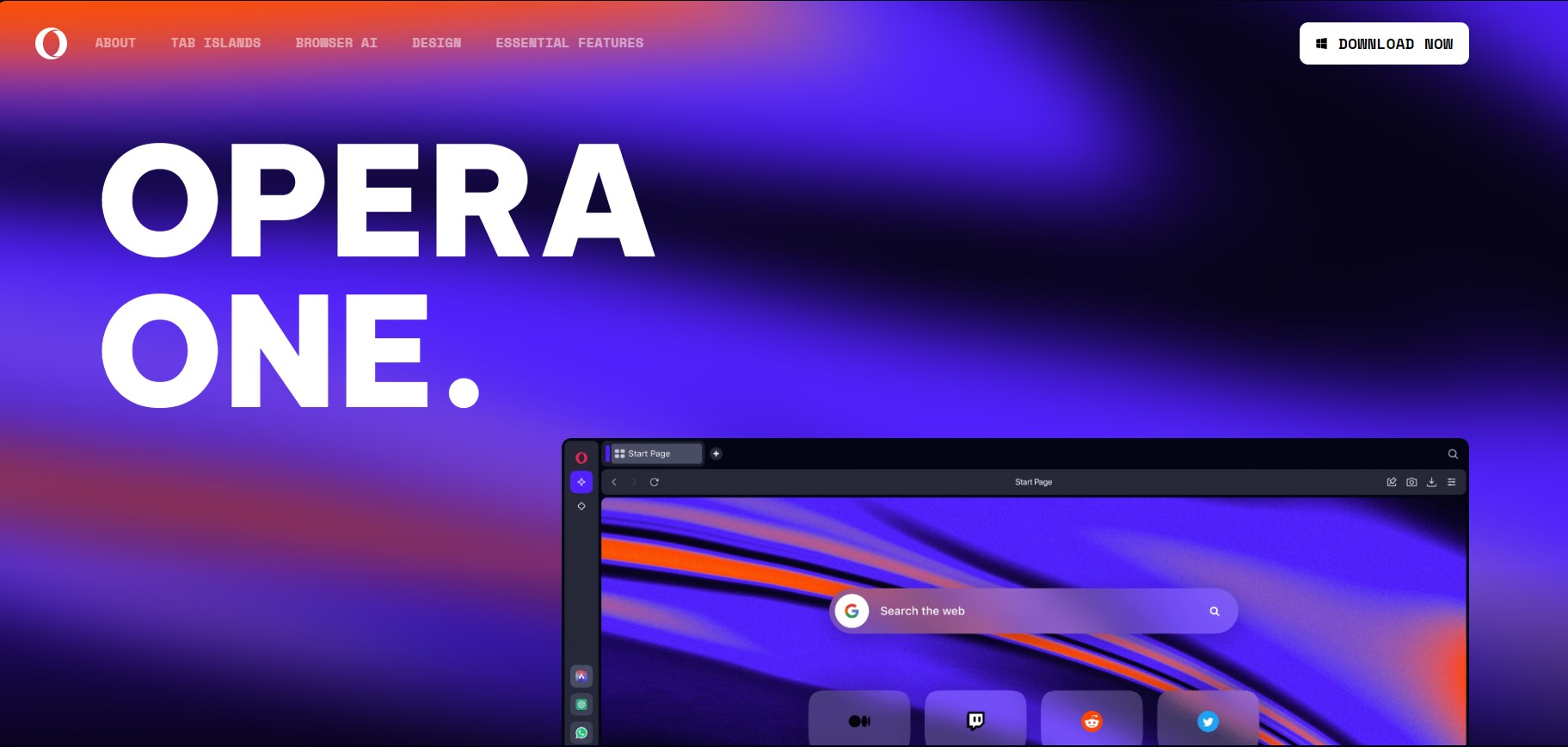
Instead of having to install third-party apps or plug-ins, try using a browser with an integrated adblock feature. For 9ANIME, Opera One is a great option because it’s capable to block pop-ups and ads with no effort.

It gets regular updates making it a secure option to watch anime online. Moreover, it has a very small system footprint as opposed to other browsers so your videos may load a bit faster too.

Opera One

Enjoy your favorite anime buffer-free, without being interrupted by annoying ads or pop-ups!

How can I watch 9ANIME without ads? 

There are many ways to watch 9ANIME without ads. The most popular way is to download the episodes from torrents or streaming websites and watch them offline. You can find a reliable torrent client from our expert list.

If you don’t have enough storage space, downloading may not be an option, so you need to consider using an Adblocker. Ad-blockers allow you to block ads and other content on streaming sites.

With all these praises, it begs the question: Is AdBlock safe? AdBlock is a browser extension that removes advertisements from websites. There are no ads in AdBlock that can attack your device or steal your personal information. You can use it and not have anything to worry about.

The downside is that many websites rely heavily on advertising revenue; when you block their ads, they lose money and might decide to block you in return or even ban your IP address entirely. It is why you need an effective VPN to mask your identity while browsing.

What AdBlock works on 9ANIME?

AdBlock – Most powerful Adblocker

AdBlock is one of the most popular ad blocking extensions for Google Chrome, Firefox, and Opera Onebrowsers. It blocks ads on web pages and also disables third-party cookies. 

It uses a filter list to identify and block video ads. With AdBlock installed, you can enjoy a faster and safer browsing experience.

Additional features:

  • Supports multiple browsers
  • Blocks all kinds of ads
  • Free to use

⇒ Get AdBlock

uBlock Origin – Lightweight Adblocker

uBlock Origin is another free Adblocker that works on 9ANIME to block all kinds of ads, including banners and pop-ups. This extension also blocks trackers, which means it will remove any web bugs or cookies placed on your computer by advertisers. 

It is also easy to use because it doesn’t require any configuration and is compatible with most popular browsers like Chrome or Firefox.

Additional features:

  • Easy on your CPU
  • Supports multiple browsers
  • Blocks tracking activity

⇒ Get uBlock Origin

AdGuard – Fastest Adblocker

AdGuard is another great ad blocker that works well with 9ANIME and other streaming sites. It is also lightweight, so you don’t have to worry about it consuming too much memory.

The difference between AdGuard and other ad blockers is that it doesn’t just block ads — it also blocks malware and malicious scripts from infecting your computer or mobile device when you visit these sites.

Additional features:

  • Anti-tracking feature
  • Takes up less bandwidth
  • Offers malware protection

⇒ Get AdGuard

Ghostery – Privacy-focused Adblocker

Ghostery is one of the most popular web privacy tools out there, and it has many features that make it great for watching anime on 9ANIME. 

It blocks trackers from tracking your activity across the web, which means less time spent loading ads or waiting for videos to buffer. The extension also blocks third-party cookies, so you don’t get bombarded with annoying targeted ads while browsing the internet.

Additional features:

  • Has a smart blocking feature to speed up page loading
  • Anti-tracking feature
  • Highly customizable

⇒ Get Ghostery

Disconnect – Best Anti-tracking extension

Disconnect is another free Adblocker that works on 9ANIME to block all kinds of ads, including video ads, banners, and pop-ups. 

This extension also blocks trackers, so you don’t have to worry about web bugs or cookies being placed on your computer by advertisers anymore. One great feature about this extension is that it allows you to whitelist sites where you want to see ads.

Additional features:

  • Safeguards your privacy from third-party trackers
  • Faster load time
  • Blocks malicious websites and phishing attacks

⇒ Get Disconnect

What can I do if 9ANIME Adblock not working?

The main purpose of the 9ANIME Adblock tool is to help the users to enjoy their favorite shows without any interruption by annoying ads.

However, sometimes it does not work as expected, and users face issues like 9ANIME Adblock not working or 9ANIME Adblock not loading.

If you experience any of these issues, here are some tips that might help:

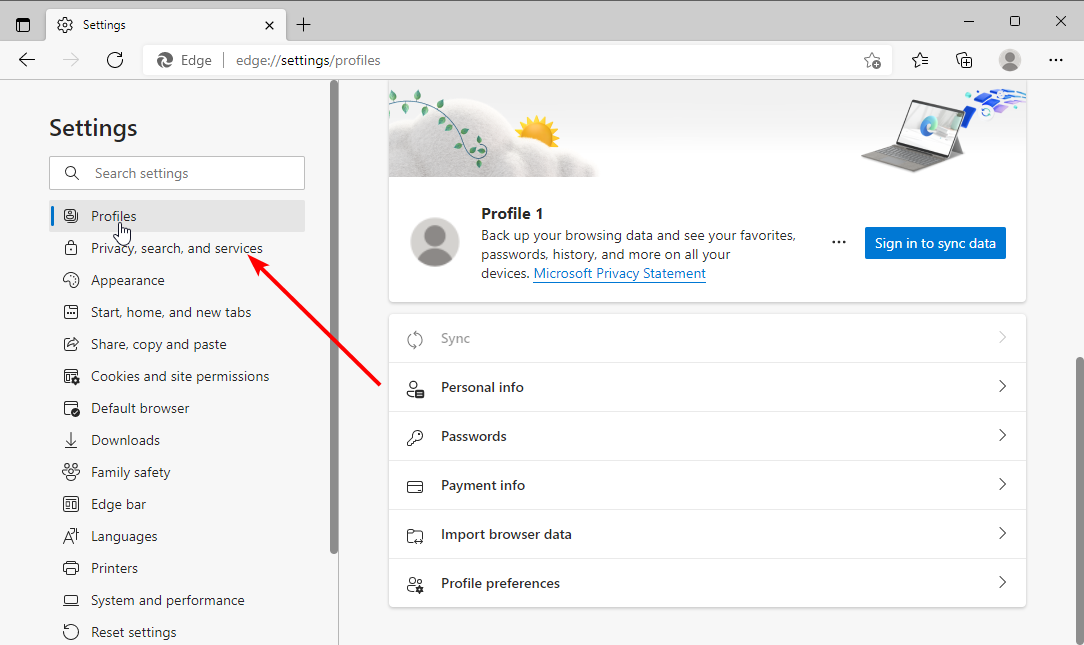
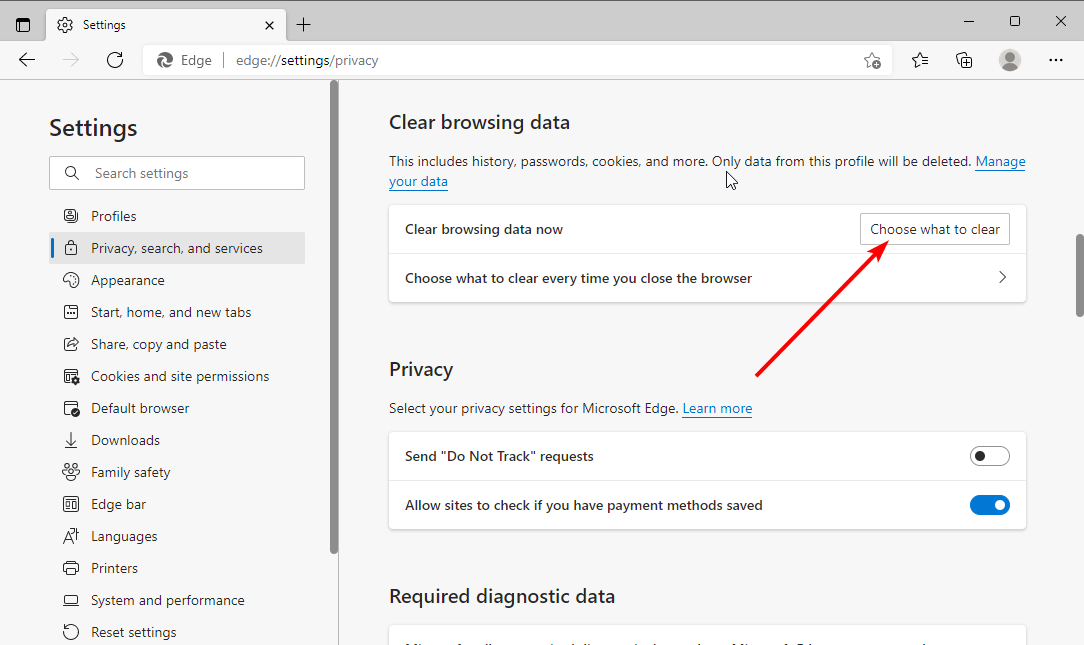
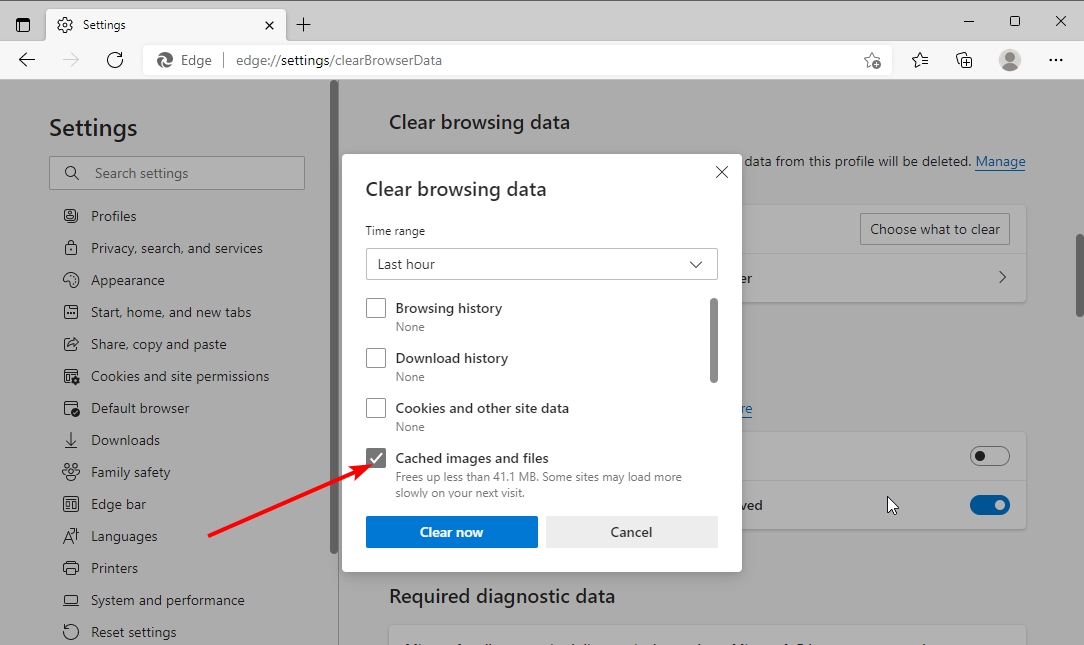
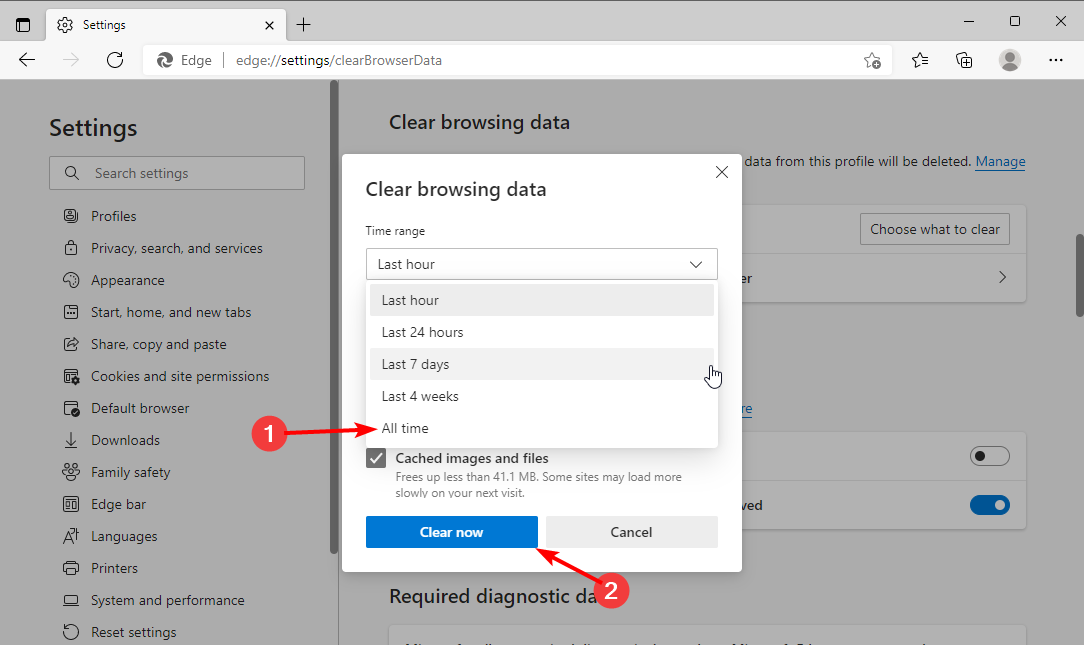
  • Clear your browser cache and cookies – This is the simplest thing to do, so it’s worth trying before anything else.
  • Update your ad blocker – It is possible that you are using a very old version of 9ANIME Adblock. You need to update it to the latest version or uninstall and reinstall it.
  • Update your browser – If you have an older version of a browser, it may be because there is a new version available that fixes bugs and adds features. Make sure you’re up-to-date.
  • Disable similar extensions – Sometimes, when extensions get into arguments with each other, they can stop working properly. To fix this problem, try uninstalling any extensions that could cause problems for 9ANIME Adblock and see if that helps. 

You may also encounter an error where 9ANIME is not working in Chrome, so don’t hesitate to check out our expert guide on the same.

Let us know your favorite Adblocker for 9ANIME in the comments section below.

7 Best VPNs for World of Tanks to Reduce Ping & Packet Loss

World of Tanks (WoT) is a popular online multiplayer team tank game developed by Wargaming. With millions of players worldwide, the game is free-to-play but certain features can be unlocked by paying a fee.

In addition, the focus is on player vs. player gameplay with each opponent controlling an armored vehicle, which may be a light, medium, or heavy tank, tank destroyer, or self-propelled gun.

However, due to the online nature of World of Tanks, issues like DDoS attacks, slow connection, geographical limitations, etc; it is recommended that you use a VPN.

VPNs will change your IP location and if you pick an IP close to the server you are playing on, then you will have a faster connection.

Moreover, you can pick starting tanks from countries such as China, Japan, USSR, France, Germany, UK, and the USA. Hence, selecting a server location from any of these regions will give you more edge in World of Tanks.

Can I play World of Tanks with a VPN?

It is definitely possible to use a VPN when you’re playing this famous multiplayer game, WoT. This addition should also be helpful to connect to other servers or play from restricted countries.

A VPN is the right tool to access World of Tanks, especially if you are in one of the banned locations for this game.

Some users state that you can utilize different VPNs to increase the game performance and speed depending on the server location.

Best VPNs for World of Tanks

Private Internet Access – Highest servers speed

If you’re into serious tank action, and hard-earned victory, World of Tanks is for sure part of your world.

Get the most of each WoT session by teaming up with PIA, a VPN designed to support gamers’ needs.

This secure VPN will take all your worries when it comes to the usual buffering and latencies and will give you a lag-free WoT experience instead so that you can crush your opponents.

With PIA quietly running in the background, you will also be pleased to notice that your ping gets lower and lower, thus giving you leverage over your rivals.

With over 3000 servers spread across the globe, you can also count on your trusted VPN to choose the one nearest to you, thus enhancing your already ultra-fast speeds even more.

For what is worth, when it comes to privacy, there is no standard too high as PIA protects your identity through IP cloaking, encrypts your traffic data by rerouting it through secure VPN tunnels, and hides your location.

Moreover, it has a strict no-logs policy that truly embodies the principle of privacy: there are no records of your online activity whatsoever. Not for your ISP and not even for them.

Let’s quickly look at its key features:

  • Optimized for gaming
  • Bypass censorship and unblock websites and content
  • Secure protection on public Wi-Fi
  • Unlimited bandwidth and fast download speeds
  • Compatible with all major operating systems
  • Easy to use (connect in 1 click or tap )
  • Secure VPN Protocols (PPTP, OpenVPN and L2TP/IPSec)
  • Supports up to 10 devices simultaneously

Private Internet Access

Team up with PIA VPN to enjoy lag-free action and slay your opponents in WoT!
Check price Visit website

NordVPN – Greatest number of servers globally

NordVPN is an award-winning VPN service provider renowned for its fast servers and strong security tools. Millions of users across the world use it, especially for their gaming needs.

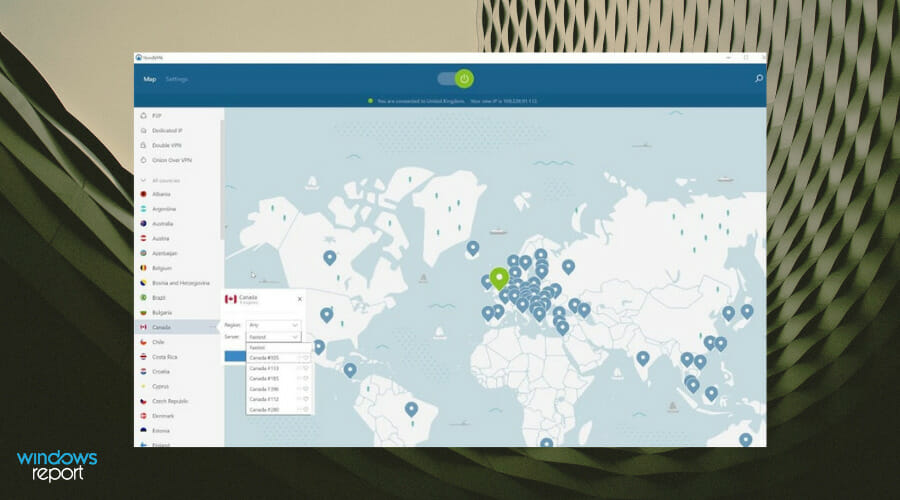
With this software, you won’t experience any buffering or slow connection issues when you play World of Tanks, thanks to its impressive number of 5000+ servers. Using a NordVPN obfuscated server, you can hide your internet traffic data and bypass any VPN-blocking firewall.

Moreover, you can strengthen your data encryption with the double VPN security feature, which routes your traffic through two servers instead of one. This extra layer of protection mixes the connection between UDP and TCP protocols, allowing you to play World of Tanks online in complete privacy.

Other essential functions of NordVPN include:

  •  CyberSec technology against malware
  • No-logs policy
  • Unlimited bandwidth
  • Masked IP address
  • DDoS and DNS leak protection
  • Unblocks geo-location restrictions
  • Static IP addresses
  • NordLynx protocol

NordVPN has a fast installation procedure and it offers in-build Chrome and Firefox extensions.

NordVPN

NordVPN

Play online games using this Premium VPN service trusted by millions of users!
Check priceVisit website

ExpressVPN – Extensive server coverage

express vpn for gameloop connection dashboard

Owned by Express VPN International Ltd, this VPN is widely known for offering high speeds and secure encryption. With ExpressVPN, you will get reliability and have the premium speed to access World of Tanks.

The VPN possesses over 2000 servers in 94 countries which enables you to access WoT from any location in the world.

Meanwhile, connections on their servers are encrypted with state-of-the-art protocols; this keeps your information safe while allowing an optimum gaming experience.

ExpressVPN comes with a 30-day money-back guarantee with a basic plan starting at a slightly higher price per month billed annually.

Other essential functions of Express VPN include:

  • Leading data encryption
  • Network lock and split tunneling tools
  • Secured TrustedServer technology
  • Private DNS addresses for each server
  • No activity logs policy

ExpressVPN

Tired of connection problems on World of Tanks? ExpressVPN could help you fix them.
Check price Visit website

CyberGhost – Most advanced privacy tools

CyberGhost server locations

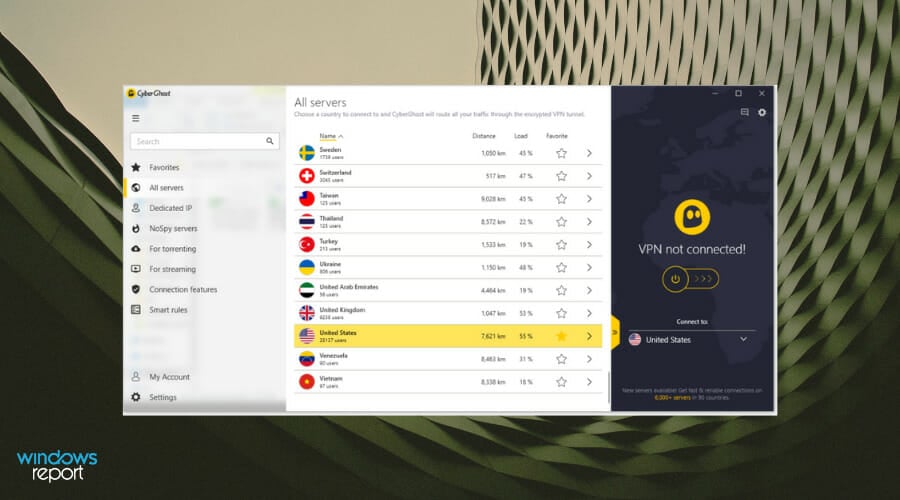
As one of the best VPNs for World of Tanks, CyberGhost offers to 1300 servers in 52 countries and is known for its flexibility in server location.

This VPN owned by Kape Technologies offers a secure connection to various gaming websites including World of Tanks.

In addition, CyberGhost gives you quality VPN features such as DNS leak protection as well as a kill switch option.

The servers featured on CyberGhost offer quick speeds with a reliable connection which helps improve the World of Tanks gaming experience.

Meanwhile, CyberGhost comes with four different pricing plans you can choose from depending on your privacy needs.

Other essential functions of CyberGhost VPN include:

  • NoSpy server network
  • Dedicated IP addresses
  • Advanced VPN protocols
  • No censorship for local content
  • Available for any device or platform out there

CyberGhost VPN

CyberGhost VPN works like a charm with World of Tanks, and it’s quite simple to use!
Check price Visit website

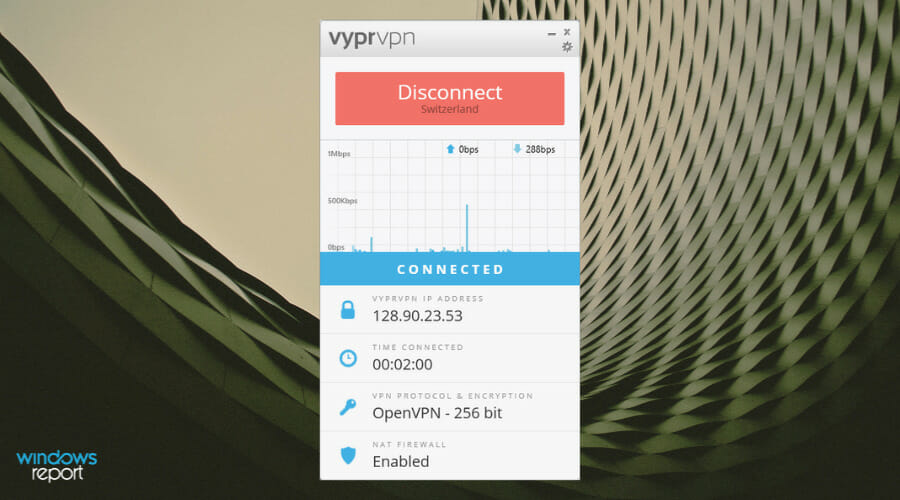
VyprVPN – Reliable connection for gaming

Developed by Golden Frog GmbH, VyprVPN gives a good VPN package for gaming as it supports gaming server protocols and it delivers a fast connection.

VyprVPN is cross-platform meaning it supports Windows, Linux, and MacBook devices. The Chameleon technology feature allows for user IP to bypass firewalls and trackers while hiding your location.

Hence, the VPN also reroutes all connections through their servers giving you a better experience for World of Tanks gameplay as your connection is reliable and faster.

Other essential functions of VyprVPN include:

  • Chameleon protection to fight censorship
  • VyprDNS security
  • 30 simultaneous connections
  • Highly VPN connection
  • 70+ server locations globally

VyprVPN

VyprVPN is powered by the Chameleon technology to hide your IP and unleash World of Tanks!
Check price Visit website

IPVanish – Owned server network with high speeds

IPVanish is a respected VPN provider developed by StackPath, LLC with a huge user base due to its quality of service. Plus, they have servers in over 50 countries.

You get an amazing World of Tank gaming experience with IPVanish as their self-owned servers come with amazing speed, unlike other competitors that rent servers.

This allows you to have better control as you can select any server without fear of downtime, plus you are secured at all times.

The IPVanish software comes with a clean and easy-to-use interface and they also offer a limited 7-day refund on plans.

Other essential functions of IPVanish include:

  • Complete online freedom
  • 2,000 servers in 70+ locations
  • Access for media or gaming content
  • Highly encrypted browsing
  • No metered connections

IPVanish

IPVanish can help you bring your best World of Tanks game to the table by lowering ping and improving packet loss.
Check price Visit website

ZenMate VPN – Available for numerous devices

ZenMate VPN is the top secret privacy software that can provide secured servers that ensure better game results in the World of Tanks universe.

This productive VPN tool is suitable for many purposes that involve privacy and accessing your digital websites without beings tracked.

So you’re guarded with the latest data encryption for safer navigation, unblocking local content from games or productions in other regions, or a strict no-log data policy.

At the same time, this software is a winner in terms of Internet speed and restrictions in different countries.

You benefit from stable VPN servers in 81+ locations and an unbreakable connection to browse on any web pages or play your game without low performance.

In addition, there are more advanced functionalities like the kill switch option to save precious data.

Other essential functions of ZenMate VPN:

  • Anonymous VPN connection
  • Kill switch functionality
  • Powerful defense for geo-blocking
  • 4,700 servers in 81+ different regions
  • Support for all platforms and gadgets

ZenMate VPN

Enjoy every bit of the World of Tanks gameplay using this fast VPN server network
Check price Visit website

How do I lower my ping in World of Tanks?

In order to resolve World of Tanks’ high ping in 2022 you should follow the next tips:

You can encounter lag and high ping in World of Tanks gameplay, and the causes for this issue are related to hardware problems or game server issues.

Conclusion

All the VPN tools mentioned in this article have been tested and they are all solid options for improving World of Tanks gameplay.

Do not hesitate to try multiple software and see which gives you better results while playing this game with your teammates.

All being said, which one will you choose? Share your preferences with us in the comments section below.

5 Ways to Fix Firefox Encountered a Problem with Windows

Mozilla Firefox is an open-source browser praised for its speed and security. The browser offers enhanced tracking protection and thus blocks third-party cookies by default.

However, users have reported receiving the error message Firefox has encountered an unexpected problem with Windows or a variation of the error.

While this error may be frustrating, it is not uncommon for Firefox and other browsers to face a few bugs and glitches from time to time.

You may face other Firefox issues on Windows 10 & 11, and usually, the fixes are pretty straightforward.

Does Microsoft interfere with Firefox?

Microsoft Edge is the only browser that natively works with Windows, hence it is expected that it is the most compatible with Microsoft.

With that said, many other browsers work great on Microsoft devices, and Firefox is one of them. It was even one of the first browsers to be available on the Microsoft Store.

You, however, can expect a few errors here and there on Microsoft devices, but Microsoft does not actively interfere with Edge.

Is Microsoft Edge blocking Firefox?

Following a recent move by Edge, the competition for internet browser dominance seems to have reached another significant turn, and some users have reported that Edge itself has stopped their attempts to download the Firefox installation software. Thus, this is a severe issue.

Let’s now discuss what to do if Firefox is not working on Windows 10/11 because it has encountered some problems.

Quick Tip:

If this issue has been happening consistently, perhaps you should try Opera One. It has a user-friendly interface and offers built-in security features such as a built-in unlimited VPN, ad-blocker and AI.

Opera One has integrated messaging services from Facebook Messenger, WhatsApp, and more. With workspaces and tab islands users organize their tabs by topic.

Opera One

Keep your tabs organized using workspaces in this organizer browser.
Free Download Visit website

How do I fix Firefox encountered a problem with Windows?

1. Check for updates

  1. Launch your Firefox browser.
  2. Click on the Menu and click Settings.
    Firefox encountered a problem with Windows
  3. Scroll down to Firefox Updates and click Check for Updates.
    Firefox encountered a problem with Windows

Firefox regularly releases updates for maintenance and improvements. Check that your Firefox browser is up to date in browser settings. Using an outdated version of Firefox or one that hasn’t been updated in a while might lead to performance issues and errors.

2. Disable add-ons

  1. Open Firefox and click the three lines in the top right corner to open the menu.
  2. Click Add-ons and themes. Firefox add-ons.
  3. Select Extensions. Open Firefox Extensions.
  4. Disable each add-on. Disable Firefox Extensions.

Users have reported the problem being solved after disabling their add-ons. So, if you’re using an extension that hasn’t been updated in a while or is faulty, then it’s recommended that you remove any unnecessary extensions.

3. Start Firefox in Troubleshoot Mode

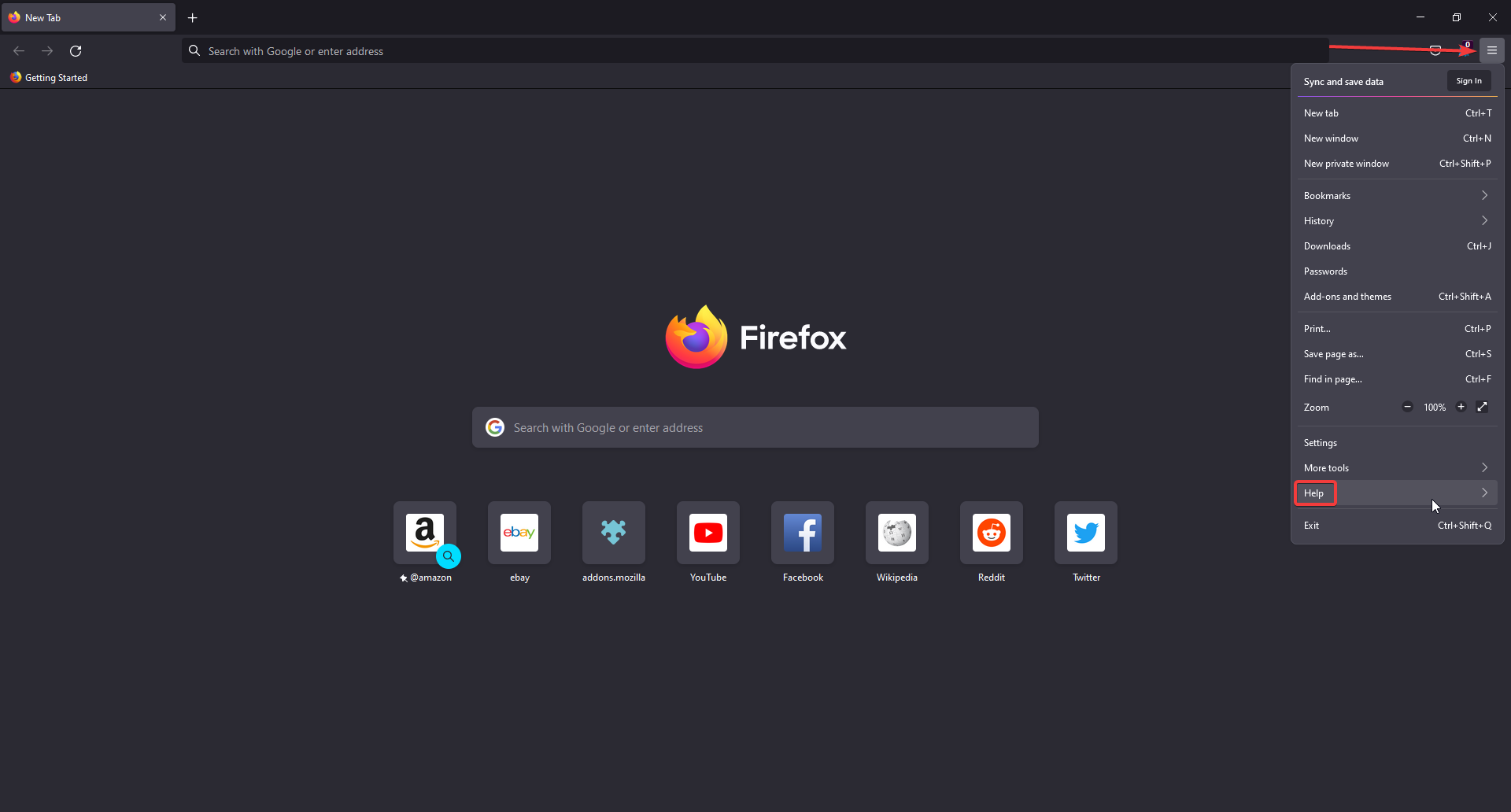
  1. In Firefox, click the three lines in the top right corner to open the menu and select Help. Firefox help settings.
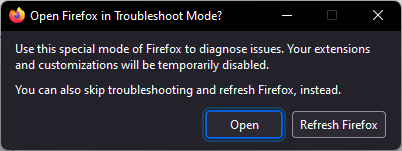
  2. Click Troubleshoot Mode. Firefox Troubleshoot Mode.
  3. Selecting Open will start Firefox in its default form and temporarily disable all add-ons. Clicking Refresh Firefox will reset the browser to its default state and remove all customization features and extensions.

After choosing between Open and Refresh Firefox, test Firefox by visiting the site that was causing the issue.

If the problem is solved, then it was caused by one of your extensions or customization features. If the issue persists, the error may be due to Firefox preference settings.

4. Reset Firefox preferences

  1. In Firefox, click the three dots in the top right corner to open the menu and select Help.
    Firefox encountered a problem with Windows
  2. Select More Troubleshooting Information. Click on more troubleshoot information.
  3. Under Application Basics, locate Profile Folder and click Open Folder.
    Firefox encountered a problem with Windows
  4. Close Firefox.
  5. Launch your File Explorer, navigate the path below and locate the file prefs.js and delete it. If you want to keep it as a backup, you can rename it to prefsOLD.js. (Substitute afamo for your username).
    C:\Users\afamo\AppData\Roaming\Mozilla\Firefox\Profiles\n5jvdaep.default-release-1-1658753075439
    Delete prefs.js folder or rename it.

If you have the error, Firefox has encountered an unexpected problem while in Troubleshoot Mode; this is an excellent solution.

5. Turn off hardware acceleration

  1. In Firefox click the three lines in the top right corner to open the menu and select Settings.
    Firefox encountered a problem with Windows
  2. Under General, scroll down to Performance.
  3. Uncheck Use recommended performance settings to reveal more options.
  4. Uncheck Use hardware acceleration when available. Disable hardware acceleration.
  5. Restart Firefox.

Firefox may have difficulties with certain websites when using the hardware acceleration. If the problem is solved after turning off the hardware acceleration, then try updating the graphics drivers or continue to use Firefox without it.

With these solutions, you should have successfully resolved your browser error. As a last resort, you may reinstall the browser, but you should note that you will lose all your current settings.

We hope these solutions solved the error Firefox has encountered an unexpected problem with Windows. If you’re having issues with your Firefox getting stuck in Windows, we also have solutions for that.

Comment down below what solution worked for you. If there is a solution not listed above, be sure to let us know.

How to Disable Fullscreen Optimizations on Windows 10/11

Microsoft wants Windows 10 users to enjoy smooth gaming experiences on their computers.

For this reason, the company has optimized the operating system so as to find the perfect balance between users’ hardware configurations and the system requirements of the games they’re running.

There’s a Windows gaming-oriented feature that’s still pretty controversial among users.

It’s called Fullscreen Optimizations and its role is to boost gaming performance and deliver a borderless full screen for you to enjoy your games.

Unfortunately, many reports suggest that, paradoxically, this feature triggers FPS drops.

Windows 10 Full-screen Optimizations: ON or OFF?
Googling around and reading other posts on this sub, it seems like this is a very controversial subject. […] I’ve seen posts saying to most definitely disable it on games like Overwatch and CS:GO.
On the other hand, I’ve seen posts from MSFT engineers and comments expressing how great the feature is and how it’s actually supposed to improve performance slightly.

Should you use full-screen optimizations?

Judging by user reports, it seems that the best solution is to simply disable full-screen optimizations.

Many gamers described this option as a strange hybrid Fullscreen Exclusive/Borderless display mode that’s not as great as Microsoft says.

Moreover, certain games are particularly affected by low FPS issues when players enable full-screen optimizations.

If you often play Overwatch, CS:GO, Sundered, and other CPU-demanding games, turning this feature off may actually improve your gaming experience.

In fact, there a quite a few Windows services that you can disable in order to boost your gaming sessions.

Needless to say that a low FPS on a game startup will severely hinder your experience, so don’t procrastinate and address such issues on the spot. Disabling fullscreen optimizations in Windows is a good place to start.

    How to disable fullscreen optimizations Windows 10

    You can quickly disable fullscreen optimization for games by changing their Compatibility settings.

    This is a manual process which you must do separately for every game where you experience FPS drops, but it only takes a minute.

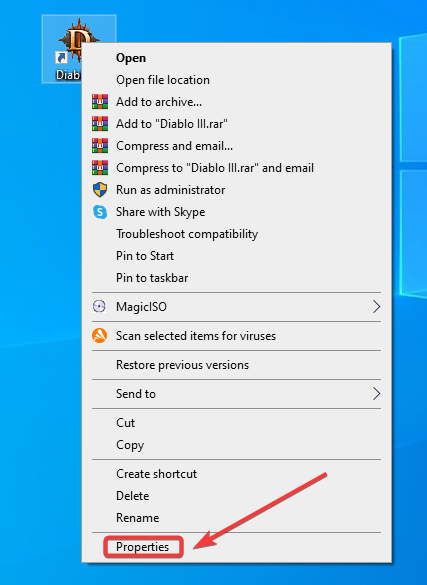
  1. 1. Right-click on the .exe file of your game.

  2. 2. Go to Properties.

    disable fullscreen optimization properties
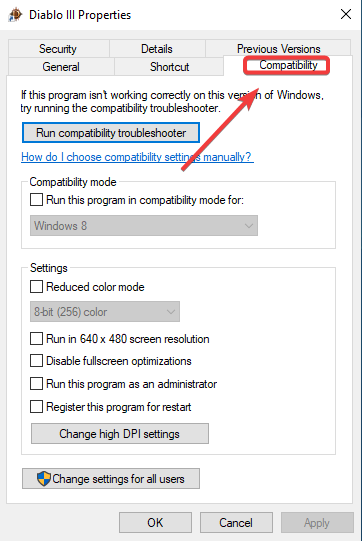
  3. 3. Go to the Compatibility option.

    turn off fullscreen optimizations compatibility
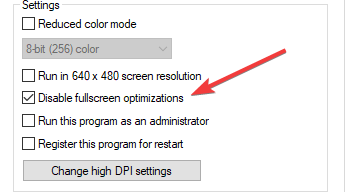
  4. 4. Check the Disable fullscreen optimizations box.

    turn off fullscreen optimization windows 10
  5. 5. Hit Apply and then OK to save the changes.

For more information on how to fix frequent Windows 10 and 11 gaming issues, check out the troubleshooting guides listed below.

Finally, you can also uncheck the option Show game bar when I play full screen games Microsoft has verified from the gaming section of the Settings app.

This is bound to produce a positive effect on your gameplay as well. That’s pretty much it. Easy, right?

If you have additional questions or maybe some suggestions, feel free to leave them in the comments section below and we’ll surely check them out.

Fix: Download Cannot Be Saved Because an Unknown Error Occurred

You have found this article because the download cannot be saved. After all, an unknown error occurred on Firefox.

Firefox is one of the top recommended browsers, but is not without issues. And just like all tech, from time to time, you may be faced with some bugs.

This download error is one such bug, and we will explore this issue and give you all the best fixes to help you download your files again.

Why are my downloads failing on Firefox?

While users have complained about failed downloads, there are a few reasons why you may experience this.

From our experience, here are the common culprits:

  • Bad or interrupted internet connections
  • Windows security settings
  • Outdated or corrupt network drivers
  • Permission issues
  • You ran out of space on the download target drive
  • The Browser is clogged with downloaded files

This is not an exhaustive list, but they are the most rampant reasons your Firefox downloads may fail. However, whatever the reason, the solutions discussed in this article should help resolve the issue.

How can I fix file could not be saved because an unknown error occurred error?

1. Reset the download folder settings via the about:config page

  1. Open the Firefox browser.
  2. Enter the path below in your Address bar and click Enter.
    about:config
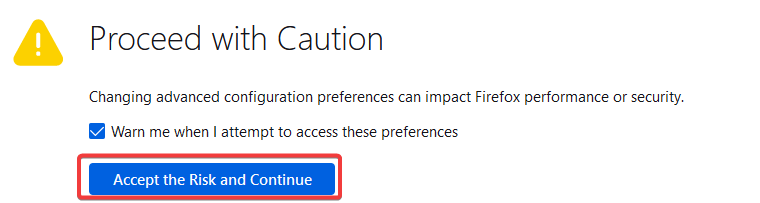
  3. Click on the Accept the Risk and Continue button.
    the download cannot be saved because an unknown error occurred.
  4. Click the Show All button.
    the download cannot be saved because an unknown error occurred.
  5. Then search for these five preferences in about:config:
    – browser.download.downloadDir
    – browser.download.folderList
    – browser.download.dir
    – browser.download.useDownloadDir
    – browser.download.lastDir
  6. If some of those Firefox preferences are modified, right-click each one and select Reset to restore it to the default status.

2. Clear the Firefox Downloads folder

  1. Open Firefox, click on the Downloads icon (the arrow pointing down in the top right corner), and select Show all downloads.
  2. In the new window, click on the Clear Downloads option from the top.

This will not delete the actual files on your PC but only erase them from Firefox history. One of our readers suggested this solution because his browser was clogged with downloaded files, which unblocked the Firefox download feature.

3. Select an alternative download folder

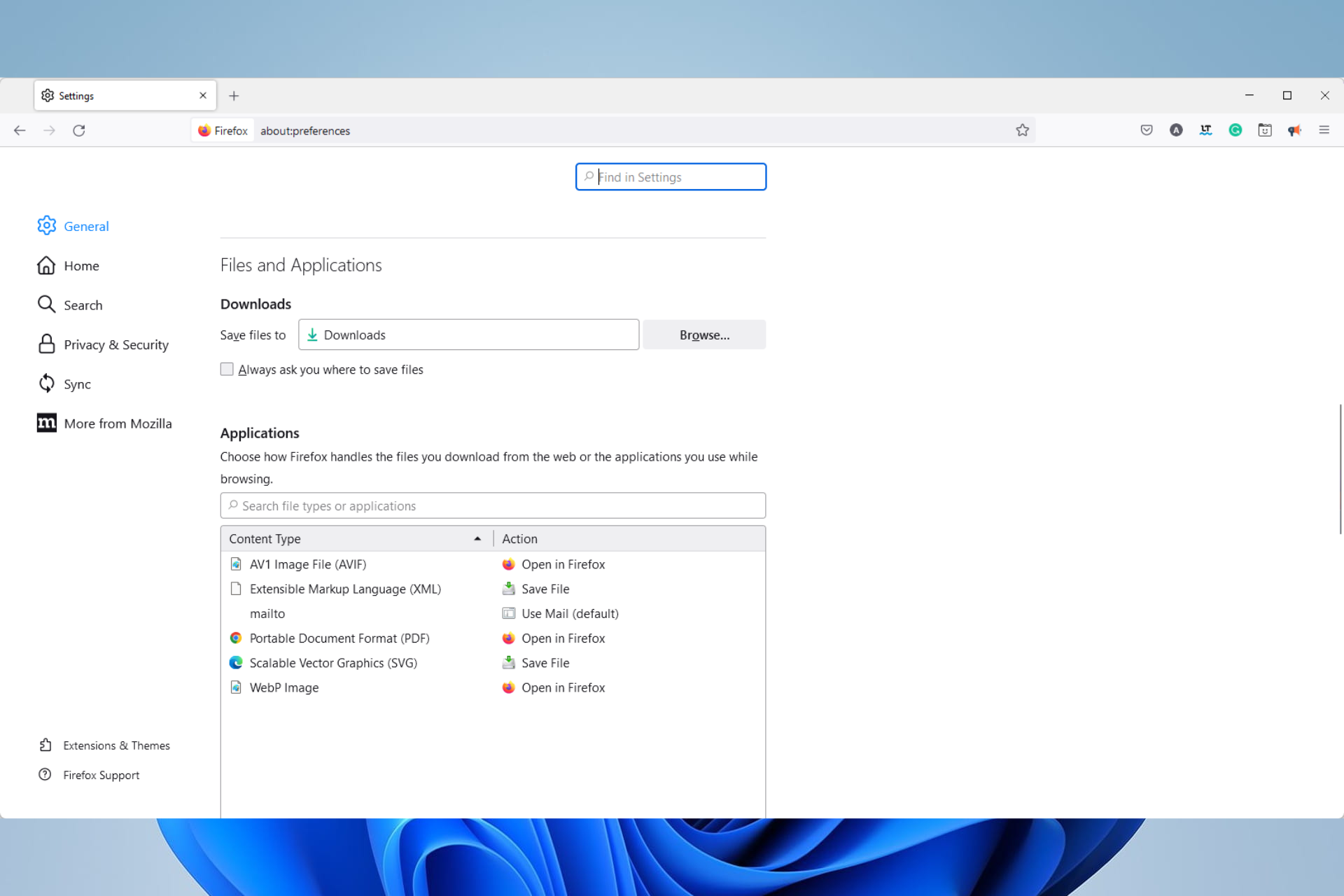
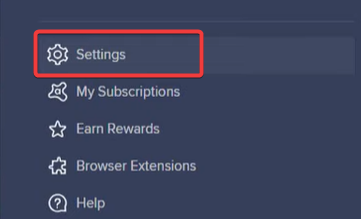
  1. Click the menu button at the top right of Firefox’s window and select Settings.
  2. Scroll to Files and Applications and click the Browser button of the Downloads option.
    the download cannot be saved because an unknown error occurred.
  3. Choose another download directory, and click the Select Folder button.
    the download cannot be saved because an unknown error occurred.

4. Switch off Firefox extensions

  1. To disable Firefox extensions, click the menu button.
    the download cannot be saved because an unknown error occurred.
  2. Click Add-ons and themes.
  3. Click on the switch in front of every extension to disable them individually.

You can enable them one after the other while trying to download. That way, you may discover which of the extensions is problematic.

5. Disable Firefox download plug-ins

  1. Launch the browser.
  2. Enter the path below in your Address bar and click Enter.
    about:addons
  3. Click on plugins.
  4. On the right pane, click on the ellipses for individual plugins and select Never Activate.

6. Temporarily disable antivirus software

  1. Launch your antivirus software.
  2. Click on Menu.
    the download cannot be saved because an unknown error occurred.
  3. Select the Settings option.
  4. Click on Protection, then select Core Shields.
    the download cannot be saved because an unknown error occurred.
  5. Scroll down to Configure shield settings and uncheck Enable File Shield.
    the download cannot be saved because an unknown error occurred.
  6. Select a duration.
    the download cannot be saved because an unknown error occurred.
  7. Repeat steps 5 and 6 for Behavior Shield, Web Shield, and Mail Shield.

Third-party antivirus software might be blocking Firefox downloads. So, temporarily disabling antivirus utilities might help fix this issue.

These steps work for Avast antivirus. However, you can temporarily switch most antivirus utilities off by right-clicking their system tray icons and selecting a disable or turn-off option.

7. Reinstall third-party firewalls

In order to have a clean and error-free reinstallation, we recommend you use dedicated uninstaller software.

If you remove your third-party firewall apps using their uninstaller wizards or with the help of the Add or remove programs utility within Windows,  there are high chances that some files will be left behind.

Not only will these take up precious memory space, but they may also prevent you from safely reinstalling the firewall. For example, your installation wizard may detect that the app is already on your PC and stop.

Uninstaller software can detect and remove all leftover files, so there is not any trace of the app you want to remove.

They are easy to use and pretty similar to the Add or Remove programs utility. They display a list of all apps on your PC, and you select what you want to uninstall.

Wait for the process to end, and then you can download the installer wizard and rerun it.

Restart your PC and see if the problem persists.

8. Refresh the Firefox browser to its default settings

  1. Launch your browser.
  2. In the Address bar, enter the path below then click Enter.
    about:support
  3. Press the Refresh Firefox button.
  4. A Refresh Firefox dialog box window will then open. Click Refresh Firefox on that window to confirm your selected option.

When the download cannot be saved because an unknown error occurred, at least one of these fixes should resolve the issue so that you can download software and documents in the Firefox browser again.

Additionally, you may consider opening the browser in Safe Mode. This launches your browser with only the basic functionality. Once you do this, the browser can download, even though some other functions may be cut off.

We hope that our solutions were helpful to you. However, if you’re having additional Firefox issues on Windows 10 and 11, our guide provides further troubleshooting tips.

5 Best Compatible Browsers for EPFO [Ranked by Privacy]

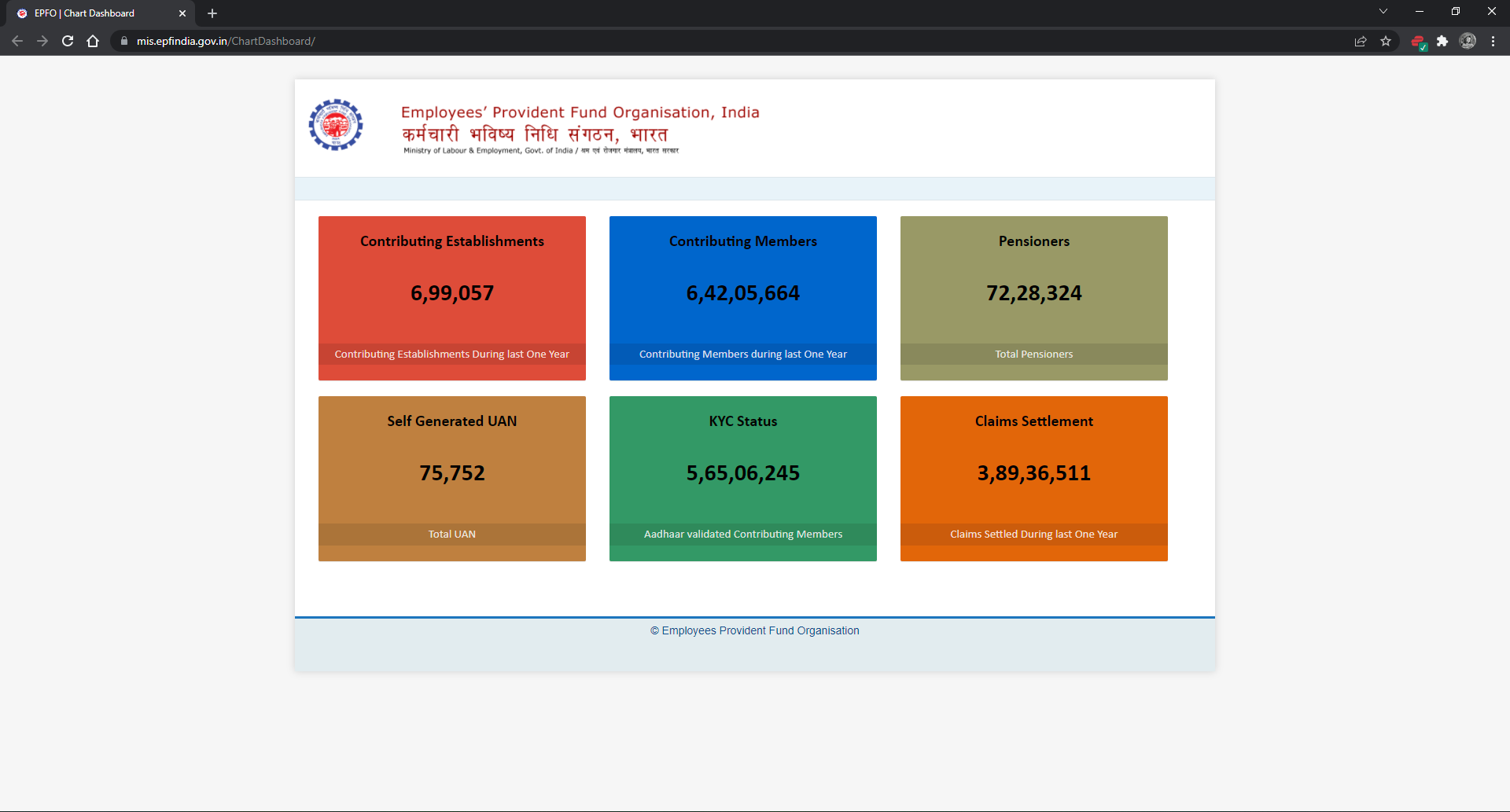
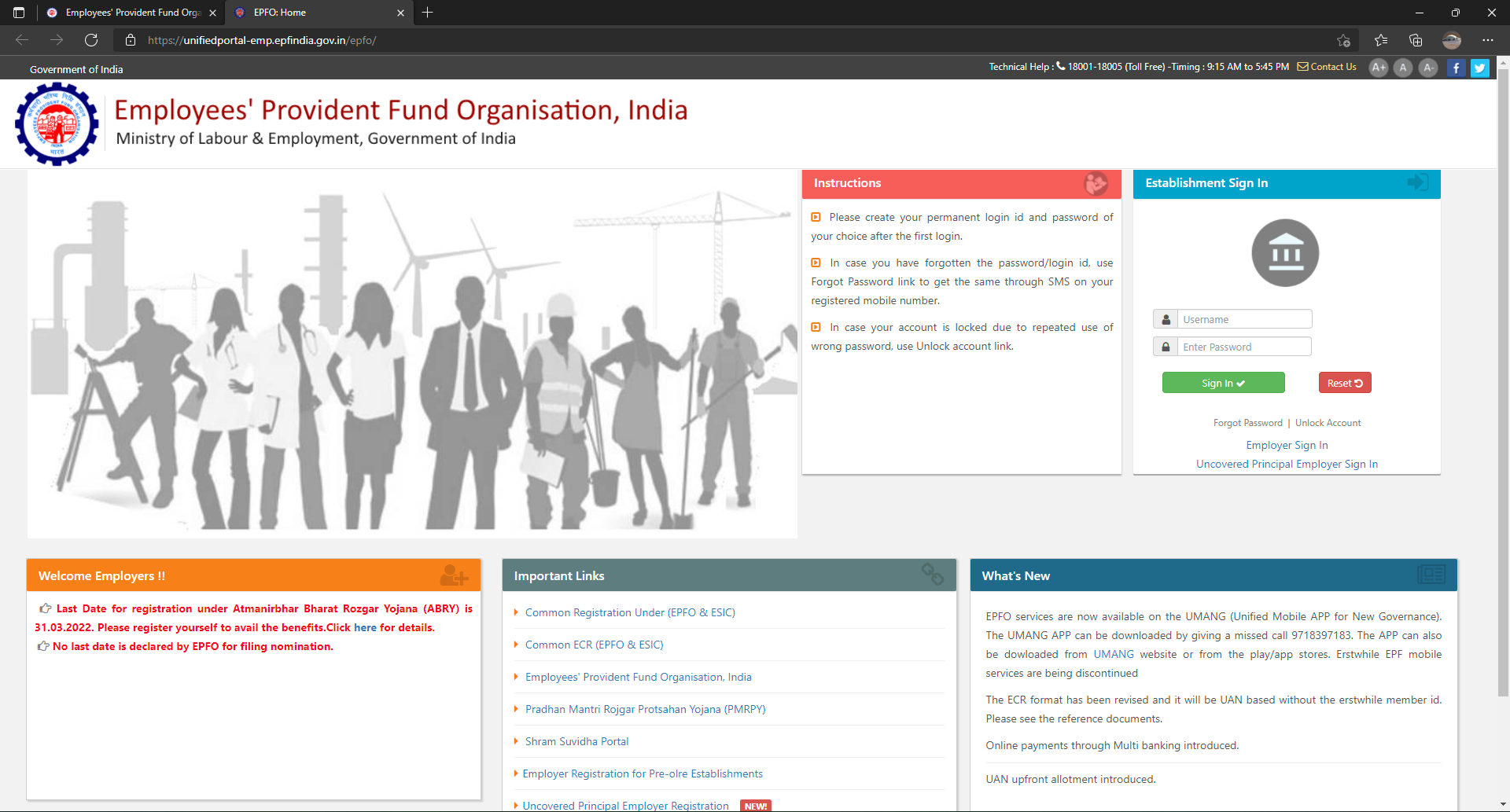
Employees’ Provident Fund Organization (EPFO) is a part of India’s Ministry of Labor and Employment. EPFO is one of the largest social security organizations which manages provident funds.

EPFO introduced the Universal Account Number (UAN). This feature links member ID numbers into one. Employees can use their UAN to register with the service portals.

The website hosts several services, including the Employees Portal and the Pensioners’ Portal. Therefore, it is essential to have a secure browser when accessing these portals.

What are the browser requirements for using DSC?

Users reported issues with uploading Digital Signature Certificate (DSC). To upload DSC, you must have the latest version of Java installed on your PC.

Thus, users also need to use a browser that supports Java; the browsers listed below will all work with Java. EPFO recommends using Mozilla Firefox or Google Chrome.

Now let us discuss which browser is best for the EPFO site.

Which browser is compatible for EPFO digital signature?

Opera One – Native social integration

Opera One is one of the most secure browsers on the market, with reliable and advanced features that make browsing the internet more intuitive.

One of the biggest perks of Opera One is its built-in protection features that allow for secure browsing. Thus, when entering personal information on EPFO and its portals, security is vital. Use a browser that will protect against phishing and malware.

Opera One is also compatible with any operating system; users can browse on Windows, Mac OS, and Linux. With cross-device adaptability, Opera One can be used on smartphones and tablets.

It offers a Speed Dial start page with which users can quickly access frequent websites they visit with just one click.

Moreover, Opera One has a rebranded user interface with a satisfying chromatic and modular design to help users browse easier and much faster.

Key features of Opera One:

  • Redesigned interface
  • Privacy protection features
  • Compatible with any OS
  • Speed Dial start page for easy access to pages

Opera One

Browse the EPFO website with Opera One while protecting your online safety and privacy.

Google Chrome – Vast extension library

Google Chrome for EPFO

Google Chrome has become the default browser for many users and is one of the fastest browsers available. Chrome is also highly secure, making it one of the best browsers for EPFO.

Chrome alerts users of suspicious websites that might want to steal your information. With the latest technology, Chrome protects its users from malicious attacks.

Incognito mode allows users to keep their browsing data private. This feature is beneficial for users that use a shared computer and don’t want any of their information shared.

With password management and sync, users can customize their browsing experience across all devices.

Key features of Google Chrome:

  • Alerts for suspicious activity
  • Incognito mode
  • Password manager
  • Sync across devices

⇒ Get Google Chrome

Mozilla Firefox – Great privacy features

Mozilla Firefox for EPFO.

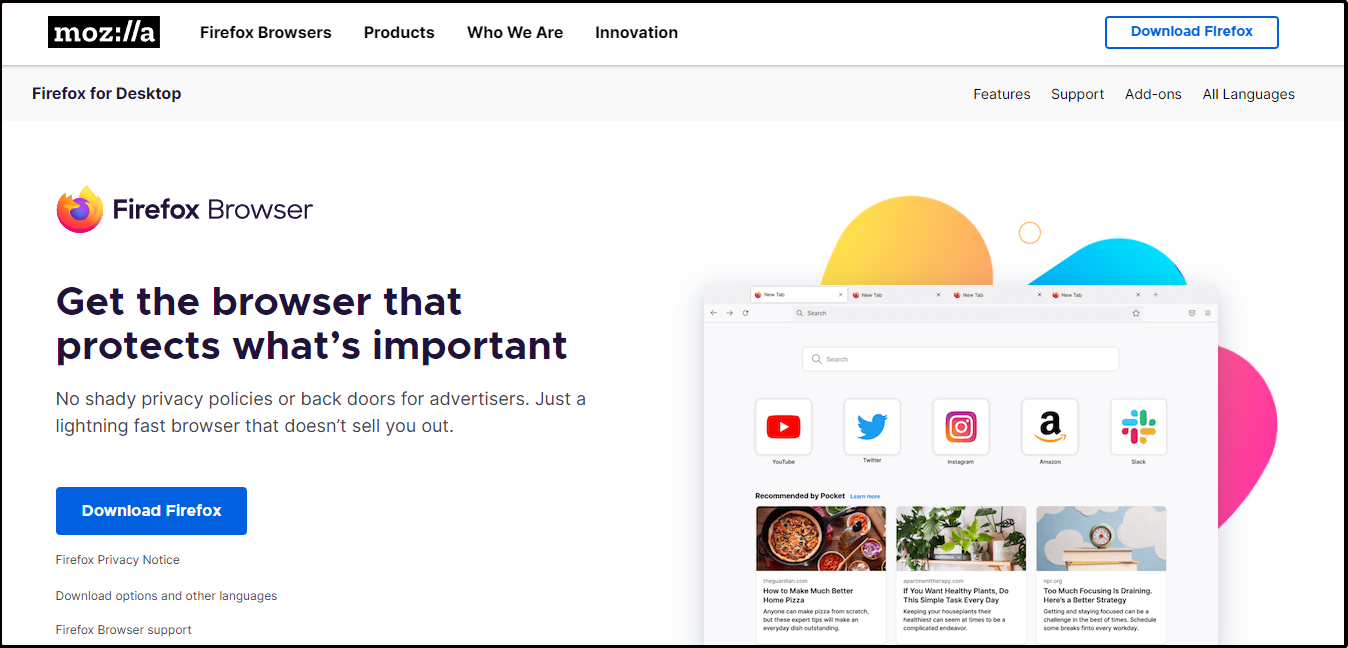
Mozilla Firefox is one of the recommended browsers for EPFO. Not only is it fast, but it’s also secure. The browser offers DSC support for EPFO.

Firefox has a private browsing mode that doesn’t retain any of your information so that you can browse worry-free. With the Smooth Scrolling feature, users can quickly navigate websites with ease.

This browser also translates websites from more than 100 languages offering an inclusive experience. Firefox also has an in-browser screenshot tool so users can save helpful information from EPFO.

Users have reported that Firefox is the best way to upload DSC without any errors.

Key features of Mozilla Firefox:

  • Offers private browsing
  • Translates more than 100 languages
  • In-browser screenshot tool
  • Frequent updates

⇒ Get Mozilla Firefox

Microsoft Edge – Great compatibility with Windows OS

Microsoft Edge browser for EPFO.

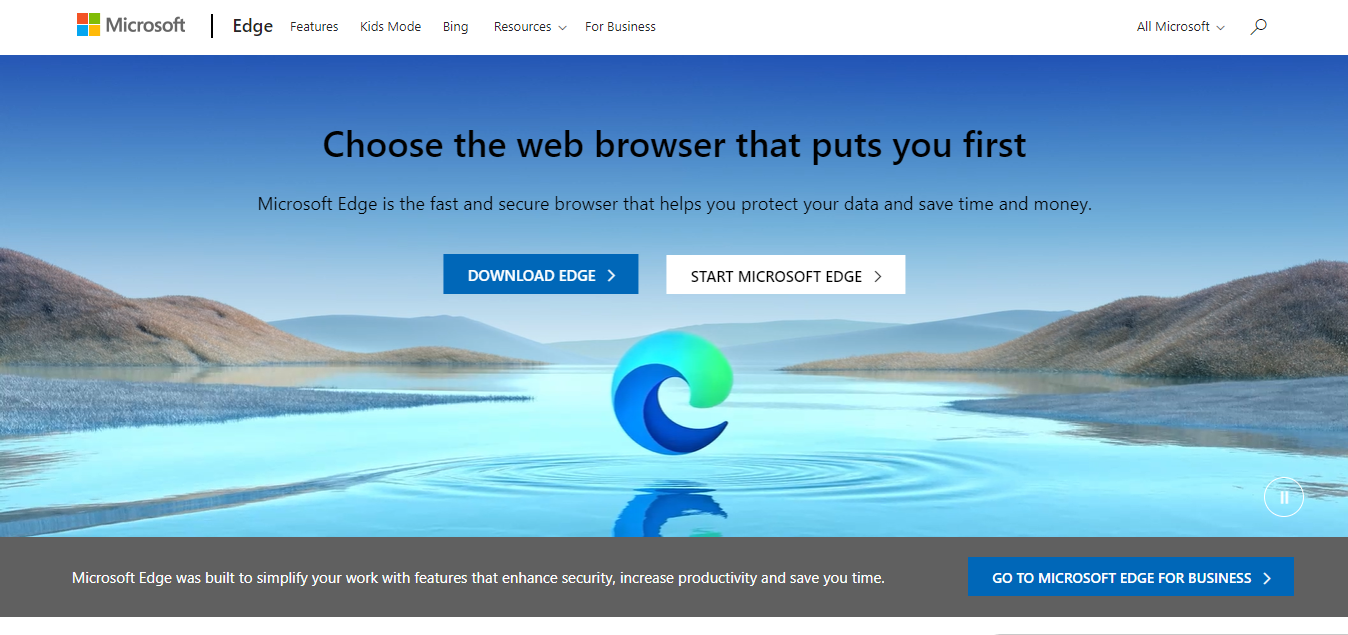
Microsoft Edge is another browser that gives users full transparency, meets the EPFO browser requirements, and takes extra measures to protect data.

It’s easy to stay organized with Microsoft Edge’s multitasking features. Users can collapse or group tabs into a collection for a clean browsing experience.

Users can feel secure when entering personal information on EPFO. With adjustable levels of tracking prevention, users can change their level of security while browsing.

Microsoft Edge also makes it easy to switch to the browser by importing user information from another browser. So, users can easily switch over to Microsoft Edge without the hassle of re-entering login info.

Key features of Microsoft Edge:

  • Collapse and group tabs to reduce clutter
  • Adjust levels of protection
  • Import favorites, passwords, and bookmarks
  • Cross-device syncing

⇒ Get Microsoft Edge

UR Browser – Lightweight browser

UR Browser for EPFO

This is another compatible browser for EPFO digital signature. UR Browser is designed for user privacy and security, making it one of the best browsers for EPFO.

This browser has anti-tracking and profiling functions. These features protect users from third-party cookies and data miners.

Ninja Mode can be enabled for advanced private browsing. With this mode, no user information or data are stored, so there’s no need to clear your history.

UR Browser also has a built-in VPN for secure browsing. This feature guards user data from suspicious cyber-attacks. A VPN also allows users to browse from anywhere in the world.

Key features of UR Browser:

  • Anti-tracking features
  • Ninja Mode for private browsing
  • Built-in VPN
  • Alerts users of any viruses

⇒ Get UR Browser

What to do if your current browser version no longer supports Java in EPFO?

This is an error message a few users have encountered. This usually means Java is not installed on your computer, or you have Java but not the 32 bits version.

You have to verify that Java is correctly installed and install it if it is not. However, if that is not the case, you should update your browser to the latest version and check if this resolves the error.

We hope this list helped you decide what browser to use for EPFO. These browsers offer top-notch security and speed with a clean user interface. They are also compatible with the latest version of Java, so you can upload DSC with ease.

The portals and services on EPFO require users to provide personal information. With a browser that puts security first, you can be worry-free while filling out forms.

Microsoft PowerToys 0.61.0: Everything You Need to Know

Microsoft PowerToys users will surely rejoice in knowing that the tech giant has acknowledged their needs and has put out a brand new build loaded with goodies.

The Redmond tech colossus has just released PowerToys 0.61.0 for all users today. The project remains in public preview, but the latest version adds several notable changes and improvements.

Microsoft officials responsible for this company software have stated that release 0.61 focuses on stability and improvements.

What’s new with PowerToys 0.61.0?

We’re about to take a more in-depth dive and go over the changelog together, spotting all of the improvements and changes and the known issues that came with this build.

Just by taking a look at the Highlights section, we can observe that it says Quality of life improvements for Always on Top, FancyZones, and PowerToys Run.

General

  • Upgraded the Windows App SDK runtimes to 1.1.2.
  • The new Windows 11 context menu entries are now correctly added to Windows 11 dev channel insider builds. (This was a hotfix for 0.60)
  • The old context menu entries are shown alongside the new Windows 11 context menu entries to be compatible with software that overrides the Windows 11 context menu behavior. (This was a hotfix for 0.60)
  • Consolidated C# language version across the solution.
  • Removed deprecated Segoe icon glyph codes and replaced them with the correct ones.
  • Fixed an issue that caused a random accent key to be pressed on certain keyboard layouts when enabling some modules.

Always on Top

  • Fixed border flickering when activating.
  • Fixed a bug causing Always on Top to activate and hang when exiting PowerToys.
  • Fixed black edges appearing on rounded corners.
  • Fixed a bug that was causing 100% CPU consumption.

FancyZones

  • Fixed a bug that caused layouts not to be applied correctly when many monitors reported having the same serial number. (This was a hotfix for 0.60)
  • Fixed a bug that caused layouts not to be applied correctly on some virtual monitor setups (This was a hotfix for 0.60)
  • A “Rows” default layout is now applied to vertical monitors instead of a “Columns” layout.

Image Resizer

  • Screen reader now announces the size name instead of the class name.

File explorer add-ons

  • Fixed an issue when creating thumbnails for SVG files created using Inkscape.

Keyboard Manager

  • Adjusted wording on the editor when keys are orphaned.

Mouse utility

  • Fixed a bug that caused the current Find My Mouse spotlight to hang when activated in the top left corner of the screen. (This was a hotfix for 0.60)

PowerRename

  • The PowerRename window reacts to current dpi when created.

PowerToys Run

  • Fixed a typo in the WindowWalker plugin UI.
  • Improved performance by saving the search history files only on exit.
  • PowerToys Run no longer shows results for some plugins when querying for empty spaces in a global query.
  • Added support for showing localized names for some Win32 programs in the program’s plugin.
  • The program plugin will now consider settings changed directly in ProgramPluginSettings.json.

Settings

  • PowerToys Run settings page properly greys out the score adjustment setting when a plugin is not global.
  • PowerToys Run plugins score adjustment field accepts only numeric characters.
  • Will not run if started directly from its executable, as it was before the WinUI 3 upgrade.
  • Fixed a typo in a PowerToys Run settings page description.

Installer

  • Removed the dead code to make a msix installer.
  • Updated the .NET dependency to 6.0.7.
  • Won’t create a new PowerToys shortcut on update if it’s been removed manually by the user.

Development

  • The Windows Store Package submission script was updated to show less UI while installing PowerToys. (This was a hotfix for 0.60)
  • Added more functionality to the Monitor Report Tool.
  • The release CI now includes the version number in the symbols artifacts.
  • GitHub should now show .vsconfig as a JSON file. !
  • Centralized the configurations for NetAnalyzers and StyleCop.
  • Check spelling has been upgraded to version 0.0.20.

Known issues

Of course, you can download PowerToys 0.61.0 from the Microsoft Store using this link or the official repository on GitHub.

If you already have PowerToys installed on your computer, the app will notify you about available updates, or you can manually update from settings.

And, just in case you are unfamiliar with PowerToys, we encourage you to check our guide on the best PowerToys utilities before you try it.

It comprises various tools, such as an app launcher, bulk file renamer, color picker, a utility to customize shortcuts, etc.

Have you noticed any other issues since installing this version of PowerToys? Share your experience with us in the comments section below.
5 Best Browsers That Support HTML5 Audio

HTML5 audio is a fairly new standard for playing audio on the web and is supported by all major browsers. It solves most problems by making audio files small enough to stream and making them work on mobile devices and desktops.

Today’s most important HTML5 technology is audio playback without the need for Flash. There are many advantages to using HTML5 audio over Flash, including better performance, faster load times, and an improved user experience on mobile devices.

While most people enjoy browser audio players, there’s no harm in trying out a new technology that comes with such perks and goes easy on your RAM.

What browsers fully support HTML5? 

Many browsers support HTML5 audio, but some have not implemented it completely. The HTML5 specification includes elements that allow you to embed audio in your web pages. 

The good news is that there are other options if your browser doesn’t support HTML5 audio. You can download Silverlight to deliver content or a media player to serve the same purpose.

How do I know if my browser supports HTML5?

You can find out if your browser supports HTML5 and other web standards by visiting an HTML5 test website. 

This site provides information about browser compatibility with HTML5 audio, which features are available in different browsers, and what features are under development.

What are the best browsers that support HTML5 audio?

Opera One – Fastest browser

What makes Opera One a good player for HTML5 audio? Opera One has always been ahead of the curve when it comes to new web standards.

It also supports all major codecs used in HTML5 audio, including MP3, Opus, AAC, and WAV. This means developers can use their preferred formats without worrying about compatibility issues with Opera One.

Additional features:

  • Support for the source format Ogg Vorbis
  • Native AI and modular AI-ready design
  • Custom controls using simple CSS rules or JavaScript APIs
  • Workspaces and tab islands

Opera One

Load your favorite playlist fast and enjoy high-quality HTML5 audio formats!
Free Download Visit website

Google Chrome – Popular browser

download

Chrome is one of the best browsers available to date. It’s fast, secure, and has a ton of useful features. With that said, it also supports some HTML5 features that other browsers don’t.

It also supports WebRTC, a technology that enables real-time communication over the web without the need for plugins like Flash or Java.

Additional features:

  • Support for MP3, M4A (AAC), OGG, and WAV formats
  • Web Audio API support
  • It’s fast, stable, and secure

⇒ Get Google Chrome

Firefox – Best for developers

Firefox supports the latest HTML5 audio element in its latest versions, which means you can easily add audio to your web pages.

It also has native support for the Web Audio API, which makes it easy to add sound effects and music to web pages in JavaScript code.

This makes it easy to create synthesizers and samplers in HTML5 without worrying about installing third-party software.

Additional features:

  • Support for multiple formats
  • Has built-in developer tools
  • It’s open source, so developers can read, modify and distribute the code without restriction

⇒ Get Firefox

Edge – Lightweight browser

best browser support RC4

The Edge Browser is an improved version of Internet Explorer and is available as a standalone browser. It supports all the latest web standards and technologies and provides unique features not available in other browsers.

One of the most important features that make Edge good for HTML5 audio is its support for the Media Source Extensions (MSE).

This allows you to play audio from a variety of sources, including MP4 files, MP3 files, and OGG files. The MSE also lets you use JavaScript to manipulate the audio stream being played by your app or game.

Additional features:

  • Support all the major HTML5 audio tags
  • Edge offers built-in accessibility features
  • Supports modern web standards

⇒ Get Edge

Safari – Most compatible browser

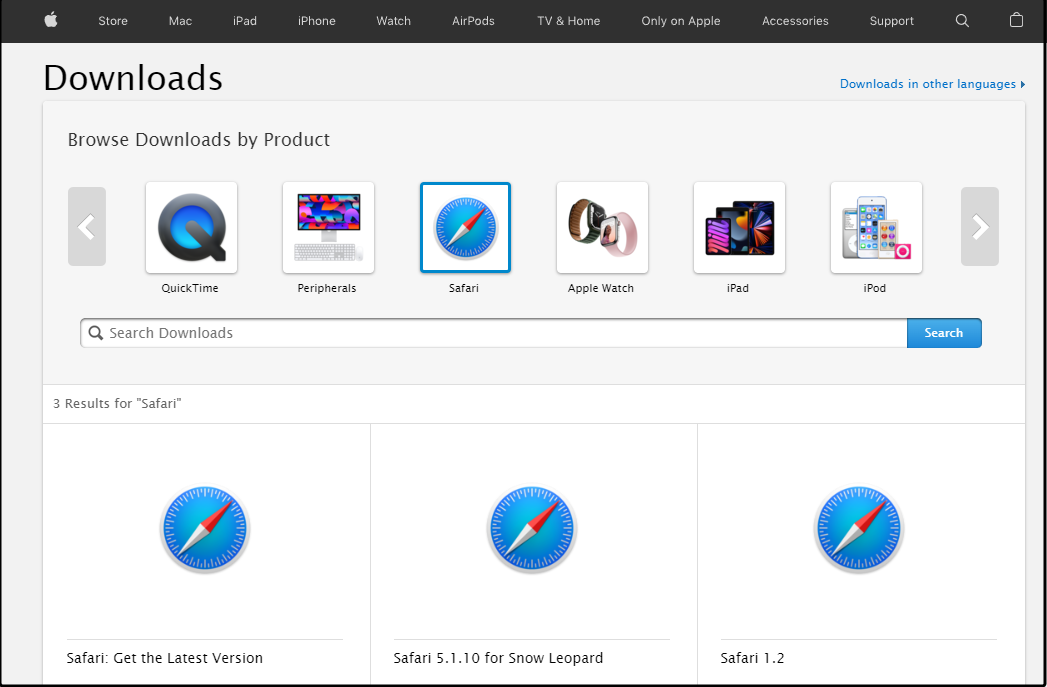
Safari, Apple’s browser for Macs and iOS devices, is popular among web developers because of its HTML5 compliance. It’s also one of the best browsers for HTML5 audio.

One reason it is good for HTML5 audio because it supports WebGL and WebRTC, two cutting-edge technologies that are essential for modern web apps.

Safari supports most HTML5 audio specifications and other related technologies, including JavaScript APIs, media events, and CSS3 effects.

Additional features:

  • Support multiple formats
  • Has great support for Web Audio API
  • Safari has built-in support for HTML5

⇒ Get Safari

How do I fix my browser is not supporting HTML5 audio? 

If your browser is not supporting HTML5 audio, then there are several possible reasons:

  • The browser is not up-to-date – In such a case, you need to update your browser to the latest version and try again.
Update to fix facebook videos won't play on pc
  • Bugs in the browser – Sometimes, browsers have their own problems, so try using another browser. You’ll find that some browsers are better than others at supporting HTML5 Audio.
  • Incorrect file extension – The first thing to do is check the file extension. HTML5 audio files have a .ogg or .mp3 extension. If you are trying to play a file with an incorrect extension, this will cause your browser not to recognize it as HTML5 audio.
  • Corrupt extension – Check to see if your browser has an add-on or extension that can be uninstalled. Add-ons and extensions are often installed by accident, so disable any suspicious add-ons and check again.

Hopefully, you have been able to secure a browser compatible with HTML5 audio from our list above and can play audio with no hiccups.

While you are still here, be sure to check out our recommended list of the best browsers for high-quality audio streaming.

Also, let us know of any additional thoughts you may have on this topic in the comment section below.

Cloning Software for Windows 10: Best We Tested in 2026

A Windows 10 clone might be required if you’re planning on upgrading a hard drive. Alternatively, you can set up a backup copy of Windows 10 for a system recovery disc or USB drive.

Speaking of which, there are numerous software packages that you can use to set up a Windows 10 ISO.

A Windows 10 ISO is an image, or exact copy, of the platform. In other words, it’s a clone of the Windows 10 system disk. When you have set up a Win 10 ISO, you can then save it to a USB drive or CD/DVD recovery disc.

These are some of the best software packages to clone Windows 10. 

What is the best cloning software?

OS Deployer – Best overall

If the reason you’re looking to clone your Windows 10 OS is to project and deploy it on multiple PCs in a given network, then you’ll need to shift to a different variety of software that has nothing to do with actual OS cloning.

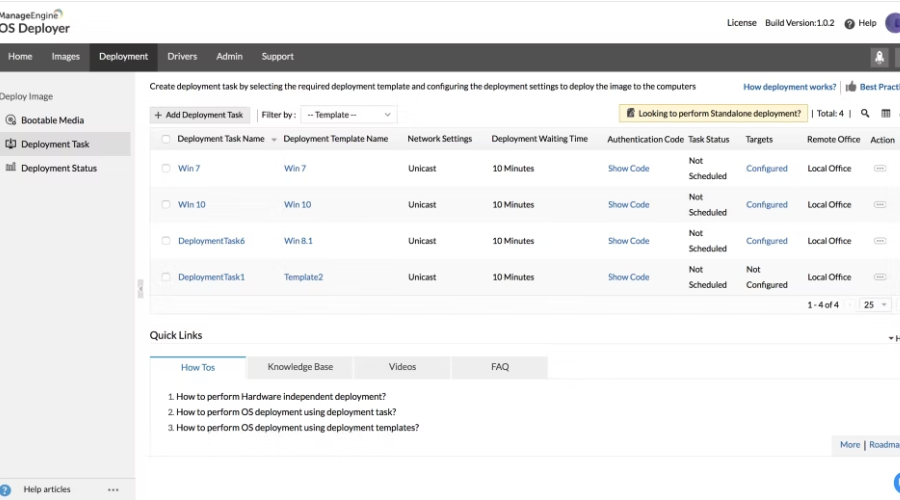
In the case at hand, OS Deployer is an excellent tool for large-scale companies that need to automate PC imaging and OS deployment for many PCs within a given network.

Thanks to OS deployers, administrators can save the disk image of different OS versions and customize them to fit specific needs within a large organization.

These captured images can be deployed to PCs within a network, all thanks to the latest imaging and deployment technologies.

The program also automates several features that would otherwise fall under the support team’s jurisdiction, thus taking an extra load off their shoulders and significantly reducing maintenance costs.

In the context of remote work, this tool proves to be especially useful since, with this tool you can essentially deploy OSs to all your remote office PCs from one centralized console.

OS Deployer

Capture, customize, and deploy OSes on your company PCs with the help of this amazing tool!
Free trial Visit website

Acronis Cyber Protect Home Office – Easiest to use

Up next we have a software tool that manages to prove with each yearly iteration that it is the best choice for the job.

Acronis Cyber Protect Home Office, former Acronis True Image, is a go-to solution for anyone that wants to create a complete and identical copy of their current Windows 10, which they can use for future rollbacks and backups.

Of course, what makes this tool exceptional is that it doesn’t simply create a copy, it manages to filter out any elements that may have forced you to create copies in the first place.

For example, Acronis comes with proven anti-malware technology, allowing for efficient safeguarding of all of your data, apps, and systems.

These include  AI to stop ransomware and crypto-jacking in real time, as well as blockchain data notarization.

As for the backup component, Acronis Cyber Protect Home Office provides users with an intuitive and comfortable UI, so creating copies and backups isn’t give you any headaches.

Here are some of the perks of using Acronis Cyber Protect Home Office:

  • Intuitive UI
  • Constantly updated
  • Provides you with cloud backup and recovery
  • Combines state-of-the-art anti-malware and backup technology
  • Supports mirror imaging, disk cloning, and all‑in‑one recovery drives
  • Now available at a special discount price through our website for a limited time.

Acronis Cyber Protect Home Office

Create a 1:1 copy of your Windows 10 in a fast and secure manner with this amazing backup tool.
Free trial Visit website

AOMEI Partition Assistant – Advanced partition management

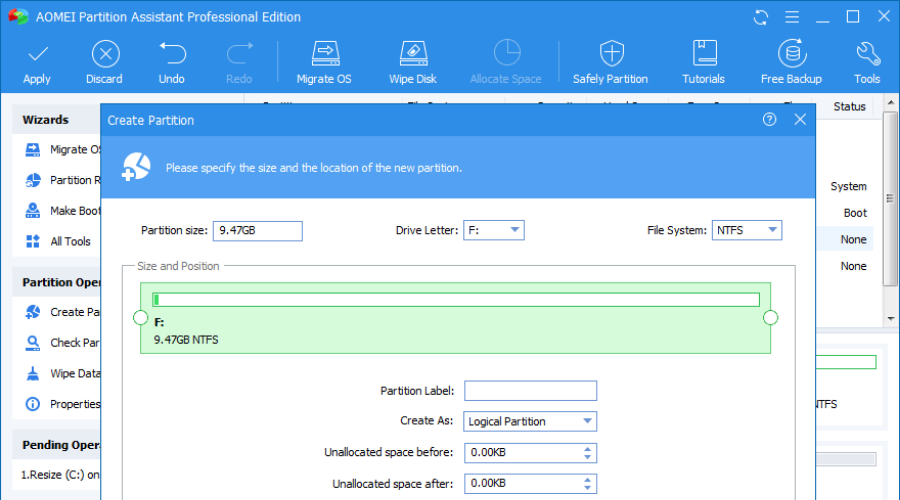
Another great tool that you can use to clone Windows 10 is AOMEI Partition Assistant. The tool allows you to resize or move your partitions, but you can also merge them.

The application allows you to clone disks and partitions, but you can also migrate your OS to an SSD drive.

Other partition management features such as partition creation, formatting, and deletion are also supported. Of course, you can also split, extend, and recover your partition.

As for additional features, the application also allows you to convert your GPT or MBR disk. There’s also a bad sector and partition check available. If you want, you can also wipe the entire disk or partition using this tool.

AOMEI Partition Assistant is a great tool, and it’s available in the Free and Pro versions.

The Free version offers all aforementioned features, but if you want to get access to all features, you might want to consider purchasing the Pro version.

Aomei Partition Assistant

Clone or migrate your OS with this user-friendly utility that takes care of everything partition-related.
Check price Visit website

Paragon Hard Disk Manager Advanced – Multiple backup options

TopTenReviews rates Paragon Hard Disk Manager Advanced the best disk imaging software for Windows.

This has a freeware edition that you can add to Windows 10, and other platforms, from the Paragon website, but it also has a payable version.

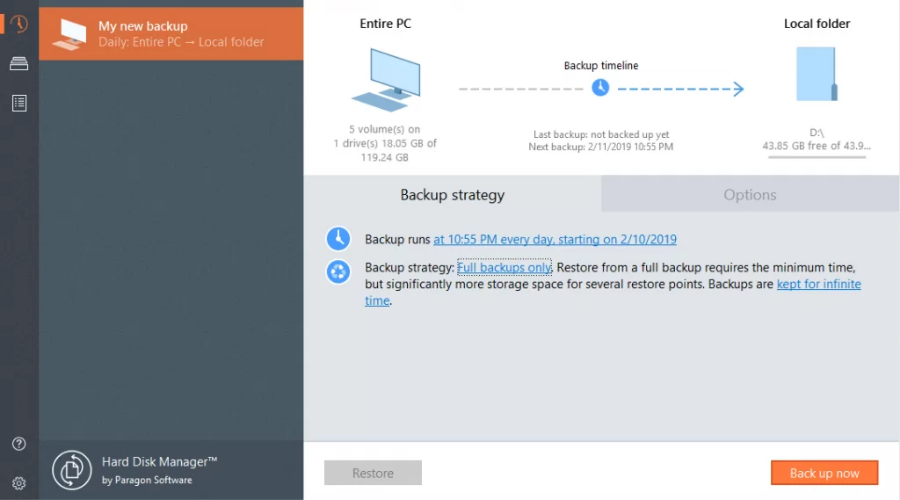
The utility includes a variety of options for complete disk backups.

One of the more unique options Paragon Hard Disk Manager™ Advanced has is its Backup Capsule. This enables users to sets up a reserved partition managed by the software for easy recovery.

Its backup wizard also enables you to set up filters to exclude temp, log, .exe, and other file types from the ISO.

As such, with those filters, you can compress the ISO. In addition, it also supports differential backups for ISO images.

Paragon Hard Disk Manager Advanced

A complete hard disk manager for backups, rollbacks, restores, and more, all within a single intuitive UI.
Check price Visit website

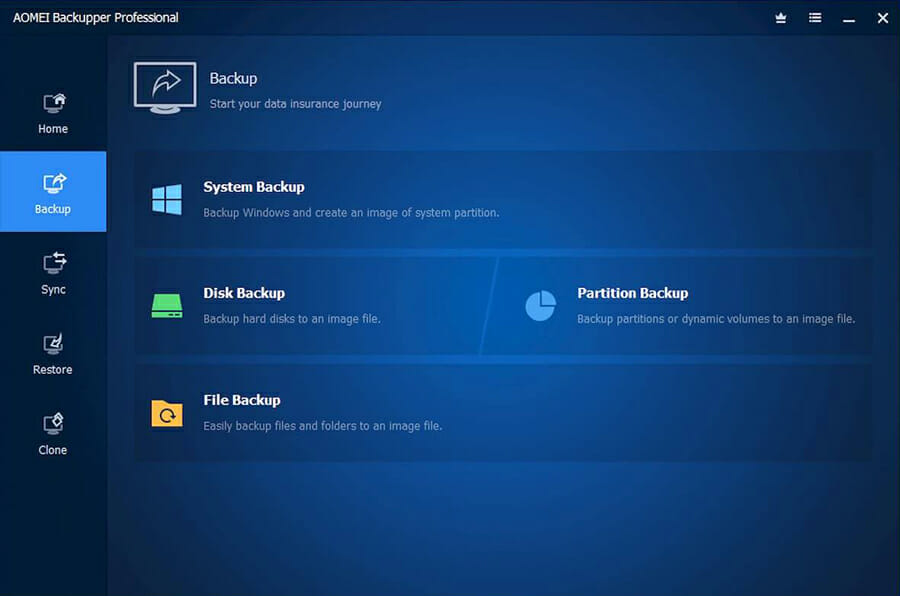
AOMEI Backupper Standard – All-in-one backup and sync

In the true style of AOMEI, the Backupper stays faithful to the company’s commitment to fighting data loss.

What’s more, just like other AOMEI products, our software of choice is easy to use, effective, and fast.

The UI design is entirely built having the end-user in mind, making the navigation as easy as a breeze and as productive as they get.

What’s more, the Backupper does more than provide a backup solution. This is an all-in-one software that you can use to backup, recover, sync, and clone data in a secure and reliable manner.

The tool uses 256-bit AES encryption which is the highest possible standard when it comes to data security and confidentiality.

You can use it to create bootable drives and rapidly deploy system images to multiple computers or clone multiple computers over the network.

Aomei Backupper Standard

Clone, migrate, and backup your operating system in just a few simple steps with this pro-level back upper.
Free trial Visit website

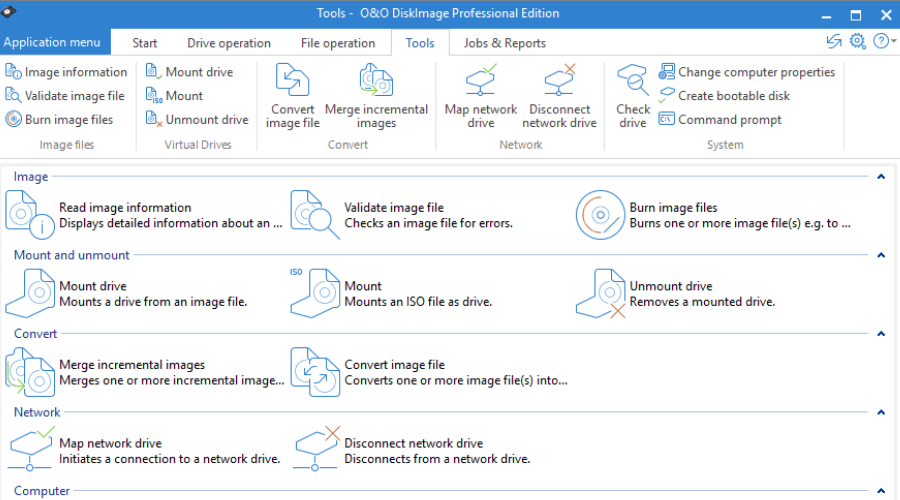
O&O DiskImage – Straightforward interface

This is one software that simplifies all your backup and recovery needs by centralizing all the major features in one single location.

With O&O DiskImage you can forget about data leaks or data loss. Choose to backup your entire PC (yes, it is possible to do so!) or specific files on a local level.

The tool also supports SSD drives and the latest UEFI System.

But there is more to it than backup, you can use O&O to restore your system and clone an entire PC or hard drive even when Windows is no longer responding/is unbootable.

O&O DiskImage

Create a backup of your entire PC and use it to clone your current OS!
Check price Visit website

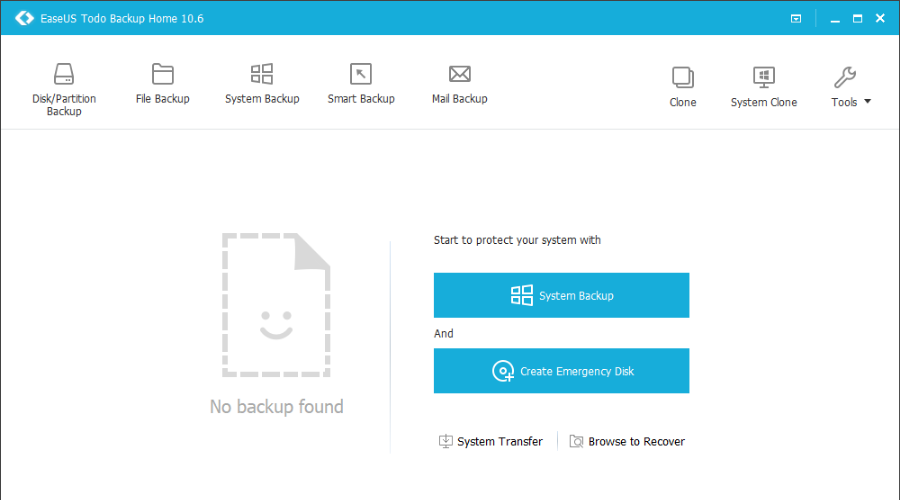
EaseUS Todo Backup – Best for automation

EaseUS Todo Backup is a great cloning software because it can create a backup on any file, disk, or partition on your PC or on external drives.

And if you don’t want to do any repetitive tasks yourself, you can schedule backups for your data. And as a storage source, you can even use FTP or cloud solutions, or NAS.

However, the backup is only a side dish to the cloning function that you can even use to transfer your whole system to another PC.

The tool will help you create a portable Windows USB drive with just a few clicks.

EaseUS Todo Backup

Transfer your OS with all its data with this safe and easy-to-use backup utility.
Free trial Visit website

Cloning Windows 10 isn’t that hard, especially if you have the proper software to do it. Speaking of cloning, in this article we’re going to cover the following topics:

  • Clone Windows hard drive to SSD, to the new hard drive, to a new computer
    • Cloning Windows 10 hard drive to a new SSD or hard drive is rather simple, and you should be able to do that by using one of the tools from our list.
  • Windows 10 bootable clone
    • Many users want to create a bootable clone of their Windows 10 drive.
    • This is possible and rather simple to do as long as you have the proper software for it.
  • Migrate Windows 10 to new hard drive
    • If you purchase a new hard drive, you don’t have to install Windows 10 and all your applications again.
    • Instead, you can migrate Windows 10 and all your files to a new hard drive using one of these applications.
  • Clone Windows 10 hard disk, image, partition, system drive
    • Creating a hard disk image is simple and straightforward, as long as you have the proper tool.
    • Using these tools you can easily clone your system drive, any other partition, or your entire hard drive.
  • Clone Windows 10 MBR to GPT

These software packages have some of the best options for cloning Windows 10. They’ll give you a full Windows 10 ISO that you can add to CD/DVD or set up a bootable USB key with.

In case you don’t want to use third-party software, there are ways to mirror the hard drive on Windows 10 with built-in tools.

If you have any other questions or suggestions, feel free to leave them in the comments section below.

Nvidia DLSS: How to Enable It in All Major Triple-A Titles

DLSS is a relatively new image upscaling technology for NVIDIA graphics cards that stands for Deep Learning Super Sampling.

That image upscaling technology utilizes AI algorithms to boost frame rates for games at high resolutions by rendering graphics at lower resolutions.

NVIDIA released the first DLSS version in 2019. Since then, DLSS game support has expanded.

However, DLSS only works for GPUs of the NVIDIA RTX 20 and 30 series. This is how you can enable DLSS for supported games.

Can you enable DLSS in any game?

Unfortunately, DLSS isn’t available for every game. However, the list of games with DLSS support is constantly growing, and odds are pretty good that you already have a game in your library with support.

For the time being, Deep Learning Super Sampling (DLSS) is only available on Nvidia RTX graphics cards, including both the 20-Series, 30-Series, and up.

Should I turn on Nvidia DLSS?

Let’s put it this way: DLSS could pretty much end up being the most impactful feature of Nvidia’s RTX GPUs from this point forward.

Ray-tracing effects are pretty but tend to have a sizable impact on performance, so DLSS gives us the best of both worlds, with better-looking games that perform better, as well.

In fact, this feature quickly became so popular, that if you search for a guide on how to enable it on Google, these are the results you’ll get:

  • How to enable DLSS Nvidia
  • How to enable DLSS Nvidia Control Panel
  • How to enable DLSS for Fortnite
  • How to enable DLSS for Minecraft
  • How to enable DLSS on RTX 3050
  • How to enable DLSS for Warzone
  • How to enable on GTX 1650
  • How to enable DLSS for Forza Horizon 5
  • How to enable DLSS for Apex Legends

Update your NVIDIA graphics card driver

Before you enable DLSS in games, make sure your GPU has the latest NVIDIA driver (the latest Game Ready Driver is required). To do so, run a scan with a driver updater utility.

Driver updater software will scan your PC’s drivers and list devices with outdated ones. Then you select to download and automatically install the latest drivers.

How to install the latest Windows 10 build version?

  1. Open Settings by pressing its Windows and I hotkey.
  2. Click Update & Security to open the options shown directly below.
  3. Then click the Download and install option if there’s a Windows 10 feature update available.

When your RTX GPU’s driver and Windows 10 platform are up-to-date, you should be able to select DLSS options for supported games via their graphical settings.

How exactly you select those in-game options varies between games. Below are some examples of how to enable DLSS in games.

How to enable DLSS in games?

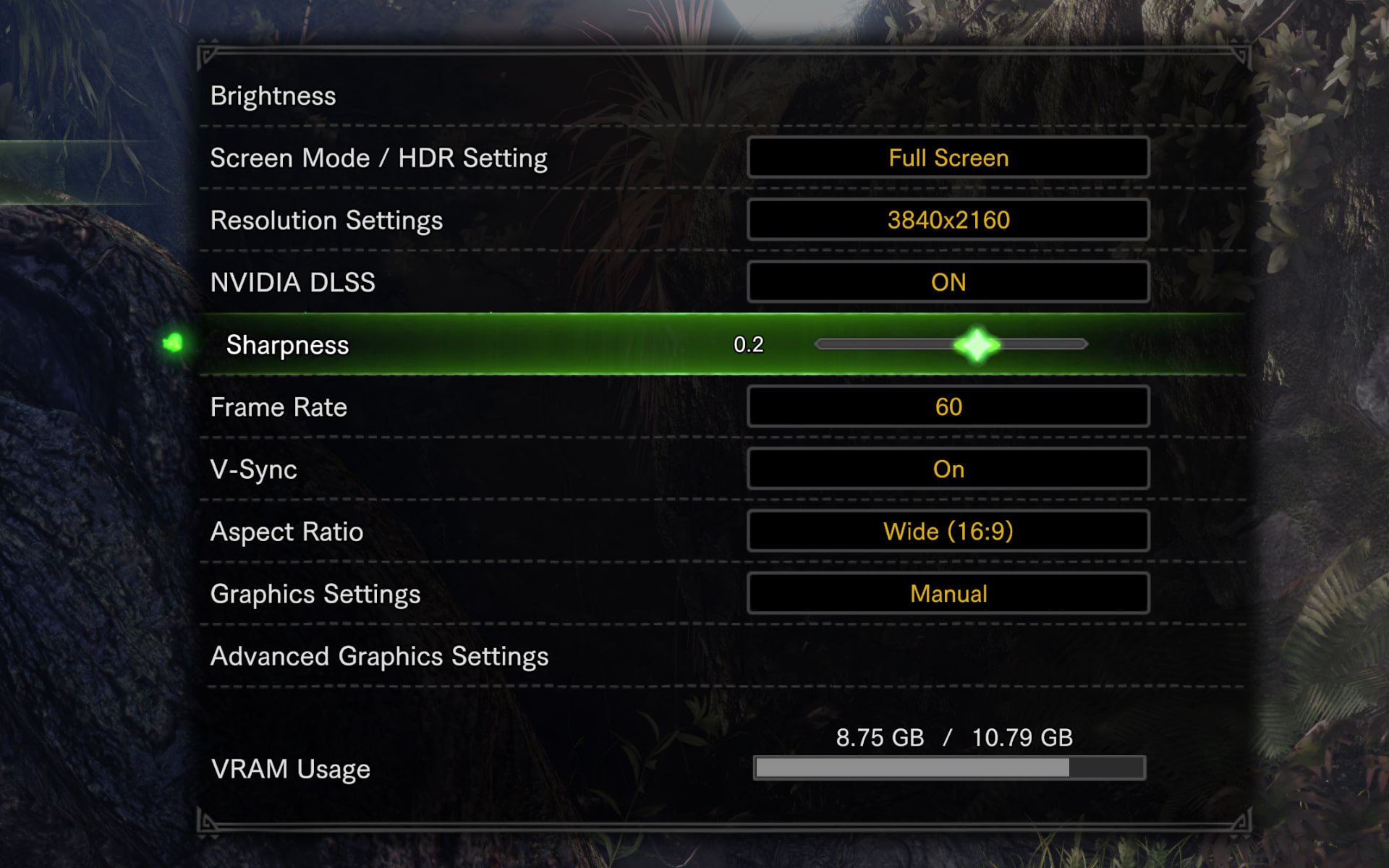
1. Open the game’s Settings menu

The first thing you need to do is to open the game you want to enable DLSS in and access its Settings menu.

2. Open Graphics to adjust the graphics settings

Once you are in the general menu, click on Graphics to access the graphics settings menu.

3. Toggle the DLSS option on

Lastly, scroll down to the DLSS option and toggle it on.

How exactly you select those in-game options varies between games. Below are some examples of how to enable DLSS in games.

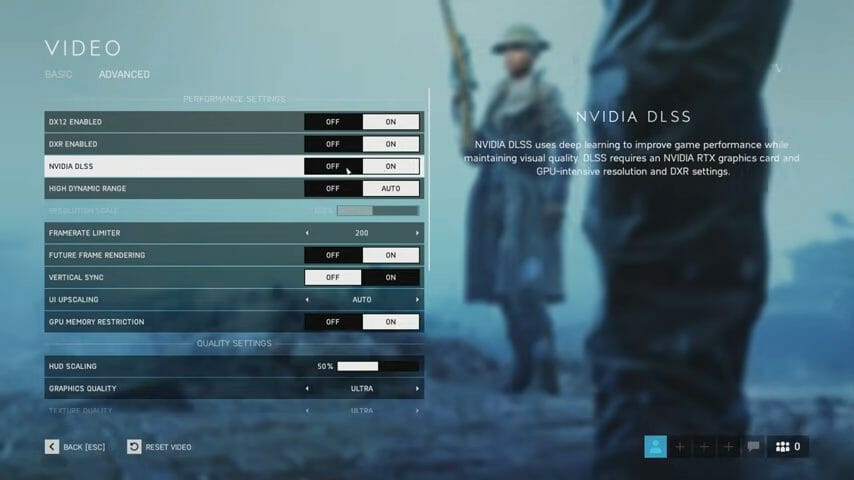
How to enable DLSS in Battlefield 5?

  1. Open the Graphics Setting menu within the Battlefield 5 game.
  2. If Direct 12 is not already enabled, you’ll need to enable that setting and restart Battlefield 5.
  3. Click the Advanced tab.
    The NVIDIA DLSS setting enable dlss
  4. Toggle the DXR option on if it’s not enabled, and restart the game.
  5. Then you can toggle the NVIDIA DLSS setting on.
  6. Finally, choose a level of detail with the DXR Reflections Quality option.

When you’ve enabled DLSS for Battlefield V, you might notice a notable performance boost. Battlefield will run at higher framerates with greater graphical detail.

The NVIDIA video below shows us a side-by-side comparison of that game with and without DLSS enabled.

How enable DLSS in Cyberpunk 2077?

  1. Click Settings in Cyberpunk 2077.
  2. Select Graphics to open graphical settings.
  3. Scroll down to the DLSS option.
  4. Then click the arrow for the DLSS setting to select a Balanced option. Alternatively, you can select Performance or Ultra Performance settings to enable DLSS.
    The DLSS setting enable dlss
  5. Press Esc to exit settings.

How to enable DLSS in PUBG?

If you were also looking for a way to turn this feature on for PUBG, you should know that is not a supported DLSS game title at the moment.

However, Bluehole confirmed that PUBG will get DLSS in the near future. PlayerUnknown’s Battlegrounds is just one title in a list of games scheduled to incorporate DLSS, which includes the following:

  • Dauntless
  • Fractured Lands
  • Scum
  • Justice Online
  • JX Online 3
  • Hitman 2

It is expected that PUBG, and those other games, will support DLSS in the foreseeable future.

When they add support for DLSS, you’ll probably be able to enable image upscaling for them via their graphical settings much the same as Cyberpunk and Battlefield 5.

Does DLSS improve performance?

If you don’t really know that much about DLSS, that’s all about to change right now. To help you better understand, DLSS is a real-time version of Nvidia’s screenshot-enhancing Ansel technology. 

That means it renders the image at a lower resolution in order to provide a performance boost, then applies various effects to deliver a relatively comparable overall effect to raising the resolution.

The result of this happening can be a mixed bag, but usually, it leads to higher frame rates without a substantial loss in visual fidelity.

So, what are you waiting for? If you’ve got a game that supports DLSS and PC with a suitable RTX graphics card, you can enable NVIDIA’s cutting-edge upscaling technology as outlined above to see how it raises the bar for Windows gaming.

Xbox Cloud Gaming will extend beyond consoles and PCs

There’s no denying that Xbox Cloud gaming has been making huge progress since it was first released by the tech giant.

This popular gaming service has grown by a staggering 1800% in the past year, which is what Kevin LaChapelle, Vice President of the xCloud platform at Microsoft, stated in a recent interview.

If you’re an Xbox gamer, you should know that the official Xbox channel on YouTube posted a video where the biggest updates and enhancements of the Xbox Cloud Gaming platform were discussed.

Xbox Cloud Gaming to massively extend its boundaries

The above-mentioned Xbox official, Kevin LaChapelle, revealed that Microsoft is actively engaged in adding multiple new servers across the globe to meet the rising demand of gamers.

Among other things that were said, LaChapelle also mentioned that the Xbox Cloud Gaming’s server cluster is expected to double in the coming year.

it goes without saying that the future of Microsoft’s gaming business is deeply rooted in the Xbox, just in case there were any doubts.

That being said, the next phase of growth will increasingly come from beyond the high-end, dedicated gaming console.

The Redmond-based tech giant is actually looking beyond the console and exploring expansion through smartphones, tablets, and PCs.

But wait, because it gets even better. We’ve come to a point where none of these devices will need to run the Windows operating system.

The catch is that, as long as these devices have a reliable internet connection, and support a secure browser, they can help Microsoft’s gaming business grow.

And speaking of gaming browsers, know that the most reliable and gaming-oriented browser out there is definitely Opera GX.

Opera GX

Discover all the benefits of a real gaming browser, made especially for gamers and all the needs that they have.

So it should go without saying that gadgets such as the Steam Deck, Android and iOS smartphones and tablets, and Smart TVs would play a huge role in driving up adoption.

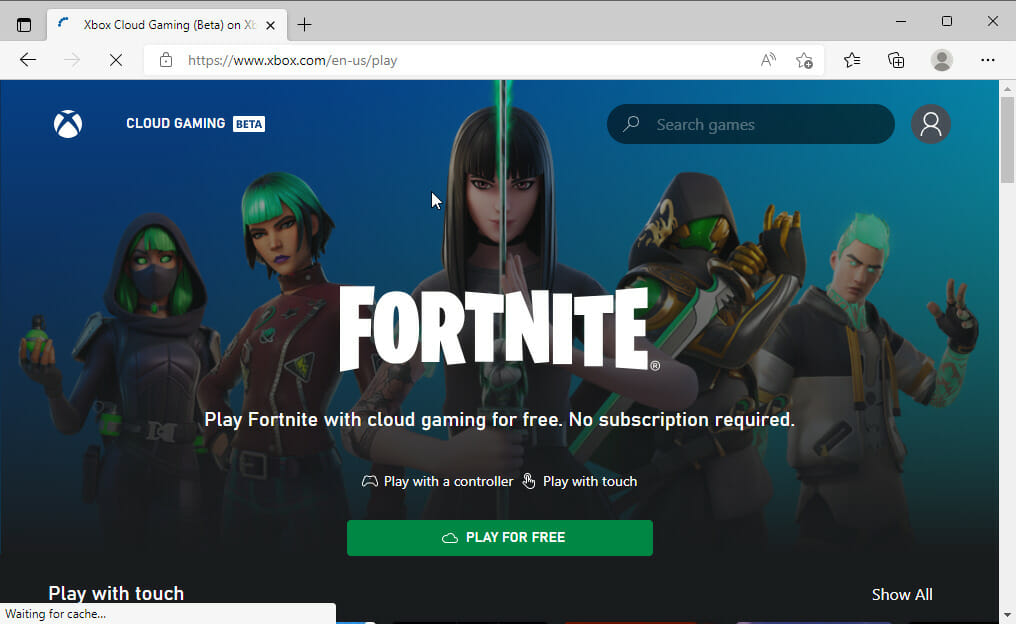
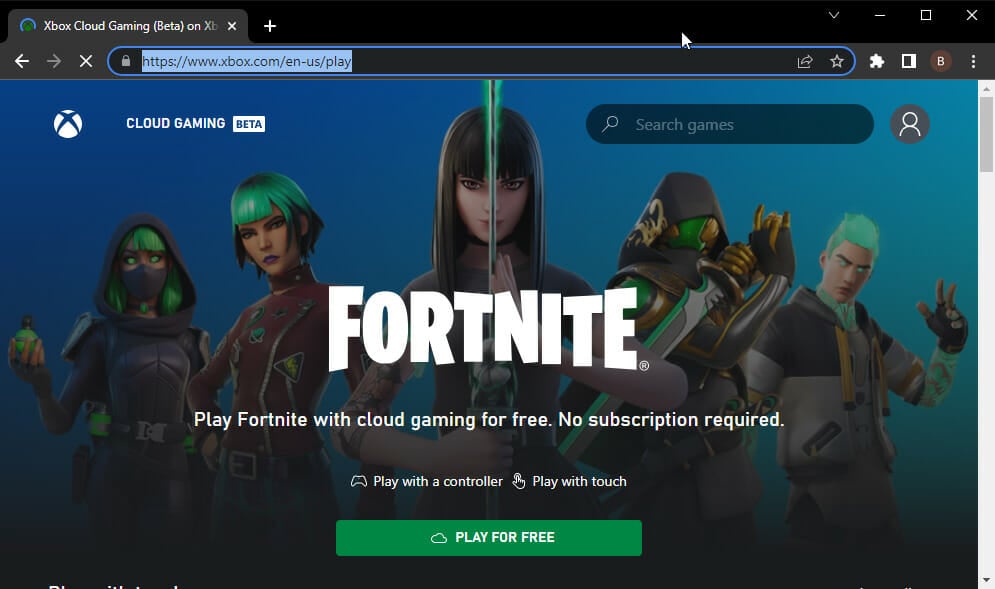
If you are an Xbox Cloud Gaming platform user, you also know that the service has shot up in adoption quite noticeably due to Fortnite.

The popular battle royale game is available for free to play via Xbox.com/play, where you don’t even need an Xbox Game Pass Ultimate subscription to access Fortnite.

Through the above-mentioned video, Redmond officials have urged users of the Xbox Cloud Gaming service to offer their feedback on the Xbox Cloud Gaming Feedback portal.

For a large number of users, the Xbox Game Pass subscription has proven to be very attractive in terms of pricing and access to game titles.

And, with Microsoft continuously tweaking and improving the service, xCloud might just beat GeForce Now, Google Stadia, PlayStation Now, and other rival cloud gaming services.

This can only be good, as a large extension of something that brings so many people together should be welcomed with open arms.

Also, remember that Microsoft is working on a much shorter boot time for the Xbox consoles, and has already managed to shave 5 seconds off the cold boot.

What are your thoughts on the matter? Be sure to share all of your honest opinions with us in the dedicated comments section located below.

5 Ways to Turn Dark Mode On or Off in Facebook Messenger

The Dark Mode option has become popular lately, and thanks to that, you can now see it through most platforms and apps, including Messenger.

The Messenger desktop app can be used for quick and efficient messaging on the desktop and due to its utility, turning on the Dark Mode, especially at night, is of great use.

The following article will show you the exact steps you need to follow to activate it on your browser.

What version of Facebook has Dark Mode?

As of January 2022, you will be able to enable light mode in most Facebook apps, including Dark Mode. If for some reason, your version does not have it, you need to update or download the latest version, and you will be able to use Dark Mode.

Can you make Facebook Messenger web app dark?

This will depend on the OS you use it on, as the web app does not have a Dark Mode setting. In Windows 11, for example, you can force every browser to display in Dark Mode.

Quick Tip:

Opera One is a browser that allows you to easily choose between Dark Mode, Light Mode, and Grey Mode straight from your current page.

Moreover, having the Messenger Dark Mode in this browser is more straightforward than it may seem, thanks to the integration sidebar that allows customization with the add-ons available.

Opera One

Get the dark mode enabled on Messengers or on the pages you visit.

How can I enable Messenger Dark Mode in my browser?

1. Use browser in Dark Mode

1.1 Opera One

  1. Click on the Easy Setup icon at the top right.
    messenger dark mode pc
  2. Select Dark under the Theme menu.
    messenger dark mode pc
  3. Restart your browser to force the change to take effect.

This should be your go-to for using Messenger Dark Mode on PC in Opera One.

1.2 Firefox

  1. Click on the menu icon and click Settings.
    messenger dark mode pc
  2. Scroll to Language and Appearance and select the Dark option.
  3. Restart your browser to force the change to take effect.

This should be your go-to for using Messenger Dark Mode on PC in Firefox. You can apply similar steps to get the Dark Mode for Messenger on Microsoft Edge.

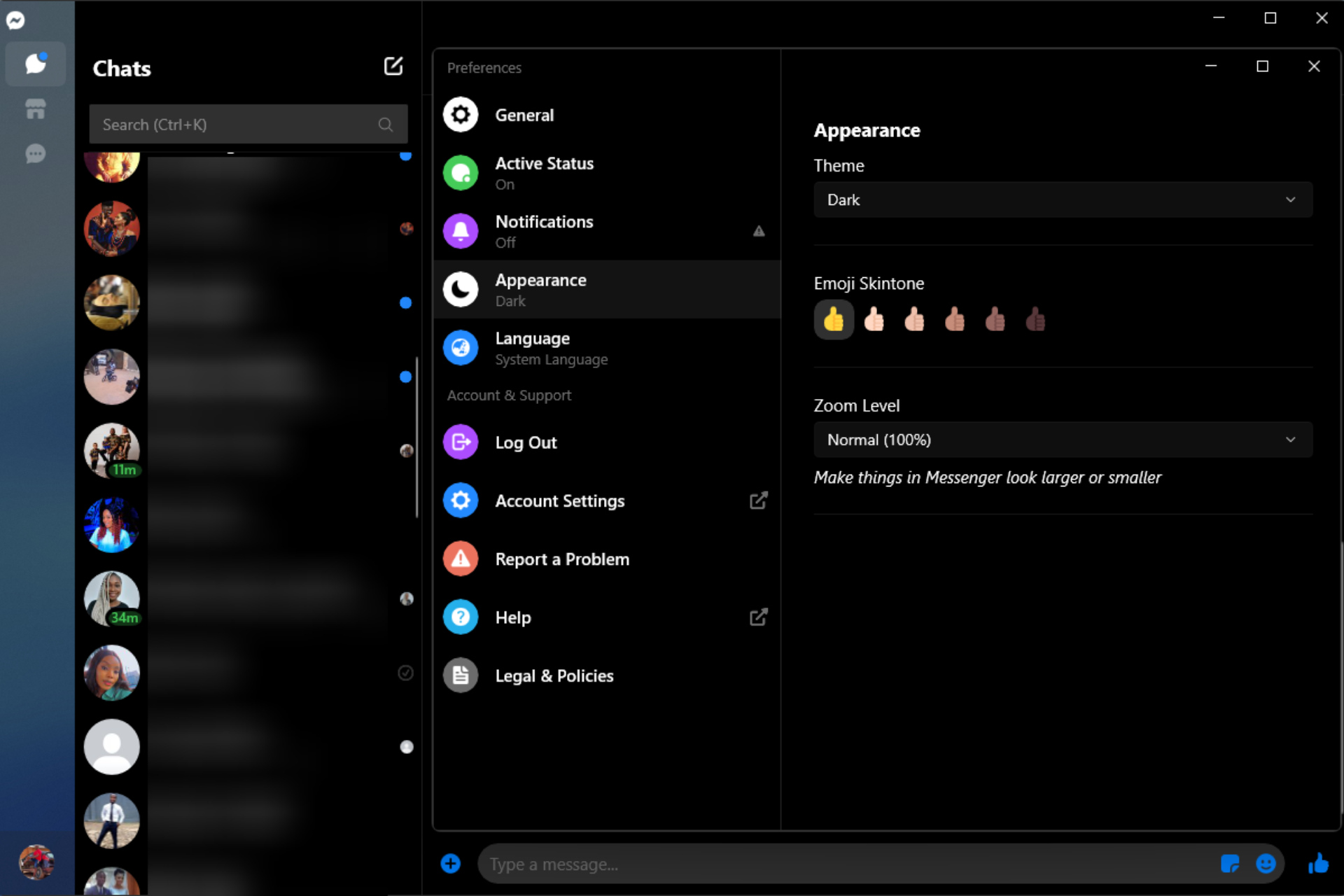
2. Change Messenger app settings

  1. Open the Facebook Messenger desktop app and log in.
  2. Click on your profile icon and select Preferences.
    messenger dark mode pc
  3. Go to the Appearance option and click on Theme, then from the drop-down list, select Dark theme.

3. Enable Force Dark Mode

  1. Open the Google Chrome browser.
  2. In the address bar, type the following:
    chrome://flags/#enable-force-dark
  3. Select the Enable option from the Auto Dark Mode for Web Contents drop-down menu.

Once you have enabled the Dark Mode, when you open Facebook Messenger in the browser, you will see that the display will also be dark. This flag is your go-to for Messenger Dark Mode on PC for Chrome users.

4. Change the Windows theme

  1. Click on the Start menu, then open the Settings App.
  2. On the left pane, click on Personalization, then click Colors on the right.
  3. Make sure Choose your default Windows mode and Choose your default app mode options are set to Dark.

Following these steps will force the Facebook Messenger web app to display in Dark Mode.

5. Activate Dark Mode extensions

5.1 Chrome

If you are using Chrome, then download the Dark Theme for Facebook from the Chrome web store and activate it.

Next time you will open Facebook Messenger in the browser, you will see that the Dark Mode is also on.

5.2 Edge

If you are using Edge, the easiest way to activate the Dark Mode on your Messenger is to download from the Edge add-ons list the Dark & Night Theme for Facebook.

With this extension, once you change the Facebook theme to dark, this will also apply each time you open Facebook Messenger.

Moreover, you have five built-in Dark Modes to choose from, and if you want, there is also the option to build your dark theme.

5.3 Mozilla

If you are using Mozilla as the primary browser, then download the Dusky Gray Facebook [Dark Theme].

With this extension, once activated, you can also access Facebook Messenger in the Dark Mode.

Why did Facebook’s Dark Mode disappear?

Since 2020, Facebook users on iOS, desktop, and Android have had the choice to switch to Dark Mode; however, some users are reporting that they are now unable to do so.

This may be because of updates in the app, in which case they may need to go and re-enable the settings.

On some rare occasions, it could be a sign that the user has malware on the device, and a strong antivirus may be needed to resolve this.

Facebook Messenger is used by so many to keep in touch with family and friends, and activating the Dark Mode, especially at night, is a game-changer. You may not be able to enable the Messenger Dark Mode on a browser, so you should download the app.

We have detailed in this article the steps you can follow to use Dark Mode Messenger in your browser, and as you can see, all you have to do are a few simple steps.

Note that you will get the best from the service using these 5 tips for Facebook Messenger.

Let us know in the comments section below which option worked best for you; we would love to know.

New York’s Barclays Center to feature official Xbox court for this week’s WNBA games

Those of you who are both Xbox fans and basketball fans, and who happen to be in New York this week are in for a real treat at the Barclays Center.

The Brooklyn arena – which is home to both the NBA’s Brooklyn Nets and the New York Liberty of the WNBA – is hosting an Xbox/Roblox themed court during this week’s New York Liberty home games against the Los Angeles Sparks. The two games will take place on August 2 and August 3.

Those who can’t make it to the Barclay Center can still experience the Xbox court in the Roblox game Infinite Canvas’ Dunking Simulator. And unlike its real-life counterpart, the Roblox experience will feature pyrotechnics, fan chants, and 11-year-old sports journalist Pepper Persley as host. Access the Infinite Canvas’ Dunking Simulator experience here, just create a Roblox account if you don’t already have one.

Fans can also visit Power her Dreams to share their experiences. Microsoft will donate $10 for every submission to either the Mamba & Mambacita Sports Foundation or Girls Who Code, with a maximum $50,000 to each nonprofit organization.

Here are the best back to school gaming accessories

It is nearly back-to-school time. And while that may not seem like the most joyous of news to some, the silver lining is that it is also the time to stock up on the most important study essentials: back-to-school gaming accessories. And we’ve got the best already picked out for you. You’re welcome. Now let’s have a look at the best back to school gaming accessories 2022.

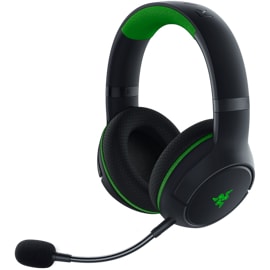
Razer Kaira Pro Wireless Gaming Headset for Xbox Series X|S ($99)

Game-changing audio is yours with this wireless Bluetooth® headset designed for Xbox Series X|S and mobile Xbox gaming.

Angled front view of Razer Kaira Pro Wireless Gaming Headset for Xbox Series X|S with microphone.

Heading back to school usually means you’ll be making new friends. And what is the point of having friends if you can’t invite them to join you in some online gaming? That’s why you will need a good gaming headset. And when it comes to hurling good-natured insults over a tense round of deathmatch, only the best will do. That’s why you need the Razer Kaira Pro for Xbox Series X|S. Check out these tech specs:


  • FREQUENCY RESPONSE 20 Hz – 20 kHz
  • IMPEDANCE 32 Ω (1 kHz)
  • SENSITIVITY 108 dB
  • DRIVER SIZE – DIAMETERS (MM) 50 mm

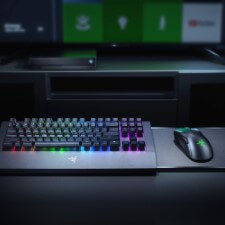
Razer Turret Wireless Mechanical Gaming Keyboard for Xbox One and Xbox Series X|S ($244.49)

Meet Razer’s first wireless keyboard and mouse designed for Xbox One (and Series X|S). Get incredible precision on a tenkeyless keyboard with an inbuilt mouse mat, paired with a mouse featuring the acclaimed Razer 5G Advanced Optical Sensor. It’s the one-device solution for advanced gaming – on the couch. 

Only PC gamers can really appreciate how much a great keyboard and mouse can enhance the gaming experience. With the Razer Turret Mechanical Gaming Keyboard and Mouse – compatible with Xbox One and Xbox Series X|S consoles – you now have access to a keyboard/mouse combo that will feel like an extension of you. Not to mention it looks snazzy as all get out, and will add a ton of flair to your setup.


RDS Industries Xbox Series S Game Traveler System Case ($39.99)

Introducing the XBOX Series S Game Traveler System Case by RDS Industries. This sleek Game Traveler XBOX Series S Case holds and protects your complete XBOX Series S system, controllers, along with cables/power cords. The case has a padded divider with elastic straps to securely hold 2 controllers. A mesh pocket holds the HDMI cable and power cord with inner pocket for Seagate Storage Expansion Cards. The hard shell case with comfortable carry handle provides maximum protection. Take your XBOX Series S system anywhere you need to with ease and confidence. 

If you often find yourself taking your Xbox Series S console on the go, say to a friend’s house, then you no doubt can already appreciate just how much a good carrying case – particularly one specially-designed for the Series S – can simplify your life. And this here is the perfect solution: the RDS Industries Xbox Series S Game Traveler System Case. It stores and protects all your Series S gear – console, two controllers, cables and power cords.


Adidas XBOX Forum Tech Boost Shoe ($100)

In celebration of Xbox’s 20th Anniversary, Microsoft and adidas have teamed up to release a special edition of the Forum Tech Boost. These sleek shoes update an iconic style with modern adidas technologies and some serious Xbox-inspired flair. 

You are going to need a little personal swag to go with all that gaming goodness. What better way to add some flair to your everyday look than with these sick kicks? Celebrate 20 years of Xbox and look cool doing it.


Backbone One for iPhone PlayStation® Edition ($99)

Inspired by the look and feel of the PS DualSense™ wireless controller, the Backbone One gives users tactile controls to enhance their gaming experience on iPhone®. Pair with the PS Remote Play App and you can play your PlayStation® games anywhere* with ease. Simply plug your iPhone® into the Backbone One and start playing. 

Though Sony’s Remote Play for PlayStation isn’t anywhere near as robust as Xbox Cloud Gaming, the news is that Sony is looking to drastically expand its mobile game streaming offerings over the next few years. And that’s why you are going to need this latest, PlayStation-oriented controller from Backbone.


PowerA Dual Charging Station for Xbox ($24.33)

Charge or display your Xbox Wireless Controllers with this officially licensed Dual Charging Station that eliminates the cost of replacement batteries. Included are four battery doors (two for Xbox Series X|S / two for Xbox One) plus two 1100 mAh rechargeable batteries for up to 40 hours of gameplay*. To charge, simply click controller down on the Charging Station and monitor for LED color change from amber to white. When fully charged, click up to store. Focus on the game and not on your battery life. 

Say goodbye to those AA batteries with the PowerA Dual Charging Station for Xbox One and Series X|S consoles. This will save you money in the long run. Not to mention it will help tidy up your gaming space. An essential item for any Xbox fan.


Wrap up

There you have it: the best back to school gaming accessories 2022. Which items featured here are you most excited about? Will you be purchasing any of the back to school gaming accessories? Let us know down in the comments. And happy gaming – um, we mean studying.

Here is a quick look at what’s coming soon to Xbox Game Pass, including Turbo Golf Racing and Ghost Recon Wildlands

August is shaping up to be another fun month for Game Pass subscribers, with several games slated to be added in the first few days of the new month. Here is a rundown of what’s coming to Game Pass in early August.

New Game Pass games

DLC and game updates

  • Citizen Sleeper Episode One: Flux – Available now
  • Sniper Elite 5: Landing Force Mission and Weapon Pack – Available now
  • Sea of Thieves: Season Seven – August 4

Game Pass Ultimate Perks

  • Fall Guys: Coconut Milk Costume – Available now
  • Skate 3: Upgrade Bundle – August 11
  • The Elder Scrolls Online: Noweyr Pack – August 16

Games leaving Game Pass on August 15

There are also some games set to leave Game Pass at the midpoint of August. Be sure to dive back into these games while they are available to Game Pass subscribers.

Wrap up

No doubt there will be more announcements coming throughout the month, so consider this just a preview of what Game Pass subscribers have to look forward to in August. If you don’t already have an Xbox Game Pass subscription, you can sign up here. New members can currently get their first month for only $1. To find out more about Game Pass, head on over to its FAQ page.


Import PDF to Excel [Office 365 Guide]

You can open PDF documents and put them in a spreadsheet in Microsoft Excel, but most of the time, the result is not going to be satisfactory.

You can also try to save a PDF document as an Excel file using Acrobat DC but it’s merely something rather than nothing.

That’s why we got pretty excited when we found out that Microsoft introduced a PDF data connector in Microsoft Excel that allows you to import data from PDF files.

The new PDF connector feature is available if you have an Office 365 subscription.

How can I import data from PDF to Microsoft Excel?

In the guide below, we will show you how to easily import data from PDF to Excel in just a few minutes.

You can use the PDF Data Connector to identify and retrieve relevant data and have it ready for transfer in a spreadsheet-optimized format in no time.

Check out this quick, yet comprehensive guide and quickly overcome any file format limitations to make the most of your data.

Quick Tip:

If you don’t know about an intuitive way to import multiple data from PDF to Excel or open PDFs in Excel then you haven’t heard about SodaPDF.

This efficient PDF tool has the Convert and extract utility that lets you import any data to Excel files. Plus, it’s possible to go wild and edit your PDF files with thousands of options.

SodaPDF

Quickly import your data from any PDF files into Excel databases with this best PDF editor.
Check price Visit website

    Import data from PDF to Excel using PDF Data Connector

    PDF Data Connector is a a built-in feature in Microsoft Excel which allows you to easily import data from PDF files into Excel format.

    You can manually select which data from your PDF file you want to convert, and the tool will automatically do it for you.

  1. 1. Open a new Excel spreadsheet.

  2. 2. Click on the Data option from the ribbon.

    import data from pdf to excel ribbon
  3. 3. Now press on the Get data button, select From File and then click on From PDF.

    get file how to import data from pdf to excel
  4. 4. You will be prompted to select the PFD file that you want to pull data from. Choose the file you want to convert from your computer.

  5. 5. Afterwards, you will see another window where you can select which data to convert from that PDF file.

    select data import pdf to excel
  6. 6. Next, select the Load button to bring the data into Excel, or the Transform Data button to edit it with Power Query Editor.

We hope this little guide will help you import your data from PDF and import them to an Excel spreadsheet with no fuss.

If you have any questions or suggestions, don’t hesitate to tell us about them in the Comments section below.

How to Reinstall League of Legends With 2 Easy Methods

League of Legends is probably the most popular online multiplayer game today with more than 100 million players monthly.

With immersive play and vivid graphics, this MOBA has changed the way we experience PvP gaming.

However, there’s never been complex software without technical issues. That is the case with League of Legends, too.

Most of the reported issues have a specific set of solutions and fixes. Some of them are widespread while others are less so.

Nevertheless, there is a last resort to every technical issue and it’s called a reinstall. You can fix your errors with the game if you reinstall League of Legends.

How can I reinstall League of Legends?

We prepared a walkthrough for you with a step-by-step explanation of the reinstallation process using 2 different methods.

1. Reinstall League of Legends using Hextech Repair Tool

hextech repair tool reinstall lol

The developer of the League of Legends, Riot Games, launched an interesting software solution to fix common technical issues related to the game. It is called Hextech Repair Tool and its main features are:

  • Easy reinstallation or repatch
  • Firewall management
  • Restores the health of nearby turrets.
  • Display the known issues in your region.

Hextech Repair Tool can perform a clean reinstall of your client in a few simple steps. All you need is to follow the instructions on the screen.

    2. Reinstall League of Legends manually

    If you encountered errors with your League Client and the game does not work properly, you can perform a manual game reinstallation.

    In doing so, you need to uninstall the game from Control Panel, then download and install the newest version from the official League of Legends website.

  1. 1. Open the Start menu on your computer by pressing the Windows key.

  2. 2. Select Control Panel from the list of results.

    Opening control panel from start menu
  3. 3. Click on Programs and Features.

    Programs and features control panel
  4. 4. Scroll down until you find League of Legends in the list. Click on it.

  5. 5. Select Uninstall/Remove.

  6. 6. The uninstall process will begin. Follow the instruction until the process is finished.

  7. 7. Navigate to the directory where League of Legends was installed (the C: drive by default).

  8. 8. Delete the old setup files you used to install the game and any unnecessary registry files.

  9. 9. Restart the PC.

    After you finished the entire uninstallation process, the next step is downloading and installing the game’s client.

  10. 10. Download the latest version of League of Legends from the official website.

    reinstall league of legends new download
  11. 11. Run LeagueofLegends.exe to download the setup files. These will be placed in a new League of Legends folder on your desktop by default.

  12. 12. After the setup finishes downloading, the installation process will begin automatically. If possible, install League of Legends to the default C: drive. Though, you can change it in custom install.

  13. 13. When the installation process finishes, the game’s launcher will open automatically.

  14. 14. If the game does not automatically start, you can manually open it by double-clicking the League of Legends desktop shortcut, or by running lol.launcher.exe in the directory to which you installed League of Legends.

If you’re looking to reinstall League of Legends to fix persistent issues, follow the steps in our League of Legends uninstall guide for a complete and clean reinstallation process.

There are also reported cases of registry issues that impact fresh installs. Our advice is to use a specialized registry cleaner such as CCleaner and get rid of unnecessary registry entries related to LoL.

This was our walkthrough of the reinstallation process. We hope you managed to reinstall the game and start from scratch.

Keep in mind that this is just a game client, so none of your in-game statistics are affected in any way.

In an odd bug, Uber receipts are crashing Outlook on Windows

If you’re someone that takes a lot of Uber rides and uses Outlook on Windows to file and print receipts, then we have a fair warning for you. Noted by Bleeping Computer, there is an ongoing issue with Outlook where the client on Windows might crash when you try to open emails with complex tables.

Microsoft actually has a support page for this, first published on July 29, and mentions that the issue started in the Current Channel version 2206 Build 15330.20196 and higher. The same issue also happens in current builds of Beta and Current Channel Preview. It even applies to Word, where similar table contents might cause Word to stop responding.

Officially, Microsoft is working on a fix that should come out on Patch Tuesday, timed for August 9, 2022. The fix is from the Word Team, and will be released to the Beta channel first. In the meantime, you can workaround any issues you have by reverting the Outlook build to a previous version. Here’s how.

Open a Command Prompt in Administrator context

Type or paste the two commands into the Command Prompt window and press Enter after each.

cd %programfiles%\Common Files\Microsoft Shared\ClickToRun

officec2rclient.exe /update user updatetoversion=16.0.15225.20288

It has been a rough patch for Outlook as of recent. As you might recall, Outlook had issues where there were issues with search, and even Outlook.com going down. We’ll be following this story closely and will have an update once Microsoft has a fix.

Microsoft announces two new Defender products for businesses

Microsoft has announced two new products under the Microsoft Defender lineup. Designed for businesses, and powered by their acquisition of cyber security company RiskIQ, Microsoft hopes the new Defender Threat Intelligence, and Defender External Attack Surface Management can aim to help companies reduce their chances of getting hit by cyber-attacks.

We’ll begin by getting into the details of Microsoft Defender Threat Intelligence. This new product is all about offering real-time data from Microsoft’s security signals. It builds on the real-time detections of Microsoft Sentinel. and lets organizations hunt for threats more broadly, and helps them uncover more adversaries. According to Microsoft:

Microsoft Defender Threat Intelligence maps the internet every day, providing security teams with the necessary information to understand adversaries and their attack techniques. Customers can access a library of raw threat intelligence detailing adversaries by name, correlating their tools, tactics, and procedures (TTPs), and can see active updates within the portal as new information is distilled from Microsoft’s security signals and experts. Defender Threat Intelligence lifts the veil on the attacker and threat family behavior and helps security teams find, remove, and block hidden adversary tools within their organization.

Now, for Microsoft Defender External Attack Surface Management. This second product under the Microsoft Defender offering is all about helping businesses see their operations the way an attacker can. More specifically, security teams can use this product to see and discover unmanaged resources that are visible from the internet, which is what an attacker might usually see. In Microsoft’s words:

Microsoft Defender External Attack Surface Management scans the internet and its connections every day. This builds a complete catalog of a customer’s environment, discovering internet-facing resources—even the agentless and unmanaged assets. Continuous monitoring, without the need for agents or credentials, prioritizes new vulnerabilities.

Microsoft says these new offerings come at a time when ransomware losses are hitting businesses hard. The company is citing an FBI report which found that these types of losses totaled more than $50 million, with total cybercrimes costing 6.9 billion. Defender Threat Intelligence and Defender External Attack Surface Management should help reduce these threats.

How to Use DNS Server 1.1.1.1 on Windows 10/11 [Quick Guide]

Cloudfare has taken on another challenge as part of its mission to make the Internet better, more secure, more reliable, and more efficient.

The company launched DNS 1.1.1.1 — the Internet’s fastest, privacy-first consumer DNS service.

Cloudflare is a Global Network service provider offering one of the best DDoS protection software.

Back in 2014, they made encryption free for all customers, and a few years ago, they made DDoS mitigation free and unmetered across all of their plans.

It all culminated with the launch of an alternative cooperate VPN.

What is DNS service 1.1.1.1 and how to use it?

You might have read in our articles that your ISP can also sell your browsing data. And this is legal in many parts of the world. Now, you can secure your connection from the directory of the Internet.

Heading to take on Google’s 8.8.8.8 alternate DNS provider, Cloudflare’s set its focus on privacy.

They’ve stated to never log your IP address (the way other companies identify you). And have retained KPMG to audit their systems annually to ensure that they’re doing what they promise.

The independent DNS monitor performance and analytics places 1.1.1.1 to be the Internet’s fastest DNS directory in the world as you can see below.

dns performance analytics and comparison

DNS server is a crucial component of the Internet. If you want to access any website on the Internet, you need to access the DNS server first.

After the DNS server receives your request, you’ll be directed to the desired website. Thus, choosing the fastest DNS directory across all your devices will increase the speed of your access online.

    How to change DNS to 1.1.1.1 on Windows 10

    Changing your DNS to 1.1.1.1 is very easy and does not require technical expertise. You can configure your IPv4 and IPV6 DNS server settings through the Network and Sharing Center in Control Panel.

  1. 1. Open Control Panel from the Start menu.

  2. 2. Go to Network and Internet.

    network internet settings windows 10
  3. 3. Go to Network and Sharing Center > Change Adapter Settings.

    change adapter settings
  4. 4. Right-click your Wi-Fi network and go to Properties.

    internet protocol windows 10
  5. 5. Navigate to Internet Protocol Version 4 or Version 6 depending on your network configuration.

  6. 6. Go to Properties.

  7. 7. Write down the existing DNS server settings in a document.

  8. 8. Replace those addresses with the 1.1.1.1 DNS addresses:

    • For IPv4: 1.1.1.1 and 1.0.0.1
    •  For IPv6: 2606:4700:4700::1111 and 2606:4700:4700::1001
    dns 1.1.1.1 change
  9. 9. Click OK and restart the browser to apply and save the new DNS settings.

If you set it up on your router, all your devices connected will use the new DNS from Cloudfare. Should the IPv4 proprieties not work as intended on your Windows 10 PC, don’t worry. We’ve got the right solution for you.

The configuration is equally straightforward (or even more so) on Windows 11. You will be able to adjust the DNS settings from the Network Properties. Now, errors may occur and Windows 11 is by no means perfect.

If you’re not able to change the DNS server on Win 11 from the first go, you can always rely on native Windows tools such as Powershell or the Command Prompt to get it to comply.

Needless to say, we will make sure you won’t get stuck with the DNS and static IP provided by your ISP, so make sure you keep our guide at hand.

The main concern in the digital world still is privacy and security.

We can see improvements along. The fast-approaching release of new Windows updates always brings new privacy settings, but we have to keep our eyes open and stay informed.

If you’re not satisfied with this DNS, we have a guide on the fastest DNS servers and how to find them, so don’t miss it.

As always, for more questions and suggestions, reach for the comments section below.

Opera Download Stuck at 100%: How to Get it Working Again

If the download in Opera gets stuck at 100%, you won’t be able to download any files or run them. This is a major problem, but the solution is already available.

Why is my download stuck at 100% in Opera?

This can happen due to Opera VPN, your antivirus/firewall settings or due to corrupted Opera settings and installation.

What can I do if the Opera download gets stuck at 100%?

1. Disable Opera VPN

  1. Open Opera and navigate to the following path: opera://settings/vpnWithDisclaimer
  2. Make sure that your VPN is disabled.
    disable VPN opera
  3. Restart the browser and try again.

2. Disable background programs

  1. Open the Task Manager window.
  2. Switch to Task Manager’s Startup tab.
    Startup tab task manager
  3. Select a non-essential program listed in the Startup tab.
  4. Click the Disable option to remove it from the startup.The Disable button startup tab in task manager
  5. Repeat the previous two steps for all superfluous startup software.
  6. Click Task Manager’s Processes tab.
  7. Select unneeded third-party background programs and apps there, and click End task to close them.
    End task in Task Manager
  8. Then try downloading it in Opera One again.

3. Turn off antivirus software

  1. Locate your antivirus in the system tray and right-click it.
  2. Choose the option to disable it.
    disabling Avast shields
  3. Try to download the file again.

If the download works, it’s check your antivirus settings and make sure nothing is interfering with it.

4. Disable Windows Defender Firewall

  1. Click the Start taskbar icon in Windows with the mouse’s right button and select Search.
  2. Type Windows Defender Firewall in the search box, and select that applet.
  3. Select the Turn Windows Defender Firewall on or off link inside the Control Panel applet.
    Turn Windows Defender Firewall on or off
  4. Click the Turn off Windows Defender Firewall (not recommended) radio buttons, and select OK to save.
    Turn off Windows Defender Firewall private and public network

5. Reset the Opera One browser

  1. Click Customize and Control Opera One, then Settings to bring up that browser’s primary options tab.
  2. Scroll down and click Advanced.
  3. Then scroll to the bottom of the tab to click Restore settings to their original defaults.
    Restore settings to their original defaults option In Opera
  4. Select the Reset button to restore Opera One’s default configuration.
    Reset browser settings Opera confirm

This also helps when you get the This page has been blocked by Opera error.

6. Reinstall the Opera One browser

  1. Bring up the Type here to search tool, and input appwiz.cpl there.
  2. Click the appwiz.cpl result to view the utility for uninstalling software.
  3. Select Opera Stable within Programs and Features.
  4. Click Uninstall for the selected Opera One software.
    The Uninstall option programs and features window
  5. Before reinstalling Opera One, select the Power and Restart Start menu options.
    Restart option start menu windows 11
  6. Open Opera One’s website in Edge if you don’t have any other browser available.
  7. Click the Download Opera One option on the homepage.
    The Download Opera button on Opera website
  8. Double-click the OperaSetup.exe file.
  9. Then go through Opera’s installation wizard to reinstall the software.

In case the download speed is the problem, our how to fix Opera’s slow download speed article provides further details.

This isn’t the only issue, and many reported that they can’t download Opera GX at all, but luckily, we have a guide that addresses that problem. Many have also reported Interrupted network error while downloading in Opera, but we have a guide for that as well.

There might be other ways to fix that download issue as well. Any users who’ve fixed stuck Opera One downloads with alternative methods are most welcome to share their resolutions in the page comments.

Marketing Software for Real Estate Agents: 6 Best in 2026

A real estate agent has to manage potential clients, and to do that he needs a marketing software for real estate.

While the purchasing process needs to be handled manually (it can be automated, although not as popular) the marketing process can be automated for better productivity and efficiency by using CRM tools for property management.

In the past, real estate agents had to keep track of all the data including rental agreements, payment due, tax information, and a list of rental property expenses manually.

These days, the automation software for real estate agents makes it easy to keep track of all the data including disclosure agreements,s and keep a tab on client leads.

This marketing software for Realtors makes it easy for you to keep everything organized and ready when needed.

There are tons of marketing software available for real estate agents catering to the need of different types of Realtors. So, which software you should use?

You can always use financial calculators for real-estate, but they don’t offer all the features that you might need.

To answer this question, we have looked at the best real estate software for marketing and automation and jotted down this list consisting of the best of the lot.

The automation software is selected based on its abilities to make the information sharing task easier between agents and clients, store all the required information in a database, and also the ability to integrate with other programs for extended functionality.

What is a CRM in real estate?

CRM stands for Customer Relations Management system, and it’s used to for communications between the customer and brokers.

Having a reliable real estate CRM is crucial so you can keep track of all of your potential customers and appointments, so it’s important to pick the right one.

In today’s guide, we’re going to show you some of the best real estate tools, so be sure to keep on reading.

What are the best software tools for real estate agents?

Rental Property Manager – Simple but powerful

Rental Property Manager - IT Source

Rental Property Manager from IT Source allows you to manage data about every property that your clients have for sale and rent. It also allows you to store data about tenants including tenants contacts, photographs and Identity proof etc.

For automated reminders, the event calendar automatically reminds you of any pending rent, rent review due, inspection due, and scheduled events and appointments.

It can also help you in generating reports with practical information that includes income and expenditure, property and tenant details, inspection results and tenant rent payments reports.

The property data management features enable you to keep track of every property that you have sold or rented including the clients’ address, specific notes, detailed customizable lists of assets and property dimensions.

You can further add full inspection records along with photos, expenses, and user-defined data. Rental Property Manager can manage one to several hundred property portfolios consisting of commercial, rural and residential type.

The user interface is simple, and the software is easy to use. You can navigate through the different tabs from the workspace and access any required information with ease.

This is a great real estate software for investors, so it’s worth checking out.

Other great features:

  • Automated reminders
  • Ability to store tenant information
  • Built-in calendar
  • Report generation
  • Detailed inspection records

⇒ Download Rental Property Manager

Wise Agent – For professionals

Wise Agent

Wise Agent is known for its best in class email automation that can help you in automating email lead task. You set up it once, and it will take care of the leads, responses, appointments, and transactions.

Wise Agent offers transaction management from initial outreach to the closing table, centralized client info and drip marketing that allows the users to automatically send new content to potential clients for lead generation with the help of a simple calendar tool.

Wise Agent comes with many customization options including third-party app integration that includes support for Cloud CA, Zapier, zipForm Plus, etc.

You can link and share an appointment with clients and vendors, set up email and text alerts for your staff, make use of the to-do list feature to create daily or monthly tasks and monitor progress.

The appointment Calendar keeps you organized and boosts your productivity.

Wise Agent’s team friendly CRM allows the owners to decide and assign roles to the staff and team. Other marketing features in the CRM include the ability to create landing pages, transaction management, lead automation, and contact management.

Wise Agent is a great commercial real estate software. It is a cost-effective solution, and you can use it risk-free for 30 days before committing to any plan.

Other great features:

  • Superb email automation
  • Centralized client info
  • Integration with various services
  • Email and text alerts
  • Built-in calandar

⇒ Get Wise Agent

LeadSimple – Extensive functionality

LeadSimple

If you need a real estate CRM software that can track agents in real time, distribute leads and analyze marketing performance, LeadSimple checks all the right boxes.

LeadSimple can be effectively utilized to close more deals by improving contact rates through quick responses, view calls, emails, and updates in real-time, use call recording and emails to train new agents, and reduce manual data entry by a large margin to increase productivity.

Third-party app integration allows you to import leads from services like Google AdWords, unbounce, Trulia and Zillow, etc. You can also sync SimpleLead with apps like Google Drive, Gmail, DropBox, and MailChimp.

The leads can be then directly forwarded to the staff who can contact the potential client to fix a meeting or to know their requirement.

You can analyze the analytics report to track RoI (return on investment) from each lead source, check agent performance and find new opportunities to capture more sales.

The realtors can devise a custom followup plan for your team to ensure consistent results while not compromising on efficiency.

SimpleLead costs $65 a month but offers a free 14 days trial for you to test the CRM before opting for the premium plans.

Other great features:

  • Real-time agent tracking
  • Third-party integration
  • Ability to analyze reports
  • Agent performance checking
  • Abiliy to improve contact rates

⇒ Get SimpleLead

Follow Up Boss – Great choice for growing teams

Follow Up Boss

Follow Up Boss is a powerful real estate analytics software that allows the realtors to do more in less time.

You can respond faster with the automated system through text, set appointments, and do more. This results in better followups with clients.

Whenever a lead appears, you can assign it to any available agent. The manager can customize the rules and flow, and assign the leads to the agents based on the price, zip code, round robing and First to Claim option.

Follow Up Boss instantly responds to any lead generation with personalized text and email resulting in 70%  response rate from the cold leads. It will also notify the agents via text or push notification through the app and allows them to connect to the clients instantly.

The CRM also sends easy tracking and reminders to the real estate agents. This let’s them follow up with the lead and not miss the appointment with the potential buyers.

You can import your old client database to your Follow Up Boss CRM account. Follow Up Boss can also train your team to use the CRM software giving a head start.

Other great features:

  • Automated response system
  • Ability to quickly assign leads
  • Support for text or push notifications
  • Easy tracking and reminders
  • Ability to import old client databases

⇒ Get Follow Up Boss

Different Property Management – Real-time information and support

Effective communication is a highlight of Different Property Managment and it allows is users to get fast responses from the experts.

The service is optimized, so you’ll get real-time information and answers. Thanks to the dedicated app, you can easily keep track of incoming and outgoing expenses.

The app also allows you to get alerts and notifications, so you can easily see what needs your notifications. This also applies to maintenance, so you can easily keep track of it from the app.

You can also keep track of your lease, allowing you to see the amount of rent, the remaining lease and other useful information.

Overall, Different Property Management offers a wide array of features and great support. As such, it’s a perfect software for real estate management.

Other great features:

  • Great support
  • Ability to get real-time answers
  • Notifications and alerts
  • Maintenance reminders
  • Lease tracking

⇒ Get Different Property Management

Showing Suite – Easy to use

Showing Suite

This is a property real estate asset management software that can automate your home showing schedule and appointments with buyers, sellers, and agents.

Showing Suite offers sellers the much-required transparency and ways to automate home showing task to save time and money.

The automated scheduling for buyers informs all the involved parties including the buyer through calls or texts to confirm the home showing appointment and then notify the showing agent about the appointment.

Showing Suite can pull showing information from Sentrilock and Supera lockbox to gather feedback. The information is synced into your Showing Suite account. This allows you to keep track of all showed residencies.

This property showing management solution offers seller feedback along with transparency. You can also access to Showing Note feature and find the perfect home as per your need.

Other features for seller account include email notification and manage house showing options.

For the agent, Showing Suite helps to organize and automate the listings. Agents can select any listing to view more details including listing price, address and agent details about the property. If not interested the agent can select and delete any properties.

It also offers analytics and reporting tools that can be used by agents. With them you can measure performance in the field and also monitor client satisfaction.

Showing Suite is an excellent property management software that can automate the property showing process for all the parties involved in the deal.

Other great features:

  • Great automation features
  • Confirmation via calls or text for appointments
  • Ability to quickly see listing details
  • Built-in analytics

⇒ Get Showing Suite 

I have listed the best marketing software for real estate agents that you can use to promote and generate more leads for your real estate business.

However, it is important to understand that no one app will do all the task for you.

While there is multiple lead generation software, you may also need to subscribe to software like Showing Suite to automate the property showing process.

If you need similar software, you might want to look into financial investment tracking software that we covered in one of our previous guides.

Take these marketing software for a spin using the free trial, and I am sure you will find software that meets your requirement and help you automate most of the work with ease.

How to Play APNG Files on Your PC in a Viewer or a Browser

APNG or Animated Portable Network Graphic can be considered to be a more advanced version of GIF files for adding animations just about anywhere, be it on websites, in social interactions, and so on.

While the basic working of APNG remains the same, in that it can combine multiple images in a single file, the quality of the sequence created is far better in an APNG file than with GIFs.

However, there might be times when you are not able to open APNG files in a Windows 10 environment. That however is a temporary situation as the same can be remedied easily.

What programs support APNG?

For the different operating systems out there, you have different software that has APNG support and will therefore allow you to access such files.

For Windows, you might want to use File Viewer Plus, XnViewMP, Opera, Mozilla Firefox, Google Chrome with APNG extension, or Bandisoft Honeyview to play APNG files.

And do you know what all of the above-mentioned software choices have in common? They are all free and ready to serve your every need

Do browsers support APNG?

Yes, they do. As you can see from the list above, some of the choices we described as having APNG support include browsers such as Google Chrome, Opera, and Firefox.

How do I play an APNG file?

1. Try to use your browser

In the past, the APNG format was supported only by Firefox. As expected, that changed over the years and now almost all major browsers support APNG natively.

At the moment, if you want the best APNG support, feel free to download and install Opera. Once you do that, you’ll never find playing APNG files on your PC challenging.

Even if it has the same features that Chrome does, that’s a browser that focuses heavily on security. Since it is built to protect you and your data, you’re about to enjoy Opera’s ad blocker, built-in VPN, and tracker blocker.

Opera

Looking for a quick way to play APNG files on your Windows 10 PC? Use Opera and you’ll do so in no time!

2. Play APNG files using XnView

XnView is one of the best APNG viewers and it also comes free. Apart from serving as a free animated PNG viewer, the XnView application also comes as an image file viewer, photo converter, and image organizer.

With an in-built navigating pane, finding and selecting APNG files becomes far more convenient than elsewhere.

You will just have to navigate to the APNG file that you wish to playback, and the file will play automatically.

The animation gets played back at the bottom narrow portion of the XnView’s interface though you can always expand the section to make viewing more comfortable.

⇒ Download XnView

Why is APNG not working?

From what we can tell, although this seems to be a pretty common problem, it almost always has something to do with file integrity.

The reason why you might be experiencing this is either the software you are using for preview is bugged, or infected with malware, or the APNG file itself has become corrupted.

That being said, we recommend a full system scan, just to be on the safe side, a reinstallation/update of the preview software, for the same purpose, and re-downloading the APGN files.

But, if you stick with some of the APNG player suggestions we made above, we’re sure that your APNG Windows will be a great one indeed.

This should be all that you will need to do if you wish to play APNG or Animated Portable Network Graphic files in Windows 10.

Were out tips helpful? Let us know your opinion in the comments section below.

8 Best Universal Video Players for Windows 10 & 11

Finding the best universal media player for Windows can save you the frustration of dealing with unsupported file formats. Whether you watch movies, stream online content, or listen to music, the right player can handle almost anything you throw at it.

What are the best video players for Windows 10 & 11?

Cyberlink Power DVD

If you are looking for the best software that can play a multitude of video formats, then we recommend you try Cyberlink Power DVD.

It has some great features such as Watch On-The-Go or the option to save your video files in the Cloud.

Once your movie is saved you can share it or stream it with your friends and family at any time, even if you are not connected to the Internet.

The cinematic TrueTheater option for video and audio will make you feel that you are at the cinema.

More exactly, you can get maximum quality for your devices, from 8K to Blu-ray, plus offering HDR10 support for a satisfying audiovisual experience on all your devices.

You should therefore benefit from superior YouTube quality of 8K, also supporting major formats like HEVC or AVC to playback your media anytime.

In addition, the sound will impress anyone with the detail and realism of movies, using Dolby Digital Surround and HI-Res audio support.

Cyberlink Power DVD

Share and stream with your family the best TV movies and audio files. Get the best deal now!

Gom Player

Gom Player is another amazing software which we think you should give a try. This player supports all kinds of file formats, such as AVI, MP4, MKV, FLV, WMV, MOV, DVD, and Audio CD.

Moreover, if your file is damaged no worries, Gom Player has you covered. It can even play damaged files.

In the GOM Player Subtitle Library, you will have access to data that has been collected in the past 10 years.

All you need to do is press Play on your movie and then the software will automatically search for subtitles and sync it with your movie.

The interface is extremely easy to use and in just a few clicks you can relax and enjoy your favorite movie or TV show.

What’s more, the tool lets you find codecs or play damaged files or video files that are being downloaded. So you can playback any video format on your device thus playing your favorite movies seamlessly.

Another worthwhile feature provides 360 degrees VR Playback for the videos you have, and enjoy high immersion on your favored videos.

GOM player

Play all kinds of video formats, including damaged files and access an amazing subtitle library. Try it now!

Kodi

Kodi is a digital media center and entertainment hub for all your media content, from famous movies to music or TV shows.

This media player software is an open-source and completely free solution, developed by a team of volunteers for all users to play any digital files they prefer.

So with this multifunctional solution, you can save media files from all types and classify them by categories. Thus you have your favorite films, music collection, TV shows, photos, and more to go.

To get the full picture of what Kodi can do, you will be able to see your movies in any video format, including streamable online media. Further, you can play your podcasts, music, or even games from local or network storage.

Moreover, the platform offers a TV shows library with episodes or seasons views, watched labels, and descriptions. Just like paid streaming services, this free platform offers the whole pack.

However, it’s not only passive content to watch on this media hub, but you can play games too. Thus you can pick from various emulators or choose stand-alone games.

With that being said, this solution offers universal multimedia services for any media consumer that needs valuable digital media in one simple entertainment platform.

⇒ Get Kodi

AllPlayer

AllPlayer is a freeware universal media player for Windows platforms from XP to 11 that you can add to your software library.

This media software recognizes almost any type of video file thanks to its built-in codecs and supports 4K and Ultra HD playback.

Aside from its universal media file format support, AllPlayer also downloads matching subtitles for files. You can also utilize AllPlayer to play downloaded torrent movies.

More on that, the software will detect when your movies don’t have a proper subtitle and quickly find one. Working as a video player, it also finds automatically movie subtitles in all languages.

Additionally, you can benefit from the movie search option to find your shows or movies, internet radio, computer reader for subtitles, passwords for video files as Parental Control, and more.

Hence, AllPlayer software will deliver the support for multiple video file formats and manage your films without mistake, so you can customize them exactly how you like.

⇒ Get AllPlayer

5KPlayer

5KPlayer is an exciting rising media player with extensive video file format support.

This media software incorporates the VLC, Windows Media Player, and Quicktime Player codecs, which ensures you can play almost any type of video with it.

Thus, this is media software that can play movies in the 4K, 5K, and even 8K UHD resolutions.

You can utilize the software for playing 360-degree VR videos. Furthermore, the software also enables its users to download 4K videos from more than 300 video-sharing sites and supports AirPlay for streaming media across devices.

On the same note, it can also support Airplay for screen mirroring and video music Airplay. Plus, it also has DLNA wireless stream option.

Hence, the player can blend the DLNA controller with the renderer and server, so you can interconnect your home devices and share video content immediately.

You can thus stream MKV, MP4, AVC, or other music files from your Android on PC and Mac. Also, you can stream media files from your PC/Mac on Smart TV or PlayStation.

Hence, with hardware-accelerated technology, this software maximizes your media entertainment using low consumption of CPU and GPU resources while decoding and rendering at the same time.

⇒ Get 5KPlayer

VLC Media Player

VLC is one of the best open-source media players precisely because it plays almost everything with most codecs already built-in.

The developers boast that the software plays everything, but VLC’s supported codec list highlights that it doesn’t play the On2 VP7, Indeo Video 4/5, and Real Video 3.0 codec file formats.

Nevertheless, it’s still very nearly a genuine universal media player that you can utilize for playing Blu-ray Discs, YouTube videos, podcasts, streamed radio, webcams, and more besides.

As it includes a media file converter, you can always convert a file that doesn’t play in the VLC media player to a compatible format.

This is also multiplatform media software that you can run on Windows, Linux, iOS, and Android devices.

Another worth mentioning aspect is the diverse functionality of the player, supporting CDs or DVDs, devices, streaming. Besides, it offers fast hardware decoding and support for all video formats or advanced media formats.

⇒ Get VLC

KMPlayer

KMPlayer is another freeware universal media player that includes numerous internal codecs to ensure that you can play almost all video files with the software.

MPEG-1, VP3, MPEG-2, WMV, MPEG-4, DIV X, Digital Video, H.264, MJPEG, and RealVideo are just a few of its internal video codecs.

Aside from that, KMPlayer also supports numerous subtitles, incoming HTTP stream, audio, playlist, and image formats.

So you can utilize KMPlayer to play high-res 4K and UHD movies and almost any video media format.

Moreover, there are lots of video formats for each file you may want to play on KMPlayer, supporting also audio and images, CD image files, playlists, and subtitles.

With all being said, this video player program provides a very customizable interface with helpful features like screen controls or 3D subtitle control features.

⇒ Get KMPlayer

Universal Viewer

Universal file opener software can also open an extensive range of video files.

Universal Viewer is one universal file opener with which you can play more than 170 video and audio files without any external codecs required.

This software only includes relatively basic playback options, but it still supports more video file formats than many media players.

In addition, you can utilize UVF to open many other file types that aren’t compatible with any media software.

With this complete file opener, you can manage multiple types of files and not only images or audio. Namely, it can open Word documents, PDF format, Rich Text format, excels or plugins.

Thereby, you don’t need any other programs to open your files, and no other codecs in order to play multimedia files.

⇒ Get Universal Viewer

Those are the best programs that have the widest video file format support. They’ll probably play almost every video format that you throw at them.

We hope that you have found the best video player for Windows 10 & 11 on our list. If you have any other suggestions, don’t hesitate to share your opinion in the comments section below.
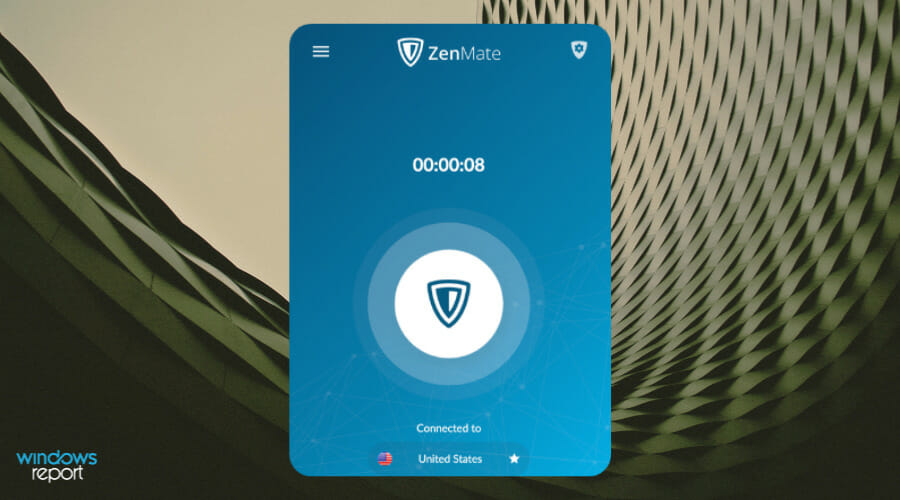
3 Ways to Fix Failed to Fetch Account Info in Roblox Studio

Roblox is an ultimate virtual universe that lets you play, create and be anything one can imagine in the virtual world. 

However, some users have reported that their Roblox client can’t connect to the Roblox game server which results in Could not join due to join script failure as the game failed to fetch join script.

One of the affected users shared the problem on the official support forum.

When trying to connect to a game in Roblox, I always get that I cannot connect to their server – ID 17.  Does anyone know why?  Roblox emailed that I have to allow them in but how do I do that?

Fix the problem by following the steps below.

Why does Roblox Studio keep saying Publish failed?

That is an excellent question you asked there, as many Roblox users asked the same one and it was about time to clear the air and provide an answer.

Know that, whenever you get a message in Studio stating that your upload has failed, it is usually the result of your place being too big or having too many items or scripts in it.

To thoroughly and correctly test this, you need to actually save your place to your computer first by opening it in Roblox Studio and using the Save option in the File menu.

Quick Tip:

First, let’s make things easy by verifying your account using the Roblox web version. You can use the Opera GX browser to get account information and verify whether the problem is with your account.

The built-in VPN in Opera GX may change your location if there is a server issue, and you can set some limiters to avoid a memory crash when playing Roblox.

Opera GX

Access Roblox through this game-focused browser and test credentials and internet speed.

How do you fix failed to fetch account on Roblox studio?

1. Check your Firewall

  1. Click on the Start button and select Settings.
  2. Click on Update and Security.
  3. Go to Windows Security Tab.
  4. Under Protection areas click on Firewall and Network Protection.firewall
  5. In the new window, click on your currently active network (Private, Domain, or Public Network).
  6. Now turn off the Windows Defender Firewall using the toggle switch. Click Yes, when prompted by the UAC.
  7. Also, check if your Antivirus program has its own Firewall running. If running, turn it off as well.
  8. Now try to play the game and check if the error is resolved. Make sure you enable the Firewall once you are successfully connected to the game servers.

2. Log out and reboot

log in roblox
  1. If the error appears frequently then you can try to log out of your Roblox account and then log in again.
  2. Users have reported that a simple restart after logging out has helped them resolve the issue. So, log out, reboot the system, and then log in again.
  3. You may also want to consider the possibility of being banned by the developers. Although an unlikely situation, the developers may ban some users if they violate any community rules.
  4. Check if the server you are trying to join has VIP access. If your friend has VIP access and playing using that server, then you won’t be able to join them unless you have VIP access as well.

3. Contact the Developer

main page roblox
  1. The Could not join due to join script failure error occurs if the game has reached a bug point. In this case, the users cannot do anything because the issue is at the developer’s end.
  2. When in the game, press F9 to open the Developer Console. Press the PrtSc key on your keyboard and save the screenshot in the paint app.
  3. Now send the screenshot to the Roblox developers explaining the issue.

How do I fix the joining server on Roblox?

Follow our Roblox troubleshooting guide and if that doesn’t work, go through the steps shown in this guide to solve the joining server issue.

Users also asked questions such as: Why can I not connect to Roblox? The answer is, that if you can’t connect to Roblox, try using a VPN as this should solve the issue.

And, if your Roblox game keeps losing connection, your firewall might actually be blocking Roblox. By changing a few settings on your computer, you can easily fix this problem.

How do you completely reset Roblox studio?

Surely you would like to know how you can reset your Roblox registry keys and Roblox’s AppData files without losing any of your settings.

This could be because you have issues with a corrupt Roblox install, or corrupt settings and need to reset everything but you don’t want to have to set up all your Roblox & studio settings after.

How to reset your Roblox AppData files

  1. Press Win + R, and hit Enter after typing: %LocalAppdata%\Robloxroblox go to
  2. Find the Versions folder and delete it.
  3. Locate the Downloads folder and delete it.
  4. Find the ClientSettings folder and delete it.
  5. Also, delete the LocalStorage folder

How to clear Roblox cache

  1. Press Win + R press Enter after typing: %Temp%\Robloxroblox go to 2
  2. Press Ctrl + A and delete everything in the folder.

There you have it, folks! All you need to know is if Roblox failed to fetch account info, was unable to fetch the current version of Roblox, Roblox studio failed to fetch configuration settings, or if Roblox was unable to fetch the current version.

Leave a comment below if you run into any other problems, so we can come up with a solution for them as well.

How to Import Internet Explorer Bookmarks Into Google Chrome

Internet Explorer is the default browser that starts whenever you install a fresh copy of Windows 10. Unfortunately, this means that even if you don’t want to, you will have to use it at least once until you get the browser that you like.

But constant updates and improvements brought to browsers mean that sooner or later, you will want to go for an upgrade. But the problem is that after using Internet Explorer for too long, all of your bookmarks will be stuck there.

Can you Import Bookmarks from Internet Explorer to Google Chrome?

Yes, if you plan on migrating to Google Chrome, you’ll have to know the required steps, but importing your bookmarks from Internet Explorer will be relatively easy.

To import your IE Favorites to Chrome, we recommend that you follow the steps presented in this guide, as they will also help you with the following tasks:

  • Import IE bookmarks to Chrome
  • How to import Internet Explorer Favorites into Chrome
  • Import Favorites from IE to Chrome
  • Import IE Favorites to Chrome
  • How to import IE Favorites to Chrome

Covering all these elements will ensure you’ll be able to use your computer to browse the internet on your terms.

As you will see, you will only be required to follow a few steps to copy bookmarks from Internet Explorer to Chrome, so check the details below.

Quick Tip:

In order to import previous browser bookmarks, you should try Opera One, a web browser built with the same engine as Google Chrome but with much faster response times.

Importing your settings from other browsers is extremely easy, and it is merely a process of pressing two buttons and then choosing the source of the old bookmarks. Opera One also brings it’s own built-in AI.

Opera One

Start using Opera One and import your bookmarks from Internet Explorer in the blink of an eye!
Free Download Visit website

How do I import my IE bookmarks into Chrome?

Usually, when you install Google Chrome on your system, it will automatically ask you whether you would like it to become your new default browser.

It will also ask you if you want it to import any settings from the other browsers detected on your system. If you skip this step, you’ll need to know how to access the Bookmarks menu later.

  1. Open Google Chrome.
  2. Click on the three dots in the top-right corner of the UI.
  3. Hover your mouse over the Bookmarks option, and click Import Bookmarks and Settings.
  4. Choose Microsoft Internet Explorer from the drop-down list.
  5. Check the Favorites/Bookmarks box.
  6. Select Import.
    • A warning message will appear telling you that all instances of Internet Explorer will need to be closed.
  7. Click Done.

I cannot import Internet Explorer bookmarks into Chrome

Some people have reported having issues when following the methods listed above:

I cannot transfer my favorites from Microsoft Edge to Chrome, though the Import proceedure in settings/import shows it was sucessful.  The favorites from Internet Explorer were transferred sucessfully and show-up on the bookmark toolbar.

It would seem that Chrome uses a different way to store bookmark information than IE or other browsers on their latest builds.

Because of this, a workaround method is needed, where you will need to access Microsoft Edge instead of Internet Explorer.

  1. Open Microsoft Edge.
  2. Click on the three dots in the top-right corner of the UI.
  3. Choose the Favorites option.
  4. Click the More option three dots.
  5. Choose the Export favorites options.
  6. Choose the browser you want to export bookmarks to, and then tick the boxes next to the elements to be imported.
  7. Click the Export button.

Now that your Internet Explorer Favorites have been exported, it is time to import them into Chrome.

  1. Open Google Chrome.
  2. Click on the three dots in the top-right corner of the UI.
  3. Go to Bookmarks, and click Import Bookmarks and Settings…
  4. Select Bookmarks HTML File from the drop-down list.
  5. Select Import.
  6. Click Done.

Following these steps, you can successfully import all of your IE browsing data into Chrome without a problem. Remember that you can also do the exact opposite as well, in case you change your mind.

IMPORTANT NOTE: Due to numerous security vulnerabilities, Microsoft and US Homeland Security urge IE users to switch to a more secure browser as soon as possible.

If you don’t know what browser to install, see the four best browsers that don’t save your history and personal data.

Did you find this helpful guide? Let us know in the comments section below.

5 Best Browsers That Support TIFF Images & How to View Them

TIFF, which is short for Tag Image File Format, came into existence in 1986 by the Aldus Corporation for use in desktop publishing. Later, it was updated in 1992 with an Adobe Subsystem copyright.

It is an image format popular among the publishing industry and photographers. TIFF is widely used in scanning, faxing, OCR, image manipulation, desktop publishing, etc.

The TIFF file format evolved alongside scanners, which became capable of capturing both grayscale and color images. For low-color images, TIFF sits alongside PNG and JPG file formats.

In simple terms, if you save images that have been edited by using multiple layers, tags, and transparency as TIFF files, you can open and edit them layer by layer, which you cannot do with JPG or PNG formats.

Some notable features of the TIFF format include support for lossless compression, handling of very high-quality images, saving multiple layers of details, support storage of multiple high-quality images in a single file, etc.

Now the question arises, is there any browser that supports TIFF? This guide will explain the answer to that question, as well as other details about TIFF files. Let us get right into it.

Is TIFF supported in browser?

The simple answer is no. Google Chrome, Firefox, Opera One, etc. cannot open TIFF image files and is valued as a download format.

TIFF saves high-quality and in-depth images, making it unsuitable to be used in browsers.

Meaning, that when you open any TIFF image with a browser, you will be asked to re-download the file. So, you cannot actually view them in any browser.

You require special software such as Ms. Paint, Microsoft Photos, Microsoft Windows Photo Viewer, etc. in order to view TIFF files.

However, if you still want to use a browser to open TIFF files, then you need to take support of an extension or third-party software.

Also, you can download TIFF files, use online converters to convert them to more popular formats such as JPG or PNG, and open them.

How do I view a TIFF image in a browser?

As mentioned, you need to install an extension in order to view a TIFF image in a browser. In order to explain this method, we will use Google Chrome.

  1. Open Chrome.
  2. Head to Chrome Webstore.
  3. Search and download the TIFF Viewer extension.
  4. Click on the TIFF Viewer extension.
  5. Select and open the TIFF file from your PC or Google Drive and view the image.

You can use this or the other extension on another browser and view or bring support for TIFF images in your browser.

Note icon NOTE
Google Chrome has an extension (as mentioned in the above section) that lets you view and download TIFF images. So, the same can be used for Opera One, and other Chromium browsers.

What are the best browsers that support TIFF?

Opera One – Comes with built-in VPN

Opera One is one of the most well-rounded and versatile web browsers available. Using Opera One in Windows 11 or Windows 10 will give you a nice and snappy web browsing experience.

There are multiple features that make Opera One a great package. For instance, it comes with a built-in VPN, Ad Blocker, AI and it also brings more organizational features like workspaces, tab islands, social media and messaging apps buttons on the side bar.

And since the Opera One browser is based on Chromium, you can install the TIFF viewer extension for Google Chrome in Opera One and view TIFF images. This is because Opera One supports Chrome extensions.

Opera One

Quickly install a verified extension and visualize TIFF images without having to download them!
Free Download Visit website

Google Chrome – Popular choice

Google Chrome is the most used web browser across the globe. Although it does not natively come with as many features as its competitors, its ease of use makes it a popular browser.

There is no built-in ad-blocker or VPN, but by using Chrome Webstore, you can install extensions to enhance its functionalities.

You can use the TIFF Viewer extension and add it to Chrome to view and download TIFF images. Do note that Google Chrome is a resource-extensive browser. If you are using an old PC, then you can look out for other browsers to have a better experience.

⇒ Get Google Chrome

Mozilla Firefox – Great for power users

Firefox has been the first choice for power users. Over the years, it has received multiple features and design changes, making it a great alternative to some of the best browsers available in the market.

Mozilla has updated Firefox in terms of security features and it makes use of DNS instead of HTTPS to block internet providers from tracking your browsing data.

It is snappy in performance and comes with multiple features such as an ad-blocker, password manager, several customization options, picture-in-picture, etc.

Since it is not based on Chromium, you need to install the TIFF viewer extension separately for Firefox.

⇒ Get Mozilla Firefox

Brave Browser – Fast and reliable

Brave browser is another Chromium-based browser. This means you can install Google Chrome extensions on it.

The browser isn’t as resource-hogging as the Google Chrome browser and gives you fast and reliable performance.

It is a privacy-focussed browser that blocks online ads and offers other tracking methods, built-in. Brave allows its users access to Tor, which is the most secured browser engine. It masks your location and hides your browsing history.

You can make use of the TIFF Viewer extension found in the Chrome Webstore and install it on the Brave browser.

⇒ Get Brave Browser

Microsoft Edge – Best compatibility with Windows OS

Another Chromium-based browser, which comes in-built with Windows 11 OS is the Microsoft Edge browser.

Since it comes from the house of Microsoft, it offers the best compatibility with Windows OS and has been receiving a bunch of new features with new updates.

It comes with a new user interface, vertical tabs, reader mode, sleeping tabs, startup boost, extensions, and much more.

Microsoft Edge also comes with multiple customization options, and many of Edge’s extensions can be downloaded from the Microsoft Store, making it easier to add them to the browser.

You can install the TIFF viewer extension from the Edge Add-ons store and view TIFF images directly on the Microsoft Edge browser.

⇒ Get Edge

What image formats do browsers support?

JPG, GIF, or PNG are the three major image formats, that major browsers available in the market support. But lately, a new image format, called WebP has also made its way to mainstream browsers and is supported by major browsers such as Chrome and Firefox.

The main advantage of supporting the WebP image format is that it does not compromise the quality of the image, but compresses the size of the image by 25-30%.

In the case of JPG, the images are efficiently stored, meaning compressed which reduces the quality of the image (both colored and grayscale).

It does not offer transparency, and if you want that, you need to convert the JPG image into another format. Whereas, GIF and PNG images use index color and are deemed ideal for images with flat colors.

Moreover, both support transparency and let you play around with the images and use them as layers over other images.

Here is the complete list of image formats supported by various popular web browsers:

  • Google Chrome: APNG (.apng), AVIF (.avif), GIF (.gif), JPG (.jpg), PNG (.png), SVG (.svg), WebP (.webp), BMP (.bmp), ICO (.ico, .cur)
  • Mozilla Firefox: APNG (.apng), AVIF (.avif), GIF (.gif), JPG (.jpg), PNG (.png), SVG (.svg), WebP (.webp), BMP (.bmp), ICO (.ico, .cur)
  • Opera One: APNG (.apng), AVIF (.avif), GIF (.gif), JPG (.jpg), PNG (.png), SVG (.svg), WebP (.webp), BMP (.bmp), ICO (.ico, .cur)
  • Microsoft Edge: APNG (.apng), AVIF (.avif), GIF (.gif), JPG (.jpg), PNG (.png), SVG (.svg), WebP (.webp), BMP (.bmp), ICO (.ico, .cur)
  • Safari: APNG (.apng), AVIF (.avif), GIF (.gif), JPG (.jpg), PNG (.png), SVG (.svg), WebP (.webp), BMP (.bmp), ICO (.ico, .cur), TIFF (.tif, .tiff)

Safari is the only browser among the most popular browsers that support the TIFF image format.

If TIFF image format isn’t a big deal for you and you are looking for some of the best browsers for your Windows 11 PC, then you can check out our dedicated guide that can get the help you select the best browser as per your need.

Also, if you are on the lookout for the best lightweight browser that you can use on your Windows PC, that isn’t resource-extensive, then you can check out our guide on best lightweight browsers for Windows which includes 10 of the best lightweight browsers.

For security focussed people, since most popular web browsers are based on Chromium, you can read our guide on the best security and privacy extensions for Chrome.

It lists down some of the best-tested Chrome extensions, which you can install on other popular Chromium browsers and enhance security.

That is it from us in this guide. Let us know in the comments below which extension and browser did you use to open the TIFF image format. You can also let us know if you used a different browser other than the mentioned ones to open TIFF images.

Xbox Cloud Gaming Not Working: 3 Quick Ways to Fix it

Many players enjoy the convenience of Microsoft’s service, but recently some have faced issues with Xbox Cloud Gaming not working in browsers, leaving them unable to access their favorite titles online. This guide will walk you through practical solutions to fix the problem and get you back to smooth cloud gaming quickly.

How can I fix Xbox Cloud Gaming not working in browser?

1. Clear browser cache

  1. Click the menu button (three horizontal dots) in the top right corner.
  2. Select the Settings option.
    edge settings
  3. Choose Privacy, search, and services in the left pane.
    privacy xbox browser gaming cloud not working
  4. Click the Choose what to clear button under the Clear browsing data section.
    choose to clear
  5. Check the checkbox for Cached images and files.
    clear images and files xbox not working cloud gaming browser
  6. Now, click the dropdown under Time range and select All time.
  7. Finally, click the Clear now button.
    all time and clear

As much as caches help to better your browsing, it is a well-known cause of different problems when it is corrupt. And it has been pinpointed by some users why Xbox cloud gaming is not launching on the browser.

Ensure to relaunch your browser after clearing the cache to effect the changes.

2. Reset modem/router to default

  1. Open a browser on a PC connected to your modem.
    address bar xbox not working gaming browser cloud
  2. Copy the address below into the Address bar. https://192.168.0.1
  3. Input your modem or router’s username and password and click the Apply button to log in.
    login and apply
  4. Choose the Utilities from the menu displayed.
    utilities option xbox cloud gaming not working browser
  5. Select the Reset Defaults option from the left pane.
  6. Finally, click the Restore button in front of Restore Modem to Factory Default State.
    restore default and button

Note that the default username for your modem is admin, while the default password is password. But if you changed the values and can’t remember them, you will need to use the reset button at the back of your modem to restore the factory settings.

After the restoration, you will need to configure your modem just like you did when you bought it. Once done, check if the Network Unsupported Xbox cloud gaming error is fixed. If not, head to the next method.

3. Use a VPN

locations allowed xbox gaming cloud not working

Xbox cloud gaming is not supported in some regions. If you are based in such places, you might need to switch your location to popular areas like the US or UK with a VPN.

And there is no VPN service better at this than Private Internet Access (PIA). It is a world-class virtual network provider that gives you access to location-restricted content without being noticed.

Interestingly, it is not just limited unanimity, as it offers lightning-fast connection speed. This is all thanks to its next-gen servers located in 78 countries around the world.

What’s more, unlike other VPN services that only allow two to three devices per package, PIA allows a whopping ten devices to be connected at a time. Add its real-time malware protection and fast and customizable scanning feature, and you know there is nothing getting past your security online.

⇒ Get Private Internet Access

What are the causes of Xbox cloud gaming not working in the browser?

The reason Xbox cloud gaming does not work on a browser is within a close circle. It can sometimes be a problem with the browser itself or your network connection.

Below is a list of some of the well-known causes:

  • Accumulation of faulty browser data
  • Unstable network
  • Presence of bugs on browser
  • Location-based restricted access to Xbox cloud gaming

What are the supported browsers for Xbox cloud gaming?

edge supported

There are only a handful of browsers supported for Xbox cloud gaming. Though these browsers are popular, hopefully, we can have more options in the nearest future.

Below is the list of Xbox cloud gaming supported browsers.

  • Microsoft Edge– only supported on Windows 10 version 20H2 or later
  • Google Chrome – only on Windows 10 version 20H2 or later
  • Safari – only on iOS 14.4 or later and iPadOS 14.4 or later

Quick Tip:

Use a browser with built-in support for Xbox gaming, such as Opera GX. This gamer’s browser allows cloud gaming with no issue.

It offers a unique and sleek interface that takes your gaming to a new level. It also has a CPU and RAM limiter to make sure you don’t take up too many resources and slow down your PC.

Opera GX

Opera GX

Get the best Xbox experience with this dedicated browser for gamers!

Does Xbox cloud gaming work on Chrome?

google chrome xbox browser cloud gaming not working

Xbox cloud gaming works well on Chrome on Windows PC. And with Chrome being one of the top browsers for cloud gaming, the experience is usually fantastic.

However, the best browser for Xbox cloud gaming is Microsoft Edge. This is because of the impressive partnership between Xbox and the browser.

This has led to the creation of optimization features like Clarity Boost, which improves the visual quality of the user’s video stream immensely.

Does Xbox cloud gaming work on iPad?

iPad is another one of those devices that you can use for Xbox cloud gaming. However, you will need to be running iPad OS 14.4 and above on your device to use it.

Also, it should be noted that Safari is the only browser you can use to play Xbox cloud gaming on iPad. Trying to use any other browser will only be an effort in futility.

There you have it: four effective fixes for the Xbox cloud gaming not working on browser problem. These solutions are simple and can be easily implemented if you follow the steps carefully.

Are you looking for the best browser for Xbox One instead? Check out our guide for reliable picks. Many users are also wondering how to get Xbox Cloud Gaming unblocked, and our latest guide can help you with that.

This isn’t the only issue, and we wrote about For this game you need to be online error, in our previous guide, so don’t miss it.

Experiencing issues with your controller and Xbox Cloud Gaming not working? Check out this step-by-step Xbox Cloud Gaming controller fix guide to solve the problem quickly.

FAQ

Why is Xbox Cloud Gaming not loading?

This usually happens due to server outages or unstable internet. Check Xbox server status and restart your connection.

Does Xbox Cloud Gaming need a fast internet?

Yes. A minimum of 10 Mbps is required, but 20 Mbps or higher ensures smoother gameplay with less lag.

Why do I get black screen on Xbox Cloud Gaming?

A black screen often points to browser or app cache issues. Clear cache and try relaunching the session.

Can VPNs affect Xbox Cloud Gaming performance?

Yes. VPNs can cause higher latency. Disconnect the VPN to improve stability unless your region restricts access.

Why does my controller not work on Xbox Cloud Gaming?

Controller issues may come from outdated drivers or unsupported devices. Update drivers and ensure your controller is properly paired.

Feel free to let us know the fix that helped you get back to enjoying your game on your browser in the comments section below.
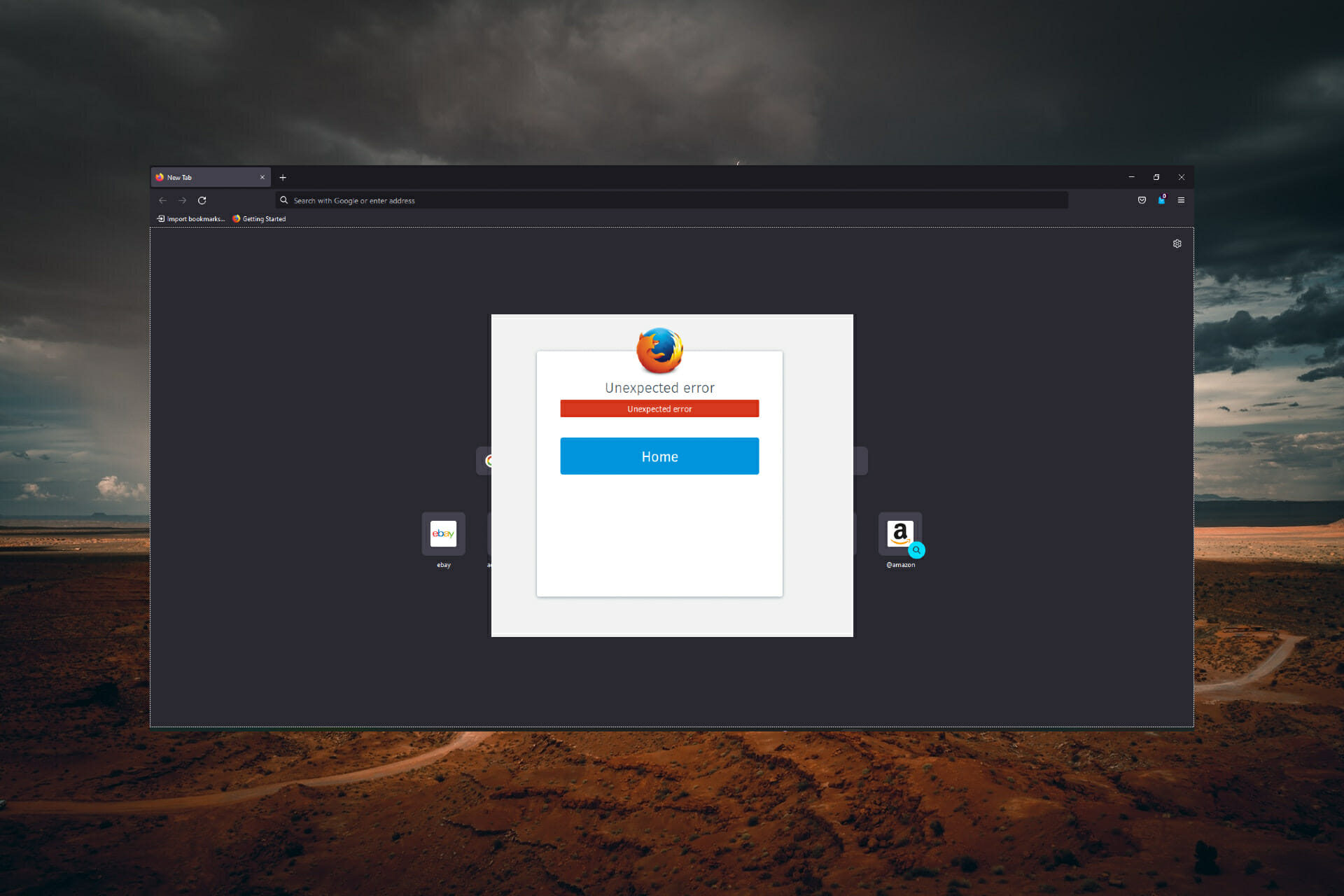
Avast Secure Browser vs Opera One: Which is The Better Browser?

Your online security is of utter importance, and in order to achieve that, you’ll need to use a secure browser.

There are many browsers that provide additional security, and today we’re going to compare Avast Secure Browser and Opera One and see which one offers better protection.

Is Avast Secure Browser a good browser?

The Chromium operating system was used in the development of the Avast Secure Browser by Avast. Because of this, if you use the Avast browser, you will have access to your Chrome account.

As well as your bookmarks and the great majority of other browser-based access functions linked to your Chrome account.

avast avast secure browser vs opera

The majority of the bells and whistles that can slow down Google Chrome’s browser are absent from this alternative. This indicates that the Avast Secure Browser offers a higher level of protection and is a lot quicker than Chrome.

Moreover, the majority of other browsers do not offer some of the special capabilities that are available in Avast, such as a bank mode and protection against fingerprinting. Anyone who is susceptible to phishing attempts should give serious consideration to enabling the anti-phishing function.

Is Opera One the safest browser?

Opera One provides a number of helpful features that are beneficial to the user’s safety and privacy. To begin, there is a built-in ad blocker available for use.

Ads and trackers that keep a trail of your surfing behavior in order to provide you with tailored advertisements will be blocked by the adblocker.

Furthermore, the browser is equipped with a virtual private network (VPN) that shields your IP address from hackers. You can ensure that no one can see any of your browser activity if you make use of this option.

click VPN Enable

It is important to note that the virtual private network (VPN) provides users with three different locations from which to pick, and the connection speed might change depending on which location the user chooses.

Vulnerabilities, cyber threats, malware, and other forms of malicious activity can affect any online browser, including Opera One browser. On the other hand, Opera One does not currently have any critical vulnerabilities that need to be fixed, thus it is completely secure to use.

Which is more secure: Avast Secure Browser or Opera?

1. Opera One – Most secure web

What is Opera?

Opera One is a web browser that focuses on customization and user security. The browser offers various security-related features, as well as a wide array of extensions to choose from.

What features does Opera One have?

The Opera One browser is incredibly fast thanks to its low hardware requirements. Moreover, the built-in ad block allows you to experience up to 90% faster loading time on certain websites.

It also has tracking protection, so you can rest assured that websites such as Facebook won’t track your online activity. For an extra layer of security, there’s a built-in free VPN with unlimited bandwidth.

The browser is available on all major platforms and thanks to the Flow feature you can easily share files and notes between devices.

Let’s look at the best features of Opera One:

  • Built-in adblocker and tracker blocker
  • Free VPN with unlimited bandwidth
  • Integrated messengers: Facebook Messenger, WhatsApp, Instagram, Telegram, and VKontakte
  • Currency and time zone converter
  • Video pop-out
  • Tracking protection
  • Hundreds of available extensions
  • Battery saver feature

Opera One

Close to zero errors, modular browsing and secure VPN – making your digital privacy a top priority.

2. Avast Secure Browser

What is Avast Secure Browser?

Avast is a security-oriented browser made by a famous antivirus developer- Avast. The browser is available on both Mac and Windows, as well as Android.

What features does Avast Secure Browser have?

Avast Secure Browser has a built-in ad block, so you can surf freely without any pesky ads. In addition, the browser also forces all websites to use encryption, thus ensuring that your data can’t be stolen.

It’s important to mention that the browser can block all tracking cookies and mask your digital identity. There’s also a malware detection feature that will warn you if you encounter any malicious websites or files.

Note that Avast Secure Browser also has a VPN included with the browser, but you will need to pay in order to use it, unlike in Opera.

Lastly, Avast Secure Browser lets you manage all your security features from a single place, which is incredibly useful if you need to change a certain setting.

Let’s see the Avast Secure Browser’s best features:

  • Tracking protection
  • Malware scanner
  • Paid VPN service
  • Anti-phishing protection
  • Simple to use
  • Available on multiple platforms

Avast Secure Browser

Using this browser is the best move for non-stop privacy, malware defense, or encrypted data.

3. Opera One vs Avast Secure Browser: The final verdict

Both browsers share similar features, but Opera One has a free built-in VPN that does the job, and it uses fewer resources, which makes it a better choice in our opinion.

Avast Secure Browser is a great browser, but with the free and unlimited VPN, there’s no reason not to use Opera, since it already has all the same features as Avast Secure Browser.

Which browser do you use? Feel free to let us know in the comments section below.

4 Ways to Fix This Version Of WhatsApp Has Expired in 2026

This version of WhatsApp has expired error has appeared on the screens of many people. WhatsApp Web on your PC works through your phone. And if your phone isn’t connected to the Internet or the WhatsApp network, you’ll encounter this and many other problems.

The only thing you can do on your PC is to check your Internet connection. But you might be able to fix the problem by changing a few WhatsApp settings on your phone.

How do I fix This version of WhatsApp has expired error?

1. Update WhatsApp on your phone

  1. Scroll through your phone’s application list and select Play Store.play-store This Version of WhatsApp Has Expired in 2022
  2. Inside the Play Store search for WhatsApp and select the first result from the top.whatsapp-search This Version of WhatsApp Has Expired in 2022
  3. If the Update button is available, press it and wait for the update process to finish. This is one way to fix This version of WhatsApp has expired.

When seeing This version of WhatsApp has expired on iPhone you can do the same but go to Apple Store instead of the Play Store. You will find your WhatsApp app there, along with the Update button.

2. Restart your mobile device

Some people have stated that they could resolve their issues by rebooting their phones, which may appear to be a simple option.

It is recommended that you turn off and restart your phone at least once every week for various reasons. All of these serve a worthwhile purpose, including the following: preserving memory, avoiding system failures, improving overall performance, and elongating the life of the battery.

Thus, we recommend you restart your device if you get the This version of WhatsApp has expired issue, then check if it has been resolved.

3. Re-install WhatsApp on your phone

  1. Open Play Store or App Store on your mobile device.play-store What happens if I don't update WhatsApp
  2. Search for WhatsApp then tap it to open the page.whatsapp-search What happens if I don't update WhatsApp
  3. Click Uninstall and wait for the process to complete.uninstall-whatsapp What happens if I don't update WhatsApp
  4. After the process is completed, you can simply click Install to download the app again then check to see if this solved your issue.

4. Change the date and time on your phone

  1. Open WhatsApp and keep it running in the background.
  2. Now, go to Settings, and tap on General Management.general management
  3. Select Date and time.date and time
  4. Disable the toggle for Automatic date and time if it’s turned on.automatic date and time
  5. Now, tap on Set date.set date
  6. Change the date and time from the settings on your phone to a date a year or two years in the past, and tap on Done.time
  7. WhatsApp will show you a notification, and you will receive some automated messages because of the change.
  8. Wait for 5 minutes, and without closing the app, head to Date and time settings, then enable the Automatic date and time option.automatic date and time
  9. This should make WhatsApp run normally.

Although we don’t recommend this method, it is an efficient workaround if you don’t want to update your WhatsApp app.

You can always use the web-based WhatsApp client if you have it connected to your mobile device.

This is a more reliable way, and we highly suggest it. Just navigate to WhatsApp for Web and start chatting.

What happens if I don’t update WhatsApp?

If you refuse to accept WhatsApp’s updated policy on user privacy, you may gradually lose access to most of the app’s services.

WhatsApp will constantly send out the reminders to accept the new policy, and after a few weeks, the business will begin disabling some of the capabilities for users who have not accepted the upgrade and have not accepted the new policy.

One of which is the ability to connect to the web version of the app to persuade you to perform the update.

After that, WhatsApp will begin sending what it calls persistent reminders. Once this begins, users won’t be able to see their WhatsApp conversation list, and the only functionality available to them will be the ability to answer or make audio or video calls.

When a notice from WhatsApp arrives on your phone, you will have the option to either read the message or respond to it.

Thus, if you want to continue using the app, it is recommended that you keep it updated to be up to date with its terms and conditions, and features.

We also recommend that you take a look our 7 easy fixes if WhatsApp is showing browser not supported and Can’t download please ask that it be resent to your WhatsApp error for more solutions.

In this article, we explored the best way to deal with the This version of WhatsApp has expired error message. Let us know if this guide helped you by using the comment section below.

What to do if your Edge Canary won’t open after last update

Being an Insider for Microsoft means you are on the frontline of it all, taking each problem head on and battling against odds.

Microsoft is constantly adding new features and functionalities to its operating systems and its flagship browser, in the Canary Channel, which means work here is never done.

And, of course, the tradeoff of using Edge Canary and testing daily updates is a high risk of encountering nasty bugs and instabilities.

Since we’re on the topic of browser bugs, one of such issue hit Canary users real hard and made the browser incapable of opening.

Edge Canary no longer working after 105.0.1334 update

Yes, it has been quite a disaster for the Edge Insiders, after a large number of testers reported that Edge Canary does not open after installing the latest update.

As you would have imagined, the Redmond tech giant since quickly pulled the problematic release, leaving many users stuck with a botched browser.

And, if you are one of those unlucky insiders that had no say in the matter, there is a way you can bring Edge Canary back to life.

No, we’re not talking about raising it on top of your castle on a stormy night and hoping for some lightning bolts. We’re going to use the system to do so.

Remember that the easiest way to launch Edge Canary is to right-click its icon on the taskbar and select InPrivate Mode.

This will actually be enough to launch and update Canary once Microsoft releases a new version with the much-needed fix.

That being said, if you are in need of a permanent solution, restore the previous Canary version using the steps below.

Quick Tip:

With cutting-edge capabilities, Opera Beta is intended for early adopters and web developers to test new features, technologies, upgrades, and changes that Opera will deliver in feature major versions.

If you want to give this a try, you can download the normal version of Opera, create an account and then test the Opera Beta. Its similarity with Edge Canary cannot be overlooked, so it’s worth giving it a try.

Opera

Test the capabilities on Opera Beta until the issue with Edge Canary is resolved.

How do I make my Edge Canary start again?

  1. Download Microsoft Edge Canary 105.0.1334.0 offline installer.
  2. Open and unzip the downloaded file using archives software.installer
  3. Open the folder inside the executable file and copy all the files inside it.
  4. Go to C:\Users\Your username\AppData\Local\Microsoft\Edge SxS\Application\105.0.1336.0.
  5. Paste the copied files and replace existing ones if necessary.
  6. Microsoft Edge Canary should now launch without issues.

That just goes to show you that, as we said several times, using Canary as your primary browser is a bad idea, considering its unstable and experimental nature.

Microsoft allows running various Edge channels side-by-side, so the best option is to have a stable release for daily work and Canary or Dev for testing purposes.

This isn’t the only issue that Edge users had to deal with lately, as we’re sure you remember that the Microsoft team is also investigating a Collections Sync issue.

We have a lot of Edge-related articles you might want to check out, especially if this is your go-to browser. You can also catch up on the latest changes, among other stuff.

Remember that Microsoft has big plans for Edge, starting with making the browser less power-hungry and more likely to improve your entire system, due to cache compression.

Since people heard that Microsoft is moving back to a three-year release schedule for new operating systems, everyone is now curious about how Edge will continue evolving.

We’ll keep a close eye on this matter and report on any changes that will impact the browser, the operating system, and us.

Have you also experienced issues with the latest Edge Canary build? Share your experience with us in the comments section below.

4 fast and easy ways to run Windows PowerShell as an admin on Windows 11

Just about everything you need to in Windows PowerShell, you can do in a normal window. However, occasionally, you’ll need to open and run PowerShell as an administrator (admin) to run certain commands where you need to have elevated privileges.

Here’s 4 ways you can open Windows 11 PowerShell to run as an admin.

One of the easiest ways to run PowerShell is using Windows Search. Here’s what you need to do.

windows powershell

1. Open Windows Search by clicking the search icon from the Windows 11 Taskbar.
2. Type “Windows PowerShell” and click Run as administrator.

3. Once you confirm the User Account Control (UAC) prompt, Windows PowerShell as an admin will open in a new window.

2. Windows 11 Power User Menu

Another quick and easy way to launch Windows PowerShell as an admin is by using the Power User Menu. In order to access the Power User Menu, right-click on the Start menu (Windows icon) on your Windows 11 Taskbar. Alternatively, you can use the Windows key + X keyboard shortcut to open the Power User menu right away.

When the Power User menu appears, click Windows PowerShell (Amin)

windows powershell

Once you confirm the UAC prompt, Windows PowerShell will open as an administrator.

3. Use the Run application

One of the fastest ways to open Windows PowerShell in administrator mode is by using the Run application. after using a couple of keyboard shortcuts, you can have a Windows PowerShell window open and running in no time, here’s what you need to do.

windows powershell

1. Open the Run application by using the Windows key + R keyboard shortcut.
2. Type powershell in the text box.

3. Use the Ctrl + Shift + Enter keyboard shortcut and confirm the UAC prompt to run and open PowerShell as an admin.

4. Switch to Windows PowerShell Admin

If you are already using PowerShell and want to switch to admin mode, just copy and paste this command and press Enter: start-process powershell -verb runas

windows powershell

Once you confirm the UAC prompt, a new PowerShell instance will open with administrator privileges.

Once you know how to open PowerShell as an administrator, you can start learning practical commands and automation basics in this detailed Windows PowerShell scripting tutorial designed for beginners.

Having trouble with PowerShell? Check out this guide on fixing PowerShell not working for detailed troubleshooting steps.

You can also upgrade your experience by installing the latest version of PowerShell 7, and you can follow this guide to complete the setup easily: install PowerShell 7.

If you don’t use or have Windows PowerShell installed on your PC and feel more comfortable using Command Prompt, you can follow the first 3 ways in this guide to open Command Prompt in admin mode.

Obviously, you’ll need to type “cmd” in the Windows Search, using the Run application, and the Power User menu from the Start menu, but the steps largely remain the same.

If you are already using Command Prompt, you can change to Command Prompt (Admin). Just copy and paste this command and press Enter: powershell -Command Start-Process cmd -Verb RunAs

FAQ

How can I pin PowerShell to the Start menu for easy access?

Search for “PowerShell,” right-click the result, and select “Pin to Start” for quick access to launch it anytime.

Why would I need to run PowerShell as an administrator?

Running PowerShell as an admin grants elevated privileges, allowing you to execute commands that require administrative access to the system.

What if I can’t find PowerShell in the Start menu?

You can search for “powershell” in the search bar, or navigate to C:\Windows\System32\WindowsPowerShell\v1.0 to find the executable directly.

How can I ensure PowerShell always opens with administrative privileges?

Right-click the PowerShell shortcut, select Properties, go to the Shortcut tab, click Advanced, and check Run as administrator.

Once you confirm the UAC prompt, Command Prompt will open as a new instance in admin mode.

Which do you prefer to use Windows PowerShell or Command Prompt? Let us know which one you use and why in the comments!

11 Best Security and Privacy Extensions for Chrome [Tested]

When a service or tool is free to use, this means that you are the product. Or more specifically, the data collected on you and your behavior is the product.

Online privacy has been one of the hottest topics of debate in recent years. Naturally and rightfully, users want to better control the amount of data collected on them, but this is not always an easy task.

We all agree that it’s impossible to prevent user data collection while surfing the web. However, users can indeed limit the data collected, as well as decide which type of data tech companies can collect.

Browser privacy extensions are one of the best and most simple tools to use in order to control what data is collected on you.

Since Google Chrome is the most popular browser in the world, in this article we’re going to list the best Chrome privacy extensions to install in order to protect your privacy.

Quick Tip:

Instead of going through the process of adding extensions to Chrome, why not go for a web browser that comes with a VPN that is already included?

One such browser is Opera One, and the VPN that comes with it is very efficient, primarily because it is both free and because you don’t have a traffic limit.

Opera One

If you value privacy when surfing the Internet, choose Opera One as your default browser!

Are Chrome extensions secure?

You should know that, while most Chrome security extensions claim to protect your online privacy, not all of them are as efficient or safe to use.

These tools are also very different from one another, and some might even end up doing more harm than good.

The extensions are written using web technologies like HTML, JavaScript, and CSS, and then distributed through Chrome Web Store.

It’s important to know that all users with a Google Account are able to add extensions to this source after developing them.

That being said, some Chrome extensions can be created with malicious code from the very start or they can be updated with malicious code once they gain a certain level of popularity. 

So, to answer your question, not all Chrome extensions are as secure as you might think, even though you downloaded them from a safe source.

Do extensions slow down Chrome?

Yes, they do. Each extension adds bloat to the browser and therefore can eat up more of your PCs memory and slow it down.

Can I use a VPN with extensions?

Yes, but there are some limitations to know about. Installing a VPN plugin/extension for the Chrome browser will protect all your activity and data whilst using that browser, that’s it.

What are the best Chrome extensions for extra security?

Guardio – Lightweight extension

Guardio is a lightweight Chrome extension that runs in your browser and secures everything within it to preserve your online privacy. Guard.io is a one-click installation to safeguard your privacy and keep you and your browser secure from attacks.

This Chrome extension is an anti-malware tool that both eliminates current malware and prevents new malware attacks from infecting your device.

It does this by preventing malicious websites, extensions, and push notification providers that attempt to install malware on your device.

The safeguard tool prevents invasive pop-ups and pushes notifications from appearing in your browser and warns you when your data has been compromised, allowing you to take action fast and avoid identity theft.

Guardio operates continuously monitoring, checking, and blocking off bad sites, extensions, and pushes, rather than doing scheduled scans.

Guardio

For a safe and private Chrome browsing experience, it quickly scans your device for viruses, abusive alerts, and information leaks.

AVG Online Security – Threats security check

AVG security is recognized worldwide as reliable virus protection. Their security extension doesn’t disappoint with its privacy tools.

This browser extension can protect you from phishing threats on different sites, malicious programs, and malware threats reported by others.

A great advantage of this secure extension is its community of +400 users which can rate any website security issues and warn others right away.

Plus, it can also stop tracking cookies from different sources that gather your data for marketing purposes. So test this exhaustive online privacy extension on Chrome and never worry about your data.

⇒ Get AVG Online Security

Privacy Badger – Popular choice

Privacy Badger is perhaps the most popular privacy extension for Chrome. The tool is a project of the Electronic Frontier Foundation, the same group that publicly criticized Windows 10’s privacy policy.

Privacy Badger blocks tracking tools and spying ads so that nobody can track your browsing activity without your consent.

The extension also blocks third-party trackers that load invisibly when you launch Chrome. Or as its creators describe it: Nothing can stop the Privacy Badger from eating cookies when it’s hungry!

⇒ Get Privacy Badger

Ghostery – For extra speed

Ghostery protects your online privacy and also shows you who’s tracking your web browsing. In this manner, companies can no longer build a profile about you in order to manipulate your behavior.

The extension allows you to control with whom you share your personal data. Oftentimes, trackers reduce your browsing speed.

By blocking them, Ghostery can also speed up your browsing. Another advantage of this tool is that it removes page clutter, so you can focus on the content.

This extension also focuses on offering you all the information you need to understand the different types of trackers and how they may affect your browsing experience.

⇒ Get Ghostery 

Blur – It’s time to secure all your personal information

Blur is an excellent Chrome extension that really keeps your private information private. The tool allows you to secure all your personal information online.

Blur saves, encrypts, and organizes your passwords. The extension keeps you safe from hackers’ attacks.

For example, if a website where you’ve shopped gets hacked, your personal information, including your credit card info won’t even be there.

Blur also blocks companies from collecting data about your online activity, including non-cookie trackers. 

Thanks to Blur, Facebook and other social media websites won’t be able to track you when you are not logged in.

⇒ Get Blur

Privacy Cleaner – Regain control of your privacy

Privacy Cleaner blocks websites and apps from accessing your private information and helps you regain control of your privacy.

This tool scans, tracks, and controls how apps access your personal information online. You can then approve, remove or report them. Privacy Cleaner allows you to clear your apps’ permissions in just one click.

Moreover, it also alerts you when apps gain access to your private information so that you can confirm your authorization or revoke permissions immediately.

MyPermissions, the company behind Privacy Cleaner guarantees that all of your information stays within the company’s accounts and is not shared with third-party groups.

⇒ Get Privacy Cleaner

ZenMate VPN extension – Doesn’t affect your browsing speed

ZenMate VPN encrypts your traffic and hides your IP address so that third-parties groups can’t steal your data and follow you online.

The tool also lets you change your virtual location and access region-restricted websites. The ZenMate VPN extension doesn’t affect your browsing speed, unlike many VPN services.

Moreover, installing this Chrome extension is much simpler than installing a classic VPN program. With just one click, the plugin installs and you’re ready to go online safely.

⇒ Get  ZenMate VPN Chrome extension

Fair AdBlocker – Browse faster than ever

As its name suggests, Fair AdBlocker blocks ads, popups, malware, and tracking tools. This Chrome extension allows you to browse faster and protects your privacy at the same time.

You can use Fair AdBlocker to block autoplay video ads, YouTube ads, expanding ads, interstitial page ads, Facebook ads, Webmail ads, search ads, and more.

You can always choose to whitelist the pages that you wish to support. Fair AdBlocker doesn’t track you in order to prevent others from tracking you.

⇒ Get Fair AdBlocker 

Browsec VPN extension – Feel free to hide your real location

The Browsec VPN extension for Google Chrome encrypts your traffic so that nobody can identify what websites you visit.

This tool allows you to hide your real location from the websites you visit and cancels access rules set by your sysadmin.

You can also use this extension to access services restricted in your region.

⇒ Get Browsec VPN extension 

DuckDuckGo Privacy Essentials – A-F Privacy Grade rating

As its name suggests, this Chrome privacy extension is brought to you by the creators of DuckDuckGo. With the help of this extension, you can protect your personal data and privacy as you browse the Internet.

The extension blocks hidden trackers on the web pages you visit and loads encrypted versions of respective websites when possible.

When you visit a website with poor privacy practices, you will be notified about them.

DuckDuckGo Privacy Essentials also offers you information about the advertising networks tracking you over time. In other words, you can see who’s trying to track you.

Once you’ve installed the extension, you’ll see a toolbar icon that shows you an A-F Privacy Grade rating.

This score is generated automatically and represents the sum of all the hidden trackers, encryption methods, and website privacy practices.

⇒ Get DuckDuckGo Privacy Essentials

HTTPS Everywhere – Ideal for encrypted connections

Many websites use unencrypted HTTP protocol in order to show you various information. In case you’re not familiar, the HTTP protocol is an unencrypted protocol, which means that a third party can easily intercept your data.

This means that if you register to a specific website that uses HTTP protocol, all your sent information can be intercepted by malicious users.

This can be a safety concern, and in order to fix this problem, it’s advised that you always use an HTTPS connection. This connection is encrypted, and third parties won’t be able to intercept and steal your data.

Many websites will redirect you to an HTTP version of their website, and this is where HTTPS Everywhere extension comes in handy.

The extension is created by The Tor Project and Electronic Frontier Foundation, and it will force any website that you visit to use the HTTPS protocol.

Bear in mind that this extension can sometimes block crucial website elements, so if the website you’re visiting isn’t rendered properly, you’ll have to disable HTTPS Everywhere.

Overall, HTTPS Everywhere is a great extension, and if you want to enhance your privacy, be sure to check it out

⇒ Get HTTPS Everywhere

Do extensions work on Incognito?

Tipically, Google Chrome extensions do not work in Incognito mode. But here’s how you can bypass that:

  1. Open Chrome, and click ⋮ at the top of any window or tab, then Settings.incognito settings
  2. Select Extensions.incognito extensions
  3. Click Details for the extension you want to allow in Incognito Mode.extension details
  4. Toggle on Allow in Incognito.allow extension in incognito

These are the best privacy extension available for Chrome. As you can see, this list includes several types of privacy extensions.

You are naturally going to look for the best Chrome privacy extensions VPN, the best security and privacy extensions for Chrome, but just make sure you don’t infect your device.

Also check out the Privacy Test extension for Chrome, for an extra layer of safety in this ever-chancing world full of malware and malicious third parties.

Some offer VPN-like features, while other target specific tracking methods, such as your search history. Select the extension that best suits your needs.

How to Block Websites on Microsoft Edge & Filter Searches

Blocking certain websites is a necessity in some cases as you may not want children to access certain content on the Internet, for instance.

While blocking websites on other browsers is relatively easy, this operation is not as apparent on Microsoft Edge.

Currently, no direct option allows you to block certain websites on Edge, as Microsoft is still tweaking and upgrading its browser.

How do I set parental controls on Microsoft Edge?

Microsoft Edge has more parental control features, in contrast to Chrome. Most of these settings are nonetheless controlled by the Windows Family Group function due to Edge’s flawless integration with the Windows OS.

Here are some tips for using the Edge browser to make your kids’ internet use secure.

  • Block autoplay on media – To prevent your children from being surprised, you may also disable Edge’s automatic video playback feature.
  • Use Windows Security’s SmartScreen – To detect phishing websites and malware, Edge integrates with SmartScreen. Although SmartScreen wasn’t created expressly as a parental control function, it certainly fulfills the need.
  • Use Family Options – This part of Windows Security helps you monitor and regulate kids’ internet use. For example, you can watch what sites they visit and how much time they spend on their devices.

Can I block all websites except one in Microsoft Edge?

Yes, it is possible. If, for some reason, you want to restrict access to everything but one, then the browser can allow you to configure this setting.

How do I block websites on Microsoft Edge?

1. Use another browser

Plenty of browsers used to be completely useless when it comes to privacy. But things had changed with time, and secure browsing became possible.

Perhaps not surprisingly, Opera One is the best choice for parents trying to filter inappropriate content and keep their children safe online.

Besides, it’s an excellent choice for fraud and malware protection, while the included ad blocker stops the countless malicious ads targeting your PC.

As for Opera One’s virtual private network, remember that data sent back and forth is encrypted and routed through a remote server so that you and your loved ones are always safe from prying eyes.

Opera One has a lot to offer in terms of organization, workspaces, tab islands, and native AI, making it not only the safest choice but also the smart one.

Opera One

Since it’s a privacy-oriented browser, it’s easy to configure blocked websites

2. Block from drivers

  1. Go to the path below:
    C:\windows\System32\drivers\etc
  2. Find and select the hosts file. To make the search easier, click Drivers, press CTRL + F, and type hosts. Then, double-click on the search result.hosts file
  3. Right-click on it and click on Open with.
    block websites on edge
  4. Click on Notepad and then OK.
  5. To block a specific website, add the following sequence on the Notepad hosts file: 
    127.0.0.1 the website's address
    block websites on Edge
  6. There is no limit regarding the number of websites you can block. Simply type the sequence 127.0.0.1 followed by the website’s address, press Enter to go to the next row, and type a new sequence.
  7. Save and close the Notepad hosts file.

If you try to access one of the websites you put on the block list, Edge will inform you it can’t reach that page.

The good news is that this method also blocks the respective websites on other browsers. This relatively simple solution will help you block YouTube or any other website on Edge.

3. Use a blocking tool

Also, you can use a program that will block unwanted websites and content for more browsers, including Microsoft Edge.

FocalFilter is a free tool that will help you focus on your work by blocking websites that could distract you.

It is simple to use, just copy the site’s address into FocalFilter and set up a timer for the period you want a specific website to be blocked.

If the temptation is too big, the app has a response to this. You can’t modify the settings of FocalFilter before the timer runs out, and uninstalling the program will not remove the blocks.

This is a perfect tool, especially if you need a personal blocklist in Edge, so be sure to try it out.

⇒ Get FocalFilter

Is there a kids mode for Microsoft Edge?

In the browser’s Kids Mode, guardians and parents may choose which web pages their kids can access. You may activate Kids Mode in Microsoft Edge by tapping your profile symbol in the app’s top-right. The Kids Mode for Microsoft Edge is designed for users between 5 and 12.

These are three simple ways you may block websites on your browser. Additionally, you may try installing the block site extension on Edge. This is also an easy alternative you may try.

You don’t have to worry about losing your bookmarks and history from Microsoft Edge when you block sites. We have you covered with the best tools for organizing and saving your browser data.

If you’re not a fan of Edge, we have a guide on how to block a website in Chrome, so don’t miss it.

Were the above tips helpful? Do let us know by using the comments area below.

Opera for Windows Vista: How to Download and Install

If you still use Windows Vista and are looking for a browser that can handle the tasks well, we got you. In this guide, we’ll show you how to download and install Opera for Vista in just a few simple steps.

How do I download Opera on Windows Vista?

  1. Head to the official Opera browser website.
  2. Switch over to the Downloads section.
  3. Under Download Beta and Archived browsers section, locate Opera 36 for Windows XP/Vista.
  4. Expand the Opera 36 section by clicking on the Plus (+) button.
  5. Hit the Download the offline package button.

The above steps will let you download the appropriate version of the Opera browser for your Windows Vista PC.

After downloading the package, you need to install it on your Windows Vista PC. In order to install the Opera browser, follow the next section.

How do I install Opera on Windows Vista?

  1. Open the location where you have downloaded Opera 36.
  2. Launch the program.
  3. Accept the terms and conditions.
  4. You can also click on the Options button, where you will find the following settings to tweak:
    • Select the language you wish to install
    • Choose for whom you want to install the browser
    • Change the installation path
    • Import bookmarks from the default browser
    • Share usage data to help improve Opera
  5. Afterward, the installation will begin.

Once the installation is complete, you will see the browser’s home page. That’s it! You can now start surfing the internet using the Opera browser.

Let us know in the comments below if you were able to download and install Opera 36 on your Windows Vista without any issues or not.

Fix Microsoft Sway if It’s Not Working in 5 Steps

Many users reported that Microsoft Sway is not working on their PCs for unknown reasons. The most common cause of Sway not working is issues relating to Microsoft servers; Microsoft Sway may be down. In such cases, sway.office.com would have refused to connect. The latest was incident SW806219. In these cases, you have not much to do except waiting it out. However, there are a few things you can do.

How do I fix Microsoft Sway when it doesn’t work?

1. Use the Microsoft Store app troubleshooter

  1. Click on the Start menu and open the Settings app.
    microsoft sway not working
  2. Under the Systems menu, select Troubleshoot from the left pane.
    microsoft sway not working
  3. Click on Other troubleshooters.
  4. Now under Windows Store Apps and click on Run.
    microsoft sway not working
  5. Once the troubleshooter starts, follow the instructions on the screen.
  6. After the troubleshooter is finished, check if the problem is still there.

If the Microsoft Sway app isn’t working, you might fix it by using the Microsoft Store app troubleshooter.

2. Use the Sway website instead

  1. Optional: Log out from OneDrive and close all browsers.
  2. Launch your web browser.
  3. Go to the Sway website.
  4. Check if the Sway is working for you.

In case of Microsoft Sway app isn’t working, you can always use the Sway website as a workaround.

3. Try using Sway in Private/Incognito mode

  1. Open your browser.
  2. Click the Menu icon in the top-right corner.
    microsoft sway not working
  3. Now choose the New incognito window.
  4. After the Incognito window opens, try accessing the Sway website.
  5. If this still doesn’t solve your problem, check our other solution below.

The interface will be different depending on your browser; however, they should all look very similar. We’ve used Google Chrome as an example.

4. Wait for Microsoft to address the issue

If Microsoft Sway is not working, the issue may be related to Microsoft and their server, not your PC.

In that case, you’ll have to contact Microsoft support and explain your problem. If the problem comes from their side, wait for them to fix it.

Make sure you contact the Microsoft support team, who will guide you through everything you need to know and do to solve the issue or inform you regarding their problem.

5. Switch to another third-party program

Microsoft Sway isn’t the only software tool that you may use to create and share interactive personal stories and presentations. There are many others available; you just need to choose one most suited to your preferences.

When used correctly, most professional presentation software allows you to create fascinating presentations with minimum effort and leverage templates’ power to focus and polish the material to be delivered.

What can I do if Sway analytics is not working?

This issue is not unrelated to other problems you may face with the service. In most cases, it could be a server-side error; you can only wait until Microsoft fixes it.

If this is not the case, you should try the other solutions recommended in this article. They would also come in handy.

Nonetheless, the quest for better and more accessible presentation software resulted in the wide range of solutions we now have. Even though there are so many other possibilities, don’t be too concerned with the software at first.

Instead, concentrate on communication and storytelling, and choose software based on the storyline you wish to tell. But don’t worry; even if you’re not a storyteller, the professional presentation tools will give you everything you need to shine.

This isn’t the only issue, and many reported that Microsoft Sway is lagging, but luckily we have a guide dedicated to this issue.

There you go, several quick and easy solutions that can help you solve problems with Microsoft Sway. Please let us know if you found our article useful by leaving a comment below.