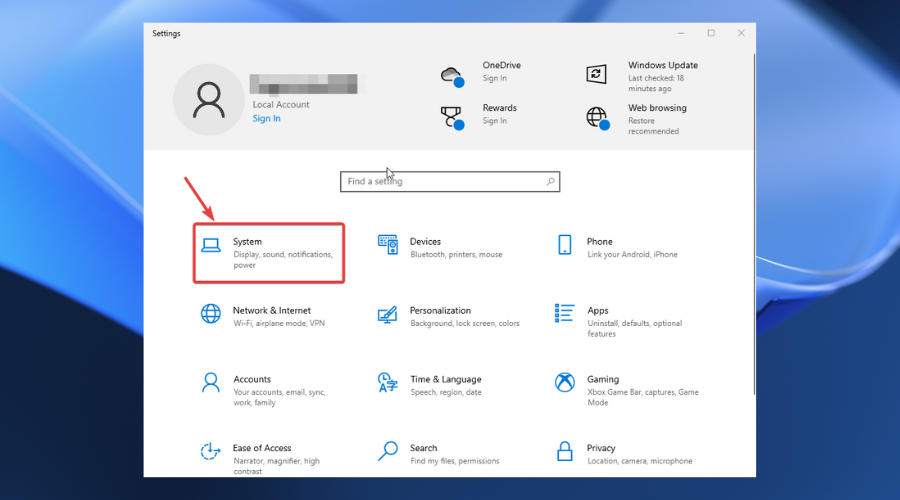
Open Edge then click the three-dot menu followed by Extensions.
Next, select Manage Extensions.
Here, click the toggle button next to all your extensions to turn them off then check whether the An add on for this website failed to run error is gone.
3. Turn off extensions in Chrome
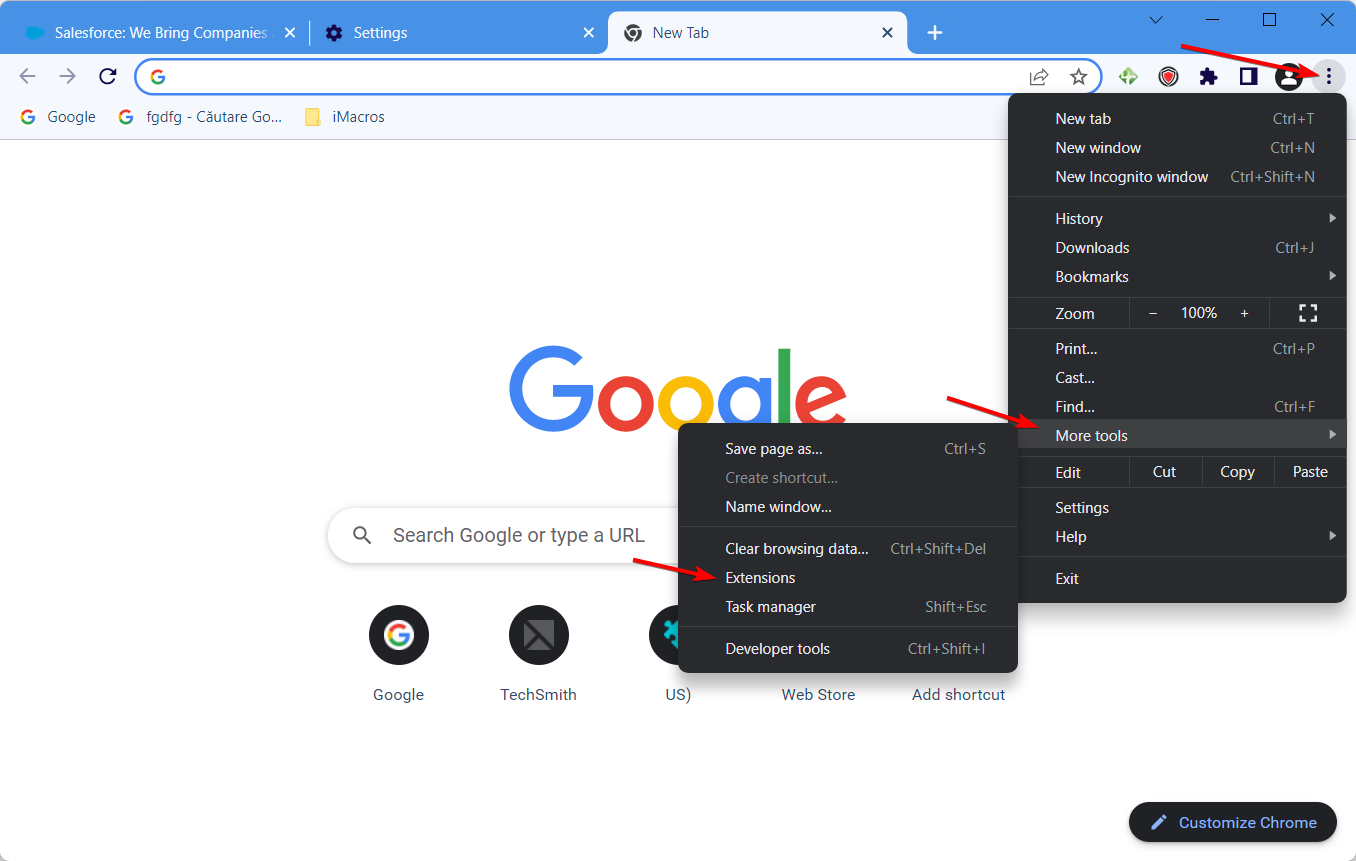
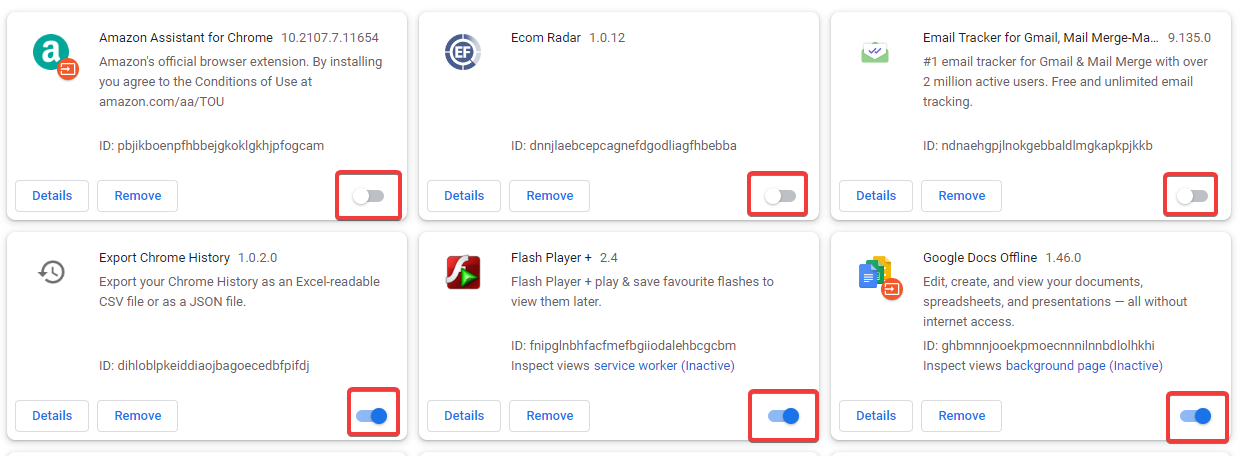
If you gotAn add on for this website failed to run, start a new Chrome window and click on the three-dot menu followed by More tools and Extensions.
Next, turn off the toggle next to all of your extensions to fix the issue in Chrome.
4. Reset browser
Edge
Open Edge and click the three-dot menu followed by Settings.
Here, navigate to Reset settings followed by Restore settings to their default values.
Click Reset and you’re done!
Chrome
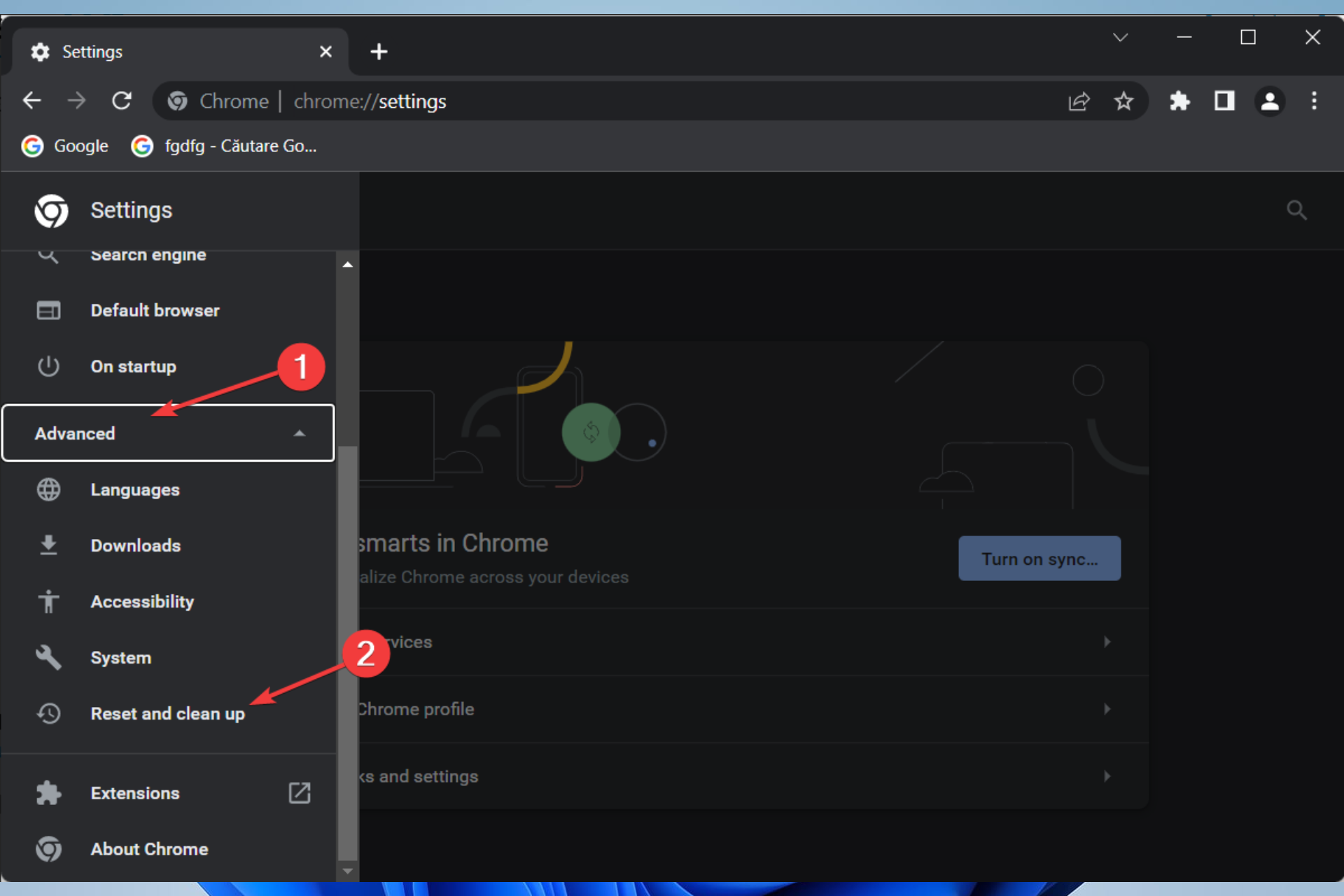
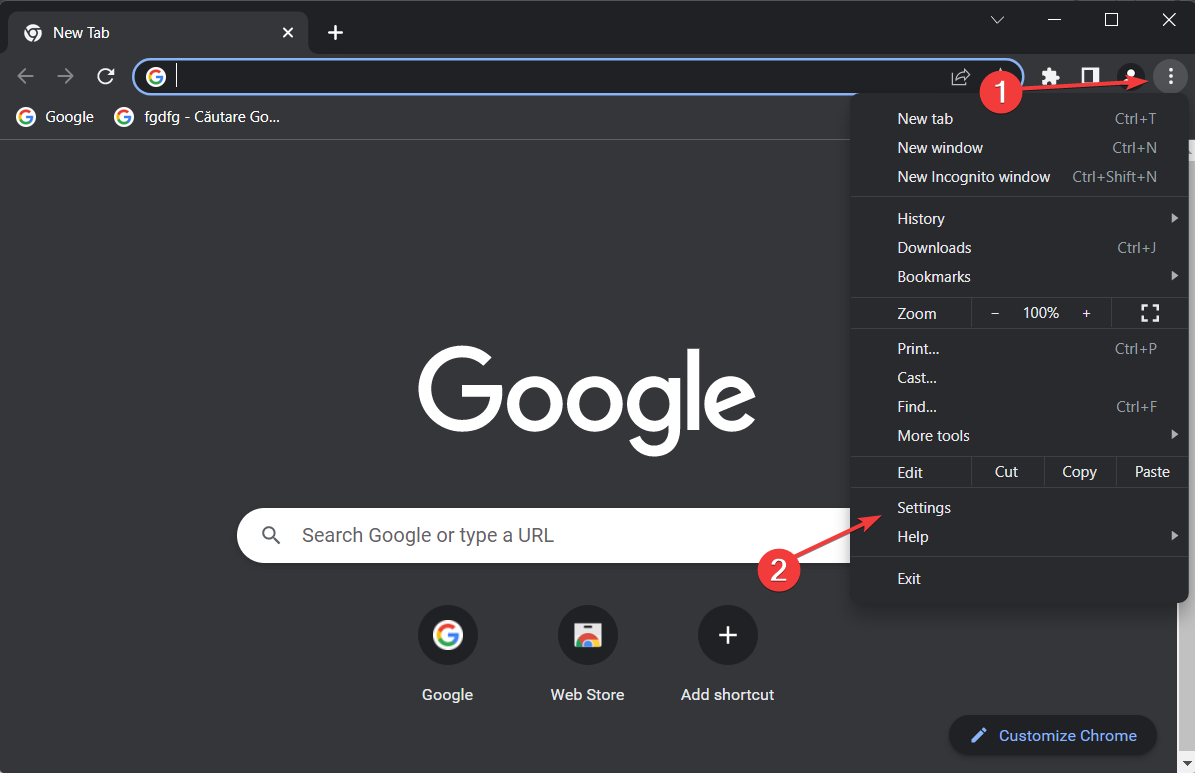
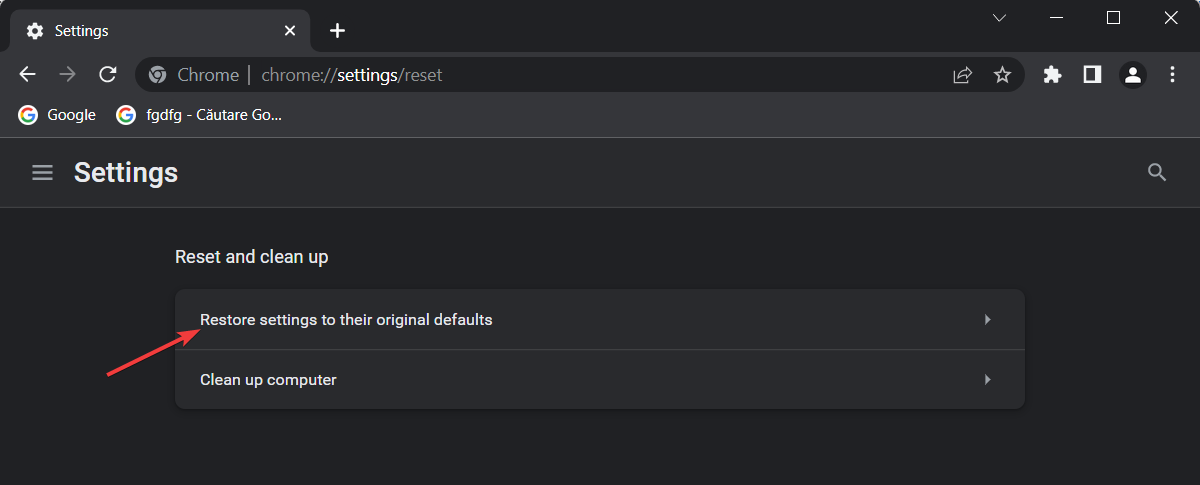
Resetting Google Chrome will turn off all its extensions, which might fix the error. Start by clicking on the three-dot menu followed by Settings.
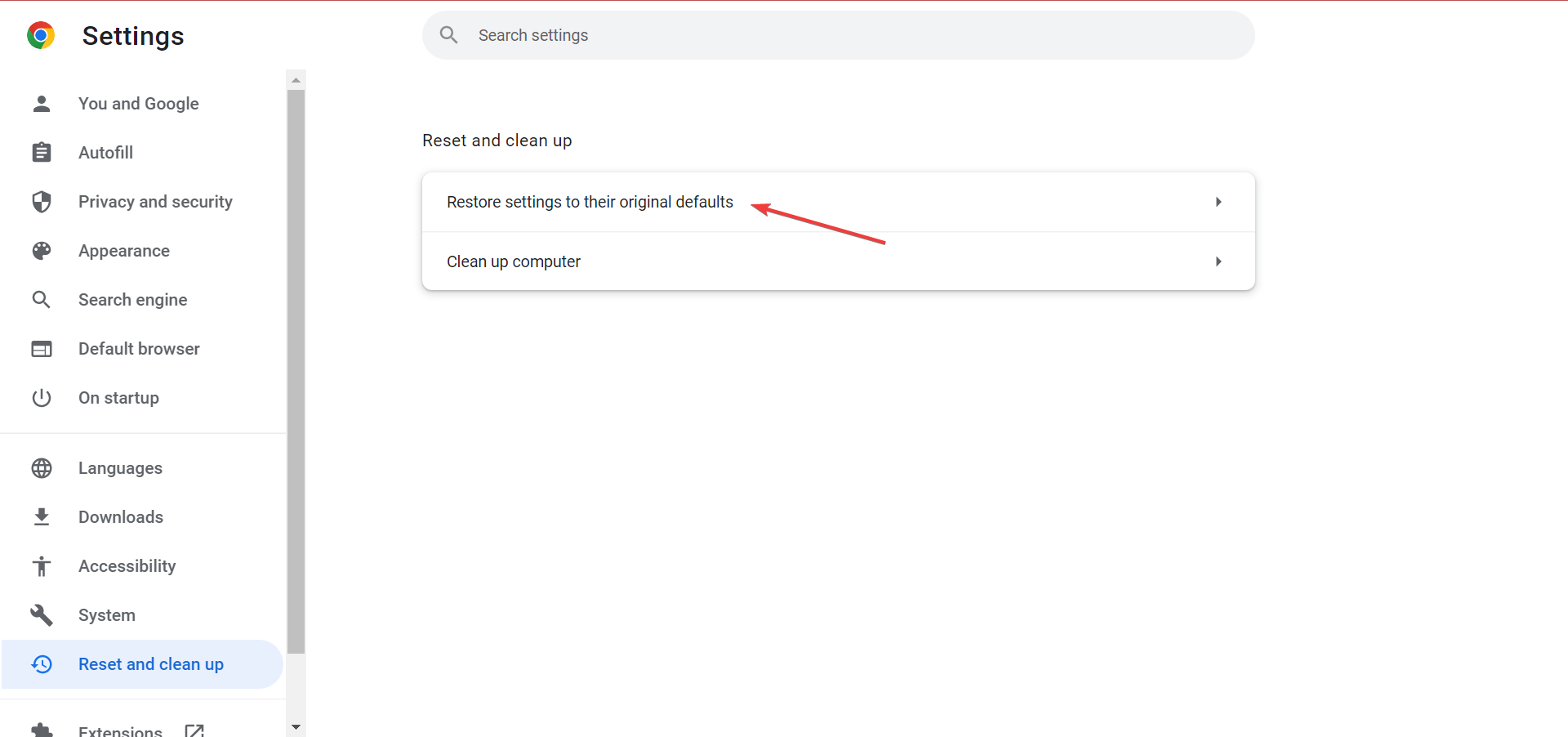
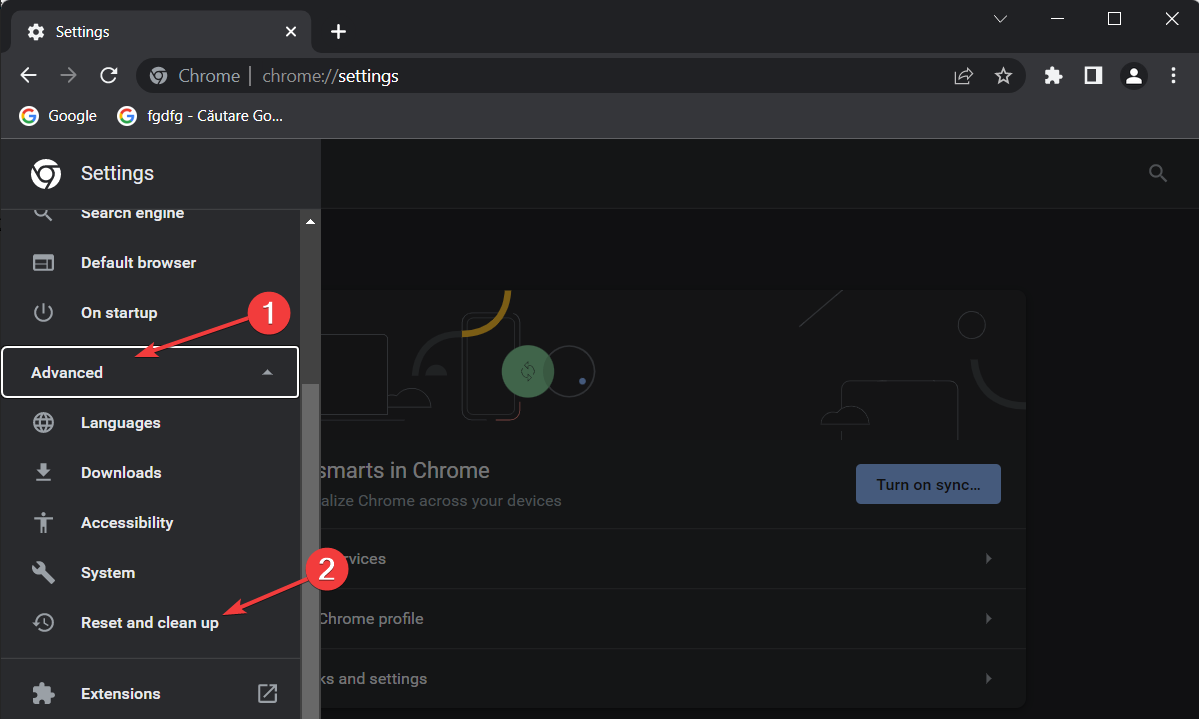
From the left menu select Reset and clean up.
Next, click the Restore settings to their original defaults option.
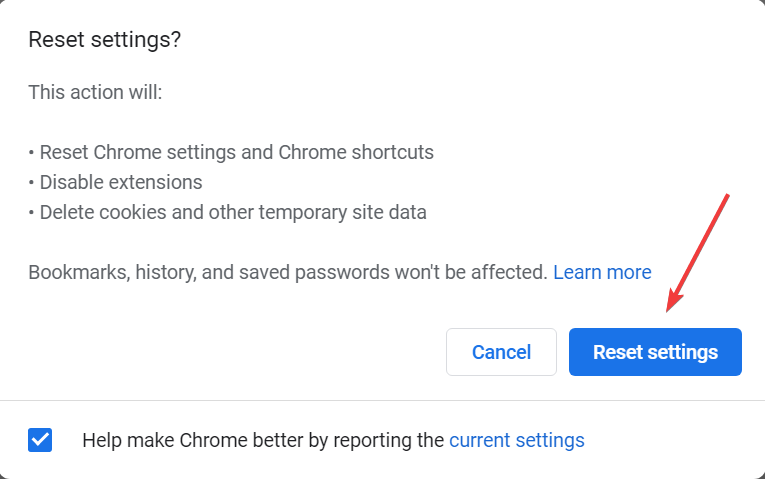
Finally, click Reset settings.
After restarting your PC, the Add-on for the website failed to run error should now be fixed.
On rare occasions, when this error message still pops up after running all the four troubleshooting fixes in this tutorial, you can contact the Microsoft support team.
Don’t hesitate to leave a comment in the section below and share your thoughts with us. Thanks for reading!
Having issues on how to get rid of paragraph symbol in Word? Look no further. Microsoft Word has a formatting mark button that looks like this ¶.
The paragraph symbol indicates where a paragraph is and can be helpful in some situations. Many users, however, find this symbol distracting to have it on while typing.
Also, there’s a chance that you end up printing out your documents with the paragraph symbols littered over it. Use one of the detailed methods below to learn how to turn the paragraph symbols on and off.
How do I get rid of paragraph symbol in Word?
Use the Hide/Show paragraph symbols button in the toolbar
Navigate to the main toolbar and home button.
Spot the Show/Hide Formatting Marks button.
The Hide/ShowFormatting Marks button resembles a paragraph mark (¶).
Click the Formatting Marks button to erase the paragraph symbols.
If you wish to turn it back on, you just have to click on it again.
Disable paragraph marks
A quick and secure method to ensure you get rid of the paragraph symbol in Word is to disable paragraph marks from showing on your documents using Settings. This option will apply to all your documents. All you need to do is follow these steps:
1. Press the Windows Key and type word in the search bar.
2. Click on the result to open the Word app.
3. In the app, select Options from the menu on the left.
4. Click on Display.
5. Below Display look for the section marked Always show these formatting marks on the screen.
6. You will notice a checked box labeled Paragraph Marks. Uncheck it.
7. Click theOKbutton below to apply and save the changes. After this, the paragraph mark will seize to appear on any of your subsequent documents.
You can also uncheck any other formatting marks with this method, like hidden text, object anchors, and spaces.
How to get rid of paragraph symbol in Word for Mac OS X
Select Preferences in the Word menu.
Select View.
You will see a section titled Nonprinting characters, check or uncheck the appropriate boxes to view the marks of your choice.
Click OK to save your changes.
You can also toggle between displaying and hiding formatting marks. To do so:
In the paragraph group section for Windows, click on the paragraph icon located in the Home tab.
For Mac OS X, the paragraph Icon can be found in the standard toolbar. Click on it to toggle.
Having the paragraph symbols on while typing can be very helpful in situations where you need to delete a page break, and you can’t tell precisely where the markup is.
We know that many of you are wondering what kind of numbers Microsoft makes of all its products and, as always, we’re here to shed some light on the matter.
As you are probably used to by now, the tech colossus has posted strong figures for the last quarter of the 2022 fiscal year as it looks forward to starting the 2023 fiscal year.
Just so there is absolutely no confusion, keep in mind that the company’s 2022 fiscal year ended on June 30th, 2022.
Microsoft reports $51.9 billion in revenue this last quarter
So, since we’re talking money, let’s discuss the fact that, in its latest quarter, Microsoft’s revenue was $51.9 billion, which is a 12% increase (16% Constant Currency) compared to the same period in the previous fiscal year.
The operating income entry had only a single-digit growth of 8% (14% CC), which amounts to a staggering $20.5 billion.
As far as net income goes, it increased by 2% (7% CC) to $16.7 billion and diluted earnings per share were $2.23, up by 3% (8% CC).
Keep in mind that, while all of these are positive figures, the Redmond-based tech company has also highlighted some unfavorable global and macroeconomic conditions that negatively impacted its results.
These are totally unforeseen circumstances that the tech company did not bring up in its forward-looking statements published in April 2022 whatsoever.
Thus, the Redmond giant has announced that unfavorable foreign exchange rates negatively affected revenue and diluted earnings per share by $595 million and $0.04, respectively.
As a result of an overall reduction in advertising spending, LinkedIn took a massive impact, with Search and news advertising revenue decreasing by $100 million.
Microsoft also mentions extended production shutdowns in China which, with the deterioration in the PC market in June, led to a decline of $300 million in Windows OEM revenue.
Microsoft is known to have also scaled down its operations in Russia, which means that the tech giant posted operating expenses of $126 million in lieu of bad debts, asset impairments, and severance packages.
Even outside of Russia, the realignment of its business groups across the globe resulted in employee severance payments of $113 million.
Moving on, Microsoft also posted the quarterly Productivity and Business Processes revenue, which stood strong at $16.6 billion, going up in percentage by 13%.
The company explains that this was powered by significant growth in revenue for Office Commercial products (9%), Office 365 Commercial (15%), Office Consumer products (9%), LinkedIn (26%), Dynamics products (19%), and Dynamics 365 (31%).
Another interesting fact about growth, since we’re on the subject, is that Microsoft 365 subscribers also grew to 59.7 million people, which is a lot.
Intelligent Cloud revenue was at $20.9 billion, which constitutes a giant growth of 20%, due to Server products growth (22%) and Azure (40%).
As for revenue in the More Personal Computing category, while overall revenue grew by 2% and stood at $14.4 billion, Windows OEM revenue declined by 2% and Xbox content and services were down by 6%.
Also, note that Windows Commercial products grew by 6% and Surface revenue was up by 10%, as reported by Microsoft.
Drawing the line for the fiscal year 2022, revenue was at $198.3 billion (18% growth), operating income was $83.4 billion (19%), net income was $72.7 billion GAAP (19%), $69.4 billion non-GAAP (15%), diluted earnings per share was $9.65 GAAP (20%), and $9.21 non-GAAP (16%).
Going into the new fiscal year, Microsoft has set some target objectives that it plans to stick to, as follows:
intense competition in all of our markets that may lead to lower revenue or operating margins;
increasing focus on cloud-based services presenting execution and competitive risks;
significant investments in products and services that may not achieve expected returns;
acquisitions, joint ventures, and strategic alliances that may have an adverse effect on our business;
impairment of goodwill or amortizable intangible assets causing a significant charge to earnings;
cyberattacks and security vulnerabilities that could lead to reduced revenue, increased costs, liability claims, or harm to our reputation or competitive position;
disclosure and misuse of personal data that could cause liability and harm to our reputation;
the possibility that we may not be able to protect information stored in our products and services from use by others;
abuse of our advertising or social platforms that may harm our reputation or user engagement;
the development of the internet of things presenting security, privacy, and execution risks;
issues about the use of artificial intelligence in our offerings that may result in competitive harm, legal liability, or reputational harm;
excessive outages, data losses, and disruptions of our online services if we fail to maintain an adequate operations infrastructure;
quality or supply problems;
government litigation and regulatory activity relating to competition rules that may limit how we design and market our products;
potential consequences under trade, anti-corruption, and other laws resulting from our global operations;
laws and regulations relating to the handling of personal data that may impede the adoption of our services or result in increased costs, legal claims, fines, or reputational damage;
claims against us that may result in adverse outcomes in legal disputes;
uncertainties relating to our business with government customers;
additional tax liabilities;
the possibility that we may fail to protect our source code;
legal changes, our evolving business model, piracy, and other factors may decrease the value of our intellectual property;
claims that Microsoft has infringed the intellectual property rights of others;
damage to our reputation or our brands that may harm our business and operating results;
adverse economic or market conditions that may harm our business;
catastrophic events or geo-political conditions, such as the COVID-19 pandemic, that may disrupt our business;
exposure to increased economic and operational uncertainties from operating a global business, including the effects of foreign currency exchange and
the dependence of our business on our ability to attract and retain talented employees.
What are your thoughts on Microsoft’s latest revenue report? Share your opinions with us in the comments section below.
Opera browser hardware acceleration is a feature that uses your computer’s GPU to handle graphics-heavy tasks like video rendering or animations. This reduces the load on your CPU and can improve performance. However, it may cause problems on older systems or with certain graphics drivers.
If Opera is lagging, freezing, or displaying visual glitches, you can disable hardware acceleration to troubleshoot the issue. Here’s all you need to know about disabling/ enabling it.
How to disable and enable hardware acceleration in Opera GX
Opera usually takes up too much GPU, up to 100% when you don’t have hardware acceleration enabled, or when you have way too many active tabs open. It could also happen when you use certain add-ons or you haven’t cleaned up your cache in a while.
Browsers like Opera and Chrome and even streaming apps like Twitch include hardware acceleration to let you adjust your browser for best performance. Moreover, if you want to know how to disable hardware acceleration in Firefox, we’ve got you covered.
This built-in feature can improve your experience and as you can see in the guidelines above, enabling and disabling it in Opera is easy.
If you have any questions or need more help, drop a comment below.
Despite missing its own cautious projections for FY22 Q4, Microsoft’s stock is up 4.8% as investors let the dust settle and sort through various gains the company presented yesterday.
Perhaps leading the bullish trade winds is Microsoft’s confidently speculative projections for FY23 Q1, where the company believes it will continue double digit cloud growth.
Just before Microsoft held its earnings call at the end of the day yesterday, corporate vice president Frank Shaw blasted off a list gains each of the company’s businesses raked in for Q4 via a Twitter thread.
And we are seeing higher monthly usage of @Windows 11 applications, with double-digit increases in time spent across creative work, collaboration, gaming, media, and writing code.
Among the items highlighted by Shaw were revenue increases for LinkedIn Marketing Solutions which surpassed $5B in annual revenue, various Security Solutions accounting for a 40% increase in the division’s revenue, along with the newsworthy Netflix advertising partnership which should boost its Microsoft advertising revenue in the future.
Xbox
Looking into more specific segments such as gaming, Microsoft fell victim to pandemic inflating behaviors as did many. Total Xbox revenue dropped by 7% with hardware declining 11% year over year. In addition, Xbox content and services saw a 6% decline in revenue which Microsoft’s believes is a result of lower engagement hours.
The results are a mixed bag when looking at the numbers as it appears that while coming off its previously highest revenue quarters, Game Pass helped level losses from the hardware side of the Xbox division.
The entire Xbox division was down 7% year over year but it was Game Pass’ shallower 6% decline in revenue that helped stabilize the hardware losses that came in at 11% for the quarter.
Cloud
Another business that saw declines was Microsoft’s golden goose cloud business which missed the projected $21.09B revenue rate despite growing from $17.38B to $20.91B within the quarterly year.
Buried under the dower headlines is the fact that gross margin dollars grew by 15% and revenue for the sector was up 20% year over year.
Azure contributed its own 40% growth in revenue from server products, bringing up the rear with a 22% revenue gain year over year.
Even though Microsoft missed its own goal for Q4, market analysts seem optimistic about future revenue gains as Wedbush analysts Daniel Ives puts it, “Shockingly robust and speaks volumes about cloud demand holding up.”
Ives is speaking of the rather turbulent economic environment that’s had several tech companies missing their intended targets for the recent quarter.
Windows & Surface
Lastly, there is fun stuff we like to indulge in here at OnMSFT which is the More Personal Computing segment which has seen relatively better days.
The entire section could be summed up as operating expenses increased while operating income decreased.
Windows OEM revenue declined by 2% with production shutdowns being attributed to the loss.
The aforementioned Xbox division is bundled in the business portfolio with its losses as well, and the Surface hardware business saw a modest 10% revenue gain and Microsoft is projecting that trend will continue in the near future.
Is Microsoft on the right track for continued success? Let us know in the comments below.
If you want to change browser country on any of the popular web browsers, go through this article to get the appropriate guide.
Your web browser can detect the country you’re from, but did you know that you can set your country manually in your browser?
That’s right, and you can do this simply by changing a few settings in your web browser; today, we’ll show you how to do that.
Why should I change my location in the browser?
For many privacy reasons, you may like to hide your location and even spoof it to confuse the third party. These reasons include the followings:
Accessing geo-restricted contents
To surf the internet in more private ways
Ensuring internet freedom
Hiding your real identity from the third party.
What region is best for browsing?
The US is still the top pick as browsing and streaming region. Else, Canada, Iceland, Singapore, etc., are also hot choices.
From the United States, you can enjoy the majority of the web. It makes it a very common and best region for browsing.
There are several ways you can follow the ensure it. In this article, you will know about the most effective methods.
How do I change my browser to another country?
1. Opera One
1.1 Enable VPN
Using the Opera One address bar, go to the following location: opera://settings/privacy
Scroll down and expand Advanced.
Enable VPN.
1.2 Change Location
While browsing any website, click on the VPN icon in the top left corner.
Choose your preferred location as shown in the screenshot.
This way, you can easily set a country on the Opera One browser using the built-in VPN.
If you haven’t tried the Opera One browser yet, perhaps it’s time you did because it comes with a lot of handy features that will make browsing more efficient.
To mention just a few: integrated ad blocker, customizable workflow, a customizable personal news feed, battery saver, integrated messengers for Twitter or Instagram, or crypto wallet.
Opera One
Try this browser with the free incorporated VPN and choose any location on the globe with just a few clicks.
After making these changes, your location should be changed. Remember that you need to use coordinates matching your desired country.
2. Chrome
Open Developer Tools – you can do that quickly by using Ctrl + Shift + I shortcut.
Locate the Console tab and click the three dots next to it and choose Sensors.
Set Geolocation to Custom location or anything you prefer.
In this way, you can change Chrome or Chromium-based browser location country. Tor, Puffin, Brave, Edge, etc., are Chromium-based browsers where you can do the same or similar things to change country or location.
If the above steps don’t work for these specific browsers, you should consider using a VPN like Private Internet Access (PIA). This service has extensions for Chrome, Firefox, and other Chromium-based web browsers. These extensions make it easy to change location and country.
This article has shown how to change browser location country. If you have any questions or know any better method, feel free to let us know in the comment box.
DebugBear recently analyzed 26 browser extensions to study whether Chrome extensions are slowing down your computer or not.
The test was carried out on some of the most popular extensions, such as Adblock Plus, uBlock, HTTPS Everywhere, LastPass, and Grammarly among many others.
We are here today to answer the same questions, do Chrome extensions affect the performance of your browser? Let’s find out!
Do Chrome extensions affect performance?
Although many Chrome extensions can run additional code on every page that you view, well-built extensions will only run code when it is required to do so.
Activity on the CPU can cause a page to hang and become unresponsive, increasing the amount of battery that must be used. However, if the processing takes place after the initial loading of the page, the effect on the user experience might not be as significant.
A few extensions, such as Loom and Ghostery, execute a significant amount of code without affecting the time the page begins displaying.
However, some extensions such as Total Adbllock, Clever, Lastpass, and DuckDuckGo Privacy Essentials begin executing code as soon as the page starts loading, which delays the time the user can initially access the website’s contents.
Does Grammarly slow down your computer?
Yes, Grammarly slows down Chrome. On-page CPU time was reduced by over 100 milliseconds for users of Grammarly, Microsoft Office, the Okta Browser Plugin, Avira Safe Shopping, and Avira Browser Safety.
Does Honey slow down your computer?
Unfortunately, Honey slows down your computer as well. There is evidence that widely used browser add-ons like Honey, Evernote Web Clipper, and Avira Browser Safety can considerably slow page load times.
If you wonder whether LastPass is slowing down Chrome, it does. It was found to be one of the culprits that caused the browser to slow down.
Quick Tip:
Google Chrome is known for taking up most of your RAM and CPU. Using a different browser that allows full control over how much it eats from available resources has a huge impact on browsing.
Opera GX is built using the same Chromium engine as Google Chrome, so all Chrome extensions are compatible. It also comes with a built-in CPU, RAM, and bandwidth limiter.
Opera GX
Control resource usage for your browser and never experience lags or slowdowns.
The conclusions of this analysis are not at all surprising. They confirm what many users already noticed, Chrome extensions are slowing down your computer. Specifically, certain browser extensions may increase power consumption.
This happens because these extensions put a strain on your CPU. Let’s look at some numbers to see which extensions require your CPU to do more work.
Extension
What is it?
Users
Extra CPU time*
Honey
Automatic coupon code finder
10M+
636ms
Grammarly
Grammar checker
10M+
324ms
Evernote Clipper
Save web content to Evernote
4.7M
265ms
StayFocusd
Limit time spent on websites
700K
224ms
LastPass
Password manager
8M
139ms
Things Chrome extension devs should consider
Chrome extension developers need to consider the following points to reduce the impact their products have on the browsing experience: Content scripts should be used on the domains as per the requirements.
Secondly, the content script should not be run on document_start. The developers should avoid overloading the code with JavaScript. It can be loaded quickly whenever you need to include the JS bundle.
NOTE
In case you want to be secure while surfing the internet, you will need to get a full-dedicated tool to secure your network. Install now Private Internet Access and secure yourself. It protects your PC from attacks while browsing, masks your IP address, and blocks all unwanted access.
Main takeaways
The researchers have also mentioned some key findings of the study. The performance cost of the single extension can be small, but the combined performance cost might add up to a significantly large value, thus causing Chrome extensions to slow down computers.
The performance can significantly be improved by using privacy tools in those cases when the website is overloaded with analytics or ads.
The study also has some limitations as well, it has only considered just a single browser i.e Google Chrome. We have to extend the research to other popular browsers to find out how the results vary with respect to each browser.
Furthermore, the sample size should be kept large by increasing the number of extensions in future experiments.
In short, the study revealed that Honey and Grammarly are extremely slow as far as browsing performance is concerned.
The power consumption is usually increased when you have so many extensions installed in your system. The extension developers should follow the best practices in order to avoid performance problems in the future.
Privacy is a major concern these days in view of the recent cyber-attacks and data leaks by 3rd party apps and programs. Experts recommend that you should reduce the number of extensions installed in your browser.
You may improve the performance of Google Chrome by installing a specialized extension if you find that it is not as quick as it was in the past.
However, the challenge is that many of these products are on the market, each of which asserts that it is superior to the others.
The performance can only be improved by installing those shown to be beneficial. Extensions affect performance; depending on the extension, they can either make Chrome run faster or slower.
So, do extensions slow down Chrome? The short answer would be yes, but it depends on the extension, amount of RAM, CPU power, number of open tabs, and other factors. You can also get ad blockers to declutter your browser and speed up page loading.
How many extensions are currently installed in your browser? In the comments section below, let us know which of them is the real culprit behind any performance issues you may have experienced.
Yesterday we mentioned the two new Insider Preview Builds for Windows 11 that Microsoft has released to the Beta Channel, in the form of 22621.436 and 22622.436 (KB5015888).
We also told you that the Redmond-based tech company is hosting a new Bug Bash event for KB5015888, if you are into that kind of activity.
Now, Microsoft has provided availability for a new Windows 11 Insider build to the Dev Channel. Build 25163 is the Sun Valley 3 (Windows 11 23H2) development for Windows Insiders, which will eventually become the version that is released in 2023.
What’s new in Windows 11 Build 25163
The new build brings a new Taskbar feature called Taskbar Overflow, which has a re-designed experience for the operating system.
This latest taskbar experience has been thoughtfully crafted to offer you a more productive switching and launching experience when space is constrained.
After installing this build, your taskbar will automatically transition into this new overflow state when it has hit its maximum capacity.
In this state, the taskbar will offer an entry point to an overflow menu that allows you to view all your overflowed apps in one space.
You should also know that the overflow menu will contain many of the current taskbar behaviors users are familiar with, such as supporting pinned apps, jump list, and extended UI.
Thus, after invoking overflow, the menu will quietly dismiss once you click outside of it or navigate to an application.
Just like with KB5015888, the discovery of devices under nearby share when sharing a local file from the desktop, File Explorer, Photos, Snipping Tool, Xbox, and other apps that use the built-in Windows share window has been enhanced by using UDP (Network needs to be set to private).
Bluetooth has also been added, to discover nearby devices, which means you will now be able to discover and share to more devices including desktop PCs.
Also, when sharing a local file from the above-mentioned sources that use the built-in Windows share window, you can choose OneDrive as a target to directly upload the file to OneDrive and share it further along with access control options.
Know that absolutely all this can be done right from sharing local files in File Explorer without any context switches or opening the OneDrive app.
NOTE
This feature is currently only available for Microsoft accounts. A user will need to switch to their Microsoft account via the top right profile icon in the share window if logged in via AAD. AAD support will be added in a future update.
Fixes
[File Explorer]
Fixed an explorer.exe crash when dragging tabs around.
Did some work to fix a memory leak when using tabs with File Explorer.
Fixed an issue where the preview thumbnail for File Explorer in the taskbar, ALT + Tab, and Task View might show the title of an adjacent tab and not the currently selected one.
If “Show all folders” is enabled, the dividers in File Explorer’s navigation pane should no longer show. With this change, it should also address the issues where dividers were unexpectedly showing in some other folder pickers.
Fixed an issue where Narrator wasn’t reading out the titles of tabs as focus moved through them.
Fixed an issue where a closed tab might appear again in File Explorer after you dragged File Explorer across your monitors.
Fixed an issue where the tab row might unexpectedly expand vertically, covering the command bar contents.
Removable drives should no longer unexpectedly be displayed in a section by themselves in the navigation pane, which was breaking up the section with This PC and Network.
Fixed an issue where the add new tab button wasn’t clearly visible when using Aquatic or Desert contrast themes.
The add new tab button shouldn’t overlap with the minimize button in the title bar when using text scaling with a lot of tabs open anymore.
[Taskbar]
Fixed a rare explorer.exe crash that could happen while on a Microsoft Teams call, related to sharing windows from the taskbar.
[Settings]
Made a change to help fix an issue where using Windows Spotlight on the desktop might revert to a solid color background.
Improved the padding around the uninstall button when using Apps > Installed Apps in grid view.
Fixed a couple issues that could lead to Quick Settings crashing on launch.
[Input]
Fixed an issue which was leading to certain apps freezing after a copy action if Suggested Actions was enabled.
[Other]
Fixed a high hitting crash impacting suggested actions reliability.
Known issues
[General]
We’re investigating reports that SQL Server Management Studio is failing to launch for some Insiders.
Some games that use Easy Anti-Cheat may crash or cause your PC to bugcheck.
[File Explorer]
The up arrow is misaligned in File Explorer tabs. This will be fixed in a future update.
We’re working on a fix to address reports that launching File Explorer in certain ways when using dark mode (for example, from the command line) is showing the body of File Explorer unexpectedly in light mode.
[Widgets]
Notification badge number may appear misaligned on the taskbar.
In some cases, the notification banner for some badging will not appear in the widgets board.
We’re working on the fix for an issue causing Widgets preferences (temperature units and pinned widgets) to unexpectedly get reset to default.
[Live captions]
Certain apps in full screen (e.g., video players) prevent live captions from being visible.
Certain apps positioned near the top of the screen and closed before live captions is run will re-launch behind the live captions window positioned at top. Use the system menu (ALT + Spacebar) while the app has focus to move the app’s window further down.
Don’t forget that Microsoft published a new video series that will help Windows 11 newcomers to find their way around easier.
How to enable Taskbar overflow
Before we go into this, know that not all insiders from the Beta channel can test the updated taskbar overflow.
Microsoft only made it available on build 22622.436, not 22621.436, because Microsoft has two builds in a single Beta channel.
Even more confusing is the fact that even Insiders with build 22622.436 get randomly selected to test the new overflow feature.
Those that weren’t among the lucky ones selected for testing can try a popular ace up their sleeves called Vivetool.
As reported by tech-savvy users over Reddit, we’re about to show you how this can be done even if you don’t officially have the right to test Taskbar overflow.
Access Vivetool on GitHub repository, download the app, and extract it.
Run Windows Terminal as Administrator and access the Vivetool folder using CD C:\Vive.
Type vivetool /enable /id:35620393 and press Enter.
Type vivetool /enable /id:35620394 and press Enter.
Restart your system to apply changes.
If, for any reason, you decide that you are done and want to revert these changes, simply type the vivetool /disable command with the same IDs.
Remember that the new overflow system is not the only taskbar-related novelty in preview Windows 11 builds.
Have you noticed any other issues after installing Windows 11 Build 25163? Share your experience with us in the comments section below.
The history on Google Chrome, or any browser for that matter, comes in handy when you are trying to locate a page opened earlier. But, how far can you search for the Chrome history? Is there a way you could search all Chrome history at once?
These are the questions we will be addressing in the article because history plays an important role in a seamless browsing experience.
So, without further ado, let’s find out all about the full Chrome history and how you can view it.
Quick Tip:
The Opera One browser allows you the option to search and filter history by date seamlessly. You can manually select the start and end date, and Opera One will list the pages visited in that period.
The new structure of the Opera One browser brings you Tab Islands along it’s already known workspaces. This feature allows you to arrange your tabs into groups that can then be expanded or collapsed for more organized browsing sessions.
Opera One
Smooth your browsing experience with a cleaner and more organized interface.
If you search for a previously opened website page in Google Chrome, you will find that the browser’s History page goes back about three months. You can open Chrome’s history page using the following path:chrome://history/
The browser history prior to the 90-day period is not deleted but stored as a file on your computer and can be accessed. Though it wouldn’t be listed on the browser’s History page.
Can I search Chrome history by date?
Chrome doesn’t allow you to filter history by date, but there are other browsers that do. For instance, Firefox and Opera automatically categorize history by date and list them under different sections.
Let’s now see how you can search all history in Chrome.
How do I see Chrome history all time?
NOTE
This method would only work if you have a Google account linked to Chrome and enabled Web & App Activity.
Paste the following path in Chrome’s address bar and hit Enter:chrome://settings/
Click on Manage your Google account.
Now, click on Manage your data & privacy under Privacy & personalization.
Scroll down and click on Web & App Activity.
Click on the Chrome icon under See & delete activity.
The entire Chrome history will now be visible.
Also, you can add a filter to search history by date. To do that, click on the Calendar icon.
Again, click on the Calendar icon.
Now, select a date here, and click OK.
Once done, click on Apply.
The Chrome history for that date and the one before it will be displayed.
This is a simple method to search all Chrome history and doesn’t require installing third-party extensions or tools.
Earlier, we had an extension that allowed searching and viewing all Chrome history, but it was taken down from the Web Store.
How to view Chrome history on phone?
Launch Chrome on your phone, and tap on the ellipsis near the bottom left.
Now, tap on History in the menu.
Chrome’s history will now be displayed.
To delete the history, tap on Clear Browsing Data at the bottom.
Now, select the time range from the dropdown menu, check the data you want to delete, and tap on Clear Browsing Data.
That’s it! You now know how to view and delete all search history in Chrome. These methods will come in handy and improve your browsing experience.
The history location on the browser is where all your Opera browser history is stored. You can modify it to see the all-time history or just the recent ones alone.
2. Find the History files on your drive
Launch the Opera browser and search the following: opera://about
Copy the profile path and launch File Explorer.
Paste the profile path copied to navigate through using this: C:Users<username>AppDataRoamingOpera SoftwareOpera Stable
The History and History-journal files in that directory hold your Opera browsing history.
How long does Opera store history?
Opera will hold your browsing history indefinitely unless you choose to remove it manually. It doesn’t automatically remove the browsing history.
Set the Time range to All time. Make sure that only the Browsing history is checked. Lastly, click on Clear data.
Your Opera browsing history will now be gone.
Can you see the deleted history on Opera?
No, once the history is deleted from Opera, you can’t see it or access it anymore.
Accessing your browser history can be useful, especially if you want to transfer data from Opera to Opera GX or just want to keep track of what you’re up to.
Summer Spotlight 2022 is underway as of July 26, and this year’s spotlight features 75 upcoming games headed to Xbox One and Xbox Series X|S. These are some of the most hotly anticipated games of the season. New titles will be added each week, so it pays to check back often to see what’s new in the spotlight. There will also be special giveaways through the official Xbox Wire Twitter account below.
Summer Spotlight 2022 has officially kicked off and we’re excited to bring you a ton of games every week for the next six weeks! https://t.co/fNvkMuI4QN
Summer Spotlight will run over the next six weeks, through September 5. During that period, when you spend $50 on eligible games and movies you will receive 5,000 Microsoft Rewards Points. That’s quite a nice little bonus! Here is a preview of just a few of the titles featured as part of Summer Spotlight 2022. But don’t forget that many more are to follow.
New games will be added to the spotlight each Tuesday. And the latest Summer Spotlight games will be streamed over on the official Xbox Twitch Channel on Fridays from 11am to 12 pm PT. Don’t miss out on this exciting summer gaming event.
Sometimes you might encounter certain error messages if the website you’re trying to visit isn’t added to your list of trusted sites in Chrome. However, you can avoid these errors simply by adding the website to the trusted sites list.
In this article, we’ll show you how to correctly add a website to the trusted sites list in Chrome on Windows 10 and 11 and some other popular browsers.
How do I know if a site is trusted?
The easiest way to know a secure site in the modern internet world is by verifying it has an SSL certificate. However, not all secure websites should be trusted. You usually want to visit websites you know and are familiar with.
You, however, can not stick only to the ones you are familiar with, so here are some other things you may do to determine if you should visit a website:
Make sure the URL starts with HTTPS and not HTTP.
Ensure the URL has no typos, for example, windowsreport.com and not w1ndowsreport.com.
Analyze the page and verify that it has a modern theme.
These are usually the sites you use every day. There is no unique way of finding trusted sites; just ensure that if a link feels or looks spammy, you stay away from clicking it until you have done a background check.
Quick Tip:
Did you know that some browsers have a built-in ad blocker and a VPN? That’s right. The Opera One browser does this.
Sharing some similarities with Chrome, you can browse the web more safely and faster because Opera One is based on Chromium. You will see fewer ads, and your privacy will be higher if you turn on the option to block trackers.
Opera One
Easily switch to Opera One and enjoy a faster, safer, more private browsing experience.
Launch your browser and navigate to the URL you want to trust.
Click on the padlock sign and select Site settings.
Click on the drop-down lists to allow access based on your preferences.
Trusting a site in this manner will work both on Windows 10 and 11. The process is virtually identical on Mac.
1. On Mac
Launch your browser and navigate to the URL you want to trust.
Click on the padlock sign and select Site settings.
Click on the drop-down lists to allow access based on your preferences.
As you observed, this is the very same process as Windows. And it would be the same in almost every Chrome browser OS.
Add multiple trusted sites in Chrome
Click on the ellipses or the three dots found in the upper right part of your browser.
Select Settings from the options.
On the left pane, select Privacy and security, then click on Site Settings on the right.
Click the arrow in front of any of your recently visited sites, and it gives you access to permissions you can grant that site, This process is similar in most operating systems, including Windows, Mac, and Linux.
How to add trusted sites in Chrome using Internet Options
Windows OS users can quickly add trusted sites to their Chrome browser using the built-in Internet Options in Control Panel. You can manually add sites to the list of Trusted Sites, and that list will apply to all the browsers you use, including Chrome.
1. Click on the Start menu, type internet options, and select the Internet Options app.
2. Navigate to the Security tab, then select Trusted Sites (the icon with a green check mark).
3. Click on Sites.
4. On the new window, type the URL of the site you want to add to trusted sites in the Add this website to the zone text field.
5. Click the Addbutton.
6. Continue to add as many websites as you want.
7. Close the window when you finish.
Please note that this last method is unique to Windows OS.
How do I get rid of the trusted site security warning?
You must note that security warnings are meant to keep you safe online. In most cases, you should not ignore them, but if you are positive that the website you are requesting poses no security risk, then you can go ahead and trust the sites using any of the solutions we have mentioned above.
On the Chrome browser, you can open the site settings and add the URL to your permitted sites, and on Windows, you may add them to the list of trusted sites using the Internet Options app.
There you go, a quick and easy way to add trusted sites in Chrome and others on Windows 10, 11, and Mac.
This is a pretty straightforward process; with a few clicks, you should be able to access any website freely. For servers, check out our guide that illustrates what to do if you don’t have permission to access a server.
Let us know if these solutions have worked for you. We are curious to hear from you in the comments section.
You probably got the error message that reads dlg_flags_invalid_ca. So let us tell you how to fix it.
If the site you are visiting uses a certificate, the error says there are issues with it. Since the web owner or administrator has authority over the certificate for that particular website, there isn’t really much you can do.
However, we will show you what to do for the little possibility that the issue emerges from the user’s PC.
It is often vague the reason behind this error, but most commonly, it is attributed to web certificate complications and other factors like:
Installation of certificates
Admin renewal issues
Malicious content on websites
This error code is not particular to just one browser, and users have also experienced dlg_flags_invalid_ca in Internet Explorer, dlg_flags_sec_cert_date_invalid in Windows 10, in group policy, and also even within signed certificates.
The DLG FLAGS INVALID CA error acts as a safeguard to stop harmful stuff from entering your machine in any of these instances.
How do I fix error code dlg_flags_invalid_ca?
1. Try out a different browser
If you’re tired of seeing the same old error messages on most of your browsers, then suggest you switch them with a better alternative.
On that note, we would like to showcase Opera One, a web browser built using the Chromium engine that boasts high levels of security, a light feel, and low resource requirements.
Given your current situation, you’ll like knowing that Opera One is also frequently updated, sometimes every day, so any potential errors you may encounter won’t be there for long anyway.
Besides, you don’t have to worry about websites not being secure since the browser comes with a built-in VPN and ad-blocker that will significantly diminish the chances of data breaches.
Opera One
Visit your favorite websites without running into error messages.
Type date and click on the Date & Time settings app.
Toggle on the option to Set time automatically if it’s not already selected.
If the time and date don’t seem quite right even with the Set time automatically option enabled, scroll down and click on Additional clocks.
Click the Additional Clocks tab, tick the Show this clock checkbox, and select a timezone.
Then select the Internet Time tab, and click theChange settings button.
Select the Synchronize with an Internet time-server option. Then choose a server on the drop-down menu, and press the Update now button.
Click OK.
Now confirm if the dlg_flags_invalid_ca error is resolved.
3. Clear the browser’s cache
Click on the ellipsis (3 vertical dots) at the top right corner of your browser.
Select More tools, then click the Clear browsing data option.
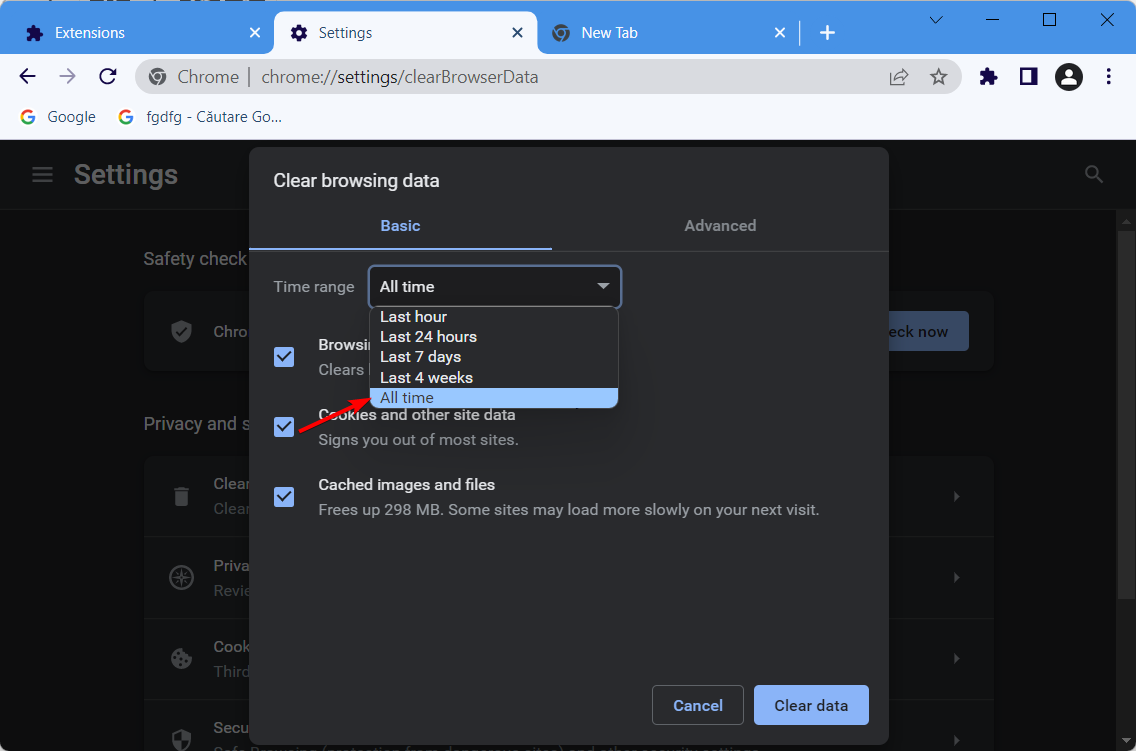
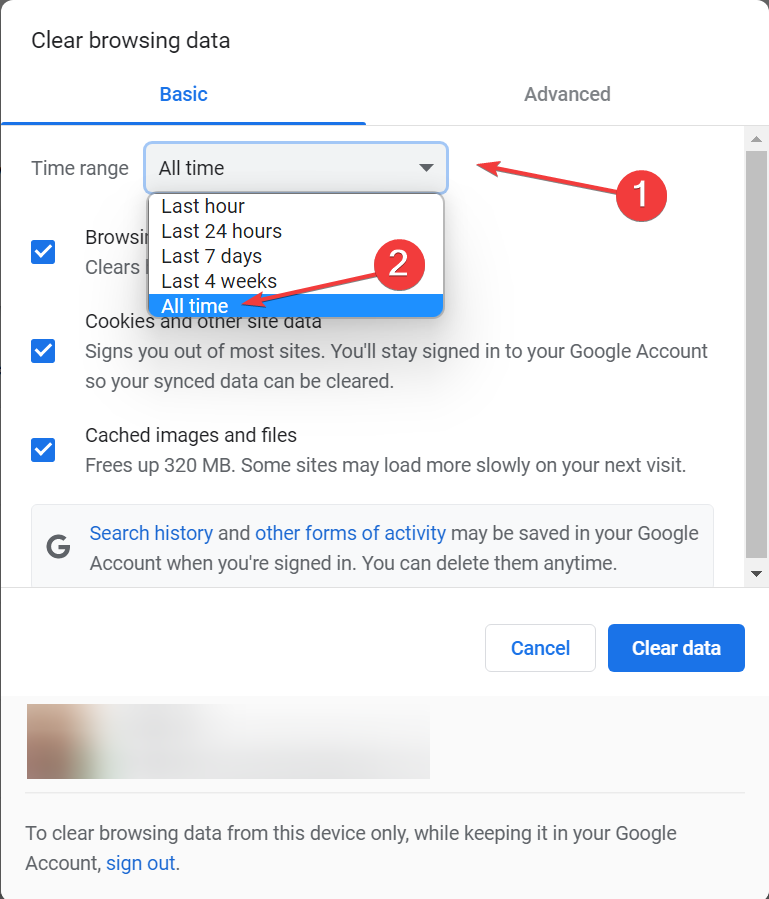
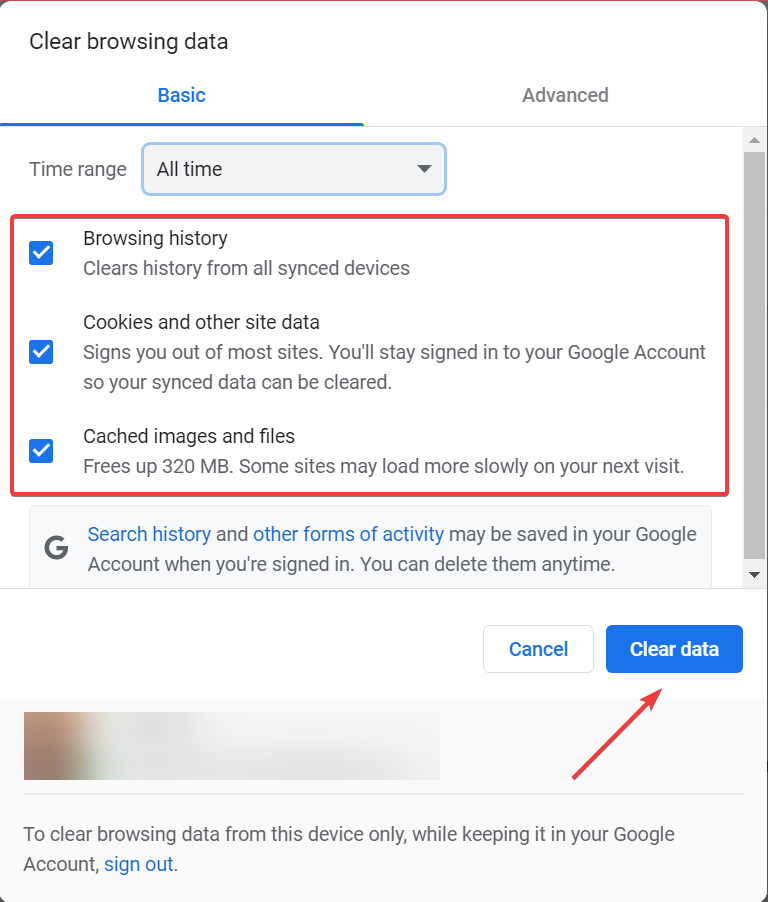
On the pop-up, select the Basic tab, then choose a Time range from the drop-down menu.
Check options for Browsing history, Cookies and other site data, Cached images and files, then click on the Clear data button.
Finally, restart the browser and see if the dlg_flags_invalid_ca error is resolved.
You may also use an automated solution if you believe it would be more helpful. Try the professional program CCleaner and its Intelligent Scan feature, which allows you to erase only certain cookies, cached files, and logs.
Passwords saved from social networking sites or emails will not be affected, and the Intelligent Scan will erase only the cookies you identify as unwanted.
Furthermore, it will remember the next time you wish to clean, and you will only need to click once to erase the specific data.
4. Reset the Browser
Click on the ellipsis (3 vertical dots) at the top right corner of your browser.
Click on Settings.
Expand the Advanced settings on the browser’s left pane, then click Reset and clean up.
Select the option to Restore settings to their original defaults and click the Reset settings button.
Check if the dlg_flags_invalid_ca error is resolved.
5. Deselect the Warn About the Certificate Address Mismatch Option
Press the Windows key + S keyboard shortcut.
Enter the keyword internet options in the search box, and select the Internet Options app.
Select the Advanced tab, then uncheck the Warn about certificate address mismatch box.
Select the Apply option, and click OK to exit the window.
After that, restart Windows.
How do I make my network secure?
If you want to keep your network safe and secure, these are a few things you must do:
Change the connection’s default name.
Make sure that the password is strong and unique.
Ensure that network encryption is enabled.
Turn off the options for network name and broadcasting.
Access the network via VPNs.
With these steps outlined in the article, you should have successfully resolved the dlg_flags_invalid_ca error.
Note that this error is not particular to Chrome and could also arise in some other browsers. Also, remember that it may also be a warning to keep you safe online. In such cases, proceeding to the website is not advised.
Note that the browser error code dlg_flags_invalid_ca also arises due to website administrators not renewing their sites’ certificates. In which case, some users might need to remind site administrators to update their websites’ certificates.
Before installing the Opera browser on your device, it is integral to know Opera’s system requirements. Keep reading to find out if your PC can handle Opera.
What are the requirements for Opera?
1. Windows
Supported versions: Windows 10, 11
CPU: Intel Pentium 4 / AMD Athlon 64 with SSE2 or newer
2. Mac
Supported versions: macOS 10.15 or later
3. Linux
Supported versions: 64-bit Ubuntu 18.04+, Debian 10+, openSUSE 15.2+, or Fedora Linux 32+, openSUSE, Fedora, and others
CPU: Intel Pentium 4 processor or later with SSE3 support
These are the minimum requirements to run the Opera browser without hassles. However, it is often advised to have higher specs to improve the experience of using the browser. The higher the specs, the better the browsing experience.
What is Opera compatible with?
Opera is compatible with all desktop platforms as well as iOS, Android, and Chromebook.
We’ve recently been talking about a lot of Microsoft-designed updates for their plethora of products, but about Windows 10 and Windows 11 in particular.
If we’re talking about Windows 11, we can remind you of KB5015882, Preview Build 25163, or KB5015888, which have all been released recently to the Dev, Beta, and Stable channels of the OS.
Circling back to Windows 10, the last build we presented to you was the most recent Release Preview Channel rollout, in the form of Build 19044.1862.
It’s time to leave all that in the past now, as Microsoft just released a brand new cumulative update for Windows 10, one that comes with some much-needed fixes.
Let’s take a deeper dive and see exactly what Redmond developers managed to fix and break at the same time through this latest patch.
What’s new in KB5015878?
We’re talking about KB5015878, which first of all gives you the option to receive important notifications when focus assist is on.
You might already know what Focus Assist is, and if not we’ll just tell you. It works like a do not disturb mode that hides notifications.
Furthermore, this update restores functionality for Windows Autopilot deployment scenarios that are affected by the security mitigation for hardware reuse.
KB5015878 removes the one-time use restriction for self-deploying mode (SDM) and pre-provisioning (PP) and also re-enables any User Principal Name (UPN) display in user-driven mode (UDM) deployments for approved manufacturers.
Addresses an issue that causes certain docking stations to lose internet connectivity when waking from Sleep mode.
Adds functionality that improves the OS upgrade experience.
Addresses an issue that might cause consecutive video clip playback to fail in games that use DX12.
Addresses an issue that affects certain games that use the XAudio API to play sound effects.
Addresses an issue that affects the height of the Search box when you use multiple monitors that have different resolutions.
Addresses an issue that prevents certain troubleshooting tools from opening.
Reduces the overhead of resource contention in high input/output operations per second (IOPS) scenarios that have many threads contending on a single file.
Improves the reliability of a push-button reset after an OS upgrade.
Addresses an issue that makes the tenant restrictions event logging channel inaccessible if you remove the EN-US language pack.
Addresses an issue that prevents certain troubleshooting tools from opening.
Updates the Remove-Item cmdlet to properly interact with Microsoft OneDrive folders.
Addresses an issue that causes certain docking stations to lose internet connectivity when waking from Sleep mode.
Adds functionality that caches additional audio endpoint information to improve the OS upgrade experience.
Addresses an issue that might cause consecutive video clip playback to fail in games that use DX12.
Addresses an issue that affects certain games that use the XAudio API to play sound effects.
Addresses an issue that causes port mapping conflicts for containers.
Addresses an issue that causes Code Integrity to continue trusting a file after the file has been modified.
Addresses an issue that might cause Windows to stop working when you enable Windows Defender Application Control with the Intelligent Security Graph feature turned on.
Addresses an issue that affects the height of the Search box when you use multiple monitors that have different resolutions as measured dots per inch (DPI).
Addresses an issue that prevents the Storage Migration Service (SMS) from completing inventory on servers that have many shares. The system logs error event 2509 in Microsoft-Windows-StorageMigrationService/Admin channel (ErrorId=-2146233088/ErrorMessage=”Invalid table id”).
Addresses an issue that causes the Windows profile service to fail sporadically. The failure might occur when signing in. The error message is, “gpsvc service failed to sign in. Access denied”.
Known issues
Devices with Windows installations created from custom offline media or custom ISO image might have Microsoft Edge Legacy removed by this update, but not automatically replaced by the new Microsoft Edge. This issue is only encountered when custom offline media or ISO images are created by slipstreaming this update into the image without having first installed the standalone servicing stack update (SSU) released March 29, 2021 or later.
After installing the June 21, 2021 (KB5003690) update, some devices cannot install new updates, such as the July 6, 2021 (KB5004945) or later updates. You will receive the error message, PSFX_E_MATCHING_BINARY_MISSING.
After installing this update, IE mode tabs in Microsoft Edge might stop responding when a site displays a modal dialog box. A modal dialog box is a form or dialog box that requires the user to respond before continuing or interacting with other portions of the webpage or app.
Microsoft has received reports of issues affecting some printing devices following installation of this update. Symptoms observed may include duplicate copies of printers installed on a device (commonly with a similar name and the suffix “Copy1”), and applications which refer to the printer by a specific name cannot print. Normal printer usage might be interrupted, resulting in failure of printing operations.
As you can see, Microsoft manages to break a lot of stuff while fixing other problems, but that’s no longer news to anyone.
By far, the biggest achievement of this update is the fix of the dreaded DX12 problem, for which gamers will surely be most thankful for.
If you are looking to get this update, you can obtain it through the Microsoft Update Catalog and install it directly on your PC.
That is if you haven’t already received the option to install it via the Windows Update tool on your device, which is less likely.
We’re going to keep an eye out for future updates as well and present them to you as soon as the Redmond tech giant puts them put.
Remember to only download Windows updates directly from Microsoft and not from other sources, as that might lead to your system becoming compromised.
Have you found any other issues after installing KB5015878 on your device? Share your experience with us in the comments section below.
Google Chrome might be the most popular web browser in the world, but it has its occasional share of issues. One problem that Windows 10 users reported in Google Chrome is DNS PROBE FINISHED NXDOMAIN error, which can prevent you from visiting certain websites.
This affects both older and newer versions of Windows and can be caused by specific network settings or by some programs and apps installed on your PC.
So today, we’ll analyze possible causes and show you how to fix the error.
When you see this error, it is, in most cases, a problem from the user’s side. A few of the more common reasons are as follows:
Typos in inputed data
Bad network or internet connection
Poorly configured DNS
Outdated browsers
Whatever the case is, we will help you fix this error.
What does DNS failure mean?
A DNS failure usually shows up in your browser when you lose network or Internet access, and, of course, you will be unable to see the webpage you were trying to load.
This error points to the fact that your browser could not look up the IP address for the domain you’re trying to access.
DNS failure example
The DNS failure comes in many forms, with different messages, but they all mean the same thing: your browser can’t connect to the page’s domain.
Quick Tip:
DNS over HTTPS is a feature supported by the Opera One browser. This is a privacy and security feature that encrypts DNS transmission to avoid eavesdropping and DNS data manipulation.
When the option is activated in the Opera One web browser, all DNS queries are routed through Cloudflare servers, and through its built-in proxy VPN rerouting the traffic to avoid network congestion.
Opera One
The built-in VPN and DNS support in this browser is effective and passed our tests successfully.
Click on the Start menu, type windows security, and then select the Windows Security app.
On the left pane, click on Firewall & network protection, then on the right pane, toggle on the switch for Microsoft Defender Firewall.
Retry to see if the error has disappeared.
The issue might be your antivirus if you’re getting DNS_PROBE_FINISHED_NXDOMAIN error on Windows 10 and 11.
To fix the problem, change your antivirus configuration and disable certain antivirus features. If that doesn’t work, your next step would be to disable your antivirus entirely.
However, removing the antivirus should be only the last resort; instead, try using an antivirus with little impact on other processes, such as ESET HOME Security Essential.
Besides getting the highest scores in the latest specialized tests, thanks to the advanced technologies this software uses, it protects your Windows 10 device in real-time with minimal impact on your system performance.
The intuitive interface and the working modes make it a perfect antivirus solution for any home user.
Click the Start button, type cmd, and select Runas administrator to start Command Prompt with full privileges.
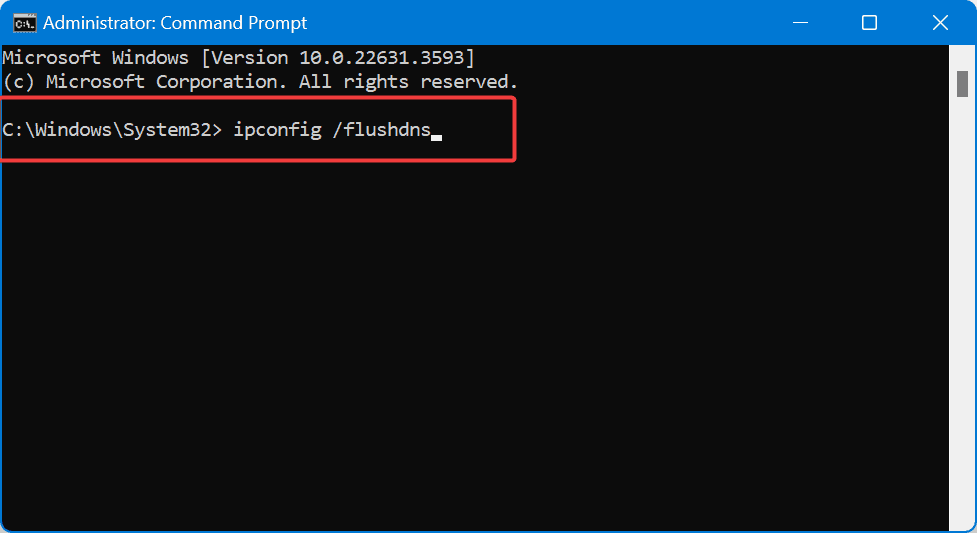
When Command Prompt opens, enter the following and press Enter: ipconfig /flushdns
After the process is completed, close Command Prompt and check if the problem is resolved.
If the flushdns command doesn’t fix this error, you might want to try running the following commands as well:
ipconfig /release
ipconfig /all
ipconfig /flushdns
ipconfig /renew
netsh int ip set dns
netsh winsock reset
Once done, verify that the DNS probe finished NXdomain error in Windows 10 and 11 is fixed.
3. Use Google’s Public DNS
3.1 Windows 10
Right-click the network icon in your Taskbar and select Open Network & Internet settings.
Now click on Status on the left pane, then select Change adapter options from the right pane.
Locate your network connection, right-click it and choose Properties from the menu.
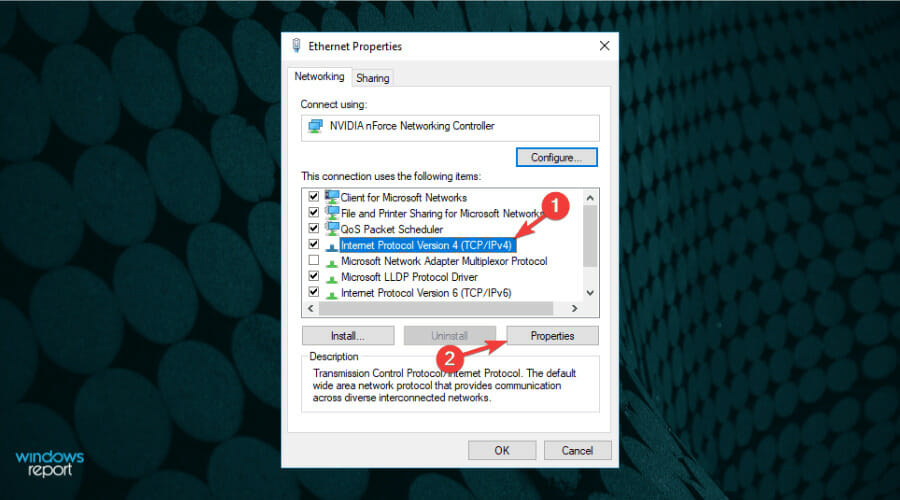
Select Internet Protocol Version 4 (TCP/IPv4) and click the Properties button.
Select Use the following DNS server addresses option and enter 8.8.8.8 as Preferred DNS server and 8.8.4.4as Alternate DNS server.
After you’re done, click the OK button.
3.2 Windows 11
Click the Start menu, type control panel, and then open the Control Panel app.
On the left pane, click on Change adapter settings.
Right-click on your connection and select Properties.
Select Internet Protocol Version 4 (TCP/IPv4) and click the Properties button.
Select Use the following DNS server addresses option and enter 8.8.8.8 as Preferred DNS server and 8.8.4.4as Alternate DNS server.
After you’re done, click the OK button.
After this procedure, your DNS will change, and hopefully, the issue will be resolved.
As mentioned, the error occurs in Chrome. If you’re not willing to spend time troubleshooting it and looking for a quick solution, the recommendation is to switch to a more reliable browser, such as Opera.
Note that it comes as a more stable browser than Chrome, thanks to its multiple integrations with various other tools and apps.
4. Reset Chrome to default
Open a new tab in Google Chrome and enter: chrome://flags/
Click the Reset all button.
Restart Chrome and check if the problem is resolved.
5. Restart the DNS Client service
Press Windows key + R and enter services.msc.
Locate DNS Client service, right-click it and choose Restart from the menu.
After restarting the DNS Client, close Services window and check if the problem is resolved.
Check if the DNS probe finished NXdomain error is fixed.
6. Disable VPN software
Many users use VPN software solutions to protect their privacy online, and even though VPN clients are beneficial, sometimes they can cause certain problems with DNS.
To fix this problem, we highly recommend that you temporarily disable the VPN client and check if that fixes the error.
If disabling the VPN client doesn’t fix the problem, you might have to remove it from your PC temporarily. Users reported issues with Cisco AnyConnect Secure Mobility Client, but almost any VPN client can cause this issue to appear.
To completely remove your VPN from your PC and prevent any future problems, it’s advised to use a cleaning utility to remove it.
In case you’re not familiar, a PC cleaner such as CCleaneris a special application designed for removing unnecessary files from your PC. Some of these tools also include an advanced uninstaller.
In addition to removing programs, this application will also remove all files and registry entries associated with that program.
As a result, it will be as if the application was never installed on your PC. It’s simple to use, and you should be able to remove any application and all of its files easily.
When the Settings app opens, go to Network & Internet section.
Select Proxy from the menu on the left menu and disable all options from the right pane.
Alternatively, on Windows 11, when you select Network & Internet like in step 2, scroll down and choose Proxy from the right pane, then disable all options.
After that, your proxy should be disabled, and the problem will be resolved.
Proxies are not to be ignored, though. Many users rely on proxies to protect their privacy, but sometimes your proxy can cause errors such as this one to appear.
8. Check your extensions
Click the Menu button in the top right corner, choose More tools, and select Extensions.
A list of extensions will now appear. Disable all extensions by toggling the on/off switch.
Once you disable all extensions, restart your browser and check if the issue still appears.
You can try enabling applications individually or in groups if the problem is resolved. By doing so, you can locate the problematic extension and remove it.
Once you find the extension causing the issue, remove it from your browser, keep it disabled, or update it and check if that solves the problem.
This is an effective way of fixing the DNS probe finished NXdomain in Windows 11.
In most cases, the DNS PROBE FINISHED NXDOMAIN error is caused by security or privacy extensions, so be sure to disable them first and check if that solves your problem.
9. Update your browser
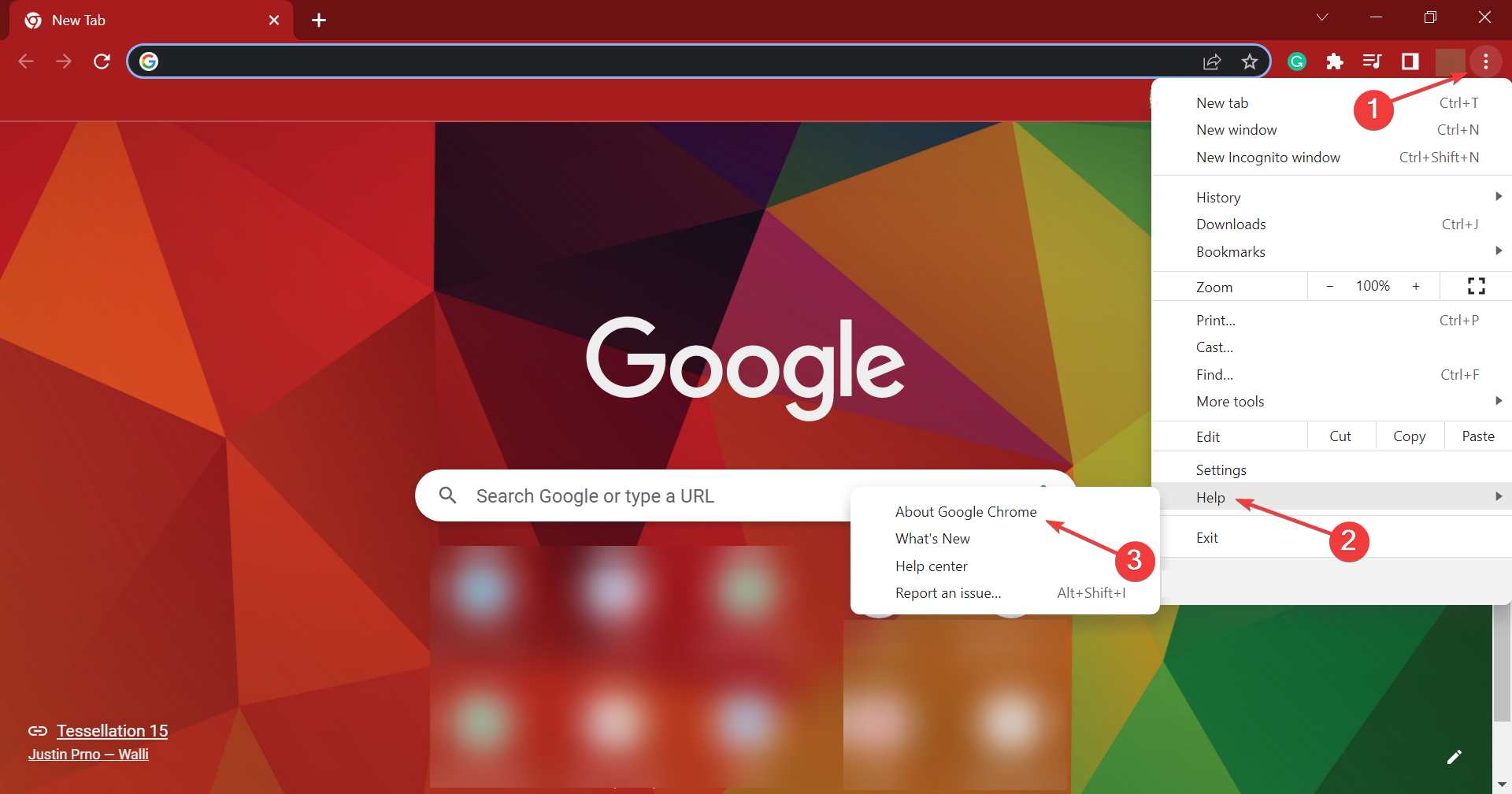
Open Chrome and click the Menu icon.
Choose Help and select About Google Chrome from the menu.
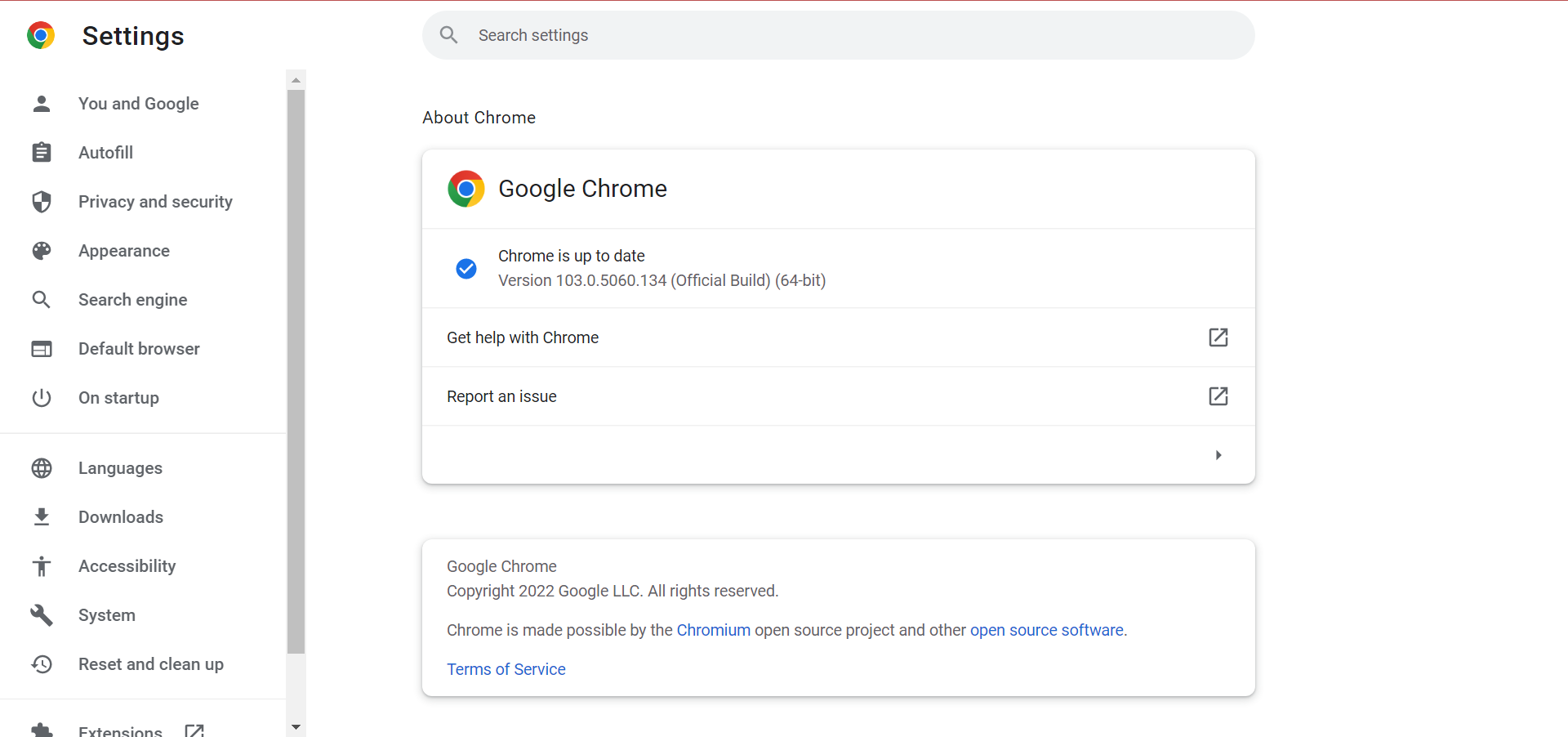
Now you’ll see the information on the Chrome version you’re using. If any updates are available, they will be downloaded automatically.
Check if the dns_probe_finished_nxdomain Chrome error is fixed.
If it shows up even after updating to the latest version, consider switching to the Beta or Canary version of Chrome.
Click on the Start menu, type command, and select Run as Administrator.
In the Command Prompt, type in the code below and hit Enter. ipconfig/all
From the displayed results, search for DNS Servers. Under this option, the first address you see will be your primary DNS, and the next one will be your secondary DNS.
Also, remember that newer browser versions offer new features and bug fixes, so using them is always recommended.
You should have successfully resolved the issue if you have read this far.
To conclude, problems such as DNS_PROBE_FINISHED_NXDOMAIN can be troublesome, and if you don’t want to switch to a different web browser, we suggest you try some of our solutions.
Dungeon Siege is one of the best games that combines role-playing elements with high-intensity and over-the-top action. However, many reported that Dungeon Siege 2 has no mouse.
Some users complain that when playing Dungeon Siege 2, there is no mouse cursor in Windows 10 and no error message that could indicate what should be done next to solve the issue.
In this article, we will show you the steps you need to take to fix the Dungeon Siege 2 no mouse issue on Windows 10.
Why is there no mouse in Dungeon Siege 2?
If you do not see your mouse cursor while playing the game, it could be because of any of the following reasons:
Driver-related problems – Drivers are a primary concern for this error, especially when you run on outdated drivers.
Resolution problems – Resolutions for the game often affect how you interact with it and may lead to this error.
Game compatibility – If you have just upgraded the OS, this may be an issue if you do not have a version that works well on the new upgrade.
Once you know what may be causing the error, you will know which solutions below would fix the issue.
What can I do if there’s no mouse in Dungeon Siege 2?
Before going through these processes, consider playing the game from GOG. This will save you the stress of troubleshooting. The game should work perfectly, and this may be a good alternative.
1. Use a specialized software
Most of the time, the situations where the mouse is not working correctly have a lot to do with, or even more, are caused by faulty or outdated drivers.
You can assure your drivers are always up to date with specialized driver updating software. In just a few minutes you can download and install the right drivers for your system.
2. Change the resolution
Launch Steam and navigate to Library.
Locate the game in your Steam library and right-click on it, then select Properties.
Navigate to Browse Local Files, then click Browse Local Files.
Open Dungeon Siege Video Conf and set it to the highest resolution.
Next, run the Dungeon Siege.exe from inside this folder.
Try to open the game again and see if the problem is solved.
If this solution fixes the Dungeon Siege 2 no mouse on the Steam issue for you, remember that you need to run the game from the installation directory every time.
Alternatively, you can create a shortcut of the .exe file and put it on your Desktop for quick access.
3. Change the compatibility mode
Press Windows + E to open File Explorer, then navigate to the path below: C:\Program Files (x86)\Steam\steamapps
Open the Commonfolder.
In the Dungeon Siege 2 folder, locate the DungeonSiege2.exe.
Right-click the .exe file and choose Properties from the menu.
Go to the Compatibility tab and check Run this program in compatibility mode. Select the desired version of Windows.
You might have to experience different settings until you find the compatibility mode that works for you.
Hopefully, this solution should help you if there’s no cursor in Dungeon Siege 2.
Locate Dungeon Siege 2, right-click it and choose Properties.
Select Set launch options.
Now enter the following and save the changes: fullscreen=false width=1920 height=1080
These steps will force the game to run at a specific resolution in windowed mode. However, remember that you can use any other resolution that matches your display.
After making this change, check if Dungeon Siege 2 mouse is still not showing up.
We hope one of the solutions in this article helped you fix the Dungeon Siege 2 no mouse in full-screen mode.
Please let us know in the comments section below if you have additional recommendations or suggestions; we would love to hear them.
Many users reported that Opera installed itself without their knowledge, and they are rightfully worried. In today’s guide, we’ll show you how to prevent this from happening in the future.
What is Opera and why is it on my computer?
Opera is a web browser, and sometimes it comes bundled with different software, or with Acer devices.
What do I do if Opera has installed itself?
Before we start, scan your PC for malware and check any recently installed applications. uTorrent and other various applications can sometimes install Opera automatically, so you might want to remove them.
1. Check your AppData directory on Acer laptop
Press Windows key + R and enter %localappdata%. Click OK.
Navigate to OEM\Hermes\classes
In there, you should find the Opera setup file. Try to remove it.
This solution works only on Acer devices, as Opera comes preinstalled with the device.
2. Uninstall from the Control Panel
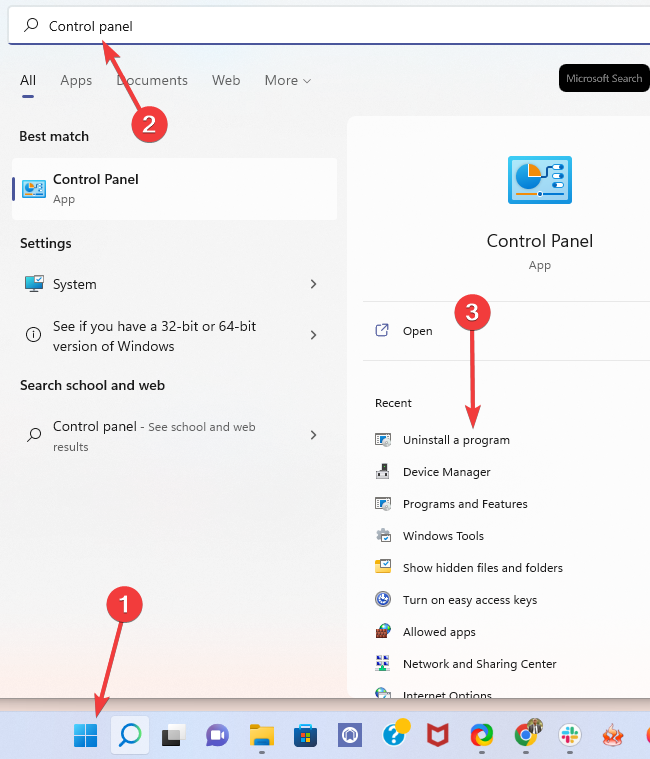
Press the Windows key, search Control Panel and click Open.
Navigate to Programs and Features, then select Uninstall a program.
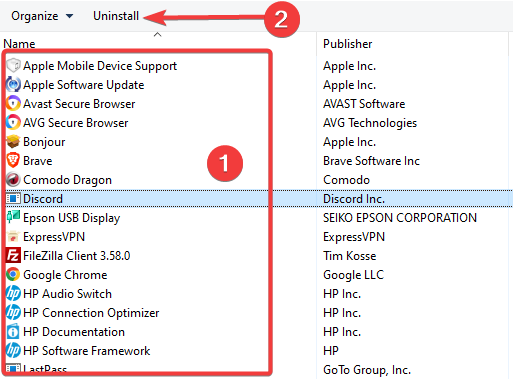
Find Opera from the list, right-click and select Uninstall.
A few users are discouraged by the Microsoft Edge Black Screen; however, Edge is still one of the better web browsers. It comes in-built with Windows 10 and is the default web browser.
Unlike its predecessor, Internet Explorer, users will find that Edge works smoother and faster compared to other contemporary web browsers. Also, it isn’t as heavy on the system and is regularly updated along with Windows updates.
Microsoft Edge has its fair share of bugs and malfunctions, like all tech. Although not typical, the Edge user can expect to run across problems every once in a while.
One such error that has been reported recently is the black screen. This happens randomly without much provocation and usually occurs when the user attempts to open a new tab or access the features panel on the right-hand side.
This detailed guide will show you how to effortlessly fix the Microsoft Edge black screen issue.
Why is the Microsoft Edge screen black?
There are various reasons the Microsoft screen could be black. From browser problems to various PC issues, the possible causes are diverse.
Below are some of the popular ones:
Presence of malware on PC – As you may know, malware can cause many problems on your devices, especially when you do not use a solid antivirus. This Egdge issue is sometimes one such problem.
Faulty browser extensions – For browsers, a major source of errors is the extensions. Corrupt or faulty extensions may trigger the Edge black screen.
Wrong browser settings – Users may have tinkered with the settings, which may set off a black screen if not correctly done.
Outdated display drivers – Screen issues are often linked to the display driver and may be the case with the browser’s black screen.
Quick Tip:
Opera One is a browser very similar to Edge, minus the errors. They are both built using the Chromium engine, but Opera One is far more stable and can be enriched thanks to its built-in.
More so, Opera One ranks high in the security department, thanks to its built-in VPN and ad-blockers. The browser also integrates most popular social media and messaging apps, and comes with a built-in AI.
Opera One
Lighting-speed Internet surfing, a highly customizable UI, and enhanced security features are just some things you’ll get if using Opera.
Toggle the switch before each extension backward to disable it.
Click Remove under each extension to delete it.
If you are facing the Microsoft Edge black screen issue on video streaming sites like YouTube and Netflix or others like Discord and OBS, it might be down to a faulty extension on your browser. If you find any extension, you don’t remember installing; it is best to remove it.
Lastly, you should disable other extensions to know if they cause the problem.
2. Check for malware
2.1. Scan for viruses manually
Press the Windows + I keys to open the Settings app.
Select Update & Security.
Click the Windows Security option in the left pane.
Select Virus & threat protection.
Now, click on the Scan options.
Choose any of the scan options available and click the Scan now button.
If the Microsoft Edge screen goes black when scrolling or is flashing some dark screen, it is likely due to a virus on your PC. Select the Full Scan or Microsoft Defender Offline scan options to perform a deep scan.
2.2. Scan for viruses with a third-party app
While Windows Security is strong enough to protect your PC most times, there is still considerable room for improvement. So, to achieve complete and satisfactory security online and offline, you might need a third-party antivirus in TotalAV.
TotalAV is top-notch security software that uses cutting-edge technology to protect you online and offline. It detects viruses before they manifest and eliminate them quickly.
This software is also fast and light on PC resources. With this, you are sure it won’t slow you down or hog your PC resources. It might be all you need to solve issues like the black screen on Microsoft edge.
Navigate to the Services tab and check on Hide All Microsoft Services.
Select Disable all.
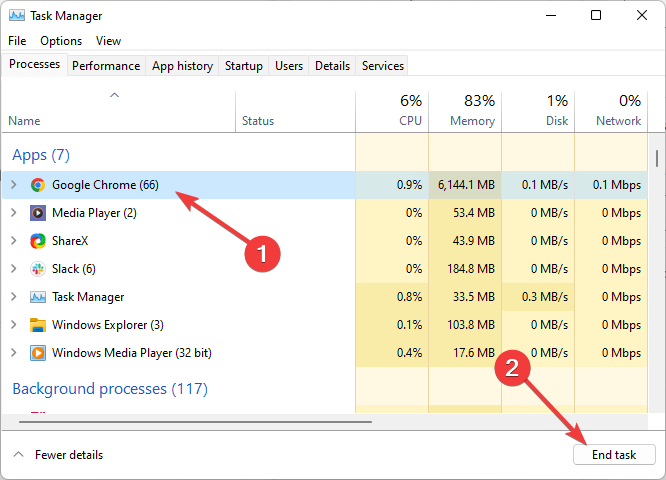
Navigate to the Startup tab and select Open Task Manager.
Right-click on each process and select Disable.
Click Apply and OK.
Restart the computer.
If the black screen problem is resolved, try enabling each application again, one at a time.
The moment the black screen reappears, you will know that the application you most recently re-enabled is the source of your problem. Remove the program. You may try re-installing it.
4. Update display drivers
4.1. Update driver manually
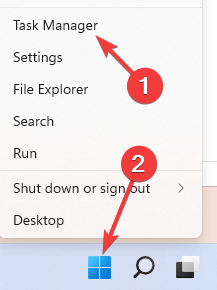
Press Windows + X keys and select the Device Manager option.
Double-click on the Display adapters option to expand it.
Right-click on any driver there and select Update driver.
Click the Search automatically for drivers option.
It will show if there are any available updates to install.
Outdated drivers are a disaster waiting to happen. This can be the reason for Microsoft Edge’s black screen issue. Ensure to restart your PC after the update to sync the changes made.
4.2. Update drivers automatically
Going through the many steps above to search for driver updates and installing them yourself might be tiring. To make things easier, you can automate the process with Outbyte Driver Updater.
Outbyte Driver Updater is a world-renowned driver updater that takes care of the smooth running of your PC. It automatically scans for missing, broken, and outdated drivers.
It also recommends original drivers from trusted sources around the world. All these with little to no input from you.
Press Windows + E to open File Explorer and navigate to the path below: C:/Users/Your Username/AppData/Local/Packages/Microsoft.MicrosoftEdge_8wekyb3d8bbw
Clear the contents of this file.
Press the Windows key and search for PowerShell.
Right-click on PowerShell and select Run as Administrator.
On the PowerShell interface, copy and paste the following command and hit Enter: Get-AppXPackage -AllUsers -Name Microsoft.MicrosoftEdge | Foreach {Add-AppxPackage -DisableDevelopmentMode -Register “$($_.InstallLocation)AppXManifest.xml” -Verbose}
If the process was successful, you should see a report printed out in yellow, ending with the following: C:\Windows\System32
If the process fails, copy and paste the command below and hit Enter. Get-Appxlog | Out-GridView
Now, repeat Step 5.
Once you’re through, Edge will reset its initial settings, and the problem should no longer appear.
This fix is a technical one known to solve the Microsoft Edge black screen issue. Ensure to create a restore point on Windows 10 or Windows 11 before starting. This is to help undo any costly errors while trying to fix your browser.
There you go; using these solutions, you should be able to fix the black screen on Microsoft Edge. Note that some of the fixes are technical. So you need to follow the instructions to the letter.
If you found this guide helpful, feel free to comment below.
Another month brings another set of updates and new Excel features and an announcement that the Natural Language Query improvements that have been promised are now generally available for both Mac and Windows operating systems.
Among the list of July 2022 updates Microsoft is noting that Excel for the web now supports search for fields in PivotTable field list. Users can now manually search for and select desired data to add to a pivot table via the Excel web app, which should help speed up sorting processes for millions.
Next up, Microsoft is testing the ability to control automatic data conversions in the Insider Beta channel for Excel.
For those lucky enough to receive the improvement will now be met with additional settings to prevent specific types of data from being converted. In practice, users will need to enable the feature by going to File > Options > Advance> Automatic Data Conversion, and then choosing which conversions they would like to disable.
It’s not free for fall buffet of conversion options that can be disabled, but here are the handful of selections users can choose from:
Remove leading zeros from numerical text and convert to a number.
Truncate numerical data to 15 digits of precision and convert to a number that may be displayed in scientific notation, if needed.
Convert numerical data surrounding the letter “E” to a number displayed in scientific notation.
Since it’s an Insider release, there are some caveats to be noted, such as it being a Windows only roll out for now and known issues that include the Excel team working to bring support for disabling conversions during Macro executions as well as support for automatic conversion to dates.
As previously mentioned, Microsoft is rolling out Natural Language Query improvements for Windows and Mac users in the Current and Monthly Enterprise Channels.
What does it mean?
For anyone in those available channels they will now able to try asking Excel questions about specific patterns or insights in their own data with relatively natural sentencing like, “Show me insights for the Northwest region.”
Excel will provide a list of suggested questions that users can modify to their own intent in the Analyze Data settings. To get to the new feature, users will need to select a data range > select the Analyze Data button on the Home tab.
To get additional data from a question, users will need to type in their query at the top of the Analyze Data settings pane and will then receive additional PivotTables, tables and charts.
Fret not Mac users, there are couple of features that came down the pipe in July that included Resizable Conditional Formatting dialog boxes.
While a relatively minor update, it’s still a nice attention to detail improvement that’s a long time coming. Instead of selecting from the five conditional formatting rules, users can now freely resize the dialogue box to their specificities.
Unfortunately, the improvement is only for users of the Insider Beta channel. However, if you’re in the Insider Beta channel be on the lookout Version 16.64 and build number 22070600 or later.
To get information on which features are available to you or find which version of Excel you’re on, you can visit the Excel Features Flyer site.
If your browser doesn’t fit the screen when you try to use split screen, keep reading. In most cases, when this happens, some (or all) of the elements on the web are stacked on top of each other.
Below, we’ll explore how to fix this so you can use your split screen without having to deal with these overlapping elements. Let’s get into it.
How to resize web pages to fit sceen
1. Manually modify the zoom level of every web page
In order to zoom in or out of the web page you’re trying to work on, you can press theCtrlkey on your keyboard and the +/– signs.
Another way to do this is to hold theCtrlkey and use the mouse scroll wheel to zoom in and out.
The shortcuts above should help you fix the web page not fitting screen issue on most browsers. If you need more keyboard shortcuts on Windows 10, you can check our detailed guide for the full list.
2. Change the default zoom-in/out value
2.1. Mozilla Firefox
Open Firefox, type about:config in the address bar, and press Enter.
Click the Accept Risk and Continue button.
Search for layout.css.devPixelsPerPx in the search box.
Double-click on the preference and change the zoom value to your desired setting.
Finally, press the Enterkey.
If web pages do not fit your Firefox browser, adjusting the zoom preference should do the trick. Ensure to restart your browser to sync the changes.
2.2. Google Chrome
Open Chrome and click on the menu button (three vertical dots) in the top right corner.
Select Settings from the options.
Click on Privacy and security in the left pane.
Select Site Settings.
Click on the Additional content settings option.
Choose the Zoom levels option.
Now, set the custom zoom levels for the sites you visit.
If your web page is not fitting the screen on Chrome, you can set the custom zoom level that will prompt it to fit on the preset value. The only downside is that you must repeat it for any website having the issue.
3. Use add-ons to set the automatic zoom for websites
3.1. Mozilla Firefox
Go to Mozilla’s official add-on library to download the Fixed Zoom extension.
Click the Add to Firefox button.
Click on Add again when prompted to complete the process.
Firefox allows you to autosize any web page on your browser to fit the screen with the help of an extension. With this, you don’t need to zoom the sites manually you visit again.
Click the Add Extension button and wait for the installation to finish.
Zoom from Microsoft Edge is another extension that allows you to zoom web pages to fit your screen. The installation process is easy, and the extension will be enabled automatically after.
Why does the web page not fit on the screen?
Web pages might not fit your screen because of problems with the page you are visiting. For example, if the page is not scalable, it won’t fit on different resolutions.
Another known cause of the issue is wrong browser settings or glitches within the browser. This is usually a temporary problem that can be fixed easily.
How do I fit a web page to exactly my screen size without scrolling?
As a developer, to fix your website to the exact screen size without scrolling, you need to set the width and height to 100 percent. Also, you should set the overflow to hidden.
With this, you should be able to fit your web page to screen perfectly.
This article explored some quick ways to customize the zoom levels for the sites you visit. You can do this either by using the keyboard shortcuts, modifying the browser settings, or using an add-on.
Microsoft Edge wants to be the replacer for the old Internet Explorer browser. Microsoft developed it for the Windows 10 OS and has been included in the latest iteration as well. But you might encounter issues with it, like the white screen in Microsoft Edge.
When you run, does Microsoft Edge open with a blank white or grey screen? Some users have stated that the browser opens with a grey or white screen, and then Edge crashes without any error message.
In other instances, blank pages might open randomly in Edge. These resolutions might fix things if the Microsoft Edge browser crashes with a blank white or grey screen.
What causes the White Screen of Death?
The White Screen of Death in Microsoft Edge or other display-related issues can be caused due to a bunch of reasons. We have listed the common ones below:
Installed extensions or plugins: Some extensions or plugins affect how Edge operates and lead to White Screen of Death.
Corrupt browsing data: Corrupt browser data, be it the cache of cookies, can trigger various problems in Edge.
Conflicting applications installed on the computer: You may find Microsoft Edge blank at the top of the page when conflicting applications are installed.
Outdated drivers: An outdated driver, especially the graphics driver, can often cause a Microsoft Edge black screen.
Misconfigured browser settings: Certain browser settings are also found to be the underlying cause behind Microsoft Edge’s white screen in Windows 11.
Improper installation of Microsoft Edge: If Microsoft Edge is not installed properly and some critical files are missing, it will lead to a blank page URL in Edge.
If you see a white screen on Microsoft Edge and it then closes, it could be due to any of these underlying causes. So, make sure you check for them all.
Why am I getting a Microsoft Edge blank screen?
The Microsoft Edge blank page problem stems from similar issues discussed earlier. It could be a blank white or blank grey screen.
The most common reason behind the issue is Hardware Acceleration. Users with the feature enabled reported issues with the browser, and disabling it seemed to fix things.
Why am I seeing a Microsoft Edge grey screen?
The Microsoft Edge grey screen generally appears when you open a tab that’s been idle for a while. The issue generally arises due to misconfigured browser settings.
Also, if you modified the flags in Edge, it could be responsible for the problem. So make sure to revert any changes to the flags made recently.
How do I fix the white, blank or grey screen on Microsoft Edge?
1. Run the Microsoft Store App Troubleshooter
Press Windows + I to launch Settings, and click on Troubleshoot on the right.
Click on Other troubleshooters.
Now, click the Run button next to the Windows Store Apps troubleshooter.
Follow the on-screen instructions to complete the process.
Troubleshooters are a great built-in tool in Windows that can help you fix several issues with your computer, installed programs, and connected devices. Once the troubleshooter is run, check if the Microsoft Edge white screen on startup problem is resolved.
2. Clear Edge’s browsing data
Press Ctrl + Shift + Del to open the Clear browsing data utility.
Click on the Time range dropdown menu, and select All time.
Select all the data category boxes, and click the Clear now button.
You should also delete the cache folder for Edge. You will find it usually in the C:Users\AppDataLocalMicrosoftEdgeUser Data folder. The browser started with default settings.
If the grey screen crash closes Edge before you can utilize the browser’s tools, you can still clear Edge’s data with a dedicated cleaner tool, that removes cookies and cache for you.
3. Reset the Edge browser
Press Windows + I to launch Settings, and select the Apps tabs from the left.
Next, click on Apps & features on the right.
Click on the ellipsis next to Microsoft Edge and select Modify.
Click Yes in the UAC that appears.
Now, click Repair.
The repair process will reinstall Edge, but it wouldn’t affect the configured settings or saved data. Also, make sure that you have an active Internet connection to complete the process. Once done, check if the Microsoft Edge white screen when printing problem is resolved.
4. Switch hardware acceleration off
Press Windows + R to open Run, enter inetcpl.cpl in the text field, and click OK.
Navigate to the Advanced tab.
Select the Use software rendering instead of GPU rendering option, and click on OK to save the changes.
Hardware Acceleration might provide smoother graphics rendering for pages, but switching it off can eliminate numerous browser crashes and even fix the Microsoft Edge blank grey screen.
If this resolves the Edge blank screen crash, see how keeping it disabled works for other apps. Also, if you encounter inetcpl.cpl errors, uninstall recent updates.
Press Windows + R to launch the Run command, type appwiz.cpl in the text field, and click OK.
Select the IBM Trusteer Rapport software, and click the Uninstall button.
Follow the on-screen instructions to complete the process.
After uninstalling the software, the Microsoft Edge white screen not responding issue should be fixed. In case it persists, head to the last method.
6. Clear the app cache
Press Windows + E to open File Explorer, and navigate the following path where Username is the name for your account on the PC:C:UsersUsernameAppDataLocalMicrosoftEdgeUser DataDefaultCacheCache_Data
Press Ctrl + A to select all the files here, and then hit Delete.
Choose the appropriate response in case a confirmation prompt appears.
Once done, restart the computer and then launch the Microsoft Edge.
When you have Microsoft Edge white screen in Windows 10 or even other iterations of the OS, usually clearing the app cache does the trick. Also, you may try to clear the other cache files here located under different folder.
7. Roll Windows back
Press the Windows + R, type rstrui in the text box, and click OK.
Press the Next button to open a list of restore points.
Select a restore point that at least predates the most recent Windows update, and click Next.
Click Finish to confirm your selected restore point, and start the process.
We’re suggesting this because some users stated on forums that they experienced Microsoft Edge white screen after an update, which points to either changed settings or a bug in the latest version. The Microsoft Edge white screen problem will be fixed by the time the restore is complete.
How do I fix corrupted Microsoft Edge?
The best way to fix corrupted Microsoft Edge is to Repair it via the App settings, as discussed in the previous section. Or you could run an SFC (System File Checker) scan, which would take considerably longer.
One of our readers also suggested resetting the folders’ security descriptors icacls to fix this issue. To do that, run the following command after opening Command Prompt as an administrator: "C:Program Files (x86)Microsoft" /q /c /t /reset
And if these don’t work, reinstalling Edge is always possible. Make sure to use an effective uninstaller software to remove all residual Edge files before you go ahead and reinstall the browser.
To conclude, at least one of these solutions should fix white or gray screen crashes in Edge. In addition, running an anti-virus scan is always helpful.
Sometimes video is not playing in the Opera browser and that will prevent you from enjoying multimedia. However, there are few solutions that can fix this.
Why can’t Opera play video?
The most likely cause is your extensions or built-in adblocker and tracking protection. For many, hardware acceleration was the culprit.
What can I do if Opera One browser is not playing videos?
Before trying anything else, disable all extensions and check if that helps. If it does, find the problematic extension and remove it.
1. Disable adblocker
Click the Menu icon in the top left corner and choose Settings.
Locate and disable Block ads and surf the web up to three times faster and Block trackers.
Check if that solves the problem.
2. Disable hardware acceleration
Launch your Opera One browser and click on the icon at the top left corner to open the menu.
Select Settings from the drop-down menu.
Click on Advanced, then hit Browser from the drop-down menu.
Scroll down and under System, toggle Use hardware acceleration when available off.
Hopefully, you have been able to apply one or more of our recommended fixes, and the problem with Opera not playing videos is now gone.
This isn’t the only issue you can encounter, many users reported browser can’t play this video message, but that can be easily fixed.
This isn’t the only video issue, and many reported that Opera GX mini player isn’t working, but we have a whole guide dedicated to this issue, so don’t miss it.
Speaking of online videos, Loomi by Opera was a streaming service, and we have a whole guide dedicated to it, so you might want to visit it.
Let us know what solution worked for you in the comment section below.
Emulators are a great way to experience old games on your PC, but did you know that there are certain emulators that work in your web browser?
That’s right, there are various emulators available online and you can run them right from your browser. In today’s article, we’ll show you how to do that.
How do I play emulators on my browser?
1. Visit emulator websites
Visit any emulator website.
Select the type of console you wish to emulate.
Choose the desired game and wait for it to load.
Once the game is loaded, you should be able to play it right from your browser.
You can easily emulate games in your browser, but for the best performance, it’s advised to use a gaming browser such as Opera GX.
This browser supports customization and you can choose between different themes, wallpapers, and highlight colors. There’s also Twitch integration, allowing you to keep a close eye on your favorite streamers.
The browser also has a GX Control feature that allows you to limit the number of resources your browser uses and ensure that other processes are running smoothly.
Opera GX also has a built-in adblocker which will come in handy if you’re playing games in your browser. As for security, there’s a free built-in VPN with unlimited bandwidth available.
Opera GX
Play timeless classics in an ultra-modern environment by turning the world’s best browser for gamers into a retro game emulator.
As a top IoT and video monitoring solutions provider, Hikvision needs a little introduction before we can jump into the list of the best web browser for Hikvision.
In order to watch your recording or simply access your IP cam, you need a browser and plug-in that can extract, parse and decode the signals issued by Hikvision devices.
And this is precisely where things turn sour. As you probably know, modern browsers have evolved tremendously, and they gradually ditched plugins in regard to their obsolete and security breach-prone nature.
Modern browsers’ almost unanimous decision to discontinue NPAPI support has marked a true turning point.
With Netscape Plugin Application Programming Interface interrupted, it has become harder and harder to find a browser that still supports Java applets, for instance. And the same goes for Hikvision.
How can I view Hikvision in my browser?
Launch your web browser on your desktop and type in the IP address of your device then press Enter.
Next, introduce your credentials to log in (username and password) then, enter the Configuration menu and go to the Network tab.
The precise options can differ according to your firmware version, but you should be able to locate the Platform Access section.
Complete the field, hit Enable and you’re all set.
As you can see, it’s no different than accessing your router’s configuration, for example. But the plugin revolution complicated things a bit.
So how can you access your Hikvision camera now? Is it still a browser that you can use for this specific task? Don’t worry, we got the right answers, and the very best web browser for Hikvision is listed right here.
If you’re looking for a modern, sleek, and performant browser, look no further than Opera One. You will have no problems at all running the latest versions of Hikvision firmware-based devices since they do not require any plugins.
As far as older versions are concerned, you can always explore Opera One’s extensive library and find the suitable tool for each task.
To do this, simply open your Opera One browser and navigate to the Open in IE extension then click on the Add to Opera One button.
One of the greatest things about it is that it fully supports Chrome extensions, thus you will be able to find everything you need quickly and effortlessly.
Opera One
Team up with Opera One and unleash the full potential of your IoT devices!
On June 15, 2022, Microsoft stopped providing support for Internet Explorer 11. If you visit a website that requires Internet Explorer 11, Microsoft Edge gives you the option to refresh the page using Internet Explorer mode.
Microsoft Edge is the preferred browser by Microsoft since it is the faster and more secure browser. The experience that you have come to know and love with Internet Explorer may be surpassed by Microsoft Edge thanks to improvements in security, privacy, performance, and ease of use.
Accessing the content of your Hikvision NVR/DVR or cameras is feasible through the usage of the Hikvision Internet Explorer alternative. After that, you will have access to the live view, the playback mode, the ability to download film, and other options.
How do I view the Hikvision camera in Microsoft Edge?
Make sure Edge is set as your default browser.
Open Edge then click the three-dot button and select Settings.
Now click on the Default browser section.
Tap the drop-down menu next to Allow sites to be reloaded in Internet Explorer mode and choose Allow.
Lastly, click on the Restart button to apply the changes made.
Type the IP address of your Hikvision camera, this will prompt you to download the plug-in mentioned earlier.
Proceed with the installation, and you should be all set.
Does Hikvision work with Chrome? Starting with version 57, Chrome completely removed the plugin infrastructure. The famous chrome://plugins page was gone at around the same time Google said farewell to NPAPI.
As one would expect, many people are still very fond of this immensely popular browser and cannot bear to part ways simply because there is no more plugin support.
How can I open Hikvision in Chrome?
Open the Chrome Web Store and click the Add to Chrome button next to IE Tab, one of the best Hikvision browser plugin.
Restart your browser, type the IP address of your device and log in.
Chromium has gained a lot of momentum and we dare add, it’s for all the right reasons. Nevertheless, there are more than Chromium-based browsers out there and Firefox is a great alternative to consider.
This modern and well-optimized browser has come a long way since its early days and we salute its progress.
Firefox runs on its very own engine called Quantum, which is a tailored solution that guarantees enhanced efficiency for all your browser-based tasks.
How can I see Hikvision in Firefox?
Open your Firefox browser and type the following in your address bar: about:config then click Accept the Risk and Continue.
On the new window, type Boolean in the search field, check the String radius button, and press + icon to add it.
Next, enter the name of the plugin, reload the browser and you should be good to go.
It may not look all shiny and new, and we agree its aesthetics could benefit from a make-over. Other than that, you will find Pale Moon quite surprising both in terms of performance and functionalities.
A fork of Firefox, the Pale Moon browser maintains support for legacy plugins. Thus, you will be able to access your Hikvision devices directly via Pale Moon with no additional steps.
Simply, install the browser, launch it and use it to introduce the IP address of your device. In other words, follow the regular authentication procedure.
Now, if you never had the plugin installed, Pale Moon will have no legacy to work upon. Don’t worry, it will ask you to download the plugin and reopen the browser, and that should be it!
How to fix your browser is not supported Hikvision error?
If you have an earlier version of the Hikvision system, then you will only be able to use it with Internet Explorer. However, as you probably well know, this web browser has been superseded by Edge, and Microsoft no longer provides support for Internet Explorer.
You may, however, rectify this problem by installing a plugin for your current browser, which will enable that browser to load URLs that are compatible with Internet Explorer.
On the other hand, Edge can be smoothly customized for Internet Explorer without the need for a plugin because of its extensibility.
In addition, Opera One distinguishes out from the competition since it comes with a wide choice of add-ons that can be installed on your own computer and used to make surfing more efficient.
For some users, getting Hikvision to work required a bit of tweaking, and you have to prepare for this scenario as well. Your camera’s firmware may need to be downgraded or upgraded, according to your particular situation.
Also, the latest firmware for Hikvision cams does not require any plug-in to work properly, so make sure you check that out as well.
Don’t hesitate to leave a comment in the section below and share your thoughts with us. Thanks for reading!
Pop-ups are small windows that open from a browser when you open a website page. Pop-up windows are often ads that pop out on website pages.
As such, some browsers include built-in pop-up blockers that stamp out pop-up ads. The Firefox browser includes a built-in pop-up blocker that provides a notification stating:
Firefox prevented this site from opening a pop-up window.
However, pop-up windows can also be a more essential addition to some websites. For example, banking sites utilize pop-up windows to provide further transaction details.
So, sometimes you might need pop-up windows to open. The solutions listed below are also useful if you encounter the following errors messages:
Firefox prevented this site from opening a pop-up window 68.01 – This issue is mostly encountered by those using Mozilla Firefox v.68.01
Firefox preventing from opening pop-up windows can’t open anything else – This happens when Firefox has difficulties opening up pretty much any kind of content.
Why is Firefox preventing pop-ups?
Don’t worry, the cause for this doesn’t involve you replacing your PC or buying another piece of expensive hardware or software.
It simply happens because of permission settings within the browser itself, or due to some addons or extensions getting in the way.
As soon as these are dealt with, you can start seeing annoying pop-up ads everywhere again, if that is truly what you want.
Before going through all of the solutions mentioned below, you should first consider whether or not it would be easier to just switch to a different browser.
That being said, if you do want to go ahead and do this, might as well use a reliable tool such as Opera One. Unlike Firefox, Opera One is Chromium-based, which has proven itself to be far more customizable, faster, and reliable.
This makes Opera One not just efficient at its job, but using it is a joy in itself since you can make the browser act as a hub of all the websites, tools, and shortcuts that you may ever need.
As for page loading issues, Opera One is very fast due to having a lot of already build in functions, like VPN, Ad blocker, social media and messaging apps, AI and many more.
Opera One
Offers many useful tools, low resource requirements, and a high level of customizing available.
Click the Open menu button to expand Firefox’s primary menu.
Select Options to open the tab shown directly below.
Click Privacy on the left of the tab, and then scroll down to the Block pop-up option.
Now deselect the Block pop-up setting.
Firefox includes a Block pop-up option that’s selected by default. You can deselect that setting to turn off the Firefox pop-up notification bar.
3. Add Websites to the Exceptions List
To do that, press the Block pop-up setting’s Exceptions button.
This will open the window shown directly below.
There, enter a website URL in the text box.
Press Allow to add it to the exceptions list.
Then press the Save Changes button to save the exceptions list.
To erase a site from the exceptions list, select it and press the Remove Website button.
Deselecting that option will fully turn off Firefox’s pop-up blocker. Alternatively, you can keep the pop-up blocker on but add some sites you need pop-ups for to an exceptions list.
4. Switch off Pop-up Blocker Extensions
Press the Open menu button at the top right of the browser.
Click Add-ons to open the tab shown directly below.
Click Extensions on the left of the tab to open an add-on list.
Then you can press the Disable buttons for extensions to switch them off.
Deselecting the Block pop-up does not always ensure that the pop-up windows open. Third-party pop-up blocker extensions can still block pop-ups in Firefox.
Thus, you might still need to switch off some Firefox extensions to enable pop-up windows.
5. Turn off third-party toolbar pop-up blockers
Third-party Firefox toolbars also block pop-up windows. The Google, AOL, and Yahoo browser toolbars are three that include pop-up blockers.
You don’t usually need to remove those toolbars to enable website pop-up windows. The toolbars usually include a pop-up button that you can press to turn their pop-up blockers on or off.
When you’ve turned off the pop-up blockers, a few pop-up ad windows will also probably open from Firefox.
So it’s probably better to add sites you need to retain pop-ups on to the exceptions list instead of switching the browser’s pop-up blocker off.
As we said, more often than not, a browser opening multiple popups was blocked due to a lack of user activation, which means you have to fiddle with the settings a bit.
Firefox prevented this site from opening a popup window JavaScript is one of the most common messages you will see when this is the case.
Keep in mind that a message such as Firefox window.open not working is as well a clear sign that pop-up ads won’t work due to extensions, addons, or lack of permission.
The solutions listed above will surely fix your window pop-up problems in Mozilla. Make sure to share with us any feedback regarding the subject in the comments section below.
Discord is a platform that supports video and voice calls, text messaging and media and file sending too. A great tool highly appreciated by many users is the soundboard for this app.
Picking the best application isn’t an easy task, and we have prepared a list of the best soundboards for Discord. Check out the next section for more information.
What are Discord soundboards and how they can help me?
If you haven’t used a soundboard before, remember that they are simple concepts. Imagine a board with a bunch of buttons on it. Each button plays a specific sound when pushed.
There can be actual hardware tied into a sound system or, in our case, an app that does the job.
In case you wonder why you should use a tool like this, keep in mind that you’re going to simplify your digital experience while playing your favorite games.
Right now, there aren’t any plug-and-play soundboards for Discord. All require installing a virtual audio device. Think of it as an app that acts as a microphone for the soundboard to speak into and have the sound come out in Discord.
How do I get a soundboard on Discord?
Well, first of all, you need to decide which software you are going to use for the job, which can be hard at times, which is why we made this article, especially for you.
After you made up your mind and installed said software, all you have to do is activate it from Discord, which is easy, as we are about to show you.
Remember that you can also get soundboards for Discord on Mac, and soundboards for Discord on Chromebook.
Download and install your soundboard software of choice from this list.
In Discord, access Settings.
Select Voice & Video, and then CABLE Output under Input device.
Press Win + I to access the system’s Settings, then select System.
Go to Sound, select your Microphone under Input., and then click on Device properties.
Select Additional device properties.
In the Listen category, select CABLE Output and check the Listen to this device box, then press Apply.
Soundpad is an awesome tool that allows you to play sounds on the microphone. Having multiple built-in features, it will offer you the best sound to microphone experience.
Compatible with any voice-related application, Soundpad is more than a top-quality soundboard for Discord. Thus, you can use it with other popular programs such as Skype, Battle.net, Dota 2, Teamspeak, and many more.
Its hotkeys can be easily set for each and every sound file and play them quickly while in-game.
If some of your sound files are quiet while others are too loud? The integrated volume normalization will equalize the volume, so it meets the volume of your voice.
In addition, Soundpad has a built-in sound recorder. It allows you to record what you hear. The integrated Editor helps you to cut the sounds quickly.
Chece these Soundpad’s best features:
Compatible with Skype, Battle.net, Dota 2, Teamspeak
A great soundboard for Discord, Voicemod contains lots of sound effects. Use them when you play popular games such as Minecraft, CS: GO, Fortnite, and others.
This software is also compatible with other programs such as Skype or TeamSpeak. Regardless of whether you are a gamer or a streamer, Voicemod will allow you to use and control your favorite sounds.
Feel free to choose from Voicemod’s rich gallery of sounds, effects, and songs. Also, you will always have to make new choices because this gallery is updated every month.
Voicemod’s meme soundboard comes preloaded with tons of existing sounds, songs, and effects, with more added monthly!
You can find Voicemod’s best features below:
Custom sound effects to tons of games and programs including CS:GO, Minecraft, Rust, Fortnite, Valorant, Among Us, Discord, Skype, TeamSpeak
AV Voice Changer is professional software that allows you to modify and then easily access any characteristic of your voice. Based on the advanced virtual driver technology, AV Voice is compatible with the majority of VoIP programs.
You can also use this software for web chat applications or role-playing games. AV Voice Changer Software Diamond allows you to create files with natural voice qualities thanks to its industry-leading algorithms.
More than a tool allowing you to change your voice in real-time, AV Voice Changer creates a complete home audio workstation. Now, you possess all the tools necessary to create great recordings.
With this option, you’ll be able to mix parody voices to create a new parody voice. Voice mimicker will help you to mimic other people’s voices, imitate Hollywood stars and celebrities’ voices, and mix parody voices to create your own unique voices
These are the most important features of AV Voice Changer Software Diamond:
MorphVox Pro offers you a library filled with many free voices and free sound packs. It also allows you to add background sound when you talk. Use its ultra-quiet background cancellation feature to experiment with great voice-changing algorithms.
The MorphVox Pro is a software tool fully optimized for online games, offering you extra fun in your gaming experience.
Now you can use the voice of your favorite game character regardless of whether it is a giant, dwarf, or anything else.
This professional software contains digital and smart modes to offer you state-of-the-art noise reduction. MorphVox has a clever feature you can use anytime for voice, composed of analysis, comparison, and tuning.
No matter if you seek amusing sound effects or the loudest sound, Resanance is very useful to use with Discord.
As this was the first platform this software was available for, you will also benefit from impeccable compatibility.
Resanance is a free soundboard for Discord, that allows a fast set-up and is also user-friendly. Users are free to set up hotkeys however they want and play simultaneously on multiple devices.
Resanance is also a game-friendly tool, as it works with all games. Its producers always perform updates according to their users’ suggestions.
Check out the most important attributes of Resanance:
As many sounds and hotkeys as you want
Can be played to multiple devices simultaniously
TTS Text to Speech soundboard
Control volume of sounds local and mic individually
EXP Soundboard supports MP3 and WAV formats, and you can play sounds with custom-created keys. They will be rendered through two outputs: a virtual audio cable and your speakers.
With this soundboard for Discord, you can allow soundboards to be saved whenever you desire.
Also, this software includes a converter tool that allows you to change an audio file and convert it into a compatible one with your needs.
Also allows for your mic to pass into the virtual audio cable when enabling Mic Injector.
An application created for changing your voice, Clownfish Voice Changer is installed on the system level. This means that every application that uses audio capture devices such as microphones can use it.
In terms of compatibility, you can use Clownfish Voice Changer with Discord and other applications. You can also use it to modify your voice on Steam, Hangouts, Skype, Viber, Mumble, and others.
This application offers you an advanced music player with an enhanced playlist and audio controls supporting various media formats. Try out this app’s sound player with built-in management and sounds.
Also, do not forget that it is compatible with multiple operating systems: Windows Vista / 7 / 8 / 8.1 / 10 / 11.
Let’s take a look at Clownfish Voice Changer’s best features:
Works with Windows Vista / 7 / 8 / 8.1 / 10 / 11
A lot of voice effects: alien, clone, fast mutation, female pitch, etc.
JN Soundboard is a useful soundboard for Discord that allows you to play sound files into a device of your choosing. Use it to play the following audio formats: MP3, WMA, WAV, AC3, and MP4A.
Use any sound device with this software and use its microphone loopback feature. As a user, you are free to use its keyboard versatility and add, remove, edit or clear any key combinations you desire.
Moreso, if you connect with a virtual audio cable, you can also utilize the text-to-speech feature. Connect any device to your computer and play audio just as you wish.
An interesting soundboard for Discord, Jingle Palette is an excellent tool for broadcast studios as well. Use this software for a good variety of formats or streams such as MP3, MPA, MP2, OGG, MP1, or WAV.
Play your favorite jingles from Jingle Palette’s rich gallery and organize them in the palette format with 30 jingles each.
Create awesome sounds for Discord using this software’s functions such as Touch Play, Automixing, and Autorepeating.
These are the most important features of Jingle Palette:
The soundboard for Discord is a useful tool that will definitely improve your user experience. This will also prove great if you are a gaming fan.
Soundpad, Voxal Voice Changer, AV Voice Changer, and MorphVox Pro are the tools that impressed us the most with their quality. The others are also among the best ones.
What soundboard do YouTubers use?
It shouldn’t come as a surprise, but the soundboard your favorite YouTuber uses is most likely in the list above. Why is that?
Because we picked the best for you, it’s only natural that other people, such as Twitch and YouTube streamers would choose the same quality products.
Wouldn’t be awesome if your favorite soundboard software would be the same one your favorite Internet person uses as well?
Depending on the streamer in question, you might see them modifying their sound with Voicemod or MorphVox. It really comes down to personal choice.
In order to improve your Discord experience, we recommend taking a look at the best Discord bots.
Thus, whether you are looking for the best soundboard for PC, the best soundboards for gaming, all the free soundboards for discord, or other virtual soundboards, you are in the right place.
If by any chance, you were thinking that you can use all the effects of a soundboard for Discord with no download, you were wrong, because the software is a must.
Read our previous section to discover which tool would be the best for your preferences and leave us a comment in our dedicated section. We are eager to know what product attracted you the most and why.
You wonder what browser comes out on top in a Vivaldi vs. Opera comparison. Well, here is all you should know.
Since the success of Google Chrome, many developers have switched to using the popular Chromium browser project.
This open-source browser project now powers some of the most popular desktop browsers, including Chrome and Edge. Opera and Vivaldi are the latest additions to this battle and promise to be more than just tools for browsing the web.
Opera is not a new name on the web. However, the more recent version based on Chromium is gaining traction among desktop users. Vivaldi, although six years old now, is relatively new. But, due to its unique features, it can compete with the Opera browser.
Both browsers try to offer more features, a highly customizable UI, and optimized system resource usage. Even though not as popular as their counterparts from Microsoft and Google, the new features are enticing, specifically for power users who do most of their work from the web browser.
Both browsers are frequently on our best browsers for Windows lists, so it’s not unusual to compare the two.
If you are considering switching to one of these browsers, this article should help. In this article, we have compared the two feature-rich browsers in terms of design, performance,
Which browser has a built-in VPN?
There are so many modern browsers, and many of them incorporate VPNs as part of their security and privacy. This feature is usually disabled by default in many of these browsers.
However, if you are looking for a browser with a built-in VPN, here are some you must consider:
Opera and Vivaldi are powered by the Blink rendering engine, which means you are most likely to find some similar bits, if not identical. The design language is one of those bits.
Opera, by default, uses a light theme that you can change from the personalization settings. On the other hand, Vivaldi has multiple themes on offer and uses a red theme right of the box.
You can download more themes for your favorite browser from the store. However, Vivaldi takes the personalization aspect of the browser a notch higher.
You can select one of the nine predefined themes in the Vivaldi themes tab.
Once you choose the theme, you can customize the background with wallpapers, change the image position, make a color adjustment, enable Razer Chroma and Philips Hue Integration, and even schedule themes to change automatically after a specified time.
Both browsers’ URLs and search bar are in the top left corner. Right-click on the tabs, and you will see the tab menu with more options than on other browsers.
On Vivaldi, hovering over the open tabs will show a small preview window, making it easier to identify the correct tab when juggling multiple tabs.
If you have used Opera or Vivaldi before switching to another browser, you will notice a few differences in the layout, icons, and overall design. Another difference is the default search engine these browsers use.
While Opera has stuck with Google, Vivaldi uses Bing as the default search. Fortunately, you can change the search engine as per your preference in the search settings.
Opera vs Vivaldi performance overview
Since the same rendering engine underpins both browsers, you can expect them to perform similarly. Whether browsing the web page or streaming video, essential functions work smoothly on both browsers.
To compare the browser in-depth, we ran the browsers through some benchmarking websites to check their compatibility, speed, and performance.
For our first test, we used the popular HTML5Test benchmarking website. It checks and scores the browser depending on how well the browser supports HTML5 in multiple categories.
Opera scored 526 out of 555, and Vivaldi scored slightly better at 528. The minor increment in Vivaldi’s test is negligible, as both browsers use HTML5 equally well.
For the next test, we used JetStream2, a popular JavaScript and WebAssembly benchmark suite that scores the browser depending on how fast it starts up, executes code, and runs smoothly. Here Opera browser narrowly beat Vivaldi after a rigorous test.
Similar patterns were seen with the Kraken benchmark, where Opera beat Vivaldi narrowly. However, in today’s use, you are unlikely to notice any difference in both browsers.
As for Opera vs Vivaldi RAM usage, while testing browsers on a single page, we determined that Opera used 330MB while Vivaldi used 200MB. This isn’t a major difference, and you probably won’t notice it on any modern PC.
What also helps is that Opera and Vivaldi come with a built-in ad blocker, which removes the need to add a third-party adblocker extension. We will cover more on this in the features section below.
Features
If you have only used Chrome and Edge recently, you will be surprised to see how Opera and Vivaldi have consciously decided to focus on better browser features.
These browsers are not just web browsing tools as they have consistently pushed to include more and more productivity features into their browser.
Ad Blocker
Both browsers have some identical features, such as the adblocker. However, even though you get a built-in ad blocker on both browsers, none have it enabled by default.
In Opera and Vivaldi, click the Shield icon to enable or disable the ad blocker for a current open webpage. To enable it for all the web pages on Opera, click the Easy Setup icon on the top right corner and enable an ad blocker under the Privacy and Security section.
You need to go a little deeper to access these settings on Vivaldi. To enable the ad blocker, open Settings, go to Privacy, and choose Block Tracker and Ads option. You can block only the tracker and let the ads run.
Power users can also create an exception list to manage blocking levels per site in Vivaldi and Opera.
Sync
Switching from Chrome, Firefox, or Edge browser to Opera or Vivaldi is easy. To get started, you can import and sync all the data, including your password, URLs, bookmarks, history, and more.
Tab Management
Opera has the traditional tab manager where all the open tabs are stacked on the browser; however, Vivaldi has tab customization options like no other.
To start with, you can change the tab bar position by stacking the tabs on the left or right sidebar or at the bottom. You can also change the active tab minimum width, enable or disable popup thumbnails, detect page title notifications, customize the page load progress bar, and change new tab positions.
There is an option to change tab stacking to enable Two-Level stacking that allows tab grouping. This is a great way to organize the tabs on devices with smaller displays. In addition, clicking on the Trash icon on the toolbar will show you recently closed tabs that you can restore.
Then there is the Tile tabs option to view all your tabs on a split-screen. Excellent for research work as you don’t have to juggle between two tabs consistently to gather the information.
Vivaldi’s other tab management features include the option to search your open tabs, save tabs for later, hibernate tabs to reduce the load on your system resources, and more.
VPN and ad blocker
Opera has some features that Vivaldi doesn’t offer. One of them is the built-in VPN. It allows you to browse the web anonymously without being tracked by your internet service provider and unblock region-restricted websites.
Opera also offers a premium VPN that allows you to connect to over 3000 different servers in 30 countries around the world.
Ad blocker is available on both browsers. Although not enabled by default, you can easily enable it from the settings.
Additional features
You will find the ability to customize the basic keyboard shortcuts and the trackpad gesture on both browsers helpful. In addition, you create new hotkeys as per your preference to add speed dial, navigate, create bookmarks, clear history, and more.
Vivaldi has a dedicated tab to customize mouse gestures and keyboard shortcuts; You can reconfigure the gestures, adjust sensitivity, and enable rocker gestures.
When you open Opera, you will notice a few apps stacked on the sidebar. It consists of integrated social media, streaming, and entertainment apps.
You can log in to Twitch, Reddit, Discord, stream audio from YouTube Music, Apple Music, and even chat on Facebook Messenger and WhatsApp directly from the web browser.
My Flow is another Opera exclusive that you can access from the side panel. It allows you to connect all your devices with My Flow to send messages and files between your mobile and desktop.
Of course, you must have the Opera browser installed on your Android or iOS smartphone to use the service. It’s a convenient feature for those who frequently switch between their smartphone and PCs.
Opera also has Pinboards feature that allows you to save websites, notes, and screenshots for quick and easy access.
There are plenty of additional features Vivaldi offers that you will not find on Opera. Most of them are customization features that can improve your productivity.
The Quick Commands feature on Vivaldi allows you to execute commands with the F2 shortcut key. You can open calculators, bookmarks, notes, browsing history, extensions, and page actions.
Another exciting feature of the Vivaldi browser is the ability to create a QR code for any web page. If you don’t want to spam people with links, create and download the QR code and send it to your contacts.
Vivaldi also has a couple of hidden features, including a built-in mail client, RSS reader and calendar. These features are disabled by default, but you can enable them from settings.
Cross Platform and Extension Support
Regardless of your browser, you can find them on all the major platforms. Vivaldi supports Windows, OSX, Linux, iOS, and Android platforms. Opera supports all these platforms and offers a version for feature phones.
Extension support and availability are other strengths of these browsers. Chrome Web Store was among the major reasons behind the success of Google’s browser. Chromium browsers like Opera and Vivaldi have access to almost all the Chrome Store extensions.
You can go to the Chrome Web Store on Vivaldi, search for an extension, and install it without any issues. However, Opera requires you to install a support extension to install and use Chrome Store extensions. Opera also has its extension store if you want more.
Opera vs Vivaldi privacy comparison
Privacy and security are one of the most important aspects of modern browsers. Opera may have an advantage over Vivaldi regarding privacy. These are among the only major browsers with a built-in ad blocker.
However, Opera also includes a built-in VPN client that you can use to browse the web without compromising sensitive information.
If having a VPN client is a prerequisite in a browser, Opera is a better choice. Besides the shiny features under the hood, most privacy settings remain the same. You can control the site settings and change tracker settings, but only Vivaldi offers three levels of tracking protection.
While we have made a detailed comparison between Opera and Vivaldi, it is nice to throw Chrome into the mix and see how they stack up, especially since Chrome is the most used browser.
To start with, Chrome beats these two browsers in expandability. If you have a feature you wish to include in your browser, Chrome probably already has a plugin for this.
However, Vivaldi and Opera stack pretty well in every other aspect. Also, since Vivaldi is built on the same engine as Chrome, it can use extensions from the Chrome store.
Google owns Chrome, and they have been notorious for data leaks, which also tilts the scale in favor of Opera and Vivaldi.
But of all, the most significant factor is resource use.
Chrome also lags on a Chrome vs. Vivaldi vs. Opera RAM comparison. So if you are looking for a lightweight browser to work on virtually every machine, you will want to stay clear of Chrome and instead work with Opera or Vivaldi.
In an Opera vs. Vivaldi battle, it is a matter of preference!
Opera and Vivaldi are excellent browsers and go neck to neck in performance, stability, security, and privacy options. While Opera offers a built-in VPN and integration with popular streaming, social media, and entertainment apps, Vivaldi is yet to consider these options.
However, Vivaldi is no slouch either, as it offers its unique side panel where you can add your favorite streaming services and any other website as a web app. Vivaldi’s most significant advantage is its extensive set of features unseen on any other browser.
Is Vivaldi browser better than Opera?
In terms of customization, Vivaldi is the most advanced browser that we used, so in that regard, it’s better than Opera. However, in terms of functionality, there are quite similar.
We would say that Opera offers more features that regular users might like, which makes it a better choice for the majority of users.
So which browser should you choose? Having many features doesn’t make the browser the better choice always.
If you want a browser with social media and streaming app integration, VPN, and a built-in ad blocker, Opera is a better choice. Take both the browsers for a spin to better understand which browser meets your requirement best.
This concludes this guide and the comparison between these two great browsers. If you liked this review, you should check out our Vivaldi vs. Opera GX vs. Brave review as well.
What is your browser of choice? Let us know in the comments section below.
We use web browsers on a daily basis to access the Internet, but sometimes certain issues with web browsers can appear. Users reported an err_connection_reset error on their Windows 10 & 11 PC, and today we’re going to show you how to fix this error.
Google Chrome is the only browser that will generate an error with the err_connection_reset code. On the other hand, you can get notifications that are quite similar in different browsers. For instance, Firefox will give you an error number that says The connection was reset.
Why am I getting Err_connection_reset?
THe err_connection_reset in Windows 10 or 11 happens whenever a user visits a website in a web browser that is unable to successfully establish a connection.
The connection is said to be reset when this occurs, which indicates that the server is unable to send data to your browser.
Thus, the majority of the time, this error indicates that there is a problem with your Internet connection, such as a problem with your browser cache or a firewall or antivirus program that is preventing the connection from being made to the distant server.
Note that the list of solutions below will address similar issues reported by our users. Some of them are the following:
Err_connection_reset in YouTube – The majority of the time, this is caused by an error in the setup of your internet settings or by something else that is preventing the connection from being made.
Err_connection_reset in Apache – The Apache HTTP Server software is a free and open-source web server that works across several platforms.
Err_connection_reset in WAMP – ERR CONNECTION RESET Error with WAMP. It is possible that the driver is the source of the problem if you are attempting to communicate with MySQL.
Err_connection_reset in IIS – Microsoft developed Internet Information Services, an extendable web server software, specifically for use with the Windows NT family of operating systems.
Err_connection_reset in Chrome in Windows 10 – Deleting your browser cache inside Chrome is one of the most effective solutions to this issue.
Err_connection_reset in Microsoft Edge – Yes, Edge can also meet err_connection_reset errors, fortunately, the solutions are similar in every browser.
Err_connection_reset in all browsersin Windows 10 – If all your browsers meet the same error message, then it is certain your browser is not at fault, but your computer or Internet connection.
Error_connection_reset (-101) – Rebooting the network equipment that links you to the internet is typically all that is required to rectify connection issues such as the 101 error.
Without further a do, let’s jump into the list of methods in which you can tackle this problem and fix it once and for all. Follow along!
Quick Tip:
Try browsing with Opera One, not just for the sake of a change, but also to benefit from a faster, lighter, and more reliable browser.
Opera One is free to install and use, and it comes with multiple exclusive features including an ad blocker, built-in messenger apps, customizable speed dials, customizable separate workspaces, and visual bookmarks.
Opera One
Remove errors by using an up-to-date browser packed with performance-oriented features!
How do you fix Err_connection_reset in Windows 10 & 11?
1. Disable your antivirus and firewall
Antivirus and firewall tools are extremely useful if you want to protect your PC from malicious users and malicious software. But sometimes, these applications can interfere with your web browser and cause err connection reset errors to appear.
One way to fix this problem is to temporarily disable your antivirus software or firewall and check if that solves the problem.
However, we’d rather recommend using an antivirus that has little to no impact on your PC while keeping you 100% protected.
Users reported that AppEx Networks Accelerator feature causes err_connection_reset error for AMD users, and according to them, you can fix this problem simply by disabling this feature.
To do that, open Network Connections window, right-click your network connection, and open its properties.
Look for AppEx Networks Accelerator option and disable it. If you can’t find this option, be sure to check the advanced options of your network adapter in order to disable this feature.
4. Use the netsh command
Open Command Prompt as administrator by pressing Windows + X and selecting Command Prompt (Admin).
Type the following command and press Enter: netsh winsock reset
After the command is successfully executed, close Command Prompt and restart your PC.
After your computer restarts, check if the problem is resolved.
In addition to netsh winsock reset command, some users are also suggesting running the following commands:
netsh interface ipv4 reset
netsh interface ipv6 reset
ipconfig /flushdns
5. Disable proxy
Type Internet Options in the Windows search bar and select the top result.
Go to the Connections tab and click LAN settings button.
In the Proxy section disable Use a proxy server for your LAN option. You can also disable the Automatically detect settings option. Click OK to save the changes made.
You can also disable proxy by using the Settings app. To do that, follow these steps:
Press Windows key + I to open the Settings app then go to the Network and Internet section and select the Proxy tab.
Disable the Automatically detect settings and Use a proxy server options.
After your proxy is disabled, err_connection_reset error should be completely resolved.
Keep in mind that using a proxy is useful if you want to protect your online privacy, but sometimes it can interfere with your web browser and cause the issue to appear.
6. Clear browsing cache
Open Chrome and use the following keyboard shortcut to access the Clear browsing data menu:Shift + Ctrl + Delete and select All time as the time range.
Checkmark the Cached images and files option, then click the Clear browsing data button and wait for your browser to remove the cache.
After the process is completed, restart your browser and check if the problem is resolved.
We showed you how to clear the browsing cache in Google Chrome, but the procedure should be quite similar in every other web browser.
Click the Menu button in your browser and choose Settings.
Locate Use a prediction service to load pages more quickly in the Privacy section and disable it.
After disabling this feature, restart your browser and check if the problem is resolved.
8. Restart your router and your PC
In some situations, this error can be caused by your router, and one of the fastest ways to fix this problem is to restart your router. To do that, simply press the power button on your router to turn it off.
Wait for a few seconds and press the power button once again to power on your router. After your router restarts, check if the problem is resolved. If the problem still persists, restart your PC and check if the error is fixed.
This is a simple solution, but it can help you fix The connection to the server was reset error.
9. Check your permissions
Open File Explore and go to the C drive then search for the Temp folder by typing its name inside the search bar then right-click it and choose Properties.
Go to the Security tab and click the Edit button.
Now click the Add button.
In the Enter the object names to select field enter your user name and click Check Names. If your user name is valid, click the OK button.
Your user profile will now be added to the Group or user names section. Select your user profile from the list and check Full control in the Allow column. After that, click Apply and OK to save changes.
After changing your permissions, this error should be completely resolved.
10. Run the network troubleshooter
Open the Network Connections window by typing its name inside the Windows Search function.
Locate your network connection, right-click it and choose Diagnose.
The troubleshooter will now scan your network connection and try to fix the problem.
Users reported that this error was caused by TCP network performance feature, but after running the network troubleshooter The connection was reset should be gone on Windows 10 or 11.
Open Settings and select Advanced settings. Now go to the Network section.
Locate and disable Scan encrypted connections feature.
Only users of Kaspersky Internet Security mentioned this solution. But even if you don’t use Kaspersky, be sure to check if your antivirus software has this feature available and disable it.
This is a simple solution, but it can help if you’re getting an err_connection_reset error in Opera One or in any other browser.
12. Disable TSL 1.1 in Chrome
Close Chrome completely then locate the Chrome shortcut on your Desktop, right-click it and choose Properties.
Go to the Shortcut tab and add –ssl-version-max=tls1 in the Target field, right after quotes.
Click Apply and OK to save changes.
Start Chrome again and check if the problem is resolved.
13. Disconnect your Ethernet switch
Sometimes your network equipment such as an Ethernet switch can cause this and many other errors to appear.
To fix this problem, users are suggesting removing your Ethernet switch and checking if that solves the issue.
If your Ethernet switch is the problem, you might want to check if it’s faulty and replace it.
It’s unknown how Java can cause this problem, but if you have Java installed, be sure to update it to the latest version and check if that fixes your problem.
15. Fix Windows Registry
If err_connection reset error appears, or a similar connection error, this might result from a corrupt Windows registry. Therefore, you need to fix your Windows registry.
You can do that by installing one of the many tools designed for this purpose, such as registry cleaners.
After scanning and fixing the registry, check if The connection to the server was reset error is still there.
How do I fix Err_connection_reset on YouTube?
1. Disable your extensions
Click the three dots menu in the top right corner of Chrome.
Select New Incognito Window and see whether the error still occurs. If it does, then the issues lie somewhere in your extensions.
Click again the three-dot menu then go to More tools followed by Extensions.
Turn off your extensions one by one by clicking the toggle button next to them and see when the error stops showing.
For this example we used Chrome, but the process is similar no matter the browser you’re using.
If disabling extensions fixes the problem, you should try enabling them one by one until you find the one that is causing this problem.
Users reported that the Google Mail Checker extension was causing the problem for them, but keep in mind that almost any extension can cause this problem to appear.
2. Replace your router
Err_connection_reset error can appear due to your router, especially if it becomes faulty.
Few users reported that they fixed this problem simply by replacing their router, so you might want to consider that.
How do I fix Err_connection_reset on Apache?
1. Change the php.ini configuration file
If you’re a web developer, you probably have Apache installed on your PC. This error can appear while using Apache, but you can easily fix it by changing the php.ini file.
Simply open the php.ini file and change use_only_cookies from 0 to 1. Save changes and check if the problem is resolved. Users are also suggesting setting use_strict_mode to 1 in your php.ini file, so you might want to try that as well.
2. Replace the .dll file
According to users, you can fix this problem simply by replacing C:/bin/libMySQL.dll with C:/PHP/libmysql.dll. After doing that, the problem should be resolved.
How do I fix Err_connection_reset on WAMP?
1. Turn off mod_socket
Users reported that you can easily fix this problem simply by turning off mod_socket in WAMP.
After doing that, your WAMP server should start working without any problems and the error will be resolved.
2. Edit the host’s file
Press the Windows key + S, enter notepad, right-click Notepad from the list of results and choose Run as administrator.
When Notepad opens, choose File then Open.
Navigate to the following folder: C:/Windows/System32/drivers/etc
In the bottom right corner change Text Documents (*.txt) to All files and select hosts file.
When the hosts file opens, locate # 127.0.0.1 localhost line and remove the #.
After you’re done, save changes, and check if the problem is resolved.
How do I fix Err_connection_reset on ISS
Repair ISS Express installation
Open Control Panel and click Programs followed by Programs and Features option.
Select ISS Express. Choose the Repair option from the menu.
Follow the instructions to complete the repair process.
After the repair process is completed, this error should be resolved.
As seen, the Err_connection_reset error can interfere with your browsing experience and prevent you from running a local server. Hopefully, you managed to fix this problem by using one of our solutions.
For one reason or another, your computer or mobile phone’s browser(s) may be accessible to many users be it friends, family, and/or co-workers.
In this case, you might want to maintain a close watch on every activity or site visited on your browser by any third-party user.
Basically, all anyone needs to do is to clear/delete browsing history and close the browser, and their tracks would be covered. However, there have been significant upgrades to browser privacy over the years.
This has enabled proprietary users to keep track of the visited sites. So if you want to disable the delete browsing history option on your Chrome browser, you can now do that with no second thoughts.
How do I lock browsing history?
This continuously updated record of a user’s search history might be helpful to certain individuals, serving virtually as a digital archive for future generations. However, Google offers the option to apply additional safeguards to the activity of your account.
Even if you are already signed in to your Google account on the device you are using to access someone’s activity history, users now have the option to make it mandatory for others to provide a password before viewing this information. And requiring a password is a simple addition to make.
How do I set a password to delete Internet history?
Select the Require extra verification and select Save.
That’s it! Now a password will be required every time someone tries to view your activity.
Furthermore, we’ll be walking you through the process of preventing cookies and browser deletion history on Firefox, Chrome, and Edge.
Quick Tip:
If you are having a hard time with your current browser, try Opera One. It offers an impeccable user experience, allowing you to quickly set up the way it stores browsing history.
Not only that, but its add-on store has a dedicated History On/Off extension that will make the job even easier. The Opera One browser offers you a lot of build in features like Ad Blocker, VPN and even a Crypto Wallet.
Opera One
Take control over your browser with simple setup options and enjoy secure and fast web surfing!
1. Lock (Disable) the Clear Browsing History on Exit option
Open your Firefox browser and navigate to the Firefox icon at the top right corner, and then click on Settings.
Navigate to Privacy and Security and scroll down to the History section.
Under the Firefox will: drop-down, select Use custom settings for history option.
Uncheck the Always use private browsing mode box, then check the Remember my browsing and download history box, the Remember search and form history.
Save your privacy preferences by clicking OK at the bottom of your screen.
With the above-highlighted steps, you’ll be able to view every site visited by third-party users. However, users can still clear their browser history before exiting Firefox.
Nevertheless, you can make use of Firefox‘s about:config option to modify certain privacy functions, aimed at discouraging users from clearing browser history. Below is a configurative function for elongating browser history’s expiration period.
2. Use about:config to set a maximum number of pages to retain in history
Navigate to about:config on your Firefox browser by typing it inside the search box.
Search for Integer and select the String type then click the plus icon.
Input the code: places.history.expiration.max pages.
Input your desired number of pages and save changes.
With this, you can set maximum pages in the hundreds. Hence, you are able to retain your browser history for years.
NOTE
However, it should be noted that the about:config option is not limited to the above-outlined function. Basically, you can customize virtually all Firefox options with it.
Lastly, it is important to point out that there is no defined method to prevent users from deleting cookies and browser history on Firefox.
As such, to monitor web traffic, especially at work, you may have to adopt the services of a proxy server or you can simply password key sections (like the privacy section) of your browser. You can also use extensions and/or plugins.
First and foremost, you need to modify your privacy settings to save all cookies and data on your Chrome browser, and ensure you can access every information on your browser history. To do this, simply follow the steps below.
Open Chrome then click the three-dot menu followed by Settings.
Select Privacy and security followed by Cookies and other site data.
Check Allow all cookies.
With the above steps, you’ll be able to view the history (sites visited) on your browser, provided the users fail to clear the browser history.
However, to ensure you keep abreast of sites visited via your browser, you may have to disable the delete browsing history option on your Chrome.
On the other hand, Google Chrome does not offer any straightforward method for disabling browser history.
This is unlike Internet Explorer, which offers a direct option to prevent users from deleting cookies and browser history.
Nevertheless, there are few options (hacks & tweaks) that have been tried in the past.
Under the Incognito Mode drop-down menu, select Disallow Incognito Mode.
Scroll down to the Browser History drop-down option and select Always save browser history.
This is relatively a rudimentary method, and any user with mid-level tech know-how would easily bypass it and clear the browser history. Nevertheless, you can also try the method below.
3. Blacklist History Frame& Clear Browser Data Frame
Note: This is also a function of Google Apps Admin Console
Under C-Panel, click on Device Management.
Select Chrome Management, then navigate to User Setting.
Locate URL Blacklist, under URL Blocking.
In the URL Blacklist boxes, enter the following chrome://settings/clearBrowserData/ chrome://settings-frame/clearBrowserData chrome://history-frame/ chrome://history/
Save the changes made.
This method has been proven to work on old Chrome versions, and it’s also more effective than trying to disable the delete browsing history option in Chrome with Registry.
With newer versions, however, users are easily able to work around it and successfully clear history. Moreover, it only works to disable the delete browsing history option on a Chromebook.
4. Use Google History Extension
Get the Full History Keeper extension and click Add to Chrome to install it.
Link it to your Chrome account and start saving up your history.
This records all sites visited via Chrome and you’ll be able to access browsing history, even after the user has cleared it.
Note: Setting Chrome to Incognito mode effectively renders this method useless. Also, if a user logs out of the Chrome account, he/she can easily clear his/her browser history, without leaving any trace.
Lastly, you can easily block any inappropriate site on your Chrome browser, especially with the use of OpenDNS (and a host of other tools). With this, no user will be able to access the blacklisted site(s) via Chrome on your PC.
Prevent users from deleting browsing history in Edge
1. Disable Clear Browsing Data on Exit on Edge
Launch Microsoft Edge then click on the three dots menu, followed by Settings.
Next, type delete in the search bar and select the Choose what to clear every time you close the browser option.
Uncheck the Browsing history tickbox.
Exit Microsoft Edge afterward.
Mozilla Firefox, Google Chrome, and Microsoft Edge, as emphasized above, do not provide clearly-defined options to prevent users from deleting cookies and browser history.
There are, however, various forms of hacks and tweaks, which, if properly implemented, would restrict or outrightly prevent third-party users from deleting browser history.
Some of these tweaks and hacks range from extending browser history expiration period to disabling default clearing of browser history on exit.
Bottom line, there is no clear-cut method for disabling delete browsing history on Mozilla Firefox, Google Chrome, and Microsoft Edge. The only browser that supports this function is Internet Explorer.
Hence, if you want to have unfettered access to your kids’ or employees’ browsing history, Internet Explorer is the ideal browser for you.
Does clearing history delete everything?
Your browser history is not simply a record of all of the websites that you have ever visited. Rather, it is much more than that. This history also includes cached files and cookies, as well as information about previous searches, autofill data, and other information.
If you want to delete everything, you will have to specifically select all the data and the time range when deleting your data.
It is only natural that you should sometimes erase your browsing history, as it ultimately contributes to a comprehensive and personal trace of your actions on the Internet.
However, wiping the history of your online activity from inside your web browser or operating system will not make the information completely vanish. In point of fact, these methods will simply remove references to your files.
Facebook is among the foremost social media where millions share and view videos. However, many have reported that Facebook videos won’t play on their PC.
This is a particularly common problem encountered by many and is easily fixable, given you can identify the underlying cause.
So, let’s find out why Facebook videos won’t play on the PC and the most effective solutions for the issue.
Why can’t I play videos on Facebook?
If you can view it, but the Facebook videos are not playing in Chrome or other browsers, you might have a slow Internet connection, causing all the trouble. It could be a problem with the ISP or the modem/router itself.
Also, if the browsing data is corrupt, Facebook videos won’t play on the PC. Besides, sometimes, the problem lies with Facebook, and you have no option but to wait for a few hours before the team identifies and resolves it.
How can I fix Facebook videos not playing in the browser?
1. Restart your browser
Sometimes Facebook videos don’t load correctly, which is something a simple browser relaunch can fix. So, try restarting your browser. Make sure that all the browser-related processes are terminated from the Task Manager.
If the Facebook videos still won’t play on the PC after restarting the browser, proceed with the potential fixes below.
2. Log out and back into Facebook
Click on the Profile icon at the top-right corner and select Log Out.
Now, re-enter the login credentials for Facebook to sign back in.
In many cases, simply re-logging into your account fixes things if Facebook videos look scrambled.
3. Clear cache and cookie browser data
Google Chrome
Press Ctrl + Shift + Delto open the choose Clear browsing data utility.
Click theTime range drop-down menu to select All time.
Now, tick all the three options here, and click the Clear data button.
Firefox
Press Ctrl + Shift + Del, and select Everything from the Time range to clear dropdown menu.
Now, tick all the checkboxes here, and click on OK.
Safari
Click the Safari menu at the top of the browser, and select the Preferences option.
Select the Show Developer checkbox on the Advanced tab.
Click the Develop menu, and select the Empty Caches option there.
To erase cookies, click Safari > Preferences.
Press the Manage Website Data button on the Privacy tab.
Then click the Remove All option.
Press the Done button to confirm.
Once done clearing the browsing data, check if Facebook still won’t play videos on PC. In case that’s true, head to the next method.
4. Reset browser
Google Chrome
Paste the following path in the address bar and hit Enter:chrome://settings/reset
Then click the Restore settings to their original defaults option.
Next, click the Reset settings button.
Firefox
Paste the following path in Firefox’s address bar and hit Enter:about:support
Click the Refresh Firefox button on the right.
Again, click Refresh Firefox in the confirmation prompt.
Once done, click on Finish in the wizard that appears to launch Firefox.
Safari
Safari doesn’t have an all-in-one reset option. It’s recommended that users select Safari > Preferences.
Then disable all browser extensions on the Advanced tab. Select the Websites tab to disable all plugins.
5. Install the latest browser version
Google Chrome
Click on the ellipsis near the top-right corner, hover the cursor over Help, and select About Google Chrome.
Wait for the browser to locate and download any available updates.
Firefox
Click on the hamburger icon near the top-right corner, and select Help from the menu.
Now, click on About Firefox.
If there’s an update available, wait for it to install, and then relaunch the browser.
Safari
Click the Apple icon button at the top left corner, and select the App Store option.
Navigate to the Updates tab, and if a newer version of Safari is listed here, download it.
Note: You can also update your browser by uninstalling it and downloading and installing the latest version from the browser’s website.
6. Disable hardware acceleration
Google Chrome
Paste the following path in Chrome’s address bar and hit Enter:chrome://settings/system
Disable the Use hardware acceleration when available setting.
Firefox
Launch Firefox, paste the following path in the address bar, and hit Enter:about:preferences
Scroll down and uncheck the Use recommended performance settings checkbox.
Then uncheck the Use hardware acceleration when available checkbox.
Note: Safari users can no longer configure hardware acceleration.
7. Restart your router
Turn off your desktop or laptop.
Unplug your router & modem.
Wait about a minute before plugging the modem back in.
Then, wait another minute before you plug the router box back in.
Wait two to three minutes before turning your laptop or desktop on.
If the previous methods didn’t work, restarting the router would fix things if Facebook won’t play videos on PC, and you should have things up and running.
You have found this article because you are faced with a corrupted Chrome profile, here is all you must know.
In the early 90s, at best, browsers were capable of opening ecstatic pages and rendering the bearest minimum in regards to data types. However, a lot has changed since then, and the evolution in browser tech has made it a more complex machine.
Now, even the more complex data types are rendered, and the streaming and gaming industry has seen good use for browsers.
That said, it is not without some downside, and users have occasionally encountered some tech errors, including corrupt profiles on Chrome.
This article tackles this issue and recommends the best fixes available.
After a Chrome profile error has occurred, your preferences cannot be read, and different things may trigger these profile issues. The main culprits include:
Google Chrome is corrupted and unreadable
An overly defensive antivirus application
Incompatible computer apps
Ad-filtering software or bugs in your user account
An out-of-date Chrome version or incompatible Chrome extensions
Also, note that when you have problems with a corrupted Chrome profile, it may be characterized by any of the following:
Your profile could not be opened correctly
Your profile cannot be used because it is from a newer Chrome version
Chrome opens, but your account or settings are not available
Chrome opens to a blank screen or closes itself immediately
These are indicative of a corrupt Chrome profile, or it can be corrupt settings or extensions added to Chrome to customize its appearance or enable it to do more.
Some common fallouts that come with a corrupt Chrome profile include problems running your browser, slow browser performance, freezing, and crashes.
Not to worry, we’ve got solutions that can fix corrupt Chrome profiles in Windows 10, 11, and Mac.
Quick Tip:
Opera One, for example, is a lightweight alternative that looks and feels just as sleek and modern as Google Chrome. More so, personal settings like bookmarks can be imported into Opera One after installation.
If you want to enjoy a lightning-fast web browser that features an astounding number of built-in tools, like VPN, Ad Blocker and even AI, but without the resource cost, go ahead and give Opera One a try.
Opera One
A lightweight browser in which you can import all of your personal info from Google Chrome.
Click the Menu button in the top right corner, choose More tools, and select Extensions.
A list of extensions will now appear. Disable all extensions by toggling the on/off switch.
Once you disable all extensions, restart your browser and check if the issue still appears.
If the issue is fixed, try activating programs individually or in groups. You may find and get rid of the troublesome extension by doing this.
Once you’ve identified the problematic extension, try removing it from your browser, keeping it disabled, or updating it to see if it resolves the issue.
2. Run the Chrome Cleanup tool
This is only for Windows computers. To do this, click Chrome Cleanup tool to download the tool. Once downloaded, run it and try opening Chrome again. If this doesn’t fix the corrupt Chrome profile, try resetting Chrome as explained in the next solution.
3. Reset Google Chrome
Open Chrome and choose Settings from the three-dot menu.
Select the Advanced settings, then click Reset and clean up on the left pane.
Click on Restore settings to their original defaults.
Finally, click the Reset settings button and wait for the process to end.
A Chrome profile reset may be your best bet if this reset does not work.
4. Remove all profiles
Open Chrome and dismiss error messages.
Click on the profile icon at the top right of the browser and select the Settings icon.
Click on the different profiles’ ellipses (3 vertical dots) and select delete.
Once you sign into Chrome, a profile is created. Removing it will also remove everything about it, like your saved passwords, bookmarks, and history. You can then rebuild your Chrome profile.
5. Remove the default user profile manually
Right-click Start and select Run.
In the Run box, type the path below and click Enter. C:\Users\afamo\AppData\Local\Google\Chrome\User Data\Default
Search for Web Data, right-click on it, and then select the delete icon.
Now launch the browser to see if the profile works correctly again.
To fix a corrupt Chrome profile, you may manually remove the default profile. This will also remove all the user settings.
6. Disable Sandbox mode
This can cause a corrupt Chrome profile error, so you need to disable the Sandbox mode to prevent the temporary suspension of some features in Chrome. To do this:
Right click Chrome icon on your desktop and select Properties.
Click the Shortcut tab.
Add this command at the end of the Target textbox: --no-sandbox
Click Apply and then clickOK.
7. Remove ad-filtering applications
Click the Start menu, type control, and select the Uninstall a program option.
From the list of programs, click on any ad-filter programs, then select the Uninstall option.
Now follow the wizard to uninstall the app.
8. Restart the Chrome process
Right-click on the Start menu and select Task Manager.
Click on the Google Chrome process and select the End Task button.
How do you fix something went wrong when opening your profile some features may be unavailable?
This is not an uncommon error when you update your browser; however, in most cases, what you are required to do is restart the browser.
If a simple restart does not work, restart the Chrome process using the same steps discussed in solution 8.
It would help if you also considered restarting the entire device. A restart is effective on Windows 10, 11, and Mac devices.
And there you have it. If you have read this far, we hope you have been able to fix any problems with your corrupted Chrome profile.
Most of the solutions we have discussed are easy to follow. And if one does not work for you, skip to the next solution. It would be best if you tried things like a repair or reset of Google Chrome as a last resort.
If the Google Chrome file or directory is corrupted and unreadable, you may have to uninstall it and reinstall the browser.
Were any of these solutions helpful? Let us know in the comments section below.
Outdated and glitchy displaydrivers can cause the Shadow of Tomb Raider game to crash. The Shadow of Tomb Raider, a problem has occurred with your displaydriver issue, is usually triggered due to a driver problem in Windows 10.
In most cases, updating the driver should help. If not, try disabling DirectX 12, or increasing the virtual memory can fix the error.
In this article, we explore a few troubleshooting steps to help you resolve the Shadow of Tomb Raider problem with displaydriver error in Windows computers.
Stick with us until the end of the article if you are in need of a Shadow of the Tomb Raider DX12 fix.
What causes display driver errors?
These types of errors are the worst, especially if you are a gamer, and they can happen as a result of multiple problems.
The most common reason for this is the fact that the display driver has become outdated and an update is in order.
It can also be caused by visual effects, or too many programs running in the background, that might be slowing your PC down.
Furthermore, if the GPU is taking more time than permitted to display graphics to your monitor, it could also lead to the same result.
How can I fix the Shadow of Tomb Raider display driver error?
1. Update drivers with third-party software
A professional tool will update drivers for your graphics card, Windows 10 hardware, printer, and other accessories connected to the computer.
These tools automatically scan for missing and outdated device drivers for your Nvidia GPU. You can update drivers individually or all at once depending on the requirement.
2. Update display driver manually
Press the Windows key + R.
Type device and then click on Device Manager.
Expand the Display Adapter category.
Right-click on your display driver and click Update Driver.
Select Search for update driver software automatically and wait for the update to install.
Click on Clean and restart. Make sure you have closed all the open programs.
DDU will uninstall the Nvidia driver and restart the computer.
After the computer restarts, open the Nvidia driver download page.
Download the driver older than the latest driver version.
Run the installer and complete the installation.
Once installed, relaunch Shadow of Tomb Raider and check if the displaydriver error is resolved.
Manually rollback the driver
Press the Windows key + R.
Type devmgmt.msc and click OK.
Expand the Display adapters
Right-click on your Nvidia GPU and select Properties.
Open the Driver.
Click the Roll Back Driverbutton and follow the on-screen instructions.
If the Rollback Driver button is greyed out, it means Windows doesn’t have a backup of any older driver that it can go back to.
4. Disable DirectX 12
Launch Shadow of Tomb Raider.
Open Settings.
Open DisplaySettings.
Under Display, select Off for DirectX12.
Save the changes and exit.
Relaunch the game and check if the error is resolved.
The newer version of Nvidia drivers can conflict and crash your game if you are using DirectX 12. However, if you disable DirectX 12, the crashes should stop.
That said, turning off DirectX 12 can negatively affect you as you may notice frame drops in city areas. If you see frame drops, it is better to roll back to a previous version of the Nvidia driver and keep DirectX 12 enabled.
Update Windows 10
Click Start and select Settings.
Go to Update & Security.
Open the WindowsUpdates.
Download and install the pending Windows updates.
You can fix the Shadow of Tomb Raider problem with the display driver by disabling DirectX 12 from the settings. If not, roll back the Nvidia GPU driver to fix the error.
How do I update display drivers?
This can be done through the display driver’s interface, in which case it will happen automatically, and you only have to press a button to make it happen.
The second way it can be done is manually, just as we illustrated in solution number 2. There’s also a lot of third-party software you can use to make this process a lot easier.
Issues can happen, and getting the Shadow of the Tomb Taider a problem occurred with your display driver error is not something out of the ordinary.
In fact, messages such as Shadow of the Tomb Raider no display adapter installed, or You are running an older version of your GPU display driver are a clear sign that a GPU update is mandatory.
Do let us know which method worked for you in the comments.
Many Windows users have experienced the NET::ERR_CERT_INVALID SSL error accompanied by the Attackers might be trying to steal your information message on Google Chrome.
This error prevents you from accessing websites that bring the browser to a stalemate.
We have compiled solutions that you can use to fix the NET::ERR_CERT_INVALID error problem. The following steps are also helpful if you need help with the following issues:
Chrome NET::ERR_CERT_INVALID
ERR_CERT_INVALID
NET::ERR_CERT_INVALID in Edge
NET::ERR_CERT_INVALID LocalHost
chrome ERR_CERT_INVALID
NET::ERR_CERT_INVALID on Cloudflare
NET::ERR_CERT_INVALID in MacOS
NET:ERR_CERT_Common_Name_INVALID
What is NET::ERR_CERT_INVALID?
The NET::ERR_CERT_INVALID error when opening a webpage indicates a problem with the website’s security certificate. Every time you visit a website, Chrome will verify its security certificate, and if one is unavailable or invalid, you will encounter an error.
It’s a security measure undertaken by Chrome and other browsers to ensure a safe browsing experience.
Also, the error could be due to the installed antivirus or firewall. Besides, if the date and time are set incorrectly, Chrome may throw the NET::ERR_CERT_INVALID error.
Quick Tip:
Both tools are made using the Chromium engine, but Opera One is much more private-oriented than Chrome, so you don’t have to worry about your virtual identity being compromised.
Additionally, Opera One is updated fairly frequently, sometimes every day, and you get to send the developers your error logs. And to stay at peace, the built-in VPN and ad-blocker keep attackers at bay.
Opera One
Keep attackers at bay with in-built privacy features and enjoy your daily browsing.
How do I fix the net err_cert_invalid solution errors on Chrome?
1. Change your Internet network
Some users were able to bypass the error by simply changing their Internet connection. If you used a public Wi-Fi network, disconnect it, and use another Internet connection such as a modem or private LAN to access the website.
Press Windows + I to launch Settings, and select the Time & language tab from the left.
Next, click on Date & time on the right.
Now, turn on the toggle for Set time automatically.
Close the window and restart your PC
After booting up your PC, launch Google Chrome and attempt to open the website again.
Incorrect date and time settings are potential reasons for the Your connection is not private NET::ERR_CERT_INVALID error. Setting the incorrect date and time lets the browser assume SSL certificates are outdated or expired.
3. Update Google Chrome
Paste the following path in the address bar and hit Enter:chrome://settings/help
Wait for Google Chrome to automatically check for updates and install them.
Restart your PC.
Also, you may be using an older Google Chrome version which could be responsible for the NET::ERR_CERT_INVALID error message. Update your browser to resolve this issue.
4. Reset the Google Chrome browser
Launch Chrome, paste the following path in the address bar, and hit Enter:chrome://settings/reset
Click on Restore settings to their original defaults.
Now, click on the Reset settings button.
Restart your PC afterward.
In addition to updating your web browser, you may consider resetting your web browser to its default settings. This process will eliminate invalid or injected browser settings causing the NET::ERR_CERT_INVALID error.
5. Disable Proxy server
Press Windows + R to launch Run, enter inetcpl.cpl in the text field, and then click OK.
Navigate to the Connections tab.
Click on the LAN settings button.
Tick the Automatically detect settings option, uncheck Use a proxy server for this connection, and then click OK to save the changes.
Again, click OK in the Internet Properties windows.
Another reason for the NET::ERR_CERT_INVALID error problem is because the proxy server is enabled. The website may not be accessible if the LAN connection is anonymous, i.e., in a proxy state.
6. Disable the antivirus
If you have a third-party antivirus or firewall installed on the PC, disable it to check if the NET::ERR_CERT_INVALID error is resolved. Many users reported that it was their antivirus or firewall blocking connection attempts to the website.
If you cannot find the option to disable the antivirus, head to its official website for the exact steps. These should be listed in the FAQ or Support section.
If the error is fixed, do not forget to remove the one on the computer and install a new reliable antivirus to keep your device safe.
7. Update Windows
Press Windows + I to launch Settings, and select Windows Update from the left.
Click on Check for updates on the right.
Now, if an update is listed after the scan, click on Download & install.
After the update process is complete, restart your Windows PC.
Finally, update your Windows OS so as to install the latest version. Frequent Microsoft updates can improve your PC’s stability and performance, especially the Google Chrome web browser.
How do I fix ERR_INVALID_DATE?
In this case, the best option would be to reset the browser. Though you might lose some data, this method has a higher likelihood of fixing things than any other.
If you don’t want to reset just yet, disable all the installed extensions, and if that fixes the error, enable them one at a time until you identify the problematic extension. Once done, remove it from the browser.
Besides, the methods listed earlier for the NET::ERR_CERT_INVALID error should work in this case, so do not forget to try them as well.
Today, we’ll show you a few methods to lower ping when playing in other regions. Accessing game servers from various places is great because it allows you to connect with players worldwide, try out exclusive content, and join friends across different locations.
However, higher ping in distant regions can cause frustrating lag, impacting your gaming experience.
Find below a few ways to reduce ping when playing online games:
Select a server located in the region you want to play in
A VPN can reduce ping, even in locations that are not exactly next door. It does so by routing your internet traffic through its optimized servers, potentially shortening the distance to game servers.
This can improve connection stability and speed, leading to smoother gaming sessions on games like Valorant, and Apex Legends.
ExpressVPN
Fully enjoy gaming sessions by lowering your ping with this professional VPN solution.
Select the game from the main screen’s dropdown menu
Toggle between automatic and manual server selection
Hit Next
Select the location you want to play the selected game in
Click Next once more
In the configuration menu, you can adjust Kill Ping startup behavior, disable your firewall, make the game skip its intro video when possible, and set Kill Ping to remember the last played game.
Kill Ping is a great tool with a quite intuitive, self-explanatory name. It does exactly what you’d expect a tool called Kill Ping to do: reduce ping and keep it at a minimum value.
Your ISP might be throttling your connection, in which case a VPN like ExpressVPN could greatly help you.
Poor connection speed values might also be caused by hardware components such as routers or modems. Thus, you could try restarting your modem/router and check if there’s any improvement.
If you’re using a WiFi connection, try switching to Ethernet, even just for a while, and see if you’re experiencing lower ping values.
Wired connections are much faster and more stable than their wireless counterparts. That doesn’t mean you shouldn’t fix your slow WiFi.
5. Flush DNS
Type CMD in the Search bar to open the command prompt.
Restart your PC and check if your ping value has improved for the region you’re trying to play in. Most of the time, a quick DNS flush can improve the overall quality and speed of your connection by fixing your DNS server issues.
6. Force-close other bandwidth-heavy apps
If you have additional apps or services running in the background, you might experience higher ping values. Especially if you prefer playing in other regions.
For that reason, you may want to close any programs, processes, or services that are hogging up the bandwidth. For instance, torrenting clients can be real bandwidth mongers.
It’s worth mentioning that some of these may not go away if asked nicely, so you might have to call in the good ol’ Task Manager.
7. Make sure everything’s up-to-date
Make sure to update these components and perform version checks on them regularly:
Your operating system
System drivers, especially GPU and network ones (you can use specialized driver updaters for this task)
Game files (make sure you also install the latest recommended patches, if necessary)
Gaming platform (for instance Steam, Origin, or uPlay)
Let us remind you that it’s not all about the location, but the importance of running up-to-date software on your PC is often overlooked. However, it’s not exactly uncommon or unheard of that outdated software could cause your ping to skyrocket.
Reducing ping on game servers requires tweaking
The best way to feign this when playing on foreign servers is by connecting to a VPN server from the same region as the game server.
ExitLag is designed to route your game traffic through the most efficient servers to keep latency low. Learn how to configure it properly in our step by step ExitLag guide.
Whether you choose a VPN, a GPN, or try your luck with manual troubleshooting, these methods are guaranteed to at least shave a few milliseconds from that nasty high ping value you’re struggling with.
To stay in touch with everything that’s happening in the gaming world, check out our Gaming section. At the same time, visit our VPN Troubleshooting Hub to discover more guides on various VPN issues.
A lot of users from all around the world rely on IPTV services to access their favorite TV content. However, most of these services are running illegally since they facilitate access to many channels at little or no cost.
Naturally, it was a matter of time before ISPs figured it out and blocked IPTV access. In the UK, for instance, there are some reports that during peak hours, ISP is blocking IPTV access completely.
Upon further investigation, Virgin Media seems to be blocking IPTV access, but not always. Virgin Media might block IPTV access during critical events, such as Premier League matches.
Due to a court order, several ISPs were compelled to restrict streaming football matches on set-top boxes, PCs, and other streaming devices. These ISPs are:
Sky Ireland
Eircom/Eir
Virgin Media
Vodafone
As a result, customers of the ISPs listed above started to complain about IPTV not working on Virgin Media so some users decided to use a VPN to watch IPTV, which got their VPN blocked by Virgin Media as well.
Is Virgin Media blocking IPTV in the UK? Long story short, IPTV is, more often than not, illegal. Many would argue that this type of service should be regulated and under strict surveillance to curb abuse.
However, IPTV is pretty much still alive and kicking, with a few exceptions. In some instances, or during important events, big names in the ISP industry block access to IPTV services altogether.
UK Internet users might find that not only IPTV football streams are restricted, but non-football channels, as well.
How to bypass Virgin Media IPTV blocking?
As with many other online content restrictions, the answer is using a VPN. VPNs re-route your web traffic, steering it away from hard blocks like firewalls or blacklists.
It might not be convenient, as using a VPN implies spending additional money for a subscription. Assuming you’ve decided to go with a premium, paid service, that is.
However, bypassing ISP blocks or throttling is not the only reason to consider a VPN.
These tools can circumvent geoblocking, reduce Virgin Media packet loss, and improve ping, let alone the fact that they keep your online privacy safe and secure your connection.
What are the best VPNs to get past Virgin Media block?
Private Internet Access is an excellent all-around VPN service brought to you by Kape Technologies.
It can help you bypass the Virgin Media IPTV block quickly; you just have to connect to a non-UK server and relaunch the service.
Private Internet Access is open-source software. This means that it is more secure due to the fact that they are able to fix issues and errors a lot faster.
It is very easy to use. Just download the app, create an account, pick a subscription plan, and connect in just one click.
To increase security and privacy even more, PIA also offers a built-in ad-blocker. Say goodbye to intrusive ads and trackers and improve browsing speed instead.
Other key features of Private Internet Access include:
Split tunneling
Torrenting Support
Killswitch
PIA is a subscription-based service with various plans available. You can try it for free for 30 days.
Private Internet Access
Virgin Media IPTV block and other content can be easily unlocked with this powerful VPN.
NordVPN is a trustworthy VPN solution brought to you by Tefincom & Co., S.A., that can help you bypass Virgin Media IPTV blocking.
If you suddenly discovered that your IPTV service no longer works, chances are that Premier League matches are airing.
You can surpass this issue and get high-speed traffic with unlimited bandwidth by connecting to one of NordVPN’s ultra-fast servers.
This VPN service has over 5,000 servers worldwide, which means you will be able to surpass any geo-restrictions and get an optimal connection regardless of where you are located.
NordVPN has a strict no-logs policy. No data about your activity or identity is collected or shared.
Moreover, it offers split-tunneling which you can use to connect to IPTV and surf on your local servers at the same time.
Other key features of NordVPN include:
CyberSec feature to block malware and ads
Browser extensions
No-leaks DNS
Compatible with all major platforms
NordVPN is a subscription-based service. You can try it for free for 30 days and see if it fulfills your needs.
NordVPN
Does Virgin Media restrict IPTV? Use NordVPN to bypass it.
Another viable option that helps you surpass restrictions and get seamless access to your favorite content is Surfshark.
This budget-friendly VPN service has a no-border mode that helps you surpass any geo-restrictions and access websites and platforms across the whole globe.
Surfshark is very secure. It uses IKEv2/IPsec protocols, along with AES-256-GCM encryption. Not only is your connection very private, but also very stable and fast.
If you want to prioritize the VPN traffic for a specific app, you can do that with the Bypasser feature. In this case, you can direct all your VPN traffic towards your streaming service while allowing other apps to connect locally.
This can significantly boost speed rates and allow you to enjoy high-quality video content.
Surfshark uses private DNS and leak protection on all of its servers. This and the kill switch feature ensure that your connection is always extremely secure.
Other key features of Surfshark include:
Strict no-logs policy
Changes your IP address
Open source VPN
Camouflage mode
Compatible with all devices
This well-rounded service is subscription-based, but you can try it out via a free trial. It is compatible with all major platforms and there is no limitation on how many devices you can connect.
Surfshark
Enjoy unlimited content at exceptional speed rates with this well-rounded VPN provider.
CyberGhost VPN is yet another great all-around VPN solution from Kape Technologies.
You can use it to keep your online privacy, secure your connection, circumvent geoblocking, improve your ping, or bypass network congestion.
Cyberghost VPN has a great server coverage of over 7,000 servers across 91 countries. This ensures great performance for any network, plus you can access content around the whole globe.
CyberGhost has streaming-optimized servers that are built to deliver top-level video quality.
This VPN is compatible with all major platforms, and you can connect to up to 7 devices simultaneously. You can also connect it to your router.
Other key features of Cyberghost VPN include:
Anti-threat add-ons
Built-in adblocker
Gaming servers
Support for torrenting
Cyberghost is a paid service. You can, however, try it for free. The trial version requires no card information.
CyberGhost VPN
IPTV blocked by Virgin Media? Use CyberGhost VPN to fix it.
ExpressVPN is a great choice to access real-time features while traveling overseas due to its fast connection speeds and exceptional online security features.
Remember that when accessing IPTV from another area, those long-distance connections will most likely be more sluggish as they search out that foreign video real-time features restrict access.
Express VPN is compatible with the most popular devices, so you can enjoy your favorite content on your desktop and mobile devices. You can also connect it to your TV, router, or game console.
To offer a secure and stable connection, Express VPN runs a private DNS of every server.
Along with that, it protects all traffic data with powerful AES-256 encryption.
Another useful benefit is that it has a built-in speed test. You can run it in just one click and see which is the fastest server for your network.
Other key features of ExpressVPN include:
Unlimited bandwidth
No-logs policy
Split tunneling
Network kill switch
ExpressVPN is a subscription-based service with multiple plans available. It has a 7-day free trial.
ExpressVPN
Bypass ISP throttling and enjoy Virgin Media without restrictions with ExpressVPN.
As far as bypassing Virgin Media IPTV restriction, CyberGhost VPN is as good as it gets. For this tool to work as intended, launch it, connect to a non-UK server, and enjoy IPTV as usual.
In order to bypass this annoying restriction, you have to launch NordVPN and connect to a non-UK server. Upon relaunching your IPTV service, you should discover that it works as intended.
However, you should consider that these blocks happened for a reason, and most IPTV services run on an illegal basis.
More so, most IPTVs ban VPN usage or proxy servers and suspend the accounts of VPN/proxy users permanently.
Last but not least, if you’re using IPTV from a box set (Kodi, for instance) or any other non-desktop device, you must install the VPN on that specific device.
Unfortunately, Virgin Media may block your streaming platforms in case it’s restricted in your current location.
This is the reason you would need undetectable VPN servers to route your internet traffic and bypass the restrictions of this Virgin Media ISP.
Alternatively, you could try deploying the VPN on your router and ensure that the streaming device is always connected to your router for this fix to work.

![How to Fix an Add On for This Website Failed to Run [Edge, IE]](https://windowsreport.com/wp-content/uploads/2020/08/edge-w11.png)


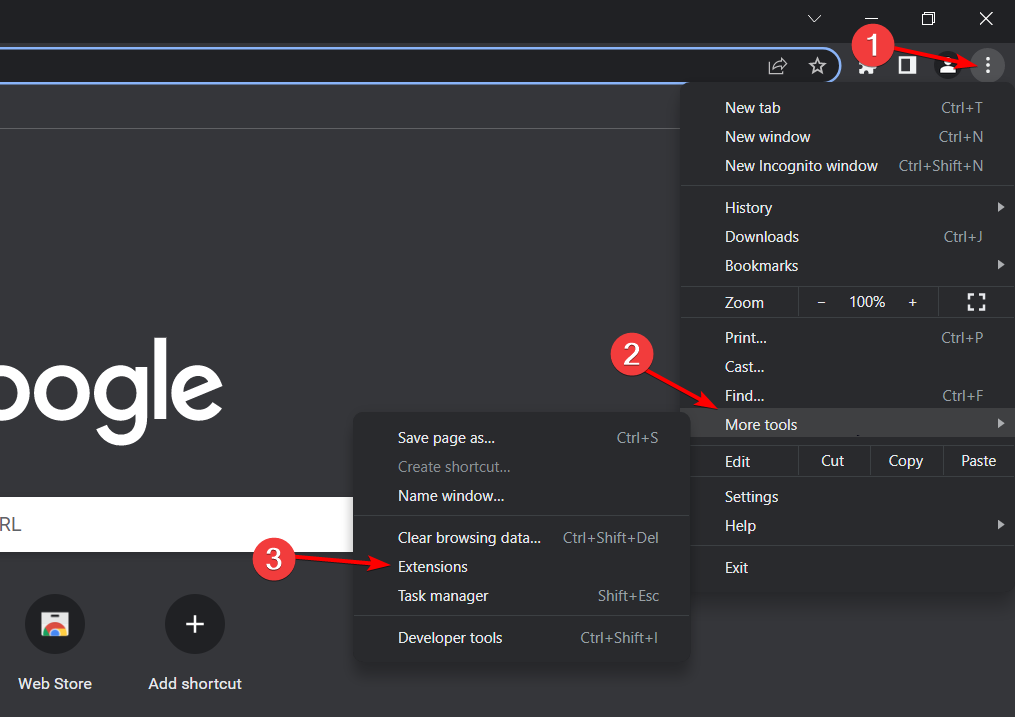
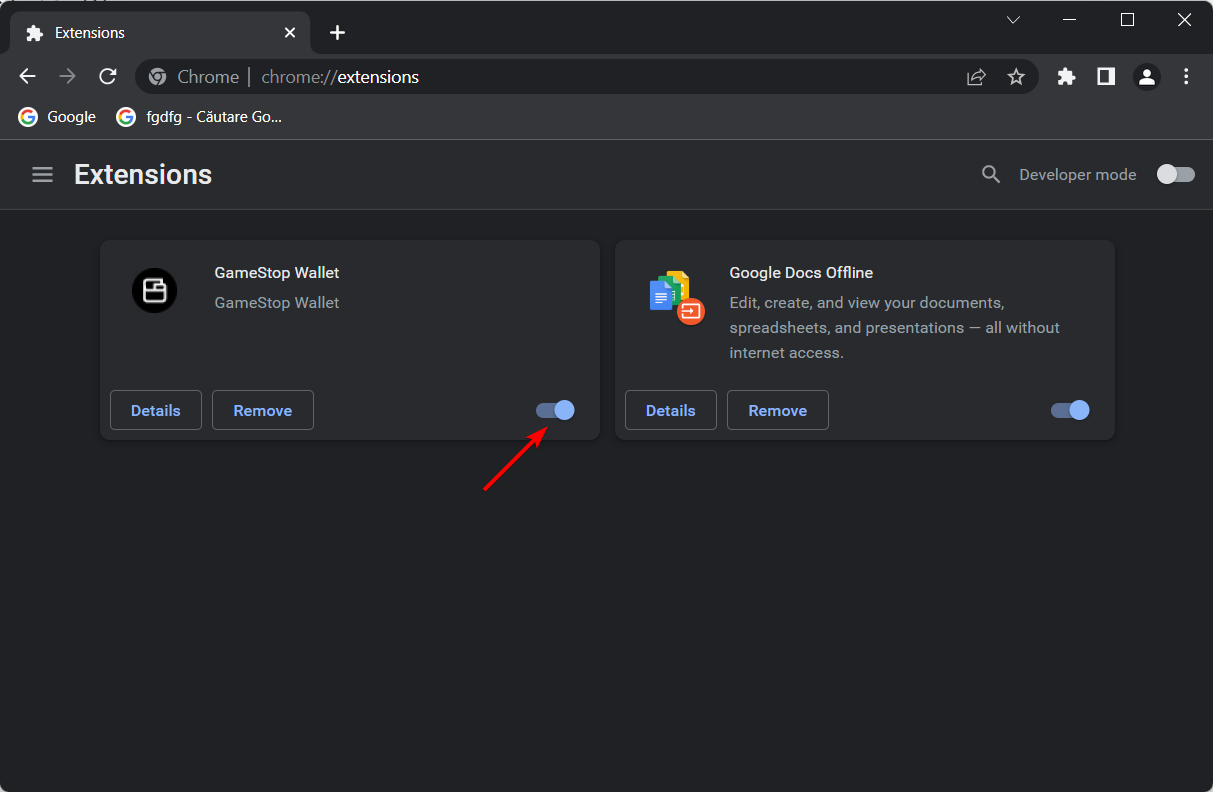


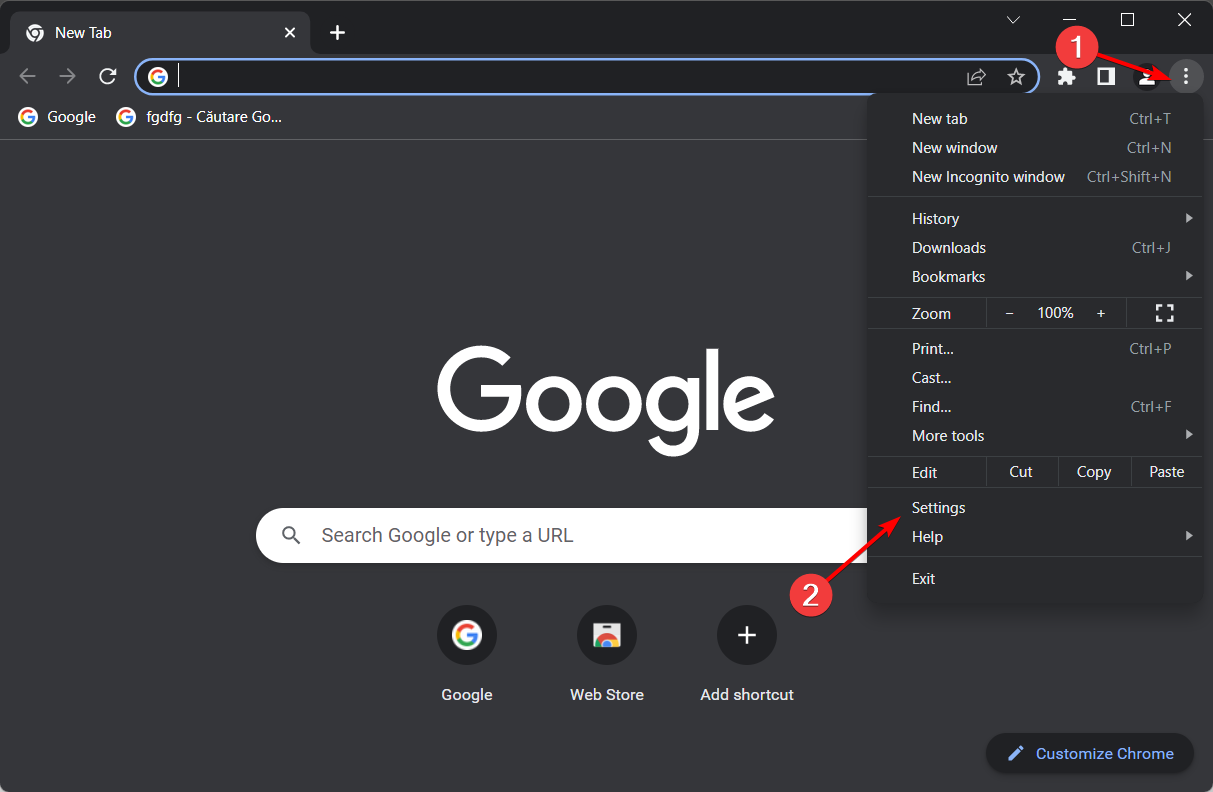
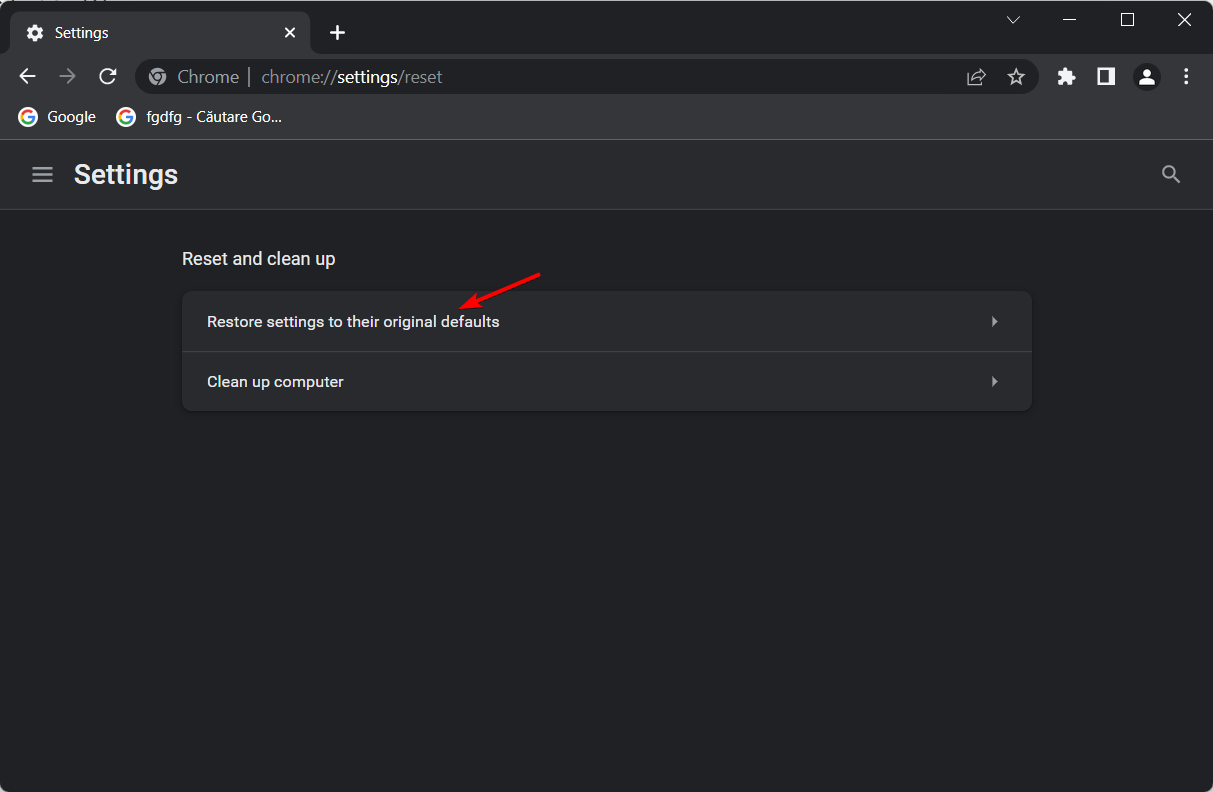
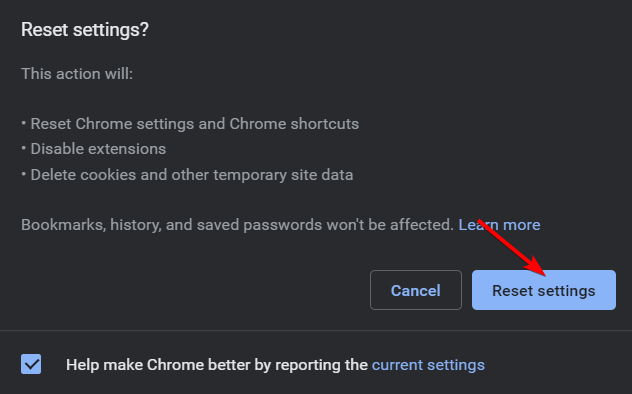





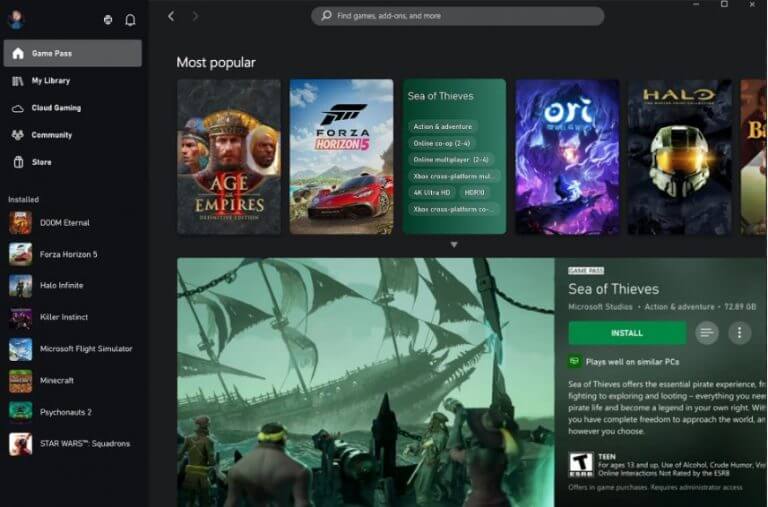
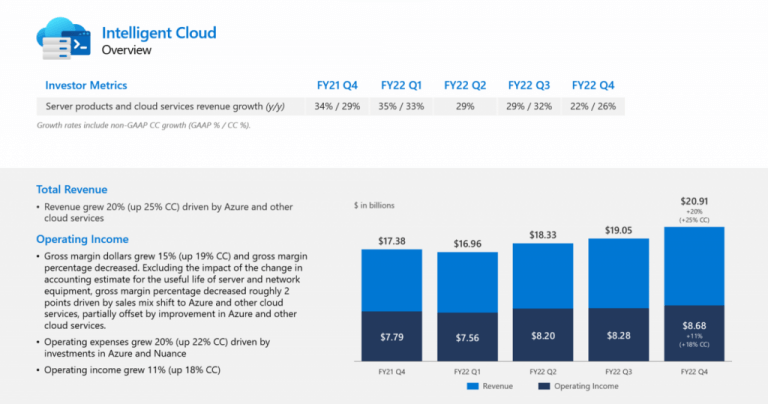
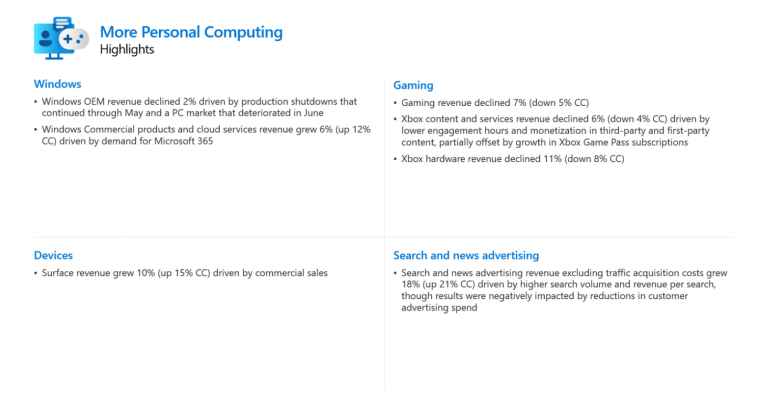

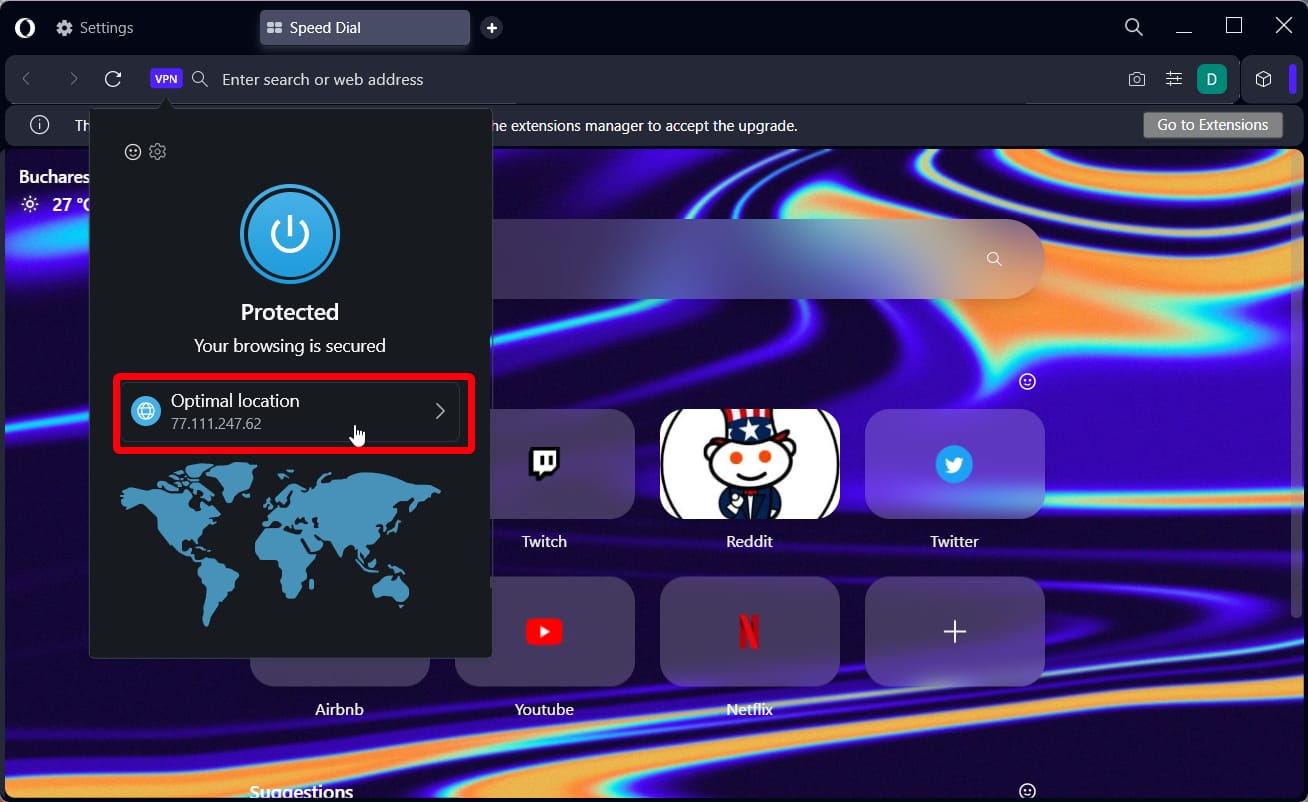

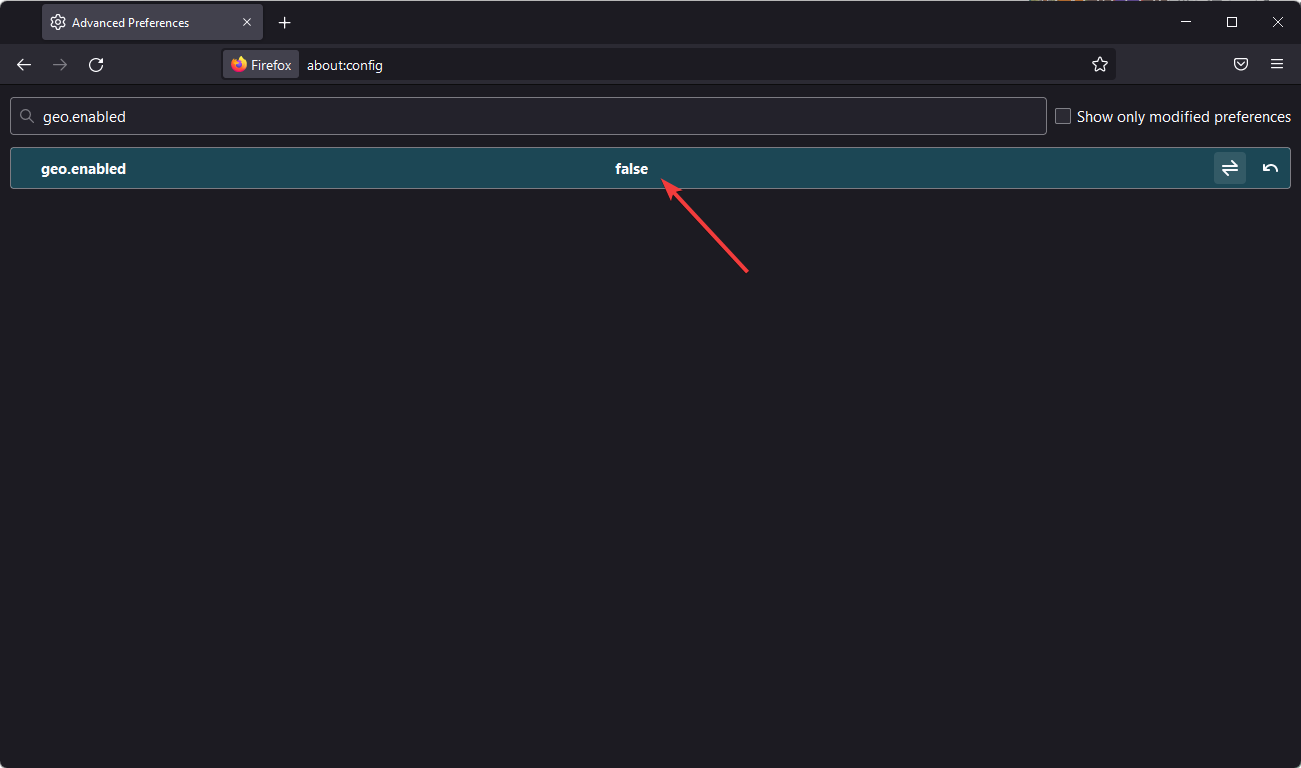
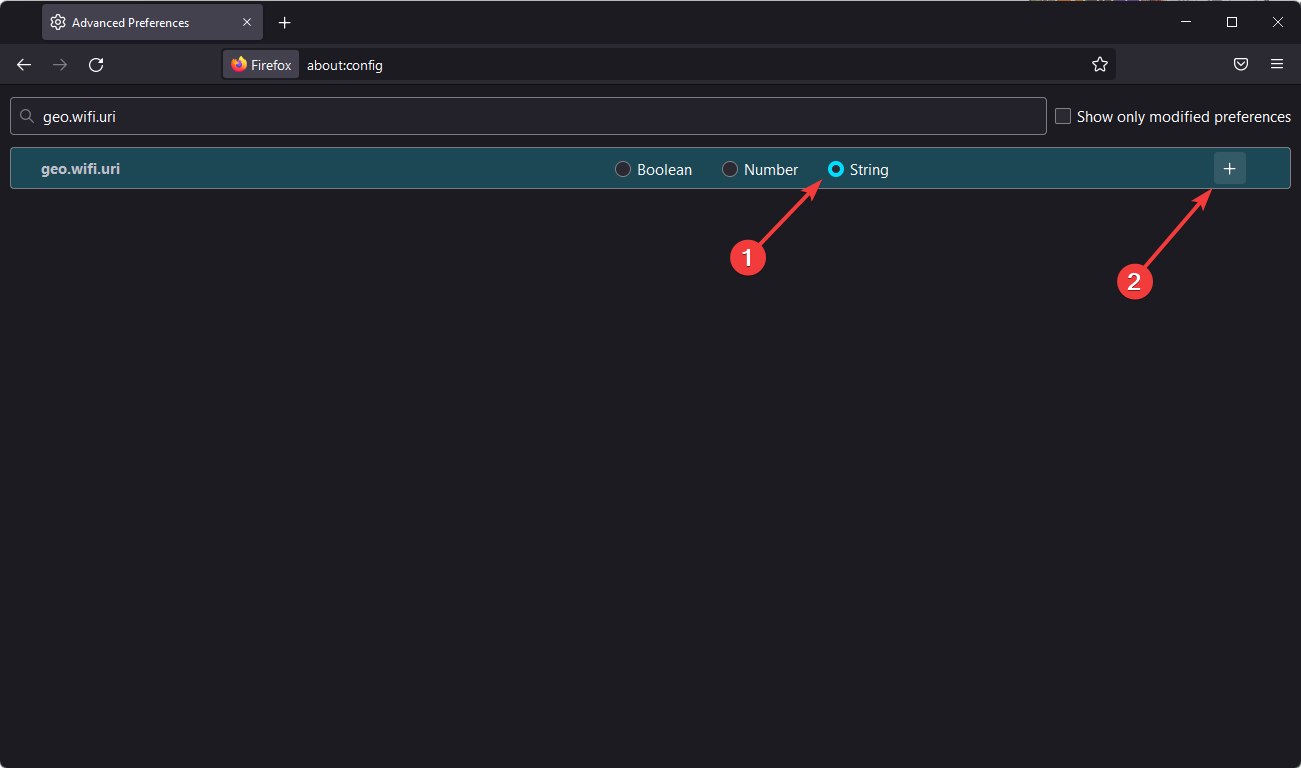

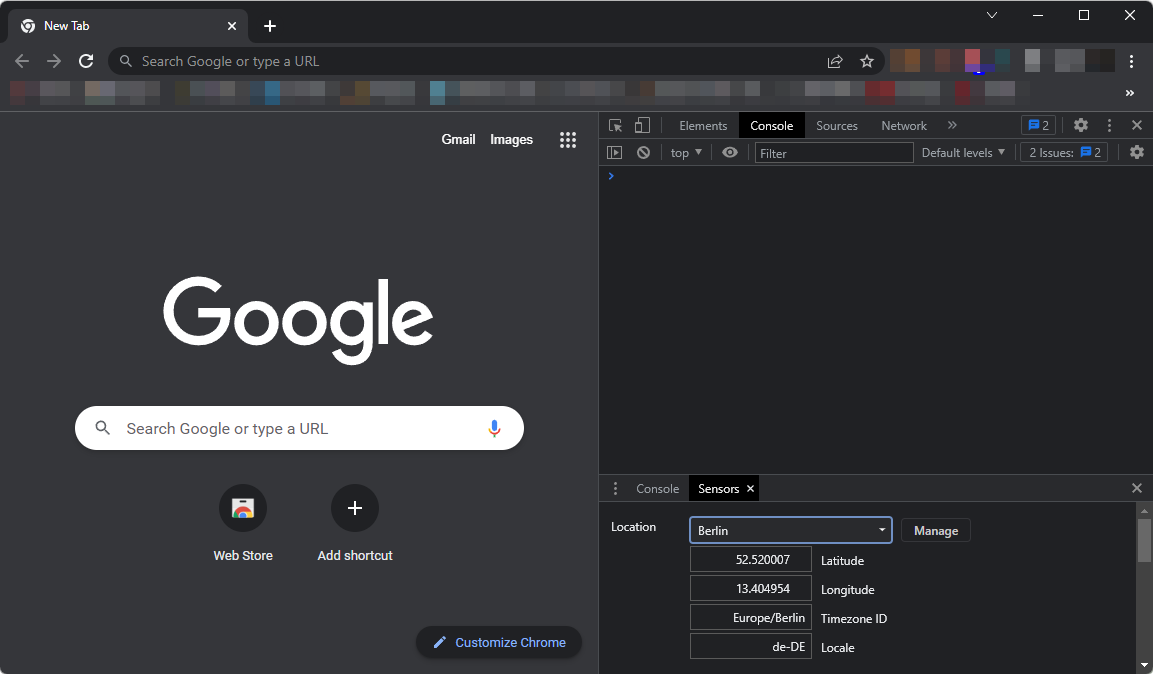
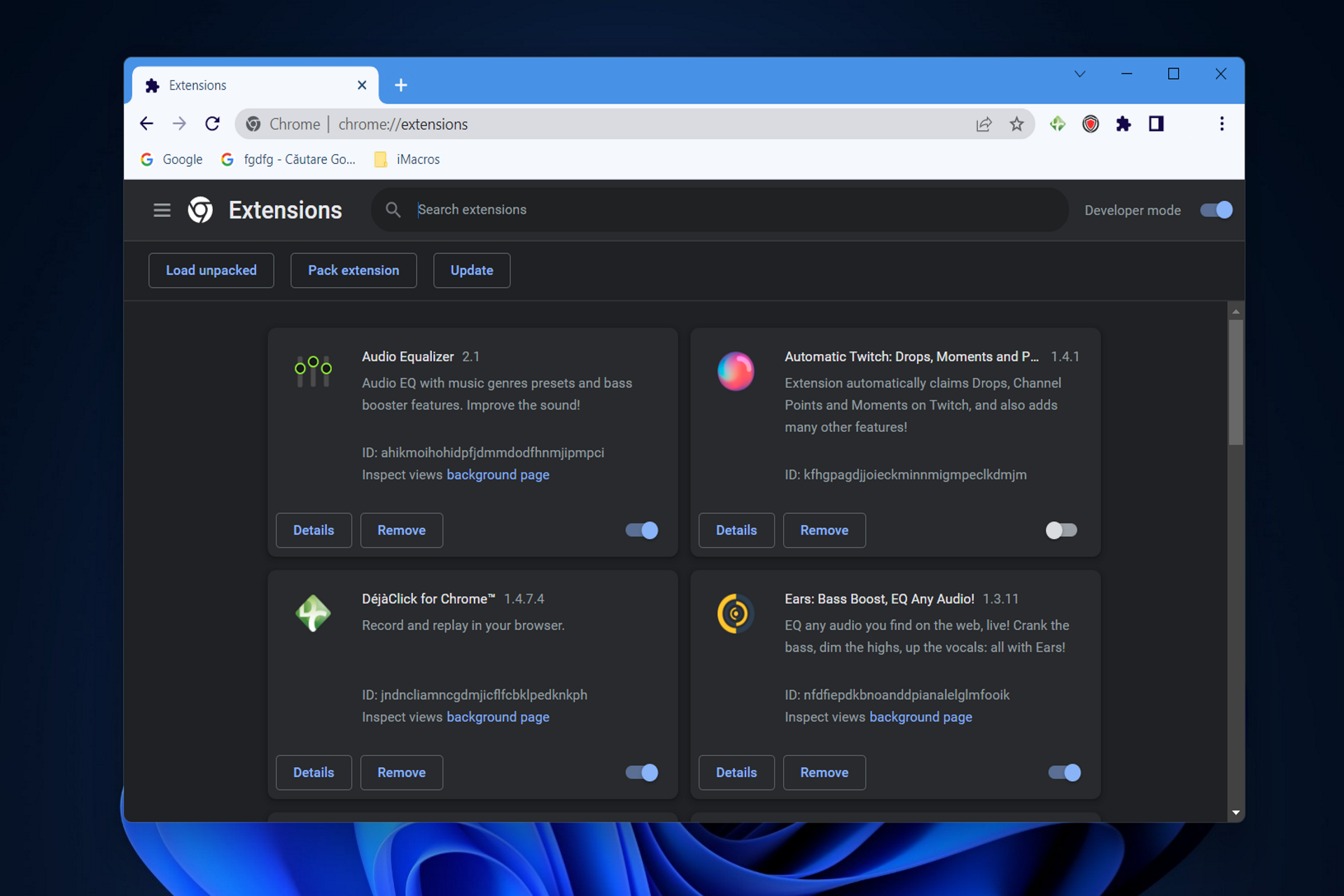



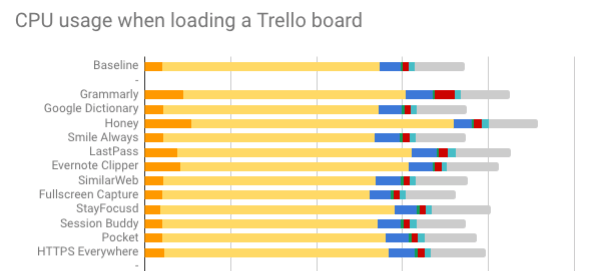


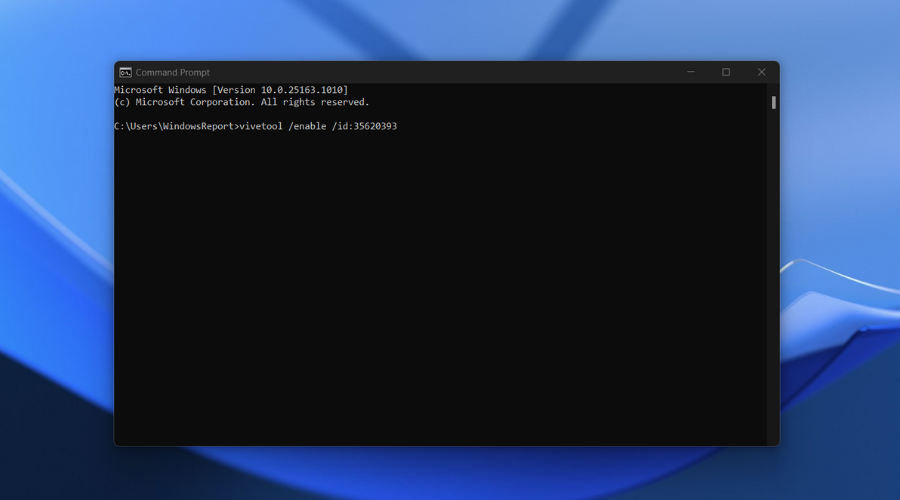
![How to Search & Delete all Chrome History [By Date, On mobile]](https://windowsreport.com/wp-content/uploads/2016/10/search-all-chrome-history-2.png)
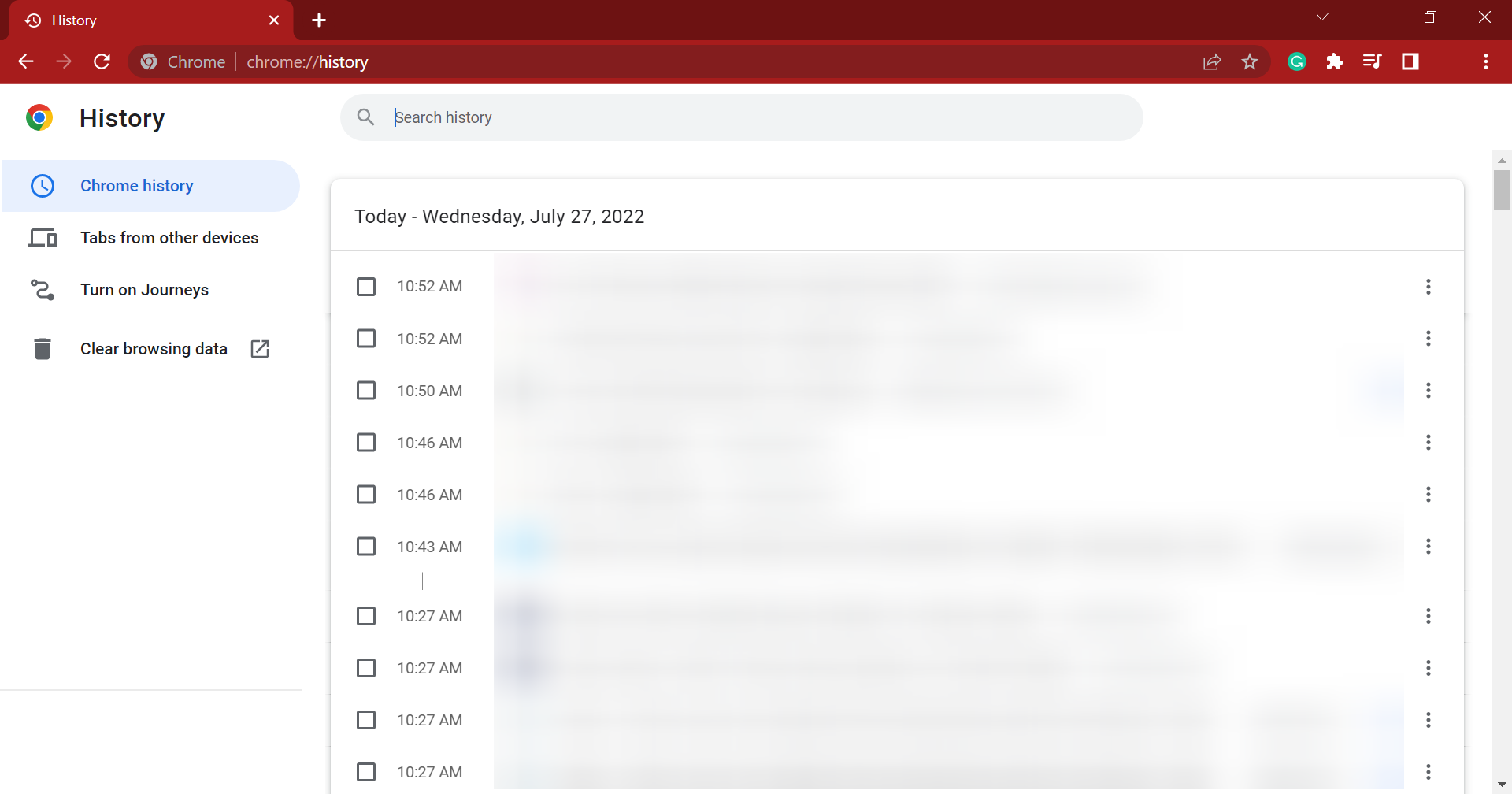
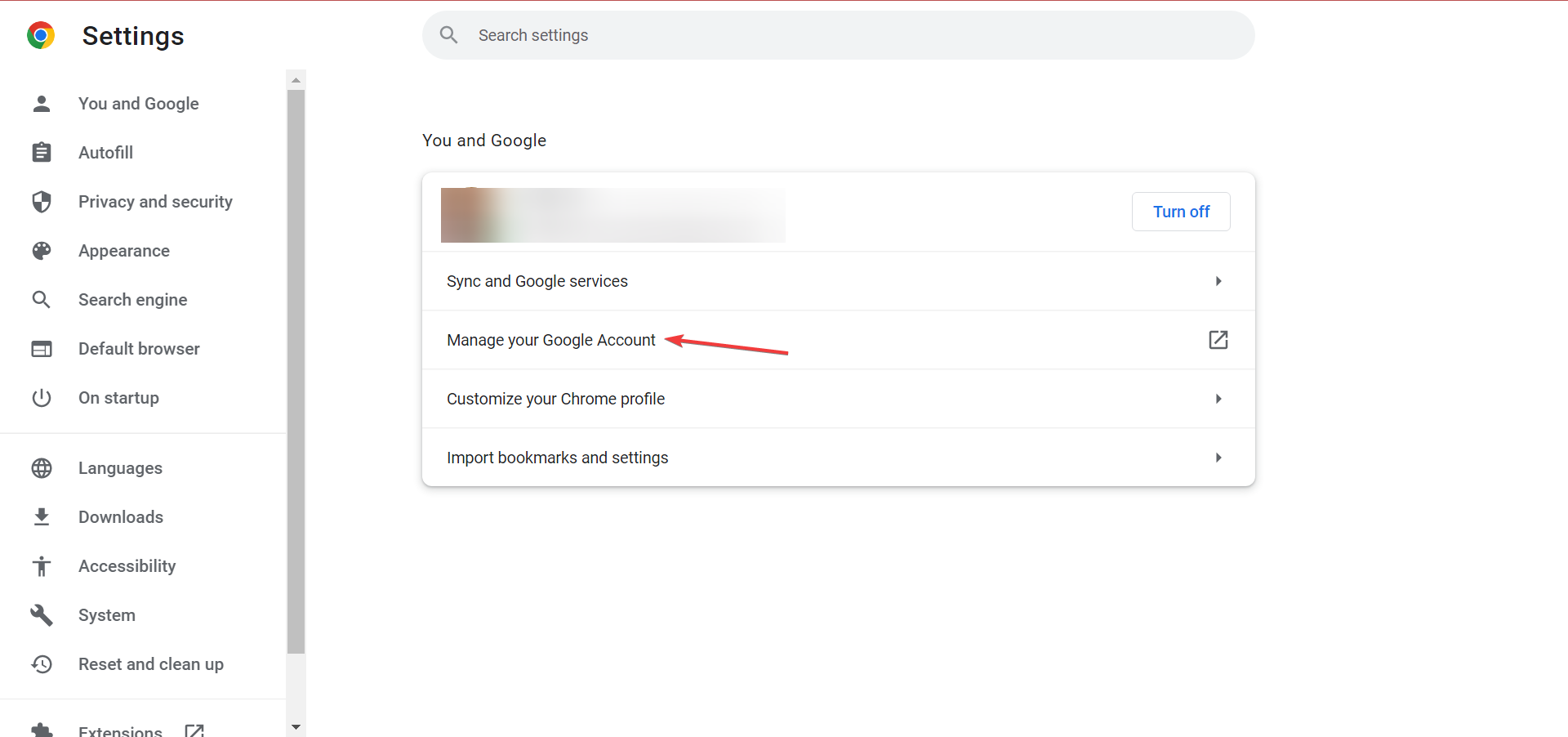
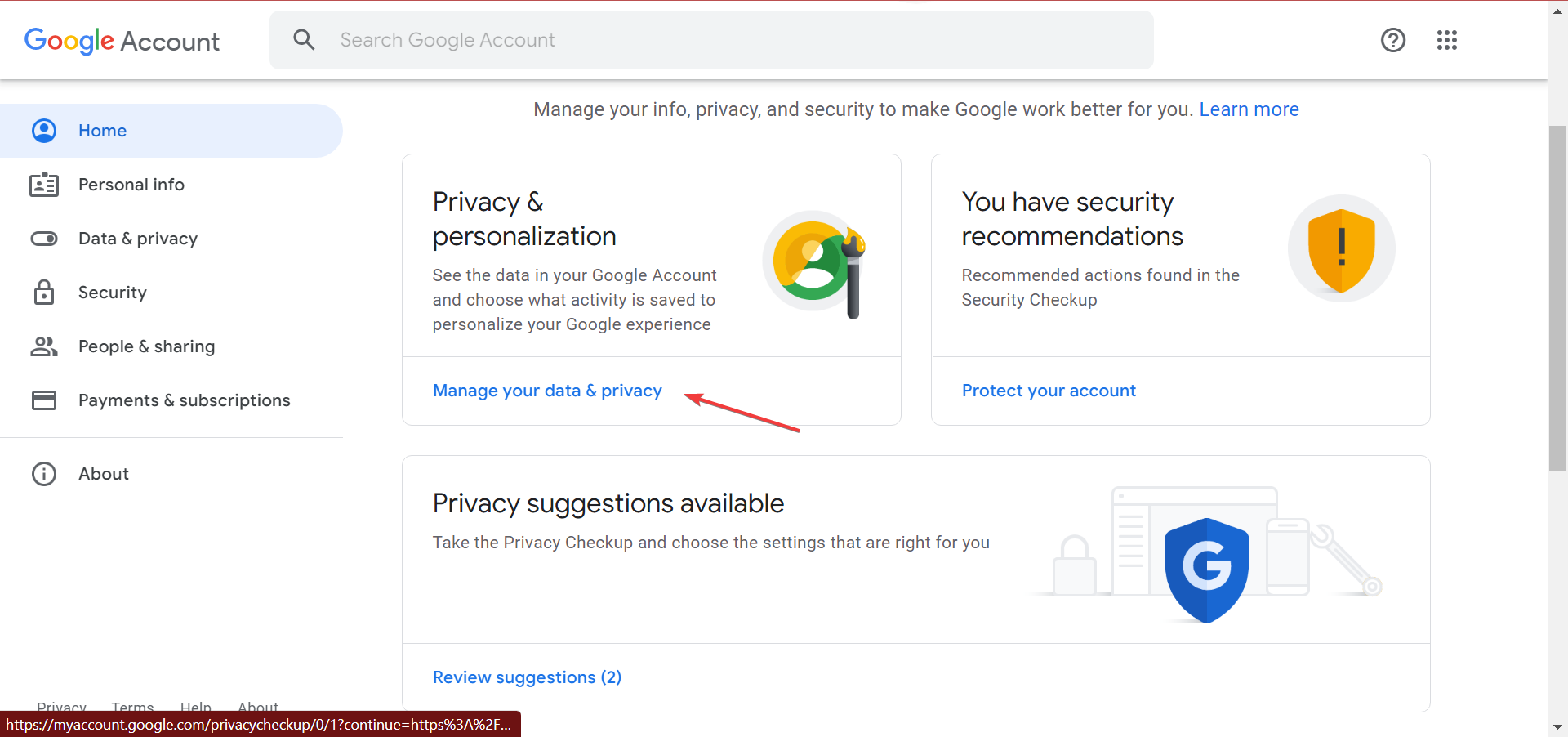
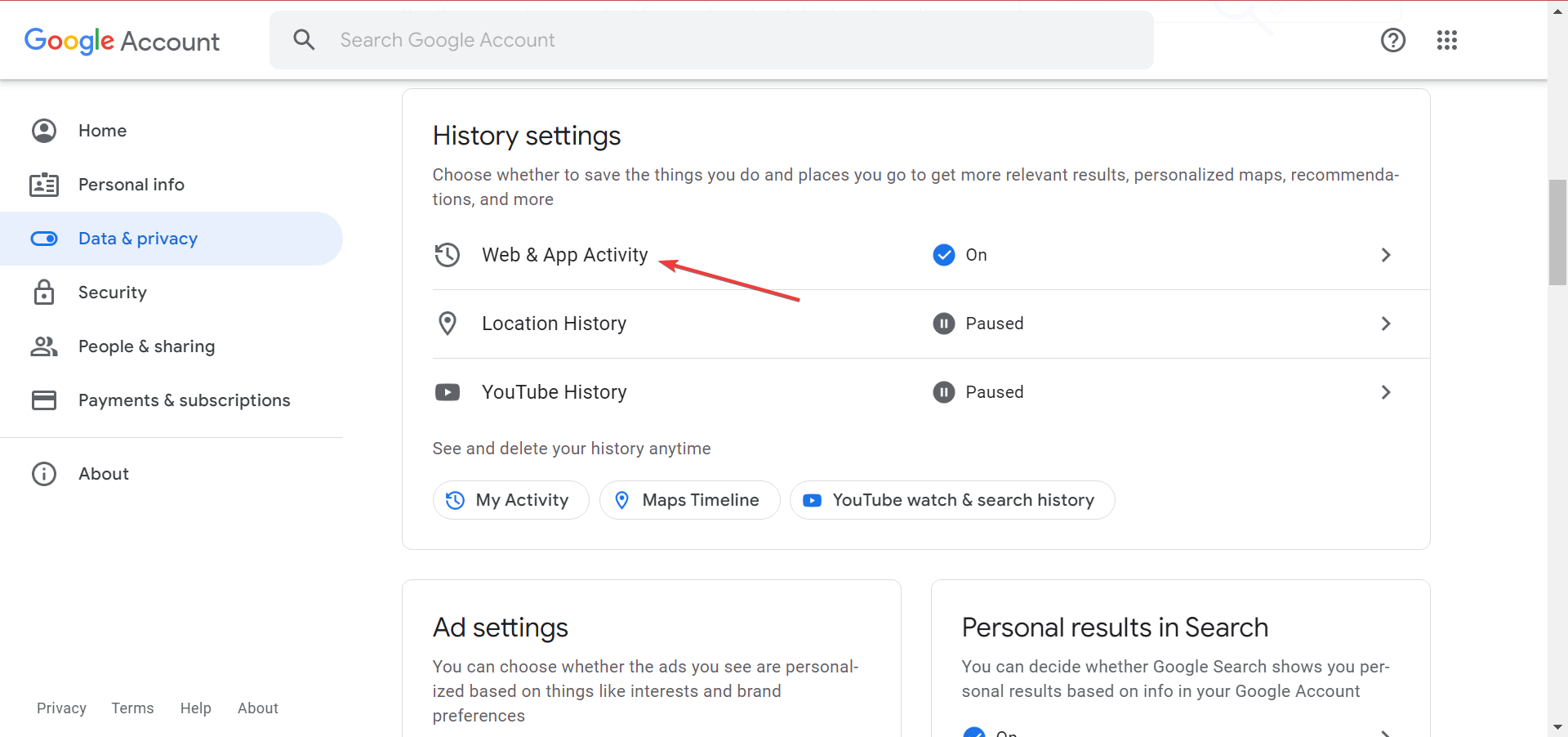
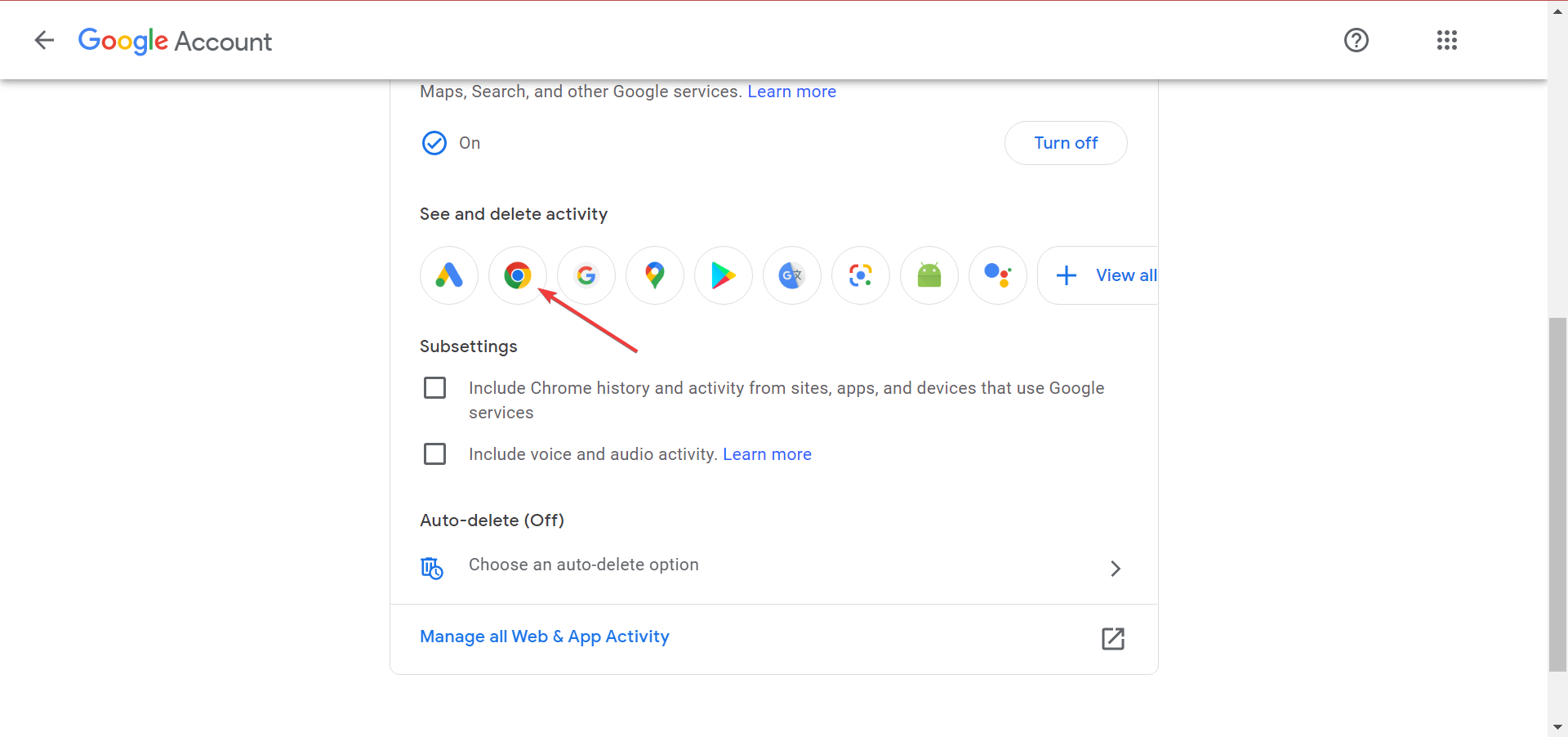
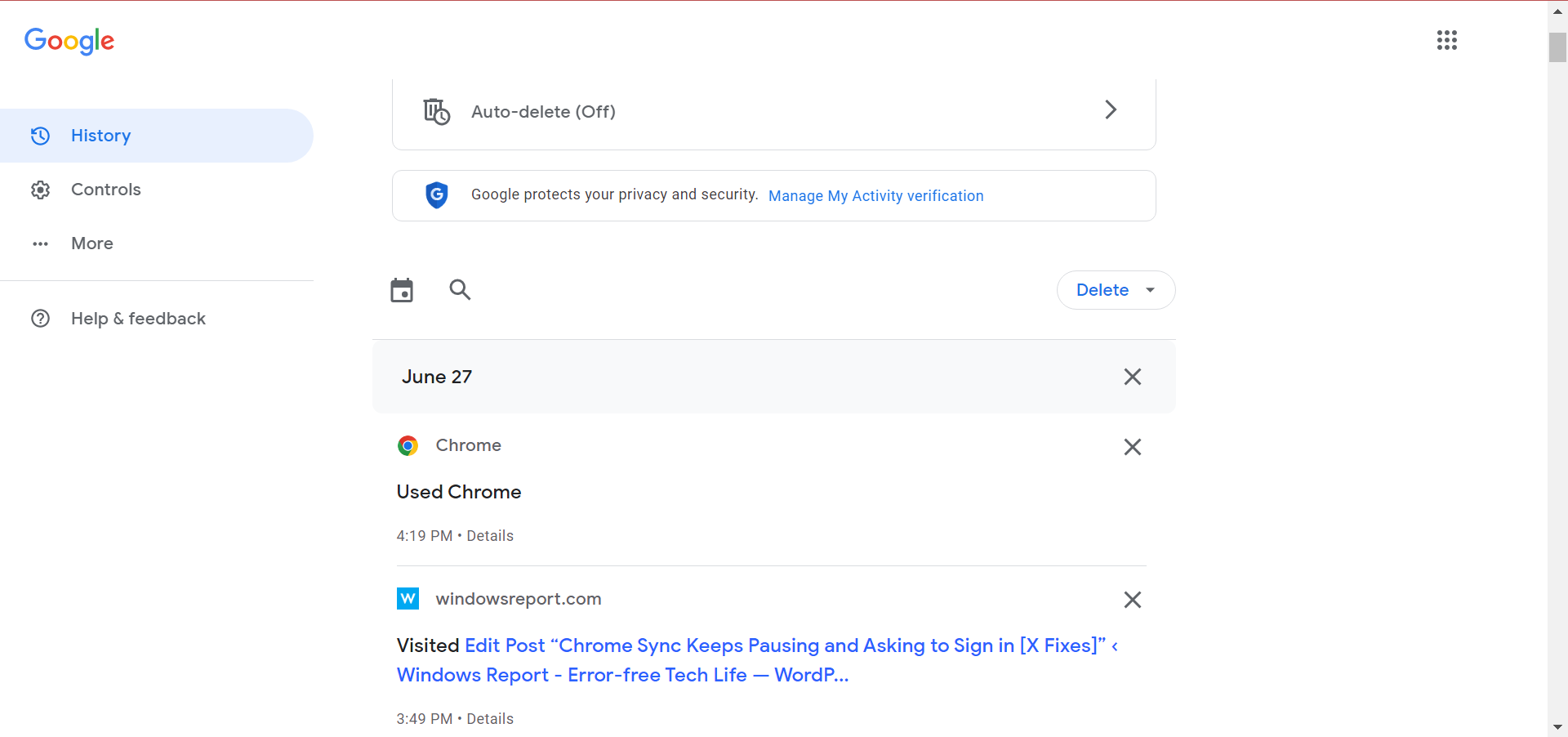
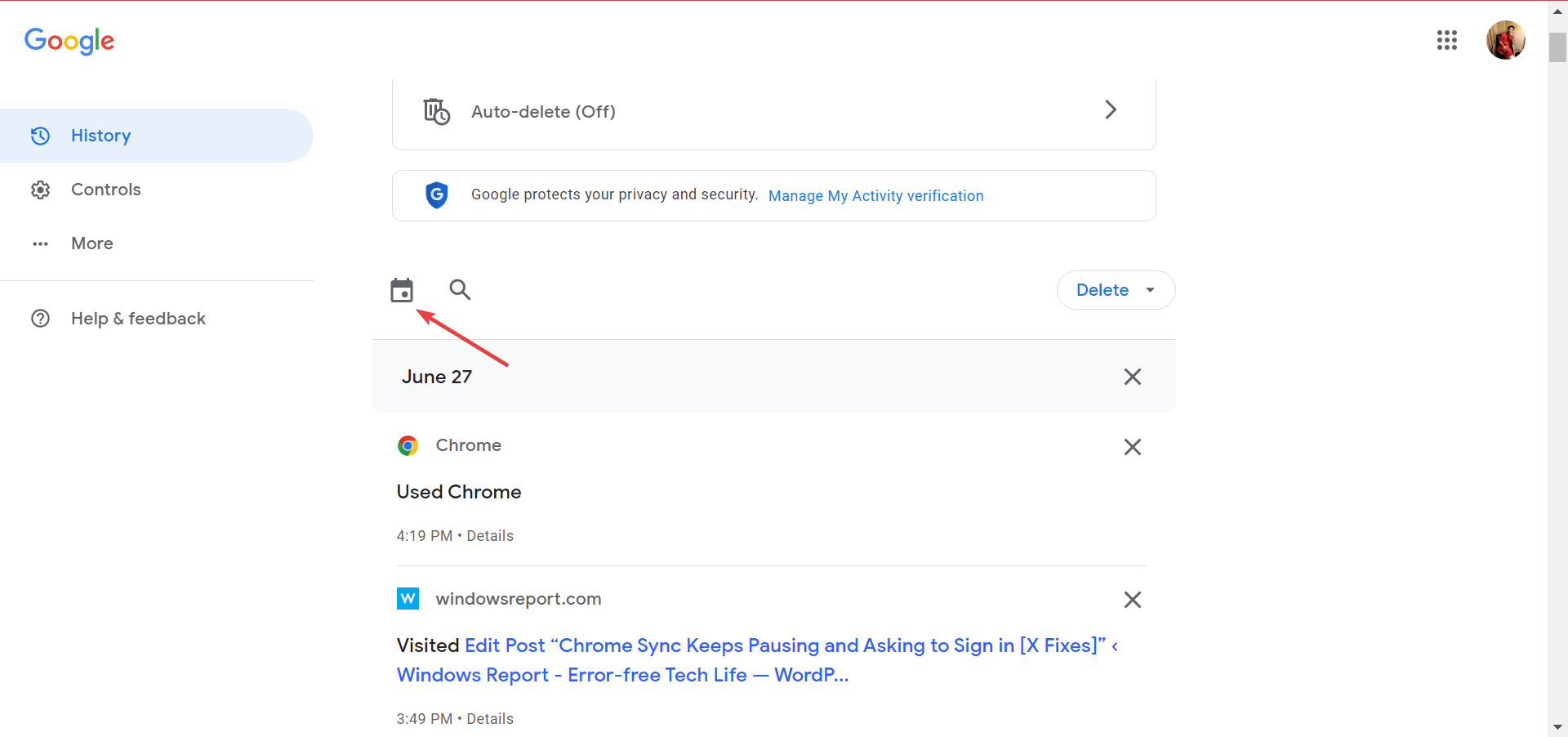
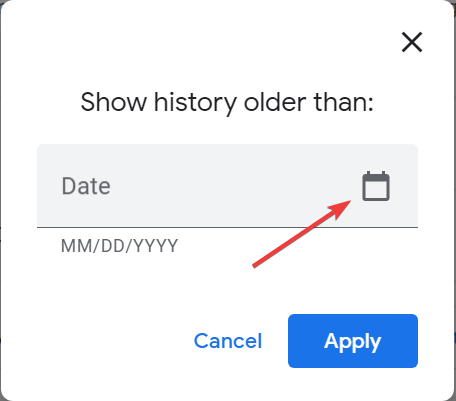
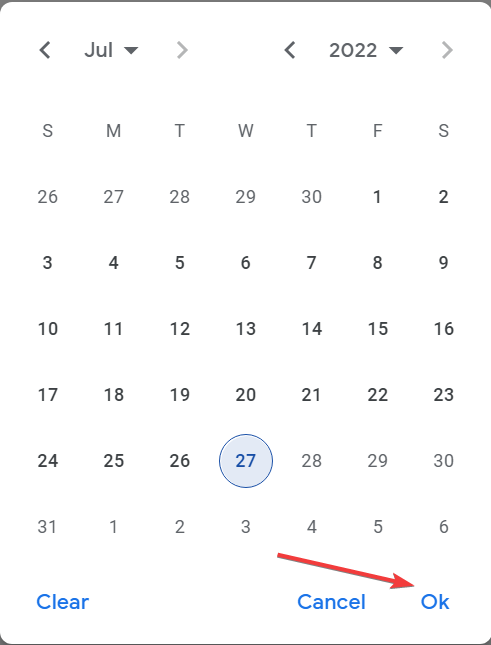
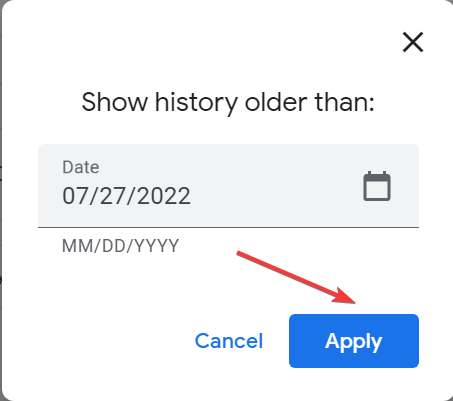
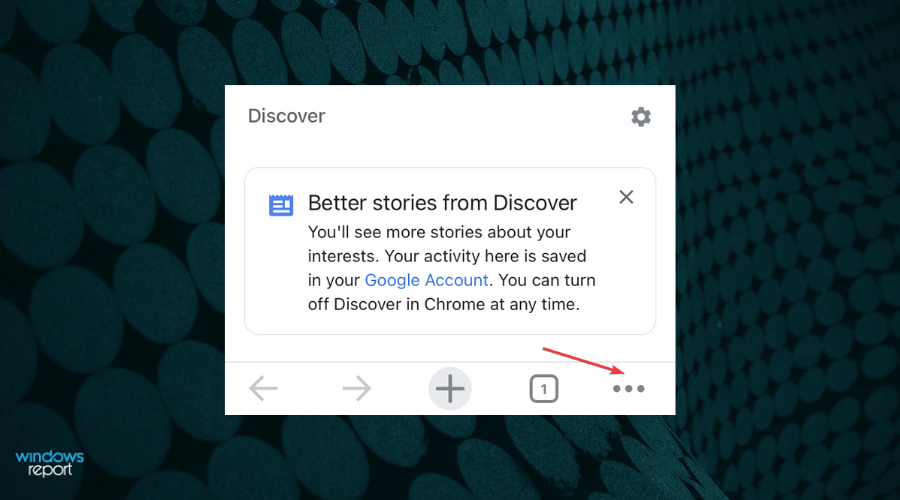
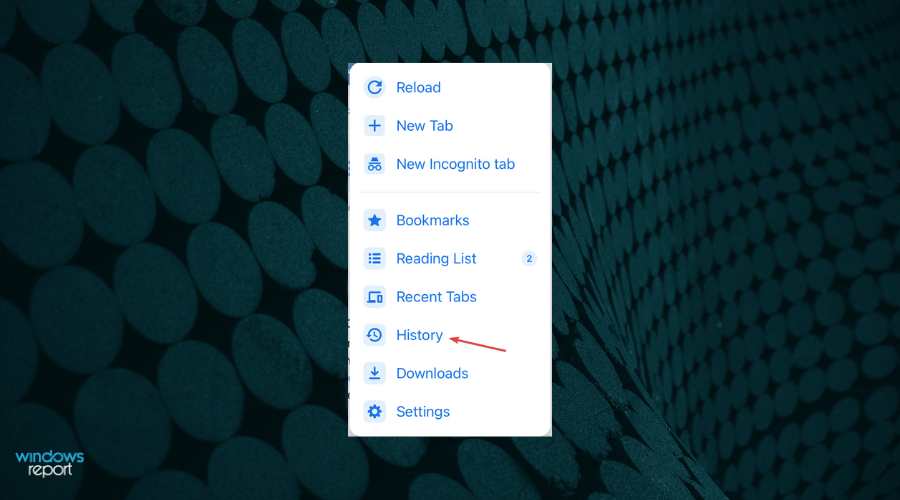
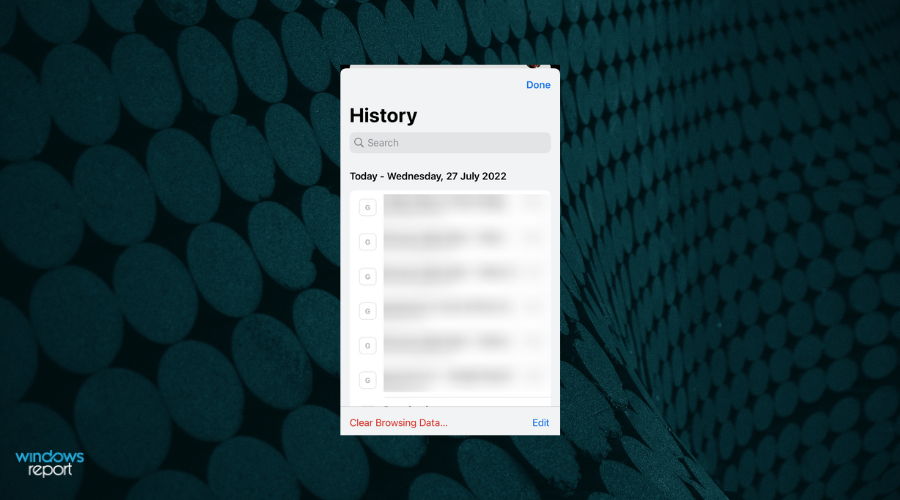
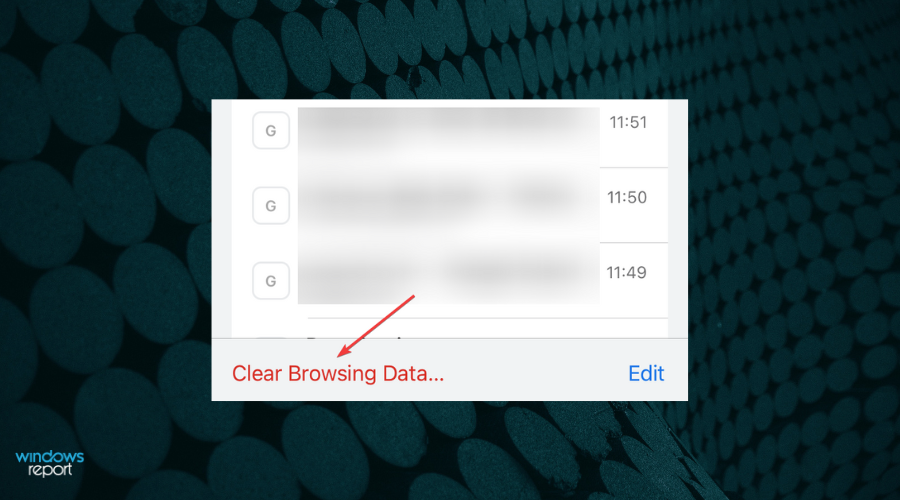
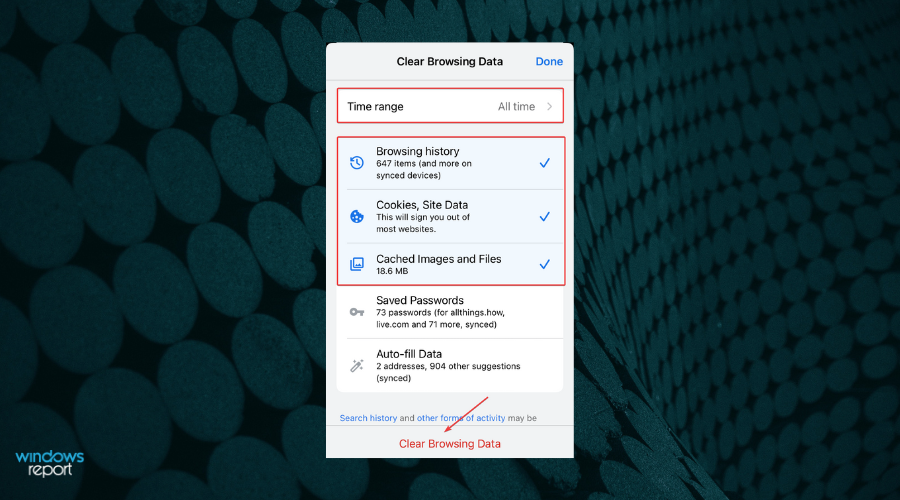
![Opera Browser History File Location [How to Find It]](https://windowsreport.com/wp-content/uploads/2022/07/best-browser-for-google-workspace-45.jpg)



![How to Add Trusted Sites in Chrome [Windows & Mac]](https://windowsreport.com/wp-content/uploads/2022/07/trusted-sites-1.png)


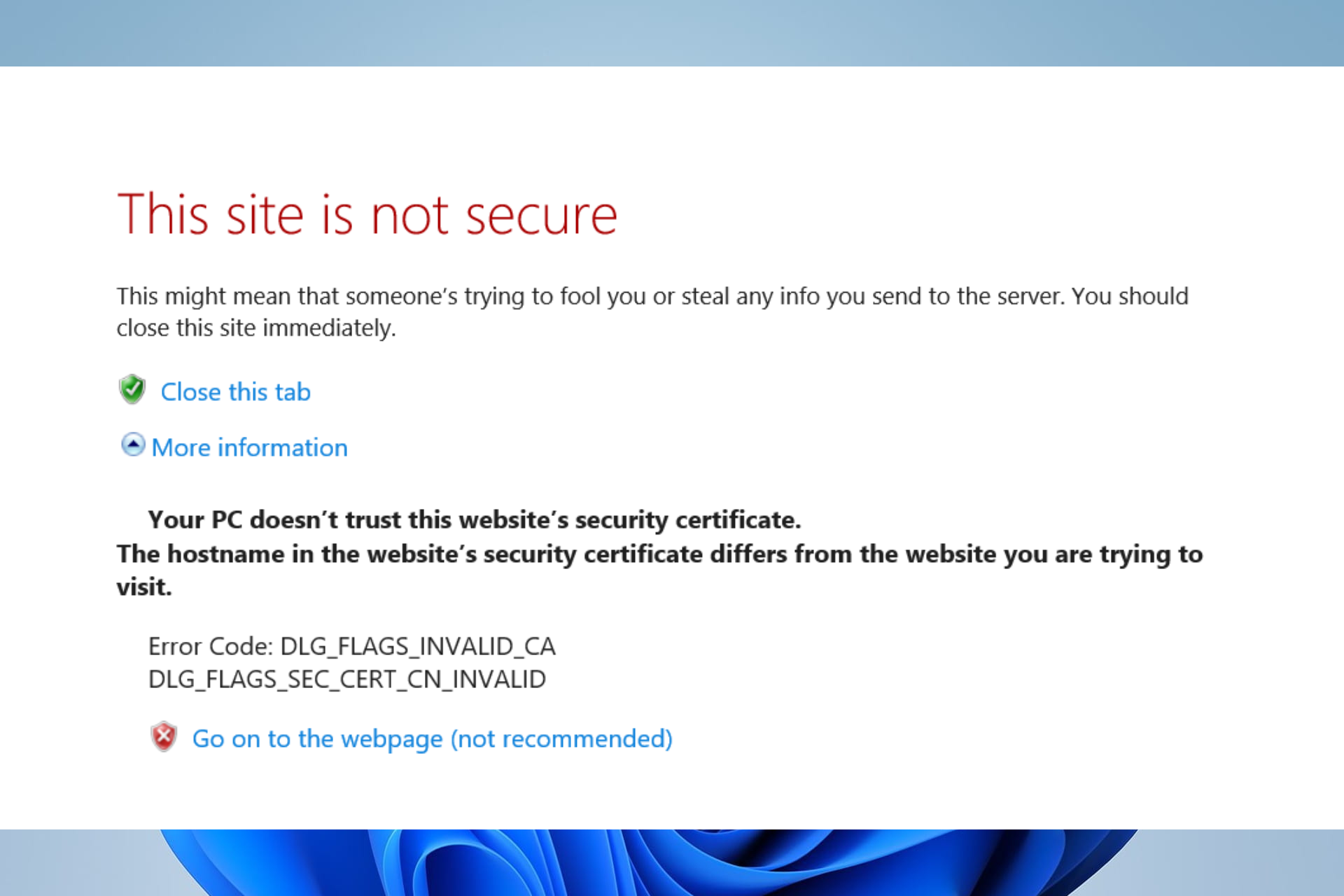



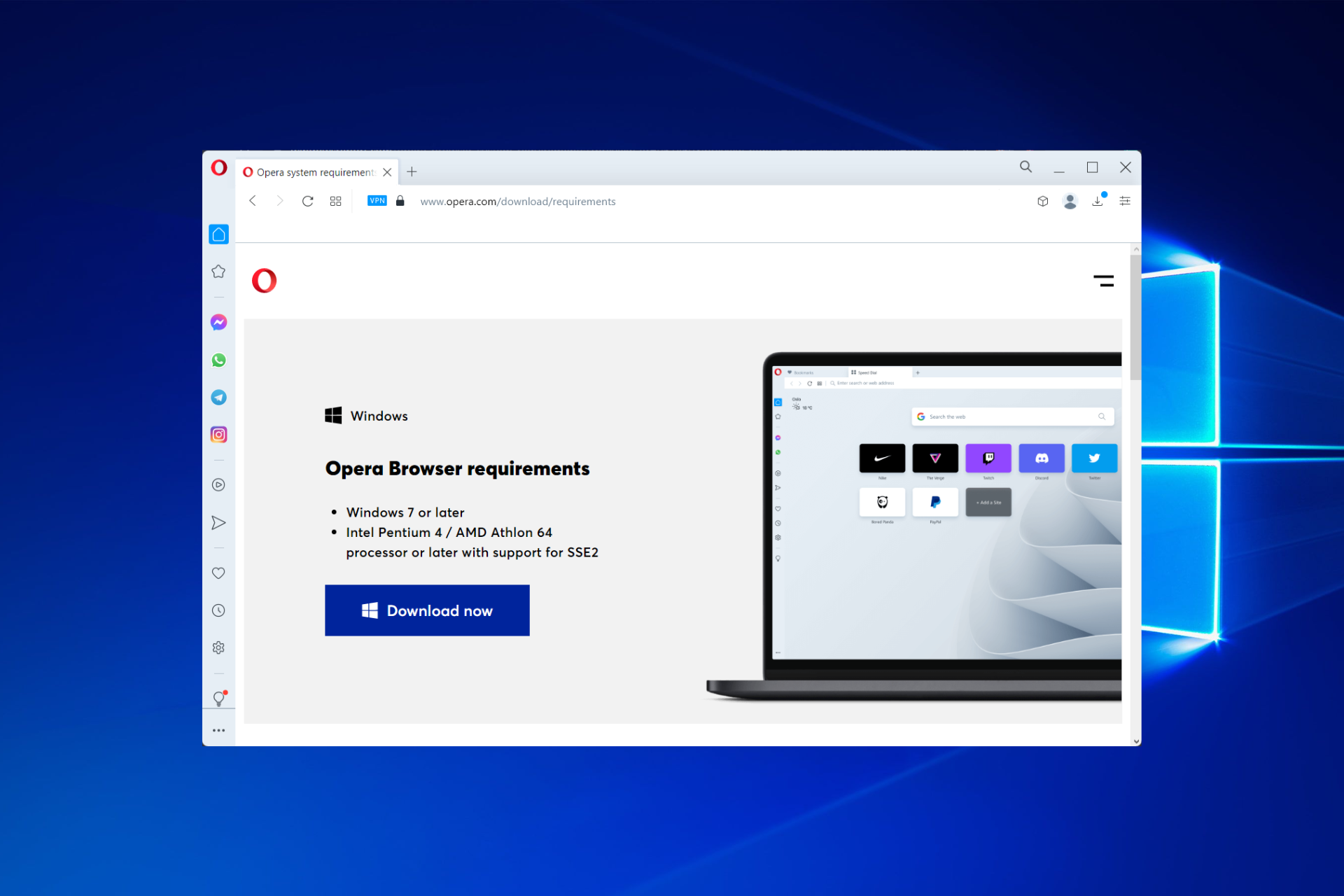


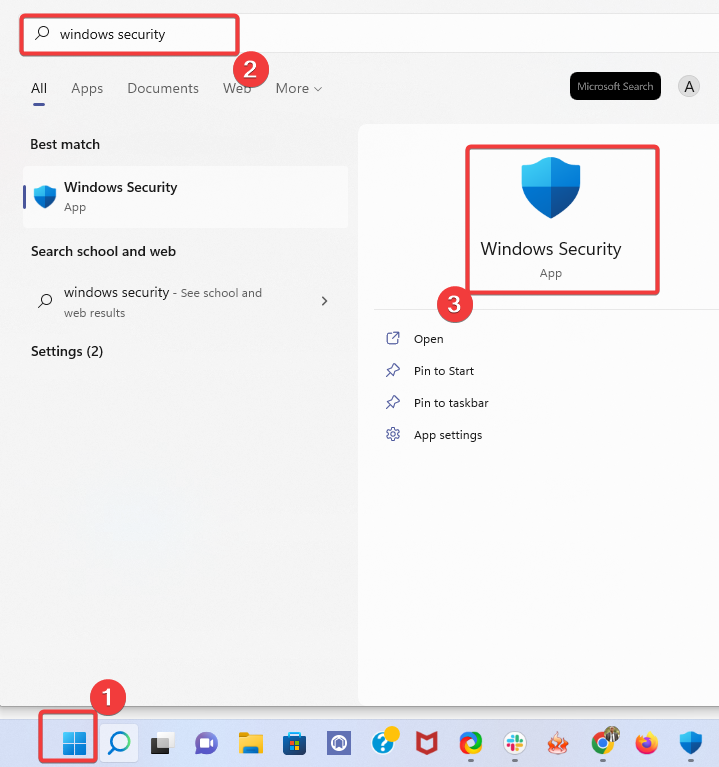
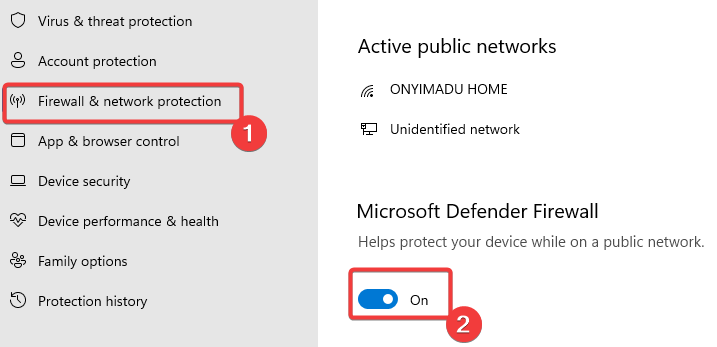

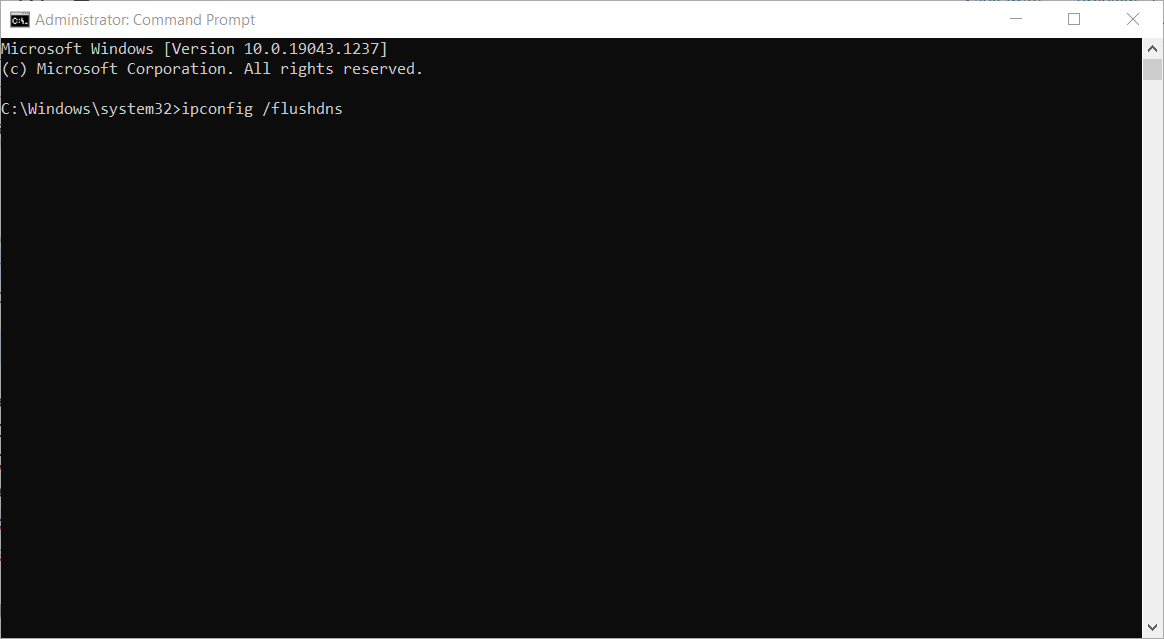
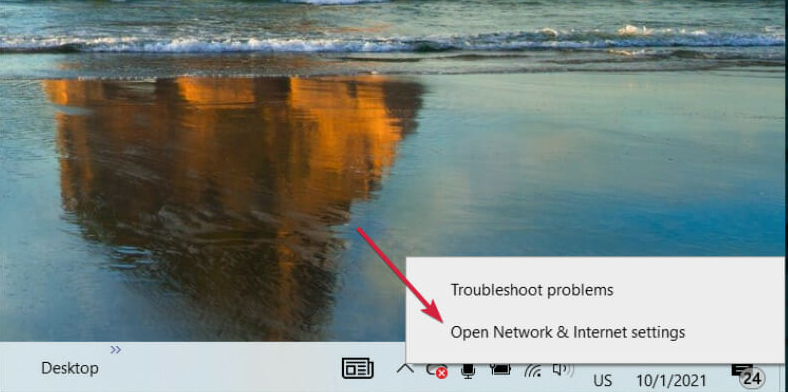
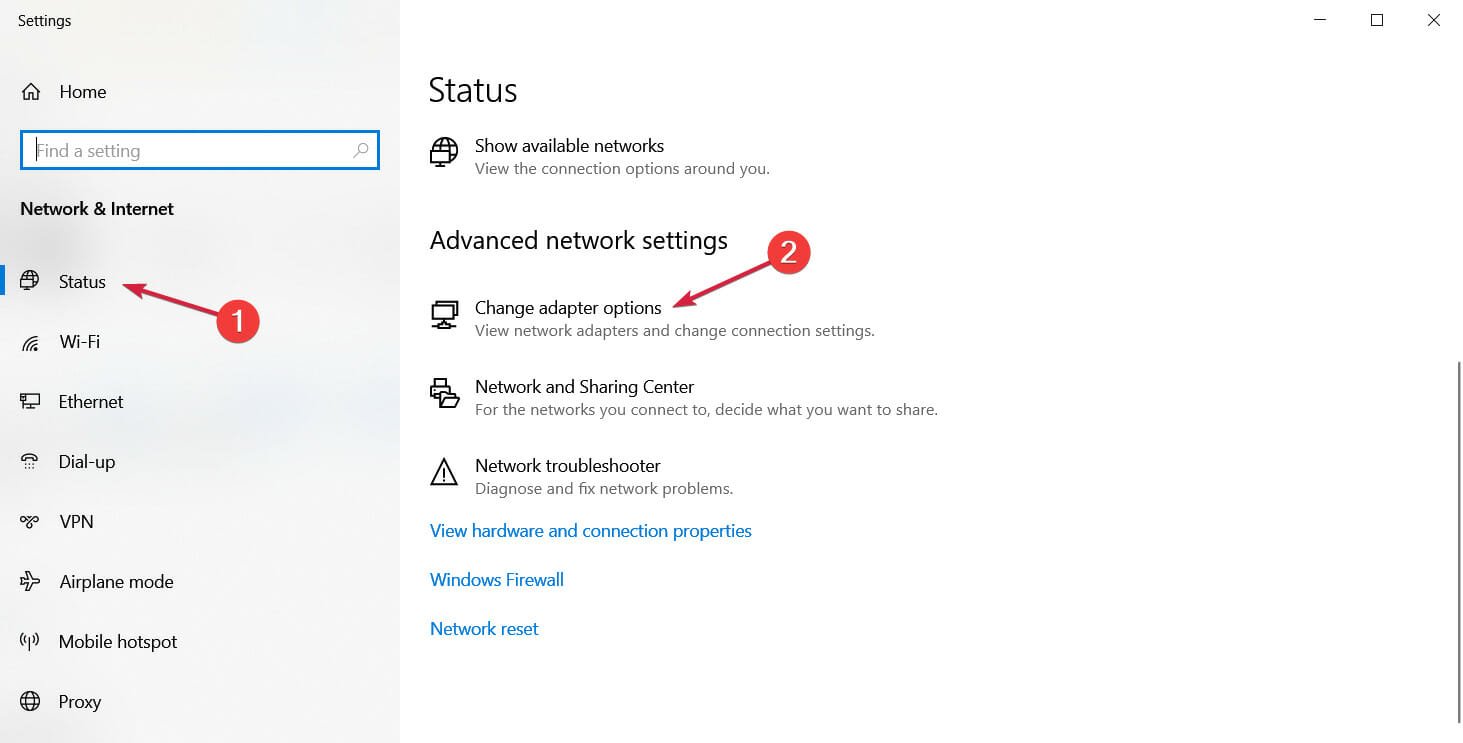
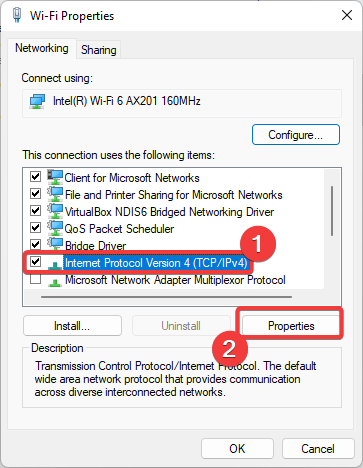
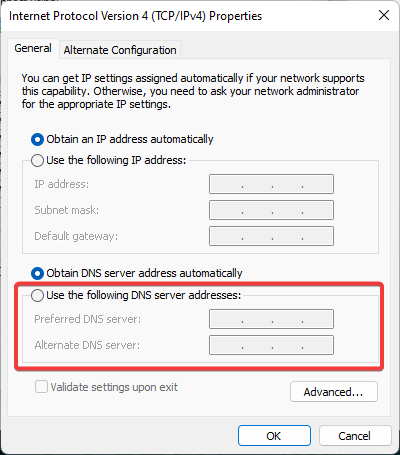
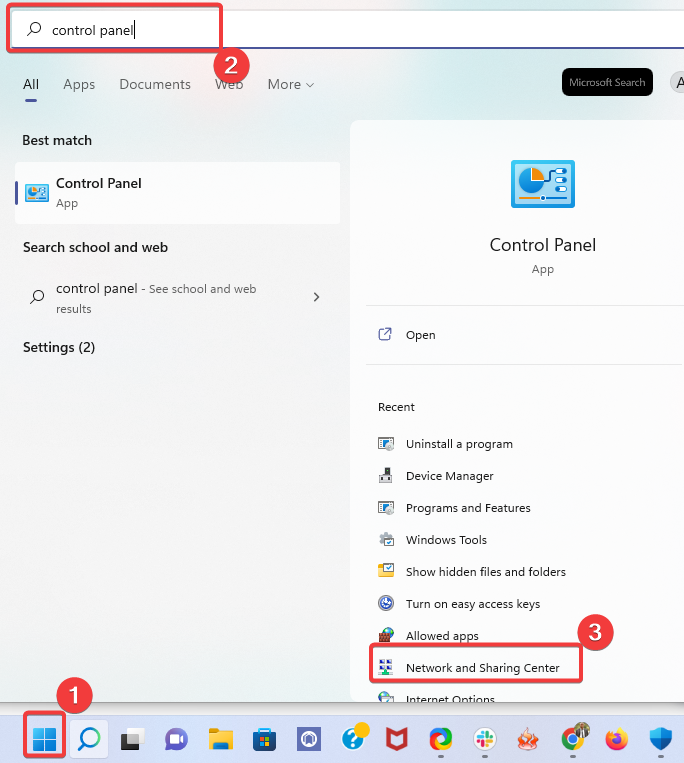
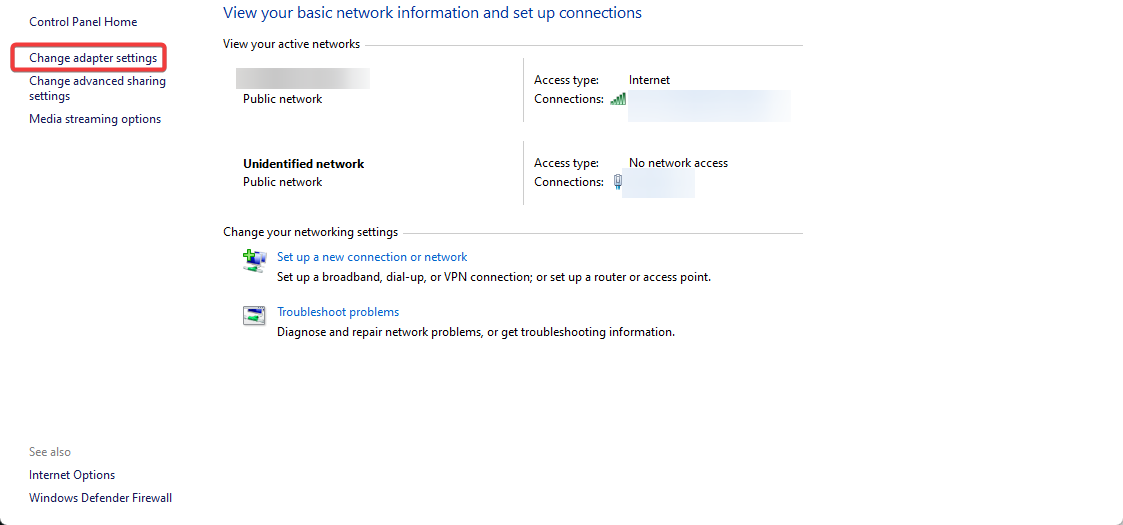
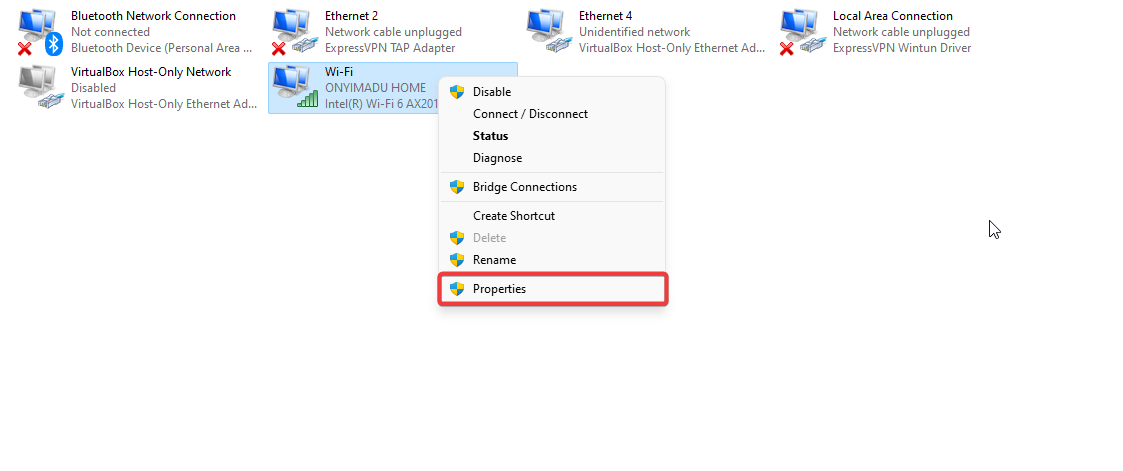
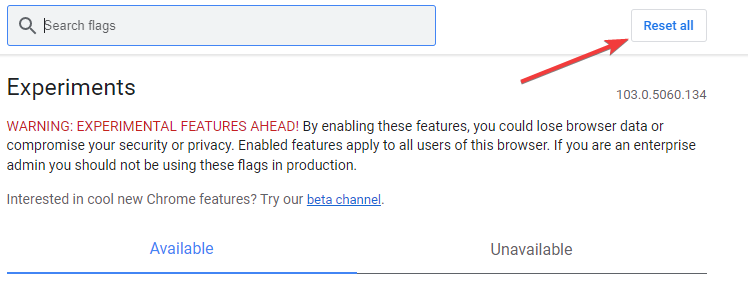
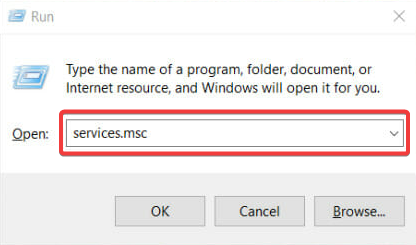
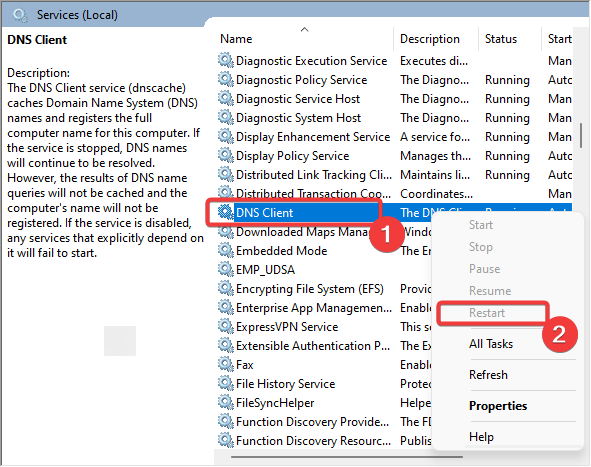
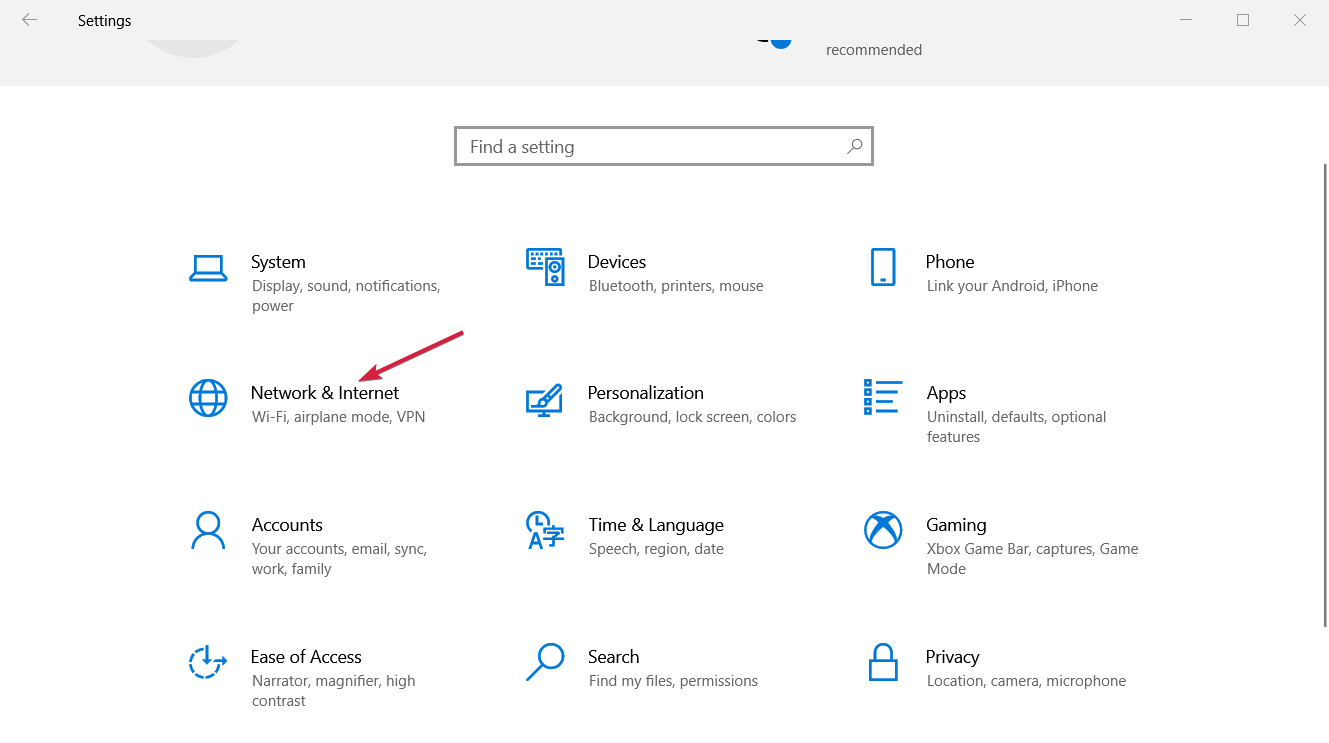
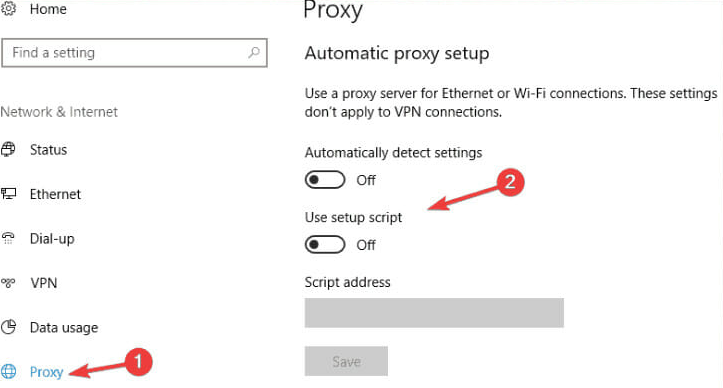
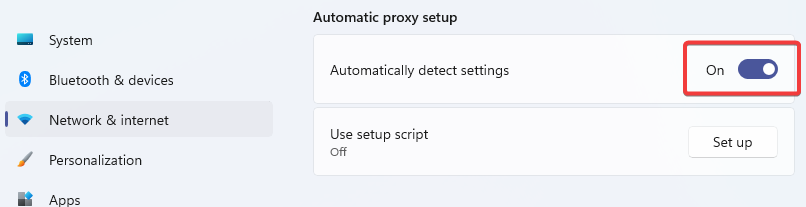
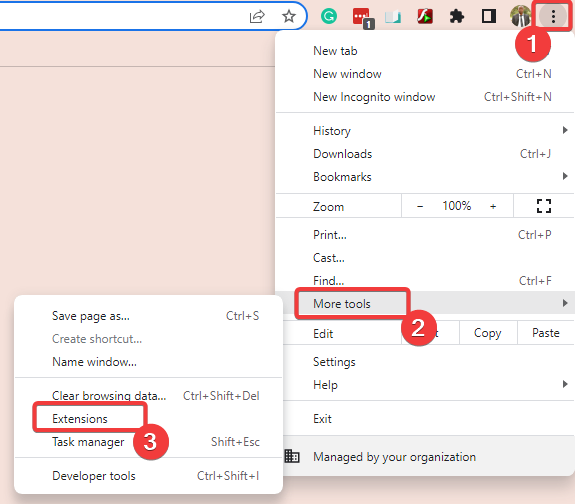
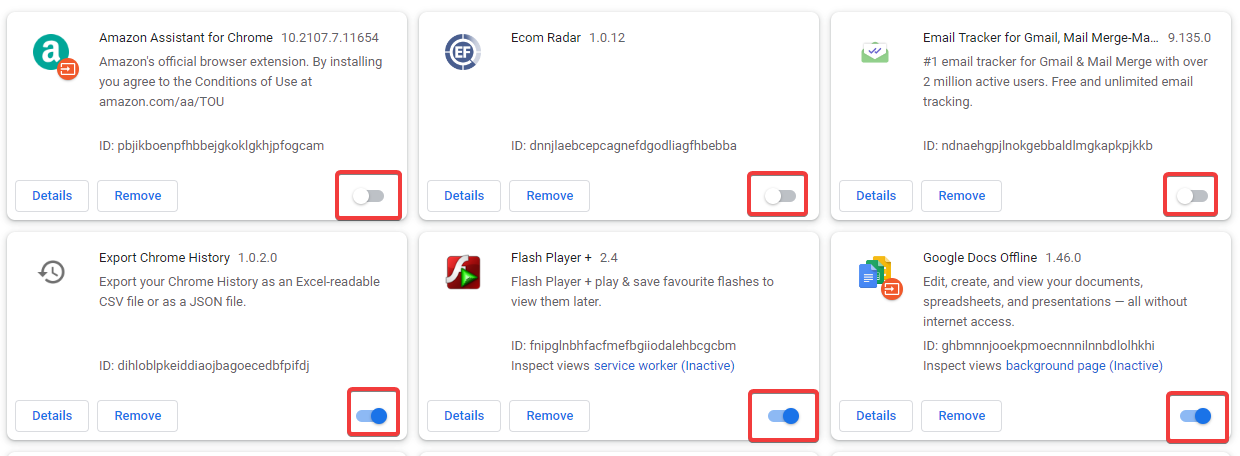
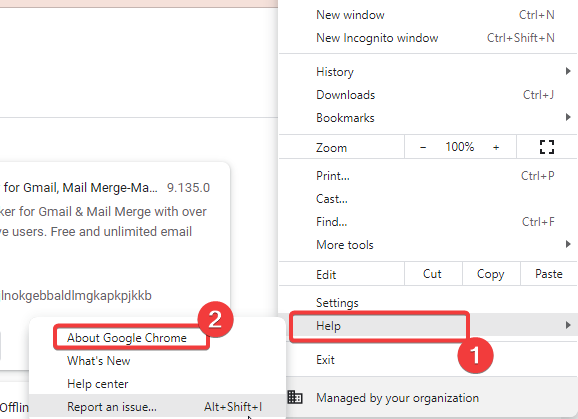
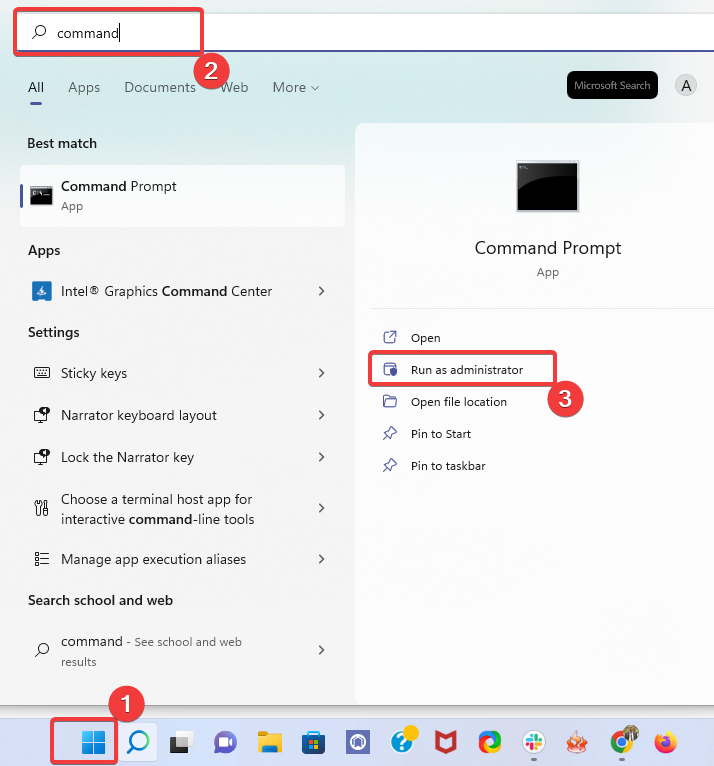
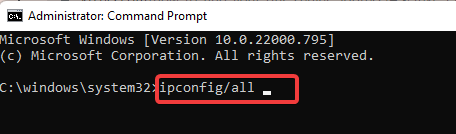
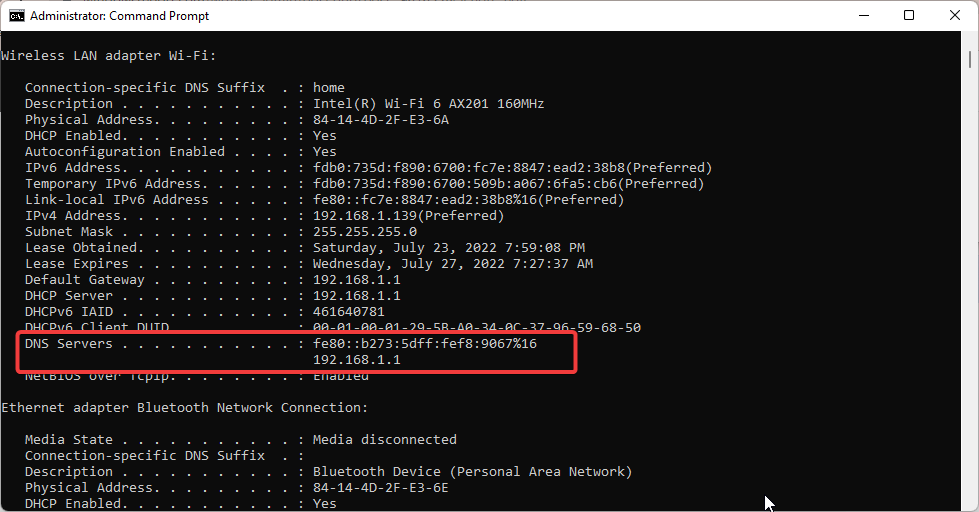

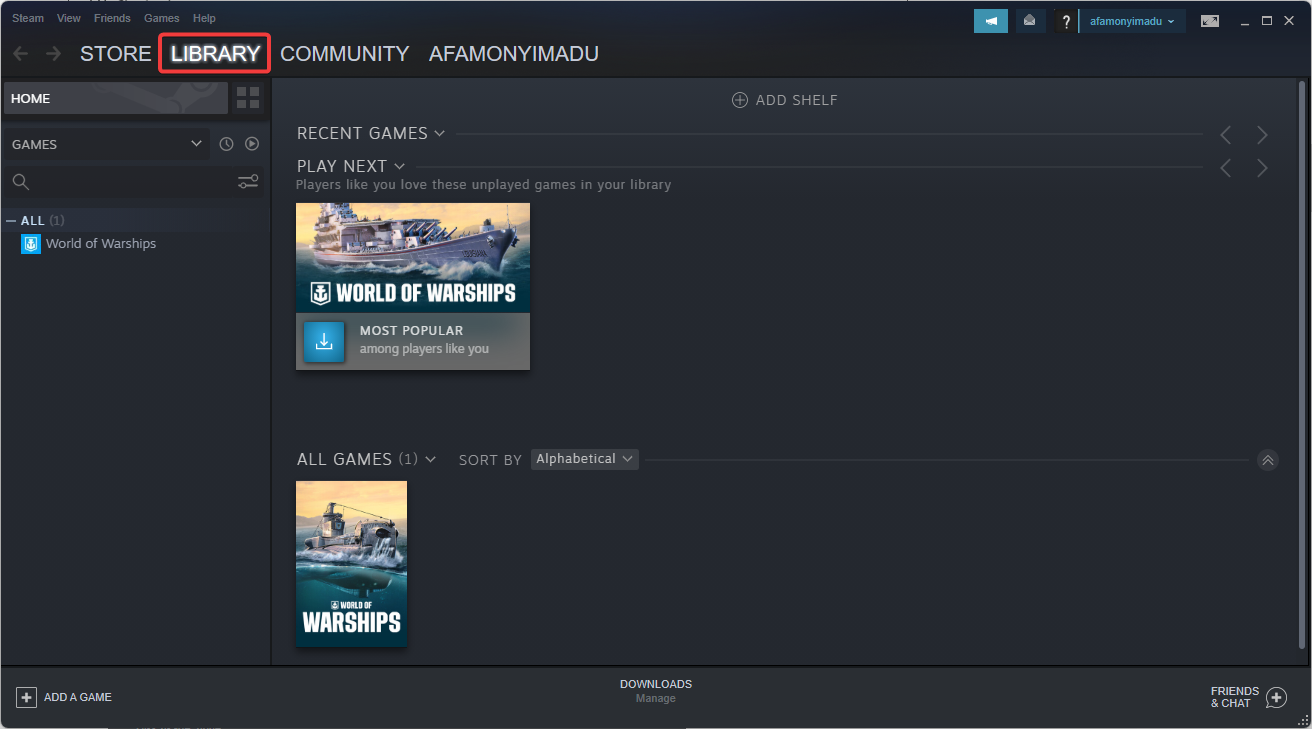
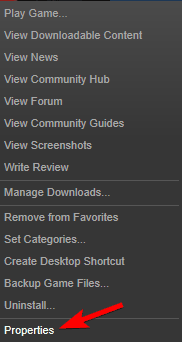
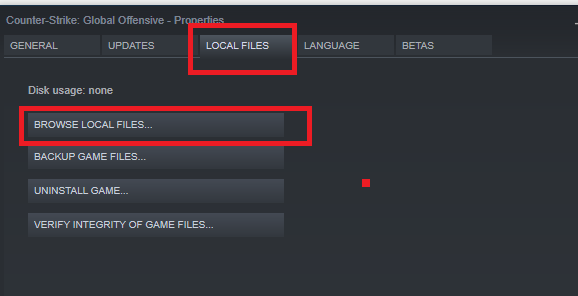
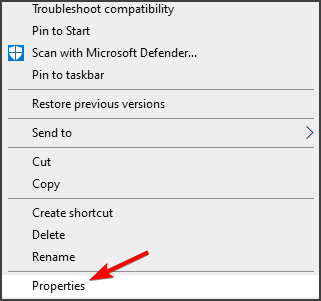
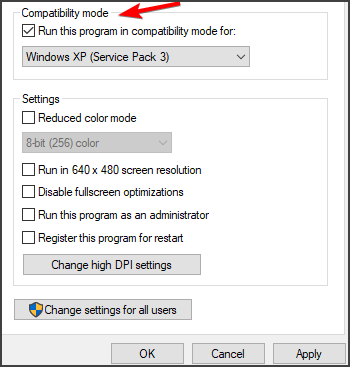
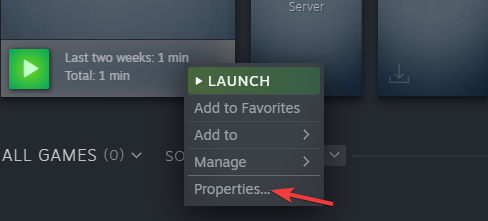
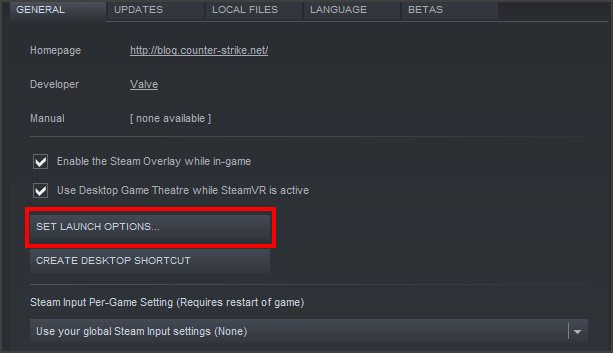

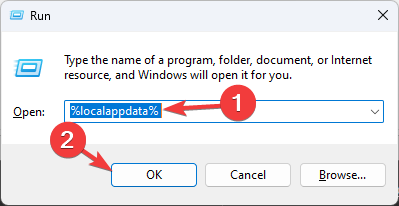
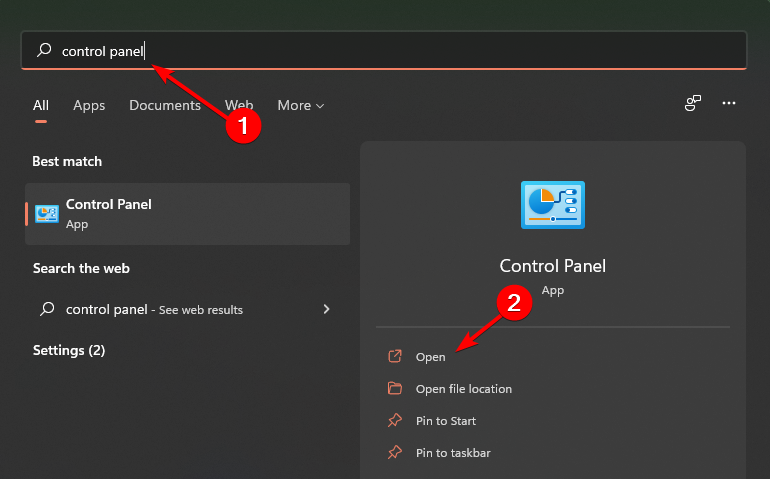
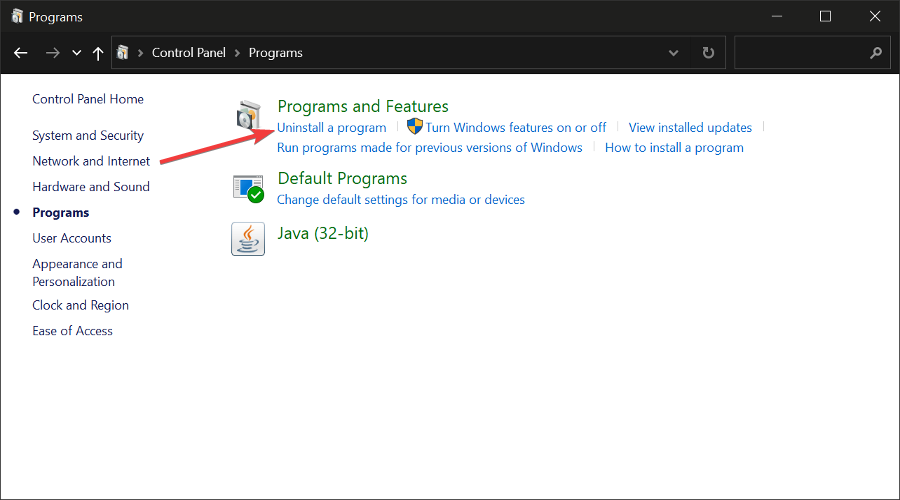

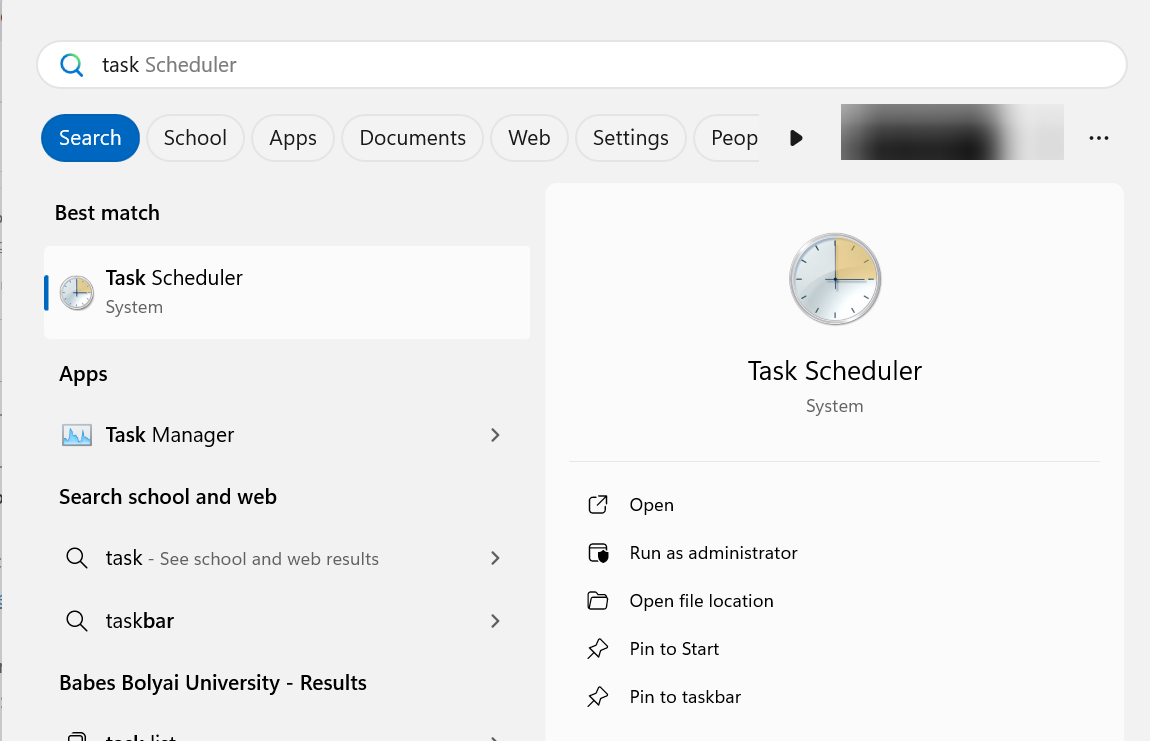


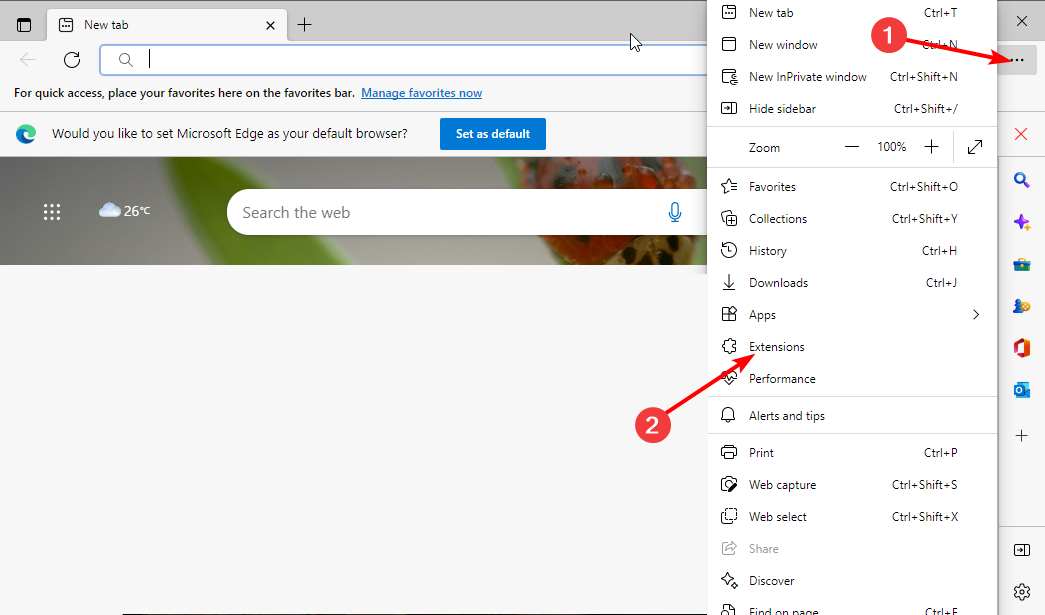
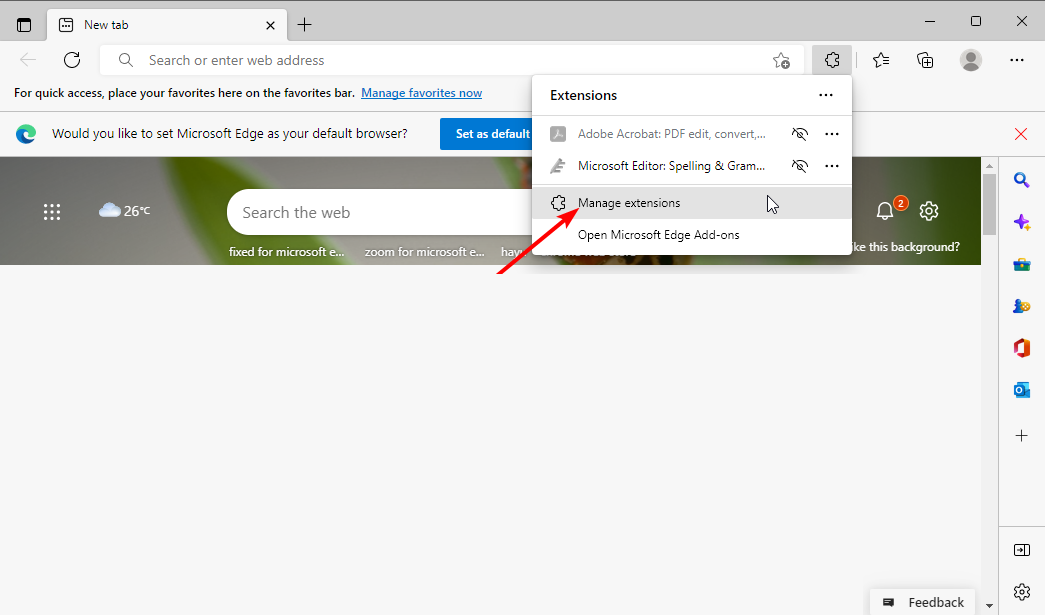
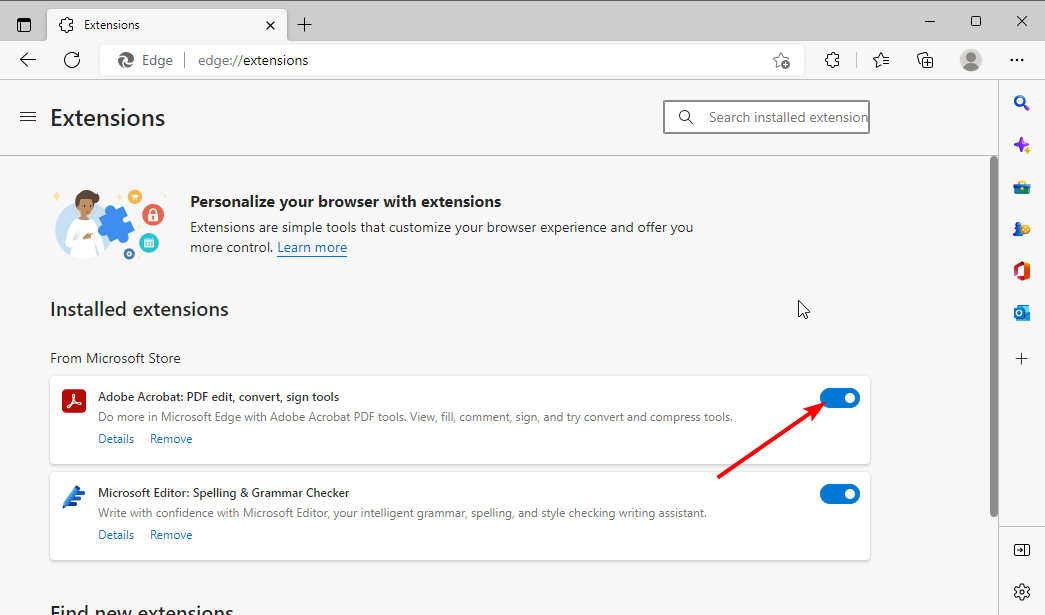
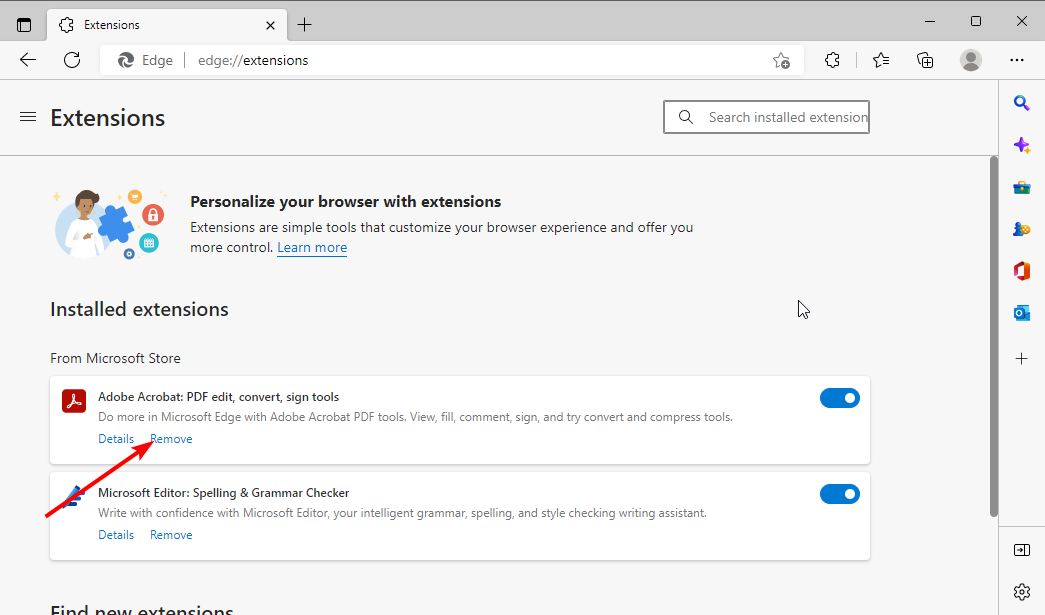
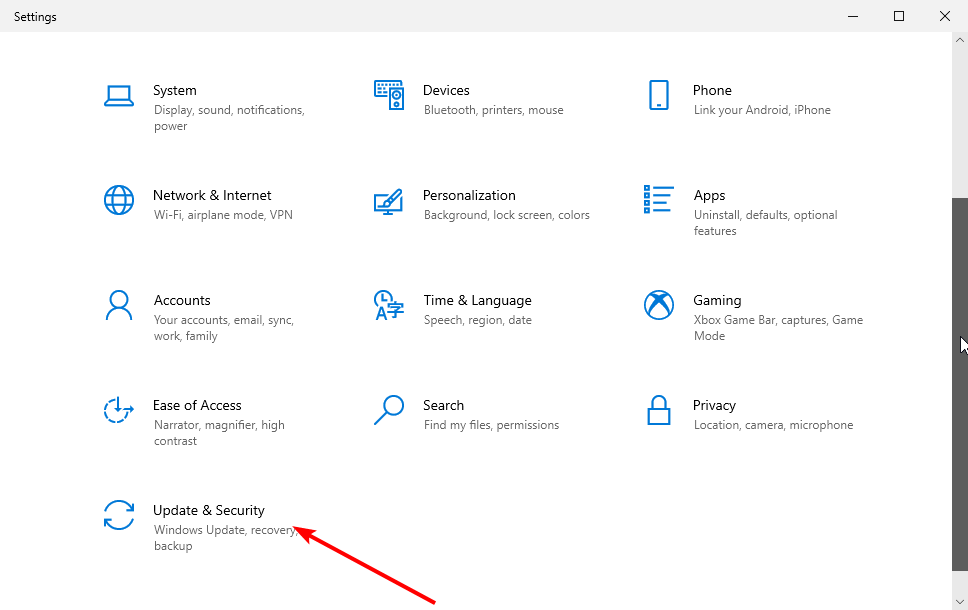
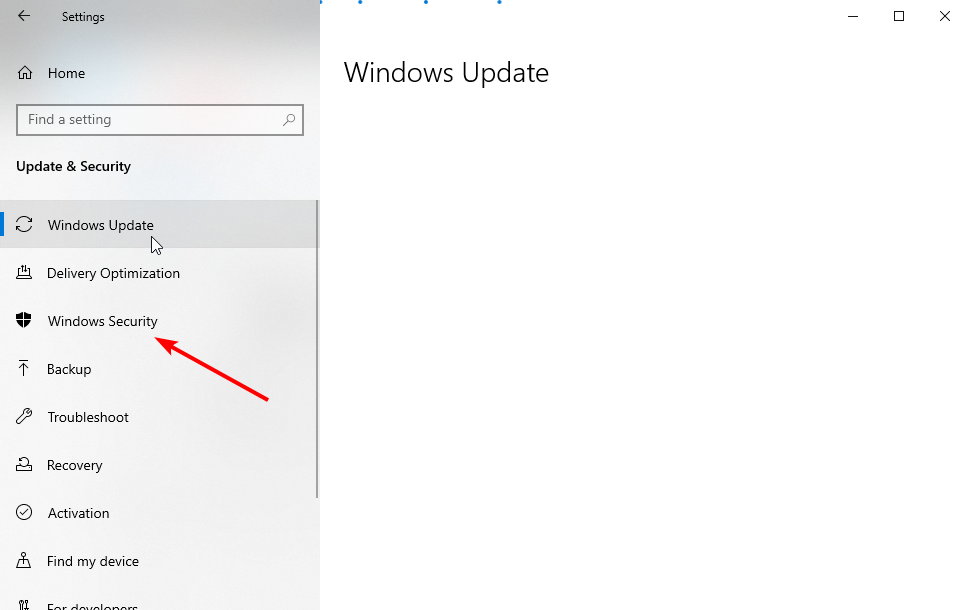
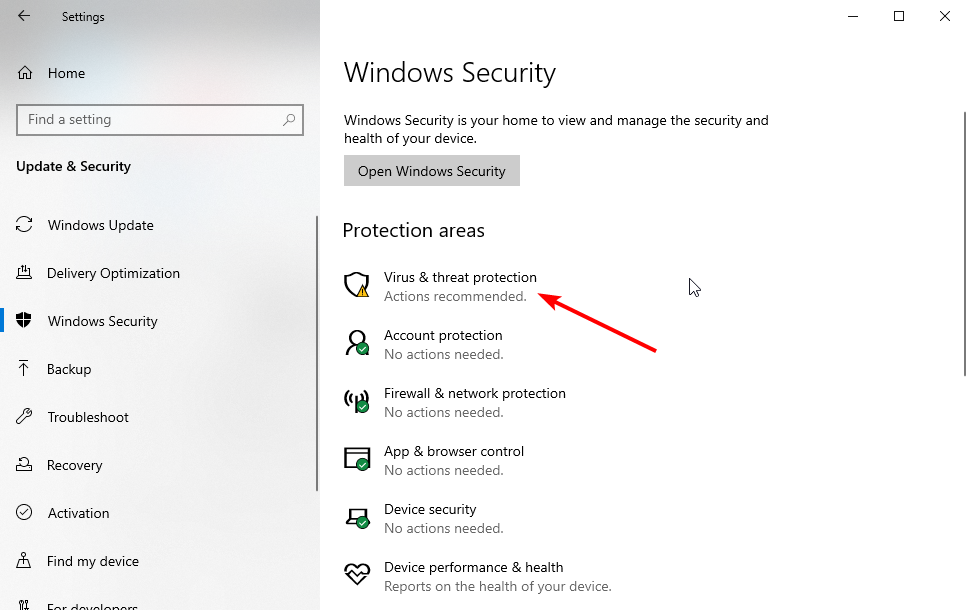
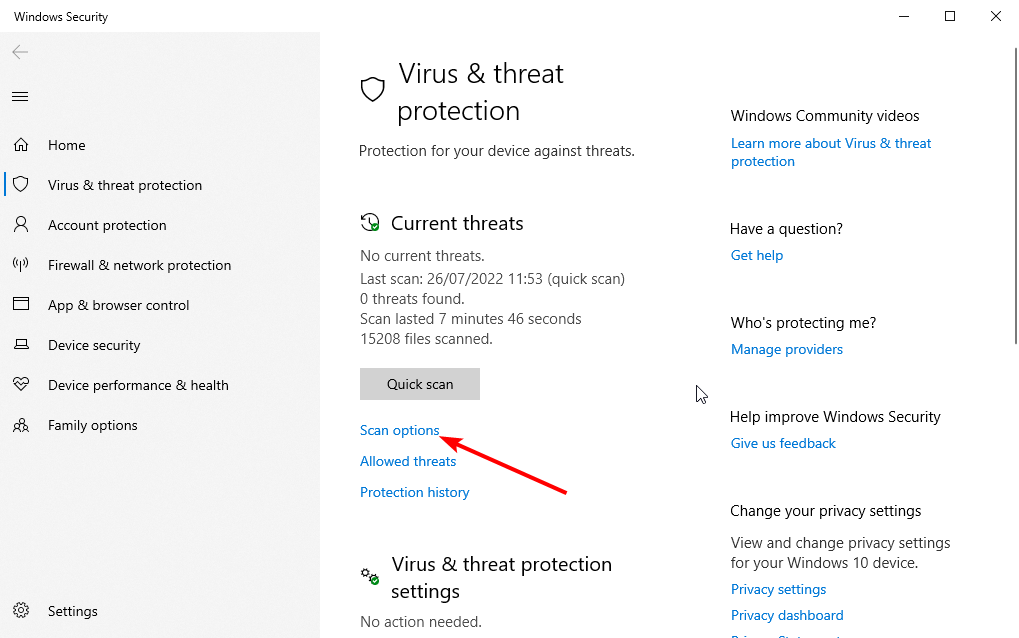
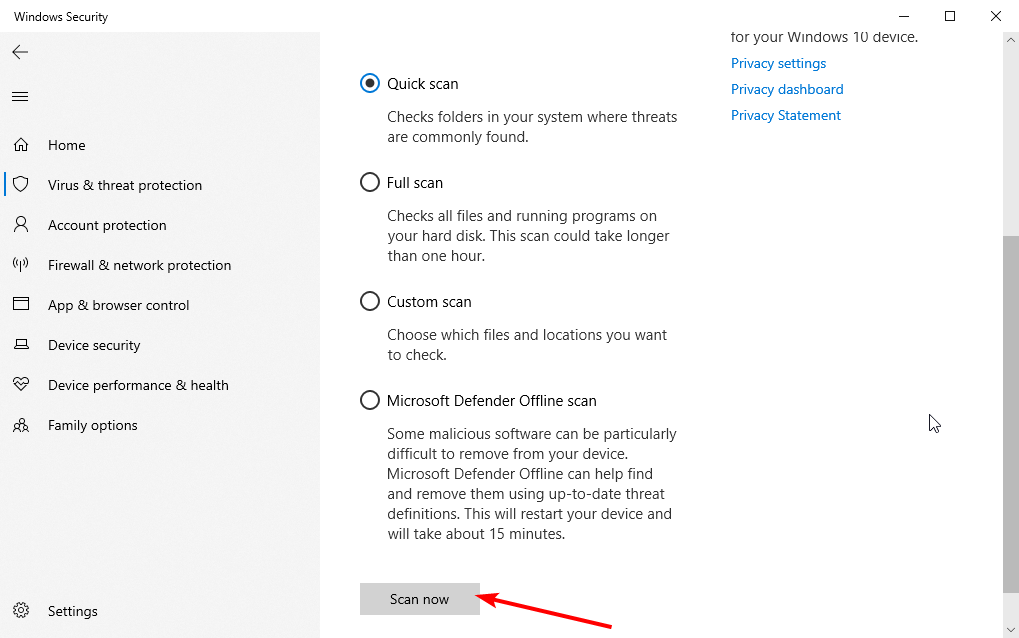
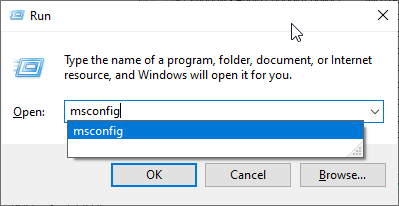
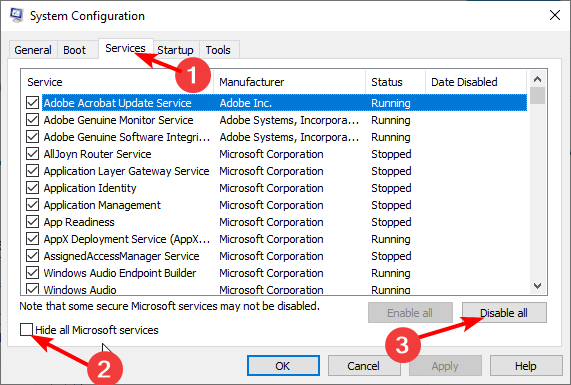
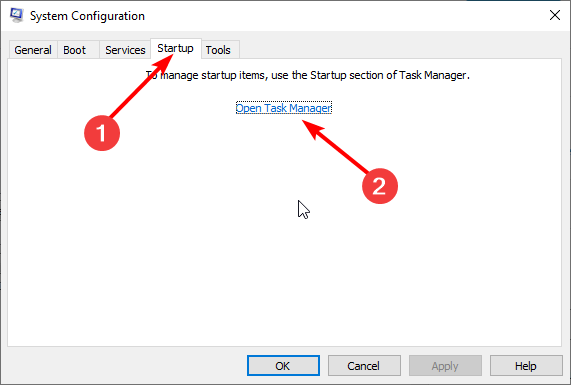
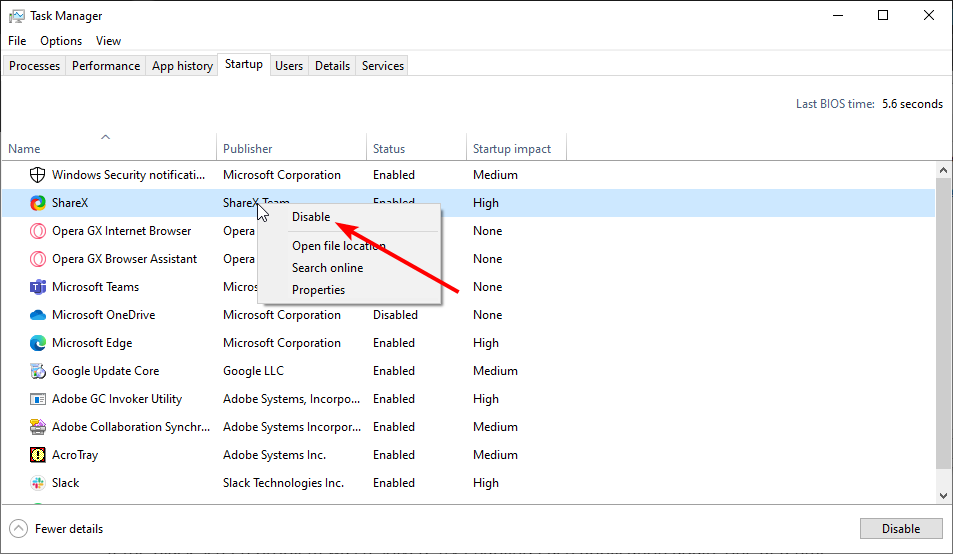
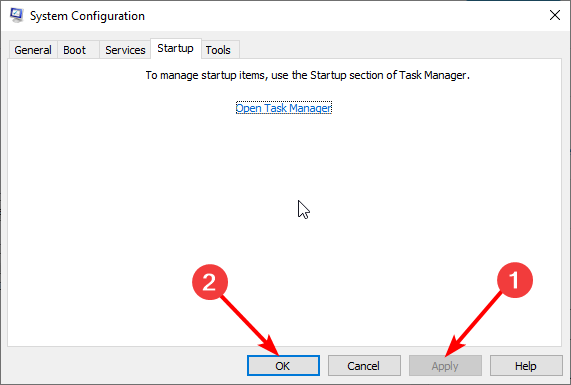
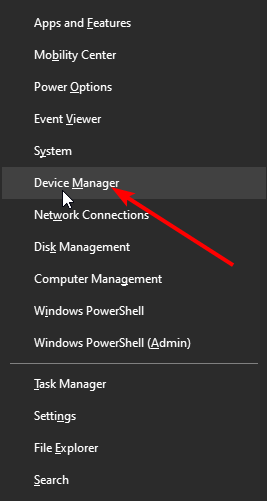
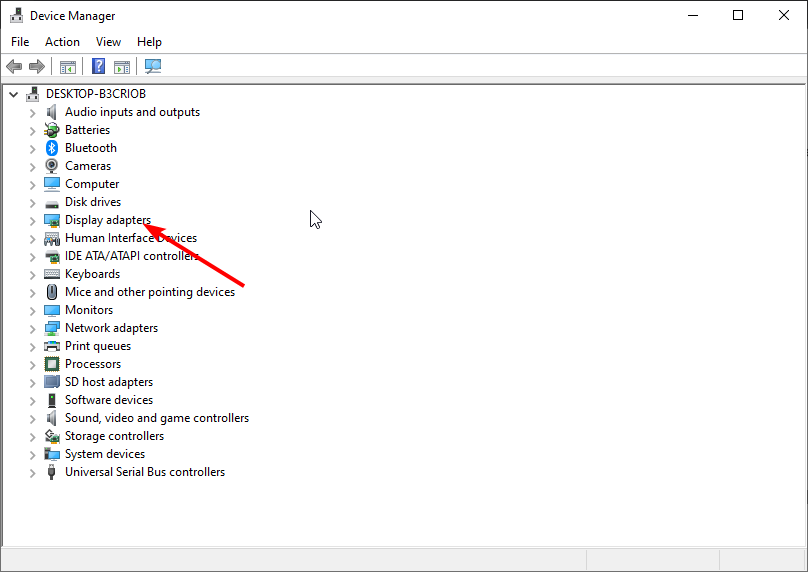
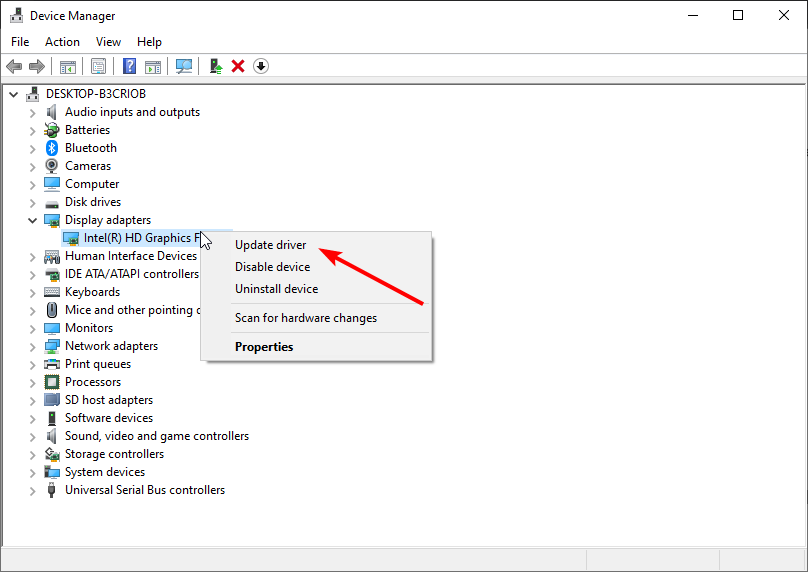
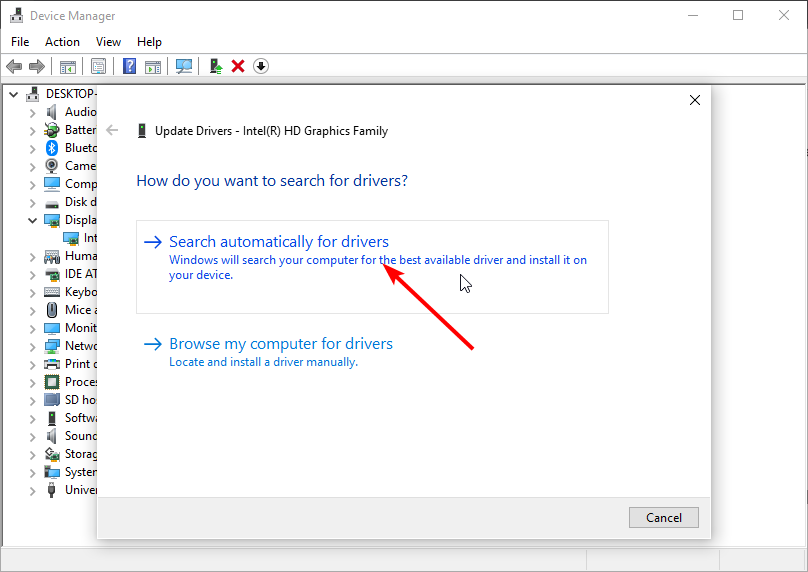
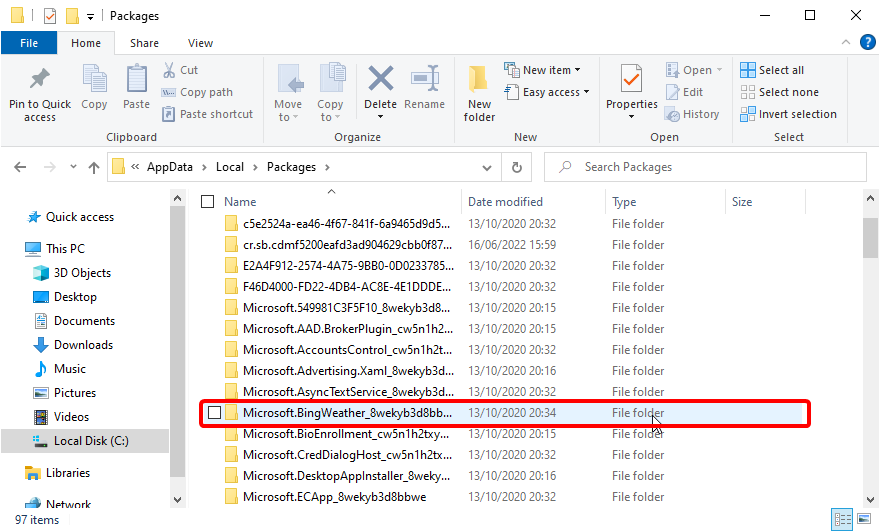
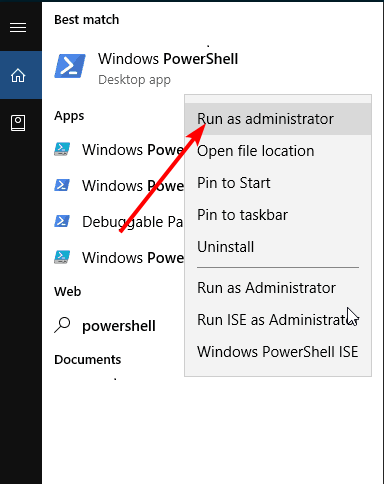
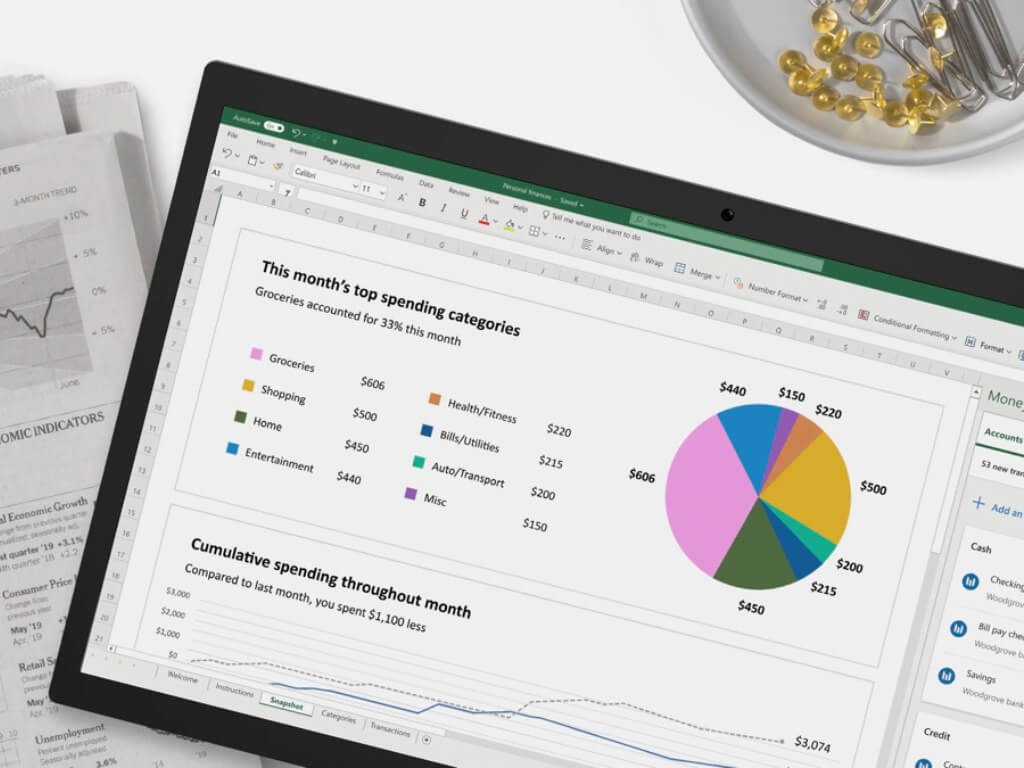
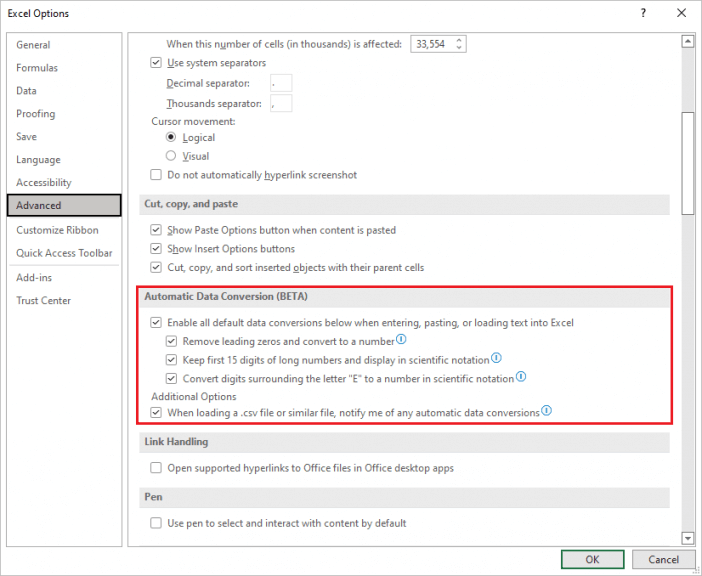
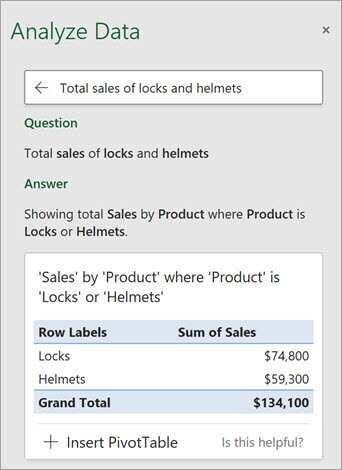
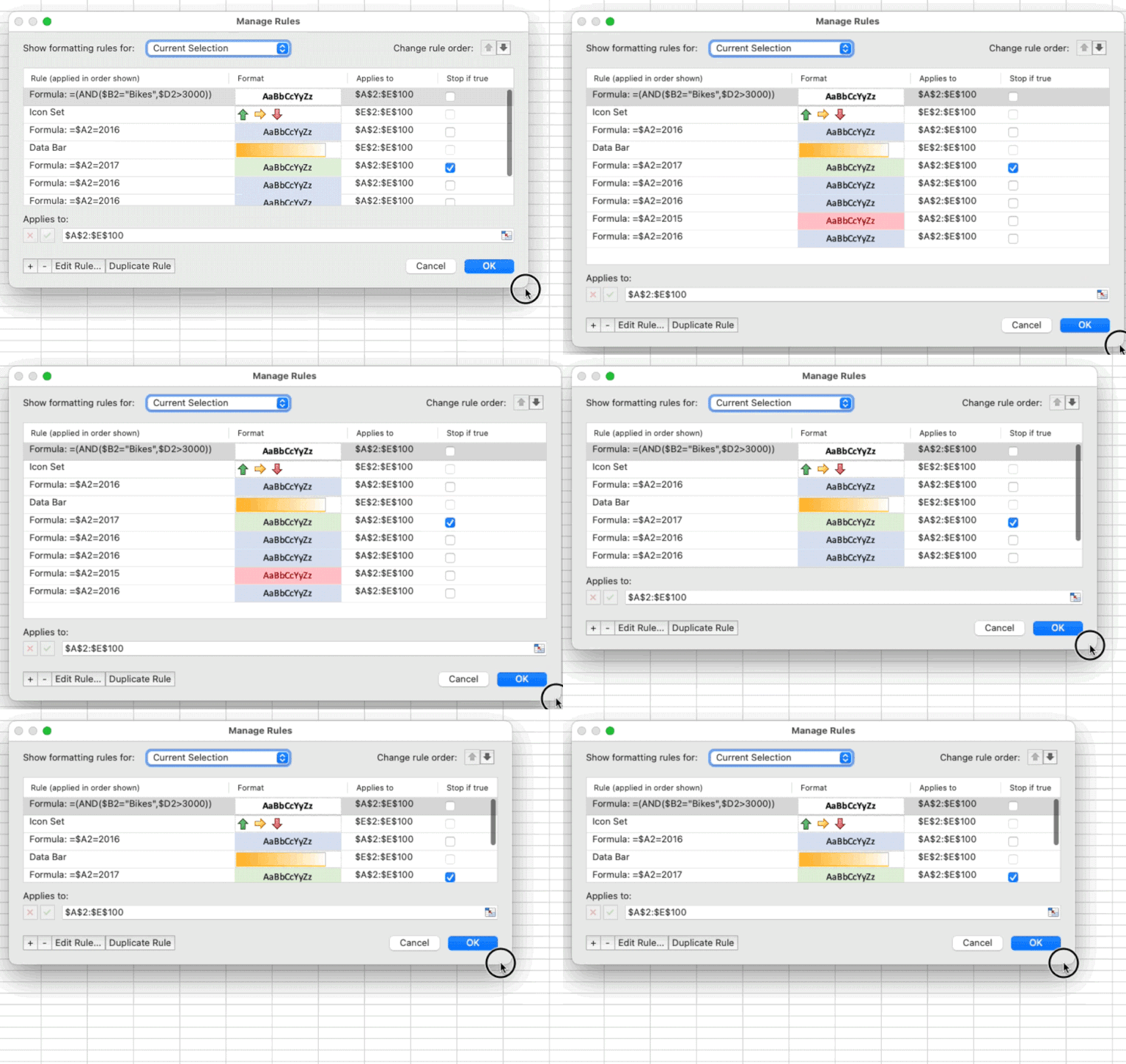




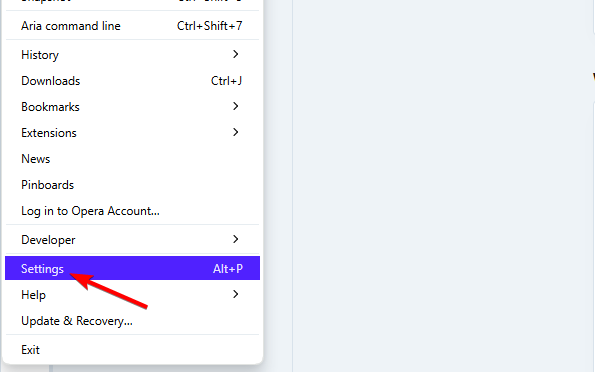


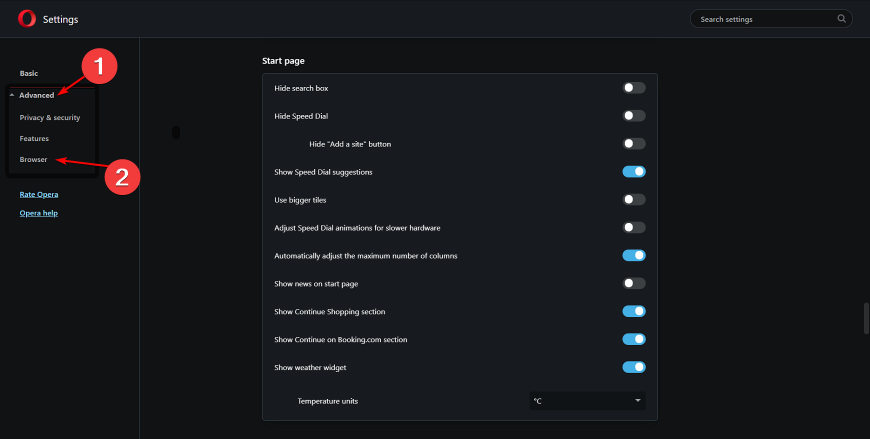
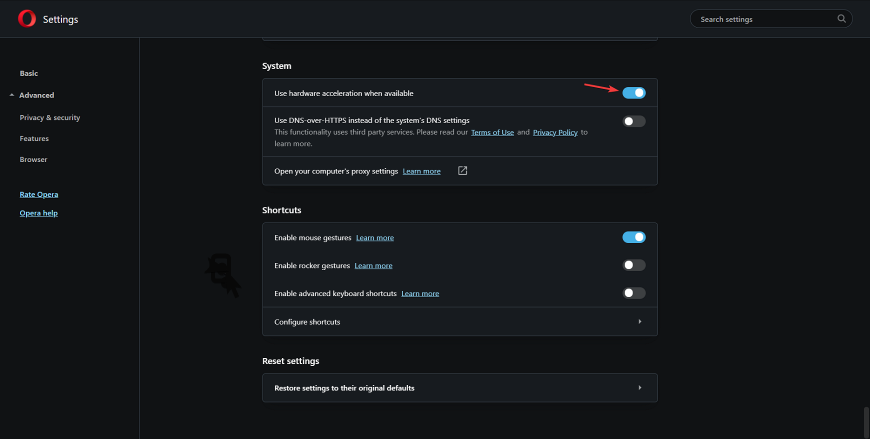






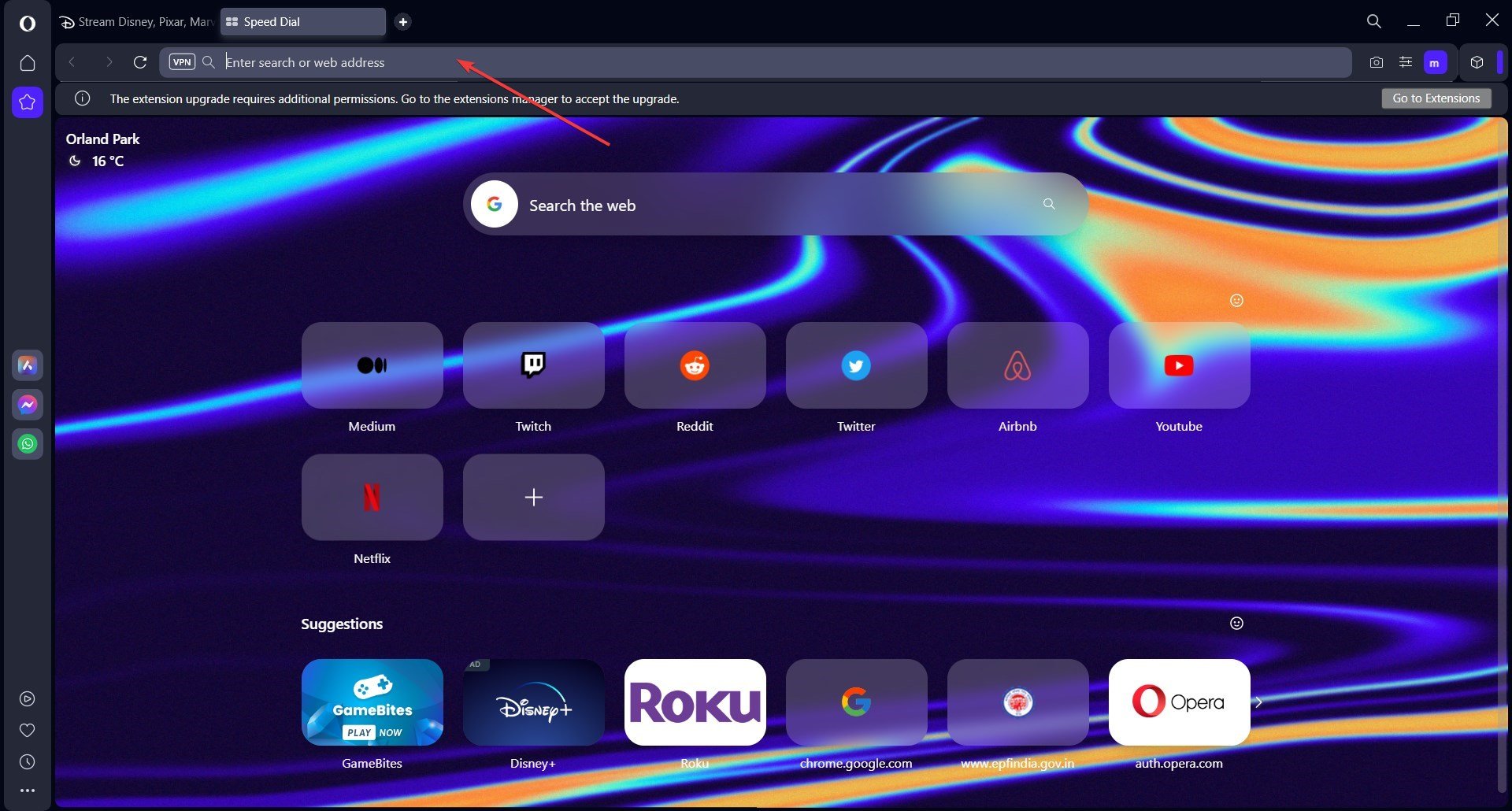
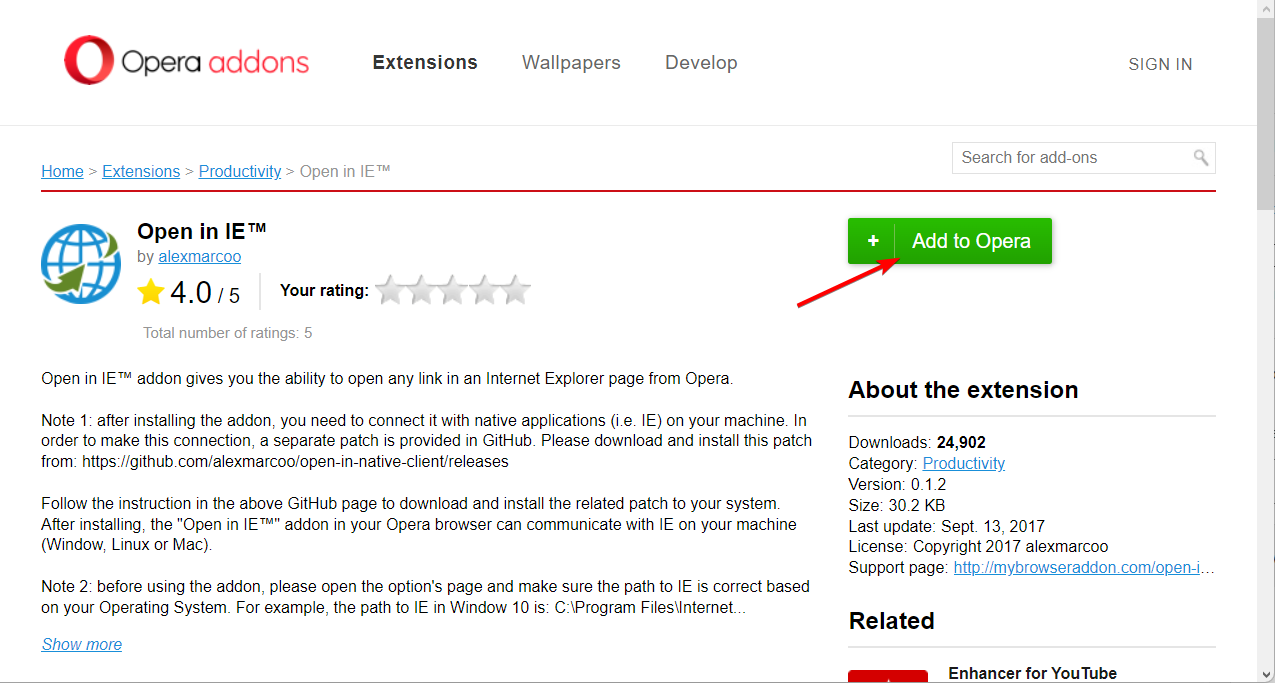
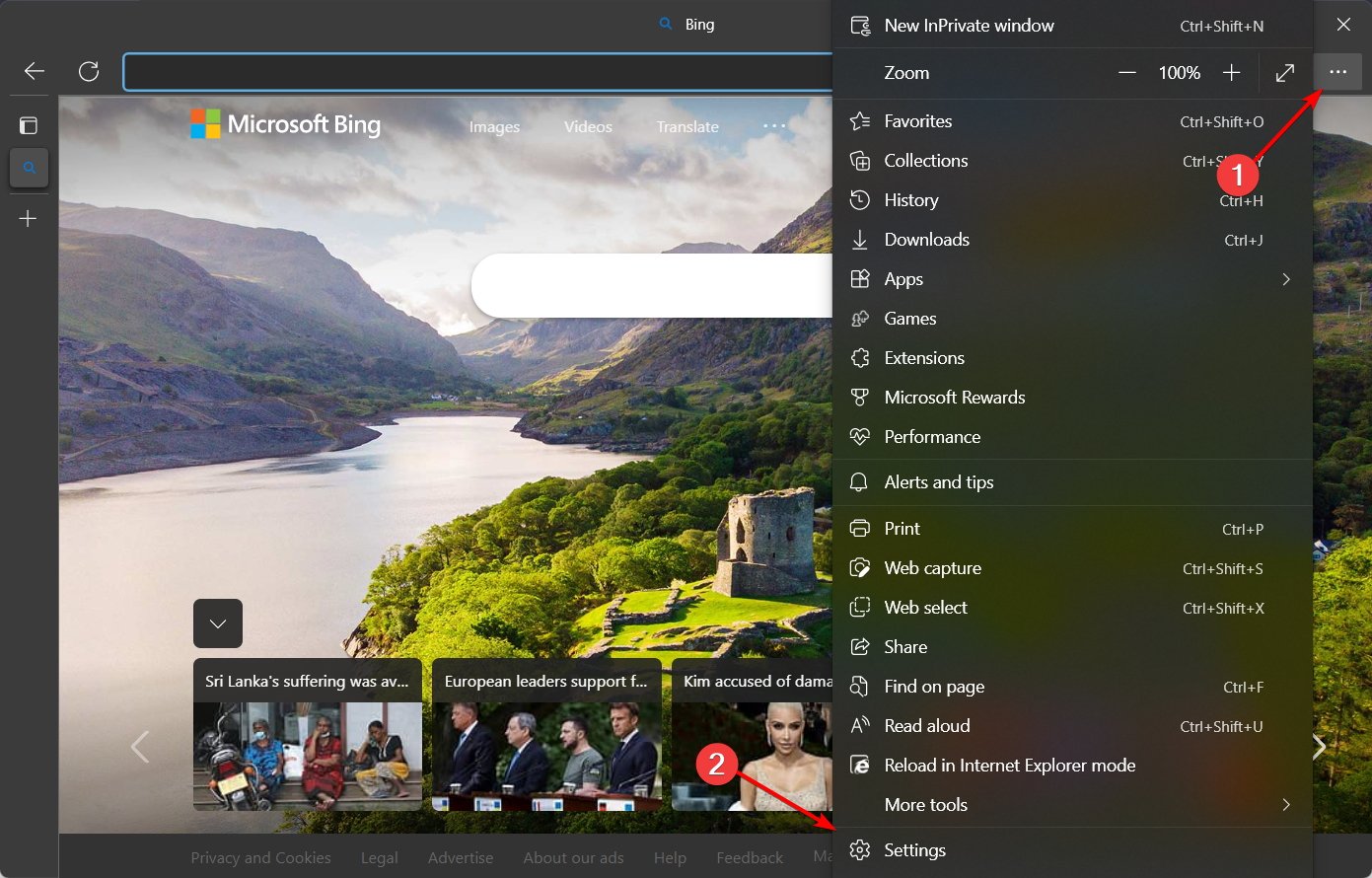
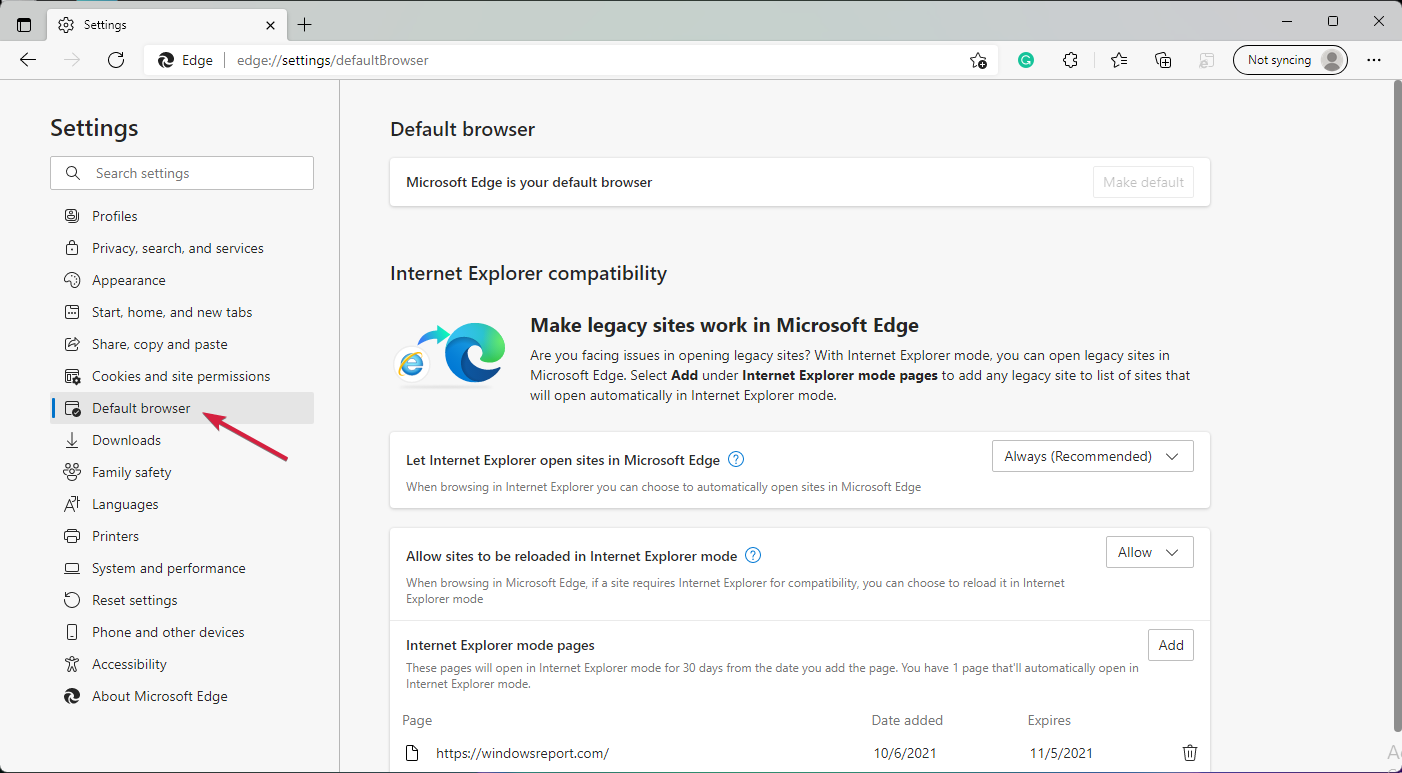
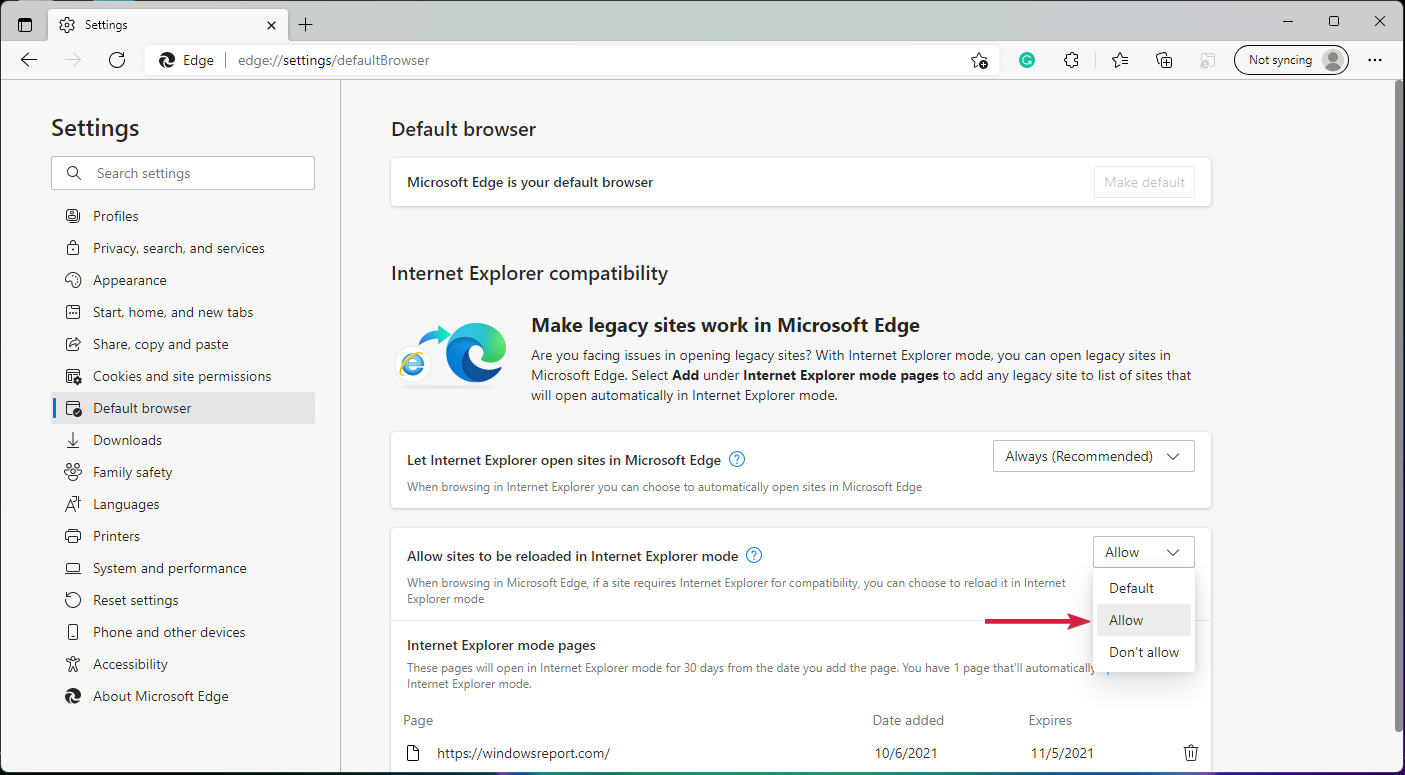
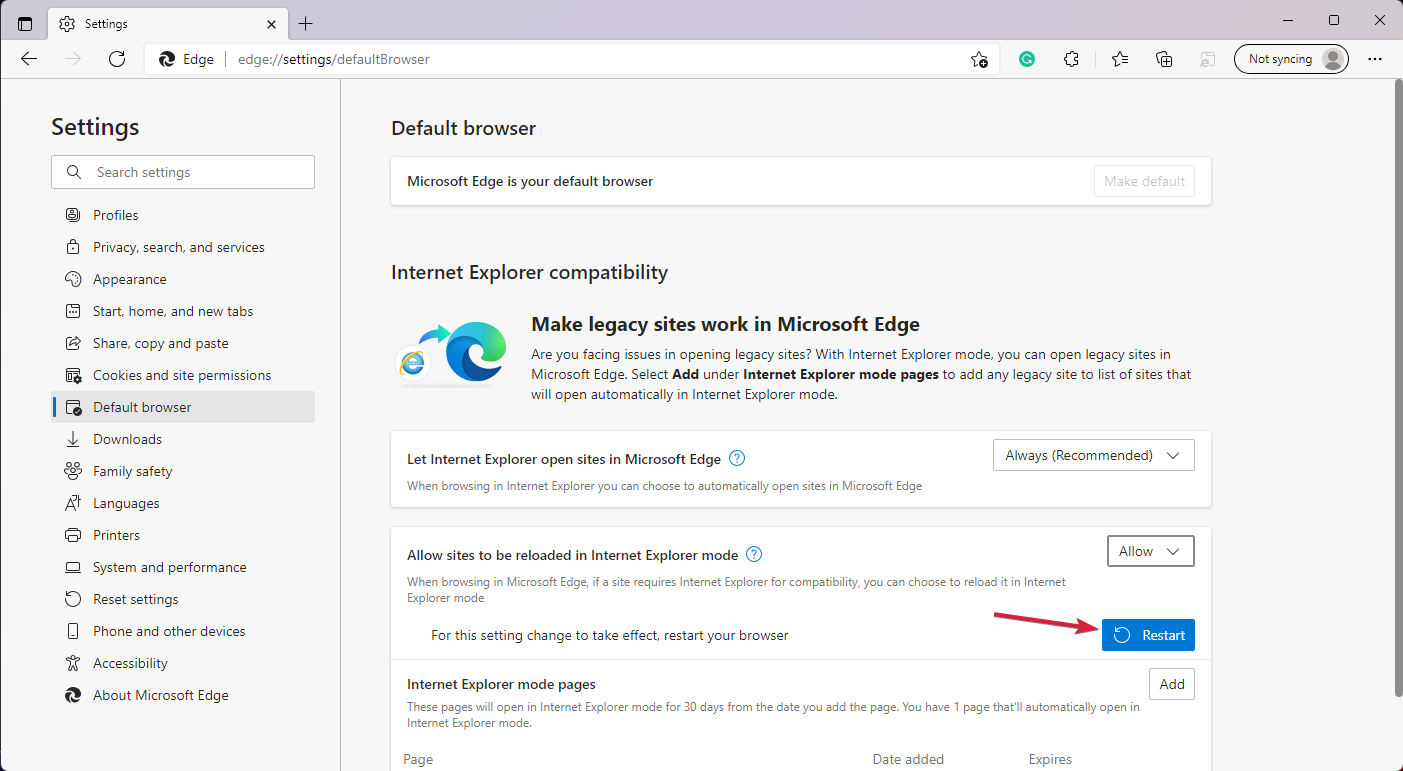

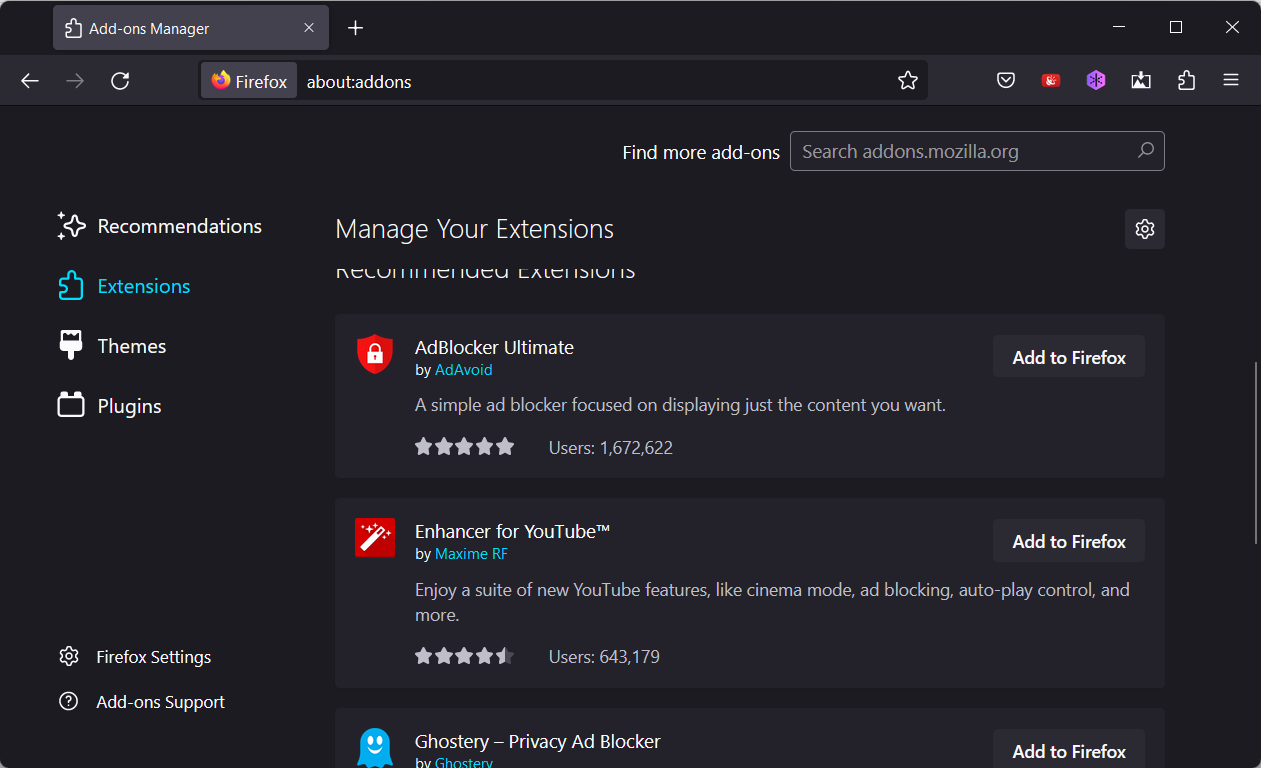
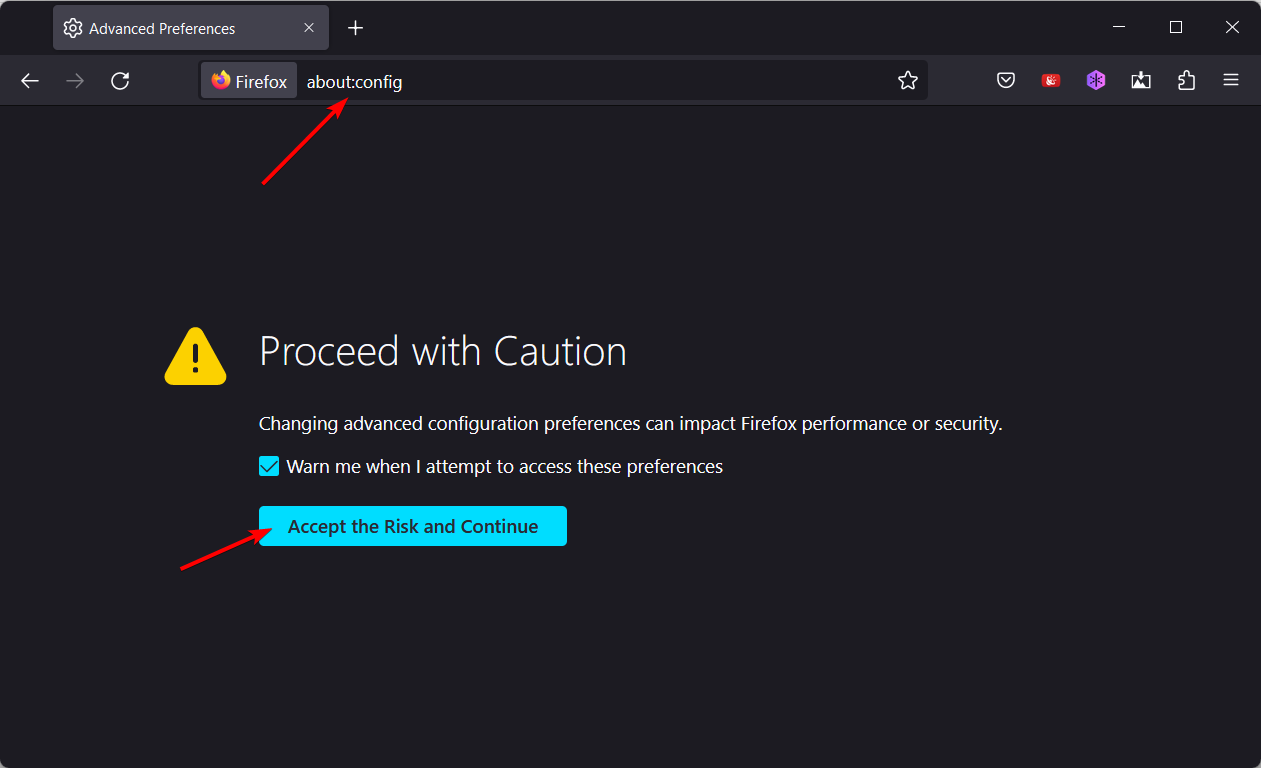
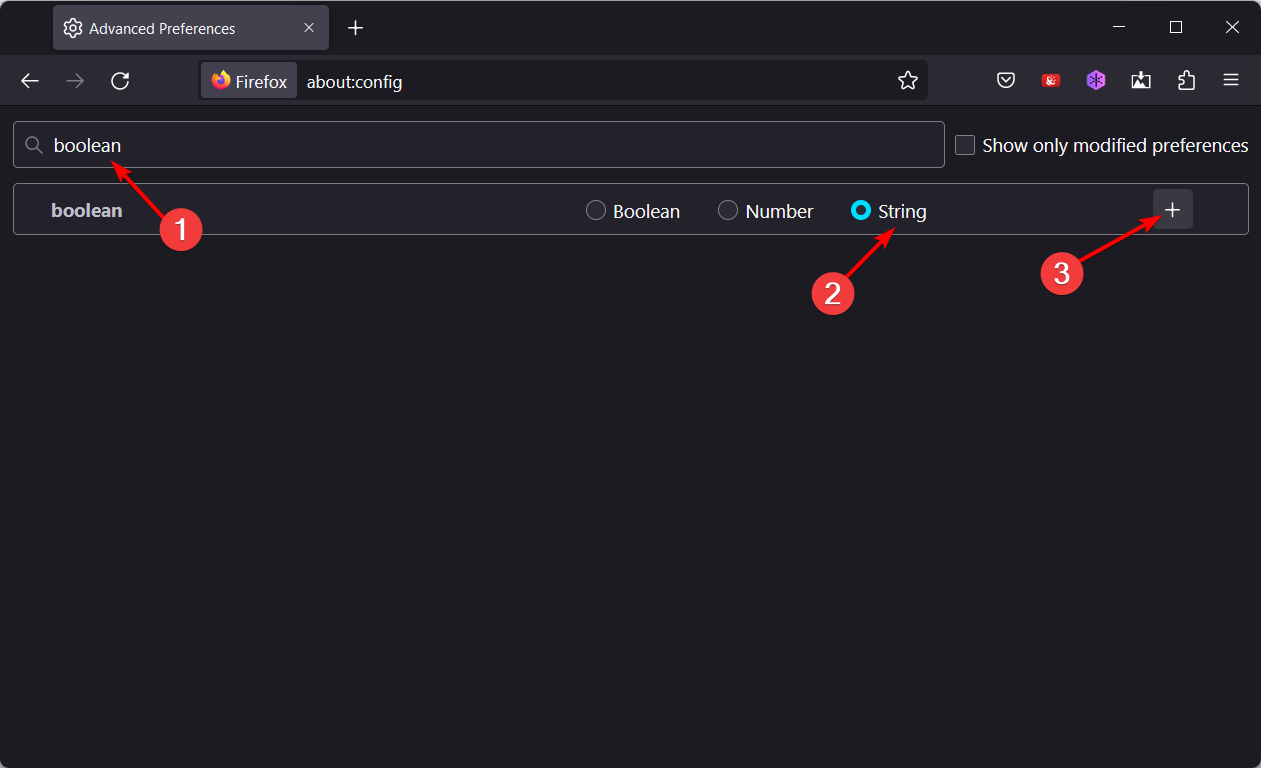
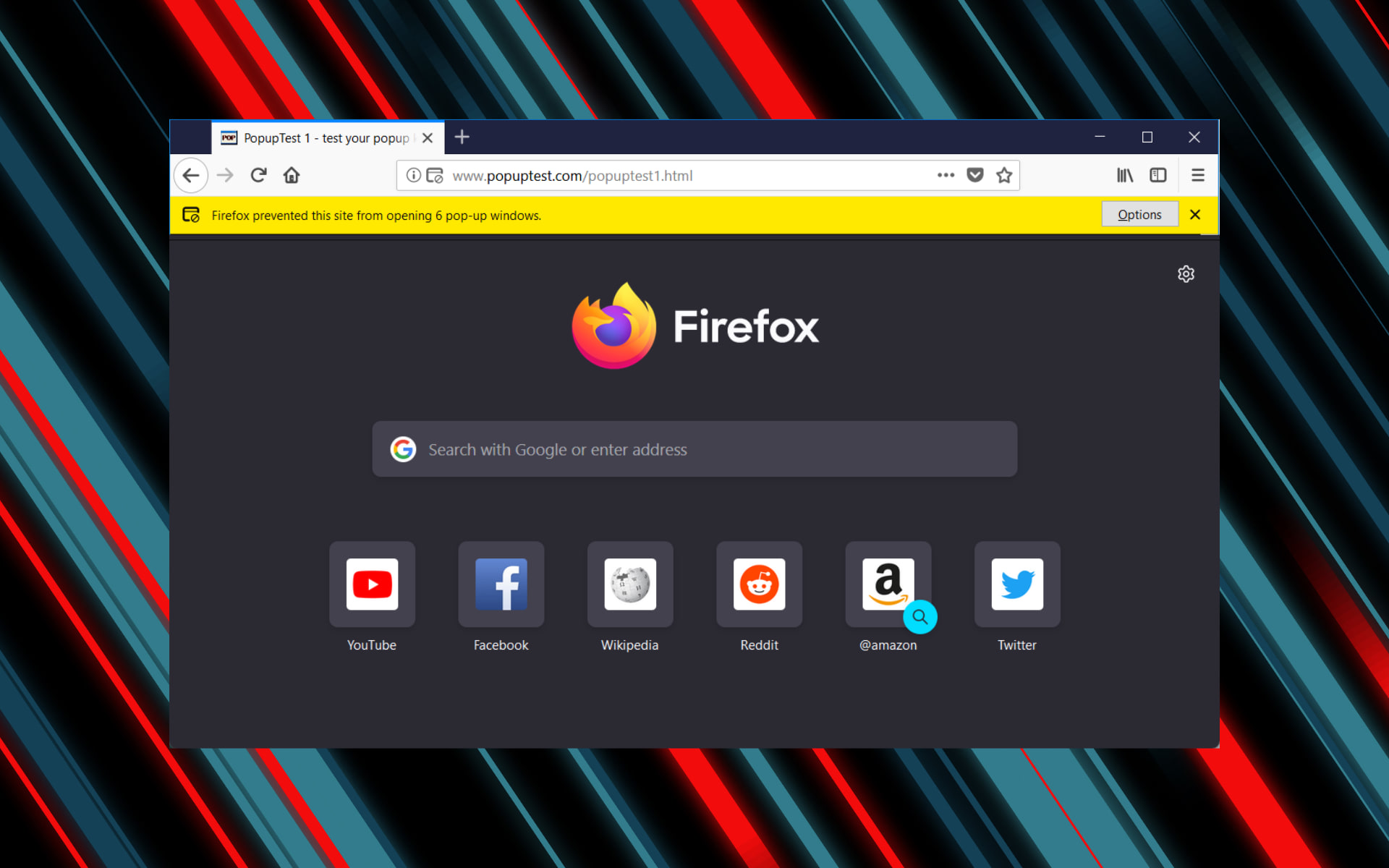


![10 Best Soundboards For Discord In 2026 [Gaming, Youtube]](https://windowsreport.com/wp-content/uploads/2021/02/soundboard-for-discord.jpg)