Lenovo’s rolling out more powerful workstations for both Windows and ChromeOS users

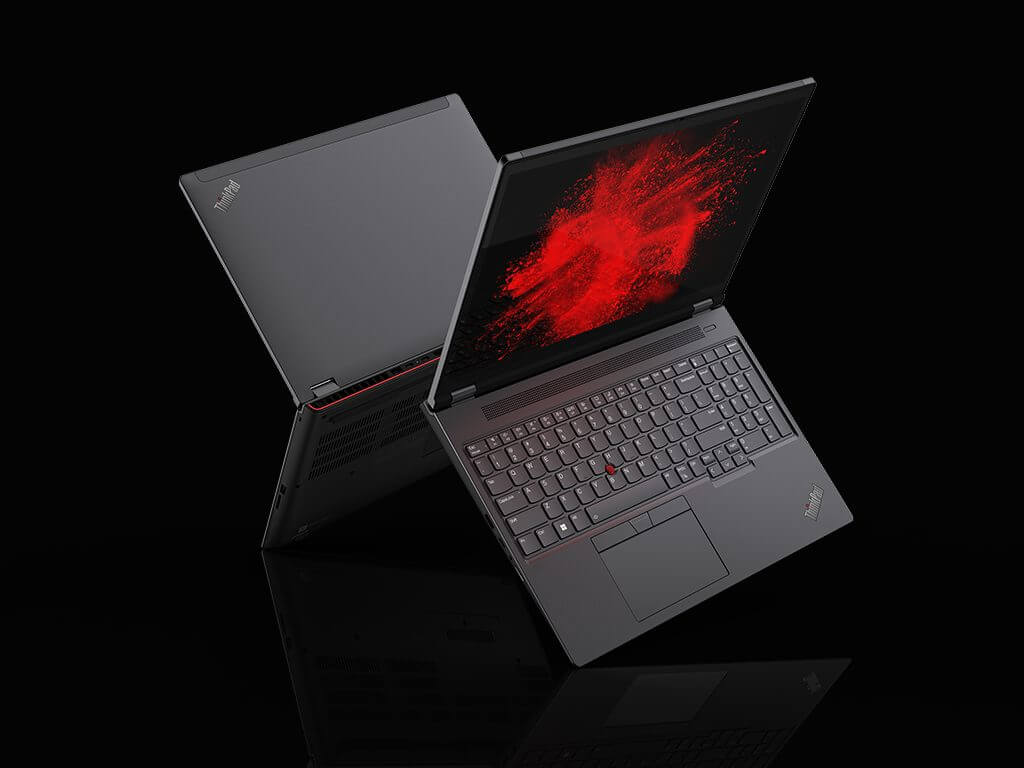
Lenovo is introducing updates to its performance line of ThinkPad’s with the all new “power-packed” ThinkPad P16 and ThinkPad C14 for 2022.

ThinkPad P16

Starting at $1,979

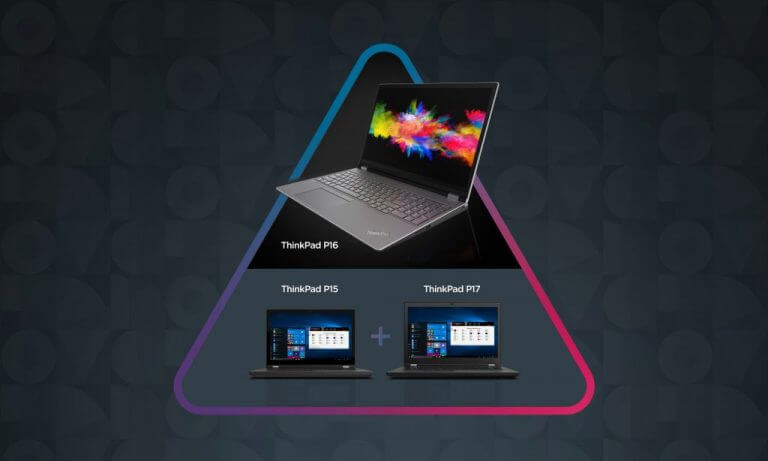
For starters, the ThinkPad P16 will combine the efforts of the ThinkPad P15 and P17 into the single screen option of the P16 going forward. Perhaps, in an effort to consolidate materials and resources the P16 will now become the DeFacto option for performance workstations under the ThinkPad branding at the 14+ screen size aspect ratio.

21_Thinkpad P16_Laptop evolutionB

For the P17 crowd concerned with how the reduction in size might play out with thermal throttling and like, Lenovo claims that the despite its 16-inch display and modernized chassis, the P16’s thermodynamics of the computer have been entirely revamped. Starting with a new cooling solution equipped with dual fans, dual vapor chambers, keyboard air intake, and dual by-pass design.

In addition to more air passing through the system, Lenovo also upgraded the CPU and GPU to take advantage of the new cooling designs with 12 Gen Intel HX-Series Core that can add up to 16 cores to the laptop as fast as 5.0GHz, as well as a discrete NVIDIA RTX A5500 or Integrated Intel UHD graphics.

Buyers can configure their workstations with up to 128GB DDR5 4800MHz and up to 8TB of M.2PCIe Gen 4 NVMe SSDs all powering three different screen options that include 16:10 WQUXGA (UHD+), WQXGA (QHD+) and WUXGA (FHD+). All screen options for the ThinkPad P16 supports 100% sRGB, Low Blue Light, and X-Rite FCC.

While the P16 is marketed as the Windows powered workstation, it can also support Ubuntu Linux, Fedora Linux, and Red Hat Enterprise Linux variants.

The ThinkPad P16 comes with a slightly upgraded outer design starting with a Storm Grey Aluminum option with red rear accents versus the traditional matte black offering over the years.

The port selections remain pretty robust for the P16 which includes 2 USB-A 3.2 Gen 1 Always On ports, 2 USB-C Thunderbolt 4 supported ports, 1 USB-C 3.4 Gen 2 port on the side, and HDMI slot on the back as well as smart card SD Express 7.0 reader and headphone jack combo.

ThinkPad C14

Starting at $629.00

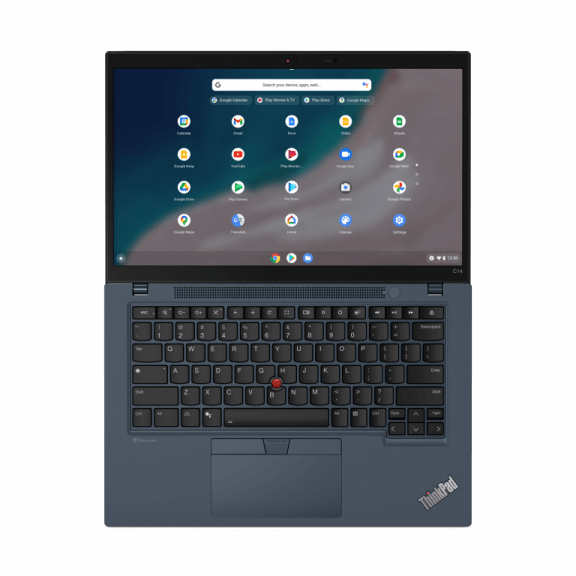
Lenovo is also bringing additional options with its enterprise Chromebook the ThinkPad C14 which adds an Abyss Blue Chrome color option for the laptop as well as the latest Intel chipsets for performance.

More specifically, the C14 comes with support for up to vPro Intel 12 Gen i7 processors and integrated Intel graphics. Memory configurations support up to 16GB LPDDR4x and buyers can make out on-device storage with either 128GB of eMMC or 256GB of SSD options.

As with most Chromebooks, the battery is expected to be stellar with a 57 Whr battery packed in there with support of Rapid Charge with 65W AC.

16_Thinkpad_C14_Chromebook_Tour_Birdseye_B_C_cover

As for the overall design, the C14 sports 14-inch FHD IPS and IPS LCLW touch options that can get as bright as 300 nits and now weighs a solid 3.44 lbs. which is a 2% increase over last year’s option.

Unfortunately, Lenovo is still reliant on buyers accepting an FHD RGB webcam in 2022 but does include a backlit keyboard, Waves MaxxAudio supported front firing speakers and plenty of ports such as a full HDMI port, 2 USB-A 3.2 slots, 2 USB4 Type-C (vPRo with Thunderbolt) ports and an audio jack.

As an added layer of security Lenovo is also packing in a Titan C security chip for enterprise use as well as Chrome Enterprise with Chrome Zero Touch Enrollment out of the box for the C14.

The P16 goes on sale later this month while the C14 makes its debut in June, 2022.

Jurassic World Evolution 2, Sniper Elite 5, and more are coming soon to Xbox Game Pass

As we had already informed you, May is a busy month for Xbox Game Pass and now it’s time for you to charge your controllers and get ready. As such, Microsoft has just shared a comprehensive list of Xbox Game Pass titles that are set to be launched soon. Some of the listed entries are already available for play while the rest are expected to be released as this month progresses. This is on top of the four video games that already joined Xbox Game Pass on console, PC, and cloud earlier this month.

Her Story is already available, where you will get to delve deeper into the mystery and in the process get to uncover the woman’s story. Another entry that is already available on Cloud, Console, and PC is Jurassic World Evolution 2 where gamers will be introduced to “a compelling new campaign and Chaos Theory Modes, range of new features, customization options and awe-inspiring new dinosaurs that include flying and marine reptiles.”

Other entries that are also available for gameplay include:

  • Little Witch in the Woods (Game Preview) (Console and PC) ID@Xbox
  • Skate (Cloud) EA Play
  • Umurangi Generation Special Edition (Cloud, Console, and PC) ID@Xbox

Coming Soon

Microsoft has a couple of entries in store that will be released throughout the cause of this month, among them Farming Simulator 22 set to be released on May 19 which features new ground working techniques, improved build mode, and a new character creator. With that said, Vampire Survivors will also be coming to Xbox Game Pass on the same date where you will get the chance to go against hordes of monsters with an array of weapons at your disposal.

Xbox Game Pass

Floppy Knights, a day one release, will make its way to Game Pass on May 24 for Cloud, Console, and PC. Hardspace: Shipbreaker, another ID@Xbox game, will also be available on May 24 where gamers will now be able to upgrade their gear which will in return allow them to score high-paying contracts that will allow them to settle up their debt LYNX Corporation.

Sniper Elite 5, another ID@Xbox game will be available on May 26, where gamers will be able to battle their way through the “most impressive map yet” that incorporates real-world locations. The game also features an improved traversal system that is set to enhance gameplay. Cricket 22 which features 4k visuals and more licenses and Pac-Man Museum+ will both be available on May 27.

Game Updates

Grounded: The Bugs Strike Back is also set to receive an update where gamers will be equipped with “new base defense modes, new armor upgrades, additional crafting items and traps, an all-new bestiary system, and more.”

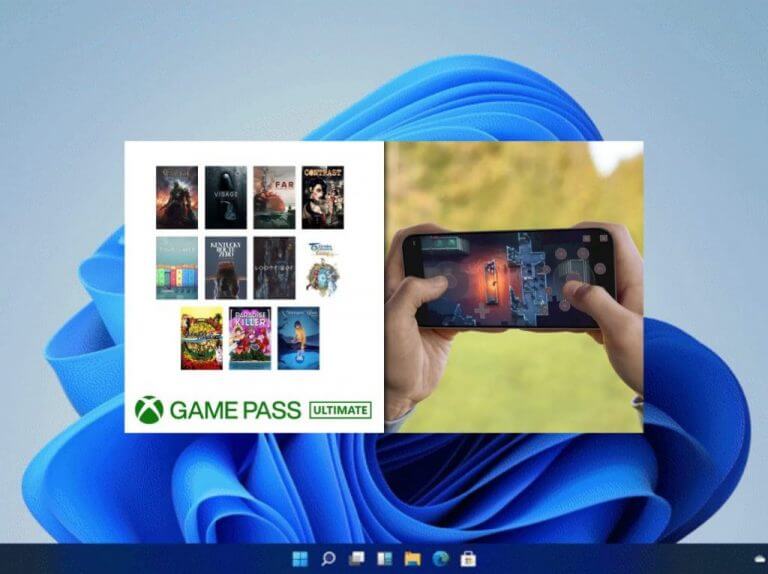
Microsoft has also incorporated Xbox touch controls to more games, this way they get to tap into a wider audience rather than limit the fun to gamers with controllers. The Xbox touch controls are now available to 11 more games that are ready to play from the cloud.

New games get Xbox touch controls

  • A Memoir Blue
  • Contrast
  • Danganronpa 2: Goodbye Despair Anniversary Edition
  • Eiyuden Chronicle: Rising
  • Far: Changing Tides
  • Kentucky Route Zero
  • Loot River
  • Paradise Killer
  • Tainted Grail: Conquest
  • Townscaper
  • Visage

Leaving Xbox Game Pass on May 31

Aside from the listed additions, Microsoft has also listed a number of games that will be leaving Xbox Game Pass to make more room for more entries:

  • EA Sports NHL 20 (Console)
  • Farming Simulator 19 (Cloud, Console, and PC)
  • Knockout City (Console and PC) EA Play
  • Resident Evil 7 Biohazard (Cloud, Console, and PC)
  • Spellforce 3: Soul Harvest (PC)
  • Superhot Mind Control Delete (Cloud, Console, and PC)
  • Yes Your Grace (Cloud, Console, and PC)

Get cracking with the new entries that have made it to Xbox Game Pass and be sure to keep it here for more Xbox and Video Games news.

Full Fix: No Route Error on Discord [RTC connecting]

A lot of players utilize Discord’s voice chat for gaming. However, a No Route Discord error can arise when some users try to connect with a voice channel. Consequently, they can’t utilize the voice chat in Discord.

Even if this might be a pretty annoying issue, you don’t have to worry! We have some methods to get rid of it with ease and effortless.

Because it’s important to be aware of the reasons why this error may occur, we suggest checking the following information.

What can cause the No Route Discord error?

Before trying to fix this annoying issue, you should be aware of its causes. This occurs when you attempt to connect to a voice channel in a Discord server and the ISP/Network on the user end is unable to connect. 

Thus, the app becomes obstructed from connecting to a voice server more often than not by an issue linked to dropouts, VPNs, and firewall restrictions.

There are some potential resolutions for the No Route Discord error and we’re going to present you the best of them.

How do I fix the No Route Discord error?

1. Restart the router

First, try restarting your PC and router. To restart the router, unplug it. Wait for a few minutes, then plug it back in.

You can also restart the application, so the Windows system checks any issues and resolves them when needed.

2. Check the firewall settings for Discord

  1. Hit the Windows key.
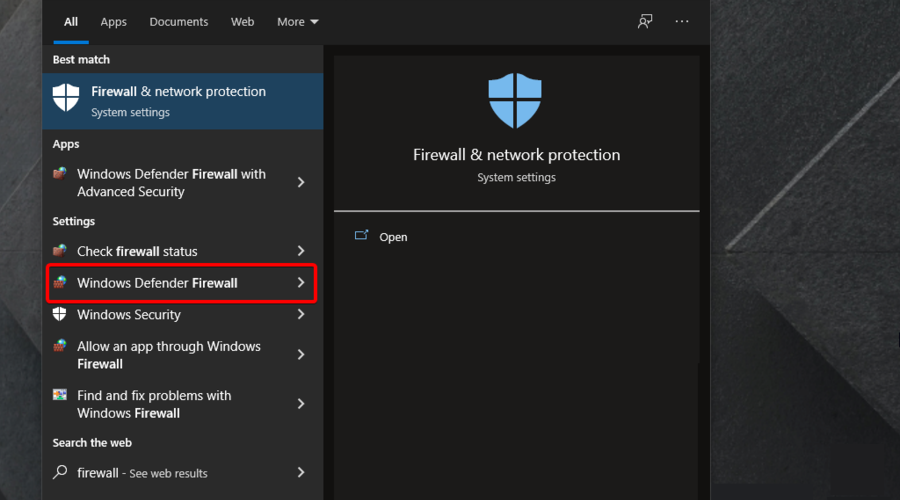
  2. Typle firewall, then select Windows Defender Firewall to open that Control Panel applet.
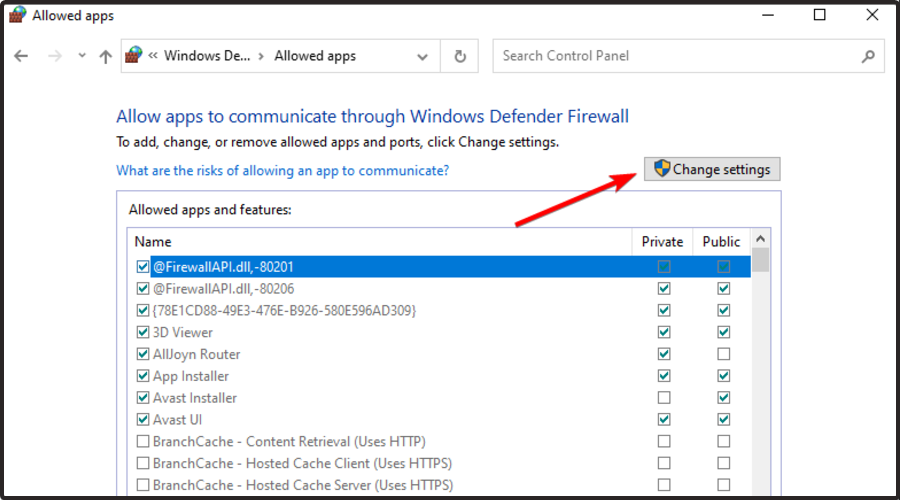
  3. Click Allow an app or feature through Windows Defender Firewall to open the allowed app option shown directly below.
  4. Click the Change settings option.
  5. Then select all the check boxes for Discord if they’re not selected.
  6. Press the OK button.

3. Turn off the Enable Quality of Service High Packet Priority setting

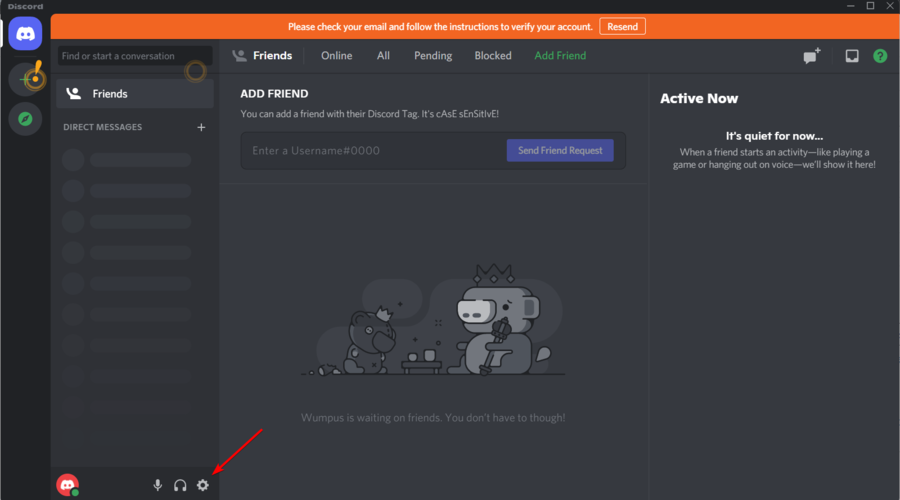
  1. Click the gear button at the bottom left of Discord to open further options.
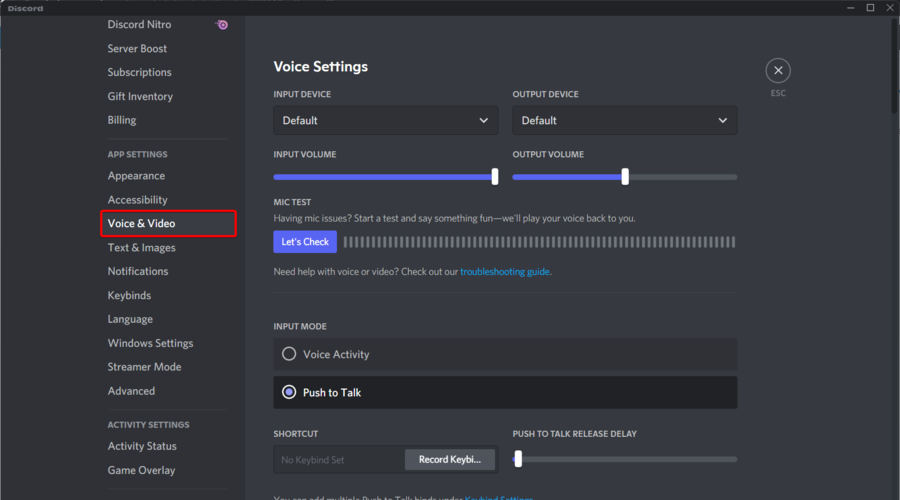
  2. Go to Voice & Video.
  3. Scroll-down and toggle the Enable Quality of Service High Packet Priority option off.
  4. After disabling this option, restart Discord.

Using Quality of Service High Packet Priority will offer the best latency. This feature is enabled by default in Discord, but some routers or ISP (Internet Service Providers) might misbehave when this option is enabled in Discord settings.

Turning off Discord’s Enable Quality of Service High Packet Priority option might fix the No Route error for some users.

4. Disable VPN software

  1. Hit the Windows key, type network, then select View network connections to open the Control Panel applet shown directly below.
  2. Right-click your VPN there and select Disable.
  3. Then try connecting to a voice channel in Discord with the VPN disabled.

The No Route error can arise on Discord when users are utilizing VPN software that doesn’t utilize the User Datagram Protocol.

5. Uninstall antivirus software

  1. Use the following keyboard shortcut: Windows + R.
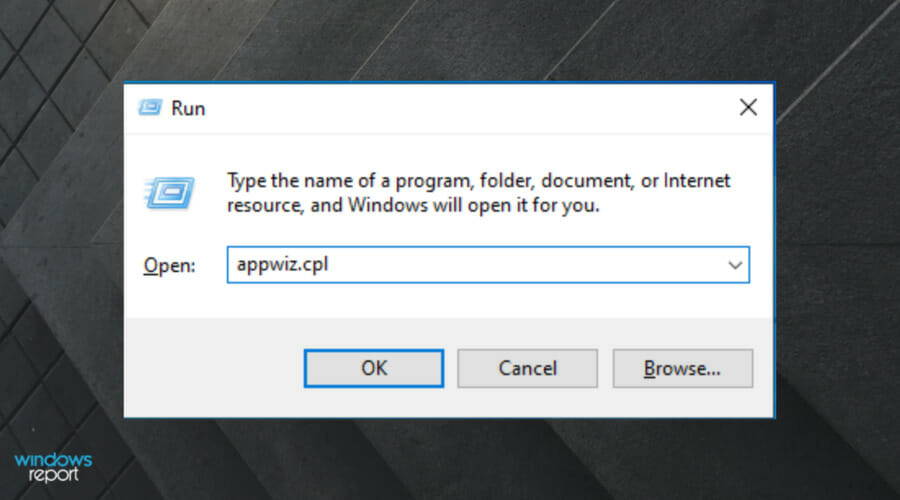
  2. Input appwiz.cpl in the Open box, then click on OK to open the Programs and Features applet.
  3. Select your listed antivirus software, and click on the Uninstall option.
  4. Click Yes on any confirmation prompt that opens.
  5. Restart Windows after uninstalling the antivirus software.

6. Flush the DNS

  1. Hit the Windows key, type cmd, then right-click on the Command Prompt result, and select Run as administrator.
  2. First, type the following command, then press Enter: ipconfig /release
  3. Next, copy and paste this, and press Enter: ipconfig /flushdns
  4. Then use the following command and don’t forget to press Enter: ipconfig /renew
  5. Restart Windows after flushing the DNS.

What incidents were recorded with Discord this year?

Because it’s important to be aware of the most frequent Discord problems, we strongly recommend accessing the Discord incidents history.

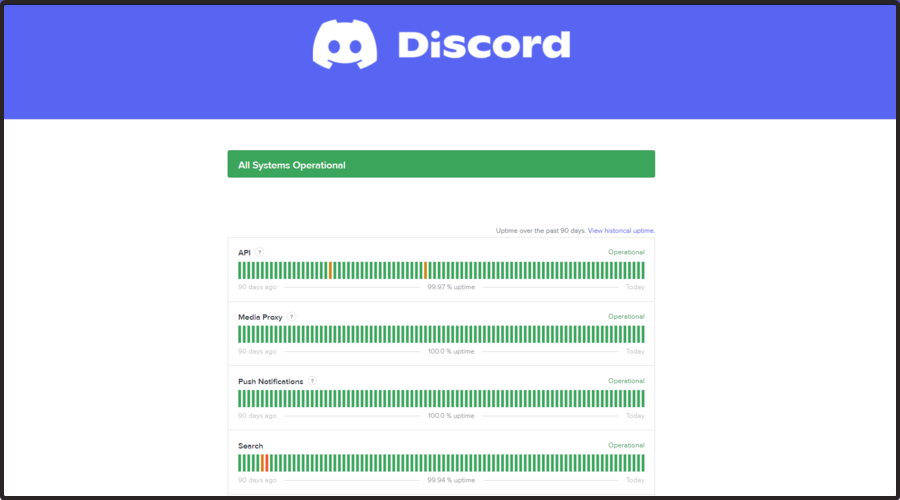
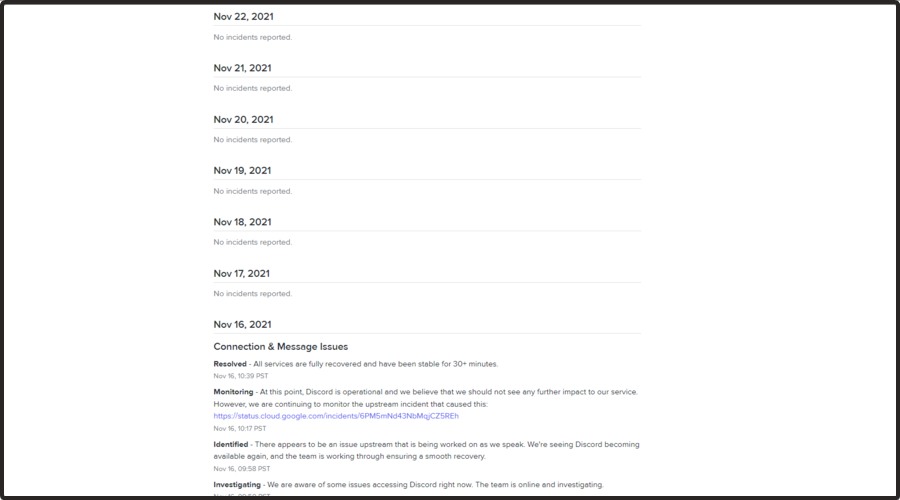
The producers ensured delivering every day the status of the app. The image below shows an example of that.

So, as we can see, Discord records the following incidents for the last 2 months of 2021:

  • October – captchas failling (it seems like this one has been resolved), bot rate limiting issue (the rollback has been complete, so there are no longer generating erroneous 429s for bots), and ebeds not unfurling (this has also been resolved).
  • November – connection & message issues (all services are fully recovered), connectivity issues on various university campuses (the incident has been resolved), and some push notifications are being dropped (the issue has been remediated).

You should also remember that while using Discord, a JavaScript error may occur in the main process. To find how can you solve it, check our dedicated guide.

Those resolutions are among the more widely confirmed fixes for Discord’s No Route error. Users who have fixed the same issue with different options are more than welcome to share them in the comment section below.

FIX: Clownfish Voice Changer not working [Discord guide]

One of the most voice translating applications in the world, Clownfish Voice Changer works well most of the time on Discord.

Clownfish Voice Changer not working in Discord can definitely cause a lot of frustration, especially when in the middle of a game.

Why is clownfish Voice Changer not working?

There can be various reasons to why Clownfish Voice Changer for Discord is most often related to outdated drivers.

After checking all the possible causes, in this article we will present you the exact steps you need to make in order to cover them all and fix the issue.

How can I fix the Clownfish Voice Changer for Discord?

1. Use a specialized software

Outdated drivers can cause Clownfish Voice Changer to stop working. Although you can update the audio driver manually from the manufacturer’s website, specialized software makes this task simpler.

A simple tool such as Outbyte Driver Updater will save you plenty of time and hassle. You just have to open the app, start a scan process and then let it download and install the newest drivers versions to your PC.

Such tools are safer than manual driver installs because they detect the exact type of hardware you have and they find the perfect driver match for it. Installing a faulty driver can cause major damage to your PC.

Outbyte Driver Updater is light and you can let it run in the background and set it up to regularly scan and fix any outdated, damaged, or missing drivers on your machine.

⇒ Get Outbyte Driver Updater

2. Update Clownfish Voice Changer

  1. Open Run window by holding Windows +R.
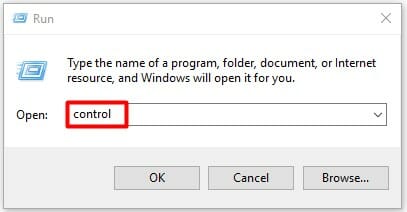
  2. Type control in the window and then press Enter.
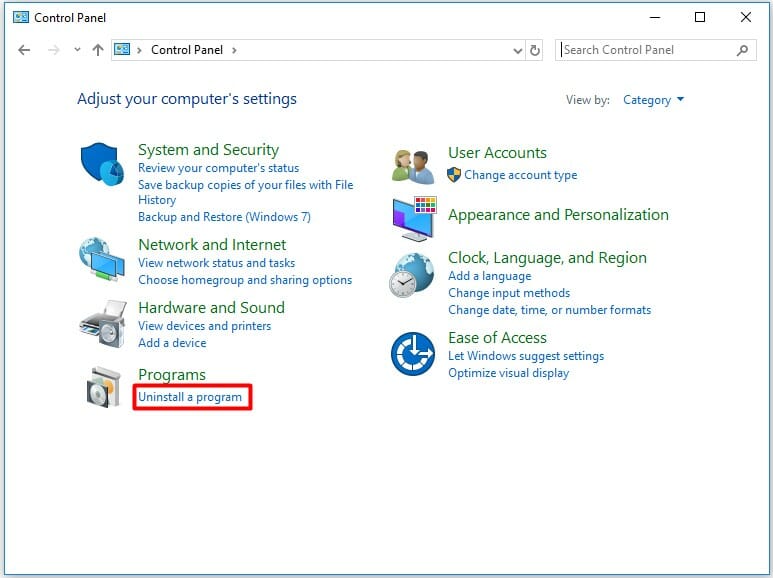
  3. Click on Uninstall a program under the Programs section.
  4. Find and right-click on the Clownfish Voice Changer from the list and click Uninstall.
  5. Go to the official website of Clownfish Voice Changer to download and install the latest Clownfish version.
  6. Restart your device and check if the app is working.

3. Update Discord

  1. Press Windows and R keyboard keys at the same time to launch Run.
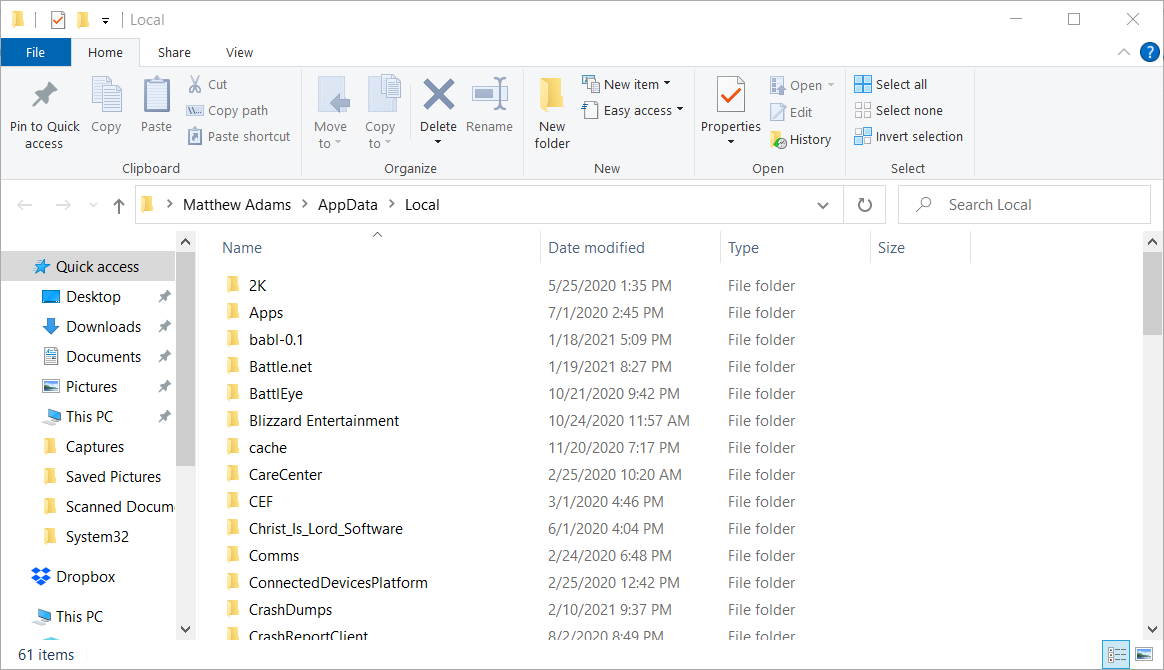
  2. Enter this path command in Run’s text box: %localappdata%
  3. Click the OK button to open your Local folder.
    Local folder browser discord live viewing not working
  4. Click the Discord folder to open it.
  5. Then click Update.exe to update Discord.

Note: Another way to update Discord is by reinstalling the software with its latest version.

4. Install your microphone

  1. Run Clownfish and right-click on the Clownfish icon in the Taskbar.
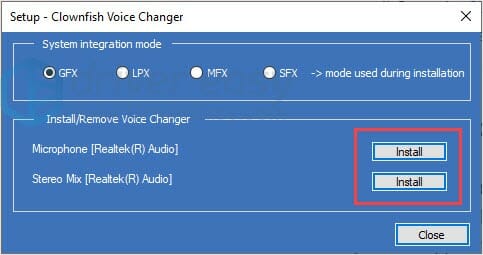
  2. Next, click Setup and select the System integration option.
  3. Select the microphone which is working properly and click Install.
  4. Restart your computer and check the app.

We hope that one of the presented solutions in this article helped you solve the Clownfish Voice Changer not working.

Please share with us in the comments section below which solution worked best for you or if you have additional recommendations.

FIX: Discord and Rainbow Six Siege not working

Discord and Rainbow Six Siege are not working together? Make sure you verify this guide entirely.

Some players are running Rainbow Six with the Discord software, with the app’s overlay feature. However, some of them claimed that they can’t open the Discord overlay on Rainbow Six.

In other cases, players have said that Discord’s voice chat doesn’t work for Rainbow Six. Consequently, they can’t hear Discord’s voice chat from other players when playing Rainbow Six Siege.

Fortunately, we compiled some efficient solutions that will help to play Rainbow Six Siege with Discord. So, you won’t have to worry again about this irritating problem.

Why are Discord and Rainbow Six Siege not working?

Not being able to run one of your favorite games must be pretty annoying. Before getting into the main subject, let’s have a look at a series of reasons why Rainbow Six Siege is not working with Discord.

Before anything else, you should know that you must run the app with the correct privileges. Thus, you must ensure that you’re using the administrator ones.

Also, Discord overlay is known to cause all kinds of issues with your games and applications. In these terms, it might be useful to disable this feature.

Rainbow Six Siege won’t properly work on Discord if you have configured incorrect settings in your game activity. In addition, keep in mind that you’ll probably need to turn on the Hardware Acceleration option.

To discover what can you do in each of the above cases, make sure you verify all the steps listed below.

What can I do if Discord and Rainbow Six Siege are not working?

1. Run Discord as an administrator

  1. Right-click the shortcut you usually click on to open Discord and select Properties.
  2. Click the Compatibility tab.
  3. Select the Run this program as an administrator checkbox.
  4. Click Apply to save the setting.
  5. Press the OK button to exit the Discord Properties window.

2. Disable Discord Overlay

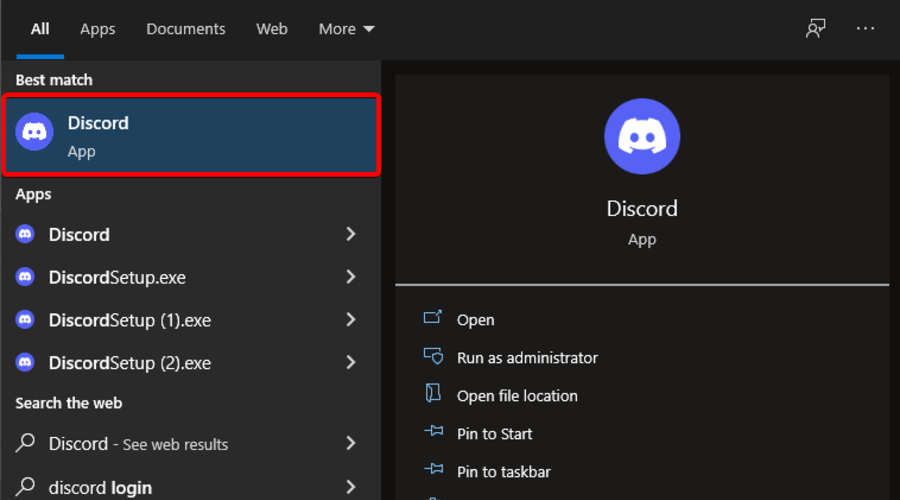
  1. Hit the Windows key, type Discord, then open the first result.
  2. Click on the User Settings button (marked as a gear).
  3. Select Overlay to open the options shown directly below.
  4. Disable the Enable in-game overlay option.

3. Check the Game Activity settings

  1. Hit the Windows key, type Discord, then open the first result.
  2. Click on the User Settings button (marked as a gear).
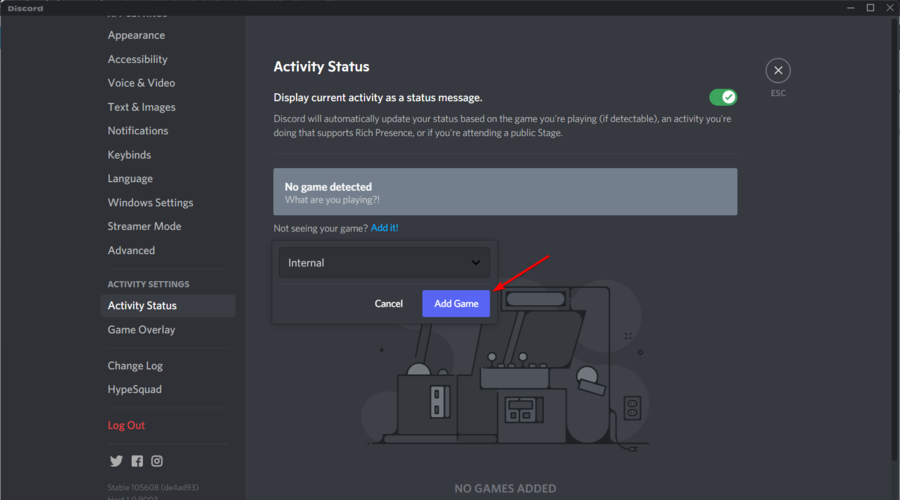
  3. In the left window pane, click on Activity Status to open the options in the snapshot directly below.
  4. Toggle the Display currently running game as a status message option on.
  5. Click Add it to open a drop-down menu.
  6. Select Rainbow Six Siege and click the Add Game button.

4. Turn on Discord’s Developer Mode and Hardware Acceleration settings

  1. Press on the Windows key, type Discord, then open the first result.
  2. Click on the User Settings button (marked as a gear).
  3. Select the Advanced tab shown directly below.
  4. Turn on the Developer Mode and the Hardware Acceleration options.

How can I fix Discord voice chat not working for Rainbow Six Siege?

1. Select 1 Frame Vsync

  1. To fix Discord voice chat not working for the game, launch Rainbow Six Siege.
  2. Click on the Settings button at the top right of Rainbow Six’s title screen.
  3. Select Options to open settings.
  4. Select the Display tab.
  5. Then scroll to the VSync setting and select 1 Frame.
  6. Click the Apply button.

2. Set the Discord task priority to high

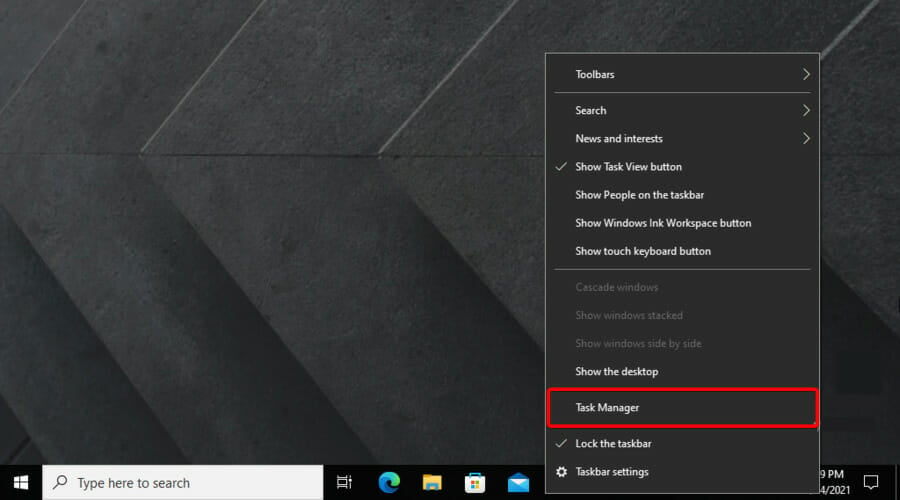
  1. When Discord is running, right-click on your taskbar and select Task Manager.
  2. Select the Details tab in Task Manager.
  3. Right-click the Discord.exe process that’s utilizing the most memory (RAM), choose to Set priority, then select the High option.
  4. Select the Change priority option on the confirmation prompt window that opens.

3. Cap the frame rate for Rainbox Six

  1. Use the following keyboard shortcut to open File Explorer: Windows and E.
  2. Open your Rainbow Six Siege game folder.
  3. Select to open the folder with a string code like the one shown directly below.
  4. Click the GameSettings configuration file to open it in Notepad.
  5. Scroll down to the Display section in the configuration file.
  6. Reduce the FPSLimit value to 75 if it’s currently higher than that.
  7. Click File to select the Save option.
  8. Then close Notepad.
  9. Right-click the GameSettings file and select Properties.
  10. Select the Read-only attributes option.
  11. Click the Apply button, and select the OK option to exit.

Those are some of the resolutions players have confirmed can fix Discord overlay and voice chat issues for Rainbow Six Siege.

So, those potential resolutions are worth a shot when you can’t see the Discord overlay or hear in-game voice chat when playing Rainbow Six Siege.

Discord search not working [Troubleshooting guide]

Discord is one of the most popular chatting tools, especially for gamers. However, it seems like the search function is sometimes not working as it should be.

The issue may be on the app’s side, as Discord relies completely on its servers to work properly.

There are many filters in Discord search like from and mentions, which helps to quickly track the message. Thus, encountering related problems can be pretty annoying.

Fortunately, we’re here to support you with a few solutions, but you should discover first why the Discord search function is sometimes not working.

Why is Discord search function not working?

In case you notice that the Discord search option is not working, remember that it can be related to your Internet connection.

When the Internet is slow, some functions might not run in proper conditions. As a first recommendation, you should check your experiences with connections and slowdowns, the cables, and the Wi-Fi connection.

Moreover, our presented issue can occur due to Discord’s poor updates. Similar to any other program or software, this one needs to be constantly updated. Otherwise, it might get you into various troubles.

Now, we’ll offer you three efficient methods that will help you get rid of this problem once and for all.

What can I do if Discord’s search function is not working?

1. Verify your Internet connection

Internet connectivity issues can cause some of Discord’s functions to not work properly, including the search option. In this case, it’s best to check if you are experiencing connection issues or slowdowns.

For example, if you are currently connected via Wi-Fi, check if your signal is strong enough.

A weak Wi-Fi signal can cause Discord functionality issues, and in this case, it is best recommended to either use an Ethernet cable or to improve your Wi-Fi connection.

If you have lost your Internet connection on Windows 10, make sure you check some dedicated solutions, that will solve this problem in a few seconds.

2. Check if there are any Discord server issues

Discord’s main functions rely heavily on the server-side. When there are server issues or outages, many of Discord’s features such as the search function will fail to work.

When this happens, it’s best to check Discord’s status page. On this page, you can see if the client is currently experiencing or has experienced server issues and if any of its services (or APIs) are affected and check if a fix has been deployed.

Major outages are indicated by the red lines, while partial ones are indicated by yellow lines.

If you scroll down the page, you can find current and past incidents on Discord’s services. You can also check what has been done to resolve the issues.

3. Update Discord

  1. Head over to the bottom right side of your Windows 10 Taskbar.
  2. Right-click on the Discord icon, then click on Close window.
  3. Open Discord again and the app should start the update proces by itself.

Restarting your Discord app to check for updates can provide a fix to some of the issues on the client, including the search function.

In case of Discord won’t update on Windows 10 PC, you should follow some simple steps and fix it in no time.

4. Run Discord as an administrator

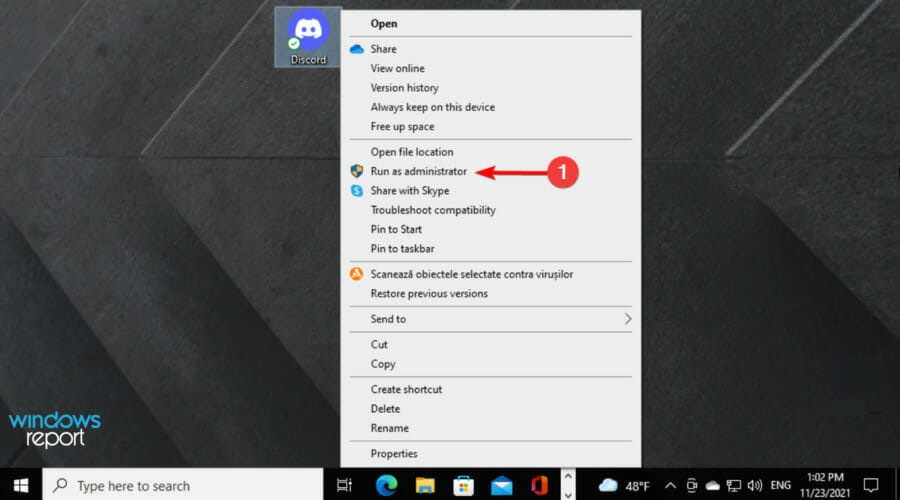
  1. Right-click on the Discord icon, then choose to Run as administrator.
  2. Agree with the changes by clicking on Yes.
  3. Discord will start and update itself.

5. Disable Windows Defender

  1. Use the following keyboard shortcut to open the Settings menu: Windows + S.
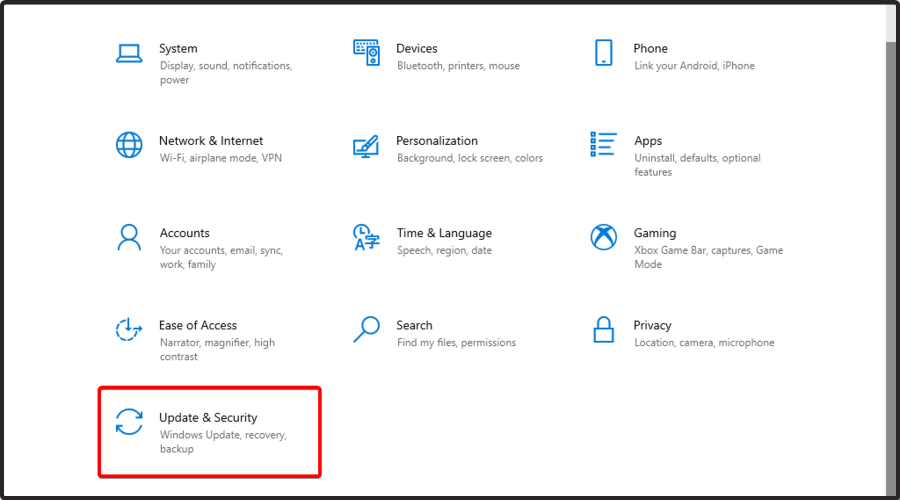
  2. Go to Update & Security.
  3. From the left window pane, navigate to Windows Security, then look at the right side and click on Virus & threat protection.
  4. In the opened window, expand the Microsoft Defender Antivirus options, then turn off the Periodic scanning.
  5. Confirm the changes by selecting Yes.
  6. Now, try relaunching Discord.

Because Windows Defender acts as a sort of guard dog while you operate on PC, it will block you from opening some apps if they seem to be dangerous.

Sometimes, it can be a bit too protective, so maybe that’s why your Discord search function is not working as it should be.

What other Discord functions may have problems?

The search function is not the only one that can generate issues while running Discord. Because it is a complex app and millions of users are using it, Discord can usually be corrupted by various problems:

  • Screen issues – It seems like Discord screen share is sometimes not working. Fortunately, you can easily solve it by following some simple instructions.
  • Audio errors – If Discord audio keeps cutting out, it means that you won’t be able to communicate efficiently with your teammates. Make sure you check our dedicated article to get rid of this issue in a few minutes.
  • App freeze – Another annoying problem is related to the overall app activity. Some users describe that Discord keeps freezing, but there are a few methods you can try to fix it.

Our presented app is used by a large number of users, and due to its popularity, it can generate several errors.

If the Discord search function is sometimes not working as expected, at least one of today’s solutions will work.

For any other additional questions or curiosities regarding this subject, do not hesitate to use the comment section below.

Fix: Sending Messages to This Channel Temporarily Disabled

While chatting on Twitch or your Discord server, you may encounter Sending messages in this channel is disabled error. The error can affect some users while other users on the same channel can chat.

This error can occur due to multiple reasons. When the error affects Discord users, it may often be due to the server being down. However, the error can occur even if you are using any other chatting platform.

If you are also troubled by this error, here are a couple of troubleshooting tips to help you resolve Sending messages in this channel is disabled error in no time.

How do I fix Sending messages in this channel is disabled error?

1. Check the service status

Sending messages in this channel is disabled
  1. This error issue usually occurs if the service servers are down. Discord informs the users on its Reddit community page and Twitter account if it is a sitewide issue.
  2. Check the Discord’s Reddit and Twitter page to get an ETA on the same.
  3. Additionally, you can also check the Discord service status on their official website.

2. Check if you are banned

Sending messages in this channel is disabled
  1. Discord may ban or temporarily limit the functionality of the user for violating its terms of use.
  2. To make sure Discord hasn’t banned you, try creating a new account and using it.
  3. You may also try to use another IP address to access the account and see if that helps.

3. Change DNS settings

Sending messages in this channel is disabled error
  1. Press Windows Key + R to open Run.
  2. Type control and click OK.
  3. In the Control Panel window, go to Network and Internet.
  4. Click on Network and Sharing Center.
  5. From the left pane, click on the Change adapter settings option.
  6. Right-click on your network adapter and select Properties.
  7. In the Properties window double-click on Internet Protocol Version 4 (TCP/IPv4).
  8. Select Use the following DNS server addresses option.
  9. In the Prefered and Alternate DNS server field, enter the following address.
    8.8.8.8
    8.8.4.4
  10. Click OK to save the changes and close the properties window.
  11. Open Discord again and check for any improvements.

Apart from the Google Public DNS server address mentioned above, you can also use a third-party, public DNS server. Alternatively, download the DNS Jumper tool. It is a handy little tool that can help you find the fastest public DNS server address and also help you apply the DNS server address with a click.

If the issue persists, try connecting to a different network connection. You may also use your phone’s hotspot feature to test if the issue is with your internet connection. This will also help with Temporary Network error on Discord.

Additionally, disable/close any active VPN connection that may create issues with your Discord connection.

The Sending messages in this channel are disabled error gets resolved automatically if the problem occurred at Discord’s end.

However, if the issue has affected only a few people, follow the troubleshooting tips in this article to find and resolve the error.

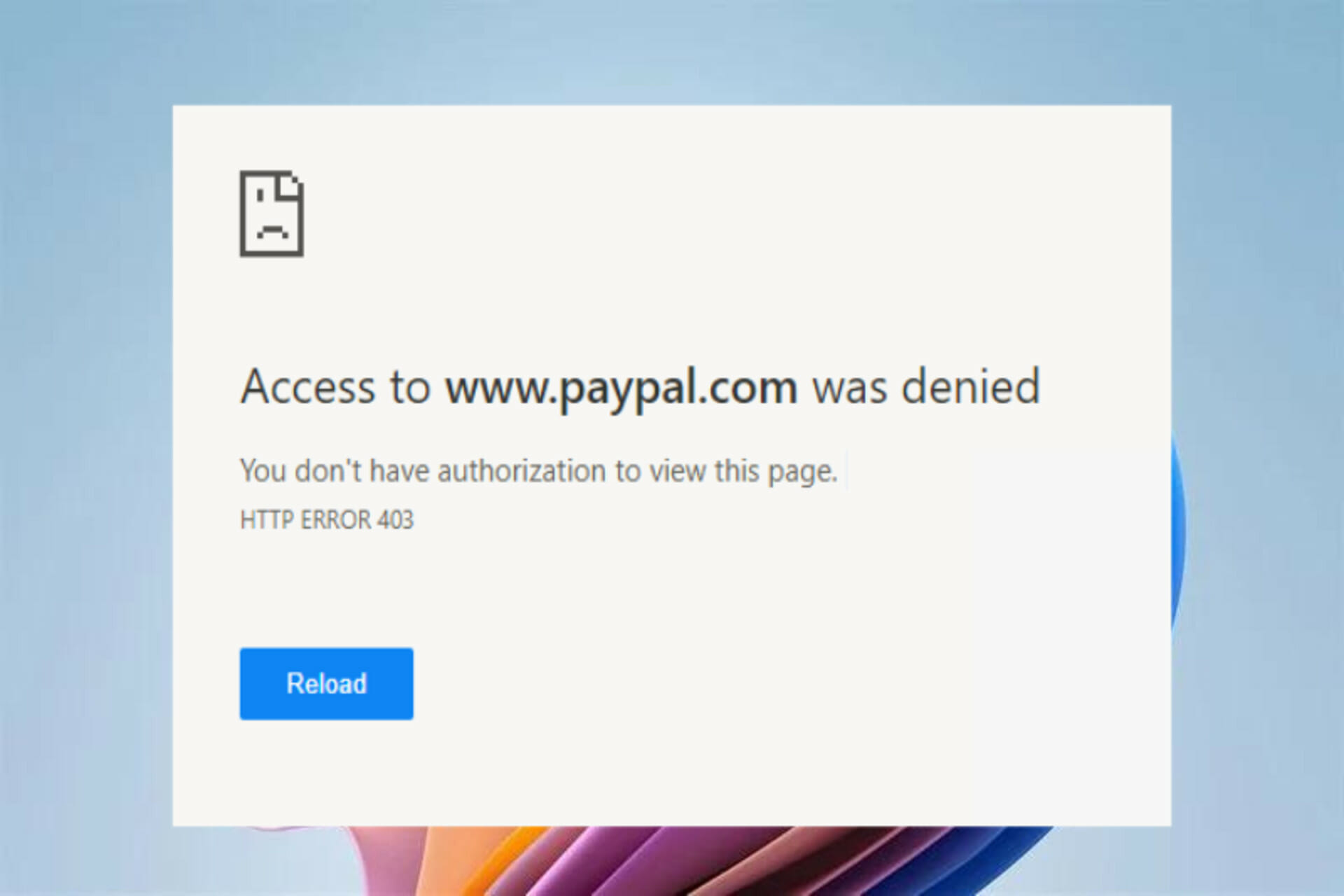
PayPal 403 Forbidden Error: How to Fix it

If you have run into the dreaded error 403 forbidden PayPal while attempting to make a payment, this article is for you. The real problem occurs after this as you notice that suddenly PayPal is not working on your browser.

The issue can be frustrating, similar to eBay 403 forbidden error, especially if it prevents you from completing routine transactions.

How do you fix the error 403 Forbidden on PayPal?

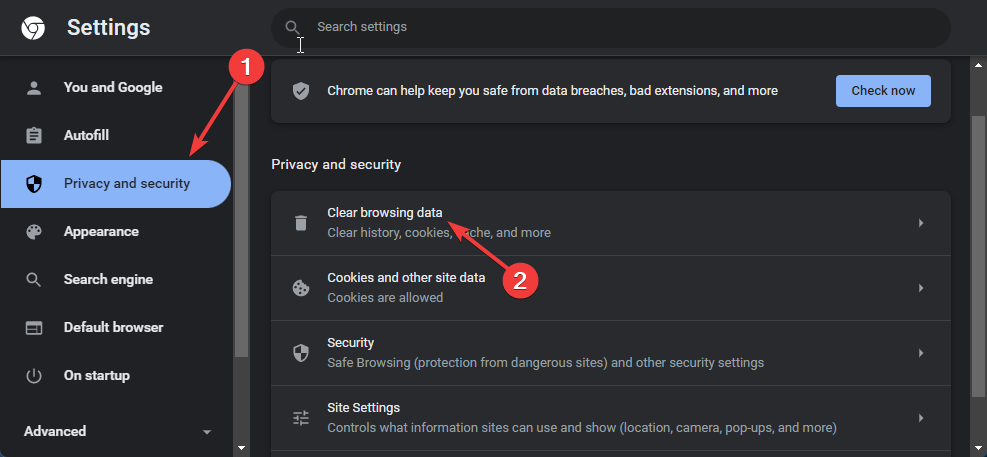
1. Clear cookies and caches

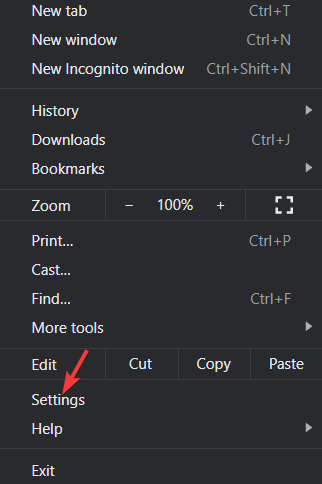
  1. Open your browser and go to Settings.
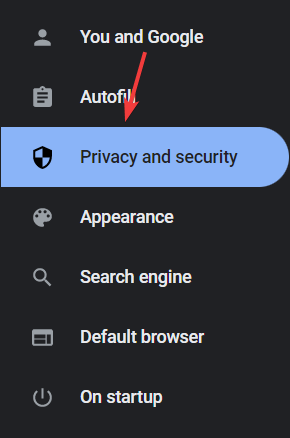
  2. Next, select Privacy and Security.
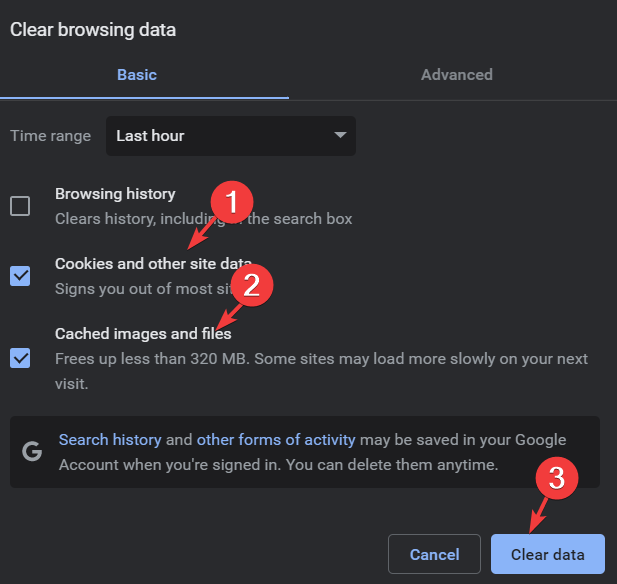
  3. Click on Clear browsing data and check the box beside clear cookies and cache.
  4. Finally, click on Clear data.

When you get a varnish cache server error 403 PayPal, one possibility is that the page has been cached but swapped the link in the code. You can fix this by clearing your browser’s cookies and cache.

This won’t affect your browsing experience much, but the website might take a few more seconds to load. Overall this is one of the most effective workarounds that can help you easily fix the issue.

2. Double-check the URL

  1. Open up your browser.
  2. Visit the PayPal website.
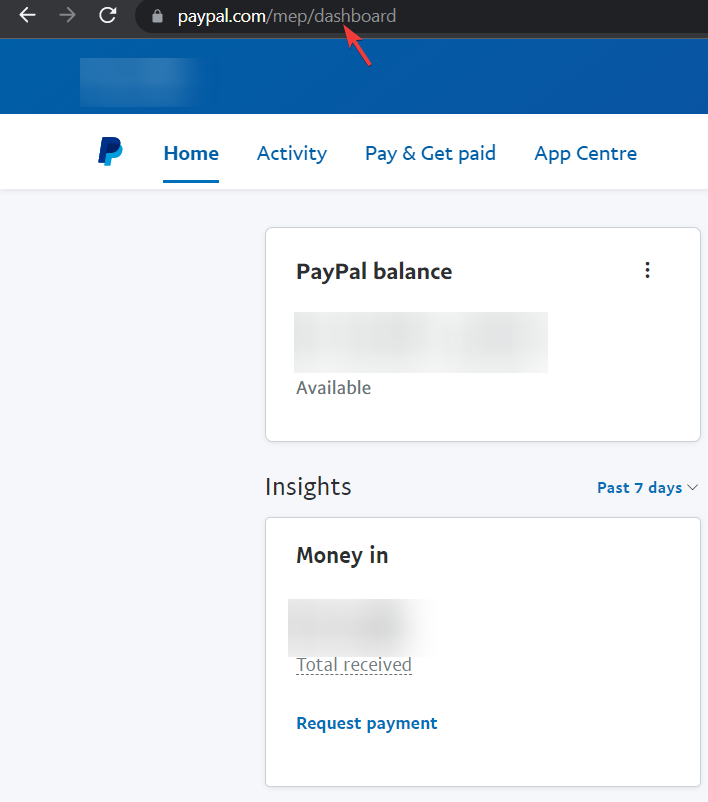
  3. Double-check that the URL doesn’t contain any special character in the end.

The most common reason for a Paypal error 43 forbidden is that people have mistyped the URL. Make sure you’re typing the URL correctly in the browser address bar and without any extra characters in the end, like a period or slash /.

Many servers are configured to block directory browsing for security reasons, which could be a significant reason you’re experiencing error 403 forbidden from PayPal.

3. Disconnect the VPN

  1. Press Windows + I key combination on your keyboard to open up the Settings app.
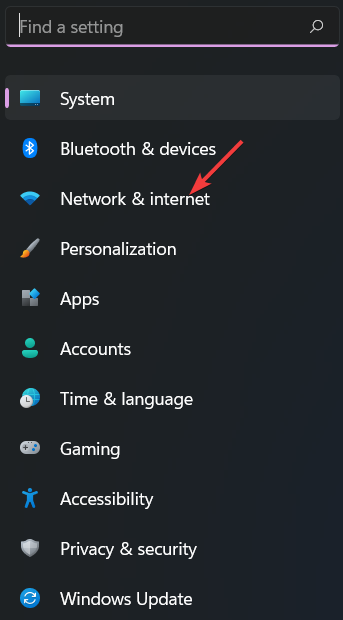
  2. In the right pane, select Network and Internet.
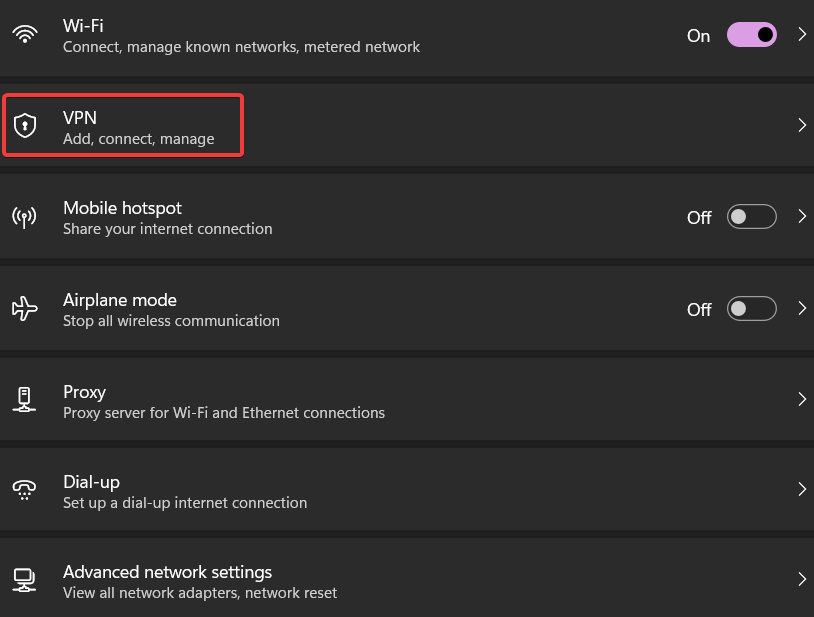
  3. Next, click on VPN.
  4. Select the VPN service you want to disconnect and finally click Delete to confirm the changes.

If you’re logged on to PayPal through a VPN and getting the error 403, we recommend that you check to see if there is a connection issue. If you suspect this is the case with you, disconnect the VPN and try accessing the page.

4. Contact your ISP

If you see the error 403 forbidden when trying to log in to your PayPal account, your internet service provider is likely to blame. Try connecting to a different router to figure out where the problem lies.

If the issue persists, it’s time to contact your ISP for further assistance.

In some cases, PayPal has been blacklisted by your public IP address provided to you by your internet service provider. If this is the case, communicate with your ISP and see if they can help fix the issue.

5. Contact PayPal

  1. Open up your browser.
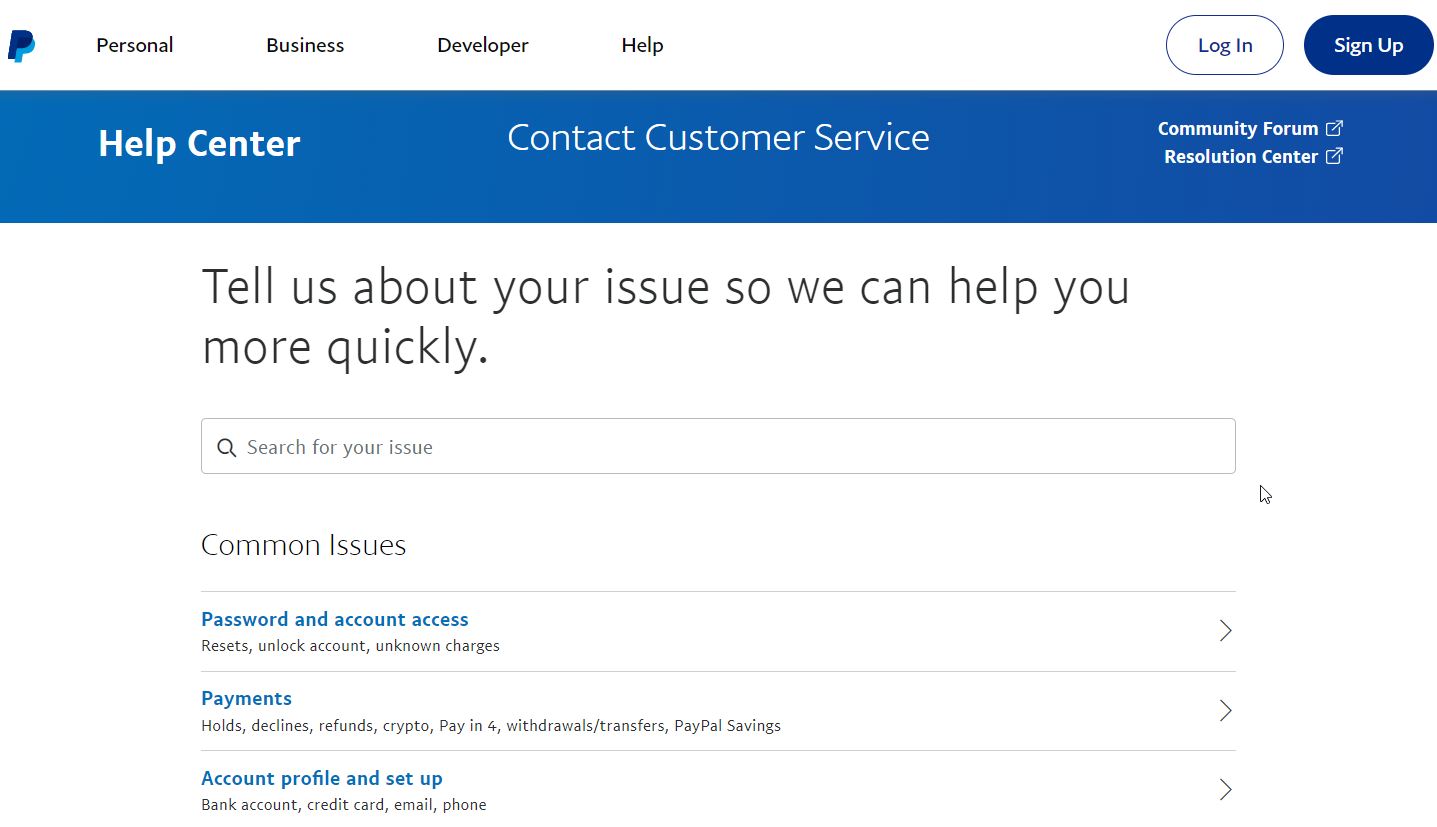
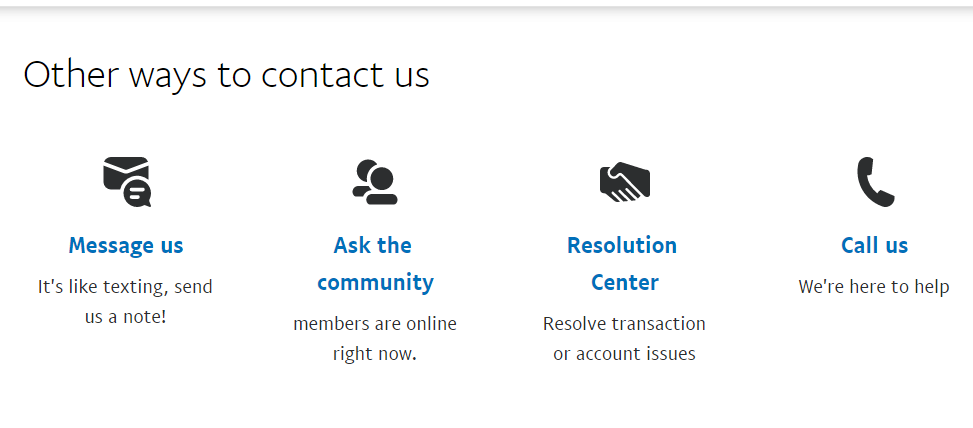
  2. Visit the PayPal Customer Care page to resolve the issue.
  3. You can raise your concern by sending them a message, calling them, or asking a question in the community.
  4. If you are unable to access this page, you may dial 1-888-221-1161 to reach customer care.

6. Try a different virtual card

You can also resort to a different online payment service. If the issue persists even after trying out these methods, creating a new account on a different platform can save you a lot of headaches.

A reliable alternative is Revolut. It’s a virtual card company that offers great service for free. Once you create an account, it generates a unique virtual bank card that you can use for online transactions.

It has desktop and mobile applications that you can use to check your balance and manage your money. Revolut has some budgeting solutions, gives you reports on your spending, and is very secure.

The app supports easy transfers between Revolut users and other bank accounts. It supports over 30 world currencies, plus cryptocurrencies.

If you have NFC on your mobile device, you can also use Revolut for POS payments. They can also send you a physical card if you want. 

⇒ Get Revolut

If the methods listed above don’t work for you, contacting PayPal Customer Care could be an option if you encounter 403 forbidden errors.

You can try contacting them through forums, their official website, or social media. If you have unanswered messages on Twitter, try DMing them.

While PayPal is a very secure payment gateway and the most widely used among merchants, it is not immune to certain technical errors caused by user errors, server glitches, or configuration issues.

In such cases, users may be unable to log in to their accounts or send money through the system.

Furthermore, You can go through our guide on the Steam PayPal purchase error for the most accurate resolutions.

We hope the methods listed in this guide have helped you resolve the problem. If you have any questions or queries, ask away in the comments section below.

11 Best Syslog Management Solutions [Tested Tools]

Plain-text log management was the norm for many years, and still can be useful in many situations, but a reliable management tool can do much more.

Syslog management solutions can help you gather critical data about your network, and improve the quality of code and your business workflow.

Logs are messy, but a critical aspect of any system. A log management tool can take all the messy data and present it in a visualized way to help you quickly determine the cause of any application problem.

How are syslog managed?

Syslog consists of information generated by the network devices such as a server, firewall, and routers.

Trying to manage these text-based logs manually is a challenging task. Syslog management solutions provide an easy way to manage those logs.

In this article, we have listed the best syslog management solutions to help you pick the right tool for your needs.

What are the best syslog management solutions?

ManageEngine EventLog Analyzer – Great for network management

ManageEngine EventLog Analyzer is an all-in-one log management, auditing, and IT compliance solution.

It allows you to know what’s happening in your network and offers insights into potential threats and prevents any attack.

Custom log parsers can extract fields of log formats and offer a single console for viewing all your security log data. 

ManageEngine EventLog Analyzer can listen to your logs, audit network devices, conduct in-depth application auditing and provide real-time event log correlation to trace potential security threats.

Key features of ManageEngine EventLog Analyzer:

  • Collect, manage, analyze, correlate, and search through the log data 
  • Audits log data from perimeter devices 
  • Audits critical changes, detects data theft, identifies attacks, and tracks downtime
  • Integrated compliance management 

ManageEngine EventLog Analyzer

Collect, manage, analyze, and correlate all system logs on your network devices with this great tool!
Free trial Visit website

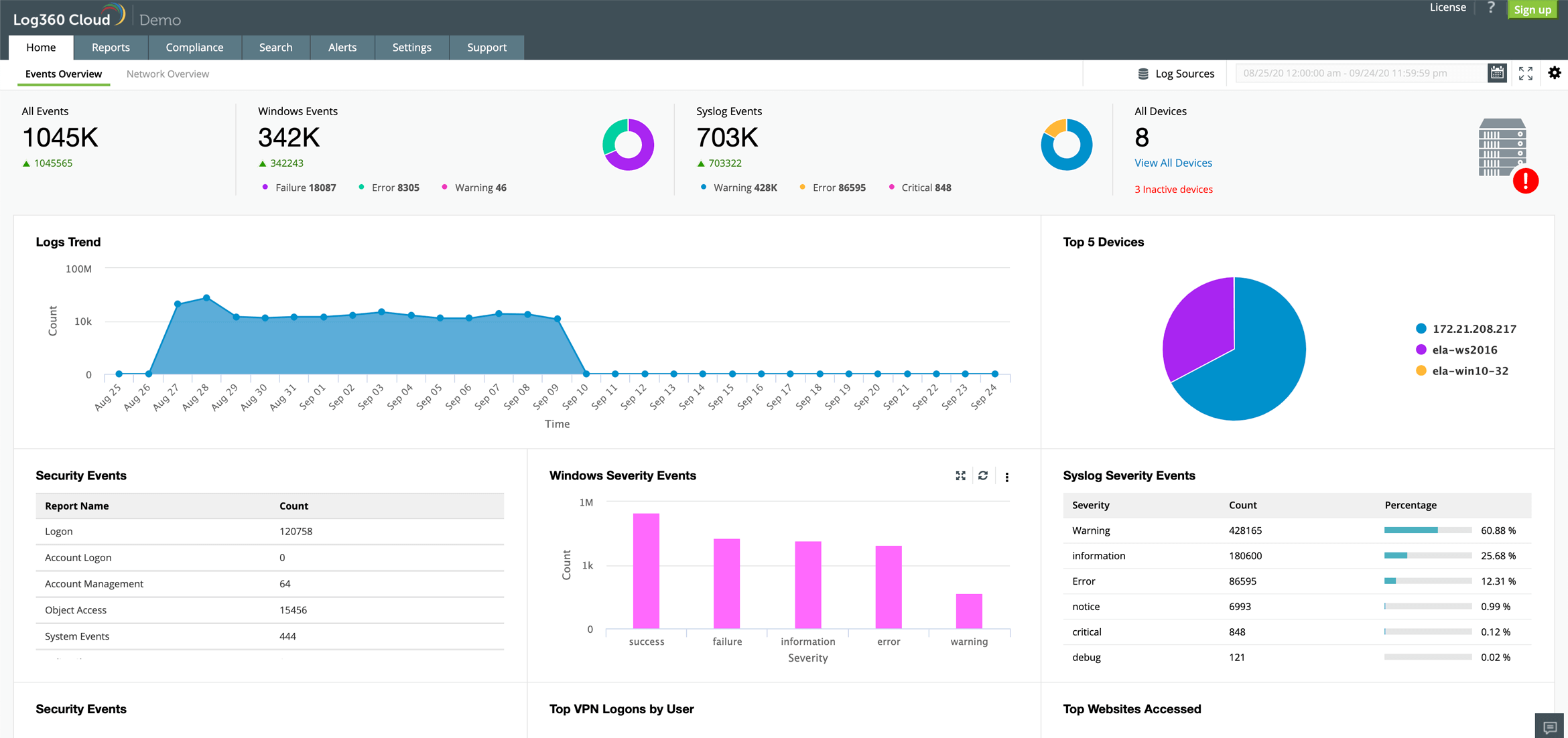
Log360 – Great event detection and reporting

Log360 is one of the best syslog management solutions that will also ensure fast response for your IT personnel in case of emergency.

The tool tracks all the possible events from all your devices within the network, including file and web servers, Microsoft 365 and Exchange servers, and a lot more.

The solution even logs events from public cloud platforms, like AWS (Amazon Web Services), Microsoft Azure, Salesforce, and others.

All you need to do is to customize the alert profiles to get complete reports on any syslog produced by your devices.

Log360 is not limited to sys logging management but also focuses on tracking file integrity and detecting any changes made to sensitive data within your devices.

And if you were also looking for ticketing, the tool integrates services like ServiceDesk Plus, Jira Service Desk, Kayako, and more.

Take a look at some of its best features:

  • Advanced sys logging management tools
  • Customizable alerts and profiles
  • Analyzes logs from any network devices, including file servers and databases
  • File integrity monitoring
  • Monitors cloud platforms like AWS and Microsoft Azure

Log360

This tool not only offers a complete analysis of your sys logs but also provides alerts for quick response.
Free trial Visit website

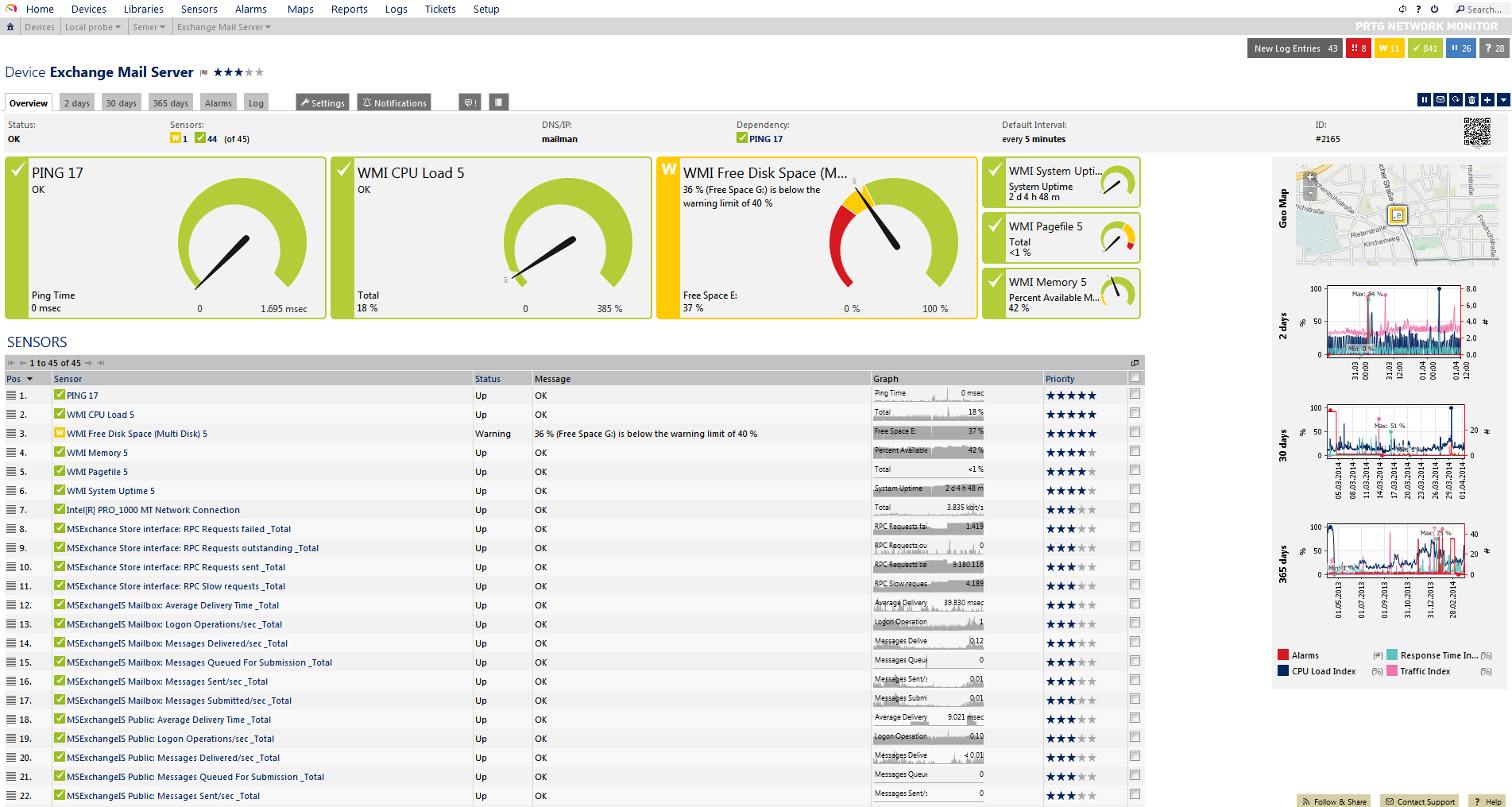
PRTG Network Monitor – Best network logging tool

Syslog is a standard for sending log messages with a network and is supported by a number of devices providing a wide range of systems info.

Syslog monitoring solutions help you capture and monitor syslog messages and analyze the content of all the messages that are sent to the tool.

Explore the tools in this article to get all relevant information with regard to the message, including IP address, time of the message, and potential emergencies.

Apart from the syslog management capabilities, PRTG Network Monitor allows you to monitor the availability of all hardware in your network, check network bandwidth usage, downtime reports, port report, and top 10 Talkers report.

Key features of PRTG Network Monitor:

  • Capture and analyze syslog messages 
  • Alerts in the event of syslog error incidents 
  • Downtime report, port reports and top 10 talkers report.
  • Analyzes severity level to check for potential emergencies 

PRTG Network Monitor

Track everything happening in your local network with the help of the world’s best monitoring tool!
Free trial Visit website

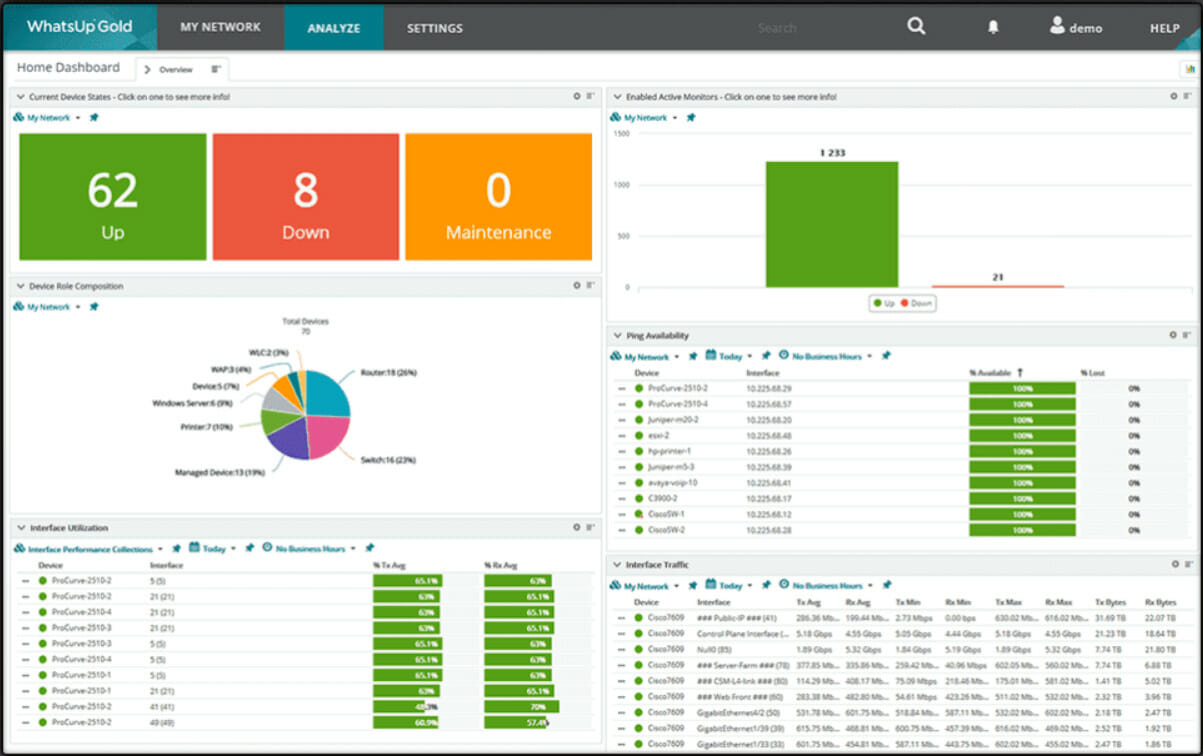
Whatsup Gold Log Management – Ideal for log collection automation

Whatsup Gold Log Management is an automated tool that collects, stores, archives, and saves logs from Windows events and more.

It provides easy device log data management. You can monitor, filter, search and alert logs for every device in your network with additional insights for log volume changes. 

Whatsup Gold Log Management offers a convenient way to manage the system and Windows log events, focusing on pre-and post-filtering capabilities to reduce the firehose of logs.

It can send system alerts via the web, email, SMS, or even third-party software like Slack when log status or events are triggered.

Key features of Whatsup Gold Log Management:

  • Visualize and control your system logs
  • Can filter Windows Event Logs and Syslogs 
  • View log status and events on customizable dashboards
  • Automatic alerts on predefined conditions 

⇒ Get Whatsup Gold Log Management

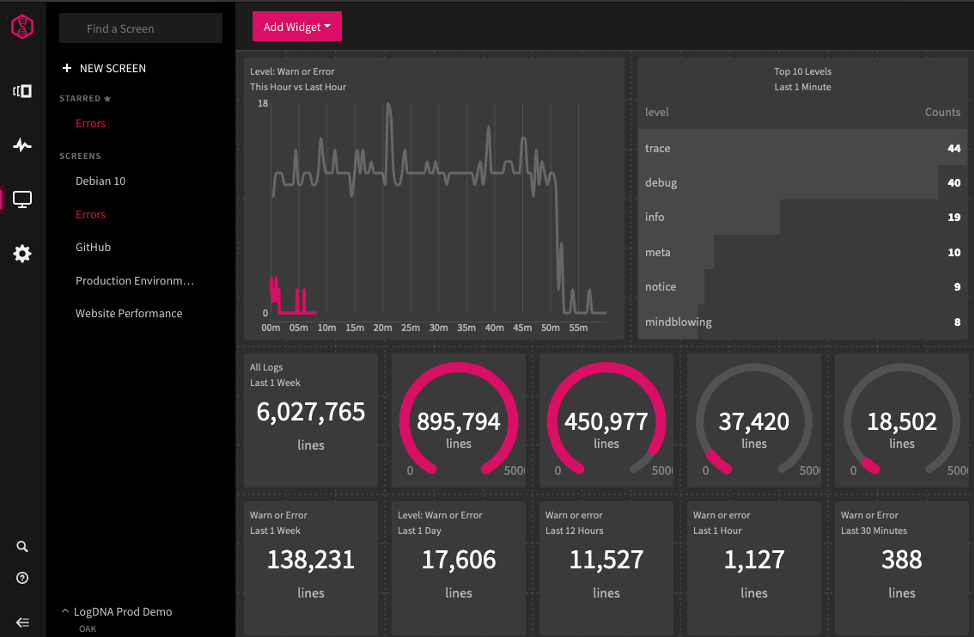
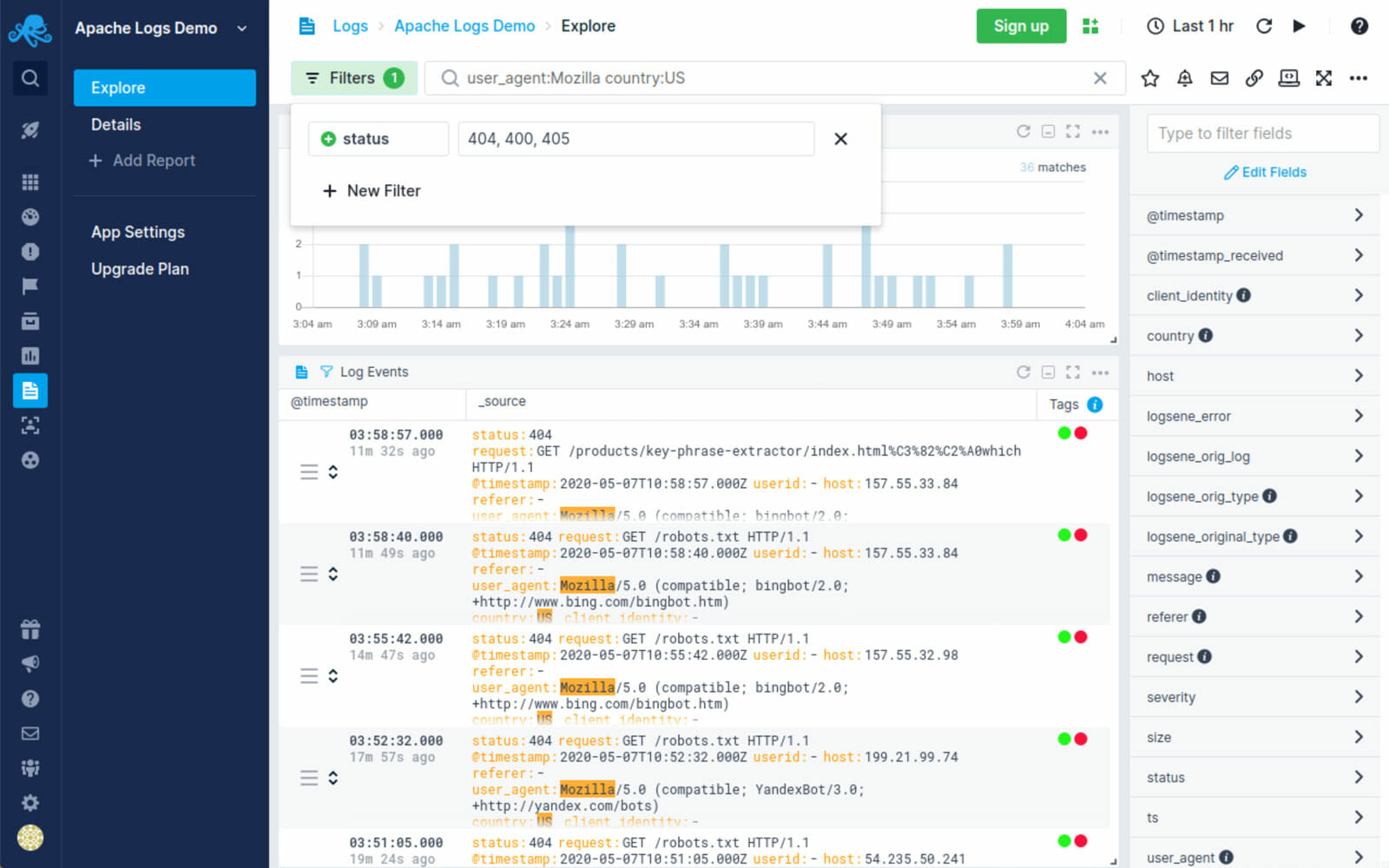
LogDNA – Great visual interface

LogDNA is a powerful Syslog management solution that comes with powerful exclusion rules to store what’s important and keep your log volume under control.

Using the tool, you can achieve everything and forward it to S3 or any other storage services. It can also visualize and aggregate critical events to pinpoint the issues in your system.

LogDNA offers role-based access control to limit unauthorized access to sensitive logs and actions, SS0/SML for enterprise-grade user authentication, and usage reporting to ensure you are keeping an eye on your volume. 

Key features of LogDNA:

  • Powerful Syslog manager with exclusion rules and archive features 
  • Analysis and monitoring tools to visualize critical events 
  • One-click filters to drill down based on app, host, cluster 
  • Hhuman search syntax and presence/absence alerts 

⇒ Get LogDNA

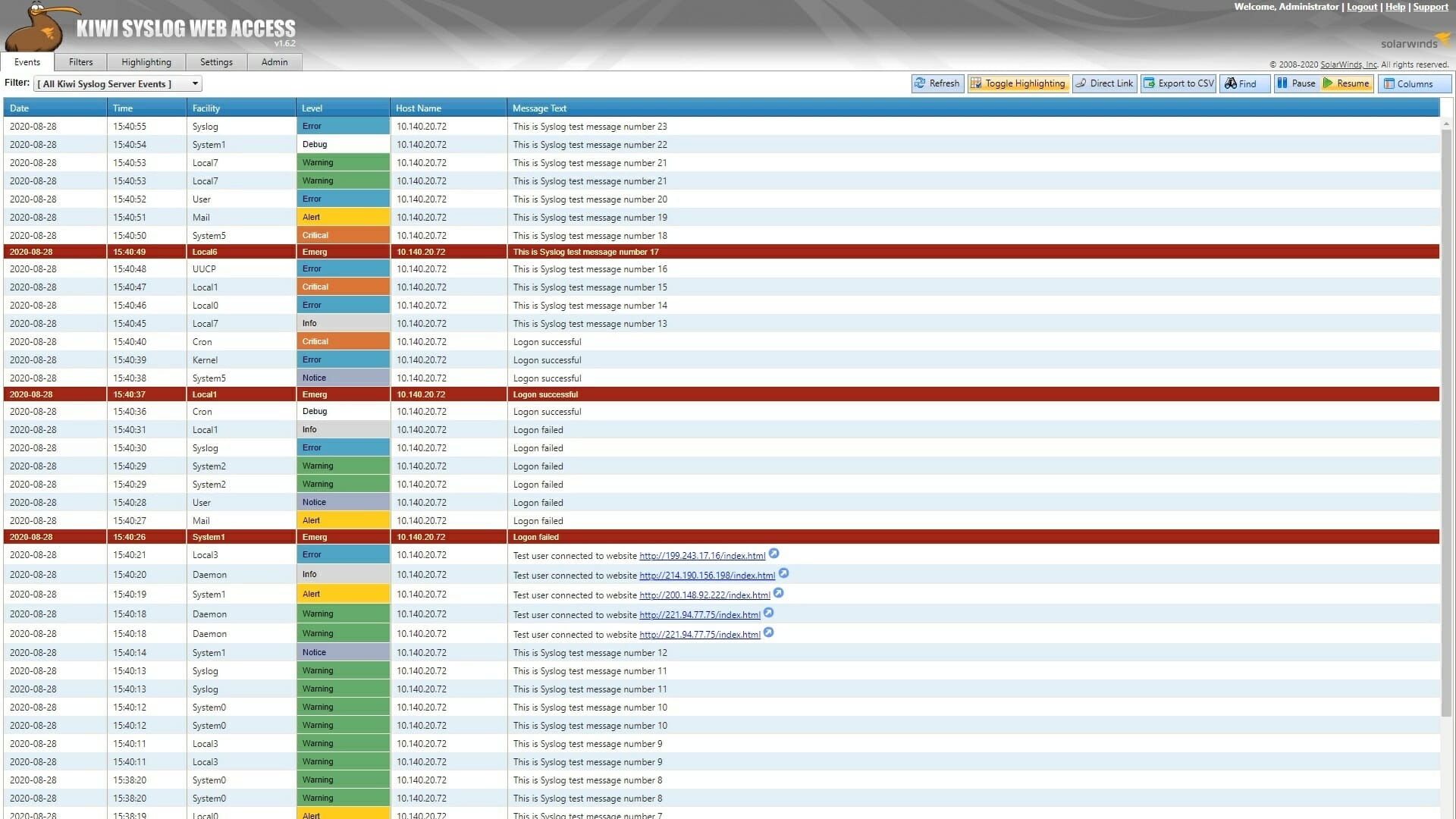
Kiwi Syslog Server – Perfect to centralize logs

Kiwi Syslog Server is a syslog management solution that allows you to centralize and simplify log management across network devices and servers.

You can manage syslog messages and SNMP traps from network devices, including Linux, UNIX, and Windows systems from a single dashboard.

You can receive real-time alerts based on syslog messages and automatically respond to them with auto-triggering scripts.

Key features of Kiwi Syslog Server:

  • Affordable syslog management software to manage SNMP traps and Windows event logs 
  • Centralized syslog management for Linux, Unix, and Windows systems
  • Real-time alerts based on syslog messages 
  • Troubleshoot systems and network devices by quickly determining the issue 

⇒ Get Kiwi Syslog Server

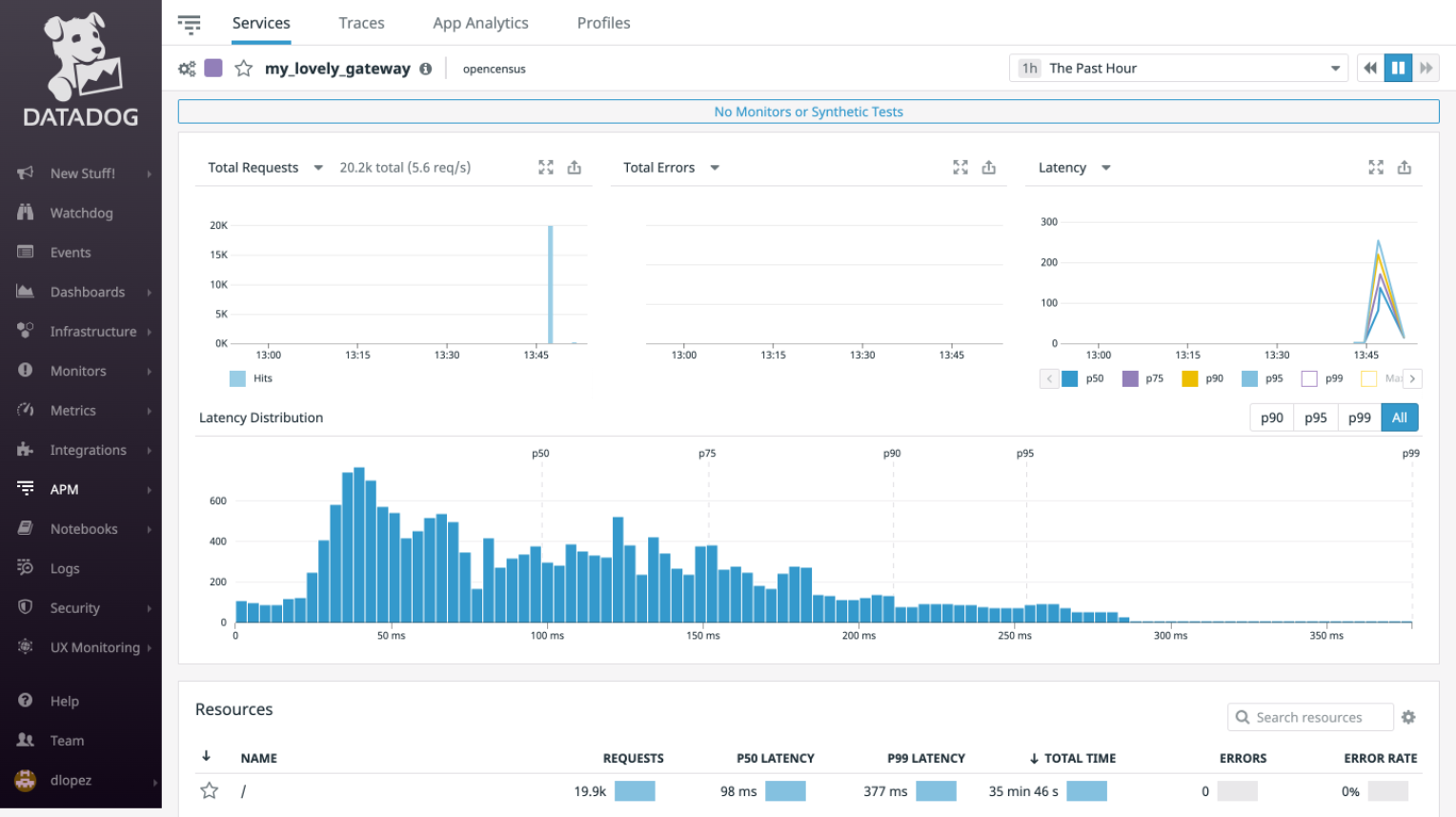
Datadog Log Collection & Management – Easy to use by non-professionals

With Datadog Log Collection & Management solution, you can easily collect and manage logs across your environment, from apps, servers, and browsers, and all of the other services in-between.

With custom processing pipeline development, you can automatically parse and enrich raw logs to extract the most insights from your data.

Other features offered by Datadog Log Collection & Management include discovering log patterns and errors rapidly, automatically detecting outliers, anomalies, and log errors, quickly accessing old logs, and decreasing the retention period per log index.

Key features of Datadog Log Collection & Management:

  • Powerful log management solution to collect data from apps, server, and browsers
  • Create analytics dashboard in seconds with datalog
  • Set up alerts for anomalies and outliers 
  • Add comments to your alerts and notify the team through Slack, PagerDuty, and more

⇒ Get Datadog Log Collection & Management

Sematext Cloud Log Management and Analysis – Real-time monitoring

Sematext’s syslog management solution offers secure & scalable monitoring and logging services with fast and powerful human syntax search, easy setup, and support for log shippers such as Logstash, Filebeat, Rsyslog, Logagenet, and more.

Centralized logging system makes real-time log monitoring and analysis from a single dashboard offering structured and organized insightful data with automated log parsing and structuring.

Other features include log alerts, log security, live tail, and multi-user role-based access control.

Key features of Sematext Cloud Log Management and Analysis: 

  • Easier user access management from a single dashboard 
  • Compatible with multiple log shippers, libraries, platforms, and frameworks 
  • Saves searches and log taggings 
  • Powerful searching and filtering system 

⇒ Get Sematext Cloud Log Management and Analysis

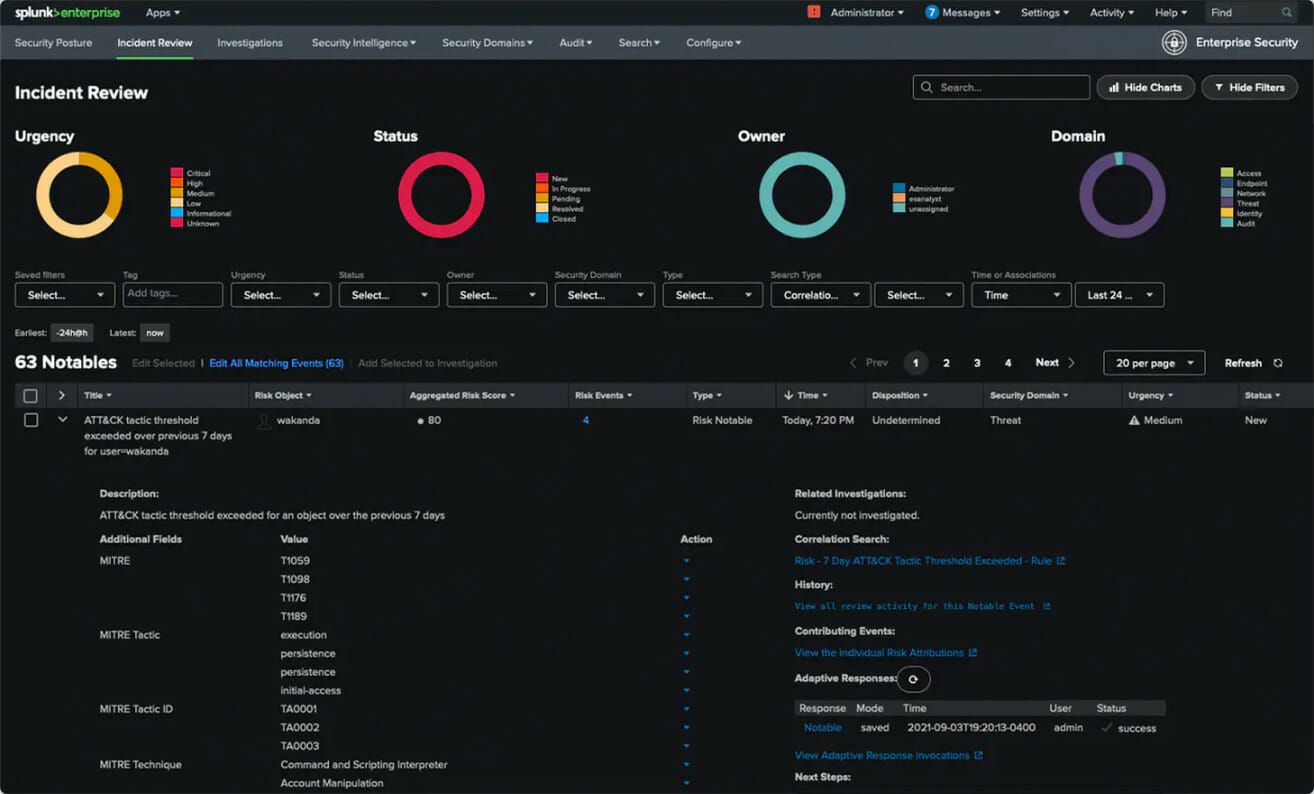
Splunk – Ideal for virtual and non-virtual environments

Splunk is a tool to search and analyze all your log data and is compatible with Windows, Mac, and Linux platforms.

It lets you search, alert, report, and monitor all your logs from one dashboard in real-time.

Apart from including custom application logs and multiline logs across both virtual and non-virtual environments, you can also troubleshoot application outages, check for security vulnerabilities and demonstrate compliance in minutes.

Key features of Splunk:

  • Powerful tools to search and analyze system log files 
  • You can search, set alerts, view the report, and monitor all the logs from one centralized dashboard 
  • Indexes all your data from both virtual and non-virtual environments 
  • Troubleshoot application outages and check for system threats 

⇒ Get Splunk

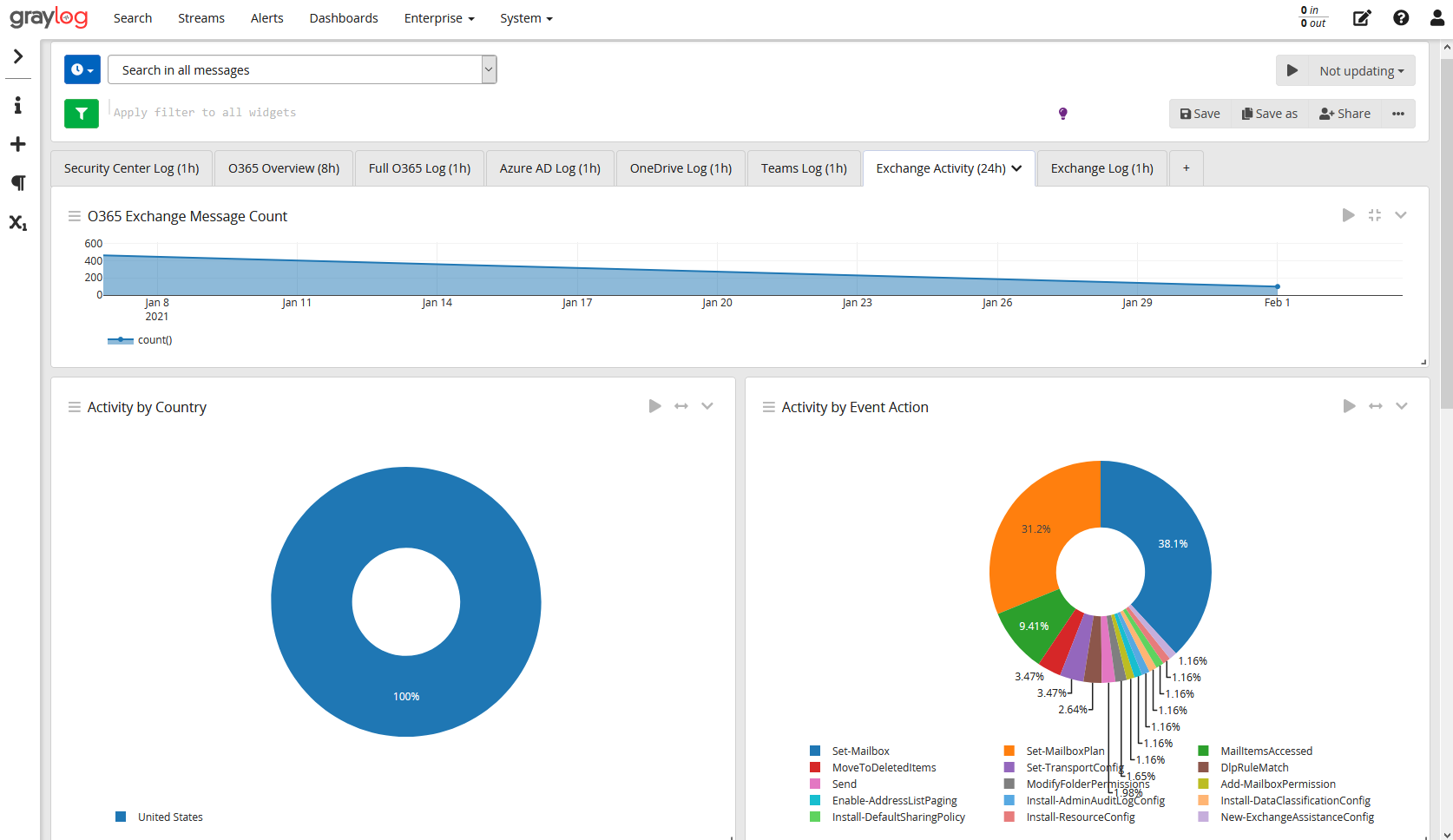
Graylog – Great for fast analysis

Graylog offers seamless log data collection, faster analysis, and security. It provides insight into your data by building and combining multiple searches for customized analysis and reports.

You can also build complex alerts depending on the events or missing events collected by the service.

Other features of Graylog include building and executing queries in a few minutes and viewing log data in real-time. For threat-hunting or root cause analysis workflow, you can chain queries together.

Key features of Graylog:

  • Centralized log management solution for data collection and faster analysis 
  • Gain insight into your data by building and combining multiple searches 
  • Custom alerts build based on a relationship between multiple events 
  • Threat hunting and security and compliance 

⇒ Get Graylog

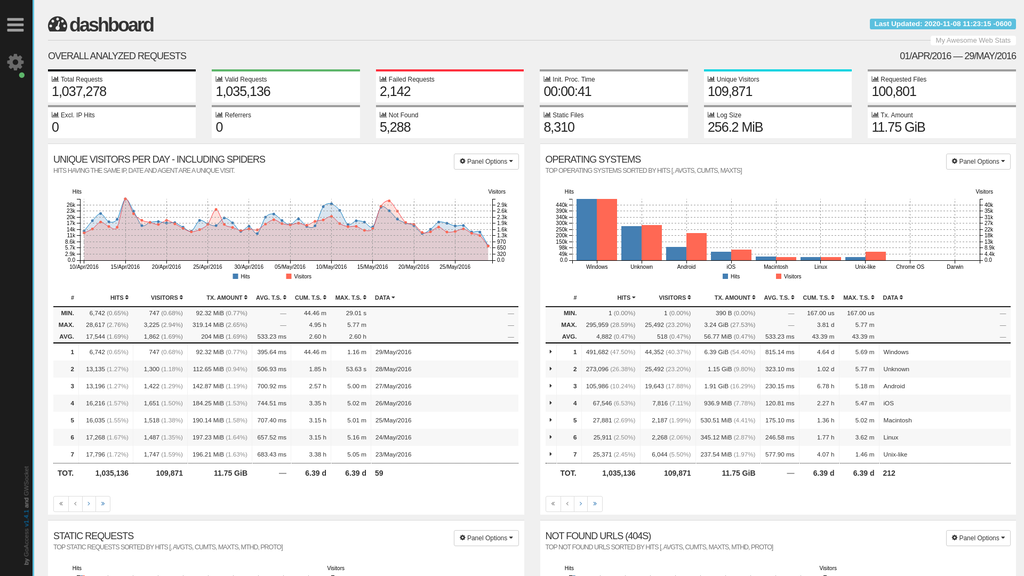
GoAccess – Best open-source real-time web log analyze

GoAccess is an open-source real-time web log analyzer and interactive viewer that runs in a command window. You can also run it through your browser to get fast and valuable HTTP statistics.

While the tool offers default terminal output, it can generate a complete, self-contained real-time HTML, Jason, and CSV report.

Key features of GoAccess:

  • Fast, and real-time open-source log manager 
  • Support all the major log formats including Apache, Nginx, Amazon S3, Elastic Load Balancing, and more
  • Clean terminal and bootstrap dashboard 

⇒ Get GoAccess

Logs are messy and, depending on your network’s amount of log, they can be challenging to deal with. That said, syslog management is still a very critical aspect of any business.

Syslog management tools can help you make sense of the web of system logs and easily pinpoint the cause of the issue triggered by an application.

Explore all the tools listed in this article to find the one that meets your requirement the best.

Fix Windows 11 Forticlient VPN Not Working/ Stuck Connecting

If you are looking for a solution to fix Windows 11 Forticlient VPN not working issue, you’re in the right place.

FortiClient VPN not working on Windows 11 screenshot
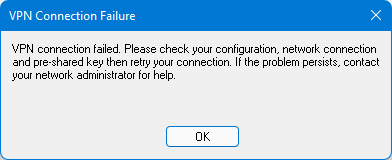
Forticlient VPN “Connection Failed” error message on Windows PC

Many encountered this issue after upgrading from Windows 10 to Windows 11, but it’s not the only instance. Faulty settings as well as a full DNS cache could also lead to errors.

Here are the fixes:

How can I fix the Windows 11 Forticlient VPN not working?

1. Re-install with the latest version

1.1 Uninstall

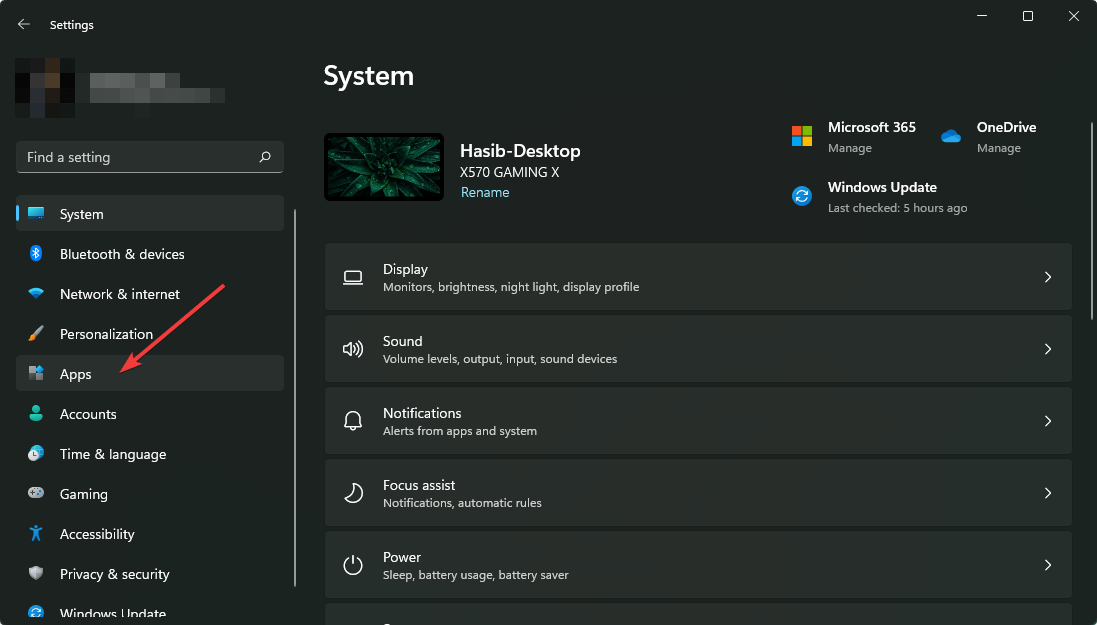
  1. Press Win + I on the keyboard to open Windows 11 settings.
  2. Go to Apps.going apps win11 settings
  3. Click on Apps & features.going apps features win11 settings
  4. Look for the Forticlient VPN.
  5. Click on the three vertical dots next to the VPN client and choose Uninstall.uninstalling forticlient vpn win11 settings

1.2 Re-install

  1. Go to the FortiClient VPN download page.
  2. Download the VPN.
  3. Install it on your Windows 11 PC.

2. Allow FortiClient services through the Windows Defender Firewall

  1. Open Windows Defender Firewall.
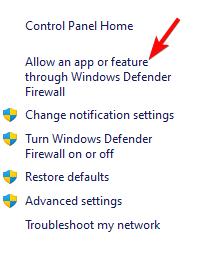
  2. Click Allow an app or feature through Windows Defender Firewall on the left.Allow an app or feature through Windows Defender Firewall
  3. Click Change settings to make edits.
  4. If you see any FortiClient services listed, check both the Private and Public boxes next to them.
  5. If they’re not listed, click Allow another app and Browse to the FortiClient folder (usually in C:\Program Files\Fortinet\FortiClient).allow app through firewall
  6. Add these FortiClient services one by one:
    • FortiClient Console (FortiClient.exe)
    • FortiClient Installer (FortiClientSetup.exe)
    • FortiClient Network Services (FortiProxy.exe)
    • FortiClient Security (FortiClientSecurity.exe)
    • FortiClient Security Console (FortiClientConsole.exe)

After adding each service, make sure both Private and Public boxes are checked.Click OK to save your changes.

3. Change DNS

3.1 Set DNS address

  1. Go to Windows Settings like before.
  2. Click on Ethernet or Wi-Fi, depending on which connection you are using.going ethernet win11 settings
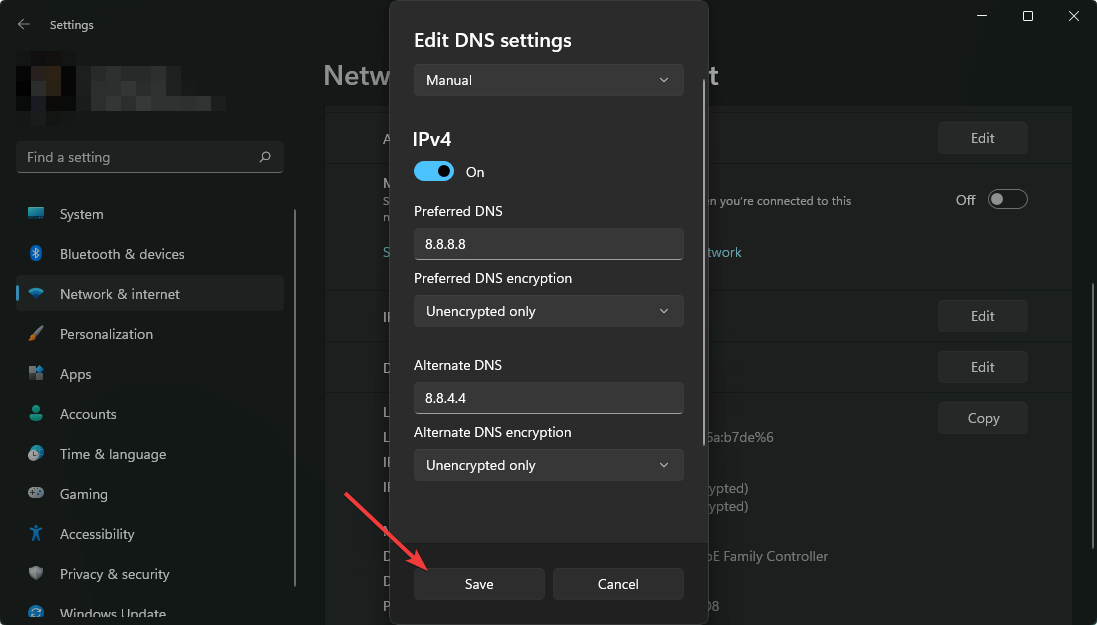
  3. Click on Edit next to the DNS server assignment.going edit dns settings win11
  4. Select Manual.
  5. Enable IPv4 or IPv6, depending on your preference.
  6. Set your preferred DNS address and click on save. In our case, we have used Google DNS: 8.8.8.8, 8.8.4.4.saving dns settings win11

3.2 Flush DNS

  1. Open the Start menu.
  2. Type cmd and hit enter to open the Command Prompt.opening command prompt windows 11
  3. Type the following command and press enter. ipconfig /flushdns ipconfig flushdns

After changing the DNS, you can try to connect to your VPN network using FortiClient. Hopefully, it will not disconnect again and work properly on Windows 11.

4. Check proxy settings

  1. Go to Network settings like before.
  2. Click on Proxy.going proxy settings win11
  3. Click on Edit next to the Use a proxy server.clicking setup proxy settings win11
  4. Turn it off.turning off proxy settings win11
  5. Do the same for the Use setup script.

5. Update network driver

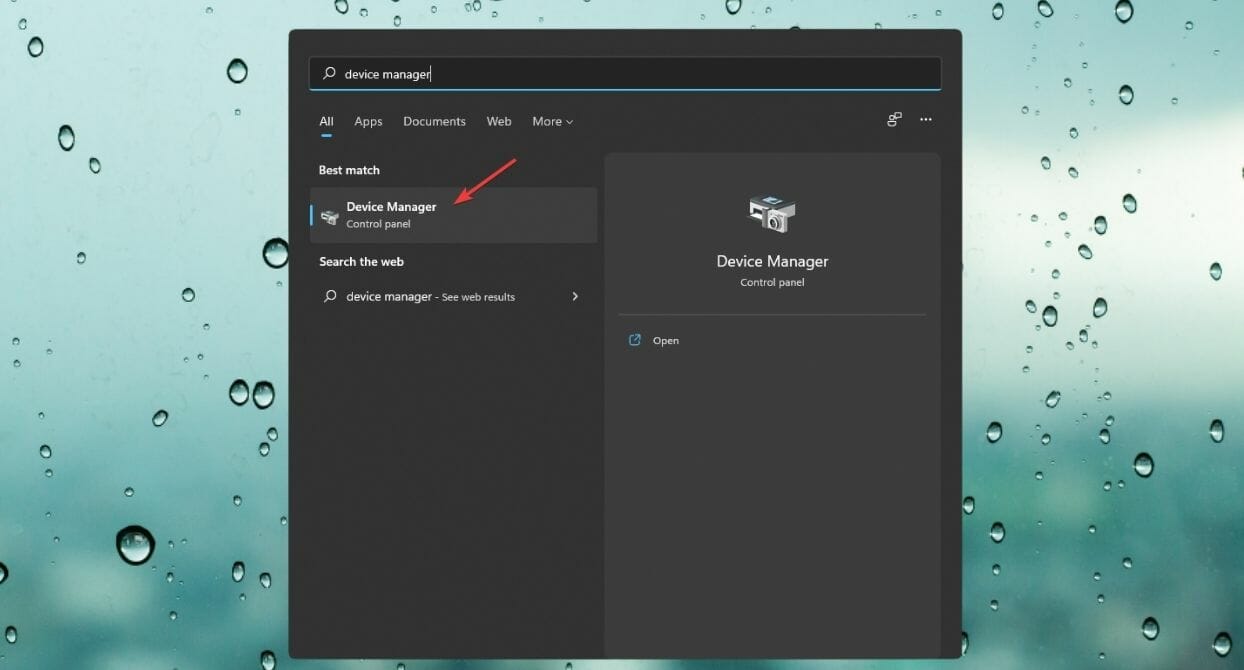
  1. Open the Start Menu.
  2. Type device manager and press enter to open Windows Device Manager.opening device manager windows 11
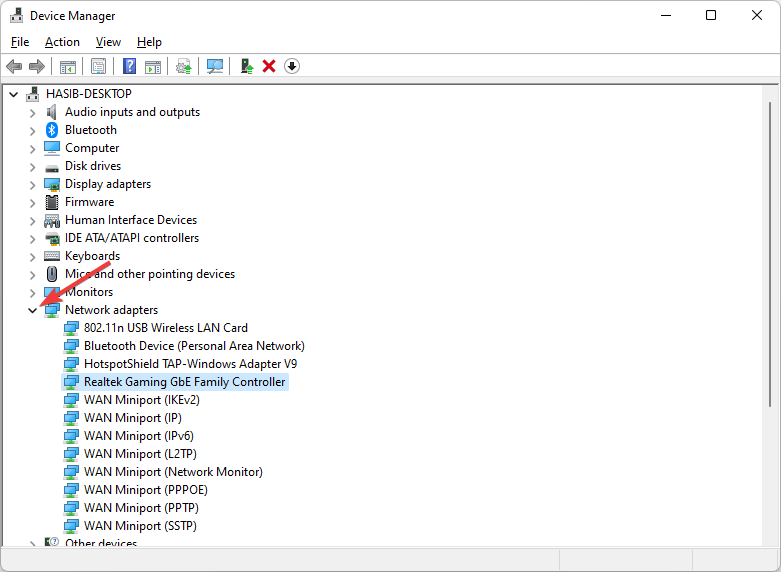
  3. Expand Network Adapters.expand network adapters
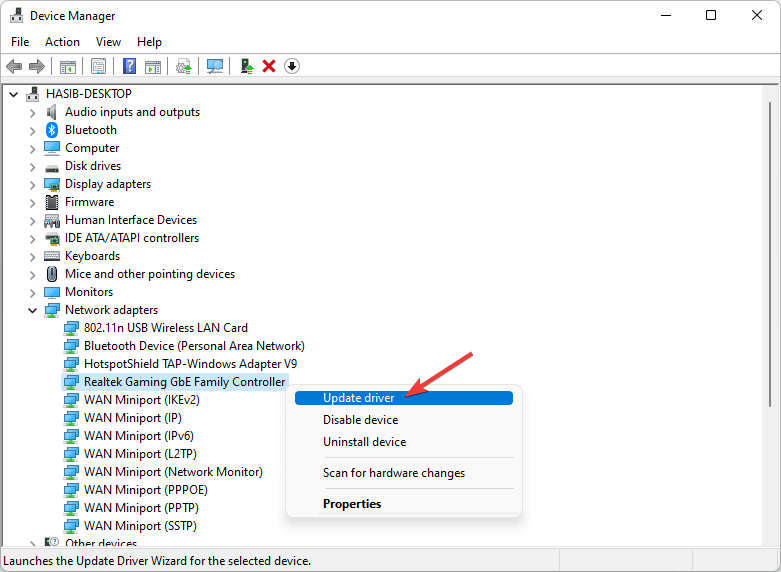
  4. Right-click on your network driver and choose Update Driver.choose update driver network driver
  5. Click on Search Automatically for drivers.
  6. Windows 11 will try to find the latest driver and install it automatically.
Note icon NOTE
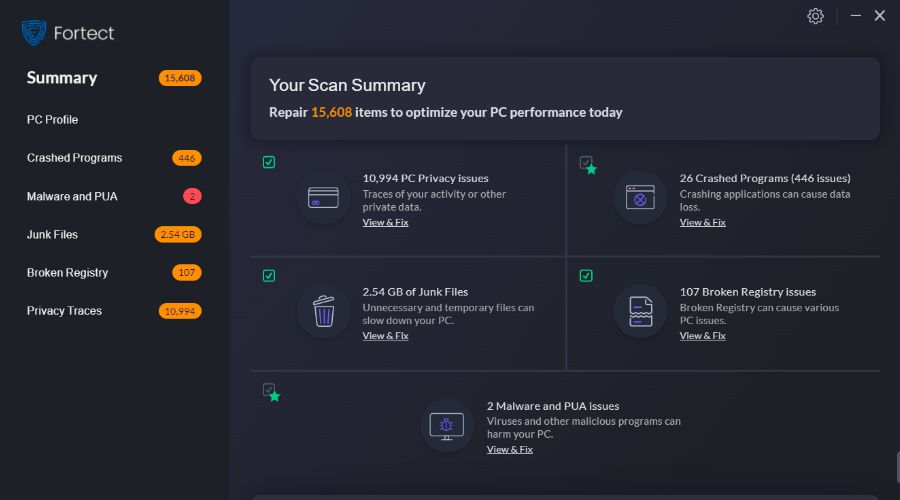
If you can’t find your network adapter or want to avoid regular updates, use Fortect Driver Updater. It automates driver updates and easily identifies new drivers (and it’s free to try).

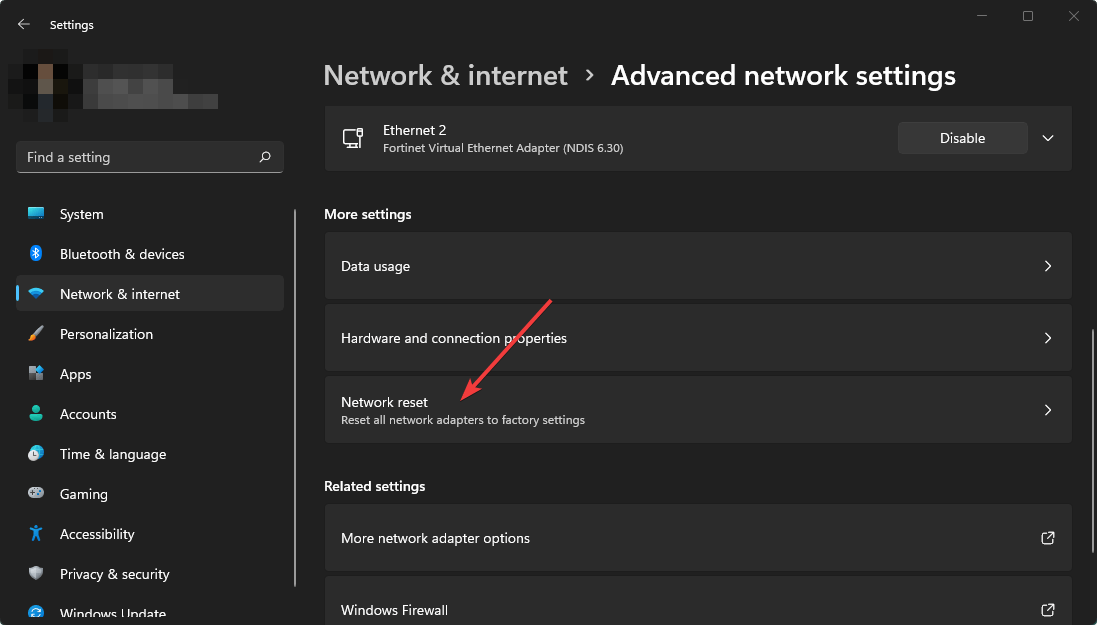
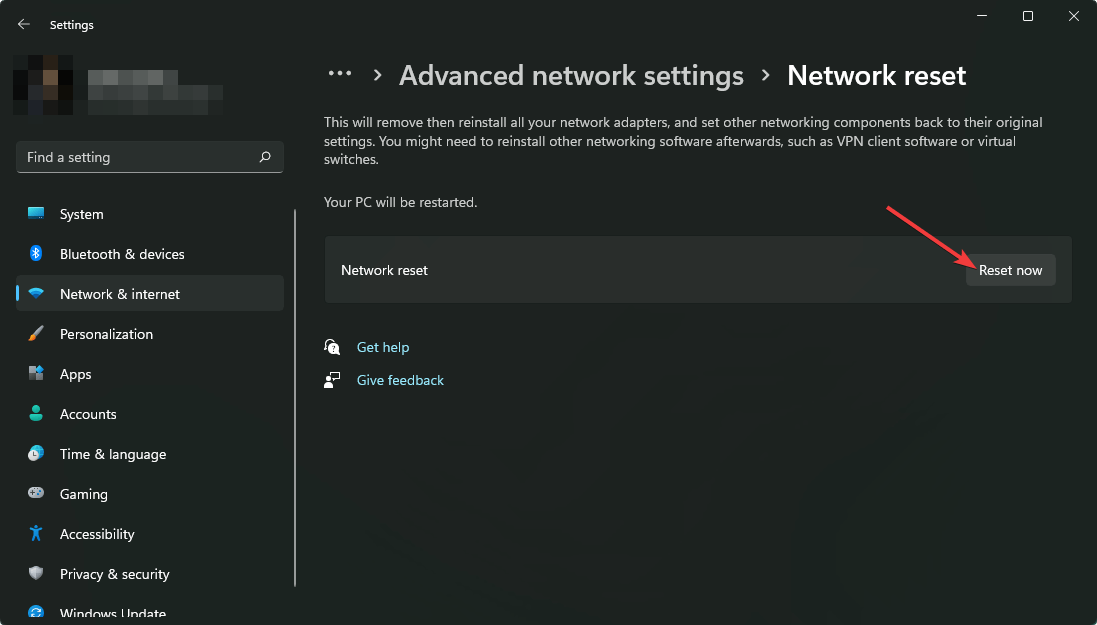
6. Reset network

  1. Go to Network settings.
  2. Click on Advanced network settings.going advanced network settings win11
  3. Next, click on Network reset.clicking network reset win11 settings
  4. Click on Reset now.clicking reset now for network reset win11 settings
  5. Click on Yes.

7. Re-enable ethernet

  1. Navigate to the Network settings again.
  2. Go to the Advanced network settings.
  3. Click on Disable next to the Ethernet connection you are using.disabling ethernet win11
  4. After a few seconds, click on Enable.

8. Use Wi-Fi

To fix Windows 11 FortiClient VPN not working issue, you should use the Wi-Fi connection rather than Ethernet.

For some reason, on some computers, the error only appears when users try to connect to the VPN network using the Ethernet connection. But, when they try to do the same thing using Wi-Fi, it works surprisingly.

9. Use SSL-VPN

If FortiClient VPN still does not work on Windows 11, you should change something on your VPN configuration. Instead of IPsec VPN, use SSL VPN.

For this, configure every necessary setting on both the server-side and the client side.

Configuring FortiClient SSL VPN on Windows 11

According to a significant number of users, this technique is very effective.

10. Switch to another VPN

If FortiClient VPN is not necessary for business purposes and connecting to a corporate network is not required, consider using another VPN service.

ExpressVPN is highly recommended for its performance and security on Windows 11.

It offers a user-friendly interface, fast connection speeds, and robust security features. It’s an excellent choice for gaming, streaming, and secure browsing.

ExpressVPN

ExpressVPN

Switch to ExpressVPN for fast, secure internet browsing
Check price Visit website

These are the most effective ways to get rid of the FortiClient VPN not working issue on Windows 11. Feel free to share any other effective methods in the comment box if you know any other effective techniques.

How to Install Generic PnP Monitor Driver for Windows 11

If you recently upgraded to Windows 10 or 11, you may need to download the Generic PnP monitor driver on your PC.

PnP stands for Plug and Play which allows you to add or remove external devices without any need to configure or install the appropriate drivers manually.

Below are a few ways to download and install your Generic PnP monitor driver on Windows 10/11.

How do I install a Generic PnP monitor driver on Windows PC?

1. Install all available Windows Updates

  1. Press the Win + I keys simultaneously to launch the Settings app.
  2. On the left side of the pane, scroll down and click on Windows Update. In the Settings app, select Windows update
  3. Now, navigate to the right side and click on the Check for updates button. Check for updates in the Windows update page
  4. Windows will now start looking for any available updates.
  5. If available it will install them automatically and display a prompt to Restart now or later. Windows update - restart now
  6. You can choose to restart your PC immediately or after your work is completed.

Now, go to Device Manager and check if you have the latest Generic PnP Monitor driver downloaded.

2. Update the monitor driver

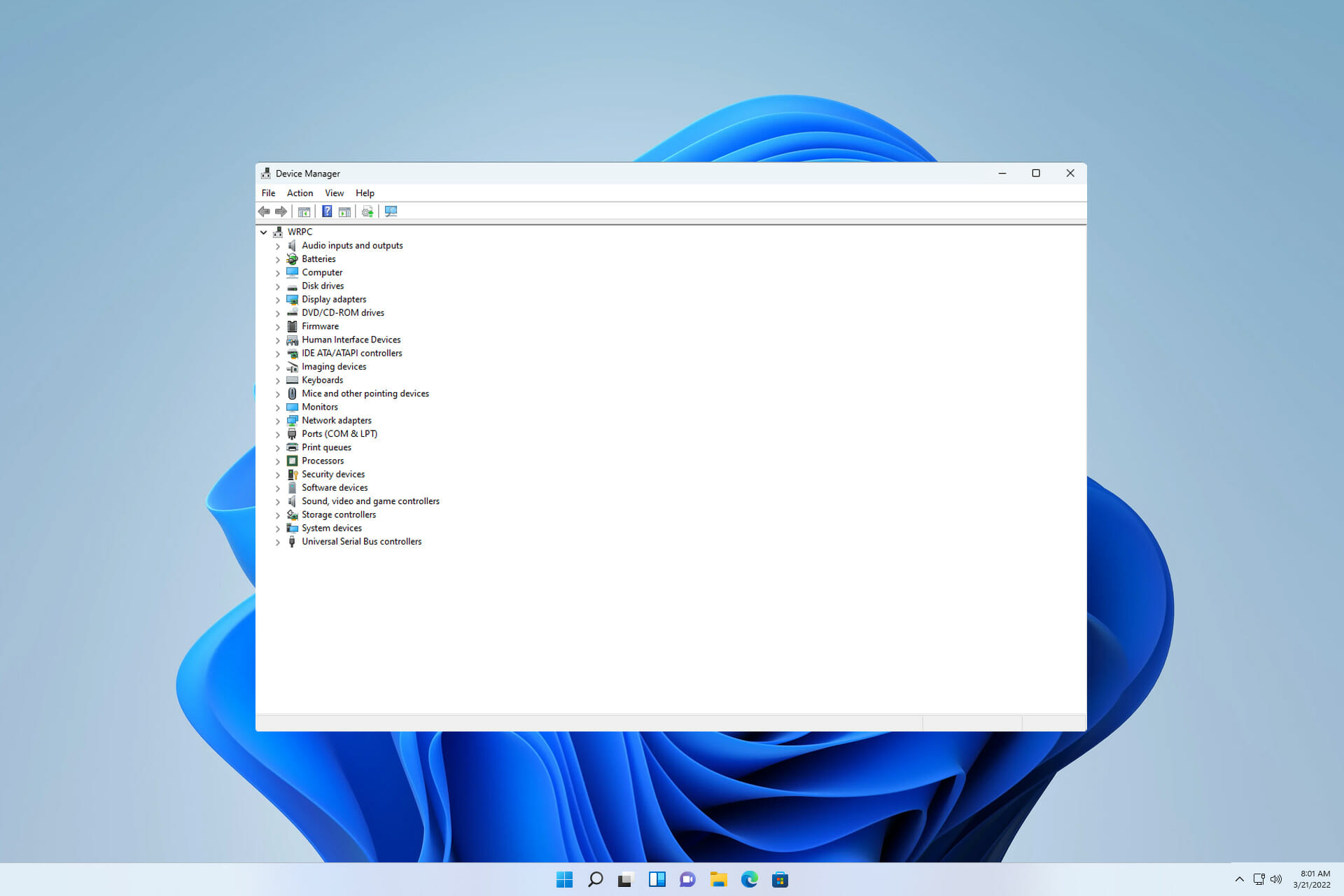
  1. Right-click the Start button and select Device Manager. Right click on Start and select Device Manager
  2. In the Device Manager window, expand Monitors, right-click on Generic PnP monitor driver, and select Update driver. Right click on Generic PnP Monitor in Device manager and select update driver
  3. Click on Search automatically for drivers. Click on Search automatically for drivers
  4. Windows will now start detecting any latest versions of the driver and if available, it will automatically install the Generic PnP monitor driver update.

To ensure you install the right generic PnP latest drivers, a driver updater software such as Fortect Driver Updater is used to download and install the suitable and compatible drivers for your PC.

Furthermore, a solution like Fortect Driver Updater does more than just download and install drivers, it also manages them by troubleshooting, backing up, and restoring them.

3. Update the Display adapter’s drivers

  1. Right-click on the Start button and select Device Manager from the menu. Right click on Start and select Device Manager
  2. Go to the Display adapters section and click to expand. Right-click on your graphics card and select Update driver. Right click on graphics device in device manager and click on update driver
  3. Click on Search automatically for drivers. Click on Search automatically for drivers
  4. If available, Windows will install the driver automatically.

Once done, close Device Manager and restart your PC to check if the monitor looks good.

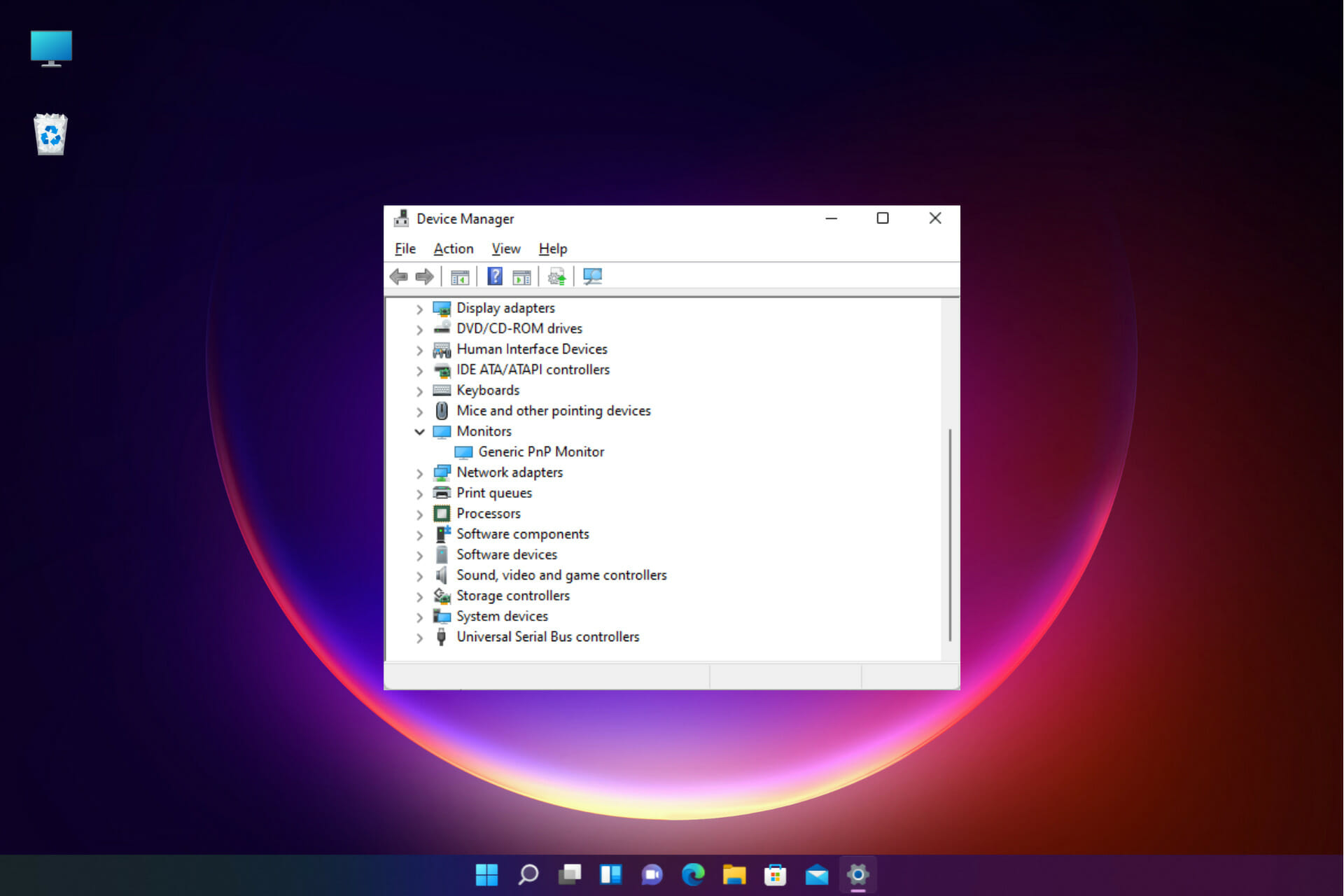
4. Reinstall the Generic PNP monitor driver

  1. Right-click on the Start menu and click on Device Manager in the list. Right click on Start and select Device Manager
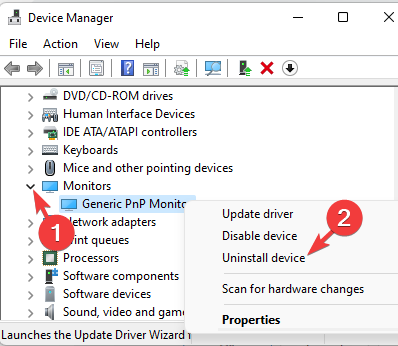
  2. Here, expand the Monitors section.
  3. Next, right-click on Generic PnP monitor and select Uninstall device. right click on Generic PnP monitor and select Uninstall device
  4. Press Uninstall again to confirm. Click on Uninstall to confirm
  5. Now, go to the Action tab and click on Scan for hardware changes.Click on Scan for hardware changes in device manager
  6. Windows will now detect the actual monitor (instead of the Generic PnP monitor) and install the driver accordingly.
  7. Next, turn off your monitor and disconnect it from the PC and remove the video cable of your PC.
  8. Wait for 2 to 3 minutes, attach all the cables and the monitor once again, and reboot your PC.

After successfully reinstalling the latest driver for the Generic PnP monitor, you should see the real monitor now.

Note icon NOTE
You cannot remove the Generic PnP driver as it comes integrated with Windows. But you can reinstall the driver if you are facing any issues with the monitor.

Nevertheless, there will be no issue with uninstalling the driver as Windows will install the device when it reboots!

5. Install the Generic non-PnP monitor driver

  1. Right-click on Start and select Device Manager. Right click on Start and select Device Manager
  2. Navigate to Monitors and expand the section.
  3. Right-click on the Generic PnP monitor device and select Update driver. Right click on Generic PnP Monitor in Device manager and select update driver
  4. Click on Browse my computer for drivers. Select Browse my computer for drivers
  5. Next, click on Let me pick from a list of available drivers on my computer. Let me pick from a list of available drivers
  6. If you see the Generic Non-PnP monitor driver listed under Model, select it and press Next.
  7. Once installed, restart your PC and you should now see the Generic Non-PnP monitor driver in the Device Manager.
  8. Alternatively, you can uncheck the box next to Show compatible hardware and select Standard monitor types on the left.
  9. Now, on the right side, select Generic Non-PnP monitor from the Model list and press Next. Select standard monitor types and then Generic Non-PnP Monitor
  10. It will take a few seconds for the driver to be installed.

Once done, reboot your PC and the Generic PnP monitor driver download on Windows 11 should be successful now.

Troubleshooting PnP driver issues

If you encounter issues like a blurry display, limited resolution options, or the Generic PnP monitor driver instead of the correct monitor, ensure the video cable is properly connected and clean the cable ports.

Reconnect the cable securely. If the issue persists, try removing and reconnecting your GPU. Also, replacing the video cable may help.

Moreover, if you are facing any driver download issues or have discovered other ways to download and install the Generic PnP monitor driver, let us know in the comments box below.

Manage Client Appointments for your Salon with Fresha Software

Whether you have a beauty salon, a spa, a therapy center, or a tanning studio, if you want to grow your business, you need a top scheduling solution.

Taking appointments, and scheduling your clients is one of the most important aspects of the beauty and wellness industry.

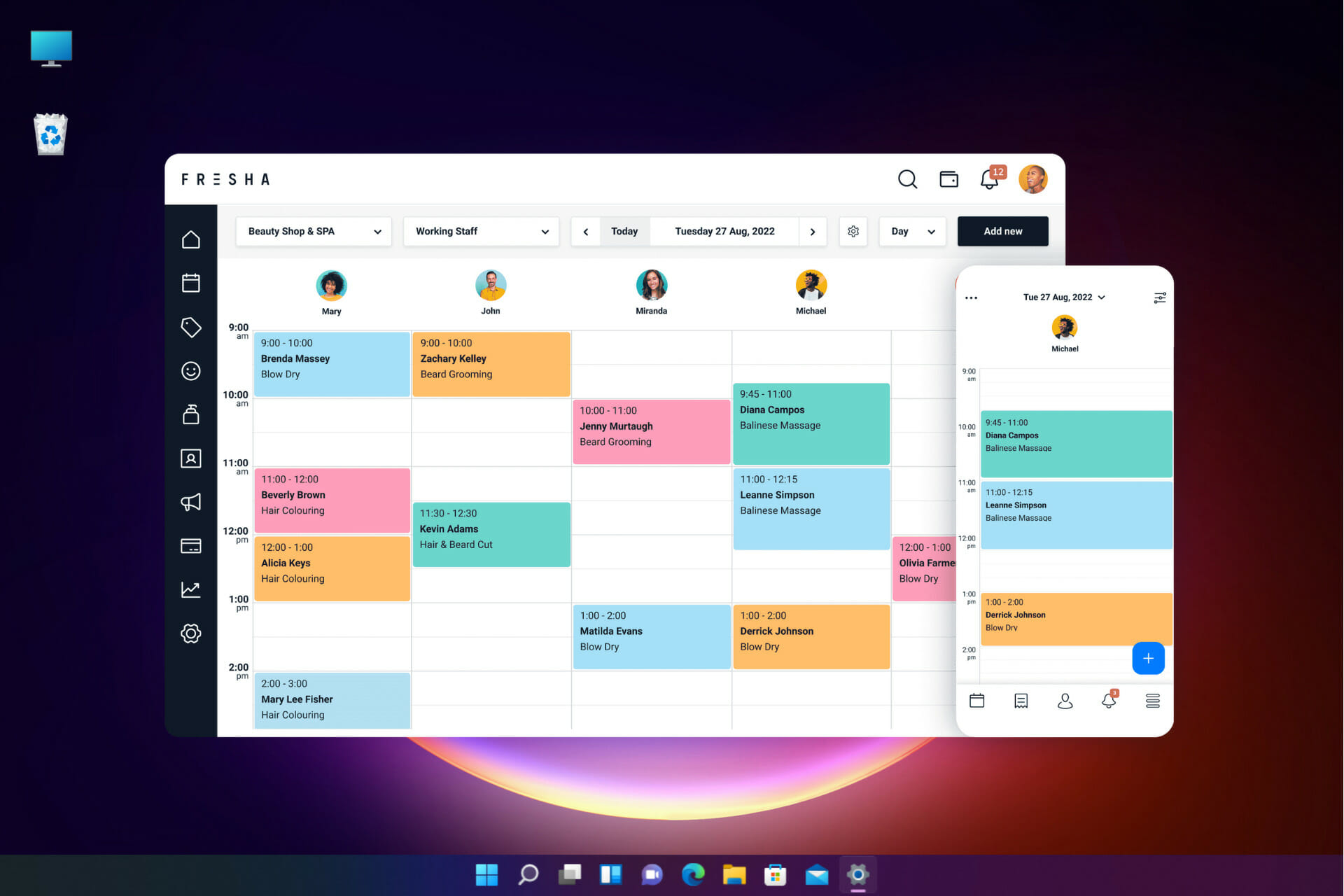
That’s why here, we’re going to write about Fresha, an online booking solution that will help you manage appointments for your salon quickly and painlessly.

We have tested the web app and we will highlight some of its best features and how to use it to grow your customer base and their satisfaction.

How can Fresha help you grow your business?

Most importantly, with Fresha’s online booking tool, you will be able to allow clients to book appointments directly through the business website or Facebook page.

And not only that, but the app will also send personalized appointment messages automatically and that will spare the personnel a lot of time.

Your clients will be happy too because they will receive automated reminders or alerts about upcoming appointments, events, or offers.

They will also have access to their own activity dashboard where it’s extremely easy to monitor their daily bookings, notifications, and actions.

Additionally, Fresha offers retail management capabilities that help you manage POS transactions, invoicing, receipts and taxes.

What are Fresha’s best features?

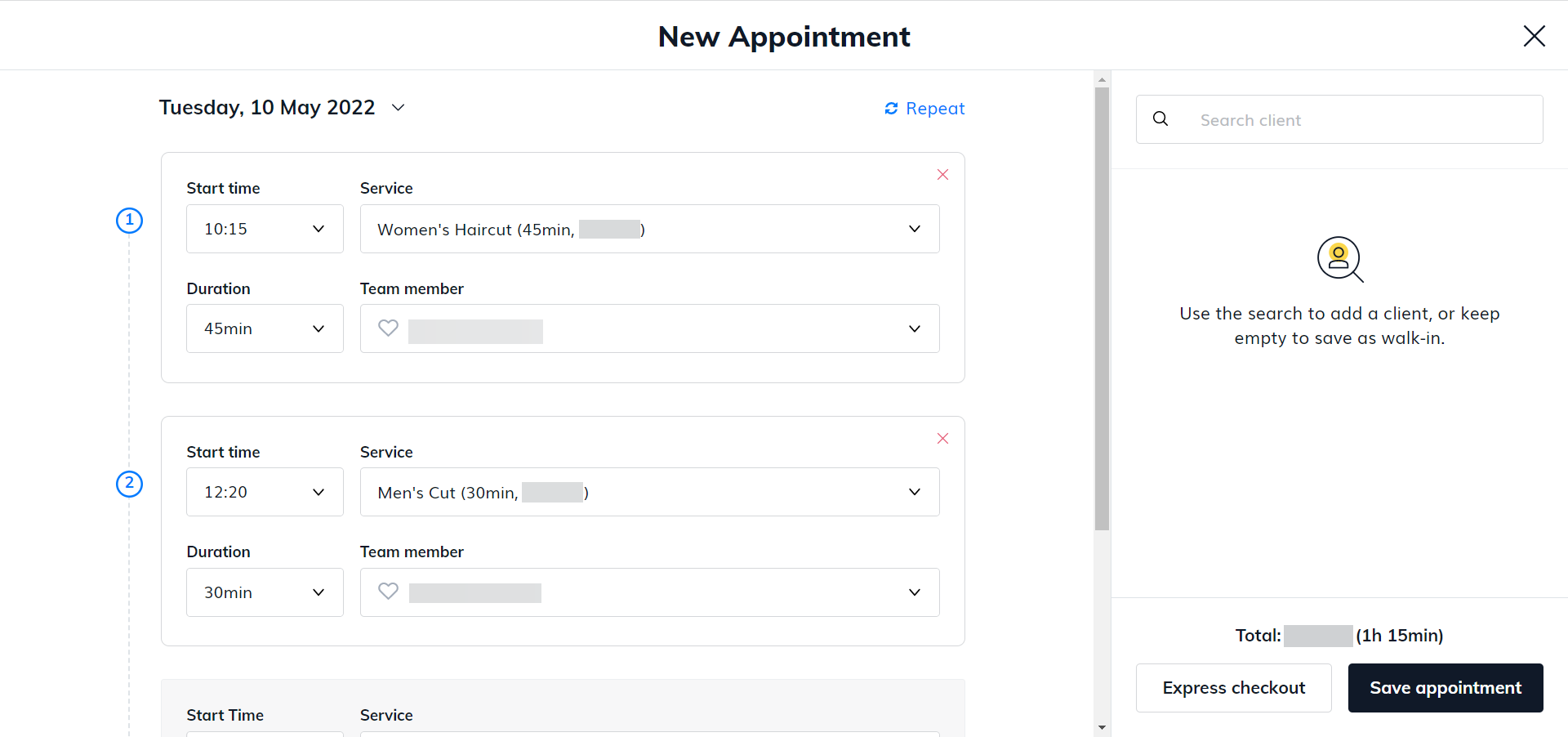
1. Easy appointment scheduling and online booking

First of all, Fresha is an online booking tool and if you embed it on your website, your customers will set their own appointment just by setting an hour, a service, and a preferred employee.

Of course, they can also do it by calling a number and your dedicated personnel will fill up the same requirements.

However, if you explain to them that with this method, they will be alerted and notified about all their appointments, they might be very receptive.

Moreover, if they sign up, you can send them incentives like coupons, and promotions and let them know about your exclusive promotions.

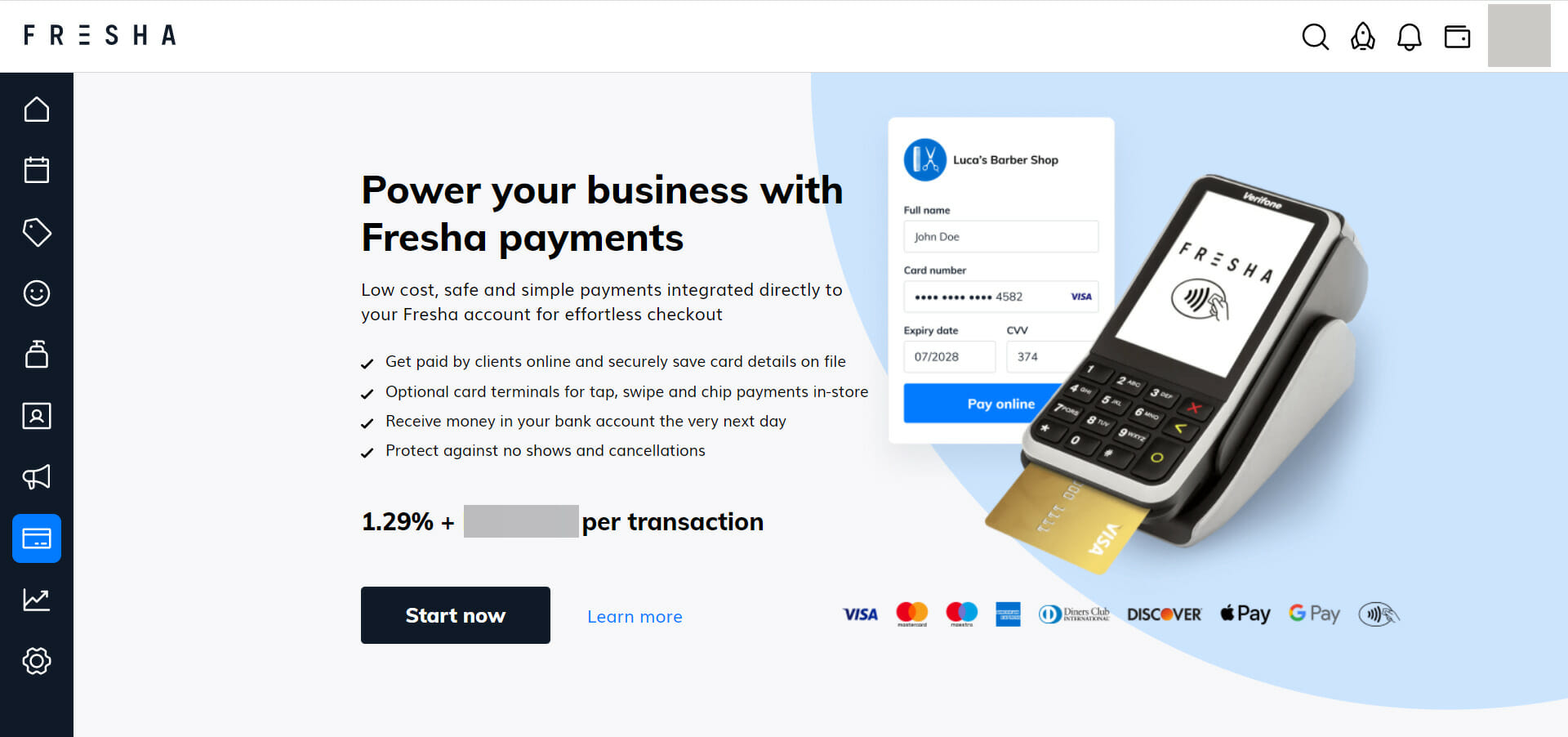
2. Easy payment methods and charging

What if a customer books an appointment and the person doesn’t show up? Usually, you get frustrated but finally, you have to move on, right?

Well, with the online booking system, you can also set a small charge to the customers if they don’t show up.

But not only that, the staff will be able to use the Express checkout to complete the payment procedure, even considering the tip.

And yes, the customers can pay also by credit card and you will have the invoice right away, without any hassle.

3. Access the app from any device

One of the best parts about Fresha is that it’s a cloud-based app so you can access it from anywhere in the world using any device that can open a browser.

However, there are also the Android and iOS apps available for mobile devices that adapt all the content to the smaller screens perfectly.

And there are dedicated versions for customers and businesses, therefore, all your employees can set up appointments and proceed with the checkout even from their mobiles.

Either way, the app offers an excellent overview of all the activity, including the finances all through a certain period of time.

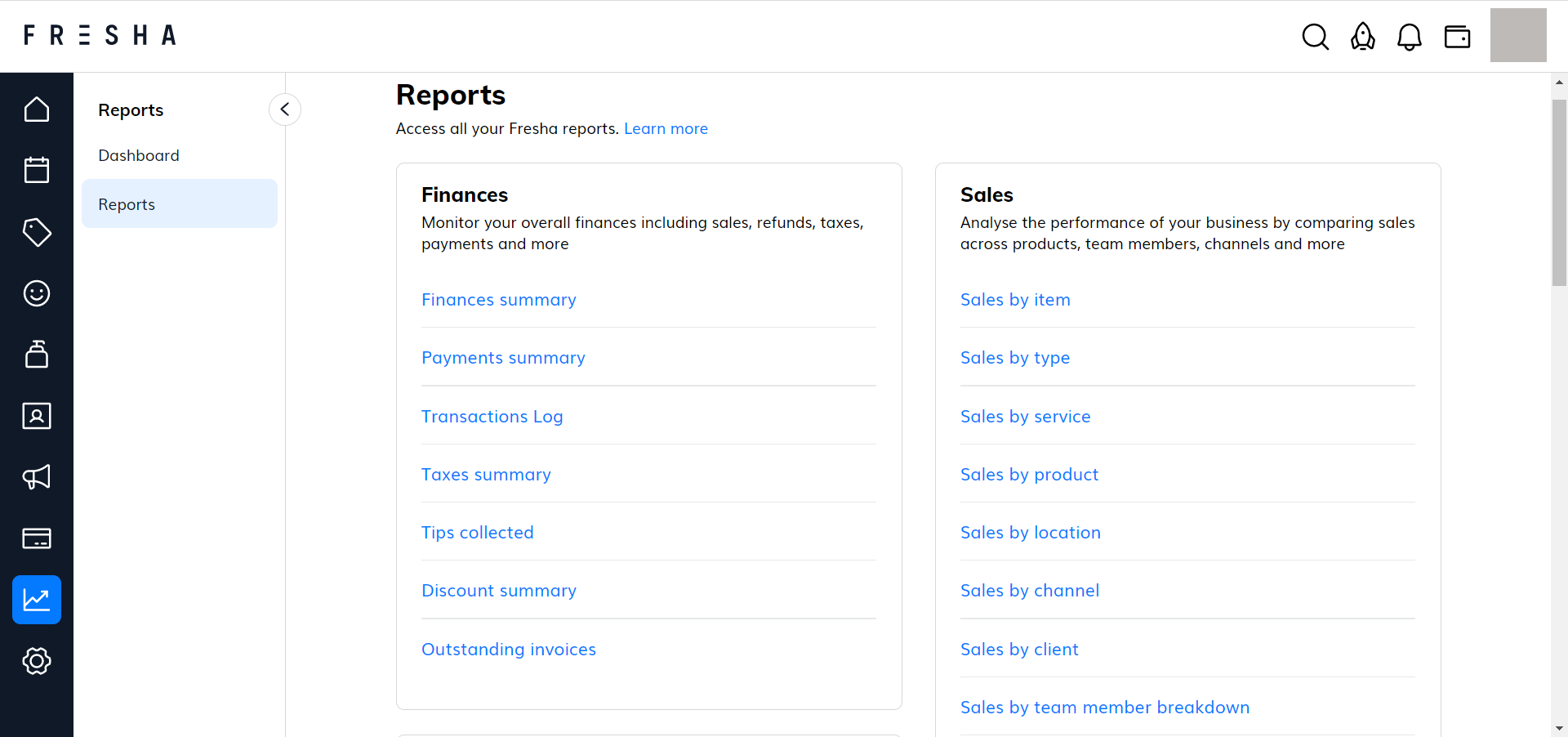
4. Full reporting and analytics

Fresha is a great tool for setting appointments but it’s also a great solution for managing your business effectively.

At the end of the day, the numbers reflect the health of your business and with this solution, you will get all the reports you can think of.

Access all the financial data, including tips, sales, or even discounts, the sales depending on a number of possible filters, see your team activity, client list, and a lot more, all from a single dashboard.

All you need is to set the desired filters and the app will automatically extract the data seamlessly.

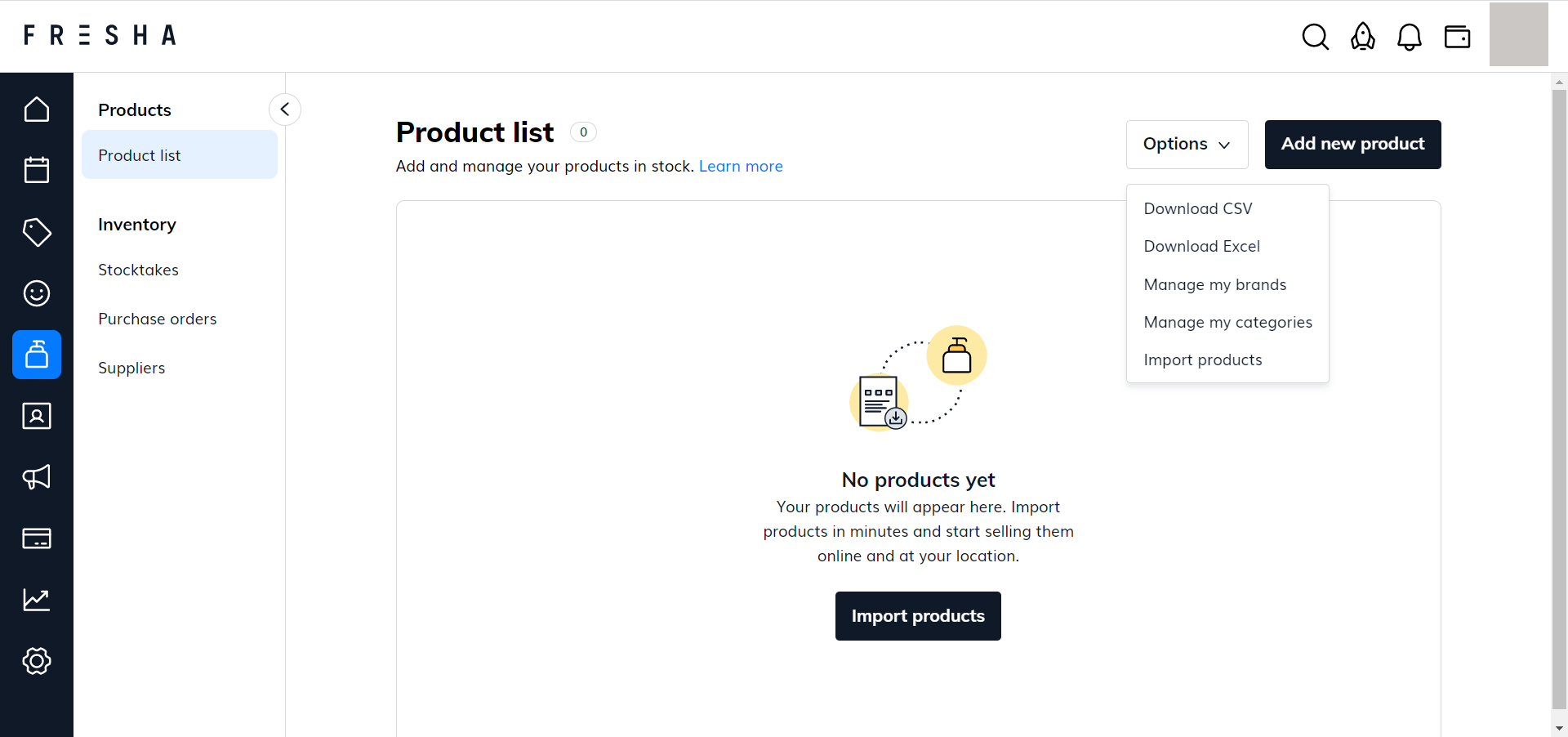
5. Dedicated online shop

Whether you have your own branded products or you want to sell products from suppliers, Fresha provides your own online shop.

You can either import a file with your existing products from a CSV or Excel file or enter them manually.

Not only you will be able to sell them online and at the physical checkout, but the app will keep track of all the stock, warn you when you are low and provide a sales chart for any product.

You will see all the orders, set up promotions, and manage the products like with any other online store.

How do I set up a Fresha account and use the app?

  1. Visit de Fresha dedicated page and click on the Join for free button.
  2. After you confirm logging in with an account, enter the name of your business and website (if you have one), then hit the Next step button.
  3. Now, select the main business type, and as you can see, there are plenty available. Don’t worry, in the next window, you will be able to select additional ones from the same list.
  4. Choose the team size of your business and click on Next step again. You can always add more so don’t worry about this either.
  5. If you’re using other software, you can specify this aspect here because Fresha will import all your data on your new dashboard so you don’t use the precious information you gathered until now.
  6. Next, add a valid address of your business. If you don’t want to, you can check the square below and click on Next step.
  7. The only thing left is to set your working hours and select Done.
  8. That’s it! Your account and dashboard are ready to use.
  9. You are now ready to add the first appointment by clicking the Add button from the Calendar tab.
  10. However, your job doesn’t end here. For instance, click on the Clients tab from the left, select the Options drop-down menu and choose Import clients to load up your existing list.
  11. Or you could just jump in and hit the Start now button to create your Fresha Marketplace profile and start marketing your business to your clients.
  12. Of course, there’s also the option of linking your Fresha account with your business accounts from Google, Facebook, and Instagram so that your clients can book your services directly from their social media accounts.

There are a lot of other things you can tweak in Fresha and essentially, this solution offers all the tools to streamline your business and improve customer satisfaction.

And because customer satisfaction is so important, this tool helps you create promotions and sell vouchers and even set up automatic campaigns.

For instance, you can create a campaign to offer a discount for the clients’ birthdays or reward the ones who had surpassed a number of appointments.

Regarding pricing, Fresha markets itself as the world’s only subscription-free platform in beauty and wellness so it would be a pity not to at least give it a try.

⇒ Get Fresha

Pros
Simple and friendly interface
Cloud-based app, accessible from anywhere in the world, on any device
Online and in-app easy booking system
Extensive business reporting
Product and service management from a single console
Point of sale (POS) functionalities
Cons
There is a procentual charge on credit card transactions

Final notes

We may not know much about beauty salons or wellness businesses but we know more than a thing or two about business management apps, and Fresha is a very good one.

There wasn’t a thing we could have questions about because everything is extremely intuitive, from setting up an account to even the more complicated settings.

Even the marketing tools provided made us think that we could set up a hair salon or any other beauty-related business tomorrow.

And it simply covers every angle of the business, from the simple appointments system to business reporting, marketing, and cashing in the money.

We hope that we convinced you to try it but you may also consider checking our best salon appointments app list and make your own choice.

Have you tried Fresha yet? If so, tell us all about your experience with the solution because it might also be useful for other potential users.

How To Spot Fedex Text Scams: 10 Safety Tips

FedEx is one of the world’s largest express transportation companies and a major parcel delivery company.

The company offers a wide range of products and services to meet customers’ needs, including air and international package delivery, freight forwarding, and more.

Because it is such a big business, it has had its fair share of ups and downs. It has been plagued by text scams that can easily soil its reputation built over the years. 

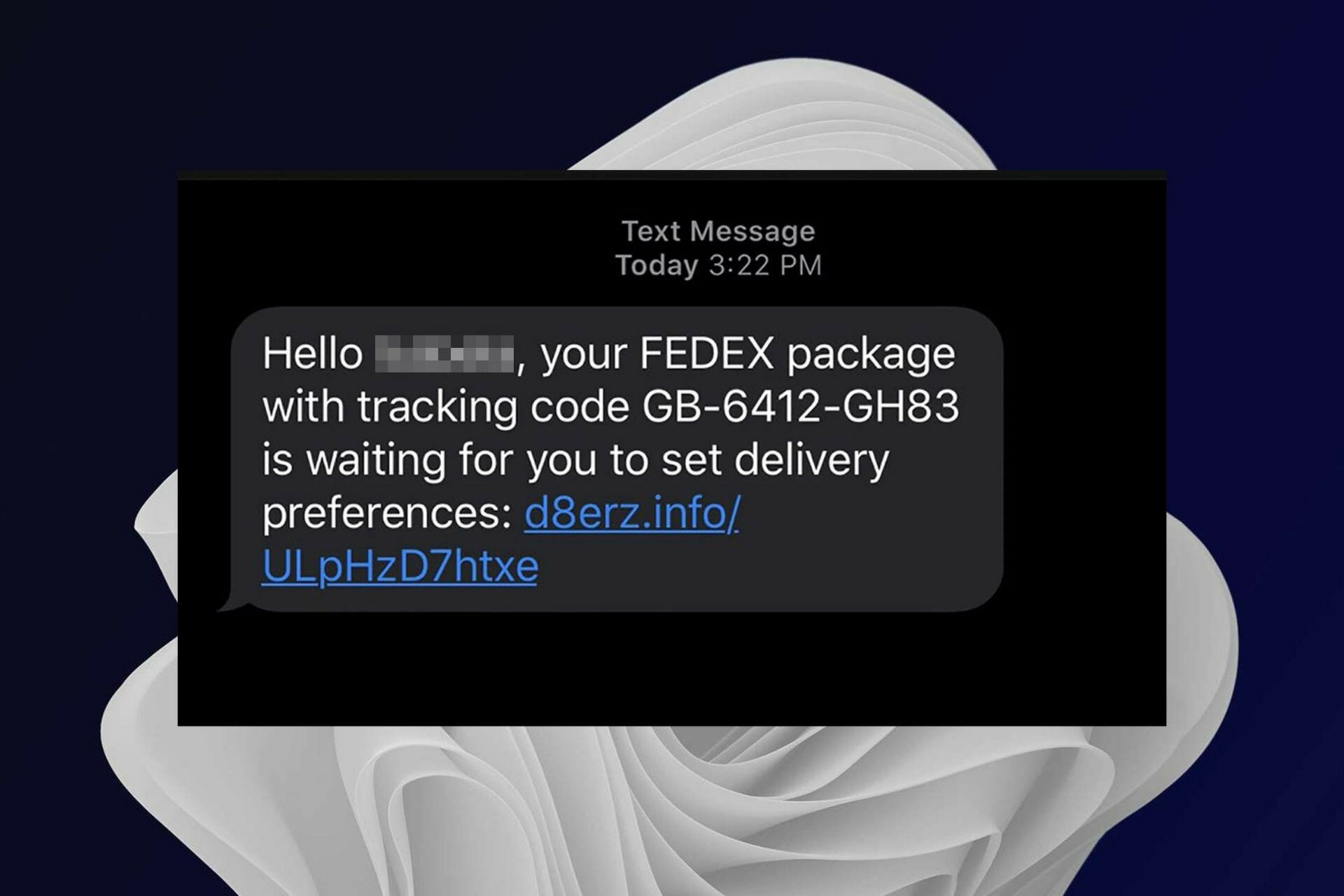
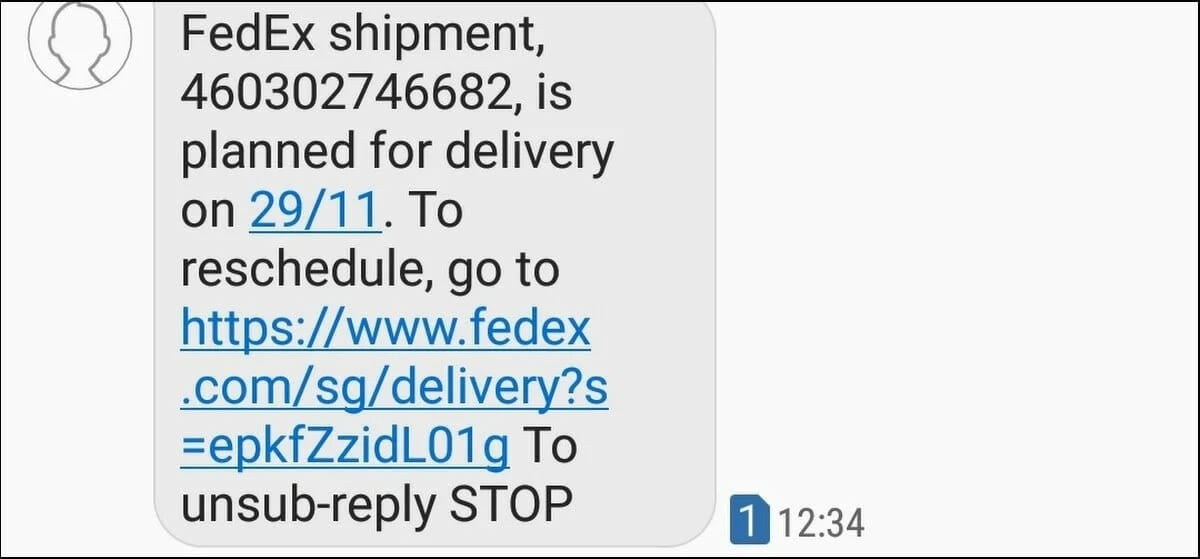
FedEx text scams are on the rise. If you haven’t received one yet, you’re probably not far off. These messages are designed to look like they’re coming from FedEx, but they’re not. They’re just a way for scammers to get your personal information in an attempt to steal your money.

It is critical that you equip your system with security software to help you combat online threats. You may also benefit from privacy protector software that will shield your confidential information from hackers.

What is a FedEx text number?

FedEx provides a text number for customers to receive shipment confirmation, tracking information, and other important updates. You can also use the text number to contact FedEx directly if you have questions about your shipment.

The FedEx text number can be found on the back of your package. You can also countercheck the number by going to the official FedEx website to ensure it is a legitimate number.

Can you get scammed just by opening a text?

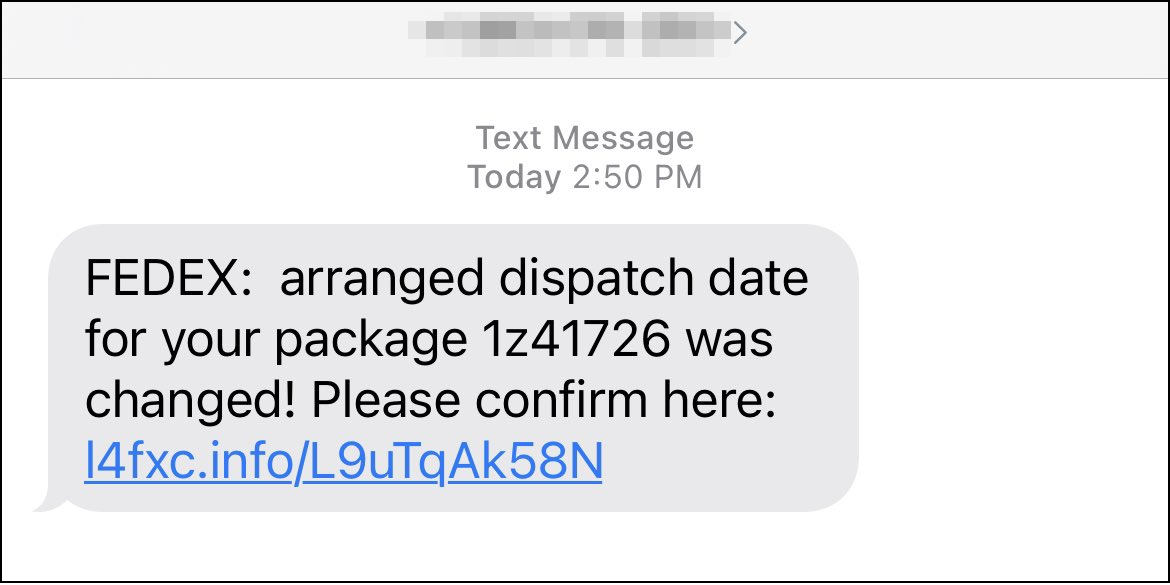
No, you cannot get scammed by just opening a text. You become exposed to risk when you take action. If you click on any links, reply or call back the number, you give the scammer a chance to interact with you and lure you to provide personal information.

Clicking on links is the quickest way to get scammed since it’s a phishing link. Once you click on it, you have already given the scammer access to your device.

FedEx does not send unsolicited texts or call customers for marketing purposes — so any message that claims to come from FedEx but asks for your account information should be avoided.

How can I spot a FedEx text scam?

1. Asking for personal information

The basic idea behind these scams is that someone will send you a text message from a fake FedEx phone number. These messages usually claim that there’s an issue with your package or delivery, such as a missed pickup or incorrect address. 

The scammer will then ask for your personal information or payment details so that they can correct the problem — but in reality, they’re going to steal your money or identity once they have what they want.

FedEx will never ask you for your personal information over text or email, so if you get an email or text asking for your login, password, or credit card number, it’s probably a scam. 

2. Links on text messages

Don’t click any links within the text messages or reply back with any personal information like credit card numbers or social security numbers; they could lead you to dangerous websites or malware downloads.

You may receive a text with a fake FedEx tracking number and once you click on it, the hacker will access your details remotely.

If you get an email that looks like it’s from FedEx but doesn’t include their logo at the top of the message or in the subject line, don’t open it — delete it immediately! You can check with your local branch before giving out any information. 

3. You have no scheduled delivery

If you’re not expecting a package, it might be a scam. If your phone buzzes with a text message about your package, there’s nothing wrong with double-checking to make sure it’s legitimate. 

But if you weren’t expecting anything in the first place, it’s best to ignore the text and not click any links it might include. The same goes for emails or other forms of communication scammers may use.

4. You are not subscribed to text notifications

Don’t respond to the text message if you didn’t request it in the first place. There are many ways to get alerted about your package so if you did not subscribe to text alerts but are getting them, it could be a FedEx text scam.

5. Poor grammar and typos

Keep an eye out for typos and poor grammar. Phishing scams tend to have poor spelling and grammatical errors so examine the text closely.

6. The text is too good to be true

If you receive a text message from someone claiming that they work for FedEx offering you great deals on shipping services, it’s best to ignore them. 

If you’re interested in shipping services with FedEx, go directly to their website or contact them through other methods (such as by phone or email).

7. Fake job postings

You may encounter a text message urging you to apply for a job. The job description isn’t specific enough and doesn’t mention any skills required. 

There is no need for any experience at all. This is a red flag because legitimate companies don’t offer jobs where skills aren’t required and experience isn’t necessary.

Furthermore, if FedEx was advertising jobs, they wouldn’t need to send individuals text messages and would instead post them on their site for anyone to apply.

8. Download unverified applications

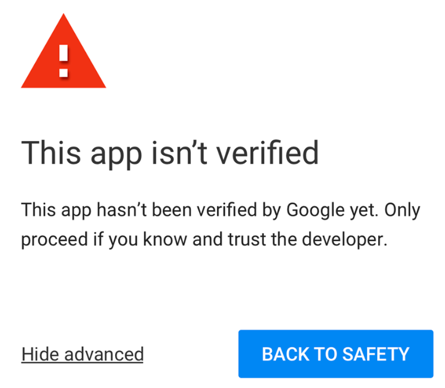
You may get a text asking you to download an application from FedEx. The first step is to ignore the message. You should never download an app without checking its legitimacy first.

If you get a text like this, don’t click on any links or attachments that are included in the text. Once you download the app, it can take over your device and give hackers access to your personal information.

Instead, check with the company directly before downloading anything from them or clicking any links in their texts. 

9. Unsecure websites

The most obvious sign of a FedEx text scam is that they’re not coming from a legitimate address.  You may also see a lock icon next to the address in your browser bar, which indicates that you’re using a secure connection with FedEx’s website.

If that icon isn’t there, then it’s likely a scammer who has set up their own website claiming to be FedEx.

10. Watch out for free trials

If you’re looking for something free, you might find yourself on the receiving end of a FedEx text scam.

The company’s name may be used to dupe people into signing up for trial offers, including a free trial version of new delivery services or a completely different service that does not exist.

Always go back to the website to verify any information before engaging in any activity that could expose you to scammers.

Does FedEx text you before delivery?

Yes, FedEx texts you before delivery. You can choose to receive a text message when your package is ready for pickup at the FedEx location of your choice. This works well if you have a busy schedule and aren’t always available to pick up packages at home.

Texting is however not the only mode of communication as you can select between email, phone, app or a combination of any of these methods.

Can my phone get hacked by opening a text?

It all depends on the text and what you’re doing with your phone. If you are not keen enough and click on any links, you can get hacked. 

Scammers can hijack one of your apps. If someone has access to one of your apps, they may be able to gain access to all of the other apps on your phone using that same app’s permissions

Your Wi-Fi is another access point. If someone manages to get onto the same Wi-Fi network as you do, they may be able to gain access to any personal information stored on your device.

Can someone hack my phone by texting me?

No, this is not possible. If a hacker tries to text you, they will not be able to access your phone. They may be able to send you unsolicited texts to the number that you provided when signing up for the service.

The only way that a hacker could get into your account is if they know your user ID and password or get you to click on a malicious link.

If you would like to report a FedEx phishing email, you can do so via mail or their customer protection center.

We hope that with the above tips, you are now feeling more secure and can spot a scam before you fall victim.

Be sure to also check out our comprehensive guide on how to avoid a Windows Defender scam.

We also recommend that you use safe and secure browsers while on the internet to minimize your exposure to risk.

Let us know whether you have been a victim of a scam and what steps you took to avoid such in the future in the comment section below.

Fix Now: Wacom Wireless Accessory Kit not Working

Using Wacom, you can wirelessly pair your tablet with a computer using Bluetooth. Once you pair these devices, you can switch between a Bluetooth and USB connection by plugging and unplugging the USB cable.

But recently, many users have complained about the Wacom wireless accessory kit not working on Windows. This issue mainly occurs due to Bluetooth connectivity issues on your device. However, there are many other reasons responsible for this.

This isn’t the only issue that users reported, and many experienced Wacom error: No device connected message on their PC. In this post, we have compiled a list of some troubleshooting methods that may help if the Wacom tablet doesn’t connect wirelessly.

What should I do if my Wacom wireless accessory kit is not working?

1. Restart your device

Restart your device before starting with complex troubleshooting methods to fix this issue. Restarting your device can sometimes fix minor bugs and problems quickly.

This is a simple solution, and you’d be surprised how often restarting a device can help with various problems, so we encourage you to try it.

2. Restart Wacom Services

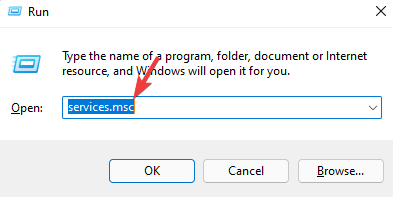
  1. Press Windows key + R to open the Run dialog box.
  2. Type services.msc and hit Enter.
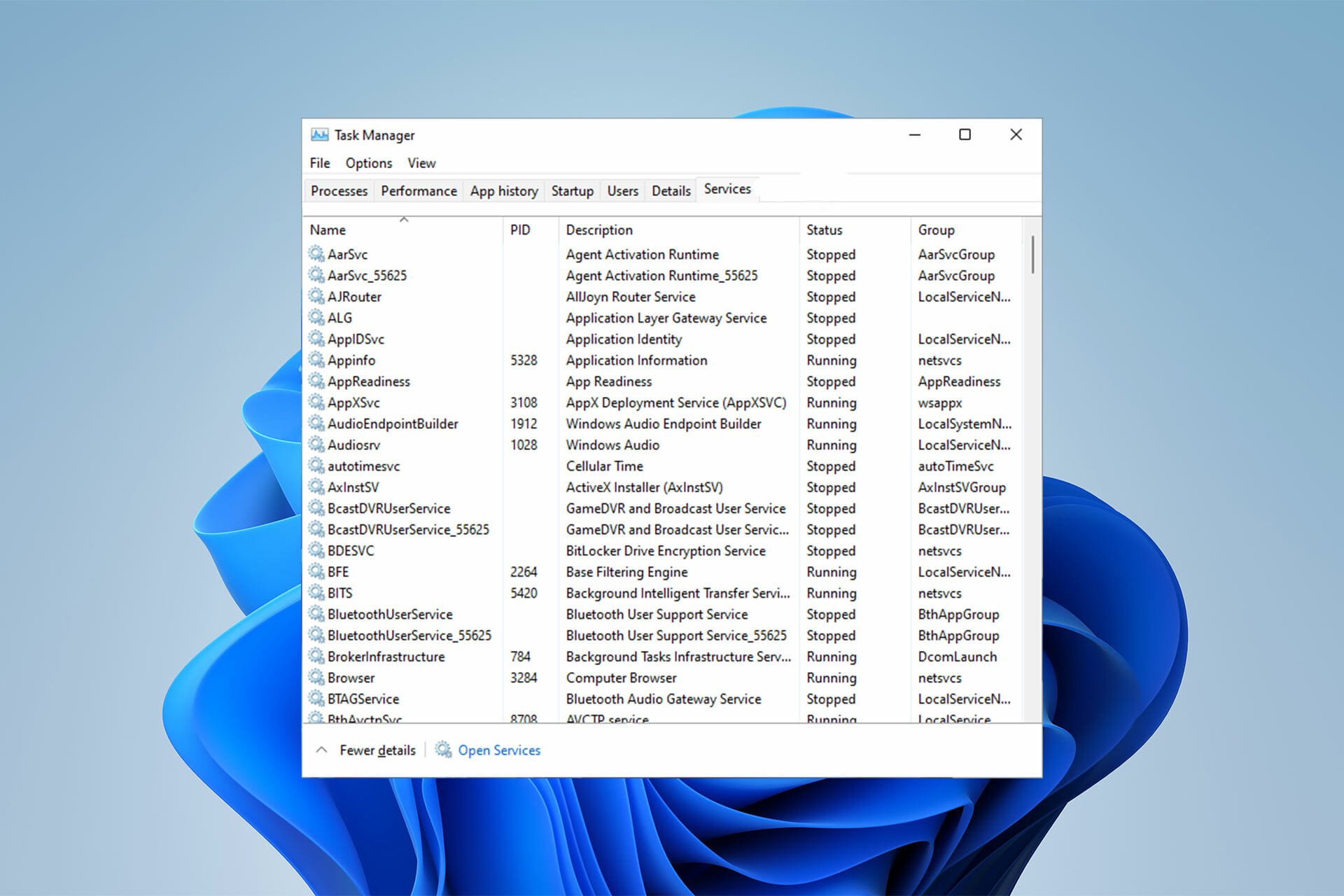
    wacom wireless accessory kit not working
  3. Scroll down and search for Wacom professional service or Wacom consumer service.
  4. Right-click on the service and select Restart.

Once the process is completed, reconnect your Wacom tablet, and check if the problem is done. If Wacom wireless accessory kit is not recognized in Windows 10, you can also use this solution.

3. Update/reinstall the Bluetooth drivers

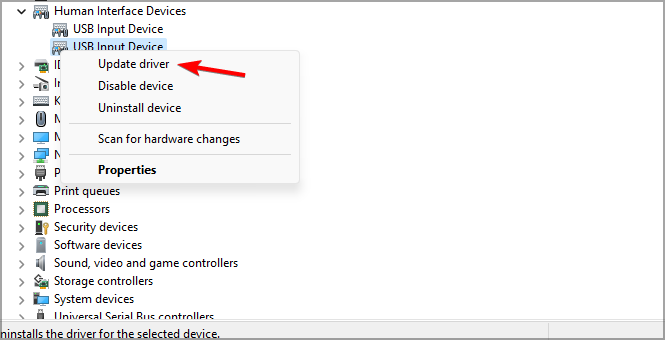
  1. Click on Start, search for Device Manager and open it.
    wacom wireless accessory kit not working
  2. Expand the Bluetooth option and right-click on your Bluetooth adapter.
  3. Click on Update Driver.
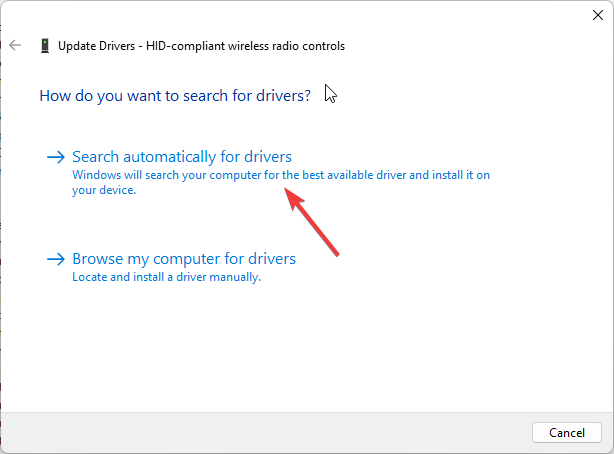
  4. In the next screen, click on Search automatically for drivers.

In many cases, the issue is caused due to faulty drivers. Updating or reinstalling Bluetooth drivers could solve Wacom wireless accessory kit issues.

Once the drivers are updated, restart your device. But if the problem persists, consider reinstalling the Bluetooth drivers.

If you want to speed up the process and make sure you install the correct Bluetooth drivers, use an automated tool like Fortect Driver Updater. It detects what drivers your hardware needs and automatically installs the newest versions.

⇒ Get Fortect Driver Updater

4. Run the Bluetooth troubleshooter

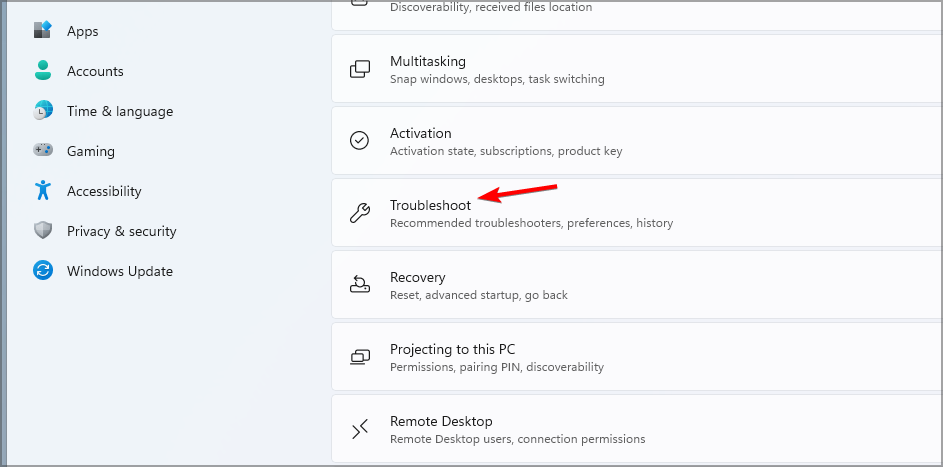
  1. Press Windows Key + I to open Settings.
  2. Scroll down and click on Troubleshoot.
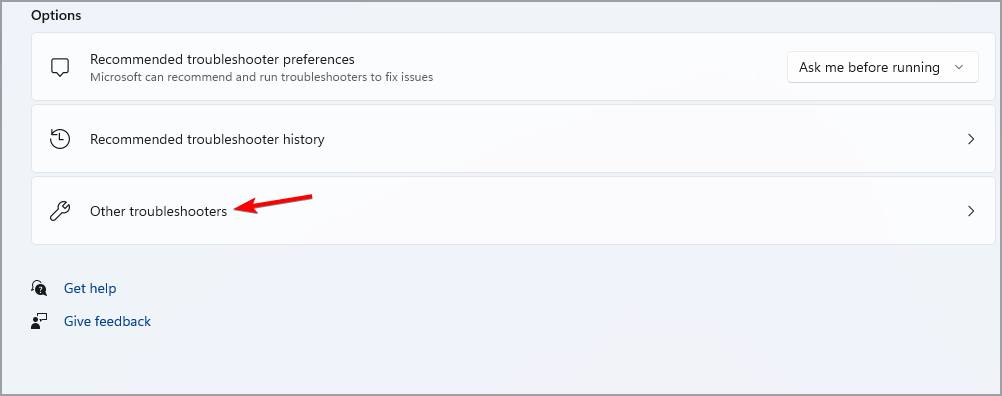
  3. Now click on Other troubleshooters.
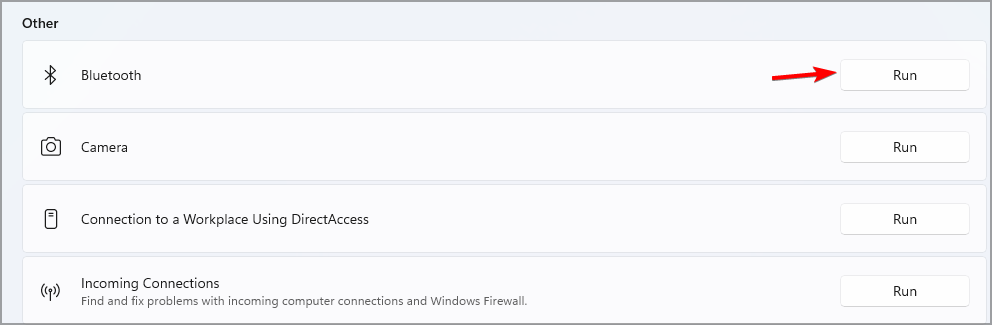
  4. Scroll down and click on Run beside Bluetooth.

Diagnose and solve the problem using Windows troubleshooter. It is a default program in Windows 11 that automatically scans and fixes bugs and errors.

Several users complain about the fact that Bluetooth is not working in Windows 11. Rest assured that our guide shows you what to do if that happens.

5. Update/Re-install Wacom drivers

  1. Press Windows key + X and select Device Manager.
  2. Expand the Human Interface Devices.
  3. Your Wacom device should be listed there. Right-click on it, and choose Update driver.
  4. In the next screen, click on Search automatically for drivers.
    Search

In many cases the issue is caused due to faulty drivers. Updating or reinstalling the Wacom drivers could solve issues with Wacom wireless accessory kit for Bamboo and Intuos tablets.

Once the drivers are updated restart your device. You can also get the latest drivers from the Wacom driver page. If the problem persists consider reinstalling the Wacom drivers.

6. Use Command Prompt

  1. Click on Start, search for Command Prompt, and click Run as Administrator.
    open cmd prompt as administrator
  2. Once Command Prompt opens, type the following and hit Enter:
    mklink /j “C:\Program Files\Tablet” “C:\Program Files\Tablet”
  3. In this case, the dedicated location for program files is drive C. Replace it with whatever your drive is.

7. Clean Boot your PC

  1. Click on Start, search for System Configuration, and open it.
  2. Navigate to the General tab.
  3. Check the Selective Startup and Load System Services options under it.
    wacom wireless accessory kit not working
  4. Navigate to the Services tab and check the option Hide all Microsoft services.
  5. Click on Disable all at the bottom right corner and on OK to save the changes.
    Clean Boot

Windows will now start with a minimum set of required drivers and programs. It will ensure if a third party or background program is causing an error.

The Wacom pen tablet is designed to let you go wireless by adding the Wacom wireless accessory kit. Most commonly, this issue gets fixed once you restart the Wacom services from the Device Manager.

Keep in mind that sometimes Wacom driver won’t install at all, but we covered this issue in a separate guide, so you should check it out.

Note that the issue mainly occurs due to connectivity issues. Therefore, check if your tablet is connected correctly and if the USB ports on your device are functional.

The issue affects various models, including Wacom wireless accessory kit Cintiq 13HD, CTL 490, and ACK-40401.

Well, that’s all we have to say about how to fix the Wacom wireless accessory kit not working. Follow the steps mentioned above to fix this error. If the troubleshooting methods mentioned above do not help, reset Windows 11 to factory settings.

We also have a guide that focuses on fixing the issue of WLAN Extensibility Module stopping, so don’t miss it if you’re having problems with wireless devices.

If you still have any issues, feel free to comment below. We’re eager to hear from you.

Gmail Backup Software to Download for Free: Top 5

Gmail is an online email client with huge popularity so if you’re looking for a Gmail backup software, you’ve reached the perfect place.

All of the emails that you send and receive are stored server-side, so they fall under the IMAP and POP categories.

However, unforeseen circumstances can eventually lead to you losing your emails in case of client or server crashes. While these occurrences are indeed rare, that doesn’t mean that they don’t happen at all.

That being the case, we decided to compile a list of the best Gmail backup software that you can use to safeguard your Gmail messages.

What is the best Gmail email backup software?

RecoveryManager Plus – Best backup and recovery tool

If you’re looking for a backup solution for your Google emails, RecoveryManager Plus is definitely a trusty go-to solution.

In fact, you can backup your Google Workspace or Google personal account files just by adding them to RecoveryManager Plus.

Then, of course, you can set up a schedule for your backups just like with any other data backup.

And getting to that, this solution can help you with backups on any data you might think of, including the Active Directory, Exchange Servers, Office365, and a lot more.

It also does that by making incremental saves. That means it will only backup new data, not the whole package, and that will save you a lot of time.

At the same time, you get to choose how long to keep storing the files and delete them automatically when it’s their due time, to save space.

Another feature that will save tremendous amounts of space is the built-in compression that will shrink your backups to a fourth of their original size.

Don’t worry because the files will be completely safe, with a powerful AES-256 bit algorithm that makes this solution one of the best Gmail backup software.

You can use your SharePoint Online and OneDrive for Business accounts and restore them in case of disasters or ransomware attacks.

There is a free trial available, enough to test if the solution is up to the expectations of your needs.

Take a look at RecoveryManager Plus’ key features:

  • Extreme backup compression and AES-256 bit encryption
  • Backup for entire or partial Exchange mailboxes
  • Online cloud backup
  • Automatic backup scheduling
  • Total and incremental backups

RecoveryManager Plus

Save all your Gmail emails safe and secure with a tool that offers complete backup for all your data online.
Free trial Visit website

Mailbird – Great email client with backup functions

Next on our list is a dedicated tool that has proven itself time and time again to be extremely great at backing up and recovering Gmail messages.

However, there are plenty of other tools that you are provided with once you subscribe to Mailbird.

That is because this tool is one of the best email management suites in the world and not just regular backup software.

Of course, this tool is not a dedicated Gmail backup software but it can do that as well, among other things.

Enrich the feel of your Gmail client with the help of integrations with Facebook, Twitter, WhatsApp, Dropbox, and more, all courtesy of Mailbird’s extremely flexible nature.

Here are some of the perks of using Mailbird:

  • Great Gmail email recovery tool
  • Comes with a  host of email management tools
  • Now available at a discount price
  • Available with a free trial

Mailbird

Get all your emails and inboxes in one place and back up your Gmail safely and quickly!
Free trial Visit website

Acronis Cyber Backup – Reliable cloud backup app

Our next entry is another world-famous software tool that specializes in server and cloud backups as a whole and not just email messages.

To that extent, this software can be easily used to create backups o all of your G-Suite data, including contacts, email messages, calendar entries, and more.

Also, you can rest assured that your backups are safe, thanks to the enhanced backup validation and blockchain-based authentication of your backups.

That makes it a great Gmail backup software but you should definitely try its other features too.

Let’s go through some of its key features:

  • Simplistic UI
  • You can start a backup in 3 clicks
  • Encryption ensures data privacy
  • Now available at a special discount price
  • You can also test it during a free trial

Acronis Cyber Backup

Ensure that your Gmail data is never lost thanks to this dedicated backup tool, now available at a special price.
Free trial Visit website

SysTools Gmail Backup – Dedicated tool for email backup and conversion

Yet another entry that has Gmail written in the name, this software utility is an excellent choice to safeguard Gmail emails, calendars, contacts, and Google Drive documents.

All the data is backed up on an on-premise platform, and you can even save and convert them into a variety of different formats, including Outlook PST, MSG, MBOX, or EML.

More so, this clever solution helps you choose what is worth backing up thanks to the built-in Email Filter.

Key features of SysTools Gmail Backup:

  • Backing up Gmail data has never been easier
  • You can convert the backed-up data into multiple formats
  • Allows efficient migration of data to Outlook or Thunderbird
  • You can archive your messages

SysTools Gmail Backup

Create safe and secure backups of your Gmail messages with the help of this reliable software tool.
Check price Get it now

Handy Backup – Best tool for local backup

Similar to Acronis, Handy Backup also works to save Gmail messages indirectly by saving emails from any server just in a few clicks.

The tool then allows for easy access for mail backup from almost any Web or local service, thus allowing an oversimplification of the import and export of emails, as well as the migration of data between different email services.

In the end, this translates into an overall advantage over backup via local mailing software.

Take a glance at its most important features:

  • Comes with a built-in backup scheduler
  • Updated very often
  • Simplistic UI
  • Works with all major email clients, not just Gmail

Handy Backup

Backup your Gmail-related data with the help of this handy backup tool, now available at a discount price.
Check price Get it now

That concludes our list of the best Gmail backup software that you can get today. The entries were chosen carefully so as to suit a wide variety of needs, based on multiple important criteria.

If you own a business, you might also take a look at our selection of the best enterprise backup solutions.

Let us know which service you ended up using by leaving us a message in the comments section below.

Fall Guys will be free-to-play and will come to Xbox on June 21

Mediatonic has announced that the hit platform battle Royale game, Fall Guys will be coming to other platforms, including Xbox, on June 21. This comes after nearly a year of rumors, and a slight delay.

As part of going free-to-play, Fall Guys will support cross-play and cross-progression between platforms and will also get a new season titled Free for All. This new season will have fresh challenges and rewards. And, if you’re an Xbox Game Pass Ultimate member, you’ll get three exclusive costume rewards via Perks. These include Robo Rabbit, Coconut Milk, and Purple Hipster, with one coming each month for the first three months.

If you’re interested in trying out Fall Guys on Xbox, you can wish list the game right now on the Xbox Store. You also can pre-register your interest to unlock milestone rewards. Those who paid for Fall Guys previously will get a Legacy Pack as a thank you reward.

Synapse X Discord is not Working: 4 Game Changing Solutions

A check across different gaming communities and forums reveals that a lot of players across the world are tired of their Synapse X Discord not working.

Many people being unable to fix the issue has opted for the use of KRNL, a free Roblox script executor created by Ice Bear, a popular member of the exploit community.

Some users, however, don’t have issues signing in to Synapse X Discord until they are banned and have consistently lamented the non-response of the platform’s support staff.

Read along as we explain different ways to resolve these issues related to Synapse X Discord not working.

Why is my PC flagging Synapse X Discord as a virus?

The reputation of the Synapse X.exe executable file on your computer is dependent on your download source.

Rest assured that the official version of the software is not a virus even though the system firewall is likely to flag it as one.

To continue using it without any obstruction, you only need to whitelist it. In case you don’t know, we have an article specially written on how to solve false-positive antivirus detections.

However, for those who are indeed viruses, users have reported that when they are executed, they consume almost 70% of the CPU/GPU capacity.

What can I do if Synapse X Discord Auto Join is not working?

1. Purchase Synapse

The free version of Synapse X Discord has been deleted. This may be the reason the Auto Join is not working at your end.

Now, to get the Auto Join link, you will need to purchase it from their official site. After buying Synapse X which costs between $15 and $20, a link to download the software will be sent to your email address.

The downloaded file would be in a .zip format which would need to be extracted to function. You can read our detailed guide on how to handle .zip folders to extract needed files for Synapse.

After successfully extracting the required files, you will need to register a new Synapse account using a serial key.

This is usually sent to your email but keep in mind that the account activation takes up to 24 to 48 hours. Also, make sure to turn on Auto Join for Discord in Synapse X.

2. Join Synapse X Discord

If you’re wondering how you can join Synapse X Discord, the answer is that you don’t need to do anything in particular.

As we’ve mentioned above, activating your Synapse account using a serial key that was sent to your email after purchasing Synapse X is enough.

All things being equal, you can Auto Join Synapse X Discord if you have both an active Synapse X and Discord accounts. Ensure all of these are in place and you won’t have any issues.

However, the availability of Synapse X Discord is dependent on the server. If it’s down, you will be unable to join.

3. Open Discord

  1. Download Discord from the official site.
  2. Install and launch the application once the download is completed.
  3. Create an account.
  4. You will be requested to verify your account through your email and phone number.
  5. Once launched. Go back to relaunch Synapse X. You should get an Auto Join prompt this time in the Discord.

4. Clear Discord cache

  1. On Home Screen, right click on the Discord icon. Select Open file location.
  2. Find the folders named Cache, Code Cache, and GPUCache, then select and delete them.
  3. Go to your system Recycle Bin by pressing the Windows key + D to minimize all screens. Then punch the R key until the focus is on the Recycle Bin icon.
  4. Delete the Cache, Code Cache, and GPUCache files from the Recycle Bin.

If you have been using Synapse X Discord before but suddenly can’t find the Auto Join link anymore, try to clear the Discord cache.

How to get into Synapse X Discord?

Following the methods above may have already auto joined you in Discord and you wouldn’t know. Do a recheck to ascertain.

You may also restart Discord and Synapse for few times in case you are having issues with the Auto Join.

How do I get verified in the Synapse X Discord server?

As stated earlier, while signing up for Discord, you will need to verify your account using a code and link sent to your phone number and email respectively.

Your Synapse X account verification is automatic once you get the Auto Join link when logged in to Discord.

It is important we inform you that if your account is banned, none of these methods would be able to fix it. Your best solution can only be presented by the platform’s customer support.

We hope you have been able to solve the issue with Synapse X Discord using any of the methods we discussed in this article. Let us know the one that worked for you in the comments section.

Does Windows 11 Need an Antivirus? Yes, and Here’s Why

The release of Windows 11 created a buzz as the most secure OS yet. This has prompted users to wonder whether Windows 11 needs an antivirus.

Because Microsoft has been consistently criticized for its security flaws, it’s no surprise that users are questioning the security of the latest version of Windows.

Windows 11 was designed with security in mind. The latest version of the popular operating system is more secure than ever before, with new features such as SmartScreen designed to protect you from malware and other threats.

Is Windows 11’s antivirus good enough?

Does Windows 11 come with an antivirus? Yes. Windows 11 has its own antivirus: Windows Defender. The main question here is whether or not it will be good enough to protect your system from all kinds of threats out there.

The longer answer is that several factors determine whether or not you need an antivirus program on your laptop or desktop. 

If your activities are not internet-intensive and there is no frequent sharing of files, then Windows Defender is good enough for you.

It can help protect against viruses and other threats that might try to attack your PC through email attachments or websites. But it isn’t as powerful as third-party antivirus software. You can look at a more in-depth review of Windows Defender to see all it offers.

Does Windows 11 need an antivirus?

1. Security patches aren’t always secure

In a world of software updates and patching, antivirus is no exception. But does it mean that you don’t need antivirus protection? No. Updates are not always secure as sometimes they are infected with bugs, so it is good to be protected at all times.

windows-update mouse stuttering in valorant

2. Hackers are watching your online activities

How much time do you spend online? If you’re constantly connected to the internet, then chances are that there is malware out there specifically targeting computers with internet access.

3. Your sensitive information is at risk

Another factor is how much sensitive data you have stored locally on your PC. If you’re someone who uses their laptop for work purposes, then this could include sensitive information.

Your browser stores your credit card numbers or passwords in browser tabs or browser history files. Hackers can access such information so you need to practice safe browsing habits by using secure browsers or an additional antivirus program to secure your confidential information.

4. Windows Defender cannot do it alone

There are some things that Windows Defender cannot do. It’s designed more for detecting and removing malware than protecting your computer against viruses, tracking cookies, and other threats.

You’ll notice that even in the antivirus market share, Windows Defender is not among the top antiviruses because it’s just a basic security tool. You will need another antivirus program to do the job.

It’s ideal you get a security tool with multi-layered protection. We recommend ESET HOME Security Essential because it combines up-to-date threat databases with advanced machine learning to ensure all-around protection.

ESET is able to protect against viruses, malware, spyware, phishing attacks, ransomware, script-based attacks, and network problems. It secures online payments and has parental controls and webcam protection.

➡️ Get ESET HOME Security Essential

5. You need your privacy

Sometimes, you just want to browse the internet without having to deal with pop-up ads or tracking cookies. A third-party antivirus can help you remain anonymous on the internet.

Can Windows 11 get viruses?

Yes. Windows 11 can get infected with malware and viruses like other versions of Windows before it. There are no guarantees that your computer will never get infected with a virus or malware.

However, several new features make it easier for Microsoft to protect users from these threats.  It’s safe, but it also depends on your activities.

As Microsoft ups its game in tightening the security of the OS, so are cybercriminals. You need antivirus protection when using Windows 11. If you don’t have it, you risk being infected with malware or other threats.

There’s no one best antivirus for Windows 11 as they all differ, especially based on your needs. You can check out our list of reliable antiviruses to protect yourself.

We hope you now have a clearer picture of whether you need an additional antivirus for Windows 11. If you want to know more about antivirus usage and other statistics, check out this guide.

As always, we enjoy your feedback! Do not hesitate to let us know your reasons for adding a third-party antivirus if you have one or are just using Windows Defender in the comments below.

Sony announces initial game lineup for its PlayStation Plus relaunch

Sony’s revamped PlayStation Plus launch is set to roll out over the coming weeks, beginning May 24 for Asian territories and throughout the month of June everywhere else: June 2 for Japan; June 13 for North and South America; and June 23 for Europe, Australia and New Zealand. In anticipation of the event Sony has revealed the initial lineup of games that will be available as part of the multi-tiered service, and it is quite an extensive list.

The largely refreshed lineup will include Demon’s Souls, Assassin’s Creed Valhalla, Red Dead Redemption 2, and Ghost of Tsushima Director’s Cut among the most notable additions. While the games lineup for the lowest priced Essential tier hasn’t been revealed as of yet, the middle Extra tier will feature first-party hits like Bloodborne, God of War, Horizon Zero Dawn, and The Last of Us Remastered as well as the entire Uncharted series. This in addition to third party games like Hollow Knight, Outer Wilds, and Final Fantasy 15.

The list of classic games coming to the new iteration of the service will include Tekken 2, Siphon Filter and Ape Escape, in addition to PS4 remasters of certain Dark Cloud and Jak and Daxter titles. Also included in the Premium tier are limited-time trials of newer PlayStation games such as Cyberpunk 2077 and Horizon Forbidden West.

Each month will see new games added to all tiers. You can view the list in its entirety on the official PlayStation blog. Note that the list is tentative at this point, and subject to change.

The reincarnated PlayStation Plus is Sony’s answer to Microsoft’s PC and Xbox Game Pass. In terms of sheer quantity of titles, the overhauled PS Plus looks like a worthy rival to Game Pass. Unlike Microsoft and it’s Xbox Game Studios, however, Sony has said that it won’t launch first-party games on the service. Rather, it does feature heavily with classic first party titles. All told, there are almost 40 exclusive games that you won’t find on other platforms included in this relaunch lineup, though third party support does not seem quite as robust as on Game Pass, at least not judging from this first glance at Sony’s new service.

Classic first-party games will feature heavily in the new PlayStation Plus games lineup.

While Microsoft offers three different version of Game Pass (for Xbox, for PC, and Game Pass Ultimate which combines the two), PlayStation Plus offers three tiers: Essential, Extra and Premium

PLAYSTATION PLUS ESSENTIAL
Two monthly downloadable games
Exclusive discounts
Cloud storage for saved games
Online multiplayer access
PRICE:
United States — $9.99 monthly / $24.99 quarterly / $59.99 yearly
Europe — €8.99 monthly / €24.99 quarterly / €59.99 yearly
United Kingdom — £6.99 monthly / £19.99 quarterly / £49.99 yearly
Japan — ¥850 monthly / ¥2,150 quarterly / ¥5,143 yearly
PlayStation Plus Extra

Provides all the benefits from the Essential tier

Adds a catalog of up to 400 of PS4 and PS5 games — including games from the PlayStation Studios catalog and third-party publishers. Games in the Extra tier are downloadable for play.

PRICE:
United States — $14.99 monthly / $39.99 quarterly / $99.99 yearly
Europe — €13.99 monthly / €39.99 quarterly / €99.99 yearly
United Kingdom — £10.99 monthly / £31.99 quarterly / £83.99 yearly
Japan — ¥1,300 monthly / ¥3,600 quarterly / ¥8,600 yearly

PLAYSTATION PLUS PREMIUM
Provides all the benefits from Essential and Extra tiers

Adds up to 340 additional games, including:

PS3 games available via cloud streaming
A catalog of classic games available in both streaming and download options from the original PlayStation, PlayStation 2, and PSP generations
Offers cloud streaming access for original PlayStation, PS2, PSP, and PS4 games offered in the Extra and Premium tiers in markets where PlayStation Now is currently available. Customers can stream games using PS4 and PS5 consoles, and PC.

Time-limited game trials will also be offered in this tier, so customers can try select games before they buy.

PRICE:
United States — $17.99 monthly / $49.99 quarterly / $119.99 yearly
Europe — €16.99 monthly / €49.99 quarterly / €119.99 yearly
United Kingdom — £13.49 monthly / £39.99 quarterly / £99.99 yearly
Japan — ¥1,550 – monthly / ¥4,300 – quarterly / ¥10,250 yearly

How the two competing services will ultimately stack up against each other, only time will tell. At this point it would be easy to think that Game Pass still has the upper hand in terms of features and overall value, though Sony will likely make changes to the new PlayStation Plus after it rolls out.

Download ExplorerPatcher for Windows 11 [2026 Guide]

If you’re not a fan of the Windows 11 interface and want to go back to a more traditional look that was Windows 10, there are ways to do that. ExplorerPatcher is the third-party software for the job.

Over the past few months, as users have been getting accustomed to the OS, they have found out that there are just some harsh realities that prove the OS is not all rosy. Luckily, if you don’t like some of the features, there is a way to revert to the old UI.

Once you download ExplorerPatcher for Windows 11, it works by creating a DLL file to your Windows folder and all the necessary files will be availed on your PC for you to proceed.

To avoid fake versions, always download from the official GitHub page.

✅ Steps to Download:

  1. Go to the official GitHub repository:
    https://github.com/valinet/ExplorerPatcher
  2. Scroll down to the “Releases” section or click on the “Releases” tab.
  3. Find the latest release and click to expand it.
  4. Download ep_setup.exe — this is the main setup file for ExplorerPatcher.
  5. Run the installer and follow on-screen instructions. The taskbar may reload or restart during installation — this is normal.

⚙️ Installing ExplorerPatcher

After downloading:

  • Double-click ep_setup.exe
  • Accept any Windows SmartScreen warnings (it’s a common false flag for unsigned apps)
  • The app will apply changes to your Explorer shell
  • Reboot if needed

📎 ExplorerPatcher Download Tips

  • Always use “explorerpatcher github” to verify source authenticity
  • Don’t download from third-party sites claiming to offer “explorer patcher download”
  • If you’re unsure, look for keywords like “ep_setup” or “patcher” directly on GitHub

💡 Bonus: What If Something Goes Wrong?

If your taskbar disappears or looks broken:

  1. You can uninstall or disable the patcher from Safe Mode if needed
  2. Press Ctrl + Shift + Esc to open Task Manager
  3. Go to File > Run new task
  4. Type control to access Control Panel, or explorer to restart File Explorer

What do I need to know about ExplorerPatcher?

1. You can customize the Start Menu

The Start Menu is the first thing that you see when you open Windows 11. Sadly, it is one of the most controversial changes in the latest iteration of Microsoft’s operating system. Some like it but others would rather look for ways to revert to the old UI.

If you cannot stand the look, you can use ExplorerPatcher to get back to the Start Menu you like. Moreover, you can also change its positioning if you don’t like the current centered version.

2. You may easily customize the Taskbar

Users already had issues with how the Windows 11 Taskbar is rigid. It is limited compared to the older version but with the help of ExplorerPatcher, you can easily customize your Taskbar.

It’s not just about visual changes, though. ExplorerPatcher also adds some useful features that are missing such as:

  • You can show/hide the search button.
  • Put the taskbar automatically hidden.
  • Show the desktop icon is back.
  • More taskbar options are available.

You can also make the Taskbar transparent if it is too conspicuous for your liking to help you concentrate more on your work.

3. Customize File Explorer

File Explorer is probably the most visited location in Windows because it’s where you store all your files, programs, and pretty much everything else. If you don’t like the current UI of File Explorer. ExplorerPatcher lets you get rid of some of the settings.

For instance, many users don’t use the Search box in File Explorer so there’s an option to hide it. You can also disable the Windows 11 context menu, command bar, and navigation bar.

4. You can customize the System tray

The System tray contains system notification icons such as Bluetooth, Wi-Fi, and Battery. You can use ExplorerPatcher to customize this area by adding or removing icons or changing their position. 

In addition, you can also choose to hide or show the touch keyboard button, customize the clock to show seconds, and hide the Control Center button.

5. Remove rounded corners

If you’ve been using Windows 11 since its release, you might have noticed that most apps have rounded corners. This is a minor change, but it’s one that some users find slightly annoying.

Fortunately, there’s an easy way to get rid of those rounded corners with ExplorerPatcher and go to the classic square ones. 

How do I remove ExplorePatcher?

Users have also been wondering whether ExplorerPatcher is safe. It is not a virus, and it’s completely safe to install. However, as with any other third-party application that makes changes to Windows, setting a restore point is recommended should anything happen.

If you wish to remove it from your PC, you just have to follow the same steps as to how you would normally uninstall apps on Windows 11.

Now that you have an extensive list of all the things ExplorerPatcher can do, you don’t have to be stuck with Windows 11 features you don’t enjoy. 

Have any other tips or tricks to make Windows 11 more enjoyable or bearable? Let us know in the comments section below.

Upcoming Microsoft app could help make custom dynamic Xbox, Windows wallpapers

Several sources are reporting that Microsoft is working on a new application that will allow users to create custom dynamic wallpapers for Windows and Xbox. The apparent leak comes courtesy of Aggiornamenti Lumia, a longtime leaker of Microsoft/Xbox/Windows related things.

The new app, which at this point is simply known as Unnamed Project, would likely take a cue from the popular Wallpaper Engine over on Steam. If and when it does become available, Unnamed Project will likely go a long way toward addressing what many users feel is a lack of customization choices for the Xbox dashboard.

Granted, there is a selection of dynamic backgrounds for Series X|S consoles, and an update released a few months back added the ability to use the Microsoft Edge Xbox app to pull images from the internet and use them as custom dashboard backgrounds. But this has apparently not been enough to satisfy those looking for a more robust set of customization features for their Xbox consoles.

Unlike the aforementioned Wallpaper Engine, this new app will likely be available for game developers only, and not the Xbox consumer. While it would be nice for users to be able to edit and customize specific wallpapers, still this new application will allow devs to bring us exciting new wallpapers and backgrounds, perhaps even including them as achievement awards and such.

Concrt140.dll: How to Download & Fix it When it’s Missing

So many users have reported that whenever they were trying to run an application, it threw an error message saying that The code execution cannot proceed because CONCRT140.dll was not found.

You might face CONCRT140.dll not found when opening the Adobe applications, Halo, Forza Horizon 5, etc. So, it is not a problem specific to one application.

Without the correct DLLs installed, applications fail to work properly because their code depends on the code written in these libraries.

In this article, we will see what CONCRT140.dll is and why it goes missing, and also how we can download it and fix the error.

What is the CONCRT140.dll file?

Dynamic-link library files (DLLs) are an important part of every Windows application. They are an implication of the concept of shared libraries and Microsoft’s idea to keep the size of their applications smaller.

CONCRT140.dll is a component of the Visual C++ Redistributable Packages that install run-time components needed to run C++ apps that are written using Visual Studio.

The CONCRT140.dll file, as well as other DLL files, are located in the following folder and are responsible for the base of the codes.
C:\Windows\System32\

How to fix code execution cannot proceed because CONCRT140.dll was not found

Now, to fix CONCRT140.dll missing on Windows 10 or code execution cannot proceed because CONCRT140.dll was not found, follow the instructions below.

    Fix CONCRT140.dll missing error by reinstalling Microsoft Visual C++

    Because CONCRT140.dll is a part of the Microsoft Visual C++ Redistributable package, an outdated or corrupt version of it can be the main cause of the error. Reinstalling this package can hopefully fix the error and enable you to run your applications with ease.

  1. 1. Click on the Start menu, search for Control Panel, and select Open.

    launch control panel
  2. 2. Next, in Control Panel, navigate to the Programs section.

    Click on Uninstall a program settings
  3. 3. Choose Uninstall a Program.

  4. 4. From the opened window, double click on every package version of Microsoft Visual C++ Redistributable and choose Yes.

    Uninstalling Microsoft Visual C++ Redistributable settings
  5. 5. Then, download Microsoft Visual C++ Redistributable from the official Microsoft website and install it by following the on-screen instructions.

  6. 6. Finally, reboot your computer.

Install a PC repair tool

Users have three options for resolving operating system-related issues: finding a true fix and executing it, reinstalling Windows, or repairing it via the Windows wizard.

Here, a PC repair tool can come into action to fix the problem in the quickest time possible, without needing you to interfere.

Register the missing DLL file

  1. Click on the Start menu, type Command Prompt right-click on it, and select Run as administrator.
  2. Type the following command and press Enter:
    regsvr32 concrt140.dll
  3. This command registers the missing DLL file. However, if more than one DLL file is not registered, you can use the following command:
    for %1 in (*.dll) do regsvr32 /s %1

This makes sure that all the DLL files in your system are registered and detectable by Windows. It might take several minutes to execute, so be patient.

Install the latest version of DirectX

  1. First, head over to the DirectX download page on Microsoft’s website.
  2. Next, choose your desired language and click on Download. This saves the setup file to your computer.
  3. Double-click the dxwebsetup.exe file to open it and follow the on-screen instructions to complete the installation of DirectX.
  4. Reboot your computer.

DirectX is a mixture of APIs (Application Programming Interface) that manage tasks related to multimedia. CONCRT140.dll issues in games like Halo can be fixed by installing the newest version of DirectX.

How do I download CONCRT140.dll?

One of the ways to fix CONCRT140.dll is to download it from a reliable source and install it in the right place so that Windows can identify it.

If you have downloaded CONCRT140.dll separately, you can either copy it to the program’s installation directory or you can move it to the following folder alongside other DLLs:
C:\Windows\System32

However, keep in mind that if your processor has a 64-bit architecture, look for the CONCRT140.dll 64-bit download file and then place it in the following folder:
C:\Windows\SysWow64\

Make sure to reboot your computer for the changes to take effect, or else your Windows will still not be able to recognize that the DLL is in its place.

CONCRT140.dll not found is an error that most users run into from time to time. However, it is mostly because of not installing their programs correctly.

Always make sure to have reliable installation files for your applications and that your installation is completed and performed properly.

Any improper or incomplete installation can cause you to face the CONCRT140.dll missing error and you should reinstall the program afterward.

If your application was working correctly before, but you suddenly ran into this error, you can use System Restore to get your system back to its last saved state.

Let us know if you were able to resolve the problem, or if you know of another solution that can help users who are experiencing the concrt140.dll error in the comments section below.

6 Ways to Setup SOCKS5 Proxy in Windows 10/11

There are built-in Windows proxy settings, but you can also set it up through other methods. SOCKS5 is the latest version of this protocol, coming with better security.

With it, you can bypass restrictions, access blocked websites, and enjoy enhanced speed and reliability across various applications. Here’s how to use SOCKS5 proxy on your laptop or desktop:

How do I use SOCKS5 proxy settings on Windows?

1. Windows manual proxy setup for SOCKS5

configure Windows 10 proxy settings
  1. Go to Control Panel > Internet Options.
  2. Switch to the Connections tab.
  3. Click LAN settings.
  4. Enable Use a proxy server for your LAN.
  5. Activate Bypass proxy server for local addresses.
  6. Click Advanced.
  7. Disable Use the same proxy server for all protocols.
  8. At Socks, specify the server address and port of the SOCKS5 proxy.
  9. Delete everything at HTTP, Secure, and FTP.
  10. Click OK > Apply.

You can configure SOCKS5 proxy settings in Windows 10 without having to install any additional software. Plus, the setup applies to all software applications with Internet access, not just your web browser.

2. From Mozilla Firefox

configure Firefox SOCKS5 proxy
  1. Download Firefox and install it on Windows 10.
  2. Click the ≡ button and go to Options.
  3. In the General tab, scroll down to Network Settings.
  4. Click Settings.
  5. Select Manual proxy configuration.
  6. Set SOCKS5 Host and Port to the server address and port of the SOCKS5 proxy.
  7. Select SOCKS5 v5.
  8. Click OK.

If you prefer using a web browser with a SOCKS5 proxy instead of the entire computer, Firefox is your best bet. While using Firefox for SOCKS5, you can use any other browser for direct Internet connections.

3. Using Google Chrome

For Chrome, the process is very similar:

  1. Click on the menu button.
  2. Select settings.menu settings aw snap error chrome windows 10
  3. Select the System section.
  4. Click on Open your computer’s proxy settings.
  5. Enter your Proxy server address as shown in the first solution.

If you wish to regularly switch SOCKS5 proxy servers, you can install an extension like Smartproxy.

Smartproxy

Smartproxy

Switch your IP address for increased privacy and reduced website tracking or blocking chances.

4. Use VPN with SOCK5 features

configure proxy settings in Private Internet Access
  1. Sign up for a PIA subscription plan.
  2. Download and install PIA to your PC.
  3. Right-click PIA’s systray icon and go to Settings.
  4. Switch to the Proxy tab.
  5. Select Shadowsocks, click Configure and choose a location.
  6. Or, choose SOCKS5 Proxy, click Configure, and set the SOCKS5 proxy details.
  7. Left-click PIA’s systray icon.
  8. Press the big power button to connect to a VPN server.

If you want to not only spoof your IP address but also encrypt your traffic, use PIA- A SOCKS5 client for Windows and a VPN at the same time.

In Shadowsocks mode, you can connect the VPN server to a second location for increased privacy and security. It’s similar to using a double VPN to stay connected to two VPN servers at once.

In SOCKS5 proxy mode, you simply specify the connection details of a SOCKS5 proxy server. It’s the custom alternative to Shadowsocks mode, but it’s a bit more complicated.

Private Internet Access

Private Internet Access

Get unlimited access to thousands of SOCKS5 servers with this reliable and fast tool!
Check price Visit website

5. Setup from Shadowsocks

use Shadowsocks on Windows 10
  1. Go to the Shadowsocks page.
  2. Download the latest version for Windows 10/11.
  3. Unzip the archive and run the executable file.
  4. Set the IP address, port, and password of the SOCKS5 proxy.
  5. Click OK.
  6. Right-click the Shadowsocks systray icon.
  7. Select System Proxy > Global.

Shadowsocks is a SOCKS5 proxy client that can be easily installed on Windows 10 to use SOCKS5 proxy settings. It runs in the systray and can be quickly configured, enabled, and disabled.

Furthermore, Shadowsocks features several encryption methods to make up for the fact that SOCKS5 doesn’t have one, including 256-bit AES military-grade encryption.

In addition to security, a huge benefit of using Shadowsocks is that it applies the SOCKS5 proxy settings globally to Windows 10. As such, all Internet-enabled programs will use it.

6. Setup on uTorrent

use SOCKS5 proxy in uTorrent
  1. Download uTorrent on your Windows PC.
  2. Install the torrent client and launch it.
  3. Open the Options menu and select Preferences.
  4. Go to Connection.
  5. Set Proxy Server Type to Socks5.
  6. Set Proxy and Port to the server address and port of the SOCKS5 proxy.
  7. Click Apply.

On Windows 10 and other operating systems, you can configure SOCKS5 proxy settings directly in a torrent client to make your IP address anonymous and protect your true identity in the torrent swarm.

To summarize, you can easily set up SOCKS5 proxy settings on Windows 10 using the built-in system options.

However, it’s also possible to resort to other methods, like configuring Firefox, uTorrent, or Shadowsocks settings.

But the best solution is to use VPN and SOCKS5 at the same time with the help of Private Internet Access.

7 Tips to Fix CCleaner Duplicate Finder not Working

CCleaner is one of the best utility programs that can delete unwanted files from computers, but many claim that CCleaner duplicate finder is not working for them.

If you’re not familiar with this process, we have a great guide on how to remove duplicate files in Windows, so we encourage you to read it.

Keeping your PC free from unwanted files is important, so it’s important to fix this issue right away. Therefore, in this post, we have compiled a list of some workarounds that will definitely help you.

Is CCleaner duplicate finder safe?

CCleaner has been one of the best PC cleaners available for over a decade. But is it safe to use?

The answer here is yes. The company behind this software has a great reputation, and their applications are well-known for being both safe and incredibly useful.

Since this is a core feature of CCleaner, it’s safe to use, but we advise you to always double-check your files manually before removing them.

How can I fix CCleaner duplicate finder if it’s not working?

1. Turn off compression attribute

  1. Right-click on the file you want to delete and click Properties.
  2. Navigate to the General tab and click on Advanced.
    CCleaner duplicate finder not working
  3. Under the Advanced dialog box, uncheck the option Compress contents to save disk space. This will disable the compress attribute.
  4. Click on OK to save the changes.
    CCleaner duplicate finder not working

Duplicate files sometimes won’t delete even after using CCleaner duplicate finder. The reason for this is the file compression feature. Turn off the compression attribute and try deleting files again.

2. Turn off Read-only mode

  1. Right-click on the duplicate file you want to delete.
  2. Click on Properties.
  3. Navigate to the Attributes section and uncheck the Read-only option to disable it. Click on OK to save the settings.
    dISABLE READ ONLY

If the Read-only mode is enabled, you cannot delete or modify the files. So, disable the read-only mode and check if CCleaner duplicate finder works correctly.

3. Check if the folder is in the include list

  1. Right-click on the folder you want to delete files.
  2. Click on the Properties.
  3. Look for the Hidden checkbox. If enabled, disable it and click OK to save changes.
    Hidden
  4. Open the CCleaner application, and select the Duplicate finder.
  5. To the Include list, add the folder which you want to search.
    Add Folder
  6. Now, click on the Edit option. Select Include files and subfolders under Options. Click on OK to save the changes.
    Include file and folder

4. Run CCleaner as an Administrator

  1. Right-click on the CCleaner.exe file on your PC and select Properties.
    Properties CCleaner
  2. Navigate to the Compatibility tab. Select the option Run this program as an administrator.
    Run ccleaner as admin
  3. Click on OK to save the changes.

5. Disable third-party antivirus

  1. Right-click your antivirus icon in the system tray.
  2. Now select the option to stop protection.
  3. After disabling the protection, check if the problem is still there.

If disabling didn’t work, uninstall it temporarily and check if CCleaner is still not finding duplicates.

6. Remove CCleaner Registry keys from the Registry Editor

Note icon NOTE
Before getting started with this method, create a System Restore Point or a backup the registry, so that you can restore your PC if anything goes wrong.
  1. Click Windows key + R to open the Run dialog box.
  2. Type regedit and hit Enter.
    Run command - regedit - Enter
  3. Navigate to the following path.
    HKEY_LOCALMACHINE\SOFTWARE\Microsoft\Windows NT\CurrentVersion\Image File Execution Options\
  4. Right-click the CCleaner entry key from the list of entries and select Delete.
    CCleaner duplicate finder not working
  5. Once done, Close the Registry Editor and check if the CCleaner not detecting duplicate files issue has been resolved.

Many users also complain about CCleaner keeps crashing. Rest assured that our guide shows you what to do in case that happens.

7. Reinstall CCleaner

  1. Press Windows key + X and select Installed apps.
  2. Locate CCleaner on the list. Click the three dots on the right and choose Uninstall.
  3. Click Uninstall to confirm.
  4. Follow the instructions on the screen to complete the process.

Once you’re done, visit CCleaner website and download the latest version.

The most common reason this issue occurs is the Compression Attribute. However, running CCleaner as an Administrator has also been helpful to many users.

Follow the steps mentioned above to fix CCleaner not deleting duplicate files. If the troubleshooting methods mentioned above could not help you, try updating Windows to its latest version.

Also, take a look at our article on the best tools to find and remove duplicate files. If this guide was helpful, do let us know in the comments below. We’re eager to hear from you.

10 Best Software to Remove Internet Tracking from Your PC

Internet tracking is a common practice that website owners and advertisers use to collect information about you. They then use this information to tailor ads or even sell your personal data to third parties.

While this is not necessarily a bad thing, some users prefer not to have their online activity tracked by third parties. This may prompt them to look for ways to remove or block tracking sites.

Given that cybercriminals are constantly perfecting their skills, users have been wondering how to remove tracking cookies from Windows 10 and 11. It is crucial that every internet user practices safe browsing tips and tricks to avoid falling victim.

There are many ways to remove trackers from your PC. These include deleting cookies, clearing cache, and disabling tracking on websites. 

At times, these methods can be time-consuming and difficult to do if you have no technical knowledge. Fortunately, there are several cookie cleaner software that you can use to protect your privacy.

The best way is to stop any trackers before you reach to a point of removing internet tracking cookies. You can check out our article on software to stop online tracking on your PC for Windows 10.

What is anti-track software?

Anti-track software is a type of software that protects your privacy by preventing websites from tracking you. By using anti-track software, you can prevent websites from collecting information about you and your online activities.

Cookies are small files that store your preferences and activities on the web. They can be used to track your browsing history, and even create profiles of you.

To identify tracking cookies, you can use one of the following:

  • Browser extensions – Browser extensions are add-ons that can be installed directly within the browser itself, like Mozilla Firefox or Google Chrome. They provide extra functionality beyond what the browser offers by default and can inform you if you are being tracked.
  • Antivirus software – Antivirus tools typically come with a built-in feature that can detect and remove tracking cookies from your computer. If you don’t have one installed on your device already, there is free software to remove tracking cookies.

Some browsers also provide analytics and let you know the kind of cookies you have accepted.

What is the best software to remove internet tracking from your PC?

Fortect – Great malware monitoring

Fortect is a strong software specially created to protect, repair, and optimize your computer thanks to its numerous complex features.

It is able to help you clear any trace of your browsing activity by removing all web browser tracking cookies that may collect your personal data and further affect your computer.

You can also use Fortect to keep your computer safe because it has a malware-monitoring feature that checks your installs, and executables for viruses and other digital threats to remove and replace all the damaged files caused by them.

Additional features:

  • Detect and repair stability issues
  • Junk files removal
  • 60-day money-back guarantee
  • User-friendly service

Fortect

Erase internet tracking and digital threats that may harm your device with the Fortect program.
Free Trial Download now

Guardio – Highest prevention and blocking rate

Guardio is a browser extension that prevents internet tracking by examining how old the website is, the genuineness of the design, the legitimacy of the URL, and much more.

Guardio employs an algorithm that learns about extension installation and uninstall rates, analyzes user reviews, and understands how to detect malicious activity inside the code itself. This information assists Guardio in identifying harmful extensions and preventing their installation.

All of this information assists Guardio in determining the amount of confidence you should place in a website. When it is not high enough, you will be notified instantly by a little push notification on the right side of your browser.

Additional features:

  • Blocks out harmful phishing and scam sites
  • Prevents abusive push-up notifications
  • Informs about data leaks
  • 24/7 user support

The advantage of this is that it is not invasive, is a really friendly approach, and you know you are protected.

Guardio

Safeguards you from phishing attempts by alerting you anytime you open fraudulent mail or visit a scam website.
Free Trial Visit Website

BitRaser File Eraser – Best in class tracking erasure tool

This fully developed software is essentially a cleaning tool that can entirely delete all sensitive files from your desktop or laptop.

So by choosing this tool, you ensure complete privacy on your browser and avoid tracking files with clever tools for clearing browsing history or many other files.

It is essential to feel protected when navigating online and giving personal data. This is why you should use this software to eliminate your traces and permanently delete Internet data from cookies, temporary files or autocomplete data in forms.

In case you have many files on your PC that are not for sharing, it’s easy to defend yourself by erasing any files like photos, videos, or documents from any Windows devices.

Additional features:

  • Permanently erase banking data or online passwords
  • Removes personal traces from activity logs, preferences, or cookies
  • Complete security for external storage devices like USB or SSD drives.
  • Entirely erase deleted information
  • Delete system traces like temporary files
  • Erasure task scheduling and erasing list tools

BitRaser File Eraser

Are you still worried about Internet tracking? Get rid of it while wiping out the personal files stored on your current browser.
Check price Visit website

Avast AntiTrack – Comprehensive solution

Avast AntiTrack is an application that protects your privacy by preventing websites from tracking the sites you visit. This helps protect you against malware and other unwanted intrusions into your system. 

What’s more, it provides you with an option to scan the computer for any kind of tracking software, browser extensions, and cookies that are installed on your PC.

Once the scan is complete, you will be able to see the list of websites tracking you. You can choose to block these websites by adding them to the blacklist section of Avast AntiTrack. 

Additional features:

  • It has an easy-to-use interface.
  • Multiple browser integration.
  • Masks your IP address so you can browse privately ad securely.
  • Erases your browsing history once you are done.
  • Send you an alert when a tracker is detected.

Avast AntiTrack

Hides your online identity and behavior, you can prevent trackers from collecting and sharing your data.
Free trial Visit website

AdGuard – The most advanced option

AdGuard is one of the best software to remove internet tracks from your PC. The software works by filtering out certain types of content before it reaches your browser or device.

It blocks all kinds of ads including banners, pop-ups, video ads, and others. Plus, it also blocks all tracking attempts like cookies, beacons, and javascripts used by companies to record users’ activities on the Internet.

Additional features:

  • Comes with a VPN available in 50+ locations.
  • Enhances site loading.
  • Multiple functionalities for both browsers and the desktop app.
  • Blocks ads and site trackers.
  • Works quietly in the background without interfering with your activities.

⇒ Get AdGuard

Malwarebytes AdwCleaner – Best malware detection

AdwCleaner is an excellent tool for removing malicious software that may have been installed on your computer without your knowledge.

In addition to that, cleaning out junk files that slow down performance also helps to keep your computer running smoothly.

Lastly, if you’re concerned about privacy issues related to Internet tracking and advertising, AdwCleaner is a must-have program.

Additional features:

  • Has an extensive database to identify and remove unwanted software.
  • Lightweight so it doesn’t take up too much storage space.
  • Detects Potentially Unwanted Programs (PUP) that change the homepage or redirect pages and block them.
  • It can be used as a free scanner to detect spyware.

⇒ Get Malwarebytes AdwCleaner

Ghostery – User-friendly extension

Ghostery is a browser extension that provides users with the ability to block web trackers. The software will block all trackers on a page or allow you to choose which ones you want to block.

Firstly, it can also help you identify where you are being tracked, so you can make more informed decisions about what information you share online.

The tool makes it easier to understand what information is being collected about you online by showing you what’s being tracked on each site you visit

Additional features:

  • It lets you conduct private searches on the web.
  • Supports multiple browsers.
  • Has an extensive tracker database making it more efficient.
  • Block tracking services in real-time.
  • See which third-party companies are collecting data about you.

⇒ Get Ghostery

Privoxy – Most versatile

Privoxy is an application that allows you to filter what your kids see on the internet.

This tool functions by installing a small program on your computer that routes all of your internet traffic through its servers.

Hence, the main advantage of Privoxy is its ability to work with almost all browsers including Google Chrome and Mozilla Firefox.

Additional features:

  • Remove tracking cookies from your browser.
  • Highly customizable allowing you to personalize your installation. 
  • It uses minimal system resources.
  • Compatible with multiple browsers.

⇒ Get Privoxy

Spybot – Search & Destroy – Lightweight program

Spybot has the ability to scan for malicious programs that may be hidden in your system files, registry entries, and other parts of your computer.

So this software is small and fast, has no ads, and its malware scanner can detect many types of spyware, including Trojans and rootkits.

The program also includes a variety of tools to help you keep your computer safe while surfing the web and block infiltrating ads from gathering your private information.

Additional features:

  • Easy to use interface.
  • Supports multiple devices.
  • Includes a system scanner that can detect any other software.
  • Has various tools for additional protection.

⇒ Get Spybot – Search & Destroy

The CCleaner software provides a simple and effective way to clean up your PC by removing temporary files, recent documents, and web history.

Additionally, delete other unnecessary files that clog up your hard drive and slow down your system.

More so, it is one of the best tools to remove internet tracks from your PC. It not only lets you clean up junk files, but also gets rid of all the tracking cookies, cache, and other files that are slowing down your computer and making it vulnerable to malware.

Additional features:

  • Ensures your browsing activity is kept private.
  • Detects any internet tracking and stops it early in advance.
  • Runs a health check on your PC to keep malware and viruses at bay.
  • Speeds up your computer.
  • Cleans up your hard drive.

CCleaner

The Smart Cleaning feature prevents internet tracking by cleaning your PC on a schedule while working silently in the background.
Free trial Visit Website

In case you are wondering how to remove tracking cookies from Chrome or remove tracking cookies from Internet Explorer as a target browser, refer to our dedicated guide on how to proceed. 

Alternatively, you can opt to use browsers without tracking to safeguard your online activity at all times. 

We hope that at this stage of the article, you have been able to make a decision on what software is best to remove internet tracks from your PC.

We’d love to know what software or browser extensions you are using to remove internet tracking cookies and secure your privacy. Let us know in the comments section below.

7 Best Email Clients for Microsoft Office 365

If you’re already using Windows, then you probably have a good idea of what email client works best for the Microsoft Office 365 suite. 

Email clients are programs that allow you to read, write and send emails. When it comes to choosing email clients, most people are looking for basic functions while others are looking for email apps to boost productivity and get things done faster.

Because Microsoft Office 365 hosts a bunch of productivity apps, it is recommended that when exploring other options, you should consider email clients that are compatible.

What are the best email clients for Microsoft Office 365?

Mailbird – Cloud-supported email client

Mailbird is a free email client for Windows, Mac, and Linux. It supports Gmail, and Office 365 accounts, as well as other popular webmail services. It has a clean design, with a dark theme and the option to customize colors. 

It is often confused with Thunderbird as users wonder whether there is an option for Thunderbird Office 365 but there isn’t. However, by tweaking some configurations, you may get it to work.

You can also use Mailbird’s snooze feature, which lets you set reminders for messages so they show up again later in your inbox at a time that works best for you.

Mailbird also supports cloud storage services like Dropbox and Google Drive, so if someone sends you an attachment in an email, it will automatically download to your computer and save it in one of those cloud services for easy access later on.

Additional features:

  • The unified inbox feature allows you to see all of your incoming emails in one place.
  • Supports several app integrations.
  • Has custom notification sounds with the option to upload your own.
  • Its speed reader allows you to go through your emails faster.
  • Keyboard shortcuts are perfect for power users who prefer keyboard navigation.

Mailbird

Improve your email experience and use this fully integrated email client for Office 365.

eM Client – Most customizable email client

eM client is a great email client that works with Microsoft Office 365. It offers a desktop-class email experience on your mobile device. When you do a side-by-side comparison of eM Client vs Outlook, eM Client is superior.

The interface is clean and intuitive, but you can customize it to suit your needs. eM Client supports keyboard shortcuts, which makes it easy to navigate quickly through your inbox and enhance productivity.

The app is available for iOS and Windows. One feature that sets eM apart from many other email clients is its super-fast search function which is incomparable to other apps on this list.

Additional features:

  • Has custom themes.
  • Comes with an in-built email chat.
  • Has a super import feature to easily migrate from other email clients.
  • Unique sidebar for quick access.
  • Automatic backup tool.

eM Client

Benefit from increased productivity with this suitable email tool for your Windows or Mac devices.
Check price Visit website

Outlook Mail – Default Office 365 email client

This is the default email client included in all versions of Microsoft Office 365. It works well with both desktop and mobile devices.

It has useful features such as extensions and add-ons that can enhance productivity without needing special training or support from IT staff members. As a full-featured email client, it has support for all the most common email protocols and file attachments.

The best thing about Microsoft Outlook is how easy it is to use and how much integration there is between the various applications within Office 365. 

Additional features:

  • Integrated with Outlook contacts.
  • Share files and folders easily with others.
  • Protect your documents by setting permissions so only you can see them.
  • Offers storage space for your files.
  • Has excellent features for managing your calendar, contacts, and files.

⇒ Get Outlook Mail

Mailbox – Most secure

Mailbox is one of the most popular options for managing Microsoft Office 365 email accounts and is an open-source email client.

It is an Outlook free alternative app that’s designed to help you manage your inbox. The app features a clean, minimalist user interface with intuitive gestures that make it easy to navigate your inbox.

One of Mailbox’s best features is the ability to snooze emails so they come back to the top of your inbox at a later time. 

Additional features:

  • You can create your own domain name.
  • Integration with all Office features.
  • Secure your files through its cloud storage.
  • Supports anonymous use to protect your privacy.

⇒ Get Mailbox

Airmail – Fastest email client

Airmail is one of the fastest email clients for Microsoft Office 365 users. It is efficient, reliable, easy to use, and supports major email providers.

The app offers many customizations and features that help you get the most out of your inboxes such as a dark theme and swipe actions.

Security is another area where Airmail excels in with its multi-factor authentication protocol that requires a face or touch ID to access your inbox. At the moment, it only supports iPhone, iPad, and Mac devices.

Additional features:

  • You can read your email messages directly on your Apple watch.
  • Manage multiple accounts in the same mailbox.
  • You can schedule emails to send later when you are away from your desk.
  • Has a smart inbox to show you the most relevant emails first.
  • You can snooze emails until you are ready to deal with them.

⇒ Get Airmail

Newton – Smartest email client

Newton Mail is one of the smartest email clients that work with Microsoft Office 365. It has a clean and user-friendly interface, but it’s also packed with features that make it easy to manage your inbox.

It offers an attractive option for anyone looking to reduce their reliance on Microsoft Office 365 with enhanced security and support for third-party plugins.

Users can also schedule messages to be sent at a later time or date — perfect for reminding yourself about important events or sending follow-up emails without having to remember to do so later on down the line.

Additional features:

  • Comes with read later support that users can save interesting websites or articles for later reading.
  • Integration with cloud storage services.
  • Support for multiple accounts from a variety of providers.
  • Newton Mail can suggest smart replies to your emails with its templates and snippets feature.
  • Dark mode support.

⇒ Get Newton

Spark Mail – Most productive email client

Spark Mail is a simple and easy-to-use email client, with a clean interface and intuitive user experience. It allows you to manage your email from any device, including desktop computers, laptops, smartphones, and tablets.

In addition, you can also personalize your inbox and widgets to reflect your personality and allow you to be more productive.

One of the main reasons why it is preferred is its email delegation feature that allows you to assign tasks and track their progress right from your email.

Additional features:

  • Smart inbox that automatically sorts emails into different categories based on their content.
  • Spark lets you schedule emails to be sent later.
  • You can snooze emails so they return when you need them most.
  • Easily compose and send emails quickly with templates.
  • Allows you to set up smart notifications so that you are notified whenever an important email hits your inbox.

⇒ Get Spark Mail

Does Office 365 have an email client too?

Yes, Office 365 has an email client as well. It’s called Outlook, and it comes with your subscription to Office 365.

Note that Office 365 offers several different plans to suit business needs ranging from small businesses to large enterprises.

If the Office 365 suite is not a contentious issue for you, feel free to check out our recommended best email clients that support multiple accounts to help you manage your inboxes seamlessly.

We also have an excellent list of the best email clients for Windows 7 so be sure to check that out too.

At this point of the article, we hope you have been able to find the perfect email client that works with Microsoft Office 365.

Let us know which email client you are currently using and your reasons for selecting it in the comments section below.

Startup Folder Empty: 3 Quick Solutions to Fix it

Most of us add have a few apps configured to launch at boot, and these are referred to as startup apps. There are various ways to do this, but the startup folder method seems to be the most convenient option. But, what do you do if the startup folder is empty in Windows 11?

There’s a lot to the concept that most users are unaware of, and therefore unable to solve problems with it. It’s imperative that you know how to use the startup folder.

But, don’t worry! We have got you covered. Read the following sections to find out all about the problem and the best solutions for it.

Why is the Windows 11 startup folder empty?

There could be a lot of reasons behind the problem, but first, try to remember whether you did add any apps to the folder. Because many use Settings or Task Manager to configure startup apps, As a result, the startup folder is empty, though many apps load at boot.

Also, there are not one but two startup folders. One operates for individual users and the other on the system level. So, there’s a good chance that you may have added the app to one but are looking for it in the other, and it would seem that Windows 11 startup folder is empty.

Besides, there may be a problem with the Startup folder itself, which can be resolved using an effective repair tool. Let’s now walk you through the most effective solutions if there are no startup items to display in Windows.

What do I do if Windows 11 startup folder is empty?

1. Check both the startup folders

  1. Press Windows + R to launch the Run command, enter shell:startup in the text field, and click OK or hit Enter to launch the user-specific startup folder.startup folder
  2. Now, check if the app that you are looking for is located here. If it’s not, we will next check the common startup folder.check if windows 11 startup folder empty
  3. Again, press Windows + R to launch the Run dialog box, enter shell:common startup in the text field, and click OK.common startup folder
  4. Check if the app is located here.check if windows 11 common startup folder empty

The app that you are looking for should be located in one of these folders if it has been manually added previously. But, if the Windows startup apps are still missing, head to the next method.

Also, you now know the Windows 11 startup folder location, so adding or removing apps shouldn’t be an issue from now on.

2. Verify if startup apps have been configured through Task Manager

  1. Press Ctrl + Shift + Esc to launch the Task Manager, and navigate to the Startup tab from the top.Task Manager
  2. Now, locate the program you are looking for here, and check if it’s Enabled, under the Status column.Status tab
  3. If not, select it, and then click on the Enable button at the bottom.Enable to fix windows 11 startup folder empty

Even if the Windows 11 startup folder is empty, you can still set an app to launch at boot using the Task Manager.

Actually, this would be the ideal approach. This is because the OS first loads apps that are enabled via Task Manager and then look through the ones stored in the startup folder.

3. Add the apps again

  1. Press Windows + E to launch the File Explorer, paste the path for the desired startup folder in the address bar, and hit Enter.
    • For the user-specific startup folder, use the following path:C:\Users\kazim\AppData\Roaming\Microsoft\Windows\Start Menu\Programs\Startup
    • For the common startup folder, use the following path:C:\ProgramData\Microsoft\Windows\Start Menu\Programs\StartupPaste path
  2. Now, right-click on the empty portion, hover the cursor over New, and select Shortcut from the list of options.Shortcut to fix windows 11 startup folder empty
  3. Click on the Browse button in the Create Shortcut window.Browse
  4. Go to the location where the shortcut is stored, select it, and then click on OK.OK
  5. Click on Next at the bottom.Next to fix windows 11 startup folder empty
  6. Finally, click on Finish without changing the default name entered in the text field.Finish

If the Startup tab in Task manager is empty, manually adding apps to the startup folder in Windows 11 could do the trick.

Make sure to add the shortcut for the app you want to load at startup, and not the launcher (.exe file). Once done, the Windows 11 startup folder would no longer be empty.

Should I disable all startup apps in Windows 11?

The more startup apps you have, the longer it would take for the OS to boot. But, this also does not mean that you should disable all of them. Some applications are critical, for instance, the antivirus, and these should be allowed to load at startup.

However, you can disable other applications that you do not use frequently to make Windows 11 faster and more responsive. Most users prefer launching apps manually after turning on the computer rather than having them load automatically. It’s up to you which option you choose.

These are all the ways you can make sure that Windows 11 startup folder is not empty, and that the required apps are loaded when you boot the OS.

Also, find out what to do if the Windows 11 startup folder is not working. To learn how this folder works, you might want to check our guide on how to disable startup programs on Windows 7.

If you have any other queries, drop a comment in the section below.

Complete Guide to Fix OBS Studio NVENC Errors

NVIDIA NVENC is a feature in NVIDIA graphics cards that enables you to perform some tasks, including video encoding but some OBS Studio users have reported NVENC errors.

Thanks to this feature, it offloads the resource-eating task from the CPU to a specific part of the GPU. 

Also, it is good to know that many live streaming and recording programs, for instance, vMix, Wirecast, Open Broadcaster, and Bandicam support the encoder.

Moreover, the NVIDIA Encoder enables you to capture your games and share them. This is included in NVIDIA’s GeForce Experience software.

In this article, we explain how you can solve all the OBS Studio NVENC errors you might run into when you are using OBS.

How do I enable hardware encoding (NVENC) in OBS?

  1. Start OBS, click on Files then select Settings.Go to Settings
  2. Next, select Output (located on the side menu).Go to Output
  3. Finally, click on NVENC H.264 in the window that opens under the encoder drop-down to enable hardware encoding.

If you’re asking what is NVENC codec, it is a tool for hardware encoding available in both Mac and Windows versions of OBS.

But for the best result, it is recommended by the developers to use encoding on computers running Windows.

Also, it is best used with NVIDIA GPUs. Hardware encoding has been available on NVIDIA cards since early 2012.

How can I fix OBS NVENC errors?

1. Fix the OBS Studio NVENC error unsupported device

  1. First, open the OBS program.
  2. Click on File and head over to Settings.Go to Settings
  3. Go to the Output tab.Go to Output-OBS Studio NVENC errors
  4. Then, find the streaming box.
  5. Tap on the Encoder and change it to Quicksync (QSV) or x264 instead of NVENC.
  6. Finally, select OK.

2. Fix the OBS NVENC error: Too many concurrent sessions

OBS NVENC error that says you have too many concurrent sessions means that you have more concurrent encoding sessions than your GPU supports.

Up-to-date GPU drivers can support up to three sessions, while the older drivers cap at two sessions. If you think you do not have this many concurrent sessions, reboot your computer.

3. Fix the OBS NVENC error failed: 8

The complete error message for this issue is accompanied by the NV_ENC_ERR_INVALID_PARAM specification.

The reason for this error is that NVENC does not support resolutions that are higher than 4096 on their largest side and it fails to capture or show anything.

You should set your output resolution to be lower than 4096 on its largest side. Base (canvas) resolution can be the larger one rather than the output (scaled) one if you need it to.

4. Fix the OBS NVENC error init encoder

  1. Right-click the Start button and select Device Manager from the list.
  2. Expand the Display Adapters section, right-click the NVIDIA driver, and select Update driver.
  3. Click on Search automatically for drivers and the system will look for the best driver.

To fix the Init encoder error, you need to update your NVIDIA driver to its latest version.

If the solution above wasn’t enough, visit the NVIDIA driver download section and get the latest driver from their website.

Make sure to get the corresponding version for your hardware. Otherwise, you risk getting other graphical errors and system problems like BSoDs.

To avoid that, use a tool like Fortect Driver Updater that detects the hardware you run and automatically downloads corresponding drivers.

Also, replacing the nvEncodeAPI.dll located in the following directory with previous versions of this DLL file can help fix OBS Studio NVENC errors: C:\Windows\SysWow64

You need to boot into Safe Mode to be able to do this. Previous versions of nvEncodeAPI.dll can be found in the following location: C:\Windows\System32\DriverStore\FileRepository\nv_disp.inf_amd64_neutral_

5. Fix the OBS NVENC error invalid param

The maximum resolution you can aim for in an NVENC h.264 is 4096×4096. However, NVENC h.265 supports resolutions of up to 8192×8192 pixels.

The point is that h.265 is not supported by streaming services. You can only use it with the FFmpeg output of the OBS. So, you are going to go for the 4096 one mostly.

6. Fix the OBS NVENC codec: Function not implemented

  1. Go into the icon File and click on Settings to open it.Go to Settings
  2. A setting window opens on your screen; now select the Output tab.Go to Output-OBS Studio NVENC errors
  3. Afterward, look for the streaming box.Change Encoder to fix OBS Studio NVENC errors
  4. Click on the Encoder and change it to Software instead of NVENC. 
  5. Now click on OK.

How can I fix the OBS NVENC Encoding Overload?

One solution that can fix this OBS NVENC error is to reduce the frame rate. If you’re capturing at a high frame rate (48 to 60), you may experience lags.

This can happen for a number of reasons. However, the main reason is that your GPU cannot render the game itself as well as the video you’re streaming.

  1. First, open Settings and click on Video.
  2. There is a section called Common FPS Values. Select it and choose 30 or less.
  3. Then, click on OK and close the OBS. Now restart your computer and check your stream to see if the error comes up again.

If you haven’t updated your drivers on OBS NVENC after you open NVIDIA GEFORCE EXPERIENCE, click on the drivers and update them. Make sure to reboot your computer afterward.

You can also use ICQ as the rate control and set the ICQ quality value between 20 (better quality, larger files) and 23 (diminished quality, smaller files).

Remember that OBS uses a fabulous open-source video encoding library – x264. You can set your x264 encoder preset to ultrafast to reduce CPU usage.

Let us know which solution you used to successfully fix OBS Studio NVENC problems in the comments section below.

Microsoft news recap: new HQ in Canada opens, Xbox streaming device could launch soon, and more

Microsoft news recap is a weekly feature highlighting the top Microsoft news stories of the past week. Sit back, grab some coffee, and enjoy the read!

New Microsoft patent may allow users to convert Xbox game discs to digital versions

A new patent from Microsoft has emerged that demonstrates a method of converting a physical Xbox game disc into a digital version, though no detail was provided on what would happen to the physical disc after it has been converted.

Microsoft to help pay for employees to travel for abortions, gender-affirming health care

Employees’ expenses for travelling for abortions or gender-affirming health care could be covered by Microsoft, according to a new report. Whilst Microsoft already covers some expenses for this care in the US, the difference is that travel expenses are to be included into this arrangement.

travel

Microsoft opens new headquarters in Canada

Toronto has become the home of Microsoft’s new Canada headquarters, as the HQ opened on May 3.

Microsoft India

Microsoft’s Xbox streaming device and TV app set to be released soon

After announcing last year that an Xbox streaming device and a TV app are in the works, new reports suggest that both the streaming device and TV app could release soon, though some patience will still be needed.

That’s it for this week. We will be back next week with more Microsoft news.

8 Safest Password Managers with Multifactor Authentication

In this age of advanced cybercrime, a multifactor authentication password manager comes in handy. Whenever you are signing up for a site, you are usually asked to create a strong password that you have not used anywhere. 

A strong password is one that is hard for hackers to crack or through guessing techniques. Password managers are an essential tool in the fight against password fatigue. It is overwhelming to remember a different password for every site and service.

Many users resort to using the same password for many of their accounts. This makes it easy for hackers to gain access to all these accounts by breaking into one of them.

If you find it hard to develop strong passwords, you can opt for password generator software to secure your accounts.

Once you have your password, a multifactor authentication password manager will help you manage your passwords. Aside from password management, they also make it much harder for hackers to access your online accounts.

What are some multifactor authentication examples?

Multifactor authentication is a system that requires two or more proofs of identity before granting access to an account.

The benefit of multifactor authentication over just using passwords alone is that it makes it much harder for intruders to access your online accounts. Even if someone knows your password, they won’t be able to log into your account and view saved passwords without having access to the second factor as well.

Some examples include:

  • Text message – The most common form of multifactor authentication is text messages with a one-time code. The code is typically sent to your mobile device with a validity timestamp.
  • Biometric data – Biometric data such as fingerprints or retina scans can be used as part of multifactor authentication too. Some systems use fingerprints in combination with something else like a mobile phone or SMS message to make it harder for someone else to pretend they’re you.
  • Authenticator applications – An app on your smartphone, such as Google authenticator, generates a one-time passcode that changes every few minutes and must be entered into an online form before proceeding with login. This ensures that only someone who has access to the app and the device it’s installed on can use it.
  • Physical device – A physical device provides something only you have, which makes it harder for someone else to pretend they’re you.
  • Voice call –  This type of authentication requires a user to speak a unique code or phrase to a representative, who will verify this with the user’s phone number.
  • Email – An email with a one-time use code is sent to the user’s inbox, which they must enter before proceeding with their session.

What are the safest password managers with multifactor authentication?

RoboForm – Strongest two-way authentication security

Roboform password manager software

Using RoboForm, you can secure online data with the greatest encryption tools and two-factor authentication to store all your passwords in seconds.

The software offers ultra-useful capabilities that give you unlimited logins with a Master password or syncing one account for all devices, including mobiles or the safest password vault.

Moreover, the user interface is pretty straightforward and comes with handy menus and services that help you store all your account passwords in one place.

That said, you can log in to the app with your email and password and activate the multifactor authentication for safety against online data theft.

RoboForm

Take this skilled password manager with a two-way authentication and multiple plans you can choose from.
Check price Visit website

NordPass – Best data breach scanner

NordPass lets you store your passwords in an encrypted database and then synchronize them across all your devices so you can access them anywhere. It also has a password generator that makes strong passwords for each of your accounts.

The app offers a browser extension for Chrome, Mozilla, Safari, Edge, and more so you don’t have to switch between multiple apps or tabs for the autosave and autofill features. It is the best password manager, which can be used alongside the Nord VPN.

Even better, it syncs all your passwords across devices so you can access your accounts from anywhere. 

Additional features:

  • You can organize your passwords into folders for easy access.
  • Has a password health tool to identify vulnerable passwords.
  • Compatible with multiple browsers.
  • You can easily import your passwords across password managers.

NordPass

Protect, organize, and evaluate the vulnerability rate of your passwords. Get quick access on all devices.
Free trial Visit website

LastPass – Most popular

LastPass is the leading password manager in the market. The software enables you to create and store passwords for all of your accounts while ensuring that you’re using a strong password. 

If you are not good at developing strong passwords, you will benefit from its built-in password generator that can generate random passwords for you.

LastPass two-factor authentication policies require a security code to log in, but you can add additional multi-factor authentication protocols for an extra layer of security.

Additional features:

  • The free mobile app allows you to access and manage all your passwords from anywhere.
  • You get notified whenever your information is at risk.
  • Password generator for random passwords.
  • LastPass can fill out forms automatically when you visit websites.

Last Pass

Generate secure passwords and keep track of them with this reliable and safe password manager.
Free trial Visit website

Dashlane – Most versatile

Dashlane has the ability to keep track of all the passwords that you have to remember. You can also use the app to store usernames and passwords for your accounts, as well as credit cards, IDs, and other sensitive information.

Perhaps its most efficient feature is its automatic password changer. It helps you change your passwords on sites where you have multiple accounts.

It works by automatically changing all of your old passwords whenever you change one of them, so you don’t have to remember which accounts need resetting.

Additional features:

  • Autofill for sites and apps.
  • Share logins securely with family members or business partners.
  • Security alerts in case of risks detected.
  • Stores sensitive credentials.

Dashlane

Use Dashlane’s highly secure repository to store passwords, bank information, and other sensitive data.
Free trial Visit website

1Password – Best for shared groups

1Password is a password manager with 2FA that makes creating, managing, and using strong passwords easier. The app can also help you log into sites securely, generate random passwords, and recover your account if you forget your password.

When you first install the app on a desktop or mobile device, you’ll be prompted to create a master password. This master password is then used to generate an encryption key to unlock your entire vault when you sign in.

You can share your confidential information securely without worrying about unauthorized persons having access to it.

Additional features:

  • You can log in automatically from any device using 1Password on iOS or Mac.
  • Generates strong passwords for you.
  • Has a master password.
  • Automatically fill out forms on web pages with the click of a button.

1Password

Create and store strong passwords in an encrypted vault. Save some time with the auto-fill feature.
Free trial Visit website

RememBear – Most secure

RememBear Password Manager is a free, secure, and easy-to-use password manager that makes it simple to create and organize logins for all of your favorite sites and apps.

You can securely store all your passwords in one place and access them anywhere you go. RememBear also works on any device, so you can enjoy peace of mind no matter where you are.

Additional features:

  • RememBear encrypts all your information with AES-256 encryption, so it’s protected from prying eyes.
  • Sync your passwords across all devices for maximum account security.
  • Automatically fill out login forms on websites in order to make logging in as simple as possible.
  • Has browser extensions for multiple browsers.
  • Supports multiple devices such as iOS, Android, Windows, and macOS.

⇒ Get RememBear

KeePass – Best free password manager

Although KeePass is only available for Windows PCs, it is still quite popular. It stores all your passwords in a server which you can access by creating a master password.

You can keep multiple databases with different passwords in one database file at once — which makes it easy to share passwords among different people who need access to them.

Another important feature is its password generator. If you have trouble coming up with secure passwords, KeePass can create one for you.

Additional features:

  • KeePass can be transferred to a USB drive.
  • Has an autofill feature to quickly sign in to websites.
  • Uses strong encryption standards considered unbreakable by current technology. 
  • Supports multiple languages.

⇒ Get KeePass

Bitwarden – Cloud-hosted password manager

Bitwarden is a password manager with multifactor authentication, secure file sharing, and cloud storage. It has all the features you need to keep your passwords safe, including two-factor authentication, privacy protection, and secure data backup.

It can be installed on your own server, but it also includes cloud storage with multi-factor authentication.

Bitwarden has some unique features that make it stand out from other password managers. The end-to-end encryption and open source software make it difficult for even the developers to access your data.

Additional features:

  • You can sync your information across an unlimited number of devices.
  • Has a username and password generator.
  • Has a data backup feature.
  • Supports multiple languages.

⇒ Get Bitwarden

Should I use 2FA for my password manager?

In a world where hackers are constantly trying to break into the accounts of people, the question of whether or not you should use 2FA for your password manager is worth considering.

2FA is an extra layer of security for your online accounts that requires you to type in a code that’s sent to you via text message or email when you try to log in from a new device or location.

It’s especially important for password managers because it allows you to verify that it’s really you trying to log in and not just some hacker who has stolen your password.

Just like many other applications, password managers have their own faults and you may find yourself having lost your passwords and locked out of your accounts.

In such a case, you will need a reliable password recovery tool to regain access. Additionally, you should always have privacy protector software to secure your information from hackers.

While on the internet, consider using secure browsers alongside password managers for maximum protection of your sensitive information.

We hope you were able to find a multifactor authentication password manager that adequately meets your needs from this list.

Let us know what other tips you have up your sleeve when it comes to safe browsing habits and password management in the comments section below.

Windows Modules Installer Worker: How to Safely Disable It

Whether you are using an old computer or need your PC to run many tasks simultaneously, you probably want to disable the Windows modules installer worker.

The reason is that the Windows modules installer worker puts a high load on your disks, CPU, and memory. You may use the best software to fix high CPU usage, yet some reports show that it might even take 100% of them to itself.

While it helps you maintain a more secure and reliable system, it takes its toll. So, you are the one who can decide to keep it or disable it to avoid performance issues.

In this article, we will explore in detail what a Windows modules installer worker is and how you can enable or disable it. We will also see if it is necessary for your system or not.

What is the Windows modules installer?

If you are a Windows user, you must see that Windows updates itself automatically occasionally. However, you most probably do not know how it does so.

Windows modules installer (also known as Windows Modules Installer Worker, WMIW, or TiWorker.exe) is the system process that enables automatic installation and modifications of Windows updates.

You owe your bug-free system to this core Microsoft component because it automatically checks for updates and installs the necessary ones to give you a more seamless experience.

However, it is not the perfect component due to its huge resource usage. It can take up to 100% off your Central Processing Unit (CPU), your memory, and your disk.

Windows modules installer worker high disk usage, combined with high memory and CPU usage, can cause too much friction in your system and slow down all your processes.

How can I disable the Windows modules installer worker?

  1. Open Task Manager by pressing Ctrl + Alt + Delete and go to Services. Next, tap on Open Services.Click on Open Services
  2. Afterward, right-click on the Windows Modules Installer Worker and head over to its Properties section.Go to Properties of WMIW
  3. Finally, select Disabled from the Startup field and tap on OK.Disable windows modules installer worker

Is a Windows modules installer worker necessary?

It’s best to not disable the Windows modules installer worker and let it do its work. After it is done, you can have your functional system back.

This is because the Windows modules installer worker has a crucial role in keeping your system safe from malware such as the WannaCry ransomware.

It updates your system with security patches that can resist the attacks of different viruses and malware from different sources worldwide.

Microsoft is keen when it comes to security and always prioritizes its users’ security over the new features it wants to add. So, TiWorker.exe will mostly increase your computer’s stability.

If you do not want to permanently disable the Windows modules installer worker, you can disable it temporarily by ending its task from Task Manager. However, it will come back on reboot.

It may be helpful to change your Internet connection type to Metered Connection. If you’re wondering why it’s because it turns off Windows Automatic Updates and reduces resource usage.

Also, use Windows Update Troubleshooter to ensure that Windows Automatic Updates work properly.

You should take advantage of a system file checker tool as well to scan your computer and ensure that none of your files are corrupted and fix them if they are.

Many users want to disable this process because of Windows Modules Installer Worker high CPU usage, and we covered this issue in detail in a separate guide, so don’t miss it.

Let us know whether you were able to successfully disable the Windows modules installer worker in the comments section below.

5 Best Weather Apps For Windows 11

The Windows 11 weather app for desktop is a great tool for people who want to be prepared for whatever the weather may bring. It is simple, easy to use, and user-friendly.

A weather app is absolutely essential when it comes to planning your day. This is because it helps you avoid getting caught in the rain and even helps you plan your wardrobe for the day.

The Windows 11 weather app does a pretty good job, but some users may be looking for more than just a simple weather app. 

Others may be looking for a replacement because their Windows weather app is not working. This leads them to source for other weather applications. Most of them provide detailed and accurate temperatures for your location with a variety of additional features. 

What are the best weather apps for Windows 11?

1. Weather Satellite Images – Most realistic weather app

Weather Satellite is the best free weather app for Windows 11 available on the Microsoft Store. It gives you access to images from satellites all around the world, giving you a realistic view of how the weather is shaping up.

It is not just another weather app, it’s an entire resource center in one simple package! This tool has everything needed to monitor conditions anywhere around our planet.

Additional features:

  • Weather satellite imagery useful in tracking hurricanes.
  • The aurora viewing map displays the aurora forecast for the next hour along with an interactive map that shows you what it looks like in your area.
  • Severe weather alerts.
  • Beautiful background images from around the world.
  • Detailed information about temperature, rainfall and wind speed.

⇒ Get Weather Satellite Images

2. MSN Weather – Most flexible weather app

The app allows you to view live weather updates, local weather conditions, and forecasts for the next few days.

MSN Weather comes with live tiles support. Wit this app, you can pin different sections of this app to your Start screen. This means you can get real-time information about the weather conditions on your phone’s start screen without even opening the app!

It features a simple and clean interface that offers all the information you need about the current conditions, as well as future forecasts for any given location. What’s even better is that the MSN weather app for Windows 11 recently got a revamp so more reason to install it.

Additional features:

  • The live tile support allows you to customize your start screen to get your local forecast at a glance.
  • You get current conditions and see what the weather is like at the moment in your area.
  • Ability to check hourly forecasts up to 24 hours to get a sense of what’s headed our way.
  • Interactive weather map with animated radar and satellite imagery.
  • Weather alerts for severe conditions.

⇒ Get MSN Weather

3. SimpleWeather – User-friendly app

This is one of the simplest weather apps for Windows 11. It is for anyone who desires more out of the weather forecast without too many complicated settings.

With this app, you will not only get weather updates. Other useful information such as sunset time are also included in case you want to get a nice picture or simply enjoy the view.

Another interesting feature is its resizable tile. You can pin it on your desktop to display only the most important details that you want to keep up with at all times.

Additional features:

  • You can favorite your frequently visited locations and get live updates on the weather situation.
  • Allows you to see the weather forecast for up to a week.
  • Sunrise/sunset times, moon phase, and astronomical events.
  • Hourly weather forecasts.
  • Weather alerts for rain, snow, wind and more.

⇒ Get SimpleWeather

4. Forecast – Fastest weather app

The Forecast weather app is a great choice for Windows users who want a lightweight, simple, and easy-to-use tool.

The app shows you current conditions, temperature, humidity, and wind speeds in real-time and has a high response rate perfect for those with busy schedules.

With its swipe features, you can easily preview multiple weather conditions of different locations in seconds.

Additional features:

  • Live tile support with dynamic background image and accent color option.
  • Daily forecast information is available in both Celsius and Fahrenheit scales.
  • Forecasts for multiple locations.
  • High-quality detailed graphics and animations.
  • Does not take up too much storage space.

⇒ Get Forecast

5. Perfect Weather Universal – Most detailed

Perfect Weather Universal features a beautiful, streamlined design that lets you see the weather forecast at a glance.

It displays current conditions, temperature and humidity, feels like temperature, wind speed and direction, precipitation probability, and pressure.

Additional features:

  • Has an excellent easy-to-use user interface with beautiful graphics.
  • Extensive collection of templates to change the look of the app.
  • Easy swipe feature to view the day’s weather forecast by the hour.
  • Detailed weather information including temperature, humidity, and wind speed.
  • Daily forecast for the next 9 days.

⇒ Get Perfect Weather Universal

Which weather app is most accurate?

There are many weather apps available that provide accurate real-time data. However, the accuracy of any app depends on the source of its data and how it is interpreted.

The most accurate weather apps use information from a variety of sources, including local weather stations, satellites, radar, and global positioning systems (GPS).

Some apps combine this information with historical data, allowing them to predict future weather conditions based on past events or trends.

You can always download two or more apps and estimate the accuracy but usually, the difference is negligible.

Whereas the apps listed in this article are not exhaustive, you will definitely be spoilt for choice on what to go for.

The list above may be for Windows 11 but you can also find the best weather app for Windows 7 free download here. Better yet, check out our comprehensive list of the best weather apps for Windows 10 if you are yet to upgrade to Windows 11.

If you encounter any other related issues such as the Windows 11 weather app missing in the Taskbar, we have a dedicated article with several fixes to help you out.

Let us know which Windows weather app works for you and some of the features that make it the perfect weather app for you.

7 Best Circle Sticker Template Software [Free & Paid]

Are you looking for a free circle sticker template software? If so, you’ve come to the right place.

Customers perceive the value of a brand based on how it is presented and how the products are designed. The appearance of the label and stickers is also crucial. Surprisingly, you no longer require a design team because it is so simple to create.

And, fortunately, you don’t necessarily need to spend thousands of dollars to create a logo or a sticker. All you need is design software that can bring your idea to life.

So, what is the best software to create stickers? In today’s guide, we have selected our top photo-editing software to help you make the best round stickers for free.

What to consider when selecting the sticker template software?

The number one thing to consider when selecting a sticker template software is if it has pre-designed sticker templates. As that is the point of the whole thing because you want to design quickly and with less investment.

Most programs have a large library of pre-designed label and sticker templates that you can select from, customize, and add your flair to it.

The second thing to consider is whether you need a QR code or barcode that redirects your customers to your product page if they scan it. If you do so, you need software that can generate QR codes and barcodes.

So you’re probably wondering, how can I make my stickers for free? Keep on reading to find out.

What is the best paid and free circle sticker template software?

Adobe Illustrator – Best for vector graphics

If you know how to design and want to do something professionally, Adobe Illustrator is the perfect answer to your sticker design solution. You get all the tools, you get creative independence, and you get to add your flair to your round sticker template with Illustrator.

With Adobe Illustrator, the possibilities are endless, but it is often time-consuming and not a cost-effective solution.

With such great features, Illustrator is perfect if you want to create a round sticker template for your business.

Adobe software is traditionally very expensive and requires hours of training to master. But if you are someone who already knows how to design using Adobe Illustrator, then this is the perfect tool for you.

Key features:

  • Extremely versatile
  • Can be used for large-scale projects
  • Industry-standard
  • Intended for professionals

Adobe Illustrator

Adobe Illustrator is the industry standard for vector-based graphics creation and design.
Check price Visit Website

Adobe Creative Cloud Express – Easy to use

This is a powerful image editing application that you can use to create all sorts of templates and stickers. Since it’s available on the web, so it will work in any web browser out of the box.

By using this service, you get access to Adobe Stock images, you can always find the right picture for all your design projects.

It’s important to mention that this service is incredibly simple to use, and you can remove backgrounds from images with just a few clicks.

With this app, you can make a round sticker template for Word or Excel with just a couple of clicks, so if you want something easy to use, this might be the right tool for you.

A wide array of objects is available, as well as effects allowing you to create amazing stickers even if you’re a first-time user.

Key features:

  • Available in the cloud
  • Great for beginners
  • Solid image editor
  • Easy to use

Adobe Creative Cloud Express

Create amazing designs in your browser in a matter of minutes with Adobe Creative Cloud Express.

Canva – Most accessible

Canva is a top-rated design platform that is used by professionals, students, designers, and ordinary people from different walks of life, and you can use it to create a circle sticker template for Cricut.

It has a massive library of pre-designed templates, fonts, and a slew of other features.

You can customize the templates to your own liking by adding your own photo, selecting cool fonts, using charts, and more.

If you were wondering if this is a free circle sticker template software, yes, it is! But there is also a premium version of Canva which will unlock even more features and offer special templates that are otherwise locked in the free version.

The Canva app is available for your PC, Mac, Android, and iOS devices.

Key features:

  • Available in any browser
  • Easy to use
  • Many available templates
  • Great for beginners

Canva

Canva is a free graphic design app that can be used to make stickers, social media posts, logos, invitations, and more.

CorelDRAW – Supports vector and raster graphics

If you want to easily create your templates, then you might want to consider using CorelDRAW. This is vector graphics software, and it allows you to create high-quality designs that will look great on any resolution.

The software can work with multiple pages at the same time, so you can create advanced designs with ease. Of course, there’s advanced support for typography and there are many fonts available to choose from.

Speaking of which, you can access more than 1000 fonts from Google Fonts with ease. The software also allows you to edit photos, so you’re not limited just to vector graphics.

Overall, CorelDRAW is an incredibly versatile software, and it’s perfect for both professionals and less experienced users.

Key features:

  • Supports vector and raster graphics
  • Designed for professionals
  • Support for Google Fonts
  • Great for larger projects

CorelDRAW

Edit both vector and raster graphics like a professional with the CorelDRAW software.
Check price Visit website

Adobe Photoshop – Great for raster graphics

In case you need advanced software to create circle templates for your stickers, Adobe Photoshop might be the right tool for your needs.

This is a professional photo editing software and it allows you to enhance your photos by changing their colors, lighting, and various other settings.

You can also create vector graphics, and combining that with powerful editing options and you can create all sorts of amazing designs with ease.

The software also has a wide array of effects, brushes, and objects, and you can import your own and customize your library any way you want.

With such customization options, Photoshop is perfect if you need to create a round sticker template or any other design.

When it comes to photo editing, this is one of the best applications on the market, and you can’t go wrong with it.

Key features:

  • Extremely versatile
  • Supports various effects
  • Customizable
  • Made for professionals

Adobe Photoshop

Create incredible designs and edit raster graphics like a pro with Adobe Photoshop.
Check price Visit website

Picsart – Simple to use

If you prefer online services, then Picsart might be just what you’re looking for. This app allows you to create all sorts of designs quickly thanks to many available templates.

You can add photos from your device, and edit them by adjusting the colors, lighting, or blend mode. There are also various shapes available, allowing you to create all sorts of interesting designs in a matter of moments.

Batch editing is also supported, allowing you to remove backgrounds and apply various effects to multiple images.

This is a simple web app, and as such, it’s perfect for less experienced users who want to create their designs without too much effort.

Key features:

  • Available in any browser
  • Easy to use
  • Batch editing support
  • Ability to easily remove backgrounds

Picsart

Thousands of quick and easy editing tools, fashionable filters, amusing stickers, and dazzling backgrounds.

Maestro Label Designer – Browser-based and simple

Maestro Label Designer is a web app, and as such, it works in any browser or platform without issues. Thanks to the dozens of available templates, you can create stickers in a matter of moments.

If you want, you can design stickers from scratch by combining text, custom shapes, and images into a unique creation.

The app also has available clipart that you can use, but no photos are available, so if you want to use them, you’ll have to upload them from your PC.

Overall, this is a simple to use but powerful app, and it’s a great choice if you need a free circle sticker template software tool.

Key features:

  • Web-based
  • Simple to use
  • Can generate barcodes and QR codes
  • Many available templates to choose from

⇒ Get Maestro Label Designer

We hope this guide has helped you make the right choice with your next adventure at creating stickers for your brand or as a hobby.

All these applications can be used to create any type of design, but if you need more apps, you should check these great free photo editors for Windows 11.

Let us know in the comment section how you found them!

7 Best Ways to Fix Canva Background Remover not Working

Canva is a free graphic design platform that allows users to edit photos, but many reported that Canva background remover is not working for them.

As you probably know, this is an online photo editing software, and with it users can easily create social media graphics, presentations, posters, documents, and other visible content on Canva.

Removing the background from images is one of the most used photo editing features to enhance photo backgrounds. You can upload your image on Canva, and it won’t take more than 15 to 20 seconds to remove the background from an image.

But recently, many users have been complaining about Canva background remover not working. It’s mainly due to an unstable or lousy internet connection. However, other factors may be responsible for this issue.

So in this post, we have compiled a list of some tips to help you fix the Canva eraser tool.

What can I do if the Canva background remover is not working?

1. Clear browser cookies and cache

On Chrome

  1. Open Google Chrome and click on three vertical dots at the top right corner.
  2. Click on Settings.
  3. Navigate to Privacy and Security. Click on Clear Browsing Data.
    Chrome privacy and security
  4. Check the options Cookies and other site data and Cached images and files. Once done, click on Clear Data.
    canva background remover not working

If Chrome’s cache data gets corrupt or full it can cause Canva effects not working error. Clear Chrome’s cache data and cookies then check if the error gets fixed.

On Firefox

  1. Open Firefox and click on the hamburger icon at the top right corner. Click on Settings.
  2. Navigate to Privacy & Security. In the Cookies and Site Data section, click on Clear Data.

  3. Now click on Clear to confirm the process.

There is another method suited for this task that can save you more time and clear browsing data safely.

Namely, you can use CCleaner software to clean junk files and speed up the entire system in a few clicks.

With the Custom Clean service, you can select which browser data to delete and pick cache files, cookies, or other Internet data that takes valuable memory.

In addition to that, you have registry cleaning tools capable to get rid of temporary files or junk files left behind by every program.

2. Disable VPN

  1. Press Windows key + I to open the Settings app.
  2. Navigate to Network & Internet.
    Network and internet option on Windows 10
  3. Select VPN from the left pane. In the right pane, pick your VPN connection and click on Remove.
  4. If you’re using a VPN client, make sure to disconnect from the VPN.

3. Check your Internet connection

  1. Visit the Speedtest website.
  2. Click on Go.
  3. Wait while your connection is being tested.
    canva background remover not working

If you don’t prefer this services, you can use any other Internet speed tester to check your connection.

4. Disable or uninstall Chrome extensions

  1. Click on the Extensions icon in the Chrome browser.
  2. Click on Manage extensions.
    canva background remover not working
  3. Switch off the toggle under each extension to disable it.
  4. To uninstall an extension, click on the Remove option.
    Disable Chrome Extensions

Chrome Extensions are designed to improve our online surfing experiences. However, specific extensions may occasionally interfere with Chrome’s operation.

To confirm that an extension isn’t causing this problem, disable all extensions one by one and see whether Canva functions as expected. Uninstall the extension if Canva begins working after you disable it.

5. Upgrade to Canva PRO


Upgrade to Canva PRO

Removing backgrounds from images is a pro feature on Canva. You won’t be able to remove background from images as Canva doesn’t offer a free background remover. You’ll have to purchase Canva Pro to access this feature.

Once you upgrade to Canva Pro, any work you create in Canva won’t be trademarked or limited to your brand or team. Also, the subscription will automatically renew after your paid period or when the free trial ends.

Do note that full access to Canva Pro is only available on desktop and mobile browsers.

Several users complain about the fact that Something went wrong while loading Canva. Rest assured that our guide shows you what to do in case that happens.

6. Re-login into your account

  1. Click on the profile picture icon on the top right corner of Canva.
  2. Hit the Sign Out button.
    Sign out Canva
  3. Wait for a few moments and then sign back in again.

Signing out of the website and then logging back in will refresh your account’s data that may have encountered this error.

It will also establish a proper connection between your browser and Canva’s servers, and help you if Canva effects are not working.

7. Check Canva servers

  1. Visit the Canva Status page.
  2. Look for any issues.
  3. In case there are problems with the services, you’ll have to wait for the developers to fix them.

That’s all on how you can fix Canva background remover not working. Several issues are to be blamed, but this usually occurs due to a bad Internet connection.

Follow the steps mentioned above to fix this error. If the troubleshooting methods mentioned above could not help you, perhaps consider using a different poster and banner design software.

If you managed to fix this issue, don’t miss our latest guide to learn how to blur the background in Canva and if Canva is unresponsive, we also have a fix for that.

If you still have any issues, feel free to drop a comment below. We’re eager to hear from you.

7 Tips On How To Start Lost Ark With The Easiest Class

You’re here, which means you decided to start playing the ultra-popular Lost Ark game, and you would like some early tips on how to make your life easier, and longer.

You came to the right place, as we’re about to break down these classes and tell you which ones are the best for beginner players.

Now, you can play whatever class you want and still excel with it, but there are some that are either better to start with, or much more potent in the hands of novices.

Lost Ark features five playable classes (Warrior, Martial Artist, Gunner, Mage, and Assassin), and each splits into Advanced Classes.

  • Warrior: Berserker, Paladin, Gunlancer, Destroyer.
  • Martial Artist: Striker, Wardancer, Scrapper, Soulfist, Glaivier.
  • Gunner: Gunslinger, Artillerist, Deadeye, Sharpshooter.
  • Mage: Bard, Sorceress
  • Assassin: Shadowhunter, Deathblade

These are all the Classes/Advanced Classes we have available for Europe and the United States, with the rest of the options only playable in Korea.

So, if you consider yourself ready to venture into the massive online world that is Lost Ark and prove yourself worthy, here’s what you should know before you actually start.

1. Berserker is by far the easiest class to start and play with

If you want an easy hero class that is simple to play and can become overpowered easily, you should definitely go for the Warrior.

They are very tanky and their abilities are simple enough to give new players the hang of the game. While all three warrior Advanced Classes are entertaining to play, you should start with the Berseker.

The Berserker is a melee hero whose attacks deal area of effect (AoE) damage., and is suited not only for PvE but for PvP as well.
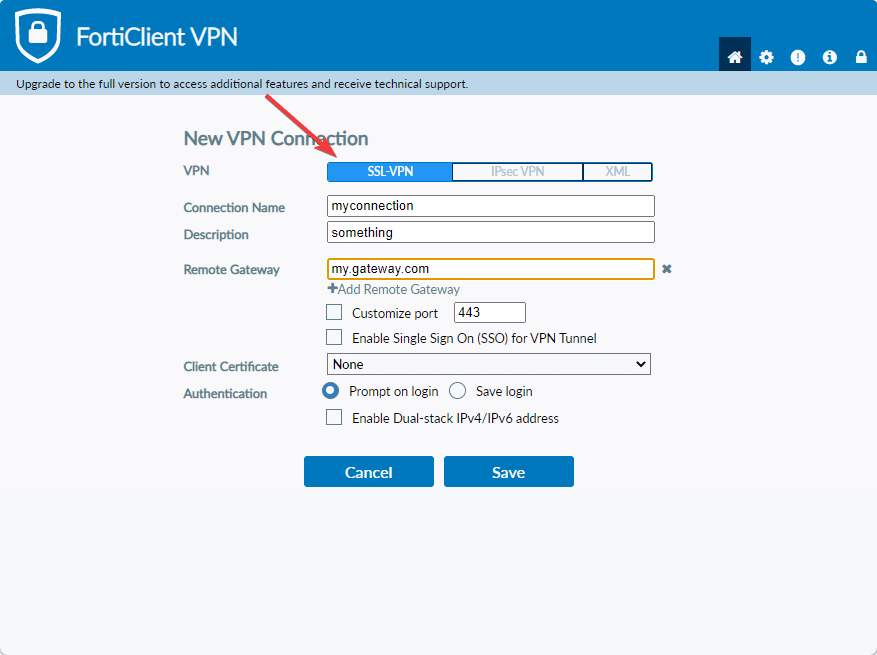
Another interesting fact is that new players don’t have to put the extra effort into builds and engravings at the beginning.

While they give some much-needed boosts, new players can take their time in learning about them because Berseker is quite sustainable even without them.

All-in-all, a perfect class for the novice Lost Ark players. Give it a go and see for yourself how easy it is to overcome your foes as a Berserker.

2. If you’re more into PvP, the Bard is also an excellent starting choice

PvP for Lost Ark will unlock at level 26 in the main questline when you are given access to the Proving Grounds arena.

If you aren’t comfortable going face to face against other players, the Bard can be a great first choice, thanks to her ability to support her team from a distance.

Provide your teammates with buffs such as shields and damage reduction, and get them out of tight spots with the healing identity skill.

3. If you want to become a Martial Artist, go for the Scrapper first

Scrappers are an Advanced Class for Martial Artist, which you should know is quite recommended for beginner players.

Sure, there are others, but the remaining Martial Artist Advanced Classes aren’t as accessible as the Scrapper.

If you decide to go for it, you will discover that it offers two playstyles. Complete beginners can go with Taijutsu, and other players who are a bit familiar with the game can try Shock Training.

4. Novice Assassins should go for the Shadowhunter

This unique character is definitely something you should try in order to make your playthrough interesting.

As the Martial Artist, the other Assassin Advanced Classes aren’t as easy as this one. Shadowhunter is a good pick as you get to experiment with both ranged and melee attacks.

Even though some might argue about the difficulty of this Advanced Class, once you take it for a test run you will see that it is very easy to play.

5. If you’re a bit more defense-oriented, try the Paladin first

Fancy tanking and keeping your team safe from harm? If so, the Paladin is definitely the Advanced Class you should try if you were thinking about Warriors.

But don’t be fooled by his large armors and apparently sluggish behavior, as these heroes can still put out a pretty decent amount of damage when needed.

This is also one of the few support classes in the game, providing your colleagues with cleanses and shields, making it an overall excellent starter pick.

6. Avoid Assassin classes if you aren’t good with positioning

Although Assassins are a great pick for massive DPS, and an excellent pick for PvP, you should steer clear of them if positioning and map awareness isn’t your strong suit.

They are fast, agile, and capable of delivering some massive damaging finishers, but they are also squishy if not handled properly.

Thus, if you want to play a melee class but would rather sit there and take some of the damage instead of constantly dodging and moving around your enemy, it’s best you stick to Warriors.

7. Sorceresses are extremely fun and overpowered, but harder to play

This ranged DPS has great spell variety, it can do huge AoE, tons of damage and will perform incredibly well throughout the PvE content, even if you are playing solo.

The amount of damage and AoE stagger you have available make this Advanced Class a worthy opponent.

It’s also fantastic later on in the game for things like dungeons, raids, and PvP. That being said, it is a harder class to understand and master, so keep that in mind before choosing it.


These are our 7 tips for new Lost Ark players, tips that will ensure a much more fun starting experience and spare you the frustration of choosing an overly complicated class.

We can also help if you’re having problems with the game, such as Lost Ark not installing on Steam, not starting due to authentication errors, or the dreaded EasyAntiCheat errors.

The rest is up to you, so go out there and make yourself an adventure worthy of remembrance. Only you can make the game a lot more fun than it already is.

What class did you decide to pick up as your first in Lost Ark? Share your opinions with us in the comments section below.

PS4’s 9.60 update: 5 problems and fixes that we found

As most of you are probably aware by now, Sony just released a brand new update for their console lineup, which also included some of the older models.

It has definitely been somewhat of a busy week for PlayStation users, as the PS3 and PS Vita also received new system updates just a few days ago.

Contrary to what Sony had planned, these recent updates didn’t please users at all, as they had to deal with whole new situations after.

Playstation 4 and Playstation 5 also received new software and, even though not all of them had problems afterward, some reported some pretty weird console glitches, especially on the PS4.

What issues are players experiencing after update 9.60?

Well, let’s just say that the patch notes weren’t exactly right about what was about to happen after players installed the new software version.

  • This software update is improving the efficiency of the system.

That’s what the release log said, but the reality is a bit different. There’s even a Reddit post where people share the situations they had to go through since this patch was out.

Ever since this update was downloaded and installed, some PS4 users started experiencing:

  1. Random freezes during gameplay.
  2. Receiving random errors when trying to play Youtube videos.
  3. Triangle and square buttons not working on Youtube anymore.
  4. Internet connection not working on PS4.
  5. Console crashing with error codes su-30746-0, and su-42118-6.

Before we start showing you the solutions, you should know that the PS4 SU-42118-6 error mostly results in a restart loop for PS4 and it’s mostly due to a broken ribbon connector between your motherboard and BD-ROM.

How can I fix the problems caused by update 9.60?

1. Rebuild database

  1. Completely power off your console.
  2. Press and hold the power button.
  3. Release the button after you hear the second beep.
  4. For PS4, you’ll need to connect your controller via USB, then choose to Rebuild Database.
  5. For PS5, you’ll now boot into Safe Mode. Plug your controller in with the cable, then go down and select Clear Cache and Rebuild Database.
  6. After that, click on Rebuild Database, then on OK.

2. Manually install the update file

  1. Plug USB into your PC and create a folder called PS4 on the USB root path.
  2. Create an Update folder within the initial PS4 folder.
  3. Download the System Update file from the PS4 official website.
  4. Save it with the name PS4UPDATE.PUP and store it in the Update folder.
  5. Connect the USB drive to your PS4
  6. Turn on PS4 and click the PS button on the controller.
  7. Now go to Settings, then System SoftwareUpdate.
  8. Follow the on-screen instructions to complete the process.

3. Reinstall system software

  1. Power off your console completely, then unplug any cables (Keep in mind not setting it to Rest Mode).
  2. Press the power button on your PS4, then hold it down until you hear two beeps (It usually takes like 10 seconds).
  3. You’ll see a black screen when the system boots up in Safe Mode.
  4. There, you can either choose Restore Default Settings, Initialize PS4, or Initialize PS4 (Reinstall System Software).

If nothing on this list works for you, seriously consider contacting PlayStation Support about this problem.

Also, if you are dealing with error code su-42118-6, replacing your PS4’s hard drive is also a valid option you might want to look into if nothing else works.

Some of the affected PS4 users even said that this update bricked their consoles, so be very careful when dealing with it.

If you haven’t yet installed it, we recommend postponing until Sony has properly evaluated the situation and found a solution.

Are you dealing with problems you haven’t seen in this guide as a result of updating your PS4 to version 9.60? Share your experience with us in the comments section below.