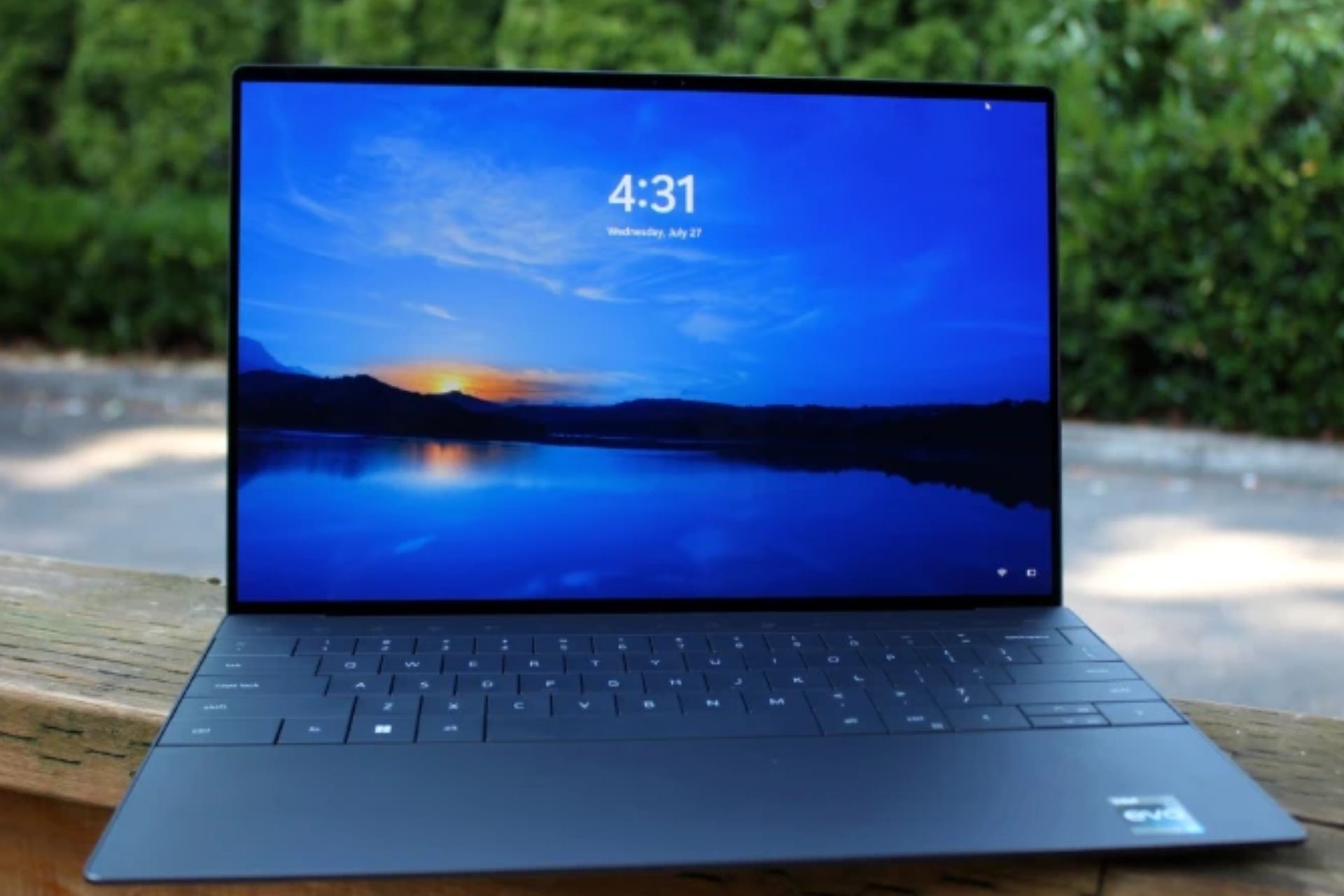
3 Ways to Fix Dell XPS 13 Touchpad if Gestures Aren’t Working

Dell is famous for being one of the world’s fastest and most reliable computer products. It has undergone several improvements and upgrades, but it doesn’t mean it is flawless. One of the issues that users complain about is the Dell XPS 13 touchpad gestures not working.

The Dell XPS 13 is an 11th-generation Intel processor laptop with many features. Some features of the Dell XPS 13 are a 4K display, portability and slimness, high memory components like RAM, and others.

Furthermore, touchpad gestures allow users to set shortcuts like the Dell touchpad enabling two-finger scrolling.

Like other laptop components, the touchpad has drivers that help it work. However, many things can cause the Dell touchpad gestures not to work, ranging from faulty drivers, Windows issues, and many more.

Nonetheless, this article will take you through the causes of the issue and how you can quickly fix it. Also, you can read about how to set touchpad gestures in Windows 11.

Why are my Dell XPS 13 touchpad gestures not working?

  1. Outdated touchpad drivers: Outdated drivers can be responsible for the Dell XPS 13 touchpad gestures not working. However, the touchpad features can’t function properly if the Dell touchpad gestures drivers are outdated. Likewise, when drivers become corrupt, they tend to impede the functionality of the components that rely on them.
  2. Disabled touchpad: Sometimes, users mistakenly disable the touchpad feature on their laptops. Hence, touchpad gestures will stop working. Also, troubleshooting some settings can disable the Touchpad, causing the Dell XPS 13 touchpad gestures not to work.
  3. Disabled touchpad gestures: When the gesture options in the touchpad are now allowed, it can cause the Dell XPS 13 touchpad gestures not to work. Though the touchpad gestures don’t work without enabling the touchpad, gestures may not work if it is disabled in settings.
  4. Booting error: A faulty boot can affect several computer components, including the touchpad gestures. However, when the laptop cannot boot smoothly or entirely, it impedes its functions.
  5. Third-party app interference: Sometimes, applications like antivirus can affect the way components of the system works. Hence, it can prevent the touchpad gestures from working.

What can I do if my Dell XPS 13 touchpad gestures are not working?

1. Restart the PC

  1. Click on Windows to prompt the startup menu.
  2. Click on Power.
  3. Select Restart from the options and press Enter.

Restarting your computer will help it boot properly and fix this and other minor issues with your device.

2. Enable touchpad/touchpad gestures

  1. Click the Start button on the screen and select Settings.
  2. Select Devices, then click on Touchpad.
  3. Toggle on the Touchpad switch.
  4. Return to the Start button on the screen and select Control Panel.
  5. Click on Hardware and Sound, then go to Mouse.
  6. Choose on the Pointers tab in the mouse properties.
  7. Select Scheme and choose a different scheme from the current one or select None.
  8. Click on Apply.

We recommend you restart the PC for the changes to sync correctly. Dell XPS 13 touchpad gestures not working should be fixed if this is the problem.

3. Update Windows

  1. Click Start in the bottom left corner of the screen and choose Settings.
  2. Select Update and Security, then Windows Update.
  3. Click on Check for updates.

Windows will automatically search for updates and download them if there are any available. Once the system is updated, the problem should be solved.

How do I update my Dell touchpad driver?

  1. Right-click on the Start button and select Device Manager.
  2. In the Device Manager tab, select your touchpad driver.
  3. Right-click on the driver and choose Update driver.
  4. Then, click on Search automatically for drivers.
  5. After the update process, restart your PC for the changes to sync fully.

If none of these solutions worked out, an alternative is to try updating all your drivers. To do this, a simple and safe tool that we use is Outbyte Driver Updater which specializes in driver updates.

Outbyte Driver Updater will scan your system and go through all drivers to find the ones outdated, then update all of them if possible. Some drivers don’t get regular updates so this software will renew them to the latest versions.

Outbyte Driver Updater

Simple and safe to use, this tool will optimize your system.

These are the most effective fixes we could come up with to fix the Dell XPS 13 touchpad gestures not working. Nevertheless, you can also learn how to set touchpad gestures on Windows here.

Also, we have a guide you can go through to help you understand how to turn off the laptop touchpad in Windows 10/11.

Further, if your touchpad click is not working on Windows 10/11, you can also check out our guide with details on how to fix it.

Should you have any suggestions or questions, you can leave them below in the comments section. We’d like to hear from you.

Video Not Available? 3 Ways to Get Around This Error

Sometimes while watching YouTube videos, you might encounter a Video not available message, so today we’re going to show you how to fix it properly.

What does it mean when a video is not available?

This message occurs because the video is restricted or due to issues with the uploaded video.

How do I fix Video not available error?

If you have this problem, using a VPN can be a great workaround until you solve the issue.

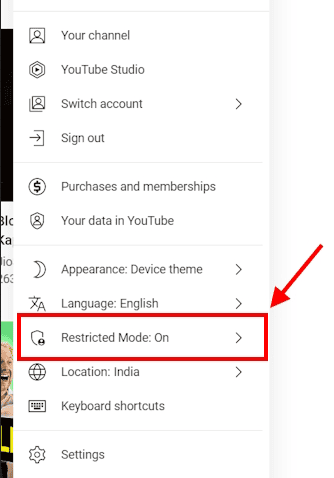
1. Disable Restricted mode on YouTube

  1. Open YouTube, and click on your profile icon in the top right.
  2. Locate Restricted Mode in the list and disable it.
    restricted mode disable youtube
  3. Check if the problem is gone.
  4. Optional: If you’re an admin go to Admin Console and choose Settings for YouTube. Set Permissions to something less restrictive.

2. Set the video to private

  1. Sign in to YouTube Studio and select Content.
    content youtube
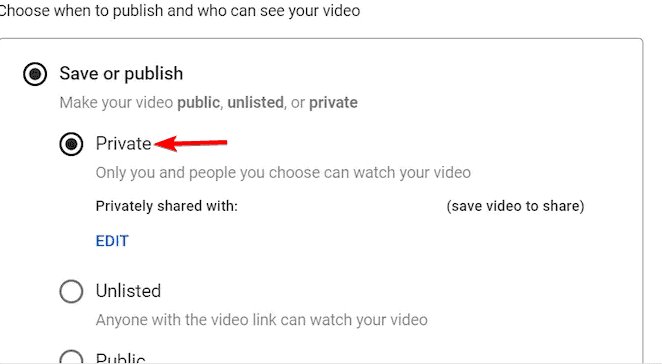
  2. Select your video and set its visibility to Private.
    private youtube video
  3. Save changes.

Keep in mind that this solution only works if you or others can’t see your uploaded videos.

3. Revert video changes

  1. Go to YouTube Studio again, and open your video in Editor.
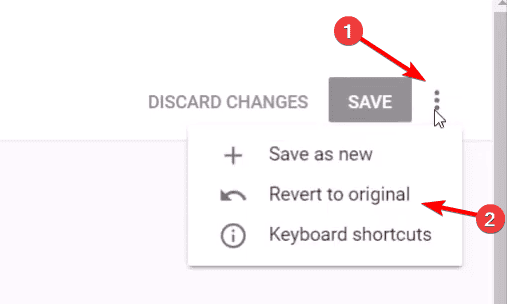
  2. Click the three dots and choose Revert to original.
     revert to original
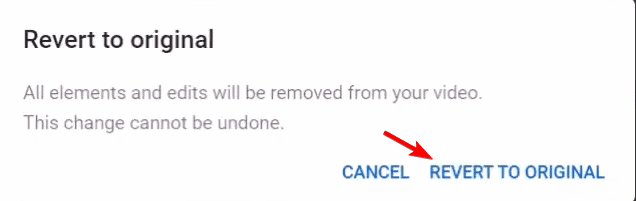
  3. Confirm that you want to revert changes.
    revert to original confirm

Users speculate that this issue occurs due to using royalty-free music, so perhaps avoid using it until the issue is resolved.

How do you watch this video is currently unavailable?

This is usually an issue with the video uploader and its settings, so until those issues are resolved you can’t want unavailable videos.

How to fix YouTube video not available in your country?

Video not available in your country or region error appears if the video is geo-restricted, so you need to use a VPN or proxy to view it.

The Video is not available at the moment message can be pretty annoying and prevent you from watching YouTube videos. However, you should be able to fix it using one of our solutions.

Also, find out what to do if you see the error message, An error occurred. Please try again later on YouTube.

This error is similar to the Browser can’t play this video message that we covered in our earlier guides, so don’t miss it.

We also have a guide on what to do if YouTube videos aren’t playing, so don’t hesitate to visit it.

If you have any other queries or know of a method that’s not listed in this guide, do drop a comment below.

Change Program Files Location in Windows 10

Normally if you have Windows 10 or any other version of Windows operating systems, you will definitely have your Program Files folder located on your C:/ drive where the operating system itself is usually installed.

This is mainly because the system needs to ensure a good correlation between the programs that you are installing and the operating system.

Of course, you can change this location anytime and we will see how to do so by reading the tutorial posted a few rows below.

But first of all, we will need to know the consequences that may happen if we change the Program Files folder location.

Mainly the program files folder is put there for a good reason, if you move it and all your programs will be moved to another location you may experience some system errors after a while.

How to change the location of program files in Windows 10?

    The program files location can be changed using the built-in Registry Editor. You need to access the tool and then manually modify the path of the program files folder.

  1. 1. While on your Desktop, you will need to press the Windows and R keys. This will open the Run dialog.

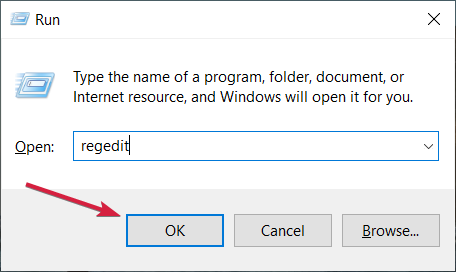
  2. 2. Type regedit and then press Enter or click OK.

  3. 3. Now you should have the Registry Editor window in front of you.

  4. 4. Navigate to the following key:HKEY_LOCAL_MACHINE\SOFTWARE\Microsoft\Windows\CurrentVersion\ProgramFilesDir

    • Note: if you have a 64 bit system it will be a ProgramFilesDir (x86) item.
    program files directory w10
  5. 5. Double click (left click) on it.

  6. 6. From there, you will be able to change the path of the Program Files folder by entering a new path in the Value data section of the window.

  7. 7. After you are done selecting a path you will need to click on OK and then close the Registry Editor window.

  8. 8. If the changes did not work after you closed the window, try a reboot of the system and try it afterward.

Now, you know how to change the path of the program files folder and you can see that it didn’t take up much of your time.

Always keep in mind that if you change the path of the program files folder, this may cause malfunctions in the system.

Microsoft made it clear that it does not support changing the location of the program files:

Microsoft does not support changing the location of the Program Files folder by modifying the ProgramFilesDir registry value. If you change the location of the Program Files folder, you may experience problems with some Microsoft programs or with some software updates.

We hope that our solution helped you change the location of your Program Files folder. However, you should revert the action if problems occur.

Don’t forget to provide your feedback in a comment below if you have any other suggestions.

How to Install and Use Malwarebytes Browser Extension

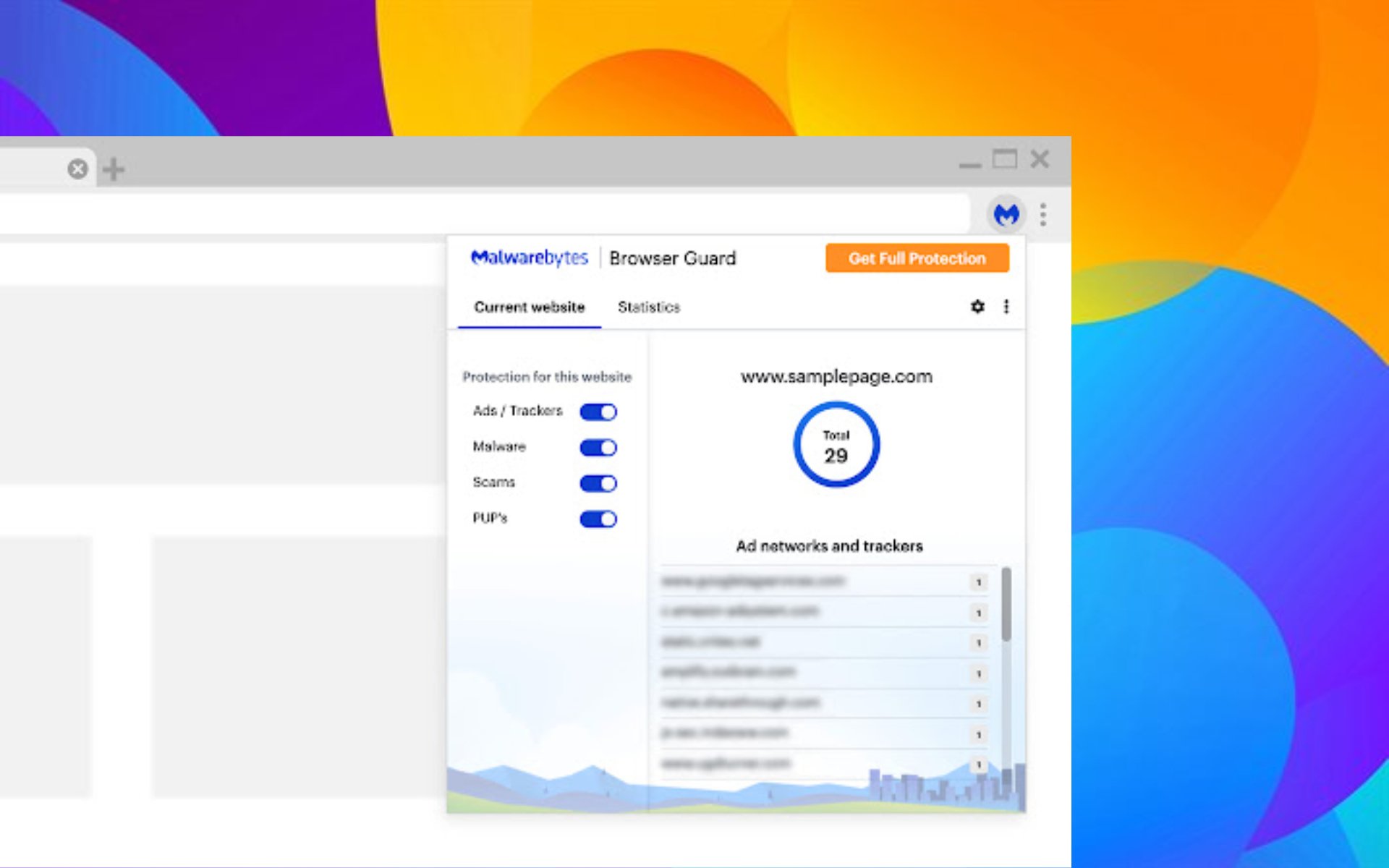
Malwarebytes is one of the best tools to protect your PC against malware and unwanted threats. Meanwhile, the company has recently introduced the Malwarebytes Browser Extension (BETA).

In other words, Malwarebytes browser extensions, because we have one for Google Chrome and one for Firefox.

What is Malwarebytes browser extension?

Malwarebytes Browser Extension systemically blocks malicious websites and filters out unwanted content. In addition, the extensions can block browser hijackers, pop-ups, fake news content, cryptocurrency miners, clickbait links, and other malevolent web content; just what you need to protect yourself while surfing the web.

According to Malwarebytes company, the Malwarebytes Browser Extension (BETA) relies on threat behavior patterns to track down and identify the latest threats.

Also, the browser extension(s) heuristically identifies and blocks tech support scams ‘browser-locker pages, which scare users into calling fake tech support scammers. Therefore, you get protection against unwanted social engineering tactics as well as a safe and secure browsing experience.

Malwarebytes lists the following features:

  • Malware protection: Blocks malicious programs or code that can damage your system.
  • Scam protection: Blocks online scams, including technical support scams, browser lockers, and phishing.
  • Advertising/tracker protection: Blocks third-party ads and third-party ad trackers that monitor your online activity. The number of blocked ads/trackers for a website will show beside the Malwarebytes logo in your browser.
  • Clickbait protection: Blocks content and websites that often display behavior of questionable value.
  • Potentially unwanted program (PUP) protection: Blocks the downloading of potentially unwanted programs, including toolbars and pop-ups.

Download Malwarebytes Browser Extension for Firefox and Google Chrome

Is the Malwarebytes browser extension safe?

You will be surprised to know that this is one of the safest browser extensions you can actually use on your Windows PC.

So yes, Malwarebytes offers antivirus/anti-malware protection for Windows, Mac, Android, iOS, and Chromebook.

Furthermore, Malwarebytes Browser Guard is also free to download, and you can try Malwarebytes security products free before buying.

In this article you will learn everything there is to know about it, just in case you wanted to add the Malwarebytes browser extension to Chrome.

You can also find the Malwarebytes Browser Guard Firefox, or Malwarebytes Browser Guard Edge, if that is what you are looking for.

Stay safe online with Guard.io

When you connect to something online, your browser is your primary filter. Even whether you download, play a movie, or view a short reel on Instagram, your browser takes all the possible attacks.

So, while installing the Malwarebytes extension is simple and effective, there is another option for adding an extra layer of security. The Guard.io Opera One and Google Chrome extension can check every site, page, and social media platform you visit and prevents any harmful files to install freely on your device.

Here are the perks of installing the Guard.io extension:

  • Zero-day protection against suspicious websites
  • Push up notification with a non-intrusive message
  • Warns you about harmful extensions
  • Information leak monitoring
  • Blocks hijackers

Guard.io free includes certain real-time functions, such as suspicious sites and harmful extension notifications. As the name implies, it’s your day-by-day browser guardian.

If you choose to use the premium plan with 7 days trial, Guardio will prevent harmful scams and phishing sites, eliminate invasive popups, browser and search hijackers, and clean up and speed up your browser.

Guard.io

Prevention and blocking directly in your browser, and a perfect match for Malwarebytes software.

How do I get Malwarebytes extensions for Chrome?

  1. Access the Chrome Web Store.
  2. Search for Malwarebytes and click on the extension.chrome web store
  3. Press the Add to Chrome button.malwarebytes
  4. Click on the extension icon in order to use it.malwarebytes extension

Should I install the Malwarebytes browser extension?

It’s really up to you, but just keep this in mind. Given the fact that this is actually a browser extension, Malwarebytes Browser Guard could represent a very useful part of your arsenal.

And by that, we were really referring to your defense strategy against all the malware and scams that await us all out there.

That being said, if you aren’t already using some kind of browser add-on to bolster your security when surfing the web, it’ll cost you nothing to try out Browser Guard.

It doesn’t just work on a specific browser, so you can definitely get the Malwarebytes browser extension For Edge.

If, however, you decided to go with Mozilla’s product, know that there is also a Malwarebytes browser extension for Firefox as well.

You know we always recommend Opera One if you are looking to change your browser and yes, you can totally find the Malwarebytes browser extension for Opera One.

4 Tested Fixes for There Was a Problem Displaying This Page

A few Chrome users have stated on forums that they can’t open Google Play e-books in Google’s browser. When they try to open GP e-books in Chrome, an Oops! There was a problem displaying this page tab opens.

Consequently, users can’t load non-free e-books within Chrome. These are a few resolutions that might fix the Google Play e-book error in Chrome.

After following our solutions in detail, you will be able to enjoy reading your favorite stories and novels on your browsers, in the e-book format, once more.

Why some websites are not opening in Chrome?

That’s a really good question you asked. You should know that the reason why the Chrome browser is not loading pages may be down to something as simple as unstable or lost internet connection.

In order to prevent this from happening, make sure that you have an active data plan, and restart your internet connection.

But don’t go just yet, as the solutions to your problems are just below, as you are soon about to discover.

Quick Tip:

One simple solution could be opening them in a new browser. For that, we recommend installing Opera One. It is known for being faster and it comes with some cool data compression features.

Additionally, Opera One offers a built-in VPN and ad blocker, as well as a native AI. With Twitter and WhatsApp integrated into the sidebar, along with workspaces and tab islands you can efficiently organize your tabs with ease.

Opera One

Surf the web faster and safer with the built-in VPN and ad blocker features from the Opera One browser.
Free Download Visit website

How do I fix Google Chrome page Cannot be displayed?

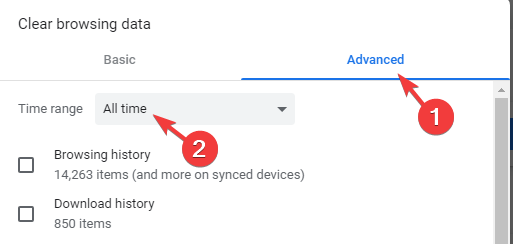
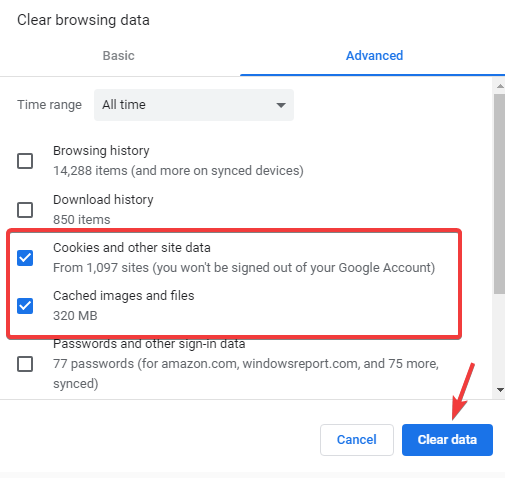
1. Clear Chrome’s browser data

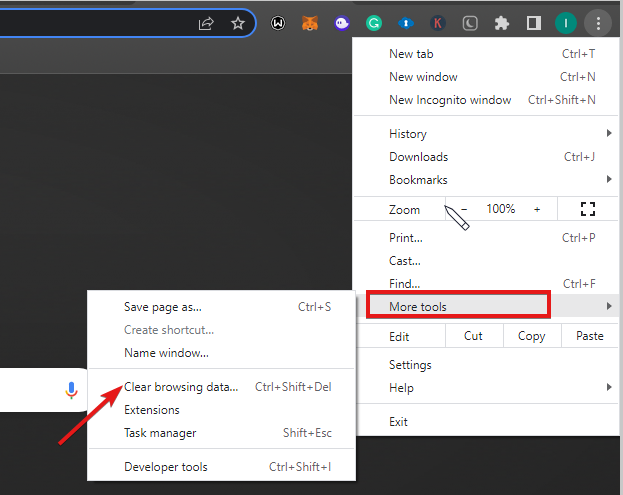
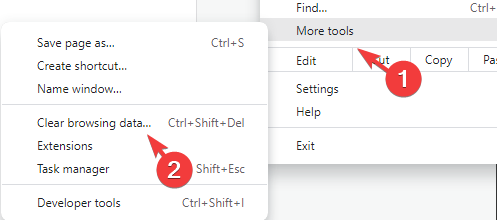
  1. Press the Customize Google Chrome button at the top right of the browser’s window.
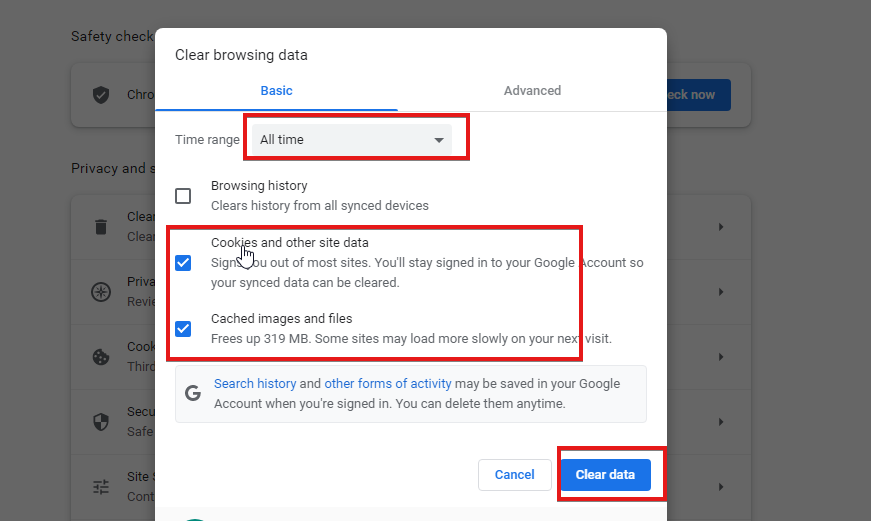
  2. Click More tools > Clear browsing data to open the window shown directly below.
  3. Select the Cookies and other site data and Cached images options.
  4. Then press the Clear Data button.
Note icon NOTE
Clearing the browser’s data is one of the best ways to fix website pages that aren’t loading, and the resolution might also fix GP e-books. You can clear Chrome’s browser data following the steps above.

2. Add cookie exceptions for Google Play Books

  1. Press the Customize Google Chrome button and select Settings.
  2. Click Advanced at the bottom of the Settings tab to expand the options.
  3. Press the Content Settings button to open the content categories shown below.
  4. Click Cookies to open cookie settings.
  5. Press the ADD button for Allow, enter books.googleusercontent.com in the text box, and click ADD.
  6. Press the Allow ADD button again to enter books.google.com in the Add a site text box. Then press the ADD button.
  7. Click See all cookies and site data to open a list of cookies.
  8. Enter books in the Search cookies text box.
  9. Press the Remove All Shown button.
  10. Then press the Clear All button to confirm.
Note icon NOTE
Some Chrome users have fixed the Google Play e-books error by adding cookie exceptions for Google books. 

3. Reset the browser

  1. Click Customize Google Chrome to open the browser’s main menu.
  2. Select Settings to open the Settings tab.
  3. Scroll down and click Advanced to expand the Settings tab.
  4. Then scroll to the Restore settings to their original defaults option shown below.
  5. Press the Restore settings to their original defaults button to open a Reset settings window as below.
  6. Press the Reset Settings button to restore the browser.
Note icon NOTE
Some Chrome users have confirmed that resetting the browser can fix the GP e-book error. Resetting the browser will disable its extensions, clear browser data, and restore Chrome to its default settings.

4. Turn off Ad-Blocker extensions

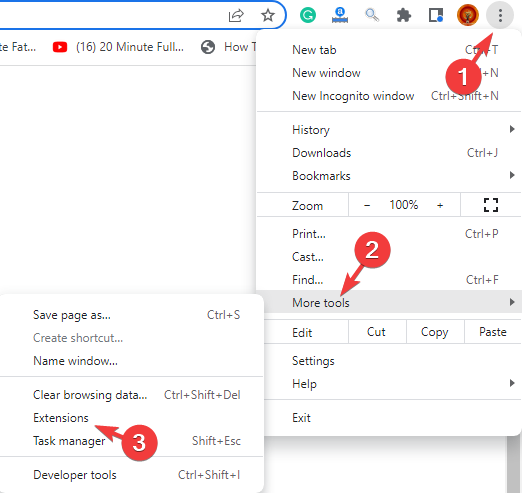
  1. Press the Customize Google Chrome button.
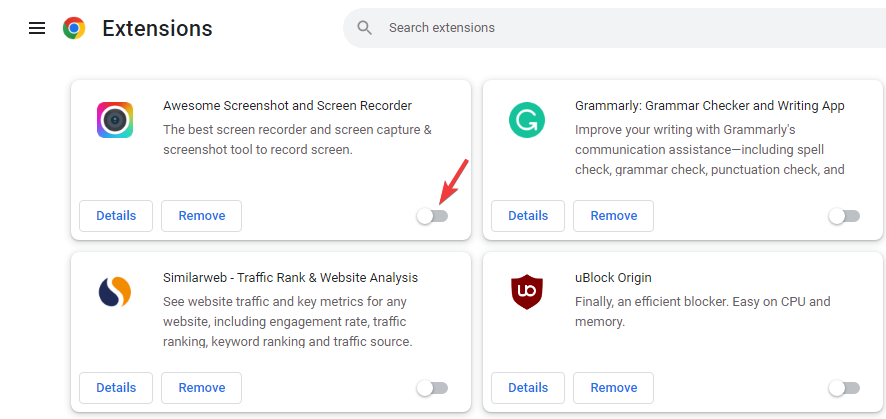
  2. Select More tools > Extensions to open the tab shown directly below.
  3. Then you can toggle ad-blocker extensions off by clicking their disable buttons.
  4. Alternatively, you can click Remove to remove an ad-blocker extension.
Note icon NOTE
The Google Play e-book error can also be due to ad-blockers that block site analytics. So, switching ad-blockers off can also fix the issue. Resetting Chrome will disable ad-blockers, but you can switch extensions off via the Extensions tab, following the above steps.

Why is my Internet saying can’t reach this page?

You should know that this happens for only a few reasons, which we are about to explain to you in the following sentences. 

Basically, it means that a website is either having technical difficulties, its server may be down, or the website owner has blocked your IP address or region.

Just so we can rule out the second reason, we recommend using a VPN or contacting the website owner to get your IP address unblocked.

Yes, you can also get this annoying There was a problem displaying this page while trying to use WordPress, just so you are not caught unprepared.

This There was a problem displaying this page error code can also be found when using Android, so that’s another thing to look out for.

Those resolutions will probably fix Chrome so that you can load Google Play e-books in the browser again. If you have further fixes for the GP e-book error, feel free to share them below.

3 Quick Ways to Fix Vudu Playback Error on All Devices

With no shortage of on-demand video streaming services, people are a bit confused about which app subscription they should opt for.

Vudu is another on-demand video streaming platform that is owned by Fandango Media, a joint venture between NBCUniversal, Discovery, and Warner Bros.

It is the first on-demand platform that started offering digital movies in HD. Vudu was launched back in 2007. You can use Vudu using a small console, just like you would do for Roku or Western Digital devices.

All you need to do is purchase a monthly subscription and jump into watching free (with ads, of course) and paid content. Customers can also purchase or rent any content for 24 hours.

While the Vudu service is amazing, there are several users who told us about Vudu playback errors on all devices.

It is a bit frustrating fact that this error prevents you from viewing your favorite content. Thankfully, in this guide, we have some solutions that will help users facing the Vudu playback errors on all devices. Let us dive right into it.

Why am I getting Vudu playback error?

Just like any other internet-related service, Vudu is also not immune to errors and issues. Vudu encountered problems during the playback. Please restart Vudu and try again is one of the most common and old errors that people have been reporting.

Vudu playback error is experienced across devices. So, any of the below errors are the one and same:

  • Vudu playback error in Microsoft Edge
  • Vudu playback error on PC
  • Vudu playback error when using Samsung TV
  • Vudu playback error in Xbox
  • Vudu playback error in Chrome
  • Vudu playback error on PS5
  • Vudu playback error on LG smart TV
  • Vudu playback error in Chromebook

We did our research and found some common reasons that trigger this Vudu playback error:

  • There are some issues with your DNS settings
  • You are using a VPN
  • The browser cache is corrupted
  • There might be some issues with the Vudu server
  • Your internet connection might be at fault

How do I fix the Vudu playback error?

1. Tweak your DNS settings

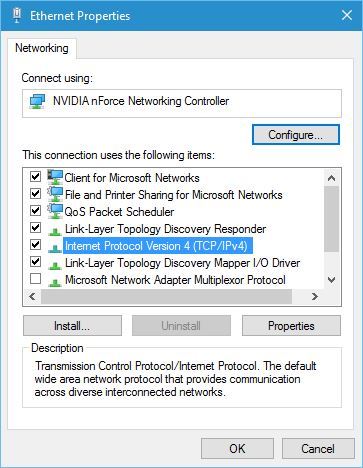
  1. Open Network Connections.
  2. Right-click on your connection and choose Properties.
  3. Select Internet Protocol Version 4 (TCP/IPv4).
  4. Click on Properties.
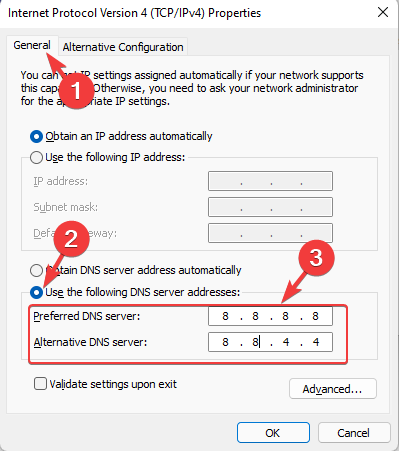
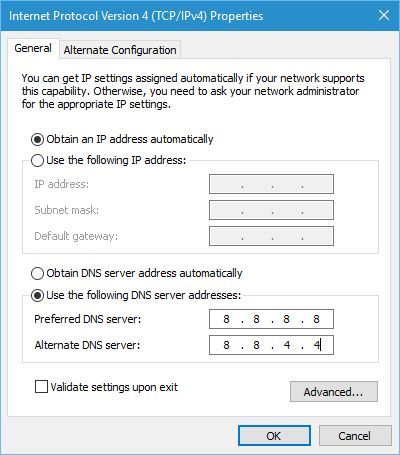
  5. Select Use the following DNS server addresses and set 8.8.8.8 as the Preferred DNS server and 8.8.4.4 as the Alternate DNS server.Enter DNS server addresses in Properties
  6. Click OK.

Some users are suggesting using 208.67.222.222 as the Preferred DNS server and 208.67.222.220 as an Alternate DNS server.

Changing the DNS server won’t affect your internet performance or have any implications on your internet usage.

If you think you have messed up something with the DNS setting, you can always press the Reset button on your router to reset it to default settings.

2. Check a few things on your PC

Here are a few of the common things that you can check and perform in order to resolve the Vudu playback error on your Chromebook or PC:

  • Make sure that your internet connection is stable.
  • If you are using a VPN app, then you should try disabling it and see if this fixes the Vudu playback error.
  • If you use a browser such as Google Chrome or Microsoft Edge to view Vudu, then you should clear the browser cache, which when corrupted could cause multiple issues, one of which is the Vudu playback error.
  • Also, ensure that you have installed the latest network drivers on your PC, as it can resolve many bugs and issues related to it.

3. Delete the Vudu channel

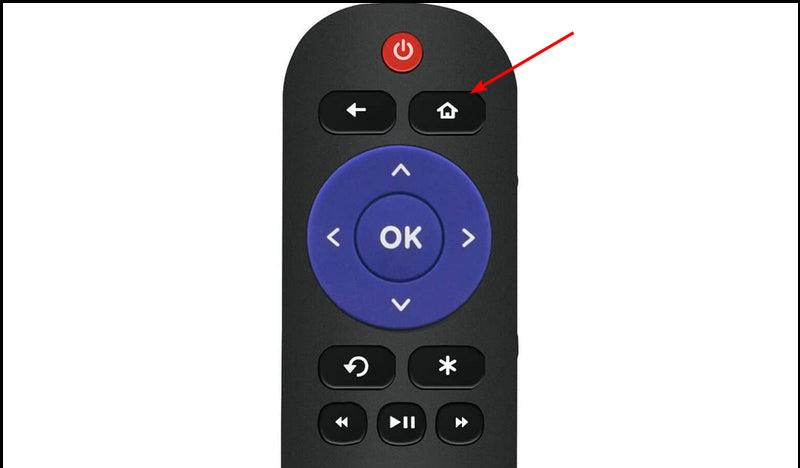
  1. Press the Home button on your Roku remote.
  2. Select Streaming Channels to open the Channel Store.
  3. Highlight Vudu and press the OK on your remote.
  4. Select Remove Channel and confirm the selection when prompted.
  5. Open the Channel Store.
  6. Hit the Add channel button.

Since Vudu is offered as an on-demand channel for various streaming devices, and smart TVs, you can try deleting the Vudu channel and then adding it back up again to check if this fixes the Vudu playback error or not.

There are chances that the previous installation wasn’t appropriate, and it missed out on key important files. In such a case, a simple delete and addition of the Vudu channel on your streaming device can help you fix it.

Also, the above steps are for Roku devices, but you can delete and add the Vudu app on your respective streaming devices, in more or less the same way.

Are Fandango and Vudu the same?

Fandango is the parent company that owns Vudu’s on-demand streaming service. Fandango, used to have its own streaming service called FandangoNOW, which it has now merged with Vudu, and the combination is called simply Vudu.

The company on this merger said that they are sticking with the name Vudu because it has a more big user base and more content as compared to the FandangoNOW service.

If you are facing an issue where the Vudu player is not working on your Windows 10 PC, then you can check out our dedicated guide that lists some effective solutions that will help you resolve the problem.

Also, you can check out our guide, which lists some of the best ad-supported streaming services that you can check out to feed your content consumption appetite.

Let us know in the comments below which one of the above solutions helped you fix the problem.

Remove Adware From Edge Like A Security Expert In 2026

Adware can be a menace on computers and lower the browsing experience. In some cases, it is a source of revenue for the manufacturers; other times, it is malicious and would inject dangerous code into your OS or browser.

Whatever the case, you should eliminate them, and we will show you how. This is not specific to Edge; some Chrome users have had to contend with the MindSpark adware.

How to remove adware pop-up ads and malware from Microsoft Edge

1. Scan your computer

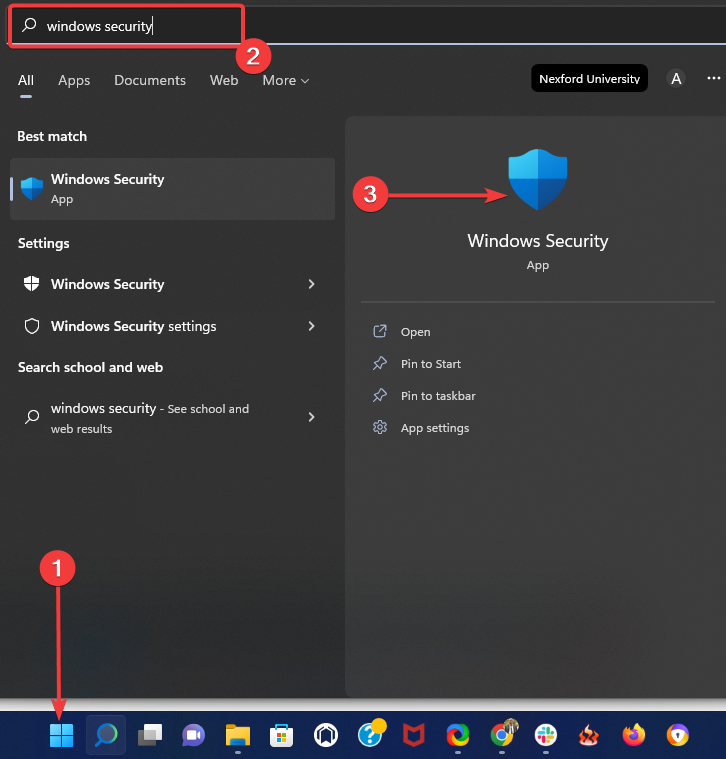
  1. Click the Start button, type Windows Security, and select the Windows Security app.
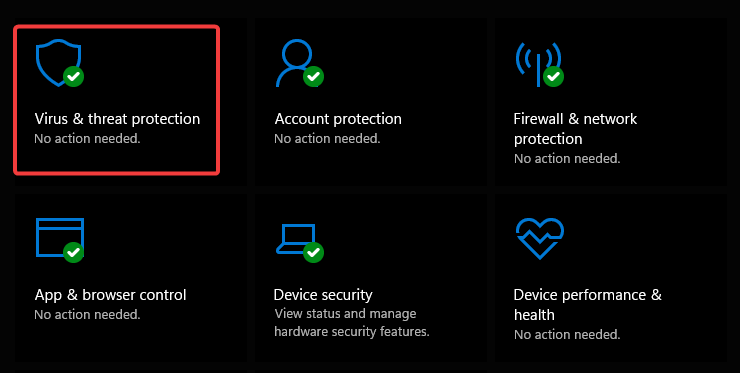
  2. Click on Virus & threat protection.
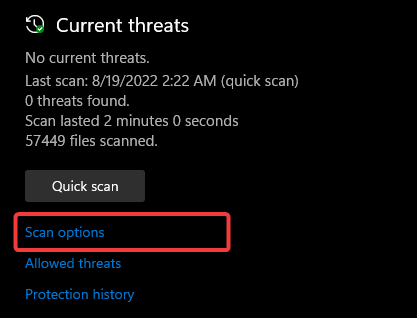
  3. Select Scan options.
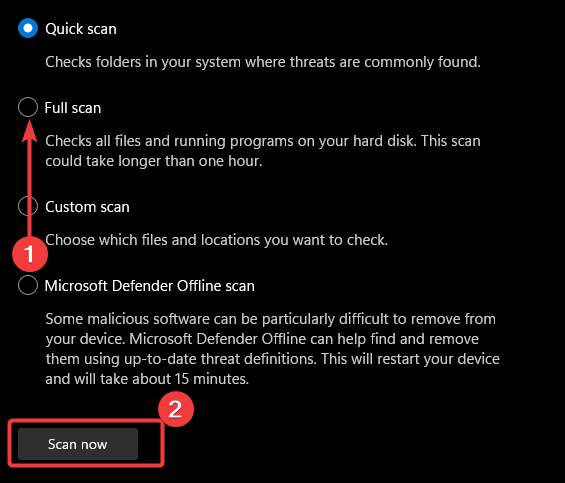
  4. Select the Full scan option, then select Scan now.
    remove adware from edge
  5. This may take several minutes, but restart the computer after the scan.

For better results, we recommend you use some of the best third-party antiviruses for Windows; these are great Microsoft Edge adware removal tools. The process may differ, but they will get the job done.

A great choice for this task is TotalAV. This comprehensive security software allows you to perform a more in-depth scan of your system. It also provides long-term protection due to its built-in powerful firewall and anti-malware shields.

⇒ Get TotalAV

2. Reset the browser

  1. Launch the Edge browser.
  2. On the Address Bar, type the link below, then click Enter.
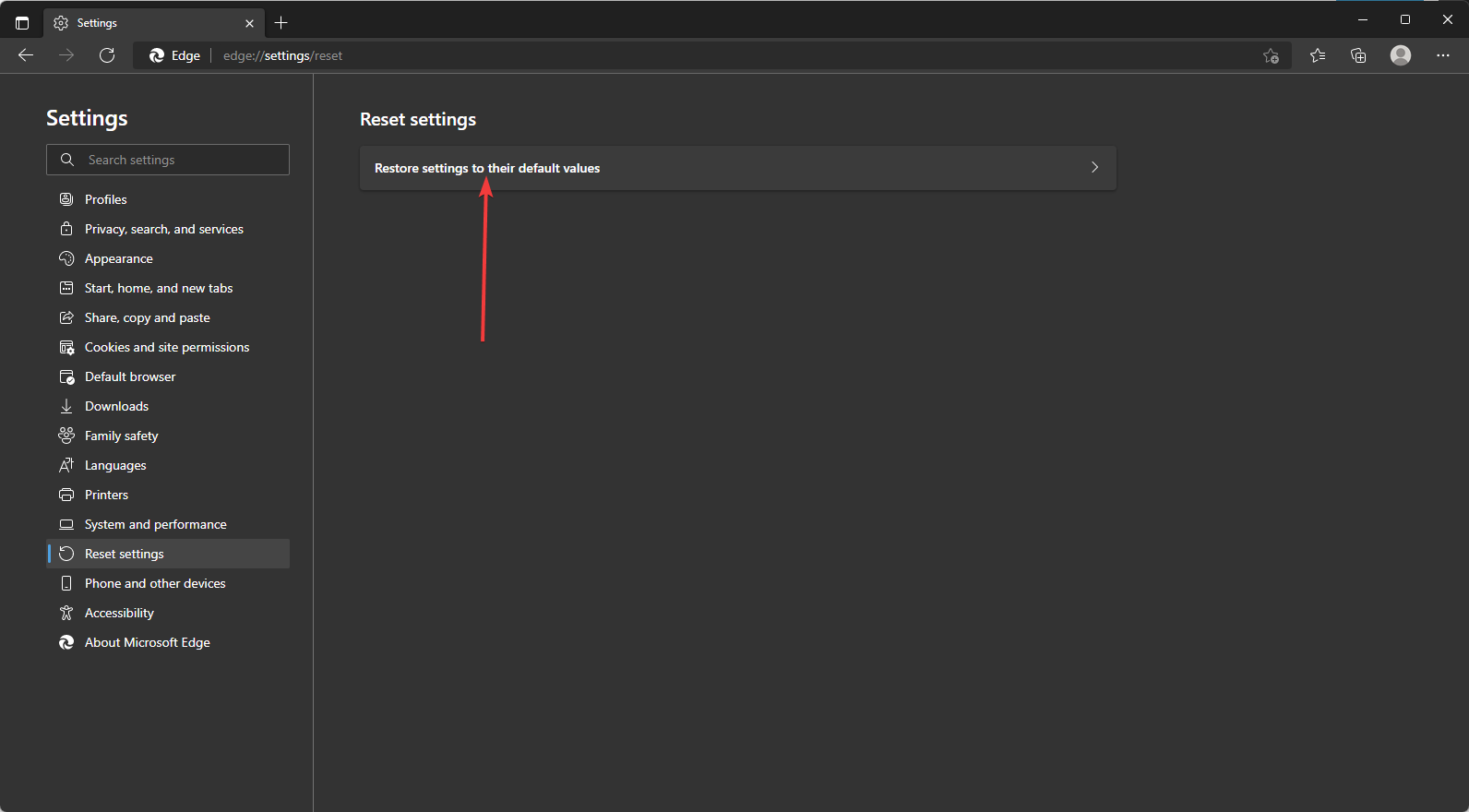
    edge://settings/reset
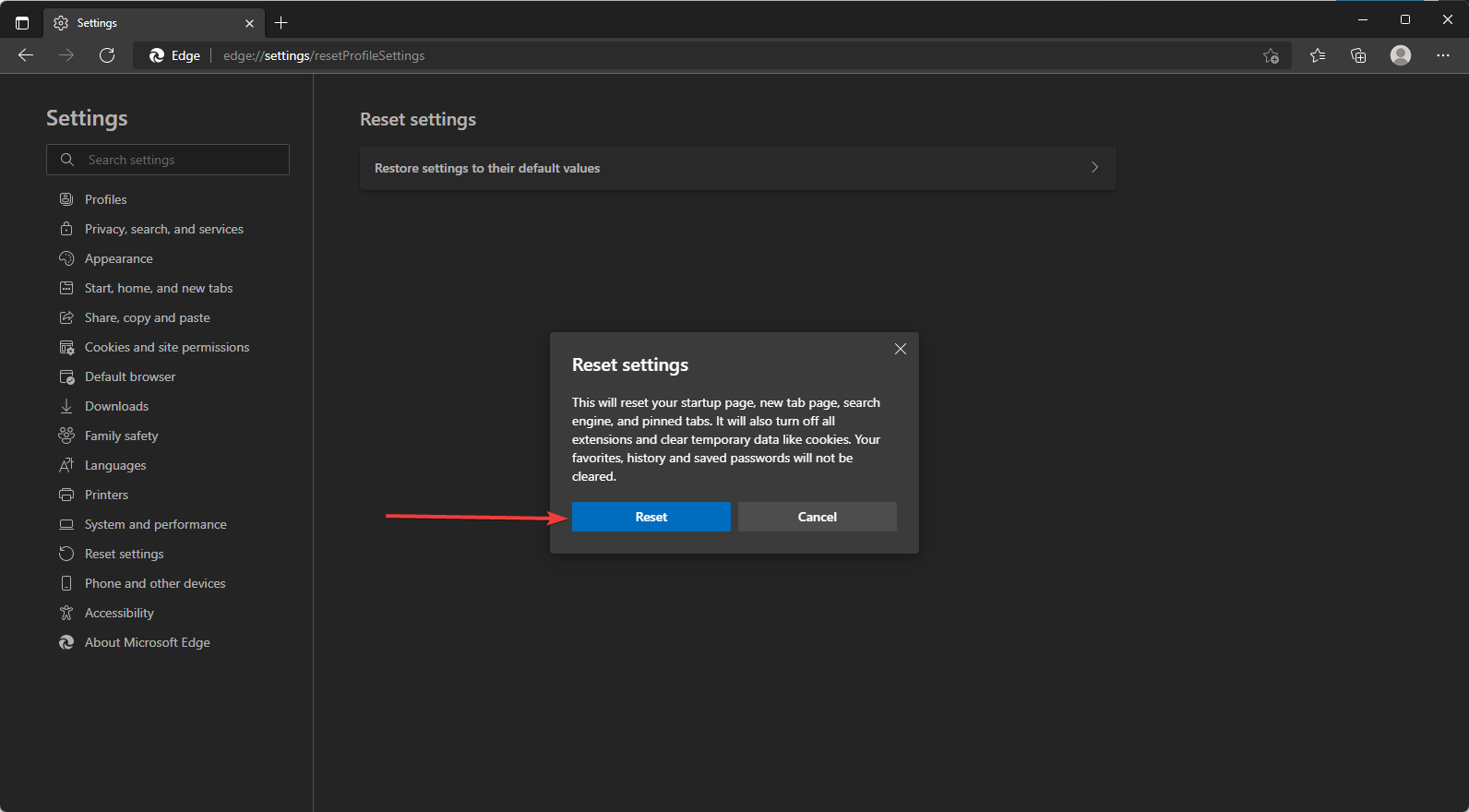
  3. Click on Restore settings to their default values.
  4. Finally, click on the Reset button.

Quick Tip:

Adware is not harmful to your computer, but will surely disrupt your browser experience. To avoid catching any, we recommend using a browser with built-in features that protect against these kinds of threats.

Opera is a browser that comes with an ad and tracker blocker that stops adware activity and other malicious scripts. It also comes with a free VPN that you can use to make yourself anonymous online.

3. Reinstall Edge

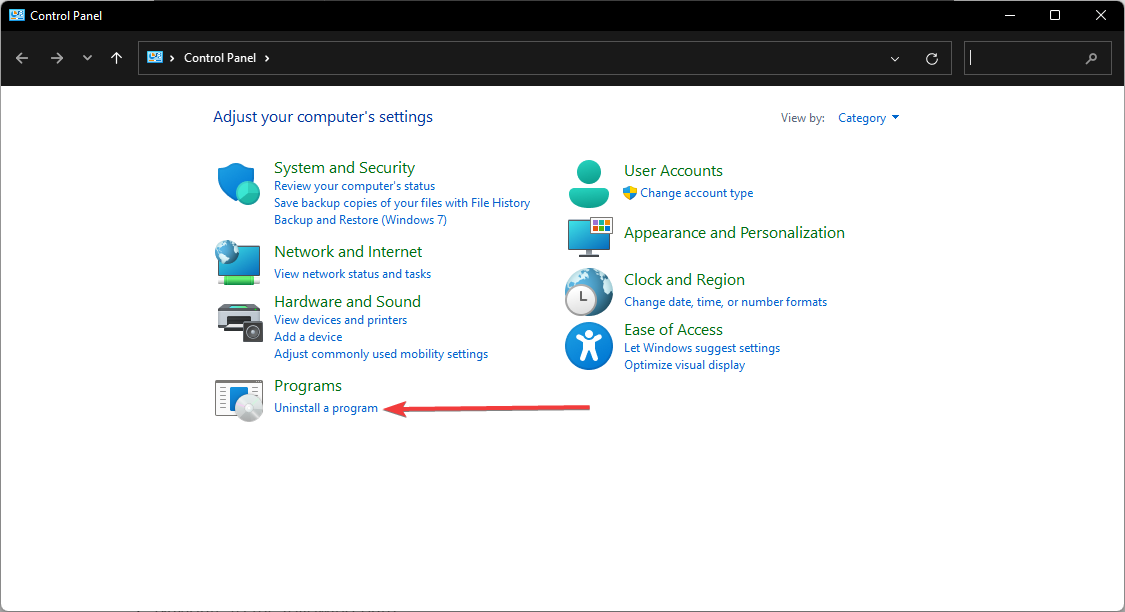
  1. Open the Control Panel app.
  2. Click on Uninstall a program.
  3. Click on Microsoft Edge from the list of programs, then click the Uninstall button.
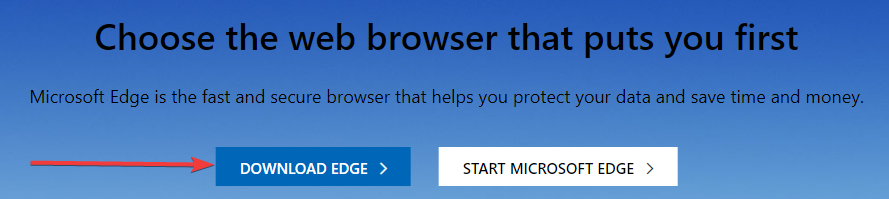
  4. Navigate to the Edge website and click on Download Edge.
    remove adware from edge
  5. Double click on the downloaded file and follow the wizard to complete the installation.

4. Modify the Host file

  1. Download this HOSTS.ZIP file, provided by winhelp2002.mvps.org.
  2. Extract all files from the zip folder anywhere.
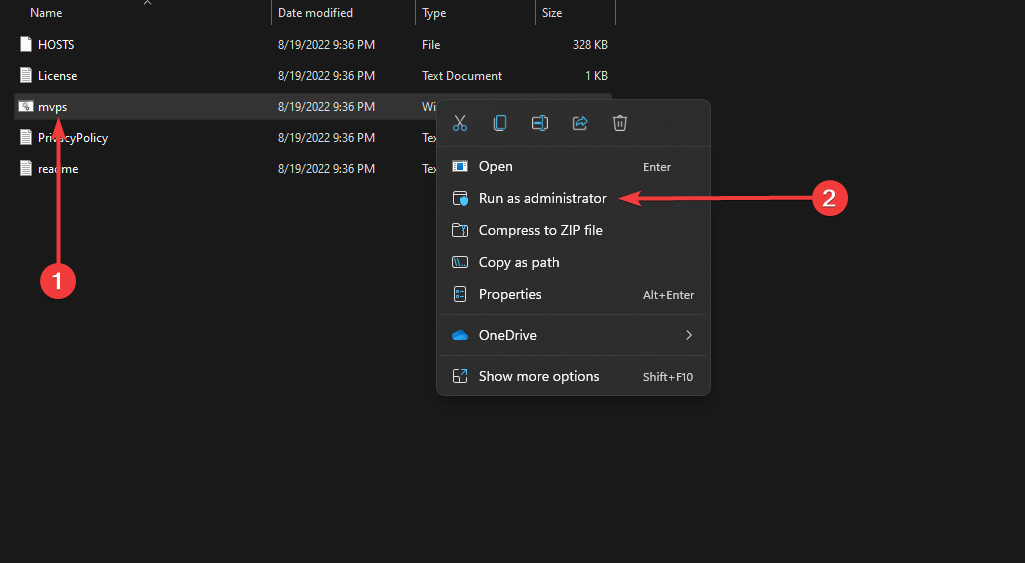
  3. Right-click on Mvps, select Run as administrator, and let the process finish. This will automatically edit all your host files, so you don’t have to do anything manually.
    remove adware from edge
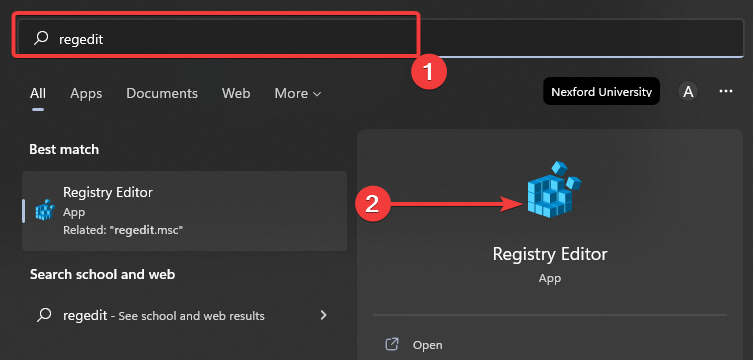
  4. Go to Search, type regedit, and open Registry Editor.
    remove adware from edge
  5. Navigate to the following path:
    • HKEY_LOCAL_MACHINE\SYSTEM\CurrentControlSet\Services\Dns\CacheParameters
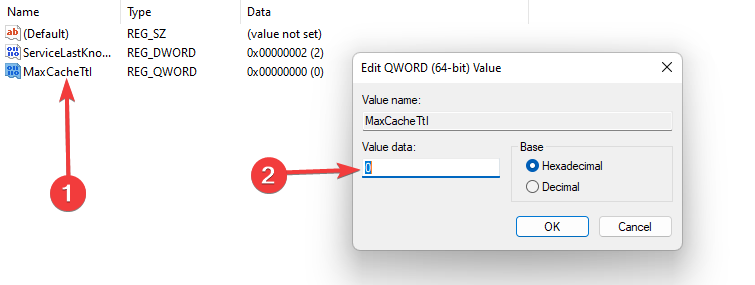
  6. Create a new DWORD value MaxCacheTtl and set the value to 1.
  7. Create another new DWORD MaxNegativeCacheTtl, and set the value to 0.
  8. Close Registry Editor, and restart your PC.

After performing these registry tweaks, all ads should be blocked in your Microsoft Edge browser, and sites should also load normally.

5. Block Pop-up in Microsoft Edge

  1. Open Microsoft Edge.
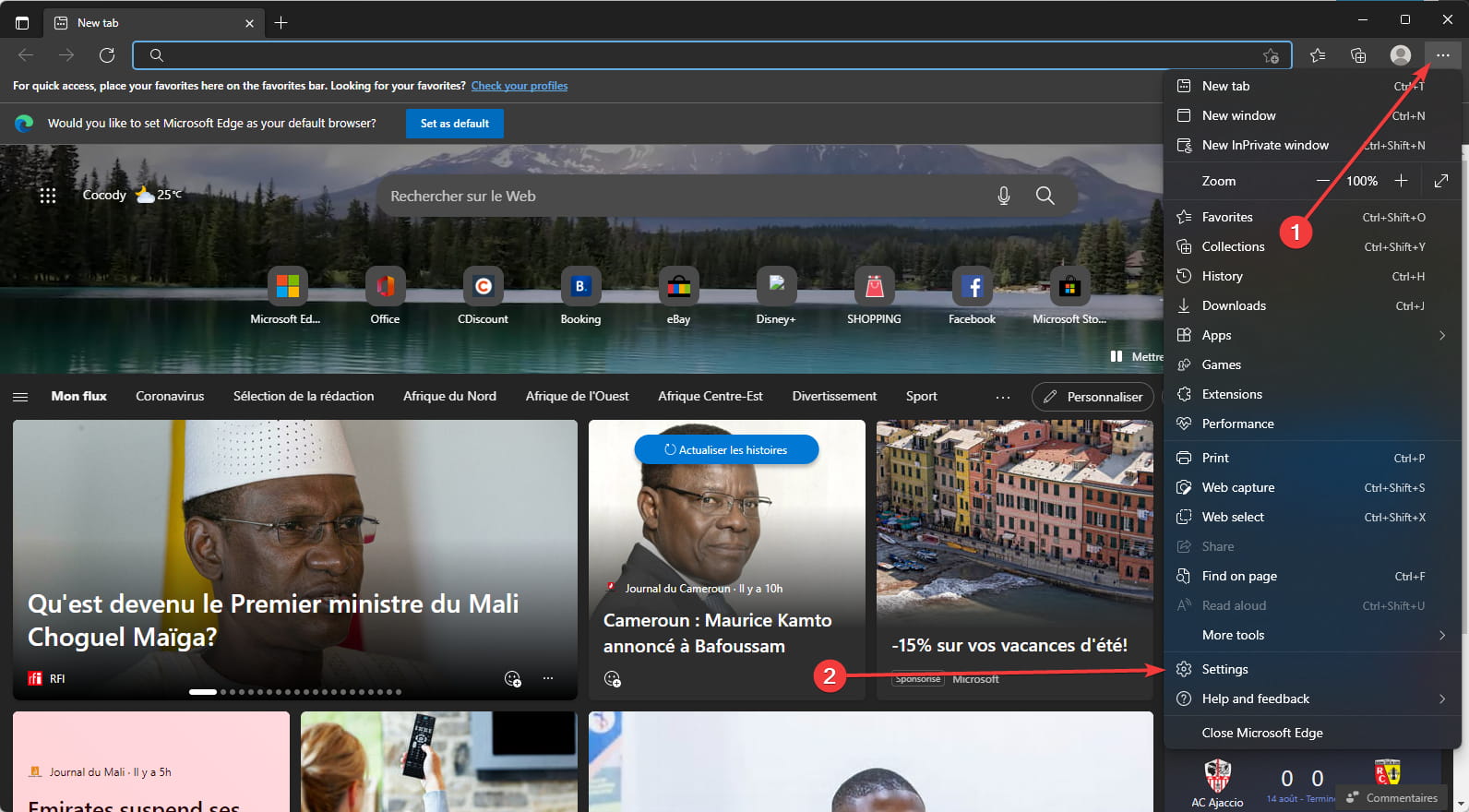
  2. Click on the dotted menu icon, then select the Settings option.
    remove adware from edge
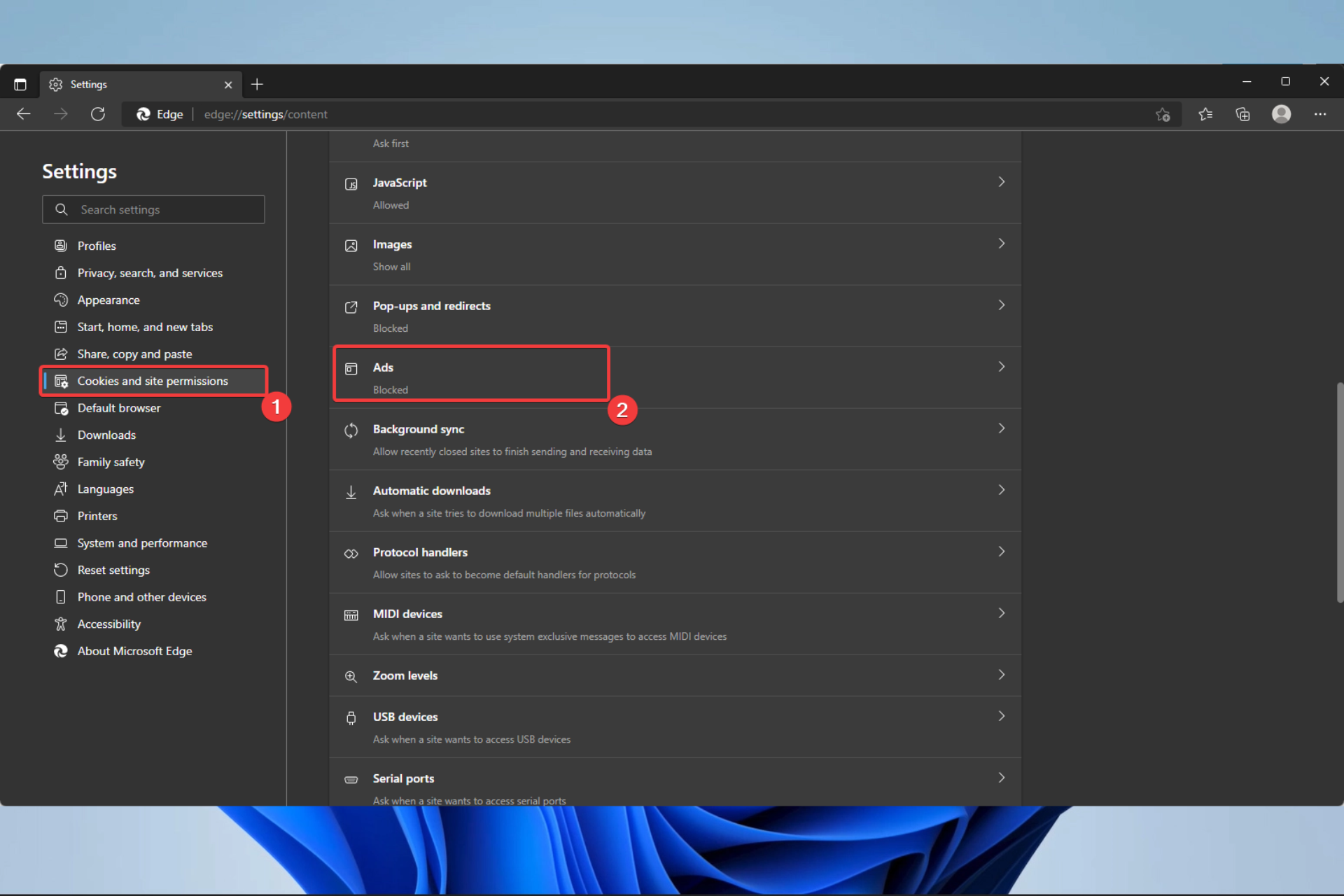
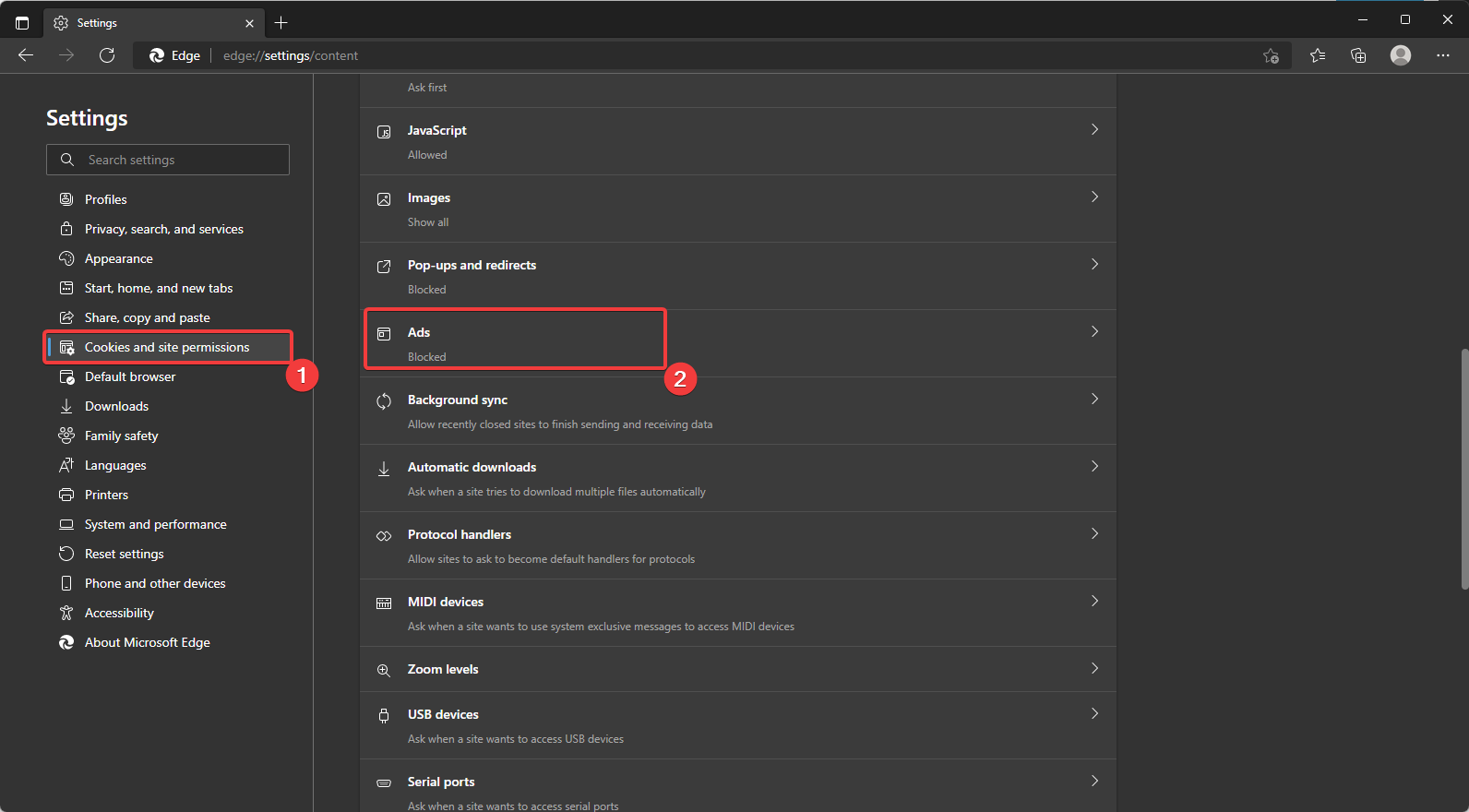
  3. On the right pane, select Cookies and site permission, then click the Ads option on the left.
    remove adware from edge
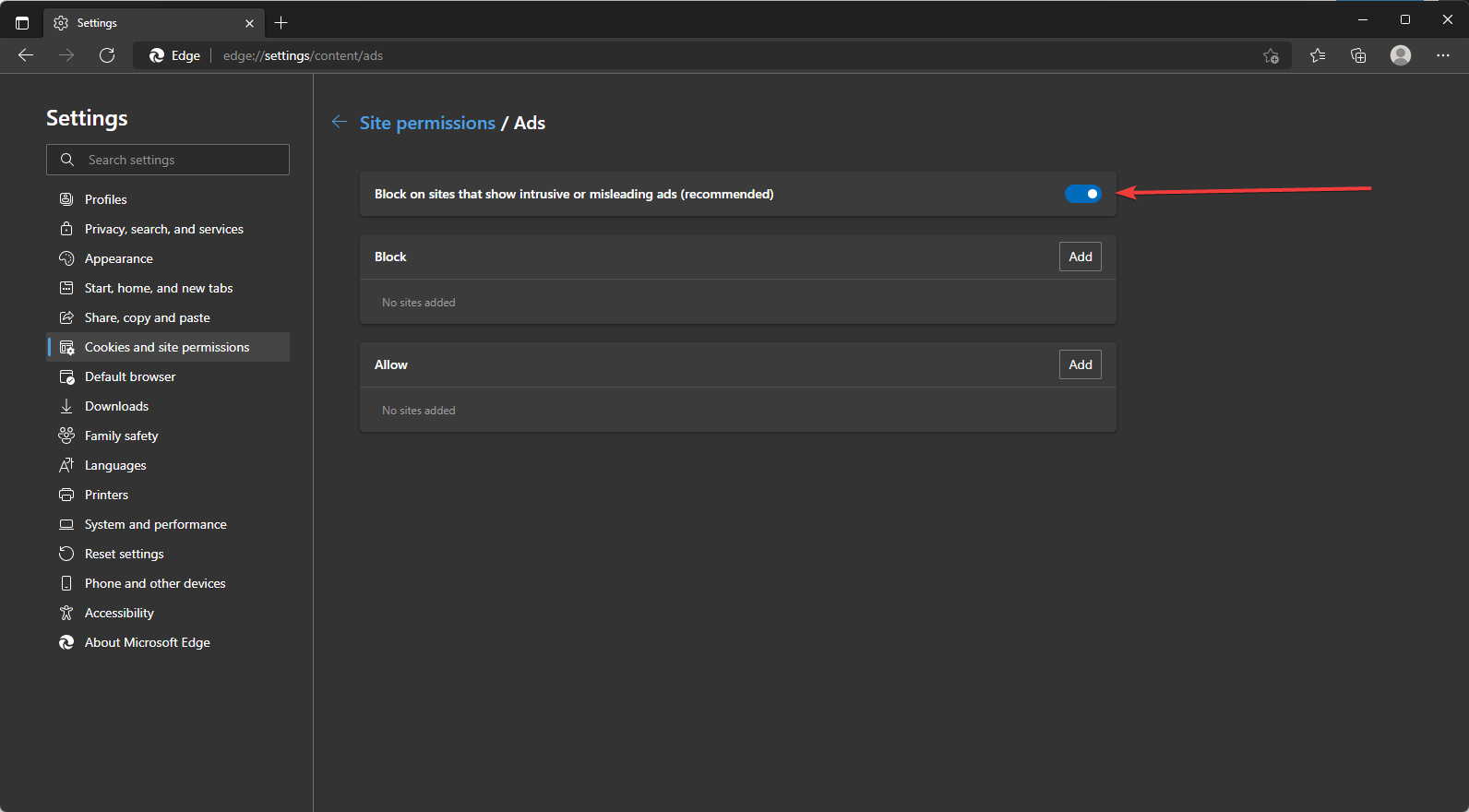
  4. Toggle on the option for Block on sites that show intrusive or misleading ads (recommended).
    remove adware from edge

Please note that if you already have adware infecting your browser, this step may not get rid of it, but it will prevent new adware from affecting you. You should perform the steps if Microsoft Edge keeps popping up.

Keep in mind that adware, sometimes called advertisement-supported applications, makes money for its creators by randomly displaying advertisements on your screen, often when using a web browser.

Although adware may be detected on mobile devices, it is mainly designed for desktops. Adware may be quite deceptive and allow dangerous software to access the system.

A free computer application or app may have extra software, including adware, which you may install unconsciously.

Additionally, your software or OS may include a flaw that hackers may use to infiltrate your machine with malware, including certain varieties of adware.

How can I avoid getting adware?

You can perform a few quick things consistently to protect your device against the spread of adware, such as:

  • Utilize a trustworthy ad blocker –  Ads won’t appear on your browser if you use an ad blocker. Doing this will make you less likely to click on them and infect your computer unintentionally.
  • Read before agreeing –  When downloading an app or software, it is customary to agree to all of the terms and conditions without ever reading them. Unaware of the rights granted to the app, a user later accuses it of spying on them.
  • Use anti-malware and antivirus software –  You may further secure your device by installing reputable antivirus programs and keeping them updated.
  • Steer clear of shareware and freeware –  A source of adware is often free or shareware, as well as pop-up adverts and alerts. Therefore, one should avoid downloading them or even just clicking on them.
  • Only download from trustworthy sources –  Only download programs, applications, and other items from reputable websites and sources. These include official app shops like Google Play, the Apple App Store, and developer and manufacturer websites.

How do I get rid of virus pop-ups on Edge?

  1. Open Microsoft Edge.
  2. Click on the dotted menu icon, then select the Settings option.
    remove adware from edge
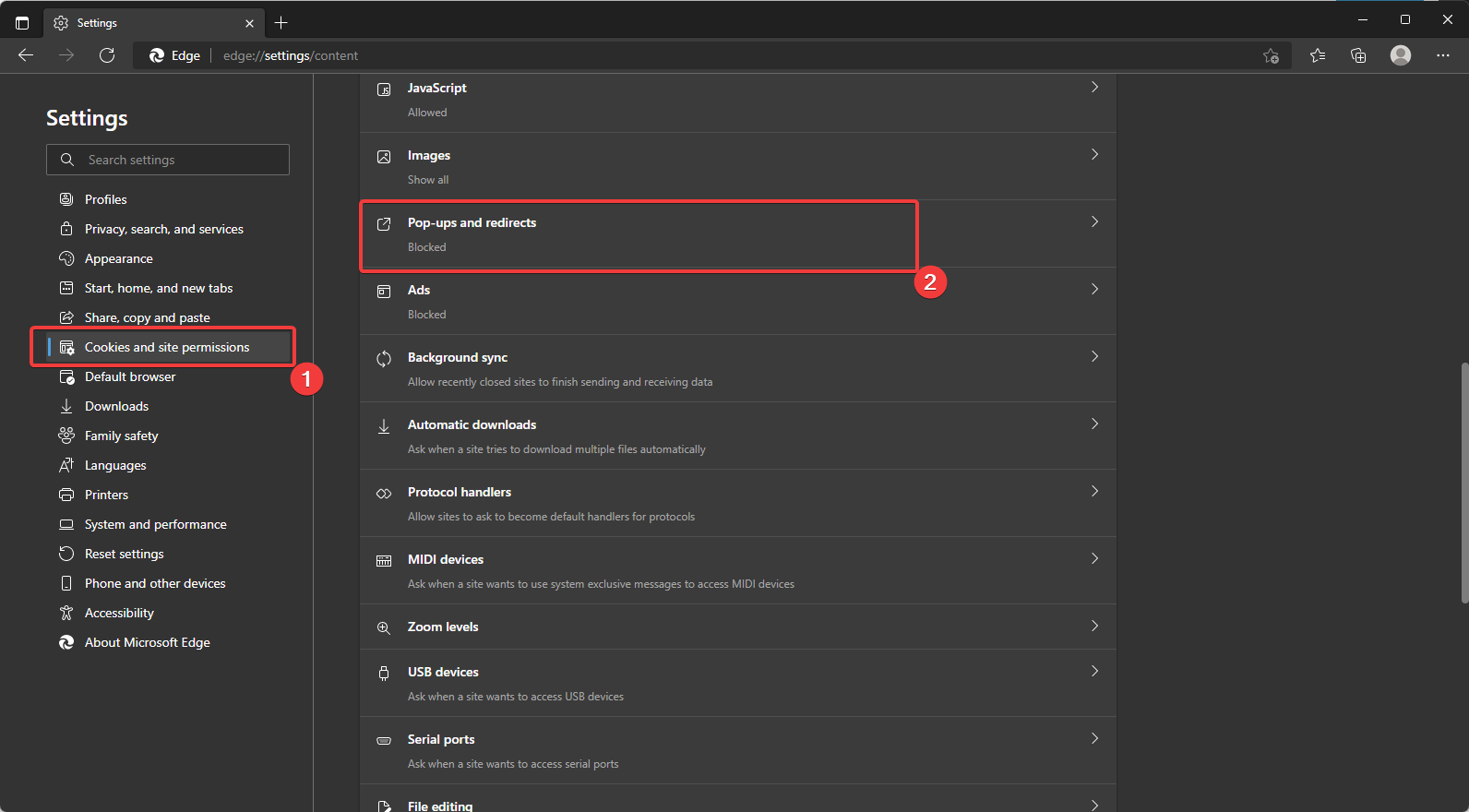
  3. On the right pane, select Cookies and site permission, then click the Pop-ups and redirects option on the left.
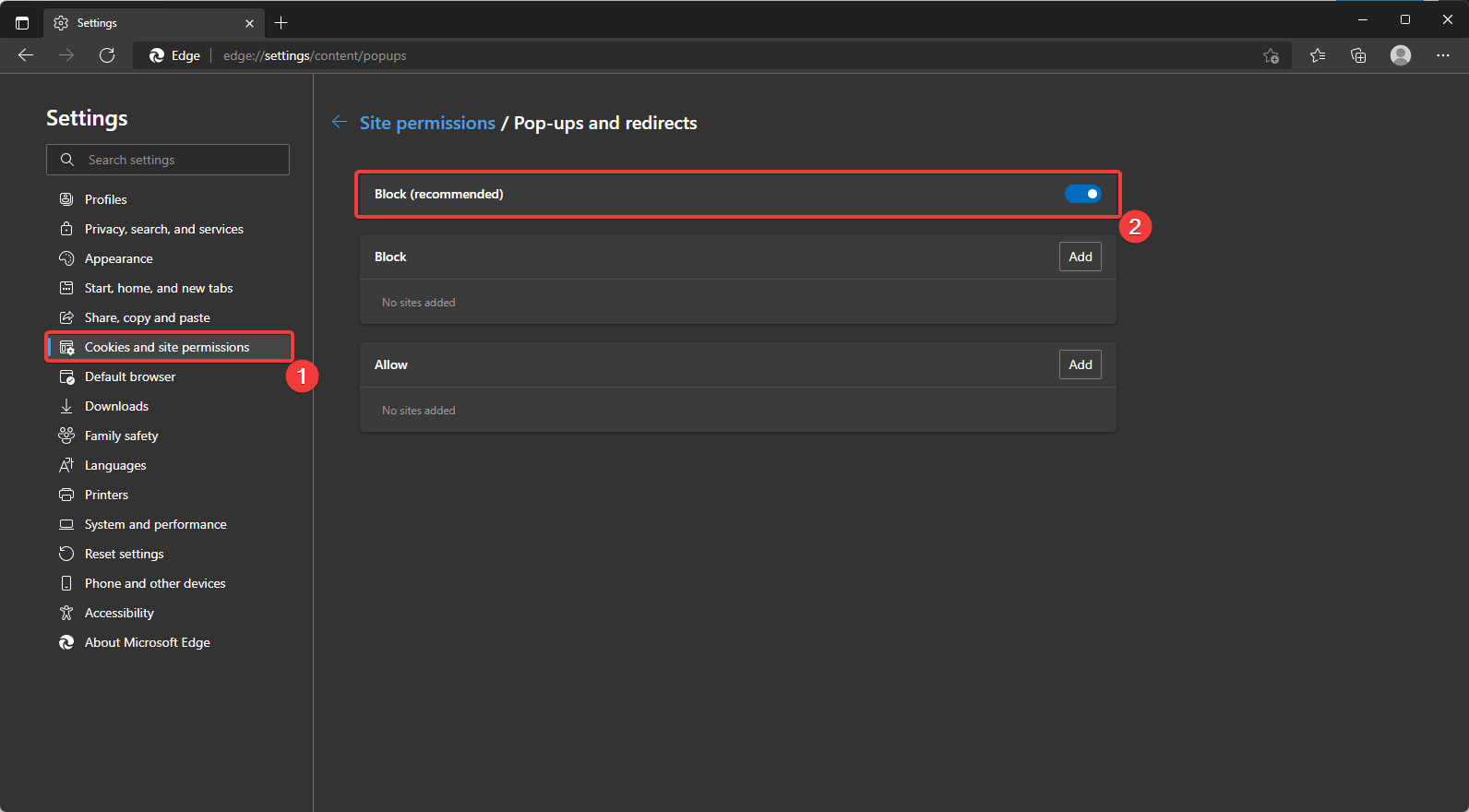
  4. Click on the Block (recommended) option.

After blocking pop-ups, we recommend a full computer scan with a trusted anti-malware tool. If you are wondering how to stop ads from popping up on Microsoft Edge, follow the above steps.

We have discussed stopping Microsoft Edge from popping up ads on your computer. We recommend starting with tweaks on the Edge settings, followed by a full scan of your system, and reinstalling the browser as a last resort.

Before you go, be sure to check our guide on how to remove Waisheph from your computer.

Let us know if these solutions have been helpful, and if we have missed anything, please let us know in the comments section.

The Importance of Software Reliability in Locksmith Security Systems: From Smart Locks to Cloud-Based Solutions

Locksmith services are no longer limited to just cutting keys and unlocking doors. With the rise of smart technology, locksmith businesses are evolving into providers of cutting-edge security systems that rely heavily on software. From smart locks to cloud-based access control and digital surveillance, these modern solutions offer convenience and enhanced security. However, as these systems become more integrated into our daily lives, ensuring the reliability of the software behind them becomes crucial. In this article, we’ll explore why software reliability is vital for these new-age locksmith services and how businesses can stay ahead by focusing on software development and testing.

Smart Locks and Software-Driven Security: A New Standard

Smart locks have quickly become a popular choice for both residential and commercial security, and for a good reason. These locks allow users to unlock their doors using smartphones, key cards, or even biometrics, offering a level of convenience that traditional locks simply can’t match. However, the reliability of the software powering these locks is what makes them truly effective.

For locksmith companies, ensuring that the software behind smart locks works seamlessly is essential. Whether it’s making sure that the lock consistently recognizes authorized users or preventing it from malfunctioning in the middle of the night, software reliability is key to maintaining trust with customers. Imagine a scenario where a customer is locked out because the smart lock software crashed—this would not only cause frustration but could also damage the locksmith’s reputation. That’s why locksmith businesses need to invest in reliable software solutions and rigorous testing to ensure their systems work flawlessly.

Cloud-Based Access Control: Expanding the Locksmith’s Role

Locksmith services are no longer just about locks and keys. Cloud-based access control systems are becoming a core offering, allowing users to remotely manage who has access to their property. With these systems, a building manager can grant or revoke access with a few taps on their phone, no matter where they are. But for this to work smoothly, the software must be highly reliable.

Cloud-based systems require constant, secure communication between devices. If the software isn’t reliable, users might experience issues such as access delays or, worse, system outages that prevent authorized people from entering a building. This is particularly risky in businesses where timely access is crucial, such as hospitals or banks. Locksmiths must ensure that the software they provide is not only secure but also continuously operational. The last thing anyone wants is to deal with a failed access system due to a software glitch.

Digital Surveillance and the Integration of Software Solutions

Beyond locks and access control, locksmiths are also stepping into the realm of digital surveillance. Modern security systems often include cameras and sensors that monitor activity and alert property owners to potential threats. These systems heavily rely on software to function, from streaming high-quality video to storing data securely in the cloud.

For locksmiths offering digital surveillance systems, the reliability of the software is just as critical as the hardware. Customers expect clear video feeds, timely alerts, and easy access to recordings—all of which depend on solid software performance. Any lag or failure in these systems can compromise security. Therefore, locksmiths need to focus on regular software updates and rigorous testing to ensure their systems remain reliable and up to date.

The Critical Role of Software Reliability Testing

At the heart of all these innovations is one essential element: testing. Software reliability testing ensures that the systems locksmiths provide will work consistently under real-world conditions. This process involves putting the software through various tests to identify any vulnerabilities or performance issues before they become problems for customers.

For locksmith businesses, software testing should include performance testing (to ensure the software can handle heavy usage), security testing (to safeguard against hacking or data breaches), and usability testing (to ensure the system is user-friendly). Without these tests, locksmith companies risk releasing unreliable software that could fail at critical moments, leading to dissatisfied customers and potential security risks.

Leveraging Software Development Processes to Meet Customer Expectations

In today’s competitive landscape, locksmiths who offer software-driven security solutions need to go beyond just offering reliable products—they need to continuously improve them. This is where adopting modern software development processes like Agile, continuous integration (CI), and automated testing can make a significant difference.

Agile development allows locksmith businesses to make quick, incremental improvements to their software, ensuring that any bugs or security vulnerabilities are addressed promptly. Continuous integration and automated testing help ensure that every new update is thoroughly tested before being released, reducing the risk of introducing new problems. By adopting these best practices, locksmith companies can meet the growing expectations of their customers while maintaining the security and reliability of their systems.

Conclusion: The Future of Locksmith Security Systems Depends on Reliable Software

As locksmith services continue to evolve, software reliability is becoming increasingly important in ensuring customer satisfaction and trust. From smart locks and cloud-based access control to digital surveillance, modern locksmiths are offering a range of technology-driven solutions. However, the success of these systems depends on how well the underlying software performs.

By investing in software reliability testing and adopting modern development processes, locksmith businesses can ensure that their systems are secure, functional, and user-friendly. In a world where security is paramount, reliable software is the foundation upon which modern locksmith services are built.

Check Out The Latest Features Coming To Microsoft’s Whiteboard

The beauty of the Windows operating system is its flexibility and versatility, allowing everyone to tailor it and use it for their own specific needs.

Whether you run your company from your Windows-powered device, you manage other people, or you focus on gaming, everything can be done from the same OS.

That being said, if you are a Windows operating system user, make sure you keep up with the latest developments in security updates.

And, since we mentioned gaming, not all gaming is done on PC. So, if you are a console fan, check out the latest studies that have proven once again that Nintendo Switch is the most popular one.

Circling back to why we are here, yet another piece of Microsoft-designed software is about to get a whole bunch of new improvements.

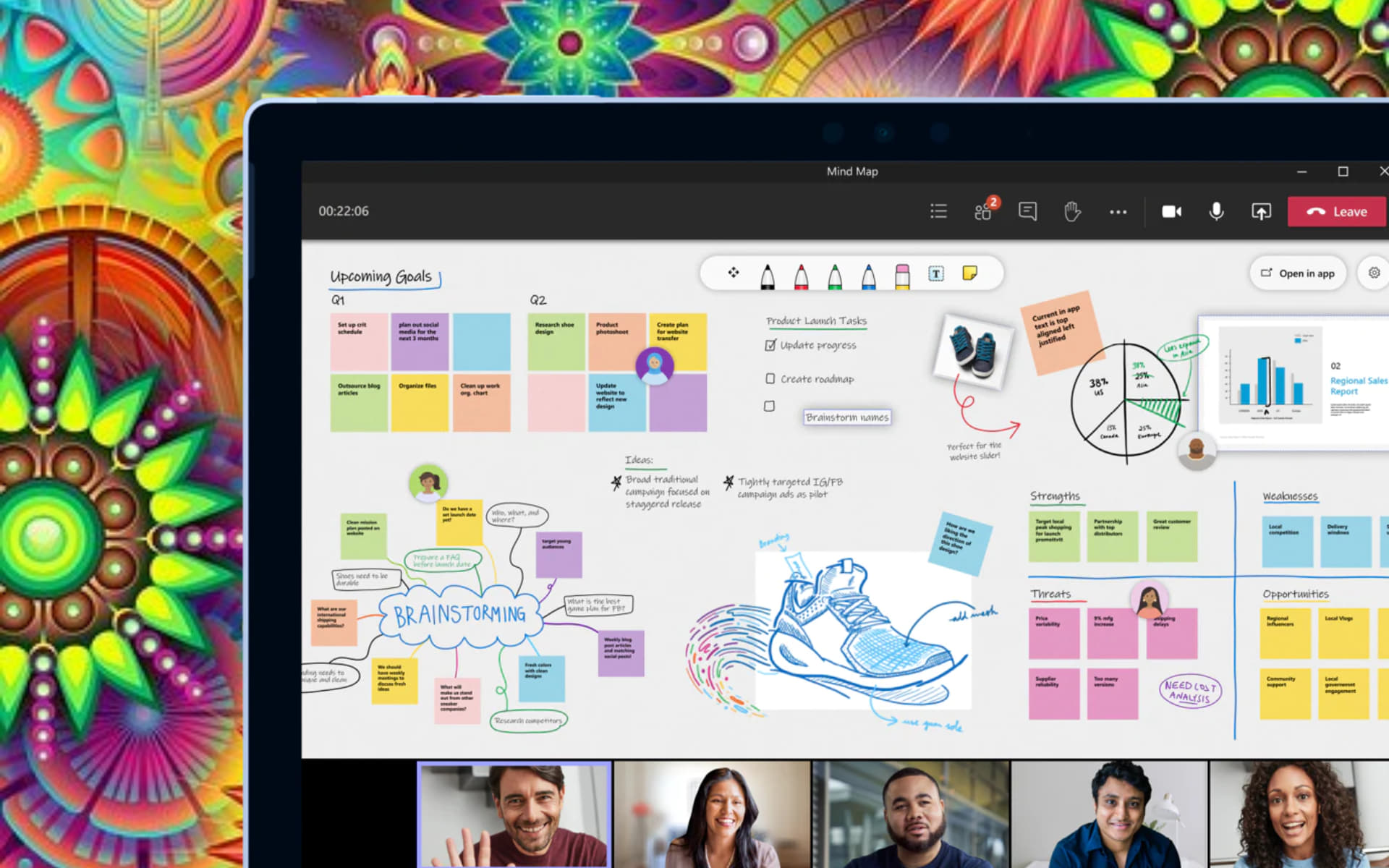
What’s in store for the Microsoft Whiteboard?

As you surely know, Microsoft’s Whiteboard is a digital canvas that is actually available for free across multiple platforms including Windows, Android, iOS, Mac, and Teams.

This software enables users to work in collaborative online environments by allowing them to create and visualize their ideas on a single digital whiteboard. 

The Redmond tech giant regularly adds features to Whiteboard and it has recently revealed a range of new features coming to the app soon.

From what we can tell from the information available on the Microsoft 365 Roadmap portal, Microsoft has outlined several enhancements coming to Whiteboard in the coming weeks and months.

We are about to look at some of these features along with their descriptions, platforms, and expected general availability (GA) dates.

FeatureDescriptionPlatformsTentative GA Date
Embedded Online VideoUsers can insert a video URL and have the video appear directly on the canvas.Teams and Surface DevicesSeptember 2022
URL supportURLs inserted into Whiteboard will become clickable links.Desktop, Teams and Surface Devices, Web, EducationSeptember 2022
AttributionParticipants in Teams and on Web can see who added content to the board.Web, DesktopSeptember 2022
CommentingThe ability to add comments on a whiteboard to aid in discussion with board participants. This will include a comments pane to see all comments on a given whiteboard.Desktop, Teams and Surface Devices, WebNovember 2022
FollowUsers will have the ability to invite users on a whiteboard during a Teams meeting to follow their viewpoint as they navigate and interact with the canvas.Desktop, Teams and Surface Devices, WebNovember 2022
TimerAdding a timer to Whiteboard to help enable users to run timed activities, such as a timed brainstorm.Desktop, Teams and Surface Devices, WebDecember 2022

These are the features that we are all expecting to come to this popular Microsoft-designed software pretty soon.

Before you jump up and down with you though, please note that the general availability dates are only tentative so far, so there’s a possibility that they might slip or that some of the features may not arrive at all.

Which of the above-mentioned features is your absolute favorite? Share your preferences with us in the comments section below.

Windows Insider build 25182 in the Dev Channel gets a servicing pipeline update, to 25182.1010

The Windows Insider program is at it again, testing the servicing pipeline for Windows 11 with a small update to the Dev Channel, bumping the version number from 25182 to 25182.1010. This update does not contain any feature updates or fixes, but is still apparently important for Microsoft as they test servicing pipelines all the time.

In case you missed it, Windows 11 Dev Channel build 25182 introduced updates to the Camera and Microsoft Store apps, and included a number of fixes. You can download the latest build and help Microsoft check to make sure everything is working if you’re in the Dev Channel.

How to fix Windows 10 broken audio after installing KB5015878

As we all know by now, updates that are meant to fix certain issues that we might have with our systems, actually end up breaking it even more sometimes.

Yes, we are talking about Microsoft and some of the fix patches that they release, which break other stuff while fixing what they were meant to.

And, since we were on the topic, judging from the latest update from the Redmond tech giant, posted on the Windows Health Dashboard website, there are some problems after installing KB5015878. 

KB5015878 comes with nasty audio bug for Windows 10

Microsoft has therefore officially acknowledged this issue, shared workarounds for the affected users, and applied the Known Issue Rollback System (KIR) to prevent the bug from spreading.

Redmond developers said that the newest known bug in Windows 10 affects machines differently, so you might be experiencing different symptoms.

Some Windows 10 users stated that they have a complete audio blackout, while others only have working audio on certain ports, devices, or applications.

The tech giant reveals that the affected audio drivers actually have the audio enhancements setting disabled before installing KB5015878.

Another variant shared by the company is that the sound device driver has issues with the audio enhancements feature.

Thus, in order to prevent the problem from spreading, Microsoft applied the Known Issue Rollback system that can undo problematic changes without any action required from the end user.

You should also know that this time, KIR only ensures the bug will not affect other systems, just in case you were wondering.

Users that already have audio issues on Windows 10 after installing the above-mentioned update should definitely apply one of the three workarounds that Microsoft shared.

How can I fix my Windows 10 audio not working?

If you have not yet installed the update, you can do the following to prevent the issue:

  • Updating your audio device driver (also called “sound drivers” or “sound card drivers”) might prevent this issue. If there are updated drivers available on Windows Update or from your Windows device manufacturer’s (OEM) webpage, installing them might prevent this issue.
  • If you are using any advanced audio applications such as Open Broadcaster Software (OBS), it is recommended that you backup all your settings before installing the update.

If only certain apps are impacted, you can try the following to mitigate the issue:

  • ​Verify that the audio devices set within those apps are the expected devices. Audio endpoints might be reinitialized after KB5015878 is installed and some apps might set the audio devices for microphone and speakers to default.
  • ​If the device settings within the app are as expected, the apps might be caching the Windows Multimedia Device (MMDevice) ID. Caching the MMDevice ID is not recommended and might require reinstallation of the affected app or contacting support for the developer of the app for how to resolve the issue when audio endpoints are reinitialized and have new MMDevice IDs.

If you have already installed the update and are experiencing issues with audio on all apps, you can try the following to mitigate the issue:

  • The Windows audio or sound troubleshooter might be able to resolve the issue for you. You can launch the troubleshooter from Fix sound or audio problems in Windows by selecting the Open Get Help button in the article. The Get Help dialog window should open, and you will need to select yes to open the troubleshooter.
  • If your device’s audio is still not working as expected, follow the instructions in Disable Audio Enhancements. Note: The article uses the microphone as an example, but you will need to do the steps for any affected audio device.

Please keep in mind that the above-mentioned audio bug that came with KB5015878 affects only Windows 10 versions 20H2, 21H1, and 21H2 users.

That being said, it should not cause any sort of problems for Windows 11 users, just like the recently confirmed BitLocker recovery bug does not affect Windows 10 customers.

Xbox exclusive High on Life delayed 6 weeks, will launch in December

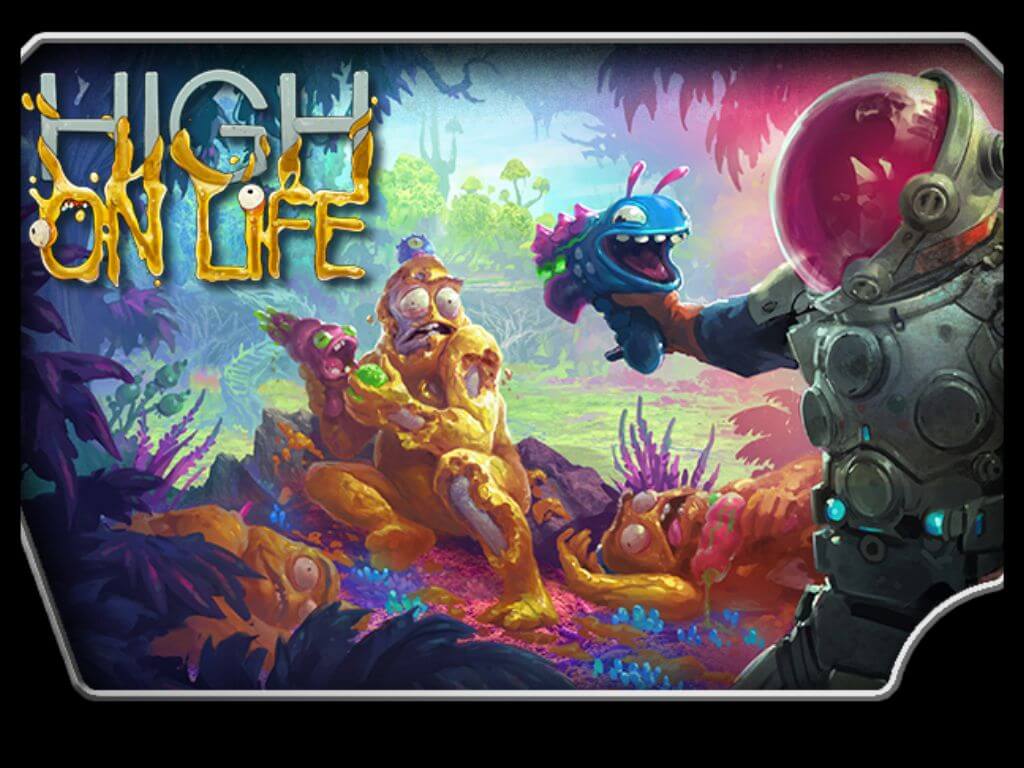
‘High on Life,’ Xbox’s upcoming FPP game was set for launch in November, but Squanch games,the creator of the game Rick and Morty, have delayed the launch of the game from its original date. The reason behind the delaying game launch was reported by Squench Game’s official Twitter account:

The Squanch Games developer team said the extra time spent on the game will be focused on resolving a few bugs and developing the best gaming experience (Via Digtitaltrends.com). High on Life will be featured at gamescom tomorrow.

The good news is High on Life game is still coming in 2022, set for launch on December 13, 2022, and will be available on Xbox One, Xbox Series X|S, PC game Pass, and Xbox Game pass.

For more latest and exclusive tech news updates follow us on Google News.

5 Tested Ways to Fix Roku Error 020 [HDCP Error Bypass]

Roku error 020 is a standard message that appears on the screen of your Roku device. This error means that you cannot connect to the internet and stream videos on your TV.

The device has almost all the features you might need to access thousands of channels and apps. However, sometimes, you may encounter some issues with your Roku device.

Roku is one of the most popular streaming devices used by millions of people around the world. It has become so popular that it can be considered a standard in modern home entertainment systems.

How do I fix HDCP error 020 on Roku? 

1. Change your HDMI cable

The first thing you should check is whether your cables are fully functional. If there’s any damage to the cable or if it’s too long, it could cause problems with the signal being transmitted from your TV to your Roku device. 

Unplug all devices connected to the same HDMI port. If you have more than one HDMI port, try unplugging all devices connected to those ports and then plug them back into another HDMI port. 

This will also solve your problem since it may be due to an overload of HDCP errors generated by different devices connected through one HDMI port. In addition, make sure that both ends of the cable are firmly attached so there’s no loose connection between them.

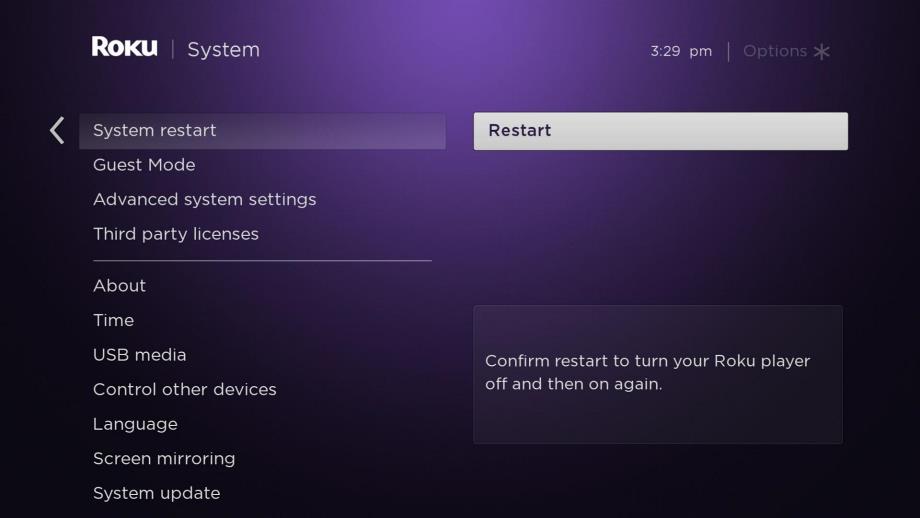
2. Restart Roku

Unplug the power cable from the back of the device and wait for at least 30 seconds. Then, plug it back in and wait until the device boots up properly.

Sometimes, restarting your streaming player does not fix this issue. In such cases, you must reset your Roku device to factory settings. Ensure you have backed up all your important data before performing a reset as it will wipe out all data stored on your device.

3. Reset your router

Sometimes this problem is caused by corrupted data or other issues in the router itself. If you notice any unusual activity from your router, then it’s time to reset it.

If you have a Wi-Fi connection, try resetting your router by unplugging it for at least 30 seconds. Then, plug it back in and wait for it to boot up before reconnecting with your Roku device. This can also resolve other related issues like the Roku error 014.30.

4. Change the Display type

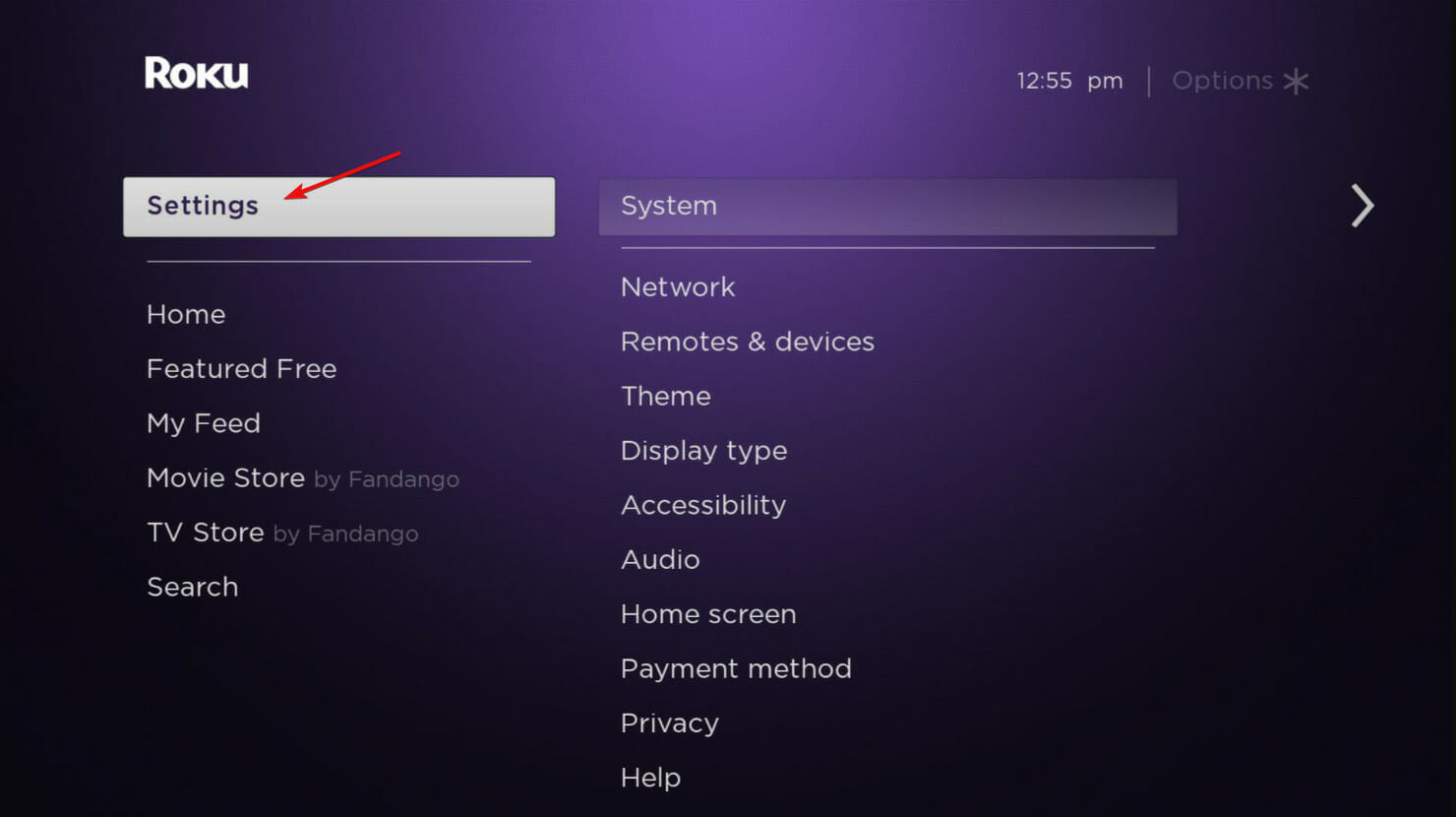
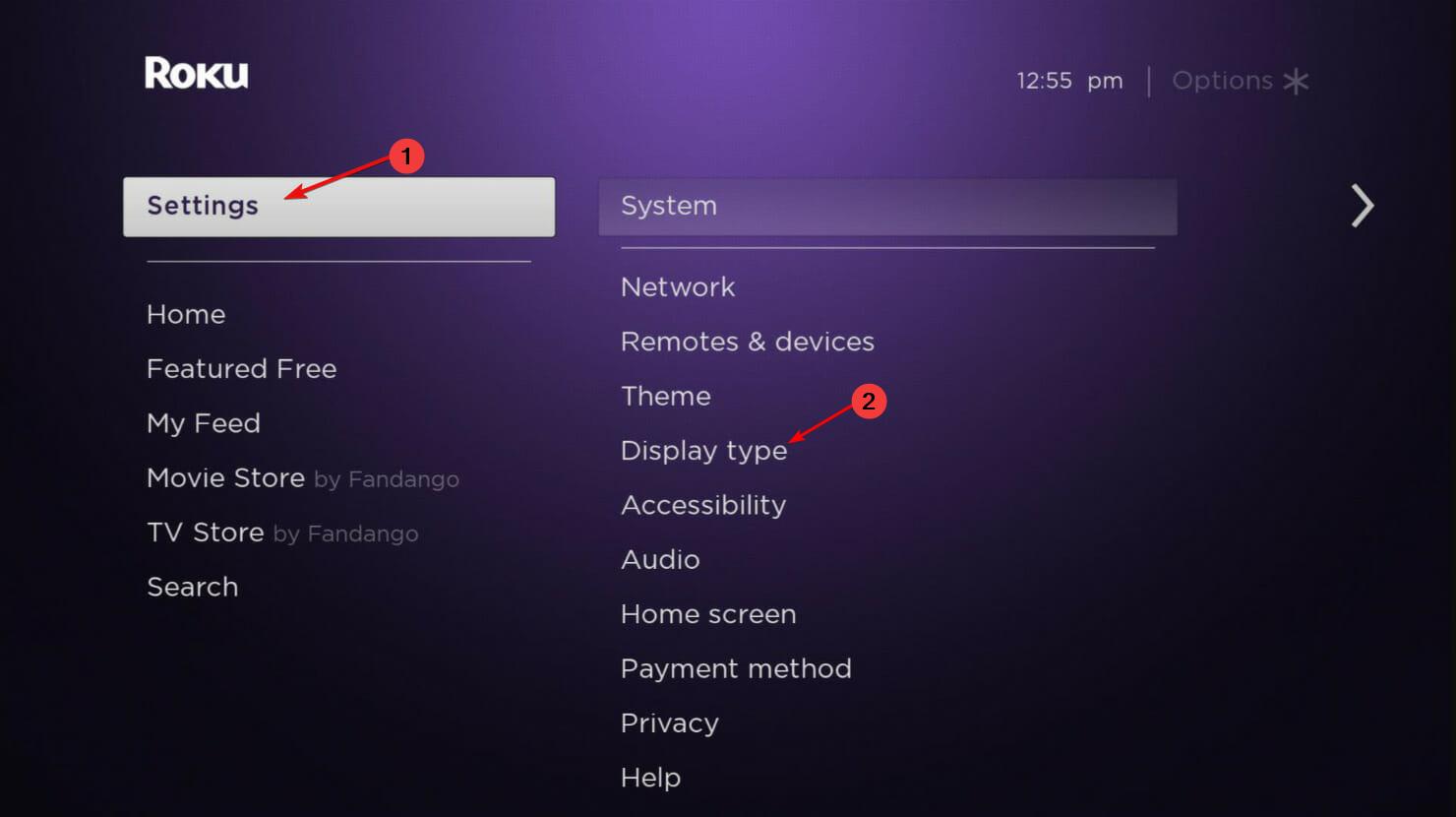
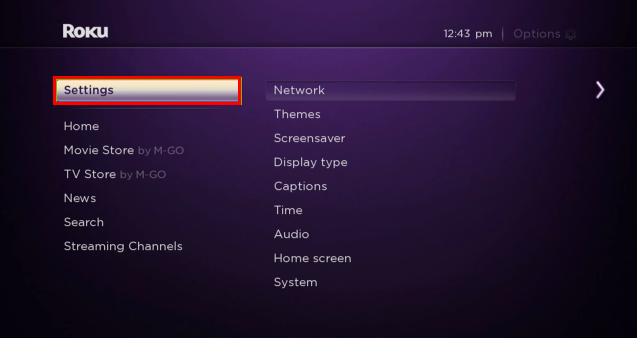
  1. Press the Home button on your Roku remote to access Settings.
  2. Navigate to Display type.
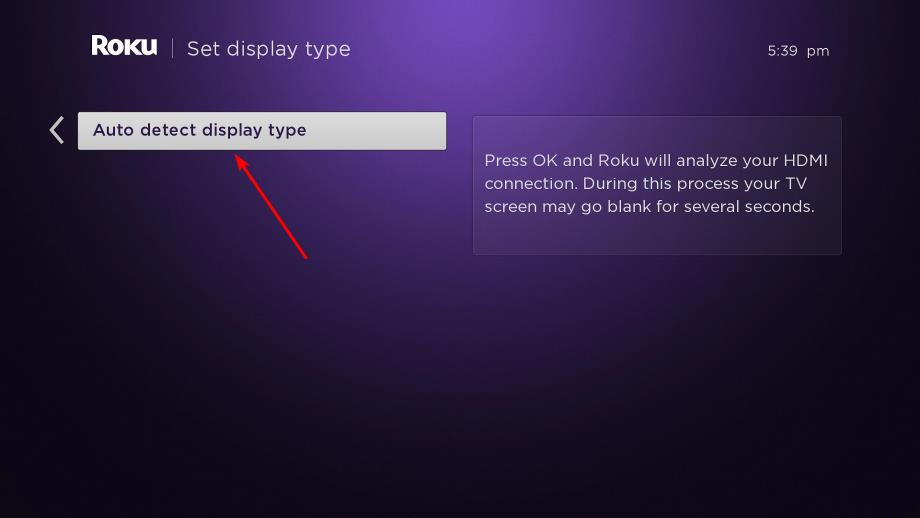
  3. Select the Auto detect display type option.

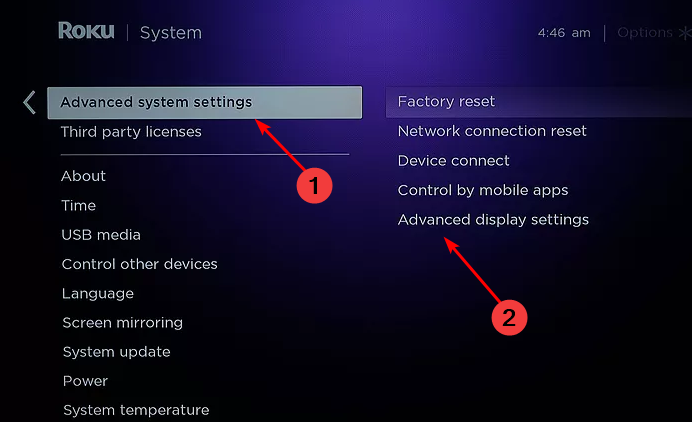
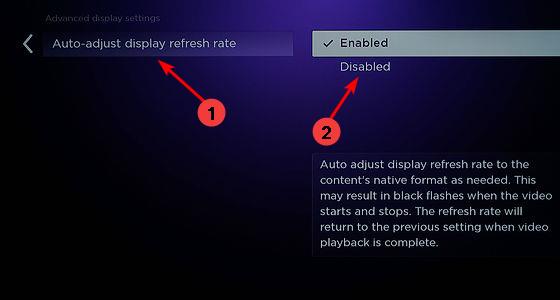
5. Disable Display Refresh Rate for Roku

  1. Press the Home button on your Roku remote to access Settings.
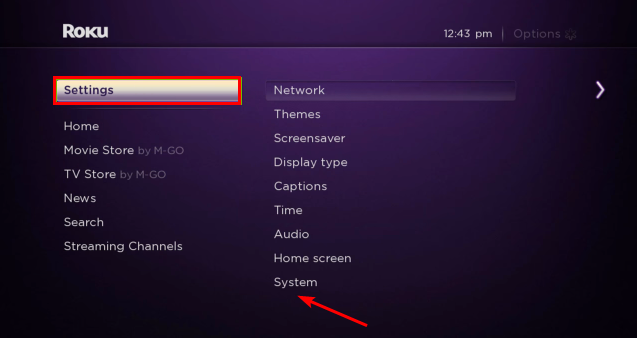
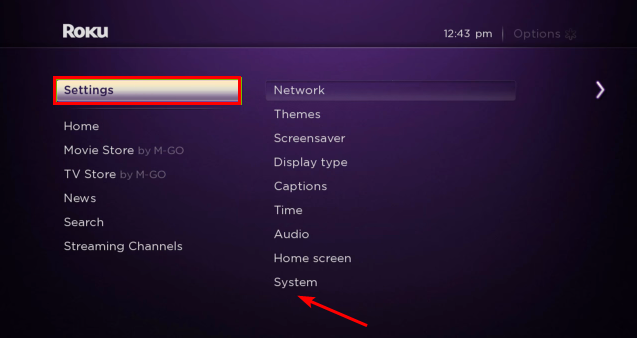
  2. Now select System.
  3. Click on Advanced system settings and select Advanced display settings.
  4. Toggle the Auto-adjust display refresh rate to Disabled.

Note that HDCP stands for High-bandwidth Digital Content Protection, and it’s a copy-protection scheme that many streaming services use to prevent unauthorized copying of their content. It is almost similar to DRM protection, but there is a way to remove DRM from files.

The device is compatible with HDCP technology, which allows it to play content from different channels. If you are facing an HDCP error 020 on your Roku device, then it means that there is some problem with the connection between your device and the TV.

Either end of the connection may have become loose or damaged, so unplug and firmly plug the cables back. It is also possible that there is an issue with the HDMI port on your TV or monitor.

What does HDCP unauthorized content disabled mean?

HDCP unauthorized content disabled is a message that may appear on your TV screen when viewing protected content. It’s a security feature that prevents people from copying digital video content, including movies and TV shows.

This message can appear when you try to use an unauthorized device or when you try to connect two devices that don’t support HDCP encryption.

How do I watch HDCP on my TV? 

HDCP is a copy protection technology many devices use to prevent unauthorized digital video and audio content copying.

To watch HDCP-protected content on your TV, you’ll need an HDCP-compatible HDMI cable, which is required to read the encryption key from the source device and send it to your TV.

If the problem persists, you can contact Roku support and check if they have an alternative solution.

Should you encounter an HDCP error on Netflix, refer to our guide on how to fix the issue quickly. Also, if you are having a problem with getting an HDMI signal on your device, we have an expert article to help you resolve it.

We also have a guide dedicated to Roku Cloud Path error authorization, so don’t hesitate to check it out.

Let us know any other tips that may have worked for you in the comments section below.

Attachments not showing up on Outlook? Here’s how you can fix this error for good…

Adding email attachments to your emails lets you transfer critical information along with your message. Images, audio, videos, you know, the usual stuff.

However, the process can sometimes fail. Even though the sender might have sent you the file, the attachment is nowhere to be found at your end. Or, you might be unable to verify the attachment you’ve yourself added. In what follows, we look at the quickest ways to work your way out of this problem. So let’s get started.

Are attachments not showing up on Outlook? Here’s how you can fix this issue…

While no one can pinpoint the exact culprit of this error, we certainly have the strategies you can take to get out of it. So let’s look at them all one by one.

1. Check your internet connection

The most obvious fix to give a shot is to check your internet connection first. If you’re offline, you won’t be able to upload your files. 

So, if you’re using a cabled device, give your router a thorough check first.

And if it’s the Wi-Fi instead, don’t forget to check out the driver. You can also give the Windows Troubleshooter a go for checking your internet connection.


2. Turn off your antivirus

Antivirus is infamous for causing glitches in the normal functioning of different processes of your PC. This is where disabling your antivirus can help—at least while you send away the email.

However, you can turn it back on when you’re sending the attachment. 

Try reinstalling your antivirus and fixing the Outlook attachment problems for a long-term solution.

3. Update Outlook

When was the last time you updated your app? Using an outdated app can run you into all sorts of problems along the line—massive security loopholes being one of them.

In the case of Outlook, it can also get you stuck with random email-sending errors like this. 

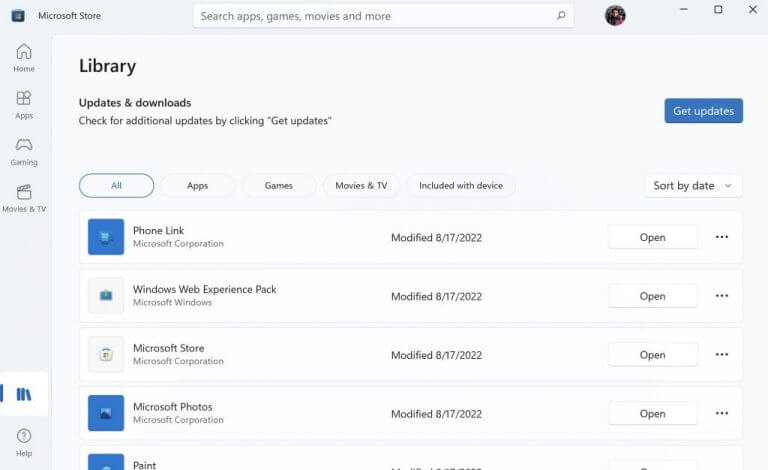
So, updating your app is definitely worth the shot to get out of this problem. To do that, head to the Microsoft Store, and update your app from there. Here’s how:

  • Go to the Start menu search bar, type in ‘store,’ and select the best match.
  • In the Store app, click on Library from the bottom left corner.
  • Then click on Get updates and install your updates from there.

store library

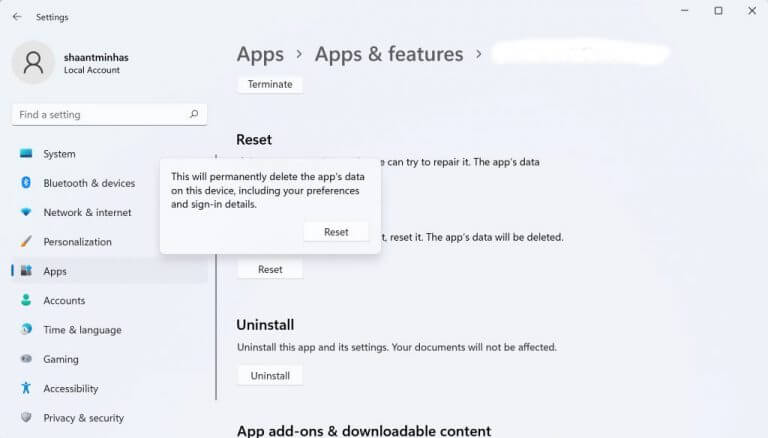
That’s it. Do this and your app will get updated; this should have fixed the attachment issues with your app. Alternatively, you can also reset the app. Go to Settings > Apps > Apps & features.

From there, scroll down to find your Outlook app, click on the options (three dots) menu of the app when you find it, and select Advanced options. Scroll down and select Reset. You’ll get a dialog box warning you about the permanent deletion of your data. Click on Reset to finalize the deletion.

reset app

Fixing the attachment issues on your Outlook app

Attachments have become a critical element for any email service and have become a part of the business transfer of information. With the above steps, you can fix all attachment issues you might have on your Outlook app.

Protected Content License Error on Disney Plus & Roku

If you’ve been watching Disney+ content on your Roku, you may have encountered the dreaded Protected Content License Error message. This message appears while trying to play a particular movie or TV show. Roku, like all streaming devices, has its problems. And in many cases, these issues are fixable.

Usually, if you have an active subscription, you should have no problem accessing the content. If you get this error, the file or folder you are trying to open is locked, and only licensed users can access it.

As streaming TV services become widespread, you may encounter licensing issues occasionally. With a few tweaks, you can bypass DRM restrictions. However, some sites have stringent rules that make it almost impossible to view such content.

In such cases, you can try troubleshooting the error provided you are not using pirated software and have a legally obtained and valid subscription to view the content.

What is the protected content license error? 

The protected content license error is a common error that occurs when you attempt to play protected content. This can be caused by an issue with your system or by an issue with the content itself.

Such files often have DRM (Digital Rights Management) protection, which means they can only be viewed on certain devices or applications.

Different websites have different requirements for accessing this type of content. Some will require you to register and authorize your account before you can watch their videos. Others will ask you to agree to their terms of use before they let you watch their content.

Why am I getting the protected content license error? 

There are many reasons why this can occur, but here are a few:

  • You are using a trial or free license – If you are getting this error, it means that you have not purchased a license for the content; hence, it is not available anymore.
  • Outdated firmware – If your device runs on an outdated or unsupported version, you will get the protected content license error.
  • Bad network connection – Ensure you’re connected to the Internet and try again. If it continues to happen, check for any changes in your network configuration. Sometimes, your Roku device may be connected to Wi-Fi but still not working.
  • Damaged HDMI – If you get the protected content license error, it could be because of a damaged HDMI port on your TV. 
  • Outdated application – There is a chance that the developer has disabled support for the app in your current version. Check for any updates available and update accordingly.

Other times, it could just be an internal server issue or downtime with the server. You can wait it out and try again after some time.

How do I fix the protected content license error? 

1. Unplug and re-plug the power/HDMI cables

Unplug all cables from the back of your computer Roku device, including power and HDMI cords, wait 30 seconds, then plug them all back in again. 

This will reset the device, giving it a fresh start with any new content you’re trying to play. A simple restart can sometimes clear up any problems preventing you from playing content on your PC or TV.

2. Check your network connection

If you’re using Wi-Fi or Ethernet for internet connectivity on your PC or TV, ensure these work properly. Ensure your device has a strong Wi-Fi or cellular connection and you’re not in an area with poor coverage.

A weak or poor internet connection can often cause issues like the no valid bitrates error, so it’s worth checking that you have a strong enough signal. If your signal is poor, try connecting to another Wi-Fi source or switch from wireless to Ethernet.

3. Reset your Roku player/TV/Router

Roku players, TVs, and routers are set up to connect to your local network but can occasionally get disconnected.

Resetting your router will clear out any temporary problems, so this is usually a good place to start with any other problems. To reset your router, unplug it from power for 30 seconds, then plug it back in and wait for it to fully power up before powering on anything else.

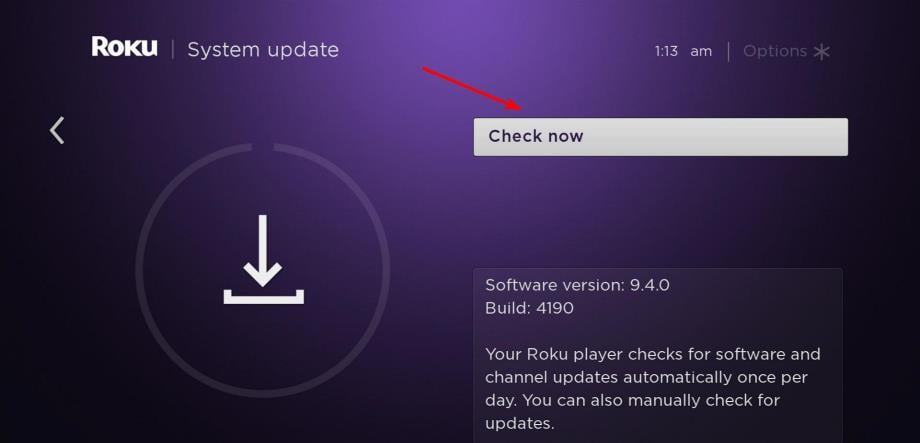
4. Update your Roku device software

  1. Press the Home button on your Roku remote.
  2. Scroll down and select Settings.
  3. Click on System.
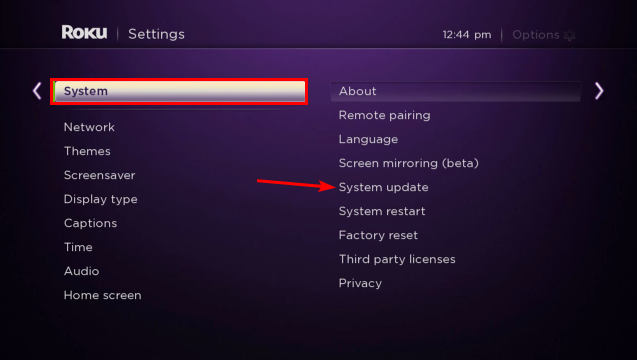
  4. Select System Update.
  5. Click on Check now for available updates.

5. Update your router firmware 

You may need to update the firmware if you have a wireless router. Some routers come with outdated firmware, which can cause problems with protected content streaming. If this is the case, update your router’s firmware.

You can usually check if this is the case by logging into its web interface and checking for any available updates.

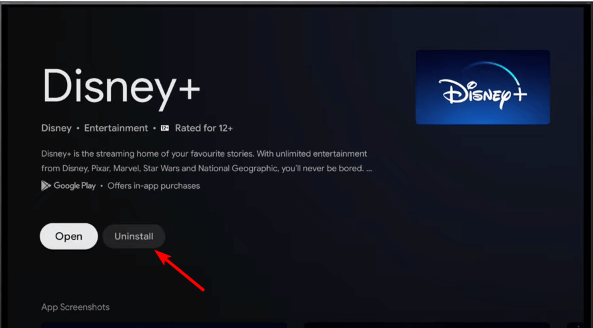
6. Uninstall and reinstall the associated app

First, try closing and reopening the app. This will clear any files that may have been causing the issue in the background. 

If that doesn’t work, try uninstalling and reinstalling it from the Google Play Store or Apple App Store. This will clear any traces of corrupt files associated with the app. Now, go back and reinstall it again and see whether the protected content license error persists.

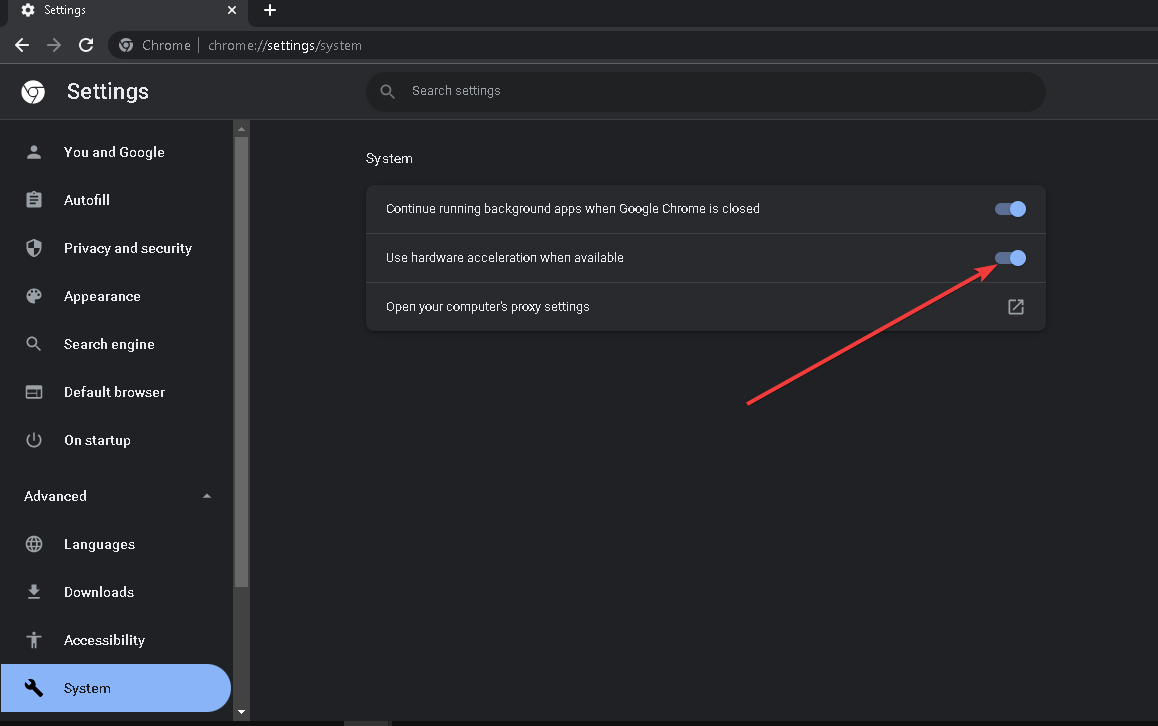
7. Disable hardware acceleration

Hardware acceleration refers to hardware-accelerated video decoding. With hardware acceleration, the video card (GPU) decodes the video, saving system resources and improving overall performance. 

Disable the Hardware Acceleration

However, disabling hardware acceleration may be necessary to view protected content properly if you have an older computer or a poor graphics card. You can disable hardware acceleration using a desktop browser and see if that helps.

If you are still experiencing the error after trying these solutions, you may have to try another PC browser. We have recommended the best browsers that work with Roku, so be sure to check that out.

In some rare cases, the content may be restricted from your country, and you get an error like A19 on Stan. You will need to remove the geo-restrictions and try again.

Alternatively, you can contact Roku customer support and report the issue for additional help. Ensure to include as much detail as possible for prompt help.

Hopefully, you have solved the protected content license error and can enjoy videos uninterrupted.

We love your feedback, so let us know your additional thoughts on this issue below.

Play the Viking Online Game: Browser Recommendation & Tips

Vikings: War of Clans is an MMO strategy game developed and published by Plarium.

The gameplay focuses on the fight for supremacy between various clans of Vikings who live in a particular kingdom. The aim is to conquer a certain place of power, which stands at the center of each kingdom.

At the end of 2019, there were more than 800 kingdoms created by players from all over the world.

Is Vikings: War of Clans free?

If you have any past experience with browser games at all, or you played some of the free games out there, you pretty much know what we are about to say.

Yes, Vikings: War of Clans is completely free to play. However, it has optional in-app purchases for real currency, so keep that in mind.

Quick Tip:

We always enjoyed browser gaming. So, for this game in particular, we have a recommendation. Opera GX is a gaming browser that was created to enhance the gaming experience.

Namely, it comes with a built-in panel to limit RAM and CPU usage for better performance. It also includes a free ad blocker and VPN, to secure your activity while online. Additionally, it provides plenty of gaming-oriented settings that will smoothen out your experience.

Opera GX

A gaming browser with built-in features for a true gaming experience.

How can I play Vikings: War of Clans on PC?

  1. Access the game’s website and hit the Play For Free button.vikings 1
  2. Select your character’s gender.vikings 2
  3. Select the type of Viking warrior you want to be.vikings 3
  4. Confirm you meet the age criteria in order to play.vikings 4
  5. Choose a name for your character and press Continue.vikings 5
  6. Select a password, then press the Continue button.vikings 6
  7. Enter your email address and confirm by pressing Continue.vikings 7

After going through these steps, you will be good to go and you can start your new adventure in the Viking world.

Upon entering the game, you will join, by default, the most recent kingdom. For the following 30 days, you have a chance to participate in the organization of the kingdom and learn the rules.

As kingdoms get into competition with one another, players have to cooperate with each other and join clans or create their own clans. A player can become Chief of his clan irrespective of their experience in the game.

From then on, it’s all about clan management. Each member of the clan has a certain amount of authority, corresponding to their ranking.

Clan members have to protect and reinforce the town where they live, train troops, organize raids, upgrade heroes, conquer other towns, recruit allies, and, at the same time, acquire precious military, strategic and economic knowledge that will help them advance in the game.

By the end of the game,  a clan has to travel to the kingdom of Jotunheim to take part in a legendary competition.

There is no limit to the number of players that can join the game simultaneously. A clan gathers 100-125 players, while a kingdom can include up to 45,000 players.

What are the supported platforms for Vikings: War of Clans?

The game was initially launched in 2015 as a free app for Android and iOS; several features need to be purchased, though.

In time, the developers also launched a desktop version. No downloading is necessary. However, the developer also created a special desktop app, Platinum Play, that should grant more stability, faster loading, and better performance for all their games.

What is the best troop in Vikings: War of Clans?

If you really want to gain the upper hand and crush your enemies in this entertaining game, you should definitely go for the cavalry.

As you might have expected, cavalry is the fastest troop type in the game, which means that it can be used by players who prefer to strike quickly and, sometimes, unexpectedly.

Furthermore, these units are strongest against Ranged (50% bonus), as well as Siege Engines (50% bonus) but perform poorly against Melee (50% penalty) and Killers (25% penalty).

So what are you waiting for? Hit that Vikings: War of Clans login button and wreak some havoc among other tribes that would contest your rule.

This is definitely one of the best free Viking games on PC, so be proud of the choice you made when it comes to browser titles.

If you want Vikings: War of Clans download links for PC you are in the right place, and all you need to do is have fun.

Have you played the Vikings: War of Clans yet? Leave us your feedback in the comments section below.

Use This Method to Play Old Games with Widescreen Resolution

If you’re an avid gamer but mostly a fan of the golden age of gaming, your biggest heartbreak is not being able to play the same games as you used to.

Either they are hard to find, or they are hard to port to the modern Operating Systems or even the old low-spec PCs that are now available.

However, once in a while, you do manage to find your favorite title and maybe even make it playable, so now you are wondering how you can make use of your modern widescreen monitor.

This guide will show you how to do it with a freeware tool. Read on to find out more!

What was the first widescreen game?

According to popular opinions, the first widescreen game is the World Cup ’94 USA. This game was available on the popular Sega CD and had a copyright dated 1994.

However, some gamers believe Virtua Fighter is the earliest widescreen game.

Do all games support widescreen?

The vast majority of modern games support widescreen and ultrawide monitors. However, not all games can work on these monitors or use the feature.

Also, it is important to note that some games support widescreen with mods.

How to play old games on widescreen monitors?

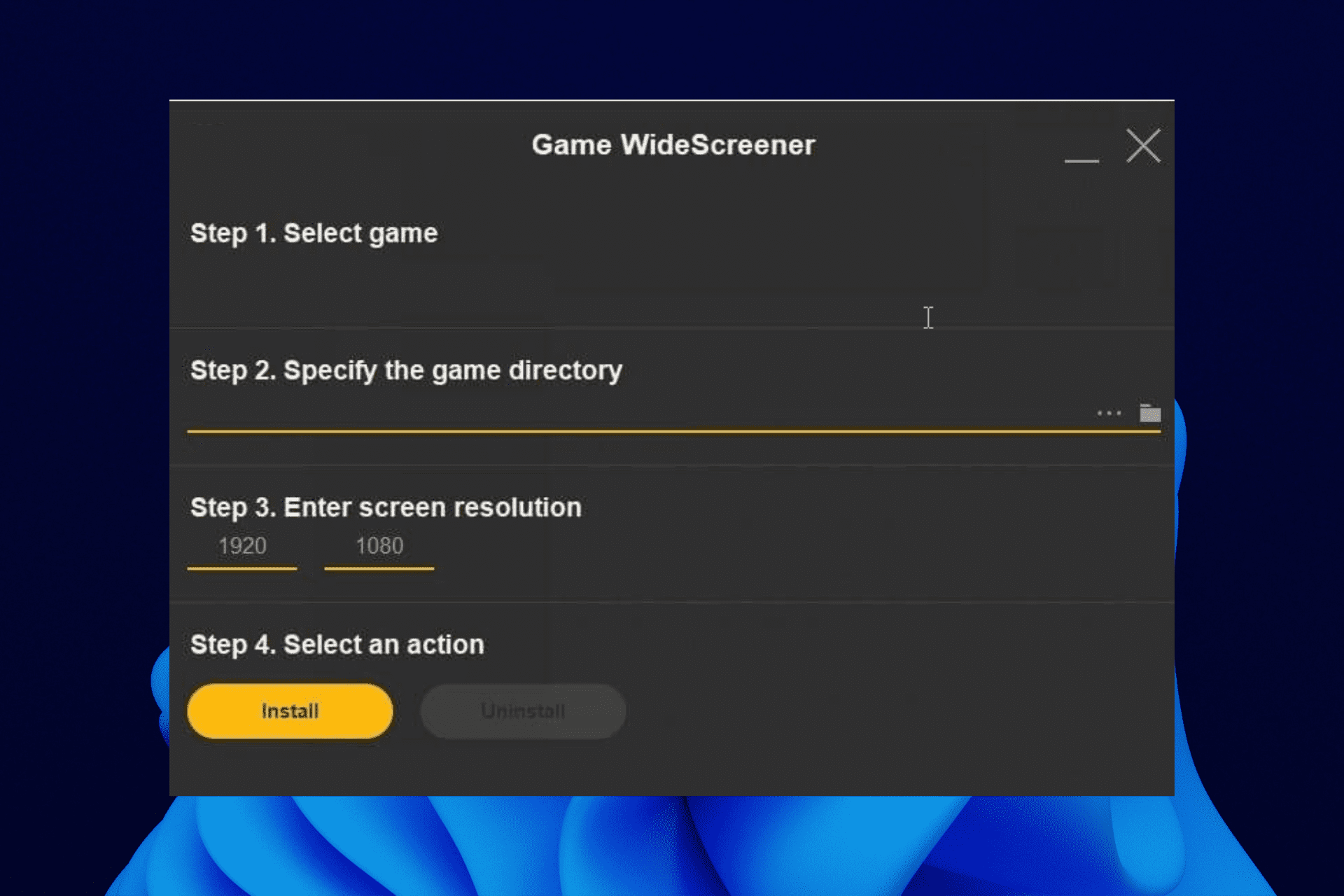
  1. Download and install the Game Widescreener tool from the official website.
  2. Load the tool and click on Select game.
  3. Once you select a game, Game Widescreener will try to detect it on your PC. If you can’t find it, you will manually have to specify the game directory.Game-Widescreener-settings
  4. Manually input your screen’s resolution.
  5. Click the Install button.

In theory, you wouldn’t need Game Widescreener to do the job. You could just manually edit some .INI files or maybe add x-res and y-res values in the target field of shortcuts.

However, in all honesty, no one knows how to do this by heart, especially after a long time. Thus, using the Widescreener tool mainly reduces some of the hassles.

By heading to the official Game Widescreener website, you can look at the list of supported games and the program interface.

Lastly, the program works with all Windows versions Vista and above and is also available in a portable version.

Does RDR 2 support ultrawide?

The Red Dead Redemption game is one of the games that supports a wide range of resolutions and screens. It supports ultrawide, and some gamers suggest that it makes it better.

With a 21:9 ultrawide monitor, you get a cinematic and completely immersive experience. This takes your gaming to a whole new level.

Playing games on widescreen is a different experience from just playing on any screen. It can be a deal-breaker in some games and make your old games feel much better.

With the instructions in this guide, you should be able to enjoy your old games on widescreen. While still on the gaming topic, if you want to know how to play old games on Windows 10/11, check our guide to do it effortlessly.

Feel free to share your experience using the Widescreener tool in the comments below.

7-Zip or WinRAR? Which file archiver provides the best value on Windows 11?

Updated: 3/16/2023

Which file archiver do you use, 7-Zip or WinRAR? Which one has the features you want on Windows 10 or Windows 11? Whether you use one or the other, in this guide we will look at the upsides and downsides of both.

When you need to deal with a lot of files that need to be moved or transferred to a different computer, it is common practice to compress the files before you send them.

There’s a 7-Zip versus WinRAR comparison battle on Reddit to discuss which file archiver is more efficient and “better choice.” We’ll be looking at both, detailing their offerings, cost, and limitations. Here’s everything you need to know:

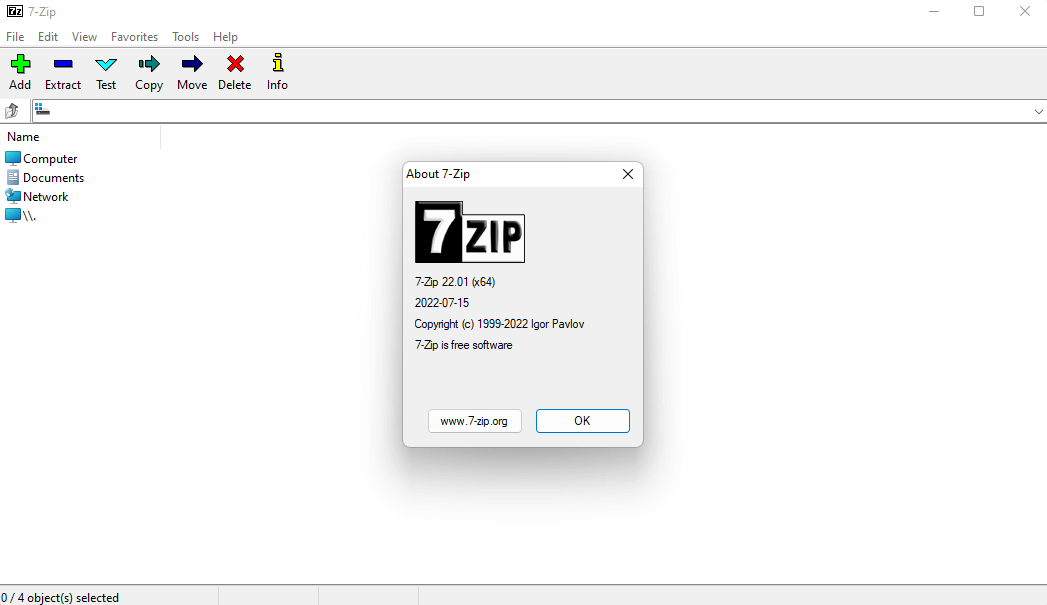
7-Zip

7-Zip

7-Zip is free and open-source software (FOSS) and allows users to extract and create compressed files in multiple formats. FOSS means that the software can be developed and tweaked by anyone. Most of the 7-Zip code is available under the GNU LGPL.

It uses the .7z file extension and works on most operating systems, including Windows, Linux, and macOS. According to a compression ratio with WinRAR, 7-Zip compresses to 7z format 30-70% better than to zip format and compresses to zip format 2-10% better than WinRAR version 5.20.

It has been widely popular since it was released in 1999, in large part because 7-Zip is free for both personal and commercial use.

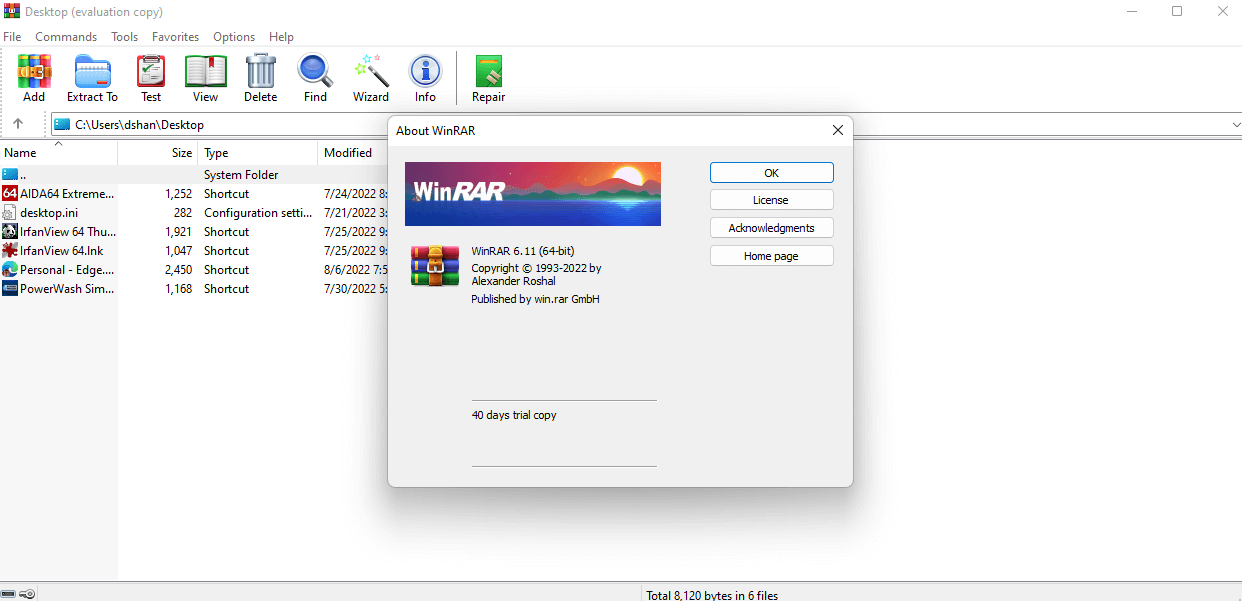
WinRAR

 7-Zip

Released way back in 1993, WinRAR is a popular tool that uses the .rar file extension to compress and decompress files. One of the main downsides is that you might need to cough up $29 (USD) to buy a license to use WinRAR after its 40-day “free” trial period.

For the amount that you pay, WinRAR gets the fastest compression speed, but the compression rate is smaller, so the file size doesn’t shrink as much.

Personal choice

Neither one is better nor worse to use. Personally, I opted to use a fork of the 7-Zip repository called NanaZip.

NanaZip provides a more modern Windows 11 graphical user interface. It is available on GitHub and in the Microsoft Store.

It all comes down to personal choice. If you enjoy using 7-Zip, keep using it. If you are more comfortable using WinRAR because it’s an app that works best for you, no need to switch.

Which file archiver do you use on your PC? Let us know in the comments!

How to Manage All Browser Notifications Like a Professional

The best browsers allow you to receive notifications from websites. This can sometimes be useful, as you can receive the latest updates from your favorite websites or web apps.

However, if not properly managed, it might lead to disturbance or even spamming. Configuring your notifications is easier than you think with the right information.

This guide will show you how to adjust these settings in all popular browsers.

Why am I getting all these Chrome notifications?

The default on Chrome is that the browser will notify you if a page or website wants to send notifications. You can either allow or deny the request.

But if you have allowed it and need to change it later, you can turn it off from Chrome notifications settings on Windows 10, as we will show later in this guide.

Quick Tip:

For increased productivity, good notification management is essential in a browser. Opera One gives the user easy access to notification settings and features to work in unison.

Opera One is a Chromium-based browser that brings additional features compared to other browsers. It comes with integrated social and messaging apps for easy notification control, also with an ad blocker, a VPN and a native AI.

Opera One

Simplify your working environment with a productivity-oriented browser.
Free Download Visit website

How do I manage Chrome and other browser notifications?

1. Chrome

  1. Click the Menu button and choose Settings.
    chrome menu manage browser notifications
  2. Select the Privacy and security option in the left pane.
    chrome privacy
  3. Now, select Site settings.
    chrome site
  4. Finally, click on Notifications under the Permissions section.
    option chrome

From there, you should be able to manage all your browser notifications or select the ones to allow.

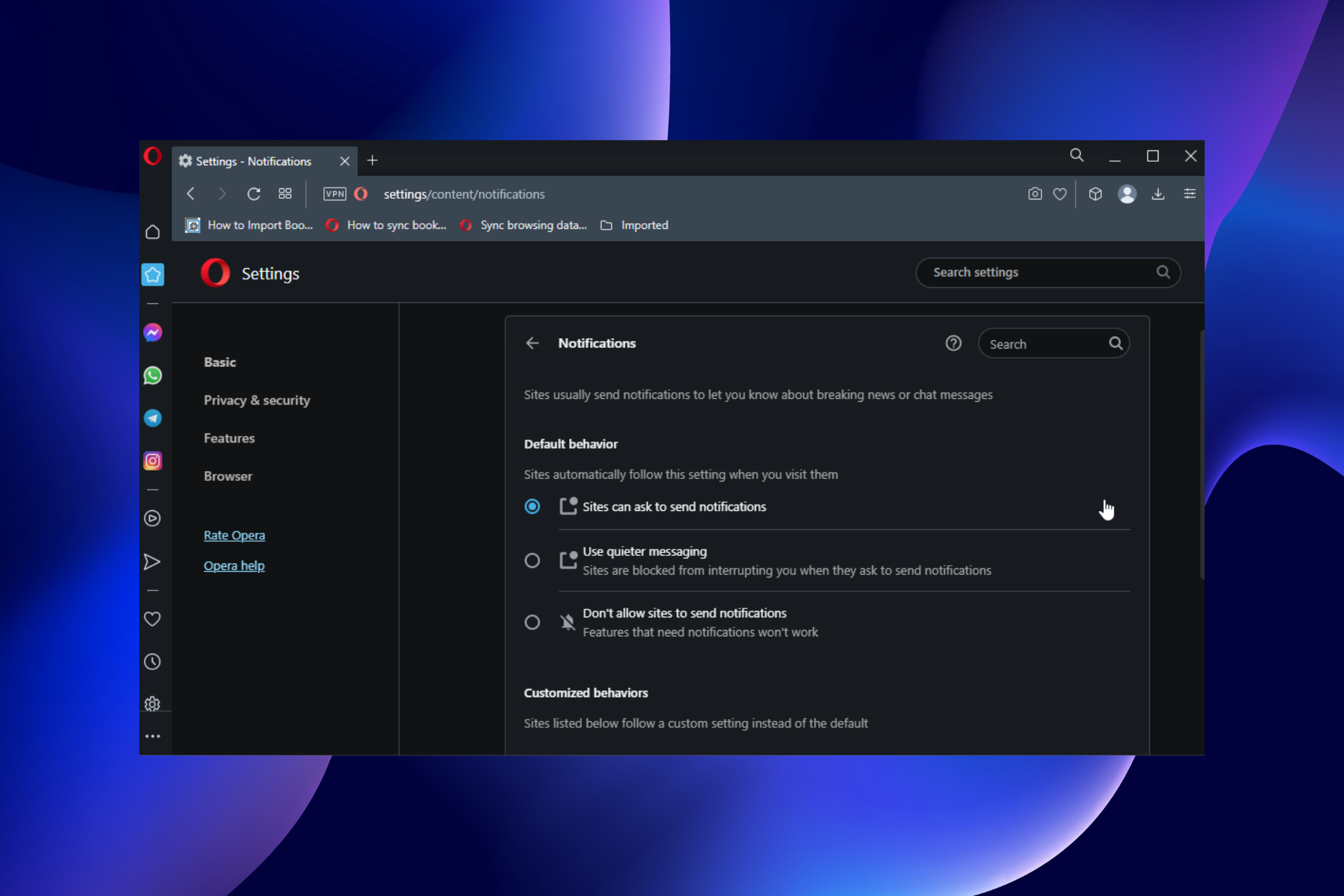
2. Opera One

  1. Open the Opera menu and select Settings.
  2. When the Settings tab opens, select Privacy & security.
  3. Navigate to Site Settings in the right pane.
    site settings opera browser notifications
  4. Now select Notifications.
    notifications opera browser notifications

Now you can adjust notifications settings as you wish.

If you’re not familiar with Opera One, you should know that this browser is rather light on your resources, so it should be able to handle any website with ease.

The browser comes with a built-in ad blocker for faster loading times and with a VPN tool that offers unlimited bandwidth for free.

Opera One uses the same browsing engine as Chrome, which fully supports Chrome extensions.

If you’re a social network user, you’ll be pleased to learn about the available integrated messengers for the most popular social media platforms, such as Instagram, WhatsApp, and Twitter.

Opera One is available on all major desktop and mobile platforms; if you haven’t tried it, this might be the perfect moment.

3. Firefox

  1. Click the Menu button and select Settings.
    firefox menu
  2. Choose Privacy & Security in the right pane.
    privacy firefox
  3. Locate Notifications under the Permissions section.
  4. Click the Settings… button before it to it.
    settings button manage browser notifications

From there, you should be able to manage all your notifications.

4. Microsoft Edge

4.1. For older versions of Edge:

  1. Click the Menu button and choose Settings.
  2. Go to Advanced and click on the Manage permissions button.
    manage permissions edge browser notifications
  3. From there, you should be able to manage all your notifications.

4.2. For the newer version of Edge:

  1. Launch Edge and click the Settings icon in the bottom right corner.edge settings
  2. Select Cookies and site permissions from the left pane.
    site
  3. Scroll down in the Site permissions section and select Notifications.
    option manage browser notifications
  4. Now configure your notifications as you wish.

How to block notifications from a website on Android?

  1. Launch Chrome on your device and tap the menu button (three vertical dots) in the top right corner.
  2. Select the Settings option.
    mobile menu manage browser notifications
  3. Choose Notifications.
    notifications mobile
  4. Toggle the switch for Show notifications backward to disable all notifications.
    show
  5. Scroll down to the Sites section and toggle the switch for any website to block the notifications.
    each manage browser notifications

With the steps above, you should be able to manage and block notifications on the Chrome browser on your Android device.

Configuring your notifications is rather easy. We believe you should be able to do it easily with the instructions from this guide.

Do you want to know how to search and delete Chrome history? Then, check our detailed guide to get it done quickly and effectively.

Were you able to manage your notifications on your favorite browser? Feel free to drop a message for us in the comments below.

How to Use Skype for Web on Unsupported Browsers

Recently we reported that Microsoft had released a new version for Skype for Web that dropped support for Edge, Safari, and Firefox on macOS and Windows 10 and 11. 

Skype has long been an effective software to communicate and is used by both individuals and corporations alike.

Subsequently, the news sparked criticism from most Skype users all over the world. But here is a twist in the story! Users have finally found a way to use Skype for Web on an unsupported browser.

Quick tip:

We recommended Opera One Browser because it’s very fast, and it has a minimalistic and intuitive interface. Opera One lets you sort the extension gallery by popularity and includes a privacy and security category.

Moreover, this productivity-orientated browser lets you use Skype and other apps having a wide range of extensions from which you can choose, such as VPN, Ad Blocker and AI.

Opera One

Use this fast-paced, productivity-oriented and friendly-user browser to fulfill all your task.
Free Download Visit website

Why Skype in browser is not working?

In most cases, the browser you are running is not compatible with Skype, and the troubleshooting remains pretty straightforward because the error message is displayed right away.

First, Skype recommends using Google Chrome or Microsoft Edge. So if you are using any other browser, try switching to these for the best experience.

Also, in many cases, even if the latest version of a browser supports Skype Web, you might be running a version that doesn’t. In which case, updating the browser should do the trick for most users.

Besides, conflicting extensions or other third-party apps may be behind the Skype for Web unsupported on your browser error.

What browser do I need for Skype?

Other than the two recommended earlier, Edge and Chrome, Skype also works on Opera One and Safari. So, in total, Skype should work fine on these four browsers without any trouble or throwing errors. Firefox too falls in the list of supported browsers, but it’s not fully compatible.

We can’t outright deny the possibility of it running on the other browsers, and recommend giving it a try. We tried running Skype for Web on Vivaldi and Brave, and it opened without throwing any errors.

How to use Skype for Web on unsupported browsers?

The workaround is pretty simple, as the web app works again by just switching the User-Agent, which tricks Skype into believing that you are using a supported browser.

It’s available as an extension on the Chrome Web Store or the as an Add-On for Firefox. If your browser supports extensions developed for Chrome, you can add it and use Skype for Web on the unsupported browser.

The dedicated Skype desktop application supports each and every platform. But there are times when you don’t have access to the desktop app. So this is when the Web version comes to the rescue. 

Run Skype for Web on Opera with ease

If you’re having a hard time running Skype for Web on your browser, consider switching to Opera One. We at WindowsReport did, and it works like a charm.

Based on the Chromium project, the Opera One browser is, fundamentally, a Chrome on steroids. Due to that, everything Chrome can do it can be done on this modern browser. And more.

The resource usage on Opera One is significantly lower than on Chrome. Plus, you can save everything in the pinboards or switch workspaces anytime you need.

It comes with a built-in VPN, prevents tracking and profiling on third-party websites, and keeps you updated with social media and messaging apps integrated with the sidebar.

What does it mean when it says you are using an unsupported browser?

Not all websites or applications are developed to run on every browser. For instance, some may run on Chromium-based browsers, while others are unsupported.

Also, when it comes to some websites, they work only on Internet Explorer, and haven’t made the necessary changes to ensure compatibility with other browsers. This is why the IE Mode on Edge was introduced.

Similarly, several other platforms don’t work on some browsers, and as a result, you see the unsupported browser message throw up.

You now know how to fix things when encountering the Skype for Web unsupported browser error, and should have the platform up and running on your favorite browser.

Also, find out how to fix We didn’t recognize your sign in details Skype error.

If you have any other queries, drop them in the comments section below and we will try to resolve them.

3 Tested Fixes for IE Security Settings Grayed Out

You have found this article because your IE security settings are greyed out, and we will tell you all you need to know.

Internet Explorer’s privacy settings can affect how websites monitor your online activity.

So, not being able to change your Internet Explorer security settings can cause severe issues on your device.

It would help to decide when sites can use your location info, which cookies are stored, or block unwanted pop-ups.

If you’re trying to change your Internet Explorer’s security settings, and you’re running into difficulties because it is greyed out, check out the list below for the most common fixes.

Can’t change Internet Explorer Security settings?

Before diving into fixes, let us explain why you may not be able to change your Security settings in internet explorer.

In some cases, you can fix the problem, while on rare occasions, this error will be beyond a regular user. One example is if you use a domain-based computer and your admin configures restrictive group policies.

However, in other cases, settings on the client’s computer stop you from accessing security settings.

We will now discuss all you can do to rectify the issue.

Quick Tip:

Perhaps before fixing any issues your current browser has, it can be less time-consuming to switch to a new browser simply.

We are referring to Opera One as the primary focus of this browser is on data protection, user interface, and privacy. In addition, the browser comes built-in VPN, Ad blocker and AI.

Opera One

Close to zero connection errors, free built-in VPN, and enhanced encryption are some great features you can use immediately!
Free Download Visit website

How do I unlock IE Security settings?

1. Check the Windows registry

  1. Click the Start button, type regedit in the Windows search box, and press Enter.
    ie security settings greyed out
  2. If prompted by User Account Control, click Yes to open the Registry Editor.
  3. Find your way to: HKEY_LOCAL_MACHINE\SOFTWARE\Policies\Microsoft\Windows\CurrentVersion\InternetSettings
    Windows Registry Editor
  4. Check the items Security_options_edit and Security_zones_map_edit.
  5. Set the value to 0.
    ie security settings greyed out

2. Reset Internet Explorer

  1. Open the IE browser, click Tools, and Internet Options.
    ie security settings greyed out
  2. Next, select Advanced.
    ie security settings greyed out
  3. In the Reset Internet Explorer Settings dialog box, select Reset.
  4. When asked Are you sure you want to reset all Internet Explorer settings? Select Reset.
    how to reset Internet Explorer
  5. Next, click Close, then select OK.
  6. Restart your PC to apply these new changes.

Now you should be able to change the IE security settings, and they will no longer be greyed out. Keep in mind that this process isn’t reversible. All previous Internet Explorer settings are lost after reset.

3. Perform a clean boot

  1. In the search box on the taskbar, type msconfig, and select the System Configuration app.
    ie security settings greyed out
  2. On the Services tab, tick the Hide all Microsoft services checkbox, then click the Disable all button.
  3. In the Startup tab, select Open Task Manager.
    ie security settings greyed out
  4. Under Startup, for each startup item, select the item, then select Disable.
  5. Close Task Manager.
  6. On the Startup tab, select OK.

This is a good solution if the trusted sites in the security tab of internet options are greyed out/not editable or if you are unable to add trusted sites in Internet Explorer 11 on Windows 10.

How do I allow insecure content in Internet Explorer?

  1. Open the IE browser, click Tools, and Internet Options.
    ie security settings greyed out
  2. Click on the Security tab, then select the Custom Level button.
  3. Click Enable on the Display mixed content option, then click the OK button.

Are you using a domain-based computer? If so, your administrator may have configured new policies that restrict you from changing the Internet Explorer security settings.

We hope that one of the above solutions helped you change the IE security settings even if they are greyed out.

As a last resort, you may want to tweak the Internet Options registry settings, but we only suggest this if you have experience editing Registry settings. A similar occurrence where Trusted sites may be greyed out can also occur but we’ve already covered ways to bypass it.

If you have any other questions or suggestions, leave them in the comments section below, and we’ll be sure to check them out.

2 Quick Methods to Stop Cox Browser Alerts

Your online security is important and, speaking of which, many users reported Cox browser alert while browsing the web.

This message can be a bit alarming, and in today’s article, we’re going to show you how to get rid of it, so keep reading.

Many users may assume that Cox alerts are browser hijacking threats or malware that infected their PC.

This is the reason you might need practical methods to block these alerts from Cox regarding unimportant promotions or news.

What are Cox alerts?

First of all, let us say that, when you receive a Cox browser alert during a web browsing session, you are definitely not dealing with a phishing attempt.

We said that because a lot of users have actually reached this conclusion after getting the above-mentioned alert, but it is not the case.

In fact, Cox browser alerts are used to inform Cox Internet customers on a range of topics, such as details about the account.

How do I get rid of Cox notifications?

We just told you what these notifications are, and now you surely want to know how to get rid of these pesky notifications.

In order to close the alert, all you have to do is click the X in the upper right corner of the above-mentioned alert.

However, before you do, make sure that you have read and understood the alert, while also reviewing the support links, and taking the requested action to avoid future alerts or issues.

Quick Tip:

An alternative that will fix Cox browser notification alerts is to switch to a different browser such as Opera One. It has a built-in ad blocker, so it can deal with advertisements such as these out of the box.

Opera One, in addition, comes with a free unlimited VPN that should help you with this problem as well. This great browser is also light on your resources, and you can use it or organize your tabs into workspaces and tab islands.

Opera One

To bypass errors and ads, there is no doubt that these features will take care of them.
Free Download Visit website

Can Cox See my search history?

The developers have stated in the past they don’t want that to be a part of their software, so the answer is going to be no.

Cox does not collect the individual web browsing history of our customers and has absolutely no plans to do so whatsoever.

How can I fix the Cox browser alert?

1. Use a VPN

Several users suggested that using a VPN can help you get rid of Cox browser alerts and eliminate any distractions while you navigate online.

What bothers the most clients of Cox is the recurring pop-up messages regarding promotions or news that appear instantly.

These alerts can disturb the users from personal tasks on the web or give the impression of a virus threat.

Hence, having an efficient VPN can hide your IP address and block tracking ads or pop-up alerts on the Cox browser.

2. Use an ad blocker for your browser

In most cases, these alerts are cleverly disguised advertisements. To get rid of Cox browser alerts, we suggest that you install an ad blocker extension for your browser.

Also, in order to fix this browser alerts issue for good, you can use a browser that already has a built-in ad blocker.

That is all you need to know about Cox alerts and what to do whenever you get them on your device. Remember that Cox alerts can appear immediately after login.

Another approach to this message is to just ignore it. It’s usually an advertisement for Cox services, so you can safely close it and forget about it.

3 Quick Ways to Fix Error 503 Certificate has Expired

Browsing the internet is something we all do at least once a day, and we enjoy doing it without bumping into any difficulties or interruptions. However, there are many errors you can encounter while surfing the internet on your browser.

Common error users complain about is the Error 503 certificate has expired. It means the browser is having difficulties validating the server you’re connecting with. However, this error can occur for various reasons like old/corrupt cookies and caches, invalid certificates, and many more.

What does the Error 503 certificate has expired mean?

For the browser to be able to load websites, it needs to authenticate its SSL certificate and run the SSL handshake.

However, if there are any issues with the website’s certificate, it can prompt the Error 503 certificate has expired. Hence, the browser won’t be able to authenticate the certificate and cause an Error 503 certificate has expired in Chrome.

What causes a 503 error?

  1. Browser cookies and caches: Caches and cookies are data the browser collects from your browsing activities to help you load the websites faster subsequently. However, this data can become old or corrupt and, as a result, cause difficulties with the browser accessing some websites.
  2. Incorrect date and time: When your device’s date and time are not correct, it can cause some issues with the browser authenticating SSL certificates. It means that incorrect dates and times can impede the expiry details of the certificate on your device.
  3. Expired SSL certificate: SSL certificate expiry date helps keep your website in check. Depending on your certificate, how long it lasts can vary. However, users can encounter a 503 Certificate has expired Ticketmaster error if the website’s expired SSL certificate.

Quick Tip:

Install the Opera One browser if you want to learn more about a site’s security certificate. The issuer of the certificate, the type of certificate, and whether the issuer is legitimate will be seen in Opera One.

Opera One has already created procedures and processes for Extended Validation certification and is on the cutting edge of standard compliance. Also, this browser brings you free VPN and AI integration.

Opera One

Verify the integrity of SSL certificates and manage them securely in this privacy-oriented browser.

How do I fix error 503?

1. Renew your SSL certificate

Renewing the SSL certificate keeps your website recognizable, and the browser can authenticate your certificate.

However, you can contact your certificate authority for renewal or visit sites like Let’s Encrypt to generate a free valid certificate.

2. Clear your browser’s cache and cookies

  1. Launch the Chrome browser.
  2. Click the Menu button.
  3. Select More Tools, then click Clear browsing data.
  4. Choose a time range for the data to be cleared (to delete everything, select All time).
  5. Check the boxes for Cookies and other site data and Cached images and files.
  6. Click Clear data.

After completing the process, restart your browser and check if the error persists. Clearing browsing data could also fix similar issues like the 503 Backend Fetch Failed Varnish cache server; read this guide to learn the solutions.

3. Reset your device’s time and date

  1. Right-click the date and time in the Taskbar, then select Adjust date/time.
  2. Toggle off the set time zone automatically and click on Change.
  3. Set the time & date and click Change to effect the new time.

Resetting your device time and date to your correct geo zone can help fix the 503 error. However, it will help the browser recognize the correct date in correlation to the certificates.

Nonetheless, users encounter many other SSL certificate-related issues while trying to use the internet. Hence, we recommend that you check our article on the 12 ways to fix your connection to this site is not secure.

Furthermore, if you are interested in learning about how to fix a problem with the security certificate, check our guide here.

If you have encountered the 503 Backend Fetch Failed Varnish cache server error message; read this guide to learn the solutions.

Leave your suggestions and questions in the comments section below, we’d like to hear from you.

Microsoft news recap: Xbox Cloud Gaming keyboard & mouse support coming soon, Teams Rooms pricing lowered, and more

Microsoft news recap is a weekly feature highlighting the top Microsoft news stories of the past week. Sit back, grab some coffee, and enjoy the read!

Xbox Cloud Gaming to add mouse and keyboard controls soon

A new filter has been added to the Xbox app on Windows that allows filtering of games by keyboard and mouse support, a sign that Microsoft could be getting closer to launching keyboard and mouse support on Xbox Cloud Gaming.

Microsoft added Qatar to its list of live Datacenter regions this week

Qatar has become the latest region to be added to Microsoft’s datacenter list, after the company launched its new datacenter in Doha, Qatar.

Microsoft added Qatar to its list of live Datacenter regions this week - OnMSFT.com - August 18, 2022

Microsoft lowers Teams Rooms pricing, offers free (with device) Basic Tier

Microsoft is shaking up its Teams Rooms pricing structure, with the addition of a Basic tier which is included for free with purchase of a device, as well as replacing Teams Rooms Standard and Premium with Teams Rooms Pro, which will be priced at $40 per month.

Microsoft lowers Teams Rooms pricing, offers free (with device) Basic Tier

Sensitive Microsoft login credentials leak on GitHub

Some sensitive login credentials of Microsoft employees may have been leaked on GitHub, after a security researcher identified the credentials in source code published on the service. Microsoft has investigated the leak and concluded no malicious activity was detected and no sensitive data compromised.

Sensitive Microsoft login credentials leak on GitHub - OnMSFT.com - August 17, 2022

That’s it for this week. We will be back next week with more Microsoft news.

3 Ways to Fix PCI Simple Communications Controller Driver Error

Peripheral Component Interconnect (PCI) is a computer bus used to connect hardware devices to your PC in a standardized format. However, users have reported errors with PCI Simple Communications Controller, keep reading to find a solution.

The PCI slots on a computer are for devices like graphics cards and internet modems. In order for these devices to operate properly, they need a driver installed to control them.

What is PCI Simple Communications Controller?

The PCI Simple Communications Controller is used with PCI devices like modems, USB devices, graphics cards, etc to ensure they run properly. This PCI Simple Communications Controller is commonly used with devices that are not compatible with standardized ports and drivers.

However, there are reports that the PCI device is not recognized on the PC and is usually indicated by a yellow flag next to it in the Device Manager. Try the solutions below to fix this issue.

How do I fix PCI Communications Controller driver error in Windows?

1. Update the driver

  1. Click on Start and search Control Panel and hit Enter.
  2. Select Hardware and Sound. Click on Hardware and Sound.
  3. Under Devices and Printers, click on Device Manager. Open the Device Manager.
  4. Locate the device under Other devices then right-click on the device and select Properties. PCI simple communications controller properties.
  5. Under General, select Update Driver.
  6. In the pop-up, click Search automatically for updated driver software. Update driver software to fix pci simple communications controller error.

If the driver for your PCI Simple Communications Controller has not been updated, then issues may arise. Follow the above steps to check for any driver updates.

2. Via third-party driver updater

When updating drivers it is always a good idea to employ the help of professional driver updating software in order to minimize the risk to your computer.

With a driver updater, you can use the scanning functionality in order to check up on your PC’s drivers and make sure they’re always under control. For example, you can set it to run automatic scans every time your computer restarts. This way, you’ll ensure that your drivers are up-to-date at all times.

3. Locate and install the corresponding driver

  1. Click on Start and search Control Panel and hit Enter.
  2. Select Hardware and Sound.
  3. Under Devices and Printers, click on Device Manager. Open the Device Manager.
  4. Locate the device under Other devices then right-click on the device and select Properties.
  5. Click on the Details tab and under Property, change it to Hardware Ids. Select hardware ids.
  6. Select the longest hardware id from the list of values and right-click it then click Copy. Copy the hardware id to fix pci simple communications controller error.
  7. Open your browser and paste the hardware id into the search bar.
  8. Follow the instructions to download the driver.

If one of your PCI devices does not have a driver installed for it, then an error will likely occur. Usually, this error appears in Device Manager and will tell users to install a corresponding driver. Users can search and install the correct driver to their Windows 10 or 11 online.

Websites like PCI Lookup will make the process of locating a drive a lot easier.

How do I find drivers for PCI Simple Communications Controller?

  1. Click on Start and search Control Panel and hit Enter.
  2. Select Hardware and Sound. Click on Hardware and Sound.
  3. Under Devices and Printers, click on Device Manager.
  4. Locate PCI Simple Communications Controller under Other devices then right-click on the device and select Properties. PCI simple communications controller properties.
  5. Click on the Details tab and under Property, change it to Hardware Ids. Select hardware ids.

These are the driver IDs for your PCI Simple Communications Controller. The longest value is usually the one you want to use if searching for the driver online.

Users can also find the driver of their PC has a motherboard driver disc. Inserting the CD will allow users to install any chipset drivers. The chipset allows Windows OS to locate devices built into the motherboard. The motherboard driver disc will also update any drivers that need it.

We hope one of the above solutions helped you fix any PCI Simple Communications Controller errors. If you’re having issues with unknown devices in your Device Manager, we have a guide for that as well.

Let us know in the comments below which solution worked for you or if you have a suggestion for a different solution.

How to Download and Play Solar Smash on PC [Unblocked]

Solar Smash is a popular simulation game developed by Paradyme Games. Users must strategize to destroy planets in this realistic simulator. Here are our solutions on how to download Solar Smash on Windows 10 or 11.

One of the most impressive features of Solar Smash is the graphics, which include visuals from NASA making it one of the most realistic space simulators.

Is there a PC version of Solar Smash?

Solar Smash is available for Android and iOS mobile devices. While there is no designated PC version, users can play using a mobile emulator on their PC. With third-party emulators like BlueStacks or MEmu, users can download and play Solar Smash on Windows 10 or 11.

Use mobile emulators to download Solar Smash on Windows 11.

Quick Tip:

You may play Solar Smash in the Opera GX browser after installing the Android emulator on your PC. Using a dedicated browser for games you have advantages like the RAM and CPU limiters.

Connect your Google account to the emulator and install the Opera GX browser from the URL below and open the browser using the emulator. Using Opera GX will immensely impact your gaming sessions.

Opera GX

Play Solar Smash on your PC in the browser designed for gamers’ needs.

How do I install Solar Smash on my PC?

1. Via mobile emulator

  1. Go to BlueStacks or a mobile emulator site of your choosing.
  2. Search for Solar Smash then click on Download. Download BlueStacks to play Solar Smash.
  3. Save the installer to a location on your PC. Save to Windows 10 or 11.
  4. Open the installer and click Install now then wait for Solar Smash to download to the emulator.
  5. Click on Launch to begin playing Solar Smash from your Windows 10 or 11. Launch Solar Smash.

Mobile emulators like BlueStacks allow users to play games that are normally only available for Android and iOS devices on their PC. Playing using a mobile emulator provides users with the best gaming experience as they have access to PC power and controls.

For more recommendations on the best Android emulators for Windows 11, we have suggestions for that.

2. From a trusted third-party source

Some websites offer a downloadable Solar Smash that is compatible with Windows 10 or 11. Users can download the package right to their PC and begin playing.

Download Solar Smash for Windows 11 from a trusted third-party source.

However, always double-check a site can be trusted before downloading anything from it. Do some research before installing anything from an unfamiliar site. There are many websites out there that will inform you if a site is safe or not.

How do you download the Solar Smash update?

On Android and iOS, Solar Smash will automatically update if you use the app often. However, on PC, you will need a mobile emulator to update Solar Smash. Most emulators offer access to the Google Play Store, where you can check and update any apps installed on the emulator.

Update Solar Smash on Windows 10 & 11.

However, if you have the Google Play Store on the emulator set to back up to Google Drive, then all app data and device data will be synced. So if you play Solar Smash on your mobile device, your progress will be synced with the Solar Smash in the emulator on your PC.

Hopefully, one of the above solutions helped you download Solar Smash on your Windows 10 or 11. Let us know in the comments what you think of Solar Smash and what your favorite space simulator game is.

4 Ways to Fix Low FPS on Red Dead Redemption 2 [For All GPUs]

Low FPS on Red Dead Redemption 2 is a nagging issue on all GPUs and many players have been taking to forums to discuss it and find a fix.

Red Dead Redemption 2 is an extremely popular action-adventure game that has been around since 2018 and still going strong.

The best part about it is when you play the Red Dead Redemption 2 in snow or create your own dog.

But, if you are facing an online packet loss on RDR2, you can refer to our detailed guide here for a quick fix.

Why is my RDR2 FPS suddenly so low?

While the primary reason for a sudden drop in the RDR2 FPS is outdated graphics drivers, there are other reasons also that affect the frames:

  • Too many applications running in the background
  • Visual settings are using up most of your CPU
  • Unnecessary startup services
  • The graphics card settings are not set correctly
  • Incorrect power plan settings
  • Pending Windows updates
  • A lot of Temp files and junk

So, whether you are facing a low FPS issue on Red Dead Redemption 2 with RTX 3090, or if the game stutters, you can follow the below solutions for a fix.

How do I fix low FPS in Red Dead Redemption 2?

1. Update your drivers

  1. To manually update your Graphic Card Driver, right-click the Start button and select Device Manager from the list.
  2. The find Display adapters option and click to expand it, then right-click your GPU adapter and select Update driver.
  3. After that, select the first option, Search automatically for drivers.
  4. If you already visited the manufacturer’s website and you downloaded the correct driver, you can also select the second option and indicate the location of the driver when prompted.

If Windows doesn’t find an update or a solution to regain your missing FPS, you can try using a third-party software that specializes in driver updates.

Since one outdated driver can really mess up your computer efficiency, a tool we use is Outbyte Driver Updater. Created to optimize and repair your computer, will verify every driver you have and find the latest update. Not only, but it will also repair any damaged drivers or replace them if needed.

Specifically created for this, if it solves the low FPS in Red Dead Redemption 2, it might even give you some extra in-game performance because all your drivers will be up to date and your system will be optimized.

Outbyte Driver Updater

Gain the missing FPS by maintaining your system updated and optimized.
Free trial Download Now

2. Disable the Game Bar and Captures

  1. Open the Settings app by pressing the Win + I keys at the same time.
  2. Now, click on Gaming on the left. gaming settings
  3. Next, on the right, click on Xbox Game Bar. Xbox Game Bar
  4. On the next screen, disable the feature. turn off game bar
  5. Now, return to the Gaming settings and click on Captures. capture in gaming settings
  6. In the next window, make sure everything under Captures is disabled. disable all capture settings

You can also enable the game mode, change graphics settings or update the graphics card as explained in our detailed post that helps you to optimize settings for gaming performance on Windows 11.

This is also applicable for low FPS issues on Red Dead Redemption 2 with an RTX 3070.

3. Change power plan

  1. Press the Win + R keys together to launch the Run console.
  2. Type powercgf.cpl in the search bar and hit Enter. powercgf.cpl command
  3. This will open the Power Options window in Control Panel. Here, select Ultimate Performance. Power Options - ultimate performance

This should help you fix the low FPS issue on Red Dead Redemption 2 and make it stable.

4. Change graphics card settings

rdr2 nvidia settings

If you are using Nvidia’s 10 and 20 series and the similar AMD equivalents, you can switch off certain settings and modify others to run RDR2 smoothly on a PC as below:

  • Far Shadow Quality: Low
  • Long Shadows: off
  • Shadow Quality: Medium or Low
  • MSAA: off
  • FXAA: 4x or 8x
  • Unlocked Volumetric Raymarch Resolution: off

But, if you are using a lower model of the Nvidia and AMD graphics cards, then to get the best performance, try running the game on 720p and low settings.

So, if you are facing a low FPS issue on Red Dead Redemption 2 in towns, changing the graphics card settings can help boost the frames.

How can I make RDR2 run smoother on a PC?

While the above solutions will help you fix the low FPS issue on Red Dead Redemption 2, they will also make the RDR2 run smoother on your PC.

However, you can also enhance the visual settings as explained below:

  1. Press the Win + R keys at the same time to open the Run console.
  2. In the search box, type sysdm.cpl and hit Enter. sysdm.cpl command
  3. Now, in the System Properties dialog, select the Advanced tab.
  4. Under Performance, click on Settings. performance settings
  5. This will open the Performance Options window.
  6. Now, under Visual Effects, select Custom and check only the options, Show Thumbnails instead of Icons, and Smooth Edges of Screen Fonts. customize  Performance Options

This method is also applicable in case you face a low FPS issue with RDR2 after an update.

Does the RAM affect FPS?

RAM indeed helps to increase the FPS to a certain extent because it increases the overall speed of your computer by increasing its storage capacity.

Also, a lot of games only use up a specific amount of RAM, so if you have a higher RAM capacity, the rest will be of no use.

For example, if you have 8GB RAM, and your game is 4GB, the remaining 4GB will be a waste (that is, if you specifically upgraded the RAM for the game).

While RAM is important for the FPS, it’s also important to have a faster GPU, but if not, then your game FPS may still suffer.

Besides, you can also delete temporary files and junk using Disk Cleanup on your Windows PC that may be causing the issue.

Also, make sure that you disable all startup services and applications to reduce the CPU usage significantly, or install any pending Windows updates.

Sometimes, the mods can also be the reason behind the low FPS on RDR2, and hence, disabling all mods may just fix the issue.

But, if you encounter the Red Dead Redemption 2 online error FFFF on your PC, you can refer to the solutions in our detailed post.

For any other queries on browsers or games, do let us know in the comments box below.

Microsoft Edge Offline Installer: How to Download it?

Some users prefer using an offline installer for Microsoft Edge since it allows them to install the browser without having an active Internet connection. In today’s guide, we’ll show you how to get it on your PC.

How do download Edge offline installer?

Use Edge for Business

  1. Launch your browser and go to Microsoft’s official site.
  2. Scroll down and select the Windows bit for your computer.
  3. On the page, there is Microsoft Edge offline installer 32-bit and Microsoft Edge offline installer 64-bit.edge versions
  4. On the Download Microsoft Edge prompt, click on Accept and download.
  5. Once you download Edge offline installer msi file, simply run it and follow the instructions on the screen.

How do I install Edge on my computer without the Internet?

The only way to get Edge offline installer is to use Edge for Business since this feature isn’t available to personal users.

Once you download it, simply run its setup file and that’s it.

Speaking of which, did you know you can install Microsoft Edge on a Chromebook? If you’re a Linux user, we also have a guide on how to install Edge on Ubuntu, so don’t miss it.

If you have any problems using the Microsoft Edge offline installer, drop a comment below and we’ll try to assist you.

3 Ways to Fix Error Code 788078d4 on Twitch [PC, Xbox]

Twitch is a streaming service based in the USA that mainly focuses on streaming all kinds of videos. This includes streaming gaming videos.

Most users can upload their videos while playing the game. Some just use Twitch to view others playing the games. The subsidiary of Amazon, called Twitch Interactive, operates this Twitch service.

Many Twitch users have experienced an issue while trying to access the Twitch service with an error code of 788078d4 on their PC or on a console like Xbox. Some users are also facing issues with browsing videos on Twitch in Chrome or Firefox.

What does error 788078d4 mean on Twitch?

Users who are facing the error code 788078d4 on their PC or Xbox, have trouble accessing the videos. This error code on Twitch means that users are unable to browse and stream any videos.

Why do I keep getting error 788078d4 on Twitch?

We researched a lot about Twitch’s error code and found a few reasons why this is happening, which are listed below:

  • An issue with the Twitch app: The problem might be with the Twitch app, which could be outdated. The Twitch app might have been interrupted while installing it on the system.
  • Disabled 2FA (2 Factor-Authentication): Twitch actually ensures that all the users have enabled the 2FA process to secure the user accounts from getting hacked.
  • Unverified Twitch account: The Twitch service identifies all the accounts that are unverified and throws an error code of 788078d4 which stops the users from streaming the videos.
  • Status of Twitch Server: Sometimes the Twitch server receives a load of requests at a time. This might have caused the Twitch server to go down.

How do I fix error code 788078d4 on Twitch?

1. Uninstall and install the Twitch Studio app

  1. Open the Run command box by pressing the Windows and R keys together.
  2. Type appwiz.cpl in the run box and press the Enter key.

    Type appwiz.cpl in Run dialog box
  3. In the Programs and Features window, locate the Twitch Studio from the list of programs.
  4. Select the Twitch Studio and click Uninstall which is on the top of the programs list.


  5. Follow all the onscreen instructions to successfully uninstall the Twitch Studio app.
  6. After it is uninstalled, close the Programs and Features window.
  7. Next, open the downloads webpage of Twitch.
  8. Click Download under Desktop apps to download the Twitch Studio beta app.

  9. At last, click Download Now to download the Twitch Studio Beta app.


  10. Go to the Downloads folder on the system and double-click on the Twitch studio setup file.
  11. Finish installing the Twitch Studio app on the system successfully by performing the onscreen instructions.

2. Verify your Twitch account

  1. Open the Twitch website and log in with your Twitch account credentials.
  2. Go to the account icon on the top right corner of the Twitch webpage.
  3. Select Settings from the list and this opens the settings webpage.


  4. Click the Security and Privacy tab on top and see the Contact section under it.
  5. If the account is unverified, click Resend Email on the right side.


  6. This pops up a verification window.
  7. Now go to your email inbox and open the mail sent by Twitch.
  8. Copy the verification code and enter it into the verification window.
  9. After the verification is finished, it will show Verified in the Contact section of the Security and Privacy tab.


  10. Check if the user can stream the videos without any errors.

3. Enable 2FA (2 Factor-Authentication)

  1. Go to the Twitch webpage and sign in with your Twitch account details.
  2. Open the Settings page by clicking on the user profile icon on the top right and then clicking Settings from the list.


  3. Click the Security and Privacy tab and scroll down to the Security section.
  4. Click Set Up Two-Factor Authentication to start the enabling process.


  5. In the Two-Factor Authentication pop-up window, click Enable 2FA.


  6. Follow all the onscreen instructions from here and complete the procedure.
  7. This enables the 2FA (2 Factor-Authentication) for your Twitch account.

Some Twitch users found out that this problem might be caused by an internet connection issue. There might be some issues with the Twitch server. So, please wait for a few hours if the server is down.

Here is a detailed guide for fixing Twitch if a black screen appears in Chrome. Also, there are seven best browsers for streaming videos using Twitch.

Did you find this article informative? Please let us know by leaving comments below!

5 Ways to Fix Your GPU when Fans Spin Then Stop Repeatedly

Your Windows PC will get hot when you play games on it. For that reason, GPUs (graphical processing units otherwise known as graphics cards) have fans to cool down PCs.

Therefore, your GPU’s fans are important to temperature control on your PC. Correctly working GPU fans ensure PCs don’t overheat.

Some users have reported an issue whereby graphics cards’ fans repeatedly start and then stop spinning every few seconds.

One of our readers told us that the GPU fan of his PC started spinning and stopping repeatedly and erratically when he was browsing the Internet.

Have you noticed the same thing happening on your Windows 11/10 desktop PC? If so, this is how you can fix GPU fans that repeatedly start and stop spinning.

Why does my GPU fan stop spinning?

Users have said loose RAM sticks can cause the fans to repeatedly start and then stop spinning. Those users resolved the issue by removing and reinserting their RAM modules.

A faulty or loose CMOS battery can also cause this GPU fan issue. Some users have resolved the error by removing the CMOS batteries from their PCs and reinserting them.

Are GPU fans always supposed to spin?

The fans only start spinning when GPUs reach certain temperatures. The temperature threshold for fans to start spinning can vary, but 50-55 degrees Celsius is a common mark.

Nor is it always entirely unusual for GPU fans to start and then stop spinning. GPU fans usually spin and then stop on startup soon after turning on a PC.

How do I fix GPU fans that spin and then stop?

1. Run the Hardware and devices troubleshooter

  1. To view the search tool, press S while holding the Windows key.
  2. Input the CMD search phrase, and select Command Prompt in the search tool.
  3. Bring up the hardware troubleshooter by inputting the following command and pressing Enter: msdt.exe -id DeviceDiagnostic
    The hardware troubleshooter command gpu fans spin then stop
  4. Click Advanced, then select Apply repairs automatically in the troubleshooter’s window.
    Hardware troubleshooter gpu fans spin then stop
  5. Then click Next, and select Apply this fix for any proposed resolutions.

2. Update the driver for your GPU

A computer cannot handle video cards, computer programs, sound cards, or other hardware; they must be managed by a driver. You may manually update drivers if you are completely familiar with the drivers your PC requires, but the optimal result is when using software designed for this purpose.

However, there are other methods for updating graphics drivers. Have a look at our how to update the graphics drivers guide for further details.

To update outdated or faulty GPU drivers, you can utilize Outbyte Driver Updater. This tool will scan your PC and display device drivers that need updating. Then you can select to update your graphics driver from there.

Outbyte Driver Updater gpu fans spin then stop

A solution like Outbyte Driver Updater not only downloads and installs drivers, but also manages them by troubleshooting, backing up, and restoring them.

Outbyte Driver Updater

Extensive library of drivers for any PC, with troubleshooting and updating options.

3. Remove and reinsert the CMOS battery

Note icon NOTE
Do not perform this step if opening the case voids the warranty of your PC.
  1. Open your desktop’s case (PC must be turned off and unplugged first). Some desktops have covers you can slide off, but you may need to unscrew the casing to open it.
  2. Look for a small, lithium CMOS battery on the motherboard like the one shown directly below.
    CMOS battery gpu fans spin then stop
  3. Remove the CMOS battery from the PC.
  4. Then fully reinsert the battery to ensure it’s not loose in any way.

If your PC’s system time clock is always a bit inaccurate, you may need to replace a faulty CMOS battery.

4. Check the GPU is fully connected with the PC

Make sure your graphics card’s cable connections are fully plugged in. To do that, you’ll need to open up the desktop PC.

Then check the GPU’s PCIe cables aren’t loose in any way. Check all GPU cables are fully pushed in.

5. Reinstall and clean the RAM modules

  1. Make sure your PC is turned off, and remove the power cable.
  2. Open the PC’s case to look inside.
  3. Remove the RAM modules.
    Removing RAM gpu fans spin then stop
  4. Clean the RAM sticks by blowing the dust away. You can also clean the contacts on the RAM sticks with moistened (damp) cotton swab.
    Cleaning RAM
  5. Leave the RAM modules out to fully dry if you clean them with moistened cotton.
  6. Then fully reinsert the RAM sticks into the PC.
    Inserting RAM gpu fans spin then stop
  7. Close the PC’s case and plug it in.

How do I know if my GPU is failing?

Graphical issues and BSOD errors are tell-tell signs of a failing GPU. Do you often see screen tearing, strange coloring, or visual stuttering when playing games? If so, there could be something up with your PC’s GPU.

Can dust affect graphics cards?

Yes, lots of dust can have an impact on a graphics card’s cooling. GPU fans can even stop spinning when clogged with dust. So, we also recommend cleaning your graphics card’s fans.

Your PC may overheat when its GPU fans aren’t working right. So, users should not overlook any issue with their graphics cards’ fans starting and stopping repetitively.

Users have resolved that issue with resolutions outlined in this guide. If those resolutions don’t fix your GPU’s fans, consider sending your PC to a reputable computer repair service.

For any other questions or suggestions, don’t hesitate to use our comments section below.

Browser Sent a Request this Server Could Not Understand

Did you just see the error message, your browser sent a request that this server could not understand. Size of a request header field exceeds the server limit?

Nothing to worry about since this is a common issue, and it often shows up when the server recognizes this as a generic client error.

Also, if you bump into the HTTP 400 error on Windows 10/11, you can refer to our detailed post for more information.

Fortunately, we have a few workarounds for you that will help you to get rid of the Bad Request 400 error on your browsers.

Why does my browser keep saying bad requests?

There are quite a few reasons why you may encounter the 400 Bad Request error that is not specific to any particular browser or OS (operating system), such as:

  • Incorrectly typed URL, malformed syntax, or a URL with forbidden characters
  • Corrupted browser cache & cookies
  • DNS data stored locally is not in sync with the registered DNS information
  • File size too large
  • Server-side issues

Before you proceed, make sure you check the submitted URL for any syntax error or if there’s an extra character like a % symbol, etc.

For a wrong URL, you can use a free online tool like the URL Decoder/Encoder to correct the domain name.

Below, we have listed some of the potential solutions that can help you fix the issue if the size of a request header field exceeds the server limit on Chrome/Edge/Safari/Firefox.

Quick Tip:

Even though some of the fixes work perfectly, you might encounter a situation where your only option is to switch to another browser like Opera One.

With Opera One, you ensure your data privacy with a free VPN and also surf the web worry-free with an Ad blocker and VPN. Besides, with integrated messaging apps and AI you will never be out of the loop.

Opera One

A lightweight and simple browser that features all the user needs.
Free Download Visit website

How do you fix a bad request your browser sent a request that this server could not understand?

1. Remove browser cookies

  1. If using Chrome, launch the browser and click on the three dots on the top right.
  2. Click on More tools in the menu and then select Clear browsing data. Clear browsing data
  3. Next, go to the Advanced tab and select All time from the drop-down next to the Time range. chrome advanced time range
  4. Now, check the box next to Cookies and other site data, and Cached images and files.
  5. Press the Clear data button below. Cookies and other site data, and Cached images and files

Now, restart Chrome and visit the problem website. You should not encounter the error, 400 bad request your browser sent a request that this server could not understand again.

You can also remove cookies for Firefox, Edge, or Safari in a similar manner.

2. Disable the browser extensions

  1. Open the browser you are using, for example, Chrome, and click on the three dots on the upper right.
  2. Next, click on More tools and then select Extensions. Chrome, more tools, extensions
  3. In the Chrome extensions window, disable all extensions. disable all extensions

Now, relaunch the browser and check if the Bad Request error is resolved.

3. Flush the DNS cache

3.1 Clear DNS cache for Windows

  1. Press the Win + R keys simultaneously to launch the Run console.
  2. Type cmd and press the Ctrl + Shift + Enter keys together to open the elevated Command Prompt window. open elevated command prompt by pressing Ctrl + Shift + Enter together
  3. Now, run the below command in the Command Prompt (Admin) window and hit Enter: ipconfig /flushdnsflush dns

Once you see the success message, exit Command Prompt and check the website if the error still appears. This method is also applicable to all other browsers.

3.2 Clear DNS cache for the browser

  1. If using Google Chrome, navigate to the below path: chrome://net-internals/#dns
  2. In the new page that opens, on the right, click on Clear host cache next to Host resolver cache. clear host cache in chrome
  3. Likewise, you can remove the cache for other browsers also.

Once done, try visiting the problem website, and the error message, your browser sent a request that this server could not understand. Size of a request header field that exceeds server limit should not show again.

What does the size of a request header field exceeding the server limit mean?

Usually, a very large Cookie triggers this error, and so the request header field exceeds the decided limit for the Web Server.

In this case, since you are on the client side (website/browser), simply clearing the cache of your web browser should fix the issue.

At the same time, check that the file size does not exceed the server file size limit, and trigger the size of a request header field exceeds server limit error on Chrome/Edge/Safari/Firefox.

But if you encounter an error like this website is not accessible, then you can follow our detailed guide for solutions.

A padding to disable MSIE and Chrome friendly error page also occurs if you have problems with your request, but we have a guide that can fix it, so don’t hesitate to check it out.

For any other queries on browsers or website errors, you can leave a message in the comments box below.

How to Set Up Your Xbox Wireless Adapter on Windows

However, the Xbox wireless adapter allows you to play PC games on Windows 11 with Xbox wireless controllers. A typical issue users report is the box wireless adapter Windows 11 not working, which means users cannot connect with controllers.

The wireless adapter serves as a connecting point between your computer and your controllers. However, users complain that using the Xbox wireless adapter with Windows 11 is difficult.

Fortunately, there are ways around the Xbox adapter issues. Hence, we’ll discuss setting up your Xbox wireless adapter on Windows 11.

Is the Xbox Wireless Adapter compatible with Windows 11?

The release of Windows 11 brought many new features, including improved gaming features for the Xbox. However, the Xbox wireless adapter driver supports Windows 11 and works appropriately. However, despite its compatibility, most users don’t know how to set it up.

How do I connect my Xbox Wireless Adapter to my Windows 11 PC?

  1. Power on your computer.
  2. Ensure your computer is updated and runs on the latest Windows 11.
  3. Click on the Wi-Fi button in the bottom right corner of the screen and connect to the internet.
  4. Plug in the Xbox wireless adapter into a USB 2.0/3.0 port.

Windows will automatically install the adapter because the drivers needed for the adapter are inbuilt on Windows 10/11.

After the installation, you can connect up to 8 Xbox controllers simultaneously without difficulties. Note that the procedure is different for Windows devices below Windows 10/11.

Why can’t I connect my Xbox controller to my Windows 11 PC?

  1. Outdated or incompatible controller driver: It can be challenging to connect the Xbox controller to Windows 11 if the controller drivers are obsolete or incompatible with Windows 11. However, updating the Xbox controller drivers on your computer will help it connect smoothly to controllers. Also, downloading and installing Xbox controller drivers compatible with Windows 11 can help fix the problem.
  2. Corrupt Xbox Accessory App: When the Xbox accessory app is corrupt or outdated, it can cause issues with the connection between the computer and the controller. The Xbox accessory app is responsible for smoothly running the controller on Windows 11.
  3. Faulty computer booting: Another thing that can prevent the controller from connecting with a Windows 11 PC is a faulty boot. It occurs if the computer runs into some issues while powering up. The problems can affect several components of the computer.

However, there are many Xbox controllers that you can buy to enjoy your gaming activities. So, we recommend you check our article about the best Xbox controllers you can buy. But before you buy one, try calibrating the Xbox controller to eliminate any performance issues.

Finally, users can benefit from understanding how to easily fix the Xbox controller not recognized in Windows 11 issue.

Please leave your questions and suggestions below in the comments section. We’d like to hear from you.
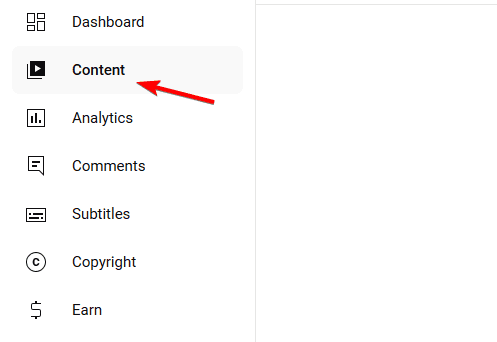
Download and Install Firefox Enterprise for Windows 10 & 11

If you want to download and install Firefox for your enterprise on Windows 10 & 11 OS, this post is just for you, at the right time.
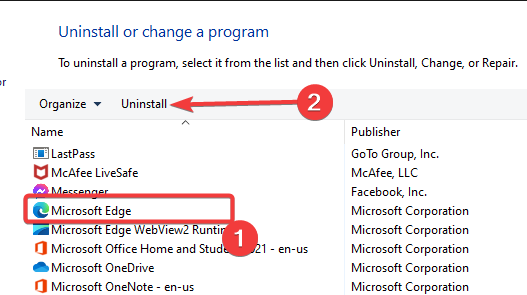
You can choose to get either the Rapid release or the Extended Support Release (ESR) version. However, you can be assured of its excellent data security and data protection.

Also, you can refer to our detailed post on the best browsers for an enterprise based on speed and security, for a different perspective.

Before we move on to the download process, let’s understand a little more about Firefox for the enterprise.

What is Firefox for Enterprise?

Firefox Enterprise offers multiple software solutions developed by Mozilla and each of these serves individual Enterprise needs.

When you club all of these software solutions together, they make up Firefox Enterprise.

You can either select the Firefox Rapid Release channel (most popular) or the Firefox Extended Support Release channel (ESR) based on your requirement.

Is Firefox free for Enterprise?

While the corporation offers its enterprise customers a free basic version of Firefox (including the release and ESR), users also have an option to pay $10 per installation for a premium service.

The non-profit organization, Mozilla started offering this new premium service for enterprise customers in 2019 starting at $10 per user.

However, the status of the premium service for enterprise customers is not currently known.

What is the latest version of Mozilla Firefox ESR?

The latest version of Firefox ESR is 102.1.0esr, which was first offered to ESR channel users on July 26, 2022.

You can download the latest versions for Windows 32-bit and 64-bit (MSI), Windows ARM64/AArch64, macOS, and also for Linux 32/64 bit.

Quick Tip:

Opera One has partnered with Google to help you grow your multi-location enterprise. If you simply want to use the web app, the free Opera One browser has a set of integrated sidebar utilities for easy access.

Opera for Business provides management services, social media management, and a customized set of advertising services across the inventory of Opera One, Google, and Facebook.

Opera One

Try Opera for Business, or use the web app for a more organized workspace, workflow, and user profiles.
Free Download Visit website

How do I download & install Firefox Enterprise?

  1. To download Firefox ESR, go to the official Firefox website and click on the Download button. firefox enterprise download
  2. Go to Windows 32-bit/64-bit (the 32-bit version also works with 64-bit systems).
  3. From the drop-down select Firefox Extended Support Release (ESR). download firefox esr installer
  4. Go to the location where you downloaded the .exe file and double-click on the Firefox ESR installer.open firefox esr installer
  5. As the setup wizard opens up, click on Next to continue firefox esr setup wizard
  6. On the Setup Type page, select Standard and press Next. Setup Type standard
  7. As you see the Summary window, click on Upgrade (if you already have Firefox installed). firefox esr upgrade
  8. Once done, click on Finish.
  9. You can choose to select or deselect Launch Firefox now. finish installation

This is you can download the Firefox Enterprise and install it successfully.

If you are an experienced admin, you can also download the Firefox Enterprise MSI Installer (ESR) option for both 32-bit and 64-bit versions.

Note icon NOTE
If you want to install ESR on multiple systems or without internet, you can download the Mozilla Firefox Enterprise offline installer.

What is the difference between Firefox ESR and Firefox?

Some of the differences between Firefox ESR and Firefox are:

  • Firefox ESR is mainly designed for organizations unlike the normal version is for regular users
  • The ESR version does not come with the latest features but it does offer the latest patches for security and stability through updates
  • Some of the features in the ESR version are disabled by default due to security and stability issues
  • Firefox 79 offers a lot of new changes that are not present in the ESR 78.1 version
  • Unlike Firefox, the ESR version does not require the extensions to be signed
  • ESR can utilize the certificates installed in the OS without any issues, and without any need to install them

With Firefox ESR, you can now find out compatibility issues with 3rd party applications, log in to your Microsoft work or school account with single sign-on, and more.

Now that you have successfully downloaded and installed the Firefox Enterprise version, you can now enjoy all of its awesome features along with an automatic upgrade to the next version.

However, if you are trying to install the normal Firefox browser and it’s stuck, you can follow our guide for tested methods.

For any other queries on Firefox or other browsers, do leave a message in the comments box below.

3 Ways to Fix Error ELI-9000 on Spectrum [Sign In Issues]

Today we’ll show you how to fix error ELI-900 that shows up while you try to connect to the Spectrum TV app. The full error reads We’re sorry, something didn’t work quite right. please try again later. reference code: eli-9001.

It could very much be a Spectrum server issue. But it might also happen when you enter a wrong password or have an unstable internet connection. Follow the steps below to get it fixed fast:

How do I fix Spectrum Error ELI-9000?

1. Check your Internet connection

Therefore, we suggest checking your Internet connection by first restarting the Wi-Fi router and then reconnecting your device to the Wi-Fi.

If you are using an Ethernet cable connection, unplug the cable and after waiting for a few seconds, plug it back again.

Even after this if you are facing any connectivity issues, please contact your Internet service provider and check if there is an issue on their part.

2. Change the password of your Spectrum account

  1. Visit the webpage of Spectrum TV.
  2. Click the Sign In button to go to the Sign-in page of Spectrum TV.


  3. Click on the Forgot Username or Password? link provided at the bottom of the page.


  4. On the next page, you need to confirm your account by entering your credentials and clicking Next.


  5. Then follow the onscreen instructions further to reset or change the password.
  6. Once the password is changed successfully, try to sign in to Spectrum TV.

3. Use System Restore

  1. Press the Windows and R keys simultaneously, which opens the Run console on the screen.
  2. Type rstrui and press Enter. This opens the System Restore wizard.


  3. Now click Next to proceed.


  4. Then select the System restore points from the list and click Next.


  5. Confirm the restore point before proceeding. After confirming, you can click Finish.


  6. This will start restoring the system to the restore point you had selected.
  7. This might take a while so please be patient.

Some users also got the Spectrum error Gen-1016 & Spectrum NETGE-1000 error on the Spectrum TV app.

Did you find this article to be informative? Leave us a comment below!

Download and Install HyperTerminal for Windows 10 & 11

Even though Microsoft ended support for HyperTerminal a long time ago, Hilgraeve is still making the app.

In today’s guide, we’ll show you how to download and install HyperTerminal on your Windows 10 or 11 PC.

Let’s get right to it.

How do I download HyperTerminal?

1. Get the HyperTerminal file from Windows XP

If you have access to an active Windows XP PC, you can find the files as listed below:

  • hypertrm.exe: If you have access to an active Windows XP installation, you could find this executable file inside the below-mentioned folder address: C:\Program Files\Windows NT\
  • hypertrm.dll: This dynamic link library file can be found inside the below folder path: C:\WINDOWS\system32\

Also, if you have a CD that contains Windows XP installation files, this would do the trick. All you need to do is copy two important HyperTerminal files and paste them on whichever version of Windows OS you are running on your target PC.

  1. Once you get to these two files, copy and paste them into a new folder on your Windows 7,10, or 11 PC.
  2. You need to ensure that both files are inside the same location and folder.
  3. After you have copied, all you need to do is run the executable file and enjoy.

2. HyperTerminal Private Edition

You can also go in for the HyperTerminal Private Edition, which is the latest iteration of the program by the developers, Hillgraeve, themselves.

It will cost you $69.99. Also, you can get the HyperTerminal Private Edition free trial version in order to check if that is what you are looking for or if you would like to stick with the Windows XP version.

⇒ Get HyperTerminal Private Edition

3. HyperACCESS

You can also download the advanced version or successor to HyperTerminal, the HyperACCESS from the official website.

It has a very steep price of $169.99. HyperACCESS contains some powerful features, such as additional terminal emulators, customization, and robust scripting capabilities.

⇒ Get HyperACCESS

4. Download PuTTY

If you do not want to spend hundreds of dollars to download HyperTerminal on Windows 10, you can go for PuTTY.

PuTTY is the best alternative to HyperTerminal on modern PCs. It is free and open-source, which brings the combination of Telnet and SSH abilities. It is originally developed by Simon Tatham.

However, in order to use PuTTY, you need to have a COM port on your PC. If you have that, then you can enjoy the features of PuTTY that offer a simplified design interface.

⇒ Get PuTTY

While HyperTerminal is no longer built into Windows, you can still get the HyperTerminal Private Edition from the official Hillgrove website, or alternatively, copy the necessary files from a Windows XP installation.

Both allow you to continue using HyperTerminal’s functionality on newer systems. You can also use an alternative tool instead, such as PuTTy. If you have any more questions, leave them in the comments.

Download & Install Chrome Enterprise [Business Bundle]

There are several tools users can deploy for their business and achieve work speed and improvement. However, Chrome Enterprise is one of the best solutions for businesses, and it is a subsidiary browser of Google. Hence, we’ll discuss how to proceed with Chrome Enterprise download and installation on your computer.

Google Chrome Enterprise is a business-focused browser that offers many features and tools that help you manage and take control of your business.

Furthermore, Chrome Enterprise is a cloud-based tool that helps you manage your enterprise. It comes with more sophisticated & reliable security and control features. Likewise, Google Chrome Enterprise has the functionality of a normal Chrome browser and scales into tools needed for managing businesses.

Furthermore, the Chrome Enterprise comes with a high-speed security system that is fit for big organizations. Unlike Google Chrome, Chrome Enterprise focuses on the business aspect of our life rather than the regular day-to-day use of browsers.

It offers features to help businesses make good decisions and discover business solutions. However, Chrome Enterprise is also a browser, but it doesn’t dispute the reliability and productivity level Google Chrome can guarantee.

Hence, users should understand that what makes the difference is what they are both deployed for.

Quick Tip:

As for a business, some aspects of a browser can make a difference. A browser like Opera One creates workspaces so the users can manage their work with ease.

Social connections are critical for a business, that’s why Opera One integrates apps like Twitter, WhatsApp right into the browser. Also, it comes with built-in Ad blocker, VPN and AI.

Opera One

Maintain your business connected with social apps integrated into the Opera One sidebar.
Free Download Visit website

Is Chrome Enterprise different from Chrome?

Google Chrome Enterprise and Google Chrome are not two different browsers, each with its peculiar features.

However, the two products are the same but differ based on what they are deployed to do. Chrome Enterprise is a business-focused tool that combines the features of a normal browser and a business manager.

The Chrome browser is a day-to-day browser that you use for surfing the internet with high speed and security. Some notable features of the Chrome Enterprise are Microsoft Active Directory, Chrome OS extensions, Flexible fleet management, and other business tools.

Also, it offers a reliable kiosk mode. However, Chrome Enterprise is different from the Chrome browser. Likewise, the Chrome Enterprise vs

Chrome topic doesn’t necessarily mean one is inferior or better. The two products are browsers but with different goals.

Is there a Chrome MSl?

There is a Chrome version for MSI. Users can download the installer to be able to install Chrome. However, the product version for the Chrome MSI differs from the regular Chrome browser. Moreso, users can get Chrome Enterprise download on MSI.

Is Chrome for Enterprise free?

Chrome Enterprise offers countless features as one of the best business management tools. However, helping large enterprises with business management doesn’t come free with Chrome enterprise. Hence, the product has a yearly subscription of $50, implying that it is not free.

How do I Download Chrome Enterprise?

  1. Launch the Chrome browser on your computer.
  2. Go to the download page for Chrome Enterprise.
  3. Click on download and wait. (The browser will automatically download on your device)
  4. Select the Manage Policies and download the two files also.

How do I install Chrome Enterprise?

  1. Install Chrome as local admin, copy the configuration\admx files and the language en-us folders to the local directory: C:\Windows\PolicyDefinitions\
  2. Proceed to Set policies for the Google Enterprise file before deploying it.
  3. Install the downloaded files and update their configurations.
  4. Deploy and test the Chrome Enterprise.

To test the browser safely without risking the entire organization’s data and system, we recommend the test is done on a small group. It will help you know if the configuration is set correctly.

Who uses Chrome Enterprise?

The Google Chrome Enterprise is a business-focused browser. Hence, it differs from the conventional Chrome browser everyone uses. However, Chrome Enterprise is a tool for medium and large organizations.

Likewise, businesses and corporations make use of Google Chrome Enterprise. It helps the organization enjoy cloud service that maintains work management and reduces maintenance stress. Also, it guarantees a high level of security for data and workers and creates a flexible work environment.

Nonetheless, organizations/businesses looking to make work efficiency and security tight can deploy the Google Chrome Enterprise.

What is the difference between the Chromebook Enterprise upgrade and Chrome Enterprise?

The Chrome Enterprise upgrade and Chrome Enterprise only have one thing that differentiates them from each other.

However, the Chromebook Enterprise upgrade allows you to manage your device remotely safely. It refers to the gadgets designed to help organizations use Chrome Enterprise.

Meanwhile, Chrome Enterprise is a tool for managing user devices and the workforce. Hence, the main difference is that Chrome Enterprise works for the benefit of the Chromebook Enterprise. It means that Chrome Enterprise is intended to be integrated into the Chromebook Enterprise.

Nonetheless, there are some other browsers that users can use with Enterprise. Hence, you can refer to our article about the best browsers for enterprises that we ranked based on speed and security.

Also, we recommend that small business owners read through our picks for the best collaboration software for small businesses in 2022.

Let us know your choice in the comments area below.