Chrome Canary is continuously developing, and new features are added every day. But despite the development team working hard, problems are still plaguing the browser. One of the more recent ones reported is that Chrome Canary is crashing in Windows.
More specifically, the latest version of Chrome Canary crashes constantly with the Aw snap! error on all sites when RendererCodeIntegrity is enabled.
The crash also happens in Incognito mode and creating a new profile doesn’t work. Furthermore, there seems to be a notification about crashing the UBlock extension.
Quick Tip:
If you keep having issues with Chrome Canary crashing on Windows 10, perhaps it would be best to switch to another browser. Opera One has its own Beta Browser that you can use to test new functionalities.
If you want a sneak peek at the features Opera One has in store for the final release, this is the version for you. Opera Beta is full of surprises, although it is still a work in progress until the functions are fully released.
Opera One
Take a sneak peek behind the curtains at how this awesome web app is made.
Chrome Canary introduces experimental features and is primarily meant for techies and browser enthusiasts. The updates here are not as refined as the stable version of Chrome and might lead to issues.
So, if the update installed last had a bug in it, Chrome Canary may start crashing on startup. Also, your antivirus may be conflicting with the functioning of the browser, and as a result, Chrome Canary keeps crashing.
Besides, if you started encountering the issue right after installation, there’s a chance that it didn’t go through properly. In which case you may consider reinstalling the browser, if Chrome Canary closes immediately.
Which is better Chrome or Chrome Canary?
You can’t really say that one is better than the other. The two browsers, Chrome and Chrome Canary, cater to different userbases.
While Chrome is for regular users who prefer well-polished updates, minimum lags and issues, Chrome Canary appeals to the audience that wants to try out the features in advance and doesn’t mind the performance-related problem.
So, identify which category you belong to and choose the appropriate browser.
How can I stop Chrome Canary from crashing?
1. Disable your antivirus
A possible cause of the problem could be the antivirus solution on an affected PC, but it isn’t yet fully confirmed. Nonetheless, if you have an antivirus solution installed, be sure to turn it off.
There’s always an option to disable the antivirus, located somewhere in the settings. If you can’t find it, head to the FAQ or Support section on the developer’s official website.
After disabling the antivirus, check if the Chrome Canary not working problem is resolved. If it is, get an effective and reliable antivirus, and remove the one currently installed. In case the issue persists, head to the next method.
2. Disable the code integrity
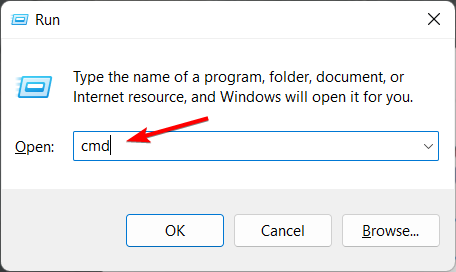
Press Windows + R to open the Run command dialog box.
Paste the following command in the text field, and click OK:Chrome.exe --disable-features=RendererCodeIntegrity
We have to mention that the workaround wasn’t successful for all users, but if you encounter the same problem, you can give it a try as it might help you get rid of the Aw snap! error.
3. Update the browser
Launch Chrome Canary, click on the ellipsis near the top-right, hover the cursor over Help, and select About Google Chrome from the menu.
Now, if an update is available, wait for it to download and install automatically.
Once done, restart the browser for the changes to come into effect.
As discussed earlier, there’s a chance of a new update causing issues with the browser, like the Chrome Canary STATUS_ACCESS_VIOLATION error. So, install the latest available version to fix things.
We hope that you managed to fix the Chrome Canary Error 11 and other issues with the browser using our solutions.
Some users have posted on numerous forums about a Chrome ERR_INCOMPLETE_CHUNKED_ENCODING page-loading issue.
When that issue arises, website pages hang or don’t load correctly with Google Chrome displaying blank pages. JavaScript and CSS files also get truncated, which generates web form submission issues.
That issue typically arises for users utilizing Google Chrome within client/server network environments with Apache server software. Those users spot the ERR_INCOMPLETE_CHUNKED_ENCODING error message within Chrome’s developer console.
Why am I getting err_incomplete_chunked_encoding in Chrome?
We’re glad you asked this question and, as always, we’re here to provide an elaborate and trustworthy answer.
This error code is raised when the user doesn’t receive the final 0-length chunk of a chunked transfer. When it happens, website pages hang or fail to load correctly, and Google Chrome displays a blank page.
Furthermore, JavaScript and CSS files are also truncated, creating issues with the web form submission.
It’s important to understand that this problem usually occurs with users using Google Chrome in a client or server network environment with Apache server software.
What does err_incomplete_chunked_encoding mean?
It means that the process you were undergoing could no longer function due to a problem with your network, proxy, web browser, anti-virus software, or something like that which is breaking a network connection to your site.
Quick Tip:
It’s fairly usual to have problems with your browser, but that’s why there are alternatives. Because it may be some time until the Chrome issue is resolved, consider keeping a backup browser, such as Opera One.
Most of the time, this great browser does not interfere with other applications, and the built-in proxy VPN may come in helpful in such conditions. Test Opera One and see if you can make the switch.
Opera One
The agony stops here, thanks to this Chrome’s best alternative.
How do I fix err_incomplete_chunked_encoding in Chrome?
1. Disable prefetching in Google Chrome
Open the Google Chrome browser the issue arises on.
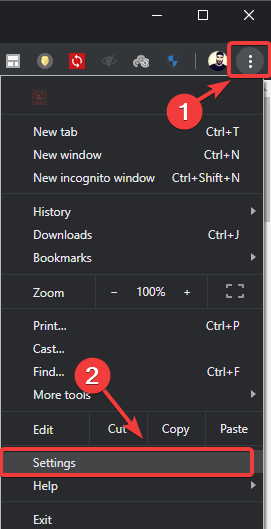
Click the Customize and Control Google Chrome menu button on the far right of the browser’s URL toolbar.
Select Settings to open a tab that includes Chrome’s browser options.
Click Cookies and other sitedata to open further options.
Then scroll down to the Preload pages for faster browsing option shown directly below.
Toggle the Preload pages option off if it’s on.
Restart Chrome after turning off the Preload pages option.
2. Uninstall third-party antivirus software
To uninstall a third-party antivirus utility in Windows, right-click the Start button and select Run.
Type appwiz.cpl in Run’s text box, and press the Enter keyboard key.
Next, select the antivirus utility listed within the uninstall program list.
Click the Uninstall button to remove the antivirus software.
Select Yes on the uninstall software confirmation prompts.
Users have specifically confirmed that the ERR_INCOMPLETE_CHUNKED_ENCODING error can arise due to Avast, Kaspersky, and ESET antivirus software. So, you should certainly uninstall those publishers’ antivirus software if you have any one of them installed.
To check if the ERR_INCOMPLETE_CHUNKED_ENCODING issue is due to your third-party antivirus software, try disabling its real-time protection first. If disabling its real-time protection fixes the issue, uninstall the antivirus software.
Many antivirus utilities have removal tools you can download that will more thoroughly remove them than Windows’ default uninstaller. The ESET site includes a handy index of removal tool links for the bigger antivirus software.
3. Disable Chrome’s extensions
Click the Customize and Control Google Chrome button to open that browser’s menu.
Click More Tools to open that submenu.
Then select Extensions to open Chrome’s add-on tab.
To turn off an extension, click its blue toggle button.
Turn off all your Google Chrome extensions, and restart the browser.
4. Reset Google Chrome
Open the Customize and Control Google Chrome menu at the top right of that browser’s window.
Click Settings to open that tab in the browser.
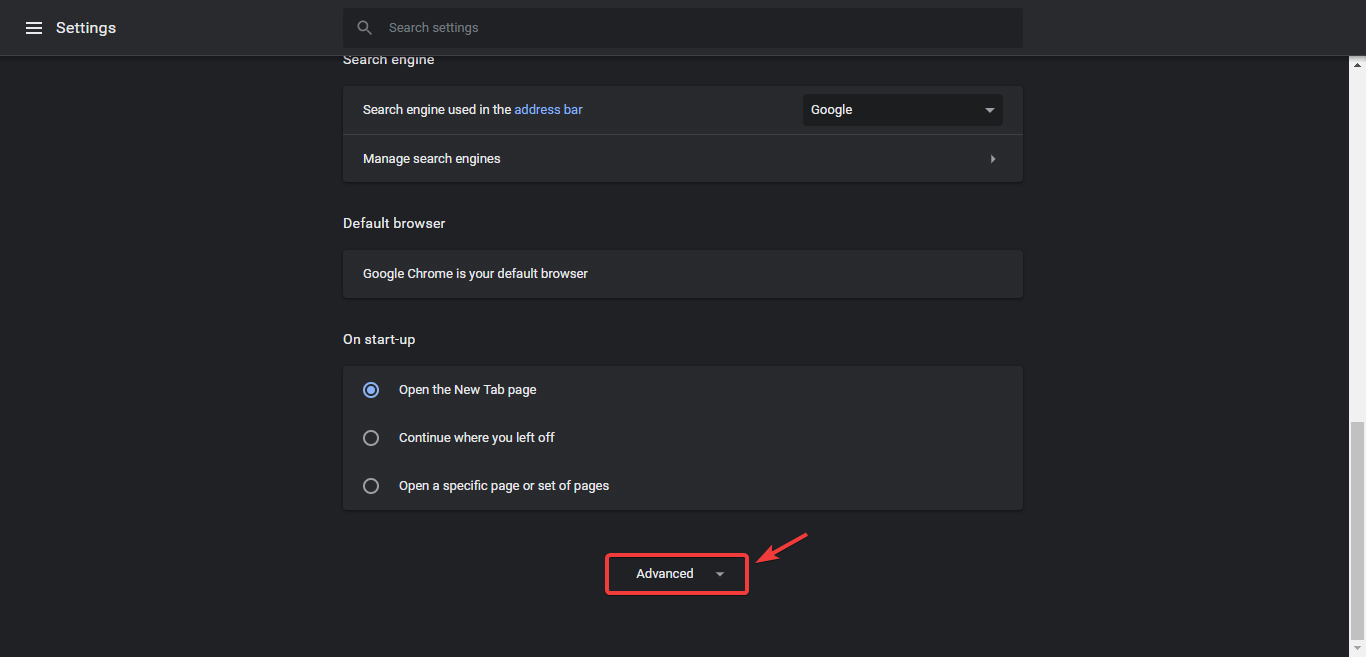
Scroll all the way down to the Advanced button on the Settings tab.
Click Advanced to extend the options on the Settings tab.
Then scroll further down to the Restore settings to their original defaults option.
Click Restore settings to their original defaults to select that option.
Press the Reset settings button to provide confirmation.
Now you have troubleshooting solutions for errors such as err_incomplete_chunked_encoding 200, or failed to load resource: net::err_incomplete_chunked_encoding.
Situations such as this aren’t to be taken lightly and immediate actions are required for err_incomplete_chunked_encoding chrome.
The issue can come in many forms, displaying messages such as err_incomplete_chunked_encoding 500, or maybe err_incomplete_chunked_encoding chrome jsp.
There are other potential fixes for the ERR_INCOMPLETE_CHUNKED_ENCODING error.
However, the above resolutions are confirmed fixes that have resolved the issue for many users.
System File Checker (SFC) is a utility in Microsoft Windows that allows users to scan for and restore corruptions in Windows system files. This utility is available on all versions of Windows OS and is located in C:WindowsSystem32 folder.
This article will describe the following issues related to SFC tool:
The time required for SFC command scannow to repair important Windows files is usually from 5 to 15 minutes.
How can I run SFC scannow on Windows?
In the guides below you will find out how you can run an SFC scan on different Windows operating systems.
How to run SFC scan Windows 11
The SFC scan might resolve many system errors, including blue screen issues. On Windows 11, you can easily do this through any console command tool such as Command Prompt, Powershell and Windows Terminal. Here is how to use cmd for this:
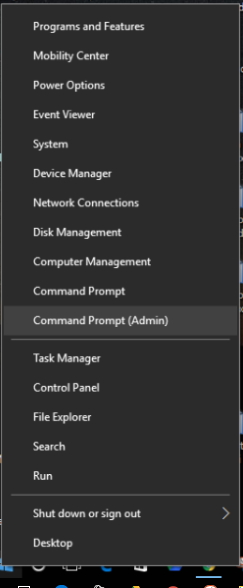
1. Press the Windows and X keys to open the Power Menu.
2. Select Command Prompt (Admin) from the list and click on it.
3. Type the following command: sfc /scannow
4. Press Enter to execute the command.
5. Wait for the repair process to complete. This might take a while, so do not interrupt the process.
6. After the SFC scan is complete, Command Prompt might state, “Windows Resource Protection found corrupt files and successfully repaired them.” If that’s the case, restart Windows. If there are no errors, you can close the console.
How to run SFC scan using cmd on Windows 10
Press the Windows key + X to open the main menu.
Click Command Prompt (Admin) to open the Command Prompt as an administrator.
The repair process will now start. Don’t close Command Prompt or interrupt the repair process. The repair process can take a while, so wait patiently while it completes.
Restart Windows if CMD prompts you to, upon finishing the process. If there are no errors found, simply close the console.
When you cannot complete the SFC scan normally, you should initiate the same process from Safe Mode.
When the Windows 10 OS runs in Safe Mode all third-party apps, and the processes associated with such software will be stopped or deactivated.
Thus, if the SFC error was somehow related with a third party software, now you will be able to successfully perform the system scan.
Here is how you can reboot your device into Safe Mode right away:
Launch the Run engine on your Windows 10 device: press the Win+R keyboard keys together.
In the Run box type msconfig and click on OK.msconfig windows 10
From System Configuration switch to Boot tab.
Under Boot options select the Safe mode checkbox and also check Minimal from underneath.
Click OK and Apply.reboot safe mode windows 10
When prompted choose Restart.
Now your device will be automatically restarted into Safe Mode.
From there run the sfc /scannow command.
Most common System File Checker/SFC scannow errors
Although this process can automatically repair the most common Windows soft-related problems, in some situations, SFC itself might experience malfunctions.
Here are some of the most common issues that users reported:
Sfc /scannow stuck at verification, at beginning system scan – According to users, SFC scan can get stuck at verification or at the beginning of the scan. However, you might be able to fix the problem simply by replacing the corrupted files.
Sfc /scannow frozen Windows 10 – This is another issue that can appear with the SFC scan. To fix this issue, it’s advised to restore your PC using System Restore and check if that solves the problem.
Sfc scannow nothing happens – Couple of users reported that nothing happens while using SFC scan on their PC. If that’s the case, try using the DISM scan instead and check if that solves the issue.
Sfc scannow stops scanning – According to users, sometimes an SFC scan can stop completely on your PC. Fix the problem by checking out this guide.
Sfc scannow stops you must be an administrator – SFC scan requires administrative privileges in order to run, and if you’re having any issues with SFC, be sure that you’re using Command Prompt as an administrator.
We hope that you managed to run a SFC scan on your Windows OS using our solutions. To learn more about similar tools, we suggest reading our guide on the differences between CHKDSK, SFC, and DISM.
Let us know your thoughts and questions in the comments section below.
All the websites on the Internet operate from a server. Since WordPress launched in 2003 as a spin-off of a blogging application known as B2, things gradually improved. Creating a WordPress website is simple, and you can do it with web design software for WordPress.
Now a lot of enterprises use it for websites and eCommerce and they most certainly need a good enterprise hosting service.
The platform has evolved into a full-featured web content system for all kinds of websites. It has constantly increased in popularity because of the fact that it is free and open-source.
What is a WordPress hosting company?
WordPress hosting company is a special type of company that focuses exclusively on WordPress hosting. By doing so, it provides the best service for your website.
There are many great companies that focus on WordPress, and in this guide, we’re going to show you some of the best hosting providers.
Not only that, the platform is used by millions of people and entrepreneurs daily for businesses of all sizes.
Knowing all the advantages, let’s explore some of the best enterprise WordPress hosting services available right now on the market.
What are the best WordPress business hosting services?
BlueHost is an incredibly useful hosting service designed specifically for WordPress. The wide range of features found in this software makes it one of the best options on the market.
The host offers you a great range of different versions, each covering a good set of features designed for different tasks, so you’ll have no issues picking the right plan.
This service is particularly well suited if you have a WordPress-basted website because it also features a great website builder with free themes that will help you keep up with the design, not to mention the top-of-the-line cPanel and SSH access that allows you to manage your website seamlessly.
As you will see from the plan offerings below, even the lowest contract offers a lot of webspace on SSD storage thus ensuring ultra-fast access to your domain.
And if we’re talking about domains, you will get a free one for a year. In addition, you’ll get a free SSL certificate to start off with a bang and a low budget.
As for WordPress hosting plans, there are the following ones available:
BlueHost Basic – perfect for getting started:
Single website
50GB website space
Free Domain for one year
Free SSL
Secure install of WordPress
WordPress auto-updates
WP-CLI
cPanel and SSH access
BlueHost Plus – perfect for growing websites, it contains every feature of the Basic version, with some modifications:
Unlimited websites
Unmetered website space
Free domain for one year
Standard features of Basic – SSL, WordPress auto-update, etc.
WP Staging Environment
Spam protection
Free CDN Enabled
BlueHost Choice Plus – perfect for online stores – includes all the features found in the previous version and adds:
Unlimited websites
Unmetered website space
Free Domain for one year
1 Domain Privacy
Automated Backup
Standard features – SSL, secure install of WordPress,auto-updates, WP-CLI, etc.
Essential Features – WP Staging Environment, spam protection, etc.
The WordPress Pro version from Bluehost has a great range of useful features. They include unlimited websites, web storage, domains, and subdomains, and have no traffic limits. As a result, it’s perfect for all types of businesses.
This version of the software also contains the entire range of hosting options needed for creating a professional WordPress site. It is divided into 3 different versions, each catering to different users:
WP Pro Build:
Marketing Center – monitor and manage your marketing process easily
100 Free Premium Themes
Domain Privacy Protection
WP Pro Grow – contains everything in Build, and adds:
Business review tools – enable your visitors to leave feedback
Bluehost SEO Tools – built-in SEO tool that allows you to boost your Google rankings with real-time statistics
WP Pro Scale – contains everything in Grow, plus:
PayPal integration
Elastic Search – allows your customers to use a faster search engine
BlueHost
This awesome web hosting service was designed especially for WordPress and it has full compatibility with it.
LiquidWeb is not only a reliable hosting company but it comes with an exhaustive WordPress hosting infrastructure for your promising business.
First, this website hosting operates with user-focused features and it delivers a customizable and dedicated server with 100% uptime.
More on that, you can benefit from extensive server support due to trustworthy web infrastructure. There is a dedicated server hosting, cloud server support, and server clusters for multi-server businesses.
Regarding WordPress hosting, this solution comes to help you manage your online business. More exactly, you benefit from technical hosting and support 24/7 from hosting experts.
It is also beneficial to pick this service if you require fast-paced web infrastructure for lightspeed response time or automatic WordPress site updates.
Not only that, the customers always get helpful support from the hosting team with website maintenance, DDoS prevention tools, or malware scanning technology.
Managed WordPress:
Cloud infrastructure type
15 to 60 GB storage
Included PHP workers
SaaS easy control panel
5-minute setup time
Dedicated Server Hosting:
Effortless site migration
100% network uptime
Standard DDOS protection
pre-installed backup drive
Root-level access
VPS Hosting:
10 GBPS networks
Plesk and cPanel support
Cloudflare CDN
ServerSecure advanced web security
Root-access and integrated firewall
LiquidWeb
Administrate any enterprise WordPress website with the most secure hosting platform.
Hostgator offers a great range of features that allow you to set up, manage, and grow your business by using professional-level WordPress hosting.
Due to HostGator’s cloud architecture, this service allows you to reach faster processing speeds, by using multiple caching layers.
Whether you’re just starting or you have a flourishing business, this hosting service helps you create or migrate your website in seconds and keeps it safe.
This is achieved with an automatic malware removal feature, so your website will be truly safe.
And even with a basic plan, you will get unlimited storage space powered by SSD for very fast access.
This software can be controlled by an impressive WordPress Cloud Interface that was designed to be user-friendly. Therefore, you can back up your files automatically and is easily scalable to fit the needs of your company.
Starter Plan:
1 WordPress site allowed
Packages based on traffic demands – 100.000
Relative computer power – 2x
Can migrate one site
1 GB automated daily backups including file-level restore
Automatic malware removal
Unlimited storage space
$100 Google Adwords Credit
Free SSL
Standard Plan – includes all features of the Starter Plan, with some additional changes:
2 WordPress sites allowed
200.000 packages based on traffic demands
Can migrate up to 2 sites
2 GB automated backups with file-level restore
Business Plan – has all the features found in the Standard Plan and adds:
3 WordPress sites allowed
Up to 500.000 packages based on traffic needs
Relative computer power – 5x
Can migrate up to 3 sites
3 GB automated backups with file-level restore
HostGator
Even the lowest plan with this hosting service will provide the necessary features and tools to start your business.
Hostinger is a popular web service for WordPress hosting, cloud, or VPS hosting for businesses and online publications.
This user-confirmed solution is what business owners or content creators need to boost their websites with high-speed performance and a strong web environment.
Regardless of the website, either a blog or a portfolio website, Hostinger WordPress contains anything you could imagine to manage and grow your personal business.
For instance, there are multiple benefits for numerous websites built on WordPress such as weekly data backups, free professional email, or infinite bandwidth for uninterrupted web traffic.
You can also coordinate multiple websites using one hosting plan. More specifically, you have 100 website support and increased performance for each of them.
In terms of plugins, Hostinger is the greatest pick for your website. You have extremely useful plugins to upgrade your business like SEO, E-commerce, or an AI assistant to help you write content more efficiently.
Hostinger Premium plan:
Unlimited free SSL
Free domains
100 websites support
100 GB SSD storage
Free & automatic website migration
Standard WooCommerce optimization
Hostinger Business plan:
200 GB NVMe storage
Free email and data backups
100 websites
Free CDN (Content Delivery Network)
WordPress acceleration and automatic updates
Vulnerability scanner
Hostinger Cloud Startup plan:
300 websites support
200 GB storage
10x website performance
Unlimited bandwidth and free SSL
Advanced WooCommerce optimization
WordPress Litespeed & auto-updates
Hostinger
Scale up any WordPress enterprise website using industry-leading hosting and AI website builder.
A2 Hosting is a web hosting at first, and a handy partner when it comes to enterprise websites or online businesses.
First things first, if you’re launching a new website or looking for fast web performance, this solution has got you covered.
You have the Managed WordPress hosting service that contains all the help you need to manage an online business or publication. For instance, there is Jetpack support, theme management, and reliable web stability.
Another essential aspect of this hosting service is its lightning navigation and response time. Hence, you benefit from rock-hard security, optimized speed, and a simple website setup.
Even more, there are valuable features such as web page caching or browser caching, free SSL certificates, or onsite & office daily backups to always protect your business information.
In conclusion, you can expect high performance and uninterrupted stability for your business website in order to expand your vision and gain consistent revenue.
Managed WordPress hosting plan:
Unlimited websites hosting
250 NVMe or unlimited storage
Onsite and offsite daily backup
Management for multiple sites
Jetpack support
Daily malware scans
WordPress hosting plan:
Unlimited WP websites
Free SLL certificate
20x faster Turbo servers
Reliable site migration
Onsite & offsite premium backups
Jetpack backup license
WooCommerce hosting:
Instant site deployment
Traffic surge protection
Customizable product webpages
Order and billing automated processes
Flexible region-based payments
Mobile payment integrations
A2 Hosting
Have a go with A2 web services for a superior hosting experience!
WP Engine is an incredibly powerful managed WordPress hosting platform that provides you with the entire range of tools you need in order to create a professional-looking WordPress website.
This service gives you the power to offer your customers an incredible online experience that is perfectly designed to fit their needs, and also the needs of your company.
It features 36 StudioPress professional-looking themes with SEO features and extra security, thus allowing you to build a modern and safe website quickly.
Besides, if you already built yours, whatever the platform you’re using, feel free to migrate it to the WordPress engine with just a few clicks.
WP Engine is an all-encompassing software that contains 4 different services, each covering important sectors of owning an online site.
Creative Agility – allows you to manage your site and market your product/service fast:
36 StudioPress themes – easy-to-use professional-looking themes with built-in SEO capabilities and security
Auto-migration plug-in – allows you to easily migrate data from any other hosting platform to WP Engine
Serviced onboarding – dedicated technical and account management team that offers you a step-by-step induction into using WP Engine
Automatic WordPress core updates
Free CDN and SSL certificates – CDN allows you to increase the size of your site, and SSL keeps your transactions safe
Wide range of WordPress plugins
Enterprise Performance – features that make your site scalable and provide a secure digital experience for WordPress:
Amazon web services
Global data centers – United States, Europe, Africa, etc.
Multi-layered security measures
Fully-managed content delivery network (CDN)
PHP 7 and HTTP/2
Proprietary EverCache – uses powerful caches to reduce the strain on your site’s resources
Two-factor authentication
SSL traffic encryption
Actionable Intelligence – allows you to customize your online experience and also manages site traffic, and performance:
Get information from one dashboard – contains a visual dashboard that simplifies Google Analytics and offers performance, traffic, and other useful information
Speed performance tool – allows you to observe the influence that installed plugins have over performances
Coding supported – allows your IT and development teams to troubleshoot issues
Ecosystem Integration – gives you the tools you need to create new opportunities for your company:
Over 40.000 WordPress plugins that allow you to customize your site
Integrates perfectly with other platforms
Amazon Web Services and Google Cloud Platform integration
Great support team – over 14 specialists ready to help with any problem
Enterprise onboarding
24/7 support
WP engine also comes in a variety of licensing options, each bolstering different features tailored to different users:
WP Engine Startup – The most affordable. Perfect for less demanding users.
WP Engine Professional – Designed for growing businesses.
WP Engine Growth – This plan is intended for professionals. It’s also perfect for small agencies.
WP Engine Scale – For high-demanding users.
WP Engine
Enjoy an incredibly powerful WordPress manager and offer your customers an awesome online experience thanks to WP Engine.
AccuWebHosting is a great choice for a WordPress hosting service because it provides lots of different plans, full customization, and much more.
You will benefit from the best and most secure connection. As a result, none of your data will be stolen from your beloved website.
AccuWebHosting will provide a stable connection and fully manageable Linux and Windows hosting at high speeds because of fully SSD-powered storage.
If you select the most basic option below, you will only be able to host a single website but if you increase your budget spending a bit, you will benefit from Windows Server 2016 and 2012 OS hosting.
You will also be able to customize your resources. Lastly, there is a 7-day money-back guaranteed policy and a hassle-free cancellation policy. If you’re looking for the cheapest WordPress hosting, this might be the right choice for you.
Web hosting – the latest Microsoft Web tools:
Host 1 site
User-friendly control panel
Cloud-based plans available
VPS hosting – powered by SSD storage:
100% pure SSD storage Raid 6 setup
Windows server 2016, 2012 OS
Quick and intuitive setup
Reseller hosting – easy, profitable, and inexpensive:
SQL 2012 and Windows Server 2016/2012 hosting
A/C support for PHP and MySQL
One panel to control all domains
AccuWebHosting
Enjoy a plethora of price pans and customization options by choosing AccuWebHosting, a service perfect for WordPress.
iPage is another great option for hosting your business on WordPress because it offers a great range of features that will surely cover all your needs.
This software was designed to contain all possible features that allow customization of your WordPress site hand-selected themes, and pre-installed plugins. Therefore, it allows you to control your entire WP experience from one dashboard.
By teaming up with SiteLock, the hosting platform from iPage offers a deluxe security bundle and also includes a custom firewall.
If you’re going with one of the plans below, you will get a free domain and SSL certificate for one year.
It also offers great support, done by specially trained support agents. Here’s a brief description of what’s packed in each version:
WP Starter:
1VAT not included
Free 1 year domain registration
Unlimited storage
Unlimited bandwidth
Customized control panel
Pre-installed themes & plugins
WP Essential – contains all the features found in WP Starter, and adds:
WordPress expert support
Automatic malware removal
SiteLock professional security
iPage
Migrate your website quickly, customize it with free themes and keep it secure with this excellent service.
JustHost covers the entire range of needs for your company, offering a great list of useful features that allow you to create, manage, use, and customize all aspects of hosting.
Additionally, you’ll get important support for MySQL, PostgreSQL, CGI BIN, Python, Flash, DHTML, Shockwave, and many more.
And if you’re just starting, you gain access to an easy-to-use site builder. For instance, this allows you to simply drag and drop elements for instant results.
The fast management tools from the integrated cPanel will be there and you can use them to change all the options on your website accordingly with just a few clicks.
Here are some of the most notable features of JustHost:
Unlimited disk storage
Unlimited number of Websites
Drag and drop site builder
Free domain name registration for 1 year
Support for international domain names
Unlimited POP3 and IMAP Secure email support
cPanel account control panel
Secure Shell (SSH) access
1-Click WordPress install
Free scripts – social networking scripts, blog support, poll and survey software, project management scripts, etc.
CGI databases – MySQL, PostgreSQL, CGI BIN, Python, support for Flash, DHTML, Shockwave, etc.
JustHost Basic:
One website
50 GB website space
Unlimited bandwidth
Standard performance
Includes 1 domain, 5 parked domains, and 25 subdomains
5 Email accounts supported
100 MB/ account email storage
JustHost Plus – contains all the features found in the Basic version, with some changes:
10 websites
150 GB website space
Includes 1 domain, 20 parked domains, and 50 subdomains
100 Email accounts supported
500 MB/ account Email storage
Marketing offers ($150 worth)
Extras (worth $20/year)
1 SpamExperts
JustHost Prime – contains all the features found in Plus, and also adds:
Unlimited number of websites
Unlimited website space
Includes 1 domain, unlimited parked domains, unlimited subdomains
Unlimited number of Email accounts
Unlimited number of Email storage
Great value marketing offers (worth $200)
Over $65 worth of extra per year
1 domain privacy
Backup protection – CodeGuard Basic
JustHost Pro – contains all the features of Prime, but it also adds a high-performance server and dedicated IP, SSL certificates, domain privacy features, and site backup.
If you need Managed WordPress hosting powered by Amazon Web Services, then Nestify is the perfect choice for you. This means that you’ll get access to all AWS services including autoscaling, automatic failovers, and global CDN.
With automatic scaling, your website will remain online during traffic spikes. This is incredibly useful during sales campaigns or holiday seasons.
All plans include Amazon Cloudfront CDN, DDoS protection, and web application firewall for free. These features are available on all plans.
Speaking of features, all plans will also get Google page speed optimization, PPC Optimization, and Bot protection for free.
Nestify doesn’t have any page view or bandwidth limits, so it will be able to handle any amount of traffic without restrictions.
If you’re running a larger WooCommerce store, you’ll be pleased to hear that Nestify offers managed custom solutions with multiple databases and web servers. Lastly, there’s also 24×7 support by WooCommerce experts, if you encounter any problems.
Overall, Nestify is an amazing hosting service and a perfect choice for all your business projects.
Ionos offers a great range of features designed to make your WordPress experience easier to understand and use, faster than the average hosting site, and can also optimize your platform and offer great security features.
This software helps you get started by offering a WordPress assistant that guides you through the entire process from the setup of your site to customization options based on the purpose of your site.
Additionally, you can manage information and data because Ionos also has a great range of design templates and the possibility to install many useful plugins.
If you have Ionos installed on your computer, then this software will automatically update to the latest version of WordPress, to keep your site up to date with the latest features and options.
One of the best features of Ionos is its state-of-the-art infrastructure which is designed with the latest security technologies, offering advanced DDoS protection, malware, and other malicious attacks.
Ionos is powered by PHP and NGINX and also customized specifically for WordPress with 2GB guaranteed RAM and 360 Gbit/s fiber connectivity. As a result, it offers great speed and stability.
The entire range of databases is stored on your website using SSD technology, therefore your website will run smoother and faster, and can also increase your SEO scores on Google or other search engines.
Because 1&1 Ionos offers a great number of useful features, this program was released in 3 different versions, each with different features:
Ionos Essential – an all-inclusive pack that allows you to create and manage a WordPress page:
Allows 1 managed WP website
25 GB SSD storage
2 x 1 GB MySQL database
Up to 10 email accounts
Free Domain
Ionos Business – contains all features of Essential, more plugins, and offers better performance for larger websites:
Allows 2 managed WP website
100 GB SSD storage
10 x 1 GB MySQL databases
100 email accounts
Free Domain
Ionos Pro – has all the features of the Business edition, and adds:
Allows 5 managed WP website
200 GB SSD storage
50 x 1 GB MySQL databases
500 email accounts
SiteLock malware protection – enhanced protection against online threats
RailGun content delivery network – caches your website and distributes it to 62 data centers around the world and users receive data from the closest server, allowing you faster loading times
Yes, WordPress is the best CMS (Content Management System) for enterprises because it contains valuable tools such as UI flexibility, e-commerce stores, and cutting-edge domain security.
Is WordPress hosting free?
Reliable hosting isn’t free, and it usually comes with a monthly fee. So on the whole, there’s no free WordPress hosting.
There are companies that provide free hosting for your WordPress, but they don’t offer great support, speeds, and many other features that other companies do.
How can a good hosting service help grow my business?
If you want to better understand how WordPress hosting works, read on. There’s a variety of services available today and making a choice isn’t exactly simple.
➡ Outsourcing resources
Investing in a physical server costs a lot of money so it is a far better option to choose a web-hosting WordPress service that offers the same capabilities as a physical server would.
Plus, managing your own server can be a great deal of effort for your business to handle. It requires updates, servicing, and upgrades that are performed automatically by a hosting service.
➡ Manage more websites
Moreover, you can manage a great number of websites, at a fraction of the cost. Companies that offer hosting services lease their hosting space to you, based on your specific needs.
It’s a lot more convenient and efficient to hire a professional service for hosting than dealing with those aspects on-site.
➡ Conserve work power
Your IT manager is already handling the internal network and if you have a lot of endpoints scattered across many offices, that will be more than a handful.
By employing a hosting service, managing your websites will be a matter of simply controlling their features from a console and managing the upkeep. As a result, the entire process will be simplified.
In this article, we explored some options on the market that offer great hosting features for your business website.
We hope that you found the best one for your business because if you do, the results will come up really soon.
Keep in mind that for a business website, the most important aspects are security and upkeep, especially if you’re hosting client data and email accounts.
The software presented in this article covers all your needs, such as website creation with 1-click options, website management, and website customization with templates and plugins.
Hit the comments section below and tell us about your experience with your hosting service and help others choose the best one for their business.
Microsoft ended its last quarterly earnings report with a cautiously optimistic projection for FY22 Q4, warning that “adverse economic or market conditions that may harm our business,” could result in lower revenue for the quarter, and it seems things have caught up with the company.
Microsoft fell just shy of its projections for FY22 Q4, hauling in $51.9B in total revenue and $16.7B in net income on $20.5B in operating income. The diluted earnings per share for investors comes in at $2.23 which represents a 3% increase year over year.
This is the first time since 2016 Microsoft failed to meet or exceed its own earnings projections.
Ironically, much of Microsoft’s business was up for the quarter and even its revenue and net profit saw modest increases but the company projected just a bit higher and is now explaining its misses with the following reasonings:
Unfavorable foreign exchange rate movement within the quarter negatively impacted revenue and diluted earnings per share $(595) million and $(0.04), respectively. Additional details are provided in the Earnings Call Slides.
Extended production shutdowns in China that continued through May and a deteriorating PC market in June contributed to a negative impact on Windows OEM revenue of over $(300) million
Reductions in advertising spend contributed to a negative impact on LinkedIn as well as Search and news advertising revenue of over $(100) million
With the ongoing war in Ukraine, we made the decision to significantly scale down our operations in Russia. As a result, we recorded operating expenses of $126 million related to bad debt expense, asset impairments, and severance.
As part of a strategic realignment of our business groups, we recorded employee severance expenses of $113 million, excluding Russia
Here are Microsoft’s business highlights for the quarter
Productivity and Business Processes
Office Commercial products and cloud services revenue increased 9% driven by Office 365 Commercial revenue growth of 15%
Office Consumer products and cloud services revenue increased 9% and Microsoft 365 Consumer subscribers grew to 59.7 million
LinkedIn revenue increased 26%
Dynamics products and cloud services revenue increased 19% driven by Dynamics 365 revenue growth of 31%
Intelligent Cloud
Server products and cloud services revenue increased 22% driven by Azure and other cloud services revenue growth of 40%
More Personal Computing
Windows OEM revenue decreased 2%
Windows Commercial products and cloud services revenue increased 6%
Despite the doom-and-gloomish headlines, Microsoft managed to return $12.4B back to shareholders for the quarter through dividends and repurchases of stocks, which represents an increase on its buyback programs year over year.
Once again, Microsoft warns of increased cloud computing competition, potential government litigation and regulatory activity could pose disruption in next quarter for the company.
On the positive side, Microsoft’s search efforts continue to quietly improve, as the advertising business chalks up another 18% of growth year over year (missing the projected 20%), and that’s heading into the big Netflix partnership which see that revenue total increase over time.
There a several Harry Potter video games based on the series of the same name fantasy novels written by British author J.K. Rowling.
The initial game series was released by EA starting with 2001. There’s a game for each book in the series, with the final book having two separate games, though.
Apart from this official series, there were some other official individual games, developed by different publishers, based on the Harry Potter universe. To make things even better, there are online games based on this super fantasy novel.
In this guide, we have gathered the three best Harry Potter games you can easily play online, as we did with the best all-time browser games to play.
Quick Tip:
For the best gaming experience, we recommend usingOpera GXas the main browser since it brings a couple of exclusive features for gamers.
For sure, you will find the free ad blocker very useful, and the customizable themes and design are a delight. Not to mention that you can run other programs in the background as well, with a network limiter option.
Opera GX also comes with a built-in VPN service to secure your online activity, and even help you be anonymous.
Opera GX
Opera GX is a specialized gaming browser that also offers lightning speed internet browsing, all in one efficient and compact package.
There are various websites that offer free games online. You can play the best browser tower defense games, horror games, shooter games, and other types you can think of.
The only thing is that you might need to register free on some websites to play games, while some do not require registration.
What is the best browser for gaming?
To get the best gaming experience, you need to use a dedicated gaming browser. And your best option is Opera GX.
Opera GX is the first browser built specifically for gamers. It packs in features that allow you to get the maximum experience from your gaming sessions.
One of its endearing features is the GX control, which allows you to limit the resources your browser use. Also, with its Discord and Twitch integrations, you don’t need to switch apps to connect with your gaming community.
The Harry Potter games published by Electronic Arts were the first video games to take the Wizarding World into the gaming realm.
The series includes 9 games, one for each book in the official Harry Potter series, with 2 games for the last one, respectively.
All these Harry Potter games were developed to play on various consoles, from PlayStation to Xbox, Game Cube, or Wii, as well as online for PC and Mac.
The first two games, Harry Potter and the Philosopher’s Stone and Harry Potter and the Chamber of Secrets, are action-adventure types of games featuring puzzle-oriented gameplay.
With the third game, Harry Potter and the Prisoner of Azkaban the publishers turned towards the RPG genre. The gameplay is different on PC vs. PS2/Gamecube/Xbox.
How do you play them online?
The multiplayer feature was introduced only in the fourth game of the series, Harry Potter and the Goblet of Fire. Up to three players can join from the same console. This game plot closely follows the action in the book of the same name.
For the remaining three games, the developers dropped the multiplayer feature. Harry Potter and the Deathly Hallows part 1 and 2 are third-person shooter types of games, with rather negative reviews from game fans.
Ideally, you should start with the first game and continue with the rest until you finish the series. But, of course, you can buy any of the individual games on the official Playstation website.
Harry Potter: Hogwarts Mystery is one of the best free Harry Potter games you can play online. It was inspired by the Wizarding World and was released in 2018 for Android and iOS.
The game is free to download and play up to a certain point, after which you need to make in-app purchases to continue.
You have your own personal avatar – a student attending Hogwarts – that you can create and customize; you can learn spells, attend magic classes, embark on various quests with witches and wizards.
Note that the game is set before the action of the official Harry Potter series, but fans can still relate to the familiar universe.
Players have appreciated the interactive gameplay and the new universe but have complained about the slow unfolding of the story.
Harry Potter: Wizards Unite is augmented reality and location-based game released in 2019 for Android and iOS.
It comes in two game modes: single and multiplayer. Players must create their avatar on the world map, then choose their profession and their wizarding house.
The gameplay focuses on traveling around various Wizarding locations, exploring multiple challenges, and solving mysteries. Players can view the gameplay world through a smartphone.
Once again, the app is free to download and comes with in-app purchases.
The best online Harry Potter games help you enjoy the wizardry of the excellent fantasy book on your devices from just about anywhere. This list contains options for mobile devices and PC that you always access.
Are you looking for a list of the best browser horror games to play? Then, check our article for some interesting options to choose from.
Have you played one of these already? We’d like to hear your opinion, so give us your feedback in the comments below.
If you are looking for a way to fix Gmail autocomplete not working issue, go through this article to get the most effective solution.
Gmail’s Autocomplete feature enables users to select email addresses when they start typing something in the To field. Then, users can select an email address from a list of suggested contacts.
However, this handy feature might not always work for some users.
Why is Autocomplete not working?
There are various reasons that can cause trouble for the Gmail Autocomplete feature. It mostly includes the following:
Corrupted cache and cookies
Any of the active extensions on your browser
Outdated version of the browser
Problematic web browser
A problem from Google’s end
If you have any of these issues, Autocomplete feature of Gmail may fail to work properly. But, don’t worry, you can always solve this error.
How can I fix Gmail’s Autocomplete option?
1. Open Gmail in another browser
In some cases, Autocomplete might not work due to a browser issue. So, try utilizing Gmail in an alternative browser.
On this note, our recommendation would be to use the Opera One browser, with its multiple helpful features that can surely improve your workflow.
Switching from your current browser to Opera One is easy and takes only a couple of minutes.
After installing the browser using the button below, you can import website preferences and bookmarks with just one click, and you’re good to use Gmail right away.
With the Autofill option, you can automatically complete online common forms such as addresses, credit card information, or any other frequently used details.
To enable the Autofill feature:
Open Chrome.
Go to chrome://settings/autofill using the browser’s address bar.
UnderAutofill, choose the category you are interested in (Passwords, Payment methods, Addresses, etc.)
Turn on theSave and fill… option.
If you want Opera One to automatically fill in forms, click theAdd button to add an address or payment method. You can edit these details at any time by deleting or adjusting them.
Opera One
Try using Gmail in Opera and improve your workflow using the Autofill feature.
Enter the contact details in the Create new contact box.
Press the Save button. Then Autocomplete should suggest the contacts added when users start typing their email addresses in the To field.
This workaround applies to users who keep the I’ll add contacts myself option selected. They need to manually add contacts to their contact lists. It will solve Gmail contacts not showing when composing an email in Chrome or any other browsers.
4. Open Gmail in Chrome’s Guest mode
Open your browser.
Click on the profile icon and go to Guest mode.
Some Chrome users have said they’ve fixed Autocomplete not working by turning Chrome’s incognito or guest browsing mode on.
Type chrome://settings/ in the URL bar and press Enter.
Expand Advanced, click on Reset, clean up, and then Restore settings to their original defaults.
Click on Reset Settings.
6. Delete Gmail accounts from Apple devices
Go to Settings and tap on Mail.
Go to Account.
Then, delete the Gmail account you want.
Users utilizing their Gmail accounts on Apple devices might need to delete those accounts from the iPads or iPhones to fix Autocomplete.
The above resolutions might fix Gmail’s Autocomplete for some users. Note that Gmail’s Autocomplete has had bugs in the past, so on some occasions, users might need to wait for Google to fix Autocomplete issues.
If you configured the Firefox proxy settings to work with Burp, but it’s still not working, then fret not.
It is usually the incorrect Firefox proxy settings that prevent Burp to intercept while testing your website on localhost.
But if you come across proxy errors on Windows 11, you can refer to our detailed guide for some quick solutions.
Why is my Burp suite not working?
It could be possible that along with incorrect browser proxy settings, the IP address and port number also do not match as configured in a running Proxy listener.
For example, the Burp’s default settings with the IP address is 127.0.0.1 and port is 8080. But it may differ from your current configuration leading to the issue.
However, in this post, we have some quick solutions to help you fix the Burp suite proxy not working in the Firefox issue.
Quick Tip:
We feel that switching to a browser that fully supports Burp Suite proxy settings is now or never. Opera One’s built-in proxy VPN is a nice find for configuring Burp suite from outside your browser.
By ticking the Use proxy for local servers checkbox, you may define whether the proxy should be used for even local servers. Moreover, Opera One comes with a built-in AI.
Opera One
The advanced settings in this browser provide the setup for Burp Suite proxy settings.
How do I fix the Burp suite proxy that is not working in Firefox?
1. Check if the Burp proxy listener is active
Open Burp, navigate to the Proxy tab, and click onOptions.
Next, under Proxy Listeners, check if the entry with the interface value is set to 127.0.0.1:8080. Also, check if the box next to Running is check-marked.
If it’s not running, then click on the gear icon (Settings) on the top left and select Restoredefaults.
2. Enable the Firefox proxy settings
Launch Firefox, click on the three lines (menu), and select Settings.
Next, under the General section, go to the Network Settings section.
In the Connection Settings dialog, select Manual proxy configuration.
Enter 127.0.0.1 (default Proxy Listeners address for Burp,) in the HTTP Proxy field.
Next, enter 8080 (default Port) in the Port field. Then, check the box next to Also use this proxy for HTTPS.
Now, in the No proxy for field, delete anything that shows up. Then press OK to save changes and exit.
You have successfully turned on the proxy settings in Firefox and the Burp suite is ready for web testing.
Open the Burp suite, go to Proxy and then select the Intercept tab.
Next, click the Intercept is off button to turn it on.
Make sure that Burp is running, and then launch Firefox that’s configured for HTTP URL and not HTTPS.
Your browser should now wait for the request to complete. This is because Burp has intercepted the HTTP request that your browser is trying to send.
Now, in Burp, go to Proxy and then click on theIntercept tab again.
Here, you should see the intercepted HTTP request in the main panel. Click on Intercept is on to turn it off and the request will be released from Burp.
Now, return to your browser and you should now see the requested page loading as it would during normal browsing.
NOTE
Make sure you have checked that the proxy listener is active and have configured your chosen browser.
What can I do if the Burp suite CA certificate is not working?
To access the Burp suite URL and download the CA certificate, Burp should be running. Also, Firefox needs to be sending traffic through Burp’s proxy listener.
But if you have not already done that, you would first need to configure Firefox to work with Burp as shown above.
However, if you are still unable to download the Burp suite CA certificate, then you would first need to check if your proxy listener is active as explained above.
But, if it still does not work, you can try a different port as shown below;
Try a different port
Find a different port that is free and then in Burp, go to the Proxytab and click on Options.
In the Proxy Listeners panel, select the entry with 127.0.0.1:8080 and click Edit.
As the Edit proxy listener dialog opens, go to Bind to port, enter the number for the new port and click OK.
Now select the Running checkbox to activate the listener. You should now be able to access the Burp suite.
If selecting the checkbox doesn’t activate the listener, it means that the new port you entered may be blocked as well. In this case, so you can try another port.
You can now download and install the Burp CA certificate and since you have already configured the proxy settings in Firefox, you can continue using the suit for web security testing.
The Burp Suite is a great tool set for web developers to perform security testing for their web pages or web applications.
However, if the proxy is not set correctly in your browser, the suite may fail to work. That’s exactly why you should try the above solutions to fix the Burp suite proxy not working in the Firefox issue.
Want to apply a backdrop filter like blur or color filters to the background of your design in Firefox, but it’s not working?
Using the backdrop filter you can create some amazing background effects on your webpage, but the feature needs to be enabled in your browser to work.
But if the CSS is not working in Firefox and you are unable to customize the look of your website, you can follow the solutions in our detailed post.
Although enabling the property in Firefox may help you fix the backdrop filter not working issue, there could be other reasons behind the glitch as well.
Quick Tip:
Backdrop filters are fully supported in the recent versions of the Opera One browser. Opera One is one of the first browsers to support Cascading Style Sheets, and Firefox quickly followed.
Opera One is lighter, faster, and more stable than Mozilla Firefox, plus it includes a variety of add-ons to help you create background effects more efficiently. It also features a native AI.
Opera One
Full support for backdrop filters and a vast library of extensions for fancy customizations.
But if it’s a bug that you have not encountered previously and need expert assistance, you can file a bug report on their official issue tracker for technical support.
According to Firefox’s recommendation, you can also file a bug or defect on Github, ask support questions or get help with product troubleshooting.
How does the backdrop filter work?
The backdrop filter in Firefox is a CSS property that lets you add visual effects to your web page like blur or color filters to the background of the design.
Because the filter is added to the entire background of the design, the effect will be visible only when you make the design or its backdrop somewhat transparent.
You can also refer to the MDN Web Docs by the Mozilla developer support for the basics of how to apply a backdrop filter to your element.
However, if the backdrop filter is still not working in Firefox version 102.0, you may need to re-enable the preferences in config as explained above.
When it comes to destruction machines, nothing compares to the mighty power of a tank.
The roar of its canon, the whirr of its treads, and the thrum of its engine have become synonymous with doom and destruction, annihilating the enemy troops like terminators from the future on a mission to take over the earth.
For many gamers, there is nothing as exciting as having such raw power; blowing up rival tanks and helicopters on daring missions while conquering the battlefield on a military tank.
If you are looking for the ultimate best tank games, here is our list of the top-rated tank games for Windows 10 and Windows 11.
Can you play tanks online?
Yes, as a matter of fact, you can. If you are a tank aficionado, rest assured that there are software choices to support your passion online.
But, even though there are a lot of tank game choices out there, know that not all of them have online gameplay and you have to play them offline.
That being said, when you do find the game you like, all you need is a stable internet connection and the tactics needed to outsmart your opponent.
Among the most popular online tank games out there, we can mention:
World of Tanks
War Thunder
Valkyria Chronicles
Steel Armor: Blaze Of War
Arma 3
We have prepared a generous list for you, containing the best choices of both online and offline tank games, so that you can take your passion into the virtual world and wreak havoc.
Quick Tip:
Why not have a browser tailored exclusively for gaming needs? The Opera GX browser is one such browser; it includes the GX Corner, where you may play a variety of tank online games.
Furthermore, you may configure resource limiters for RAM and CPU to reduce latency and PC heating. Plus, if you have a team you can chat with them on Discord, which is integrated into the sidebar.
Opera GX
Be the coolest of them all and play tanks online on this gaming browser.
We’re glad you asked that question because the answer is yes, there is. Although many of the tank games out there offer a high degree of realism, some are better than others.
Among the most popular choices of highly-accurate tank simulators are World of Tanks and Steel Armor: Blaze of War.
What are the best tank games that you can play on PC?
The best way to engage in enormous tank battles is to go the free online MMO route – and that’s exactly whatWorld of Tanksis.
The game boasts of over 382 armored vehicles which are categorized according to the nations they belong to, which include Soviet Union, USA, and China among others.
The vehicles come in different types ranging from light and medium tanks for light battles to heavy tanks and tank destroyers for mass destruction.
Various battle modes exist and you can even customize your vehicles to suit your style. Since this game is not a simulator, control is very easy and anyone can play it.
TheWorld of Tanksgame is very popular and it holds the Guinness World Record for Most Players Online Simultaneously.
If you are on Windows 10 or you have a touch device, as well, we recommend you check out World of Tanks Blitz. And if you do install it, make sure to avoid many of thereported issues.
World of Tanks
Embark now on an epic online battle in this world-record free multiplayer game.
Set in World War II, Graviteam tactics is a squad-based tactical war game that focuses on the brutal tank combat battles across the rugged terrains of Europe.
The game has over 60 real-world vehicles from the Soviet Union, the UK, and Germany to play with. Not only are they heavily armored, but detailed and realistic too.
The destructible battlefields featured in this game give the player a real-like experience.
Houses can be collapsed, enemy defenses shattered, and you can even damage the enemy’s tanks to compromise their aiming mechanism.
This is one of the best tank games you can play if you enjoy explosions that leave craters on the ground and heavy war machines that damage the terrain.
Battlefield 4is one of the best multiplayer games and it comes with some meaty tank experiences.
Set in 2020, the game involves a war story between superpowers USA, Russia, and China and follows Sgt. Daniel Recker as he fights in favor of his country.
The environment is well selected for battle, featuring collapsible buildings and other structures to give the game a real-life experience.
Players can take the role of commander and gain tactical insight into the gameplay, as well as the power to launch commands and orders such as missile strikes.
Set in a fictitious continent resembling Europe around World War II, the Valkyria Chronicles highlights a continent divided into two and governed by two powers: the Empire and the Federation.
The empire’s mission is to invade and secure the precious natural resources of Gallia – a neutral country located between the two superpowers territories.
The armies of the Federation Seventh Platoon have to fight back against the invasion so as to unify the continent. You assume the role of Welkin Gunther – a commander of the Seventh Platoon and lead the soldiers to fight off the imperial forces.
War Thunder is another fantastic and free-to-play tank game inspired by World War II.
The game comes with a variety of aircraft and a fleet of armored vehicles so you can never run out of options.
Most of the tanks are from World War I but you will also find fleets from other significant conflicts such as the Spanish Civil War as well as tanks from the Soviet Union, Germany, and the USA.
In War Thunder, you can fight with other players either on land on in the air. There are various battle modes including arcade battles, realistic battles, and simulator battles.
The best thing about War Thunder is that you will be getting regular updates including new vehicles and maps. If you install the game, make sure to avoid many of the usual bugs by followingthis guide.
Steel Armor: Blaze of war is one of the most advanced tank simulators on the market today.
The game comes with two key parts: the tactical part which puts players right in the battlefield with a tank platoon to command, and the operational part which allows players to choose the battlefield, supply their units as well as repair and augment their vehicles.
You will love driving the phenomenal US M601A and the Soviet T-62 tanks, each crafted with sophisticated technology, cockpit, and crew to interact with.
Operations will take you from Iran to Afghanistan and other countries where you will fight real like battles.
Arma 3 is an MMO tactical shooter game that features realistic ground, air, and sea combat, as well as a large variety of vehicles and cutting-edge weapons.
The game allows players to play cooperatively with their squads to accomplish missions against highly competent AI or take on other squads in a variety of scenarios over long distances in the open-world terrain based on real-world Mediterranean islands.
Arma 3 is set in a dystopian future in 2035, so it comes with state-of-the-art weaponry. You will use the laser range finder to aim and hit the bad guys even if they hide in the dark.
The opportunity to steer these steel beasts is undoubtedly one of the most thrilling experiences for gamers.
While only a while ago these games were only available for PlayStation and Xbox consoles, with the advancement of technology, now they are also available for PC.
Thus, if you are looking for old tank games for PC, free tank games for PC, or simply tank simulator games, we can definitely help you out with that.
Remember that some tank games for PC are offline, while other tank games for PC are online, so it all depends on how you want your experience to be.
On that note, if your desire is to find a tank game for PC with multiplayer, you will surely find something you like in the list above.
Have you played any of these games? Let us hear your experiences in the comments section below.
The best browser for enterprise is vital to a company’s online activity and success. Having the right online tools will make business operations, communications, and public relations efforts easier.
Therefore, companies are careful about their choice of browser as well as the interface or features offered.
Factors that rank top as features for a business browser include security, extensions, privacy, speed, and mobile compatibility. This article considers some of the best browsers for enterprise operations to use today.
What are the factors you consider when choosing an enterprise browser?
Choosing a web browser for your company and ensuring that your business will thrive as a result is a challenging task.
That said, you will surely need a browser compatible with your critical Web-based enterprise applications, isn’t plagued with security issues, and can be easily supported by IT.
When searching for new enterprise browsers, the main keywords should definitely be performance, security, platform support, features, extensibility, standards support, and application compatibility.
Remember that a business will require a lot more from a browser, so selecting top browsers for office work will be done by following much more rigorous requirements.
One of the first things to note about Opera One is its speed technology for faster browsing using Opera Turbo Mode. Even with slow Internet connections, Opera One functions easily on your mobile or desktop.
Besides faster browsing, Opera One also includes a Virtual Private Network (VPN) to help secure your browsing experiences.
The browser also has Ad-blocker and other security features that protect you from hackers, phishing, malware, fraud, etc. Opera’s access to extensions and Add-ons gives users more tools for their business operations.
Plus, enjoy the customizable workflow and workspaces with instant messaging and social media apps like Twitter, Facebook, or Instagram to chat and stay in touch with the latest news without leaving your browser’s homepage
Let’s quickly look at its key features:
Fully customizable UI with themes, modes, sidebar display, and keyboard combo included
Turbo mode to further enhance speed
Integrated ad blocker to eliminate distractions, optimize web page loading times, and streamline your browsing experience
Integrated VPN tool to anonymize your browsing and unblock geo-restricted content
Integrated snapshot tool to capture your screen effortlessly
With all these features, Opera is surely the best enterprise browser.
Opera One
Utmost privacy for confidential data and top speed for even faster business ops.
This next browser has all the benefits you would need for enterprise browsing, especially regarding privacy and data tracking issues.
AVG browser offers you a simple UI and lots of support, including an ad-blocker, a Privacy Cleaner to erase browsing data, and one-click integration with antivirus protection.
More so, you’re secured against phishing attacks and complex cyber threats due to a VPN shield.
In addition, this business-suited browser can secure your navigation with HTTPS encryption, blocking tracking scripts and masking all digital fingerprints left behind.
Let’s quickly look at its key features:
Malicious websites protection to prevent virus infection or data theft
Adware security and built-in ad blocker for uninterrupted navigation
Integrated VPN connection
4x quicker navigation
AVG Secure Browser
Activate this enterprise browser today and encrypt your browsing for good.
Regarding enterprises, UR Browser is arguably one of the best browsers for enterprises due to its robust features. With a tool like UR Browser, businesses can enjoy secure transactions plus site unblocking features using VPN cover.
UR uses technological innovations to protect business operations online. UR innovations include Ninja Mode, HTTPS Redirect, AdControl, Anti-tracking, and Anti-fingerprinting to protect business operations online.
It offers three privacy levels depending on your business needs, making UR Browser the best web browser.
Let’s quickly look at its key features:
Includes Chrome extensions to enable the inclusion of add-ons and extensions required for safe and secure online operations
UR browser eats up fewer system resources when running
4 x faster download technology
It opens website pages with speed to save on business time
Compatible with most sites, operating systems, and devices
UR Browser
Grow your business with a fast and reliable top-range browsing solution!
Google Chrome – Customizable with thousands of extensions
Google Chrome enjoys one of the most popular support from organizations. With the decline in patronage for Internet Explorer, Google Chrome enjoys more market share.
It works on almost any device and platform with exceptional user-friendly features, privacy, security, and speed.
Google Chrome offers one of the best browsers for the enterprise when it concerns apps and extensions. Businesses can enjoy extensive business experiences with multiple apps and extension functionality/ add-ons.
Google Chrome offers excellent features and is double one of the best enterprise web browsers on the market.
Let’s quickly look at its key features:
Ad-blockers and LastPass Password Manager are the go-to tools used popularly by businesses
Google Chrome is a default browser for Android devices, which means ease of business operations
Clean, clutter-free User interface
With Chrome Enterprise, you enjoy more features, including third-party add-ons, over 100 auto-updating features, and apps with a business-focused Chrome app store
Also, Chrome’s two-step verification provides an additional layer of security. When the browser crashes or closes suddenly, the user still can access the last tab visited.
Chrome’s major drawback includes storing client data that might contain vital information or breach privacy.
Mozilla Firefox now offers more security and privacy to its users following several technological improvements. Hence, it would be safe to say Mozilla Firefox is one of the best browsers for the enterprise in regard to privacy via Firefox ESR version.
Its impressive private browsing feature helps keep business operations safe online. Businesses can keep their data secure from ad companies and other phishing activities using the Mozilla Firefox browser.
Another interesting feature of Mozilla Firefox is its compatibility among several devices, PC and mobile.
Mozilla Firefox is a great browser, and it’s one of the best web browsers for business.
With the re-launch of Chromium Edge, Microsoft is set to make a positive statement for business security.
Microsoft Edge synchronizes with Windows 10 and 11 to offer business and individual users excellent features. Edge offers one of the best browsers for enterprise security online against phishing URLs and malware.
Edge for Business, with a small briefcase icon, also incorporates the app extension features and the Chromium extension, allowing users to install add-ons for better functionality.
With its wide array of features, Microsoft Edge is one of the better enterprise web browsers, so be sure to try it.
Getting access to the best browser for the enterprise helps keep you in business and profitable.
Using Opera One with its all-encompassing features or any other browser mentioned above can help secure your business against losses or Public Relations issues.
We hope that our enterprise web browsers list will be of help to you when the time comes for you to select the best business browser.
Needless to say, picking the best browser for your business is one of the keys to success, so you don’t want to be careless with your decision.
What are you currently using? Share your experience with us by reaching the comments section below.
When attempting to use the Zoom application or join a room, you may encounter errors such as Zoom error code 1001.
The most likely cause of this error is that you have another Zoom account outside your current organization.
It is also possible that your email address is not recognized as belonging to your Zoom account. No matter the reason, you can solve this problem, and here’s how to do it.
How to update Zoom?
Before attempting the fix recommended in this article, ensure you have the most recent application update.
Launch the application, click on the profile, and select check for updates to update the app. The application will be updated to the latest version automatically.
Quick Tip:
Using a reliable browser like Opera is the most effective way to verify and update Zoom. If you’re experiencing trouble updating your app, log in through the browser and verify your account.
You can also save Zoom meetings to your speed dial and utilize the built-in proxy VPN service to create a secured environment for Zoom meetings, even on your phone.
Opera
Verify your account and update Zoom meetings through the Opera browser.
You should be prompted to validate your email address after signing in. Navigate to your mailbox, open the confirmation email, and choose Switch to the new account.
Your Zoom should now be entirely connected with the license of your corporation. Restart Zoom and verify that you have access to all platform functions.
2. Disable your antivirus
In the Start menu, type Windows Security, then select the Windows Security app from the search results.
Go to Virus & threat protection tab, and under Virus & threat protection settings, select Manage settings.
Turn off Real-time protection.
3. Reinstall Zoom
On Windows:
Search for Control Panel in the Start menu and select the first app.
Navigate to Programs and thenUninstall a program.
Locate Zoom, right-click and then click Uninstall.
When prompted to confirm that you want to uninstall this program, click Yes.
Try restarting your device to see if it resolves the problem. Check that you’ve chosen the right camera for Zoom.
Sometimes your computer will default to the incorrect camera, which you can adjust in a Zoom setting.
Additionally, antivirus software is known to cause problems on computers by interfering with your internet connection or preventing other programs and services from running properly.
You can temporarily disable your antivirus software to see if it is causing the Zoom error.
The main reason for this problem is the validation Zoom login error or disconnected email from your corporation license.
There is only one method to fix these issues as the cause is known, and there are threads about it on Zoom error code 1001 Reddit.
However, if the problems persist even after the fixes, restart your app or update it.
Zoom may also show this error as a poor network connection, but you still will be able to connect to the meeting but won’t be able to hear the voices.
Steam is the most popular gaming platform on desktop, but many users reported that the Steam browser isn’t working for them.
This can be a problem and prevent you from browsing the Steam store, but you might be able to fix that using one of our solutions.
Why is my browser not working on Steam?
To tell you the truth, the Steam browser has always been quite buggy, a tad slow, and a lot of times completely unresponsive over the years.
One of the main reasons why this is happening is that the Steam web browser’s cache has become corrupted.
In that case, the store might not load properly, which can lead to massive frustration among gamers, especially when time is of the essence.
How do I fix Steam if the web browser doesn’t work?
1. Access Steam from an alternative browser
All features available in the Steam Browser can be accessed from Steam’s website. You can use any browser for this purpose, but for the best results, we recommend using Opera GX.
Created for gamers especially, the browser has its own ad blocker that will block ads and tracking scripts and make pages load faster. For an extra layer of protection, there’s a free VPN with unlimited bandwidth.
The GX Control lets you set limits on how much RAM, CPU, and network usage your browser takes up.
This way you allow the browser to distribute your system’s resources evenly so that you don’t have to close any processes while playing a heavy-resource game.
And for sure you’ll find the GX Corner extremely useful to stay in touch with the gaming community and keep an eye on all the news and updates in the industry.
Opera GX
We all want an unparalleled gaming experience and a browser that is up to the task, which is why Opera GX was created.
Start it again and check if the issue is still there.
Users reported that this problem appears only in the Steam Beta client, so you might want to switch to the regular client in order to avoid this issue.
3. Remove HTML cache
Open File Explorer and navigate to:
C:Usersyour_usernameAppDataLocalSteamhtmlcache
Note: Go to View tab in File Explorer and check Hidden items if you can’t find the AppData directory.
Delete the contents of the HTML cache folder.
Now press Windows Key + R and run the command: steam://flushconfig
You can also delete the browser cache right from the Steam client by doing the following:
Go to Steam, thenSettings.
Navigate to Web Browser and select Delete Web Browser Cache.
Now restart Steam.
After doing that, check if the problem is still there.
4. Disable the DirectWrite feature
Open Steam and select Settings.
Select Interface, disable DirectWriteand press OK.
Restart Steam and check if the problem is resolved.
5. Use –no-cef-sandbox parameter
Locate your Steam shortcut, right-click it and choose Properties.
In the Target field add the following after the quotes:
-no-cef-sandbox
Now click on Apply and OK.
Start Steam and check if the problem is resolved.
Why is nothing on Steam loading?
Throughout the years, many Steam users have reported situations such as the Steam Store page not loading at all.
This can be the result of a slow Internet connection, the cache becoming corrupted, and so on. There are Steam users that go for years without experiencing such issues, or never do, but the problem is more common than you think.
But, as we’ve shown you, the way to go about it is simple and pretty straightforward, so there’s no need for real concern.
If you don’t know how to open the Steam browser, and you are dealing with problems such as the Steam in-game browser not working, try out this simple troubleshooting process.
Many users thought that the Steam browser is disabled, and fiddled with the Steam settings for the web browser, to no avail.
Now you know what to do if the Steam web browser keeps refreshing, or if the Steam web browser is black with no response.
Steam browser is a crucial component of Steam, but if the browser isn’t working, be sure to try all of our solutions.
If you’ve used another solution that worked, share it with us in the comments and we’ll take a look.
Some users have posted on Mozilla, Google, and Microsoft forums about their Chrome, Firefox, and Edge browsers opening multiple tabs by themselves.
Those users have said that new tabs keep on opening in their browsers automatically or when they click links.
Learn how to fix this with the steps below.
Why does my browser keep opening multiple windows?
This is not at all a good sign, and you should consider taking immediate safety measures. Know that browsers opening multiple tabs automatically is often due to malware or adware.
That being said, if this is the case, we strongly recommend that you rapidly check for adware, browser hijackers, and PUPs.
This is a serious matter and should be dealt with accordingly, as malware infestations can lead to severe security breaches and loss of data.
How do I stop multiple windows from opening in the browser?
1. Switch to a new browser
Aren’t you tired of the same old browsers? Here’s our recommendation. Use a browser that has been around for a long time, so that you benefit from all the experience over the years. The same one should have been redesigned and reborn, completely modern.
Don’t have one in mind? We do. It’s called Opera One. It’s based on the Chromium engine, with multiple personalization options and a lot of features that are quite useful while browsing.
For instance, you might have a lot of tabs opened. You can perform a search through all your open tabs.
Another scenario is that you encounter geo-restricted content while browsing. With Opera One, which comes with a built-in VPN, you can quickly enable it and get past the restriction easily.
How about increasing your productivity? Things such as My Flow and Workspaces have been designed specifically to help with many opened tabs and repetitive actions.
Opera One
Protection from adware with a built-in ad-blocker, AI prompts utilities, and fluid navigation.
Resetting browsers can also fix them by opening multiple tabs automatically, as that will turn off (or remove) their extensions, clear browsing data (which might include virus scripts), and restore them to their default settings. To reset Google Chrome, enter chrome://settings in the browser’s URL bar and press Return.
Click the Advanced button.
Then scroll down and click Restore settings to their original default configuration.
Some users might need to reinstall their browsers to fix the tabs keep opening error, which will fix corrupted installations. To do that, launch Run by pressing the Windows key + R hotkey.
Then users can open the uninstaller by entering appwiz.cpl in Run and clicking OK.
Select the browser to remove.
Click the Uninstall option.
Select the Yes option to provide further confirmation.
Then restart Windows after uninstalling the browser.
Download the latest version of the browser from its website. Then reinstall the browser.
4. Purge adware with a dedicated tool
Browsers opening multiple tabs automatically is often due to malware or adware. Therefore, scanning for adware with Malwarebytes can often fix browsers opening tabs automatically, so run the application.
Click the Scan button to check for adware, browser hijackers, and PUPs.
Using Malwarebytes provides you with two main benefits:
It can easily detect any installed malware and remove it. This applies even to rogue browser extensions that might have gotten themselves installed in Chrome or Firefox.
While running, because of the website protection module, this type of malware will not be able to install on your system again.
So you will not have to worry about these types of problems ever again.
This is a potential fix more specifically for Firefox users. Try adjusting content type settings by clicking Firefox’s Open menu button and selecting Options.
Then click the General tab.
Scroll to the Applications section.
Select content types listed there to choose alternative actions for them in the Actions column. Select the Always ask action for content types.
How do I know if my computer has malware?
Just like with a disease, there are certain symptoms that indicate a malware infection. First of all, your system will be significantly slower than usual.
Besides the fact that your screen will be full of useless and annoying ads, your system will constantly crash, you will always be low on disk space, and the browser’s settings will change.
Furthermore, your trusty antivirus software will stop working, giving you a false sense of security, and you will also lose access to files on your system.
There are other signs that could indicate the same thing as well, but these are the most obvious ones and you should prioritize dealing with the situation if you observe this.
Millions of people worldwide are dealing with dire situations where their data has been compromised, leading to loss of files, money, even identity theft, and much worse.
So, if you see your Chrome opening multiple tabs, or any other browser performing actions that lead to multiple windows opening uncontrollably, stop what you’re doing and eliminate the threat.
As we said, a browser opening multiple tabs is never a good sign and is by no means a mistake. It’s the number one sign that your system has been compromised.
However, after reading this guide, you will have the proper tools to combat this. Leave a comment below if you have any further questions regarding this delicate matter.
Virus infection isn’t exactly a common occurrence, but certain viruses can inflict strange behavior in both Windows 10/11 native and third-party applications.
One resilient virus is posing as quite a headache, even though it’s not a high-risk threat. Namely, users reported the same issue: my browser keeps opening random web pages!
Another similar behavior is that the browser keeps opening by itself in Windows 10/11. This can be quite an annoyance, but, with a little patience, you can resolve it.
In case you’re affected by this or a similar virus in your browser, make sure to check the solutions below. As an extra caution measure, you may also install an antivirus for browsing in Windows 10 and 11.
Why is my computer opening new tabs on its own?
This is not normal, so it should raise some flags. In fact, browsers opening multiple tabs automatically is often due to malware or adware.
That being said, scanning for adware will often fix browsers opening tabs automatically, so scanning for adware, browser hijackers, and PUPs should be your first priority.
How do I check for malware on my browser?
From your browser’s Settings section, you should be able to perform a software scan and determine if it has been compromised or not.
If the scan process indeed detects malware within the browser itself, you should have an option to remove it.
How do I stop random tabs from opening?
1. Scan for viruses
Click on the shield icon from the notification area to open Windows Security.
Select Virus & threat protection.
In the new window, click the Scan options button.
Check the Full scan option and hit the Scan now button to launch a full system malware scan.
On most occasions, this seemingly erratic behavior is caused by adware intruders. Most of the time, those nasty applications are mistakenly installed with other third-party programs.
So, the first option in this situation is to run a full scan with Windows Defender, the built-in antivirus from Windows as shown in the steps above.
The Microsoft tool is pretty effective, but it can turn out not to be powerful enough to eliminate this malware. In this case, we recommend installing a third-party antivirus with the latest technologies for identifying and eliminating any malware from your PC.
It will detect and get rid of this pesky virus in no time and it will ensure further protection for your system and even your webcam or router.
The life of a common user would be much harder without web browser extensions and some of them are irreplaceable on a daily basis.
As you are probably aware, extensions or add-ons are provided by third-party sources and offer browser improvements in various categories.
But the fact that the third-party sources provide users with extensions opens up a loophole, a chance for malicious software to install in the background and meddle with your browser.
There are many ways an adware extension can access your browser, but only a few ways to get rid of it.
If the previous step hasn’t helped you remove suspicious extensions, you’ll need to get your hands dirty and remove them manually.
Just navigate to Extensions or Add-ons (it varies) and remove every unknown or untrusted extension. Restart your browser and look for changes.
If that’s not enough and your tabs still open uncontrollably, continue with the steps below.
In the Windows Search bar, type control, and open Control Panel.
Select Programs and Features.
Find and uninstall all untrusted programs and restart your PC.
In addition to the integration through extensions, adware viruses can come in the form of alternative third-party software included in major programs.
Most of the time, users install them mistakenly without even seeing their activity or prompt. They tend to work in the background, so that shouldn’t come as a surprise.
Even though they are sneaky by nature, these virus-ridden applications are applications, nonetheless. So, in most cases, you’ll be able to locate them within the Programs list in the Control Panel.
From there, you can easily uninstall them and hope for a resolution. Follow the instructions above to remove the suspicious program from your system.
Furthermore, it’s advised to delete their remaining folders from the Program Files and AppData folders.
4. Remove malware directly from the browser
4.1. Chrome keeps opening new tabs (virus)
Open Chrome.
Click on the three dots located in the top right corner, then select Settings.
Select Reset and clean up.
Click on Clean up computer.
Press the Find button.
4.2. Firefox keeps opening new tabs/virus keeps opening new tabs
Open Firefox.
Click on the Menu button in the top right corner and select Help.
Click on Troubleshoot mode.
Press the Restart button.
Click on the Refresh Firefox button.
NOTE
Keep in mind that performing this action will remove your extensions and customizations, but you won’t lose essential information like bookmarks and passwords.
Now, you can run a third-party cleaning tool and remove the remaining files. You can do it manually in the Program Files (Program Files x86) and AppData folders.
Restart your PC.
Download the browser installation file and install it.
Check for changes and make sure that the problem is gone.
Finally, if you’re still stuck with the haunted browser and a pesky ghost virus that keeps opening your tabs erratically, the reinstallation of the browser itself is the next obvious step.
Now, the gravity of the problem insists on a more thorough approach than usual, so, in this case, you’ll need to clean all of the remaining leftovers that are not covered by the uninstaller.
Most users will turn to PC cleaning tools because they run dedicated scanners that are able to detect unnecessary files that are still on your PC.
With that, we can conclude the article. We hope that you found it helpful and informative and you managed to fix this issue with multiple windows opening uncontrollably in Windows 10.
What can I do if the browser keeps opening by itself in Windows 10?
Again, we’re going to say that, if you are going through this situation, it’s not a good sign at all and immediate actions are in order.
If your browser keeps opening by itself in Windows 10, that is more than a clear sign that your computer is infected with a virus.
We strongly recommend a full scan using Microsoft’s antivirus that comes with your OS. There’s a possibility that you will need help from our recommended third-party security tool.
Yes, you can get a virus opening random websites, and this can lead to multiple windows opening uncontrollably on Windows 10, and other operating systems as well.
In addition, make sure to take better care of third-party programs or add-ons, and don’t click on pop-ups and suspicious links.
Be careful because this thing can also happen at the office. Check out the best antiviruses for Windows Server to protect your company’s computers too.
What’s your experience with browser viruses and how do you usually deal with them? Tell us in the comments section below.
Many reported insufficient permissions messages in Opera GX and this error will prevent you from downloading certain files, so it’s important to know how to fix it properly.
Why am I getting failed insufficient permissions?
Your antivirus or browser security settings are the common culprit of this problem.
How do I fix Opera GX insufficient permissions error?
Before we do, check your antivirus for features such as Safe Files since they can prevent file download. Alternatively, temporarily disable your antivirus and check if that helps.
1. Use incognito mode
Open the Opera browser.
Click on the Operalogo at the top-left and select the New private window option. Alternatively, you can press Ctrl + Shift + N to open a new incognito window.
Visit the website.
Try downloading the file in private mode.
2. Disable extensions
Launch the Opera browser.
Click on the Opera logo.
Select Extensions > Extensions.
Disable all extensions and try downloading the file.
Toggle on Downloads folder access and Let apps access your downloads folder options.
4. Adjust site settings
Open Opera.
Click on the Opera logo at the top left.
Select Settings.
Click on Privacy & security from the left pane.
Select Site Settings.
Expand Additional Settings and select Insecure content.
Add the URL of the website you are trying to download files from under Allowed to show insecurecontent.
5. Disable Firewall
Open the Start menu.
Search for Windows Security and open it.
Click on Firewall & network protection from the side panel.
Select your network.
Toggle Microsoft Defender Firewall to off.
We hope that the above solutions helped you fix the Opera download insufficient permissions error. This isn’t the only download error, many reported Download failed, virus detected messages in Opera, but we have an entire guide dedicated to it.
QR (Quick Response) codes are a type of barcode data that users can scan with mobile devices to open website pages or connect with emails, phone numbers, and more besides.
QR codes are widely utilized in Japan, and they’re becoming increasingly prevalent in the West.
Google is now experimenting with a QR code generator for Chrome. Users have discovered a new QR code flag setting in Google’s browser.
There have also been reports of the Chrome QR code generator missing, but that is easily solvable.
Quick Tip:
Why waste your time with experimental features when you can load a QR extension in Opera One in no time?
To install a QR generator or reader in Opera One, access the extension store Type QR in the search box and choose an extension to your liking. Opera One also brings you a native AI if you need more help with your QR.
Opera One
Whether you’re looking for a QR code generator or any other add-on or extension, Opera is ready to deliver the best customizable options.
Click the QR Code Extension button shown directly below.
You can scan the code displayed with a mobile device.
Alternatively, click the Edit the QR Code button to open the page below.
Click the Save option, and select a file format for the image.
Enter a title for the image file.
Press the Save button. Thereafter, open the QR image to print it.
Click the Scan a QR code button on the extension to utilize a laptop or desktop webcam as a QR scanner. Then you can scan printed QR codes with a webcam.
How do I create a QR code for a URL in Chrome?
Open Chrome.
Click on the address bar and highlight the URL you want to turn into a QR code, and copy it.
Click on the QR code generator extension in the top right corner.
Select Edit this QR code.
Paste the copied URL and the extension will turn it into a QR code automatically.
What can I do if the QR code is not showing in Chrome?
In order to avoid being in such a predicament, or if you already are there, be sure to select Enabled on the drop-down menu for the Enable sharing page via QR Code setting.
You should also click the Relaunch button to restart the browser. Right-click a webpage and select the Generate QR code for the page option to open the Scan QR code box shown directly below
The QR Code Extension is just one of the numerous QR add-ons for that browser. Alternatively, you can enter website URLs into QR generator web apps, such as QR Code Generator.
With those extensions and apps, you can get QR codes for text, web URLs, MP3s, emails, image galleries, PDFs, and more besides.
So, whether you are using the QR code Chrome extension, or tweaking commands in chrome://flags/#sharing-qr-code-generator, now you know how to properly do it.
For an easy way to create a QR code for this page, use the Chrome built-in QR code generator as we showed you above.
For any other questions or suggestions, reach for the comments section below.
The Website Theme Manager is an Opera extension that empowers users to customize website appearances.
It facilitates adding, editing, or removing styles from website themes, including colors and fonts. Your customizations are conveniently stored for easy access.
How do I customize my Opera theme?
Click on the Preference button in the top-right corner of the screen.
Go to the Appearance tab, and choose any theme.
Scroll to the Start Page tab, then click on a wallpaper to use as your background display.
Opera offers extensive customization options. You can create themes with any image or detail on the Themes page. Plus, users can instantly switch themes after downloading new ones from the Opera theme store.
Selling game consoles is nothing new to Verizon, which has carried both PS5 and Xbox Series X|S stock in its online store. As of today (July 26) Verizon will get in on the Xbox All Access program.
For those not familiar with Xbox All Access, it is a monthly financing program in which qualifying customers can purchase a Series S console and Game Pass Ultimate for as low as $24.99 a month, for 24 months.
Really there doesn’t seem to be anything special about Verizon’s announcement. It is the same deal as with other retailers offering the Xbox All Access program. And as with most others, it will use Affirm to handle payments.
Verizon is now selling Xbox consoles as part of the Xbox All Access program. Xbox Series X / S consoles will be available, with prices starting at $24.99 a month for 24 months. Details: https://t.co/G49FIFoBuOpic.twitter.com/F2Vni4Gl2d
Verizon went pretty heavy on touting its 5G features in the announcement, stating,
Today’s announcement that we’re joining forces with Microsoft builds on Verizon’s promise of 5G growth and innovation across multiple platforms, including mobility, nationwide broadband and the most popular consumer offerings.
How exactly does 5G come into play here? According to Verizon’s announcement,
Thanks to Xbox Game Pass Ultimate, you can also take your favorite console games with you on-the-go. Whether you’re on vacation or commuting to work, Xbox Game Pass Ultimate and 5G Ultra Wideband can help you play your favorite Xbox titles from the cloud with ultra low latency and up to 10 times faster download speeds than Verizon 4G LTE, all on Verizon’s Mix & Match Unlimited plans. Pair your phone with your favorite controller or play with Xbox touch controls for supported games, and you are ready to jump in with the Xbox Game Pass app!
To be clear, there is no bundle being offered with Verizon service and Xbox All Access, nor is there an option to integrate billing.
The Verizon Xbox All Access deal will be available on verizon.com starting July 28. Discounts on Xbox accessories will also be available, such as $40 off Microsoft Xbox Stereo headsets and 50% off the Xbox Elite controller.
Edge Collections sync problem is under investigation
Through a Reddit post, representatives of the Redmond tech giant have confirmed that the Edge browser is currently experiencing problems with syncing Collections.
In fact, many users have reported issues such as the inability to toggle on or off collections sync in the profile settings and changes not appearing on other devices.
Hey friends! First and foremost, I wanted to apologize sincerely for this inconvenience, but also send a huge thank you to all of you for always being so proactive in posting anything you run into when using MS Edge. It helps us see what you’re enjoying and what you’d like to see improve.
Now, even though some of you might not have heard of such issues, allow us to remind you that this isn’t a particularly new problem for the browser.
As a matter of fact, you can trace it back to several versions of the software, even a couple of years back if we look deep enough.
The most recent reports, however, surfaced about a month ago, when Edge 102 was released to the general public.
Reports varied from the status in the menu saying Not syncing, to not being able to enable Sync, while some users said that logging out of their account and signing in did not resolve the problem.
The silver lining here, if we can call it that, is that Microsoft is now officially aware of the above-mentioned issues, and the necesary bug fixes are on their way.
According to the Reddit post, Microsoft will fix the broken Collection sync button in the next Android release.
As far as other issues go, such as changes in Collections not appearing on other devices, they should be gone in Edge 104, which will be released next month (August).
But wait, there’s more. Along with fixing these known and annoying known bugs, the Microsoft team is busy adding new features to Collections in the browser.
Microsoft also recently announced several new productivity-focused capabilities, such as collaborative editing, images, and video support, and a feed with ads recommended content.
We are waiting on Microsoft to confirm a fix for the above-mentioned Collection problem and we will keep you posted as soon as new details are available.
Have you also been experiencing Collections sync problems while using Edge? Share your experience with us in the comments section below.
Windows 10 users reported that their keyboard isn’t working in Chrome, but it seems that this issue isn’t related only to Chrome. Other web browsers have this problem too.
Recently Firefox users are starting to complain that their keyboard is not working on the browser. This prevents them from typing in the address bar and also using shortcuts.
As always, we have gathered proven fixes to help solve the problem without breaking a sweat. You only need to follow the instructions, and you will be fine.
Why is my keyboard not working in Firefox?
There are several reasons your keyboard, whether navigation, shortcuts or the media keys, is not working on Firefox. Below are some of the well-known causes:
Interference from another app
Faulty browser extensions
Broken, missing, or outdated driver
Outdated browser
Quick Tip:
Are you looking for a more stable browser? Then you should consider the Opera One browser. It is indeed one of the most private browsers you can have, thanks to its built VPN and ad blocker.
As a smart alternative to Firefox, it features all the good stuff you’ve been dreaming of. This includes a Crypto Wallet, Workspaces, Tab Islands, native AI and modular AI-ready design for integration with current and future AI technologies.
Opera One
Where Firefox fails to meet your expectations, this lightweight browser thrives.
Antivirus software can sometimes interfere with your applications and can even cause your keyboard to stop working in Firefox.
According to users, the cause of this problem is the Kaspersky antivirus and its Safe Money feature. After disabling the Safe Money feature in Kaspersky, the keyboard started working again in Firefox.
This issue is not limited to only the mentioned software, as other antivirus applications can cause this problem to appear. So, if you can’t type text in fields or your keyboard is not working in Firefox, you should temporarily disable your antivirus software.
Lastly, if you need an antivirus that won’t mess with your PC, you can try the award-winning ESET NOD32. This fast and light software solves security problems without creating new ones elsewhere.
2. Reinstall Firefox
Press the Windows + I keys to open your PC Settings.
Select the Apps option.
Click on Mozilla Firefox and select the Uninstall option.
Now, go to the official website to install the Firefox installer.
Click the Download Firefox button.
Lastly, click on the downloaded file and follow the simple onscreen instructions to complete the installation.
Sometimes this issue can occur if your Firefox installation is corrupted. However, you can easily fix this problem simply by reinstalling Firefox.
Aside from the manual steps above, you can also use one of the best uninstaller software to make the process easier. After completing the process, check to see if Firefox still won’t let you type in the address bar.
3. Use Windows Key + Shift shortcut
Dell laptop owners reported that their keyboard isn’t working in Firefox, and according to them, the problem was caused by pressing Windows + Fn keys.
According to them, you can easily fix this problem by using Windows+Left Shift keys shortcut. After using that shortcut, your keyboard should start working in Firefox again.
Also, another reported keyboard shortcut for solving this issue is pressing the Windows + F9 keys a few times. So, you can try these key combinations and see if they work for you too.
4. Remove the add-ons
Open Firefox and click the Menu button in the top right corner.
Choose Add-ons from the menu.
Go to the Extensions tab, and locate the extension you want to disable.
Click the Disable button next to it. Repeat this step for all installed extensions.
After disabling all extensions, restart Firefox.
Many web browsers support add-ons that extend their core functionality, but sometimes add-ons can cause certain problems.
Users reported that when their keyboard was not working in Firefox, they managed to fix it by disabling the add-ons.
5. Refresh Firefox
Type about:support in the Firefox address bar and press Enter.
Now click the Refresh Firefox button.
A dialog box will appear. Click Refresh Firefox again.
Your browser will now automatically restart.
According to users, you can fix this problem by refreshing Firefox.
By using this option, Firefox will be restored to default, and all your extensions will be removed. However, your data, such as bookmarks and passwords, will be saved.
After the refresh process is completed, check if the problem with your keyboard is resolved.
6. Reinstall the keyboard driver
6.1. Reinstall driver manually
Press Windows key + X and choose Device Manager from the list.
Double-click on the Keyboards option to expand it.
Right-click on the driver under the keyboards and choose Uninstall device.
Click the Uninstall button to confirm.
Restart your PC.
After your PC restarts, the default driver will be installed, and the issue should be resolved completely. Several users reported that this solution worked on their laptops, so you might want to try it out.
6.2. Reinstall driver automatically
Instead of going through the stress of reinstalling your keyboard driver before fixing it, you can automatically use the Outbyte Driver Updater driver updater to solve the problem.
Outbyte Driver Updater is a software tool that optimizes your PC drivers for top performance. It automatically scans and fixes broken, missing, and outdated drivers.
What’s more, it has over 18 million trusted drivers from reliable sources in its database. With this, you are sure it has all it takes to ensure your PC never suffers any driver issues.
Sometimes the simplest solutions are the best, and if your keyboard isn’t working in Firefox, a simple restart might fix the problem.
This is because issues with software such as KeyScrambler can cause the problem. In this case, restarting your PC should help solve the problem with the keyboard and Firefox.
Click the menu icon in the top right corner and choose Help.
Choose About Firefox from the menu.
A new window will now appear and check for updates. If any updates are available, they will be installed automatically.
If the keyboard isn’t working in Firefox, a certain glitch may prevent the application from working properly.
To fix this problem, it’s advised that you install the latest updates for Firefox and check if that helps.
Usually, Firefox automatically installs the updates, but you can check for updates on your own by doing as above. After updating Firefox to the latest version, check if the problem is still there.
9. Use the 32-bit version
According to users, the keyboard issues in Firefox occur only on the 64-bit version for unknown reasons. As a workaround, users are suggesting switching to the 32-bit version instead.
Simply install the 32-bit version on your PC, run it, and check if that solves your problem. Remember that to install the 32-bit version, you might have to remove the 64-bit.
It’s worth noting that a 32-bit version might not offer the same performance as the 64-bit version, but you won’t be able to tell the difference for the most part.
10. Try using the Beta or Nightly version
If the keyboard isn’t working in Firefox, you might consider trying the Beta or Nightly version.
The Beta version offers the latest updates and sometimes new features, so if the issue is resolved, the Beta version will likely get fixed first.
The Nightly version has some experimental features and the latest patches, so if you want to test the latest fixes as soon as they are released, you might want to try the Nightly version.
Despite having the latest updates, Beta and Nightly versions can sometimes introduce new issues. So, be wary of that too.
A keyboard that’s not working in Firefox is a frustrating problem. It stops you from achieving so many things on your browser. Thankfully, it is not the most difficult issue to fix, as shown in this guide.
If Opera GX is stuck in fullscreen, you’ll have issues switching to different apps and that will negatively impact your browsing experience. Luckily, this can be easily fixed.
How do I get Opera GX out of fullscreen?
Try starting another instance of Opera. By doing so, you might be able to close the one that i running in full screen mode.
1. Use shortcuts
First, try using the F11 key.
If that doesn’t work, can try pressing the Alt + Space buttons. This will open a context menu on top, from where you can select Minimize, Maximize, or Close options.
Alternatively, you can try pressing Win + D keyboard shortcut to go back to your desktop home screen. Once you are on your home screen, you can close the instance of Opera.
Few users suggested using Ctrl + H to open the History tab to exit the fullscreen.
2. Use the context menu
Right-click on the blank page of the webpage.
From the context menu, select the Exit full screen option.
If the menu isn’t available, go to the Settings page and try using it there.
To benefit from all the Opera features and get the best experience possible, make sure you always use the latest version. A corrupt or old browser may give you some headaches.
The current version of Opera gives you multiple options on how to enter and close the full screen. Plus, it includes a battery saver, an adblocker, and many other useful and performance-oriented features.
3. Reinstall Opera
Open Control Panel.
Select Programs and Features options.
Click on Opera from the list of apps.
Hit the Uninstall button at the top.
Once Opera is successfully uninstalled, restart your PC to remove all remaining files.
That’s it from us in this guide. We hope the solutions in this guide helped you resolve the issue of the Opera browser being stuck in the full screen mode.
For some users, Opera GX isn’t even opening, but we have an article that can help you fix that. Before you go, you might want to learn more about Opera Tablet Mode, so be sure to check our dedicated guide on it.
Let us know in the comments below which solutions helped you resolve the problem. You can share other solutions that worked for you as well in the comments below.
Google Chrome dominates the browser market, but many great lesser-known browsers such as Opera and Brave exist.
Both apps are some of the best cross-platform browsers that offer unique user security and privacy features. Today, we’re going to Opera and Brave to show the one that boasts the right feature combinations.
While the browsers two are quite similar, they have some unique differentiating features. So, let’s take a closer look and compare these two browsers.
How do I choose which browser to use?
Some features must be present on every modern browser you want to use. It must thrive on privacy and security, boasts respectable browsing speed, and be easy to use.
Also, there are unique features that depend on what you want in a browser. Features like customizability, integrations, and interface simplicity are good-to-have but will depend on your preferences.
Opera’s defining trait as a browser is its plethora of tools. It is well-known for developing features such as private browsing, tabbed browsing, pop-up blocking, and the ability to reopen recently closed tabs.
These are now widely regarded as essential characteristics of any useful browser.
Opera
If you seek great functionality and a straightforward organized browsing experience.
Press the Windows + I keys on your PC to open the Settings app.
Click the Apps option.
Choose Default apps on the left pane.
Scroll down to the Web browser section and click on the browser there.
Choose the browser to make the default.
The steps above show how to change your default browser using your PC settings. Also, most modern browsers, like Opera, Chrome, and Firefox, have in-app options for changing your browser.
Opera or Brave, which is a better browser for you?
1. A quick introduction
Opera has been present in the browser market since 1995, which makes it one of the oldest web browsers.
Despite being an older browser, Opera has changed significantly over the years. The browser used its own Presto layout engine, but in 2013, Opera switched to the Chromium engine.
In terms of availability, Opera covers almost every modern and legacy platform, so you should be able to run Opera on Windows, Linux, macOS, iOS, Android, and legacy phones.
Brave Browser first appeared in 2019, and ever since its release, it got major popularity due to its unique privacy features.
The browser is based on the Chromium engine, so it’s similar to Chrome’s user interface. Still, the two couldn’t be more different regarding security and privacy.
Brave Browser is currently available for Windows, macOS, Linux, iOS, and Android, so you should be able to run it on almost any platform.
2. Interface and customization
2.1. Opera: Clean and customizable
As soon as you start Opera, you’ll be greeted with a clean and simple user interface. Since the browser is based on Chromium, you’ll notice that it shares a similar look with Chrome.
The interface is divided into two segments, and the left pane is reserved for browsing while the right pane holds the Sidebar.
The Sidebar allows you to quickly access certain features, such as browsing history, bookmarks, settings, or some of the more unique features that Opera offers.
The left pane hosts your most visited websites, allowing you to access them quickly. Of course, you can rearrange this list any way you want, and you can even add any website in a matter of moments.
Regarding the customization, you can choose which items will appear in the Sidebar, or if you don’t want to use the Sidebar, you can hide it completely.
Opera also has an Easy setup pane that you can use to enable certain features or customize the look of your browser.
You can choose between two available themes, and you can decorate your Speed Dial page with a couple of pre-installed wallpapers, or you can use custom ones.
As for customization, you can change the title size or choose if you want to have browsing suggestions on your Speed Dial page. You can also show News and Weather information on the start page.
Overall, Opera has a clean and simple-to-use interface and is considerably better than Brave here. The Sidebar is a great addition, but users that want to keep their user interface minimalistic might not be too keen on this feature.
We wish that there was an option to auto-hide the Sidebar for the users that want more working space, and we’re hoping to see that feature in one of the upcoming versions.
2.2. Brave Browser: Easy to use but a bit overwhelming
When you first start Brave Browser, you’ll see a list of your favorite websites, and you can rearrange them or add new websites to the list with a couple of clicks.
The browser also comes with some unique wallpapers, and you’ll get a new wallpaper every time you open your browser. We’re not too fond of wallpapers, but if you want a fresh look in your browser, you’ll love this feature.
Brave Browser also shows you useful stats in the top left corner, such as the number of blocked trackers and ads and the amount of bandwidth and time you saved by blocking ads.
The right side of the browser is reserved for cryptocurrency and Brave Rewards, but if you’re not trading or using cryptocurrency, you won’t find this feature that useful.
Lastly, we have to mention Brave Today, which works like a news feed for your start page. While this feature is useful if you want to check the news quickly, the thumbnails are too large and take too much precious space.
It’s important to mention that you can customize the start page and choose to show or hide any element on the start page.
This means you can disable features such as Brave Today and Cards if you don’t want to read the news or are not interested in cryptocurrency.
Overall, Brave Browser offers a solid interface, but the start page feels overwhelming the first time you open it. Luckily, you can customize it and disable wallpapers and other elements you don’t plan on using.
3. Brave vs Opera: Speed
The difference between Brave and Opera in speed is not too wide. Brave loads pages slightly faster than Opera when the two browsers open the same number of tabs.
But in terms of startup speed and resource usage, Opera perform better than Brave. But the two apps are Chromium-based browsers. So, the difference here is minimal.
4. Opera vs Brave: Unique features
4.1. Opera: Optimized for productivity and entertainment
Opera offers some unique features, and while some are aimed at user productivity, others are for social media and entertainment.
The first feature that we have to mention is the Workspaces feature, and with it, you can separate tabs into different workspaces.
By doing so, you can easily organize tabs and improve your productivity. Switching between workspaces is simple, and you can do it from the Sidebar or by using a keyboard shortcut.
Another productivity feature that deserves mention is the Search in Tabs. With this feature, you can find any tab quickly based on its name or content. You can also search for recently closed tabs, which can come in handy.
Opera also has messenger integration and works with Facebook Messenger, WhatsApp, Telegram, and VKontakte.
This means that you can use any of these messengers right from the Sidebar while browsing. This is useful since you won’t have to keep any of these websites open in separate tabs or check your phone for messages.
Social media integration is also available, and Opera offers both Twitter and Instagram support so that you can check your feed at any time, right from the Opera’s Sidebar.
Opera also integrates with popular music streaming services such as Apple Music, Spotify, and YouTube Music, so you can listen to your favorite artists while browsing the web.
Another feature we liked is the Flow feature that allows you to send files, texts, links, and other data seamlessly to your phone.
This feature works almost like an instant messenger, allowing you to send text and files quickly and easily between devices. It’s an incredibly useful feature, and we hope other browsers will implement it.
Opera offers some unique features, and we were pleased with how useful features such as Workspaces, Search in tabs, and Flow is.
Try out these features if you want to improve your productivity or organize your tabs better.
Even if you’re a multitasking user, or just a casual user that likes chatting and social media, Opera will surely have something to offer to you.
4.2. Brave Browser: A security powerhouse
Unlike Opera, Brave Browser doesn’t have many flashy features. Instead, it focuses heavily on user security or privacy so you won’t find features such as integrated messenger and file sharing.
Brave has a tab management feature, allowing you to group multiple tabs into groups. You can change the color of the tab groups, name them, and even minimize them to save space.
This is a welcome feature and a solid alternative compared to the Workspaces feature in Opera.
However, we found that the Workspaces feature is a bit more streamlined regarding tab management.
Brave also has its Search Tabs feature, which works similarly to Opera’s Search in tabs feature. It shows your current and recent tabs and lets you search them by their name.
However, there’s one major difference, and while Opera can search both the tab title and its contents, Brave’s search feature is limited only to tab titles.
This isn’t a dealbreaker, but we did like the search feature better in Opera. As we already mentioned, Brave doesn’t have too many flashy features, so we can’t compare it to Opera.
However, when it comes to security and privacy, Brave packs a wide array of features, and we’ll explore them in detail in the next section.
5. Brave vs. Opera: Privacy and security comparison
5.1. Opera: Great browser with solid security features
Regarding security and user privacy, Opera offers a couple of great features. First off, there’s a built-in adblocker.
The adblocker will block all ads and trackers that keep a log of your browsing activity to give you personalized ads.
You can easily see the number of blocked ads and trackers for the current page at any time. If you want, you can even see the names of individual trackers.
The browser also has its Ethereum-based crypto wallet. This feature is available on mobile and desktop versions, but to use it, you first need to create your wallet on the app’s mobile version and then connect it to your PC.
Lastly, the browser has a VPN to protect your IP address from hackers. By using this feature, you can make your browsing sessions completely private.
It’s worth mentioning that the VPN offers three locations to choose from, and the speed can vary depending on the location that you prefer.
It’s important to mention that the VPN is free and comes with no data caps. So, you can browse the web privately without any restrictions.
The VPN feature isn’t enabled by default, and to allow it to, you’ll have to dive into the settings page and help it manually from there.
Opera offers some solid security and privacy features, and we did like the inclusion of a built-in VPN and adblocker, but we wished there was a way to enable them with a single click.
5.2. Brave Browser: A privacy powerhouse
Right off the bat, Brave Browser comes with adblocker enabled, so you’ll start blocking those pesky ads as soon as you start your browser.
You can open the Brave Shields section at any time and see how many items have been blocked on the current page.
There are different categories that Brave Browser will block, and those include trackers, scripts, cookies, and there’s even fingerprinting protection.
Each section can be expanded, allowing you to easily see all individual blocked items by their name. Also, you can choose if you want certain scripts to run on the page while blocking the rest.
Most settings can be customized, so you can choose how strict the ad and tracking protection will be. The same applies to fingerprinting protection.
The same applies to cookies, and you can choose what type of cookies to store, or if you want, you can block cookies altogether.
Brave Shields feature also allows you to upgrade website connections to HTTPS for an extra layer of security if the website isn’t already using HTTPS.
Unlike some web browsers, Brave won’t collect your personal or browsing data and sell it to advertisers.
As for advertisers, Brave offers a Brave Rewards feature that will give you a small commission by viewing privacy-oriented ads, and all the ads are based on your interests and not on your browsing activity.
You can then use these rewards to tip content creators and publishers, or you can redeem them for gift cards if you want.
Brave also has its own Crypto Wallet, so you can easily trade or store cryptocurrency. But a comparison here would be fair for Brave vs Opera Crypto Browser, a dedicated cryptocurrency browser.
In addition to the standard private browsing feature, the software also has private browsing with Tor. In case you’re unfamiliar, Tor is a private browsing network, and you’ll get a truly personal browsing experience by using it.
This is similar to browsing with a VPN. But instead of using a server, Tor is based around volunteers worldwide. It offers multiple layers of protection and better protection than a VPN.
However, Tor is slower than a VPN, so if you plan to browse the web anonymously, be prepared for slowdowns. We also have to mention that the private browsing mode uses DuckDuckGo. This keeps your online searches safe.
Overall, Brave Browser offers some great features in terms of security and privacy. It has an extensive adblocker and tracking protection, allowing you to monitor trackers and scripts closely.
Private browsing with Tor also deserves praise, and privacy enthusiasts will find it useful.
We wrote Opera GX vs Brave vs Vivaldi guide not long ago, so we’ll keep the comparison short. If you want a more detailed comparison, check the aforementioned guide.
Opera GX is another version of Opera intended for gamers, and it comes with a couple of unique features. Some of the included features include a highly customizable design and Twitch and Discord integration.
This version also has a Hot Tab Killer feature that allows you to see all currently open tabs, along with their CPU and memory usage.
Using this feature, you can quickly close any tab with just a single click and free up some of your resources.
The software also has a GX Control feature that will allow you to limit RAM and CPU usage in your browser and ensure that your browser doesn’t take away resources from other, more important applications.
If you want to learn more about Opera GX, we recommend you check our Opera vs Opera GX article for an in-depth comparison between the two.
Since Opera GX has all the same features as regular Opera, it has all the advantages and disadvantages compared to the Brave Browser.
The only thing that stands out in Opera GX vs Brave comparison in terms of RAM usage is its GX Control and Hot Tabs Killer feature, and we wish that other browsers would also add those features.
7. Brave vs Opera Mini
7.1. Opera Mini: Minified version of Opera with few flaws
Opera Mini comes with a simple and friendly user interface, and the first thing you’ll notice is the list of top websites you can change any way you want.
The main window also has a useful news section to choose which topics you want to follow. This section also holds some sponsored content; we weren’t a fan of this.
As for additional features, Opera Mini supports offline reading, which can come in handy if you’re on the go.
The browser also has a data saving feature that will save up to 90% of your data and load pages faster. To top it off, an ad blocker is available right off the bat.
Opera Mini has some decent features, but we weren’t fans of the sponsored content. This isn’t a dealbreaker, but some users might not like this.
7.2. Brave Browser: Safe and privacy-oriented
Brave Browser offers speed and security in abundance. According to its developers, it is two to four times faster than other browsers, saves battery, and reduces data.
We must mention that the Brave Shields is also available in this version. It offers extensive tracking protection and is just as configurable as the desktop version.
Brave Rewards also makes an appearance, which might come in handy if you want to support your favorite content creators.
As for the design, it’s clean, and it doesn’t have any unnecessary elements. Favorite websites are hidden behind the stats screen; you can easily reveal them if needed.
Although Opera Mini offers users more features, we feel its interface is a bit cluttered. On the other hand, Brave Browser provides a more streamlined interface and more advanced security features.
8. Closing thoughts on Opera and Brave Browser
8.1. Opera: Lightweight, fast, and feature-rich
Opera is a great browser that works without any slowdowns. Also, it offers some great productivity features.
We especially loved the Workspaces and Search in tabs features and wished that more browsers would implement these features.
Opera Flow is also a great addition, and it’s one of the easiest and fastest ways to share data, texts, and links between your PC and phone.
VPN and ad blocker worked perfectly during our testing, but we wish there was a faster way to enable these features.
This is especially true for the VPN, and we wish that there would be a button in a toolbar that would allow us to enable and disable VPN more quickly.
Music Player is a solid addition, especially if you want to listen to your favorite tunes while browsing the web. Social media and messenger integration are also handy, especially if you’re a heavy social media user.
Pros
Available on all major platforms
Clean and easy to use interface
Workspaces
Built-in adblocker
Unlimited VPN
Cons
Minor interface issues
Overall, Opera is a great browser with a lot of functionality, especially if you want an ad-free and secure browsing experience, so be sure to consider Opera.
Opera
Thanks to all these amazing features, Opera is the secure browser you’re looking for!
Brave Browser doesn’t have many innovative features, but it makes up for that with its security and privacy protection features.
The Brave Shields give incredibly extensive control over ad blocking and trackers, and it’s enabled out of the box so you can browse the web without any distractions.
Private browsing deserves mention, and it’s great to see that the browser relies on DuckDuckGo and Tor to provide maximum privacy protection to its users.
Brave Rewards is also a great idea for an alternative monetization method without relying on privacy-invasive ads.
We felt that the interface was slightly overcrowded, especially the start page. Also, the Brave Today feature took too much space, making it harder to read.
Pros
Extensive privacy configuration
Private browsing with Tor
Based on Chromium
Compatible with Chrome extensions
Easy to use
Cons
Interface could be more streamlined
We love our user interface to be on the minimalistic side. Luckily, you can disable all the elements you don’t need on Brave with just a couple of clicks.
We conclude this comparison by stating that when it comes to overall performance and feature set, Opera is your best bet.
We tested the features and usability of both browsers, and Opera scores higher regarding ease of use, customization options, and performance.
If you want a browser that offers great features and it has integrations with social media services and messaging services, then Opera might be a perfect choice for you.
Brave Browser has no flashy features, but it has some outstanding security and privacy features.
If you’re a casual user that uses social media frequently or messaging apps as your primary method of communication, then Opera is a perfect choice for you.
That being said, if the main asset you want from a browser is security and privacy, Brave may be a better choice for you as it offers more options.
Some users reported that Twitchfailed to load a specific module in Chrome? If it’s happening to be in the same boat, make sure you read this guide thoroughly. It is dedicated only to you.
Twitch.tv is one of the biggest live streaming platforms on the Internet, known to be focusing on game streaming. The app also started giving more attention to IRL and eSport competition broadcasts.
Unfortunately, there is one frequent issue that often bugs Twitch users. For example, the error message Failed to load module may sometimes prevent streams from loading.
We came up with a series of methods to fix this frustrating error. Since this issue is prevalent for Chrome users, we’ll refer specifically to this browser.
Why Twitch failed to load modules?
Because it is essential to be aware of the causes of our presented problem, we’ve compiled a helpful list:
Extensions, cookies, or cache blocking the app – This is annoying and can also determine Twitch not loading on Chrome or Firefox. Fortunately, we have the perfect solution to disable them.
Wrong quality settings – Remember that these settings come with the Auto mode. In this case, you should configure them according to your own needs.
Browser-related bugs – Like any other app or program, your browser might randomly get into trouble. However, we strongly recommend using a reliable option that will never disappoint while streaming on Twitch.
How do I fix failed to load a module on Twitch?
1. Switch to Opera GX
Before you start troubleshooting, as the Failed to load module error is specific to Chrome, ask yourself if you wouldn’t prefer a dedicated gaming and streaming browser like Opera GX.
For starters, Opera GX has a built-in Twitch feature waiting for you on the sidebar so you can keep up with all the live streams conveniently, with just a click.
What do you want when you’re streaming? A fast browser! Opera GX blocks cookies and trackers automatically to get you superior browsing speeds.
Opera GX is not only an ideal choice for streaming but was also designed with gaming in mind. And when it comes to gaming, it’s all about tweaking.
Try the GX Control feature that lets you manage how many resources your browser can access. For example, you can decide exactly how much CPU power, RAM, and bandwidth your Opera GX will use.
In other words, you can create ideal conditions for your gaming experience in a browser with radical UI and design.
Just give it a try because it’s free. You will convince yourself about all these and more.
Check out other Opera GX impressive features:
Free VPN
Ad-blocker
Dedicated to streaming and gaming apps
Easy to use and user-friendly interface
Safe and private
Opera GX
Consider this gaming browser to navigate your Twitch content without loading issues.
Click the Windows key, type Chrome, and open the first result.
Click the three dots in the top right corner of Google Chrome.
Select New incognito window from the list of options.
Open Twitch in Incognito Mode and see if the streams are now loading.
3. Disable all Chrome extensions
Hit the Windows key, type Chrome, then open the first result.
Press on the three dots in the top right corner of Google Chrome.
Hover the mouse over More Tools, then select Extensions.
Now, you’ll see a list of extensions. Click on the Remove button.
Confirm by clicking again on Remove.
Repeat the process for all your extensions.
Go to Twitch and check to see if the stream is now loading.
This is a valid solution if Twitch failed to load a module in Chrome.
4. Clear the cache, cookies, and history in Google Chrome
Hit the Windows key, type Chrome, then open the first result.
Use the following keyboard shortcut to open the Clear browsing data menu: Shift + Ctrl + Delete
Select All time as the time range.
Check the boxes next to Cookies, other site data, and Cached images and files.
Now, click on Clear Data.
Now check if the error whereTwitch chat failed to load the module still exists. While this solution is adapted for Chrome, you may also clear the cache if Twitch failed to load a module in Firefox.
Browse something, and while the stream is loading, you will need to click the Settings icon in the bottom right corner (it is marked as a gear).
Then you need to expand the Quality setting.
Choose a different resolution.
Complete this process before receiving the error message; otherwise, it will not work. If you cannot perform this task fast enough, refresh the stream and try it again.
If Twitch.tv failed to load a module, you should try this solution.
6. Get the Twitch desktop app
If you can’t get the Twitch streams to open in Google Chrome, your last resort is to download the desktop app.
The Twitch desktop app is known to have many improvements compared to its web version.
As it is a stand-alone app, it has better responsiveness and offers some extra tools and features.
Which browser is best for Twitch?
Twitch is a very resource-intensive application. It means that running it on the most resource-efficient browser is paramount.
Opera GX is our recommended choice. Apart from being light on resources, it also offers seamless native integration for the service. With this, you do not need to close tabs to get the best out of Twitch, and you can multitask.
In today’s guide, you’ve discovered what you should do if Twitch failed to load modules. However, several other loading problems might occur while running the app. To prevent them effortlessly, make sure you check the following list:
Chat can not connect – Many people reported that Twitch chat is not loading. You should know that it isn’t a big problem, but it can be annoying, especially if you want a complete experience.
We hope that our simple solutions brought you a positive result. If our solutions worked out for you, leave us a comment in the comments section below.
It’s just about that time of the year again, with a new school year right around the corner. And no back to school preparation would be complete without adding some back to school gaming into the mix.
Thankfully, we’ve got you covered with our back to school Game Pass guide. The following is a lengthy list of great games across Xbox Game Pass and PC Game Pass that have great educational value. So fling those pesky books aside and grab your Xbox controller (or gaming mouse & keyboard) because we have quite a lineup in store for you. You can search for any of the titles in Game Pass, or check out the ones we highlighted below:
Back to School games to get the school year started off right
Banjo Kazooie nuts n bolts (E10+)
Before we leave (E10+)
Bejeweled 2 (E)
Bejeweled 3 (E)
Bridge Constructor Portal (E)
This engineering puzzle game blends together two awesome franchises into one great game with double the awesomeness. Not only is Bridge Constructor Portal a blast to play, it also is a great tool for building some critical thinking and problem-solving skills. It also makes for a great (very) early STEM unit in engineering, despite the game not really being designed for educational purposes.
Cities: skylines: Xbox one edition (E)
Farming simulator 22 (E)
Forager (E10+)
Gorogoa (E)
House flipper (E)
Human fall flat lumber (E)
Minecraft (E10+)
Moonglow bay (E)
My time in Portia (E10+)
Overcooked! 2 (E)
Culinary chaos is back in everyone’s favorite cooking simulator. Overcooked! 2 serves up more chefs, more kitchens, more recipes, and more co-op multiplayer madness. With online multiplayer accommodating up to four chefs, there is no such thing as too many cooks in the kitchen. And the steaks have never been higher as you must save the Onion Kingdom once again.
Overcooked! 2 dishes out a veritable buffet of fun for younger kids in addition to a hearty helping of learning. Particularly, the game can help develop time management and flexibility skills. And with its multiplayer co-op inclinations, the game can also help kids learn about teamwork and interpersonal skills.
Peggle (E)
Peggle 2 (E)
Pikuniku (E)
Screamride (E10+)
Simcity 2000 special edition (E)
Simcity 4 deluxe edition (E)
Simcity complete edition (E)
Slime rancher 2 (E10+)
Spore (E10+)
Starbound (E10+)
Stardew Valley (E10+)
Lone developer Concerned Ape’s farming/life simulator has an incredible level of educational value. Organizational skills are essential here, especially as the game progresses, with inventory management being a core component of the gameplay.
Perhaps even more critical in Stardew Valley in time management. There is only so much time in the in-game days. And with so much to do – hoeing and watering crops, mining for resources, interacting with NPCs, clearing land, and so on – planning and using one’s time wisely to get the most out of each day are key to success in the game.
There is also a social aspect to Stardew Valley, which has the player character moving to a new village at the start of the game. This means you will have to work to get to know your fellow villagers, and navigating this part of the game will require the use of some interpersonal skills.
Terraria (T)
Tetris effect: connected (E)
Totally reliable delivery service (E10+)
Townscaper (E)
Trailmakers (E10+)
Train sim world 2 (E)
Tropico 6 (T)
Two point hospital (E10+)
Unpacking (E)
Zoo tycoon: ultimate animal collection (E)
After class
These 36 games that we have featured here all offer something of value in terms of helping students build foundational “soft” skills. And better yet, they do it in a way that is fun and engaging for students. Many of these games have been used as part of education programs to teach students a variety in a variety of areas of learning.
The best part of all is that these great educational games are all available on Game Pass. If you don’t already have a subscription to the best gaming service out there, you can sign up here. There’s no better way to get your back to school gaming on. If you would like to learn more about Xbox Game Pass, visit the FAQ page for more info. While you’re at it feel free to check out our other “What to play on Game Pass” posts for other Game Pass recommendations.
Browsers are essential tools for surfing the Internet. Also, the interface of any browser is crucial for providing a user-friendly experience.
However, this feature is not always error-free. Many users complained that their PNG image is not displaying in their browser.
This is a major issue because users can’t utilize a browser that doesn’t show images. Take for example a case in which Chrome is not loading Facebook images. Facebook is all about images, without them, it loses its essence.
One user reported the following issue on a forum:
W10 with the latest updates. Noticed that a website to which .jpg photos have been uploaded are only showing placeholders, cannot display the actual images. The problem is across the following browsers: Edge, IE11, Firefox. Do not have chrome installed, so cannot check.
So, this user said that the images are showing only the placeholders. The problem appears on many browsers, such as Firefox, Microsoft Edge, and Internet Explorer.
Why are pictures not loading on my browser?
To begin, the photos might not be able to be shown depending on the settings for your Internet connection. This prevalent circumstance was taken into consideration when developing our initial solution, which may be found below.
Another typical cause is that your Internet browser’s temporary files have a flaw or error that prevents images from being shown. These files can be found on your computer’s hard drive.
Quick Tip:
If you continue having problems with your current browser, try Opera One instead. It’s frequently updated and offers enhanced privacy with built-in features like a VPN and anti-tracking.
It is compatible with all major platforms and offers quick and easy ways to transfer all your data. It also has social media integrations, customized workspaces, and more.
Opera One
Upgrade to a reliable and responsive browser that’s able to load any type of page with no issue!
If you are not seeing any images at all, the problem is most likely on your end and not on the website that you are currently viewing. To be more precise, it can be because of the settings in your browser or an incompatibility across browsers.
Follow the steps below only after you have checked that your Internet connection is operational by visiting a website that you have never been to before.
Open your browser, we will use Chrome to showcase the process, then go to its Settings by clicking on the three-dot menu followed by Settings.
Next, navigate to Privacy and security followed by Site settings.
Scroll down the page and click on the Images section.
Lastly, make sure the Sites can show images option is selected.
Not seeing any images in your browser is a major issue. Without visual experience, surfing the Internet is extremely difficult.
Luckily, there are some easy solutions that you can implement right away and get back to enjoying the web again.
Did you find our solutions useful? Do let us know in the comments section below!
Many users reported that their Opera browser is open but not visible, and this makes it completely unusable. Today we’ll show you how you can fix this problem.
What can I do if my Opera browser is open but not visible?
Before trying anything else, if you’re using multiple monitors, use the Windows key + P to switch to a PC screen only mode.
1. Use Windows shortcuts
Close Opera browser.
Re-open Opera and make sure nothing else is open.
Press Alt + Space buttons.
Select Full screen or Maximize, from the menu that appears floating somewhere on your screen.
You can also try pressing Win + D buttons multiple times to get to the Windows you are looking for to reappear.
For some users using Windows + Left Arrow key worked, so try that as well.
To learn more about shortcuts, we have a whole guide dedicated to Opera shortcuts, so don’t miss it.
If you are currently using iCloud for Windows as your password manager, then you should know that it has received a cool new update. As spotted by a user on Reddit, the iCloud for Windows client can now generate two factor authentication codes.
We saw Apple rolling out this feature to both iCloud Passwords in iOS 15 and macOS Monterey sometime last year, and it has finally been rolled out to Windows 11 and Windows 10. Essentially, this means that users will get an extra layer of security which will help keep attackers at bay and at the same time prevent them from accessing your personal credentials.
However, iCloud Passwords is currently available on Microsoft Edge and Google Chrome. It can also be used on Chromium based browsers. This means if you prefer to use a different browser, you will be required to open the iCloud Passwords utility each time you need to generate a 2FA code with iCloud Keychain.
Spotify is currently the most popular music streaming service in the world with more than 240 million users worldwide.
Although it’s available on all major platforms, some users prefer using Spotify in their web browser since it’s more convenient for them.
In today’s article, we’ll show you how to enable Spotify in your browser, so let’s get started.
What is the difference between Spotify and Spotify web player?
A significant number of Spotify users access the music catalog using the online player. In a similar vein, a sizeable proportion of users choose the second available choice, which is the desktop client.
You will need nothing more than a Spotify account in order to use a web player. You are able to listen to music no matter where you are or when you want to. You may even use a device belonging to a buddy to manage your account instead of your own.
It is more inconvenient than using a desktop client since it needs you to bring a personal computer with you wherever you go.
When compared to the desktop version, the Spotify online player often provides a lesser bitrate for users. Free users of Spotify may only receive a bitrate of 128 kbps through the online player, but premium users receive a bitrate of 256 kbps.
On the other hand, users with free desktop client accounts have access to a maximum of 160 kbps, while customers with paid accounts have access to a very high quality of 320 kbps.
Which is better Spotify web or Spotify app?
Having considered the aforementioned distinctions between the Spotify desktop player and the online player, the Spotify web player is the superior option due to its mobility, and availability.
If you want to listen to your favorite songs on Spotify when you are on the road, you do not need to have your personal computer with you.
You will, however, need to use the Spotify desktop client in order to take advantage of offline playback and improved audio quality. So, the better option is the one that suits your need best: portability vs audio quality.
Open Opera One and click on the player icon from the left panel.
Select Spotify from the list of players displayed.
Click the Sign up or Log in button, enter your credentials then start playing your favorite music!
As you can see, listening to Spotify in your web browser is incredibly simple, and you just need a Spotify account and a good browser that can offer a shortcut for the app.
For this guide, we used Opera One browser because of its low hardware requirements. As a result, you can keep Spotify open in a separate tab and it won’t affect your performance in any way.
In addition, Opera One has a built-in ad blocker, which might come in handy if you’re a Free Spotify user.
Lastly, a built-in VPN with unlimited bandwidth can be useful for trying out Spotify, especially if it’s not available in your region.
Opera One
Listen to your favorite songs and playlists on Spotify from within this ultra-modern web browser!
Follow the instructions on the screen to create your account then log into it.
Click the Spotify logo to go back to the main page then scroll down and click the Open Web Player button.
After doing that, a Web Player will appear.
Listening to Spotify in your web browser is incredibly straightforward. The first thing that you need to do is to create a Spotify account as shown above.
Keep in mind that signing up for Spotify is completely free, and you can use the free version as long as you want. However, the free version comes with ads and lower sound quality, so keep that in mind.
The free version also has certain limitations for both Android and iOS apps. For example, you won’t be able to choose specific songs that you want to play on your phone.
This limitation isn’t available if you’re using Spotify in your web browser though. Once you’ve created your Spotify account, you need to sign in before you can use the Web Player.
Why is the Spotify web player not working?
It is likely that you are unable to use Spotify because you are using a browser that is not supported by Spotify, or you have a faulty ad-blocker, cache files, or your browser does not have the playback content feature activated.
There you go, a quick and easy way to enable Spotify secure playback in your Opera One browser. Did you find this guide helpful? If you did, feel free to let us know in the comments below.
Steam is the largest gaming platform on the desktop with hundreds of multiplayer games. Tons of worldwide users choose it to enjoy their day-to-day gaming experience, so it is no longer a surprise that it is great, especially for professional gamers.
Speaking of multiplayer games, sometimes it’s hard to find a proper server to play on. This is where the Steam Server Browser comes in, and in today’s article, we’re going to show you how to use it properly.
What is the Steam Server Browser?
Everything you need to set up dedicated servers for your game is included in the Steam Game Servers API. You have the option of hosting these gaming servers yourself, or you may delegate that responsibility to the members of your community.
This is the optimal option for games with extremely high levels of competition, such as Dota 2, or games with permanent servers, which continue to operate even after players quit (such as Team Fortress 2).
Can Steam host servers?
For those of you who are wondering if Steam has its servers, well, you have to know that there are tons of these types of servers available all around the world. From Dota 2 to Ark, Steam Server Browser offers connectivity for users.
The whole idea behind the CDNs (Content Delivery Networks) is to put servers everywhere, so that no matter where the user is, he/she can get a good connection.
Steam specifically uses Akamai. This has deployed the most pervasive, highly-distributed content delivery network (CDN) with more than 216,000 servers in over 120 countries and within more than 1,500 networks around the world.
With this technology, Steam Server Browser ensures pings don’t exceed a maximum limit that would put the game on hold.
Quick Tip:
Another way to access Steam servers is on the Opera GX browser through Discord channels and the built-in VPN that offers several private virtual networks.
The live check for RAM and CPU usage and bandwidth limiters are important for a day-by-day gaming session to avoid lags and high pings outside the browser.
Opera GX
It can ease resource consumption when browsing and have the minimum impact over Steam sessions.
Locate the desired server, copy its IP address, and paste it into the game in order to join.
Using the Steam Server Browser is a great way to find and join a server for a specific game, and if you already haven’t tried it, this might be a perfect time to do it.
What can I do if the Steam Server Browser is not working?
Open Windows Search by pressing on the magnifying glass icon and type the following command where you change game_name to the name of the game you are having issues with %localappdata%\game_name\Saved\Config\WindowsNoEditor then press Enter.
Next, you need to open Engine.ini with notepad and add the following lines at the bottom of the file: [OnlineSubsystem] PollingIntervalInMs=100
Save the file then try to access the server you want again.
How can I make my own Steam server?
1. Choose a game
To set up a Steam server, you’ll first need to check if the game you want to host has dedicated server support. In this matter, navigate to the Steam servers’ official page.
Their list is extremely varied and is continuously growing. There, you can find popular single and multiplayer options la CS: GO, ARK: Survival Evolved, Space Engineers, and many others.
2. Install and run SteamCMD
The second step to set up your server requires Valve’s official command-line tool for running Steam games and game servers, known as SteamCMD.
To download it, navigate to the official SteamCMD page, then go to the Downloading SteamCMD section. If you’re using Windows, download the steamcmd.zip file and extract it to a folder.
Users who want a complete walkthrough for installing, updating, and managing dedicated servers can check this guide on how to use SteamCMD for detailed instructions.
To run SteamCMD, follow the steps below:
Use the following keyboard shortcut to open the Windows run dialog box: Windows + R.
Type cmd, then hit Enter.
Navigate to the folder where you unpacked the steamcmd.zip file.
Now, in the Command Prompt window, input the following command, then hit Enter: steamcmd
SteamCMD automatically updates to the latest version each time you run it.
Some games require the use of Steam credentials to run a server. Others can be hosted anonymously.
To use your Steam login credentials, type in: login anonymous
To log in with an account, type in: login <username>
Do not forget to replace <username> with your Steam username, then press Enter and type in your Steam account pass when prompted.
3. Download the game server files
To download the server files for a game, first choose an installation directory for the server with the command: force_install_dir <path>
Keep in mind that <path> is the full path to the folder where you want to install the server.
Also, do not forget that <app_id> is the AppID for the game. This command downloads and validates the server files.
Your server is now ready to be configured and launched. We hope that this information helped you to use the Steam Server Browser properly.
If you have any other information or questions concerning the Steam Server Browser on the Windows platform, feel free to tell us in the comments section below.
Some users have posted on Mozilla’s forum about Firefox’s tabs crashing. Those users have said Firefox crashes with a Gah, Your tab just crashed error message.
Web pages don’t open when that error arises, and this can have a variety of implications both for your personal and professional.
For this reason, in today’s guide, we will explore the best way to resolve this issue and get back to exploring the web using Firefox. Read on for more details.
What causes a Firefox tab to crash?
There are a few reasons why you may experience a Firefox tab crash. A few of the more common culprits include:
Too many concurrently opened tabs
Malfunctioning or incompatible browser add-ons
An outdated browser version
Unstable update releases
While this is not an exhaustive list, these account for 90% of crashes while using the browser. Whatever the case will be, you should be able to solve it using the solutions in this article.
Quick Tip:
Use a more responsive browser. A good alternative that’s less prone to errors is Opera One. It gets frequent updates and uses few system resources which ensures a more seamless browsing experience.
Opera One includes a battery saver mode that limits unnecessary tasks, making your browser perform better. On the topic of performance, note that it also has an adblocker and a hardware acceleration feature.
Opera One
Make tab crashes a thing of the past with this performance-oriented browser.
Click the menu or three horizontal lines, then select Help.
Select the Troubleshoot Mode.
Click the Restart button.
In the Open Firefox in Troubleshoot Mode windows, click the Open button.
2. Turn off all your Firefox add-ons
Launch the Firefox browser.
Click the menu or three horizontal lines, then select Add-ons and themes.
Toggle all the switches found on the page to close all add-ons.
Once these steps are done, check to see if the browser issues are fixed.
3. Disable multi-process tabs
Enter the path below in Firefox’s URL bar, and pressEnter key, then click Accept the Risk and Continue: about:config
Click on Show All.
Search for browser.tabs.remote.autostart and set the value to False.
Next, search for browser.tabs.remote.autostart.2 and set the value to off.
Then restart your browser.
4. Change your Firefox version
Launch the browser.
Click the menu and select Help.
Click About Firefox to open the window shown directly below.
If Firefox gets updated, restart the browser.
5. Try browsing with an older Firefox version
Alternatively, try browsing with an older version of Firefox by opening the Index page for previous Fox releases.
Click a Firefox release version to download.
Click either Win32 (32-bit Windows) orWin64 (64-bit Windows), or whatever other platforms you’ll utilize the browser on.
Next, select a language setting for the browser, such as en-US.
Then click the Firefox Setup executable link to download the setup wizard.
Open the setup wizard to install the older Firefox version.
These are some of the confirmed fixes for the Gah. Your tab just crashedFirefox error.
Many users have said that turning multi-process tabs off, as outlined in resolution three, can resolve the issue.
However, if you still need to fix the issue, try sending a crash report. These reports help the dev team understand error trends and prepare the best solutions during new update rollouts.
The Gah. your tab just crashed. we can help Firefox support, as they may be able to get you immediate solutions without the need to wait for an update.
The Dark Mode theme is bliss, especially when working at night in Google Docs files and folders.
Dark Mode has become popular in recent years, with almost every major platform and application offering a built-in option for it. This includes Google Workspace, formerly called Google Suite.
There are several ways you can turn on Dark Mode in Google Docs, and in this article, we will explore the exact steps you need to follow.
Is Dark Mode better for your eyes?
Dark is certainly better for your eyes, as it helps reduce the strain and enhances readability. If you stay long hours on the computer, Dark Mode would be a better choice.
Also, Dark Mode helps reduce the chances of dry eyes, a common problem amongst people due to reduced blinking when staring at the screen for an extended period.
But, it certainly doesn’t have as many benefits as one may expect. Though there’s no harm in switching to Dark Mode, and it should be your preferred setting.
Which browsers support Dark Mode?
Almost all major browsers support the Dark Mode functionality, be it Opera One, Chrome, Firefox, Edge, or Vivaldi. As mentioned earlier, most platforms are now incorporating this feature due to the increased demand.
If you were planning to switch to a browser that supports Dark Mode, we recommend Opera One. Its Dark Mode is soothing to the eyes. Besides, the browser offers a bunch of other useful built-in features, for which you will have to install an extension in other browsers.
Also, you could try Dark Mode on Google Docs in Opera GX, another amazing browser, though it’s more gaming oriented.
Quick Tip:
Opera One is our recommended browser when it comes to dark theme customization. You will benefit from a large array of options, created specifically for your productivity and comfort.
Opera One is a reliable, and easy-to-use browser where you can work on your Google Docs files with ease, selecting the dark theme from the main screen. You can also install additional extensions if you want.
Opera One
Enjoy all the dark themes that this browser has to offer in order to maximize efficiency.
On the other hand, if you are using Edge, you can install the dedicated Edge Google Docs Dark Mode extension, and you will have the exact desired outcome.
Firefox
On Firefox, as well as for the other browsers, you can install the Darkdocs extension, and then all the Google Docs interfaces will turn dark.
Regardless of the browser you are using, all you have to do is install the extension on your device and enjoy working on any online documents, including Google Docs, in the Dark Mode.
What do I do if Google Docs Dark Mode is not working?
Since there isn’t a built-in way to enable Dark Mode on Google Docs just yet, you might come across issues with it. And it all depends on the method you have chosen.
Flags are temporary features and can often run into issues. Similarly, extensions too are prone to problems. So, you may try re-enabling the flag or reinstalling the extension used to enable Dark Mode in Google Docs to fix things.
But, it’s best that you go with a browser that already offers a polished version of the feature to eliminate the likelihood of encountering issues with the Dark Mode. So, use Opera One for Dark Mode in Google Docs.
As seen in this article, you can easily enable Dark Mode on Google Docs in Windows 10/11 to make it easier to view and work with the files online. Moreover, using the dark theme is also great since it will help you save battery life.
If you find that your browser automatically opens advertisement websites, your computer might be infected with malware.
This type of infestation of your PC can happen if you browse the internet without using secure browsers that keep you safe online. Also, you can face this issue if you don’t have any security tools on your PC.
Here’s how users described this issue on the Microsoft Answers forum:
Recently, websites have been opening automatically when I try to open my usual websites or click on a link. How can I resolve this problem?
In this article, we will explore the best way to avoid this issue and how to remove any adware software from your PC.
Why is my browser opening ads?
The most well-known reason your browser automatically opens advertisement websites is the presence of malware. These viruses cause all sorts of issues, including hijacking your browser.
Below are some of the other causes:
Insecure browser
Absence of ad blocking features in the browser
Outdated browser
Quick Tip:
If your browser opens another website with advertisements when you open a different website, you should switch to a secure browser like Opera One. This software was created specifically with online privacy in mind due to the built-in VPN and Ad blocker.
Not only is Opera One great for your security and privacy, but it also offers some unique features to improve your browsing experience, such as built-in AI, battery saver, crypto wallet, workspaces, tab islands, and many more useful things.
Opera One
The ad-blocker and the vast library of available extensions will prevent unwanted ads.
How do I stop web pages from opening automatically in my browser?
1. Use registry cleaner tools to remove cookies
Another solution to apply if your browser opens automatically with ads resolve browser is to delete cookies or cache.
So to clean up your PC efficiently and remove cookies, an efficient method is to consider specialized registry cleaner tools that will erase the residual files.
You have the chance to free up your browser from all accumulated data and thus optimize your PC speed instantly.
2. Enable the built-in pop-up blocker from your browser
Click the three dotsicon andselect Settings.
Inside the settings window, scroll to the bottom and click on Advanced.
Select Site Settings.
Select the Ads option.
Make sure that the button is toggled to Off.
Click OK and check to see if sites still open ads.
The built-in pop-up and ad blocker on your browser are there for a reason. Always enable these features except for trusted websites to keep yourself safe online.
This article explored some of the best ways to stop browsers from automatically opening websites on your PC. With the fixes above, this issue should be history for you in no time.
Yahoo Search engine has been around for years, but Yahoo never made an official web browser that uses Yahoo Search. This is unlike the Google Search engine, which is the default for the best browsers on all devices.
However, you can still use Yahoo Search in some modern browsers. While it is not straightforward, you can still set it as your default search engine.
This guide will show you how to set Yahoo Search as your default search engine in all modern web browsers.
What is the most popular search engine?
Google is the most popular search engine by a wide margin. It holds over 70 percent share of the search engine market.
Also, it has the widest reach, with an unmatched database. However, search engines like DuckDuckGo are the go-to options in terms of security.
Why should I change my search engine to Yahoo?
Yahoo is one of the search engines with the widest reach. It provides you access to information on almost all subjects you search for.
Using Yahoo on your web browser also gives you access to information at various levels of study. Lastly, whether you are a new or veteran web user, this search engine gives you access to millions of web pages.
How do I make Yahoo my default search engine?
1. Opera
Open theOperamenu by clicking its icon in the top left corner.
Select Settings from the menu.
Go to the Search engine.
Click the dropdown box, and select Yahoo from the list.
If you’re unfamiliar with Opera, you should know that this browser has tracking protection and a built-in ad block. Thanks to these features, your web pages will open faster than ever.
The browser also has advanced tab management and the ability to organize tabs into workspaces. Lastly, the built-in free VPN offers unlimited bandwidth and an extra layer of protection.
Opera
Get Opera, the finest browser for a lightweight, fast, and personalized Yahoo experience!
Open the Firefox menu by clicking the menu icon in the top right corner.
Now select Options.
In the left pane, select Search.
Go to the Default Search Engine section in the right pane and select Yahoo.
Unlike most other browsers, Firefox does not have Yahoo search as part of the options. So to set it as the default search engine, you need to download Yahoo from the add-ons store.
There you go; these are the methods you can use to switch to Yahoo Search in your favorite browser. While it is not the most option, it still offers access to thousands of websites and millions of web pages.
If you try to reach a certain webpage, but it simply cannot load, you need to find the perfect network troubleshooting solution.
Furthermore, you might see this annoyingly familiar error message stating that this website is not available right now.
The below guidelines can fix this particular network connection error regardless of what web browser you are currently using – it can be Google Chrome, Microsoft Edge, Firefox, and so on.
So, without further ado, let’s check out how to rid you of the webpage not available error.
Why are some websites not available?
The reason a website is not available varies. It might be due to network problems or issues with the page you are trying to visit.
Below are some of the common causes:
Website server issue
Faulty browser
Location restricted website
Presence of virus
Quick Tip:
The website or web page is not available to issue usually associated with Chrome. So, an easy fix to the problem is to change your browser. And there is no better alternative to Chrome than Opera One.
Moreover, it has a built-in VPN feature that allows you to access location-based content. With this, you can fix this website that is not available in your country issue.
Opera One
A modern browser that loads pages with a respectable browsing speed.
Press the Windows + I keys to open the Settings app.
Choose the Update & Security option.
Select Troubleshoot in the left pane.
Choose the Additional troubleshooters option.
Select Internet Connections.
Finally, click the Run the troubleshooter button.
The first solution to this website that is not available is the default one. Let Windows scan your network settings to find what went wrong automatically. Sometimes this might work.
If the troubleshooter does not find any problems, resume the guidelines below. Before doing so, restart your Wi-Fi router if you currently use a wireless connection.
2. Change your antivirus
Sometimes, if your website shows this site is not available currently can be due to firewall activities. This can be due to your antivirus software blocking the website.
If you don’t have antivirus software, you can always use Windows Defender, as it is easy to use. However, if you are using third-party antivirus, you might need to change it to a more friendly one.
We will recommend the award-winning ESET NOD32 antivirus. This software is extremely easy to use and boasts high online and offline security.
It does not unnecessarily block websites and allows you to whitelist a trusted website. Lastly, it is extremely fast and light on PC resources. So, it will only make your system faster.
On your computer, open the elevated command prompt – right-click on the Windows button and select Command Prompt (Admin).
In the cmd window, enter the following commands one by one and press Enter after each entry: netsh int ip reset c:resetlog.txtnetsh winsock reset catalogipconfig /flushdns
Wait while these processes run and when done, close the cmd window.
Also, restart Windows and retry the connection process.
Assign DNS settings
Launch the Search engine on your Windows 10 machine – click on the Cortana icon near the Windows Start icon.
In the Search field, enter Network and Sharing Center and click OK.
From the left panel of this window, click on the Change Adapter settings entry.
Right-click on your active network connection and choose Properties.
From Properties, switch to the Networking tab.
Select Internet Protocol Version 4 and then choose Properties from beneath.
Click on Use the following DNS server address and type Google’s Public DNS servers: 8.8.8.8, respectively 8.8.4.4.
Save your new settings and close this window.
The Windows troubleshooting process should automatically start. Now your network problems should be addressed.
You can also choose to restart your computer before checking if you can once more use your web browser service.
If you face this page is not available right now, it might be due to wrong DNS settings. Using Google’s Public DNS servers should help solve this issue easily.
Why can I suddenly not access a website?
If a website that was previously available suddenly becomes unavailable, it is most likely due to network issues. You can fix this with the network troubleshooting solution provided above or by changing your connection.
Another known cause is a temporary server issue on the website’s part. In this case, there is nothing you can do but wait till it is resolved.
The website not available issue can be frustrating, as it might make you miss out on important information. But with the fixes in this guide, you should be able to solve it effortlessly.
Sometimes, when you find an interesting information on the Internet, you may want to print the respective webpage. But you’re only interested in the information available on the respective page, and you don’t really need all those ads, markups, navigation bars, and extra clutter. What’s even more annoying is that all that clutter often ends up printed on tens of pages.
The good news is that there is a way to strip web pages all of the unnecessary items before hitting the Print button. Before we dive in, it is worth mentioning that some of the solutions listed in this article may not apply to all the browsers out there. In this case, you can temporarily switch to a different browser.
Quick Tip:
In contrast to other browsers that allow you to directly print to PDF, Opera One allows you to save a web page as PDF and then print it.
Although Opera One does not feature a reader view, you may print pages without most advertising by unchecking the box next to Background graphics on the print preview. Plus, it comes with native AI.
Opera One
Print through keyboard shortcuts or from the menu, easily and faster than on most browsers.
No matter whether you prefer Mozilla, Chrome or Edge, there is a way for you to remove all the unnecessary items on a page and print it. Depending on the browser you prefer to use on your PC, there are different methods to do clutter-free printing.
Choose Print. This will launch a page preview window.
Now, go to Headings and footer and select the Clutter-free printing option from the drop-down menu.
To enable the Clutter-free printing option, simply click on the Settings button in Microsoft Edge and go to Print. This will launch a page preview window. Now, go to Headings and footer and select the Clutter-free printing option from the drop-down menu. You can now hit the Print option to print ad-free pages.
2. Clutter-free printing in Google Chrome
Google Chrome is the most popular browser in the world but it doesn’t offer a Simplify Page option. Actually, the browser supported a similar option up until a few years ago, but Google decided to remove it. However, there are still plenty of extensions available in the Chrome Web Store that allow you to print clutter free webpages. We’ll list two of of the most reliable ones.
ThePrint Friendly & PDF extensionis available for Google Chrome as well and features all the options that we mentioned above. So, you can preview webpages before printing them out, save pages as PDF, email webpages, delete any images and text that you don’t want to print, as well as change the font size. You candownload the Print Friendly & PDF extensionfrom the Chrome Store.
PrintWhatYouLikeis another interesting Chrome extension that lets you edit webpages before printing them. You can skip all the ads and items that you don’t want to print. This extensions lets you edit and resize any webpage parts and use a different font and text size when printing.
Website backgrounds have only an aesthetic role, so if you’re interested only in printing valuable information, you can also remove the backgrounds and margins. You can then save the respective webpage as a PDF or HTML file. You candownload PrintWhatYouLike from the Chrome Store.
3. Clutter free printing in Mozilla Firefox
Mozilla Firefox offers a built-in clutter free printing option that you can enable after selecting the print button. However, this option is not always available. When it’s not supported, it’s simply grayed out and you cannot check the ‘Simplify Page’ button.
In this case, you need to install a dedicated extension to remove clutter and ads from webpages, such as the Print Friendly & PDF extension.
So, this is how you can enable clutter free printing on Edge, Chrome and Mozilla Firefox. As you can see, not all the browsers feature a dedicated option to simplify webpages before printing, but you can always install an extension that can help you remove the clutter.
You can also install a dedicated browser extension that removes ads, the navigation bar all that junk before printing. For example, you can install PrintFriendly and PDF.
This extension also optimizes your pages for an eye-friendly reading experience. You can change the text size depending on your needs. If you want to print only the text, you can remove all the images or just individual images.
So, this is how you can enable clutter-free printing on Edge, Chrome, and Mozilla Firefox. As you can see, not all browsers feature a reliable option to simplify web pages before printing, but you can always install an extension that can help you remove the clutter.
If you need to declutter your Windows 10 computer further, check out the guides listed below:

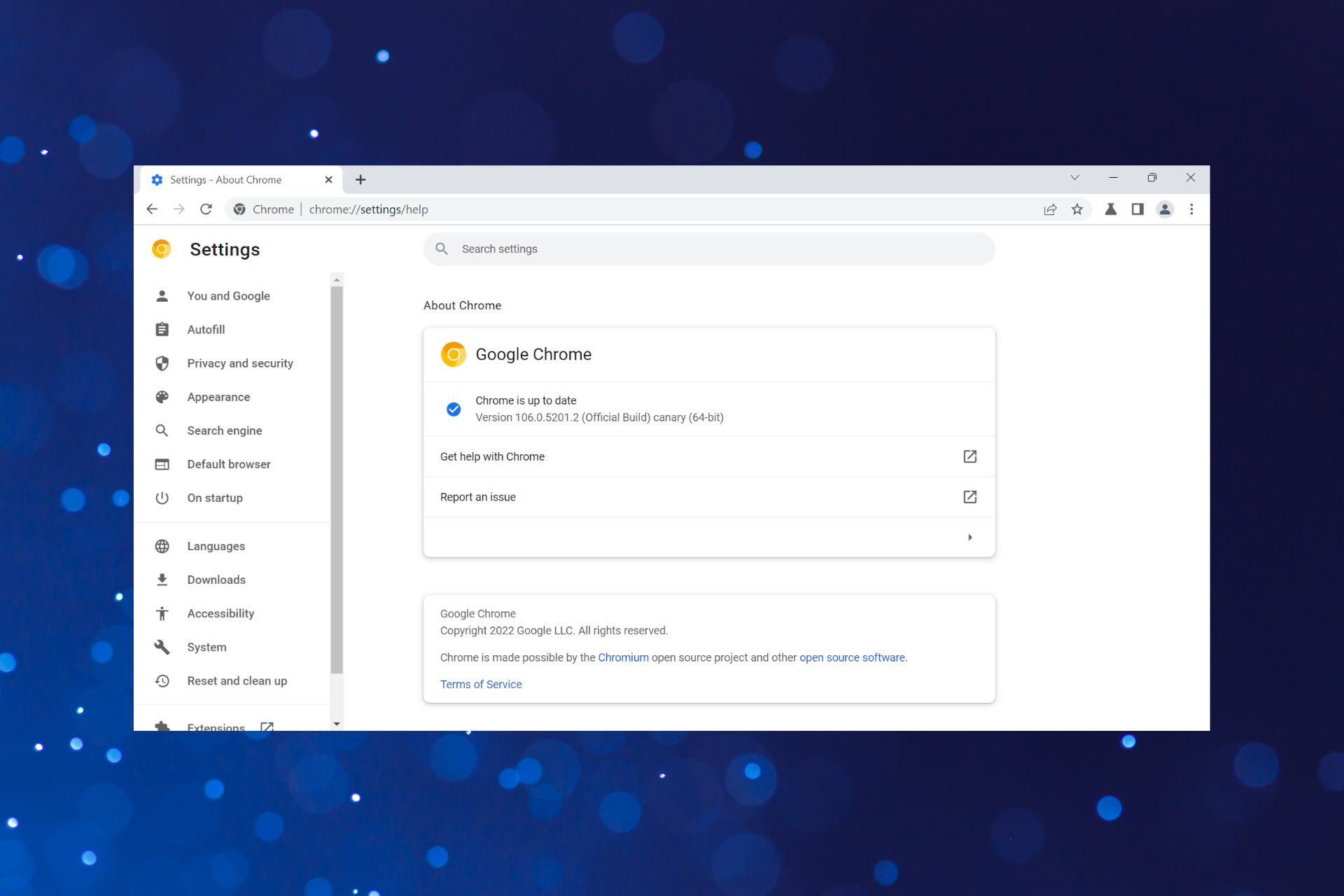

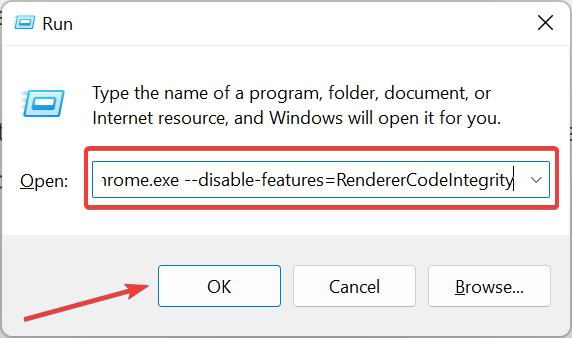
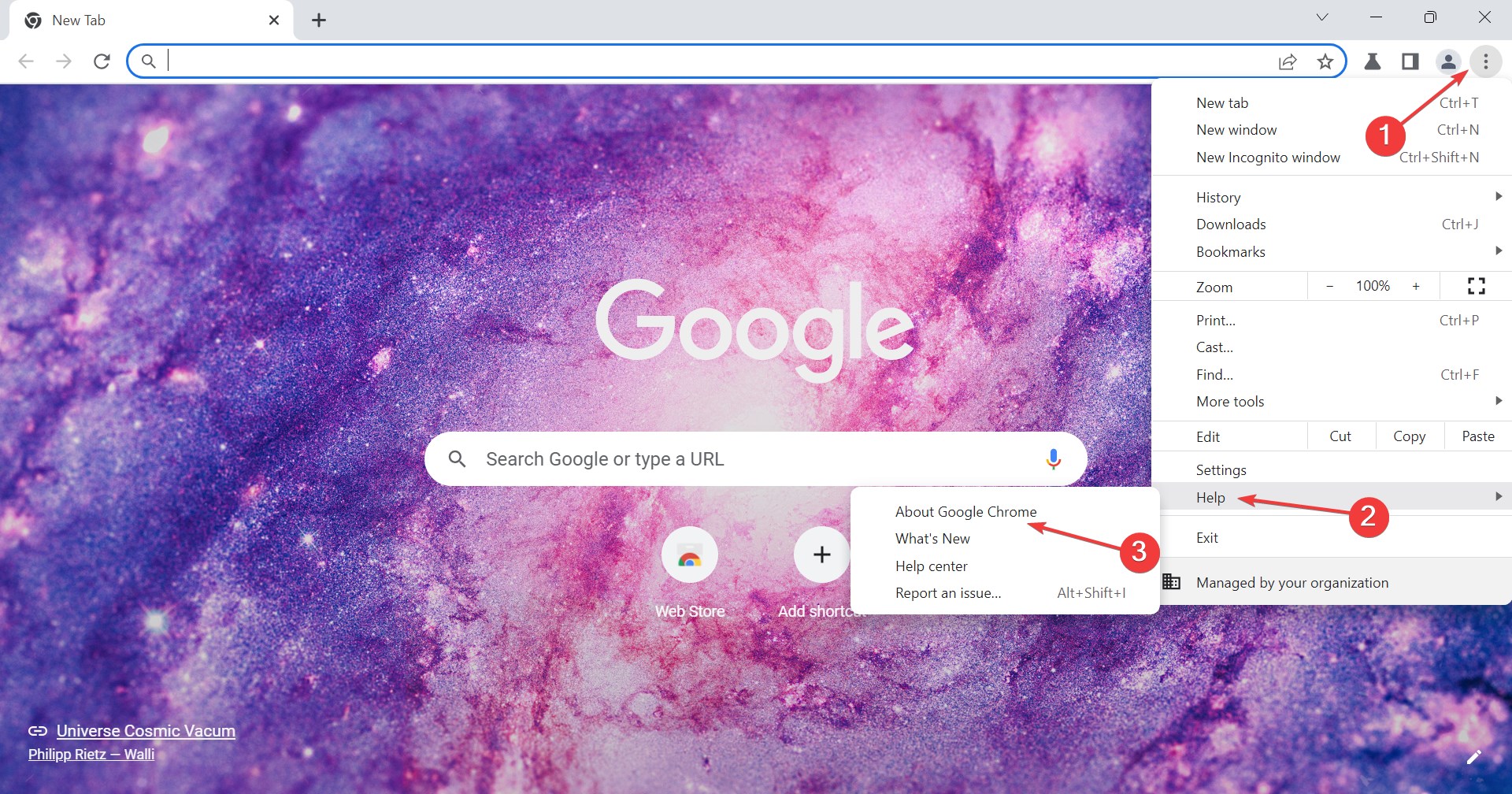
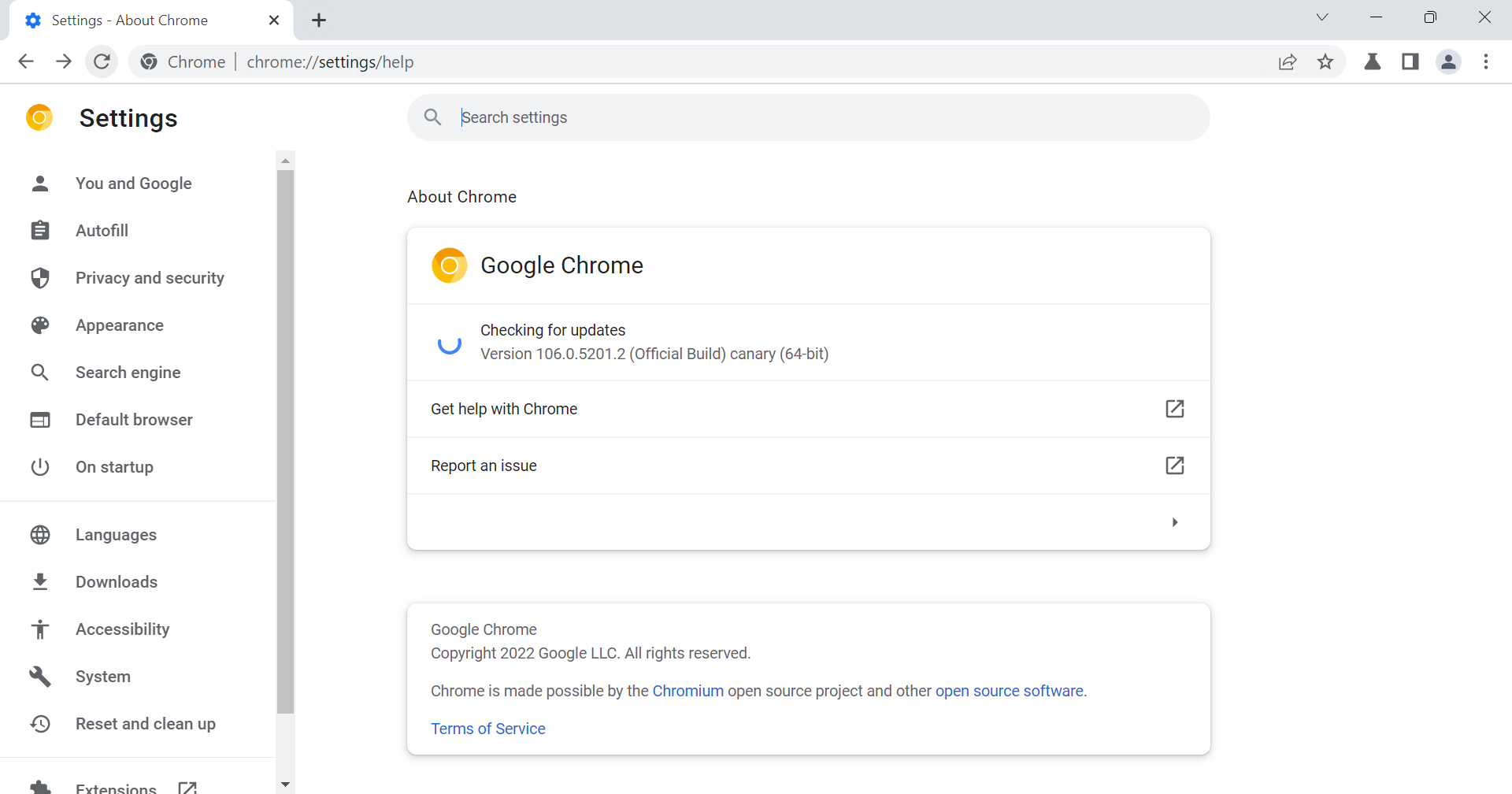
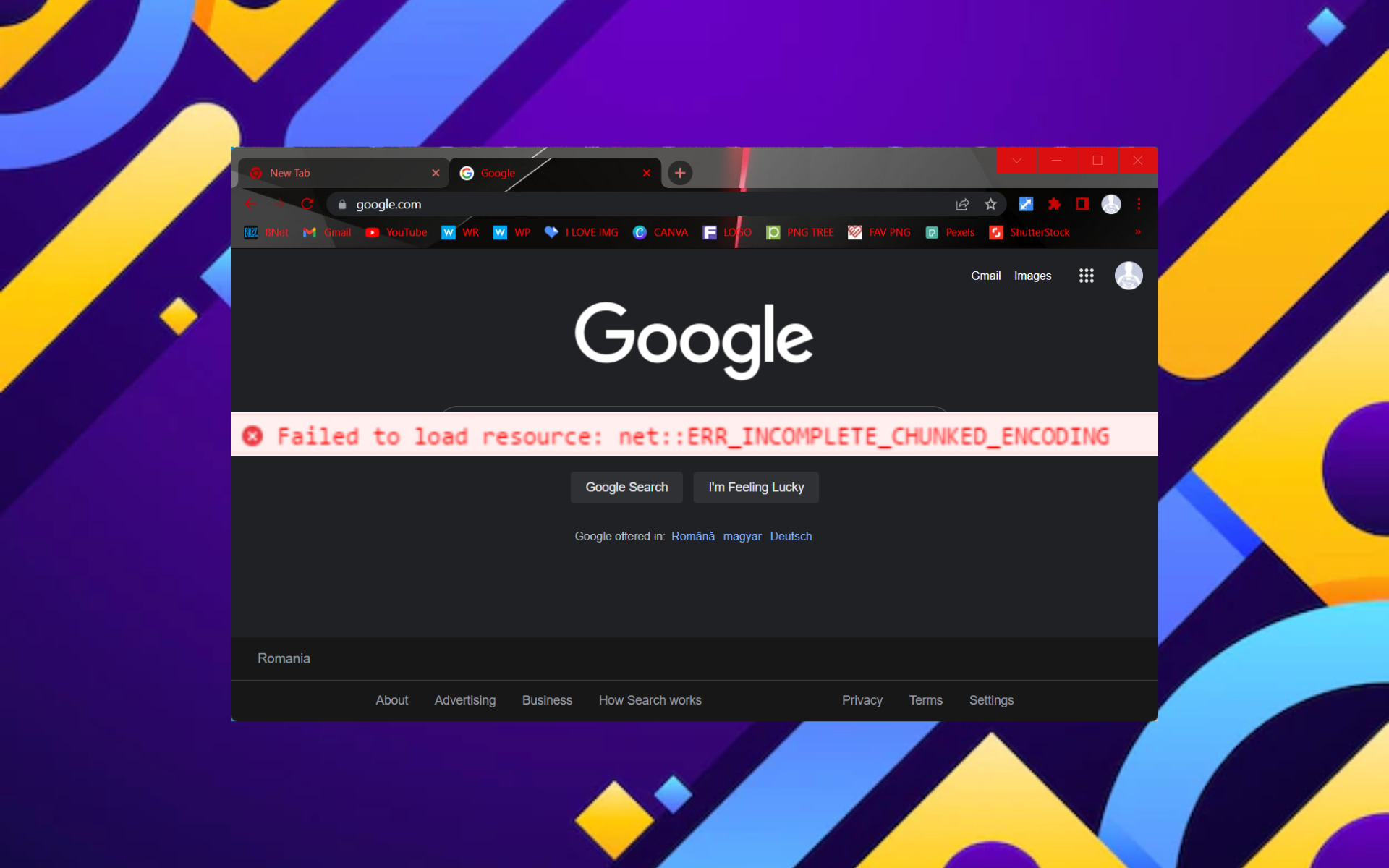


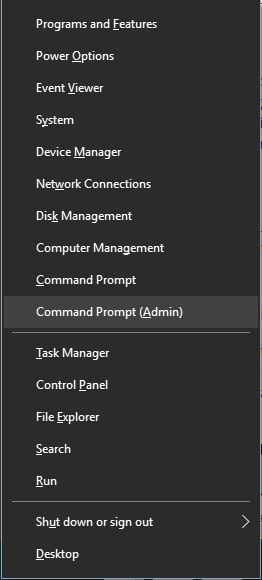
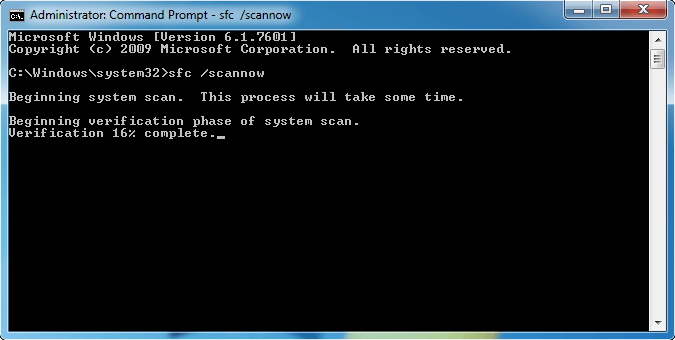
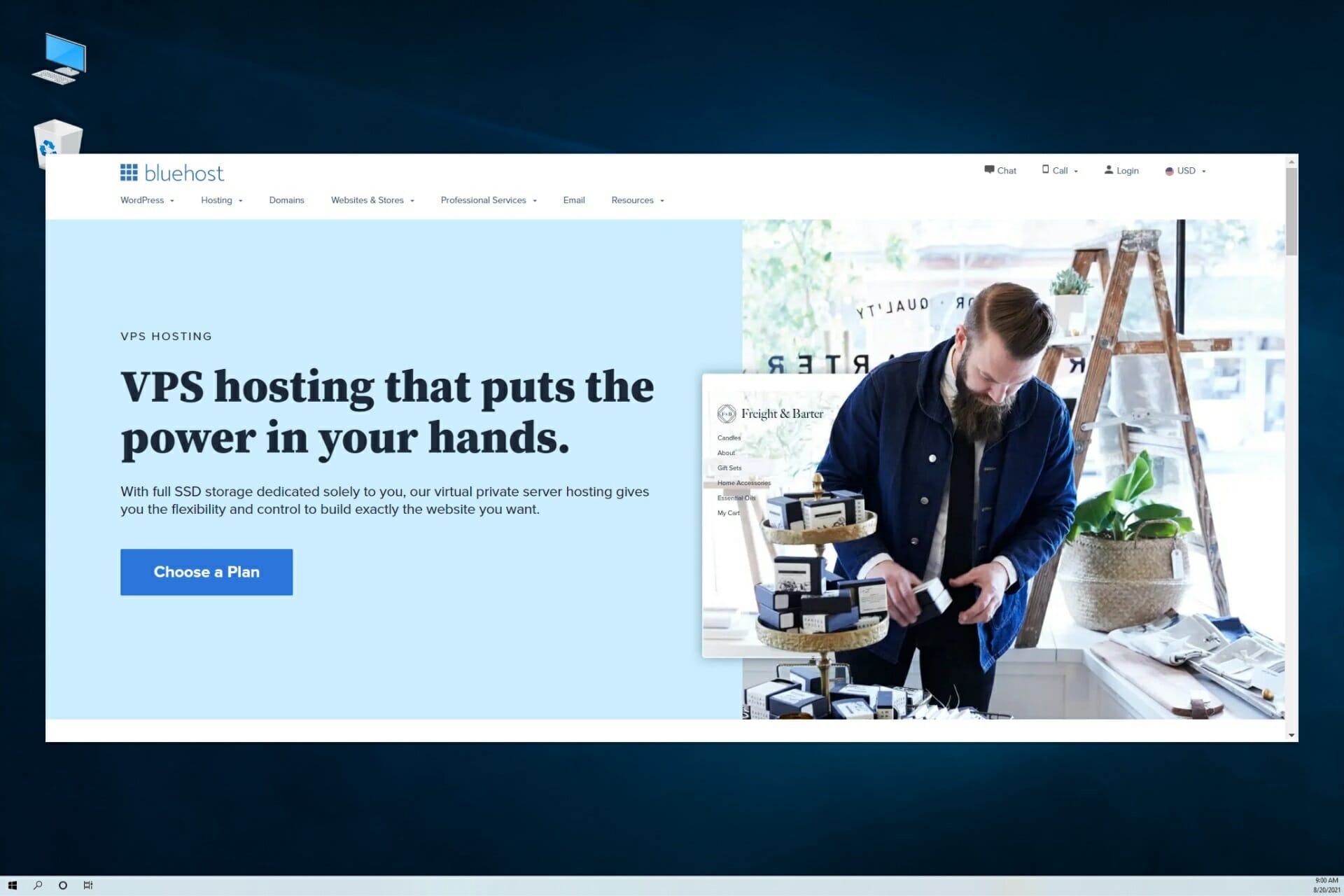





















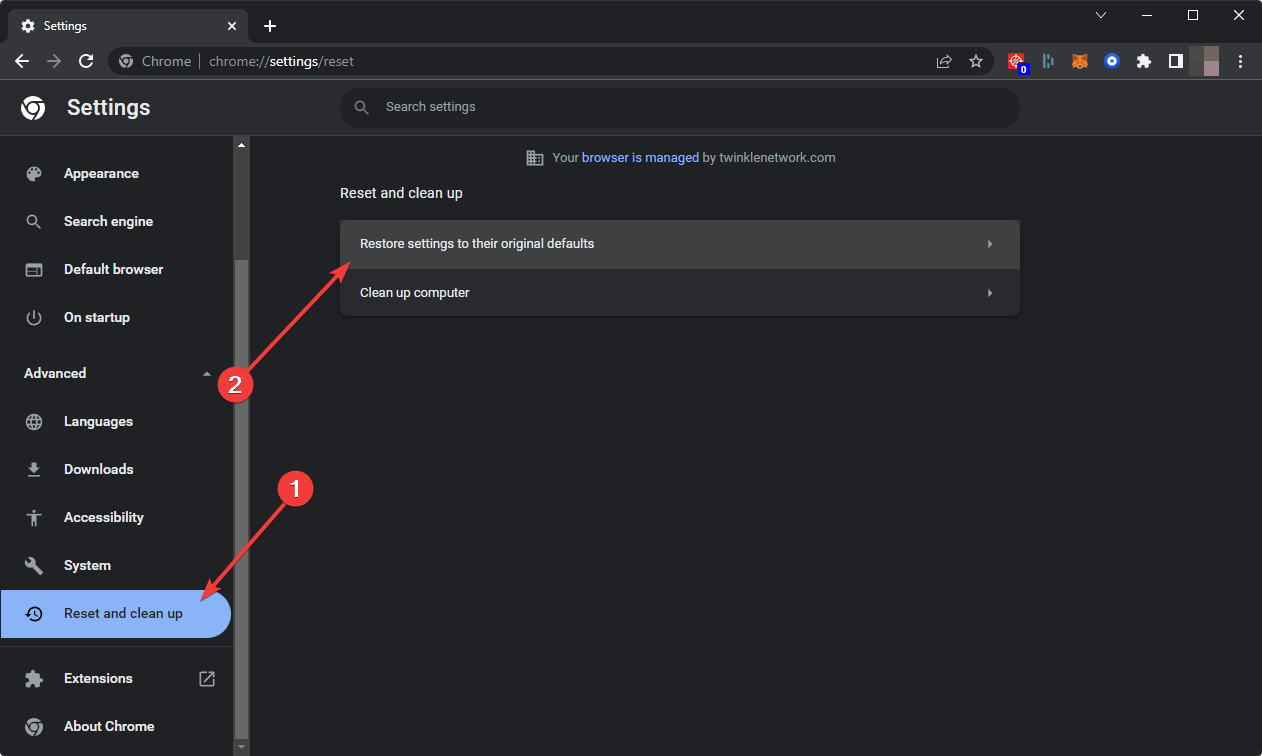


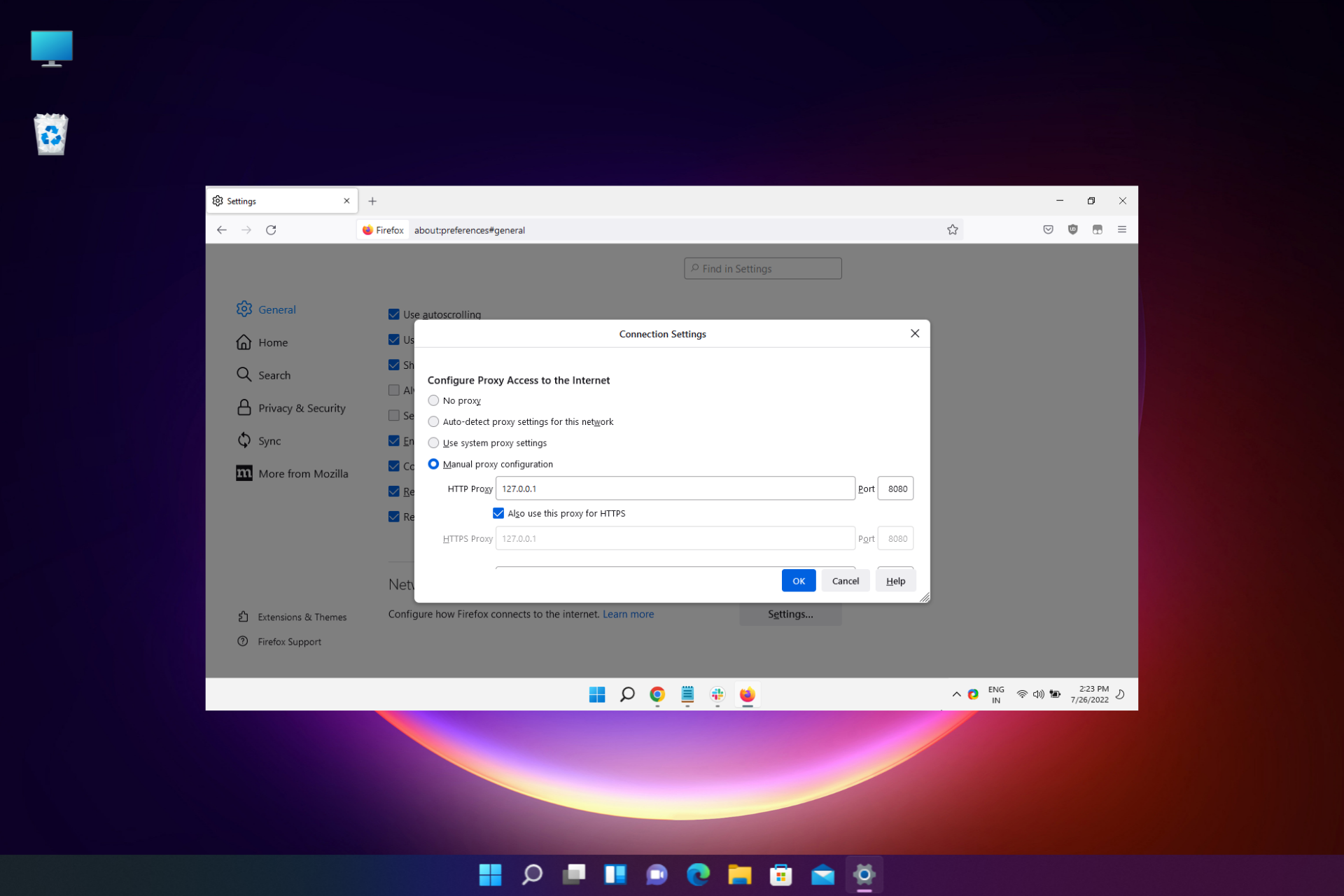
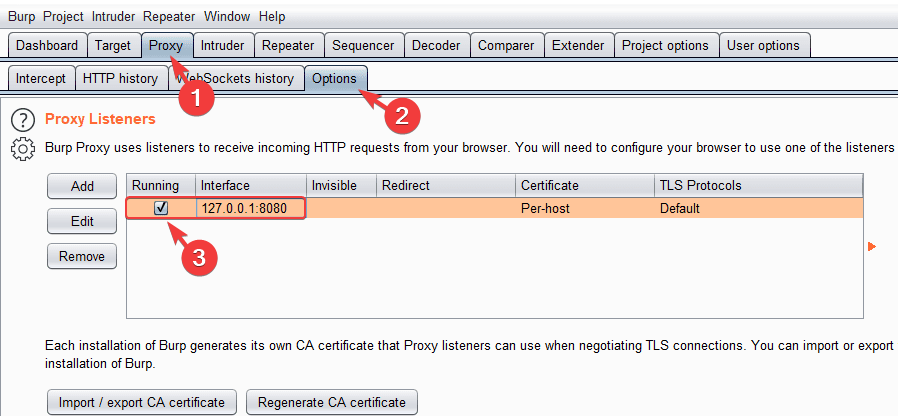
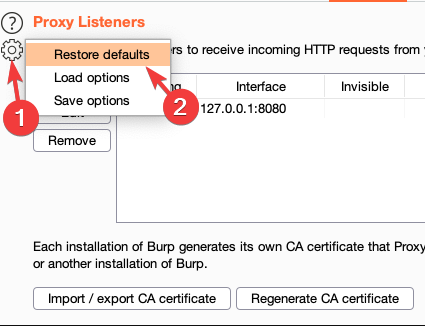
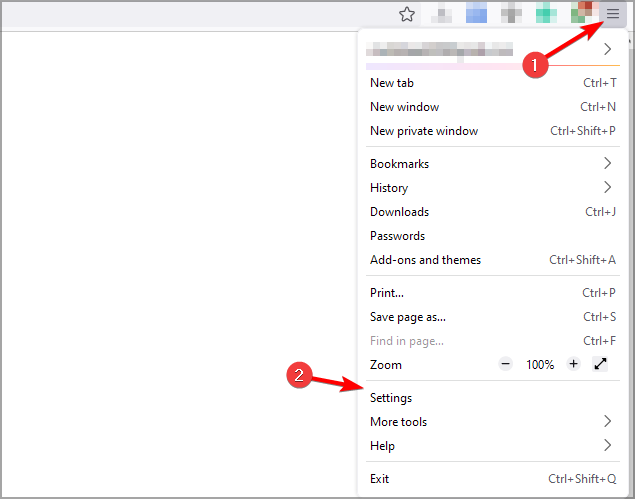
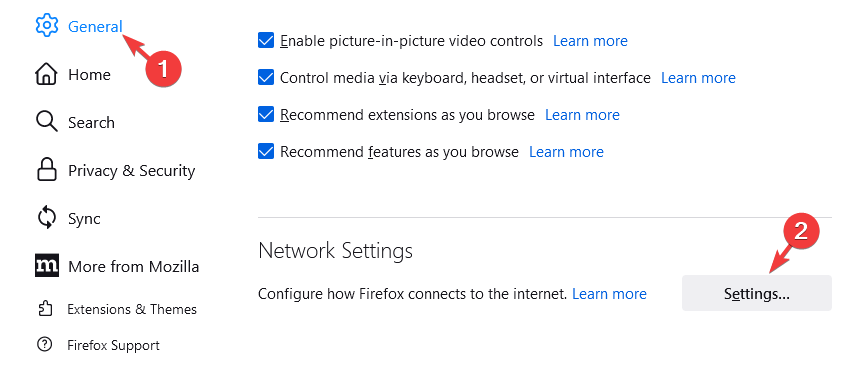
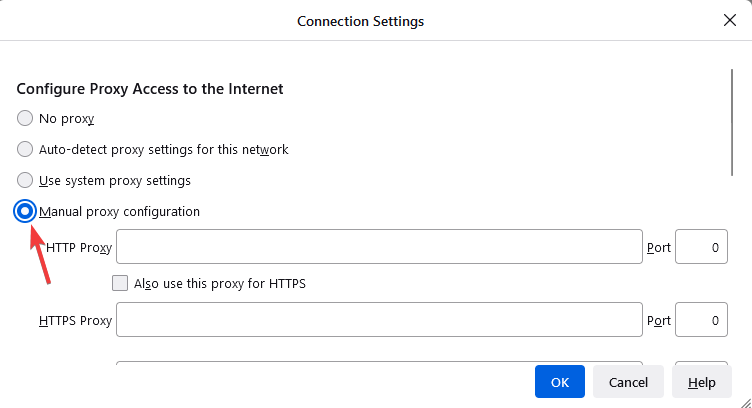
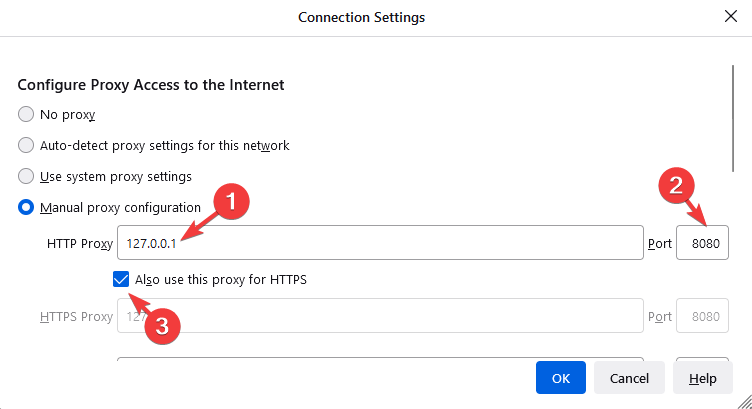
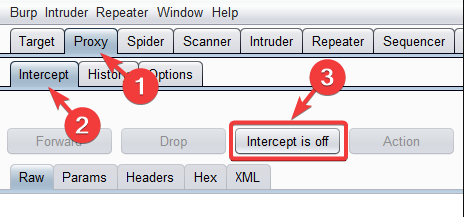
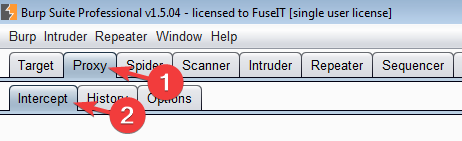
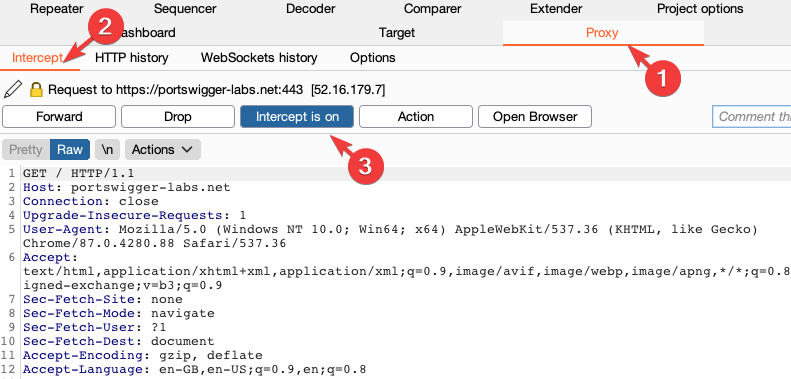

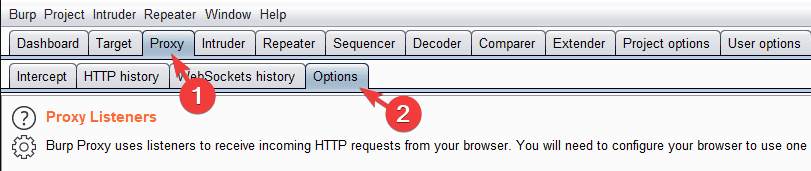
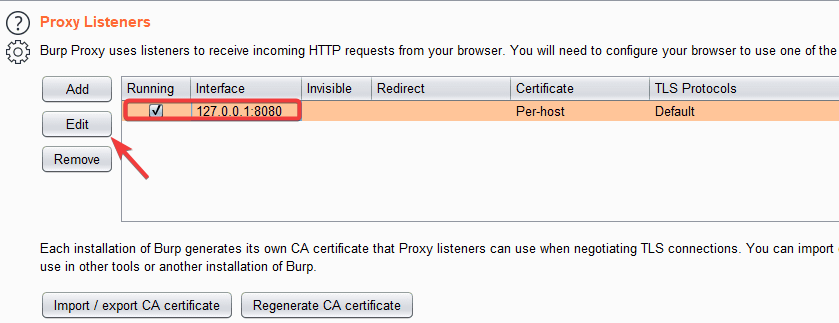
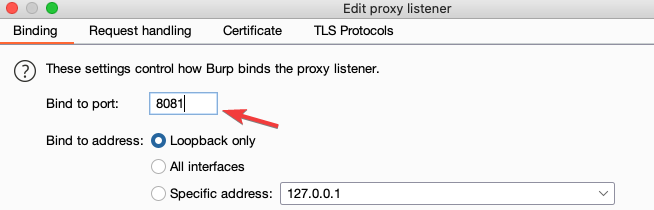
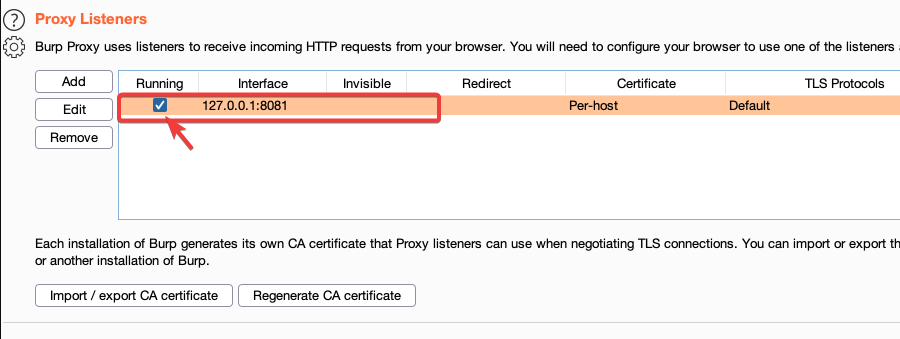
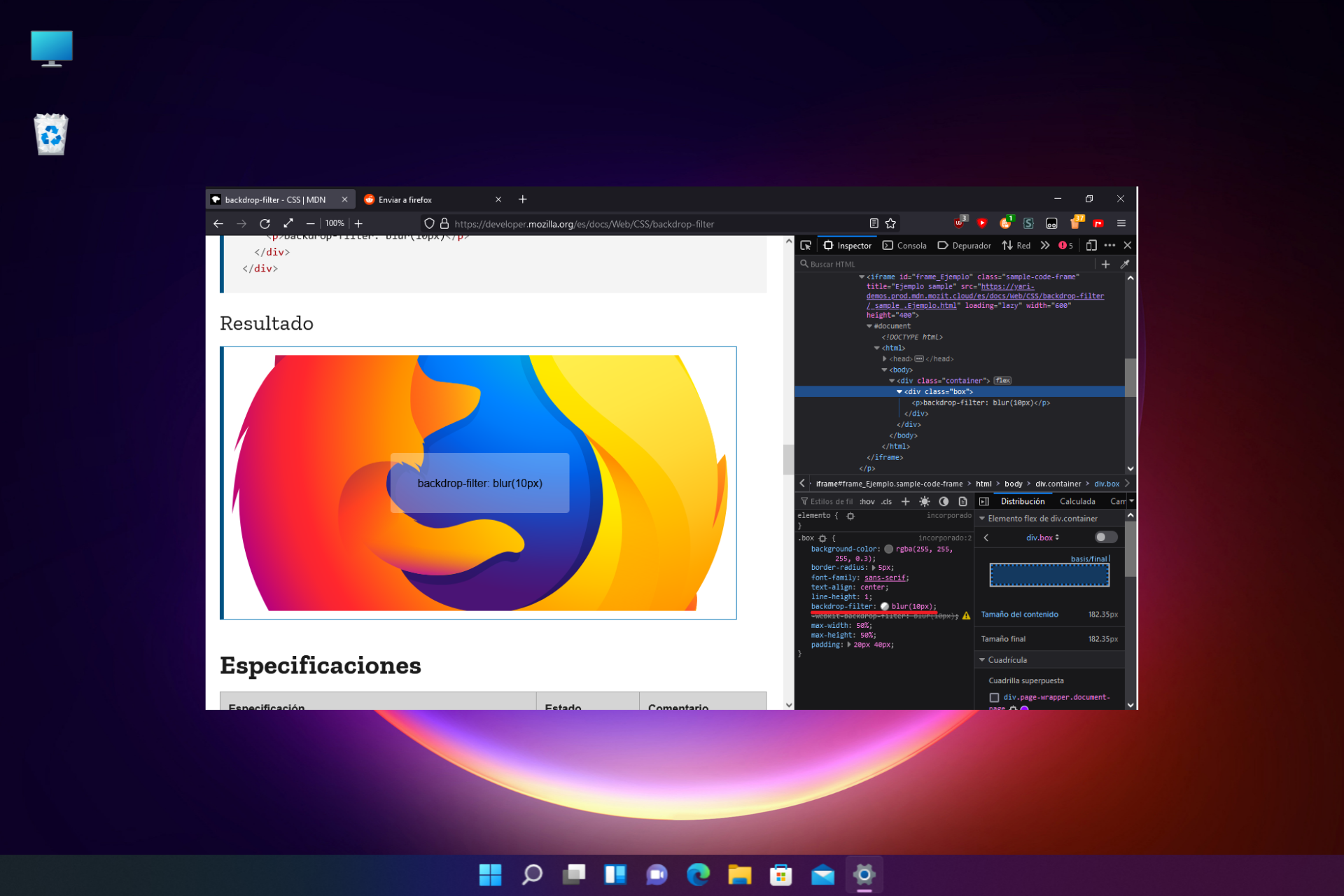
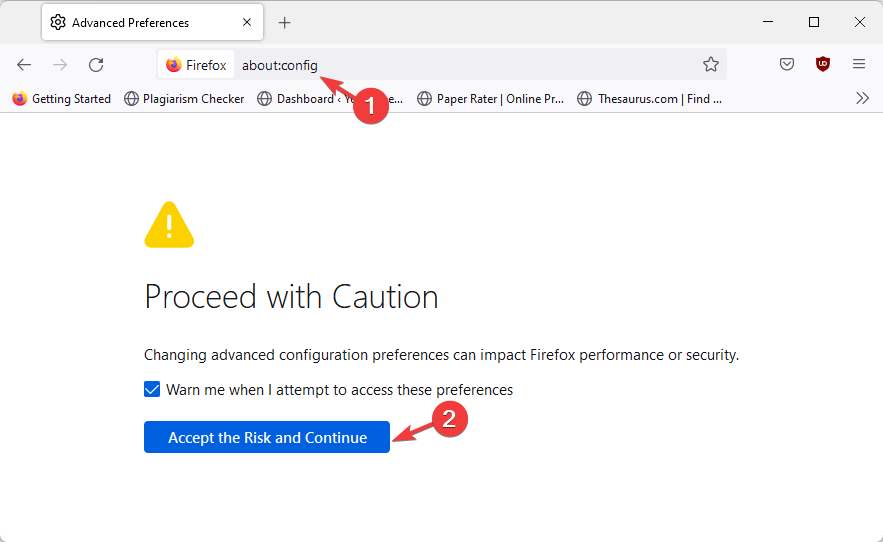
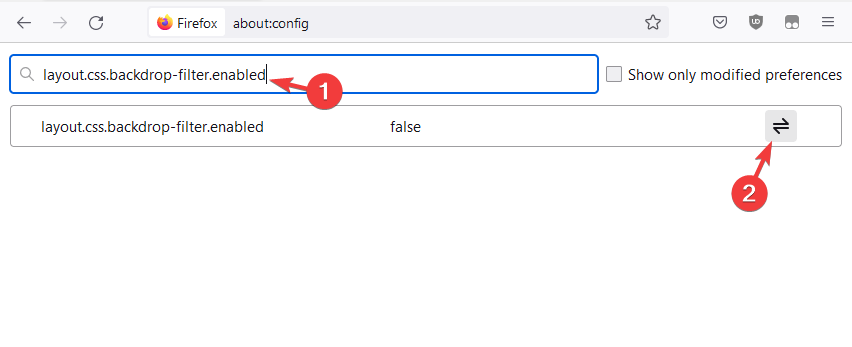
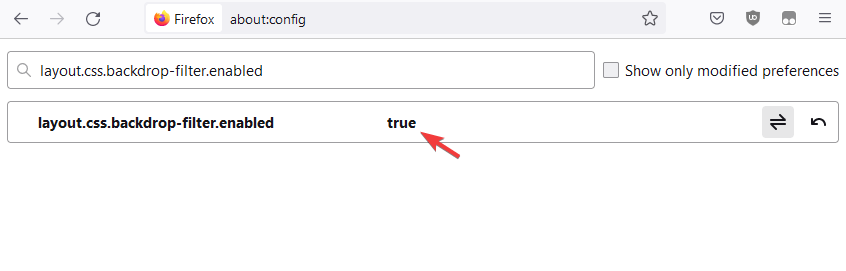
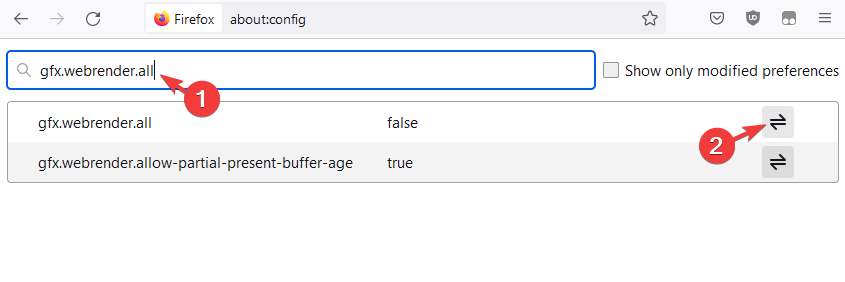
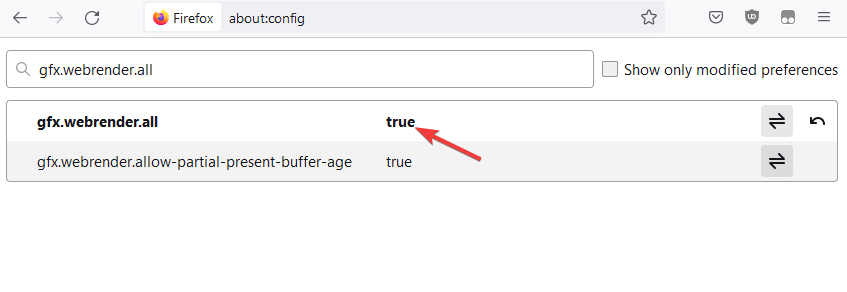
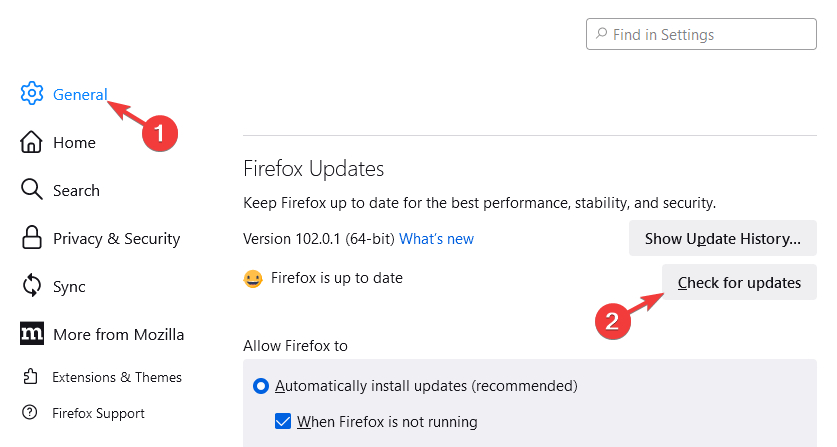
![8 Best Online & Offline Tank Games for PC [Free to Play]](https://windowsreport.com/wp-content/uploads/2017/11/tank-games.jpg)










![6 Best Browsers For Enterprise [Ranked By Speed & Security]](https://windowsreport.com/wp-content/uploads/2022/07/browser-opera.jpg)






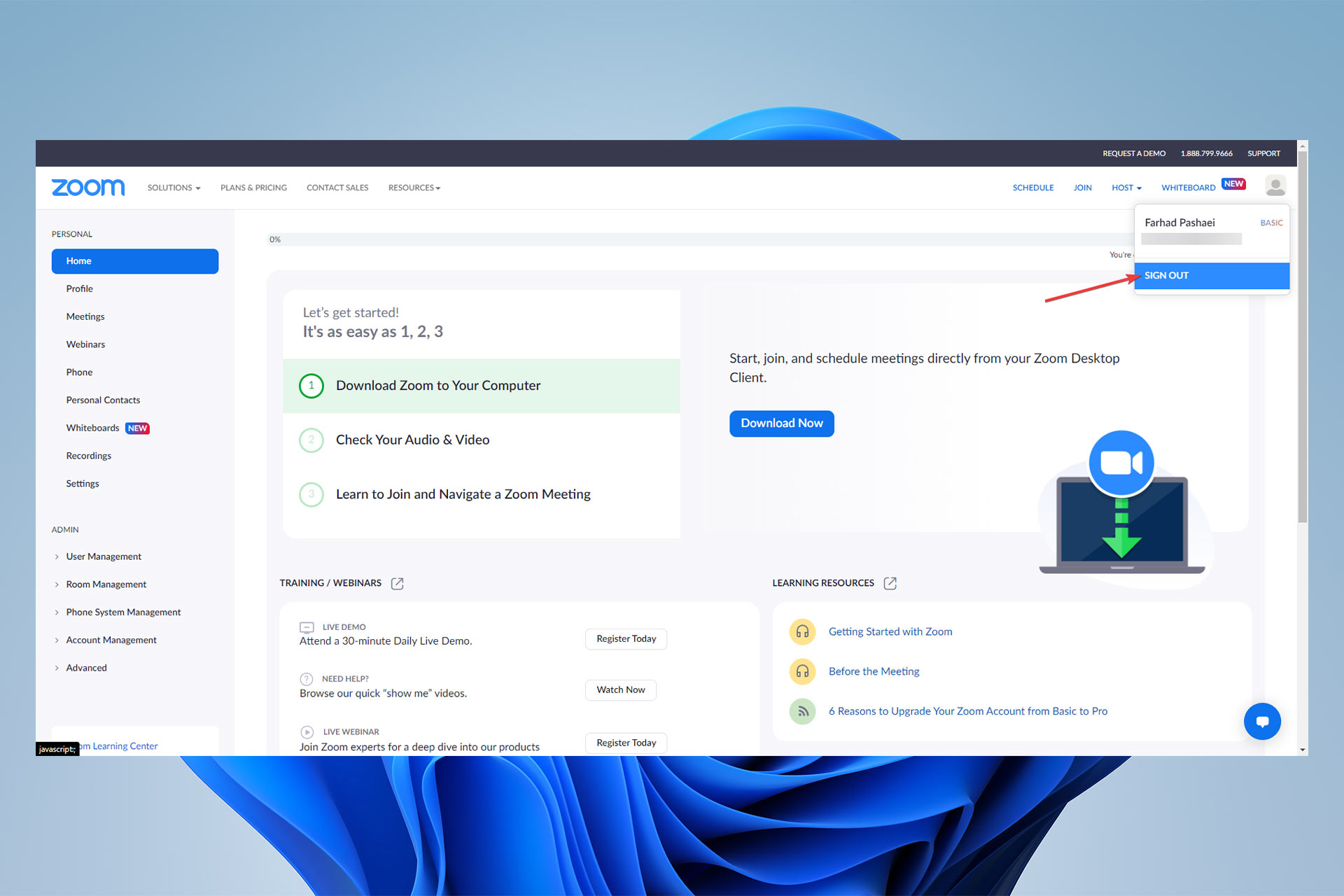

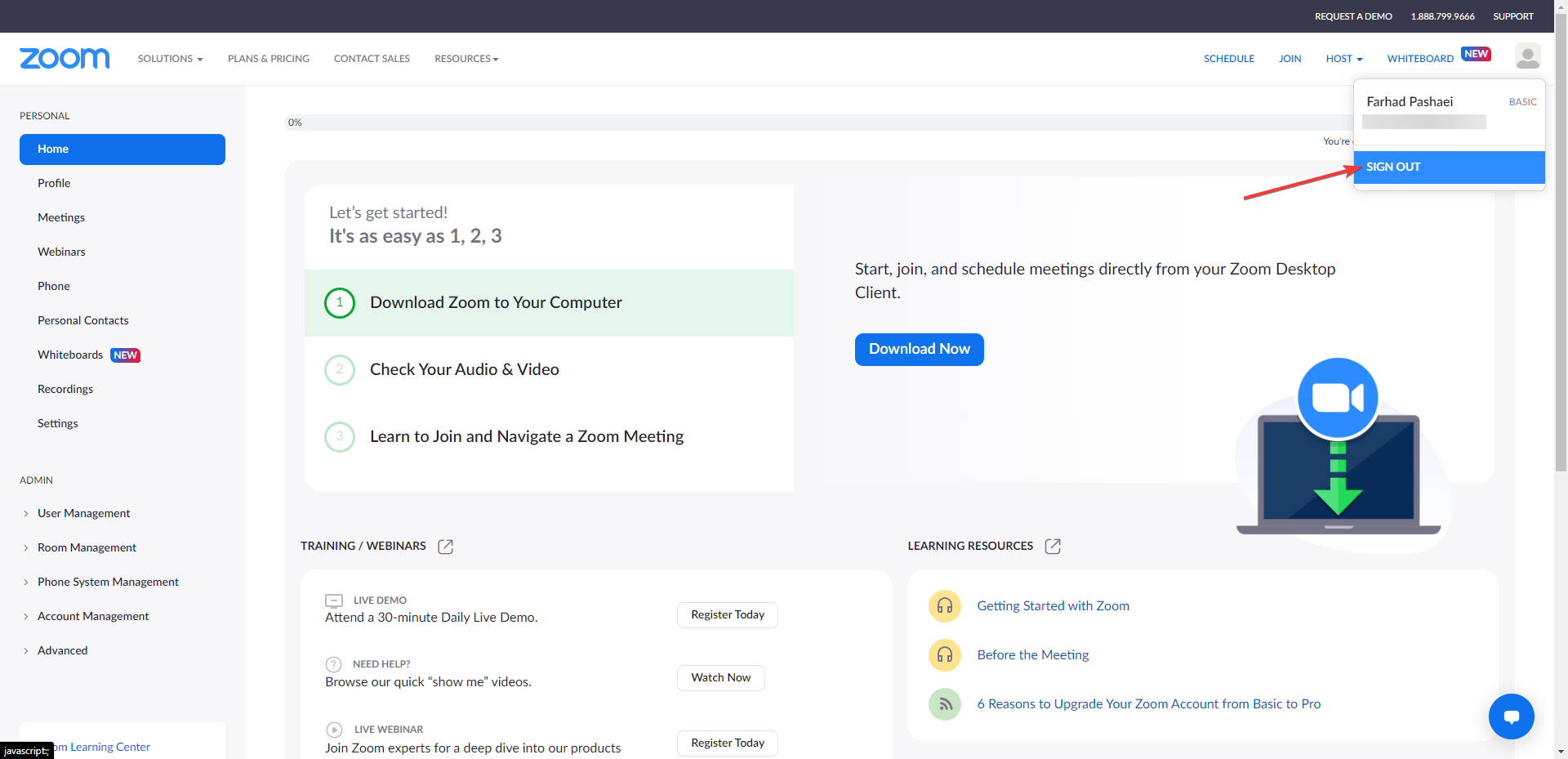
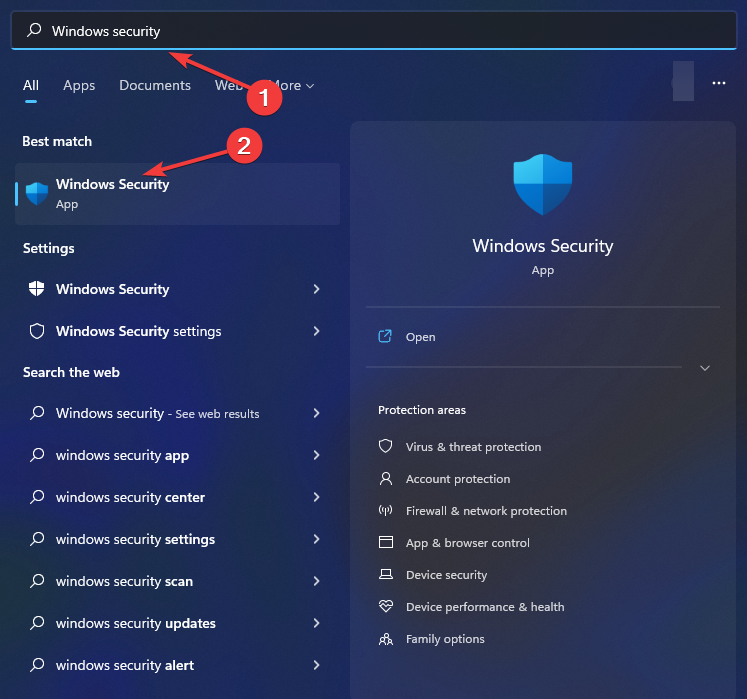
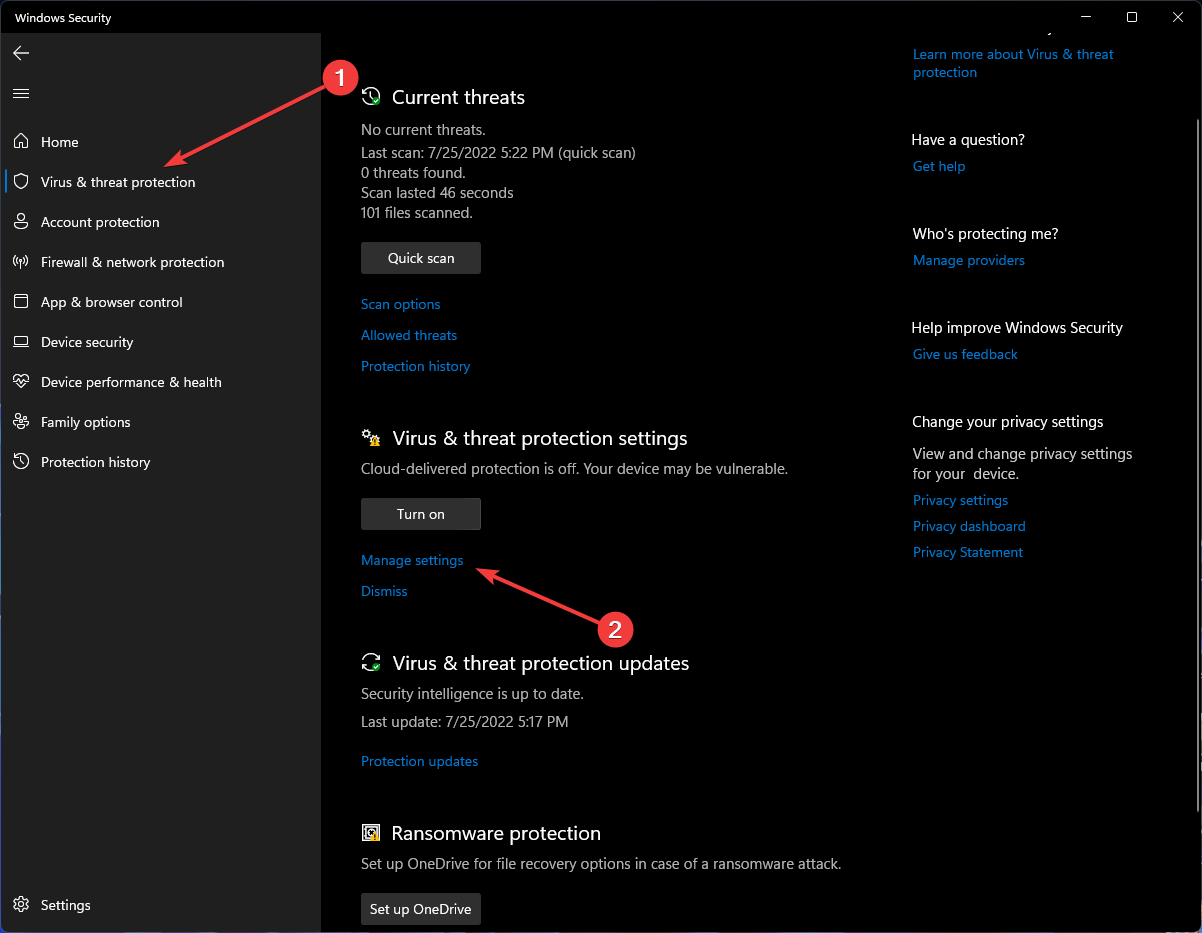
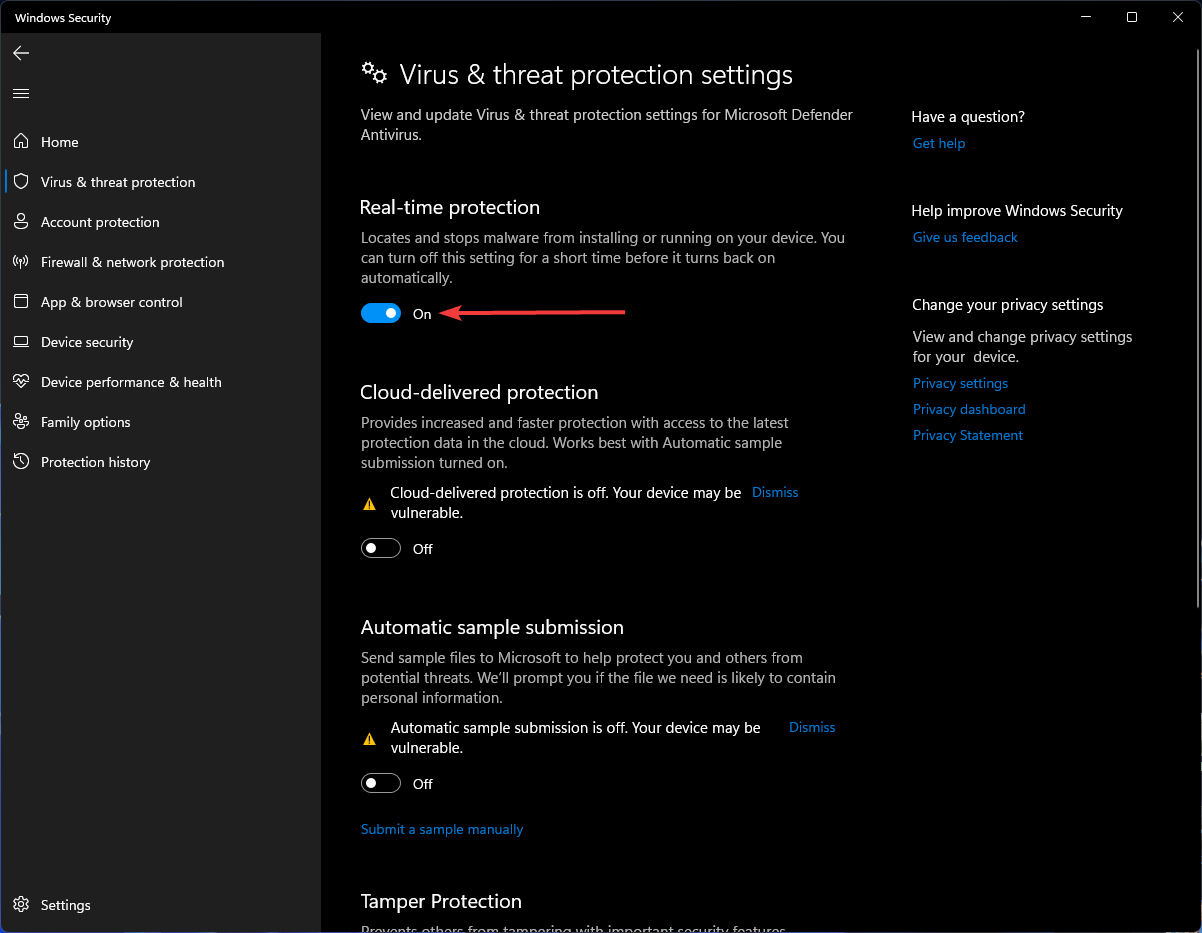
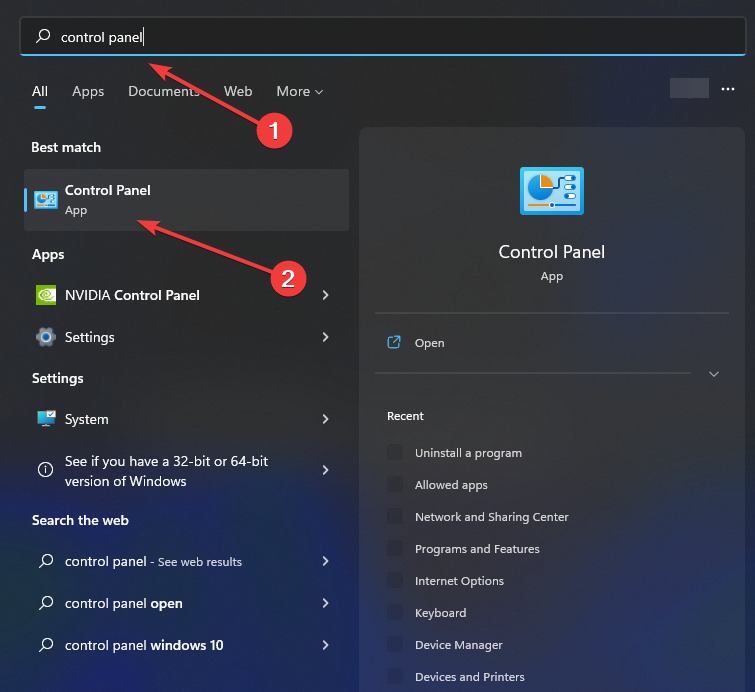
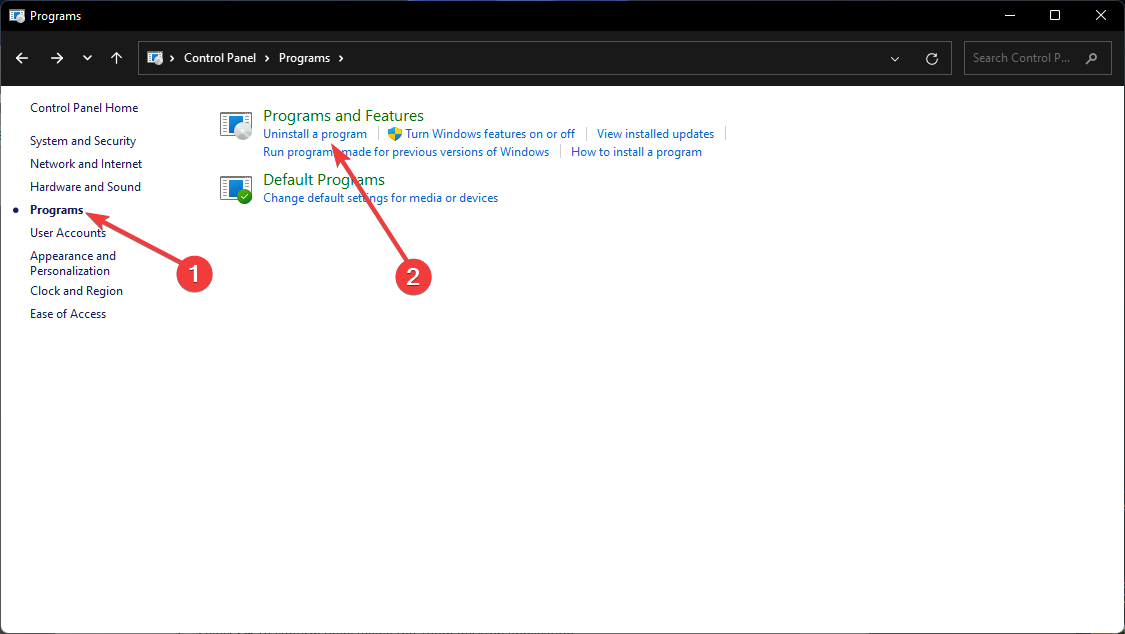
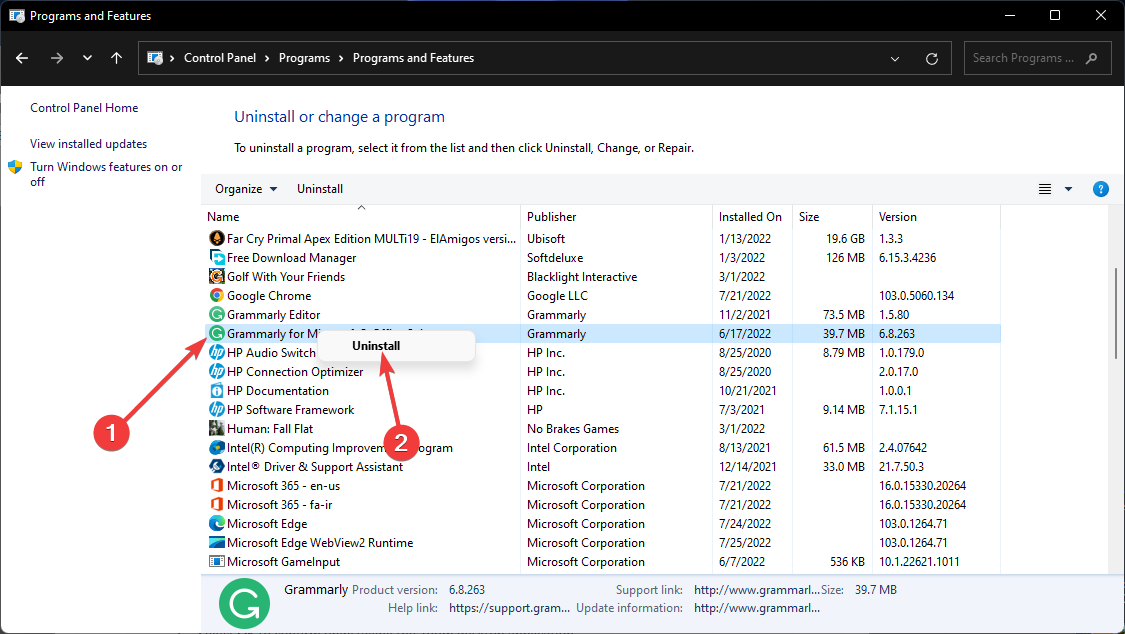
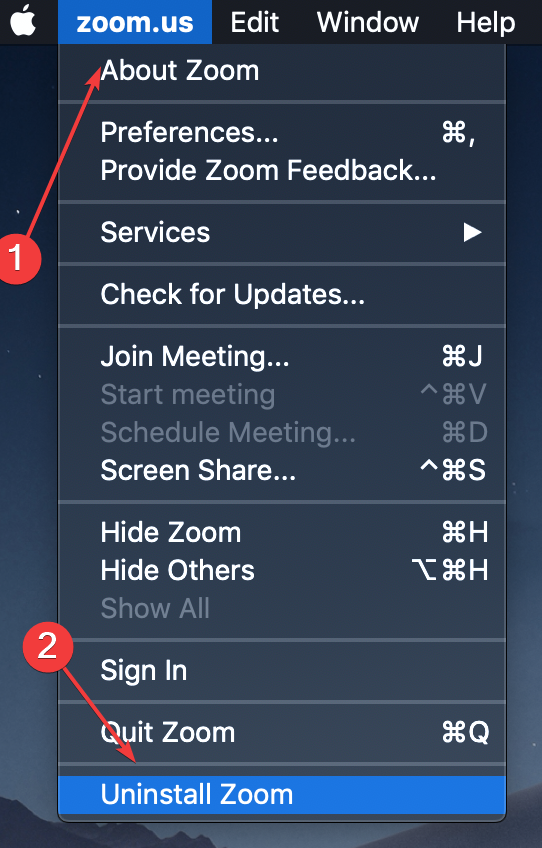
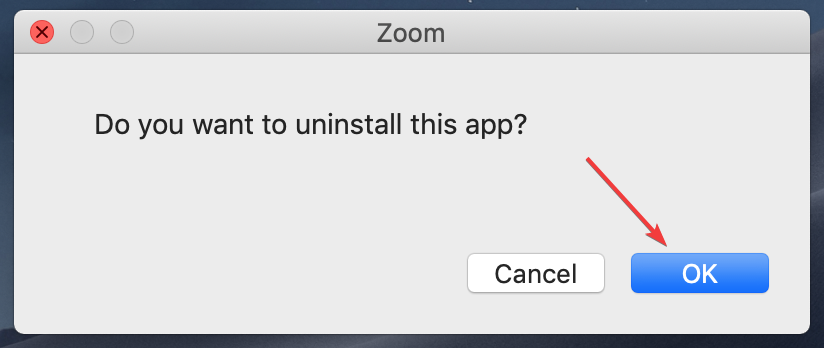





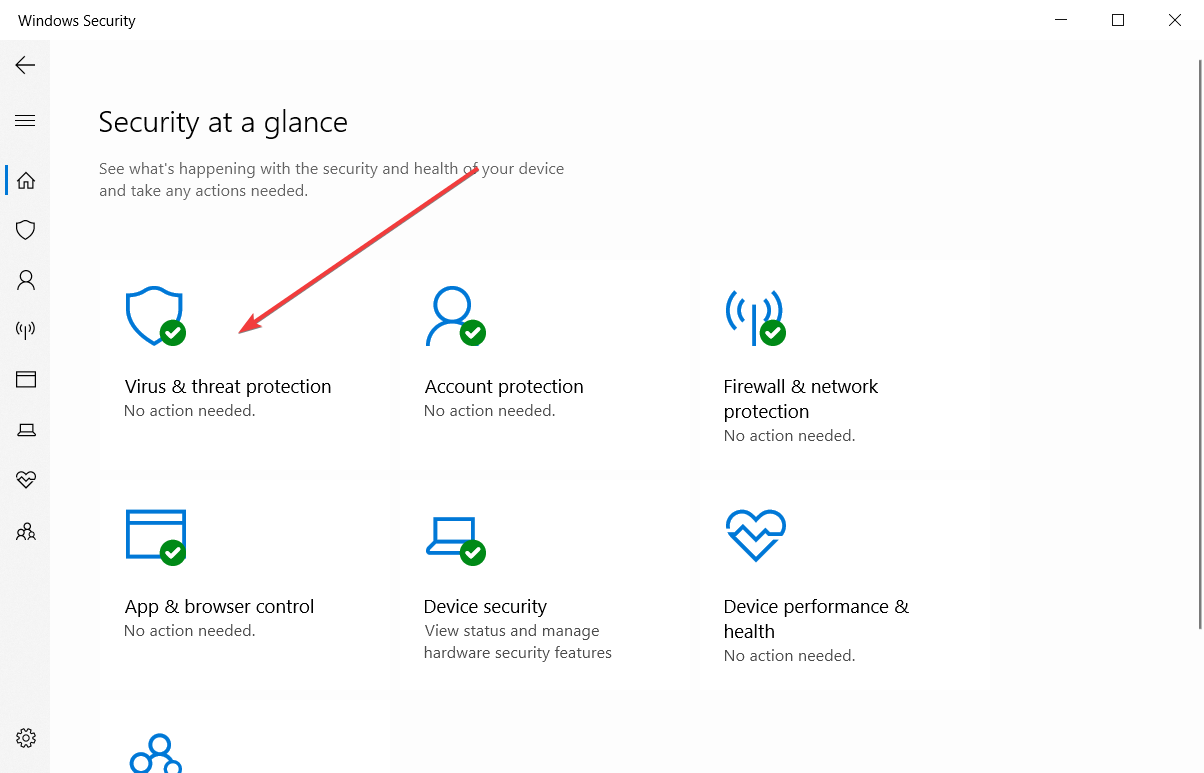
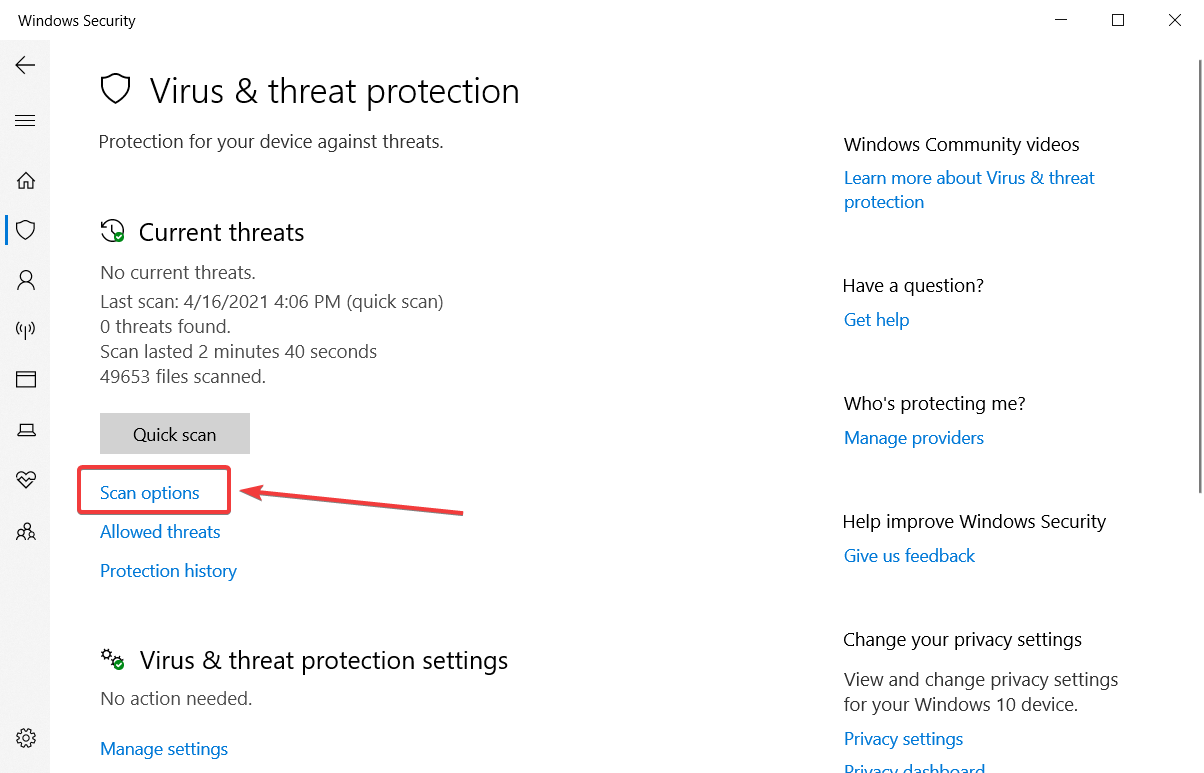
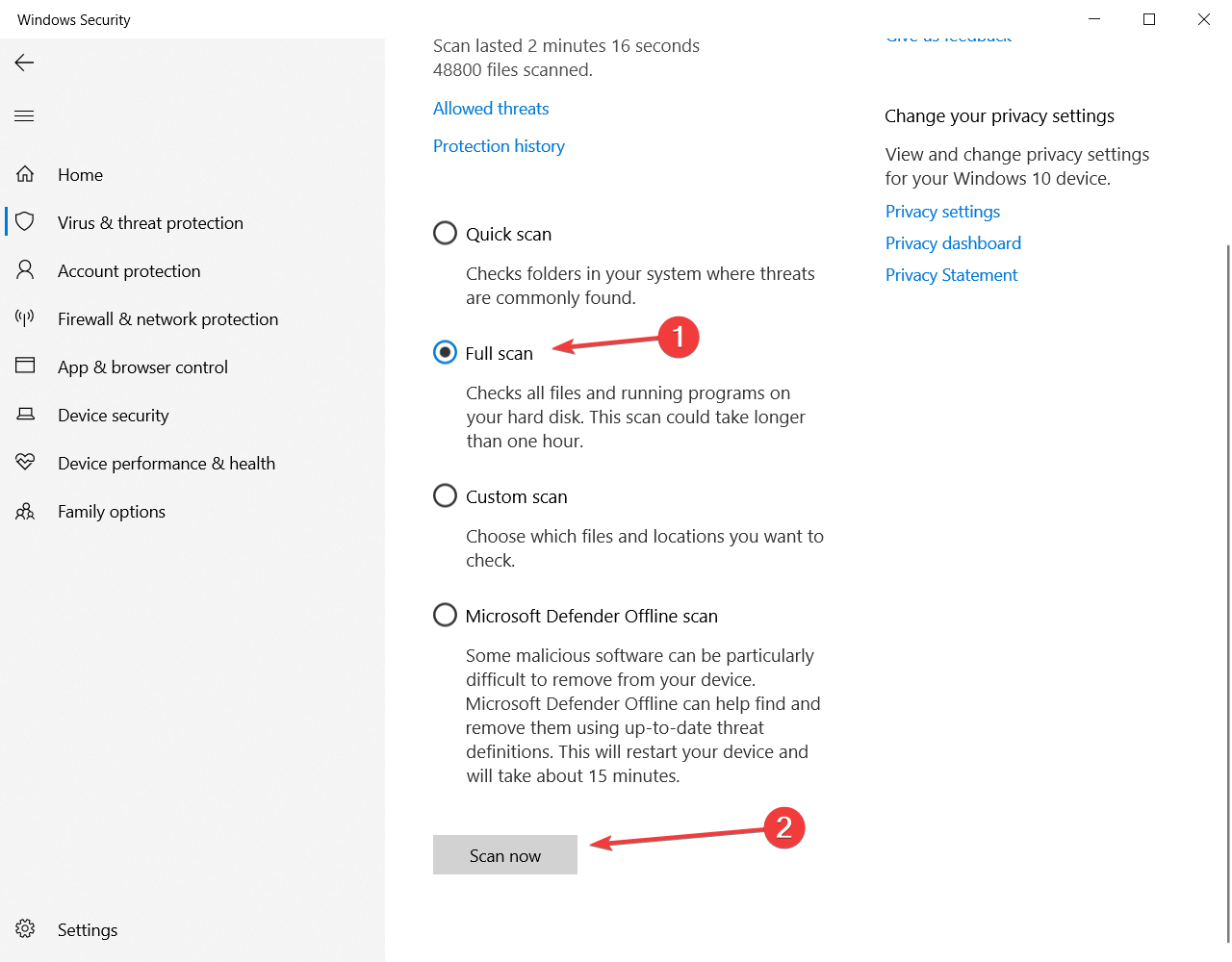
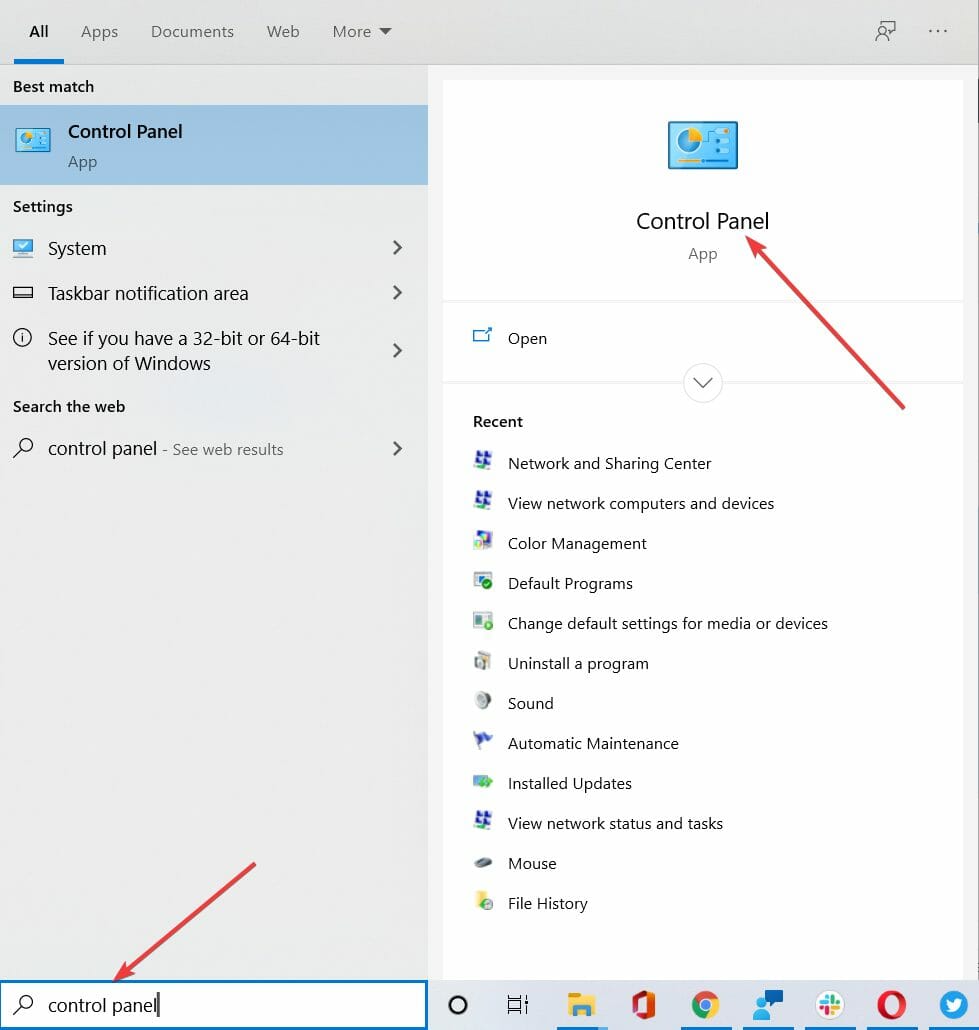
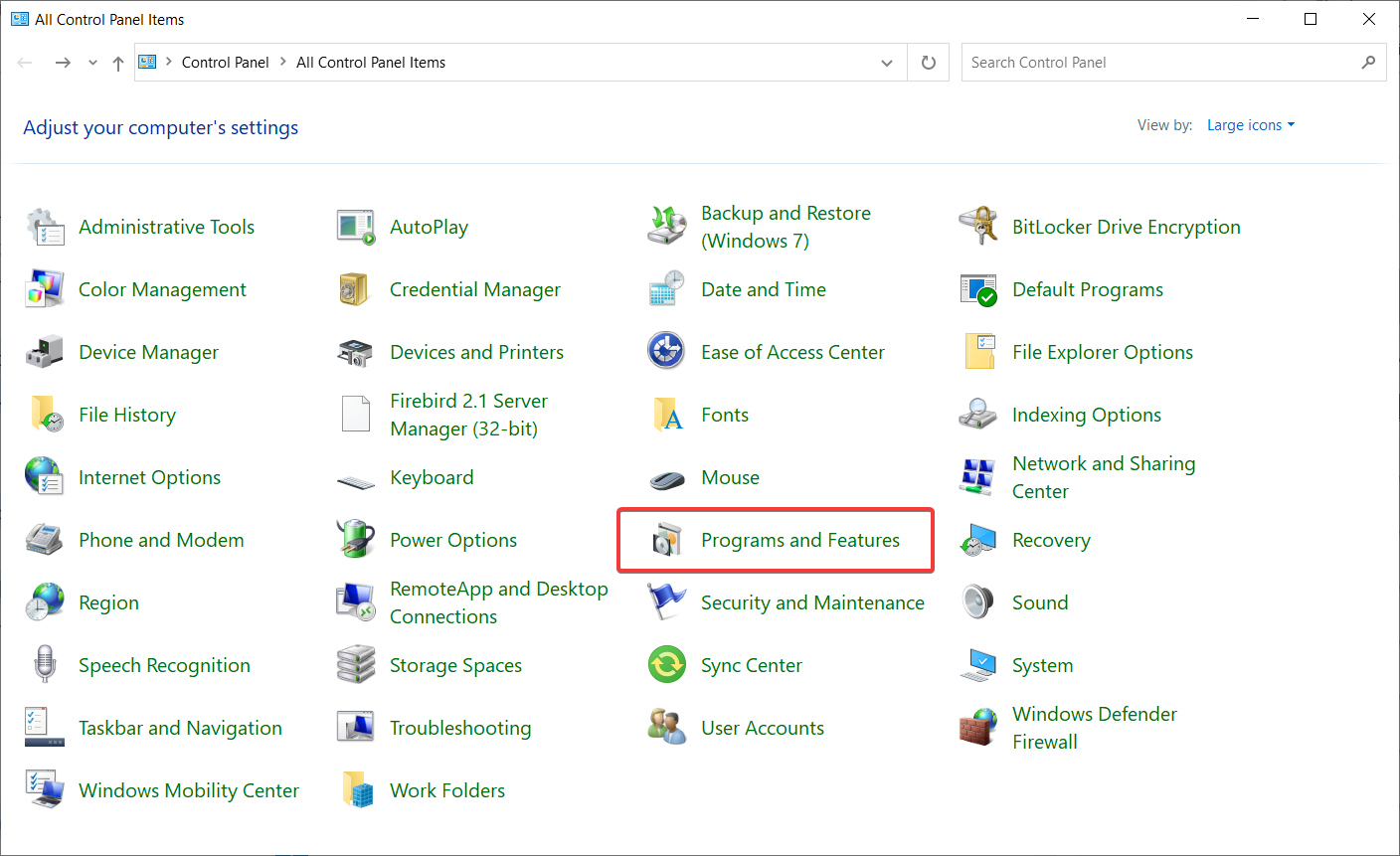
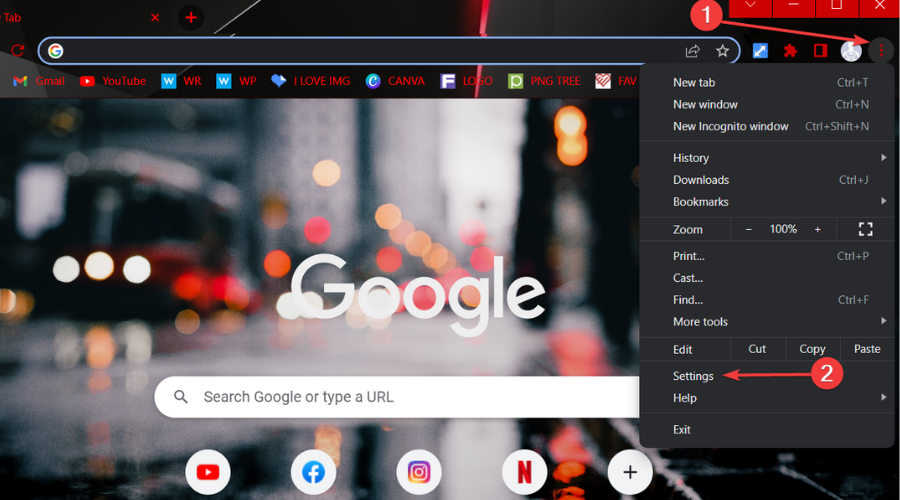
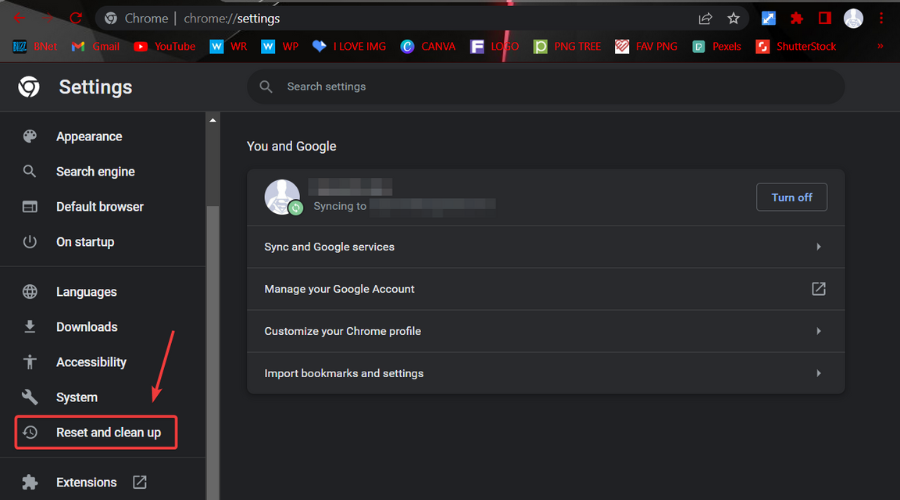
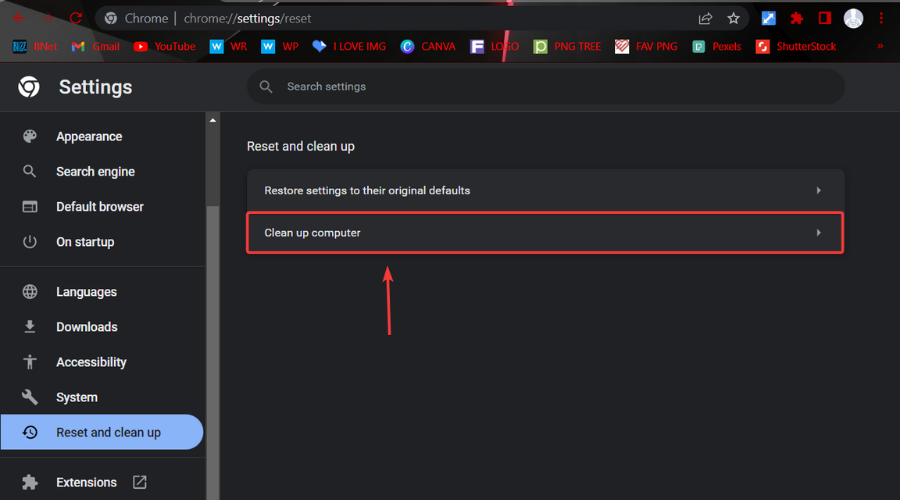
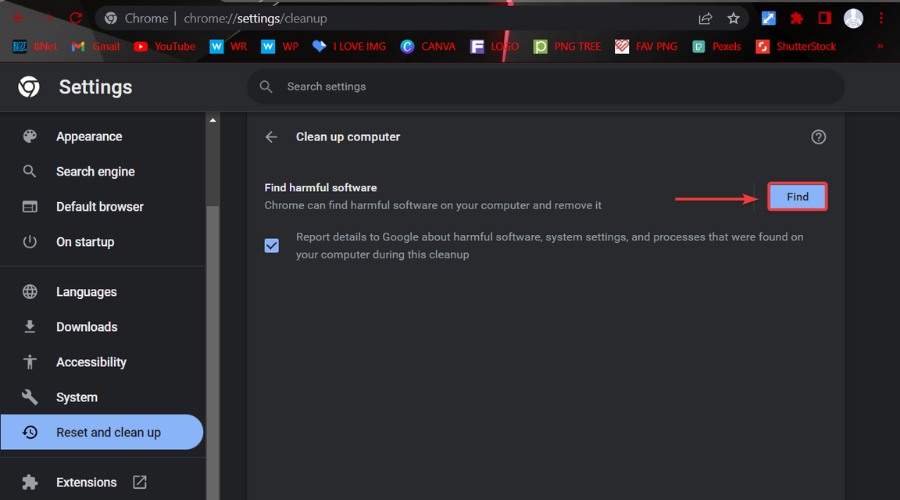
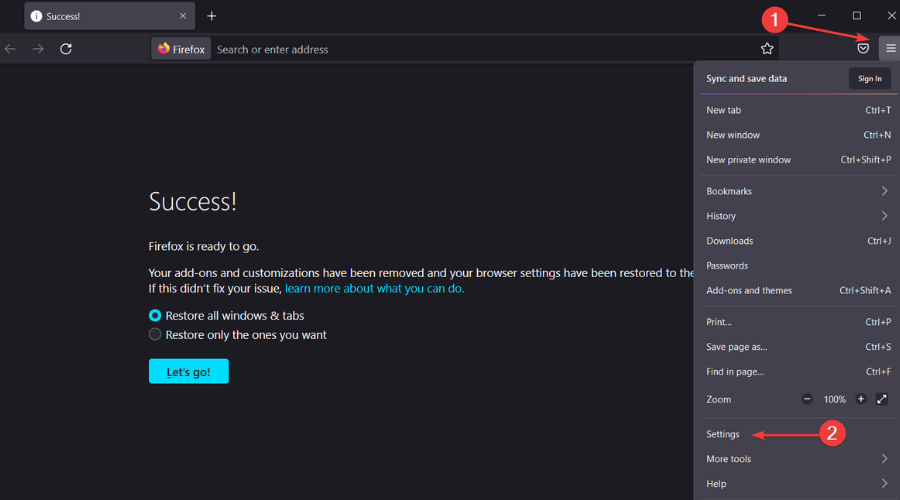
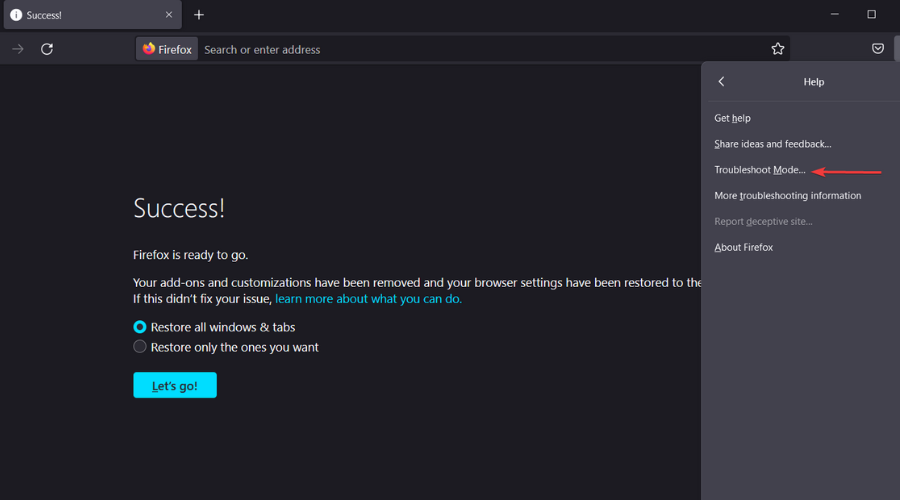
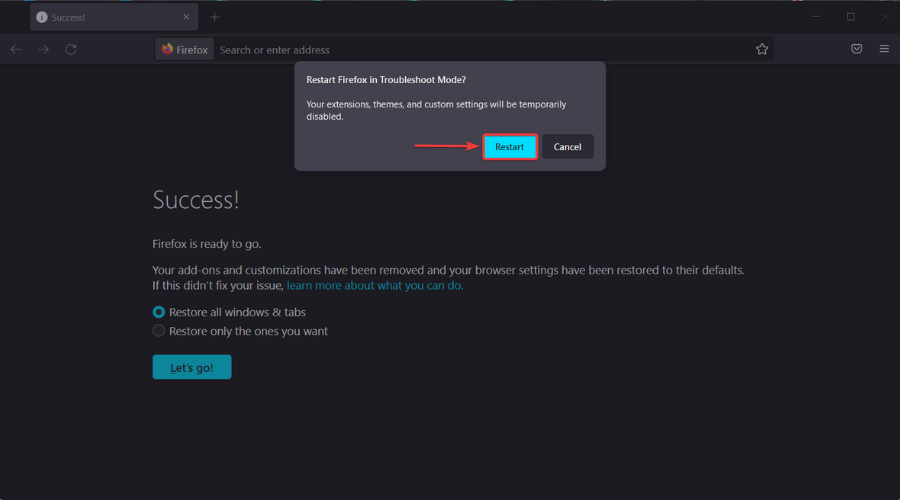
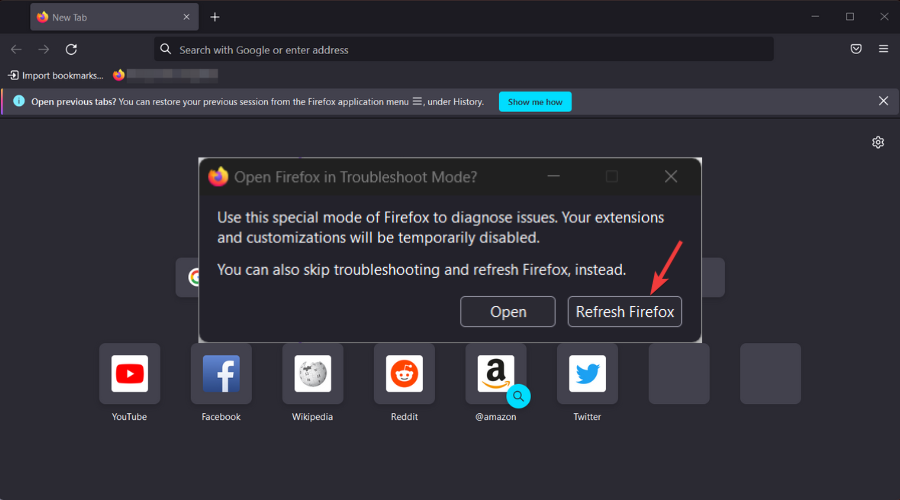
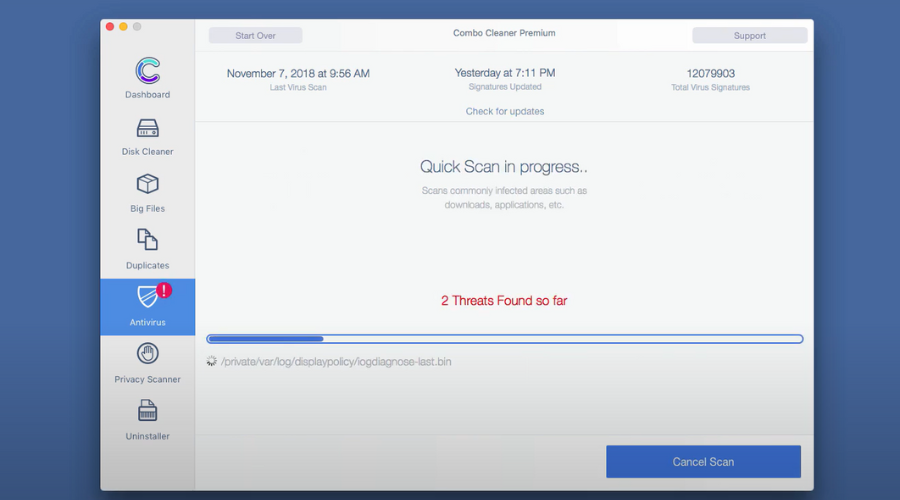
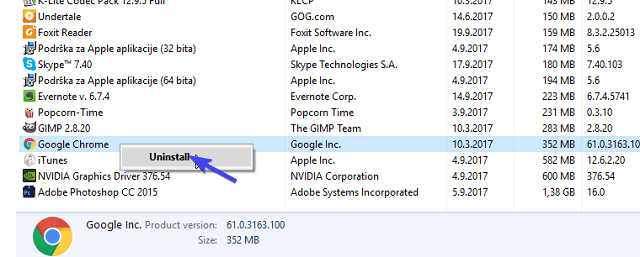




![10 Best Themes for Opera Browser [Download & Install]](https://windowsreport.com/wp-content/uploads/2022/07/best-browser-for-google-workspace-42.jpg)
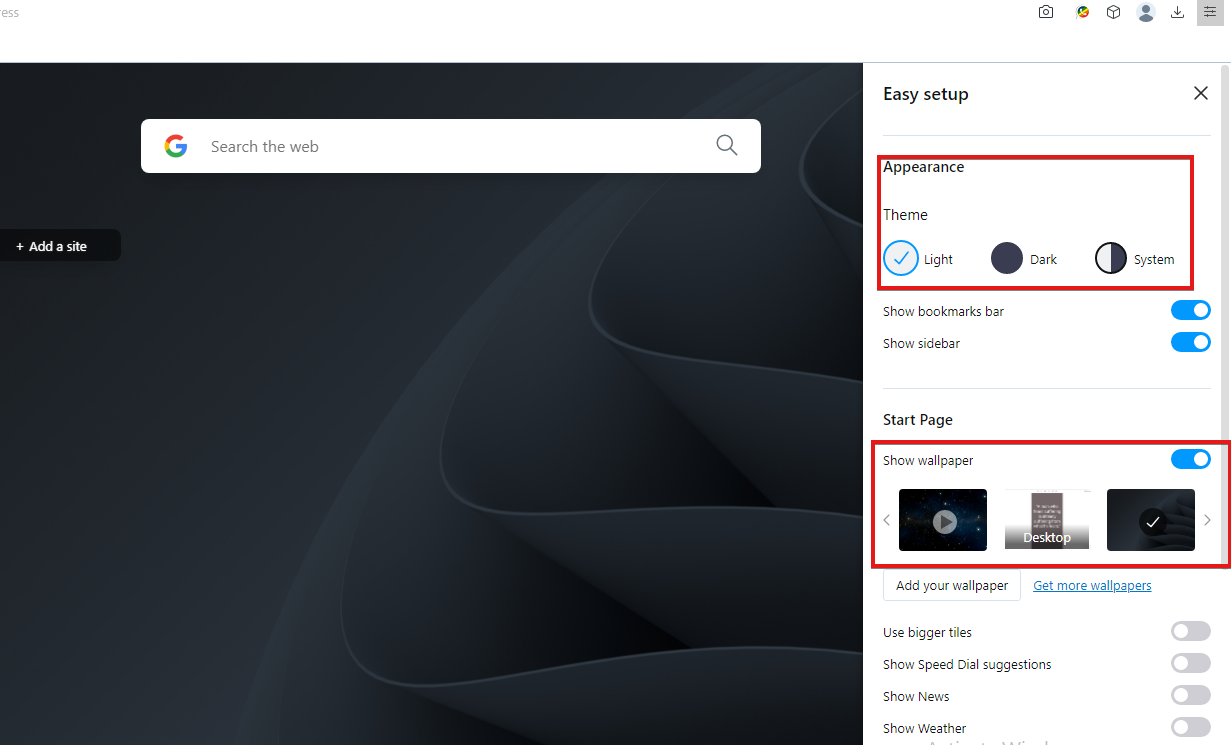
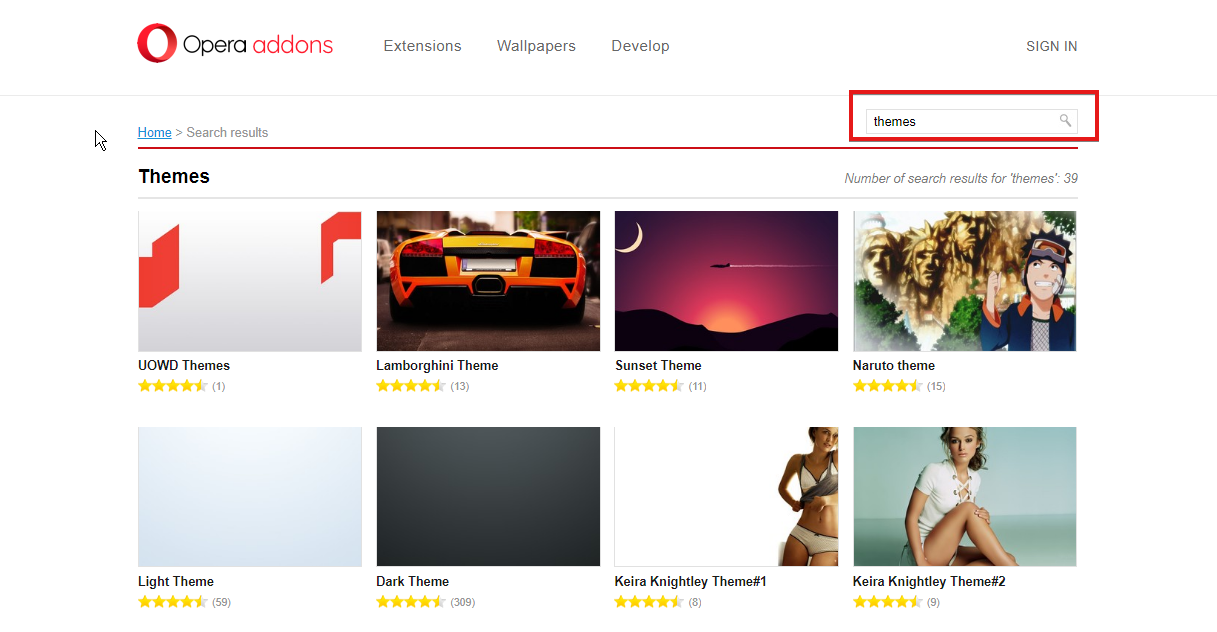
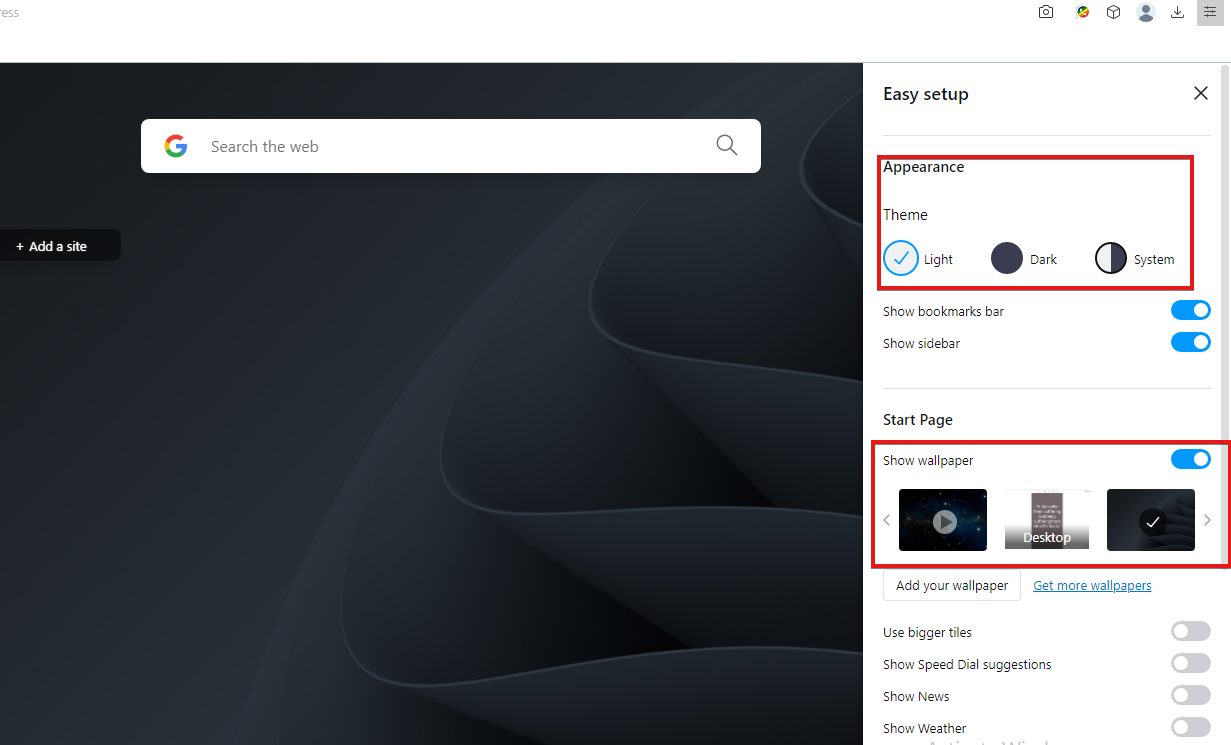



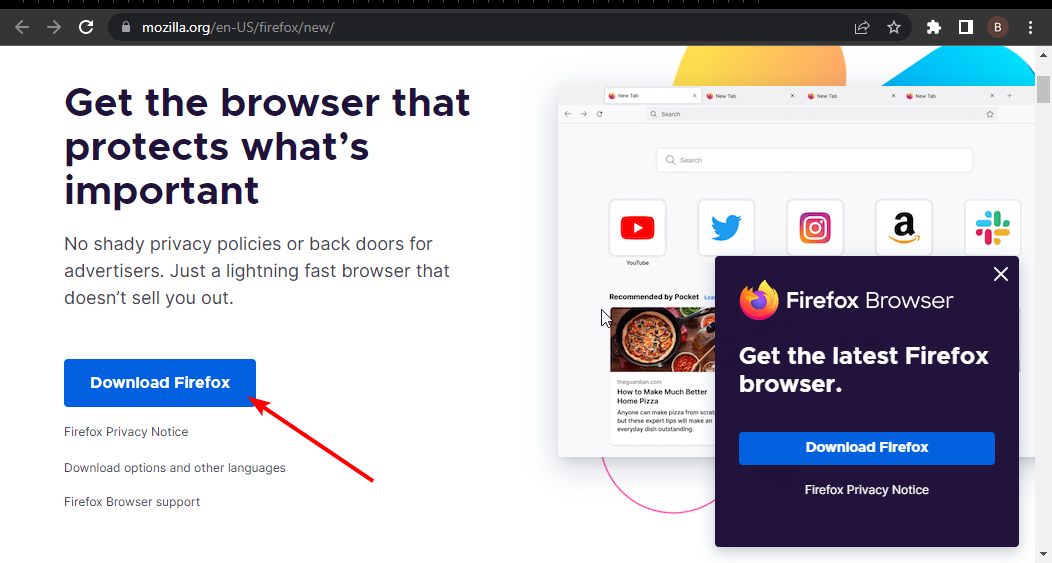


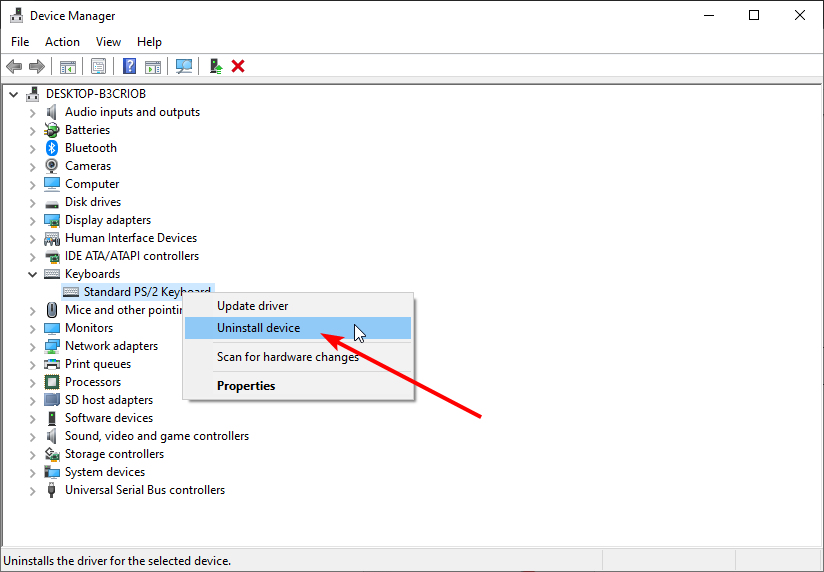







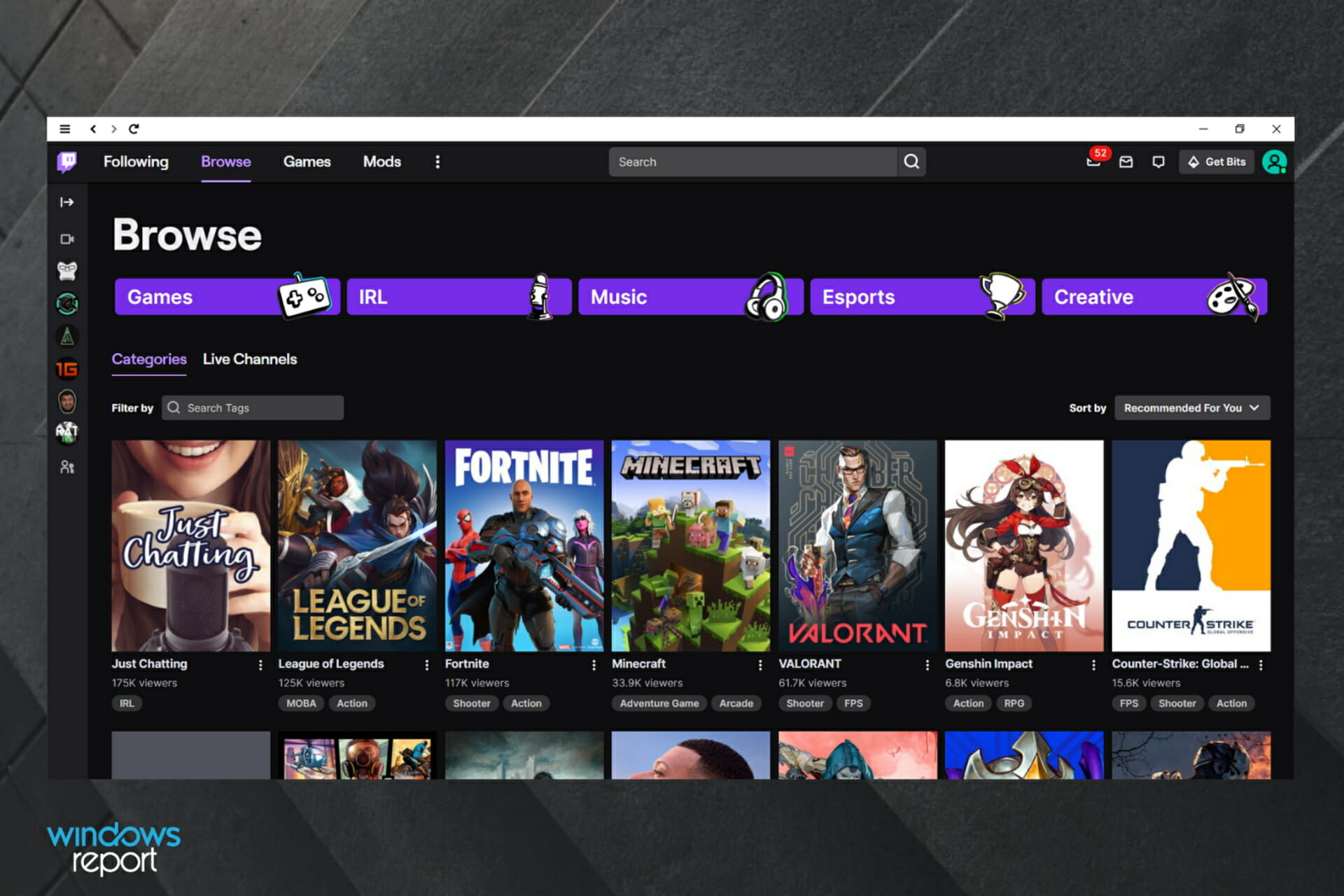





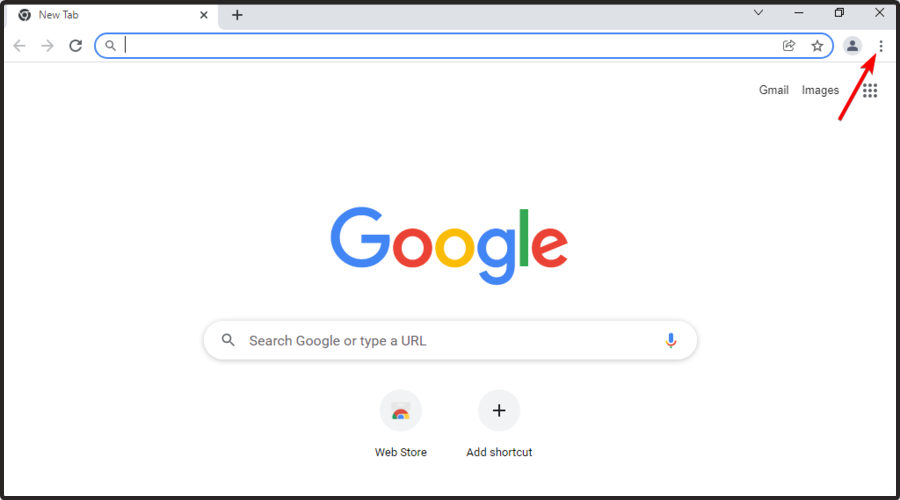
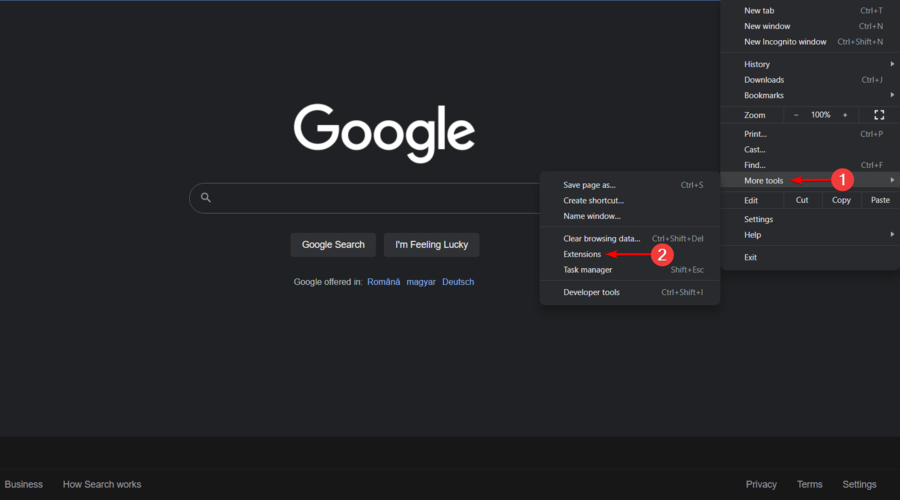
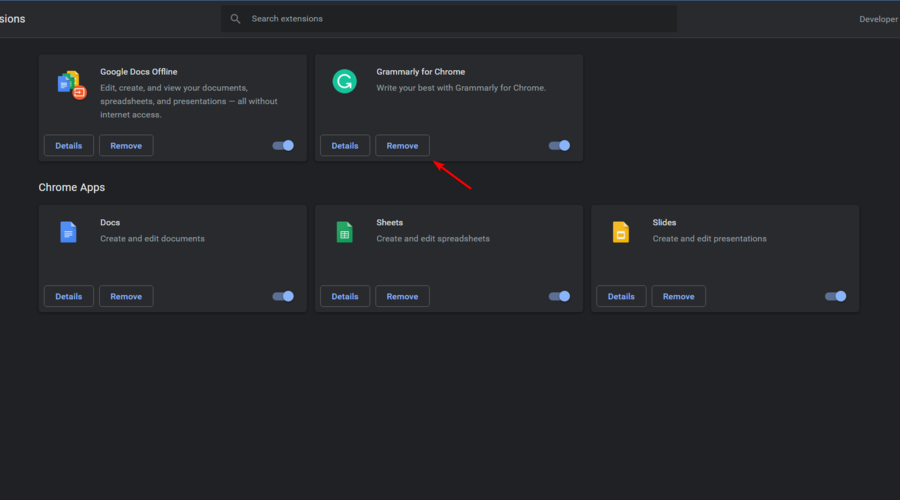
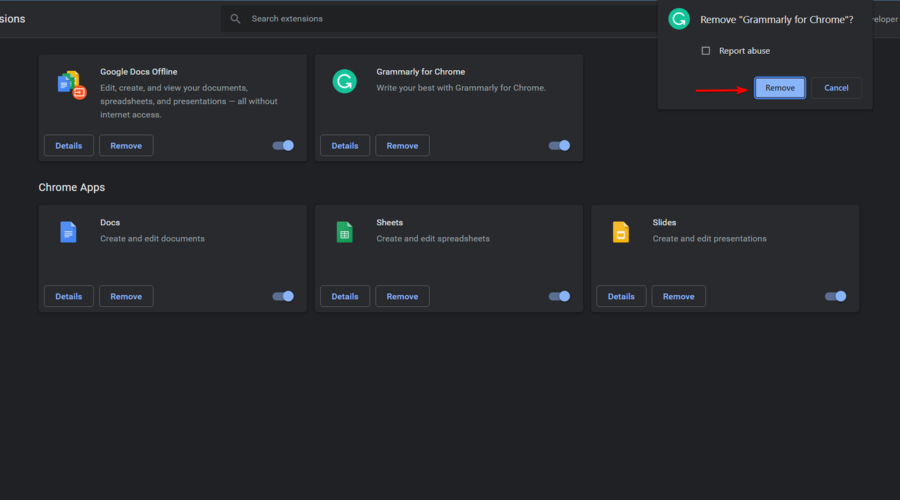
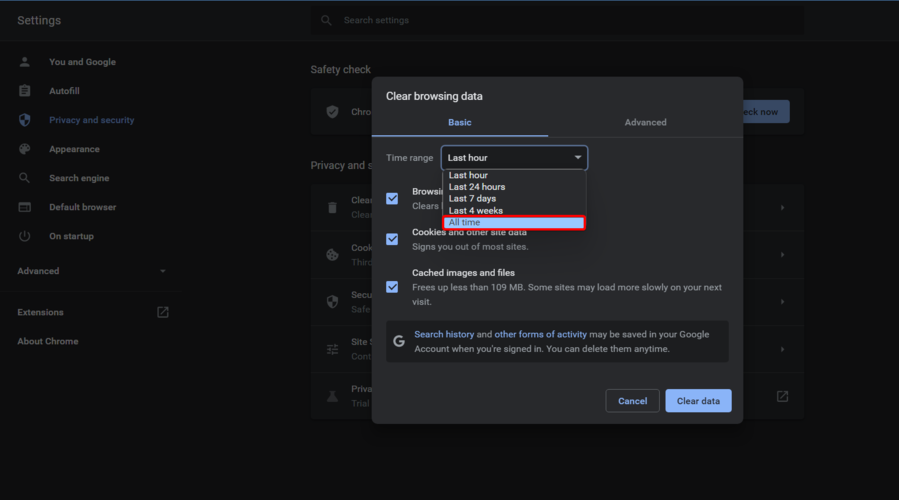









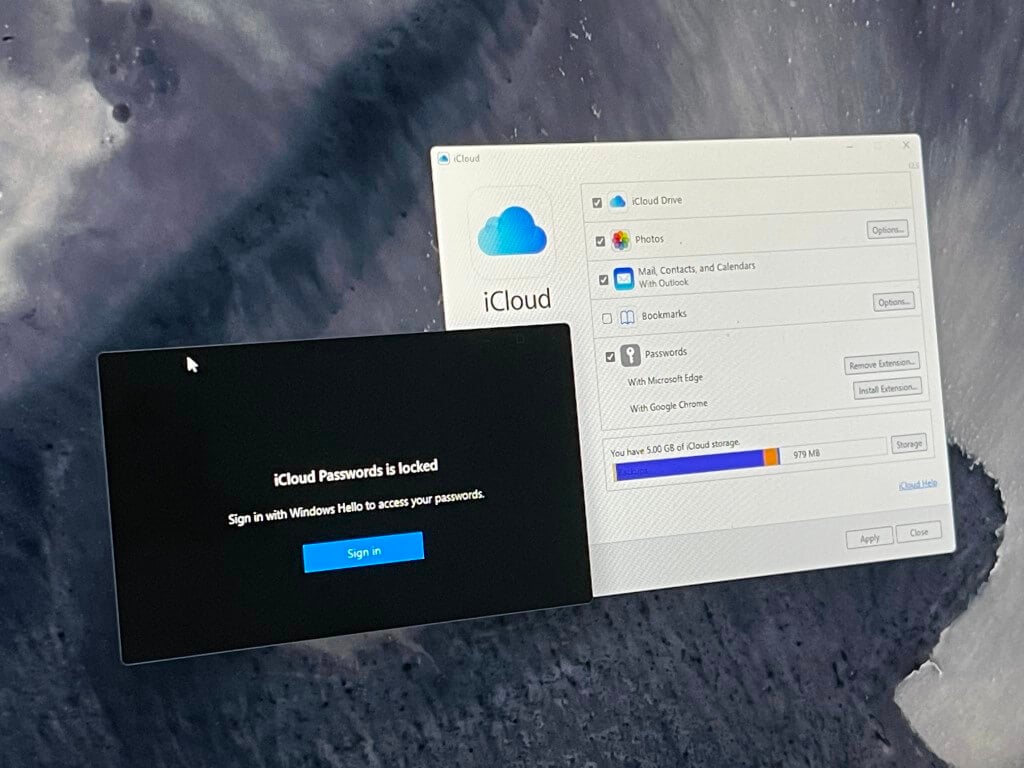
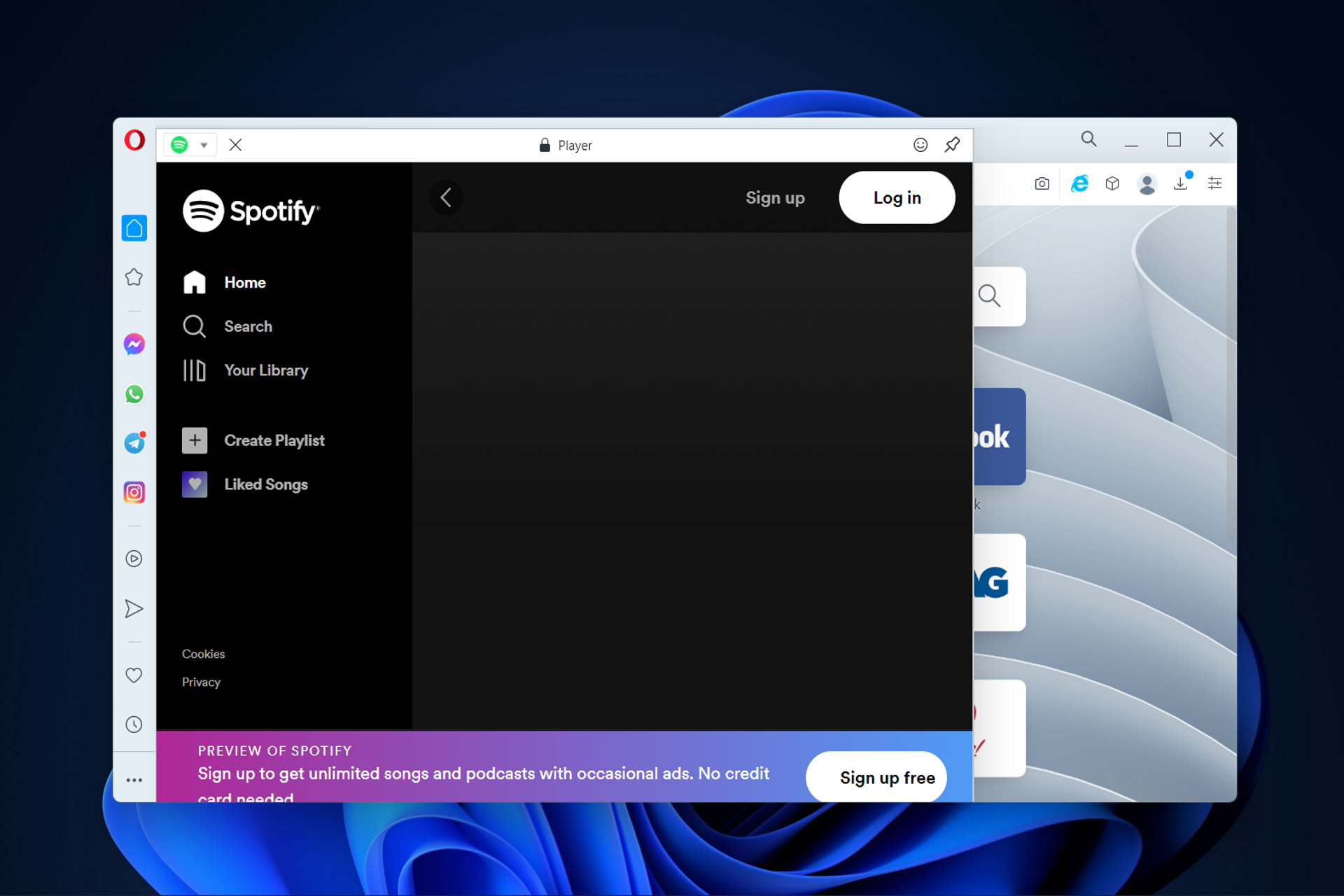

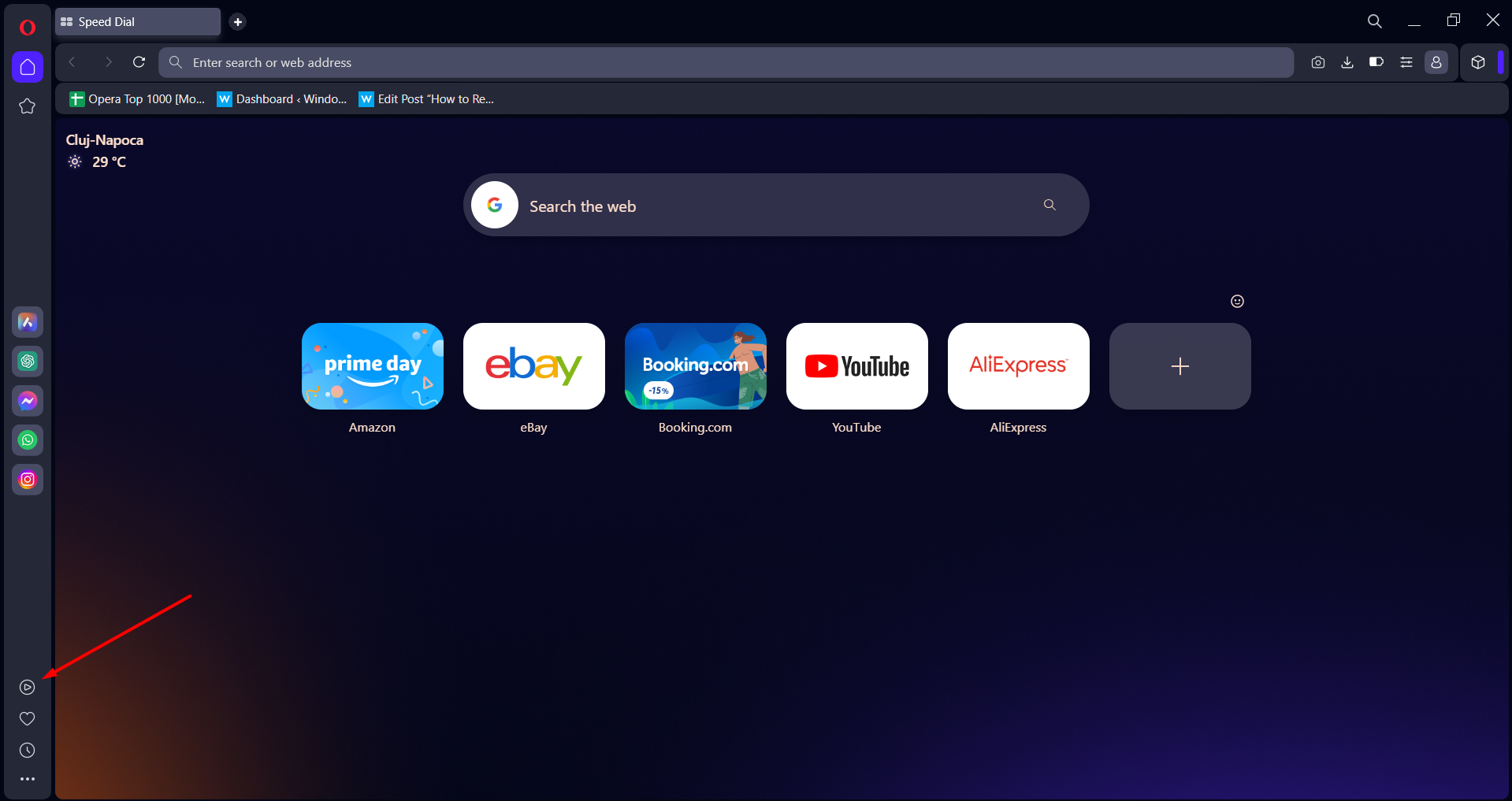

![How to Use the Steam Server Browser [Expert Guide]](https://windowsreport.com/wp-content/uploads/2022/03/steam-windows-11.jpg)