IO or browser games are very popular among gamers, and they do not require you to break the bank for every new game compared to console games. Equipped with your PC and a good internet connection, you are good to go.
Shell Shockers falls under this niche and has recently grown in popularity. However, as with tech, the gameplay experience may not be 100 percent every time and will often require troubleshooting.
Users have been reported to face the complication of the game not loading or loading too slowly. So, in this article, we explore this issue and recommend the best fixes.
Remember that by using any of the best browsers for gaming you would enjoy the best possible gaming experience.
We have used the Chrome browser to test Shell Shockers in this article, and it has worked well. However, if you have issues with the game loading, it could mean that your browser is not compatible, and in such cases, you should try a different browser.
Quick Tip:
The Opera GX browser fits well here. It is robust and offers a lot of support for troubleshooting. It also has a very extensive extension library, which helps improve the user experience.
More importantly, it is the first and most robust browser dedicated to gaming; hence you will enjoy gaming features like RAM and CPU limiters.
Opera GX
Play Shell Shockers and never miss a shot in this game-changer browser.
Blue Wizard Digital’s Shell Shockers is a multiplayer first-person shooter game.
You can play the game as egg characters and compete against other eggs to win matches. When an egg dies, it respawns and is ready to battle again.
The game has two basic modes of play: Team Deathmatch and Free For All.
Why is Shell Shockers so laggy and not loading?
When visiting Shell Shockers’ official website, you may notice that the page is irresponsive and doesn’t load or takes much time before loading.
Several things may make it impossible for the game to load correctly.
However, most of the time, these problems are caused by your browser and some of the settings, but occasionally it may be something else on the game server. So if Shell Shockers cannot connect, please first try tweaking things on your browser.
Also make sure that Shell Shockers is unblocked.
What should I do when Shell Shockers is not loading?
1. Refresh the browser
Right-click on the browser tab.
Select the Reload option.
Give it some seconds to reload.
Alternatively, you use the hotkeys Ctrl + F5 or click the refresh icon at the top left corner of the browser.
2. Clear your browser cache and cookies
Click on the ellipsis at the top right corner of your browser.
Select the More tools option, then click on Clear browsing data.
On the pop-up, click on the Basic tab, then from the Time range dropdown menu, select a time range.
Check the options for Browsing history, Cookies and other site data, Cached images and files, then click on the Clear data button.
If your uploads and downloads are slow, restart your router or change your ISP.
The internet connection and speed can easily cause the issue of Shell Shockers mouse not working. If you are on a wireless network, you may consider switching to a wired one, as they are generally a faster option.
Depending on how bad your internet speed is, you will experience issues ranging from slow loading times to no loading. If you have the Shell Shockers servers down, then there is nothing you can do on your end to make the game load. You will have to wait for the servers to come back up.
Click on the ellipsis at the top right corner of your browser.
Click on the Settings option.
On the left pane, expand the Advanced option and select the option to Reset and clean up.
Select the Restore settings to their original defaults option and click on the Reset settings button.
At the end of the reset, restart your browser.
Resetting the browser has proven to fix errors with Shell Shockers not working.
How do you make Shell Shockers load faster?
We have discussed a few fixes in this article, but it would be better if you could avoid the problem of Shell Shockers not loading or loading slowly altogether.
If you need guaranteed speed, here are our recommendations:
Free up space on your PC – You may have to close all other open tabs or open applications.
Stop or pause downloads – Downloading is a data-intensive operation. If you have downloads running while playing the game, you will experience lags if the internet connection is not fast.
Use a wired connection – These are preferred to wireless as they generally allow more bandwidth.
Restart the computer before gameplay – This process makes sure that all running processes that are not essential are shut down.
There you go. If your Shell Shockers is not loading, you should be back playing in no time by following the steps in this guide. Remember that the fixes have not been written in any particular order, but we advise you to walk your way down from top to button.
Remember that by applying the best practices to make your browser games run fast, you will enjoy the best possible gaming experience.
We hope you have found this article useful. Let us know your thoughts in the comments.
Google Drive might be the world’s foremost cloud storage, but that doesn’t mean it always works perfectly. For instance, users can encounter issues when trying to download files from Google Drive.
Some have said on Mozilla’s forum that they can’t download their Google Drive files in Firefox. That issue has even been reported as a bug on the Mozilla Bugzilla tracker for Firefox.
Whenever that issue occurs, Firefox doesn’t download users’ files in Google Drive storage when they select to do so. Yet, users might be able to download files from Google Drive ok in other browsers.
Is the same Google Drive download issue occurring within your Firefox browser? If it is, you might be able to fix Firefox’s downloading from Google Drive with the methods outlined below.
Why won’t files download from Google Drive?
If you can’t download from Google Drive in all browsers, the issue probably isn’t browser-related. A more general Google Drive download error could be due to third-party antivirus (security) software or an internet connection issue.
Why is Firefox not allowing downloads?
A more specific issue of Firefox now allowing downloads can arise because of blocked cookie data. Some users have said they’ve needed to adjust cookie settings to fix that issue.
Other users have confirmed disabling Enhanced Tracking Protection can fix Firefox not allowing Google Drive downloads. That Firefox feature blocks some tracking cookies and scripts.
This Google Drive download issue might also occur because of Firefox add-ons that block web content. Disabling extensions in Firefox could be another solution for some users.
Quick Tip:
If Firefox fails to download files from Google Drive for any reason, you should try another browser. The Opera One browser allows you to manage your downloads and give a destination for the same purpose.
It allows you to keep track of your computer storage and swap between disk locations by displaying the percentage of available space. Opera One also comes with built-in VPN, Ad blocker and AI.
Opera One
When Firefox fails, Opera One is a great alternative to download files from Google Drive.
We also recommend users clear Firefox’s cache and cookies. To do so, press the Ctrl + Shift + Del key combination. Click Everything on the Time range drop-down menu. Select the Cookies and Cache boxes. Then press OK to clear.
Those are some of the confirmed ways to fix Google Drive downloads not in working Firefox. Utilizing Firefox in incognito mode and reinstalling that browser are two other possible fixes you can try.
Remember that you can always utilize Google Drive outside of Firefox and other browsers. Download and install the Google Drive desktop app to sync the cloud storage with your PC.
You’re welcome to add any comments about Google Drive downloads not in working Firefox below this page. Feel free to add any questions or other potential resolutions for that Firefox issue there.
Comodo is a known antivirus developer, but the company has released its Comodo Dragon Browser browser.
Surfing the web over the years has gone through a lot of changes. With the possibility of accessing more information comes the risk of losing personal data to internet attacks and schemes. This has necessitated the need for improved security in browsers.
While every browser may not need your specific privacy and security requirements, a few boast of offering the best protection, and the Comodo Dragon browser falls within this category.
In today’s article, we’ll look closely at the Dragon Browser and see what it can offer its users.
The Comodo antivirus company develops Comodo Dragon Browser based on the Chromium engine.
The browser has SiteInspector malware scanning technology that will protect you against online threats, and it’s worth mentioning that the browser also has a built-in Secure DNS service.
The Dragon Browser is similar to Chrome; if you have used Chrome, you’ll feel comfortable with its user interface.
As for privacy, various privacy enhancements are available to make your browsing experience more secure.
Comodo Dragon can also block tracking cookies, and thanks to the Domain Validation technology, you can easily detect weak SSL certificates.
You will have the option of a Comodo Dragon browser 64-bit or 32-bit download.
This browser packs a lot of security features, and it also comes for free. You would be able to download a Chrome-styled version (Comodo Dragon) and a Firefox-styled browser (Comodo IceDragon).
Is the Comodo Dragon browser safe?
Generally speaking, the Comodo browser is safe. The finest aspects of Chrome are all there in the Dragon. It incorporates Chromium technology, which was created to provide online users a superior browser to others, and stability, notably in terms of functional speed and convenience.
Quick Tip:
If you are worried about your online privacy and security, Opera One is a good choice over Comodo Dragon. It’s designed to meet our most important needs in terms of multi-tab management sidebar integrations.
Opera One guarantees confidentiality and includes tools such as an integrated ad blocker and VPN. It also remains the most customizable browser serving as a model for all major browsers out there.
Opera One
Advanced security features and organized multi-tab manager all in one place.
As we said, this browser is based on the Chromium engine and offers all Chrome functionality and the unrivaled security and privacy that only Comodo can give.
More privacy is provided than using Chrome technology since Comodo organizations are known to provide internet security and trust assurance solutions.
However, the browser lacks other features some browsers may have, such as Opera One.
Opera One is also based on Chromium; it’s easy to use and fully supports Chrome extensions. In addition, the browser has tracking protection so that it will block all tracking scripts and cookies.
By doing so, your webpage loading time will decrease. For additional security, there’s protection against crypto-miners as well.
Opera’s highlight is its VPN, and the browser offers free and unlimited VPN to all its users for an extra layer of protection.
As for other features, the browser has advanced tab management, support for workflows, built-in instant messenger, and Instagram integration.
We also believe that Opera One UI is much nicer than Comodo’s Dragon.
Comodo Dragon Browser offers some exciting features in terms of security, but in our opinion, it lags behind other browsers in terms of usability and features.
You may also try the Comodo IceDragon browser, but we have focused this review on the Chrome-styled counterpart.
ActiveX is a proprietary feature from Microsoft for Internet Explorer, designed to provide exclusive controls required to access and display certain web content.
However, there are times when ActiveX malfunctions or is not existent (in every other browser basically) and you’ll see the Your browser does not support or has disabled ActiveX error.
Note that as Internet Explorer has been replaced by Microsoft Edge, the latter doesn’t offer support for ActiveX either.
In today’s article, we explain how to troubleshoot this situation and get back to your normal tasks. Follow along!
Why is ActiveX not supported?
ActiveX was a gateway technology that bridges the significant gap between technologies found on desktops and those found on the web.
The distinction between content controls and data controls has been rethought because of the development of modern browsers such as Microsoft Edge and Google Chrome. In this age, segmentation is more important than ever.
ActiveX needed to be deprecated as a logical course of action now that the web has progressed to distributed and more secure technology stacks.
What browser supports ActiveX?
ActiveX controls are utilized by a wide variety of Microsoft Windows applications, including a number of Microsoft’s own, such as Microsoft Office, Microsoft Visual Studio, and Windows Media Player.
These apps not only build their feature sets by utilizing ActiveX controls, but they also wrap their own functionality into ActiveX controls, which can subsequently be embedded within other applications. This allows the applications to share their functionality with other programs.
Unfortunately, no browser supports ActiveX natively anymore, but you can use extensions in your browser to use it.
How do I make my browser support ActiveX?
1. Try using another browser
It’s true that we mentioned that ActiveX is not integrated with any other browser, however, there are ways to activate this tool.
This is why we recommend switching to a browser that has more to offer than IE, namely Opera.
Switching from your current browser to Opera is easy and takes only a couple of minutes. You can install Opera for free, using the button below.
Opera
ActiveX content can be viewed in Opera as well with just a couple of tweaks.
Then, if you have certain settings or bookmarks saved, you can import them to Opera with just a couple of clicks.
To enable ActiveX, you’ll need a separate extension called Open in IE. With the aid of this plug-in, you can open any tab you want in Internet Explorer. Without the need to manually copy and paste links or to open the respective browser.
Double-click install.bat to install the package and you’re done.
The extension will show in the dedicated menu in the upper right corner menu (the black box). Pin it to the bar, for easier access.
Whenever you need to open a program that uses ActiveX content and you get the error message, right-click on the extension icon and choose to open the tab in IE.
2. Enable ActiveX in Chrome
Download the IE Tab extension to simulate Internet Explorer on Chrome from its web store by clicking on Add to Chrome.
When you get to the ActiveX-related websites, just click on the IE Tab icon in the top right corner to run it in the Internet Explorer engine.
We hope you found this post helpful. If you have further suggestions on viewing ActiveX content in other browsers than IE, drop us a line in the comments section and we’ll surely take a look.
Nowadays, every browser has countless features and customization options. One might say that they have too many of them. But features that provide an end-user with an uncluttered interface are more than welcome. Microsoft Edge has various selling points, diligently advertised by Microsoft.
But there’s this one thing which, for me personally (and I hope there’s more of us), makes Edge not that bad. Namely, where Google Chrome fails with the Fullscreen mode, Edge does it very well.
And it allows users to auto-hide the Address bar, which is, unironically, an amazing little feature.
The guide below will show you exactly how you can enable these features so that you can better experience full-screen mode in Microsoft Edge.
Why does my address bar keep disappearing
The steps written below will also help if you are interested in the following topics:
Edge hide address bar
Hide address bar on Edge
Microsoft Edge no address barissue
Microsoft Edge hide address bar issue
How to hide the address bar in Microsoft Edge
Quick Tip:
Opera One is the name of the browser, and it boasts speed, reliability, extensive customization features, and a library of extensions that rivals even with Chrome.
As far as the aforementioned customization features, Opera One allows you to rearrange UI elements in whatever way you want, including the ability to auto-hide the address bar.
Opera One
Hide the address bar, group together your favorite tabs, and reposition your menu icons.
How to auto-hide the Address Bar in Microsoft Edge
Edge’s full-screen vs Chrome’s full-screen
Let’s start by being perfectly honest: Microsoft Edge isn’t a real threat to Chrome or Firefox. At least at the moment. The market shares show that Google Chrome and Mozilla Firefox are far and beyond more prominent solutions when it comes to browsers.
However, the devil is in the details and there are certainly some things that Microsoft Edge can offer to users.
One of the widely-asked-for features is the auto-hide option for the Address bar, but Chrome developers somehow miss it with every new update. If you have a smaller display, the clean interface while browsing is more than welcome.
And that’s one thing which, seemingly, Microsoft Edge team did well. The fullscreen option on Chrome doesn’t make too much sense, since you’ll need to get out of the fullscreen in order to access, well, anything.
On the other hand, by simply pressing the F11 key while browsing on Edge, you get a clean and uncluttered interface. After that, just move your pointer toward the top (where the Toolbar usually resides), and the Address bar will pop up.
That simple but quite nifty way to browse the internet in a clean manner. Personally, I really like to auto-hide the desktop Taskbar and this fits so well as you can take the full size of the screen.
This might not be the selling card for everyone to suddenly turn the bandwagon towards Microsoft’s native browser. But it still can make a change. And if the auto-hiding Address bar (Toolbar, as well) is your cup of tea, make sure to give it a glance.
Either way, we can wrap it up. So, just open Edge, press F11, and enjoy the simplicity. If you have any comments you’ll like to share, the comments section is just below.
Learn how to update Outlook signature on both the desktop app and web version. From branding updates to meeting compliance standards, this guide shows you exactly how to change your Outlook signature in Windows, macOS, the mobile app, and the Web version.
If you wonder how to change a signature in Outlook, open the app then navigate to File, and then Options.
Click Mail, and then Signatures.
Select the desired Signature by clicking on it.
Use the Edit signature box to make your modifications.
Click Save and then OK when finished.
You can also follow these steps to add a new signature in the Outlook app. But before selecting a signature in the Signatures section, you must select the New option.
NOTE
If you want to go beyond Outlook’s basic signature features, like limited formatting, consider trying Adobe Acrobat Pro. It lets you create polished, reusable digital signatures, customize them to match your brand, and even update signed PDF attachments before sending.
On Mac:
Start Outlook.
Select Preferences from the menu in Outlook.
Select Signatures under Email.
Choose the Signature you want to change from the list underthe Signature name.
Update your Signature by clicking Edit underneath in the left pane.
The above steps demonstrate how to change the signature in Outlook Mac or any other device based on macOS.
On Web version:
Open your Outlook Web account and log in.
Choose Options after selecting the gear icon in the top-right corner.
Choose Settings from the left-hand menu.
In the Email Signature field, enter your Signature. If desired, choose the checkbox next to Automatically include my signature on messages I send.
Outlook Web Access (OWA) is a browser-based way to access your Microsoft Outlook email. You can access and change your signature from your browser using this version of Outlook.
Change Signature in Outlook Mobile App
Note: Outlook for iOS and Android supports only plain-text signatures.
Open the Outlook app on your phone.
Tap your profile icon > Settings gear.
Select your email account.
Tap Signature.
Edit the text and hit the check mark to save.
How to set up a signature in Outlook?
To add a signature in Outlook, log into your account then go to the Settings menu, then click View all Outlook settings. At the very top of the page, you can see all of Outlook’s options.
Choose Mail then Compose to respond to the email.
Under Email signature, you can change the appearance of your signature by typing in your signature and using the many formatting options that are available.
When you are finished, select the Save option.
To manually add the signature, do the following:
Go to your inbox and select New message from the menu.
After you have finished composing your message, scroll to the bottom of the compose window and select the More actions followed by the Insert signature option.
Select the Send option once your email message is complete.
Alternatively, take a look at how to get your signature back if it keeps disappearing in Outlook.
What can signatures contain in Outlook?
You may include text, images, a logo, your electronic business card, or even a picture of your handwritten Signature in your Outlook signature.
FAQs
Why can’t I change my Outlook signature?
If Outlook won’t let you add a signature, your profile may be corrupted. Create a new one and check if signatures work. Make sure the signature feature is enabled. Customizing it helps your emails look more polished. Once set, your default signature should appear automatically in new emails.
How do I set different signatures for replies in Outlook?
Use the “Replies/Forwards” dropdown when editing your signature in the desktop app to assign a different one from new emails.
Can I use HTML in my Outlook signature?
Yes, on desktop and web you can format with HTML, add images, links, and style fonts.
Why doesn’t my new signature show up on mobile?
Outlook mobile requires a separate update. It only supports basic text, not rich HTML like desktop/web versions.
Summary
Updating your Outlook signature is quick and ensures your emails look professional and consistent. Outlook’s built in options are advanced, but if you want more personalization options, check our top for best third party signature apps.
Whether you’re using the desktop app, web, or mobile, follow the steps above to keep your contact details and branding up to date.
Fortunately, we have a couple of quick workarounds that will help you to fix the Autoplay not working issue in Firefox right away.
Why is Firefox not playing videos?
There could be different reasons why the videos are not playing on Firefox or if the Autoplay is blocked in Firefox:
Autoplay is not enabled
Hardware acceleration is turned on
Browser cache, cookies, and site data
Interference by the add-ons
A problem with the browser itself
Below are a few troubleshooting methods to help you fix the Autoplay not working issue in Firefox.
Quick Tip:
The most helpful controls are located in the popped-out video in the Opera One browser, allowing you to effortlessly control your motion picture while multi-tabling.
The video pop-out in Opera One is easily controlled and independent from your tab navigation. Plus this browser comes with additional goodies, such as built-in VPN, Ad Blocker and even AI.
Opera One
The video-pop out is easily manageable and you have full control over any videos played.
How do I keep videos from automatically playing in Firefox?
However, if you do not want the videos to play automatically in Firefox, you would need to turn off the Autoplay feature as shown below:
Click on the three lines (menu) on the upper right of the Firefox window and select Settings.
Next, on the left, select Privacy & Security.
On the right side, find Permissions and
Go to Autoplay and press the Settings button next to it.
In the Settings – Autoplay window, next to Default for all websites, select Block Audio and Video from the drop-down.
Click on Save Changes.
Alternatively, you can also search for the specific website and select Block Audio and Video from the drop-down next to it.
Press Save changes.
NOTE
Likewise, you can enable the feature using the above two methods for a specific website and/or all websites and fix the issue if Autoplay is not working for Firefox.
Alternatively, you can also try opening the problem website in private mode to check if it plays normally.
If it does, then it could be a problem with one of the extensions, and hence, you must remove the extension causing this.
Moreover, make sure Firefox is updated to the latest version. If that doesn’t work, then you can uninstall and reinstall the browser to check if this helps fix the Autoplay not working issue.
Twitch. tv is one of the biggest streaming platforms but many users reported You may not change your display name, only the capitalization of it message when trying to alter their username.
The codename for this message is Twitch error 403 and it’s a minor but rather annoying issue that can occur on any device.
Here’s how users describe the issue:
I wrongly mistakenly changed my username some two months ago. After that, it said I wasn’t going to be able to change my username until 59 days. Now, when those days have passed, I’m trying to change my username to something desirable… but I’m getting the following error (which is unrelated to the original issue of waiting a certain amount of days until next possibility to change my username):
Fortunately, we have managed to come up with a simple guide to fix this issue. This isn’t the only problem that users reported, and if Twitch keeps buffering for you, check our dedicated guide to fix it.
Why is Twitch not letting me change my display name?
This issue can occur if there’s a glitch with your account, so sometimes all that you have to do is to log in again to fix the issue.
Corrupted browsing data and cache can also cause this problem. However, clearing the cache might be able to help you with that.
How can I change my Twitch Display Name?
You can easily change your Twitch Display Name, by navigating to Profile Settings and customizing the Username section.
The process is incredibly simple, and you can perform it in a matter of seconds, as long as you follow the instructions carefully.
How many times can I change my display name on Twitch?
Changing the display name on Twitch is simple, and you can change it once every 60 days.
This is the only limitation, so keep it in mind if intend to change your username. If you get You can only modify the capitalization of your display name message, it means that your username has already been changed in the past 60 days.
However, if you’re unable to change your Twitch Display Name and you get the Twitch error 403 messages, make sure you keep on reading.
How do you fix you may not change your display name only the capitalization of it in Twitch?
1. Log out and log back into your account
Hit the Windows key, type Twitch, then open the first result, or simply navigate to the Twitch web version page.
From the top-right corner of the window, click on your avatar.
Choose to Log Out.
Open again the app, then look at the upper-right corner of the page, and click on the Log in button.
Enter your Twitch credentials, then click on Log in.
This is a simple workaround, and it might work if Twitch can’t change the display name.
2. Clear your browser’s cache and cookies
2.1 Google Chrome
Hit the Windows key, type Chrome, then open the first result.
Use the following keyboard shortcut to open the Clear browsing data menu: Shift + Ctrl + Delete.
Choose All time as the Time Range.
Focus on deleting Cookies and other site data and Cached Images and files.
Finally, click on the Clear Data button.
2.2 Mozilla Firefox
Use the following keyboard shortcut to open the Windows search box: Windows + S.
Type Firefox, then click on the first result.
Once your browser is opened, press simultaneously on the following keys: Shift + Ctrl + Delete.
Set the Time range on Everything.
Now, checkmark only the Cookies and Cache options, then click on Ok.
2.3 Microsoft Edge
Press on the Windows key, typeEdge, then open the first result.
Use the following keyboard shortcut to open the Clear browsing data section:Ctrl + Shift + Delete.
Check the Cookies and other site data and Cached images and files section, then click on Clear now.
If you can only customize the capitalization for your username, then there might be a cache problem. Clear the cache and try again.
Moreover, the message stating You may not change your display name only the capitalization of it isn’t the only one that users have encountered.
What other Twitch 403 error-related issues can I encounter?
As of lately, besides Error 403 when trying to change the username on Twitch, they also complain about:
The remote server returned an error (403) forbidden Twitch – The world’s largest streaming platform is clearly prone to errors. As it seems, this one is on their end.
Twitch error authorization source: playlist code: 403 – This is another common issue related to authorization sources. If other cast enabled-apps from your device function properly, contact the in-app support and let them know about the problem.
Twitch error 403 Chromecast – Chromecast is an open-source platform, so there’s no wonder that the casting experience isn’t always as smooth as desired. Contact in-app support with no hesitation.
What does it mean you may not change your display name? – This is probably one of the most requested features ever on Twitch, so things shouldn’t remain like that for too long. Just apply the above steps to correct the issue.
This concludes our guide, and we hope that you managed to fix this issue with our instructions.
There are many other issues you can experience on Twitch, and we already covered Twitch error 2000 in one of our older guides, so be sure to check it out.
If you face any additional questions regarding your Twitch display name, feel free to leave a comment in the section below.
Scroll wheel not working in Chrome? Don’t worry, you’re not the only one! In fact, quite a few Chrome browser users have reported that their mouse wheel is not scrolling in Windows.
Here’s somebody complaining on Google Product forums that they have issues with the mouse functionality while using the Chrome browser in Windows.
Here’s how the issue is described in the forum thread:
Since the update to Windows 8.1, the mouse wheel doesn’t work in Chrome in Metro mode, no scrolling, no zoom (with ctrl). Only the wheel click works. In desktop mode, it works perfectly fine. I tried with and without extensions, especially the Logitech smooth scroll (which I only installed after the beginning of the issue), no change.
Apparently, the Chrome version is the latest version, and the issue happens only when Chrome is being used in the Modern user interface (or Metro, as some still call it).
While using the Chrome browser in Desktop mode in Windows, no issues have been detected. Here are some suggestions to help you fix the mouse scroll not working in Chrome.
Quick Tip:
While you’re busy trying to figure out what is wrong with Chrome, you should have a backup browser that you can use, and none is better than Opera One.
As for the scrolling experience, you can further enhance it through extensions, such as those that allow Smooth Scrolling. Even when you have 20 tabs opened, it has better tab management features.
Opera One
Organized tab management, and sidebar integration for better browsing.
When your mouse is not scrolling in Chrome, the first thing to verify is whether the problem is limited to Chrome or affects the whole system. In case it’s the latter, the problem lies with the mouse itself. Check if there’s something lodged in the device, and replace the batteries.
Also, outdated drivers are often the reason behind the Chrome mouse scroll not working, in which case updating the drivers should do the trick. Besides, certain system settings have too be found to affect the normal functioning of the PC, leading to this error.
Oftentimes, users found that misconfigured browser settings or conflicting extensions led to the mouse button not working in Chrome.
The solutions below address all the issues, and by the time you are done with these, the problem should be long gone.
How do I fix my scroll on Google Chrome?
1. Enable and disable Scroll Inactive Windows a few times
Press Windows + I to launch the Settings app, and select Bluetooth & devices from the left.
Click on Mouse on the right.
Go to the Scroll inactive windows when hovering over them option and disable it.
Wait for a few seconds and then enable it again.
Repeat this action a few times and check if the mouse wheel is now responsive on Chrome.
2. Disable browser extensions
Click on the Extensions icon in the Toolbar, and select Manage extensions from the menu.
Next, turn off the toggle under the extensions you want to disable.
Some users confirmed that disabling browser extensions helped them fix this problem. If the scroll wheel not working in Windows 10 issue occurred shortly after you installed a particular extension, begin by disabling that one.
If the problem persists, try disabling all your Chrome extensions. Then, check if the Chrome mouse scroll not working issue has been solved.
3. Enable smooth scrolling
Paste the following path in Chrome’s address bar and hit Enter:chrome://flags/
Now, search for Smooth Scrolling, click on the dropdown menu, and select Enabled from the list of options.
Click on the Relaunch button for the browser to restart and the changes to come into effect.
Once done, check if the scroll wheel not working problem in Chrome is solved.
Flags are experimental features in Chrome and usually are temporary. So, if you are unable to find the Smooth Scrolling flag, head to the next method.
Now, click on the Add extension button in the confirmation prompt.
If you use a Logitech mouse, try installing the Smooth Scrolling extension. Many users confirmed this solution worked for them, so try it out as it may do the trick for you.
Once the extension is installed, verify if the scroll wheel now starts working in Chrome.
5. Restore Chrome to default settings
Launch Chrome, paste the following path in the address bar, and hit Enter:chrome://settings/reset
Select Restore settings to their original defaults.
Click on the Reset settings button in the confirmation prompt.
If nothing worked, resetting Chrome would do the trick.
There you go! By following these steps, you should be able to fix things if the scroll wheel is not working in Google Chrome.
Do you know of any other workarounds that might fix the scroll wheel not working in Chrome issues? If so, don’t be shy to share your experience with us via the comments section below.
Plenty of users describe that they are in the unfortunate position of wanting to open a ZIP file, just to discover that it has been corrupted after download.
It gets even more frustrating since the same ZIP seems to open correctly for others. That’s a sign that the issue may not be with the original file.
The corruption could happen during the download or even at a later point, in the storage. Therefore, it’s most likely related to your file archiver, the antivirus that you use, and not only.
So, if a ZIP file is corrupted after download through Java, or any other way, here’s what yo need to do.
Why is my ZIP file corrupt?
Don’t worry, it’s not at all your fault. Actually, ZIP files can get corrupted during the download process itself, without us having any contribution.
It could also be that the ZIP file was already corrupted from other sources before you even downloaded it to your device.
How does a ZIP file get corrupted?
If for any reason, the download was interrupted, due to either a power outage or an unexpected program closure even for a moment, that’s when it happens.
Why? Because unreadable data can very well end up becoming part of the downloaded ZIP file, making it difficult for said data to be extracted.
Quick Tip:
Another option is to try on another browser to download the ZIP file. Opera One is very much capable of downloading files at great speed and doesn’t compromise the quality of any ZIP files.
Moreover, every data is verified prior to being allowed to cling to your PC and cause more issues. The built-in VPN allows secured downloads with any type of file format.
Opera One
Test your ZIP file in Opera One and download it safely.
Imagine yourself facing the same situation of downloading large ZIP files, trying to unzip them, and eventually getting the same corruption notification over and over again.
To prevent that from happening, make sure that you use a reliable file archiver, such as the one developed by WinZip Computing.
WinZip can easily finish downloading and unzip all major file formats, including zip, rar, gzip tar, and cab, while your private data can be password-protected and encrypted with 256-bit AES encryption.
Other useful options are maximum flexibility to zip files and folders, easy management of files on your system, cloud, and network, along with decoding capabilities for B64, HQX, and UUE files.
Computer malware, Trojans, and worms can easily damage your personal computer, steal your private data, and not only. So using an antivirus tool is mandatory.
However, if your antivirus of choice slowly checks the files you’re downloading bit by bit, it could delay the entire process and cause ZIP file corruption issues.
Temporarily turn it off to confirm this scenario and later on, think of a different option. Today’s Internet provides a variety of open gates for virus attacks, yet TotalAV closes them all.
This is possible thanks to an unbeatable daily updates mechanism of antivirus database definitions, not to mention that it’s speedy and never interferes with your system.
This happens all the time when using other tools, so the change most likely sounds like music to your ears.
3. Configure Internet Explorer
Click Start and open the Control Panel.
Don’t hesitate to change the Control Panel view if it is in the Category view.
Up next, open Internet Options from the Control Panel.
Click the Advanced tab.
While here, untick the HTTP 1.1 box.
Confirm your action by clicking Apply, and then OK.
Internet Explorer used to be the most popular web browser, yet things have changed drastically in the past few years.
It has been successfully replaced by Microsoft Edge as the default browser in Windows 10, with the promise of more productivity and continuous browsing from your phone to the PC.
So, if you still have Internet Explorer, do note that it frequently causes all sorts of issues. Therefore, you can try to configure Internet Explorer as described above or switch to Opera One in no time.
4. Verify Internet connection
Another common reason for these issues is precisely the lack of stable Internet speed for the download itself.
Fortunately, you can use one of these great Internet speed testers for a precise answer that could nail down the culprits’ list.
If you do confirm an unstable Internet connection issue, this clearly turns into a problem for downloading ZIP files. Also, don’t hesitate to make sure that your cable is not damaged.
5. Redownload the ZIP from the FTP server via FTP
If the ZIP file corrupted after the download issue is still there, perhaps you need to try downloading it from the FTP server via FTP rather than HTTP.
As you can see, that’s a standard network protocol dedicated to transferring files from one host to another host over a TCP-based network, so do give it a go.
What can I do if everything I download is corrupted?
This can happen because of conflicts between IDM and other applications. That being said, when IDM seeks to write received data to a file, security software first passes all data through internal buffers.
That is done in order to scan it for possible viruses. When IDM opens multiple files quickly in one thread, some firewalls or antiviruses happen to mix the data of different connections.
And, because they mix file parts in that manner, it often leads to data corruption, unfortunately. Keep this in mind next time you are in a similar situation.
Now you possess the necessary knowledge on how to fix corrupted download files, or how to deal with ZIP files corrupted after downloading through C#.
If you happen to discover any other useful tips, please let us know in the comments section below.
Many users are missing games on Windows, and this is why many are wondering if there’s a Purble Place available on Windows 11. Today we’re going to answer this and all other questions that you may have.
Can we play Purble Place on Windows 11?
This game doesn’t come preinstalled with newer versions of Windows, however, you can download Purble Place on Windows 11 for free.
Several web browsers dominate the web browser market, but how do they compare one to another? In today’s guide, we’re comparing Opera One vs Firefox to find out which is better.
We’re going to test the performance on a low-end computer, so even the users that aren’t using the latest hardware can find out how each browser will work on their PC.
In addition to the performance, we’re going to compare the unique features that both Firefox and Opera One offer, as well as their security and privacy features, so let’s get started.
Many are wondering which is the better browser, and both browsers have pros and cons. Opera One and Firefox have been present on the market for years, and each offers a unique set of features.
Opera One has a little advantage over Firefox in terms of sidebar integrations, messengers, Crypto wallets, and customizable speed dials.
If you spend more time online than offline and you are an organized persona, Opera One might be a better choice for you than Firefox since it is better structured.
We prefer Opera One for these features, but that doesn’t mean Firefox isn’t fancy in its sense.
In today’s guide, we’re going to take an in-depth look and analyze the features, as well as the performance of each browser, and find out which is the better choice for you.
Opera One vs Firefox, an in-depth feature, privacy, and performance comparison
A short history lesson and introduction
Opera One: Browsing veteran from the ’90s
Opera One browser first appeared in 1995, and in the beginning, it used the Presto layout engine. The company made a switch to Chromium in 2013, and ever since Opera One has been running on Chromium.
The browser is now available on all desktop and mobile platforms, constantly getting new features and users.
Opera One
Combo of speed, privacy, and user experience that make browsing more fun and engaging.
The first version of Firefox was released in 2002, and in the early days, the browser used to run on the Gecko engine. In 2017, Mozilla switched to a new and improved Quantum engine.
Firefox is open-source software, and as expected, do note that it is available for all desktop and mobile platforms.
Now that we’re familiar with our contenders, let’s see how do they compare.
Visual interface
Opera: Sleek and Chromium-based
Opera One comes with a simple visual interface that resembles Chrome. This is no surprise since the browser is based on Chromium, and if you ever used Chrome, you’ll file like at home with Opera.
The main difference between Opera One and Chrome is the sidebar. Thanks to you can quickly access certain features or switch between workspaces.
Some users might not like this feature, and if you want to save some space, you can turn the sidebar off from the settings.
Regarding the customization, the browser has an Easy setup pane that you can use to switch to a light or dark theme. You can customize the browser with several available wallpapers, but you can also download more wallpapers or add your own.
The easy setup pane lets you customize your home page. You can do so by changing the size of the titles, showing Speed Dial suggestions, or enabling the news feed at your start page.
Firefox:Extensive interface customization
Firefox also has a clean interface, but we must admit that Opera’s interface looks more streamlined. The home page has a web search bar, a list of your most visited websites as well as browsing highlights.
The highlights section includes visited pages, bookmarks, recent downloads, and saved pages. This makes them accessible with a single click.
You can customize the Top Sites section and add any website to it. Of course, you can minimize the entire section or hide the section completely if you want.
Regarding the highlights, you can choose what type of content will appear there. If you want, you can also hide the entire section.
You can even manage how many rows both the Top Sites and Highlights sections will have, which is welcome.
Firefox offers extensive customization, and you can customize the toolbar any way you want.
You can remove items from the toolbar, rearrange them or add only the most essential icons. You can also make icons smaller and choose between one of four available themes.
Browser features
Opera: Instant messengers, social network integration, and more
In terms of features, Opera One works like any other web browser. However, it does come with a unique share of features that some users might appreciate.
One of the most useful features in Opera One is the workspaces feature. With this feature, you can easily organize all your open tabs, which is perfect for multitasking.
Want to separate your work tabs and personal tabs? Simply move them to that workspace, and that’s it. Regarding the workspace switching, you can switch to the desired workspace with a single click on the sidebar.
If you prefer, you can assign keyboard shortcuts and use them to switch to the desired workspace instantly.
You can have multiple workspaces, and each workspace can have a unique name and icon. This allows you to distinguish between workspaces easily.
Another great feature that will help you manage your tabs is the Search in Tabs feature. By using it, you can easily search for any open tab and find it in a matter of moments.
Use the search icon or the keyboard shortcut to open the search window. Type the name of the tab and it will instantly appear on the list. It’s simple as that.
The search can also recognize website content so that you can search for any string. If there’s a match, you’ll see all open tabs with that specific string in their content.
These two features are incredibly useful, especially if you’re multitasking.
Opera One also allows you to easily share files and links with your mobile device thanks to the Flow feature. Simply install it on your phone, pair it with your PC, and that’s it.
You can share links, text, and files from the browser simply by clicking the Flow icon in the toolbar. The feature reminds us of instant messenger, so it feels like you’re sending texts to yourself.
Overall, it’s a quick and simple way to send data and links to your mobile device. Of course, you can send data from your phone as well.
If you want to stay in touch with your friends, there are several instant messaging services available. This includes Facebook Messenger, WhatsApp, Telegram, and VK.
You can open these from the sidebar and chat with your friends while browsing the web. If you’re more of a social media person, you might find built-in support for Instagram and Twitter more interesting.
Thanks to this feature, you can always keep an eye on your social media feed and ensure you don’t miss anything.
For all the music fans out there, we’re pleased to inform you that Opera One has a built-in music player. With it, you can play music from multiple streaming services.
The supported services include Spotify, Apple Music, and YouTube Music. You can minimize it at any time, and you can control the music playback from the sidebar with ease.
Opera One also has a dedicated news reader, but it’s not enabled by default, so you’ll need to manually enable it.
Once you enable this feature, you can choose from the list of sources. Alternatively, you can add your RSS feeds and keep track of the latest news from the sources you prefer.
Pinboards is a new feature in Opera One that lets you save content and favorite pages. When you find a page you want to save, just click the Pinboard icon and that’s it.
Once you add the pinboard, you can assign it to a specific group to organize it better. Remember that you’re not limited to websites, and you can add notes or even screenshots to pinboards.
One last feature that we need to mention is the Snapshot tool. With it, you can take screenshots of web pages that you visit.
After taking a screenshot, you can add pointers, and text, blur certain sections or add highlights. This is perfect if you don’t want to rely on third-party tools.
Opera One packs an abundance of features, and while certain features, such as Workspaces and Tab Search are extremely useful, others might seem a bit gimmicky to some.
We tend to use only the essential and productivity features, but for more casual users, adding a music player, messenger, and social media integration might come in handy.
And even if you don’t plan to use these features, you can disable them completely.
Firefox: Only the bare essentials
In terms of features, Firefox offers fewer features than Opera. This means you won’t find flashy features, such as music players or social media integration.
Instead, Mozilla decided to keep the minimalistic approach, for the most part, thus trying to improve the browsing experience.
With Firefox, you’ll find all the standard browsing features, so we’ll focus on the more unique ones. First off, there’s a Sync feature that will store your browsing data in the cloud and allow you to continue browsing on any device.
With this feature, you can also send tabs to your phone, and while this feature is useful, it doesn’t work as well as Opera’s Flow feature.
With this feature, you can’t send files or texts; you can only work with links. Sharing interface is also pretty basic since it relies on the context menu, so you can’t see the history of shared links.
Firefox comes with Pocket integration allowing you to easily save any website and read it later on any device. All that you have to do is to click the Pocket icon in the address bar and sign up for a Pocket account, and that’s it.
Pocket as a service is pretty decent, especially if you tend to read a lot, so it’s perfect if you want to create a collection of articles to read.
Firefox Lockwise is another great feature that works as a password manager for Firefox. Using this feature, you can see all your saved passwords in Firefox.
There’s even a dedicated mobile app available so you can have all your Firefox passwords available on your phone.
This feature supports importing, allowing you to import all saved passwords from other browsers easily. Of course, you can create your logins manually, but in most cases, Lockwise will ask you to save your login information for you when signing up to any website.
The feature will also generate a unique and secure password for any website that you sign up for, thus ensuring that your password is strong and unique.
Although this feature is incredibly useful, it has a couple of issues. For example, if you click the suggested password, it will be automatically saved to Lockwise, however, your username or email won’t be saved.
This can be frustrating since you have to update the data manually. To avoid this, you can use the arrow keys to select the suggested password. After doing that, enter your username, and the password and username should be memorized.
This is a small glitch, but it can affect your browsing experience, and we hope it will be improved in future versions.
Once your password is saved, it will be suggested to you while trying to log in to that website. For an extra layer of security, there’s an option to set up a master password so that others can’t see or use your passwords without a master password.
Another feature that deserves a mention is the screenshot tool in Firefox. By using it, you can easily create a screenshot of a specific section, or you can take a screenshot of an entire webpage.
The tool will automatically select sections of a webpage to make the process faster, but you can also manually select the region that you want to capture in the screenshot.
Sadly, there’s no screenshot editing, so you can’t crop or blur parts of your screenshot. This is a pretty basic screenshot feature compared to Opera’s screenshot tool, but it will get the job done as long as you don’t need to edit anything.
Another useful feature is the Reading Mode, and by using it, you’ll remove unnecessary clutter from pages, thus focusing only on the most important parts.
After you switch to the reading mode, you can adjust the font type, font size, paragraph width, line spacing, and color theme.
There’s also text to speech feature, so you can have your PC read the articles aloud. Of course, you can adjust the reading speed and skip certain paragraphs if you want to.
How secure is Opera One vs Chrome vs Firefox?
When it comes to security, all three browsers offer similar features and use sandboxing to separate tabs into processes, so if you visit a malicious website, it will be contained in that tab.
The browsers share similar privacy features, but there are some differences between them that you should know about.
Opera: Chromium-based, built-in VPN and adblocker
Opera One has a built-in ad blocker and anti-tracking feature, and even though it isn’t enabled by default, you can enable it with a single click.
By using this feature, you can improve the page loading time, and thanks to the anti-tracking protection, you’ll block websites from tracking your browsing habits.
Sadly, Opera One doesn’t use Google Safe Browsing, instead, it relies on other services. This isn’t a major issue, as long as you don’t visit any sketchy websites and you have a reliable antivirus.
The browser has a built-in VPN that offers unlimited bandwidth, and while this feature will give you an additional layer of privacy from your ISP, you should know that free VPNs have their share of issues.
Free VPNs are known to keep logs of user activity, which can be a concern for some users. In addition, some privacy advocates are having issues with Opera’s privacy policy and data collection.
Since the browser isn’t completely open-source, there’s no way to determine how Opera One uses this data.
However, Opera One has recently introduced a premium version of their VPN that encryptions your data and collects no browsing data.
The premium service offers more than 3000 VPN servers, and you can use it simultaneously on 6 different devices.
Overall, Opera One offers solid security and is perfectly safe for everyday tasks. However, if you’re extremely concerned about your online privacy, you might have a few issues with Opera.
Chrome: Google’s browsing juggernaut
Google Chrome has been known to be a secure web browser that is updated frequently, so there’s no need to worry about your security when using Google Chrome.
Google did introduce the Do not track feature and its ad blocker, but these features are hidden deep in its settings, and less informed users probably won’t even find them.
In addition, Google has a history of data collection and tracking for showing personalized ads, which is one of the reasons why many privacy advocates are concerned about Google Chrome.
While the browser is one of the safest on the market, Google’s privacy policy and data collection could be a problem for some.
Firefox: Privacy-oriented and open source
A non-profit company owns Firefox, and since the software is open-source, users can verify the code and ensure that their data isn’t sold to third parties.
The software comes with Enhanced Tracking Protection out of the box that will block tracking cookies and certain ads.
Firefox also has phishing and malware protection, and it can also block crypto miners. There’s even a simple password manager available in Firefox that will generate a secure and unique password for every website that you sign up for.
Overall, Firefox offers a lot in terms of security and privacy, and since it’s open-source, it’s one of the best choices for users that are concerned about their privacy and security.
Opera One vs Firefox RAM usage
Lastly, we need to talk about performance, and for this segment, we decided to measure the performance of Firefox and Opera One on a low-end computer.
Opera: Optimized for performance
When it comes to performance, we were pretty surprised by how little memory Opera One uses. While being idle on the home page, the browser used no CPU and only 129MB of RAM.
We tried watching full HD video on YouTube while having five tabs open in Opera, and the CPU usage went up to 80% at times, while the memory usage was around 510MB.
This is perfectly normal while pages are loading, and we haven’t noticed any major slowdowns while using the browser.
If you want to improve your performance, we suggest enabling the ad blocker that will block ads and make your pages load even faster.
Opera One also has a Tab Snoozing feature that will put inactive tabs to sleep, thus saving your memory. This feature is more than welcome, especially on low-end PCs.
Firefox: A lightweight alternative
While being idle on the start page, the browser used 0% CPU and about 248MB of RAM, which is a bit more than Opera.
We repeated the same test with five open tabs and YouTube HD video loading in the background. During this test, Firefox used almost 700MB of RAM and up to 60% of CPU.
This is less CPU usage from Firefox, however, but the memory usage was slightly higher. As for other performances, we didn’t notice any major slowdowns while using Firefox.
As you can see, Opera One uses less RAM at all times, while the CPU is slightly higher than on Firefox. Overall, we were pleased with how both Opera and Firefox performed on our low-end computers. For a more comprehensive Opera vs Firefox CPU usage analysis, check out our article.
When it comes to Opera vs Firefox speed compression, Opera One performs better according to our tests.
Opera One vs Firefox: Conclusion
Opera: Abundance of features and low memory usage
The browser offers some great and unique features, most notably the Workspaces feature, and the Tab Search feature that will surely come in handy to anybody that works with multiple tabs. There’s so much more to enjoy about it!
Pros
Based on Chromium
Advanced tab management features
Low RAM usage
Built-in adblocker and tracking protection
Built-in VPN
Cons
Some features might be unnecessary
Opera Flow is also a welcome addition since it’s one of the easiest and most user-friendly ways to share files and links from one device to another.
Adblocker and tracking protection are welcome features that will improve your performance and protect your privacy online.
Speaking of which, the built-in VPN will also come in handy and provide another layer of security and privacy while browsing the web.
Features such as instant messenger and social media integration can be useful if you’re a heavy social media user, but we found them nonessential.
The media player can come in handy, especially if you listen to music online while browsing the web.
Overall, Opera One offers some unique features, and thanks to the low memory usage, it’s one of the better browsers for low-end PCs.
The only flaw might be minor privacy concerns, but that shouldn’t worry you too much.
Opera One
With so many unique features on the table, Opera seems to be the ideal browser choice for you!
The greatest strength of Firefox is its security and focus on user privacy. The software is open-source, so you can rest assured that your personal data isn’t collected.
Pros
Open-source
Developed by non-profit company
Advanced tracking protection
Comes with only the essential features
Built-in password manager
Cons
No built-in adblocker
With the available tracking protection, you’ll prevent websites from following you and ensure that websites can’t collect your browsing data.
Firefox also has a useful password manager that should help you protect all your online accounts with a secure and unique password.
The browser doesn’t offer any flashy features, and you’ll only find the essential features in Firefox. Regarding memory usage, it’s slightly higher than in Opera, but nothing too concerning.
With its low memory usage, Firefox should be a perfect pick for low-end PCs. If you’re looking for a privacy-oriented browser with only the essential features, Firefox is the way to go.
No, Opera One doesn’t steal your data, and it doesn’t collect your data, so you’ll be perfectly safe while using Opera.
You can rest assured that all your data will be safe and private while using Opera.
Overall, both Firefox and Opera One are great in their terms, and if you’re looking for something with new and exciting features, then Opera would be the right choice.
When it comes to Opera One vs Firefox resource usage, Opera One uses fewer resources, so it’s a great choice for any low-end or older PC. Plus, it offers a wide array of unique features.
There’s another version of Opera available, and if you want to learn more about it, we suggest reading our Opera vs Opera GX guide.
What is your browser of choice? Let us know in the comments section below.
If you encounter MeteMask not showing a balance error, you can follow the instructions given in this article.
MetaMask is a trendy cryptocurrency wallet to interact with the Ethereum blockchain. It is also used to sign in to many blockchain services. Decentraland, the virtual world game that lets gamers earn cryptos, recommends this wallet primarily.
But, the problem begins when MetaMask doesn’t show or update the balance properly. A significant number of users have already reported this problem in various forums. So we are lucky that there are ways to fix this problem.
But, before knowing about the troubleshooting methods, we should have a good idea about this unexpected problem.
Quick Tip:
If the MetaMask extension in your primary browser is not working expectedly and not updating the balance, you should try a different browser. Then see if it solves the problem or not.
We recommend trying Opera One, which is highly customizable and compatible with Metamask. With Opera One, you have slimmer chances of MetaMask showing the wrong balance or showing 0 balance.
Opera One
The add-on support in Opera One is reliable, and MetaMask passed our tests successfully.
Some specific reasons cause MetaMask not to show or updating balance issues. Usually, this error can result from any problem from your end or the server-side. However, according to our research, we have found the following as the most significant reasons.
Browser problem
MetaMask network problem
Improper permission
Problematic extension
Corrupted browser data
If you can take steps to overcome these situations, you will be able to get rid of this problem. For your convenience, we have prepared the troubleshooting methods with proper instructions below.
How long does it take for funds to show on MetaMask?
Blockchain transactions typically take a few minutes, unlike conventional banking, where money transfers might take as much as 3 or 5 working days.
However, transactions might take a long time, depending on network use and your gas preferences. Therefore, we recommend checking transactions on the blockchain explorer to see whether it has made it there.
Users have experienced this problem on different coins and tokens. Some of the most common iterations of the issue are:
MetaMask not showing balance BSC
MetaMask not showing balance BNB
ETH balance not showing in MetaMask
MetaMask not showing FIAT balance
MetaMask not showing USDT balance
The MetaMask not showing MATIC balance
MetaMask app not showing balance
MetaMask not showing token balance
How can I fix MetaMask if it’s not showing the balance?
1. Restart the browser
When you see that MetaMask is showing an incorrect balance or doesn’t show it at all, the first thing you should do is restart the browser. In many cases, it will fix your problem.
However, If the problem happens frequently and you need to restart the browser often, you can follow the next methods.
2. Update browser
2.1 Update Chrome
Open Google Chrome.
Click on three vertical dots on the top right corner and Settings.
Click on Advanced, then select About Chrome.
Chrome will check for updates and install automatically.
Relaunch Chrome.
2.2 Update Firefox
Click on three vertical lines and go to Help.
Select About Firefox.
It will update the browser automatically.
Updating browsers will make sure that the browser is compatible with the extension. As a result, MetaMask not updating the balance problem may get solved.
3. Try a different blockchain network
Click on the MetaMask icon on the top right corner of the browser.
Click on the Dropdown icon next to the network name, usually Ethereum Network, and then on Add Network.
Now, provide your preferred trusted network details and save.
If somehow the default network has issues with MetaMask, using a different network will fix the problem. As a result, you will be able to see the balance properly.
4. Give proper privileges to the MetaMask extension
Right-click on the MetaMask icon on your browser.
Hover your cursor on This can read and change site data and choose On all sites.
Try checking the balance again.
If the extension doesn’t have access to all sites, you may often encounter problems related to the MetaMask balance. So, To fix MetaMask not showing balance, you should give it the proper permission as shown above.
5. Update extension
5.1 Update chrome extensions
Open Google Chrome.
Type the address below in the Address bar and press Enter. chrome://extensions/
Turn on developer mode and click on Update.
Try rechecking the Metamask balance.
5.2 Update Firefox add-ons
Open Mozilla Firefox.
Type the address below in the address bar and hit Enter. about:add-ons
Click on the gear icon and then select Check for updates.
If the current version of MetaMask is problematic and has known issues with the latest browser you are using, updating it will solve all its problems at once.
6. Clear browser cache
Open your browser.
Press CTRL + Shift+ Del on your keyboard.
Choose All time as the time range.
Check Cache images and files and then click on Clear data.
Browsers often may show you a cached data version if something is wrong, and clearing the cache will force it to fetch the latest updates of data, particularly the MetaMask balance. After clearing the cache, Refresh the MetaMask balance.
MetaMask balance may be outdated
It is not uncommon for MetaMask to display an outdated balance notification.
When this happens, it most likely means that the extension can not fetch your actual balance for some reason. If this is the case, you should double-check that your internet connection works properly or restart the browser.
Can MetaMask wallet be hacked?
With crypto and many other online services, your safety depends on the tech and user habits. With the use of seed phrases, and other password encryption tech, it is tough to have your wallet compromised.
However, if you are careless with these details or store them online, the chances of having a hacked MetaMask become larger.
Is MetaMask safe?
MetaMask is open-source crypto-wallet software available as a browser extension or mobile app and is the most popular wallet for non-techie crypto users. In short, it is safe.
It uses proper encryption methods to secure your data. Only your password can decrypt the data you have with this crypto wallet. Another thing is it doesn’t control the keys, unlike other similar wallets. It stores them locally. So, You have complete control over the keys.
In past years, we have not found any hacking incidents on MetaMask. It also has a huge community and a group of highly qualified developers. MetaMask is going through continuous updates with bug and security fixes, making it a very secure wallet.
The methods shown above effectively resolve MetaMask not updating or showing balance problems. You may know about any other techniques that may help others. In this case, you can let us know in the comments box.
The Interrupted virus detected message in Opera will prevent you from downloading files even if they are perfectly safe, so let’s see how we can fix this problem.
This message appears if you don’t have any antivirus installed on your PC. Sometimes security settings or browser cache can cause this issue. Let’s see how to get rid of it.
How do I fix Opera interrupted virus detected error?
1. Enable your antivirus
Press the Windows + I keys together to prompt the Settings app.
Select Privacy & security, then click Windows Security.
Click on Virus & threat protection, then select Manage settings.
Uncheck the Real-time protection box.
If you don’t use Windows Defender, make sure you have third-party antivirus enabled and installed. Here are some great antiviruses that work with Opera, so give them a try!
2. Add the file to the list of exceptions
Press the Windows key + S and enter windows security. Select Windows Security from the menu.
Navigate to the Virus & Threat Protection section.
Locate the file that was blocked and select Allow on device and save changes.
NOTE
Only use this option with files you know are 100% safe and from a reliable source.
Press the Windows key + S and type internet options. Select Internet Options from the list of results.
Navigate to the Security tab. Select Internet and click the Custom level button.
Locate Launching applications and unsafe files and set it to Prompt. Click OK.
Click Apply and OK to save changes.
5. Clear your browsing data on Chrome
Launch the Chrome browser on your computer.
Press the Ctrl+Shift+Del keys simultaneously to prompt the Clear browsing data window.
Set the Time range to All time, select all options, and click on Clear data.
In some instances, Chrome’s cache can interfere with Opera, so if you have both browsers installed, clear the cache on Chrome. You can also get the same error in Chrome.
If you don’t have it, clearing Opera’s cache might help.
6. Modify the registry
Press the Windows key + R and type regedit.
Navigate to the following path: HKEY_LOCAL_MACHINE\SOFTWARE\Microsoft\Windows\CurrentVersion\Policies\Attachments
Double-click on ScanWithAntiVirus DWORD.
Set the Value data to 1 and save changes.
By making this change you’ll disable Windows from checking if there’s an antivirus installed, so use this solution only if others don’t work.
Does Opera have a virus scan?
No, Opera doesn’t have a virus scan, but it does have a database of suspicious websites that spread malware, so you might get a warning from a browser if you visit those websites.
One of the best features of the Opera browser is speed. However, some users complain about Opera download speed slow issues.
For a long time, Opera has been one of the best browsers in the market. It is because of its consistency in keeping its features intact and relevant. Likewise, it uses an advanced system to speed up browsing sessions and downloads.
However, it occasionally takes a long while for downloads to complete. For instance, it can take more than 3-4 minutes for a file of 250 MB to download. If it’s taking too long, or not moving from a point for a long time, there is certainly an issue.
Nonetheless, the issue is not critical, and you shouldn’t panic if you are experiencing it. This article will explain how to fix the Opera browser’s slow download speed and make it faster.
Why is my Opera download speed so slow?
? Poor internet connection
One of the most common reasons for slow download speed in browsers is a poor internet connection. Whenever there’s an issue with your router or Wi-Fi, it influences how your browsers work.
It is because they need a stable Internet connection before downloading your files smoothly. So, issues with your router or cable will impact your browser download speed.
? Third-party apps interference
Applications like antivirus and VPNs can cause problems with your browser activities like downloading.
Antivirus apps help keep your device safe. However, in the course of doing this, the antivirus might block the free passage of your download. It occurs when it detects a threat in the connection.
There are other ways third-party apps can interfere with your browser. We’ll show you how to fix it as we go into the article.
? Too many apps running in parallel with the Opera browser
Some apps use lots of internet connections. Likewise, some take lots of devices’ storage. These apps can be responsible for making your browser downloads slow.
? Outdated version of browser
Running an outdated browser prevents the browser from functioning as much as it should. However, updates are always made available for apps like the Opera browser.
They help to patch the loopholes in the previous version and also fix the bugs affecting it. So, not having these updates can cause the Opera download to be slow.
? Old caches and cookies problem
Some browsers collect information from your browsing sites and store them in your browser’s caches and cookies. This information helps you load websites faster and more smoothly.
However, they can be threatening to your browser when they become old or corrupt. So, having old caches and cookies on your browsers can slow your download speed.
How can I speed up my Opera download speed?
1. Check your internet connection
Connect to a stable internet connection: It will help your browser surf the internet smoothly and download files without interruptions.
If you’re using a wired internet connection, you should switch to a wireless connection for a faster internet speed. Also, restarting your router can help.
2. Close other parallel running apps
On the Windows Start menu, search for Task Manager and launch it.
Select Details from the options.
Select Network from the drop-down.
Click on the apps you want to end tasks for and click on End Tasks.
It will close apps sharing your network connection and make your download speed faster.
3. Clear browser browsing data
Launch Opera browser.
Press the Ctrl+Shift+Del keys to prompt the Clear browsing data page.
Ensure you select Cache images and files.
Click on Clear data.
How do I make my Opera download speed faster? Clear Opera browser’s cache and cookies: Doing this will clear old and corrupt data causing issues from your browser.
Launch the Opera browser and click the Menu button.
Select Update and recovery from the drop-down.
Wait while Opera Update searches for updates.
If there’s any available, it’ll automatically install.
5. Close tabs you’re not using during downloads
When you have multiple tabs open on your browser, it can affect your download speed. Closing tabs that are not useful at the moment will increase the internet speed in your browser.
So, close tabs that you don’t use in order to release more internet speed for your downloads. In addition, you can also turn on the Turbo mode to make Opera download faster.
Where is Opera Turbo mode and how to enable it:
Launch the Opera browser and click on the Menu button.
Select Settings, then click on Preferences.
Click on Advanced and select Features from the drop-down.
Select Opera Turbo, then toggle on the Enable Opera Turbo option.
Restart your browser and enjoy the Opera turbo feature.
NOTE
Kindly note that this option will only be available for Opera versions released up until 2019. Further editions have discontinued the Turbo mode.
Opera GX download speed slow
When it comes to how to make opera GX download faster, you can pretty much apply the same steps provided for the Opera main browser.
In addition, you can also enable the Parallel downloads feature by simply pasting this address in GX’s URL address bar: chrome://flags. Search for the indicated feature in the list and use the drop-down menu to select Enabled.
You can also try disabling extensions and see if that has a positive impact on Opera GX’s slow download speed.
Further reasons can be hardware issues, browser issues, and outdated apps or OS. Also, this issue affects every part of the browser because a slow download speed means the internet speed is relatively low.
In conclusion, we recommend that users check through our article on the best browsers for downloading large files. It will help them download large files faster and easier.
If you are a programmer and have been coding for some time, you must have encountered a situation where an event listener is not working in your Firefox browser. Event listeners, like all other APIs, are not cross-browser compatible and may present some problems.
An event listener is a function that is called when an event occurs. It can be associated with an element in the DOM, such as a button or a link. It is why you need a browser dedicated for web development for the best outcome.
When an event listener is created, it is attached to the DOM element with a specific ID. So if you have multiple elements on your page with the same ID, only one listener will be called when the element receives an event.
While you expect things to run smoothly, sometimes your browser may present problems, and your event listener may not be firing up as it should.
Why are my event listeners not working?
If your event listeners are not working, here are some possible reasons why:
No ID – The first thing to check is that the element you’re trying to listen for events on has an ID or class set. If it doesn’t, then there is no way for your script to find it; thus, there’s no way for it to listen for events.
Delay in actions – The other possibility is that your event handler isn’t being called because the event hasn’t been fired yet. When you click on the button or link, the associated function is called. This can happen if there’s some time delay between when an action occurs and when you want it to fire your event handler function. For instance, If a user clicks a button after having clicked another button first.
Undefined event – The most common reason for this is that the event listener is not being added to the correct element on the page. This means that the element does not exist on your page, or it may be hidden off-screen by another element. Check the DOM inspector for any missing elements.
How do I know if an event listener is working?
You can use the Firefox Dev Tools to inspect the DOM and check for the presence of your custom attributes.
If your code is wrong, then the event listener won’t work. But if your code is right, then there’s no way to tell whether an event listener will work until after it’s been used in a real-world situation with real-world requirements.
Quick Tip:
Another solid browser that supports event listeners is Opera One. The browser can schedule events in the document queues more effectively with passive event listeners.
This is particularly handy in touch and wheel interactions, as it prevents the browser from generating redundant scroll events. Furthermore, Opera One comes with build-ins such as VPN, Ad blocker and AI.
Opera One
Passive event listeners can easily be managed in Opera One, test it yourself.
What can I do if event listeners are not working in Firefox?
1. Update your browser
Launch your Firefox browser and click on the three horizontal ellipses in the top right corner.
Select Help.
Click on About Firefox.
If your browser is up-to-date, you will get the following dialog box.
2. Check your code
The first thing to check is the syntax of your code. Make sure that you have written it correctly and that you have included all of the required code.
It is possible that the event listener was not attached to the right element. For example, if you’re listening for clicks on buttons, ensure that your code is actually attached to a button.
3. Enable JavaScript
Launch your Firefox browser and navigate to the following address: about:config
In the page that appears, under Proceed with Caution, select Accept the Risk and Continue.
Type Javascript in the search box, then double-click until it turns to true.
If you have tried all the solutions, but your event listener is still not working in Firefox, try using a different browser. If the event works in one browser but not another, it might be a problem with how the browser handles events or how it renders your page.
You can also try using code writing software to help you get the job done easily and minimize any mistakes.
At the start of the pandemic, Lenovo announced a pared down digital assistant called the Lenovo Smart Clock Essential which bucked the trend of mini tablets retrofitted into stationary speakers and displays.
Despite Google’s lead on a simplistic home speaker nod that was accessible and intended to be interacted with through simple voice commands, the industry seemed to be in a fever pitch to toss ever increasing touch screens on home speakers as part of a feature race that ultimately went nowhere for the vast majority of users.
Circling back to Lenovo’s Smart Clock Essential line, it seemingly reintroduced the original vision of the smart home assistant with a visual compromise best suited for its value proposition.
A smaller LCD screen with big, bright, bold monochrome numbering that explicitly displayed only the time and outside temperature.
In Lenovo’s follow up to the Smart Clock Essential for 2022, the company continues to refine the concept of a bare bone’s digital assistant but with a bold new twist, it’s no longer letting Google quarterback the day-to-day interactions and instead is showcasing Amazon’s Alexa smart AI platform.
Look and Feel
There are some immediate visual changes to the Smart Clock Essential (2022) that come in the way the overall design of the clock. While it’s mostly still a wedge shape design, the bottom had been placed on a more rectangular bottom as it now supports additional docking stations.
The original Smart Clock Essential resembled a wedge of cheese wrapped in fabric cloth, this time around the cheese has been put on a thick cutting board.The color options remain the same with a blue-ish grey and clay red option to choose from.
The screen is slightly larger this time around roughly 3.4-inches and offers an arguably crisper LED-led contrast between blacks and whites.
There isn’t much to clutter up the screen beyond an alarm indicator, weekday indicator, decibel alert (for those with light sleepers), outdoor temperature indicator, weather icon and time.
Around back, customers lose out on the additional USB-A port that came with the original Smart Clock Essential, and instead are greeted with a single DC-in port and mute switch only.
Another loss is the embedded light ring that was wrapped around the back of the clock in the previous version and instead leaves the lighting to Lenovo’s first party docking solutions that come in bubbles and crab-like bottoms. I’ll explain later.
On the top of the device, the Volume, Alarm and dedicated Alexa button look and feel more pronounced than on the previous model as they stand out in white against the colored fabric of the Essential Clock 2022.
Performance
I’m new to using Alexa as a digital assistant. I’ve spent years gathering and organizing Google Assistant powered devices and while they can be a pain to set up at times, once in place they operated pretty seamlessly.
Fortunately, Amazon and Lenovo have combined to make a device that works pretty seamlessly out of the box. Once the Alex Assistant app is downloaded to either a mobile phone or PC (many Lenovo devices come with it pre-installed) it’s a matter of 30 secs to a minute for the device to be found and paired.
From there, the Smart Clock Essential is off to the races, easily able to spit out detailed temperature forecast and readings, as well as set alarms and reminders.
Where I ran into some issues is with using the Smart Clock Essential (2022) as my morning news brief as I had done with its predecessor. As I mentioned, I’m invested in the Google ecosystem, so I used Google Podcasts to stream my morning news briefs, and while Amazon supports Spotify, Apple Music, and Amazon Music, it didn’t seem to have tie-ins to my podcasts from Google.
I was able to ask Alexa to stream specific podcast but the integration Google Assistant had with paused states for podcasts means I can pick up a podcast from the last time I listened to it in the car, on a walk, or in the office, unfortunately I lose a bit of that with the switch to Alexa.
However, Alexa was able to quickly find my podcast request when I could give a full title and pulled up each one without an issue. The same could be said for listening to music. I normally build playlists in YouTube Music, but as long as I knew the name of the artists, song titles or albums, I was right back to comfortably playing music on the 3W full-range speaker which got plenty loud without losing too much fidelity in the mids and highs.
It’s not listed in any of the product papers or notes, but many outlets say there is supposed to be an update in 2022 to enable image display and tie-in to Google Photos albums, I’m not sure if that’s a great additional or if I’ll even use it, but I thought I would note it.
The simplicity of the LED screen as is, is more than enough for me and should work well for a device that’ meant to help get you up and going or to sleep quickly.
Speaking of sleep, aside from some Lo-Fi playlists I zone out to before bed, the tie-in to audiobooks through Audible is another nicety the Smart Essential brings to the table thanks to being powered by Alexa this year.
Yes, you could cast your Audible books through Google Assistant and Android devices, it’s just nice to be able to speak them into existence sans any other hoops to jump through.
Lastly, just like Google Assistant and supported devices, Alexa can tie together a number of smart home devices and software that allow you to control or automate your living situation.
From turning down smart lights to grabbing details about actors from your favorite show, you can do it all pretty effortlessly with your voice and the Smart Clock Essential (2022).
Pogo-pins and Accessories
The other addition to this years model is extended support for the Lenovo Smart Clock docking ecosystem.
There are some colorful and kid-friendly bubbles (Squid version) and Sea-Lion docking solutions this time around that help provide a night-light aspect to the Smart Clock Essential.
There is also a more straightforward docking station that offers a secondary wireless charging port for smartphones or earbuds.
I don’t know the actual wattage for the wireless charging but as with most wireless charging solutions, this takes a while to charge and I would venture to guess is meant for overnight use.
Summary
When it was first announced and released the Smart Clock Essential (2022) was billed at $59.99 and for that people got an oversized Google Home with the ability to read the time from far away.
At its current $39.99 it’s a much better deal, and may even be the ideal price for someone to venture out of the Google ecosystem to try out a device that offers many of the upsides of a hyper-focused digital assistant.
A thumbnail cache is how your Windows records the diverse thumbnail images it has for the different kinds of files on your PC. By always having specific thumbnails for videos, photos, and other files with you, you don’t have to recreate your images repeatedly.
At times, however, your default thumbnails might stop working properly. Instead of a regular, original thumbnail, you might encounter a corrupt dizzy version of it. The reason could be anything; database corruption by an abrupt shutdown, a malware problem, and so on. There’s no clear, apparent reason in sight. What’s sure, though, is that there are well-laid-out ways to clear your thumbnail problems without any hassles.
Let’s look at them all.
How to clear thumbnail cache on Windows 11
You can manually clear your thumbnail cache on Windows 11 without any hassles. The first option on your plate is Disk Cleanup.
The default disk cleanup utility from Microsoft can help free up space on your Windows. To get started with it, head to the Start menu search bar, type in ‘disk cleanup,’ and select the best match.
The Disk Cleanup dialog box will be launched. There, uncheck all the radio boxes except the one for Thumbnails, and click on OK.
You’ll then get a dialog box asking if you want to delete all the files. Click on Delete Files. Do this, and your thumbnails will be deleted.
Clear your thumbnail cache through Command prompt
If the above method doesn’t work, you can then rely on the Command prompt to rescue you. To clear your thumbnail cache with the Command prompt, follow the steps below:
Head to the Start menu search bar, type in ‘cmd,’ and run it as an administrator.
From there, type in the following command in your cmd and hit Enter. taskkill /f /im explorer.exe
Finally, to delete your files, enter the following command in your cmd and hit Enter again. del /f /s /q /a %LocalAppData%\Microsoft\Windows\Explorer\thumbcache_*.db
Do this and the cmd will clear your thumbnail files instantly. Give your PC a restart, and you can check if that’s the case.
Clearing your thumbnails on Windows 11
That’s it, folks. If you’ve followed the above steps correctly, your default corrupt thumbnails should be removed now. Although problems like this rarely arise, you can use the thumbnails to rid yourself of your thumbnails.
Chrome is a champion in the browser market. It is a fast and reliable browser with lots of features. A big part of Google Chrome is security and privacy. It is a Chromium-based system with an advanced system of security. However, Chrome has its own authority in controlling how it functions.
The Chrome certificate has been revoked error is one of the common errors users encounter. More so, it can occur for different reasons which we are going to enumerate as we go further into this article.
So, absence or difficulty with them can cause several problems. However, we have listed some fixes that you can use to solve this error.
What does it mean when a certificate has been revoked?
Google Chrome uses certificates to check how safe websites are for the users and also the credibility of the site for the website owners.
However, when a certificate is revoked, there’s something wrong with it. It can mean that the certificate is not from a valid authority, issued wrongly, is outdated, or any other random SSL certificate issues.
Although net: err cert revoked all browsers is an error common to every browser, it’s more aggressive in Chrome. Hence, it signifies that the website certificate has been revoked by the SSL certificate authority.
What causes certificate revocation?
1. The private key of your SSL certificate is insecure: Every SSL certificate that is issued to website owners comes with a private key that helps it be more secure. However, if there’s any issue or compromise with this key, it will prompt the Chrome certificate has been revoked error.
2. The SSL certificate may be wrong issued: It can happen if there was a mistake or unclear activity when the certificate was issued to the website owner.
3. SSL certificate revocation request: SSL certificate revocation can mean that someone has requested for it to be revoked. Hence, the error is a response to someone’s request. It can be by the owner of the certificate or someone else.
Quick Tip:
A practical method to bypass this revoked certificate issue is to switch your browser to another effective one like Opera One.
With this experienced browser, you benefit from the latest browsing support and easy access to site control settings that may help you fix this case in minutes. Plus, it comes with it’s own AI.
Opera One
Take full advantage of this flexible browser with enhanced security and VPN privacy.
What can I do if my certificate is revoked on Google Chrome?
1. Adjust date & time settings
Right-click the time and date on the right side of your Taskbar.
Click on Adjust time/date from the options listed.
Toggle on the Set time zone automatically.
For users, a solution to this error is setting the correct date and time. The revocation can result from the incorrect time on your device.
2. Update Google Chrome
Click on the Menu button in the top right corner of the screen.
Click Settings, then select Help from the drop-down.
Select About Google Chrome.
Chrome will check for updates, and if available, it’ll automatically install them.
3. Bypass Certificate Revocation Warnings
Click the Windows button and search for Internet Options.
In the Internet properties tab, select Advanced.
Go to Security and uncheck the box for Check for publisher’s certificate revocation and Check for server certificate revocation.
Click Ok to save the changes you just made.
However, this solution can leave your browsers vulnerable to internet threats and hackers. So, we don’t recommend it as the best option, but it can fix the chrome certificate has been revoked error.
Another solution you can try is to uninstall and reinstall Google Chrome on your computer. Though it can clear your user data, it still works.
LinkedIn is an official networking platform where professionals can connect with other professionals, companies, and top executives and step up the ladder in their professional careers.
LinkedIn has helped millions across the globe secure a new job, get a promotion, and find a business partner. Although recently, it has become a professional version of Facebook, where you will see fake motivational posts, the platform is still viable.
There are several user reports that confirm that LinkedIn is not working for them in Firefox. Well, this could be frustrating in case there is something important, such as a job or business offer, waiting for your reply.
Moreover, HR’s tasks of recruiting could also get hampered, as they rely on LinkedIn for finding talent, which is a nice medium to connect and get information about them in a better way than a CV.
In any case, if LinkedIn is not working for you in Firefox, and you are looking for solutions, then you have landed in the right place. Because this guide will list some top methods that will help you resolve the problem. Let us get right into it.
Why is LinkedIn not working in Firefox?
Well, there are not one but many reasons why LinkedIn may not be working as expected in Firefox. The problem could be from either LinkedIn’s or Firefox’s end.
After careful research, we have found some common reasons that could trigger the LinkedIn not working in Firefox error for you:
The LinkedIn website is down
There are some issues with your LinkedIn account
Corrupt browser data is triggering the problem
VPN is interrupting
Ad-blockers are causing problems
The browser isn’t up to date
Installed software is causing issues
The next step after you know about the common reasons for an error is to apply the solutions, one by one, which you would find in the next section.
Quick Tip:
Another efficient method to resolve LinkedIn malfunctions is to change your browser to Opera One.
Opera One offers lots of unique features. You’ll find already built-n things like VPN, Ad blocker and even an AI. Beside it is great in the organizational department also with its workspaces and tab islands.
Opera One
Access your LinkedIn account without any issue with this fully integrated browser.
Often, the error is from the website’s end and not from the user’s end. There are chances that the LinkedIn server is undergoing maintenance due to which you will face issues logging in.
You can use websites such as Downdetector or IsItDownRightNow to know the current status of the LinkedIn servers. If the LinkedIn servers are down, then there isn’t much that you can do apart from waiting for the servers to go back up.
2. Re-login to LinkedIn
You can also try re-logging into your LinkedIn account. If the issue still exists, then create a temporary account and check if it works.
In case the temporary account works without any issues in Firefox, then there could be some issues with your primary account.
We would advise you to report this issue to LinkedIn support and get a resolution from their end.
Scroll down and under Cookies and Site Data, hit the Clear Data button.
Check the boxes for Cookies and Site Data and Cached Web Content.
Click on Clear.
4. Disable VPN
If you are using a VPN and trying to use LinkedIn, then you will likely be blocked by LinkedIn if the IP address provided by VPN continuously changes.
So, in order to access LinkedIn, turn off or disable the VPN app and check if this fixes the LinkedIn not working in Firefox issue.
5. Disable ad-blockers
Click on the 3-line menu icon.
Select Add-ons and themes.
Toggle off the ad-blocker extension if you have installed any.
Ad-blocker extensions block and interfere with the website’s script, thus blocking ads and giving you an ad-free experience.
While it enhances your browsing experience, it can sometimes cause unexpected issues and block essential scripts, resulting in multiple website errors. Disable the ad-blocker extension and check if this fixes the issue or not.
6. Install the latest browser update
Launch Firefox.
Click on the 3-line menu icon.
Select Help > About Firefox.
Firefox will automatically start looking for new updates, and will install it if it detects a new one.
There might be some glitch or bug present in the current version of the Firefox browser which may trigger multiple problems.
In such a case, it is advised that you keep the browser up to date to not only enjoy the latest features but also the bug fixes that come along with them.
7. Reboot in Safe Mode
Press Win + I to open Settings.
Select System then click on Recovery.
Hit the Restart Now button for Advanced startup.
You PC will reboot.
In the Advanced options screen, select Troubleshoot.
Click on Advanced options.
Select Startup Settings.
Click on Restart.
Press the F4 to get into Safe Mode.
This is just one of the ways of entering Safe Mode on a Windows 11 PC. You can check out our guide on 8 ways to start Windows 11 in Safe Mode to learn about the other methods.
We hope that this guide helped you fix the problem of LinkedIn not working in Firefox. Let us know in the comments below which one of the above solutions helped you solve the issue.
Browsers with built-in VPNs allow you to access region-restricted content and unblock websites without the need for a third-party VPN client. However, many apps make promises but fail to deliver.
To save you time, we’ve researched browsers with integrated VPNs and only included those that truly offer a private network, sufficient bandwidth, and strong security.
Which browser has the best built-in VPN?
We’ve tested them and concluded that the easiest option for most users is to get a browser that already has a built-in VPN. Here are some of the best we’ve found:
Opera One – Amazing security, modular UI and AI
UR Browser – Great customization and safety tools
Tor Browser – The absolute privacy champion with built-in VPN
Epic Browser – Simple yet efficient VPN service
Aloha Browser – one of the best iOS browsers with a built-in VPN
Opera comes with a built-in VPN as well as Ad-blocker support. The VPN is not the fastest of the lot when compared to the independent VPN clients. However, it’s reliable and offers unlimited bandwidth.
You can selectively enable or disable the VPN based on the site. Also, the VPN can be configured to only start in Incognito mode or bypass it when using the default search engine.
For added security, Opera One offers security badges to alert the user, fraud, and malware protection, an ad blocker to block unwanted ads and offers cryptocurrency mining protection.
Opera
Get free and unlimited VPN right in the navigation bar!
UR Browser comes with an inbuilt VPN, and it also has some serious privacy features to keep you safe online. Also, there’s the 2048-bit RSA encryption which ensures safe browsing and information exchange.
The built-in ad-blocker makes sure that the web page does not load any ads or scripts resulting in faster web page loading time. It also integrates a virus scanner that checks downloaded files.
It also allows you to customize the look of the browser with wallpapers from the browser catalog as well as custom wallpapers from the users.
UR Browser
UR Browser also offers a built-in VPN that creates an encrypted connection between you and the VPN servers for extra privacy.
Tor Browser – The absolute privacy champion with built-in VPN
Tor is a multi-platform web browser with excellent privacy tools to protect your data from prying eyes as well as access region-restricted content and websites.
Even if Tor is blocked by your ISP or the state, you can configure Tor to connect to a bridge during the setup process.
Apart from unblocking the websites, the Tor browser is the only browser that allows you to access the sites with the .onion suffix.
Epic Browser is built with privacy in mind, offering a robust VPN that works in eight countries and blocks intrusive ads, trackers, and crypto miners.
The browser offers enhanced privacy features like blocking fingerprinting, ultrasound signaling, and more. Epic is based on Chromium, which ensures compatibility with most websites while providing a fast and secure browsing experience.
The VPN encrypts your data and hides your location, allowing you to access blocked sites safely. Epic also includes a built-in price tracker, making it a practical option for privacy-conscious users who want to compare prices online securely.
Aloha Browser – one of the best iOS browsers with a built-in VPN
Aloha Browser is another handy tool on your hard drive, as it offers a great set of valuable features, including a built-in VPN service.
Being a mobile-based browser, this light and easy-to-use app will ensure that your online privacy is respected no matter how many third parties you encounter during your browsing session.
Even though it can’t be compared with Opera One or UR Browser, Aloha still deserves to be present on this list, and it might be the best iOS browser with a VPN service.
Check out all the great features by downloading and trying it out on your preferred mobile device with Android or iOS operating systems.
➡ What’s the best browser with a built-in VPN for PC?
After countless hours of testing and benchmarking some of the most well-known browsers on the market, we can safely state that Opera One is the best browser with a built-in VPN for PC. And if you’re a gamer, Opera GX is a gaming-oriented version of the same browser.
Not only does Opera One protect your privacy with the VPN service, but at the same time provides you with fast browsing speeds, excellent customization tools, and a built-in ad blocker and pop-up blocker as well.
➡ What’s the best browser with a built-in VPN for iOS?
The best browser with a built-in VPN for iOS devices is Aloha Browser, which we described in detail inside the main list.
This browser offers a great set of features for iOS users and a powerful VPN that will help you avoid any geo-restricted content online.
➡ What’s the best browser with a built-in VPN for Android?
The best browser with a built-in VPN for Android is Opera One, which packs an incredible amount of power into a small, user-friendly app that will surely recalibrate how you experience your online environment.
Close behind it, we have the Psiphon browser, which combines the versatility of Opera One with the customization features of Chrome to offer you an excellent browser for everyday use on Android.
Which browser has a free VPN?
To answer this question, our team of testers has gathered information after each of the benchmark tests they do, and by far, the best browser with a free VPN is Opera One.
Opera One is not only an incredibly versatile software by default but allows you to customize it and make it your own while enjoying the wide range of built-in features such as the VPN, ad blocker, pop-up blocker, etc.
As you can see, we recommend Opera Oneas the best VPN-enabled browser, but you can check out any other tool from this list because they are all very reliable.
Chrome and Firefox don’t come with built-in VPN support. However, you can add a third-party VPN extension to perform the same task.
Most VPN extensions have some limitations but offer enough bandwidth to bypass region-restricted websites and offer some anonymity.
Aliexpress is one of the largest and most popular online shopping platforms out there and so, when it’s not working in Firefox, it can be frustrating.
Apparently, some users are unable to search on Aliexpress for products using the text search. For example, you are writing in the search box, and when you press the search button, nothing happens.
Before you move over to the solutions, let’s understand the reasons why you may come across the Aliexpress search not working issue in Firefox.
Why can’t I search on Aliexpress?
The Aliexpress search function may sometimes malfunction in Firefox due to some of the reasons below:
Due to data history and cookies
Interference by an add-on or an ad-blocker
Due to theme settings
If the Hardware acceleration enabled
When the userChrome.css is turned on
A problem with the Aliexpress website
While sometimes, the issue may get resolved automatically in a few days, in most cases it does not.
Fortunately, we have some effective solutions that will help you fix the Aliexpress search function not working issue.
Quick Tip:
If you don’t have the time to fix the Firefox issue to access Aliexpress, don’t worry because you have Opera One.
This sleek browser will bring you app integrations with social media apps, customization tools like a speed dial or pinboards to access your most visited websites, and cutting-edge security tools.
Opera One
Go to Aliexpress in seconds using this most private and skillful browser of all.
How do I fix the Aliexpress search function not working in Firefox?
1. Clear cache and cookies
Launch Firefox, click on the there lines at the top right and click on Settings.
On the preferences screen, click on Privacy & security on the left.
Now, go to the right and under Cookies and Site Data, click on Clear Data.
Next, in the Clear Data pop-up window, select both Cookies and Site Data, and Cached web Content.
Press Clear to confirm the removal.
Once the cookies and cache are removed, restart Firefox and check if the Aliexpress search is working now.
2. Start Firefox in Safe Mode
Open Firefox, click on the menu (three lines) on the upper right, and select Help.
Next, click on Troubleshoot mode.
You will now see a confirmation prompt. Click on Restart again to start Firefox in the Safe Mode without extensions, themes, and custom settings.
If the Aliexpress search works fine in the Safe Mode, then it may be an extension that may be causing the issue in the normal mode. Find that extension and disable it to fix the issue.
3. Remove the ad-blocker
Click on the three parallel lines at the top right of the Firefox browser.
Next, click on Add-ons and themes in the menu.
On the addons page, look for the ad-blocker, click on the three dots next to it and select Remove.
Once done, try searching on Aliexpress and the function not working in Firefox issue should be resolved.
NOTE
You can also identify which one of your disabled add-ons is causing the issue. For this, re-enable each add-on one at a time and you should find the culprit.
4. Switch to the default theme
Open Firefox and navigate to the upper right side.
Click on the three lines (menu) and select Add-ons and themes.
Now, in the add-ons window, on the right side, you can change to a different theme. Click on Enable for the preferred theme.
Once you have selected a different theme, check if the Aliexpress search is working now.
5. Turn off hardware acceleration
Click the three lines at the top right of Firefox and select Settings.
While on the General panel, go to the right side and scroll down to Performance.
Here, uncheck the box next to Use recommended performance settings.
Also, uncheck the Use hardware acceleration when available option.
Restart Firefox and now, try searching on the Aliexpress website and it should work now.
6. Disable userChrome.css
Open Firefox and navigate to the below path: about:config
Next, click on Accept the risk and continue.
Now, search for the below path in the search bar: toolkit.legacyUserProfileCustomizations.stylesheets
Click on the double arrow to change it into False.
Now, restart Firefox and check if the Aliexpress image search not working in Firefox issue is resolved.
Why is the Aliexpress search by image not working?
Aliexpress search by image is a feature available on smartphones and tablets through its app.
This function is usually not available for your desktop or laptop, therefore, if you try to look for the camera button on a website in Firefox, you will not find it.
This is the main reason why the Aliexpress search by image function does not work on your PC.
However, you can install an extension like the Aliexpress Search by Image or similar other add-ons, to look up products using the saved images.
If the problem is not due to an extension, make sure that you check for any updates and install the latest version of them.
You can also open a private window instead of Safe Mode to find out if the Aliexpress search issue is due to an extension.
As a last resort, you can uninstall the Firefox browser and re-install it to check if it helps fix the issue.
Chrome is a Chromium-based browser by Google. It is relevant for how fast and reliable it is. Another feature of Chrome is security and privacy. However, there are some issues that users encounter while using the browser.
One is the Chrome certificate’s outdated security settings. This error occurs in other browsers like Safari, Firefox, and others.
Furthermore, ensuring the security and privacy of websites and users has taken a high turn. Hence, browsers are using strict measures to ensure that website owners and administrators adhere to using updated SSL security. It will provide more safety for the site users, as well as the owners.
We’ll take you through the solutions for the ‘Chrome certificate outdated security settings’ error. So, you don’t need to panic if you encounter it.
Why does my browser keep saying the security certificate is not valid?
1. Old caches and cookies: Caches and cookies are data that the browser stores to help load websites faster and smoothly. However, old caches and cookies can cause issues with security certificates not being valid.
Sometimes, there is nothing wrong with the websites. It means that the browser is malfunctioning. Hence, old or corrupt cookies can be responsible for it.
2. Incorrect device date and time: Sometimes, using a different time or an incorrect time that doesn’t match your current location can cause issues. Most times, it is the cause of This website has an outdated security configuration error on the iPhone. Likewise, it can cause the Outlook outdated security configuration error.
3. DNS issues: Another cause of Chrome certificate errors is DNS problems. However, browsers use these IP addresses to load internet pages. Nonetheless, the DNS can cause issues on your internet connection if it is not functioning properly.
You should check the validity of your certificates using a different browser until we can resolve the Chrome problem. Opera One has already adopted Extended Validation certification methods and is at the forefront of standard compliance.
There are advanced options that may be used to automatically verify that everything in a website’s certificate is correct. Plus, this browser comes with built-in AI, VPN and Ad blocker.
Opera One
Verify the integrity of a certificate using the advanced setup in Opera One.
How do I fix outdated security settings certificates on Chrome?
1. Remove all DNS-related files on the device
Press the Windows + R keys to prompt the Run page.
Input cmd in the search box and press Enter key.
Input the following in the command window:ipconfig/flushdns
Then, click on Enter.
Doing this will completely clear the DNS records and the faults in them. Then, try using your Chrome browser and see if the error persists.
2. Clear your browser’s cache and cookies
Launch the Chrome browser on your computer and click the Menu button.
Select More tools from the drop-down and click on Clear browsing data.
On the Clear browsing data page, select Advanced.
Choose the time range you want to clear.
Check the boxes for Cookies and other site data & Cached images and files.
Click Clear data.
After it finishes, relaunch your browser and see if the issue persists. There are reputable third-party tools that can perform this automatically.
When you run CCleaner software by default, it deletes all cookies for all of your web browsers except those listed in the Cookies to Keep column.
This option may be found in the program’s Options > Cookies section. You may do a custom cleaning, and CCleaner will remember your choice the next time you open it and wish to perform this cleanup.
Right-click the time and date on the right side of your Taskbar.
Click on Adjust time/date from the options listed.
Toggle on the Set time zone automatically.
So, changing your device’s date and time to the correct one can help fix the Chrome outdated certificates error. Likewise, it can stop your browser from showing this website has an outdated security configuration Safari.
4. Switch up your Internet connection
Another solution that you can use to fix browser certificate issues is changing your internet source. For instance, if you’re using a Wi-Fi connection, switch to another one or use a cable connection and see if the errors pop up. If it doesn’t, then the issue is from there.
By following the guide above, you should be able to fix browsers certificates issues. Likewise, we have an article you can read through to know more about how to approach problems with the website’s security certificates.
You can leave your suggestions and questions below. We’d like to hear from you in the comments area.
There are several reasons why users can encounter certificate errors on Google Chrome. However, whenever you encounter certificate errors in your browsers, it indicates that something is wrong with the certificates, browsers, or your device.
The Chrome view certificate greyed out is an error user reports. It prevents you from viewing certificates in Chrome. So, it is advisable that users have a bit of knowledge about website security certificate issues and how to resolve them.
The grey-out issues in Chrome affect different parts of the browser. Hence, this article will enumerate possible causes and how to fix the problem.
What causes certificate errors in Chrome?
1. Incorrect device time and date: Using an incorrect time and date on your device will prompt some errors like certificate errors in browsers. Google Chrome is a browser with strict security and privacy settings. Hence, using an incorrect device time and date can cause certificate errors.
2. Old/corrupt Cookies and Caches in Chrome: The chrome browser collects some browsing data and stores them in caches and cookies. They help the browser load websites faster and more smoothly. However, these stored data can cause issues when they become corrupt or old.
3. Outdated Windows: Another thing that can cause the Chrome certificate error is running an outdated Window. It makes some features needed to run your browsers incompatible because your operating system is old.
So, the SSL Certificate’s encryption algorithm is having issues communicating with your operating system. It can also result in the Chrome clear browsing history greyed out error.
4. Third-party app interference: Applications like antivirus and VPNs can cause issues with your browser. They can affect your internet traffic, raising attention that can prompt a suspicious activity on your browser certificate.
5. Using a self-signed certificate for your website: This issue is a result of the activities of the site owner. Using a self-signed certificate for your website can result in Chrome certificate errors.
Furthermore, browsers recognize certificates from legitimate authorities. However, whenever the browser can’t verify your certificate authority, it can prompt some certificate errors in Chrome.
Quick Tip:
Before getting in-depth with the solutions, a guaranteed way to fix this issue is by switching to Opera.
This new-age browser will enhance your navigation due to its 3rd party apps integration, unit converter for time and date, or in-house VPN protection.
Opera
Change your current browser and take care of certificate issues using Opera’s practical tools.
In the top-right corner of the screen, click the Menu button.
Scroll down and select More tools.
Click the Developer Tools, then select the Security tab.
In the Security tab, click on the View Certificate option to see the SSL certificates on your browser.
What can I do if the view certificate grey out on Chrome?
1. Clear Chrome browser’s cache and cookies
Launch the Chrome browser on your computer, then click the More button.
Select More tools and click on Clear browsing data.
On the Clear browsing data window, select the Advanced option.
Choose the time range you want to clear.
Check the boxes for Cookies and other site data & Cached images and files.
Click Clear data.
Close your browser and relaunch it when the process is complete, then check if the error still pops up.
2. Close third-party apps
As said earlier, running apps like antivirus can cause issues with your browser. So, close the antivirus programs you have running on your device, and check if the grey certificate error persists.
The Steam game launcher has some customizable elements. One way you can customize Steam is to change its profile background picture.
Its default dark background isn’t that interesting, but you can add many more appealing game wallpapers to Steam.
In today’s article, you’re going to find the easiest ways to do it, so make sure you read it completely.
How do I get a Steam profile border?
They’re actually called Avatar Frames and, if you would like to get one, you need to head on over to the Steam Shop and look for the Profile Items category on the left-hand side.
Here, you can find both static and animated frames for your profile’s avatar, which you can purchase with money or Steam points.
Can you make your Steam profile picture a GIF?
Yes, you can. If you are among those who want to have a GIF as their Steam avatar, then you have to upload the GIF to your artworks first.
After that, you can go ahead and set it as your Steam profile avatar and complete it with an animated frame, for the ultimate profile experience.
What do profile backgrounds do on Steam?
In case you don’t already know, Steam profile backgrounds are Inventory items. You can get them by creating badges and trading with your friends or through the Steam Marketplace.
If you choose to get them from the store, do not forget that they are usually they’re pretty cheap.
Keep in mind that you can change the profile background only by getting one through the above options.
Now, let’s see what you can to do easily change your Steam profile background.
How can I change the Stream profile background?
1. Add profile backgrounds to your inventory
Press on the Windows key, type Steam, then open the app.
From the top menu, click on View, then select Inventory.
Click Inventory and the Steam tab to open your background card list shown directly below.
If you don’t have any profile background for Steam, hover the mouse over the Community tab, then select Market on the menu that opens.
In the right window pane, under the Search for items section, click on Show advanced options….
Press on the Windows key, search for Steam, then open it.
Click Profile to open further options.
Select the View my profile section.
Press on the Edit Profile button shown directly below.
From the left window pane, click on Profile Background.
Click the Select Background button to open the Choose profile background window.
Select a game background on that window.
Press the Save Changes button at the bottom of the profile options. Thereafter, you should see the new Steam profile background.
What other profile changes can I perform in Steam?
Many users seem to be interested in fully personalizing their profiles. If it’s happening to be in the same boat, keep in mind that you can also customize your profile picture using some simple steps.
In this matter, we strongly recommend checking our step-by-step guide and discovering how to easily change your Steam profile picture.
There you go! All the knowledge you need on how to get Steam backgrounds, change Steam backgrounds, or change the Steam mini profile background.
So, it’s pretty straightforward to add alternative profile backgrounds to Steam.
Many of the backgrounds are available for less than 10 cents. Adding a new profile background is one of the best ways to customize Steam.
Should in case your microphone is not working on Firefox, there are numerous reasons this might be happening. Some may be personal while others are permissions turned off by default on your device or browser.
Although it is rare for Firefox to have issues with the microphone, it can happen sometimes. In fact, if you are using an external microphone, you are more likely to encounter this issue.
Hence, this article will provide the best troubleshooting fixes to fix the microphone not working on the Firefox issue.
Why is the microphone not working in Firefox?
1. Microphone is disabled on device: Sometimes these issues occur if your microphone isn’t set as default or if it’s disabled, the following is how can enable your microphone and set it as default.
2. Microphone is muted: Often, some users have complained about this issue but only to realize that they have mistakenly muted their Microphone on their device. Especially the Windows users, the volume mixer can be tampered with and thereby, muting the Microphone.
3. Site permission prompt disabled: If you have visited a site that requires a microphone such as Google Meet, you will be required to grant permission to the site to use your device microphone. Ignoring this prompt, or failure to enable it results in the issue we have at hand.
Where is the Firefox microphone?
To locate Firefox Microphone, follow the steps below:
Open Firefox.
Expand the Menu button at the top right edge of your page.
Locate the Settings and expand it.
Scroll to the Privacy and Security section and expand the Permissions section.
The Firefox Microphone is located there.
Quick Tip:
If you need a time-saving alternative to fix your Microphone malfunctions fast, Opera One is the key browser to use.
By choosing this new browser, you will benefit from quick access panels to settings, app integrations on the sidebar, or enhanced security to guard your digital behaviors. Also it brings a built-in AI.
Opera One
Waste no more time with sound issues using this easy and fully private browser.
Launch the Settings app by pressing the Windows Key and I.
Click on Privacy.
On the left pane, select Microphone.
Locate Let apps use my microphone to ensure that the indicator is set to On.
If your microphone isn’t working on Firefox we hope that at least one of these solutions was helpful to you. However, you can further read on how to turn on the microphone in Windows here.
Editor’s tip
In case the problem persists after trying the solutions it might be related to your device. So, you can update your sound drivers using automated driver software like Outbyte Driver Updater.
Popular web browsers like Google Chrome offer a lot of customization options built-in. Unfortunately, changing the Chrome background color is not one of them.
Thankfully, Chrome did make some effort to allow more customization to change the appearance of the browser by introducing a few official theme designs via its Chrome Web store.
In this article, let’s take a look at the different ways to change the Chrome background color with an easy step-by-step guide.
Note that while using Chrome, changing the background color of the page might not be possible on certain websites.
Can you change the background of Google Chrome?
Indeed you can. You can customize Chrome’s background in all sorts of ways, making the browser feel more like the rest of your system.
You can do so by downloading and adding themes from the Chrome Web Store or creating your own theme and adding them from the Settings menu.
Why is my Google Chrome background black?
Don’t panic, there’s nothing wrong with Chrome. When you use either Dark Mode or a dark theme in Chrome, your homepage, toolbar, settings, and some other pages will be dark as well.
Quick Tip:
If you want more customization options, use Opera One. The browser lets you create your own workspace where you can integrate your favorite add-ons and tools.
Not only that, but it includes tons of themes and you can also create your own. You can customize the look and the tools available on your start page, and much more.
Opera One
Change background color, install beautiful themes, and integrate any tool or add-on easily.
How do I change the browser background color on Google Chrome?
1. Install themes from Chrome Store
Launch Google Chrome.
Click on the three-dots and select Settings.
From the left pane, open the Appearance tab.
Click on Themes. This will open the Themes section in the Chrome web store.
Go through the themes and select the one that you want to apply.
Click the Addto Chrome button.
Once installed, Chrome will automatically apply the installed theme and change the appearance of the browser. The changes will be applied to even the browser background.
Chrome offers a bunch of in-house minimalist themes to change the Chrome background. If you want to spice it up a bit more, then scroll through other themes listed by third-party developers in the Themes tab.
If you want to revert to the default theme for any reason, here’s how to do it:
Open Settings on Chrome.
Select Appearances.
Click the Reset to default button for Themes.
How can I change the default theme for Incognito mode?
Chrome’s Incognito mode has the default black background. Even if you have applied a custom them to your Chrome, it will not affect the background of the Incognito tab.
Fortunately, the Chrome web store has a few themes that solely focus on Chrome’s Incognito color scheme.
The first is the Material Incognito Light Theme. It makes your Incognito tabs look just like normal tabs. However, the Incognito icon is still active on the top-left corner.
Material Classic Blue Theme is for those preferring the old classic Chrome look. Apart from the color options, it also helps you better distinguish between a normal and Incognito mode compared to Material Incognito Light Theme.
Uncheck the Automatically pick an accent color from my background box.
Now pick a color from the Recent Colors or Windows Color option.
Windows will apply the selected color to all the supported apps, including Chrome.
While this is a quick and simple solution, unlike the Chrome theme, Windows personalization color changes only affect Chrome tabs and header. So, that’s something to keep in mind.
How do I customize my Google Chrome theme?
Open Chrome and make sure you are logged in with your Google account.
When you are done, press the Pack and Install button.
Thus, if you’re not happy with the current Chrome background color and you would like to change Chrome’s background color to white, it can be done in a matter of seconds.
You can also change the Chrome background color to black by using the Chrome change background color extension.
Staring at the same old Chrome background can become boring. By using the Chrome themes or changing colors in the Windows personalization option, you can make your Chrome experience a bit more colorful.
When you are using Discord on your Windows 10 device and all of a sudden you cannot continue to communicate with your friends, can be very frustrating.
Occasionally, you may experience such issues where you can’t figure out why Discord can’t unmute from your browser.
Don’t worry though, we have looked out for ways to fix this issue easily and in this article, we will explore the exact steps we recommend you follow.
Why can’t I unmute Discord in browser?
The situation is pretty simple. The unmute option for Discord is directly connected to the microphone usage permission for it.
Thus, if you find yourself unable to unmute yourself in the Discord app, there surely is a microphone permission issue on your device.
Needless to say, if you don’t grant the microphone access to the Discord app, it cannot let you join in a voice chat as you won’t be able to talk.
Why can’t Discord unmute my browser?
Before getting into the main subject, let’s have a look at some reasons why Discord can’t unmute your browser.
Mic doesn’t have access to Discord or to your browser – In order to hear your Discord teammates while using the browser, you should always ensure that the microphone has access to your apps.
Incorrectly configured output device – Keep in mind that if you didn’t configure the right output device from the Discord app, you might think that your browser is actually muted. Make sure you match the device with Discord.
Wrong site settings – You should also ensure that your browser allows you to use the mic through Discord. It is easy to check and configure and we’re going to show you how.
Problems with your browser – Last, but not least, there might be problems with your browser. In this case, you should choose a different one, dedicated to using Discord without any issue.
Now, let’s see what you can do to solve each of the above aspects. To discover more useful info, we recommend reading the entire guide.
Quick Tip: If you keep having problems with your current browser, use Opera GX for Discord. It has the app pre-installed and offers quick access to it from the sidebar.
The browser is designed for gaming enthusiasts with useful features like a snapshot tool, tab management, free VPN, and an adblocker.
Opera GX
Hide the address bar, group together your favorite tabs, and reposition your menu icons with Opera.
What should I first do if Discord can’t unmute in my browser?
Make sure your mic is unmuted
Access the Discord browser app, then enter your credentials (username and password), and click on the Login button.
Look at the left-bottom of the page, if the mic is cut by a red line, click on it to unmute.
In the pop-up window, click on Allow.
Even if it looks like an obvious step, some users might forget to do it. We recommend first checking if your mic is unmuted in Discord.
Try an incognito window
Hit the Windows key, the type your main browser’s name (Chrome, Firefox, Edge, Opera, etc), then open the first result.
Look at the upper-right-hand corner of the browser window, then click on it (usually 3 lines or dots set next to your username image), and select New incognito window.
Now, try running Discord here.
Because there might be a temporary bug related to your main browser window, you should also try accessing an incognito one.
What can I do if Discord can’t unmute in my browser?
1. Check the microphone access
Open Windows Settings by using the following keyboard shortcut: Windows + I.
Navigate to Privacy.
Scroll down and under App Permissions click on Microphone.
In the right section, under Allow apps to access your microphone toggle the switch to On.
As mentioned before, if Discord can’t unmute your browser, it is probably due to the incorrect permissions of your mic. It should always be
2. Use the correct Output Device
Open Discord and click on User Settings, from the left bottom window corner.
In the left menu choose Voice & Video.
Under the Output device, choose your preferred device and make sure that the output volume is not 0.
If you notice that Discord seems to not unmute your browser, you should make sure of choosing the correct output device. So, you need to select the microphone that you’re going to use while running Discord.
Any other configured device may get you into our presented trouble.
Hit the Windows key, type Chrome, then open the first result.
Click on the 3 vertical dots to open the More menu (these are set in the right-top corner of the window).
Navigate to Settings.
From the left window pane, go to Privacy and security, then click on Site settings, from the right window pane.
Next, in the Site settings option select Microphone.
Make sure the Sites can ask to use your microphone option is checkmarked.
3.2 Mozilla Firefox
Hit the Windows key, type Firefox, then open the first result.
In the right-top corner of the window, click on the 3 horizontal lines to open the More menu.
Go to Settings.
From the left window pane, select Privacy and security.
Now, scroll down in the right window pane until you find the Permissions section.
Click on the Settings button, next to the Microphone section.
In the Search Website bar, search for Discord, then click on it.
Click on Save Changes.
3.3 Microsoft Edge
Hit the Windows key, type Edge, then open the first result.
Look at the top-right corner of the window, then click on the 3 horizontal dots.
In the left window pane, navigate to Cookies and site permissions.
Now, scroll down in the right side of the window, then click on Microphone.
In the Allow section, make sure you have Discord.
Before following the above steps, you should always make sure that your mic is activated and you turned on its access from Windows Settings.
How do you unmute Discord on the keyboard?
Press the Settings button.
Access Keybinds.
Press the Add a Keybind button, then select the Toggle Mute option from the dropdown.
Select the desired Keybind and close the menu.
Now, every time you press the assigned key, you will mute and unmute your discord directly from your keyboard.
How to grant Discord access to the microphone on Mac?
Select the Apple menu and then click on System Preferences.
Click on Security & Privacy and then select Privacy.
Click on Microphone and select the checkbox next to the Discord app.
If none of the above options worked for you and Discord still can’t unmute the browser, with Opera GX you’ll not have to worry again about our today’s issue.
Can I encounter any other problems between Discord and my browser?
You should know that our presented issue is only one of the several problems you can face between Discord and your browser. Fortunately, we’ve compiled a shortlist, where you also can find dedicated guides to fix each error.
Discord live viewing not working in browser– In this case, you’ll notice a black screen arising on your desktop. Fortunately, you can easily solve this problem by using our recommended solutions.
Knowing what to do when Discord won’t let me unmute, Discord can’t unmute MIC in browser, or you can’t find a unmute Discord shortcut is a must, and now you do.
Users have also dealt with situations like Discord mute glitches, or errors such as Discord says in muted but I’m not.
If Discord is not able to unmute your browser, these are the steps we recommend you follow. In case you didn’t manage to solve this issue, we suggest accessing the Discord official support page.
Please let us know in the comments section below which of the proposed solution worked best for you, we’d love to hear it.
Chrome is a great web browser, but sometimes issues with it can occur. One issue that users reported is err_spdy_inadequate_transport_security message.
This issue usually affects web developers, and it can interfere with the development process. It’s also called the NS_ERROR_NET_INADEQUATE_SECURITY error and it usually occurs when accessing websites hosted on IIS 10.0.
What happens is that in its default configuration, the IIS 10.0 has the HTTP/2 protocol enabled. However, the protocol was not supported in the default configurations of Chrome and Firefox browsers.
However, fixing this issue is relatively simple, and today we’ll show you how to fix it.
What is ERR_ SPDY_ INADEQUATE_ transport_ Security?
This is an error that could be a result of using an outdated version of Chrome, old and corrupted browser cookies, or HTTP/2 is enabled.
Furthermore, if your Windows Server is using some weaker ciphers and protocols, this error message might be triggered as a result.
Quick tip:
Before we start fixing this issue, it’s important to determine if the problem is only appearing in Chrome. To do that, you can use any other browser, but we would recommend using Opera One.
Opera One offers some unique features, and it allows you to organize tabs into workspaces. If needed, you can also use the built-in search to find any open tab with ease.
Opera One
Forget all about the annoying err_spdy_inadequate_transport_security error in your browser by switching to this browser.
How can I fix err_spdy_inadequate_transport_security error?
1. Modify the registry
Press Windows Key + R and enter regedit. Press Enter or click OK.
When Registry Editor opens, navigate to the following path: HKEY_LOCAL_MACHINE\System\CurrentControlSet\Services\HTTP\Parameters
Right-click the right pane and choose New and select DWORD (32-bit) Value.
Enter EnableHttp2Tls as the name and set the value of the DWORD to 0.
Create a new DWORD, name it EnableHttp2Cleartext, and set its value to 0.
After making these changes, restart your computer.
Keep in mind that these changes might cause your website to load slower. It’s also worth mentioning that this err_spdy_inadequate_transport_security Google Chrome fix applies only to Windows Server.
2. Change Chrome launch parameters
Locate Chrome shortcut, right-click it, and choose Properties from the menu.
Navigate to the Shortcut tab. In the Target field add one of the following lines at the end:
--use-spdy=off
--disable-http2
After doing that, the HTTP2 or SPDY protocols will be disabled in Chrome.
3. Update Chrome to the latest version
Click on the three vertical dots from the upper right corner in Chrome. and select Settings.
Clicking on the About Chrome setting from the left pane will trigger the search for Chrome updates.
After the update is installed click on the Relaunch button.
Updating your browser may clear this error so make sure you try this solution to get rid of this problem.
There you go! Now, when you encounter err_spdy_inadequate_transport_security in Chrome, you will know how to handle it.
Users have also reported the err http2 inadequate transport security variant, but you are covered either way.
Err_spdy_inadequate_transport_security Chrome error can cause problems on your PC, but hopefully, you should be able to fix it using our solutions.
Following the saying: In case of inadequate transport security, call Windows Report, let us know in the comments section below if your problem was solved.
Before you dive into the solutions, let’s understand why the drag and drop function stops working in Firefox.
Why can’t I drag and drop in Firefox?
If the drag and drop in Firefox is not working for you, it is primarily due to the fact that the Firefox Launcher Process is enabled and the Windows UAC is disabled on your PC.
The Launcher Process is a security-based feature that aims to prevent harmful codes from overwriting sensitive files of the operating system.
So, when the Windows OS does not allow lower integrity/less privileged applications to send data to the higher integrity applications, you bump into the error.
But, before you move over to the troubleshooting methods, you need to verify if the Launcher Process is enabled as shown below:
Launch Firefox, click on the three lines on the upper right, and select Help.
Next, select More troubleshooting information.
Now, on the Firefox support page, go to Application Basics and look for Launcher Process.
Check if it shows Enabled.
Fortunately, we have some effective solutions to fix the drag and drop function not working in the Firefox issue.
Quick Tip:
If Firefox keeps causing problems, switch to a more stable browser like Opera One. It’s lighter than Firefox with a very small footprint on your system.
The browser is frequently updated and should be able to support drag-and-drop with no issues. It includes standard browsing features, plus an adblocker, social media integrations, a VPN and native AI plus a modular AI-ready design.
Opera One
Use this responsive browser to avoid drag-and-drop errors and other bugs and enjoy uninterrupted web surfing!
What can I do if drag and drop isn’t working in Firefox?
1. Enable User Account Control (UAC)
Press the Win + R keys together to launch the Run console.
Type useraccountcontrolsettings in the search bar and hit Enter.
In the User Account Control Settings window, move the slider on the left to Always notify.
Press OK to save the changes and exit.
Now, check if you can drag and drop files or images in Firefox.
2. Do not run Firefox as an administrator
Go to desktop, right-click on the Firefox shortcut, and select Properties.
In the Firefox Properties dialogue, go to Compatibility.
Next, go to Settings and uncheck the box next to Run this program as an administrator.
Press Apply and then OK to save the changes and exit.
Once done, the drag and drop not working issue in Firefox should be resolved.
3. Launch Firefox using the no-deelevate command
Right-click on the Firefox shortcut on the desktop and select Properties.
In the Firefox Properties window, go to the Shortcut tab.
Here, go to Target and add the -no-deelevate command after firefox.exe” in the path.
Press Apply and OK to save the changes and exit.
Now, check if the drag and drop issue in the Firefox browser is resolved.
4. Create a new Firefox profile
Open Firefox and type the below path in the address bar: about:profiles
Now, click on Create a New profile.
In the Create Profile Wizard, press Next and then follow the on-screen instructions to finish creating the new profile.
This will help you create a new user for Firefox and you can then transfer all your data to it. Once done, you should be able to use the drag and drop in Firefox again.
But if the drag and drop function is not working in Firefox on your Mac, you need to uninstall the Tor button extension from the addons-manager.
Alternatively, you can also use the Copy and Paste function instead of the drag and drop to move a file from Firefox to another location.
Sometimes, it could be a bug causing the drag and drop feature not working issue in Firefox for Outlook.
In this case, the only option is to check for any recent updates on the type of bug which is usually filed under their Bugzilla forum.
Firefox cannot drag and drop bookmarks
Firefox hides the https:// from the beginning of a web address to remove the clutter and for increased security. This issue is not detected on secure sites where you see https://.
Therefore, on such secure sites, if you select and drag the address to the Bookmarks Toolbar it works but not on the regular ones.
To get https:// back, and fix the drag and drop not working for Firefox bookmarks issue, you can disable the hiding action:
Launch Firefox and type the below path in the address bar: about:config
Next, click on Accept the Risk and Continue.
Now, type urlb in the search field, and a list will appear.
Here, look for the browser.urlbar.trimURLs preference, click on the double arrow to change it from true to false.
Besides, for the Javascript drag and drop not working issue in Firefox, you can follow the procedure on their MDN Web Docs for the correct coding and resolve the issue.
Or, as a final resort, you can try uninstalling and reinstalling Firefox, however, make sure to save your bookmarks first.
While we have covered most of the drag and drop issues in Firefox here, if the problem is with Windows 11 Drag and Drop not working, then follow our post for more solutions.
For any other errors with Firefox or other browsers, do let us know in the comments below.
With the help of JavaScript many specific features from the web pages become functional.
In case JavaScript has been disabled or is not working properly, then the content of the webpages can become unavailable or limited.
Users report getting the error messageYour browser does not support JavaScriptwhen accessing certain webpages.
In this article, we will show you how to fix this JavaScript error and regain full access to all web pages content.
Is JavaScript supported by all browsers?
You don’t even need to worry about this if you are not using any old or already obsolete web browsers. Why, you ask?
Well, because all the modern browsers come with built-in support for JavaScript. It goes without saying that, frequently, you might need to enable or disable this support manually.
How do I fix JavaScript is not supporting my browser?
1. Use a dedicated browser
Opera One is one of the most used and popular browsers out there, thanks to the available functionalities and redesigned interface with built-in AI assistant.
Perhaps one of the most important selling points for Opera One is that this browser is error-free and any JavaScript error is uncommon to happen.
Moreover, the browser comes with a built-in VPN and ad-blocker designed to ensure your online privacy while browsing the Internet.
Opera One
Use the world’s best browser and enjoy an error-free browsing experience.
Open the browser and go to Tools and select Internet Options.
Select the Security tab and click on the Custom level option.
In the Security Settings – Internet Zone go to the Scripting section.
Click Enable for Active Scripting.
Click OK at the bottom of the Internet Options window to close the dialog.
Chrome
Go to the web browser menu click on the Customize and control Google Chrome.
Next, select Settings and click on the Show advanced settings.
UnderPrivacy click on the Content settings.
Locate the JavaScript section and select Allow all sites to run JavaScript (recommended).
Click on the OK button.
Firefox
In the address bar, type about:config and press Enter.
On the message I’ll be careful, I promise click OK.
In the search box, search for javascript.enabled.
Toggle the javascript.enabled preference to change the value to true.
You now have a better knowledge of why the browser you’re using doesn’t support JavaScript, or has JavaScript turned off.
We recommend using a modern browser, since your browser does not support JavaScript, and you must constantly face situations like pressing the continue button once to proceed.
Users also reported errors such as Your browser does not support javascript. Please enable it or change a javascript-capable browser to access Amazon message center, but using a state-of-the-art browser should fix this.
JavaScript is an important tool that ensures you view a web page without any restriction. Solving the JavaScript error can be pretty easy following the steps indicated in this article.
Let us know in the comments section below if you have additional recommendations and suggestions.
Epic PrivacyBrowser is a web browser built for minimizing as much as possible the user’s online footprint, but many reported that the Epic PrivacyBrowser is not working on Windows 10.
This can be a big problem, but in today’s article, we’ll show you how to fix this once and for all.
The quickest way is to update your operating system. In most cases, apps don’t work because of outdated security patches. If that doesn’t solve the problem, disable the Firewall and flush the DNS.
To learn how you can do that, follow the steps below.
Does Epic browser work with Windows 10 & 11?
If you like this browser and would like to have it on your Windows device, go ahead and install it. Yes, the Epic Privacy browser for Windows 10 and 11 is completely free to download and use.
Furthermore, it has a simple, easy-to-understand Graphical User Interface (GUI) and it also supports some of the same features as seen in Chrome, such as opening multiple tabs, creating and importing bookmarks, and printing selected pages.
How can I fix the Epic browser on Windows 10?
1. Try a different browser
If you value the confidentiality of your data and have a particular interest in preserving your online activities anonymous and untraceable, you would not want to miss the chance to use Opera One, the browser with the utmost concern for privacy.
This privacy-focused browser offers everything that Epic PrivacyBrowser has to offer and more. Having undertaken a complete overhaul, Opera One is built as a powerful, but lightweight browsing solution that doesn’t use too much of your resources.
Boasting some special features such as a built-in VVPN tool to anonymize your browsing history and an integrated adblocker to keep invisible trackers at bay, you can be sure that whatever you do online remains strictly your business and yours alone.
Let’s quickly look at its key features:
Fully customizable UI with themes, modes, sidebar display, and keyboard combo
In the Windows search box type cmd, right-click the first result, and select Run as Administrator. If you can’t run Command Prompt as an administrator, check out our guide on how to fix it.
Then type: ipconfig /flushdns
After the process is over, you will see the Windows IP Configuration Successfully flushed the DNS Resolver Cache.
5. Get a new IP address
Open Control Panel.
In Control Panel select Network and Internet, then Network and Sharing Center.
Now, in the right section, you’ll see 2 options: Access type and Connections. Click on the link next to Connections.
In the new window that appears, click on Properties.
Click on Internet Protocol Version 4 (TCP/IPv4) and click on Properties.
In the new window click on the checkmark in front of Use the following IP address.
Enter your new IP address and then check Validate settings upon exit.
Click OK on all windows.
What can I do if the Epic Privacy browser VPN is not working?
You should know that, if pages aren’t loading or the proxy is very slow, it could be that the server you’re connected to is either down or overloaded.
If you face a similar situation, you have to try changing your proxy country or try closing and re-opening Epic to connect to a different server.
Furthermore, if you are connected to a certain country, but the website says that you’re not in that country, close then re-open Epic to connect to a different server for that country.
So, now you now have the answers for problems such as the Epic browser not installing, the Epic browser installer not working, or even the Epic privacy browser proxy not working.
That’s it. If you followed the steps closely, your Epic Privacy Browser should now work without any problems on Windows 10.
Got any more questions or suggestions? Feel free to post them in the comments section below and we’ll be sure to take a look.
Pinterest is a great platform for sharing images, pictures, and works of art. It offers a simple way to keep in touch with your friends and people with similar hobbies.
Usually, the platform is error-free, but there are some instances in which users need to fix some issues. One of these problems is related to the browser button.
In other words, the Pinterest browser button is not working. The Pinterest extension is very useful to those who want to access Pinterest with only one click.
So, the Pinterest browser button should run smoothly. But this is not always the case. Luckily, we have some solutions for you to fix the issue in no time, as we did with Pinterest not working on the Chrome issue.
Why is the Pinterest button not working?
There are various reasons the Pinterest button is not working on your browser. Thankfully, it is not a wide circle, as it can majorly be narrowed down issues with your browser.
Below are the common causes:
Outdated browser
Corrupt browser data
Malfunctioning extensions
We will take a look at these issues and give you step-by-step instructions on how to fix them in no time.
Quick Tip:
Use Pinterest from another browser. We recommend Opera One because it runs the same engine, meaning it is compatible with Chrome extensions.
Unlike Chrome, this browser doesn’t send your data to Google and further protects privacy with VPN and Ad blocker. Moreover, it includes social media integrations, and a native AI and modular AI-ready design.
Opera One
Rest assured that this issue will be gone for good by using Opera One.
What to do if the Pinterest browser button isn’t working?
1. Clear cache and cookies
Press Shift + Ctrl + Delete to open the Clear browsing data menu.
Select All time as the time range.
Select Browsing history, Download history, Cookies, and other site data, Cached images and files.
Click on the Clear Data button.
This issue might appear if you didn’t clear the cache and cookies from your browser for a long time. These temporary Internet files could get corrupted and will affect your browser.
If Pinterest is not working on Google Chrome, follow the steps above to delete the cache and cookies. For other browsers, the steps are somewhat similar.
2. Disable other extensions
Launch your browser and click the menu button.
Select the Settings option.
Click the Extensions option in the left pane.
Toggle the switch before each extension backward to disable them.
If the Pinterest button is not working, it might be due to an extension that is not good for your browser. Disable them one by one to see which extension causes the issue.
Also, we recommend not to keep many extensions because they might affect your browser’s performance.
Click the menu button on Chrome in the top right corner.
Select the Settings option.
Choose About Chrome in the left pane.
It will show if there is an update available to install.
An updated browser is more efficient and secure. Keep in mind to update your browser constantly to have an error-free online experience. This general fix can fix Pinterest not working on Safari, Chrome, and other popular browsers.
How do I fix the Pinterest Save button if it’s not working?
When the Pinterest Save or Pin it button is not working, it is mostly down to issues with your browser, as we have stated earlier. So the fixes in this guide should resolve easily.
If the Pinterest browser button is not working, we have a few solutions for you that will work, as you can see above. They seem to do wonders when facing any of these issues as well:
Pinterest Save button not working – Usually, this problem is not as serious as it seems and can be solved with basic operations that are beneficial to your browser. You can update your browser, clear the cache, or check if one of your extensions is faulty.
Pinterest button greyed out – If that’s your issue, the above tips may help you. Of course, if you lack time to go through all these steps, download Opera One.
If you are still running into problems after trying these fixes, the issue might be related to your account or website setup. In that case, you should also check out this guide on how to fix Pinterest validation error for more detailed solutions.
With all the information provided in this guide, we believe the button problem should be fixed for good. Feel free to let us know the solution that helped you solve the issue in the comments below.
Many users are complaining about the Chrome certificate authority invalid error. It is annoying to be interrupted by error messages.
The ERR CERT AUTHORITY INVALID error in Google Chrome can occur for a couple of reasons that we will enumerate as we go further. Most times, website owners face this error on their website, and it causes difficulties accessing it.
Likewise, users trying to access a particular website can encounter this error. It is common on the Chrome browser across different operating systems like Android and Windows.
However, if you’re facing this issue, don’t panic. In this article, we have a step-by-step guide to fixing the fix Chrome certificate authority invalid errors.
What is net:: ERR CERT AUTHORITY INVALID?
The net:: ERR CERT AUTHORITY INVALID error pops up when Chrome browser doesn’t recognize the validity of a website’s certificate. However, the error sounds like a severe one, but it is not.
The simple way to describe this error is that your browser can’t detect a valid website’s SSL certificate for the website you want to access.
The whole idea of certificate validation is to protect users from running into internet threats on uncertified websites. Thus, your browser displays this error to keep you safe and let you know something might be fishy on the website.
Why does my browser keep saying the security certificate is not valid?
➡You areusing an expired certificate
The idea of certificate expiry is to keep your website in check. The SSL certificate has an expiry date to serve as a security precaution.
Depending on your certificate, how long it lasts can vary. So, you may need to renew your certificate at some point.
➡ The SSL certificate is self-signed
Using a self-signed SSL certificate means you don’t have to purchase it from anyone, and can save you some money. However, this can cause several security issues for your users.
A self-signed SSL certificate can prompt the Chrome error cert authority invalid local host error.
➡You are using a certificate from a non-trusted source
It is another cause of the Security certificate not valid error. Browsers like Firefox are security conscious and can detect faults easily.
However, when the browsers can’t verify the authority that generated the website certificate, it will prompt the Chrome certificate authority invalid error.
Quick Tip:
A practical alternative to resolve authority invalid SSL is with another skillful browser like Opera One. You can navigate faster and without certificate errors due to security improvements or site settings control.
Opera One detects suspicious URLs by comparing the page you request to a database of known phishing and malware websites. Opera One also comes with built-in VPN, Ad blocker and AI.
Opera One
Call in for Opera One when you want to verify the integrity of your certificates.
How do I fix the Chrome certificate authority invalid?
1. Get a valid authority for your certificate
As a site owner, you can sign your own certificate but in the long run, that may cause a lot of problems for you and your users.
So, it is best to contact a certified and valid authority for your SSL certificate. Furthermore, sites like Let’s Encrypt can help you generate a free valid certificate.
2. Renew your SSL certificate
Renewing the SSL certificate for your website helps it remain recognizable, and it verifies your domain’s identity. Some valid authorities offer free SSL certificates, and there are paid certificates.
Depending on which certificate you get, you can contact your authority to renew your certificate.
3. Clear your browser’s cache and cookies
Launch the Chrome browser on your computer.
Click the Menu button.
Select More tools and then click Clear browsing data.
Choose a time range for the data to be cleared (to delete everything, select All time).
Next to Cookies and other site data and Cached images and files, check the boxes.
Finally, click Clear data.
After the process is complete, restart your browser and check if the error persists.
You found this article because you need to remove a browser hijacker. So, let’s tell you all you need to know.
Usually, when people refer to malware, they talk about a Trojan32-like virus freely roaming through your system.
However, there are much less dangerous but still threatening adware attacks that can create a lot of trouble.
One of the most common adware bugs is a browser hijacker, a remarkably sturdy and resilient annoyance that takes complete control of your browser.
We offer a step-by-step list of instructions you should follow to relieve yourself of this digital vermin.
How do I know if my browser is hijacked?
The most apparent indication that a web browser is hijacked is if your home page has changed from how it was or if unfamiliar toolbars have appeared.
Underneath the URL bar, or if you browse the bookmarks, you could also observe new bookmarks or favorites. Another possible sign that anything has crept in is if browsing sessions appear much slower.
It’s likely that you now use a search engine that steers you away to irrelevant results instead of your previous preferred search engine.
How does a browser get hijacked?
A browser hijacker usually infiltrates your PC while installing a third-party program or browser extension.
It acts like a toolbar extension that changes your home page and search engine within the affected browser. It’s easily recognizable as it bombards users with pop-ups and ads.
Furthermore, it’s not easy to deal with since it tends to integrate and dig deep into your system, so even if you reinstall your browser, it may still be there.
What happens if your browser is hacked?
If your browser is hijacked, your data has been compromised. The attackers will now access your browsing history, personal details, and as much info as you have stored on the browser.
With that said, let us show you how to remove a browser hijacker.
Quick Tip:
Before anything else, you should know there’s a practical browser like Opera One that can guard you against such threats due to its improved security like Ad blocker or Cryptojacking protection.
Starting with the most efficient Private Browsing mode and continuing with the build in VPN and AI, it is not only a safe-side browser but will also protect your privacy.
Opera One
Try this completely private browser to kill hijacking threats from your PC with reliable defense.
Click on the Start menu, type control, and select the Uninstall an application option.
Navigate to one (or multiple) suspicious and untrusted programs, right-click and select Uninstall/Change.
Restart your PC.
You can see all the toolbars and software installed on your computer in Control Panel. This is the first place to look when you want to see and remove any of your installed apps.
2. Scan for viruses with a dedicated tool
Click on the Start menu, type Windows, and select the Windows Security app.
Click on Virus and threat protection.
Under the Current threats section, select Scan options.
Select the Full scan option and click Scan now.
Another thing you should do when dealing with malware is to use the best antivirus you can get. It can also be used as a browser hijacker removal tool.
It is a great antivirus solution that will protect your computer from ransomware and other types of malware with its multilayered protection, trusted by millions of users worldwide.
The integrated firewall prevents unauthorized access to your computer and misuse of your data and protects your computer from malicious network traffic.
TotalAV
Use a great antivirus to remove any malware, including browser hijackers, ransomware, or spyware.
Under the Reset and clean up menu, click on Restore settings to their original defaults.
Finally, click on the Reset settings button.
Mozilla Firefox
Launch the Mozilla Firefox browser.
Click on the 3-line menu and open Help.
Open More Troubleshooting information.
Click Refresh Firefox.
This is an excellent option to remove a browser hijacker from Firefox.
Edge
Start Edge.
Click on the 3-dot menu and open Settings.
Click on Reset Settings.
Select the option to Restore settings to their default values.
Click on the Reset button.
Resetting your browser to the default settings can help you with several issues and can remove any toolbars. You should save your browser’s favorites before the reset procedure.
Also, resetting is how to remove search marquis from Windows 10 and 11 if your browser has been hijacked.
Not only your browser can get infected but also your entire PC. Keep your computer safe by installing the recommended antivirus or any of these great malware remover tools.
Remember that a good antivirus is a reliable browser hijacker removal tool and your best option if you are wondering how to stop browser hijacking.
That should do it. In case you have additional hardships with browser hijacker in Windows 10, or maybe a solution or two that you would like to share, feel free to do so in the comments section below.
The popular live video streaming platform Twitch allows its users to integrate custom and built-in emotes. If you’re wondering what are the best Twitch emote makers software, read this article completely.
There are several websites that offer pre-designed emotes, but sometimes you may want to create your own for the streams.
While looking for emote makers, note that it’s important to check the waiting time, whether you get direct download in all sizes or not, and also the ability to preview the emotes before making a purchase.
In this article, we explore the best Twitch emote makers to create custom emoticons for your chat during streaming.
And as a streamer, you usually look at your chat a lot. Instead of constantly switching between apps, keep in mind that you can view it directly from the browser.
How do I make my own Twitch Emotes?
Making your Twitch emotes is simple. You only need to get an emote maker for Twitch like Canva or Clip Studio Paint.
The good thing is that while some of these tools are paid, there are many that are free to use. To make things even better, you don’t even need to download any app to use most of them.
We have gathered the best of them in a later section of this article to help you make the best choice.
Why are the Twitch emote makers important?
One thing is known for sure – you need to stand out from the crowd. The best way to do it is by creating engaging content.
Twitch users like to express themselves in the chat because it makes them feel like they are part of the community and are actually interacting with the streamer since he also responds to messages in the chat.
The Twitch chat is, in a way, a stream of its own. That’s why having cool, funny, and interesting emotes for your chat is a big plus. No one likes a dull streamer!
Using different extensions will also enhance the experience for both followers and the streamer. To discover the best Twitch extensions anybody should use, make sure you take a look at our dedicated guide.
One of those extensions actually adds more general emotes to your channel. It’s called BetterTTV (Better Twitch TV), and it’s completely free!
However, no matter how popular an emote is, nothing compares to a personalized one, made by you. Thankfully, there are lots of tools that will help you create your own emotes.
Rebranded from the name Manga Studio, Clip Studio Paint is ideal for a wide range of painting techniques, including oil painting, watercolor, and cell shading. You may edit your brushes to paint in your own style, add textures to them for a more conventional look, and import Photoshop brush files to create dynamic dual brushes.
Clip Studio Paint Pro can be used for character art, concept art, and illustration, and it’s more suited for designing emotes for Twitch.
It includes tens of thousands of ready-to-use elements like brushes, patterns, and 3D models.
Clip Studio Paint’s fill tools are intelligent enough to fill gaps in the lines without spillage, so you may drag to fill several places consecutively or fill missed spots all at once.
When you want to create your emote, just click on the Paper icon in the left upper corner of the screen and start sketching!
Clip Studio Paint has changeable 3D models to help you sketch out human forms, and it really shines when it comes to designing emotes. Using filters and adding effects to photos such as blur, sharpening, noise, and mosaic, opens up the mind to new perspectives and makes you stand out with your emotes.
Register frequently used objects in a personalized palette, such as menus, auto actions, tools, and drawing colors, and access your favorite tools with a single click to streamline your workflow. This makes it easy to sketch the same image with diverse emotions through them.
You can add text, change line, and word spacing, and rotate, tilt, and flip text without switching to different software.
Clip Studio Paint Ex is designed and much more suited for bigger projects like comics, manga, webtoons, and animations.
Clip Studio Paint
This configurable interface includes a myriad of tools for perfecting artwork, concept art, emotes, and comics.
KAPWING is a free emote creator that you can take advantage of in order to create PNG emoticons for Discord, Twitch, Slack, etc. Note that it offers tons of video and image editing tools.
Add layers to your images, and easily import media by pasting links and finding assets from plugins. Adding content to KAPWING is simple.
Since the service runs on the browser, your work will be automatically saved to the cloud, so you can access projects from any device.
Similar to Google Docs, you can share links with editors and work with the team in real-time. The third-party plugins and apps increase the range of usable templates and features.
KAPWING can be used by both professionals and amateurs. The available templates help any modern content creator on social media platforms like Twitch.
Visit the website and click the Make It button to get started. It will open the emote editor with a random image. Begin by uploading an image that you want to use for your emoticon.
To delete the default image, click the little trash can icon beside the image. You can add more images to the emote using the Add Scene option.
That said, the emoticon will last for 6 seconds, so keep that in mind when adding multiple scenes. Other editing features offered by the tool include an output side selector, expand padding, background-color mixer, and layers option.
You can also add Text, shape, and audio to the emote if you want. As you finish editing, click the Publish button to generate your emote.
It may take a minute or two to complete, so wait until it is finished. Once done, click the Download button to save it on your local drive.
KAPWING
If you’re an amateur, KAPWING is perfect for creating emotes, so do not hesitate to give it a try.
PiZap Emoji Maker is a free web-based emoji maker and one of the best Twitch emote makers to design your own emoticon with ease. It is a flash-based tool, so make sure that you have enabled flash on your browser.
Up next, click on Start and then select Emoji maker. Begin by choosing a body shape for your emoji. You can customize the tool by adding eyes to the text and coloring the object if you want.
While the basic tools are free, PiZap Emoji Maker does have additional features and shapes that you can only access if you have a Pro account.
Besides editing and creating images of all kinds, you can also create collages. There are plenty of twitch emote template of different sizes and lots of items that can be added to them.
If you want to upload your own picture to create an emoji, simply click on the Cut-Out tool. Upload the image and then mark the background or any area that you want to remove. Click on Finish to remove the background.
PiZap Emoji Maker also allows you to share your work with your friends and invite them to review the same.
The free version of the software is limited, but you can upgrade to paid premium. There’s also a 7-day trial period that lets you test out the software before buying it.
OWN3D claims to be the world’s first emote maker. Whether you want to create an emoticon for your Twitch, Discord, or YouTube channel, OWN3D offers it all.
The tool works with professional illustrators who constantly supply their emote makers with different drawing styles so that you always have something new to show to your community.
Creating an emotion using OWN3D is easy. Begin with choosing your character from the library. Next, customize the emote and download the file to your PC.
They offer the largest assortment of Twitch subscriber emotes with 100+ remove in multiple categories like gaming, etc.
Besides allowing you to enjoy memes, you can also create stream overlay designs. This includes logos that you can use in the outros or intros of your channel.
And that’s not all. You can create sub-emotes, badges, avatars, gaming logos, even trailers for the channel. OWN3D offers frequent discounts as well!
OWN3D
If you want to enjoy memes and create stream overlay designs like a pro, make sure you use OWN3D.
If you prefer an offline tool to make emoticons for Twitch, Paint.NET is a lightweight utility for Windows computers that can be used to create quick emoticons, being one of the best Twitch emote makers.
While it does not offer the features and functionalities of the web-based emote makers, as it is an image manipulation tool, it does offer more control over your work.
Paint.NET is a photo and image editing tool for Windows PCs, featuring an intuitive and comprehensive UI, supporting layers, unlimited undo, as well as lots of effects.
The software has a dedicated online community that is friendly enough to help newcomers with tutorials, plugins, tips, and more.
The tool started out as a senior college project and developed into a powerful editing tool the likes of Adobe, Corel, GIMP, and others.
Paint.NET was designed to be intuitive and simple to use. Thanks to its comprehensive UI, users don’t need any assistance to learn how to utilize it.
When working with multiple images, the tabbed document interface displays live thumbnails of the image in the top-right corner.
The developers have poured an extensive amount of hours to ensure that Paint.NET does not have any serious impact on the device’s performance.
Moreover, the software utilizes layers, a feature usually found on expensive professional software. They form the image when grouped together.
GIMP is a popular image editing tool for Windows and other platforms. Like Paint.NET, GIMP can work as a Twitch emote maker for creating any size of emoticons.
This drawing and painting software comes with many advanced features and is better suited for digital artists. It comes with dedicated graphic design elements for high-quality image editing.
GIMP is also a free and open-source image editor that can be developed by anyone who has some coding knowledge.
It is available for GNU/Linux, OS X, Windows, and other operating systems and has multi-language support such as C, C++, Perl, Python, Scheme, and more!
The multiple-language support provides extensibility & flexibility, which results in a large number of community-created scripts and plug-ins.
Additionally, you can manipulate high-quality images by retouching, restoring, or creating composites.
The software provides top-notch color management features that ensure an exact color reproduction of digital and printed media.
Whether you are a professional or a newbie, GIMP is one of the Twitch emotes makers, great for everyone who wants a better experience. The comprehensive UI is easy to understand, even when using sophisticated tools.
The tool provides everything you need to get the job done and create images, emotes, logos, and anything related to image and graphic design.
Click the Upload Emote icon to select the emote to animate.
Click on the Choose Animation dropdown and select from the list of animations.
Fill in the Enter Emote Name field.
Finally, click the Upload button in the bottom right corner.
Note that before you can add or make animated emotes on Twitch, you must be qualified as a Partner or Affiliate streamer. Else, this option will be unavailable to you. Lastly, note that the emotes you make are subject to manual review before approval.
During the review period, you won’t be able to use the emote created.
What makes a Twitch emote great?
Before making a Twitch emoticon, it is important to visualize the concept behind the emote. What exactly do you wish to express with it?
Maybe you want to create an emote that represents an action, a state of mind, or perhaps you want to encompass a certain silly moment during the stream.
Creating emotes is easy, but that doesn’t mean they will be popular among your subscribers. Take a look at the chat and see what people like talking about.
How can I add an emote to my Twitch channel?
Twitch will automatically add the emotes to your channel after approximately 48 hours. Some creators can avoid this waiting period if they fulfill the following requirements:
Partners:
60 days have passed after receiving the Partner status
The Twitch TOS or Community Guidelines weren’t violated for a minimum of 60 days
Affiliates:
At least 60 days of streaming as an Affiliate for two years
Lack of suspension or warnings received in the last 60 days
No denied or removed emotes 60 days prior
Once done, you can make them come to life using the Twitch emote makers listed in this article. If you cannot check your chat after uploading the new emotes, read our thorough guide dedicated to fixing the Twitch chat.
In the case of planning to make a living out of streaming, things are clear from the start. Just take a look at all those popular streamers out there. You’ll find that they all have customized emoticons for their chat and subscribers.
What are you waiting for? Entertain your audience. We’re sure these Twitch emote makers have everything you need to create awesome content for your channel.
Try them out, and tell us which one you picked in the comments below.

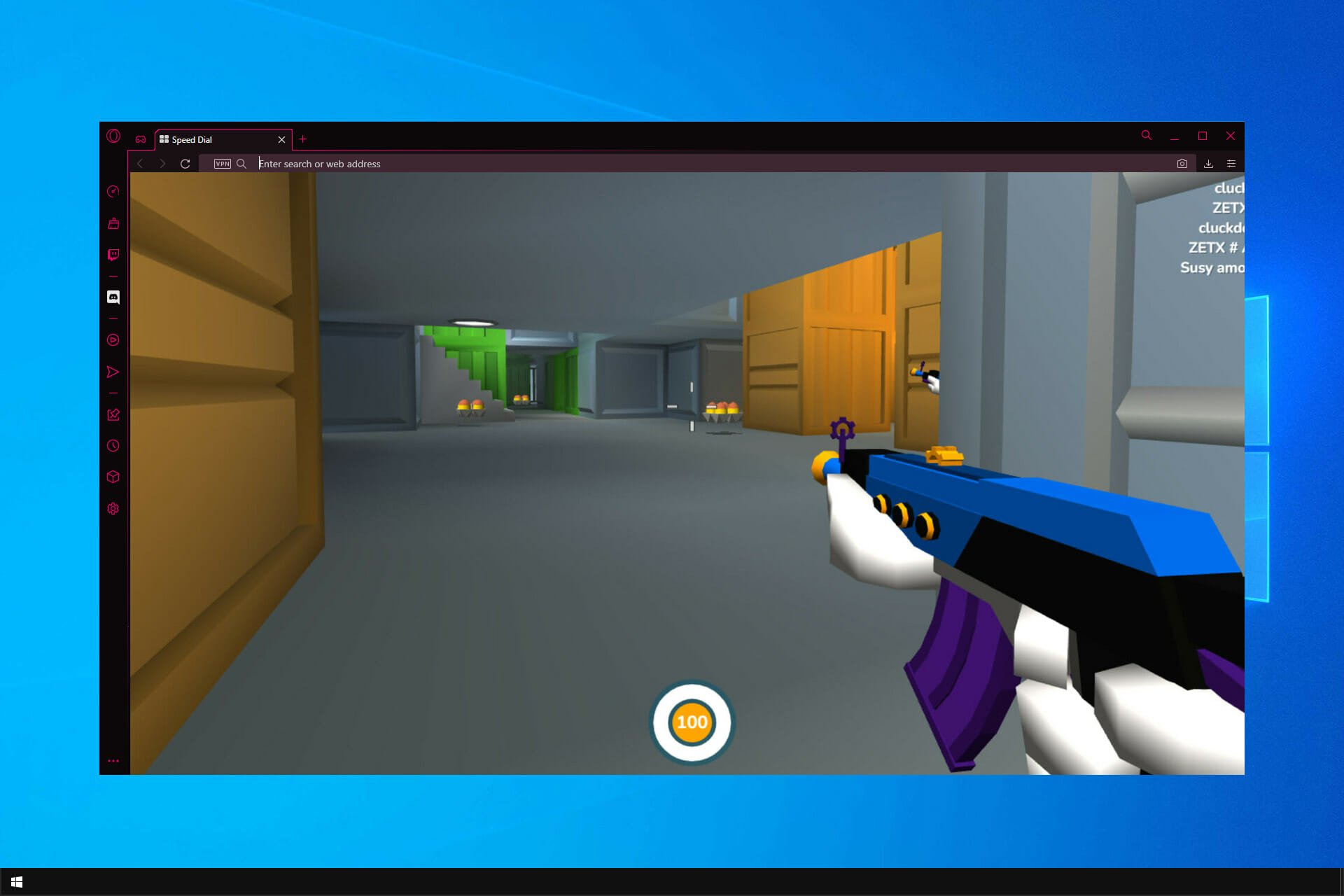




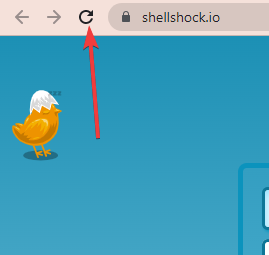



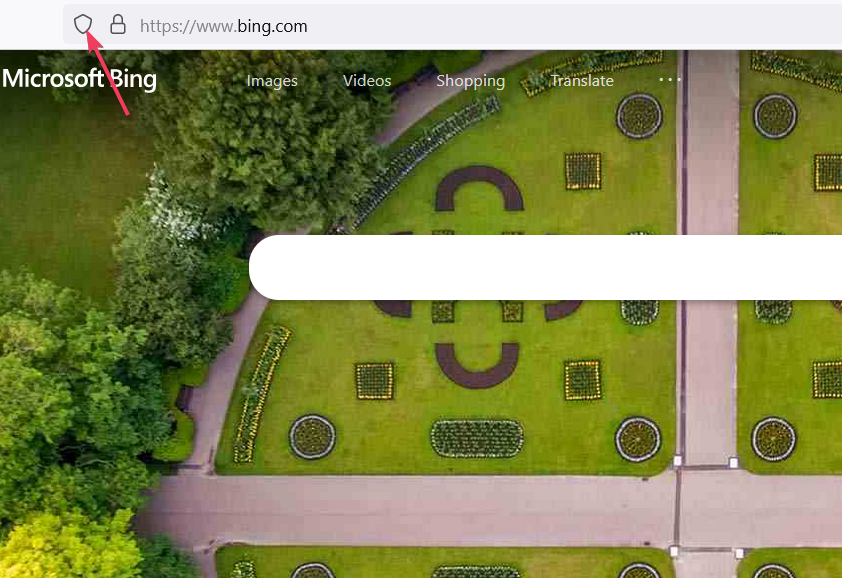
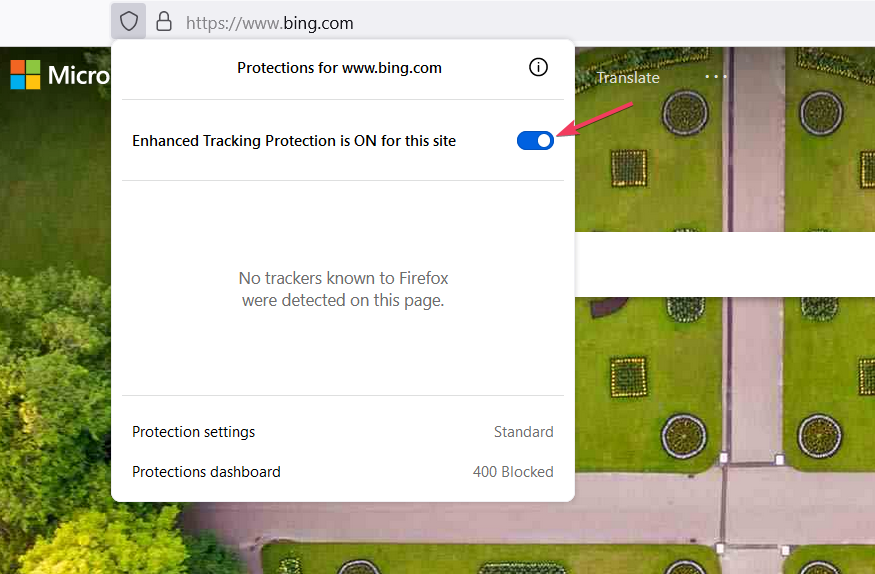
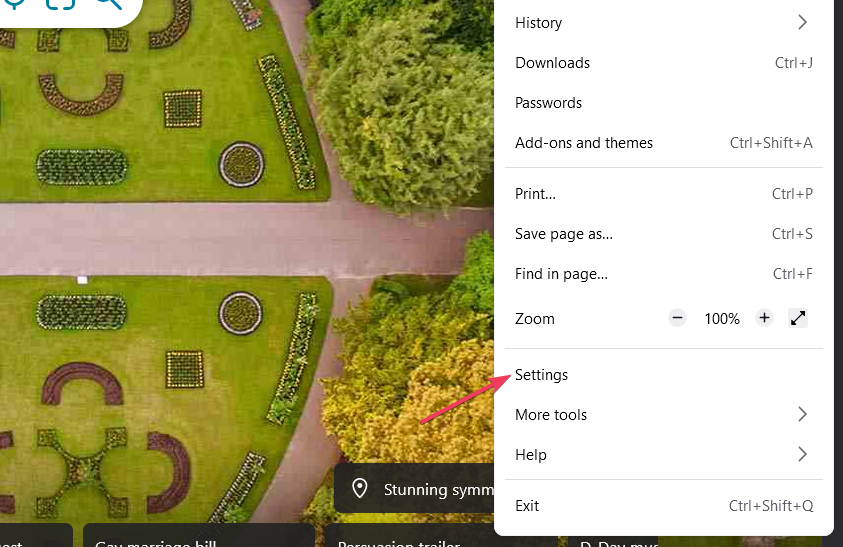
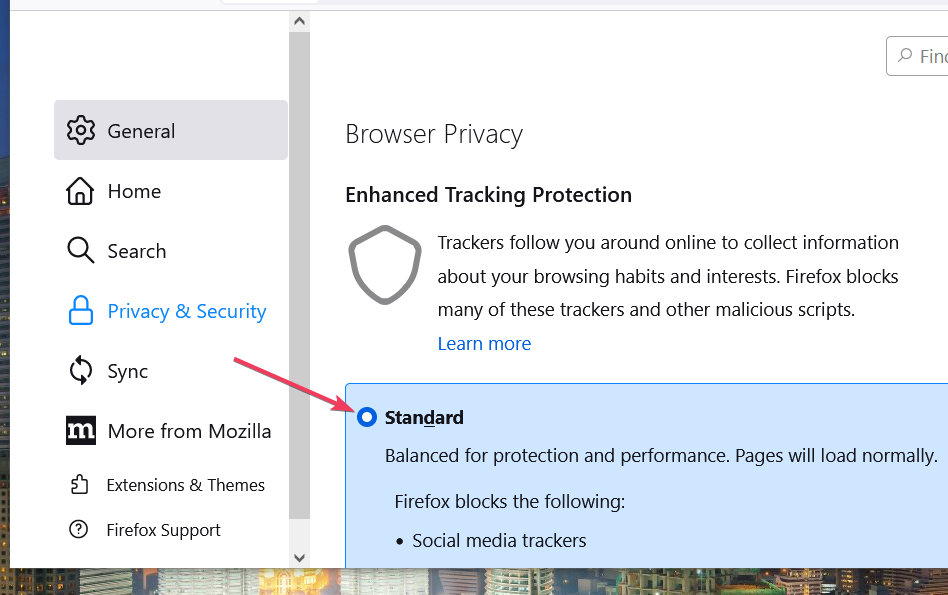
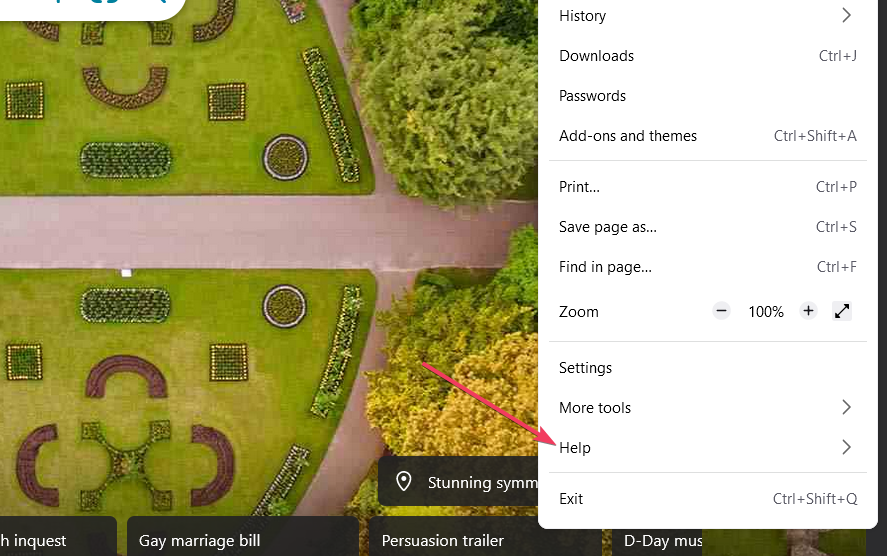
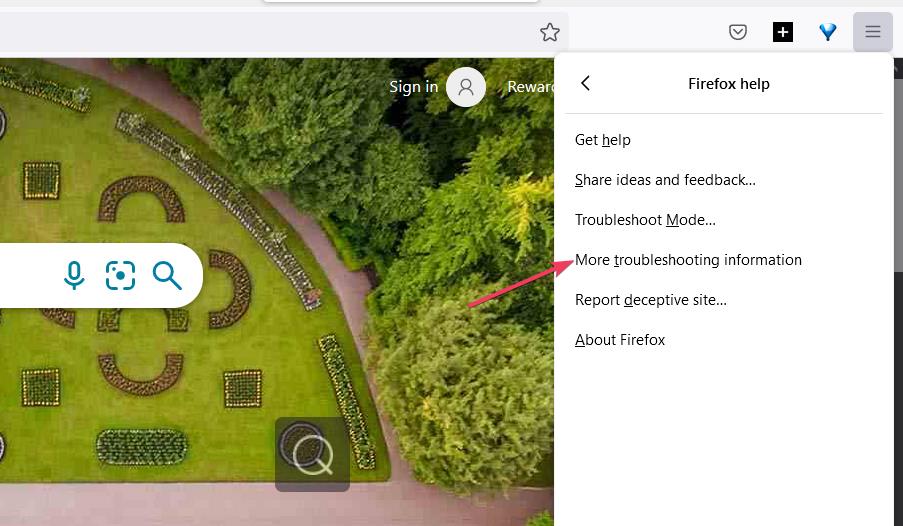
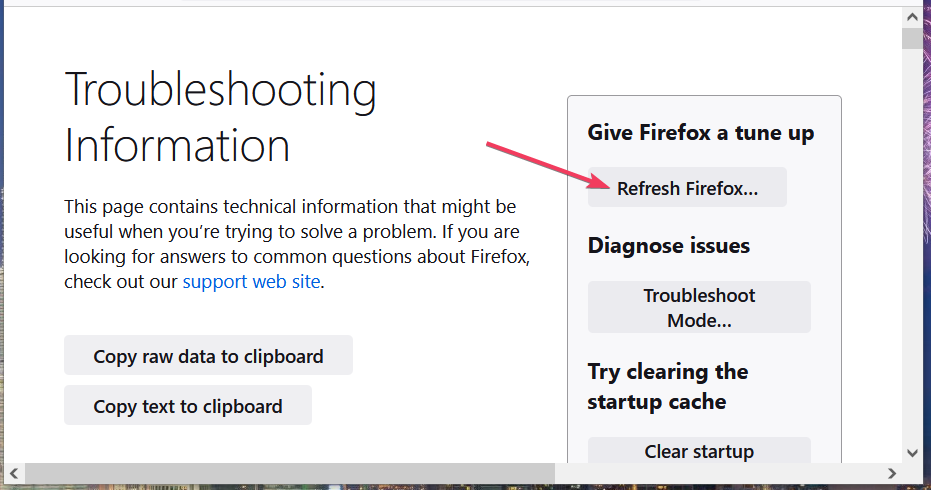
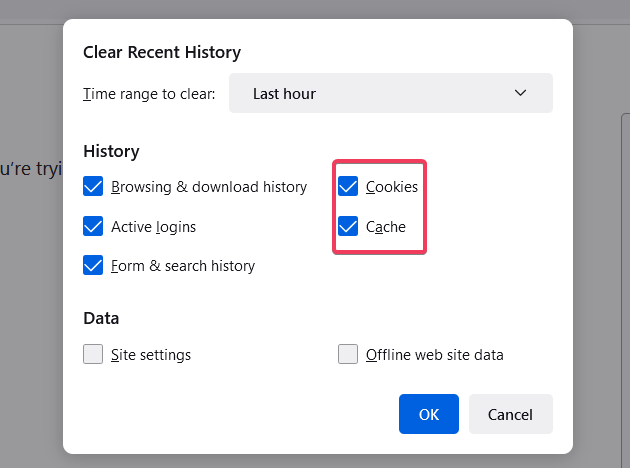
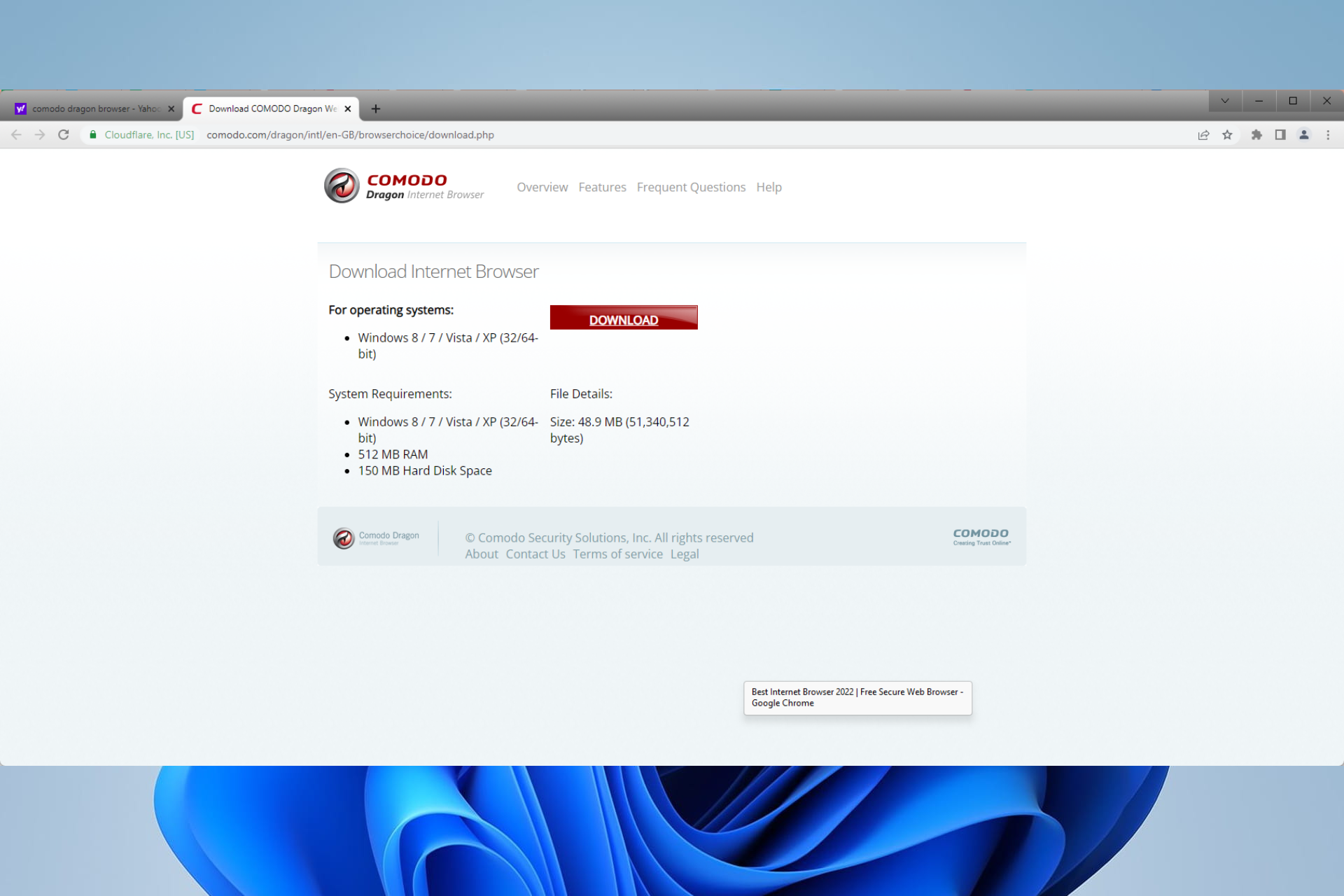
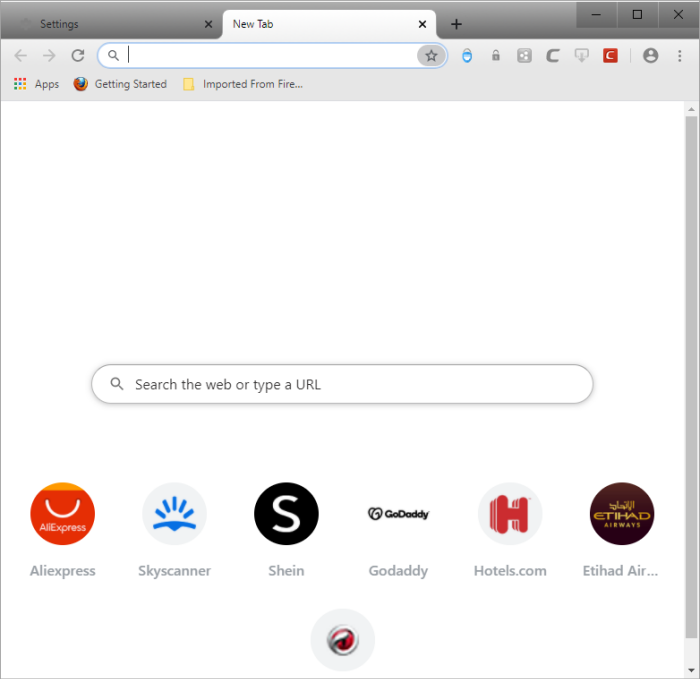
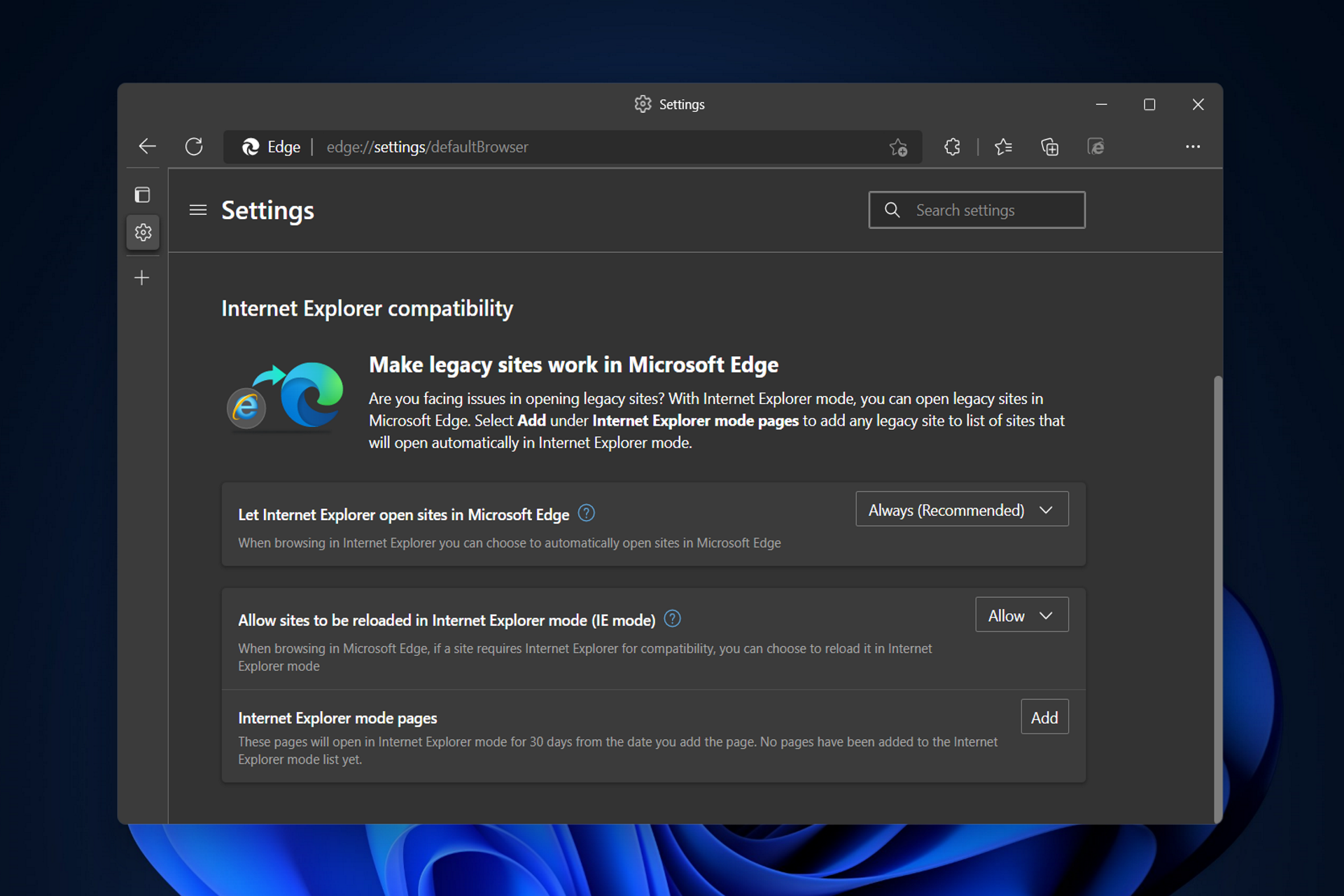



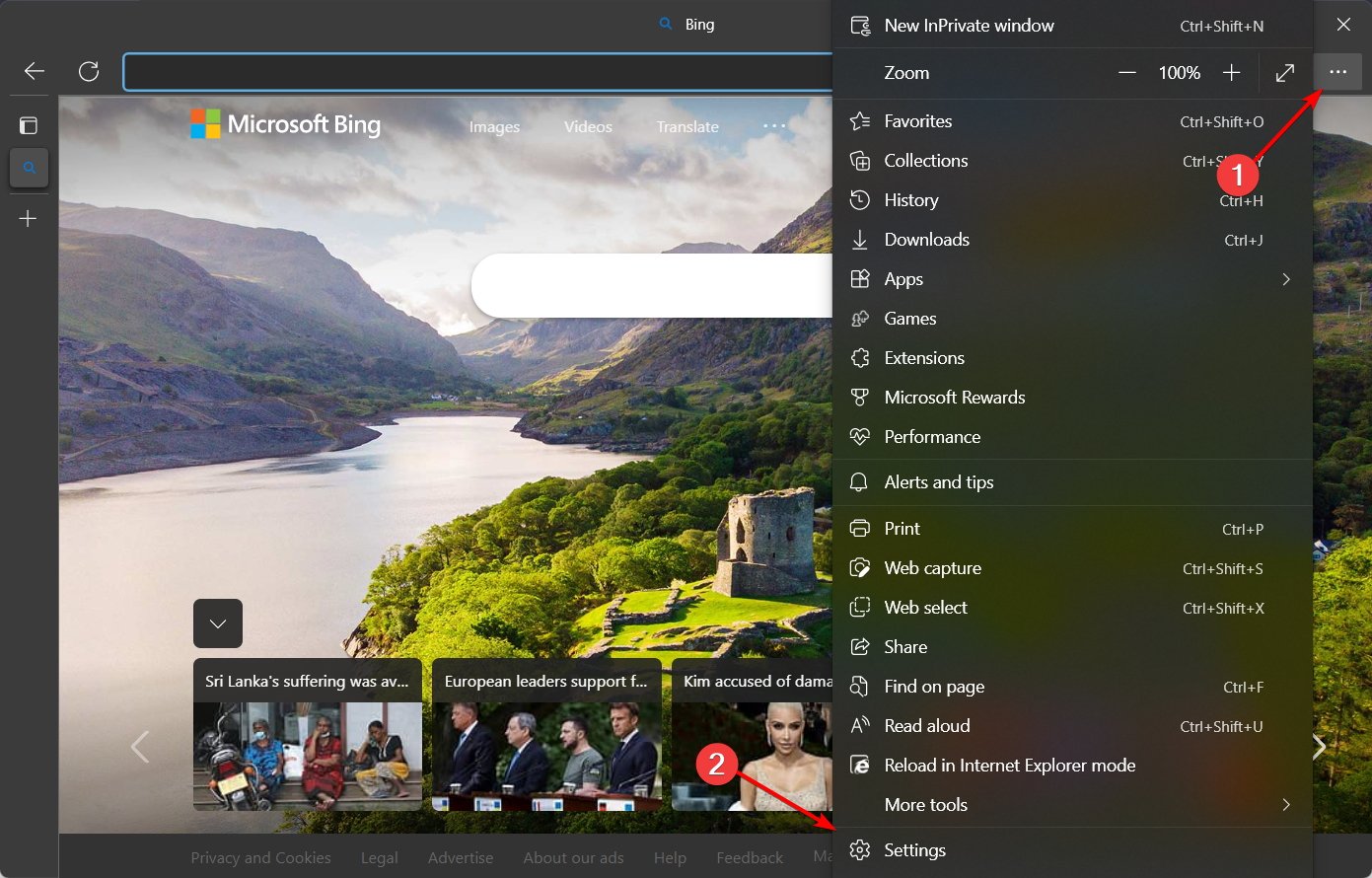
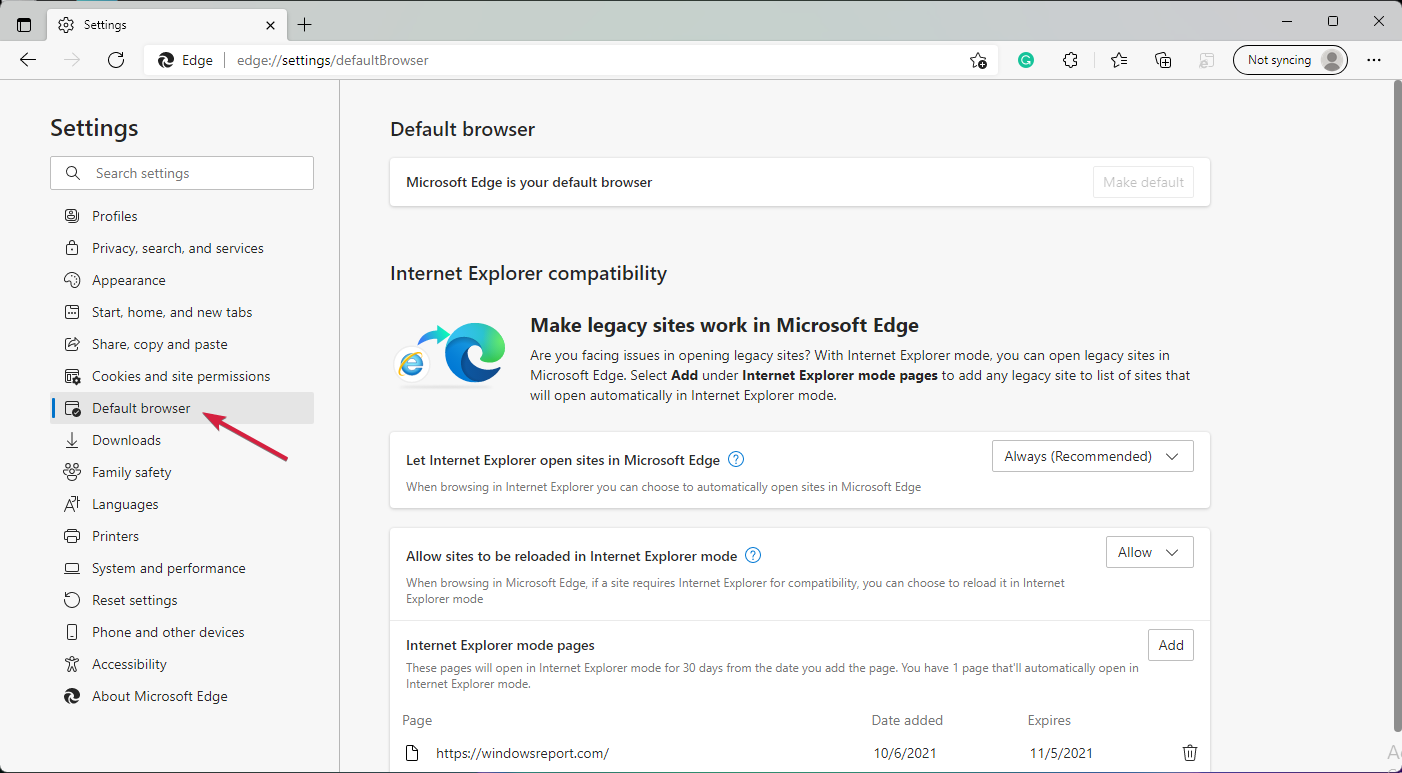
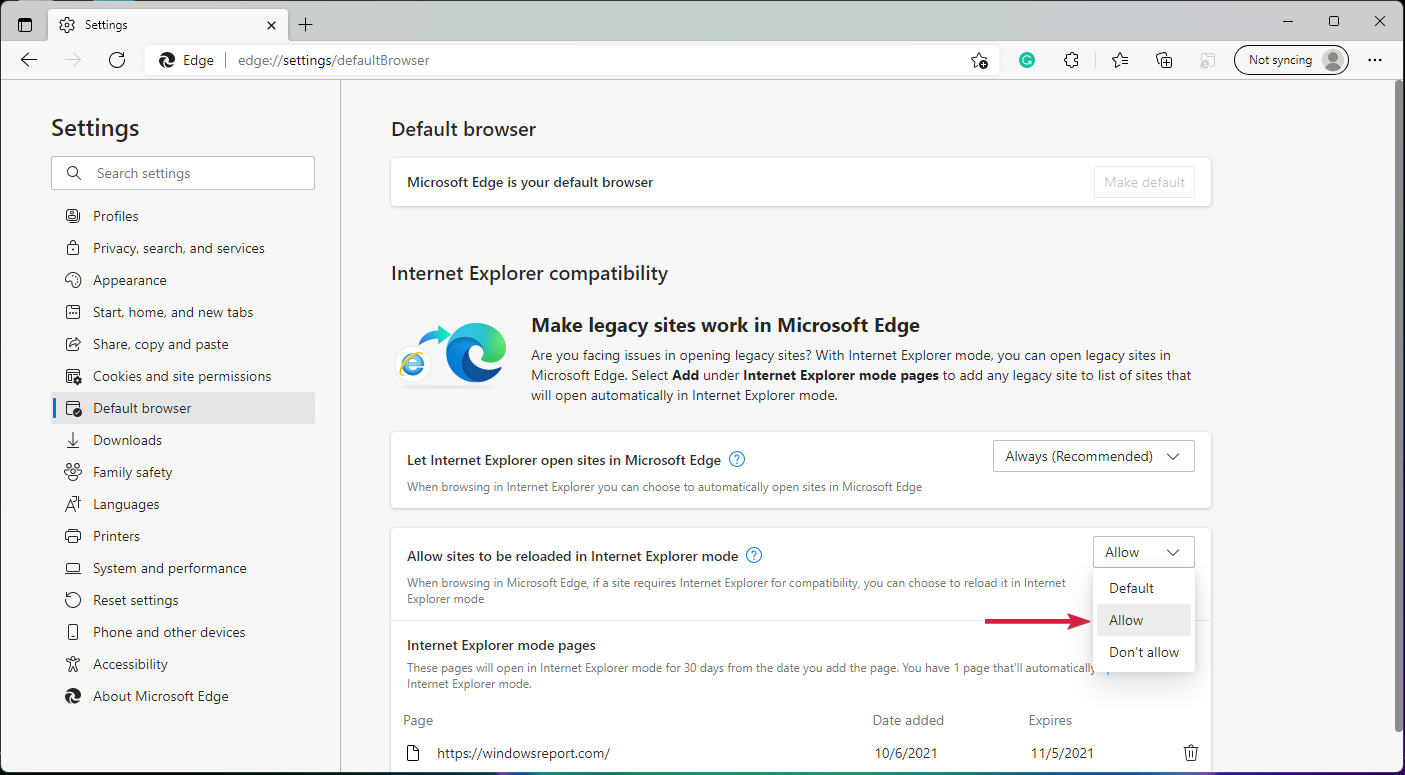
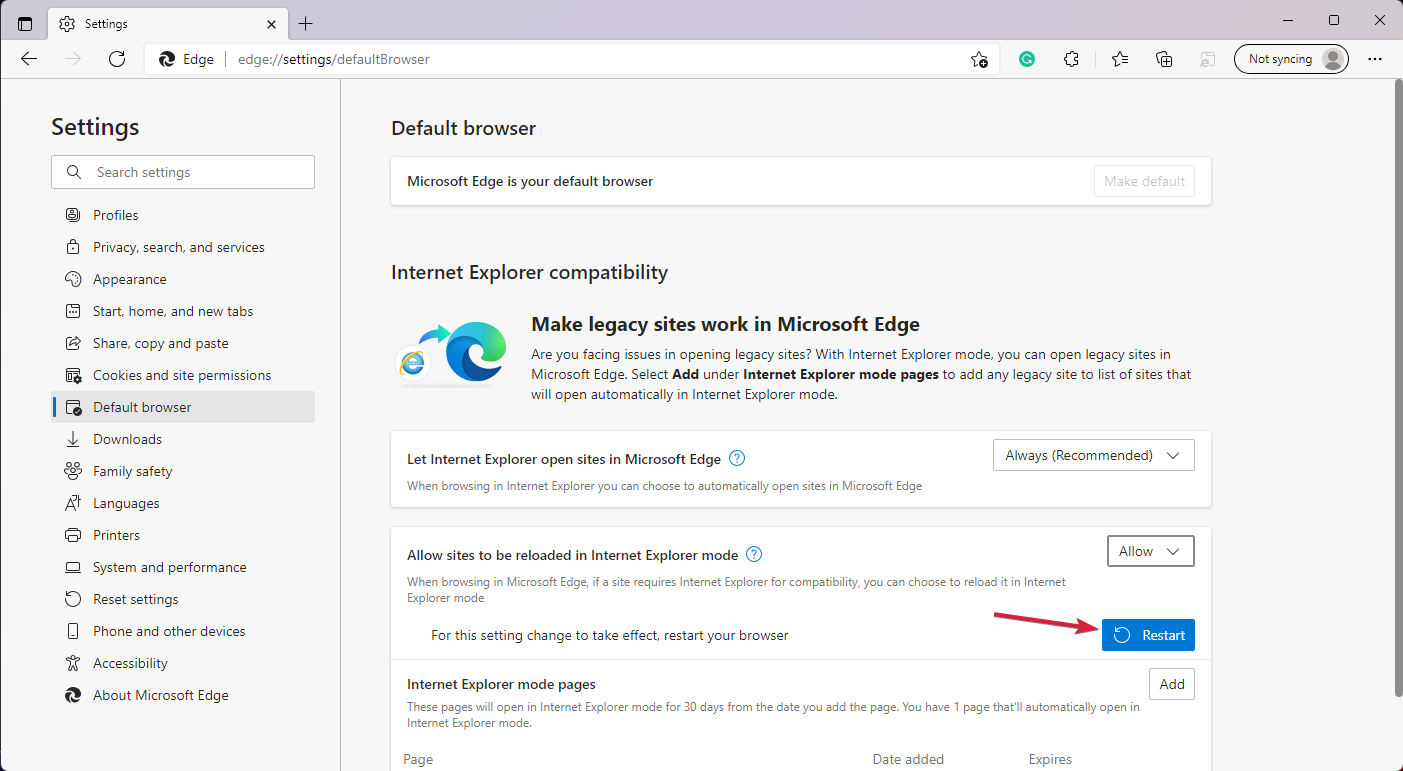


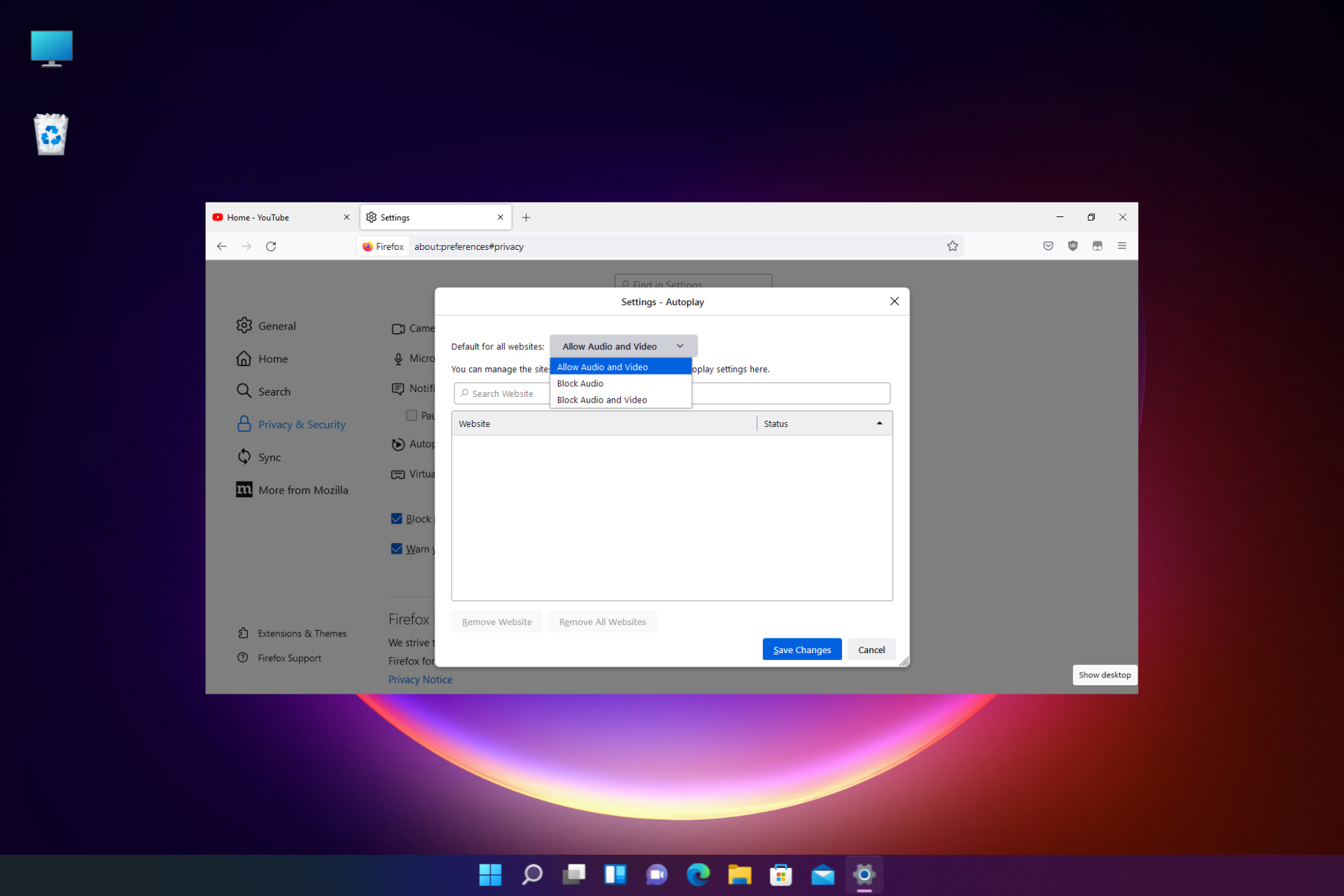
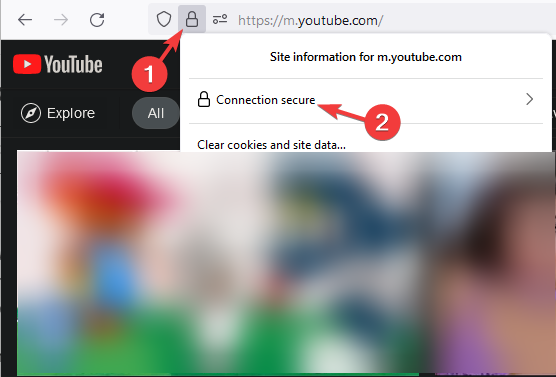
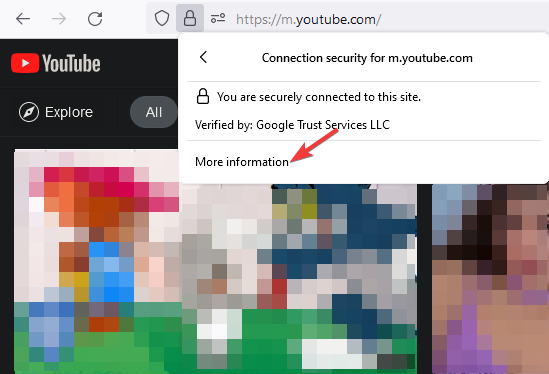
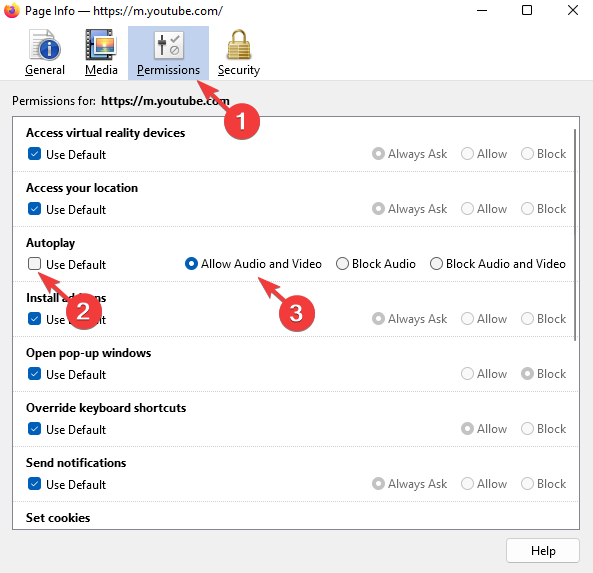
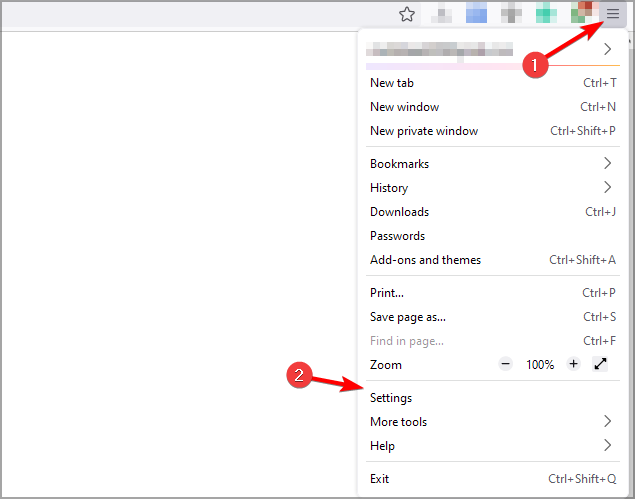
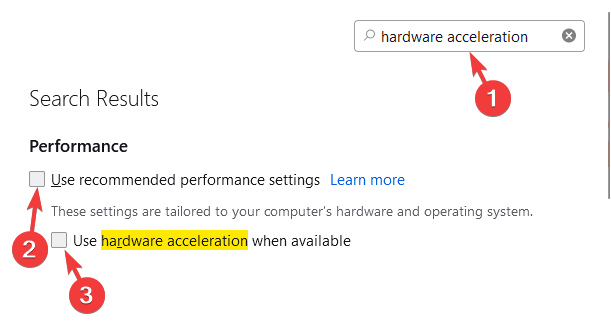
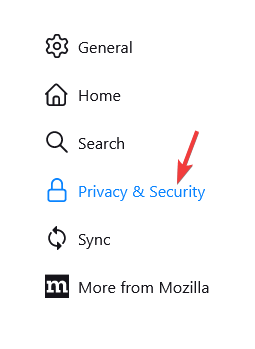
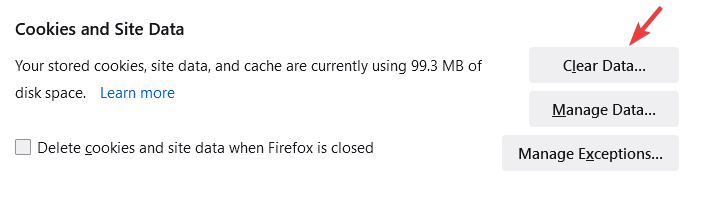
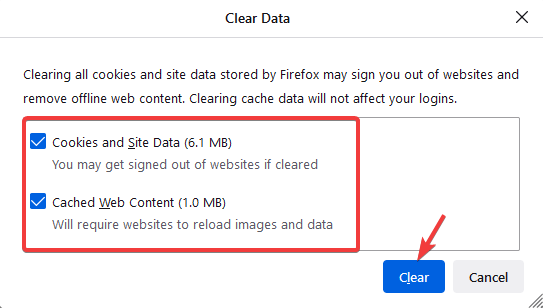
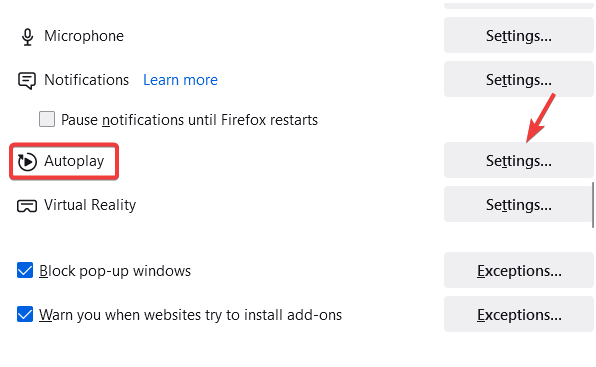
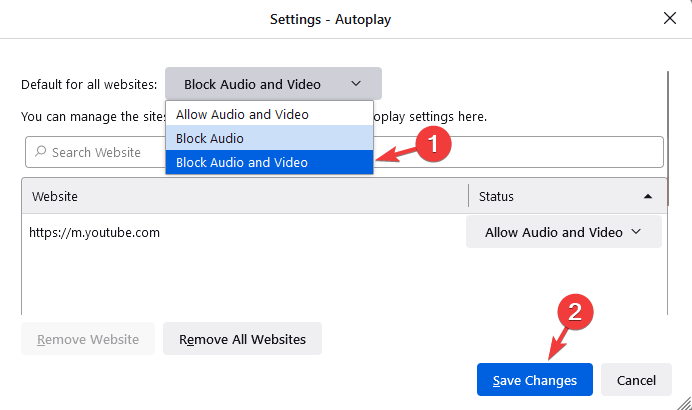
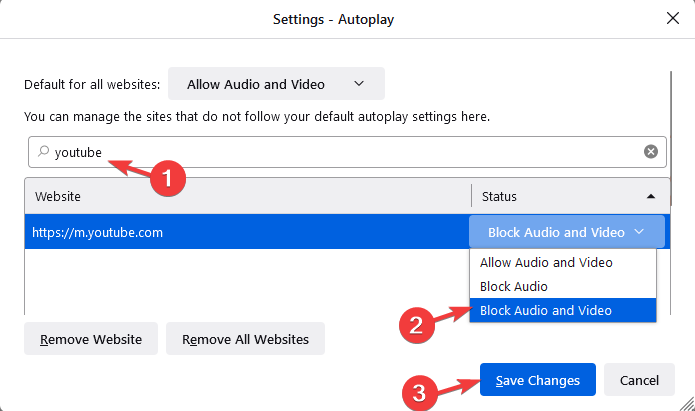
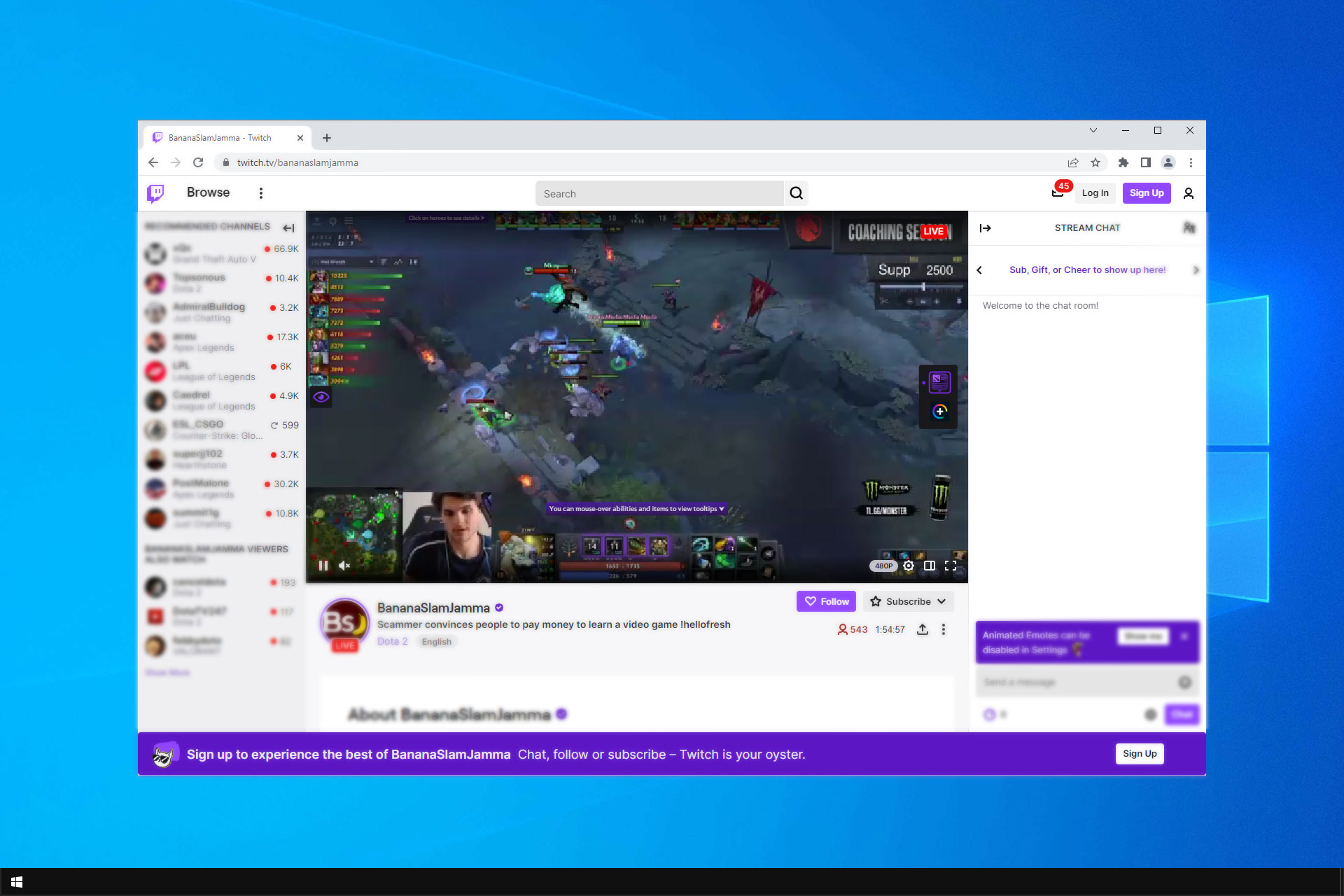

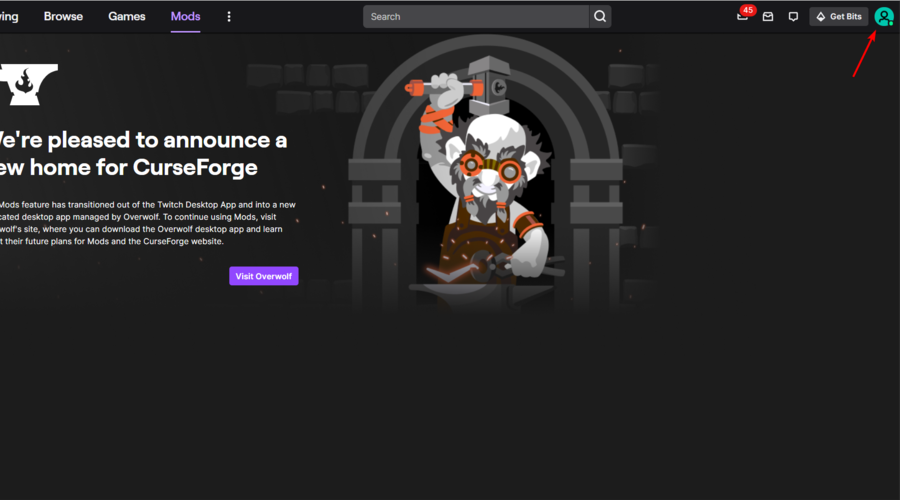

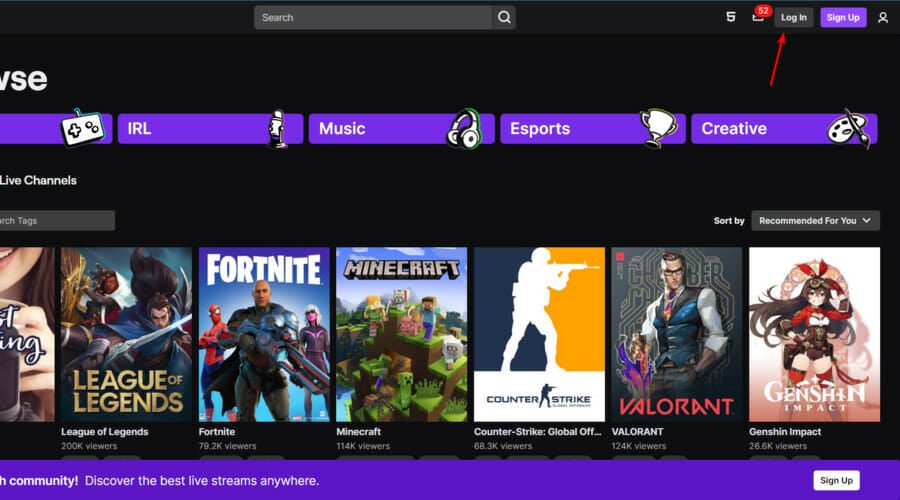
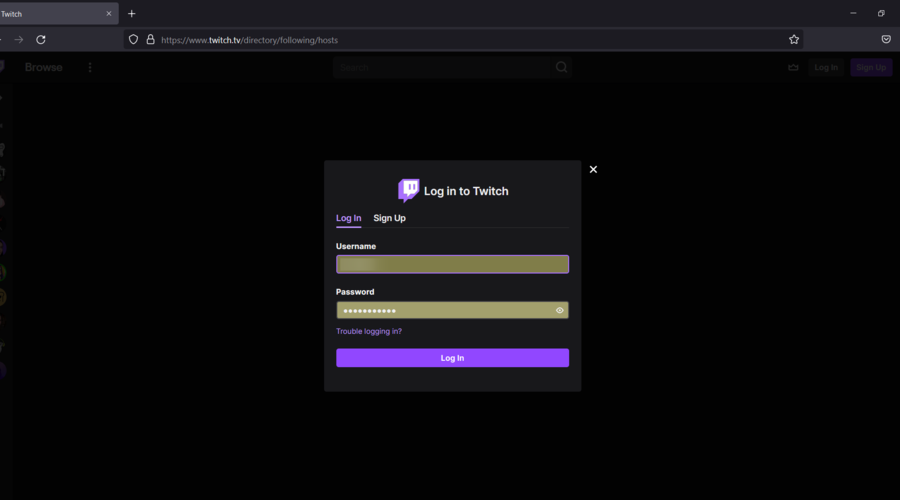

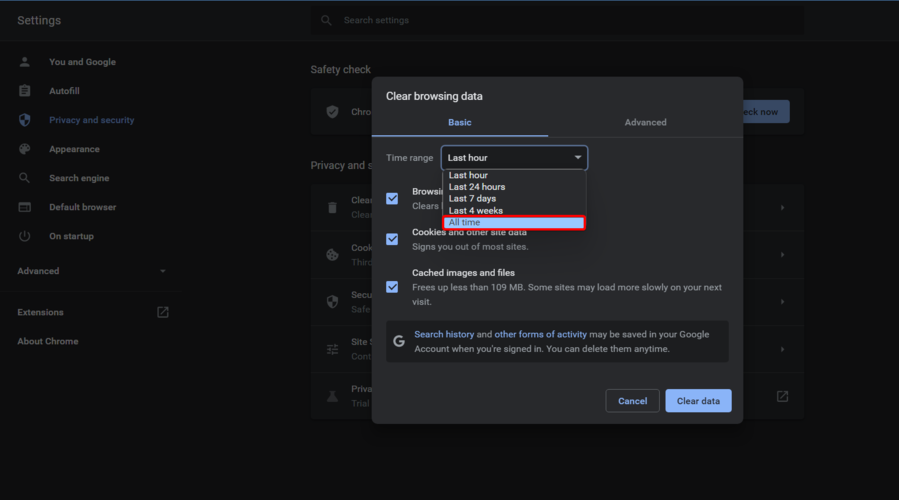
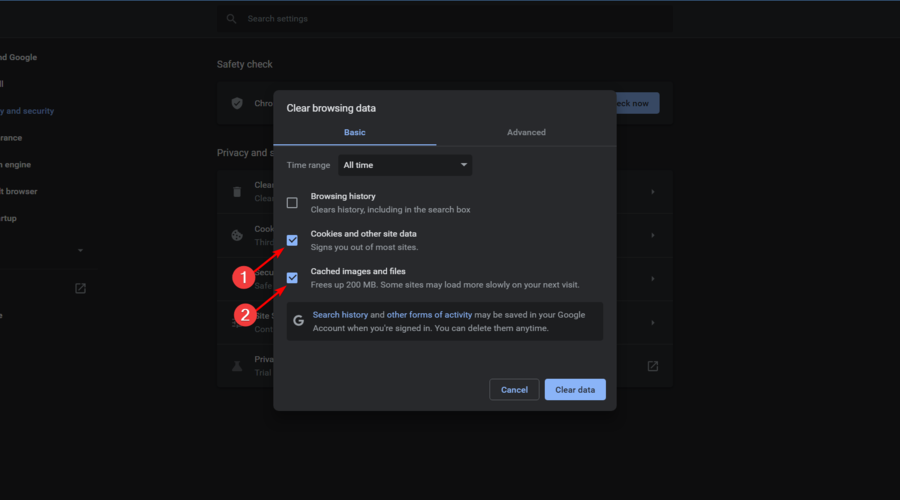


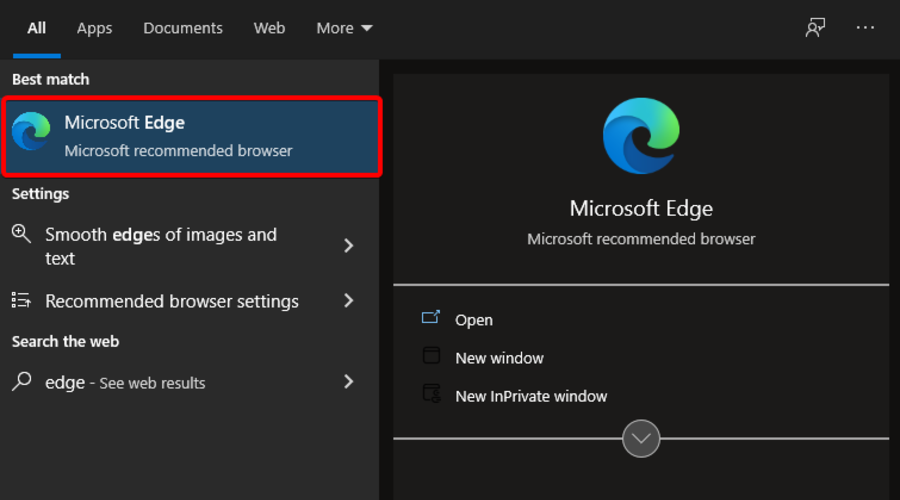









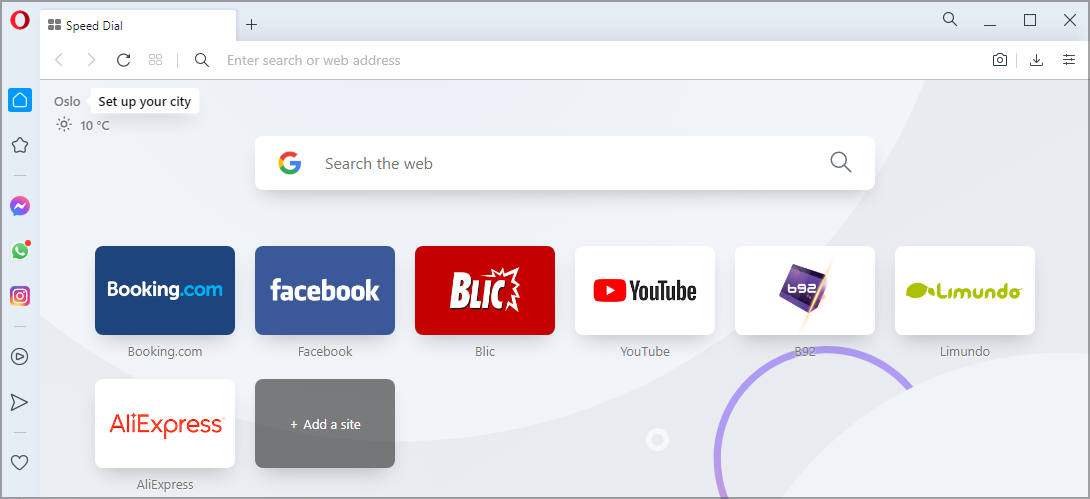

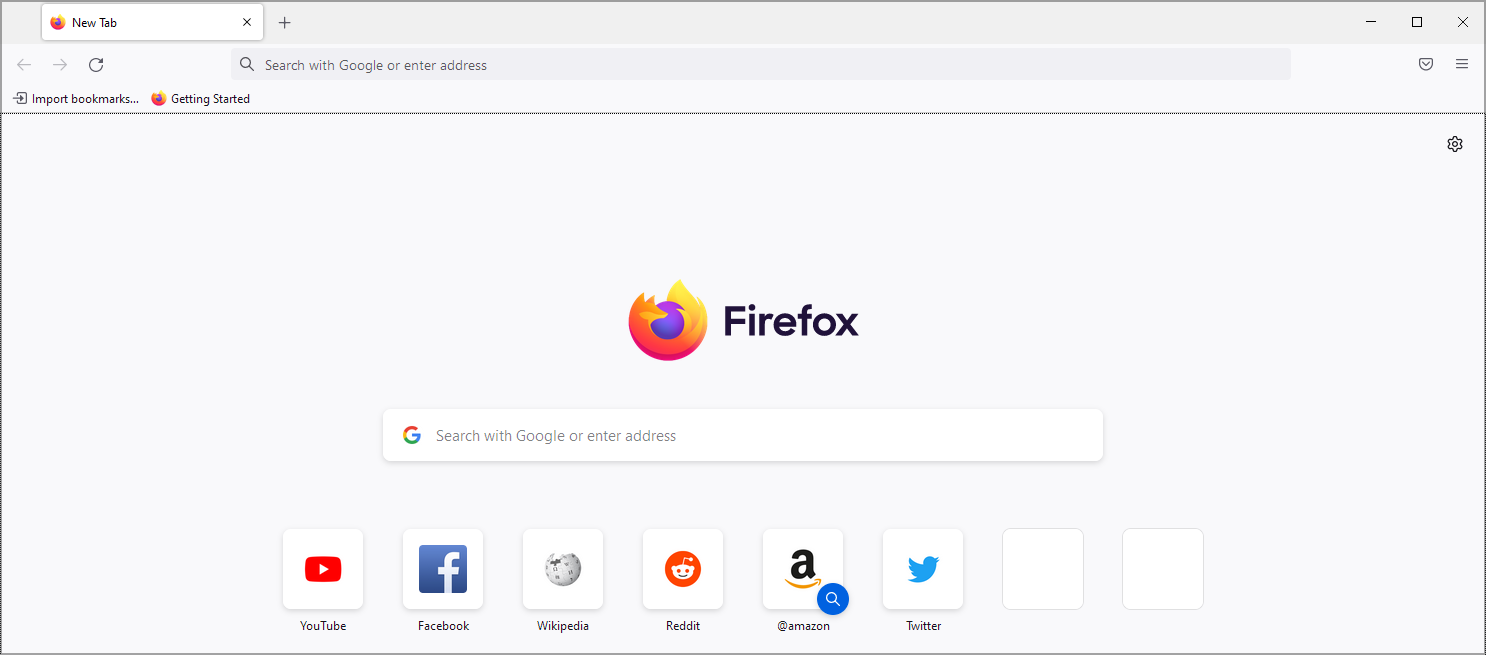
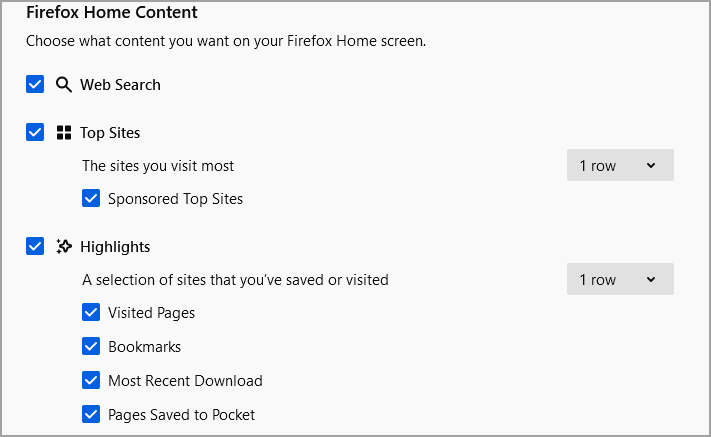
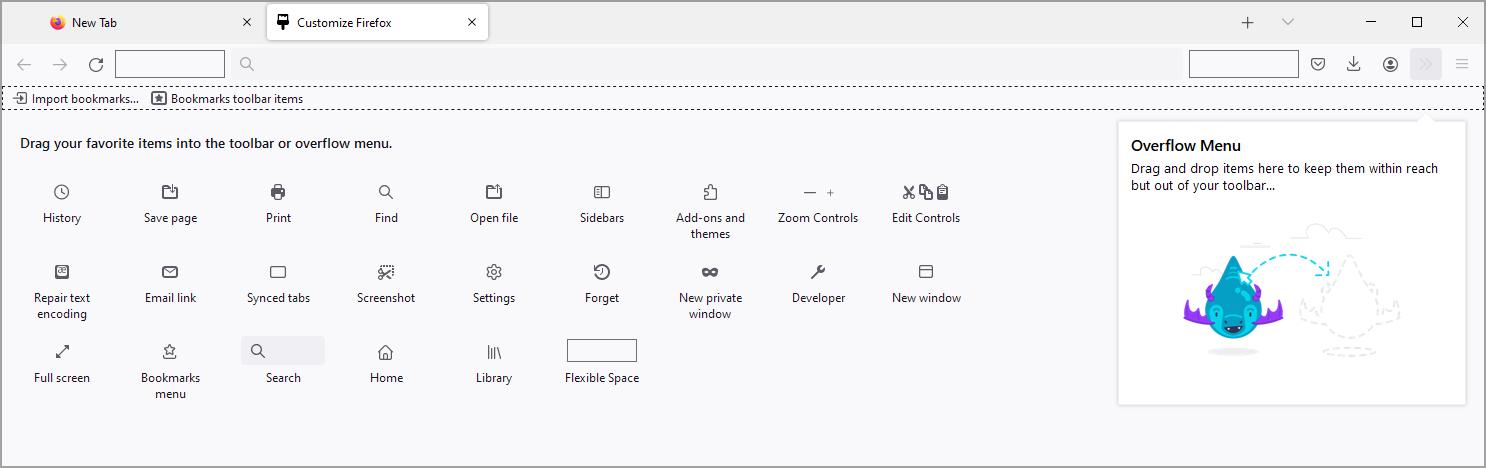
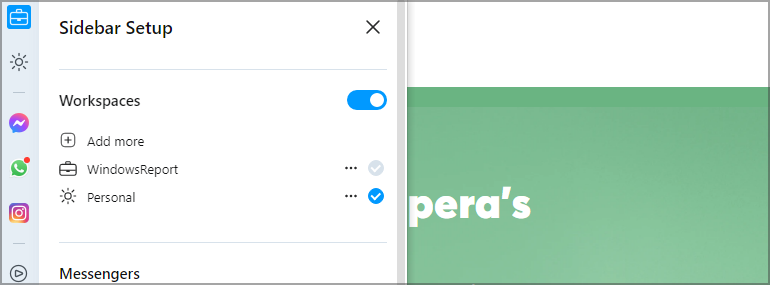
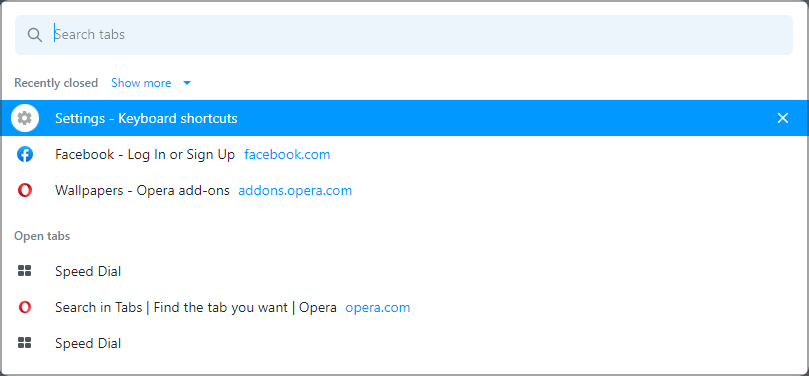
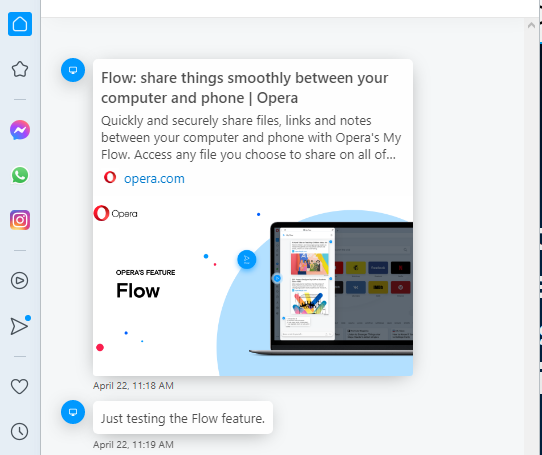
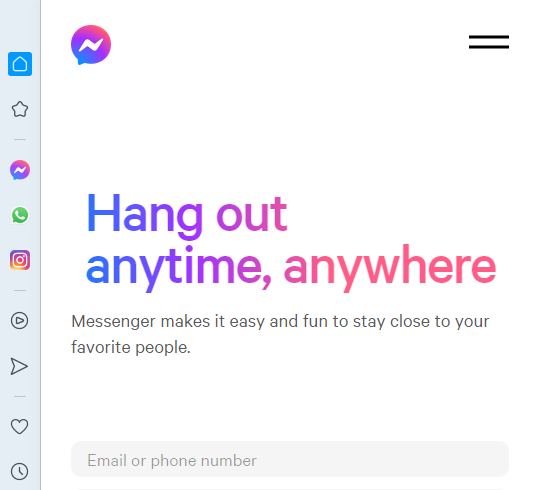
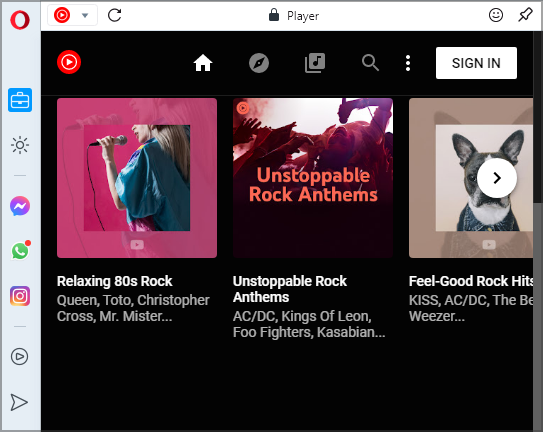

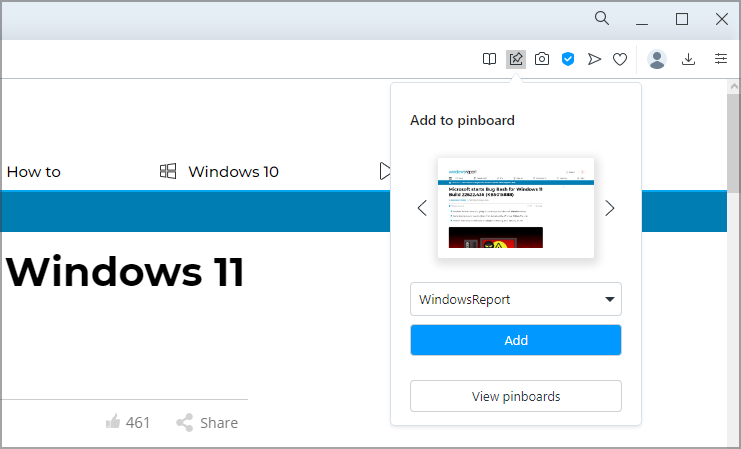

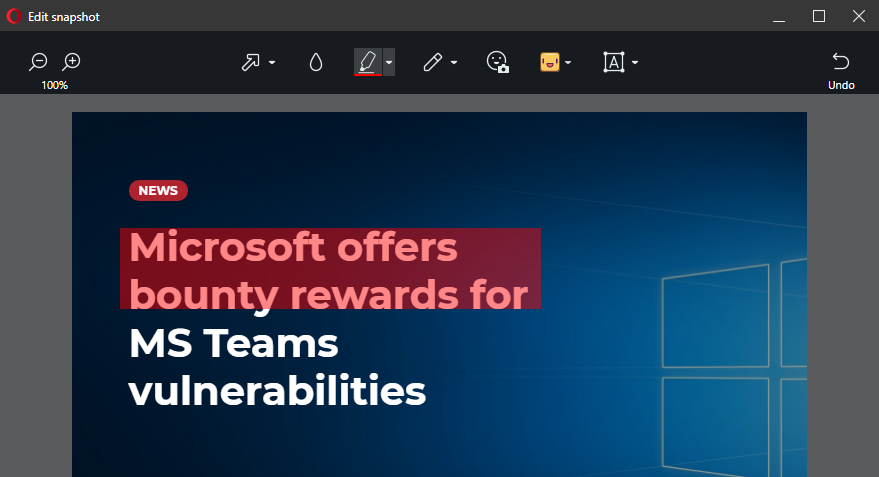
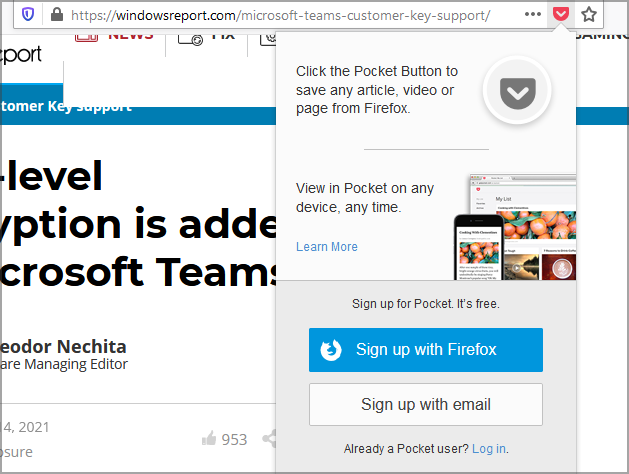
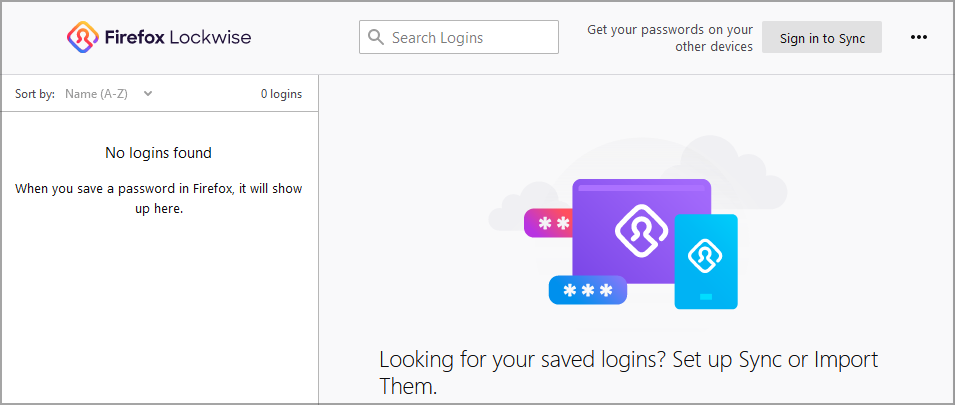

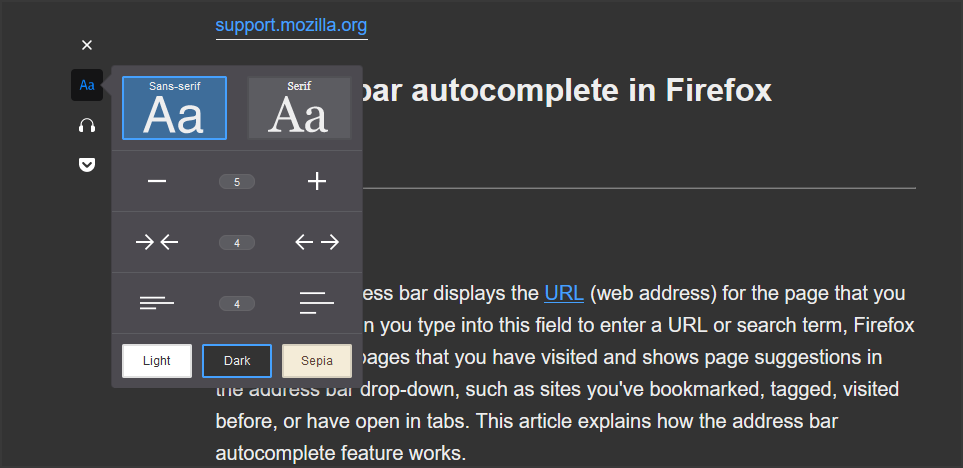
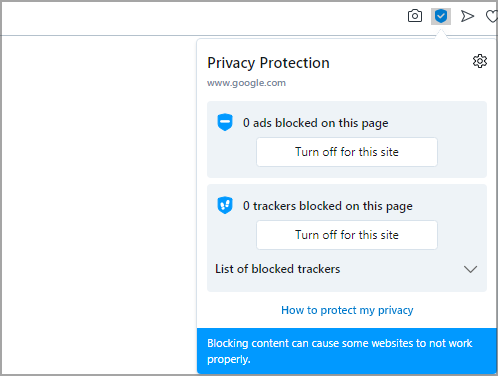
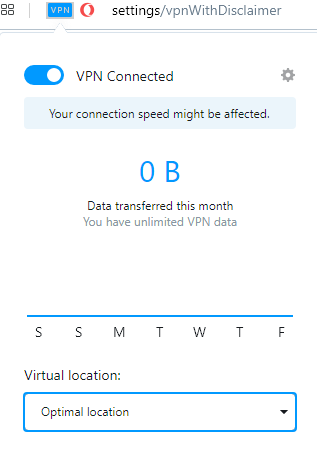

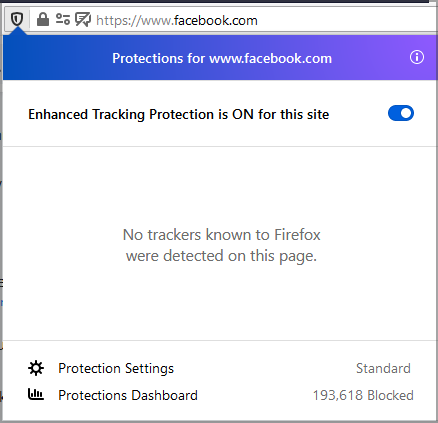
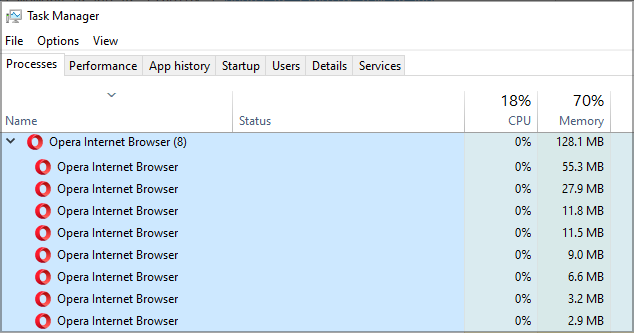
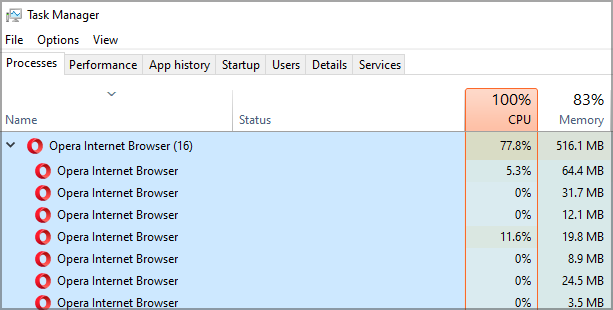
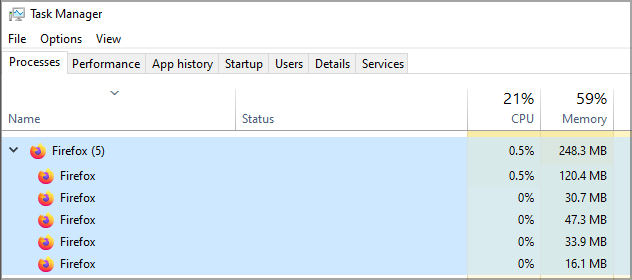
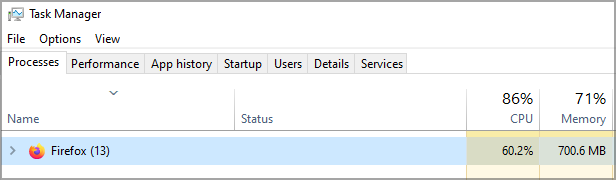
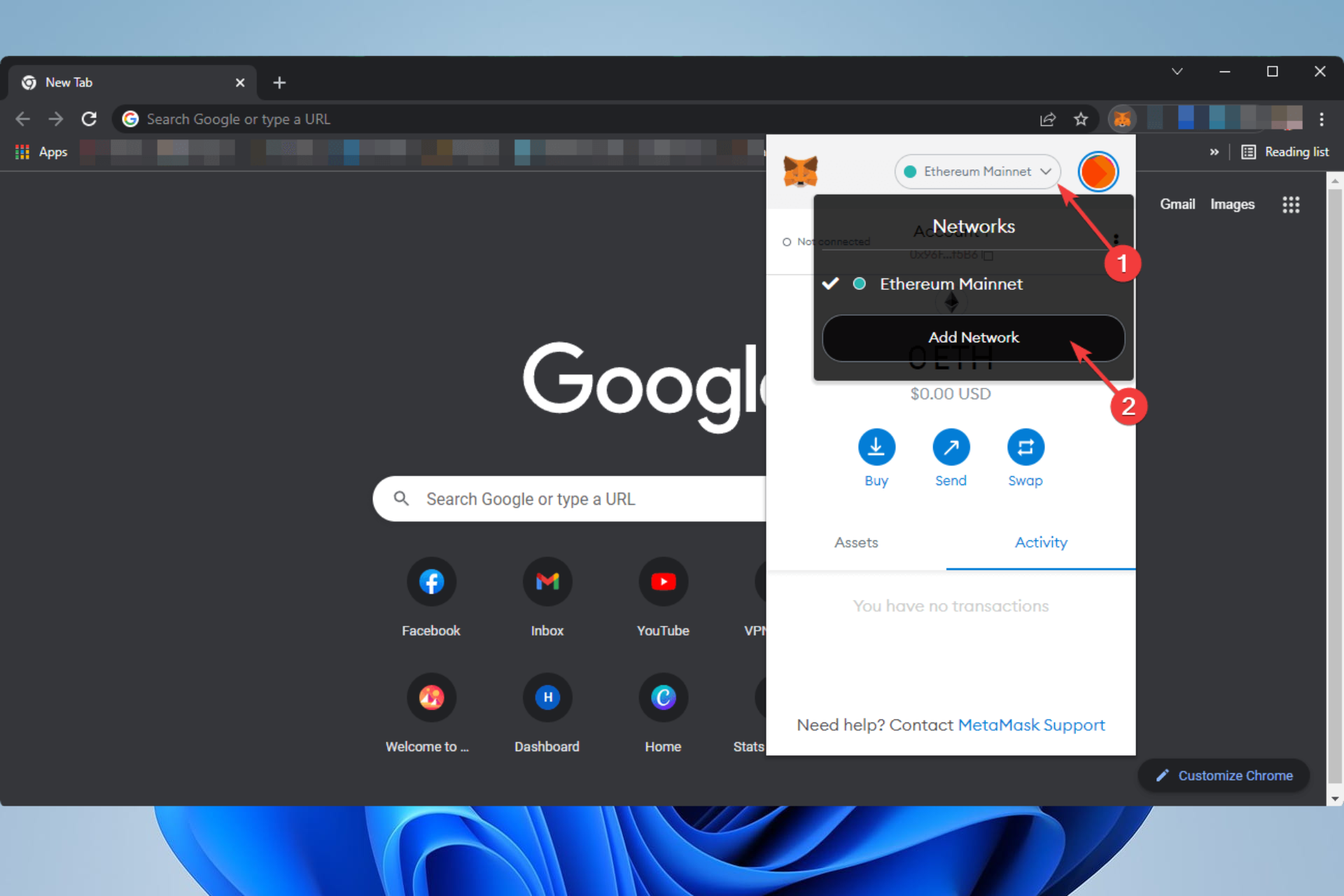
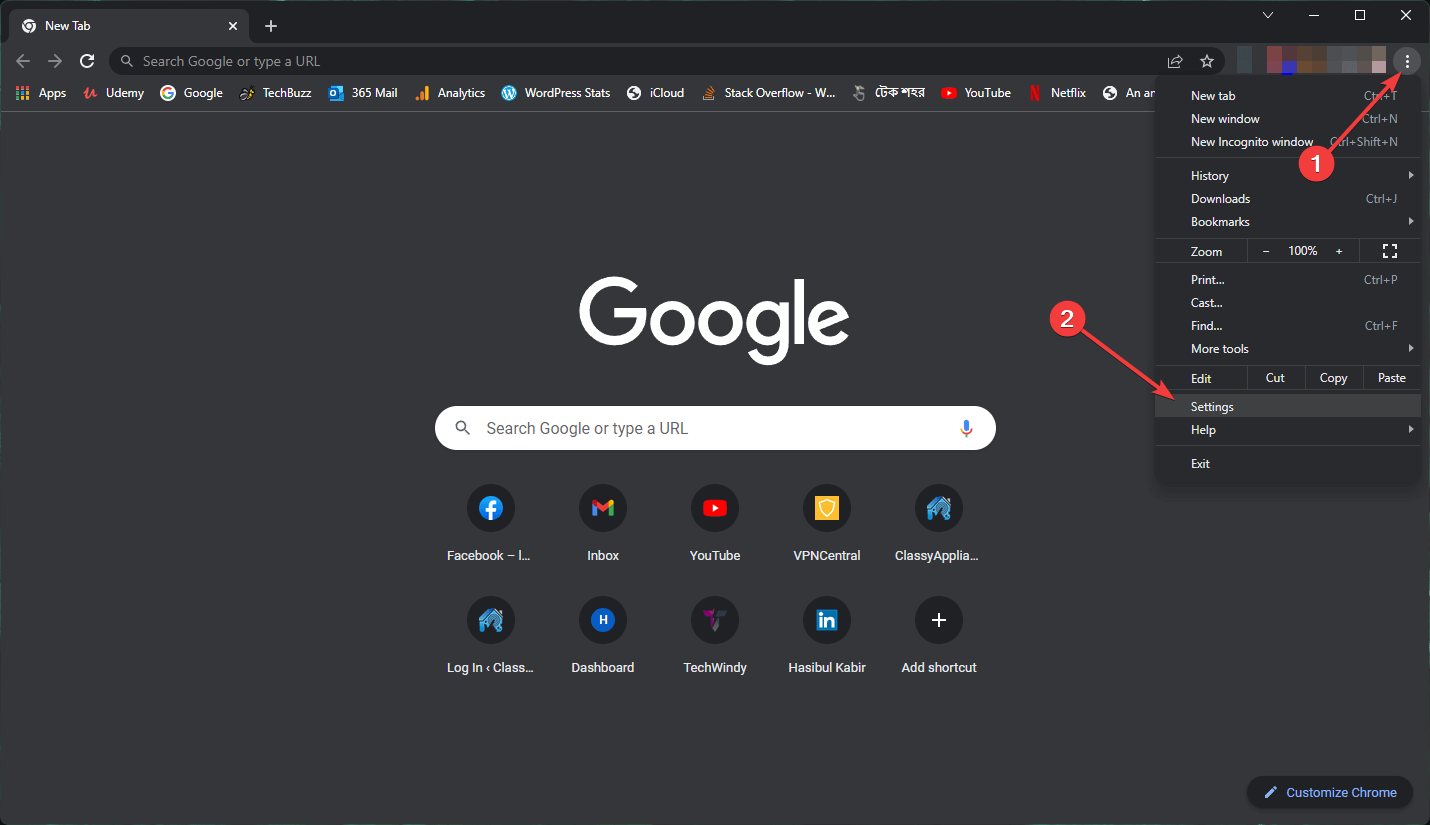
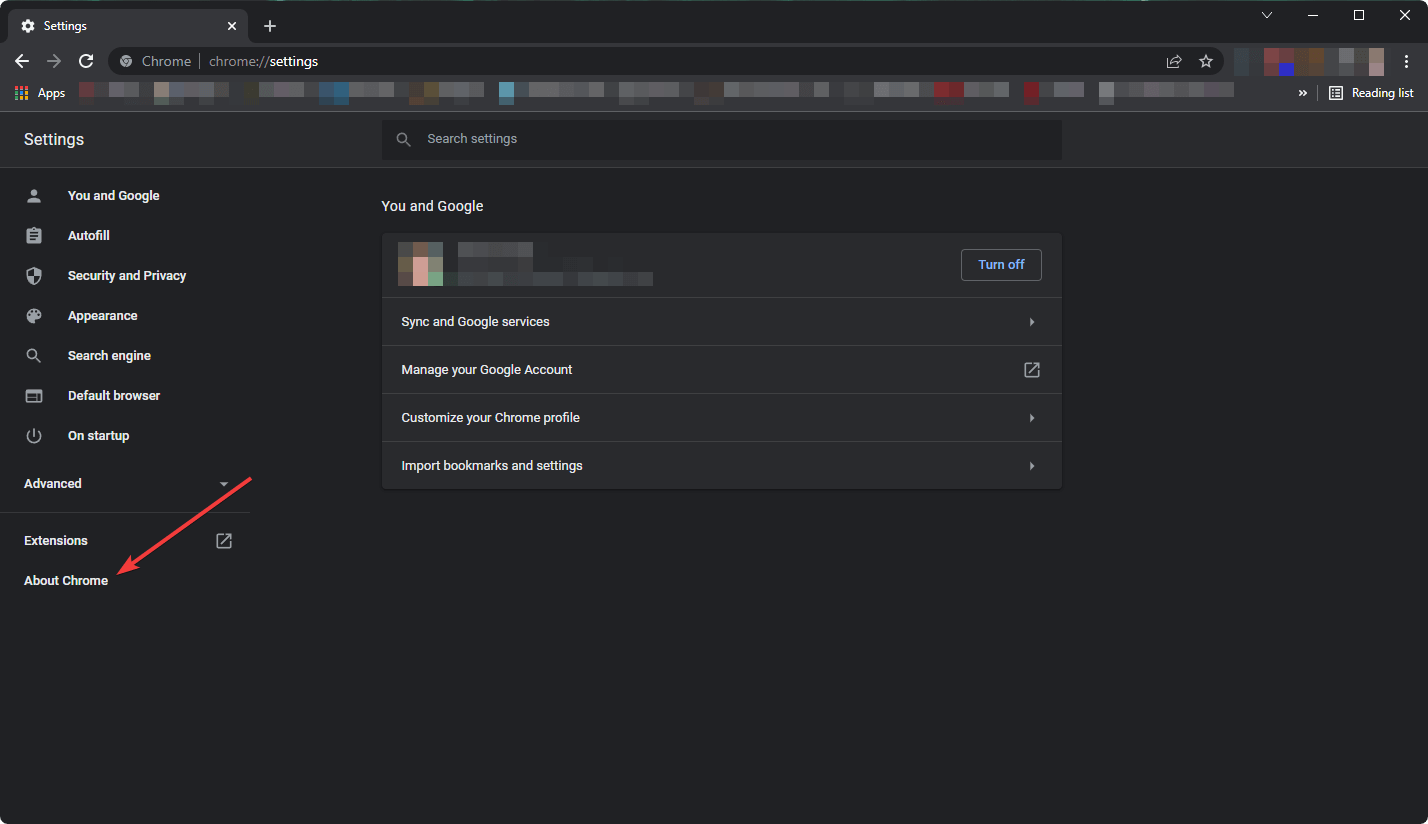
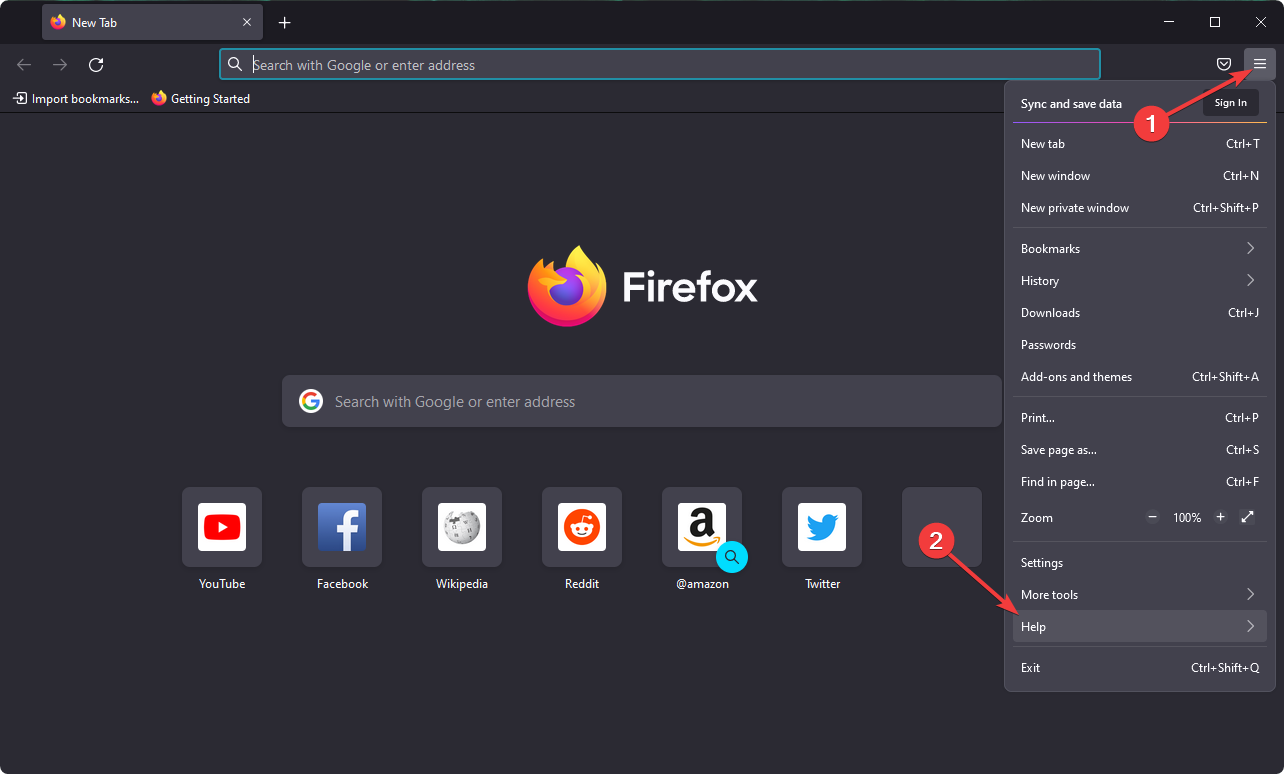
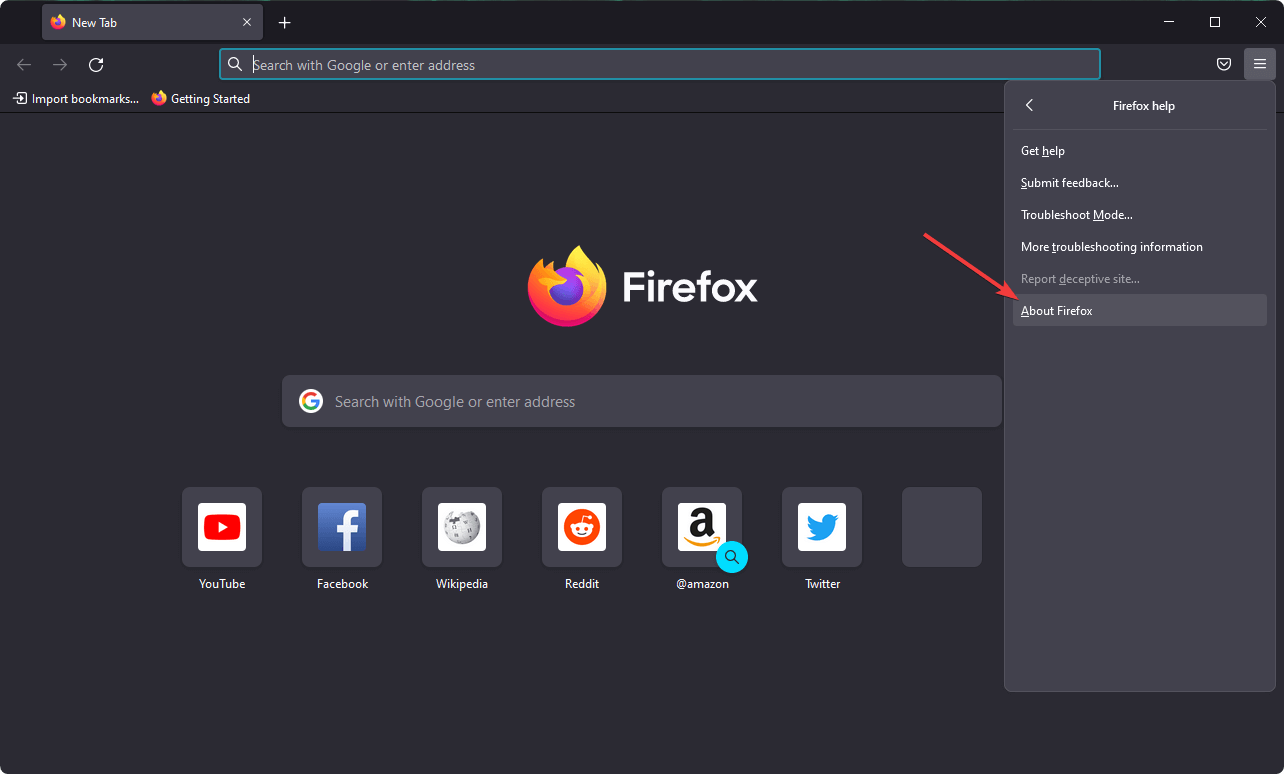


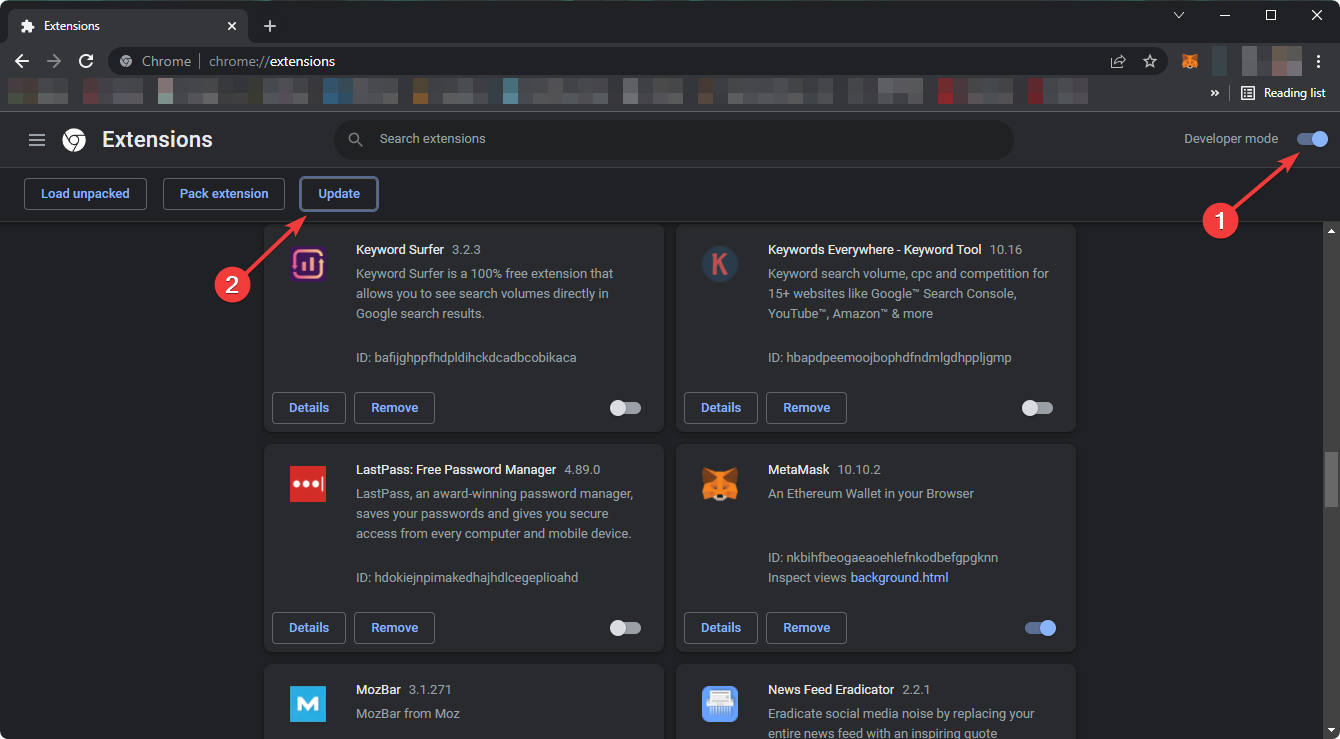

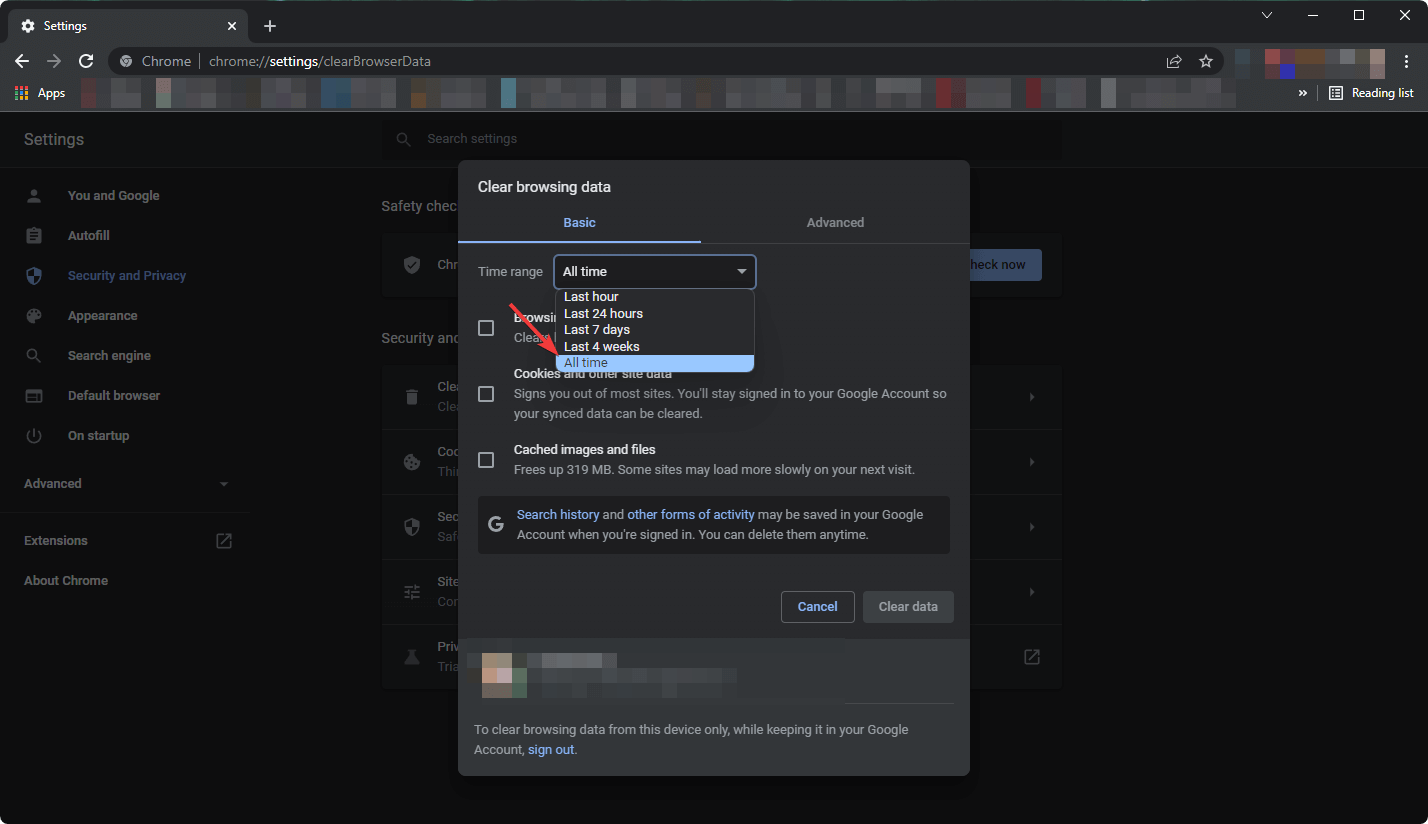
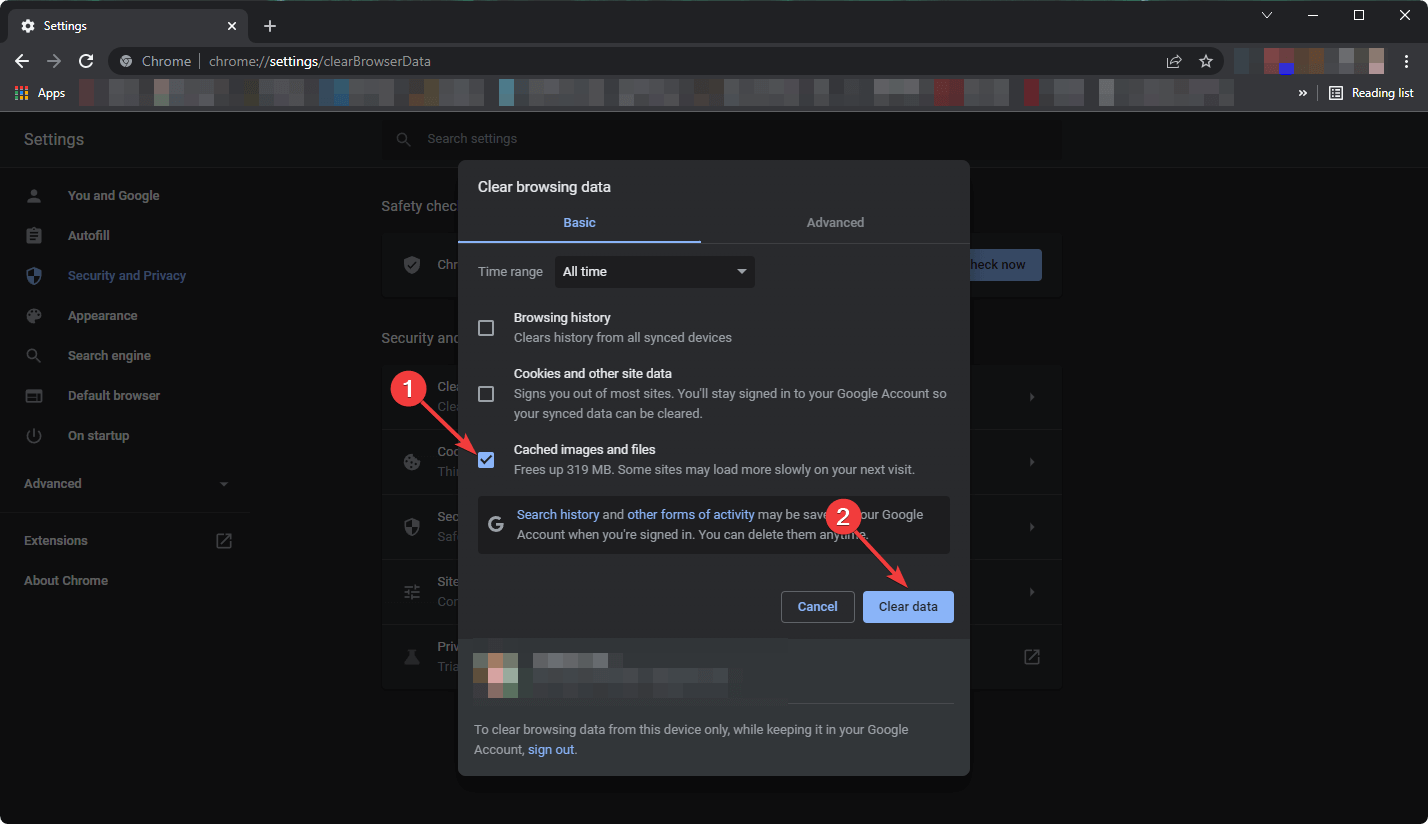


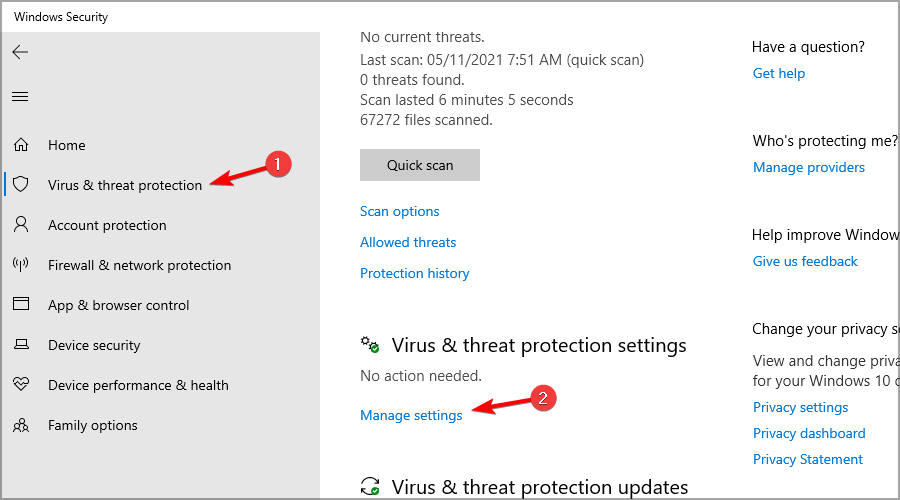

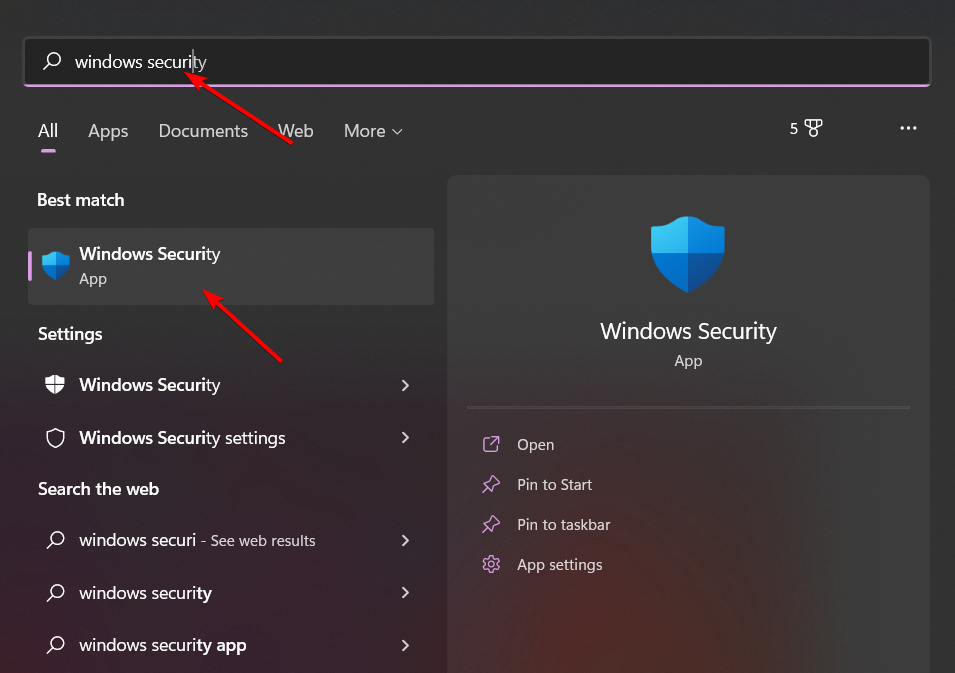


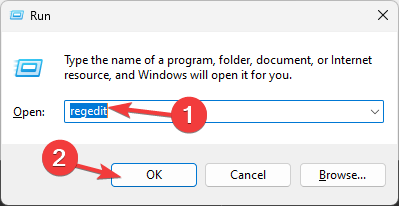


![Opera Download Speed Slow? Make it Faster [5 Ways]](https://windowsreport.com/wp-content/uploads/2022/07/best-browser-for-google-workspace-40.jpg)


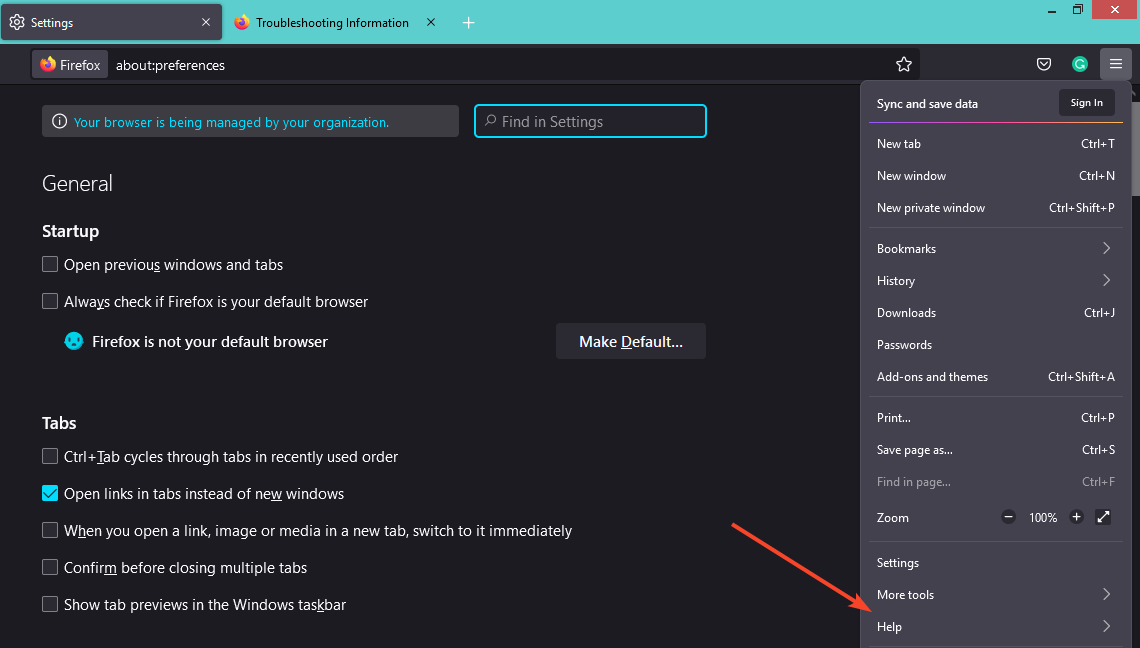
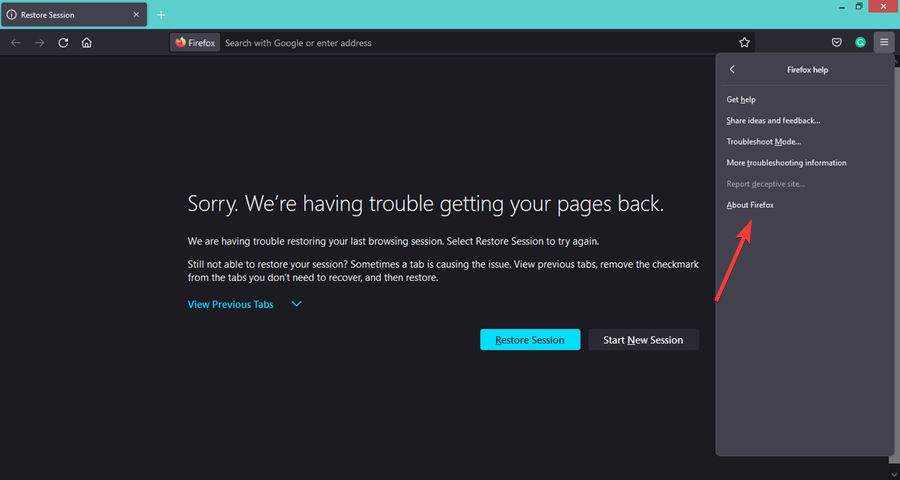
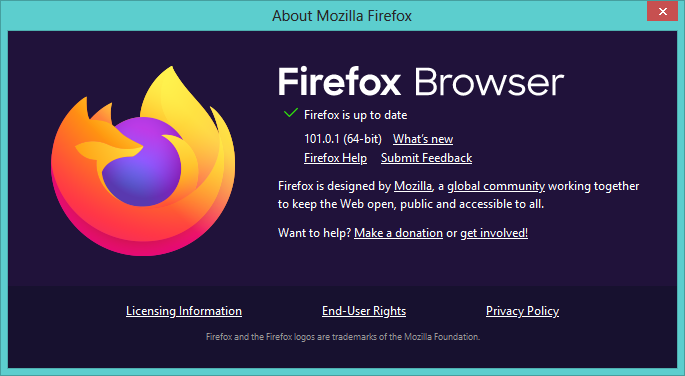
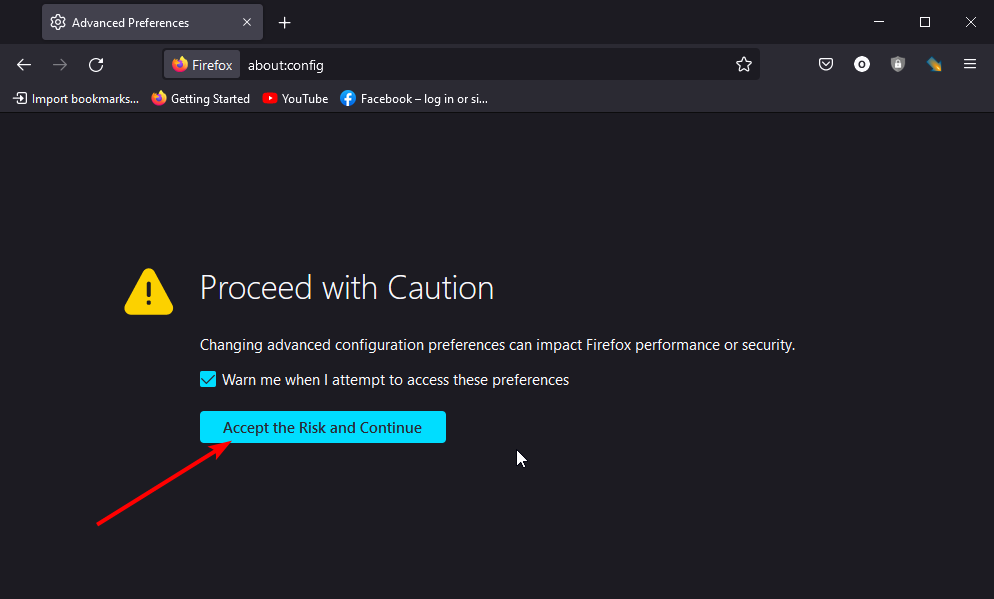
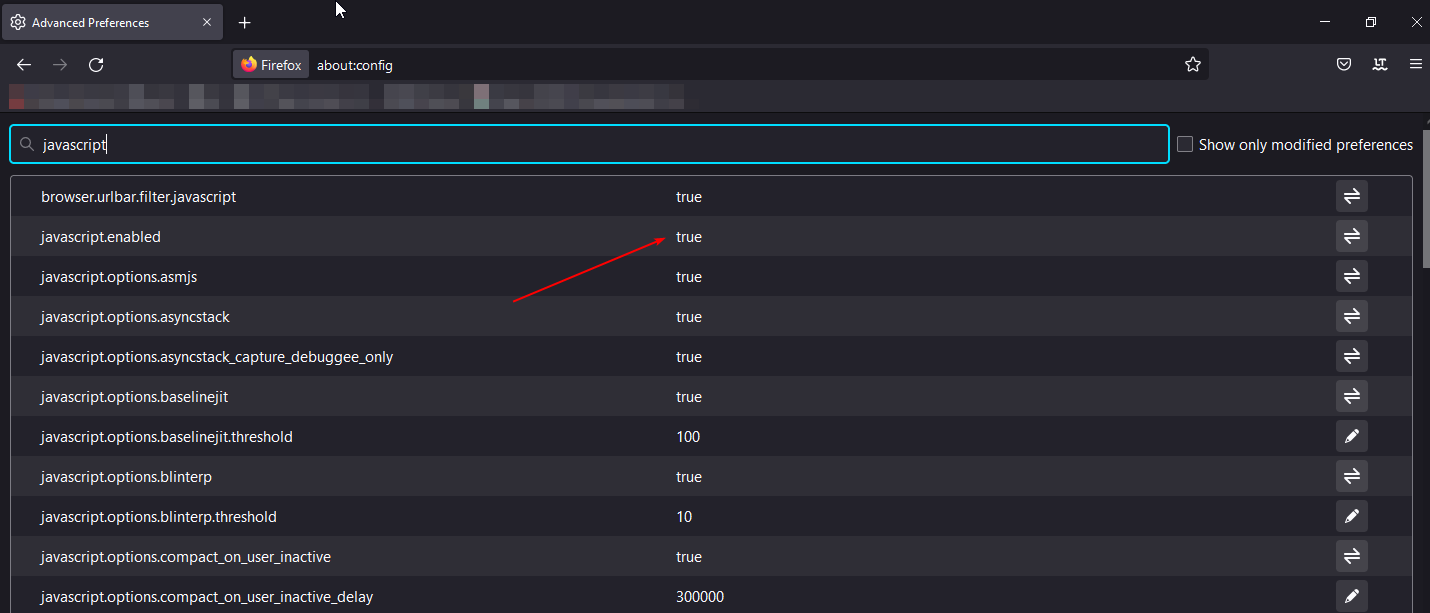

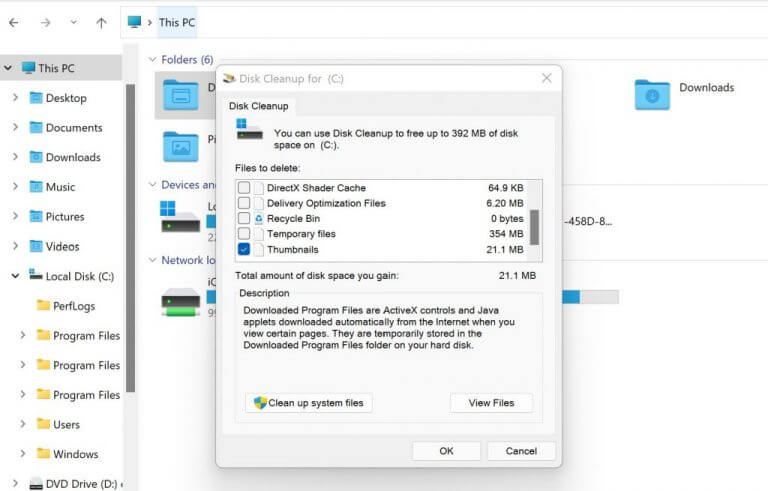
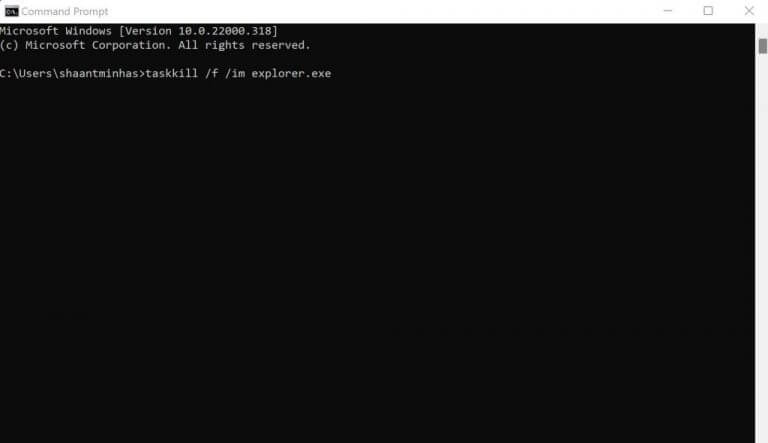










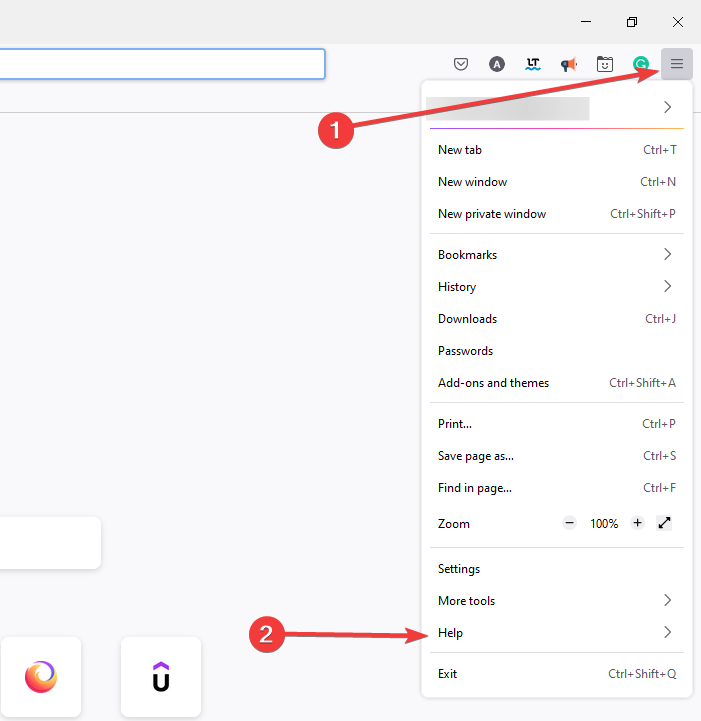
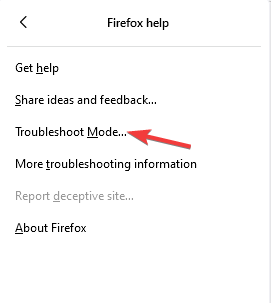


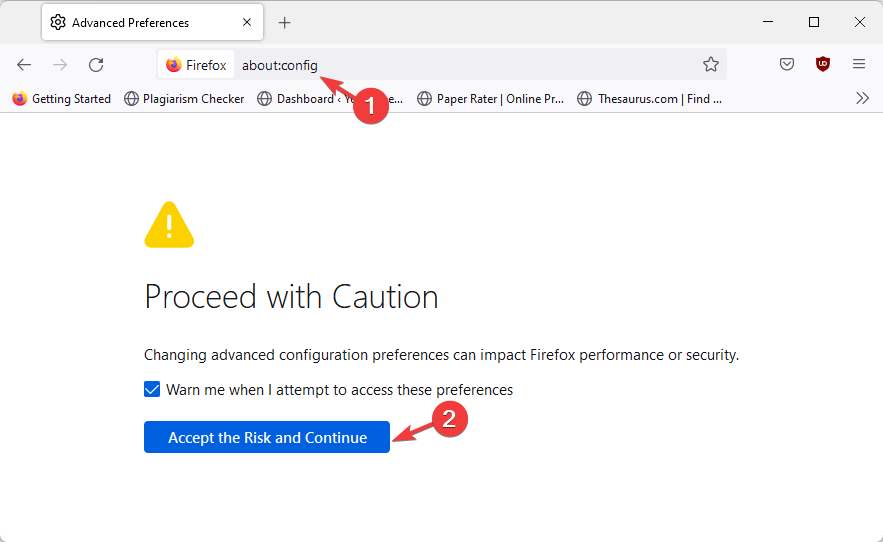






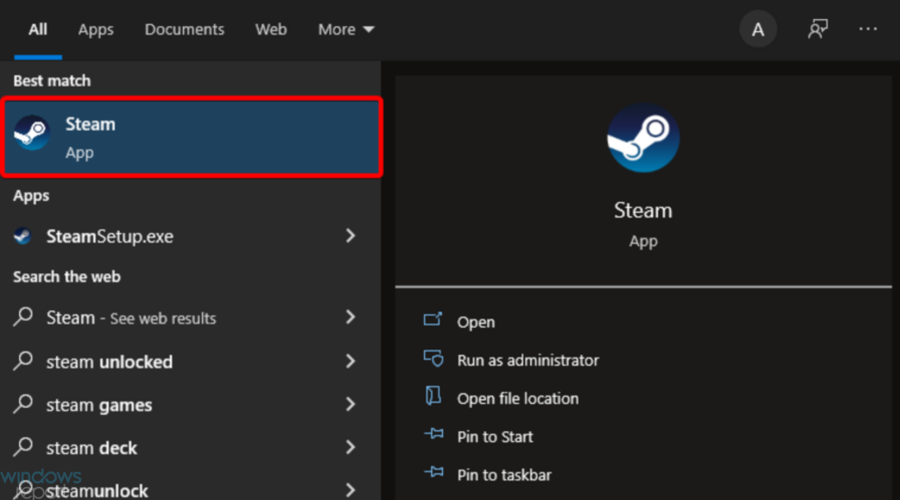


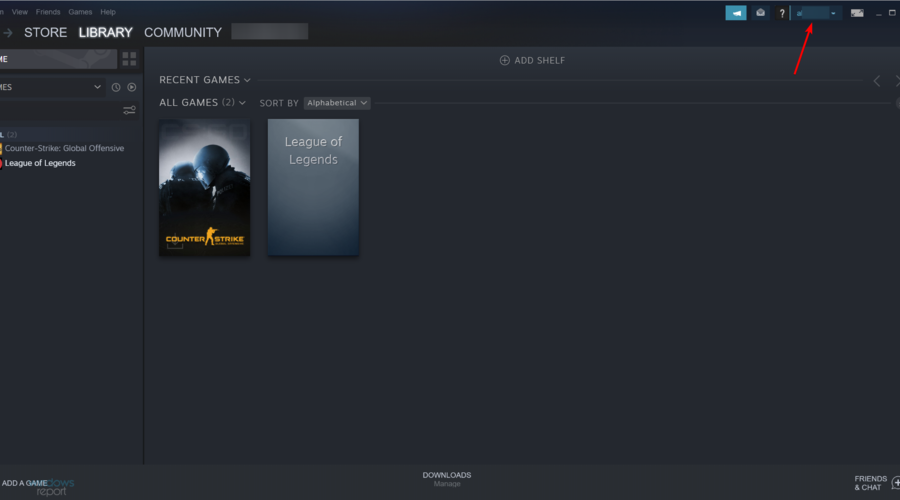


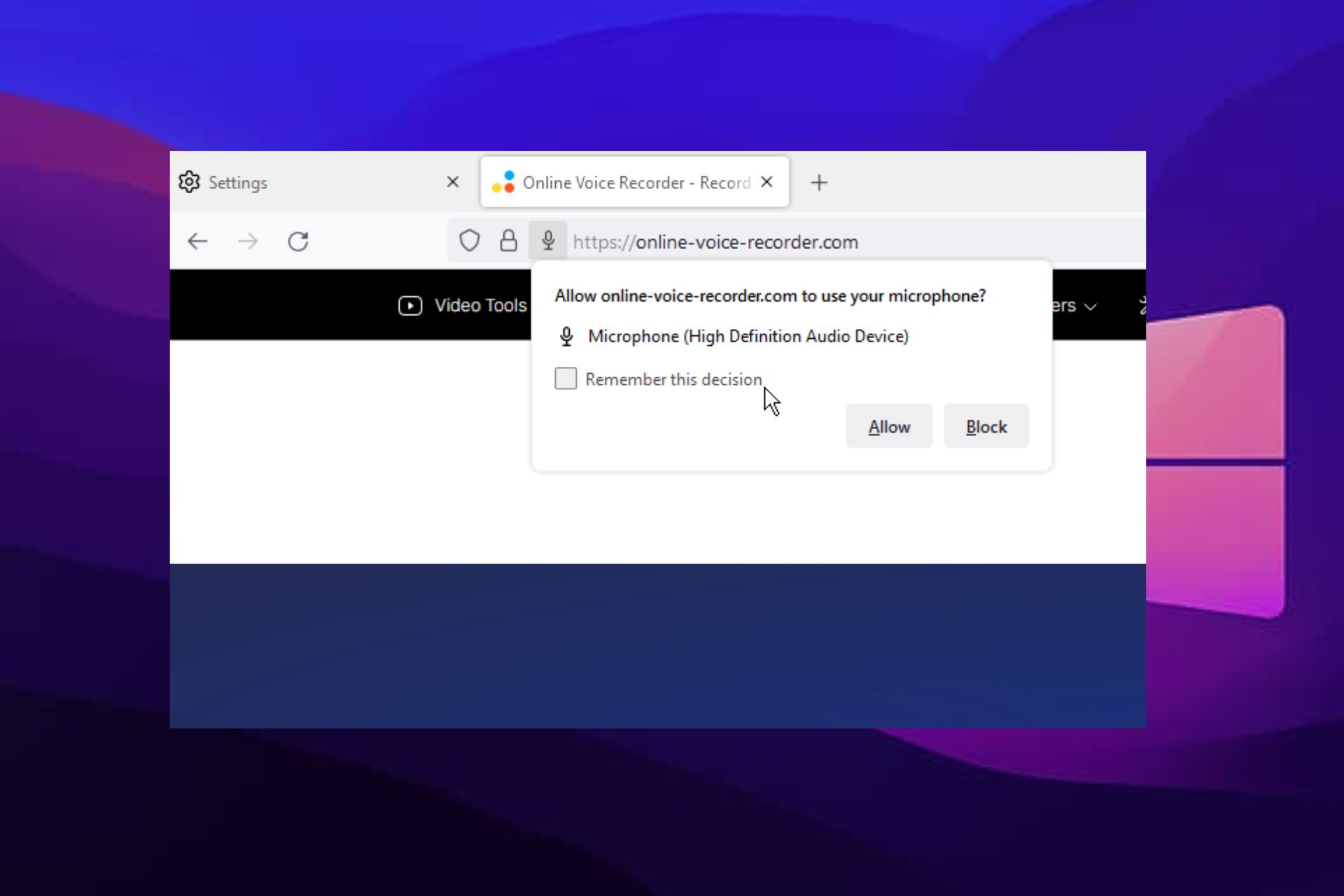








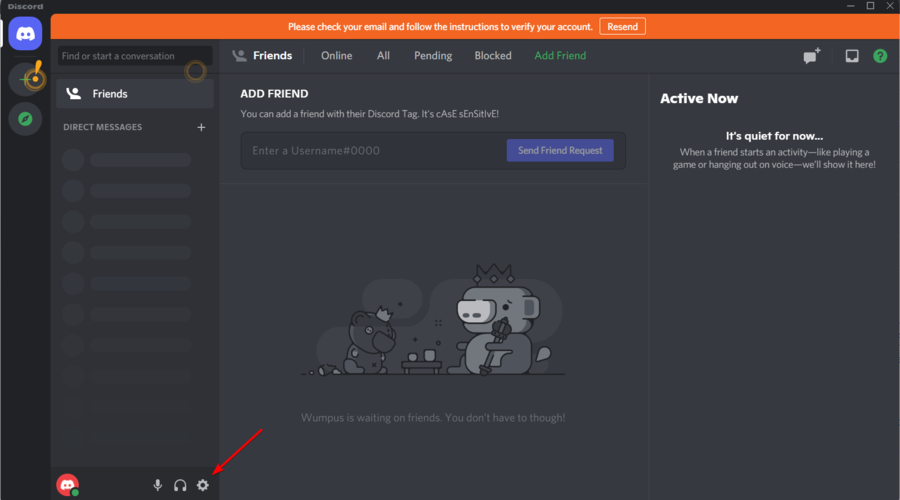
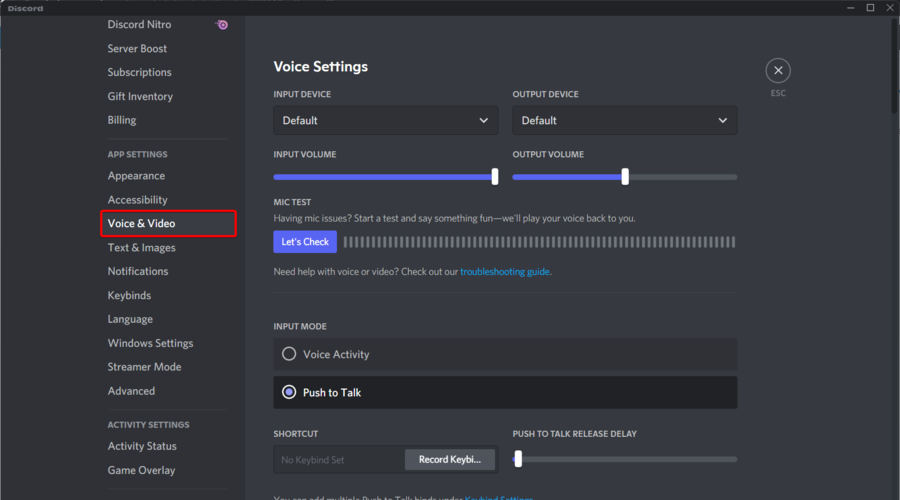
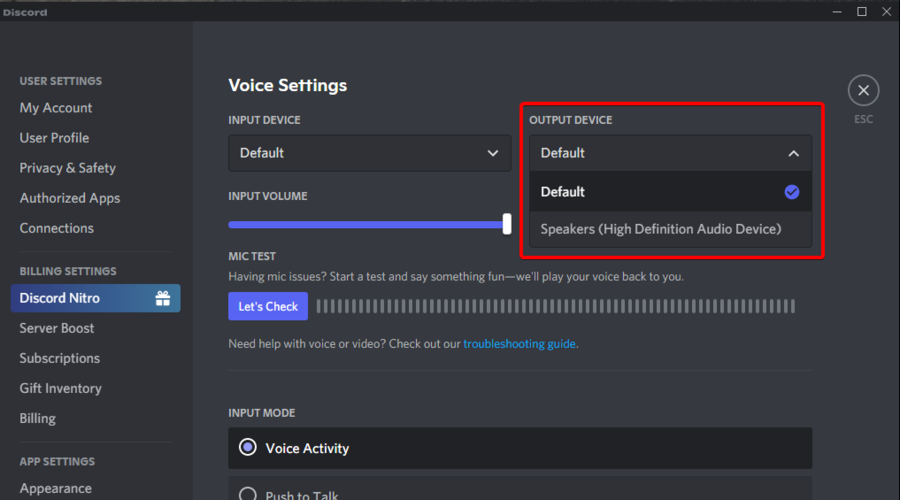


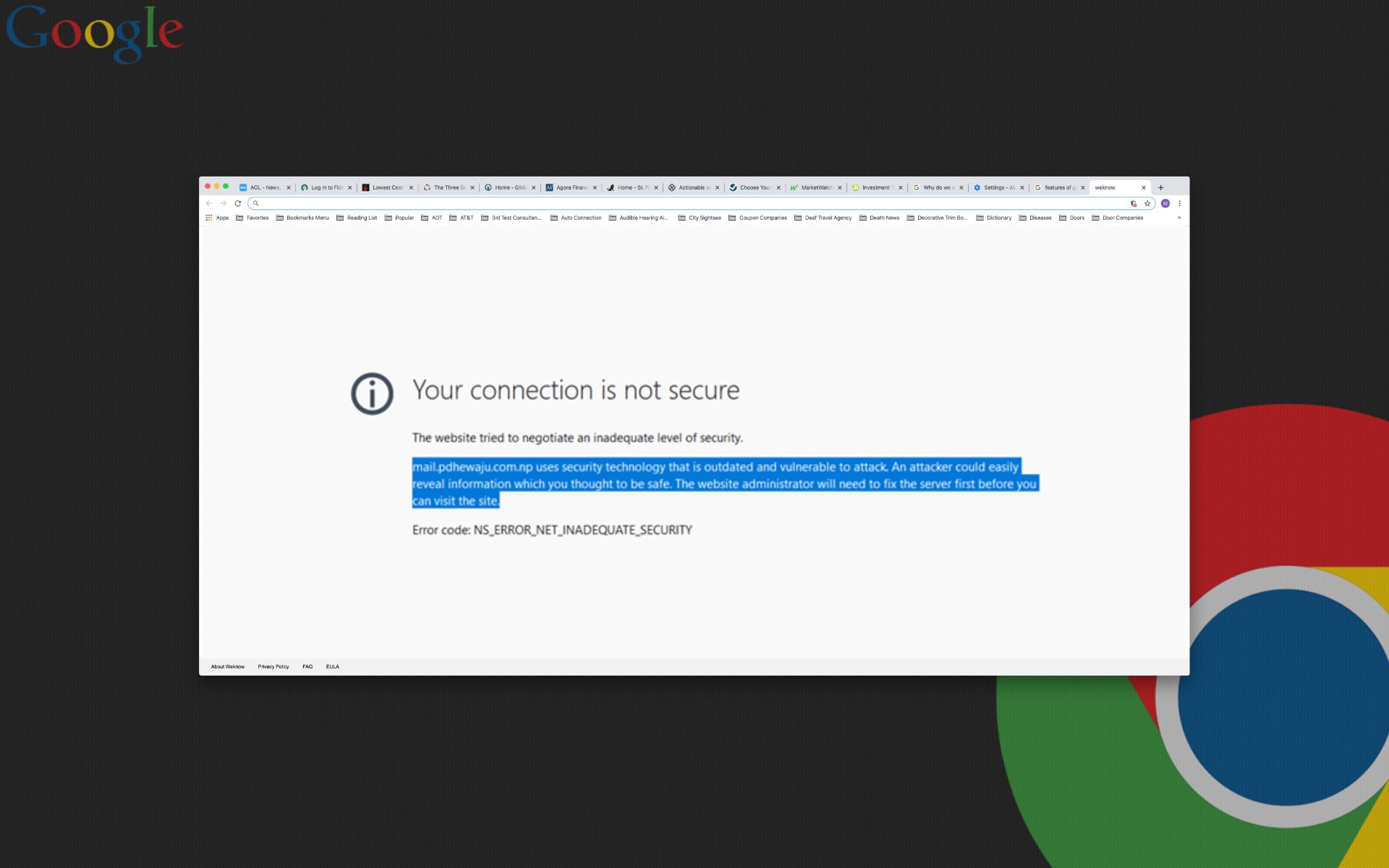
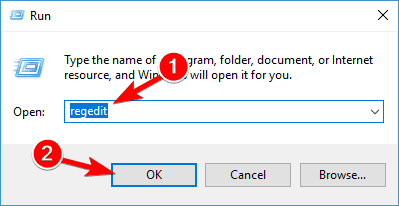
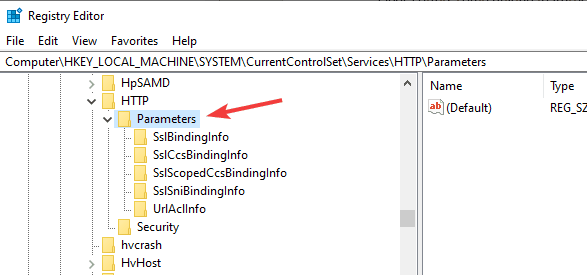
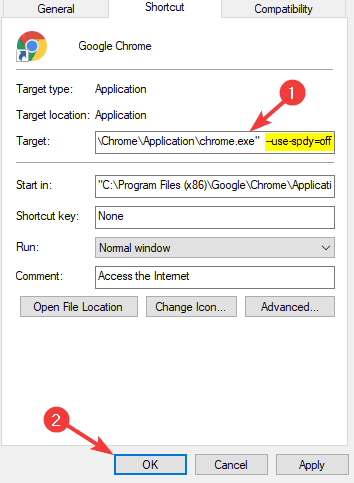
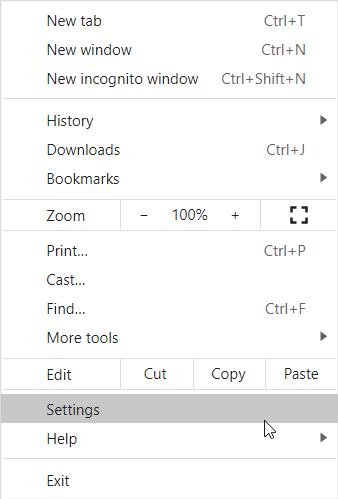
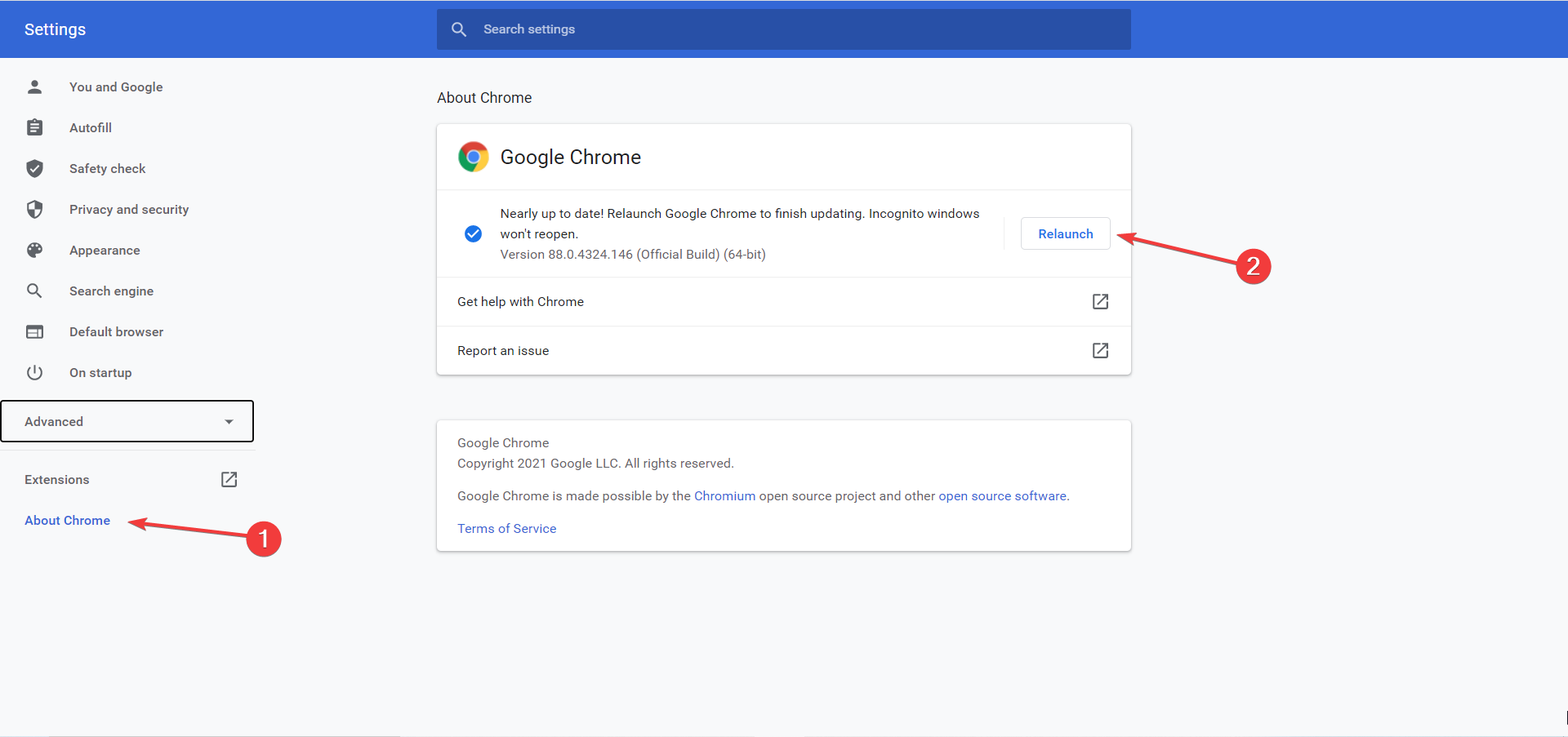
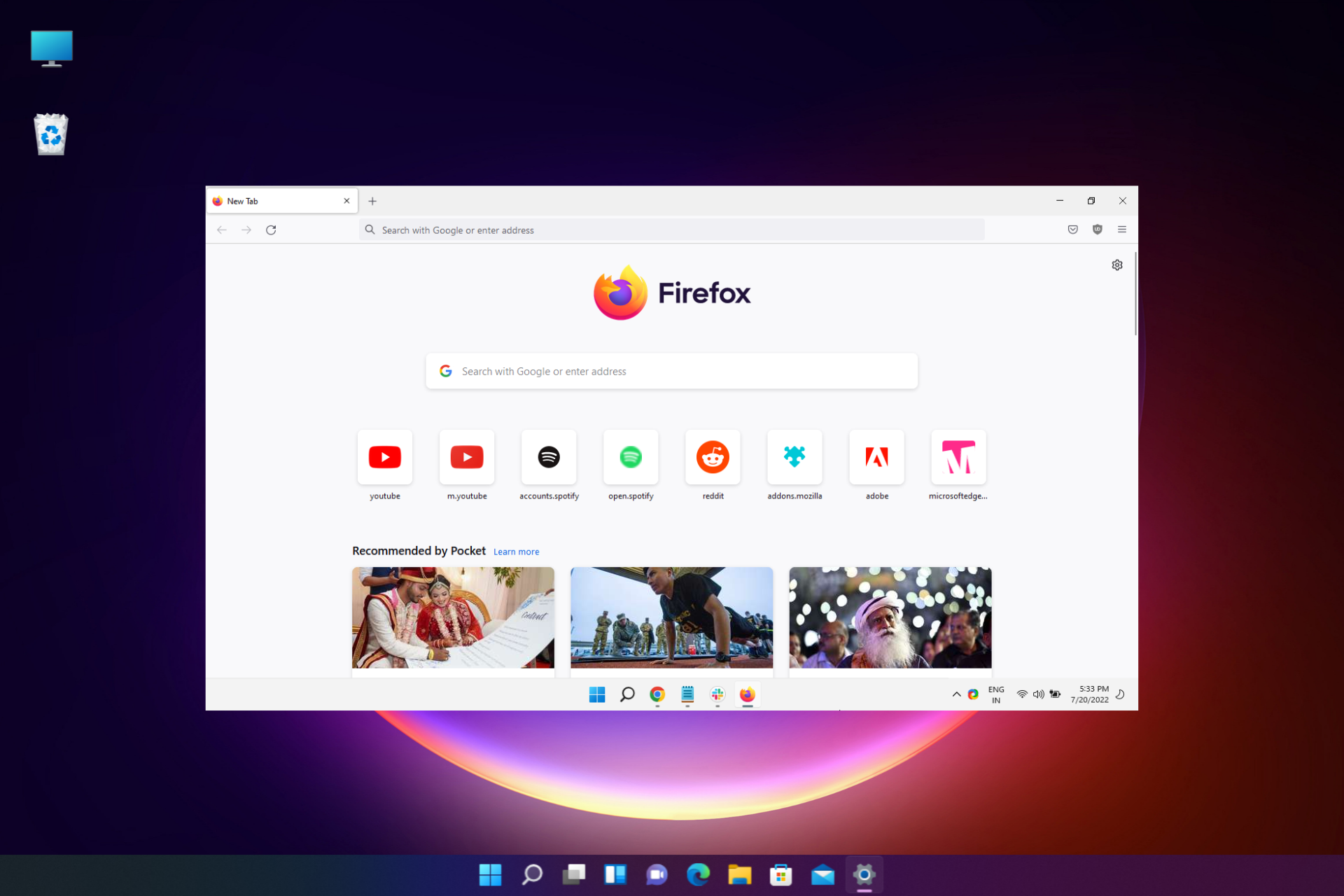
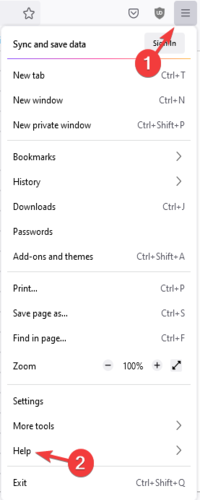
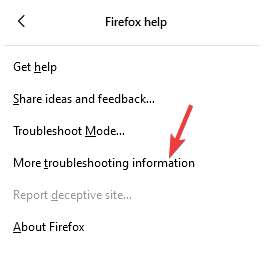


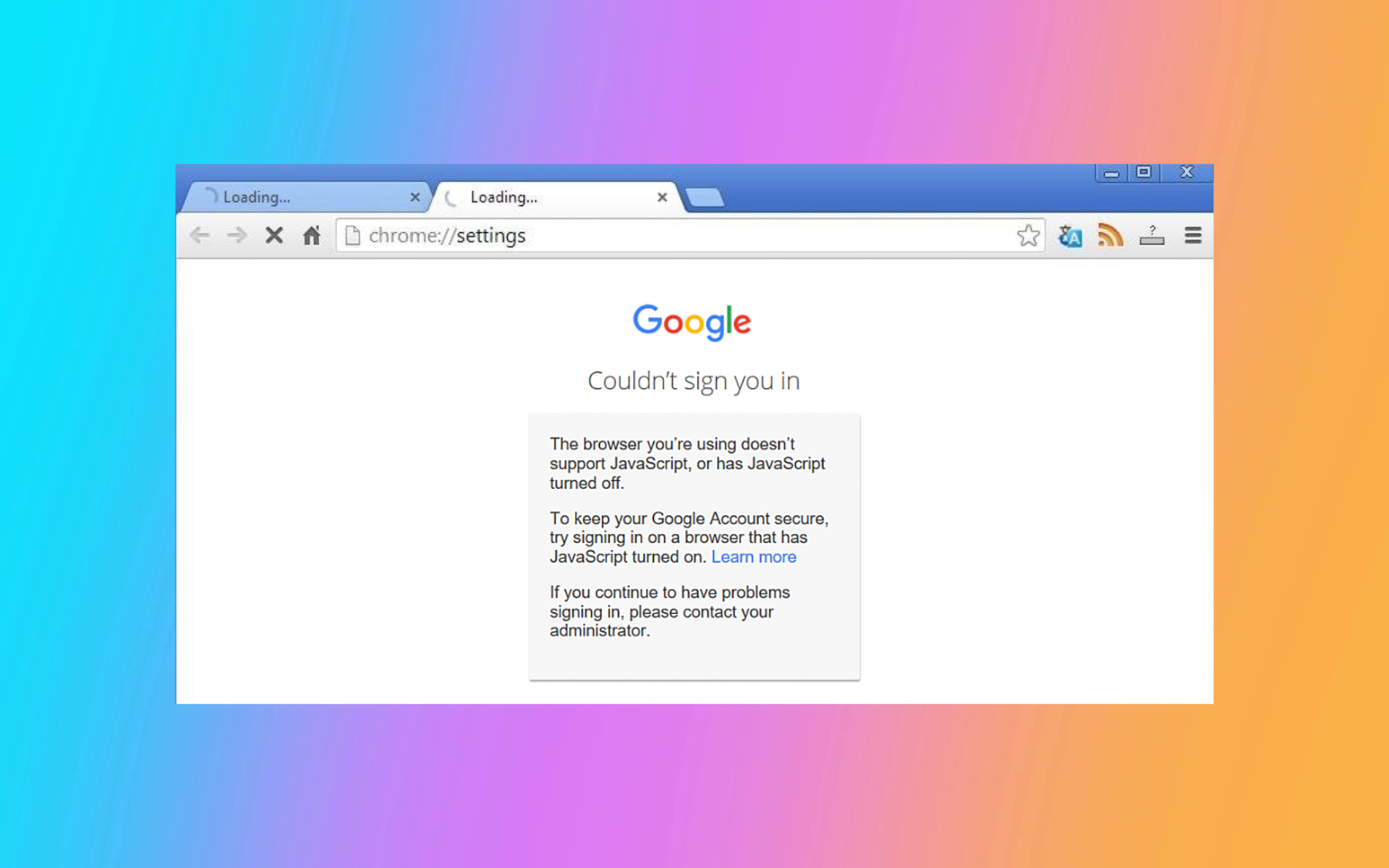


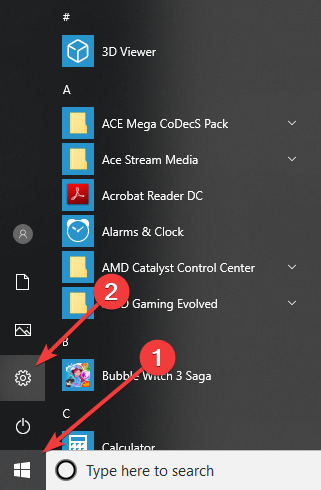
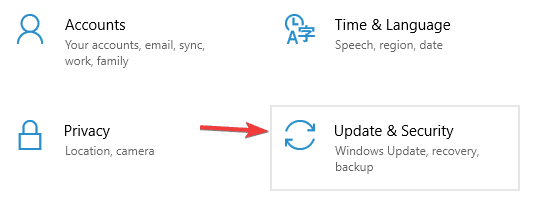


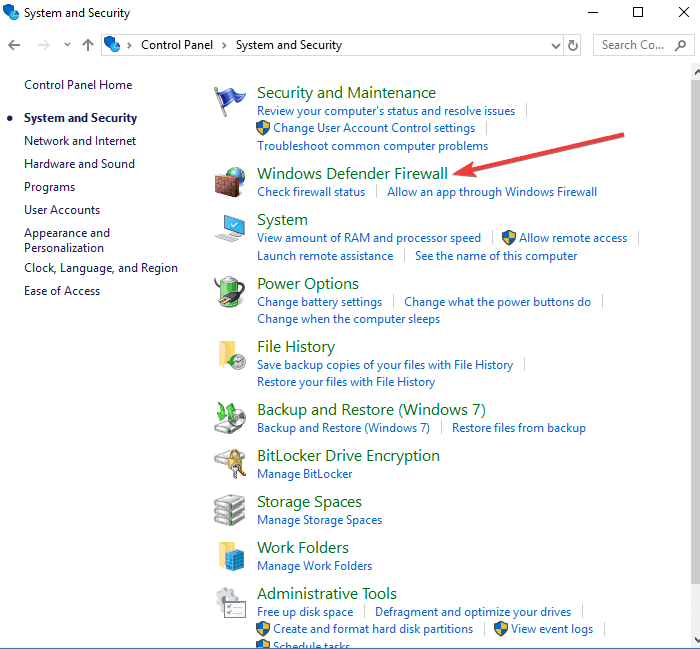
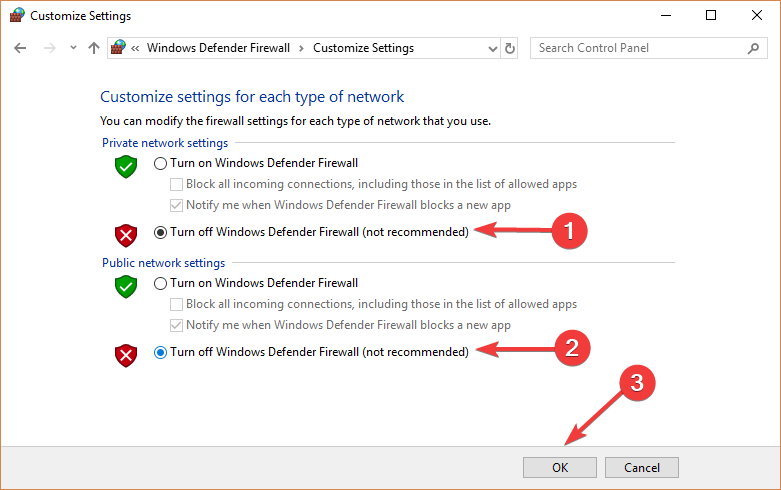

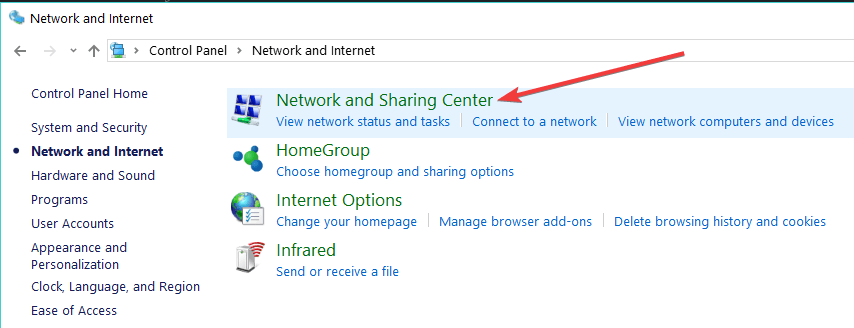


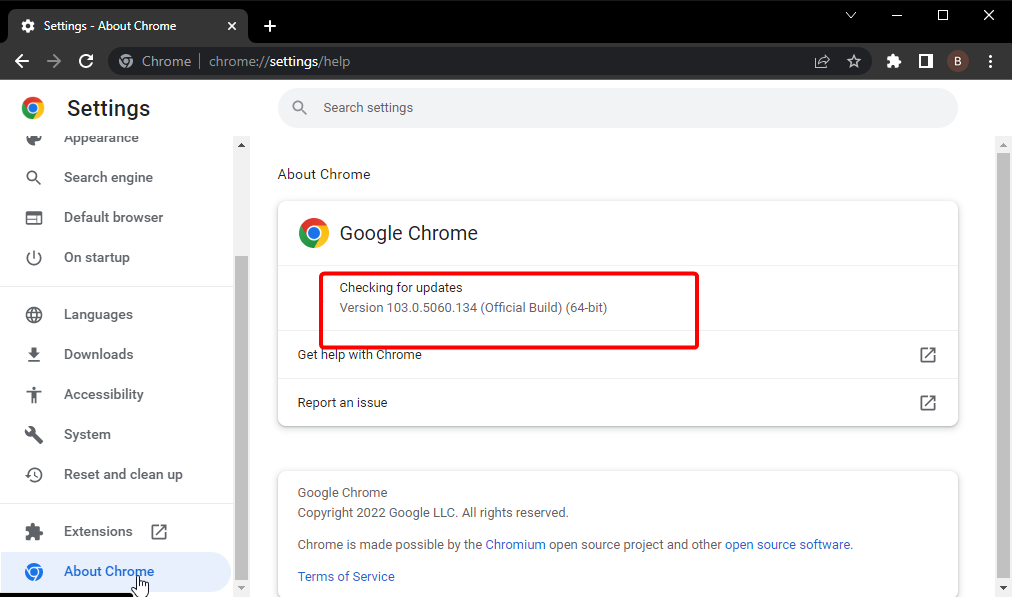
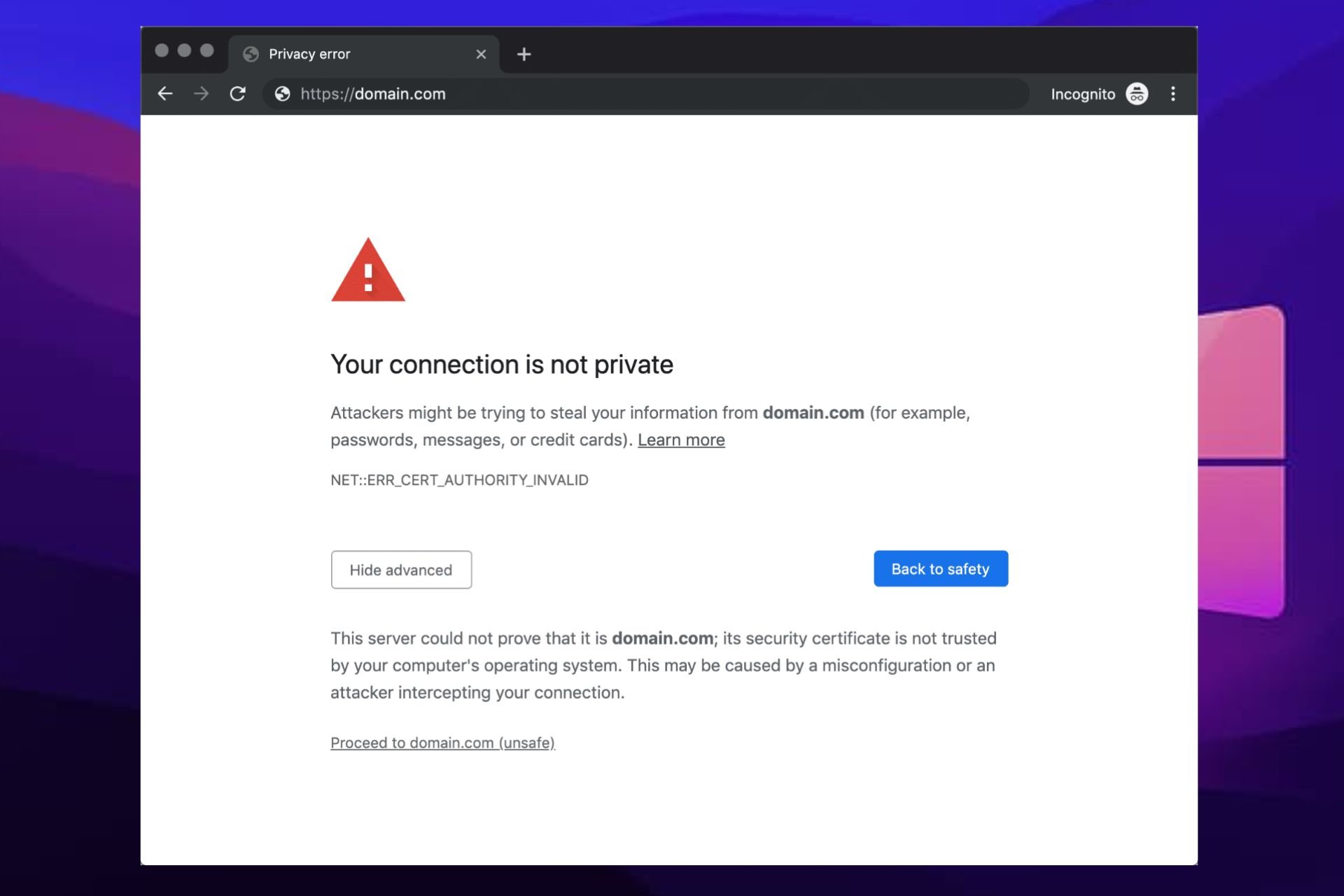
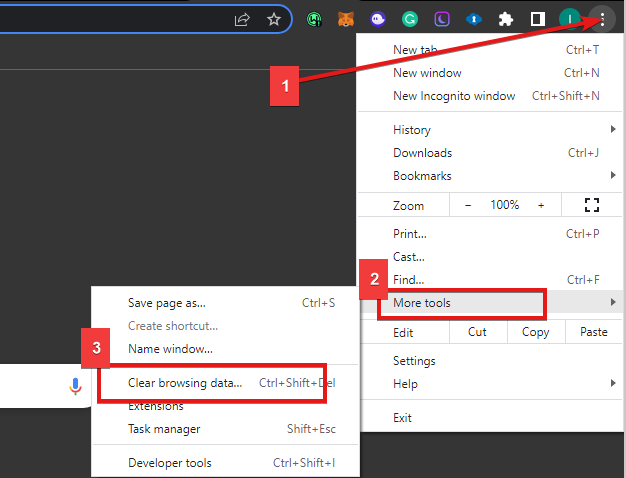
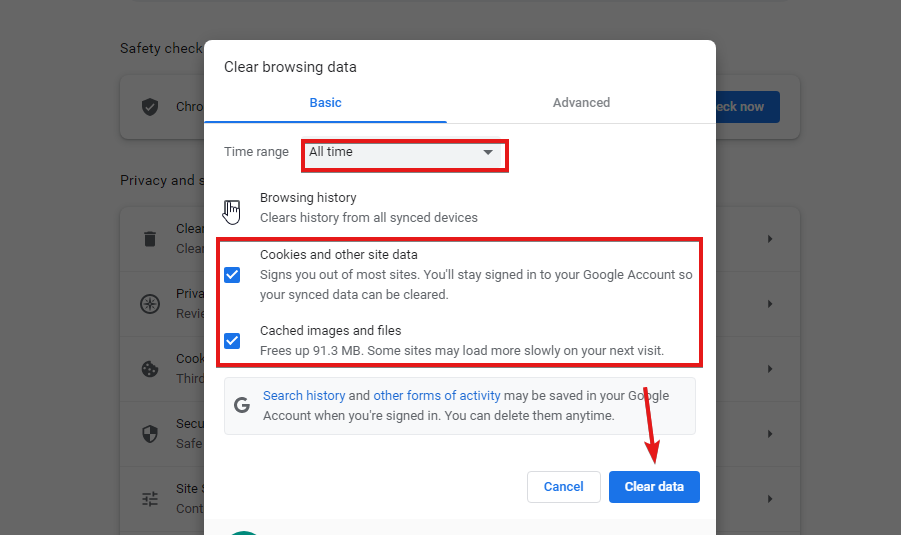
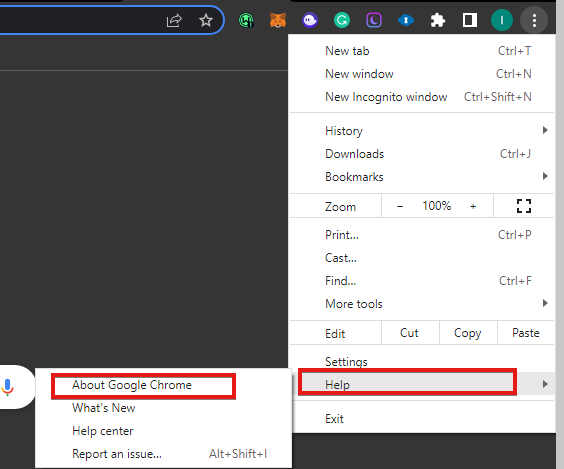
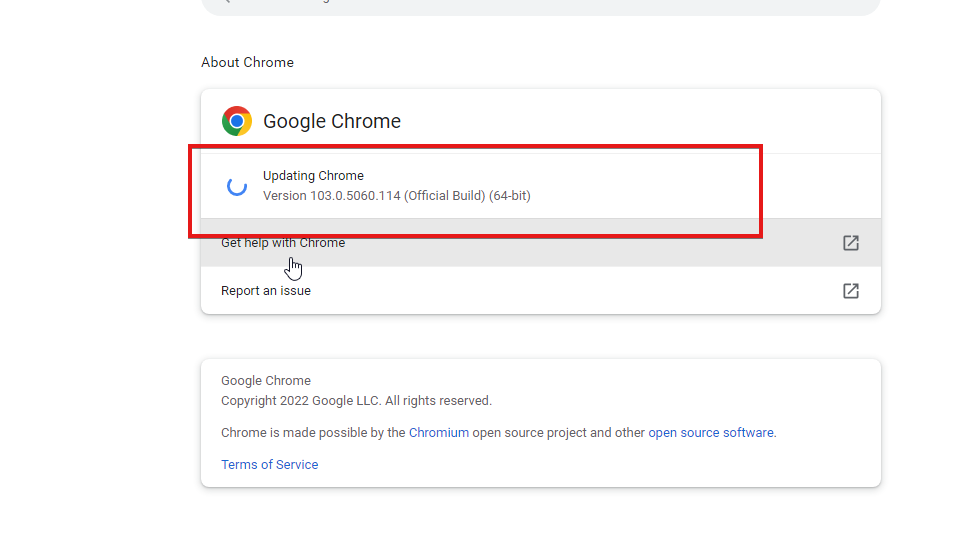






![6 Best Twitch Emote Makers To Use In 2026 [Free & Paid]](https://windowsreport.com/wp-content/uploads/2020/08/Best-Twitch-Emote-makers-to-create-custom-emoticons-1.jpg)