Do you want to use Skype in browser and make calls and messages to your friends and families? This article has brought the methods to do it.
Skype is a popular messaging service, and it’s available on all platforms, both desktop, and mobile. It has apps on all modern platforms. But, what about the unsupported platforms? It would be great if you could use this service on a browser. Right?
You can easily use Skype in any supported web browser. Microsoft made this chat app available to use in browsers years ago. In fact, the browser experience is pretty much similar to the desktop client of this platform.
What browser works best with Skype?
You can use any web browser from Microsoft or any Chromium-based browser to access Skype web. However, Opera One is the best desktop browser that can give you the best experience with this platform because of its performance and compatibility.
How do I call Skype from my browser?
1. Access Skype Web from a browser
1.1 Opera One, Chrome, Edge, and other Chromium web browsers
Log in with your Skype/Microsoft Account credentials.
Start using Skype on the web.
You can easily use Skype in Chrome, or Edge browser. But, for the best performance in Skype for Web, we suggest that you use Opera Onea. This browser has a built-in adblocker that will remove all ads and speed up the webpage loading time.
Thanks to its low hardware requirements, Opera One will be perfect for handling services such as Skype. Last but not least, a pop-out video player in Opera One can come in handy for video calls while multitasking.
More so, Opera One brings you a built-in AI and modular AI-ready design for current and future AI technologies integration.
Opera One
Opera One is the most powerful and fast-performing web browser right now that works great with Skype Web.
Click the User-Agent Switcher icon and choose a supported agent like Edge, Chrome, etc.
Go to web.skype.com and log in with your credentials.
Start using Skype.
It’s important to mention that this service is fully available only in Opera, Microsoft Edge, and Google Chrome. To use Skype Web in the Mozilla Firefox browser, you must follow the above tricks.
The latest version of Firefox, partially support Skype. However, the above steps are still necessary to be able to use it without annoyance.
2. Make the call
Choose a Contact.
Click on the Call button and choose how you want to make the call.
After accessing it from your web browser, you can call your friend or family member in the normal way you used to do it from the app.
However, while calling, your browser may ask for Microphone and Camera access. Allow it to make the call.
Skype web and app had a huge difference in the past. However, in recent days, the gap has been very smaller. You can do everything in the web version that you could do in the app.
Though Skype is available on all major platforms like Windows, macOS, iOS, Android, and Linux, there are some platforms where it may not be available. In this case, if that platform has a desktop web browser, Skype for the web is the only way.
You could also use Skype for business in a web browser. However, Microsoft has retired this service and has brought Teams as a replacement. So, rather than finding out tips for Skype for business, you should move to MS Teams.
If you ever run into unwanted charges while using the web or desktop client, here’s how to recover your money on Skype with clear instructions.
While there are many browsers that work on all devices, some are only available on mobile devices. Opera Mini became one of the most popular browsers for mobile devices soon after its launch and has only improved over time.
This was before anything like Edge, Firefox, and Chrome were available for smartphones.
Internet bandwidth was valued at gold, and the prices were exorbitant. Opera Mini was introduced as a data-saving browser that loads web pages faster.
That said, Opera also offers its full-fledged Opera browser for mobiles, which is now based on Chromium.
So, which is the best Opera browser for your smartphone? This article has compared both versions of the Opera browser in different categories to help you choose the best for your needs.
What is the difference between Opera Mini and Opera?
Opera is one of the best browsers for all devices. It is available on Windows, Mac, iOS, Linux, Smart TVs, and almost all modern devices.
With this, you can sync your data across various devices. On the other hand, Opera Mini is a portable version that is only available on mobile devices.
It is focused on faster browsing speed, light resource usage, and data-saving. It lacks some of the features of Opera, like the built-in VPN. So the two browsers are distinctively different.
Opera
Take advantage of superior browsing speeds and quick access to various useful features.
Opera is available on Android, iOS, Windows, Mac, and Linux platforms. In comparison, the Mini version is limited to Android and features phones only.
So, if you want to keep your data in sync across the devices, Opera mobile is a better choice among the two.
User Interface and Design
With the devices getting larger and larger, it is logical to provide a bottom menu and options. Opera has adopted this better and kept the UI simple.
But the home page is packed with news and shortcuts apps. Fortunately, you can customize the home page experience and disable unnecessary clutter displayed by default.
Accessing browser settings is a little easier on Opera mobile than Mini as the latter will take one tap extra. Opening the menu, you will see that Mini focuses on data saving while Opera has privacy features on display.
The not-so-good bit in both the apps is the pre-installed shortcuts to eCommerce, social media, entertainment, and sports sites, which is more of an advert than a convenience feature.
On the appearance front, some customization is possible. Both the browsers allow you to apply pre-installed themes, change app layout, customize the toolbars, and more.
Tab Management
It is common to have multiple tabs open when browsing the tab. At times, you may even keep the tabs open even when not using them. This is where the tab switcher becomes important.
Tab management on both Opera Mobile and Mini is identical. Tap on the tab icon, and you can see a big stack of cards with an option to add a new tab.
Next, tap on the Desktop icon to access data from your Opera browser installed on your PC. However, this requires signing in to your Opera account.
Performance
Opera Mobile is based on the Chromium platform, and the performance of both browsers differs. However, Opera Mobile loads a bit faster when loading a web page.
Opera Mini first compresses the data and then redirects it; hence the web page loading takes a little longer. The advantage is that it helps you save data and load web pages even on slow or congested networks.
Scrolling works equally well on both browsers. It may not be the smoothest among the mobile browsers, but there is no major issue that will make it a deal-breaker.
Lastly, if the Opera vs. Opera Mini comparison goes down to the download speed, Opera is the obvious choice.
Be it on the desktop browser or mobile version, Opera does offer similar kinds of privacy features. Both browsers feature a built-in ad blocker that is enabled by default.
There is also an acceptable ad feature that you may want to disable if you don’t want to see any ad on your screen.
That said, Opera Mini misses out on Opera’s VPN feature. It allows you to bypass region-restricted content and browse the web anonymously.
Opera is better, but Mini is Good as well
Whether you want to use Opera or Opera Mini depends on the kind of user you are. Opera Mini is a better choice if you are someone who browses mobile data and wants to save as much data as possible.
On the other hand, Opera also has the data saving feature, but it also offers VPN and some handy tools that Mini misses out on.
Also, Mini is limited to Android and some feature devices, while Oprea is available across platforms. So take both the browsers for a spin before you try to make a switch.
Additional features
Similar to other modern browsers, OperaOpera has included some essential tools to get the work done faster. For example, on OperaOpera, you can save a screenshot of the current page and download it as a PDF.
Although Opera Mini misses out on these features, it offers Offline pages, desktop sites, share, Send to Flow and translate features.
Both Opera and Mini also provide the Night Mode feature. Enabling the feature from the menu will open the web page in Dark Mode.
You can further customize the Night Mode by adjusting the color temperature, dimming, and themes and putting it on schedule.
There are many browsers in the market. But, only a few of them are up to the task of delivering the best internet experience. A browser can, however, be distinguished from others by several qualities.
Features like speed, strength, user privacy and protection, easy navigation, etc., determine how good a browser is and how much it can do. Hence, we’ll be looking at the browsers that support Dynamics 365.
Dynamics 365 is a cloud-based platform by Microsoft. Its purpose is to provide easy-to-use business maintenance services like customer relationship management (CRM) and enterprise resource planning (ERP).
Furthermore, it provides applications that help with work productivity and easy-to-use tools for artificial intelligence. Using a tool like this helps increase sales and recommend ideal actions for your organization and customer engagement.
However, Dynamics 365 is a cross-platform and cross-browser software. It means you can access it through your browsers across different devices. Nonetheless, there are selected browsers that it supports based on its browser requirements policy.
Hence, this article will discuss the best browsers that support Dynamics 365 and how they rank according to their compatibility.
Is Dynamics 365 browser-based?
Unlike some other business platforms, Dynamics 365 doesn’t require an application download before you can use it. However, it is a cloud-based platform that requires the service of a stable and supported browser to operate. In other words, you can access Dynamics 365 without downloading any extra apps or software on your device.
Nonetheless, there are some requirements that browsers have to meet before they can be compatible with Dynamics 365. Hence, you can go to Microsoft Dynamics 365 official website to read more about the browser requirements.
Is Dynamics 365 only cloud?
One of the outstanding features of Dynamics 365 is its flexibility. It means that the service is not only cloud-based but also on-premises. The On-premises data center allows you to implement Microsoft Dynamics 365 in a group of servers that belong to you and are accessible privately to you.
Opera One is a fast browser that allows you to browse the internet at lightning speeds. It has many advanced features like a customizable user interface that helps you to configure your browser display.
Also, it has a standard browser protection system that secures user data from intruders. Furthermore, it is available across different operating systems. Also, it comes with a built-in AI.
Opera One
The web app is perfect to access Dynamic 365 and supports multiple file formats.
Safari is the default browser for Apple devices. It is one of the most advanced browsers for your computer and other devices. Safari fits the requirements for the browsers that support Dynamics 365 due to its features like fast internet connection, user privacy, and protection.
Also, it has a good tab management feature that is perfect for a business-oriented platform like Dynamics CRM 365. More so, it allows you to have access to JavaScript features.
Furthermore, Safari has an excellent syncing system that allows users to safely access their browser information across different devices.
Likewise, it offers many web tools for a smooth browsing experience. Its speed allows it to load web pages faster compared to other browsers.
Google Chrome – Inbuilt developer tools and extensions
Google Chrome is a Chromium-based browser with lots of features. It has experienced advancements over the years and has become one of the best browsers. However, the browser is notable for its inbuilt developer and utility tools.
An essential requirement for the Chrome browser is the Freedom Scientific JAWS screen reader that is only available in the latest version. So, the availability of this feature in Google makes it one of the best options to consider for Dynamics 365. Likewise, its speed is comparable to no other browse. It is easy to navigate.
Another outstanding feature of the Chrome browser is privacy and security. It secures user data from intruders and hijackers. Also, it is strong enough to run a cloud-based platform like Dynamics 365. Likewise, it has a vast extension repository where users can download tools for their businesses.
Microsoft Edge is popular for its speed and reliability. It is available across different operating systems. However, Edge is one of the best browsers for Dynamics 365 because of how fast and smooth it loads pages.
Also, it is easy to use. It comes with an inbuilt incognito mode that allows you to browse without saving any data or being noticed.
Moreover, Edge supports the latest advances in web browsers and delivers the best standard of the browsing experience. Furthermore, another feature of Microsoft Edge is the web inspector. It allows you to view your web content and also modify it in a short period.
Mozilla Firefox is a browser with lots of features. It is one of the most advanced browsers and has several developer tools.
However, Firefox is known for its strength and reliability in running cloud-based services like Micro Dynamics 365. Likewise, it is a safe browser that helps you navigate the internet safely. Hence, it is a productive browser for trusted sites like Dynamics 365.
Tor is an Internet browser and search engine that allows users to surf the Internet anonymously. It is a great software to stop anonymous tracking. However, some users encountered the Something went wrong! Tor is not working in this browser issue.
The browser randomly moves your data across different Tor servers, protecting it from prying eyes. However, in an attempt to make it harder for third parties to track your online activity, Tor might also cause slow browsing issues.
What is wrong with Tor Browser?
A few different things trigger this connection issue. For example, some users have noticed that if another instance of Tor runs, you may receive the Something went wrong! Tor is not working in this browser error message.
Others have noticed that the error is more prevalent in outdated instances of the Tor browser. In this case, you can follow our first solution to update the browser.
How do I fix Tor’s something went wrong error?
Before moving on to more advanced troubleshooting methods, make sure to do the following:
Click on the menu (the three horizontal lines) at the top right, then select Help.
Select About Tor Browser.
If there is an update, it will be downloaded and installed; you will need to restart the browser for it to take effect.
2. Properly shutdown browser processes
Right-click on the Start menu and select Task Manager.
Under the Processes tab, click on Tor Browser, then click the End task button.
Launch Tor and verify that the problem is fixed.
3. Restart your PC and launch your browser again
Close Tor browser. Click on the Start menu.
Click the power button and select Restart.
Launch the browser after reboot and see if the issue is resolved.
A PC restart is a good way of correctly shutting down all your running processes. After a shutdown, your PC memory is freed, and if you get the error of Tor is not working in this browser, it should be fixed.
Click on theStart menu, type Tor, and select Uninstall.
Follow the wizard to uninstall the browser.
Visit the Tor website and click on Download for Windows, or any other OS.
Click on the download file and follow the wizard to complete the installation.
Launch the browser after installation and see if the issue is resolved.
A reinstall is effective if the Tor browser is not connecting or you have any other Tor browser error.
5. Switch to a different browser
If you started off using the Tor browser, then you were probably focused on the privacy aspects that it is known for.
However, if, for whatever reason, the Tor browser becomes unavailable, you might as well switch to a browser with privacy-protection features. One such example is Opera One, as we have found after our comparison between Tor and Opera.
Opera One is a Chromium-based Internet browser that boasts high levels of customization, extensive add-on support, and a negligible CPU footprint.
As for privacy, Opera One is one of the very few browsers that come with an integrated VPN that is unlimited in terms of how much traffic you can use daily or monthly. It also features a native AI.
So, if you want to keep browsing the internet anonymously, install the Tor browser.
Opera One
A web browser that is the perfect mix of great design, low system requirements, speed, and privacy.
Err_tunnel_connection_failed is an error message caused by a proxy exception. It typically occurs in Google Chrome when the web browser refuses to establish an Internet connection through the proxy.
The problem could be caused by improper Chrome settings or incorrect Windows 10 network configuration.
Whatever the cause might be, if you have trouble going online, accessing restricted content, and browsing the web due to the err_tunnel_connection_failederror, follow the 8 simple solutions we provided below to fix it.
What does error code Err_tunnel_connection_failed mean?
Err_tunnel_connection_failed typically happens on personal computers that connect to the Internet over a virtual private network (VPN) or proxy server.
By removing the header information from user requests to access websites, virtual private networks (VPNs), and proxy servers can help conceal or disguise your identity online.
The vast majority of the time, this will not result in any problems, and you will be able to maintain a connection to websites without any complications.
On the other hand, there are instances in which there might be a disparity between the data that was expected and the data that was supplied, which leads to the err_tunnel_connection_failed in the Chrome browser.
The following error messages were reported by using and are related to the connectivity issue in Chrome:
Err_tunnel_connection_failed in Windows 10 – A proxy exception is the root cause of the error message.
Err_tunnel_connection_failed proxy – You shouldn’t be surprised if you see the error proxy exception in Google Chrome since it happens more frequently than you may think.
Err_tunnel_connection_failed in Microsoft Edge – In this case, you can delete your browsing history just as we did in Chrome, below.
Err_tunnel_connection_failed VPN – Switching to a better VPN, such as PIA, will ensure you don’t meet connectivity issues.
Err_tunnel_connection_failed in Chrome – Follow the 8 solutions below to fix this problem on Windows 7/10/11.
Err_tunnel_connection_failed in Opera – The steps to reset or delete the browsing history in Opera are similar to Chrome.
Err_tunnel_connection_failed in Windows 7 – Windows 7 users can apply the same settings in Chrome to fix the error.
Err_tunnel_connection_failed on Mac – Mac users can switch to Safaris since it was built primarily for Mac devices.
Err_tunnel_connection_failed Opera VPN – Opera VPN might interfere with another third-party VPN service that you are using. Consider using only one at a time.
Without further ado, let’s jump into the list of solutions that will address every case scenario that is possible to disrupt your browsing experience. Follow along!
Quick Tip:
If Google Chrome sends you errors more often than you would like, consider switching to a better browser like OperaOne. It’s extremely lightweight, loads pages fast, and supports Google Chrome extensions.
Opera is wrapped in an intuitive and fully customizable interface. You can create your own workspace, connect to your favorite social media apps and use advanced inbuilt tools like an adblocker and VPN.
Opera One
Switch to a better browser to avoid getting errors like err_tunnel_connection_failed.
Click the three-dot menu from the top right corner of a new Chrome window and choose Help followed by About Google Chrome.
An Update button will be displayed if you need to update it. Click it and wait for the process to finish.
The err_tunnel_connection_failed error proxy exception might be caused by an older and outdated version of Chrome. However, you can quickly fix this problem by simply updating the browser to the latest version.
If you encounter a Chrome update error, check if the Google Update service is enabled on your PC.
Press Windows then type Proxy settings and press Enter.
Verify proxy settings at Automatic proxy setup or Manual proxy setup.
If you make any changes, click Save to apply them.
Google Chrome uses the Windows proxy settings, so make sure to check if the proxy configuration is correct, whether you selected automatic or manual proxy setup mode.
If you have proxy connection issues on Windows 10, you might have to perform a malware scan on your computer and remove any suspicious software applications which may be the cause of the proxy err_tunnel_connection_failed error.
3. Clear browsing data and cache
Access Chrome and use the following keyboard shortcut to access the Clear browsing data menu:Shift + Ctrl + Delete.
Select All time as the time range.
Select the Cookies other site data and Cached images and files options in order to delete them.
Lastly, select Clear Data.
To ensure that Chrome is the cause of the err_tunnel_connection_failed error, use a different web browser to go online.
Once you determine that the error solely occurs in Chrome, make sure to clear browsing data and cache. Afterward, restart the web browser and try again.
4. Disable proxy and use a VPN instead
Tap Windows then type Proxy settings and press Enter.
Disable Automatically detect settings, Use setup script as well as Use a proxy server.
Sign up for a VPN subscription plan (we recommend PIA).
Download and set up PIA on your PC then open PIA and connect to a VPN server.
Enjoy secure browsing using Chrome.
If everything else fails, consider dropping your proxy server and using a reliable VPN instead.
We suggested Private Internet Access (PIA) in our example above because it’s the best VPN for secure browsing.
Besides protecting your online privacy, PIA can also unblock websites and help you watch Netflix US, Hulu, and others.
Created by Kape Technologies, Private Internet Access brings more than 3,300 VPN servers spread across 48 countries. It’s compatible with Windows, Mac, Linux, Android, iOS, and even routers. Plus, it has browser add-ons prepared for Google Chrome, Mozilla Firefox, and Opera One.
If you still want to use a proxy server, you can do so while the VPN connection is active, thanks to the fact that PIA has built-in SOCKS5 and Shadowsocks proxy. It also includes exclusive DNS servers, an ad and malware blocker for browsers, an emergency kill switch, together with static and dynamic IP addresses.
Press Windows then type cmd and right-click the result to run it as an administrator.
Paste the next lines and press Enter between each line: ipconfig /flushdns ipconfig /registerdns ipconfig /release ipconfig /renew NETSH winsock reset catalog NETSH int ipv4 reset reset.log NETSH int ipv6 reset reset.log exit
Restart your PC.
Another solution to fix the err_tunnel_connection_failed VPN error is to reset the network settings by flushing your DNS and resetting Winsock. If this doesn’t solve the problem here, proceed to the following steps.
6. Change your DNS servers
Right-click the Start icon from your Taskbar and select Network Connections.
Choose Change adapter options.
After the Network Connections window opens, locate your current connection, right-click it and select Properties.
Choose Internet Protocol Version 4 (TCP/IPv4) then click the Properties button.
Choose the Use the following DNS server addresses option and enter the following values: Preferred DNS server: 8.8.8.8 and Alternate DNS server: 8.8.4.4. Click OK to save the changes.
Your faulty DNS servers might be the reason why you keep setting the err_tunnel_connection_failed error proxy exception when trying to go online using Google Chrome. In that case, you can change DNS settings to solve this matter.
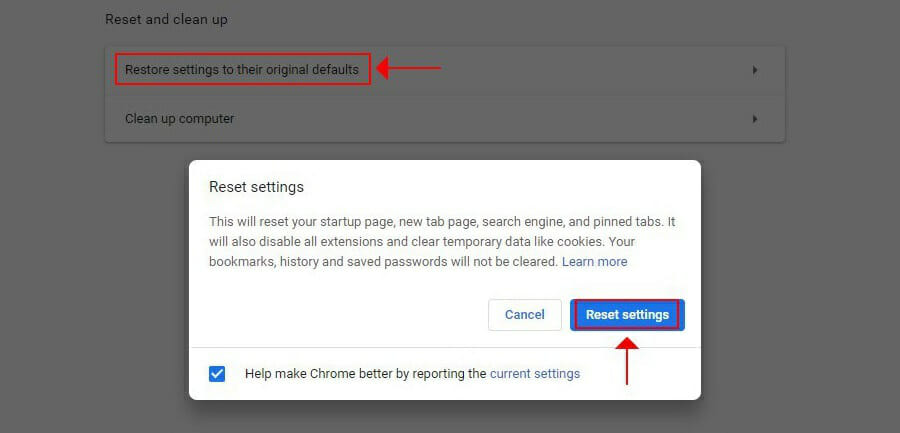
Select the Restore settings to their original defaults option.
Select Reset settings. You’re done!
Restoring browser options to their original configuration is one of the simplest ways to fix the proxy err_tunnel_connection_failed error.
It’s the same thing as installing a fresh version of Chrome on your PC, which is unaffected by user settings and various ways of customization.
How do I check my proxy settings?
Press Windows then type Proxy settings and press Enter in order to access the Proxy settings.
In the newly opened window you will find all the proxy settings that you need.
To recap, err_tunnel_connection_failed is a common error proxy exception that occurs in Google Chrome. However, you should be able to fix it in no time using the solutions we provided above.
If you’re using a proxy server to protect your online privacy and unblock websites, you should consider replacing it with a premium VPN service like PIAsince it’s faster, more secure, and less prone to errors.
Don’t hesitate to leave a comment in the section below and tell us what you think. Thanks for reading!
If you’re looking for the best Windows 10 RPG games then you are probably searching for a selection made up by a pro.
The most suited person to provide such a list is someone who is indeed a game addict, as you need to rely on experience and not on a first impression.
In this review, we tried to bring up the most popular role-playing games that are currently available on popular gaming platforms.
We also included some great RPG games from other platforms such as the Windows Store. However, if you find games on multiple platforms, don’t worry, it’s a current trend.
This selection is pointing out the best Windows 10 RPG games that can be installed and played on all the Windows 10 tablets, laptops, and desktop computers available on the market.
Role-playing games are maybe the most appreciated apps when coming to portable devices. If a racing game tends to become boring after a while.
With an RPG you will be almost every time surprised by the narrative structure and by the main story.
Thanks to that, you can play a game for hours only for finding out what will happen with your characters or how the story concludes.
Each character is unique and by controlling it you can influence its destiny. Of course, the game plan is guiding you all time, but if the story is well written you will forget about anything else.
So, do you want to know which might be the best 10 RPG games available on the market? If so, take a look over the review form below and test the games which are being described there.
Do point out if we have missed something and share your own Windows 10 RPG selection with our team or with other users who might want to try a really good game, in the comments section below.
What is the best RPG game right now?
You can find incredible action RPG games out there that will make you fall in love with the characters and storyline as well. There are numerous picks to consider, yet the best one is The Witcher 3.
This action RPG gameplay tells the story of Gerald of Rivia and his mission to hunt monsters on The Continent lands.
In this last edition of The Witcher, you are the well-known hero who slays monsters for the good of people. Plus, this storyline shows the emotional side of Gerald and explores his past a little bit more.
The trilogy story of The Witcher has breathtaking adventures and missions you can relish for days. The open-world game setting presents an immersive experience with eye-catching graphics and impressive landscapes.
Even though this game debuted in 2007 with the first version, it is considered to this day one of the best RPG gameplay out there.
Why are RPGs so popular?
First of all, this type of game has its history and it became more and more popular for gamers worldwide.
The reasons may vary according to each person, but this one is clear: the fantasy world or constructed characters are significant reasons why many gamers appreciate RPG games.
If you’re a big fan of RPGs you definitely tried the famous ones until now. However, you should consider captivating Microsoft RPG games as well.
As said before, the narrative or characters’ storyline can be almost addictive once you start playing an RPG game and live the experience at maximum intensity.
Additional components that make this genre really popular are the customization of the game course, sense of progression, and exploration.
What are the best role-playing games to play in 2022?
The Witcher 3 is one of the best RPG games for PC. It is set in a fantasy universe where you play as a professional monster hunter. Your main task is to find a so-called child of prophecy — a key to save or destroy this world.
Your character possesses superhuman skills and strength, powerful weapons, and magic potions that allow him to find and kill all sorts of monsters.
Don’t forget to upgrade your weaponry and buy custom armor. The next monster you’re going to face will be stronger and more powerful than the ones you previously defeated.
Besides a well-thought progression system, you’ll also enjoy beautiful graphics and scenery, inspired by real-life culture and places.
This game also has plenty of DLC to entertain you in case you run out of quests in the main game. Each DLC has its own theme, so you don’t get bored. Moreover, it is one of the best offline RPG games for Windows 10 that you can play.
If this didn’t hook you up, you should know that the story is inspired by the famous book series written by Andrzej Sapkowski.
Even though Dark Souls III was released in 2016, it’s one of the most popular RPG titles even to this day.
It’s an addictive, top-notch, challenging game and we’re sure it’s going to maintain its popularity in the coming years as well. After all, this intense game made history in the RPG genre.
As a player, you’ll enter a world that fell into ruin. If we were to use five words to describe the game, these words would be darkness, fast gameplay, and intense combat.
Dark Souls III features immersive graphics, epic boss battles, and impressive layered environments that will have you hooked for hours on end.
What’s unique about this game is the way you experience the story. There is no narrator, there are no quests. You have to search for clues and messages, and piece the story together by yourself.
Don’t forget that the world of Dark Souls is unforgiving. Dangers are lurking around every corner, waiting for you to do a wrong move.
If you’re into legends, Ancient Greek, and odysseys, then Assassin’s Creed is the game to play this year. As a player, you’re challenged to take your character from outcast to living legend.
Your journey in Assassin’s Creed can unfold in many possible ways, depending on the choices you’ll make during the gameplay.
Don’t forget to permanently upgrade your gear, ship, and special abilities so that you can quickly defeat your enemies and take one step further towards becoming a legend.
You’ll take part in large-scale epic battles featuring hundreds of soldiers, so never let your guard down and be ready to take them all out.
Assassin’s Creed is the perfect game to experience fierce battles between Athens and Sparta while playing the leading role.
Now you can enjoy the world of Assassin’s creed in an open-world environment, full of side quests and wonders for you to explore.
This game may be the perfect definition of epic fantasy gaming. The Skyrim Special Edition version of the game won over 200 game awards and for a good reason.
Moreover, this is the remastered version of the initial game, adding better arts and effects, impressive add-ons, and many other cool features.
The game now supports mods, allowing you to customize quests, environments, characters, weapons, and many other game elements.
There are also three DLC available, in case you finished the hundreds of quests and you want more adventure. However, you have to buy those separately.
They are definitely worth it, since they add more depth to the game, more enemies, and even more awesome quests for you to tackle.
So, have you got what it takes to defeat the dragon who’s planning to destroy the world? Embark on this epic journey now!
This open-world game revolves around a magical Crystal protected by Lucis’s royal family. The empire of Niflheim dominates the whole world and they managed to get their hands on the Crystal.
Noctis Lucis Caelum sets to rescue the Crystal, defeat Niflheim and save Eos from eternal darkness in this Final Fantasy world.
The game successfully mixes a wide variety of weapons, magic elements, fast vehicles, as well as additional playable characters and multiplayer options.
Additionally, it comes from a franchise that’s really old, and the story keeps building up even today, as new versions of the game are constantly in the works.
As with any MMORPG, Final Fantasy gets constantly updated with new content, class changes, and quality of life things to improve the experience.
If you’re thinking about grabbing this game, remember that, since it has multiplayer features, you’ll have to level up and grind your way to the top.
Elder Scrolls Online is the MMO continuation of the famous RPG published by ZeniMax Online Studios and Bethesda.
Released in 2014, the gameplay of this title contains a mixture of quests, random events, and all other spices that can be encountered in an open-world RPG environment.
Players can choose from six classes, including Dragonknight, Sorcerer, Nightblade, Templar, Warden, and Necromancer.
The action is mostly addicting and seasoned players can reach the experience of becoming mystic creatures, with their own skills and perks. Crafting armor, weapons, and special items are also included.
Fight enemies in dungeons, gather loot, complete item sets that will make you so much stronger, and gather your friends to participate in raids.
ESO will let you experience an adventure into the world of all the Elder Scrolls games up to date. This means that you will find many similarities with the older games.
Spectral Souls is indeed one of the best Windows 10 role-playing-game. This game is a Japanese Tactical RPG that can be downloaded from Windows Store.
The game features great graphics, a well-written narrative story, and also well-defined characters. Basically, the main story unveils the battle between humans and demons.
Of course, you will take part in this battle by controlling your character; you will gain experience as the narrative structure evolves.
The game is a 2D pixel-type of game, so the graphics don’t look realistic, but they are beautiful in their own way, so it is not demanding on your system.
You will be able to fight with demons and other creatures and you will also discover worlds such as Neverland.
SoulCraft is a free RPG game for Windows 10 that is also available on other platforms such as Android or iOS, so compatibility isn’t a problem.
The story revolves around angels and demons trying to bring the apocalypse to earth after humans are on the brink of discovering eternal life.
In this game, you will fight with your opponents in real locations as the maps are revealing sides from Rome, Venice, New York, and so on.
You can play in five different modes, the game plan is structured in the arena, time run, Hellgate, crystal defense, and boss fights.
On your way to justice, you can use different characters, buy weapons and skills and also fight with numerous bloody creatures.
SoulCraft can be downloaded for free from Windows Store and it is considered one of the best Windows 10 role-playing-game so you have all the reasons for testing the same.
Another free RPG game for Windows 10 devices that is both addictive and impressive when talking about storyline and narrative structure is Medieval Apocalypse.
The graphics in this game are quite awesome, especially since we are talking about free distributed apps. Actually, it doesn’t feel like it’s a free game.
This game is revealing a medieval world, in which you will be able to play as a knight for striking the zombie hordes with awesome combos.
Why are there zombies in medieval times? Well, just take it as it is as after all this is a fantasy game and its purpose is to entertain us.
The graphics are a bit goofy, but what else can you expect from a completely free-to-play game. Don’t get fooled by this, however, since it is really worth checking out.
So, gain experience, buy new equipment and weapons and try to eliminate all your enemies to save the world from peril.
Have you enjoyed the Lone Ranger movie? Well, if yes now you can also play it on your own Windows 10 or Windows RT device.
Even though the graphics are not spectacular and even though the game still needs some improvements on both storyline and features,
The Lone Ranger might be just perfect if you are looking for an adventure RPG kind of game that is set in the medieval era.
The action is taking place in the Wild West, where you need to protect the town of Colby. You will be able to shoot enemies and solve mysteries alongside Tonto in a western environment.
Experience the harsh life of an outlaw during the Western period and fight other clans to gain reputation and survive the wild west.
The game is available for free, so you can anytime download it on your Windows 10 device without having to pay anything.
In Reaper, you can experience a fantasy world of magic and monsters. The whole game is in 2D, but it features polished and detailed graphics.
This game is will be highly appreciated by those who just want to kill monsters without doing anything else in particular.
The amount of detail added to the game is amazing, and you will notice all this attention to detail and premium quality throughout the game.
So, if you want action and no other storyline, or narrative structure to divide the game plan, download and play Reaper. This RPG game is also available for free on Windows Store.
Another RPG game that is quite popular among Windows 10 users is Wizard’s Choice. This game can be easily learned even by newbies as it is an addictive text or card-based adventure game.
With Wizard’s Choice, you need to make decisions, learn from your mistakes, and basically use cards wisely for staying alive or for managing spell powers, or finding new treasures and magic skills.
If you like these types of games, don’t hesitate and download Wizard’s Choice for free from Windows Store.
The game is really accessible, and it works on all devices since it doesn’t have demanding graphics. It’s all about strategy when it comes to it.
So this was my best Windows 10 RPG selection. These games are available for Windows 10 devices and all were rated with 5 stars by most of the users who have tested them over time.
If you are bored and want to try something new, download and install the games from above as almost each one of them is freely distributed. Don’t forget to feedback by using the comments field below.
Arcane Quest 3 is a classic role-playing game that you’ll fall in love with. The Powers of Darkness have returned to the Realm of Auria. As a player, you must save your people and restore the honor of your people.
There are 10 unique classes of heroes that you can choose from. Guide your hero to destroy hordes of orcs, undead, evil sorcerers, and many more evil creatures.
Play real-time multiplayer quests are also supported. Moreover, you can create and share your own quests using the free level editor.
You can actually create and share your own quests with others! The free level editor guarantees an infinite amount of gameplay.
Roll the dice like a tabletop game, upgrade your heroes and make them more powerful, then acquire better abilities and gear.
More so, you can play multiplayer missions in real-time to fight enemies with your friends and get even greater rewards.
Dungeon Hunter 4 is an immersive hack & slash role-playing game that offers you the opportunity to kill hundreds of enemies and tens of powerful bosses.
You can loot countless items throughout the game to enhance your character’s battle skills. You can customize your craft and charm your gear to make sure that your enemies stand no chance.
The game supports co-op arenas for highly intense fights as well as PvP modes where you can show off your battle skills.
You will progress through epic storylines and outstanding environments that will keep you on your toes at all times.
The story revolves around some demons that were believed to have died a long time ago, but now they are back and ready to destroy your homeworld.
How about a great collection of steampunk games that you can play on PC? They include different genres, but all have in common the apocalyptic feel.
It is up to you, and the others who join your arenas, to save this world from peril, using talents, and gear, that you acquire after defeating enemies.
This intense RPG brings you to the cruel world of the Middle Ages with awesome graphics and cool environments.
You need to defeat countless threats, battle-possessed and demonic forces in order to stay alive and restore glory upon your people.
The game brings forth a fantasy history of the Middle Ages where cold hard steel meets elusive arcane powers.
You will travel to distant places to kill the evil force once and for all: from Notre Dame to Transylvania, the land where vampires rule.
If you want to crush your enemies, you need to learn to perform unstoppable combos and earn special attacks and finishing moves end up with decapitation, dismemberment, and other mortal blows.
Additionally, the castle conquering PVP mode will let you fight other players’ castles and overtake them, measuring your power to theirs.
If you already played Order & Chaos, you’ll definitely love this sequel. The new game allows you to explore unique fantasy worlds brought to life with stunning graphics.
As a player, you choose and customize your hero and enhance its capabilities throughout the game.
There are five races to choose from (Orc, Human, Elf, Mendel, and the all-new Kratan) and five classes (Blood Knight, Ranger, Mage, Warrior, and Monk).
Irrespective of which hero you select, you need to constantly upgrade your weapons as your enemies are getting more and more powerful.
If a particular dungeon is too dangerous and difficult to cross on your own, you can gather your best team to take on the challenge.
Order & Chaos also supports open PvP and PvP duels, where you will measure your strength with other people and their heroes.
Do you like survival games? Are you interested in zombie games? If the answer to both these questions is Yes, then you should really play State of Decay 2 if you haven’t already.
This game challenges you to stay alive. In order to make things easier for yourself, you can bring along up to three friends and build a community of survivors together.
Establish your bases as soon as possible, manage resources, grab some weapons and get ready to survive the upcoming zombie attack.
This unforgiving apocalypse world will keep you on your toes. Limited resources will push you to extremes, and scavaging for food is the only option.
Enjoy the beautiful and realistic modern graphics that require a beefy computer to run, but it’s worth it since it will add to your immersion while playing.
The game also comes with lots of DLCs that have plenty of new content, a new mad, new enemies, and brand new storylines for you to experience.
An easy-to-play role-playing game for Windows 10 platforms, as well as Windows RT, is Rule the Kingdom. This game is mixing role-playing with city building, farming, and also with storytelling. You will be able to create new characters, build your kingdom and fight with your opponents.
This Windows 8, 10 game is great for those who want to mix strategy with RPG on a game plan that is quite similar to the one featured by Age of Empires.
You can train your royal band of heroes and warriors, which you can use to fight others and proclaim victory, gaining honor.
Create farms and increase their production, and train champions to defend it during the night when the danger is lurking around the dark.
Rule the Kingdom is available for free on Windows Store, so don’t hesitate and check it out and try it out, since it’s a lot of fun.
You can find other exciting games out there apart from the ones presented in this guide. Thus, if you want a popular selection of free RPG games for Windows 10 there are some you may be interested in.
For instance, you can get into vast journeys offered by incredible games such as World of Warcraft where you choose what hero you prefer in order to stop different threats to invade your world.
Hence, the best free RPG games for laptops or PCs are:
Since our topic today was RPGs, I thought about sharing some of my own thoughts regarding what makes a game from this genre great.
Graphics don’t matter at all. There are 2d games that outclass triple-A modern ones by a mile. What makes an RPG good is a story.
The main focus of this genre has always been the world and character building since the players want to immerse themselves into this other fictional character.
If a game managed to do give the player a great experience, with awesome storytelling, plot twists, and well-thought plotlines, the result will be amazing.
Single-player and multiplayer RPGs
I’m sure most of you know about the different kinds of MMOs out there. They are similar to normal RPGs, but they are meant to be played with others.
In a single-player RPG, you are the main protagonist, and you become stronger as the game progresses. There is no limit since the focus is only on you.
On the other hand, an MMORPG has a focus on the entire community. There is obviously character progression, but it’s meant to be balanced around others. Everyone needs to be equal.
Other genres of games
An RPG game doesn’t have to only pertain to that genre. There are RPG games that are focused on fighting, others are focused on shooting, etc.
Besides the RPG genre, there are others, like Sandbox games, MOBAs, fighting games, shooters, arcades, strategy, and many others.
Therefore, since the selection is so rich, there are many types of RPG games. The predominant choice is usually a fantasy or hack and slash game.
That’s about it for this list. If you are interested in more Windows store games, here’s a thorough list of 100+ MS Store games that you can play.
If you’ve got additional tips and suggestions, or if you played one of these games and you wish to share your experience, don’t hesitate to drop us a line in the comments below.
IndexedDB or Indexed Database is a JavaScript application programming interface for web browsers. It usually manages a NoSQL database of JSON objects.
It could be understood as a standard maintained by the world wide web as an alternative to the web storage standard.
IndexedDB offers a way to persistently store data inside a user’s browser. It allows the creation of web applications with rich query abilities regardless of external factors.
Almost all major browsers support IndexedDB. Keep reading this post to learn more about what browsers support IndexedDB.
How do I know if my browser supports IndexedDB?
Most of the popular browsers like Chrome, Firefox, and Safari already implement IndexedDB just like local storage.
You can check if your browser supports IndexedDB by running the following codes on your console:
if (indexedDB) {
window.alert('IndexedDB is ready for some action!');
} else {
window.alert(
"Your browser doesn't support a stable version of IndexedDB. Such and such feature will not be available."
);
}
Should I use IndexedDB?
IndexedDB is beneficial if your client-side data requirements are more complicated than what local or session storage can provide. This mainly occurs if you are looking for more than a simple key or value to store in your application.
You can also use several JavaScript functions to parse the stored information. However, it won’t offer you the flexibility and power of IndexedDB.
IndexedDB will be a good fit if you want a storage layer with high performance. But you can opt for Session and LocalStorage if your requirements are simpler
Opera One provides many advantages over other browsers like Firefox or Edge. It’s a Chromium-based Browser but distinguishes itself from others.
Opera One offers reliable security tools for enhanced privacy, anti-tracking capabilities, and a built-in VPN. These are some tools dedicated to making the users’ browsing experience more secure with just a click.
The browser is very lightweight yet offers a fast user interface. In terms of bugs, Opera One has done a fantastic job in eliminating or resolving them. Also, it’s worth knowing that Opera One offers increased browser IndexedDB limits.
Other key features of Opera One include:
Ad blocker
Tracker blocker
Native AI
Video pop-up
Opera One
JavaScript language is easily translated and can be configured in settings.
Chrome is one of the top IndexedDB-enabled browsers. It provides a refined and private surfing experience. It also offers several add-ons, privacy settings, and a simple user interface.
Because Chrome is cross-platform, it is simple to sync data across your devices. It also provides a variety of add-ons to make your browsing experience more convenient.
The Chrome browser uses AES-256 encryption standards to encrypt local passwords and cookies, and the browser also supports IndexedDB. It uses the data protection API integrated into the operating system to handle encryption sources.
Other than that, you can enable hardware acceleration in Chrome. Doing so, Chrome will start using your device’s GPU when the load over your CPU increases.
Among all privacy-oriented web browsers, Firefox is the overall leader. The increased browser IndexedDB storage limit makes it a popular choice among users.
Firefox has the finest sound quality, with clearly meatier mid and higher bass than the others. It also includes default ad blocking and tracking, a clean user interface, and Siri shortcuts for clearing history with voice commands.
Its stealth mode automatically eliminates trackers, eliminating the need to utilize incognito mode. Firefox has default ad blocking and tracking, Siri shortcuts, and a clean user interface.
The next browser on our list is Microsoft’s Edge browser. It offers enough features and benefits to compete with popular browsers like Chrome and Firefox. It has separate options to check browser support IndexedDB.
It’s highly powerful because of its built-in protections against phishing and malware, as well as native hardware isolation. There is also no need for any additional software to use this safe baseline.
Many users have complained about Microsoft Edge not closing. If you’re one of them, read this post to learn how to resolve the problem.
Next on our list is Apple’s own Safari web browser. Safari is the fastest web browser based on a fast JavaScript engine.
It is supported only on Apple devices. But offers many robust customization options like powerful privacy protection and reduced loading.
Regarding security, Safari always encrypts information exchange with the website. As this browser support IndexedDB it will protect your login information, credit card numbers, addresses, and other secure data.
As said earlier, IndexedDB is a promise-based encryption key that encrypts the stored data. It is often beneficial for data requirements on the client side.
However, IndexedDB is vulnerable to malware and physical takeover attacks. It’s a better option than others as cryptography is performed outside the browser execution environment, but it isn’t totally secure.
How much data can I store in IndexedDB?
The storage limit of an Indexed Database will be decided according to the users’ disk space and operating system. Usually, the LocalStorage quota is 5000 KB.
However, for a normal website, you shouldn’t worry about the available storage in the IndexedDB as it’s way higher. Most Chromium-based web browsers allow around 80% of the disc space to be used.
IndexedDB vs LocalStorage
Both IndexedDB and LocalStorage are key-value stores. But IndexedDB is slightly different than Local Storage. Local storage just stores strings, so to put an object in local storage the usual approach is to JSON.stringify it.
Also, LocalStorage is quite faster than IndexedDB in all browsers. IndexedDB isn’t significantly slower when run in a web worker, and never blocks the DOM that way.
If this guide was helpful, do let us know in the comments section below.
Is the Puffin browser safe? Many users have asked this question, and we will tell you all you need to know.
There are several major web browsers on the market, but some users prefer using less known, alternative web browsers, such as Puffin.
This is a solid web browser, but many users raised concerns about their security and privacy while using Puffin. So today, we’re going to answer all your security-related questions regarding Puffin.
How do I download & install Puffin browser?
Visit the official website and click on either Download Windows Installer or Download macOS Installer.
Double-click on the downloaded file to start the installation.
Click Next on the Destination Location window.
On the Start Menu Folder window, click Next.
Click Next on the Select Additional Tasks window.
Finally, click on the Installbutton.
Once the installation is done, click on Finish to launch the Puffin secure browser.
Quick Tip: If you’re worried about your privacy and security, this might be a good time to consider switching to Opera One. This browser has a free VPN with unlimited bandwidth to protect online privacy.
In addition, the browser has a built-in ad blocker, so you won’t have to deal with ads anymore. By blocking ads and tracking scripts, your webpage loading speed will also increase.
Opera One also comes with unique features like built-in AI, workspaces and tab islands. It also has a modular AI-ready design perfect for integration of current and future AI technologies.
Opera One
Opera One is one of the best browsers on the market, so it’s a better choice than the Puffin browser.
Puffin may first seem to be a typical browser, but a lot is happening in the background.
A web server transmits a folder containing CSS, HTML, and JavaScript code to a user’s browser when they enter a URL into a standard browser. The browser engine from these codes creates the website you are attempting to see.
Puffin operates uniquely since it renders web pages in the cloud.
One hundred fifty million downloads of Puffin have been made. Although this is a far lower number of users than popular browsers like Opera, Firefox, and Chrome, you should be aware that to use it without advertisements, you’ll need a paid subscription.
The use of Puffin is mainly risk-free. When moving from your device to the Puffin cloud servers, your surfing information is encrypted.
However, the main issue you need to deal with before using Puffin is not security; instead, you should consider privacy first.
Since the Puffin cloud system processes your surfing data, they maintain typical weblogs that include HTTP layer information (HTTP headers, URL) and TCP layer information (source port, destination port, source IP, and destination IP).
Puffin claims that this data is solely used for statistical reports, but we can never be entirely sure of that.
In the worst situation, they gather your data and will sell it to whoever offers the most price. Although we hope not, there is always a chance that your sensitive information may get into the wrong hands if someone owns it.
Does Puffin hide your IP address?
No, it does not mask IP addresses, so websites may learn a lot about you, which is also a concern for consumers who value their privacy.
As always, we encourage using a VPN. These tools are your best chance of hiding your IP address while surfing the internet. Any of these five best VPNs will be a great choice.
The puffin browser offers some exciting features, but its most significant feature might be its greatest flaw since you may be exposed to privacy issues in its bid to guarantee security.
There you have it, our Puffin browser review. Have you ever used the Puffin browser? Let us know in the comments below.
You have just encountered the err_name_not_resolved Windows 10 and 11 problem. Here is all you need to know.
We access the Internet daily, but sometimes problems with the network connection can occur.
One such problem that Windows 10 and 11 users reported is Err_name_not_resolved error in Google Chrome. The problem might be with the Wi-Fi or DNS connection, as well as with the router.
A variant of the error is This site cannot be reached err_name_not_resolved, and the issue has also been reported in Internet Explorer.
In any of the mentioned situations, try one of the troubleshooting steps listed in this guide.
Why do I keep getting Err_name_not_resolved?
It is advisable to start by refreshing the DNS cache on your OS since this is one of the most frequent reasons for the err_name_not_resolved problem. Depending on the OS, the DNS flush technique varies.
An old or outdated browser may also trigger the browser. Additionally, users have also pointed out that old browser data may contribute to this error.
Typically the error resolves around your network connections and server settings, and it may come in any of the following variants:
Err_name_not_resolved in Chrome for Windows 10 users
Your err_name_not_resolved while using Opera
Err_name_not_resolved VPN issue
The err_name_not_resolved in Windows 10 while using Edge
Err_name_not_resolved localhost
Quick Tip:
If you don’t want to spend time figuring out how to bypass this error, you can easily switch to an alternative browser. Opera One is a reliable and faster alternative.
It has a free bundle of advantageous features that you can activate or use depending on your needs. Customizable workspaces, messenger tabs, VPN, ad-blocker, battery savers or AI are just a few.
Opera One
Switch to Opera One and hassle-free from any previous search engine is only two clicks away.
How do you fix err_name_not_resolved in Windows 10?
1. Flush the DNS
Right-click on the Start menu and select Windows terminal (Admin) or Command Prompt (Admin) on windows 10.
When Command Prompt opens, enter the commands below and hit Enter after each one. ipconfig /flushdns ipconfig /renew ipconfig /registerdns
Restart the browser and verify that the error has disappeared.
Few users reported that this issue could affect other browsers such as Internet Explorer or Microsoft Edge, and you should be able to fix this problem by typing the following in Command Prompt and pressing Enter:
netsh winsock reset
2. Change your DNS
Click the Start menu, type control panel, and select Network and Sharing Center.
From the left pane, click Change adapter settings.
Locate and right-click your network, then click Properties.
Click on Internet Protocol Version 4 (TCP/IPv4) and click the Properties button.
Select Use the following DNS server addresses and set the Preferred DNS server to 8.8.8.8 and the Alternate DNS server to 8.8.4.4. Click OK to save the changes.
After making these changes, check if Err_name_not_resolved error is still there.
3. Reinstall Chrome / Try Beta or Canary version
Click on the Start menu, type control panel, and select the Uninstall a program option.
Click on Google Chrome on the list of programs, then click on the Uninstall option.
Follow the wizard to complete the uninstallation.
Navigate to the Chrome website, and click on Download Chrome.
Click on the downloaded file and follow the wizard to reinstall Chrome.
According to users, an Err_name_not_resolved error can occur if your Chrome installation is damaged. This can occur for various reasons, and if you want to fix this problem, it’s advised to reinstall Chrome.
There are several ways to do that, but the best is using dedicated software. It will remove Chrome and any related files, enabling a clean and error-free reinstallation.
A dedicated PC cleaning utility such as CCleaner will completely delete all files and registry entries associated with Chrome, ensuring that the issue doesn’t reappear.
The process is straightforward: download the PC cleaning utility and open it. Many of these tools have built-in uninstallers so that you can remove your program from the same UI.
Uninstall Chrome, run the PC cleaning utility, and remove any related files.
Some users are also recommending trying the Beta or the Canary versions. These are the upcoming versions of Chrome, and they frequently have the latest updates and fixes available, so if you need to fix the problem as soon as possible, you might try one of these versions.
4. Disable DNS Prefetching in Chrome
Press the Menu button in the top right corner and choose Settings.
When the Settings window opens, scroll down to the bottom of the screen and click Advanced.
Scroll to the Privacy section and uncheck Use a prediction service to load pages more quickly.
After you uncheck this option, restart Chrome.
5. Flush Chrome’s DNS cache
Open a new tab in Chrome, enter the path below, and then hit Enter. chrome://net-internals/#dns
Now click the Clear host cache button.
Finally, restart the browser.
6. Update your drivers
Right-click on the Start menu and select Device manager.
Right-click on your network adapter and click Update driver.
Select Search automatically for drivers.
This issue can sometimes occur if your network adapter driver is outdated; therefore, we recommend that you update it.
To do so, you can use the CD that you got with your device, or you can download the necessary drivers from your network adapter manufacturer’s website.
If you can’t access the Internet on your PC, you’ll have to use a different device to download the necessary drivers.
Choose Help, then click About Google Chromefrom the menu.
Chrome will now check for available updates in a new tab. If any updates are available, they will be downloaded and installed automatically in the background.
Once the updates are installed, restart Chrome and check if the Err_name_not_resolved message is still there.
8. Disable all extensions
Launch the browser.
Click the Menu icon in the top-right corner and go to More tools,then Extensions.
Locate the extension you want to disable and click the little switch icon next to it. Repeat this step for all available extensions.
Once you disable all extensions, restart Chrome.
When Chrome starts, check if the problem is still there; if not, an extension was certainly causing this issue.
To fix the issue, enable all disabled extensions one by one until the problem starts appearing again. Once you find the problematic application, remove it, and the issue will be permanently resolved.
The issue might be your router if you’re getting an Err_name_not_resolved error in Chrome. Temporary network glitches can occur; to fix them, you’ll need to restart your modem/router.
To do that, press the Power button on your router and wait for 30 seconds. Then press the Power button again, and wait until your router boots completely. Once your router boots, check if the issue is still there.
10. Reset Chrome
Launch your browser.
On the Address bar, paste the link below and hit Enter. chrome://settings/reset
Click the Restore settings to their original defaults on the right pane.
Click the Reset settings button to confirm.
After Chrome resets, check if the problem is still there.
What can I do when getting Err name not resolved in Windows 11?
You should note that the reasons for this error on Windows 10 and 11 are the same. Also, the solutions discussed in this article will work regardless of the Windows version.
However, depending on your version, there may be slight UI changes. Still, typically, once you can resolve it in one windows OS, you should be able to apply the exact solutions across other editions.
The Windows 10 and 11 err_name_not_resolved error can prevent you from accessing the Internet, and if you have this problem in Google Chrome, we advise you to, in turn, try all solutions from this article.
You may also want to reinstall your browser only as a last resort because you may lose important data if it is not adequately backed up.
We’d like to know which one worked for you, so feel free to contact us using the comments section.
Opera GX private browsing doesn’t keep browsing history, but it’s not perfectly safe and private since your ISP can still track your online activity. For full anonymity, you need to use Opera VPN or any other VPN.
We also have a guide on Opera GX privacy error, so don’t miss it for more information. If you don’t want to use Privacy browsing, we have an article on how to disable Private browsing in Opera that you might want to visit.
There are all sorts of games that you can play in your web browser. From action games like the best tower defense games to racing games, among others.
However, some users prefer games that are unusual and weird. These games can be funny and can be played alone or with friends.
A wide array of games meet these criteria, and in today’s article, we’re going to show you the best of them to play.
What weird & funny games can you play with friends online?
There are numerous weird and funny games that you can play online. Some require you to download an app, while there are weird browser games you can play.
Also, some of these games are multiplayer, allowing you to share funny moments with your friends online. Lastly, there are others that you can play alone. We will discuss these games in detail in the following sections of this article.
What is the best browser for gaming?
The undoubted best browser for gaming is Opera GX. This browser is specially built to give browsers the best experience.
It has many features like the GX Control that allows you to limit your browser’s resource usage. With this, you can stop your browser from using valuable resources meant for gaming.
Lastly, it packs many gaming integrations that ensure you have virtually everything you need on the same app.
Quick Tip:
For the best browser gaming experience, we advise using Opera GX. The browser has a GX Control feature that lets you easily allocate resources and enjoy smooth gameplay sessions.
Speaking of resources, there’s also a Hot tabs killer feature that can easily close any tab that uses too many hardware resources. In addition, you have full Discord and Twitch app integration.
Opera GX
To play the latest browser games smoothly and without any slowdowns, be sure to use this one.
The first weird browser game doesn’t have unusual aesthetics, but it’s a bit weird. The game requires you to draw an object, and the AI will guess what it is.
You have 20 seconds to draw the object; in most cases, the AI can guess what you’re drawing. And the more you play the game, the better the AI recognizes your drawings.
Quick, Draw is an interesting game, and it shows you how advanced the AI can be when recognizing patterns, so you might want to try it out.
Akinator has been present for a while. It is one of those weird games that can guess what you think. You just need to imagine a certain character, be it fictional or real, and answer a series of questions.
Each question has five answers, and you need to answer truthfully for the Akinator to guess which character you are thinking about.
The game was able to guess almost all characters, both fictional and real, but keep in mind that it might not be able to guess lesser-known characters, especially if they are fictional.
Akinator is a fun little game, and if you want a simple game that can read your mind, then be sure to try it out.
Another great weird browser game that you might want to try is Hole.io. This is a multiplayer game you play in your browser, and your goal is to be the last man standing.
You control a giant hole in the city, and you move around using the arrow keys. For the hole to grow, you must eat cars, pedestrians, trees, and other players.
The game has seven different maps available, dozens of skins, and two game modes to choose from, so if you want a fun multiplayer game, Hole.io is a perfect choice.
Hanger is a unique game in which you need to swing your way through the obstacles like Spider-man. The game feels like a Flappy Bird clone, but with its own unique spin.
The game is pretty simple, you just need to press and hold the left mouse button and your character will shoot a rope and swing forward. Although this sounds simpit’sit’s a lot more challenging than you think.
While swinging, be sure not to hit any walls or obstacles, or eyou’llu’ll lose your health. You can also collect coins along the way to unlock new skins.
Hanger is a simple, small, and fun weird game, and if haven’ten’t tried it, this might be a perfect moment to do so.
In Stickman Ragdoll the main objective of the game is to break as many bones on your body as a stickman while performing all sorts of stunts.
You simply select the spot where you wish to apply force and then press and hold the mouse button to set the amount of force that you want to use.
The more bones you break, the more points you get, and you can unlock new areas and vehicles by spending the earned points.
Overall, Stickman Ragdoll is a simple and weird game, and you’re looking for something to pass the time, this game might be the perfect choice for you.
There are all sorts of weird games available, and in this article, we shared a couple of our favorites. Some of the options provided are multiplayer games that allow you to share valuable moments with friends and family online.
Do you need a list of the best browser horror games? Then check our guide for the excellent ones you can play today.
What is your favorite weird browser game? Let us know in the comments section.
Downloading files is simple and easy, but it’s even better if you’re using a download manager. These simple and light tools help you to speed your download time considerably.
Also, some browser download managers help to organize your downloaded files. Luckily, many great extensions for the best browsers for all devices work as a download manager.
In this quick guide, we’ll show you the list of the best extensions for download that you can use to download files.
Do all browsers have download managers?
Most modern browsers have built-in download managers. This feature allows for basic functionality and will enable you to download light files and interact with your downloads.
However, if you download heavy or multiple files frequently, you need to install a download manager on your browser.
Quick Tip:
For all your download needs, why not use the Opera One browser? The browser is fast, secure, and reliable, plus it has a free and unlimited VPN for an extra layer of privacy.
The browser is built on the Chromium engine, and all Chrome extensions mentioned in this article will work with Opera One, so why not give it a try?
Opera One
For fast and secure downloads, be sure to use one browser.
This browser extension comes from the developers of Free Download Manager, and it’s designed to work with Free Download Manager software.
This means that you need to have the actual software installed to use it. All your downloads will be intercepted by the extension and forwarded to the Free Download Manager application.
Overall, it’s a simple download manager extension, and if you’re using Free Download Manager, this is a must-have extension.
Turbo Download Manager is the right choice if you want a browser download manager. This extension is written in JavaScript, and it doesn’t require any additional software to work.
With it, you can resume broken downloads, pause downloads, and the extension will split files into sections to download them faster.
Turbo Download Manager also has enhanced audio and video file support, and it can easily detect images, videos, and audio for quick download. Overall, it’s a great download manager, so try it.
When it comes to downloading manager extensions, DownThemAll is a well-known extension for Firefox, Chrome, and Opera One. The extension is designed to download all links or images from a website, so it’s perfect for batch downloads.
Since this extension works with batch downloads, it also has a powerful renaming feature that can rename all your files automatically.
Of course, it boasts standard features like the ability to pause or resume downloads. Lastly, thanks to the multipart part, you can download files up to 400%, according to the developers.
Other great features:
Simple to use
Let’s you download multiple files with a single click
Another browser download manager that we need to mention is Chrono Download Manager. This is a Chrome extension that will take over all Chrome’s download tasks.
The extension offers a sleek interface to see all your downloads neatly organized in a list or a table. If needed, you can manage your downloads into custom groups using filters.
Of course, the extension has a powerful renaming feature, allowing you to rename your downloaded files according to specified criteria easily.
This is a Firefox download manager extension and a pretty basic download manager. The extension allows you to have multithread downloads in Firefox, which may increase your download speed.
It’s worth mentioning that this extension doesn’t rely on third-party software, so you won’t have to install anything. As for the number of threads, the extension works with up to 6 threads by default.
Overall, this is a pretty simple download manager, and if you’re looking to add multithread download support to Firefox, be sure to try it out.
Also, you can install the best download managers like Turbo on it and others from its add-ons store and the Chrome Web Store.
These are some of the best browser download manager extensions that you can get, so if you want to speed up your downloads or be able to resume them, feel free to try some of these extensions.
YouTube is one of the most popular websites available, used by probably all the users who have access to the Internet.
YouTube can be accessed from touch-based devices and desktop computers, regardless of whether the devices are running on Windows, Android, iOS, or any other platform.
In most cases, the YouTube green screen issue is reported by Windows 10 users using Internet Explorer as their default browser. Unfortunately, this is not the only video playback issue affecting IE users.
This annoying error appears when watching a YouTube video, and a green screen suddenly appears. In some cases, you wouldn’t even be able to play the video because of the green screen issue.
In this article, we’re also going to cover the following issues:
YouTube videos green and distorted: Your drivers likely cause this, but you should be able to fix the problem by updating them.
YouTube video green screen in Firefox, Chrome, Internet Explorer: This problem can appear on almost any web browser. However, you can fix the problem simply by disabling hardware acceleration in your browser.
YouTube green screen crash: Sometimes, your browser might freeze or crash after getting a green screen on YouTube. Problematic or outdated drivers most likely cause this.
YouTube green screen in Windows 10: This problem can affect any browser on any version of Windows. However, the solutions are almost the same for every version of Windows.
YouTube green screen playback, audio only, no video: The video is not working, but the audio works without any problems.
YouTube green screen hardware acceleration – Hardware acceleration is the most common cause of this problem, and in this article, we’ll show you how to disable it for all major browsers.
Why are YouTube videos flashing green?
The YouTube green screen glitch issue is usually due to driver problems. If your graphics driver is faulty or outdated, you will likely experience the problem.
Also, if some YouTube videos are green and distorted on your browser’s screen, it might be down to the hardware acceleration feature. The YouTube player accesses this feature to give you a smooth streaming experience.
But, it might cause an issue if your device does not have the requirement to use it.
Why does my YouTube screen keep glitching?
If you are experiencing screen glitches while watching YouTube videos, it might be down to the video quality you are streaming.
Another possible cause is the wrong browser settings. This is especially true if you start noticing the problem after making custom changes to your browser.
How do I fix the screen glitch on YouTube?
1. Disable hardware acceleration
In Internet Explorer or Microsoft Edge
In the search field, type internet options, then click on the Internet Options from the menu.
Navigate to the Advanced tab, and under the Accelerated Graphics section, check the Use software rendering instead of GPU rendering* box.
Click on Apply and OK to save changes.
In Firefox
Click the menu icon in the top right corner of Firefox and choose Settings.
Go to the General section and scroll down to the Performance section.
Uncheck Use recommended performance settings and Use hardware acceleration when available.
Now close the options tab, and hardware acceleration should be disabled on Firefox.
In Google Chrome
In the top right corner, click the menu icon and choose Settings from the menu.
Scroll down and click on System.
Toggle the switch for Use hardware acceleration when available backward to disable it.
Close the Settings tab and restart Chrome.
2. Install an older driver
2.1. Uninstall the current driver
Type device in Windows search and click on Device Manager from the results.
Locate your graphics card, right-click it, and choose Uninstall device from the menu.
Check Delete the driver software for this device and click on the Uninstall device button.
Some users suggest using Display Driver Uninstaller to remove all files associated with your graphics card. Once you uninstall your driver, Windows will install the default graphics driver.
2.2. Download and install an older driver
We wrote a simple guide on updating your graphics card driver, so check it out.
If the older driver works for you, then you’ll have to prevent Windows from auto-updating it in the future.
If using an older driver doesn’t help, you might want to update your graphics card driver to the latest version and see if that solves the issue.
You can manually update your graphic card driver using Device Manager from the Display adapters section and selecting Update Driver Software from the menu.
2.3. Automatically update drivers
If updating the graphic card driver manually doesn’t work, or you want to be safe from any PC malfunction and safe time, we suggest you do it automatically.
Updated drivers for devices you’ve already connected to your computer may become available later; however, those drivers aren’t installed automatically.
You can automatically update your graphic card drivers using a dedicated tool like Outbyte Driver Updater that can scan for the last version of drivers. You have to select the drivers you need and let the tool update them for you.
Outbyte determines what computer you have and what drivers are needed. Afterward, it locates the necessary drivers and installs them on your PC. In addition, it creates a backup of your current drivers first in case something goes wrong and you need to roll back your drivers.
Then choose Change display settings from the left side of the Control Panel.
Pick Advanced Settings from the window that will be displayed.
Select the Monitor tab and choose the High Color 16 bit option.
Click Apply and then choose Advanced settings once more.
Go to the Troubleshooting tab.
Select the Change settings option and move the hardware acceleration pointer to the left.
Click OK and save your settings.
4. Try a different browser
Before you start more complicated fixes, you should take into consideration switching to Opera One, a safer and faster browser tailored for streaming.
Nothing will disrupt your YouTube sessions because this browser comes with a built-in Adblocker that will eliminate any distractions. Apart from that, the included VPN service will protect your privacy at all times.
If you’re unfamiliar, the Virtual Private Network conceals your identity by routing all your Internet traffic through safe servers worldwide. And this service is free and unlimited to use.
If you want to watch your YouTube video but still be aware of what’s going on on your desktop, Opera’s got you covered.
With the PIP function, your YouTube window will hover over the screen without obstructing all the other windows on your desktop.
Opera One
Only a few of the features included in Opera One for quicker, smoother, and distraction-free browsing.
In the right pane, select Hardware and Devices and click on Run the troubleshooter.
Now follow the instructions on the screen to complete the troubleshooting process.
7. Change the video quality
Play any YouTube video in your browser.
Click the Gear icon and click on Quality from the menu.
Now choose a different video quality from the list.
Keep in mind that this is just a workaround, so you might have to repeat it for every video with this problem.
Speaking of green screen issues, this problem also affects the Windows 10 OS. If you need to fix the Green Screen of Death errors, this guide will help you fix them in no time.
So, you have it: that is how you can fix the annoying YouTube Green Screen issues. Do share your experience and results with us via the comments section below.
A black screen in Opera GX will prevent you from browsing the web, and it can also make playing multimedia a lot harder, so today we’re going to show you how to fix that.
How do I get rid of the black screen on Opera GX?
Before we start, if you’re using any power saving settings on your PC, disable them.
1. Update to the latest stable version
Open Opera GX. Tap the Menu button in the upper left corner.
Select Update & Recovery.
Click on Check for update.
If there’s a new version available, it will be installed right away.
2. Clear browsing data
In Opera, press Ctrl + Shift + Del.
Check the boxes you want to clear. Special emphasis goes to Cached images and files and Cookies.
Set the time range to All time and click on Clear data.
3. Disable hardware acceleration
Open Opera GX. Press ALT + P to open Settings.
Expand the Advanced section.
Scroll down until you see the System section, then toggle off Use hardware acceleration when available.
Restart your browser and see if the issue persists.
If you want to know how to format a USB drive for Xbox One and Xbox One S, this article will help you.
The Xbox consoles are very reliable, stable, and fast. Microsoft’s gaming consoles are true powerhouses, but they also go down from time to time.
If your Xbox One console doesn’t install the latest updates, you can also perform an offline system update.
In order to do this, you need a flash drive already formatted to NTFS.
What format does a USB need to be for Xbox One?
The Xbox One supports both USB 2 and 3, even the USB 1. So, there should not be an issue with using any of these USB drives on this device. However, if you consider using storage, you must format it to FAT16, FAT32, exFAT, or NTFS formats.
Please note that not all file system formats will work great for all purposes. It is always recommended to use the NTFS unless you need other formats for special cases.
What format does a USB need to be for Xbox Series S?
Xbox Series S supports any USB devices compatible with USB 3. For storage, the format should be NTFS. Otherwise, it may not work.
Does USB 3.2 work with Xbox One?
USB 3.2 is backward compatible. It means this version will work with the previous version of USB products like 3.1, 3.0, or even older editions. So, any USB 3.2 device should work with Xbox One.
How do I format a USB for Xbox one?
While they’re both Microsoft-owned, PC and console work differently and execute different OS versions. Compatibility is a big deal, so one cannot help but wonder: what format does Xbox One use for USB?
NTFS should be the only choice for most purposes, even though it can read files from other formats as well. We will guide you through the formatting process step by step. Here we go.
How to format a USB drive for Xbox One on PC
Plug a compatible USB storage drive into your PC.
Open File Explorer by pressing Win + E on the keyboard.
Go to This PC.
Right-click on the Removable storage and choose Format.
Choose the format, preferably NTFS, and click on Start.
It may take a while to complete the process.
If you are curious about how to format USB 3.0 for Xbox One, you should know any removable storage device, whether it is USB 2.0, 3.0, 3.1, or USB-C, will need the same steps to format.
After formatting, you can start using it as you have set up the flash drive to download the latest Xbox One update files. You can then connect it to your console and install the updates.
As a quick reminder, you need a USB flash drive with a minimum of 4 GB of space to update your console.
For more information on how to perform an offline system update on your Xbox One or Xbox One S console, you can check out Microsoft’s Support page.
If you’ve encountered an error message during the update process, check out our dedicated article on how to fix frequent Xbox One S errors.
If you already have files on storage that were formatted for Xbox 360 and are not working with newer versions, you may consider converting the storage device directly. You can do it by using a simple command. Here are the steps:
Insert the USB drive and remember its drive letter. For example, it is F.
Open the start menu, type cmd, right-click on Command Prompt and choose Run as Administrator.
Now, run the following command by replacing the drive letter for yours: convert F: /FS:NTFS
Press Y if it asks for permission.
Make sure you have replaced the letter F with your one. If your removable storage device letter is E, the command should be like this: convert E: /FS:NTFS
It may take some time, depending on the capacity of the drive and how many files are there.
Reformat
In the above, you already have seen how to format a USB drive in NTFS for Xbox One. By following the same way, you can format to any available file systems you want.
There you have it, now you know how to format a USB for Xbox One, 360, Series X, or S for games, whether it is USB 3.0, 3.1, or any other versions. Try your hand at this guide, and feel free to reach out for any further questions that may come along.
If you encounter the Chrome scroll bar missing problem, you can easily get rid of it by following the methods mentioned in this article.
Google Chrome is the most popular browser out there. It is a reliable tool for surfing the Internet and has many great features.
However, nothing is perfect, and Chrome is plagued by many issues. Many users encountered an annoying problem that makes browsing almost impossible: the scroll bar is missing.
Luckily, there are some solutions available, and today we will show you how to fix this error in no time.
Why did my scroll bar disappear in Chrome?
The scroll bar on Google Chrome or any other browser may disappear for some common reasons. These are:
Problematic third-party extensions
Outdated version of browser
Enabling any experimental features
If any of these reasons exist, the horizontal or vertical scroll bar missing problem may appear on Chrome. However, fortunately, you can easily get rid of this problem.
Quick Tip:
To avoid this issue (and many others), you can change your browser. There are many great tools to surf the Internet out there. We recommend Opera One to navigate securely and without any worries.
Any issues with the UI elements can be easily fixed, either by using the built-in customization tool. Opera One also brings modern functions as built-in AI, VPN and Ad blocker.
Opera One
Customize the way your Internet browser looks and feels, thanks to Opera’s inherent versatility.
Click on three vertical dots on and then go toSettings.
Click on About Chrome.
Chrome will check for the update and install automatically if it finds any newer versions available.
Restart Chrome.
Many users reported that this error appears on older versions and Chrome, and it is something that Google solved with an update.
Updates are an important element for keeping your system and software safe from malware and other online threats that may cause errors.
Sometimes a simple action like this, performed regularly, goes a long way when it comes to a secure and smooth internet experience.
Therefore, keep in mind to update your browser constantly to make sure Chrome will run properly and the scroll bar not showing error will not return.
2. Disable extensions
Type the following address in the address bar and hit Enter: chrome://extensions/
Toggle the switch off for the extensions you want to disable.
A missing scroll bar is a major issue in Chrome, but fortunately, you can solve this issue in no time with our solutions.
Update your browser constantly or install another browser. We recommend UR Browser for enhanced protection.
Also, you don’t need to worry about losing your bookmarks. You can import them with the help of one of these tools.
It is worth mentioning that some plugins might be faulty. In this case, disable the extension to solve the Chrome bottom or side scroll bar missing issue. If you need that plugin, you can install it again to see if the problem persists.
Alternatively, you can choose a similar extension with the same function to keep your browser top-notch.
Go to the following location using the browser address bar: chrome://flags/#overlay-scrollbars
Disable the Overlay Scrollbars and relaunch Chrome.
Chrome doesn’t have dedicated scrollbar settings. But, you may have enabled related experimental features like Overlay Scrollbars. It may cause problems. So, Disabling it is a good idea to fix our problem.
In the above, we have shown how you can troubleshoot the Chrome scrollbar missing error. Did our solutions help you? Do let us know in the comments section below!
While an older operating system, a lot of PC users still use Windows 7 because it’s simple and lightweight. However, users have reported that their browsers are not working on Windows 7. Keep reading to find a solution to this issue.
Since its debut in 2009, Windows 7 has become the preferred operating system for users all over the world. Even to this day, users still prefer the OS over Windows 10 or 11.
Even though Microsoft pulled support for Windows 7 in 2020, users still prefer it. If you want to keep using Windows 7 forever, then check out our guide on how to do that.
Why is my browser not working on my Windows 7?
One of the most common causes of browsers failing to respond in Windows 7 is that the browser hasn’t been updated. Check your browser’s settings to see if it’s up to date. Another common cause could be poor network connection or issues.
Do browsers still support Windows 7?
Most browsers still support Windows 7, some may not have all the features and perform as well as they do in Windows 10 or 11, but they will still work. Even though Microsoft discontinued support for Windows 7, there are still a number of big-name browsers that are still compatible.
What browsers can I use with Windows 7?
Most popular Chromium-based browsers like Opera One, Google Chrome, Vivaldi, Brave, and more are compatible with Windows 7. Opera Browsers offers a portable browser that allows users to store it on a USB device so as not to take up space on a lightweight PC like Windows 7.
Internet Explorer may be discontinued, but Microsoft’s revamped browser, Microsoft Edge, will work well with Windows 7. For a more extensive list, check out our picks for the best fastest and lightest browsers for Windows 7.
Opera One
Run Opera One on your Windows 7 PC for secure and fast web surfing!
How do I fix my browser if it doesn’t work on Windows 7?
1. Run network troubleshooter
Click Start and search for Control Panel.
Select System and Security.
Click on Network and Internet.
Click Network Sharing Center.
Under Change your networking settings, select Troubleshoot problems.
Check for any network issues.
One of the most common causes of a browser not working in Windows 7 is issues with network and internet. Double-check your network isn’t having any issues by running the troubleshooter then follow any steps needed to fix it.
2. Check for browser updates
In your browser, open the menu located in the top right or left corner.
Select Settings.
Locate the About or Update section.
Check for any updates.
If your browser isn’t set to automatically update, then chances are there is an update waiting for you. Check to see in the about section and update your browser.
3. Disable extensions
Open up the browser that is causing problems and open the menu located in the top right or left corner.
Click on Extensions or Manage extensions.
Go through and disable all extensions.
Restart your browser.
Because extensions are from third-party developers, some might not be regularly updated or could be corrupted. Try disabling all your extensions and see if that solves the issue. You can locate a faulty addon by turning each one on and seeing if it causes problems.
4. Clear cache
Open up the browser that is causing problems and open the menu located in the top right or left corner.
Go to Settings.
Select Privacy & Security and scroll down to Cookies and Site Data, then click Clear Data.
Make sure both boxes are checked then click Clear.
Confirm by clicking Clear Now.
Restart the browser.
If it’s been a while since you last cleared the cache then it may start to cause issues in your browser. Clearing will not only improve browser speed and performance, but it will also clear any corrupted files. Be sure to clear your cache regularly to avoid any problems.
Paste this command and hit Enter: %USERPROFILE%\AppData\Local\Google\Chrome\User Data
Locate the Default folder and right-click it.
Select Rename.
Change it from Default to DefaultOld.
For this step, Chrome was used as an example, but the process is the same for other browsers. Keep in mind that this will create a new user profile. User profiles contain browser data like bookmarks, add-ons, passwords, and more.
By changing the default settings you get rid of any corrupted files in your user profile that may cause your browser to crash.
6. Restore registry settings
Right-click on Start and select Run.
Type Regedit, then click OK.
Under HKEY_CURRENT_USER, expand the Softwarefolder.
Locate the Classes folder and expand it.
Scroll until you find .html and right-click on it.
Click Export.
Name the file HKCU_Classes_HTML_Backup.reg and click Saveto create a backup in your Documents folder.
With .html still selected, right-click on (Default) and click Modify.
Under value data type htmlfileand click OK.
This restores registry settings to default if it’s corrupted or damaged, but the solution includes creating a backup of the registry file just in case.
7. Remove the HTML handler
Right-click Start and select Run.
Type Regedit, then click OK.
Under HKEY_CLASSES_ROOT, locate ChromeHTML.
Right-click and select Export.
Name the file HKCR_ChromeHTML_Backup.reg and click Save.
Right-click on the ChromeHTML registry key and select Delete.
Click Yes to confirm.
Google Chrome was used for this example, but this process will work with other browsers that you’re having issues with.
8. Delete temporary files
Open File Explorer and select the search bar.
Paste and hit Enter: %USERPROFILE%\AppData\Local\Google
Right-click on Chrome and select Delete.
If there are any corrupted files in your browser, that may be causing the issue. Removing temporary files from the app data may help solve the issue. This example was for Google Chrome, but the same process applies to other browsers.
9. Uninstall and re-install
Click on Start and search for Control Panel.
Under Programs, select Uninstall a program.
Locate the browser that is not working and select it, then click Uninstall.
Click Yes to complete the uninstall process.
If changing the default settings didn’t work, then try uninstalling and re-installing the browser. You can uninstall the browser in the control panel, then use a different browser to re-install the browser.
10. Temporarily disable the firewall
Click on Start and search for Control Panel.
Select System and Security.
Click Windows Defender Firewall.
Click Turn Windows Defender Firewall on or off.
Under Private network settings, select Turn off Windows Defender Firewall.
Sometimes the firewall can cause issues with loading a browser in Windows 7. Make sure you’re using a private network before turning off the firewall and remember to turn it back on later. Keep in mind that Microsoft no longer provides security updates for Windows 7, so try this step at your own risk.
Are Windows 7 updates still available?
Microsoft declared that they made a commitment to provide support for Windows 7 for ten years after its release in 2009. Since the 10-year period has passed, Microsoft ended support for Windows 7 at the beginning of 2020.
This means that there are no more security updates or technical support offered for Windows 7. As a result, Microsoft encourages users to upgrade to Windows 10 or 11 to protect their data. Windows 7 still works, but it’s more vulnerable to viruses and malware.
While there are no more updates for Windows 7, there are ways to continue to use it without being forced to upgrade. Installing a good antivirus and VPN is a way to keep your Windows 7 safe if you want to keep using it after its EOL (End of Life). For recommendations on the best antiviruses for Windows 7, we have a guide for that.
How do I change my browser on Windows 7?
Click on Start and search for Control Panel.
Click on Programs.
Select Default Programs.
Click Set your default programs.
From the list of installed programs, select the browser you want to make your default browser then click Set this program as default.
That’s how to make a browser your default browser in Windows 7. For a more detailed look at the defaults for the browser, click Choose defaults for this program to reveal a list of supported files and adjust the defaults for those file types.
Sometimes after installing a browser and opening it for the first time, it will ask if you want to make it your default browser. You can access this option within your browser settings.
We hope this guide helped you fix the issue if your browser is not working in Windows 7. Let us know which solution worked for you in the comments below and if you prefer to use Windows 7 over other Windows operating systems.
Also, be sure to let us know if there is a solution that worked for you that isn’t listed above.
Windows contains a lot of hidden features, and one of them is the famous GodMode. This is a set of many advanced tools and settings thoroughly grouped that ease your search endeavor.
By enabling this feature, you’ll have access to most Windows settings right at your fingertips, so you can see how this feature can be useful to have.
You can enable both GodMode and the extended version very easily. And, in this article, we’re going to show you how to do that.
What are the most popular God Mode features in Windows 10?
God Mode works as a shortcut hub on Windows 10 and it allows you to quickly and easily modify certain settings. Instead of manually having to open multiple windows or find a specific setting, you can quickly access it from this folder.
There are about 200 settings that you can access and they are sorted into the following categories:
Administrative tools
AutoPlay
Backup and Restore
BitLocker Driver Encryption
Color Management
Credential Manager
Date and Time
Devices and Printers
Ease of Access Center
File Explorer Options
File History
Fonts
Indexing Options
Internet Options
Keyboard
Mouse
Network and Sharing Center
Phone and Modem
Power Options
Programs and Features
Region
RemoteApp and Desktop Connections
Security and Maintenance
Sound
Speech Recognition
Storage Spaces
Sync Center
System
Taskbar and Navigation
Troubleshooting
User Accounts
Windows Defender Firewall
Work Folders
How can I enable GodMode in Windows 10?
How to enable God Mode in Windows 10
Enabling this feature is easy and you just have to enter God Mode code as a folder name on Windows 10 and you’re ready to use it. In other words, you need to create the God Mode directory in order to enable God Mode on your PC.
1. Open File Explorer, go to theViewtab and checkFile name extensions.
2. Now go to your Desktop and right-click anywhere on it.
3. Select New and then Folder.
4. Rename the new folder GodMode.{ED7BA470-8E54-465E-825C-99712043E01C}.
5. The icon will change immediately and you can double-click it to access the folder.
A new window with all available settings will now appear.
As for the features, Extended GodMode adds the following:
Quick search by feature or item name
Access to the most recent items
Ability to access to the most used apps
Integration of Control Panel and Admin Tools elements (can be disabled)
Customizable view options
How to enable God Mode on Windows 11?
Right-click your Desktopand choose New. Now select Folder.
Enter the following as its name: GodMode.{ED7BA470-8E54-465E-825C-99712043E01C}.
Navigate to the directory you created and that’s it.
Accessing God Mode on Windows 11 is exactly the as on Windows 10, so you won’t have any issues accessing it. For more detailed information, visit our guide on how to enable God Mode in Windows 11.
Is GodMode safe to use?
Yes, this is just a shortcut folder with quick access to various settings on your PC, so it’s perfectly safe to use. All these settings are accessible to anyone, without even having to use the GodMode, as long as you know where to find them.
However, if you’re not familiar with these settings and you don’t know how to properly use them, maybe you should stay away from this folder.
As you can see, using God Mode on PC is incredibly simple, and it will take you less than a minute to enable this feature.
If you’re using a VPN, chances are you’re also using torrenting clients, because the two of them go incredibly great together. Take NordVPN and qBittorrent, for instance, a match made in heaven.
One could get you thousands of GBs of content from the Internet at lightning-fast speeds, while the other can help you cover your traces and keep them that way. Could you figure out which is which?
If not, don’t worry, we have an entire guide ahead of us to get acquainted with the products.
Do you need a VPN while torrenting?
If you’re frequently into downloading files from the Internet, there’s a strong possibility that you perform this operation using torrenting clients. Why?
Because they’re incredibly fast, and the sheer thought of splitting files into several bits and let you retrieve the bits from several peers on the network and recombine them on your PC is a bit mindblowing.
Naturally, torrents, much like other types of data you can download, can nest malware and pirated content. ISPs and your local authorities don’t care much about you compromising your PC.
However, what they do care about is pirated content. Therefore, they make continuous efforts to stop this type of activity, such as sending you menacing letters, fining you, and even attempting arrests, if you’re a repeat offender.
Look, we don’t say piracy is good, but that’s not the only reason you’d want to use a VPN in conjunction with your torrent client. Maybe you just don’t want your ISP to see literally everything you do and/or download while you’re online.
Can VPNs hide torrenting data?
VPNs are widely known for helping you keep your online business to yourself. Whether you’re streaming video content, looking for Apple Strudel recipes or downloading Linux distros for your pen-testing lab, it’s nice to feel that nobody else knows about this, except you.
Trustworthy VPN services, much like NordVPN, can pull a nice thick veil over your online activity. All the traffic between your PC and VPN gateway will be encrypted. Thus, your ISP will end up looking at a bunch of gibberish.
If you’re wondering whether VPN can also encrypt torrenting data, then the answer is yes. If configured properly, a VPN can keep everything traffic-related on the hush, including torrenting data, download data, browsing history, and many other things.
How to install and use NordVPN with qBittorrent
Using the NordVPN client with qBittorrent is the easiest way to get the best out of both worlds. Since the VPN encrypts all your traffic, you won’t need to worry about torrent data leaking through qBittorrent.
If you want to use qBittorent and stay safe while doing so, you should connect it to NordVPN. By doing so, the torrenting traffic generated through qBittorrent on your computer will be hidden by NordVPN‘s proxy server.
7. Type the port number (1080forSOCKS5,80forHTTP).
8. Check the Use proxy for peer connection and Authentication tickboxes.
9. Type your NordVPN credentials in the designated fields.
10. Click OK to save the settings.
There you go, your qBittorrent client is now behind NordVPN’s proxy server.
However, you still have to be careful with other types of incoming or outgoing traffic on your PC, since the proxy only shields the qBittorrent client.
Best settings for using NordVPN with qBittorrent
If you’re using the NordVPN client, then you should be alright, considering that this service was designed to encrypt all traffic and keep it away from prying eyes.
However, there’s one tiny mention we must make. If, by chance, NordVPN’s kill switch feature is not already enabled, make sure to turn it on yourself. You can find it in the General section of the Settings screen. Just flick the Internet Kill Switch on.
The reason why we recommend you to do so is that sometimes VPN connections fail. Your PC can revert to your default, unsecured connection so fast, you wouldn’t even realize it happened. And we wouldn’t want this to happen, especially not while torrenting.
The kill switch effectively cuts your PC’s Internet access if no VPN is detected. Thus, as long as you’re not connected to NordVPN’s secure servers, your PC won’t be able to establish an Internet connection.
All things considered, NordVPN and qBittorrent go great together, whether you prefer using the VPN client or NordVPN’s proxy server. Both methods require authentication details (premium subscription) and in our opinion using the VPN client can save you a lot of hassle.
Last, but not least, if you do decide to stick with the VPN client, make sure to enable its kill switch. It will prevent your PC from defaulting to your unsecured Internet connection in the event of a VPN failure.
Also, check out the NordVPN section to discover more about this reliable VPN service. Visit our VPN How-To Hub for more comprehensive troubleshooting guides on common issues.
The Software Distribution folder is responsible for temporarily storing the important update files that Windows needs to perform an update. And we’ll show why you should and how you can delete the Software Distribution folder.
Several users have, on multiple forums, including Microsoft, shared issues with the folder and were wondering if deleting it poses any immediate or significant threat. So, let’s find out all about it.
Can I delete the Software Distribution folder?
Yes, you can clear the Software Distribution folder in Windows just like any other folder. Here are a few reasons why you might want to consider deleting it:
Issues with Windows Update: To fix Windows Update errors, it’s often the recommended troubleshooting method to clear the contents of the Software Distribution folder.
Free up storage: The folder may take up considerable space, and if you want to free up storage, then deleting it won’t be the worst choice.
Plan to disable automatic updates: If you plan to disable automatic Windows updates, the Software Distribution folder serves no purpose, and you can remove it.
Is it safe to delete the Software Distribution folder?
Yes, deleting the Software Distribution folder poses no significant harm. It would take a little longer the next time you check for and install Windows Updates.
Also, Windows will automatically recreate the folder and download the relevant files needed to complete the update process.
How can I delete the Software Distribution folder?
In order to delete the Software Distribution folder, you need administrator rights. Moreover, before you delete the files in the folder, you also have to stop the Windows Update and Background Intelligent Transfer Services. Let’s find out how!
1. Press Windows + S to open Search, type Command Prompt in the text field, and click on Run as administrator.
2. Click Yes in the UAC prompt.
3. Paste the following command and hit Enter to stop the Windows Update service:net stop wuauserv
4. Next, execute the following command to terminate BITS (Background Intelligent Transfer Service):net stop bits
6. Once done, press Windows + E to open File Explorer, paste the following in the address bar and hit Enter: C:\Windows\SoftwareDistribution
7. Press Ctrl + A to select all the folder’s contents and then hit the Delete key. If you can’t delete the Software Distribution folder or the access is denied, just restart your PC and try again.
8. All the files in the Software Distribution folder should be deleted but the folder should still be there. We want to delete its contents, not the folder.
9. Go back to toCommand Prompt, and execute the following commands to restart the Windows Update service and BITS:net start wuauservnet start bits
Once you finish the process, Windows will reconfigure the folder and download the necessary files. Your Windows updates will now work as intended without any issues or errors popping up.
We also have a guide on renaming the Software Distribution folder. And since it helps identify whether the folder is causing all the trouble, we recommend you check it.
For other questions regarding the process, reach for the comments section below.
If you’re browsing for a reliable VPN for your HP laptop, you’re in the right place. Privacy, security, and the ability to bypass regional blocks and ISP restrictions make virtual private networks a must these days.
To cut your search short, we took it upon ourselves to check out and compare the VPNs that seem to be all the rage these days and only listed the very best ones below. Check them out:
While being a trusted VPN leader, ExpressVPN still manages to bring easiness of use regardless of the platform you are using. Perfectly compatible with HP laptops and any other device, this VPN is meant to help you stay secure and anonymous.
Plus, it only takes 1 click to activate the protection. ExpressVPN hides your IP address and encrypts your network data, and it offers 160 server locations in 94 countries all over the world.
Other security-focused features include a kill switch, exclusive DNS for safer and faster connections, and best-in-class encryption.
Let’s quickly look at ExpressVPN’s key features:
Access to 160 server locations in 94 countries
IP address masking and anonymous browsing
Cross-platform compatibility
VPN split tunneling
Network Lock kill switch
Zero-knowledge DNS
Best-in-class AES-256 encryption
Strict no-logs policy
ExpressVPN
Defeat government censorship and access blocked websites on your HP laptop with this VPN.
If you’re after unbreakable online security, Private Internet Access is unmatched.
Relying on strong cryptographic algorithms, PIA brings impenetrable encryption to keep your data safe. You are guaranteed complete anonymity and extreme privacy through IP cloaking and strict no-logs policies.
The service also provides unlimited bandwidth and fast speeds that allow you to enjoy unhindered access to games, streaming, and much more.
Let’s quickly look at the PIA key features:
Private IP address for a
Strong encryption and secure protection even on public WiFi
Unblock streaming platforms
Unlimited bandwidth and fast download speeds
Compatible with all major desktop and mobile operating systems
Easy to use (you can launch the VPN connection with just 1 click)
Private Internet Access
Use one of the best VPNs for HP laptops to protect your online privacy.
NordVPN is one of the fastest VPNs on the planet with +5500 servers located worldwide to choose from. Plus, it has unlimited bandwidth and a special Quick Connect option that allows you to pick the fastest VPN server for you with just one click.
When it comes to privacy, you will enjoy tracking-free data traffic, anonymous browsing, no logging of your online activity, and the highest level of encryption for a truly secure connection.
Between the AES 256-bit encryption and the CyberSec technology, you are completely shielded against dangerous websites that host malicious software.
Let’s quickly look at NordVPN’s key features:
Designed for speed (Quick Connect, P2P support, unlimited bandwidth)
Compatible with all major platforms and OSes
Strict no-logs policy
Top-tier, AES 256-bit encryption
Automatic kill switch
Defends you from malware using CyberSec
NordVPN
Surf the web fast and stay private with NordVPN’s awesome servers on your HP laptop!
Developed by Surfshark LTD, Surfshark is a feature-packed VPN crafted for HP laptops and beyond.
You can connect to the server of your choice and you are bound to be spoiled for choice with a generous pool of +1700 servers located in +63 countries to make the most convenient pick.
Security is very important for Surfshark, thus you will benefit from the strongest encryption and additional enhancements such as an automatic kill switch among others.
Let’s quickly look at Surfshark’s key features:
Unblock streaming services, including 15 Netflix libraries
Ad and malware blocker
Whitelisting to allow certain apps outside the VPN connection
Strict no-logs policy
Integrated kill switch
Surfshark
Connect all your devices and unlock content easily with Surfshark VPN!
Backed-up by 15 years of expertise, CyberGhost VPN is an established VPN client that works seamlessly with HP laptops. With 9,000+ servers to choose from, you can get an IP from pretty much any place in the world
You will have no limitations as CyberGhost VPN bypasses geo-restrictions and digital censorship allowing you to stream freely, enjoy safe P2P torrenting, and access blocked websites.
The best VPN for the United States values your privacy above all things, thus it maintains a strict no-logs policy and it hides your IP address in order to keep your identity 100% anonymous.
Let’s quickly look at CyberGhost VPN’s key features:
Automatic kill switch
Unlimited bandwidth and highest possible speeds
DNS and IP leak protection
256-bit AES encryption
OpenVPN, L2TP-IPsec and PPTP protocols
Compatible with all major OSes for desktop and mobile
CyberGhost
Unblock restricted sites, browse privately, and enjoy fast speeds with CyberGhost!
The recommended way to go is to get a subscription to a reputable, premium VPN service that’s capable to maintain a steady connection and secure your data.
On your computer, download and install the dedicated VPN app. We used Private Internet Acces thanks to its huge server network and zero logs policy.
Log in with your credentials.
Click on the power button to connect to a VPN server.
If you run Windows on your HP laptop, you can also configure the built-in VPN application. It is not as resourceful as third-party solutions, but it’s a decent option, and completely free.
There you go, you now have all the information you need to make a solid choice. Compare features, compare prices, and why not, extra perks and pick out the VPN that best fits your HP laptop.
Share your selection with us in the comments section below.
Call of Duty: Warzone, also referred to as CoD: Warzone or simply Warzone, is a popular free-to-play battle royale game.
This game mode has gained huge traction in the last few years, with titles such as PUBG, Fortnite, and Apex Legends taking the market by storm.
Warzone is part of the Call of Duty: Modern Warfare game, but you don’t need to buy it if you’re only interested in Warzone.
The principle of the game is quite simple. You and the other 149 players fight each other to death on a shrinking map.
It’s possible to play solo against 149 other players, but you can also team up in teams of two, three, or four to dominate others.
Long story short, Call of Duty: Warzone is a great game that you’ll definitely have a great time playing if you enjoy battle-royale titles such as the ones we’ve briefly mentioned above.
But, like any other online game, Call of Duty: Warzone might also encounter certain connectivity issues. Jitter, high ping, or even the dreaded packet loss, you can all find them there while you’re playing.
What is packet loss in Warzone?
Regardless of where you encounter it, packet loss is more or less the same. It’s caused by packets of data being unable to reach their destination, so they get stuck somewhere along the connection.
As a result, you might experience other unfortunate problems such as high ping, sluggish movement, irresponsive menus, rubber banding, or even sudden disconnections.
Do you know how frustrating it is when you’ve definitely locked in on an enemy character, ready to take your shot, only to be suddenly yanked across the map? Or seeing enemy players teleport all around the map?
Well, that’s exactly how packet loss looks at first sight. Of course, without proper tools, there’s no way to determine whether these are actually caused by packet loss or other similar causes.
The following examples represent various cases that can be more severe compared to others and impact all platforms and seasons of Call of Duty Warzone:
Warzone packet loss spikes/packet burst
Warzone connection failed
FPS drop warzone
Warzone lag and latency
Constant, high packet loss warzone vs random packet loss warzone
Warzone packet loss after update
Warzone packet loss PS4, PS5, Xbox,
PC Warzone packet loss season 4, season 5
What causes packet loss in Call of Duty: Warzone?
The thing about packet loss is that there’s no immediate cause for it, like when there’s no Internet connection.
You immediately check if there’s any unplugged cable. You find the cable, plug it back in, and there you go, problem solved.
Packet loss is not so easy to diagnose, which makes it also difficult to get rid of. There are a lot of internal and external factors that could trigger the occurrence of packet loss in Call of Duty: Warzone.
More often than not, the culprit is network congestion. Whether it’s your ISP network or the game server that’s being overcrowded, heavy demand on limited servers can definitely lead to packet loss.
In this case, all you can do is wait it out and avoid peak hours. Or use a VPN if you blame it on your ISP, but we’ll get to that later.
However, just to clarify, network congestion isn’t the scapegoat every time you notice a fall in speed or connection drops.
Other reasons include outdated drivers, bad hardware/software, poor-quality Ethernet cables, and even using Wi-Fi instead of wired connections.
How to detect packet loss in Warzone?
First of all, you’ll need to detect the server’s IP address, to establish whether the problem is on your side, your ISPs, or on the game server’s side.
Unfortunately, the game or its website doesn’t provide you with a list of IP addresses for their servers, so you’ll have to figure out a way to identify them yourself.
Luckily for you, that’s why we’re here for. So, here’s what you can do. You’ll need a third-party tool such as LiveTcpUdpWatch from NirSoft to see live information about TCP and UDP activity on your system.
It’s quite intuitive and also displays live packet loss information. Thus, you don’t need to fetch the identified IP and run it through pathping anymore.
Usually, we use WireShark to detect servers that communicate with our computers. However, Call of Duty: Warzone’s anti-cheat system makes it impossible to run the game and WireShark at the same time.
How can I fix packet loss in Call of Duty: Warzone?
Connect to a fast server (servers that are closer to you tend to be faster).
Launch Call of Duty: Warzone.
See if the problem persists.
You can easily reduce packet loss with a reliable VPN. ExpressVPN is an excellent choice because it provides many security and privacy features, helps circumvent geo-blocking, can curb packet loss, and is also used to improve in-game ping.
ExpressVPN
Improve your gaming experience by reducing packet loss with this VPN solution.
Note that using a VPN to fix packet loss isn’t a guaranteed win. If the packet loss occurs on your side, or the game server has some issues, using a VPN might only make matters worse.
Therefore, run a pathping test to rule out issues on your side of the connection, or problems with the game server before you invest in a VPN subscription plan.
2. Perform manual troubleshooting of the connection
Check if there are any broken, unstable, or improperly configured components on your connection.
Remove/replace/repair any faulty component including but not limited to cables, routers, adapters.
Update your network drivers to their latest version.
Make sure your router’s firmware is up-to-date.
Restart your PC, modem, and router.
Try to avoid peak hours, if possible, if you suspect network congestion is the culprit.
Use wired connections instead of WiFi (Wi-Fi packet loss occurs more often).
Contact your ISP and ask them to look into the issue, if possible.
Reach out to Call of Duty: Warzone’s customer support, if there’s something wrong on their side
Although there’s no guarantee that these fixes will work 100%, keeping your network in top shape will improve your connection’s quality, even though it might not eliminate packet loss.
If you’re unsure of any procedure described here, try to read more into it. You shouldn’t risk compromising the integrity of your system just to fix a connection issue in an online game.
Call of Duty: Warzone can usually be fixed
If you’re experiencing packet loss in CoD: Warzone, you might be in luck. Packet loss is not as rare as you think, and everyone gets to experience it every now and then.
However, if it happens frequently and you notice a pattern, you might want to try fixing it yourself.
Using a VPN is often the most effective solution, but it only works if your ISP throttles your connection or has improper routing.
If using a VPN is not an option, you can try troubleshooting your connection step-by-step in an attempt to isolate and identify the cause of your packet loss issue within Call of Duty: Warzone.
If Warzone is lagging on PC, we have another guide that tackles this issue, so hesitate to visit it for more solutions.
Once you determine what causes it, it’s usually quite easy to fix. Let us know if you managed to solve the problem by using our solutions with a comment below.
If you’re wondering how to set up a VPN on an Arris router, we’re here to guide you every step of the way. All you need is an active VPN subscription and your router credentials.
We’ll also walk you through our top VPNs that support your router and what to expect from them.
Click the Firewall tab and check the Enable PPTP Pass Through box.
Click the WAN Setup tab and select PPTP.
In PPTP Settings
Check the Enable PPTP box.Set Account and Password to your VPN’s manual configuration data.
(You can find it on the VPN’s official website)
At Server Address, write your VPN’s OpenVPN server address you want to use.
Leave the remaining settings blank.
Click Apply.
Ask Google what your IP address is to see if it changed.
Enjoy secure browsing, torrenting, streaming, and gaming!
There is a wide range of VPN clients that you can install on your router. Even if they do not specifically offer dedicated support for Arris, you can flash your router and install a service that supports OpenVPN.
What are the best VPNs compatible with Arris routers?
Known for its high-speed connection and ease of use, ExpressVPN is another user favorite, and for good reason.
It offers dedicated support for OpenVPN, a reliable client for Arris routers if you decide to flash your router with third-party firmware.
Along with OpenVPN, ExpressVPN also supports other protocols, including Lightway, a proprietary protocol built to provide a fast connection without compromising security.
Other key features of ExpressVPN include:
Server locations in 94 countries
IP address masking
24-hour live chat support
VPN split tunneling
Trusted server technology
ExpressVPN
Protect your network with military-grade encryption and enjoy speedy, unlimited Internet!
Developed by Kape Technologies, Private Internet Access (PIA) is the best VPN overall, and that’s why we used it in our Arris router VPN setup instructions.
You can also set up OpenVPN manual configuration mode if your device supports it since it’s more secure than PPTP.
Furthermore, PIA uses military-grade encryption to protect your data from hackers. It has exclusive DNS servers to secure your DNS requests.
And, if you stumble upon technical difficulties, you can turn to the 24/7 live chat support.
More about PIA:
+35,000 VPN servers in 80+ countries
Compatible with all major platforms
No logs or leaks
30-day money-back guarantee
Private Internet Access
Protect your entire household devices by installing PIA’s VPN configurations on your Arris router.
Another reliable VPN service you can install to your Aris router is NordVPN. The tool has great server coverage worldwide, with over 5000 servers.
This VPN supports OpenVPN and offers dedicated guidelines and installation packages for all its server locations. It’s a great option for those who want to create multiple VPN profiles within your router’s setup.
It can help you maintain online privacy and bypass strict geo-blocks. With its advanced AES-256-bit encryption and double VPN feature, you can rest assured that no one can track you down or even know that you use a VPN in the first place.
Other key features of NordVPN include:
Strict no logs policy
Automatic kill switch
DNS protection
Onion over VPN
NordVPN
Encrypt your traffic data for untraceable browsing and fast connections!
Surfshark is a great VPN that will let you secure your entire household both by allowing direct installation to your router, but also thanks to its unlimited connections feature.
This VPN client lets you use its server on any device without placing any limit for simultaneous connections. It supports Open VPN and manual installation, so it’s a great option for Arris routers.
Surfshark offers private DNS on every server, which contributes to preventing data leaks. Moreover, it has a kill switch option that temporarily stops all traffic in case you disconnect.
Other key features of Surfshark include:
Camouflage mode to hide your traffic data even from your ISP
Generous server network
Powerful AES-256-bit encryption
Secure protocols, including IKEv2/IPSec and OpenVPN
Surfshark
Install Surfshark to your router and ensure all your devices are always secured!
CyberGhost VPN can be installed on an Arris router if you flash it with DD-WRT firmware or use the FlashRouters privacy app. You can find dedicated guides on the official website.
The VPN has thousands of servers worldwide and offers downloadable OpenVPN files for all locations.
This VPN client includes dedicated adblock and malicious content-blocking features that will help you have a safe experience on the Internet.
Other key features of CyberGhost include:
DNS leak protection
Emergency killswitch
Dedicated IP
8000+ servers
Public Wi-Fi protection
CyberGhost VPN
Protect your entire household with powerful VPN servers from any location in the world!
Installing a VPN on your Arris router ensures continuous online protection for all connected devices. Here’s why it’s beneficial:
Always On: The VPN is active whenever your router is on, providing constant security.
Unlimited Connections: A router can handle multiple devices, while a VPN account may limit simultaneous connections.
No Leaks: The VPN’s kill switch prevents IP or DNS leaks during connection drops.
Automatic Reconnection: The VPN reconnects automatically if the internet goes down and comes back up.
Arris routers that don’t support VPN
Arris routers like the Arris SBG10, TG1672G and BGW210-700 do not support VPN configuration directly. To use a VPN with these models, you need to enable bridge mode and connect them to a VPN-compatible router.
For instance, if you’re using ExpressVPN, you can purchase a compatible VPN router and set it up to work with your Arris router in bridge mode, allowing you to enjoy VPN services seamlessly.
You are probably wondering what software to use to hide your IP. We will share all you need to know.
You might need from time to time to become anonymous on the web to be able to protect your identity.
On the other hand, you may be rejected access to particular websites because of your blocked location; you might have seen this happening on YouTube or Netflix, for example.
You can overcome such issues by masking your identity, which can be done with the help of virtual private networks. There are lots of VPN software to hide your original IP address, but not all are great.
Here’s a list of the best VPN tools for Windows 10 and 11 to mask the original IP address.
Can you completely hide your IP address?
While it is impossible to conceal your IP address from everyone, it is feasible to establish an adequate degree of privacy for daily purposes. For example, with a VPN, your provider is the only party that can connect your online behavior to your IP address.
This is why picking a VPN company with a solid reputation for security and one that doesn’t maintain user activity records is crucial.
Your ISP will not know the details, but they may see the time, traffic type, and volume you transmit to the VPN server.
Since many proxies don’t encrypt communications, your ISP may still see your activities when you’re using one if it chooses. While using a VPN, all websites and services will only know the IP address of the VPN, not your own.
What happens if I hide my IP address?
IP Address is a unique address used to identify smartphones, tablets, and computers. Every computer on the internet features at least one IP address that uniquely identifies it from all the other devices.
You can hide an IP using a Trusted Proxy or Virtual Private Network. You can sign up for such services; whenever you go online, you will show a different IP address.
VPNs will keep you secure, and they’ll give you the opportunity of being anonymous. You can successfully block content such as websites, videos, and more. You will also be able to keep information private from hackers, governments, and much more.
Can VPN detect location?
A VPN can detect your location since your requests are passing through it. But it is much harder for a third party to know your location if you are connecting from a VPN.
Without further ado, let us discuss the best software to hide your IP.
The best way to keep your IP safe from anyone is to use a VPN service, so if you’re going to be looking for a VPN service, you might as well look for the best that money can buy.
Topping off our list is a service that proved incredibly secure during testing, thanks to the encrypted connection that pretty much anyone would have a hard time breaking.
Kape Technologies developed Private Internet Access, and not only is it safe, but it is also versatile in terms of where you can connect.
This is thanks to the 3400+ servers placed worldwide, allowing you to unlock any geographic restrictions and protocol filters.
More so, your Internet speed will be unaffected, so whether you’re browsing or streaming, Private Internet Access will deliver.
Here are the best features of Private Internet Access:
An easy-to-use UI
Instant setup
Unlimited bandwidth
Multiple VPN Gateways
Thousands of servers spread out worldwide
PIA
Keep your browsing habits private with this great VPN at a discounted price for a limited time!
NordVPN is an all-in-one VPN solution, with over 5000 fast servers optimized for your needs, available in 59 countries around the globe.
This advanced program hides your IP and replaces it with a new one based on your preferences and location. Moreover, it offers unlimited bandwidth, protecting your internet connection from throttling, making it the ideal VPN service for gaming or streaming videos.
With a single click or tap, the software will automatically connect you to the best VPN server when you use the Quick Connect button.
NordVPN has obfuscated servers, which change your data packages with additional SSL/SSH encryption and keep your IPS from seeing that you are using a VPN.
This type of server allows you to connect to a virtual private network even if you are in a heavily restrictive area. With an obfuscated server, you can easily bypass any VPN blocks.
NordVPN has secure and fast P2P servers and a cloud VPN designed to protect your business and facilitate teamwork.
Other key features of NordVPN include:
Automatic Kill Switch
Browser extensions for Google and Firefox
CyberSec technology
Dedicated IP address is assigned only to your account
Split tunneling support
Covers 6 devices at once
Strong protection against DDoS attacks and DNS leaks test
24/7 Professional customer support
NordVPN
Keep your IP address private and protect your data with this cutting-edge VPN program!
Yes, we can understand your slight confusion. Opera One is not a VPN provider; it’s a browser, right? Well, you’re partly right because it is primarily a browser but offers a built-in VPN for free! It will hide your IP perfectly in Windows 10 and 11.
And it’s straightforward to activate. Open a new private window from the menu, and you will see the VPN option to the left of the address bar.
Clicking on it will open a window where you will be able t turn it on and select the preferred location of your IP. You will also see your IP address and the data transferred within that session.
We can’t stress enough that it’s a free but reliable service: no complicated settings, no unwanted commercials, no downloads, and no subscriptions.
Let’s recap the best things about using Opera One VPN:
Free service coming built-in with the Opera browser
Protects your identity online just like any other VPN
No extra downloads and no subscriptions required
No bandwidth limitations
Opera One
Download and use the built-in VPN in this browser for free, without any subscription.
Another user-confirmed tool that can hide your online presence is ExpressVPN. This software offers fully secure and high-speed VPN services for a connection like in a rally. It is an excellent software to hide your IP address.
With this known solution, you can choose from thousands of different servers to protect your identity in the digital environments in which you operate. Your IP is protected, and you can navigate quietly without worrying.
As for connection protection, this tool has a trademark for speed and security, designed to provide an online activity without traces.
Through ExpressVPN, you can also access websites or services unavailable in your area by hiding your IP. So, by generating a new IP every time you want to go online, you contribute to your healthier digital life.
Your data remains undiscovered regardless of activity, and you can enjoy your favorite content without any digital identity issues.
Here are the best features of this software:
High-speed servers
Active support by live chat
Confidential browsing online
Reduced limitations for content abroad
ExpressVPN
Protect your online activity and have a more secure experience every time you navigate.
Surfshark is a system developed by Surfshark LTD that many go to when they grow tired of restricted content over the internet or grow precautions, wondering whether they are being watched or not.
With this powerful VPN system, you can be sure that no one will ever know what you are doing online, not even your network administrator, ISP, or government.
You can finally enjoy everything good that the internet has to offer, worry-free. Get instant, secured access to all the content you love on various devices, from smartphones to PCs and tablets.
Thus use Surfshark to ensure your location is private and your sensitive data is always secure.
Take a look at the main features of Surfshark:
Instant secured access to restricted content
Built-in ad-blocker
Disables your Internet connection if your VPN connection drops
Unlimited devices with one subscription
Surfshark
Make sure your location is private and your sensitive data is secure anytime.
Cyber Ghost VPN is one of the best IP cover programs, and Kape Technologies also develop it.
It can encrypt all online traffic and ensure that information remains hidden from hackers when you’re on an open wireless network.
Although CyberGhost doesn’t offer a free version any longer, you can download and use a one-day trial. Aside from the time limitation, there’s no other restriction imposed on the program.
Cyberghost is perhaps the best VPN service on your Windows 10 computer.
The new version brings a more straightforward user interface, over 6400 servers to choose from (up from 700 servers available in 2018), and many more privacy features and options to protect your data.
Here are the main features of CyberGhost:
Simple and intuitive user interface
Over 6400 servers to choose from
Advanced connection features for blocking ads and pop-ups
Blocking malicious websites and online tracking
Automation possibilities
CyberGhost
Activate the highest level of encryption for your data and gain top privacy today.
Having a VPN will protect your privacy when browsing, but if malware or a hacker manages to hijack you, then your data is compromised no matter what you do.
That is why it is always good to pair a good VPN with an equally good antivirus protection system.
That said, recommending one of the best systems on the market should come naturally, and Bitdefender fits the bill perfectly. , It is a great IP address protection software.
This global leader in cybersecurity has been protecting over 500 million systems for more than 18 years, and it continues to do a solid job even today.
It doesn’t matter if you are looking for home protection, work protection, or even if you are an Internet provider, Bitdefender has got you covered from all possible angles.
The software package will get you a complete security system for your PC, protecting you and your precious privacy without ever letting attackers access the machine in the first place.
Let’s take a look at the main features of Bitdefender:
Unmatched protection
No IP leaks found
Very easy to use
Protects your identity from anyone, even from your ISP
Bitdefender VPN
Add the Bitdefender Premium VPN to the package for the best results in protecting your online privacy.
Perimeter 81 is a professional-grade VPN tailored for small businesses, so it’s primarily dedicated to office use. It is an excellent IP masking software.
It’s an excellent solution for these troubled times when many employees work from home and need to secure their communication channels.
To do that, Perimeter 81 uses a so-called Software-Defined Perimeter that allows your company to restrict network access and provide secure channels to the shared systems.
Each device will be verified before being granted access to the network, which translates to increased security and minimizing any data loss.
Perimeter 81 is also a cloud-based VPN alternative solution. This allows you to scale your network as you grow your business without investing in external hardware.
Check out these Perimeter 81 main features:
Secure remote access.
OpenVPN, L2TP, IKEv2, and PPTP security protocols.
Compatible with all major platforms, including Windows, Mac OS, iOS, and Android.
30-day money-back guaranteed policy.
Perimeter 81
Give your IT staff a vast VPN set for their most critical networking and security needs.
Your location is tracked each time you use the internet. However, unlike your postal address, an IP address identifies where you are online. IP addresses are distinct, similar to a digital fingerprint, making it simple to identify any online moves you make.
You may not access criminal websites or carry out illegal actions online; this doesn’t matter because once someone has your IP address, they can quickly locate your physical address. Your security and privacy depend on hiding your IP address since doing so might put you at serious risk.
Additionally, many countries limit what their citizens may access online, and some even utilize the Internet to spy on citizens’ private conversations.
Furthermore, your ISP keeps track of your online activity. As a result, all it takes for law enforcement to discover what you’ve been up to online is for them to acquire this data.
Note that this is not an exhaustive list but reflects our top recommendations of the best IP hiding programs, and we guarantee each product’s quality and safety.
In the end, you do not need to use more than one of these products, and we advise that you pick one according to your personal preferences.
If you have additional questions or suggestions, share them in the comments section below, and we’ll be sure to check them out. Also, tell us what you think of our best options of software to hide IP.
Online browser-based games allow you to have some fun time with casual free games. And if you are a basketball fan, what could be better than playing basketball games online.
We have already put together a list of casual online games for detective genre fans and now doing the same for basketball fans. All the games listed in the article are free to play and work on any device with the internet and preferably a larger screen.
So, get ready for our collection of top 5 online basketball games and show off your shooting skills and crazy dunks in single and co-op modes.
What is the best NBA game app?
We’re going to grow with Basketball Stars, which is a great app by the way, just in case you haven’t tried it yet. And, the best part about it, is that you can play with your most competitive friend.
This game can take rivalries to a whole new level, as it allows you to also use your favorite real-life basketball player.
Can I play online basketball games with friends?
Yes, you can, and this is the whole point of this article. ALl the games listed here are playable with your friends, so you can compete and see who scores the most points.
Basketball Stars is a two-player basketball game created by Madpuffers. The game allows you to play with your favorite team and players. The players’ list includes legends like LeBron Hames, James Harden, Stephen Curry, etc. You can play as many teams as you want to try both offensive and defensive skills.
You can play Basketball Stars with your friends or in solo player mode. You can score points by scoring three-pointers or through impressive dunks.
There is a quick match mode that lets you play solo matches with some random team and players. The game uses the traditional keyboard combination or WASD to move the players. You can use A + A to dash and S to pump or block.
Basketball.io is another popular online basketball game on CrazyGames. You have to work together with your team to score the ball. The game uses the standard WASD as the moving button, and your left mouse button controls the player.
As a player, all you have to do is get to the ball first and then reach the score point avoiding the opposing team players.
The game will automatically show a cinematic dunking action. If your other team players reach the ball first, then your job is to keep the opposing team players away so that your teammate can score.
The game has a trophy system where the winning team qualifies to the next stage after winning a match.
If you like an endless basketball game, the Tap-Tap Shots is an awesome tapping game. You must attempt to score as many consecutive baskets as possible to beat your highest score. The game can be played on your smartphone as well as other internet-enabled devices.
Tap-Tap Shots is an addictive game and uses one point-controls mechanics. You can press the left mouse key to pitch the ball to score points as the net keeps shifting after every successful goal. Each shot requires multiple clicks to push the ball perfectly into the net. If you miss the goal, try again, but before the time runs out.
BasketBros is a fun, fast-paced one on one basketball game with lots of action. You can pick from a variety of characters and let the play begin. The game offers some of the crazy dunks and allows you to step back 3. If the opponent is too annoying, maybe even try the punch-out option.
BasketBros users very simple controls. You have the standard WASD to move your ballers. Jump by pressing the up arrow, and jump again to shoot. Use the space key for your defense.
The game offers multiple characters to choose from. You can steal the ball by karate-chopping your opponent or dunk all over them.
Basketball Skills, as the name suggests, is a basketball arcade game. It would help if you tried to score baskets in all the different game modes available in this game. For example, you can play the arcade, time attack, or distance mode.
Each session gives you ten balls to use. Scoring becomes challenging as you progress and make successful dunks. In Time Attack mode, you must score as many baskets as possible within the time limit. Although there is an unlimited supply of balls, you must hurry up as the time is limited.
Whether you want to play something during the NBA season or just trying to kill some time traveling, the online basketball games to play with friends listed in the article will keep you hooked for hours.
All the fun basketball games to play online listed in the article are browser-based, so you can play them on any internet-enabled device with a web browser.
Are you trying to watch a Youtube video on your Vivaldi browser but encountering errors? Unfortunately, it’s been a common problem with the browser, and several users have experienced it in the recent past.
The errors with YouTube are limited to Vivaldi, while it works fine on other browsers. But the problem is not as complex as it seems and can be quickly resolved.
With this article, we hope to come to your aid with a few easy fixes.
Why is YouTube not working on Vivaldi?
If YouTube is not working on the Vivaldi browser, the problem may be with the settings. However, many users managed to eliminate the issue by disabling Hardware Acceleration so that you may give it a try.
Also, complex browsing data, the presence of conflicting extensions, or a corrupt user profile may just as well cause YouTube to lag on Vivaldi. Besides, many reported that YouTube is slow on Vivaldi, which can be attributed to these issues.
In addition, high GPU usage can also cause problems while opening websites, and you will have to reduce resource consumption.
Quick Tip:
This isn’t a troubleshooting step per see, but we can wholeheartedly recommend Opera One for YouTube. Video streaming works like a charm, with no need to run extensions to prevent annoying ads.
Opera One comes with a dedicated built-in adblocker along with a native VPN solution. The latter will allow you to circumvent geo-limitations imposed by specific channels, while the adblocker feature detects and blocks ad scripts the moment you request a webpage.
Opera One
Reimagine YouTube streaming with the most powerful browser: faster, better, 100% private, and ad-free.
What to do if my Vivaldi browser shows errors on YouTube?
1. Delete browsing history and cookies
Press Ctrl + Shift + Del to open the Delete Browsing Data tool.
Select All Time from the Delete Data for the dropdown menu.
Now, select the All option, and click on Delete.
You may uncheck Passwords to keep the website login details saved.
Like any other web browser, Vivaldi may store certain information about its users. For example, the browser might collect information related to your download history and form data.
You should clear your browsing history and personal data regularly for privacy and performance reasons. Cleaning the cache also helps in fixing specific browser-related issues.
Or you may not bother going through all these steps and leave this to professionals – and by that, we mean specialized software to perform clean-up tasks automatically.
Use specialized cookie cleaning software.
Using a dedicated tool will save time and remove the risk of deleting vital data by mistake.
Cookie cleaners are generally very straightforward: they perform a preliminary scan of your browser and then give you a report on what can be deleted to free up some space.
You have to select what you want to remove or remove everything. Then wait for the process to complete.
2. Extensions issue
Paste the following path in the address bar and hit Enter:vivaldi://extensions/
Disable all the extensions here by disabling the toggle under them, and restart the browser.
Now, enable them one at a time, and as soon as the problem with YouTube resurfaces, you know which extension is causing it.
Next, click on the Remove button under the conflict extension.
Again, click Remove in the confirmation prompt.
Removing the conflicting extension did the trick for many and is an effective fix against YouTube errors on the Vivaldi browser.
Paste the following path in Vivaldi’s address bar and hit Enter:vivaldi://about/
Copy the Profile path as listed here, and close Vivaldi.
Press Windows + E to launch File Explorer, and navigate the following path, where Username is your active user profile: C:\Users\Username\AppData\Local\Vivaldi
Right-click on the User Data folder and select Rename.
Now, name it as User Data.old and hit Enter.
Another simple method to fix the Vivaldi browser YouTube problem is to rename the User Data folder. This will help if the corrupt user profile is causing the error.
4. Enable hardware acceleration
Launch the browser, press Ctrl + F12 or Ctrl + Fn + F12 depending on whether the Fn key is locked, and select Webpages from the left.
Tick the checkbox for Use Hardware Acceleration When Available.
Now, restart the browser for the changes to come into effect.
Hardware acceleration allows you to use additional computer resources to help your computer run specific tasks much faster. If it’s disabled, you will likely encounter errors on YouTube in Vivaldi. After enabling the feature, check if the problem is resolved.
5. Check GPU usage
Paste the following path in the address bar and hit Enter:vivaldi://flags
Search for the Override software rendering list flag, click on the dropdown menu next to it, and select Enabled.
Click Relaunch for the changes to come into effect.
Once the Vivaldi browser restarts, YouTube should start working, and you shouldn’t face any problems from now on.
How do I optimize the Vivaldi browser?
Every browser has specific settings or features enabling or disabling, improving performance. For example, for Vivaldi, you can allow the Lazy Load Restored Tabs feature to load only the active tabs during the previous session on the subsequent launch.
Also, it’s recommended that you have a minimum set of extensions installed and rely on the built-in features instead. For instance, Vivaldi offers a built-in adblocker, so do not get an extension for it.
Besides, the more the number of Web Panels added in Vivaldi, the slower the performance would be. Therefore, you should keep these to a minimum and add only the critical ones.
Also, regularly clearing the browser cache and cookies can considerably boost Vivaldi’s performance and help save storage space on the computer.
There you go! These solutions would help you fix Youtube errors on Vivaldi and enhance the browser’s performance.
Those of you that are fans of Google products are probably already aware of what Google Wifi is. For those of you that aren’t, they are a line of mesh-capable wireless routers developed by Google as part of the Google Nest family of products.
Well, these products now have a spiritual successor called Google Nest Wifi.
Unlike their predecessors, these devices are aimed for home use, and they aim to provide enhanced Wi-Fi coverage through the setup of multiple Nest Wifi devices.
What makes them different from regular routers is that Nest Wifi automatically switches between access points depending on signal strength, allowing you the best connection, no matter where you are in your home.
However, routers are still routers, and if you want to browse the Internet in complete privacy, you’re going to need a solid VPN solution.
That is why we’ve compiled a list of what we think are the best VPNs that you could use if you have a Google Nest Wifi network.
Does Google WiFi support VPN?
It depends. You can use a VPN connection on Google WiFi, but you can’t manually install a VPN directly on the Google Nest router.
In any case, you can still get any VPN software on your PC and obtain extra privacy and protection against risky Internet threats.
Additionally, despite the routers having no support for VPNs, there is a trick you can use to install it:
How to setup a VPN on Google WiFi
To install a VPN to Google WiFi, you need a secondary router. Google’s mesh doesn’t support VPNs, so the only way to install one on your entire network is to connect the Google Nest to the VPN-enabled router.
Here’s how to configure a VPN on Google WiFi:
Install the VPN on your compatible router. For that, you’ll need to use your provider’s OpenVPN configuration files. If you go for our top choice (PIA), you can find those files here.
Connect your Google WiFi routerwith the VPN router using an Ethernet cable.
Go to your Google Home app.
Select WiFi>Settings>Advanced networking.
Modify the subnet in the Router LAN address to 192.168.2.1.
Save your settings and enable DHCP.
Restart your internet connection and check if it’s working. You can do so with a site like whatismyipaddress.com. If your IP corresponds to your VPN configuration files, then the VPN connection is active on your Google WiFi.
Check with your provider to see which routers they support. DD-WRT models are known for being compatible with VPN.
All of the VPNs we selected below support manual configurations, so you can do this with any of them. But if you don’t want to go through all of this, you can just connect all your devices to a VPN app.
Topping out our list is a VPN product developed by Kape Technologies that is not only the best solution for using Google Nest Wifi, but it is the best VPN solution on pretty much any type of router.
This VPN service is called Private Internet Access, and it offers pretty much all the advantages of using a VPN, with very few (to none) of disadvantages.
High-speed connectivity is provided thanks to the 3300 servers located in 46 countries, meaning that you can browse anything from anywhere without having to worry about latency and connectivity issues.
More so, since Google Wifi is a mesh network of routers, chances are that you’ll be having multiple devices using the network at the same time. That is where PIA shines once more, as it offers simultaneous support for up to 10 devices.
Here are some of the perks of using Private Internet Access:
Benefits from WireGuard®, PPTP, OpenVPN, and L2TP/IPSec technology
Access for 10 different devices simultaneously
You can encrypt your Google Wifi signal
3300 servers in 46 different countries
Unlimited bandwidth
P2P support
Prive Internet Access
Secure your Google Nest Wifi network with the ultimate VPN service, now at a discounted price for a limited time only!
Yet another resounding name that makes a great Google mesh VPN is none other than NordVPN.
This service owned by Tefincom & Co., S.A. is a world leader in terms of VPN services, boasting an astonishing 5400 servers in 59 different countries, offering near-global coverage.
What makes this VPN good for Google Nest Wifi routers is that it too offers a multi-device support policy, as a total of 6 different devices can stay connected to the network at any time.
The nigh number of servers means that there won’t be any bandwidth issues, so you don’t have to worry about connectivity spikes, regardless if you are moving around the house with your connected device.
Here are some of the perks of using NordVPN:
Secure and private Internet connectivity
Steady connectivity for smooth streaming
Offers encryption for mobile connectivity
Unlimited bandwidth
Integrated kill switch
A no-log policy
NordVPN
Choose ExpressVPN for your router and you won’t be disappointed! Enjoy a discounted price right away!
Just because Surfshark VPN is the last on our list doesn’t mean that it is any less good.
This great VPN service owned by Surfshark LTD has also been on the market for quite some time now, and it continues to protect millions of users today.
This versatility is further enhanced by the fact that it can come in a wide variety of forms, starting from Chrome and Firefox extensions, iOS and Android apps, as well as Windows, macOS, Linux, and Amazon Fire Stick Apps.
What makes Surfshark exceptional is that there is no limit to how many devices can be connected to it at the same time, so everyone in your household can enjoy Google Wifi-provided connectivity in a safe and secure manner.
Here are some of the perks of using Surfshark:
Unlimited number of supported devices
Comes with whitelisting features
Secure connectivity
Stable connectivity
P2P support
Blocks Ads
Surfshark
Secure your Google Nest Wifi network with this VPN service, now at a discounted price for a limited time only!
The third performing software in the list is ExpressVPN, which can be the best choice for a blazing speed VPN provider
Since this software is highly appreciated for connectivity and internet speed, it qualifies for the fastest VPN services on the market. Also, it can host 5 simultaneous devices in the same session, which is great for Google Nest routers.
ExpressVPN offers a multitude of advantages, including maximized encryption and increased connectivity by the 3000 servers present globally. Thanks to these features you can safely use mesh routers produced by Google Nest.
In addition, it supports different platforms and devices like Windows, Android, Mac, Chromebooks, Amazon tablets, or routers. So there will be no security or connectivity issues in your home.
Here are some of the benefits of using ExpressVPN:
20+ devices support
Possibility of using 5 devices at one time
Constant support by live chat
Network lock kill switch
AES-256 bit encryption.
Split tunnel feature
ExpressVPN
Give a boost to your Google Nest Wi-fi router with this software, so you can enjoy flawless connectivity and speed.
The third entry on our list is yet another Kape Technologies product called CyberGhost, and it has a long history of providing quality VPN services to users.
It features 6300 servers in over 89 countries, making it one of the most widely spread VPN services in the world. It’s a great Nest WiFI VPN option since it can easily bypass blocks and keep you safe.
More so, if you’re fond of torrenting, you will be glad to know that CyberGhost’s servers are optimized for torrenting and P2P sharing.
Not only that, but you and your entire family can benefit from this VPN, as it will work efficiently with Windows, macOS, iOS, Android, and Linux devices, as well as Amazon Fire Sticks and Android TVs through the use of apps.
Here are some of the benefits of using CyberGhost:
Automatic Kill Switch
6300 servers in 89 countries
Unlimited bandwidth and traffic
A 45-day money-back guarantee
A 45-day money-back guarantee
256-bit AES encryption for added security
Simultaneous connections on up to 7 devices
CyberGhost
Secure your Google Nest Wifi network with this VPN service, now at a discounted price for a limited time only.
If you like the Mac interface or if you used it before but you would still like to keep your Windows 10 operating system, you now have the possibility to make Windows look like Mac.
It turns out it’s actually super easy to get the best of both worlds and all it takes is mastering the right apps to help you pull this off. Don’t worry, we’re here to guide you throughout the entire process.
In this manner, you’ll make your PC look like a Mac with just a couple of clicks and a Mac theme for Windows 10.
The desktop will look exactly like a Mac but your operating system will still function under Windows 10. Also, you can have access to all the Windows 10 features as you did before.
With no changes in the functionality department, you’ll just make Windows feel like Mac.
How can I make Windows look like Mac?
Making your Windows desktop look like Mac OS can be done very easily and in just a couple of minutes of your time.
You will only have to carefully follow the tutorials posted below and you will be ready to use your new apple theme for Windows 10.
1. Make Windows look like Mac using a skin pack
Users who wish to make their Windows OS look like mac can do this using a skin pack. A skin pack helps you change your UI to look exactly like on a mac OS.
You can manually customize which mac features you want to import and use on your Windows.
1. First you need to create a system restore point. It is highly recommended to do this before you download the skin packs, just in case something goes wrong during the installation or if you cannot uninstall them.
2. Press and hold the Windows button and the X button to open the Power Menu.
3. Select System from the options.
4. On the left side-panel, in the Find a setting search box, type restore point and click on Create a restore point.
5. Now you should have a window with System properties in front of you. Left click on the Create button you are presented there and give a name to the restore session that you will create.
6. Proceed with the system restore.
7. Download a Mac theme for Windows 10. You need to choose the theme which is compatible with your OS and has the same system type (32bit or 54bit).
8. Right click on the installer for the Windows 10 Mac OS skin.
9. During the installation, you will be asked what features you want to have from the mac interface. You can choose the features as you see fit.
10. After the skin pack finishes the installation, restart your Windows 10 PC.
Note: If you have any issues after the restart of the Windows 10 PC, you can boot into Safe mode and disable any of the features that are causing the issues.
2. Make Windows look like Mac using the Mac OS Transformation Pack
The pack includes a great number of changes, but it’s easy to install and use. It brings Mac themes, wallpapers, as well as new OS X features to your Windows computer.
There are other interesting MAC-related things that you can do on a Windows PC. We will show you the most popular and used MAC features on Windows PCs. Here they are:
Sometimes, when surfing the Internet, you might see Are you sure you want to leave this page? message. This message usually appears if you haven’t saved your input on a particular website and, in most cases, works as a reminder.
However, some websites use this message to advertise specific products, so today, we’ll show you how to deal with this cheap tactic.
Why does my browser ask if I want to leave the page?
Because of how a specific JavaScript option is configured, you can get this message whenever you try to dismiss a page.
Alternately, a particular add-on installed on your browser can demand that you fulfill this additional need.
This issue may be remedied by turning off the plugins in question and deleting their histories from inside the browser.
Quick tip:
For fast browsing in complete safety, you need an advanced web-like Opera One with a built-in ad blocker and free VPN.
Opera One can help you organize even further with workspaces, tab islands and built-in AI. The browser also features a modular AI-ready design for AI technologies integration.
Opera One
Make the best of your online sessions, have fun and increase productivity with this quality browser!
How do you remove Are you sure you want to leave this page?
1. Disable JavaScript
1.1. Google Chrome
Click the Menu button in the top right corner and choose Settings
Select Privacy and security from the left menu followed by Site settings.
Scroll down until you see the JavaScript option and click it.
Finally, click Don’t allow sites to use Javascript.
After disabling this feature, check if the Are you sure you want to leave this page in Chrome error still shows up.
1.2. Firefox
In the address bar in Firefox enter about:config.
A warning message will appear. Next, click the I accept the risk! button.
In the search bar on the top, enter javascript.enabled. The list of results will now change. Double click javascript.enabled to disable it. If the Value changes to false, JavaScript is currently disabled in Firefox.
Remember that this method will disable JavaScript for all websites you open in Firefox. Once you’ve followed the above steps, you will disable the JavaScript. Are you sure you want to leave this page message.
1.3. Microsoft Edge
Press Windows and enter Internet options. Next, select Internet Options from the menu.
Go to the Security tab and click the Custom level button.
Go to the Scripting section and locate Active scripting. Select Disable from the list of options. Click OK to save changes.
If you’re constantly getting this message on a specific website, you might want to try disabling JavaScript. By disabling it, you’ll prevent the transmission from appearing.
Since JavaScript is a core component of your browser, disabling it will make many modern websites work improperly.
However, several users reported that they fixed Are you sure you want to leave this page in Internet Explorer by using the above method?
Note that Internet Explorer is not around anymore since June 2022; hence we have used Microsoft Edge, and we will use it from now on too.
2. Disable add-ons
2.1. Google Chrome
If you gotthe Are you sure you want to leave this page pop-up message, start a new Chrome window and click on the three-dot menu followed by More tools and Extensions.
Now, turn off the toggle button next to all your extensions. Do this one by one, then check if the pop-up message still appears, so you can find out which extension was the culprit.
2.2. Microsoft Edge
Start Microsoft Edge, then click the three-dot menu followed by Extensions.
Choose Manage extensions from the drop-down menu.
Disable one of your extensions by clicking the toggle button next to it.
Restart Microsoft Edge and check if the issue is resolved. If the problem still exists, repeat the same steps, but this time is sure to disable a different add-on. Repeat this process until you find the problematic add-on.
Access Firefox, then click the hamburger menu followed by Add-ons and themes.
Click the toggle button next to one of your extensions to turn it off, then check whether the Are you sure you want to leave this page issue is gone. Repeat this until you find the faulty add-on.
Few users reported issues with the Smiley Central add-on in Firefox. If you use this add-on, remove it and check if that solves the problem. For issues regarding Firefox installation, you can also check out our article.
Note that you can apply this solution to the Are you sure you want to leave this page message in Safari.
3. Reset your browser
3.1. Microsoft Edge
Open Edge and access the Menu option followed by Settings.
Click the Reset settings option from the left side, followed by Restore settings to their default values.
Click Reset. That’s it!
After resetting Microsoft Edge to default, check if the issue is resolved. If you’re using a different browser, be sure to reset it and check if that solves your problem.
3.2. Chrome
Resetting Google Chrome will bring it to a default state. Open Chrome and select Menu followed by Settings.
Select Reset and clean up from the left side.
Click the Restore settings to their original defaults option.
Click Reset settings. That’s it!
3.3. Firefox
Open Firefox, click the hamburger menu, and selectHelp, followed by More troubleshooting information.
Here, click the Refresh Firefox button followed by the Refresh Firefox button from the confirmation pop-up.
4. Clear browsing history
Open Chrome and follow this shortcut to open the Clear browsing data menu:Shift + Ctrl + Delete.
Select All time as the time range.
Select Cookies, other site data, and Cached images and files.
Select Clear Data. The Are you sure you want to leave this page error will be solved.
You can clear the browsing history using a different browser by following similar steps.
In some instances, disable the Leave site dialog in Chrome by clearing the cache, so be sure to try it.
5. Disable mixed content
Open Internet Options by pressing Windows, then typing its name and selecting the top result.
Navigate to the Security tab and click on the Custom level button.
Locate Display mixed content and select Disable. Click OK to save changes.
After that, restart Internet Explorer and check if the problem is resolved.
6. Disable XXS filter
Access Internet Options by pressing Windows, typing its name, and selecting the top result.
Go to the Security tab and click on the Custom level button.
Now navigate to the Scripting section and locate Enable XSS filter. Choose the Disable option and click OK to save changes.
7. Use Developer Tools
Press Windows, then type Internet Options and select the top result.
Press F12 to open the Developer Tools window.
In the top right corner, click an icon that has the number 11 next to it. Then, choose any number from the menu below.
This simple workaround can help with the Are you sure you want to leave this page message?
According to users, in some cases, you can fix this problem in Microsoft Edge simply by using Developer Tools and switching to an older version of Internet Explorer.
This isn’t a permanent solution, and you’ll have to repeat this solution with every website that gives you this message.
8. Disable before unlead function in Firefox
Open Firefox and enter about:config in the address bar.
You’ll see a warning message. Click I accept the risk button.
In the search field, enter dom.disable_beforeunload. Next, locate dom.disable_beforeunloadon the list and double-click it. Make sure that its Value is set to True.
If you’re using Firefox as your default web browser, you can quickly fix this problem by using this method. This message appears due to the beforeunload JavaScript function.
To stop, Are you sure you want to leave this page message from appearing? Then, you have to prevent the function above from running.
After performing these steps, the problem should be resolved entirely. However, it’s worth mentioning that you might change how certain websites work on your PC by disabling this function.
Many websites use this function, and if you notice that some websites are acting strangely, revert this option to its original value.
9. Alternative solutions in Chrome
9.1. Crash tabs in Chrome
There is another workaround that can help you. Are you sure you want to leave this page? message in Chrome. You can avoid this problem by crashing the tab you want to close.
All you need to do is to enter chrome://crash in the address bar. This should crash the tab, and you’ll be able to close it without any issues.
Alternatively, you can also try entering chrome://hang in the address bar. By doing so, you’ll freeze the tab and all its scripts, so you should be able to close it without problems.
This is a workaround, not a permanent solution, but it can help you with the Leave site pop-up- in Chrome.
If this solution works for you, you’ll have to use it whenever you want to close a website that gives you this message.
9.2. Use Tampermonkey
Tampermonkey holds a reputation of being the most popular userscript manager with over 10 million active users.
Thanks to this great extension, you can have better control of your online sessions simply by managing and editing your scripts or enabling or disabling them quickly.
Rely on Tampermonkey if you want script synchronization with Chrome Sync and cloud storage. With this extension, you can eliminate the Are you sure you want to leave this page error message.
After doing that, the Are you sure you want to leave this page error message won’t appear again. We have to mention that this is an advanced solution, so if you’re a primary user and are unfamiliar with user scripts, you might want to skip this option.
9.3. Use the Let Me Out extension
The Let Me Out extension can help whenever your browser displays an error message. In addition, this intelligent tool can block unnecessary pop-up messages when navigating away from a page.
One noticeable benefit is that it is created to handle especially those Javascript errors that result in messages like Are you sure you want to leave this page?
Some other essential characteristics reside in the fact that this extension is easy to use and doesn’t take up space on your hard drive. All you need to do is add it to the Chrome bar and let it do its job.
Click the three-dot menu from the top right corner and select Help, followed by About Google Chrome.
If Chrome needs to be updated, an Update button will be displayed that you need to click.
If this issue appears in Chrome or any other browser, ensure you have the latest version installed.
Sometimes your current version might contain specific bugs, which can cause this message to appear often. Once it is updated, the Chrome leave site pop-up will be disabled.
9.5. Restart Chrome
This is another workaround that can temporarily fix this problem. According to users, you can temporarily stop this message from appearing simply by restarting Chrome.
This is a relatively simple solution, but remember that this isn’t a permanent fix. Even if you restart Chrome, the issue will appear after a while, so you’ll have to restart it again.
The Are you sure you want to leave this page? message can be rather annoying, but in this article, we presented you with a comprehensive and complex guide to all the solutions that can help you fix it.
We’d like to hear more from you on this issue, so drop us a comment in the section below.
If your laptop speakers sound too quiet, even at full volume, you’re not alone. Windows and third-party tools can help you make volume louder on a laptop safely and effectively. Here’s how to adjust volume on this computer and get additional volume without damaging your speakers or ears.
Avoid keeping speakers at maximum boost for long periods to prevent distortion or hardware damage.
Limit high amplification on headphones to protect your hearing.
Apps like Boom 3D or Equalizer APO provide safer, cleaner boosts than crude amplification.
Why Laptop Speakers Sound Quiet
Laptop speakers are limited by size and cabinet design. Unlike desktop speakers, they move less air, which reduces maximum volume and bass extension. Software enhancements can help, but physics still matters.
Bass limitations: Small drivers struggle with deep frequencies.
Distortion risk: Pushing above 100% can produce crackles or muffling.
Headphones vs. speakers: Headphones need less power and usually benefit more from software amplification.
If you need consistently higher volume, consider Bluetooth speakers or USB-powered external speakers for better projection and headroom.
Conclusion
If you feel your laptop raise volume enhancement options are not enough, these methods cover everything from built-in tweaks to pro-level tools. For quick results, start with Loudness Equalization. For the best overall experience, Boom 3D and Dolby Atmos add clarity and depth while protecting your speakers and hearing.
FAQs
Why is my laptop volume so low?
Common causes include hardware limits, reduced app levels in the mixer, outdated audio drivers, or disabled enhancements like Loudness Equalization. For step-by-step help, see when PC sound volume is too low.
Can I safely increase volume above 100%?
Yes, but increase gradually. Tools like Boom 3D or VLC can push past 100%. Prolonged high levels may damage speakers or your hearing, so use moderation.
Does Dolby Atmos make my laptop louder?
Atmos emphasizes clarity and spatial detail, which makes audio feel louder at the same setting. It does not increase raw output beyond 100% like a booster.
What’s the best way to get additional volume on a laptop?
For a quick built-in fix, enable Loudness Equalization. For maximum control and safe amplification, use Boom 3D or Equalizer APO. You can also try specialized volume booster software for Windows 11.
Should I use third-party apps or stick with Windows settings?
Windows settings work for small boosts. If you want higher headroom, richer EQ, and safer processing, third-party apps like Boom 3D or Equalizer APO are better choices.
In the early 2000s, the browser market was quite different, and many more web browsers were available.
Some of them, such as AOL Browser, had short popularity and have vanished since. So today, we’re going to analyze AOL Browser and see what features it has to offer its users.
Does AOL still exist in 2022?
Here are some facts that will help you understand. As of July 2012, there were about 24 million AOL Mail users, and by 2021 the number of paying users dropped to less than 1.5 million.
On March 16, 2017, Verizon announced that it would discontinue its in-house email services for internet subscribers and migrate all customers to AOL Mail.
What is AOL Browser, and should I use it?
1. What is AOL Browser?
AOL Browser, also known as AOL Explorer, was a web browser released by AOL in 2005. The browser was based on a Trident engine, just like Internet Explorer.
AOL Browser had some exciting features, such as support for tabs and the Tab Explorer feature, which lets you view tab thumbnails on full screen.
Additional features included Desktop Widgets, Visual Themes, and Feeds Screensaver. Another useful feature was the ability to preview links without opening them.
However, AOL Browser was short-lived, and it was discontinued in 2006.
2. What are AOL Browser alternatives?
Any modern web browser is an excellent alternative to the AOL Browser, but if we had to pick one, we would choose OperaOnedue to its low hardware requirements.
The browser is based on Chromium, and it can work with Chrome extensions. In addition, Opera One has a built-in ad blocker, so you won’t have to deal with ads anymore.
Additional features include tracking protection and crypto mining protection. The former will block tracking scripts and cookies and make the pages load faster.
As for security, a free unlimited VPN can provide you with an extra layer of protection. Other features such as workspaces, tab islands and build in AI. Opera One also features a modular AI-Ready Design that supports the integration of current and future AI-s.
The browser also has a pop-out video player, integrated messaging and social media apps. Opera One is available on all primary desktop and mobile platforms, so try it out.
Opera One
Do you love web pages that load almost instantly? Use Opera One to access them, and you’ll never need another browser again.
Visit the official download site for AOL explorer.
Press the Free download button.
Run the executable and install the software.
So, if you were searching for the AOL web browser, now you know exactly where to get it. Just make sure that your AOL browser download is made from a secure location.
You will find links for AOL browser downloads for Windows 10 in this article and AOL explorer.
AOL Browser had brief popularity in the 2000s, and since it’s no longer in development, you’ll be better off using a different web browser.
Google Chrome is a popular web browser for Windows users. However, at times when you try to access any website, you may encounter the This site can’t be reached error.
The error is encountered across browsers, which points to the fact that it’s not always the individual browser settings at fault but the network settings as well.
In this article, we take a look at some troubleshooting steps to help you resolve This site can’t be reached error in Windows 10/11.
Why does my computer keep saying site can’t be reached?
First, you must identify if the problem is present across browsers or limited to one. In case all the browsers throw the This site can’t be reached error, it could be the network settings, problems with the router, or other issues to blame.
The error can be triggered by a bad DNS cache or browser cache. Also, setting the wrong DNS server is often found to be the underlying cause. Besides, the browser settings could be misconfigured, or its very installation buggy, thus leading to the error.
How do I unblock a website on Chrome in Windows 11?
To unblock a website, you first have to identify whether it’s been blocked at the system level or by the ISP. If you have a website blocking tool installed, check for the list of blocked sites, and remove the ones you don’t want to be blocked anymore.
In some cases, certain websites are blocked in a region, and the only way to bypass these restrictions is to use reliable VPN software. Also, you could use a browser like Opera One that comes with a built-in VPN and eliminate the need to install a third-party app altogether.
Quick Tip:
Before trying more technical solutions, you should know that trying Opera One can make a difference due to built-in VPN, Ad Blocker and tracking protection.
Opera One is also a smart browser, comes with a native AI, social media, messaging apps and it features a modular AI-ready design for other AI integration.
Opera One
Resolve browser connection errors once and for all with this guarding browsing.
1. Restart the DNS client to fix This site can’t be reached – Refused to connect
Press Windows + S to open the Search menu, enter Terminal in the text field, right-click on the relevant search result, and then select Run as administrator.
Click Yes in the UAC prompt.
Press Ctrl + Shift + 2 to open Command Prompt.
Now, paste the following command and then hit Enter to stop the DNS service.net stop dnscache
Next, execute the following command to restart the DNS service:net start dnscache
After that, reset the DNS cache by executing the following command:ipconfig /flushdns
Once done, close the Terminal app, and restart the computer for the changes to come into effect.
Restarting the DNS client helped a lot of users fix the This site can’t be reached Chrome error. If the issue persists, try changing the default DNS address to a different public one.
2. Change DNS server address to fix This site can’t be reached – The connection was reset
Press Windows + R to launch Run, enter ncpa.cpl in the text field, and click OK.
Right-click on your network adapter and then select Properties.
Next, select the Internet Protocol Version 4 (TCP/IPv4) option and click on Properties.
Select Use the following DNS server addresses, and then enter these values in the field:
Preferred DNS server: 8.8.8.8
Alternate DNS server: 8.8.4.4
Click OK to save the changes.
We have used the Google public DNS server address. However, you can use other third-party, public DNS server addresses. You can find more public DNS server addresses with a simple search on the internet.
After changing the DNS server address, relaunch Chrome and check if the This site can’t be reached in WordPress is resolved.
3. Reset TCP/IP Network Protocol to fix This site can’t be reached – DNS_PROBE_FINISHED_NXDOMAIN
Press Windows + X to open the Quick Access menu and select Windows Terminal (Admin).
Click Yes in the UAC prompt.
Press Ctrl + Shift + 2 to open Command Prompt in a new tab.
Paste the following command and then hit Enter:netsh int ip reset
Wait for the command to execute, and then reboot your computer.
4. Clear browser cache to fix This site can’t be reached – Checking the proxy and the firewall
Press Ctrl + Shift + Del to open Clearbrowsing data.
Select All time from the Time range dropdown menu.
Next, select Cookiesand Other site data and Cached images and files, and then click on Clear data.
Once done, relaunch the browser and check if the This site can’t be reached error is fixed. In case it persists, try resetting the browser. Also, make sure to disable any proxy or third-party firewall installed on the computer and use the Windows Defender Firewall.
Reset Chrome settings
Paste the following path in Chrome’s address bar, and hit Enter:chrome://settings/reset
Click on Restoresettingsto their original defaults.
Confirm by clicking on Resetsettings.
5. Reinstall Google Chrome
Press the Windows + R to open Run, type appwiz.cpl, and click OK.
Select Chrome from the list of installed apps, and click on Uninstall.
Follow the on-screen instructions to complete the process.
Once uninstalled, reboot the computer.
Now, download Google Chrome from the official website, run the setup and proceed with on-screen instructions to install the browser. Once you launch it, the This site can’t be reached error will be fixed.
Also, find out what to do if there’s high CPU usage in Chrome and it affects the computer’s performance.
Tell us which fix worked for you in the comments section below.
Many gamers use Discord to communicate with others, but it has its share of issues. For example, some users reported that Discord opens links in the wrong browser.
This can be an issue, especially if you want to continue using just a single browser for this purpose. However, fixing this issue is simple; today, we’ll show you how to do it.
Before getting into the main subject, let’s see why this problem can occur on your PC.
Why is Discord opening links in the wrong browser?
Because it is essential to be aware of the reasons that explain today’s problems, we compiled a list of the most common ones.
Wrong settings – In this case, you must ensure you’ve correctly set the default browser, and the appropriate app. Don’t worry; we’ve compiled some easy solutions to fix this in a few seconds.
Problems with your main browser – If Discord opens links in the wrong browser, it might be a problem related to your main browser. We recommend using an extremely efficient option, which won’t get you into trouble.
Incorrect privileges – If you want to open links in the browser, you have to ensure that the correct benefits are customized on your operating system.
To discover the best methods to solve each issue, you should verify the following information thoroughly.
How do I enable link preview in Discord?
Open Discord.
Press the Settings button.
Select the Text & Images tab, then check the box next to Show website preview info from links posted in chat.
Quick Tip:
If you require to easily fix Discord links issues, the workaround is to use Opera GX. This gaming browser has a Discord app integration on your homepage, so you can open links properly without trouble.
Opera GX
Chat on your favorite servers and open links on Discord in this flawless gaming browser!
How do I change what browser opens links in Discord?
1. Run Discord as an administrator
Hit the Windows key, then type Discord.
Choose to Run as administrator.
2. Make sure you select the appropriate browser
Click on any link you want to open through Discord.
Choose the application you want to use for opening links from Discord.
If the app you want to use isn’t present on the list, scroll down and select More apps.
Navigate to the .exe file of the browser you want to use. For example, if you wish to Discord to use Google Chrome, select the chrome.exe file found in C:Program Files (x86)GoogleChromeApplication.
Make sure to tick the Always use this app option.
Click OK.
Keep in mind that this is not the most reliable solution, and it works only the first time you try to open a link in Discord.
3. Check the default browser
Go to the Settings app. You can open it quickly by using theWindows + I keyboard shortcut.
Navigate to the Apps section.
Now go to the Default apps section.
In the right window pane, set the default web browser.
After doing that, you’ll change the default browser for Discord for good. Remember that the default browser will also be adjusted for other applications.
4. Clear Discord Cache
Use the following keyboard shortcut: Windows + R.
Type %appdata%/discord/cache, then press on OK.
Press Ctrl + A to select all the files.
Use Shift + Del to delete the files.
Restart Discord.
Remember that this solution works only if you’re using Discord, Chrome, and another browser, so it’s not the most reliable long-term solution.
If you’re having problems with Discord and your browser, you can always try running the Discord web app in your web browser as a workaround. Even though you can do this in any web browser, Opera GX would be the best choice.
It is gaming-oriented and has Discord integration, so you can have the app running in the sidebar all the time.
Opera GX has a unique GX Control feature that allows you to allocate resources to your browser to ensure that your gaming sessions are always smooth and lag-free.
It’s important to mention that the browser has a Hot tabs killer feature that allows you to easily view the number of hardware resources each tab uses and close accounts.
Opera GX is an excellent browser for gamers, and if you’re having any issues with Discord, this browser might be the perfect alternative.
Also, remember that this option would help you if the Discord mic is not working on Windows 10. Because Opera GX offers a full Discord integration out of the box, you won’t have to worry about getting into trouble while using it.
If you wonder what browsers are compatible with Discord and how to change them, make sure you read the following information.
The first thing to do is verify if you already have the desired browser installed on your PC. Then, nothing is left to do other than follow the third recommended method.
You should know that there are several browsers that you can try for using Discord. However, there are limited possibilities for now.
Opera GX – This is the most efficient solution if you’re looking for a high-quality Discord experience.
Firefox 80+ – Firefox is an open-source browser, so you can rest assured that all your data is perfectly safe. So, you’ll always protect your privacy while using Discord.
Google Chrome – Because this is the most used browser, many people are wondering how to get Discord to open links in Chrome. Fortunately, you can do it by following the above steps.
Microsoft Edge 17+ – Microsoft Edge runs now on Chromium engine. This means that Edge follows the same standards as Chrome, and it can also run Chrome extensions.
NOTE
Older browsers may lack functionality with newer features, and voice chat for Firefox is only supported by versions 80 and up!
So, if you were looking for information on changing what browser Discord opens, you came to the right place.
Changing the Discord default browser is a matter of preference, and everyone should be able to use his favorite software to improve the entire process.
If you’re having issues with Discord not opening links in the correct browser, try all of our solutions, and let us know which one has solved the problem for you.
SeaMonkey, released for the first time in 2006, is an open-source browser that allows development communities to contribute to its maintenance and improvement.
The browser is based on the Firefox source code, but it differs significantly from the Mozilla Firefox browser. Some people have reported several issues when using the browser, noticing SeaMonkey is not responding.
Even though you might encounter other issues with the browser, this is one of the most common ones. Others might include SeaMonkey Java not working, SeaMonkey play flash not working, among others. Fortunately, all these errors should not call for alarm since you can solve them quickly without external help.
What is the latest version of SeaMonkey?
As discussed above, SeaMonkey was released in 2006. Since then, many versions have been released over the years to address concerns and issues affecting each of the previous versions, making it one of the most efficient browsers for office work.
In addition, technology advancement has forced SeaMonkey developers and its development community to release a version that adapts to the changing technology.
The latest version of SeaMonkey is SeaMonkey 2.53.13. This version comes with essential security features and improvements in performance compared to the previous versions.
Can I install SeaMonkey on my PC?
SeaMonkey is not just a browser but a complete suite that offers chat, email, and browsing features. Unfortunately, you need to install SeaMonkey on your PC to use these features.
The first step to installing SeaMonkey is visiting their download page and then downloading the latest version of SeaMonkey.
Once downloaded, run the installation file and then follow the on-screen instructions to complete the installation. So, yes, you can install SeaMonkey on your PC.
Quick Tip:
Try another browser that is more responsive. We recommend Opera because it gets frequent updates in order to avoid errors and offer a seamless user experience,
The browser includes all standard features like bookmarking and private browsing. It has a modern interface and lets you group tabs in workspaces, connect social media apps, and more.
Opera
Avoid errors by browsing the web with this highly responsive tool!
Right-click on the Windows start button, press the Windows + X key combination and then select Windows Powershell (Admin).
Type chkdsk /r and press Enter.
Type chkdsk /f and press Enter.
Press Y if you get a message that says Chkdsk cannot run because the volume is in use by another process. Would you like to schedule this volume to be checked the next time the system restarts? (Y/N).
Restart your computer.
Is SeaMonkey secure?
Some of the most modern and popular secure browsers include Mozilla Firefox and Google Chrome. They come with many privacy and security features to protect users from potential online threats.
SeaMonkey comes with some level of security as well. For example, security tests have shown that SeaMonkey blocks phishing schemes, among the most common security threats on the internet.
However, the browser does not recognize dangerous web pages. In addition, it does not stop threats such as ransomware from downloading. This shows that SeaMonkey is not as secure as some of its competitors.
SeaMonkey is a good browser, especially for people looking for a complete platform to handle their browsing, emails, and chatting.
Like other software applications, you might face issues like SeaMonkey not responding when using the browser. Fortunately, as discussed above, these issues are easy to fix.
The highly popular game, Despicable Me: Minion Rush, made after the equally popular movie is available for Windows 10 users in the Microsoft Store. Below are more details about it.
Although a lot of users have gotten used to playing it on their Android devices, we’re going to show you how to download, install, and play it on your Windows PC.
All you have to do is follow our step-by-step guide in order to get Minion Rush on PC and promise to have a lot of fun with it.
Gru’s loyal yellow gibberish-speaking Minions are ready for their toughest challenge in Despicable Me: Minion Rush. Play as a Minion and compete with others in hilarious, fast-paced challenges in order to impress your boss, (former?) super-villain Gru! Jump, fly, dodge obstacles, collect bananas, be mischievous, and defeat villains to earn the title of Minion of the Year!
The game will take 140 MB of your storage which, I think, is about the same size as on other mobile platforms.
Inside the game, you can customize your Minion with unique costumes, weapons, power-ups and battle Vector, and an all-new villain that has been exclusively created for the Windows 10 version of the game.
What happened to the old Minion Rush game?
If you are talking about the old game modes such as Jelly Lab, Events, and Races, know that they have been discontinued for iOS and Android platforms.
That being said, They are still available on other platforms such as Windows and other versions of this popular game.
So, if you are looking for Minion Rush, the old version, you will find out everything you need to know in this article.
How can I play Minion Rush on my computer?
1. Despicable Me: Minion Rush download & install (how to download and install)
Long story short, here’s what you can expect to get from this game:
As a player, you’ll guide your minions as they run through iconic locations from the movie.
Discover secret areas and see if there’s any reward or prize that you can collect.
Unexpected Minion moments: The game is packed with pleasant surprises. For example, you may unexpectedly become a Mega Minion and ride the Fluffy Unicorn.
Hilarious weapons and power-ups are up for grabs
Compete with other players in Minion Races
Battle vicious villains such as Vector, El Macho, and the Villaintriloquist
Well, you should know that Rush Avoiding is a game setting in Minion Rush and it is now known as avoiding missions.
In the previous version of the popular title, some levels would ask a player to rush avoid with a power-up, but it’s discontinued for this current version.
That being said, remember that there is also an Avoid Missions mode, which tasks you with completing a run while a certain action is banned, such as jumping, ducking, or collecting Bananas.
Of course, you can still perform the banned action, but doing so will incur a temporary penalty, during which your actions won’t count towards Mission objectives.
So, what are you waiting for? Get your Minion Rush from the Microsoft Store, and hit the Play button now!
Slideshows are a great way to organize pictures on a Windows 11 or 10 computer.
At times, Windows users may face some kind of hardware limitation or system update and they need a way to store their files so they don’t get accidentally deleted or lost.
Plus, it makes cataloging photos and showing them off much easier than having to manually show people by scrolling through them one by one.
Slideshows are also a great way to pool together photos from different sources (camera, phone, USB drive) into one easy-to-enjoy format.
Fortunately, there are useful third-party apps that you can use to create these slideshows without having to be forced to use something like PowerPoint. These third-party apps are more advanced:
Canva – Vast premade templates and ready-to-use images and effects
The app is fine for business presentations, but PowerPoint lacks many useful features that other apps use. Windows 11 comes with a useful app built right in.
How can I make a slideshow on Windows 11 and 10?
Aside from third-party apps, the Photos app got a robust facelift for Windows 11. Compared to the Windows 10 iteration, the Photo app is wildly different with innovative features that give it a huge leg up.
On the new Photos apps, image details can be easily viewed with the Information icon, which appears on the top of the image.
This will open the right pane that details when the picture was taken, its size, and resolution. Plus, it has great editing and organization capabilities thanks to its facial recognition technology.
As stated earlier, other third-party apps bring their unique style to the table.
This guide will detail how to create a slideshow on Windows 11 via the Photos app as well as other popular third-party apps, like Ice Cream Slideshow Maker.
It’s important to point out that creating a slideshow with music is more akin to creating a video. It isn’t as simple as simply clicking the menu button and selecting slideshow.
That being said, let’s go over the methods you have to make a slideshow with music on Windows 10 and 11.
1. How to create a slideshow with music via the Photos app
Click on the magnifying glass icon to bring up the search bar.
Type in Photo and click on the first entry to open the Photos app.
In the Photos app, click the Video Editor tab on top.
In this new tab, click on the New video project button in the middle.
In this new window, name the slideshow. Then click OK.
Click the Add button in the Project library.
A drop-down menu appears asking you which source you want to use. This guide will select From this PC.
Select the images you want to use.
Highlight the images in the Project library.
Drag them down to the Storyboard section.
You can modify how long each photo stays on the screen by clicking on the number and changing the time.
To add music, click on Custom audio on the top.
In this new window, click the Add audio file button at the top.
Select the song or audio file you want to add.
You can edit how long you want the audio file to last in the slideshow by sliding the tab at the bottom.
Once you’ve decided how long you want the audio to last, click Done.
You can test the slideshow by clicking the Play button in the test video in the corner.
Once done, click Finish video in the upper right-hand corner.
A small window will appear. Click the drop-down menu underneath Video quality to select the slideshow’s resolution.
Select the Export button.
Name the slideshow you created and then click Export.
The slideshow then immediately open to allow you see and hear the whole thing in action.
2. How to make a slideshow with music on Canva
A great tool to create a slideshow with music is Canva. It is available both in a web version and as a PC application. Canva is a free and easy to use app with which you can create your perfect presentations.
2. If you don’t have a Canva account, this is the moment you should create one for free. If you already have one, log in to it.
3. Next, select a presentation style and theme from the left and pick a template from the hundreds of free ones from the right pane. There are also a lot more available if you decide to pay for the Pro plan.
4. Once you’ve selected a template, hit the Customize this template button. By default, the presentation will have a 1920 x 1080 resolution but if you start a trial for Canva Pro you will be able to set any dimensions you want for 30 days.
5. You will get into the edit mode and you will be able to change everything on the page, including images and text.
6. To add your own photos, click on the Uploads button, then hit the Upload media button.
7. Now, click the Plus sign to add a new page, select the new blank page and choose the photo you want to add from the Uploads.
8. Now, the photo was added and you can move it around or stretch it with your mouse, add more photos on the same page etc.
9. Assuming you’ve added all your photos into the presentation, click on Music from the left pane to add a nice melodic background for your photos. There are plenty of free options on the list.
10. The audio track will be added automatically from the start and it will play for the duration of the presentation. You can change its volume and even add fade in and out audio effects.
11. After you’ve finished, or anytime during your work, you can hit the Present button, select the presentation type and click the Presentbutton to see how your slideshow looks like.
12. The last step, after you make sure everything is OK, hit the Share button from the top-right corner and click the Download button to save your presentation on your drive.
As you will discover, you have plenty of sharing options right from the web app. You can post it on your social media, get the link and send it over any communication platform, and more.
3. How to make a slideshow with music using Promo
Promo is a web-based service, so go to the website via web browser.
Click on the Try for Free! Button.
Sign up by creating your credentials.
After signing in, click on the Upload button to the far right.
Click on Photos.
Add the pictures you want to include in your slideshow.
Click on the picture to be included in the project. They will be highlighted blue.
Then click the ADD TO PROJECT button.
Next, you will be taken to the slideshow’s project page where you can customize the slideshow.
To add music, click the Music tab on the left.
Click Uploads at the top.
You can either drag the files to the page or click on it to upload music tracks.
Clicking it will bring up the File Explorer. Select the music file you want to add.
It will take a few seconds to upload. If it states Selected on the file, it has already been added to the slideshow.
You can edit the length of the song by clicking on the pencil icon in the file. You can change the volume, trim it, or add a fade-out.
Once you’re done trimming the song, click Trim Music.
Going back to the Editor, you can add text and change its font.
You can add text by double clicking on the blue bar above the timeline and then type in what you want.
Click Done when finished.
When done, click on the Save & Preview button to the left.
After some time, the video will be made ready to preview.
Watch the video to see if there are any changes to be made.
After it finishes, select the Publish button at the end.
Is there a difference when you create a slideshow with music on Windows 10?
Although Windows 11 is clearly more advanced than the old Windows 10, its core remained the same and most of the apps will run in both OSes.
That is why all the solutions and software presented above will work seamlessly on Windows 10 as well.
The Photos app is still identical and all the menus, as we presented in this guide are the same in both Windows 11 and the older system.
Icecream Slideshow Maker is a great tool and will also work on Windows 10. As for the online slideshow makers, using them in a browser makes them compatible with any system or device.
For instance, ACDSEE Photo Studio Ultimate 2022 has tons of awesome features like Media Mode which gives you access to a giant photo database, and People Mode, which allows you to categorize images by whoever is in it.
Venturing outside of photography, it’s recommended that you get yourself a migration tool. It’s an app that transfers important filers, computer settings, and even other apps to another machine.
At first, it may not seem useful, but if you ever want to the settings and files of your old computer without having to move everything one by one, it’s a great tool.
A great one is thanks to its simple user interface and the ability to restore the original system to a new PC, just the way it was.
So, this was our complete guide on how to create a slideshow with music on Windows 11 and 10 by using free, paid, and online apps.
However, for a great slideshow, you need great pictures so you might be interested in our list including the best photo editing software.
If you have any suggestions or questions, don’t hesitate to write them in the comments section below.




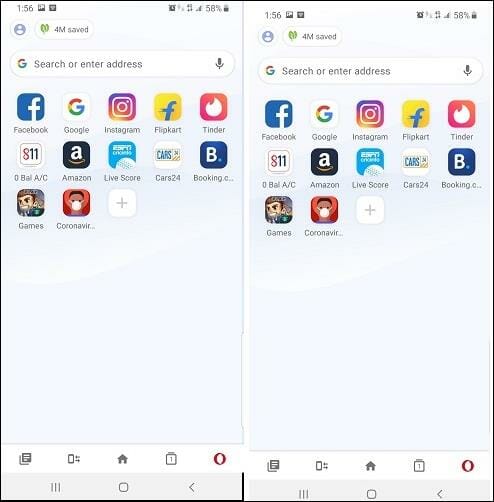
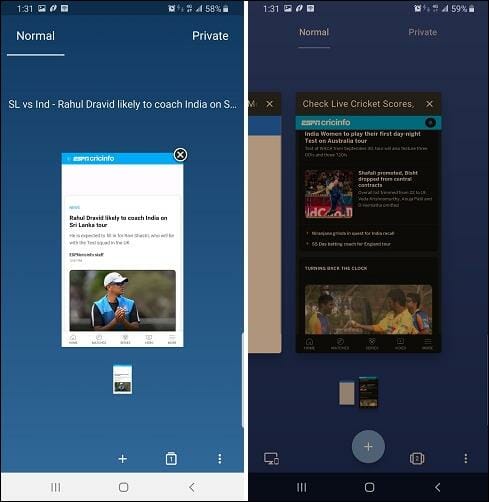
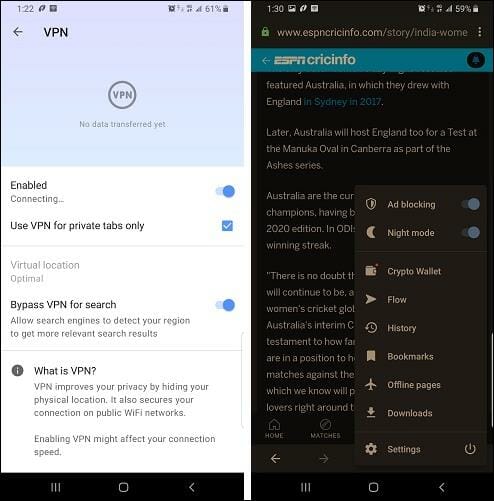
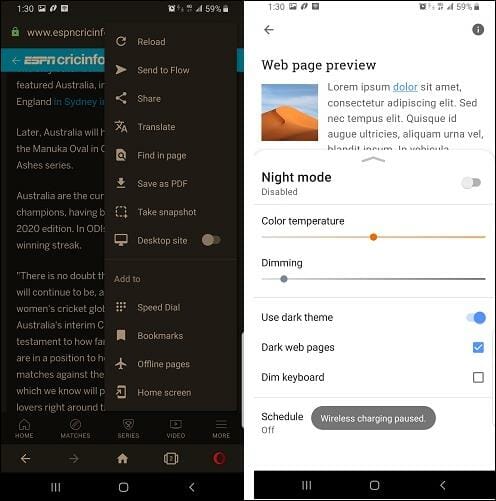
![5 Best Browsers that Support Dynamics 365 [Compatibility Ranked]](https://windowsreport.com/wp-content/uploads/2022/08/best-browser-for-google-workspace-59.jpg)

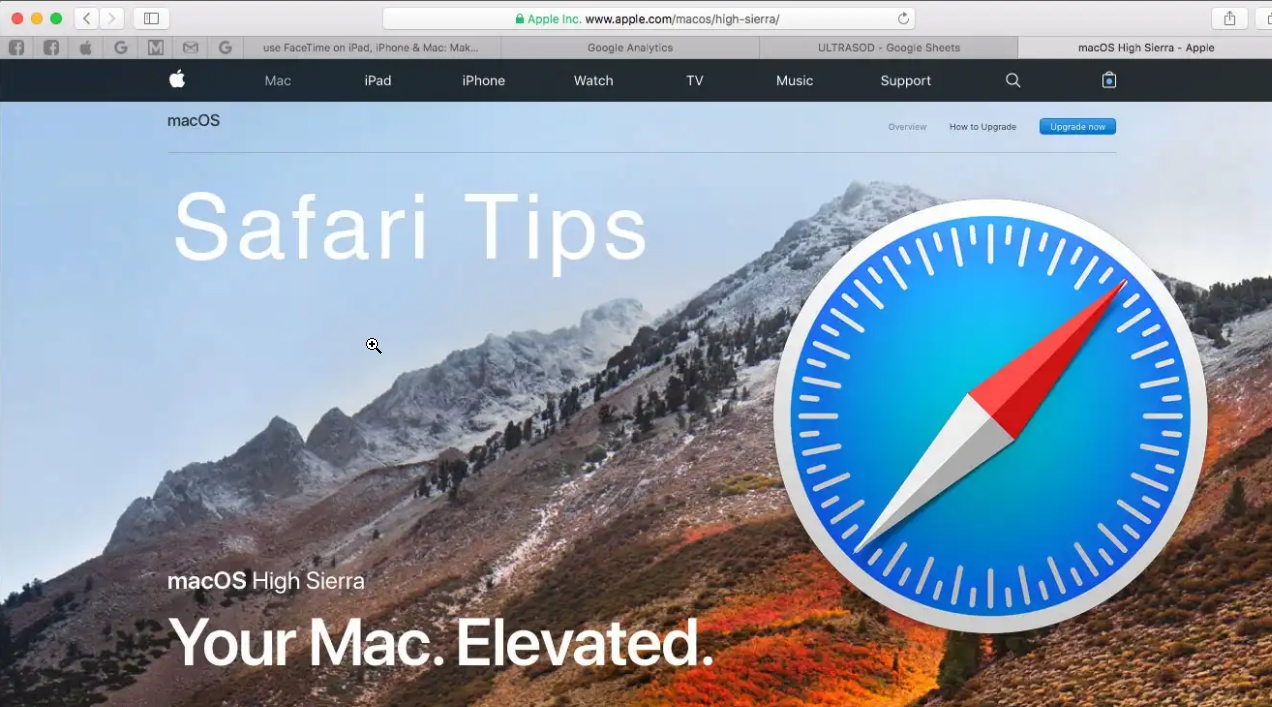

![Something Went Wrong! Tor Is Not Working in This Browser [FIX]](https://windowsreport.com/wp-content/uploads/2022/08/tor-w10.png)
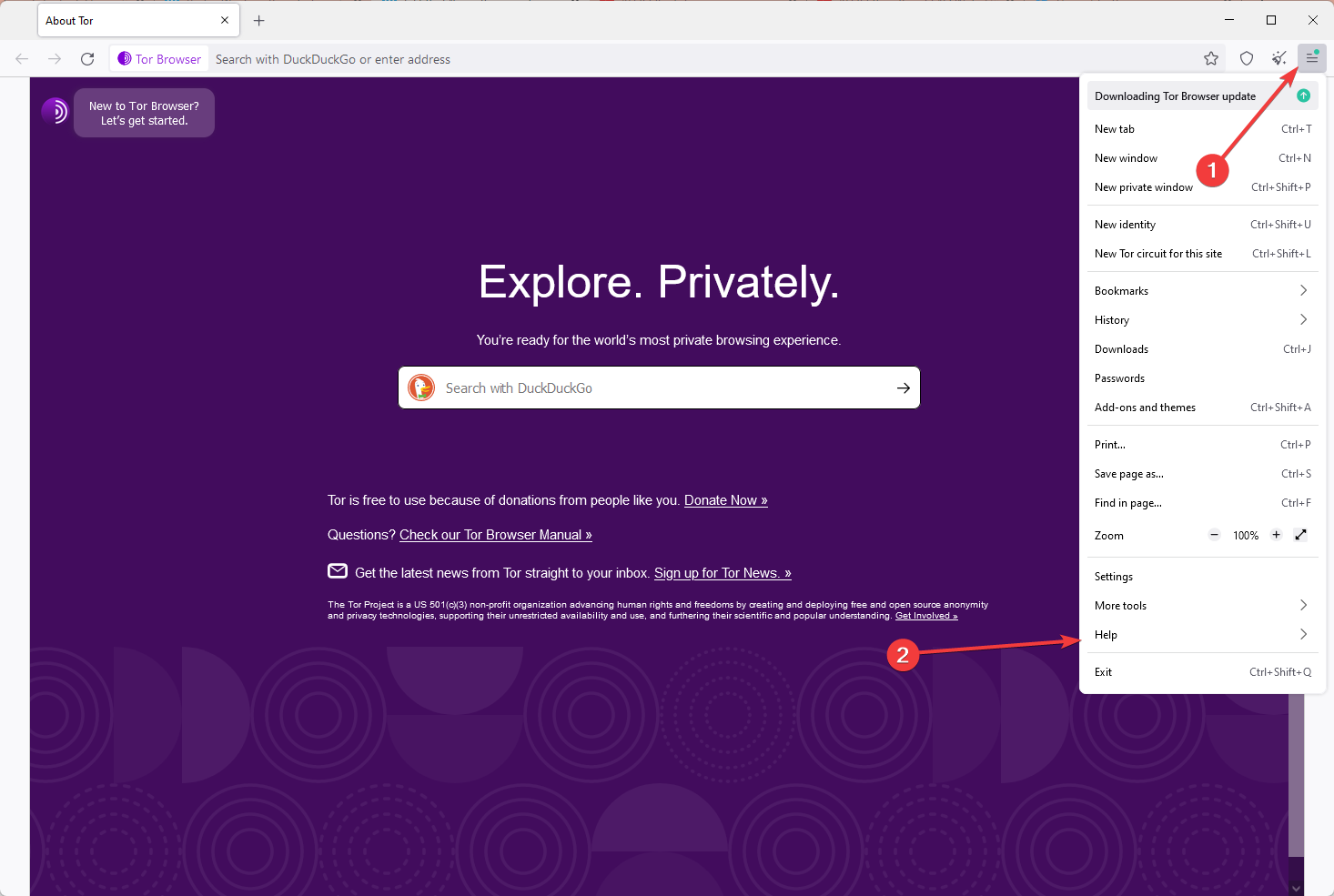
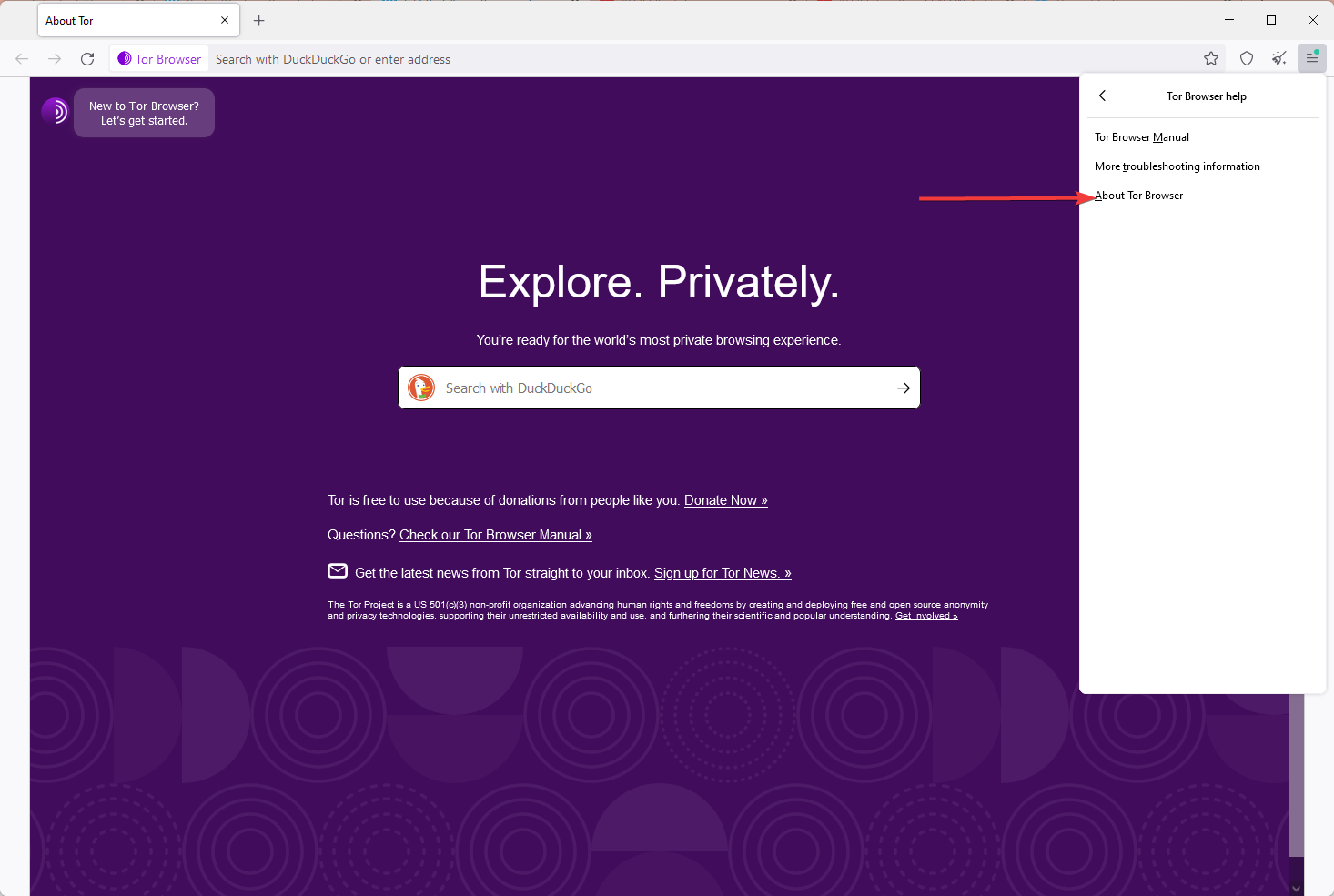
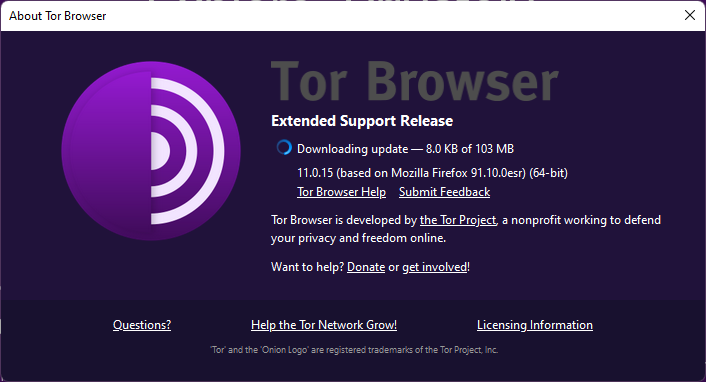
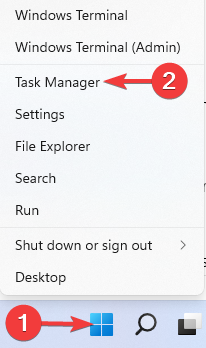
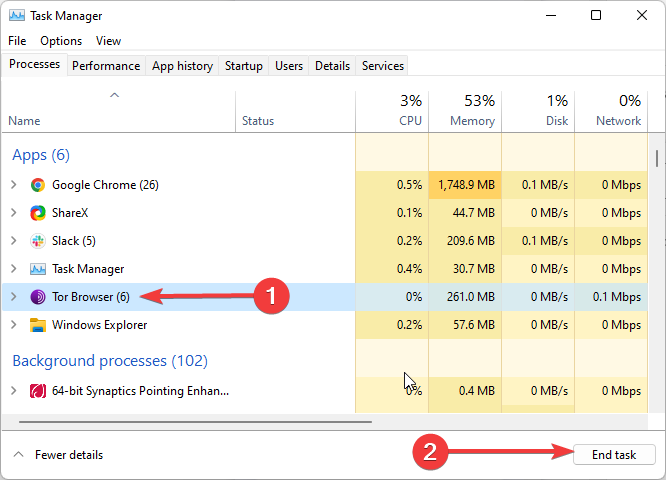
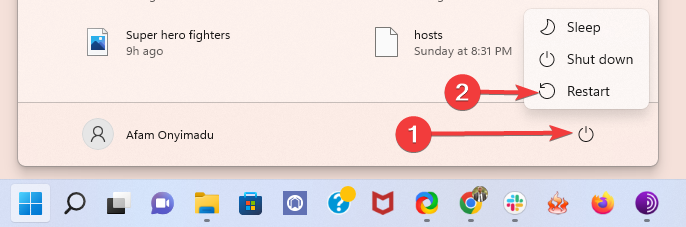
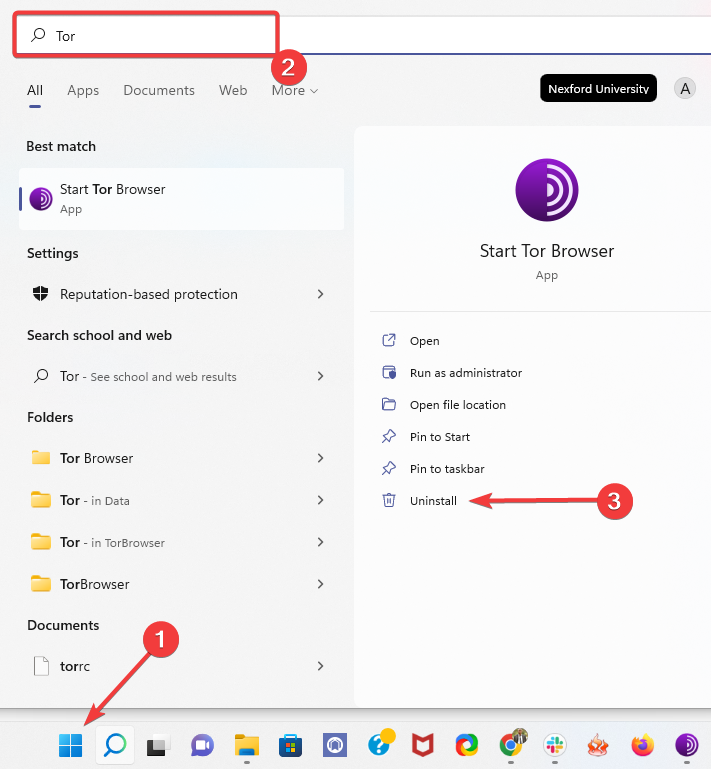
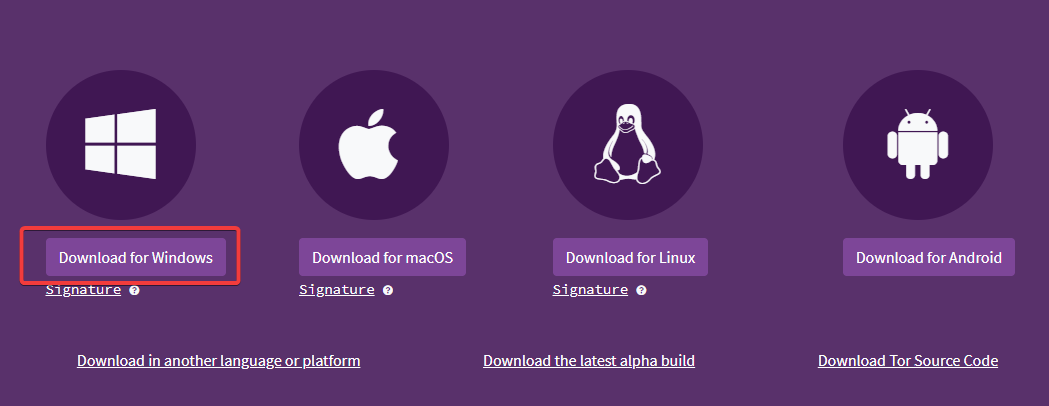
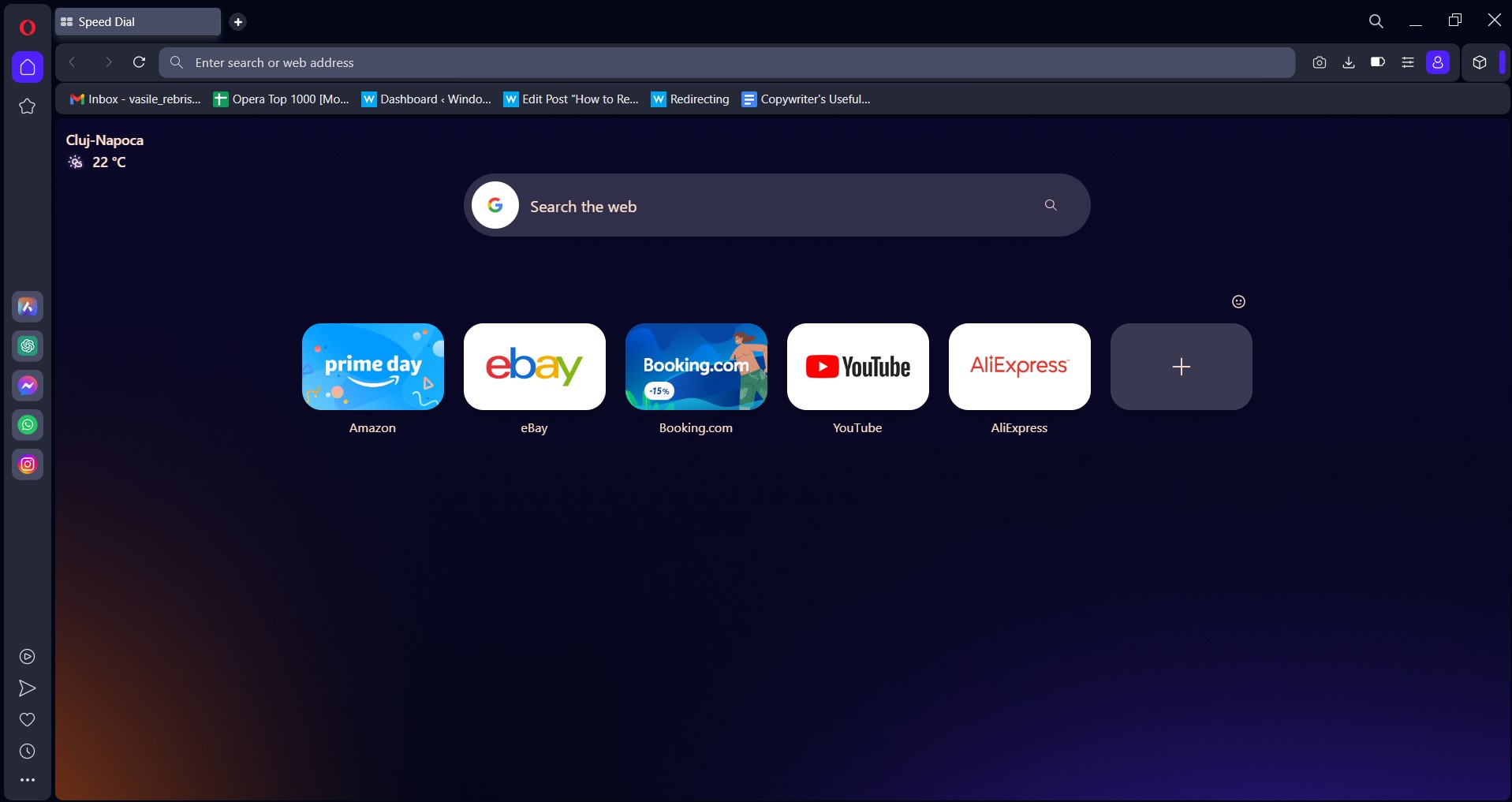

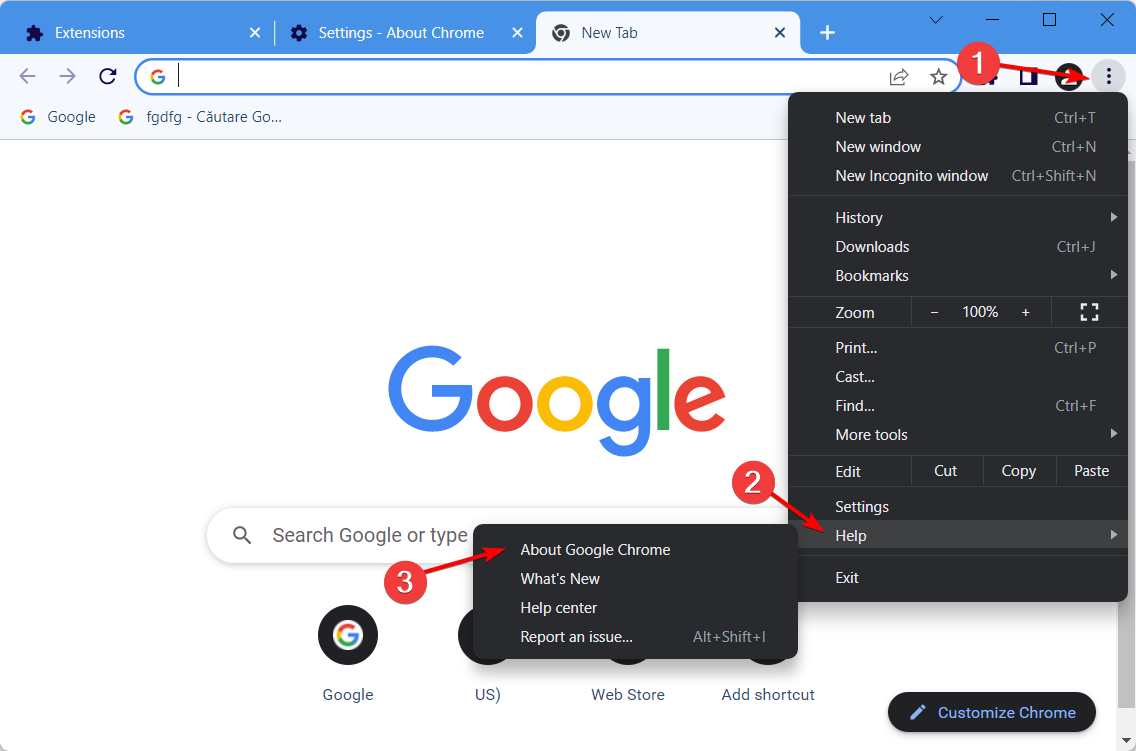
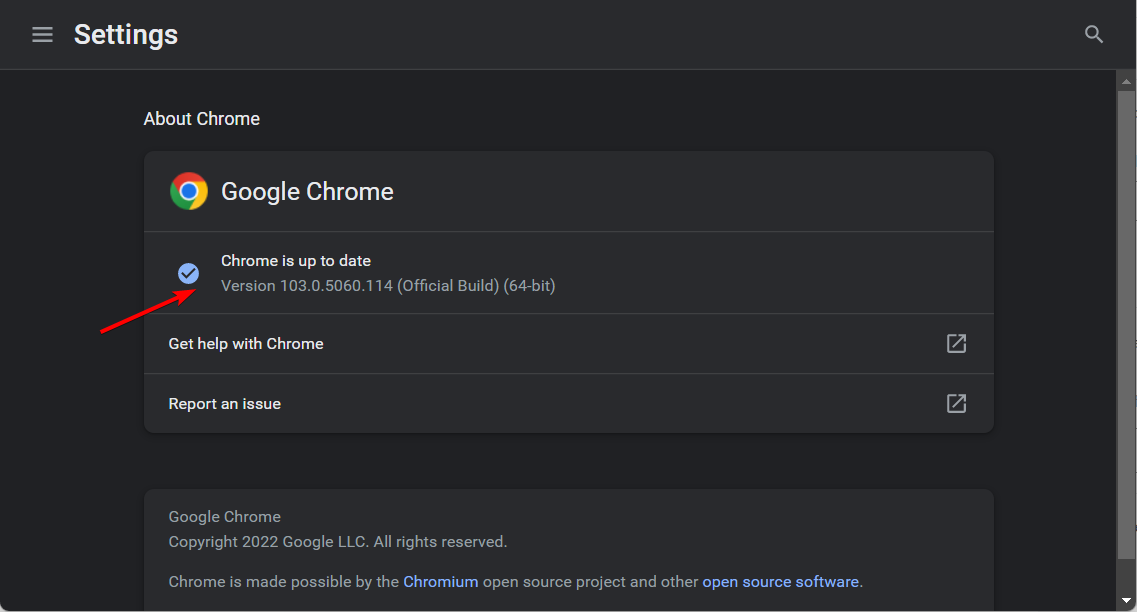
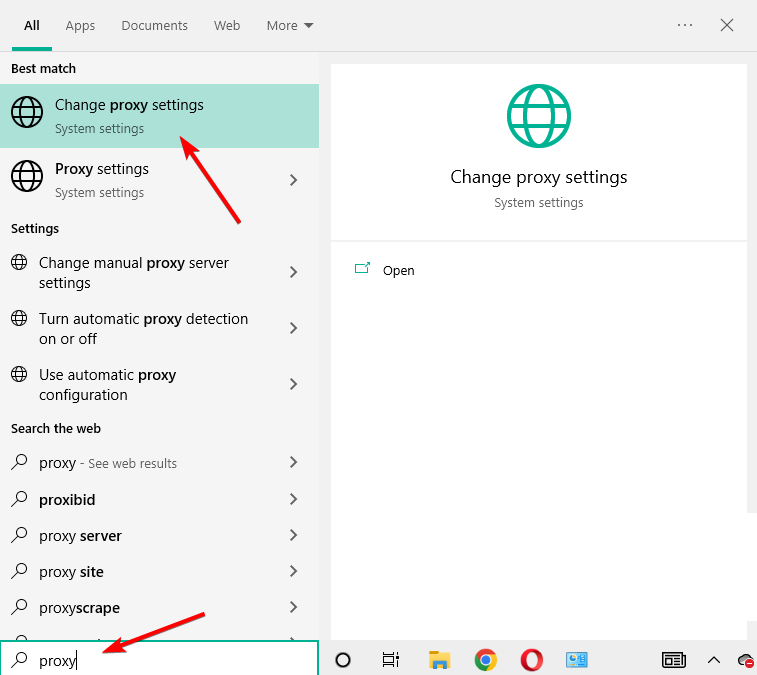
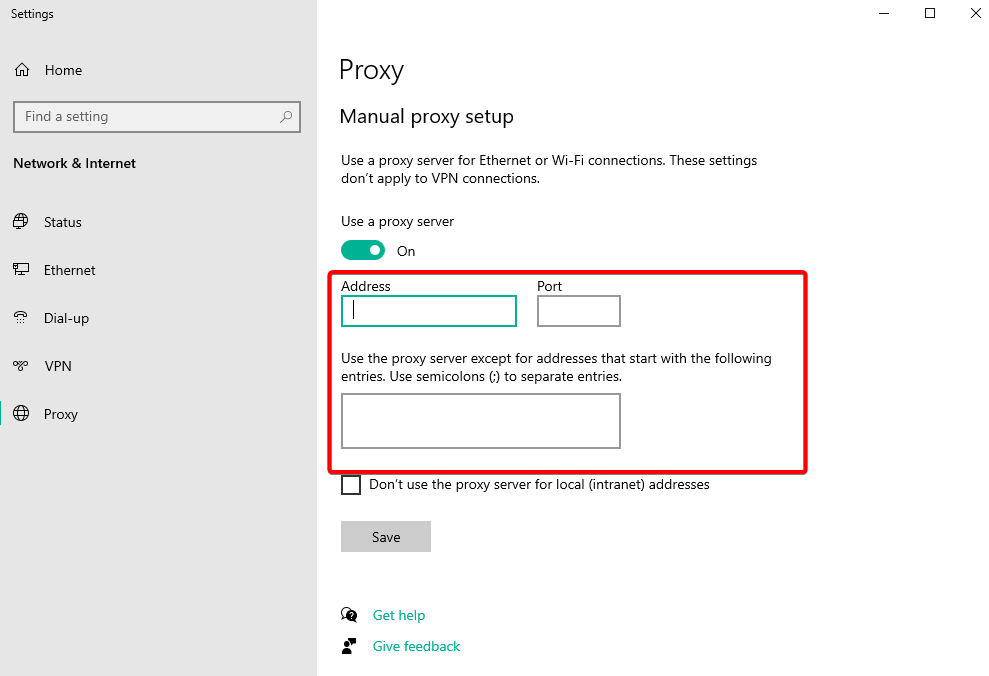
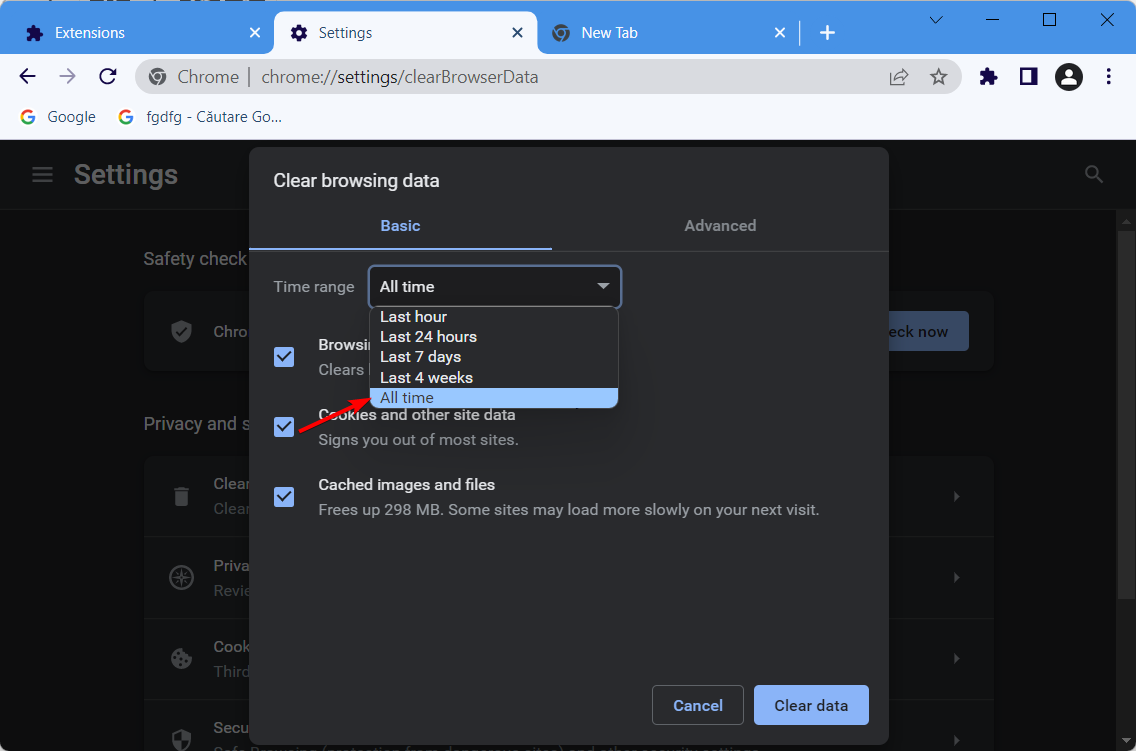
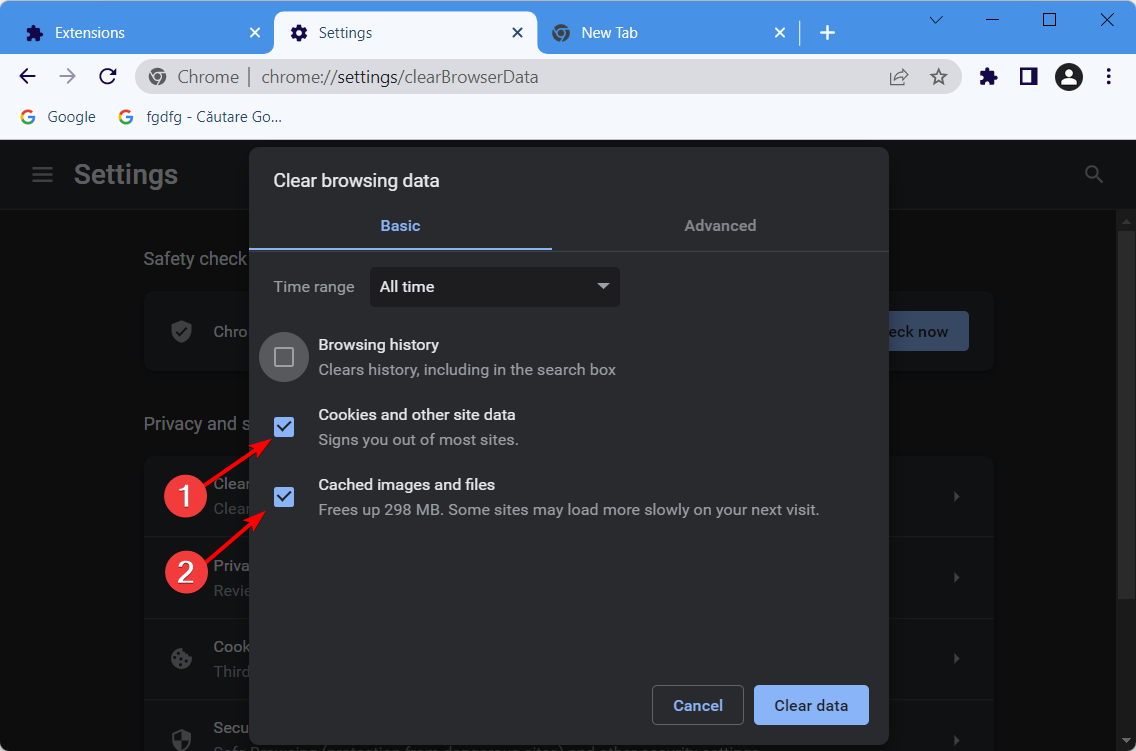
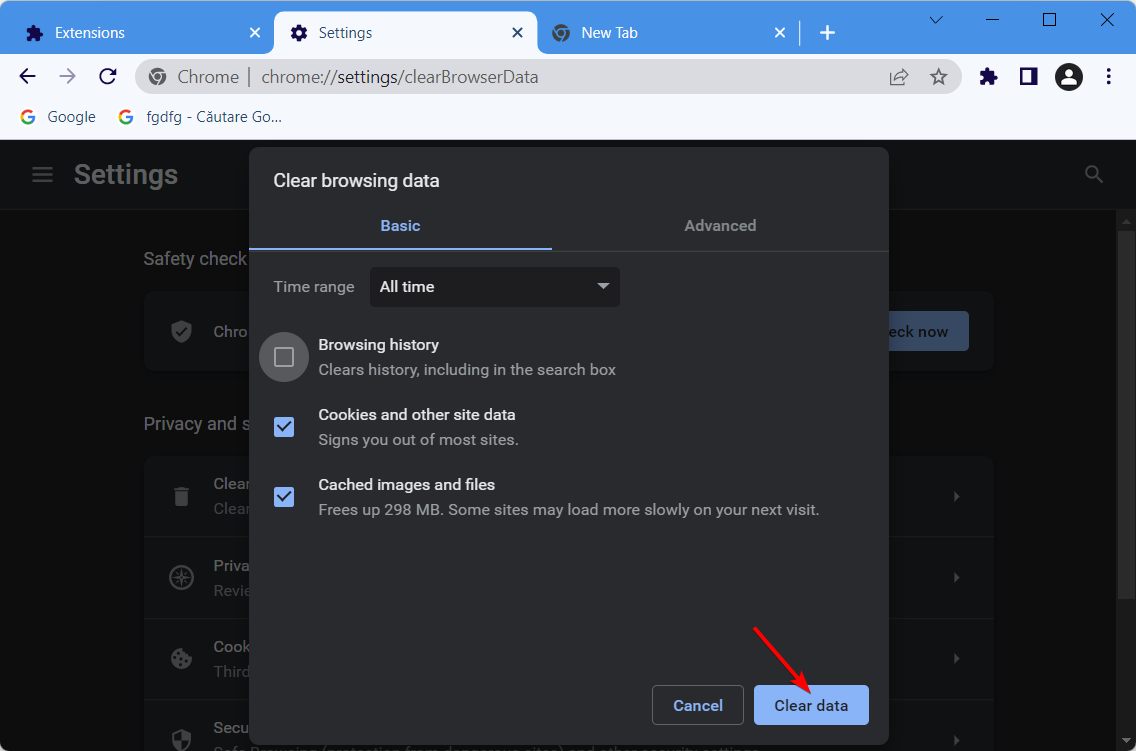
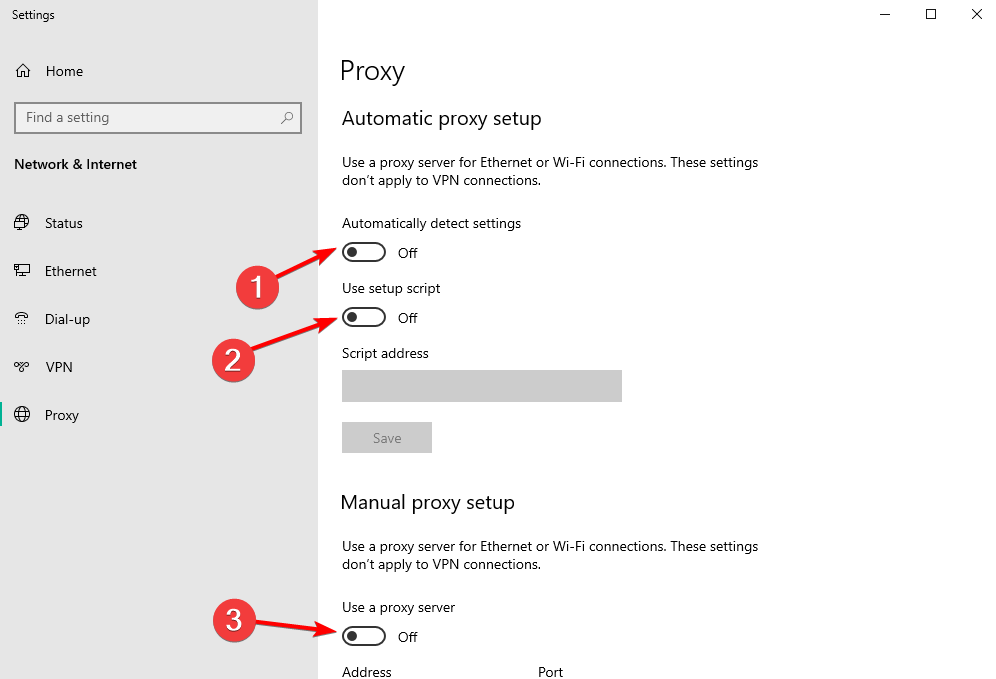
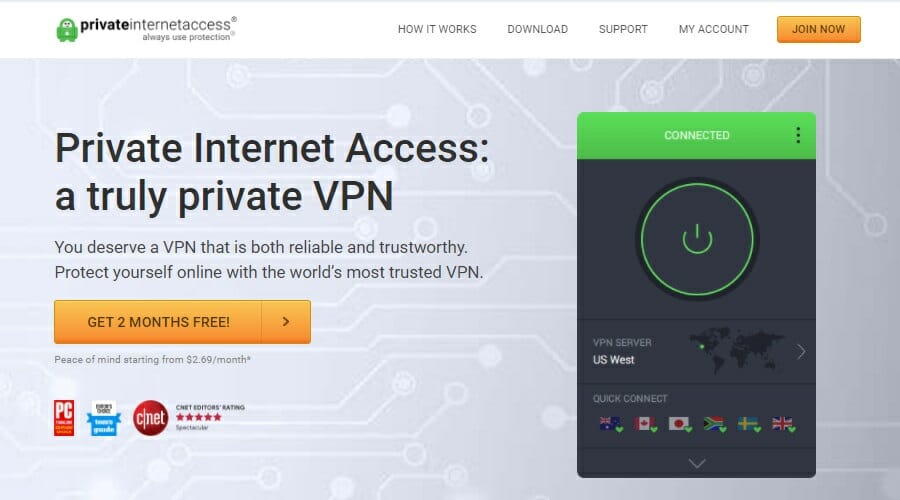

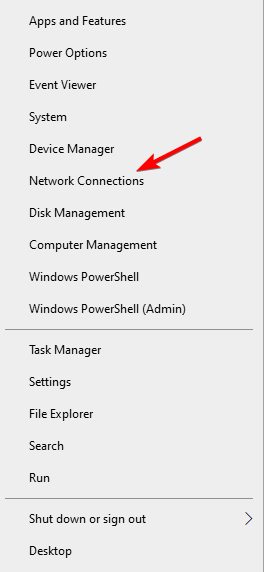
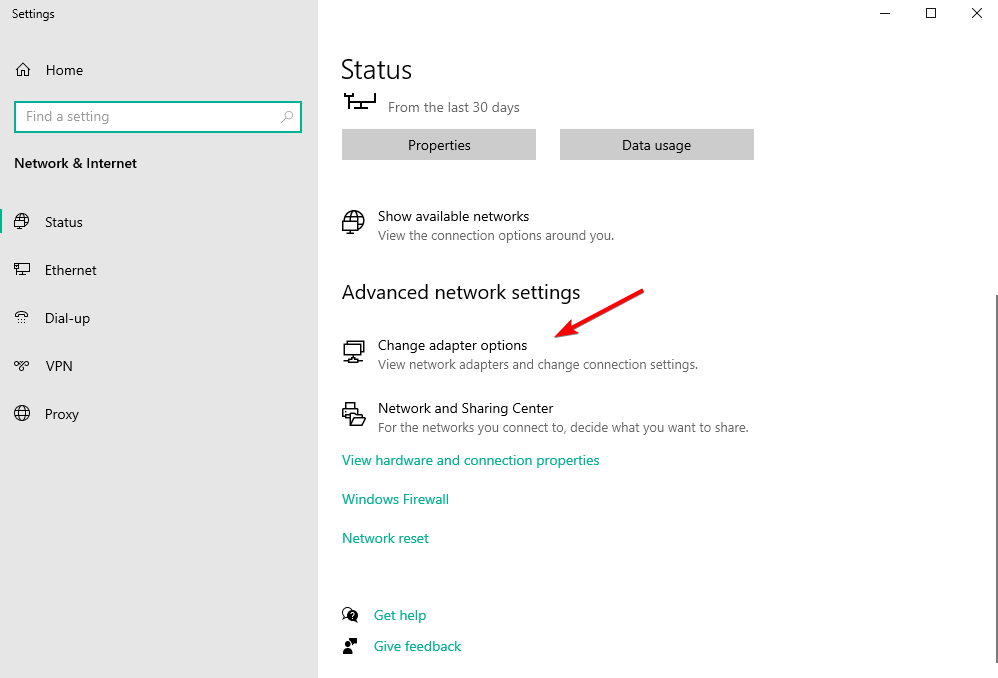
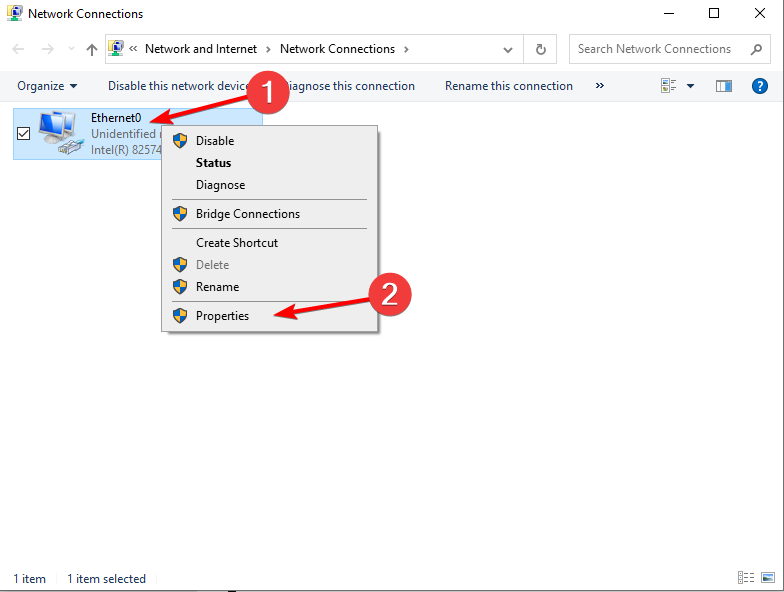
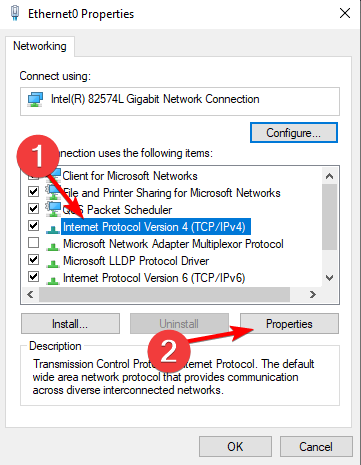
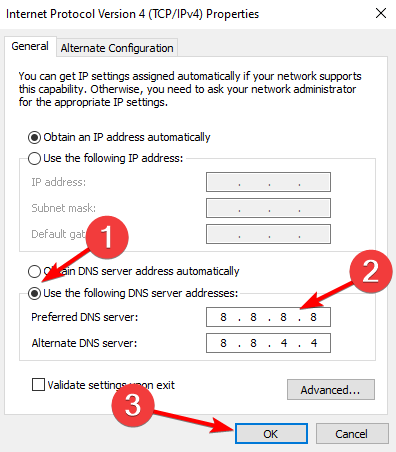
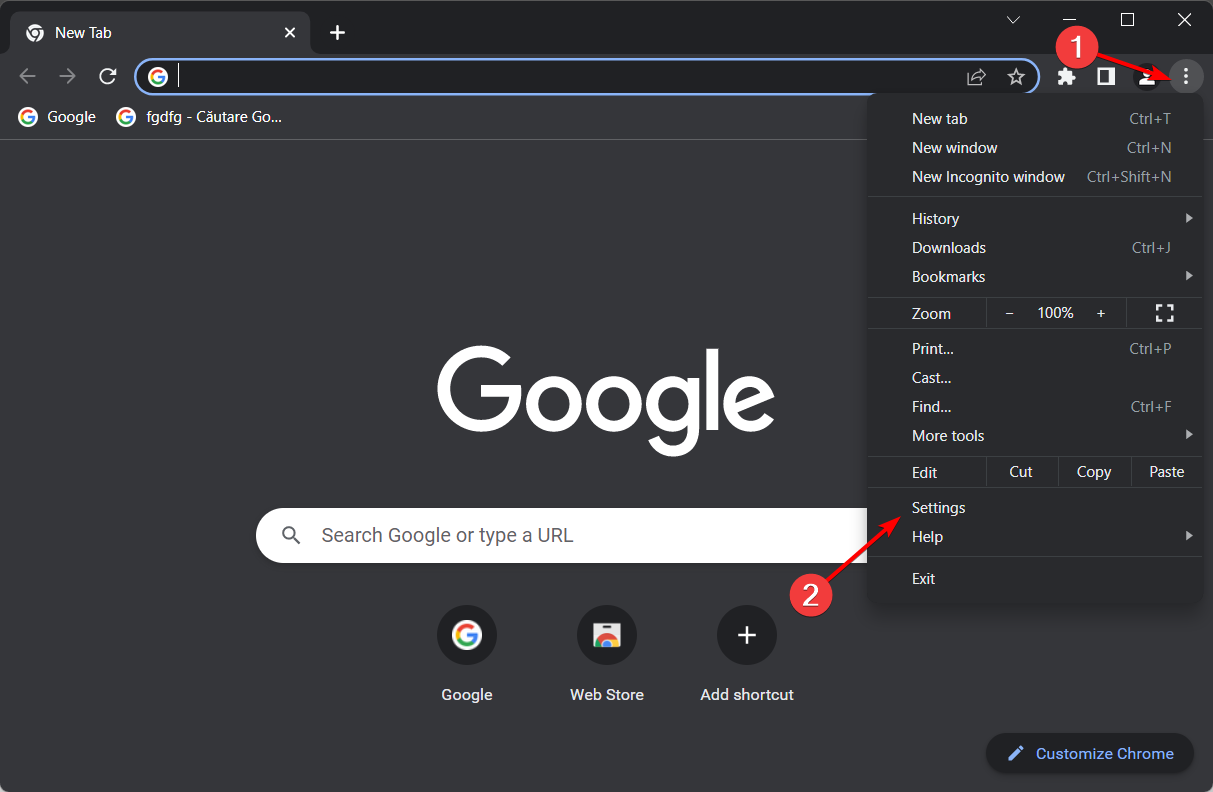
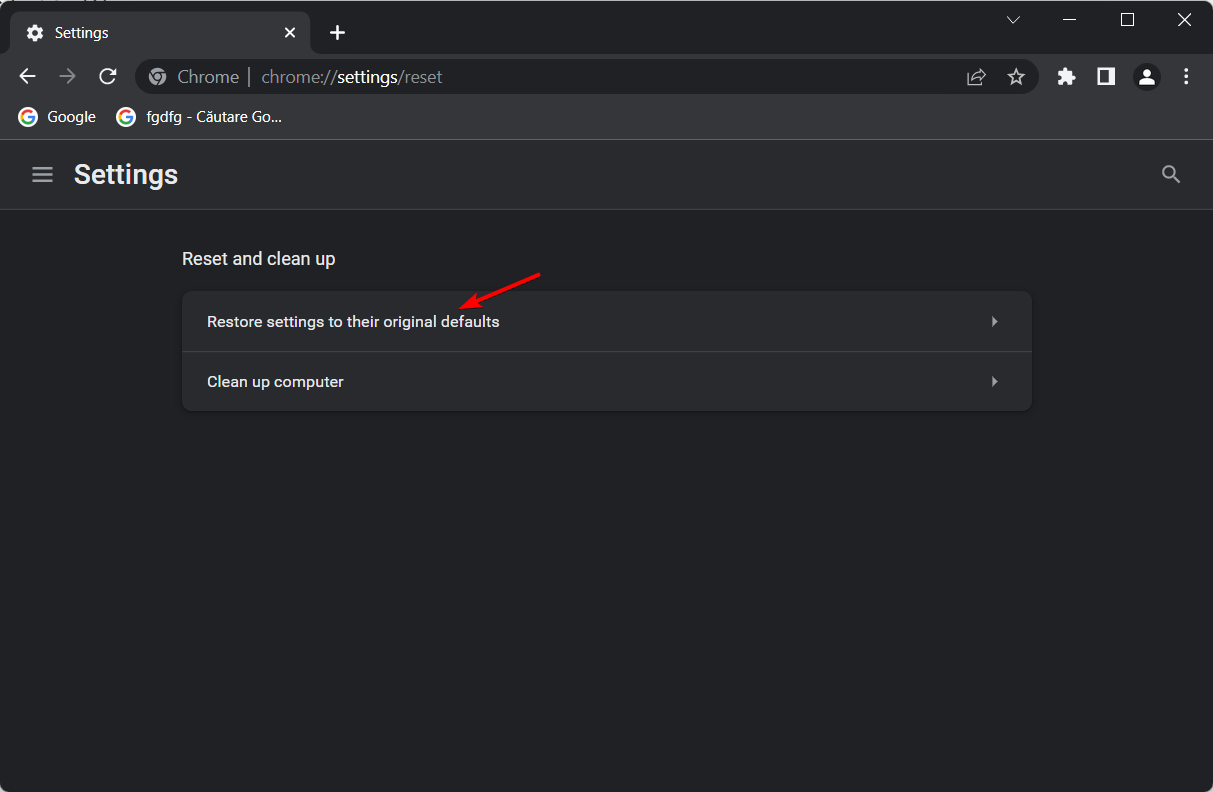
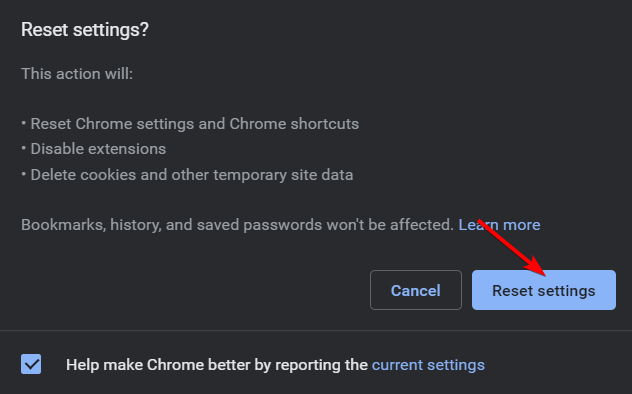
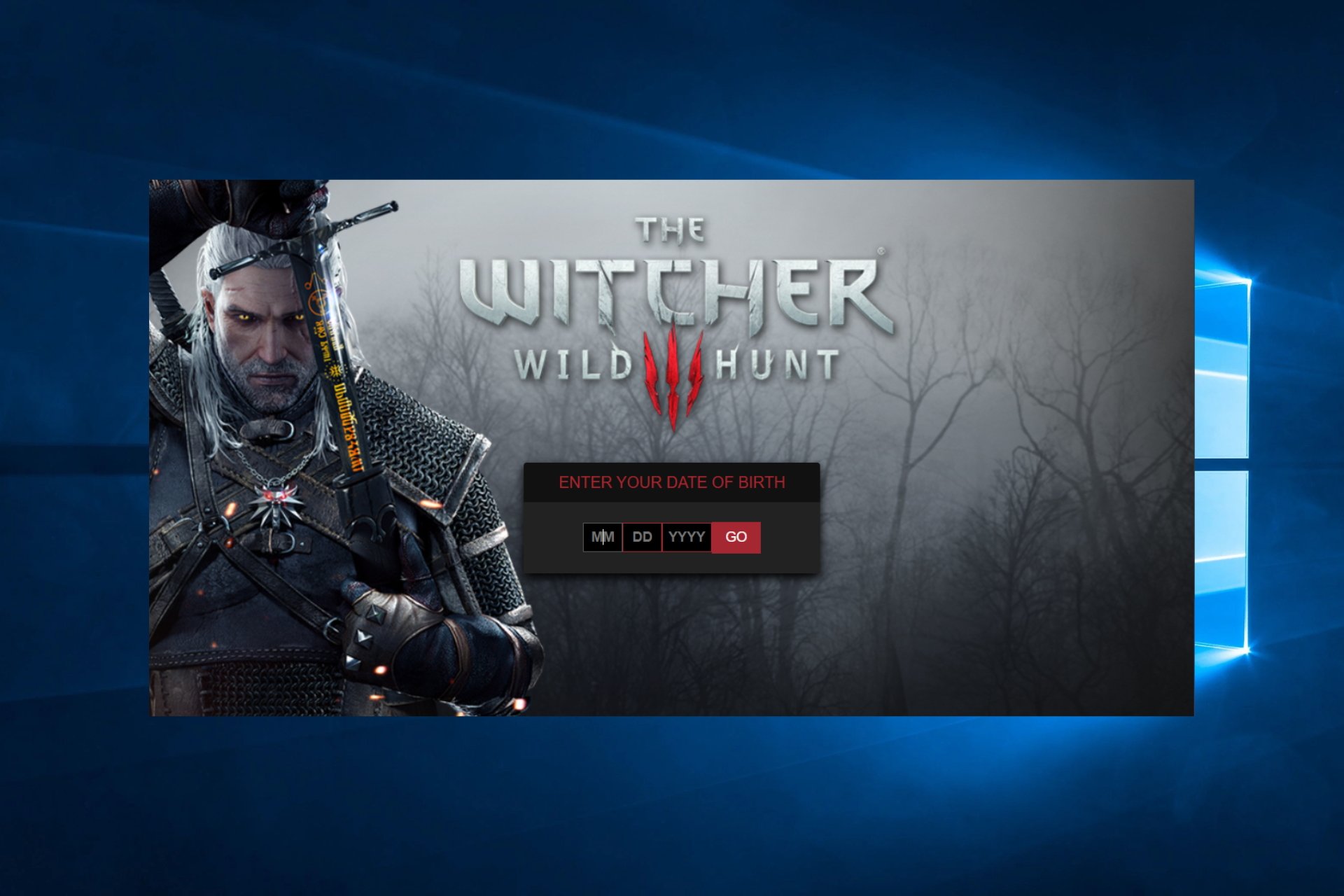












![5 Best Browsers that Support IndexedDB [Ranked by Data Limits]](https://windowsreport.com/wp-content/uploads/2022/08/browser-support-IndexedDB-1.png)


![Turn on Opera GX Incognito & Hide Search History [How to]](https://windowsreport.com/wp-content/uploads/2022/08/Untitled-design-2022-08-01T174258.938.png)


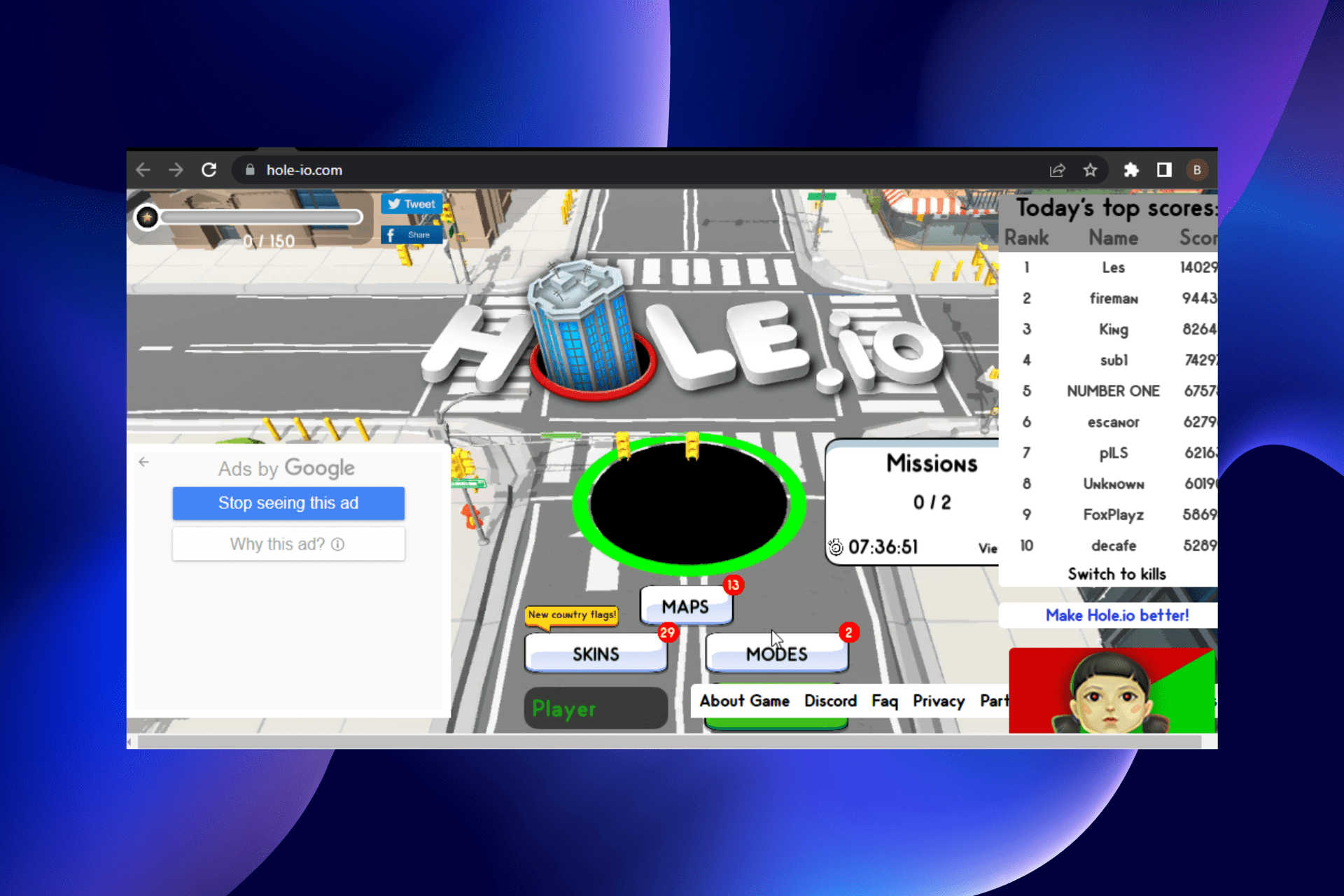


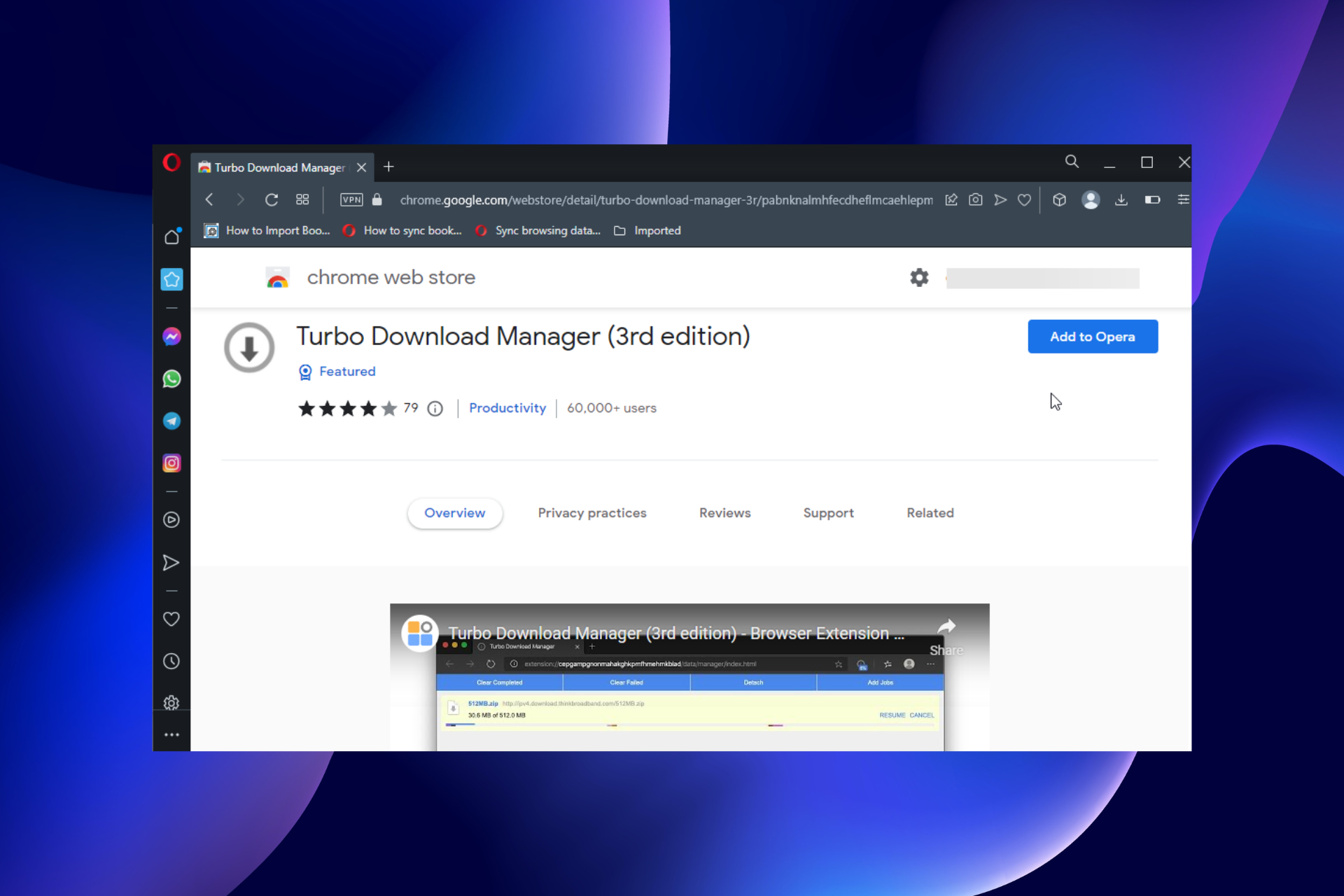




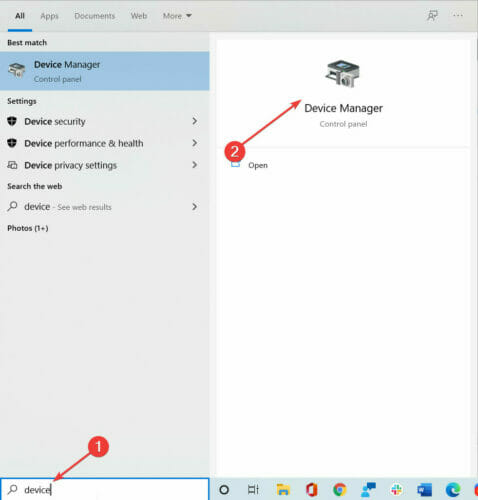





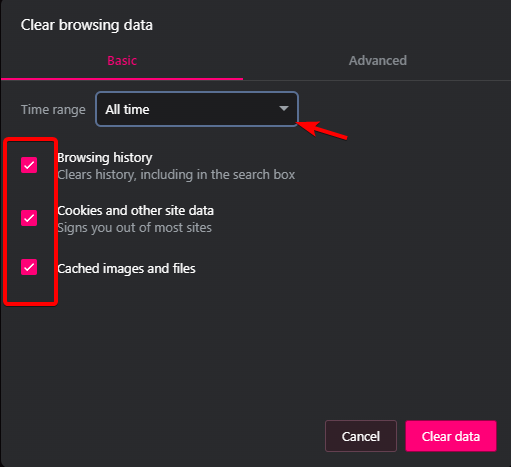


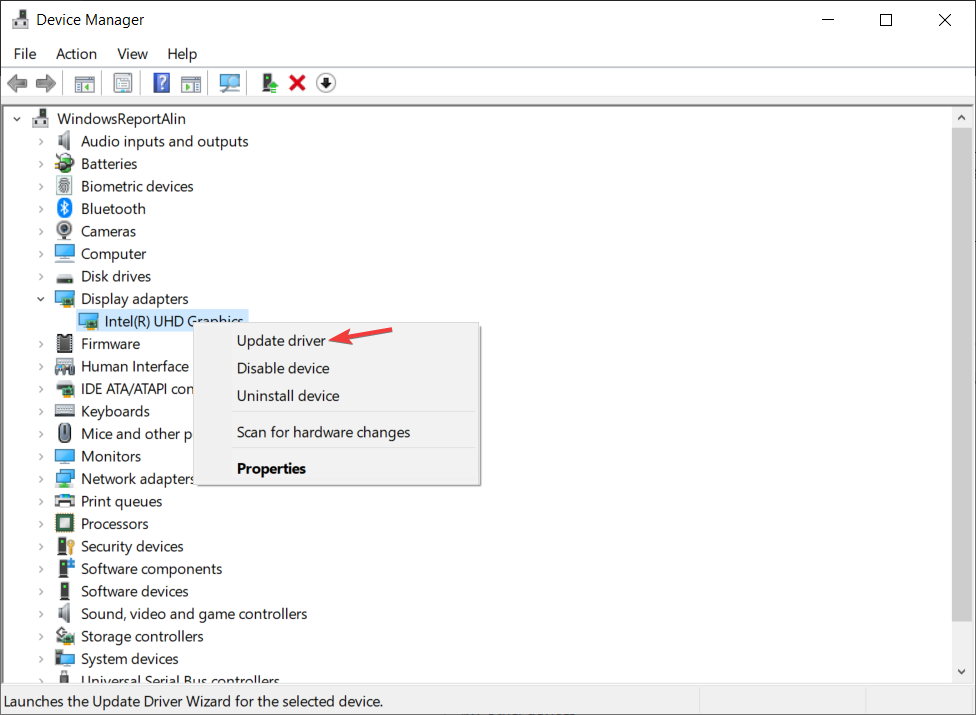


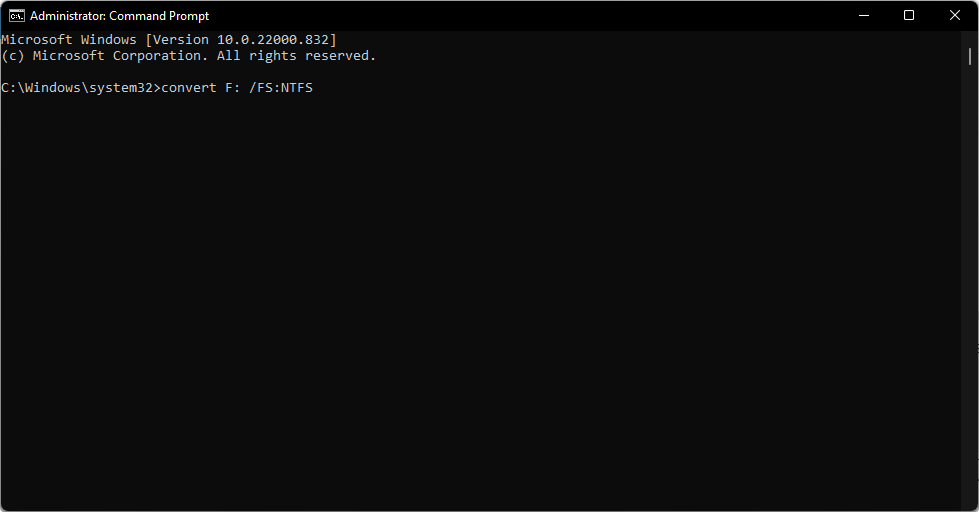

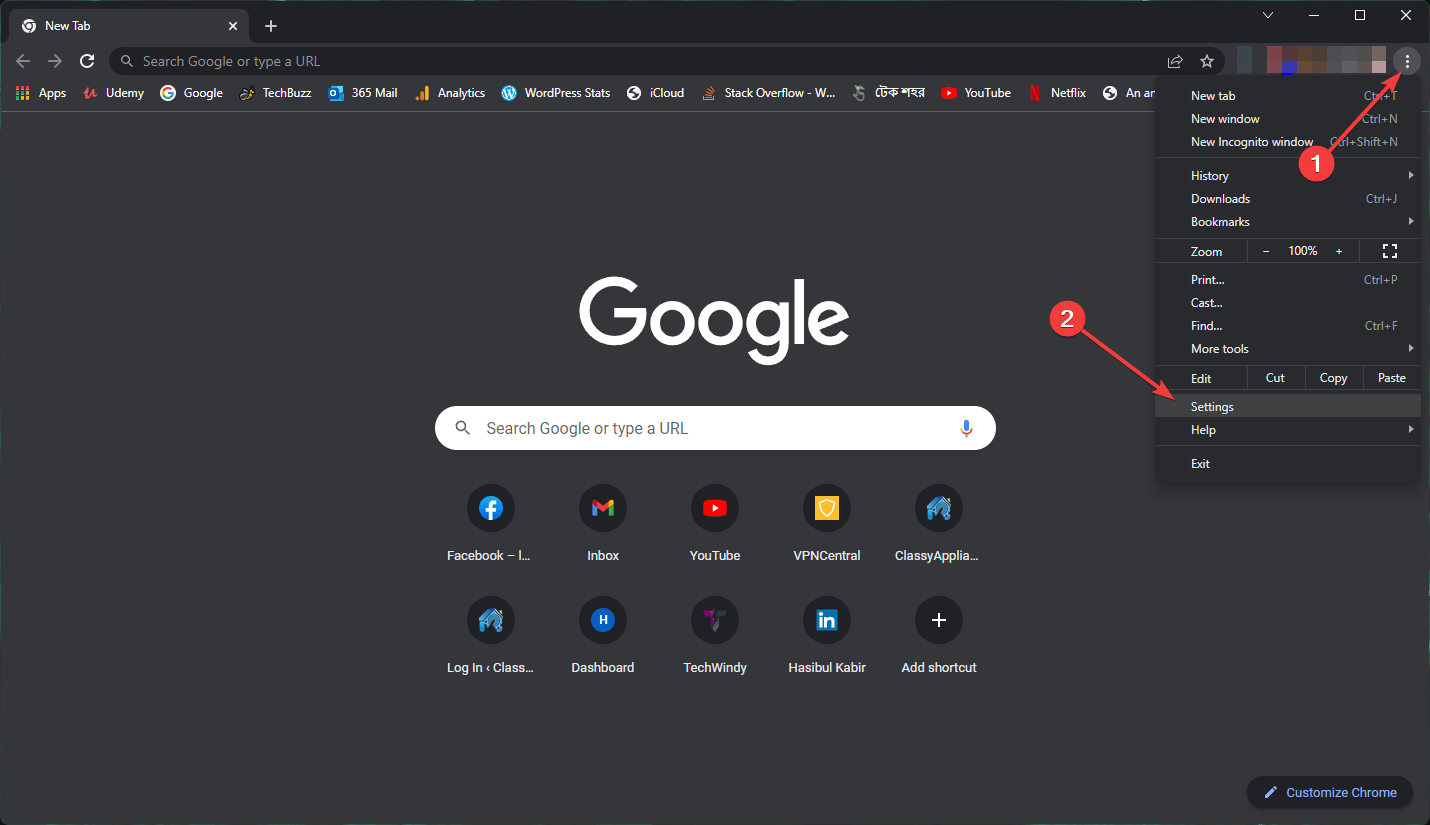
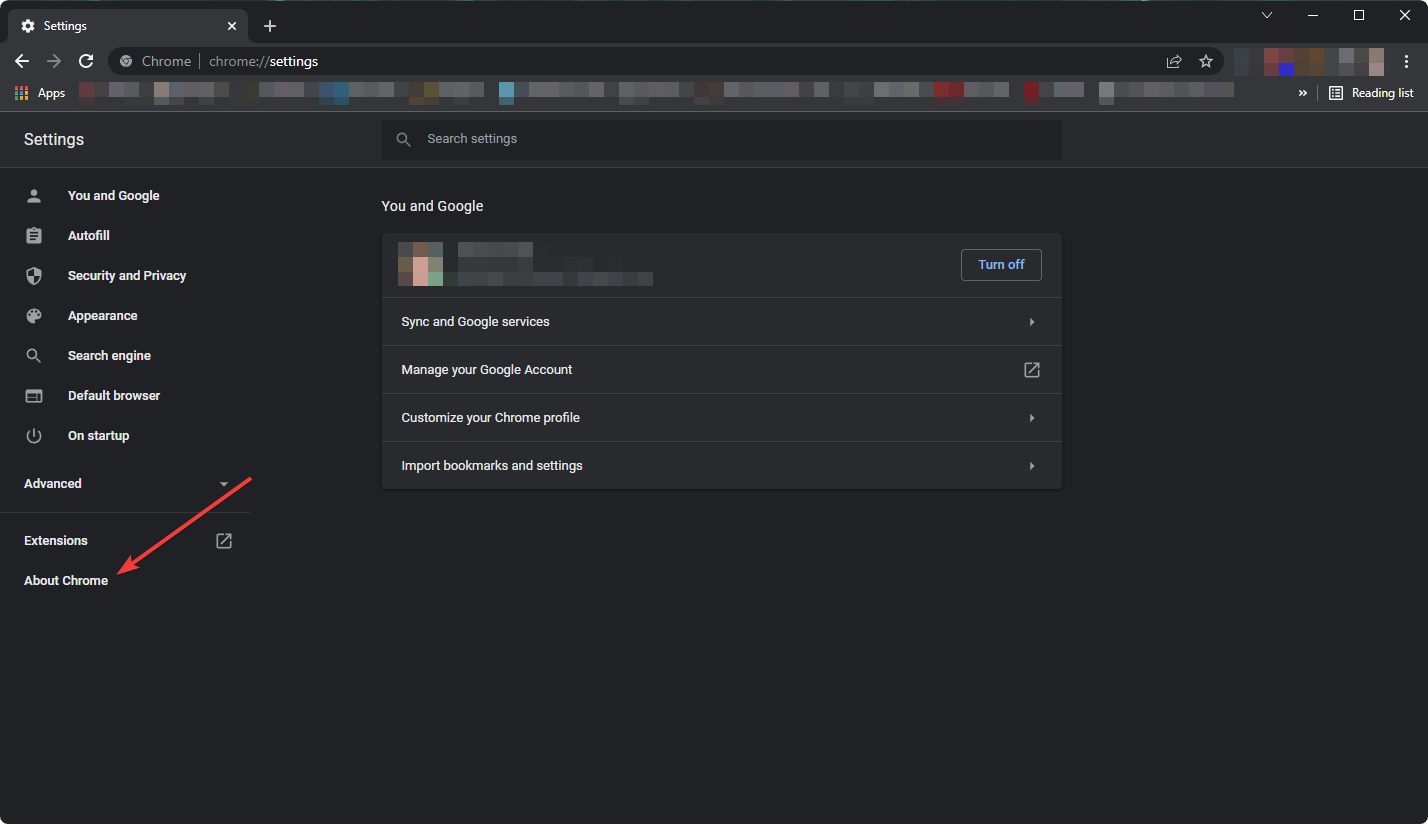
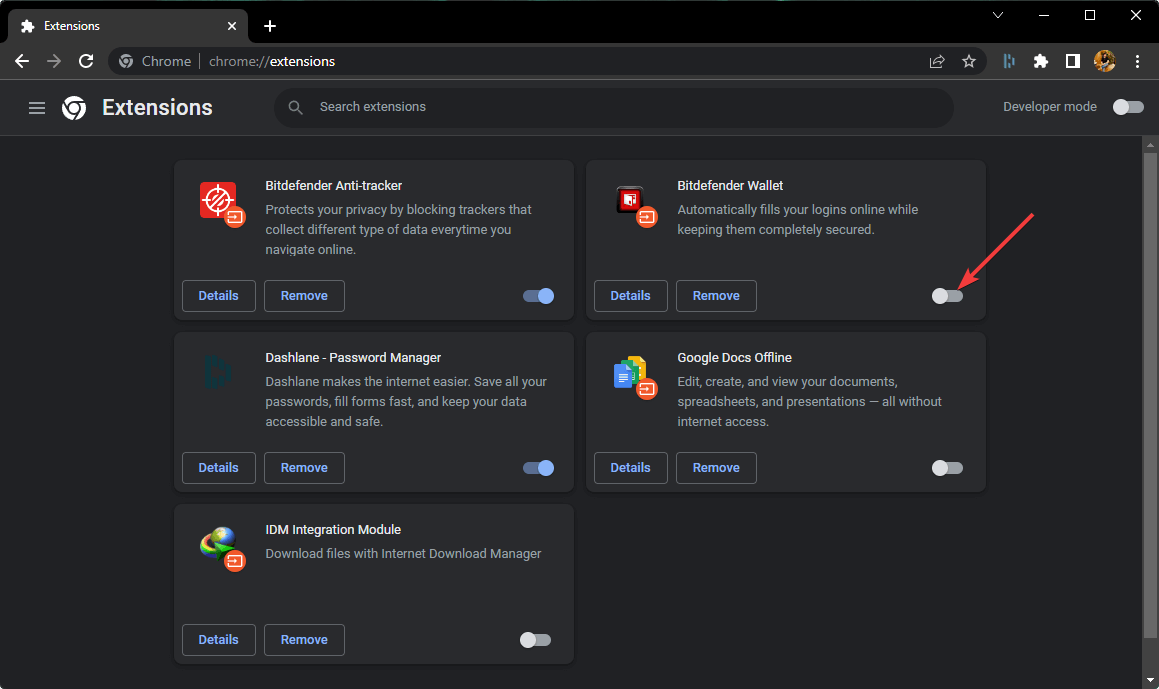


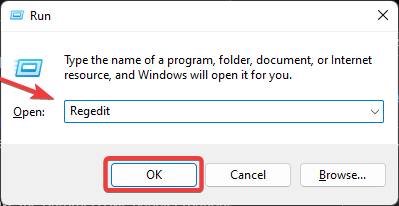


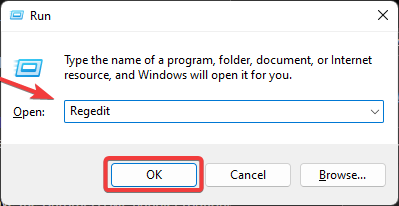




![How to Set Up NordVPN with qBittorrent [Easy Settings]](https://windowsreport.com/wp-content/uploads/2022/08/qbit-torrent-nord-2.png)



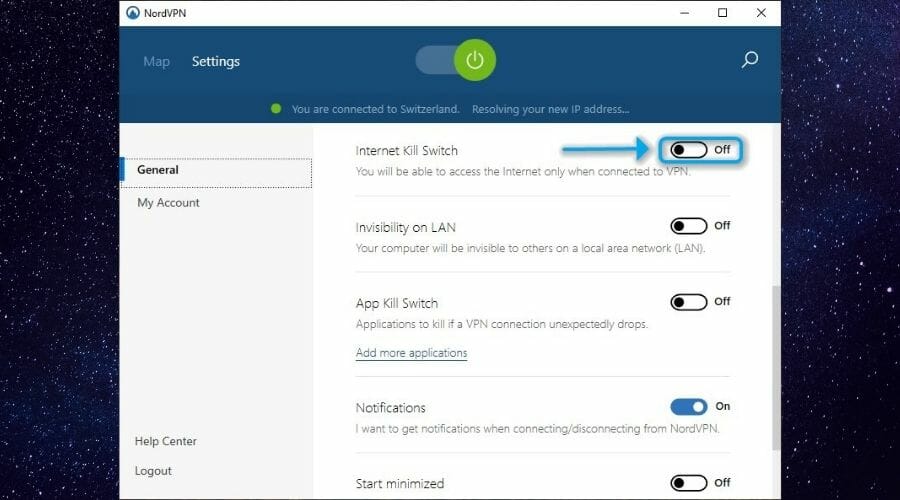
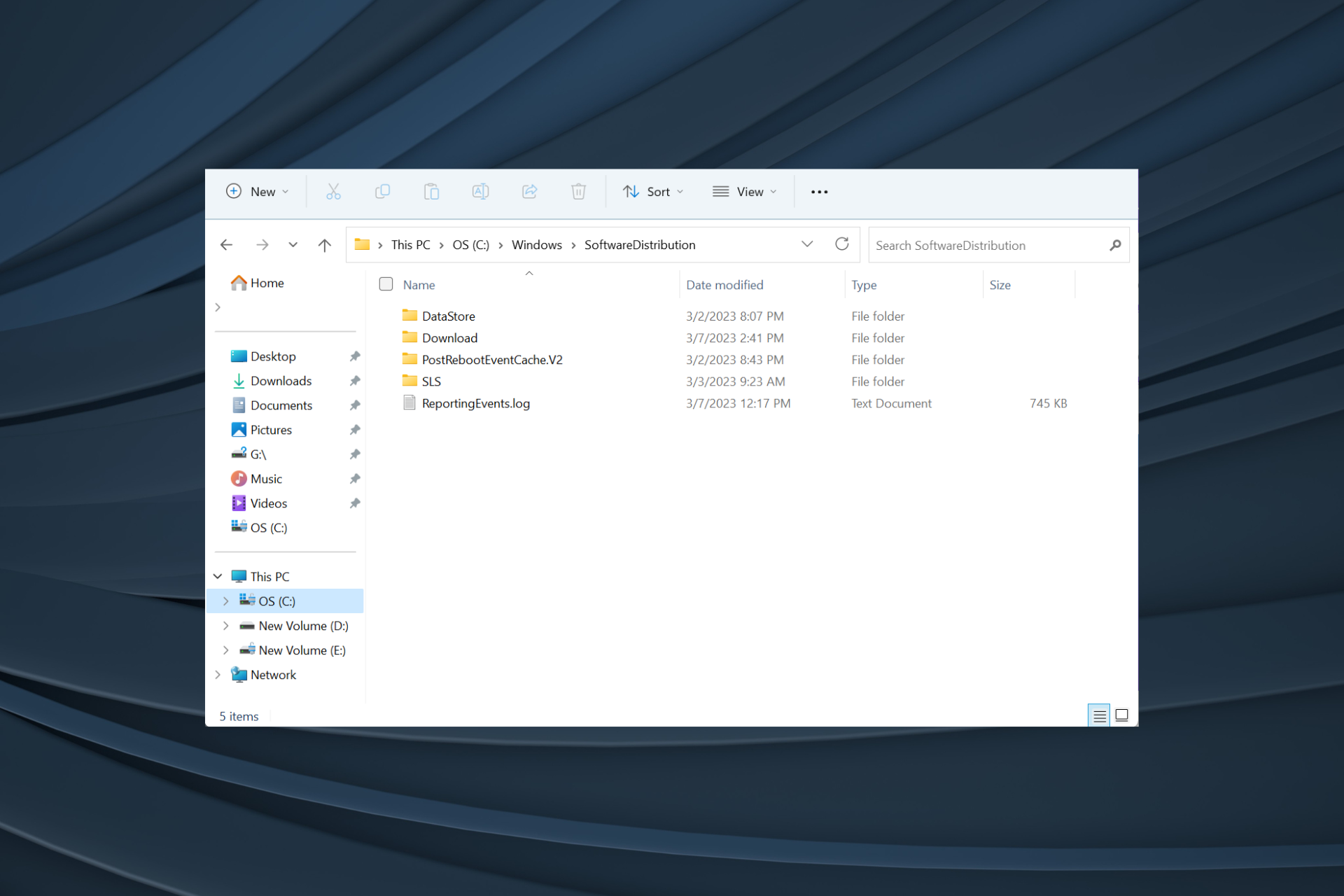


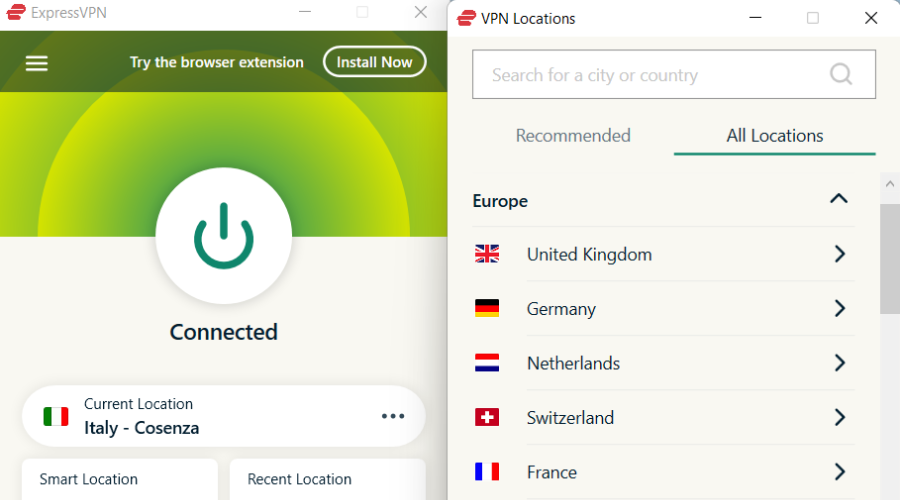

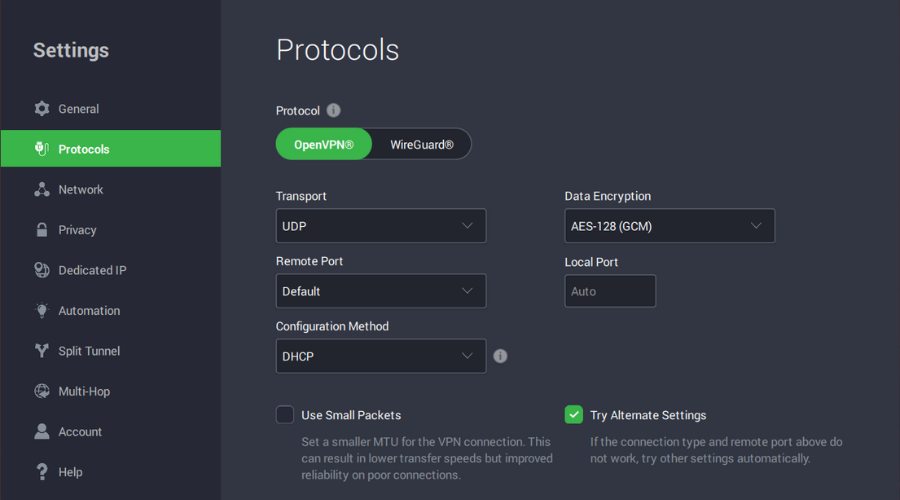

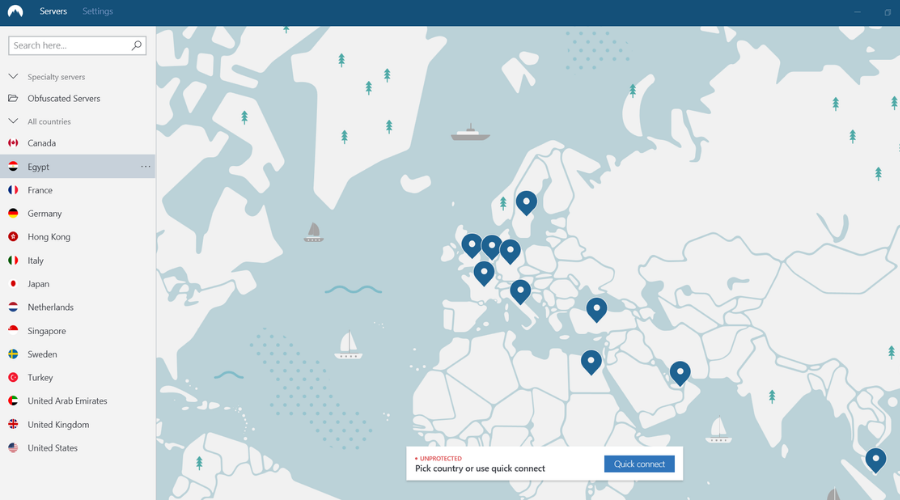

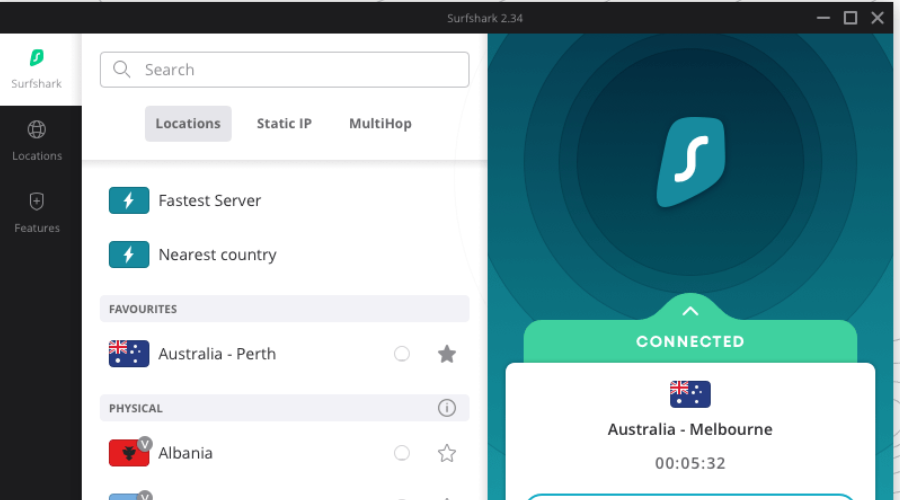

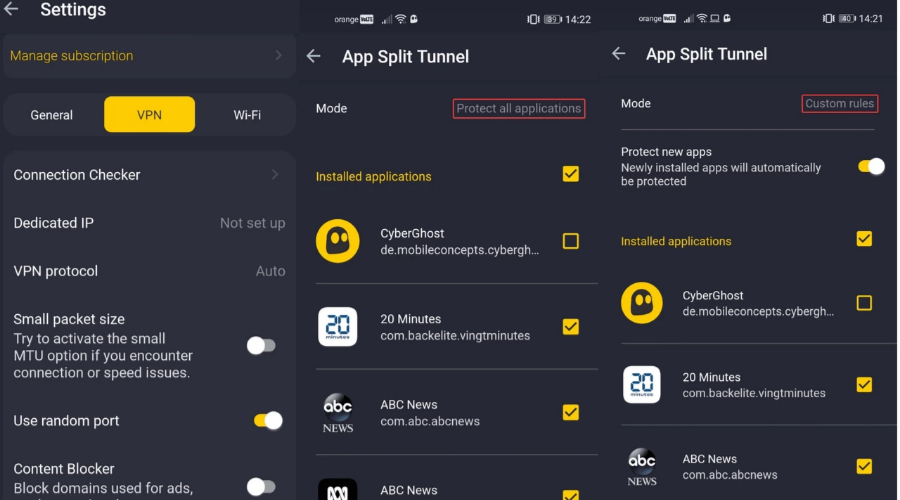

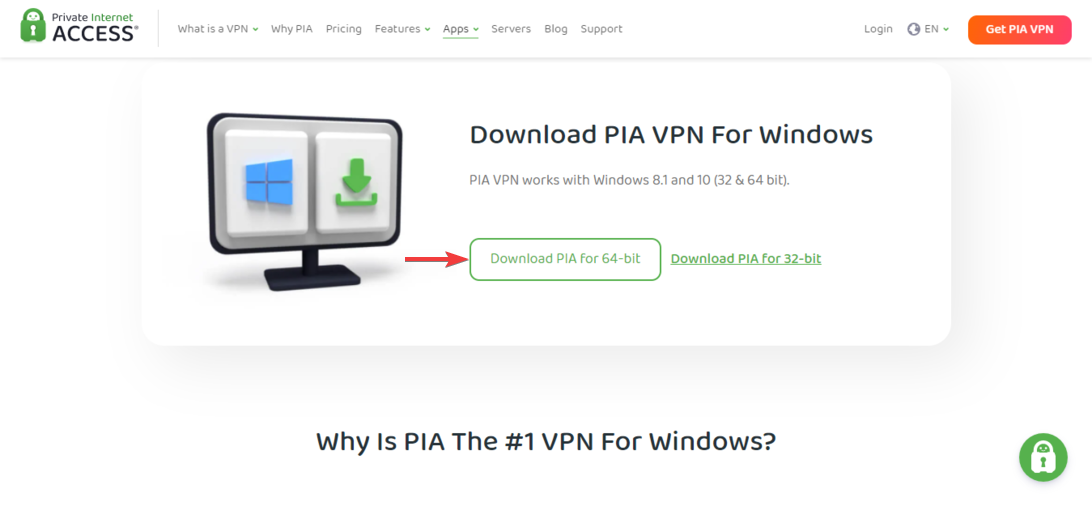
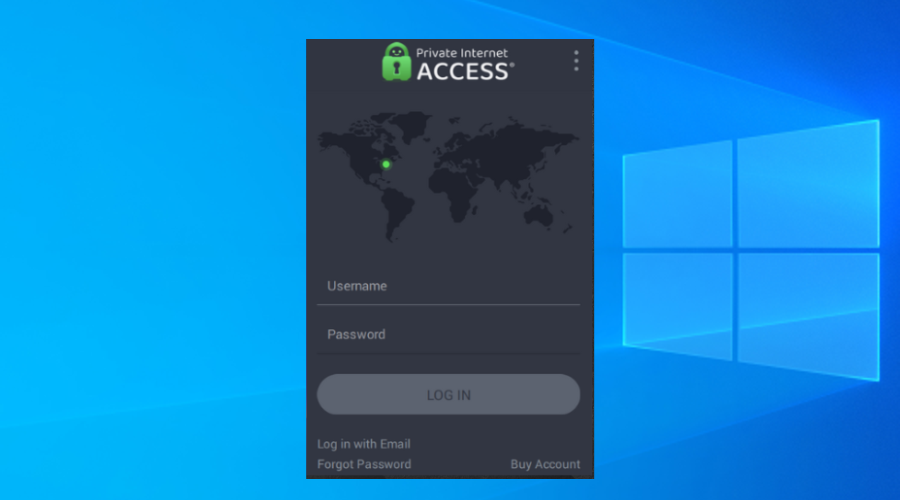
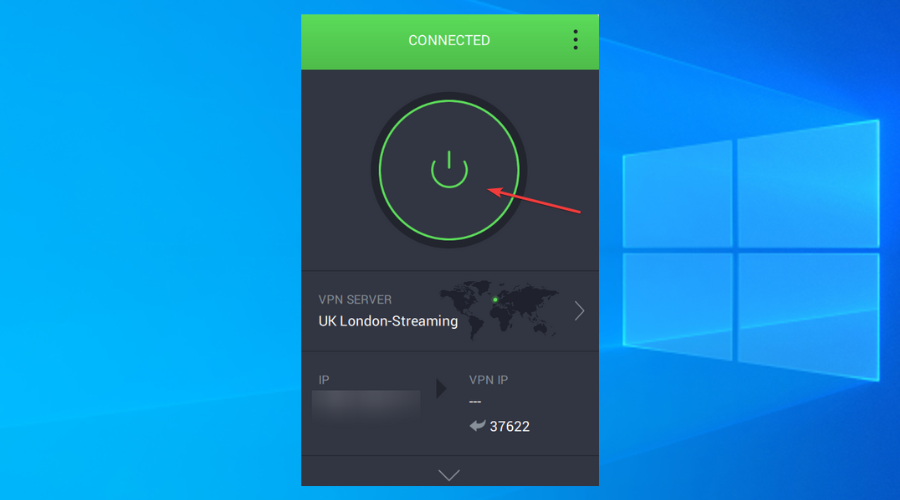


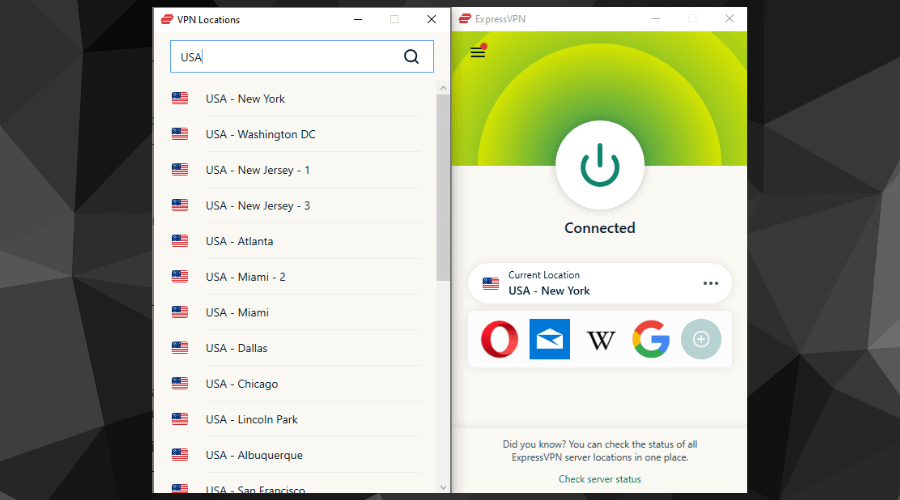

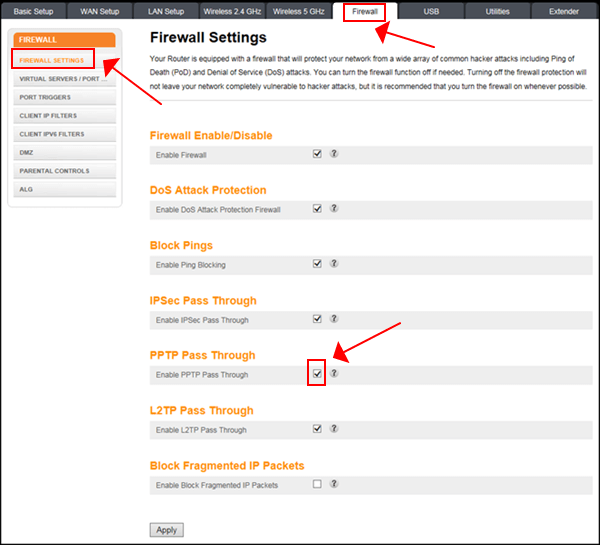
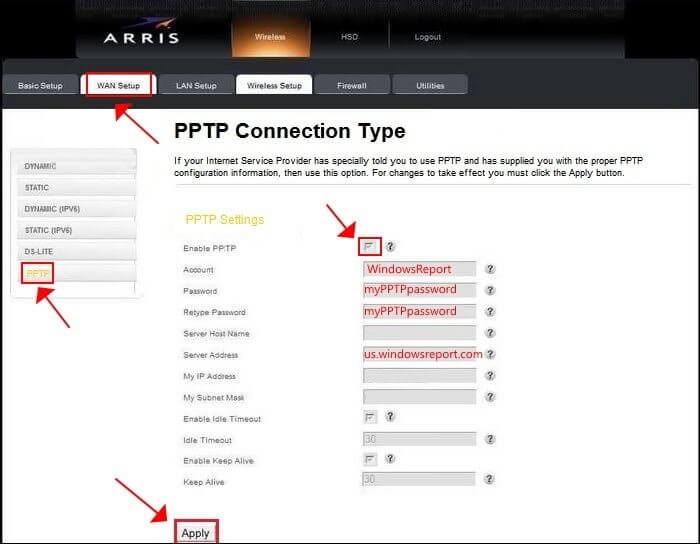






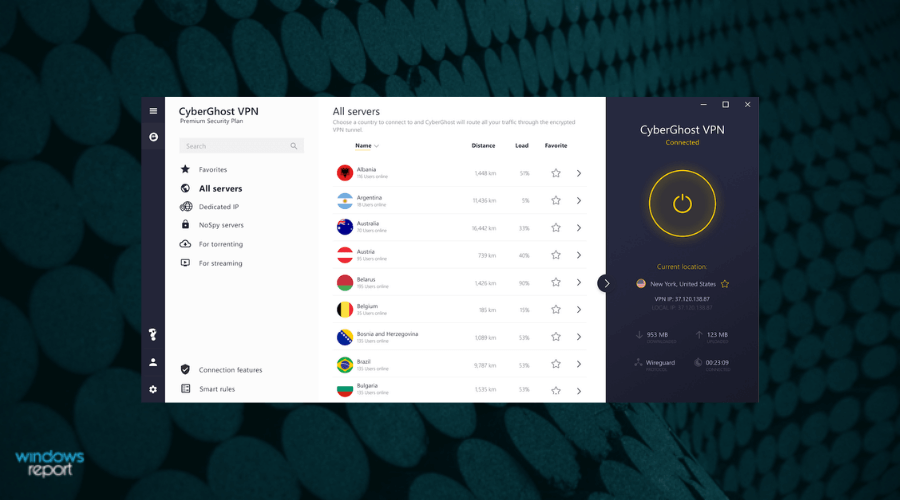

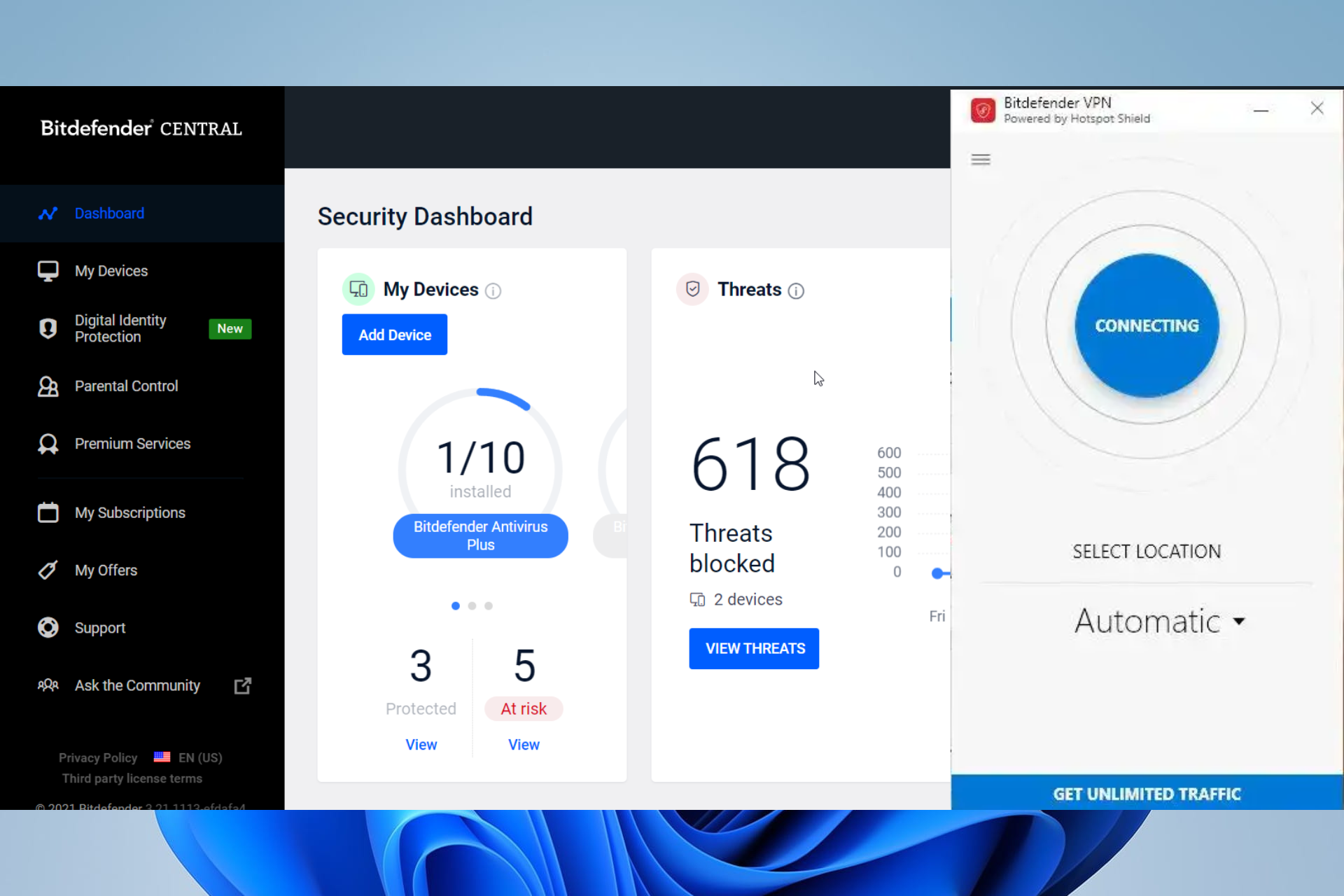
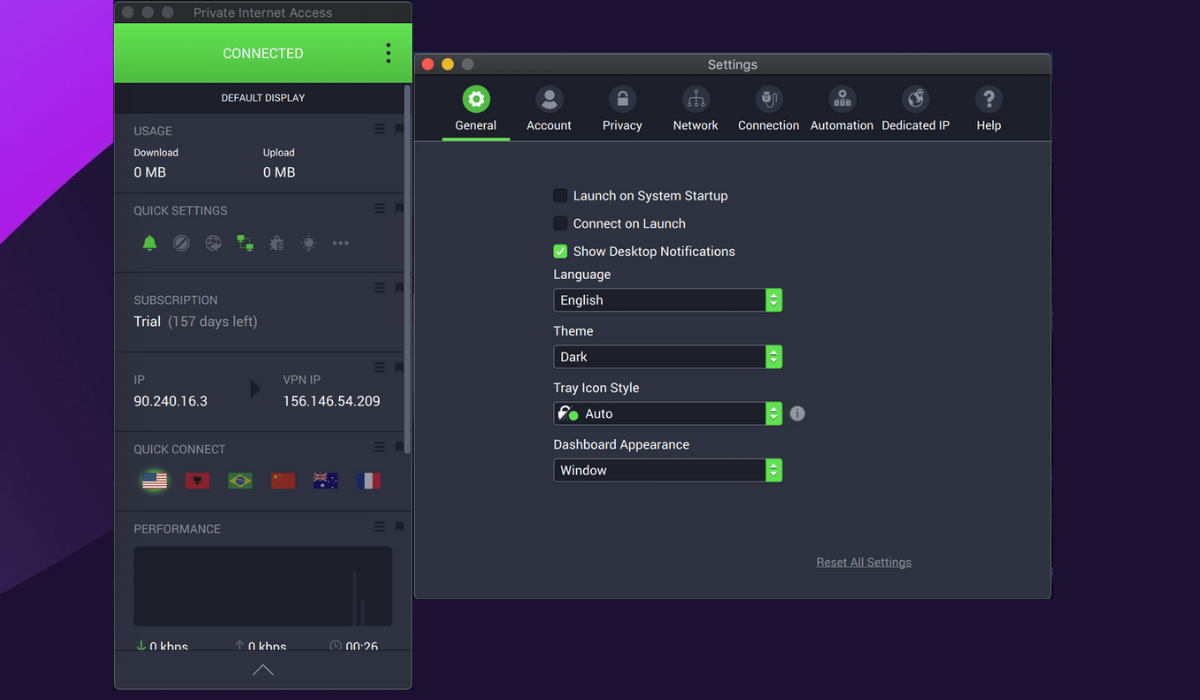






![5 Best Online Basketball Games to Play For Free [With Friends]](https://windowsreport.com/wp-content/uploads/2022/08/basketball-stars.jpg)





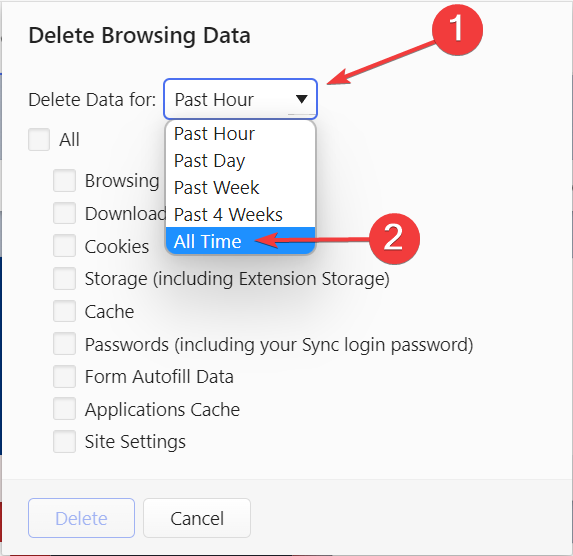
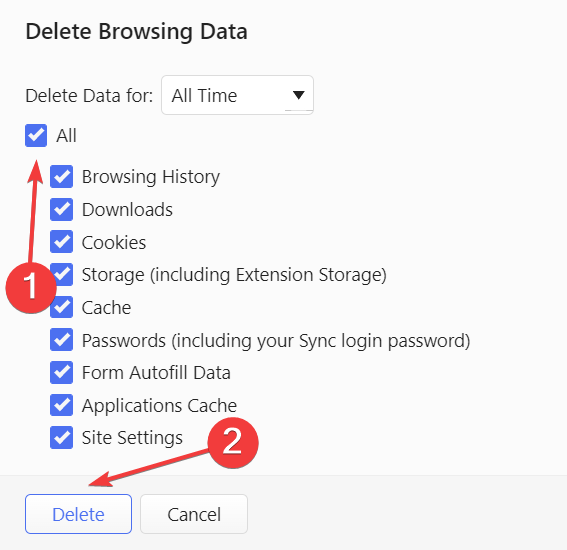
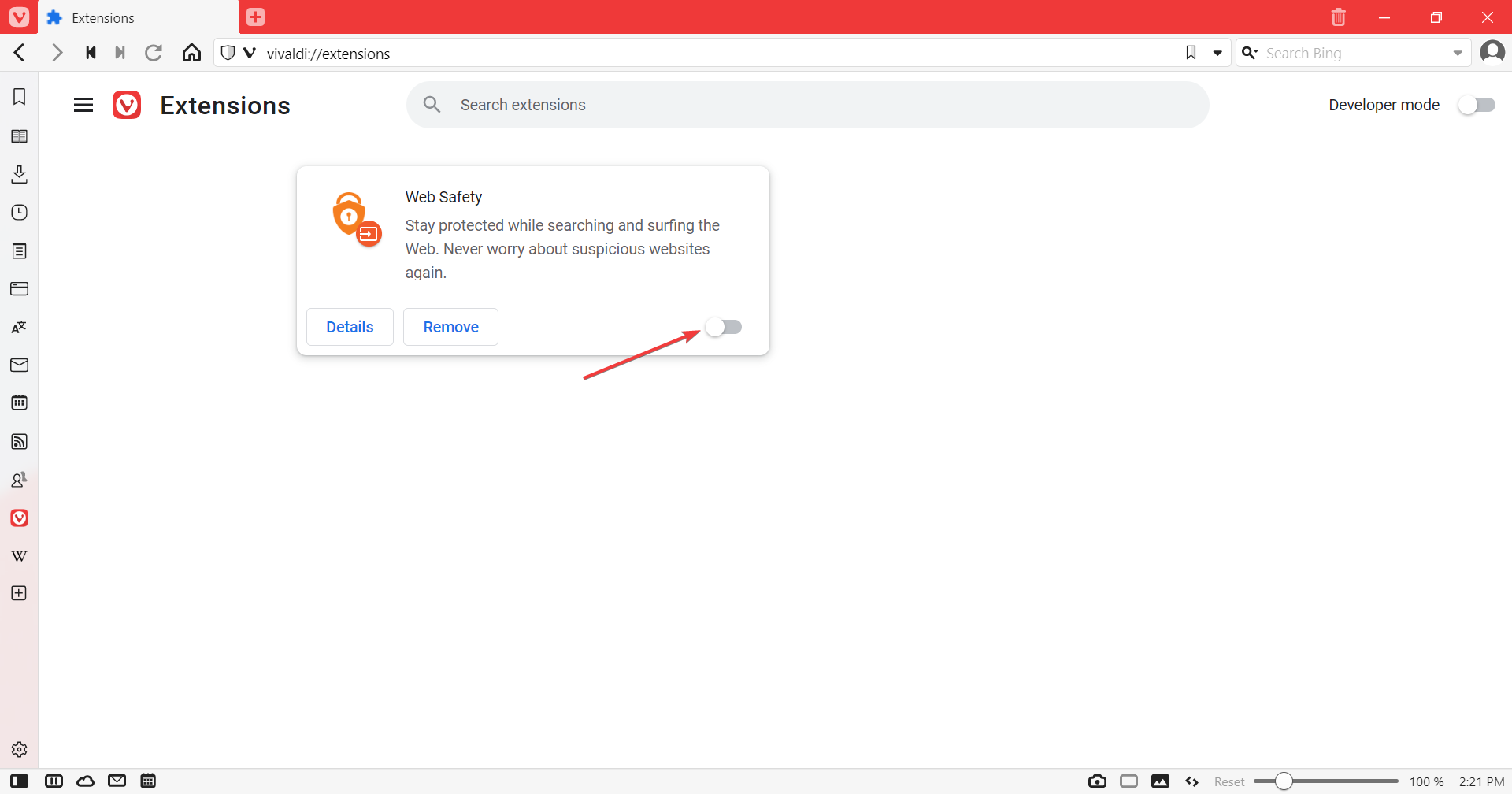
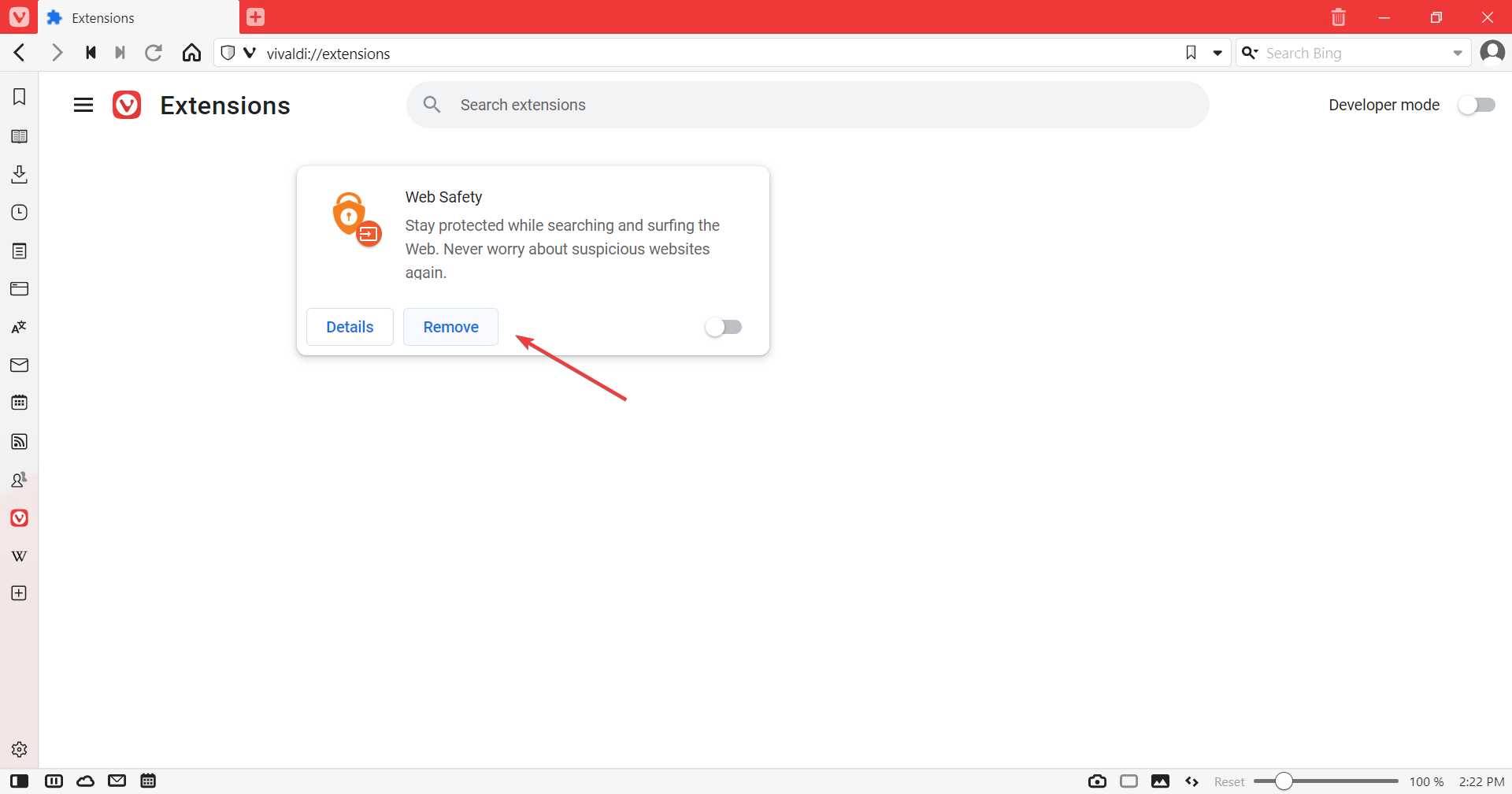
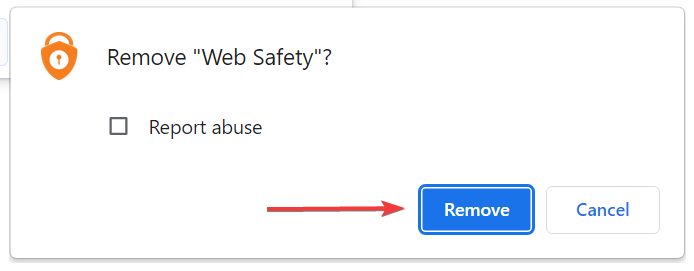
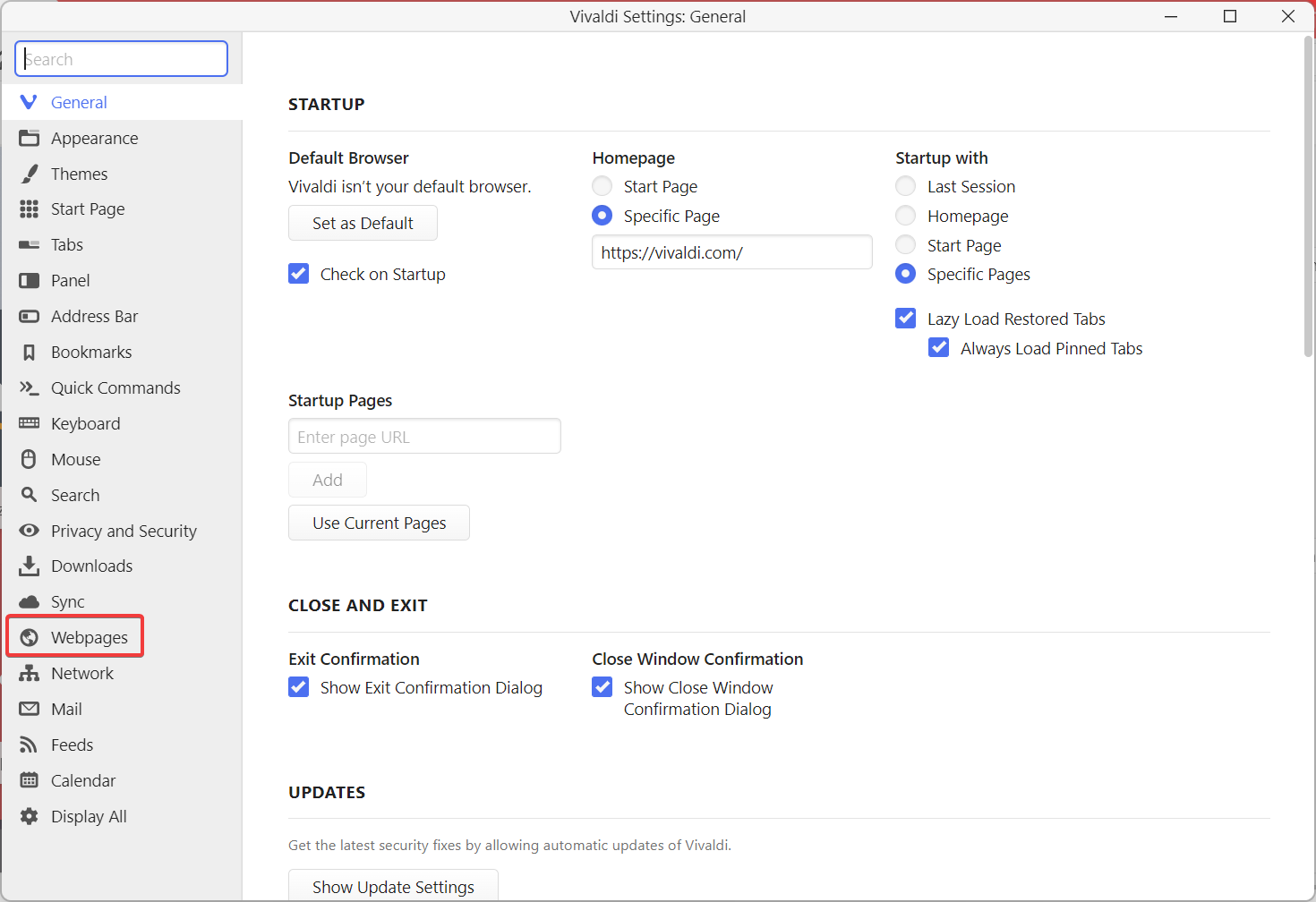
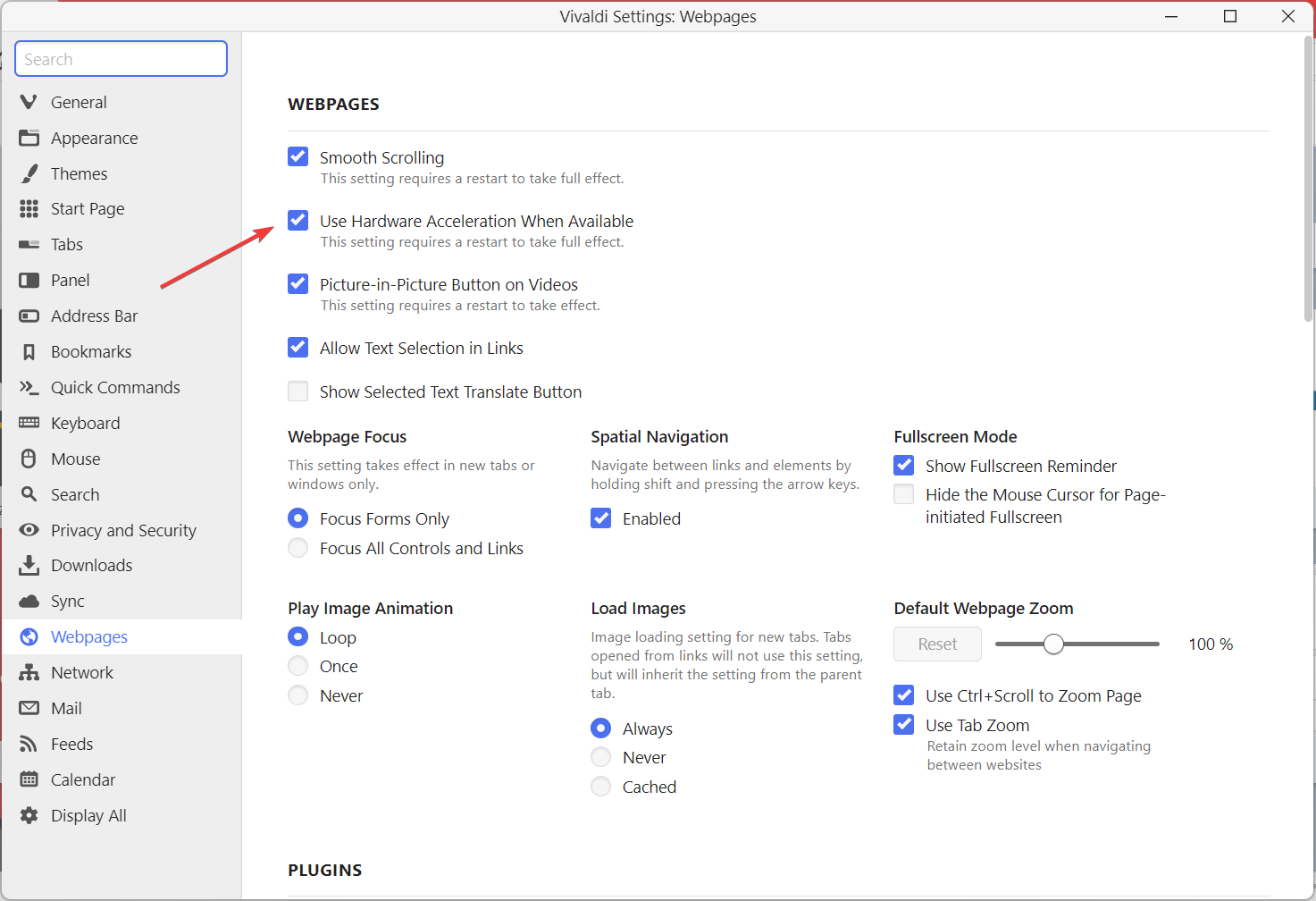
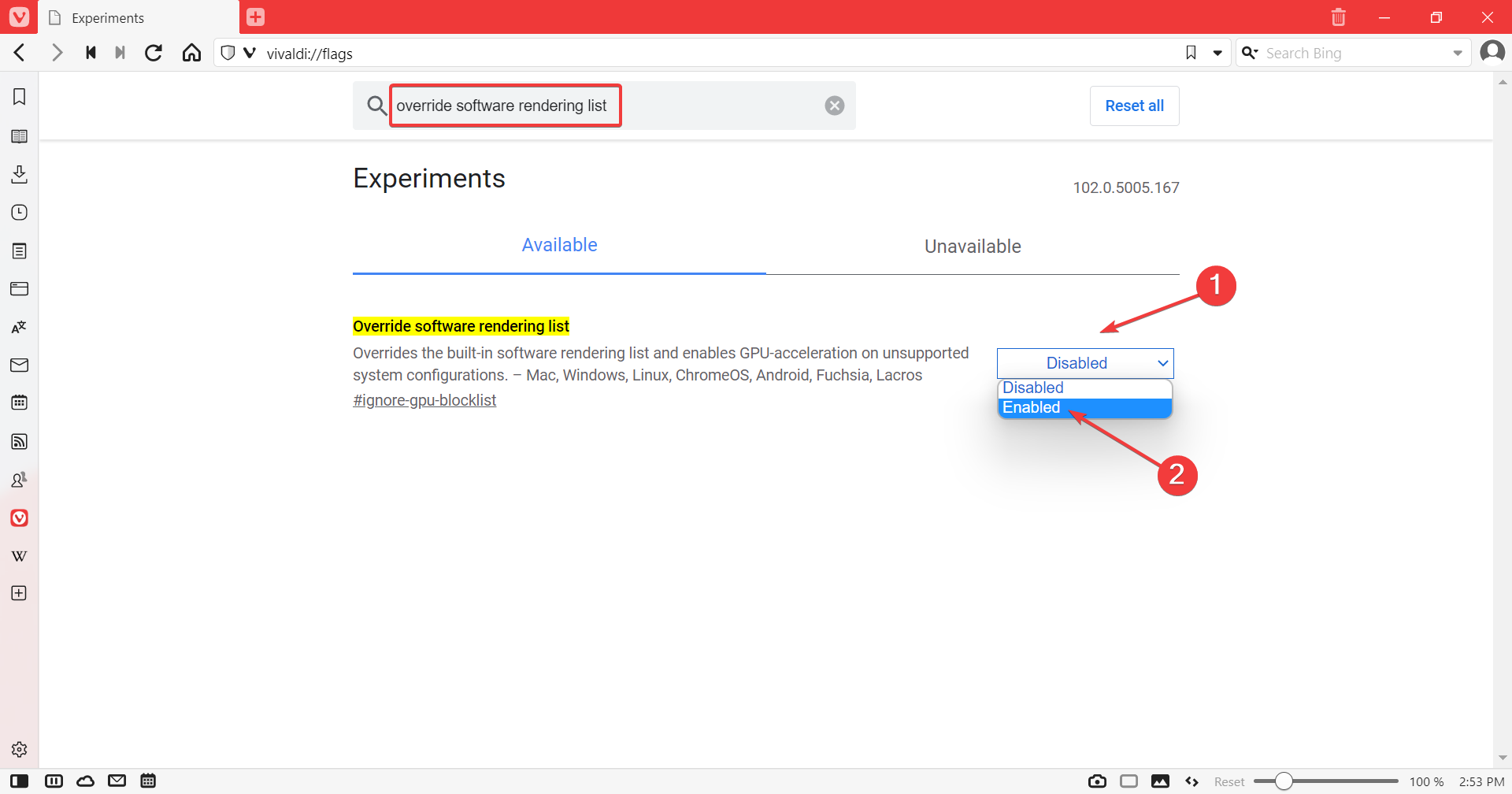
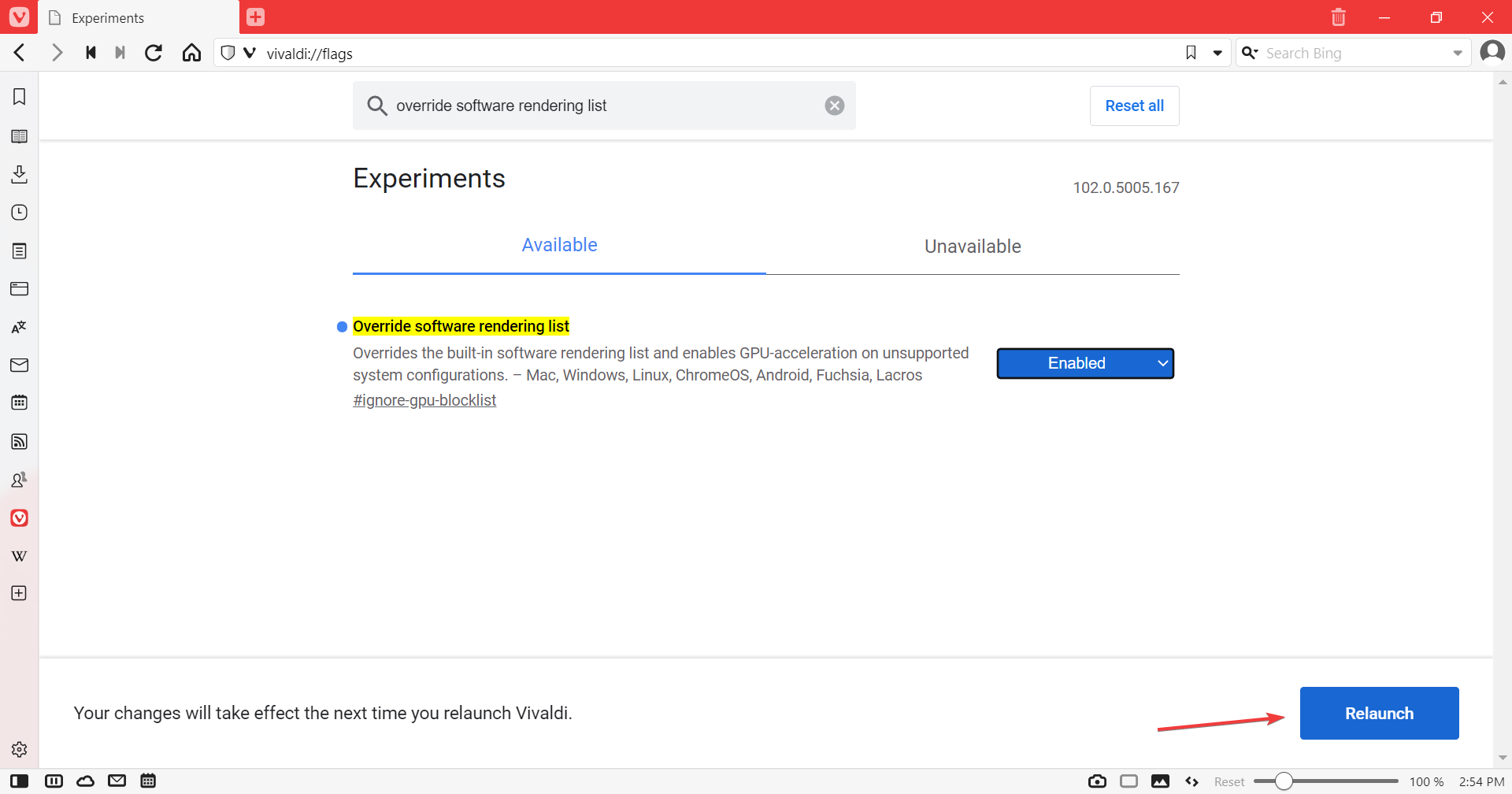
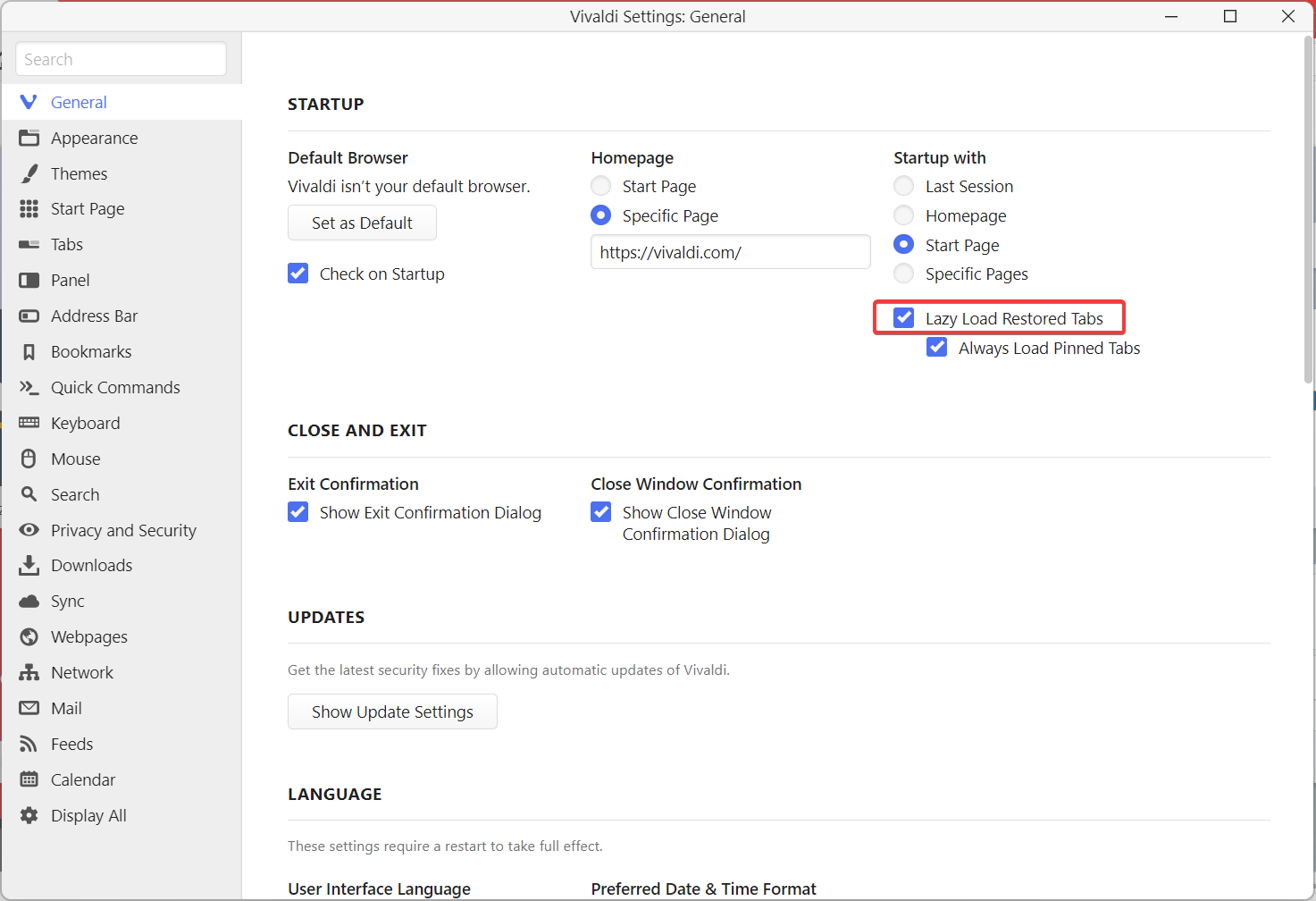
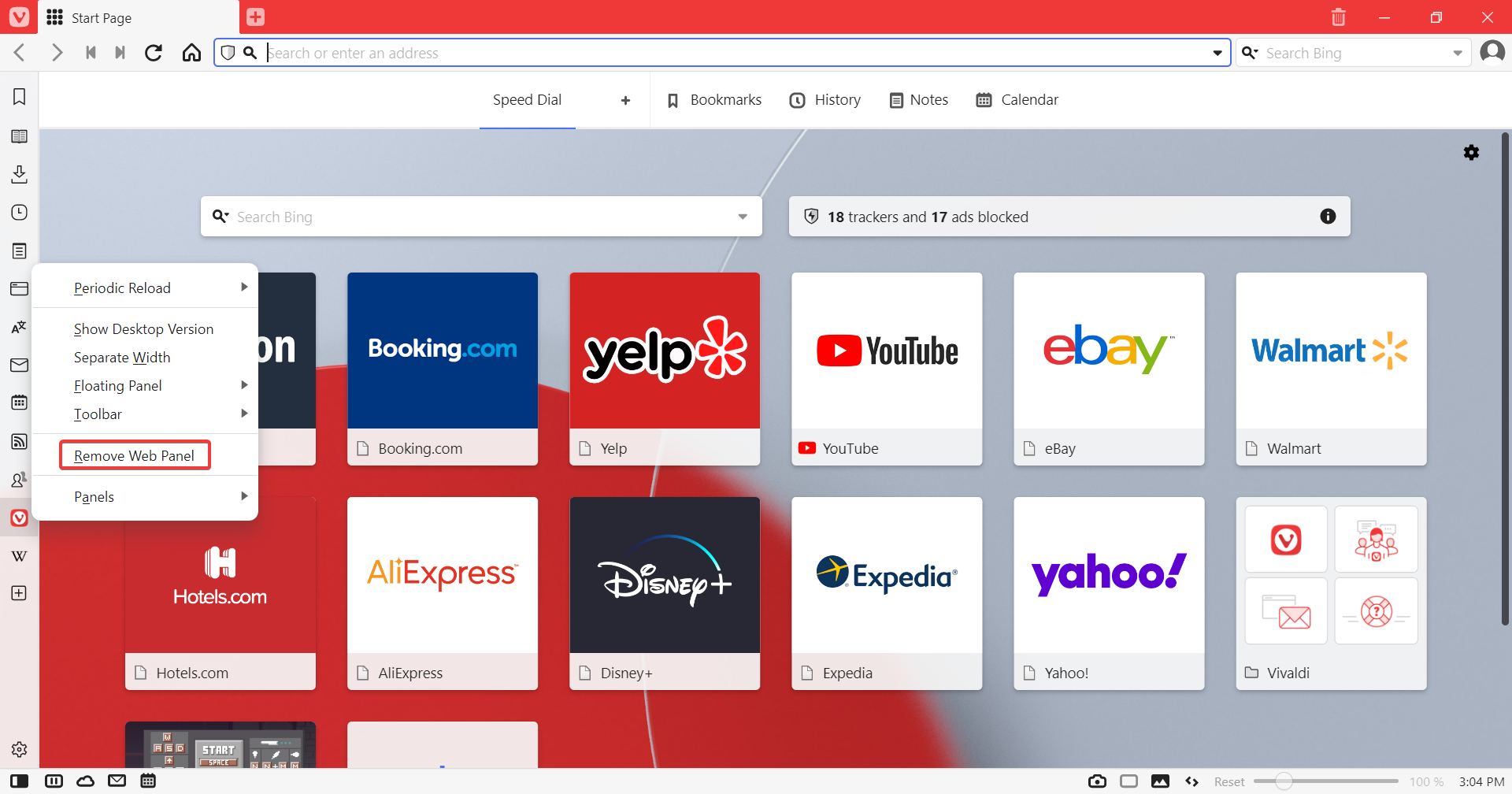
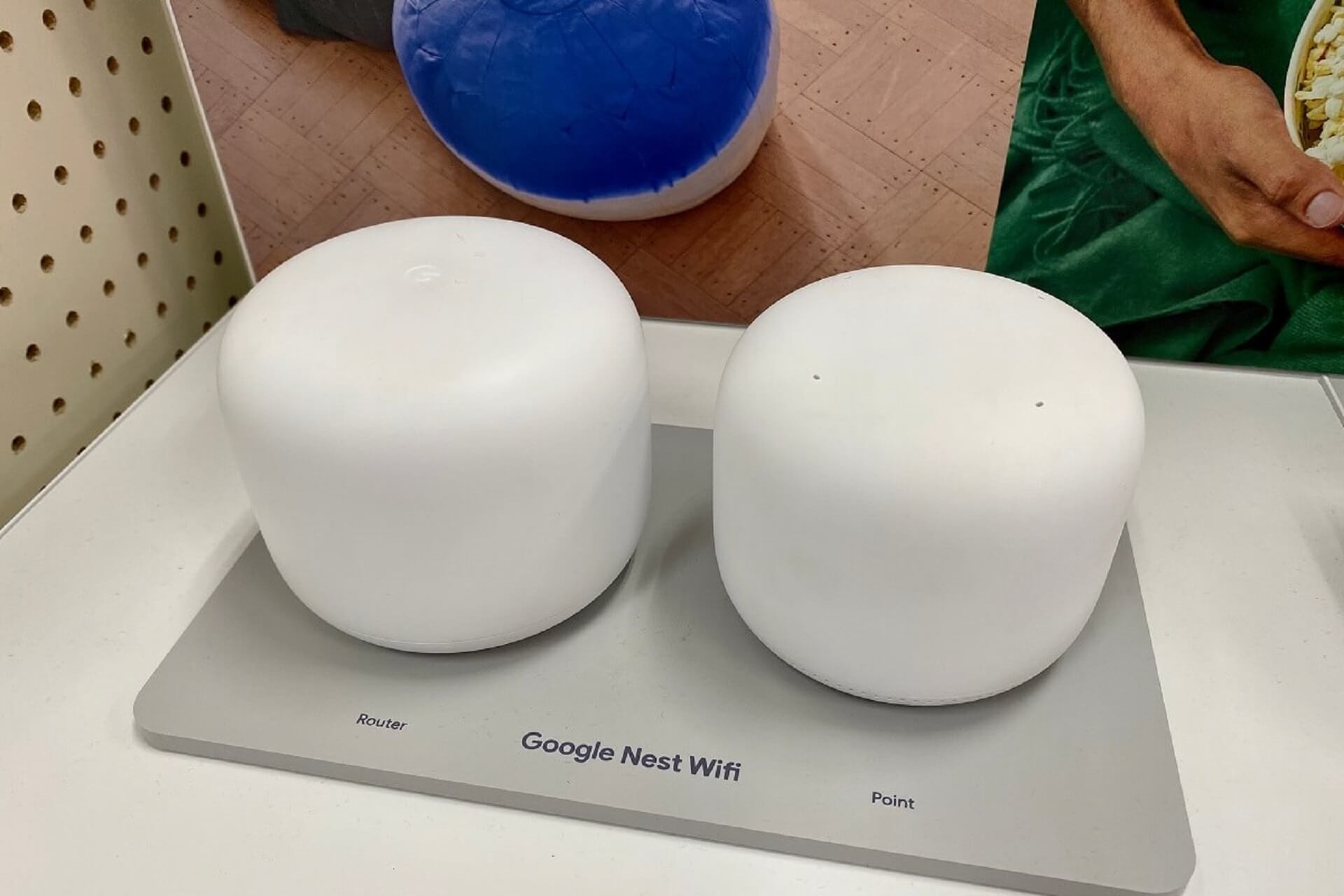
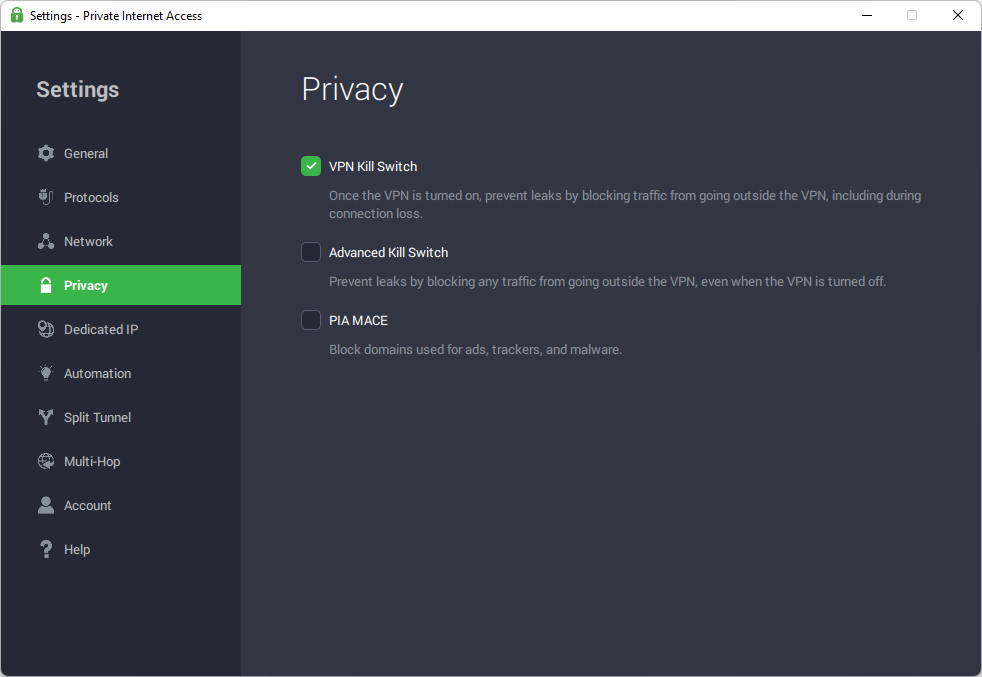

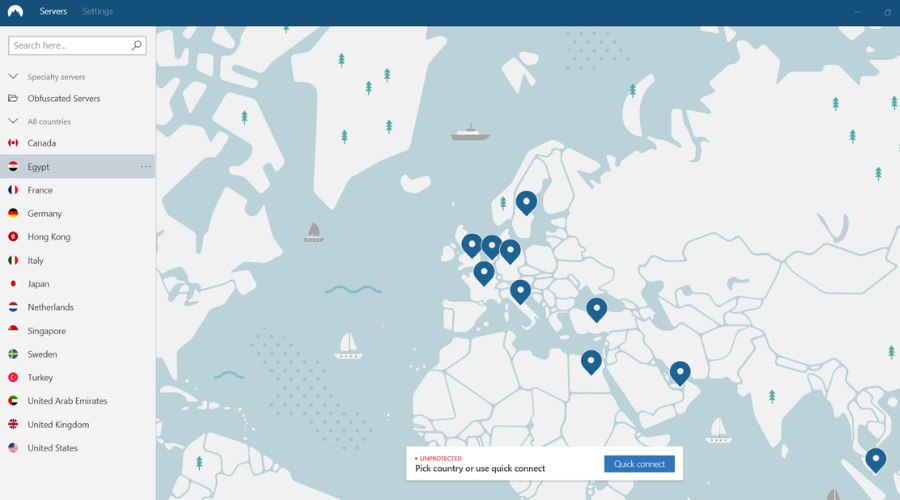
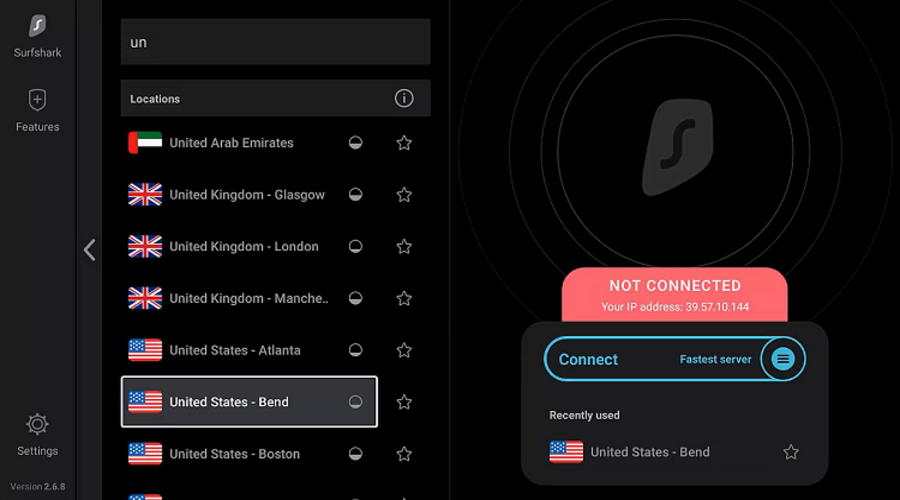
![How to Make Windows Look Like Mac [Super Easy]](https://windowsreport.com/wp-content/uploads/2021/10/make-windows-look-like-mac.jpg)


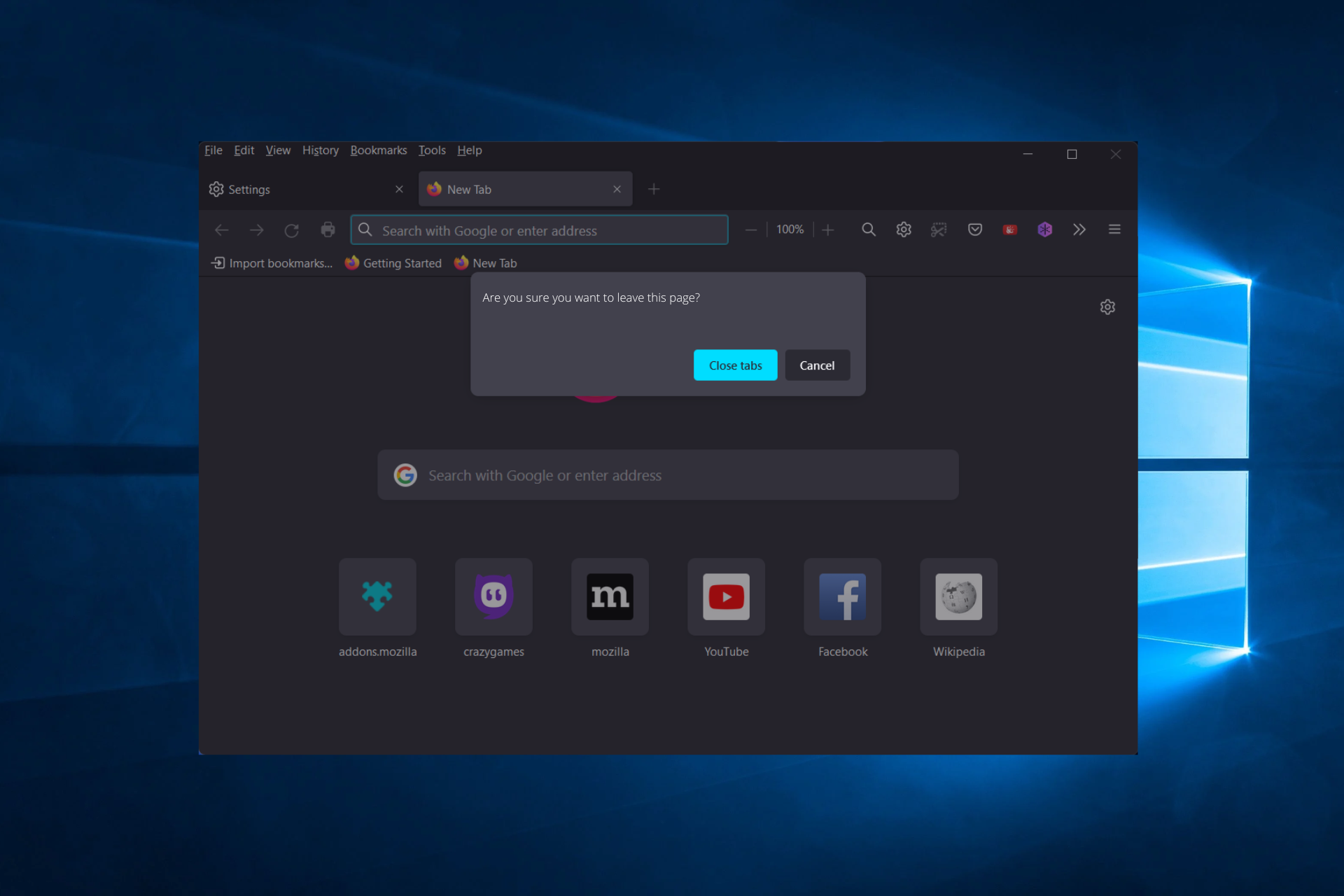


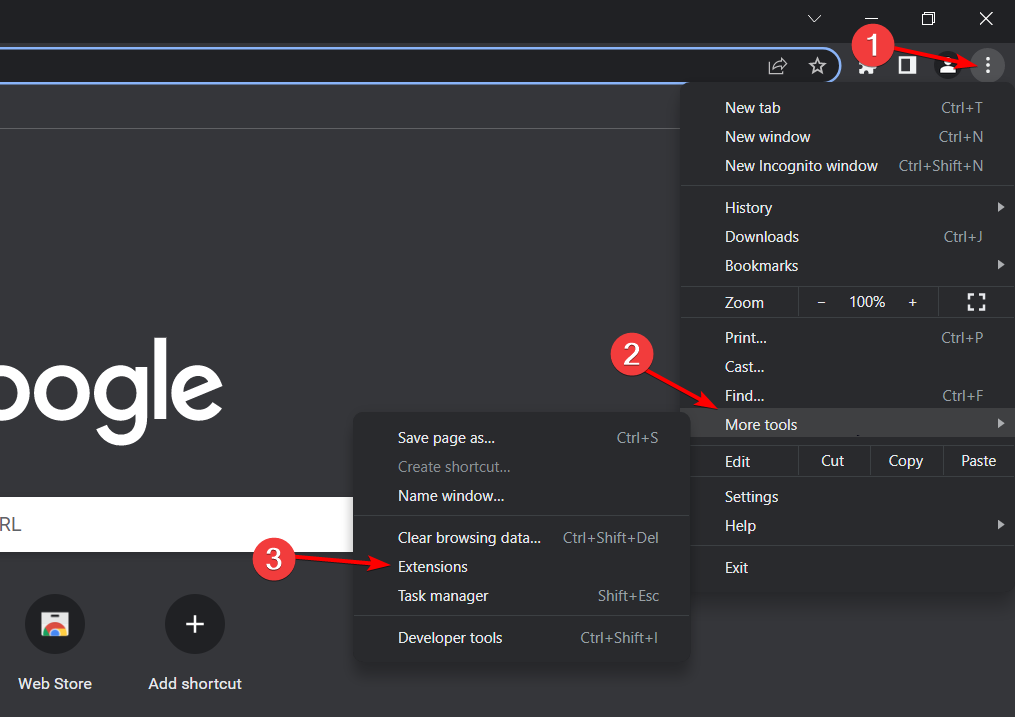
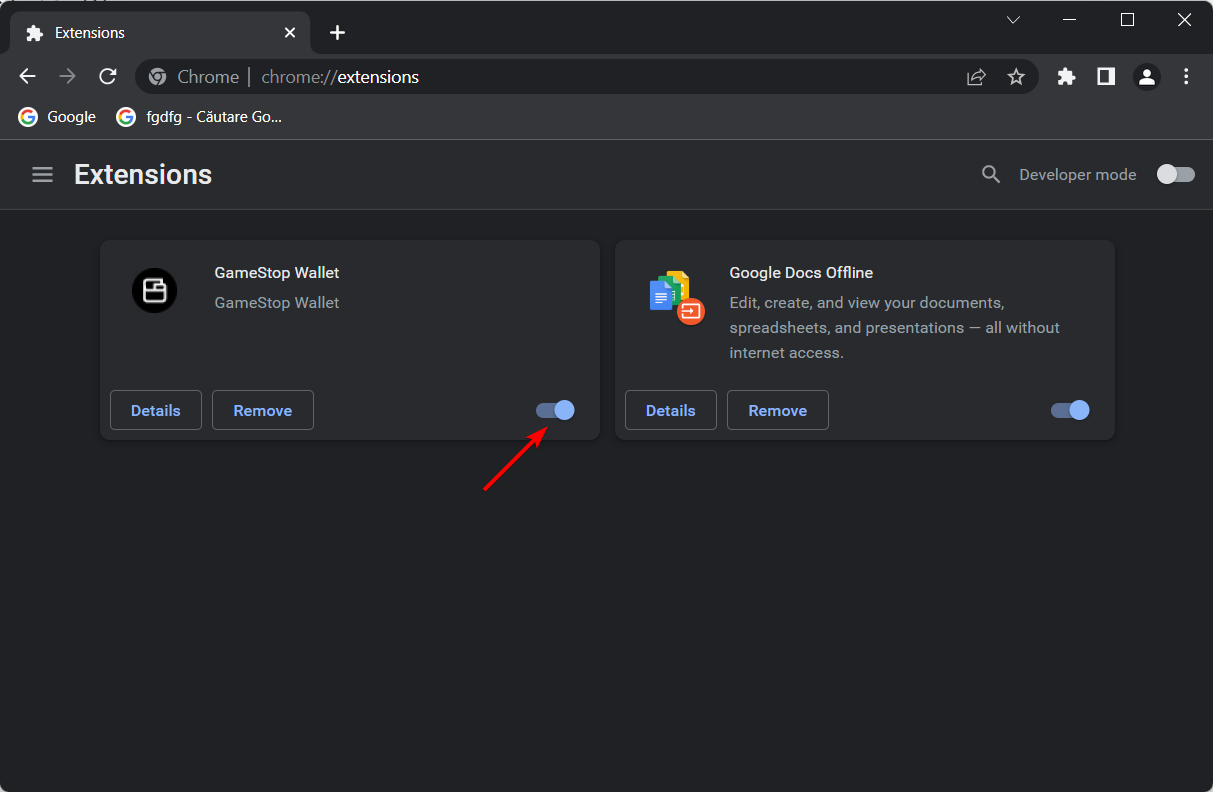


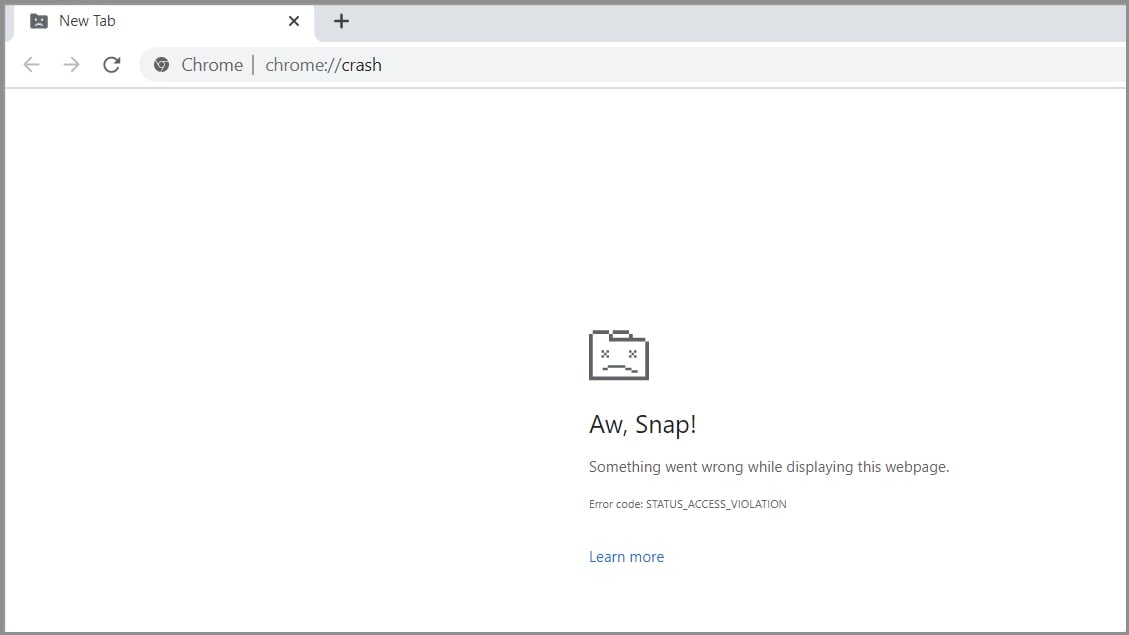







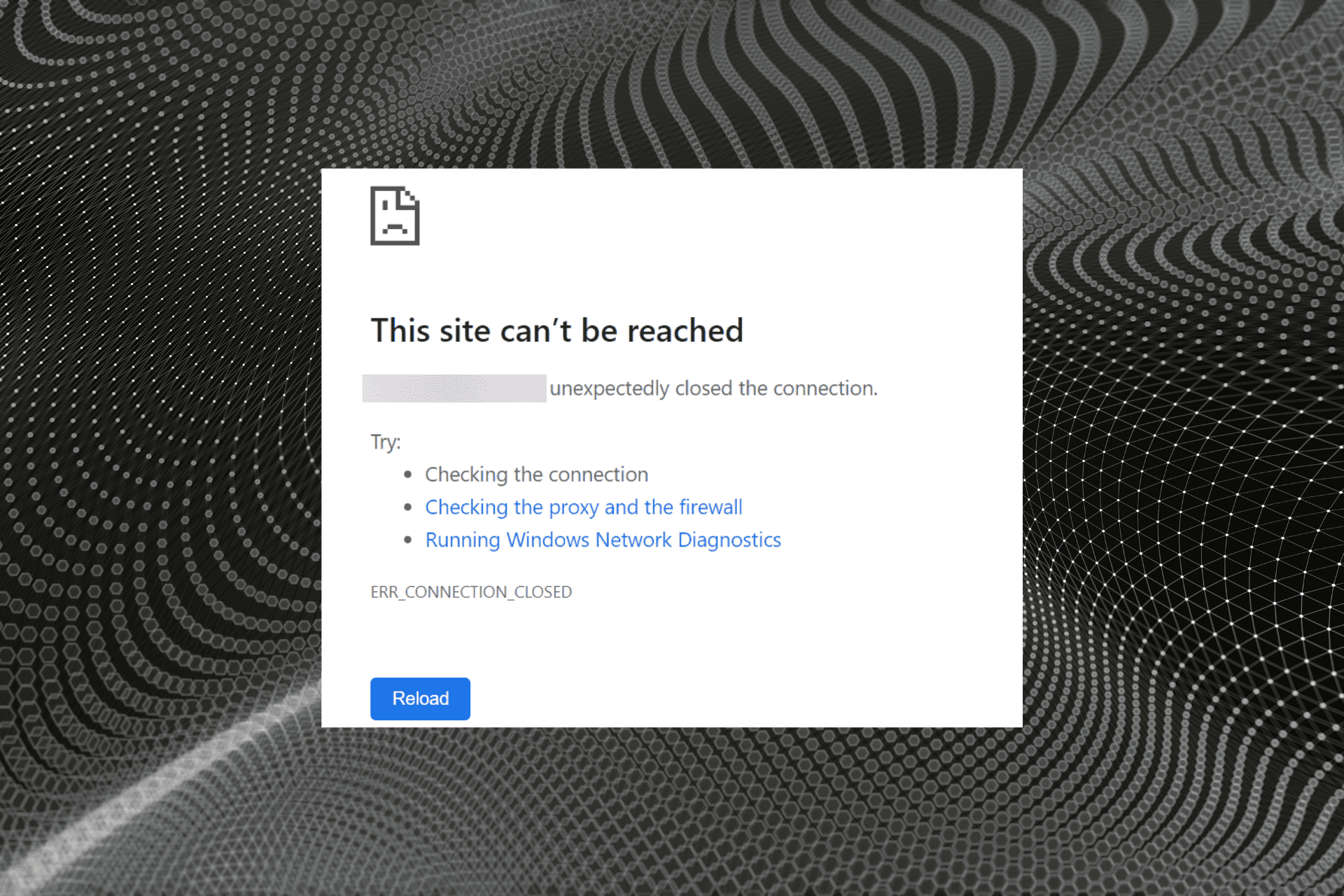



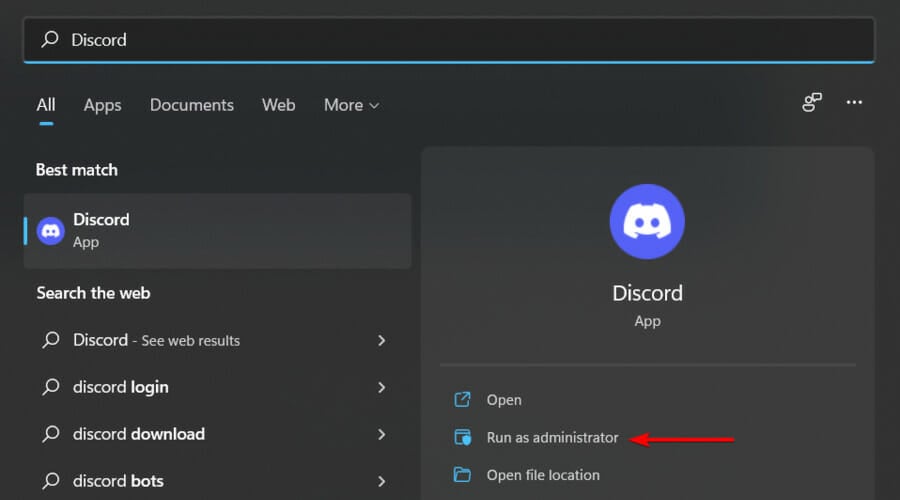


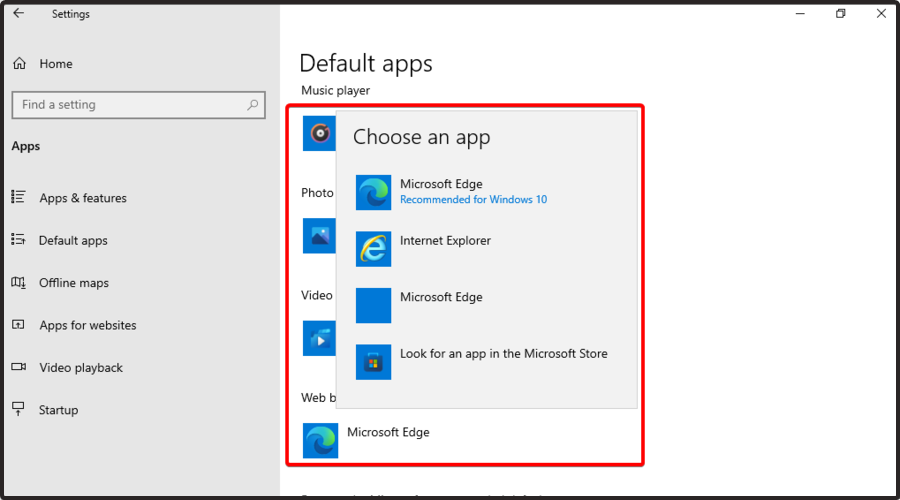
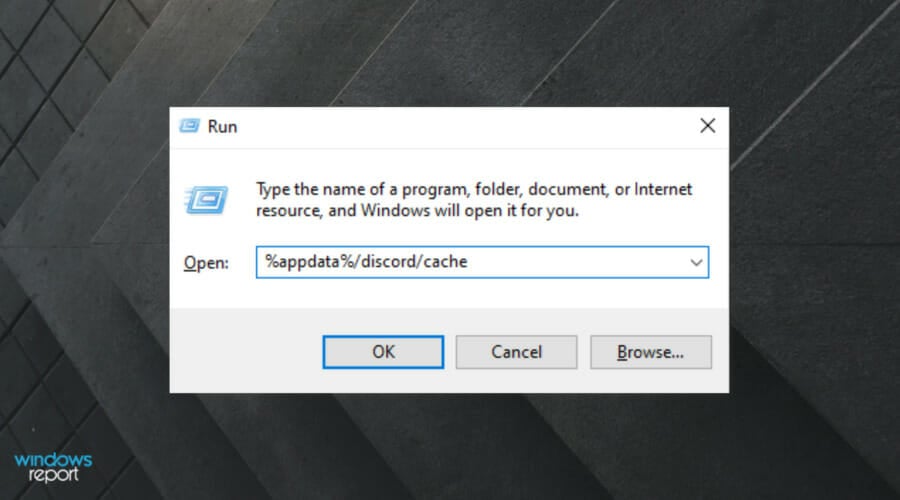
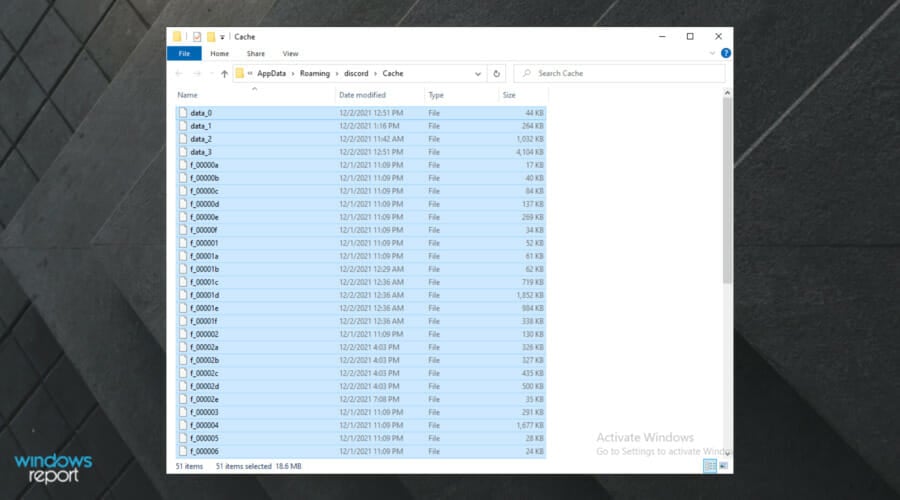
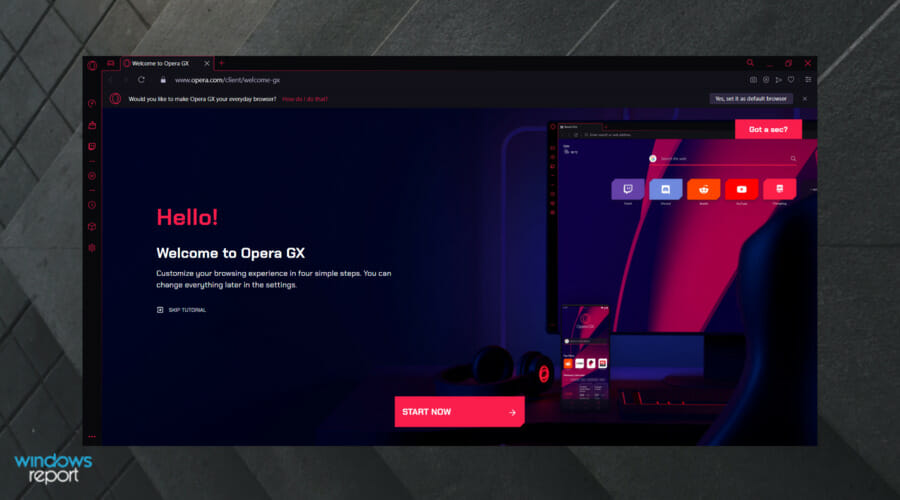



![How to Play Minion Rush on Your PC [Online & Offline]](https://windowsreport.com/wp-content/uploads/2022/08/minion.jpg)