5 Best Ways To Setup Your VPN On Windows 10 [2026 Tips]

Transforming your Windows 10 PC into a VPN server to setup a VPN at home is an excellent way to stay in touch with your files and applications, no matter where you are.

For example, you can access files through the VPN from the office if you forgot to copy an important work document or need to check up on torrent downloads. It’s equally important to share files from your office to your home PC or laptop.

More importantly, it’s a much safer option than resorting to remote access software tools, which are susceptible to various vulnerabilities.

Our step-by-step guide below shows you the exact steps to setup a VPN at home on Windows 10. The best part about it is that you don’t need to install any additional software programs to make everything operational. You just need a router that supports port forwarding.

Is the Windows built in VPN free?

The Windows built-in VPN is pre-installed on Windows 10 and Windows 11 PCs. To configure it, you need to enter network information and configure your ports.

How do I setup a VPN server on Windows?

To set up a VPN server on your Windows PC, you can use the in built Network Adapters configuration panel. You can also configure your router.

1. Accept incoming connections on your home PC
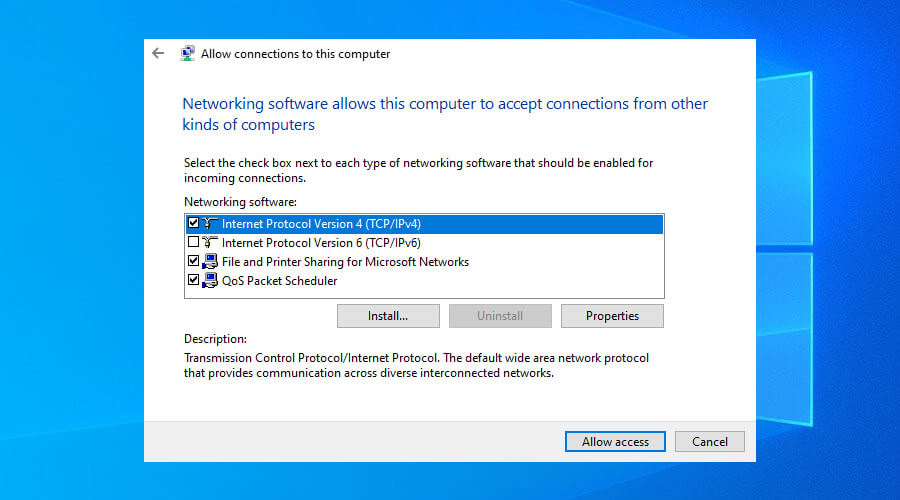
allow connections to the PC on Windows 10
  1. Right-click the Windows 10 Start button.
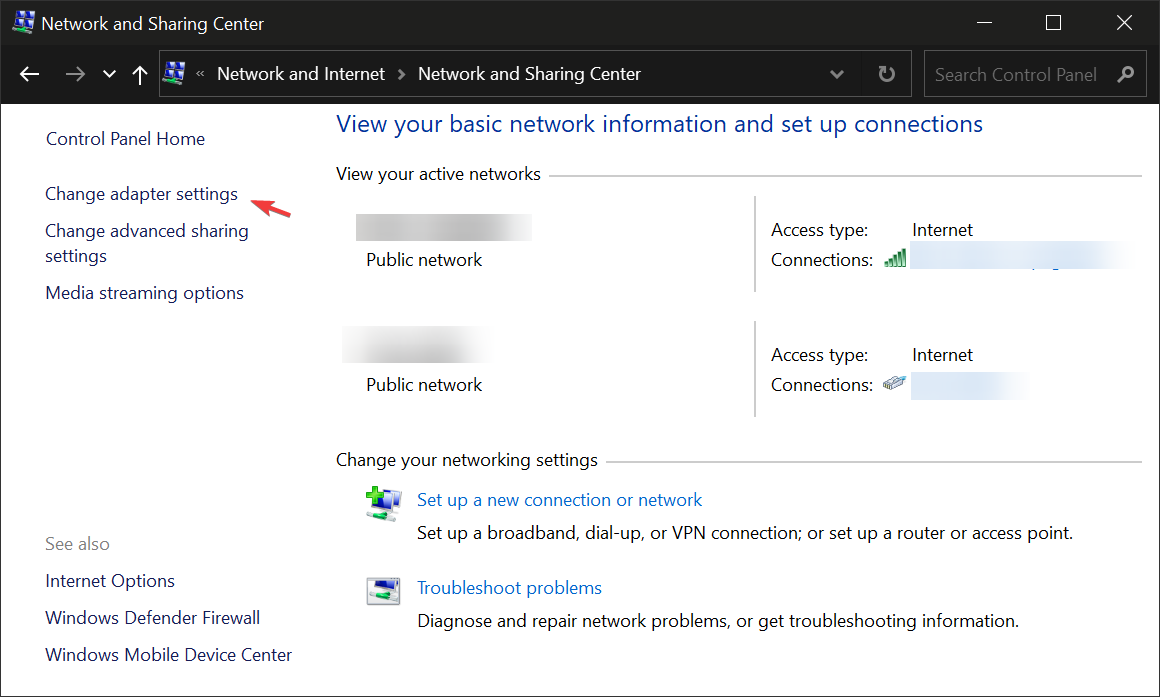
  2. Go to Network Connections > Change adapter settings.set up vpn windows 10
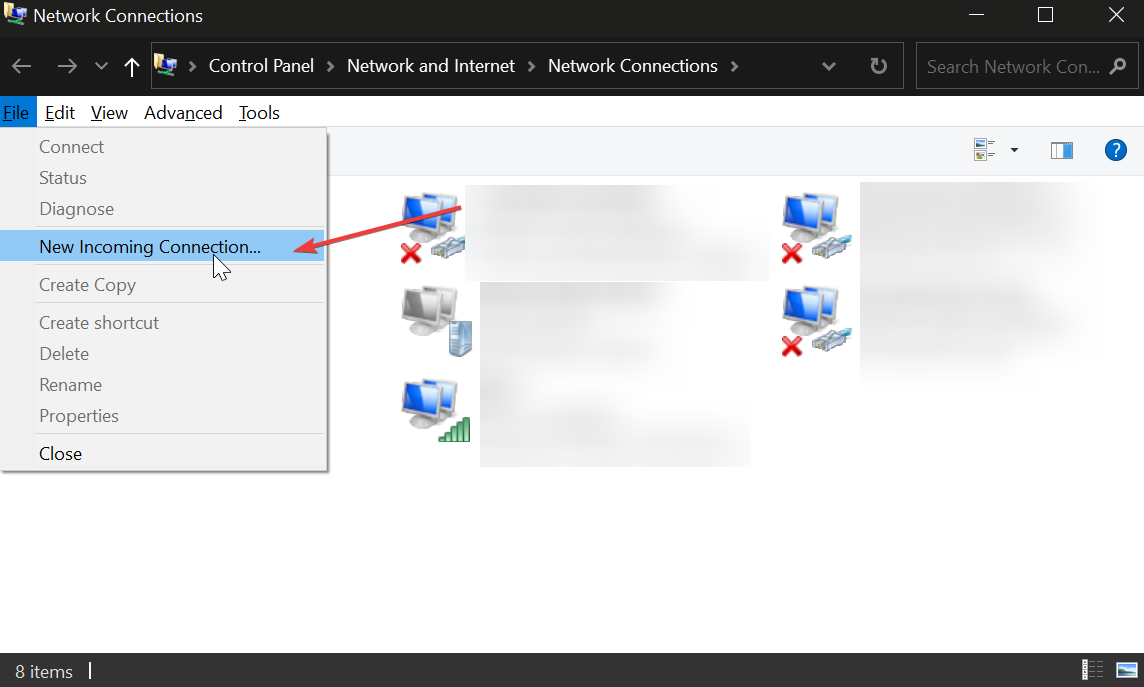
  3. Press Alt key, open the File menu, and click New Incoming Connection.set up vpn windows 10
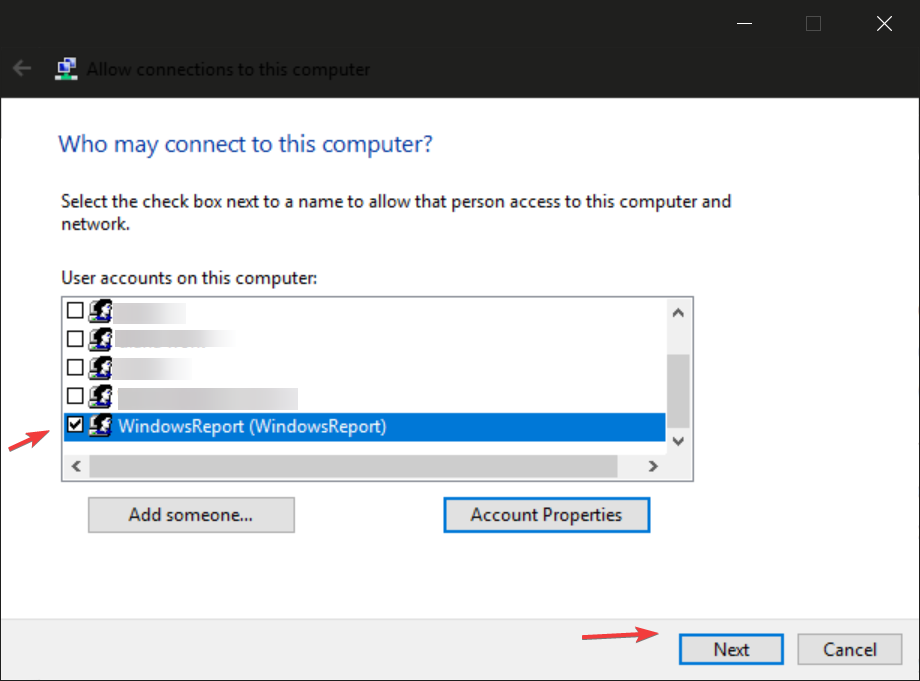
  4. Select the users you want to have VPN access to your PC. To create a new profile select Add someone and pick a username and password. Click Next.how to setup vpn on windows 10
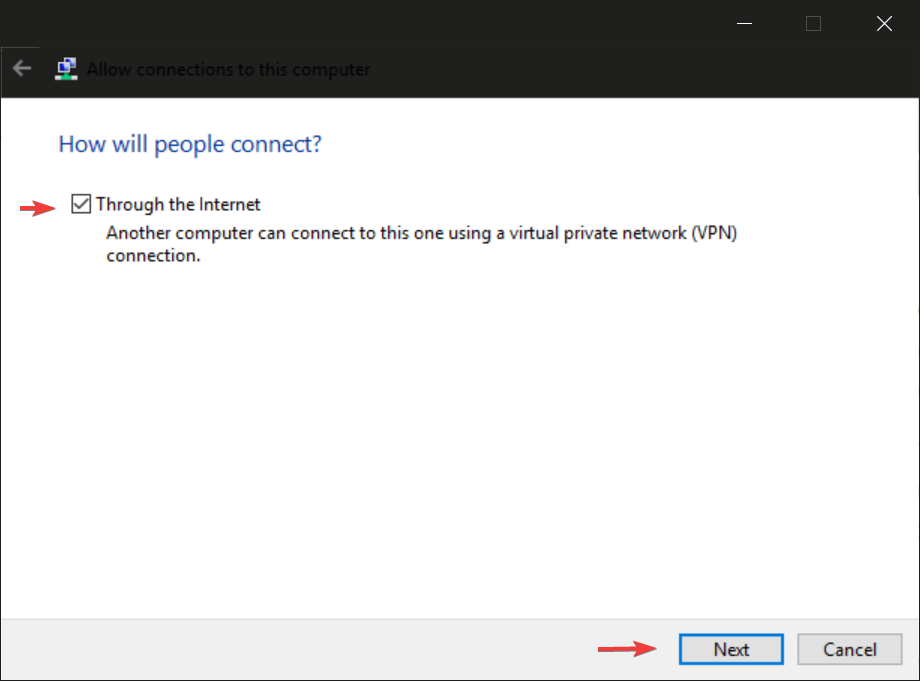
  5. Select Thorugh the Internet and click Next again.setup vpn windows 10
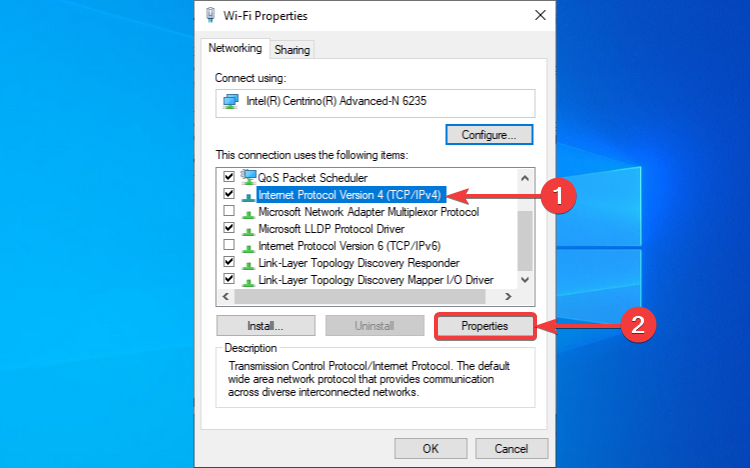
  6. Click on Internet Protocl Version 4 (TCP/IPv4) and then on Properties. setup vpn windows 10
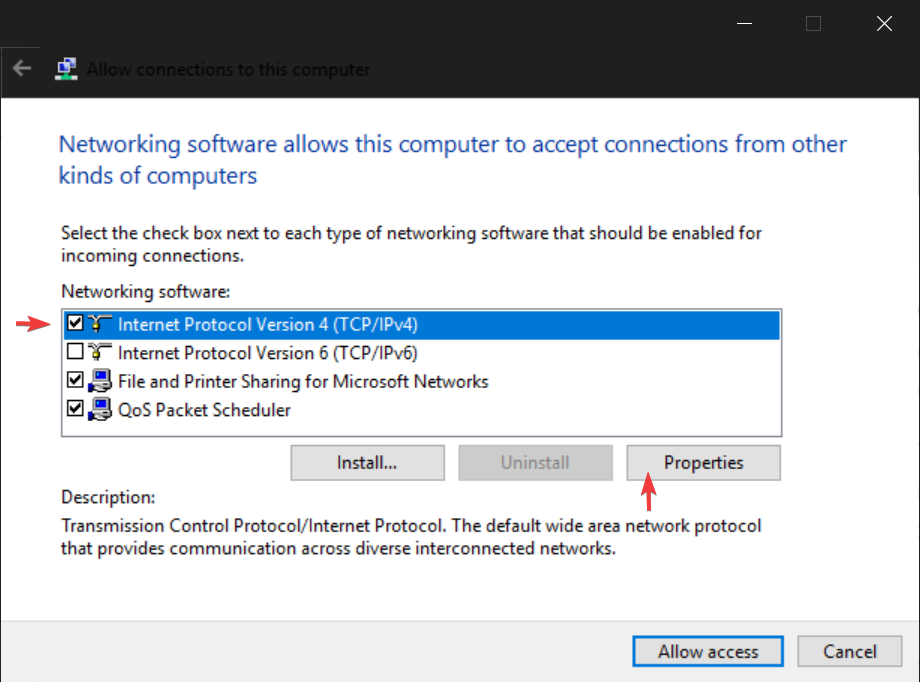
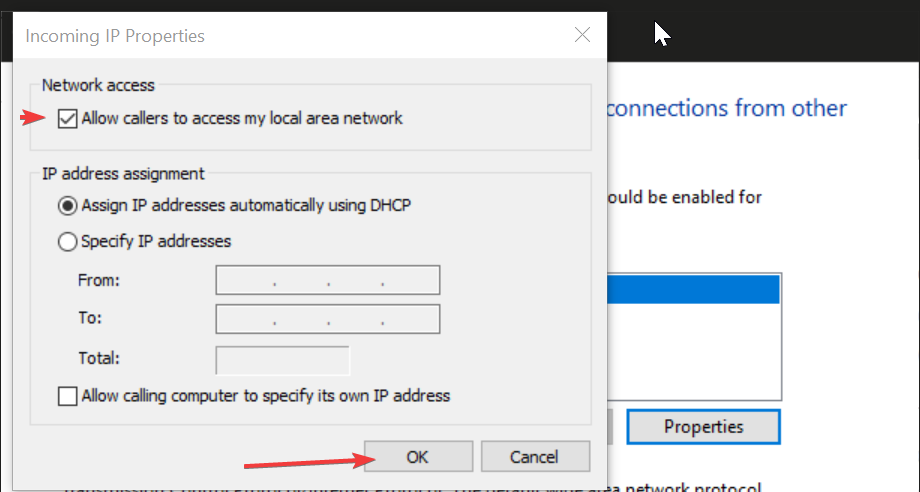
  7. Check the Allow callers to access my local area network box and click ok.set up vpn windows 10
  8. Click Allow Access and close the panel.

Although Windows 10 provides you with the hostname and recommends making a copy of it, this won’t be necessary for remote connections over the Internet (only for LAN connections).

If you made any mistakes during the setup, you can edit the connection properties by right-clicking Incoming Connections and selecting Properties. For example, you can go back anytime to allow more user accounts or remove the permissions of existing users.

*To ensure your computer’s security, it’s recommended to create a new user account that only you will know. Make sure to generate a random and secure password that can’t be hacked. To easily keep track of your user credentials, use a password manager.

2. Configure router settings
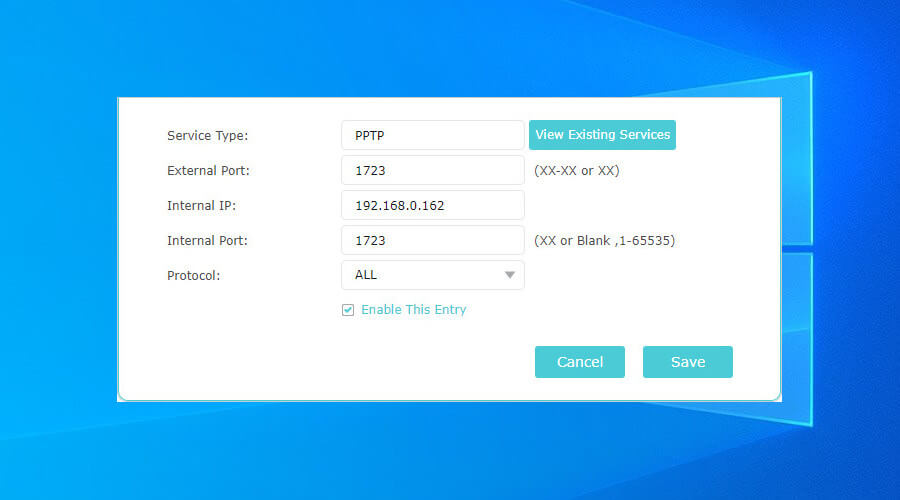
forward ports in your router
  1. Press Ctrl + R, type cmd, and press Enter to open the Command Prompt.
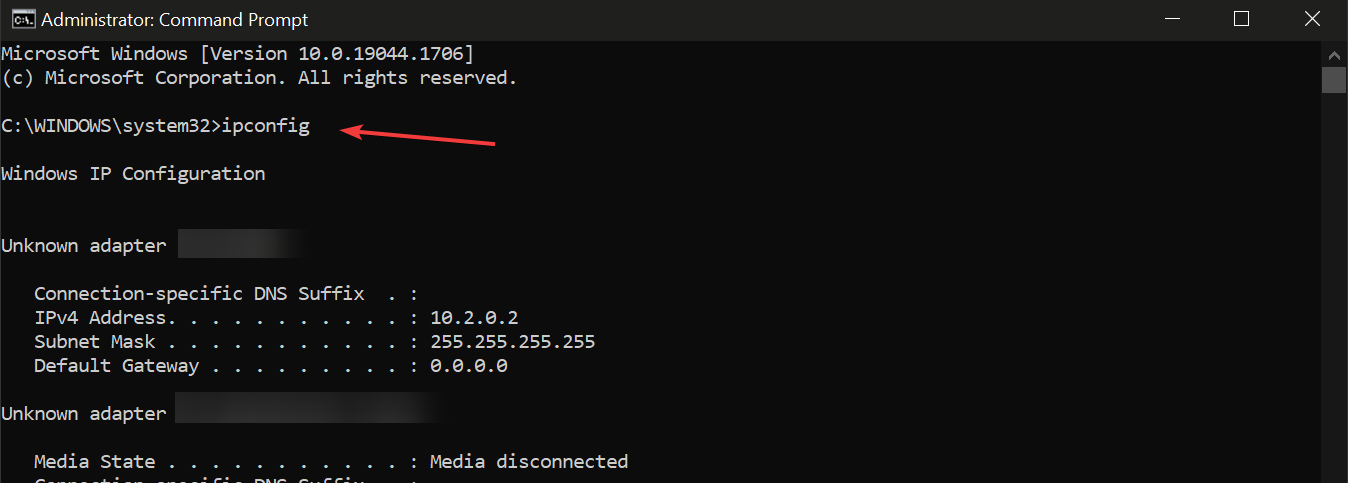
  2. Type ipconfig and hit Enter.setup vpn windows 10
  3. Select your IPv4 address and press Enter to copy it.
  4. Log in to your router administration panel.
  5. Set up a new rule to enable port forwarding.
  6. Pick the PPTP protocol.
  7. Paste the IPv4 address you copied earlier.
  8. Set 1723 over TCP as the internal and external port.
  9. Make sure that PPTP passthrough is enabled.

If your networking device supports custom firmware, check out the best router software for Windows 10.

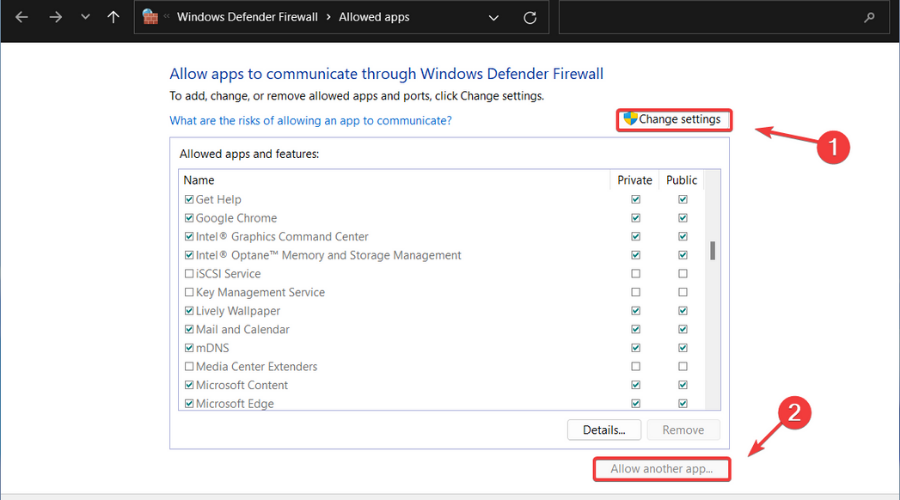
3. Check firewall settings
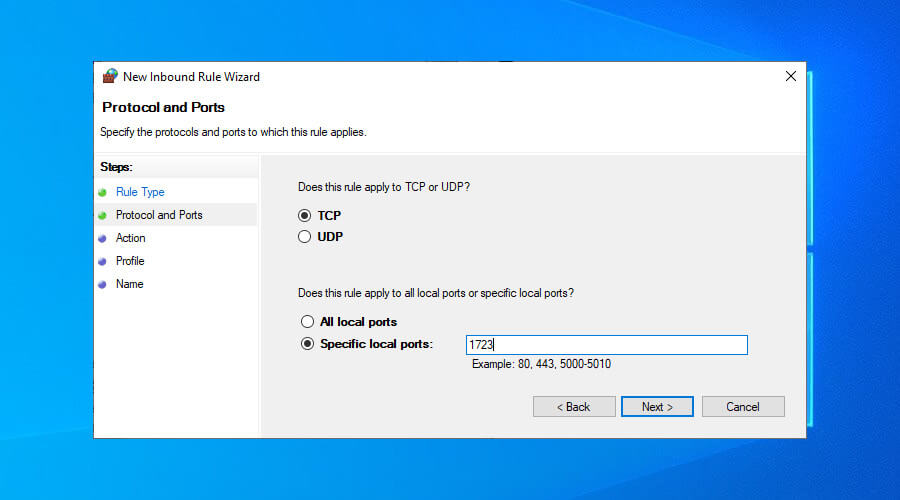
set firewall inbound rules in Windows 10
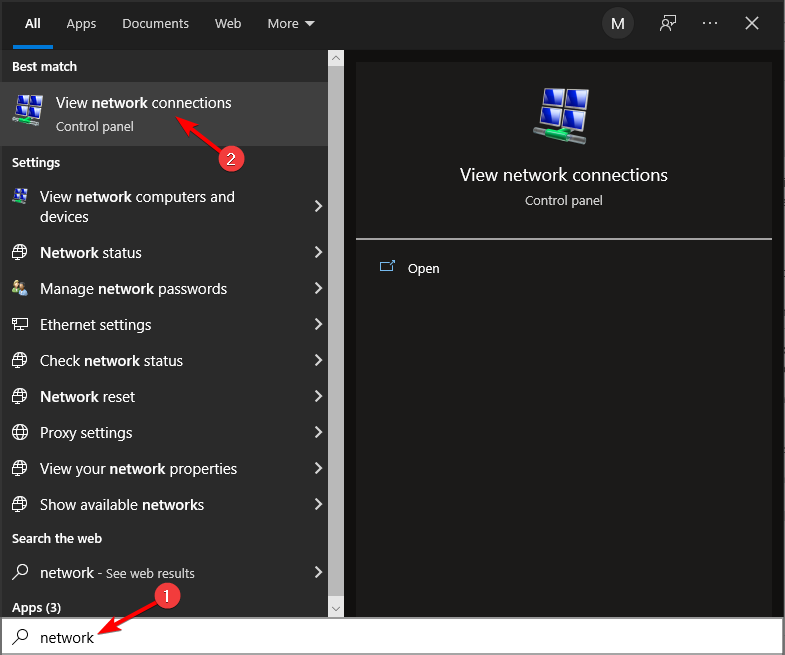
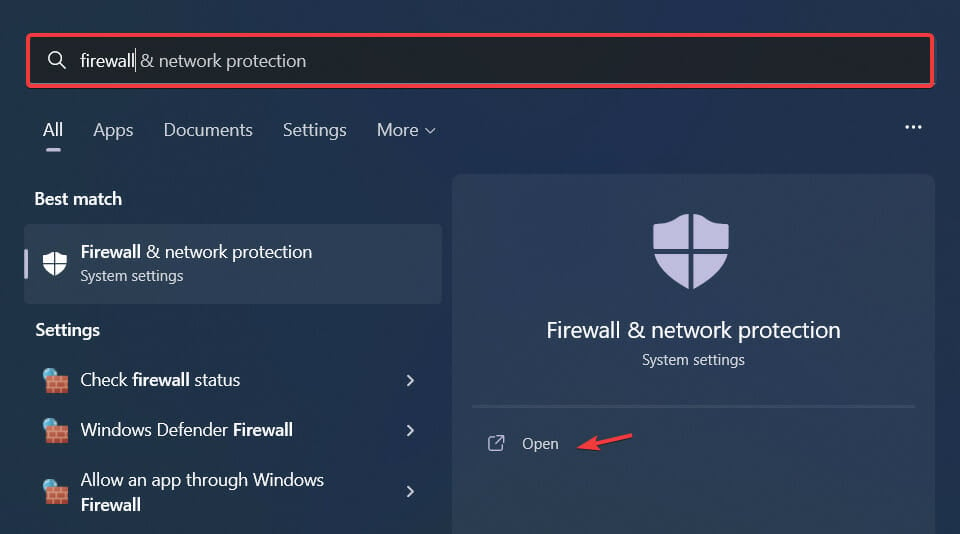
  1. Press Start, type firewall, press Enter.
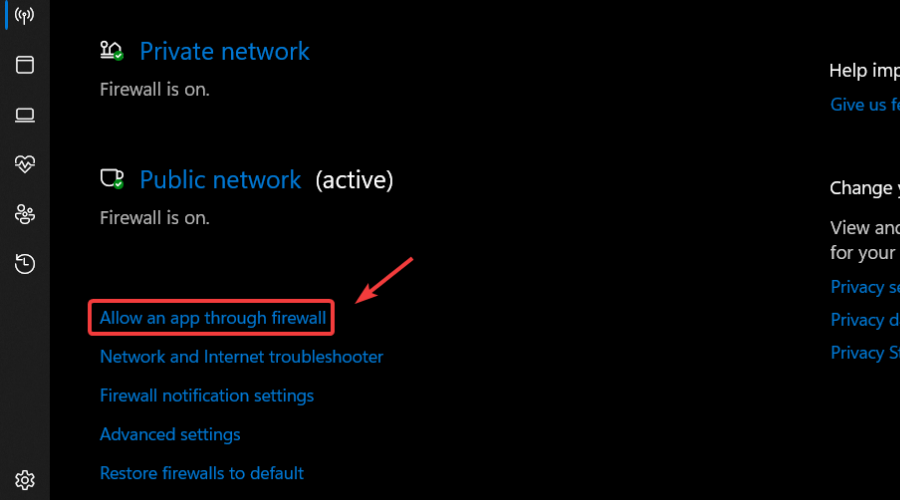
  2. Click Advanced settings and go to Inbound Rules.
  3. Press New Rule in the Actions panel on the left side.
  4. Set Rule Type to Port and select TCP.
  5. Select Specific local ports and write 1723.
  6. Make sure to Allow the connection.
  7. Set any rule name and press Finish.

4. Use the Windows built-in VPN to create a new network
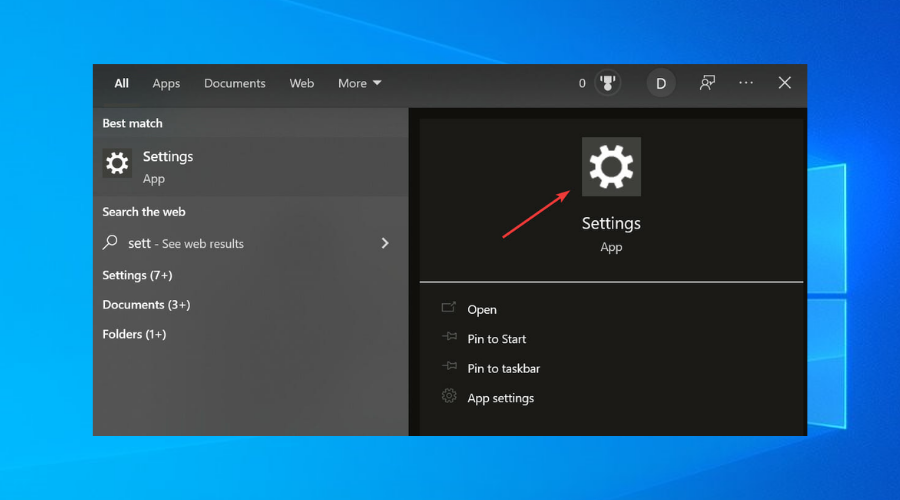
set up vpn windows 10
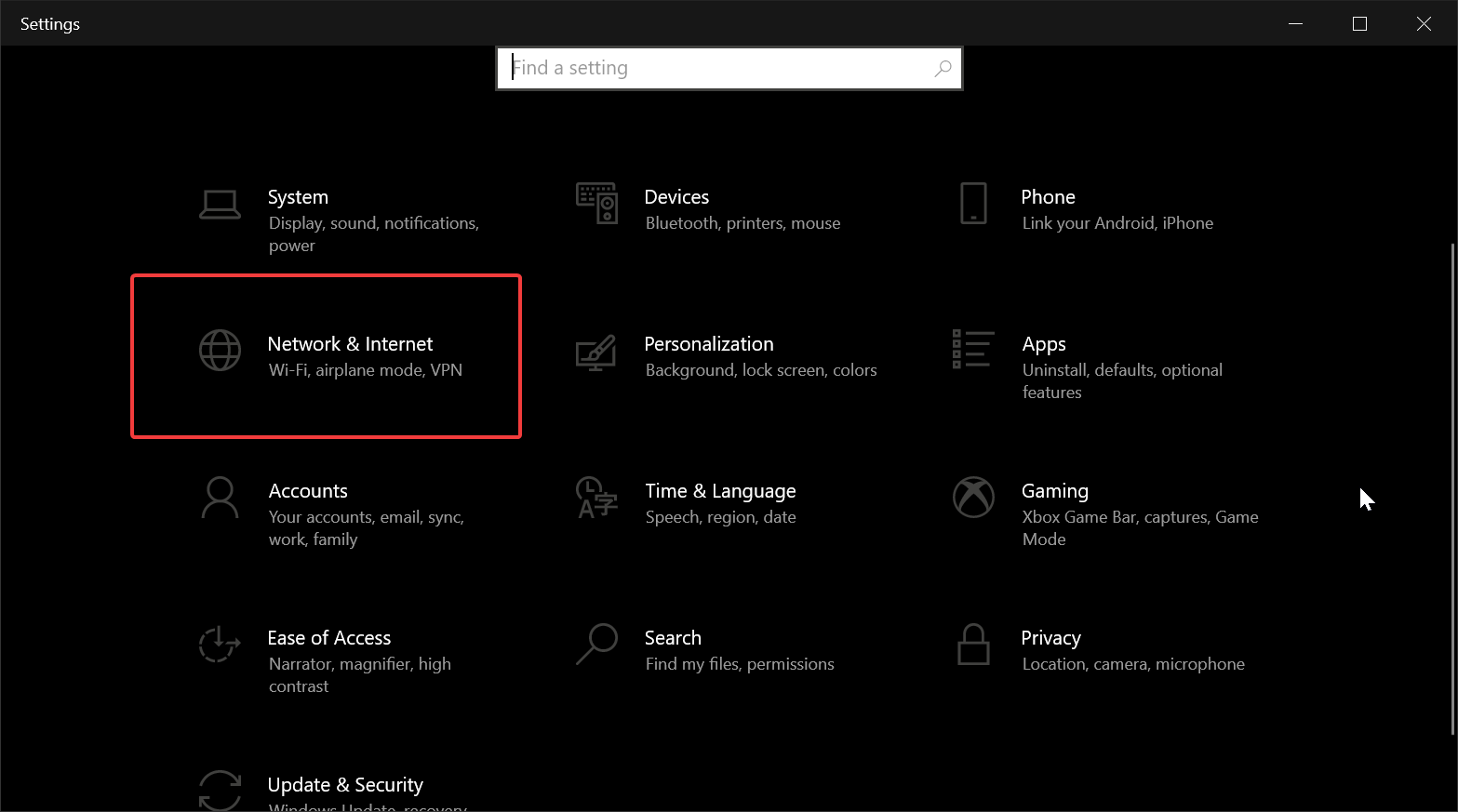
  1. Type settings in the taskbar and open the Settings app.
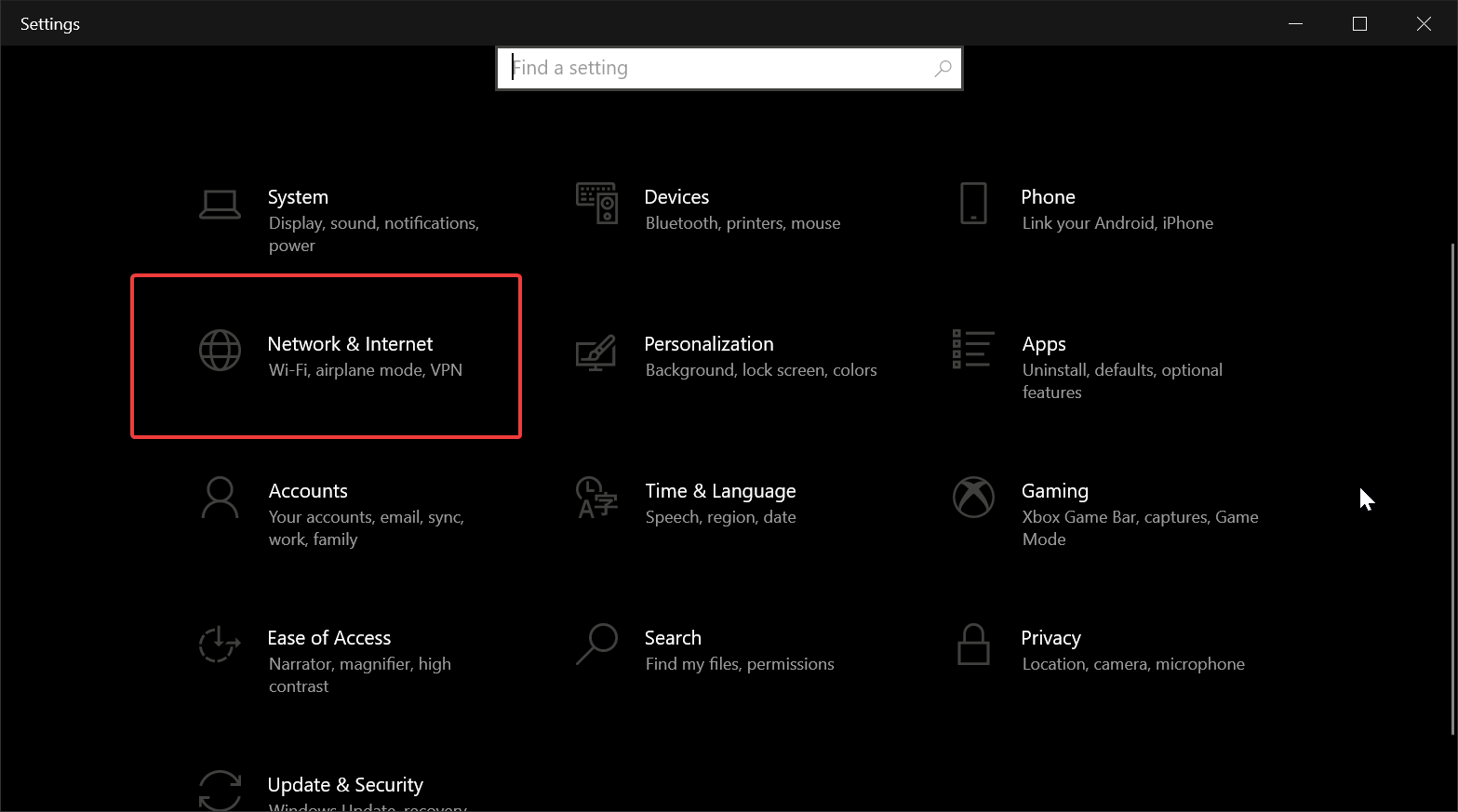
  2. Select the Network & Internet category.set up windows 10 vpn
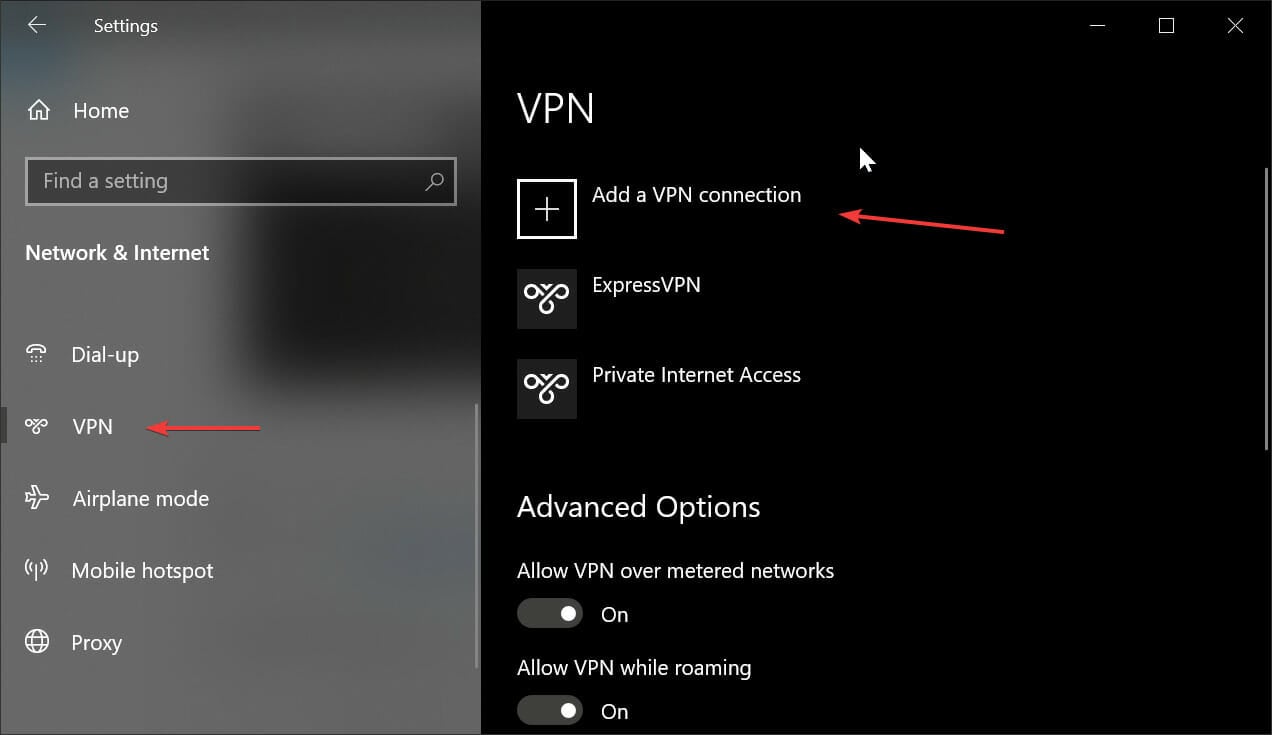
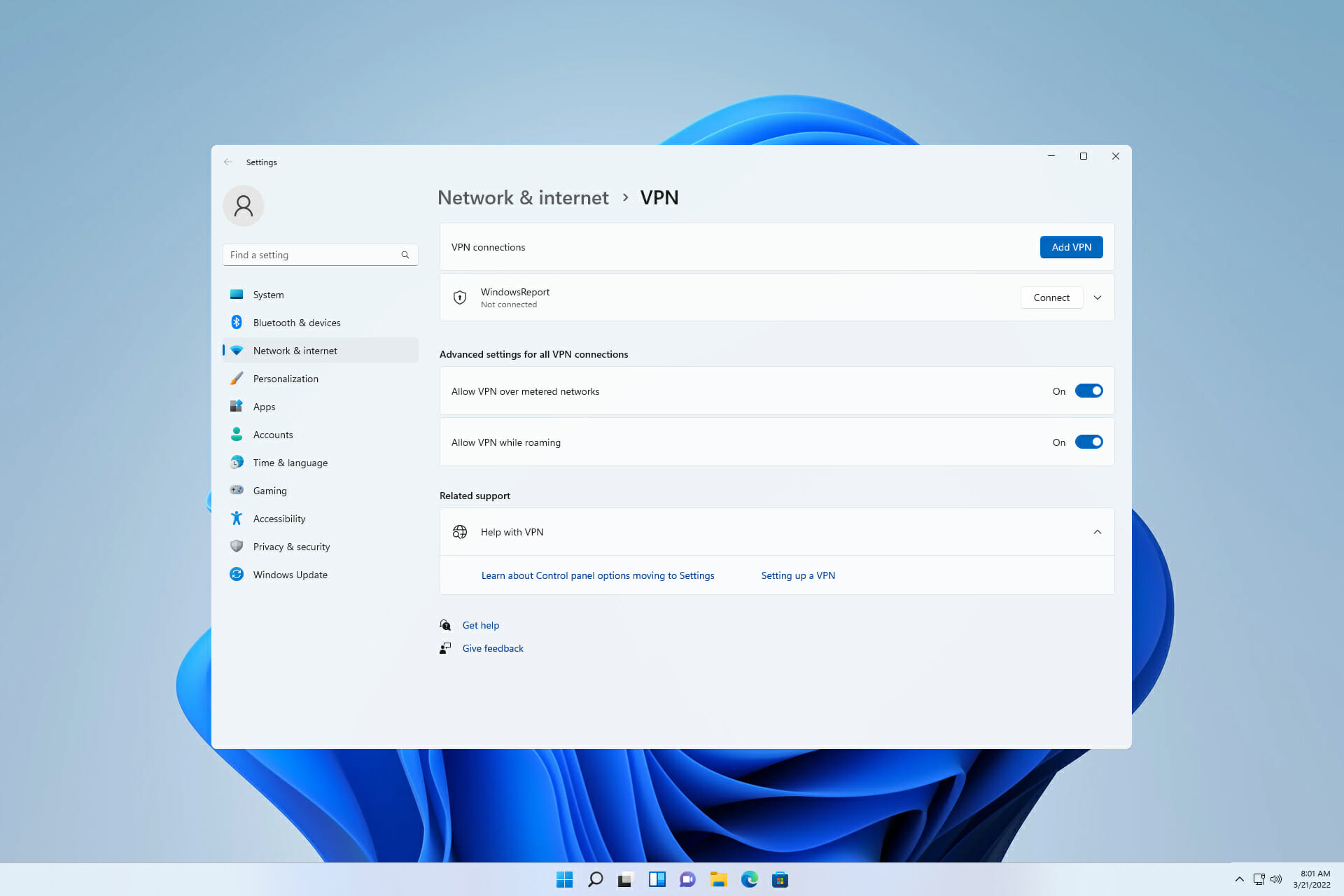
  3. Select VPN, then Add a VPN Connection.set up vpn windows 10
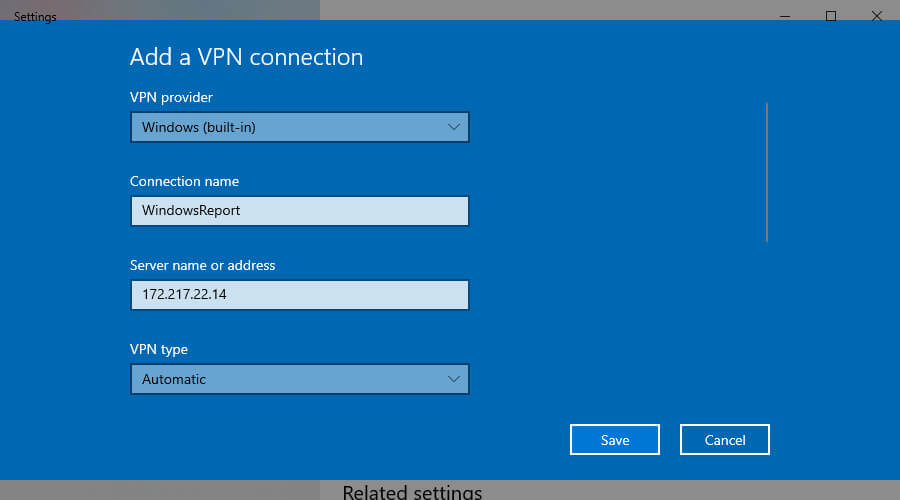
  4. Select Windows (bult-in). Fill in the form with your preffered connection and server name, and VPN type. Select how you want to connect and hit Save.set up vpn windows 10

This method lets other devices to connect to your VPN network. Using the same credentials you provided, try to connect to this network from a different device.

To make sure other devices have access to your network, right click on it in the Network Connections panel and hit Properties.set up vpn windows 10
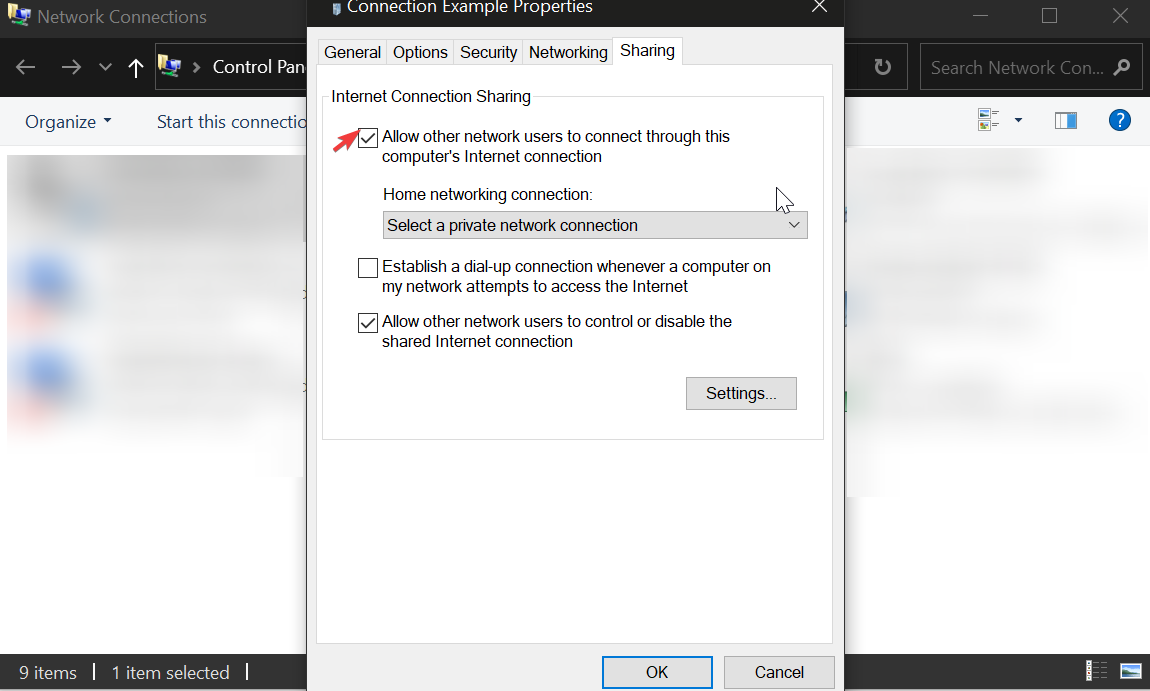
Tick the box next to Allow other network users to connect through this computer’s Internet connection. Hit ok.

Once you’re in, you can access files through the VPN, copy, edit or rename data, and more.

5. Enable Network Discovery to allow access to your VPN server
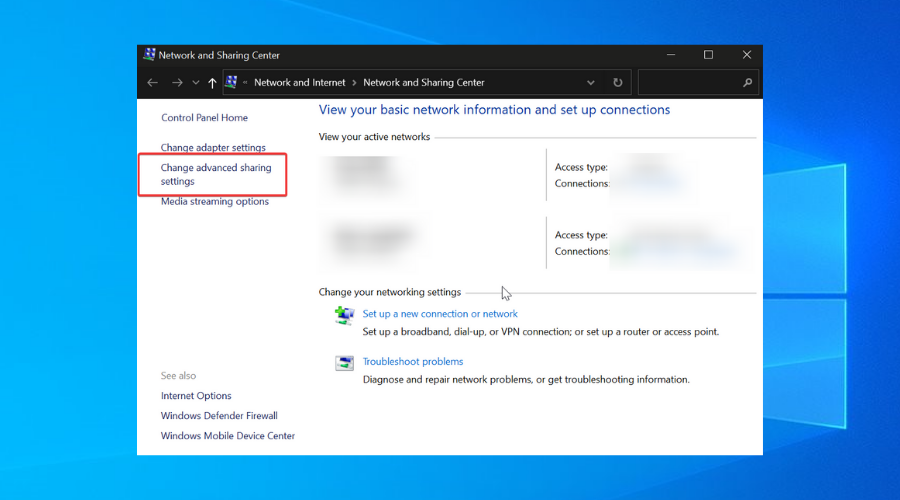
set up windows 10 vpn
  1. Open Settings> Network & Internet.set up vpn windows 10
  2. Open the Network Sharing Center and click on Advanced Sharing Settings.
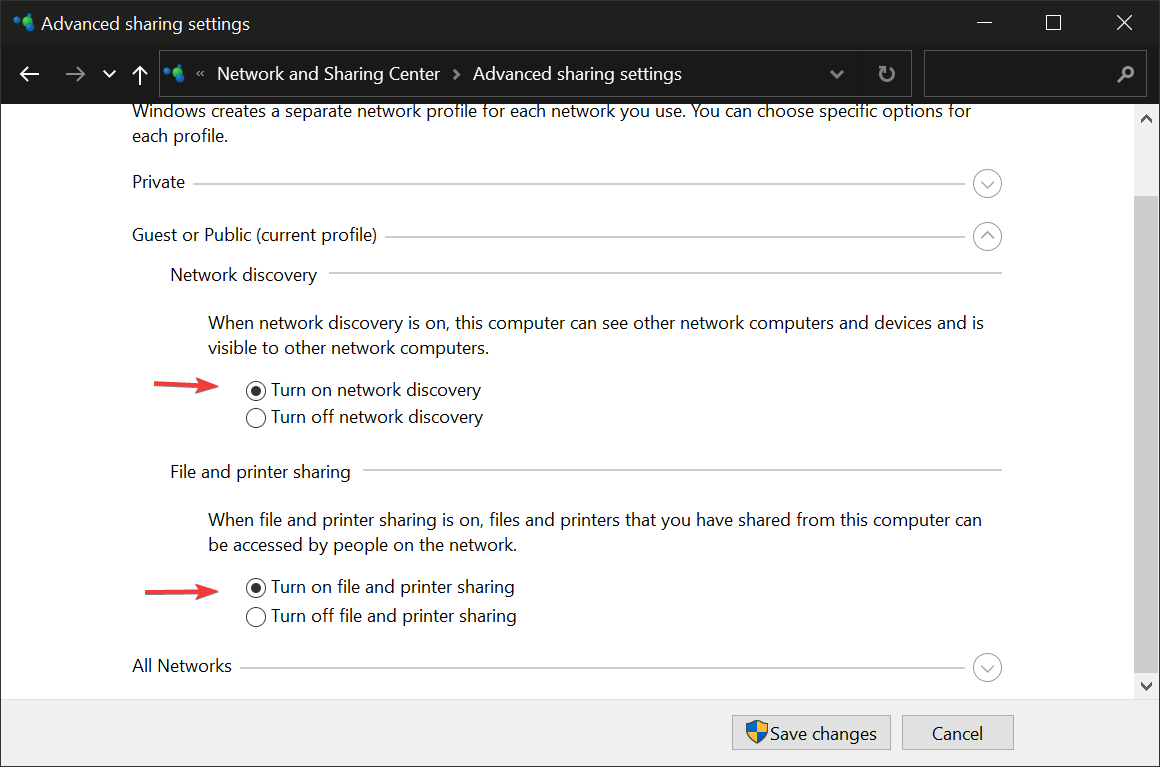
  3. Under Network Discovery, enable Turn on Network Discovery and Turn on file and Printer Sharing. Click Save changes.set up vpn windows 10

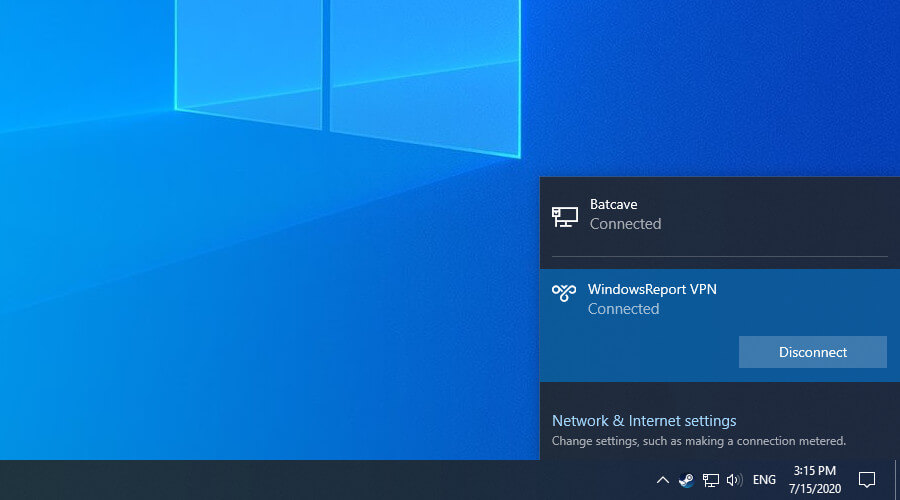
At this stage, you should be able to connect to the VPN and share data on your network. If you encounter any problems, consider our troubleshooting tips for Windows 10 PPTP VPN not working.

In conclusion, figuring out how to set up a VPN at home on Windows 10 is the first step toward turning your home PC into a VPN server. It enables you to remotely connect from any computer and gain access to your personal data.

It’s not necessary to install additional software. However, PPTP is a weak protocol with low security. We suggest upgrading to router firmware that supports OpenVPN configurations. Then you can install a free OpenVPN client on any device to remotely access your home VPN server.

To learn all the tips and tricks of Microsoft’s OS, visit our Windows 10 area. We give insightful tips and tricks that will improve your Windows experience.

Check out our VPN Troubleshooting Hub to fix any VPN problems. Here you can find suggestions and solutions for most VPN issues, both for in-built and third-party VPNs.

Razer Mouse Driver: Proper Installation Guide on Windows 10

If you want to correctly install Razer mouse drivers on your Windows 10 PC, follow along. The job is not difficult at all, but there are some things you need to consider.

Windows 10 and third-party drivers (especially the obscure ones) are having issues since day one. Many users reported issues with printers and outdated (support-wise) hardware, but it seems that the problem applies to top-notch Razer mice which are fairly new and well-supported.

Namely, either the affected owners of a Razer mouse are unable to use it at all, or the driver breaks and renders the device unusable after every Windows 10 update.

Most frequent models that cause problems installing are Razer Mamba, Razer Deathrade and Razer Ripsaw. If you can’t install these Razer drivers, we are going to show you exactly how to do it.

Do Razer mice need drivers?

To make sure your Razer mouse runs properly, it’s recommended you install a driver. Windows has a generic driver pre-installed. This means that you should be able to use a mouse as soon as you connect it to your PC.

That being said, given the fact that Razer mice do generally have more features than a basic mouse has, it’s best you install their dedicated drivers.

How do I get Razer Drivers?
You have several options. You can install Razer Synapse 2.0 on your PC. It’s a configuration tool that helps you install, update, and maintain all Razer products.

You can also manually install the drivers from the Razer support site. Just find your model and follow the installer prompts. A simpler option would be to use a dedicated driver updater tool.

How do I update my Razer mouse driver?
The easiest way to update your Razer mouse driver is directly from the Synapse app. Just click on Check for Updates. If any are available, you can download them and the app will automatically install them.

You can also keep checking the support site for a new release. That however can be more time-consuming. If you don’t want to miss out on new versions, use Outbyte Driver Updater, it automatically adds all new drivers to its database.

Keep in mind that the automatic driver updates in Windows will only update the generic mouse driver. So it’s best you turn them off to avoid any conflict.

How to install Razer mouse drivers in Windows 10?

There are three simple steps to securely install your Razer mouse drivers to your Windows 10 PC. To make sure you do it properly, follow these guidelines:

  1. Uninstall the generic driver
  2. Download the proper driver
  3. Disable the automatic driver updates

1. Uninstall the generic driver

The first thing we’ll need to do is to remove the faulty generic driver which is automatically installed. Some users managed to make Razor work in a matter of seconds on various different PCs, but that one Windows 10-powered PC just can’t cut out.

In order to resolve this, removing the generic driver (including secondary drivers) is paramount. To make your job easy and quick, you can use software that automatically detects drivers and boost your computer.

This procedure is fairly simple, you’ll just need to get an alternative USB mouse to follow the steps below:

  1. Unplug the Razer mouse and Wi-Fi receiver.
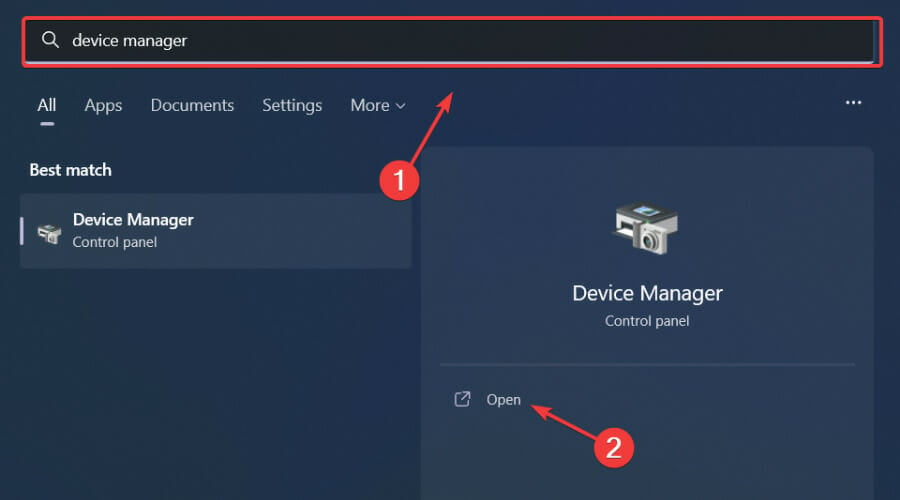
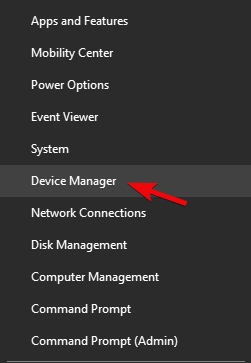
  2. Right-click Start and open Device Manager.razer mouse driver windows 10
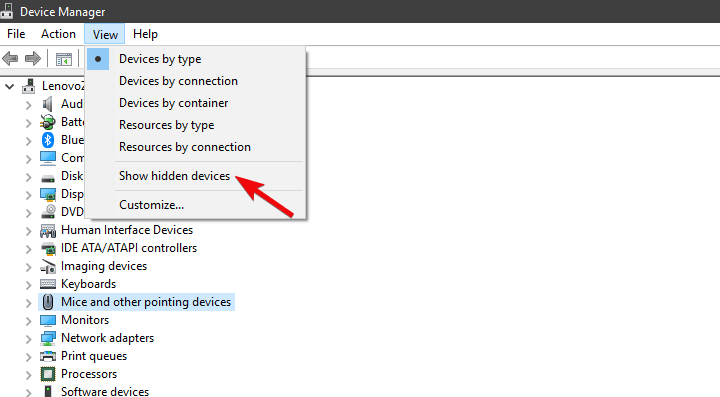
  3. From the Main Menu, select View > Show hidden devices.razer mouse driver windows 10
  4. Expand  Mice and other pointing devices.
  5. Right-click on your Razer mouse and uninstall it. Also, uninstall all hidden supporting drivers.

2. Download the proper driver

Now, once we have dealt with the inappropriate drivers, we can move on to obtaining the ones which should work without issues. The Razer Synapse 2.0 cloud-based configuration tool covers software support for all mice offered by the renowned OEM. And, which is more important for this scenario, it covers all versions of Windows 10. The only requirement is running 64-bit Windows 10.

Here’s how to download the proper Razer mice driver for Windows 10:

  1. Navigate to Razer support site, here.
  2. Download Razer Synapse 2.0 for Windows PC.razer mouse driver windows 10
  3. Run the Synapse client and locate your exact mouse on the list.razer mouse driver windows 10
  4. Install drivers and plug in the mouse.

Or you can locate the exact device and download the legacy driver. This, of course, still requires disabling the driver updates. On the contrary, Windows 10 will change them to the latest version and you’ll again bump into the same problems.

If the mentioned solution doesn’t work for you, we recommend you a third-party tool that you can use to automatically install the latest drivers on your Windows 10 computer. A professional driver updater tool is one of the most efficient options to take into consideration.

You need to know from the start that a professional tool makes updating drivers simple even for newbies. More precisely, the tool runs automatically to find outdated drivers in seconds.

In order to update any driver accordingly and without causing other system errors, it is more beneficial to use dedicated tools that can provide automatic support.

⇒ Get Outbyte Driver Updater

3. Disable the automatic driver updates

Finally, what only remains is to disable the automatic installation of drivers in Windows 10 through Windows Update. This is the most common cause of the issues with Razer mice on Windows 10.

Generic mice can work with the generic drivers imposed by the system upon the PnP. However, wireless and even wired but multifunctional precision gaming mice thrive only with appropriate drivers.

There are two ways to disable further updates of drivers. One completely kills drivers updates for all devices (not recommended) and the other allows you to pinpoint one driver which is out of the boundaries.

Here’s the first way:

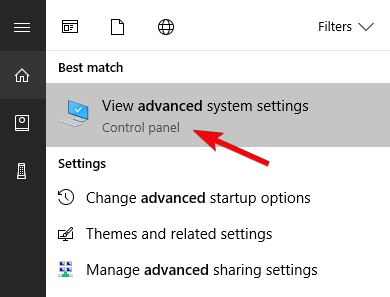
  1. In the Windows Search bar, type Advanced and choose View advanced system settings.razer mouse driver windows 10
  2. Under the Hardware tab, choose Device Installation settings.razer mouse driver windows 10
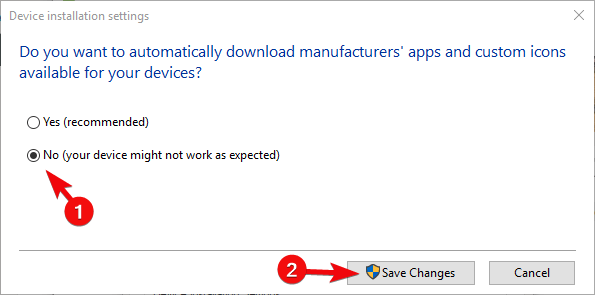
  3. Choose No and confirm changes.razer mouse driver windows 10

And here’s the second:

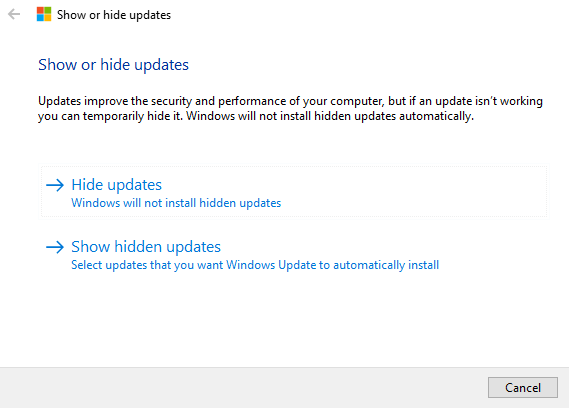
  1. Download Show or hide updates troubleshooter, here.
  2. Run it and hide all Razer-related devices.razer mouse driver windows 10
  3. Close the tool and you’re good to go.

That should do it. In case you have an alternative solution or questions regarding the workarounds we provided, make sure to tell us in the comments section below.

After installing, if you experience any difficulties in using the mouse, check our comprehensive guide that will help you fix the most common Razer mouse errors.

Don’t stop there! Tackle drivers issues with expert confidence thanks to our Driver Errors Troubleshooting Hub. Visit the Razer section as well to learn more about your favorite accessories.

Best Practices When Uploading Large Files to S3 from Browser

Amazon S3 is essential for organizations or businesses to have backups of their work data constantly. This process ensures good continuity as well as accountability.

An efficient idea to see this is through Amazon Simple Storage Solution (Amazon S3). It is an excellent service, which presents a massive remote storage service for saving your system’s data.

This article presents you with best practices to upload large files to S3 from the browser in the remotest way possible.

These practices cut across optimization of files to S3; how to upload files more significant than 100 megabytes and means to upload your files at a maximum speed, all via the use of Amazon S3. However, it is all very straightforward if you follow the laid down rules here.

How can I optimize uploads of large files to Amazon S3?

 1. Install and configure the Amazon AWS CLI

  1. Visit this page to find Amazon‘s detailed installation instructions.
  2. Configure the access ID, user profiles, and key using the following command:

AWS configure

AWS Access Key ID [None]: <AccessID>

AWS Secret Access Key [None]: secretkey

Default region name [None]: us-east-1

Default output format [None]: json

If you’re using the AWS Command Line Interface (AWS CLI), customize the configurations to ease the faster upload of large files to S3 from browsers.

2. Create a batch file

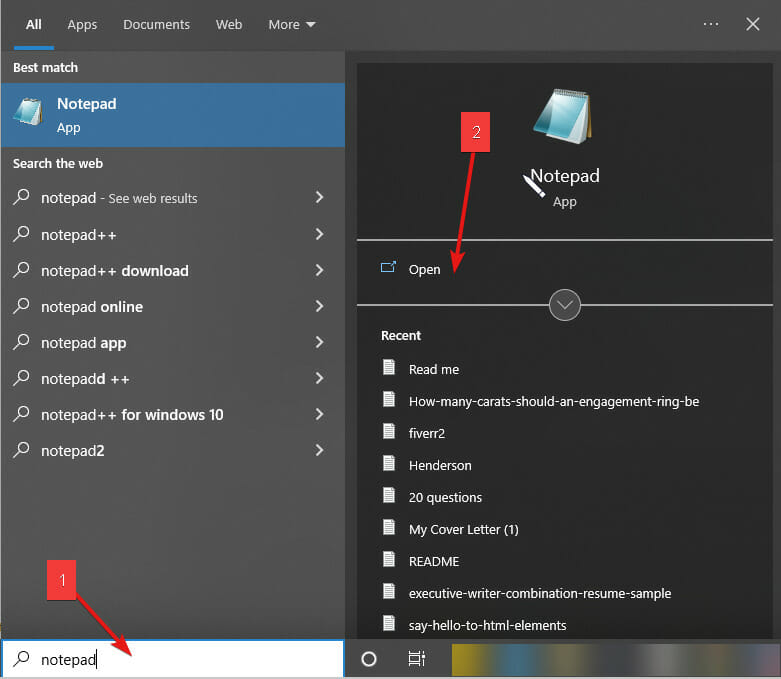
  1. Press the Windows key, input Notepad, and launch it.
  2. Enter the following line of command into the blank Notepad file: aws s3 sync "C://Desktop/backups/" s3://your-bucket
  3. Press the CTRL + S and save the file with the .BAT extension.
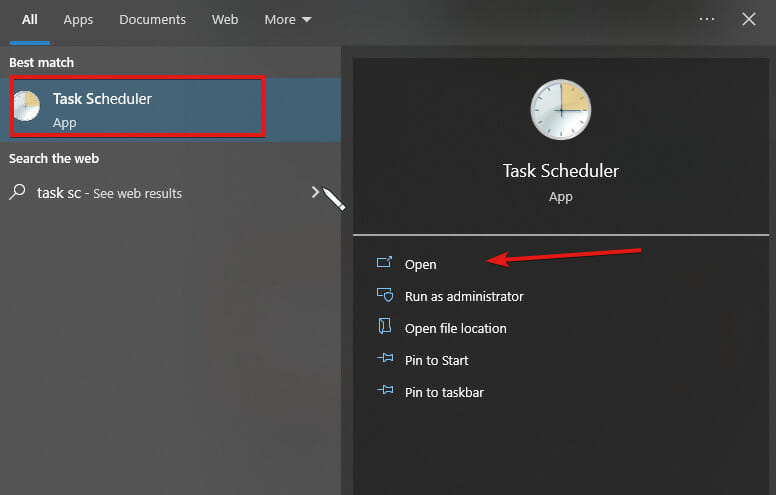
  4. Next, click on the Start Menu button and search for the task scheduler.
  5. Open Task Scheduler. (If it fails to open, fix it with this guide)
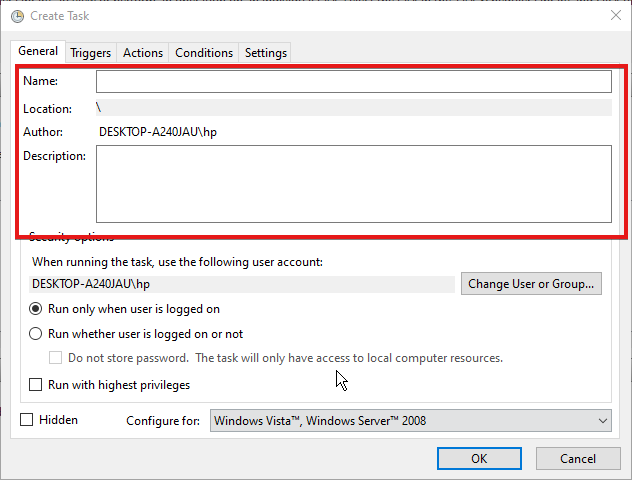
  6. Click on the Actions menu, choose to Create Task, edit the Name, and describe the new task.
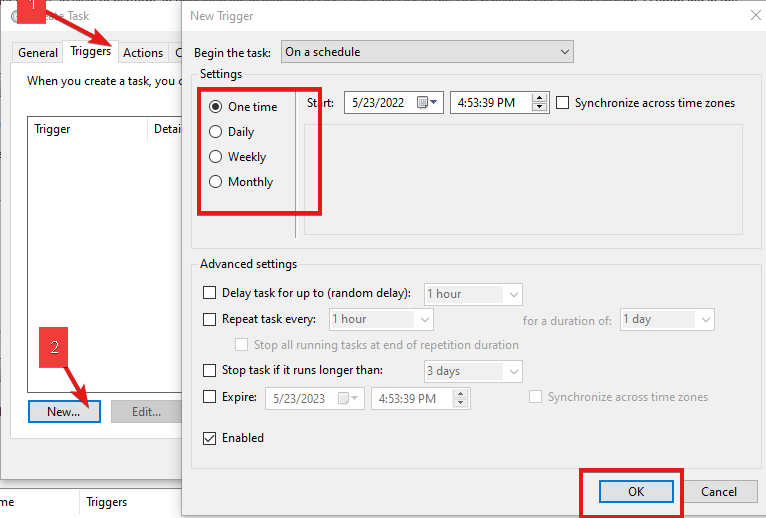
  7. Choose a one-time, daily, weekly, or monthly trigger.
  8. Click on the Actions tab and Create basic task from the resulting dropdown menu.
  9. Find the batch file you created in step 3.
  10. Save the task.

After successfully saving the newly created task, you no longer have to back up your data to Amazon S3 manually because the Task Scheduler will do it for you at the configured interval.

How do I upload a file greater than 100 megabytes on Amazon S3?

The maximum file size that you can upload by using the Amazon S3 console is 160 GB. The S3 would then lead us to provide means to upload files greater than 100 megabytes on Amazon S3.

Run a high-level (aws s3) command

  1. Place the file in the same directory as where you are running the command from.
  2. Run the following cp command: aws s3 cp cat.png s3://docexamplebucket
  3. Amazon S3 automatically performs a multipart upload for large objects.

How to upload your files at the maximum speed

Use a multipart upload. A large file is split into multiple parts in multipart upload and uploaded separately to Amazon S3.

After uploading the parts, Amazon S3 combines the elements into a single file. This multipart upload will result in faster uploads and lower chances of failure with large files.

The tips highlighted above are the best practices to keep in mind to upload large files to s3 from the browser effectively.

Amazon S3 storage is excellent, and to access it quickly, and you’ll need appropriate software, such as the S3 browser application. Moreover, several applications work with S3. You can check for the best S3 browser software here. You can also safeguard your Amazon AWS data with a suitable antivirus.

Should you have further suggestions, questions, or possible ways to upload your files on Amazon S3, kindly drop them in the comment section below.

2 Tips on How to Enable or Disable The Pop-Up Blocker on IE 11

Pop-up blocker Internet Explorer 11 is usually not easy to activate for some users. The feature helps to reduce small pop-up windows from displaying in your web browsing.

Most of the time, these pop-ups are advertisements on websites you are browsing. There are also cases of them triggering the installation of malware on your device without prompting you.

In this article, we will be discussing how you can get rid of them in your Internet Explorer. Since they are needed to complete actions on some sites, we will also highlight how to enable them.

Where can I find the Pop-up Blocker?

The pop-up blocker is enabled by default in Internet Explorer 11. Majorly, it can be found under the Privacy settings in the browser itself. Aside from here, you can also find and tweak its activities in other places like:

  • System Registry – It is like a database of configuration information for applications and preferred settings for users of a PC. The Internet Explorer Pop-up blocker can be enabled or disabled from here (more on that later).
  • Group Policy – Administrators of a PC can manage settings for applications here. It allows you to specify configuration for users connected to the system.

How do I check if pop-ups are blocked?

  1. Launch Internet Explorer and click on Tools or press Alt + X. Next, select Internet Options.
    Internet Options
  2. Choose the Privacy tab and look at the Pop-up Blocker section. If it is checked, then Pop-up is blocked. uncheck it and select Apply to unblock.

How do I enable the Security tab in Internet Explorer 11?

  1. Open Internet Explorer and press Alt + X to open Tools. Next, choose Internet Options.
  2. Now click on the Security tab in order to launch it.
    Security IE

How do I allow Pop-ups on Internet Explorer 11?

  1. Press the Windows key + R to open Run and type the command below and press Enter:
    iexplore
  2. Tap Alt + X to display the Tools and choose Internet Options.
    Internet Options
  3. Click on the Privacy bar and uncheck the box behind the Pop-up Blocker.
  4. Select Settings to open the Pop-up Blocker Settings dialog box.
    Settings
  5. Enter the Address of the website to allow then click Add. Finally, click on the Close button.
  6. Click the OK button to apply the changes made and close the Internet Options dialog box.

How to enable the Pop-up Blocker in Internet Explorer 11?

You don’t need to do anything if you’ve never tampered with the computer’s Internet Explorer settings. This is because the Pop-up Blocker is expected to be enabled by default.

In case you’ve disabled it and would like it enabled, use any of the steps highlighted above to locate the Privacy settings where you can check the Pop-up Blocker box to enable it.

How do I turn off Pop-up Blocker in Internet Explorer 11?

1. Use Registry

  1. Tap the Windows key + X to open the Quick Link Menu and select Run.run-registry pop up blocker internet explorer 11
  2. Type the command below and press Enter:
    regedit
  3. Search for the folder path below in the Registry Editor:
    Computer\HKEY_LOCAL_MACHINE\SOFTWARE\Microsoft\Internet Explorer\Main\FeatureControl\FEATURE_WEBOC_POPUPMANAGEMENT
  4. Double-click on iexplore.exe to change the Value data to 0. This is how to disable Pop-up Blocker Internet Explorer 11 in Registry.

The Windows Registry is a hierarchical database that contains low-level settings for apps that choose to use the registry. As well as for the Microsoft Windows operating system itself.

2. Use Group Policy

  1. Launch Run by pressing Windows + R then type the command below and press Enter:
    gpedit.msc
  2. Select Computer Configuration followed by Administrative Templates and Windows components.
  3. Scroll to find Internet Explorer. Click on it and then choose Internet Control Panel followed by Security Page.
    Security Page
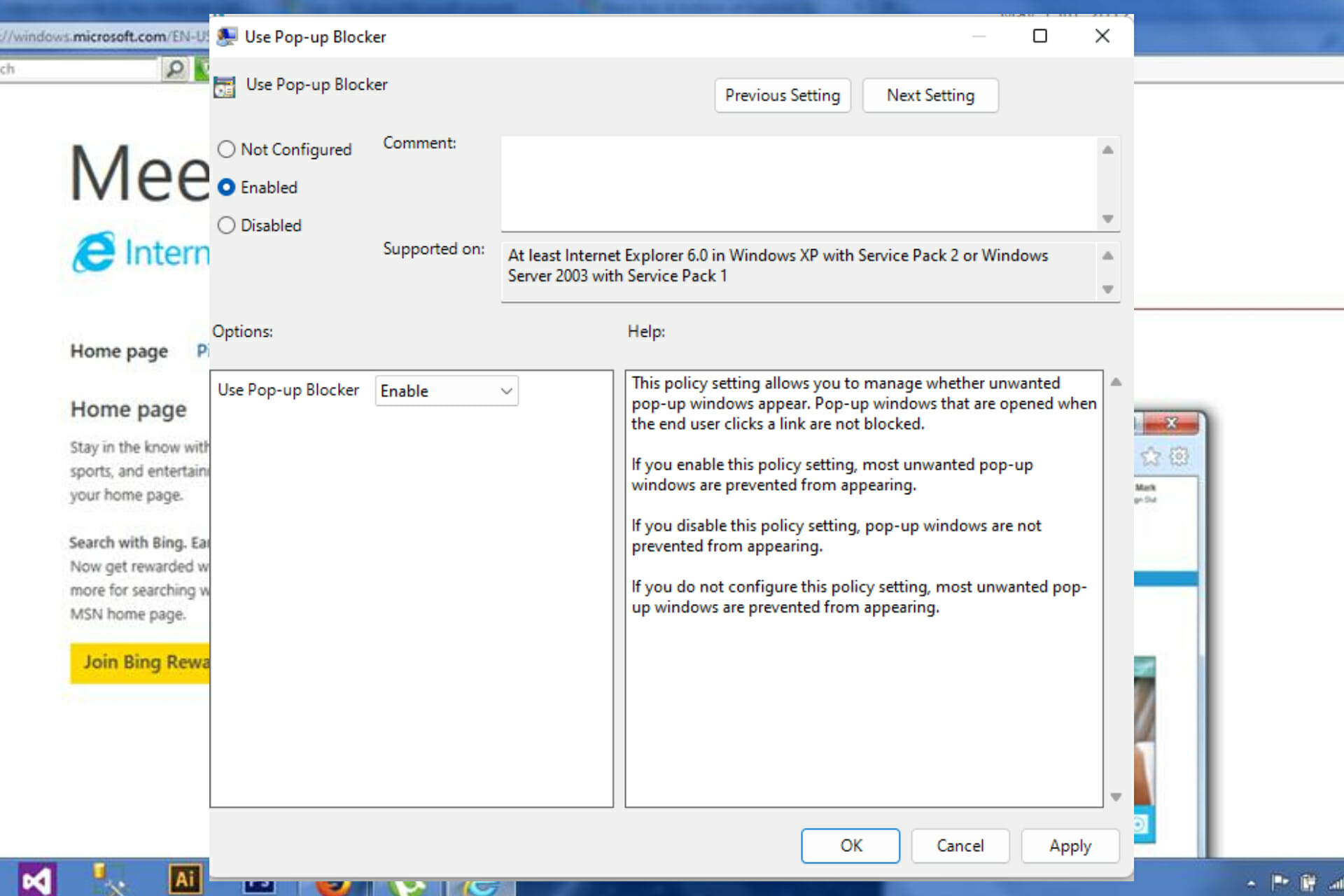
  4. Pick Internet Zone followed by Use Pop-up Blocker.
  5. Select the Enabled option then click OK. This is how to disable Pop-up Blocker Internet Explorer 11 in Group Policy.
    Enable Pop-Up

What to do if the Pop-up window is not opening in Internet Explorer 11?

  1. Open Internet Explorer 11 then click on Tools to select Internet options.
    Internet Options
  2. Next, navigate to the Security tab and add the site where the Pop-up window is not opening to. And finally set the security level to medium or low. That’s it!

There you have it all. We hope you can play around with your browser settings whether to block pop-up Internet Explorer 11 or turn off the Pop-up Blocker from Internet Explorer 11 in GPO.

Let us know in the comments section whether this guide proved to be helpful to you. If you have any suggestions or tips on solving related issues, don’t hesitate to share them with us.

KB5014019 fixes app crashes and slow copying issues on Windows 11

This one is for all the update-hungry users out there, as we know that you are eagerly awaiting new software from Microsoft on a regular basis.

The Redmond-based tech company has released optional cumulative update previews for Windows 11, Windows 10 version 1809, and Windows Server 2022, with fixes for Direct3D issues impacting client and server systems.

These updates are part of the April 2022 monthly C updates, which allow Windows users to test the fixes released on June 15th as part of next month’s Patch Tuesday.

If you are also looking to refresh your memory on the May 2022 Patch Tuesday rollout or download any updates, we got you covered.

What does KB5014019 bring new to the table?

As you most likely know by now, these scheduled non-security preview updates are entirely optional, so don’t feel obligated to install them if you choose not to.

They are issued to test bug fixes and performance improvements before the general release, and they don’t provide security updates.

Through this latest rollout, you can find updates such as KB5014019 for Windows 11, KB5014022, for Windows 10 version 1809, and KB5014021, for Windows Server 2022.

For starters, let’s look at the highlights for this Windows 11 release and see what new features we can expect from it.

Highlights

  • Improves the Family Safety verification experience for a child account when you send a request for additional screen time.
  • Windows spotlight on the desktop brings the world to your desktop with new background pictures. With this feature, new pictures will automatically appear as your desktop background.
  • Addresses an issue that fails to maintain the display brightness after you change the display mode.
  • Addresses an issue that affects the IE mode window frame.
  • Addresses an issue that prevents internet shortcuts from updating.
  • Addresses an issue that causes an Input Method Editor (IME) to discard a character if you enter the character while the IME is converting previous text.
  • Addresses an issue that causes Widgets to appear on the wrong monitor when you hover over the Widgets icon on the taskbar.
  • Adds animation to the Widgets icon when you click or tap the icon and the taskbar is aligned on the left.
  • Addresses an issue that affects the rendering of the default Widgets icon on a taskbar that is aligned in the center.
  • Addresses an issue that causes blurry app icons in Search results when the display’s dots per inch (dpi) scaling is greater than 100%.
  • Addresses an issue that causes file copying to be slower.
  • Addresses an issue that fails to automatically give the search box input focus when you select the Start menu and start typing.

Fixes

  • Addresses an issue that causes the Input (TextInputHost.exe) app to stop working.
  • Addresses an issue in searchindexer.exe that affects the search for shapes in Microsoft Visio.
  • Prevents users from bypassing forced enrollment by disconnecting from the internet when they sign in to Azure Active Directory (AAD).
  • Addresses an issue that might run an AnyCPU application as a 32-bit process.
  • Addresses an issue that prevents Azure Desired State Configuration (DSC) scenarios that have multiple partial configurations from working as expected.
  • Addresses an issue that affects remote procedure calls (RPC) to the Win32_User or Win32_Group WMI class. The domain member that runs the RPC contacts the primary domain controller (PDC). When multiple RPCs occur simultaneously on many domain members, this might overwhelm the PDC.
  • Addresses an issue that occurs when adding a trusted user, group, or computer that has a one-way trust in place. The error message, “The object selected doesn’t match the type of destination source” appears.
  • Addresses an issue that fails to display the Application Counters section in the performance reports of the Performance Monitor tool. 
  • Addresses an issue that fails to maintain the display brightness after you change the display mode.
  • Addresses an issue that might affect some apps that use d3d9.dll with certain graphics cards and might cause those apps to close unexpectedly.
  • Addresses an issue that affects the IE mode window frame.
  • Addresses an issue that affects Group Policy templates.
  • Addresses an issue that prevents internet shortcuts from updating.
  • Addresses an issue that causes some users to see a black screen when they sign in and sign out of Windows.
  • Addresses an issue that causes an Input Method Editor (IME) to discard a character if you enter the character while the IME is converting previous text.
  • Addresses an issue that affects the Desktop Duplication API, which affects display orientation and causes a black image to appear on the screen.
  • Addresses an issue that causes print failures when a low integrity level (LowIL) application prints to a null port.
  • Addresses an issue that prevents BitLocker from encrypting when you use the silent encryption option.
  • Addresses an issue that leads to a false negative when you run scripts while Windows Defender Application Control (WDAC) is turned on. This might generate AppLocker events 8029, 8028, or 8037 to appear in the log when they should not .
  • Addresses an issue that occurs when you apply multiple WDAC policies. Doing that might prevent scripts from running when the policies allow scripts to run.
  • Addresses an issue that affects the Trusted Platform Module (TPM) driver, which might increase the system’s startup time.
  • Addresses an issue that might cause the Remote Desktop client application to stop working when you end a session.
  • Addresses an issue that affects the behavior and shape orientation of a mouse cursor for Microsoft Defender Application Guard (MDAG), Microsoft Office, and Microsoft Edge. This issue occurs when you turn on a virtual graphics processing unit (GPU).
  • Addresses an issue that causes Widgets to appear on the wrong monitor when you hover over the Widgets icon on the taskbar.
  • Adds animation to the Widgets icon when you click or tap the icon and the taskbar is aligned on the left.
  • Addresses an issue that affects the rendering of the default Widgets icon on a taskbar that is aligned in the center.
  • Addresses an issue that fails to make the options Run as administrator and Open file location available for certain results when you search from the taskbar.
  • Addresses an issue that fails to automatically give the search box input focus when you select the Start menu and start typing.
  • Addresses an issue that causes blurry app icons in Search results when the display’s dots per inch (dpi) scaling is greater than 100%.
  • Addresses an issue that causes file copying to be slower because of a wrong calculation of write buffers within cache manager.
  • Addresses an issue that might cause a system to stop responding when a user signs out if Microsoft OneDrive is in use.
  • Addresses a known issue that might prevent recovery discs (CD or DVD) from starting if you created them using the Backup and Restore (Windows 7) app in Control Panel. This issue occurs after installing Windows updates released January 11, 2022 or later.
  • Addresses a known issue that affects certain GPUs and might cause apps to close unexpectedly or cause intermittent issues that affect some apps that use Direct3D 9. You might also receive an error in the Event Log in Windows Logs/Applications, and the faulting module is d3d9on12.dll and the exception code is 0xc0000094.

As we mentioned, the latest Windows optional updates come with fixes for issues that might cause some applications to crash or trigger various problems.

KB5014019 addresses an issue that might affect some apps that use d3d9.dll with certain graphics cards and might cause those apps to close unexpectedly.

Furthermore, this update also fixes a known issue affecting specific GPUs and could “cause apps to close unexpectedly or cause intermittent issues that affect some apps that use Direct3D 9.

The issue that might cause file copying to be slower and another one preventing BitLocker from encrypting when using the silent encryption option has also been dealt with.

Known issues

  • After installing this update, some .NET Framework 3.5 apps might have issues or might fail to open. Affected apps are using certain optional components in .NET Framework 3.5, such as Windows Communication Foundation (WCF) and Windows Workflow (WWF) components.

Have you discovered any other issues after installing KB5014019? Share your experience with us in the comments section below.

Fix: Can’t Send Text Message with T-mobile Error 2

Many T-Mobile users have reported network issues while using their devices. Among these, T-Mobile error 2 or SMS not working has been predominant.

Although T-Mobile is the second-largest wireless data and voice services provider in America, with more than 108 million customers, this has not stopped network issues from piling up.

Consequently, users struggle with constant T-mobile network error messages. Now, these glitches reflect differently depending on the device you’re using.

They range from T-Mobile not receiving texts, texts not sending T-Mobile, messages failing temporarily, and eventually going through or not.

T-Mobile SMS not working on cellphones is one thing (and it can happen on both Android and iOS), but T-Mobile error messages can impact even more platforms.

Speaking of errors, let’s see some examples of what you might encounter.

What are the most frequent T-mobile error codes?

  • T-mobile US error 2 (This is the most frequent one and the mistake we will try to solve today. T-mobile error 2 prevents users from sending messages, but you can also find it on other platforms under this variant: T-mobile TV error 2.)
  • T-mobile error 28/2112
  • Server error code 255 T-mobile (also known as T-mobile unlock error 255 or T-mobile server error 255)
  • T-mobile error 1/111 (connection problems trigger T-Mobile error 111, and it can prevent you from texting and using the Internet.)

Finally, there’s just one more thing we’d like to tackle before digging into the troubleshooting steps. Since we mentioned triggers, let’s look at the potential culprits behind the T-mobile error 2.

Why are my texts not sending in T-Mobile?

  • Incorrect phone settings (such as time and SMS service center number or Airplane mode)
  • Outdated software or pending updates
  • Specific features such as Message blocking or Family Allowance
  • Recipient numbers blacklisted on your device
  • Third-party messaging apps that interfere with the Messages app. This is also the reason behind EE error 0.
  • Insufficient storage space
  • Insufficient or low prepaid account balance

If you are experiencing such problems, especially T-mobile error 2, this article will provide the best fixes. Follow the instructions below to see which one works best for your mobile device.

What can I do when SMS doesn’t send with T-mobile?

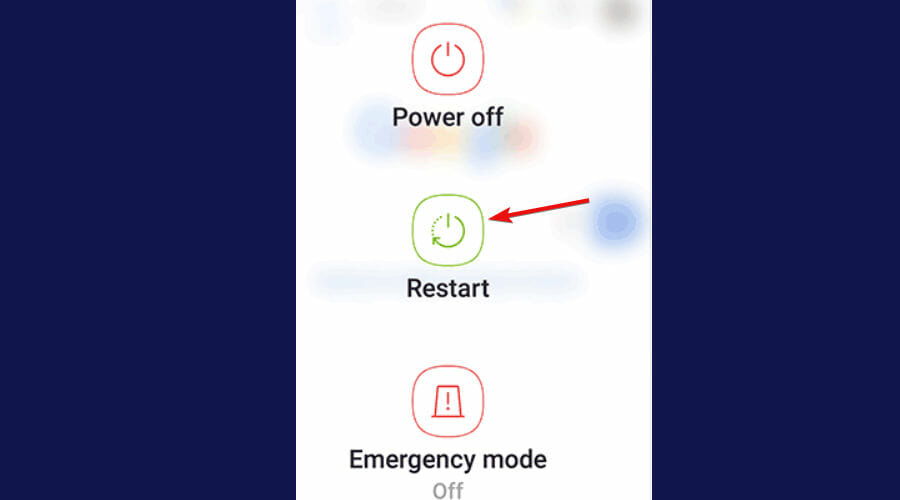
1. Restart your device

Depending on the type of phone you use, initiate the restart process. After turning off your phone, please wait for minutes before turning it on. This can help restore your SMS functionality.

Regular restarting your phone can make a massive difference by addressing all kinds of anomalies such as slow WiFi/data connectivity, battery drainage, overheating, performance issues, texting difficulties, and more.

Tip icon Tip
➡ If you can’t send messages with T-mobile error 2, we recommend you reboot your phone at least twice.
➡ While a single restart usually does the trick for most carriers, the reboot success rate is significantly higher among T-mobile users, having performed this operation a couple of times.

2. Switch On and Off Airplane mode

  1. Go to the control center or notification panel on your home screen and swipe to expand it.
  2. Next, tap on Airplane mode.
  3. Waiting for a few minutes before tapping on it again to switch it back On/Off.

This should help sync your phone network functions after the service provider’s network is restored on your device.

Try to resend an SMS to see if the T-mobile error 2 is still there. Suppose that is the case, head over to the next solution.

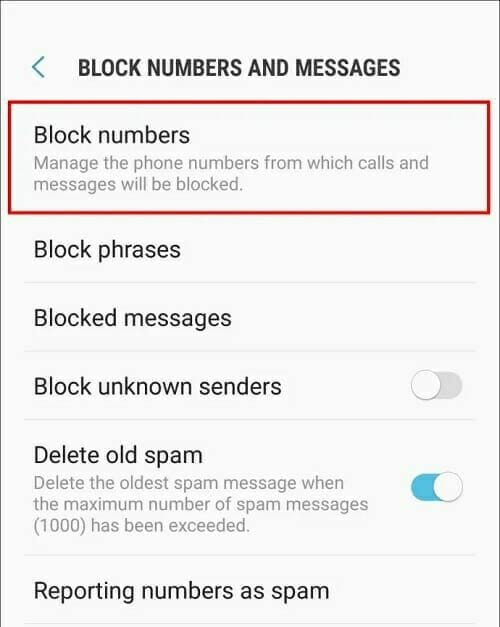
3. Switch off Message Blocking & check blocked contacts

To contain fraud attempts and spamming, T-Mobile introduces two features designed to help you deal with unwanted messages better.

Both Message Blocking and Family Allowance qualify as potential culprits behind the T-mobile error 2 as they not only block commercial messages but can also block messages from a specific number.

These options act as filters preventing specific numbers from sending SMS or recipients receiving incoming texts.

We suggest you switch these settings off (if possible) or contact T-mobile customer support to remove the services at their end.

Furthermore, your phone message settings allow you to block specific contacts. Therefore, it might be worth checking and unblocking a vital number you may have stopped by mistake.

Check your block list of contacts and/or messages, and make sure to unblock the numbers blacklisted on your device if they appear there.

4. Clear Messages & Carrier Services apps cache

  1. Go to Settings on your phone.
  2. Next, locate Apps (Default apps + App settings) and tap to select it.
  3. Select the Messages from the Apps list.
  4. Next, tap the Storage option.
  5. Finally, tap Clear data, respectively Clear cache.

Now, let’s quickly see the necessary steps for clearing the Carrier Services app cache.

  1. Open the Settings menu and go to Apps, just as before.
  2. From the list, open the Carrier Services app.
  3. Now, tap to select Storage.
  4. Finally, select the options at the bottom of the page: Clear data, respectively Clear cache.
Tip icon Tip
➡ Before launching any of these procedures, we strongly advise you to back up all data in the Messages app and the general information stored on your phone to avoid data loss.
➡ As you’re about to discover, you will be instantly reminded that erased data is beyond retrieval upon tapping the Clear Data option. Hence, the right time to take precautions is before starting the cleaning process.
➡ Acronis Cyber Protect Home Office is one of those few programs that work seamlessly across all infrastructures, so you needn’t worry about compatibility issues regardless of your OS, Android, or iOS.
➡ Should you wish to explore more options, check out these cross-platform backup tools for PC and phones.

As the Messages app comes as default in your phone software to facilitate SMS services through any carrier, clearing the app cache might do the trick for you. Clearing the cache also helps fix Vodafone Error 69.

5. Make Messages your default app

  1. Before you try anything else, try to force stop and restart the Messages app.
  2. Open the Settings, then Apps, and select Messages from the list of apps.
  3. In the App Info screen, you will notice three options: Open, Uninstall, and Force stop.
  4. Tap Force Stop and restart the app.
  5. Upon restart, open the Messages app again and choose Set as default.

If the Messages app is not declared as the default app or if you’re using a third-party messaging app, it’s likely to get the T-Mobile error 2 due to software conflict.

Thus, if you can’t send messages with T-mobile error 2, we suggest you uninstall any downloaded messaging apps and set Messages as your default app.

Tip icon Tip
➡ While you’re at it, you might want to look out for the Advanced Messaging option since it is known to create interferences and generate SMS errors.
➡ open the Messages app and go to Settings. If the Advanced Messaging feature is on by any chance, feel free to toggle it to Off and check if it has solved the issue.

6. Free up space on your phone

  1. Go to My Files and locate Internal storage.
  2. Next, tap on the 3 vertical dots in the top-right corner and select Analyse storage.
  3. Delete unused apps and/or large media files (that are no longer relevant).

It is possible that messages are not delivered to your phone because the storage space on your device is complete.

The Messages app requires a minimum of 15% free storage to work without hassle. However, you might be able to eliminate bottlenecks by freeing up your device and deleting irrelevant media files, unused apps, or even old messages.

There is a more straightforward, faster, and better way if you don’t feel like randomly chasing for extra items to delete. Use a professional tool such as CCleaner that can handle decluttering for you.

You can download CCleaner for Android directly from the Google Play store and use it to optimize your device and eliminate errors such as the T-mobile error 2 in no time.

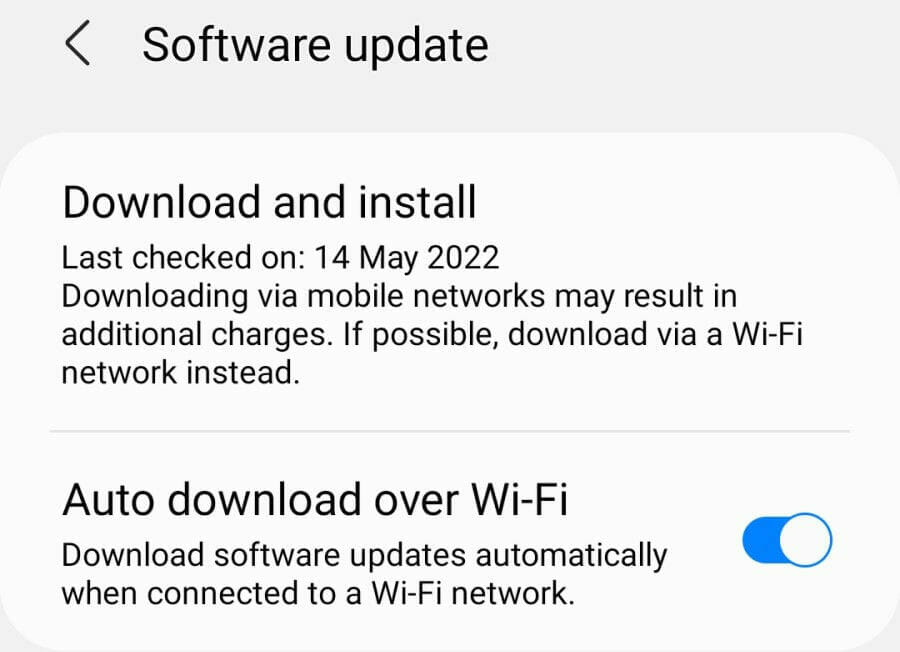
7. Update your phone’s software

As with any other device, keeping your phone up to date guarantees better performances, fewer vulnerabilities, and overall streamlined functionality.

On the other hand, outdated software can trigger errors on Android and iOS alike. It can also affect your ability to send or receive SMS messages with errors such as T-mobile error 2 popping out frequently.

Open the Settings, select General, and tap Software update. While you’re at it, make sure the time and date on your device are updated and that the auto-update function is enabled.

More tips to fix T-mobile not receiving/sending texts

  • Ensure the recipient number is correct (including the country code for international communications.)
  • Disable Do not disturb mode to get notifications about incoming SMS.
  • Make sure you declare the correct SMS message Center number (SMSC) on your device (For Android, it’s usually +12063130004.)
  • Verify that you’re using the T-Mobile network data (especially after a restart) and that your mobile phone is not connected to the WiFi.
  • Check your prepaid account balance and add credit (T-Mobile only allows you to send text and picture messages if your balance is positive.)
  • Check the carrier’s site or reach out to customer support for service outage announcements (also, check the signal bar at the top of your phone screen).

If you can’t send messages with T-mobile error 2, try these fixes and let us know how it went. We’re confident that the answer you need is no further than a click, a tap away.

Posted in Fix

New book reveals Xbox turned down Marvel exclusivity offer

Sony’s smash hit Spider-Man could have been an Xbox exclusive instead, according to a book published in 2021 titled The Ultimate History of Video Games, Volume 2. 

Subtitled Nintendo, Sony, Microsoft, and the Billion-Dollar Battle to Shape Modern Gaming, the book sheds light on how Spider-Man’s PlayStation exclusivity came to be. Apparently Marvel execs, looking to reinvigorate their videogame IPs to rival the popular Batman Arkham series, had approached both Microsoft and Sony at around the same time.

The Ultimate History of Video Games Volume 2 details how Microsoft passed on an offer to make exclusive Marvel games.

According to then-executive vice president of Marvel Games Jay Ong, “I pinged both sides, both Xbox and PlayStation, and said, “We don’t have any big console deals with anyone right now. What would you like to do?” Microsoft’s strategy was to focus on their own IP. They passed.” This information and more has been shared over on resetera.com.

Instead Sony took the offer and the rest, as they say, is history. Insomniac Games (creators of the Xbox-exclusive Sunset Overdrive) was tapped to develop the new Spider-Man game, which would go on to become one of the best-selling PS4 games of all time and net Sony over $100 million. The much-anticipated sequel is set to release on PlayStation 5 sometime in 2023.


8 Easy Steps to Fix WWE 2K22 when it’s not Updating

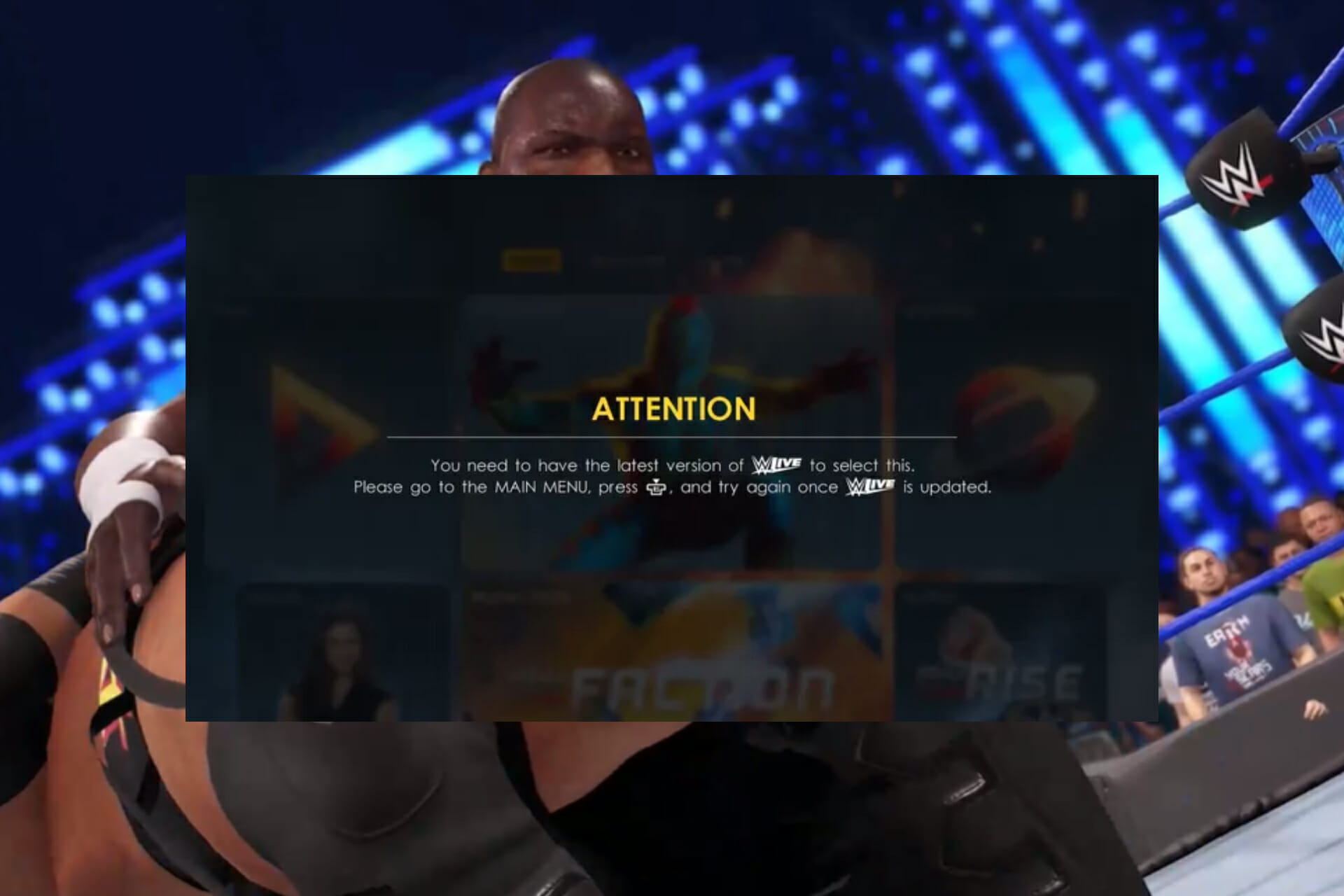
Issues related to the WWE 2K22 update could make a player switch from loving the game to being annoyed. Some gamers have experienced the errors with messages like You need to have the latest version of WWE Live error.

Meanwhile, lovers of the game across the world after a long time wait and doubt on whether there is going to be a WWE 2K22 or not are still giving it fantastic reviews. Unfortunately, problems with the WWE 2K22 don’t disappear with positive ratings.

Considering the fact that it is recently launched, gamers can cut the developers some slack while they work tirelessly to fix different bugs at their end. Meanwhile, you don’t have to wait till patches are released before you can enjoy the game on Steam.

Tag along as we highlight the various issues popular among players and how you can resolve them with ease.

Why does WWE 2K22 keep crashing?

The reason for the WWW 2K22 crash varies and it is peculiar to each player. This simply means the trigger on a computer may be different from that of another. Below are some of the things that could result in WWE 2K22 crashing:

  • Unnecessary background tasks – These apps can consume a considerable amount of the computer’s resources making it difficult for the game to function.
  • Windows firewall interference – Sometimes, your PC antimalware could sense the game as a virus. This is called false positive and would interfere with the game operations; the reason WWE 2K22 keeps crashing.
  • Issues with DirectX – This software is designed by Microsoft to handle executions related to rendering graphics, 3D gaming, and other multimedia experiences. Different games require a specific version of it to function. WWW 2K22 may crash if you have an outdated version of the DirectX installed.
  • Virus – Generally, games on a PC may generate an error or crash halfway into play when the computer is infected by a virus. An outdated antivirus might have exposed the system. This can be easily fixed using any reputable antivirus software.
  • Outdated drivers – Drivers are like the middlemen between your computer and peripheral hardware. Graphic drivers control the graphic cards. The game may crash if the drivers are outdated.
  • Microsoft Visual C++ Redistributables errors – Playing WWE 2K22 on Stream requires files from the Visual C++ Redistributable, a Dynamic Link Library (DLL). When any of the required files are missing or the DLL is corrupted, it could result in WWE 2K22 not working.
  • System Requirements – The WWE 2K22 is designed to operate on Windows 10 and above, with free space up to 60GB among other requirements. It would continually crash if your PC lacks the specified resources.

What can I do if WWE 2K22 update is not working?

1. Check server status

  • WWE 2K22 is a new game, so it is forgivable if its server is down. Virtually all games are prone to experience such issues.
  • When the server is down, you will be unable to connect and play. To check the server status, take a look at the developer’s social media handles for possible updates or visit your favorite gaming forum. Players are likely to be commenting about it.

2. Restart the game

This is recommended before trying a more sophisticated fix for the issue. You might be facing it because of a slight bug. Restarting the WWE 2K22 or restarting the system itself may be able to fix it.

Some users have testified to its effectiveness. It may also be able to fix server errors especially if it is peculiar to you.

3. Close unnecessary background tasks

  1. Press Ctrl + Shift + Esc to open Task Manager.
  2. Right-click on any task you want to close.
  3. Choose End task.
    Task Manager

This method allows the computer to provide additional resources for the 2K22 optimal operation. We recommend excepting certain programs such as antimalware to avoid exposing your system to attack.

4. Check system requirements

  1. Go through the system requirements stipulated by 2k, the manufacturer of the WWE 2K22 game.
    System requirements
  2. Tap Windows key + E to open Windows Explorer.
  3. Right-click on This PC. After this, select Properties.
  4. Check and compare the displayed properties.
    System About
  5. Tap Ctrl + R to open Run.
    Run empty
  6. Type the command below into the Open box:
    dxdiag
    Command
  7. When the DirectX Diagnostic Tool asks Do you want to check if your drivers are digitally signed?, pick Yes.
    Diagnostic Tool
  8. See the DirectX version and compare with the minimum version stipulated for WWE 2K22.
    DirectX Version

5. Verify the integrity of the game files

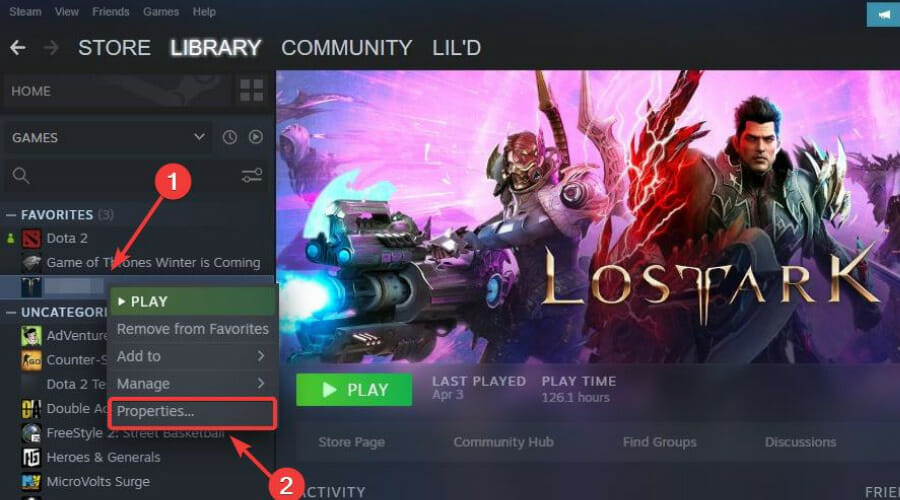
  1. Open Steam. Go to the Library section.
    Steam
  2. Find WWE 2K22. Right-click on it to select Properties.
    Properties WWE 2K22
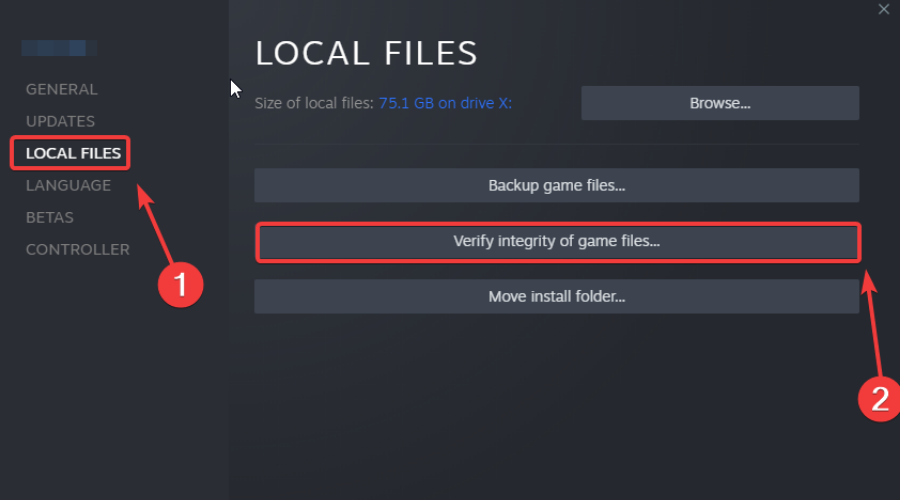
  3. Select Local files in the left Window pane.
  4. Pick Verify Integrity of game files…
  5. Wait for the process to complete. After that, restart your PC.

6. Update DirectX to a compatible version

  1. Open Settings by pressing Windows key + I.
  2. Choose Windows Update. Click on Check for Updates.
  3. Select Download now if any update is available.
  4. After this, restart your PC to install the update(s).

7. Update graphic drivers

  1. Press Windows key + R to open Run.
  2. Type the command below and press Enter:
    devmgmt.msc
    devmgt
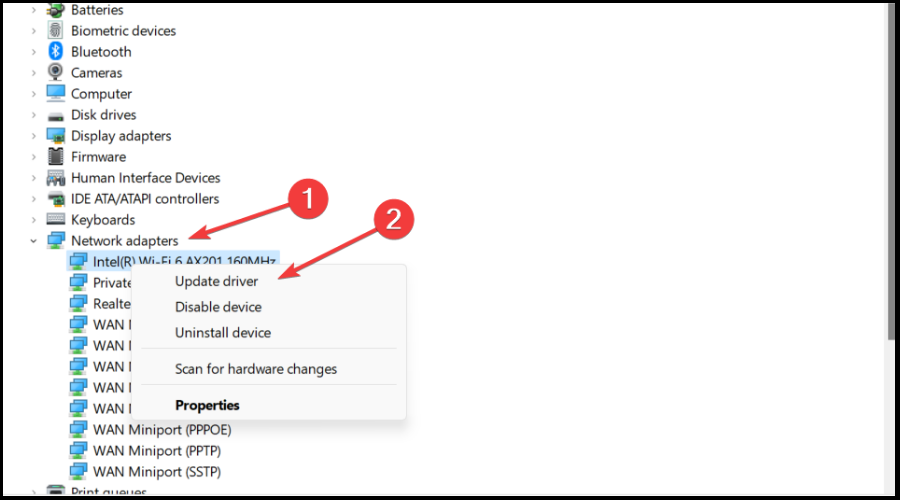
  3. Click on the drop-down arrow beside Display adapters. Right-click on the GPU driver, then choose Update driver.
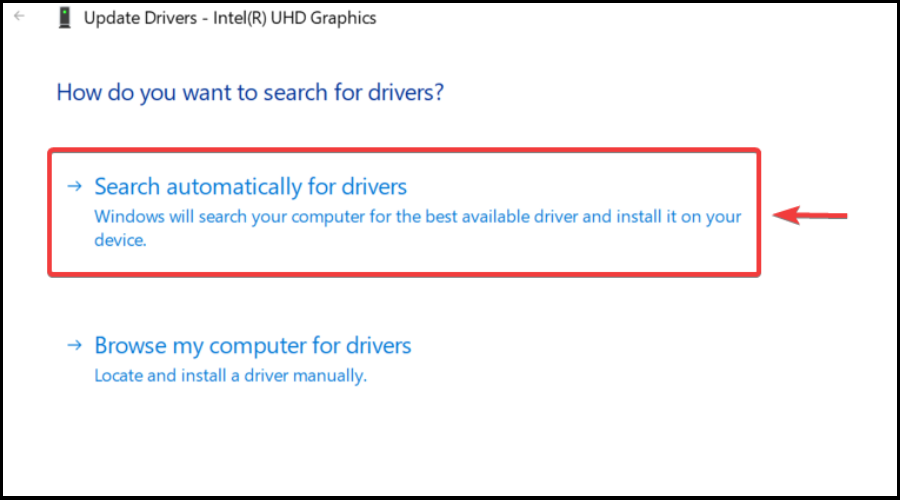
  4. Pick Search automatically for drivers.
    Search drivers
  5. The system will automatically download driver updates if available. After this, restart the PC to effect the changes.

8. Uninstall and reinstall the game

  1. Open the Quick Link Menu by tapping Windows key + X.
  2. Choose Settings.
  3. Click on Apps, then go to Apps & Features.
  4. Scroll or type WWE 2K22 in the Search apps box to locate the game.
    Search 2K22
  5. Select the three-dot beside the app then choose Uninstall.

Additionally, you have CCleaner optimizing software that is capable to remove any applications with all their temporary files or residual files. This way, you can efficiently reinstall WWE 2K22 gameplay on your PC.

That is if for now. While some lags in the game can only be fixed with future patches released by 2K, issues related to WWE 2K22 update not working can be fixed using any of the methods discussed above.

Gamers are always in search of answers on how to fix WWE 2K22 when it won’t start. There are also comments on 2K’s support replying too late almost a month after the message was sent.

While 2K may delay response, we will always try our best to provide easy fixes for most of your problems. Feel free to comment below about your experience trying the tips in this article.

Toxic management culture alive and well at Microsoft, says damning Business Insider report

A new report published today at Business Insider details a “widespread pattern of executive misconduct,” years after then new CEO Satya Nadella vowed to overhaul the company’s toxic culture.

The report details allegations against three Microsoft executives or former executives: Alex Kipman, head of the HoloLens effort at Microsoft, former head of Windows Terry Myerson, and Tom Keane, an Azure executive who directed the $10 billion deal with the US Department of Defense. It also reveals an aversion to conflict by CEO Nadella, with a former executive Business Insider talked to characterizing Nadella’s approach as “(w)hat’s something we can do to make it go away without making hard decisions?”

In the report, BI details an incident with Kipman where in a management session that included women, the HoloLens exec demoed a Mixed Reality program in VR, watching on his headset as the others in the room saw what he saw on a nearby monitor:

In the video that filled the screen, several young women in skimpy clothing frolicked on a bed; an overtly sexualized pillow fight ensued. An employee who was present, speaking with Insider later, described the scene as “VR porn.” The assembled staffers exchanged confused glances, and a couple of them walked out.

Kipman remains in his job, even after multiple other complaints of “inappropriate touching and comments.”

For Terry Myerson, the complaints revolved around his abusive and belittling behavior:

But employees told Insider that there was a dark side to his tenure. A person who worked directly for Myerson for years said he was known throughout his career for “abusing, berating, and belittling” employees. Another person who worked closely with Myerson described him as “bullying, extremely abusive, angry.”

Myerson enjoyed a protected status at the company for years, insiders said. But shortly before he left the company in early 2018, he “had a complete meltdown” backstage at a Microsoft event, according to a person who witnessed the incident. “He yelled at everyone and proceeded to berate them in a very public forum.”

Myerson left the company shortly afterward, leaving on “great terms,” but BI talked to three people familiar with the meltdown saying it “played a major role” in his departure.

The report goes on to detail the abusive behavior of another “golden boy” executive at Microsoft, Tom Keane, who reportedly “cut people down to pieces” for years:

“I’ve seen him reduce people to tears,” the former executive said.

Two insiders say Keane earned the nickname “King Tom” because employees were expected to be at his “beck and call” and obey him without question, or suffer his wrath. “People have to say the right thing and kiss the ring for King Tom,” one said.

Keane took an unexplained 30 day hiatus this January, and was reassigned a “special projects” role, but he still oversees hundreds of people, according to the report.

Microsoft is in the “beginning of the middle” of negotiations to complete a $68 billion acquisition of Activision Blizzard, a company with a reputation for an even more toxic culture. Some Microsoft employees have voiced dismay over the company’s attempt to absorb the problems at Activision: “We can’t even take care of our own house,” one Microsoft employee told Insider. “And now we just bought one in worse condition.”

Part of the terms of the deal with Activision initially said that CEO Bobby Kotick would assume a role at Microsoft, but a recent filing by Activision now says that his employment at Microsoft hasn’t been finalized.

Microsoft has a lot of work to do to both address the problems detailed by Business Insider and those stemming from a look the other way culture led by Nadella, especially with the scrutiny that the Activision acquisition is sure to bring.

What Batteries do Xbox Controllers Use? [Tips for Gamers]

If you are just getting started with Xbox, you may want to know, what batteries do Xbox controllers use?

Xbox offers two different options for batteries to use with its wireless controller, including the AA (LR6) batteries or the rechargeable batteries.

Having said that, there are different types of Xbox controllers, and Microsoft offers only wireless ones.

Post the launch of Xbox One, Microsoft released an impressive range of Xbox One controllers.

By default, the Xbox controller is compatible with Windows 10 and Windows 11. Best of all, it also works with iOS, albeit, only on Bluetooth.

Moreover, with Android devices, it connects only on Bluetooth on version 5.1.1 or later. For more options, read our detailed guide on the best gaming controllers for a perfect play.

Here’s a quick list of all the controllers, after which we will address the query on what batteries Xbox controllers use.

Different types of Xbox controllers and cross-compatibility

Xbox ControllerFeaturesCompatibilityBattery
Xbox Elite Wireless Controller Series 2 – Halo Infinite Limited EditionMicrosoft Xbox controller, with three discrete settings; adjustable-tension thumbsticks; wrap-around rubberized diamond grip; 3 custom profiles and 1 default profile; haptic feedbackXbox Series X
Xbox One
Windows 10 PCs

Internal, rechargeable battery with up to 40 hours of battery life per charge.
PowerA Enhanced Wired Controller for Xbox OneTwo advanced gaming buttons; intuitive button layout for comfort and control; Dual rumble motors; dedicated share button
Xbox Series X, Xbox One, Windows 10, Android, and iOS

No batteries needed
Xbox Wireless Controller – Electric VoltHybrid D-pad, textured grip on the triggers, bumpers, and back-case; dedicated share button; easy switch between devices.Xbox Series X, Xbox Series S, Xbox One, Windows 10, Android, and iOS
AA batteries for up to 40 hours of battery life
MOGA XP5-X Plus Bluetooth ControllerPlay Xbox games from the cloud; integrated power bank; optimally balanced phone clipAndroid phone and tablet (Marshmallow 6.0 or newer) or Windows 10/11 laptop/PCInternal 3000mAh rechargeable battery
8BitDo SN30 ProPrecision software; Bluetooth; Xbox mobile gaming clip for SN30 Pro
All Android devices, smartphones, or tablets
18-hour rechargeable battery
Razer Wolverine UltimateThis controller by Razer, offers interchangeable thumbsticks and two interchangeable D-Pads; extra buttons for advanced gaming; remapping function; lighting effects, and morePC, Xbox One, Xbox Series X & SNo batteries required
Turtle Beach Recon ControllerThe Turtle Xbox controller allows easy access to audio controls; vibration feedback; ergonomic cooling grips; two mappable quick-action buttonsXbox Series X|S, Xbox One, and Windows 10No batteries required
Hyperkin Duke Wired ControllerHyperkin offers an original Xbox animated startup screen; vibration feedback; classic X, B, A, Y, LT, RT, Black (RB), and White (LB) button layout Xbox One/ Windows 10 PCNo batteries needed

The above list is created based on how comfortable is the layout, grip, and control for the gamer, and if they are compatible with major platforms.

This list consists of some of the best Xbox controllers, whether Microsoft patented, Microsoft licensed, or from a 3rd party.

You can make your pick based on whether you want a wired or wireless option, with or without batteries.

What batteries can I use in my Xbox controller?

While the Xbox controller is shipped with a pack of AA Duracell batteries, you can also use rechargeable batteries.

However, the rechargeable batteries must be bought separately.

So, if you are wondering what batteries Xbox series X controllers use, it’s the same battery for all.

You can use AA batteries and rechargeable batteries from any brand, charging solutions (preferred from partners), or a USB-C cable.

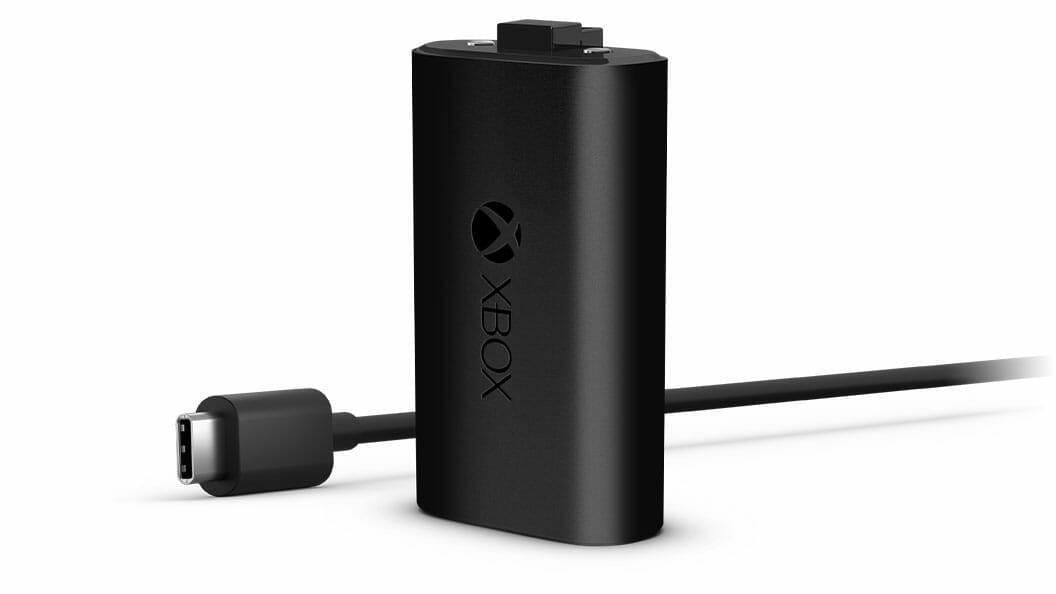
The battery pack that’s shipped with the Xbox controller, comes with the Xbox One Play And Charge Kit. It can be recharged using virtually any Micro-USB.

Therefore, you can power the Xbox controller using the USB connection to your console. This will transform the device into a wired controller.

Can you use regular AA batteries in Xbox One controller?

Can you use regular AA batteries in Xbox One controller

Yes, you can use the AA batteries and the rechargeable batteries from any brand.

They can be disposable AA batteries, rechargeable AA batteries, rechargeable battery packs, or you can use a wired connection to a console or USB port.

If you want to use the AA batteries outside the Play & Charge kit battery pack, look for the LR6 designation for alkaline batteries. These are the best batteries for Xbox one controller.

How do you use AAA batteries in Xbox One controller?

You must place them with their positive (+) and negative (–) ends positioned in the manner, as indicated in the battery compartment.

You have to charge these rechargeable batteries separately as they do not charge in the controller. Follow the manufacturer’s instructions to recharge the batteries.

Why do Xbox controllers use AA batteries?

Xbox controllers use AA batteries because it allows you to pick what power option to use, contrary to their competitors who offer only rechargeable batteries in their controllers. 

Also, the use of batteries ensures longer shelf life for the controller, as these can be easily replaced while internal cell units used by competitors, tend to wear out soon.

How long do the Xbox controller batteries last?

If you are using the rechargeable batteries for the Xbox controller, it will stop charging as soon you remove the battery pack.

This is because it’s the battery pack that gets recharged and not the controller itself.

However, there will be a point when you would need to replace the AA cells so you can continue gaming with the same energy efficiency.

How to charge the Xbox One controller without batteries?

You can charge the controller using the USB cable connected to the Xbox console.

That is to say, the controller will stay powered till the time the USB cable is plugged into your Xbox. Nevertheless, the controller will power off, as soon as it’s unplugged.

The rechargeable battery offered by Microsoft is a 1,310mAh lithium-ion cell which belongs to the premium category.

According to the company, unlike the cheaper alternatives, their rechargeable battery is fully charged in less than four hours.

The Xbox controllers are known for their comfortable triggers and analog sticks, alongside a design that allows you to play games for weeks without having to change your batteries.

Therefore, you can continue with your favorite game without worrying about the Xbox controller battery life.

If you want to buy batteries from a 3rd party manufacturer, look for the ones matching the required size, and specifications to ensure the best performance out of your Xbox controller.

But, if you come across a problem like the Xbox One wireless controller doesn’t work, do not hesitate to refer to our detailed guide on this.

If you have any other suggestions for the Xbox controller batteries, do let us know in the comments box below.

How to sync Outlook and Google Calendar and why it’s important not to confuse either

Updated December 26, 2022.

Did you know that it’s possible to sync Outlook and Google Calendar? If you’re using someone who uses both Outlook and Google Calendar for keeping track of your meetings, we highly recommend you make some necessary changes.

While the use of different features and UI does provide some variation, it’s easy to mix things up. Follow this guide to learn how.

Sync Outlook and Google Calendar

There are two ways to sync both calendars. First off, you can try to sync your Google Calendar to Outlook. Or, alternatively, you can sync Outlook to Google Calendar.

Let’s first take a look at how you can sync your Google Calendar and Outlook.

  1. First, head to Google Calendar and log in.
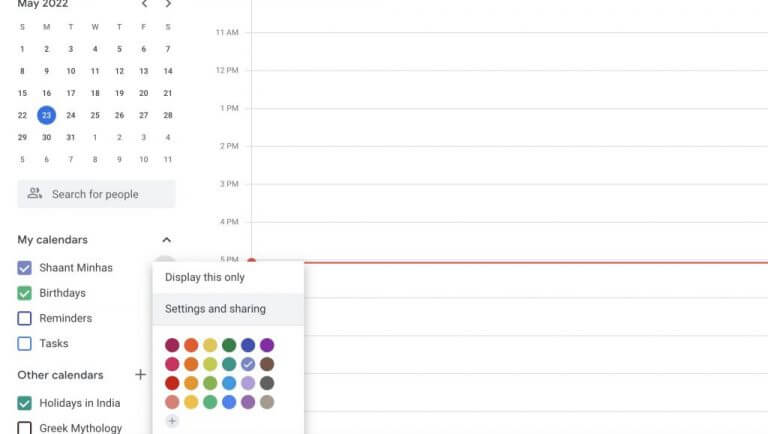
  2. sync Outlook and GoogleThen, in the My calendars section, click on the three dots in front of the calendar you want to sync.
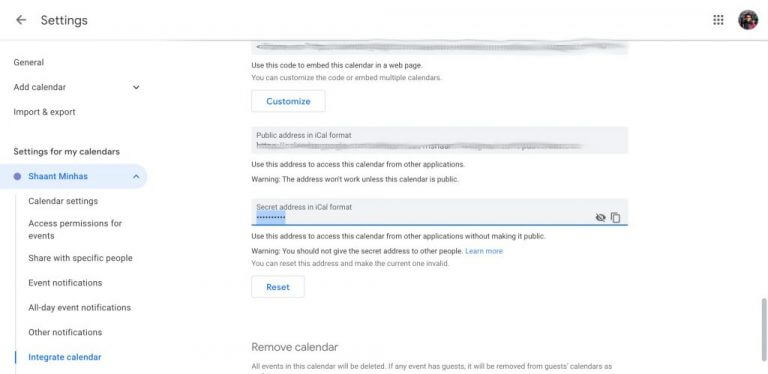
  3. Select Settings and Sharing.
  4. On the next screen, click on Integrate calendar from the left panel.
  5. Copy the URL address under the Secret address in iCal format.

sync outlook and google
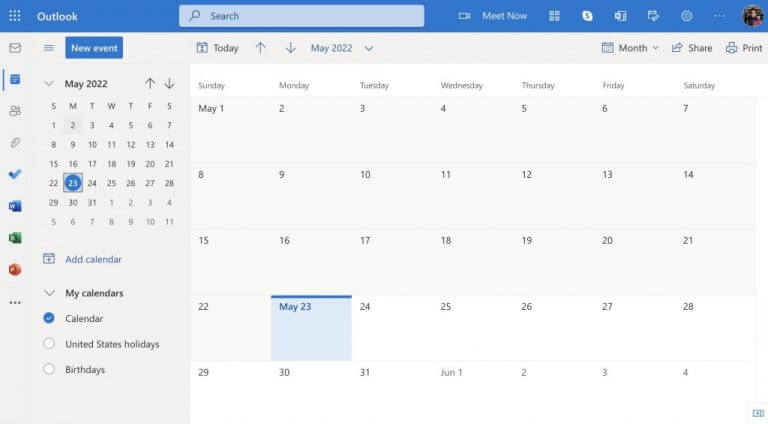
Now, head to your Outlook Calendar account, log in, and follow the steps below:

  1. From the left-hand side, click on Calendar.sync Outlook and Google
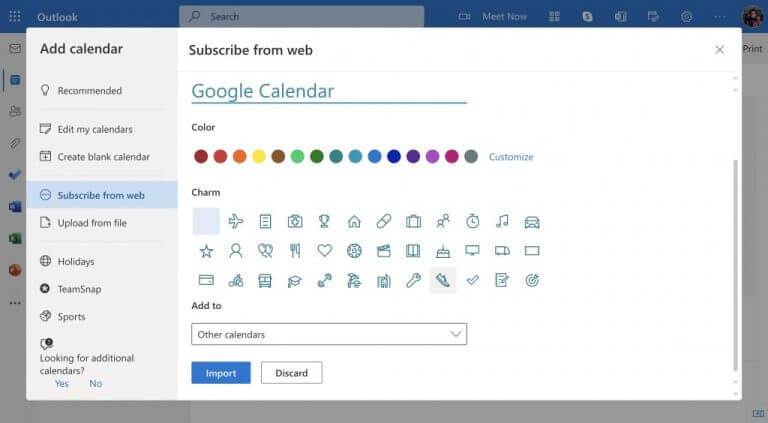
  2. Click on the Add Calendar, and select Subscribe from web.sync Outlook and Google
  3. There, paste the URL link you copied from earlier, type in a Calendar name, and click on Import.

That’s it. Do this and your Google Calendar will be synced into the Outlook Calendar.

Sync Google and Outlook

Interestingly, you can also flip around the process, i.e., sync your Outlook Calendar with the Google Calendar. Here’s how.

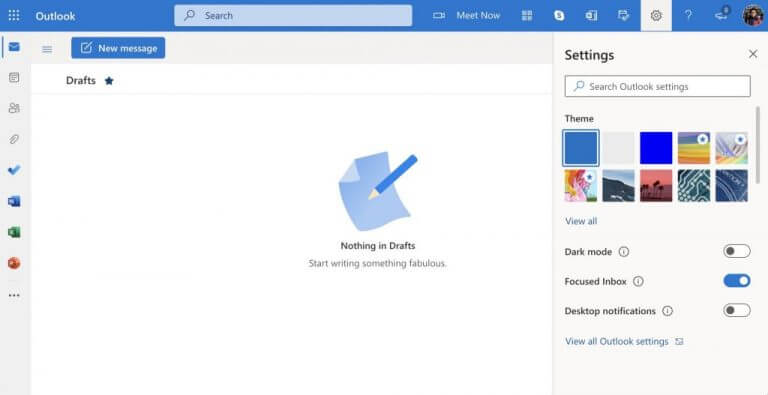
  1. Go to Outlook.com and log in to your account.
  2. There, click on the Settings option.
  3. From there, click on View all Outlook settings at the bottom.sync Outlook and Google
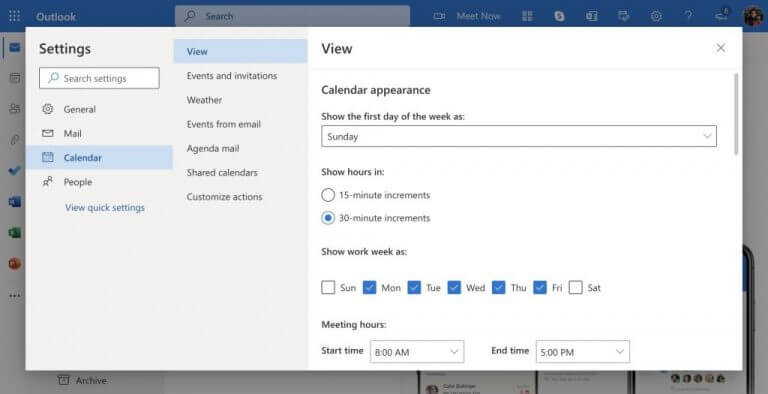
  4. On the next menu, click on Calendar.sync Outlook and Google
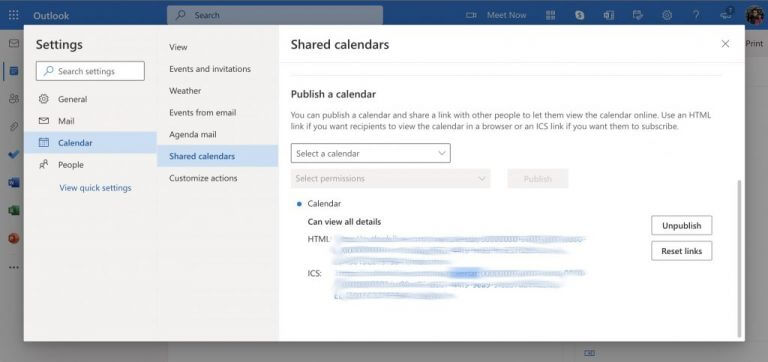
  5. Click on Shared Calendar from there.
    sync Outlook and Google
  6. Scroll down to Publish a calendar, select drop-down menu and select Calendar.
  7. In Select permissions and click on Can view all details.
  8. Finally, click Publish.

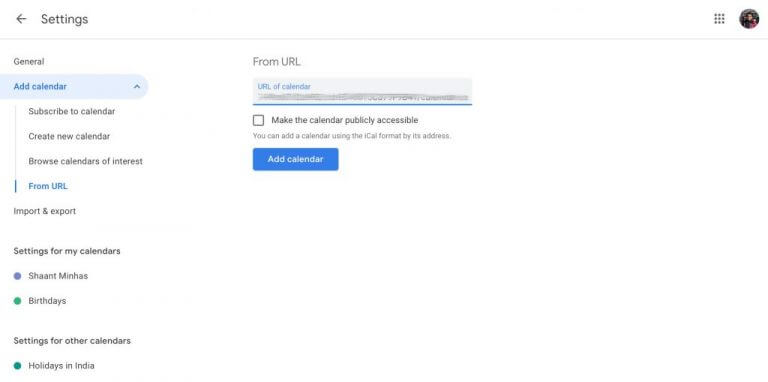
Now, copy the ICS link and head to Google Calendar. In the Google Calendar menu, click on the Plus symbol in front of the Other calendars. From there, select From URL.
Paste the ISC URL you copied earlier from Outlook, and click on Add Calendar.
sync Outlook and Google

And that’s all. Your Outlook Calendar will get synced with your Google Calendar. To delete the Calendar, simply click on the cross symbol (X) in front of your Outlook Calendar and it will be deleted.

Sync Outlook and Google, and vice versa

As you can see, the whole process of syncing two calendars is super easy. All you’ve to do is go to the individual calendars for both services, copy the ICS links to the appropriate calendars and paste them in the Calendar option of the respective calendars, and you’re done!

What does BC010 Mean? 5 Quick Fixes to Finally Log in

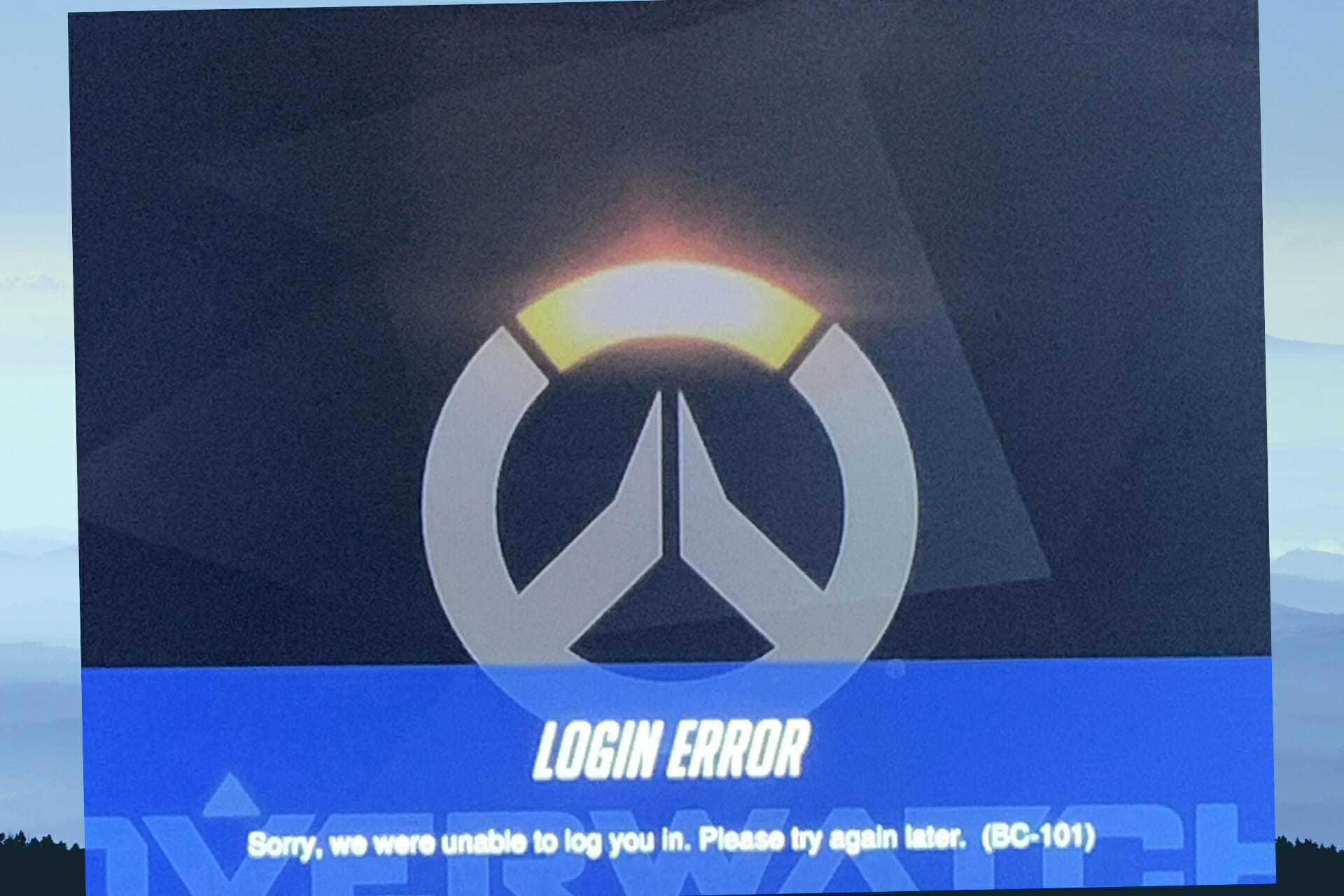
Also known as broken connection, the Overwatch login error bc-101 appears when a player tries to log in to their account after launching Overwatch.

This error signals that the client has failed to connect to the server, and thus results in an inaccessible profile.

Why can’t I connect to Overwatch servers?

The majority of user complaints have come from Play station 4 and Xbox console players. The main cause of this problem is server connectivity issues.

As always, connectivity issues can be caused by a variety of factors, with the possibility of being an internal error on your device, or simply an issue with the company’s servers.

Another similar connection error that is also common to overwatch is Overwatch lost connection to the game server.

While it can be quite frustrating to encounter such an error, knowing how to troubleshoot it can be helpful. Hence, the following fixes are the best solutions for Overwatch login error BC-101.

How can I fix the Overwatch BC-101 error code?

1. Disconnect the AC adapter

  1. Completely disconnect your device’s power source.
  2. Unplug every external gadget plugged into it.
  3. After a few minutes, plug your device back into a power source and turn it on.

It is possible that you have overworked your device or there’s been a workload on it. So, giving it time to rest will help it work better and sync faster. It should easily solve the problem.

This process is similar to rebooting but it goes deeper by making your ps4 or Xbox free of external devices.

2. Test the Internet connection

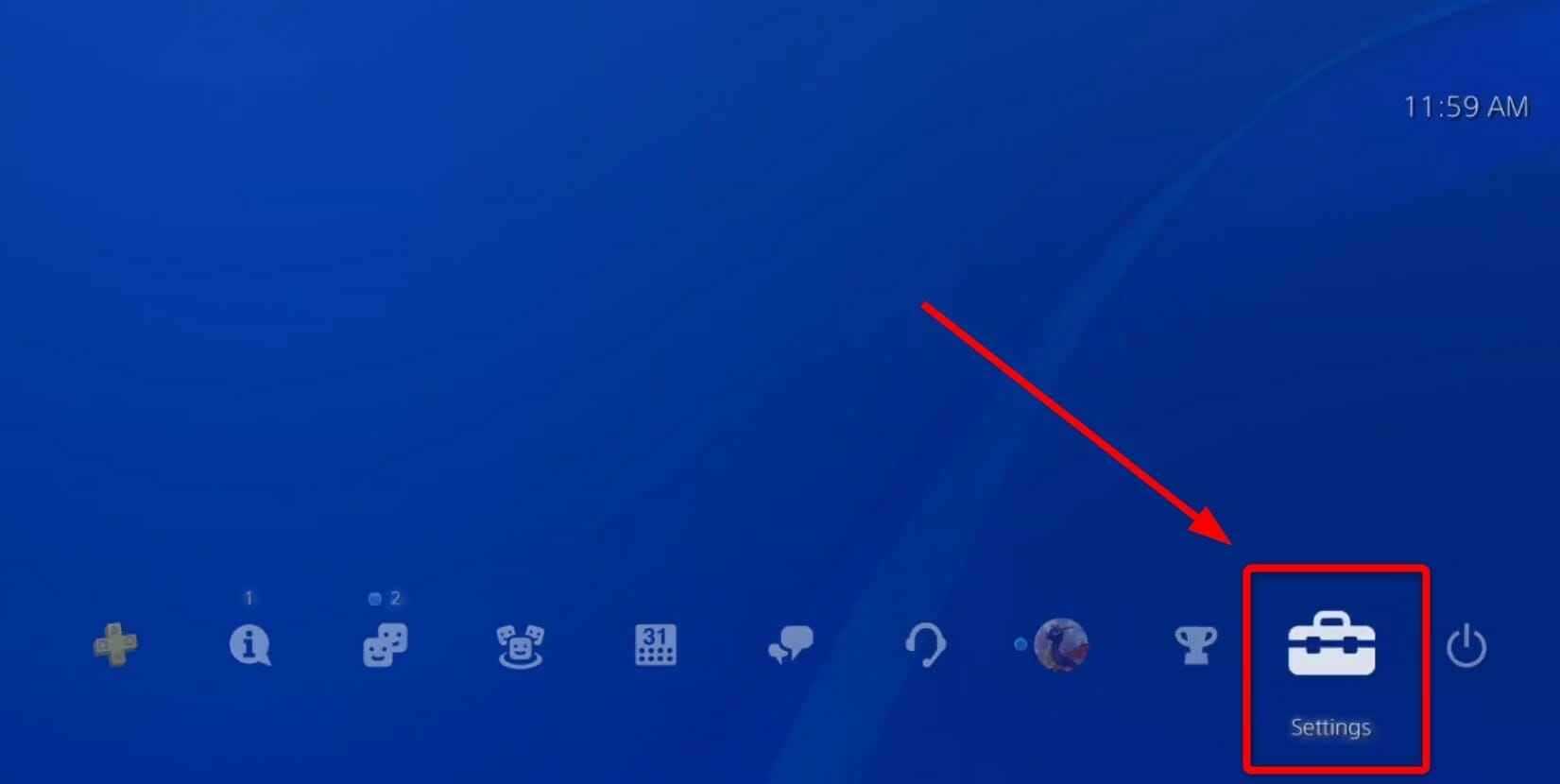
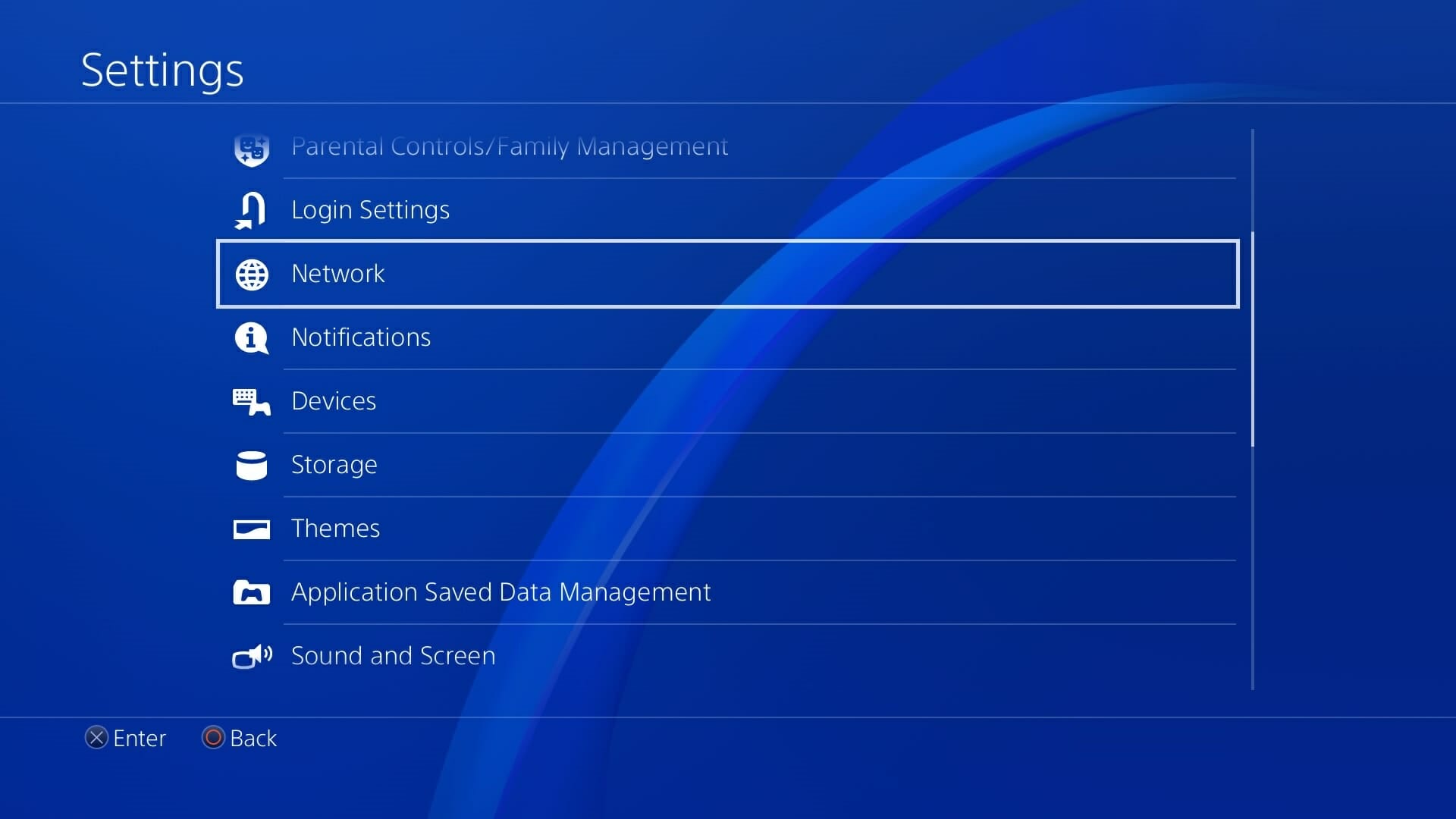
  1. Go to Settings.
  2. Select Network.
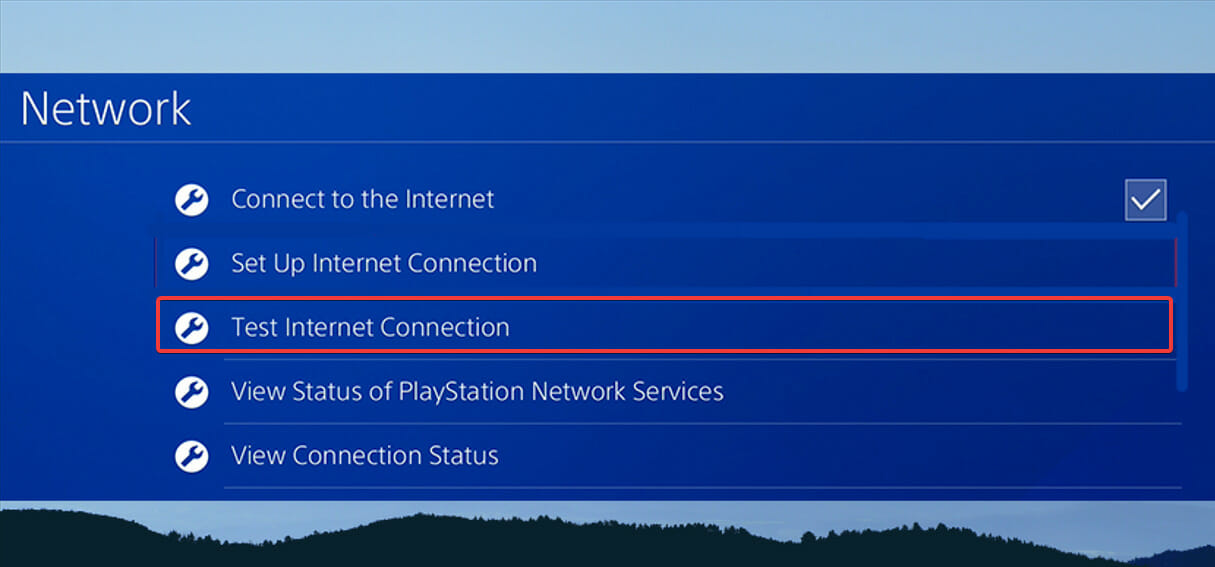
  3. Click the Test internet connection option.

Checking the state of your internet connection will help you detect if there are any issues with it. These connection issues can be the cause of Overwatch login error bc-101.

Especially, if your connection is wireless, it could be prone to interference by different gadgets or some other devices. Thus, causing a broken connection while trying to play Overwatch. So, it is advisable to switch to a wired connection.

3. Reset the time and date on the console

➡ PS4

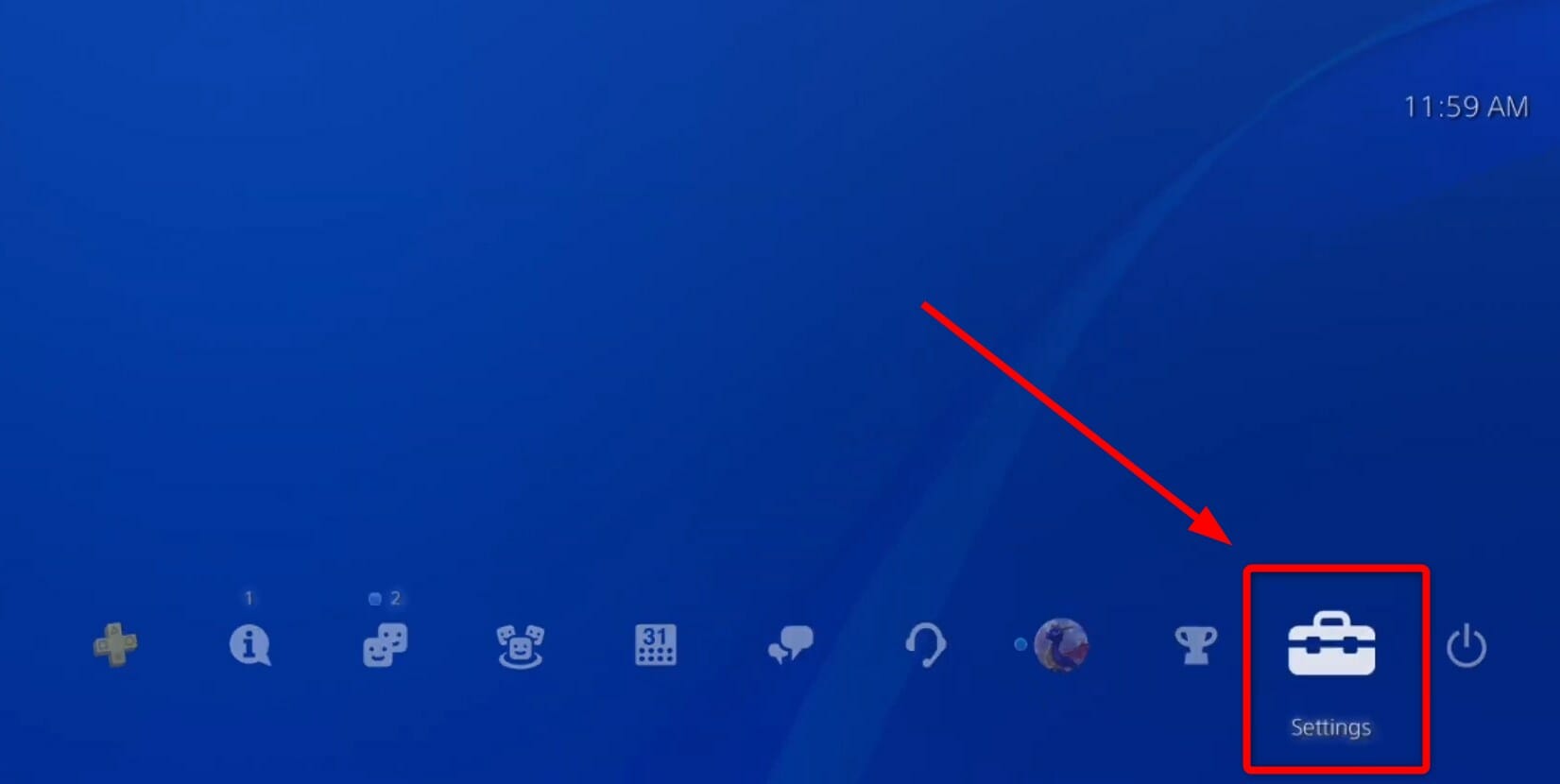
  1. Go to settings from the Home Menu.
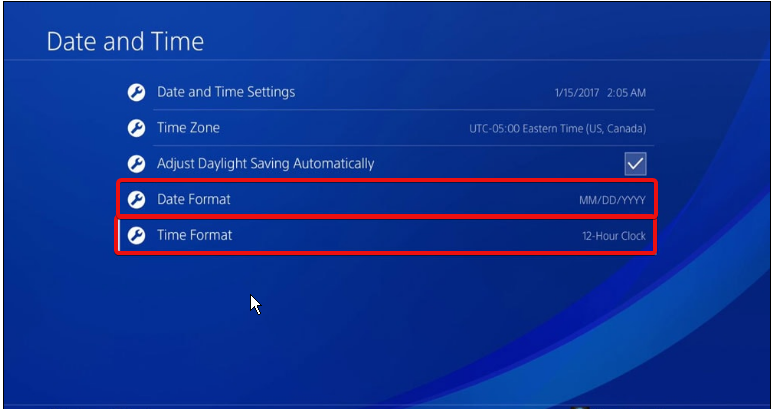
  2. Tap on the date and time.
  3. Disable auto-update time and date.
  4. Set the correct time zone, month, day, year, and time.
  5. Reboot your ps4 and see if the changes made had any positive impact.

➡ Xbox

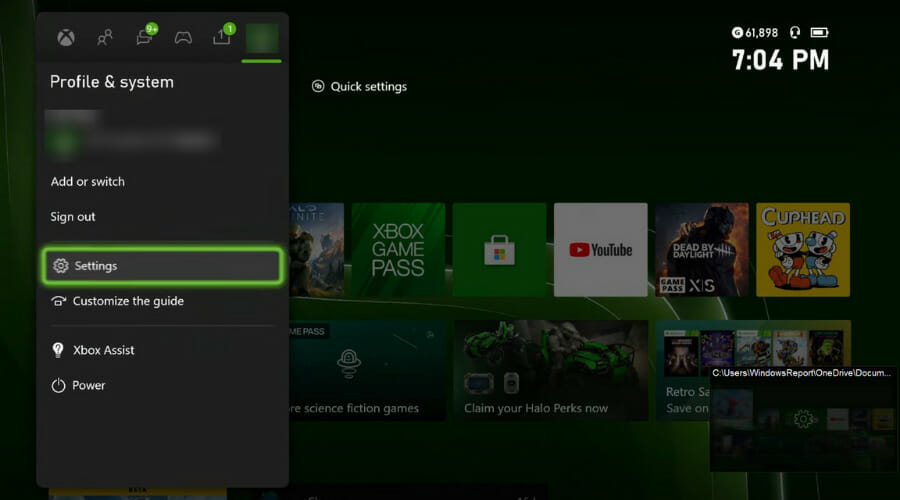
  1. Select settings from the Home Screen.
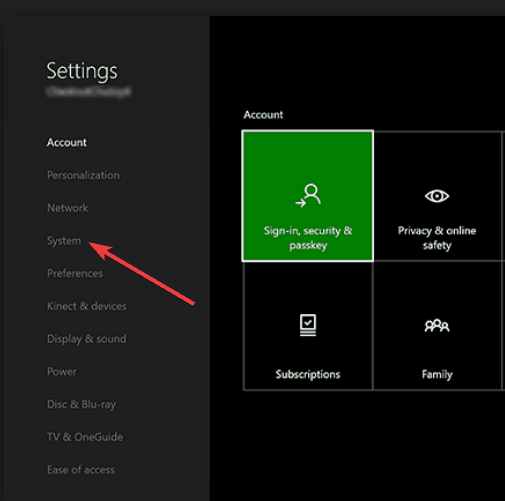
  2. In the left-pane menu of settings, choose a system.xbox one system settings
  3. Select the time menu.
  4. Change auto settings for time and date.
  5. Save and reboot.

It has been confirmed by some ps4 owners that resetting the time and date of your device can help fix Overwatch login error bc-101.

4. Delete conflicting apps like Overwatch Beta

It’s been reported by some gamers that installing overwatch while having Overwatch beta on your device can cause an Overwatch login error bc-101.

This means that these two app versions (Overwatch and Overwatch Beta) are not suitable for being installed together on a device. Uninstalling Overwatch Beta should fix the error problem.

5. Factory reset your device

  1. Go to the settings icon in the menu.
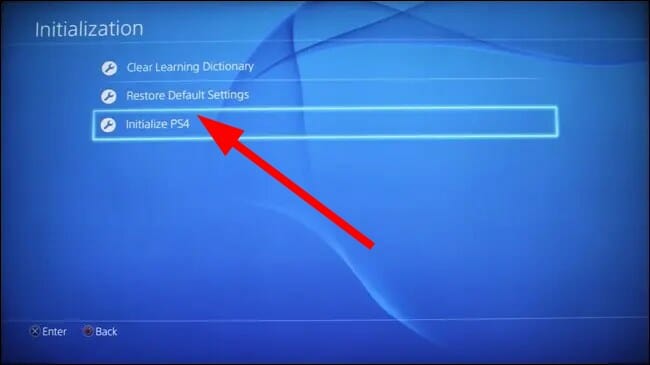
  2. Tap the initialization menu and press the X button.
  3. Select initialize ps4, then press the X button
  4. Choose the full option to reset settings, apps, and data.
  5. Press X when a confirmation menu pops up to confirm the factory reset process.
  6. After the reset procedure is done, reinstall your game

Trying some of these fixes should solve the problem of overwatch login error bc-101. Try all the fixes here till you see the one that works for you.

Meanwhile, performing a factory reset in your console should be the last option when all has failed. The reason is that you will lose all data and have to install your games all over again.

Knowing how to troubleshoot overwatch will help you fix other related issues that you are likely to encounter like Overwatch black screen on launch / while playing.

Some Xbox console owners got an extra Games With Gold title this month

Xbox console owners with an active Xbox Live Gold subscription have apparently been given an extra title this week as part of May’s free Games With Gold video games.

The game in question is Orcs Must Die which originally came out on the Xbox 360 console back in 2011 and is now playable on both Xbox One and Xbox Series X console generations via backwards compatibility.

It seems as if this random addition to Games With Gold is available in the US and UK though other countries, such as Australia, are just seeing it as being for sale like usual. You can check to see if Orcs Must Die is free for you by checking out its product listing here on the Xbox website.

Is Orcs Must Die showing up as free for you? If so, what region are you in? Let us know in the comments below.

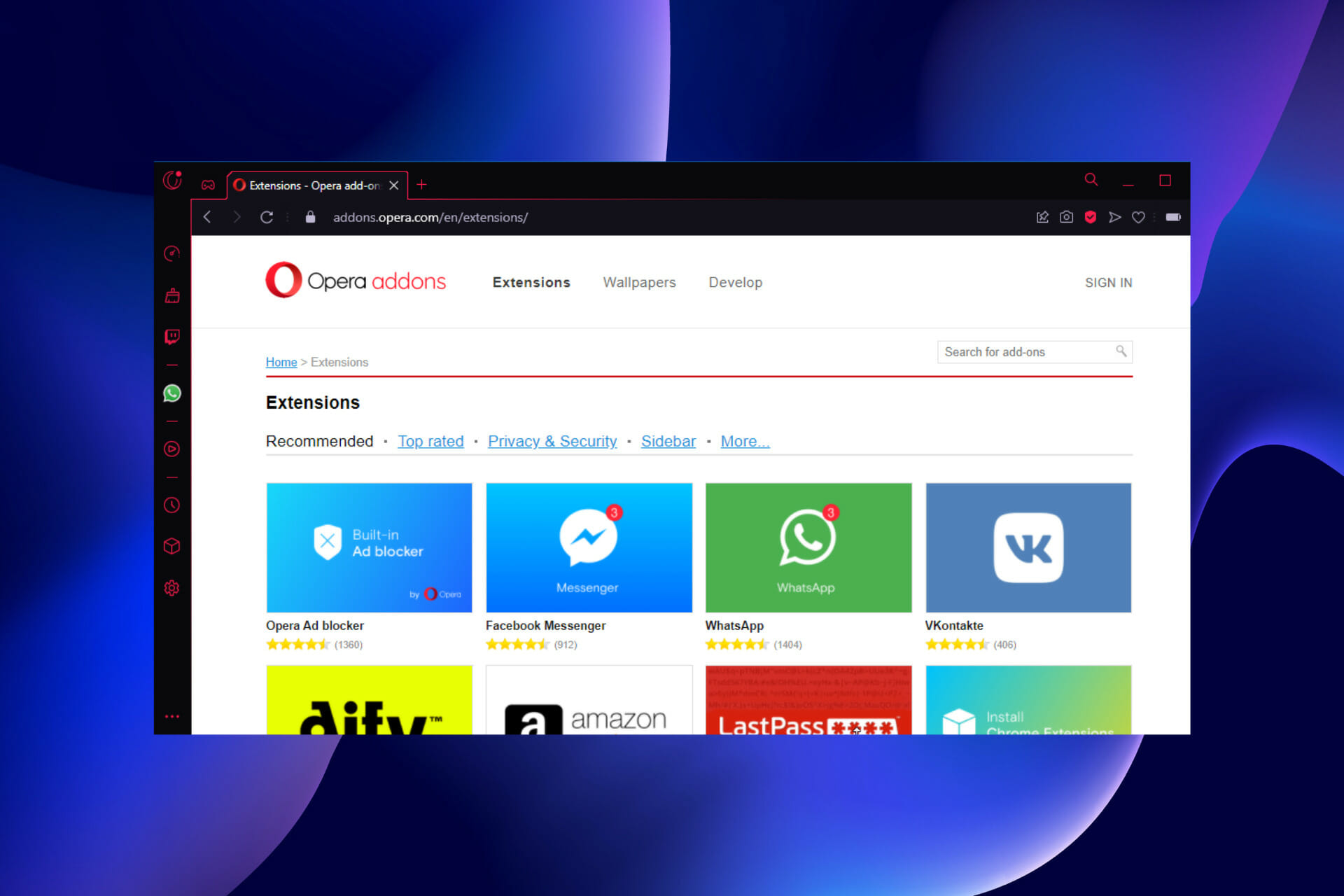
10 Best Opera GX Extensions: VPN, Adblockers, Web Clippers & More

With the best extensions, you can transform Opera GX in your go-to browser not only for gaming but also for streaming and even task management.

Today, we’ll show you the best options that’ll power up your browser. From VPNs, adblockers, and web clippers, to productivity tools, you can find all you need to build a strong arsenal.

What are the best extensions for Opera GX?

1. Opera Free VPN – Best Opera GX VPN extension

opera gx vpn extension

Opera VPN is the free, built-in virtual private network on Opera GX. It allows you to browse the internet with a virtual IP address that hides your location.

With it, you can access location-restricted content without being noticed. It also protects you from identity and data theft online. No wonder it is regarded as one of the best browser VPNs available.

Other features:

  • No activity login or data collection
  • Does not require any subscription
  • Unlimited access to multiple servers

⇒ Get Opera Free VPN here

2. Opera Ad Blocker – Best ad blocker extension

opera ad blocker

This is the built-in ad blocker extension for Opera GX. It is a privacy-focused and speed-enhancing addon that does not slow down your PC.

It removes even the most stubborn of ads and banners. As it is already on your Opera GX browser, you only need to enable it in the extension manager to get going.

Other features:

  • Provides the option to whitelist websites
  • Load web pages 90% faster
  • Mobile and desktop compatibility

⇒ Get Opera Ad Blocker

3. SaveFrom.net helper – Free video downloader

save from browser extension

It’s common knowledge that you can’t download videos from YouTube. With this extension enabled on your browser, you can download any YouTube video of different quality.

It is also not limited to YouTube, as you can download videos from sites like Facebook and Instagram. It just ensures no video gets away from you.

Other features:

  • On click download from more than 40 websites
  • Faster download to your device
  • Supports different video, audio, and image files format

⇒ Get SaveFrom.net helper

4. Evernote Web Clipper – Free extension for note-taking

evernote listing in opera addon shop

Don’t want to lose track of anything as you browse? Evernote helps you clip web pages and stay organized.

With this extension, you don’t need to open endless tabs when you don’t want a piece of information to get away from you. It allows you to clip, save, and highlight anything you see online.

Other features:

  • Allows saving brief excerpts or all the contents on a page
  • Clips can be shared
  • Clipped notes reminders

⇒ Get Evernote Web Clipper

5. Google Translate – Multiple language translator‎

google translate add on for opera

When was the last time you left a website because it was written in a foreign language? This addon offers instant translation of web pages or selected parts.

It auto-detects the content on a web page and prompts you to translate it into your preferred language. It is everything you need to communicate with anyone from any part of the world.

Other features:

  • Translates between 100 languages
  • Lock-in preferred language
  • Automatic language detection is optional

⇒ Get Google Translate

6. Pocket – Easy content-saving tool

pocket extension for opera gx

Pocket helps you save contents to be accessed later on the web. You can save everything with this extension from videos and audio to images and social media posts.

What’s more, you can access all your saved content later without an internet connection—all with just a mouse click.

Other features:

  • Saves anything any time
  • Syncs across all your devices
  • Keyboard shortcut

⇒ Get Pocket

7. AtaviBookmark – Easy bookmarks sync

atavi bookmark extension for opera gx

AtaviBookmark is a free Opera GX extension that provides options to customize your bookmarks. It makes the task easy by allowing access to your data on any device after logging in.

What’s more, it is compatible with a host of devices, as it can be used on your smartphone or PC. It just makes bookmarks management super-easy.

Other features:

  • Save bookmarks into groups
  • It works with all popular browsers
  • One login on any browser or device

⇒ Get AtaviBookmark

8. Similar Web – Free tool for complete website data

similar webs extension for opera gx

Want quick data about any website? Install the Similar Web extension on Opera GX, and you’d get more than you asked for.

It shows you the keywords, traffic data, ranking statistics, engagement sources, and info that makes a website. It is one of the best productivity extensions you don’t want to miss out on in Opera GX.

Other features:

  • Access key metrics about websites you visit
  • In-depth analysis of website data
  • Easy to use

⇒ Get Similar Web

9. Web Apps by 123apps – All-in-one file editor

123web app extension for opera gx

Web Apps is a collection of addons for working on different file formats. It allows you to edit videos and audio within your Opera GX browser.

It also offers pdf editing and file conversion from one format to another. All these for free and with little to no stress.

Other features:

  • Video and image conversion
  • Documents and Ebooks editing option
  • Built-in tool to crop, rotate and resize videos

⇒ Get Web Apps by 123apps

10. Search by Image – Effective image finder

search by image extension for opera gx

Search by Image is an easy-to-use extension to conduct image searches on the internet. It helps users verify the authenticity and source of images.

It accesses your search result page and allows you to pick pictures for search from your device. This extension also supports searching for screenshots of web pages.

Other features:

  • Search images from the context menu and your browser toolbar
  • Search images from private sites
  • Different search modes are available

⇒ Get Search by Image

Are Opera GX extensions safe?

Opera extensions are verified by Opera, so they are perfectly safe. To be on the safe side, always use extensions from reliable developers with good ratings.

There you have it: an extensive and in-depth guide on the best Opera GX extensions. These are just extensions from Opera’s store, but you can just as easily install Chrome extensions in Opera.

As for further customization, check our picks for the best themes for the Opera browser.

Feel free to let us know if other worthy mentions just missed out on our list in the comments section below.

Windows 11 Weather in Taskbar: How to Add it in 2 Steps

We all need to check the weather forecasts now and then, right? There are many ways you can check weather details for your location on a Windows 11 PC. Most users will probably look at online forecasts or the Weather app that comes with Windows.

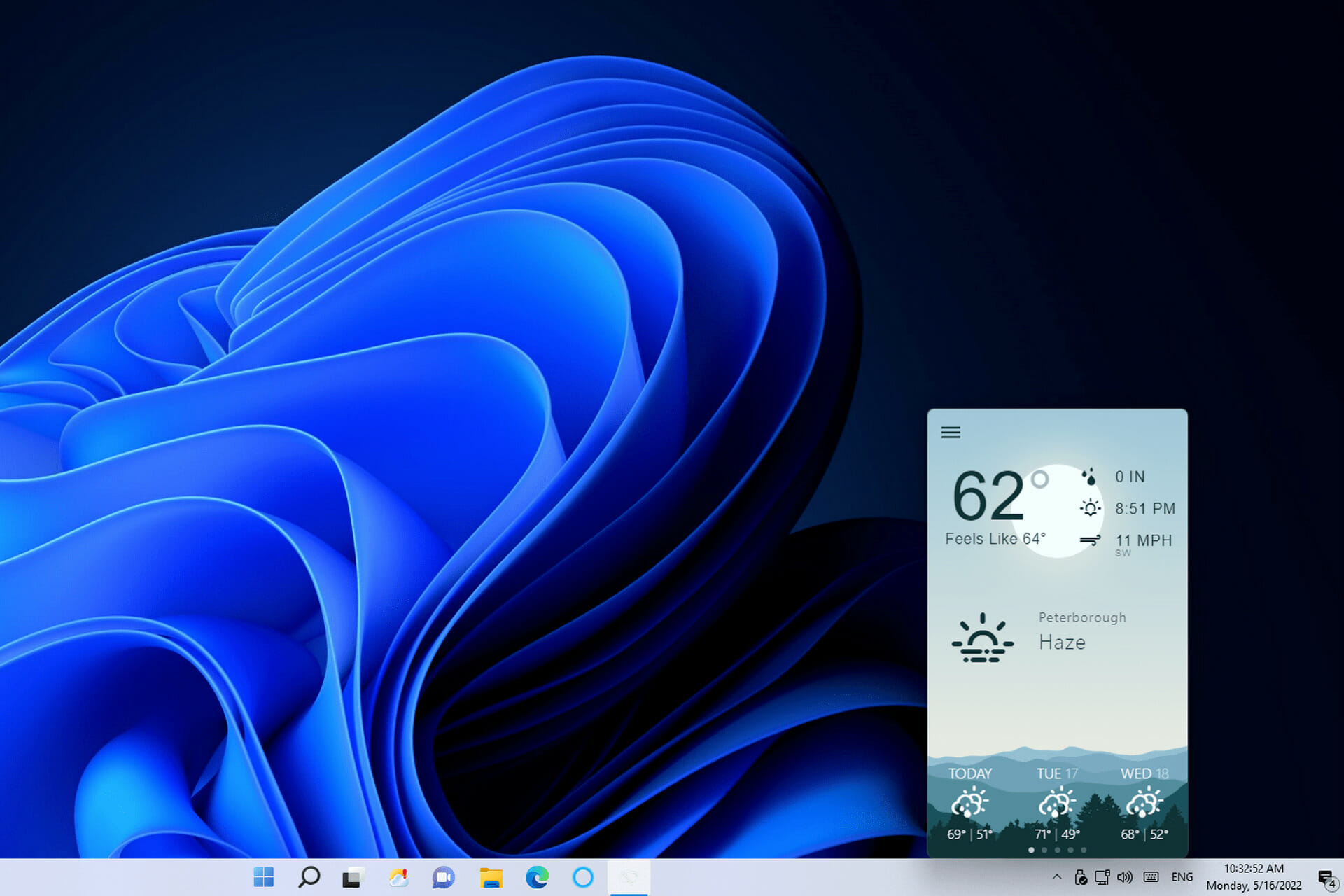
However, you can also add weather details to Windows 11’s taskbar with its Weather widget and the Weather Bar app. By doing so, you’ll be able to view weather info for your location from the taskbar and its system tray area. This is how to add weather info to Windows 11’s taskbar.

How do I get the weather forecast on my taskbar in Windows 11?

1. Enable Windows 11’s Weather widget

  1. First, right-click the Windows 11 desktop to select the Personalize option on its context menu.
  2. Select Taskbar to view the options in the screenshot directly below.
    The Widgets option windows 11 weather in taskbar
  3. Turn on the Widgets option if it’s disabled.
  4. Click the Widgets button on Windows 11’s taskbar.The Widgets button windows 11 weather in taskbar
  5. Select the + Add widgets button shown directly below.
    The Weather app's add button windows 11 weather in taskbar
  6. Then select the Weather widget.

Selecting the Weather widget adds a forecast icon to the taskbar as shown directly below. Hover your cursor over that icon to view weather info for your area. You can view more detailed forecasts for your region by looking at the widget panel.

Weather taskbar icon windows 11 weather in taskbar
Note icon NOTE
Windows 11’s Weather widget won’t show any weather info on the taskbar if your PC hasn’t received the KB5010414 update. You can download and install that update from its Microsoft Update Catalog page. Alternatively, check for new updates via the Windows Update tab in Settings.

2. Add weather details to the system tray

  1. Open the Weather Bar webpage.
  2. Then click the EXE Windows button on that page.
    EXE Windows button windows 11 weather in taskbar
  3. Bring up the folder in which Weather Bug downloaded.
  4. Double-click the win32-weather-bar-1.0.0.exe to install the app.
  5. Then double-click the Weather Bar shortcut that appears on the desktop after installation.
  6. Click the Weather Bar system tray icon to open the app.
  7. Press the Weather App’s hamburger button. 
  8. Select the New Location option.
    New Location option windows 11 weather in taskbar
  9. Then enter your city or town within the search text box. If you don’t live in a city or large town, input your nearest city location.
    Location search box windows 11 weather in taskbar
  10. Now you can hover the cursor over the Weather Bar system tray icon to view further weather info for your geographical area.
    Weather Bar's system tray icon windows 11 weather in taskbar

How do I change the weather language on Windows 11?

You can change the display language of the Weather widget, and others, in Windows 11 by configuring language and region settings. Settings include a Windows display language option with which you can change the language for features. This is how to change the Weather widget’s language in Settings:

  1. Press the Windows + I keyboard key combination to view Settings.
  2. Click Time & language > Language & region in Settings.
    Language & region option windows 11 weather in taskbar
  3. Select the Add & language option.
    Add & language button windows 11 weather in taskbar
  4. Input a language in the search box, and then select the one you want.
    Choose a language to install menu windows 11 weather in taskbar
  5. Click Next and Install to add the language.
  6. Then select the language you just added in the Windows display language drop-down menu.
    Windows display language drop-down menu windows 11 weather in taskbar
  7. Click Sign out to apply the new language settings.

How can I fix the Windows 11 weather in the taskbar not updating?

Some users have said in forum posts that the temperature in Windows 11’s Weather widget not updating. Consequently, that widget always displays the same temperature and weather info (even after restarting Windows). If the same thing happens for your Weather widget, try restarting its process.

  1. Press the Windows + X keyboard keys, and select the Task Manager menu option.
    Task Manager option windows 11 weather in taskbar
  2. Click the Processes tab if it’s not already selected.
  3. Scroll down to and select Windows Widgets.
  4. Press the End task button.
    End task button windows 11 weather in taskbar
  5. Click the Widgets taskbar button to restart the process.

How do I turn off the weather info in Windows 11’s taskbar?

You can turn off the taskbar’s weather info by unpinning the Weather widget. Click the Widgets button to open its panel. Then click the More options button at the top right of the Weather widget to select Unpin widget. The original Widgets button will be restored after restarting Windows.

The Unpin widget option windows 11 weather in taskbar

Both the Weather widget and Weather Bar will display current weather info for your location along the taskbar. You can click their icons to quickly check forecasts for upcoming days. Both taskbar additions make weather info more directly accessible in Windows 11.

So, you won’t need to open your browser to check weather forecasts ever again with the Weather widget enabled or Weather Bar installed. Do you prefer Weather Bar or the Weather widget? Let us know which one you prefer in the comments section below.

Rust Console Discord: The Complete Guide

Let’s explore the Rust Console integration on Discord, but first here is what you need to know about the game.

Rust was among the first breakthrough survival hits on Steam when it was launched in 2013. There have indeed been games like it, but few have been in the limelight as long as it has. 

In 2021 it launched a console version of the game, and with the hype of Rust, many players were eager to play the Rust Console version. 

In this complete guide, we love to explore the Rust Console Discord and let you know all there is to it. You should stick around if you play Rust on PS4, Xbox, or even PC.

Users also complained of some errors in settings, but any of these 3 fixes will resolve errors with saving settings.

What is the Rust Console?

Facepunch Studios created Rust, a multiplayer-only survivalist video game initially made available in December 2013, with a full release in February 2018.

Rust began as a replica of DayZ, a successful ARMA 2 mod featuring crafting mechanics similar to those seen in Minecraft.

The game is compatible with both macOS and Windows, and the Xbox One and PlayStation 4 console versions, created in collaboration with Double Eleven, were published in May 2021.

Rust’s goal is to survive in the woods by stealing or gathering things, and you risk death if you can’t effectively control your health, thirst, as well as your hunger.

However, despite dangerous creatures such as wolves and bears, your primary threat is other players owing to the game’s multiplayer nature.

What do I need to know about Rust Discord?

➡ Does Rust Console have a Discord?

Rust Console Edition gamers may join an active Discord channel to talk about the game and meet friends.

However, when you join this official Discord server, you are expected to treat fellow players and the broader community with respect.

While the game requires players to murder each other for survival, the Discord server is a friendly community of like-minded gamers.

Lastly, It has highly effective moderators, and anybody who breaks any of the rules is quickly blocked.

➡ How do I join Rust Console Discord?

  1. Navigate to the official Rust Discord page.
  2. Click on the Continue to Discord button.
    rust console discord
  3. Click on the option for Please verify your phone.
  4. On the Discord app, click on Verify on the left panel, then Verify on the right pane under the Verification required menu.
  5. Click on the captcha link under the chatbot menu.
  6. On the new tab, click on Login to access the captcha.
  7. Click on Authorize to give Captcha access to your account.
  8. Select images to pass the captcha test.
  9. Click on the Open Discord button.
    rust console discord
  10. Visit the #rules channel.
  11. At the bottom of the rules, click on the green checkmark.
    rust console discord

Now you are in and can chat and meet fellow Rust lovers.

➡ Will private servers come to Rust Console?

The great news is that the game’s console version will allow players to create Private Servers on Xbox One and PlayStation 4, but the unfortunate thing is that this feature is currently unavailable.

However, on either the Playstation 4 or Xbox One versions of Rust, players who attempt to create a Private Server will receive a ‘Coming Soon’ message.

Unfortunately, operating servers costs money, so be prepared to part with some of your Xbox Live or PlayStation 4 money if you decide on this.

Looking on the bright side, the fact that several gamers are interested in Rust is fantastic, particularly considering the game’s age.

And lastly, it’s reassuring to see the game still has a solid fanbase, particularly on current consoles, given how many players have created memes about the survival game.

➡ How do you link Discord to Rust?

  1. Visit the umod site.
  2. Click the Download button on the right pane. It downloads as a DLL file.
    rust console discord
  3. Turn off your server.
  4. Save this file in your server under this location:
    RustDedicated_Data/Managed
  5. Start the server with the extension in place.
  6. Download the Discord Core plugin from MJSU.
  7. Install the plugin by adding it to this server location:
    oxide/plugins
  8. Visit Discord applications and click on New Application at the top right side of your browser.
    rust console discord
  9. Please give it a name and click on the Create button.
  10. On the left pane of Discord, click on Bot, then click on the Add Bot button on the top right to create a new Rust Discord bot.
    rust console discord
  11. Click the Copy button to copy your token API.
  12. Open your configuration file for Discord Core and paste the API between the parenthesis of the Discord API Key value.
  13. Go back to your discord bot page. Here, click General Information on the left pane, then click the Copy button of Application ID. Lastly, save the copied ID for step 15.
  14. Open your browser and paste the below code:
    https://discordapp.com/oauth2/authorize?client_id=482577811954049558&scope=bot&permissions=8
  15. Replace 482577811954049558 with your application ID and press enter.
  16. Click the dropdown box to select what discord server you want to invite the bot to, then click Continue.
  17. Download the Chat plugin.
  18. Right-click on the channel for chats (this could be any channel you want), and click the Copy ID button.
  19. Navigate to your config folder.
    oxide/config
  20. Paste the copied link as the value for the Chat Channel name or id.
    rust console discord
  21. Copy the Channel ID and paste it as the value of the Join / Leave Channel name or id.

Now you can start Rust, and your chats will be displayed on your Discord channel.

If you’ve read this far, you probably have been able to configure your Discord server to work with Rust chats.

In conclusion, with this connection, you will be able to communicate more with your community while enjoying Gameplay. We advise that as it’s the case with all internet connections, you use the best VPNs to play Rust.

Firefox Isn’t Updating Passwords: 3 Ways to Easily Fix This Error

In the article, we explore the problem of Firefox not updating passwords. But firstly, you should know that Firefox has been the browser of choice for many users for years. Its numerous features ensure there is something for every kind of user.

The browser is a fine blend of good security, solid privacy protection functionality, frequent updates, and an active development team.

Features like anti fingerprinting help you maintain privacy and make sure your data does not fall into the wrong hands, which has been the draw for many users.

Furthermore, the browser boasts of an advanced passwording system. With the introduction of official add-ons like Firefox Lockwise, you can sync encrypted passwords across different devices.

Users also have encountered unexpected errors on Windows using Firefox, but just like most browser issues, you should be able to resolve it quickly.

Opera One

Choose to save your usernames & passwords in Opera One’s local storage for comprehensive data management!
Free Download Visit website

There are a few practical ways you can utilize in order to save your passwords safely in the Firefox browser without losing any of them.

So follow along with these step-by-step solutions if you need to resolve this password updating issue.

How to save passwords in Firefox automatically without asking?

  1. Click on the three horizontal lines at the top-right corner of your browser.
    firefox not updating passwords
  2. Select the Password option, or simply type the below code in the address bar:
    about:logins
    firefox not updating passwords
  3. Click on the login menu, the three dots at the top right corner, then select Options. This will open the Logins and Password options.
  4. Check the box beside the Ask to save logins and passwords for the websites option. Also, check the option to Autofill logins and passwords.
    Firefox not updating passwords

Once this is completed, you will always receive a password prompt after you have used a new password.

It’s worth noting that the password field’s length on certain websites is limited. If you autofill or paste very lengthy data, you may trigger a prompt that directs you to reduce the text. In such cases, you will need to use shorter passwords. 

Configuring this setting is a great way to guard against sync issues including Firefox iOS not syncing passwords. If a Firefox update lost passwords, this will also be a preventive measure.

How can I force Firefox to update a password?

1. Remove the website from your never saved list

  1. Launch the Firefox browser.
  2. Click on the three horizontal lines at the top-right corner of your browser.
    firefox not updating passwords
  3. Select the Settings option.
  4. On the sidebar, select Privacy & Security.
    Firefox not updating passwords
  5. On the right, scroll to Logins and Passwords, then select Exceptions.
  6. Click on the site from the Website section, then click on the Remove Website option.
  7. Lastly, click on the Save Changes button.

You should first determine if the problem is restricted to a few websites or every site you visit. If the former is the case, you probably have elected not to remember the passwords for these websites. 

Therefore, your browser will not prompt you to store the login information again until they have been removed from the list of your password exceptions.

2. Remove the browsing data

  1. Launch the Firefox browser.
  2. Click on the three horizontal lines at the top-right corner of your browser.
    firefox not updating passwords
  3. Select the Settings option.
  4. On the sidebar, select Privacy & Security.
    Firefox not updating passwords
  5. On the right, scroll down till you get to the Cookies and Site Data menu, then select the option to Clear Data.
  6. Lastly, tick the checkbox for Cookies and Site Data as well as that for Cached Web Content, then click Clear.
    Firefox not updating passwords

While Firefox is a great browser choice, we often recommend the Opera browser. It gives an excellent customization range and ensures users can select security features that work best for them.

Furthermore, it is built on Chromium and affords users a vast library of plugins, many of which are used to enhance user privacy and security. Clearing the browser data is also a useful solution for cases where your Firefox on Android is not syncing passwords.

3. Disable most recently added extensions

  1. Launch the Firefox browser.
  2. Click on the three horizontal lines at the top-right corner of your browser.
    firefox not updating passwords
  3. Select Add-ons and themes.
  4. Finally, under the list of enabled add-ons, toggle off the switch to disable any recently added extension.

Remember that you should only adopt this solution if the problems start after installing new extensions. It, however, could be a helpful fix if some extensions have become corrupted.

There you have it; the best fixes if Firefox is not updating passwords. The best part is that for most of these, you don’t need a Firefox account.

We have made these solutions in no particular order but recommend that as a best practice, you should restart the browser and also restart your PC before trying any other fixes.

A restart gives your computer time to reset and fix some issues on its own, and it is also a great way to make sure stubborn programs are forced to shut down.

This and other browser issues like errors due to no compatible sources can be fixed in a few steps on the Firefox browser.

How To Fix Reddit When It’s Not Loading in Chrome

In this article, we help you resolve any problems of Reddit not loading in Chrome. But before we get into it, here is what you should know about Reddit.

It is a platform that mixes a forum, social news, online content, and a social network into one massive social network. Users may add data to the platform in the form of videos, photographs, text, and links. Other registered members may vote down or upon any material on the site.

Interesting stuff climbs to the top, while dull information sinks. As a consequence, most viral phenomena and online memes originate on Reddit.

It’s fantastic because the network is a meeting point for media, trends, micro-cultures, micro-communities, and inside jokes.

Before jumping into this Chrome issue with Reddit, note that some fixes in this article may also be helpful if you have a Reddit Unauthorized Error 401.

What is the Reddit Enhancement Suite?

Reddit Enhancement Suite (RES) is the unofficial Reddit browser add-on created by the community. It’s a collection of modules designed to improve the experience while browsing Reddit.

Reddit not loading in chrome

Chrome, Safari, Opera One, and Firefox are all compatible with the Reddit Enhancement Suite add-on. If you believe you can do without it, consider the following characteristics, which will persuade you to install it right now.

  • It blocks NSFW information – Although Reddit includes a built-in setting that asks whether you want to see not safe for work (NSFW) material, it’s not very good at screening it out. The NSFW filter tool excels at this.
  • It shows images and videos – One of its most valuable characteristics is the ability to let you open and view videos and pictures directly on a page, rather than needing a new tab.
  • RES features essential keyboard shortcuts – For easy navigation and activities, it offers shortcuts. By default, you may downvote a post with the Z key and upvote a post with the A key.
  • Switch between accounts – If you have different accounts split between your interests, then RES quickly helps you switch in and out of them.

What can I do if Reddit is not loading?

1. Check your internet connection

This should be your first call. Reddit and other resources will not respond if you have a faulty or wrong internet connection.

You may verify this by using any other internet service or visiting other websites. If you are not able to access them, then you may just be having an internet connection issue. In this case, the Reddit app not working on wifi may have nothing to do with the Reddit service itself.

Simply restart your router or wait for service to be restored by your ISP.

2. Close and re-launch Reddit on Chrome

  1. Launch your browser.
  2. Navigate to Reddit.
    Reddit not loading in chrome
  3. Use hotkeys Fn + F5, on some computers, you just use the F5 key to refresh the page.

If Reddit’s servers are not offline, you may only need to restart your browser. Close and reopen the browser to check whether the issue is resolved. Even if you are experiencing the Reddit app not loading on Android or iPhone, closing and relaunching the app will still come in handy.

3. End and Restart Chrome

  1. Right-click on the Start menu, then select Task Manager.
  2. Click the Processes tab, then from the list of processes, right-click on Google Chrome and select End task.
  3. Relaunch the browser and navigate to Reddit.

With Google Chrome not loading Reddit ending the process will trigger a forced stop and a complete restart at launch.

4. Clear the browser cache

  1. Launch your browser, click on the menu, expand More tools, and select the option to Clear browsing data.
    Reddit not loading in chrome
  2. Select the Basic tab, pick a Time range of your choice, and mark the checkboxes for Browsing history, Cookies and other site data, and Cached images. Then at the lower right corner, click the Clear data button.

When you visit a website, the web browser saves information like the site’s location and previous versions of forms. However, your web browser may continue to utilize outdated files even after being updated on the website.

You could continue to see outdated forms if you don’t delete your browser cache, which may create access or display issues, and may be a reason for your Reddit app not loading images. This also helps with the Reddit user agent error.

To efficiently resolve the browser cache problems, there is a cleanup software like CCleaner that performs this task and many others to optimize your PC and delete browsing data automatically.

With these simple fixes, you should be able to correct any issues stopping Reddit from loading in Chrome. While we have not written them in any particular order, we always encourage you to start by reloading the browser. This easy fix may save you the trouble of more complex solutions.

To further enhance your experience on Reddit, you should use any of the best Reddit apps for Windows 10 and 11.

If you want to take your Reddit experience to a new level, Reddit Enhancement Suite for Firefox and Chrome is the extension you must try.

We would like to hear your thoughts on which solutions worked best for you. Please leave us a comment.

Watch this super cool teaser video for the Project Volterra ARM-powered desktop PC from Microsoft

One of the things gathering attention at Build 2022 is Project Volterra. It’s a new ARM-powered PC that’s specifically made for Windows developers. Microsoft wasn’t very specific on the details of the actual hardware, but they did share a Surface-like teaser video for the upcoming device.

From the roughly minute-long teaser, we can see a couple of different things about the device. First of all, we can see that it looks a lot like the base part of a Surface Studio, but without the display mechanisms. Microsoft also shared that it is made of recycled ocean plastic, hinting that this could be an all-plastic developer device, much like the Snapdragon Developer Kit from 2021. This gives it a very Mac-mini-like compact shape, with Microsoft even showing how the device could be stackable for desktops as well as rack deployment.

Other than that, we can see the insides at one point, with Microsoft showing off a single fan, as well as the internal SoC. Microsoft even goes as far to mention the ports, though sparing technical details. We can make out a power jack, ethernet port, mini display port, as well as USB-A ports on the back. As for the sides, there look to be two USB-C ports and three additional buttons.

Again, we’re just speculating what we’re seeing based on the video. The video doesn’t represent the final hardware, as far as we know. Microsoft still promises that it will share more “at a later date.” We were involved in a Twitter thread that asked about the hardware. Microsoft’s Rich Turner tells us, and other writers, that they’ll be sharing more details later in the summer once they’re more certain about actual availability.


According to Windows Central, however, it does look as though the Surface team was involved in this design, in partnership with Qualcomm. They also believe that it will ship with a “flagship SoC.” It’s unknown at this point what this could be, as the Snapdragon 8cX Gen 3 is the latest flagship SoC from Qualcomm. But even if it is a flagship, it would be very much different in terms of performance from the entry-level 7c chip inside last year’s Snapdragon Developer Kit. This makes total sense, as Microsoft is targeting this for development on ARM with optimized apps like Visual Studio, .Net 6 and Java, Classic .Net, and even the Windows Terminal WSL / WSA.

What we also do know about is the Neural Processing Unit or NPU inside Project Volterra. The NPU is “an “accelerated runtime for the execution of deep neural networks.” This can help developers explore AI scenarios in their apps for AI- and machine learning-specific workloads without comprising performance, as well as battery life.

All that said, Project Volterra is a developer PC and isn’t targeted at consumers. It still, though, seems like an attractive PC for Windows and Surface fans, as it could shape up to be the first desktop PC from Microsoft, Surface-branded or not.

5 Best Gift Certificate Maker [Templates Included]

Who says that you need to be a designer to create professional gift certificates for your business? Think twice before agreeing to this statement.

In fact, don’t answer before taking a look at some of the best gift certificate template makers available today.

These certificates remain an inspired marketing tool for small and large companies alike when trying to reach consumers, encourage traffic to the store, increase sales, and gain credibility.

Your trust account may hold greater importance than your bank account. Moreover, with all your passion for graphics and design, you can’t go wrong with any of the below gift certificate template software tools.

What should I look for in a gift certificate template app?

If you are an experienced graphics designer, you already know how to create a gift certificate by using a dedicated professional tool.

But if you’re new to graphics and you just started your business, some of the tools on our list below will help you a lot.

That’s because most of them include lots of templates for many marketing artworks that not only will inspire but also help you get the job done in only a few minutes.

So, here’s our selection of the best gift certificate maker tools

What’s the best gift certificate template software to get?

Adobe Photoshop – Best software for professionals

No graphic editing experience is needed when choosing Adobe Photoshop. After all, this is the most popular imaging and graphics software of the moment for a good reason.

All of us know that a good desktop image editor is one that not only comes with professional templates but also offers almost endless creative possibilities.

There’s no reason to doubt that Photoshop can’t outshine the competition in terms of gift certificate creation. Before going any further, we shall state a few of the Photoshop characteristics that you should consider.

Well, keep in mind that the software enables you to edit graphics and texts across desktop and iPad with ease. Moreover, it allows you to refine your work and play with colors and effects.

Refer to these key features for further details:

  • Improved Content-Aware Fill to fill multiple areas of an image without leaving the window
  • Incredible Warp tool to add control points and divide images with a customizable grid
  • Impressive gradients, swatches, layers, patterns, and styles to choose from
  • Lens Blur feature for a more natural look when blurring objects
  • Exciting features are rolled out regularly

Adobe Photoshop

Pick this professional photo editor to design eye-catching gift certificates that will generate applause.
Check price Visit website

Adobe Creative Cloud Express – Great integration tool

Adobe Creative Cloud Express is a powerful free design tool you should also take into consideration. Unlike Photoshop and Canva, it does not have an extensive set of features.

However, a decent amount of design customization options is part of the package.

This will most likely sound like music to your ears, especially if don’t have professional experience and feel less comfortable using high-tech tools.

Another great fact about this software is that it comes from Adobe. Therefore, you know from the start that it has great customer support.

Refer to these key features for further details:

  • A generous selection of printable gift certificates to choose from
  • A broad set of lettering choices to express the very essence of your business
  • Simple and straight-forward team management features
  • Various support videos to teach you the basics of this software

Adobe Creative Cloud Express

Go beyond your creative limits and use amazing graphics to make both professional and expressive certificates.
Check price Visit website

Canva – Best online gift certificate maker

You need to know from the start that Canva has a seemingly endless collection of templates and layouts. However, don’t look at this in the wrong way.

If you fear seeing the same graphics over and over, keep in mind that this tool provides you the complete liberty of expressing yourself.

With impressive illustrations, stock images, vectors, and icons at your disposal, not to mention Canva’s efficient design editor, you may literally accomplish graphics in minutes.

Refer to these key features for further details:

  • Numerous design types for social media posts, letters, presentations, and more
  • Professional layouts to select for all your future projects
  • An impressive selection of fonts
  • Thousands of elements for your designs at your disposal (you may also upload your own)

Canva

Using Canva to create business papers or documents is the right choice for making inventive gifts.
Check price Visit website

Edraw Max – Friendly and comprehensive interface

If you want to feel like an already professional designer without spending a fortune on high-tech software to create relevant content, then Edraw Max is an inspired choice.

This program promises more than a few gift certificate templates. Chances are you’ll find it appealing that they are customizable, while the intuitive interface resembles the Microsoft Office interface.

On top of that, this software makes it incredibly easy to create more than 280 sorts of diagrams, from the technical diagrams that we all know so well to the impressive infographics that would amaze your audience.

Refer to these key features for further details:

  • Comprehensive gallery, with thousands of our professionally designed templates
  • Editing tools to insert graphics, change the font, re-edit texts, and more
  • High-quality vector graphics to decorate your gift certificates
  • Export formats include Word, PDF, PPT, JPG, Html, SVG, and more

EdrawMax

This multi-area software can provide free support for anyone who needs impressive certificates to offer.
Check price Visit website

Lucidpress – Ideal for desktop publishing

Lucidpress is an interesting web-based desktop publishing software application designed by Lucid Software.

You’ll most likely appreciate the custom-made gift certificates from Lucidpress. To be more precise, different stylish templates and an extremely intuitive editor are available from the program.

Then, delivering a gift certificate couldn’t get any easier. You may share via email in an instant or post it on social with only a few clicks.

You also have the option to do it the old-fashioned way and download your gift certificate as a high-quality PDF, JPG, or PNG.

Refer to these key features for further details:

  • Very friendly and simple user interface
  • Numerous customizable templates to help you shape most of your dreams
  • Useful drag-and-drop editor
  • Intuitive keyboard shortcuts to save you precious time

⇒ Get Lucidpress

With these options available for gift certificate making, you’re sure to find a good fit with your company’s goals. You don’t need to settle for one choice only.

No one is stopping you from giving a try to two or even more programs to find the one that returns the desired results.

So, we can only invite you to take a closer look at our list including the best logo design software.

Let us know if you’ve found your top certificate template software in the comments section below.

How to Properly Set Up your Chrome Storage Sync

Chrome Storage is one of those power features that make this staple browser so appealing for many. Now, local storage is supported by most modern browsers, it’s Chrome Storage Sync that takes it up a notch.

And what better way to make the most of these capabilities than by using APIs?

Here’s the twist, the Chrome Storage API works better and faster. On the one hand, it allows users to store data as objects (as opposed to the localStorage API that operates only with strings).

Furthermore, it’s asynchronous, which enhances speed and responsiveness. Then there is also Chrome Storage Sync. This API enables synchronization between devices running the same app.

Here’s the big question: Does Chrome sync local storage? Storage.sync allows users to seamlessly access, store, and share data across devices under the following conditions:

  • The user has to be logged in to the Chrome browser via a Google account
  • Chrome must be online (connected to the Internet)
  • The sync feature needs to be enabled

Should Chrome be offline for whatever reason, the data will be stored locally and synced later on when the browser is online.

The same goes for disabling the Chrome Storage Sync feature. Should you choose to deactivate it, the API will simply act as a localStorage API.

As you can see, the Chrome Storage API is ideal for storing, retrieving, and tracking changes to user data. However, setting it up properly is essential and so is knowing how and when to remove the stored data.

How do I set and use local storage data in Chrome?

As always, the syntax is key. So here’s how to deal with the different keys, values, and arguments in Chrome Storage:

  • localStorage. getItem() – This is used to check if a specific value is listed in the local storage. You can use it to read or retrieve specific items from localStorage.
  • localStorage.setItem() – This is used to add items (such as keys or values) or simply to save data to Local Storage.
  • localStorage.removeItem() : The command removes a specific item (key) from local Storage.
  • localStorage.clear() – This command removes or clears all the items for this domain.
Tip icon Tip
➡ Chrome provides chrome.storage.local.remove to help you identify the keys you want to remove, and chrome.storage.local.clear to allow you to remove all data from the local storage.
➡ However, items from the Sync Storage area are synced via the Chrome Sync feature.
➡ If joggling with all the different APIs seems a bit overwhelming, you can always switch to Opera One.

You don’t have to worry about syncing issues as Opera One allows you to easily export bookmarks from Chrome along with other preferences and settings so that you can enjoy browsing without skipping a beat.

What is the difference between chrome.storage.sync and chrome.storage.local?

  • Chrome.storage.sync operates asynchronously, making the app more responsive and faster than the Chrome.storage.local API.
  • In Chrome.storage.sync, data is automatically synced, and you can access it on any other device. As for Chrome.storage.local, the information is stored locally on the machine where the browser is installed.
  • Chrome.storage.local stores data in strings, which makes it more difficult to manage the keys. On the other hand, Chrome.Storage.Sync operates with objetcs.
  • Finally, Chrome Storage Sync allows preserving extension settings even when using incognito mode.

In conclusion, Chrome storage sync enables files on any local storage device to be synced. Thus, you can easily store, share, and access files across storage systems and the cloud.

What is the difference between local storage and cookies/cache?

ItemUseSizeSecurity
Storage vs Cookies➡ Cookies convey data to the server through HTTP requests.
➡ Local storage is intended for the client reading only.
➡ The latter will confine data at the browser level without it reaching the server.
➡ Clearly, localStorage provides a much larger capacity than cookies.
➡ In fact, the max size of a cookie is around 4 KB.
➡ This makes local storage more suitable for storing any data that you would later want to have in your browser.
➡ Cookies are generally perceived as a safer alternative.
➡ However, vulnerabilities exist on both sides.
➡ They are both prone to XSS attacks, for instance.
Storage vs Cache➡ The cache is a temporary backup of in-use data (accelerate access for URLs).
➡ Storage is a long-term retention solution.
➡ It does not expire and it only disappears if you clear the cache.
➡ Cache operates with bytes, while local storage deals with blocks of data.
➡ This is relevant in order to determine the actual storage capacity.
➡ Cache is mostly used for small amounts of data as opposed to local storage.
➡ Just like local storage, the cache can be hacked through malicious scripts that steal your data.
➡ LocalStorage allows you to set additional encryption methods.
➡ However, we suggest you avoid storing confidential or sensitive information.

How do I manage my Chrome Storage?

1. Clear browsing data

  1. Open Chrome on your computer.
  2. Click on the vertical three dots at the top-right corner to reveal More.
  3. Next, click More tools and select Clear browsing data.
  4. In the basic tab (the default one), choose a Time range. 
  5. Select the types of information you want to remove (Browsing history, Cookies and other site data, respectively Cached images and files). 
  6. Click Clear data.

Chrome Storage Sync set is not that difficult to manage. However, you might want to clear your browser storage space every now and then. This is one way to do it.

You can also use the CTRL + Shift + Delete shortcut on your keyboard to perform the action quicker.

Alternatively, you can download CCleaner and with a single push of a button you can wipe clean all the piled files that occupy space, eat up memory and slow down your navigation.

2. Clear storage data

  1. Open Chrome on your computer.
  2. Click on the vertical three dots at the top-right corner to reveal More.
  3. Select Settings from the list of options. 
  4. In the left pane, select Privacy and security. 
  5. Now, choose Site Settings from the list.
  6. Open the View permissions and data stored across sites section.
  7. Press the Clear all data button. 
  8. In the new window, click on the Clear button once again to confirm the action.

Optionally, you can free up your browser storage by also tweaking your cookie permissions.

  1. Repeat steps 1-4 as described above.
  2. Instead of Site Settings, select Cookies and other site data.
  3. Toggle the switch next to Clear cookies and site data when you close all windows to On.
  4. Alternatively, you can define individual settings and customized behaviors for Sites that always use cookies, Always clear cookies when windows are closed for specific sites, and Sites that can never use cookies.

3. Clear local storage

  1. Open the extension’s background page.
  2. Next, open Chrome’s menu and select More tools, then Developer Tools.
  3. Select the Application tab from the menu. 
  4. Next, expand the Local Storage section in the right pane.
  5. Right-click your site(s), then click Clear to delete the local storage. 

This is how you open localStorage in Chrome and also how you can clear localStorage after some time. Now you might also be wondering about the storage path.

Where is local storage stored Chrome? Google Chrome stores web data in your user profile.

The location on Windows can usually be found by following this path: AppData\Local\Google\Chrome\User Data\Default\Local Storage

What can I do if the Chrome.storage.sync.set is not working?

Chrome.storage.sync.set not working issues are more common than you think.

Thus, you might experience problems with Chrome.storage.sync.set not saving values or not returning them directly, getting out of sync, and so on.

Depending on the specific situation, here are a few useful tips for you to try:

  • Make sure you declared the storage permission in the extension manifest in order to be able to use the storage API.
  • Use the callback method to get notified when the asynchronous function is completed. Also, you can use the Promise API to solve the asynchronous issue. 
  • When values do not save in chrome.storage.sync.set, you might be using the wrong method to set them. Try using a variable key instead. 
  • You can re-run your account and try setting values with the same codes you used in the sync.set.
  • Remember that you cannot select multiple values in chrome.storage.sync.set. Instead, set a single one with subsequent statements.
  • Use clear() and removeItem() to empty the entire local storage object for the domain you are on.
  • If Chrome is facing sync errors, perform Reset sync in order to force Chrome to sync.
  • Grant storage permission to Chrome via Windows Settings, and Apps. Select Chrome, then choose Permissions and allow Chrome to access storage.

This is our take on how to properly set your Chrome Storage Sync and respectively, address Chrome.storage.sync.set not working instances. Feel free to try them out and see what works best for you.

What is PPTP VPN and How to Set It Up in Windows 10/11

PPTP is the oldest protocol implemented by Microsoft (in 1995). And most platforms have native support for PPTP, including Windows, Mac, Android, and iOS.

As such, you might be interested in setting up a VPN connection over PPTP on Windows 10 or other operating systems.

What is PPTP VPN?

PPTP VPN is a virtual private network client that uses the Point-to-Point Tunneling Protocol to connect to the VPN server.

It uses port 1723 over TCP and GRE (IP protocol 47). That means you have to open firewall ports to allow PPTP traffic from and to your PC.

Pros
Most devices have native support for PPTP, including routers
Speedy and stable connections, ideal for streaming
A perfect fit for older computers with weak hardware
Cons
An obsolete VPN protocol due to low security
Can be easily blocked by firewalls
Not suitable for business use

Why use PPTP VPN?

A company’s network administrator could set up a VPN server over PPTP to allow employees to remotely connect to the office and use the intranet resources, including files and printers.

It’s also possible to set up a VPN with Remote Desktop to remotely access a personal computer that’s in another network.

Or, you can simply connect to a VPN on your laptop through PPTP to enhance your online privacy and security.

Whatever your reasons are, you need to set up a VPN at home through the PPTP protocol.

The best part about it is that you don’t have to install any software since you can configure the Windows 10 VPN settings.

How do I use PPTP VPN on Windows 10?

1. Create a PPTP VPN connection

add a VPN connection in Windows 10
  1. Right-click the Start button and go to Network Connections.
  2. Select VPN.
  3. Click Add a VPN connection.
  4. Set VPN provider to Windows (built-in).
  5. At Connection name, type a display name.
  6. Set Server name or address, write the VPN server.
  7. At VPN type, select Point to Point Tunneling Protocol (PPTP).
  8. Set Type of sign-in info to User name and password*.
  9. Write your VPN credentials at User name (optional) and Password (optional).
  10. Check Remember my sign-in info.
  11. Click Save.

*You can also set up a PPTP VPN connection on Windows 10 using a smart card, one-time password, or certificate authentication. However, the username-and-password combination is more common.

If you wish to use the VPN as soon as your PC gets online at startup, you can make Windows 10 auto-connect to VPN.

But if you want to be thorough about it and make sure your IP address doesn’t get leaked in the time it takes you to input your PIN or login credentials, you can make Windows 10 connect to VPN before logon.

2. Connect to the PPTP VPN

Windows 10 is connected to VPN
  1. Click the network icon in the systray.
  2. Select your PPTP VPN connection.
  3. Click Connect.
  4. Ask Google what’s your IP address to see if it changed.

As you can see, connecting to the PPTP VPN is as easy as joining a Wi-Fi network. However, if the PPTP VPN is not connecting on Windows 10, make sure to fix this problem.

For example, if your VPN connection gets blocked by Windows Firewall, you need to configure advanced firewall settings and enable a rule for PPTP.

To remotely access a PC on another network through the Internet by setting up a PPTP VPN with Remote Desktop, you need a router that supports PPTP connections.

But if you want to protect your online privacy and security, we suggest using a more secure VPN protocol like OpenVPN or WireGuard. These protocols are supported by Private Internet Access.

Why use a third-party VPN?

Private Internet Access is a VPN service that delivers premium security features for your entire household. It supports not only PPTP but also modern protocols like OpenVPN or WireGuard.

Additionally, the VPN service supports exclusive DNS servers, 10 simultaneous connections, port forwarding, a kill switch, and split-tunneling mode.

You can also install it at the router level to share your VPN connection with all nearby devices.

What else you should know about PIA:

  • +3,300 VPN servers in 48 countries
  • Optimized for streaming and torrenting
  • No logs
  • 24/7 live chat support
  • 30-days money-back guarantee (no free trial)

Private Internet Access

Enjoy secure browsing, anonymous torrenting, lag-free gaming, and unlimited streaming by using PIA.
Check price Visit website

Does Windows 11 support VPN?

Just like Windows 10, Windows 11 has a pre-installed VPN feature. You can easily activate it from the Settings panel, with just a few clicks.

How do I set up a VPN in Windows 11?

To connect to a VPN in Windows 11, you must first create a VPN profile:

  1. Type settings in the taskbar and open the Settings Panel.
  2. Select Network & Internet, and then VPN>Add VPN.ppt vpn
  3. Choose Windows (built-in) and enter a connection name of your choice.
  4. Choose the type of protocol (in this case, PPTP). Add a username and a password (optional) and hit Save.pptp vpn windows 11 10

How do I enable PPTP VPN on Windows 11?

Now, to connect to your VPN:

  1. Open the Settings panel again and select Network and Internet.
  2. Head to VPN and select Connect.
  3. Enter your credentials.

We must also mention that most reputable VPN services already released dedicated apps that are compatible with Windows 11.

Windows 11 does also support a proxy server. It’s just as easy to set up, but a VPN may be better when it comes to privacy. A proxy only masks your IP and browsing data for one app and lacks encryption.

Conclusion

To summarize, you can effortlessly set up a PPTP VPN connection using the Windows 10 built-in VPN provider, without having to install any additional software.

It’s a great way to remotely connect to the workplace, gain access to your company’s internal resources, and access files through the VPN.

However, if you want to get a VPN to increase your privacy on the Internet, we strongly discourage using the PPTP protocol because it’s terrible at security and can be easily hacked.

Instead, use a modern VPN protocol like OpenVPN or WireGuard. They are supported by Private Internet Access.

Windows 10 Build 19044.1739 (Release Channel): All you need to know

Still haven’t upgraded to the latest Microsoft-designed operating system? Not really a problem, considering that Windows 10 will still be supported until 2025, and probably some time after as well.

Now, Insiders that use Windows 10 21H2 have just received a brand new cumulative update today, full of further attempts at fixes for apps closing unexpectedly when dependent on d3d9.dll with certain graphics cards.

This latest software also contains unrelated fixes that prevented Microsoft Excel and Outlook apps from opening.

KB5014023 brings a long list of fixes

The new build 19044.1739 (21H2), which is KB5014023, tests if certain non-security fixes can make it through to the next Patch Tuesday, it is available now through the Release Preview Channel.

Among everything else, Microsoft also introduced a new sorting version 6.4.3, which addresses the sorting issue that affects Japanese half-width katakana.

Fixes

  • Prevented users from bypassing forced enrollment by disconnecting from the internet when they sign into Azure Active Directory (AAD).
  • Fixed an issue that might run an AnyCPU application as a 32-bit process.
  • Fixed an issue that prevents Azure Desired State Configuration (DSC) scenarios that have multiple partial configurations from working as expected.
  • Fixed an issue that affects remote procedure calls (RPC) to the Win32_User or Win32_Group WMI class. The domain member that runs the RPC contacts the primary domain controller (PDC). When multiple RPCs occur simultaneously on many domain members, this might overwhelm the PDC.
  • Fixed an issue that occurs when adding a trusted user, group, or computer that has a one-way trust in place. The error message, “The object selected doesn’t match the type of destination source” appears.
  • Fixed an issue that fails to display the Application Counters section in the performance reports of the Performance Monitor tool.
  • Fixed an issue that might affect some apps that use d3d9.dll with certain graphics cards and might cause those apps to close unexpectedly.
  • Fixed a rare issue that prevents Microsoft Excel or Microsoft Outlook from opening.
  • Fixed a memory leak issue that affects Windows systems that are in use 24 hours each day of the week.
  • Fixed an issue that affects the IE mode window frame.
  • Fixed an issue that prevents internet shortcuts from updating.
  • Fixed an issue that causes an Input Method Editor (IME) to discard a character if you enter the character while the IME is converting previous text.
  • Fixed an issue that causes print failures when a low integrity level (LowIL) application prints to a null port.
  • Fixed an issue that prevents BitLocker from encrypting when you use the silent encryption option.
  • Fixed an issue that occurs when you apply multiple WDAC policies. Doing that might prevent scripts from running when the policies allow scripts to run.
  • Fixed an issue that affects the behavior and shape orientation of a mouse cursor for Microsoft Defender Application Guard (MDAG), Microsoft Office, and Microsoft Edge. This issue occurs when you turn on a virtual graphics processing unit (GPU).
  • Fixed an issue that might cause the Remote Desktop client application to stop working when you end a session.
  • Fixed a reliability issue in the Terminal Services Gateway (TS Gateway) service that randomly causes clients to disconnect.
  • Deployed search highlights to devices that are domain-joined. For more information about the feature, see Group configuration: search highlights in Windows. You can configure search highlights at the enterprise scale using Group Policy settings defined in the Search.admx file and Policy CSP – Search.
  • Fixed an issue that displays the wrong image for the Input Method Editor (IME) mode indicator icon when you turn on the Font Mitigation policy.
  • Fixed an issue that causes a yellow exclamation point to display in Device Manager. This occurs when a Bluetooth remote device advertises the Advanced Audio Distribution Profile (A2DP) source (SRC).
  • Fixed an issue in which the Cluster Windows Management Instrumentation (WMI) provider (ClustWMI.dll) generates high CPU usage in WMIPRVSE.EXE.
  • Fixed an issue that causes Microsoft’s deduplication driver to consume large amounts of nonpaged pool memory. As a result, this depletes all the physical memory on the machine, which causes the server to stop responding.
  • Fixed an issue that causes file copying to be slower.
  • Fixed an issue that might cause a system to stop responding when a user signs out if Microsoft OneDrive is in use.
  • Fixed a known issue that might prevent recovery discs (CD or DVD) from starting if you created them using the Backup and Restore (Windows 7) app in Control Panel. This issue occurs after installing Windows updates released January 11, 2022 or later.

This is pretty much what is coming with this new cumulative update, just so that you have the general idea on what to expect from the Redmond tech giant.

Thankfully, there are no known issues, and as previously pointed out, no new features either. Furthermore, this is an optional C update which is generally released in the third or fourth week of the month and is designed to test new bug fixes and improvements for other non-security issues.

Know that these C updates are optional, and Windows Update won’t automatically install them on your PC, when offered outside of Windows Insider channels.

Tell us if you encountered any issues after installing KB5014023 in the comments section located below.

Best Free & Free Trial VPNs for Windows 11

This curated list of VPNs that can be tried for free will provide you insight into what a VPN can and should do to protect your privacy and against data stealing.

ProductBest FeaturesRatingFree Trial TypeLink
ExpressVPN● Fastest VPN on the market (up to 98 Mbps on 100 Mbps internet)
● Servers in 100+ countries
● No logs
● Strong AES-256 bit encryption
⭐⭐⭐⭐⭐30-day money back guarantee (Prepaid)➡️ Get It Now
Private Internet Access● Highly configurable
● Servers offer good speeds
● No Logs Policy
⭐⭐⭐⭐⭐30-day money back guarantee (Prepaid)➡️Get It Now
NordVPN● Multiple layers of data security
● Kill Switch
● Auto-connection
⭐⭐⭐⭐⭐NordVPN Meshnet Feature – free forever
+ 30-day money-back guarantee
➡️Get It Now
Surfshark● Top-level security
● Multiple security protocols
● Multi-hop and split tunneling
⭐⭐⭐⭐7-day free trial (no pre-pay needed)➡️Get It Now
CyberGhost● 256 AES encryption
● Over 7,900 servers
● Ad-blocking
⭐⭐⭐⭐1-day free trial for PC (no pre-pay needed)
7-day free trial for mobile (no pre-pay needed)
➡️Get It Now
TunnelBear● VPN speed is consistent
● Servers from 49 countries
● Top-notch protection
⭐⭐⭐Free forever version (limited locations)➡️Get It Now
ProtonVPN● Unlimited bandwidth on the free version
● Fast
● Compatible with various OS
⭐⭐⭐Free forever version (limited to US, Japan and Netherlands servers)➡️Get It Now
Hide.me● Easy to use
● 256-bit AES encryption
● Servers in all major global regions
⭐⭐⭐2 GB/month for free, limited server locations➡️Get It Now
HotSpot Shield● Kill switch
● Global server network
● Lightweight
⭐⭐⭐15 GB/month for free➡️ Get It Now

What are the best free Windows 11 VPN apps?

Note icon NOTE
Completely free VPNs often come with limitations in speed, server options, and security. That’s why we also included premium VPNs that offer free trials or money-back guarantees—these options generally provide a better overall experience

1. ExpressVPN – fastest VPN on the market with servers in 100+ countries

expressvpn us servers windows

With 100+ servers all around the world, ExpressVPN is one of the best options on the market. You can use it for free for 30 days, but you’ll have to pre-pay and opt for a refund.

It’s a great choice if you want a truly private VPN that doesn’t compromise on anything – be it speed, server availability, or ease of use.

Just make sure you don’t surpass the 30-day limit, and you’re all good to try all the features and get your money back ASAP.

Other notable features include:

  • AES-256 bit-encryption
  • Built-in obfuscation on all servers
  • You can use it on 5 devices with one subscription
  • No logs

ExpressVPN

Ready to protect your privacy, and access any site without slowing down your connection? Try ExpressVPN today!
Free Trial Visit Website

2. Private Internet Access – Unlimited torrenting support

set up private internet access

Private Internet Access is one of the best free trial VPNs for Windows 11.

This tool will let you redirect your internet traffic through one of its many servers located all around the world.

It comes with features for all kinds of users, be it novice or more advanced, you can surely find what you need in this VPN solution.

There is a reliable kill switch, built-in ad blocking, split tunneling, unlimited torrenting support, and much more.

Here are some of the benefits of using PIA VPN:

  • Highly configurable
  • Servers offer good speeds
  • Offers built-in ad blocking
  • Easy to use
  • No Logs Policy

Private Internet Access

Get a highly customizable VPN that offers good speed scores and reliable split tunneling.
Free Trial Visit Website

3. NordVPN – Dedicated kill switch

NordVPN has a strict no-log policy, meaning it saves no data of yours on its servers.

This software is very fast, doesn’t slow down your internet, and allows you to do all your favorite things, be it binge-watching, streaming, or even gaming.

It has unlimited bandwidth support, offers servers in multiple countries, features smart ad-blocking for uninterrupted internet usage, and much more.

Here are some of the highlights of NordVPN:

  • Offers ultra-fast servers.
  • Multiple layers of data security.
  • Gives you the option of a Kill Switch, auto-connection, quick connect, and more.
  • Comes with smart ad-blocking and unlimited bandwidth support.

NordVPN

Use NordVPN’s ultra-fast servers, which offer multilayered security features to your computer.
Free Trial Visit Website

4. Surfshark – Highly rated VPN source

Surfshark has over 3200 servers in 100+ countries, with the best possible speed. Surfshark keeps its protocols up-to-date to tackle the newest threats.

It comes with a kill switch, high levels of encryption, double VPN, and other privacy-oriented features.

This software is available on multiple platforms without any limitations to its features. If you are really serious about staying anonymous online, then this 30-day trial with a money-back guarantee is worth it.

Check out the key highlights of Surfshark VPN:

  • Provides top-level security.
  • Multiple security protocols.
  • Offers features such as Kill Switch.
  • Multi-hop and split tunneling tools.

Surfshark

With this VPN, you get top-level security and access to over 3000 servers available in 65 countries.
Free Trial Visit Website

5. CyberGhost – 256-AES encryption

If you are looking for a VPN but want to test the waters before subscribing to the full version, then you can try CyberGhost VPN.

Its features, such as the option to one-click connect, fast and reliable servers, unlimited torrenting, region-restricted streaming, etc., make this VPN a good option.

CyberGhost VPN also features ad-blocking, Wi-Fi protection, a kill switch, and never stores your data traffic on its servers.

Below are some of the key features of CyberGhost VPN:

  • Provides 256 AES encryption.
  • Has built-in Kill Switch.
  • Offers over 7,900 servers.
  • Comes with ad-blocking as well.

CyberGhost

Protect your privacy and enhance your streaming experience with CyberGhost VPN.
Free Trial Visit Website

6. TunnelBear – Password protection

TunnelBear is another alternative if you are looking for a great VPN for your Windows 11 PC. If you want to use the basic version or the free version of TunnelBear, then you get only 500MB of data a month.

Though it may sound very limited, it gives you access to its full server network. And there are over 100 servers in over 40 countries across the globe.

However, there is a nice way to get extra data with TunnelBear. You can tweet about TunnelBear VPN and get 1GB of free data.

Check out the best features of TunnelBear:

  • The free version gives you access to all its servers.
  • Provides top-notch protection.
  • Offers servers from 49 countries.
  • VPN speed is fairly consistent.

TunnelBear

Prevent your IP from being tracked and try TunnelBear VPN to provide data protection.
Free Trial Visit Website

7. ProtonVPN – Clutter-free interface

ProtonVPN

ProtonVPN is a reliable free Windows 11 VPN app that comes with many features that you can use for free.

To start off, there is no bandwidth cap or anything of the sort, and you can browse and stream content without any restrictions.

With the free version, you get access to two dozen servers from three countries. ProtonVPN’s free version does not include any ads, which is a nice deal.

Here are some of the key features of ProtonVPN:

  • No bandwidth cap.
  • Free version does not feature any ads.
  • It offers multi-platform support.
  • The servers are some of the fastest for free VPN apps.

ProtonVPN

Safeguard your data with 256-AES encryption and browse and stream content without restrictions.
Free Trial Visit Website

8. Hide.me – 24/7 live chat support

Hide.me offers some of the best free VPN services that you can find from a VPN app. It gives you access to five of its servers and includes 10GB of data usage per month.

There is no bandwidth throttling. If you opt for the paid plan, then you get access to over 2,000 servers in 75 countries.

Even with the free plan, it gives you the best protection, allowing you to surf the internet tension-free.

Below are some of the best features of Hide.me VPN:

  • No signup or payment necessary for free plan usage.
  • Offers 10GB of data per month with the free plan.
  • Over 2,000 servers in over 75 countries.
  • 24/7 live chat support.

Hide.me

Hide.me VPN will prevent bandwidth throttling and allow you to browse the internet tension-free.
Free Trial Visit Website

9. Hotspot Shield – Restricted content access

Hotspot Shield is a free VPN that you can opt for as it gives you 15GB of free data per month, which might be sufficient for many users. Do note that you only get 500MB per day.

The only downside to the free service is that it gives you access to only one server in the US, which often provides average speed.

But there are features just like popular VPNs, such as a Kill Switch, AES 256-encryption, and IP or DNS leak protection.

Check out the key highlights of Hotspot Shield:

  • The free version gives you 15GB of data per month (500MB per day).
  • Allows access to region-restricted content.
  • There is no need to sign up or register.
  • It provides a kill switch, AES 256 encryption, and more.

Hotspot Shield

Unblock any restricted content with one of the most reliable VPN services.
Free Trial Visit Website

The above list contains some of the best free Windows 11 VPN apps you should try to keep your internet presence anonymous. Download the desired client or set up VPN manually on Windows 11 and keep your online activity private.

Let us know in the comments below which one of the VPNs mentioned above you choose for your internet safety.

Watch the Microsoft Build 2022 opening keynote right here!

Microsoft’s Build developer conference is finally upon us. Today, May 24, marks the opening day of the annual event, and we’re expecting a ton of Windows, Azure, Teams, and Office news.

That said, you don’t want to miss the opening keynote featuring Microsoft CEO Satya Nadella. You can watch it via the link below, right with us starting at 8:00 AM PT and lasting for about an hour. Nadella is set to talk about ” how Microsoft is creating new opportunities for developers across our platforms.”


During the keynote, and after the keynote is over, expect to see a lot of news from us! We will be posting on the news coming out of the developer event all day long, so if you don’t want to miss out, be sure to check out our Build 2022 tag.

We also remind you that you can sign up to attend Build 2022 for free, virtually of course to keep in the action once the opening keynote ends. Plus, once you sign up you can add various sessions to a backpack and your schedule, letting you keep up to date on all the news and see it first right away.

As we mentioned during our last OnPodcast episode, there are a few sessions you might want to keep an eye on. Many Microsoft employees seem to be pointing to a 10:15 AM PT session with Panos Panay, “Create next-gen experiences at scale with Windows” as a big one. Other sessions that you might not want to miss out on include an 11:30 AM PT “Building great apps with the open platform of Windows,” as well as a 12:30 PM PT one titled “Microsoft Build Into Focus: Preparing for the metaverse.”

You can expect a lot of Teams, Windows, and Office news out of those three sessions, as well as more on Microsoft’s take on the Metaverse. But don’t let that stop you! There are a ton of breakout sessions and other content that you can watch online via the Microsoft Build catalog.

Have a happy and safe Build 2022 experience, everyone! And remember, follow us on Twitter for all the Build 2022 and other Microsoft news, features, and op-eds throughout this three-day-long Microsoft developer event!

Logitech MX Mechanical & MX Master 3S Review: A mechanical keyboard truly designed for productivity

Inspired by what makes the Logitech MX Keys and MX Master 3 products so perfect, Logitech has launched the MX Mechanical and the MX Master 3S. The MX Mechanical combines lessons learned from Logitech’s G-series gaming line, with the awesome productivity features from the MX Keys series. It is a new accessory for folks who like gaming and mechanical keyboards, but want the same control in their professional desktop keyboard for use at work or at home. The MX Master 3S, meanwhile, refines the Master 3 in more ways than one with quieter clicking mechanisms, and a new sensor. I was provided both for review ahead of today’s launch, and I think these are the perfect feeling keyboard & mouse, designed for productivity.

Logitech MX Mechanical

Specs & Price

The Logitech MX Mechnical sitting on a desk next to a phone and books.

The Logitech MX Keys Mechanical retails for $170. The minute I unboxed this keyboard, I knew I would be impressed. MX Mechanical takes a similar shape and design as the MX Keys but with some added gaming-like touches here and there to make for a better typing experience.

Oh, and for you technical folk, it measures 26.10 mm in height, 433.85 mm in width, 131.55 mm in a depth, and 828 grams in weight. That’s way different from the heavier, bulky, wired RGB gaming mechanical keyboard from Aukey that I use when gaming. It’s even slimmer than Logitech’s own G915, which is 22 mm in height, 475mm in height, 150mm in depth, and 1025 grams in weight.

Logitech is also offering a mini version of the keyboard known as MX Mechanical Mini. It is cheaper at $150, but it has the same features I get into throughout this piece, sans the number pad. It should be familiar to anyone who used MX Mini in terms of size and layout. The only exception is it has bigger full-size arrow keys and delete, home, end, page up, and page down buttons on the side. The idea is that the Mechanical Mini is the same great keyboard as MX Mechanical, but for smaller desks. Logitech clearly understands the needs of everyone.

Design

The Logitech MX Mechnical sitting on a desk next to a phone and books but on the left.

The MX Mechanical keyboard has a metal top cover, and plastic bottom, for a super sturdy build. However, there are also feet tucked inside the bottom casing that you can pull out if you need a better typing angle. This is to help lift the keyboard to a more ergonomic position for typing. That is a very important design choice, too as Logitech is also marketing this keyboard for those who want a product with deeper travel and a better feel.

In terms of suitability, a portion of the plastic parts on the keyboard is made from post-consumer recycled (PCR) plastic. 45% for MX Mechanical and 47% for MX Mechanical Mini. That includes plastic in printed wiring assembly, the FFC cable, and packaging.

The feet on the Logitech MX Mechanical.

But since this is a mechanical keyboard, you’ll notice some big design differences over the MX Keys. The first of those is the keycaps, which have two colors. This choice is all about peripheral vision. It is to make commonly used keys easier to spot. It also is to make the keyboard feel less distracting in an office environment, over traditional gaming keyboards that you might come across.

I like that choice, as it helps me focus on where my fingers are when I am speeding through a document and quickly glancing down at my keyboard. I did ask Logitech, though, if they’d sell different color keycaps. I was told that this is not something that’s available at launch. I also was told that the switches can not be replaced.

Typing experience

My mom Typing on the Logitech MX Mechanical.

A second difference in this product over MX Keys is the typing experience. Combined with the low-profile look and the matte-top feel on the keycaps, typing on this keyboard feels very fluid. For me, it is a big and positive change from MX keys, where the keycaps are much softer, a lot less tactile, and have a laptop-like feeling.

As someone who rarely uses mechanical keyboards, I’ll say that MX Mechanical has great tactile feedback that makes me feel like I am in control and typing faster. The key travel is also amazing, as well as actuation. Logitech tells me that the MX Mechanical keyboard travel distance is 3.2 mm and the actuation force is 55 grams. That’s versus the 60-gram actuation force and 1.8 mm travel on the MX Keys.

In my tests, I got to around 92 words per minute in a typing test on Bing. That’s just a few words more than my usual speed on MX Keys. I really think the 19mm pitch Logitech has on this product helps promote better typing, as well as the shorter distance between keys. Yet after two weeks with a mechanical keyboard like this one, I really do think it’s hard to go back to something that isn’t mechanical. The accuracy and feedback are amazing.

I do want to note that I am reviewing a unit with clicky switches. As a mechanical keyboard, I liked the clicky-clack noise and tactile feedback of the keyboard that I get as I type away in a document, but Logitech is aware this might not be for everyone, especially those in office environments. That’s why Logitech is offering three switch types.

There are tactile and quiet (brown switches,) Clicky (blue switches,) and linear (red switches.) The Tactile Quiet switches give you a tactile bump with precise feedback, but with less noise. The Linear Red switches give you uninterrupted key travel and minimal spring force for faster reactions and smoother typing. All three are priced the same at $170.
A teardown of the blue switches on the MX Mechanical.

You can pick and choose which one fits your needs. The tactile/quiet switches will be sold broadly, and the clicky and linear will only be available online at Logitech.com, Bestbuy.com, or Amazon.com. Logitech also provided me with a linear switch sample unit, and after unboxing and trying it, I went back to the clicky switch. I really do love hearing that feedback as I jam my way through typing posts.

Lighting effects

Just like MX Keys, MX Mechanical has special lighting. The keyboard has proximity sensors that automatically light the keys as your hand approaches, and also based on the lighting in the room from the time of day. However, this time around, Logitech added six different lighting effects that you won’t find on MX Keys.

There’s static, breathing, contrast, wave, random, and reaction. These are reminiscent of what you’d get on a gaming keyboard but really toned down to just the white color that’s also on the MX Keys. I love this, as it’s not overly fancy. Out of all the effects, I love the wave one as it reflects nicely off my white-colored desk. You can switch between the various lighting modes with the FN Key+ a lightbulb icon on top of the volume up key. Backlighting is evenly distributed, with no bleeding through the keys.

Multi-platform use & battery life

The Start and Command buttons on the MX Mechnical.

MX Mechanical is designed for multi-platform use. You’ll notice that there’s both a Start key for Windows, as well as a command Key for Mac OS. Everything is placed perfectly for folks like me who cross between different devices. Even the OS-related function and media keys are perfectly placed. Compared to MX Keys there is a new emoji key, dictation key, and mic mute key. This makes it easy to use with calls in Teams. Not to forget the screenshot button. You can toggle the FN lock if you want to keep using the function row without OS-related actions.

And I can’t forget the way the keyboard connects to multiple devices. You can pair the keyboard with three different devices via the Logi Bolt, or Bluetooth Low Energy. Just tap the respected Logitech Easy-Switch 1, 2, or, 3 buttons at the top left of the MX Mechanical to switch. Logitech is always great with this multi-device stuff, and it’s no surprise to see this signature feature make a return to MX Mechanical.  I used the one keyboard across my Mac Mini, Surface Laptop Studio, and iPad Pro.

Logitech' Easy-Switch buttons on the MX Mechanical keyboard.

As far as battery life, you can get up to 15 days on a full charge, when using the backlights. I have yet to charge the keyboard in my two weeks of use. Outside of that, you can get 10 months without the backlights on. Charging is via USB-C just like with the MX Keys.

Logitech MX Master 3S

The MX Master 3s Mouse sitting next to books.

The Logitech MX Master 3S costs $99. It has the same design that I love from the MX Master 3. That means it is a palm-grip mouse for righties, with a wide and tall profile, so your hands fit in the nook on the left side. There’s also the MagSpeed Electromagnetic wheel, which can be used for 1,000 lines of scrolling in one second. USB-C charging returns as well.

For more on the design, I invite you to check out my MX Master 3 review, especially if you’re not familiar with the design and button choices. Nothing major changed there, other than a new Pale Gray color.

What has changed on the MX Master 3S is the clicking mechanism. Like the Lift Vertical Ergonomic mouse, it is now a lot quieter. Logitech claims it’s 90% quieter between generations but still has a lifespan of 10 million clicks. Yet, the clicks still are precise and satisfying. I had no issues in two weeks of use, with every one of my clicks registering properly. The quiet clicks also meant I did not annoy anyone on my Teams calls.

The sensor on the MX Master 3S.

Another change on MX Master 3S is the tracking sensor. Designed for advanced creators, the sensor can now track up to 8,000 DPI, which is double the 4,000 DPI over the MX Master 3. This is for folks who might be using high-resolution monitors or multi-monitor setups.

This is a great change, as it really helps make the mouse future-proof and means I need to move my hands less when tracking my mouse across my massive 34-inch monitor. Tracking is just as accurate as clicking and scrolling are, as I used the mouse on wood, glass, and fabric, and it still worked fine.

Logitech Options +

Logitech Options + Software.

To help you manage and customize your Logitech MX Master 3S and Logitech MX Mechanical devices, Logitech also has the new Logitech Options + software. Tested in beta for the last few months, it’s now launched to everyone in the public with a fresh new UI.

This app lets you create application-specific shortcuts for the MX Master 3S and also customize the functions of buttons. I used it to change the buttons on the side of the MX Master 3S to switch between open tabs in Microsoft Edge. Not to forget this app also unlocks the benefits of Logitech Flow, which allows you to use the mice across Macs and PCs simultaneously and also share files.

As for what this helps you do with the MX Mechanical, you can change the FN keyboard shortcuts, add app-specific shortcuts, and configure backlighting. Across both devices, you’ll get Easy-Switch options, too. This lets you see which devices your keyboard or mice are paired up to.

Completing Logitech’s lineup

These products now round out Logitech’s lineup of products. They both will sell right alongside the MX Keys, MX Keys Mini, MX Master 3, MX Anywhere 3, and the Craft. There’s a little bit of everything for everyone, and that’s what makes Logitech so great.

The Specified Port is Already Open VPN Error: 4 Quick Fixes

The specified port is already open error is not uncommon. Many VPN services can deal wth it, but it seems to be prevalent for Sonicwall VPN’s NetExtender. 

Many users have also reported that they got this error after updating their operating system. Here’s what you can do to fix it.

How can I fix specified port is already open VPN error on Windows 11/10?

1. Restart the PC

  1. Click the Start button.
  2. Click the Power button. Now select Restart.
  3. Wait for your PC to reboot.

Although this is a basic fix, it is one of the most efficient methods to troubleshoot most PC problems. The locked connection is closed after a reboot and the VPN can create a new connection. 

So be sure to try this method if you’re getting VPN error The specified port is already open on Windows 11.

2. Use the Registry Editor

  1. Press the Windows key + R, input regedit in the box, and press Enter key. 
  2. In the Registry Editor, navigate using the following path: HKEY_LOCAL_MACHINE\SYSTEM\CurrentControlSet\Services\Tcpip\Parameters
  3. Right-click the right pane, choose New, and select Multi-string Value. 
  4. Rename it to ReservedPorts and open it. 
  5. Input 1723-1723 in the Value data box and click OK. 

  6. Close and restart the PC to take effect. 

By editing the registry, you might fix VPN The specified port is already open when using L2TP protocol, so be sure to try this method.

3. Modify connection port in Command prompt

  1. Press the Windows key, search for command prompt and select Command Prompt from the list of results.
  2. Input the following code: netstat -aon 
  3. Identify process PID for any program using port 1723.
  4. Input the following command and press Enter key. We used this command as an example, but you’ll need to change the number at the end so it matches your process: taskkill /F /PID 1242
  5. Close Command Prompt.
  6. Restart PC to take effect. 

This is a forceful attempt to stop an app from using the VPN’s dedicated port, and it can help you if you’re getting The specified port is already open error when using PPTP protocol.

4. Use the Control Panel

  1. Press the Windows key, search for control panel and launch it.
  2. Change the view by to Small icons and select Phone and Modem. 
  3. Open the Modems tab, choose the modem and click Remove. 
  4. Restart PC to take effect. 

This fix is for modem-related issues that cause VPN the required port is open problem on Windows 11/10. 

5. Try another VPN

If you’re still having issues, even after trying the above-mentioned fixes, it might be worth considering a different VPN.

The one you’re currently using could be suboptimal. For a fast and error-free experience, we recommend ExpressVPN.

Known for its reliable performance, strong security features, and ease of use, ExpressVPN can offer a smoother VPN experience and help you avoid the specified port is already open error.

ExpressVPN

Ditch errors and enjoy seamless browsing with ExpressVPN!
Check price Visit website

What causes the specified port is already open error when using VPN?

Although this error can be caused by many reasons, its major cause stems from any attempt by another application on your device to open a non-sharable network connection port used by the VPN. 

Secondly, the error message could also occur if another application attempts to use the same port as the non-sharable connection used by the VPN. 

Although this is more associated with Mac and Linux, SSH forwarding could prompt this error message. Both Meraki and SonicWALL VPN users reported The specified port is already open, but you can experience it on other VPN clients.

In addition, software bugs and lags due to computer updates could be another reason why this VPN error message may come up. 

Summary

We hope this guide helped you address the specified port is already open error. At this point you should be able to use your virtual private network hitch free.

However, if you’re still having issues, don’t hesitate to contact us in the comments below.

Anthem’s player count: How many open-world gamers are there?

You surely must have heard about Anthem by now right? yes, we’re talking about the online multiplayer action role-playing video game developed by BioWare and published by Electronic Arts.

Since the game came out back in 2019, millions of players rushed to the fictional planet named Coda, where they assumed the role of Freelancers.

These heroic adventurers, who wear powerful exosuits, make it their job to defend humanity from the threats beyond their cities’ walls.

If you were also wondering about the game’s title, know that it refers to the Anthem of Creation, a powerful and mysterious force responsible for most of the extraordinary technology, phenomena, and threats in the world.

Wondering how many users flock to this virtual world on a monthly basis and escape their daily lives? We’re about to take a deep dive into that and find out together.

How many people bought and played Anthem?

As we’re sure you are already aware, there are a lot of MMOs out there, each better or more entertaining than the other.

Among the fan-favorite ones, we can mention Runescape, World of Warcraft, Runescape, Elder Scrolls Online, Neverwinter, and Lost Ark.

But don’t underestimate Anthem, because according to MMOPopulation, this game is actually among the best 20 MMOs out there.

Now, according to the available statistics, Anthem managed to gather quite an impressive army of gamers, peaking at 8.39 million users.

Now, even by today’s standards, that is a massive fanbase, considering that most people don’t seem that invested in these types of games anymore.

How many people still play Anthem?

We don’t know exactly what you were expecting, but the situation is pretty dramatic, as far as what is left of the Anthem gaming community.

Even though fans seemed pretty excited to play this awesome title at first, it seems that the love affair between fans and game ended as abruptly as it started.

Yes, we said that over 8 million players were recorded playing Anthem, but the present statistics will shock you, to say the least.

So, if we’re talking daily players, Anthem now has less than 20. No, that wasn’t a typo, it is what remains of the once-mighty Anthem community.

The most dramatic drop in player count actually happened in the last month, when the numbers went from close to a hundred thousand to almost zero.

Apparently, the game had nothing more to offer the content-hungry fans, and everyone simply decided to abandon this virtual world in the quest to find a new, more entertaining one.

We almost forgot to mention that this is the count for the entire Anthem player base, which includes the PC, Xbox, and PlayStation platforms.

⇒ Get Anthem PC Key from Kinguin

⇒ Get Anthem PC Key from G2a

⇒ Get Anthem for Xbox

⇒ Get Anthem for PlayStation

Understandable, considering that a lot of MMO enthusiasts are now playing Lost Ark a lot, and many have returned to World of Warcraft’s Shadowlands expansion, with more to come for the upcoming one, which is called Dragonflight.

The remaining Anthem players are wondering if playing the game is even worth it in these conditions since they can’t seem to find more than 3-4 players in any given mode.

This is a sad fate for what once seemed to be a masterpiece, with everyone being ultra-excited after only watching the game’s pre-release trailer.

Things are unlikely to change for the better, but we’ll keep an eye out for any changes and let you know if the community somehow magically decided to come back.

Have you ever played Anthem? Share your experience with us in the dedicated comments section located below.

What is Error Code 727e66ac on 2K22? 8 Best Solutions

NBA 2K22 error 727e66ac is a network connection-related problem. However, for 2K game players, it is an unidentified error. The game requires a good internet connection, so any connectivity issues lead to an error. 

Error code 727e66ac only occurs in MyCareer. During your career, it takes your player to MyPark, causing a disconnection with the 2K servers. When the error occurs, it becomes difficult to access a New Game.

You cannot play games or go to MyPark since it locks your characters. To solve such an issue, you have to start your entire career. 

The possible causes of the error could be the disconnection of the PC or console from the server, corrupted files, or damaged software.

For a smooth gaming experience, you can check out the updates and patches that the 2K sports developers release frequently. You can log in easily and enjoy your favorite basketball simulator.

Since this is one of the best basketball games for PC, in today’s article we’re going to show you the best methods to fix this problem.

How do I check NBA 2K22 server status?

  1. Open your browser.
  2. Visit the NBA2K server status website.
  3. Check if all services are properly running.

This is a great method to check if there are any issues with error code 727e66ac in 2K22 on Xbox, or any other platform.

How do I fix NBA2K22 error code 727e66ac?

1. Connection check

  1. Visit your router’s configuration page and log in with your credentials.
  2. Now locate the port forwarding option.
  3. Make sure you forward the following ports:
    • TCP: 27015-27030,27036-27037
    • UDP: 4380,27000-27031,27036
  4. Save changes.

You should also try using an Ethernet connection instead of a wireless one and see if that solves the issue.

This solution also works if you’re getting NBA 2K22 error code 727e66ac on your PS4 or any other console.

Note icon NOTE
Be sure to check your router manual to see how to correctly change forward your ports.

2. DNS Server Change

  1. Press Windows key + S and type network. Select View network connections.
  2. Locate your current connection, right-click it and choose Properties.
  3. Select Internet Protocol Version 4 (TCP/IPv4) and click on Properties.
    Internet Protocol Version 4 shows Properties
  4. Select Use the following DNS server addresses and set the following values:
    • Preferred DNS server: 208.67.222.222
    • Alternative DNS server: 208.67.220.220

  5. Click OK to save changes.

DNS can cause 2K22 error code on next gen consoles as well, so be sure to check their DNS settings as well.

3. Create a new MyPlayer in MyCareer 

  1. Start the game.
  2. Go to the MyPlayer section and create a new player to start a new game.
  3. Now quit the current game.
  4. Load your previous game.

This is a simple workaround, and it works if you’re getting NBA 2K22 Rec error code, so feel free to try it.

4. Check for updates and install

  1. Start Steam.
  2. Now go to your Library.
  3. Try to start NBA 2K22.
  4. If there are any updates available, be sure to download them.
  5. Once the game is updated, run it.

5. Power cycle your networking equipment 

  1. Press the Power button on your router.
    power button
  2. Once the device is off, wait for 30 seconds.
  3. Now press the Power button again.
  4. Wait while the device boots again.
  5. If you have any additional network equipment, be sure to restart it as well.

6. Restart the NBA 2K21 game 

  1. Close the game.
  2. Now press Ctrl + Shift + Esc.
  3. Select Steam on the list and click on End task.
  4. Now start the Steam again.
  5. Start NBA 2K22 and check if the issue is gone.

7. Repair NBA 2K game files

  1. Start Steam.
  2. Locate the NBA 2K22, right-click and select Properties.
  3. Head over to the Local Files tab and click Verify integrity of game files.
    Verify Integrity of Steam Files
  4. Wait for the process to finish.

8. Reinstall the game 

  1. Start Steam and go to your Library.
  2. Select the game you want to remove, right click it and go to Manage and then select Uninstall.
  3. Click Uninstall to confirm.
  4. Now you need to go to the game’s page and click the Install button to download it again.

Why do I keep getting the error code 727e66ac on 2K22?

You might receive messages with error codes EFEAB30C or 4B538E50. These errors may occur because you have not downloaded the latest data, and you cannot play until you download the latest updates. 

Exceeded amount of allowed accounts on NBA 2K account may also trigger error codes on 2K22. The maximum number that you can create on a single console is 5. Any number above triggers a security protocol that denies server access to the added accounts. 

As you can see, fixing this error is pretty simple, and we hope that you managed to fix it by using our solutions.

Unfortunately, this isn’t the only error that you can encounter, and many reported NBA 2K error codes 0f777c90, a21468b6, and 4b538e50 on their system.

Try error code 727e66ac fixes and see which of them works for you. Leave a message in the comment section. We would be glad to hear from you.

5 Ways to Fix the Most Common Pinterest Privacy Issues

Users were recently perplexed with some Pinterest privacy issues after the company stated that it will track users’ search activity.

They also said that this functionality will assist users in discovering more related ideas, giving Pinterest users a more enjoyable experience.

Pinterest’s home feed shows you Pins, people, and businesses that Pinterest believes you’ll like based on your current activity and search history.

However, how can one make his or her account private in order to keep it safe? Let’s look at the ideal settings for a private Pinterest account on any platform.

?️ Quick Tip:

Privacy issues are the most harmful characteristics of using Pinterest or any other social networking platform. To avoid these attacks, you can try the privacy-guard Opera Browser, which features a VPN and anti-tracking features. Plus it has it’s own AI.

Because Opera One is another Chromium browser, its precise control process might well be familiar. Opera one by default blocks ads and trackers. Unlike many other adblockers, when you start it for the first time, it immediately toggles on.

Opera One

Natively eliminates ads and trackers, providing you with a safe zone where you may browse privately and securely.
Free Download Visit website

Can you get hacked through Pinterest?

Unfortunately, your Pinterest account, like any other, can be hacked, especially if you have a weak password.

And then, if the Pinterest password gets compromised and you use it for other accounts, those will be also in danger.

The best way to prevent getting hacked through Pinterest is to use a strong password or get a password generator software that will do that for you.

Here are our answers to other important questions that some of our readers had:

➡ Does Pinterest read my texts? – If your account is public, everyone can see your texts; as for Pinterest’s privacy policy, they collect the data that you have voluntarily submitted such as your name, comments, pins, likes, and your email address

➡ Does Pinterest track IP address? – Yes, and also the last site you visited before you came to Pinterest; they also use cookies and track the type of device you’re using to access Pinterest, but that’s what most websites do nowadays

➡ Does Pinterest see my online history? – Pinterest now uses your online history to provide recommendations, but this can be avoided by using browsers that have Do Not Track features

Pinterest said it completely supports the Do Not Track option in some browsers, which prohibits personal data from being collected automatically by cookies.

Let’s look at the most important Pinterest privacy issues we can address so that you can protect your account better.

How do you stay safe on Pinterest?

1. Enable the Search Engine Privacy

  1. Tap the drop-down (next to the profile icon) menu in the top right corner and then select Settings.
     how to access settings for the account
  2. Then, select Privacy and Data and then check the box next to Hide your profile from search engines.
    hide account from the search engine
  3. Following that, select Done or Save.
    save settings or click done

Keep in mind that if your Pinterest account wasn’t previously hidden from search, it could take several weeks for search engines to remove your profile from results.

If you ever want to make your Pinterest account public to search engines again, follow the same procedures but uncheck the option this time.

This method is the most effective to counter the Pinterest privacy issues we address within this guide.

2. Make a Board secret

  1. Hover over the Board you want to make a secret and tap the Edit button (grey pencil icon).
     grey pencil icon on the boards
  2. Now navigate to the Settings area at the bottom of the pop-up window. Next, to Keep This Board Secret, you’ll find a toggle switch. Turn it on and your board will be hidden. Finally, click Done.
    keep the board secret setting and then the done button

Your hidden boards are only visible to you (and anyone you invite). Secret Pins and boards won’t show up in your home feed, search results, or anywhere else on Pinterest.

When you save Pins to a secret board, the person from whom you saved them will not be notified, and the Pin count will not rise.

This is certainly a way to address one of the Pinterest privacy issues that our readers have been trying to fix.

3. Create a secret board

  1. Go to your Pinterest profile, click the + sign and then create Board.
    how to create a board in the profile
  2. You’ll be prompted to name your Board and decide whether to Keep this board secret.
     create a board that is secret

This step can be used to create hidden Boards for all of your personal stuff, and it will be hidden from the public.

4. Clear the Pinterest browser history

  1. Click into the search bar at the top of Pinterest.
    the search bar in pinterest
  2. Select the delete icon next to Recent searches.
    delete recent searches

Other devices, such as Android, may have a different method of accessing this setting.

To clear the search history on an Android device, you should be able to delete the application’s cache from the Settings menu.

5. Hide your pins on Pinterest

  1. First, log in to your Pinterest account.
  2. From your home feed, click the three dots icon in the bottom-right corner of the Pin.
     three dot button on the buttom of the pin
  3. After that, click Hide Pin.
     hide the pin option
  4. Select a reason for hiding the Pin.
    selecting a reason for hiding the pin

Individual Pins can be hidden from your home feed, or you can unfollow the board, topic, or account from whence the Pin originated.

This helps Pinterest figure out what kinds of Pins you want to view. If you accidentally conceal a Pin, you can restore it.

What can my followers see on Pinterest?

All of your regular boards, as well as any group boards, are visible to Pinterest followers. If you have secret or archive boards, only you, the account owner, can see them.

These are hidden from followers. Unless you are the owner of a group board, your followers will not automatically follow it.

Pinterest collects data you have willingly provided in addition to your name, profile picture, pins, comments, likes, and email address.

It’s an excellent time to make your account private and enjoy some privacy now that it collects search data as well.

With the techniques outlined above, you will be able to not only secure your account but also hide your personal boards and pins from public view.

These processes can be reversed to make your profile search engine friendly and your boards accessible to your followers.

Along with adjusting your privacy settings, it’s also important to keep your account properly verified. If you face issues during verification, see this guide on how to fix Pinterest validation error to make sure your profile works without restrictions.

In the comments section below, let us know if you know of any other Pinterest privacy settings.

How To Fix Multiplayer Not Working For Bugsnax

So, you were trying to enjoy your new favorite game with your friends and ran into some trouble? Don’t worry, you came to the right place to get this fixed.

Many people are experiencing some sort of problems with the titles closest to their hearts, and all of these so-called hiccups can be dealt with.

For example, some players said that Bugsnax wasn’t loading at all for them, and we came up with a quick workaround for the annoying situation.

Now, reports indicate that there are also some issues with the multiplayer part of the game, which is why we are here, ready to help you with this.

How can I fix the Bugsnax multiplayer not working?

Now, before we begin the troubleshooting process, you have to make sure that your Internet connection is actually working properly.

If we isolate this as being the issue, all you have to do is either change your router or contact your Internet provider.

1. Troubleshoot your internet connection

  1. Test if your network connection is working
  2. Restart your router (make sure you unplug the power cord and leave it for 30 seconds switched off)
  3. Right-click the network icon in the Taskbar and select Troubleshoot problems
  4. Open a Command Prompt and type the following commands (one by one):
    • ipconfig/release
    • ipconfig/all
    • ipconfig/flushdns
    • ipconfig/renew
    • netsh winsock reset
  5. Try to run Steam again

2. Allow Bugsnax through the Windows Firewall

  1. Press the Windows key, search for Firewall and select Open.open firewall
  2. Click on Allow an app through Firewall.allow app through firewall
  3. If Bugsnax isn’t in the list, click Change Settings, then Allow another app.Allow another app
  4. Click the Browse button, locate your game and press the Add button.browse firewall games

3. Update the network driver

  1. Press the Windows key, search for Device Manager and click on Open.run device manager
  2. Expand Network Adapters, right-click on the one you use and select Update driver.network driver
  3. Select Search automatically for drivers.search for driver automatically

Gaming is relaxing and fun, and surely you can do without all the crashes, lags, or freezes by keeping all drivers up to date and error-free easily. 

Sometimes, manual checks are hard to perform, that’s why we recommend using an automated assistant that will scan for fresh driver versions daily.

In case you’re a beginner, you don’t have to worry! Outbyte Driver Updater is smart, simple, engaging and its user interface was built to make your life easier.

⇒ Get Outbyte Driver Updater

4. Check the game’s file integrity

  1. In Steam, right-click Bugsnax and select Properties.dying light steam properties
  2. Select the Local Files tab and click on the Verify integrity of game files.game file integrity

5. Run Steam as administrator

  1. Locate your Steam installation folder.steam folder
  2. Right-click on the Steam executable and select Properties.steam properties
  3. Click on the Compatibility tab and tick the box next to Run this program as an administrator.run as admin - steam
  4. Press the Apply button and close the window.apply

6. Opt out of all Steam beta programs

  1. Click on Steam and select Settings.Steam settings
  2. Select Account and press the Change button under Beta participation.Steam account
  3. Click on None – opt out of all beta programs and press the OK button.opt out of beta

There you go! After going through this troubleshooting process, your Bugsnax problems will be solved and you can go back to enjoying it.

If you encounter any other issues be sure to stop by our Gaming page and find out how you can get on top of the situation rapidly.

Have you experienced any other Bugsnax-related issues? Let us know in the comments section below.

How to fix Authentication error 403 in Discovery Go

Discovery Go is a popular streaming app that allows users to enjoy shows without hassle.

But now and then, the app misbehaves and you start experiencing authentication issues such as the Discovery Go error 403 Forbidden with videos not loading when you try to access the services.

Since the provider boasts some of the best TV shows, it’s easy to see how such issues can generate frustration and leave users wondering how to fix 403 Forbidden errors on Discovery Go sooner rather than later.

Don’t worry, we have prepared several fixes for you to try to troubleshoot and get rid of 403 Forbidden errors during authentication. Before we dig in, let’s see why this happens in the first place.

What causes a 403 Forbidden error in Discovery Go?

Some of the common problems users face when they try to log in to their Discovery Go account are due to one or several of the following elements:

  • Unstable internet connection
  • No communication between Discovery Go servers (Discovery Go down)
  • Use of outdated apps and/or older and sometimes deprecated devices
  • Change of geographic location, especially when using a VPN

In other words, error 403 Forbidden is a status code generally known to mean the same thing: access denied.

We figured this is a valuable statement to make since this pesky error is by no means a Discovery Go-specific issue. It can affect all kinds of Internet resources and the causes behind it can be just as diverse.

Depending on the environment, it can be a corrupted access file, incorrect server permissions, faulty plugins, and so on. Here are some of the most common scenarios in which you can encounter this error.

What is a 403 Forbidden Error and where can it occur?

  • Mobile platforms (403 Forbidden on Android, US Cellular phone calls, and so on)
  • Browsers – Chrome is frequently targeted (The 403 Forbidden error on Google Chrome prevents you from loading local resources in Chrome, such as XML or JSON files.)
  • 403 Forbidden error in Rest API
  • Forbidden you don’t have permission to access this resource (The resource access issue is common on Airbnb and is usually triggered by duplicate accounts.)
  • 403 Forbidden access to this resource on the server is denied! (The IP address allocated by your ISP is a likely suspect behind the Acces denied on this server error with status code 403 Forbidden).
  • HTTP 403 error on Google Drive (This error prevents users from accessing or downloading certain files from Google Drive.)
  • Error 403 Forbidden PayPal (This error is likely to appear if your IP address has been blocked or blacklisted by PayPal).

As you can see, the HTTP status code implies a permission issue, which ultimately leads to access denied errors. If you wish to find out more about the topic, have a look at these common causes and solutions to error code 403 Forbidden.

As far as Discovery Go is concerned, we’ve got you covered below. So read on and don’t worry, most solutions are straightforward and do not require any technical knowledge.

How do I fix a 403 Forbidden error in Discovery Go?

1. Restart the device or try a different one

  1. Click on the Start menu.
  2. Click on the Power button and select Restart.
  3. Wait for Windows 11 to restart.

If you use your mobile phone, TV, or laptop to access your account, first try restarting the device. Some require unplugging, while for others such as laptops and mobile, a system shutdown will do.

After restarting, try accessing the account to see if the Discovery Go error 403 persists.

If you were getting the error when using a web browser, try changing the device and test it again. Should it work on one, then the problem is related to the device you were using.

Thus, you can focus on troubleshooting local issues such as outdated software, slow Internet connection, and so on.

2. Clear your browser cache

  1. Launch your browser and click on the three dots located on top of the browser.
  2. Select More tools and then, choose the Clear browsing data option. Reddit not loading in chrome
  3. On the Time range tab, choose the range, and check all 3 options: Browsing history, Cookies, and other site data, as well as Cached images and files.
  4. Finally, click on Clear data to finish the process.

Don’t forget to restart the browser and check if the Discovery Go error 403 Forbidden is still there.

Now, the steps described above are available for Google Chrome, but all modern browsers incorporate similar features to delete cookies and cache.

On the other hand, a professional cleaning application such as CCleaner can be used to automatically delate your browser leftovers without causing any data loss.

3. Try a different browser

Speaking of browsers, it might be a good time to reconsider your options. As we mentioned a bit earlier, the Discovery Go error 403 Forbidden can impact any of them, but it tends to appear more often in connection to Google Chrome.

Chrome maps IP addresses from the DNS cache to speed up webpages’ loading and this can lead to HTTPS errors such as the Discovery Go error 403 especially if you’re using a VPN to change your IP address.

Given the context, we recommend switching to Opera One. Also Chromium-based, Opera One provides a solid alternative to conciliate all your browsing needs from gaming to streaming on Discovery Go and everything in between.

Equipped with a pleasant UI that is packed full of cutting-edge features, Opera One is a powerhouse of functionalities. Such as built-in VPN, Ad Blocker, AI and video pop-out player

Its unique blend will provide discretion, enhanced security, and enhanced customization options for error-free navigation every time.

⇒ Get Opera One

4. Confirm your TV provider/location

  1. Open the official Discovery Go webpage and click on Link TV Provider.
  2. In the following window, simply select your provider from the list or use the search field to look it up.
  3. If your provider is no longer listed here, you might need to update your preferences.

Sometimes, TV providers change the contract agreements. As a result, they are excluded from the TV providers list and stop working with Discovery Go.

If you struggle with the Discovery Go error 403, check if your TV provider still works with the streaming platform.

This settles it as far as TV providers are concerned. What about location? As you already know, Discovery Go is available to United States residents only.

Should you try to access it from different parts of the world, you’re likely to see this frustrating message:

Now, you probably had your fair share of geographically restricted content and you’re probably familiar with warnings such as: Sorry, this video is not available in your country.

If you don’t reside in the United States, using a VPN to change your IP address and unblock Discovery Go makes sense.

But many users end up connecting to the service via a different location, which has no support for the platform, thus triggering the Discovery Go error 403.

How can you access Discovery Go outside the USA?

  1. Download and install a trusted VIA with US-located servers and streaming optimizations such as PIA VPN.
  2. Launch the app on your device and log in using the credentials provided by your supplier.
  3. Expand the server list and choose a server located in the USA.
  4. Once you’ve connected to the VPN server, open the Discovery Go website in your browser and start enjoying your favorite shows!

5. Check the Internet connection

When using your home or Telecom internet, you have to ensure that it’s strong and has high speed. Discovery Go requires a network speed of around 1.5 Mbps and 3-6 Mbps for SD and HD videos.

You can also third party sites such as Fast with dedicated tools to check your Internet speed instantaneously.

Reboot the network devices

While you’re at it, check your modem, router, and switches, and unplug/reboot them one by one. After that, reconnect them and try accessing the site to see if the Discovery Go error 403 Forbidden is solved.

6. Uninstall and reinstall the app

When using the Discovery go app, sometimes you can fix the issue by uninstalling and installing the app afresh.

Fast uninstall the app and restart the devices. Perform a fresh installation and try re-accessing the account. If you were getting the error when using a web browser, try changing the device and accessing it using the app.

This error is somewhat similar to Discovery Plus error 400, so be sure to check our dedicated guide and see how to fix it.

Finally, if you have tried all the above methods but still face the issue, we suggest you get in touch with the Discovery Go customer service.

Here’s how to contact Discovery Go: visit the services on your browser or app, fill out the contact us form and wait for 24 hours. Hopefully, they will help you fix the Discovery Go error 403 for good.

Microsoft Build is on us once again – here’s what you need to know

On May 24-26, Microsoft Build is on us once again, and once again it will be a virtual event. As usual, the conference will kick off with a series of keynotes followed by deep dive sessions, and in its virtual capacity Build is able to offer a number of added perks as well (although no free t-shirts or stickers, alas).

Unlike the pre-pandemic Builds, but similar to those after 2020, Build is free for participants, you only need to register. Once you’re signed up and logged in, there’s lots to do. You can check out regional spotlights, with language specific mini-sites for France, Germany, Japan, Latin America, and new this year, the UK. You’ll want to go through the sessions and create your own schedule, choosing from developer focused sessions on Azure, Teams, Windows and more, keynotes, and breakout sessions.

You can also check out the Connection Zone, where you can interact with experts and peers, with Ask the Experts sessions, one on one consultations, and ways to network and connect with others in your locality.

There’s also the Learning Zone, where you can dig deeper into Microsoft’s Learning Zone, a Cloud Skills Challenge, and the Imagine Cup, whether you’re just getting started in tech or want to develop your career.

As usual, the conference will kick off with a keynote headed by Microsoft CEO Satya Nadella, and featured speakers for the event include CTO Kevin Scott, Cloud & AI EVP Scott Guthrie, Panos Panay, and Amanda Silver, CVP and Head of Product Developer Division.

Throughout build, you’ll learn more about Azure, Microsoft 365 and Teams, Windows, and preparing for the Metaverse. Remember to stay tuned to OnMSFT.com for all the latest news and info coming out of Build, and make sure to register for the event to get the most that Microsoft has to offer.

Panos Panay talks about Windows 11 high quality score, new features and devices during Computex 2022

Computex is a leading global ICT AND IoT event where big players in the tech industry come together and highlight major strides taking place. Microsoft is also part of this event given the recent announcement that they had made earlier indicating that Windows 11 is now ready for broad deployment. This could probably be attributed to the fact that a lot of people are adopting the OS, which according to Microsoft is twice that of Windows 10.

During Computex 2022, Microsoft’s Panos Panay and Nicole Dezen talk about Windows 11 high quality score. Panos Panay reiterates that maintaining quality is the top priority for the Windows 11 development team. He further indicated that users who made the upgrade have been enjoying the experience thus far, which further builds on the premise of “product satisfaction”.

As noted by Windows Central, “since the start of the pandemic, 70% of more people streamed content from Netflix, Hulu, and YouTube on Windows devices. There’s also been a six-times increase in people using communication apps like Slack and Zoom on Windows. Additionally, Windows 11 has a doubled adoption rate compared to Windows 10.”

Panay also talks about Windows 11’s new accessibility features, as well as new devices from some of Microsoft’s partners such as Dell and Lenovo among others. He further indicated that Microsoft is taking customers’ feedback into account and using it to enhance the user experience.


What is Microsoft Math Solver and How to Use It

Microsoft Math Solver is an online tool that helps you find a solution to a math problem. The program can solve linear, quadratic, and systems of equations by graphing, matrix operations, recurrence relations, and optimization problems.

If you have a deadline to meet or are just poor in Maths, this online tool is all you need to solve all kinds of mathematical problems in record time.

The web-based version has more features than the add-in because it has access to all of its functions without requiring any additional software. You can also download it as an application on your devices.

It is often confused for Microsoft Mathematics but it was discontinued and replaced with Microsoft Math Solver.

The tool works with many standard mathematical formats including expressions and allows you to take a picture of your problem and upload it for it to solve.

Is Microsoft Math Solver free? 

Microsoft Math Solver is a free, web-based tool that helps you solve and practice math problems. It is also available as an application.

Wondering how to download Microsoft Math Solver? You can download it from the Google Play Store for Android devices and Apple Store for iPhones. Once installed, you can take a picture for the math solver and wait for it to generate solutions.

How do I use Microsoft Math Solver?

  1. Navigate to your browser and open Microsoft Math Solver.
  2. Scroll down to the Try Math Solver entry and click the calculator-like icon.
  3. Select your type of Math problem.
  4. Type your problem on the entry field and click Solve.
  5. You can now view your solution.

How do I get Microsoft Math Solver to show steps?

If you would like to see a detailed view of how the tool arrived at the solution, you can choose to show the steps.

It can help you understand the process of solving a problem and provides explanations for your solution. When you run the tool, it shows the steps it takes to solve the problem. You can click the View solution steps button. The steps include:

  • The problem itself
  • The steps it takes to solve the problem
  • Corresponding graph

When you have a complex equation that involves many steps to solve, or has multiple ways of solving the problem, the tool will categorize the steps by method.

You can select which method to show with its corresponding steps. If Microsoft Math Solver is not showing steps, simply refresh the page.

How do you use Microsoft Math Solver in Edge?

The tool is also built-in to the Edge browser which enables it to detect problems and solve them without switching between windows. You will have to add the tool to your Edge toolbar before you use it.

To use it in Edge, follow the steps below:

  1. Tap on the three ellipses in the top-right corner on your Edge browser.
  2. Select More tools and click on Math Solver.
  3. Now drag the box around any problem you want to solve.

Microsoft Math Solver vs Photomath: Which one is better? 

Microsoft Mathematics Solver and Photomath are two of the most popular math problem-solving apps. If you are looking for a math solver with steps, either of the two can do the job.

The two apps have a lot in common: they both use artificial intelligence to solve math problems quickly and accurately. They also both allow users to upload images of their handwritten homework assignments, which the apps then analyze for correct answers.

This feature alone makes them useful for those who don’t want to spend hours typing out their solutions. When it comes to performance, Microsoft Math Solver takes the crown. It can solve more complex problems than Photomath.

Microsoft Math Solver also goes the extra mile by providing additional learning resources and similar problems so that you can practice.

As a Math Solver app, it is more advantageous as it connects to the Microsoft Suite allowing you to solve your math problems without leaving your document. The built-in add-in to the Edge browser also makes solving problems easier.

We hope this guide brought you a step closer to solving your math problems quickly. For more complex mathematical problems, we have an excellent list of mathematical equation writing software you can try when typing special characters.

Also, check out our list of the best education software to build upon your knowledge and hone your skills in various areas.

Let us know what other problem-solving applications you use to make your work easier in the comment section below.

Windows news recap: Windows 11 hits ready for broad deployment status, Microsoft Teams arrives in Microsoft Store, and more

Welcome back to our Windows news recap, where we go over the top stories of the past week in the world of Microsoft’s flagship operating system.

Windows 11 hits a big milestone as it is now ready for broad deployment

Windows 11 has now hit ‘ready for broad deployment’ status, which essentially means that it is ready to be installed on any Windows 10 PC that meets the minimum requirements; a big milestone in pushing Windows 11 adoption.

Windows 11 hits a big milestone as it is now ready for broad deployment - OnMSFT.com - May 18, 2022

Microsoft Teams and Windows 11 compromised on the first day of Pwn2Own 2022

On the first day of the Pwn2Own 2022 event, both Microsoft Teams and Windows 11 were compromised. Hector Peralta made $150,000 off of an improper configuration flaw in Microsoft Teams.

Pwn2Own

Apple’s AR/VR project began with Windows-powered prototypes

A new report suggests that Apple presented a proof-of-concept for its AR/VR project to former US Vice President Al Gore and former Disney CEO Bob Iger, in which it reportedly used a Windows-powered device to show its idea, as Apple’s desktop and iPhone platforms had no substantial AR/VR presence.

Apple-New Headset

Microsoft Teams is now available in the Microsoft Store on Windows 10 and Windows 11

Microsoft Teams is now available to download via the Microsoft Store on Windows 10 and 11, making it easier and quicker to obtain Teams and keep it up to date.

That’s it for this week. We will be back next week with more Windows news.