7 Best Crypto Mining VPNs For Bitcoin and Altcoins [2026]

Bitcoin is the first decentralized digital currency in the world. It is a cryptocurrency and worldwide payment system that enables peer-to-peer transactions.

One of the advantages of Bitcoin is that it keeps your personal identity private. Hence, hackers, stalkers, blackmailers, and even governments cannot trace your identity through your financial transactions.

However, you can be tracked online as your IP Address and location can be acquired through your ISP. You may learn to hide your IP address when using Wi-Fi or make Bitcoin payments without hassles by using a VPN.

But, some VPN services can keep track records of your online activities and even cross-reference your allocated IP address and your real IP address.

Nevertheless, Windows Report has compiled the best VPNs for Bitcoin payments that keep no logs of your activities.

All these VPN services enable you to make transactions in the cryptocurrency world with guaranteed privacy and security.

Why should I use a VPN when mining crypto?

Cyber attackers oftentimes attempt to steal your data, especially when there’s a financial gain at stake, lie in the case of crypto mining.

As opposed to a regular online connection, when you use a VPN, your traffic data is practically unreadable, even if someone succeeds to hack your network.

There are other benefits of using a VPN for crypto:

  • Get access to geo-blocked platforms
  • Have the possibility to trade in several internationally available currencies
  • Hide your payment data so it can’ be traced back to you

Should I use a VPN to buy Bitcoin?

Yes, using a VPN will enhance your privacy, making you less likely to become the target of trackers and hackers.

While crypto itself is considered to be a more secure way of paying online, if you do not protect your traffic data, there’s always a chance that private information can be leaked.

What are the best VPNs for crypto trading & transactions?

  1. ExpressVPN – fast VPN with well-encrypted servers in all the corners of the world and dedicated apps for all major devices, allowing you to trade on the go
  2. Private Internet Access – big worldwide server coverage and high device compatibility to let you secure your crypto transactions from anywhere in the world
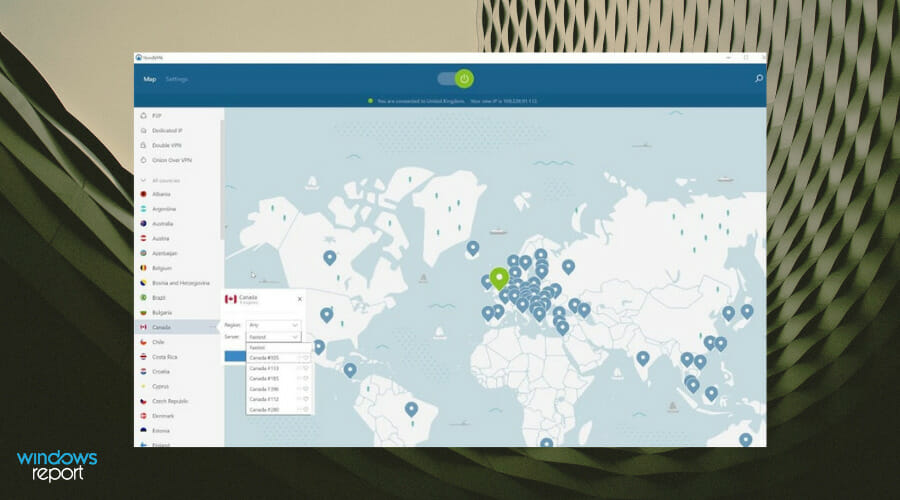
  3. NordVPN – untraceable VPN technologies, with an up-to-date double VPN that ensures your actual whereabouts and identity cannot be traced when trading crypto
  4. Surfshark – multi-platform VPN that supports unlimited connection, allowing users to leave no place for vulnerabilities, regardless of the device
  5. CyberGhost – large server network with easy-to-install and use applications that let you connect to a secure server in just a few clicks
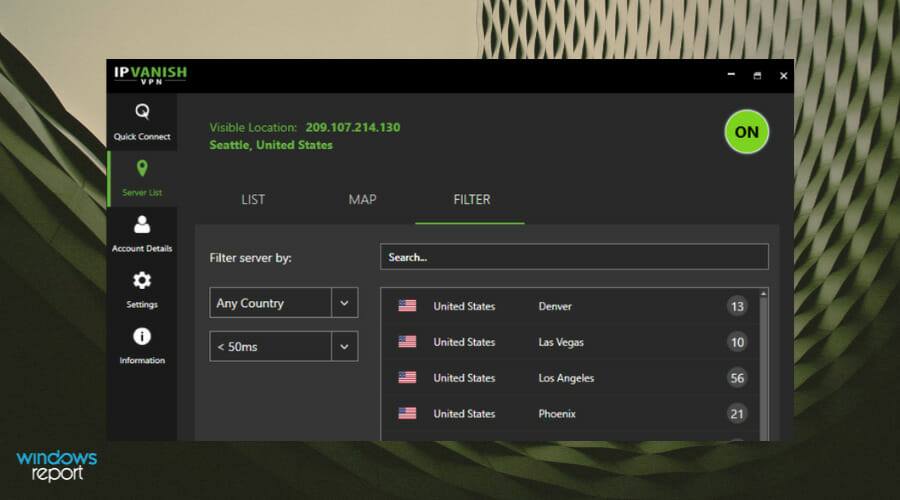
  6. IPVanish – advanced VPN technologies to mask your IP and encrypt your traffic data so no information about your payment details or identity is leaked
  7. PrivateVPN– fast VPN server network with coverage in all major locations in the world and dedicated apps for multiple platforms and devices

ExpressVPN – Best VPN for crypto trading
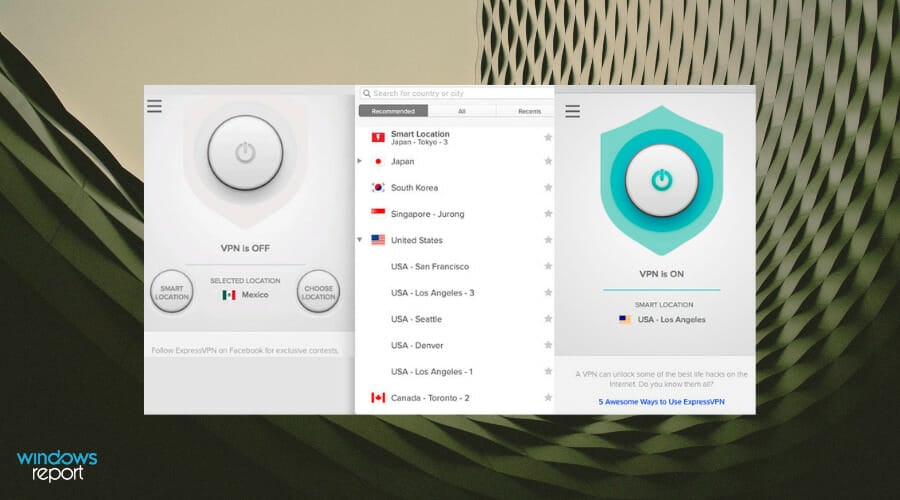
This VPN provider is one of the most popular VPNs on the market since 2009. ExpressVPN makes it possible to transact in Bitcoins without being stalked.

Key features of this Express VPN International Ltd. VPN service:

  • Access to servers in 160 locations from 94 countries
  • Optimized for speed
  • OpenVPN as standard
  • User-friendly interface
  • Mozilla Firefox, Safari, and Google Chrome web browser extension
  • Network Lock Kill Switch
  • One-click connection
  • Unlimited bandwidth and server switches
  • Live chat support

Furthermore, it is available on all operating systems as well as Windows XP, Vista, 7, 8, & 10. ExpressVPN’s best premium package is available at $99.95 per year.

ExpressVPN

Want to trade Bitcoin privately and in a secure manner? Try ExpressVPN.
Check price Visit website

Private Internet Access – Fastest protocol
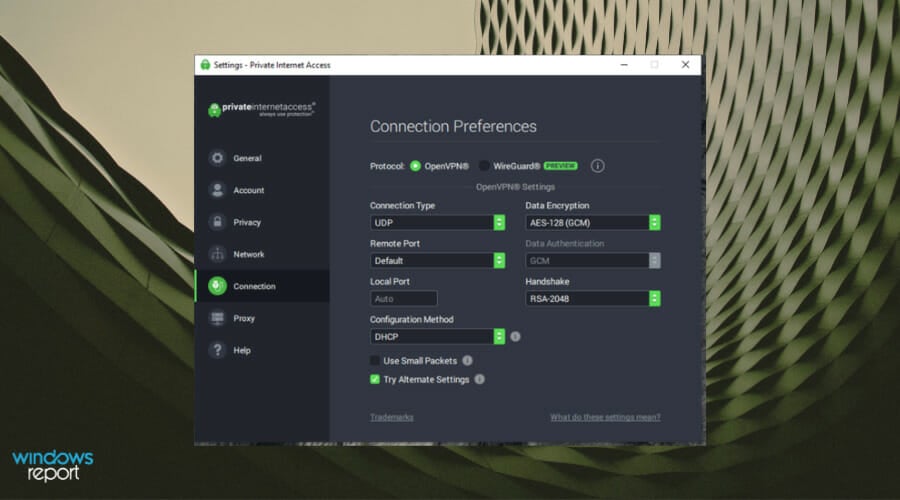
PIA vpn user dashboard for gameloop

Private Internet Access has been around for a long time now, so it shouldn’t come as a surprise its position of the best VPN service for crypto trading and transactions.

When privacy is clearly your main concern, Private Internet Access easily sets itself apart from other VPNs that usually keep your username, password, email, source IP address, and browsing history.

This Kape Technologies solution has you covered with a strict no-logging policy. Your privacy will remain intact, no matter what payments and transactions you intend to complete.

Additional protection is provided via the Network lock feature. For those unfamiliar, any software or website will automatically shut down if your connection to the VPN is lost.

No less important, Private Internet Access has a fairly standard range of supported platforms, with native applications for Windows, Mac OS, iOS, Android, and Linux.

In spite of that, you may install it on your Amazon Fire Stick or Nvidia Shield through the Android APK.

Check out these amazing key features that are packed in Private Internet Access:

  • Appealing user interface
  • You can connect up to 10 devices simultaneously across just about any platform
  • Feel free to establish a P2P on any server in PIA’s network
  • Number of servers: 3292 servers in 46 different countries
  • PIA is an extremely affordable choice, putting other VPN solutions to shame

Private Internet Access

Private Internet Access gives you unbreakable security for crypto trading & transactions. Now available at a major discount!
Check price Visit Website

NordVPN – anti-leak features

NordVPN has some of the fastest servers worldwide and ensures your greatest protection with powerful security features.

It employs advanced server obfuscation for complete anonymity, making it an excellent VPN for crypto mining and trading.

You can trade cryptocurrency risk-free using a dedicated IP address. The internet protocol address is assigned exclusively to your NordVPN account and no one else will be able to use it.

Moreover, when you opt for this feature, the virtual location will remain the same. A static, dedicated IP will help you avoid repetitive verification and make fast transactions.

NordVPN’s Kill Switch automated tool monitors your connection to the server in real-time and blocks your device from accessing the web in case the connection drops.

After that, it encrypts your internet traffic and sends it to a VPN tunnel until you disable the Kill Switch. This advanced feature prevents your data from being leaked while you trade online.

Other essential features of this VPN provider include:

  • Over 5000 servers in 59 countries
  • Password manager
  • CyberSec technology
  • rowser extension
  • Strict no-logs policy
  • Connect one account to six devices at once
  • Advanced Encryption Standard (AES)
  • 24/7 customer care
  • Desktop applications for Windows, macOS, and Linux
  • Mobile apps for iOS and Android

NordVPN has dedicated servers for P2P activities and the myriad of security measures make it the ideal VPN provider for cryptocurrency trading.

NordVPN

Trade cryptocurrency risk-free with this award-winning VPN service!
Check price Visit Website

SurfShark – Best multi-device VPN

Surshark vpn user dashboard for GameLoop

The VPN solution offered by Surfshark is undeniably created to protect your online activities and hide sensitive financial data. Its ease of use and reliability make it a great VPN for crypto trading.

Choosing this advanced VPN software will disguise your online footprints by hiding your IP address, and therefore protect financial information about cryptocurrency tradings. 

If you’re curious about the functionalities, Surfshark includes a cookie pop-up blocker, protection against trackers, ads, or phishing attacks, multihop to connect on two different servers, a bypasser, and more to go 

To emphasize the utility of this VPN, you can browse privately and encrypt your internet behaviors, block malware and adware threats, and even protect your privacy on public Wi-Fi connections. 

Finally, you can be settled about any Bitcoin online tradings with this resourceful VPN tool on your side.

Here are the great features of Surfshark:

  • Rigid no longs policy 
  • Private DNS and leak protection 
  • NoBorders mode for unrestricted content 
  • Best in class AES-256-GCM encryption 
  • Killswitch for internet falls.
  • Camouflage Mode for even more privacy 
  • Secure protocols 
  • Unlimited devices to connect from any platform
  • 24/7 specialist support

With a singular subscription, you can benefit from full digital security regardless of the OS, and on mobile devices as well.

Surfshark

Protect your online sensitive transactions using this protective VPN tool.
Check price Visit Website

CyberGhost – Great worldwide server network
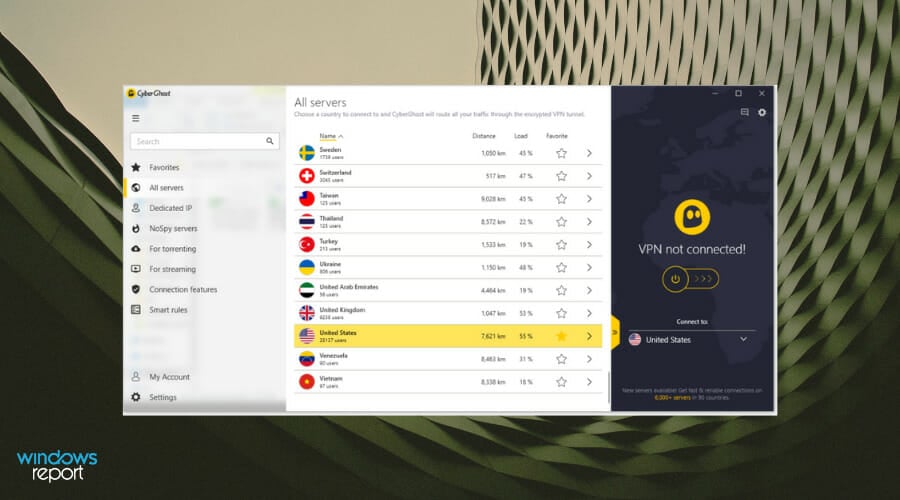
CyberGhost server locations

This is one of the best VPN for mining because it will enable you to trade in Bitcoin as a ghost, just as its name implies. More than 8.5 million people trust Cyberghost, which stands proof of its efficiency.

It works on different Windows versions and it has a great support service. This is indeed an ideal VPN service for Bitcoin.

Here are what great features you can expect from CyberGhost VPN:

  • IPV6 Leak Protection: detects and closes IPv6 leaks and therefore shields effective against data espionage
  • DNS Leak Protection: the secure DN-Server feature circumvents censorship and prevents data phishing by faked websites
  • IP Sharing: for an additional layer of anonymity
  • 4 Protocols supported: additional support of native OpenVPN, IPSec, L2TP, and PPTP
  • No bandwidth limitations
  • 30-day money-back guarantee (in case you’re not satisfied with the product)

While this isn’t any longer a free VPN, if you buy it with a special deal (such as the one below), you won’t regret going premium.

You will be able to enjoy one of the best VPNs for your Windows PC.

CyberGhost VPN

Want to trade Bitcoin safely and privately? CyberGhost VPN can help you with that.
Check price Visit Website

IPVanish – No data logs

Owned by StackPath, LLC, IPVanish is one of the best VPNs for crypto trading and transactions. It literally makes your IP address disappear, ensuring your real location is not detected.

IPVanish protects your data and masks your identity online with its own encryption technology. Hence, you do not have to worry about getting tracked while trading Bitcoins.

Key features of IPVanish include:

  • 256-bit AES encryption
  • 1400+ VPN servers in countries all over the world
  • Unlimited bandwidth and P2P traffic
  • Zero traffic logs
  • Anonymous torrenting
  • SOCKS5 web proxy
  • Access to censored apps & websites
  • OpenVPN and L2TP/IPsec VPN protocols
  • Unlimited server switching
  • 10 simultaneous connections on multiple devices
  • 24/7 customer support

Furthermore, IPVanish has user-friendly apps for all of your devices, making it one of the best VPNs for Bitcoin transactions

IPVanish

IPVanish can help you trade Bitcoin in a safe, private environment.
Check price Visit Website

PrivateVPN – Straightforward configuration
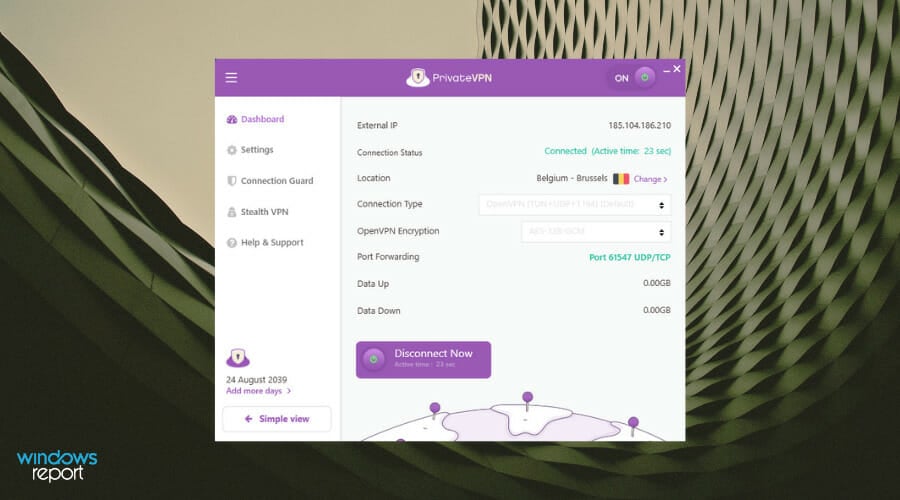
PrivateVPN is a secure client that offers you a very quick installation process to start protecting your crypto trades right away.

The same goes for using the app, so if you want to secure your traffic on the go and maintain a stable VPN connection when mining crypto, it’s an excellent choice.

It has dedicated apps for all major platforms and a good worldwide server coverage with 200+ servers n 63 countries.

Other notable features of PrivateVPN include:

  • Remote installation support
  • Unlimited bandwidth to keep a secure connection at all times
  • 10 simultaneous connection
  • Supports port-forwarding
  • Zero logs policy
  • Military-grade 2046-bit encryption
  • Supports multiple VPN protocols, including OpenVPN and L2TP/IPsec

They implemented the High-Quality Network principle, which essentially means that they get Internet capacity directly from the IP transit, without involving any third parties (which can lead to better speed).

PrivateVPN

Protect your trading data with leading VPN technologies.
Check price Visit Website

Binance has piqued our curiosity as a Bitcoin trading and mining system that is safe and secure when backed by a VPN. If you’re wondering why Binance prevents US residents from accessing the platform, it’s to prevent money laundering through cryptocurrency trading.

You can, however, use a compatible VPN to access your Binance account and continue your crypto trading.

There have been no reports of the cryptocurrency exchange punishing US investors who use a VPN to trade and deposit. Most VPN services will offer several methods to secure your identity while you’re connected to ensure your safety and anonymity, so you will have extra security and trade in silence.

For Binance traders seeking specialized security, do not hesitate to learn about the safest VPN options for Binance traders. Rest assured that our provides detailed recommendations.

Have you used any of the best VPNs for Bitcoin we mentioned above? Do share with us your experience by commenting below.

Battlefront 2 Mouse Lag? 6 Easy Ways to Fix it Right Away

Star Wars Battlefront 2, initially released in 2017, is one of the most popular shooter games. It offers amazing graphics, exciting gameplay, and a thrilling experience for gamers. However, many users have reported facing mouse lag in Battlefront 2.

Whenever you encounter issues with the mouse, the instinct right away points towards a hardware problem. But, that’s not always the case. On the contrary, in most cases, it was misconfigured settings or an outdated/corrupt driver that caused the issue.

But you can’t rule out any possibility yet and will have to take a comprehensive approach to fix the Battlefront 2 mouse lag problem. To do that, execute the methods listed in the next section.

Why does my Battlefront 2 keep lagging?

There are multiple reasons why you experience lag in-game, and in most cases, it’s game corruption, so you might have to repair it.

Certain settings can also interfere with the game and cause issues to appear while playing. To fix this, you need to find and adjust those settings accordingly.

How do I fix mouse lag in Battlefront 2?

1. Some basic checks

If the PC mouse is not working in Battlefront 2, you need to check if the problem lies with the mouse or the system/game settings. To do that, use another mouse to play Battlefront 2 and check if the mouse lag issue is resolved.

In case the mouse lag problem is present, it’s the system/game settings behind the issue. However, if the game works fine with the new mouse, you may consider replacing the old one. Check out the best gaming mice to enhance the Battlefront 2 experience.

Also, you can try restarting the PC as it will eliminate any unwanted background process that might be conflicting with Battlefront 2 and leading to mouse lag. If both these checks don’t work, head to the next method.

2. Repair the game

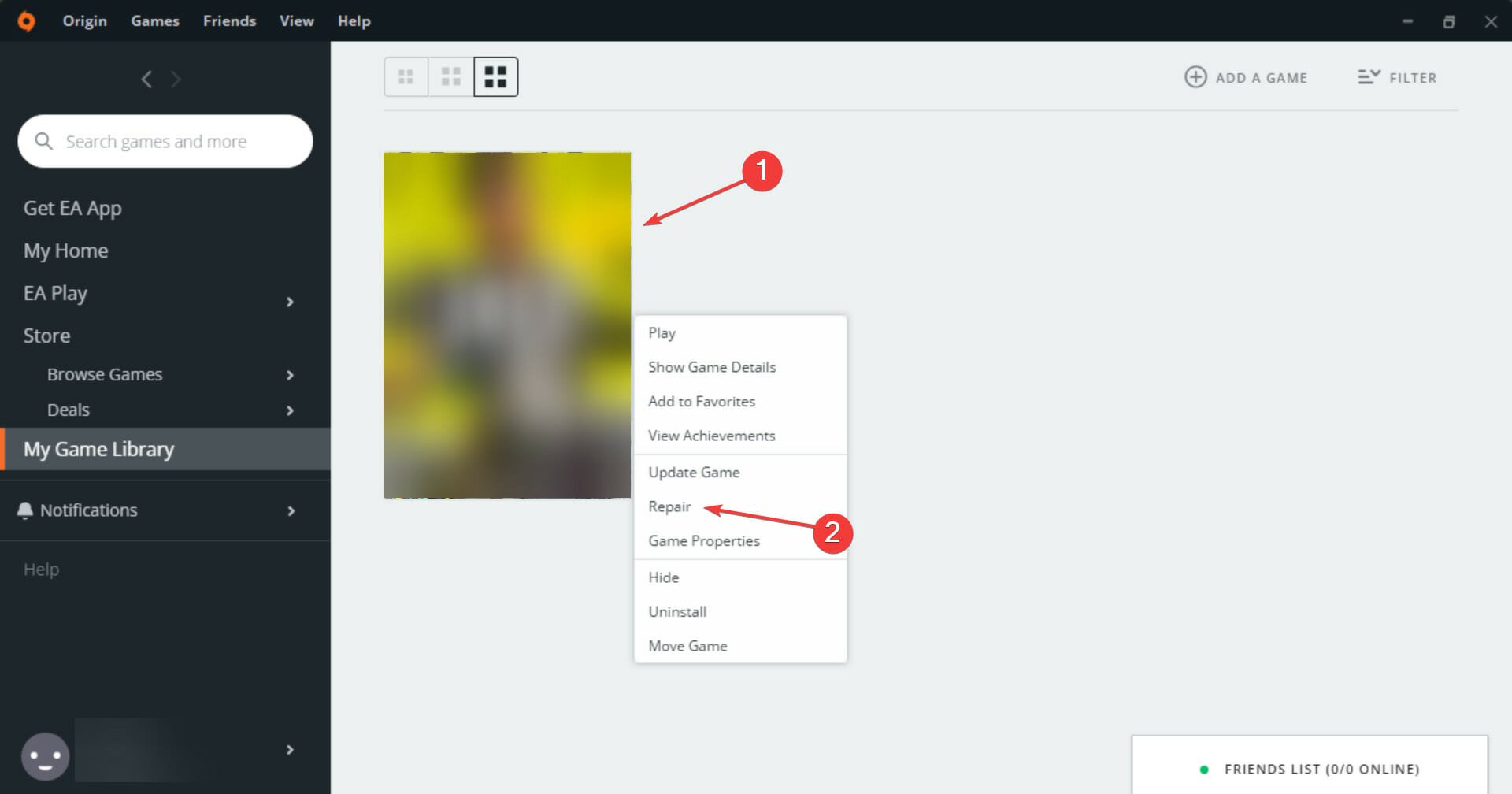
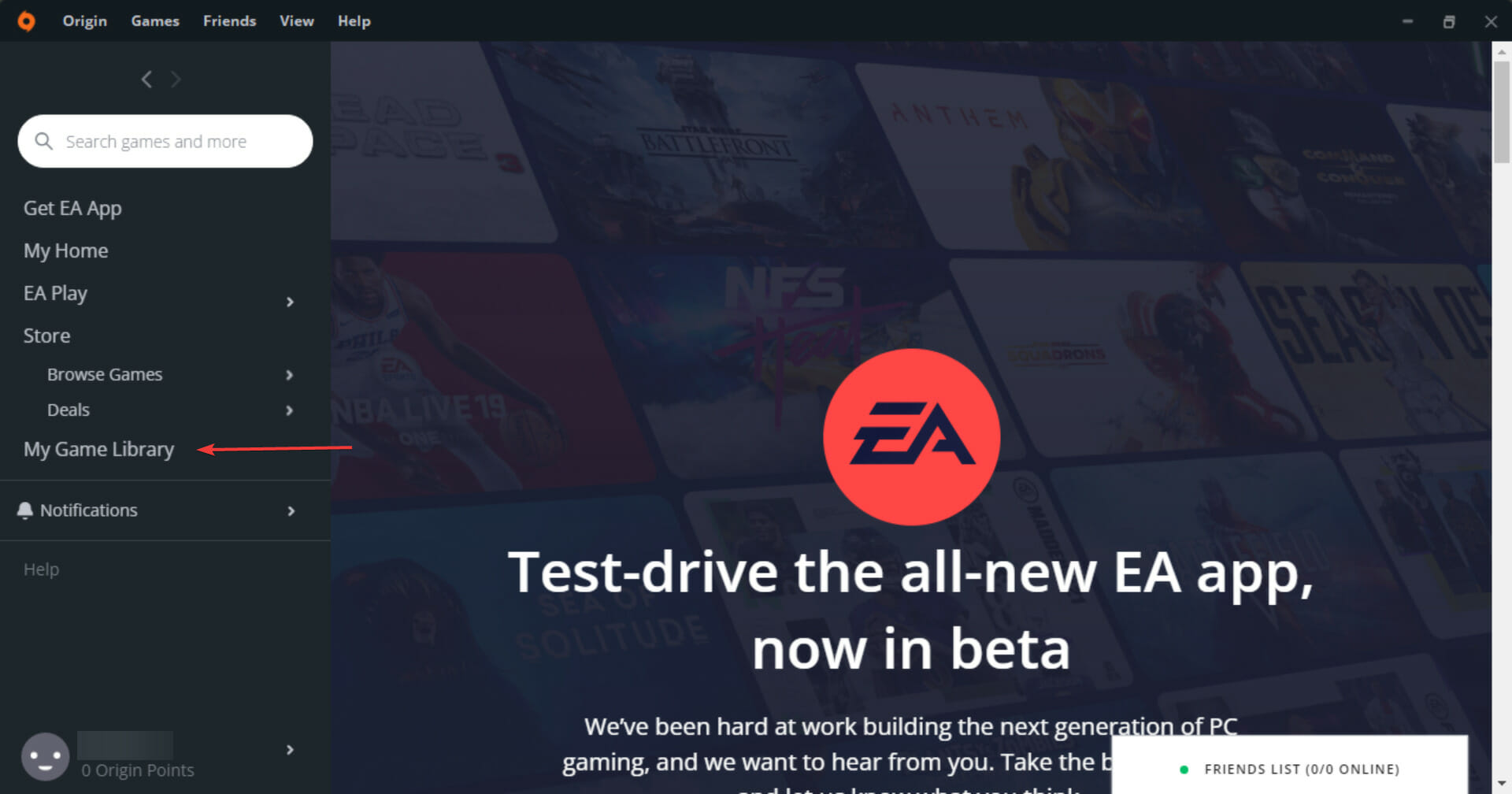
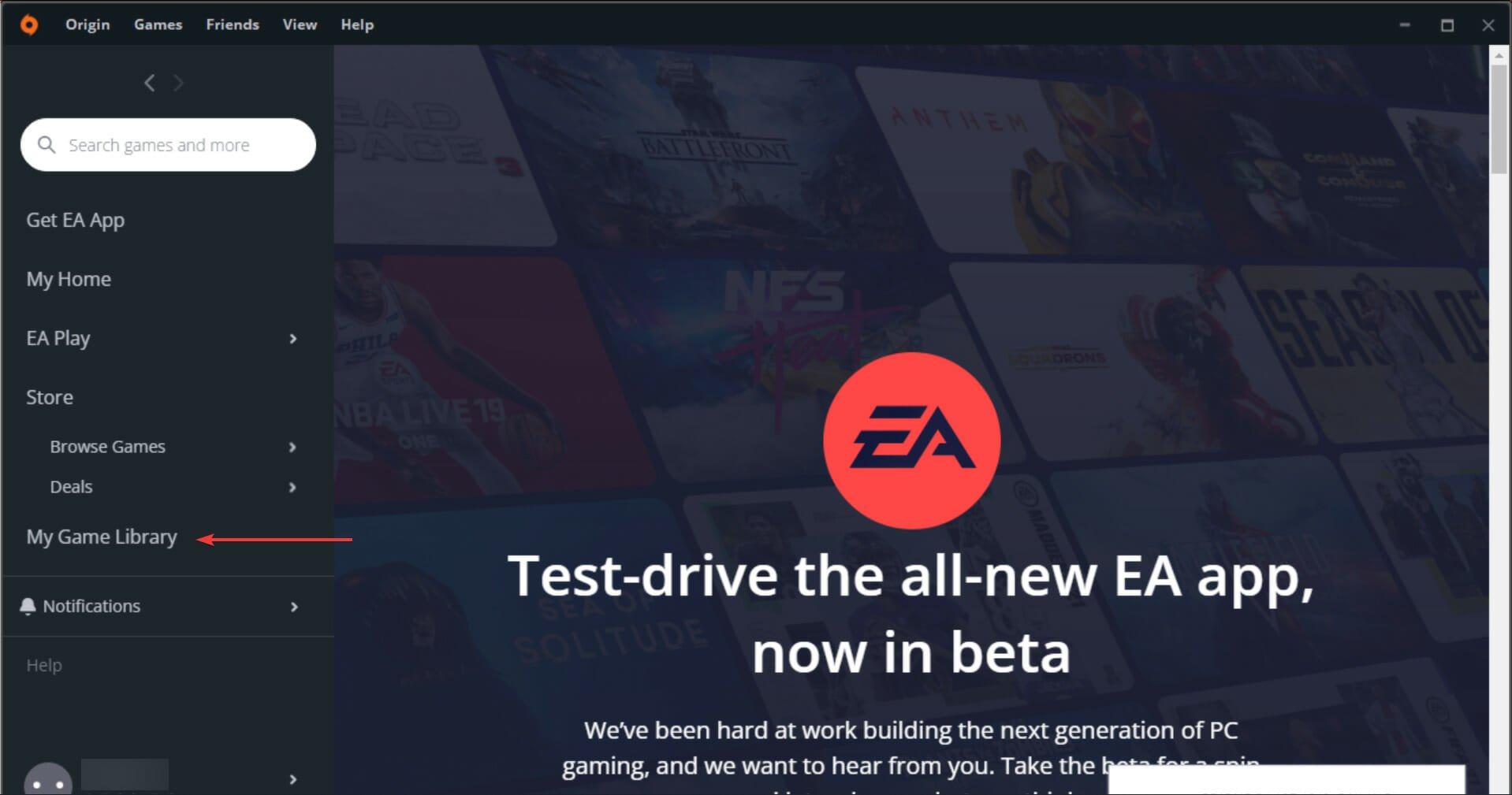
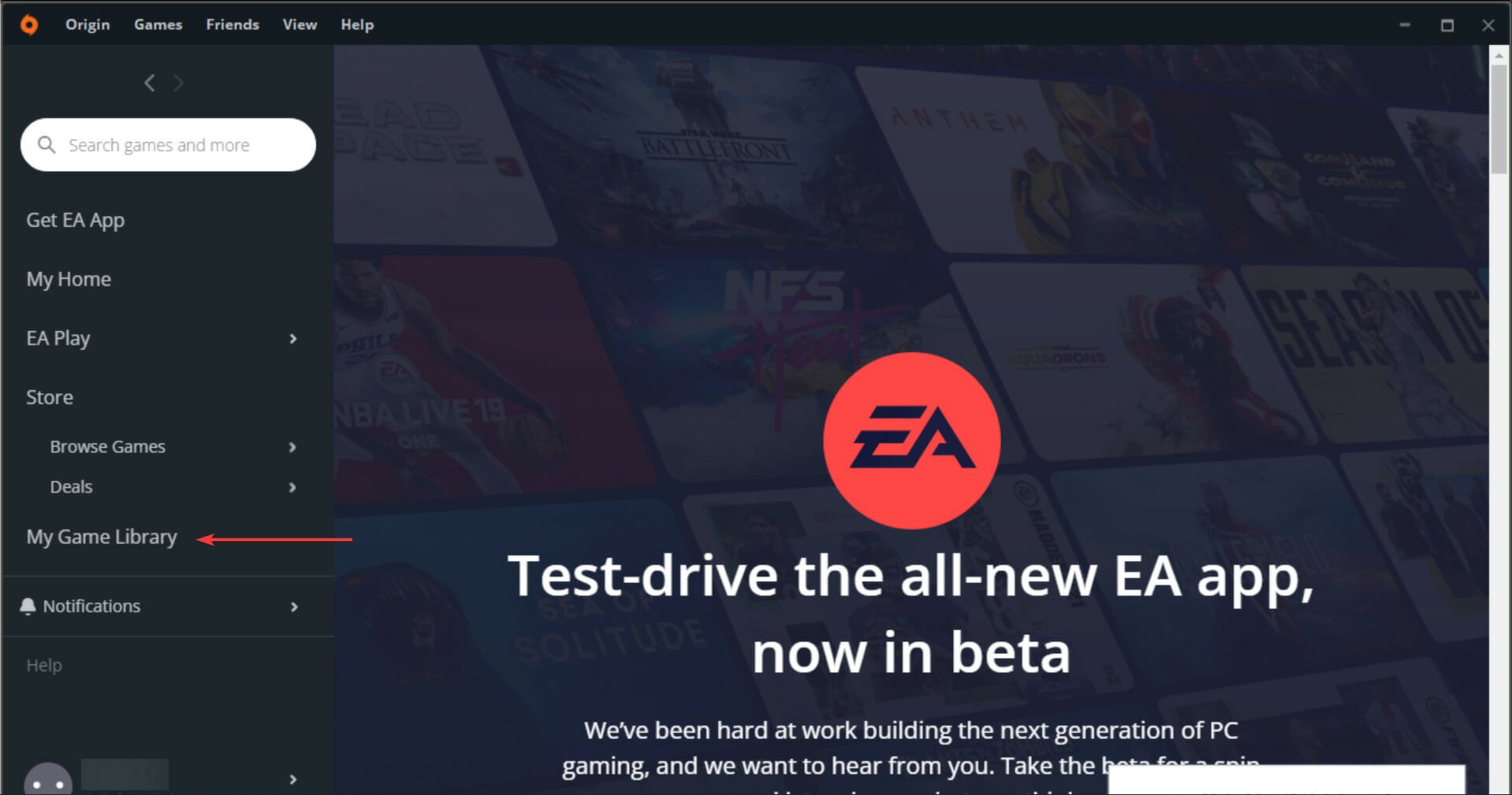
  1. Launch Origin, and select My Game Library from the options listed on the left.My Game Library to fix battlefront 2 mouse lag
  2. Next, right-click on Battlefront 2, and select Repair from the context menu.Repair to fix battlefront 2 mouse lag
  3. Now, wait for the repair process to complete.

Almost every platform offers built-in troubleshooting to eliminate trivial issues. Though the tool does not come in handy every time, it might help you fix Battlefront 2 mouse problem.

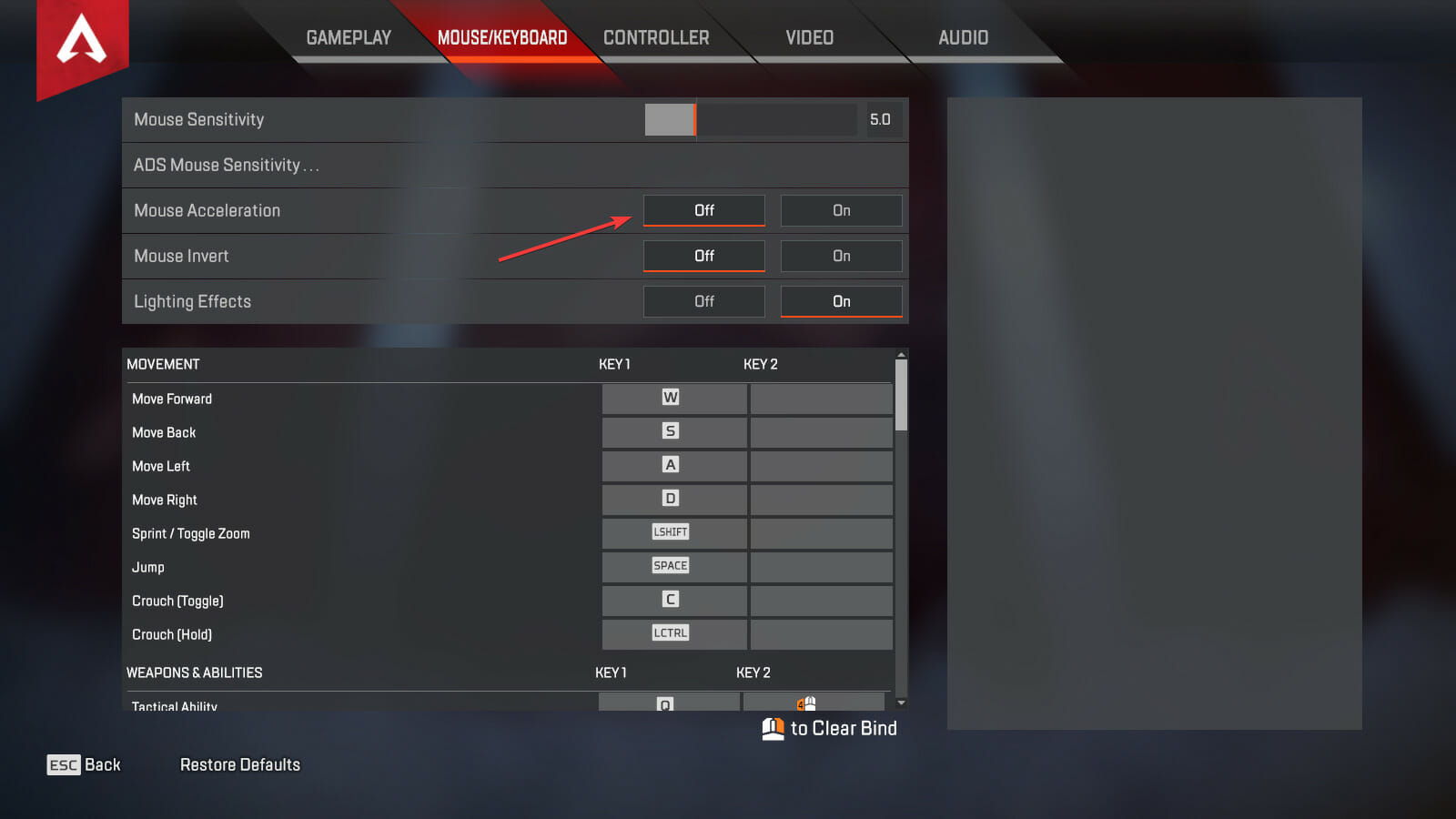
3. Disable mouse acceleration

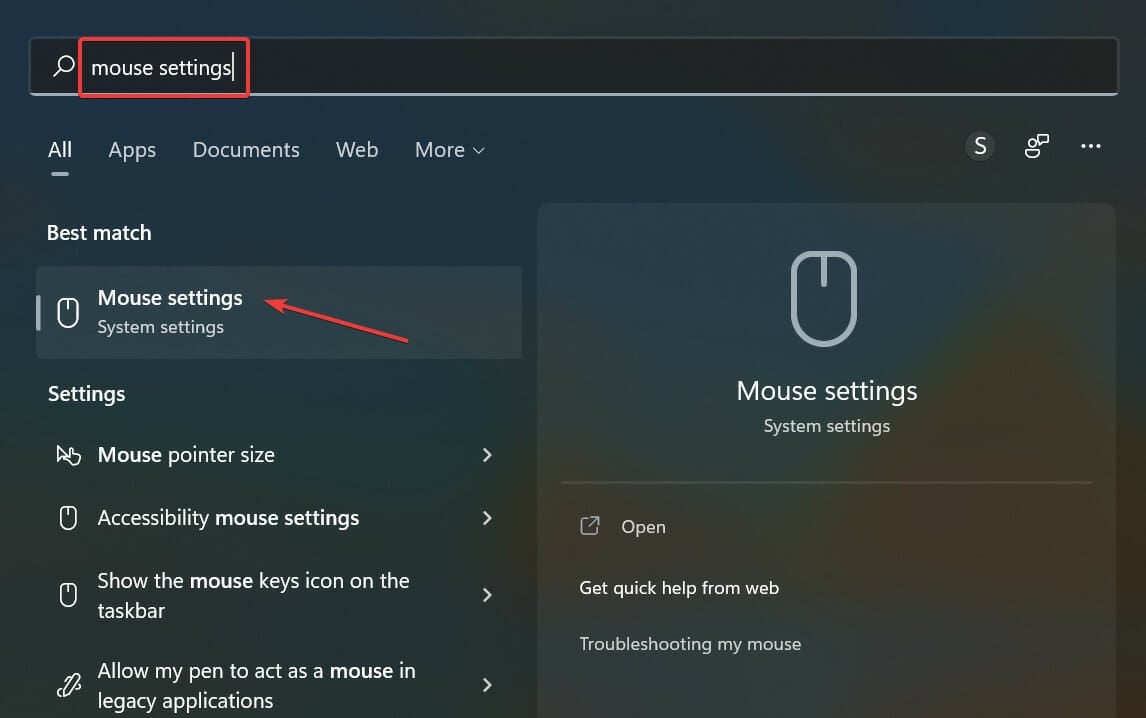
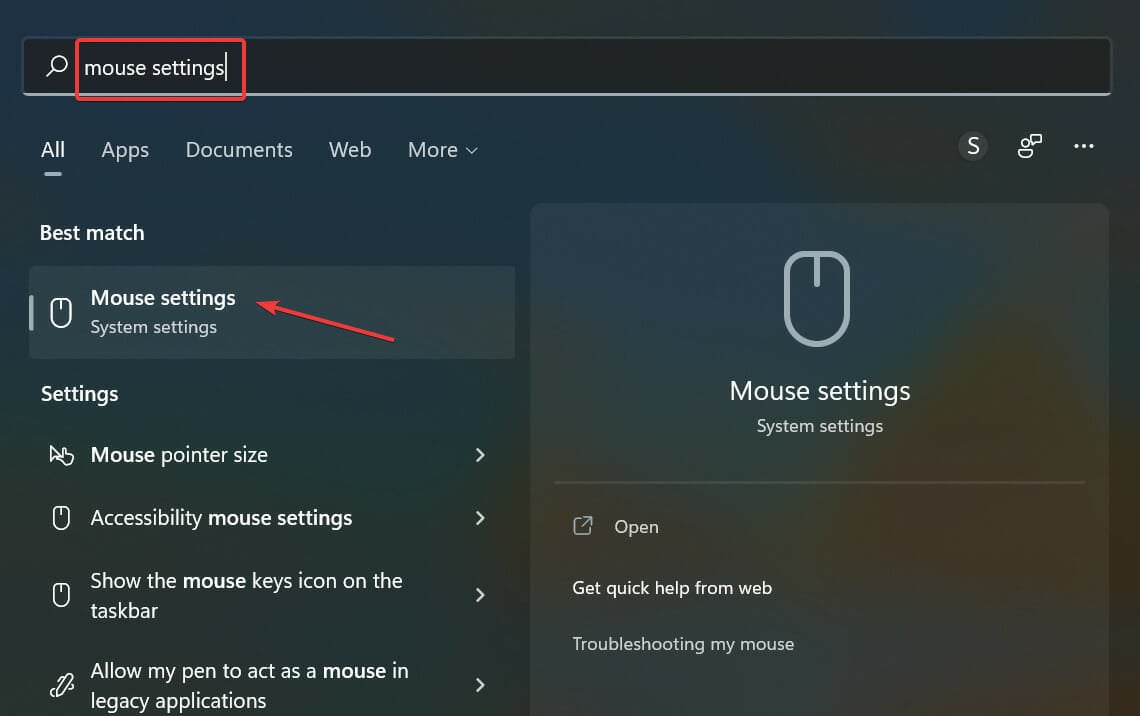
  1. Press Windows + S to launch the Search menu, enter Mouse Settings in the text field at the top, and click on the relevant search result.Mouse settings to fix battlefront 2 mouse lag
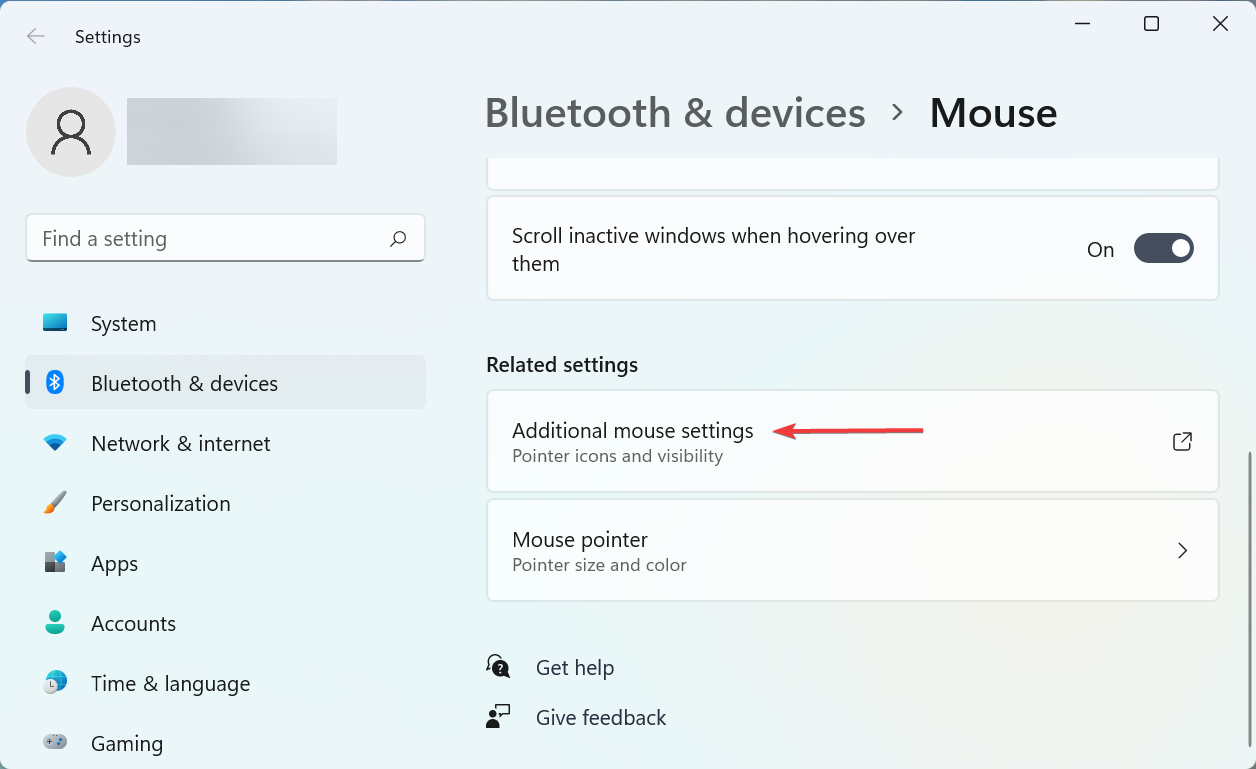
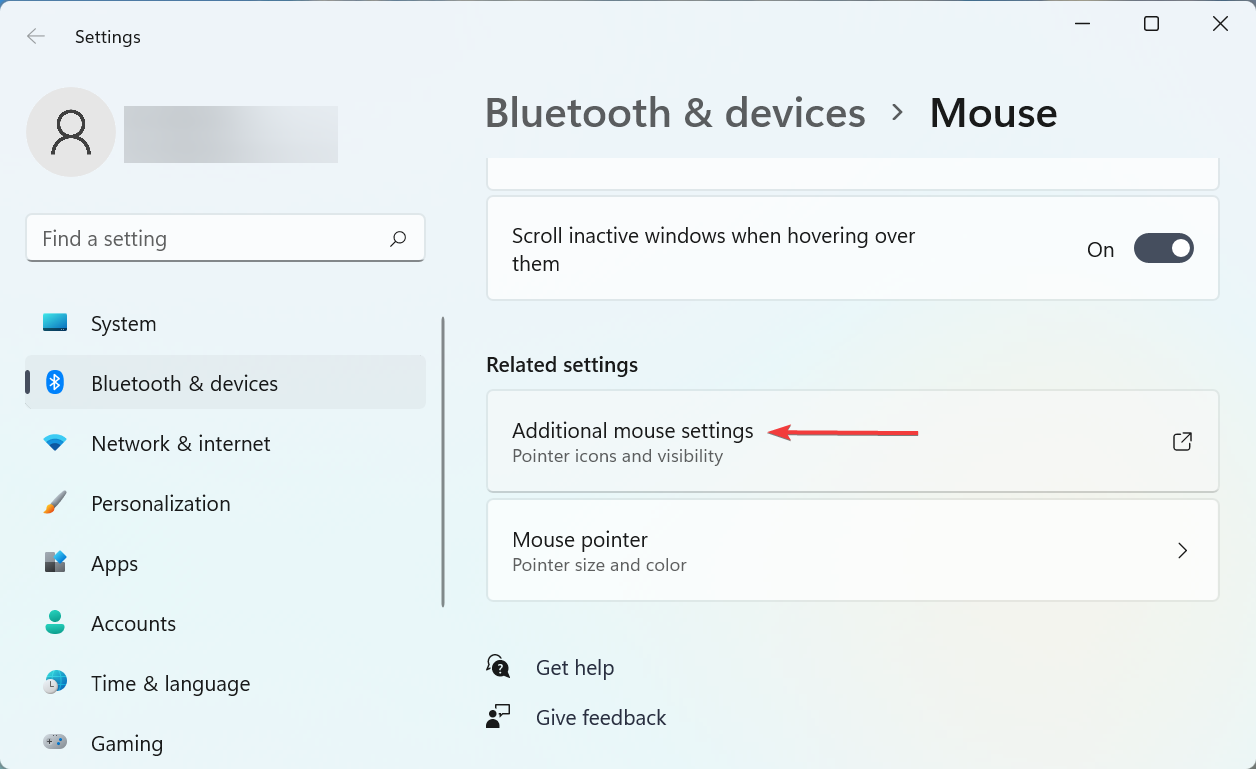
  2. Click on Additional mouse settings under Related settings near the bottom.Additional mouse settings
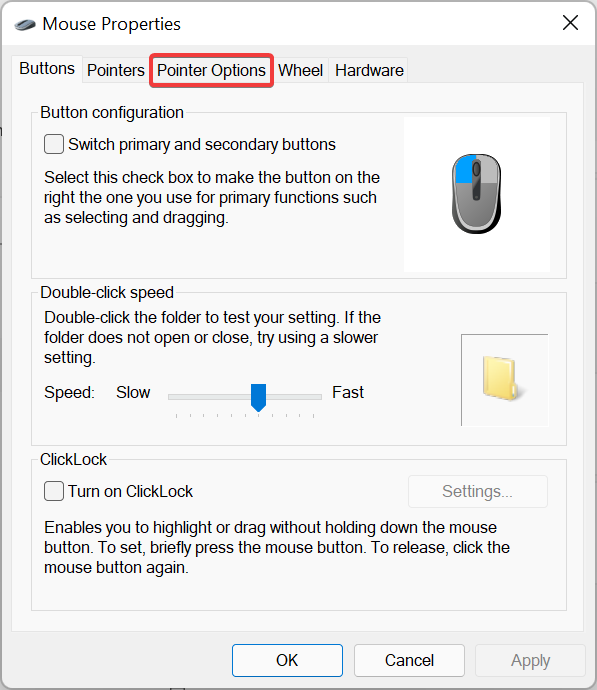
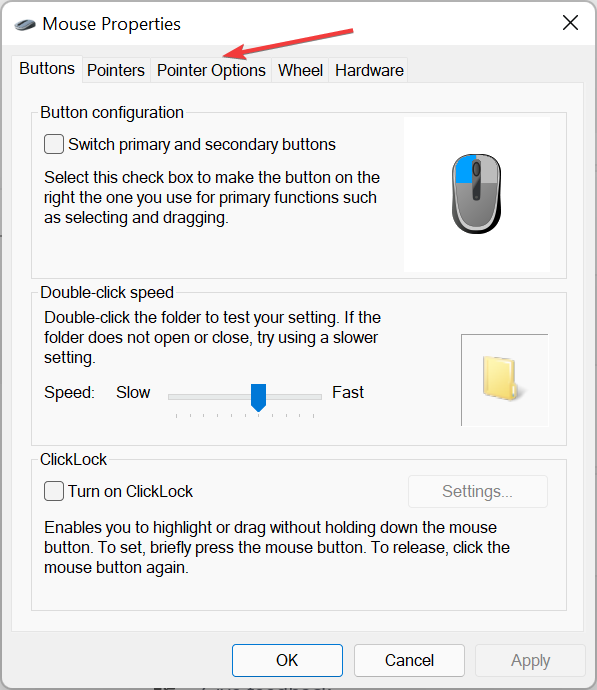
  3. Now, navigate to the Pointer Options tab from the top of the Mouse Properties window.Pointer options
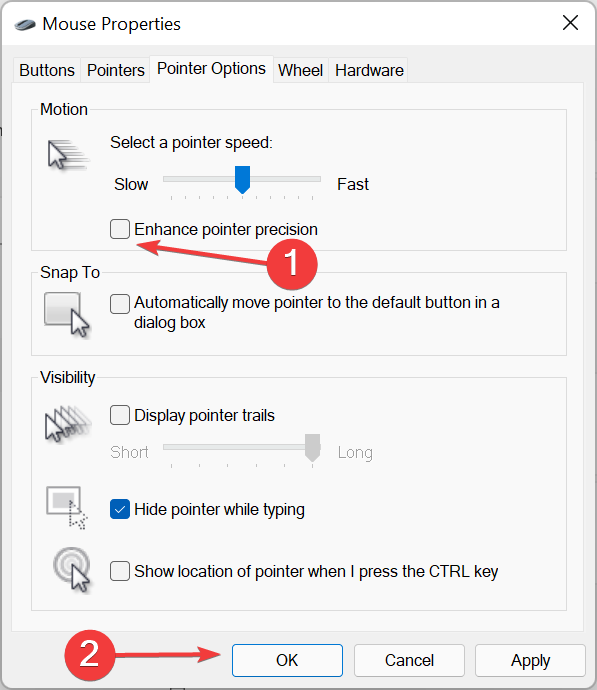
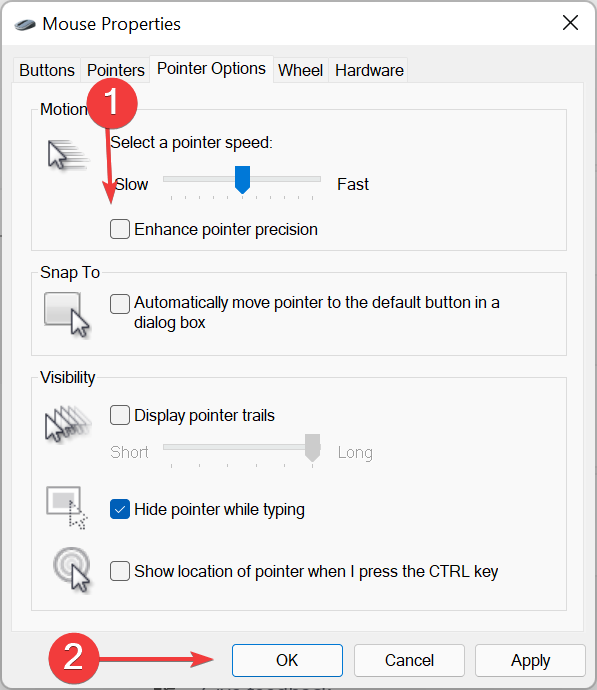
  4. Untick the checkbox for Enhance pointer precision and click on OK at the bottom to save the changes.Disable mouse acceleration to fix battlefront 2 mouse lag

Mouse acceleration too is often found to cause limited mouse movement in Battlefront 2. Many users were able to resolve the issue by disabling it. If this doesn’t work, head to the next method.

4. Update the drivers

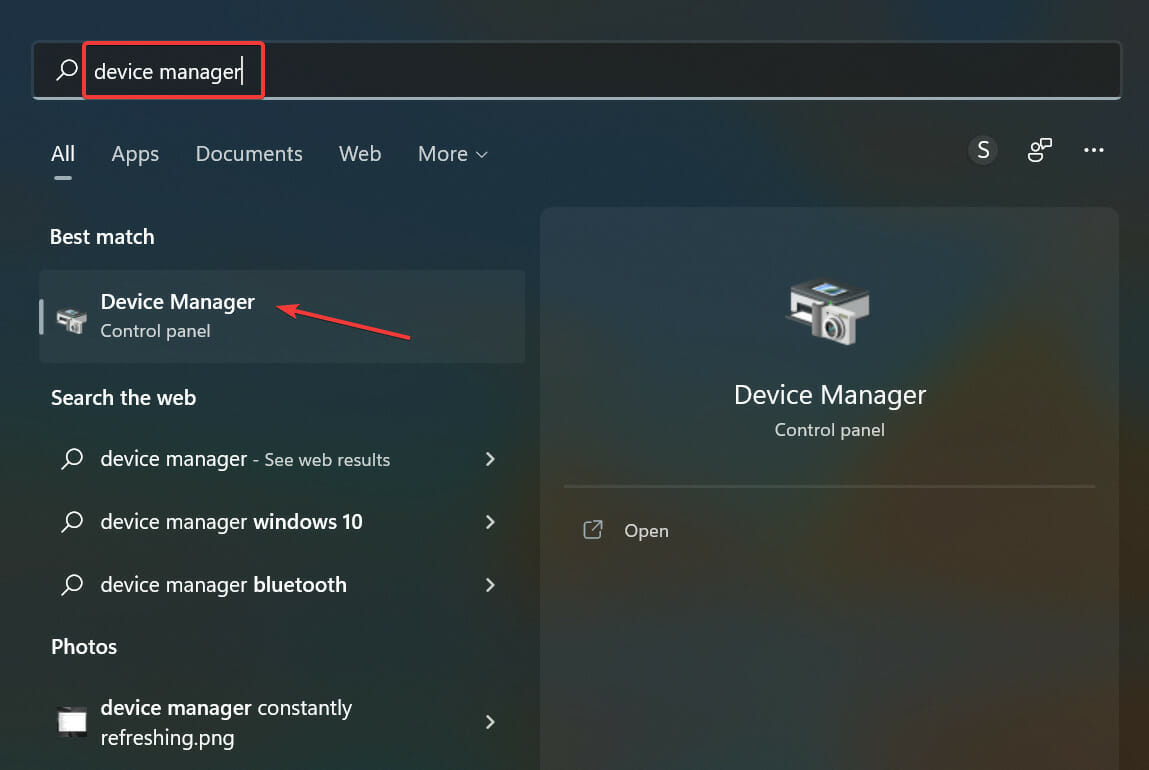
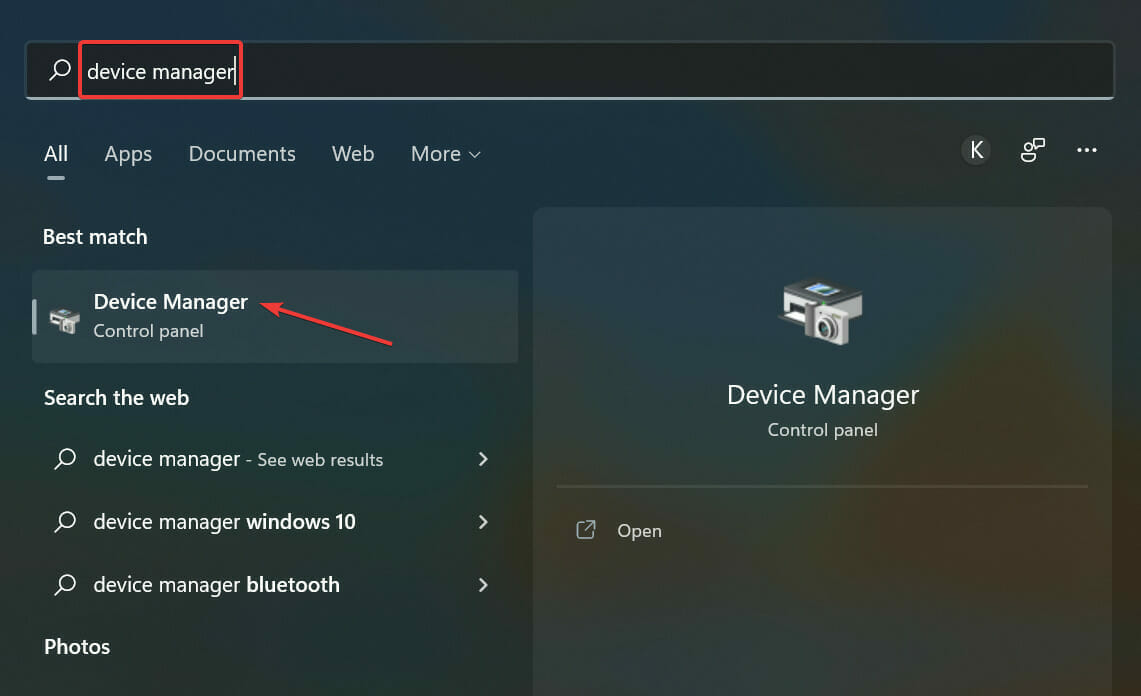
  1. Press Windows + S to launch the Search menu, enter Device Manager in the text field, and click on the relevant search result.Device Manager to fix battlefront 2 mouse lag
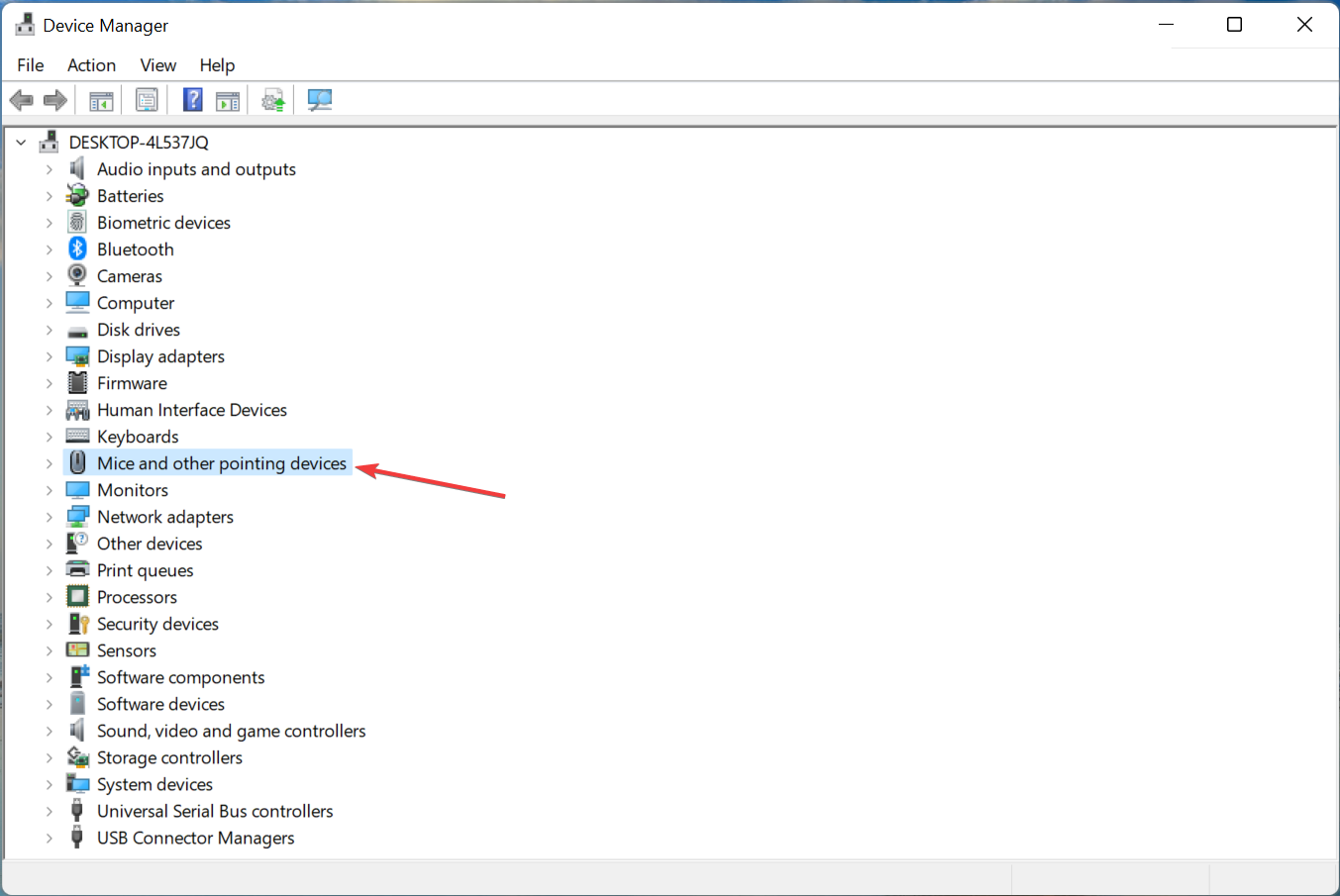
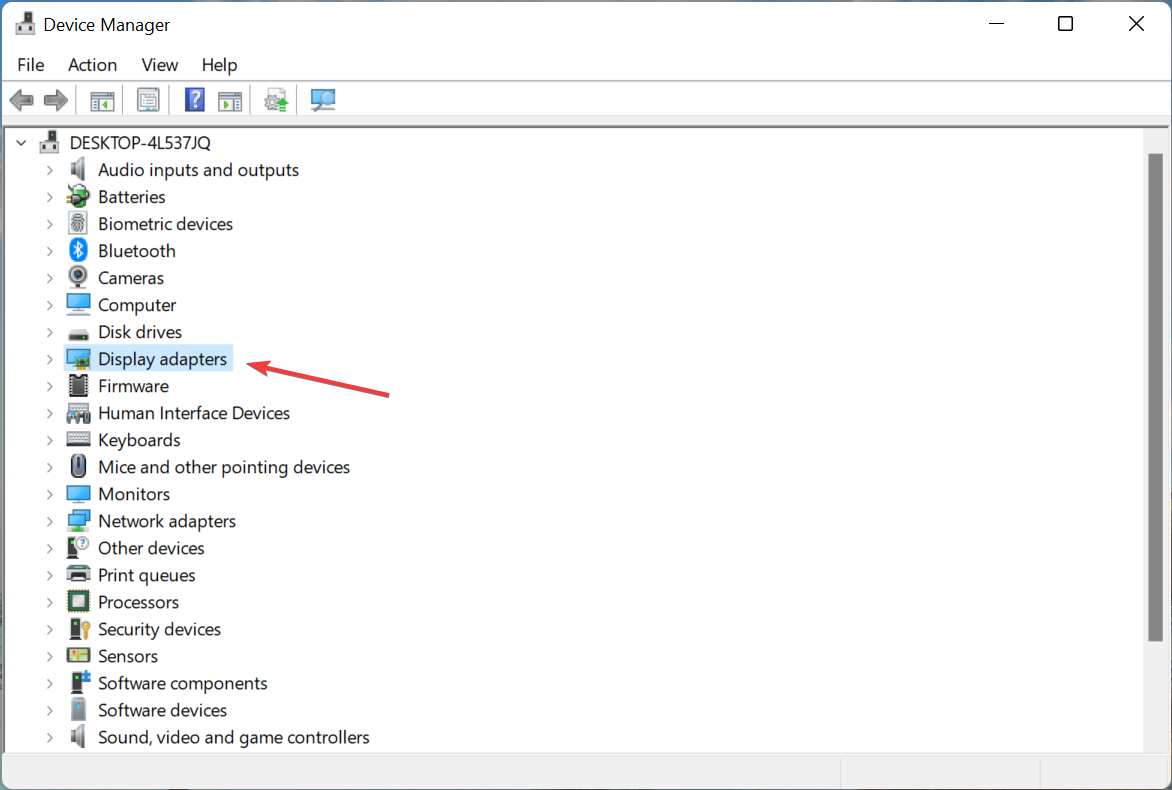
  2. Double-click on the Mice and other pointing devices entry to view all the mice connected to the computer.Mice and other pointing devices
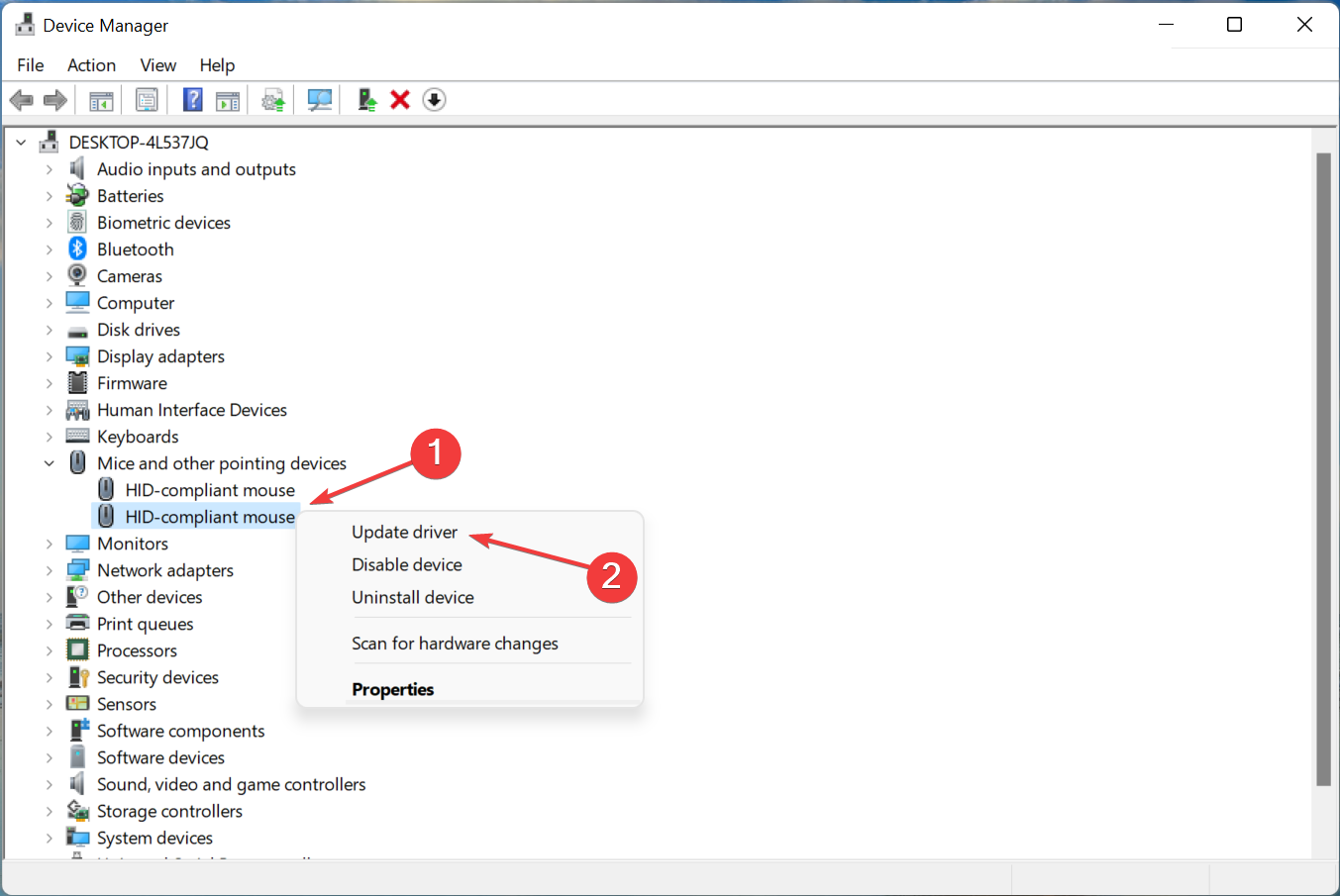
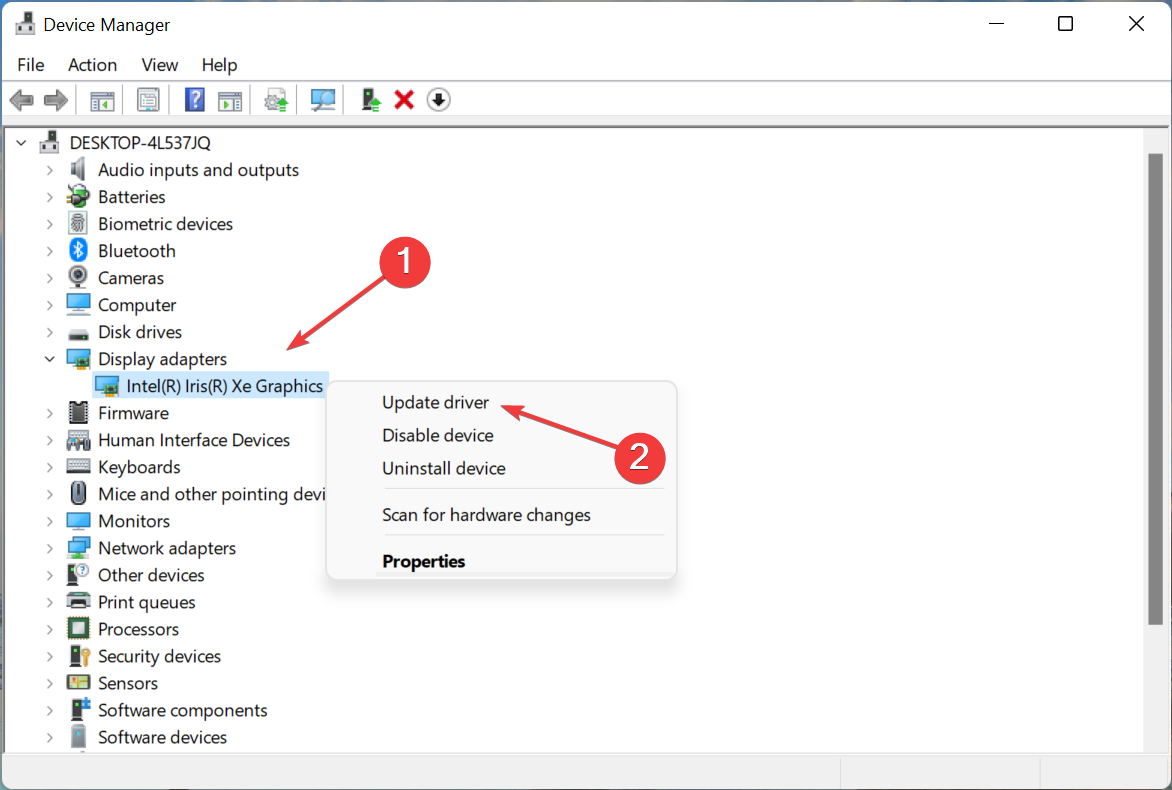
  3. Right-click on the mouse you are having trouble with, and select Update driver from the context menu.Update driver to fix battlefront 2 mouse lag
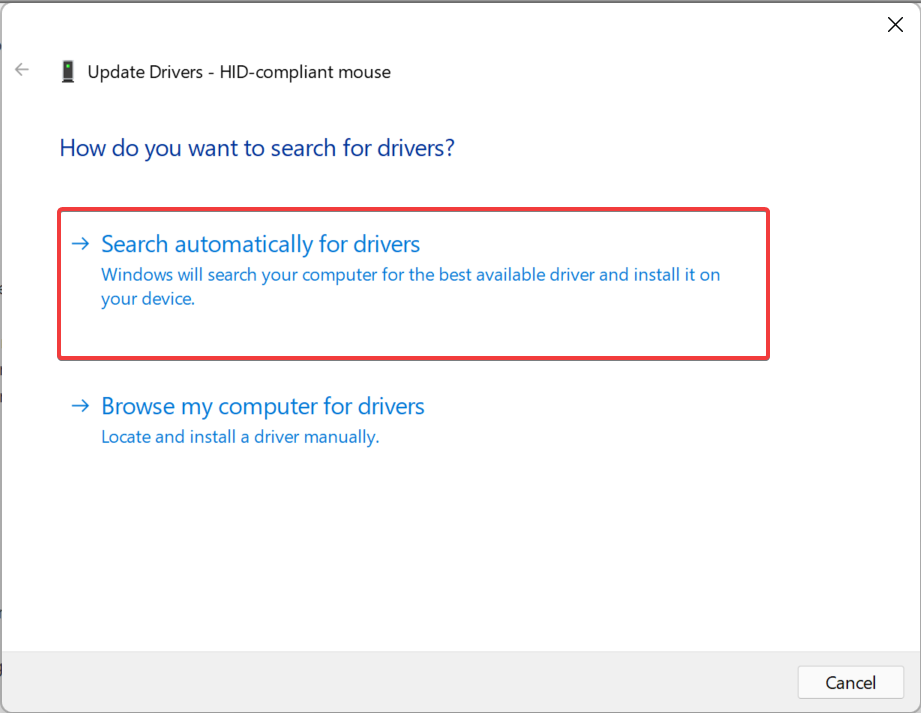
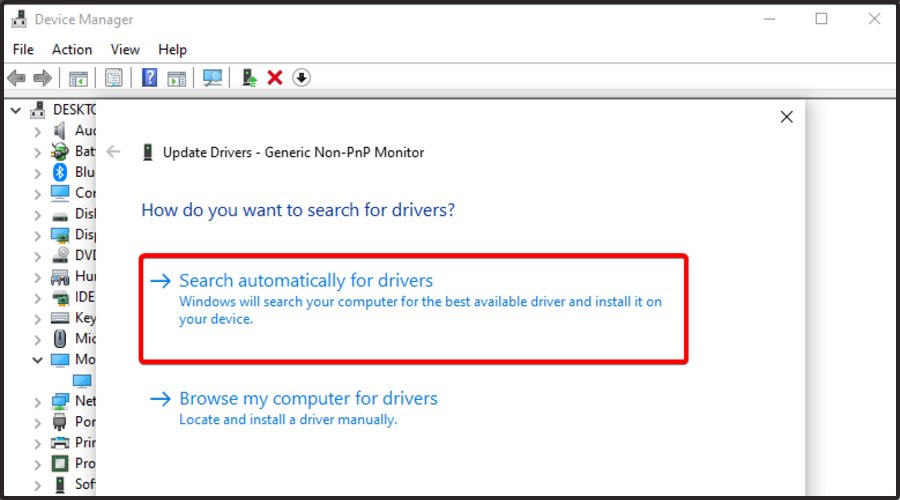
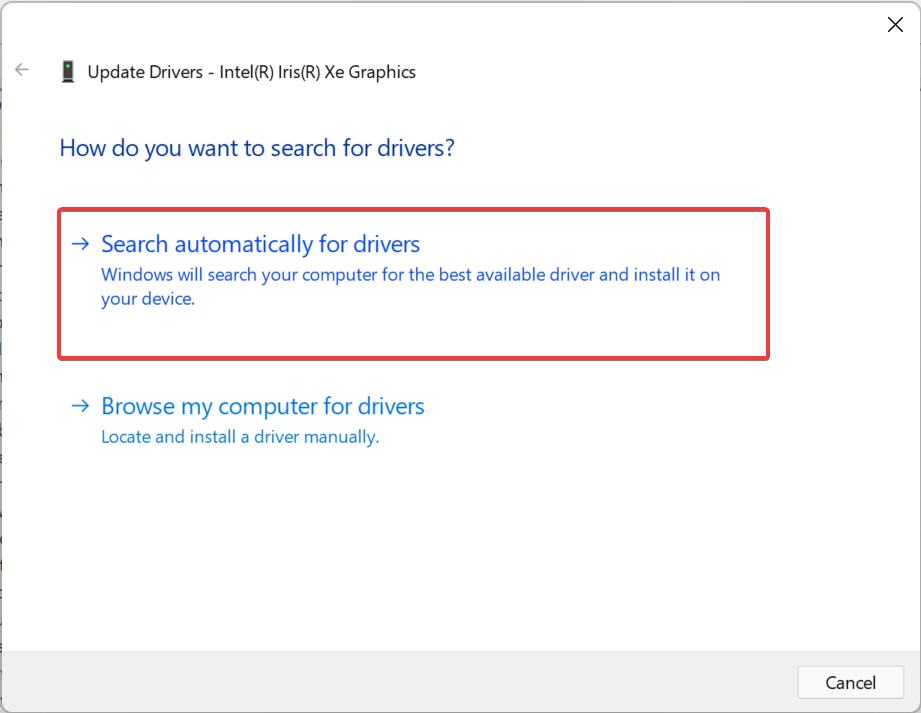
  4. Now, select the Search automatically for drivers option in the Update Drivers window.Search automatically for drivers
  5. Wait for your computer to find the best available driver on the system and install it.

Drivers are a critical piece of software that facilitate the flow of commands between the device and the OS. And, if there’s an issue with it, you are likely to encounter a bunch of issues including Battlefront 2 mouse lag.

The Device Manager method is the quickest to update the drivers in Windows, though there is a drawback to it. Here, only the drivers that have already been downloaded on the computer are scanned and not the other sources.

So, you can also try other ways to manually install the latest driver. Similarly, update the graphics driver as well, since this too is known to cause the Battlefront 2 mouse lag.

Alternatively, you can save some time and hassle with an automated option. To make sure there are no outdated, corrupt, or missing drivers on your PC, use software like Outbyte Driver Updater.

It is a driver updater that uses its own database to check against your drivers and automatically installs new versions whenever they are available. It’s light, easy to use, and completely safe.

⇒ Get Outbyte Driver Updater

5. Disable in-game overlay

5.1 Origin

  1. Launch the Origin app, and click on the My Game Library option on the left.My Game Library
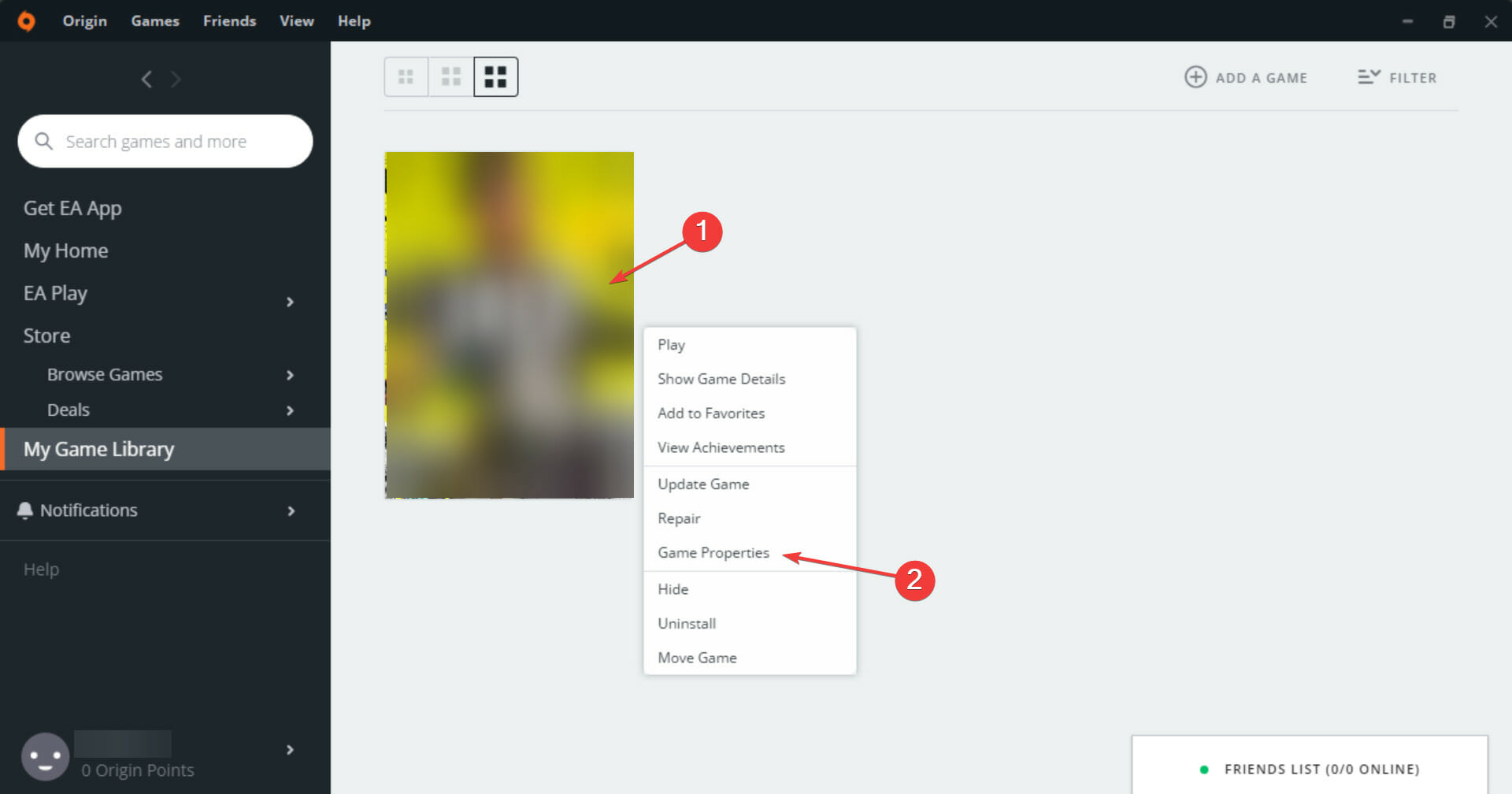
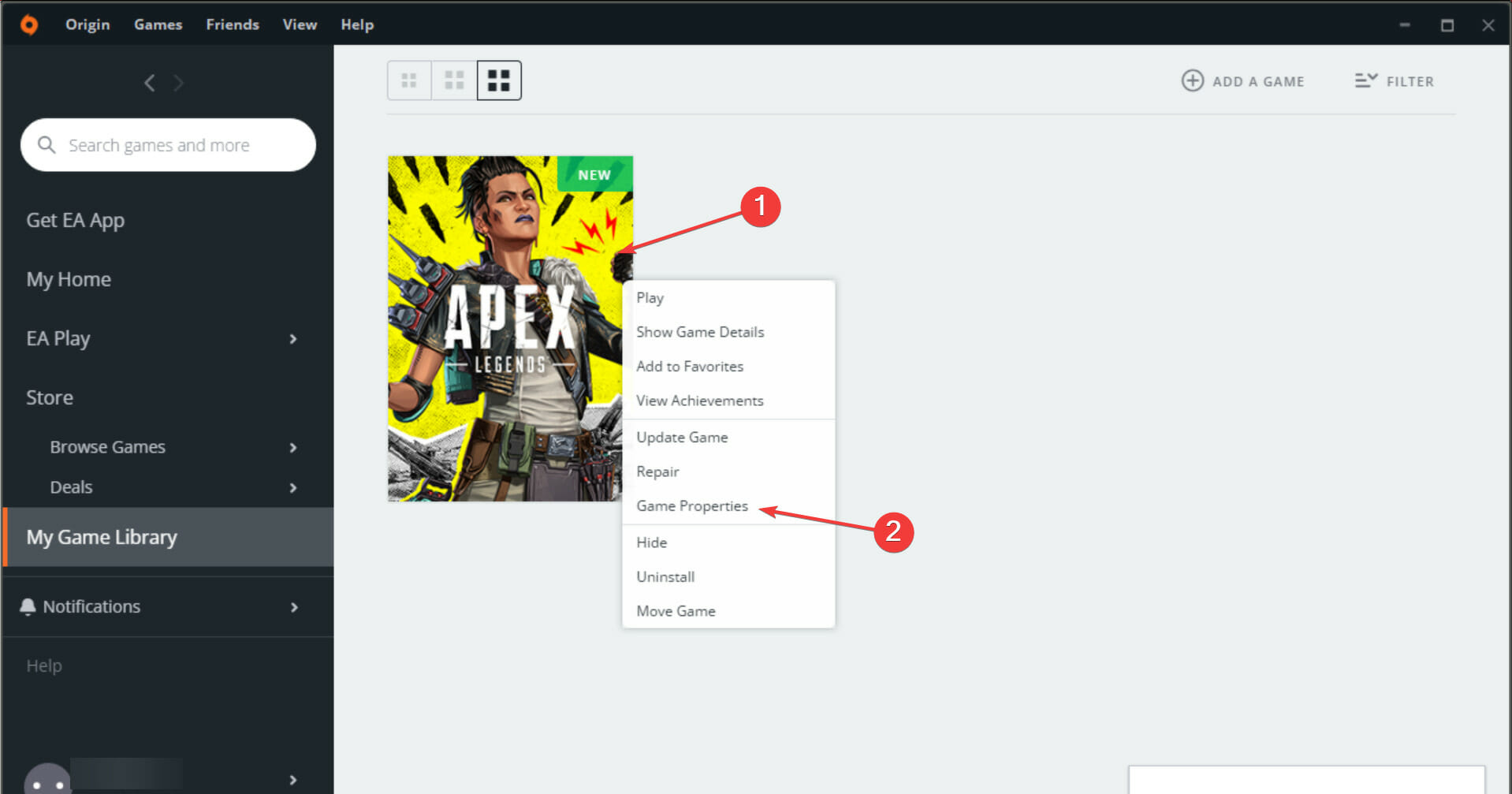
  2. Right-click on Battlefront 2 and select Game Properties from the context menu.Game properties
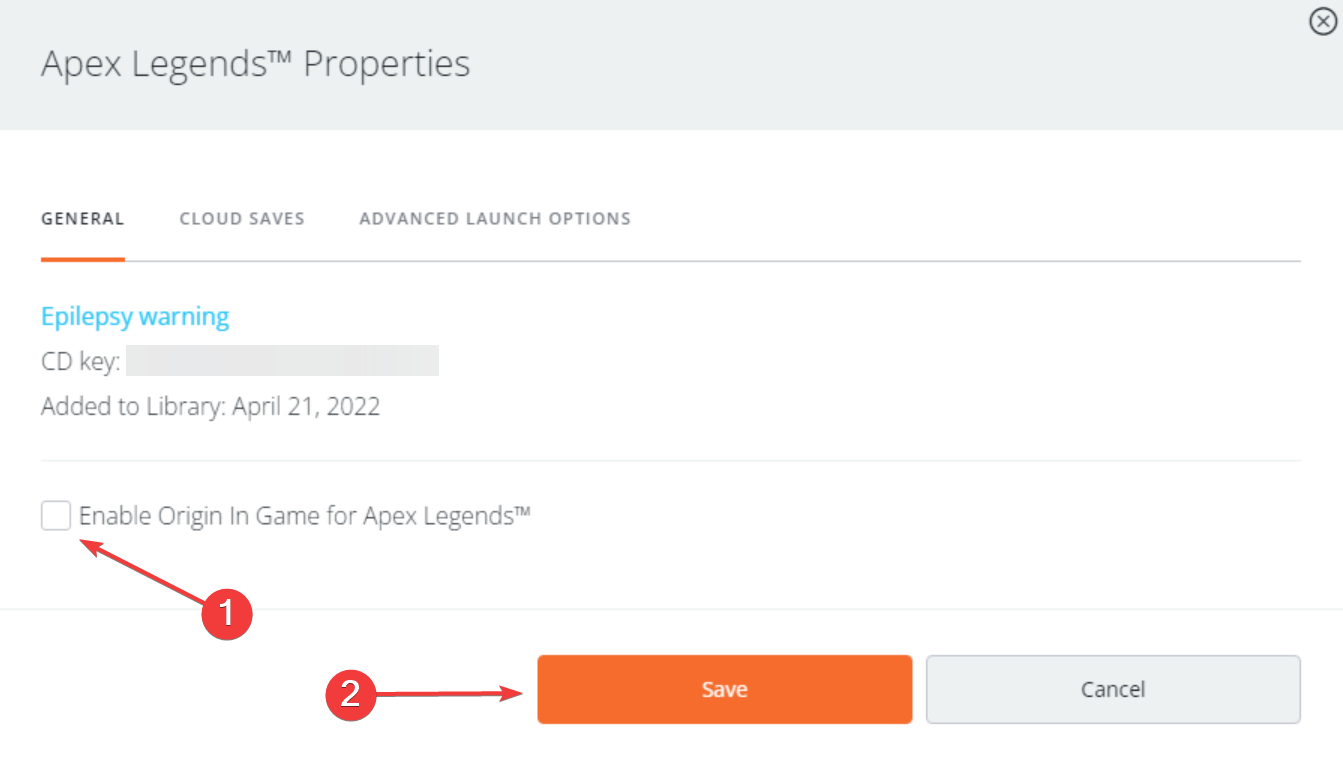
  3. Now, untick the checkbox for Enable Origin In Game for Battlefronts 2 and click on Save.Disable overlay to fix battlefront 2 mouse lag

Once done making the changes, start the game and check if Battlefront 2 stuttering is still present. If it persists, try disabling overlay for other apps as well, such as Discord.

5.2 Discord

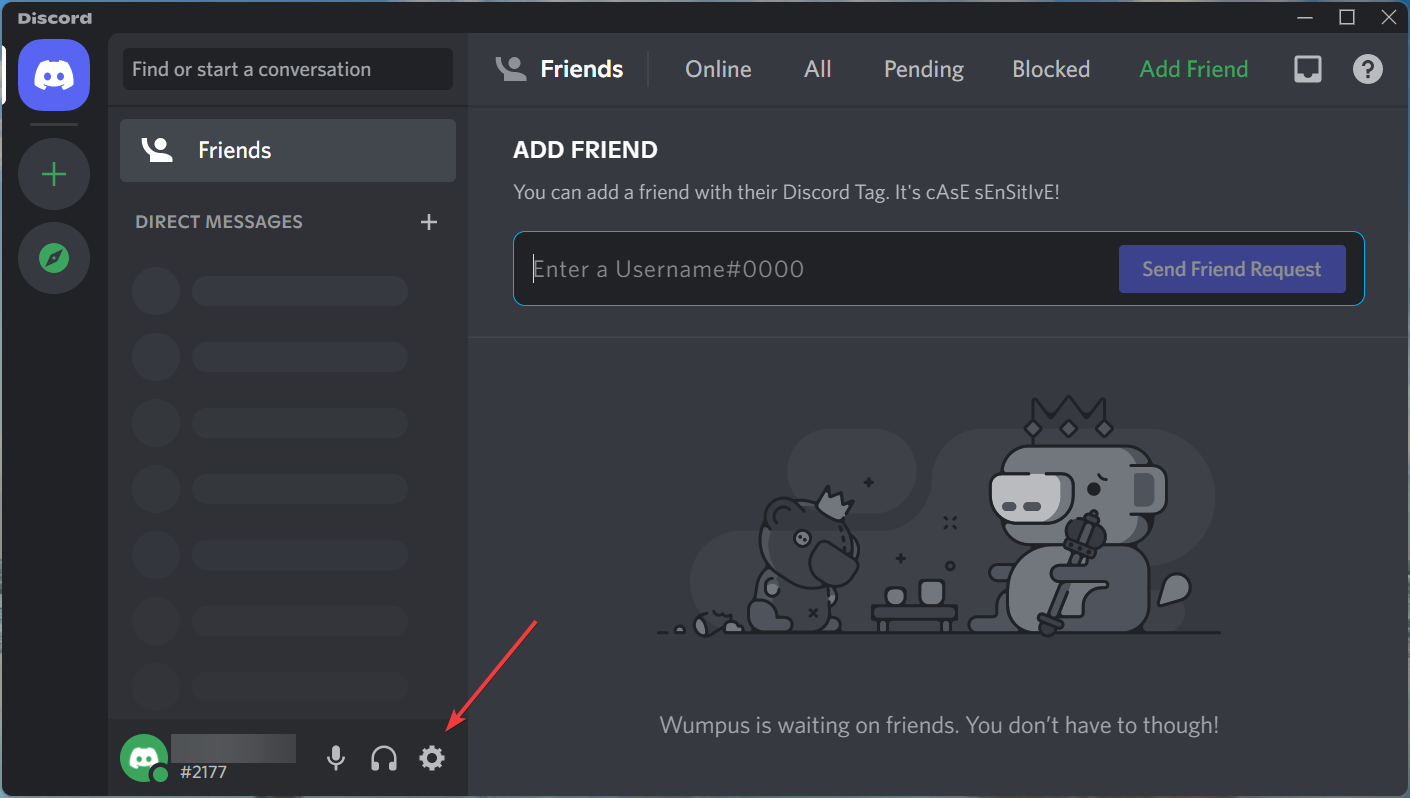
  1. Launch the Discord app, and click on the Settings icon near the bottom-left corner.Settings
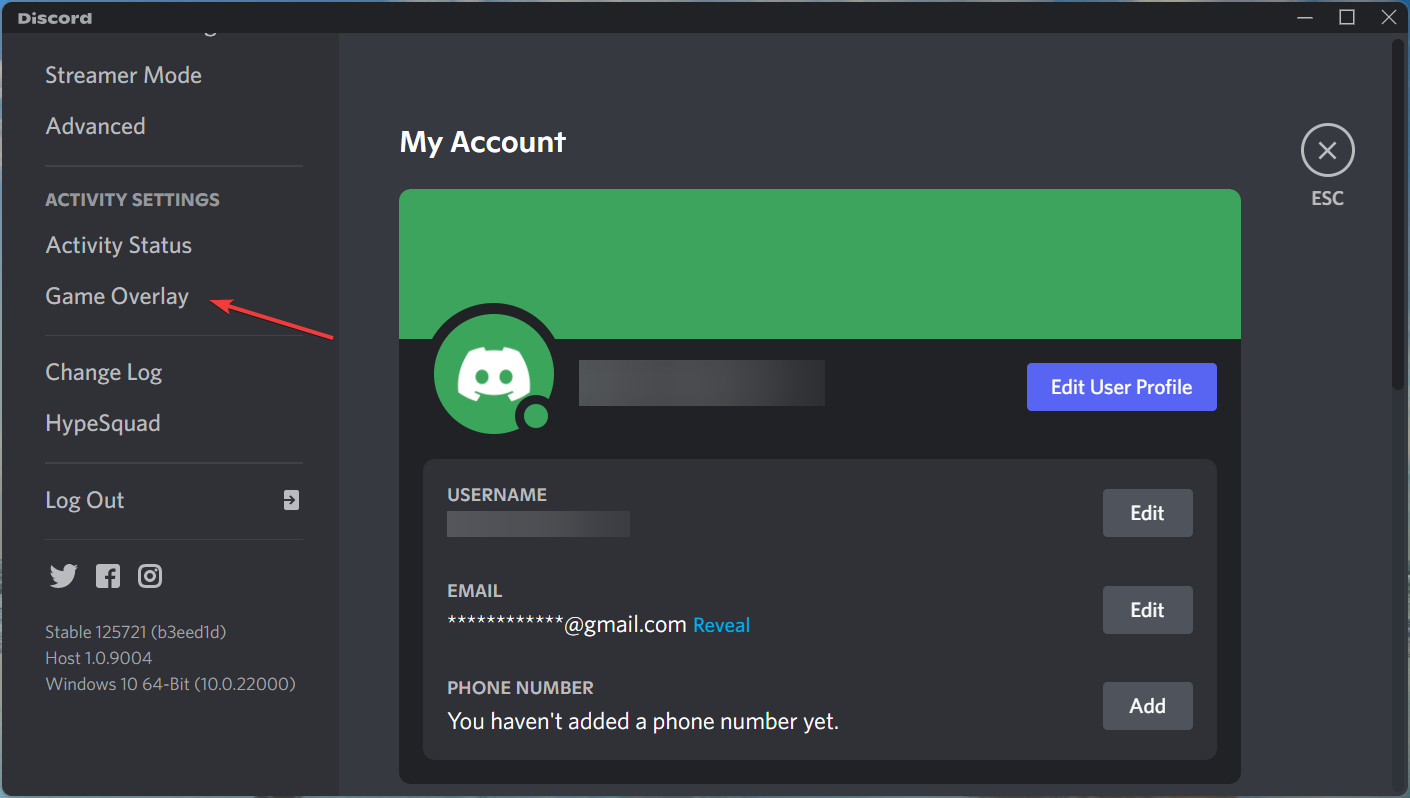
  2. Next, select Game Overlay under Activity settings from the list of options on the left.Game overlay
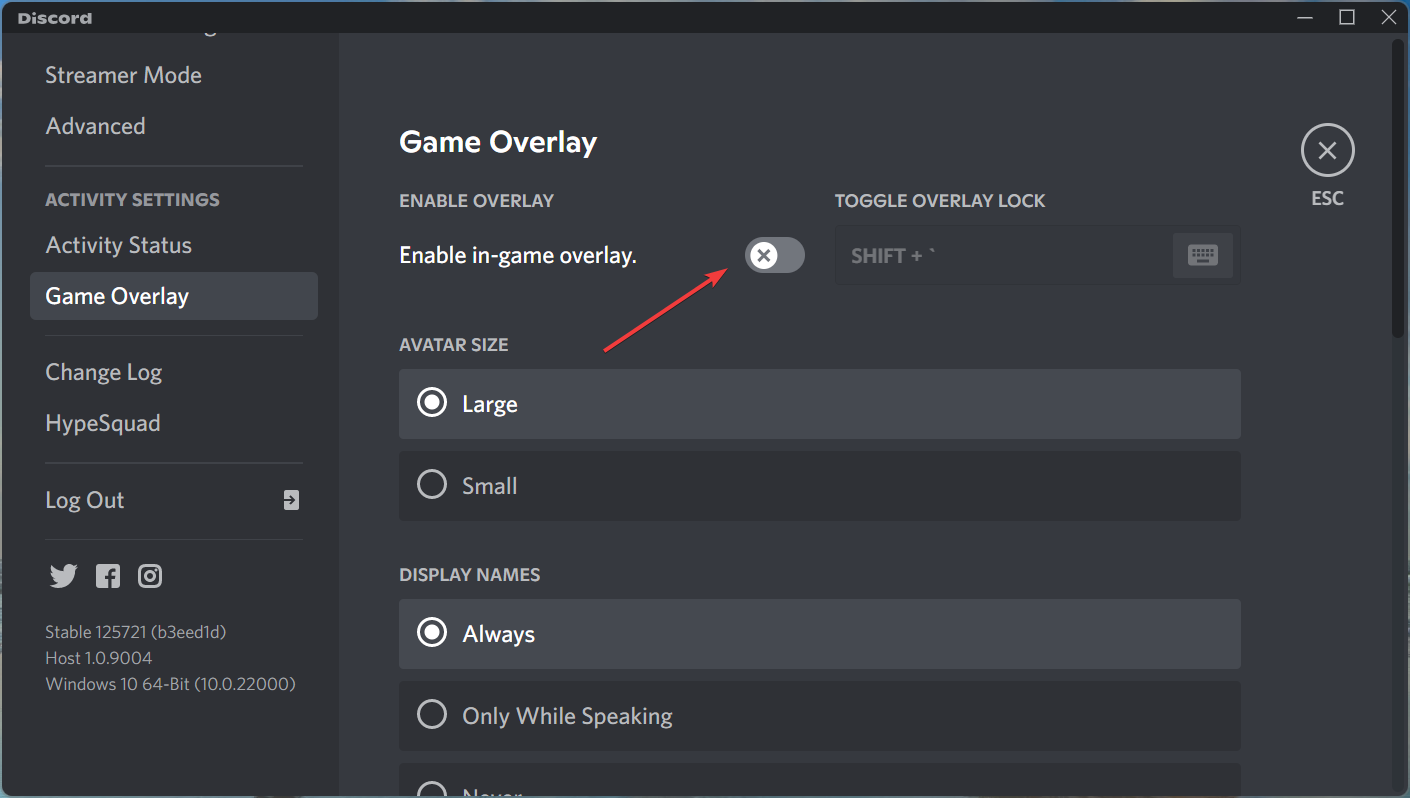
  3. Disable the toggle for Enable in-game overlay, and close the Discord app.Disable in-game overlay to fix battlefront 2 mouse lag

That’s it! Discord in-game overlay is now disabled and if it was responsible for Battlefront 2 mouse lag, the problem shouldn’t be present anymore. If there are other similar apps installed on the computer, make sure to disable overlay for them too.

6. Run Battlefront 2 as an administrator

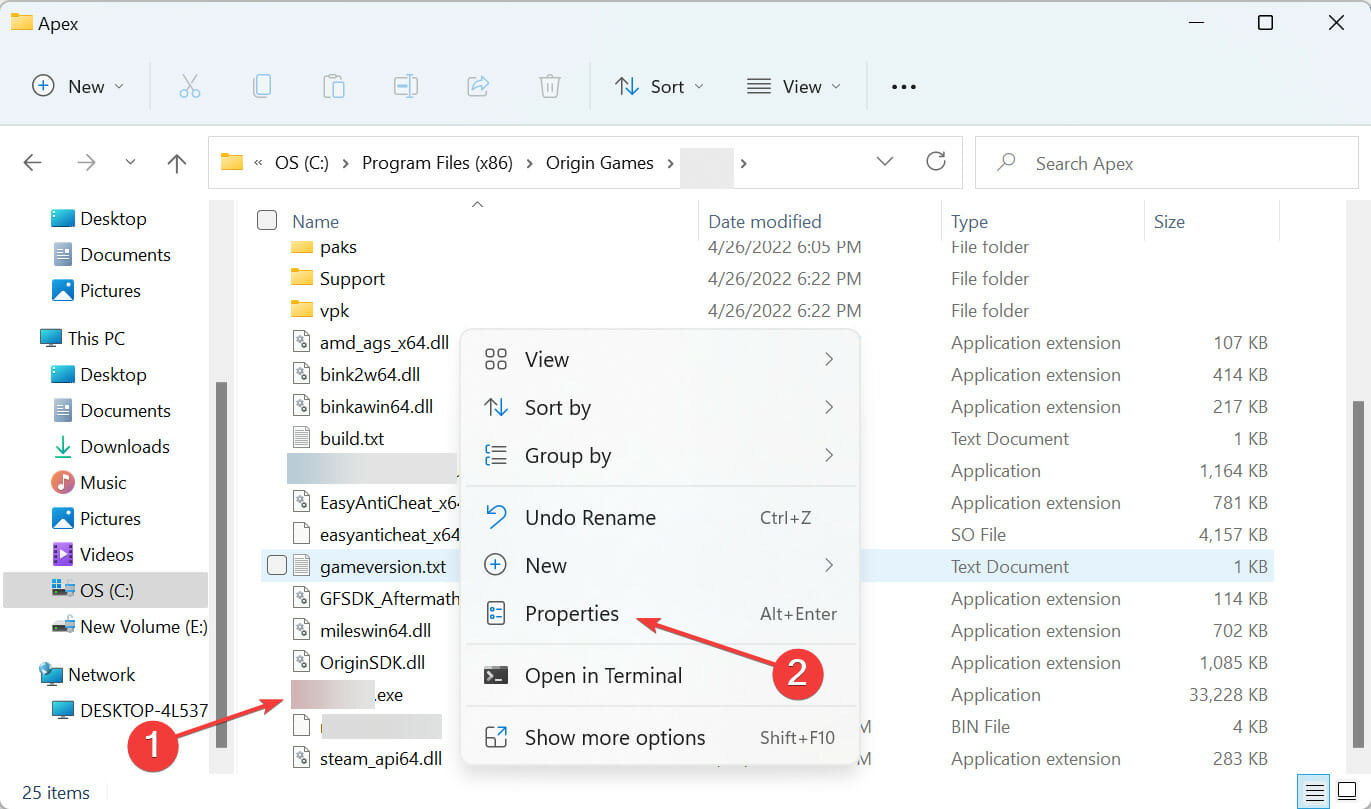
  1. Locate the folder where the launcher (.exe file) for Battlefront 2 is stored, right-click on it, and select Properties from the context menu. Alternatively, you can select the file and hit Alt + Enter.Properties
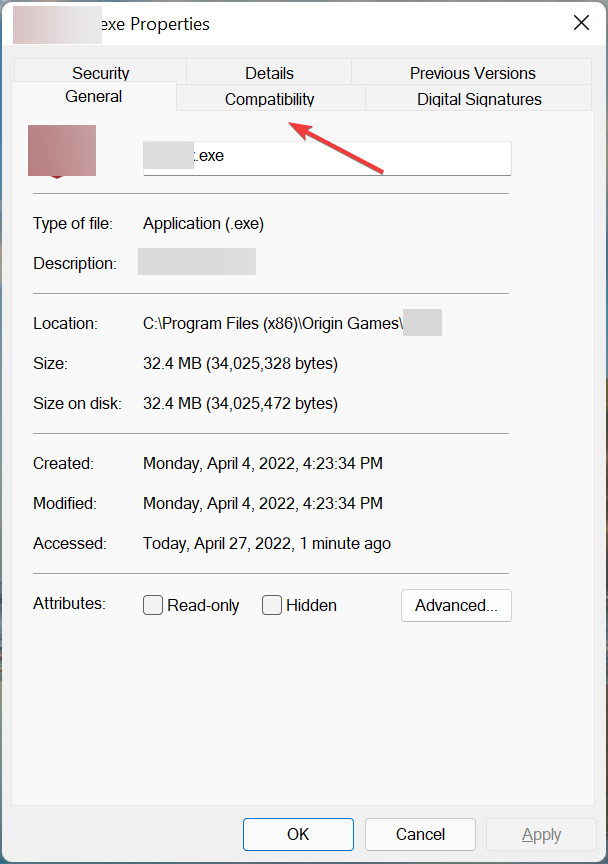
  2. Navigate to the Compatibility tab.Compatibility tab
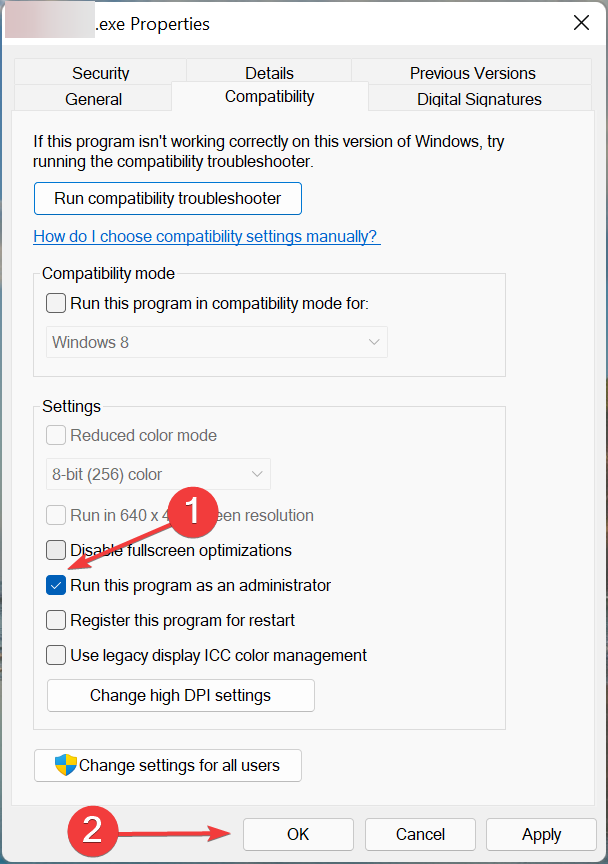
  3. Now, tick the checkbox for Run this program as an administrator, and click on OK at the bottom to save the changes.Run as administrator to fix battlefront 2 mouse lag

Oftentimes, if an app does not have the required permissions, you may face issues with it. And running it as an administrator should eliminate most of these.

These were the six most effective methods, and by now, you would have the Battlefront 2 mouse lag issue fixed on your computer.

Also, find out what to do if Battlefront 2 doesn’t work, since this requires a highly intricate approach.

Tell us which fix worked and your review of Battlefront 2, in the comments section below.

7 Tested Methods to Fix Lag Spikes in CoD: MW

Lag spikes in COD MW can be a big problem and completely ruin your multiplayer experience. Therefore, it’s important that you fix them. Users have experienced high ping, jitter and packet loss recently.

How to fix laggy Call of Duty?

1. Check security software on your PC

If you experience lag spikes in CoD Modern Warfare, certain security software on your PC might be restricting or blocking your connection to the game server.

For that reason, we urge you to check your firewall for any signs of Modern Warfare-related restrictions.

Now do the same with your antivirus and antimalware utilities. If everything looks good, it means that your system doesn’t blacklist CoD:MW, and at least you can rule out security software messing with your game connection.

2. Make sure you update CoD:MW

Nothing goes south faster than out-of-date software. You’d think that the game and its developers have a bunch of fail safes that would keep you from running the game if it’s not the latest version.

Technically you’re right. Modern Warfare usually doesn’t run if it’s not the latest version, but hey, stranger things have happened. For that reason, make sure your game and the platform it runs on is up-to-date.

That also goes for your system and its drivers. By the way, you can use a third-party driver updater if you want to. It’s much easier than running manual updates on all devices on your system.

4. Use lower graphics settings

Although ping doesn’t affect framerate, and neither does it work the other way around, sometimes lowering your graphics settings can boost your performance.

Many users mistake high ping or lag spikes for low FPS. During the golden days when Counter-Strike 1.6 was on fire, throwing a smoke grenade would be an instant FPS killer, especially for low-end PCs.

Of course, users with high-end PCs had no trouble rendering at high FPS, and would absolutely butcher the affected parties.

Conclusion? If your system can’t afford it, crank down those ultra settings. You’ll have a smoother gaming experience, albeit not as attractive.

5. Flush your DNS

flush DNS servers in Windows 10

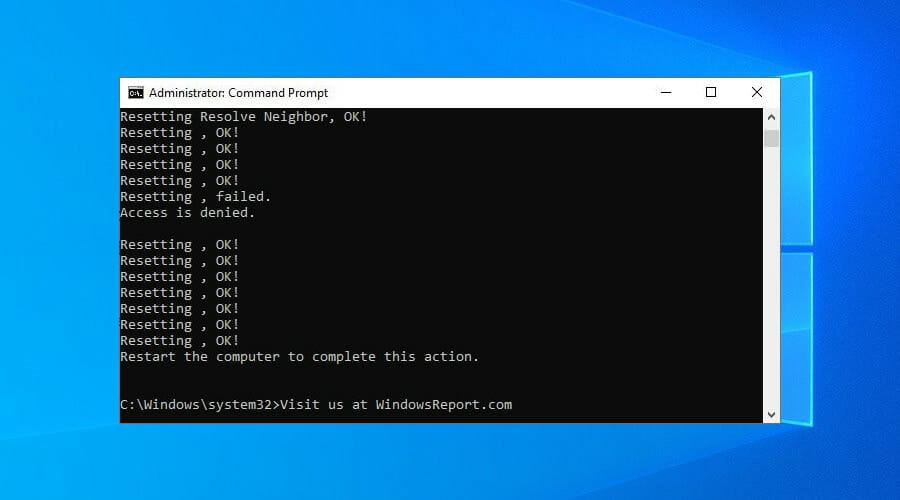
Lag spikes in CoD:Mw can also be caused by cached data build-ups on your system. One sure way to get rid of these bits of information is by flushing your DNS and resetting your winsock.

Don’t worry, we’re not here to name it and make ourselves scarce. We’ll guide you through the process. Just take these steps and you should be fine:

  1. On your Windows PC, launch a CMD instance (with Administrator rights)
  2. Type the following commands, one by one, in this precise order:

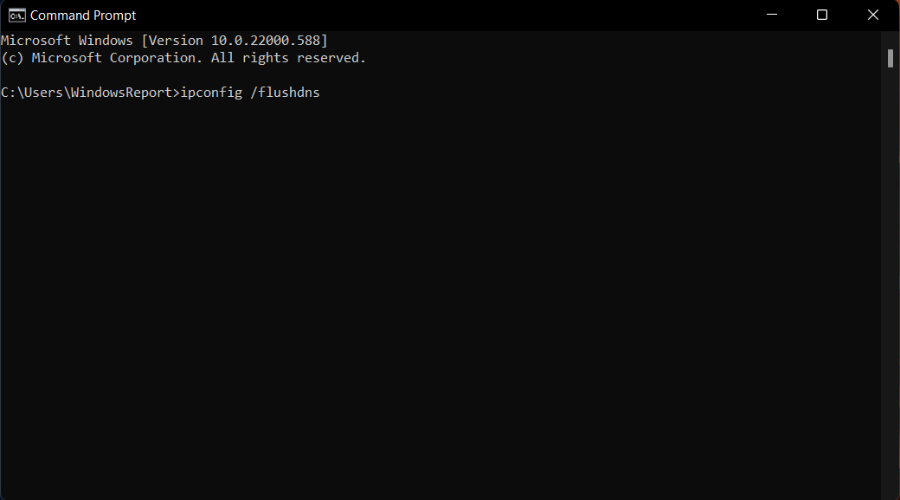
ipconfig /flushdns
ipconfig /registerdns
ipconfig /release
ipconfig /renew
netsh winsock reset

Once the last command has been executed successfully, it’s safe to restart your PC. After the boot sequence (fancy wording for system startup) completes, launch CoD:MW and see if you’re still experiencing lag spikes.

Furthermore, if you feel adventurous, try switching from your ISP-assigned DNS servers to public-free ones, such as Google or Cloudflare. If your ISP’s DNS is limited in any way, you’ll be way better with our alternatives.

3. Try a reliable VPN

  1. Get a Private Internet Access VPN subscription plan.
  2. Download and install the VPN on your PC.
  3. Launch it.
  4. Log into your account.
  5. Select a fast server (ones that are near to you are usually fast).
  6. Launch CoD: MW and check if you still get lag spikes.

If Modern Warfare is lagging but the internet is fine, you might be able to fix the problem with a VPN. If it can outsmart geo-detection systems to unblock US Netflix for European users, then it can surely find a better route to get you rid of lag spikes in CoD: MW.

PIA

Are lag spikes ruining your CoD: MW experience? Use PIA to get rid of them.
Check price Visit Website

6. Change the game server

Hey, it happens. Your favorite server might be on the frits, especially if network congestion is involved. Sadly, you can’t do anything to prevent or counter this situation.

If there are server-side issues, the best course of action is to disconnect and find another server, at least for the time being. You can come back later and see if it’s still bad.

7. Troubleshoot manually

  • Test the speed of your connection (there are a lot of online tools for that)
  • Always use a wired connection instead of wireless when possible
  • Update any outdated drivers on your system, your OS, and your router’s firmware
  • Restart the game, your PC, your modem, and your router
  • Avoid peak hours if you suspect network congestion to be the culprit (or use a VPN)
  • Try changing your wireless router’s broadcast channel (or switch from 2.4 GHz to 5 GHz)
  • Terminate any background apps/services that consume a lot of bandwidth (use Task Manager)
  • Upgrade your Ethernet cables to match your connection speed (e.g. from Cat 6 to Cat 7)

However, it’s worth mentioning that using a VPN may not actually work all the time, no matter how hard we pray. In fact, VPNs can only reduce lag spikes if your ISP is somehow throttling your connection by offering your connection a better, non-restricted route.

Which tool should I use to lower ping while gaming?

  • Kill Ping

Kill Ping is, as its name says, a killer of ping. If you experience lag spikes, which are nothing but intermittent high ping occurrences on your network, then this tool may be their nemesis. It’s in the name, after all.

You can install and configure Kill Ping quite easily. After installing it, you need to configure Kill Ping to run with Modern Warfare. Although the game may not be on the official list of supported games, Kill Ping works with custom titles, too.

All you have to do is choose Custom Path when you configure it and you should be good to go.

⇒ Get Kill Ping

  • Game Fire all the way

Game Fire‘s name might not be as suggestive as Kill Ping’s, but it can do some serious optimization on your system to get you rid of those pesky lag spikes in Modern Warfare.

Just install it, launch it, configure it, and let it work its magic. Game Fire has a lot of features in its toolbelt, including but not limited to:

  • Real-time system optimization
  • Embedded one-click system tweaker
  • Boost your in-game FPS count
  • De-prioritizes unnecessary apps on your system
  • Allocates more RAM to running games
  • Can boost your network and Internet speed

⇒ Get Game Fire

Call of Duty: Modern Warfare connection symbols

Modern Warfare has a pretty nifty way of letting you know about various issues. Instead of just dropping your connection and making you read through indecipherable crash reports, they prompt you with discrete status icons, just like the ones below.

Call of Duty Modern Warfare connection symbols

You may have already seen some of them while playing various EA action titles (they’re not specific to Modern Warfare). Also, they tend to change the design (slightly) from one release to another, but their meaning is quite the same.

3 orange squares Modern Warfare fix

If you’re constantly facing the dreaded 3 orange square symbol that’s like an omen of fun death, we’ve got some good news. It means that you’re losing packets, and luckily we’ve got a bunch of fixes for Modern Warfare packet loss.

To put it shortly, packet loss occurs whenever data packets that travel throughout your connection never arrive at their intended destination. The server keeps waiting for them to arrive, and if they never do, strange things happen.

For instance, you may experience rubberbanding, the menus might become unresponsive, VoIP may become impossible to use. You probably know this better than anyone at this point.

Last thoughts on fixing lag spikes in CoD: MW

All things considered, if you’re experiencing lag spikes in CoD:MW, there are a lot of things you can do about it, ranging from restarting the game or changing the server, to using a VPN or Kill Ping.

In case you need a different way to fix this issue, we suggest using a VPN with no lag for gamers. We also have a guide on Warzone lag, so feel free to check it out.

Perseverance is key, so with this in mind, if one of our suggested methods doesn’t work, just move to the next one. We’re quite confident you’ll find one that will fit your needs like a glove.

Microsoft’s Zero-carbon quest could rely heavily on Hydrogen fuel cells

Microsoft periodically updates the public on its zero-carbon quest as it inches closer to its zero-negative timeframe of 2030, and today’s update includes some expansions in the world of hydrogen fuel cells.

As more businesses, governments, municipalities move operations to the cloud, datacenters are becoming the heartbeat to global activity and companies such as Microsoft are looking at alternative ways to power them while being eco-conscious.

Beyond windmills and solar power, Microsoft began betting on proton exchange membrane (PEM) technology back in 2013 and it looks like it may be about to pay off as a no-carbon emission power resource.

Microsoft chief environmental officer Lucas Joppa research found that the PEM cells which combine hydrogen and oxygen for chemical reaction that produces electricity, heat and water without particulate matter and zero carbon emission, could be the future for the company’s datacenter output in the future.

Joppa’s tested the PEM technology at three megawatts which is equivalent to the diesel generators Microsoft currently employees in its back up processes and enough energy to power 10,000 computers or 600 homes.

Hydrogen-fuel-cells-1-1024x683

Unfortunately, PEM technology is not currently set for scale and will be something that could become a longtail project as the world works to make green hydrogen economically viable.

However, the potential upside of green hydrogen to power commercial buildings, homes, hospitals and datacenters through increasing environmental emergencies might help expedite its scale of use.

As of now, PEM fuel technology is only being explored as a backup option for Microsoft’s datacenters at the moment, but researchers are looking into ways to elongate the lifespan and have it become a viable alternative solution for commercial use.

As Microsoft director of datacenter research Sean James puts it, “I’m going to turn around when the excitement dies down and start to ask, ‘Okay, we did one, where can I get 1,000? We’ve got a commitment to be completely diesel free, and that supply chain has got to be robust – we’ve got to talk about scale across the entire hydrogen industry.”

Opera Browser Not Closing – 7 Ways to Fix It

Opera browser not closing and hogging system resources? It could be because of cookies, corrupt files, extensions, or Opera profile issues. Whatever the case, the following steps should help.

How to fix Opera not closing

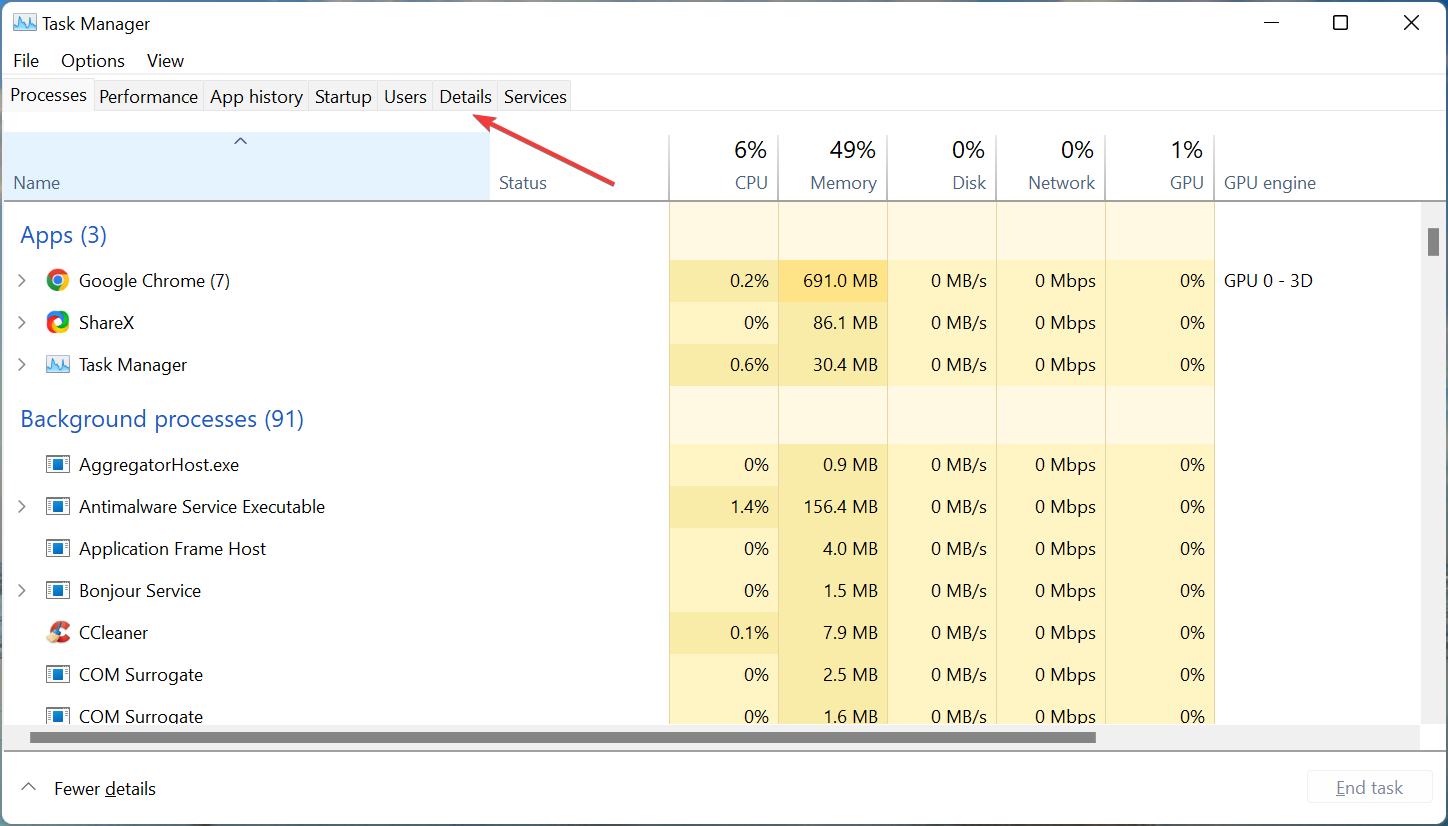
1. Kill the task in Task Manager

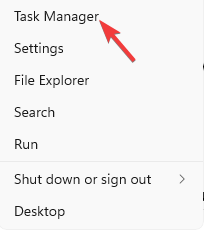
  1. Right-click on the Start button and select Task Manager. open task manager
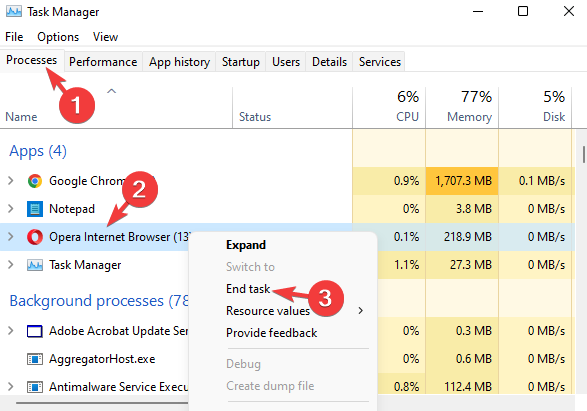
  2. Under the Processes tab, look for Opera.
  3. Now, right-click on it and select End task.end opera processe

2. Test Opera in a standalone installation

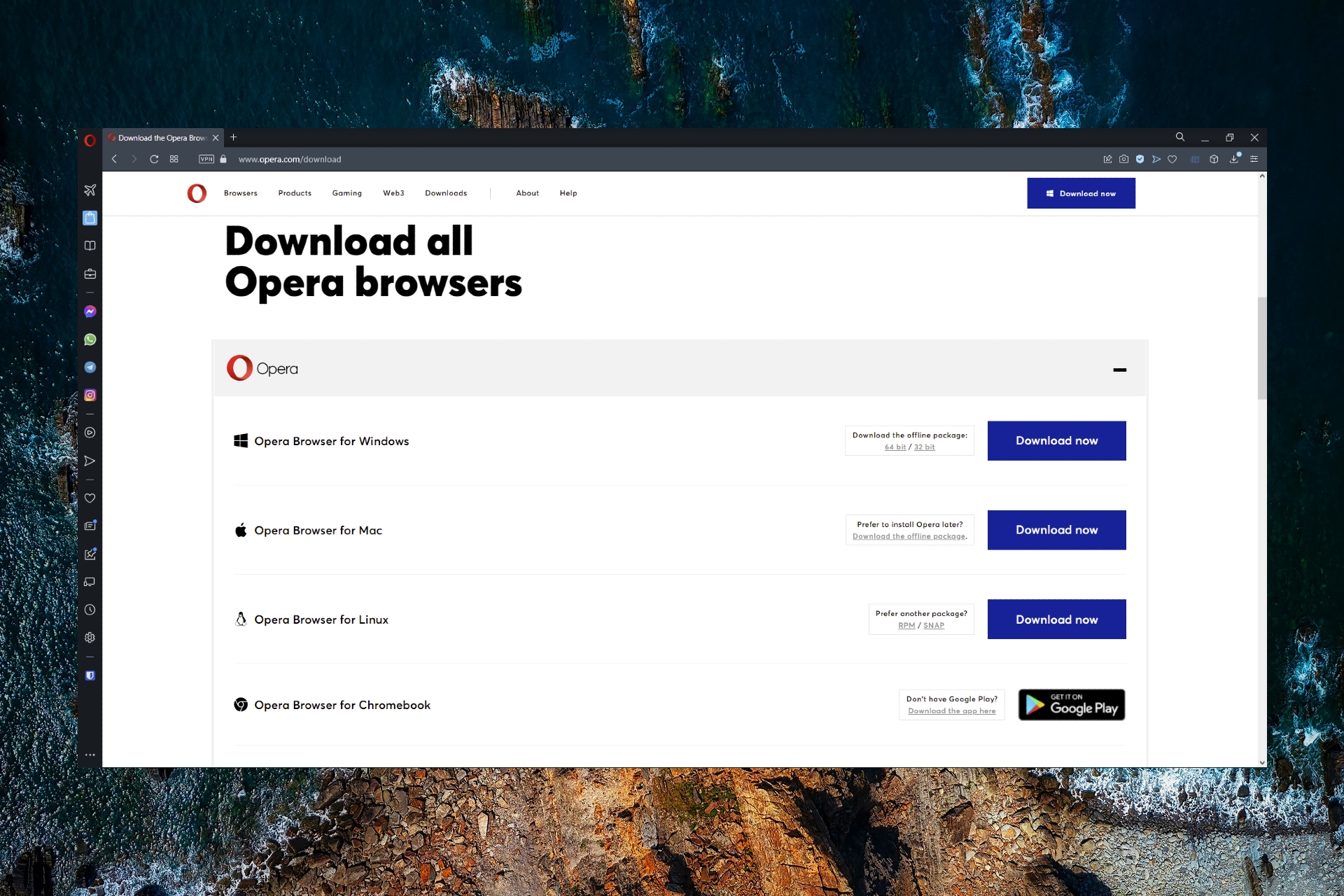
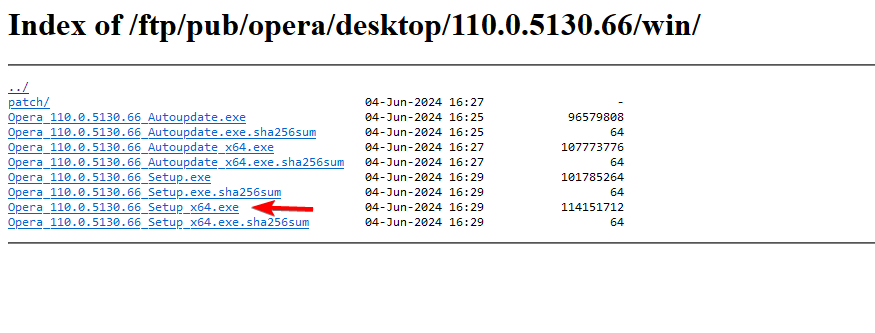
  1. Visit the official download page and click on Download Opera. download opera
  2. Next, run the setup wizard and click on Options. Opera options
  3. Go to Install path and set it to: C:\Users\%UserProfile%\Desktop\Opera TestInstall path - Opera Test
  4. Now, set the Install for field to Stand-alone installation (USB).
  5. Uncheck Import bookmarks and data from the default browser.
  6. Now, press Accept and Install. Stand-alone installation (USB)

You can now test that Opera browser (without any Opera Sync and without any extension) if all its instances are closing.

Once the test is over, delete the Opera Test folder.

3. Delete history files in Opera’s profile directory

  1. Launch Opera and navigate to the below path: opera://about
  2. Scroll down to Paths and copy the Profile path. copy opera profile path
  3. Now, press the Win + E keys simultaneously to open File Explorer, paste the copied path in the File Explorer address bar and hit Enter.
  4. Look for the History files here and delete them all. delete history files in opera profile directory

While you will lose your browsing history in Opera, it may fix the issue when it’s not closing by removing any corrupted files.

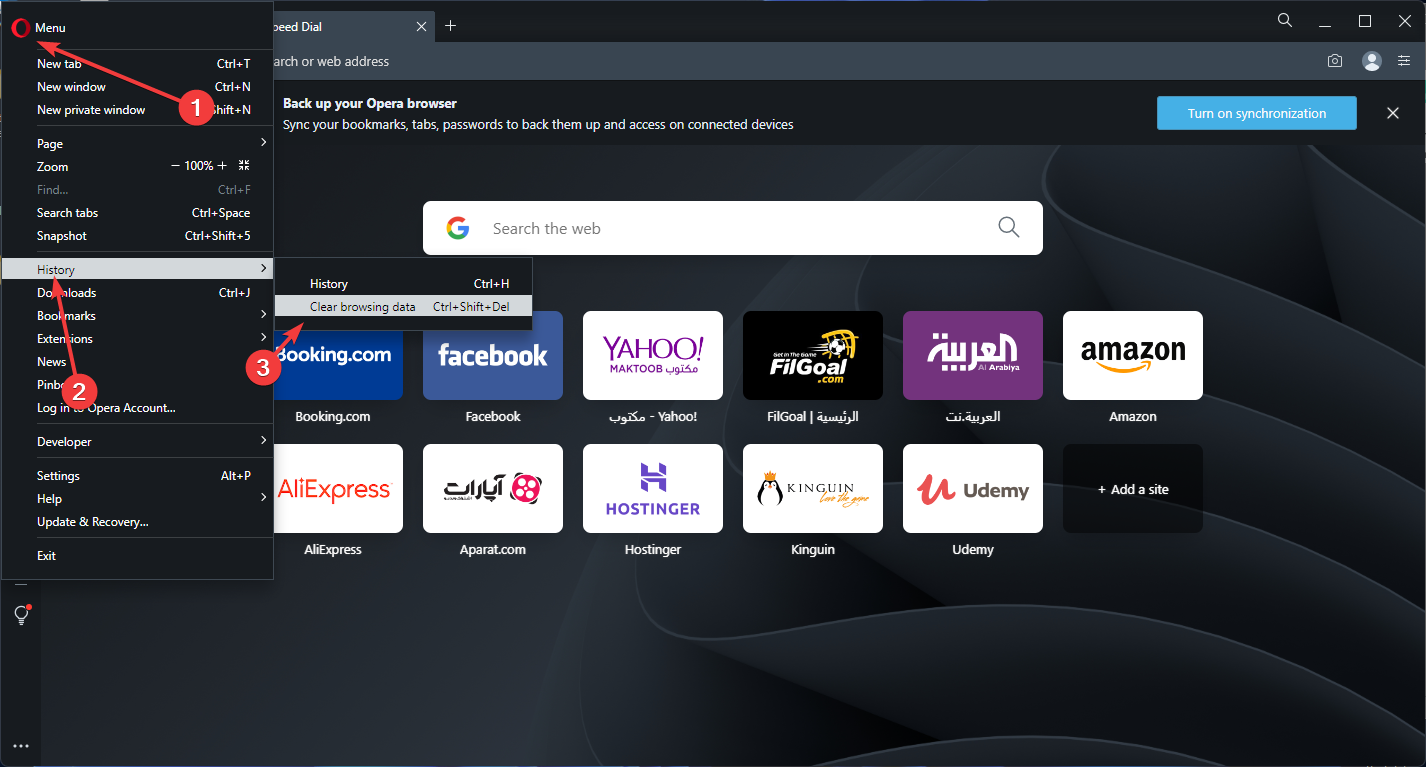
4. Clear browsing history and cookies

  1. Launch Opera, and click on Settings on the sidebar. opera settings
  2. On the left side of the Opera settings pane, click on Privacy & security. Privacy & security
  3. Now, on the right side, click on Clear browsing data. Opera - Clear browsing data
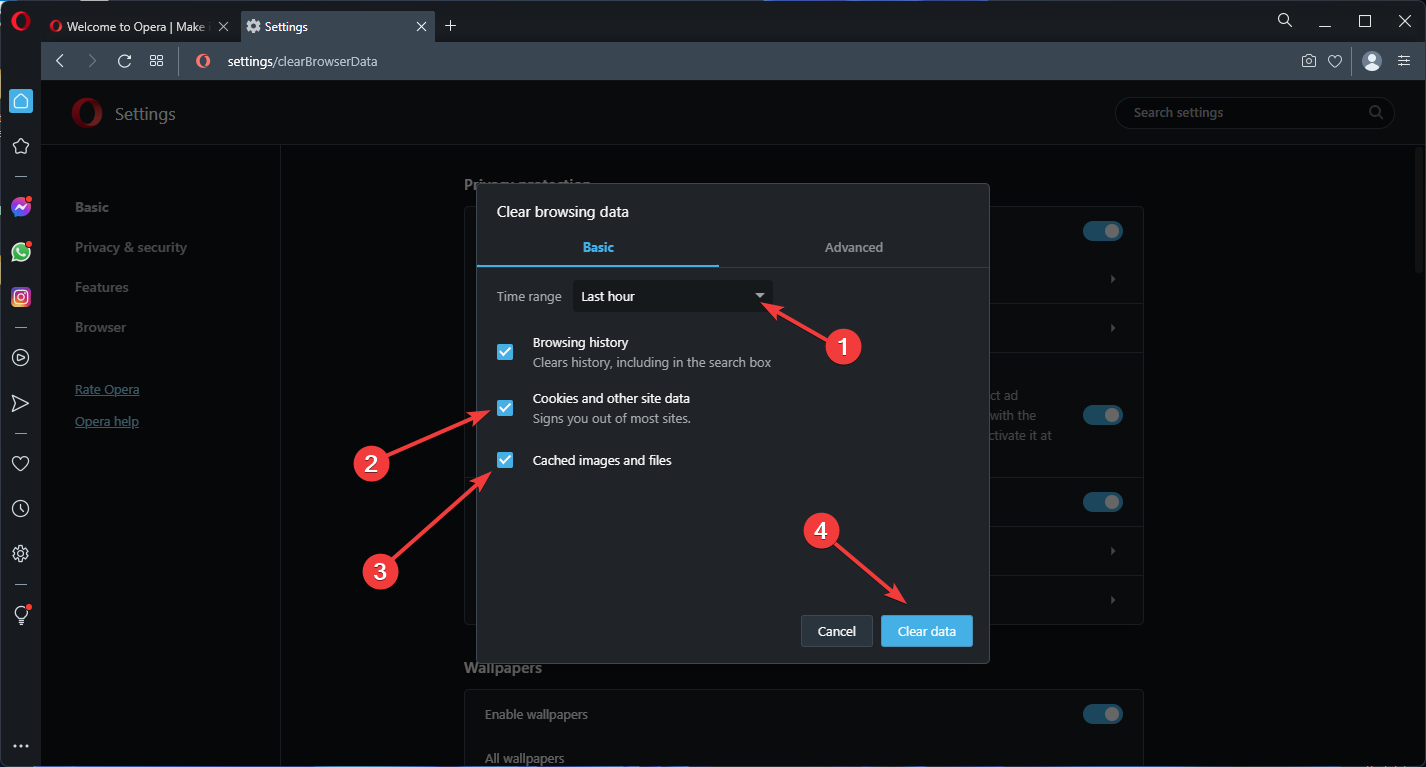
  4. In the Clear browsing data window, under Basic, set the Time range to All time.
  5. Now, select Browsing history, Cookies, and other site data and Cached images and files.
  6. Press the Clear data button. Clear all browsing data

Once the data is cleared, restart Opera and now check if it’s closing normally.

5. Reinstall the Opera browser

  1. Press the Win + I keys together to launch Windows Settings.
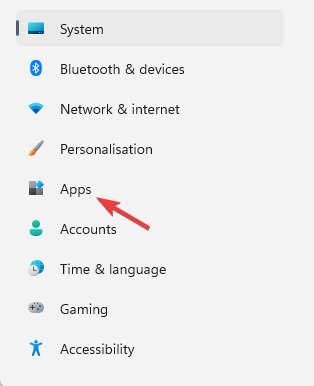
  2. On the left of the Settings pane, click on Apps. click on Apps in settings
  3. Next, click on Apps & features on the right. Click on Apps & features in the Settings app
  4. Go to App list and search for Opera. App list - search opera
  5. Next, click on the three dots next to Opera and select Uninstall. Uninstall opera
  6. Now, go to Opera’s official download page and install the latest version of the browser.

This method is also applicable if you encounter a situation when your Opera GX browser is not responding.

6. Remove browser extensions

  1. Open Opera, click on the cube icon on the top right of the toolbar and select Manage extensions. manage extensions in opera
  2. Next, go to the problem extension, and disable it. disable extension
  3. If it’s not the one causing the problem, try disabling the other extensions one by one to identify the culprit.

Once you have found the problem extension and disabled it, check if the Opera browser not closing issue is fixed now.

7. Disable hardware acceleration

  1. Open the Opera browser and navigate to the below path: Opera://settings/system
  2. On the System settings page, on the right, turn off Use hardware acceleration when available. disable use hardware acceleration when available
  3. Next, click on Relaunch to restart the browser. relaunch opera

Now close the browser and check if the multiple instances of the Opera browser are closed. ARc browser may refuse to shut down too so check out our article on how to force it to close.

That’s it. If you’re still facing issues with your browser and need more help, please let us know in the comments below.

Cyberpunk 2077 Mouse Lag: 7 Ways to Fix it for Good

Cyberpunk 2077 had a rough start as a game, and the initial game was filled with all sorts of bugs and glitches. While most bugs were fixed, few users reported Cyberpunk 2077 mouse lag on their PC.

This can be a problem since it will make the navigation in-game a lot harder, and negatively impact your whole gameplay experience.

Sadly, there are other problems, and users reported Cyberpunk 2077 key binding failed error. Luckily, we covered this issue in a separate guide, so you can easily fix it.

However, it’s possible to fix this issue and enjoy the game once again, and in today’s guide, we’re going to show you how to fix mouse problems in Cyberpunk 2077 with ease.

Why does Cyberpunk 2077 have sluggish controls?

Even since the initial release, the game has a couple of bugs left, and this can manifest as input issues. Your graphics settings may be causing the problem, so you need to adjust them accordingly.

Outdated drivers can also cause this problem; therefore it’s advised to keep them up to date if you want to avoid any additional problems.

How can I fix Cyberpunk 2077 mouse lag?

1. Change the in-game input settings

  1. Launch the game and navigate to Settings.
  2. Now go to the Video tab and disable the Vsync feature.
  3. Also, check if the game resolution is the same on your monitor and in-game.
  4. Now locate the Resolution Scaling section and set the Static FidelityFX CAS to On.
  5. Lower the Resolution Scaling if needed.
  6. Optional: Disable the aim assist option in settings.

Few users also suggested using Borderless Fullscreen instead of the fullscreen mode, so be sure to try that as well.

However, other users reported that running the game in fullscreen mode fixed the Cyberpunk 2077 mouse lag, so your results may vary.

2. Update your drivers

  1. Type device in the taskbar and open Device Manager.
  2. Locate the Mice and other pointing devices in the list.
  3. Right-click your mouse device and select Update Driver.

Keeping your drivers up to date is a great way to fix Cyberpunk 2077 mouse input lag and other issues.

Keep in mind that the operating system may not always be able to identify the latest drivers. You can also check for driver updates directly on the manufacturer’s website.

Alternatively, if you want to avoid the risk of system damage caused by mismatched driver versions that may lead to frequent BSODs or your device behaving oddly, you can use an automated utility.

Mismatched drivers of the mouse can cause uneven behavior of the mouse pointer or an altogether unresponsive mouse.

We recommend you try Outbyte Driver Updater because it can detect whether you have any outdated drivers and install new versions right away. The tool is very light and requires very minimal effort on the user’s part.

Outbyte Driver Updater

For a healthy PC, automatic driver updates and backups are important for hardware.

3. Change your graphics settings

  1. Start the game and go to Settings.
  2. Now head over to the Graphics section.
  3. Change the Quick Preset to Low or Lowest.
  4. Optional: You can also disable other graphics features.

Few users reported that limiting the frame rate can also help, if the mouse feels weird in Cyberpunk 2077, so be sure to try that.

4. Change the controller settings

  1. Start the game and navigate to Settings.
  2. Go to Controls and enable Show Advanced Options.
  3. Set the Response Curve to Raw.
  4. Now set the Horizontal Turning Bonus and Vertical Turning Bonus to 0.

If the Cyberpunk 2077 aiming feels weird, then try adjusting these settings.

5. Adjust mouse settings

  1. Press Windows key + S and enter mouse pointer. Select Change the mouse pointer display or speed.
  2. Uncheck Enhance pointer precision checkbox.
  3. Now click on Apply and OK to save changes.

Once you make the changes, start the game again and check if the Cyberpunk 2077 mouse input delay is still there.

6. Turn off Ray Tracing

  1. Start the game and navigate to Settings.
  2. Now go to the Graphics section.
  3. Scroll down to the Ray Tracing section and set it to Off.
  4. Save changes.

After disabling this feature, check if the problem is gone.

7. Disable Steam Overlay

  1. Launch Steam and go to your Library.
  2. Locate Cyberpunk 2077 and right-click it. Choose Properties from the menu.
  3. Now uncheck Enable Steam Overlay while in-game and save changes.
  4. Now start the game.

How can I fix Cyberpunk 2077 micro stutter?

Firstly, it’s important to keep the game and your drivers up to date. The developers are working hard to optimize the game, so be sure to always download the latest updates.

Disabling certain features, such as Steam Overlay or Ray Tracing can significantly improve your performance, so be sure to turn them off.

We wrote an in-depth guide on how to fix game stuttering on Windows 10 and 11, so we encourage you to check it out for more information.

Mouse lag in Cyberpunk 2077 can be a big problem, but hopefully, you managed to fix this issue after using the solutions from this guide.

This isn’t the only problem with the game, and if you’re experiencing any slowdowns, we suggest reading our low FPS in Cyberpunk 2077 guide for more solutions.

Did you find a different way to fix this problem? If so, let us know in the comments section below.

KB5015885: Find out all there is to know about this update

We’ve had a lot of software releases from Microsoft today, mostly all of the being updates for the Windows 11 operating system.

Dev Channel Insiders got their hands on Build 25169 today, while their Beta Channel brothers received KB5015890, with two new builds.

Windows 10 users also have reasons to be happy, as they just received version 22H2 of the OS to the Release Preview Channel.

Now let’s take a look at the Windows 11 Release Preview Channel, where Insiders are currently dealing with Build 22621.317.

What does Build 22621.317 bring to Windows 11?

Just as we’ve mentioned, Microsoft has released Windows 11 Build 22621.317 (KB5015885) to Windows Insiders on the Release Preview Channel, and this is what you should look out for.

  • Fixed an issue that prevents troubleshooters from opening.
  • Fixed an issue that might increase the latency of games when vertical sync (VSync or v-sync) is in use.
  • Fixed an issue that affects the ProjectionManager.StartProjectingAsync API and prevents certain locales from connecting to Miracast Sinks.
  • Fixed an issue that causes the Smart App Control to block catalog-signed files.
  • Fixed an issue that causes the Take a Test app to remove all policies related to lockdown enforcement when you close the app.
  • Fixed an issue that might highly distort photos you take using the Camera app. This issue occurs when using certain cameras under certain low light conditions.
  • Fixed an issue that throws an exception when you debug drivers using Visual Studio 2022 version 17.2 or later.
  • Fixed an issue that causes the Windows profile service to fail sporadically. The failure might occur when signing in. The error message is, “gpsvc service failed to sign in. Access denied”.
  • Fixed an issue that prevents virtualized App-V Office applications from opening or causes them to stop responding.

You might be pleasantly surprised to learn that there are no known issues plaguing this software version, so there’s really nothing to worry about.

We’re only receiving some fixes, and that’s pretty much all she wrote for Windows 11 Release Preview Channel Build 22621.317.

What can I do if KB5015885 fails to install?

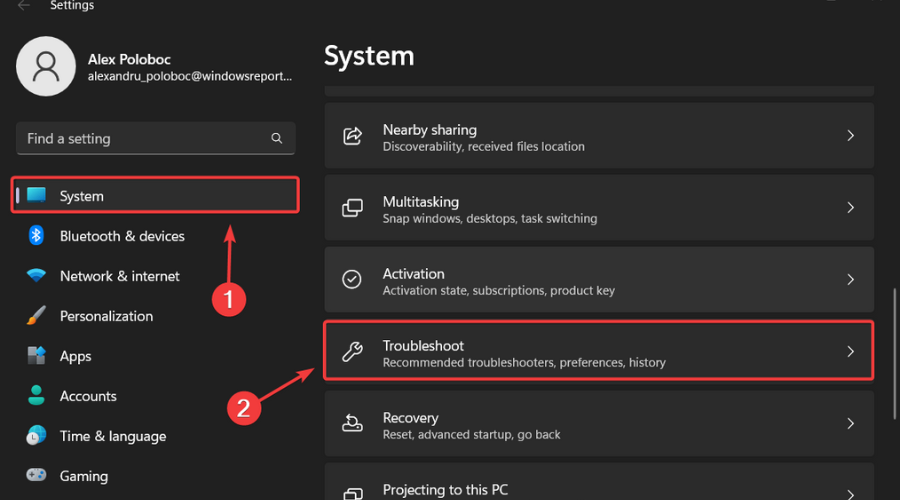
  1. Press Win+ I to access Settings.
  2. Select the System category and click on Troubleshoot.w11 troubleshoot
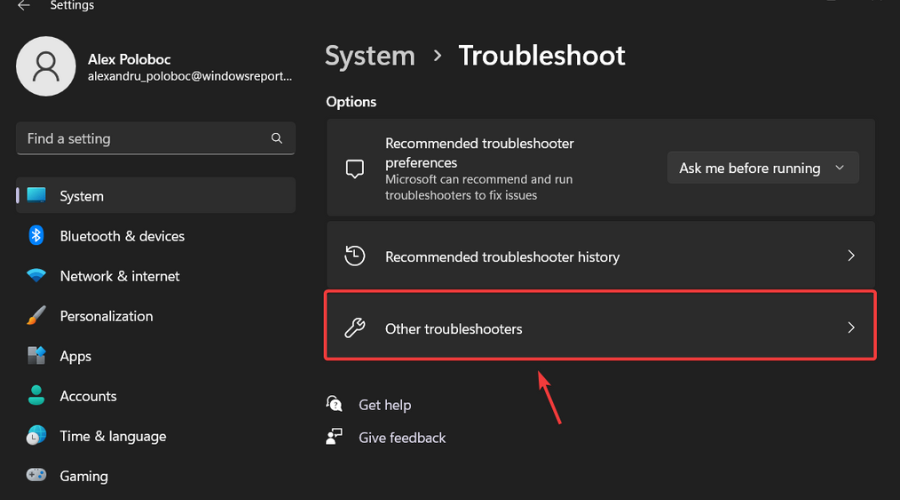
  3. Press the Other troubleshooters button.other troubleshooters windows 11
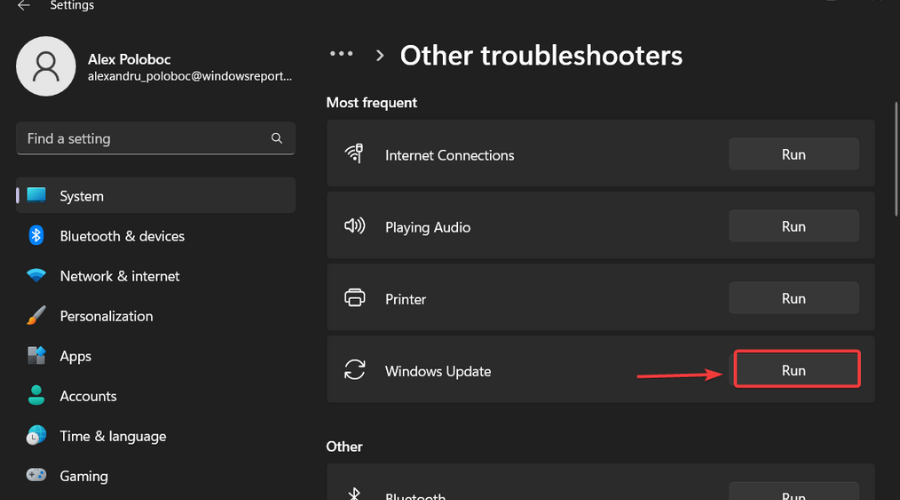
  4. Press the Run button next to Windows Update.windows update troubleshooter

Have you discovered any since installing KB5015885? Share your experience with us in the comments section below.

Why is my Genshin so Laggy? How to Stop is in 3 Steps

There are many great games on the market, but even great games have issues. Speaking of which, many users reported Genshin Impact lag on their PC.

And, as every gamer in the world would agree, nothing is more frustrating than not being able to play your favorite game because of errors, lag, or other issues.

This isn’t the only issue, and many reported Genshin Impact: Failed to check for updates error while trying to run the game.

If you are experiencing any issues with this game on Windows 11, we can happily lend a helping hand in this time of need.

Why is my Genshin Impact so laggy?

Don’t worry, you don’t have to be a rocket scientist, as this problem is easily fixable and won’t take up too much of your time.

Before we show you how, though, you need to understand that this situation can be caused by either faulty drivers or an unstable or weak Internet connection.

We know you’ve probably been asking yourself: Can Windows 11 cause lag? The truth is that it could happen if you recently upgraded from Windows 10 to the latest OS.

Windows 11 could also be the root cause for your lag during Genshin Impact gameplay if you are using an Insider Preview, especially on the Dev Channel.

Now that you know why is Genshin Impact so laggy on Windows 11, let’s explore the best ways to fix it.

How do I stop Genshin lag in Windows 11?

1. Troubleshoot your Internet connection

  1. Test if your network connection is working.
  2. Restart your router (make sure you unplug the power cord and leave it for 30 seconds switched off).
  3. Right-click the network icon in the Taskbar and select Troubleshoot problems.
  4. Open a Command Prompt and type the following commands (one by one):
    ipconfig/release
    ipconfig/all
    ipconfig/flushdns
    ipconfig/renew
    netsh winsock reset
  5. If the problem persists, switch to a cable connection.

If you’re having Genshin Impact lag on your PC, you should inspect your connection and make sure that everything is working properly.

2. Update your network driver

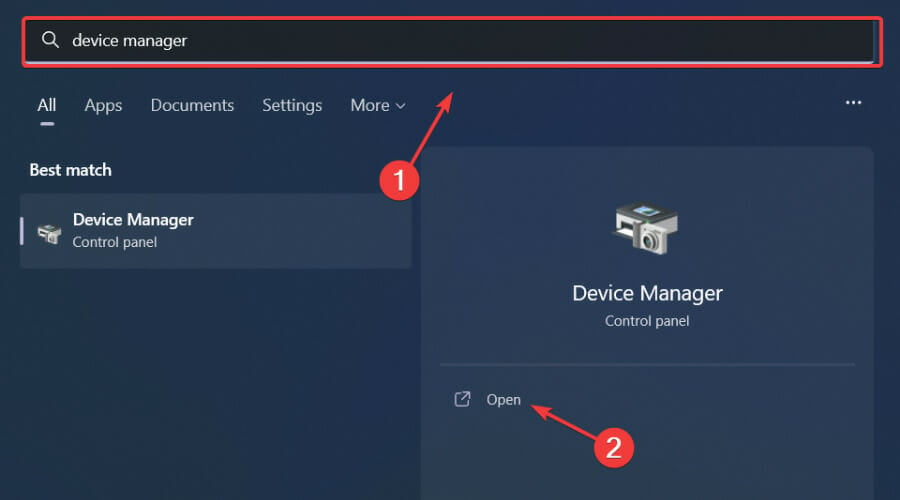
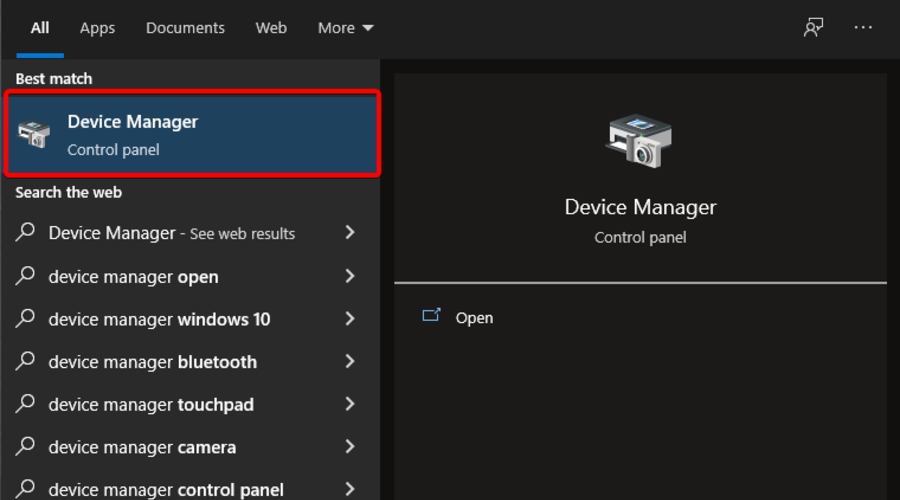
  1. Press the Windows key, search for Device Manager and click on Open.run device manager
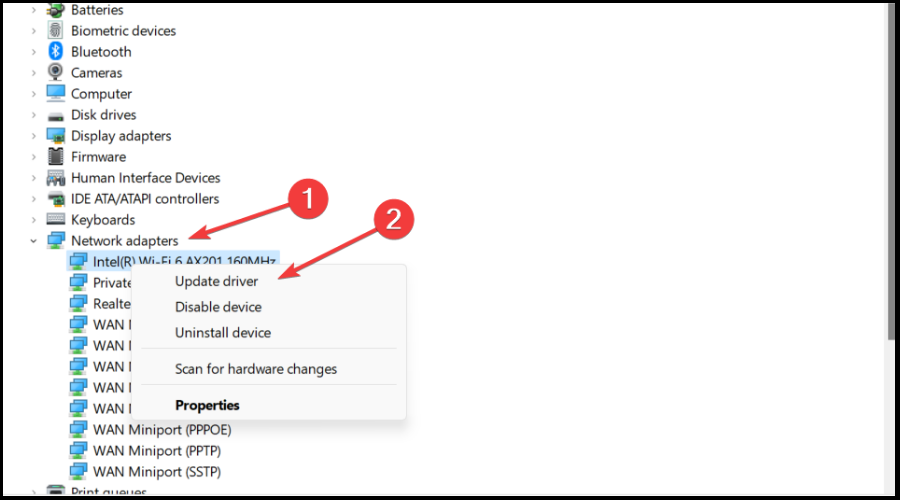
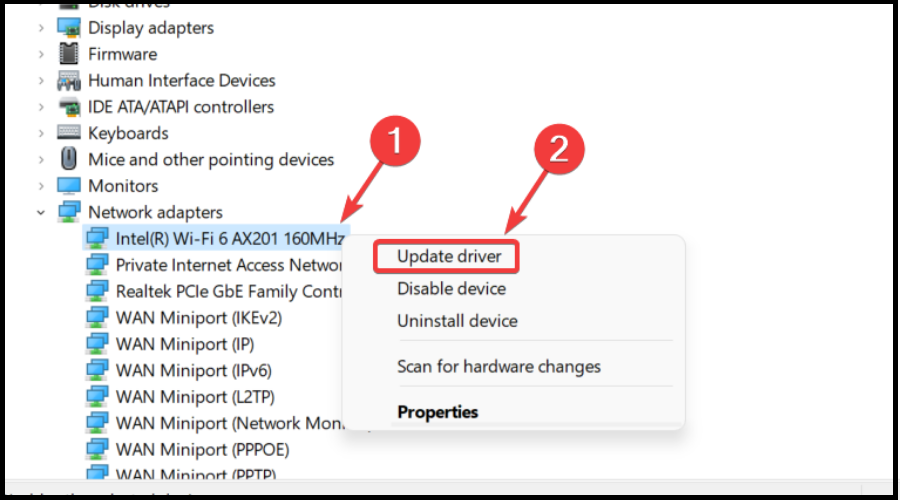
  2. Expand Network Adapters, right-click on the one you use and select Update driver.network driver
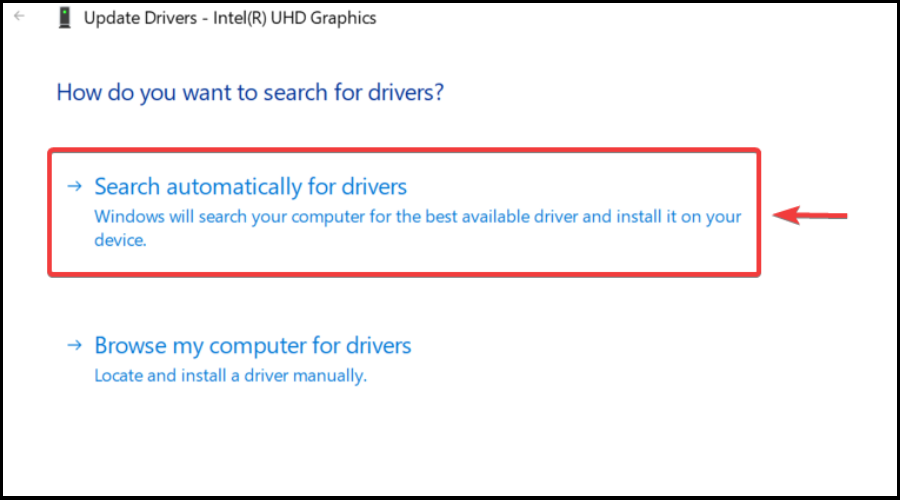
  3. Select Search automatically for drivers.search for driver automatically

Gaming is relaxing and fun, and surely you can do without all the crashes, lags, or freezes by keeping all drivers up to date and error-free easily. 

Sometimes, manual checks are hard to perform, that’s why we recommend using an automated assistant that will scan for fresh driver versions daily.

In case you’re a beginner, you don’t have to worry! Outbyte Driver Updater is smart, simple, and engaging and its user interface was built to make your life easier.

Outbyte Driver Updater

Outdated drivers cause a lot of conflicts in your PC, but this tool handles it efficiently.

3. Change DNS settings

  1. Press the Win + R keys simultaneously to open the Run console.
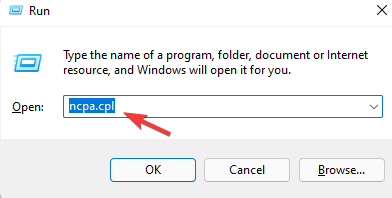
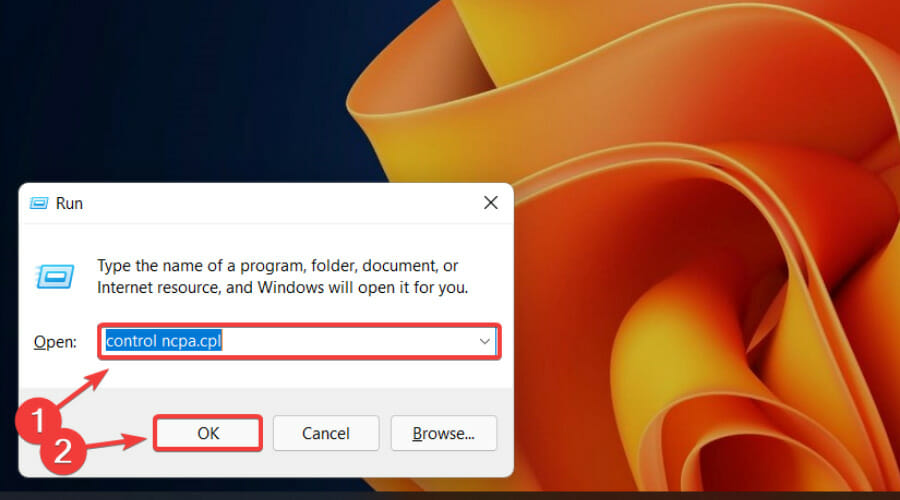
  2. In the search bar, type ncpa.cpl and hit Enter.Type ncpa.cpl in Run Console and press Enter
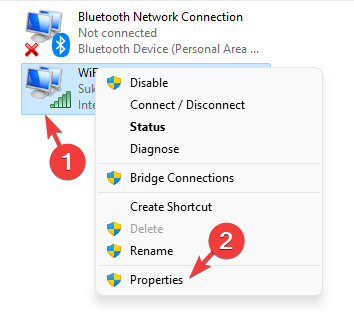
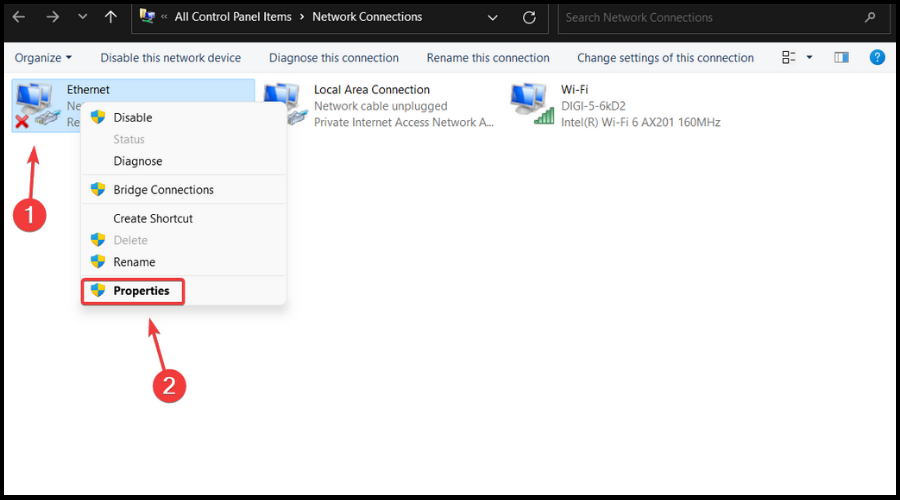
  3. It will open the Network Connections window. Right-click on the active network adapter and select Properties.right click on acctive network adapter and select Properties
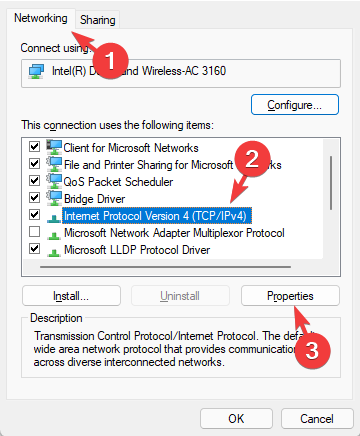
  4. In the network properties dialogue box, under the Networking tab, go to This connection uses the following items field.
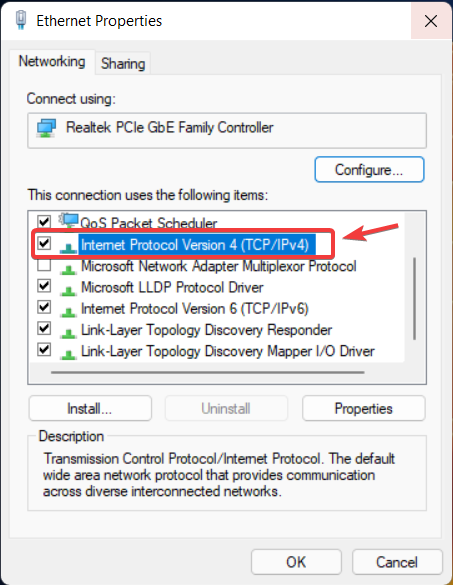
  5. Here, select Internet Protocol Version 4(TCP/IPv4) and click on the Properties button below.Select Internet Protocol Version 4 and click on Properties
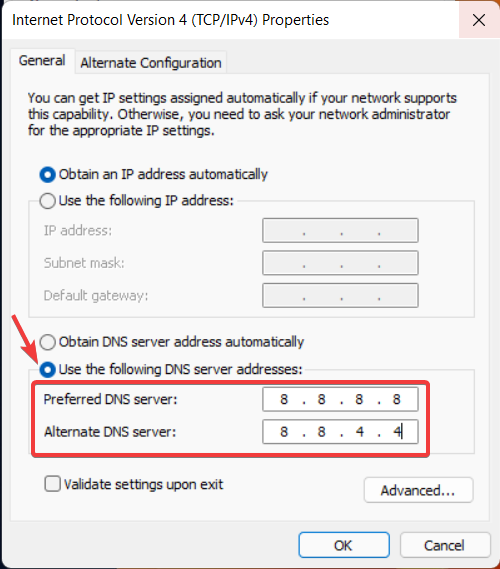
  6. Under the General tab, select Use the following DNS server addresses.
  7. Set Preferred DNS server: 8.8.8.8 / Alternate DNS server: 8.8.4.4.
  8. Press OK to save the changes and exit.

Sometimes changing your DNS is all you need to fix Genshin Impact lag after update, so be sure to try it.

How do I make Genshin Impact run smoother on Windows 11?

Experiencing Genshin Impact input lag is nothing to be scared about. Certain steps you can take will ensure you won’t have to go through this again.

Keeping the game updated, as well as keeping Windows and the graphics and network drivers up to date software-wise is your first line of defense.

It could be a case of having lag while playing Genshin Impact after the latest operating system update. As we mentioned above, just be sure to refresh the drivers for your network and graphics cards and you should be good.

Many users have been complaining about Windows 11 gaming issues since the OS first came out, and Microsoft is constantly striving to improve the experience.

This isn’t the only issue, and many reported email not yet registered error in Genshin Impact, but we already covered that in a separate guide.

Has this guide been helpful in solving your issue? Share your progress with us in the comments section located below.

6 Ways to Fix Warzone Pacific lag Spikes and Lower Your Ping

According to worldwide users, Warzone is one of the best Call of Duty games ever. However, many reported Warzone Pacific lag spikes.

This can be a huge problem and negatively impact your multiplayer experience. Here’s how users described the issue:

Warzone Pacific map is so laggy its almost unplayable, has anyone had the same experience?

It especially gets laggy on the way into the gulag.

Of course, this situation can manifest in different ways, but let’s see how to quickly fix it in just a few simple steps.

Also, some players reported that the Warzone Pacific game sometimes gets stuck on the loading screen. If you ever face this issue, make sure you check our dedicated guide to solve it in no time.

Why is my Warzone game so laggy?

There are multiple reasons for this, but it’s possible that your PC isn’t meeting the hardware requirements. Network issues can also cause this problem, so check your settings.

For instance, you should check what services are running and end the ones that are using the much-needed memory.

How can I easily fix Warzone Pacific lag spikes?

1. Check the minimum and recommended requirements

Warzone Pacific manufacturers listed the minimum requirements for being able to properly run the game, as follows:

  • OS: Windows 7 64-Bit (SP1) or Windows 10 64-Bit (1709 or later)
  • CPU: Intel Core i5 2500k or AMD equivalent
  • Video: Nvidia GeForce GTX 670 2GB / GTX 1650 4GB or AMD Radeon HD 7950
  • RAM: 8GB RAM
  • HDD: 175GB HD space

However, in order to take advantage of the smoothest Warzone Pacific experience, you should first make sure that your PC configuration falls in between or higher than the recommended settings:

  • OS: Windows 10 64 Bit (latest Service Pack)
  • CPU: Intel Core i7 4770k or AMD equivalent
  • Video: Nvidia GeForce GTX 970 4GB / GTX 1660 6GB or AMD Radeon R9 390 / AMD RX 580
  • RAM: 12GB RAM
  • HDD: 175GB HD space

If you’re only going to meet the minimum requirements, you might compromise your graphics and FPS.

To easily find your computer specs on Windows 11, we recommend checking our dedicated guide that lists 5 different ways. The process is pretty similar to Windows 10, so do not worry if you’re using it!

If you barely meet hardware requirements, it’s common to experience latency spikes only in Warzone.

2. Reboot your network adapter

More often than not, high ping and lag spikes are caused by a weak internet connection. Be sure to check your internet speed and determine if this is indeed the cause of the problem.

That being said, sometimes the easiest and quickest solution is to reboot your network equipment. This is helpful, especially when your router or modem is overloaded or overheated.

Power cycle your internet router, wait for it to reconnect, and run Warzone again to test the gameplay changes, if any.

3. Update Network drivers

  1. Hit the Windows key, type Device Manager, then open it.
  2. Expand the Network adapters section, then click on the related component, and choose to Update driver.network adapter update
  3. Select to Search automatically for drivers.
  4. Now, your OS will scan for available options and will notify you accordingly.
  5. You can perform the same process to any corrupted display adapter.

Following the above steps is good, but using a specialized tool that will automatically update your drivers is a better idea.

Outbyte Driver Updater is a valuable option that you should definitely try, as it will scan for new drivers and update the older ones just like an expert.

With this tool, you’ll be able to keep your drivers up to date with just a simple click. Plus, you’ll have complete access to a huge database, so the processes aren’t limited to graphics components.

This software will also provide a detailed report of all of your out-of-date device drivers in order to know where the issues may come from.

⇒ Get Outbyte Driver Updater

4. Switch from wireless to a wired connection

While using our wireless network may be excellent for online shopping or watching YouTube videos, online games require a larger bandwidth to properly function.

If even after restarting your internet router you experience lag spikes or high ping, we advise you to connect the device you are gaming on to an internet cable.

5. Change DNS server

  1. Press Win key + R.
  2. Type control ncpa.cpl and press the OK button.Run command 3
  3. Right-click Ethernet and select Properties.ethernet settings
  4. Double-click Internet Protocol Version 4(TCP/IPv4).internet protocol version 4
  5. For Preferred DNS server, type 8.8.8.8, and for Alternate DNS server type 8.8.4.4, then click OK.alternate DNS server
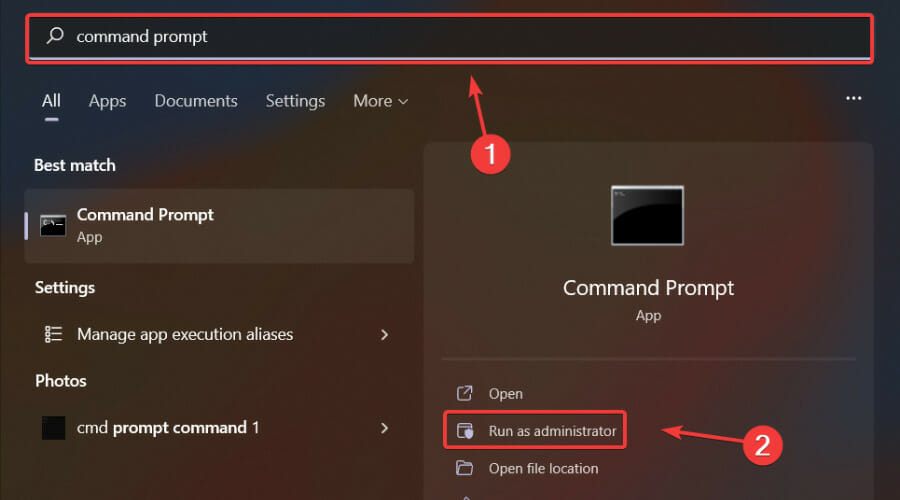
  6. Open the Start menu, search for Command Prompt, and run the app as Administrator.run cmd as admin
  7. Type ipconfig /flushdns and press the Enter button.cmd flush dns

This is a useful method if you’re experiencing Warzone latency 996 or higher, so be sure to try it.

6. Disable core-isolation

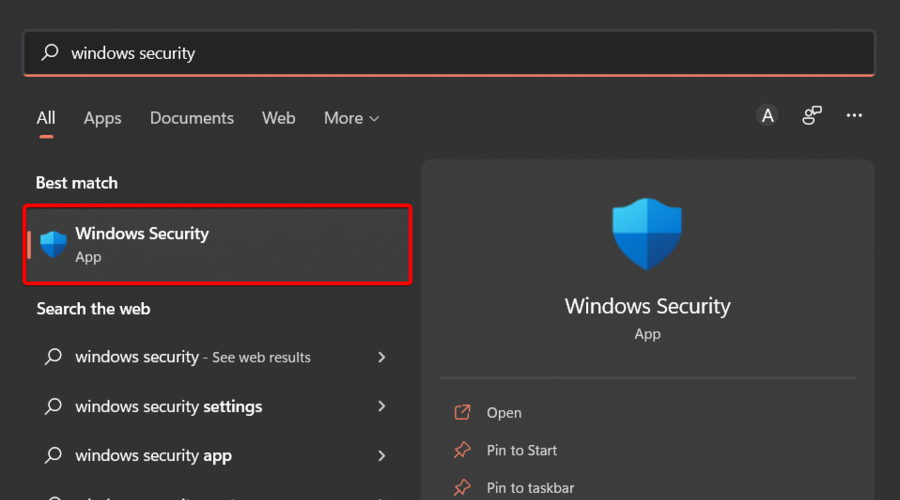
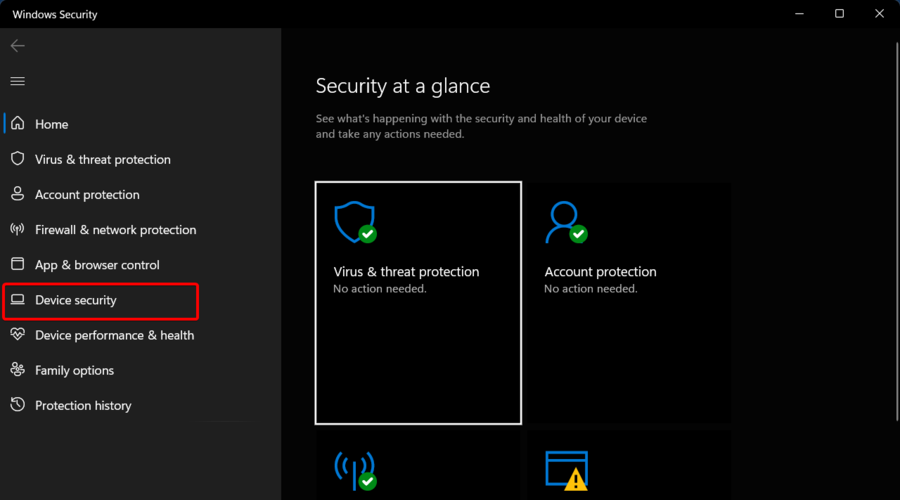
  1. Hit the Windows key, type Windows Security, then navigate to the first result.
  2. From the left window pane, click on the Device security section.
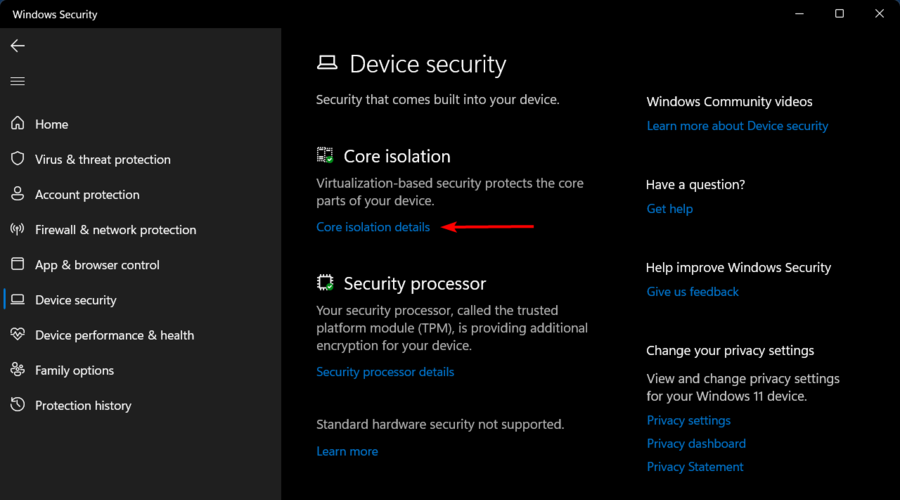
  3. Now, from the left side of the window, go to the Core isolation details.
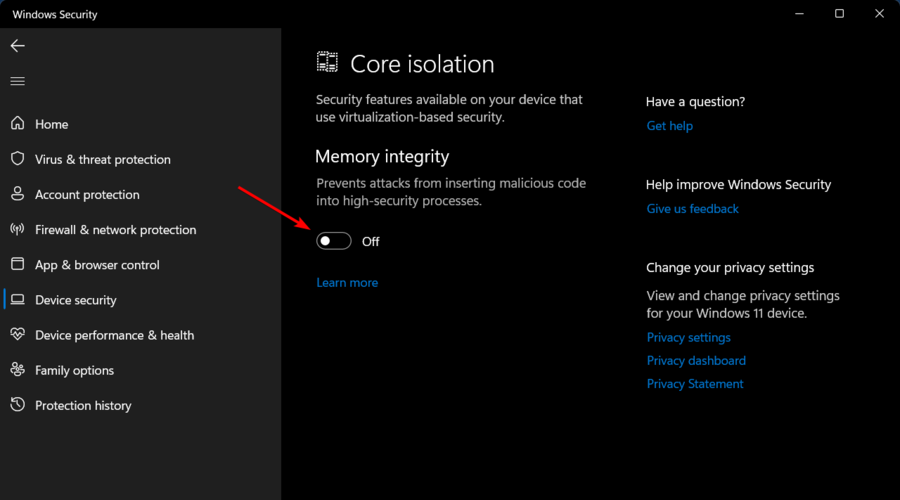
  4. Make sure that the button next to the Memory Integrity is set on Off.

In case you don’t already know, Core Isolation is a new feature built-in in Windows 10/11 that protects your computer from untrusted apps and drivers.

If Warzone is lagging after an update, it’s possible that Core Isolation is causing this issue. Keep in mind that the above process applies to both Windows 10 and 11 operating systems.

As you can see, even if you experience lag spikes on Warzone Pacific, you can quickly get rid of them by following just a few simple steps.

Plus, the best thing is that you can choose from multiple solutions to perfectly fit the fixes with your specific situations.

This isn’t the only issue that you can encounter, and we already covered the error code Torch in Warzone and Goldflake Warzone error in separate articles, so be sure to check them out.

We also have a guide on Warzone lagging on PC so don’t miss it for more information.

Are you facing any additional related questions? Make sure you leave a comment in the section below.
KB5015890 comes to the Windows 11 Beta Channel with Task Overflow

Microsoft has once again released two Windows 11 builds at the same time for the Beta Channel, just as it did last week with builds 22621.436 and 22622.436 (KB5015888)

Today it’s all about builds 22621.440 and 22622.440 (KB5015890), which were both just made available for Insiders on the Beta Channel.

And, just as the last time, get ready for:

  • Build 22622.440 = New features rolling out.
  • Build 22621.440 = New features off by default.

What is new in builds 22621.440 and 22622.440?

Today’s staggered Beta Channel release comes with a ton of improvements and tweaks, as we’re about to see in a second.

Through this build, the tech giant is actually reintroducing taskbar overflow, with a freshly designed experience for Windows 11.

This new taskbar experience has been thoughtfully crafted to offer you a more productive switching and launching experience when space is constrained.

To be more specific, the taskbar will automatically transition into this new overflow state when it has hit its maximum capacity.

When the taskbar is in that state, it will offer an entry point to an overflow menu that allows you to view all your overflowed apps in one space.

Taskbar will offer an entry point to an overflow menu that allows you to view all your overflowed apps in one space.

The above-mentioned overflow menu will contain many of the current taskbar behaviors users are familiar with, such as supporting pinned apps, jump list, and extended UI.

You might also like to know that Microsoft is only just beginning to roll this feature out, so it isn’t available to all Insiders in the Beta Channel just yet.

Another feature that not all Insiders get to test right now is the dynamic Widgets content coming to your taskbar.

Besides seeing live content from the weather widget, you’ll also start to see live updates from the sports and finance widgets, along with breaking news alerts.

This content was designed to be quick and glanceable with the ability to see more inside the widgets board if you click on it.

Now that this is out of the way, let’s have a closer look at the rest of the changelog and determine which other changes are just as notable.

Changes and Improvements in Build 22622.440

[General]

  • We are beginning to roll out the updated “Open with” dialog box again to align with Windows 11 design principles. The updated dialog box honors light and dark theme. We have also simplified the experience by making it possible to update your default app with just one click. Since reverting this change back in March, we’ve made performance improvements based on Insider feedback.
The “Open with” dialog before and after with the updated design.

[Input]

  • We have updated the U.S. English (EN-US) handwriting model to be faster and more accurate. Use the updated Handwriting Panel for ink-to-text and let us know what you think.

[Settings]

  • Settings now supports managing apps which were earlier only supported from Control Panel. This includes uninstallation of apps which have inter-dependencies (e.g., Steam and gaming apps running on Steam), repair and modifying of Win32 apps.

Fixes in Build 22622.440

[General]

  • Fixed an issue leading to some Insiders experiencing explorer.exe crashes when docking and undocking monitors in Build 22622.436.

[File Explorer]

  • Did some work to fix a memory leak when using tabs with File Explorer.
  • Fixed an issue where Narrator wasn’t reading out the titles of tabs as focus moved through them.
  • Fixed an issue where the preview thumbnail for File Explorer in the taskbar, ALT + Tab, and Task View might show the title of an adjacent tab and not the currently selected one.
  • The add new tab button shouldn’t overlap with the minimize button in the title bar when using text scaling with a lot of tabs open anymore.

[Suggested Actions]

  • Fixed an issue which was leading to certain apps freezing after a copy action if Suggested Actions was enabled.
  • Fixed a high hitting crash impacting Suggested Actions reliability.

Known issues

[General]

  • [NEW] There is an issue in the recent Beta Channel updates that is causing the Photos app to crash, and a fix will be rolling out soon via a Photos app update via the Store.
  • [NEW] We’re investigating reports that SQL Server Management Studio is failing to launch for some Insiders.

[File Explorer]

  • [NEW] The left-half of the File Explorer title bar may not be draggable via mouse or touch.
  • [NEW] We’re working on a fix to address reports that launching File Explorer in certain ways when using dark mode (for example, from the command line) is showing the body of File Explorer unexpectedly in light mode.
  • The up arrow is misaligned in File Explorer tabs. This will be fixed in a future update.

What can I do if KB5015890 fails to install?

  1. Press Win+ I to access Settings.
  2. Select the System category and click on Troubleshoot.w11 troubleshoot
  3. Press the Other troubleshooters button.other troubleshooters windows 11
  4. Press the Run button next to Windows Update.windows update troubleshooter

Have you noticed any other issues after downloading this new Beta Channel build on your PC? Share your experience with us in the comments section below.

Opera Browser Vs Chrome: The Winner At Speed & Privacy

If you are after a fast, secure, and easy-to-use web browser for your computer, then Opera browser vs Chrome may be a topic of interest for you. When it comes to web browsers, there are a number of popular options to choose from. 

With so many browsers on the market, it can be difficult to know if you should stick with what you’re using or make the change to something new. 

Chrome has been around for years and has become the most popular browser in the world, thanks to its speed, simplicity, and security features.

The Opera browser has also been around for a while and is one of the most popular browsers. It’s known for its speed, privacy features, and ad-blocking technology.

While both browsers are excellent, some key differences in features may appeal to some users, and others won’t. Some users look for browsers focused on privacy, while others just want a lightweight browser because they have limited storage space.

What features should I look out for in a browser?

If you’re looking to find a new browser, there are a few things you should look out for. Below are some important features every modern browser should feature:

  • Speed – The first thing you should consider is how fast your browser loads websites and handles other tasks like scrolling or switching tabs. A fast browser can make your experience more enjoyable.
  • Security – This is especially important if you use public Wi-Fi networks. Your security should be up to date and the browser should have built-in tools for protecting your data from hackers and other malicious attacks.
  • Privacy – You want to make sure that any information you share with websites is protected from third parties, such as advertisers or analytics companies who might use it for marketing purposes or even sell it to third parties without your knowledge or permission.
  • Customization – Some browsers let you change their appearance with themes or extensions (add-ons). If you like to personalize things, this could be a big plus for you.
  • Compatibility – You’ll want your browser to be compatible with all websites you visit. This means that it should support HTML5 and JavaScript, as well as any other technologies that sites may use in order to function properly.
  • Open source – Open source software is created by developers who share their code so other people can review it before it’s released to the public. If you are into coding, you want a browser that has developer tools.

Finally, think about how much memory and storage space your computer has available. If it’s low then it might not be able to run some browsers efficiently enough for them to be worth using at all.

Is Opera actually better than Chrome?

It depends on what you’re looking for. Both are excellent browsers, but the two have some key differences that make one better than the other in different situations.

Opera is not as popular as Chrome, but it does have some unique features that give it an edge over the competition. For instance, in CPU usage, Opera performs better than Firefox.

Opera

Browse securely, with minimal system footprint and advanced features like social media integrations, built-in VPN, and more!

Is Opera better than Chrome on Android?

When it comes to browsing the web on your Android device, there are two main browsers that you can choose from: Chrome and Opera. Both of these browsers are extremely popular and offer a lot of great features for your Android experience, but which one is better?

If you’re looking for a better way to browse the web on your phone or tablet, Opera might be the answer you’re looking for.

Opera has been developed from the ground up with mobile devices in mind, so it has a lot of features that are not available on other browsers like Google Chrome.

It comes in different versions, such as Opera Mini, which can save you data and battery life by compressing pages before they load on your device. You can check out a more in-depth comparison of Opera and Opera Mini before you settle on a browser for your Android.

How does Opera compare to Chrome?

Visual interface

While Chrome and Opera share a similar look and feel, the two browsers have very different approaches to how they organize their interface.

Opera’s interface is more complex than Chrome’s, with more options and features. It has separate tabs for your bookmarks, history, and downloads and a separate tab for your Speed Dial, which you can customize with your most visited sites.

Its visual style has changed quite a lot throughout its lifetime, and even in recent versions, it has been moving closer to the minimalist style of Google Chrome.

The main elements are:

  • Menu bar -The Opera menu bar contains options for changing settings, opening a new tab, closing tabs, and more.
  • Address bar and search field – This is where you enter Web addresses and search terms. The address bar also shows a list of recently visited pages, enabling you to quickly revisit them.
opera-search best web browser for hikvision
  • Tabs bar – The tabs bar displays all open tabs in a single row across the top of your browser window.

On the other hand, Chrome’s interface is simpler and cleaner than Opera’s. There are fewer options available in the main window, and its tabbed browsing interface is much less cluttered than Opera.

Chrome’s visual interface is simple, clean, and minimalistic.

The main elements are:

  • Address bar – A URL field that can be used to search Google or enter a website address.
  • Tab bar – This shows all open web pages as thumbnails. Tapping on the icon of a page will bring it forward while tapping on the x icon will close it.
  • Menu button – This is a dropdown menu with various options like settings, downloads, and bookmarks.
  • Homepage – It contains recently visited and frequently visited sites. You can also pin your favorite sites for easy access.

Features

Ad blocker

One of the main features of Opera is its Ad blocker feature. This allows users to block ads that they do not want to see while browsing the internet. It also helps users save on data usage when viewing sites known to use a lot of bandwidth without offering anything in return.

Chrome doesn’t have an in-built ad blocker, but with a third-party extension, you can enjoy the same features as Opera.

Sync

Opera browser sync feature is one of its main and most significant functionalities. You can use it to sync the browser across all your devices, so you can open a link or search term on one device and then pick up where you left off on another. 

Opera Sync Everything

With Opera, you can sync your bookmarks, passwords, and open tabs across several devices. You can also import your favorites from other browsers.

Gone are the days when you had to sign into every application when you were away from your personal computer.

Chrome also has the sync feature. Your bookmarks, history, passwords, and other settings are synced across all your devices. This can be particularly useful if you have multiple computers or devices.

Tab management

Opera allows you to open multiple tabs in a single window. This is especially useful when you have many tabs open and want to switch back and forth between them easily.

Users can now organize their tabs into separate workspaces and switch between them simply by clicking on their assigned tab bar. You can also name each workspace, which will help you better track what you’re doing in each group.

The good thing about this feature is that it helps you stay organized and keep your projects separate to avoid confusion. You can create up to five workspaces for business, social or casual networks.

Chrome also has a tab management feature but not nearly as advanced as Opera’s. You can pin and group your favorite tabs for easier management.

Its tab management features include a task manager for managing tabs that are open in your browser, allowing you to close tabs that are no longer needed or quickly find that one tab you need to get back to. 

You can also rename your active windows for easier management and separate them if you are working on different projects simultaneously.

Profiles

Chrome has the multiple profiles feature, allowing you to keep separate browser histories and settings on the same computer. Each profile has its own home page, cookies, bookmarks, passwords, and other saved information. 

You can use this feature to sign into multiple Google Accounts at once and keep your personal data separate from your work information.

The good thing about having separate profiles is that you get to test out different extensions and how they behave with the browser.

For instance, if you’re into gaming, you can download the necessary extensions and check whether they slow down your browser.

This way, you can keep extensions at a minimum on your other profiles such as work to prevent lagging.

Pinboard

The Pinboard feature allows you to collect pictures, links, and more into collections called boards. You can save them for later use and share them with friends for reactions.

Unfortunately, the same is not available on Chrome. However, its bookmark manager comes pretty close which allows you to save your frequently visited sites and pin them on the top menu for easier access.

VPN

Opera is well-known for its built-in VPN service which allows users to connect safely and anonymously with their favorite websites and services online. 

The VPN service also protects your identity from hackers who might want to steal your personal information or infect your computer with malware or viruses. 

This feature alone solves most users’ problems especially when it comes to accessing geo-restricted content or just simply remaining anonymous on the internet without having to install a standalone VPN client that will probably cost more.

With Chrome, enjoying VPN features will require you to search the Chrome Web Store for extra functionality.

Some will require you to pay to access premium features hence why Opera takes the crown in this round.

Incognito mode

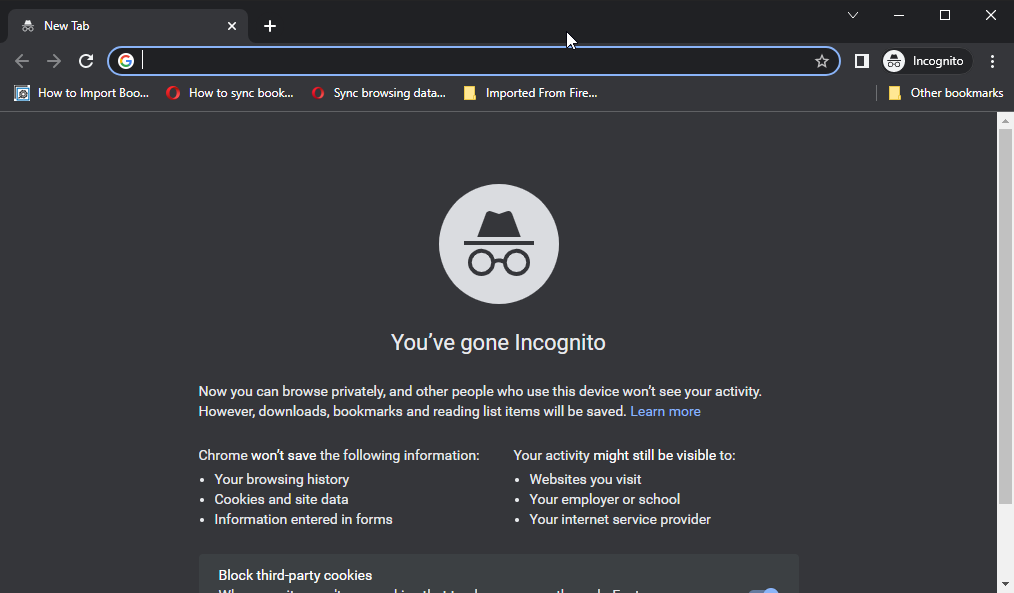
Incognito mode is a useful feature that lets you surf the web without leaving a trail of your browsing history.

If you’re working on a sensitive project, then you might want to open an incognito window. This is a private browsing experience that doesn’t save any of your data on Google’s servers or in the cloud.

Both Opera and Chrome have this feature so you don’t have to worry when using public Wi-Fi or shared computers when you want to access private browsing.

Add-ons store

Opera has an add-ons store, where you can download extensions, themes, and other add-ons for your browser. The store contains thousands of extensions to help you customize your browsing experience even further than Opera’s built-in features allow. 

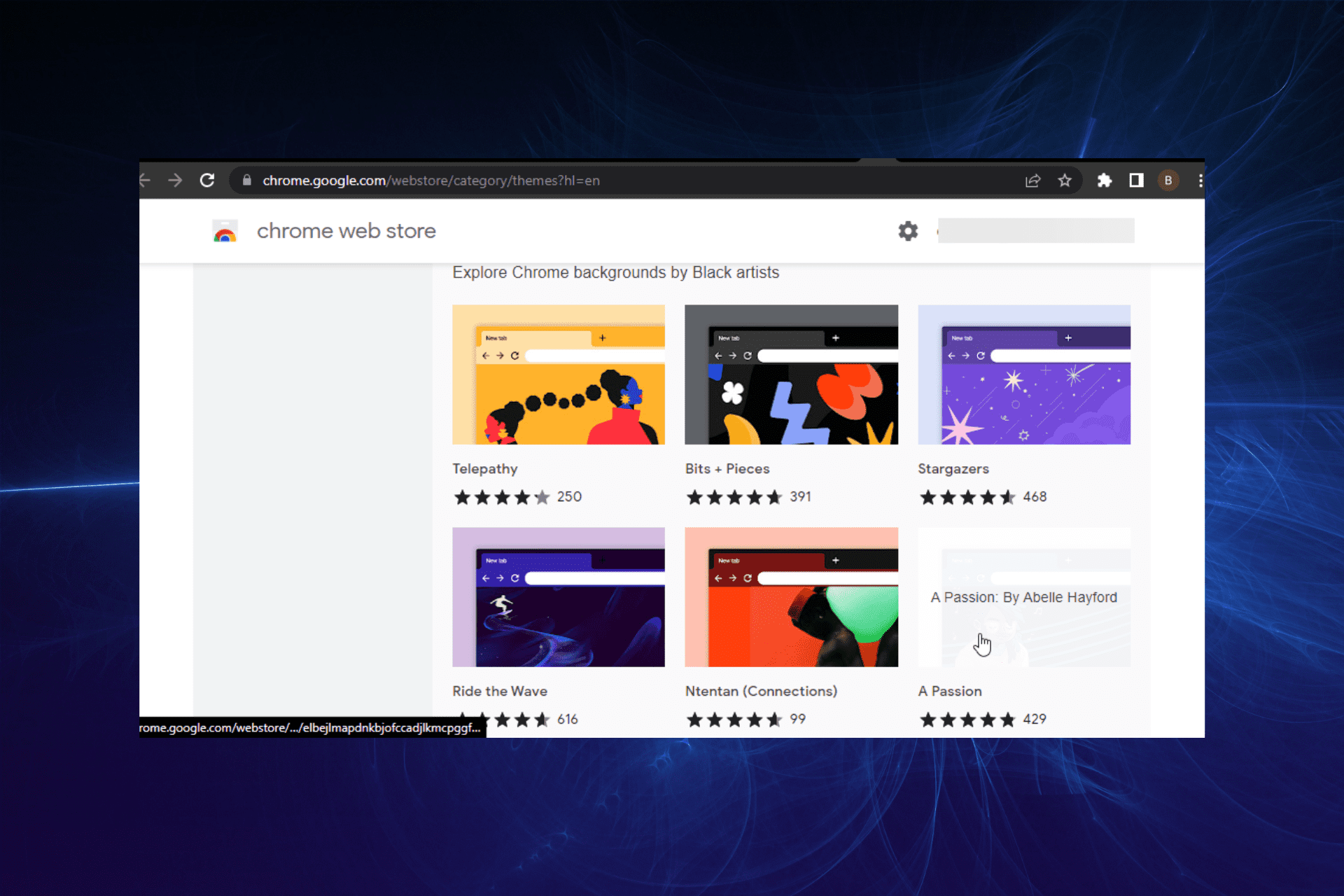
You can use Chrome extensions to add new features or change how websites look in Chrome. They are available on the Chrome Web Store. 

One advantage Chrome has over Opera is that its add-ons store has thousands of extensions that are compatible with most browsers. Opera, on the other hand, is still growing and adding more to its store.

Password management

Opera has a built-in password manager that helps you store your passwords securely and automatically fill them in as you browse. It’s easy to use, and it works across your devices.

When it comes to its competitor Chrome, the password manager goes beyond storing and automatically filling in. Chrome’s password manager saves your passwords in an encrypted vault on your computer, so you don’t have to remember them.

Chrome also has an option to check your saved passwords against databases of leaked credentials from previous breaches. If any of your saved passwords are found on these lists, it will warn you so that you can change them immediately. 

Given how sensitive personal data is, one would want to be informed if their information is breached which makes Chrome the obvious winner in this case.

Social media integration

Opera can be integrated with social networking sites like Facebook and Twitter on the sidebar while browsing. You don’t have to leave your browser or switch tabs to catch up with the latest on your social networks.

Chrome, unfortunately, does not have this feature as you have to log in to the associated app to get what’s new. There are however some extensions that can help you get notifications without leaving your tab.

Crypto wallet

Opera has a built-in crypto wallet for easy payments and transfers. You can send and receive money quickly with friends and family without having to leave the site you’re on.

Crypto wallet is a fairly new concept in browsers so understandably Chrome may not have adopted it yet. It however puts Opera ahead as it is seen to be listening to its users and adjusting its features to be more inclusive.

Player

Opera has a player that is integrated into the browser, so you can easily open a new tab and start playing your music from there. Additionally, you can add songs to your favorites list, so they’re always available when you want them.

The player is intelligent as it automatically mutes itself when you open a tab with audio and then resumes once you are done with your current tab.

Chrome has a built-in media player that allows you to play the video files on your computer directly from your browser. 

You can cast them to another device and control from your browser when you want to play the next song, pause or stop casting. It’s also easy to control the playback without leaving the page you’re on.

Opera vs Chrome: Features

FeatureOperaChrome
Built-in ad blocker✓✕
Sync✓✓
Tab management✓✓
Profiles✕✓
Pinboard✓✕
VPN✓✕
Incognito mode✓✓
Add-ons store✓✓
Password management✓✓
Social media integration✓✕
Crypto wallet✓✕
Media player✓✓

Opera vs Chrome privacy comparison

Opera

If you are looking for something that doesn’t have any ad trackers, Opera is an excellent browser option. 

It also comes with some cool features like a built-in VPN service that allows you to browse anonymously when you are connected to public Wi-Fi networks or use public computers such as those at libraries or coffee shops.

Private browsing is another feature that lets you browse without saving your history or other data on your computer, tablet, or smartphone. If you enable private browsing, your browsing history will not be saved on your device and deleted when you close the browser window.

Opera’s built-in tracker blocker is a significant advantage over Chrome. It blocks third-party cookies and blocks trackers from loading on websites you visit. This means that advertisers can’t run ads based on your browsing history, and you’ll see fewer ads in general. 

With the site settings control option, you also get to do some tweaking of your own and choose which sites can access your personal data by granting permissions.

Chrome

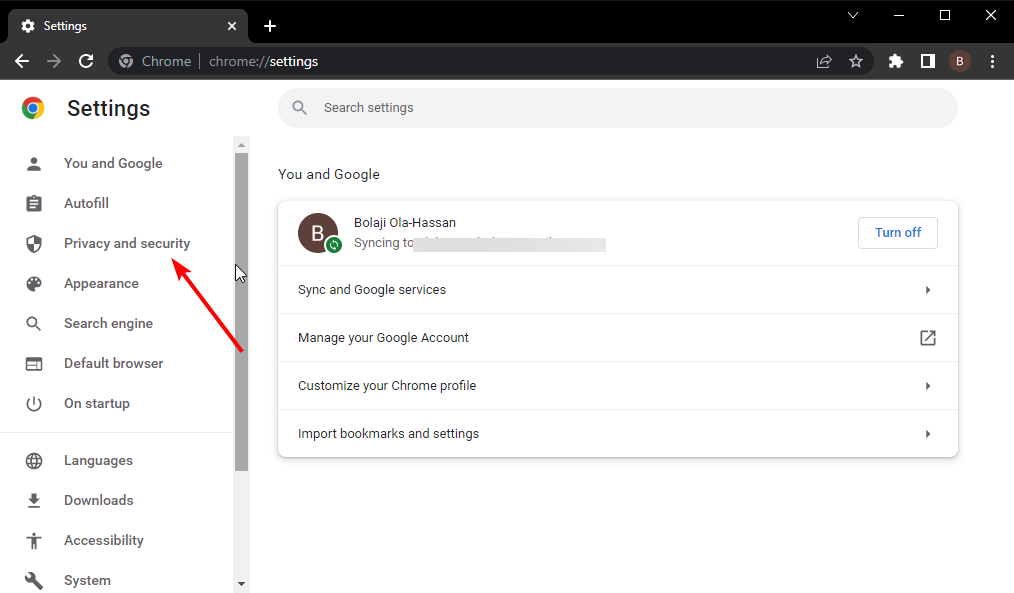
Chrome offers a number of privacy settings to help users control how their data is used by Google and other websites. These can be accessed from the Settings menu under Privacy and security.

One notable feature is the location setting that allows you to choose whether Google should use your location data when providing search results or other services. 

You can also choose whether Google should share your location information with advertisers or other third parties for marketing purposes. 

With most PCs, your location is almost always on so it is important that you are aware of the data available that could be used to track you or harm you if it lands in the hands of cybercriminals.

Another winner is Chrome’s Do Not Track feature which is not new, but it’s still one of the best ways to keep advertisers from tracking your web browsing history. The feature is turned on by default, but you can turn it off or change its settings at any time. 

When you visit a website, Chrome downloads the page from its servers and analyzes it for possible threats. If any are detected, Chrome displays a warning with details about the threat. This way, you don’t get caught off-guard by clicking malicious links or websites.

Opera vs Chrome: Security

With all the security issues surrounding browsers in recent years, it’s important to know what you’re getting when you download a new browser. Chrome and Opera are both popular browsers with large user bases, and both companies have made security a priority.

Opera has its own built-in security that comes with a host of features such as anti-phishing protection and ad blocking. You can also install the HTTPS Everywhere to encrypt your connection to websites where possible.

The browser also automatically updates itself from time to time and checks for system software updates too. This is especially important when it comes to protecting yourself against system vulnerabilities. 

Chrome is also no slouch when it comes to security features. Auto-updates ensure that you have the latest version of Chrome installed on your computer — even if you don’t remember to check for updates yourself. Each time you start Chrome, it checks for updates and installs them automatically if necessary. 

For the less tech-savvy users, Chrome’s Safe Browsing feature is another feature they will appreciate. It is privacy-oriented protection that warns you if a website is known to host malware, phishing scams, or other types of malicious content.

Opera vs Chrome: Performance and Speed

Opera

Chrome and Opera are both made by Google, so they have a lot in common when it comes to performance. 

Opera is a very fast browser that’s easy to use. It’s built for speed and efficiency, but it also has some great features for power users. 

Most people know Opera as a lightweight browser that doesn’t eat up your system resources. It also has some nice features like built-in ad blocking that you won’t find in Chrome.

It is built on Chromium, so its code base is very similar to Google Chrome’s. This means that Opera also has an excellent JavaScript engine that can handle complex web pages and animations without any difficulty.

The main feature that makes Opera stand out among other browsers is its Turbo Mode feature. It compresses pages before they are downloaded by your computer or mobile device to reduce bandwidth usage and speed up page loading times.

This results in faster loading times for websites and web pages as well as smaller data usage on mobile devices.

With its Battery saver mode, Opera uses less battery than other browsers because it compresses data before sending it to your device. This means that when you browse the web on your mobile device or PC, you’ll save battery life.

Chrome

In the past few years, Google has made a lot of improvements to Chrome’s performance. The browser is now faster than ever, and it’s also more secure than ever.

Chrome uses about twice as much memory as Opera when you’re browsing the web. This means that if you’re looking for a browser that will use less RAM, Opera is the better choice.

But if you’re looking for a browser that can handle more tabs at once or run more complex web apps (like games) then Chrome might be better suited to your needs.

When it comes to startup, Chrome takes a lot longer to start up than Opera. But why? It is because it’s running a lot of background processes.

If the startup problem is recurrent, do not hesitate to check out our expert guide on how to fix your browser’s high CPU usage on startup.

Opera vs Chrome: RAM usage

Opera

No one likes a program that will take up a lot of storage space on their device. Opera has always been one of the most lightweight browsers, but it’s pretty impressive how much lighter it’s gotten in recent years.

Given how feature-packed it is, you would expect it to have a high memory footprint and use more CPU resources than Chrome. 

However, one of the things that make Opera stand out from other browsers is its low RAM usage. This can be a good thing if you have a limited amount of RAM on your computer or if you’re running an older machine with limited memory.

In addition, Opera has a better memory management system than Chrome and has support for hardware acceleration. This means that it uses your computer’s dedicated graphics processor (GPU) instead of its CPU to render web pages more quickly and efficiently. 

To test this, we looked at how much RAM each browser uses on average when it’s open with 10 tabs. Among the tabs included different sites that are known to be memory hogs, such as Google Docs and YouTube.

We were surprised to find out that Opera actually uses less RAM than Chrome in this scenario – about 20% less.

Chrome

So, why does Chrome use so much RAM? The answer is simple: Chrome is a very complex browser with many features, and this complexity comes with a price. 

To add more functionality to Chrome, you will need to install extensions. The extensions come at the expense of your RAM.

If your computer has less than 4GB of RAM, consider closing other programs before opening Chrome. This way, it doesn’t have to juggle as much memory at once. 

This means that if you visit many websites or do some heavy work in one tab, it will be closed automatically if it exceeds its memory limit.

What’s worse is that an old or slow PC will not have enough processing power to juggle all of Chrome’s operations. You will have to limit the number of tabs you can open at once.  Better yet, check our recommendation of browsers for old and slow PCs.

What is the best browser for 2022?

The browser wars are real, and they’re getting intense each year. Each browser is gearing up to launch new features and improve the already existing ones.

There are many good browsers available on the market, but it’s hard to find one that works well in all situations.

However, the million-dollar question is: What makes a great browser? Well, there are two main types of users: Those who want something that works well with their existing apps and those who value privacy and security above all else.

The best browser depends on your personal requirements and needs. If you want the best browser for news, we have an excellent list lined up for you.

Perhaps you mostly spend your time on the internet downloading huge chunks of files. This will require you to install a browser dedicated to downloading large files on your PC.

If your core activities are related to web development and coding, you will need browsers with the highest support for HTML.

Ultimately, there is no one browser that has all the features, so you just have to weigh the pros and cons and choose the winner.

If you decide to give Opera a try, be sure to visit our guide on how to download Opera on Windows 11 and try it today.

We also have a great review of Opera One, so don’t hesitate to check it out.

As always, we enjoy your feedback, so be sure to leave us a comment down below on which browser was a winner for you.

Apex Legends Mouse Lag? 5 Quick Ways to Fix the Problem

Apex Legends is a classic battle royale game, that has gained tremendous popularity ever since its launch in 2019. However, some users have reported facing certain issues with the game. One such is the mouse lag in Apex Legends.

The problem could arise due to several reasons, both pertaining to issues with the configured settings, and the mouse itself. Hardware acceleration, certain in-game features, and outdated drivers are generally found to be behind the problem.

Now, that you have a basic understanding of what causes this issue, let’s see how to fix Apex Legends mouse input lag.

Why do I lag every time I move in Apex?

There are several reasons for this problem, but the most likely are your graphics settings. Sometimes switching to the windowed mode helps with this issue.

Alternatively, you should always keep all your drivers up to date to prevent any unwanted issues such as Apex Legends mouse delay.

How do I fix mouse lag in Apex Legends?

1. Disable mouse acceleration

  1. Launch Apex Legends, and click on the Gear icon near the bottom-right corner.Gear icon
  2. Next, click on Settings.Settings to fix apex legends mouse lag
  3. Navigate to the Mouse/Keyboard tab from the top.navigate
  4. Click the Off option next to Mouse Acceleration.Disable mouse acceleration to fix apex legends mouse lag
  5. Hit the Esc key to save the changes and return to the main menu.
  6. Press Windows + S to launch the Search menu, enter Mouse Settings in the text field at the top, and click on the relevant search result.Mouse settings to fix apex legends mouse lag
  7. Click on Additional mouse settings under Related settings.Additional mouse settings
  8. Navigate to the Pointer Options tab in the Mouse Properties window.Pointer Options
  9. Now, untick the checkbox for Enhance pointer precision, and click on OK at the bottom to save the changes.Disable enhance pointer precision to fix Press Windows + S to launch the Search menu, enter Mouse Settings in the search field at the top, and click on the relevant search result.

Mouse acceleration is often found to cause Apex Legends movement lag, though that’s not necessarily the case with every user. So before you go with the other methods here, try disabling it both in-game and on the system, and check if the problem is resolved.

2. Update the drivers

  1. Press Windows + S to launch the Search menu, enter Device Manager in the text field, and click on the relevant search result.Device Manager
  2. Now, double-click on the Display adapters entry to expand and view the devices under it.Display adapters
  3. Right-click on the graphics adapter, and select Update driver from the context menu.Update drivers to fix apex legends mouse lag
  4. Next, select Search automatically for drivers from the two options in the Update Drivers window.Search automatically for drivers

An outdated driver is another common reason behind Apex Legends mouse sensitivity bug. Now, the mouse driver here is as critical as the graphics adapter, so make sure to update that as well for the mouse you are facing trouble with.

If you are unable to find a newer version using the Device Manager, try the other methods to manually install the latest driver version.

Many times, the device manufacturer may directly upload the latest version on the official website, instead of releasing it through Microsoft. In such cases, the manual methods may help.

In this situation, a driver updater tool might also come in helpful if you’re out of patience or don’t have the need to manually search for missing drivers.

Driver upgrades make the graphics card’s work paths quicker by reducing needless activities or better dispersing the workload.

A professional tool like Outbyte Driver Updater is an excellent choice for this task. It has a friendly interface and is simple to use, even for computer rookies. It will find the suitable drivers your computer requires and will update them quickly.

After you have updated both the mouse and graphics driver, verify if the Apex Legends mouse lag problem is eliminated. If not, head to the next method.

Outbyte Driver Updater

This tool scans your system and detects the obsolete drivers which cause sloppiness to your system.
Free trial Visit website

3. Run the game in Windowed Mode

  1. Launch Apex Legends, and click on the Gear icon.Gear
  2. Select Settings from the two options that appear.Settings to fix apex legends mouse lag
  3. Next, navigate to the Video tab from the top.Video
  4. Set Display Mode to Windowed, and click on Apply at the bottom-right corner to save the changes.Windowed to fix apex legends mouse lag

After making the changes, restart the game and check if Apex Legends FPS drop when moving mouse is resolved.

4. Disable Origin In-Game for Apex Legends feature

  1. Launch the Origin app, and select My Game Library from the list of options on the left.My Game Library
  2. Now, right-click on Apex Legends, and select Game Properties from the context menu.Game properties
  3. Untick the checkbox for Enable Origin In Game for Apex Legends, and click on Save to apply the changes.Disable to fix apex legends mouse lag

Apart from Origin, there could be other applications, such as Discord, whose overlay could be causing the the problem. So, disable these if mouse feels weird in Apex Legends.

5. Change priority level

  1. Press Ctrl + Shift + Esc to launch the Task Manager, and navigate to the Details tab.Details
  2. Locate the Origin process here, right-click on it, hover the cursor over Set priority, and select Normal from the list of options.Normal priority to fix apex legends mouse lag

If you have previously changed the priority for Origin to high and are running the game on a computer with low specifications, it could lead to mouse lags in Apex Legends. So, make sure to revert to normal priority, and check if that resolves the issue.

Besides, changing the priority to high on a system with good specifications might also help fix the problem. Do remember to try that as well.

6. Perform a system restore

In case none of the methods listed here have worked, you can always perform a system restore if the Apex Legends mouse lag started happening recently. Just choose a restore point created before when you first encountered the problem.

In this process, any changes that have been made since the creation of the restore point will be reverted, and things should be up and running again. Remember that the files stored on the computer, whether new or old, will not be affected.

If doing a system restore manually overwhelms you, we recommend third-party repair software, which can instantly diagnose and solve mouse lag when playing Apex Legends.

These tools run a variety of troubleshooting and diagnostic checks on your computer to identify and resolve practically all known faults.

As a result, you have a clean PC that is a lot quicker than before, which means no more mouse lags when playing Apex Legends.

That’s it! By the time you reach this part of the article, the Apex Legends mouse lag problem should be resolved, and you can continue playing your favorite game.

Also, find out what to do if Apex Legends won’t launch on your computer, since a lot of users have reported facing the issue.

Tell us which fix worked and your experience of Apex Legends, in the comments section below.

Opera Out of Memory Message: 3 Ways to Stop High RAM Usage

Out of memory messages in Opera can interfere with your browsing and cause your tabs to crash. This happens due to your cache, adblockers, or sidebar shortcuts.

Let’s see how we can fix this.

What can I do if Opera runs out of memory?

1. Delete the browser’s cache

  1. Launch the Opera One browser.
  2. Press the O symbol in the upper left corner of the screen to access the menu. Choose History and then Clear browsing data. Alternately, use the key combination Ctrl + Shift + Del.opera O icon and then history and clear browsing data
  3. Choose a cleaning period. All the time, for example. Select the checkboxes next to Cookies and Cached images and files and select Clear data.cookies and cache delete section
  4. Wait for the process to finish.

2. Disable sidebar shortcuts

  1. Locate your messaging or player shortcut in the sidebar.
  2. Right-click it and choose the Hide option.
    hide whatsapp opera sidebar
  3. Do this for other shortcuts as well.

Some of these services can be resource-intensive to run in the background, thus leading to this issue.

3. Disable adblock and tracking protection

  1. Open Opera, open the Menu in the top left, and choose Settings.
     Opera menu settings selected
  2. Disable Block ads and surf the web up to three times faster and Block trackers options.
    Block ads and surf the web up to three times faster and Block trackers disabled in opera
  3. Check if the problem is resolved.

Many reported that various video streaming websites will cause your memory usage to go up if you’re using an adblocker, so try disabling it and check if that helps. If it does, maybe add that website to the list of exceptions.

Is Opera heavy on RAM?

Usually not, but that depends on the number of open tabs, websites open and extensions that are running in the background.

If you’re using the GX version, we also have a guide on how to disable Opera GX adblocker, so don’t miss it.

In case you have further issues, we have a great guide on what to do if Opera GX adblock is not working on YouTube.

To learn more about this subject, we have an in-depth guide that answers how much memory Opera uses, so don’t miss it.

Other browsers suffer from this issue to, and we have a guide on how to fix Out of memory error code in Edge, so don’t miss it.

Did you manage to fix this problem? If so, let us know in the comments!

Warzone Lagging on PC: How to Reduce it [Fix]

Many experienced Warzone lagging on PC, and this can be a major problem and ruin your gameplay experience. However, there are ways to fix this issue.

Why is Warzone so laggy after an update?

Warzone lag can be caused by background applications, your settings, or even your drivers.

How do I stop Warzone from lagging on my computer?

1. Close background apps to free up RAM before playing Warzone

  1. Click the taskbar with the right mouse button and select the Task Manager option.
    Task Manager option warzone lag after windows update
  2. Select the End task option for all running apps listed on the Processes tab (which will probably have minimized taskbar windows).
  3. Look for superfluous third-party programs and services listed under background processes. Select the End task option for non-essential background programs and services there.
    The End task option warzone lag after windows update
  4. Then try playing Warzone when you’ve freed up some system RAM.

2. Reduce Warzone’s graphical settings

  1. Start the Call of Duty: Warzone game.
  2. Click the Options button in Warzone.
    Warzone's Options button
  3. Select the Graphics tab.
  4. Click the Display Mode drop-down menu to select Fullscreen.
    Reduce the Render Resolution setting (preferably to 100) on the Display tab.
    The Render Resolution option warzone lag after windows update
  5. Select the Quality tab, and decrease the Texture Resolution option there.
    The Texture Resolution option warzone lag after windows update
  6. Lower the Particle Quality option.
  7. Disable some of the graphical effect options in the Quality tab according to preference to reduce the overall VRAM Usage bar. That VRAM Usage bar must at the very least be below its max threshold.
  8. Click the Apply Settings button.

3. Update your graphics driver

  1. Open the search box, and type the keyword dxdiag in there.
  2. Click dxdiag to open its window.
  3. Note down the graphics card model detail shown on the Display tab.
    Display tab warzone lag after windows update
  4. Open either the NVIDIA or AMD website depending on what your graphics card’s manufacturer is.
  5. Go to the driver download section of the AMD/NVIDIA website.
  6. Select your graphics card model and Windows platform on the menus, and click the Search (or Submit) button.
    A Search option warzone lag after windows update
  7. Click the Download option for the latest NVIDIA or AMD driver package for your PC’s GPU.
    The Download button warzone lag after windows update
  8. Press the File Explorer button that’s on your Windows 11/10 taskbar.
    File Explorer option warzone lag after windows update
  9. Navigate to the folder that includes your downloaded NVIDIA or AMD driver package.
  10. Double-click the AMD or NVIDIA driver package to the installer for it. Install the latest driver with the setup wizard.

An alternative method for updating drivers is to scan your PC with driver updater software. This utility can both scan your PC and select to update outdated device drivers. The software provides an altogether quicker way to update graphics drivers.

⇒ Get Fortect Driver Updater

4. Select the Ultimate Performance plan

  1. Press the Windows key and S both at the same time.
  2. Input cmd within the search box that opens, and then select Command Prompt.
    Command Prompt search result warzone lag after windows update
  3. Type in this command: powercfg -duplicatescheme e9a42b02-d5df-448d-aa00-03f14749eb61
  4. Press the Enter key on your keyboard.
    powercfg command warzone lag after windows update
  5. To open the Run command dialog, right-click the Start button and select it from the menu that opens.
    Run option warzone lag after windows update
  6. Input the following text in Run and click OK: powercfg.cpl
  7. Select the Ultimate Performance plan radio button.
    Ultimate Performance option

5. Free up hard drive space

  1. Open Run as outlined in the previous resolution, and enter cleanmgr in its text box.
  2. Click OK to open the Disk Cleanup utility.
  3. Select the Local Disk (C:) option on the Drives drop-down menu, and click OK to continue.The Disk Clean-up: Drive Selection window warzone lag after windows update
  4. Press the Clean up system files button, and select the C: drive option.
    Clean up system files button warzone lag after windows update
  5. Select all the checkboxes there for the most thorough cleanup.
  6. Press the OK and Delete Files button.
    Delete Files button warzone lag after windows update

It’s also recommended to uninstall any superfluous third-party software on your PC. You can remove unneeded software with a third-party uninstaller utility like CCleaner. CCleaner is freeware software with which you can both uninstall programs and thoroughly erase their leftovers.

Cleaning up unwanted files is also a great way to fix Warzone lag after the update, so be sure to try it.

Note icon NOTE
You can also free up hard drive storage space in other ways. Check out WR’s best methods to free up hard drive space guide for more details.

6. Disable Windows Game Mode

  1. Press the Windows + I hotkey for launching Settings.
  2. Click Gaming on the left of Settings.
    Gaming tab warzone lag after windows update
  3. Select Game Mode to bring up further options.
    Game Mode navigation option warzone lag after windows update
  4. Turn off the Game Mode option if it’s enabled.
    Game Mode option warzone lag after windows update

7. Increase Priority for Call of Duty: Warzone

  1. First, you’ll need to start Warzone.
  2. Press the Windows key to return to the desktop.
  3. Then press the Windows + X keyboard keys simultaneously.
  4. Select Task Manager on the Power User menu.
    The Task Manager option warzone lag after windows update
  5. Click Task Manager’s Details tab.
  6. Right-click the Warzone game on that tab to select Set priority.
    Set priority option warzone lag after windows update
  7. Select the High option (but never choose the Realtime).
  8. Then return to the Warzone game to play some hopefully smoother matches.

This is a simple workaround, and it should help you fix Warzone lag after update on your PC.

8. Disable core-isolation

  1. Open Settings, and select the Privacy and Security tab.
  2. Select the Windows Security navigation option.
    Windows Security navigation option warzone lag after windows update
  3. Click Device security to open the WS app.
  4. Then click the Core isolation details navigation option.
    Core isolation details option warzone lag after windows update
  5. Turn off the Memory integrity option.
    Memory integrity option warzone lag after windows update
  6. Click the Power button on your Start menu to select Restart.
Note icon NOTE
This resolution applies more specifically to the Windows 11 platform. Windows 10 doesn’t have the same VBS feature, which can have a notable impact on games’ frame rates.

9. Uninstall recent Windows 11/10 updates

  1. Open Run’s window.
  2. Input the following Programs and Features command and click OK: appwiz.cpl
  3. Then click View installed updates on the left of the Programs and Features applet.
  4. Select the most recent patch update for your PC.
  5. Click the Uninstall option for it.
    Installed updates warzone lag after windows update

Are there different types of lag?

Warzone lag can occur either because of low FPS or high network latency. In the case of the high latency, Warzone lags primarily because of internet connection issues. Such issues can result in data packet loss when playing multiplayer games.

FPS game lag, however, is a slightly different matter. That lag arises because of low (or dropped) frame rates. When the FPS rate is generally low or suddenly drops, Warzone’s gameplay becomes a stuttering affair.

Excessive lag will undoubtedly ruin Call of Duty: Warzone for players who need to fix such an issue. Applying the potential resolutions above can significantly reduce Warzone FPS lag to make the game more playable again.

If the above resolutions don’t make much difference, you might need to resolve a latency lag issue instead of an FPS one.

The resolutions in our fix Warzone Pacific lag spikes guide our more applicable to resolving latency lag. Speaking of lag, we also have a guide on how to fix lag spikes in CoD: MW, so don’t miss it.

We covered a similar issue in our packet loss in Warzone guide, so you might want to check it out.

You’re always welcome to discuss how to fix Warzone lag in the comment section below. There you can ask relevant questions and share any other potential resolutions for fixing excessive Warzone lag.

8 Best In-Browser Beat Makers To Create Free Music

Making music straight from your PC has never been easier. With the advancement of technology and music, creating beats no longer has to take place in a studio with a bunch of expensive equipment.

This article will look at the best free Digital Audio Workstations (DAWs) and beat makers that you can use right from your browser. There is no need to download music production software.

The DAW websites on this list are accessible and free for all to use. Some are more complex and in-depth than others, so keep reading to find the best free in-browser beat maker for you.

Is there a free beat creator in a browser?

One of the most popular digital audio workstations (DAWs) for music production and education, Soundtrap is an incredible beat producer. Users are able to do more than only make great beats with it; they can also record their creations and work together with other people.

Audiotool is another digital audio workstation (DAW) that is common among music producers. This music-making program that runs in a browser is extraordinarily sophisticated and provides all of the professional capabilities that may be envisioned.

Moreover, the Sampulator is an excellent tool for the production of rapid rhythms. This digital audio workstation makes it possible for users to immediately begin producing beats.

So the answer is a clear YES. There are lots of free beat creator software in a browser that you can use right away!

How can I make my own music online for free?

Simply follow our guide to choosing a beat-making software, then visit their website and follow the steps presented on the screen. You can also check out YouTube tutorials on how to make your first beat.

What browser is best for making beats?

For the best beat-making experience, we recommend using Opera One. This Chromium-based browser is fast, secure, and reliable. It has unbeatable speed and performance while taking up less space on your PC and consuming less memory.

With a built-in ad-blocker and unlimited VPN, users are secure while browsing. It also has a visually appealing, highly customizable user interface

Opera One also has several messenger services integrated, which users can access from the convenient sidebar. This allows users to easily stay connected on socials while browsing or in this case, making beats.

Opera One

Stay in touch with your socials with the sidebar while creating rad beats on the browser.

What are the best in-browser beat makers?

Soundtrap best in-browser beat maker.

Soundtrap is an amazing in-browser beat maker and one of the most used DAWs for learning and creating music. It does more than allow users to create catchy beats; creators can also record and collaborate with others.

This in-browser DAW offers an extensive range of tools and instruments for experienced producers but also isn’t intimidating for beginners. It is considered the best website for teaching and learning.

Soundtrap for Education is a version made specifically for students or those looking to learn everything there is to know about music and podcast production.

Soundtrap is the best website for making beats for those looking to take music to the next level. It is free to use but offers more features to monthly subscribers.

Key features of Soundtrap:

  • Record and collaborate with others
  • Extensive range of tools and instruments
  • Offers a version for education and podcasters
  • Easy learning curve

⇒ Get Soundtrap

Audiotool – Extremely detailed

Audiotool is another popular DAW amongst music producers. This in-browser music maker is extremely detailed and offers all of the professional music-making tools imagined.

Users can make beats from scratch or import them from your PC to remix. However, it is not the most beginner-friendly software out there. It will definitely take some time to learn all of the tools and features and is not designed for cranking out a quick beat.

However, there are a number of tutorials available directly on the website to help users get started. It’s great for those looking to pursue music production professionally and who don’t know where to start.

Save and share creations in the cloud and the Audiotool community.

Key features of Audiotool:

  • Professional music production tools
  • Start from scratch or import
  • Tutorials available on the website
  • Share creations with the community

⇒ Get Audiotool

Sampulator – 46 free audio samples

Sampulator beatmaker

Sampulator is perfect for producing quick beats. This keyboard-controlled online beat maker allows users to jump right in and start making beats. Sampulator has 46 audio samples that you can start using and playing with right away.

With a straightforward interface, Sampulator is perfect for beginners or someone just wanting to make a quick beat without the hassle of learning complicated tools or software.

Creations can be downloaded for free, but users will need to sign up using a Twitter account.

Key features of Sampulator:

  • Produce quick beats
  • Easy-to-use interface
  • Keyboard control
  • Free downloads

⇒ Get Sampulator

BandLab – Sleek interface

BandLab music maker

BandLab is another great cloud-based beat maker. Use BandLab’s virtual instruments to record, edit, and mix music.

BandLab is also a social media platform that allows users to share their creations and interact with others. Creators can also write lyrics and do vocal recordings that can be edited. Remember to enable your microphone on your PC if recording directly from your computer.

The interface is sleek and easy to understand without compromising advanced features and tools.

Key features of BandLab:

  • Wide selection of virtual instruments
  • Duals as a music social media platform
  • Write lyrics and record vocals
  • Sleek interface

⇒ Get BandLab

Splice Beatmaker – Beginner-friendly DAW

Splice Beatmaker

Splice Beatmaker is a beginner-friendly music maker that allows users to produce music instantly without prior production or software experience. It has a sleek and simple interface while still offering a lot of tools and instruments.

Offering a library of royalty-free samples from popular artists, users can remix them. Creators can also use the Beatmaker to start from scratch.

Users can save their beat for free to share via a URL, but they need a paid subscription to download their creation.

Key features of Splice Beatmaker:

  • Beginner-friendly
  • Library of royalty-free samples
  • Collaboration opportunities via community

⇒ Get Splice Beatmaker

Boomy – AI based

Boomy AI music maker

Boomy is a beat maker that uses artificial intelligence (AI) to create and save original songs.

If you’re someone who doesn’t have a talent for creating catchy beats out of thin air, or maybe you don’t want to learn all the complicated tools, then Boomy is for you.

Pick the genre, instruments, and style, then let AI curate a cohesive sound. It’s extremely simple and easy to create original beats without the need to master the skill.

Perfect for those who just need something quick. Users can even release their original songs on Spotify.

Key features of Boomy:

  • Uses artificial intelligence
  • Customize style, genre, and instruments
  • Requires no music background
  • Release creations to Spotify

⇒ Get Boomy

Signal MIDI Editor – Over 100 instruments to choose from

Signal MIDI editor for beat making

Signal MIDI Editor is a free MIDI in-browser editor that is great for beat-making. It’s not too simple, but also not too complex with a user-friendly interface.

Users upload MIDI files and modify them. There are also over 100 instruments for creators to choose from. Creations saved as a WAV file allow users to listen to them on their smartphones.

Signal MIDI Editor can also be downloaded as an app for users that prefer to work from their desktop.

Key features of Signal MIDI Editor:

  • Beginner-friendly
  • Access to over 100 instruments
  • Save files as WAV for smartphone compatibility
  • Desktop version available

⇒ Get Signal MIDI Editor

SnapJam – Simple interface

SnapJam beatmaker

SnapJam allows users to collaborate and record online straight from their browser. Users can record their own instrumentals or choose from SnapJam’s library of free sounds and loops.

SnapJam’s simplicity makes it easy for beginners to start and its variety of tools caters to experienced beat makers. Users can share their creations with other members of the community using SnapJam’s Music Social Network.

Key features of SnapJam:

  • Collaborate with others
  • Upload own instrumentals
  • Library of free-to-use sounds and loops
  • SnapJam community

⇒ Get SnapJam

Do I need an instrument to make beats?

No, all you need is a laptop and some creativity. The beat makers on this list are free to use and operate in your browser. Users don’t need to download any heavy software or buy expensive tools and instruments to start.

Record directly into beat maker

If you do have an instrument that you want to incorporate into your beat-making, most DAWs allow users to record directly to the website. If you have an electric instrument, then it’s easy to hook it up to your PC and record.

Users can also download software for virtual musical instruments. This software allows users to emulate musical instruments without needing to buy them or spend hours learning how to use them.

We hope this list helped you decide what in-browser beatmaker to use to make music. This list offers beat makers that cater to experienced music producers as well as beginners who are just starting.

If you’re a student, and you’re looking for something simplistic, check our guide on the Google Chrome Music Maker for more information.

Don’t hesitate to share your thoughts with us by leaving a comment in the section below. Thanks for reading!

VMware Fusion 22H2 Tech Preview brings Windows 11 to Apple Silicon Macs in VM in free preview

Windows users on Mac platforms will now be able to test VMware’s latest Fusion preview for Windows 11 labeled Fusion 22H2 Tech Preview.

According to the VMware Fusion Blog, the company has managed to bring Windows 11 to Intel and Apple silicon-powered devices with 2D GFX support and networking capabilities.

VMware also highlights some additional improvements with Fusion 22H2 in its free public release that include improved Linux VM support for Apple silicon, graphic enhancements through Linux 5.14 bundling, Universal Binary for both Intel and Apple silicon, and fixing boot bugs for Debian, Fedora and Kali distros.

For those interested in security enhancements for the 22H2 preview, VMware is also touting its ability to meet Microsoft’s Windows 11 TPM module requirement by adding Fast Encryption, key auto-gen and key storage through Keychain with a virtualized TPM 2.0 profile.

VMware TPM Encryption

There are a few items to consider before running out and grabbing the free preview at the moment such as Fusion will not be supporting VMs across different architectures like x86_64 on Macs specifically.

Another consideration to keep in mind is that macOS specific virtual machines are not present in this release and is something that may or may not show in the future from VMware as they mention “it’s something we’re looking into.”

Lastly, those looking to power up Ubuntu distros 20.04.4 and or 22.04 for ARM are out of luck as that particular boot bug has yet to be worked out.

5 Best Browsers that Support reCAPTCHA [Ranked by Requirements]

Using the right browser that supports reCaptcha can be the difference in safeguarding your sites from phishing and malicious activities.

CAPTCHA means a Completely Automated Public Turing test to tell Computers and Humans Apart. This is a Google-free service that helps in distinguishing between humans and bots. While the test may appear easy to humans, it is extremely difficult for bots to pass.

So, using the reCapcha can help prevent phishing, spamming, and abuse on your website.

Hence, if you are planning to use Captcha on your website, understanding the best browsers that support it can be helpful. Thus, this article will be invaluable to you.

Quick Tip:

If you are looking for a secure and safe browser that safeguards your internet activity, Opera One may be the answer.

It’s integrated with Buster, an add-on that helps in completing reCAPTCHA audio challenges. It uses voice recognition to overcome complex captchas, and it’s easy to use. Plus, it comes with a built-in AI.

Opera One

Try incognito mode or the Buster extension in this versatile browser.
Free Download Visit website

Does reCAPTCHA work on all browsers?

Any browser that supports Google should be able to run reCaptcha easily. Although a major proponent for reCaptcha to work on any browser is to have the updated version.

All major screen readers that range from ChromeVox, JAWS, and NVDA, to VoiceOver are compatible with reCaptcha.

What are the browser requirements for reCAPTCHA?

As earlier stated, reCaptcha supports the latest versions only of the browsers it works on. Hence, these are the browser requirements for reCaptcha as stated on their official support page.

– Desktop (Linux, Windows, and Mac)

  • Chrome: Up to the last two most recent versions
  • Safari: The last two versions
  • Firefox: The previous two most recent updates
  • Microsoft Edge: The last two major versions
  • Internet Explorer: The last version until June 2022

– Mobile

  • Chrome
  • Safari
  • Android Browser

Which browser is best for reCAPTCHA?

Google Chrome – Overall best for reCaptcha

Google Chrome is one of the most popular browsers because of its speed and performance. Both are vital features for loading and reading Captcha.

Since Google is the primary custodian of reCaptcha, Chrome is considered to be the best browser for reCaptcha.

Also, the ChromeVox screen reader also makes it easier to load the Captchas. Further, you can also access extensions to tweak the reCaptcha.

Features such as auto ad-blocker also contribute to improving overall relation with reCaptcha on Google Chrome.

⇒ Get Google Chrome

Firefox – Ad blocker and speed

Firefox is considered one of the Industry leaders as a browser for reCaptcha. Most users prefer it due to its minimalistic layout, which makes the captchas more visible easily.

Also, it prioritizes speed and faster experience. The Captchas run smoothly and can be further optimized with an add-on.

Further, it has an exclusive add-ons store to get extensions to prevent phishing and spamming activities. This will help lessen the stress of using the reCaptcha. The security features also ensure the protection of user data.

⇒ Get Firefox

Safari browser – Ideal for mac users

Safari is a lightweight, super responsive, and flexible browser. It can handle heavy tasks without affecting its performance, especially in speed.

This makes it a suitable browser to support reCaptcha due to the super responsiveness.

Also, it is heavily built on prioritizing user privacy and data anonymity from breaches such as phishing and spamming.

It is backed by the VoiceOver screen reader which auto-completes every captcha after the verification process.

⇒ Get Safari

Microsoft Edge – Ideal for Windows users

The new Edge browser now runs on the Chromium engine and follows the same web standards as Chrome with its extensions.

Microsoft Edge offers excellent features that are good enough to support reCaptcha. Also sharing the screen reader NVDA and JAW with chrome, it is responsive and fast when processing captchas.

Features like improved tracking protection and better streaming make it easier to load and use the audio captchas also.

⇒ Get Microsoft Edge

Internet Explorer – Packed with great features

Although outdated, Internet Explorer is still considered a giant among browsers. It offers lightweight browsing in terms of memory and speed. It blocks ads and cookies; offers tracking protection.

The screen reader is also similar to chrome and as such, Captchas load very fast on the browser.

You can also customize the interface, adjust memory usage and make several adjustments to the last updated version.

⇒ Get Internet Explorer

Why does my browser not show a CAPTCHA?

There are a number of reasons why the captcha may not work or show on your browser. Some of them are highlighted below:

  1. Outdated browser: Since reCaptcha only supports specific browser versions, then you may encounter this if your browser is outdated.
  2. VPN or Antivirus interference: VPN and antivirus have built-in features that can block the reCaptcha from loading on your browser. They can interfere or even prevent the captcha from working if they sense danger with the site. Also, IP address suspicion may cause the VPN to block reCaptcha.
  3. Malware infection: A malware or Trojan might have infected the browser and as such, prevented the normal functionality.
  4. Wrong browser profile: While this is rare, a browser profile can cause the reCaptcha not to work.

How to fix reCaptcha verification failed?

  • Update your browser to the latest version to use reCaptcha
  • Disable your Antivirus temporarily or off your VPN till you gain access to the site
  • Switch to a new browser profile or use the incognito tab to fix this

These are the best browsers that support reCaptcha. While all these have their strengths and weaknesses, Chrome is considered to be the best option for reCaptcha.

However, if your computer or network is sending automated queries, check out our guide on how to fix it without hassles.

You can leave your questions and suggestions in the comments section below. We’d like to hear from you.

5 Best Free Online Shooting Games to Play with Your Friends

Let’s explore free online shooting games.

In the last four years, battle royale games have transformed first and third-person shoot em ups. As a result, more and more publishers are releasing battle royale online shooting games for Windows.

Those are first and third-person online shooting games in which 100-150 players battle it out on a map until just one player or team remains.

The rise of multiplayer battle royale has also coincided with increased free-to-play (F2P) games in recent years.

More developers are now releasing freely available online shooting games. That’s great for players worldwide who can now play some terrific F2P games online on Windows, consoles, and mobile devices.

What are the best free shooting games on Steam?

Steam has become a forefront service for gamers. Gamers on this platform looking for free shooting games will have too much to choose from, which may become confusing.

Let us help simplify it. Here are the best you should try:

  • PUBG: Battlegrounds
  • Deceit
  • Quake Champions
  • Planetside 2
  • Warface
  • Ironsight
  • Team Fortress 2
  • Black Squad

Of course, this is not an exhaustive list, but you can not go wrong with any of them. A few of them double as free online shooting games for PC.

What is the best browser for gaming?

While there are many fantastic options, there is just one easy pick; Opera GX. We love it for many reasons, but you should also know it is the most significant for gaming and the first of its kind.

Right from launching the browser, it puts you in gaming mode with its super start-up sound effects. You also get excellent sound effects for keystrokes.

Besides the core gaming feature, the browser carries all the great features of its browser, Opera One.

Opera GX

Play online games lag-free and keep in touch with the community, be it on Twitch or Discord!

What are the best free online shooting games?

Fortnite: Battle Royale – Third-person shooter

Fortnite, along with PUBG, is one of the games that started the battle royale boom in 2017. The game is a third-person shooter game that has amassed a series of awards from the gaming media, including the best multiplayer game in 2018.

This game features a colorful and imaginative map for 100 players to battle. Although it’s restricted to just one map, Epic updates that map’s content with seasonal updates.

Fortnite’s map also includes faction locations where players can defeat bosses to unlock vaults.

What sets Fortnite: Battle Royale apart from other online shooting games is its unique building mechanic, enabling players to construct fortifications with resources.

The game’s fully destructible environments enable players to gather building resources with their pickaxes. So, players can hack through walls and trees at will and build high fortifications to shoot down hostiles.

Important features:

  • Squad, solo, duos, trios gameplay
  • Split-screen
  • Points of interest

⇒ Check out Fortnite

Apex Legends – Battle royale game

free online shooting games

Apex Legends is a battle royale game with a great squad mode that features 13 unique Legend characters that players can select to play within three-player squads.

The game changed the conventions of battle royale games by including 20 teams, which reduces the number of players to 60 in its matches.

Apex Legends has had rave reviews since its 2019 launch. Players have loved the frantic gunplay in Apex. The game’s playable characters also add another dimension to its gameplay.

If you are searching for free online shooting games with no download, then you should not skip it.

Important features:

  • Permanent game modes
  • Limited-time modes
  • Crossplay

⇒ Check out Apex Legends 

PUBG Lite – First and third-person modes

free online shooting games

PlayerUnknown’s Battlegrounds, otherwise called PUBG, is a record-breaking battle royale game that players can play on Windows, consoles, and mobiles.

It has smashed Steam’s concurrent player record, and PUBG is Steam’s most actively played multiplayer game.

PUBG pretty much sticks to the standard battle royale formula that it established. Players can play solo or in teams on four maps.

Unlike Fortnite, PUBG includes first and third-person modes that players can switch between. The game also consists of an expanded Team Deathmatch mode.

PUBG is now a F2P game with its Lite version. The Lite version has lower system requirements than the original PUBG for Windows and includes smaller maps for 60 players to battle it out.

Important features:

  • Unreal Engine 4
  • Great sound effects and graphics
  • First and third-person modes

⇒ Check out PUBG Lite

Team Fortress 2 – Cartoony first-person shooter

Team Fortress 2 is an old online shooter, but it still has plenty of fans despite the rise of battle royale shoot em ups.

This is an excellent alternative to the increasingly prevalent battle royale games that include 13 alternative game modes to battle it out on.

Team Fortress 2 players love the game’s graphical style, multiple maps, and comical touches you don’t get in the likes of PUBG. Furthermore, TF 2 is still getting regular Valve updates that expand its content.

Important features:

  • Numerous achievement
  • Character customization
  • Great animation

⇒ Check out Team Fortress 2

Call of Duty: Warzone – F2P Call of Duty game

Warzone is the first F2P Call of Duty game. This first-person online shooter has taken battle royale matches to a bigger scale with 150 players and features a vast and exciting map for players to battle on.

Call of Duty: Warzone introduces gameplay novelties not seen before in other battle royale titles. The first battle royale game with respawning gives players a chance to re-enter matches by winning one-on-one gulag encounters against other eliminated players.

Players can also pick up Contracts that give them more specific missions to complete for additional bonuses. With such novelties, Warzone is a new battle royale game style that’s attracting millions of players.

Important features:

  • Multiplayer combat
  • Limited-time game modes
  • Cross-platform play

⇒ Check out Call of Duty: Warzone

These great free online shooter games for Windows provide pulsating blasting action. Counter-Strike: Global Offensive, Warframe, and Paladins are other online shooters worth noting.

They will be handy if you want free online shooting games to play with friends.

We hope this guide has proven useful and that you managed to find the perfect online free shooting game for you.

How to Update Microsoft Edge Browser to Latest Version [All New]

To keep your PC safe, you must keep your software up to date. Updating third-party software is easy, but what about built-in software such as Microsoft Edge?

This isn’t as hard as you think, and today we’re going to show you how to upgrade to the latest version of Edge on Windows.

Windows 10 brought a new browser called Microsoft Edge, a default browser in the OS designed to replace Internet Explorer. Interestingly, Windows 11 has carried on with a new and improved Edge.

Unlike its predecessor, Microsoft Edge is designed to be a modern web browser and fully supports modern web standards. However, even this browser is sometimes prone to errors, such as Error code: Out of memory.

An update can fix many issues on the browser, and you could try these simple fixes when you can’t launch the Edge browser.

Does Microsoft Edge update automatically?

Microsoft Edge is a core component of Windows 11, and since this OS is much different from others like Windows 7 or 8, for example, it is expected that its use may differ.

With that in mind, you must note that you are not required to update the browser manually, which is synonymous with most modern browsers today, as most updates will happen automatically when due.

But has Microsoft done away with the update button? Not at all. Like many other non-Microsoft browsers, Edge has an update button that you can press and check for available updates.

In addition, you can also download the new version of the browser right from the manufacturer and install it on your system to upgrade your browser.

What is the latest version of Microsoft Edge?

As of the time of writing this article, the latest version is Version 103.0.1264.71.

Quick Tip:

If you want a browser that is frequently updated and always on top of new web requirements, we recommend you try Opera One. It generally gets new updates at least once a month.

Opera One too has an auto-update option, which is enabled by default, but you can also check for and install new updates manually. Some of its modern features include social media integrations, VPN, and adblock.

Opera One

Explore the web at its full potential with this up-to-date and secure browser!

How do I update Microsoft Edge?

1. The old Microsoft Edge

  1. Press Windows Key + S and enter Edge.
  2. Select Microsoft Edge from the list of results.
    how to update edge
  3. When Edge opens, click the Menu button in the top right corner and choose Settings.
    how to update edge
  4. Scroll down to the About this app section.
  5. Check the version of Microsoft Edge.
    • To find out if you have the latest version of Edge, you need to perform a quick Google search and check if your version number matches the latest version.
    • If not, it means you’re using an outdated Microsoft Edge version, so continue to step 7.
      upgrade-to-latest-version-edge-upgrade-3
  6. Open the Settings app by pressing Windows Key + I.
  7. When the Settings app opens, go to Update & security section.
  8. Now click the Check for updates button and wait while the available updates are downloaded.
    how to update edge
  9. After the updates are correctly installed, check if your Microsoft Edge is updated to the latest version.

Updating Microsoft Edge is simple enough; to do it, you must run Windows Update. Windows updates are usually installed automatically, but you can also check for updates manually.

2. How to update Edge chromium

2.1 Download the latest version from Microsoft

  1. Go to the Microsoft Edge website.
  2. Click on Download Edge.
    how to update edge
  3. Proceed to follow the on-screen instruction to install the program.

Note: The installer will always provide you with the latest version of Microsoft Edge.

2.2 Update an already installed version of Edge

  1. Launch Microsoft Edge.
  2. Click on the three dots or menu icon then select the Settings option.
    how to update edge
  3. In the left pane, scroll to the bottom and click About Microsoft Edge to start the Microsoft Edge update download.

Edge will now automatically scan for newer versions and automatically apply the latest updates if any are found.

Why can’t I update my Microsoft Edge?

A few users have experienced an inability to update the browser; while this is rare, a few things may trigger this issue. A few common culprits include:

  • Firewall configurations – You must turn off your firewall and re-enable it once the update is complete.
  • Malware – If your computer has malware it can trigger odd behavior and hamper the normal functioning of your PC. In this case, you should perform a full system scan.
  • Corrupted browser files – You will need to reset the edge browser.

How to update Edge on Xbox?

  1. Open Edge and click on the three dots, then select Settings.
  2. Next click on the About Microsoft Edge option on the left pane.
  3. Wait for the update to complete.

Remember that some significant updates might not be available for you yet, so you’ll have to wait until those updates are available for your region.

Updating to the latest version of Edge in Windows 10 and 11 is simple; in most cases, you have to wait for Windows Update to download the necessary updates. However, if you want, you can also check for updates manually.

Note that if you face bugs after an install, it is possible to perform a Microsoft Edge update uninstall. That way you may wait for a later update before retrying again.

If you are wondering how to update Edge offline, you should note that an update required downloads, and this will only be done when you are connected to the internet.

5 Best Bridge Games To Play On PC In 2026 [Online & Offline]

Are you a Bridge cards game aficionado? You’ll be delighted to discover that there are some awesome apps for playing your favorite Bridge games on PC.

For those that don’t know, a Bridge game is not one that involves building bridges or anything like that. Connoisseurs will know that we are referring to the popular cards game.

If you have tried an online search or a search through the Windows store, you would have noticed that getting the best Bridge games is not as easy. So, we have made things simple by doing the research for you and testing all the options.

Let us introduce what you should know about bridge games for PC without further ado.

How can I play Bridge on my computer?

Unfortunately, there aren’t many Bridge games in the Microsoft Store, but we hope developers will work on some more apps for your Contract Bridge cards game love.

To play on your PC, you have to pick any of the excellent bridge games, like the ones we have on this list, download them, install them, and you are set to play.

Here’s a short description for those that are yet discovering and learning about this game:

The game consists of several deals, each progressing through four phases: dealing the cards, the auction (also referred to as bidding), playing the hand, and scoring the results.

However, most club and tournament play involves some variant of duplicate bridge, where the cards are not re-dealt on each occasion. In its most basic form, Bridge is played by four people in two teams of competing partnerships.

The points of the compass identify players, so North and South play against East and West.

More can participate, either as individuals or pairs or as teams of up to six, in informal tournaments or social gatherings where the sponsoring host prescribes the governing rules of the event.

Quick Tip:

The GX Corner in the Opera GX browser is a community for people who wish to play bridge games straight in the browser. You may also join chats in Discord rooms and challenge adversaries.

An up-to-date release calendar with tips and new game release dates, as well as free gaming advice, are just some of the goodies that Opera GX brings.

Opera GX

Enjoy the metaverse of online and offline bridge games in this cool browser.

What are the best bridge games for your Windows 10/11 PC?

FunBridge – Best cross-platform option

One of the most well-known free Bridge applications is FunBridge, which Goto Games provide. You may play against and with computer opponents with this app. You won’t have to wait for other players, and the game won’t end if someone decides to leave.

But if you prefer playing online games, you should try the browser version, which is equally as enjoyable. 

FunBridge has various gaming options, including a Two Player Mode, challenges, series tournaments, daily tournaments, and unlimited deals. 

The game has many choices and is user-friendly. You are free to stop and start at any time. You may evaluate your performance compared to top players or your friends’ scores. Chatting and interacting with other players is also an option.

To play FunBridge, you must have a reliable internet connection. The software is accessible in several languages and is often updated.

Important features:

  • Keyboard and mouse control
  • Leaderboards
  • Nice graphics

⇒ Download FunBridge

Bridge Baron 19 – Best Contract bridge card game

bridge games for pc

Chicago, Single Hand, Rubber, or Duplicate are the four forms of Bridge that Bridge Baron may play. Deal numbers identify each transaction, and every deal number will produce an identical transaction.

You can replay a deal or appoint it for someone else by acknowledging the deal number. The first deal number is chosen randomly each time the software is launched, and deals are marked sequentially.

This way, you always receive a fresh deal every time you play. You may play real deals from prior bridge events using the Tournaments application.

You may participate in any previous events to see how you’d have performed had you attended the tournament and participated in the live event.

Using the bridge match software, you can play a full match of as many as 16 boards. In addition, you may practice negotiating conventions on countless transactions with the Conventions software.

The Challenges are 264 problem deals created by Easley Blackwood, a longtime American bridge legend and author of numerous bridge publications.

You may design deals using the Deal Generator that adheres to certain point-count and allocation requirements or specific bidding sequences.

Important features:

  • Great can simulation
  • Cool sound effects
  • Numerous challenges

⇒ Download Bridge Baron 19

GOTO Bridge – Paid option

bridge games for pc

The group in charge of creating GOTO Bridge is experienced with it. The developers of the well-known Funbridge software are the same bridge enthusiasts. This dev team includes  Vice World Bridge Champion for 2017, Jerome Rombaut.

Play Bridge and test your skills against the best! GOTO Bridge provides limitless transactions, rivalry, and training. Additionally, because there is no need for an Internet connection to play, you may do it anytime and anywhere you like!

ACOL, French 5-card major, Forum D, Nordisk, SAYC, Polish Club, NBB Standaard Hoog, and 2/1 are among the bidding methods available in GOTO Bridge. You may also establish your standards when you create a free profile.

Each family member may play the game and get their results and rankings thanks to the game’s ability to create, update, and remove user accounts.

Important features:

  • Limitless deals
  • Numerous bidding styles
  • Cool graphics

⇒ Download GOTO Bridge

Quickbridge – Free contract bridge

bridge games for pc

This is one of our favorite Bridge games to play on Windows. It’s one that you’d be delighted to know that is completely free, without making any compromises on the quality of the game.

Use this straightforward, enjoyable, and user-friendly Windows game of Contract Bridge to hone your bridge table abilities.

The east and west are your foes since the computer controls the plays; you, however, take charge of the North and South. The game employs the Standard American Bidding method as well as the Stayman and Blackwood rules.

The game uses a mix of Lenght points and High-Card points to represent the value of your hand. Additionally, you may redo the current hand or repeat the previous one.

Furthermore, with an on-screen, cool pop-up display of the score sheet, the computer does all the counting for you.

Important features:

  • Unique scoring
  • Nice graphics
  • Player vs. PC

⇒ Download Quickbridge

Bridge Pro – Contract rubber bridge PC game

bridge games for pc

The most sophisticated and reasonably priced contract rubber bridge computer game available now is BridgePro.

Users can enjoy the game on the Windows or Mac OS X platform as if there are three other people seated at the table. It has a nice appearance, is easy to use, and is dependable.

There are several new menu features in edition 4.1 and beyond. Algorithms for card play and bidding have been adjusted. You may bid just as a duplicate bridge player would.

The visual user interface has been enhanced. The game will play identically if the proper conventions are chosen. Additionally, a  Chicago scoring option is available.

The game is attractive to look at and simple to play. The user may utilize the scoring, visual and audible warnings, bidding, last trick review, and trick review panels.

Important features:

  • Realistic gameplay
  • Cross-platform functionality
  • Great graphics

⇒ Download Bridge Pro

Are there any online bridge games?

As browser technology has evolved, so have the different games offering online versions.

For Bridge enthusiasts, there are plenty of online options to choose from. One to not is FunBridge, which we have talked about in this article. It has both a PC version and an online version. But the list goes beyond this game and includes:

  • 247 Bridge
  • Arkadium Bridge game
  • Aarp Bridge game
  • Bridge Base Online

This article explores the best free computer Bridge game options, including the best Bridge games for windows 10 and 11. In the end, we believe that for every player, the choice of games should depend on their personal preferences.

Also, note that this list has not been made in any particular order, we simply have put forward our best recommendations.

If gaming on your computer is your thing, then you will like these Bridge games for PC. However, if you prefer online gaming, make sure you use any of the best browsers for gaming to get the most enjoyable experience.

Opera Browser on Oculus Quest 2: How to Download & Install

Opera is a great browser, and many are wondering can you run Opera on Quest 2? The short answer is yes, and this guide will show you how to do it.

How do I install Opera on Oculus Quest 2?

1. Get Sidequest

  1. Go to the official download page and install Sidequest on your PC.
  2. Then, go to the Oculus Quest website and sign up to be a developer.
  3. Input your card details and accept the terms and conditions.
  4. Enable the developer mode on the Oculus app on your mobile device.
  5. Then download the Opera browser app to your device and sideload it on Oculus Quest 2.

2. How do you sideload in Quest 2?

  1. Connect your Oculus Quest 2 to the PC and launch Sidequest.
  2. Check if the Quest 2 details have turned green at the top left side for a connection success.
  3. Click the download icon at the top right corner of the app.
  4. Then, locate the folder to which Opera is downloaded to and click on the app file.
  5. This will automatically trigger the file to start installing it on Quest 2.

Alternatively, you can also sideload wirelessly following these steps.

  1. After connecting your Quest 2 to the PC, allow access to Quest 2 data.
  2. Check if the Quest 2 details have turned green at the top left side for a connection success.
  3. Click the WiFi icon at the top right corner of the app and click Connect.
  4. Go to the Sidequest login page on the Oculus Quest 2 and Sign-In with the same credentials as your PC.
  5. Check for the apps or games and click on the side loading button.

This is a better and faster way to sideload directly from the Oculus Quest 2. Although most users prefer the former approach.

How to open a browser on Oculus Quest 2?

  1. Connect your Quest headset and press the Oculus button on your controller.
  2. Click on Apps to load the apps menu on your device.
  3. Click on the Menu button and click Unknown sources from the drop-down menu.
  4. Find Opera from the list of apps available and click it to launch.

Does Opera have VR?

Opera had a VR feature a few years ago, but it seems to be removed. As for the VR version of Opera, it doesn’t exist at the moment.

Is there a web browser on Oculus Quest 2?

Officially, the Oculus Quest 2 has its browser, Oculus Browser. To learn more, check our guide on the best browser alternatives for Oculus Quest 2.

Also, our article on how to fix the charging issues on Oculus Quest may be helpful if you encounter the issue.

Before you go, you can also check our guide and see what to do if Oculus Quest 2 VR videos aren’t working.

You can leave your questions and suggestions in the comments section below. We’d like to hear from you.

Best Surface devices for students and back to school

For many students, part of going back to school season includes buying a new laptop. While we’ve already highlighted some of the best laptops from Microsoft’s partners, as well as some accessories, we want to turn our attention now to Microsoft’s own devices. Here’s a look at the best Surface devices for students!

Best Surface for most students? Surface Pro 8

At the top of the list is the Surface Pro 8. This is the best Surface device for most students. We say this because it’s the most versatile Surface Pro yet, and also one of the most beautiful. It sports slim bezels, support for a new Surface Pen that has haptic feedback, and it’s quite thin and light. When paired with the Type Cover, this Surface will also be lighter than a traditional laptop and is easy to carry around and prop up anywhere for watching movies, or use as a tablet thanks to the built-in kickstand. Our Kareem Anderson has a full review of the Surface Pro 8 if you’d like to learn more.

Best Surface for art, engineer, and science student? Surface Laptop Studio

Next on our list is the Surface Laptop Studio. This Surface is Microsoft’s most powerful Surface yet, featuring Nvidia’s RTX 3050 Ti graphics, which is great for gaming as well as data science and engineering. It also has a new convertible form factor, where you can pull the screen out towards you in a “Stage Mode” for showcasing presentations or even drawing. Like the Surface Pro 8, it also supports haptics with the Surface Pen, making it great for drawing. Our full review has more on why this is a good pick.

Best all-around Surface? Surface Laptop 4

Students might not really want a device that’s a tablet, or something that’s quite as powerful as the Surface Laptop Studio. If it’s a MacBook-like device they want, then that’s where the Surface Laptop 4 comes into play. You can consider this Microsoft’s MacBook device. It’s a traditional laptop, with an amazing keyboard, a touch screen that supports drawing, and a really good battery life. Surface Laptop 4 comes in 13 inches and 15 inches, too, so you can pick a size that’s right for you. Our Kareem Anderson reviewed the Surface Laptop 4 and found that it was a charm.

Best affordable Surface? Surface Laptop Go 2

A lot of the Surface devices we’ve suggested so far are well over $1,000. If you’re on a budget for school, then the Surface Laptop Go 2 is a better option. We have yet to review one, but we reviewed last year’s model. The newer model brings a lot to the table. You’re getting a faster CPU, better webcam, and the same great design that many people have loved. Many things on Laptop Go 2, like the keyboard, are the same as the Surface Laptop. Of course, you’ll miss out on things like support for Surface Pen, a higher-resolution display, or even keyboard backlights, but this is still a great device for note-taking and day-to-day use in school.

Best affordable Surface tablet? Surface Go 3

If you’re a student or know someone who really wants the convertible form factor of a Windows tablet, but doesn’t want to spend a lot of money, the Surface Go 3 is for you. Unlike its bigger siblings, prices start on this device at $380. That leaves you extra money for buying the Type Cover and Surface Slim Pen and completing your setup. As for the performance, though? Well, the budget-friendly Intel Pentium processors on board aren’t all that bad. We’ve yet to review it, but we did review last year’s Surface Go 2, which had an older CPU.

Best Surface for on the go? Surface Pro X

Surface Pro X

We’ll end our list of best Surface devices with the Surface Pro X. This Surface device is powered by an ARM-based chip. That means it might not work with a lot of the apps you typically use, as they will be emulated. That doesn’t mean that it’s all a loss, though. The Surface Pro X features LTE connectivity, so you can school from places where Wi-Fi isn’t available. As a fanless device, and also with a low-wattage chip, the Surface Pro X also gets good battery life, too. So if you’re mainly doing web-based work, you’ll get all-day battery out of this device.

There Is a Problem With Website’s Security Certificate [Fix]

The internet is an irreplaceable part of our daily lives, but unfortunately, several Windows users reported issues while accessing certain websites. They are receiving an error message that reads there is a problem with this website’s security certificate, so let’s fix it.

Before we start, we must mention that this issue can affect almost any browser, so even if you change it, you are not guaranteed success. However, some browsers do not get this error as frequently as others.

Some users reported this issue while trying to access specific websites, such as Facebook, while others reported this issue on almost every website.

This can be troublesome, but fortunately, a fix is available.

Why am I getting certificate errors on all websites?

You get this error primarily when your web browser cannot verify a website’s SSL certificate. The website is a potential risk; hence, the warning ensures that your privacy and security are preserved.

Many users reported not accessing their favorite websites after the error message. The error, however, may take a few different forms; these are the most common:

  • Your PC doesn’t trust this website’s security certificate
  • The hostname in the website’s security certificate differs from the website you are trying to visit
  • Internet Explorer certificate error on all sites
  • Windows 10 certificate error in all browsers
  • There is a problem with this website’s security certificate no option to continue
  • There is a problem with this website’s security certificate Chrome, smart TV

All the above mean the same thing with slight variations. For example, some cases may be specific to a device or target a particular software. In whatever situation there are underlying issues with your certificate or miscommunication between a browser and the web resource.

How do I fix there is a problem with this website’s security certificate?

1. Check your antivirus

  1. Click on the Start menu, type windows security, and then select the Windows Security application.
    there is a problem with this website's security certificate
  2. On the left pane, click Virus & threat protection, then select Settings on the left.
    there is a problem with this website's security certificate
  3. Turn off Real-time protection.
    there is a problem with this website's security certificate

If you’re getting the error message there is a problem with this website’s security certificate on your PC, the cause might be your antivirus.

More precisely, it can sometimes interfere with your browser and cause this and other errors to appear.

However, in most cases, you can fix the problem simply by changing your antivirus settings. Sometimes a single setting can interfere with your browser and cause this problem.

If this doesn’t work, you might be able to fix the issue simply by disabling the antivirus temporarily.

You might have to remove the software if you use a third-party antivirus. After uninstalling it, check if the issue is still present.

If not, you should consider switching to a different tool. We recommend you pick one of the best antivirus software available, such as TotalAV because a good tool will most likely not interfere with other apps on your PC while keeping you protected.

Good antivirus software is updated constantly to protect you against all threats and ensure they don’t falsely identify malicious activity, thus interrupting your browsing.

2. Check your computer time and date

  1. Right-click the clock icon in the bottom right corner and select Adjust date/time.
  2. Check your time and date. If for some reason, your time and date aren’t correct, you need to turn off the Set time automatically option and then click the Change button.
    There is a problem with this website's security certificate IE11, Microsoft Edge
  3. Set your time and date and click on Change.
  4. If the issue is fixed, turn on Set time automatically option.

Setting the correct time on your computer can also help you avoid the errors related to gws_rd=ssl; read this guide to learn more.

3. Turn off the warning about certificate address mismatch option

  1. Press Windows Key + S, enter internet options, and then select Internet Options from the menu.
  2. Navigate to Advanced tab and scroll down to Security section, then locate Warn about certificate address mismatch option and uncheck it.
    There is a problem with this website's security certificate Kaspersky
  3. Click Apply and OK and restart your computer.

4. Disable TLS options

  1. Press Windows Key + S, enter internet options, and then select Internet Options from the menu.
  2. Navigate to Advanced tab and scroll down to Security section, then locate Use TLS 1.0, Use TLS 1.1, and Use TLS 1.2 features and uncheck them.
    there is a problem with this website's security certificate
  3. Click on Apply and OK to save changes.
  4. Restart your browser and check if the issue is resolved.

5. Change the Trusted Sites settings

  1. Press Windows Key + S, enter internet options, and then select Internet Options from the menu.
  2. Go to the Security tab, select Trusted sites and click the Sites button.
    There is a problem with this website's security certificate every website
  3. In the input field, enter the path below and click on Add. Now click the Close button.
    about:internet
    There is a problem with this website's security certificate Firefox
  4. Save changes and check if the problem is resolved.

6. Remove the problematic update

6.1 Windows 10

  1. Press the Windows Key + I to open the Settings app.
  2. When the Settings app opens, navigate to Update & Security section.
    There is a problem with this website's security certificate no option to continue
  3. Now click on View installed update history.
    There is a problem with this website's security certificate IE11
  4. A list of recent updates will appear. Memorize or write down a couple of recent updates. Now click on Uninstall updates.
    There is a problem with this website's security certificate Windows Update
  5. Find the recent update on the list and double-click it to remove it.
    There is a problem with this website's security certificate Kaspersky

Once you remove the update, check if the problem is resolved. If the issue doesn’t appear again, it means that the update caused it.

Remember that Windows 10 tends to install the missing updates without your knowledge.

To prevent this problem from reoccurring, it’s advised to prevent Windows from automatically installing updates.

Once the update is blocked from installing, the issue won’t appear anymore.

6.2 Windows 11

  1. Click the Start menu and select the Settings app.
  2. On the left pane, click on Windows update, then select Update history on the right pane.
    there is a problem with this website's security certificate
  3. Scroll down and click on Uninstall updates.
  4. Click on your most recent update and select Uninstall.

7. Change server revocation options

  1. Press Windows Key + S, enter internet options, and then select Internet Options from the menu.
  2. Now go to the Advanced tab, and in the Security section, disable Check for publisher’s certification revocation and Check for server certificate revocation.There is a problem with this website's security certificate bypass
  3. Click on Apply and OK to save changes.
  4. Restart your PC and check if that resolves the problem.

8. Reset your browser to default

  1. Input the path below in the browser’s URL bar, and press the Enter key.
    chrome://settings/
  2. On the left pane, choose the Reset and clean up option, then from the right pane, select Restore settings to their original defaults.
  3. Click the Reset settings button.

The error message can appear in any browser, and its settings might cause it. To fix the problem, be sure to reset your browser to default. Restoring the browser can also help you fix issues like gws_rd=ssl and remove the DNS Unlocker on Google Chrome.

What can I do when getting a Windows 7 certificate error in all browsers?

This error is not unique to Windows 10 and 11. Even users on Windows 7 may encounter the same security error. However, you do not need to consult a different set of fixes.

While the interface may differ, you can apply the fixes for the Windows error there is a problem with this website’s security certificate to other certificate errors in Windows 7.

However, we encourage you to upgrade to more recent versions of Windows, as they provide a higher level of functionality and still enjoy support from Windows.

Certificates are rather important because they are used to encrypt your data and protect it from malicious users.

When you get an error message, you should be careful not to proceed to the site, as it could have malicious content that could compromise your data security and privacy.

Let us know which of these solutions have proved most effective for you, and remember that the solutions that will work for you may be unique to your particular situation.

Gmail is Not Opening/Working in Google Chrome: Why & How to Fix

Google’s Chrome browser is one of the most used browsers today, but that doesn’t get it off the hook regarding technical issues.

Among the issues that make for a frustrating experience is when Gmail won’t load in Chrome on Windows 10. This is a common problem, but there are other occurrences in which the issue is signaled, caused by outdated Gmail settings.

Being able to solve issues promptly can make a huge difference, especially if you use it for work.

Some other users reported that they could not receive emails on Gmail, which, as you might assume, can stop you from using the service entirely. Irrespective of the form the issue takes, this guide contains proven fixes that will help you solve it.

Why is Gmail not working on Chrome?

There are various reasons Gmail is not working on Windows 10. It might be due to the activities of another app or issues with your browser.

Below are some of the known causes:

  • Outdated browser
  • Malfunctioning extension
  • Corrupt browser data
  • Interference from antivirus

Quick Tip:

Another great browser is Opera One, with a Chromium-based engine. It is designed to be far less resource-intensive, and it offers a free VPN and tracker blocker that allows you to send and receive emails privately.

More so, the vast library of add-ons is filled with tools that can help better integrate Gmail into the browser, allowing you quicker and better access to it.

Opera One

Manage your emails with useful productivity tools and enhanced security.

What can I do when Gmail is not working on Chrome?

1. Restart PC

restart gmail not working windows 10

If Gmail is not working in Chrome on Windows 10, it might be because of some malfunctioning processes on your PC. The source of such issues might be difficult to pinpoint and fix.

In this case, your best bet at solving the problem is to restart your PC. This will relaunch all the processes and eliminate all the bugs causing the glitches.

2. Update Chrome

  1. Launch Chrome and click the menu button in the top right corner.
  2. Choose Settings from the options.
    settings
  3. Click the About Chrome option in the left pane.
    about
  4. It will show you if there are any updates to install.
    checkinggmail not working windows 10

An outdated browser is the source of many problems. It could cause Gmail not working on your Windows 10 PC, especially after an operating system update.

This is because your browser version might not be compatible with the OS. Updating your browser should help fix the compatibility issues and restore normalcy.

3. Browse in incognito mode

incognito modegmail not working windows 10

The Incognito mode is a great troubleshooting Window that lets you know how deep-rooted an issue is on your browser. This is because it does not use any of your browser data nor store them.

This bypasses one of the major causes of issues on browsers. So, if Gmail is not working on Chrome on Windows 10, try using it in incognito mode. To open the window, press the Windows + Shift + N keys.

4. Clear browser cache and cookies

  1. Click the menu button on Chrome and select Settings.
    settings
  2. Choose Privacy and security in the left pane.
    security
  3. Select Clear browsing data.
    clear datagmail not working windows 10
  4. Click the dropdown next to Time range and select the All time option.
    all time
  5. Check the boxes for Cookies and other site data and Cached images and files.
  6. Click the Clear data button.
    clear data buttongmail not working windows 10

Browser cache and cookies help make your activities on the web easy, especially on sites you have visited before. But they can get corrupt and start causing problems.

So, if you have not cleared your browser in a while, it might be why Gmail is not opening in Chrome.

5. Disable extensions

  1. Launch Chrome and click the menu button in the top right corner.
  2. Click the More tools option.
  3. Choose Extensions from the options.
    more tools
  4. Toggle the switch before each extension backward to disable it.
    disable extension

Sometimes these add-ons or extensions on Chrome can prevent Gmail from working on Windows 10. This is because some of them might contain programs that counter Gmail.

Also, if you have a faulty extension, it can cause problems. If Gmail starts working on your browser after applying this fix, use the elimination method to know the one causing the issue.

6. Check if security software is blocking Gmail from loading

Sometimes, an antivirus or firewall might interfere with your PC activities. This happens when the software raises a false alarm and flags Gmail.

This causes Gmail not working on the Windows issue on Windows 10. You can disable your antivirus temporarily and check if it is the cause of the problem.

If Gmail works after disabling your antivirus, ensure to whitelist Gmail on the app or remove the software.

7. Reset your browser

  1. Open Chrome and click the menu button.
  2. Choose Settings from the options.
    settings
  3. Click the Reset and clean up option in the left pane.
    reset and clean
  4. Select Reset settings to their original defaults.
    reset defaultgmail not working windows 10
  5. Finally, click the Reset settings button.
    reset settings

Custom settings and other changes you make on Chrome can have an effect. This can be the reason your Gmail account is not working on your browser Windows 10.

Resetting your browser to the default will restore the usual settings. Note that your important data like passwords and bookmarks will not be deleted.

The Gmail not working on Chrome in Windows 10 issue can make you lose access to important information. This is why a guide with detailed solutions like this is important. If you follow the steps carefully, you should solve the issue in no time.

Are you facing other issues like Google Search not working in Chrome? Then, check our article on the topic to know how to fix it effortlessly.

Were you able to load Gmail again on Chrome using one of our solutions? Let us know in the comments section below.

10 Best Google Chrome Themes That You Can Download

Whether you are looking to match Chrome’s default dark theme look or bored of its bright theme, the Chrome Web Store offers a lot of third-party themes to spruce up the boring old browser.

Changing Chrome’s background color and adding new looks with fresh themes can help improve the overall browsing experience. That said, going through the extensive theme to find the right one can be time-consuming,

To make it easier for you, we have created this list of the ten best Google Chrome themes. These themes will help you optimize and customize your browser to your liking.

What are the best Chrome themes?

Themes by Google – Best free Chrome themes

Best Google Chrome Themes

If you didn’t know, Google has published a few native themes for its popular browser. All these themes are designed to color the UI uniformly.

There are 14 themes to choose from in multiple colors and hues. All the native themes have a similar design and are a good option if you only want to change the appearance with your favorite color.

⇒ Get Google Themes

Colour Fusion – Multi-color theme

fusion

If you like color Gradients, Color Fusion is a good theme to apply. With an interface look, the combination of colors makes it look beautiful on your browser. You can also notice the active tab’s strong contrast to the background tabs.

Color Fusion applies separate color gradients for the bookmark bar, tabs, and address bar, making it easier on the eyes.

⇒ Get Color Fusion

Material Dark – Minimalistic theme

material dark

Dark Material is a crisp-looking minimalistic theme for your browser. The background offers a simplistic abstract design along with the colored buttons making it easy to navigate.

⇒ Get Material Dark

Beauty – Theme with vibrant wallpaper

beauty option chrome themes

If pink sunset, green plains, and hilly forests are your things, check out the Beauty theme for Chrome. It offers a set of vibrant wallpaper on your homage with stunning looks.

⇒ Get Beauty

Dark Space – Dark theme with minimalistic design

dark space

As the name suggests, Dark Space is a space-based theme for the Chrome browser. The new update changes the color of background tabs, and the new tab button offers a uniform color scheme across the browser.

The theme visuals continue fluently into the control area. It is an excellent theme if you want a minimal but dark theme for your browser.

⇒ Get Dark Space

Ride the Wave – Simple theme

ride wave

Ride the Wave is another one of the aesthetic Google Chrome themes with a simple yet elegant look. The stylish and atmospheric look is intriguing without going too dark. The Theme background images continue into the header of the browser.

While the theme overall looks good, the opening of tabs can be a little difficult to read.

⇒ Get Ride the Wave

Nordic Forest – Nature-focused theme

nordic chrome themes

With its stunning lighting and colors, Nordic Forest is made for nature lovers as it reminds the joy of nature. Like Ride the Wave, Nordic Forest also flows into the browser header. However, solid colors used for tabs and bookmarks make it easy to read.

⇒ Get Nordic Forest

Sahara – Multiple background photos

sahara

Sahara theme is based on the huge landscape of Sahara desert at night with the milky way. The theme is made of a lot of photos that include a caravan with camels and gives 1001 Arabian night vibes. Sahara flows right into the browser edges and tabs and bookmark bar.

⇒ Get Sahara Theme

Paint a Picture – Aesthetic theme

paint a theme

Like Abstract art-based themes? Take a look at the Paint a Picture theme. It offers excellent artwork on the home page that denotes a beautiful and colorful garden under a beautiful daytime sky.

Paint a Picture boasts some colorful pictures that can easily get the attention of every color lover.

⇒ Get Paint a Picture

Blue/Green Cubes – Highly rated theme

blue cubes

With over 4.6 ratings from 200k+ users, Blue/Green Cubes is one of the popular geometry-based cube themes in the Chrome Store. If you are looking for a fresh new look that is not too distracting, it fits the bill perfectly.

⇒ Get Blue/Green Cubes

How do I get more themes for Google Chrome?

The Chrome Web Store has an extensive library of themes. From Anime Chrome themes to 1440P and 4k quality themes, the options are limitless.

Furthermore, most of these themes are free to download, so you don’t have anything to lose. Lastly, you can create a custom theme and upload it to Chrome.

Are Google Chrome themes safe?

Since the functionality of Chrome themes is limited to changing how your browser looks, they are safe to use. A theme does not change any function within your browser.

However, it is important to know where you are getting the theme. Unless you trust the third-party source, download all your Chrome themes from the Chrome Store to be on the safe side.

Does Chrome have dynamic themes?

Chrome on Android has full support for dynamic themes with changing colors. Also, you can customize and change the color of the built-in Chrome theme on a PC.

This feature allows you to apply different colors on various pages, so there is no shortage of dynamicity.

How do I create a Chrome theme?

There are different ways of creating a Chrome theme. You can use online tools or extensions from the Chrome Web Store.

We have a full guide on the topic, from how to create a Chrome theme to applying it to your browser. Ensure to check it out to make the task easy.

If you prefer using AI, we also have a guide on how to generate an AI theme for Chrome, so don’t miss it.

Can I customize my Google Chrome theme?

Yes. You can change your Chrome browser theme and make it more personalized. This can be done by following the simple steps below:

  1. Open a new tab on Chrome.
  2. Click the Customize Chrome button.
    customize button chrome themes
  3. Select Color and theme in the left pane.
    color and theme
  4. Choose the colors to customize your theme with.

Third-party Google Chrome themes come in handy when you want to give a fresh look to your favorite browser.

With so many themes available on the Chrome Store, we have selected the best ten themes to help you eliminate Chrome’s boring and flat default themes. Explore the list and let us know your favorite theme in the comments below.

Opera Offline Installer: How to Download and Use it

If you’re on an unreliable network or you don’t have a network connection, you can always use the Opera offline installer to install the browser, and today we’ll show you how to do it.

How do I download the Opera offline installer?

1. From Opera.com

  1. Go to the Opera homepage.
  2. Click on Downloads. Opera Downloads page.
  3. Scroll down and locate your device on the list.
  4. Under Download the offline package, pick either the 64-bit or 32-bit. Download Opera offline installer.

2. Use Opera FTP server

  1. Go to Opera desktop FTP page.
  2. Select the version you want to download. It’s best to use the latest one.
     select opera version offline installer
  3. Next, select your platform.
    windows installer opera desktop
  4. Lastly, choose the 64-bit or 32-bit setup file to download it.
    opera desktop setup file x64

3. From a trusted third-party source

If the previous methods don’t work for you, using third-party sources might be your only option. Keep in mind that not all third-party sources are safe, so you’re using them at your own risk.

Does Opera have a portable version?

Yes, Opera does have a portable browser, and you can install it by doing the following:

  1. Visit the Opera download page.
  2. Next, scroll down to Opera USB and click Download.
    opera usb download button
  3. Run the setup file to create a portable version of Opera.

We hope this article helped you find out how to download the Opera offline installer. These methods can be helpful if the Opera installer is stuck on downloading or if the Opera installer has no network connection.

Offline installer can also be a great alternative if Opera has failed to install, or if the Opera GX is not installing, so don’t hesitate to try it.

Also, don’t miss our guide on how to download Opera on Windows 11 for more useful information. Few users also encountered issues with Opera not opening on Windows 11, but we have a guide that addresses that.

Let us know in the comments if you run into any issues or problems while downloading the offline installer.

Fix Chrome Error Aw Snap Something Went Wrong While Displaying

Google Chrome is one of the best browsers on all devices. It ticks all the right boxes regarding the features that matter most to users.

However, there is no perfect app, and users sometimes face issues and error codes on the browser. One of such disturbing issues currently being reported by Windows 10/11 users is the Aw, Snap! error in Chrome.

This error prevents you from loading certain web pages and can slow you down. This guide will show you surefire ways to fix the error for good.

What causes Chrome Aw, Snap! error?

Various factors could cause the Chrome Aw Snap something went wrong on Windows 10 and 11. Below are some of the popular causes:

  • Accumulation of corrupt browser data
  • Interference from antivirus
  • Faulty extensions
  • Presence of malware

Quick Tip:

A practical workaround to be considered here is to simply switch your browser to another option like Opera One.

In order to avoid such errors, this browser comes with improved security like free VPN support, flexible navigation, online tracker block, or an easy setup panel.

Opera One

Turn the Aw, snap! browsing errors into a faster and guarding navigation on any page.

Why do I keep getting Aw, Snap! Something went wrong?

If you keep getting the Aw, Snap! Something went wrong while displaying this web page error, it is likely due to the activity of an ad blocker on your browser or PC.

Also, it might be caused by a virus on your PC that’s disturbing your browser. Irrespective of the cause, we will discuss the fixes for the error in the following section of this article.

How do I fix Aw, Snap! error in Google Chrome?

1. Try restarting your PC

restart PC aw snap error chrome windows 10

If the problem appears constantly, it might be due to a third-party application. Applications can sometimes interfere with each other, thus causing all sorts of errors.

To fix this issue, try to restart your device. Restarting your PC will reset all apps and processes. This can help to eliminate the bugs that could be causing the error code on Chrome.

2. Reload the page

reload

If you’re getting an Aw, Snap! error message, it might be because your Internet connection is having some issues or problems with the website you’re trying to access.

To fix this problem, be sure to wait a few seconds and try to reload the page.

If the page loads normally, there was an error with your network connection or with the website you’re trying to access.

3. Close all other tabs

tabs

Chrome is a demanding browser, and if you are out of memory, you might get Aw, Snap! Something went wrong while displaying this webpage error code on Windows 10 or 11. To fix this problem, ensure to close all other tabs and windows to create enough RAM space for Chrome.

After closing all other tabs, try to reload the problematic tab again.

4. Open the page in Incognito mode

incognito mode aw snap error chrome windows 10

Sometimes it might be your browser data and other glitches causing the Aw, Snap! error. In this case, you should try to visit the browser in incognito mode, where it will not store or use the data.

To do this, press the Ctrl + Shift + N keys. Remember that any info you access here will remain private, and your browser will not remember it.

5. Disable your extensions

  1. Open Chrome and click the menu button.
  2. Select the More tools option.
  3. Choose Extensions.
    more menu
  4. Finally, toggle the switch before each extension backward to disable it.
    disable extensions

Extensions help to improve the functionality of your browser. However, a faulty one in the mix might cause the Chrome Aw, Snap! error code on Windows 10.

If the error doesn’t appear anymore after disabling your extensions, you can use the elimination method to know the problematic one.

6. Clear browsing data

  1. Click the menu button on Chrome and select Settings.menu settings aw snap error chrome windows 10
  2. Select the Privacy and security option on the left pane.
    security
  3. Choose Clear browsing data.
    clear browsing
  4. Click the Time range dropdown and select All time.
    all time aw snap error chrome windows 10
  5. Tick the boxes for Browsing history, Cookies and other site data, and Cache files and images.
  6. Finally, Click the Clear data button.
    clear button

While your browser data help to improve your overall browsing experience, it can get corrupt over time. And a corrupt browser is the basis of many issues.

So, it can cause the Chrome Aw, Snap! error on Windows 10 and 11. Ensure to restart your browser after clearing the data to effect the changes.

7. Create a new Chrome profile

  1. Close your Chrome browser if you have it opened.
  2. Press the Windows key + R to open the Run prompt.
  3. Type %localappdata% in the Open box and hit the Enter key.
    run
  4. Select the Google folder in the newly opened window.
    google folder aw snap error chrome windows 10
  5. Double-click on the Chrome folder to open it.
    chrome option
  6. Now, open the User Data folder.
    user data
  7. Rename the Default folder to Backup default.
    default folder aw snap error chrome windows 10
  8. Finally, launch Chrome.

Sometimes the Aw, Snap! error on Chrome on Windows 10/11 is due to corrupt profile data. The default folder is your current profile that Chrome is using.

By renaming it, you will force your browser to create a new profile the next time you launch it.

8. Temporarily disable your antivirus and firewall

Antivirus and firewalls can sometimes interfere with your browser. So, be sure that it is added to the exclusion list.

In addition, you might want to temporarily disable your antivirus and firewall and check if that fixes the Chrome Aw, Snap! error on Windows 10.

If that doesn’t help, you might want to remove your antivirus software temporarily. Depending on the specific antivirus software you use, you will need to follow slightly different steps to complete the uninstall process.

For instance, you can use a dedicated uninstaller tool to uninstall the Norton antivirus and most other security software.

9. Remove problematic software from your PC

Certain programs install additional software to your PC, usually without your knowledge. This software can sometimes interfere with Chrome and cause an error on your PC.

Remove any unknown or suspicious software from your PC to fix this issue. Users reported that AVG PC Tuneup software caused this error. So if you have it on your PC, we suggest you remove it.

The quickest and most effective way to remove unnecessary software is to use one of the best uninstaller software.

While removing from the Windows setting generally works fine, you may encounter issues with apps that will leave behind leftover files. Also, some malicious apps won’t uninstall at all.

But with the right uninstaller software, you should get the removal done easily.

As an alternative, it’s possible to erase unused system files and software using a cleaning tool capable to remove useless files for good.

For example, CCleaner is a popular cleanup tool created to delete residual files and browsing data for any browser. That will help you fix Chrome crashing pages and improve your browsing experience.

10. Disable the preload pages feature

  1. Launch Chrome and click the menu button in the top right corner.
  2. Select the Settings option.
    menu settings aw snap error chrome windows 10
  3. Click Privacy and security in the left pane.
    security
  4. Choose Cookies and other site data.
    cookies and other
  5. Toggle the switch for Preload pages for faster browsing and searching backward to disable it.

Sometimes in the quest to improve your browsing speed, you might cause other problems. Users have reported that disabling the preload pages feature on Chrome has helped solve the Aw, Snap! error code on Windows 10 and 11.

Remember to relaunch your browser after applying the fix to sync the changes.

11. Disable hardware acceleration

  1. Click the menu button in the top right corner and choose Settings.
    menu settings aw snap error chrome windows 10
  2. Select the System option in the left pane.
    system
  3. Toggle the switch for Use hardware acceleration when available backward to disable it.
    use hardware

Hardware acceleration helps to improve graphics processing by offloading some of the tasks from the CPU to the GPU. However, if your graphics card does not meet the requirement to use it, it can lead to problems.

Disabling the feature and relaunching your browser should do the trick here.

12. Disable Sandbox mode

  1. Make sure that Chrome isn’t running.
  2. Locate the Google Chrome shortcut, right-click it and choose Properties.
    aw-snap-google-chrome-sandbox-1
  3. Click the Shortcut tab at the top.
  4. Add –no-sandbox or -no-sandbox in the Target field after the quotes.
    aw-snap-google-chrome-sandbox-2
  5. Click the Apply button followed by the OK button.

The Sandboxing feature helps to make sure that codes from websites do not get into your computer. But some users have reported that disabling it solved the Chrome Aw, Snap! error on Windows 10 and 11.

So you can try it too. Note that you should only disable this feature for trusted pages. Also, don’t change anything between the quotes. Just add a space and -no-sandbox at the end.

13. Reset Chrome to default

  1. Click the menu button on Chrome and choose Settings.
    menu settings aw snap error chrome windows 10
  2. Select the Reset and clean up option in the left pane.
    reset and clean
  3. Choose Reset settings to their original defaults.
    reset default
  4. Click the Reset settings button to confirm the action.
    reset button

The changes you have made to Chrome can accumulate over time. This could be the cause of the Chrome Aw, Snap! Something went wrong error on your Windows 10 and 11 PC.

Resetting your browser to default will delete these changes but keep your important data like bookmarks and passwords.

14. Reinstall Chrome

  1. Press the Windows key + I to open Settings.
  2. Select the Apps option.
    apps
  3. Navigate to Google Chrome and click on it.google chrome option
  4. Click the Uninstall button.
    uninstall button aw snap error chrome windows 10
  5. Now, go to the official website to download the Chrome installer.
  6. Click on the Download Chrome button.
    download
  7. Click on the downloaded file and follow the simple onscreen instructions to complete the installation.

If you started seeing the Aw, Snap! error on Chrome after a Windows 10 update, your current browser version might have compatibility issues. In this case, the best thing to do is to uninstall and reinstall the browser from the official source.

15. Try another browser

If you had enough of the Aw, Snap! Chrome error, it’s a good time to switch to a better browser.

Our top recommendation is the impressive Opera One browser. It is a household name in the industry and needs no introduction.

It is one of the constantly evolving browsers with the addition of new features to improve user experience. Here are some of the best features:

  • Privacy-focused: adblocker, anti-crypto-mining, and free VPN built-in
  • Enhanced productivity with Workspaces and messengers integrated into the sidebar
  • Highly customizable, compatible with Chrome extensions + its own extension store

In the past, Opera One was among the browsers where some websites looked strange. Now, based on Chromium, it’s fully compatible with everything.

Switching from Chrome is easy by importing all your bookmarks and settings in a few clicks. What are you waiting for?

⇒ Get Opera One

Aw, Snap! error in Chrome can prevent you from accessing your favorite websites on your Windows 10 PC. But with the solutions above, you should be able to fix it effortlessly.

Are you facing other error codes like the Err_file_not_found? Then, check our guide for the easy and practicable fixes to apply.

If you have any other suggestions or questions, don’t hesitate to leave them in the comments section below, and we’ll check them out.

3 Ways to Fix Your Browser when Fonts Changed Unexpectedly

Windows OS users have the option to customize the complete look of their computers. The customization option also includes downloading and installing third-party fonts on their computer.

However, at times these adventures can go wrong, and you may end up with completely changed fonts on the web browser making it extremely difficult to read or write.

So, you may be wondering why your browser font is so small or why it’s not the same. Well, read on to learn how to fix this by following our troubleshooting guide.

Why did my browser font suddenly change?

It really is a nuisance when this happens, and when it does it is due to either DPI scaling level, screen resolution, or something getting changed to the default text size.

Another reason why this could happen is your system getting infected with malware, but hopefully, that is not the reason. Just to be on the safe side, perform a full antivirus scan.

What can I do if my browser font is messed up?

1. Delete the problematic font

  1. Press the Windows Key + R to open Run.
  2. Type control and press OK to open the Control Panel.
  3. Click on Appearance and Personalization.
  4. Click on Fonts.windows fonts
  5. Now find the font that you installed recently and started to cause the issues.
  6. Select the font and click on Delete.
  7. After deleting the font restart the computer.

2. Check for Windows Update

  1. Press Win + I to access Settings.
  2. Select the Windows Updates tab.updates windows
  3. Click on Check for updates and install any recent ones.

3. Change Windows Fonts manually

Before changing the font, please create a System Restore Point. Here is how to do it.

  1. Type Restore Point in the search bar.
  2. Click on Create a Restore Point.
    Restore Point - System Properties - Create my browser fonts changed by itself
  3. Click on Create button and enter a name for the restore point.
  4. Then click on Create button to proceed.

Find the Font you want to use

  1. Click on the Start button and select Settings.
  2. Click on Personalization.
  3. From the left pane, click on the Fonts tab.
    Windows 10 Fonts settings
  4. Now see all the fonts available on your system. Note the exact name of the font you want to use. For this guide, I will be changing the font to Agency FB.
  5. Open Notepad. Copy and paste the following registry code into the text file.
    [HKEY_LOCAL_MACHINESOFTWAREMicrosoftWindows NTCurrentVersionFonts] "Segoe UI (TrueType)"="" "Segoe UI Bold (TrueType)"="" "Segoe UI Bold Italic (TrueType)"="" "Segoe UI Italic (TrueType)"="" "Segoe UI Light (TrueType)"="" "Segoe UI Semibold (TrueType)"="" "Segoe UI Symbol (TrueType)"="" [HKEY_LOCAL_MACHINESOFTWAREMicrosoftWindows NTCurrentVersionFontSubstitutes] "Segoe UI"="Agency FB"
  6. In the above code make sure you change the Agency FB with your own font name.
custom Font Save Notepad reg file my browser fonts changed by itself
  1. Press Ctrl + S. Under Save as type select All Files and name the file as myfont.reg
  2. Click Save.
  3. Double-click on your newly created file (Myfont.reg) and click Yes. Click OK to merge into the registry.
  4. Restart your computer and check for any improvements.

Revert the changes 

Follow these steps to revert the changes you made to the system fonts above.

  1. Open Notepad. Copy and paste the following code into the file.
    [HKEY_LOCAL_MACHINESOFTWAREMicrosoftWindows NTCurrentVersionFonts] "Segoe UI (TrueType)"="segoeui.ttf" "Segoe UI Black (TrueType)"="seguibl.ttf" "Segoe UI Black Italic (TrueType)"="seguibli.ttf" "Segoe UI Bold (TrueType)"="segoeuib.ttf" "Segoe UI Bold Italic (TrueType)"="segoeuiz.ttf" "Segoe UI Emoji (TrueType)"="seguiemj.ttf" "Segoe UI Historic (TrueType)"="seguihis.ttf" "Segoe UI Italic (TrueType)"="segoeuii.ttf" "Segoe UI Light (TrueType)"="segoeuil.ttf" "Segoe UI Light Italic (TrueType)"="seguili.ttf" "Segoe UI Semibold (TrueType)"="seguisb.ttf" "Segoe UI Semibold Italic (TrueType)"="seguisbi.ttf" "Segoe UI Semilight (TrueType)"="segoeuisl.ttf" "Segoe UI Semilight Italic (TrueType)"="seguisli.ttf" "Segoe UI Symbol (TrueType)"="seguisym.ttf" "Segoe MDL2 Assets (TrueType)"="segmdl2.ttf" "Segoe Print (TrueType)"="segoepr.ttf" "Segoe Print Bold (TrueType)"="segoeprb.ttf" "Segoe Script (TrueType)"="segoesc.ttf" "Segoe Script Bold (TrueType)"="segoescb.ttf" [HKEY_LOCAL_MACHINESOFTWAREMicrosoftWindows NTCurrentVersionFontSubstitutes] "Segoe UI"=-
  2. Save the file as Revertfont.reg. Make sure you set Save as Type to All File.
    revertfont reg file notepad my browser fonts changed by itself
  3. Double-click on revertfont.reg and click Yes > OK to make the changes.
  4. Restart your computer and check if the default font is restored.

What fonts are built into browsers?

Web-safe fonts are the obvious choice in standard web design. Thus, by choosing a web-safe font, you can ensure that your text will always appear as intended.

Some of these are: Helvetica (sans-serif), Arial (sans-serif), Arial Black (sans-serif), Verdana (sans-serif), Tahoma (sans-serif), Trebuchet MS (sans-serif), Impact (sans-serif), Gill Sans (sans-serif), Times New Roman (serif), Georgia (serif), Palatino (serif), Baskerville (serif), Andalé Mono (monospace), Courier (monospace), Lucida (monospace), Monaco (monospace), Bradley Hand (cursive), Brush Script MT (cursive), Luminari (fantasy), Comic Sans MS (cursive).

There you go! Now you have all the knowledge required for when the Google Chrome font changed by itself.

It sounds ridiculous saying my browser font changed by itself, so knowing how to swiftly deal with this issue is a must.

Users have been reporting problems such as the font on the browser being messed up, or the Firefox font changing suddenly for a long time, so it’s actually not something new.

Follow the steps above, and you should no longer have any more font issues with your Internet browser. Let us know which solution you used by leaving us a message in the comments section below.

Pick from These 5 Best Power Cables for Steam Link

The Steam Link is a great way to play your favorite PC games in the comfort of your living room. It’s a small, affordable device that connects directly to your TV and streams games from your computer.

It comes with a built-in power supply, so most people don’t have to think about cables. The Steam Link supports HDMI and DisplayPort, which is compatible with most modern televisions. 

The only problem that may arise is that the Steam Link may not recognize the controllers or the cable included with the device may not be very long. To get a longer cable, you’ll need to buy one separately.

But not just any cable will do. You want something with high-quality construction and low latency that won’t cause problems with your game experience. To help you out, we have compiled some of the best power cables for Steam Link.

What kind of power cable does Steam Link use?

The Steam Link can be used with any controller compatible with Steam. But, if you want to use it with a mouse and keyboard, you’ll need to connect it to a USB hub or other similar device. 

It is designed to work with any TV or display with an HDMI input. However, you’ll need to ensure it’s connected via a plug with enough power to deliver the necessary wattage. Better yet, it is advisable to purchase a surge protector for any eventuality.

If you’re connecting your Steam Link to a TV, we recommend using an AC adapter. This is because it helps stabilize the picture quality of your stream and reduces video lag.

Since you are using an AC adapter, it begs the question: Can Steam Link be powered by USB? Yes, you can power your Steam Link by USB. However, it’s not recommended because the Link is designed to work with a wired connection to your router.

The Steam Link runs off a standard AC-to-DC power adapter, typically used with laptops and other mobile devices. It is about 2 feet long and has a barrel connector at one end that plugs into the Steam Link.

What are the best power cables for Steam Link?

T-Power Steam Link power cable – High quality

The adapter comes equipped with an AC power cord that measures 6 feet long, which gives you more freedom to move around your space while you’re streaming.

This power supply is a compatible replacement for the original power supply included with your product. It is guaranteed to meet or exceed OEM specifications.

  • High-quality corded cable
  • 100% Brand New
  • AC to DC adapter for the Steam Link streaming device
  • May require adapter/converter outside US

QKKE Replacement for 15V power cable – Stable power cable

The extended length allows you to charge your device while using it at the same time. The unit has an indicator light, which will flash during charging and turn solid green when the battery is fully charged.

It also has a built-in power supply chip that prevents overcharging, which means you can plug it in once and leave it to charge, rather than having to remember to turn it off.

  • Durable material ensures a long lifespan
  • Overvoltage protection
  • Stable performance with high efficiency
  • Pricing

ZOZO 10W 5V 2A 2000mA Multi Tips power cable – Safest power cable

The ZOZO 10W 5V 2A is designed to adapt to worldwide power outlets, and it’s safer with automatic voltage and frequency control, which ensures the same quality of power supply.

The high-quality chipset protects your devices from overcurrent and overheating. Also, it has a durable built-in fuse to protect your device from short circuits and other damaging effects caused by a power surge or lightning strikes.

  • Multi tips design
  • Built-in overvoltage protection
  • Excellent heat dissipation design ensures safe operation
  • Cannot change the polarity

YLYLXIMA UL Listed 5V 1A Power Supply Adapter – Intelligent power cable

This power adapter is designed with durable, high-quality plastic housing and has a built-in over-current protection feature.

It also has overload protection which means that if too much power is drawn from any device plugged into this adapter, it will shut down automatically until there is less demand on the system again.

This gives your device extra protection against overloading or damaging itself while using this adapter as its source of power.

  • Built-in safety fuse
  • UL Listed
  • LED indicator light
  • Short cable length

iMBAPrice 5V DC Wall Power cable – Extended power cable

The iMBAPrice 5V DC Wall Power is a simple, small, and easy-to-use power supply that works with any standard wall outlet. It has two LED indicators: one shows the power level, and the other shows the charging status.

It features 100-240V 50/60Hz input voltage range and 5VDC 1A output voltage. You can also convert to variable voltage if you wish to do so.

  • Built-in fuse protects against overcharging
  • UL Listed
  • 5m long cable
  • Pricing

Hopefully, if you were looking for a reliable Steam Link power cable, our list has been able to shed more light on a suitable replacement.

Should you encounter any other issues, such as Steam Link not working, refer to our comprehensive guide on how to fix the issue.

In case you are experiencing sound issues in Steam Link, we also have a number of ways to get it back, so be sure to check our article on the same.

Let us know of any other recommendations you may have in the comments section below.

Download & Install Internet Explorer on Windows XP 32/64 Bit

Internet Explorer 11 is the last version of this browser. After that, no more versions were released, but there are ways to install it. However, Windows OS older than Windows 10 doesn’t have Edge. So, IE is the default browser.

How do I install Internet Explorer on Windows XP?

  1. Go to this IE Download page and download the IE 8.
  2. Then, Double-click on the installer file from the download folder.
  3. Install the Internet Explorer 8 on XP.Installing Internet Explorer 8 on Windows XP
  4. Restart your computer.

The link mentioned in the steps will work for both Windows XP 32-bit and 64-bit. It will even work on XP service pack 3. As it is an offline installer, you can save it somewhere safe so you can reuse it in the future.

In a similar way, you may try to install Internet Explorer 11. But, it will end up showing you an error.

What to do when Internet Explorer won’t install on Windows XP?

If you tried all of the above, but IE seems not to work, try the following:

  • Make sure you’re installing a compatible version
  • Download the installer again
  • Run as administrator
  • Ultimately, try another browser

If you’re looking for a similar browser, that’s lightweight, fast and reliable, try Opera. It might work better than IE.

You may want to use IE11 on older operating systems like Windows XP, Vista, and 7. But, can you actually do it? Let’s find out.

opera-desktop-browser

You can easily install the compatible version of this browser on this OS. We have a separate guide for this, so learn how to download and install Opera 36 on Windows XP.

Opera is a worthy web browser with a lot of features, including a built-in VPN, AdBlocker, and anti-track protection. To get maximum privacy online on XP, there is no alternative to a browser like Opera.

Opera

Feature-rich web browser that works great on both modern and older Windows operating systems.

How do I update Internet Explorer on Windows XP?

Usually, Windows updates Internet Explorer with Windows Update. However, as XP is too old to get an update from Microsoft, you will need to do something else to use the latest update of IE.

You can just download the offline installer of the latest build from any trusted sources and install it by following the steps shown in the previous method.

Windows XP is already an OS where you cannot do so many things. It is because there is less compatible software available. But, we have another article where we have featured the software and tools which still work on this OS. You can check out the best available software for Windows XP in 2022.

This article has explained how to download and install Internet Explorer on Windows XP. If you know any other helpful information, feel free to let us know in the comments box.

3 Best Browsers For Sharepoint Online To Use

SharePoint is a very useful online document management platform that allows you and your team to share and store all important documents in one virtual place.

This allows you and your team to access the files when needed, by simply using a password to log in.

Beyond this, SharePoint is fully compatible with the Microsoft Office Suite, giving you unrestricted access to all the tools you need for efficient document management and sharing.

Because this platform is completely stored in the cloud, in order to get the full SharePoint experience, you will need to use good web browser software.

The optimal software for this task would need to have the following features in order to qualify in this top 3:

  • Fast upload and download speeds
  • Fast loading of pages
  • Online privacy features
  • Good performance when dealing with ads, cookies, trackers, etc.

In this article, we will explore some of the best browser options for SharePoint that contain all the features we mentioned above, and much more.

What browsers work with SharePoint?

SharePoint is compatible with all of the web browsers that are now in widespread use, including Microsoft Edge, Brave, Internet Explorer, Google Chrome, Mozilla Firefox, and Apple Safari.

On the other hand, using particular web browsers may result in SharePoint capability being degraded, restricted, or made accessible only after the completion of alternate actions. These aspects differ, but in general, they are rather simple.

Note that when it comes to macOS users, Safari is still the best browser for Sharepoint to use on Mac, due to their compatibility.

What browser does Office 365 work best with?

These days, we have noticed that both our Firefox and Chrome browsers have gotten much slower. We are unsure as to what appears to be the cause of this change, given that our system is not even close to being obsolete.

Blocking pop-up windows, surfing using tabs, integrated search capabilities, and other critical functions are all included in Opera One, as they should be in any modern web browser.

But what truly separates this browser from the rest is the lightning-fast speed with which it navigates the Internet, and this is true whether or not graphics are being loaded. Thus, we think it is best suited for the Office 365 package.

Without further ado, let’s see what the 3 best browsers for SharePoint are as well as how you can access it from your browser. Follow along!

What are the best browsers for SharePoint?

Opera One – Fastest secure browser

Opera One is a great tool that you can use to share and manage your documents online with your employees/team. The compatibility between Sharepoint and this online browser couldn’t be better.

It offers you access to a wide range of customization options, both for workflow and aesthetics. You can choose a browser theme to change the way how Opera One looks, or add extensions to change the way it works.

When using SharePoint with Opera One, the software performed well, with the speed results of loading large documents, and also complex webpages, coming neck to neck with our second choice. Thus we regarded it as the best browser for SharePoint 2019 and over.

Even though the speeds are only slightly lower than in the case of UR Browser, Opera One still remains the best browser because of the constant innovation and extra-functionalities added over time.

Here are some of the best features found in this browser:

  • Built-in VPN, Malware protection, Ad Blocker
  • Side-bar for chatting or social media
  • AI and modular AI-ready design
  • Turbo Mode and battery saver

Opera One

Safely use SharePoint and enjoy the loading speed of your documents with Opera One!
Free Download Visit website

UR Browser – Amazing loading speed

UR Browser is a very powerful browser application that contains a wide range of privacy features, and also amazing loading speeds. It is the best browser for SharePoint 2013 due to its lightweight architecture.

This software has a very user-friendly interface, that you can customize to fit your wishes. You can add shortcuts to the most used websites using icons, and can also customize the background of your homepage.

Beyond this, UR Browser also shows you information tailored to your needs inside the home screen – news, weather updates, search, etc.

One of the most important features that the software has is its ability to offer great customizable privacy levels. Depending on your needs, you can choose from three privacy settings – low, medium, and high.

The latter option also activates the powerful built-in VPN service (Virtual Private Network). This allows you to never worry about a third party being able to collect your private information.

Another great feature that makes UR Browser our top pick for browsers to use with SharePoint, is its ability to successfully prevent ads.

Even though all browsers have some way of dealing with this issue, UR Browser doesn’t require you to download any extensions, as all these services come included in the installation.

Here are some other useful features of UR Browser:

  • Fast loading speeds of web pages and online documents
  • All websites that you visit are automatically scanned for viruses and other threats
  • All downloads first go through a virus check
  • Low impact on system resources

UR Browser

Download UR Browser for a fast SharePoint experience, with no ads, viruses, or other online threats.

Mozilla Firefox – Intuitive user interface

Mozilla Firefox is another great software option to use with SharePoint, offering you good loading speeds for documents, and a wide range of customization options.

Even though Firefox has great capabilities, all these features make Firefox only the third-best software option for using with SharePoint.

The big difference is the speeds at which each of the browsers is able to load large documents and complex web pages. Opera One is about 2 times faster than Firefox, and also has additional customizable privacy settings.

Here are some of the best features of Firefox:

  • Heavy customization with extensions and themes
  • Intuitive user interface
  • Efficient filters for phishing and malware
  • Ability to store your passwords and log-in info inside an encrypted file
  • Good performance

⇒ Get Firefox

How do I access SharePoint from my browser?

  1. Go to Microsoft’s page for SharePoint and log into your account.sing-in best browser for sharepoint
  2. Then simply click the SharePoint icon to open it in your browser.

In case you encounter issues with it, don’t hesitate to contact the SharePoint online browser support team.

Or alternatively, you can check out our guide on how to fix OneDrive SharePoint sync issues in Windows 10/11.

Please feel free to let us know if this article helped you in any way, by using the comments section below.

Borderlands 3 Crossplay Not Working? Check Our Tested Fixes!

Even though Borderlands 3 is crossplay-compatible, it is not always working properly. If you encounter issues with it, follow the steps below to address them right away.

The Borderland 3 crossplay works between PC, MAC, Xbox Series, and Stadia. This feature allows players to use any of the aforementioned hardware to play the borderline three games. PS4 and PS5 do not support it.

What can I do if Crossplay doesn’t work in Borderlands 3?

  1. Go to the Epic Games launcher and open your Library.
  2. In the lower-right corner of the homepage, click on the cog icon.
  3. Select verify and wait for the verification process to complete.
  4. Once the verification is complete, relaunch the Borderlands 3 and check if the issue persists.

This is a simple solution, but it can help you if Borderlands 3 crossplay between PC and Xbox is not working.

➡ What can I do if the Borderlands 3 connection timed out?

Users who experience a connection timeout can resolve the issue by unlinking the game from the official website.

They can then go on to restart the game and attempt to reestablish the crossplay connection. This fix is quite efficient and has worked for many users.

➡ What can I do if Borderlands 3 crossplay lags?

Many users have also complained of crossplay lags. In some instances, Borderlands 3 can’t join friends PC at all. Although a common symptom is a bad internet connection, it may also be because of different rate frames for the devices involved.

For instance, a PC gamer going up against an Xbox gamer in crossplay may experience lag.

To fix it switch the game from performance mode to quality mode to make the best of your graphics output.

How to enable crossplay on Borderlands 3?

  1. Ensure that you have the latest version of Borderlands 3 on your system and go to the game’s starting screen.
  2. Go to the game starting page and select opt-in to turn on crossplay.
  3. If you didn’t see crossplay on the home screen, go to Options and select Network & Socials.
  4. Click the toggle bar to turn on crossplay.

When turning on crossplay for Borderland 3, certain naming conventions must be observed, such as:

  • A name that is unique only to you
  • A name that is between 3 to 16 characters long
  • A name that starts with a letter and includes numbers and characters.

How do I play Borderlands 3 cross-platform (PC and Xbox)?

The Borderlands 3 cross-platform is compatible with PC and Xbox. If you want to connect your Borderlands 3 on PC to a friend on Xbox, here are some steps to help you:

  1. Open your Borderland 3 and log in, and you will receive a crossplay update message. 
  2. Create a unique display name.
  3. Open the Borderlands 3 menu and go to Social.
  4. Invite the friends you want to play with; in this case, your friend on the Xbox.

Although the Borderland 3 cross-platform is compatible with Xbox and PC, both you and your friend have to be on Epic and Steam Game Store for it to work; otherwise, both parties will have to purchase the game independently.

Keep in mind that sometimes you may encounter certain issues, but we covered those in Borderlands 3 packet loss guide, so be sure to check it out.

The Borderlands 3 crossplay offers more than the cross-platform feature. Players can also enjoy cross-progression which allows them to save their progress and continue on a different game console.

Another feature is the cross-generation, which allows players to interact with one another irrespective of the generation console in use, provided the console supports crossplay.

If the gameplay is not what you wished for, here’s a guide on how to fix Borderlands 3 lag problems.

Here’s to hoping that this article has answered any questions you have about setting up your Borderland 3 crossplay! Let us know how it goes in the comments section below.

Microsoft’s Xbox Gear Shop releases a camper product line

Microsoft this week announced the launch of a new line of Xbox-branded merchandise called the Camper Collection targeting Xbox gamers who enjoy spending time in the outdoors. And, yes, despite the stereotype of gamers being indoor introverts, there’s quite a few Xbox fans who enjoy camping and other outdoor activities.

Amongst the new items added to the official Xbox Gear Shop online storefront are an Xbox camper sherpa, utility crew sweater, and Xbox hammock and folding chair, an Xbox water bottle and bandana, plus a windbreaker and vest.

Xbox Gear Shop: Xbox Camper Collection

All of the Xbox Camper Collection items are now available to buy online while supplies last.

In other Xbox news, Wolverine has returned to Fortnite, Gollum and several other major Xbox titles have been delayed, and a massive collection of Ninja Turtle games are set to launch on Xbox consoles next month.

7 Ways to Reduce Lag in Flash Games [Firefox, Chrome]

There are plenty of websites where you can still play Flash games in your browser. Such sites include games with high-paced gameplay that can be slowed down in Firefox and other browsers.

Lag is delayed server response times, and heavy lag can have a big impact on the game’s performance.

In order to have the best gaming experience on your browser, you need to take care of a few settings. Here we offer you some methods to do just that.

Why are flash games so laggy?

Too many other applications operating in the background is one of the most prevalent reasons why frame rates in games are so poor. When you are playing Flash games on your browser, the same logic applies.

When playing Flash games on Chrome or Firefox, if you have a lot of tabs open and a lot of extensions loaded, this might be the source of the slowdown you experience. All of these gobble up resources that your game may otherwise utilize in different ways.

It is never a bad idea to clean up your browser; even completely closing it and then bringing it back up again might have a beneficial effect. But if you don’t want to go through the trouble of doing this, a simpler solution would be to play the game in a different browser.

It’s possible that’s all that’s required to speed up games played in Flash. Then you may maintain that browser in its original configuration and use it just for playing Flash games if you so like.

Will Flash player games work after 2020?

Adobe Flash was formerly one of the web technologies that had the most widespread adoption. Flash, on the other hand, is being supplanted by other technologies like HTML5, and its use is gradually but certainly being phased out.

No major online browser has support for Adobe Flash Player at the moment; thus, you cannot use it. This covers Google’s Chrome, Mozilla’s Firefox, and Microsoft’s Edge browsers correspondingly. You can, however, make advantage of the Flash add-ons that are available.

And with this, we recommend Opera GX since the gaming community was taken into consideration while designing the aesthetic and functionality of the browser. Check out how to play Flash games without Adobe Flash in Opera GX.

Furthermore, the solutions presented below are helpful if you encounter the following issues in any browser as well:

  • Flash games lag
  • Flash player lag
  • Browser games running slow
  • Flash games lagging in Chrome
  • HTML5 games lagging

Without further ado, let’s jump into the list of methods that you can apply to reduce Flash game lag. Follow along!

How do I fix lag in browser games?

1. Consider using another browser

Before following all of the troubleshooting steps listed below, you should first consider the possibility of replacing Firefox altogether if you wonder how to make flash games run faster.

Since playing Flash games is what interests you most in this case, we recommend you try a web browser that advertises itself as the world’s first browser for gamers. This way you won’t need to reduce Flash game lag, since there won’t be any.

This browser is called Opera GX, and it is an ultra-lightweight browser created using the Chromium engine. Everything about it screams that it is made for gamers, from the UI design to the integration of various gamer-oriented tools.

These include Twitch integration and a function called GX Control which features a RAM limiter, a bandwidth limiter, and more, all so that the browser can run in the background without affecting your gaming experience.

All things considered, if you want to play Flash games, why not do it in an environment that makes you feel like it is an AAA game instead?

You should also check out this guide on how to enable Flash-content in Opera.

Opera

Play flash games without any issues in the world’s first web browser designed specifically for gamers.

2. Disable Flash content rendering

  1. First, type about:config into Firefox’s address bar and press Enter.about-config-firefox flash game lag
  2. Enter dom.ipc.plugins.asyncdrawing.enabled into the search bar at the top of the about:config page.dom-search flash game lag
  3. If dom.ipc.plugins.asyncdrawing.enabled is set to true, double-click it to switch it to false.fasle-dom flash game lag
  4. Now you’ve effectively switched off the Flash game rendering.

A previous Firefox 49.0.2 update increased lag in Flash games due to a new flag that enabled Flash game rendering in the browser. This has slowed down games on gaming sites such as Friv.com.

3. Close Firefox Tabs and Add-ons

  1. Open Firefox and click on the hamburger menu followed by Add-ons and themes.add-ons-firefox confirm form resubmission err_cache_miss
  2. Next, click on the toggle button next to all of your extensions to turn them off.toggle-off-ext-firefox confirm form resubmission err_cache_miss

Firefox tabs and add-ons also need some extra RAM. So close all the background page tabs open in the browser to ensure more RAM is available for the Flash games.

4. Reduce the Flash game graphical quality

Launch the Flash game that is giving you problems, then navigate to its Settings menu. You should be able to discover a Quality setting that you can adjust to either Medium or Low in order to decrease the graphics quality.


By doing this, you will significantly reduce the lag you experience inside the game, without having to complicate things that much.

5. Configure the Hardware Acceleration setting in Chrome

  1. Open Chrome then click its menu button followed by Settings.chrome-settings images not loading in chrome
  2. Here, type hardware inside the search bar then make sure to turn on the Use hardware acceleration when available option.hardware flash game lag
  3. This will make sure to optimize the resources used by your Flash game.

6. Close running background software

  1. Press Ctrl + Shift + Esc to open Task Manager.task-manager flash game lag
  2. Click the Processes tab that displays both open applications and background processes.processes-task flash game lag
  3. Select third-party software background processes that might be hogging bandwidth, and then press the End task button to close them.

Background software can generate lag and slow down games. Firstly, all software hogs at least a little RAM and system resources, which generally slows down games.

Secondly, some programs will also hog bandwidth, which can generate lag for streaming media and Flash games. As such, you should have just the Firefox window open on your taskbar for the Flash games.

7. Zoom in the game

Although it may seem counterintuitive, increasing the game’s size can occasionally help Flash games run more quickly.

You may zoom in by holding down the Ctrl key and either tapping the Plus (+) key on your keyboard or moving the mouse wheel up in most web browsers.
To return to the previous view, just press the Minus sign (-) while holding down the Ctrl key on your keyboard, or use the wheel on your mouse to zoom out.

You’ll find that some Flash games limit the size of the playing window, but others give you the option to zoom in or out of the action taking place within the game.

So that’s how you can reduce Flash game lag in Firefox and Chrome. Now the games will run quicker and more smoothly than before.

We also recommend that you take a look at our guide on how to optimize your PC for gaming and get the best performance.

Don’t hesitate to leave a comment in the section below and share your thoughts with us. Thanks for reading!

Fix: Sorry, Your Browser Does Not Support Inline SVG Error

SVG is a unique image format some websites incorporate. Some website developers have posted on forums about an inline SVG issue.

When that issue arises, webpages display a Sorry your browser does not support inline SVG message instead of rendering SVG graphics.

What does it mean your browser does not support inline SVG?

The browser does not support inline SVG issue that appears because developers are trying to embed SVG elements on web pages that are not fully compatible.

A similar issue appears when browsers don’t support inline PDFs and have a similar cause, but it is mostly related to browser compatibility issues.

It can be due to DOM SVG interface issues, or simply because some older browsers don’t fully support SVG. Some developers might also need to correct their SVG code.

Furthermore, allow us to shed some more light on browser SVG support, and if all Internet browsers are compatible with this feature.

Do SVG files work with all browsers?

You might want to know that SVG is officially supported by all main web browsers out there, including the recently defunct Internet Explorer.

In recent tests made on this matter, support for the SVG format across modern web rendering engines proved that, as we stated above, almost all of them are compatible.

Tests were made using four main rendering engines and 15 different browsers including all the popular ones you already know about, including Opera One, Firefox, Chrome, Maxthon, UC, and others.

What can I do if the browser does not support inline SVG?

1. Try opening SVG pages with alternative browsers

You might find alternative web browsers display pages with SVG graphics fine. Most major Chromium browsers, such as Opera One, support SVG page elements.

Opera One is one of the foremost browsers with a Blink engine that will usually render SVG images without issues.

Opera One has many unique and original browsing features. Its start page incorporates novel Speed Dial thumbnail shortcuts for pages. Users can merge those Speed Dials into folders to organize them better.

Opera One’s sidebar also includes an integrated YouTube player and built-in messengers for users.

Other useful Opera One features

  • Opera’s battery saver prolongs battery life for laptops
  • This browser includes a built-in VPN
  • Users can capture webpage snapshots with the Snapshot tool
  • The ad-blocker feature removes ads from pages open in Opera One

Opera One

Ensure you’ll never encounter SVG support errors with this amazingly versatile and fast browser.

2. Update your browser to the latest version

Google Chrome

  1. Click the Customize and Control Google Chrome menu button.
  2. Select Help, and click on About Google Chrome to open the tab in the shot directly below.About Chrome sorry your browser does not support inline svg
  3. Click Relaunch when the browser has updated.

Firefox

  1. Click the Open menu button on Firefox’s URL toolbar.
  2. Select Help to open that menu.
  3. Then click About Firefox to open the window directly below.
    About Mozilla Firefox window sorry your browser does not support inline svg
  4. Press the Restart to Update Firefox button.

Microsoft Edge

  1. Press the Alt and F keyboard keys at the same time.
  2. Select Help and feedback and click About Microsoft Edge to open the tab in the shot directly below.
    The Edge Settings tab sorry your browser does not support inline svg
  3. Then restart Edge if the browser gets updated.

3. Check your SVG code

SVG code sorry your browser does not support inline svg

Make sure you’ve entered the inline SVG code correctly. Check the code for any typos or syntax errors. This is an example of inline SVG code to check your code by:

<!DOCTYPE html>     
<html xmlns="https://www.w3.org/1999/xhtml">     
  <head>

    <meta charset="UTF-8"/>     
    <title>SVG Inlined</title>

  </head>
  <body>

    <h1>An SVG rectangle inlined</h1>

    <svg    
       xmlns="https://www.w3.org/2000/svg"     
       version="1.1"
       width="150"
       height="150">
      <rect
         width="90"
         height="90"
         x="30"
         y="30"
         style="fill:#0000ff;fill-opacity:0.75;stroke:#000000"/>
    </svg>

  </body>
</html>

The above inline SVG code example utilizes XHTML syntax, which most major browsers support. However, it will also work for HTML 5.

You can also find further examples of inline SVG code at U3schools.com. Check that your SVG code matches up with examples for correct implementation.

4. Check out the SVG Web JavaScript plugin

The SVG Web page sorry your browser does not support inline svg

Website developers seeking to implement inline SVG for older browsers that don’t support it should check out SVG Web.

That JavaScript library enables SVG support for older browsers by utilizing Flash. Click svgweb-2011-02-03-Lurker-Above.zip on the SVG Web page to download it.

5. Modify the insertComponent function

Chrome's developer tools sorry your browser does not support inline svg

Some developers have confirmed they’ve fixed the your browser does not support inline SVG issue by modifying the insertComponent function within Rendering/BrowserRenderer.ts with browser dev tools.

Try modifying the insertComponent so that it utilizes a g tag as shown directly below:

const containerElement = parent.namespaceURI === 'https://www.w3.org/2000/svg' ?
document.createElementNS('https://www.w3.org/2000/svg', 'g') :
document.createElement('blazor-component');

The above fixes might resolve the browser does not support inline SVG issue for some web developers.

Now you know what to do when coming across messages like Your browser does not support SVG., or situations such as inline SVG not displaying, or SVG works in Chrome but not Firefox.

Refer to the guide above for error messages such as Your browser does not support SVG in Chrome, or Your browser does not support SVG in Edge.

Bear in mind that there are also various ways to include SVG graphics on website pages. So, it’s worth trying alternative methods for adding SVG graphics to your website.

System Configuration Utility in Windows 10: How to Use It

Every iteration of Windows comes with a handful of critical utilities to help users effectively manage the computer. One of these is System Configuration in Windows 10, a utility that’s been a part of the OS for long.

Sometimes also referred to as MSConfig, a proper understanding of the System Configuration utility will help you manage the PC much more easily. So, let’s find out all about it!

What is System Configuration in Windows 10?

System Configuration is a well-designed utility in Windows that could do wonders when changing several settings on the PC. It helps users change boot settings or configure the services, drivers, and apps to run.

Though most of the operations here could be done separately, it takes a lot longer, making System Configuration in Windows 10 the first choice of many. The utility especially comes in handy when performing a clean boot during a troubleshooting sequence.

Here are a few of its features:

  • Configure boot settings: The utility provides users with a handful of preconfigured boot options to choose from, namely, Normal startup, Diagnostic startup, and Selective startup.
  • Enable/disable services: The Services tab in System Configuration lists all the available ones, and users can manually enable or disable the desired services, even a bunch of them, at once.
  • Quickly launches Windows tools: Often unnoticed, the Tools tab in the System Configuration allows users to open a bunch of other built-in utilities in Windows quickly.

How do I access System Configuration?

1. Using the Search menu

  1. Press Windows + S to open Search, type System Configuration, and click on the relevant search result.system configuration
  2. The app will now launch.

2. Via Run

    You can also start System Configuration on Windows 10 using the built-in Run dialog. All you need to do is use a keyboard shortcut and then input the abbreviation for System Configuration in the search box.

    1. Press Windows + R to open Run, type msconfig in the text field, and click OK.
    system configuration windows 10 via run
  1. 2. The System Configuration application will launch on your computer.

3. Using the .exe file

  1. Press Windows + E to open File Explorer, paste the following path in the address bar, and hit Enter:C:\Windows\System32path
  2. Locate and double-click on the msconfig.exe file.open system configuration in Windows 10

This will open System Configuration in Windows 10, and you can now make the desired changes.

How do I use System Configuration?

The System Configuration tool is most commonly used to prevent certain applications and services from starting. This procedure is called Clean Boot; with it, you’ll disable all third-party applications and services from starting.

This is extremely useful for troubleshooting computer issues because it allows you to identify problematic applications and disable them if needed. Let’s individually understand all the tabs listed in System Configuration on Windows 10.

General

The General tab in the System Configuration tool allows you to choose between Normal, Diagnostic, and Selective startup options.

  • Normal startup: This will boot Windows with all third-party services and applications enabled.
  • Diagnostic startup: This will boot Windows with only the basic services and drivers, similar to Safe Mode. This mode is useful if you suspect that a third-party application or service is causing problems on the PC.
  • Selective startup: This option will allow you to choose which programs and services you want to disable or enable. You can also disable all system services and startup items by unchecking the appropriate options here or using the Use original boot configuration option.
system-configuration-clean-boot-1

Boot

The Boot tab allows you to change how Windows 10 starts, and if you have a dual-boot PC with multiple operating systems, you can choose the default operating system here.

You can also customize certain settings by clicking the Advanced options button. From there, you can assign the number of CPU cores you want a specific operating system to use. Besides, you can assign the amount of memory the select system will use.

Certain debugging options are also available, so use them if you have any issues with the operating system.

system-configuration-advanced-boot-1


You can also boot to Safe Mode using System Configuration in Windows 10. To do that, check the Safe boot entry under Boot options and select one of the available configurations described as follows:

  • Minimal: it will boot you to Safe Mode without networking while running only crucial system services.
  • Alternate shell: Similar to the previous option, but it will start Safe Mode with Command Prompt running.
  • Active Directory repair: It is similar to the previous ones but has Active Directory available.
  • Network: This option will start Safe Mode but will keep the networking enabled.
system-configuration-boot-1


There are some additional options available as well.

  • No GUI boot option will start Windows 10 without the splash screen at the beginning.
  • The Boot log option will store all the relevant boot information in Ntbtlog.txt file, thus allowing you to examine it later. After your system boots, this file will be created in C:\Windows directory.
  • Base video option will start Windows 10 in a minimal VGA mode.
  • OS boot information will show you each driver’s name as it’s loaded during the boot process.

Lastly, there is Make all boot settings permanent option and Timeout field. The latter is extremely useful if you have two or more operating systems installed on your PC.

When setting Timeout to any value other than zero, you’ll have the specified number of seconds to select between the available operating systems, allowing you to choose one seamlessly on every reboot.

Services

As for the Services tab, it holds the list of all available services on your PC. Keep in mind that this list includes both Microsoft and third-party services.

If you have any computer issues, it’s always recommended to disable third-party services and check if that solves the problem.

This tab allows you to turn off services one by one or to disable them all with a single click. Keep in mind that disabling Microsoft services isn’t recommended, so be cautious while disabling these.

system-configuration-clean-boot-2

Startup

Startup tab went through certain changes over the years, and now it just shows the Open Task Manager option in System Configuration on Windows 10.

In Windows 8, Microsoft decided to move Startup items from System Configuration to the Task Manager, thus making the process of disabling startup apps much simpler.

Tools

The last tab is the Tools tab; with it, you can quickly access many other Windows 10 tools. The list includes Computer Management, Command Prompt, User Account Control settings, Internet Options, Task Manager, System Restore, and many others.

To start any of these tools, simply select it from the list and click the Launch button. You can also see the location in the Selected command field, along with any additional parameters that the tool might use.

system-configuration-tools-1

How to adjust boot settings in System Configuration on Windows 10?

  1. Open the System Configuration utility, and navigate to the Boot tab.boot tab in system configuration windows 10
  2. Now, select Safe Boot and choose any of the modes from the ones listed underneath. You will find Minimal selected by default.safe boot

When it comes to boot settings, you have the option to enable Safe Mode in Windows 10 via System Configuration or configure the other options, as discussed in the earlier sections.

What is selective startup in System Configuration on Windows 10?

Selective Startup allows users to limit a particular type of items, be it the services or the startup apps, all at once.

With Load system services checked, all the critical services are running, Load startup items is linked to the startup apps, and Use original boot configuration loads Windows with the default settings, i.e., the settings that were in place when the OS was first installed.

Here’s how you can configure Selective startup with System Configuration in Windows 10:

  1. Launch System Configuration, and choose the Selective startup option in the General tab.selective startup
  2. Now, check/uncheck the desired boot options under it, and then click on Apply and OK.startup in system configuration windows 10
  3. Click Restart in the confirmation prompt that appears.

How to adjust services in System Configuration on Windows 10?

  1. Open System Configuration and head to the Services tab.services tab
  2. Untick the checkbox for the services you want to disable, and then click Apply.disable services in system configuration windows 10
  3. If a confirmation prompt appears, choose the appropriate response.
  4. You can similarly re-enable the services.
  5. To enable/disable all the services at once, click on the Enable all or Disable all button, as the case may be.enable all
  6. To perform a clean boot or to boost the PC’s performance, tick the checkbox for Hide all Microsoft services, and then click on Disable all.hide all microsoft services
  7. This will disable all non-Microsoft services, but you may face some inconsistencies with the PC.

How do I open System Configuration in Windows 10 CMD?

  1. Press Windows + R to open Run, type cmd in the text field, and hit Enter.command prompt
  2. Paste the following command and then hit Enter:msconfigmsconfig to open system configuration windows 10
  3. The System Configuration utility will open right away.system configuration

What is the shortcut key for System Configuration in Windows 10?

There is no keyboard shortcut or an individual shortcut key to directly open System Configuration in Windows 10 or any other iteration, for that matter.

You must open it via the Search menu, Run, Command Prompt, or its shortcut in the System32 folder.

That’s all there’s to the System Configuration utility in Windows 10. And by now, you should have a fair understanding of the various settings and options available here.

If your PC is running slow, check some quick tips to improve Windows performance and make it run faster.

For any queries or to share an additional piece of advice, drop a comment below.