Total AV is a highly trusted antivirus due to valuable anti-malware tools and real-time monitoring for Windows 7 PCs.
If you need unbreakable security for your device, best use this malware protection tool to monitor digital threats in real-time to avoid serious system troubles.
This antivirus solution delivers strong protection against advanced malware and checks different installs or executables before affecting your PC.
You have access to the following key features ofTotal AV:
Website filtering
Remote firewall
Real-time protection
Anti-Spyware
Anti-Ransomware
Total AV
This thorough antivirus delivers effective anti-malware, browsing, and virus detection tools, so give it a try.
Guard.io is not a traditional antivirus, it is a browser extension that acts as a full-fledged antivirus. It doesn’t take up space on your PC, and since most of the processing is done from the endpoint, it’s essentially low resource consumption.
It only takes a few seconds to add Guard.io to your browser and you can immediately see its capabilities. Malicious websites are blocked before you even click, so no attempt is made to steal your data.
With advanced leak monitoring capabilities, you can track all your email accounts and receive data breach notifications so you can take immediate action.
The main key features of Gurad.io are:
Fast, lightweight, created to keep enhance your privacy
Total ecosystem coverage to protect every aspect of your browser
Client-side detection models
Smart algorithms that continuously scan through large amounts of data
Machine learning, Big Data enable state-of-the-art protection
Guard.io
A browser antivirus for low resource usage and advanced security features.
ESET HOME Security Essential tops our list of antivirus tools for your Windows 7 device. It protects against any type of malware, including viruses, ransomware, worms, and spyware.
Once installed, the solution is lightweight, unintrusive, and efficient, which will make it a great asset for your device.
Let’s see ESET HOME Security Essential’s main features:
Regular detection engine
Updates for the latest threats
Proactive detection module
ESET technical support
ESET HOME Security Essential
Fire up ESET and block ransomware, viruses, and spyware instantly.
If you are using Windows 7 service pack 1 or later, Norton 360 will continue to provide enhanced protection. Windows 7 service pack 0 will be in maintenance mode.
Maintenance mode indicates that the Norton security software installed on Windows 7 SP0 will continue to receive certain services, such as malware definition updates, but that other services, such as new product features, will be discontinued.
If you have Windows service pack 1 or higher, you will be able to make use of all of Norton 360’s features.
You have access to the following key features of Norton 360:
Malware protection
Protection in e-mail, downloads
Online reputation protection
Non-intrusive scans
Bootable Recovery Tool
Norton 360
Lightweight software that protects your Windows 7 PC from viruses, malware, spyware, and ransomware.
To secure your operating system, it’s important to make sure you get updated software from secured, official sources.
This does not include only antiviruses. All your applications should come with Windows 7 compatible versions that still get frequent updates that make them less vulnerable to attackers.
Consider getting a secure browser for Windows 7, as well as a VPN that will help you protect your data. A network monitor can also help you make sure there’s no suspicious device connected to your Wi-Fi.
This has been our rundown for the best antivirus software for Windows 7. We hoped our insights helped you learn more about the operating system’s security requirements and helped you pick your best bet.
Which ones of this software do you think are the best for the job? Do you have any other recommendations for similar software? Let us know in the comments.
Computer errors can cause a lot of problems, and while some are harmless, others can be more severe. For instance, users reported that Err_connection_refused in Windows 10/11 prevents them from accessing their favorite websites.
Is this your case too? If so, start by flashing your DNS via the Command Prompt. That should fix the error immediately.
But what if the Localhost connection refused in Windows 10/11 error persists? If so, change your DNS server to Google’s and give it another go. Alternatively, you can also disable your proxy and check the Search Engine settings.
Why am I getting ERR_CONNECTION_REFUSED?
When Google Chrome’s attempt to connect to a web page results in a connection being rejected, the browser displays an error message that reads Err_connection_refused.
The error code is almost always a client-side error, which indicates that the problem originated on your local computer system. Cache issues, proxy services, and DNS server issues are all common possible causes.
On the other hand, the Err_connection_refused error in Chrome may occasionally be brought on by the web server that you are attempting to connect to.
Errors of this kind can sometimes be brought on by problems that are inherent to the website itself, such as periods of unavailable server time. Check to see whether the website can be reached before attempting any of the other solutions.
Users reported many other similar issues which we have listed below and which we’ll address in the following section:
127.0.0.1 refused to connect in Windows 10/11 – This 127.0.0.1 address is referred to as a loopback. Try appending the port to the IP in order to fix the problem of 127.0.0.1 refusing to connect.
Localhost refused to connect in Windows 10/11 – To begin, if you are using XAMPP or WAMP on Windows, the problem may typically be fixed by modifying the port number used by the Apache web server.
Site refused to connect in Windows 10/11 – In order to solve this issue, you will need to disable the client for your firewall.
This site can’t be reached, localhost refused to connect – Check to check if the page you were trying to access has been taken down.
Err_connection_refused in Windows 10/11 inside Edge/Chrome/Firefox – Turn off your anti-virus and firewall software for the time being.
So, without further a do, let’s see exactly what to do if the Localhost refused to connect in Windows 10/11.
How do I fix ERR_CONNECTION_REFUSED?
1. Try a different browser
To avoid errors like Err_connection_refused Windows 10, we suggest switching to Opera. If you’re looking for a stable and fast browser with a plethora of features and a special focus on privacy and online safety, you just found it.
Not only is it secure and reliable, but you’ll have a wonderful time using it. It is lightweight, looks, and feels very modern, and the customization options are off the charts.
More so, it comes with some neat tools rarely seen in browsers for free,e like a built-in ad-blocker, and a native VPN that doesn’t have a daily traffic limit.
All in all, if you want a browser that is both stable and fun to use, look no further than Opera.
Opera
Looking for a lighting-fast Internet browsing solution that doesn’t sacrifice privacy or stability? Look no further.
Press Windows + X and choose Command Prompt (Admin).
When Command Prompt starts, enter the following commands: ipconfig/releaseipconfig/allipconfig/flushdnsipconfig/renewnetsh int ip set dnsnetsh winsock reset
After all the commands are executed, close Command Prompt.
Command Prompt is a powerful tool that allows you to quickly perform all sorts of commands on your PC. With it, you can change system settings and fix all sorts of computer problems. Now you just need to restart your PC and check if the problem is resolved.
3. Change the DNS server
Press Windows and type network connections then click on the View network connections result.
When the Network Connections window opens, locate your connection, right-click it and choose Properties from the menu.
Select Internet Protocol Version 4 (TCP/IPv4) and click the Properties button.
Select Use the following DNSserver addresses option and enter 8.8.8.8 as Preferred DNS server and 8.8.4.4 as Alternate DNS server. If you want to use OpenDNS instead, you need to enter 208.67.222.222 as Preferred and 208.67.220.220 as Alternate DNS.
After you’re done, click OK to save changes.
In order to access any website on the Internet, you need to connect to the DNS server first.
In most cases, you’ll connect to your ISP’s DNS server. But if it’s having some issues with the DNS, you’ll most likely get the Localhost refused to connect Windows 10 in your browser. Speaking of DNS issues, check out more useful tips to troubleshoot and fix whatever comes your way, just like a pro.
4. Disable your proxy
Open Chrome and click the Menu button in the top right corner and choose Settings from the menu.
When the Settings window opens, search for proxy then click the Open your computer’s proxy settings option.
Make sure to disable the Automatically detect settings option.
A Proxy server is useful if you want to protect your privacy online. However, it can sometimes interfere with your connection and cause the Err_connection_refused in Windows 10/11 message to appear. After turning off your proxy, check if the error is fixed.
5. Check your search engine settings
Open Chrome and press the Menu button in the top right corner and choose Settings from the menu.
When the Settings tab opens, scroll down to the Search section and click the Manage search engines button.
Make sure that Google is set as a default search engine. If you see any search engines that you don’t recognize, be sure to remove them.
Few users reported that the Localhost connection refused Windows 10 error appears in Google Chrome because their default search engine was changed. Sometimes third-party applications can change your default search engine in Chrome, thus causing this error to appear.
Users reported that their default search engine was set to Google Desktop 127.0.0.1 for some strange reason, but after making the necessary changes, the issue was resolved.
6. Reset your router
If restarting your router doesn’t fix the problem, you might want to try resetting it to factory defaults. Sometimes your router configuration can interfere with your Internet connection.
To reset your router, you need to open your router’s configuration page and click the Reset option. Another way to reset your router is to press and hold the reset button on the device for a few seconds.
Both methods work the same, and you should use the one that you’re most comfortable with. Keep in mind that you’ll need to configure your wireless connection again if you reset your router.
For detailed instructions on how to reset your router, we advise that you check your router’s manual.
7. Clear your browser’s cache
Tap the Windows key, type Chrome, and click the first result in order to open the browser.
Open the Clear browsing data menu with the following shortcut:Shift + Ctrl + Delete and select All time as the time range.
Checkmark the Cached images and files option and click Clear data.
When you’re browsing the Internet your browser downloads all sorts of files. Sometimes those files can get corrupted, and that can cause theErr_connection_refused in Windows 10/11 error to appear.
Press Windows and enter firewall. Choose Windows Firewall from a list of results.
Select Turn Windows Firewall on or off from the menu on the left.
Select Turn off Windows Firewall (not recommended) for both Private network settings and Public network settings. Click OK to save changes.
After turning off your firewall, check if the problem is resolved. If the firewall is causing this problem on your PC, you need to thoroughly check its settings in order to fix the problem.
In addition, you need to check if Chrome is allowed to connect to Internet. To do that from Windows Firewall, do the following:
Open Windows Firewall.
Select Allow an app or feature through Windows Firewall.
A list of applications will now appear. To make changes to the list, you need to click the Change settings button.
Look for Google Chrome on the list. Make sure to check Google Chrome in both Private and Public columns.
Click OK to save the changes made.
Firewall is important because it prevents unknown applications from accessing the Internet. However, your firewall can also block your web browser and trigger the Err_connection_refused in Windows 10/11 error.
To fix this problem, you need to turn off your firewall client. If you’re not using a third-party firewall, you’ll have to turn off Windows Firewall.
If you are getting this error in some other browser, be sure that the browser is allowed to connect to the Internet.
9. Disable your antivirus
Your antivirus is just as important as your firewall since it will protect you from malicious users and malicious software.
However, your antivirus can sometimes interfere with your Internet connection, and if that happens, you’ll get the Localhost refused to connect in Windows 10/11 error.
To fix this problem, you need to temporarily disable your antivirus and check if the problem still persists. If disabling your antivirus solves the issue, it means that a certain security setting is blocking your browser.
To fix the problem, you need to check your antivirus configuration. If you can’t fix the problem, you might want to consider switching to a more performant antivirus tool.
Users reported that Norton antivirus was causing this error on their PC, but after removing the tool completely, the issue was fixed.
Another tool that can cause this error to appear is Spyware Doctor, so if you have this tool installed we advise you to remove it and check if that solves the problem.
10. Check third-party applications
Your installed applications can sometimes interfere with your Internet connection. Users reported that the Privoxy tool caused Chrome’s proxy settings to change.
Apparently, if you install this tool you need to run it all the time if you want to access the Internet. To do that, simply enable the option for automatic startup in Privoxy and check if the problem is resolved.
We have to mention that almost any network-related application can interfere with your Internet connection. Therefore be sure to check your installed applications. In some cases, you might have to remove some to fix this problem.
11. Run Chrome as administrator
Right-click the Chrome extension and choose Properties from the menu.
Go to the Compatibility tab and check Run this program as an administrator.
Click Apply and OK.
If you’re having problems with Localhost connection refused in Windows 10/11 in Google Chrome, you can simply try running Chrome as administrator. To do that, locate the Google Chrome shortcut, right-click it and choose the Run as administrator option.
If running Chrome as the administrator fixes the issue, you’ll have to run Chrome as an administrator every time. After doing so, Chrome will run with administrative privileges whenever you start it.
12. Reset Internet Options to default
Open Internet Options by pressing Windows and typing its name inside the search bar.
When the Internet Options window opens, go to the Advanced tab and click the Reset button.
Select Delete personal settings if you wish and click the Reset button.
Wait for the reset process to finish.
Many of your network settings can be configured via the Internet Options tool, and sometimes by changing these settings, you can cause the err_connection_refused error to appear.
To fix this problem, you need to reset your Internet Options to default. After resetting Internet Options to default, restart your PC and check if the problem is resolved.
13. Use the Registry Editor
Press Windows + R then enter regedit and click OK.
When the Registry Editor opens, in the left pane navigate to the following key: Computer/HKEY_CURRENT_USER/Software/Microsoft/Windows/CurrentVersion/Internet Settings
In the right pane, locate the ProxyEnable DWORD and double-click it.
Change Value Data to 0 and click OK to save changes.
Close Registry Editor and check if the problem is resolved.
Err_connection_refused in Windows 10/11 can prevent you from accessing certain websites, but we hope that you managed to fix the problem by using one of our solutions.
Few users reported that they fixed the problem by making a few changes to their registry. Editing your registry can be potentially dangerous, therefore we recommend that you export your registry and use it as a backup in case anything goes wrong.
How do I check proxy settings in browser?
Open Chrome, then navigate to its menu followed by Settings.
Here, go to Privacy and security followed by Security.
Scroll down until you find the Advanced section, here you will see the DNS settings.
Before you go, you might be interested in a similar error err_connection_aborted that we covered in one of our earlier guides.
There you go! If Localhost refused to connect in Windows 10/11, you now have all the tricks up your sleeve to have it fixed in no time. Do let us know which solution worked for you by reaching for the comments section below.
Choosing the right web browser is no easy task. Most people are content with using whatever web browser comes with their computer; be it Microsoft Edge, Safari, or Google Chrome.
But you shouldn’t be content with just the default. You’re missing out on a lot of great software if you stick with what’s on your computer. Case in point, the Opera web browser.
Opera is actually one of the oldest web browsers out there still receiving frequent updates. It even predates Internet Explorer by several months. But unlike Internet Explorer which was heavily criticized for its poor quality, Opera is a great web browser.
It’s built up a loyal following over the past 27 years thanks to its constant evolution. Part of Opera’s success can be attributed to the fact it’s built on top of Google Chromium, the same engine that runs Chrome.
As such, Opera has many of the same benefits and problems as Chrome while also fixing some of them. In this review, we’ll examine Opera and break down its various features, functions, and more.
Is Opera the best browser for me?
There’s no better place to start than with the beginning. You may think that installation is a boring process with nothing noteworthy about it. But that isn’t the case with Opera.
Installing Opera is a straightforward process that doesn’t ask confusing customization questions before you even start. Other browsers may ask you multiple questions like where to install on your computer or install only certain components.
The vast majority of people just want the browser, no questions asked. Let’s see how easy it is to install.
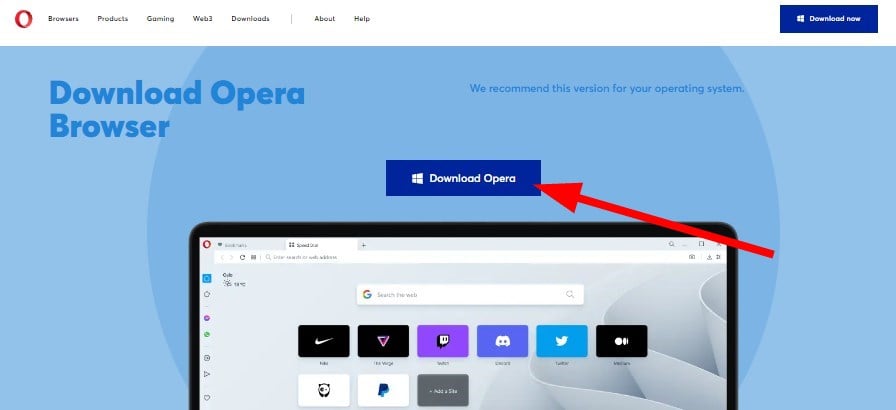
Go to the Opera’s installation page and click Download Opera.
After downloading Opera, run the installation file.
Click Accept and Install in the new window.
Wait for Opera to install, and that’s all you have to do. No extra questions.
Opera Customization
As soon as you open Opera, you’re greeted with a setup process that lets you configure the browser to your liking. Here, you can activate some of Opera’s best features.
The first thing you can choose is which theme you’d like.
Next, you can decide if you want to turn on the in-browser ad blocker which we highly recommend you do. Opera is one of the few browsers that have an ad blocker natively.
Next, you can choose if you want to connect to Facebook Messenger. We’ll cover the messaging apps in more detail later on.
Under Import, you can bring the History, Bookmarks, Passwords, and Cookies from another browser to Opera. Afterward, you can start browsing.
As soon as you open Opera, you’ll be greeted with a clean-looking interface with a speed dial right on the front. The speed dial is filled with popular websites and video games, but you can get rid of them by hovering over them and clicking the three dots in the corner.
There will be an option to trash the app. If you click on Add a site, you can add a new choice to the Speed Dial. Here’s an example of what a custom Speed Dial can look like.
Apart from the Speed Dial in the middle, you have the address bar, bookmarks, and tabs situated at the top of the window. There are also controls for the in-browser VPN which we’ll get into detail later.
On the left-hand side is a vertical sidebar with tons of buttons which make up the bulk of unique features that make Opera as great as it is.
Features
At the bottom of the left vertical bar, you’ll see three dots. Clicking these dots will open the Sidebar Setup page where you can pick and choose what you want to appear on the left. We’ll cover them from top to bottom.
Workspaces
At the top is Workspaces, a handy tool that separates different versions of Opera. You can have one Workspace designated for work and another for personal usage.
What’s great about this tool is how you can have a window focusing on one thing without having to clutter Opera. Tabs can be sorted by relevance too. You’ll start with two but you can have as many as you like by clicking Add more.
You can choose an icon and name the workspace whatever you’d like.
Shopping Center
Next is Shopping Center which pools together product listings from across the internet. There’s a section for eBay, best-selling products, hotel listings from across the world, and a random news section.
The Shopping Center section is fine. It’s hard to imagine actively using it if you’re not a frequent online shopper. For those people, they might get a lot of usage out of this. Many people typically shop at random intervals.
In the Sidebar Setup, you can remove apps by clicking the blue arrow.
Messengers
Opera has the great feature of integrating communication and social media apps into its browser for quick access. There is support for Facebook Messenger, WhatsApp, Instagram, Twitter, Telegram, and VK, which is a Russian messaging app.
To use one of the messaging apps, click one and log in with your credentials. Click on the app and you’re taken to a condensed version of that app. It’s like having the mobile version at your disposal.
Player
Next is another favorite in Player, which is the arrow inside the circle. With Player, you can one of six music streaming apps and play music directly through Opera. No extra app is needed.
You don’t even have to log in to the service to use it, but there is that option. Opera gives you the base version of the respective music streaming app.
If you want to switch services, click the arrow in the upper left-hand corner and a small window will drop down. In that little window, you can hop to another music service.
My Flow
My Flow is another great feature for Opera. It works in conjunction with the Opera mobile app which you can get from the Google Play or Apple App stores.
The mobile app is similar to the desktop version if a more truncated version. You download the mobile version and scan a QR code that appears on Opera. With the feature enabled, you can upload pages from Opera mobile to the desktop browser.
That information comes from other people. We couldn’t get My Flow to work. We scanned the QR code and create an Opera account. We followed the steps Opera provided to us, but it just didn’t work.
From our understanding, My Flow allows people to send a webpage from their mobile device onto the Opera desktop app so seamless browsing. Sounds like a great tool to have to never lose your spot.
Opera Tools/Sidebar Extensions
Below Special Features, you have a series of Opera Tools. These are the portions of the Settings menu thrown into the vertical bar for quick access. You have Bookmarks, Pinboards for organizing ideas, Downloads, and Tutorials.
As for Sidebar Extensions, this gives you direct access to Opera extensions without having to dig through the Settings. Along these features are great and would sell the browser by themselves.
Opera also gives you direct access to its plug-ins page by clicking Add more under Sidebar Extensions. In Opera add-ons, you get a collection of recommended extensions like uBlock Origin, Sidebar for YouTube, and even Pacman.
We’re very pleased with Opera’s vertical bar features. This suite of features alone is enough to recommend Opera. And the fact that they’re all joined together in an easily accessible vertical is icing on the cake.
Opera
Take full advantage of useful browsing tools and enhanced security with unlimited Adds-on.
Apart from the vertical bar on the left-hand side, Opera has an additional customization option on the right-hand side.
Click the three lines in the upper right hand corner to bring up the Easy setup menu.
Under Easy Setup, you can make some of the changes from the initial download like changing the browser theme, turning on/off the ad blocker, and changing the start page.
Something really cool about Opera is its wallpapers. The browser actually supports animated wallpapers that feature a looping video. There’s one already available in the default settings. You can see which wallpaper is animated by seeing which has the Play arrow icon.
You can click on Get more wallpapers and you’ll once again be whisked to the Opera addons page. If you click on the Animated entry on the top bar, you’ll see all of the moving wallpaper available on Opera.
The more popular animated wallpapers are anime related, but if you scroll through the pages, you can find some on nature, space, comics, and simple moving shapes.
To add an animated wallpaper, simply select one and click the green Add to Opera button. Open another tab to your Speed Dial and you’ll see your brand new animated wallpaper. It takes just a few seconds.
Opera also supports the option of allowing people to add their own wallpaper. You can’t simply upload a video or GIF to Opera and have it work immediately.
Instead, you have to use a WebM video file or an animated WebP file on Opera. Fortunately, Opera has a set of instructions on its website that teaches you how to create your own animated themes.
It is a little complicated and requires a bit of technical knowledge. If you’re up for it, we highly recommended that you try it. Apart from the animated themes, other customization options involve clearing out browsing and tweaks to the vertical bar.
Nothing major, but scrolling through the Settings menu is a surprisingly wonderful experience. Everything is nicely laid out. Somehow Opera balances having multiple configurations but none of it feels confusing.
The settings menu on other browsers feel like walking through a labyrinth; confusing and a pain to go through.
Privacy and Security
While Opera does have some pretty good security features and tools, it’s important to address the elephant in the room. Back in 2016, Opera was bought by a Chinese cybersecurity company Qihoo 360.
When people hear that a Chinese company owns Opera, they may jump to conclusions and think that the browser has been compromised by the Chinese government.
Many fear that these tech companies leak information to the Chinese government to spy on people across the world. However, there is no evidence that Opera has been compromised by anyone.
The developer hasn’t had a major security breach since 2016. There have been no reports from anyone that the Chinese government spies on Opera users.
This may seem like a random thing to mention, but doing research for this review, we came across several people expressing their concerns about this news.
There is no evidence whatsoever of this happening. If anything, the security concerns should be focused on locally instead.
Security
As you know, Opera is built on the Chromium browser engine, the same as Google Chrome.
But unlike Chrome, Opera does not use Google Safe Browsing which is a tool that protects people from malware. If you’ve ever gone to a website and had a warning go off in Chrome or it prevents you from entering a website, that’s Safe Browsing in action.
Apart from that, Opera has the neat feature of alerting you if you visit a website with an insecure HTTP connection. But unlike Chrome, it’s easy to miss.
Chrome blocks you from entering the website and gives an explanation why. On Opera, a little triangle with an exclamation point appears in the address bar. It informs you of the insecure connection.
While not as intrusive, it’s not as robust. This would have been the one instance an intrusive blocker would be welcome.
Ad blocker
Opera’s ad and third-party tracker blocker is the browser’s best security feature. You don’t really need to download something uBlock Origin to enhance security. Opera has you covered, although we do recommend Privacy Badger.
Looking through the ad blocker settings, you have options to add exceptions in case you want certain ads to come through. By default, there are exceptions for Google, Facebook, and Bing but you can add more.
Three recommended lists are automatically enabled on Opera. These lists cover most of the annoying ads on the internet. There’s even NoCoin which protects you from bad actors trying to use your computer for cryptocurrency mining.
It’s a very insidious act that can cause your electric bill to skyrocket and your machine to overclock. Other browsers have it too as extensions to download. Opera has it on by default.
The developers have also enabled Allow Acceptable Ads by default. This feature allows ads that are nonintrusive and comply with strict ad criteria. On paper, this sounds great but we can’t verify what a nonintrusive ad is for Opera.
We couldn’t find a detailed description or definition for this on Opera’s website.
VPN
The final major feature of the Opera browser is the in-browser VPN. Opera is one of the handfuls of web browsers that has this feature for free. The VPN sits to the left of the address bar. You can click on it to turn on the feature and change your virtual location.
You can have three rather vague choices for the location: the Americas, Asia, and Europe. Presumably, “Americas” refers to both North and South America so you can, in theory, watch content from Latin America.
We wish there was some kind of distinction, however. In fact, we wish Opera gave more details about how its VPN works and what kind of encryption is uses. The developers state the browser has a no-log VPN which means it doesn’t collect information on your web browsing.
That’s good to know, but that doesn’t answer our on what kind of encryption the VPN uses. Going through the rest of the VPN, you have a helpful graph that shows how much you’ve used it.
If you’re worried about bandwidth, don’t be because it’s unlimited. You can use VPN as often as you want and still have the service available to you.
The VPN’s speed is a mixed bag. It’s recommended that you stick to the Optimal Location option for the highest speeds. If you choose a global region far from where you live, you’ll experience a considerable slowdown.
To give some perspective, this review was written on the west coast of the US and experienced the greatest slowdown when Asia was selected.
We also don’t like how the VPN’s IP address appears in the drop-down window. It’s small and not your actual IP address, but we would’ve liked it if it was hidden better.
Our final complaint is how the VPN is sort of hidden. It’s a little box next to the address box that you can easily miss. The tool also isn’t available in the vertical sidebar which is a missed opportunity. But still, a free VPN is still a free VPN. It’s a welcomed service.
A free VPN insinuates the existence of a premium version and there is Opera VPN Pro. The paid service isn’t a big jump in quality. You get some extra security features but that’s pretty much it. No additional choices for locations or increased speed.
With VPN Pro, the entire device is protected from tracking instead of just the browser. That’s a data-saving mode for smartphones and the ability to cover multiple devices.
You can secure up to six Android or desktop Windows machines with a single subscription. But VPN Pro still has the same criticisms: the vague encryption standard, okay speeds, and exposed IP address.
The new security features and multiple device support are fine, but we would’ve liked more.
Is Opera better than Google Chrome?
For the most part, yes it is. Google Chrome does have the company’s Safe Browsing program which other browsers use in their own software. Firefox, for example, has implemented the Safe Browsing.
However, Google itself is less trustworthy. The tech giant is constantly fighting off allegations and lawsuits over user privacy. Back in January, Google was accused of tracking people into allowing them to record their location without consent.
And there’s the story of Google tracking using tracking users even when they’re in incognito mode which defeats the purpose of the feature. Google Safe Browsing may make you safe against third parties, but what about itself?
Opera doesn’t do any of that. In fact, as of Opera 65, the browser will show you who is tracking you on the internet. As stated earlier, Opera’s own security features are not as good as Chrome’s Safe Browsing but you can always remedy that.
We recommend using extensions to patch up the holes in Opera. And of course, there are features housed in the vertical bar that are the reason we fell in love with the web browser.
Similar to our Opera GX review, we ran both Opera and Chrome through multiple tests on BrowerBench to see which of the two browsers were the fastest in terms of web apps, browser graphics, and responsiveness.
OperaTest
Runs per minute
JetStream 2
157.949
MotionMark
661.86
Speedometer
118
Chrome Test
Runs per minute
JetStream 2
155.040
MotionMark
780.31
Speedometer
146
As you can see from these test results, Chrome is substantially faster than Opera in terms of responsiveness and web app speed. However, Opera is able to render graphics a little bit faster.
Opera doesn’t blow Chrome out of the water judging by these results. But if you care more about features, tools, and protection more than performance, Opera comes out on top.
As for other browsers, it’s a similar question. Opera does certain things better, like having a free VPN, but lacks in others. It depends on what you look for in a browser and what’s most important.
If you want a browser that has a ton of features with decent security features, then Opera is the browser for you.
Is Opera better than Opera GX?
Yes, but it depends on who you ask. If you’re a big gamer, Opera GX is better. The two are both based on the Chromium with the same exact features: privacy, VPN, music players, the works.
The difference is that Opera GX has three additional features: GX Corner, GX Control, and GX Cleaner. Corner gives an overview of all your gaming settings in the browser where you can then tweak them.
Control lets you adjust video game-related features and certain computer settings like the CPU limiter. And Cleaner lets you clear out browsing data. These features make Opera GX better for gamers.
If you’re not a bigger gamer, you’re better sticking with the normal version. If you don’t use them, they’re just extra, unnecessary features.
Final thoughts
Pros
Has tons of customization options
Free and unlimited VPN
Integrated messaging and music apps
Built-in robust adblocker
Cons
Slower than some mainstream browsers
Security is lacking
VPN Pro is limited in features
With all that said, would we still recommend Opera? Yes, absolutely. Yeah, there are some problems with the browser’s security. It’s not as strong as we would like it to be, but it’s still pretty decent for what it is.
Opera’s performance is also disappointing, as we wish it was faster than Chrome in our tests. However, the browser is still plenty fast. We experienced no slowdown watching videos on YouTube or playing browser games.
Streaming content was just as quick as other browsers. In certain scenarios, there may be slowdowns so it was important to mention it. Apart from that, the integrations are fantastic; easily our favorite aspect of Opera.
Being able to message on the browser without needing an extra app is simply amazing. That will greatly save on CPU resources. We also loved the wealth of customization options, like the animated wallpapers. They give a nice personality flair to Opera.
For casual users, Opera comes highly recommended. It packs a ton of features into an easy-to-understand browser. It’s a perfect fusion of security, functionality, and customization.
Feel free to comment below if you have any questions on Opera or other browsers Also, leave comments about reviews you’d like to see or information on other web browsers.
As spotted by Windows Central, users will now be able to buy Windows 11 Home and Windows 11 Pro licenses directly from Microsoft. Initially, users depended on USB drives for these licenses but at $139 and $200, you’ll be able to get digital licenses for Windows 11 Home and Windows Pro respectively.
With this new arrangement in place, users will now be able to build their own devices from scratch more efficiently and effectively, the same also applies to those users that may want to run the OS in a virtual environment. You should also check out our expert guide where we expound on how to install Windows 11 on a Virtual Machine.
These digital licenses are meant for devices that require a new license, of course, the device must meet the minimum requirements of Windows 11. It is also worth noting that you will require a USB drive which will allow you to perform a clean install.
Looking for the best download speed booster to speed up your downloads in the Opera browser? You’re in luck. We tested several options on the market and listed the best performers below.
Check them out and pick the best option for your needs.
What are the best download speed boosters for Opera?
Since the Opera Turbo feature does not exist in version 59 and up, you can enable the hardware acceleration feature, which is the same as the Turbo mode:
Launch the Opera browser, and click on the located gear icon (Settings) on the sidebar.
Next, select Browser on the left.
Now, travel to the right, scroll down to the System section and turn on Use hardware acceleration when available.
Press the Relaunch button to restart Opera and it should speed up now.
Apart from enabling the hardware acceleration feature, here are some of the other most effective methods you can use to speed up Opera Web Browser:
Disable any unnecessary features like integrated messages, pinboards, etc.
Delete all bookmarks
Use an ad blocker to block annoying pop-ups
Clear browser history, cookies, and cache
Disable extensions that you are not using currently
Stop using the built-in Opera VPN
Close any additional tabs that are not in use
Does Opera have a download manager?
Yes, Opera comes with a built-in download manager that allows you to access your downloads easily as shown below:
Open Opera and on the sidebar, click on the Downloads icon.
This will open the Download manager in a new tab.
Here, look for your downloaded file and click on Open to open the file.
Or, you can click on the three dots next to it and select your option to manage your downloaded file.
But, if you want to increase the download speed in Opera, enabling the Turbo mode (in version 59 and below) or the hardware acceleration may help you achieve the speed.
Experiencing Opera browser high CPU usage can slow down your entire system, especially when multiple tabs are open. Whether you’re using standard Opera or Opera GX, certain settings and processes can lead to performance issues. Below are focused solutions that don’t rely on the typical suggestions like clearing cache or disabling extensions.
Scroll down and toggle off the Use Hardware acceleration when available option.
5. Check for the latest update
Click on the Opera logo at the top left.
Select Update & Recovery.
It will automatically start looking for new updates. And if found one, will prompt you to install it.
There are chances that the version that you are currently running has a bug that has increased CPU usage. Install the latest update and check if this fixes the issue.
6. Reinstall Opera
Open Control Panel.
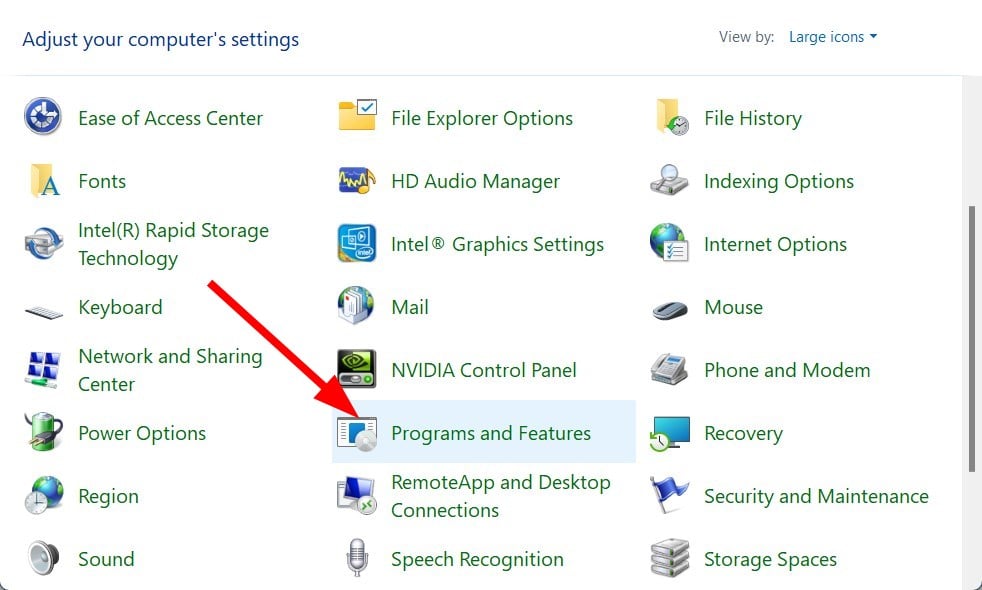
Select Programs and Features options.
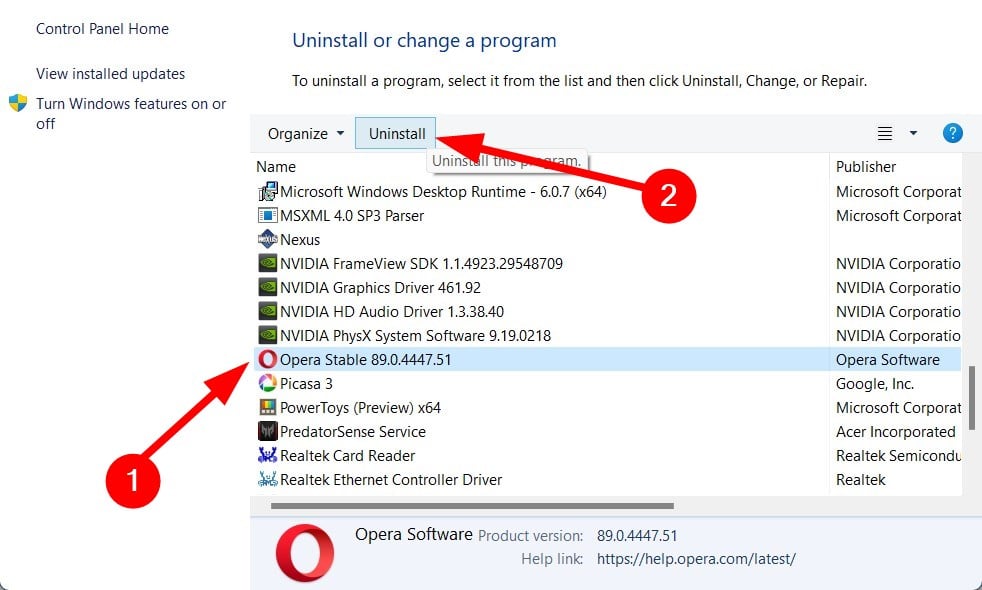
Click on Opera from the list of apps.
Hit the Uninstall button at the top.
Once is successfully uninstalled, restart your PC to remove all remaining files.
Turn on the RAM limiter toggle. Or you can manually allocate the RAM you want it to use.
Scroll down and turn on the CPU limiter toggle. You can also set what amount of CPU resources you want the browser to use.
Opera GX has a built-in feature that could help fix this issue.
8. Check for Script-Heavy Websites
Sites with autoplay videos, ad-heavy layouts, or infinite scrolling can drastically increase CPU load.
Open Task Manager in Opera (Shift + Esc)
Identify tabs with high CPU usage
Close or pause the offending tabs
9. Disable Sidebar Apps and Features
Opera’s sidebar includes apps like WhatsApp, Instagram, and Messenger that stay active even when not in use.
Go to Easy Setup > Disable unnecessary sidebar apps
Or right-click the sidebar and hide all unused services
10. Turn Off Background Music Playback (Opera GX Only)
GX includes features like background music or sound effects that consume resources.
Open GX Control
Navigate to GX Sound
Disable background music and sound effects
11. Use the Built-in Task Manager to Identify Resource Hogs
Opera has a built-in tool to show which processes use the most CPU or RAM.
Press Shift + Esc
Sort by CPU or Memory
End high-resource tasks directly from the panel
12. Disable Live Wallpapers (Opera GX Only)
Animated or interactive backgrounds consume both CPU and GPU.
Go to Settings > GX Appearance
Switch the wallpaper to a static one
Turn off animation effects
13. Adjust Battery Saver Settings
Opera’s Battery Saver can conflict with certain system power plans and cause spikes in CPU activity.
Visit Settings > Features > Battery Saver
Try disabling it and monitor CPU usage
14. Switch to the Standard Opera Version (If Using Opera GX)
If Opera GX high CPU usage persists even after adjusting GX-specific settings, consider switching to the regular Opera version, which lacks the gaming-focused overlays and integrations.
Why is Opera power usage so high?
The most common reasons why Opera uses a lot of resources are:
You installed a bunch of add-ons
There are some issues with the beta version
Because of corrupt browsing cookies and data
Presence of malware or virus on the PC
Hardware acceleration is causing high CPU usage
The browser version is outdated
How Much CPU Should a Browser Use?
On average, a browser should use between 5% and 20% CPU during moderate usage (e.g., 3–5 tabs open with media paused). If it consistently spikes above 40–50%, there may be background processes, scripts, or settings draining system resources unnecessarily.
We’ve all used mobile hotspots at one point or another. Whether you created the hotspot yourself to share your internet with other devices or simply connected your phone to a hotspot, it’s a fact that a hotspot can be a super handy tool.
Interestingly, you can also turn on and use a hotspot on your Windows 11 and Windows 10 PC. This feature can come in nifty when you want to connect your smartphone to your PC’s internet.
How to connect your smartphone to your Windows 11’s internet
Enabling your Windows 11 PC’s hotspot is a fairly simple process. Once you do that you can then link your PC’s internet to your smartphone. Here’s how you can get started:
Go to the Start menu search bar, type in ‘settings,’ and select the best match.
Head to Settings > Network & internet > Mobile hotspot.
On the Mobile hotspot tab, click on the dropdown option for Share my internet connection from and select WiFi or Ethernet.
For the Share over option, click on Wi-Fi or Bluetooth.
Click on Edit from the Properties section.
Finally, set the Network name, its password, and set up the Network band to Any available. Click on Save. Now toggle on the Mobile hotspot switch to turn on the Windows 11 hotspot.
That’s it. Now all you’ve to do is turn on the Wi-Fi setting on your smartphone and connect it to your PC’s hotspot.
Sharing Windows 10’s internet with your smartphone
Again, in the case of Windows 10, the process is pretty straightforward as well.
Toggle on the switch for “Share my Internet connection with other devices”.
Set up the network name and password, and you’ll be good to go.
Do this, and you can connect your smartphone to your Windows 10 PC’s internet immediately. So when I try and connect my phone’s Wi-Fi to the desktop, this is what it looks like:
Enter the passwords you set above, and your mobile will be successfully connected to your PC’s hotspot.
Connecting your smartphone to your PC’s internet
If you can’t access your mobile internet for some reason, then your Windows PC’s hotspot can rescue you from this perilous situation. We hope this short guide helped you connect your smartphone to your Windows.
Microsoft Edge engineers continue to refine its user experience as well as building cohesion with other platforms.
The Edge team published the details of its latest Dev channel release 105.0.1329.1 to the Insider Dissuasion blog with the following notes:
Added a button in the PDF toolbar to share documents.
Added a mute indicator on tabs when the browser is muted in the volume mixer
Improved reliability:
Updated max URL length in the side pane for visual search
We added an “always enforce” list to Enhanced Security mode
Improved iOS Feedback prompt to notify when connection is blocking the ability to send feedback
Now it seems the Edge browser will support and recognize changes made in the volume mixer on Windows devices and represent those changes (if muted) in the browser tab which should help users who want more ways to control volume on their devices.
There were other smaller improvements that were pushed through with the Dev channel update that include fixing a crash that occurs when getting the page count in print preview, crashes when adding Favorites folders on iOS, and a couple of others.
The Edge team also highlighted its efforts on Disk caching with that are improving the way the browser “compresses disk caches for improved performance and a reduced disk footprint.”
The end result should be an Edge browser with a lighter footprint and less resource hungry experience that has the potential to bog down an operating system.
The Dev Channel update for Edge was made live yesterday and should be showing up for users in the following days.
If Opera is not connecting to the Internet, you won’t be able to use it at all, and this can be a major problem. Luckily, there are a few ways to fix this issue.
What can I do if Opera is not connecting to the Internet?
Before we try anything else, we suggest checking your Internet connection or trying a different one. Make sure your Kaspersky antivirus or other software isn’t interfering with or blocking Opera.
1. Update your Opera browser
Launch the Opera browser on your computer.
In the top-left corner of the screen, click on the Menu button.
Scroll down and select Update & Recovery.
On the Update and Recovery tab, Opera will automatically scan and download updates if there are any updates available.
Restart the Opera browser and try connecting to the internet.
2. Disable VPN
Open Opera and navigate to the following page: opera://settings/vpn
Make sure VPN is completely disabled.
Check if that solves the problem.
3. Disable HTTPS over DNS
Click the Menu icon in the top left and choose Settings.
Scroll all the way down and click on Advanced.
Locate Use DNS-over-HTTPS instead of the system’s DNS settings and disable it.
The Microsoft Threat Intelligence Center (MSTIC) along with the Microsoft Security Response Center (MSRC) published a blog post identifying and detailing the malware exploits of an Austrian-based group as KNOTWEED.
According to the joint MSTIC and MSRC report, a private-sector offensive actor (PSOA) has been using multiple Windows and Adobe Zero-day exploits to develop and sell malware dubbed Subzero to attack banks, consultancy, agencies and law firms in European and Central American regions.
In its technical blog post, which is being used as written testimony submitted to the US House Intelligence Committee this week, Microsoft details the actions of DSIRF which is the official name of developers of KNOTWEED.
Despite DSIRF claims of legitimacy as a multinational risk analysis business that makes use of “a set of highly sophisticated techniques in gathering and analyzing information”, Microsoft has surveilled and tagged the bad actor as a distributor of spyware intended for unauthorized surveillance.
Multiple news reports have linked DSIRF to the malware toolset Subzero which took advantage of Zero-day exploits in Windows and Adobe Reader, in 2021 and 2022.
In May 2022, MSTIC found an Adobe Reader remote code execution (RCE) and a 0-day Windows privilege escalation exploit chain being used in an attack that led to the deployment of Subzero. The exploits were packaged into a PDF document that was sent to the victim via email. Microsoft was not able to acquire the PDF or Adobe Reader RCE portion of the exploit chain, but the victim’s Adobe Reader version was released in January 2022, meaning that the exploit used was either a 1-day exploit developed between January and May, or a 0-day exploit. Based on KNOTWEED’s extensive use of other 0-days, we assess with medium confidence that the Adobe Reader RCE is a 0-day exploit. The Windows exploit was analyzed by MSRC, found to be a 0-day exploit, and then patched in July 2022 as CVE-2022-22047. Interestingly, there were indications in the Windows exploit code that it was also designed to be used from Chromium-based browsers, although we’ve seen no evidence of browser-based attacks.
Microsoft also details KNOTWEED exploits that involve Subzero disguising itself as an Excel file in real estate documents. “The file contained a malicious macro that was obfuscated with large chunks of benign comments from the Kama Sutra, string obfuscation, and use of Excel 4.0 macros.”
Fortunately, Microsoft has been able to implement protections since identifying KNOTWEED but advises users to be on the lookout for other behaviors of known and unknown malware that include examining directories such as C:\Windows\System32\spool\drivers\color\ where legitimate programs my inadvertently house spyware.
If digging through registries is too in the woods for some, Microsoft also suggests some more practical high-level options such as prioritizing patching of CVE-2022-22047 when it hits machines, making sure Microsoft Defender Antivirus is up to date, changing Excel macro security settings, enabling multifactor authentication (MFA) and reviewing authentication activity from remote access infrastructures regularly.
Don’t know what to play on Game Pass? With well over 100 games to choose from across just about every genre out there, it can be tough to know where to start. Thankfully we’ve got you covered with these Game Pass recommendation for Star Wars fans. For these folks, Game Pass does not disappoint with four awesome games (and six total editions) from the franchise. Let’s check them out.
Star Wars Jedi: Fallen Order
This third-person action game holds with the Metroidvania approach to balancing action and exploration. Armed with a lightsaber and the Force, players assume the role of former Jedi Padawan Cal Kestis. Along the way Cal will acquire new abilities that will allow him to reach areas that were previously inaccessible. There isn’t anything here that reinvents the wheel, but it doesn’t need to. What Fallen Order does do is deliver a rock-solid Star Wars adventure that will be a treat for fans casual and hardcore alike.
Star Wars Jedi: Fallen Order has sold over 10 million copies. The game is set to get a sequel in 2023 with Jedi: Survivor.
To be clear, this is a reboot of the Star Wars Battlefront subseries than launched in 2004 with a game of the same name. This 2015 title reflects the new Star Wars mythology that came about after Lucas Arts was acquired by Disney. An action-shooter that can be played in either first or third person, Battlefront is really geared toward the multiplayer experience. This is seen in the wealth of modes and maps available. Multiplayer games can accommodate up to 40 players.
Battlefront has sold 14 million copies, and has won several awards. It was nominated for Best Shooter at The Game Awards in 2015. PC Game Pass members are treated to the game’s Ultimate Edition, which includes content from the season pass.
Star Wars Battlefront II
As you might have guessed from the game’s title, this is the follow up to the previous entry. Much like its predecessor, it is a first- and third-person shooter with both single player and multiplayer game modes. The game spans multiple eras of Star Wars history, each with exclusive maps.
There are several classes present in Battlefront II in addition to a roster of Heroes (and villains) who can be leveled up as with other classes. These include series icons like Luke Skywalker, Leia Organa, Han Solo, Boba Fett, and many others.
If you enjoyed the first Battlefront, then you will enjoy this too. And PC Game Pass members get the Celebration Edition with all cosmetic options in the game.
We end with something different. Star Wars Squadrons is a space combat game played in the first-person perspective. Players can choose to fly starfighters from either the Galactic Empire or the New Republic. Each has four distinct starfighter classes: Fighter, Bomber, Interceptor and Support.
Squadrons has a single player story mode as well as two online modes – a team deathmatch mode for u to ten players called Dogfight, and Fleet Battles. In Fleet Battles 2 teams of up to 5 players fight to destroy each other’s Capital Ships. All in all, Squadrons is geat for a soaring good time for die-hard Star Wars aficionados and casual fans alike.
Wrap up
Which of these great Star Wars games are you going to tear into first? Let us know in the comments. And if you haven’t already signed up for a Game Pass subscription, you can do so here. Learn more about Game Pass over on its FAQ page. And don’t forget to check out our other “What to play on Game Pass” posts for other Game Pass recommendations. And may the Force be with you.
If you purchased a license for a Microsoft 365 product and tried to activate it, you might see the This product key cannot be used in your country/region. Please double-check your product key and try again error.
This error prevents users from activating Office products even if they spend money to get them. However, you can quickly fix this problem by using a service that bypasses geo-blocks and makes it look like you’re trying to activate Microsoft 365 from another country where it’s allowed.
Why is Microsoft not accepting my product key?
If you see this notice, it indicates that the product key you are using was purchased in a different nation or area from the one where you are now situated.
Product keys for Microsoft Office may only be redeemed in the country or area where they were originally purchased.
However, there are ways to bypass this notice. One is using a VPN service that will mask your actual region. Follow along to see what else you can do if Microsoft Office is not accepting your product key!
How do I get rid of the This product key cannot be used in your country/region message?
1. Use a VPN service
Using a VPN is the best way to get rid of the Sorry this product key cannot be used in your country/region message and activate your Microsoft 365 product successfully.
A VPN changes your IP address and geo-location to fool Microsoft into believing you’re trying to connect its products from a country where licensing is permitted. The trick is to choose the right country.
We recommend ExpressVPN because we believe it’s the best VPN for circumventing firewalls and accessing blocked websites.
ExpressVPN comes with a very user-friendly graphical user interface that can be used on a variety of platforms, including Windows, Mac OS X, Android, Linux, and straight in your web browser.
It provides superb connection speeds whether you are browsing the web safely, downloading or streaming content, or gaming with friends.
More about ExpressVPN:
Password Manager
Supports torrenting and streaming
Servers in 105 countries
No logs or leaks
VPN for Gaming
ExpressVPN
Use a reliable VPN service like ExpressVPN to activate Microsoft 365 products without any geo-restrictions or licensing issues.
You need to search for the product key with great attention to determine whether you are utilizing the appropriate kind of product key.
For instance, if you acquired the activation key for a different package of Microsoft Office or an earlier or newer version of Microsoft Office, then it will not function for the various versions of Office that you have.
Moreover, you must always get the product key from an authentic, official, or approved source. If you purchased the key to activate Office 365 from anywhere other than the Microsoft Store, there is a reasonable risk that the vendor gave you an unauthorized duplicate of the product key.
Press Windows + I to open Settings then navigate to Time & language followed by Language & region.
Scroll down to the Region section and select the country or region which corresponds to your key’s source, by clicking on the drop-down menu next to Country or region.
Restart your computer in order to apply the changes made
Note that although this method will indeed change your region or country, this simple setting might not convince Office 365 thus you might have to resort to a VPN after all.
4. Contact customer support
You are welcome to contact Microsoft’s customer support service if you believe the mistake is on their end and there is nothing wrong with the region in which you are located or the key you are using.
As stated on their website, you can reach them at this number if you are calling from within the United States: (800) 865-9408. If that is not the case, you should look at their list of phone numbers for other countries.
Microsoft Office 365 country restrictions
As stated on their website, customers who acquire Microsoft 365 can assign a license to a user residing in any country except Cuba, Iran, the Democratic People’s Republic of Korea, Sudan, and Syria.
How to check if the Microsoft Office product key has been used?
Unfortunately, there is no method to check whether other users have previously utilized a product key; nevertheless, you will receive an error notice if you attempt to use it.
Always acquire your items from a legitimate vendor to avoid situations in which you purchase already-used keys. You can also purchase authentic and reliable licenses from the Microsoft Store.
To summarize, you can use a trustworthy VPN to get rid of the This product key cannot be used in your country/region error message by connecting to a VPN server in a country where the key activation is allowed.
Although it’s tempting to use a free VPN, it doesn’t usually work the way you expect. Instead, resort to a premium VPN service like Private Internet Access.
Don’t hesitate to comment in the section below and tell us what you think. Thanks for reading!
LinkedIn has quietly introduced a new feature for its members which could help your brand and business – Cover Stories. Cover Stories allow you to create a video clip showcasing your business and skills. You can add the video clip to your profile and viewers can see your video when they click on your profile.
LinkedIn Cover Stories profile video
As a small business over, this video addition to your profile could enhance your personal and business brand and help you get more customers. And the great thing about Cover Stories is it is not only available for Premium members. All users who have a profile on the platform can take advantage of marketing this feature.
When you look at someone’s profile when they have Cover Stories enabled, you will see three seconds of their muted video. Clicking on the video icon will display the entire video with sound enabled. You can record up to 30 seconds of video and add it to your LinkedIn profile for everyone to see. Unfortunately, profile videos are not currently available for members accessing the platform from China.
Recording LinkedIn Cover Stories
You can only record the video clip and upload it from the LinkedIn mobile app – not from your desktop. To upload a video using your mobile device, go into the LinkedIn app and find your profile photo. Click the plus sign on your profile photo and tap ‘Add profile video’. Make sure that you have enabled the camera and the microphone for LinkedIn before you record.
You do not need to do a live recording for your profile directly from your mobile device. You must upload a minimum of three seconds up to a maximum of 30 seconds from your phone. However, you do not need to do a live recording for LinkedIn directly from your mobile device. I recorded my LinkedIn cover story using the video capability in the Windows Desktop Camera app and transferred the video to my Android phone using OneDrive.
If you do record the video from your phone, after you have finished recording, you can preview the video by tapping the ‘visibility’ icon at the bottom left of the screen on your mobile device.
Then, set the audience to either ‘All LinkedIn members’ or ‘Connections only’ to select who you want to see your video. If you want to attract new customers, then set the audience to ‘All LinkedIn members’. Finally, when you are happy with the video, tap the ‘Share to profile’ link from the ‘Adjust preview’ page.
Standard LinkedIn profile roundel for Allister Frost
My buddy Allister Frost has also uploaded his Cover Story and gave me permission to use screenshots from his profile. You can see his normal profile, and when you hover over the roundel in his image you can see the muted three-second preview of his Cover Story.
LinkedIn Cover Stories muted video preview
Clicking on the roundel will open up the entire video in a new window which will play with the associated sound.
LinkedIn Cover Stories full video with sound
If you want to answer a question on your video, select ‘Add prompts’. This will enable you to respond to a prompted question about your work. You will be given prompts such as ‘What’s your mission or purpose?’, ‘What problems are you trying to solve?’, or ‘What does your job look like behind the scenes?’. These prompts will frame the video and enable you to say what you want to say in your video.
You can also add stickers and text to your video if you choose and choose one or two frames for your own profile roundel. You can choose to keep the image as original, or select one of two options – either #hiring or #opentowork. Of course, Frost has gone one better than that and created his own custom frame for his roundel which he uploaded as his profile image. By the way, LinkedIn, the ability to customise the frame in your roundel would be a very good idea for influencers to make their profiles stand out from the crowd.
Adding Closed Captions to LinkedIn Cover Story videos
You can also add Closed Caption SRT (SubRip Subtitle) files to LinkedIn so that viewers watching on mute can see subtitles for the video. You could use a tool such as Rev or Zubtitle to generate the SRT file to add the captions to the LinkedIn video
If you want to add closed captions to your video, switch to LinkedIn for Desktop. Click on your profile icon at the top of your page and click ‘View profile’. Then, click your profile photo in the introduction section and select the ‘view or edit profile video’. Click the ‘closed captions’ icon, upload your SRT file using the ‘Select captions file’, then preview the captions and upload them.
Of course, you do not need to add closed captions to your video – but if you want to make sure that everyone can see your message – whether they’re on mute or not. It is certainly worth considering if you want to connect across the LinkedIn platform.
A well-crafted Cover Story could enhance your LinkedIn profile, and let people see who you really are behind the words and the static image on your profile page. And that could bring you more business and really extend your brand.
The weekend is right around the corner, and that means its time for the latest round of games with Xbox Free Play Days. Three games will be available to play from Thursday through Sunday at no additional cost for Xbox Live Gold members (and by extension those with a subscription to Game Pass Ultimate). Let’s check out the lineup.
Generation Zero
Naruto to Boruto: Shinobi Strikers
WWE 2K22 (available for both Xbox One and Series X|S)
These games are all on sale throughout the weekend too. Generation Zero is at 65% off; Naruto to Boruto: Shinobi Striker can be purchased at 90% off (yes, you read that right); and WWE 2K22 is available at 45% off.
You can learn more about the Xbox Free Play Days over on the FAQ page.
Windows PCs have some of the best battleship games that allow you to take charge of a battleship in a modern, sci-fi fantasy.
However, what if you don’t want to download a huge game to your PC and go through the installation process?
Online battleship games are a popular alternative among casual gamers looking to play battleship games on their web browser.
These 3D battleship online games require you to develop your own battleship and sail the sea to battle with other players.
In this article, we explore the best online battleship multiplayer games that you can play on your browser and put your admiral mind to test.
How do you play Battleship with a friend online?
A game is regarded to be multiplayer if it can support more than one player at a time. Multiplayer games are played via the Internet the vast majority of the time; however, they can also be played through a LAN (local area network) or dial-up connection.
Multiplayer gaming using a split screen is common on consoles, although the number of players is often limited to between two and four.
Many games provide players the ability to construct and manage their own private servers, even while the main game servers are managed by the game’s producers.
But when it comes to Battleship games, you can opt for a multiplayer version. Check out the list below as we have listed some of them as well. Follow along!
Quick Tip:
You can play browser-based online games on any web browser; however, some web browsers like Opera GX are developed specifically for gamers by keeping their needs in mind.
Opera GX is a gaming counterpart of the Opera web browser for Windows and macOS built to complement your online gaming sessions.
Opera GX
This software offers you access to game-oriented browser features and a lightning-speed browsing experience.
Apart from offering greater control over shortcuts to apps, Opera GX also allows you to control your PCs resources such as GPU, RAM, GPU, and network bandwidth usage using the built-in limiters.
What are the best battleship games to play online?
Drednot.io is a fun battleship game in which you must develop your own battleship and crew. You, as the captain, sail the sea to battle with other players online.
You can also join forces with other players to create a mighty vessel to havoc destruction on your opponents.
Drednot.io allows you to choose the type of ship you want to create. You can build a small and fast destroyer or gigantic ship with loads of guns and armor, compromising on agility. As a school unblocked online battleship game, you can enjoy it everywhere.
While the game is not the best aesthetically, it is still fun and offers tons of customization to play with. That said, it requires you to create a user account before you can begin.
Krew.io – Multiplayer game that doesn’t require an account
Krew.io is another online multiplayer browser-based battleship game. Unlike Drednot, it allows you to play as a guest without creating an account.
We ranked it as the second best online battleship game for 2 players since it allows you to sail on many seas.
Krew.io uses the standard WASD controls to move your player and mouse to rotate and shoot. You can select from the two available and a place where you want to play, including Sea, Brazil, Spain, etc.
You play as a cannon on a ship and try to destroy the enemy ships and collect coins. In the multiplayer mode, you can join forces with other players to strengthen your army.
Boat Simulator is not exactly a battleship game, but if you like to play with different kinds of boats in simulation, this game has tons to offer.
Boat Simulator is a 3D simulator game in which you have the freedom to control different sea vessels and explore around. Not exactly a battleship simulator, but it can still be tons of fun.
This game is made on Unity WebGL for web browsers. You can move the boat using the WASD control.
Hold the right mouse button to move the camera, press C to change the camera view, press V to change the vessel, and use the mouse scroll to zoom in/out.
You begin by selecting one of the two simulation environments. You can explore the environment and play around with objects like oil barrels and jump high using the ramps.
Battleships Pirates is an action pirate strategy game with various abilities, that caught our attention. Thus we regarded it as one of the best free battleship games for PC. Use the left mouse click to interact with the game.
The game begins by taking you through building a rowboat and then placing the captain on the boat.
You need to look at the enemy energy bar and then use your skills to hit the enemy fleet. You will certainly enjoy the game if you are into strategy-based battleship games.
Follow the on-screen instructions, and you are good to go. Use the left mouse click for all the actions.
Battleship is another best warship online game. The game puts you as the commanding officer. Your job as the commanding officer is to lead your powerful fleet in a battle against another fleet.
Begin with positioning your battleships carefully on the map. You need to also decide if you want to put them vertical or horizontal to gain strategic advantage.
The objective is to guess where the enemy battleship’s position is and shoot missiles to destroy all of them. Being a browser game, Battleship is compatible with your PC as well as mobile devices.
The online battleship games may not be as sophisticated as their PC counterparts. However, these games offer decent effects like an explosion and require you to employ brilliant strategies to outperform the opponent and destroy their battleship.
Which one do you like the most? Let us know in the comments section below. Thanks for reading!
If Opera has no sound, you won’t be able to enjoy any online multimedia, but luckily, you can fix this problem with these solutions.
Why does my Opera have no sound?
The issue is likely caused by settings in Volume Mixer and Opera might be muted or using a different output device. Sound settings in Opera can also cause this problem.
How to fix the no sound issue on Opera?
Before we start, make sure that the tab playing music isn’t muted. Reinstalling audio drivers can also help.
1. Adjust your audio settings
Press the Windows key + I to open the Settings app.
Go to System and then select Sound.
Navigate to Volume mixer.
Locate Opera and make sure it’s not muted. Also, move the slider to the max value.
Next, click the arrow next to the volume slider and set the Output device to Default or your output device of choice.
If the problem is still there, click the Reset button at the bottom.
2. Allow sites to play sounds
Launch the Opera browser open the Menu in the top left click the Settings icon.
Select the Advanced settings option.
Select Privacy and Security, then click on Site Settings.
Go to Additional content settings and select Sound.
Toggle on the Sites can play sound option.
3. Change launch parameters
Locate the Opera shortcut, right-click it and choose Properties.
In the Target field, add the following after quotes: --disable-features=AudioServiceSandbox --disable-features=AudioServiceOutOfProcess
To monetize the live streams, Twitch shows non-skippable embedded ads at the beginning of the video. Keep in mind that even Prime users see these ads.
While the ad blockers should block these ads, some users have reported uBlock Origin is not blocking Twitch ads when streaming.
This is due to developers removing all the client-side fixes that disabled advertisements. You can overcome this limitation on uBlock Origin by installing the Twitch HLC AdBlock extension.
In this article, let’s walk you through the steps you can follow to fix the uBlock not blocking ads on Twitch videos issue.
Why does uBlock Origin not block Twitch ads?
As with all software, you are bound to run into some errors, bugs, or lack of functionality, which is why it’s important to know what to do in that type of situation.
uBlock Origin not blocking Twitch ads issue occurs due to the new changes made to Twitch.tv, which prevents ad blockers from blocking ads.
However, you can bypass this restriction by either adding the Twitch HDLS AdBlock extension or by using the Alternate Player.
What can I do if uBlock Origin is not blocking Twitch ads?
1. Use AdBlock
AdBlock is a popular ad blocker extension available on multiple platforms, including Chrome and Firefox. Unlike Ublock, AdBlock has a better success rate of blocking Twitch ads.
You can download and install the add-on from the AdBlock website. It also works on Android and iOS devices if you watch on your smartphones.
AdBlock blocks not just pre-roll embedded ads but also removes pop-ups, banners, and video ads that start playing as soon as you open a web page.
Another added advantage includes the privacy option that prevents advertisers from tracking your internet activity.
Check and download the latest release of Twitch HLS AdBlock from Github.
Unzip the downloaded file into a directory and note down the path as you will need to access it later on.
Now, hit the Windows key, type Chrome, then open the browser.
In the address bar, type the following location, then press Enter: chrome://extensions/
Make sure to enable the DeveloperMode.
Click on Load Unpacked.
Navigate to the extracted directory and select the Extension folder inside theTwitch HLS AdBlockfolder.
Click on SelectFolder and wait for Chrome to install the extension.
Once installed, relaunch Google Chrome and visit Twitch. Try to open any video or stream to see if the ads are still showing.
2.2 Mozilla Firefox
Download the xpi file Twitch HLS AdBlock extension.
Press on the Windows key, search for Firefox, and open the first result.
Type the following in the search bar to open the addons section, then hit the Enter key: about:addons
Click the Tools (gear icon top right).
Select Install add-on from a file.
Select the download xpi file, then click on Open.
Next, click the Add button when a Firefox prompt appears.
Once installed, relaunch Firefox. Open Twitch and check if the ads are still running.
3. Use an Alternate Player for Twitch.tv
If you want to use uBlock Origin without any add-ons, try installing the Alternate Player extension for Twitch.tv. The major advantage of using Alternate Player is that it allows you to bypass embedded ads using uBlock Origin.
AdLock is by far one of the most secure and trustworthy extensions for blocking unwanted ads on Twitch. Those who already used it know that it is a highly effective script blocking tool that anybody can use to prevent on-page ads.
Other great choices include the one we’re talking about right now, uBlock Origin, AdGuard, CyberSec (NordVPN), and Total Adblock.
There are others as well, as you would’ve imagined, but these are pretty much the best ones you can find right now.
So, if you encounter situations such as uBlock not blocking Twitch ads, uBlock not working on Twitch at all, or doesn’t block Twitch ads on Firefox, you will be better prepared.
Now that you’ve fixed the problem with uBlock, why not give BetterTTV for Firefox a try, and take your Twitch experience to a new level?
With games such as PUBG and Fortnite, the battle royale games became incredibly popular on every gaming platform.
Some battle royale games don’t even need to be installed in order to run, and today we’re going to show you how to play battle royale games in your web browser.
In addition, battle royale games can be demanding, and for best performance, it’s advised to use a gaming-oriented browser.
What is the best browser to use for gaming?
Browser developers will always claim that their browser was specifically made to fit all purposes, among which is gaming, and that it’s an obvious choice.
However, if you want a browser that was built specifically for that role, then we’re going to say that you should go for Opera GX.
This is a special version of the Opera browser built specifically for gamers and all the needs that come with gaming.
Opera GX includes unique features like CPU, RAM, and Network limiters to help you get the most out of both gaming and browsing.
Speaking of resources, using the Control GX feature you can limit the number of resources that your browser uses. Doing so will ensure that other applications on your PC are running smoothly.
As for additional features, a built-in ad blocker will surely come in handy when playing browser games. Opera GX also has built-in messengers and VPN support.
Opera GX
Play browser-based battle royale games and be the last man standing by using Opera built for gaming.
You can create an account in order to unlock quests and other features.
3. Play on gaming websites
Visit your favorite online games website.
Now search for battle royale or go to the Battle Royale section.
Select the game you wish to play and click the Play button.
There are many websites that host these types of games, and the process is almost identical regardless of the website you’re using.
What other games can I play in my browser?
It goes without saying, but battle royal games aren’t the only video games you can play using your browser.
Besides battle royal and all sorts of vintage console games, via browser emulation, you can access adventure and strategy titles, arcade and puzzle games, sports titles, and the list goes on.
We compiled a list featuring the best browser games to play in 2022, so you might want to check it out if that’s what you are interested in.
When talking about browser games, it all comes down to preferences, so if you want battle royale online games with no download, you’ll find everything you need here.
Choose from a huge world of 2D battle royale browser games, and 3D battle royale browser games, where you will find all the battle royale browser game unblocked.
What are your thoughts on battle royale browser games and what is your favorite one? Let us know in the comments below.
Since developers need more than just browsing online, the best browsers for them should be capable of performing certain things. The possibility to see the code through plugins is, for example, one important feature. Also, the browser should be able to use some of the best extensions for developers, among other tools.
To cover all these requirements, we have put together a list of the best web development and coding browsers for you to choose from.
Firefox is one of the best browsers for web development and is quite popular in the field.
This powerful browser is much faster than others, allowing developers to create fantastic websites in no time.
Firefox also comes with a Developer Edition to which you can upgrade and access a next-generation CSS engine (written in RUST).
Moreover, you will also have the possibility to access the host of Firefox DevTools. Using this browser, you’ll also get access to a JavaScript debugger, a Master CSS Grid, and various other features. With these tools, you can effortlessly build your reliable CSS grid.
Our next recommendation is Chrome, a browser that has gained much popularity over the years. Regarding web development and design, Chrome offers some great features.
The Chrome browser for Developers is one of the products you can ever lay your hands on. With it, you can design websites specifically optimized for the latest versions of the digital world.
Using this browser, you can easily test, in real-time, cutting-edge APIs for web-based platforms.
PHP consoles, screenshot tools, and LastPass control are some of the tools and add-ons that Chrome comes packed with.
Safari is a powerful browser and one of the best ways to ensure an amazing performance on your website on Mac, iPhone, and iPad.
With the Safari Developer edition, you will be able to experiment with advanced features as well. Moreover, you’ll have the option to add Apple Play to your website, allowing customers more ways to check out online.
All in all, Safari comes with excellent features for increasing conversions to your website.
The Opera One browser is one of the best apps you can use for coding. It is stable and even has a dedicated developer stream where you can find updates in the field.
Also, it is a fast browser with many built-in features that save you from the stress of installing add-ons. It just offers so much for you in terms of coding.
Why do developers prefer Firefox?
Most developers prefer the Firefox browser because of its stability and low resource usage. When several tabs are opened on Firefox, it still uses less RAM and CPU compared to some other browsers.
Another feature that endears the browser to developers is the suite of tools it provides for developers. Good examples of this are the CSS and Javascript debugging tools.
Is Safari good for programming?
Overall, the Safari Developer browser is one of the best programming and web development apps. It is fast and light, assuring you of smooth testing and operation.
Also, it allows you to test how your apps will perform on Apple products easily. Also, it allows you to use extensions to extend its features to meet your requirement. So, you can always use Safari.
Is Chromium good for web development?
Chromium is a simple browser best used by advanced users and developers. Like Chrome, it supports the DevTools protocols.
However, for more reach and compatibility, you should use Chrome and the other modern browsers for developers.
There are several good browsers that developers can use. But if you are looking for the most efficient and professional, you can confidently choose from the options provided in this guide.
If you are looking for a list of the best lightweight browsers for developers, check our detailed guide on the topic to make an informed decision. And once you’re in the thick of things, feel free to explore the Microsoft Graph Command Line tools to extend the functionality of the Microsoft ecosystem.
Please let us know in the comments below if you have additional suggestions or recommendations.
Firefox is one of the best browsers for Windows. However, that doesn’t mean the software runs perfectly.
Firefox occasionally crashes and closes unexpectedly. When the software crashes, a Mozilla Crash Reporter window keeps popping up, stating that Firefox had a problem and crashed. Then you’ll need to press theRestart Firefox button on that window to reopen the browser.
Irrespective of the cause and severity, this guide contains simple yet effective fixes to solve the problem. You only need to follow the instructions carefully, and you will be fine.
Why does Firefox keep crashing?
Various things can cause Firefox to keep crashing on Windows 10/11. The possibilities are numerous, from issues with some of the browser files and settings to problems with your PC.
If Firefox makes your computer freeze, it is most likely due to excessive or faulty extensions affecting your browser. It is recommended to keep the number of extensions to a minimum that you use frequently.
This is because they can increase Firefox’s CPU and RAM usage, affecting your PC performance. Lastly, if your browser is outdated, it can cause your PC to freeze when in use.
Therefore, we compiled a guide of applicable solutions to help you successfully resolve the Mozilla crash reporter keeps popping up error.
How do I fix Firefox when it keeps crashing in Windows 10/11?
1. Update Firefox
Open Firefox and click the menu button in the top right corner.
Select the Settings option.
Scroll down to the Firefox Updates section and click the Check for updates button.
It will show you if there are any updates to install.
Mozilla usually irons out a few bugs in every Firefox version. The Firefox tabs keep crashing on Windows 10 or 11 might have been fixed in a newer release. So, ensure you’re running the latest version.
2. Check for Windows Updates
Press the Windows + I keys to launch the Settings app.
Select the Update & Security option.
Click the Check for updates button.
Finally, click the Install now button if there are any updates available.
Windows updates help fix bugs and improve your PC’s overall effectiveness and security. An outdated operating system is a disaster waiting to happen and could be why Firefox keeps crashing on Windows 10/11.
Ensure you restart your computer after the update before relaunching Firefox.
3. Scan for malware
3.1. Scan for malware with built-in tool
Press the Windows + I to open Settings.
Select the Update & Security option.
Choose Windows Security in the left pane.
From here, select the Virus & threat protection option.
Click on Scan options.
Select your preferred scan option and click the Scan now button.
Malware crashes most types of software. You may face issues like Firefox closed unexpectedly while starting and other crashes if you have a virus on your PC.
Choose the Full Scan or Microsoft Defender Offline scan option for a thorough scan.
3.2. Scan for malware with a third-party tool
Windows Security does a good job of protecting your PC. However, you can still improve your security with dedicated antivirus software.
And speaking of top-notch antivirus, none comes close to the award-winning ESET NOD32 software.
The ESET NOD32 is a fast and light antivirus that takes total care of your PC security while you worry about other things. It offers both online and offline protection and detects viruses before they can affect your PC.
It also completes the set by offering ransomware and antiphishing protection. Lastly, it helps you encrypt your most sensitive data, ensuring that no one can steal them. It might just be the only thing you need to prevent and fix issues like Firefox keeps crashing on Windows 10/11.
Click the menu button on Firefox and select the Settings option.
Select Extensions & Themes in the left pane.
Toggle the switch before each extension backward to disable it.
While extensions improve the functionality of your browser, too many of them can cause problems. Also, if you have one or two faulty extensions, it can lead to Firefox keeps crashing on Windows 10/11 issue.
So, you can disable all the extensions and check if that solves the problem. If your browser works well, use the elimination method to know the add-on causing the issue and delete it.
5. Clear Firefox’s Cache, Cookies, and Page History
Select Firefox’s Internet Cache, Internet History, and Cookies checkboxes.
Press the Analyze button to run a preliminary scan.
Click the Run Cleaner button and press OK to clear the browser data.
The accumulation of cache, cookies, and page history files can cause Firefox to hang or crash. This is especially true if the files are corrupt.
While Firefox has a built-in function to clear browser data, using CCleaner helps you to remove the most stubborn files. Also, it can be used for other programs and help clean old files on your PC. And since it has a free version, you have nothing to use.
6. Restart Firefox in Safe Mode
Open Firefox and click the menu button.
Click the Help option.
Select the Troubleshoot mode… option.
Click the Restart button when prompted.
Firefox has a troubleshooting mode that helps to troubleshoot crashing, hanging, and other issues like entry point not found. In this mode, your browser will run with all extensions, themes, and custom settings disabled.
7. Switch off Hardware Acceleration
Open Firefox and click the menu button.
Select the Settings option.
Scroll down to the Performance section.
Uncheck the box for Use recommended performance settings.
Finally, uncheck the box for Use hardware acceleration when available.
Firefox’s hardware acceleration makes the most of your desktop’s or laptop’s graphics card to render objects on web pages.
However, hardware acceleration doesn’t always work well with some graphics cards and drivers and can also crash Firefox. So switching hardware acceleration off can be an effective fix for fixing the issue.
Press the Windows key + X and select the Device Manager option.
Double-click on Display adapters to expand it.
Right-click on the driver there and select Update driver.
Choose the Search automatically for drivers option.
It will show you if there is any update to install.
The Firefox keeps crashing on Windows 10/11 issue can be due to problems with the graphics card. This occurs when the driver is outdated and cannot meet the requirement of Firefox hardware acceleration.
Updating the driver should help restore normalcy in this case.
8.2. Update driver automatically
What if you have the option of automating your driver update and never have to worry about outdated drivers again? That is what you get with one of the world’s leading driver updaters in Outbyte Driver Updater.
Outbyte Driver Updater is an excellent software that takes care of everything that has to do with drivers update. It completely automates the process, requiring only confirmation from you before it can install a driver.
Outbyte Driver Updater automatically scans and fixes broken, missing, and outdated drivers. It recommends original drivers for your PC from its database of over 18 million trusted drivers. It is one of the tools you need to keep your system running optimally.
9. Reset Firefox
Click the Firefox menu button and select the Help option.
Choose the More troubleshooting information option.
Click the Refresh Firefox… button.
Click the Refresh Firefox button again when prompted to confirm the action.
Resetting Firefox is another good way to fix crashes. Refreshing the browser restores it to its default settings and removes extensions and themes that can crash Firefox. However, you will retain your bookmarks and cookies after resetting the browser.
How can I fix the Firefox had a problem and crashed. We’ll try to restore your tabs and windows when it restarts prompt?
Firefox had a problem and crashed. We’ll try to restore your tabs and windows when it restarts prompt is usually related to fonts. The easiest fix is to delete any recent font downloaded recently.
If that does not work, you should try the general Firefox crash fixes above.
What can I do if Firefox keeps crashing after Windows 10/11 update?
If Firefox keeps crashing after Windows 10/11 update, the most obvious fix is to update your browser. This is because your current browser version might not be compatible with the OS.
If the crash does not stop, restart Firefox in Safe Mode. This will help disable any extension or theme causing problems on your browser.
Firefox keeps crashing on Windows 10/11 issue is unpleasant and can make you lose valuable info. But if you carefully go through the list of the fixes in this guide, you should be able to solve the problem for good.
Firefox boasts a secure connection feature that verifies a website’s security certificate and the connection method. If this verification is successful, it will establish a connection. Otherwise, it will display a Secure Connection Failed error.
This is to keep you secure against malicious websites and links. However, this error showing up on a trusted website like YouTube shows a problem with the browser rather than the website.
Making this more frustrating, it will not display any prompt to add a security option to bypass this error.
As always, we have gathered three practicable fixes for this issue. All you need to do is follow the instructions and be fine.
Why do I keep getting secure connection failed?
The secure connection failed issue often happens due to certificate verification problems. However, if YouTube can’t provide a secure connection or the problem occurs on well-known websites, it is usually down to issues with your browser.
Below are some of the popular causes:
Corrupt browser data
Interference from antivirus software
Glitches within your browser
Quick Tip:
Fixing YouTube’s connection issues on Firefox might prove difficult no matter how hard you try. In this case, there is an alternative browser in Opera One.
Opera One is a secure browser that protects your online presence without blocking access to trusted sites. It features built-in VPN support for identity and data protection online, and an Ad blocker that removes all ads.
Opera One
Enjoy a seamless YouTube experience with this fast browser with a built-in adblocker and secure VPN.
How can I fix YouTube secure connection failure on Firefox?
1. Clear Firefox cache and history
Click the menu button (three horizontal lines) in the top right corner.
Select the Settings option.
Choose the Privacy & Security option on the left pane.
Now, scroll down to the Cookies and Site Data section and click the Clear Data button.
Lastly, scroll to the History section and click the Clear History button.
For more advanced browser cleaning options you can use a dedicated utility such as CCleaner. It has more specific categories such as download history, last download location, specific sessions, and more.
2. Disable SSL on your antivirus software
Most modern-day antivirus software has a special security feature called SSL scanning or SSL filtering. This feature keeps you secured online by filtering through the security certificates of the websites you visit.
With this, the antivirus blocks access to malicious websites and links. However, it is not worth it if it is starting to block secure websites like YouTube.
Hence, you should disable SSL filtering within the app if YouTube secure connection still failed on all browsers after clearing your browser data. If this does not solve the problem, you can disable the Firefox secure connection we showed how to enable above.
The only difference would be to replace the value true with false in the last step and relaunch your browser.
How do I enable a secure connection in Firefox?
Type about:config in the Firefox Address bar and press the Enter key.
Click the Accept the Risk and Continue button when prompted about the security of your PC.
Copy and paste the command below in the search bar of the newly opened window. security.ssl.enable_ocsp_stapling
Double-click on the search result to set the value to true.
If the value is set to true, you don’t need to make any changes.
Open Chrome and type chrome://flags in the address bar.
Press the Enter key.
Type secure in the search box and locate the Insecure origins treated as secure.
Click the dropdown in front of it and select the Enabled button.
Restart your browser.
Allowing this feature is not advisable as it makes you vulnerable to malicious websites. However, if YouTube or other trusted websites failed to secure a connection on Chrome, you can enable it temporarily.
The YouTube secure connection failed on Firefox problem can be frustrating, especially when you need to visit the website urgently. Thankfully, it is not an issue that is difficult to fix, as we have shown.
If you face other YouTube errors aside from this, you can check our detailed guides to fix them effectively.
Feel free to discuss the fix that got YouTube working perfectly again on Firefox in the comments section below. You can also mention any verified fix you have tried that is not on this list.
Google Chrome includes its own print dialog box that pops up when you select to print a webpage.
Some users might prefer the default system print dialog box or to skip straight to printing.
You can disable Chrome‘s print dialog or bypass it with two command-line switch modifiers.
Can you turn off the print preview?
Yes, you can. As with most software features, there is an easy way to activate or deactivate them, depending on what your needs or preferences are.
Doing so will only require a couple of minutes of your time, and doesn’t involve any tech-savvy work, so don’t even worry about that.
Do I need print dialog in Chrome?
The Print dialog box allows the user select options for a particular print job, so we’re going to go on a limb and say you might need it.
If you don’t want extra information about the printing process or really don’t want to think too much about it, you can disable it.
Quick Tip:
There is another method you can use the print functionality in your browser, switching browser with Opera One.
You can’t change the print dialog from the homepage, yet this browser includes mouse gestures that assure browsing actions like printing in 1 second. Plus, you have app integrations with useful tools.
Opera One
Use this highly customizable browser that offers you printing actions and many more features.
Select the Properties option to open the window shown in the shot directly below.
Now add this command-line switch to the end of the Target box: –disable-print-preview.
Click the Apply button.
Click the OK option.
Now when you click the Print option in Chrome, the system print window will open instead. Therefore, Google Chrome’s own print preview has effectively been disabled.
To re-enable Chrome’s print dialog, right-click the shortcut you added the switch to and select Properties. Then delete the -disable-print-preview switch, and click Apply.
2. How do I print from system dialog in Chrome?
You can also open the system print window to print webpages in Chrome by pressing the Ctrl + Shift + P hotkey.
However, Chrome’s default print preview will still open when you select that browser’s Print option if you don’t enter the disable command-line switch in its Target box.
Right-click a desktop shortcut for Google Chrome to open its context menu.
Select the Properties option.
Next, enter –kiosk-printing at the end of the Target box.
Press the Apply button.
Click OK to close the window.
Chrome’s print dialog box will now briefly open and then close when you click the browser’s Print option. Your selected default printer will then print the page open in Chrome.
Thus, Chrome’s print dialog is effectively bypassed in kiosk print mode.
You can disable kiosk print mode by right-clicking Google Chrome’s shortcut that includes the kiosk switch and selecting Properties. Delete the –kiosk-printing switch from the end of the Target box.
Alternatively, you could add a new Chrome shortcut to the desktop. Then you can print without bypassing Chrome’s print dialog window by opening the browser with a second shortcut that doesn’t include a command-line switch modifier.
How do I change print preview settings?
Open Chrome.
Click on the three dots in the top right corner and select Print.
Click on More settings.
That’s all you have to do in order to change the print preview settings in your Chrome browser, a process that will cost you two minutes.
So, that’s how you can disable Chrome’s print dialog box or bypass it for more direct printing. However, note that extensions like PrintWhatYouLike and Print Friendly & PDF can also enhance Chrome’s printing in many ways.
That’s all you need to know about Chrome’s print dialog, the print dialog box not appearing in Chrome, or how to access Chrome and disable print dialog altogether.
Remember that Chrome uses system print dialog by default, and from time to time you could run into problems like Chrome print using system dialog not working.
Whether you want a Chrome extension to print without dialog, or Chrome direct print without dialog, now you know the inner workings.
Google Chrome’s default New Tab page includes a search box and displays thumbnail shortcuts for users’ most visited sites.
However, what if users don’t really need the most visited websites included at the bottom of Chrome’s New Tab page?
There are a few ways users can remove those thumbnail shortcuts from the New Tab page, but Chrome doesn’t include an option to turn them off within its Settings tab.
Keep in mind that our previously mentioned tips and solutions may be easily applied by all those looking for ways to:
Hide most visited sites in new tab page/Chrome extension – Assuming that’s your main concern, rest assured that you can delete the browser’s data or turn Off the Top Sites from Site Engagement Setting.
Remove most visited sites in Chrome – Another quick fix to consider is adding the Remove Most Visited Pages Extension to Chrome.
Disable most visited sites in Chrome Android – To do so, you just need to tap and hold the website’s icon until a new window pops up. Then, just select Remove in the pop-up window.
Chrome doesn’t show recent sites – If that’s an issue you often face, consider switching to a different browser. Unlike Chrome, Opera’s Top Sites always holds the web pages you visit most often.
Let’s take a closer look at how you can remove top sites in Chrome, with or without using commands such as chrome://newtab/#most_visited.
Quick Tip:
When it comes to keeping web pages truly organized, there is no better option than Opera One. As expected, the Home screen includes Top Sites, a section with the web pages you most often.
Unlike what happens in Chrome, you can keep tabs on related subjects in the same workspace, so you’ll never spend too much time looking for a tab again. And you can even keep relevant pages in one place.
Opera One
When hiding the most visited sites in Chrome turns into a challenge, switch to this redesigned browser.
This can easily be done from the Settings section of your Chrome browser, as we are about to show you right now.
Click on the three dots in the top right corner and access Settings.
Access the Privacy & Security tab, then Site settings.
Click on View permissions and data stored across sites.
Sort by Most Visited.
How do I change my most visited sites?
You should know that customizing the Most visited section of the New Tab page for Google Chrome is simple and also quick.
Just hover your mouse cursor over a thumbnail that belongs to each website to display two commonly used options like Pin and Remove.
How do I stop Google Chrome from showing the most visited sites?
1. Delete each shortcut separately
Click the Edit shortcut button at the top right of a thumbnail shortcut to open the window shown directly below.
Then, you just need to click the Remove button to erase it.
2. Delete the browser’s data
You can also remove all the most visited site shortcuts from the New Tab page by deleting browser data.
Click the Customize and Control Google Chrome button to open the browser’s menu.
Select More Tools and clickClear browsing data to open the window shown directly below.
Select the Advanced tab on that window.
Click the All-time option in the Time range drop-down menu.
Select the Browsing history, Download history, Cookies, and other site data, and Cached images and files checkboxes.
Then press the Clear data button.
3. Add the Remove Most Visited Pages Extension to Chrome
Another option is to remove the most visited page shortcuts with the Remove Most Visited Pages shortcuts extension.
That extension redirects the New Tab page to the Google homepage, almost exactly the same as the default New Tab page.
However, you can’t customize the page’s background as it doesn’t support themes. Therefore, go to the Remove Most Visited Pages page to add that extension to the browser.
After that, the browser’s URL toolbar will include a Remove Most Visited Pages icon to highlight that the extension is on.
The Google New Tab page will no longer display any page shortcuts so long as the extension is on.
You can turn off the extension by entering this in the URL bar and then clicking the button at the bottom right of the Remove Most Visited Pages box: chrome://extensions/
4. Turn Off the Top Sites from Site Engagement Setting
Enter this in the URL bar and press the Return button: Chrome://flags
Enter Top Sites from Site Engagement in the search flags box at the top of the page.
Note that the Top Sites from Site Engagement option isn’t included in the latest version of Google Chrome.
Select Disabled on the drop-down menu for the Top Sites from Site Engagement option.
Then press the Relaunch Now button to restart Google Chrome.
Some Chrome users can turn off the New Tab page’s most visited sites shortcuts with a Top Sites From Site Engagement flag option in earlier 2018/2019 versions of the browser.
How to remove Top Sites from Google Chrome Android
Open Chrome on your device and tap the address bar.
Type the chrome://flags and press Enter.
Tap on the Search flags and enter Explore websites.
In the dropdown, switch from Enabled/Default to Disabled.
So, that’s all you need to know on removing the most visited sites in Chrome, on the New Tab page. Alternatively, users could add New Tab page extensions to Chrome instead to remove frequently visited pages in Chrome.
Extensions like Infinity New Tab give users more customizable New Tab pages that don’t include most visited site shortcuts.
Although Internet Explorer is no longer Windows’ default browser, it still has retained a loyal user base. However, some of its users have said on software support sites that YouTube videos don’t play in Internet Explorer.
One IE user stated that some, but not all videos show up as black screens, no controls no video, some do play audio, and others don’t respond at all.
If you experience the same issue as well, these are some of the potential resolutions that might fix YouTube video playback in IE.
Why is YouTube not working or loading?
There isn’t just one reason why YouTube won’t work. The main, and most obvious reason, is that your Internet connection is either insufficiently fast or stable or not working at all.
You would be surprised but YouTube could also refuse to work due to an outdated operating system, so you might want to look into that as well.
It’s rare for YouTube to have a complete outage, so we’re going to exclude that. It could also happen due to corrupted Cookies and Cache or extensions, or because your YouTube app isn’t up to date.
That being said, the simplest way to fix this issue is to hit the reload button on your browser. If that won’t work, we have a special guide for you.
How do I update YouTube on Internet Explorer?
You don’t. You can only update YouTube on your PC if you are using it as a standalone app, which you can get from the Google Play Store.
The YouTube website you access from your browser can only be updated by the site developers, not by individual users.
What can I do if YouTube videos aren’t playing in IE?
1. Check video (multimedia) add-ons are enabled
Internet Explorer has numerous multimedia add-ons that enable it to play videos without any hiccups. To check if IE’s required video add-ons are enabled, click Tools in Internet Explorer.
Select Manage add-ons to open the window shown directly below.
Check that the Shockwave Flash Object, Windows Media Player, Shockwave ActiveX Control, and Java plug-ins are enabled there. If not, select those add-ons and click Enable.
2. Check that Java is enabled
Even though the Java extensions are enabled, Java might still not be activated in Internet Explorer.
To check if Java is enabled, you’ll need to click Tools > Internet options in IE.
Select the Security tab.
Click the Custom level bar button.
Scroll to the Scripting of Java applets option shown directly below. Select the Enable radio button for that option.
Press the OK button.
If you want to know how to change Internet Options in Edge, take a look at this useful article.
3. Play the videos in Incognito Mode
Playing videos in Incognito Mode might fix YouTube playback for some users. Click the Tools button at the top right of the browser.
Select Safety and thenInPrivate Browsing option.
A window will open that confirms Incognito Mode is active. Try playing YouTube videos in that browser window.
If those videos then play ok, you might need to disable some plug-ins to fix video playback outside of Incognito Mode. Try disabling IE’s plugins that aren’t needed for video playback.
4. Switch to another browser
Some browsers don’t play YouTube videos properly. That’s what happens with IE, so you can opt for a browser that even lets you detach online videos into their movable, floating window. We’re talking about Opera One.
Opera One comes with the amazing feature of video pop-out which lets’ you detach the video playing from its main window. Not only that but it also has a lot of features that will improve your browsing even a native AI
Opera One
Can’t you play YouTube videos? Install Opera One, and you’ll love its video pop-out picture-in-picture style feature!
Video playback issues can arise due to a corrupted browser cache. To clear the cache in Explorer, press the Ctrl + Shift + Delhotkey.
Select the Temporary Internet files and website files, Cookies and website data, and History checkboxes there.
Click the Delete button.
6. Select the Use software rendering option
Users have confirmed they’ve fixed YouTube video playback in Internet Explorer by selecting the Use software rendering option. Click the Internet Explorer’s gear button.
Select Internet Options on the menu.
Click the Advanced tab shown directly below.
Select the Use software rendering instead of GPU rendering check box there.
Click the Apply and OK buttons.
7. Turn off ActiveX filtering
ActiveX filtering turns off ActiveX controls, which might have an impact on YouTube video playback in IE. To turn off ActiveX filtering, click the Tools button.
Select Safety on the menu.
Click ActiveX Filtering to turn it off if it’s ticked.
8. Reregister the flash.ocx file
YouTube videos not playing might be due to a corrupted flash.ocx file. To fix a corrupted flash.ocx, press the Windows key + R keyboard shortcut.
Enter cmd in the Run box. Press the Ctrl + Shift + Enter hotkey to open the Command Prompt as administrator.
Input this command in the Prompt, then press the Return key: regsvr32 c:windows\system32\macromed\flash\flash.ocx
Click OK on the confirmation dialog box that opens.
Restart Explorer after reregistering flash.ocx.
Worried that the Windows Key is not working? Check out this quick guide to correct the issue in no time.
Some of those resolutions have fixed YouTube video playback for numerous Internet Explorer users. Those fixes are not necessarily guaranteed, but they’re worth a shot nonetheless.
Many users have reported Internet Explorer not playing videos over the years, so it’s a more common issue than you think.
If you have any other questions or suggestions about YouTube not supporting Internet Explorer, leave them in the comments section below, and we’ll be sure to check them out.
With the latest version of Internet Explorer 11 on the market, I am sure you are interested to find out what are the improvements and new apps implemented.
Unfortunately, as promising as it sounds, Internet Explorer 11 has also brought with it some issues. The major issue we have found with Internet Explorer 11 is when it crashes while using it on Windows 10.
Your Internet Explorer 11 can crash in Windows 10 for example if your graphics are not responding at a fast rate thus making the IE stop responding or just close unexpectedly.
Another reason your Internet Explorer 11 might crash is if you have Add-ons installed that are not compatible with your new web browser on Windows 10.
You may wonder why does iexplore.exe crashes? We will give you more information on these issues in the lines below, as well as a way to stop Internet Explorer from crashing in Windows 10.
How can I fix Internet Explorer 11 crashes in Windows 10?
1. Change your browser
If the issue persists and you cannot surf the Internet because IE is constantly crashing on your computer, maybe it’s time to switch to another browser.
While Microsoft still offers support for IE 11 on Windows 10, there are many excellent alternatives out there, such as Opera One.
Opera One comes with features such as integrated VPN and Ad Blocker, native AI and lots of organizational tools like workspaces and tab islands.
Opera One
Having a backup browser is always a good idea, and Opera One is a great one to have around.
Click again on Reset in the new window that opened.
Wait for Internet Explorer 11 to reset to default settings.
Restart the Internet Explorer 11.
Restart your Windows 10 PC.
See if the Internet Explorer 11 still crashes.
3. Use software rendering
Open Internet Explorer 11.
Go to the Tools menu.
Left-clickInternet Options.
Click left on the Advanced tab.
Left-click on the Settings feature.
In the Acceleration graphics select Use software rendering instead of GPU rendering.
Left-click on the OK button.
Reboot your Windows 10 device.
Note: If this workaround fixed your issue, then you will need to upgrade your graphics driver to the latest version compatible with Windows 10.
Upgrading drivers manually can be tricky, so we recommend using a dedicated driver updating tool to do that automatically for you.
4. Check your add-ons
Press Windows key + R.
In the run type iexplore.exe –extoff.
Press Enter.
If your Internet Explorer 11 is working properly now then one of your add-ons is causing this issue.
Note: You can open your add-ons by going to the Tools menu and clicking left-click the Manage Add-ons topic. From there you can disable them and see if the issue persists.
5. Use an antivirus to scan your system for malware
If you are used to running complete virus scans of your device, then you probably see the difference in how much better your browser works afterward.
That being said, we recommend that you use one of the best antiviruses for browsing, as they score high for their real-time online protection.
Such antivirus software incorporates several layers of defense that will block all malicious threats before they can get a chance to infect your system.
They have very low rates of false positives, so they will not interfere with any legitimate software or website.
6. Check for Windows 10 updates
Press Windows key + I to open Settings.
Click on Update & Security.
From the Windows update menu, click on Check for updates button.
Install any updates shown here.
After it’s finished reboot your Windows 10 PC.
Note: It is always good to keep your system up to date. Windows updates bring new features or repair security glitches, or any bugs discovered. Updates for IE can be included in Windows updates.
7. Reinstall IE
Press Windows key + S.
Type Windows features.
Left-click on Turn Windows features on or off.
Uncheck the box next to Internet Explorer 11.
Left-click on the OK button.
Reboot your Windows 10.
Now you only need to go back and check again the box next to Internet Explorer 11 and reboot your Windows 10 PC. This way it will automatically reinstall Internet Explorer 11 in your system.
So, these are the reasons why your Internet Explorer keeps crashing in Windows 10. Knowing which is the root cause of the problem allows you to quickly fix it.
If Internet Explorer is producing more headaches, you should consult our list with the best browsers for Windows 10 and choose another such solution.
Twitch is a great application that allows you to either stream your gaming online or watch other people stream games online.
Besides this, it enables you to communicate directly with the streamer and participate in the stream if you choose to do so.
The importance of knowing how to deal with Twitch banner issues becomes even more important if you’re doing video-game streaming for a living.
For this reason, in today’s How-to article, we will explore some of the most common twitch banner issues and how to fix them on Windows 10 and 11. Read on to find out more details.
What is a Twitch banner, and what related issues can I encounter?
Twitch banners are meant to be cover images or headers over a channel or page.The great thing about these is that you can easily customize them according to your preferences.
By uploading an interesting and unique image of art, you can use it for advertising or simply attract more users to your Twitch channel. The recommended size for your Twitch banner is 1920 x 480 pixels.
Even if a Twitch banner can be a great idea, there might be something you should know. Some users reported several related issues, and we’re here to present the most common ones as follows:
Twitch banners are not showing up on the screen
Not being able to update the Twitch banner after uploading it
The Twitch banner is not fitting
Twitch banners are not centered
Not being able to upload a Twitch banner
How do I fix the most common Twitch banner issues?
1. Twitch banner not showing
In some cases, the image might take some time to appear on your screen normally. This happens because of the amount of data the Twitch server needs to process every minute of every day.
Depending on the number of requests applied for on that specific day and at that specific time, your Twitch banner might take a while to be displayed (a few hours to a few days). Please be patient and allow the Twitch servers time, and the issue will solve itself.
However, your browser can also be to blame for the way your Twitch banner is displayed (or not displayed).
Thus, we suggest you switch to a different browser that is faster, better, and optimized for media and gaming, and it is called Opera.
Millions of users are using it, and it is still growing in popularity, but let’s see why is this happening.
Opera is a great alternative for streamers or gamers. The Speed Dial or Instant Search are just two of its most amazing features that allow you to browse the web faster than ever before.
Its built-in AdBlocker not only removes distractions and speeds-up loading but also includes cryptocurrency mining protection.
Opera has another browser that is specifically designed with gamers in mind, and it is called Opera GX.
Among other things, it features dedicated Twitch integration, which guarantees that things like banner issues will be a thing of the past.
Being a Chromium-based browser makes it extremely fast and also frequently updated, so whatever changes Twitch may bring, know that Opera will not be far behind.
2. Twitch banner not updating after upload
As in the case of the previous issue, the Twitch servers are sometimes overloaded with data that needs processing. If you upload a new banner to your profile and the image is not being uploaded instantly, you will need to allow the servers some time.
If you feel that you’ve waited enough, you could also try to upload your banner from a different browser software and see if that makes any difference.
3. Twitch banner is not fitting
Having a good-looking banner uploaded to your profile that doesn’t contain white or black edges is very important. This becomes even more important if you want your profile to stand out or make a good impression on your followers.
To achieve this, you will have to create your banner with these sizes width: 2600px, height: 480px, and use the space found in the first 900px from the left of your image.
Using these sizes and creating your artwork in the 900px area to the left of the image will give you the best results. For editing images, you can use Canva or any other tools you prefer.
4. Twitch banner is not centered
Having your banner centered will vary a lot depending on the size of the display your followers are looking at your profile.
The best way to create your banner is by following the instructions in the 3rd method from this article.
Tip
Some users also suggest not using too much text, as that can ruin the way your banner is displayed.
5. Twitch banner is not uploading
To streamline the process of uploading your Twitch banner, you will need to make sure that the size of the Twitch banner image is not too big. Twitch allows a maximum 10 MB size. Make sure your banner doesn’t exceed this limit.
To reduce the size, it is also recommended that you use a .jpeg format and not .png.
6. Twitch banner blurry
Even though Twitch recommends a ‘1200×480’ banner site, you can upload one with a higher resolution by maintaining the proper aspect ratio. It will help to fix the Twitch banner’s low quality or blurry problems.
7. Twitch offline banner not showing
You can go through method 2 for this. You will need to wait for a while even the time can be longer. Give time to the Twitch server to reflect the update. Also, make sure you have uploaded a banner with a 16:9 aspect ratio and at least 1920X1080 pixels.
This article has provided you with the common Twitch banner tips and solutions for common problems. The solutions will work not only for the mentioned ones but also for Twitch banner blocked by video or any other similar issues.
These are the most common banner issues encountered by users inside the Twitch application. Let us know if this guide was of help to you by leaving a comment below.
Packet loss is annoying. The fact that it occurs randomly and there’s no immediate fix makes it even worse. You can perform some troubleshooting and try to isolate the issue, but most often it will go away by itself.
Since its list of causes is not exactly narrow, there are a lot of factors that play a role in its occurrence. The culprits range from a bad Ethernet cable to poorly configured routing on your ISP’s network.
However, rumor has it that VPNs can fix packet loss for good. Although we agree that VPNs act as a panacea for a wide range of issues, we will debunk the myth once and for all.
Can VPNs fix packet loss?
Realistically speaking, VPNs alone can’t do much if you’re losing packets. However, they can patch a few things up if your ISP doesn’t meet its expectations.
For instance, if you know for a fact that your ISP is not exactly good when it comes to delivering the service you’re paying them for, a VPN might alleviate the issue.
Additionally, if your routing is bad, using a VPN such as Private Internet Access can and probably will improve your connection’s quality by a great deal.
VPNs route all your traffic through their servers, which are often top-notch, bypassing your ISP’s cheap ones (if that’s the case). That way, you have a far better connection without switching ISPs or investing in new hardware.
However, note that not even VPNs can improve your speed if there’s nothing to improve in the first place. For instance, you can use a VPN on DSL, but it won’t magically upgrade your connection to T1, T3, or fiber optics.
The bottom line is you can expect your VPN to streamline your connection by improving ping and curbing packet loss.
If you are wondering: Does VPN really help with ping?, rest assured that we have an answer for that and a selection of great VPNs that won’t disappoint you.
As an alternative solution for packet loss, ExpressVPN can provide professional help with your internet connection trouble.
If you’re craving software that has awesome features regarding speed or web security, ExpressVPN is probably a wise choice for you to make. Moreover, 256-bit AES encryption eliminates any threat from online browsing.
Briefly, to avoid packet loss on the web you should use this tool because of its supersonic servers. Besides all the pros, the speed of VPN servers is among the most recognized benefits by users.
Therefore, if you want to solve connectivity problems and prevent ISP limitations, a guaranteed solution would be this fast and efficient VPN service.
Check out what you need to know about ExpressVPN:
164 server locations across 94 countries
Download anonymously
Very fast servers and internet speed
No blocked content across borders
ExpressVPN
For a better internet connection and no packet loss, address your VPN needs using ExpressVPN as your comrade.
Private Internet Access is an excellent VPN from Kape Technologies that you can use if you want to curb packet loss and improve your ping values without too much effort.
As stated above, VPNs can only improve packet loss if there’s an issue with your ISP.
Therefore, make sure that the issue is not, in fact, with you or the server you want to connect to. PIA has a vast network of servers that you can easily switch between.
For packet loss issues, we recommend using the auto-connect feature. Just launch the app and click on the power button.
The VPN will automatically connect you to the most secure and fastest server based on your actual location and configuration.
If you notice your current connection is dragging you down, switch the server and the issue should go away.
Here’s what you need to know about PIA:
An impressive network of over 35 000 servers in 80+ countries
Eliminates high ping and packet loss with fast servers
Supports up to 10 devices on the same account
30-day money-back guarantee
Private Internet Access
Notice packet loss on your ISP’s side? PIA can help you fix it and improve your ping.
NordVPN is a leading VPN program that can tackle packet loss with its powerful features, including fast and secure P2P.
This VPN solution has no bandwidth limits, allowing you to watch your favorite series online or play your favorite games for as long as you please.
Moreover, you can connect to thousands of servers in 59 countries and stream content without interruptions caused by ISP throttling.
NordVPN provides you with 5500+ ultra-fast VPN servers and lets you connect from up to six devices. And you can use it on Windows, iOS, macOS, Android, and Linux.
Alternatively, try connecting it directly to your Wi-Fi router for secure online activity and no packet loss risks.
NordVPN supports OpenVPN and allows you to configure it on your router manually.
Here are other key features of this VPN program:
No-logs policy
Automatic Kill Switch
Cloud file encryption
DNS leak protection
24/7 Customer support
NordVPN can fix packet loss issues and improve your overall online experience. Moreover, the price options are flexible and it’s the ideal choice if you want to use it for business purposes.
NordVPN
Improve packet loss with this reliable VPN solution!
Surfshark VPN, from Surfshark LTD, is one of the best services when it comes to state-of-the-art encryption technologies.
Surfshark VPN will keep your business private, no matter what your daily routine involves, away from prying eyes.
It can tackle mundane tasks such as lifting geo-restrictions, improving ping, and, more importantly, reducing packet loss.
However, note that packet loss reduction can be achieved only if the issue is with your ISP. If you have bad hardware or the server you’re connected to has some trouble, a VPN won’t be able to fix things.
Here’s what you need to know about Surfshark VPN:
Holds a network of 800 servers
Fast servers to ensure low ping and packet loss incidence
One of the best encryption services
30-day money-back guarantee
Surfshark VPN
Have trouble with packet loss? Let Surfshark VPN take care of that.
CyberGhost VPN is yet another excellent VPN service from Kape Technologies that can help you curb packet loss. You need to launch it, connect to the server of your choice, and the issue should go away.
You might want to use a recommended server if you only care about speed. CyberGhost VPN can recommend the fastest server based on several parameters, such as location, current speed, and configuration.
So, even if you did everything above and the packet loss issue persists, you can switch the server. Disconnect from the current one, pick another one, and re-establish the connection.
We’re sure you will find the right combination in no time.
Here’s what you need to know about CyberGhost VPN:
Has over 6,400 servers in 89 countries
Lets you connect up to 7 devices to the same account
Fast servers to help you improve your ping and packet loss
45-day money-back guarantee
CyberGhost VPN
Does packet loss trouble you? CyberGhost VPN can help you get rid of it.
Bitdefender VPN is a great VPN solution from the popular Bitdefender group, which aims to help you overcome privacy, security, and connectivity issues from the same place.
So, if you suspect your ISP is throttling your connection or leaking packets everywhere, a tool such as Bitdefender VPN can help you bypass these problems without significant effort.
You have to launch the VPN, connect to a recommended server, and check to see if the issue persists. If not, you’re a winner. If it does, you can try another server.
Here’s what you need to know about Bitdefender VPN:
VyprVPN is a strong VPN service from Golden Frog GmbH, which can help you tackle issues such as high ping, poor connectivity, or packet loss.
However, the packet loss problem should be on your ISP’s side and not yours or the server you’re trying to connect to for this quick and easy fix to work.
Launch VyprVPN on the target PC, connect to a server, and then check if your packet loss issue is still occurring. If it does, try another server or check that your ISP is triggering it.
Here’s what you need to know about VyprVPN:
Fast servers to curb ping and packet loss issues
Anti-DDoS feature to eliminate worries about DDoS attacks
VyprDNS support, along with several encryption protocols
Includes NAT firewall
VyprVPN
VyprVPN can help you bypass packet loss issues effortlessly.
If you want to make the best of your connection and prevent packet loss from happening or at least keep it a little bit under control, you can make some changes to your network configuration.
➡️ Use a good Wi-Fi router: if you are on a wireless network, it’s very important to make sure your data is transmitted via a stable router
➡️ Try to reduce the number of connections: one of the most common reasons for packet loss is network congestion; try to disconnect unused devices and close web browser tabs or other idle activities
➡️ Connect using Ethernet: many users say that their packet loss issue improved after enabling a wired connection
➡️ Update your network adapter drivers: make sure that you run the latest version. Otherwise, you will experience connectivity problems, bugs, and packet loss
These are not mandatory if you decide to use a VPN, but they are good ideas you can try if you have problems with your connection.
Concluding here, consider our guide that explains everything there is to know about packet loss and how to fix it.
You can also visit our VPN Hub to discover more reviews, guides, and news regarding Virtual Private Networks.
Should I worry about packet loss?
Packet loss can be a nuisance. If you don’t keep it under control, you’ll face poor internet speed, connection interruptions, other performance issues, and even 100% packet loss.
Unfortunately, most of the tools to deal with packet loss are in your ISP’s hands. But if you follow the recommendations outlined in our guide, you can do your bit to improve your online experience.
How much is an acceptable packet loss?
Any amount of packet loss is a sign of a problem. However, there’s an acceptable level that won’t create noticeable network issues.
That’s usually the ratio between 1% and 2.5%. A bit above that may still be bearable, but anything over 5% will surely impair connection quality.
As Final Fantasy XIV is a multiplayer RPG, an internet connection is essential for that game. However, FFXIV players can’t connect to that game’s lobby when error 2002 arises.
If you make time for playing and then see the error 2002 arise, it is understandable that you would get annoyed and scour the web for a solution.
The message states: The lobby server connection has encountered an error.
How can I fix the FFXIV error 2002 for good?
Restart the router
Even though it might seem like an obvious step, being a server connection error, it is most likely caused by an issue with your Internet connectivity, or the servers not being online from the developer’s side.
To eliminate the possibility that the dreaded 2002 error doesn’t appear because of your network, performing this action will surely help.
Try restarting (or resetting) your router first. Power off your router, and then unplug it. Wait for about 30 seconds so the entire router’s settings and packets are cleared.
After this time, simply plug in your router again, and turn it on.
If you find that this method doesn’t change anything on FF14, follow the next described methods one by one.
Allow FFXIV through the firewall
Error 2002 often appears due to firewalls blocking FFXIV’s internet connectivity. Therefore, you can try to resolve this problem by modifying the corresponding firewall settings on your PC.
1. Press the Windows key + S to open the search box.
2. Typefirewallin your search box.
3. Click Windows Defender Firewall in the search results to open the Control Panel applet.
4. ClickAllow an app or feature through Windows Defender Firewallto open the Allowed applications window.
5. Click the Change settings button to adjust options.
6. If FFXIV is not listed, click the Allow another app option.
7. Then clickBrowseto select the FFXIV EXE file.
8. Click theOpenandAddbuttons.
9. Select both thePrivateandPublic checkboxes for FFXIV.
Click Uninstall andYesto remove the antivirus utility.
Restart Windows after uninstalling the antivirus software.
Before uninstalling a third-party antivirus utility, you can try disabling it via its context menu. Right-click its system tray icon to open a context menu that will include options for the antivirus software.
Select to disable the antivirus software there until restart if you can. If that doesn’t resolve error 2002, however, uninstall the utility as outlined above.
Uninstall the WTFast software
Error 2002 can also be due to the WTFast internet utility. To uninstall that software, open the Programs and Features applet as outlined for resolution four.
Then right-click WTFast to select an Uninstall option for it.
Click Yes to confirm and uninstall the software.
Restart your desktop or laptop after uninstalling WTFast.
Connect to the Internet with Ethernet cable
Some users have also said they’ve fixed error 2002 by connecting to the Internet with cables. If your PC has an Ethernet port and cable for it, try connecting to the Internet with that.
Connect your router to the PC with the Ethernet cable. Then try playing FFXIV.
Those are some of the more likely fixes for FFXIV error 2002. However, error 2002 can sometimes be due to server maintenance. You can check for server maintenance announcements at the FFXIV forum.
Before you leave, don’t hesitate to check our latest guide on FFXIV script error for more interesting solutions.
Feel free to share your thoughts with us by using the comment section found below this article.
The FTC fined AT&T for throttling its Unlimited data plan without disclosure. If you are one of these unsatisfied customers and are considering changing your ISP, try using a VPN to stop AT&T throttling first.
Not all virtual private network services are fit for the job, though, so you should take the time to explore your options. Or you can go with our recommendations since we’ve tested countless VPN apps.
Although there are free VPNs you can use, we’re against them because they are either filled with adware, collect and share your data with marketing agencies, or both. Instead, a premium VPN is worth it. Check out the step-by-step instructions below to bypass AT&T throttling with a VPN.
How do I stop AT&T’s throttling and data slowing down?
Click on the current location and choose a server to connect too.
Press the big power button to connect to the VPN server.
Try accessing the previously-restricted online resource.
What is network throttling?
Throttling your internet bandwidth is the process by which your ISP (internet service provider) limits the speed of your connection.
This usually happens for a few reasons, which we will discuss further:
➡️ Surpassing the data packet you paid for
As you might expect, if your ISP contract mentions a specific network data cap, your internet connection will become increasingly slower as soon as you reach it.
This is a tactic used by ISPs to persuade users to renew their data packets with their company. From this perspective, it would make sense that the internet connection would be limited after reaching the cap mentioned in the contract.
That being said, depending on the ISP company, throttling is sometimes used even while paying for a so-called unlimited internet plan. The ISP engages in this procedure whenever your data transfer reaches a certain soft cap, which is not fixed but dependent on your location, internet connection type, and surge in network data processing.
➡️ The ISP wants to stop you from accessing specific online resources
To access certain streaming services or download large files through a torrent client, your internet connections need to be running at a certain speed.
By using the throttling process, your ISP reduces the amount of data that can be transferred at once through their network, thus stopping you from using the services mentioned above.
➡️ The ISP’s network is used by a large number of people at once
Bandwidth throttling also happens if the ISP observes that their network can’t deal with the number of people using their connection simultaneously.
As ISPs have a limited amount of bandwidth to share among users, if there is a surge in traffic, the speed at which you can stream and download content will be reduced to accommodate all users.
Does AT&T slow down data?
The answer here is affirmative because the company stated that slowing down your Internet speed in different situations is possible.
For instance, your wireless connection can be throttled if the network is too busy. That’s because many people use mobile data at the same time, and the result is network congestion.
In spite of this eventuality, you can stop Internet throttle by getting more expensive unlimited plans and avoiding slow PC navigation.
How do I know if my bandwidth is being throttled?
To check if your bandwidth is being throttled, you should start by checking your contract with AT&T, and read the stipulations regarding your connection’s data caps, and bandwidth limits.
Once you have this information, test the internet connection speed by using an online tool like Speedtest.net.
All you need to do is to visit the website and click the GO button appearing on the screen.
As soon as you do, the website will start analyzing your internet connection, and you will get a set of results at the end that will look something like this:
Comparing the Download and Upload values found after the speed test with the values mentioned in your AT&T contract will show you whether throttling is active on your case.
If you find that throttling is being used, it is recommended that you first check if the data cap on your AT&T contract has not been reached.
In case you still have data available for usage, then it is possible to conclude that the ISP is limiting your bandwidth for one of the reasons mentioned previously.
To avoid this problem, good VPN software will do the trick by not allowing the ISP to observe how you’re using the bandwidth and thus limiting their capability to engage this protocol.
Can a VPN help with throttling?
A powerful VPN will help with AT&T throttling home Internet in 2024, but not all software in this category can do this successfully.
Capable VPN software will effectively change your IP address, and thus stop the ISP’s processes from identifying if you’re using the data to download torrents, or simply access a streaming service that they don’t condone.
That being said, if the throttling from AT&T happens because you reached your data cap, VPN software will not be able to do much. Even if your IP address will be changed, and your ISP will not know who you are or where you live exactly, the internet connection will still be throttled until you renew your data packet subscription.
Does VPN throttle speed?
Usually, your Internet speed can get slower if you connect to another VPN server because of data encryption.
However, that does not mean you’ll have a much slower speed, especially using a reliable VPN connection.
That said, using a high-end VPN privacy will hide your IP address from your Internet provider and thus stop the Internet throttle and low speed.
Is it legal for AT&T to throttle your internet traffic?
Yes. AT&T’s throttling policy is following the law in the USA regarding all internet traffic being treated roughly in the same way.
This situation is caused by the FCC under the Trump Administration which repealed the Open Internet Order, and also the regulation enforced by the Obama Administration which allows ISPs to discriminate users based on a variety of factors like service type, content, and the device used, etc.
Even if that’s the case, AT&T’s policies do not engage in any sort of discriminatory actions in regards to their users, but they are fully within their rights to do so.
Is there other VPN software that can help with throttling?
If you already made sure that your ISP’s data cap hasn’t been reached, then there are a few other software options that can help you with this endeavor.
As you might expect, all of them will work without problems when it comes to AT&T throttling.
As you can see, throttling applied by ISPs can happen for a variety of reasons, and will severely impact the internet speed for browsing, but also stop you from accessing streaming services like Netflix, and from downloading torrents.
How do I bypass AT&T hotspot throttling?
Firstly, you must know that many plans of this ISP company include hotspot limits in order to control data usage or network congestion.
➡️ You can try to bypass these hotspot throttling cases for your mobile or PC using various methods:
Use the PdaNet+ app to share your Android Internet data
Monitor your Internet data
Purchase additional hotspot data
Get an AT&T hotspot device for 4G network
Luckily, using a powerful VPN can help if your ISP bandwidth cap hasn’t been reached, and we discussed some of the best options available on the market.
Pinterest is a very popular image sharing and social media site that allows people to save images and videos on boards. The Pinterest privacy settings help you to keep a low profile.
The service offers a great way to discover new information and ideas with lots of features.
The idea of Pinterest is to publicly share your collection, but some people may want a degree of privacy. Not everyone wants their information out there.
Fortunately, Pinterest has a lot of tools at the disposal of its users that they can use to protect personal information or just want to keep things to themselves.
But there’s still one question you may have on your mind. Can Pinterest itself be trusted?
Internet security is something on everyone’s mind and worries that their favorite site may be tracking them. Several websites have combated this, but the same can’t be said about Pinterest.
Can we download videos from Pinterest?
Pinterest doesn’t allow you to download videos by default. This is to prevent copyright infringement and distribution of other people’s content.
However, if you just want to make a backup of a video, you can do it with many third-party services. One of the best ones for that task is PintoDown.
The service is incredibly simple to use, in requires no registration, and you can download any video in a matter of minutes, so be sure to give it a try.
Yes, but only if you allow them to. In the past, Pinterest has been accused of tracking people’s information.
The website has said that they do indeed track information like your search history in order to better serve people.
It’s a way to provide personalized ads. The ads are meant to be ways for people to grow their individual boards by seeing what’s out there, but many out there have found it annoying, or they hate it.
In response to this, Pinterest has stated that they respect Do Not Track features on browsers to protect personal information. They will not intrude on people’s boards if they want to.
The website also has multiple ways to maintain privacy and the Pinterest privacy settings can be accessed in your account’s Settings menu.
This resource guide will show you how to stop someone from seeing your Pinterest, so keep on reading.
How do I make my Pinterest account private?
1. Turn on search engine privacy on desktop
Log into your Pinterest account.
Click the down-facing arrow to make a drop-down menu appear.
Click Settings.
On the left-hand menu, select Privacy and data.
Under Search Privacy at the top of the entry, check the box next to Hide your profile from search engines.
A window will appear telling you that it’s going to take several weeks before your Pinterest collections page stops appearing on search engine results.
Click I understand.
In that same window, there’s a link to Google’s tool that does something similar. This is optional, but you can click that link to go to the tool.
Google’s tool allows you to get rid of pages on the web. Select the New request button.
In the new window, enter the name of your Pinterest profile then hit Submit.
After submitting, a window will appear telling you that the request has been submitted and to frequently check back on the status.
This is also a guide on how to hide your followers on Pinterest because if you make your profile private, no one will be able to see your followers either.
The Pinterest privacy settings extend to many other aspects so read on to find out how to protect your identity.
2. Turn on search engine privacy on mobile
You can do the same on mobile too. The steps are the same for Android and iOS.
Open the mobile app and tap Saved in the bottom right corner.
On your profile page, tap the three dots in the upper right-hand corner.
A window will pop up from the bottom. Tap Settings.
In this new menu, tap Privacy and data.
Toggle the switch that is to the right of Search privacy to hide your information from search engine results.
3. Create secret boards on desktop
It’s possible to create secret boards only for yourself or have them be invite-only.
Log in to your Pinterest account then click the profile picture to go to your account.
Hover over a board that you’ve created and click the pen icon that appears.
A new window will appear allowing you to edit your board.
Scroll down and check the box next to Keep this board secret.
Click Done when finished.
By adjusting the Pinterest board privacy settings, you can hide your boards from unwanted users.
4. Create secret boards on mobile
You can do the same on mobile. The process is the same for Android and iOS.
Log onto your Pinterest accounts and tap Saved in the bottom-right corner.
In the profile, tap the board you want to edit.
Tap the three dots in the upper right-hand corner then select Edit board.
Sign in to your account and click the downward-facing arrow to make a drop-down menu appear.
Click Settings and then Privacy and data on the following page.
You do have a choice in how much data you want to send, and you can turn that off in this section.
Uncheck the box next to Use sites you visit to improve which recommendations and ads you see on Pinterest.
Go down the list; uncheck the box next to Use partner info to improve which recommendations and ads you see on Pinterest.
Uncheck the box next to Use your activity to improve ads you see about Pinterest on other sites or apps you may visit.
And finally, uncheck the box next to Share activity for ads performance reporting.
When done, click the Save button at the bottom.
You can do the same on mobile.
Again, go to the Settings menu by first tapping on the three dots found in the top-right corner of your profile.
In Settings, tap Privacy and data.
Under Privacy and data, toggle off the switches underneath Data personalization.
This includes options like Use your activity to improve ads about Pinterest and Share activity for ads reporting.
6. Delete search history
Start by clicking on the downward-facing arrow next to your Pinterest account and select Settings.
This time, go to Tune your home feed.
Here you can pick and choose which pins you’d like to turn off. You can do so one by one or turn them all off.
You can also click on Topics and then select which topics to remove from your feed.
On mobile, go to the Settings menu in your account.
Tap on Privacy and data.
At the bottom of the page, tap Clear app cache.
If your question was how do I delete my Pinterest history, you should know that on desktop, Pinterest has removed the option to clear out the search history.
The closest thing you can do now is to clear out your home feed but the solution above using the Pinterest privacy settings will also protect you from data collection.
7. Use Pinterest privacy settings to hide pins
On the home page, click on the three dots in the corner of a pin.
Select Hide Pin.
Select a reason why you want to hide this pin.
If you made a mistake, click Undo on the pin.
On mobile, tap on the three dots below an image on the home page.
A small window will appear. Tap Hide Pin.
Like on desktop, select a reason.
Again, select Undo to reverse the changes.
So, if you were asking how do I hide pins on Pinterest, this solution will clear that up with just a few clicks.
By hiding the pins by using the Pinterest privacy settings you won’t need to make your entire account private.
Adjusting Pinterest privacy settings on iPhone or any other platform is incredibly simple, so be sure to do that.
8. Deleting account
On desktop, sign on to your account and click on the downward-facing arrow yet again.
Select Settings.
Click on Privacy and data.
In this section, scroll down and click on the button that reads Delete data to get rid of your profile.
If you ever plan on returning, it’s recommended that you first select Request data below so you can have your profile information. According to the help page, it may take up to 48 hours.
On mobile, tap on Saved in the bottom right corner and then tap the three dots in the upper right-hand corner.
Tap Settings from the bottom winder and then tap Privacy and data.
Near the bottom, you will see Delete your data and account. Tap it.
Tap Continue to get an email where you start the process of deleting your Pinterest account.
If all else fails, then you should delete your Pinterest account to outright stop data collecting and maintain privacy.
Are there other interesting things I should know about Pinterest?
There are a lot of interesting things concerning Pinterest, since, as stated earlier, it’s one of the most popular photo-sharing services out there.
We will also try to ask some of your most important questions:
➡ Is Pinterest a safe app? – Yes, it definitely is as long as you don’t share your personal information willingly.
➡ Can anyone see my pins on Pinterest? – If you’re using a secret board, and now you know how to do that, only people you invite will see your pins.
➡ Can you make a Pinterest a board private? – As you’ve read our solutions above, yes, you can turn your board into a secret board.
➡ Can my followers see my secret board on Pinterest? – No, only you and people that have an inviate can view your secret board on Pinterest.
This involves downloading a ton of images at the same time, of which there are multiple methods on how to do this. If you’re looking for ways to automatically post, there are lots of software for this.
You should know that these apps also work for Instagram, so there’s a lot of cross-over. Buffer is one of these apps, which is a management software that can schedule uploads to Pinterest and other sites.
And finally, it’s recommended that you learn how to fix Pinterest’s browser button. It’s the browser extensions that make accessing the website super easy and quick.
But there are times when the button suddenly doesn’t work. You may need to use a different browser, disable the other extensions, or clear out the cache of data. It may be interfering.
Feel free to leave a comment below if you have any questions on other Windows 11 apps. Also, leave comments about reviews that you’d like to see or information on other Windows 11 features.
Some users have stated that a Corrupted Content Error shows up in Firefox when they try to open a few specific websites in their browsers.
The error message states: The site at [URL] has experienced a network protocol violation that cannot be repaired.
As a consequence, users can’t open the required sites in Firefox. These are a few resolutions that will probably fix the Corrupted Content Error in Firefox. The solutions listed here will also work in the following cases:
There are various reasons behind the error, but one of the most common is being connected to a public network. So, verify that and connect to a home network.
Also, a corrupt browser or DNS cache can cause the error on Gmail. When it’s encountered, the screen reads, The site at https://mail.google.com/mail/u/0/ has experienced a network protocol violation that cannot be repaired.
Besides, there’s also a possibility that the problem lies at the website’s end, and in this case, you may report it to the administrator and wait while the issue gets resolved.
Quick Tip:
The corrupted content errors in Firefox are not so scary, but they are definitely annoying because they prevent you from accessing certain websites.
So, the easiest solution to avoid them is to use a better, error-free browser like Opera One. This browser is free, and you will be able to import the bookmarks from Firefox in no time.
Opera One
Change your browser and avoid errors to enjoy a sleek browsing experience.
Launch Firefox, and press Ctrl + Shift + Del to open the Clear Recent History utility.
Select Everything from the Time range to clear dropdown menu.
Check the box for Cache, and click on OK at the bottom.
The Corrupted Content Error is usually due to corrupted caching. Firefox users have confirmed that clearing the browser’s cache fixes the issue.
Also, you could use an efficient and trustworthy repair tool to remove unwanted browser add-ons, repair invalid registry files, or speed things up when started.
2. Is the webpage down?
It might just be the case that the website is down. So, check if the website you’re trying to open is down or not. To do that, open the Is It Down Right Now website in a browser.
Then enter the website’s URL in the text box and click the Check button. The server status check will then tell you if the website is down. If it’s down, it’s possible that Firefox will show a corrupted content error.
3. Hard refresh the webpage
If the website isn’t down, try refreshing the website where you come across the Corrupted Content Error.
To do that, press Ctrl + Shift + R in Firefox. That will hard refresh the page (or bypass the cache) to ensure that it displays updated content. If this doesn’t fix the error, head to the last method.
4. Clear the DNS Cache
Close Firefox if it’s open.
Press Windows + S to open the Search menu, enter Terminal, right-click on the relevant result, and select Run as administrator.
Click Yes in UAC.
Press Ctrl + Shift + 2 to open Command Prompt.
Now paste the following command, and hit Enter:ipconfig /flushdns
Some users have also stated that they’ve fixed the Corrupted Content Error in Gmail by clearing the DNS cache. Clearing the DNS cache will also ensure that it gets updated.
Those are the best resolutions that have fixed the Corrupted Content Error for Firefox users. Also, find how to fix the Server not found error in Firefox.
If you have any other solutions in mind, write them in the comments section below.
Every PC has a BIOS chip on its motherboard, and you can access BIOS and change certain hardware settings with ease.
BIOS is a crucial part of every PC, but sometimes you need to check which version of BIOS are you currently using, and today we’re going to show you how to do that on Windows 10.
You usually need to check your BIOS version if you plan to update it with a newer version.
If you’re an advanced user, it’s always good to know which version of BIOS you are using in order to keep track of potential issues related to that version.
Finding the version of BIOS that you’re currently using isn’t that hard on Windows 10, and you can do that by using one of our solutions.
How can I check the BIOS version on Windows 10?
Use Command Prompt
Type cmd in Windows search and click on Run as administrator under Command Prompt to launch the app with full privileges.
When Command Prompt opens, enter wmic bios get smbiosbiosversion, and press Enter.
Now you should see SMBIOSBIOSVersion and the version of your BIOS in a new line. In our example, our version is 0507, but you’ll get different results on your PC.
Some users recommend to use systeminfo command. To do that, just start Command Prompt as administrator, type systeminfo, and press Enter.
You should now see all sorts of system information. Look for BIOS Version value to see the version of your BIOS.
As you can see, checking your BIOS version with Command Prompt is relatively simple, and you can do that simply by entering one command.
Command Prompt is an extremely powerful tool that allows you to make all sorts of changes to your system by using the command line.
In addition to making changes, you can also use Command Prompt to view important system information, such as BIOS version for example.
Use System Information tool
Press Windows Key+ S and enter system information.
Select System Information from the list of results.
When System Information window opens, select System Summary in the left pane.
In the right pane look for BIOS Version/Date. In our case, our BIOS version is 0507.
System Information tool contains all sorts of useful information regarding your PC. Using this tool you can see information related to both your hardware and software.
This method might be simpler for some users, and it also shows additional information regarding your BIOS such as the type of BIOS that you’re using along with its version.
Using System Information tool you’ll get access to more information regarding your system and BIOS, so be sure to try it out.
You’ll see three options available. Select Troubleshoot, selectAdvanced optionsand click on UEFI Firmware Settings.
Click the Restart button.
Your PC will now restart and you’ll access BIOS.
You can check your version of BIOS simply by accessing BIOS itself. Accessing BIOS is simple and you just need to keep pressing Del, F2, F10 or F12 keys on your keyboard while your system boots.
To see which key you need to press in order to access BIOS we advise you to check your motherboard manual.
Your PC might also tell you to press a specific key in order to access SETUP during the boot sequence, so keep an eye for that message.
After you manage to enter BIOS, you need to check its version. To do that, simply navigate to the Main tab and look for BIOS Version value.
This value can sometimes be hidden depending on your type of BIOS, so you’ll have to look for it a bit.
You can check the exact shortcut for your device using this guide on how to get the BIOS key, which helps you confirm the right key for your motherboard.
Use the Registry Editor
Press Windows Key + R and enter regedit.
When Registry Editor opens, navigate to the following key in the left pane: HKEY_LOCAL_MACHINE\HARDWARE\DESCRIPTION\System\BIOS
In the right pane locate the BIOSVersion value (This value represents your BIOS version. In our case it’s 0507, but it should be different on your system).
Optional: Some users are recommending to navigate to the following key and check the SystemBiosVersion value: HKEY_LOCAL_MACHINE\HARDWARE\DESCRIPTION\System\ You can also double click SystemBiosVersion value to see all the necessary information.
When Windows 10 starts, information regarding BIOS is stored in your registry and you can easily access it by opening Registry Editor.
This is a powerful tool that can be used to change your system configuration, but today we’re going to use it just to view information.
Use DXDiag
Press Windows Key + R, enter dxdiag and press Enter or click OK.
When DXDiag opens, navigate to System tab and look for BIOS section (It should hold the necessary information regarding BIOS version).
DXDiag is DirectX Diagnostic tool, and this tool is designed to help you fix DirectX issues. In addition, this tool will collect information regarding your hardware, display, and audio drivers.
Check the POST screen
When you turn on your PC, your computer performs a hardware scan. During that process, certain computer information will appear on the screen.
In addition, there might some information regarding your BIOS version on the top of the screen, so keep an open eye.
Depending on your settings, this information might be on the screen for a second or two, so you’ll need to look closely and write down your BIOS version.
Few users suggest that you can keep the system information visible simply by pressing the Esc or Tab keys while your system boots.
In addition, you might be able to pause POST process simply by pressing the Pause key on your keyboard, so be sure to try that as well.
Use BIOS update tool
If you’re looking for the version of your BIOS, you’re most likely planning to update it.
Updating BIOS is an advanced procedure, but many motherboard manufacturers provide a special tool that you can use to update your BIOS easily.
Many of these tools will show you the current version of BIOS, so you can easily know which version you need to install.
If you don’t plan to update your BIOS, be sure to avoid any BIOS update tools and use any other solution to find out your BIOS version.
Check BIOS version in PowerShell
You can use PowerShell to check your BIOS version. PowerShellis a command-line tool similar to Command Prompt, but it has more power than Command Prompt. This is an extremely powerful tool that can do all sorts of things. You can create automated scripts with it or remove core Windows 10 components.
1. Press the Windows key and the X key at the same time to open the Power Menu.
2. Select Windows PowerShell(Admin) from the list.
3. When PowerShell starts, typeGet-WmiObject win32_bios.
4. Press Enter to execute the command.
5. A list of information will now appear. Look for SMBIOSBIOSVersion value. This value represents the version of your BIOS.
Use third-party tools
According to users, you can easily find your version of BIOS by using third-party tools such as Speccy or CPU-Z.
Both of these apps have a BIOS section, and in there, you can see all the necessary information regarding your BIOS, including the version of BIOS.
Now that you know how to find out your BIOS version, you can update bios on Windows 10 using different methods.
Checking your version of BIOS on Windows 10 is relatively easy, and you can do that simply by using any of the methods we showed you in this article. No less important, here are the best BIOS settings for Windows 10 to easily improve your PC’s performance.
Group Policy simplifies Opera browser management, ensuring consistency and efficiency across office computers.
It ensures everyone’s computer is set up the same way, which saves time and avoids problems. Here are 3 different ways to install and uninstall it easily:
How to silent install/uninstall the Opera browser
1. Install with Command Prompt
Go to the official site and download the Opera installation file.
Copy the exe fille to a new folder created in the Downloads section on your PC.
Press the Windows key, search for the command prompt, and launch it as an administrator.
Navigate to the Downloads section.
Input the following codes into the command prompt and press Enter: Opera_64.0.x.x_Setup_x64.exe /silent /allusers=1 /launchopera=0 /setdefaultbrowser=0
Wait till it installs automatically on your PC.
This is the more popular way of installing the Opera browser with a Group Policy. It should easily be installed on every device connected to the network.
2. Uninstall using CMD
Press the Windows key, search for the command prompt, and launch it as an administrator.
Enter the following command and press Enter: "%ProgramFiles%\Opera\Launcher.exe" /uninstall /silent
Wait for Opera to be uninstalled.
3. Use Windows Powershell
Press the Windows key, search for Windows Powershell, and run as an administrator.
How can I set Opera as the default browser with GPO?
Download opera admx filethat supports configuration via GPO.
Create a single xml file that set Opera as the default browser.
Open the Group Policy Management Editor and follow this path: Computer Configuration > Policies > Administrative Template > Windows Components > File Explorer
Double-click on Set a defaut association configuration file and Enableit.
These are the various ways to install and uninstall Opera with Group Policy. Ensure you follow each solution strictly for a higher chance of success.
You can leave your questions and suggestions below in the comments section. We’d like to hear from you.
Pinterest is a great platform, and sometimes you find interesting content that you want to download. Since this isn’t natively possible, today we’ll show you how to download video from Pinterest without an app.
This process is simpler than you think, and it only takes a couple of seconds. It doesn’t require you to install any additional software, and the only thing you need is your browser.
Keep on reading and follow the instructions from this guide to learn how to properly download Pinterest videos.
Can you download videos from Pinterest?
By default, this option isn’t available, meaning that you won’t be able to download videos from Pinterest.
However, there are third-party services and apps that you can use to download Pinterest video online without issues.
Why can’t I save videos from Pinterest?
This is implemented by Pinterest developers to prevent users from downloading and sharing content from other users without their approval.
By not being able to download videos, you can’t reupload them to your online account and make a profit out of someone’s else content without their knowledge.
However, if you just want to create a backup of videos, be sure to try one of these best Pinterest video downloader services.
How can I download video from Pinterest without an app?
Now paste the URL. Next, click the Download button.
Select the download format.
Wait for the video to download.
This is a great method if you want to download Pinterest videos on iOS or iPhone because it doesn’t require any third-party apps.
The service can also download a Pinterest video in mp4 format, which will surely come in hand to many users.
Is there an app to download Pinterest videos?
Yes, there are a handful of Pinterest video downloader apps that can you can use to download videos. However, they are often removed from app stores, so obtaining one can be difficult.
Using one of many available online services is a better and more reliable solution, so we suggest doing that. with these services, you can download Pinterest video in Chrome, or any other browser, so feel free to try it out.
As you can see, it’s incredibly simple to download a video from Pinterest without an app. There are many more services that can help you with that, but we mentioned only the best in this guide.
Using our methods, you don’t have to download anything, no applications or extensions, so these methods will work on any device, out of the box.
If you want to learn how to save whole pages, then read our guide on saving a web page to PDF for detailed instructions.
What methods do you use to download videos? Let us know in the comments section below.
Want to know how to uninstall Microsoft Edge from Windows 10 or 11? Microsoft Edge is deeply integrated into Windows, making its removal a bit tricky. While the system doesn’t offer a standard uninstall option for Edge, there are safe workarounds you can try.
Next, type CMD in the search bar and choose to run it with admin privileges.
When the Prompt opens, type in the following commands and press Enter after each one: cd %PROGRAMFILES(X86)%\Microsoft\Edge\Applications\[version number]\Installersetup.exe --uninstall --system-level --verbose-logging --force-uninstall
Powershell will let you uninstall Microsoft Edge even when it’s greyed out in your Windows 10/11.
After running the command, just restart your PC. The browser should be gone.
2. Use Command Prompt to Remove Edge
For system-bundled Edge versions:
Go to: C:\Program Files (x86)\Microsoft\Edge\Application
Open the folder with the version number (e.g., 125.0.xxxx)
This forcibly removes the bundled version of Microsoft Edge.
3. Disable Microsoft Edge via Group Policy (Windows 10 Pro/Enterprise)
If you don’t want to delete it but stop it from launching:
Press Win + R, type gpedit.msc, hit Enter
Navigate to: Computer Configuration > Administrative Templates > Microsoft Edge
Enable policies like Prevent Microsoft Edge from starting automatically
4. Use dedicated software
Since its first development, Edge has come a long way, and Microsoft has finally made it so that it cannot be uninstalled like any other typical app.
To bypass this issue, you should consider using an automatic third-partyremoval tool to delete Microsoft Edge. Such tools can force-remove stubborn software without negatively impacting your PC.
This is, without doubt, the best method to securely uninstall Microsoft Edge on Windows 7, 10, and 11.
The Windows operating system allows you to change default apps, including browsers. The steps to follow are simple, as shown below:
Press the Windows + I keys to open the Settings app.
Click the Apps option.
Select Default apps in the left pane.
Scroll down to the Web browser section and click the app there.
Choose the browser to set as the default.
FAQs
What Happens If I Uninstall Edge?
System stability won’t break, but some features like in-app web previews, certain Windows Help features, and embedded browser views may stop functioning. Windows Updates might reinstall Edge during major system updates.
Should You Remove Edge?
If you never use Edge and rely on other browsers, removing or disabling it might be useful to reduce background processes. However, Microsoft doesn’t recommend uninstalling it, and you might encounter minor bugs or errors in apps that depend on Edge components.
How do I uninstall Edge on Windows 11 if there’s no uninstall button?
Use the Command Prompt method to force uninstall Edge from system directories.
Is it safe to uninstall Edge completely?
Generally yes, but some embedded tools in Windows might misbehave if Edge components are missing.
Why can’t I uninstall Edge like other apps?
Edge is tied to the OS and helps render content in apps like Settings and Widgets.
Should I just disable Edge instead?
Disabling Edge using policies or debloating tools is safer and reversible.
Scroll down and under Shortcuts section, toggle on Enable mouse gestures option.
Additionally, there is one more feature that you can use with your mouse in the Opera browser called Rocker Gestures.
This enables you to navigate forward and backward through pages by clicking the right or left mouse buttons.
Though it can be a bit difficult to use, but when mastered, it makes it fun and easy to cycle forward and backward through pages.
Here’s how you can enable Opera Rocker Gestures:
Launch Opera.
Click on the Opera logo and select Settings.
Select Browser from the left pane.
Toggle on the Enable rocker gestures option.
That is it from us in this guide. We hope that you found it helpful. All these shortcuts are incredibly useful and you can use them to zoom in and out in Opera and more, so don’t hesitate to use them.
We also have a new guide dedicated to Opera Incognito shortcut, so don’t miss it for more information.

![11 Best Antivirus for Windows 7 [Free Download/ Trial]](https://windowsreport.com/wp-content/uploads/2022/05/Best-antivirus-software-for-Windows-7-1.jpg)
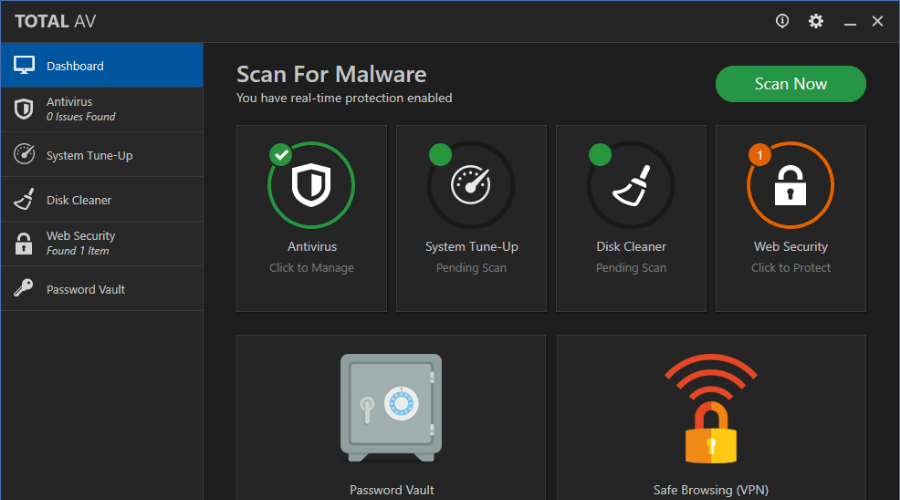

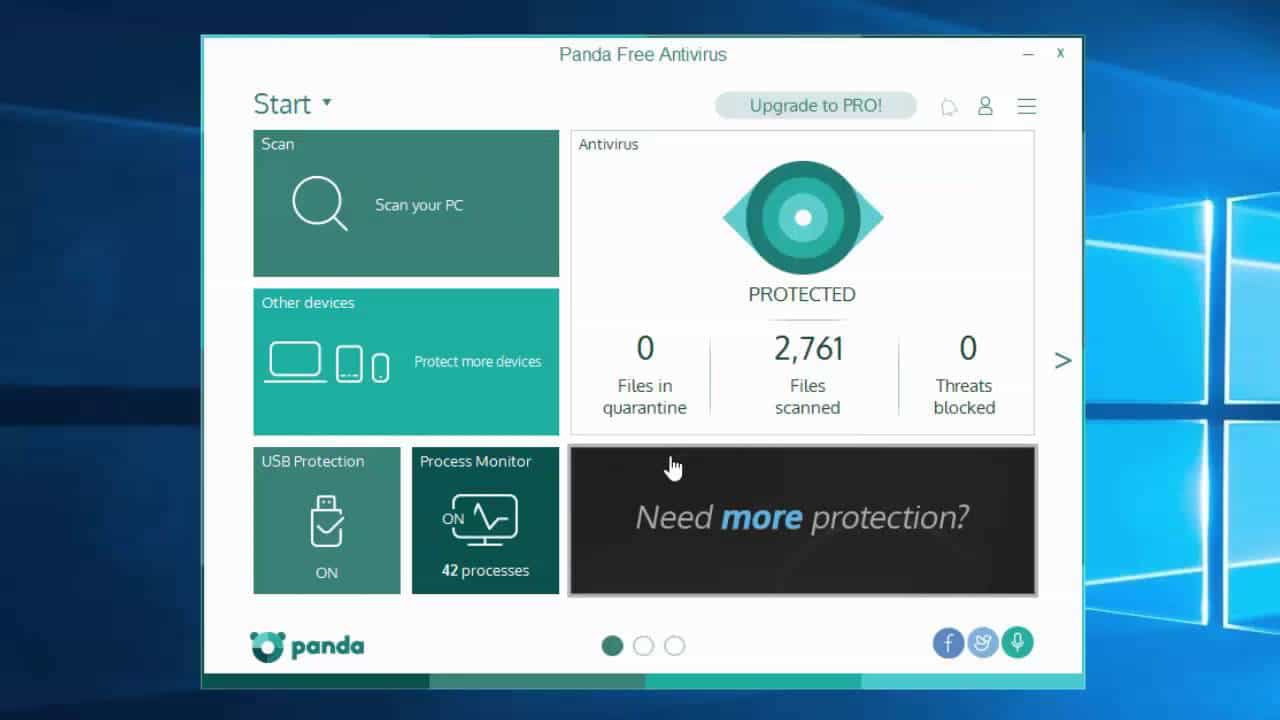

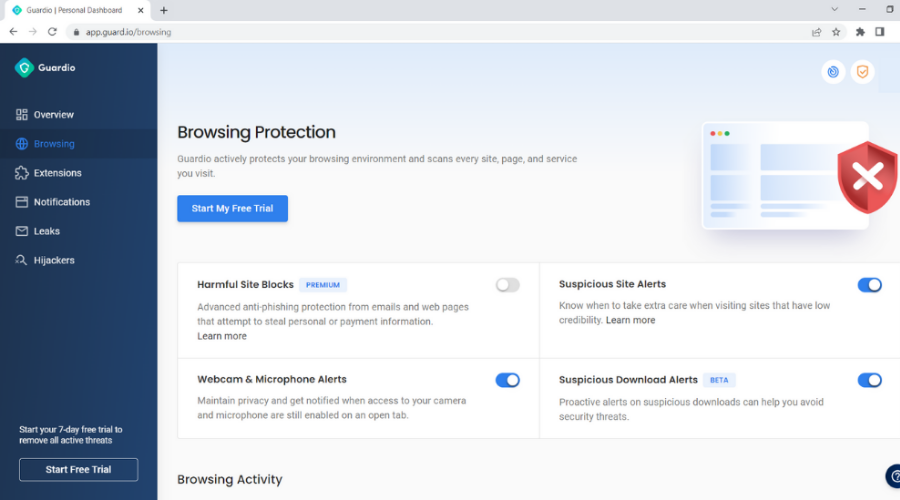

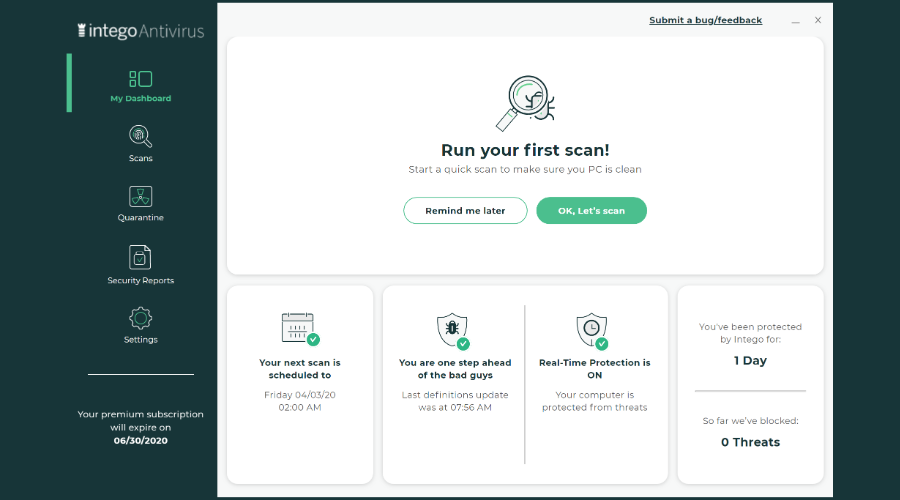

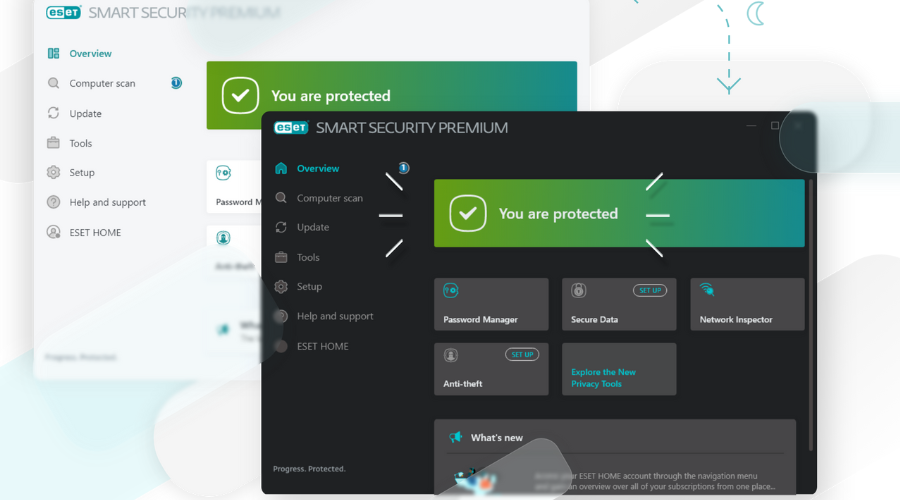

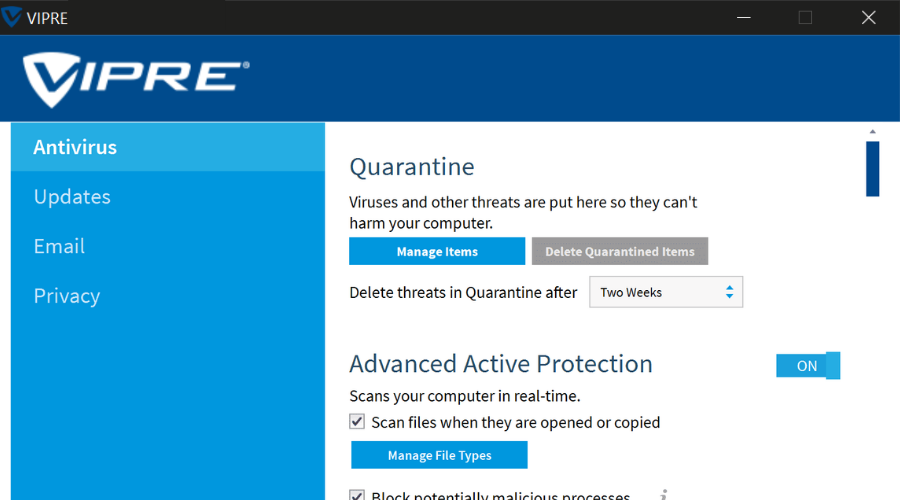

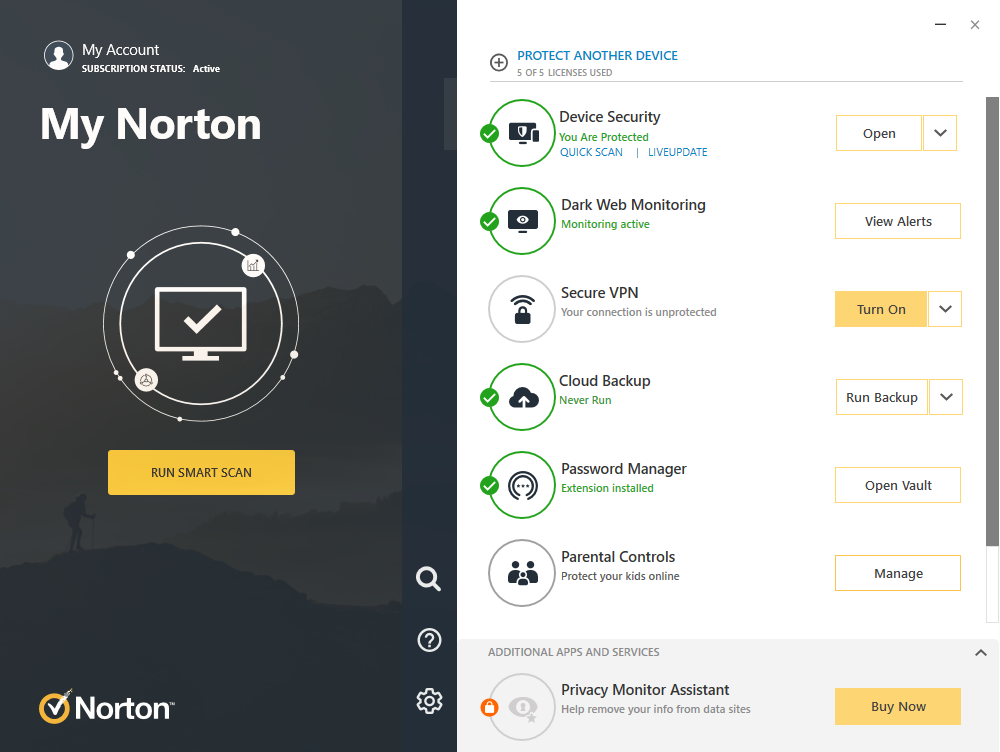
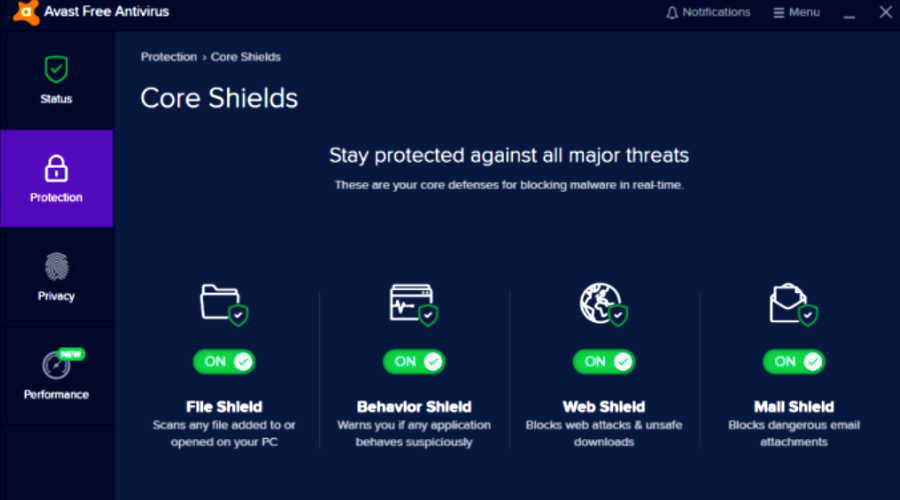

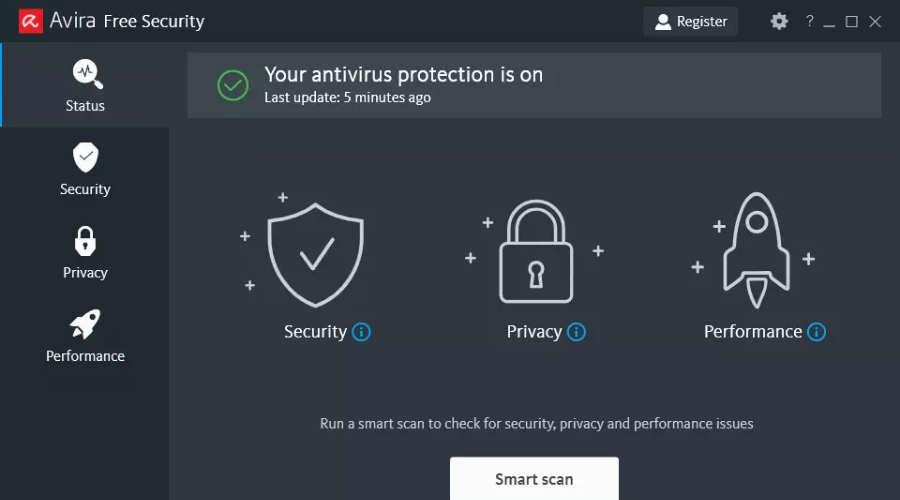

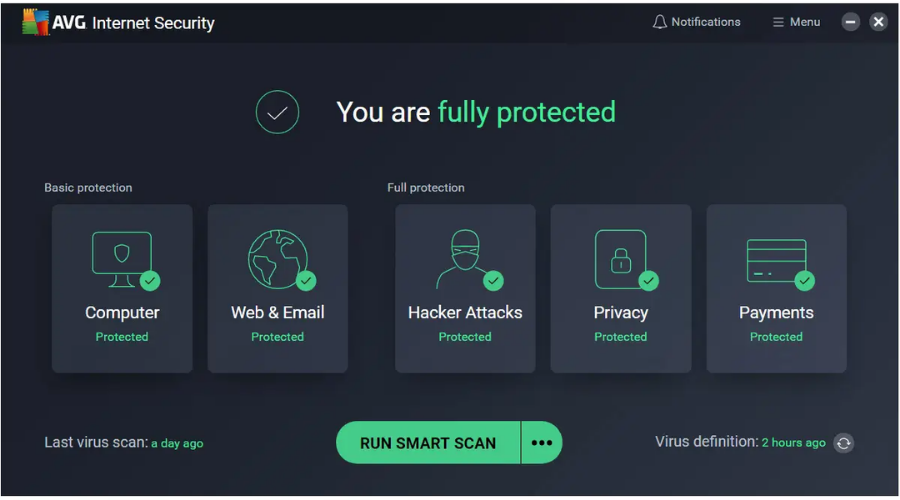

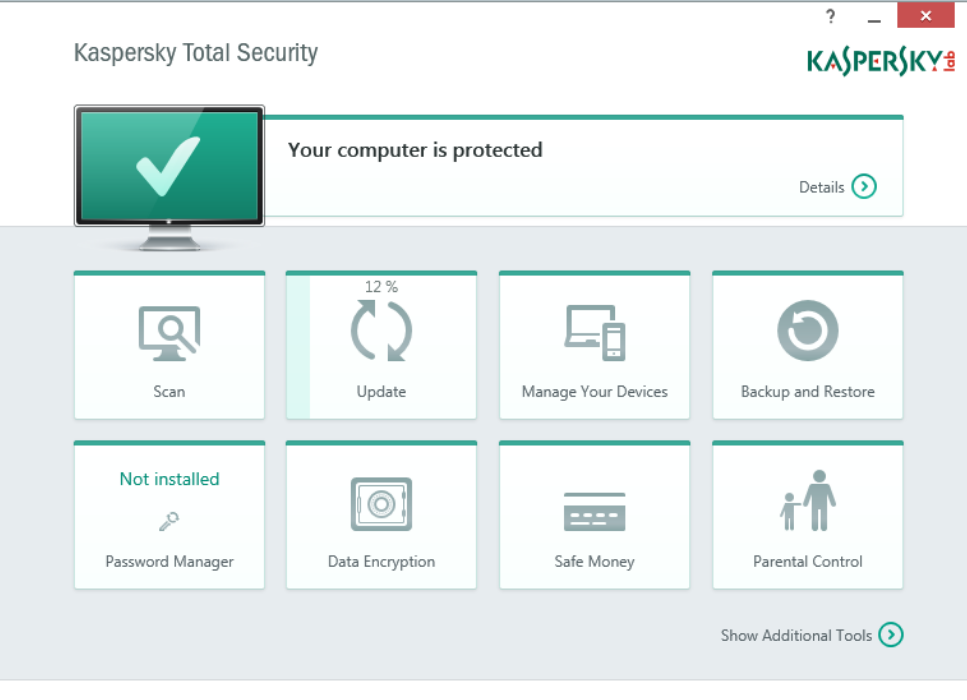

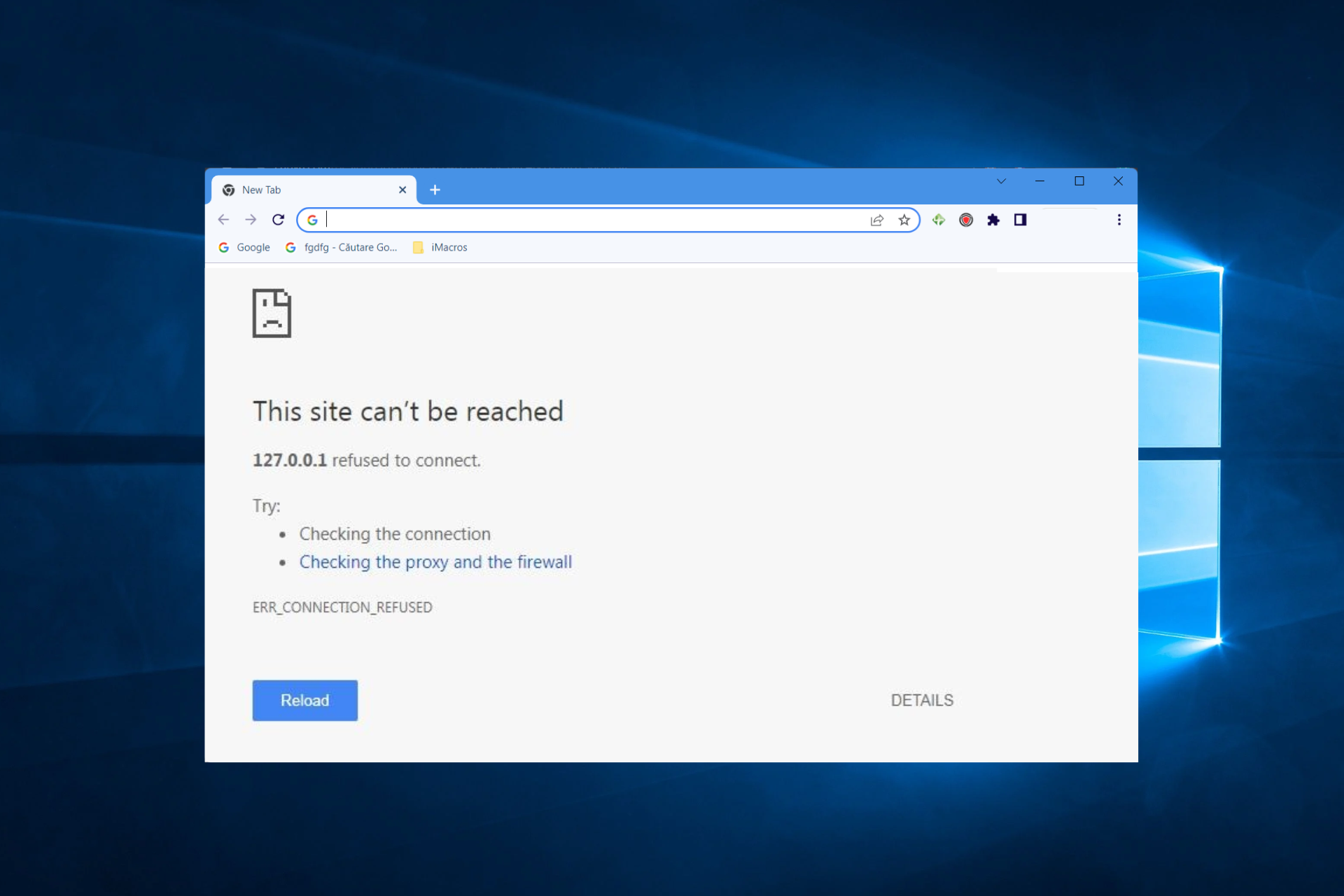


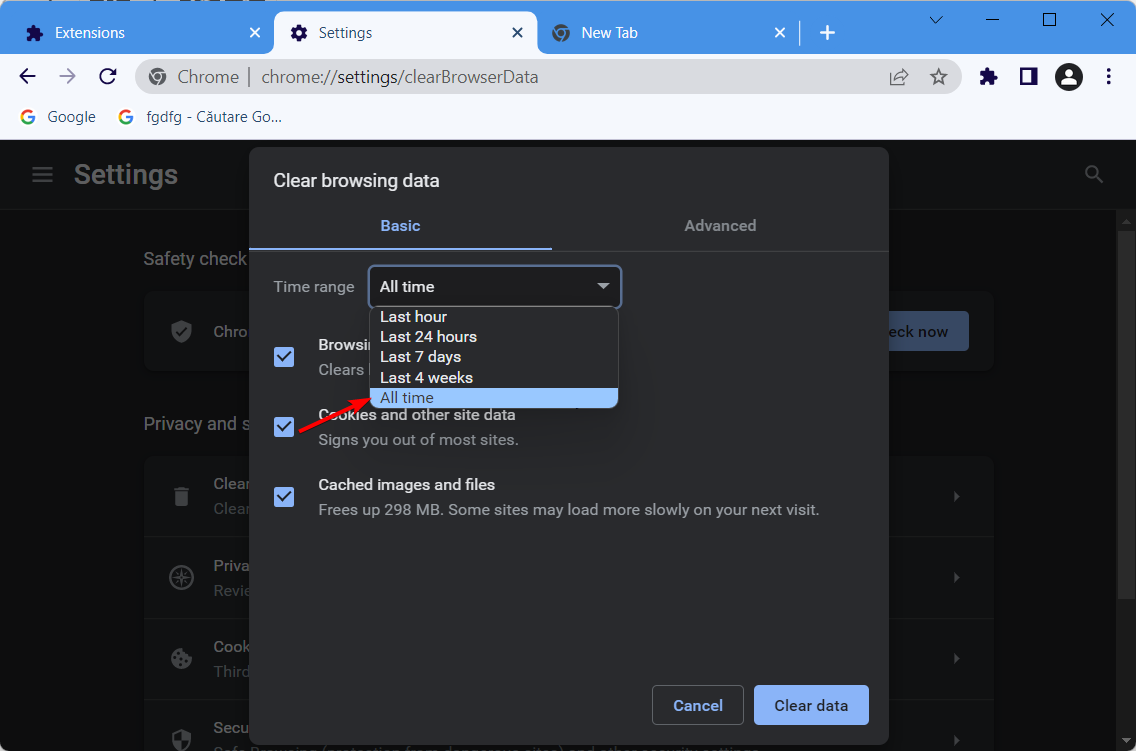


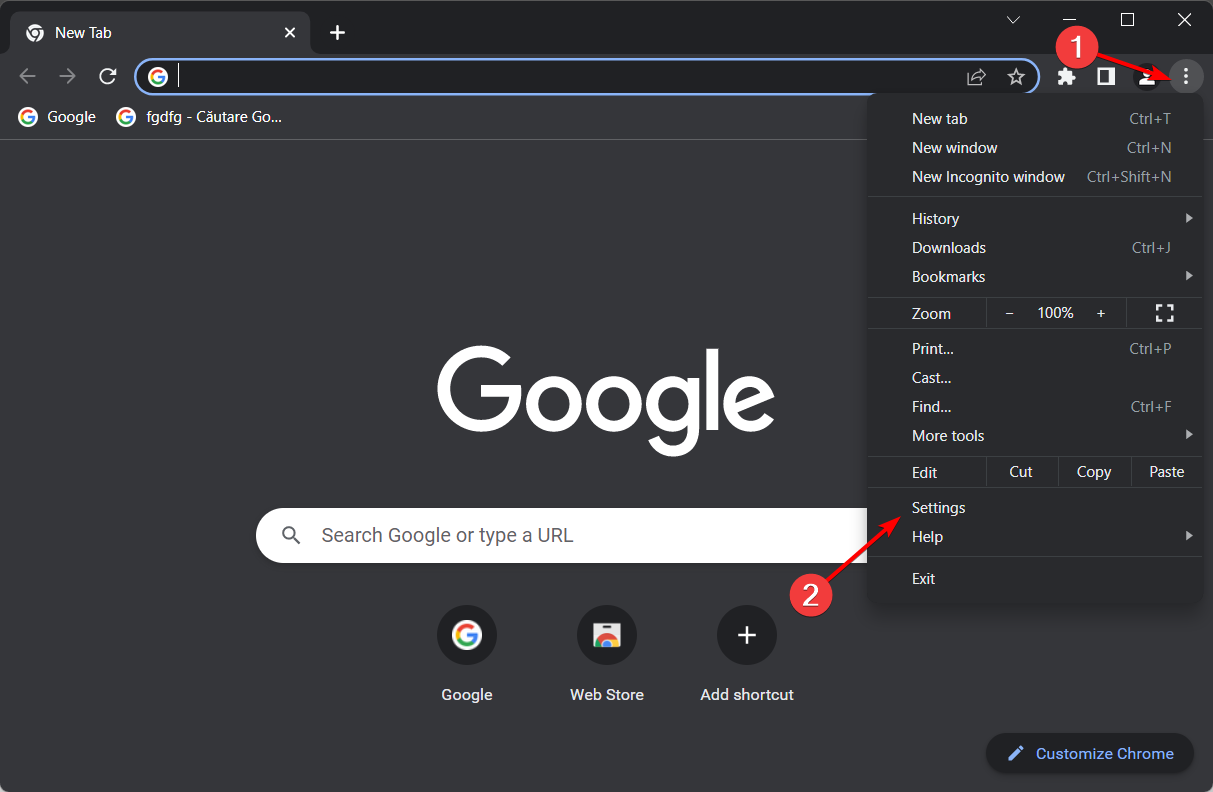


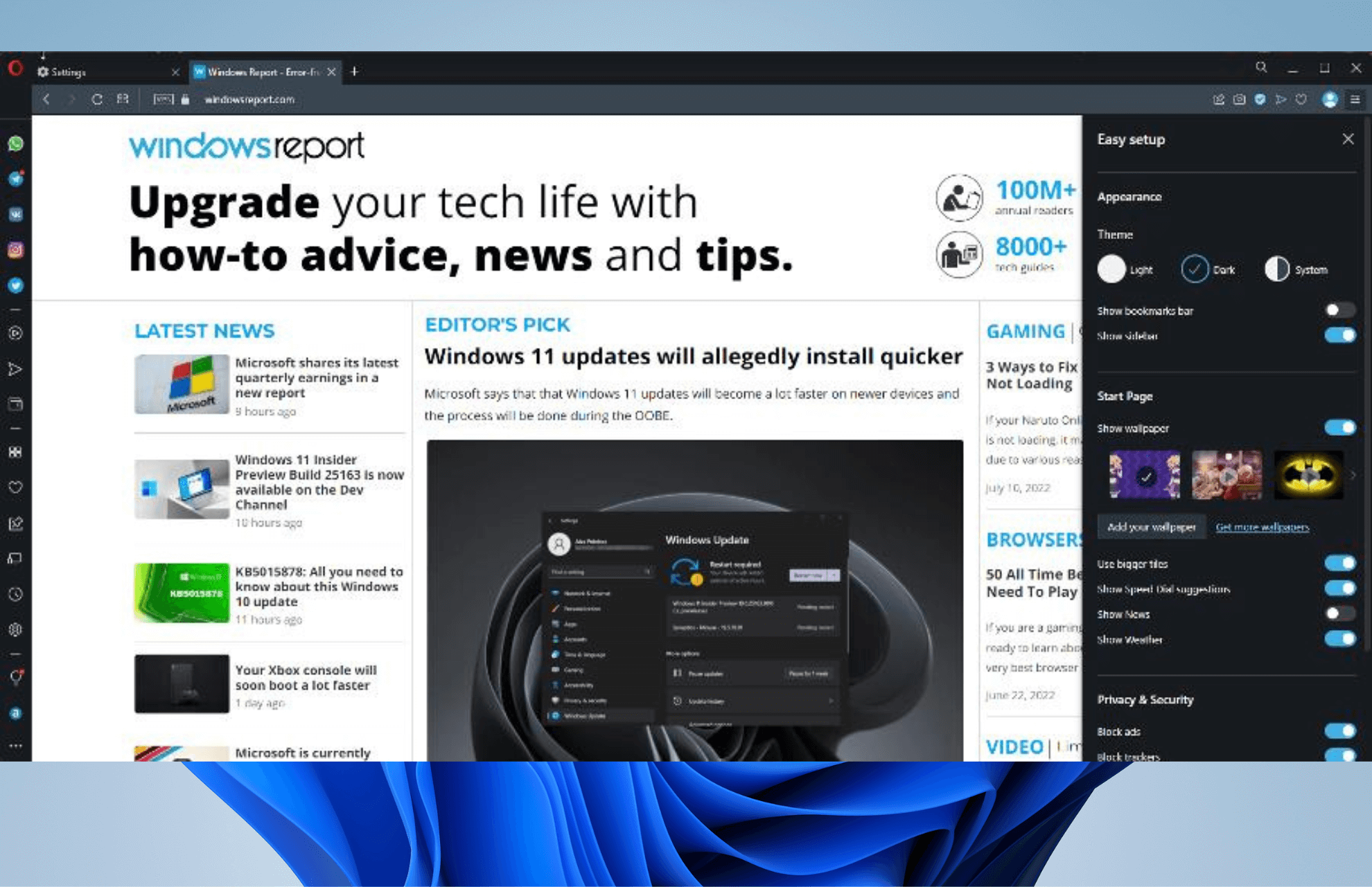
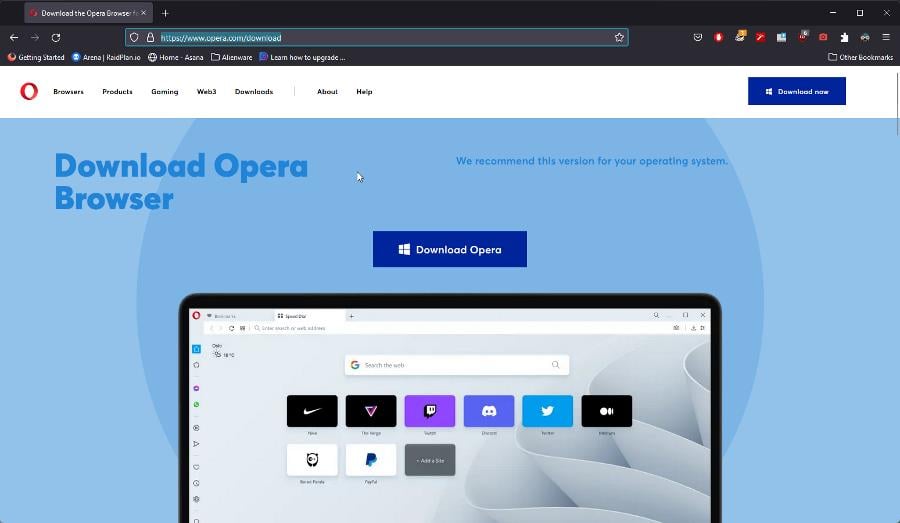
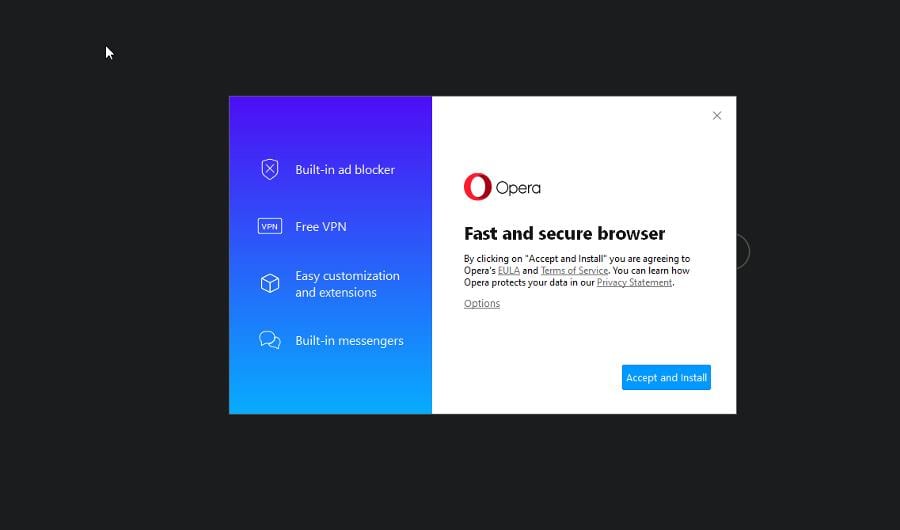
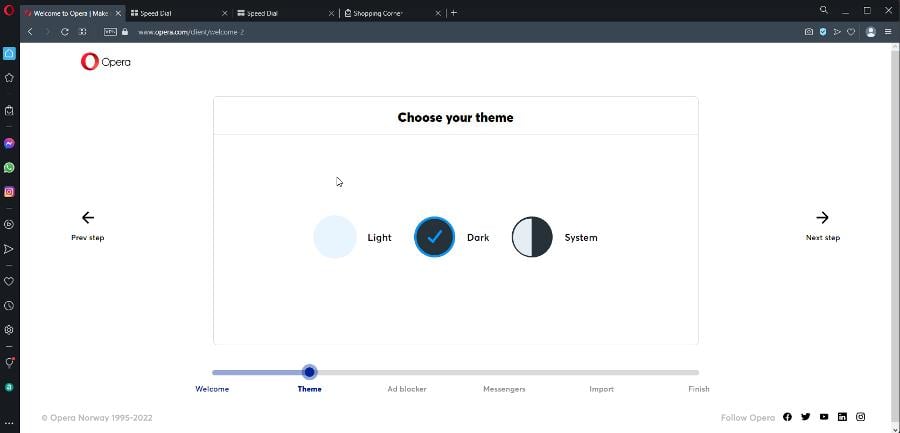
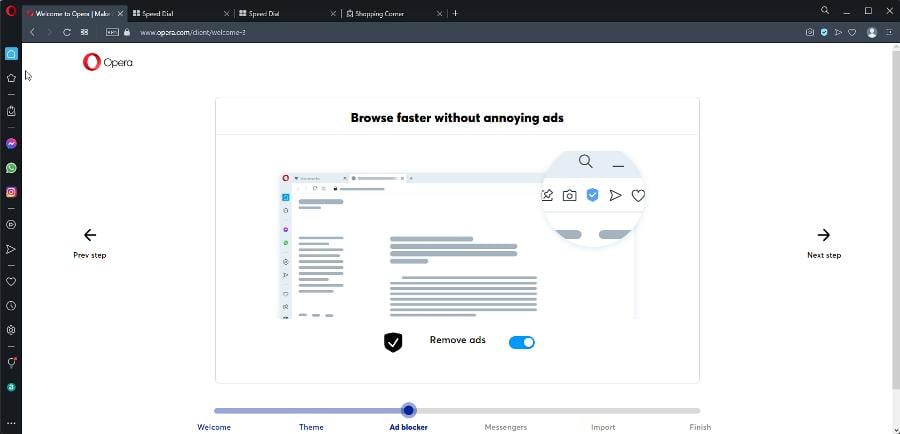
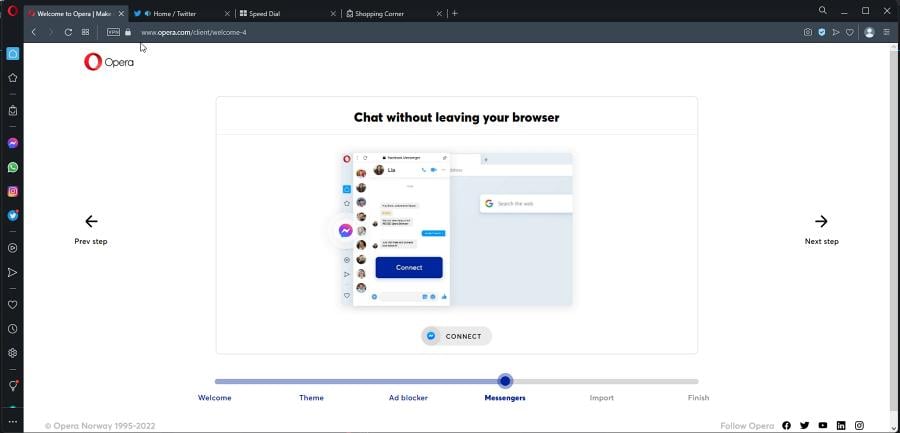
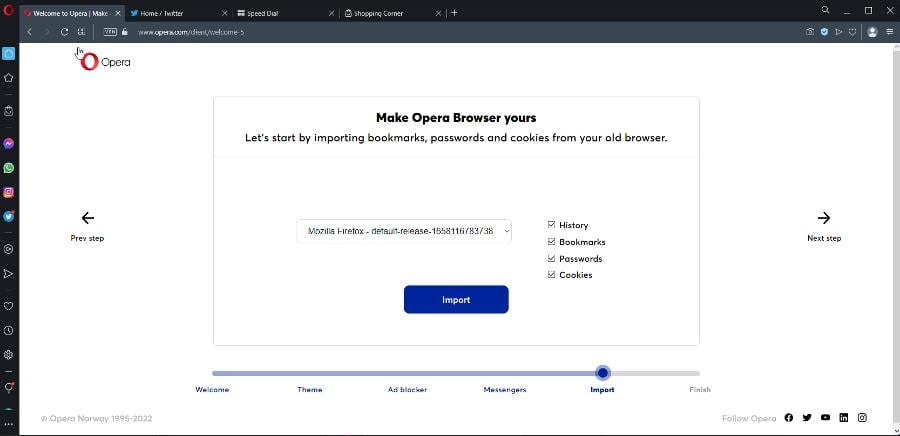
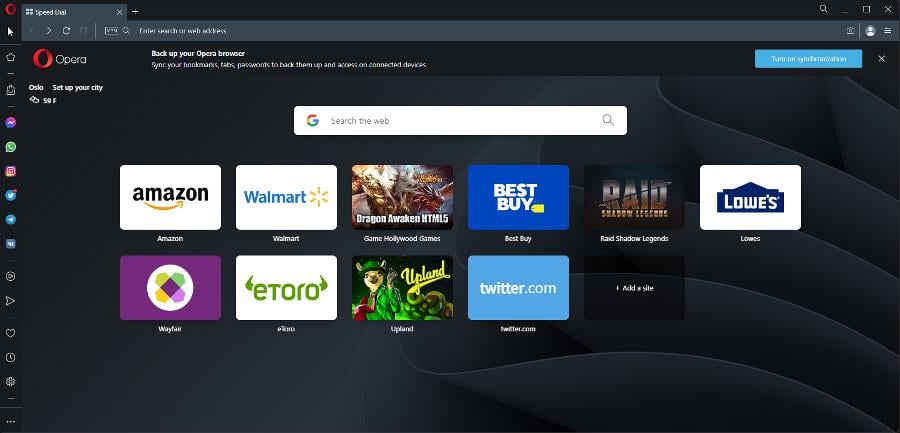
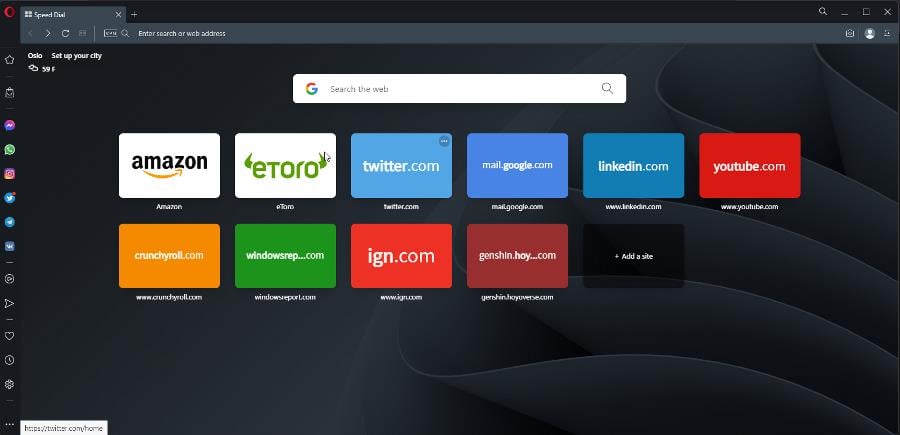
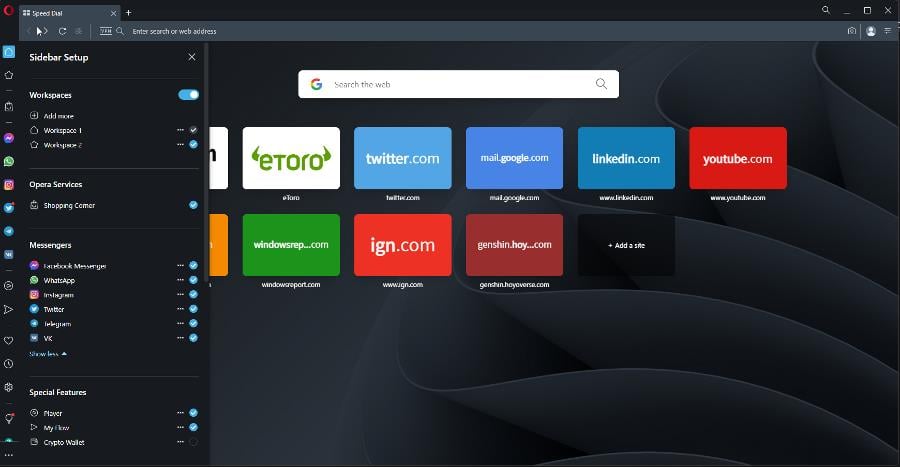
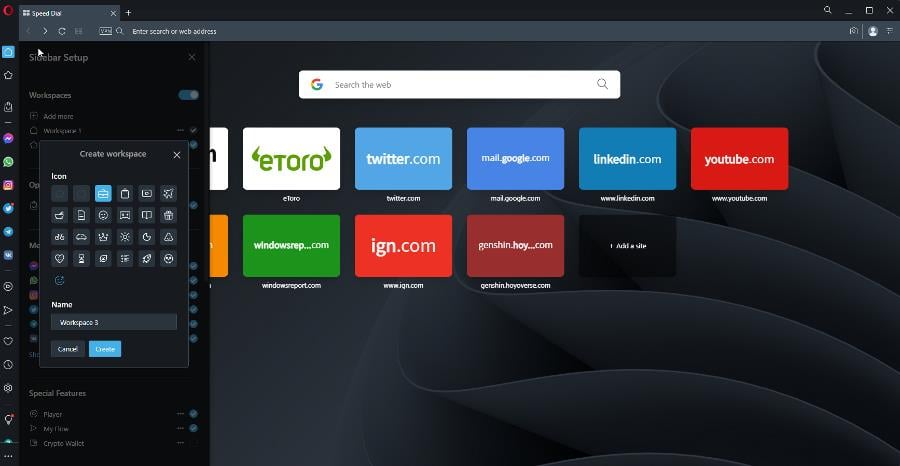
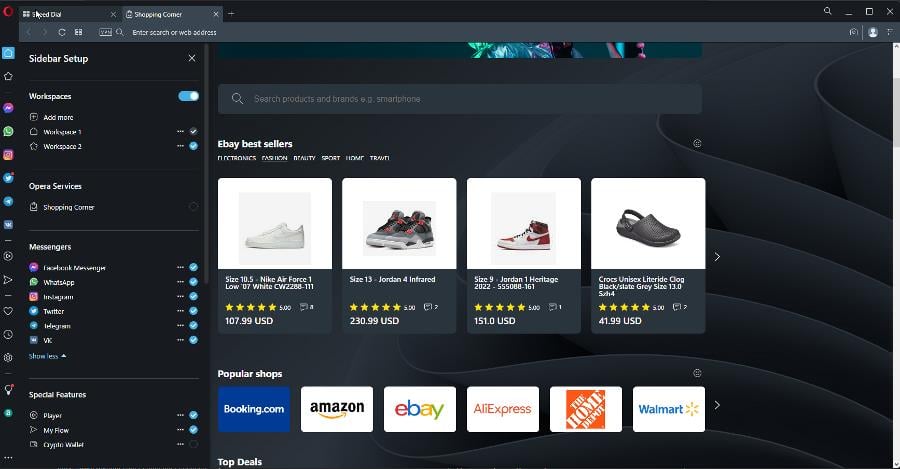
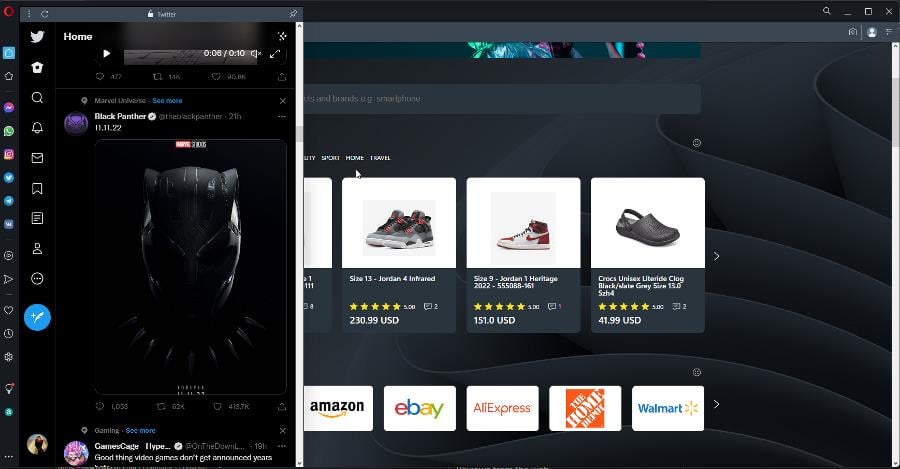
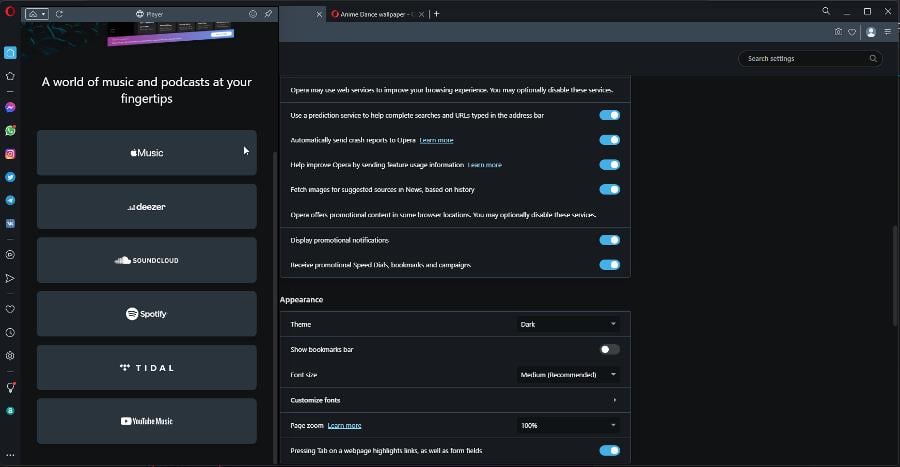
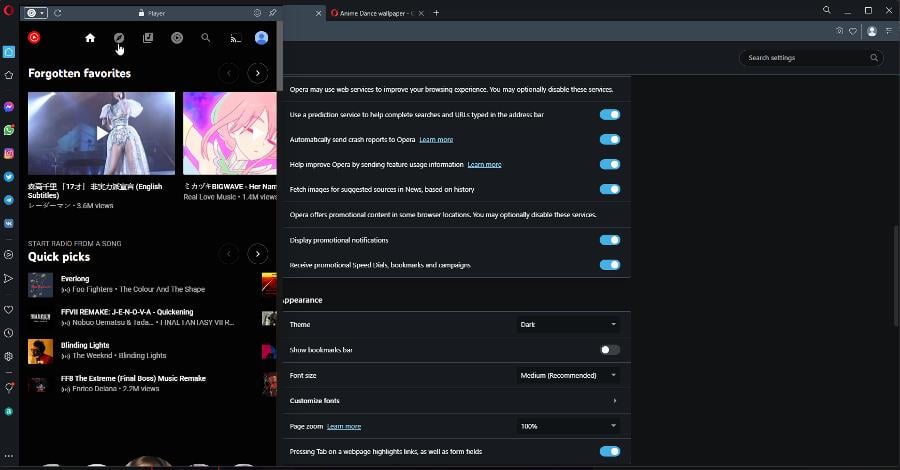
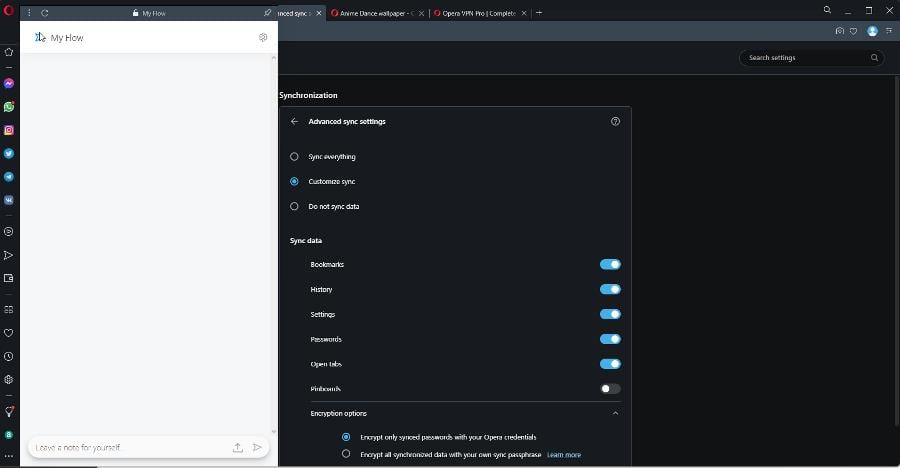
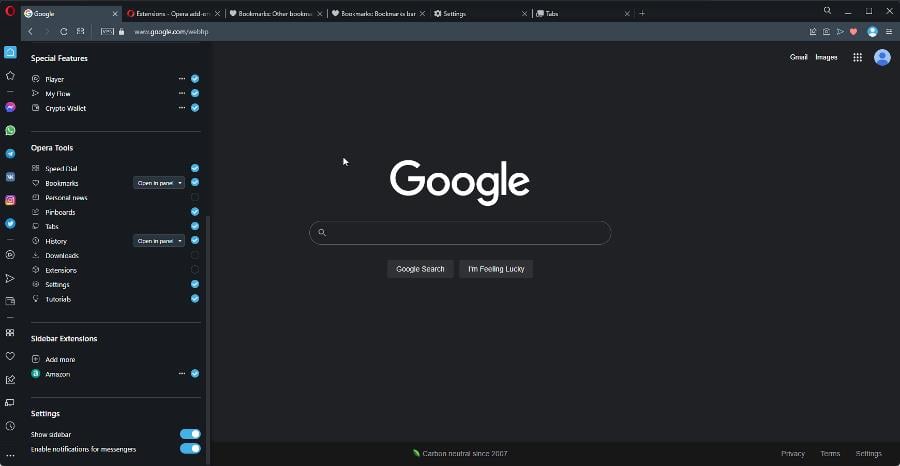
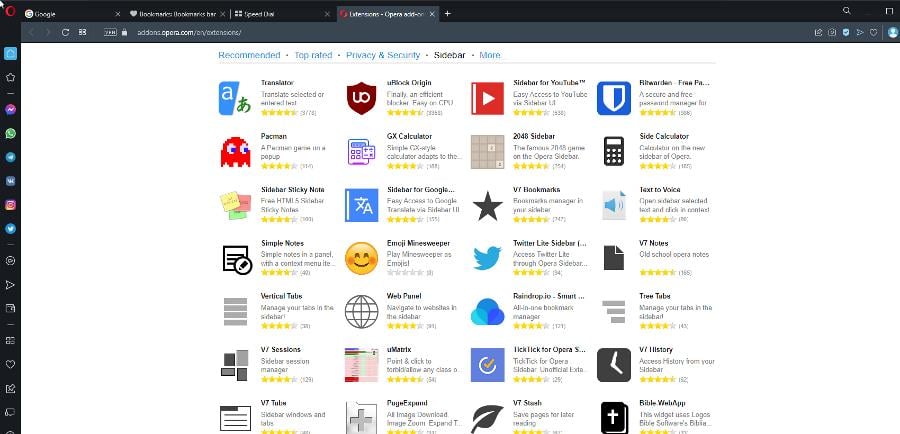

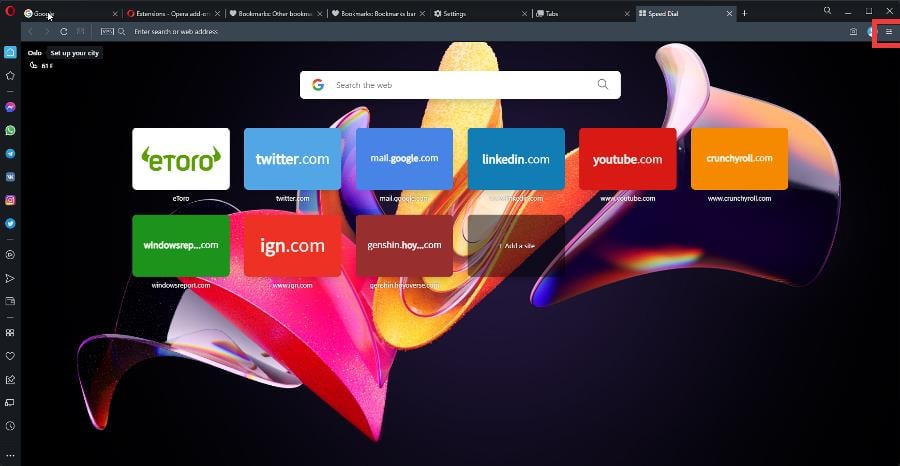
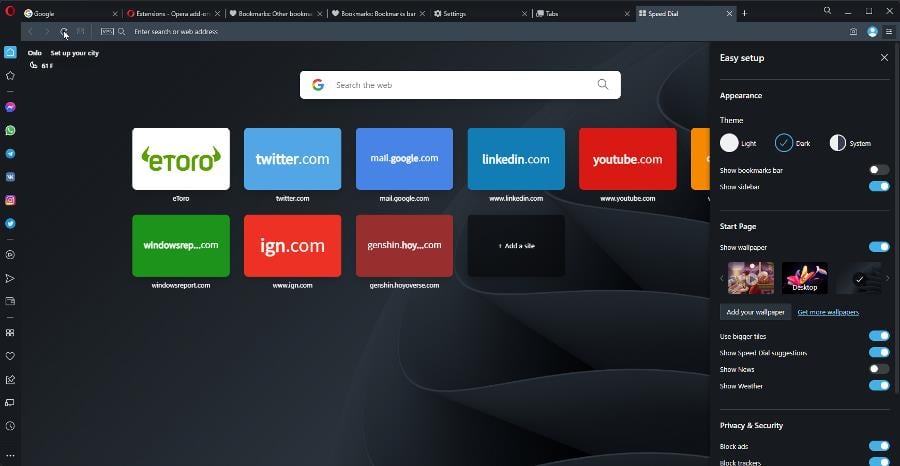
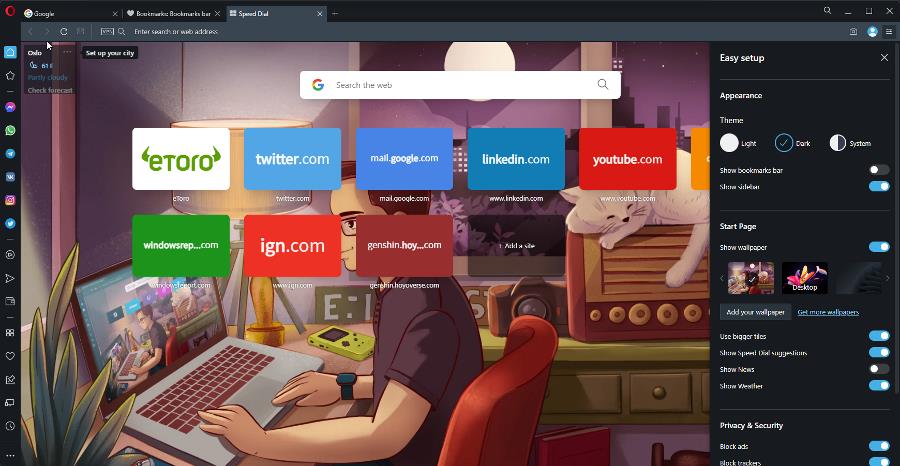
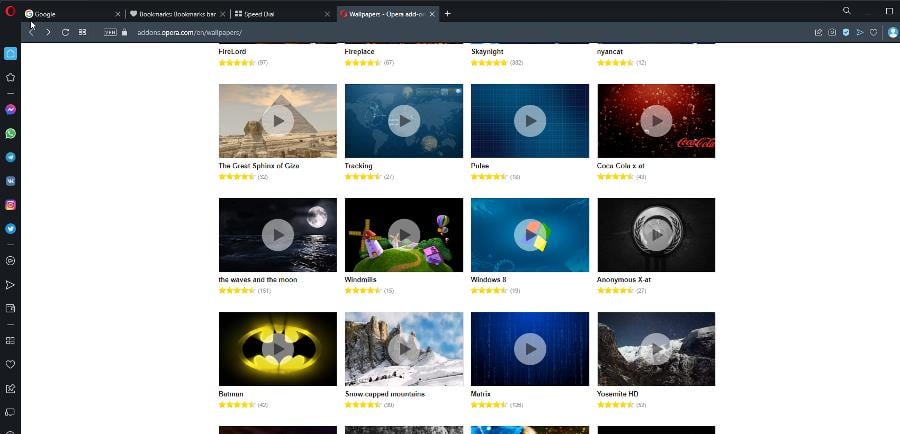
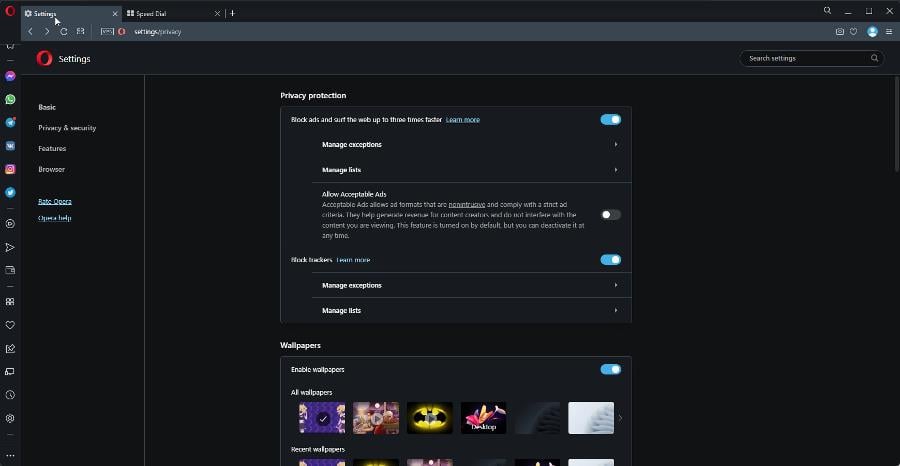
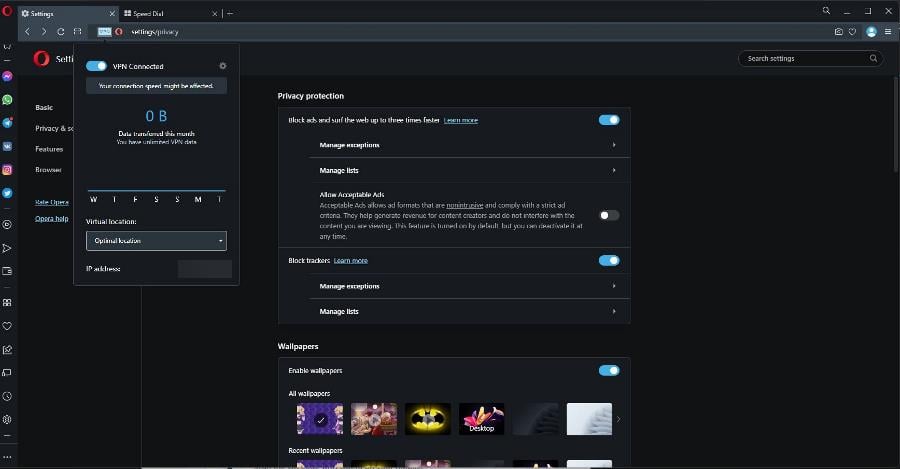
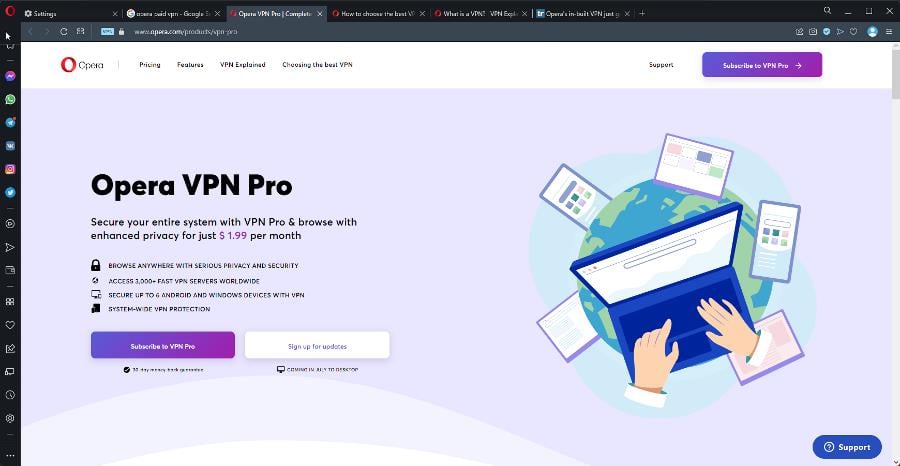
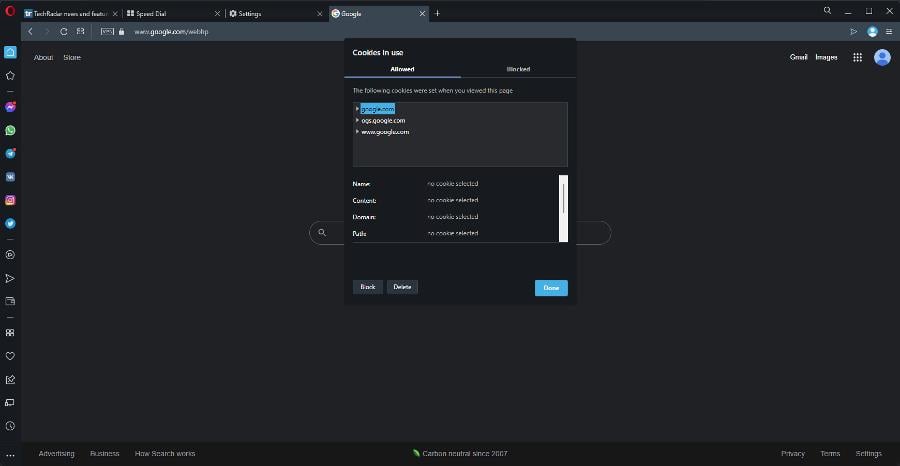
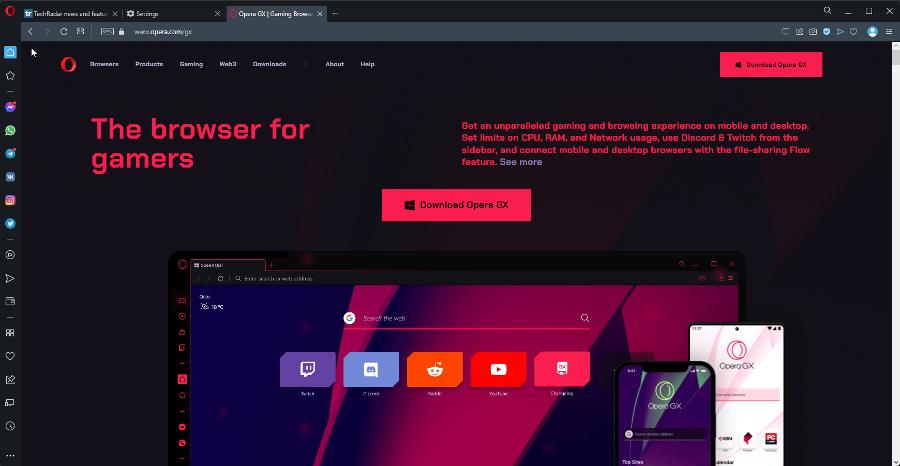
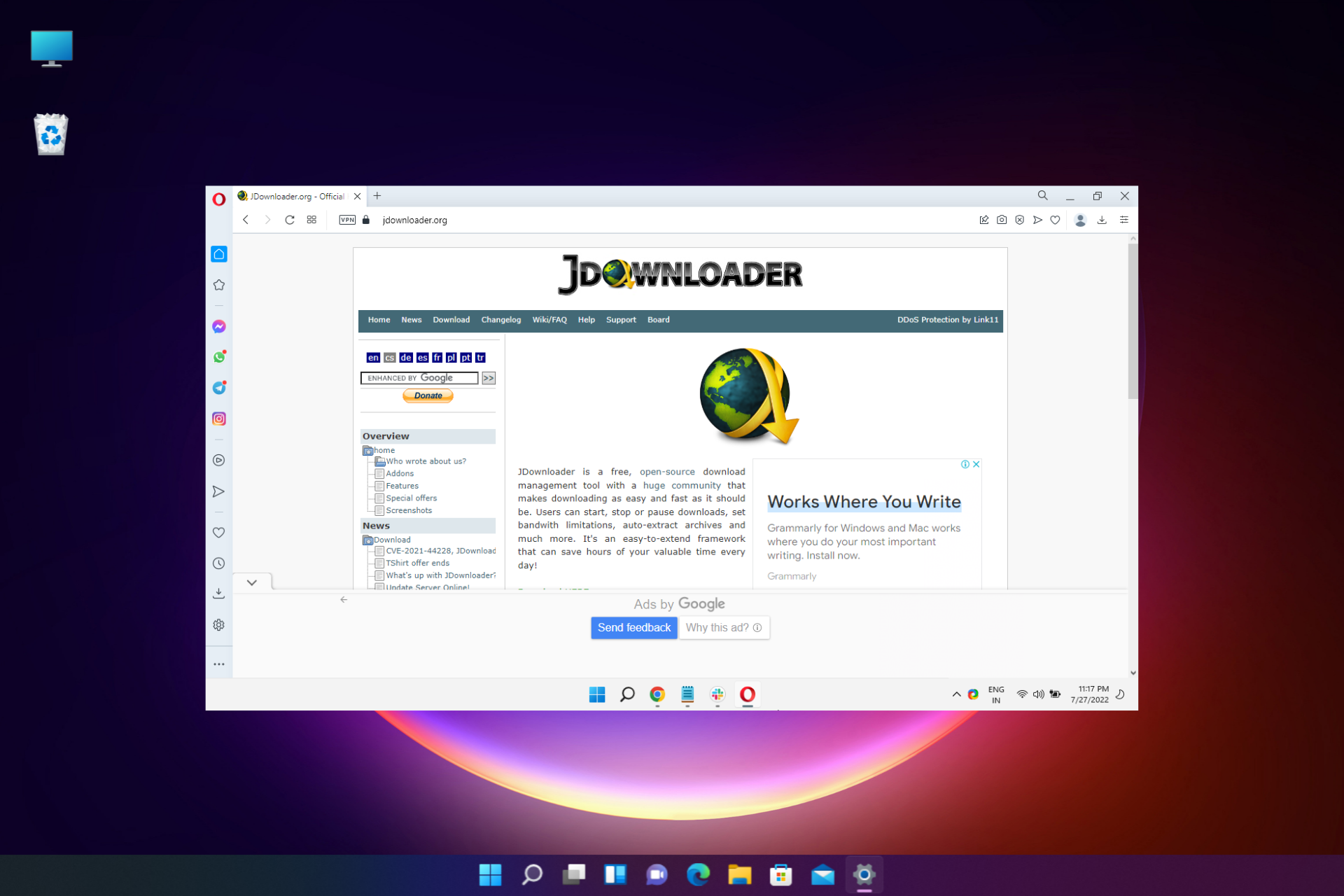



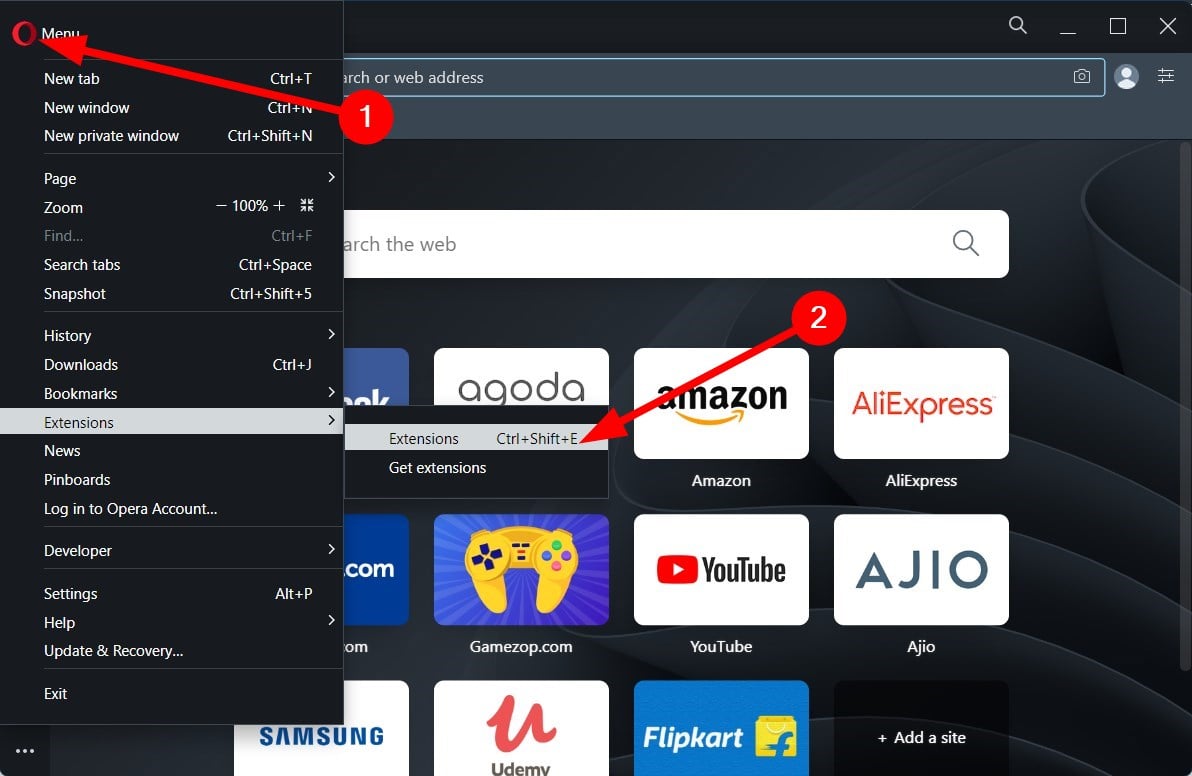
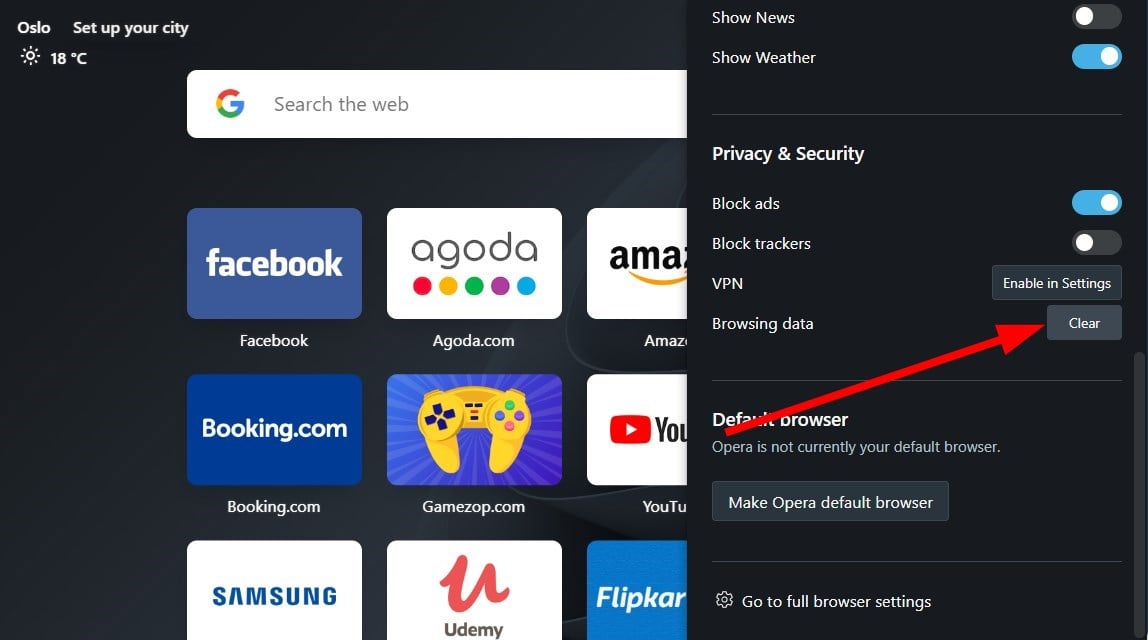

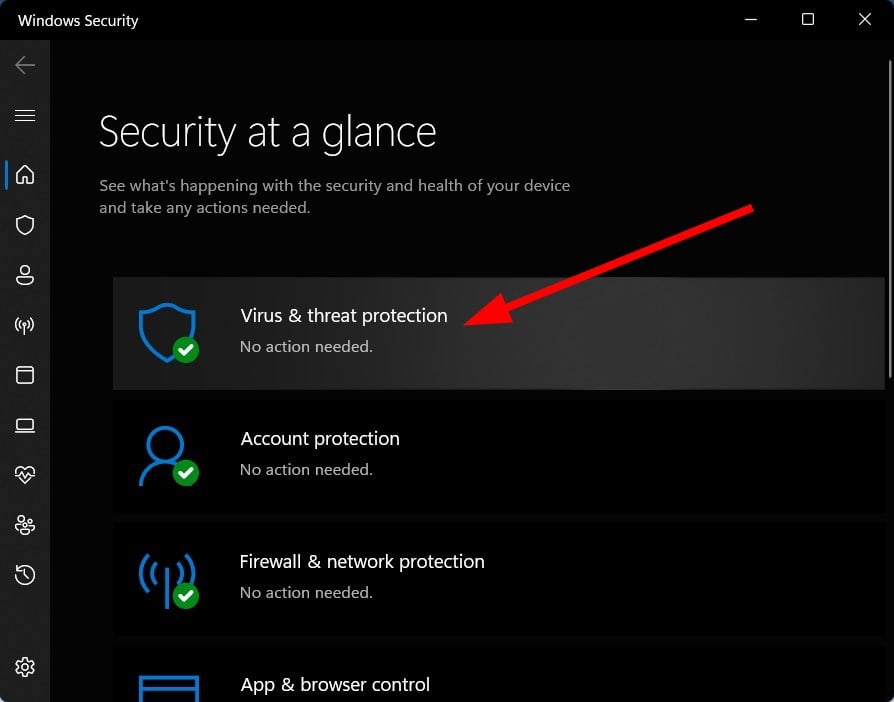


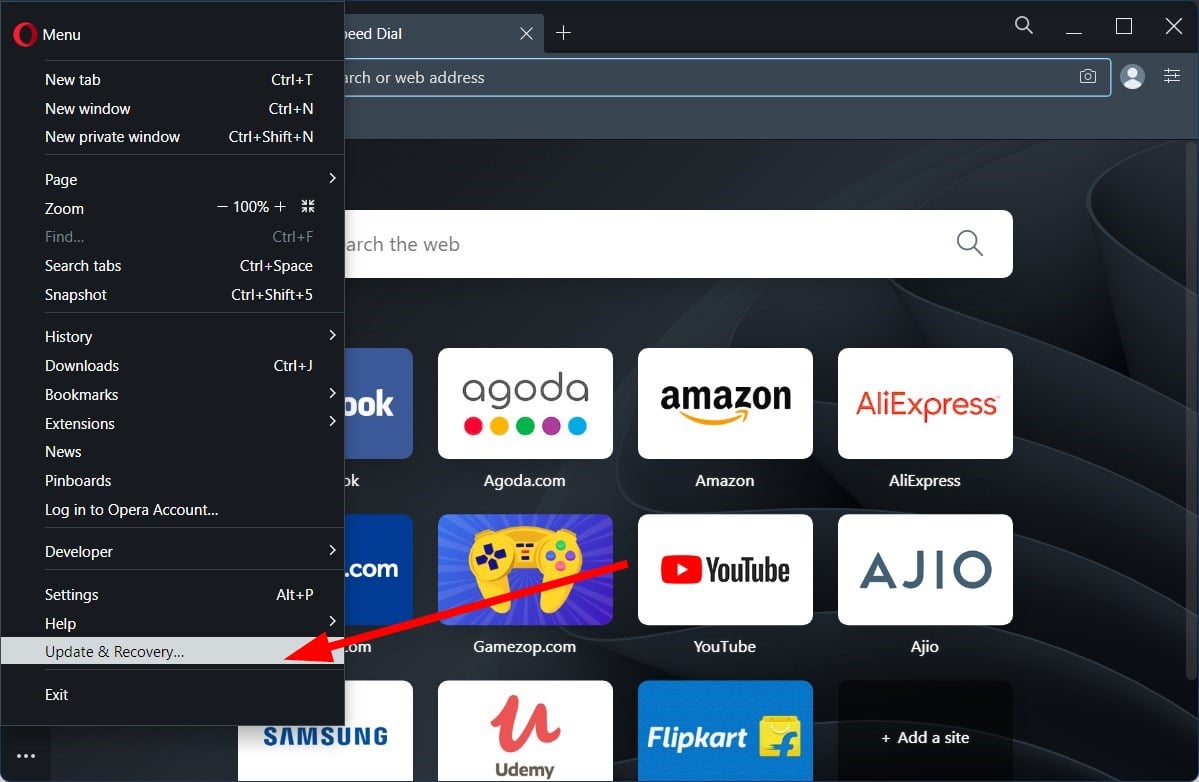
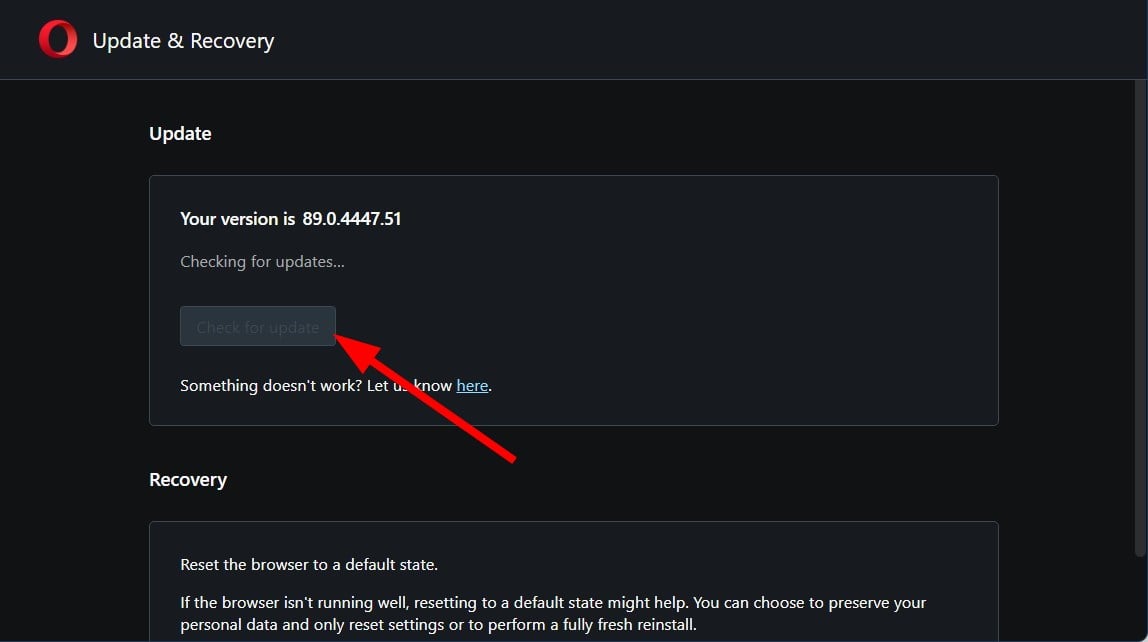


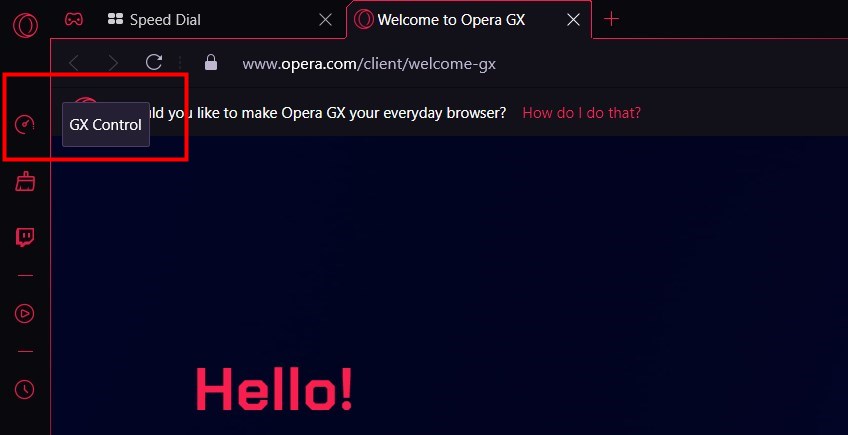
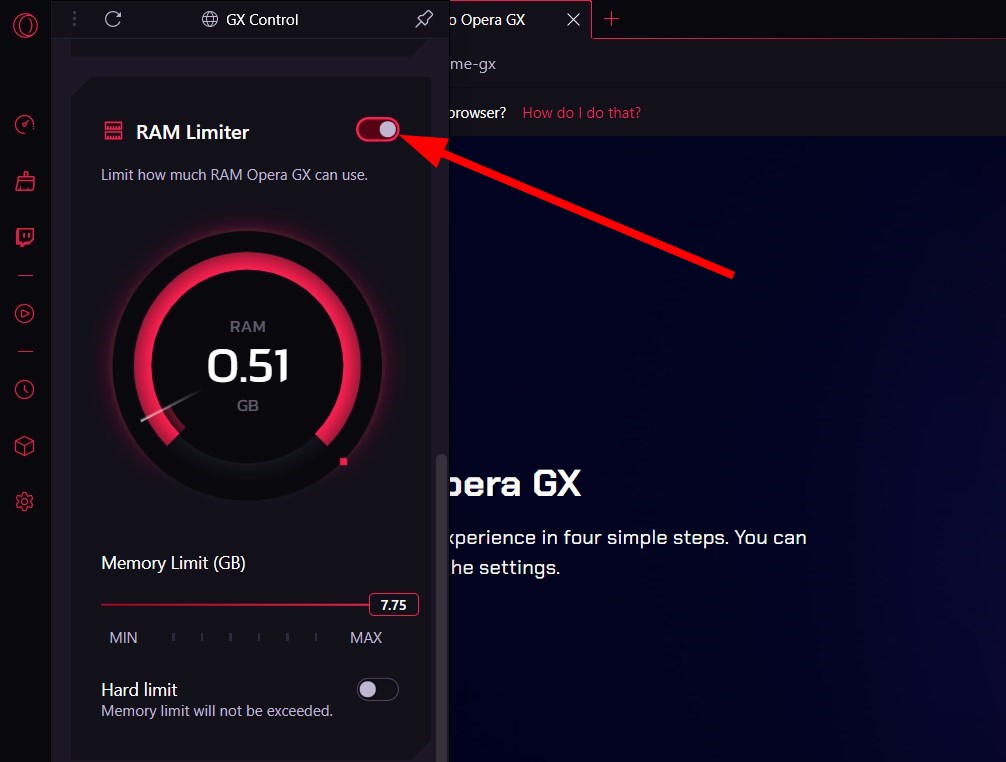
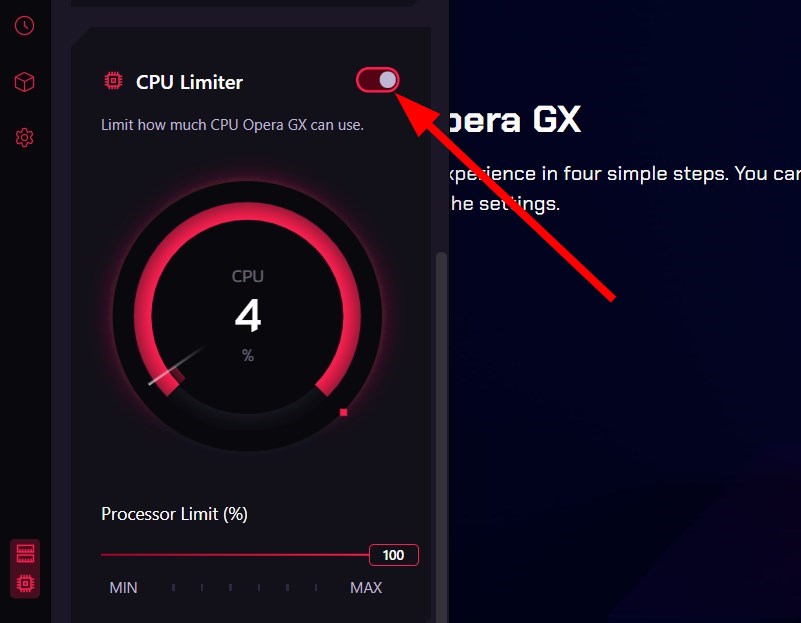
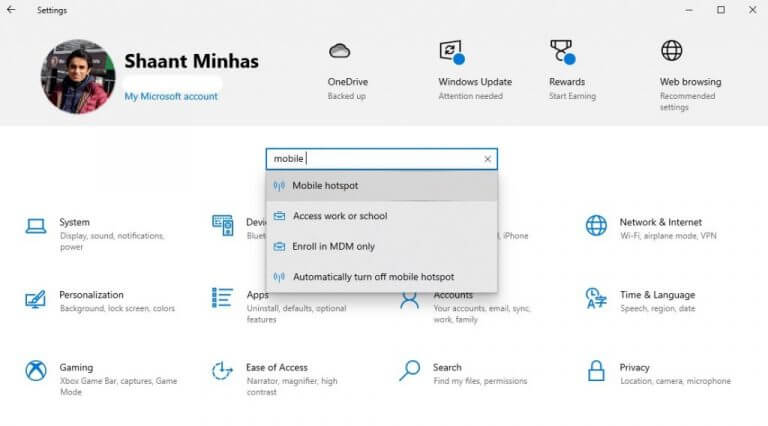
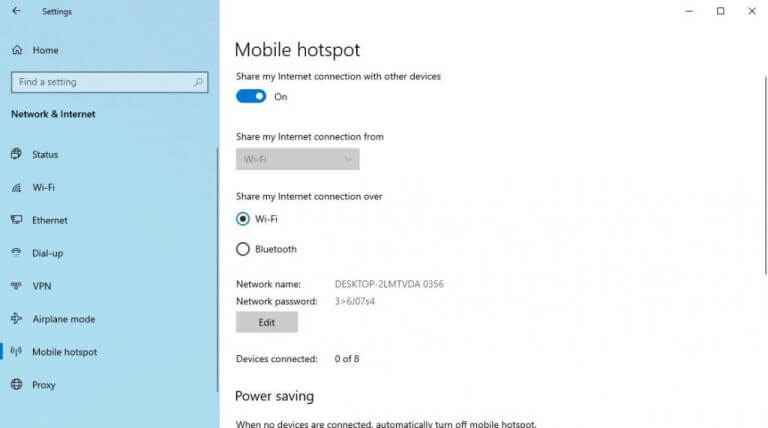
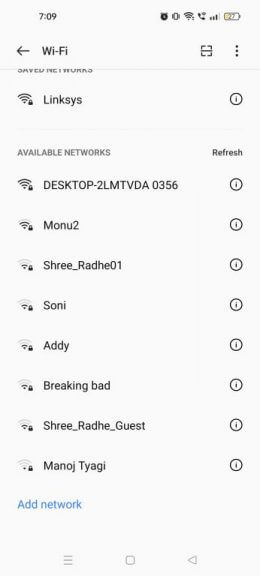



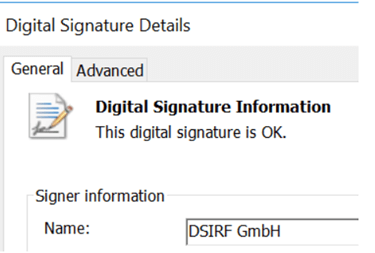
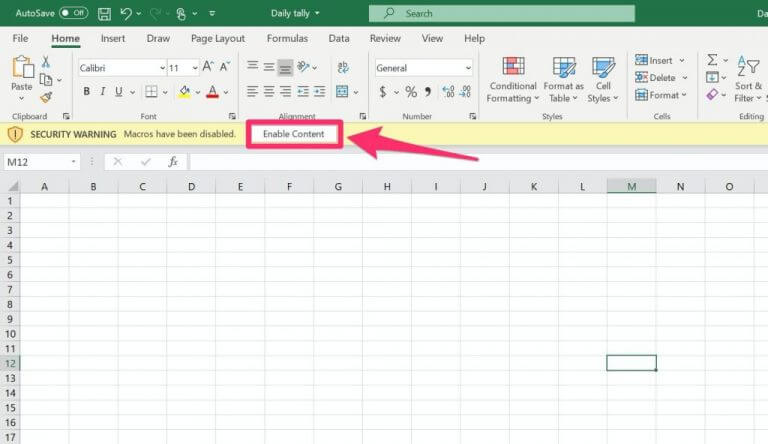





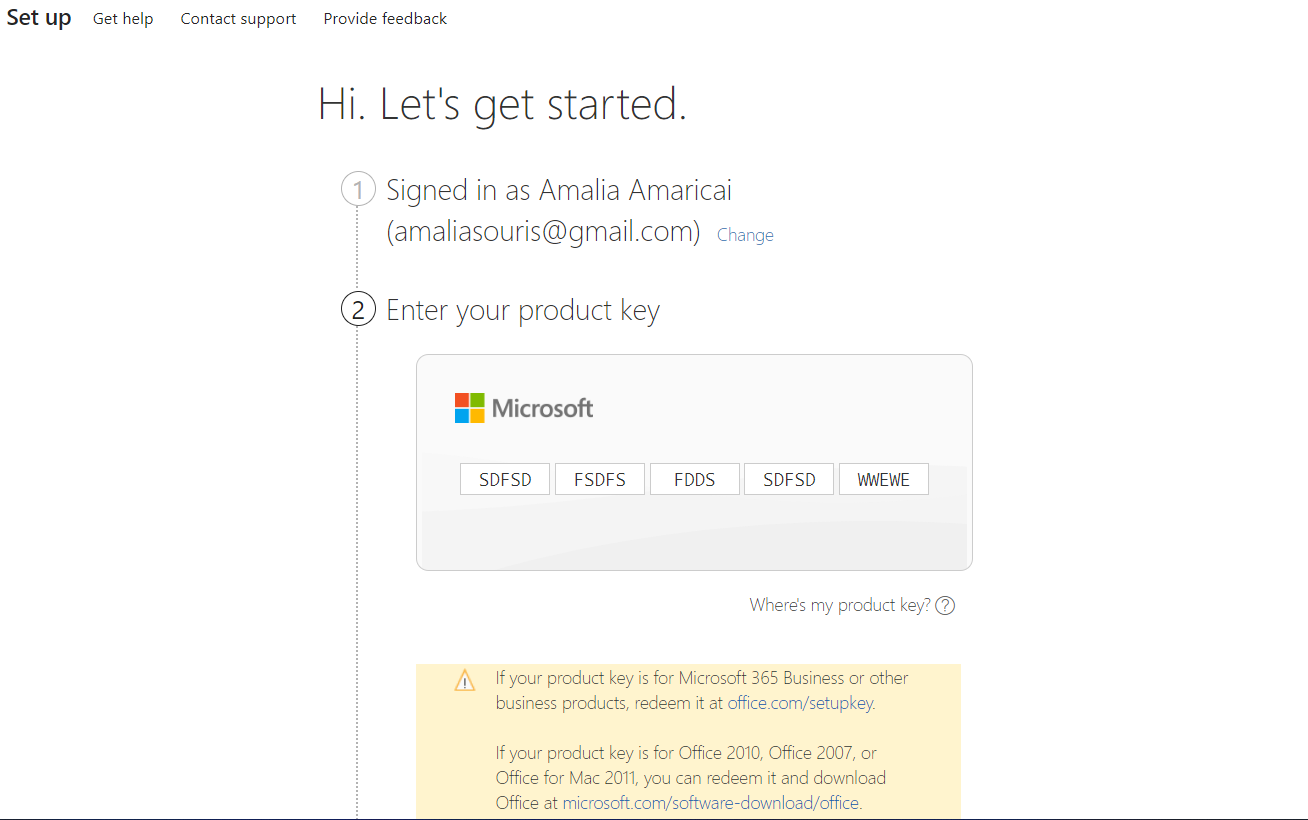

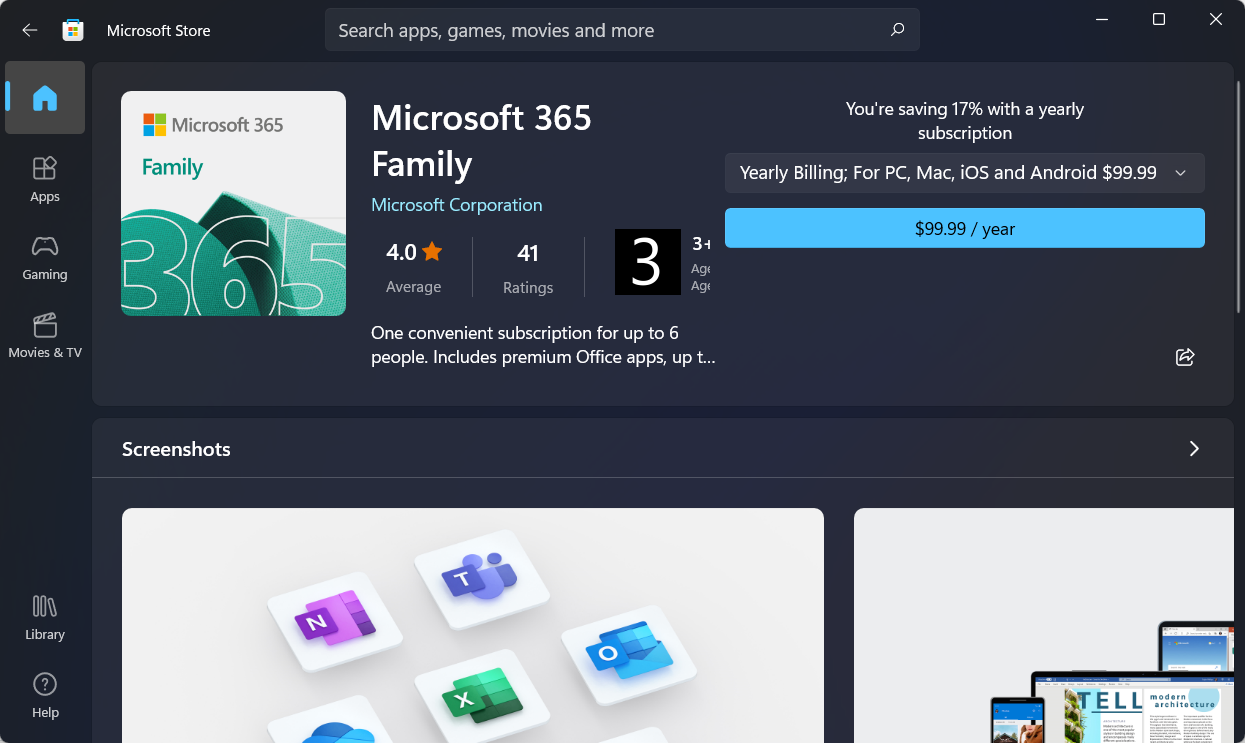
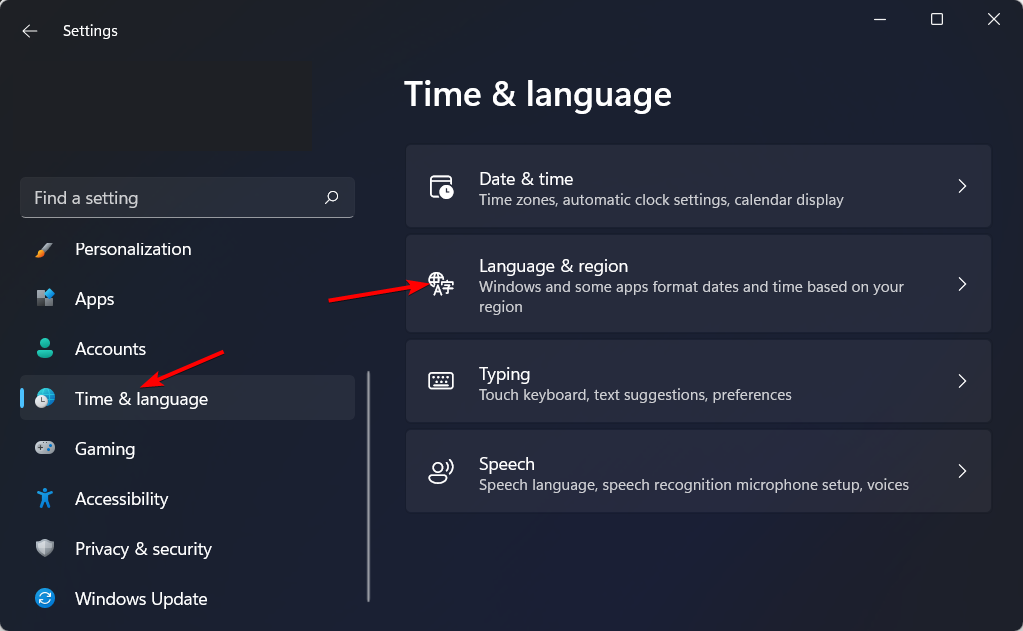
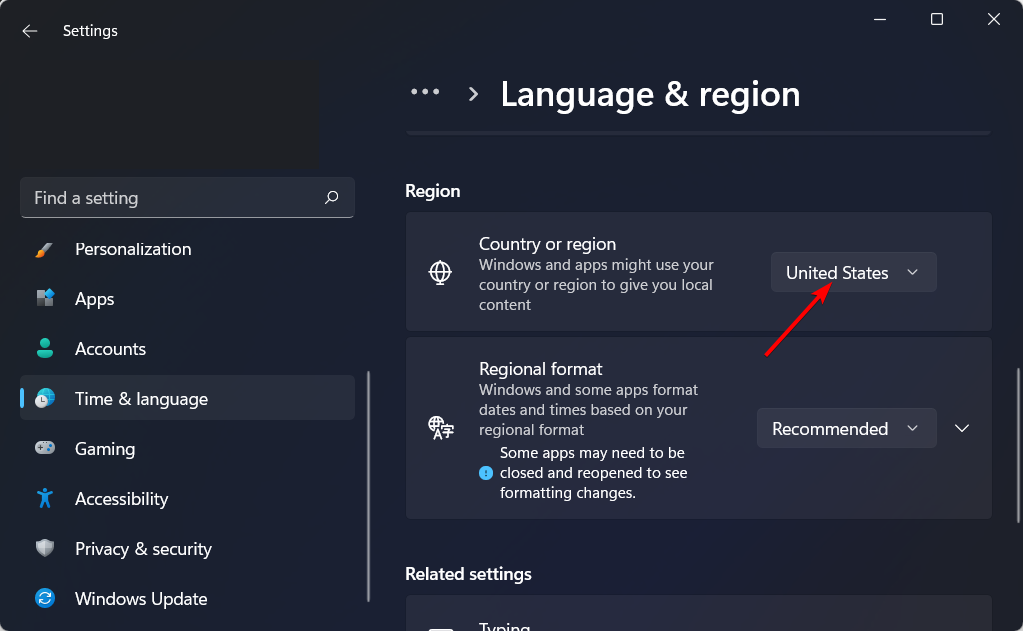
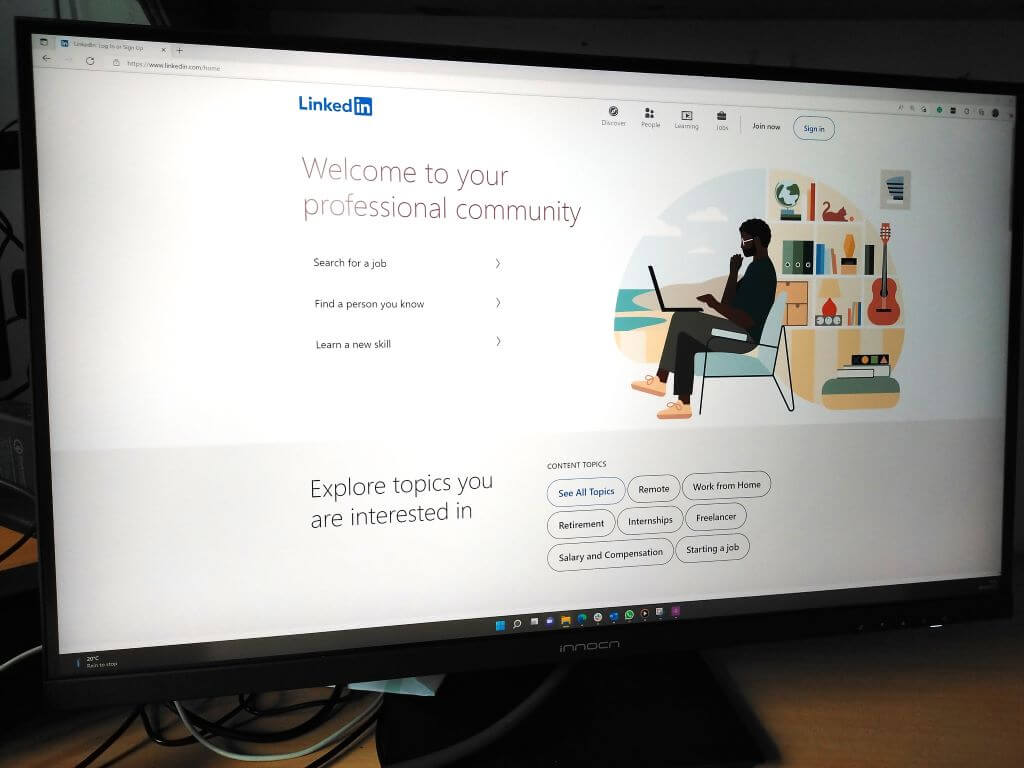
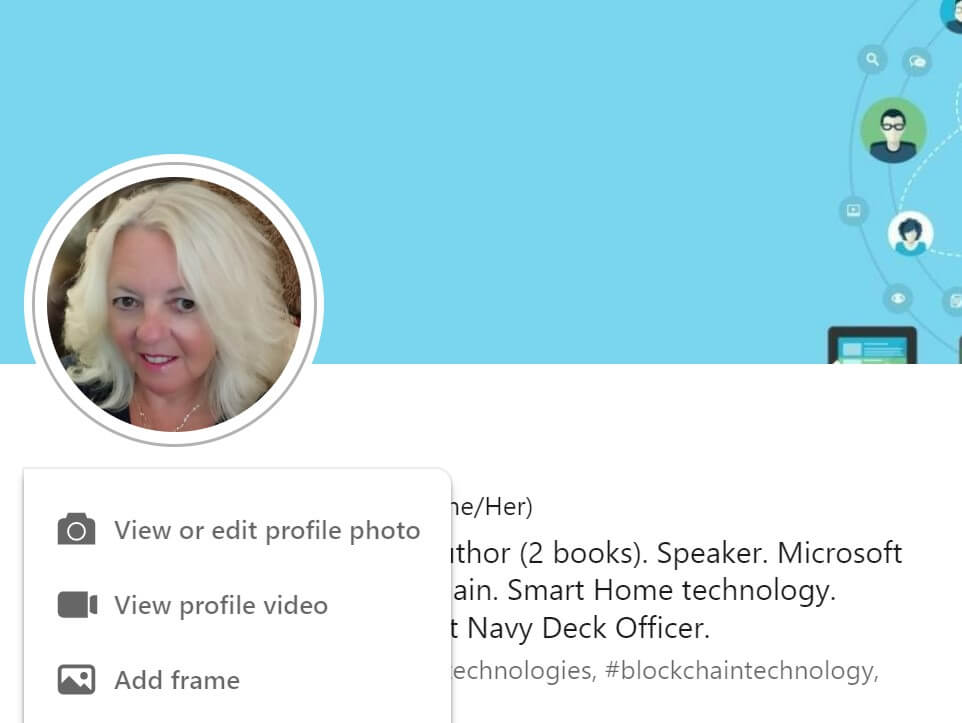







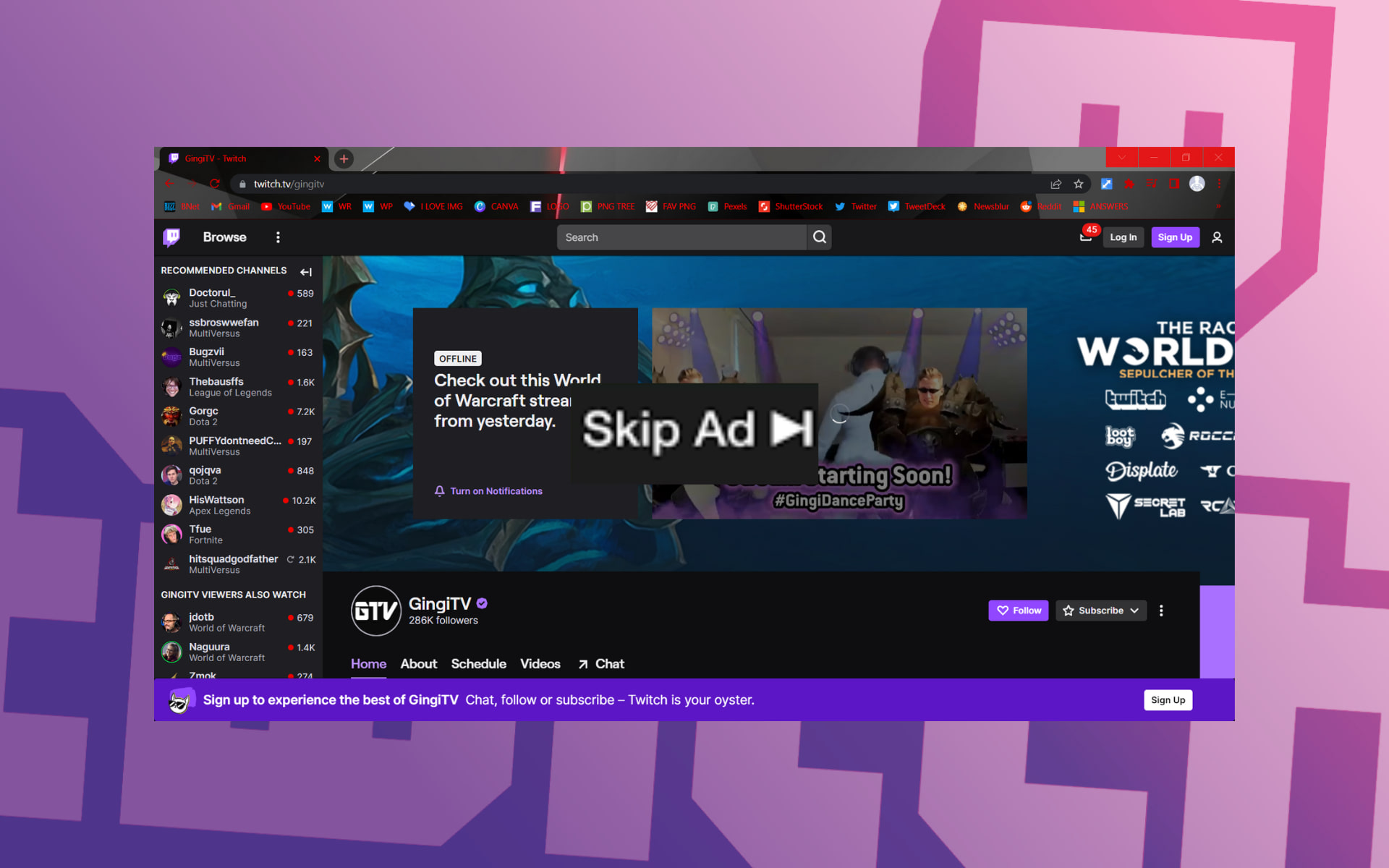







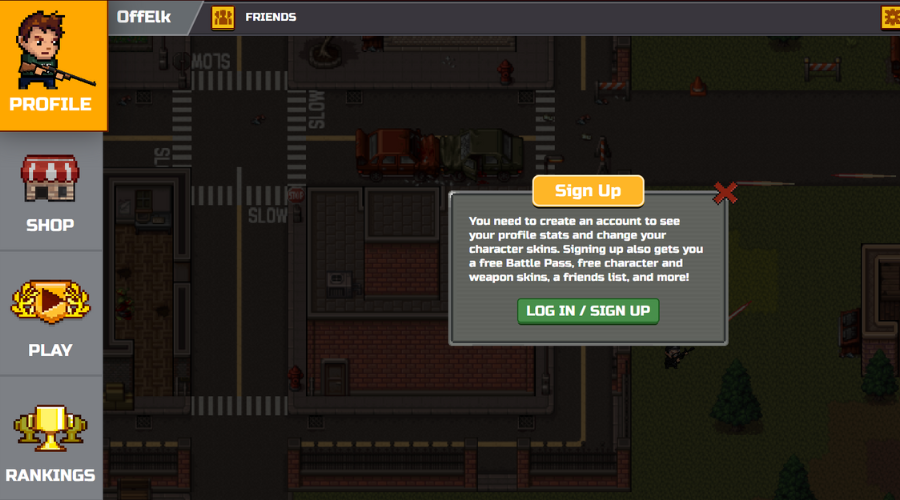
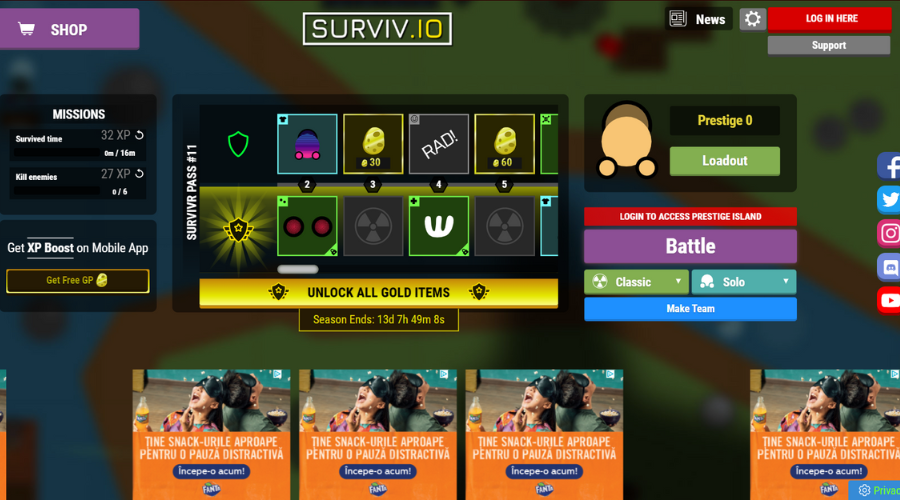
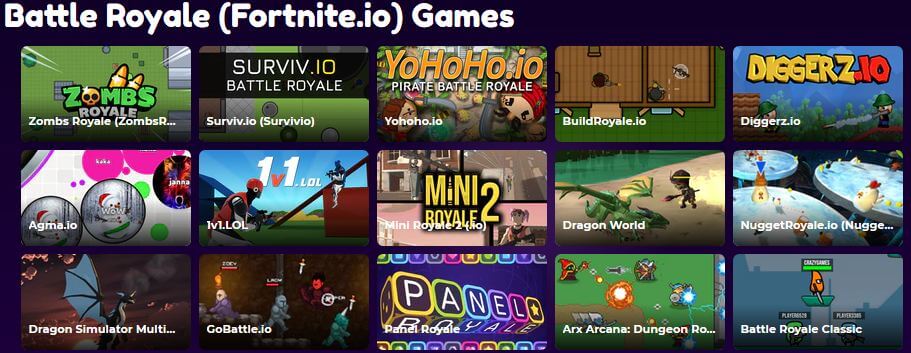
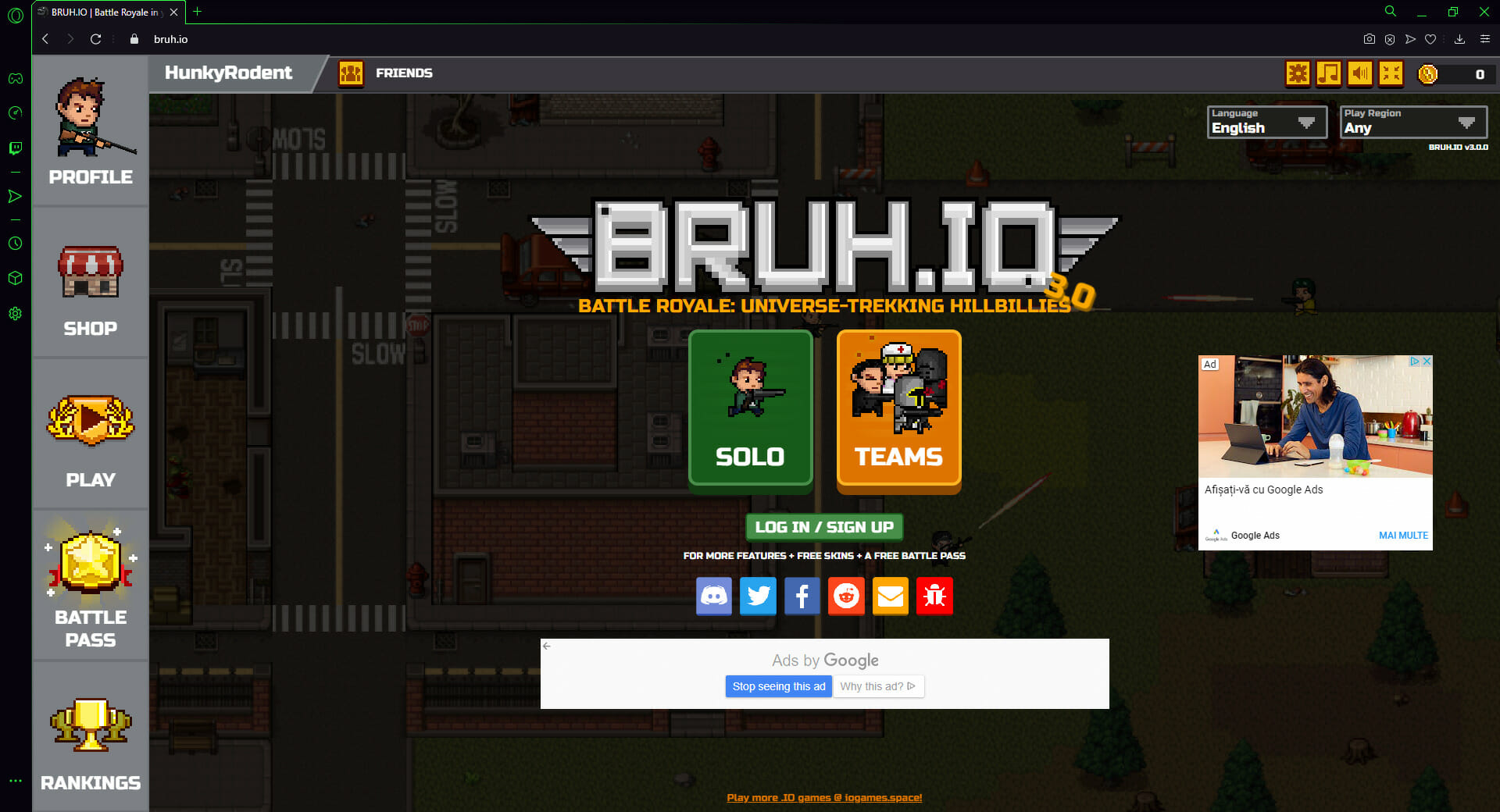
![5 Best Browsers For Developers In 2026 [Coding, Web Development]](https://windowsreport.com/wp-content/uploads/2020/12/remove-date-stamp-photo.jpg)




![Fix: Firefox Keeps Crashing on Windows 10 & 11 [Quick Guide]](https://windowsreport.com/wp-content/uploads/2022/07/firefox-keeps-crashing-windows-1011.png)


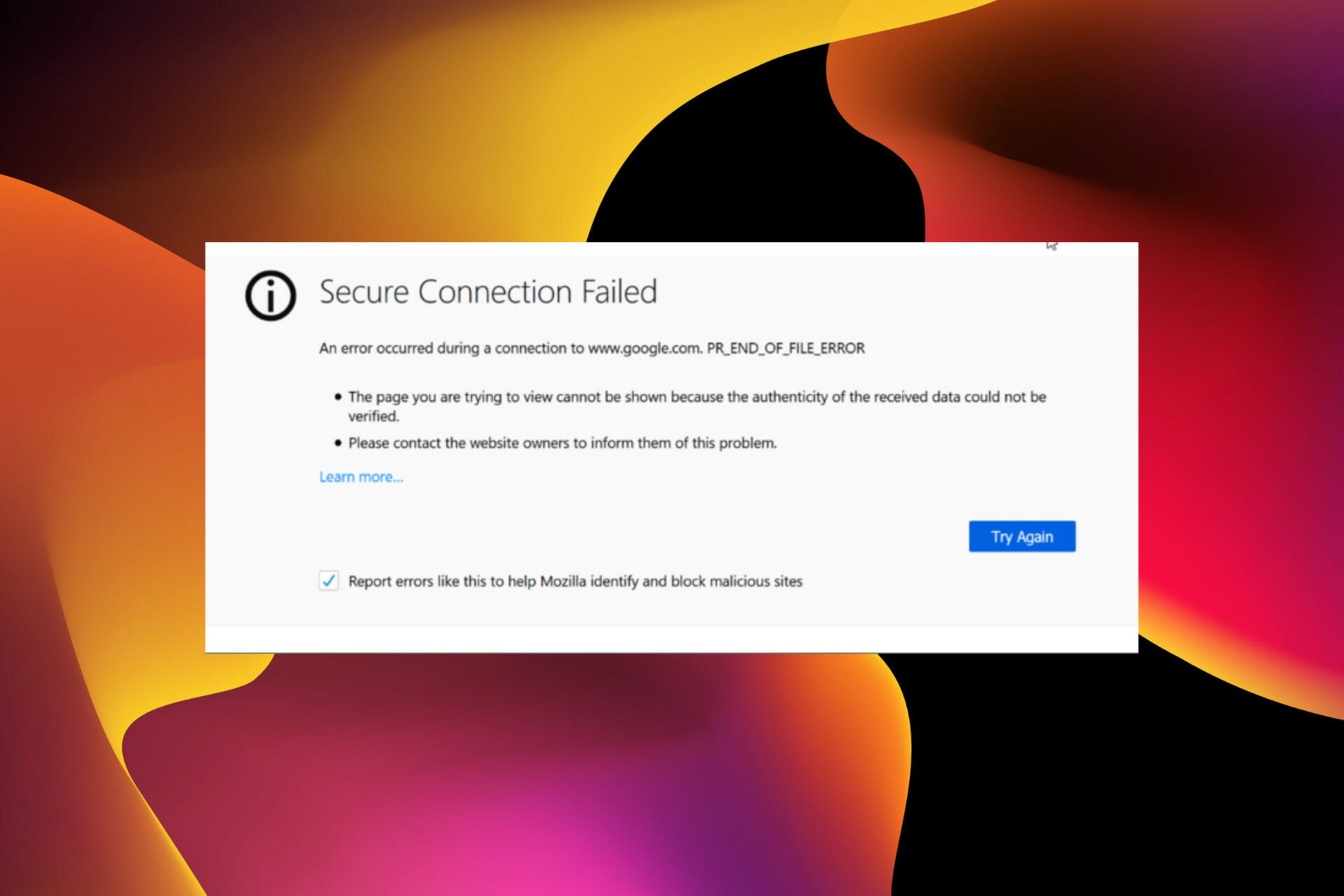


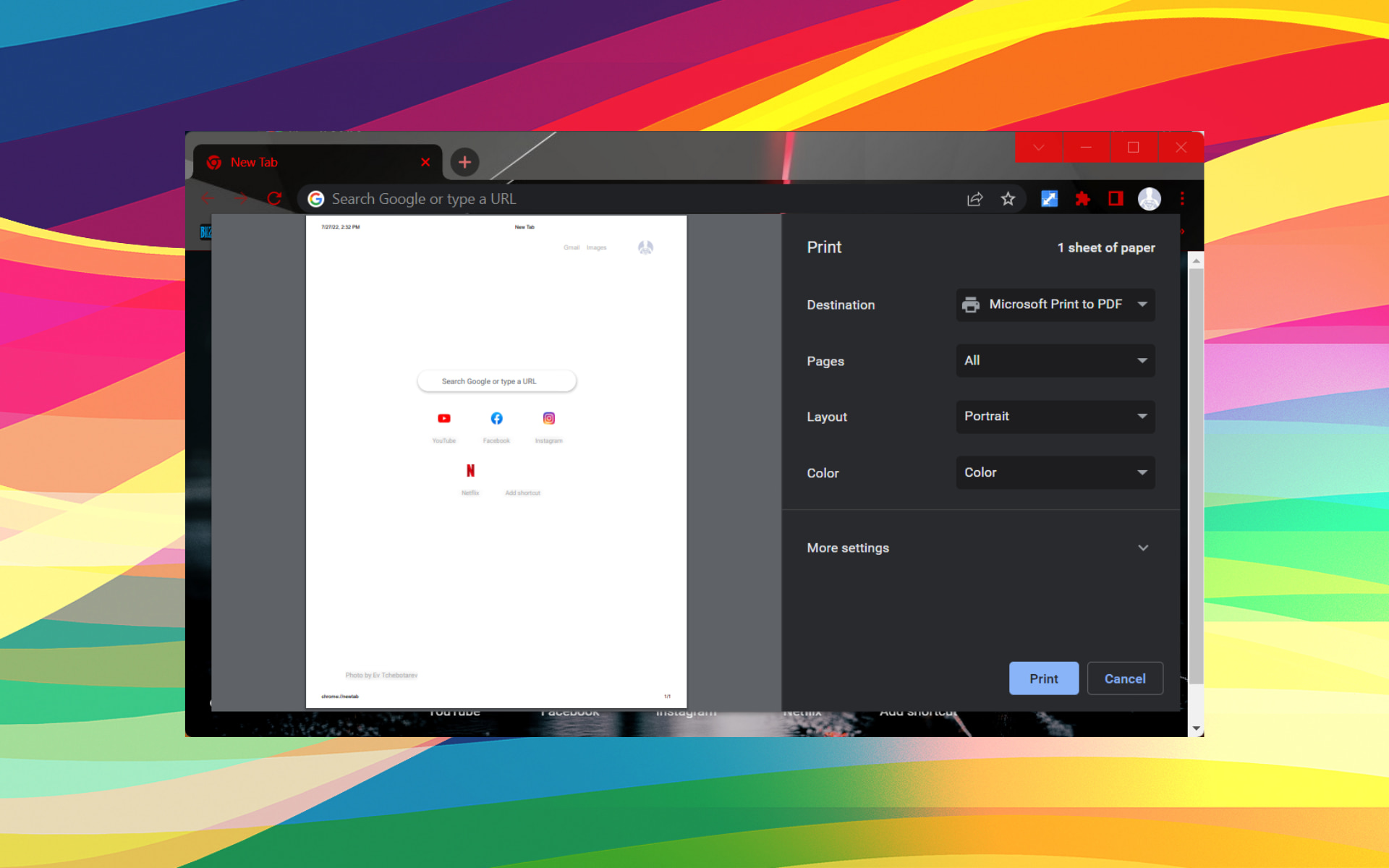


![How to Remove Most Visited Sites from Google Chrome [Android, PC]](https://windowsreport.com/wp-content/uploads/2022/07/chrome-most-visited.jpg)


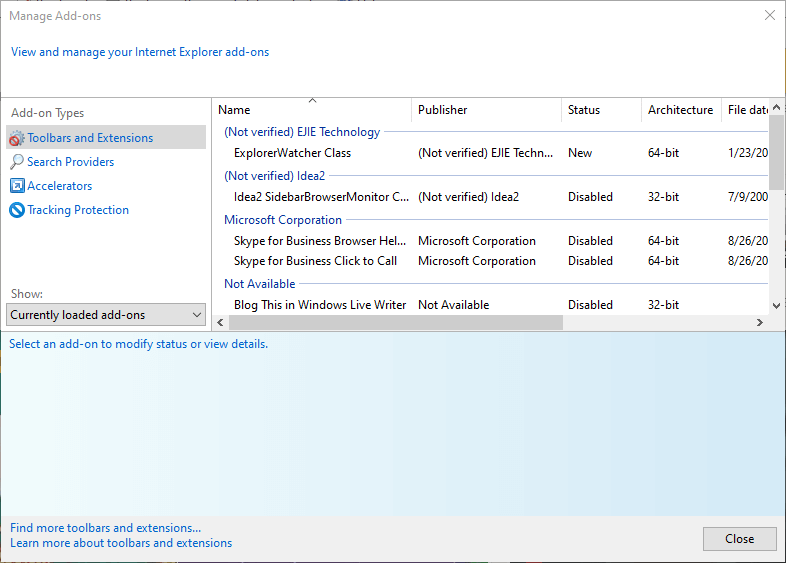
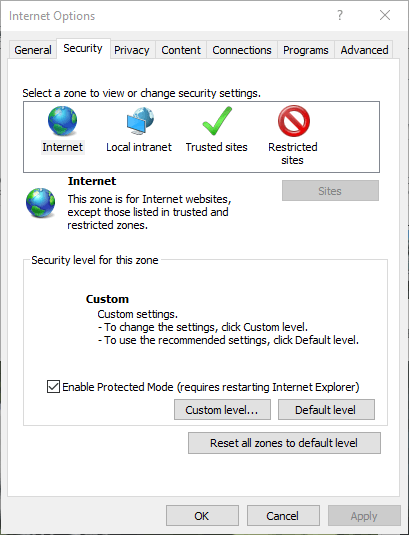
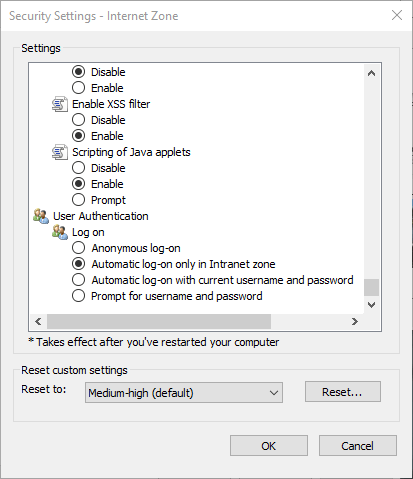
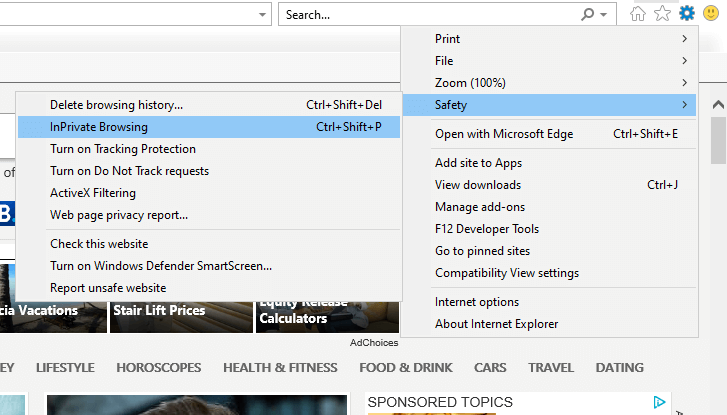
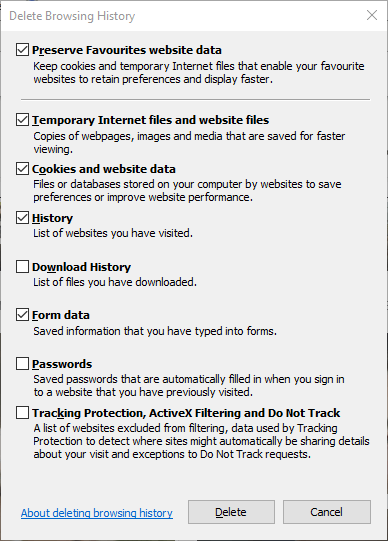
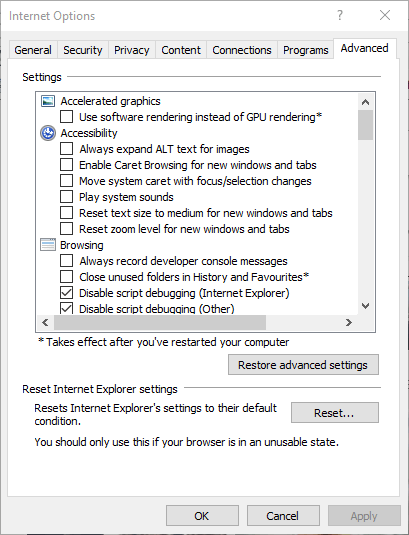
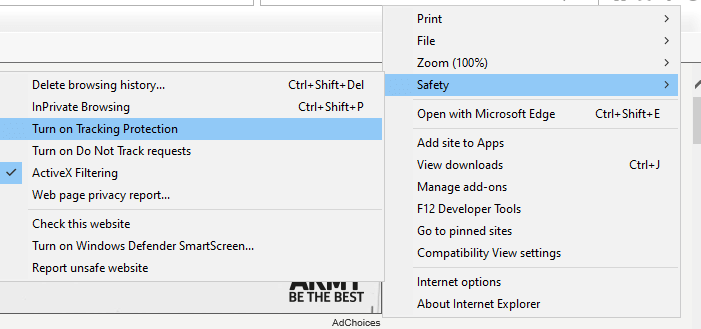
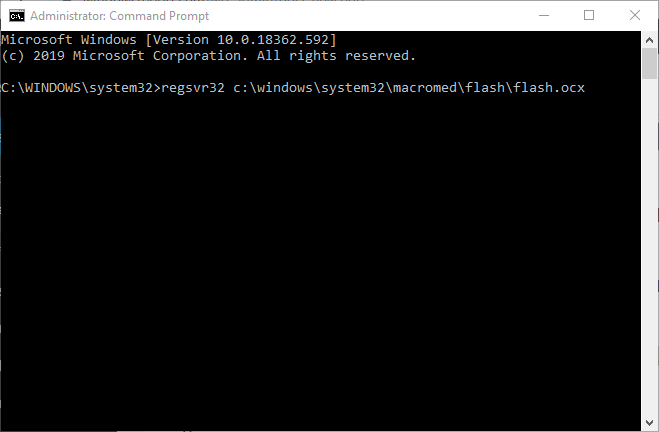
![Internet Explorer keeps crashing on Windows 10 [Easy Fix]](https://windowsreport.com/wp-content/uploads/2021/03/Internet-Explorer-keeps-crashing-on-Windows-10.jpg)


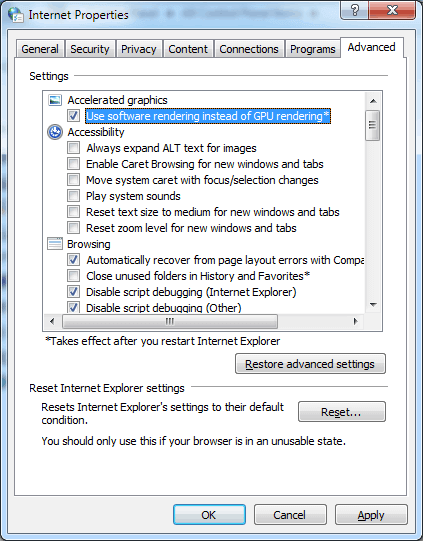

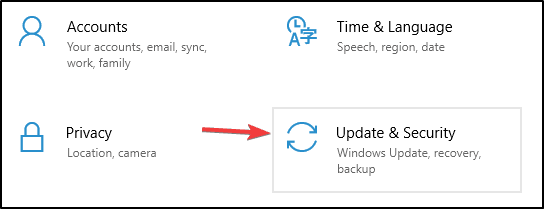


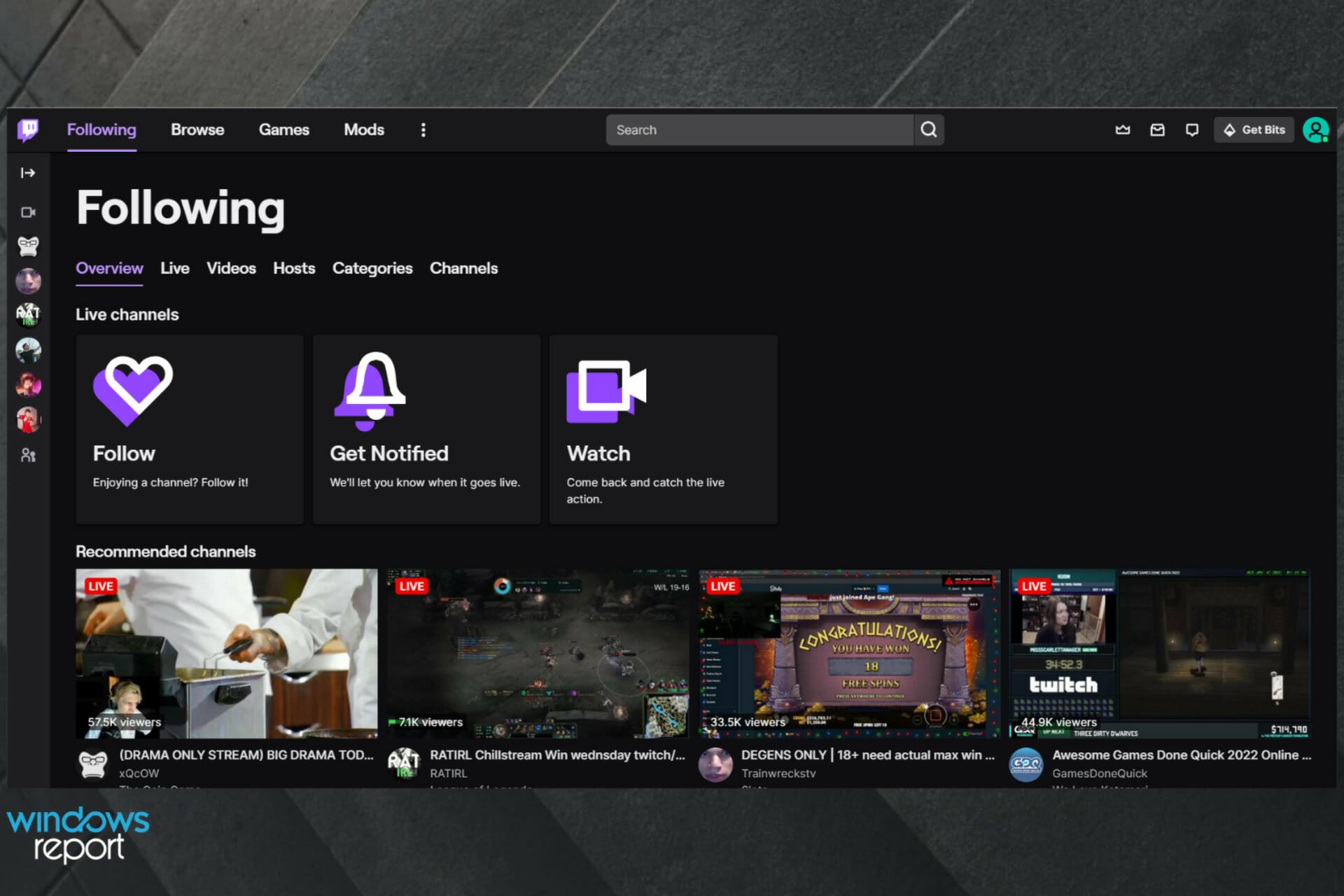















![How to fix FFXIV error 2002 [Lobby server connection error]](https://windowsreport.com/wp-content/uploads/2020/05/Final-Fantasy-XIV-2.jpg)


![Fix: AT&T Throttling And Data Slowing Down [2026 Workaround]](https://windowsreport.com/wp-content/uploads/2020/07/stop-ATT-throttling.jpg)
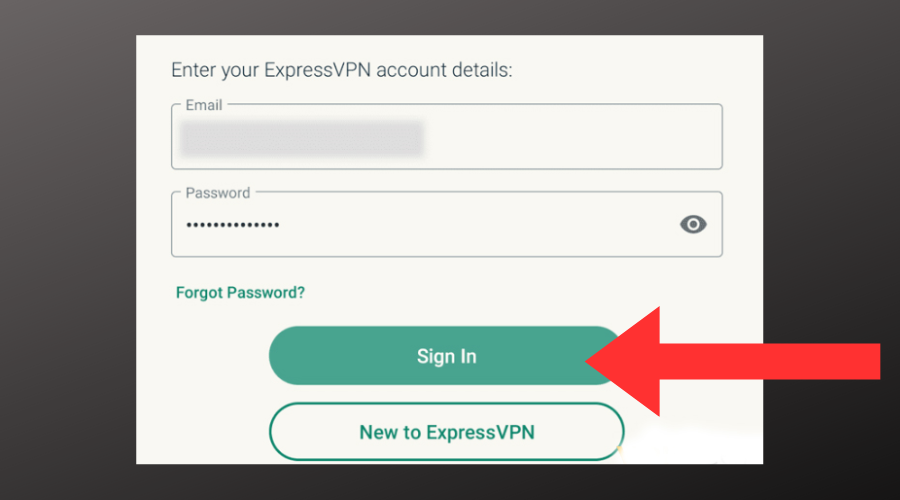
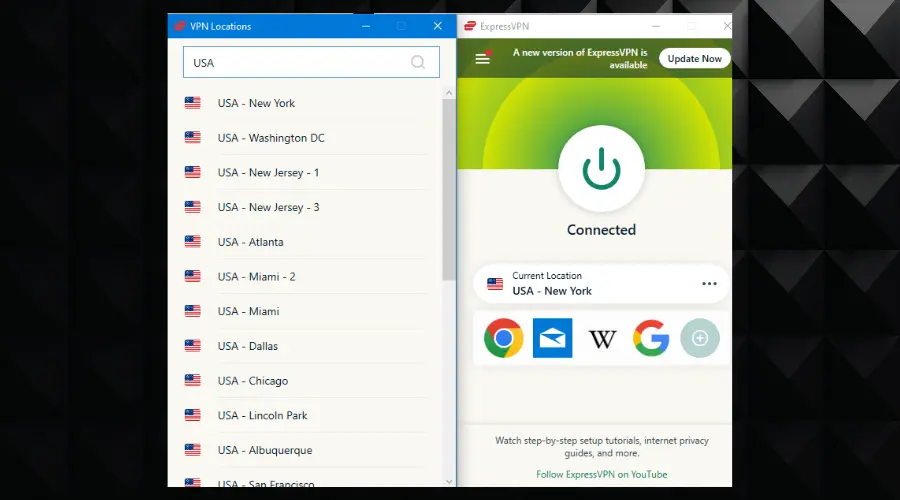
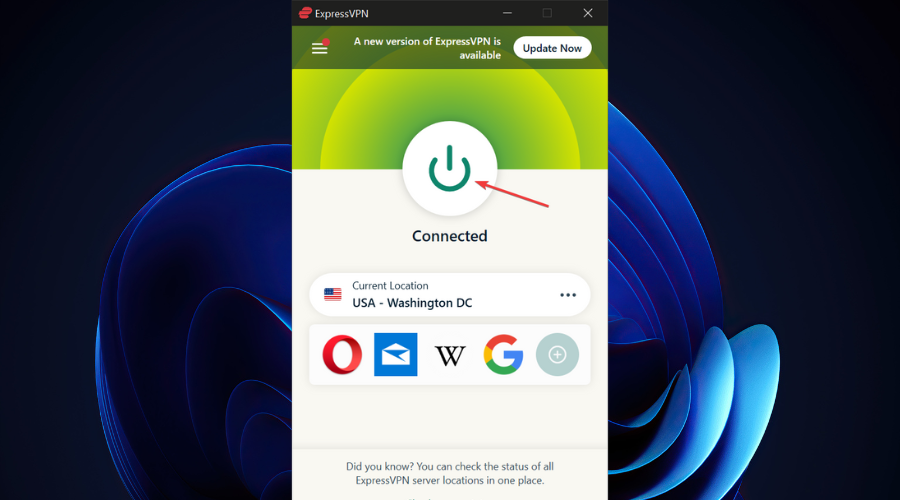
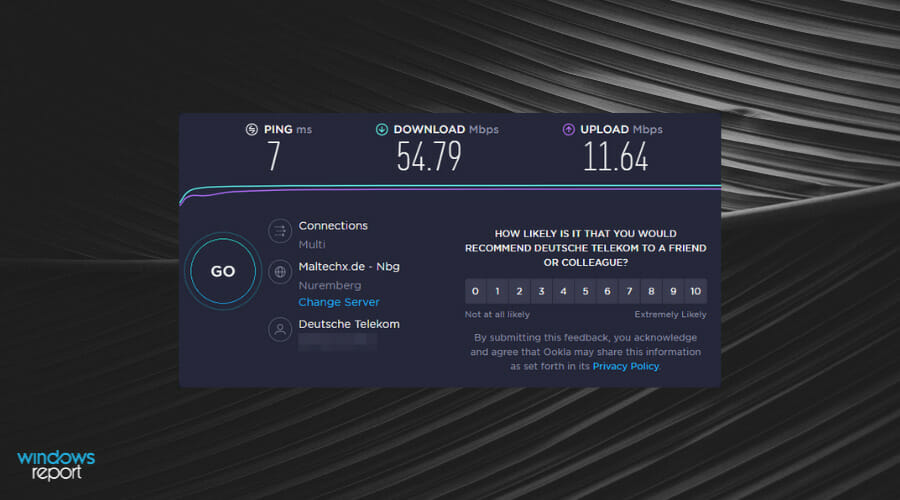


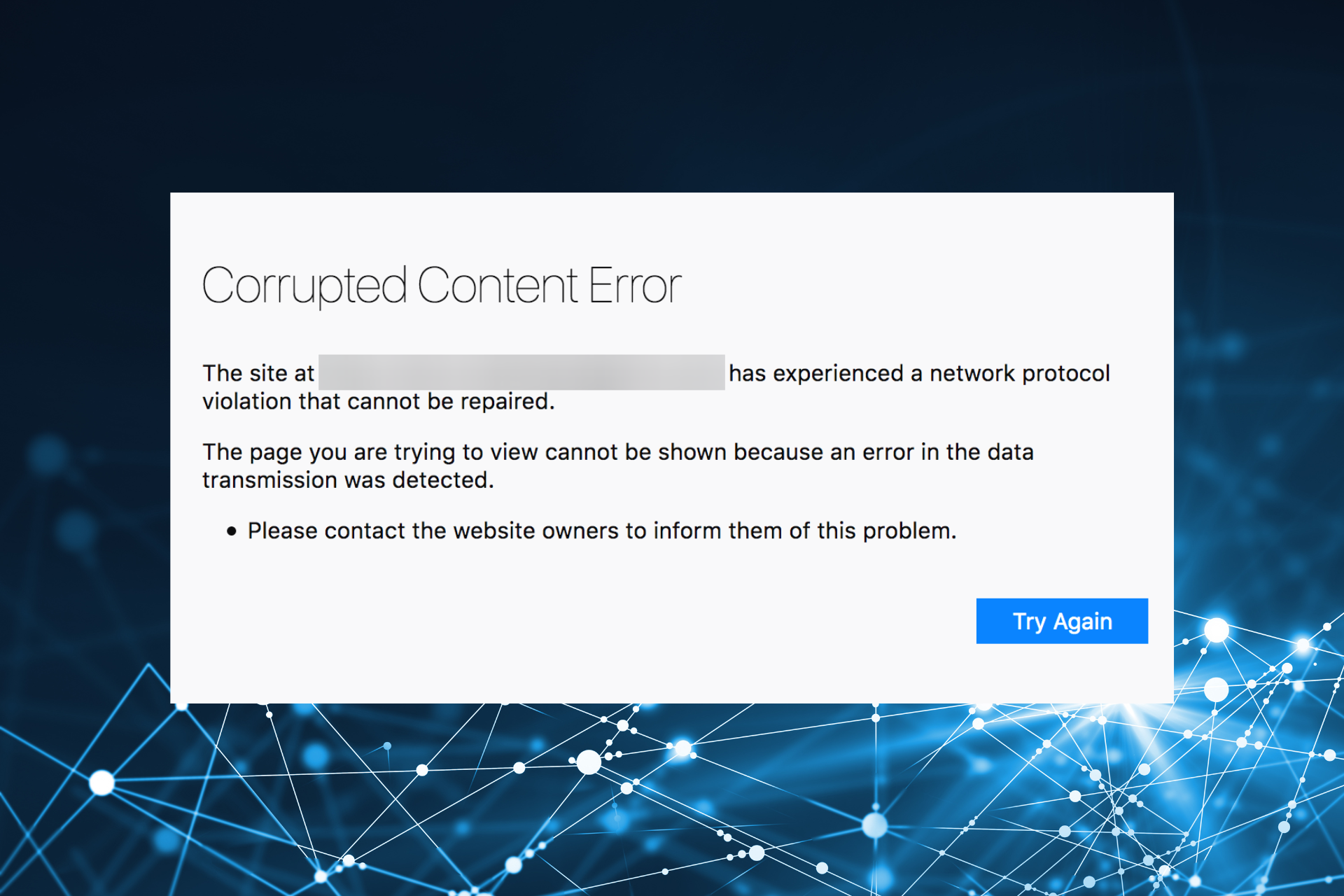








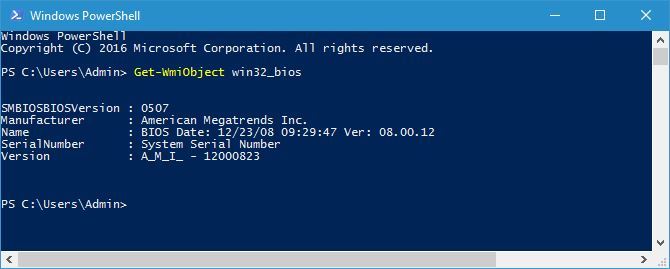
![Opera Silent Uninstall & Install With Group Policy [How-to]](https://windowsreport.com/wp-content/uploads/2022/07/opera-silent-uninstall.jpg)
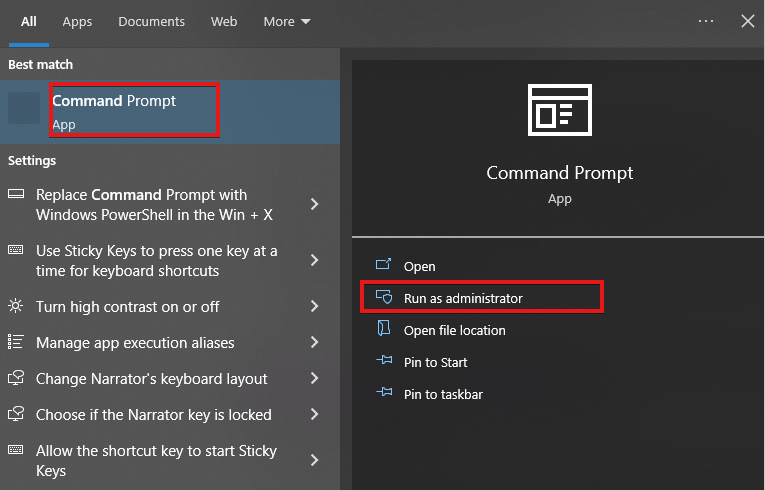
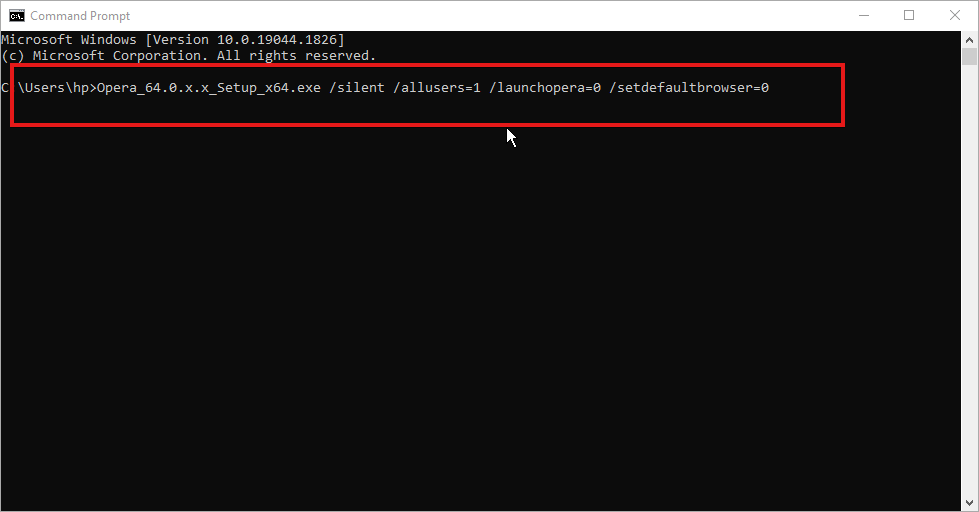

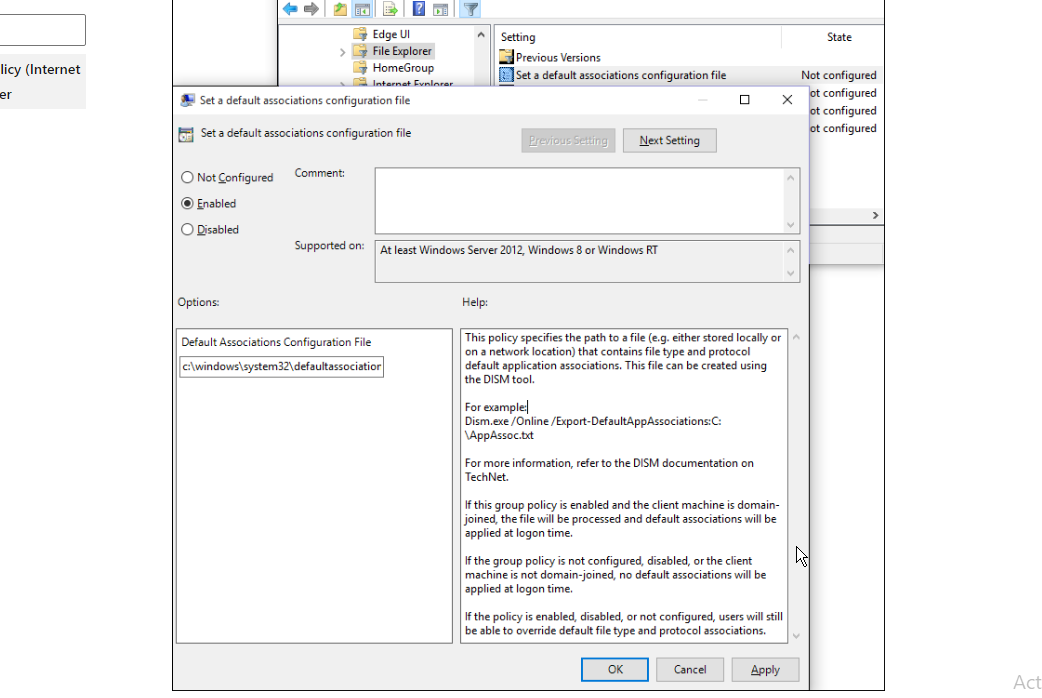

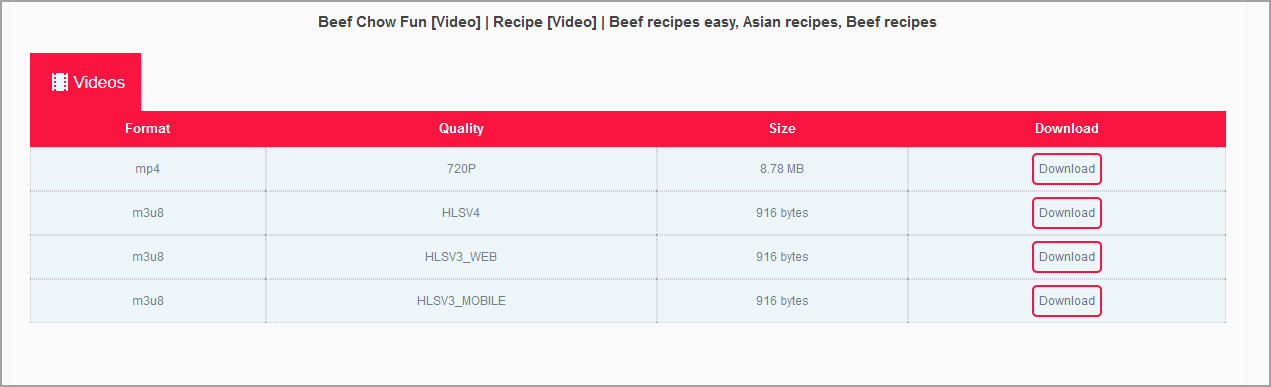
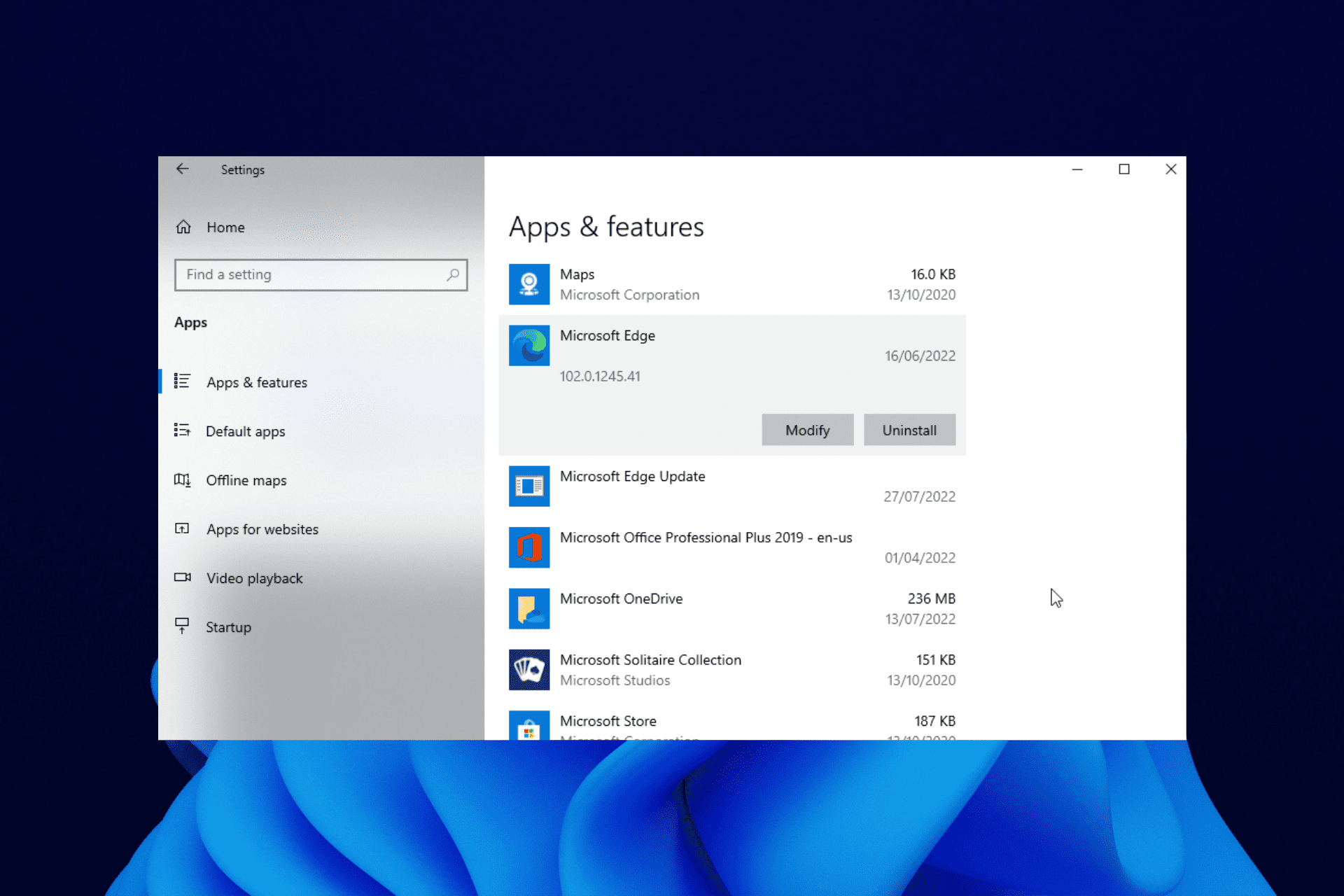
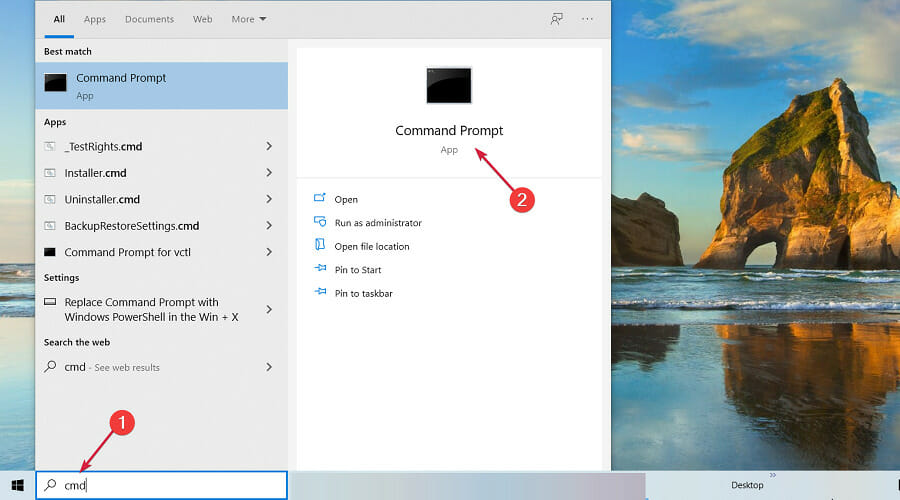

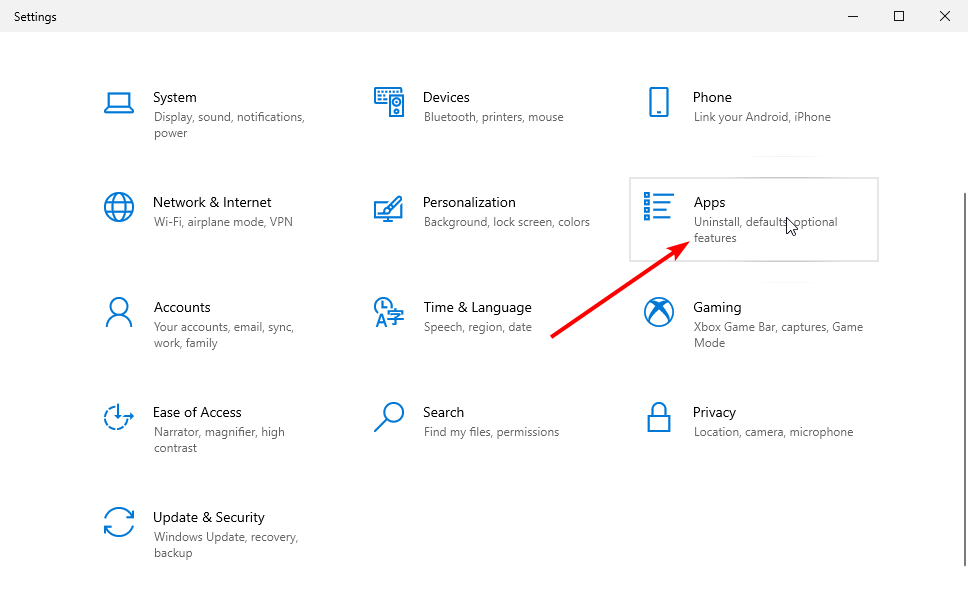
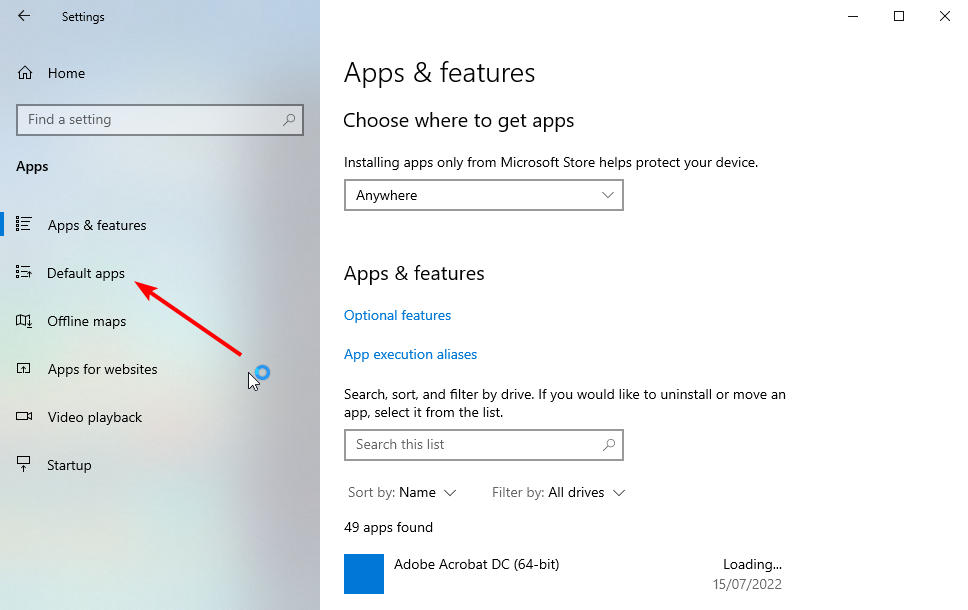
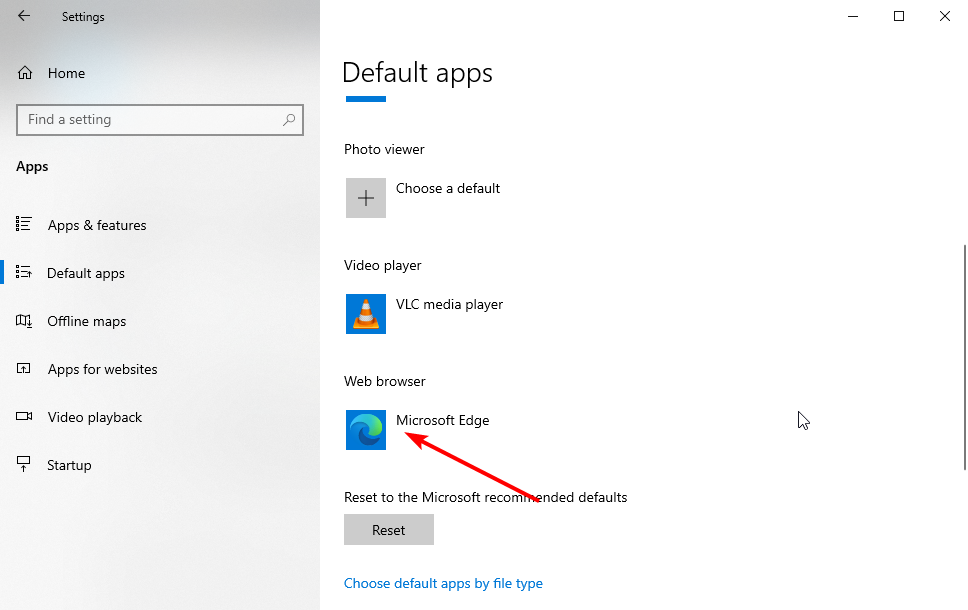
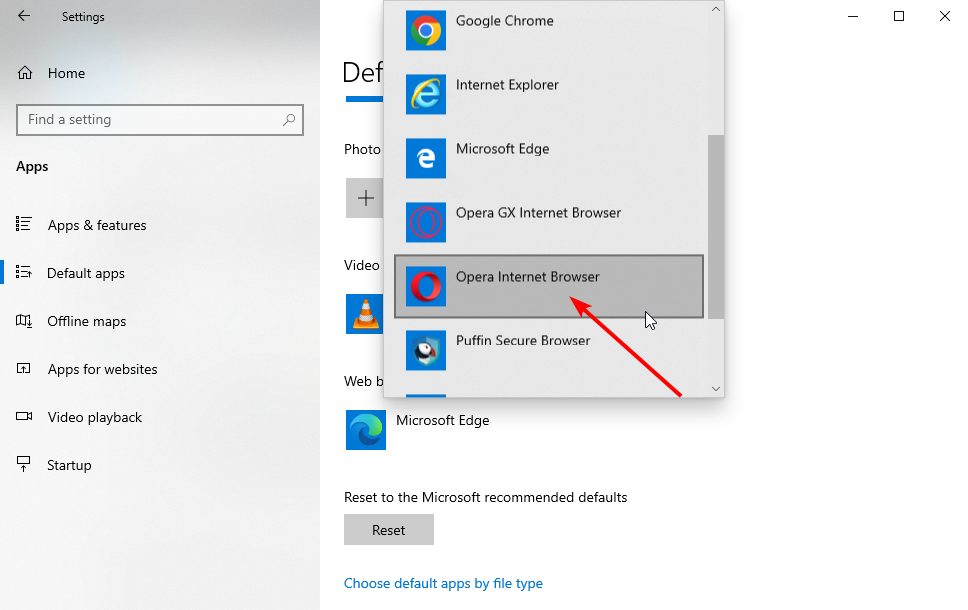


 (Move left)
 (Move Right)
 (Move down)
 (Move up, then down)
 (Move down, then right)
 (Move down, then up)