We know that, just like the Gold Fever in the 19th century, people are going crazy over all kinds of cryptocurrencies and NFTs, that others will pay ridiculous sums for.
In fact, it’s almost impossible to surf the web today without seeing all sorts of ads, bids, or other people talking about the subject.
Even some video games have embraced the idea of adding NFTs for purchasing all sorts of in-game stuff, which some people are totally against.
However, if you were hoping that Minecraft will gain some cool NFTs and create an interesting trading system, that is never going to happen, according to Mojang.
Mojang rejects blockchain integrations for Minecraft
The company behind Minecraft, Mojang, recently updated its Minecraft Usage Guidelines, which ban the use of blockchain technologies, including non-fungible tokens.
As a result, these technologies can never be integrated into the Minecraft client, server applications, or be used in any way associated with buying and selling in-game content including worlds, skins, persona items, or other mods.
You are surely wondering why the situation turned out to be this way, so let’s take a closer look. The actual reasons behind the decision are multifaceted.
Primarily, Mojang seems most concerned about items being sold at very high prices, and also concerned that NFTs will lead to a situation where items are very scarce and create a culture of exclusion, and it doesn’t believe this is what Minecraft should be about.
Furthermore, while the company isn’t at all interested in allowing blockchain technologies right now, this could probably change in the future.
According to Mojang, it will continue monitoring the space and may implement some of the more inclusive applications of the technology.
As for all the people who want to sell in-game items, Mojang stated that it will strive to provide a marketplace where its values are recognized.
As you are aware by now, Mojang is not the first tech firm to distance itself from blockchains, NFTs, and cryptocurrencies.
That being said, people are beginning to be a lot more open-minded about this subject, but many are still not willing to take a huge risk.
So, if you were hoping to trade NFTs or other cryptocurrencies for some in-game Minecraft items, you won’t have the chance very soon.
Google Search is by far the most-used search engine. It has a wide reach and many excellent features that keep users coming back.
When paired with one of the best cross-platform browsers like Firefox, the syncing and data protection possibilities are endless. Unfortunately, users are having problems making Google Search work on Firefox these days.
As always, we have provided three surefire fixes to this problem to let you get back to exploring Google’s search engine on your favorite browser.
Why did Google Search stop working on Firefox?
There are several reasons Google Search might not be working on Firefox. Most problems are in-app, while some can be hard to trace.
Below are some of the popular causes:
Corrupt cache, cookies, and other browser data
Malfunctioning extensions
Temporary browser glitches
How do I enable Google on Firefox?
Launch Firefox and click on the menu button.
Select the Settings option.
Click on Search on the left pane.
Click the dropdown under Default Search Engine and select Google.
With these steps, you have not just enabled Google search but also set it as the default search engine.
Quick Tip:
The quickest way to be able to use Google Search is to simply use a different browser. And there is no better Firefox alternative than Opera One.
Opera One is an excellent browser that has Google as its default search engine. It is one of the fastest browsers for all devices, which makes you lose nothing in terms of the speed you get from Firefox.
Opera One
Use Google Search without any errors with this modern, performance-optimized browser!
How do I fix Google Search if it’s not working on Firefox?
1. Clear browser data
Open Firefox and click the menu button.
Select the Settings option.
Click on Privacy & Security in the left pane.
Click the Clear Data… button under the Cookies and Site Data section.
Click the Clear button to confirm the action.
Scroll down and click the Clear History… button under the History section.
Click the drop-down next to Time range to clear and select Everything.
Check the boxes for Browsing & download history, Cookies, Cache, and Form & search history.
Finally, click the OK button.
Browser data is only useful when it is not corrupt. Once corrupt data accumulates, it leads to all sorts of issues, including Google Search not working in Firefox.
After clearing the browser data, restart your PC to effect the changes.
Click the menu button on Firefox and select the Settings option.
Select Extensions & Themes on the left pane.
Toggle the switch before each extension backward to disable it.
To remove an extension, click the more button before it and select Remove.
Click the Remove button to confirm the action.
Too many extensions can mess up your browser. This is because some might contain programs that alter how the browser works.
This can cause Google Search not working on Firefox. In this case, you should remove any unwanted extension and disable the others temporarily.
When Google Search is not working on Firefox, it makes you miss out on the endless features and reach of the most-used engine in the world. With the solutions provided in this guide, you should be able to regain access to Google Search in no time.
If you use Paypal frequently, you may have encountered Something went wrong on our endPayPal error. This issue can arise when you’re trying to reset your password or when attempting to log in to your PayPal account.
Additionally, the issue which is sometimes accompanied by the message about PayPal having some trouble completing your request may also arise when trying to checkout from an online store.
Now, Paypal tries to self-correct the hitch and some users succeed in carrying out their desired transaction after retrying some minutes later. However, there are things you can do to rectify the frustrating issue. Let’s go through them:
How can I fix Looks like something went wrong PayPal error?
1. Change your browser
Your browser may be in very bad shape because of malware, harmful browser extensions, and faulty plugins so the only remedy could be to shift to a new browsing program.
If you want a highly responsive browser, we suggest trying Opera One. It’s fast and includes anti-tracking features as well as a VPN that can contribute to better online privacy, which is a must when using PayPal.
The browser is very customizable, allowing users to create their workspaces with everything they need. It supports tons of verified browser extensions, including PayPal official extensions.
Opera One
Access PayPal with no errors and benefit from advanced security for your transactions!
As I mentioned, Something went wrong on our end error is just a temporary glitch, and it can go away on its own.
Therefore, wait for a few minutes before retrying.
3. Use an alternative to PayPal
If the solutions in this guide yield no results, then maybe it is time to consider replacing PayPal and managing your finances using other means.
In the case at hand, the best solution to go for in case you can’t use PayPal anymore is to check out other finance-type apps.
Multiple apps can provide useful services for managing your money via credit cards. Using one of these services, you will transfer money easily to your peers, change the currency, or even trade crypto.
Plus, you can benefit from excellent features of transferring money to others, in just a few taps. It is also possible to manage monthly expenses and always be on time with your bills.
If you need to get these services now it’s advised to be informed first, so make your move considering the best virtual credit card apps.
Choose a relevant time range or select All time to erase everything.
Check the boxes next to Cookies and other site data as well as Cached images and files (see above) then Click on Clear data.
Firefox
In Firefox, select the Menu button (three horizontal bars) then choose Options.
Choose the Privacy & Security panel.
Under Cookies and Site Data, click Clear Data….
With the Cached Web Content check-marked, click on the Clear button.
Edge
Open Microsoft Edge, click on the three dots in the upper right corner of your screen then choose Settings.
Locate the Clear browser data section and click Choose what to clear.
Check the applicable boxes including Cached data and files.
Click the Clear button.
5. Other Tips
Other ways that you can use to tackle the Something went wrong on our endPayPal setback includes trying to log in to PayPal from a different computer (on a different Internet connection) or even your phone.
Always try refreshing your page any time you’re logged in and a PayPal problem such as this emerges. Still, your antivirus might be messing up your PayPal gateway again bringing this nagging issue.
We, therefore, recommend that you temporarily pause your protection and see if the payment provider will work.
6. Contact PayPal support
If after all these attempts you haven’t managed to fix Something went wrong on our endPayPal issue, reach out to their support team.
You can start by writing them an email explaining your situation.
Steps:
Log in, as usual, to your PayPal account.
Click on Contact us (check the link near the bottom of the home page).
Select a topic and sub-topic that best matches the something went wrong at our end PayPal fault.
Click on Email us as shown.
Type your message describing the details then click Send Email.
You can also call PayPal support on 000 1 402-935-2050.
It’s best not to select any options when your call goes through. Instead, wait until you are transferred to one of their agents. Alternatively, press 0 or say the word ‘Agent’ to access an agent.
PayPal is overall secure and responsive, but errors happen now and then. Make sure to verify your connection. As mentioned, trying a different browser is a quick and easy solution, good options are Opera One and UR Browser.
Tor is a free and open-source browser focused on anonymous communication, but many users reported Tor Browser is already running error messages.
If you’re unfamiliar with Tor, let us remind you that it is straightforward to download and use Tor on Windows 10, as you can see in this quick guide.
However, if you’re getting this error message while running Tor, we’ll show you how to fix it today.
Here’s how one user on Stack Exchange described this issue:
When I launch Start Tor Browser.exe it indicates that the circuit is established but then immediately gives the following error message: Firefox is already running, but not responding. To open a new window, you must first close the existing Firefox process, or restart your system.
Why is my Tor Browser not working?
If you are in a situation where Tor Browser was working and is not working now, your system may have been hibernating, which means that a simple reboot is in order.
Other users mentioned that the Windows Virus & Threat protection feature got in the way, or it could just be that the browser’s files became corrupted.
For more info on how to do that, check the guide below.
Quick Tip:
Use a different browser that is more responsive. We recommend Opera One because it’s light and very private. It includes a built-in VPN and adblocker, as well as crypto mining protection.
It blocks many unnecessary cookies and has up-to-date web filtering options, so it’s a good alternative to Tor in terms of online security.
Opera One
When Tor fails to meet your expectations, just download this great alternative.
Press Ctrl + Shift + Esc on your keyboard to open Task Manager.
Once in Task Manager, under Processes, click on the Name tab to sort all the processes alphabetically.
Now find tor.exe (or firefox.exe, if it’s the case), and click on End Task in the bottom-right of the window.
If you see multiple Tor processes, close them all simultaneously. Few users reported that Task Manager wouldn’t end tasks, and if that’s the case, be sure to check our guide on how to fix that.
Go to Tor Browser > Data > Browser > profile.default > parent.lock.
Click on the parent.lock file and then hit Del.
Check if the problem is still there.
3. Install Tor Browser on a different partition
Remove Tor Browser from your PC.
Once you remove it, install it again on a different partition and check if that solves the problem.
To altogether remove Tor Browser from your PC, we advise using an automated uninstaller utility. Our top recommendation is CCleaner’s uninstaller. It will clear your app and all registry entries and related files.
The tool is available in the free version and allows you to quickly select Tor from a list of all your apps, confirm that you want to uninstall it, and wait for the process to complete.
Suppose you already uninstalled the browser with a different method. In that case, we recommend you run the CCleaner scanner and remove any junk files found, as there is a high possibility for your regular uninstaller wizard to leave behind unnecessary files.
As you can see, situations such as the Tor browser is already running but is not responding, or The old Torbrowser process must be closed to open a new window can appear out of nowhere.
You could also run into an error such as Close tor browser, a copy of tor browser is already open on your Mac device.
However, these problems are easy to fix, as we’ve shown you above. Leave a comment below if you managed to solve this issue.
We know we haven’t spoken about the Microsoft Store lately, so it was about time for an update from the Redmond tech giant.
As you know, Microsoft released Build 25163 for the Windows 11 Insiders in the Dev channel, an update packed with improvements and changes.
And, as a part of this update, are the changes that we are about to take a closer look at and analyze.
New price tags and many other improvements coming
Through the above-mentioned Windows 11 update, Microsoft announced a fresh update for the Microsoft Store as well.
Store version 22206.1401.2.0 is now available in the Dev channel with a few necessary tweaks and discoverability improvements.
However, by far, the main highlights include an updated price tag design and a new way to find different editions for a specific game.
So, developers to tweak the Browse and searchsection with updated price designs. Now it’s easier to understand the prices, so we have the info we need when searching for a new app, game, or movie.
Also coming with this new update are improved ways to find game editions, as it is easier to find different editions of a game.
With this new feature, you can easily view standard and deluxe editions so you can choose the game you want to play. How cool is that?!
Remember that this is only for Insiders, for the time being, so don’t go looking for these changes if you are on the stable version of Windows 11.
And, as you would have imagined already, like with all preview software, Microsoft wants to know our feedback regarding the latest enhancements in the Microsoft Store.
If you want to give feedback regarding the Store’s performance, you can share your thoughts by opening the Microsoft Store and pressing Win + F.
Have you already tested the new Dev Channel Microsoft Store changes? Share your experience with us in the comments section below.
The origin of the first-person shooter genre can be traced back to the video game Wolfenstein 3D (1992), which is widely regarded as the game that established the fundamental template for the genre and served as the foundation for later games.
Another OG is Doom (1993), which is generally regarded as the most influential title in this genre. For a number of years, the phrase Doom clone was used to characterize this genre as a result of its influence. It was the progenitor of the genre’s greater public acceptance and success.
There are several Doom games available, but did you know that you can run Doom in your web browser?
That’s right, you can play the original Doom in your browser, and today we’re going to show you how to do it.
Can you play Doom in a browser?
Yes, you can. This classic video game is available in a variety of formats, and can even be played online in a web browser thanks to the availability of many platforms that host it.
Where can I play Doom for free?
There are several different gaming platforms that provide you the option to play Doom for free on your web browser, and one of those options is Playclassics.games. The website Browser-doom.io is also an excellent source.
This being said, let’s see in more detail how you can play Doom inside your browser. Keep on reading!
Quick Tip:
If you want to have that old-school feeling while gaming, this is exactly what you are looking for. Get yourself a browser that enhances the browser gaming experience.
Opera GX gives you control over your gaming experience, no more ads with the pre-installed Ad Blocker, Discord, and WhatsApp built right into the browser, Dark mode on any page are just some of its features.
Opera GX
Destroy hordes of hapless demons with the world’s best web browser created specifically for all gamers.
Click the Play online button in order to start playing Doom online multiplayer.
Doom is hosted on various gaming websites and you can use them to play it for free. These websites are running an emulator in the browser, so you’ll basically emulate Doom in your browser.
Although Doom should work in any browser, you might encounter slowdowns and other issues. To get the best performance, be sure to use a gaming browser such as Opera GX.
The browser has a GX Control feature that allows you to allocate resources such as your CPU, RAM, and network bandwidth to your browser.
By doing that, you’ll ensure that you have enough hardware power for other tasks.
It has Twitch integration and it allows you to keep track of your favorite streamers with ease. There’s also a GX Corner feature so you can keep up with the latest news from the gaming world.
The browser is fully customizable and it allows you to change the highlight color, wallpapers, and themes. There’s also a built-in messenger so you can easily text your friends without ever leaving the game.
Other features from the Opera One browser are also there, so you’ll also get a built-in ad blocker, tracking protection as well a free and unlimited VPN.
How to play Doom on Chromebook?
The fact that Chrome OS wasn’t precisely made for gaming doesn’t change the fact that you’re in this predicament. On a Chromebook, you have the option to play Doom from within the browser if you so want.
Archive.org is another great online source to play the 1993 game that changed the gaming scene, and feels like you’ve gone back through time.
Playing Doom in your web browser is incredibly simple, and you can do it as long as you have the right browser for the job. Don’t hesitate to leave a comment in the section below and tell us what you think. Thanks for reading!
Firefox is one of the few excellent all-round browsers that work on virtually all devices. It thrives on all the major features that matter to users.
Unfortunately, there is no perfect machine, and Firefox is not flawless either. Users have had to deal with the keyboard not working on Firefox issue in the past, limiting the accessibility of the browser.
Now, users are complaining that it is the mouse scroll that is not working. This takes away a crucial navigation tool when using the browser.
To help you regain that ease of navigation, we have gathered five effective fixes for the mouse scroll not working issue in this guide.
Why is mouse scrolling not working on Firefox?
The potential causes of mouse scroll not working on Firefox are numerous. It can be due to temporary glitches with your browser or the wrong settings.
The following are some of the popular ones:
Corrupt browser data
Malfunctioning browser feature
Faulty extensions or themes
How do I enable smooth scrolling on Firefox?
Open Firefox and click the menu button in the top right corner.
Select the Settings option.
Select General on the left pane.
Scroll down and tick the box for Use smooth scrolling under the Browsing section.
How do I make my mouse scroll on Firefox again?
1. Switch to another browser
If all the fixes above prove abortive in solving the mouse scroll not working on Firefox issue, you might be better served using another browser. And there is no better alternative to Firefox than Opera One.
Opera One is a stunning browser that boasts lots of accessibility features. It is easy to use and has a simple and intuitive interface.
Based on the Chromium engine, Opera One is currently one of the fastest browsers in the industry. What’s more, it comes with built-ins such as VPN, Ad blocker and AI.
This allows you to sync your data effortlessly. Lastly, you can import your browser data from Firefox to Opera One. With this, you have nothing to lose in terms of continuity.
Opera One
Upgrade to a better browsing experience using this tool with a very low error rate!
Sometimes, the predictable fix might be the most effective. If the mouse scroll is not working on Firefox, it might be due to a minor problem with the browser’s processes.
In this case, closing and relaunching the browser should do the trick. You can proceed to other sophisticated fixes if this does not solve the problem.
3. Disable hardware acceleration
Launch Firefox and click the menu button (three horizontal lines) in the top right corner.
Choose the Settings option.
Select the General option on the left pane.
Scroll down and uncheck the checkbox for Use recommended performance settings.
Lastly, uncheck the box for Use hardware acceleration when available.
Hardware acceleration is an excellent feature that improves the efficiency of Firefox. It uses the GPU to carry out some of the graphics processes tasks. This offloads the load from the CPU.
However, this feature might cause the mouse scroll not working in Firefox issue. While it is a good feature, it is not the most important. So, you can disable it and check if your mouse is now scrolling on Firefox.
4. Restart Firefox in Safe Mode
Open Firefox and click the menu button in the top right corner.
Select the Help option.
Select the Troubleshoot Mode… option.
Click Restart when prompted to confirm the action.
With the number of extensions and themes in the Mozilla addons store, you’ll be tempted to install many of them and improve your browser features. However, too many of them can cause Firefox to misbehave and lead to problems like the mouse scroll not working.
With this fix, you can use Firefox with the extensions, themes, and custom settings disabled temporarily.
Choose the Privacy & Security option in the left pane.
Now, click the Clear Data… button under the Cookies and Site Data section.
Click the Clear button to confirm the action.
Go back to the Privacy and Security window and click the Clear History… button in the History section.
Click the dropdown next to Time range to clear and choose Everything.
Tick the checkboxes for Browsing & download history, Cookies, Cache, and Form & search history.
Click the OK button to confirm the action.
When corrupt data accumulates on your browser, they cause problems. In this case, all you need to do is clear all browsing data and restart your browser.
The mouse scroll is not working Firefox problem limits you to the arrow keys on your keyboard. This not only removes a major accessibility feature of your browser but also strains your keyboard. Fortunately, the fixes in this guide can help you solve the problem for good.
Your online privacy is important, and if you want to protect it, you need to use a proper browser. There are many browsers that offer some form of privacy protection, but they won’t hide your identity online.
Some browsers, on the other hand, have a built-in VPN or use other methods to hide your identity. Speaking of which, today we’ll compare Tor Browser and Opera and see which browser is better for you.
Is Opera browser anonymous?
One of the few browsers that come with a virtual private network already installed is Opera. This browser will allow you to view material that is restricted based on your location, encrypt your connection, and mask your IP address.
Opera is the web browser with the most robust incognito mode. Users of this browser may remain completely anonymous on the internet by utilizing Opera’s built-in VPN service.
Even while Opera’s Private Browsing tab performs the same function as Chrome’s Incognito Mode, the fact that Opera additionally allows users to activate a virtual private network (VPN) elevates it to the position of being the most superior browser alternative currently available.
Is there anything more secure than Tor?
The Tor browser is a piece of software that may be downloaded by anybody for use on Linux, Mac, or Windows computers, as well as mobile devices.
While virtual private networks (VPNs) and the Tor anonymizing browser may both keep you anonymous while browsing the web, using a VPN correctly makes for the safest experience. Tor is a free web browser that will encrypt your requests.
However, it is incredibly sluggish, does not allow access to all websites, and can get you in problems with the law. VPNs, on the other hand, are lightning-fast, encrypt all of your traffic, grant you access to any website you choose, and put you in complete command of where you appear online.
What is the most secure web browser, Opera or Tor?
Opera browser has been present for two decades, and it has changed a lot throughout its lifetime. The latest version of Opera is available on all major desktop and mobile platforms, allowing you to easily sync your data.
1.2. What are Opera’s pros and cons?
Pros:
Completely free
Available on all major platforms
Built-in VPN with unlimited bandwidth
Low hardware requirements
Built-in ad blocker
Cons:
VPN has just 3 locations
Might load slower with certain websites
1.3 What features does Opera have?
Opera has a built-in VPN that provides you with unlimited bandwidth. In addition, the browser supports cryptocurrencies, so it lets you make payments directly from your Crypto Wallet.
Another useful feature is Flow and it allows users to easily share files, links, and notes between other devices that use the Opera browser.
Opera also supports workspaces for better tab management. Other features include advanced search, visual bookmarks, and a customizable start page that supports RSS feeds.
Opera
An ultra-fast and ultra-modern web browser that features unparalleled customization and privacy features.
Tor Browser is built on top of Mozilla Firefox, and it’s specially designed to protect your privacy. Tor Browser connects to the Tor network that masks your identity online and makes your browsing sessions private.
2.2 What are the pros and cons of Tor Browser?
Pros:
Privacy-oriented
Multi-layer encryption
Protection against digital fingerprinting
Comes with privacy-focused extensions
Disables potentially unsafe plug-ins
Cons:
Slow browsing speed
Adding extensions can compromise your privacy
Not available on iOS
2.3 What features does Tor Browser have?
With its focus on user privacy, Tor Browser will disable Flash, RealPlayer, QuickTime, and other plug-ins that can reveal your IP address.
Of course, Tor Browser comes with various plugins such as HTTPS Everywhere and NoScript that will ensure your privacy stays protected.
The browser will also block trackers and ads, so websites can’t follow your online activity.
Keep in mind that it’s not recommended to download and install additional addons or plugins since they can be used to compromise your privacy.
While Tor Browser offers great privacy features, its speed might be a problem for most regular users.
On the other hand, Opera browser offers a free unlimited VPN that is just as fast as your regular connection, so you won’t experience any slowdowns.
Our verdict is that the difference between Opera’s VPN vs Tor is what makes Opera an overall better choice for users.
Tor vs Brave vs Opera
Tor offers the greatest degree of privacy and anonymity. Although this does not necessarily suggest that Tor Browser is perfect, it does give an extra layer of security to your ordinary browsing. Using it along with a VPN will ensure your online safety.
The Brave browser blocks advertising and removes ad-tracking cookies, which can speed up your browsing. It also protects you from malicious software that may be hidden in online adverts. You may also choose to route your traffic over the Tor network.
But again, without a third-party VPN service, you won’t be completely or almost completely covered when browsing the Internet.
In terms of security and user privacy, Opera provides an adblocker, removed ad-tracking cookies, and offers an Ethereum-based cryptocurrency wallet.
The browser also has a VPN, which protects your IP address from hackers. With this feature, you may completely encrypt your online sessions, without having to resort to another third-party service.
Saving a Steam game once will usually be enough to preserve your progress in it. However, sometimes you need to backup Steam game files.
It’s always good to have a backup of your could saves, especially if Steam Cloud error appears so you can’t access your saves in the could.
So, it’s better to be safe than sorry, right? There are a few ways Steam players can back up their game saves to ensure they can restore them if something happens to the original game saves.
Where are my Steam cloud saves?
If you’re wondering about Steam Cloud Save location, here’s where your files are stored:
Yes, Steam automatically backs up save files for most games using the Steam Cloud Sync feature. With it, all your save games are uploaded to the cloud.
So even if you reinstall a game or Steam completely, your saved games will be downloaded from the cloud and you can continue where you left off.
In this guide, we’re going to show you how to backup Steam game files, so let’s get started.
How do I restore Steam saves?
1. Use a third-party game backup software
First of all, saving game progress is essential for most gamers that need to finish the story completely. To do this quickly, backup software is the solution you need.
By using EaseUS Todo Backup, you can save files and folders or eliminate intrusive commercials that interrupt the game. Plus, it will sync your data and accounts on the cloud every time.
Hence, if this sounds good, you should learn more about this practical tool and other awesome gaming backup software using the support given by the best game backup software.
2. Enable Steam Cloud
Press on the Windows key, type Steam, and click on the first result.
From the top-left corner of the window, click on Steam.
Click on the Settings option.
Select the Cloud tab shown directly below.
Select the Enable Steam Cloudsynchronization for applications which support it checkbox.
Then click OK to close the Settings window.
You can restore game save backups in the cloud by opening the View Steam Cloud page.
Click Show Files for a Steam game.
Then click Download for a game save.
Thereafter, you can move the downloaded game save into the game’s Save folder.
This is a useful feature, and one of the best ways to backup Steam game files, or if want to roll back Steam cloud save.
3. Manually back up Steam game saves
Launch File Explorer by pressing Windows key + E.
Open the folder for a Steam game. The default path for a specific Steam game is:C:\Program Files\Steam\SteamApps\common\game name
Then right-click a game save file in the game’s folder to select Copy.
Open a folder to back up the save game to.
Right-click a space within the folder to select the Paste option.
Thereafter, you can move the backup copy back into the folder the Steam game saves game data to when needed.
Some users might need to locate game save files from remote subfolders at this path:
Toggle the Automatically back up my files option on.
Then click Moreoptions.
Click Add a folder to open a Select Folder window.
Select a Steam folder that includes your game save files. You could just select the whole Steam folder, but it’s better to choose a more specific subfolder.
You can select specific backup time intervals on the drop-down menu.
Click the Back up now option to back up the Steam folder.
When you need to restore the game save backups, click Restore files from a current backup option on the Back-up options tab.
Then you can restore file backups from the previous version tab.
This is a great way to backup Steam saves locally, so be sure to try it.
You might notice that Steam includes a backup feature to save game copies. However, that utility is for backing up the actual games, not game save progress files.
The backup feature doesn’t establish backups that include custom game content files for things like saved games, custom maps, configuration scripts, etc. So, that utility isn’t much good for game save backup purposes.
How can I back up Steam saves?
Open Steam and go to your Library.
Select the game you want to back up, right click it and choose Properties.
Head over to Local Files tab and select Backup game files.
Select the desired game and click on Next.
Choose your backup directory.
Set the file size of the backup, as well as its name.
Click Next and follow the instructions on the screen.
So, you can back up your Steam game saves with GameBackupSystem, Steam Cloud, File History, or the manual File Explorer method.
Choose whichever method you prefer to ensure you have backups of your saved game progress whenever you need them.
In case you want to delete Steam Cloud saves, we also have a guide about that, so be sure to check it out.
A lot of Institutions have taken up Hybrid Learning as an alternative to students attending classes physically, a major contributor to this being COVID-19. This calls for tools to be in place for educators to get through to students as if they were attending classes in person.
But since this is often not the case, we have seen educators employ tools to ensure that they are able to bridge the gap. For instance, Microsoft has just shared how educators can leverage Microsoft 365 and Canvas to enhance Hybrid Learning. Canvas is a web-based tool that is used in schools by both course facilitators and students to access and keep track of online course learning materials.
The integration between Canvas and Microsoft Teams can be used by educators to combine the productivity from Teams tools such as Educations Insights and Viva Learning with the power of Canvas’ capabilities. It further grants students access to “world-class” experiences and can equip them with the technical skills for the job market.
On top of that, there will be new tools and features coming to the Learning Tools Interoperability (LTI) offerings with Canvas this summer, such as a new Teams Classes LTI, a new Teams Meetings LTI, and a new OneDrive LTI with Canvas.
First up, is the new Teams Classes LTI that allows students to transition from their course in Canvas into the corresponding class team in Microsoft Teams. It will allow students to create, view, organize, and join their Teams meetings from Canvas directly. As for the OneDrive LTI, course facilitators will now be able to “create assignments, add content using the Rich Content Editor (RCE) and modules, and create collaborative documents in Canvas.” Immersive Reader will also be coming to Canvas with the aim of enhancing accessibility.
Another nifty feature is the OneDrive LTI that allows students and teachers to access both shared files and Teams files while on Canvas, directly building upon the premise of enhancing accessibility. Users also have the ability to create assignments, start collaborations, or add cloud files to course outlines and pages in Canvas.
You can also create channel meetings from within Canvas courtesy of the Teams Meetings LTI., which facilitates meetings to take place, where all the rich Teams collaboration features can be accessed in a single convenient location. Users will also be able to access recordings and attendance reports within the Teams Meetings LTI.
Users will also get Teams notifications while on Canvas, allowing them to respond to messages and take part in discussions without necessarily having to leave Canvas.
And finally, the Teams Classes LTI app comes with content creation capabilities, which means that both teachers and students can come together and work on a project within Canvas.
Pong is one of the first video games ever developed, and it hasn’t changed much over the years. It’s rather hard to find the original game, but you can play Pong in your web browser instead.
There are numerous Pong games that you can play, which often leads to confusion, and remember, all of them are not as good.
So, today we’ll show you how to play the best Pong games right from your favorite web browser.
Can you play Pong online?
Yes, various Pong games are available online, some that require download and installation, while others can be played from the browser itself.
Make sure to open the Pong game in the right browser for the best gaming experience because users have reported lags when playing these on normal browsers. But, a gaming browser like Opera GX should do it for you.
Quick Tip:
Get the best online gaming experience with Opera GX. This browser allows you to limit CPU, RAM, and network usage, thus providing you with enough hardware resources for other tasks.
Other features include GX Corner that provides you with the latest news from the gaming world. Thanks to the built-in ad blocker, you won’t have to deal with ads anymore, and your pages will load faster than ever.
Opera GX
While Pong is a classic game, you can now play it in the most modern-looking and advanced browser for gamers yet, Opera GX!
Be sure to enable pop-ups from the browser settings.
This isn’t a typical Pong game since it will convert your entire browser into a large Pong game with three small popup windows. It is one of the simplest Pong browser games, and worth checking out.
The error message ERR_CERTIFICATE_TRANSPARENCY_REQUIRED occurs when Google Chrome blocks a website’s SSL certificate for not complying with Certificate Transparency (CT) policies. This means the certificate hasn’t been publicly logged for verification, which triggers the certificate transparency required error.
Follow the steps below to troubleshoot this net error certificate transparency required issue.
What causes the Google Chrome Certificate Transparency required error?
Some of the most common reasons why you get the Certificate Transparency Required error include:
The website’s SSL certificate isn’t logged in Google’s CT logs.
The certificate authority (CA) failed to add Signed Certificate Timestamps (SCTs).
The site is using a self-signed or misconfigured certificate.
Your browser enforces Google Certificate Transparency as a security measure.
How can I fix Chrome Certificate Transparency required error?
1. Update Google Chrome
Launch Google Chrome.
Click on the 3-dot menu icon.
Navigate to Help, then to About Google Chrome.
Chrome will automatically check for new updates, and install the latest one, if available.
Keeping Google Chrome up to date is a very important thing, as not only do you get to enjoy all the latest features it has to offer, but it also updates the security features of the browser.
There are chances that the previous version of Chrome had some bugs that triggered the error for you. In such a case, check for a new update and install it immediately if Chrome detects a new one.
2. Clear SSL State
Open the Start menu.
Search for Internet Options and open it.
Switch to the Content tab.
Hit the Clear SSL State button.
Click on Apply and then OK.
If required, restart your browser and then check if this fixes the Chrome Certificate Transparency required error or not.
When you perform the above steps, you are basically clearing the SSL certificate cache of your browser.
Because of a corrupt SSL certificate cache, your browser will throw up multiple security errors, including the Chrome Certificate Transparency required error.
Simply follow the above steps to clear the SSL certificate error and hopefully get rid of the ERR_CERTIFICATE_TRANSPARENCY_REQUIRED error.
You should never turn off Windows Defender Firewall or any other third-party antivirus on your PC unless you know what you are doing.
Open the Start menu.
Search for Windows Defender Firewall and open it.
From the left pane, click on Turn Windows Defender Firewall on or off.
Click on the Turn off Windows Defender Firewall boxes for both Private and Public network settings.
This method should only be used if none of the other two solutions worked for you. Your firewall may be checking SSL traffic, causing the error to show up on Chrome, ultimately causing the Certificate Transparency error.
You can disable the firewall or any other antivirus software that you have installed on your PC and then visit the website on Chrome and check if this fixes the issue or not.
What else can I do to resolve the error?
The above three solutions have helped users fix the problem at their end. However, if none of them helped you, then we have a few tips up our sleeves that should possibly get rid of the error.
Clear browser cache
Open Chrome.
Click on the 3-dot menu icon.
Select Settings.
From the left pane, click on Privacy & Security.
Hit Clear browsing data.
Make sure to check the Cookies and other site data, and Cached images and files boxes.
Disable extensions
Open Chrome.
Click on the 3-dot menu icon.
Navigate to More tools followed by Extensions.
Disable all extensions and check if this fixes the issue or not.
That’s it from us in this guide. We hope that you were able to fix the Chrome Certificate Transparency required error using the above solutions mentioned.
Do let us know in the comments below which one of the solutions helped you fix the problem and also let us know if you applied a different solution to fix the problem.
Linux is a great alternative to Windows, and it’s an operating system of choice for many users around the world.
There are many distributions of Linux, but today we’re going to focus on good browsers for MX Linux.
Although it’s not popular as other major Linux distributions, this one still offers a unique share of features, and this is why many users prefer it.
Can I change my browser on MX Linux?
Of course, you can. All the browsers recommended below have versions for Linux and can be installed without any issues.
In today’s guide we’re going to take a look at the best browser for MX Linux, so be sure to keep on reading if you want to find out more.
How to choose the best lightweight browser for Linux?
This depends on multiple factors, and the most common one is your hardware. Depending on your specifications, you need to choose a browser that won’t put too much strain on your resources.
You also need to pay attention to the distro that you’re using. Some distributions can use more of your resources, so they won’t be able to handle certain browsers and heavy multitasking.
Fortunately for you, some of the browsers from this guide are lightweight, so we’re positive that you’ll find something for your PC.
Opera One is a well-known browser that has been present for years in the browser market. The software comes with a built-in ad blocker, so you won’t ever have to deal with ads again.
Additional features include tracking protection so websites can’t track your browsing activity. To top it off, there’s a built-in free VPN that offers unlimited bandwidth for a complete private browsing experience.
It’s worth mentioning that there’s also an instant messenger and social network integration allowing you to stay in touch with your friends and followers at all times.
Overall, Opera One is a quick, reliable, and secure web browser, so it’s perfect for all types of users.
Opera One
If you’re looking for a secure and private web browser, this is a unique choice for every user.
If you’re a Linux user, you’re probably familiar with Brave. According to the developers, it’s several times faster than its competitors when it comes to page loading speed.
Unlike many other browsers, Brave doesn’t store or collect your browsing data, and thanks to the advanced tracking protection, you’ll ensure that other websites aren’t tracking your online behavior.
Of course, built-in ad blocking is also present, so you won’t ever have to deal with those pesky ads again. The browser can also block scrips and force websites to use the HTTPS protocol, which will surely come in handy.
Overall, Brave is a quick, reliable, and private web browser, so it’s a great choice for every user that cares about his online privacy.
Chromium is another great privacy-oriented browser for MX Linux that is perfect for more experienced users.
If the name sounds familiar to you, it’s because this browser is used as the foundation for Chrome and other similar software.
This is open-source software, meaning that users can always view the source code and ensure that there’s no data collection in the background.
Since this is a privacy-focused browser, it does lack certain features such as automatic updates, sync support, tracking, crash reports, and H.264 and ACC codecs.
Despite these minor flaws, this is still one of the best and most private browsers on the market, so we encourage you to give it a try.
When it comes to web browsers, Firefox is a browser of choice for many because it offers great privacy features, and it doesn’t collect any of your browsing data.
Thanks to the advanced tracking protection, you’ll be sure that websites aren’t collecting any of your browsing data. Speaking of privacy, there’s also fingerprint blocking as well as crypto mining protection.
The browser is very customizable, allowing you to modify the user interface as you please, and thanks to the built-in password manager, you can rest assured that your online accounts are perfectly safe at all times.
If you’re looking for a private, secure, and reliable web browser for MX Linux, then Firefox is a great choice for you.
Chrome is the most-used web browser in the world because it offers both simplicity and security that many users are looking for.
The browser comes with a powerful address bar that is powered by Google, and it can give you weather information, perform calculations, convert currency or translate phrases with ease.
There’s also a built-in password manager, so you can rest assured that all your login credentials are safe from hackers and other malicious users.
Chrome also offers tab management, allowing you to group your tabs, and thanks to the playback control you can easily control the media playback.
Linux is a safe platform by design, so most browsers are perfectly safe from malware and other hacking attacks. However, you should use a browser that has a password manager or a third-party extension.
Another aspect that you need to pay attention to is privacy. Many browsers collect your personal information while browsing, so your focus should be a privacy-oriented browser.
What is the best browser for performance?
All the browsers we outlined above are perfect for MX Linux and they excel performance-wise.
These are the best browsers that you can use on MX Linux, and as you can see, most of them are secure and privacy-oriented, so they are a perfect choice for any user.
If you need more browsers that can work on Linux, we suggest reading our best browsers for Linux guide for more great suggestions.
What is your browser of choice on Linux? Let us know in the comments section below.
The Twitch Error #1000: The video Download was canceled stops you from playing streams or downloading videos.
It seems like this error occurs on even the best browsers for streaming, like Google Chrome, Firefox, or Opera. Fortunately, we’ve compiled a series of solutions that will support you.
Today, we’ll explain what’s causing it and how to fix it.
How can I fix the Twitch error 1000?
1. Clear the cookies
1.1. Chrome
Hit the Windows key, type Chrome, then open the first result.
Use the following hotkey: Ctrl + Shift + Delete.
Select All time on the Time range drop-down menu.
Select the Cookies and other site data checkbox.
Click Clear data to erase cookies.
1.2. Mozilla Firefox
Press Firefox’s Ctrl + Shift + Delete keyboard shortcut to open the Clear Recent History window.
Select Everything on the Time rangeto clear the drop-down menu.
Select the Cookies checkbox, then press the OK button.
1.3. Opera
Use the following keyboard shortcut: Windows + S.
Type Opera, then open the first result.
Press simultaneously on the following keys: Ctrl + Shift + Delete.
Select the Cookies and other site data option, then press theClear data button to erase Opera’s cookies.
2. Update your browser
2.1. Chrome
Press the Windows key, type Chrome, and open the first result.
Copy and paste the following location on Chrome’s address bar, then hit the Enter key: chrome://settings/help
Chrome will then check for and automatically apply any update available. After the process, you’ll be notified, as in the picture below.
Relaunch the browser when it’s done.
2.2. Mozilla Firefox
Hit the Windows key, type Firefox, and click on the first result.
Click on Firefox’s menu (marked as three horizontal lines in the top right corner of the page).
Click Help to open the menu in the snapshot directly below.
Select the About Firefox option.
Click on the Update Firefox button.
If your browser is updated, you’ll see the message below.
2.3. Opera
Press the Windows key, type Opera, and open the first result.
Click on the Customize and Control Opera button at the top left of the browser.
Select the Update & Recovery… option.
Opera will automatically check for and download an available update.
Hit the Windows key, type Chrome, then open the first result.
Input the following location in the URL bar and press Enter to open the tab shown directly below: chrome://settings/
Hit the Windows key, type Chrome, then open the first result.
Next, click on the Customize and Control Google Chrome menu button (the three vertical dots placed in the right-top corner of the window).
Select Settings to open that tab in Chrome.
Scroll down, expand the Advanced section, then click Reset and clean up.
In the right window pane, click on Reset settings to their original defaults.
Confirm by clicking on the Reset Settings button.
3.2. Mozilla Firefox
Press on the Windows key, type Firefox, then open the browser.
Click on the Firefox menu button (marked as three horizontal lines in the right-top corner of the window).
Select the Help option.
Then select Troubleshoot mode to open the tab in the shot directly below.
Click on Restart to reset the browser.
3.3. Opera
Hit the Windows key, type Opera, then open it.
Press on Alt + P keys simultaneously to open Opera Settings.
From the left window pane, expand the Advanced section, then click on Browser.
Scroll down until you find the Reset section, then click on Restore settings to their original defaults.
Confirm by pressing the Reset button.
4. Disable the hardware acceleration
4.1. Chrome
Hit the Windows key, type Chrome, then open it.
Open the Settings tab in Chrome by entering the following location in the browser’s URL bar: chrome://settings/
Type hardware acceleration in the Settings tab’s search box.
Turn off the Use hardware accelerationwhen available option.
Relaunch Chrome.
4.2. Mozilla Firefox
Press the Windows key, type Firefox, and click on the first result.
Type about:preferences#general in Firefox’s web address bar, and press the Enter key.
Uncheck the Use recommended performance settings option, then the Use hardware acceleration when available.
Relaunch your browser.
4.3. Opera
Hit the Windows key, type Opera, then open the first result.
Use the following keyboard shortcut to open Opera Settings: Alt + P.
Click Advanced, and choose Browser to open further settings.
Then turn off the Use hardware acceleration when available option under System.
Now, click on the Relaunch button.
5. Use a different browser
Consider using a better like Opera GX, the gamer’s choice when it comes to fast downloads and streaming speed.
By choosing this trusted browser, you can reduce video streaming issues on Twitch due to its integration and excellent compatibility with different gaming apps.
Many people are using it while streaming, and they reported it as the most efficient option.
Check out some other Opera GX features:
Built-in AdBlock
Free VPN
CPU, RAM, and Network limiters
Opera GX
Take full advantage of this gamer-dedicated browser and watch Twitch videos without errors.
So, that’s how you can fix Twitch error 1000 for Google Chrome, Opera, and Firefox. You only need to follow the instructions carefully, and things should return to normal.
Similarly, if you are dealing with the Twitch error 2000, check our detailed guide to fix it quickly.
Feel free to share your experience with us using the comments below.
In hidden object games, you must keep your eyes wide open in search of clues, objects, and items needed to advance to the next level.
Considered a unique niche of games, they are equally accessible to all types of online game players, even to novices. However, good games are hard to find unless one has a thorough knowledge of such games.
With free online hidden object games, things are easier, though, because most of them are the same; it’s only the background that differs.
From detective mysteries to police stories, beautiful landscapes, hotel rooms, and lush gardens or deep oceans, you change the setting, but the rules are the same: to find specific things, sometimes in a given time frame, that will let you advance in the game.
There are many websites where you can find this type of game, and we will list some of them.
What is the most popular hidden object game?
Even though this is a particular niche, there are still several games to choose from. Many of these have excelled over the years.
A few we have enjoyed include:
Hidden Folks
Hidden City: Adventure
Criminal Case
Eventide: Slavic Fable
June’s Journey – Hidden Object
Hidden Objects: Twilight Town
The list can go on and on, but of the lot, Hidden Folks has been the most popular and most played hidden objects game. Most of the aforementioned games are free hidden object games for PC.
We will, however, shift our focus now to the best online hidden object games that require no download, many of which are free.
Quick Tip:
The GX Corner in the Opera GX browser displays information on new and intriguing game releases. In addition, there is a large library of hidden object games that you can play straight in the browser.
Do you want to customize your browser? The winner among the visual graphic suites accessible to complement your particular preferred game themes is Opera GX.
Opera GX
Try the GX Corner for new game releases and be in touch with playmates via chat integrations.
With the help of this hidden object online game created by Pogo, relive each Claire Hart episode.
Join her as she solves mysteries with the aid of her niece Harper, the Detective, and several other interesting people.
Find twelve or more hidden things in each scene of the classic game. Even better, you may watch episodes repeatedly, with new sets of items to hunt for.
Sarah is departing Hollywood for a unique cinematography project and exploring America’s most stunning landscapes and tourist attractions. From sea to sparkling sea, go on an incredible journey with her!
Every episode transports you to a different nation region, with several hidden artifacts in each location. Play back your favorite scenes, and you’ll find new things to look for every time you do.
Play this hidden object game with the adventurous traveler and explore France. She is journeying to identify the ideal spots for her upcoming European guidebook.
Visit towns, churches, vineyards, gardens, cafés, and monuments while hunting for hidden things to learn about the history and culture of France.
Watch out for two more things tucked away in the scenes: cheese and wine. To score additional bonus points, locate them before finishing your list of items.
Winter Wonderland calls, so wrap up for the chill! In this online hidden object game, see stunning winter places while traveling the globe with Santa.
In each episode, you may see polar landscapes, snow-capped mountains, quaint cottages, icy woods, and more, which transports you to a new region of the globe.
Observe for stages that ask you to spot the variations among two scenarios that seem to be similar.
This falls in the free online hidden object games to play on a full screen category.
Visit some of the world’s most eerie locations in the spooky hidden object game Paranormal Destinations. With Charlie, your paranormal investigator and guide, you’ll look for buried relics in creepy woods, castles, catacombs, ghost towns, graveyards, and more.
Discover the two unusual objects – a bat and a skull – hidden in each scene to get extra points. Before you finish your list, make sure to locate them!
If you encounter difficulties along the way, you may use valuable power-ups to prolong your winning streaks or reveal hidden things.
So these are a few options to play hidden object games online for free. But for the real experience, invest a little money into some of the best hidden object games for Windows 10/11 PCs.
Also, note that this list has not been made in any particular order. You simply should try them all or pick a favorite according to your personal preferences.
Let us know what you think of this list and which of the games you find most interesting.
Three more games are playable this weekend for Xbox Live Gold (which is included in Game Pass Ultimate) members. They will be available from Thursday, July 21 through Sunday, July 24. There will also be an added bonus this week which we’ll tell you about later in the post. Let’s have a look at this week’s Xbox Free Play Days lineup.
Farming Simulator 22
Hell Let Loose
NASCAR 21: Ignition
Also this week from July 20 through July 26, enjoy a Call of Duty: vanguard free access period in which Xbox players can partake in the full Multiplayer and Zombies aspects of the game completely free. This includes access to all the new maps. See, we told you there was a bonus in store for you!
And until July 31 all editions of Call of Duty: Vanguard will be 50% off in the Microsoft Store!
Xbox Free Play Days is another perk of Xbox Live Gold and Game Pass Ultimate. If you would like to learn more about Xbox Free Play Days you may visit its FAQ page.
One of the most common ways for hackers with direct or remote (RDP) access to your PC to get into your system is with brute force attacks. These attacks involve guessing an admin’s username and password or using an app or script that can do so. Well, turns out that Microsoft’s now ahead of the game, as a default option in Windows 11 22H2 Insider builds can protect against this (via Bleeping Computer).
More specifically, we’re talking about the account lockout duration option under the local group policy editor. This has usually been turned off and disabled by default in other Windows versions, but Windows 11 22H2 turns it on by default and sets it to 10 invalid login attempts in Windows Insider Preview build 22528.1000, or higher. David Weston, who is the Vice President, OS Security and Enterprise at Microsoft shared the news on his Twitter.
@windowsinsider Win11 builds now have a DEFAULT account lockout policy to mitigate RDP and other brute force password vectors. This technique is very commonly used in Human Operated Ransomware and other attacks – this control will make brute forcing much harder which is awesome! pic.twitter.com/ZluT1cQQh0
— David Weston (DWIZZZLE) (@dwizzzleMSFT) July 20, 2022
Microsoft actually has a dedicated blog post on human-operated ransomware attacks and explains how brute force attacks are used to get into PCs. With the account lockout duration option now on by default and set to 10 invalid login attempts, these attacks are much harder now. This is a huge step for cybersecurity, as the FBI’s own data shows that RDP-type attacks are the most common for ransomware attackers, making up 80% of breaches in their data.
Many users reported that Opera GX is not installing, and this can be a problem since it will prevent you from browsing the web with Opera. Luckily, there are a few ways to fix this issue.
Why is Opera failing to install?
This can happen due to network issues or lack of permissions to install software in a certain directory. Issues with the user account can also cause this problem.
What can I do if Opera GX is not installing?
Before we try to fix this issue, try switching to a different network and check if that helps.
1. Change the installation directory
Navigate to Opera GX’s webpage to get the browser and click on the Download button to do so.
Once the executable file is downloaded, double-click on it to run it.
Before hitting the Accept and Install button, click on Options.
Here, click on Change next to Path in order to edit the directory in which you will save the browser and continue with the installation process.
Press Windows + I to launch the Settings app, and select Accounts from the tabs on the left.
Click on Family & other users on the right.
Click on Add account under Other users.
Next, click I don’t have this person’s sign-in information.
Now, click Add a user without a Microsoft account.
Enter a name for the account and a password, though the latter is not mandatory for a Local Account, and then click on Next.
After creating a new user account, switch to it and try to install Opera. If it works, it’s likely you have issues with your original profile, so you can try to fix them or move to a new profile.
Google Chrome is the most popular browser, with a big market share. Despite Microsoft’s attempts to convince Windows users to switch to Edge, the majority runs Google’s browser on their machines. But Chrome not syncing is a common problem faced by many.
Many users complain that the problem is preventing them from using the themes, passwords, and navigation history previously saved in the browser.
I’ve recently upgraded to Windows 10 via a clean install. When installed Chrome and logged in it claimed to have synced but nothing changed. No bookmarks, passwords, extensions, themes, nothing. This is extremely annoying and inconvenient as I’ve been using Chrome for years and I would very much like my data back.
If Chrome is not syncing in Windows, you can use the solutions listed below to fix this problem.
Why does my Chrome keep not syncing?
The very first thing you should verify is that syncing is enabled on Chrome. Also, make sure that the items you are having a problem syncing are not disabled in the browser settings, because that’s often the reason behind the problem.
Third-party antiviruses have been found to affect the syncing feature in Chrome. So, if you have any installed, ensure that it’s not causing trouble.
Extensions are also a likely reason in case Chrome is not syncing between devices. Besides, corrupt browsing data too has been found responsible for this issue.
No matter which of these is the underlying cause on your device, the solutions listed here should eliminate the problem in no time.
Quick Tip:
If you notice that Chrome is frequently faulty when it comes to syncing, perhaps it’s time that you tried an alternative browser.
Opera One comes with customized versions for PC, mobile (including older phones), Mac, or Linux. Besides, you can synchronize the Opera One browser across all your devices, to easily manage all the settings.
Opera One
Switch browsers and get effective syncing between your devices with Opera One.
Launch Chrome, paste the following path in the address bar, and click Enter:chrome://settings/
Click the Turn off button to disable sync.
Tick the checkbox for Clear bookmarks, history, passwords, and more from this device, and then click on Turn off.
Once done, relaunch the browser, head to Chrome’s settings, and click on Turn on sync.
Enter your login credentials to proceed.
Click on Yes, I’m in to enable sync.
Oftentimes, the Google account is not syncing in Chrome if the feature has run into an issue. In this case, simply re-enabling syncing should do the job.
2. Check your antivirus
According to users, if Chrome doesn’t sync on your PC, the issue might be your antivirus. An antivirus is a necessity, but certain antivirus tools can interfere with Chrome and cause various problems.
You might want to try disabling certain features of your antivirus and check if that helps. If that doesn’t help, you can also completely disable your antivirus and check if that solves the problem.
If the issue is still present, you might have to remove your antivirus. Hopefully, you won’t have to get that far.
As a matter of fact, we rather advise that you switch to an effective antivirus solution that won’t interfere with other processes running on your PC.
The advantage of scanning your PC with a reliable antivirus, such as TotalAV, is that the tool will also recommend various actions to improve the system processes. This includes getting rid of temporary and junk files, or similar actions.
3. Reinstall Chrome
If you’re having this problem on your PC, you might want to consider reinstalling Chrome. Few users reported that Chrome doesn’t sync on their PC, but they managed to fix the problem simply by reinstalling it.
We suggest using a professional tool to make sure that the process runs completely without leaving traces in your system, which might cause trouble later on.
Many tools are made for scanning for leftovers after the standard uninstall. It also offers features to remove remnants of already uninstalled programs, if necessary.
When the confirmation message appears, click on OK.
This will clear the synced data from Google’s service. However, the synced data will remain on your PC and be used to sync with other devices. Once done, check if the Chrome history not syncing problem is fixed.
5. Update your passphrase
Launch Chrome, paste the following path in the address bar, and hit Enter:chrome://settings/syncSetup
Click on Encryption options.
Depending on which option is selected here, follow the instructions provided below.
Encrypt synced password with your Google account:If you see this message, enter your previous Google Account name and password.
Encrypt synced data with your own sync passphrase: If you see this message, enter the sync passphrase that you first set.
If the Chrome profile is not syncing, try this method to get things up and running. If it doesn’t work, head to the next one.
6. Disable and enable sync on a different PC
Launch Chrome on another computer, paste the following path in the address bar, and hit Enter:chrome://settings/syncSetup/advanced
Select Customize sync, and disable all the options listed here.
Wait for a few minutes, and then turn back all syncing options.
After doing that, switch back to your main PC and check if the Chrome not syncing open tabs problem is resolved.
Launch Chrome, click on the Profile icon near the top-right corner, and select Manage your Google Account.
Again, click on the Profile icon, and select Sign out.
Once you are signed out, click on Sign in again, and enter your account credentials.
After signing out on all devices, sign in to just two devices and check if syncing works. If it does, you can slowly sign back into other devices as well. This should fix the Chrome not syncing passwords problem.
8. Clear cache
Launch Chrome, and press Ctrl + Shift + Del to launch the Clear browsing data window.
Select All time from the Time range dropdown menu.
Select the three items listed here, and click the Clear data button.
After doing that, your cache and temporary files will be removed and the sync should start working again. If not, be sure to remove these on all synced devices. This would fix the Chrome not syncing extensions problem.
Why are my Chrome bookmarks not syncing across devices?
If you notice that Chrome bookmarks are not syncing in Windows 10, the problem most likely lies with the browser settings. And the solutions listed here should do the trick.
Also, make sure to check that you have Bookmarks enabled under syncing. If nothing else works, installing the latest version of Google Chrome would help, in case you haven’t updated the browser in a while.
If your Twitch broadcasts are not saving, there are several aspects you should consider, and you’ll discover them only by checking this guide completely.
There are many reasons why Twitch is one of the most popular streaming platforms out there. It is easy to use and, generally, people don’t encounter issues with this tool.
However, many users reported a major problem when trying to save their broadcasts. Namely, after the live streaming ends, users can’t find their recordings.
Many people choose not to save their broadcasts on their computers because they have the option to save the files directly on Twitch.
Unfortunately, this feature was nowhere to be found for those who like to re-watch their recordings. In other words, people didn’t find their recordings, or Twitch didn’t save them.
This could be a major issue, especially for gamers who stream their gaming sessions and update them on channels such as YouTube.
Luckily, you can fix the problem in no time, and today we will show you how to save broadcast on Twitch
Why are broadcasts not saved on Twitch?
Our presented app has millions of active worldwide users, both viewers and broadcasters. If just half of them would start and save their broadcasts, it is probably that Twitch won’t be able to store such an amount of data.
In these terms, keep in mind that the Save broadcasts option comes turned off by default on Twitch. However, you can easily change that, and you’re going to see how later in this guide.
We also have to consider that your browser’s cache and cookies might block your broadcasts, you should clear them.
In addition, your main browser might also run into specific troubles. We are going to recommend the best alternative option you can try to always get a full and smooth streaming experience.
Now, let’s discover some of the easiest ways to fix today’s issue.
Quick Tip:
If you’re having these problems with Twitch, perhaps switching to a different browser might help. You can use any browser for this purpose, but we’d recommend Opera GX. The integration with Twitch is a big plus for Opera GX since you won’t have to download the desktop app anymore.
This way, you can be sure to have the live streams or recordings at hand whenever you want to access them. You also have Twitch popping up in your right sidebar just by hovering your mouse over the platform’s icon.
Opera GX
Enjoy your favorite Twitch channels without interruptions and get quick access to your account from the dedicated sidebar.
What can I do if broadcasts are not saved on Twitch?
1. Change saving settings
If Twitch videos are not saving, press the Windows key, input Twitch, and open the app, or simply navigate to the Twitch official page.
If you’re not logged in, enter your credentials, then click Log in.
From the upper-right corner of the window, click your avatar.
Navigate to Creator Dashboard.
There, look at the top-left corner of the page, and click on Home.
Expand Settings, then click on Stream.
Scroll down until you see the VOD Settings section, then turn on the Store past broadcasts option. This way, issues like Twitch didn’t save my broadcast will be solved.
Quite a few users reported that changing the saving settings to Automatically will fix this issue. For some, this feature is not selected by default or was disabled after an update.
On Xbox, open the Twitch app, go to its settings, select Channel Videos, and enable the switch for Archive Broadcasts option.
Now, Twitch will automatically save your past broadcasts for a certain period of time, depending on your account type.
If your Twitch broadcasts still don’t show up, make sure you also verify the following solutions.
2. Clear cache
2.1 Chrome
Pres on the Windows key, type Google Chrome, and click the top result.
Use the following keyboard shortcut to open the Clear browsing data window: Ctrl + Shift + Delete.
Look at the Time range section, drop down the menu, and choose All Time.
Checkmark the Cookies and other site data and Cached images and files options.
Now, click on the Clear data button.
2.2 Firefox
Tap the Windows key, type Firefox, and click the top result in order to open it.
Next, use the following keyboard shortcut to open the Clear browsing data window: Ctrl + Shift + Delete.
In the Time range section select Everything from the drop drown menu.
Checkmark the Cache and Cookies sections, then click on OK.
If you want a solution that lets you have more control over the data you keep/remove whilst simplifying the whole process, use a dedicated tool such as CCleaner.
It divides your browsing data into more sectors, allowing you to manage stored passwords, download history and location, metrics temp files, and more.
If your Twitch broadcasts are still not saving, we have one more solution you should discover.
Press the Windows key, enter Chrome, then click the first result.
Now, use the following shortcut to access the Clear browsing data menu:Shift + Ctrl + Delete and select All time as the time range.
Checkmark the Cookies other site data and Cached images and files options from the list.
Select Clear Data. That’s it!
Firefox
Press the Windows key, then enter Firefox, and open the first result to access the browser.
Tap the hamburger menu icon from the top right corner and navigate to History.
Click Clear Recent History.
Click the Time range dropdown menu and select Everything.
Check everything you want to clear from the History and Data sections. We suggest checking all the boxes except Active logins.
How do I store streams on Xbox?
Open the Twitch app on your Xbox.
Go to the stream you want to save.
Press the Xbox button on your controller to open the guide.
Select Capture & share from the guide menu.
Choose Start recording to begin saving the Twitch stream to your Xbox.
When you’re finished recording, select Stop recording. You can also use third-party software like OBS Studio to capture and save Twitch streams on your Xbox.
How long does it take for a Twitch Stream to save?
It will be approximately twenty-four hours before you are notified of the change. In most cases, completing the task shouldn’t take more than a few hours. If Twitch VODs are not saving, make sure to follow the above solutions.
VOD stands for Video on Demand, which refers to an archive of video that has been streamed live on Twitch in the past. Utilizing VODs is a great way to develop your channel while also providing your community access to information they would have otherwise missed out on.
As you can see, if your Twitch broadcasts are not saving, you can easily solve it with just a few simple modifications in the app’s settings. If these solutions don’t work, try using the Opera One browser, as suggested above.
If Twitch is not saving Xbox streams, you can still follow the above solutions to fix the temporary issue.
We also recommend that you take a look at what to do if Twitch is buffering in order to see potential solutions to the Twitch not saving streams issue.
Did our solutions solve your problem? Do let us know in the comments section below!
Amazon Prime Video is one of the most popular streaming services in the world, but it’s not without its problems. One of the most common issues is when Amazon Prime Video is not working on the Firefox browser.
When you are watching a movie or TV show on Amazon Prime Video, the service may freeze, crash, and even close. This can happen for different reasons, but it’s annoying, to say the least.
Sometimes, Amazon Prime Video may not be playing 1080p or a higher quality setting but as soon as you lower the quality settings, you can watch with no lagging.
While this may be a temporary solution, no one likes watching their favorite shows in low quality. You can either install 4K video players or troubleshoot recommended solutions below.
Does Prime Video work on Firefox?
Yes, Prime Video is available on Firefox. You can stream Prime Video on your computer, laptop, or mobile device. You can also watch it on the go by downloading the Prime Video app from Google Play Store or Apple App Store.
Why is my Amazon Prime Video not working?
If you’re not able to watch Prime Video on Firefox, it is likely because of one of the following reasons:
Poor internet connection – The first thing you should do is check your internet connection. This is a common cause of problems with streaming apps. If you have trouble loading web pages or downloading files from the internet, it’s possible that your internet connection may be too slow for streaming HD content from Amazon Prime Video.
Outdated browser – If you’re using an outdated browser, then your computer may not be able to run the Amazon Prime Video software properly. Since Firefox is one of the supported browsers, you are likely to get a Mozilla Firefox update required message.
Your computer does not meet the minimum requirements – The Prime Video Player requires a computer with certain specifications. If your computer does not meet the minimum requirements, you may experience stuttering video playback or other performance issues.
Too many active programs – If you’ve got multiple apps open on your phone or PC at once, it can make it difficult for one app to get all the processing power it needs to run smoothly. This could cause issues with streaming videos from Amazon Prime Video.
Why are videos not working on Firefox?
If none of the above reasons is the cause of the issue, the problem could be related to the browser and not the subscription service. You can check your computer’s date and time settings and ensure they are not incorrect.
Quick Tip:
If you’re using Firefox, try another browser like Opera One. Some users report better performance with this browser than with Firefox when it comes to playing Amazon Prime videos.
Opera One has a built-in VPN which will allow you to change your IP address and get access to geo-restricted websites like Amazon Prime. It’s light on resources, so videos should load fast, without buffering.
Opera One
Watch your favorite series without interruptions or errors with this performance-oriented browser!
What can I do if Amazon Prime Video is not working in Firefox?
1. Update your browser
Launch your Firefox browser and click on the three horizontal ellipses in the top right corner.
Select Help.
Click on About Firefox.
If your browser is up-to-date, you will get the following dialog box.
2. Restart your router
Restarting the router will refresh its memory, which might help you fix Amazon Prime Video not working on Firefox.
The easiest way to do this is to unplug the router’s power supply from the wall outlet for 30 seconds and then plug it back in. This should reset the router and give it a fresh start.
3. Clear cache and cookies
Clearing your cache is a simple way to get rid of any temporary files that may be causing problems with Amazon Prime Video loading properly on Firefox.
It can help solve many of the issues that you might encounter while using a web browser, such as problems loading pages on a site. It will also help speed up performance and free up storage space on your device if necessary.
Open Firefox and type Ctrl+Shift+A to open the Add-ons and themes manager.
Click on the Extensions section.
Un-toggle the buttons on the right for each extension to disable them.
Try opening Amazon Prime again.
It’s possible that one of your add-ons/extensions is interfering. It’s hard to pinpoint exactly which one, but if Amazon Prime works now, try re-enabling them one by one.
Open Amazon Prime each time and see if it still works. If it stops working after enabling a certain extension, keep it disabled when using Amazon Prime or find a better replacement.
5. Use a VPN service
A VPN service, or virtual private network, encrypts all of your traffic and then routes it through a different server location than what’s specified by your ISP.
This will make it look as if you’re browsing from somewhere else in the world, which means that any restrictions placed on this content based on location will be invalid. You can check out some of the best VPNs to unblock Amazon Prime and enjoy your content uninterrupted.
And that’s how you can get your Amazon Prime Video working in Firefox again. If the problem persists, the website may be down and you can wait it out and then check in again in a few moments.
The Internet is a great source of information, but it also contains sensitive content that isn’t intended for children. This is why it’s always a good idea to restrict access to potentially harmful websites.
It is possible for digital television services, computers, video games, mobile devices, and software to come equipped with features known as parental controls. These controls enable parents to limit the types of information that their children may view on their devices.
These controls were developed to provide parents with an easier way to restrict some types of information that their children are allowed to see on their electronic devices. This may be material that they judge to be improper for their age or their level of maturity.
In today’s article, we’ll show you how to install and use parental controls on Firefox, Chrome, and Opera One, and keep your children safe from harmful content on the Internet.
How do I block inappropriate sites in Firefox, Opera One, or Chrome?
Chrome
Open Chrome then click the three-dot menu followed by Settings.
Here, click on Privacy and security from the left panel followed by Security on the right side.
From the three protection levels, choose the Enhanced option. This will ensure a more rigorous and proactive protection against inappropriate websites.
Firefox
Open Firefox then click the hamburger menu followed by Settings.
Here, select Privacy and Security from the left side, followed by the Strict option under Browser Privacy.
Opera
Open Opera One then click its logo from the top-left corner followed by Settings.
Here, click the Privacy and security option from the left side followed by Security on the right side.
Make sure to turn on the Block me from malicious sites option. This will ensure inappropriate websites will be blocked.
How do I stop my child from deleting Internet history?
The unfortunate reality is that there is no way to prevent anyone from deleting their history. On their activity page, however, any and all surfing behavior can be logged, and this recording should not be affected when the user deletes their cache or cookies.
After that, you will have to scroll down until you reach the option for web browsing. Once you have navigated to this page, you will be able to view a comprehensive history of the websites that the user visited while they were signed in to their account.
Everything from their Xbox (while Edge is being used), Windows computer, and Android phone is captured by this (providing they are using Microsoft Edge and Launcher – on their phone).
If you want to maintain track of what they are doing online, you will have more success if you prevent them from using Chrome. This is because activity reporting does not record what occurs when users are using Chrome.
This being said, let’s see how to use parental control on Firefox, Chrome and Opera One in order to ensure your kids are safe from malicious content.
Once the extension is installed, click on it in order to select the Enable option.
After that, you’re good to go. This is a great extension that also offers Opera GX parental controls.
This Opera One adult blocker app will also block all harmful domains. Of course, support for blacklist and whitelist is also there.
In case you’re not familiar with Opera One, it’s a secure browser with built-in tracking protection, so it will keep you safe from websites that want to track your online activity.
Opera One is a great choice, especially if you want a secure and reliable browser. It comes with built-in VPN, Ad blocker and AI.
Furthermore, it is built on Chromium, so it supports Chrome extensions. You can find an integrated Facebook messenger, Twitter, and Instagram.
This browser is available on all desktop and mobile platforms and it’s also great for organization due to it’s workspaces and tab islands.
Opera One
For an ad-free, secure, and private browsing experience, we recommend using Opera.
Once the extension is installed, it will automatically block all harmful searches.
Open theFirefox addonspage. You can do that quickly withCtrl + Shift + Ashortcut.
Locate Family Friendly Parental Control, click three dots next to it, and choose Options.
Now go to the Blacklist tab and add domains that you want to block by writing their URL inside the text box and clicking Add domain to blacklist. This way you will be able to create a layer of child protection in Firefox.
Firefox doesn’t have parental control feature built in, and to block harmful websites, you’ll need to rely on one of many available add-ons. Fortunately, there are a few to choose from, whose parental controls’ settings provide everything you need in Firefox.
Keep in mind that this is a pretty simple extension, and it won’t block direct access to domains, so you’ll need to blacklist or whitelist certain websites.
This might not be the best parental control add-on, since it requires a bit of configuration to block harmful domains. Of course, this isn’t the only parental control add-on, so you can use any others.
In Chrome, go to the Parental Control page on Chrome Web Store and click Add to Chrome.
Once the extension is installed, you can click on its icon from your toolbar and add websites to the blacklist. Besides the blacklisted websites, this extension will make sure any pornographic websites won’t be displayed.
Firefox and other web browsers don’t have parental controls built-in, but you can always enable this feature by using one of the extensions that we mentioned above.
What’s the best Firefox parental control add-on?
The Parental Control browser protection add-on functions as a content filter, preventing access to websites that include pornography or any other form of unsuitable content.
FoxFilter‘s recent praise includes being described as the parental control for Firefox. A personal content filter, FoxFilter helps prohibit pornographic and other unwanted information from being seen on your device.
BlockSite is an addon that silently prevents websites of your choosing from loading in your browser. In addition, this extension will prevent any hyperlinks to these websites from working by only showing the text of the link without the functionality associated with clicking the link.
Furthermore, we recommend that you take a look at our post on the best privacy extensions for Firefox in order to ensure your safety, as well as your family’s.
Let us know, with a comment below, if any of these extensions work for you or if you have any suggestions for us.
Do you want to know how to enable or disable JavaScript on your web browser? This article explains all the steps in detail.
The JavaScript files often serve as a vehicle for downloading other malware. As a rule of thumb, you must never open a file that looks suspicious.
JavaScript is a crucial component of every browser, but sometimes JavaScript might be disabled for you. We’ll show you how to enable JavaScript in all major browsers in today’s article, so let’s get started.
Do all browsers run JavaScript?
All modern web browsers run JavaScript by default. Different browsers have different JavaScript engines. For Example, Chromium browsers have V8, Firefox has Spider Monkey, Safari has JavaScript Core Webkit, and traditional Internet explorer or old Edge has Chakra.
Without JS, you will not experience the modern web world smoothly. So, this is an essential part.
How do I know if my browser is JavaScript disabled?
You will see if JavaScript is enabled or disabled on your browser.
Alternatively, you can check the browser settings manually to understand the JS status.
Seeing javascript:void(0) on pages even after enabling scripts? Try our step by step fix for Javascript Void(0) to resolve blocked links and script errors in major browsers.
How do I enable or disable JavaScript in my browser?
1. Enable JS in Opera One
Open Opera One browser.
Press ALT + P on the keyboard to open its Settings.
Click on the Privacy and security section and go to Site Settings.
Go to JavaScript.
Check Sites can use Javascript.
If you’re not familiar with Opera One, you should know that it comes with a built-in ad blocker, so it won’t show you any ads. By disabling the ads and their scripts, your web pages will load faster.
Opera One also has tracking protection, the ability to detect malware, and for an extra layer of security, there’s a free VPN available with unlimited bandwidth. Plus, it offers it’s own built-in AI.
Opera One
Easily work with JavaScript from within Opera One and enjoy a web browser that has all the features that you could ever ask for.
Type the following address in the address bar and press enter: chrome://settings/content/javascript
Check Sites can use Javascript.
Doing the above things will enable JavaScript on Google Chrome. Though, JS should be enabled by default. You can also manually reach the same JS settings page on Chrome from the Privacy and Security section in the browser settings.
3. Switch On JavaScript on Mozilla Firefox
Open Mozilla Firefox.
Type the following address in the address bar and hit enter: about:config
Search for JavaScript.enabled.
Now, set the option to True by toggling the switch next to it.
In this way, you can enable or disable Javascript on Firefox or any firefox based browsers.
4. Enable JS in Microsoft Edge
Open MS Edge.
Go to the following location using the address bar: edge://settings/content/javascript
Toggle the switch to enable JavaScript on the Microsoft Edge browser.
On older versions of Microsoft Edge, JavaScript is enabled by default and can’t be disabled. The above things are applicable for the Chromium-based Edge only.
5. Enable JavaScript on Apple Safari
Open Safari on macOS.
Press Command + , on the keyboard.
Go to the Security tab.
Check Enable JavaScript.
If you cannot access Safari settings using the keyboard shortcut, you can click on Safari from the menu and go to preferences to enable or disable JavaScript.
JavaScript has become an essential part of the modern software industry. Mainly, for the web world, it is an indispensable part. Without JS, we cannot expect any user-friendly functional web applications.
It is also possible to develop a web app without JS. But, it will be challenging to use and almost impossible to benefit from such applications.
So, JavaScript is indeed necessary. It is an essential web component, so you should always keep it enabled in your browser.
This article has explained how you can enable JavaScript on your web browser. If you have any questions or know any better way, feel free to let us know in the comment box.
If you need a lot of space while working on your PC, you’re probably using dual monitors. Many users customize their desktop with different backgrounds, and today we’re going to show you how to set a dual monitor wallpaper on Windows 10.
How can I set a dual monitor wallpaper on Windows 10?
Use third-party applications
If the previous method is too complicated for you, you might want to consider using third-party applications instead. There are many great applications that you can use to manage wallpapers on multiple monitors.
If you’re looking for a simple application, you might want to try John’s Background Switcher.
If you need a more advanced tool that supports advanced monitor control, window management, remote control, and other powerful functions, you might want to consider DisplayFusion.
This application is available in Pro and Free versions, and the Free version will be more than enough for your needs.
DisplayFusion
If you have issues with your dual-monitor setup, or simply want to enhance it visually, then DisplayFusion is what you need!
Open the Settings app. You can do that quickly by pressing Windows Key + I.
When Settings app opens, navigate to Personalization section.
Now scroll down to the Choose your picture section, locate the picture you want to use, right click it and choose Set for monitor 1 or Set for monitor 2.
Probably the easiest way to fix this problem is to set your background from the Settings app.
As you can see, this method is rather simple and straightforward, so be sure to try it out. If you’re having trouble opening the Setting app, take a look at this article to solve the issue.
Most users don’t know what to do when the Windows key stops working. Check out this guide and be a step ahead.
Copy the desired files to the Windows directory
Locate the images you want to use as a background, select both of them and click on Copy.
Navigate to C:WindowsWebWallpaperWindowsdirectory. Now right click the empty space and choose Paste from the menu.
Security warning will appear. Check Do this for all current items and click on Continue.
Select the images you want to use as a wallpaper, right click them and choose Set as desktop background from the menu.
Now your wallpaper will change. To switch between different wallpapers, simply right click the desired desktop and choose Next desktop background from the menu.
If you want to set a dual monitor wallpaper on Windows 10, you can do it by using this little workaround. To set a dual monitor wallpaper, you just have to copy the images you want to use as a background to your Windows directory.
In addition, you can also switch between desktop wallpapers by doing the following:
Press Windows Key+ Rand enter %appdata%. Press Enter or click OK.
Roaming directory will now appear. Navigate to MicrosoftWindowsThemes directory.
In there, you should see Transcoded_000 and Transcoded_001 files. Each of these files represents a desktop wallpaper. To swap wallpapers on your monitors, you just have to rename Transcoded_000 to 1 and Transcoded_001 to 0.
After renaming the files, you need to log out and log back in to Windows to apply changes.
Few users claim that you don’t even have to copy images to the Windows folder. Instead, you just have to select the desired images, right-click them and choose Set as desktop background.
Dual monitor wallpaper using the Run dialog
You can set a different wallpaper for each monitor by using the Run dialog. In older versions of Windows, you had the ability to change your wallpaper from Control Panel, but this feature was removed in Windows 10 and replaced with the Settings app.
The Control Panel had more options including the ability to configure wallpapers for multiple monitors. This option is still available in Windows 10, but you can only access it by using the Run dialog.
1. Press Windows Key + R key. This will open the Run dialog.
2. Enter the following: shell:::{ED834ED6-4B5A-4bfe-8F11-A626DCB6A921} -Microsoft.PersonalizationpageWallpaper
3. Press Enter or click OK.
4. Desktop Background window will appear. Locate the desired background and right click it.
5. Choose Set for monitor 1 or Set for monitor 2 from the menu. This is how you will set up the dual monitor background.
6. After you’re done, click on Save changes.
If you’re using an older version of Windows, you might be able to access this application by entering this line in the Run dialogue:
Control / name Microsoft. Personalisation /page pageWallpaper
Setting a dual monitor wallpaper on Windows 10 isn’t as hard as you think. We showed you several ways to set a dual monitor wallpaper, so feel free to try any of them.
If you have any more questions, don’t hesitate to leave them in the comments section below.
Previously known as Tencent Gaming Buddy, Gameloop is a popular Android emulator specifically developed to allow users to play mobile games on their PCs. But the entire experience can be tainted by the Gameloop browser not working or the Gameloop website not opening.
The emulator has a built-in web browser, which is both lightweight and easy to install. However, the Gameloop browser sometimes may not work due to software glitches or other issues.
As the Gameloop not opening error appears in Windows 11 and other OSs, we can safely assume that these elements are not connected.
What’s more, the very same glitch can be responsible for the Gameloop site not working or the Gameloop website not opening at all. So how to open the browser in Gameloop?
How do I access the browser on Gameloop?
To access the browser on Gameloop, you will need to follow the steps described below:
Close any running applications.
Press the F9 button on your keyboard (this will unlock access to Settings and Browser).
Click the Browser from the screen to run it, and use it usually.
As you can see, it is straightforward to activate both the Settings and Browser apps inside Gameloop.
Why is Gameloop’s browser not working?
All the answers you seek are waiting for you in the guide below. But, first, find out how to deal with instances where Gameloop is not working, be it the Gameloop browser or other parts.
How do I fix Gameloop’s browsers if it’s not opening?
1. Gameloop browser not working: Try a different browser
A dedicated gaming browser is the best option if you want a good performance. And fortunately enough, Opera GX was designed for the sole purpose of creating a great user experience.
You can forget all about Gameloop browser not working issues, as Opera offers exceptional gameplay features.
You can pick various themes, wallpapers, and highlight colors from the browser. Twitch integration is also available to watch your favorite streamers closely.
You no longer have to worry about RAM and CPU consumption because you can not track them inside the Opera GX browser. Additionally, you get fewer to zero errors when playing games compared to other browsers that don’t have gaming features.
Opera GX also has an incorporated adblocker that is helpful if you play games in your browser. As far as privacy is concerned, a free built-in VPN with unlimited bandwidth is available.
Opera GX
No more errors! Boost up your gameplay with this highly customizable gaming browser.
2. Run Gameloop/Tencent Gaming Buddy in Compatibility mode
Right-click on the Tencent Gaming Buddy shortcut.
Select Properties.
In the Properties window, click the Compatibility tab.
Check the box Run this program in compatibility mode: under Compatibility Mode.
Click the drop-down menu and select the OS version.
Click Apply and then click OK to save the changes.
Running the emulator in compatibility mode can help with Gameloop browser not working issues, so make sure to try it out.
3. Run as Administrator
Right-click on the shortcut and select Run as Administrator.
When the UAC asks to confirm the action, click on Yes.
Launch the browser in the emulator.
4. Check your Antivirus / Windows Defender
Click on Start and select Settings.
Go to Update and Security.
Click on Windows Security.
Click on Firewall and Network Protection option under Protection areas.
Select the currently active network (Private, Domain, or Public).
Scroll down and turn off Windows Defender Firewall.
When the UAC dialogue pops up, click on Yes.
With these tweaks, you should be able to solve the Gameloop browser, not working issues in no time at all.
If Gameloop is not opening, these potential resolutions might help. Please don’t be shy to try every one of them. Also, do let us know in the comments section below which one worked best for your Gameloop browser not working issue.
There are many ways to protect your privacy online, and some users prefer using security extensions while others prefer privacy-focused browsers.
Today we’re going to compare one of the best security extensions, Malwarebytes Browser Guard, to the Opera web browser and see which offers users better security features.
Is it safe to install Malwarebytes browser Guard?
Malwarebytes Browser Guard is an additional layer of security for your web browser and provides a safer and faster web browsing experience by blocking ads.
It doesn’t only block ads; it does so with websites suspected of compromising your online safety and third-party trackers, so we’re going to say yes, it is safe.
Does Malwarebytes browser Guard track you?
Malwarebytes creators and developers state that they only collect data necessary for the software’s functionality or for the performance of providing the software to clients.
The team also mentioned that the Malwarebytes website uses trackers to monitor how readers engage but that they do not gather any personal information.
That being said, remember that they are trackers, nonetheless. Therefore, to be safe, we advise you to read the website’s permissions before installing it thoroughly.
How do I choose between Malware Browser Guard and Opera?
Opera
Opera is a web browser that offers various privacy and security features out of the box. This is why Opera is the browser of choice for many users worldwide.
What features does Opera have?
Opera has a built-in ad blocker that will block ads and scripts and reduce the loading time of specific websites by up to 90%.
An incorporated VPNtool is also available, offering unlimited bandwidth, free of charge.
The battery saver feature provides your PC with an additional hour of battery life.
It’s worth mentioning that the browser supports advanced tab management, allowing you to organize tabs into workflows.
Opera is available on all primary desktop and mobile platforms and fully supports syncing your work across all of them via the Opera Flow feature.
Let’s take a look at the Opera’s best features:
Built-in ad blocker
Unlimited and free VPN
Customizable start page
Advanced tab management
Support for extensions
Opera
For guaranteed data protection while surfing online, try a complete browser such as Opera.
Malware Browser Guard is a browser extension that protects your privacy and security online. The extension is currently available for both Chrome and Firefox.
What features does Malwarebytes Browser Guard have?
This extension works as an ad blocker against all annoying ads. This way, webpages load faster, and some users reported up to 4 times faster loading speeds overall.
Malwarebytes Browser Guard is designed to fight scammers, and it identifies any browser lockers, browser hijackers, and other tactics that scammers use and warn you about them accordingly.
The extension can also detect malicious websites, and it will even stop cryptocurrency miners from running in the background.
Let’s see what the best features for Malwarebytes Browser Guard are:
Opera has all the features that Malwarebytes Browser Guard has, plus a free VPN to top of it all. Not to mention that Opera can be used as a fully-featured browser.
So, if you’re looking for a web browser that will protect your privacy without any extensions, Opera is the way to go.
Know that since the latest builds of Opera are based on the same Chromium source code as Chrome, you should be able to install the Chrome version of Malwarebytes Browser Guard without any issues.
That is, if you are looking for a Malwarebytes extension for your Opera browser.
What about you? What is your browser of choice? Are you using any security extensions in your browser?
Would you care for a Malwarebytes Browser Guard vs. Adblock comparison? Let us know in the comments below.
Analyzing the fast pace that cybercrime is increasing these days, it’s becoming more and more essential to boost your online security.
You can do this by getting stronger passwords, making transactions only on sites with SSL certificates, browser security, using a reliable antivirus, and more.
But unfortunately, these measures are not always enough to stay as secure as possible. There are more things that you can do to make your life easier and stress-free.
For instance, you can add a Chrome extension to your Chrome browser to keep you safe. Here are the nine best antivirus extensions for your Chrome browser.
Quick Tip:
If you don’t want to download yet another browser extension, you can switch to another browser that is all about security and privacy.
It packs an integrated virus scanner that instantly alerts you about potentially malicious websites. Moreover, it automatically takes you to the secured version of the website you’re trying to visit.
It also comes with a pre-packed VPN, an ad-blocker, and a tracker-blocker. Thanks to all these security features, it doesn’t need any antivirus extension.
Opera One
An excellent web browser offers many useful tools, including the ability to save and print web pages.
As an answer, we’ll say that the Google Chrome browser comes with a built-in Malware scanner.
The software can search and report malicious files and apps, causing mayhem on your system or Chrome browser.
However, before you breathe that sigh of relief, know that this built-in anti-malware software only comes with the Windows version of Chrome.
Can Google Chrome extensions give viruses?
You might not like the answer, but yes, you can get viruses from Google Chrome extensions just like from other sources.
As many of you imagined, Google is not always effective on the security front, as the 200 million users that get viruses from apps on the Google Play Store every year would say.
What are the best Chrome antivirus extensions to use?
We trust that Guardio deserves to be at the top of the list of Chrome antivirus extensions that you can use to browse quickly and effectively.
Guardio extension was built to fill the gap of missing links vulnerable to identity theft and hijacking.
Security is vital during these times when an online environment is required to keep up with communications and shopping.
Because phishing and scamming influence everyday tasks and essential duties, having suspicious site alerts enabled might be helpful.
These are the main features of the Guardio extension:
Blocks harmful phishing sites
Identity & data leak monitoring
Malicious email security
Available for Windows, Android and iOS
24/7 customer support
This extension protects you against malicious downloads and notifies you if you leave the camera open in a different tab. In addition, when you install Guardio, you will be offered a free scan to check your device for malware, unwanted pop-ups, and data breaches.
Guardio provides anti-phishing security against emails and websites that try to steal financial details. In addition, it can maintain track of email accounts to give breach alerts and unwanted mute notifications.
It also prevents harmful extensions from controlling browser settings and installing malware, spyware, or adware.
Guardio
Handles threats by detecting hidden phishing attempts and illegal browser usage to safeguard your privacy.
This extension comes from Avast, and it will keep you protected during your browsing sessions. Every website that you visit will be scanned, and in case the website is malicious, you’ll be informed.
Avast Online Security can also identify websites trying to steal your data. In addition, there’s a rating system available, so you can see how other Avast users rated a specific site.
To check a rating of a specific website, move your cursor over its link, and you should see the reviews. If you visit a malicious webpage unknowingly, you’ll get a warning message when you open it.
This extension also has a rating system, so you can easily rate a website and tell other users if it is harmful to them.
Avast Online Security also works with online shopping and will open automatically when you do online shopping or banking.
It’s also worth mentioning that this extension will block tracking cookies to keep your browsing activity hidden from third parties.
Overall, it is a solid antivirus extension. With a built-in rating system, you should be able to easily avoid malicious websites that might steal your personal information or harm your PC.
Avira Browser Safety is a free and discreet add-on that secures your surfing and protects your privacy. As a result, you can rest assured that your browsing is safe.
This add-on from Avira will block annoying and infected ads. In addition, it blocks over 80 million malicious sites monthly and prevents over 1 million potentially unwanted apps from hiding in your downloads.
The anti-tracking feature will stop thousands of ad networks from monitoring you online. Moreover, the infected sites are highlighted directly in your search results.
Some more great features:
Prevent browser hijackings
Stop malicious & phishing websites
Find the best deals on items you’re shopping for
Optimal experience, access all your favorite web services without interference
When it comes to maintaining your safety online, PureVPN is ideal for the job. This is one of the leading VPN giants which offers users unmatched online privacy and enhanced security.
Thanks to its fantastic dedication and self-managed global VPN network, this browser extension includes over 750 servers based in over 140 countries.
PureVPN’s chrome VPN extension offers unmatched features such as encryption, WebRTC Leak Protection, IP switching capability, and an unrivaled streaming experience.
You will always be protected against all kinds of hacking attempts, and you will be able to enjoy a smooth browsing experience.
Take a look at the most impressive reasons for which this is one of the best Chrome antivirus extensions:
It offers fast-speed Internet capabilities
It doesn’t come with any log-maintaining policy for its users
You can pass censorship laws in any country while remaining protected at all times when you are connected to a secure server.
You can browse with complete security guaranteed
You will also enjoy unlimited streaming
Using Chrome VPN Browser Extension, you can dodge ISP throttling and buffer, and you can also stream with zero lag
You can choose from a host of servers that are strategically located around the world
Trustwave SecureBrowsing makes it easier and safer to search, socialize, and surf online. It uses proactive real-time security to alert you before an infected website is accessed.
This free browser plug-in displays security icons next to links on search engines such as Bing and Google, on social networking sites, and in web-based emails like Yahoo and Gmail.
The installation is speedy and straightforward; all you have to do is click on the download button from the Trustwave SecureBrowsing official website and follow the steps from the installation wizard.
Check out the best features included in Trustwave SecureBrowsing:
Trustwave SecureBrowsing is extremely easy to use
It displays obvious safety ratings next to each link on a webpage, and this way, you can be confident that you click through to safe content
It protects you from malware that could otherwise compromise your security
You can rest assured that Trustwave SecureBrowsing won’t collect any personal data
The plug-in won’t install any additional programs or change desktop settings
Even if infected sites are logged, it will not track the user’s URL history
ZenMate VPN is an extension that provides excellent online privacy. It encrypts all of your online traffic, and it also hides your IP address so that you will be able to browse the web anonymously.
This is one of the simplest VPNs currently available on the market. ZenMate VPN offers hundreds of servers in over 30 global locations.
Take a look at more exciting features that are included in ZenMate VPN:
It provides total security and privacy along with complete freedom
This is a trusted tool that is used by over 42 million users all over the world
You’ll be able to enjoy the Internet anonymously and without having any restrictions
ZenMate VPN provides unlimited bandwidth and fast speeds
You can use it on up to five devices at the same time to make sure that you stay safe and secure
ZenMate VPN doesn’t follow a strict no-logging policy
Ghostery is a Chrome browser extension that will help you manage website trackers for a cleaner, faster and safer experience.
Once you add this to your Chrome browser, it will be able to detect all the trackers that are placed on a website.
Whether they’re targeted at advertising, site analytics, or social media, Ghostery will allow you to block some or all of them.
Check out more exciting features below:
You will be able to find out lots of details about a tracker by clicking on its name
For the websites that you trust, Ghostery allows you to mark them as charged, and the trackers from that particular domain will not get blocked
For the websites that you do not trust, you will be able to restrict them to stop all trackers automatically
Ghostery helps you browse smarter by providing you control over the ads and tracking technology to speed up the page loads, eliminate clutter, and protect your data
It automatically optimizes the page performance as you browse
Its dynamic UI includes multiple displays and a detailed tracker dashboard
The enhanced Anti-Tracking functionality anonymizes your data to protect your privacy even more
Nothing can secure you more than a VPN for public Wi-Fi. Other extensions for Chrome either log your activity or are not free, but things are different with TunnelBear.
This free VPN extension secures your browsing on public Wi-Fi with private connections to 20 countries such as the UK, Canada, and the US, and it also doesn’t log your online activity.
TunnelBear is the only VPN worldwide that has published an independent security audit. You can access blocked websites, and it will reduce the websites’ and ads’ ability to track you
Take a look at more reasons for which you should try TunnelBear:
With TunnelBear’s free model, you will be able to get up to 500MB of data per month
You can get 500MB more by confirming your email and 1GB if you tweet on their Twitter handle
If you want to be able to browse unlimited data, you can go to the official website and check their prices
Click on Reset and clean up, then Clean up computer.
Press the Find button.
If any malware is found, select the Remove option.
You can never be too prepared to prevent cyberattacks unless you implement all the necessary tools that can combat all malicious entities and keep your online activity secure.
These tools are some of the best and the most efficient and free antivirus extensions if you are looking for a virus blocker for Chrome that you can currently find on the market. For Microsoft Edge users, we have a separate guide on the best antivirus extensions.
Let us know which one you like in the dedicated comments section below!
Audio equalization refers to tweaking the balance between frequency components. Back in the day, lots of heavy instruments were needed to achieve this effect.
However, times have changed, and dare we say, for the good. Now, you can perform the same work quicker and easier with the help of equalizer apps.
Moreover, these tools provide access to diverse audio features such as Equalizer, Environment, Surround, Base Management, and so on.
Does Windows 10 have an audio equalizer?
Yes, Windows 10 does have a built-in equalizer that can be accessed from Settings. All you have to do is to access the Sound menu, go to Speakers, and select Properties. Then, you can access the Windows 10 equalizer from the Enhancement tab.
However, the OS equalizer might not meet your sound expectations. So without further ado, here are the 10 best audio equalizer software that is currently available for Windows 10.
Boom 3D is an amazing sound tool that not only gives you the option to play with the sound in its equalizer but also boosts your sound.
The equalizer comes with lots of presets and can be used also if you have headphones. You can choose genre-specific settings to listen to each track at its full potential.
This feature is especially useful in case you have in-ear or overhead headphones and you need a specific type of sound.
Another great feature for streaming video content is the night mode. This feature detects and reduces harsh sounds at nighttime.
Boom 3D has game-specific equalizer settings that ensure that each audio detail within your game is revealed. It also stops any potential interruptions by apps that run in the background while you’re gaming.
This equalizer has the capacity to improve the sound quality of any output device. It works well with earphones, headphones, laptop speakers, and regular speakers.
Let’s quickly look at its key features:
Audio effects for a realistic sound experience
Surround sound from every player, media, or streaming
Recalibration of the acoustic sense
Changing existent presets values for a more custom sound
These are not the only great things about Boom 3D, you will find out more interesting features while using it.
We have already tested it and it really rocks out every type of room. Global Delight Apps created another piece of art that you should try if you need equalizer software.
Boom 3D is a license-based software. One license can be used for 2 different devices and they provide a 30-day money-back guarantee.
Boom 3D
Elevate your sound and enhance every audition using this unique equalizer tool.
Adobe Audition is currently the most reliable Digital Audio Workstation that allows you to professionally edit any audio format. You can use it to record, edit, mix, and even restore audio files.
Audition comes with two types of equalizers: the parametric equalizer and the graphic equalizer.
The difference between the two is that the parametric one has better frequency accuracy whereas the graphic equalizer has a higher phase accuracy.
The graphic equalizer is more newbie-friendly and comes with a couple of presets between 10 bands, 20 bands, and 30 bands. Fewer bands allow for easier adjustments while more deliver greater precision.
To achieve the desired frequency you will need to play around with the gain slider and adjust decibels accordingly.
With the parametric equalizer, you have complete control over your frequencies and you can simultaneously reduce or boost them based on your needs.
Adobe Audition is an incredibly versatile tool, and it’s a great choice if you need an equalizer for the PC.
It has a smart loudness meter that detects the loudness levels of the audio files and makes adjustments if necessary. The ITU-based monitors broadcast, podcast, and streaming media content loudness.
The official website of the software provides multiple in-depth guides about all the features provided.
Let’s quickly look at its key features:
Essential Sound Panel for professional editing
Complex sound effect design tools
Interactive tutorials
Improved multitrack UI
Adaptive noise reduction
Adobe Audition is a subscription-based application, but you can try it for free for 7 days. If you use other Adobe products, you can opt for the creative cloud plan, but you can also get the software as a stand-alone product.
Adobe Audition
Looking for an equalizer? Why settle for a decent tool when you can polish your sound to perfection with the most powerful DAW?
NCH Software delivers a powerful all-in-one full-featured professional audio and music editor that you can use for pretty much audio tweaking and more.
WavePad‘s built-in PC equalizer brings you booming bass, crystal clear audio, and high fidelity by optimizing all of your music in real time.
The software has plenty of features that help you improve the quality of your audio tracks. You can use preset effects or optimize each detail with audio effects such as amplify, normalize, and equalizer.
WavePad has standard audio track editing tools such as cut, split, copy, compress, and trim.
If you have audio files that lack clarity due to recording problems or other issues, you can use the audio restoration features to easily fix them. Wavepad provides noise reduction and clicks pop removal tools.
Let’s quickly look at its key features:
Batch Processing and Audio Restoration tools for noise reduction
Spectral Analysis, FFT and TFFT
Supports all popular audio formats (WAV, MP3, VOX, GSM, WMA, AU, AIF, FLAC, OGG, and more)
Wavepad is compatible with Windows, Mac, Android, and iOS devices. It has a free version and a licensed-based version with additional features.
WavePad Audio Editing Software
WavePad Audio Editing Software is a powerful audio editor with an extensive equalizer feature that you mustn’t miss.
PowerDirector is all about professional-grade video and audio editing. This CyberLink-powered software provides all the precise, high-end performance tools you need to craft your projects.
The best part is that there is no steep learning curve involved thanks to its well-organized, user-friendly interface and intuitive features.
The in-built equalizer can easily take your tracks right where you want them, plus you get to enjoy exclusive background tracks and play with stunning sound effects.
Although this is video editing software, it still has a great equalizer feature for PC, so it’s worth checking out.
It has advanced volume controls such as dynamic range compression which lets you optimize the difference between high and low levels in the audio track.
The audio editor also allows you to distort the original track with the pitch shift and vocal transformer features. You can play around with the settings, or select your favorite preset.
Another adjustment feature you can use for a better audio experience is the equalizer which comes with various genre-specific presets.
Let’s quickly look at its key features:
Native format video, photo, and audio support in up-to-4 K resolution
Extensive library of plug-ins, effects, and audio tracks
Audio Scrubbing feature
Creative Transition Effects
18 cool new transition effects that will instantly turn your videos into spectacular productions.
Advanced, frame-by-frame motion tracking
As we mentioned in the beginning, this software goes beyond audio editing and provides a lot of media file editing options that can help users create professional-level content.
Cyberlink provides extensive online support that helps you understand how to use the software for your specific projects.
It is a subscription-based software and it comes with a free trial version that has fewer features and runs ads.
CyberLink PowerDirector
A great video editing software with a powerful equalizer you can use for all types of multimedia.
FL Studio is a world-cherished digital audio workstation that every music producer and aficionado loves.
Packed with an ever-growing library of plugins and effects, this software delivers all the professional tools you need to record, cut, edit, and equalize your tracks to perfection.
You can use the Fruity Parametric EQ 2 for advanced equalizer effects. This is a 7-band equalizer plugin that has a standard and a linear phase mode. You can use it to optimize any audio file, including your own FL Studio creations.
FL Studio is compatible with multiple audio input and output devices. You can easily select what you’re working it from a drop-down menu that displays all your audio device drivers.
What’s more, all these powerful features are wrapped in an easy-to-use, intuitive interface that makes music creation and polishing easy as a breeze.
Let’s quickly look at its key features:
Native support for audio formats like MP3 and WAV
Countless effects chains, advanced automation, plugin delay compensation, and more
Supports all VST standards 1, 2, and 3 currently available
Browser feature to organize all the data in your project
Extensive toolkit for audio editing and manipulation
FL Studio has both free and paid versions. There are 3 different licensed versions that include multiple additional features.
FL Studio
FL Studio is a professional music-making software, but it also has a great equalizer feature for audio professionals.
Equalizer APO is another great tool that Windows users can use to improve the quality of their audio files. If you are not entirely happy with your audio equipment, this software can be of real help.
It is a lightweight software that is compatible with any output device as long as it’s connected to your computer. It automatically detects your audio output drivers and displays a list of all devices available.
Equalizer APO has a very low latency rate. You can use the filters and settings instantly for various apps like music streaming apps, VoIP apps, or computer games.
To run Equalizer APO, you need to integrate it within another EQ software. Most Equalizer APO use Room EQ wizard. This may seem a little inconvenient, but the fact that it has very low CPU usage and an overwhelming number of good reviews make up for it. Plus, it’s completely free.
You can get a lot of free in-depth information about the configuration of this software and how to use it for your specific needs directly from their website.
Other key features include:
Unlimited number of filters
Works on any number of channels
Integrates into Voicemeeter
VST plugin
Equalizer APO is compatible with the Windows operating system, starting with Windows 7.
Voice Auto EQ is designed to specifically fine-tune voice recordings. It comes with automated EQ effects suggestions.
The software saves you a lot of time and hassle by analyzing the quality of your audio file and giving fitting EQ settings. You can leave at this stage, or you can further edit the sound by adding Air, Body a Clarity.
ERA Voice Auto EQ improves audio quality with multiple options such as noise remover, reverb remover, and audio cleanup.
You can get Voice Auto EQ as a stand-alone app, or integrate it within the ERA Bundle Pro or the All Access Suite. These come with additional features such as voice changers, background music, and professional-level voice removers.
Other key features include:
Voice deepener
Plosive remover
De-clipper
De breath
It is subscription-based with 3 different plans available. The charges are made monthly and each plan comes with a free trial.
Voice Auto EQ is compatible with the Windows and Mac operating systems.
Equalizer PRO is an easy-to-use software with multiple audio settings meant to enhance your listening experience.
The software comes with a 10-band equalizer allowing you to make in-depth settings over the tone and pitch of your audio output.
The set-up process is very straightforward, you just have to move the band up and down and see how they affect your sound in real-time.
You can save and store your settings as presets and create specific presets for various types of music genres, for the audio quality of streaming services, and more.
Equalizer PRO also provides its own set of presets for quick set-ups for musical genres and other audio effects.
Along with the equalizers, the software comes with a bass boost effect that amplifies low frequencies of the sound as much as possible considering your output device.
Other key features include:
Preamp volume control
Easy on/off switch
Compatible with Windows OS starting with Windows 7
Equalizer PRO is a licensed-based software with free upgrades and technical support included. You can try it for free for 7 days.
FX Sound aims to be the go-to audio equalizer software regardless of what type of content you want to work on or the type of hardware device you use.
The software is able to balance the sound on pretty much any type of output device. It has a 20-band equalizer which means you can work on every single detail until you are happy with the results.
FX Sound has specific presets for all activities that involve audio files. You can easily select which one you need from the preset list within the UI.
It has a general preset that is meant to enhance at large all types of audio settings creating louder, smoother, and clearer sounds. This is meant to be used for all types of activities so you don’t have to switch up the settings.
If, on the other hand, you want to make the best of every scenario, FX sound has specific presets for music listening, voice audio files for transcriptionists, video streaming, gaming, VoIP, and more.
Switching between different settings is easy and you don’t lose any information if you want to switch back. Plus, you can save all presets to your computer to make sure you don’t lose them.
FX Sound users can add different types of effects to their audio files including clarity, ambiance, surround sound, and bass boost.
Other key features include:
Clean, easy-to-use UI
Dynamic boost control
Visualizer
FX sound has a free version and a premium subscription that charges annually.
DeskFX Audio Enhancer is a powerful tool with multiple audio boost features including an equalizer, live effects, and multiple presets.
It has a simple user interface that should be easy to navigate for any Windows user. It caters to different types of users since it provides a graphic equalizer, a visual equalizer, and a parametric equalizer.
The software can work on up to 20 bands, but you can always select fewer bands if you don’t need to adjust that much.
Besides the equalizer, DeskFX Audio Enhancer also provides multiple effects such as amplify, reverb, chorus, wah-wah, tremolo, and more.
If your output device is not very powerful, this software can be of great help. It has the capacity to boost the volume of your audio with little to no distortion. This can be a great idea for those who use laptop speakers.
DeskFX Audio also has advanced settings that consider your surroundings and allow you to create the best possible audio experience for the room you’re listening into.
The software has a low latency rate and low CPU usage which makes it great for live-stream apps and gaming. It comes with specific presets for such activities.
Other key features include:
Bass boost
Suppress unwanted noise
Unlimited effects
Low latency
Compatible with tons of streaming services and video games
DeskFX Audio Enhancer has a free version with certain limitations and three types of premium plans. You can get it as a one-time purchase or get a subscription.
You may also want to check out Zulu, an ideal DJ software for beginners. This tool supports a bevy of real-time effects, automatic beat detection, and more.
Use it with one of these audio equalizers and the crowd will love you.
Microsoft brought many changes with Windows 10, and one of the most significant changes is a new browser called Edge.
Even though Microsoft Edge is a great browser, some users reported that Microsoft Edge closes immediately after opening.
Here are some more examples of this problem:
Microsoft Edge opens and closes immediately -Even though crashes are usually followed by some error message, your browser may close immediately after opening, without any warning or error message.
Microsoft Edge keeps crashing – When Microsoft Edge hits, the system will likely notify you. Use that error message to determine what to do next, or apply the solutions from this article.
Microsoft Edge keeps freezing – The freezing problem will keep your browser running, but you won’t be able to do anything. Sometimes, you might not even be able to close it.
Microsoft Edge crashes after opening a tab – Even though we’re talking about the situation where Edge closes immediately after opening, you can apply the exact solutions if the browser crashes after opening a tab.
Having your Microsoft Edge close unexpectedly can cause a lot of frustrations, especially if you’re doing home office and need access to the Internet.
Why does Microsoft Edge keep closing itself?
As users have reported that Microsoft Edge keeps closing after a few seconds and that Edge keeps closing on its own, let’s look at some of the most common causes for your MS Edge browser suddenly shut down.
Low available system resources
Heavy processing tasks
Not using the latest version of the browser
As you can see, Microsoft Edge crashes after opening for a few possible reasons. Additionally, some users complained that Microsoft Edge closed unexpectedly on Windows 10 and 11, making this a windows-OS problem.
To learn how to resolve this issue once and for all, make sure to read the article in its entirety.
Before committing to the multitude of solutions mentioned below, you should ask yourself whether it would be easier to switch to a different browser simply.
If you love Microsoft Edge because of its Chromium-based build, we recommend you try another Chromium-based browser: Opera One.
Opera One is highly sleek and modern and packs an entire arsenal of tools that make it an ideal browser, such as an ad-blocker or a VPN.
However, all those tools do not make the browser slow at all. On the contrary, you’ll be amazed by its low impact, even with multiple tabs opened at once.
Opera One
Switch to this highly responsive Chromium browser and say goodbye to errors and bugs.
Click the Menu button in the top right corner and choose Settings.
Under the Open with section, select A specific page or pages, select Custom from the menu, and enter the web address of your new start page.
After that, close Edge, turn on your Internet connection and check if the problem is resolved.
According to users, you can fix problems with Microsoft Edge simply by changing the start page. However, you might have to disable your Internet connection first or unplug your Ethernet cable.
3. Turn on Windows Firewall
Press the Windows Key + S and enter the firewall.
Select Windows Firewall from the list of results.
When the Windows Firewall window opens, click on Turn Windows Firewall on or off.
Select Turn On Windows Firewall for both private and Public networksettings.
Click OK to save changes.
A firewall is essential for your online safety, especially if you want to prevent unauthorized software from accessing the Internet.
Regarding firewalls, users claim that Windows Firewall might cause this problem; to fix it, you need to turn the Windows Firewall back on.
4. Delete your browsing history
Click the More button in the top right corner and choose Settings from the menu.
Now go to the Clear browsing data section and click the Choose what to clear button.
Select Browsing history, Cookies and saved website data, Cached data, and files, and click the Clear button.
After you clear your browsing history and cache, restart Edge and check if the issue is resolved.
Few users claim that you can fix the problem with Microsoft Edge simply by deleting your browser history.
5. Use a third-party tool
Cached temp files can cause this problem, and to fix this problem, you need to remove those files. One of the fastest and easiest ways to do so is to download and run specialized repair software.
Users reported that the issue with Microsoft Edge was resolved after using this type of software and removing the temp file. It takes care of this by replacing and fixing missing registries and DLLs, making your system react as if it were brand-new.
6. Edit the registry
Press the Windows Key + R and enter Regedit.
When Registry Editor opens, in the left pane, navigate to this key: HKEY_CURRENT_USER/Software/Classes/Local/Settings/Software/Microsoft/Windows/CurrentVersion/App/Container/Storagemicrosoft.microsoftedge_8wekyb3d8bbwe
Next, right-click this key and choose Permissions.
In Group or user names, select Account Unknown (S-1-15-3-3624051433…) and check Full Control in Allow column.
Click Apply and OK to save changes.
Changing the registry is somewhat an advanced procedure; sometimes, editing the registry can cause specific issues with your operating system; therefore, be extra cautious while editing the registry.
You might even want to create a backup of your registry, so you can quickly restore it in case anything goes wrong.
Start the Settings app and go to the Accounts section.
Go to the Family & other users tab and click on Add someone else to this PC.
Click on I don’t have this person’s sign-in information.
Click Add a user without a Microsoft account.
Enter the username (and password) of the new account and click the Next button.
After creating a new user account, switch to it. If Microsoft Edge works without problems on the latest version, you might want to move your files to this new account and use it as your main account.
8. Use PowerShell
Press the Windows Key + R, enter %localappdata%, and press Enter.
Go to the Packages folder and delete the following folder from it: Microsoft.MicrosoftEdge_8wekyb3d8bbwe
Now start the PowerShell as administrator.
Press the Windows Key + S, and enter Powershell.
Right-click PowerShell from the list of results and select Run as administrator.
When PowerShell opens, enter this line and press Enter: Get-AppXPackage -AllUsers -Name Microsoft.MicrosoftEdge |Foreach {Add-AppxPackage -DisableDevelopmentMode -Register "$($_.InstallLocation)AppXManifest.xml" -Verbose}
Close PowerShell, and restart your PC.
After your PC restarts, check if the issue is resolved. According to users, you can fix this problem by removing the Microsoft Edge folder from your AppData folder.
We must mention that PowerShell is a powerful tool that can cause stability issues if you don’t use it properly. Therefore, you might want to create a System Restore point before trying out this solution.
9. Switch to a local account
Open the Settings app and go to the Accounts section.
Go to the Your email and accounts tab, and click Sign in with a local account instead.
Enter your current Microsoft account password and click Next.
Now Enter your desired user name and password and click Next.
After you’re done, click Sign out and finish button.
Users claim you can fix Microsoft Edge problems simply by using a local Windows 10 account.
Using a Microsoft account for logging in has certain advantages, such as syncing your passwords and settings, but to fix this problem, you might have to switch to a local account.
After switching to a local account, Microsoft Edge should start working again without any problems. Remember that you can easily change back to Microsoft history if you wish.
10. Change the security permissions
Open the AppDataLocal folder.
For more instructions on how to do this, check Step 1 from Solution 6.
Go to the MicrosoftWindows folder.
Locate the WER folder, right-click it, and choose Properties.
Go to the Security tab and click the Edit button.
Select the APPLICATION PACKAGES user and check Read & execute List folder contents and Read options in the Allow column.
Click Apply and OK to save changes.
According to users, Microsoft Edge closes because the WER folder doesn’t have the necessary permissions.
11. Reset the Nvidia Optimus Control Panel
Users reported that your Nvidia Optimus Control Panel settings could cause this issue.
It seems that Edge doesn’t work well with dedicated Nvidia graphic cards. Therefore you need to use Optimus Control Center and set Edge to use your integrated graphics card instead.
Alternatively, you can just reset the Optimus Control Panel settings to default.
12. Install the latest updates
Sometimes you can fix problems with many applications simply by installing the latest Windows 10 updates.
Many of these updates address hardware and software issues, so use Windows Update and download the latest updates regularly.
How can I improve Microsoft Edge?
There are a few methods that can be applied for Microsoft Edge to work better, and we’ve covered all of them in the Fix Edge When is Slow or Lagging guide, so make sure to read through that as well.
Update to the latest version
Clear the caches and cookies
Optimize the download location for new files
Reset the host’s file
If Microsoft Edge closes immediately after opening on your PC, that can be a significant problem, but hopefully, you managed to fix it after using one of our solutions.
Many users use extensions to prevent ads from appearing. However, issues can occur, and many reported that AdBlock doesn’t block ads.
Many users have reported that even though they tried many ad-blockers, they still end up annoyed by ads while browsing the Internet.
This can be extremely frustrating, especially because you think you tried everything possible to stop those annoying ads from popping up.
Unfortunately, this is somewhat common, and we already wrote about AdBlock not working on Twitch in our previous guides.
For these reasons, in this article, we will discuss what could be the reasons why AdBlock is not working on Chrome, and finally, we will discuss the best way to solve this issue.
Why is Adblock not working?
If Adblock isn’t working, there are a few common reasons. On the top of the list are the following:
Outdated Adblock software – Outdated software would not act as it is expected. you will expect a few blogs and flaws, which may mean that for some ads, it will not work.
Conflicting extensions – If you have extensions incompatible with Adblock, they may counter-react and cause your ad blocking to be less effective.
Disabled Adblock – There is also the chance that you may have disabled Adblock in the settings.
Whitelisted websites – Even if you use Adblocker, if you have whitelisted some websites, they will not be affected.
Ad formats – If you see ads, there are chances that they are well designed so that they bypass ad blockers.
Why is Adblock not blocking YouTube ads?
If Adblock is not working on YouTube ads, it may be because of any of the following:
Update on YouTube – With YouTube updates, which happen quite often, you may expect the advert algorithm to be updated.
Anti-adblock measures – Some YouTube measures make it easy to detect if you have Adblock installed, and it can bypass it.
Settings – You may have configured settings that prevent Adblock from functioning for YouTbe ads.
Is AdBlock Plus better than AdBlock?
Both are quite the same and share many features, such as the same list of blocked ads and the ability to whitelist websites or block individual elements.
AdBlock has a unique feature that lets you allow ads only on specific YouTube channels, and that can come in handy, but for the most part, both extensions are the same.
However, many users reported that AdBlock Plus is not blocking ads, but there are ways to fix that.
What can I do if Adblock is not blocking ads
Before going into these solutions, you should consider using a browser with an inbuild ad blocker. Many browsers have a built-in ad-blocker.
One such example is Opera One. This web browser uses the Chromium engine, making it very fast and powerful, and it comes with several privacy tools that can help you surf the Internet undisturbed.
These include a VPN and an ad-blocker, both very efficient and without any limitations.
Opera One is a very versatile browser. It comes in multiple versions, each specialized in something like VPN, Gaming, etc. There surely is an Opera One browser for everyone.
Besides being a great search engine, the browser has low bandwidth and little to no impact on system performance. Other browsers, such as Chrome, eat up lots of RAM.
Opera One
Enjoy browsing the Internet without being bothered by pesky ads.
From the Dashboard, select Scan Now to start scanning your PC for malware.
After the process is completed, remove any threats that were identified.
Restart your PC, and check to see if the issue is solved.
A lot of times, the ads that appear may be caused by malware that’s already on your PC. This is especially true if you see the ads when visiting less secure websites.
To prevent this type of adware and malware threats on your computer’s system, we advise you to confidently detect viruses with TotalAV.
Now, however, it’s time to focus on Windows Server 2022 for a few minutes and talk about KB5015879 and all the changes it brings.
What does KB5015879 bring to Windows Server 2022?
The Redmond tech giant known as Microsoft has released the July 2022 cumulative update for Windows Server 2022, bringing the OS build to 20348.859, via KB5015879.
Please keep in mind that the update is a C release, which means it’s a non-security update and brings improvements to the operating system.
And, just like the latest Windows 10 Release Preview Build KB5015878, the new Server 2022 update boosts input-output operations per second (IOPs).
Don’t go thinking that’s all it does, because it also fixes bugs like the one which was causing Windows to freeze due to Defender.
Let’s have a look at the changelog and discover together all the tweaks, improvements, and known issues that come with this most recent update.
Improvements and Fixes
Improves the reliability of a push-button reset after an OS upgrade.
Addresses an issue that makes the tenant restrictions event logging channel inaccessible if you remove the EN-US language pack.
Updates the Remove-Item cmdlet to properly interact with Microsoft OneDrive folders.
Addresses an issue that prevents certain troubleshooting tools from opening.
Addresses an issue that causes port mapping conflicts for containers.
Addresses an issue that causes Code Integrity to continue trusting a file after the file has been modified.
Addresses an issue that might cause Windows to stop working when you enable Windows Defender Application Control with the Intelligent Security Graph feature turned on.
Addresses an issue that triggers lockout policies faster when you use Remote Desktop Protocol (RDP) with fast reconnect and Network Level Authentication (NLA) is disabled. This issue occurs when you call LogonUser() with a blank password.
Provides the option to configure an alternate login ID for an Azure Multi-Factor Authentication (MFA) Active Directory Federation Services (AD FS) adapter for on-premises scenarios. You can disable the alternate login ID as required. To configure the Azure MFA ADFS adapter to ignore an alternate login ID, run the following PowerShell command:
Set-AdfsAzureMfaTenant -TenantId ‘<TenandID>’ -ClientId ‘<ClientID>’ -IgnoreAlternateLoginId $true.To restart the ADFS service on each server in the farm, use the Restart-Service adfssrv PowerShell command.By default, the adapter configuration will not ignore alternate login ID (IgnoreAlternateLoginId = $false) unless explicitly set to $true as in the command above.
Reduces the overhead of resource contention in high input/output operations per second (IOPS) scenarios that have many threads contending on a single file.
Addresses an issue that prevents the Storage Migration Service (SMS) from completing inventory on servers that have many shares. The system logs error event 2509 in Microsoft-Windows-StorageMigrationService/Admin channel (ErrorId=-2146233088/ErrorMessage=”Invalid table id”).
Addresses an issue that causes the Windows profile service to fail sporadically. The failure might occur when signing in. The error message is, gpsvc service failed to sign in. Access denied.
As you can see, there were quite some issues that needed to be addressed, and Microsoft did so through this recent Windows Server 2022 update.
Known issues
Symptom
Workaround
After installing this update, IE mode tabs in Microsoft Edge might stop responding when a site displays a modal dialog box. A modal dialog box is a form or dialog box that requires the user to respond before continuing or interacting with other portions of the webpage or app.Developer Note Sites affected by this issue call window.focus.
We are working on a resolution and will provide an update in an upcoming release.
There you go, all the changes coming to Windows Server 2022 via KB5015879. Share with us in the comments section if you found any issues after installing it.
If you are a content creator or just a casual writer that loves to write, then you wouldn’t want your written piece to have grammatical mistakes. Don’t you?
Grammarly is a trusted software that helps you get rid of grammatical mistakes automatically. It even suggests better sentences based on your writing.
But what if Grammarly suddenly stops working on your browser? That could be quite frustrating as millions rely on Grammarly for automatic grammar checks.
You will find several user reports confirming that, for them, Grammarly is not working on the Mozilla Firefox web browser.
Some users claim that after updating the Firefox browser, the Grammarly extension stopped working on multiple websites. While others claim that Grammarly is not working completely on Firefox.
If you are one of such users and are looking for solutions, then you have landed in the right place. Because this guide not only lists down the most effective solutions to fix the problem but will also give you some of the common causes that could trigger Grammarly not working on the Firefox issue.
What are the common causes for Grammarly not working on the Firefox browser?
If software or extension doesn’t work, then it is because of the presence of a bug or because of issues related to the platform you are trying to run it on.
In our case, Grammarly not working on Firefox isn’t a big issue, and users have fixed the problem with simple solutions. But before solutions, let us consider the reasons that would trigger this problem.
Firefox browser is not updated.
Cache and cookies are causing issues.
VPN is conflicting with the smooth functioning of Grammarly.
Your browser has some in-built bugs.
Antivirus is blocking Grammarly.
Grammarly extension isn’t installed properly.
After careful research, we have deduced a list of the above reasons that are the most common causes of Grammarly not working on Firefox.
Now that you are aware of the causes, let us check out the solutions.
Quick Tip:
There is another effective way to fix Grammarly issues rapidly, and that is with an integrated browser like Opera One.
With Chromium-based technology, this browser has an extensive Add-on page that will help you find the best grammar checkers out there. Also Opera One features a native AI that can further help you.
Opera One
Resolve any issues on Grammarly by switching your browser to Opera One today for proficient writing.
How can I fix Grammarly not working on Firefox problem?
1. Restart Firefox
Often, browsers fail to load all the important files necessary for their smooth functioning. There is a chance that the current instance of Firefox failed to load all files.
In such a case, we would suggest you restart the Firefox browser, by closing all instances of it. Re-launch it again and check if Grammarly is working or not.
2. Update Firefox
Launch Firefox.
Click on the 3-line menu icon on the top toolbar.
Navigate to Help, then to About Firefox.
Firefox will automatically check for new updates and if it detects one, will install it.
After the download is complete, click on the Restart to update Firefox button.
3. Clear cookies and cache
Launch Firefox.
Click on the 3-line menu icon.
Select Settings.
From the left pane, select Privacy & security.
Under the Cookies and Site Data section hit the Clear Data button.
Check the boxes next to Cookies and Site Data and Cache Web Content.
Hit the Clear button and check if this fixes the Grammarly not working on Firefox problem or not.
If you are using a VPN to access restricted websites on Firefox, then there are chances that it is conflicting with Grammarly and not letting it work properly.
Simply disable the VPN app on your PC or browser and relaunch the browser, then check if this helps resolve the Grammarly not working on Firefox issue or not.
5. Reinstall Grammarly
Launch Firefox.
Right-click on the Grammarly extension icon on the Extensions bar.
Select Remove Extension from the list of options that appear.
Select Remove again.
After uninstalling, visit Firefox Add-Ons and install the Grammarly extension again.
This solution has helped several users fix the Grammarly not working on Firefox problem. There are chances that during the previous installation, some important files might have been missed. You can also try the add-on on Chrome.
Performing a clean install always helps fix the glitches and, in fact, installs the latest compatible version, negating all issues.
6. Disable the antivirus
Open the Start menu.
Search for Windows Defender Firewall and open it.
From the left pane, select Turn Windows Defender Firewall on or off.
Choose the Turn off Windows Defender Firewall for both Public and Private networks.
Click OK and check if Grammarly not working Firefox issue is fixed or not.
The above steps are to disable the Windows Defender Firewall and are just to show you an idea of how you can disable antivirus on your PC.
The steps for disabling third-party antivirus software are different. So, follow the steps accordingly.
7. Switch to a different grammar checker
If none of the above solutions helped you fix the problem, then you should try out an alternative grammar checker tool on your browser.
We kindly suggest QuillBot to anyone who needs clever proofreading and grammar checking tools, plus paraphrasing functionality that improves your writing for any digital task.
QuillBot
Take this enhanced tool directly on your browser or install it as an extension for quicker use.
Forza Horizon fans all over the world should be able to play the popular game and push the pedal to the metal. For many gamers, the joy doesn’t last too long. Several users reported that Forza Horizon 3 is crashing.
Other gamers were a bit luckier. They were able to launch the game but couldn’t advance due to various issues in Forza Horizon 3. Speaking of these, here are some common problems that users reported:
Forza Horizon 3 freeze and crash, grey screen crash – According to users, if your game tends to freeze and crash, the problem might be your antivirus. If that’s the case, disable your antivirus and check if that solves the problem.
Forza Horizon 3 crashes instantly – This problem can occur due to your privacy settings. Many users reported that their microphone caused this issue to appear, but after disabling the Microphone in Forza Horizon 3, the problem was resolved.
Forza Horizon 3 crash on loading screen – These problems can appear due to your graphics card settings, and in order to fix the problem, it’s advised that you update the drivers to the latest version and check if that solves the problem.
Forza Horizon 3 crashes on startup randomly – If you have any of these problems, be sure to try the solutions from this article and check if that helps.
The Forza Horizon 3 developers quickly reacted, acknowledging the crashes. The team also posted a guide aimed at helping gamers to avoid such situations, and also offered a series of quick workarounds.
We will be taking up these as well as the ones posted by users on several forums in the following sections.
Quick Tip:
Older games will always find a way to create incompatibilities with other apps and crash or freeze and disrupt the pleasure of gaming. Fewer apps or features mean fewer problems in the future.
Have all your features and apps integrated into one with the gaming browser, Opera GX. Especially built for gamers, get in control of your gaming station with the features of Opera GX.
Opera GX
Built for unparalleled gaming and browsing experience for all the gamers.
There could be various reasons why Forza Horizon 3 keeps crashing on your device. It could be outdated or problematic drivers, critical services not running, or your antivirus messing things up.
Some users also found it was the Nahimic Audio Software’s process that led to the problem, and terminating it did the trick. Besides, modifying the permissions granted to Forza Horizon 3 also helped fix things for several users.
What can I do if Forza Horizon 3 crashes on Windows 10?
1. Update your graphics card drivers
One of the common causes for Forza Horizon 3 crashes is related to your graphics card drivers. Your drivers can be outdated, and that can lead to various issues.
To do that, you basically have to visit your graphics card manufacturer’s website and download the latest drivers.
After installing the latest drivers, check if the problem is still there. However, do keep in mind that downloading drivers manually can be a bit tedious, especially if you don’t know what drivers to install.
Do not hesitate to make this process a lot simpler simply by using Outbyte Driver Updater, an efficient tool that can update all your drivers at once.
The best part is that you can even create drivers’ backups before making changes. As for that database of 18 million driver files, it grows day by day.
2. Don’t allow Forza Horizon 3 to use your microphone
Press Windows + I to launch the Settings app, and select Privacy & security from the left.
Click on Microphone under App permissions.
Locate Forza Horizon 3, and disable its access to microphone by clicking the toggle next to it.
This is a peculiar issue, but it seems that Forza Horizon 3 is crashing on startup with Fitgirl if you allow the application to use the microphone.
As a workaround, users are suggesting that you disable the microphone in Forza Horizon 3 on your PC. After doing that, the problem should be completely resolved, and everything will start working again.
3. Terminate the Nahimic Audio Software process
Press Ctrl + Shift + Esc to launch the Task Manager.
Locate the Nahimic Audio Software process, or one with a similar name, select it, and click the End task button.
This Nahimic Audio Software has been found to lead to issues with several programs including Forza Horizon 3. If disabling the process fixes the error, you can could go ahead and uninstall the app, in case it’s not used on your computer.
4. Make sure that you’re using a dedicated graphics card
If Forza Horizon 3 is crashing on your PC, the problem might be your graphics card.
If you have both integrated and dedicated graphics, issues can occur when you use the integrated graphics instead of the dedicated ones.
To fix the problem, make sure that your integrated graphics is disabled, or check your graphics card software and make sure that Forza Horizon 3 is set to use your dedicated graphics.
After making these changes, the issue should be resolved.
5. Make sure that the Windows Update service is running
Press Windows + R to open the Run dialog. Enter services.msc and press click OK.
When the Services window opens, locate the Windows Update service and double-click to open its properties.
Make sure that the Startup type is set to Manual or Automatic. If the service isn’t running, click the Start button. Now click on OK to save changes.
If Forza Horizon 3 is crashing on your PC, that can be because your Windows Update service is disabled. Run the service and check if the problem is fixed.
6. Check your antivirus
According to users, one of the most common causes for Forza Horizon 3 crashing on your PC can be the antivirus.
Having a good antivirus is crucial for your safety, but sometimes it can interfere with certain applications, preventing them from running or causing them to crash.
To fix this problem, simply try disabling certain antivirus features or remove your antivirus altogether and check if that helps.
If this solves the problem, perhaps this is a perfect time to consider switching to a different antivirus.
Then if you look for a more efficient antivirus solution that helps while gaming, you can certainly find one from the best antivirus software for gaming.
7. Try using Forza Horizon 3 drivers
Microsoft is already aware of this issue, and it’s working on a fix. If Forza Horizon 3 is crashing on your PC, the problem might be related to your drivers.
To fix the problem, it’s advised that you completely remove your graphics card drivers and then use the dedicated Forza Horizon 3 drivers.
To completely remove your drivers, we strongly suggest using Display Driver Uninstaller. By using this software, you’ll completely remove all traces of your graphics card driver. Up next, install Forza Horizon 3 drivers, and the issue should be resolved.
8. Disconnect unnecessary USB devices and additional monitors
If Forza Horizon 3 keeps crashing on your PC, the problem might be your USB devices.
According to users, sometimes certain devices can lead to this problem on your PC, so it might be best to disconnect them.
Disconnect non-critical devicesand periphrals
As a rule of thumb, you should only have essential devices, such as a keyboard and mouse, connected in order to avoid this problem.
After disconnecting additional USB devices, check if the problem is still there.
In addition, you might want to disconnect any additional monitors since the game doesn’t work well with multiple displays.
9. Reset the game to its default settings
Press Windows + I to launch Settings, and select Apps from the navigation pane.
Click on Apps & features on the right.
Click on the ellipsis next to Forza Horizon 3, and select Advanced options.
Now, click on the Reset button.
Again, click Reset in the confirmation prompt that appears.
Sometimes Forza Horizon 3 crashes because its installation is corrupted. This can occur for various reasons, and to fix the problem, you should reset the game’s settings to default. Once done, the Forza Horizon 3 crashes after splash screen problem should be resolved.
Gamers also listed the workarounds they themselves developed to fix the annoying Forza Horizon 3 crashes. They include:
Disabling all the accounts in the Microsoft Store.
Turning off Drivatar Designs in Settings.
Some players have reported issues when running InputMapper. Running it in exclusive mode appears to fix the issues.
Players using Intel Kentsfield Core 2 Quad processors may experience the title closing immediately on boot. These processors fall below the minimum spec and are not officially supported. There are no known workarounds at this point.
Players may find the game will not boot on single or dual-core machines. These CPUs fall below minimum spec and are not supported.
What do I do if Forza Horizon 3 is not launching in Windows 11?
The problem with Forza Horizon 3 is not limited to Windows 10, but affects the latest iteration as well. Moreover, several users have reported that Forza Horizon 3 is crashing on Xbox One.
But, the solutions listed here should work on Windows 11 and help fix things if Forza Horizon 3 is crashing.
If you experience Forza Horizon 3 crashing, try the suggestions and workarounds listed above, and the problem will be solved.
However, it is worth mentioning that some gamers reported the crashes continued even after they tried all the available fixes. It seems that all they can do is wait for the developers to push an update to fix these issues.
How has your Forza Horizon 3 experience been so far? Tell us more about it in the comments section below.
Steam is one of the best digital game distribution services, but even an excellent service such as Steam can encounter specific issues.
Many users reported getting the Oops looks like your browser was told to deny us microphone access error.
In today’s article, we’ll show you what can cause such behavior and how to fix it, so keep reading.
Why is my browser denied microphone access?
This can happen due to various causes, including specific permissions not given on the browser or your headset not being correctly plugged in or not recognized by your machine.
When you first plug said microphone in and tried to use it with the browser, you will be prompted to give some permission. Failing to do so could result in the situation mentioned above.
Quick tip:
Since this is a browser issue, you might be able to fix the problem by switching to a different web browser, such as Opera GX.
Opera GX is light on your resources and should handle any multimedia easily. The browser also has a built-in adblocker that will speed up webpage loading.
Additionally, you get fewer to zero errors when playing games compared to other browsers that don’t have the same gaming features.
Opera GX
No more errors! Get your gaming to the next level with this highly customizable browser.
1. Make sure that your apps are allowed to access your microphone
Go to the Settings app.
Next, go to the Privacy section.
Enable the Allow apps to access your microphone option.
2. Clear the Steam cache
Open the Steam menu and choose Settings.
From the left pane, select Web Browsing.
In the right pane, click on Delete web browser cache and
Next, select Delete all browser cookies option.
3. Disable your antivirus
Open your antivirus.
Go to the settings and look for a feature that controls your microphone.
Disable that feature.
Note: If there’s no microphone configuration feature, try disabling your antivirus and check if that helps.
4. Check the hidden sound options
Open the chat window.
Now click the gears icon.
Locate the voice options.
Make sure that your microphone is set as the input device.
5. Check your browser settings
Click the lock icon in the address bar.
Now look for permissions and make sure that the current page is allowed to access your microphone.
You have to do this if you are trying to use Steam, but your browser is denied microphone access, or you are on Steam, and the browser won’t allow microphone access.
There’s no doubt that Oops looks like your browser was told to deny us microphone access is an inconvenient problem, and if you managed to fix it using our solutions, don’t be shy about leaving a comment below.
Webcams are one of the most important devices for users who want to connect with family and friends. But, sometimes, things don’t go as expected, and your webcam might not work in Firefox.
For most people, webcams are just used for connecting with friends or attending to work calls. The more advanced users use it to record high-quality videos and even do a production of a short professional clip. Such activities go hand in hand with good webcam software.
If your webcam isn’t working in Firefox, it is likely that your web camera has not been detected. This is because there are many different types of webcams available, and some require additional software to work properly.
Most users who are in a hurry will opt to try an alternative browser, but if Firefox is your preferred browser, we have different troubleshooting solutions you can try for a quick fix.
Why can’t Firefox access my Camera?
If your webcam is not working in Firefox, it may be caused by various factors. Some include:
Webcam settings – The first thing you can do is check the webcam settings on your computer. For example, if the camera is set to a low resolution, it might not be able to handle sending high-quality video streams over the internet.
Outdated drivers – If your webcam isn’t working in Firefox, there’s a good chance it’s an issue with your device’s driver.
Computer settings – Make sure Firefox is allowed to access your computer’s devices and hardware (such as your camera).
Outdated browser – The most common cause of the camera not working in Firefox is an outdated browser. To resolve this problem, you need to update your browser.
Add-ons interference – Some Firefox extensions or add-ons may be hindering webcam access. To fix this issue, you need to ensure you have installed only the essential add-ons.
If you suspect that any of the above reasons could be the cause of your webcam woes, proceed to try one or more of our recommended solutions.
Quick Tip:
You can try using your camera in a different browser. If the issue is not related to your camera device, the quickest way to access it is from a different, more responsive browser, such as Opera One.
It’s a secure and responsive browser with easy settings for your webcam. You can create personalized permissions and easily disable and enable your webcam in just a few clicks.
Opera One
Make seamless video calls with this error-free browser!
Launch your Firefox browser and click on the three horizontal ellipses in the top right corner.
Select Add-ons and themes.
Disable the suspected extensions and reload the tab.
4. Update drivers
Hit the Windows key, type Device Manager in the search bar, and click Open.
Navigate to Imaging devices, right-click on your camera, and select Update driver.
Select Search automatically for drivers.
To avoid such problems in the future, use a dedicated driver updater to automate the task. We suggest Outbyte Driver Updater. It’s a very simple utility that scans all your drivers and installs new, up-to-date versions as soon as they are released.
5. Disable hardware acceleration
Launch your Firefox browser and click on the three horizontal ellipses in the top right corner.
Select Settings.
Click on General, scroll down to Performance, and uncheck Use recommended performance settings.
Next, uncheck Use hardware acceleration when available.
How do I test my webcam in Firefox?
The easiest way to test the webcam is by using a web application like Skype or Google Meet. Simply go to the site and click on the Test your camera button. You’ll then see a live video feed from your webcam and some buttons for taking photos or videos.
If you can see yourself, your webcam works just fine; if not, there may be a problem that needs to be addressed.
Alternatively, to save on time, you may opt for Webcam testing tools that will test the quality and recommend troubleshooting steps in case of a problem.
How do I enable Web camera permissions?
Launch your Firefox browser and click the three horizontal ellipses.
Select Settings.
Navigate to Privacy & security, scroll down to Permissions, and select Settings under Camera.
Uncheck the Block new requests asking to access your camera option, then click on Save changes.
Should you encounter a similar problem where your webcam is not working in Chrome, please refer to our guide on how to fix it.
If you have tried all our recommended solutions, but your camera is still not working, perhaps it might be time for an upgrade. You can check out our rich library of high-quality webcams to find one that is compatible with your device.
Let us know of any other solutions not mentioned above that may have worked for you in the comments section.
Managing your finances requires you to use a good service, and that service is QuickBooks for most users.
Although this service is excellent you’ll need a reliable browser to use it, as the official browser for QuickBooks is considered to be a potential security risk due to the end of support starting from June 15, 2022.
and in today’s article, we’ll show you the best browsers for QuickBooks.
Does QuickBooks Online work on all browsers?
Unfortunately, QuickBooks Online doesn’t work on all browsers, but for the best experience, you should choose from the following list:
Opera One
Chrome
Firefox
Safari 6.1 or higher
When it comes to mobile devices, it is recommended that you choose one of the following options:
Opera Mini
Safari (iOS 7 or higher)
Chrome (Android 4.2 or higher)
Why is QuickBooks Online so slow?
Even though QuickBooks Online is a web-based service, it also uses your device’s processor, RAM, and also the bandwidth of your Internet connection.
These steps will also allow you to tweak any features that might be lagging or simply invest in a more powerful device.
Let’s jump into the best browser recommendations to use with QuickBooks Online.
Which browser is best for QuickBooks Online?
Opera One – The best browser for QuickBooks Online
If you need a reliable web browser for QuickBooks, Opera One is the right choice for you. It has fraud detection features that will protect you from malicious websites.
The browser also has phishing protection, which will prevent hackers from stealing your credentials and other sensitive information. For another layer of security, there’s a built-in VPN with unlimited bandwidth.
Another feature that can come in handy if you’re working with finances is the unit converter. This feature works with currency, time zones, and measurement units, so it will most likely be useful to you.
Opera One also supports a wide array of extensions, so you can easily enhance the browser and customize it any way you want. As you will not be comfortable allowing the QuickBooks browser to be outdated, your app will run smoothly.
With its focus on security and features such as tracking and malware protection, Opera One will be one of the best choices for QuickBooks or any other accounting service, so we strongly encourage you to try it out.
Notable Opera One features:
Built-in adblocker that will speed up a website’s loading speed
Free VPN with unlimited bandwidth
Malware and phishing protection
Ability to organize tabs into workspaces
A customizable home page that works with RSS feeds
Opera One
Need a reliable web browser to perform your QuickBooks tasks? Get better control of your finances today.
Mozilla Firefox – A large set of useful extensions with good privacy
Another great browser that can be used for accounting is Firefox. This application is open-source and made by a non-profit organization, so you can rest assured that your data won’t be sold to third parties.
The browser comes with Advanced Tracking Protection, which will prevent websites such as Facebook from tracking you. By using this feature, Firefox will also block ads and make pages load faster.
Notable Firefox features:
Privacy-focused
Customizable user interface
Support for hundreds of extensions
Low memory usage
Firefox Monitor feature that lets you know if your online accounts are compromised
Google Chrome – The largest set of extensions but heavy on CPU and RAM
Google Chrome is probably one of the most used browsers in the world, and a solid choice for accounting. The browser is optimized to work with multiple tabs, so it’s perfect for multitasking.
Google Chrome has a built-in ad blocker, and its malware detection feature will provide you with an extra layer of security. The biggest strength of Chrome is its extensions, and you can customize it with thousands of available extensions.
Notable Google Chrome features:
Built-in password manager
Available on all major platforms
Ability to sync your data on all devices using Chrome
Microsoft Edge – A fast browser with limitations or privacy
Microsoft Edge was recently revamped and it now runs on the Chromium engine. In addition to the new browsing engine, Edge also got a new and sleek design.
Another new feature is the Profile feature, which will come in handy if you’re sharing your PC and browser with others.
The browser has the ability to block tracking cookies, and thanks to the Microsoft Defender SmartScreen you can easily detect malicious websites.
Brave Browser – Privacy-oriented to protect your banking information
Brave Browser might be the right choice if you’re looking for a privacy-oriented browser. This browser has a built-in ad blocker and tracking protection, so you won’t ever have to deal with ads.
Brave Browser also has built-in Tor support that lets you anonymously surf the Web. Additional features include digital fingerprint protection, the ability to block scripts, and a built-in password manager.
As for availability, Brave Browser is available on all primary desktop and mobile platforms.
QuickBooks is one of the best accounting services, and it’s even better if you use it with the right browser. So what browser do you use for accounting? Let us know in the comments below.



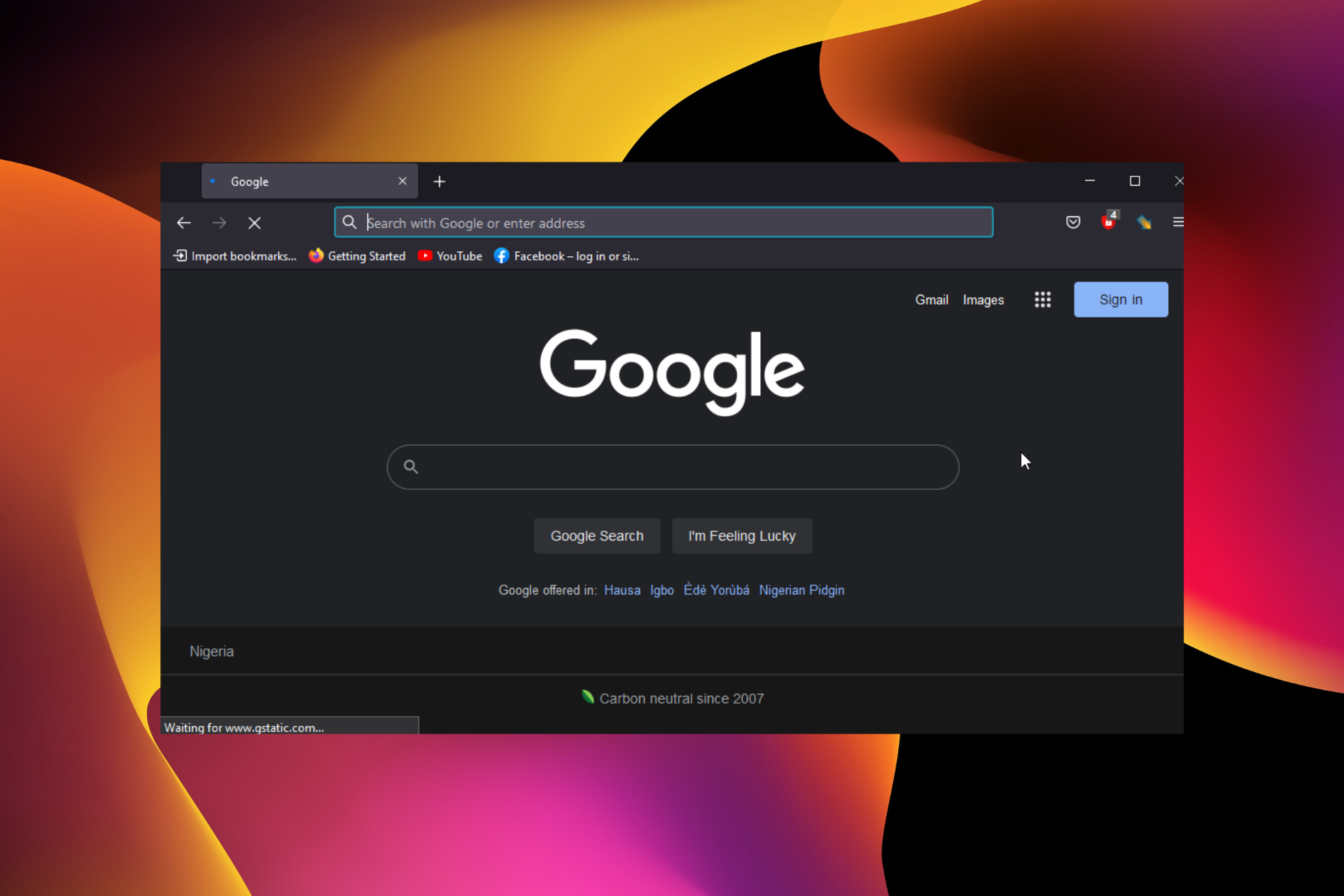


![Something Went Wrong on Our End PayPal Error [Fix]](https://windowsreport.com/wp-content/uploads/2019/04/Something-went-wrong-on-our-end-PayPal-1.jpg)



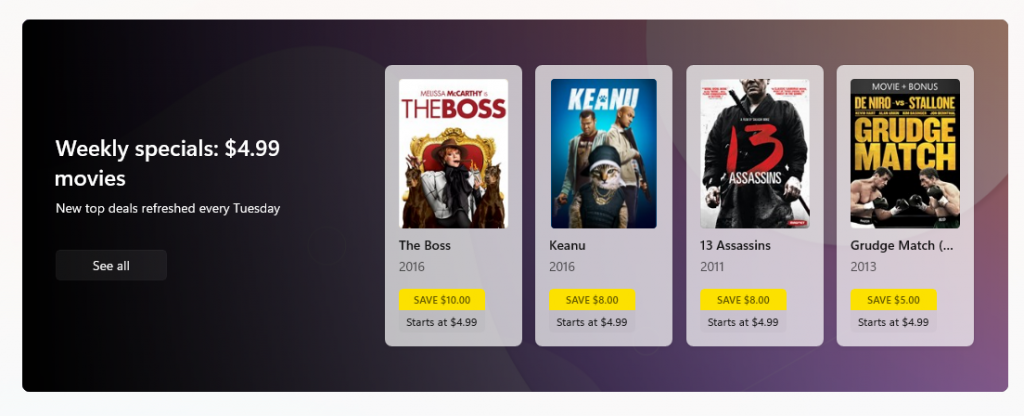
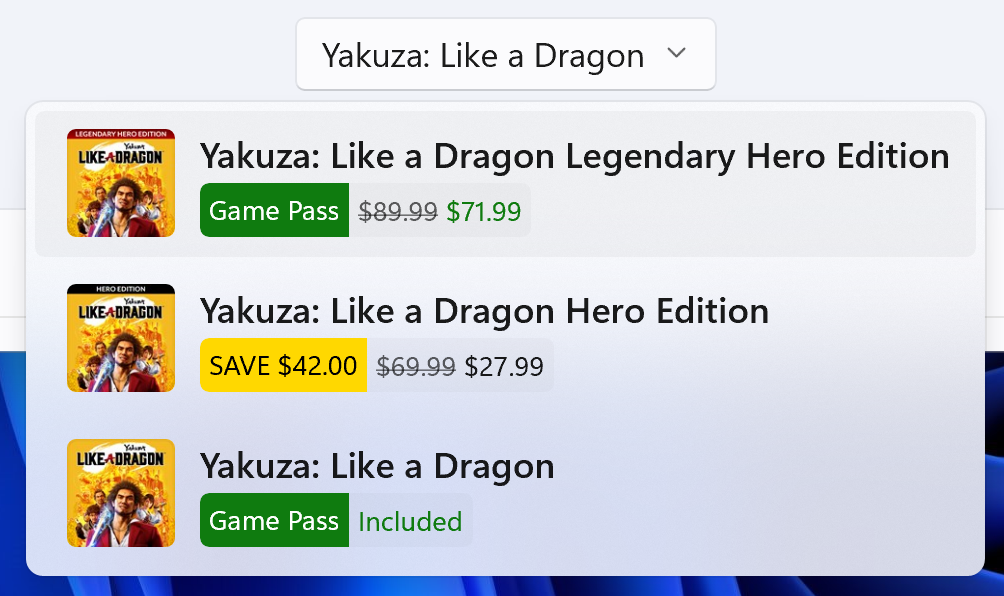
![How to Play Doom in Your Browser [No Download Required]](https://windowsreport.com/wp-content/uploads/2020/06/doom-w11-browser.jpg)


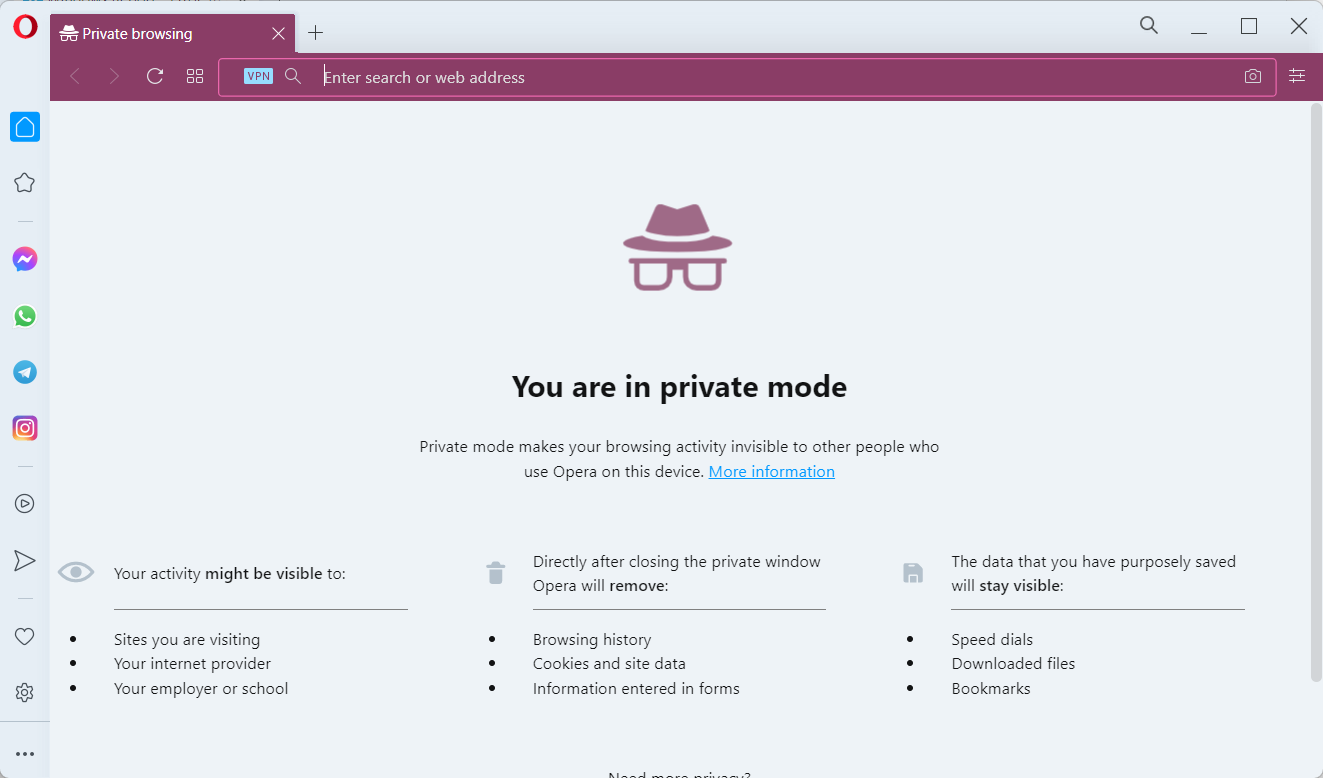



![How to Backup & Restore Steam Cloud Saves [Gaming Tips]](https://windowsreport.com/wp-content/uploads/2020/10/steam-backup-game-files.jpg)
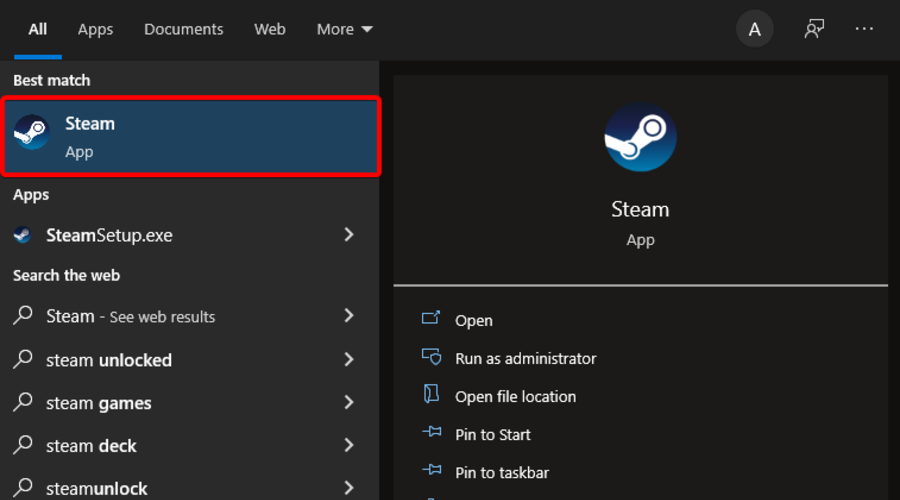
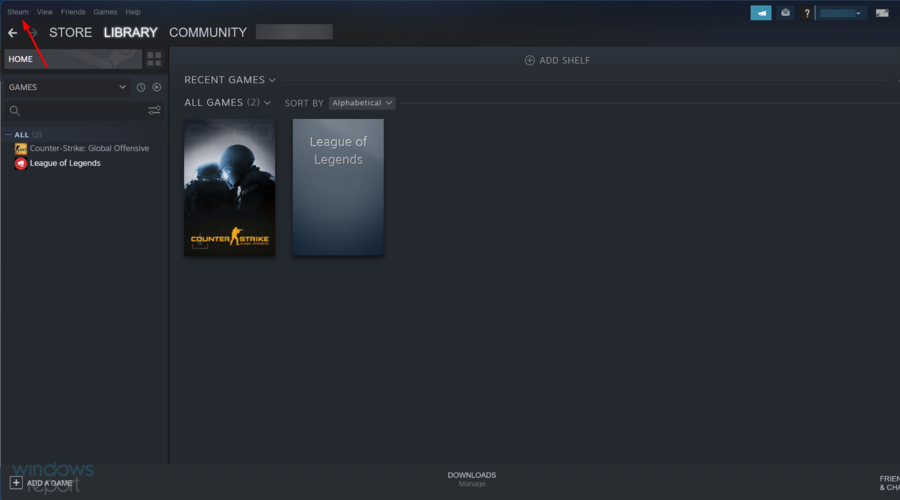
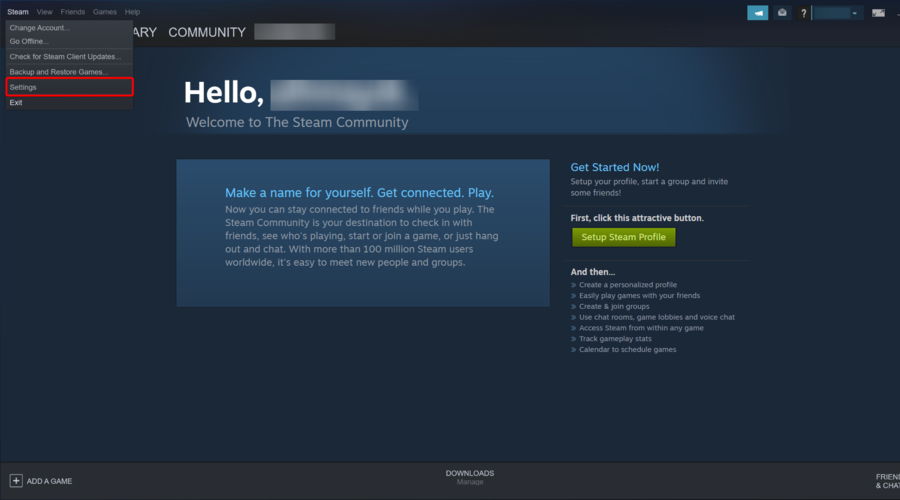


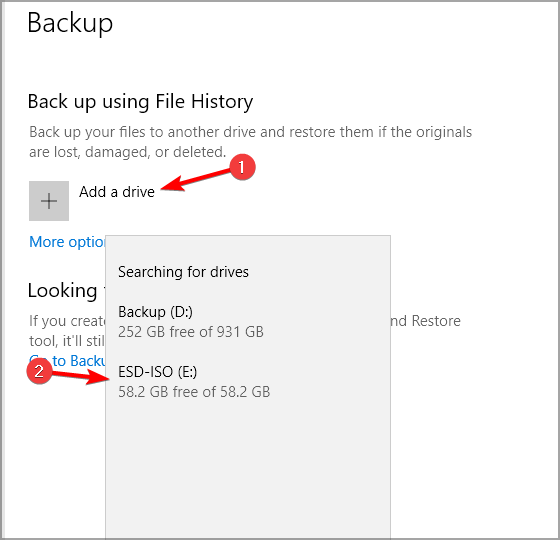



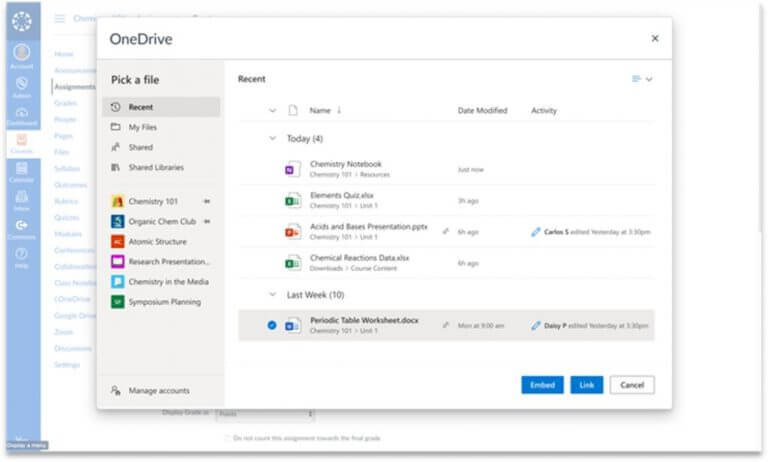
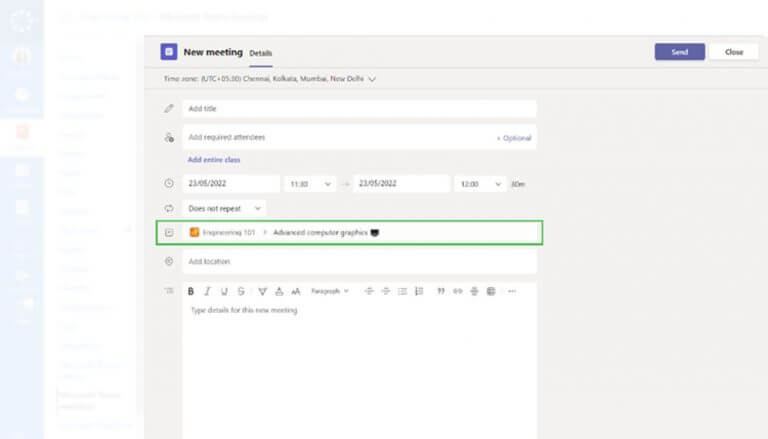
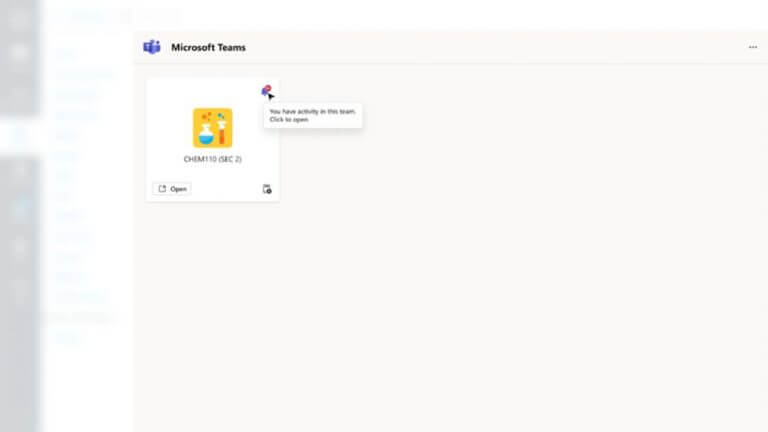
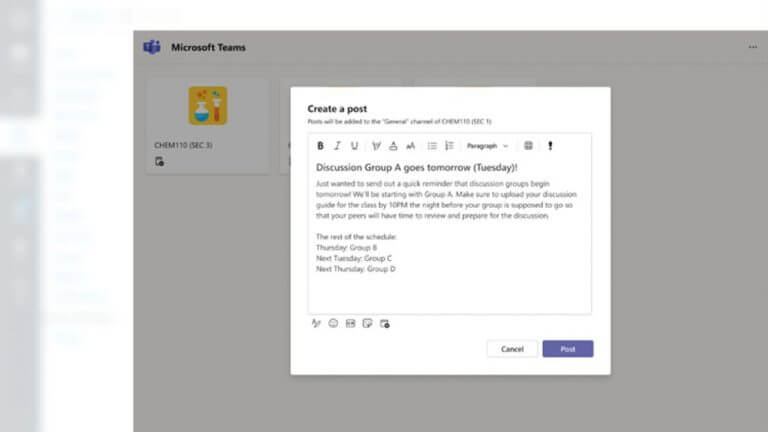
![How to Play Pong Games in Your Browser [Multiplayer, Unblocked]](https://windowsreport.com/wp-content/uploads/2020/04/Ping-Pong.jpg)



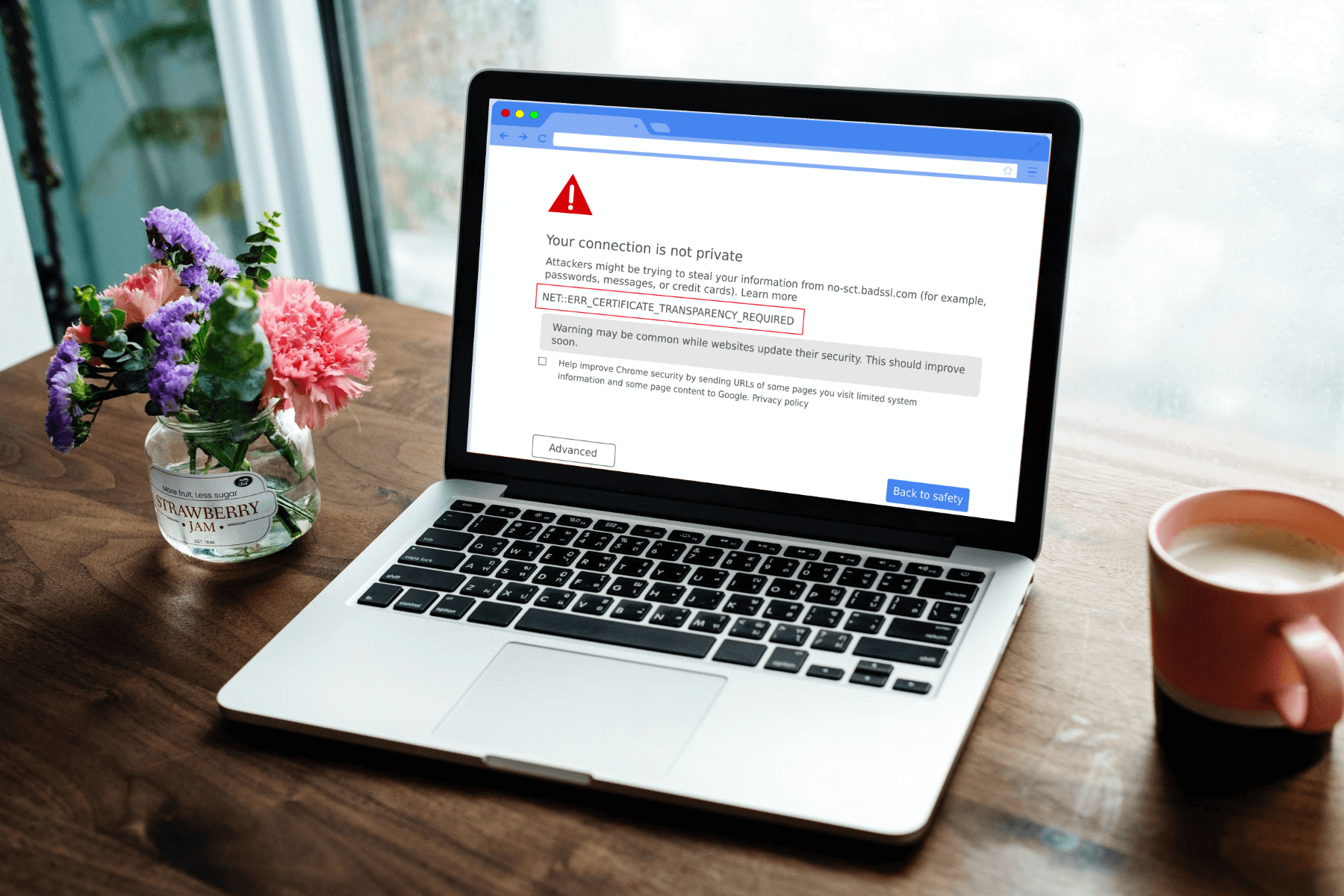


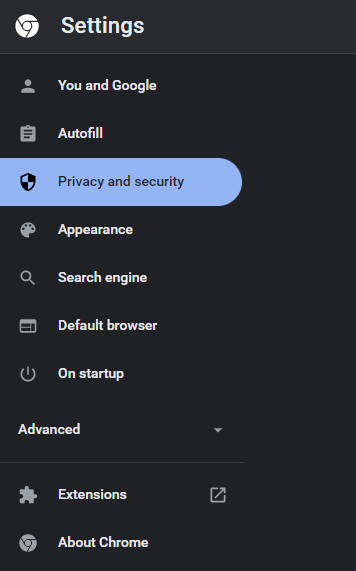
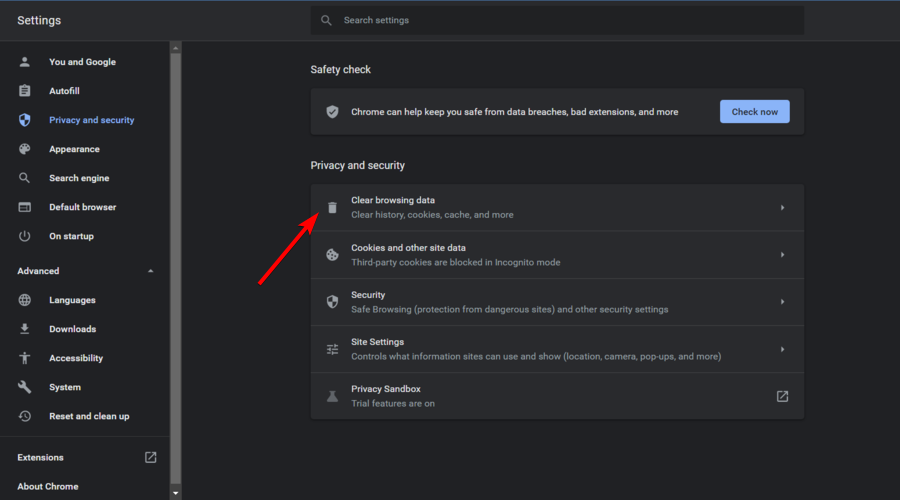
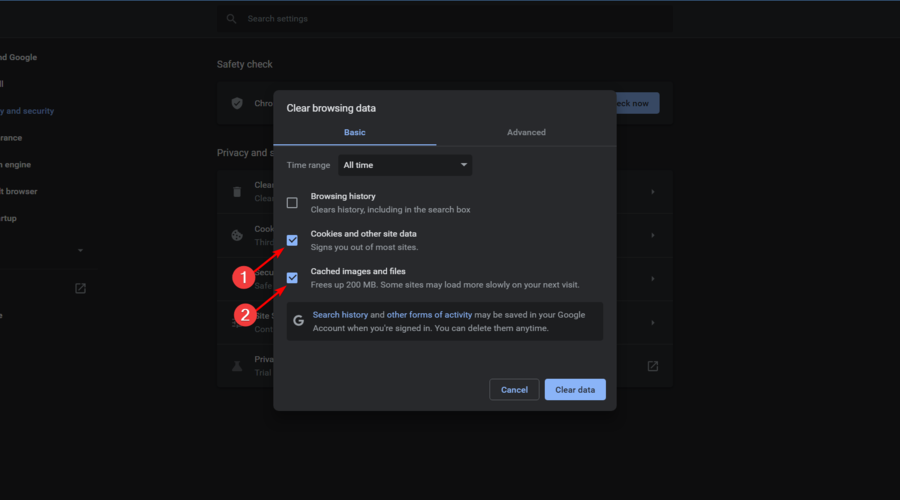
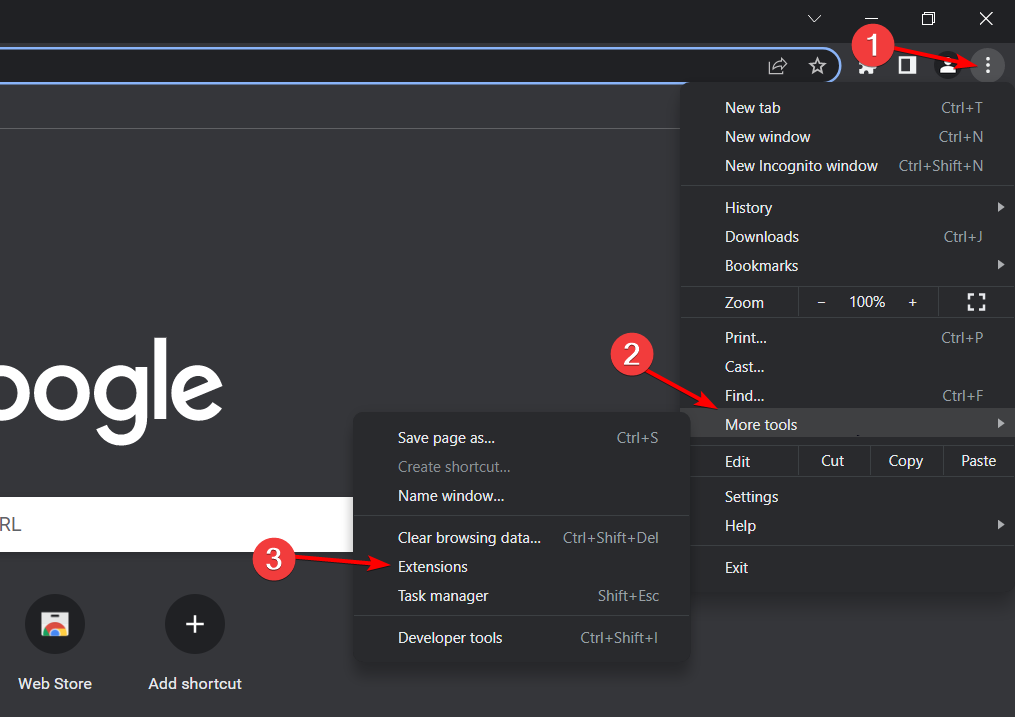
![5 Best Browsers for MX Linux [Ranked by Speed & Security]](https://windowsreport.com/wp-content/uploads/2022/04/best-browser-for-mx-linux.jpg)
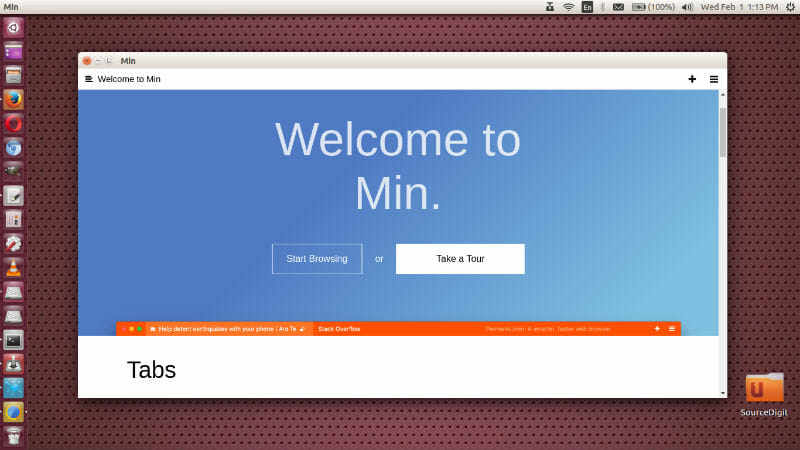

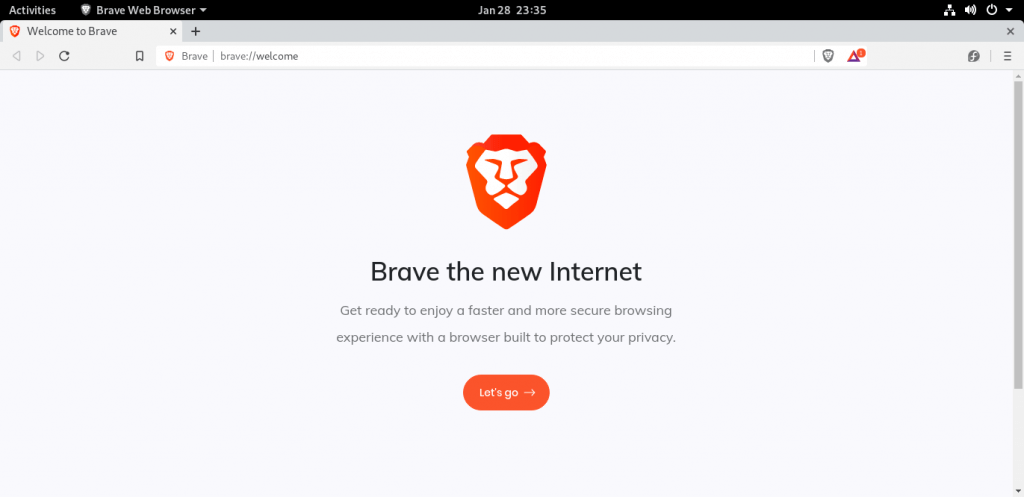
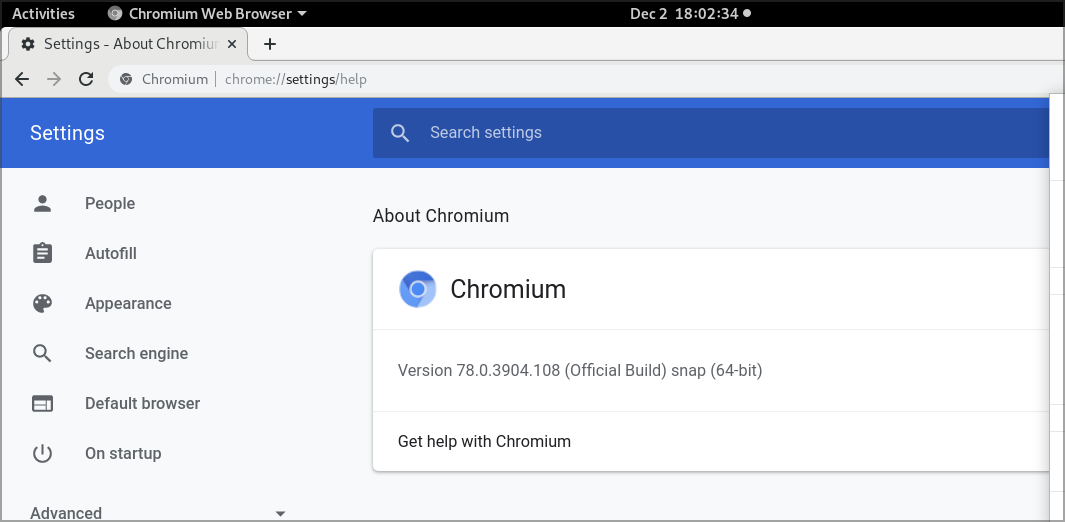



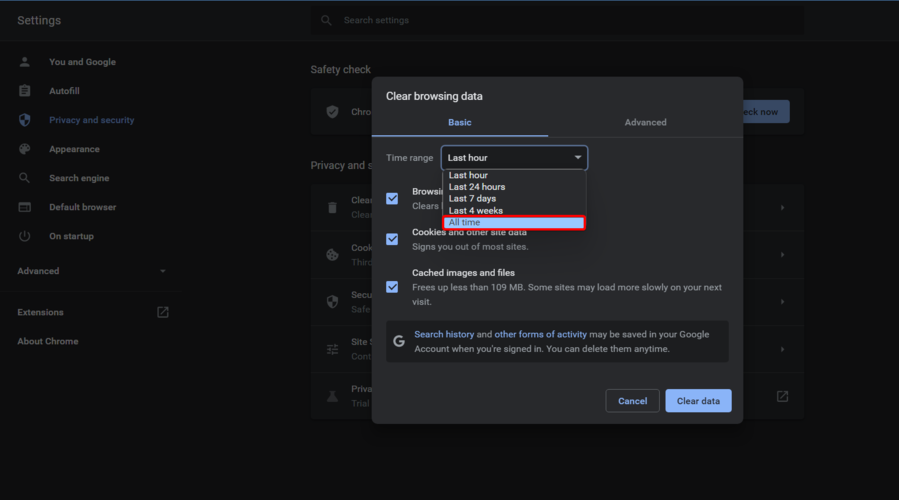


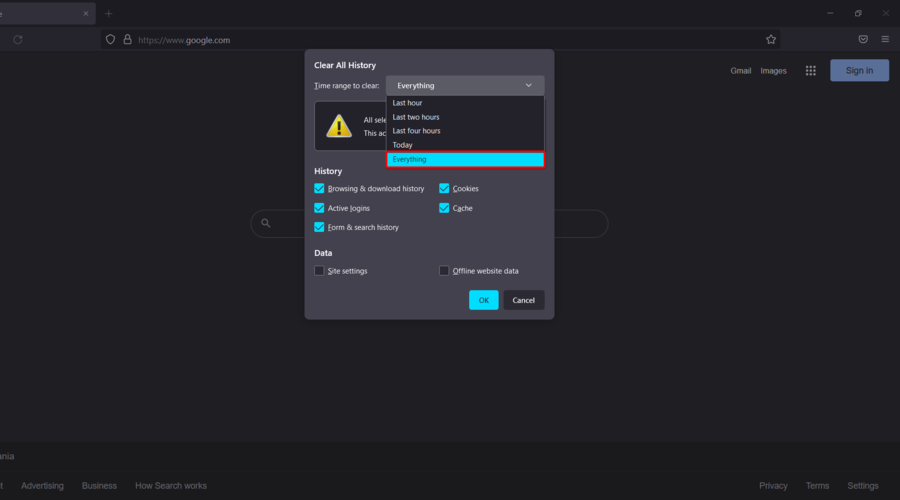

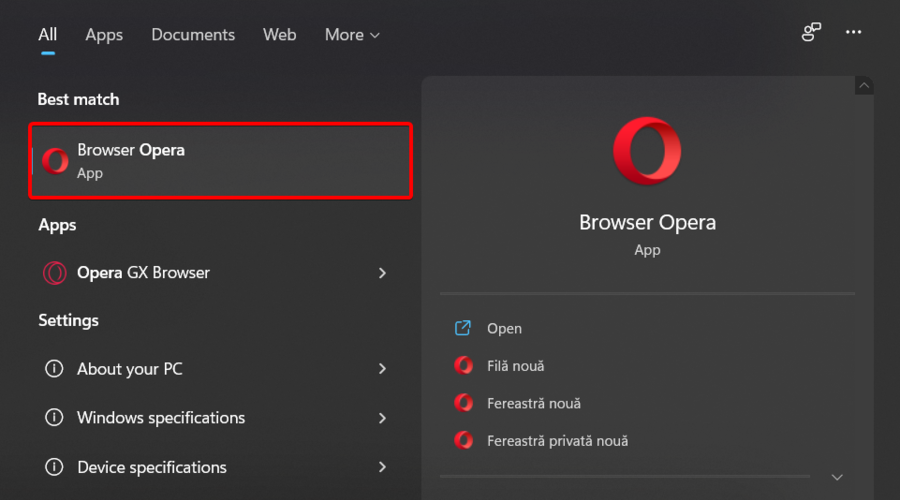


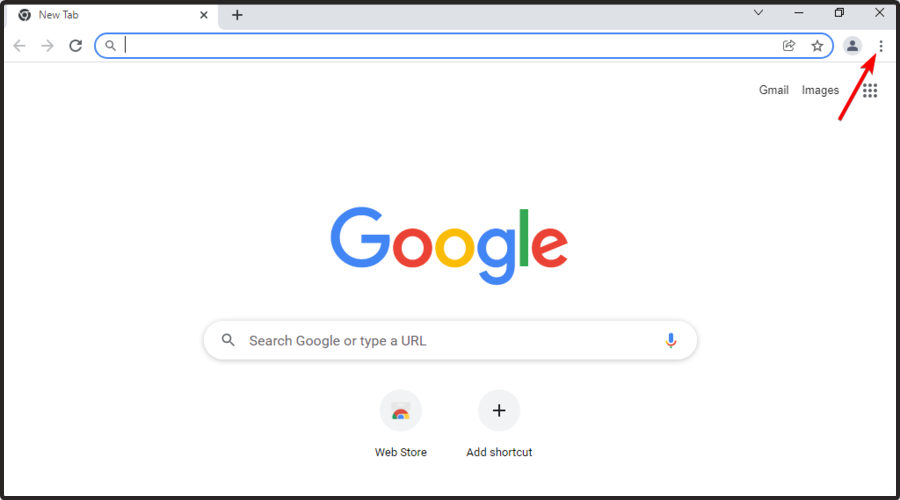
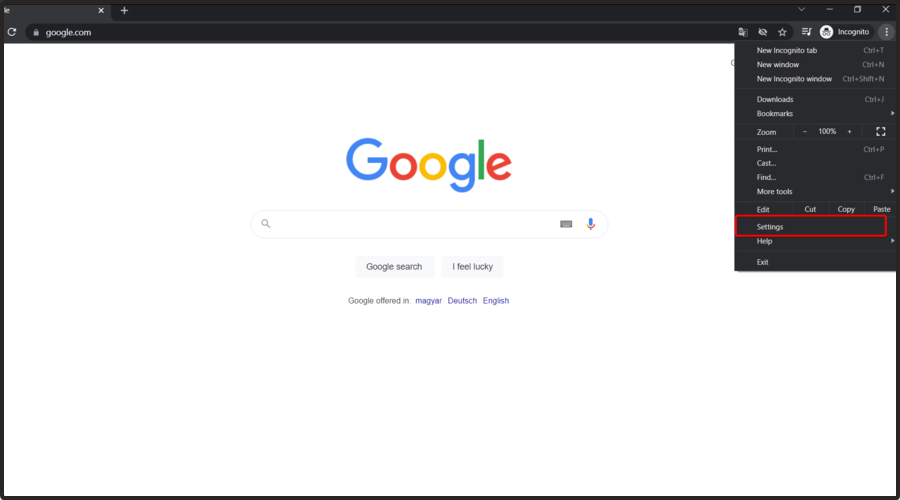


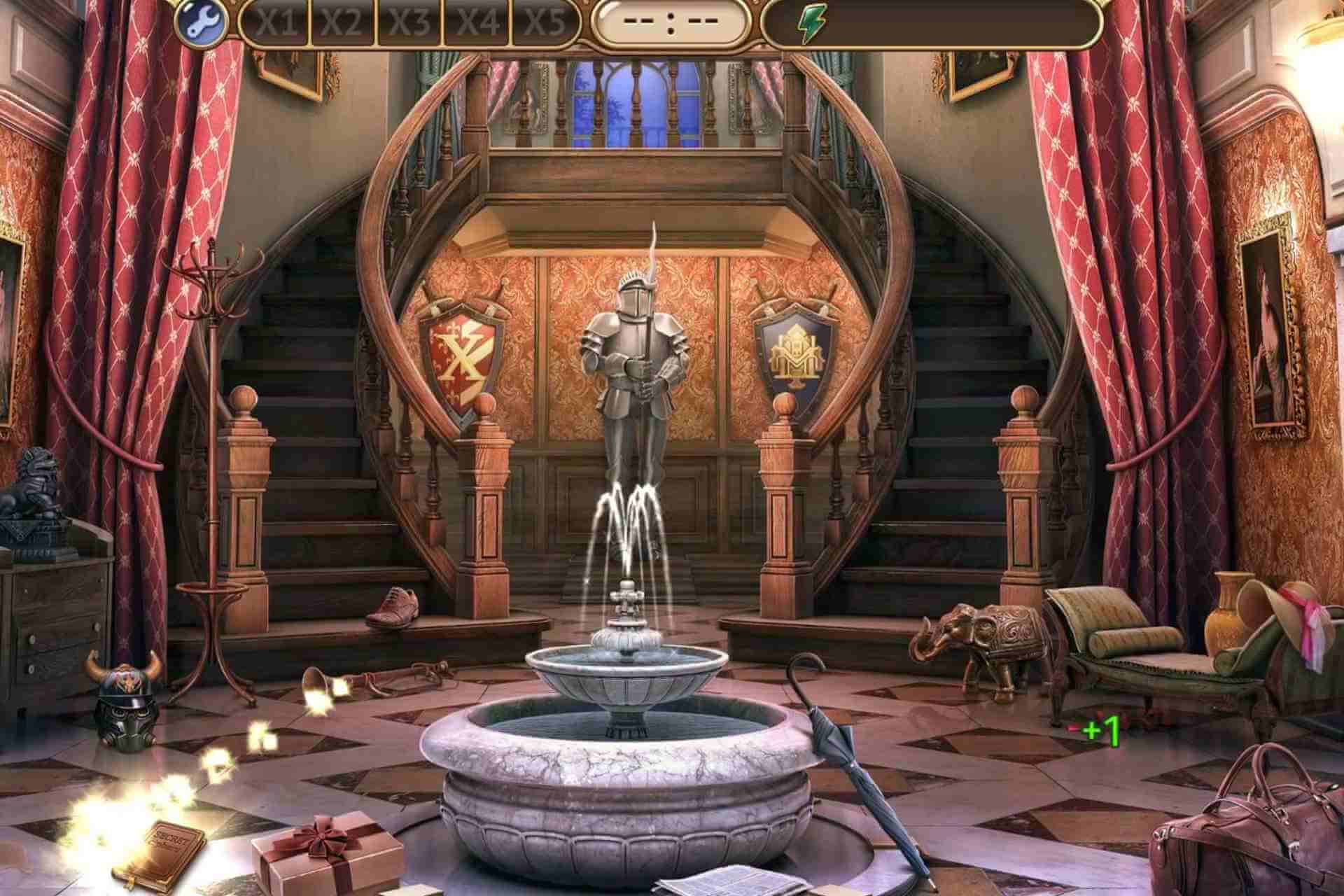





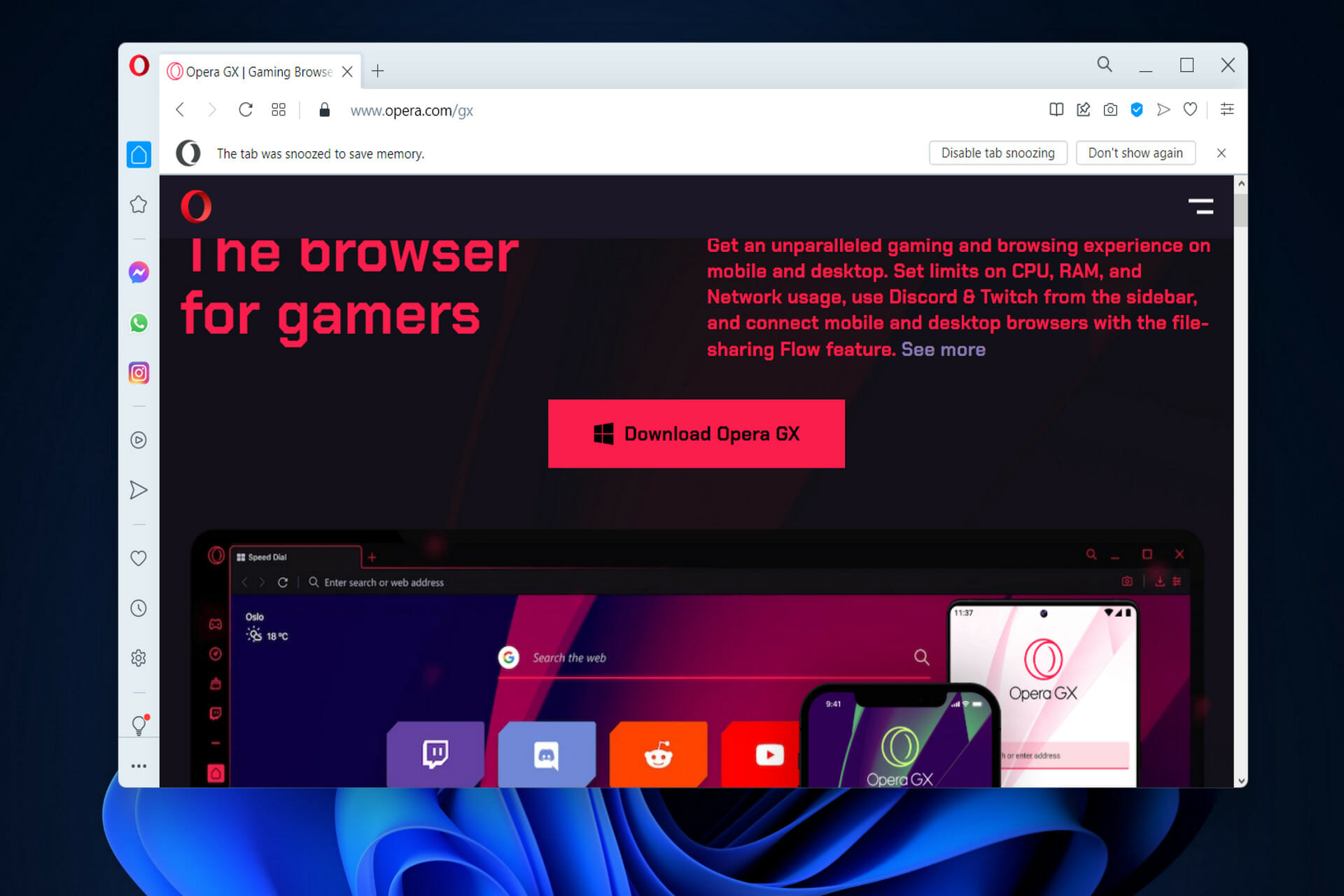
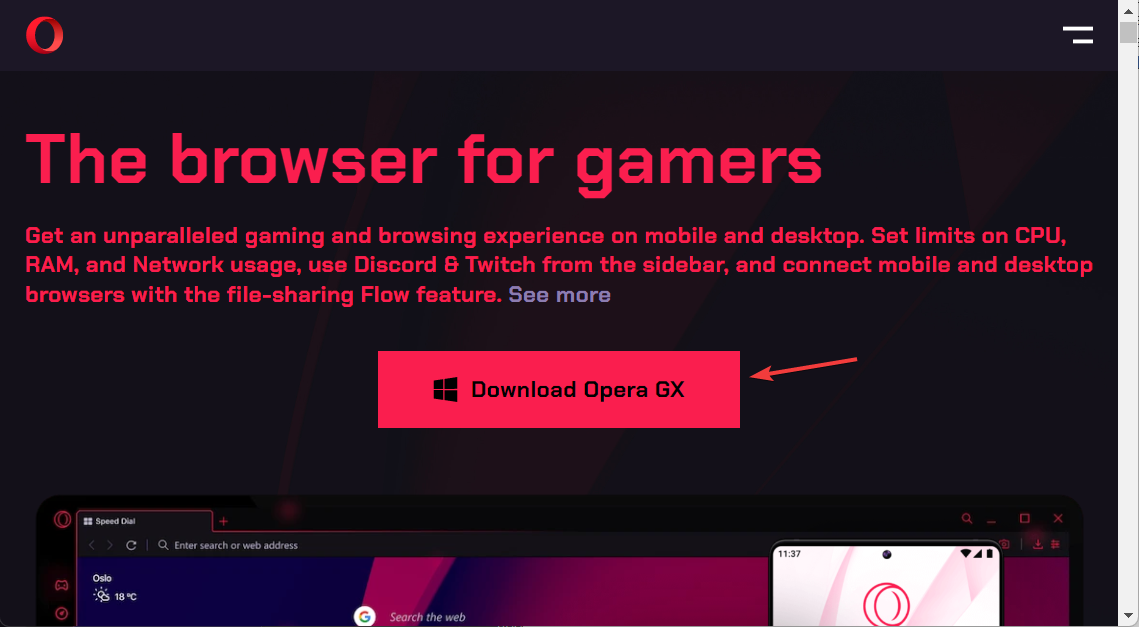
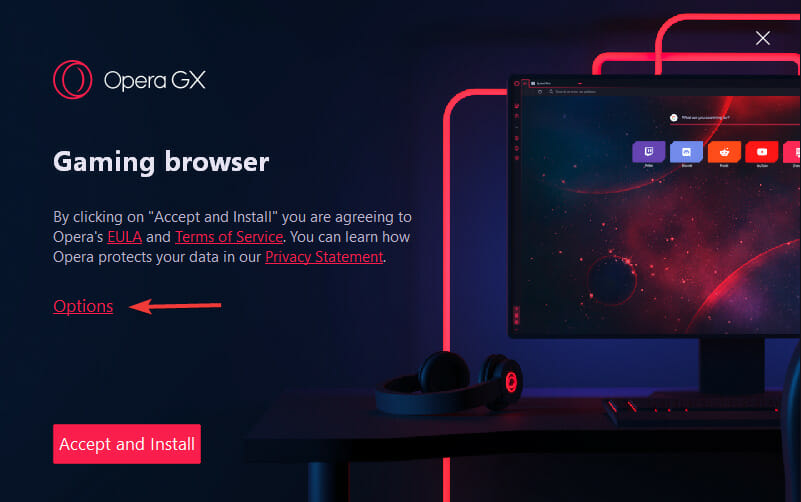
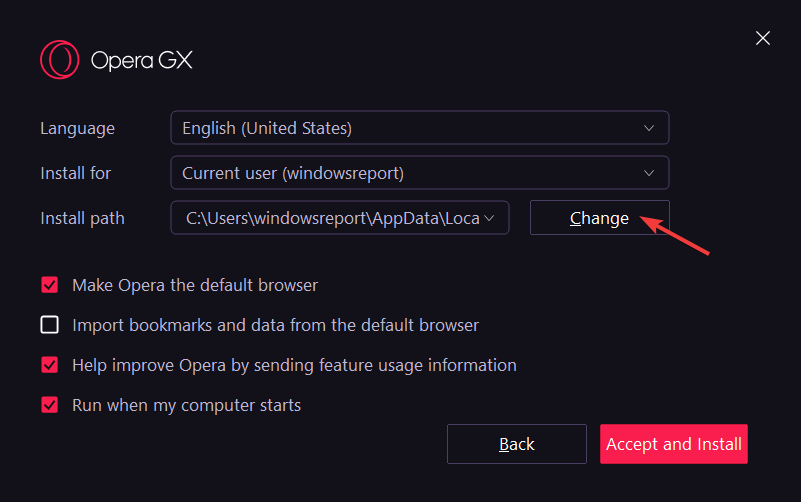

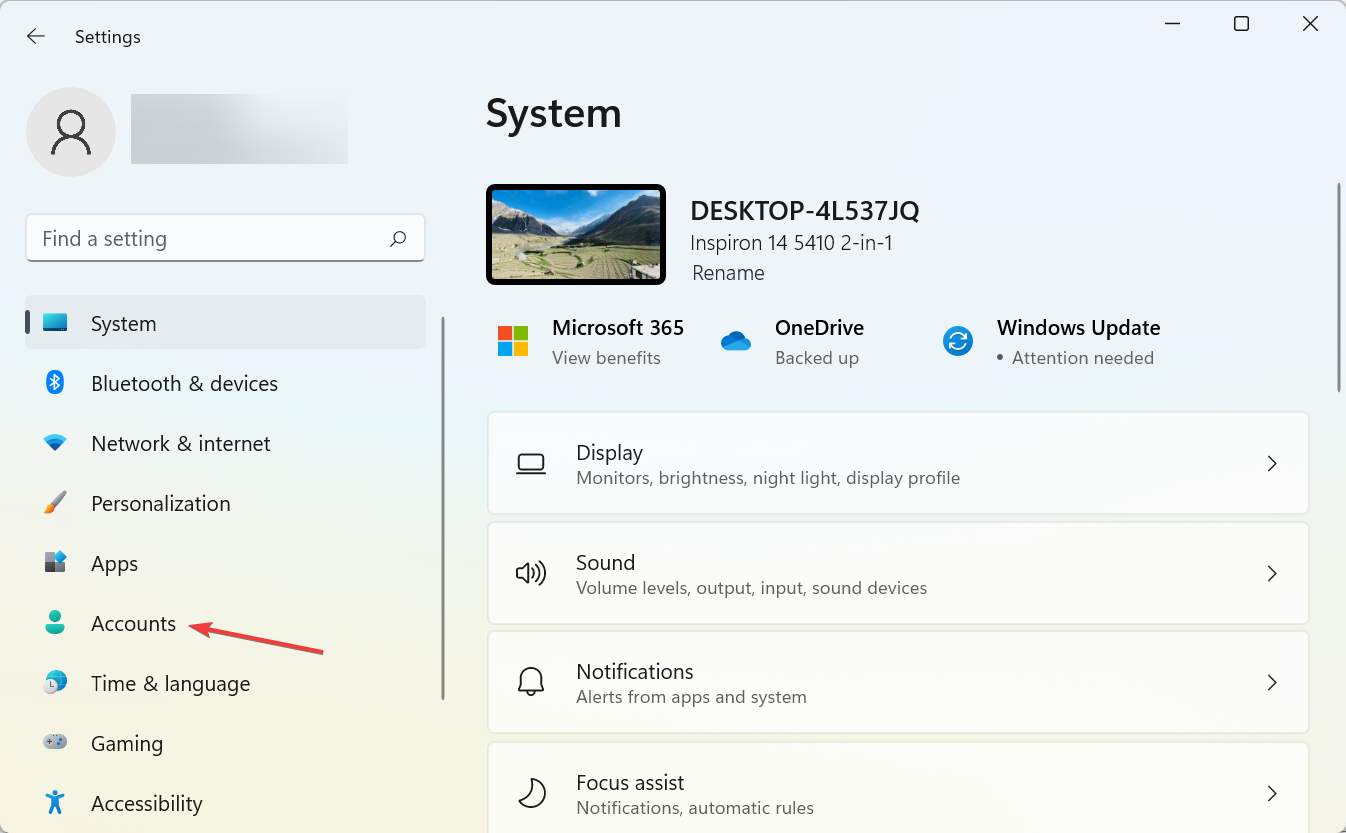
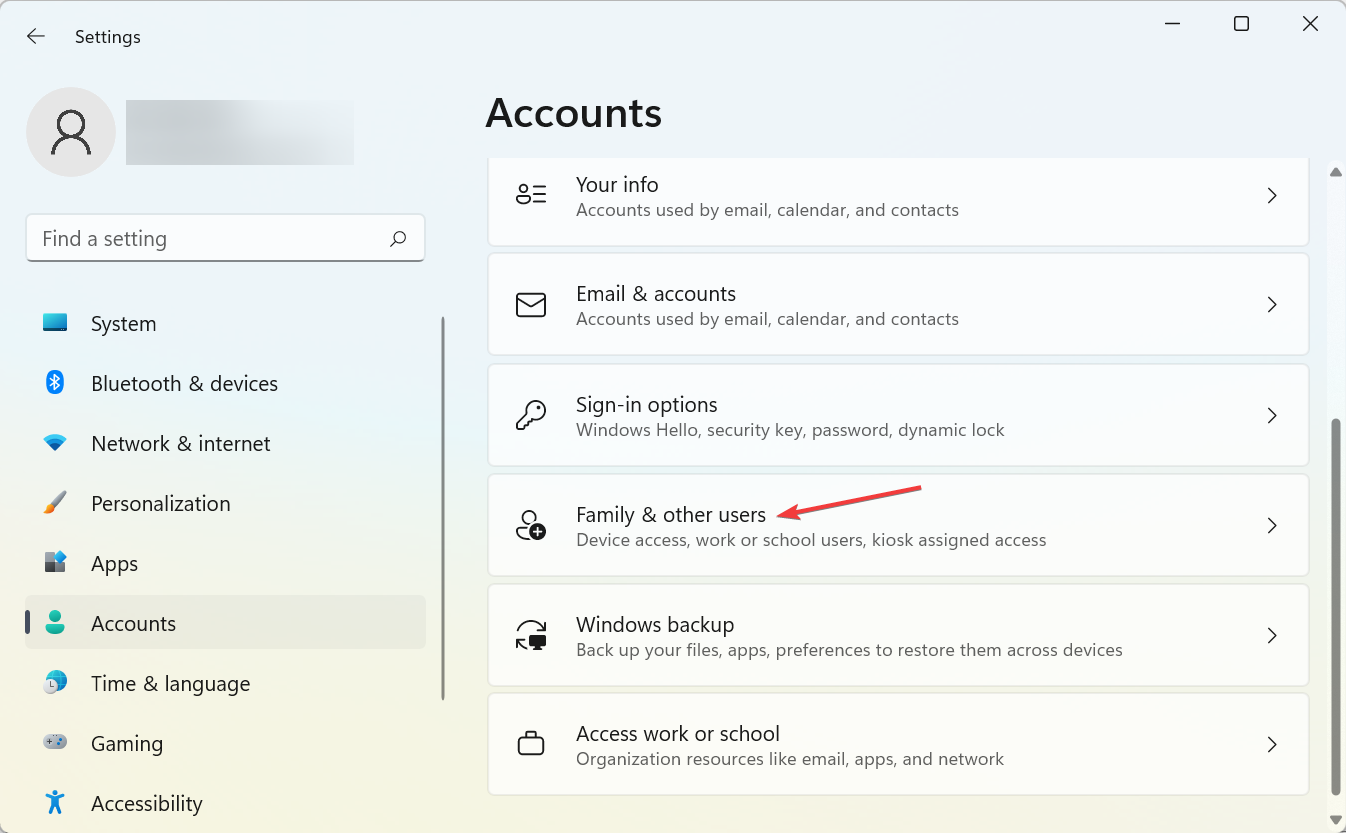
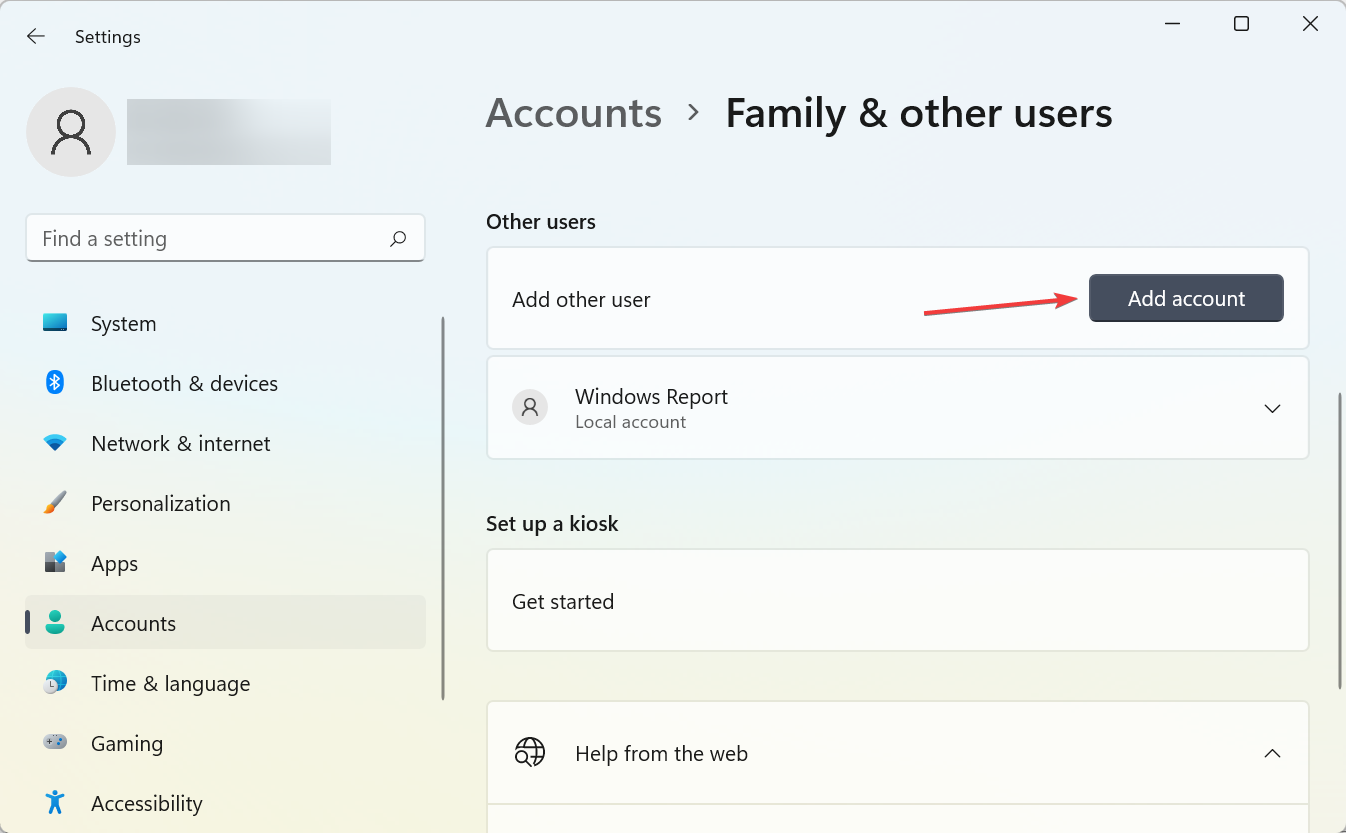
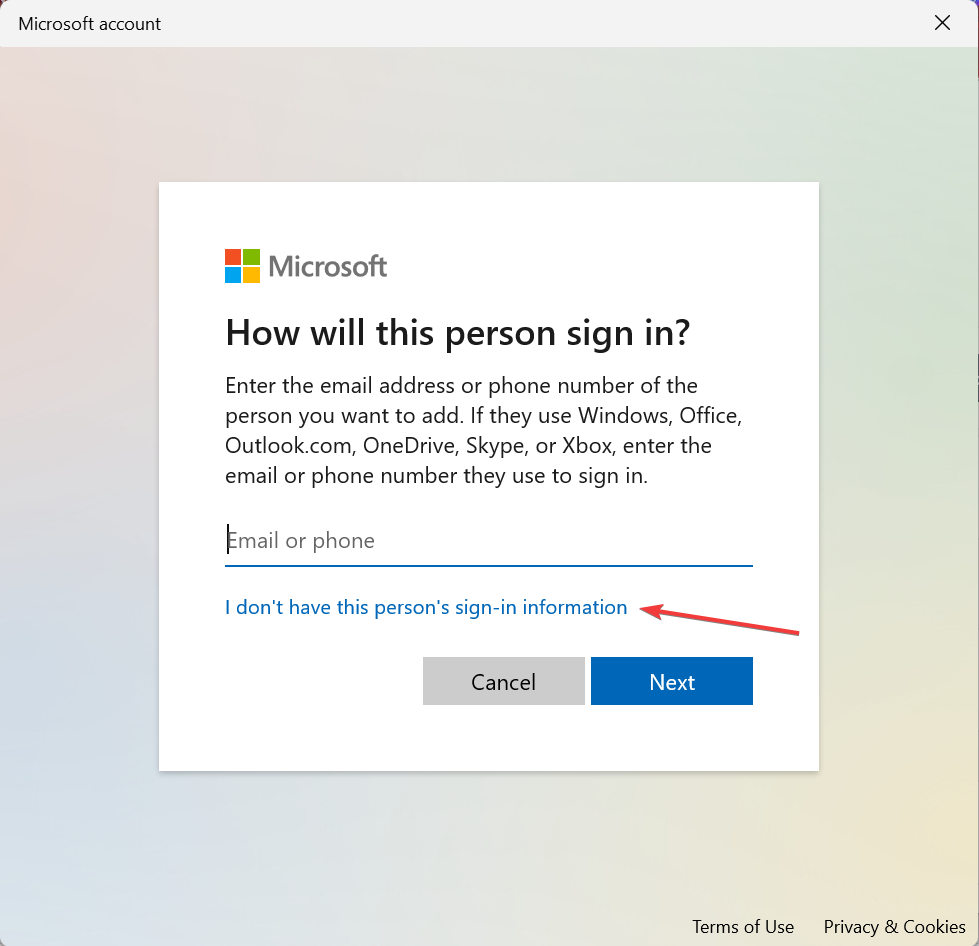
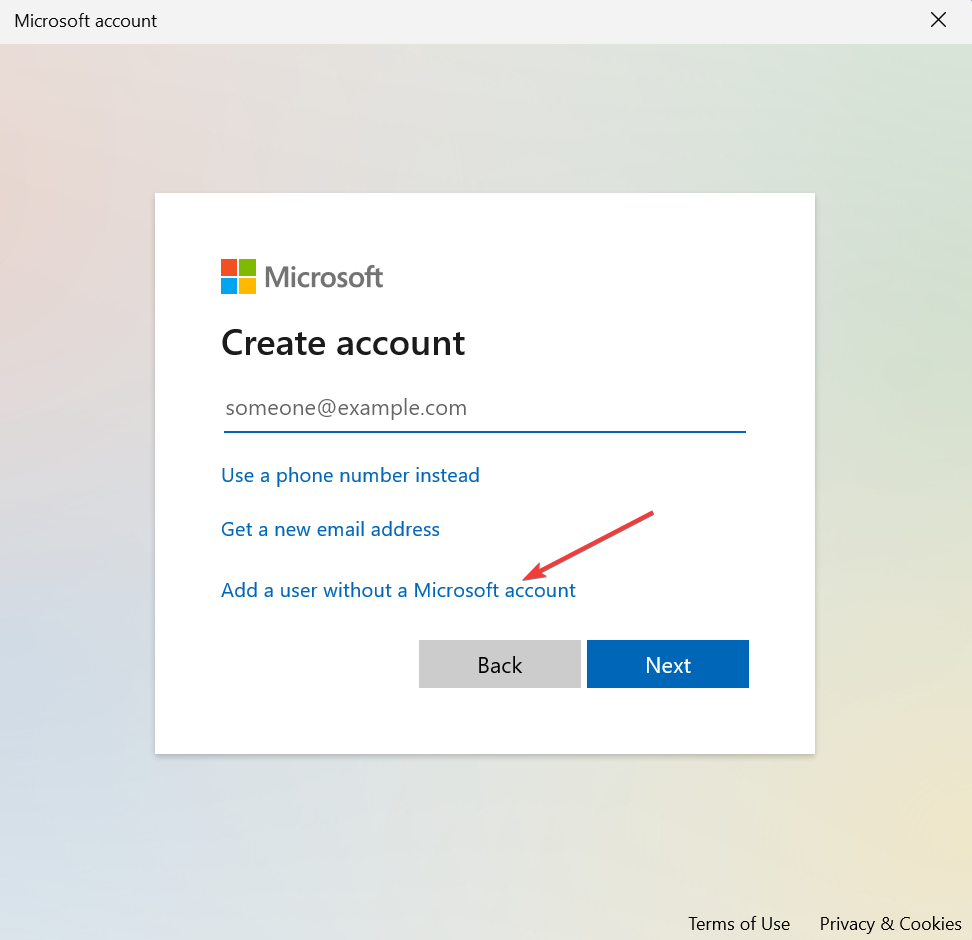
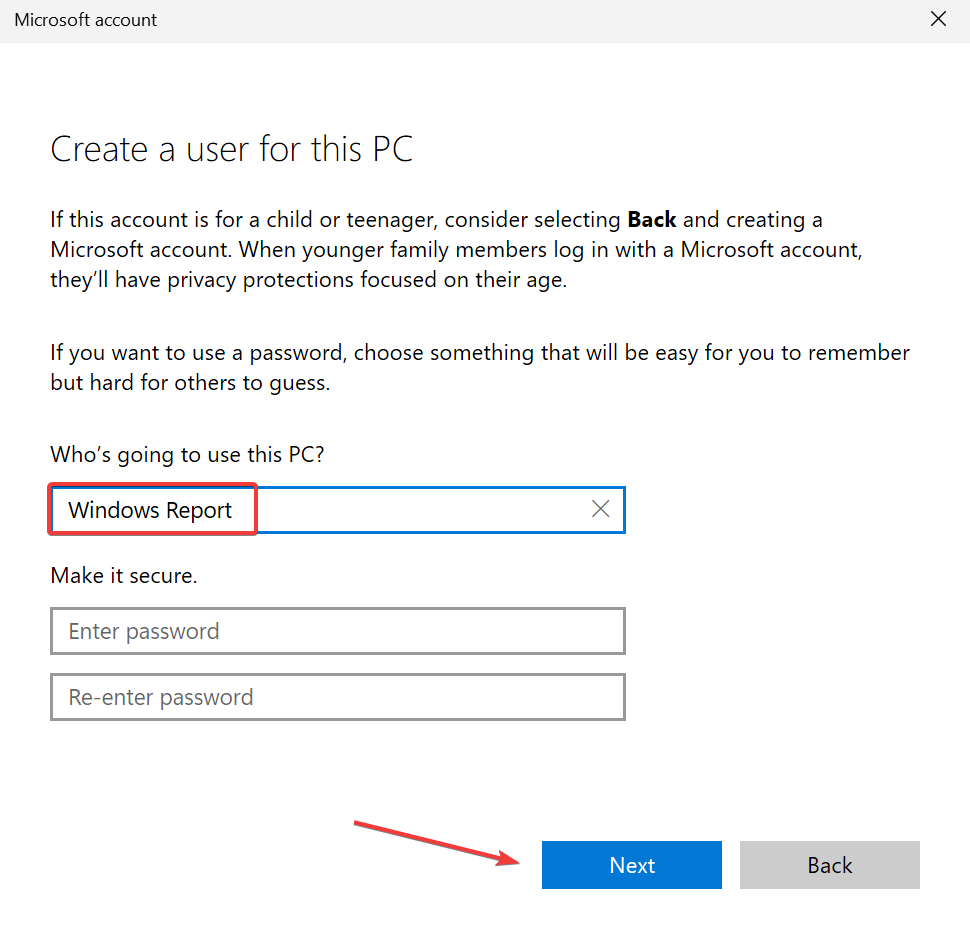


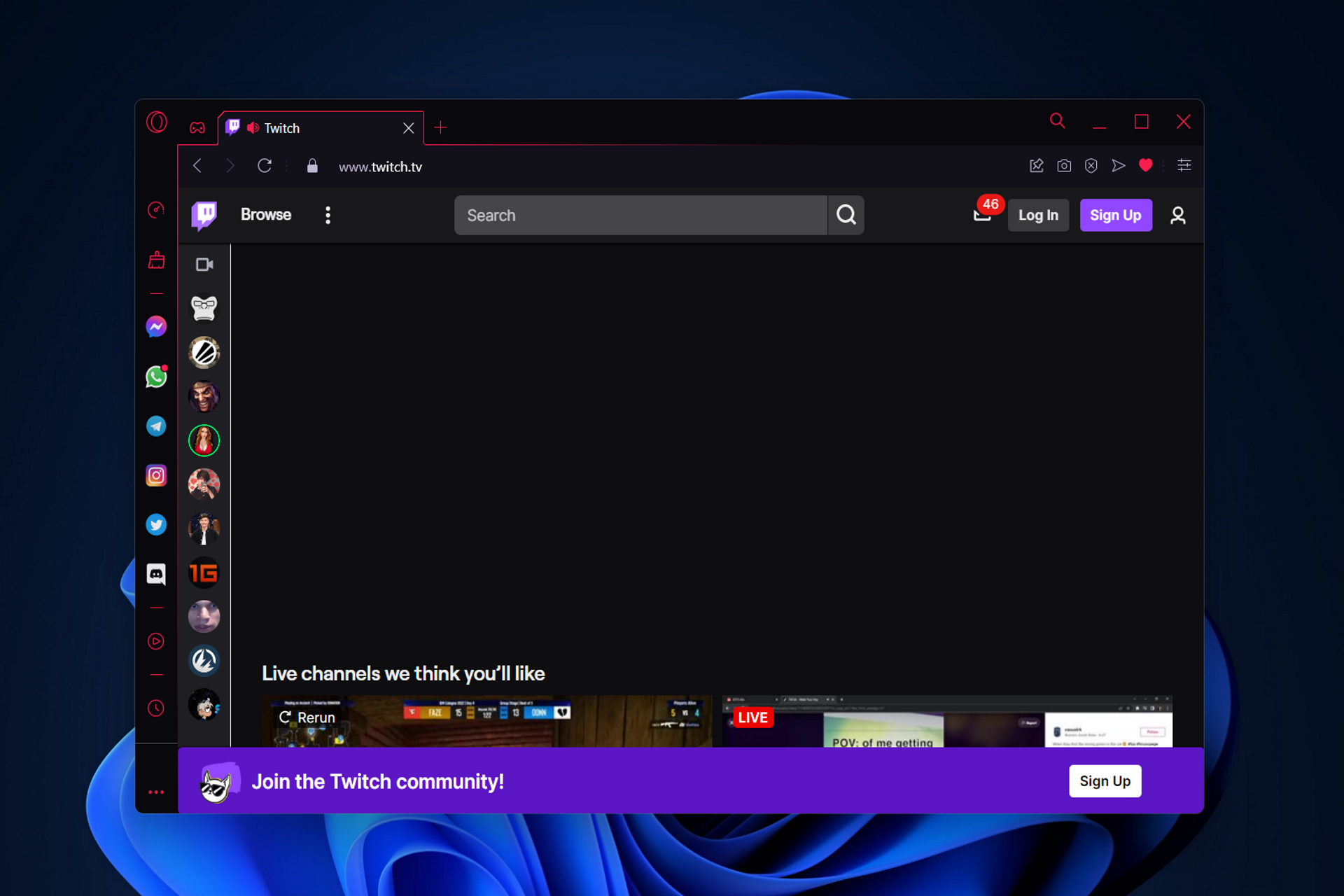


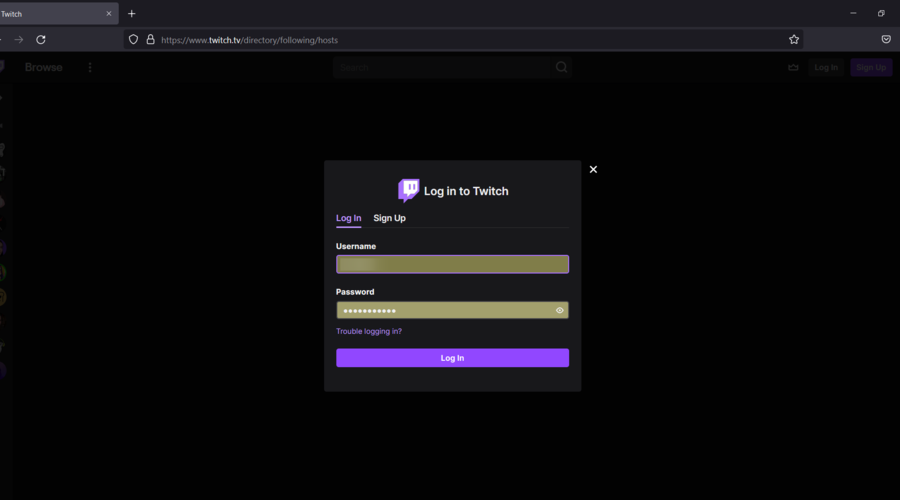
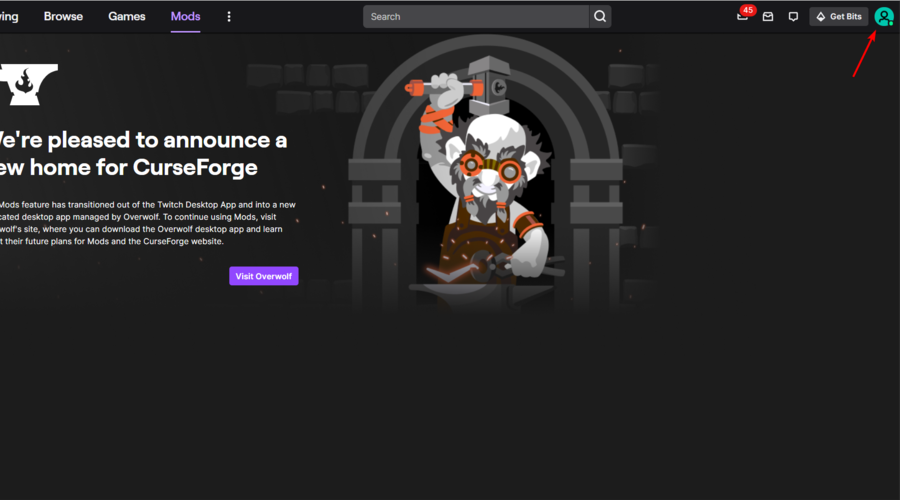
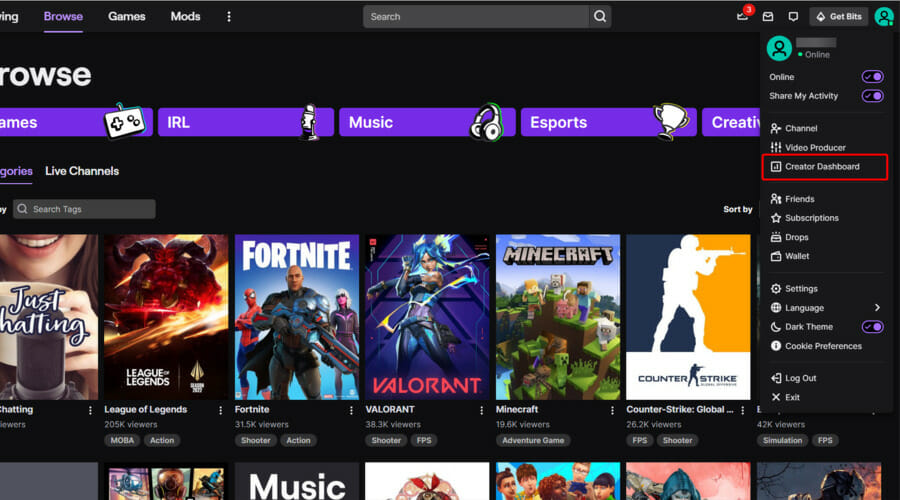


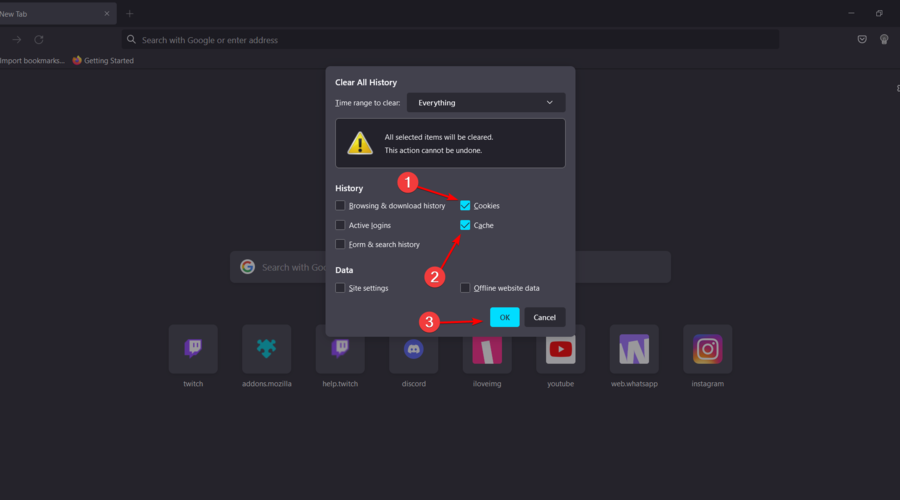

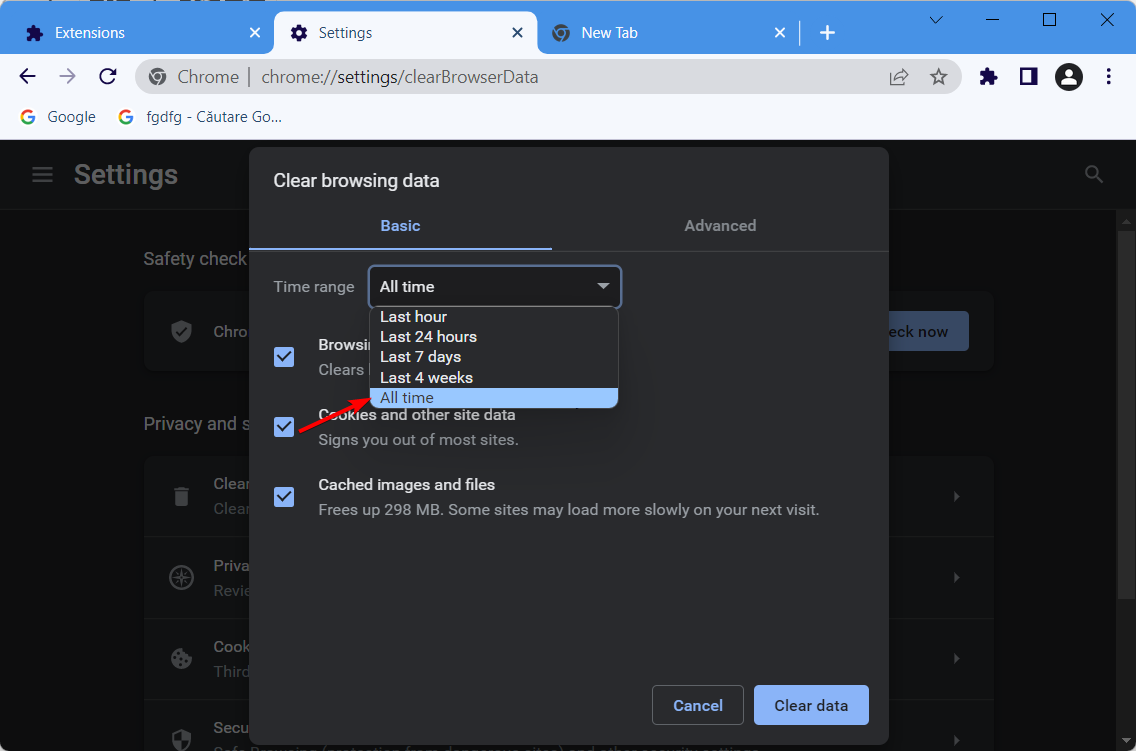
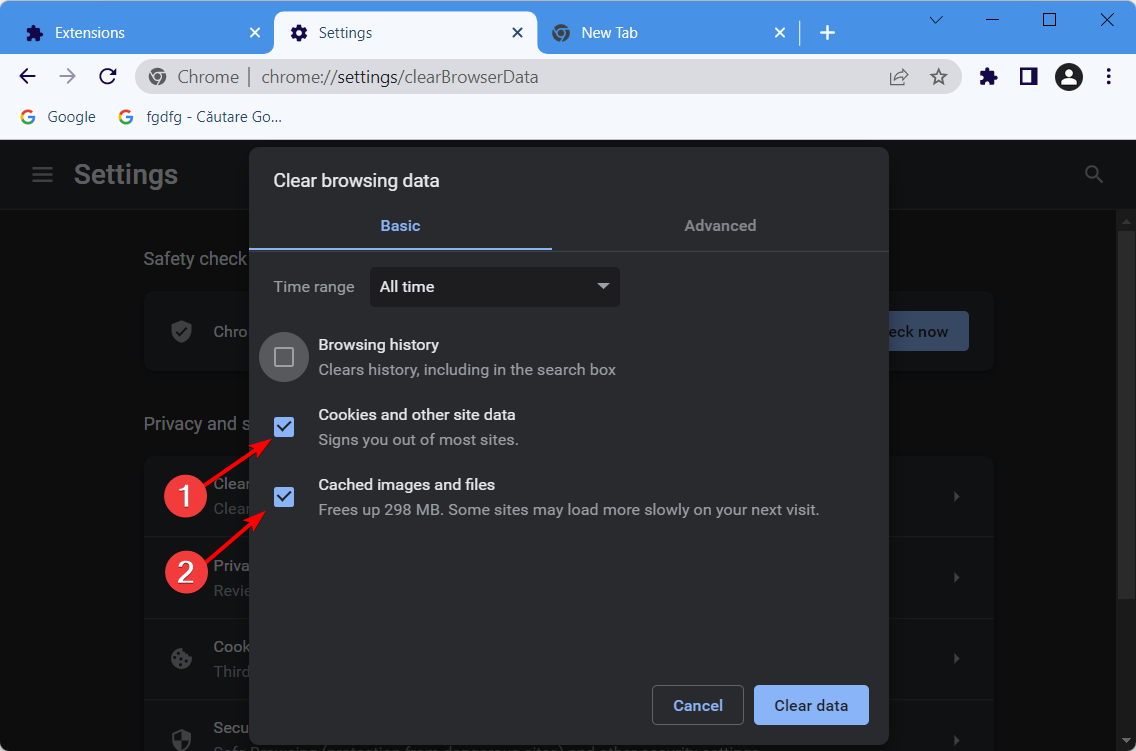
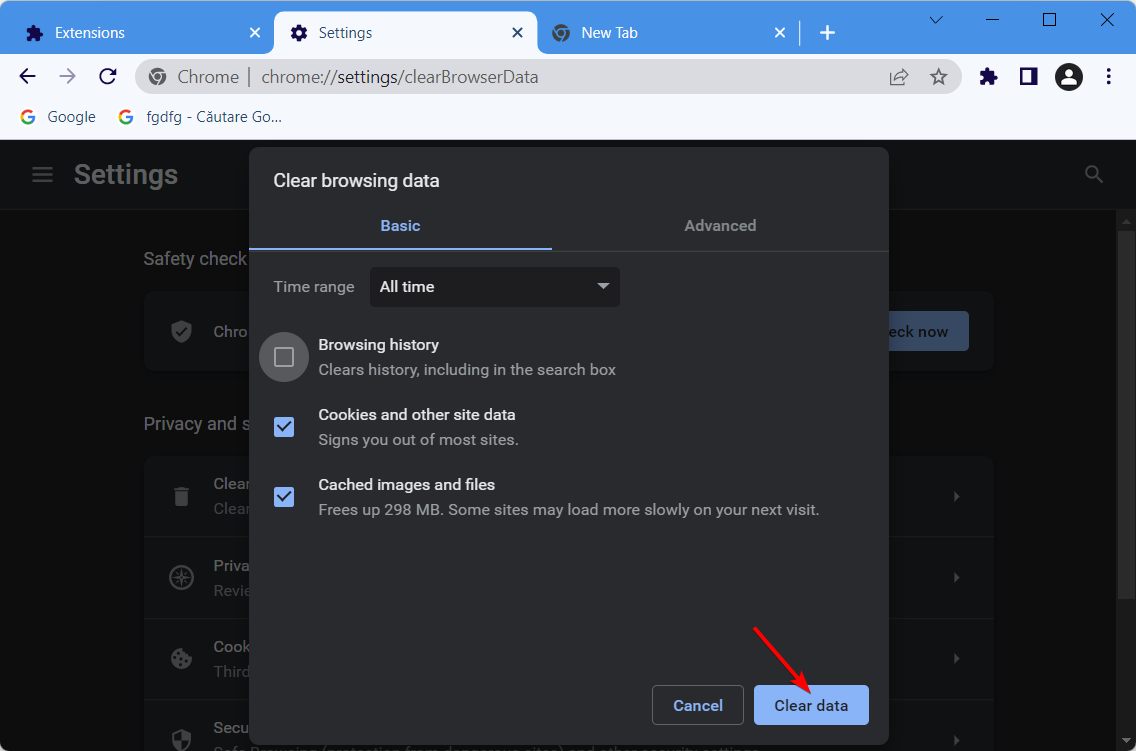


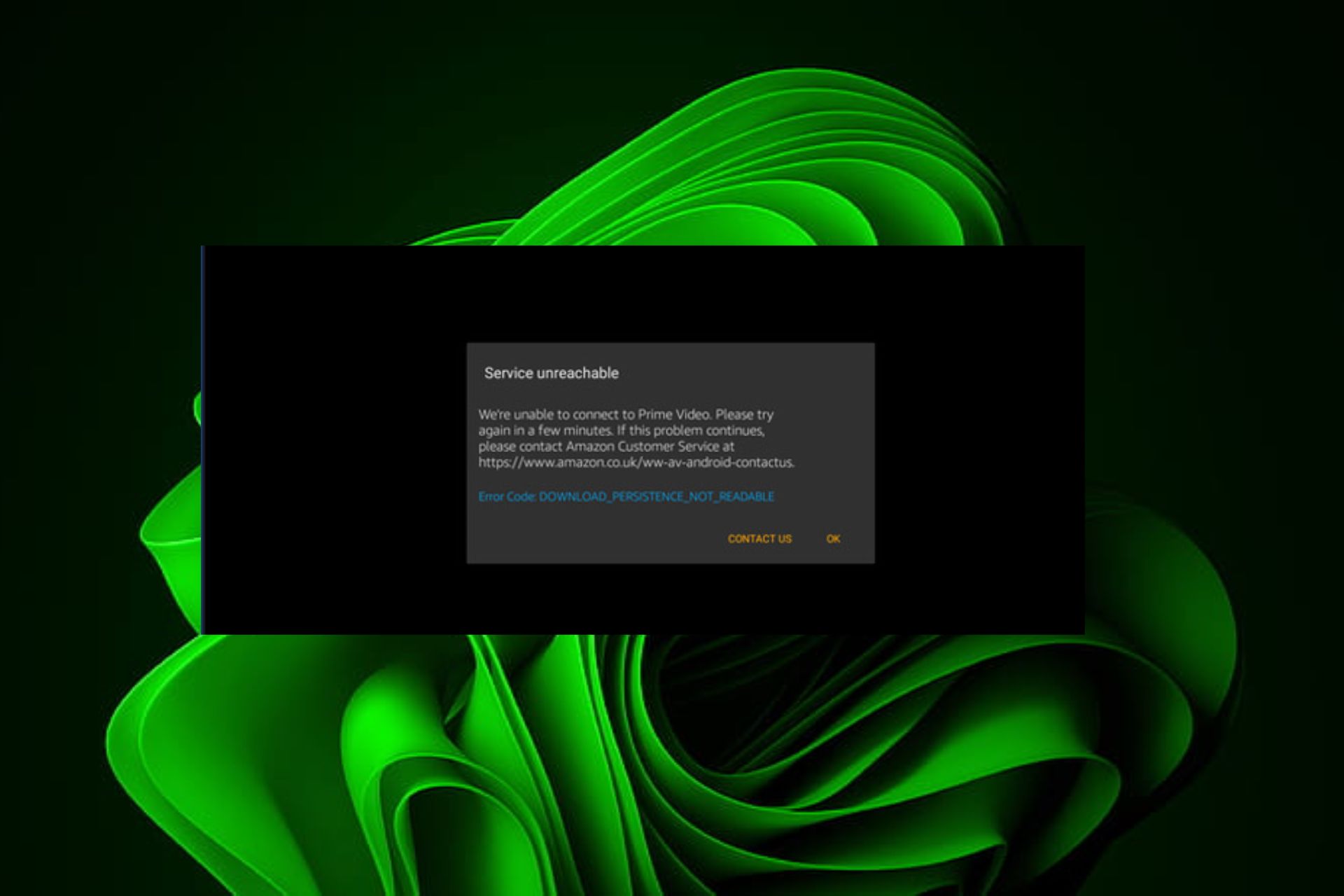
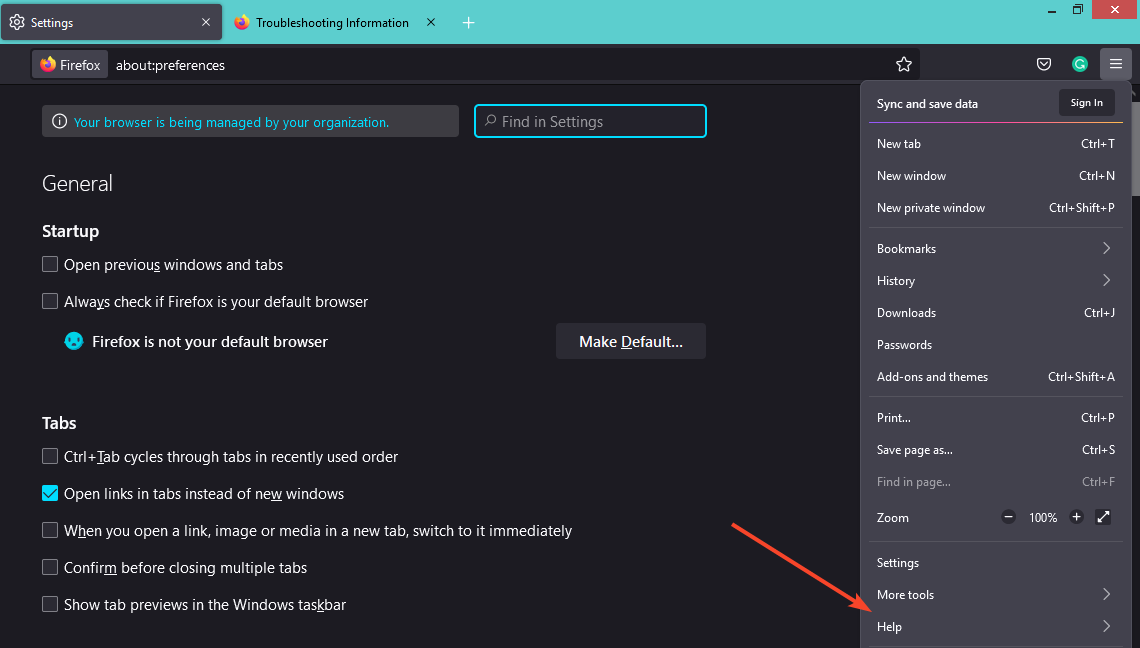
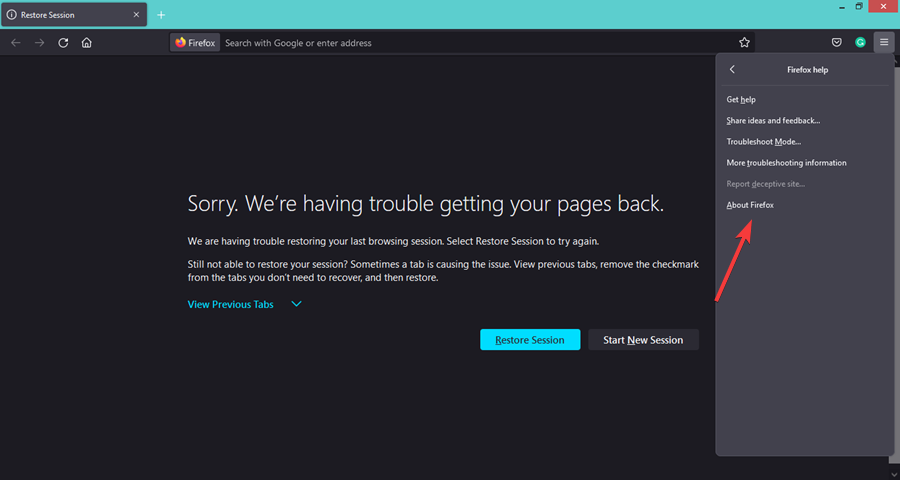
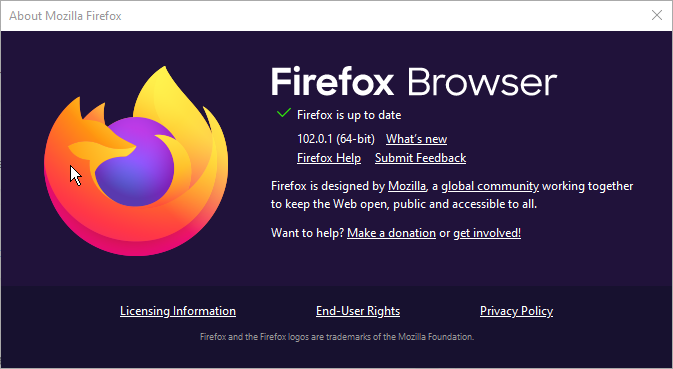
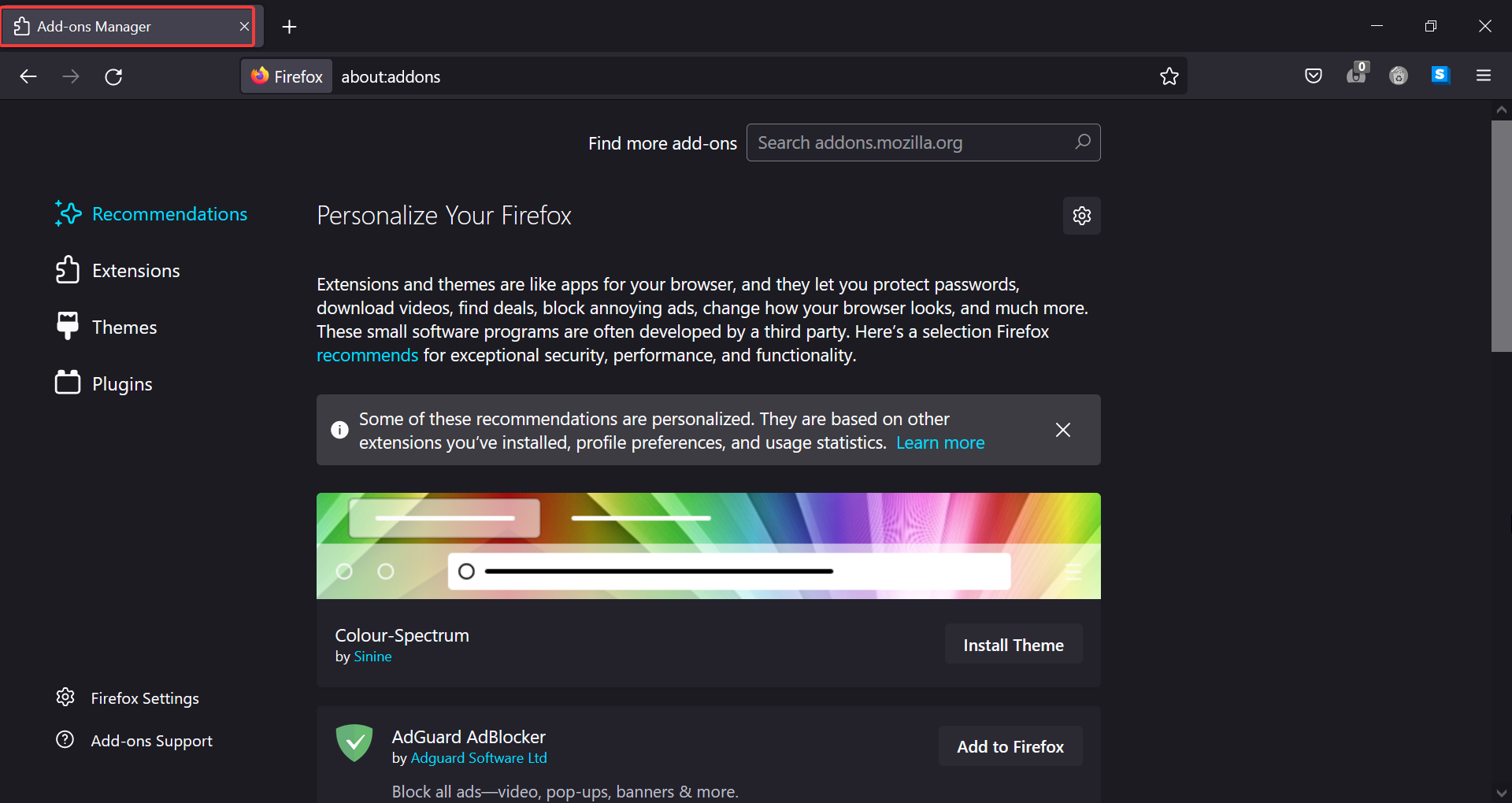
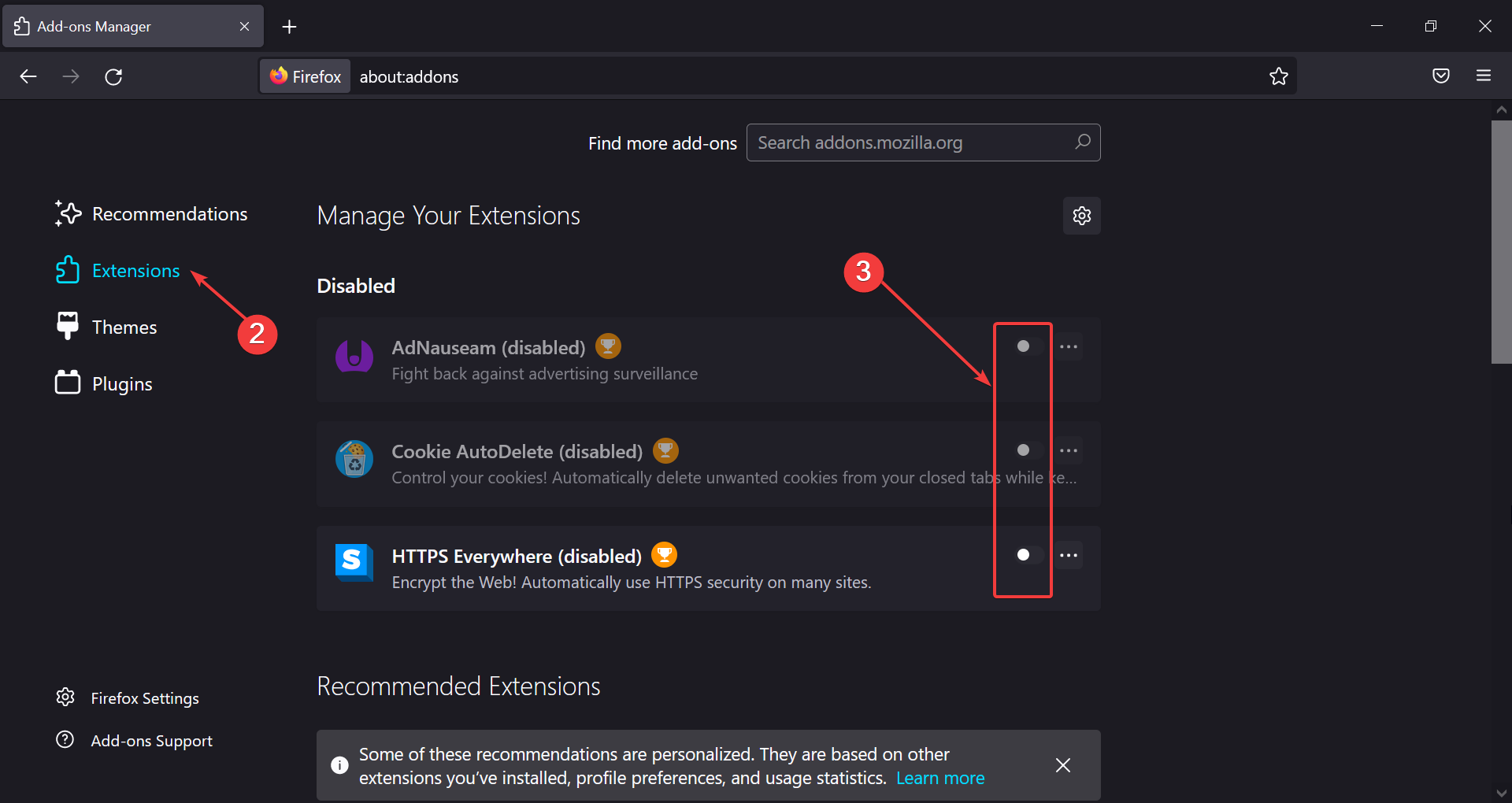
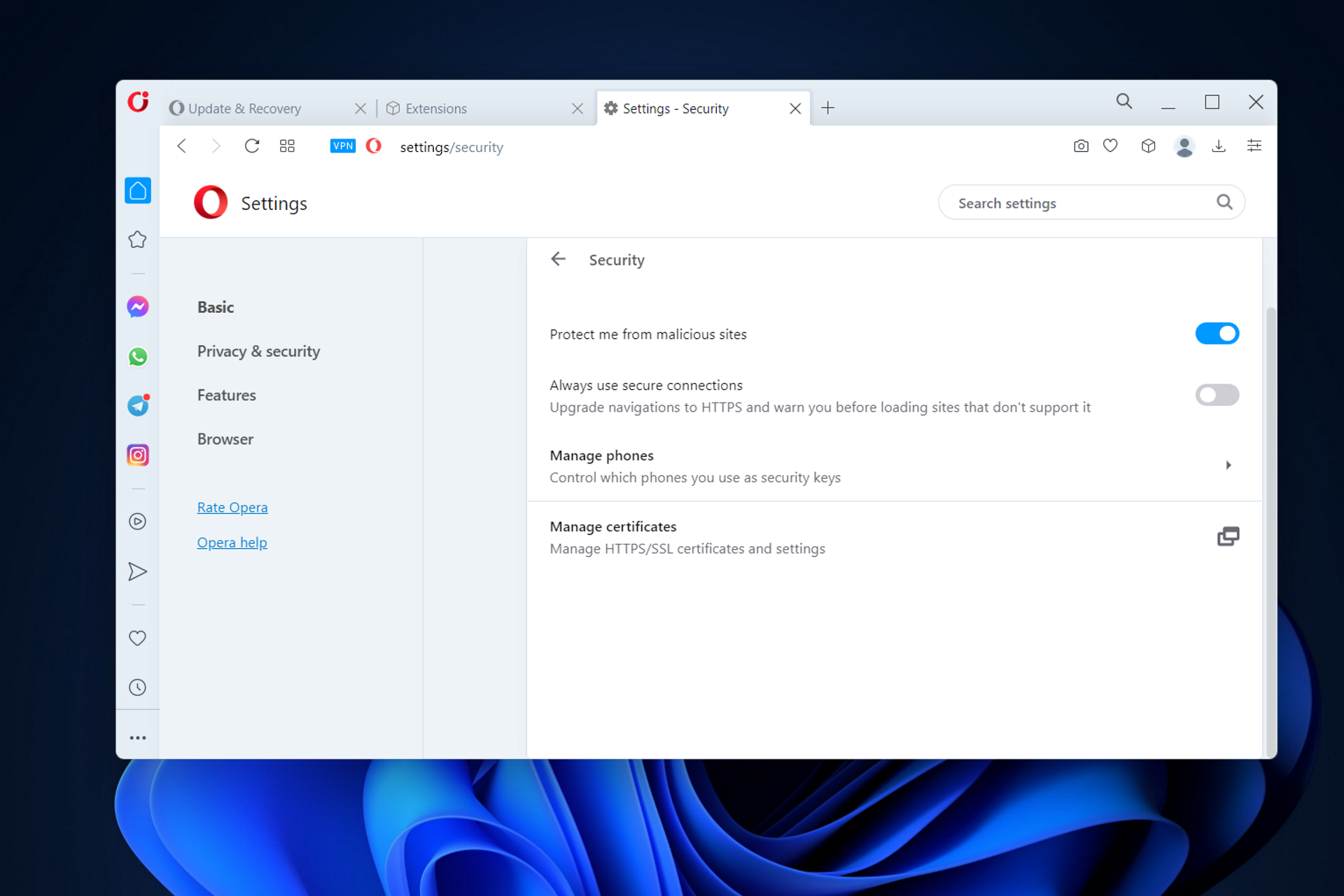


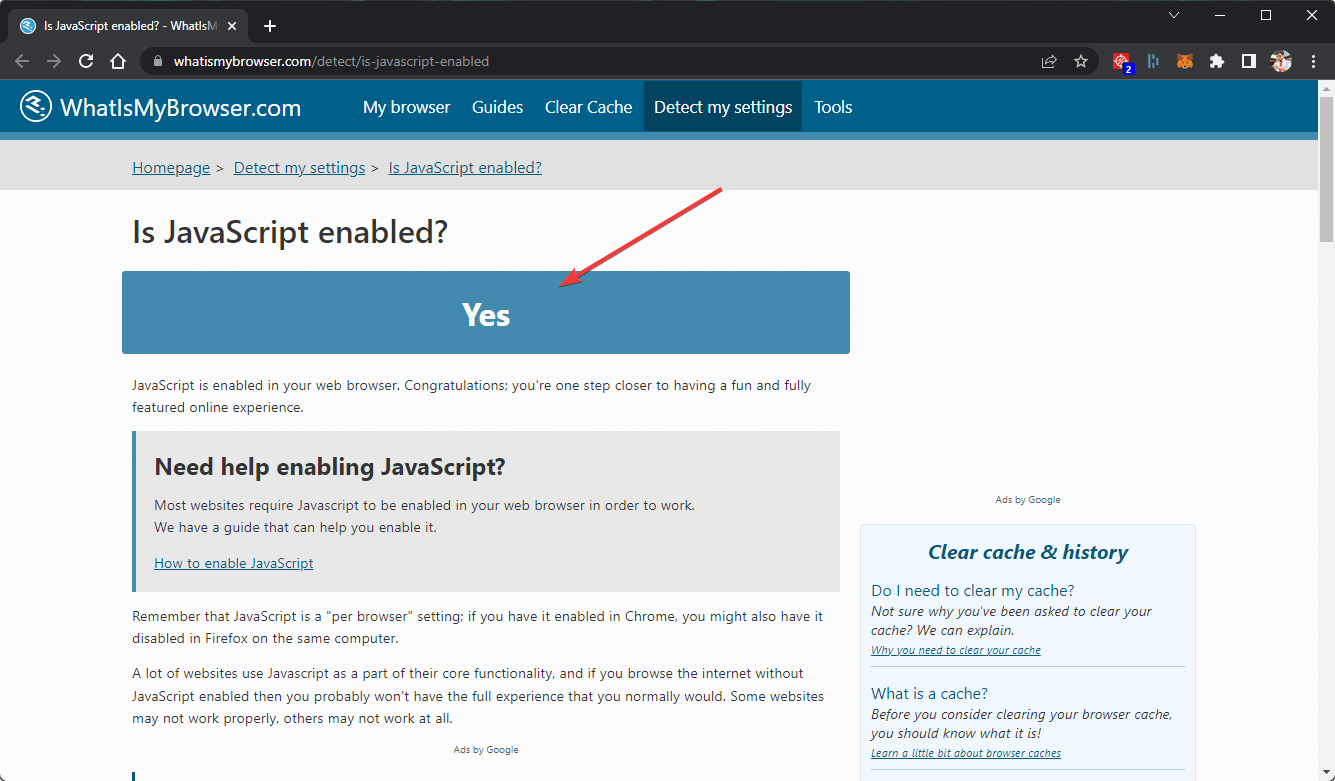


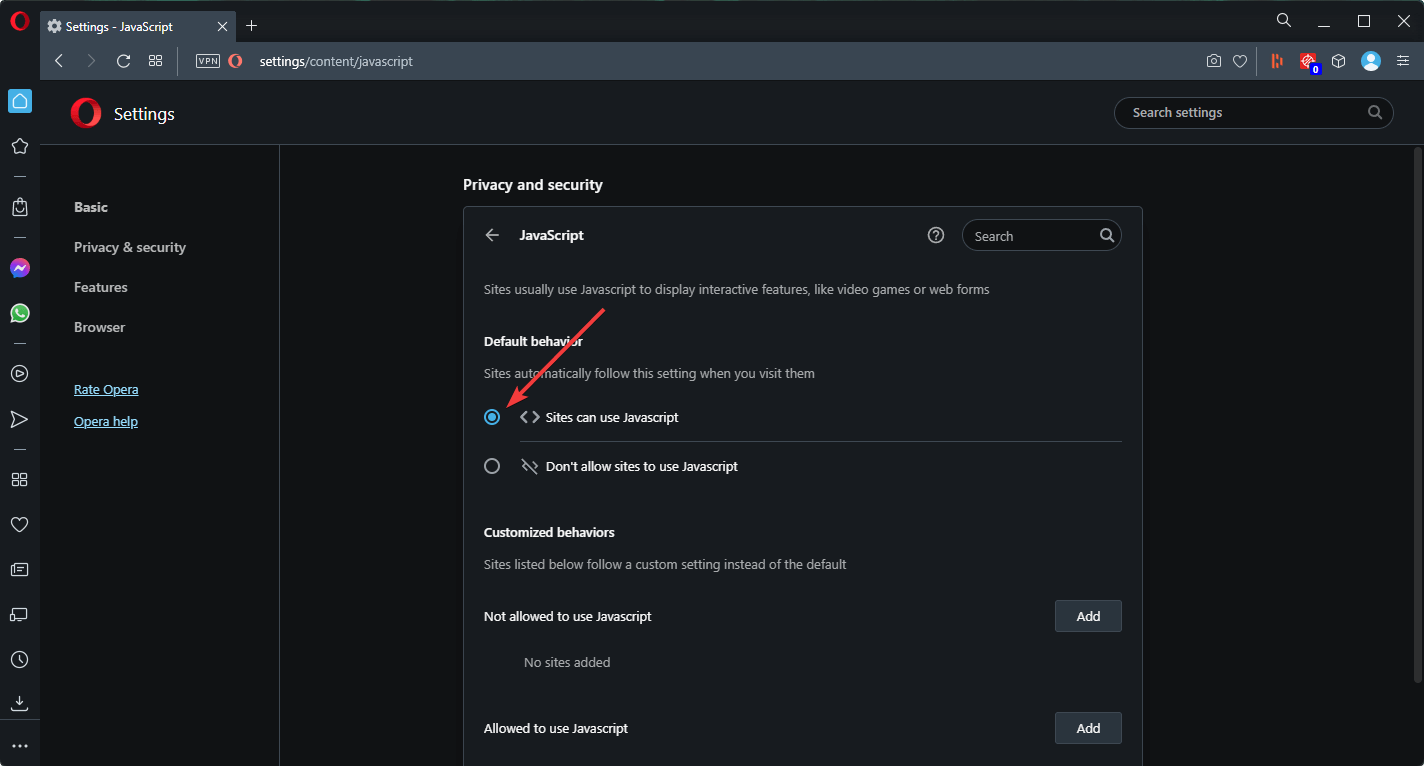
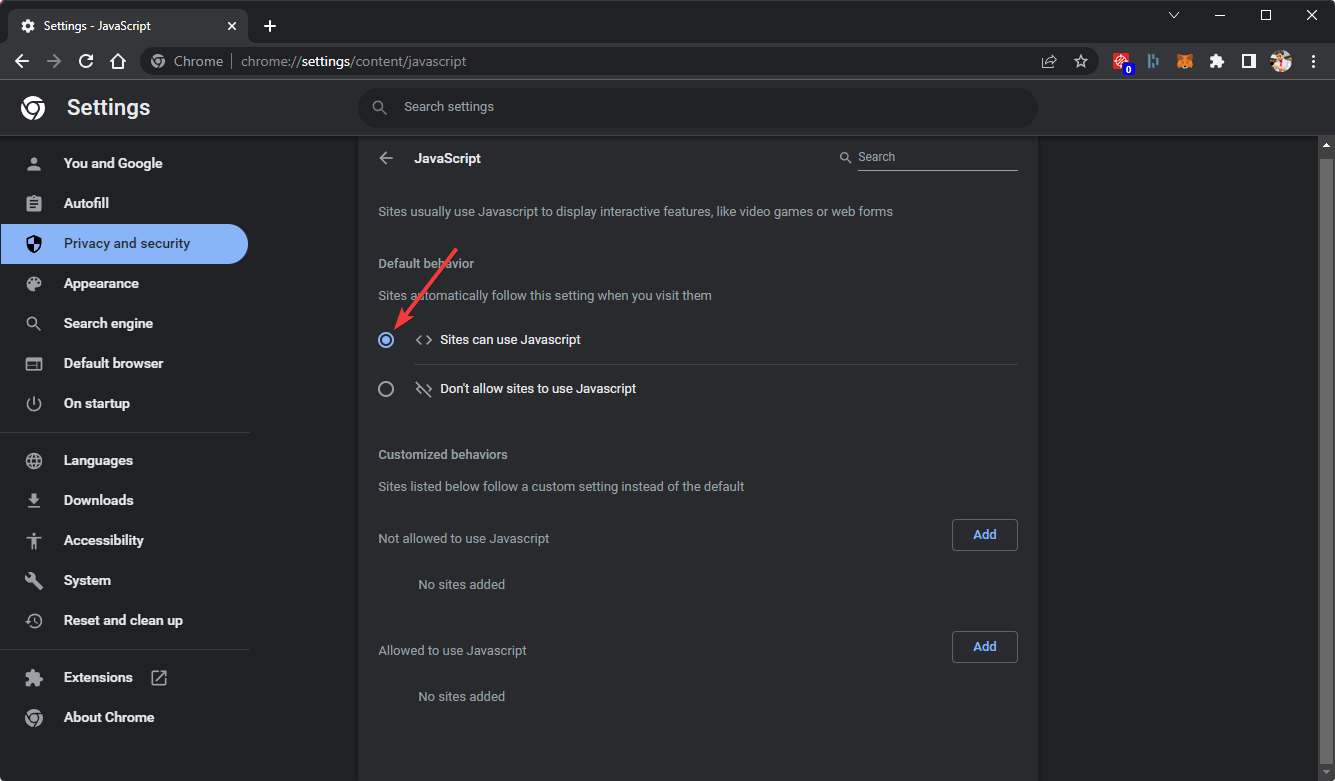
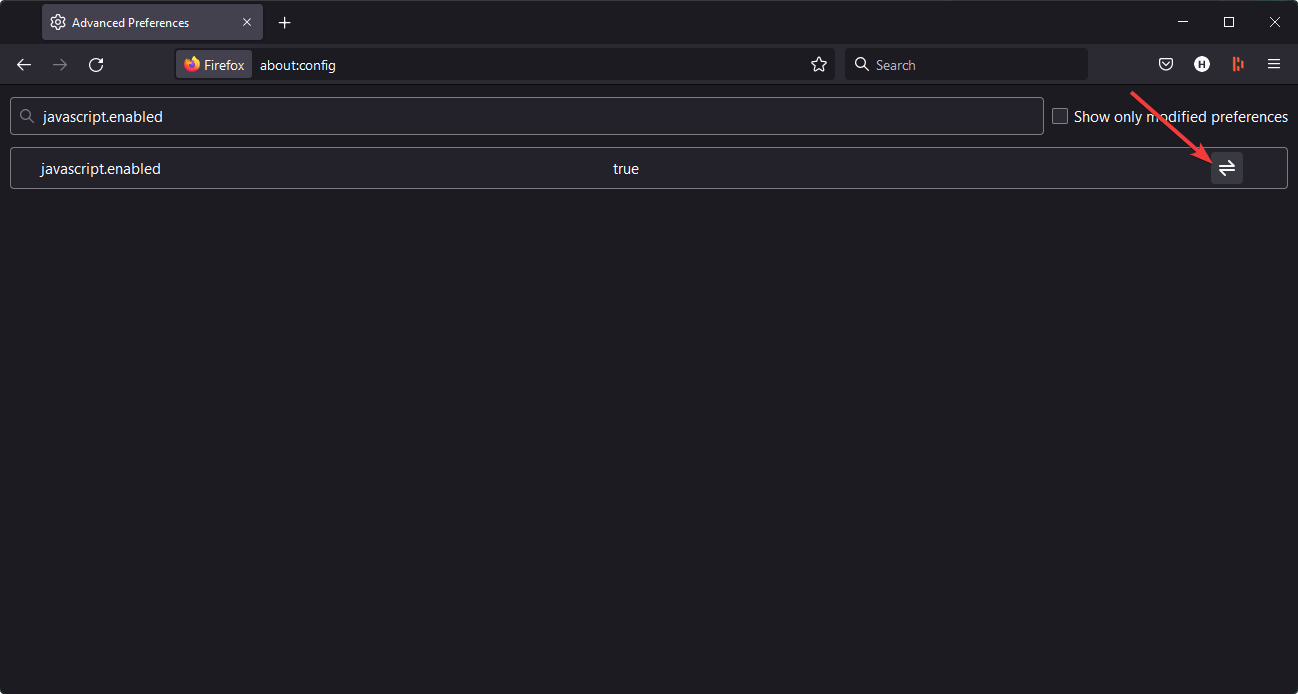
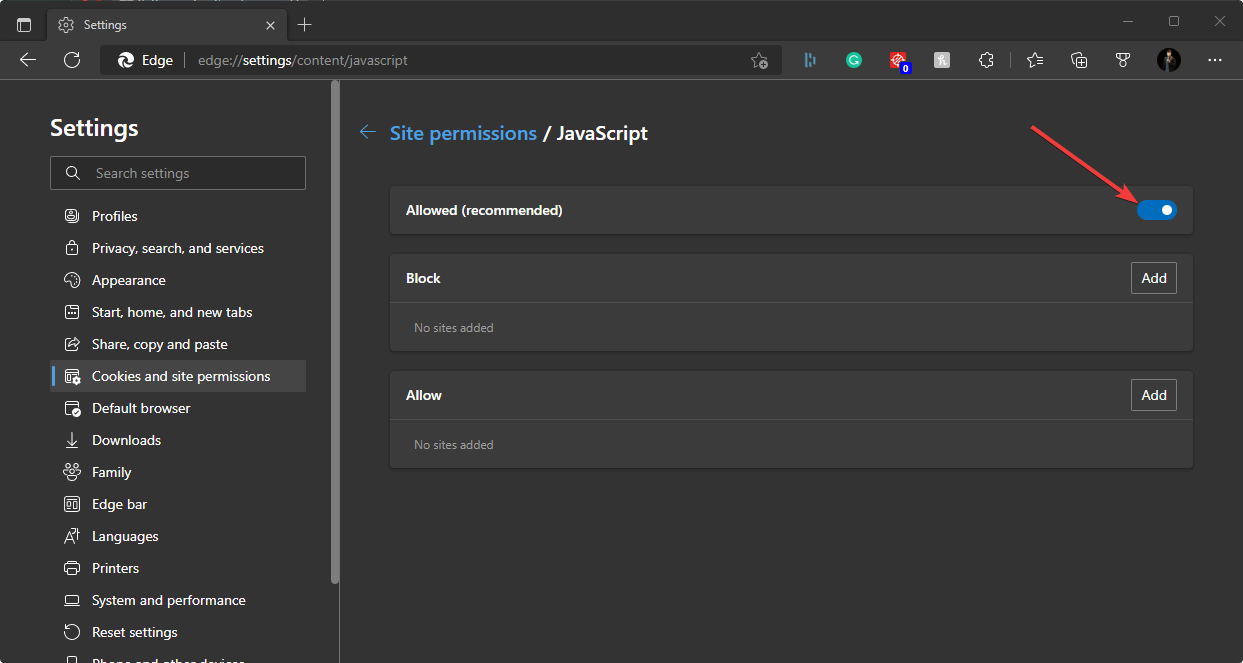
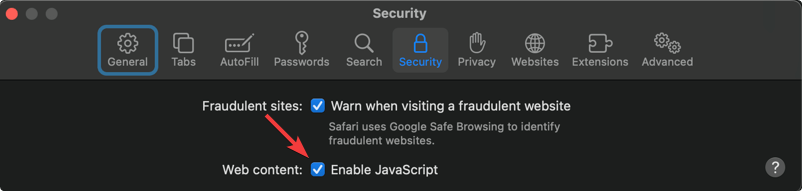


![How to set a dual monitor wallpaper on Windows 10 [QUICK GUIDE]](https://windowsreport.com/wp-content/uploads/2017/09/set-dual-monitor-wallpaper.jpg)





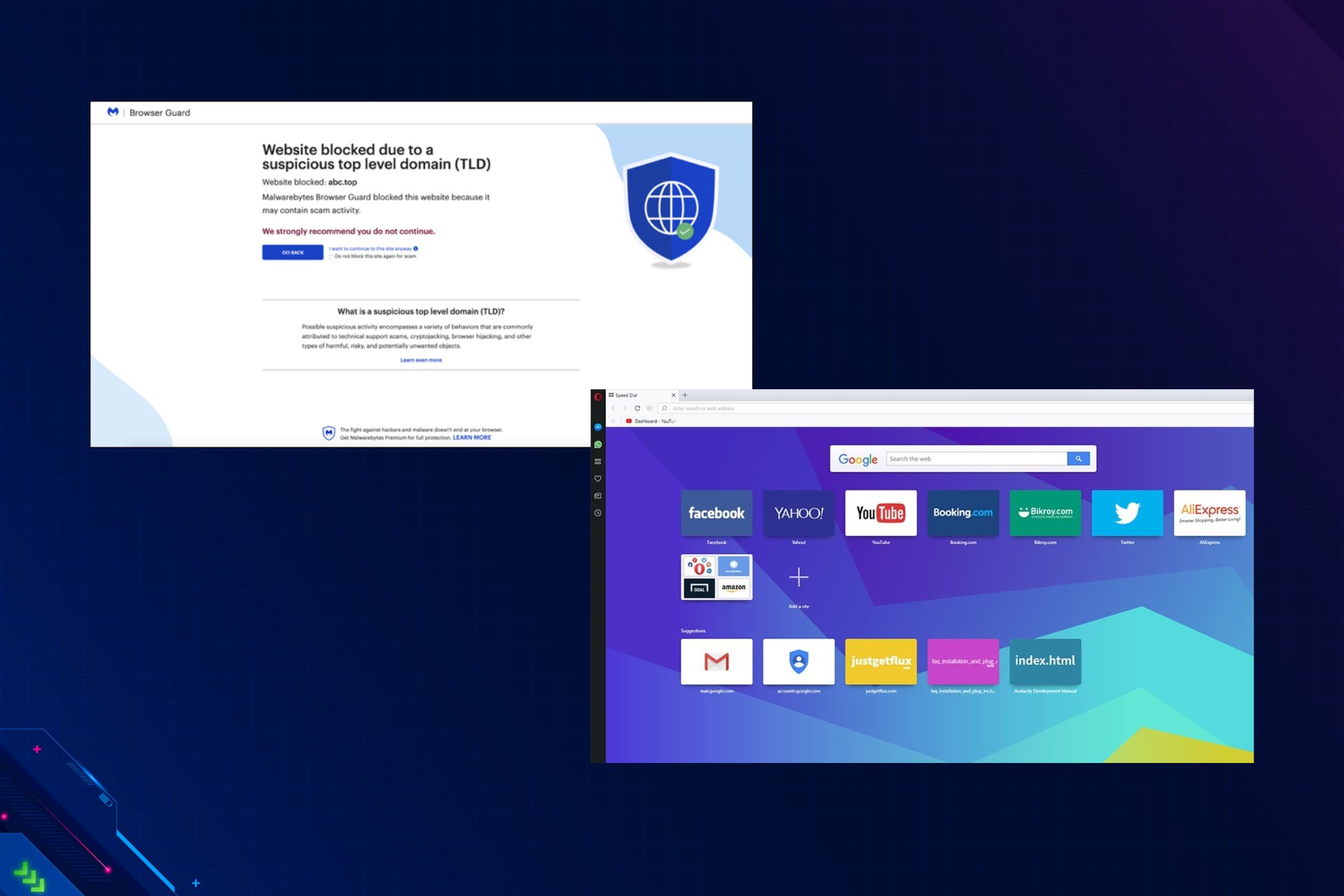




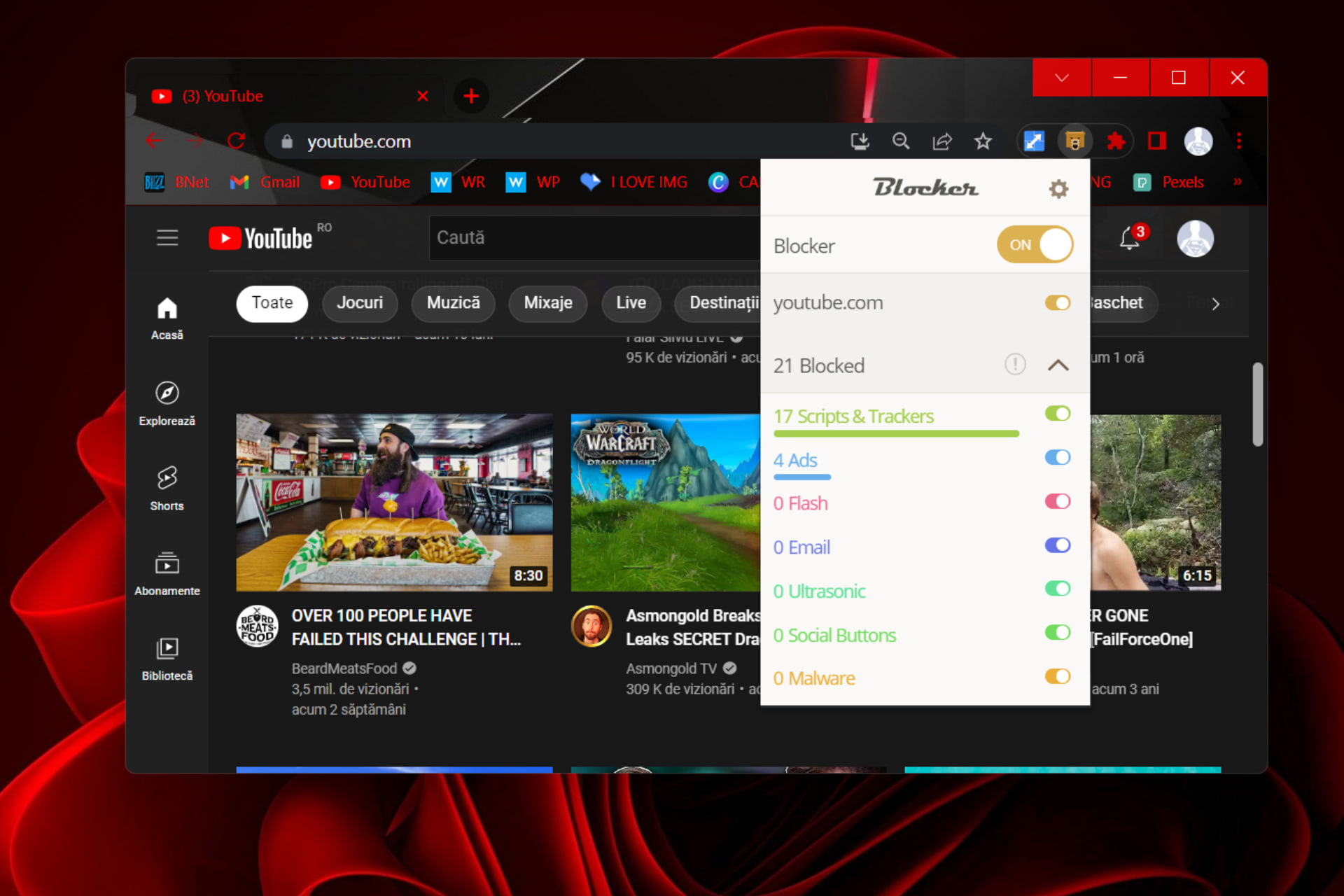
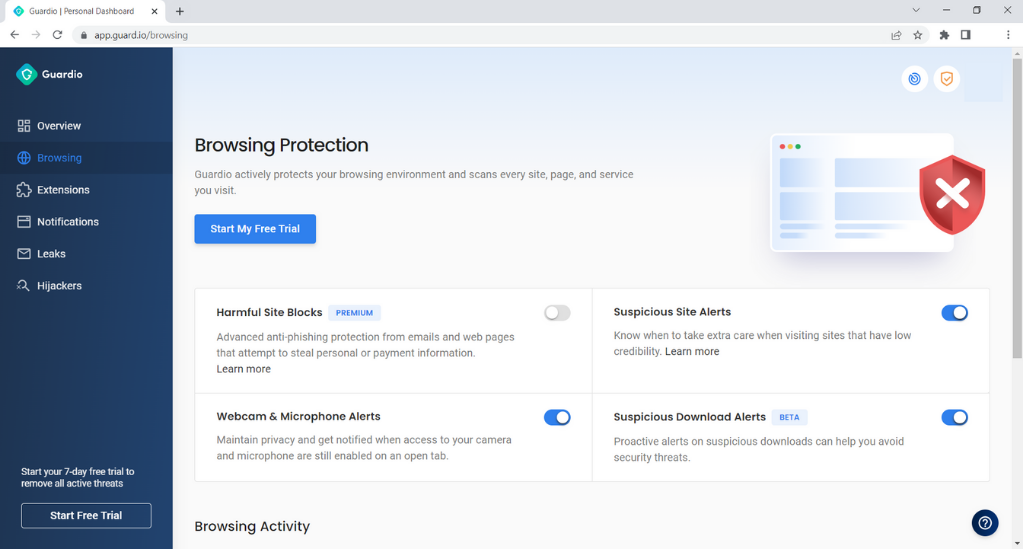


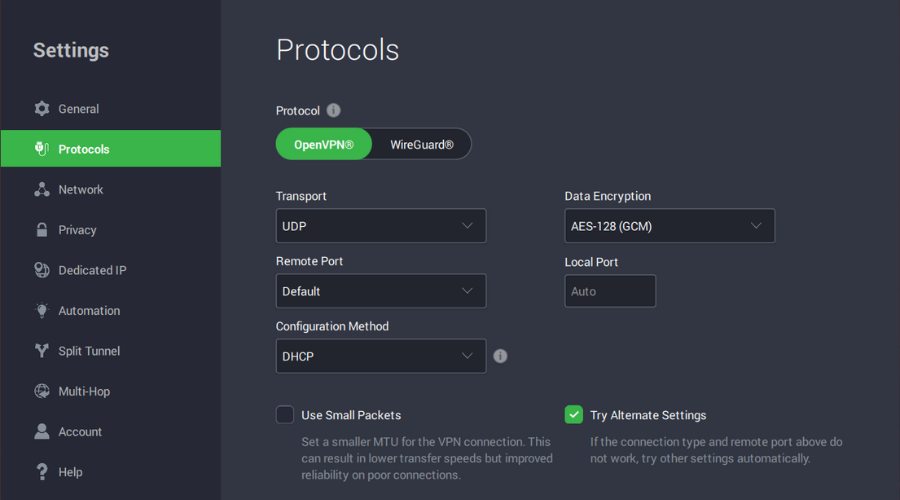


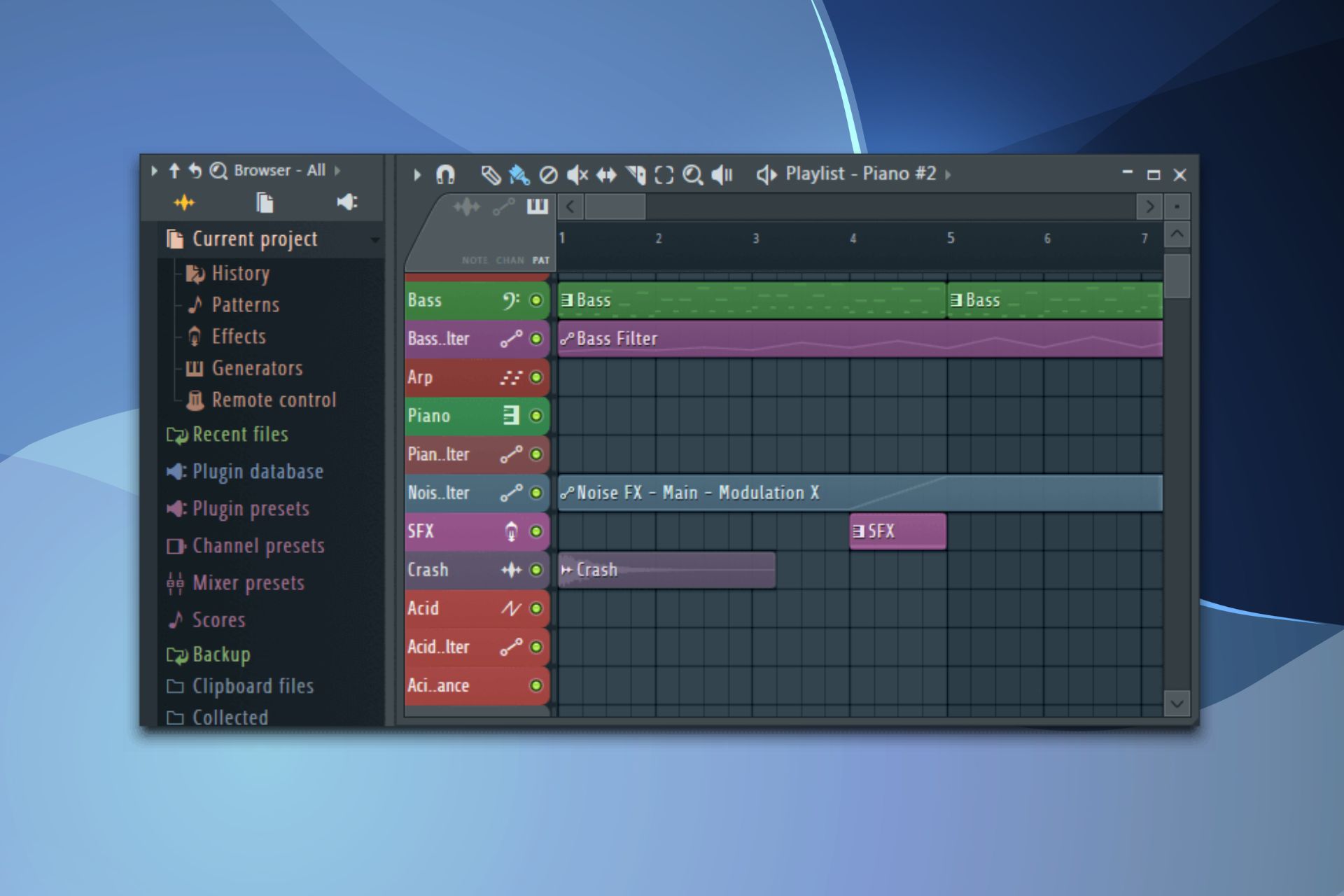
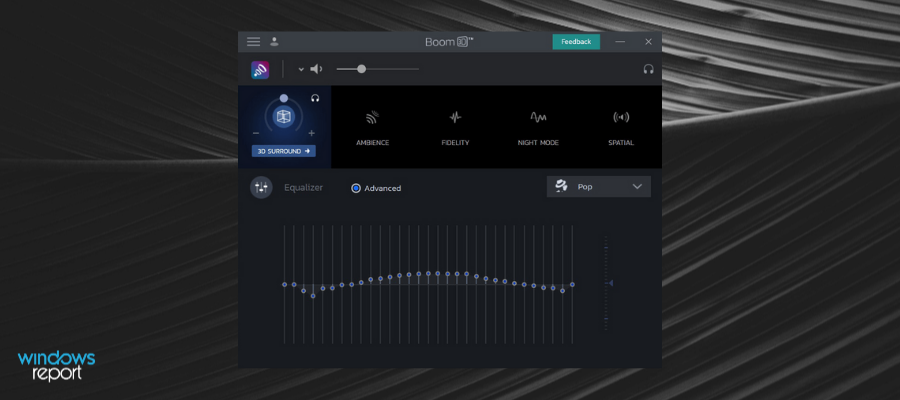








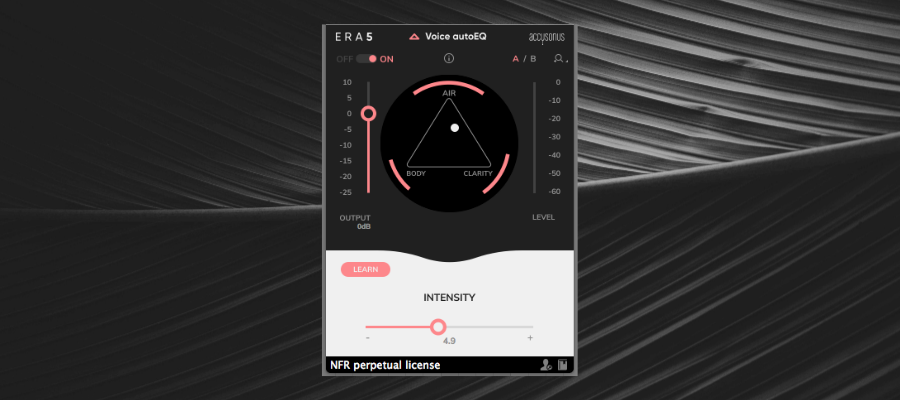
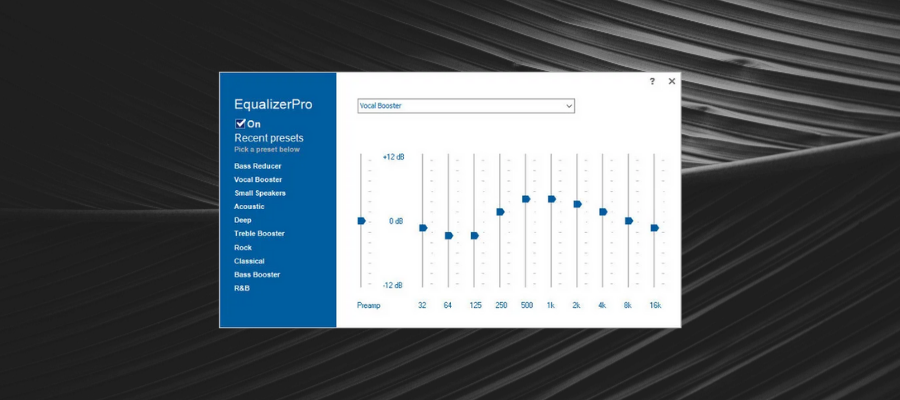
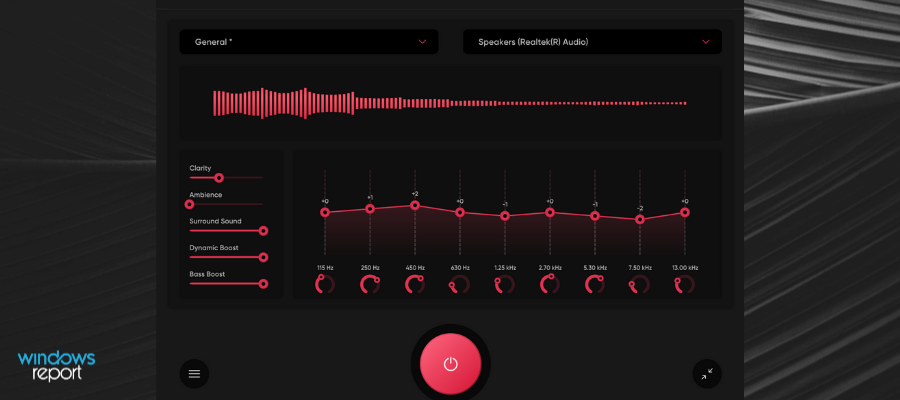















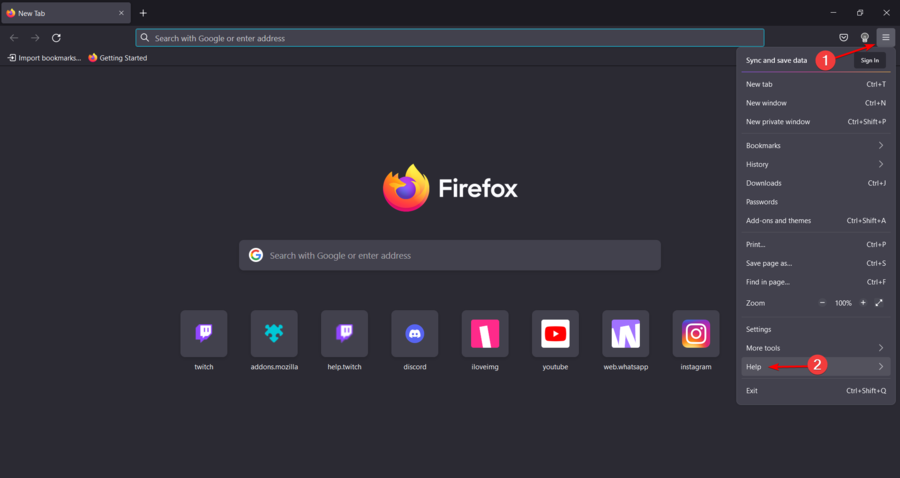
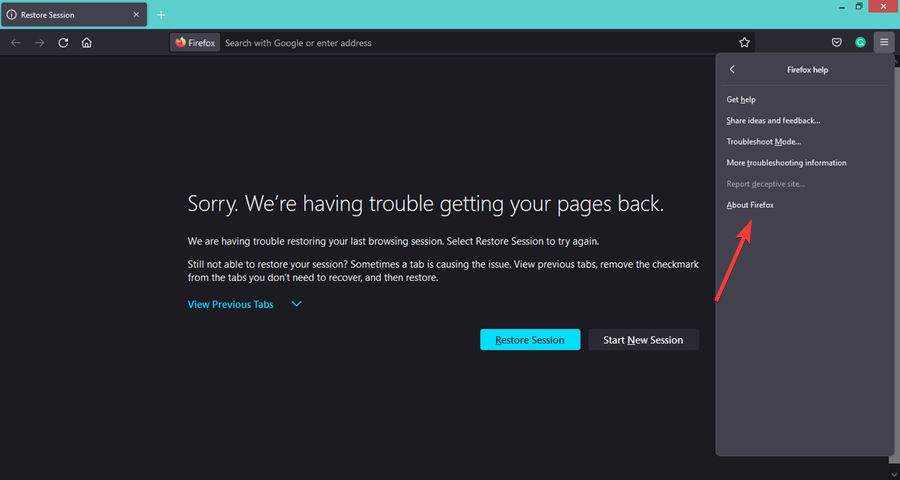
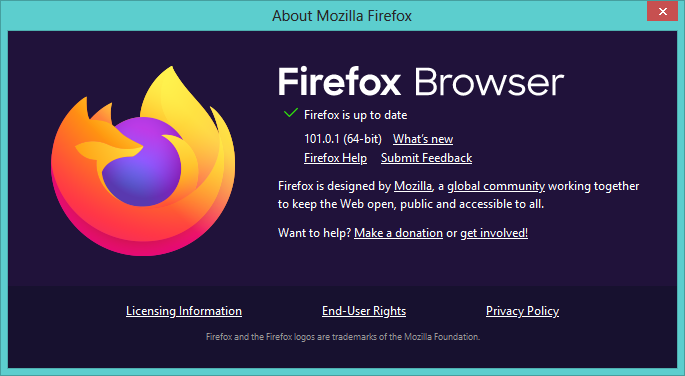
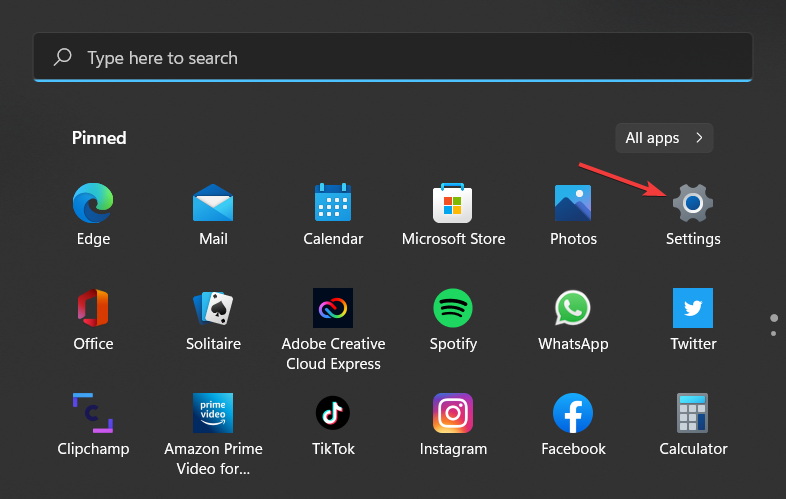
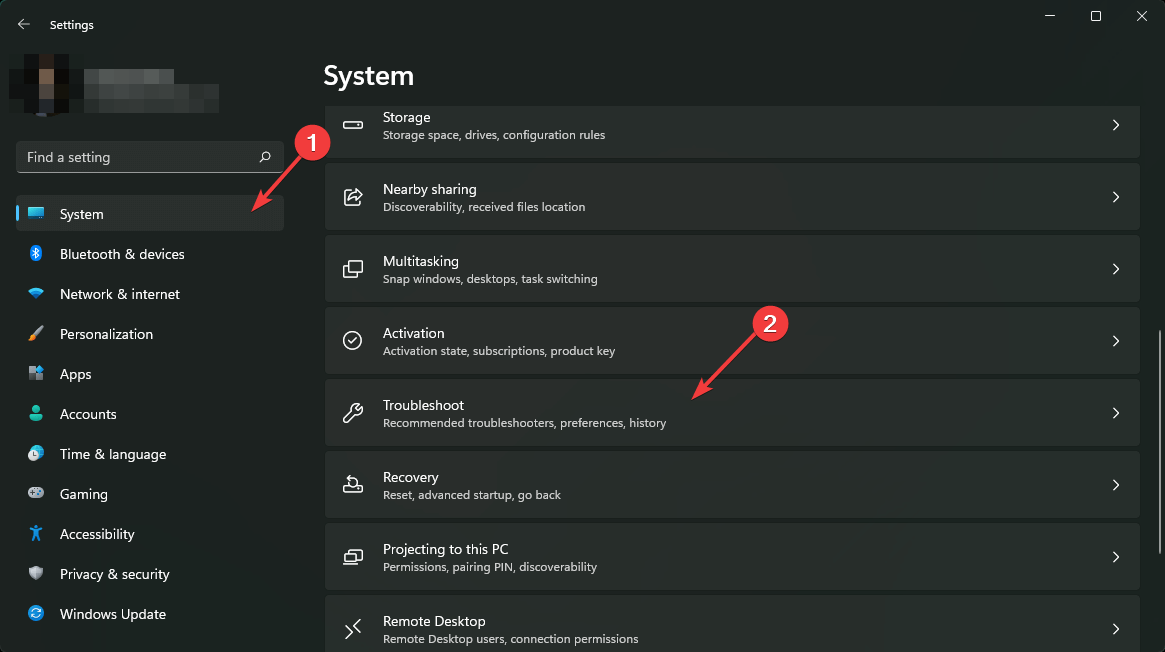
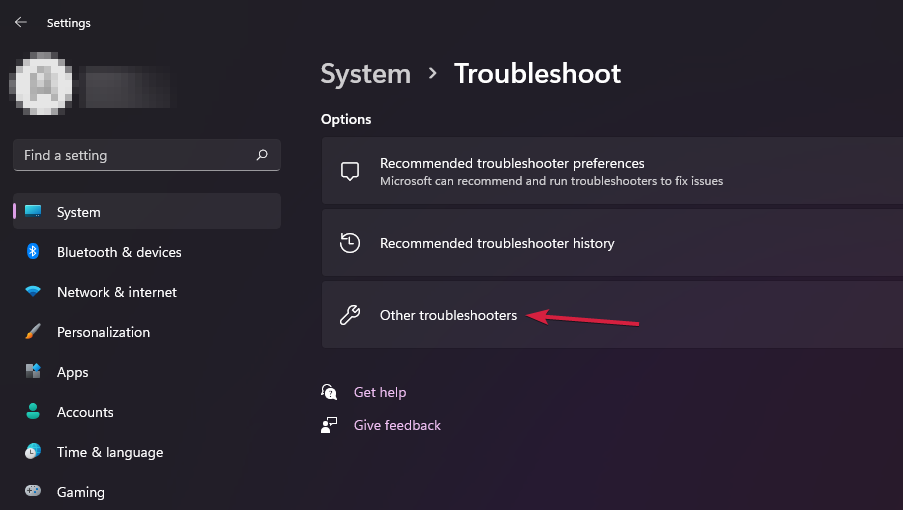
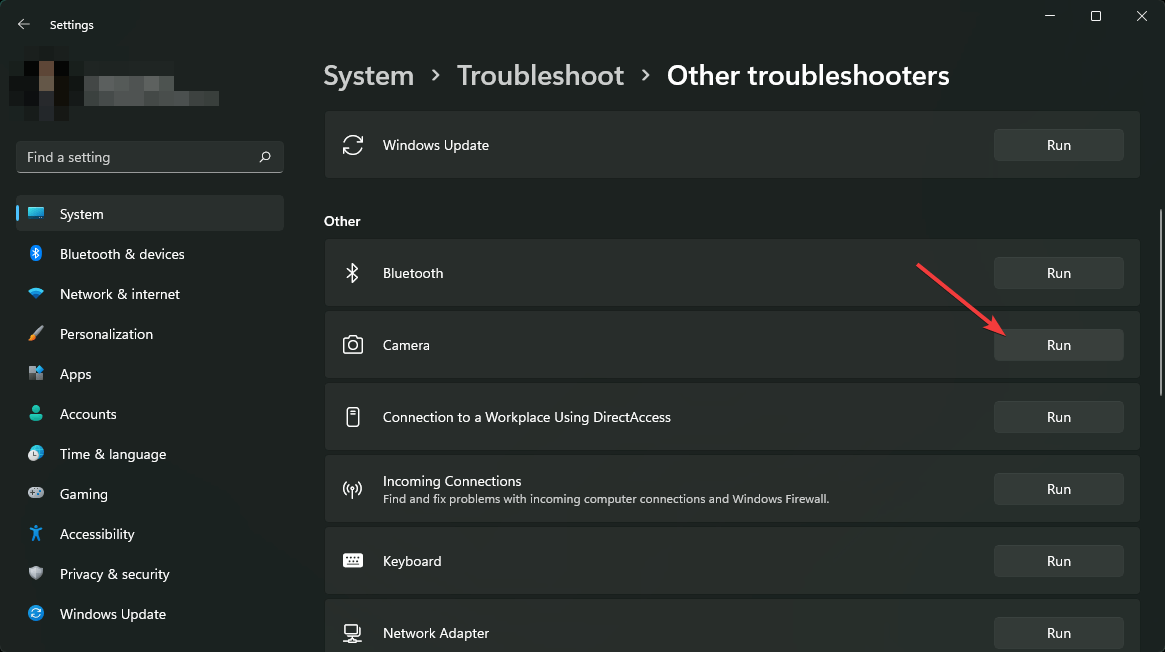
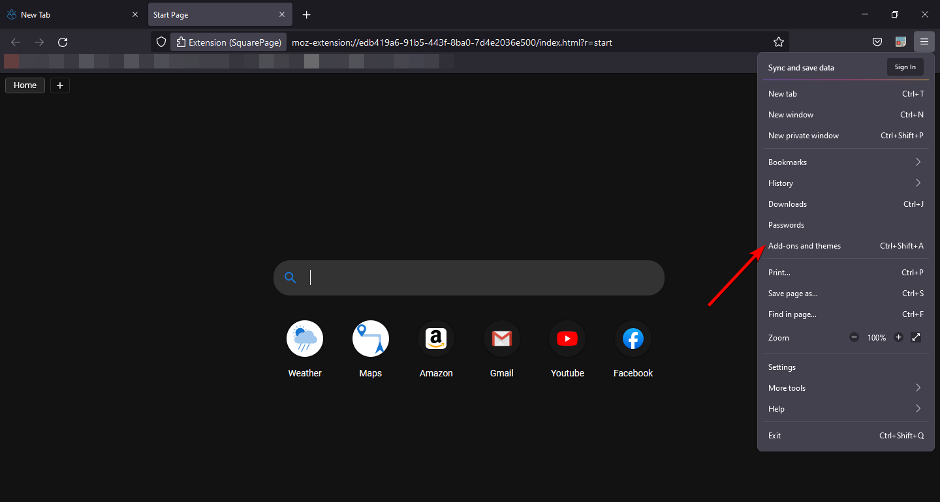
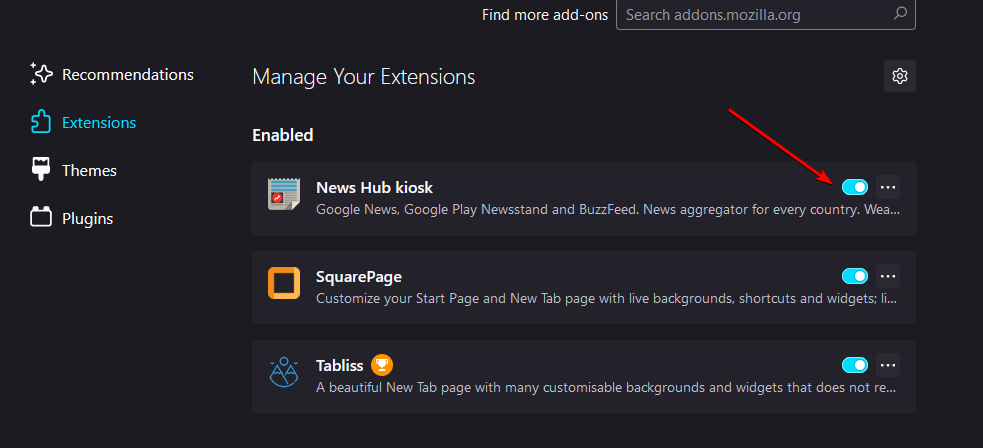
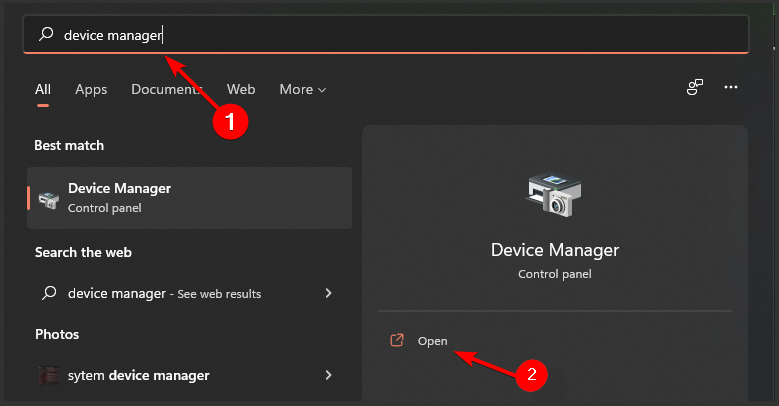
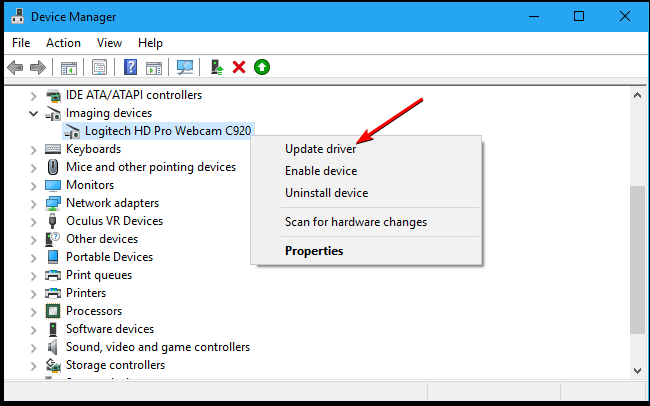
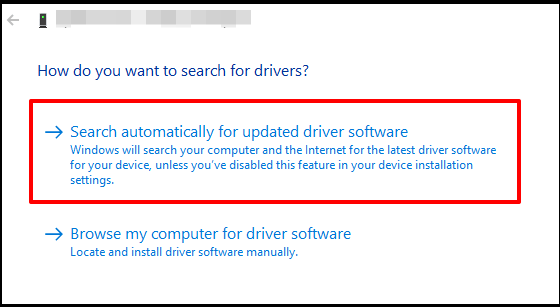
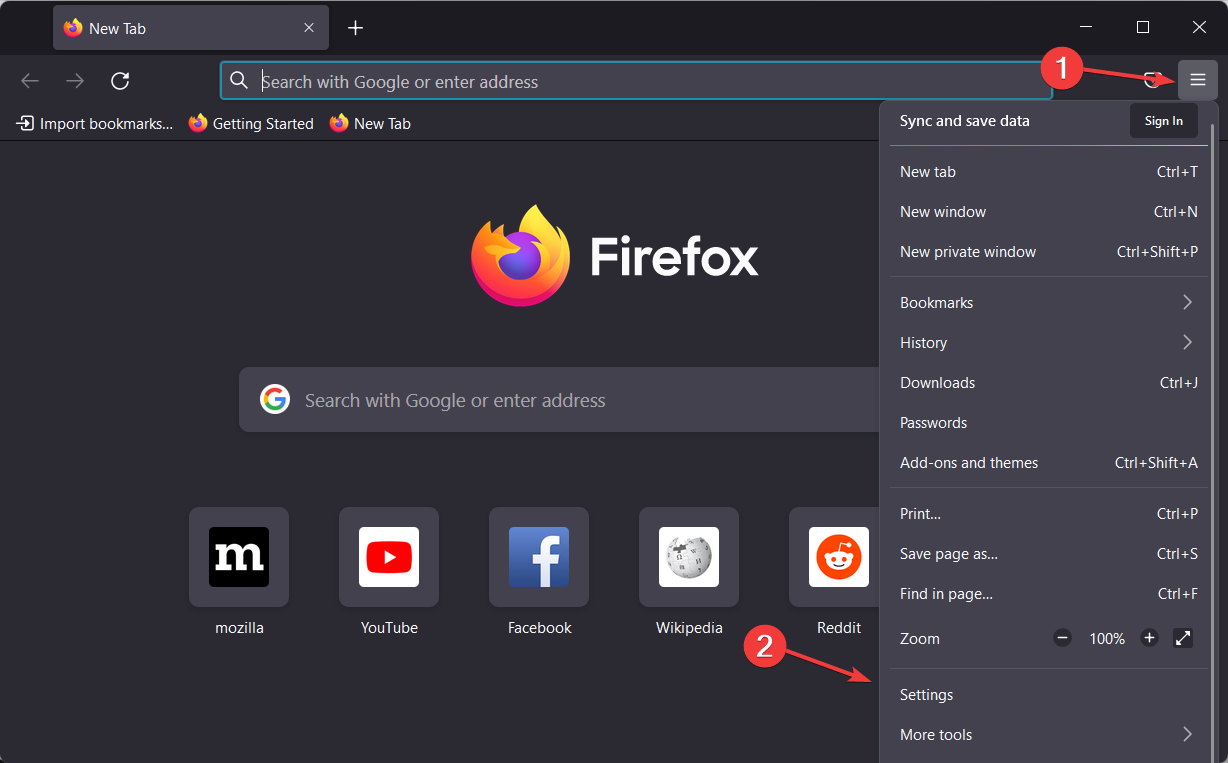
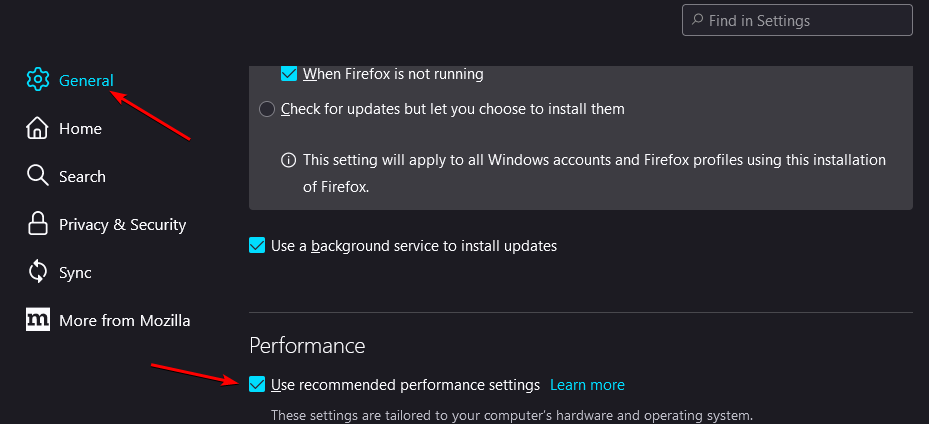
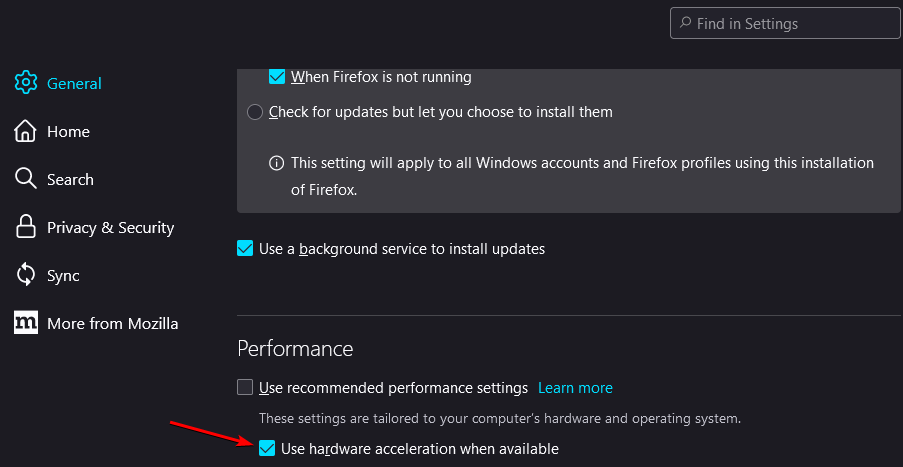
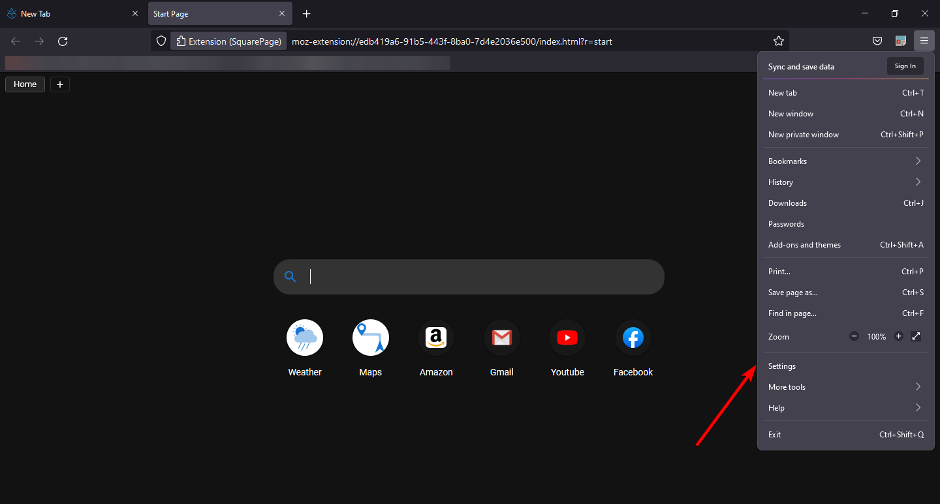
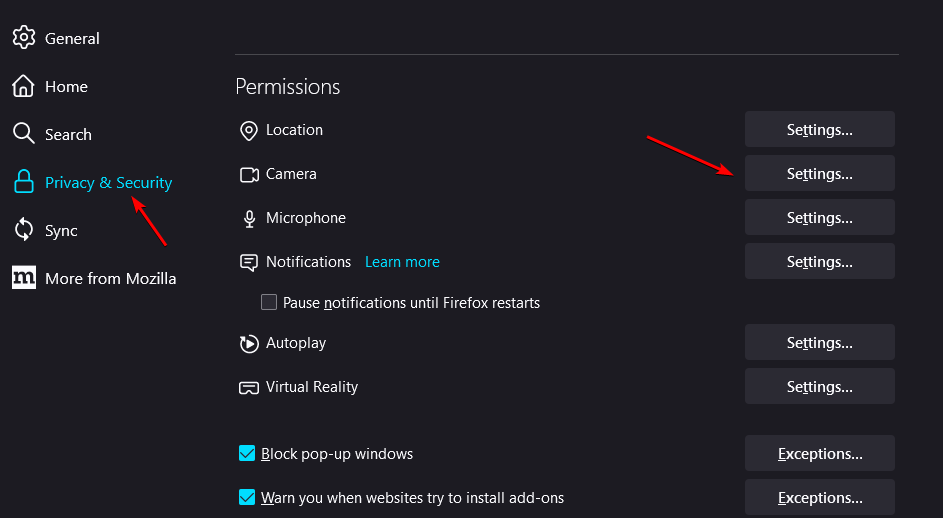
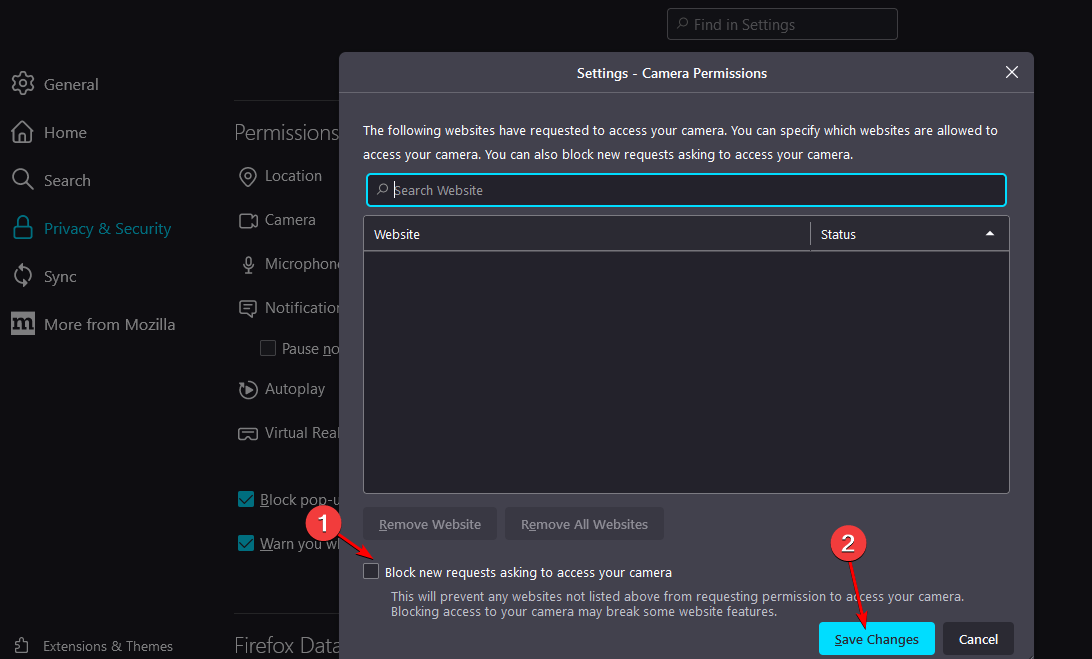
![6 Best Browsers for QuickBooks Online [Fully Supported]](https://windowsreport.com/wp-content/uploads/2020/04/quickbooks-online.jpg)