Quick Tip to Easily Install Windows 11 With Ventoy

Although many are in love with the idea of upgrading to a new operating system, today, it is not the same case. It’s a well-known fact that Windows 11 caused both frustration and confusion among users. However, there is a way to install Windows 11 with Ventoy, which we’ll tackle shortly.

The discontent comes mainly because the system requirements it comes with, prevent a lot of people from being able to install it on their current setups.

Unsurprisingly, many have already expressed their anger online. Explaining their devices are perfectly capable of running Windows 11. And yet, the company isn’t offering the free upgrade because it thinks their hardware is not eligible.

If your computer is equipped with a TPM, you can turn it on in the BIOS settings of your computer. On some AMD motherboards, this feature is referred to as fTPM.

In case your machine does not have a TPM and you wish to install Windows 11, we can use Ventoy to boot to a Windows 11 ISO. And circumvent the TPM, RAM size, and Secure Boot tests by supplying an XML file to the program.

Follow along as we will show you step by step how to do this, right after we see in more detail how Ventoy works.

How does Ventoy work?

Just as expected, it was only a matter of time until someone came up with a way to install Windows 11, even on unsupported computers.

Ventoy is an application that allows you to install the latest OS while also bypassing the verification for system requirements. This means you can install the operating system no matter if your device is eligible or not.

Some more good news is that the software is also already available for download. It can be used to create bootable USB media from a variety of image formats, including ISO, WIM, IMG, and VHD.

What sets Ventoy apart from most solutions, including Rufus and Universal MediaCreationTool, is that it places image files directly on the USB media without extraction. And that multiple image files may be added to boot different systems.

Remember that Microsoft’s PC Health Check app is still the first option to find out if a system is compatible with Windows 11.

You won’t be able to install the OS if you don’t get the thumbs up. But there are options to install Windows 11 without TPM 2.0 and other requirements.

On what systems does Ventoy work?

Using the installer, you will be able to complete the installation process just as if you had made a specialized USB stick from the ground up. The tool can be used to download multiple operating systems such as the following ones:

  • Ventoy Windows 11 – We will showcase today how you can use Ventoy to download and install Windows 11 on unsupported devices.
  • Ventoy Windows 10 – Just like with Windows 11, you can follow the same steps but use different files in order to get the 10 iterations on your PC.
  • Ventoy Windows 7 – You will be able to install Windows 7 on any device that you wish to have it installed without Microsoft detecting it.
  • Ventoy macOS – Mac users reported they were able to install macOS on their computers and use it without any hindrance.
  • Ventoy Linux – Ventoy has released a native GUI program for the Linux operating system. All supported architectures include x86 64, i386, arm64, and mips64. GTK and QT are both available, with GTK being the default.

This being said let’s see how to download and install Windows 11 on unsupported devices with Ventoy and start using it today.

How can I install Windows 11 on unsupported devices with Ventoy?

  1. Head to Ventoy’s GitHub repository and download the Windows zip file.windows-zip windows 11 ventoy
  2. Once it is downloaded, right-click on it in order to Extract the folder in the current location.extract-allwindows 11 ventoy
  3. Next, open the extracted folder and click on the subdirectory named Ventoy. Right-click anywhere on the window to create a new text file named ventoy.json. Copy-paste the following text inside it and save the file: { "control": [ { "VTOY_DEFAULT_MENU_MODE": "0" }, { "VTOY_TREE_VIEW_MENU_STYLE": "0" }, { "VTOY_FILT_DOT_UNDERSCORE_FILE": "1" }, { "VTOY_SORT_CASE_SENSITIVE": "0" }, { "VTOY_MAX_SEARCH_LEVEL": "max" }, { "VTOY_DEFAULT_SEARCH_ROOT": "/ISO" }, { "VTOY_MENU_TIMEOUT": "10" }, { "VTOY_DEFAULT_IMAGE": "/ISO/debian_netinstall.iso" }, { "VTOY_FILE_FLT_EFI": "1" }, { "VTOY_DEFAULT_KBD_LAYOUT": "QWERTY_USA" }, { "VTOY_WIN11_BYPASS_CHECK": "1" } ] }new-text windows 11 ventoy
  4. By setting the last argument to 1, the machine will be able to avoid certain registry checks. Such as Windows 11’s Secure Boot with Ventoy.ventoy-file windows 11 ventoy
  5. Now head to Microsoft’s page to download the Windows 11 Disk Image ISO.download-w11 windows 11 ventoy
  6. Select the OS version, and the language, then click on the 64-bit Download button.64bit windows 11 ventoy
  7. Next, head back to the extracted Ventoy folder and double click on the Ventoy2Disk file. Then insert your USB drive in order to format it.ventory2disk windows 11 ventoy
  8. You will be prompted with a new window in which you will be able to select the USB you inserted and then choose Install.device-isntall windows 11 ventoy
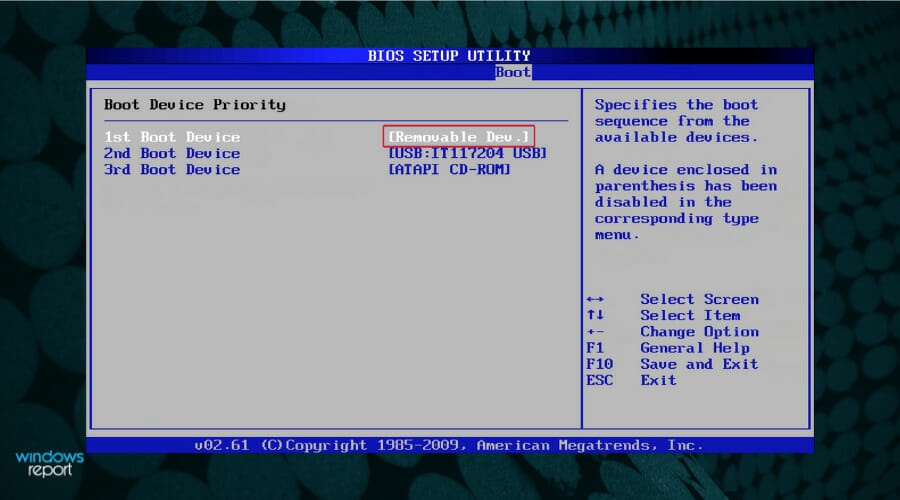
  9. Now, copy the Windows 11 ISO on the Ventoy drive and reboot your computer in order to enter BIOS. Change the boot sequence so that the USB has the boot priority and continue with the installation process.boot-priorit windows 11 ventoy

That’s it. Ventoy will allow Windows 11’s TPM verification to be passed, along with others as well, resulting in a successful Windows 11 installation.

It is possible to install Ventoy on a USB flash drive, a local disk, an SSD, an NVMe, or an SD Card. And it will boot immediately from the .iso, .wim, .img, .vhd(x), or .efi files that have been uploaded.

Ventoy does not copy the picture file(s) to the USB drive, rather, it uses them directly from the USB drive. It is possible to store many ISO images on a single device. Then select the image to boot from a menu that appears shortly after Ventoy starts up.

For more methods to install Windows 11 without a TPM, check out the article linked and keep on trying. Users succeeded in downloading it without a TPM, and so should you. Further, performing an unattended installation can help shorten the installation time.

Alternatively, take a look at our post on four confirmed tips to install Windows 11 on an unsupported CPU chip.

Was this guide useful to you? Don’t hesitate to comment in the section below and tell us what you think. Thanks for reading!

Windows 11 Boot Menu: Simple Steps to Open it

The boot options are a safe zone in the Windows 11 system and can help you recover from the majority of the software issues.

You can back up your files, boot into Safe Mode, uninstall faulty updates and restore your Windows 11 system to a previous secure point.

In this article, if you’re a new user, we’ll show you where to find the boot options in Windows 11. It’ll help you easily navigate your settings and save your system in case of any mishaps.

How can the boot options help you in Windows 11?

The Recovery mode or the Troubleshooting mode in Windows gives you access to all the options to restore or repair your windows, booting options, and a lot more.

Essentially, the advanced boot settings allow you to troubleshoot your system

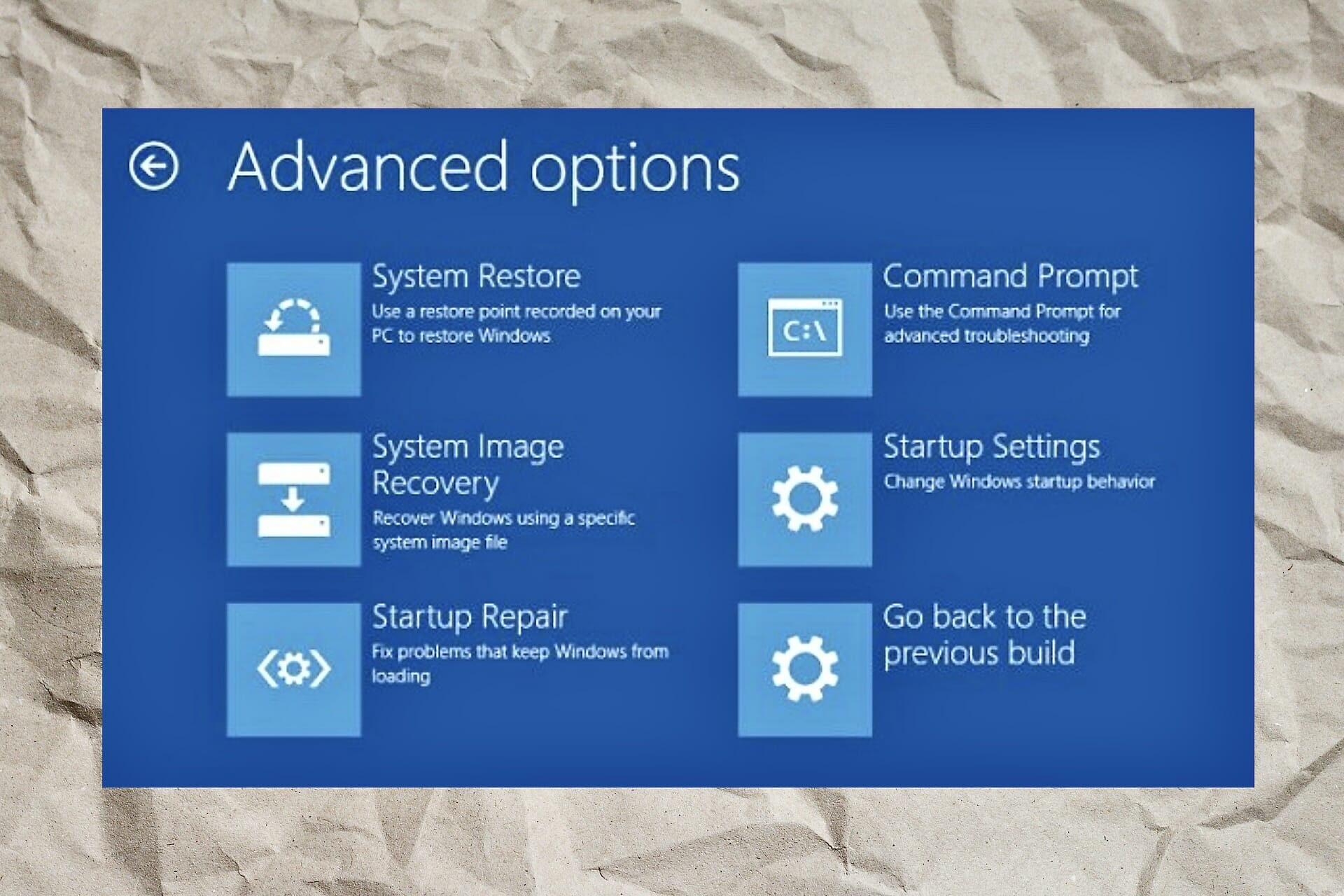
As you can see from our screenshot, this mode helps you troubleshoot your system or reset your PC to factory settings.

Actually, the Recovery mode in Windows 11 is the same as the one from Windows 10 and it comes with the following functions:

  • Startup Repair – A way to check any Windows startup issues
  • Safe Mode booting – It is very useful when you need to boot your system without loading all the Startup software and troubleshoot third-party software interference
  • System Restore – This feature is useful for restoring your system to a previous restore point
  • System Image Recovery – If you have a system backup file, you have the option of restoring your system using it
  • Command Prompt – Advanced users can launch Command Prompt for command-line troubleshooting

For more information on what these Windows 11 recovery methods are intended to do, check the Microsoft page on the subject. If what you truly want to do is just enter it, all you have to do is follow one of the below methods.

How can I access the boot settings in Windows 11?

1. Use Windows 11 Settings menu

  1. Press the Windows key and open Windows Settings from the menu.
    Open windows settings option
  2. Select System settings and click on Recovery settings.
    Windows recovery settings
  3. In the Advanced startup option click on Restart now.
    Windows advanced startup options
  4. Your system will now restart into the boot settings.

2. Use the Windows Start menu

  1. Press the Windows key and click on the Power button in the bottom right corner.
    Windows settings power button
  2. Hold the Shift key and select the Restart option.
    Windows restart option menu
  3. Your system will bypass the traditional restart and boot into advanced startup options.

3. Using Windows Quick links.

  1. Press Windows Key + X together. You’ll see a pop-up window with various options.
    Windows quicklink menu
  2. Move your cursor on the Shut down or isgn out option.
  3. Press and hold the Shift key and click on the Restart option.
    WIndows quick link restart

4. Use Command Prompt

  1. Press the Windows key and type command prompt. Click on the Run as administrator option.
    Windows command prompt menu
  2. Select Yes in the pop-up window that appears. It’ll now open the Command Prompt in administrator mode.
  3. Type the following command in the window and press Enter. shutdown /r /o /f /t 00
    Windows boot menu command
  4. After executing the command, your system will restart the Windows 11 boot settings.

5. Use the reagentc command

  1. Press the Windows key and search for the command prompt. Click on the Run as administrator option.
    Windows command prompt menu
  2. Select Yes in the pop-up window that appears to open the command prompt in administrator mode.
  3. Type the following command in the window and press Enter. reagentc /boottore
    Reagent command
  4. You’ll get a confirmation informing you that the operation was successful.
  5. Restart your Windows 11 from the power menu, and you’ll enter the boot settings.

6. Hard Reset your Windows system

  1. Press and hold the Power button of your PC till the system reboots.
  2. Once you see the Windows logo on the screen, press and hold the Power button again to restart Windows.
    windows loading screen
  3. Repeat the steps till your Windows 11 enters the boot settings.

7. Use a bootable Windows 11 installation media

  1. Prepare a bootable USB drive for Windows 11.
  2. Switch off your PC and insert the USB drive into your PC.
  3. Power on your PC, and you’ll see a Windows setup pop-up window.
  4. Select the Repair your computer option in the bottom left corner. Your system will boot into its advanced settings option.

If your PC is not booting from the USB drive, check the following solution on how to change the boot order.

How to change the boot order on my PC?

If you want to boot from another source, like your USB, DVD, or another drive it’s not enough to get into the advanced booting options, you will have to access your BIOS.

There is an option for that in the Recovery mode and we will explain how to do that here:

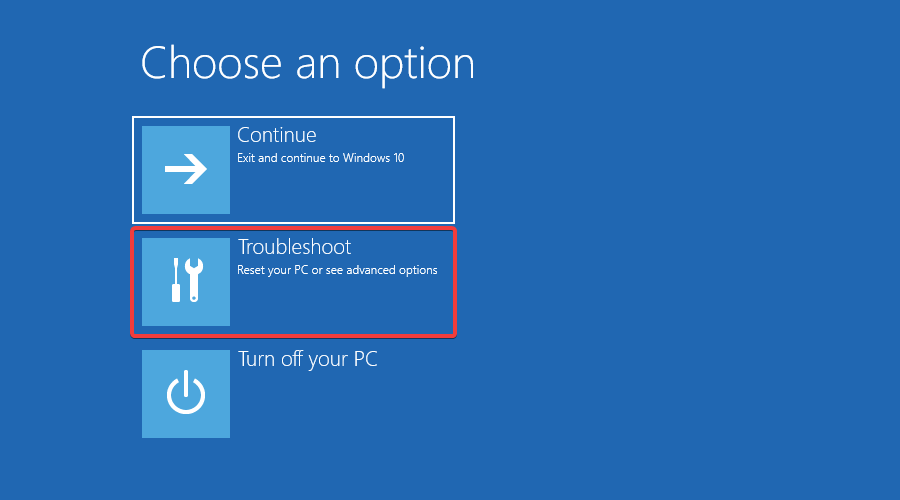
  1. After you get into Recovery mode using any of the methods described above, click on Troubleshoot.
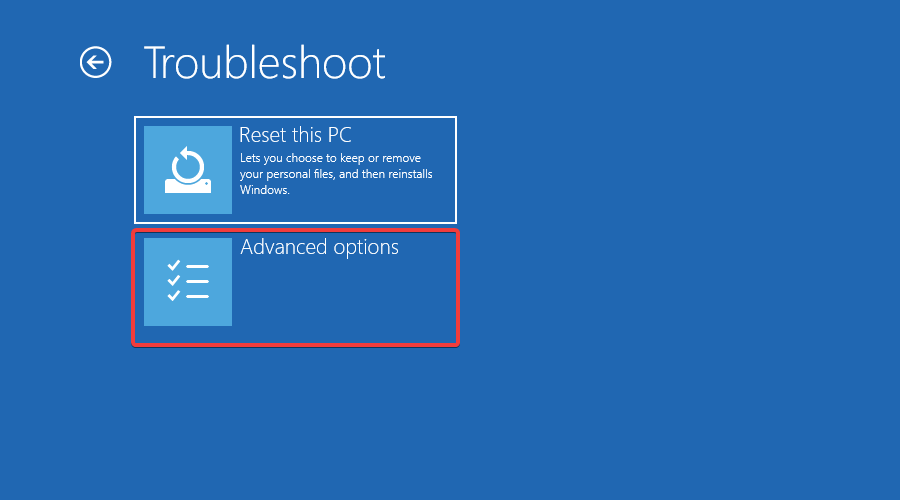
  2. Select Advanced options.
  3. Now, click on UEFI Firmware Settings.
  4. This will take you to your BIOS. Switch to the Boot tab and under Boot Option Priorities, and follow the instructions to change the boot priority to another source.
  5. Next, go to the Exit tab, then choose Save and Exit, and press Enter.

Having trouble getting the OS chooser at startup after changing BIOS priorities? Enable Windows Boot Manager to show the menu and streamline access to recovery and boot options.

If you need more information on this procedure, read our guide on how to change the boot order in Windows 11.

However, sometimes, this is not enough, and when you exit the BIOS, you will find out that the PC is still not booting from the drive you specified.

In this case, we have another article on what to do if Windows 10/11 PC ignores boot order to sort this out for good.

That’s it. You can now easily find all the settings you need to get your system up and running again.

There are various options in the Windows 11 boot settings that you can use to fix any issue or recover your system to a working condition again.

For more questions or suggestions, access the comments section below and leave us a note. Your opinion counts!

Can’t Access iPhone Photos on PC: 7 Easy Ways to Open Them

Apple and Microsoft are the market pioneers and have revolutionized it in the last few decades. But the integration between the two has been a troublesome affair for users. One such problem is when users can’t access iPhone photos on a Windows PC.

The issue has long been present, with many reporting that Windows 11 is not recognizing the iPhone. And there are no sure-shot solutions to the problem since it all boils down to the underlying cause. So, let’s first find out why you can’t view iPhone photos on Windows!

Why can’t I see iPhone photos on a PC?

Here are a few reasons you can’t open iPhone photos on a PC:

  • Improper connection: This is one of the most common reasons you can’t view photos on an iPhone from a PC. It could be a damaged cable, a malfunctioning port, or a loose connection.
  • Outdated drivers: For any device to work efficiently, the PC should have updated drivers. If outdated drivers are installed, you will encounter similar issues every now and then.
  • Missing permissions: You need to trust the computer and allow it to access files to view photos on the PC.
  • No photos on iPhone to import: In some cases, users realized that there were no photos stored on the iPhone, probably due to syncing with iCloud or when the device is new.
  • Incompatible iTunes app: Running an older version of the iTunes app or one not meant for the installed OS can also trigger issues when connecting your iPhone to a Windows PC.

What can I do if I can’t access iPhone photos on PC?

Here are a few preliminary checks and quick tricks we recommend you try first:

  • Make sure the iPhone is unlocked when you connect it to the Windows PC.
  • Disconnect the cable from the two, restart both the iPhone and the PC, and then connect them again.
  • Use a different USB cable or plug it into another port on the PC since it could be a malfunctioning port or damaged cable to blame when you can’t access iPhone photos on the PC.
  • Check the Photos app on the iPhone and make sure the photos you are trying to access or import are available there.
  • Install any pending Windows update since there was a bug in the OS that prevented users from accessing photos on the iPhone, and a patch for it is expected.

If none work, move to the solutions listed next.

1. Allow the PC to access photos and videos

When faced with the issue, most users realized that the PC never had permission to access photos on videos on the iPhone. They often overlooked the prompt that appeared.

So, when you connect your iPhone to the PC, tap on Allow or Trust in the prompt and enter the passcode to confirm.

The prompt appears when you have the device unlocked while connecting and is vital to access iPhone photos on the PC.

2. Use a media manager and set the downloader to open automatically

Adobe Bridge software is a powerful media manager that you may have used before. However, has it occurred to you that the quickest solution to your issue resides in downloading it to your computer?

Well, Bridge is mostly known for its flexible batch processing features, drag-and-drop file flexibility, and quick organization and stacking of panoramic and HDR images.

Installing it is a job of mere seconds, so there’s nothing stopping you. Then, set it, so the downloader opens automatically when you plug in your iPhone.

If iPhone is not showing up in File Explorer, Adobe Bridge might be a great alternative, so be sure to try it out.

3. Authorize the computer

  1. Launch iTunes, click on the Account menu, hover the cursor over Authorizations, and select Authorize This Computer.authorize this computer to fix can't access iphone photos on pc
  2. Enter the Apple ID and password in the provided fields, and click Authorize.credentials
  3. Wait for the confirmation to appear.confirmation

When you can’t access or import iPhone photos on the PC, try authorizing the computer to acquire the missing permissions and get things in order.

4. Reinstall iTunes

  1. Press Windows + R to open Run, type appwiz.cpl in the text field, and hit Enter.appwiz.cpl
  2. Select iTunes from the list of apps here, and click Uninstall.uninstall to fix can't access iphone photos on pc
  3. Follow the on-screen instructions to complete the process.
  4. Once done, open Microsoft Store, search for iTunes, and click the Get or Install button to download the app.itunes
  5. Launch iTunes, and now connect the iPhone to the PC.

Often an incompatible or outdated version of iTunes could be responsible when you can’t access iPhone photos on the PC, and simply doing a fresh install of the latest version should do the job.

5. Check the iPhone settings

  1. Tap the Settings icon on your iPhone.settings
  2. Scroll down and select the Photos app.photos
  3. Go to Transfer to Mac or PC settings, and select Keep Originals.keep originals to fix can't access iphone photos on pc

6. Use the Photos app

  1. Connect your iPhone to the PC using a functional USB cable, and allow the PC to access photos on the device.
  2. Open the Photos app on your PC, click the Import option at the top, and choose your iPhone from the list.photos app to fix can't access iphone photos on pc
  3. Wait for the photos to load.loading
  4. Now, either select the ones you want to import or tick the Select all checkbox, and then click on Add.select all
  5. Choose the folder where you want to add the photos, and click Import.import to fix can't access iphone photos on pc
  6. The import process will start right away.

If you can’t access iPhone photos on the PC, using the Windows Photos app to import them should work. It’s a quick and seamless way to import iPhone photos, and you wouldn’t have to rely on File Explorer again.

7. Reinstall the Apple Mobile Device driver

  1. Press Windows + X to open the Power User menu, and select Device Manager from the list.device manager
  2. Expand the Universal Serial Bus devices entry, right-click on Apple Mobile Device USB Device, and select Uninstall device.uninstall device to fix can't access iphone photos on pc
  3. Tick the checkbox for Attempt to remove the driver for this device, and click Uninstall.attempt to remove the driver for this device

When nothing else works, a driver issue is likely the culprit when you can’t access iPhone photos on the PC. If reinstalling it doesn’t work, you can manually install the latest driver version to get things up and running.

If the problem persists, you can use a reliable PC to iPhone file transfer app to seamlessly import photos.

Users who have fixed the issue with alternative methods can share their resolutions below.

Mouse is Lagging When Downloading on Chrome: 7 Best Fixes

Problems with the mouse are common in Windows, and fixing them is usually simple. But, there are cases when things go beyond our imagination, and one can’t exactly pinpoint the issue. Mouse lagging when downloading on Chrome is one of these cases.

Here, while the mouse works fine throughout, as you soon start to download a file on Google Chrome, it will lag and stutter. We went through a lot of such posts by users, and most of the solutions listed there don’t really help.

So, we present to you the best of these to help eliminate mouse lag with Chrome when downloading. Read the following sections to find out all about it.

Why does my mouse lag when downloading on Chrome?

The most common reason behind the problem, though most users fail to identify it, is interference between the mouse and the wireless network. Your router and wireless mouse may both be on 2.4 GHz, and this leads to interference.

Other than that, the problem may lie with the mouse or Google Chrome. Outdated drivers, misconfigured settings, hardware acceleration, or even sluggish system performance may cause mouse lag when downloading on Chromebook.

Some models of mice too can lead to the problem, due to a hardware or compatibility issue. But that should be the last thing you check since replacement is the only viable solution here.

So, now that you have a basic understanding of the underlying causes, let’s walk you through the most effective fixes for mouse lagging when downloading on Chrome.

What do I do if my mouse is lagging when downloading on Chrome?

1. Check for interference (wireless mouse)

If the mouse is lagging when downloading large files on Chrome, it could be interference. Since large files lead to more wireless communication, the interference between the two signals increases, thus resulting in lag.

The first step is to identify if it is indeed the inference to be blamed. To do that, connect to the 5 GHz band on your router to avoid interference between the Wi-Fi card and the dongle, though every router may not support it.

Or, you can use a wired mouse and check if the lag goes away. If yes, reconnect the wireless mouse, but this time, make sure to keep the wireless adapter and the dongle at a little distance. For instance, if the wireless adapter is placed at the back, plug in the mouse’s dongle to the front of the CPU.

In case the problem persists with a wired mouse, you are encountering it on a laptop, or it’s the touchpad and not an external mouse, try the methods listed next.

2. Terminate background processes

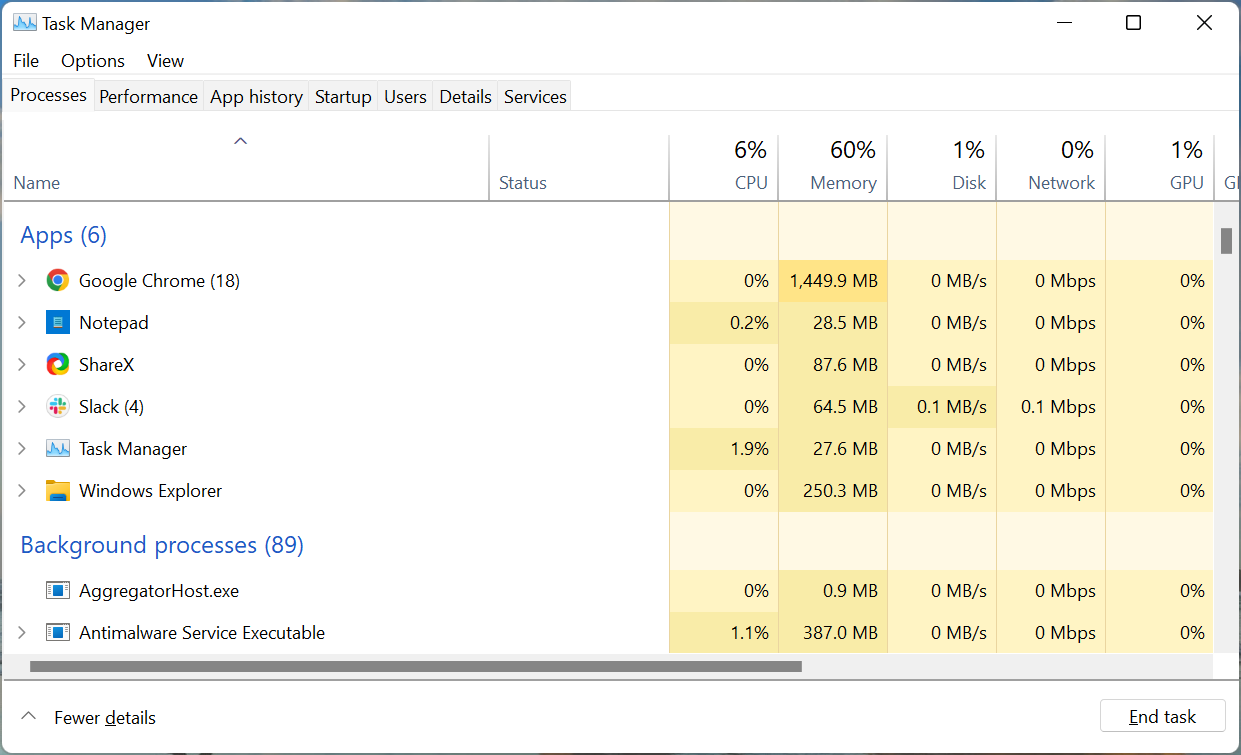
  1. Press Ctrl + Shift + Esc to launch the Task Manager, and locate the high-resource consuming programs and processes here.Task Manager
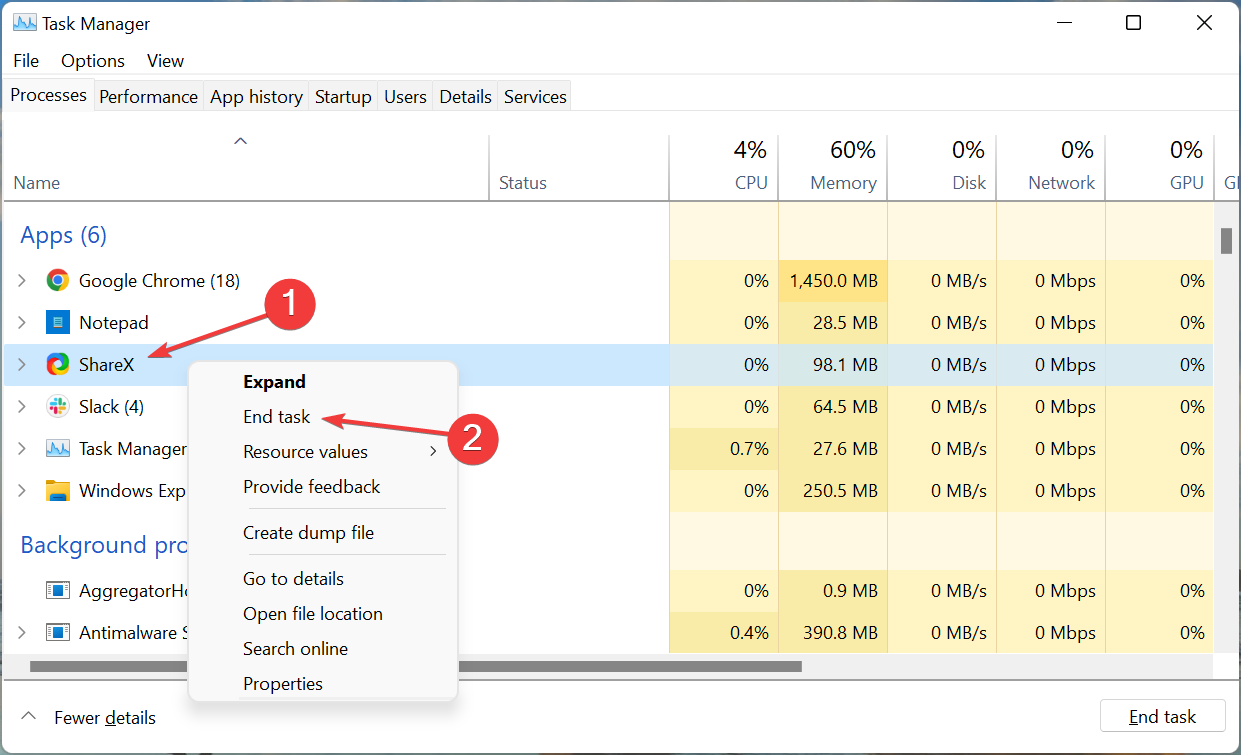
  2. Once done, right-click on these individually, and select End Task from the context menu.End Task to fix mouse is lagging when downloading on chrome

Now, check if the mouse lagging when downloading on Chrome on a PC problem is resolved. Also, remember not to terminate any critical process since it might affect the functioning of the OS. If you find one that you are unsure about, search the web for it.

3. Update the drivers

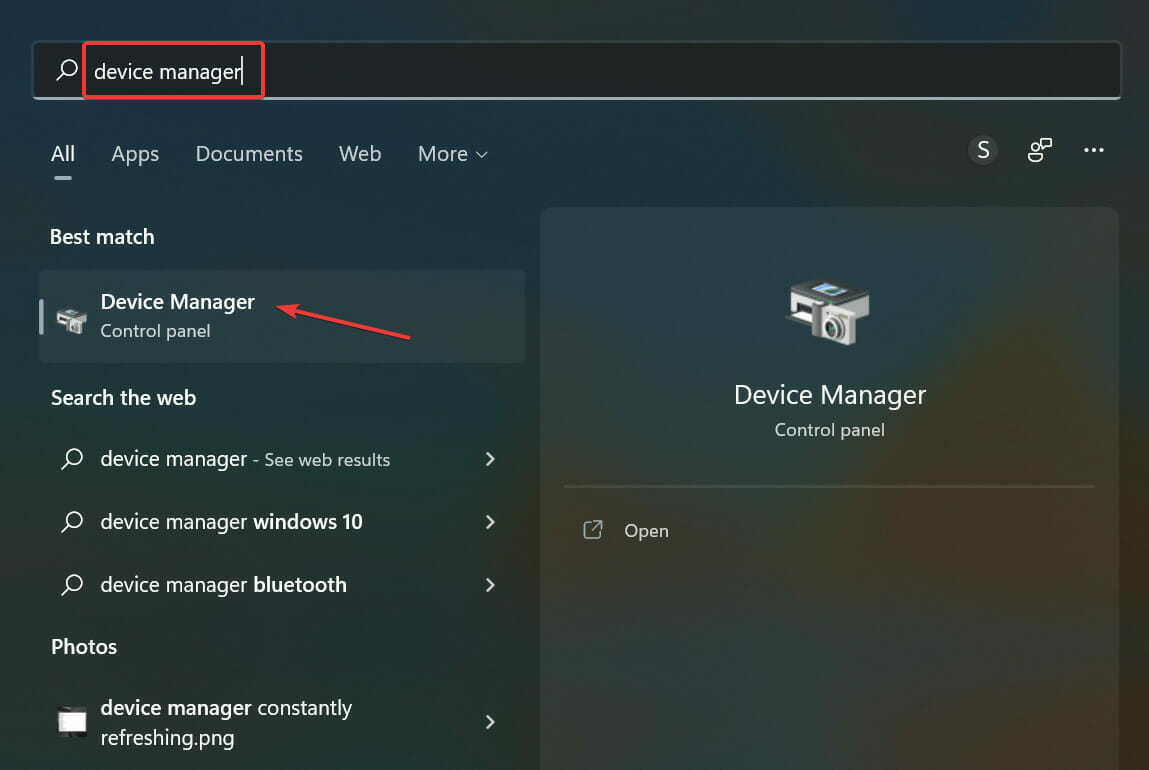
  1. Press Windows + S to launch the Search menu, enter Device Manager in the text field at the top, and click on the relevant search result.Device Manager
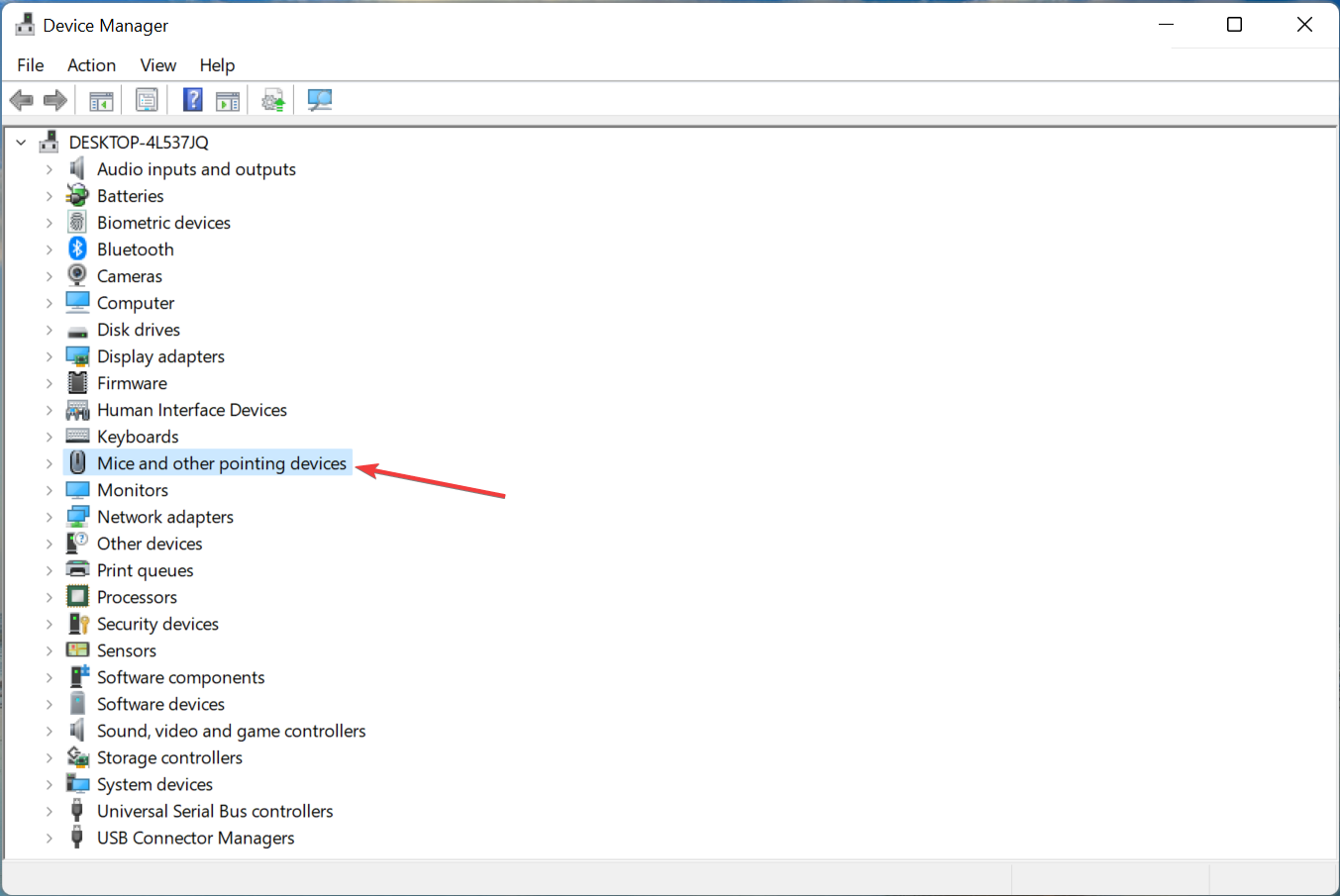
  2. Double-click on the Mice and other pointing devices entry.Double-click to fix mouse is lagging when downloading on chrome
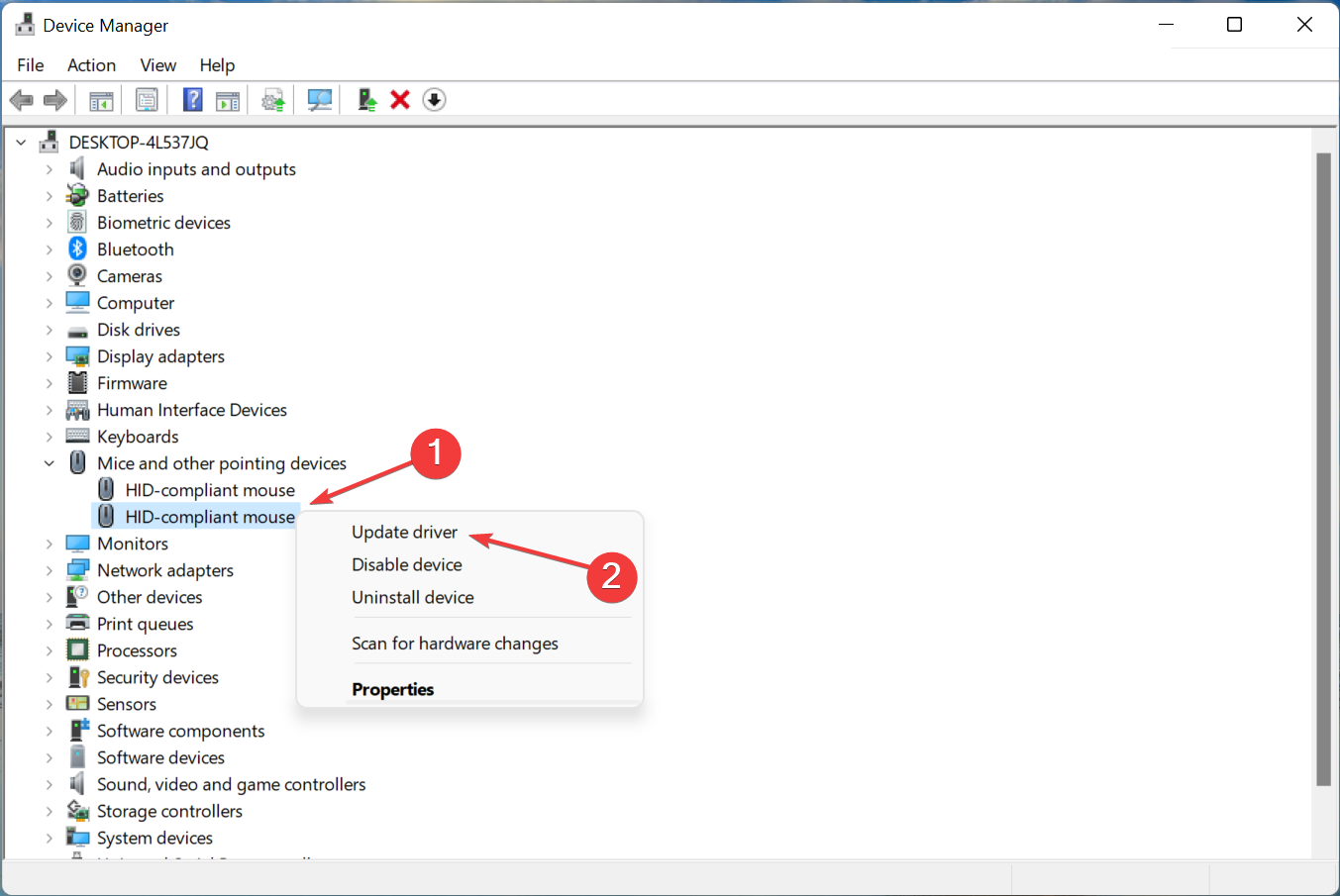
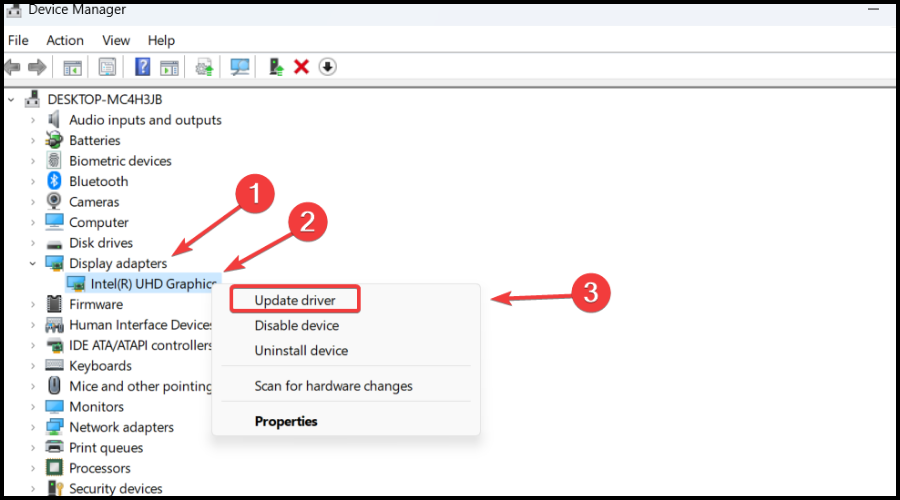
  3. Locate the problematic mouse, right-click on it, and select Update driver from the context menu.Update driver to fix mouse is lagging when downloading on chrome
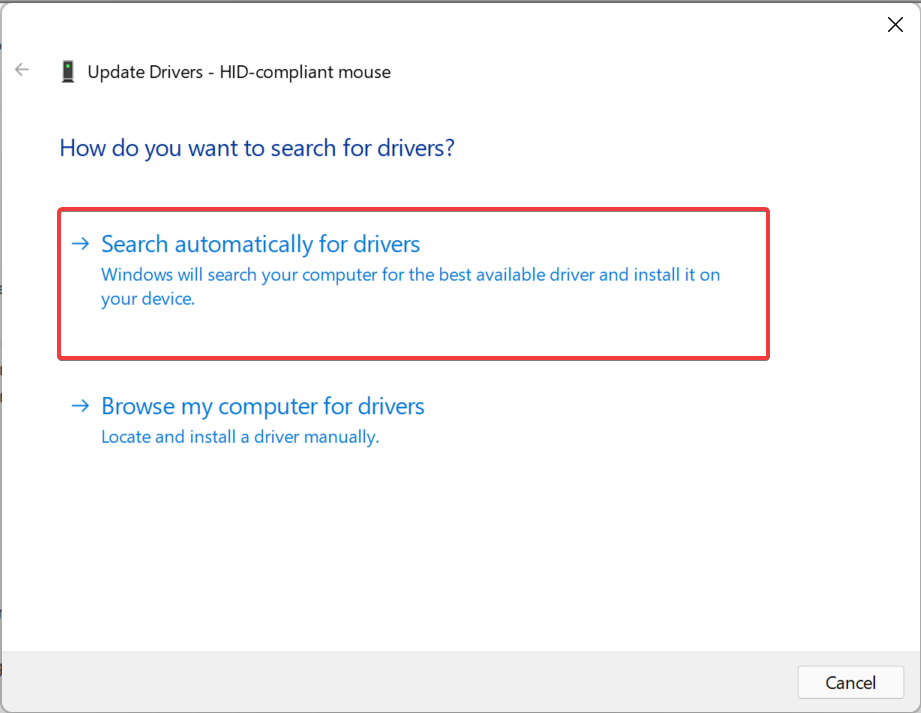
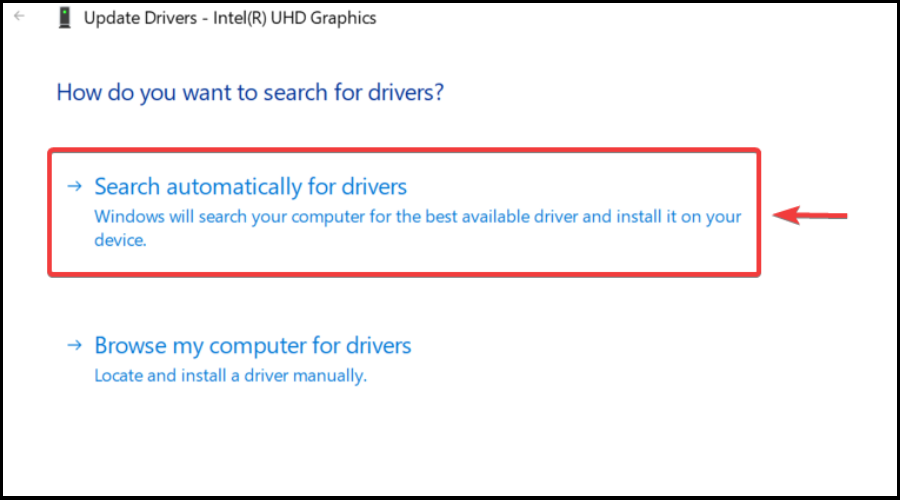
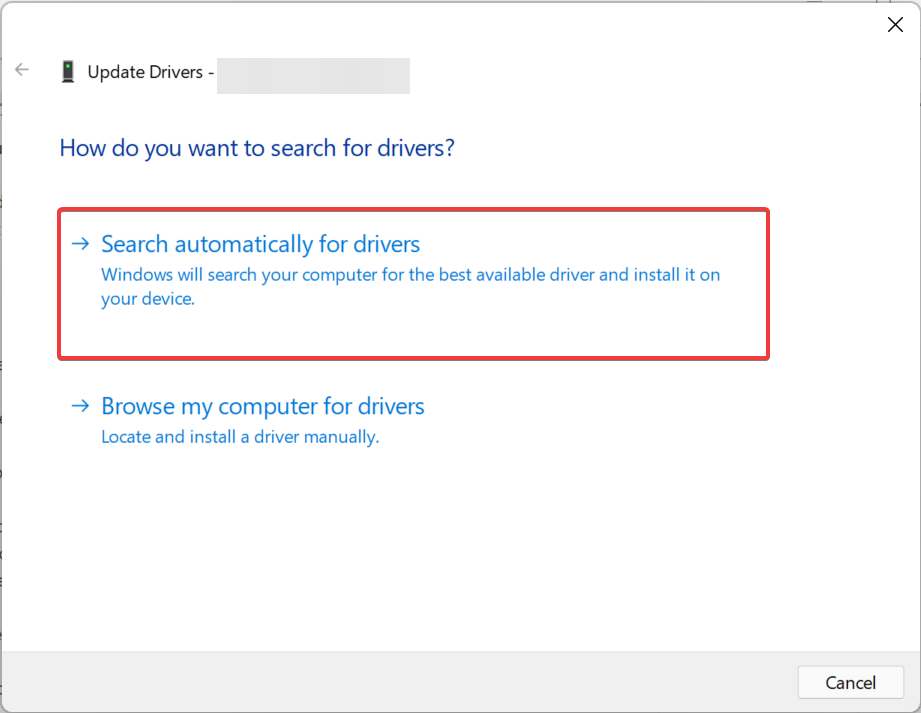
  4. Next, select Search automatically for drivers from the two options that appear here.Search automatically for drivers
  5. Wait for the best driver on the computer to be installed for the mouse.

Outdated drivers are just likely to cause mouse lagging when downloading on Google Chrome on a laptop. Other than the mouse driver, also make sure to update the graphics driver.

In case the Device Manager method doesn’t work, you can try to manually install the latest driver version in Windows. Also, remember to check the official manufacturer’s website in case it’s the Logitech mouse lagging in Windows 10.

To minimize mouse lags in Windows 10, make sure you’re running the most recent versions of your peripheral drivers.

There are third-party tools, such as Outbyte Driver Updater, that can search and install suitable drivers automatically for you. With a few clicks, the program will scan your PC’s hardware and peripherals for potential driver changes.

Outbyte Driver Updater’s download manager indicates download progress, and the driver backup feature allows you to back up drivers and install missing peripheral drivers even while you’re not connected to the internet.

⇒ Get Outbyte Driver Updater

Once done with the update, verify if the problem is fixed. If not, head to the next method.

4. Turn off hardware acceleration in Chrome

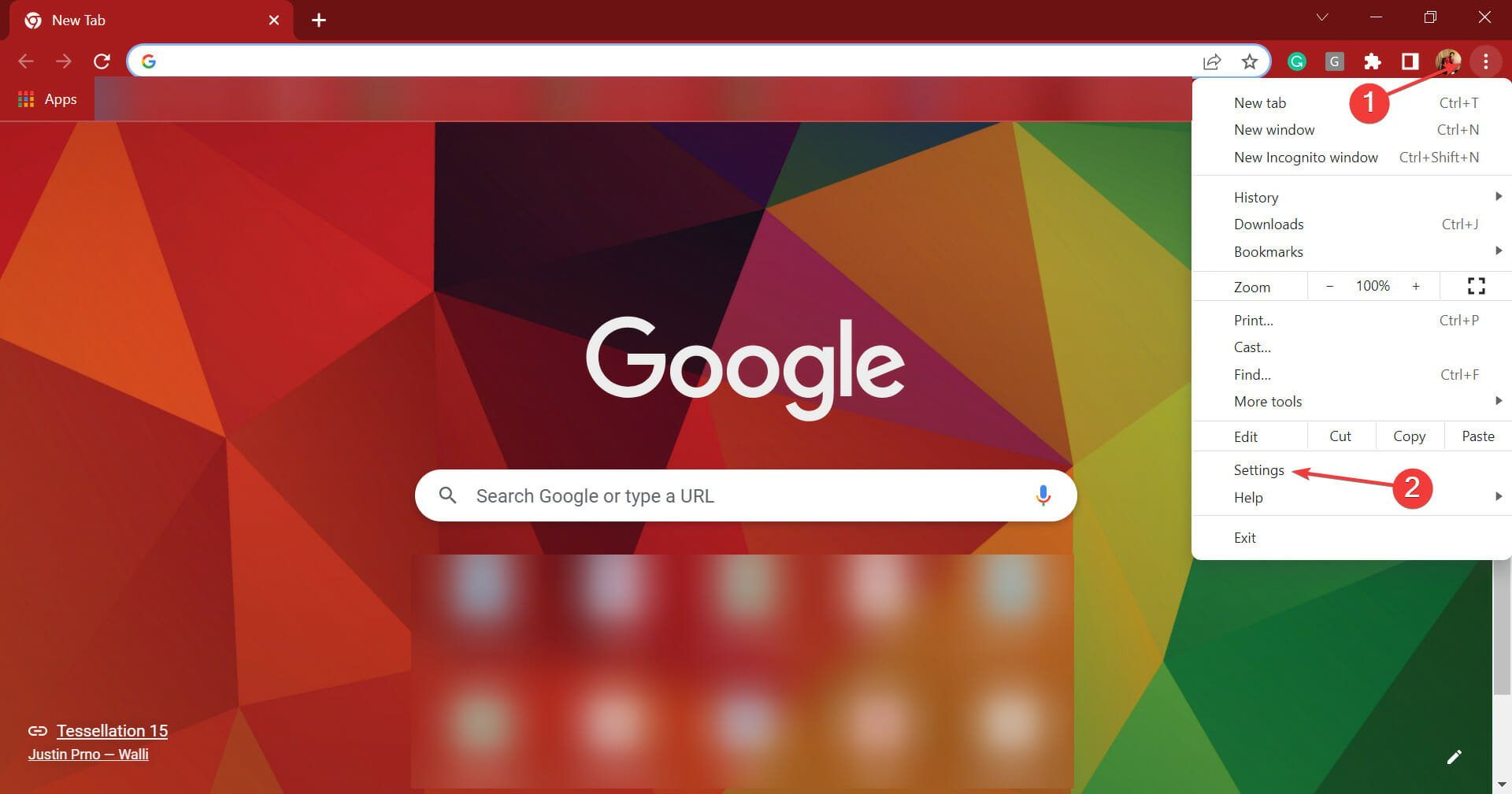
  1. Launch Google Chrome, click on the ellipsis near the top-right corner, and select Settings from the flyout menu. Alternatively, you can press Alt + E and once the flyout menu appears, hit S to directly open the Settings.Chrome Settings
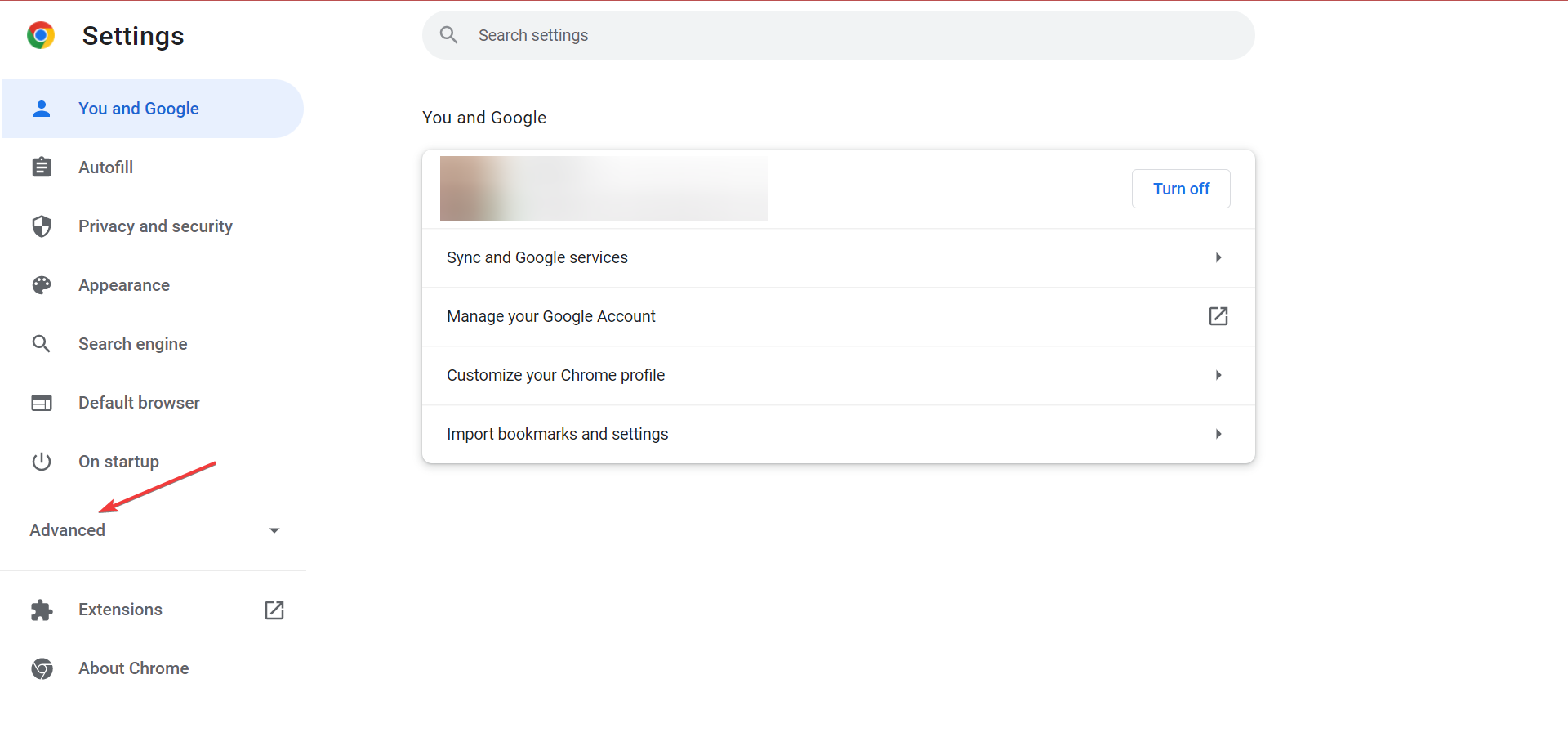
  2. Now, click on Advanced in the navigation pane on the left to expand and view the other tabs.Advanced
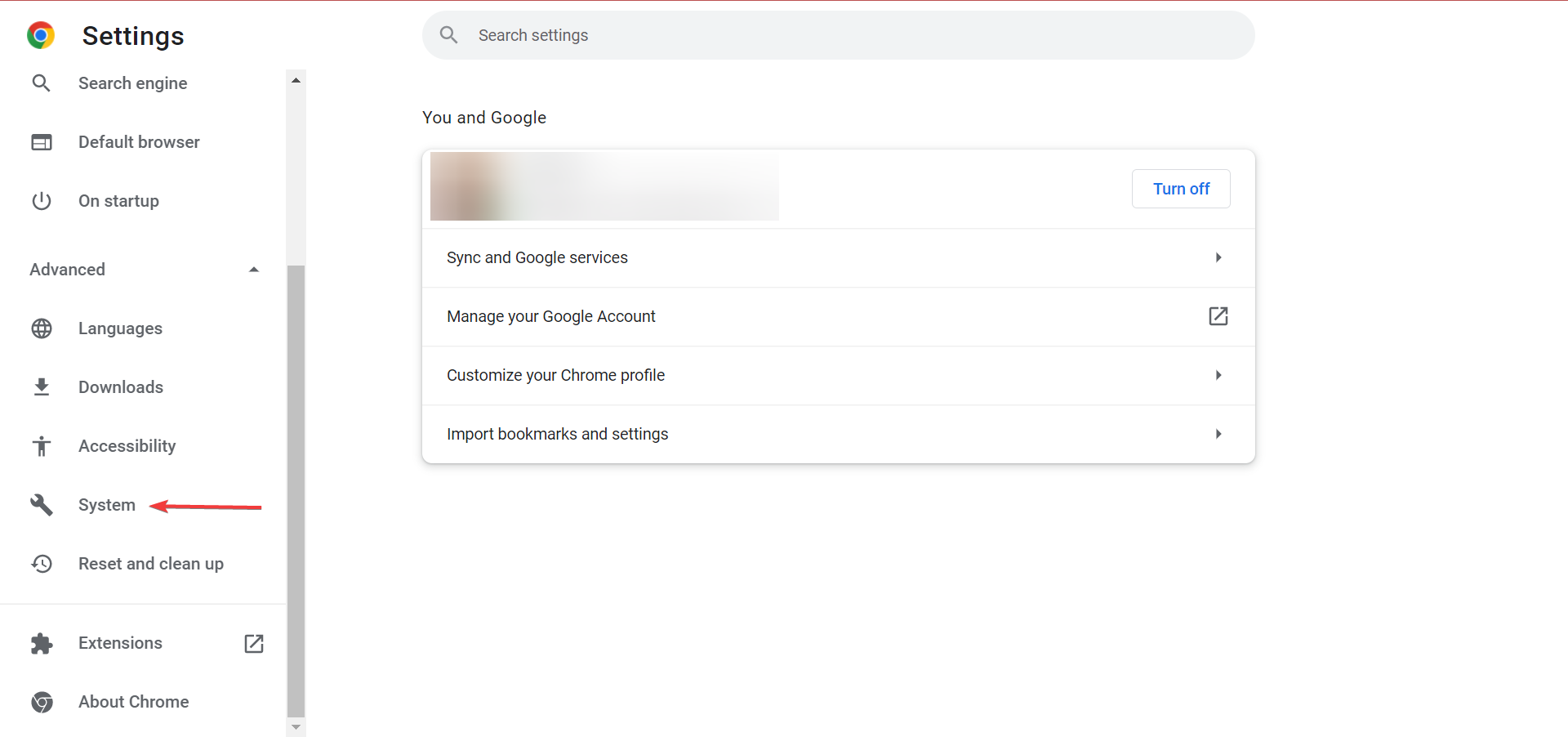
  3. Select the System tab.System tab to fix mouse is lagging when downloading on chrome
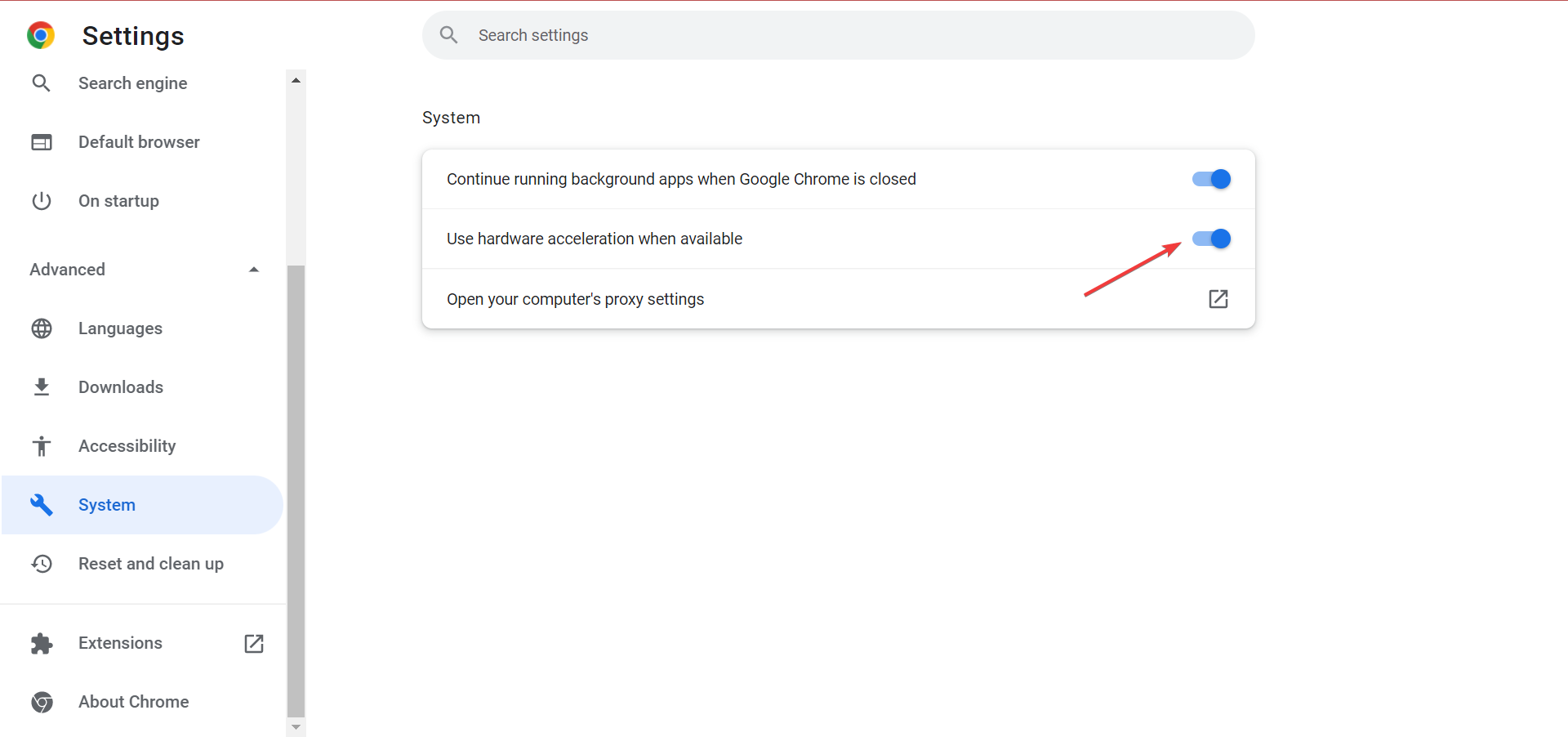
  4. Now, click on the Use hardware acceleration when available toggle to disable it.Disable toggle to fix mouse is lagging when downloading on chrome
  5. Click on the Relaunch button to restart the browser for the changes to fully come into effect.Relaunch

If the mouse is lagging when downloading on Chrome, there’s a good chance that hardware acceleration has got something to do with it. Though it’s meant to boost the performance, the feature can sometimes be counterproductive, and disabling it should help.

5. Limit the download speed for Chrome

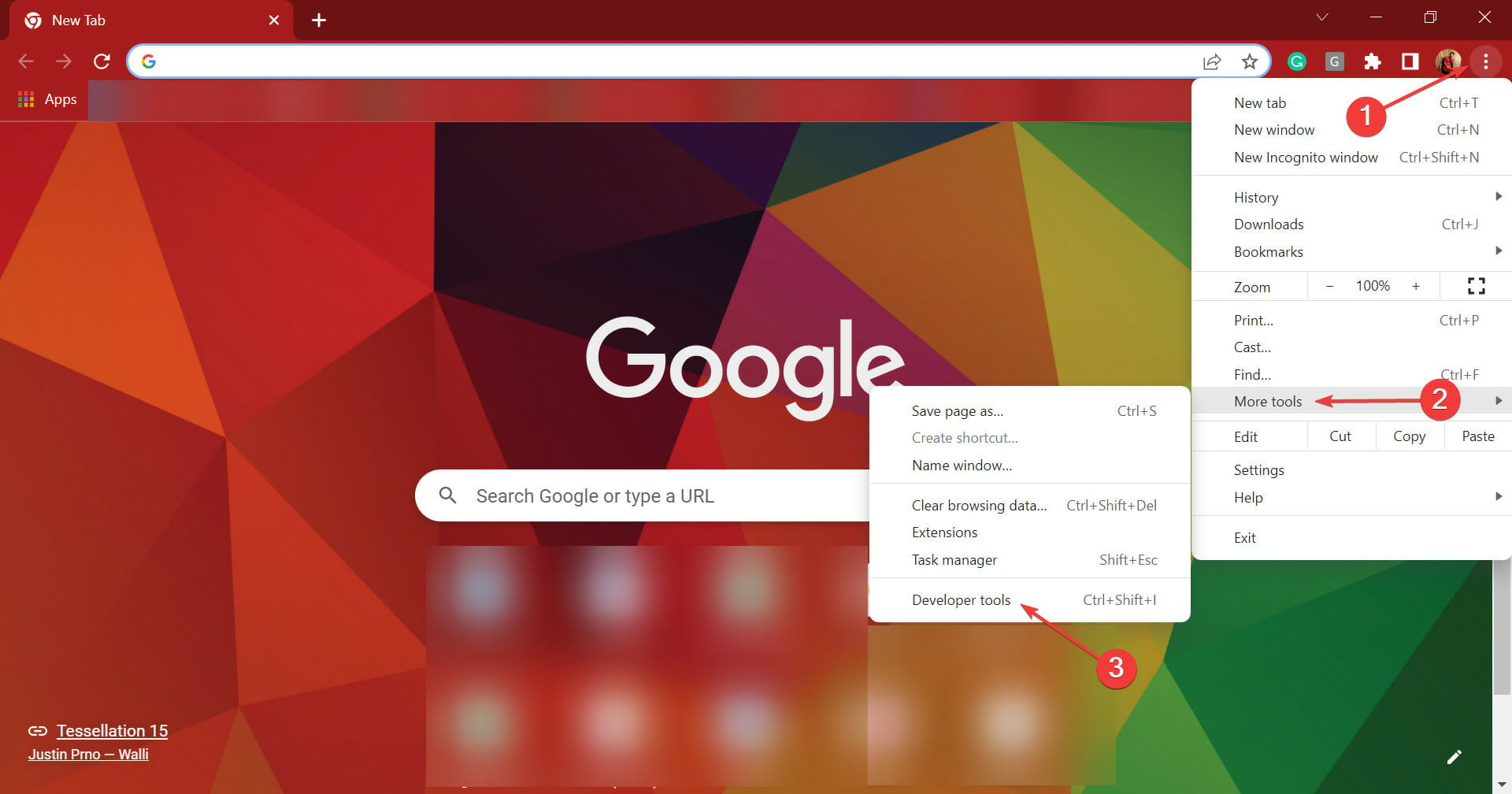
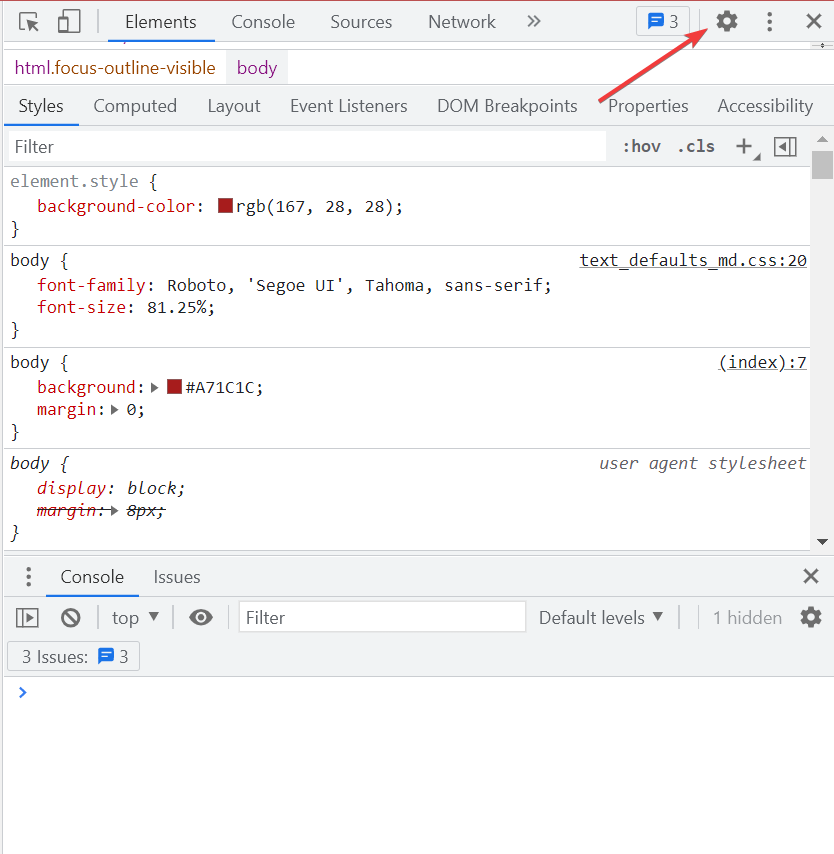
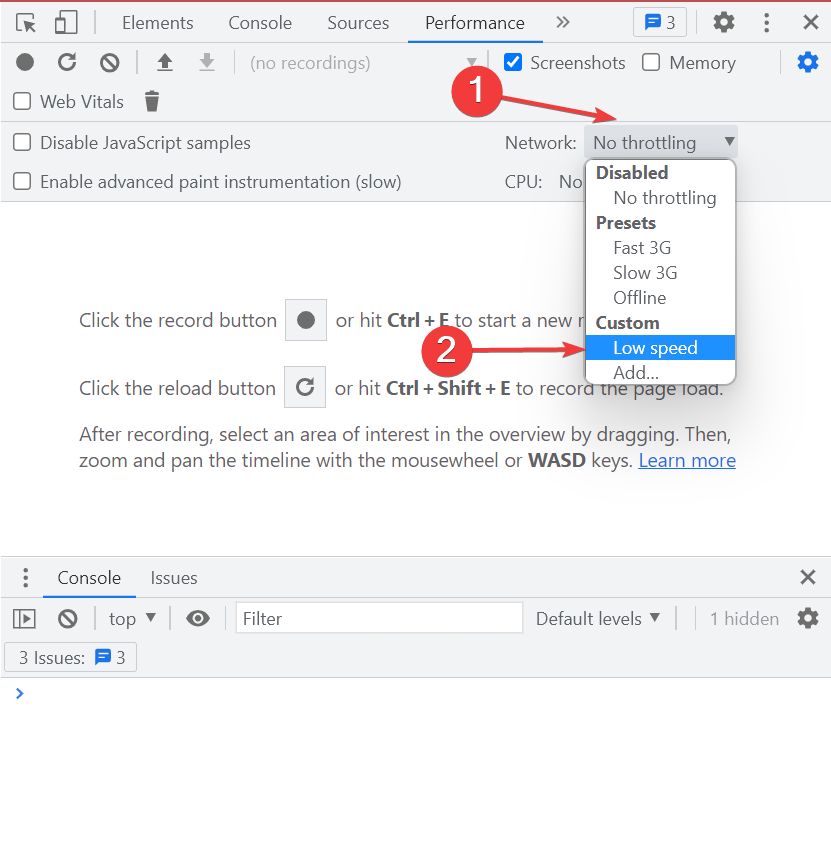
  1. Open Google Chrome, click on the ellipsis near the top-right, hover the cursor over More tools in the flyout menu, and select Developers tools. Alternatively, you can hit Ctrl + Shift + I to launch the tool.Developers tools to fix mouse is lagging when downloading on chrome
  2. Next, click on the Settings icon at the top of Developers tools.Settings
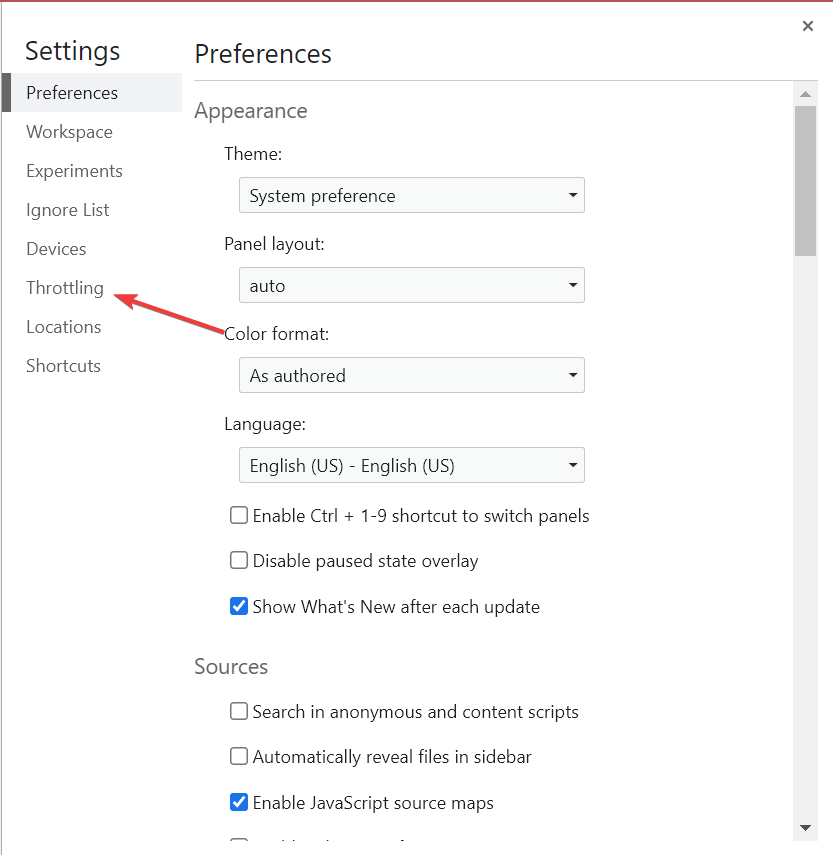
  3. Select Throttling from the list of tabs on the left.Throttling to fix mouse is lagging when downloading on chrome
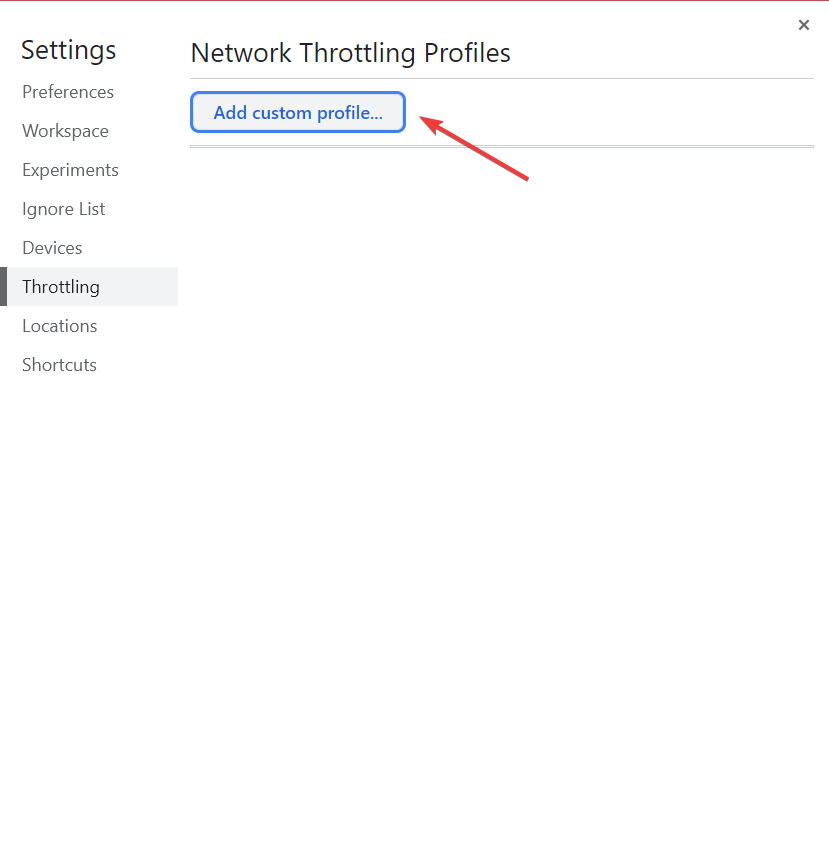
  4. Click on the Add custom profile button.Add custom profile
  5. Now, enter the details here as per your Internet plan, but make sure to choose a lower speed, and click on Add. Also, check the units and accordingly enter the speed.Add to fix mouse is lagging when downloading on chrome
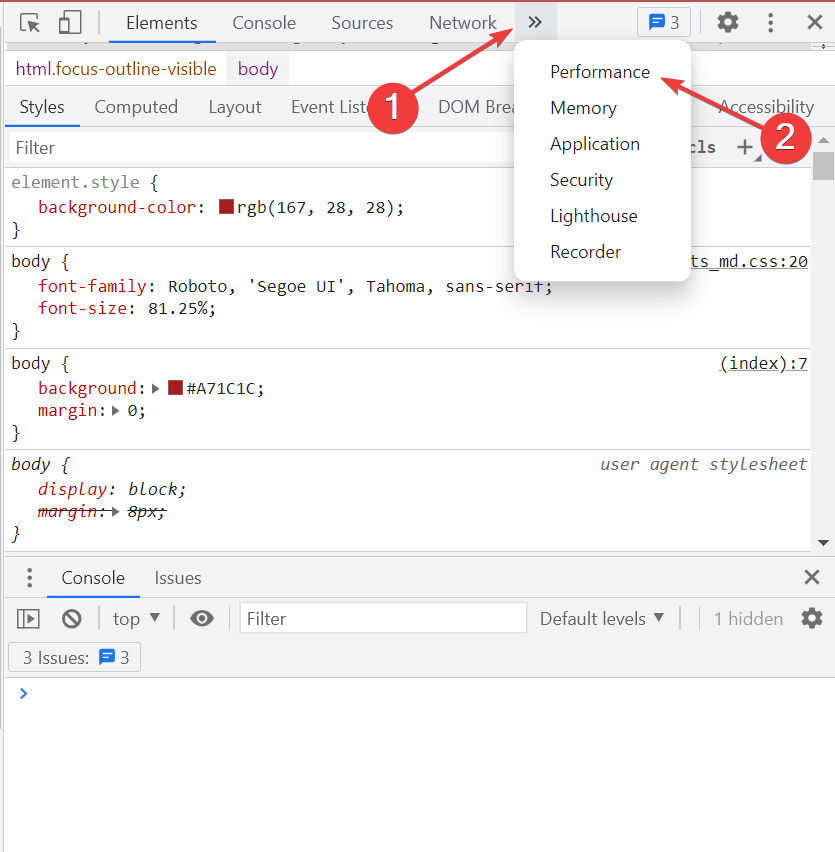
  6. Once you have created a custom profile, all you have to do now is enforce it before starting a download. To do that, open a new tab, and before entering the address for the website, hit Ctrl + Shift + I.
  7. Now, click on the arrow and select the Performance tab.Performance to fix mouse is lagging when downloading on chrome
  8. Finally, click on the Network dropdown menu, and select the profile you created earlier from under Custom.custom profile

Once done, the new speed limit would be enforced. Now, verify if the mouse is lagging when downloading on Chrome, which it most likely shouldn’t.

Also, if you need help choosing the right speed to enter here, check your Internet speed, and then set a figure lower than that for the custom profile.

6. Reinstall Goole Chrome

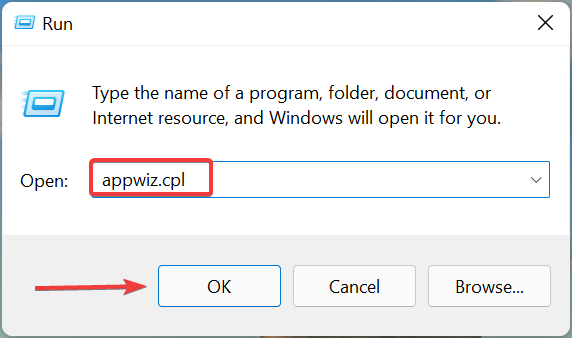
  1. Press Windows + R to launch the Run command, enter appwiz.cpl in the text field, and either click on OK or hit Enter to launch the Programs and Features window.appwiz.cpl
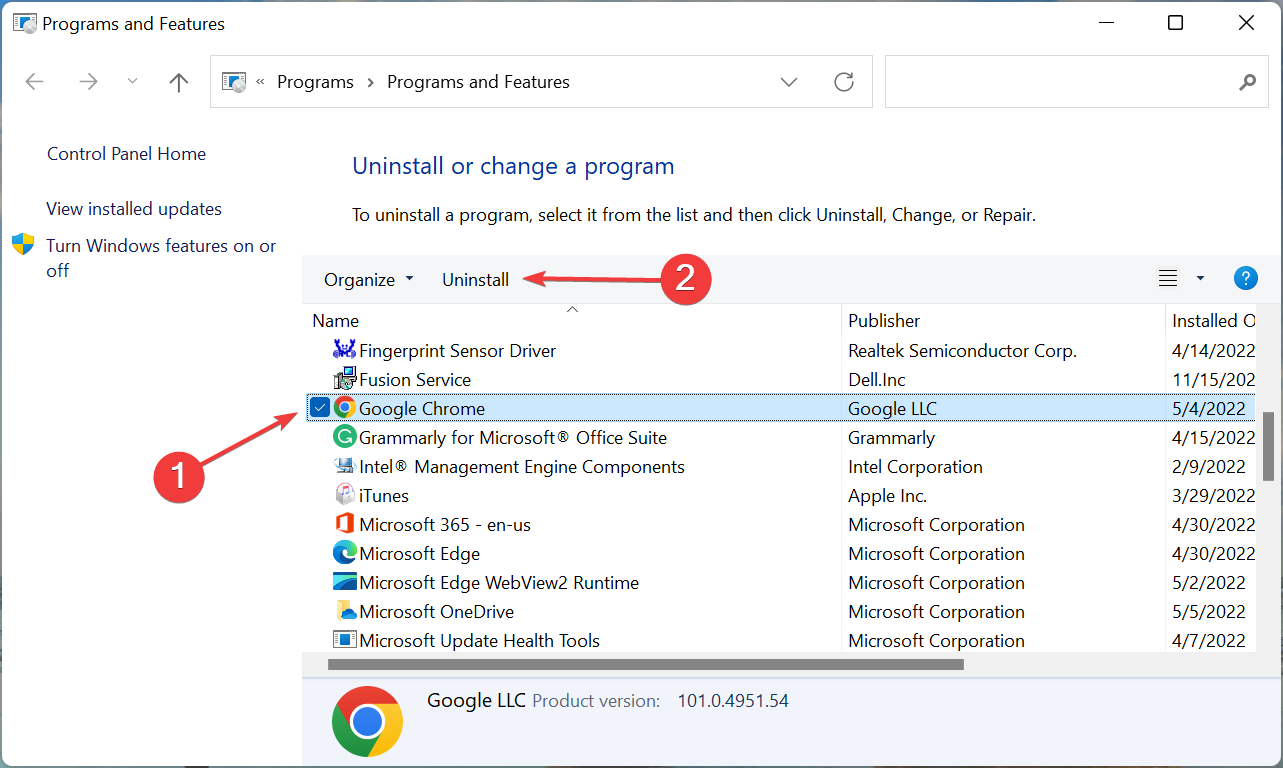
  2. Locate Google Chrome from the list of applications here, select it, and then click on Uninstall.Uninstall to fix mouse is lagging when downloading on chrome
  3. Follow the on-screen instructions to complete the process.
  4. Once done, restart the computer, and you can now safely download and install Google Chrome.

If the problem lies with Google Chrome and has been there since the very start, there could an issue with the installation. In this case, reinstalling Google Chrome should do the trick. This will also be evident if Chrome is lagging and freezing all the time.

7. Purchase a new reliable mouse

If none of the methods listed here have worked, the fault lies with your mouse. So, purchase a new reliable mouse, connect it to the computer, and the problem should be fixed. And if possible, go with a wired mouse since there is no interference with it.

After following the seven methods listed here, the mouse lagging when downloading on Chrome problem should be resolved.

Also, find out what to do if the cursor jumps, freezes, or disappears in Windows since many users have reported encountering this issue. Besides, check the effective fixes for mouse lagging in Windows 11.

If you have any other queries or know of a method that’s not listed here, drop a comment in the section below.

How to Fix Could Not Connect to Steam Network Error

Steam is a must-have for PC gamers, as it is one of the most well-known platforms for purchasing and playing games. However, it can malfunction from time to time resulting in errors such as the Could not connect to Steam network one that we will address today.

There are thousands of games to pick from, and you can even share games with your friends, so it will be simple to accumulate a large game library using the Steam platform.

In addition, network problems manifest themselves in a variety of ways, including choppy video conversations, slow application or network speeds. Or even delayed downloads, poor quality, and no Internet connection.

However, every error has a solution, and we found 6 methods in which you can solve Steam connection errors. Follow along as we will first see why Steam is not connecting, then jump into the list of solutions.

Why is Steam not connecting?

Occasionally, network difficulties can be caused by broken hardware, such as routers or switches. Or by unanticipated usage patterns. Such as network bandwidth surges, and changes in the application configuration.

However, the error thrown by Steam could also be caused by their servers or security breaches that they have encountered.

Troubleshooting network issues can be time-consuming, and if left untreated, they can have severe effects on your computer.

Furthermore, to prevent this from happening, it is critical to understand what might go wrong with your network and to regularly monitor network performance.

In what systems does Could not connect to Steam network error occur?

User reports show that today’s error is not specific to a certain Windows iteration. But that it shows in multiple systems such as the following:

  • Could not connect to Steam network in Windows 10 – Don’t worry as the methods in which you can fix the problem presented below will be similar to apply in this OS iteration as well.
  • Could not connect to Steam network in Windows 11 – The solutions below have been showcased in Windows 11, so you can follow the steps easily.
  • Could not connect to Steam network when using Mac – For those who have encountered it on their Mac computers, we recommend that they reinstall Steam and make sure their network connection is stable.
  • Could not connect to Steam network when using Linux – The same goes for Linux users. Additionally, check whether your firewall or antivirus software doesn’t cause any issues.

This being said, let’s see how you can fix the network connection issue and get back to playing your favorite Steam games. Keep on reading!

How can I fix the Could not connect to Steam network error?

1. Troubleshoot your network connection

  1. Begin to restart your router (make sure you unplug the power cord and leave it for 30 seconds switched off).
  2. Open a new Command Prompt window by clicking on the magnifying glass icon from your Taskbar. Then typing cmd inside it.cmd-run could not connect to steam network
  3. Now type or copy-paste the following commands one by one and press Enter after each: ipconfig/release ipconfig/all ipconfig/flushdns ipconfig/renew netsh winsock resetipconfig-cmd could not connect to steam network
  4. Once the processes are done, restart Steam to see if it works now.

2. Ensure that your network driver is up-to-date

  1. Right-click your Start icon from the Taskbar and choose Device Manager.device-man could not connect to steam network
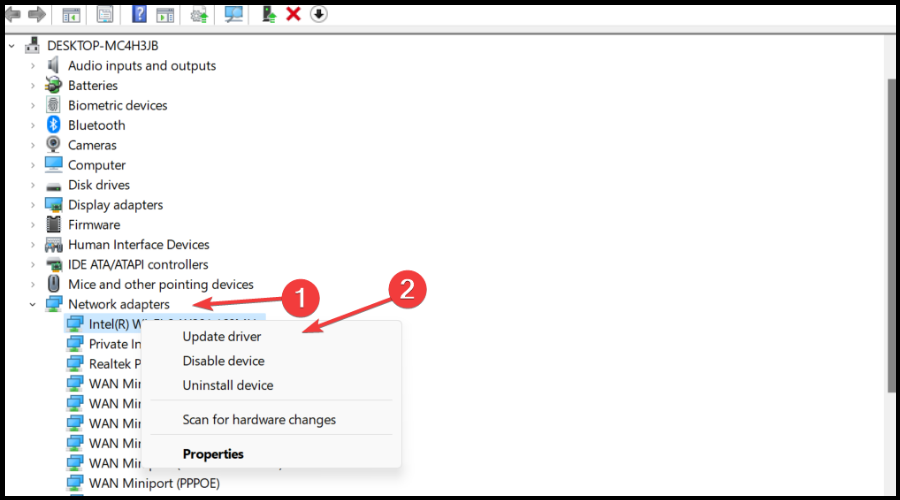
  2. Expand the Network adapters category and right-click on your network adapter in order to choose Update driver from the context menu.network-update could not connect to steam network
  3. Next, restart your computer after you have updated it in order to make sure the changes are applied. Then test Steam to see how it behaves.

Alternatively, you could head to your network adapter’s official website and try to find the latest drivers for your device.

After you’ve updated your drivers, check to see if you have any pending Windows updates. If so, let them download and apply them.

Moreover, if your system is up to date, then there is a high likelihood that the Could not connect to Steam network error message will disappear.

An outdated or damaged network adapter driver may interfere with your network connection and slow down your download rates.

Another approach to increase your download speeds and avoid the Could not connect to steam network error is to automatically and safely update or reinstall your network adapter driver.

If manually looking for network adapter drivers seems tedious, and you want to avoid any damaged registry entries, we recommend using Outbyte Driver Updater automated driver installer and updater.

A driver updater, such as Outbyte Driver Updater, ensures that drivers are updated and prevents PC harm caused by installing the incorrect network adapter driver version.

3. Reinstall Steam

  1. Back up the Steamapps directory if you want to save all your installed games.
  2. Next, open Settings by holding Windows + I together and go to Apps followed by Apps & features.apps-apps&features could not connect to steam network
  3. Search for the Steam app, then click on the three-dotted menu and choose Uninstall.steam-uninstall could not connect to steam network
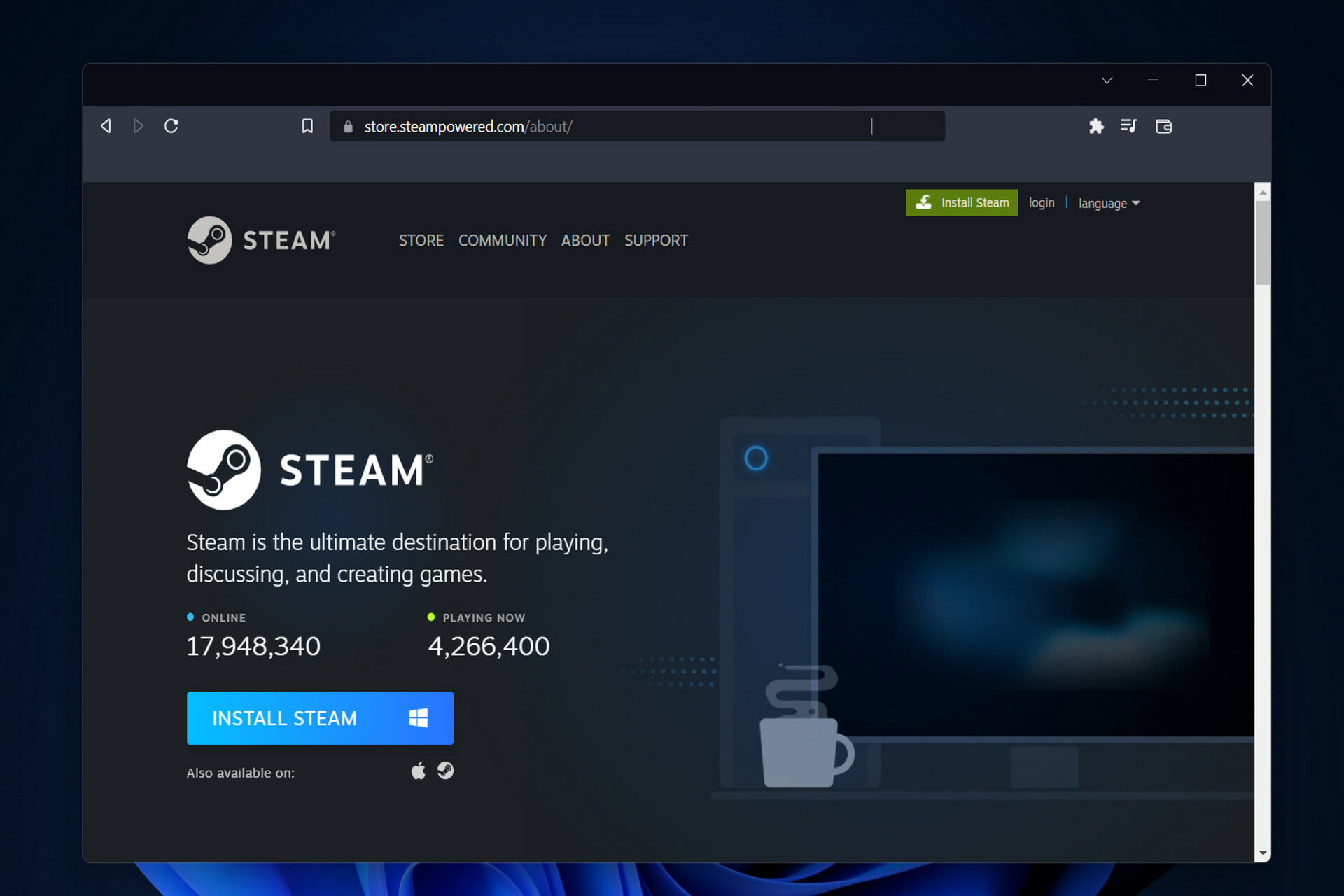
  4. Head to Steam’s website to download and reinstall their app and test it again.

4. Check your firewall

  1. Open Windows Security by typing its name inside the Windows Search function and clicking on the topmost result.windows-security-search could not connect to steam network
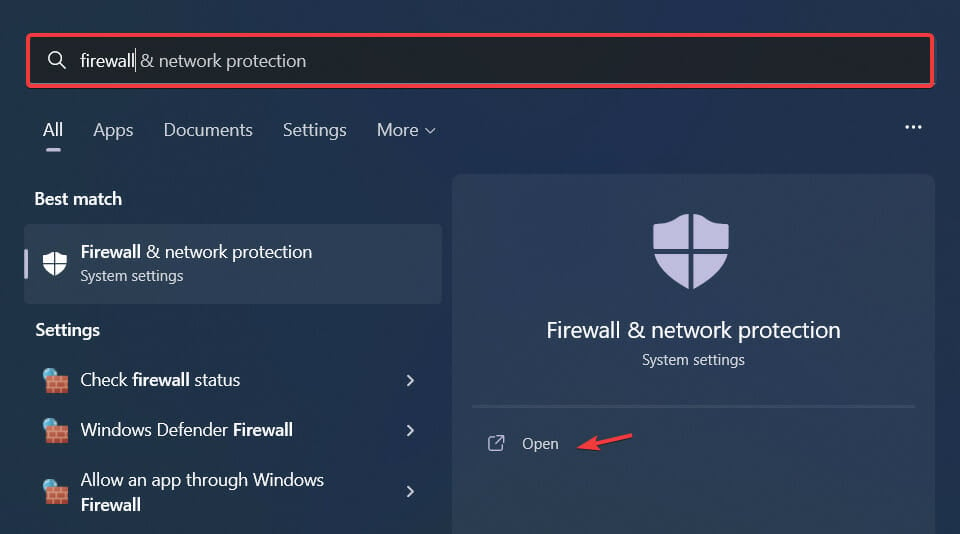
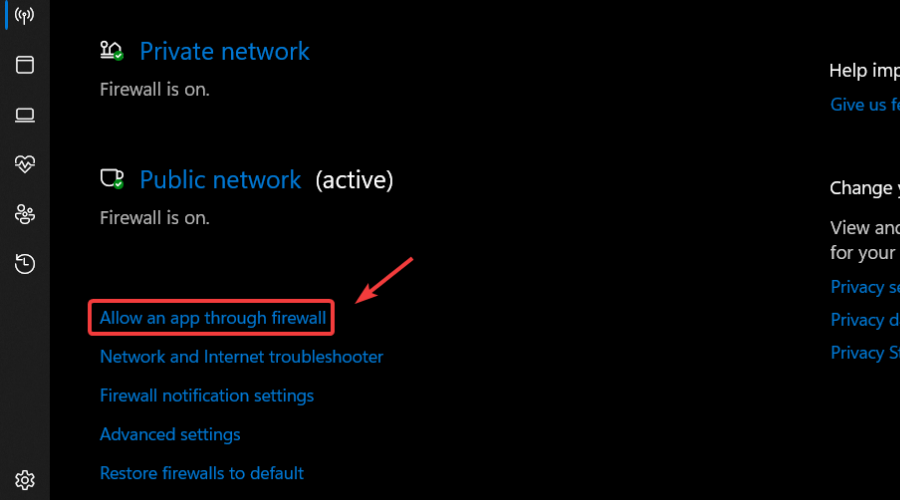
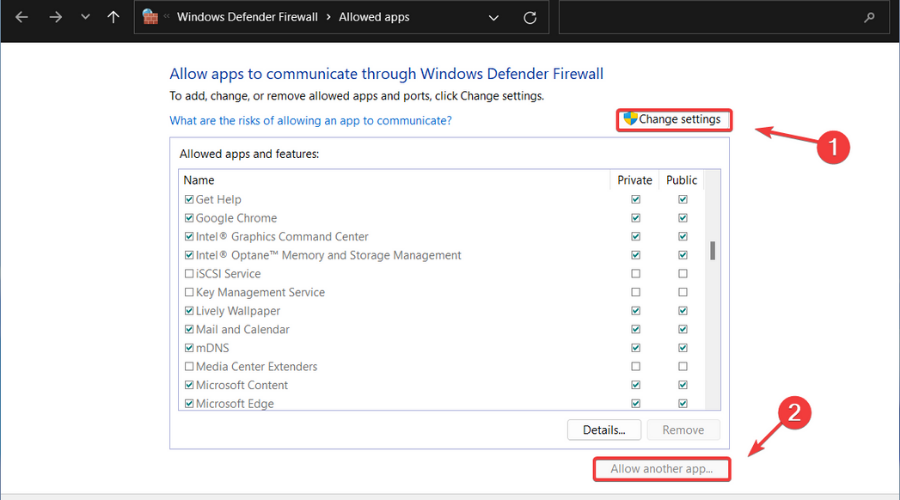
  2. Go to Firewall & network protection and select the Allow an app or feature through Windows Defender Firewall option.allow-appp could not connect to steam network
  3. Find Steam in the list and make sure the box next to it is ticked then click on OK.

5. Disable VPN / use split tunneling

If you are running with a VPN, pause it and try starting Steam again. In case your VPN caused a conflict with Steam, it could be the very cause for the Could not connect to the Steam network error.

In this case, you can either pause the VPN and check if Steam behaves normally, or use split tunneling.

Split tunneling is an awesome feature that allows you to exclude certain apps or services on your PC from the VPN tunnel.

Therefore, if you add Steam to the exclusion list and the VPN is indeed causing the error, you might even get away with not disabling your VPN.

A good example of a split-tunneling-ready VPN service is Private Internet Access. Using this proficient VPN solution, you have firm encryption for your network. Plus infinite servers you can choose from to avoid network errors on your Steam service.

6. Start Steam using TCP

  1. Use Task Manager by pressing CTRL + SHIFT + ESC to close all Steam processes which are currently running under the Details tab.details could not connect to steam network
  2. Head to the location of Steam in File Explorer. Or if you have a shortcut of it on your Desktop, go there and right-click on it to choose Properties.steam-prop could not connect to steam network
  3. In the Target field, add -tcp at the end, after the quotation marks, and click OK. Start Steam again to see if the Could not connect to Steam network error is gone.tcp could not connect to steam network

The solutions provided above should fix the Could not connect to Steam network error without too much effort.

However, if you need further assistance, check out our post on 3 quick ways to fix the Steam no Internet connection error.

Alternatively, take a look at how to prevent the Internet from disconnecting in Steam while playing a game that needs an online connection.

Let us know in the comments section below which method worked best for you and how easy it was to apply it. Thanks for reading!

We Couldn’t Update the System Reserved Partition [Windows 11 Fix]

When updating Windows 11 or upgrading from Windows 10 to Windows 11, you might encounter the error We couldn’t update system reserved partition.

This might be accompanied by error codes 0xc1900104, 0x800f0922, or 0xc1900201.

What is causing the System Reserved Partition error?

This may be caused by a full System Reserved Partition (SRP) that can’t be written into anymore.

Additionally, some third-party security and antivirus applications write into the SRP and can quickly fill it up. Dual-booting with Linux could also be the reason for the error.

Also, if you are running a new Legacy install, bypassing the Windows 11 requirements, you may have a System Reserved Partition with only 50 MB, too small.

What is the Function of the System Reserved Partition?

The SRP is a hidden partition in the system drive that contains crucial boot and system recovery information.

The data includes boot manager code and boot configuration data as well as the startup files used for BitLocker Drive Encryption. In Windows 10, recovery environment data is also stored in this partition.

Note icon NOTE
Tampering with the System Reserved Partition might require advanced skills using the command line. Any incorrectly entered commands might result in a no-boot situation and potential data loss on the device.

What can I do if Windows 11 couldn’t update the system reserved partition?

1. Find out what is your partition type

  1. Right-click the Start button and select Disk Management from the list.
  2. Now, right-click your main partition and select Properties.
  3. Click on the Volume tabs and you should see the Partition style on the list. In this case, it’s GPT.

Although usually, you can only install Windows 11 on a GUID Partition Table (GPT), it is possible to do that on MBR.

That’s why we first need to check what we’re dealing with because the solutions for the two cases are slightly different.

2. Delete the font files

2.1 For GUID Partition Table (GPT)

  1. Click the Start button, type cmd, and select Run as administrator.
  2. Type the following command to assign drive letter Y to the System Partition and press Enter: mountvol y: /s
  3. Type Y: and press Enter to switch to the Y drive.
  4. Navigate to the Fonts folder by typing the following command: cd EFI\Microsoft\Boot\Fonts
  5. Then, delete the font files therein using the following command, followed by Enter: del *.*
  6. Type Y if prompted by the system to continue the deletion of the files.

Apparently, by removing the fonts, you should now have enough space in the SRP to continue with your upgrades or installation.

2.2 For MBR (BIOS)

  1. Right-click the Windows button and choose Disk Management from the list.
  2. Right-click the System Reserved Partition, select Change Drive Letter and Paths and press Add.
  3. Choose Y as the drive letter and finally click OK to apply the changes.
  4. Next, click the Search icon, type cmd, and click on Run as Administrator from the resulting overlay menu.
  5. Type Y: and press Enter to switch to that drive.
  6. Type the following command to change the folder to the Fonts: cd Boot\Fonts
  7. Paste the following command to recover access privileges to files in the folder: takeown /d y /r /f
  8. Then, save the permission to the drive by pasting the following command and pressing Enter: icacls Y:\* /save %systemdrive%\NTFSp.txt /c /t
  9. To display the name of the current user account type whoami then press Enter.
  10. To grant access to the user type the following command and press Enter: icacls . /grant <the username you got from whoami>:F /t
  11. Delete all files in the folder by typing the following command and pressing Enter: del *.*
  12. To restore permissions, type in the following command and press Enter: icacls Y:\ /restore %systemdrive%\NTFSp.txt /c /t
  13. Then, revert the access control list (ACL) to the system by typing the next command and pressing Enter: icacls . /grant system:f /t
  14. Lastly, hand ownership of the drive back to the System by pasting the following command and pressing Enter to run it: icacls Y: /setowner “SYSTEM” /t /c

The System Reserved Partition should now have more free space. You can confirm this by checking the Disk Management console, where you should then proceed to remove the drive letter.

To remove the Y drive letter, right-click the System Reserved Partition in the Disk Management tool and select Change Drive Letter and Path just like you did within the solution.

But this time, choose the Y: drive, and select Remove, then click OK to save the changes.

Restart the computer (if needed) and proceed with your upgrade or update. The error We couldn’t update system reserved partition should be gone.

3. Extend the System Reserved Partition with third-party Software

If you find the above method daunting, then third-party tools like the MiniTool Partition Wizard and AOMEI’s Diskpart can help solve the problem.

Such tools avail graphical interfaces and near-one-click operations to carry out the various fixes.

In particular, the MiniTool Partition Wizard clearly shows the partition style and other relevant properties for each partition.

Whether it’s a GPT or MBR disk, the software includes intuitive tools to help you extend or shrink the partitions. Just be sure to follow their documentation to the letter.

Note icon NOTE
On some third-party partition management tools, GPT disks may be displayed as EFI system partitions (ESP).

In a nutshell, these tools help you shrink the main C: drive and extend the System Reserved Partition with the resulting Unallocated Space.

As a last resort, you might want to consider performing a clean install of the affected Windows version.

Essentially, a clean install resets the hard drive and creates a fresh System Reserved Partition out of the main system drive. Remember to back up all your data before proceeding with a fresh install.

Xbox services suffered multiple outages this past weekend

The Xbox Network experienced a major outage over the weekend that left users unable to access network features for at least a 12-hour period, with issues still being reported as of Monday. During the outage, which began early Friday, Xbox users were unable to purchase or launch many digital games or content. Users were also unable to use Xbox Cloud Gaming services or make subscription purchases such as for Game Pass or Xbox Live Gold. Some users reported being unable to access their accounts altogether.

The Xbox Support Team shortly addressed the issue and began to make fixes throughout the day, posting regular updates on its official Twitter account.

However, it wasn’t until more than seven hours later that Xbox Support declared the issues resolved…partially.

And it wasn’t for several more hours until Xbox Support announced that the outage had been remedied more than 12 hours after it began, though even as of Sunday there were users reporting network issues. (Those still experiencing issues at this point should try rebooting their Xbox console).

The event has led some to criticize how the industry uses Digital Rights Management (DRM) software, which in this case prevented players from accessing games they had purchased and installed on their consoles.


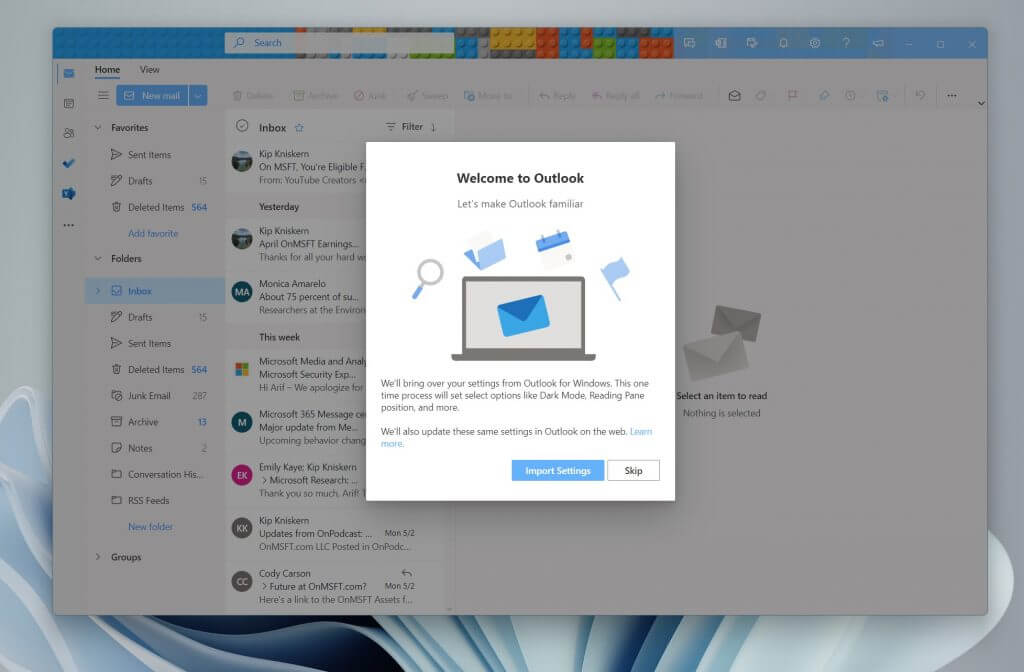
Microsoft “aware” of leaked Outlook for Windows, warns against using it & to wait for beta

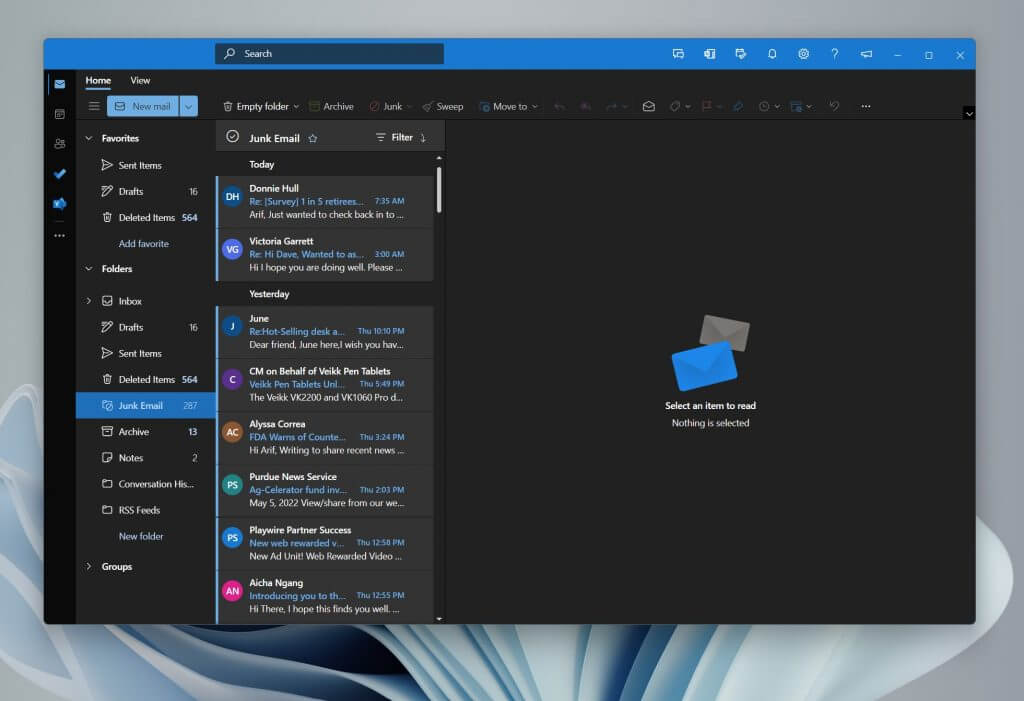
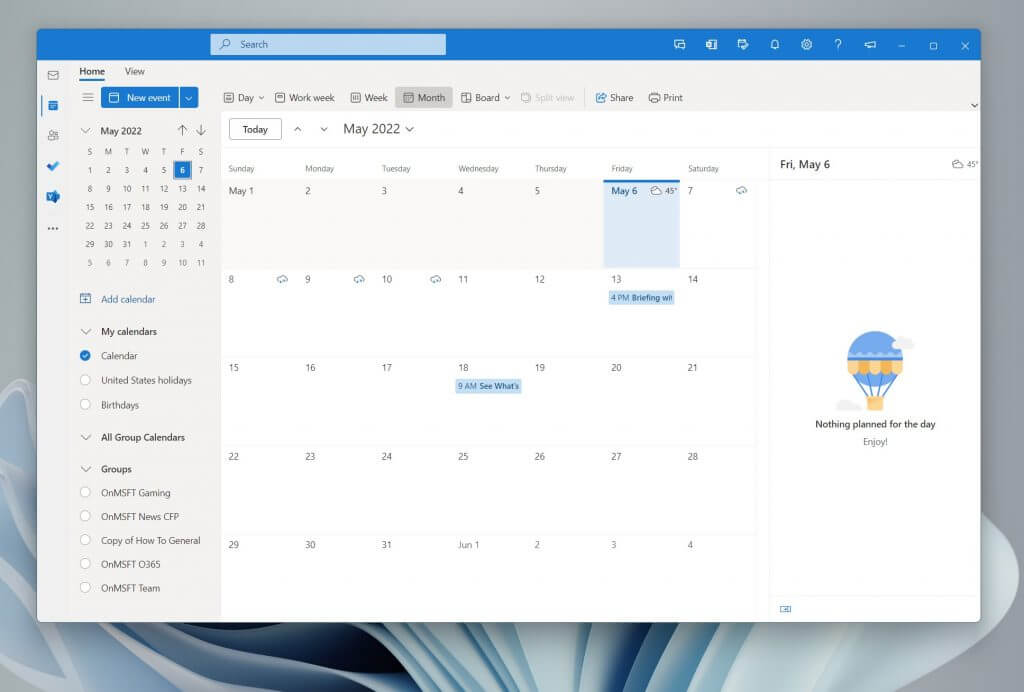
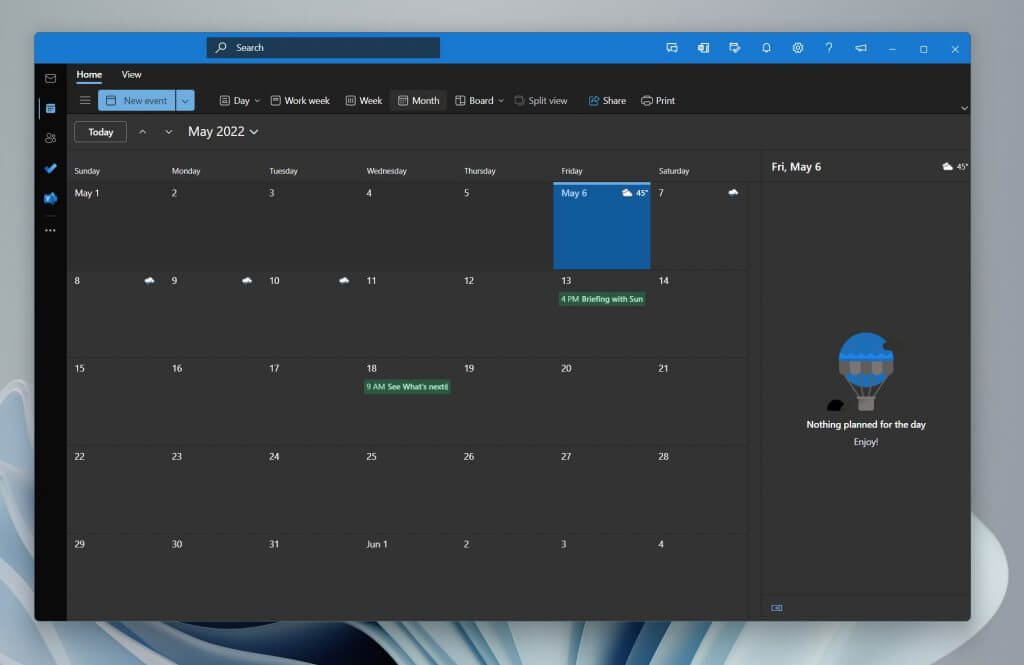
Microsoft’s upcoming “One Outlook” client recently leaked online, and many people have already used the app, adding work or school Microsoft 365 accounts to it. However, it turns out that the IT admins that have to deal with the security issues of users emailing with an unfinished app aren’t exactly pleased with this. That’s why Microsoft has issued a warning in the Microsoft 365 admin message center catered around the new Outlook for Windows (via Tero Alhonen/ Twitter.)

Titled MC376710, Microsoft’s warning message mentions that some users might have accessed an unsupported early version of the new Outlook for Windows. The message goes on to mention that this early version is “missing some of the features” and enhancements that will be coming later in the Beta Channel.

Microsoft even goes as far as to encourage customers to wait for a beta version to be released, mentioning timeframe for a specific release date. “We expect to provide more news in the coming weeks about our Beta release,” mentions the company.

In the meantime, Microsoft is providing some instructions on what IT admins can do to block users from connecting Microsoft 365 accounts with the leaked app. It involves preventing syncing, but not preventing downloads. This can be done for either a single user or the entire organization. 

All that said, it definitely seems as though a more polished version of the One Outlook app could be on the way soon. But, for now, it might be best to avoid using the app and causing your IT admin headaches. With Build 2022 now just a couple of weeks away, we won’t be surprised if we hear more about the app then or get an official beta client

How to Add Browser Source to OBS Studio [Step-by-step]

The software is a screencasting and live streaming application that is free and open-source. Thus, today we will show you how to add browser source to OBS Studio. So that you can get the best out of the app’s interface. But if you need help downloading OBS Studio, check out our article

It is written in C/C++ and built with Qt. Thus allowing for real-time capture, scene composition, recording, encoding, and broadcasting over the Real-Time Messaging Protocol. RTMP-enabled destinations such as YouTube, Twitch, Instagram, and Facebook are all supported by the software.

OBS Studio can encode video streams into the H.264/MPEG-4 AVC or H.265/HEVC formats. By using the x264 transcoder, Intel Quick Sync Video, Nvidia NVENC, and the AMD Video Coding Engine.

Moreover, it has the capability of encoding several tracks of audio in AAC format. Those who are more experienced can download any codecs and containers offered in libavcodec and libavformat. Or they can send the stream to an FFmpeg URL of their choosing.

This being said, let’s see how you can get your sources, followed by how to add a browser source to OBS Studio.

How do I get browser source on OBS?

  1. In order to see the current browser source on OBS Studio, click on the Docks button at the top and select the Sources dock to show.docks how to add browser source to obs studio
  2. Now, you can double-click on the Browser source you already have and see all the settings that you can change.browser how to add browser source to obs studio
  3. You will also be able to see the URL of the browser that you had included.url how to add browser source to obs studio

Browser Sources can be added to your streaming software’s scenes to allow you to use web-based content. Such as Flash and JavaScript programs, websites, and so on, as well as edit them using CSS.

Everything that can be built to run in a traditional browser can be implemented directly into OBS (within reason, of course).

If you wonder how to add new sources, keep on reading as we will show you how to do so in the next section. Follow along!

How can I add browser source to OBS Studio?

Use the plus button

  1. Make sure that the Sources dock is selected under the Docks drop-down menu.docks how to add browser source to obs studio
  2. Now, click on the plus button under the Sources dock and select the Browser option from the list displayed.browser-dock how to add browser source to obs studio
  3. Enter the browser’s name that you want to add, then click on OK.browser-name how to add browser source to obs studio
  4. Finally, enter the URL of the browser that you want to display and configure its layout settings then click on OK.set-url how to add browser source to obs studio

A source that is listed above another source in the list will appear on top of the others and may obscure what is listed below it. Using this method can also be handy in cases where you want something to appear on top of another source, such as a camera appearing over your gameplay.

How does browser source work on OBS?

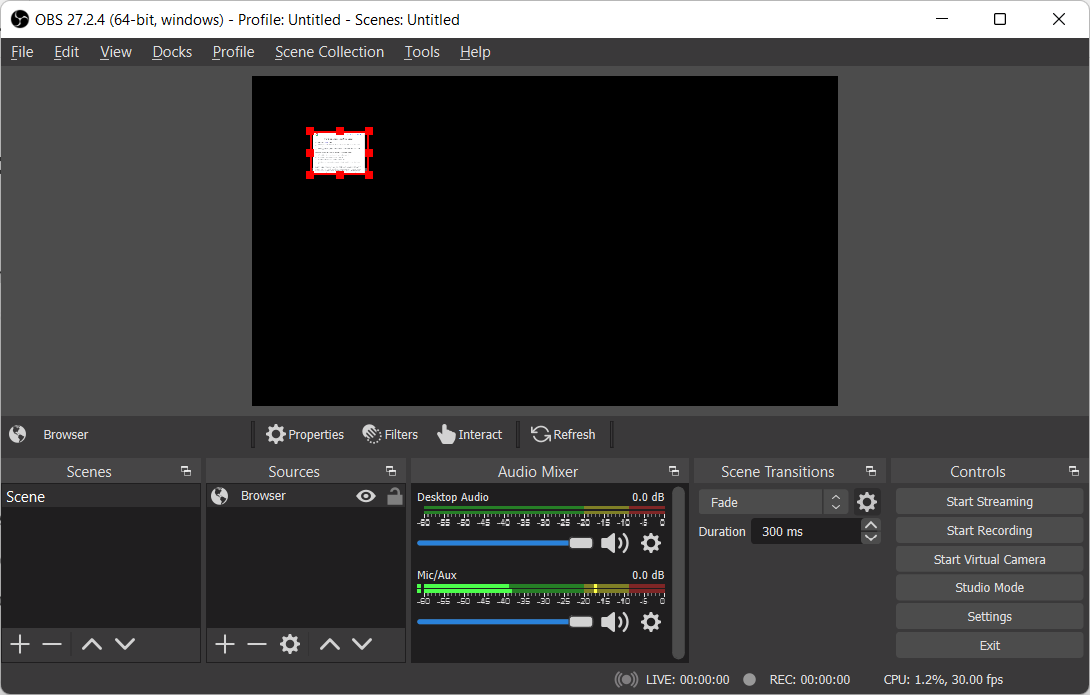
The main user interface is divided into five sections: scenes, sources, audio mixer, transitions, and controls. Each component has its own set of controls. Scenes are collections of different types of materials, such as live and recorded video, text, and audio.

It is possible to muffle sounds and alter volume with virtual faders on this panel. As well as add effects by hitting the cogwheel adjacent to the mute button.

There are buttons for starting and stopping a broadcast or recording, along with a button to change OBS into a more professional Studio Mode. A button to open the settings menu, and a button to exit the application on the control panel’s left side.

But, Scenes and Sources are the heart and soul of OBS Studio’s functionality. You can use this section to configure your stream layout and add your games, webcams, and any other devices or media that you want to appear in the output.

You can re-align sources in the preview and modify their order by dragging and dropping them in the list, or by using the up and down arrow buttons on your keyboard.

The browser source is one of the most versatile sources accessible in Open Broadcaster Software (OBS). This enables you to conduct a variety of unique layouts, images, videos, and even audio operations.

If you need help installing OBS Studio, don’t hesitate to follow the article linked and learn how to use it right away.

Alternatively, if you encounter issues while using OBS Studio, take a look at what to do if OBS keeps crashing in Windows 10 & 11.

Was this guide useful to you? Let us know by leaving a comment in the section below and sharing your thoughts. Thanks for reading!

3 Easy Tips to Fix This Email is Part of a Reserved Domain

Many Microsoft accounts can be managed with one main account. Although security improves when using input devices, Microsoft perceives changes as threats to an existing Microsoft account. 

Whether these changes are from Hotmail, Outlook, OneDrive, or adding a new account and something goes else goes wrong while trying to manage from the main account, Microsoft tries to be sure that your account is safe and they put in measures to cross-check these. 

However, these security measures do not stop you from setting up your email, so you can read them on multiple platforms.

Why am I getting This email is part of a reserved domain?

There are reasons why you would get this response if you are using a Windows domain. Some of the reasons are:

  • You used a third-party domain email address to create a Microsoft account
  • Chances are you deleted your Hotmail account and wanted to migrate to Outlook
  • You deleted an account from a computer and would like to add it back as a new user
  • You want to manage all your Microsoft accounts from one mailbox

If the case is any of these, here are things that you can do to fix this issue and stop receiving this response.

What can I do when seeing This email is part of a reserved domain?

1. Create an alias account

  1. Go to Gmail.
  2. Click on Create an account.
  3. Enter your phone number on the signup form and then click on Next.
  4. A verification code will be sent to the phone number provided.
  5. Another form asking for your personal information will appear, fill that up.
  6. Review the privacy policies and click on agree.
  7. Your Gmail will be created. 

To create an alias account that can work without any hitch, create an account that isn’t a Microsoft account. This is because you cannot set up an active Windows account as an alias for another Microsoft account, or you risk a This alias cannot be added to your account error.

Using a Google or Yahoo account as an alias account is best. Also, you cannot use a third domain that is registered in Windows Live Admin as an alias account. 

Now that you have created an alias account that is not linked to a Microsoft account go back to the tab and type in the Gmail account. The good thing is that you can use the same password for your alias account, and all your information, contacts, and messages are synced.

2. Use your domain name with outlook.com

  1. Login to your Microsoft account.
  2. Click on Your Info.
  3. Click on Manage your sign-in email or phone number.
  4. Enter your already existing password.
  5. Click on add email.
  6. Enter your email address using your domain name and @outlook.com.

This should work just fine. With this method, all your contacts are synced, and the primary email is picked up. You do not lose any vital information as all the settings and OneDrive files are also synced across. 

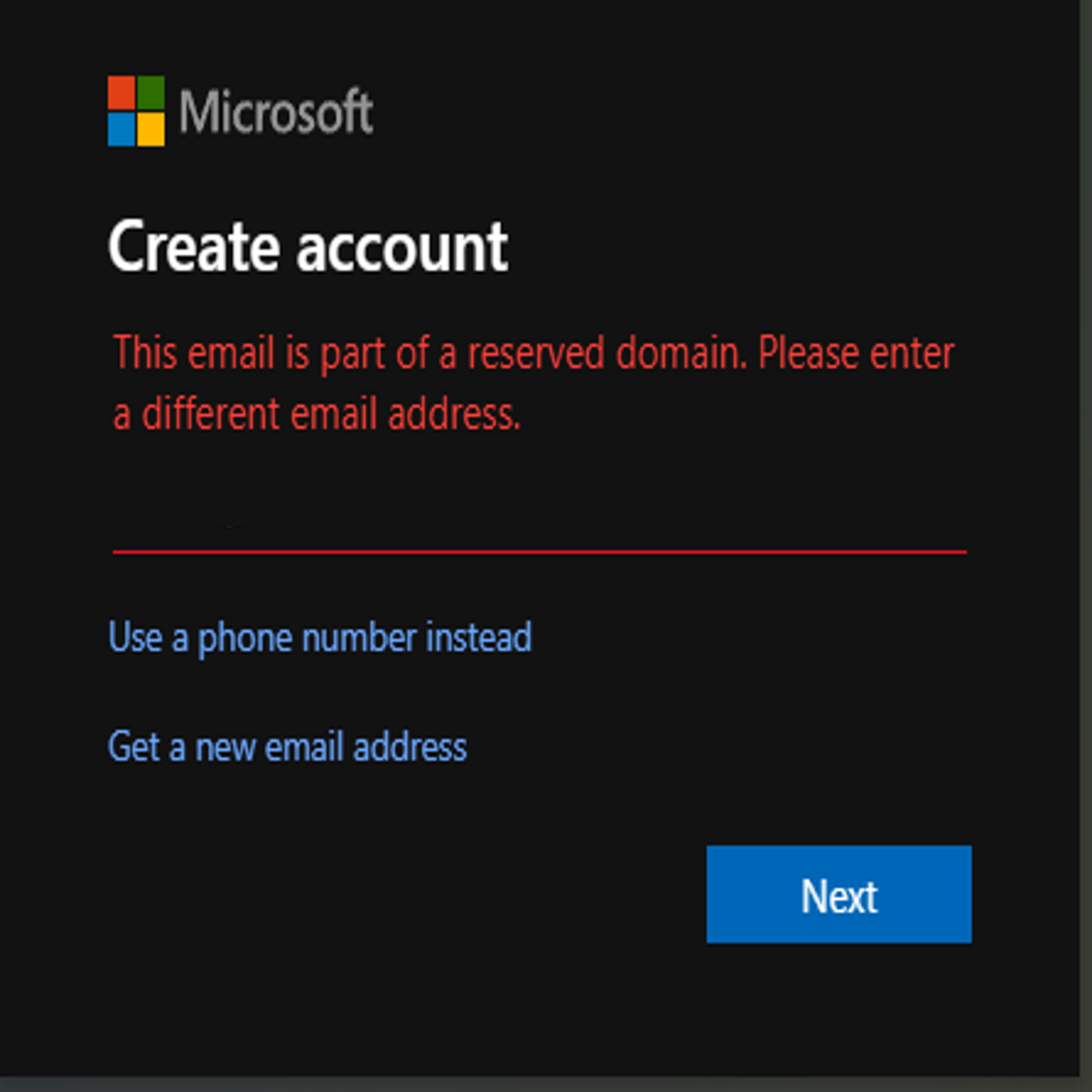
It could be that it allows you to log in with account.live.com, on another computer, and on your OneDrive. However, when you add it as a new user on any computer, you will keep getting: The email is part of a reserved domain. Please enter a different email address as a response. 

This could be because the account you are trying to use is registered on a custom domain. For this, you can use an alias with outlook.com.

3. Avoid unnecessary third party emails

  1. Open Outlook.
  2. Sign in with your existing Hotmail account.

You want to stop getting the error: Email is part of a reserved domain response, and you do not want to get an alias from Google or Yahoo. Having other aliases not linked to Microsoft doesn’t make sense when you have decided to use Microsoft emails. 

Using Windows Live Mail allows you to use Outlook to create an alias account, which means you are using a Microsoft account as your alias account and not a third-party email.

Outlook also allows you to send and receive emails from other POP accounts. You can have up to 15 aliases with a maximum of 5 per year, and you can receive emails from all the aliases and access them with only one inbox. 

It is important to note that if you have permanently deleted your Hotmail address, it cannot be reverted or reused. You can also not use it as an alias because it is already part of a reserved domain. The reversal from Hotmail is not possible because Hotmail has migrated to Outlook.

Many users have wondered why they have to use aliases when trying to access their Microsoft account in cases when they upgrade or try to manage from one mailbox, and Microsoft has explained that it is a matter of security. 

When users complain, Microsoft has explained that linked accounts aren’t safe if one is hacked. And this is why they advise that aliases are better when they are third-party email accounts like Google or Yahoo.

Windows 11 Kiosk Mode: What is it & How to Use it

It has been a long time since Windows has had a feature called Kiosk mode, which changes a regular device into a single-purpose device that can only run one application. Thus, today we will show you how to set up Kiosk mode in Windows 11.

The most common application for this feature would be to set up an internet-accessible computer as a kiosk machine for guests to use to access the Internet. Or fill out an application, and convert an existing device into an interactive digital sign to demonstrate a product or promote a business to customers.

Follow along as we will show you how to enable and disable Kiosk mode in Windows 11, right after we see in more detail what it is and how it works.

What is Windows Kiosk mode?

Windows enables you to create fixed-purpose devices like ATM machines. Or point-of-sale terminals, medical devices, digital signs, and kiosks using the Microsoft Azure platform.

Using Kiosk mode on these fixed-purpose devices, you may provide a dedicated and locked-down user experience to your customers.

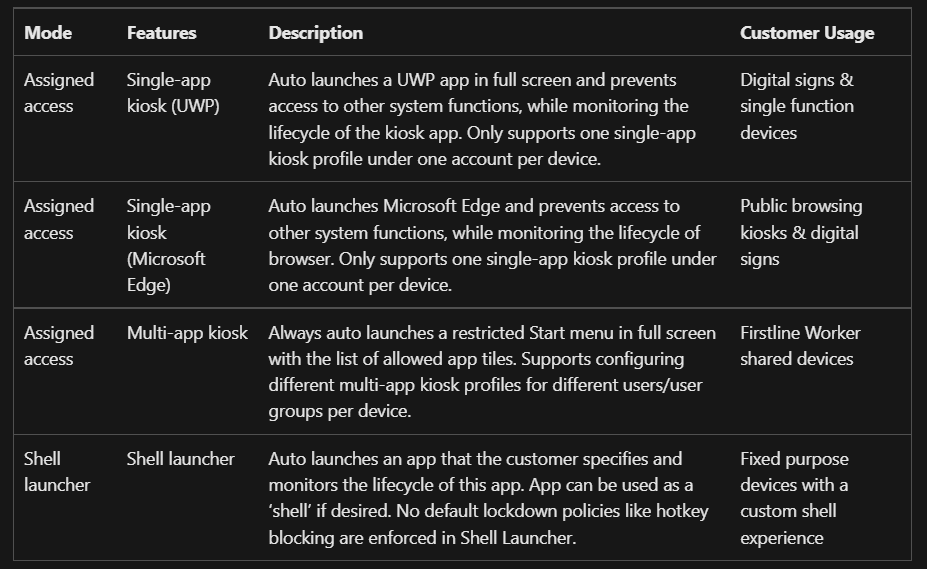
Kiosk capabilities (Source: Microsoft)

In order to provide a more secure environment for public or specialized usage, Windows provides a number of various locked-down experiences. Including assigned access single-app kiosks, assigned access multi-app kiosks, and shell launchers.

Depending on the kiosk configuration, either assigned access or a shell launcher is used. In accordance with your responses to the following questions, you can select from a variety of different kiosk configuration approaches.

Alternatively, if you only want a single program running on your kiosk that anybody can see or use, consider an assigned-access single-app kiosk that runs either a Universal Windows Platform (UWP) app or a Windows desktop application.

Keep on reading our Windows 11 Kiosk mode guide to learn how to enable and disable it whenever you want.

How can I enable & disable Kiosk mode in Windows 11?

1. Enable it from Settings

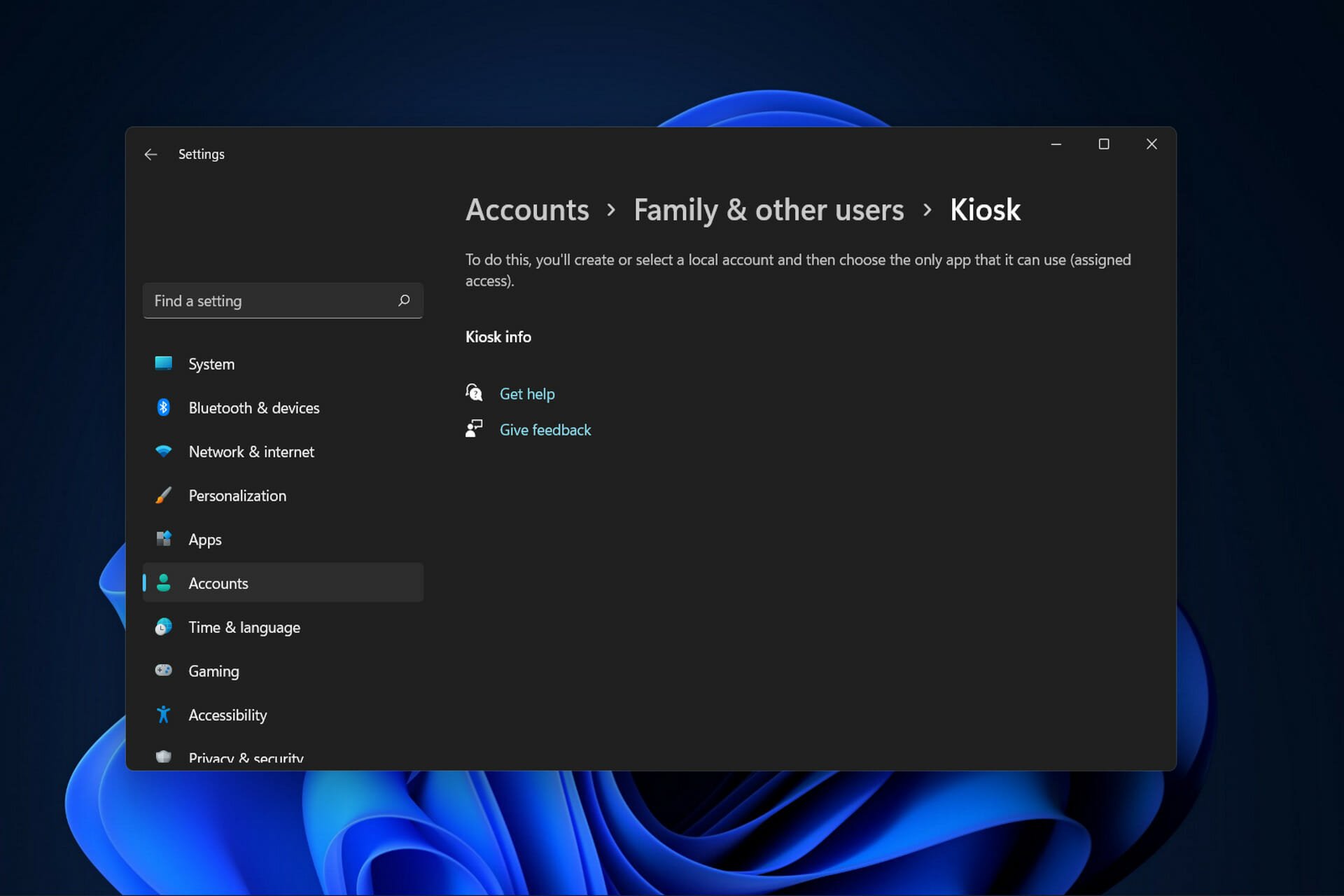
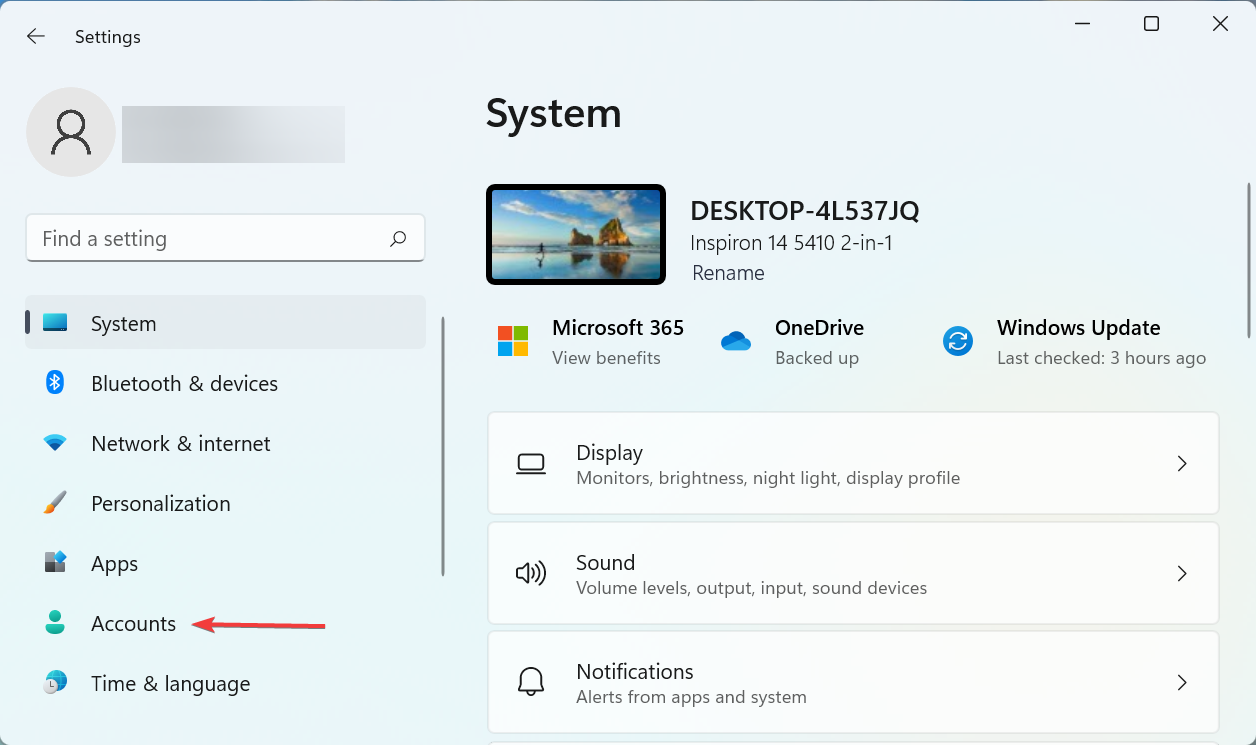
  1. Hold Windows + I to open the Settings app and go to Accounts followed by Family & other users.account0family windows 11 kiosk mode
  2. Under the Set up a kiosk section select the Get started button.get-kiosk windows 11 kiosk mode
  3. Enter the name of the kiosk then click Next.name-next windows 11 kiosk mode
  4. Select the app that you want to use in the Kiosk mode then click on Next and continue with the configuration settings.
  5. After you complete the steps, sign out of the primary account then sign in with the Kiosk account to enter the mode.

Using the CTRL + ALT + DEL keyboard shortcut will bring up a menu of alternatives for exiting the session. Such as shutting down the computer, restarting the device, or signing in with another account.

Note that there is no Windows 11 Kiosk mode for multiple apps, as the feature is only available in Windows 10. If you need to use the multiple apps kiosk mode, check out how to roll back to Windows 10.

2. Disable it with your admin account

  1. Press Windows + I to access Settings and navigate to Accounts followed by Family & other users.account0family windows 11 kiosk mode
  2. Under the Set up a kiosk section select the Remove kiosk button. Once you’ve done this, the kiosk will be removed from your Windows 11 computer.


Does Windows 10 have a Kiosk mode?

Windows Kiosk mode is supported for Windows 10 Pro (there’s also Windows 11 Pro Kiosk mode), Enterprise and Education editions, and Windows 11. Kiosk mode is not available for Windows 10 Home edition devices.

However, there is a Kiosk mode in Windows 11 Home. If you decide to upgrade to it, don’t hesitate to use our guide on how to download or upgrade to Windows 11 as a reference.

For more information on the differences between Windows 10 and 11, take a look at our post on some of the features that were removed from Windows 11.

It is especially useful for locking down Windows 10 and 11 devices that are used for a specific purpose. Such as self-check-in kiosks at airports, point-of-purchase (POS) terminals at self-service restaurants, and digital signage used for advertising.

Moreover, it ensures that users cannot modify device settings and access other features or apps on the device. Or use it for purposes other than those for which it was intended.

Check out the five best kiosk software for Windows 11 / 10 to keep track of regular entrances, exits, and visits in your building.

Was this guide useful to you? Let us know by leaving a comment in the section below. Thanks for reading!

5 Ways to Fix Wacom Pen Pressure not Working

Artists, illustrators, and graphic designers say using the Wacom tab and pen is a more efficient work method that produces seamless results.

Even photographers adopt it as running your cursor with a mouse over an image can be less exciting than using a pen on a tab that gives a feeling of physical work. 

However, having a Wacom error or glitch and experiencing unresponsive pressure from the pen is not fun. The reason for getting the device in the first place is defeated if the user cannot use it.

Devices come with pressure sensitivity support, enabling the Wacom to connect with your laptop or PC.

Why is Wacom pen pressure not working?

  • Window ink disabled – chances are that there is no interaction between the Windows ink and the Windows software. 
  • The battery of the pen is too weak to function – face it, you may be too busy to notice the battery of your pen and how weak it may be. Between doing that great design for Disney or designing the next character for that big blockbuster movie, you may forget that your pen battery needs changing. Wacom pen lasts for five months and you may need to change it after that period.  
  • Dirt accumulated on the Wacom and pen is encountering interference – it may sound basic, but your Wacom may accumulate dirt over time, and this could interfere with the pen’s responses. 
  • Pressure capabilities not turned on – applications come with built-in support for pressure sensitivity. If this feature is not turned on in the application, your pen pressure may not work.
  • Faulty mouse or touchpad driver – if a part of your hardware is faulty like the mouse, it may interfere with the functionality of the pen pressure on the Wacom. Think of it this way, the function that your mouse is to do is what your Wacom is doing with all the extra features. If the mouse is not functional, your device interprets Wacom as your mouse. You don’t want this either, because it robs you of all the other functionalities. 
  • Missing or outdated Wacom driver – the Wacom driver you are currently using may be outdated, and you may have to update the drive. If the driver is not updated, the pressure pen will not function.
  • A lack of synchronization – you would think that when the software or Wacom driver is updated, there will be synchronization with the software, Wacom device, and your PC but it is not often the case.  

What apps support pen pressure sensitivity?

Here is a list of apps that support pen pressure sensitivity. And because they do, you may also experience a lack of pen sensitivity or lack of pen pressure, when there is an error.

  • Adobe Photoshop – the error in Adobe Photoshop shows up with a triangle warning box with a message that says: Pen sensitivity is not available.
  • Autodesk – in Autodesk, an error in pen pressure sensitivity occurs when the pen acts like you are using full pressure when you are not.
  • Corel – users experience errors in Corel in the form of a lag in the tab and an unsmooth drawing.
  • CLIP STUDIO PAINT PRO – pen pressure in the Clip Studio Paint PRO app often presents as a disappearance in the pen drawing visibility. Instead of pen drawing, it erases.
  • Boris FX Optics – users experience a lack of pen pressure in this app when light pressure is interpreted as heavy pressure when drawing.
  • Adobe Sketch – pen pressure error in Adobe sketch occurs when pressure is incorrectly interpreted. Light pressure is interpreted as heavy pressure, and heavy pressure is interpreted as light pressure.
  • Concepts – pen pressure sensitivity error in Concepts can be experienced when there is no fluidity in the lines drawn by the user.
  • MediBang Paint – users experience pen pressure in Medibang Paint, in the form of glitches.
  • Bamboo Paper – the error in pen pressure as experienced in Bamboo Paper often shows up in the pen causing a left click, instead of its actual function, which is to draw, illustrate or create on the tablet.

There are many ways to get your Wacom pen to work, depending on the software that is used at the time.

Several users have experienced difficulty in one rule fitting all the software. Still, there are basic things that you can do to fix your pressure pen not working, whether you are using Photoshop, Autodesk, or one of the programs mentioned above. 

How do I fix my Wacom pen pressure?

1. Inspect your hardware and software

  1. Inspect the battery of the pen.
  2. Check the connection of the Wacom to your device.
  3. Unplug the USB cable to the Wacom tablet and plug it in again.
  4. Change the portal and see if this works, and if it doesn’t, find a cable that works and ensure that it is properly plugged in. 
  5. Ensure that the pressure sensitivity of the software you are using is turned on.
  6. Open the Photoshop software.
  7. Click on the icon at the top right corner to get the right kind of pressure from your pen.
  8. Click on the other icon at the top left to control the opacity of the pen.
  9. Inspect the battery of the pen.
  10. Check the connection of the Wacom to your device.

Furthermore, use a towel and a cleaning detergent that contains 75% propyl alcohol and thoroughly wipe your Wacom tablet and the pen.

2. Enable window ink

  1. Go to Settings by clicking on the Windows key on your keyboard.
  2. Search for system icon, and click on the turn system icon on or off.
  3. Turn on the Windows Ink icon.

3. Uninstall the Wacom program from my PC or laptop

  1. Type the R and Windows button on your keyboard, to access the Run command system.
  2. In the tab, type in services.msc and click on Enter.
  3. Select Wacom professional services, right-click, and select the Restart option.
  4. Ensure that all the preferences you may have configured are backed up.
  5. Save and close all your work before you get started.
  6. Try to remember the username and password of your PC and keep it handy. 
  7. Click on the Control Panel and click on Programs.
  8. Go to Programs and Features.
  9. An option to Uninstall or change a program will come up.
  10. Select the Wacom tablet.
  11. Click on Uninstall.
  12. Restart your PC and type in your username and password.

There is another way to uninstall specific software or applications from your system entirely, and that is with professional tools.

iObit Uninstaller is the proper method to remove applications from your PC without leaving junk or registry entries behind.

4. Update the Wacom driver

  1. Visit the Wacom website.
  2. Click on Support.
  3. Go to Drivers & Software.
  4. Click on Drivers & Download.
  5. Confirm download.
  6. You may now start the installation.
  7. Accept the Terms and conditions.
  8. Then click on Restart.

Similarly, updating the driver also works when XP-PEN pressure is not working in Photoshop.

5. Revert the WinTab functionality

  1. Go to Settings by clicking on the Windows key on your keyboard.
  2. Unable Windows Ink.
  3. Disable Windows Ink from the drive.
  4. Go to a text editor and create a file. 
  5. Type in UseSystemStylus 0.
  6. Save the file name as PSUserConfig.txt.
  7. Follow these steps on your PC: Cdrive:\Users\[User Name]\AppData\Roaming\Adobe\Adobe Photoshop CC 2015\Adobe Photoshop CC 2015 Settings
  8. Put (copy) the file into the Photoshop settings folder.
  9. Restart Photoshop. 

In all, these steps should enable your pen pressure to work. There is a synchronization between these software apps, Windows, and Wacom, however, if there is a glitch, one should not panic.

These issues can be resolved as long as the appropriate steps are followed, just like users fix things when XP Pen is detected as a keyboard.

This issue can often be related to a wintab32.dll error, and in our latest guide, we’re taking a closer look at it, so why don’t you check it out?

Let us know which solution worked for you in the comments area below.

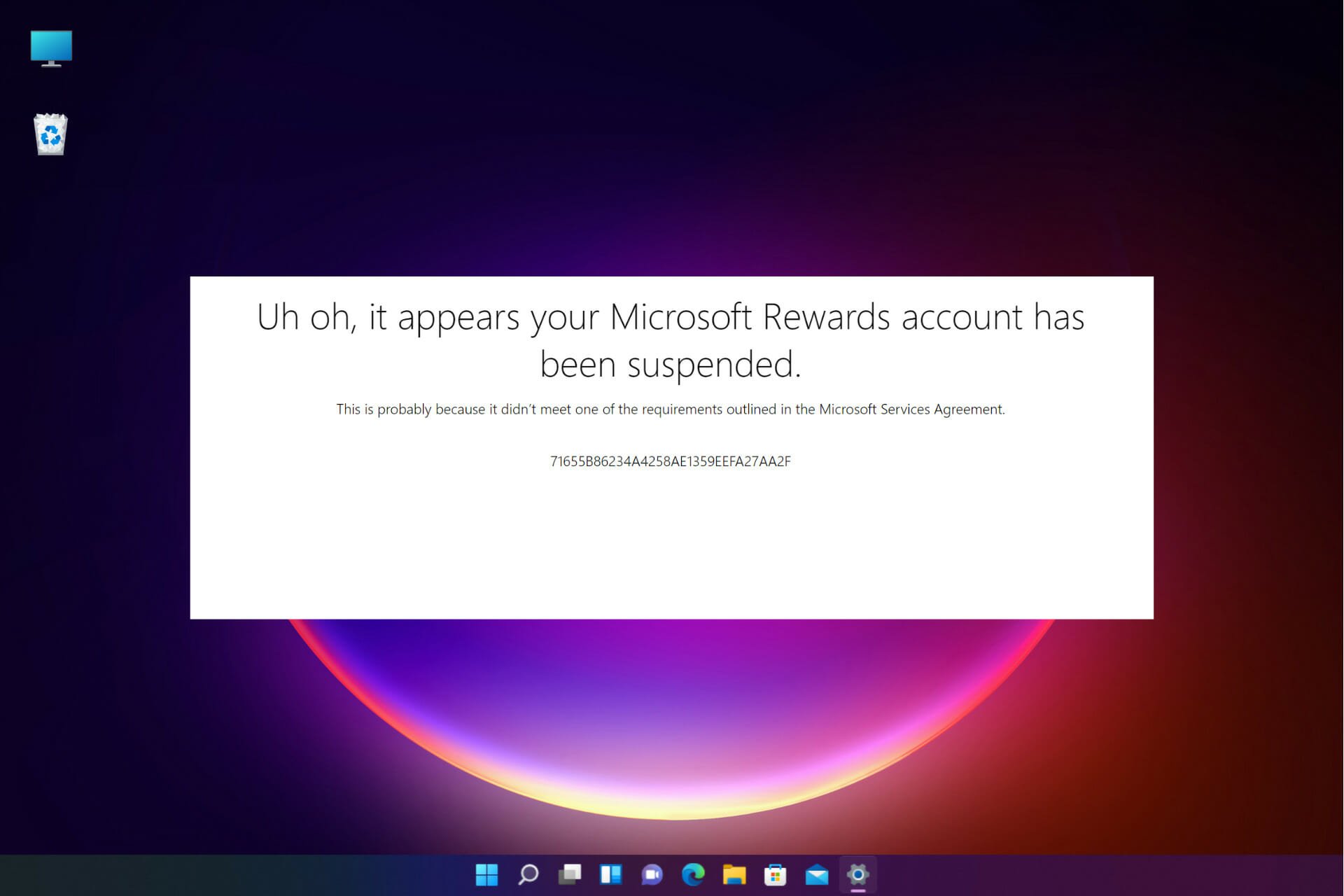
Microsoft Rewards Account is Suspended? 3 Ways to Fix it

If you are trying to unsuspend your Microsoft Rewards account that recently got suspended, then you are at the right place.

Users often raise a concern when they have been trying to redeem the Microsoft Rewards in the morning or the day after, and all of a sudden, the platform says their account is suspended.

This is a common issue, where they first come across an error while trying to redeem the rewards, and then they are banned abruptly.

Therefore, while you must pay attention to the terms stated in the Microsoft Service Agreement, here are a few suggestions on how to unsuspend your Microsoft Rewards account if it already is.

Why is my Microsoft Rewards account suspended?

Microsoft keeps changing its rewards account rules every so often, and hence, you must stay updated at all times. Make sure that you review the Microsoft Service Agreement once every month to check if there are any new changes.

Some of the common reasons related to the agreement that may lead to the rewards account suspensions are:

  • Have multiple Microsoft Rewards accounts with different email addresses
  • Trying to use points beyond the limit
  • You have already redeemed 550,000 points per calendar year in the Program as per the agreement
  • The number of points or Rewards per person, per household, exceeds the set limit
  • Have multiple accounts on your mobile phone number
  • If you use a bot to perform searches
  • Using a VPN circumvents any restrictions on access to or availability of the Services
  • Online fraud, like phishing, account theft, etc.

So, if you are now wondering: How do I unsuspend my Microsoft Rewards account?, the below methods answer your question.

How to get unbanned from Microsoft Rewards?

1. Contact Microsoft Rewards Support

  1. Visit the Microsoft Rewards Support page and contact them about the issue.
  2. Under Describe the issue, enter the Issue Title. Enter the issue title in Microsoft Rewards support page
  3. Then proceed to enter your First Name, Last Name, the e-mail address where they will respond to you, and the email address associated with your Microsoft Account. Add the name, email address details in About You fields
  4. Next, go to What would you like assistance with? field and select your problem from the drop-down list. select problem from What would you like assistance with drop down
  5. Select Time Zone and then under the Please explain further section, fill in all the details related to your issue and click on Submit. Enter time zone and other details and submit
  6. They will investigate the account and determine whether or not it should have been suspended.
  7. When you receive an email from the support, save it to a folder for future reference, if the account remains suspended.

So, to answer your question – how long will my suspension last on Microsoft rewards? It may take 2 months or more to get unbanned. But you can get unbanned from Microsoft Rewards.

However, if it still doesn’t, move on to file an arbitration request.

2. Fill out the Binding Arbitration form

  1. To file an Arbitration request with Microsoft, begin by reading the Microsoft Services Agreement.
  2. Go to the Microsoft Rewards section and check the clauses if you have violated any of the requirements. Read the Microsoft Rewards clauses in the agreement
  3. If according to you, you have not broken any rules, navigate to the Binding Arbitration section.
  4. Click on the Arbitration and dispute resolution link in this section. open arbitration form link under Binding-arbitration
  5. Go to Demand for arbitration, expand, and download the Notice of Dispute form (PDF).download Notice-of-Dispute-form pdf
  6. Fill out the form and mail it to Microsoft. Then wait for 60 days for the dispute to be resolved.
  7. If unresolved after 60 days, download the Demand for Arbitration form (PDF). Fill it out and mail it to Microsoft. download Demand for arbitration form pdf
  8. Follow the rest of the process as mentioned in the section.
  9. An unbiased panel will be assigned to resolve your case, once they have all the facts in place.

Now, wait till the Microsoft Rewards support team gets back with an email response.

Note icon NOTE
Filing an arbitration with Microsoft is completely free unless you hire an attorney.

3. Turn off the VPN

If you are wondering, why did my Microsoft Rewards disappear, it could be well due to the fact that you are using a Virtual Private Network (VPN).

Considering that many of us are now working from home, using a VPN is common these days. It could also be possible that you are trying to use rewards from a country using a VPN, where it’s not officially supported.

Your Microsoft Rewards account may also get banned if you use a VPN to earn rewards on more than one account. Besides, it could also be due to an ad-blocker, some of which work actually work as VPNs.

In such a case, you can temporarily turn off the VPN when using the Microsoft Rewards website.

But if you are technically proficient, you can try and exclude all Microsoft apps and any browsers or other programs you might use to search Bing from your VPN.

What else can I do to fix my suspended Microsoft Rewards account?

If you performed all the steps above and you have contacted the Microsoft Rewards support team about the account suspension, please be patient till they revert.

However, here are some additional tips you may find useful:

  • Make sure to save all the emails you receive from the team in a separate folder
  • If you do not receive an answer from them that’s good enough, proceed to file the Arbitration form and include all the emails you’ve received from them
  • Before that, makes sure you read the Microsoft Services Agreement carefully, especially the Microsoft Rewards section
  • This will help you identify if you have breached any of the terms mentioned in the agreement

This issue is also reported with the Xbox game pass, and hence, in such cases also, you may contact Microsoft Rewards support.

To learn more about Microsoft Rewards, we have a guide that answers if it’s possible to get Microsoft Rewards without a phone number, so don’t miss it.

If you know any other reason why your Microsoft Rewards account is suspended or a solution for it, do leave a comment below in the comments box.

Windows news recap: Nvidia GeForce Now gains 4K 60 FPS streaming, Internet Explorer users urged to move on before it’s phased out, and more

Welcome back to our Windows news recap, where we go over the top stories of the past week in the world of Microsoft’s flagship operating system.

Nvidia GeForce Now gets 4K 60 FPS streaming on PC and Mac

The native Nvidia GeForce Now apps on PC and Mac have received support for streaming at 4K 60 FPS on compatible devices, allowing higher quality game streaming.

Nvidia GeForce Now gets 4K 60 FPS streaming on PC and Mac - OnMSFT.com - May 5, 2022

Outlook on Windows is getting a notification pane to help you find your @mentions

A notification pane is to be added to the Outlook app on Windows, in an effort to make it easier to find mentions, so that you can keep on-top of what requires your attention. The feature is expected to launch in June.

Microsoft Outlook Windows 10

Microsoft urges users to stop using Internet Explorer before it’s phased out

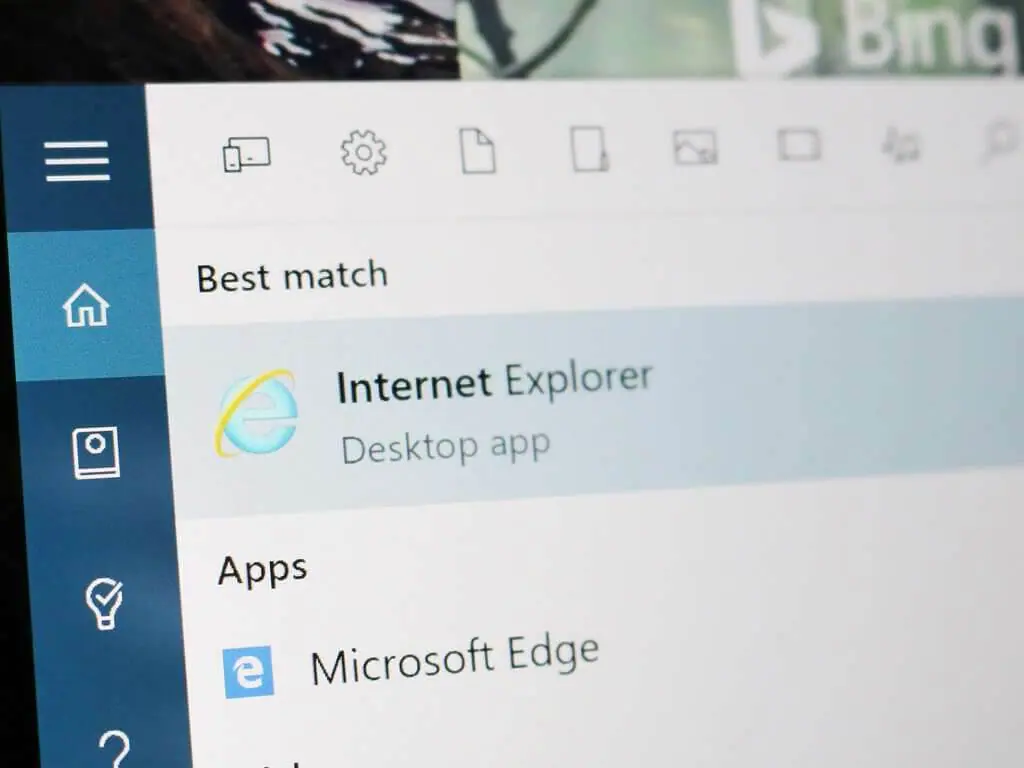
Internet Explorer is set to be retired on June 15, but some are still holding onto the web browser despite this looming end of life. Microsoft has pushed users still using Internet Explorer to switch to another browser, such as Microsoft Edge, ahead of the actual retirement date, rather than waiting for the date to roll around.

Internet Explorer IE 11

That’s it for this week. We will be back next week with more Windows news.

Logitech G Hub Not Detecting Mouse: Best Ways to Fix It

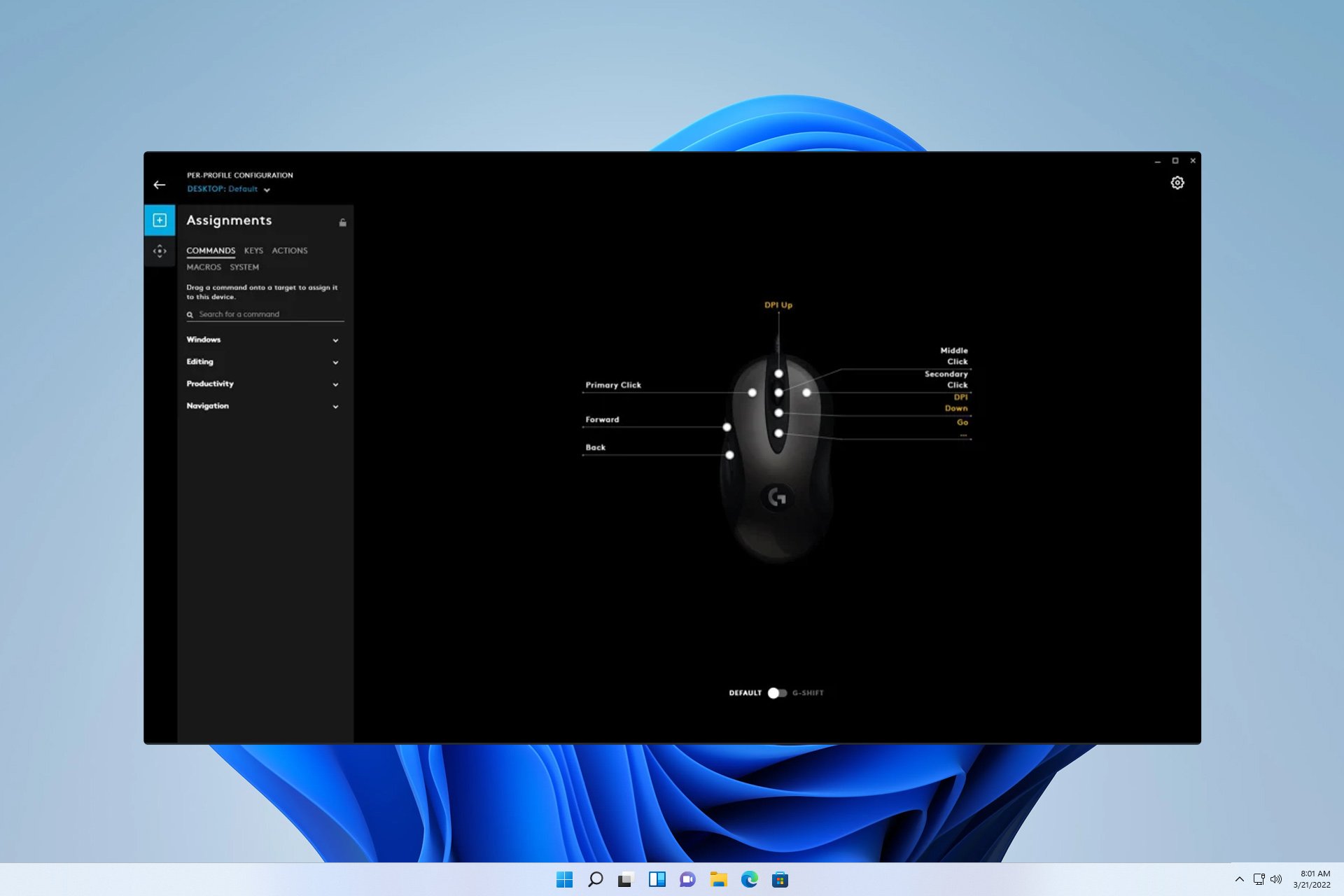
The Logitech G Hub not detecting the mouse is a common problem. Luckily, it’s easy to fix and we’ll show you how.

It might not detect your mouse due to admin privilege issues, multiple app instances, OS or app updates, or sudden detection issues after a restart. Follow the steps below to make it work.

How do I get my Logitech G Hub to recognize my mouse?

1. Run the software as an administrator

  1. Right-click Logitech G Hub and choose Open file location.
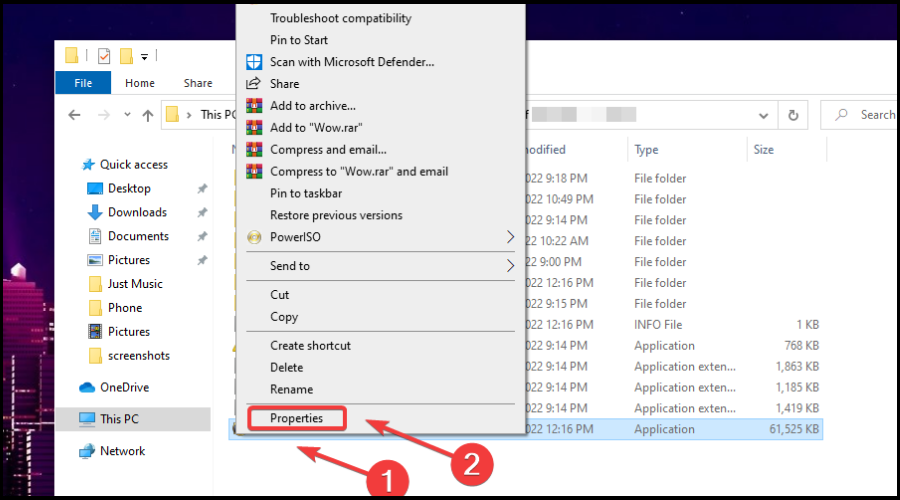
  2. Right-click the Logitech G Hub exe file and choose Properties.
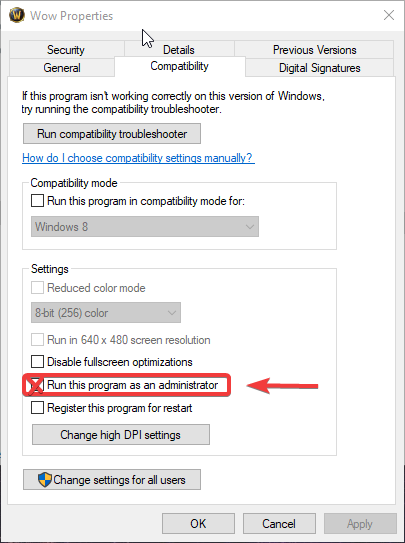
  3. Go to the Compatibility tab and check Run this program as an administrator and save changes.

After doing that, the software will always start with administrative privileges, and the problem should be gone.

2. Close additional G Hub apps

  1. Click the arrow icon in the system tray.
  2. Look for G Hub application.
  3. If you notice two applications available, right-click one and close it.

This can be annoying, but it’s usually easy to fix as long as you follow the instructions from this guide.

Once G Hub recognizes your device, you can change the DPI on your Logitech mouse to adjust sensitivity and make the most of its features.

If Logitech G Hub is not working in Windows 11, check out the article linked to fix the issue and get back the sound functionality.

Was this guide useful to you? Don’t hesitate to tell us what you think in the comments section below. Thanks for reading!

Wave Browser Virus: What is it & How to Safely Remove it

Users have been asking what Wave browser is and today we will answer it. Wave is a program developed by Wavesor Software that has been classified as a PUP (potentially unwanted program) due to its aggressive advertising behavior and questionable data-collection practices.

Although the Wave Browser is not a virus, it has the potential to cause security issues if it is not removed. Further explanation will be provided later in the article. But for now, let’s take a look at how the Wave browser got onto your computer in the first place and how you can get rid of it.

How did Wave browser get on my computer?

While the Wave Browser appears to be a legitimate application that can be used in the same way as a conventional browser at first glance. There are some characteristics that you should be aware of before you use it.

Although this app is built on Chromium and, for the most part, behaves as you would expect it to, it has been reported that the Wave Browser is prone to causing sudden page redirects and/or displaying aggressive and obstructive advertisements on the screens of its users.

Usually, it is automatically installed through the process of file bundling. Thus resulting in users not being aware that they have installed it at all.

As a result, when you no longer have control over your computer and it begins to make changes on its own, things might become frightening and confusing.

But don’t worry as we will show you how to remove it completely from your computer and avoid any future software damage.

Is Wave browser the same as Microsoft Edge?

Microsoft Edge is a cross-platform web browser that was invented and developed by the company Microsoft in 2010. Windows 10, Windows 10 Mobile, Windows 11, Xbox One, and Xbox Series X and Series S consoles all ship with Microsoft Edge as the default web browser.

Wave browser is not related to Microsoft Edge, as the former is an entirely separate browser developed by a different company.

Quick Tip:

If you want a Chromium-based browser with advanced security features like an adblocker, anti-tracking, a VPN, and built-in fraud, and malware filtering, try Opera One.

Opera One

Use this reputable browser to surf the net securely and customize it to your own liking with add-ons, themes, and extensions.

How do I remove Wave browser from my computer?

1. Use Control Panel

  1. Open the Windows Search function by clicking on the magnifying glass icon from your Taskbar. Then type Control Panel and open the topmost result.control-panel-search what is wave browser
  2. Next, go to Programs followed by Programs and Features.programs what is wave browser
  3. Look for the Wave browser program, click on it and choose Uninstall.uninstall-program what is wave browser
  4. Press CTRL + SHIFT + ESC in order to open Task Manager and navigate to the Details tab.details what is wave browser
  5. Make sure that you don’t have any Wave processes left by clicking on them and choosing End task. In our case we don’t have any left, thus we showcased how to do it with on Notepad process.end-task what is wave browser

Once you delete any leftover processes, make sure to reboot your computer in order to start from a blank slate.

2. Use the Settings app

  1. Open Settings by holding Windows + I together then navigate to Apps followed by Apps and features.apps-apps&features what is wave browser
  2. Here, search for the Wave browser by typing its name in the search bar. Then click on the three-dotted menu and choose Uninstall. In our case, we used Chrome to show how to do it, since we don’t have Wave installed.uninstall-app what is wave browser
  3. Like before, open Task Manager by holding CTRL + SHIFT + ESC simultaneously and go to the Details tab.details what is wave browser
  4. Look for any Wave processes left, click on them then select End task.end-task what is wave browser

3. Use a third-party tool

To speed up your process, you can use a third-party PC cleaning utility. This will ensure there is no trace of the Wave browser left on your PC.

We recommend CCleaner because it has both a software uninstaller feature as well as a powerful scanner that detects junk files.

  1. Download and install CCleaner.
  2. Open the application and select the Tools section.remove wave browser
  3. Select the Uninstall option at the top and identify Wave Browser in the list of software.what is wave browser
  4. Click on it and select Uninstall.

To remove leftover files with CCleaner:

  1. Head to the Registry section.
  2. Select all options and click Scan for issues.what is wave browser
  3. Check the data found and find all entries related to the Wave browser. They should contain the name of the app, for example, C:\Program Files\ Wave Browser.
  4. Tick the boxes to all entries related to Wave and click Review Select Issues.what is wave browser
  5. It will ask if you want to create a backup, we recommend you select Yes.

When the process is complete, the Wave browser and all its files should be completely removed from your computer.

Is Wave browser malicious?

Wave Browser is considered hazardous by many cyber-security professionals. This is due to the undesired changes it makes to the system without the user’s knowledge or permission.

Another reason why it is a potentially harmful software is because of the program’s questionable advertising and data-collection methods.

In today’s world, data collection is standard practice. Consumers have become accustomed to the fact that a variety of apps and websites are continually collecting information from their devices to utilize in various ways.


Although this is not always the case, most of the time the user is told about what information is being gathered, who has access to it, and how it will be used. In the case of the Wave Browser, on the other hand, the waters are a little murkier.

With a little more investigation, it becomes evident that Wavesor Software is a trading name for a corporation known as Polarity Technologies Limited. Further investigation reveals that Polarity Technologies is affiliated with a corporation known as Genimous Technology.

This company has been linked to the development and distribution of malicious software. Adware and browser hijacker apps that are masqueraded as genuine applications are some examples.

The origins of this application are still a mystery. Since it exhibits suspicious and frequently intrusive behavior, it appears that the best course of action is to just delete it from your computer. Or never download the Wave browser in the first place.

We recommend that you take a look at our post on the five best secure and fast browsers for Windows 11 to use instead.

Alternatively, check out some browsers with a built-in VPN and adblocker service in order to ensure your privacy.

Don’t hesitate to leave a comment in the section below and tell us what you think. Thanks for reading!

Age of Empires 2: Error Loading String Table. How To Fix

Many of us just didn’t get enough of the beloved old Age of Empires 2 title since its 1999 release. Time passed, systems got updated and some found themselves unable to keep playing it.

Developers then decided to come back with a remastered version of the game, thus giving birth to Age of Empires 2: Definitive Edition.

But this doesn’t mean that the newer version of this remarcable strategy masterpiece came totally bug-free and without any of the old issues.

In fact, some players are still struggling with some pretty annoying bugs and errors, so we decided to lend a helping hand and show you how to deal with such situations.

Just in case you can’t start Age of Empires 2: Definitive Edition because of an issue that says Error loading string table, we’ll show you exactly what you need to do.

No, you don’t have to cancel the rest of your schedule, as this will only take a few minutes. After that, you can enjoy some quality gameplay and help other civilizations prosper.

How can I fix error loading string table for Age of Empires 2?

1. Update your graphics driver

  1. Press the Windows key, search for Device Manager and click on Open.run device manager
  2. Expand Display Adapters, right-click on your GPU and select Update driver.update gpu
  3. Select Search automatically for drivers.search for driver automatically

If you’re into gaming, surely you can do without all the crashes, lags, or freezes by keeping all drivers up to date and error-free easily. 

Sometimes, manual checks are hard to perform, that’s why we recommend using an automated assistant that will scan for fresh driver versions daily.

In case you’re a beginner, you don’t have to worry! Outbyte Driver Updater is smart, simple, engaging and its user interface was built to make your life easier.

⇒ Get Outbyte Driver Updater

2. Run the game as an administrator

  1. Locate the folder where Age of Empires 2: Definitive Edition is installed.aoe 2
  2. Right-click on the Age of Empires 2 executable and click on Properties.propreties
  3. Select the Compatibility tab and check the Run this program as administrator box.run werid west as admin

3. Update Windows to the latest version

  1. Press Windows + I to access Settings.
  2. Select the Windows updates tab and click Install all.install Windows updates
  3. If no updates are queued for installation, press the Check for updates button.check for updates

Going through these steps will allow you to fix this problem and get back to overpowering your enemies both with your huge army, but also with a sustained flow of resources that will keep the battle going.

Defeat all who stand in your way and conquer as much of the Age of Empires 2 world as you see fit.

Has this guide been helpful to you? Let us know in the comments section below.

3 Easy Solutions For Fixing The Roblox Internal Server Error

We think it’s safe to say that pretty much all of us heard about Roblox, right? It’s an online platform and storefront that users access in order to play games.

You might think it is, but Roblox is actually not a game. It is merely the place where people play games made by other developers. Makes sense, doesn’t it?

In fact, if we really think about it, Roblox is a lot more similar to Steam than it is to any online children’s game, as many thought after seeing pictures on the internet.

And, given the fact that we are talking about software, it too can run into problems, errors, or be affected by some nasty bugs, just like everything else nowadays.

Lately, more and more users are complaining about having to deal with the internal server error, which prevents users from logging in and accessing the popular platform.

The answer is yes, we know how to fix it, and we are about to share this knowledge with you. So, if you are having trouble with this error, here’s what you need to do.

What can I do to fix the internal server error for Roblox?

1. Check Roblox server status and uptime

  1. Open your go-to browser.
  2. Visit the official Roblox server status page.access roblox page
  3. Check server status.roblox server status

2. Clear the Browser Cache and Cookies

  1. Open your go-to browser.
  2. Click on the browser’s options dropdown.chrome options
  3. Select History.history chrome
  4. Press the Clear browsing data button.clear browsing data
  5. Select Cookies and other site data, as well as Cached images and files, and press the Clear data button.cookies and cache

3. Troubleshoot your internet connection

  1. Test if your network connection is working
  2. Restart your router (make sure you unplug the power cord and leave it for 30 seconds switched off)
  3. Right-click the network icon in the Taskbar and select Troubleshoot problems
  4. Open a Command Prompt and type the following commands (one by one):
    • ipconfig/release
    • ipconfig/all
    • ipconfig/flushdns
    • ipconfig/renew
    • netsh winsock reset

These are the solutions you should use when you find yourself unable to log in to the Roblox service because of an internal server error.

Has this guide proven to be useful to you in solving your problem? Let us know in the dedicated comments section below.

20 Need-To-Know Tips Before Playing Dying Light 2

So, you finally decided to pick up Dying Light 2 Stay Human and test your skills against the zombies that are roaming the city?

First of all, let us say you made a great choice in terms of video games. Secondly, there are some things you need to know before embarking on this exciting but dangerous journey.

Surviving in Villedor is a bit more challenging than you might initially think, so we’re about to share some tips that will surely come in handy when you find yourself in a tight spot.

Remember that you are fighting blood-thirsty zombies, after all, not some rowdy teenagers that had a bit too much to drink.

That being said, if you are 100% percent sure about doing this, here’s what you need to know in order to have an easier and longer life in Dying Light 2.

What do I need to know before playing Dying Light 2?

1. Avoid exploring buildings at the start

We know you’re probably thinking: “What’s the point of developers allowing building access if we’re not even supposed to explore them?”

We’re not saying don’t explore them, just don’t do it at the very start. Sure, you might be tempted to do so even during the opening few hours of the game.

However, as brave as you consider yourself to be, this isn’t really recommended too early because some of these buildings are packed with sleeping zombies and other powerful enemies.

Yes, you can rely on your stealth to avoid waking them, but it only takes one wrong move to wake an entire horde of sleepers.

Needless to say what will happen if you end up doing so. On the off chance that does happen, however, make sure you run as fast as you can and get out of their range.

2. Avoid exploring during the night at the start

If you’ve also played the first Dying Light game, then you know that nighttime is full of dangers that you are not yet prepared to face.

You should really think about limiting the time you spend outside at night before Aiden has access to the game’s Nightrunner tools.

These are the hours in which the deadliest and most powerful infected in the game, such as the Volatile, wake from their slumber and start hunting.

Of course, tools such as the UV Flashlight are a great way to deal with the undead. However, specialized tools like these aren’t available until much later in the game.

Thus, if you are just beginning Dying Light 2, it is recommended that you focus on sleeping through the night and do all your exploring by day.

If, by any chance, you absolutely have to explore at night, make sure you are as fast and efficient as possible and use parkour and stealth if you want to see the morning again.

3. Your stamina is more important than your health

Stamina is really useful and drains pretty fast, so make sure you prioritize this stat if you want to be able to get yourself out of sticky situations.

A lot of Dying Light 2 players have constantly complained about the stamina gauge or its lack in the early parts of the game’s campaign.

While playing, you will loot Inhibitors which, when used, will give Aiden the chance to upgrade his stamina. 

New players may be under the impression that in a world with a never-ending horde of infected beings, building up health for a tank-like run would be exactly what they needed.

That is wrong, as leveling up stamina is far more useful in the early stages thanks to its improvements to climbing, escaping, and activating windmills.

Actually, stamina also impacts combat, so think about that as well. It goes without saying that running out of stamina and being unable to defend yourself will likely get you killed.

4. Stack on Inhibitors early in the game

Remember the Inhibitors we were telling you about a few seconds ago? Well, hunting for them and stacking up as many as you can at the start will go a long way and make your life much easier.

In Old Villedor you can find about half a dozen of easily explorable and beatable Quarantine Sites and GRE Anomalies where you can loot inhibitors.

Don’t worry, you will receive plenty of inhibitors in story missions early on, but finding extras can really open your character’s capabilities earlier.

It goes without saying that doing so will give you a bigger edge against enemies that are the same level or one rank lower than you.

Thus, seeing how the combat perk tree is governed by your health total, and the parkour perk tree is gated by stamina, looting as many as you can in the early stages can prove really useful.

5. Use parkour as much as you can

If you are just starting Dying Light 2, you’re probably not aware that the title features some of the best parkour mechanics we’ve seen in a long time, maybe even seen since Mirror’s Edge. 

In fact, Dying Light 2’s open-world city is actually built around and designed to be an athletic playground for the main character to run, climb and explore.

Making the most of this skill you can leap rooftops, grab ledges, scale walls, and swing from ropes to traverse this extremely dangerous environment.

It goes without saying that practicing the parkour mechanics as much as possible is imperative. Because Dying Light 2 is an RPG, the more you use your abilities, the more skills you can unlock.

Beginners should really avoid fighting the undead unless it’s absolutely necessary and there’s no better way to escape.

We can even show you how to get double parkour XP in Dying Light 2 by using a tiny glitch that allows you to gain skills faster.

6. Learn how to use the paraglider

Moving fast, safe, and efficiently through Villedor is one of the keys to survival. After playing Dying Light for a few hours, you’re going to get your hands on the paraglider.

As fun as it is, know that it’s one of the handiest tools you’ll be given and will therefore change how traversal works in-game significantly. 

However, use it wisely, as the paraglider is not a parachute. Yes, it stops any fall damage, but it only does so if you’re actually gliding.

So, if you were thinking about trying to jump off a high building and activating the paraglider at the last second in order to avoid taking any damage, think again. 

We strongly urge that you activate it as you’re falling, but far before you hit the ground if you want to see the rest of the adventure through.

7. Weapons are a lot less durable but can be repaired with mods

You were also probably wondering about the weapons you are about to use so we’re going to show you what is different from the first game.

In the prequel to Dying Light 2, weapons would break fairly quickly but could only be repaired a limited number of times before you had to discard them.

This time around you won’t find any repair kits, which means you have to be more careful, as most weapons are highly disposable.

Weapons can be found literally everywhere and they’re mostly intended to use until they completely break, because of the lack of a traditional repair system like there was in the original game.

You should definitely know that, when you install a Gear Mod to your weapon, the action will also repair said weapon.

Thus, seeing how you can install more than one Gear Mod per weapon, you’re basically looking at least two repairs for each weapon.

8. Seriously invest in Gear Mods

We mentioned Gear Mods earlier when we were talking about weapon repairs. However, you might not have understood how important they really are.

Basically, you’re going to want to invest in these Gear Mods more than you would invest in anything else in Dying Light 2.

So you better think twice about buying the flashiest weapon a vendor has for sale. A much better alternative would be to go for the GearMods that also give your weapons elemental abilities such as fire, or lightning.

These Gear Mods act as blueprints, meaning that once you’ve bought them, you can craft them as many times as you want.

9. Always utilize your useable items

For new and experienced players alike, it’s sometimes easy to forget completely about the usable in-game items, which can save your life if used properly.

This happens mostly because items like the grapple and UV flashlight both take up the left trigger slot, which is also where other useable items go.

We’re talking about Molotov cocktails, throwing knives, decoys, and grenades. Overlooking these and not using them could prove to be the difference between success and failure. 

In fact, Molotovs and grenades are incredibly powerful, easy to craft, and can come in handy when you’re up against lots of human foes.

So, bottom line is, use everything at your disposal to make your life easier, longer, and more meaningful while playing Dying Light 2.

10. Make sure you prioritize the main missions

It’s easy to get lost and stray away from your course while doing all there is to do within the massive world of Dying Light 2.

Yes, there are a lot of tasks to perform, but the recommended way to level up and obtain the best equipment within the game is by focusing on the main story quests as much as possible.

As a matter of fact, the game doesn’t open up properly until much later so prioritizing the main missions will better prepare you for what is to come.

Nightrunner tools like the Paraglider will take several hours to unlock, but they’ll only become available by moving forward with the game’s main story missions, so keep that in mind.

11. Don’t neglect side missions

Sure, we just told you about prioritizing the main game missions, but that doesn’t mean you have to completely neglect all of the side activities.

For beginners, it’s not really recommended to wander too far off the beaten path, especially in the early stages of the story.

You will be under-geared and won’t possess enough skills for the challenges ahead, which will make the journey harder than it needs to be

With that in mind, know that taking on side missions appropriate to your character’s level is a good way to gain more experience and unlock additional skills.

All of these secondary missions will also reward you with weapons, currency, and blueprints to use and upgrade Aiden’s weapons.

But, just as with the main missions, make sure you are well prepared for the endeavor you are about to undertake.

12. Always check the mission level recommendations

As with most RPGs, the leveling process can be slow at times. This means that players can get bored easily and try to take on more than they bargained for.

Biting more than you can chew will be the last mistake you will do in Dying Light 2, so never ignore the mission level recommendations.

We said that because even going on a mission or engaging an enemy that’s only one level above Aiden’s can quickly overwhelm you and give you a real headache.

In order to avoid this, simply start missions that have as a requirement the same level you are at or face the consequences.

13. Go out during nighttime as much as you can

You’re probably going to find this funny, as we’ve just told you not to stay out at night that much. Well, that was for people only beginning the game.

Just like in the first Dying Light, daytime is much safer and has weaker enemies, while nighttime has a lot more powerful foes and zombies altogether.

That being said, if you consider yourself properly equipped and prepared, you’re going to want to play in the dark as much as possible.

Why? Well, the main reason is that you’ll get a pretty significant XP boost for combat and parkour while the moon is up in the sky.

The map is also sprinkled with Dark Hollows that can only be entered in the night and that contain rare loot and crafting materials. How’s that for an incentive?

14. Be sure to unlock hideouts, windmills, and fast travel locations

You might think that such tasks aren’t as exciting or action-packed as others in the game, but taking care of them will make your life so much easier in the long run.

So, unless you’re in the middle of a story mission, you should really take the time to take care of these open world objectives whenever you stumble upon them.

Besides being the best way to travel during the night, these places can really save your life if you’re doing a lot of nighttime scavenging.

With that in mind, make sure you don’t avoid them and you will thank yourself for doing that later on in the game. That’s a guarantee.

15. Not everything is a decoy and some decoys only work on certain enemies

Distracting your enemies and slipping past them is a much better alternative than actually fighting them. This is an important lesson that will save you more than once.

However, if you want to achieve that, unless you are using a dedicated decoy you are not going to distract large numbers of infected by blowing up a propane tank.

Bricks and golden coins are only useful as lures on human enemies. If you’re trying to lure, move, or delay Infected, use a device that was made specifically for that purpose.

It’s safe to say that decoys are vital if you’re going to be scavenging at night. All you have to do is learn the difference between them and how to properly use them to your advantage.

16. Don’t use all your Gear Mods at once

As we said above, installing a mod will repair up to 50 durability points on a weapon. That being said, consider saving one or two mod slots for when you really need to extend the weapon’s durability.

Even if you have a mod slot available on a unique-class weapon you earned early on, it may not be worth putting a new mod on it and partially repairing it.

Given the fact that you can’t craft weapons, you should routinely check vendors’ supplies, especially after you level up.

Learn how to be patient and only do certain things when it bests suits you, thus making sure nothing is wasted and you maximize your overall efficiency.

17. Prioritize kicking and dodging over blocking

As your level grows, so will your enemies. At higher levels, enemies will vary their strikes and evasions, making the combat more challenging.

We know it can be tempting to block and counterattack everything, especially since the window for perfect blocks is more than generous.

Keep in mind that blocking still consumes a lot of stamina and can leave you with little room for a counterattack if you’ve been parrying a large enemy.

You should know that kicking enemies away is just as useful as a block, especially if you’re on a rooftop, which means you’ll send them falling towards their demise.

Dodging is yet another essential perk for your Dying Light 2 character. It staggers enemies when you dodge them, meaning heavy enemies and those using power attacks can be set up for vault kicks.

18. Use survivor sense as much as you possibly can

Did you know that in the first chapter, you can find enough honey and chamomile in the wilderness to craft six health patches before you even get to Villedor’s tunnel entrance?

How, you ask? By using your survivor sense, which is one of the most essential and useful tools at your disposal throughout the entire game.

This survivor sense is also good for alerting you, indirectly, that you’re about to step into a major battle. So, it goes without saying that activating it should become more than a habit.

You can also find weapons and other loot with the survivor sense, so just make sure you don’t forget about it while playing Dying Light 2.

19. Talk to craft masters and upgrade your gear

Some of the best tools you have at your disposal will also need to be upgraded from time to time if you want to get the most out of all of them.

Craftmasters allow you to upgrade some of the useable items, among which are the grappling hook and paraglider.

But which of the available items would you prioritize? Paraglider upgrades, for example, allow it to go much faster and rise in the air.

Keep in mind that you’re going to need Military Tech to upgrade most of your gear. This crafting resource can be found from Military Drops across the map.

20. Join The Survivors for better rewards

Making choices is a key mechanic for every decent RPG. Within Dying Light 2 you will be given the choice to either side with the Survivors or with the Peacekeepers.

Besides getting different missions and interactions, you’ll also make decisions such as who to give certain structures.

Developers are under the impression that either side gives equally good rewards, when in fact that is not the case at all. 

The Survivors give out better rewards, as Peacekeeper upgrades are mainly focused on traps. The rewards you get from the Survivors build structures for you to parkour from.

Honestly, would you pick some car trap that won’t give you any combat XP whatsoever, or ziplines all over the city? It’s all up to you to decide who you want to be.

⇒ Get Dying Light 2 Stay human from Amazon

⇒ Get Dying Light 2 Stay Human from Kinguin

⇒ Get Dying Light 2 Stay Human from G2A


There are, of course, other things to know about this great game as well, but with these 20 tips you will have a basic idea of what is good for you.

You might also run into some bugs or errors while playing, but we got you covered. We can show you how and where to download Dying Light 2, or what to do when you get the Unable to initialize Steam API error.

And, if you want to make the most of this experience, we’re prepared to guide you through activating ray-tracing for some astonishing visuals while in-game.

If you are having trouble deciding what to pick between Dying Light 2 Stay Human and Horizon Forbidden West, we will assist you in making a choice.

Have you tried Dying Light 2 Stay Human? Share your experience with us in the comments section below.

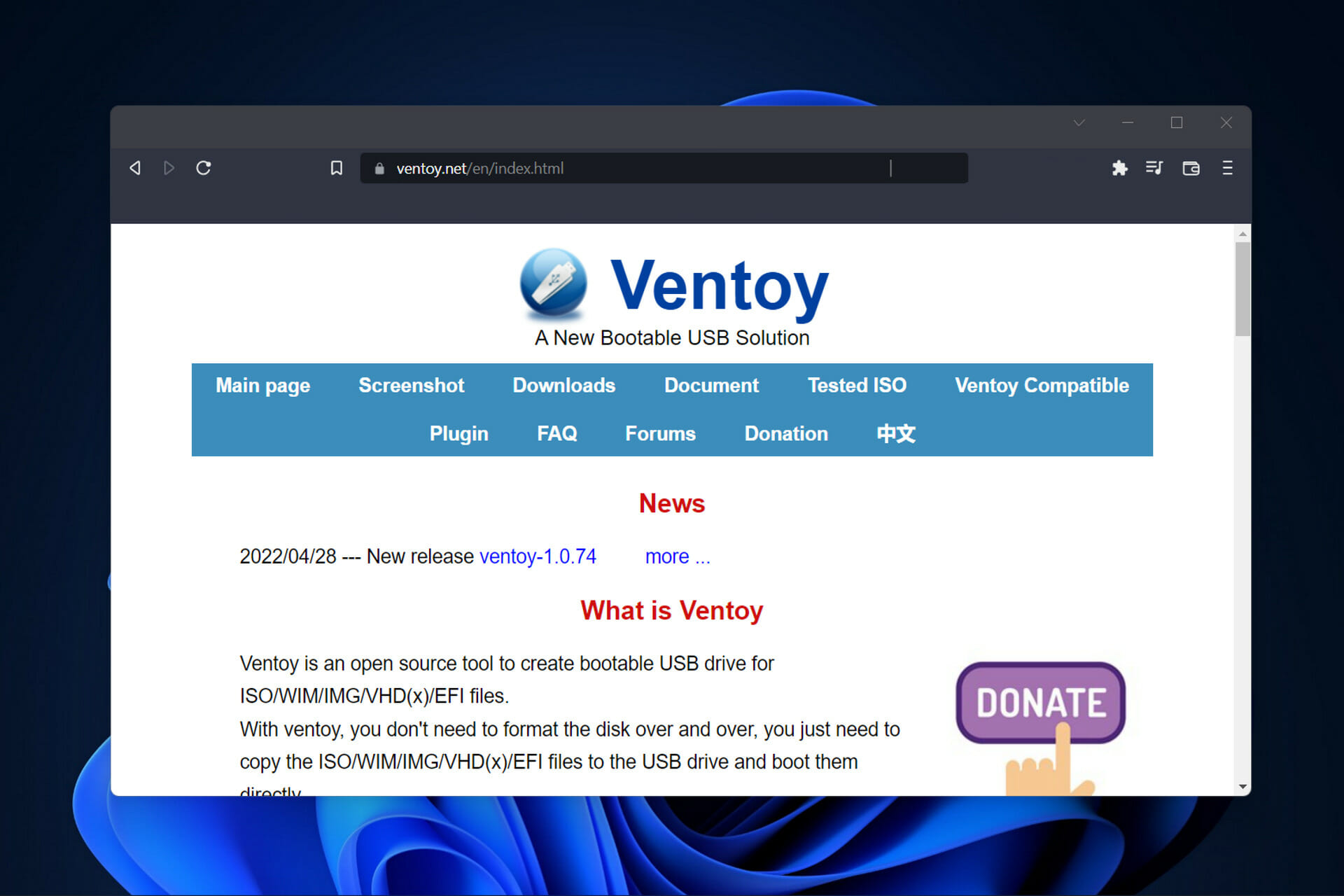
Dying Light 2: How Many Worldwide Players Are There? [Latest Stats]

A lot has been said about Dying Light 2 since the game was released in December 2021. Even though the game came with some nasty bugs and glitches, it’s still a success among players.

The great majority that tried both Dying Light 2 and its predecessor say that the sequel proved to be even better than the original, contrary to what people initially thought.

This open-world, first-person zombie survival game has captivated audiences that didn’t even like this sort of title, to begin with.

It’s safe to say that Dying Light 2 has been a huge success and the numbers do it justice. You’re probably wondering what numbers we’re talking about, so allow us to shed a bit more light on the matter.

We’re referring to the number of players that choose to spend their time fighting the zombie outbreak and surviving against all odds.

According to the Steam charts, literally hundreds of thousands of players bought Dying Light 2 and took it for more than a test drive.

So, if you were wondering just how many people are playing the same title as you, we’re about to show you just that.

How Many People Play Dying Light 2 On A Daily/Monthly Basis?

Even though there is still a lot of hype around Dying Light 2 Stay Human, the player base has seen a dramatic decline over these last few months.

February 2022 has been, by far, the best month for Dying Light 2. We pulled out some interesting numbers just to show you how much of a success this title was.

The second month of 2022 had an average of 91,226 players that were invested in the above-mentioned game, with a peak of 274,983 people.

Compared to other titles that we’re being enjoyed at the same time, this number is crushing. Dying Light 2’s main competition during this period has been none other than Elden Ring.

Even though there are a lot of other popular games out right now, these are the two most-played ones for February 2022.

However, March brought an almost dramatic decline in Dying Light 2 players on Steam. More than 86% of people simply gave up on the popular game.

Either because they finished it, or they just got bored with it, March 2022 only had an average of 12,679 players, with a peak of 30,261.

And, just when you thought it couldn’t get any worse, April came along with another 57.75% decline in the Dying Light 2 player base.

Therefore, during April 2022, Steam only witnessed an average of 5,382 players, with a peak of only 11,901.

That being said, know that the last 30 days have brought only a slight 1.61% increase. In this last month, only 5,469 people were playing this game, with an average of 12,857.

That’s not too bad, even by Steam standards, considering that most people are still invested in older games that are still popular to this day, such as Dota 2.

As of right now, the most played games on Steam are Elden Ring, Lost Ark, Cyberpunk 2077, and, as we mentioned above, Dota 2.

So, all in all, not really a bad choice, considering all the adventures and foes that await you within Dying Light 2 Stay Human.

Thus, if you decide to pick up this game and take it for a spin, know that this title is a fan favorite and will surely provide the entertainment you seek.

However, you might also run into some bugs or errors while playing, but we got you covered. We can show you how and where to download Dying Light 2, or what to do when you get the Unable to initialize Steam API error.

We can also help if you aren’t getting any skill points in Dying Light 2, or if you want to get double parkour XP.

You could also encounter problems such as the game not launching at all on Steam, and we can show you how to deal with that as well.

And, if you want to make the most of this experience, we’re prepared to guide you through activating ray-tracing for some astonishing visuals while in-game.

If you are having trouble deciding what to pick between Dying Light 2 Stay Human and Horizon Forbidden West, we will assist you in making a choice.

There you go. Now you basically have pretty much all the information you need to make an educated guess about picking up this game or not.

If, however, you do, you will find anything Dying Light 2 related right here. Have you decided to also play Dying Light 2 Stay Human? Share your opinions with us in the comments section below.
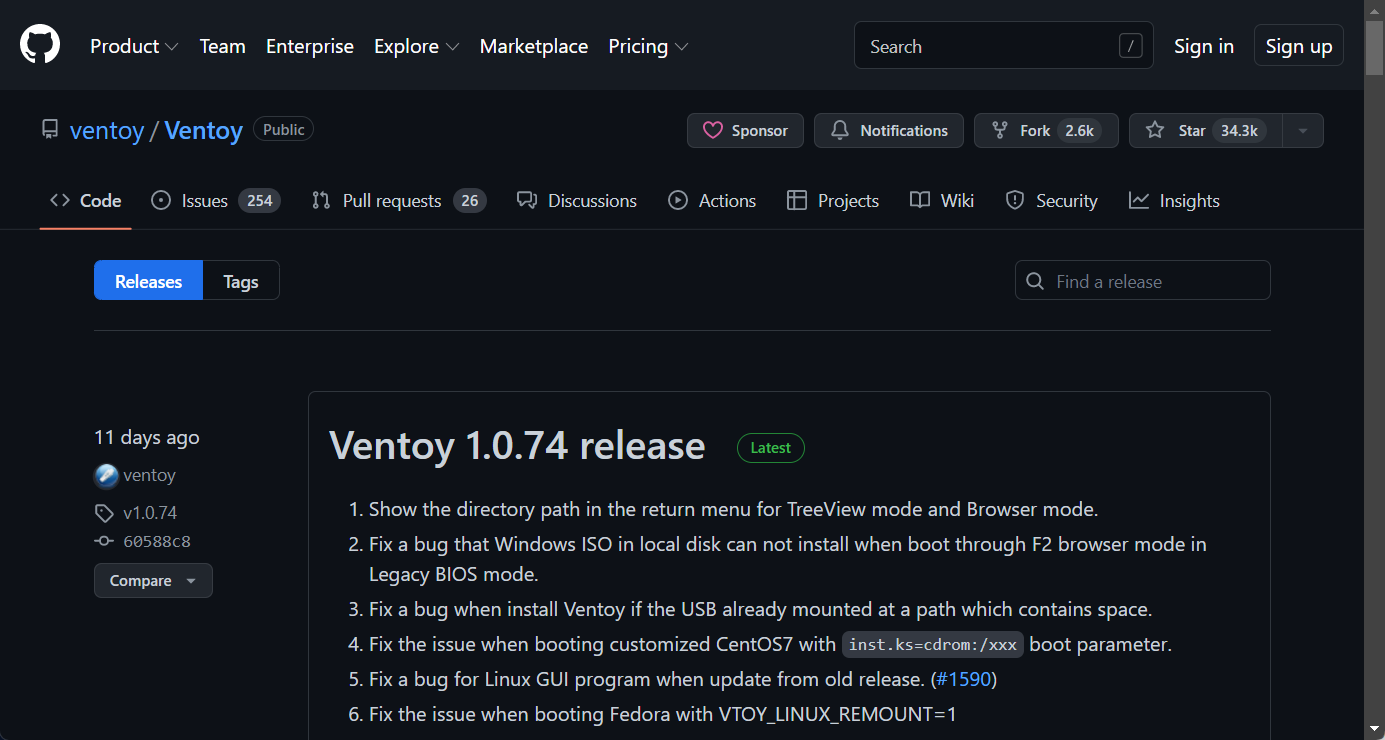
How To Fix Rogue Legacy 2 Crashes

This game actually feels like a reimagined version of what its predecessor could have been with the benefit of more time, money, and hindsight of how the genre has evolved since 2009.

Sure, the basic premise is still the same and still just as strong as ever, meaning you play as a hero with a randomized name, class, and trait, explore a massive castle; collect loot, and attempt to beat bosses.

Rogue Legacy 2 really encompasses a lot of elements that most gamers look for within every title they try out for the first time.

And even though everyone loves this game, there still are some bugs that limit or prevent quality gameplay, which is unacceptable.

But, in order to experience the in-game ones, you will first have to manage to successfully run Rogue Legacy 2. Some players, however, are finding it hard to do that.

So, if you too are experiencing crashes when playing Rogue Legacy 2, today is your lucky day, as we are about to show you how to fix this problem.

How do I stop Rogue Legacy 2 from crashing on my PC?

1. Check system requirements

Minimum

OS: Windows 7


Processor: 2.0 Ghz

Memory: 8 GB RAM


Graphics: Nvidia GTX 680, AMD R9 280X

DirectX: Version 9.0c

Network: Broadband Internet connection

Storage: 2 GB available space


Recommended

OS: Windows 10

Processor: 3.0 Ghz

Memory: 8 GB RAM

Graphics: Nvidia GTX 680, AMD R9 280X

DirectX: Version 10

Network: Broadband Internet connection

Storage: 2 GB available space

2. Check game file integrity

  1. In Steam, right-click Rogue Legacy 2 and select Properties.dying light steam properties
  2. Select the Local Files tab and click on the Verify integrity of game files.game file integrity

3. Allow Rogue Legacy 2 through the Windows Firewall

  1. Press the Windows key, search for Firewall and select Open.open firewall
  2. Click on Allow an app through Firewall.allow app through firewall
  3. If Rogue Legacy 2 isn’t in the list, click Change Settings, then Allow another app.Allow another app
  4. Click the Browse button, locate your game and press the Add button.browse firewall games

4. Update Rogue Legacy 2

  1. On Steam, right-click Rogue Legacy 2 and select Properties.steam game properties
  2. Select the Updates tab and activate one of the two Auto-update options.update steam games

5. Disable Xbox Game Bar and other overlays

  1. Click on the Start menu and then on the Settings button.settings
  2. Select the gaming category.gaming
  3. Turn off the Xbox Game bar.xbox game bar

6. Update your GPU

  1. Press the Windows key, search for Device Manager and click on Open.run device manager
  2. Expand Display Adapters, right-click on your GPU and select Update driver.update gpu
  3. Select Search automatically for drivers.search for driver automatically

Gaming can be enjoyed without any crashes, lags, or freezes by keeping all drivers up to date and error-free easily. 

Sometimes, manual checks are hard to perform, that’s why we recommend using an automated assistant that will scan for fresh driver versions daily.

In case you’re a beginner, you don’t have to worry! Outbyte Driver Updater is smart, simple, engaging and its user interface was built to make your life easier.

⇒ Get Outbyte Driver Updater

Have you managed to fix the Rogue Legacy 2 problem using this useful guide? Let us know in the comments section below.

Steam Not Accepting Your Card Payments? Here’s What You Can Do

It’s pretty safe to say that we’ve all been there at a certain point in our lives, so this is a more common problem than you can possibly think of.

Ever since credit/debit cards started showing up in people’s wallets, there has always been the risk of your card getting declined for one reason or another.

It doesn’t even have to be empty to get declined either. Certain retailers may not accept some payment methods or card variants, or maybe you even entered the wrong information.

The Steam platform also has a history of customers getting their payment methods automatically rejected without any explanation whatsoever.

A lot of Steam users reported not being able to make purchases and receiving this error message: This card number is not valid for the payment method you selected.

If you find yourself in this type of situation, there are some areas you have to go over and ensure that all your work isn’t futile.

There have even been PayPal to Steam payment issues, so make sure you look into that as well, just in case you might need the information.

How can I make sure my card doesn’t get declined?

1. Make sure you are using a supported payment method

Different retailers have different preferences when it comes to secure online payments. Just to save you the trouble, be sure this is the first aspect you check.

Some vendors might not accept Visa, PayPal, or even MasterCard. Checking this field will save you a lot of time along the way.

Valve does from time to time drop certain payment providers, usually when there are problems or security issues, so keep that in mind as well.

2. Enter the correct payment information

Entering the correct payment information is crucial for the payment itself to go through. One typo and you will be stuck in this cycle for hours if you don’t notice.

Make a habit of always double, maybe even triple-checking the information you entered in order to be sure that this doesn’t happen.

Be patient and enter your correct name, address, zip or postal code, phone number, and card details. This is the area where the maximum focus is needed, as one wrong number means failure.

3. Contact your credit/debit card provider

The bottom line is that whenever you get stumped you should always talk to the card provider or the bank that issued it.

Valve can’t help in instances like this unless it is some weird glitch on their end. You should mainly focus on two things:

  • the funds are indeed on your account and available
  • the card is not blocked and able to use online

Keep in mind that some banks issue debit cards that require you to ring up and unlock them for online use beforehand.

If all else fails, and your bank confirms everything is as it should be, then all you can really do is either find another method of payment, such as Revolut, or use your card to put a balance on PayPal.

Thus, all you need to do is make sure whatever method you want to use for payment will be supported by the vendor, which in this case is Steam.

Was this guide helpful to you? Share your experience with us in the comments section below.

Age Of Empires 2 Failing Because Of DirectDraw Error? Here’s What To Do

We all get nostalgic from time to time and want to relive some of the experiences that made us happy and brought us together with friends and family.

Many of us grew up playing some of the video games that kids today consider vintage, many of which don’t work anymore on modern systems.

But that doesn’t necessarily mean you can’t make it happen if you really want it. That being said, backward compatibility isn’t always the trusty friend we thought it would be.

That’s why Forgotten Empires, Tantalus Media, Wicked Witch Software, and the people over at Xbox Game Studios put in the extra work and brought us a remastered version.

Age of Empires 2 Definitive Edition came out in 2019 and fans have been more than grateful for the revival of this beloved oldie.

However, the new version also came with some horrendous bugs which, although totally fixable, ruin the gaming experience.

For example, Age of Empires players have been struggling with the loading string file error while trying to launch the title.

Another issue that drives gamers insane is the DirectDraw error. This error message, even though often seen in video games, can also manifest for programs that run Microsoft DirectX.

The error could appear at any point during the game, (or when using the software program, but you’ll most likely see it during startup.

So, how do we fix this? We prepared a guide for you and going through it will bring you one step closer to enjoying your favorite game again.

How can I fix the Age Of Empires 2 DirectDraw error?

1. Restart your PC

  1. Press the Start button.press start
  2. Click on the Power button and select Restart.restart

2. Install the latest version of DirectX

To update your DirectX version, all you have to do is head on over to the official Microsoft website and download the DirectX End-User Runtime Web Installer.

This tool will install a number of runtime libraries from the legacy DirectX SDK for some games that use D3DX9, D3DX10, D3DX11, XAudio 2.7, and XInput 1.3, XACT, and/or Managed DirectX 1.1.

But you can also get the latest versions of DirectX, such as 12, if that is what you need in order for everything to function properly.

Just go through the steps and you will surely accomplish what you set out to do in the first place.

Note that DirectX updates also come through Windows updates, so make sure to also keep your operating system updated. You can do it like this:

  1. Press Windows + I to access Settings.
  2. Select the Windows updates tab and click Install all.install Windows updates
  3. If no updates are queued for installation, press the Check for updates button.check for updates

3. Update your GPU

  1. Press the Windows key, search for Device Manager and click on Open.run device manager
  2. Expand Display Adapters, right-click on your GPU and select Update driver.update gpu
  3. Select Search automatically for drivers.search for driver automatically

    Would you like to also be able to enjoy quality gaming without having to constantly worry about any crashes, lags, or freezes by keeping all drivers up to date and error-free easily?

    It’s true that sometimes, manual checks are hard to perform, that’s why we recommend using an automated assistant that will scan for fresh driver versions daily.

    In case you’re a beginner, you don’t have to worry! Outbyte Driver Updater is smart, simple, engaging and its user interface was built to make your life easier.

    ⇒ Get Outbyte Driver Updater

4. Run the game as an administrator

  1. Locate the folder where Age of Empires 2 Definitive Edition is installed.aoe 2
  2. Right-click on the Age of Empires 2 executable and click on Properties.propreties
  3. Select the Compatibility tab and check the Run this program as administrator box.run werid west as admin

5. Uninstall/Reinstall Age of Empires 2 Definitive Edition

These are basically the solutions you’re looking at if you are dealing with the above-mentioned situation and would like to fix it.

Be sure to carefully follow each step and you will be done in no time. Has this guide been helpful in fixing this error? Let us know in the comments section below.

[Fix] HP Envy x360 fingerprint reader not working

While they were not very common earlier, fingerprint sensors now come built-in with every high and mid-range laptop. These facilitate a quick and secure sign-in process. But, several users reported that the HP Envy x360 fingerprint reader is not working.

Built-in fingerprint sensors generally don’t run into problems unless there’s a manufacturing defect. In case it’s not working, the problem most likely lies with the driver. Or, the data for the configured fingerprints may be corrupt or missing.

No matter what’s causing the issue in your case, the methods listed here should get things up and running in no time.

Also, we have listed the fixes for the HP Envy x360 fingerprint reader not working issue under two sections. Remember, the methods under one can be executed on the other as well.

What can I do if the HP Envy x360 fingerprint reader isn’t working in Windows 11&10?

1. HP Envy fingerprint reader not working in Windows 11

1. Reset the fingerprints

  1. Press Windows + I to launch the Settings app and select Accounts from the tabs listed in the navigation pane on the left.Accounts
  2. Next, click on Sign-in options on the right.Sign-in options
  3. Click on Fingerprint recognition (Windows Hello) here.Fingerprint recognition
  4. Now, click on the Remove button.Remove to fix hp envy fingerprint reader not working
  5. Once done, click on Set up.Set up to fix hp envy fingerprint reader not working
  6. Follow the on-screen instructions to add your fingerprint.Follow instructions

Oftentimes, the data for configured fingerprints may corrupt or there could be a problem reading it. In this case, the scanner wouldn’t be able to identify your finger and it would appear as if the HP Envy x360 fingerprint reader is not working.

If the error persists after following these steps, head to the next method.

2. Reinstall the fingerprint reader driver

  1. Press Windows + S to launch the Search menu, enter Device Manager in the text field, and click on the relevant search result.Device Manager
  2. Double-click on the Biometric devices entry here.Biometric devices
  3. Now, right-click on the fingerprint scanner, and select Uninstall device from the context menu.Uninstall device to fix hp envy fingerprint reader not working
  4. Tick the checkbox for Attempt to remove the driver for this device, and then click on Uninstall.Attempt to remove the driver for this device
  5. After the process is complete, restart the computer, and Windows will automatically install a fresh driver for the fingerprint reader.

If the driver for a device is corrupt, it may throw errors or stop working altogether, though that is rarely the case. And, even if it does, you can easily reinstall a fresh one. But, you will first have to identify these. A corrupt driver will have a warning sign at the corner of the device’s icon.

After reinstalling the driver, verify if the HP Envy x360 fingerprint sensor not working issue is eliminated.

3. Update the fingerprint reader driver

  1. Press Windows + R to launch the Run command, enter devmgmt.msc in the text field, and either click on OK or hit Enter to launch the Device Manager.devmgmt.msc
  2. Double-click on Biometric devices to expand it and view the fingerprint scanner.Biometric devices to fix hp envy fingerprint reader not working
  3. Now, right-click on the fingerprint reader, and select Update driver from the context menu.Update driver to fix hp envy fingerprint reader not working
  4. Select Search automatically for drivers from the two options here.Search automatically for drivers
  5. Windows will now look through all the drivers available on the system and install the best one.

Outdated drivers are just as likely to cause the HP Envy x360 fingerprint reader not working in Windows 11 problem. Therefore, it’s recommended that you keep all the installed drivers up-to-date.

In case the Device Manager couldn’t find an update, you can try the other methods to manually install the latest driver version in Windows.

You also have the option to use an automated tool like Outbyte Driver Updater. It’s a light soft that will install new versions for your drivers whenever they become available. It can also take care of corrupt and missing drivers.

HP Envy Fingerprint Reader not working in Windows 10

4. Update Windows

  1. Press Windows + I to launch the Settings app, and click on Update & Security from the options listed here.Update & Security
  2. Next, click on Check for updates on the right.Check for updates
  3. If an update is listed after the scan, click on the Download & install button.Download & install

An outdated OS can lead to many errors and also put your computer at risk. So, if you haven’t updated Windows in a while, it’s time you do that now.

That’s it! One of the four methods listed here should have helped fix the HP Envy x360 not working issue. If the problem persists, you can either perform a system restore or reset Windows to its factory settings.

Also, find out what to do if the HP Envy x360 sound is not working.

Tell us which fix worked and your review of HP Envy x360, in the comments section below.

5 Best Website Scanner Tools to Detect Malware Before it Strikes

Even if you know and follow all the necessary security measures on your own when you’re managing your website, you will never be able to keep up and catch all malware and the vulnerabilities on your own.

That’s when a website vulnerability scanner comes in quite handy. Vulnerability scanners can help you automate security auditing, and they can play a massive role in your overall IT security.

These tools can scan the website for malware and all kinds of security risks, at the same time producing a prioritized list of those that you should patch.

Vulnerability scanners also describe the vulnerabilities and offer you steps on how to fix them.

There are lots of website scanner tools on the market, and we picked five of the best to help you make your choice easier. Make sure to check out their features to be able to make the best decision.

What are the best website scanners to use this year?

Guardio

Guardio is a browser extension that uses advanced cloud-based detection technologies to identify and stop web-based cyber attacks.

This utility works as an antivirus for your browser and it blocks threats before they get a chance to reach your PC.

It is easy to install and set up. Once you get it, it starts scanning your browsers and lets you know if it finds anything suspicious.

Web browser threats come in the form of trackers, malicious scripts, and malicious browser extensions.

Guardio is able to find and remove all these, allowing you to have a cleaner browsing experience.

Not only that, but it is also able to detect real-time threats such as phishing attempts.

These are most often disguised in emails that require your information and form-filling websites. The tool will alert you and block these attempts.

Other key features of Guardio include:

  • Blocks pop-ups and unwanted notifications
  • Dangerous site blocks
  • Social account protection
  • Identity & data leak monitoring
  • 24/7 customer support

Guardio is compatible with Google Chrome, Mozilla Firefox, and Edge. And, with the latest updates, this amazing tool is also available for Android and iOS.

Guardio

Keep hackers at bay with this powerful anti-malware browser extension.
Free trial Visit website

Quttera

This is a website vulnerability scanner online that offers complete security for websites. Using this tool, you will be able to protect your online success.

You can check out the complete set of features that are included in Quttera and try this free website vulnerability scanner on the official website.

Take a look at the best features that are included in this website scanner tool below:

  • The website scanning engine is backed up with a reliable infrastructure, and it is undergoing all kinds of harness tests in order to deliver fantastic performance.
  • This tool is continuously enhancing malware detection capabilities to provide customers effective tools against the most sophisticated and evolved web threats.
  • You will get instant alerts to remove malware from your website before the significant engines including Bing, Google, and Yahoo blacklist it in their search results.
  • When you face an online attack, the experts from Quttera will offer their help.
  • The program provides both internal and external monitoring.
  • It can detect 0-day threats with non-signature based technology.
  • You will receive instant notifications and also malware reports.

⇒ Get Quttera

Detectify

Detectify is a web security scanner that is able to perform a fully automated set of tests in order to identify security issues on your website.

It will check for more than 700 vulnerabilities, and it will scan your website for malware continuously.

Detectify Crowdsource is a network of more than 100 handpicked security researchers who combine extensive knowledge with automation.

Check out more features of this impressive tool:

  • The program comes with a scanner that checks your website for various vulnerabilities.
  • The latest security tests are submitted by ethical hackers.
  • You will benefit from an unlimited number of scans.
  • There’s an extensive knowledge base that includes over 100 remediation tips.
  • You will be able to share reports thanks to the team functionality easily.
  • This website scanner provides integration with popular tools such as Slack, Jira, and PagerDuty.

⇒ Get Detectify

SiteGuarding

SiteGuarding includes a website antivirus, website firewall, and website files change monitoring services. This security tool will successfully protect your website against malware and hacker exploits.

When you’re in trouble, you will be able to get a professional consultation from engineers and security experts.

You can read the complete set of features that this website vulnerability scanner has to offer and try out SiteGuarding on the official website.

Take a look at the most important features that are packed in this program:

  • This service develops the highest-grade security tools for maximum website protection.
  • The release of a virus update is immediate once a new threat pops up and is analyzed.
  • You will get 24/7 professional support from security experts.
  • This tool uses strong and unique algorithms for detecting unknown viruses and the newest threats.
  • SiteGurading provides a deep scan of each and every file on your website, and it offers unique security solutions that are able to guarantee that your website will be up all the time.
  • It can also help remove your website from blacklists if that is the case.
  • The security tools included in this program can work on any type of servers, any CMS and custom developed websites and apps.
  • SiteGuarding provides an online tool to check your files and a complete antivirus solution for your websites.
  • You will get a daily update of the virus database.

⇒ Get SiteGuarding

Comodo Web Inspector

This is another excellent website malware scanner. This tool will scan online a particular webpage. All you have to do is enter the URL of the desired webpage in the designed space, and you will get a malware report.

Comodo Web Inspector also provides businesses website malware scans and even removal services for free.

All you have to do is provide your personal details along with your website address, and this tool will scan the website for malware and vulnerabilities. The security analysts will fix your website for free.

Check out more exciting features that are included in this tool:

  • Your website security scan report will be available within a couple of minutes.
  • In order to get a sufficiently detailed website security scan report, you have to sign up with Comodo Web Inspector.
  • The scan limit is 50 web pages if you select the Starter plan.
  • If you select the Pus option, you will be able to perform 250 scans.
  • If you decide to choose the Premium plan, you can perform 700 scans.
  • If you go for the Enterprise plan, you can scan 1000 web pages.

⇒ Get Comodo Web Inspector

Tinfoil Security

Tinfoil Security will first audit your website against the top 10 vulnerabilities, and it will let you know other known security holes.

These are five of the best website scanner tools that you can currently find out there, and they each come with their very own unique set of features.

We recommend that you head straight to their official websites and analyze their capabilities before you decide which one is the best tool for your needs.

Check out more features that you will benefit from if you choose Tinfoil Security:

  • You will get an actionable report and the option to re-scan once you are done with all the necessary fixes.
  • The entire setup process will require about five minutes.
  • You will be able to scan if your website is protected or if it’s behind single sign-on.
  • Using, Tinfoil Security, you will be able to push security up to stack and empower developers to fix the website’s vulnerabilities.
  • This tool was able to discover 2,453,930 vulnerabilities by now, and the usable reports make it really easy to fix them.

⇒ Get Tinfoil Security

These tools will help you scan your website for malware on-demand whenever you want to, but we also recommend that you schedule them for automatic security scans just to be sure that you get enhanced chances for total protection.

You can also use AdwCleaner to clean adware and unwanted browser components for a more complete security setup.

If you have a website, it’s essential to use a tool that scans it for security vulnerabilities to make sure that everything works great. Never underestimate the security area of your website.

Fix: There is a Problem With This Windows Installer Package

From minor third-party tools to complex games and applications, one thing is certain: you need to install a program in order to use them.

There are quite a few Windows Installer errors in Windows 10, and the There is a problem with Windows Installer package error is one of the most resilient.

This isn’t the only message that you can encounter, and you can also get This installation package could not be opened error as well.

If you’re stuck with this error and you’re not sure how to deal with it, we recommend you keep reading this.

How can I fix Windows Installer package error in Windows 10/11?

1. Make sure you have administrative permissions

  1. Locate the setup file that you want to run.
  2. Right-click and choose Run as administrator from the menu.
  3. Now follow the instructions on the screen to complete the process.

As you already know, in order to install any application coming from a third-party source, you’ll need administrative permission. Luckily, you can make yourself an administrator easily on Windows.

Hence, you’ll need to authenticate using the Administrator account or have permission to make system-related changes on an alternate account.

Do keep in mind that There is a problem with this Windows Installer package can affect uninstall process as well.

2. Disable the antivirus and download the file again

  1. Press Windows key + X and type defender. Select Windows Security from the list.
  2. Navigate to the Virus & threat protection and click on Manage settings.
  3. Disable Real-time protection.
  4. Now try to install the application again.

You can also try downloading the installation file again and try to reinstall the software.

Users reported There is a problem with this windows installer package with iTunes, Chrome, Microsoft Edge, and Cisco AnyConnect, but it can also affect any other software.

Note icon NOTE
Disabling your antivirus protection will leave your system at risk, so use it only with the files you trust. Don’t forget to turn the protection back on once you’re done.

3. Run Program Install and Uninstall Troubleshooter

  1. Visit the troubleshooter download page.
  2. Click on Download troubleshooter.
  3. Once the file is downloaded, run it.
  4. Follow the instructions on the screen to complete the process.

Once you run this software it will check and resolve installation-related errors. It’s also worth mentioning that this tool is provided by Microsoft, so you won’t need to take unnecessary risks with suspicious third-party solutions.

4. Check Windows Installer for errors

  1. Right-click the Start menu and and select PowerShell (Admin).
  2. Type the following command in the command line and press Enter: MSIExec
  3. If everything is good, you’ll see the pop-up window with Windows Installer details.
  4. If you see an error report, you should re-register Windows Installer.

In a system as complex as Windows is, you have various services that partake in everything you do. The MSI engine foundation is responsible for the installation, maintenance, and uninstallation of third-party programs.

You don’t need to be a tech enthusiast to get where this is going. If MSI engine (Windows Installer) is down, corrupted, or disabled by mistake, you’ll have a hard time installing anything.

See our guide on Windows Installer Service missing for targeted steps to restore the installer service on Windows 10 and 11

5. Re-register Windows Installer

  1. Right-click Start and choose PowerShell(Admin).
  2. In the command line, type the following commands and press Enter after each:
    msiexec.exe /unregister
    msiexec.exe /regserver


  3. Close PowerShell and look for changes. If the problem is still there, move to the Step 4.
  4. Press Windows key + R, type services.msc and press Enter.
  5. Locate Windows Installer. It should be at the bottom of the list.
  6. Right-click on the service and select Stop.
  7. Now right-click it again and choose Start.
  8. Restart your computer.

This is a simple solution, and it can help with There is a problem with this windows installer package error 1722 or any other error.

How can I fix Windows Installer package error on Windows 11?

This error affects all versions of Windows, and if you encounter the issue on Windows 11, you should know that all these solutions can be applied to it as well.

Windows 10 and 11 are pretty similar when it comes to core functionality, so most problems can be fixed by using the same solutions.

That should be enough to rid you of the There is a problem with this Windows Installer package installation error.

If you’re having more issues, we suggest reading our Windows Installer Service could not be accessed article for more useful solutions.

Should you know an alternative solution to this, feel free to tell us in the comments section below.

Fix the Call of Duty Cold War UI Error 85118 with this easy guide

There’s no denying the fact that Call of Duty is one of the most, if not the most, popular games on the planet, with hundreds of millions of active subscribers each month.

The action-packed first-person shooter has taken us through so many exciting adventures since it first came out, that it’s hard to talk about shooter games without mentioning the franchise.

But not even big games such as Call of Duty are free of bugs, errors, and other game-breaking problems that make players scream with frustration.

Lately, Call of Duty Cold War players have been reporting getting some pretty nasty UI errors while enjoying their favorite title.

It’s called UI Error 85118 and it will crash your game if you are unlucky enough to get it. So what can we do? Fix it, of course.

How Can I Fix The Call Of Duty Cold War UI Error 85118?

Almost all the reports that came in flagged the issue as starting when one would scroll through his friend’s list, while in-game.

Almost all of a sudden, boom, the game crashed just like that. As of right now, developers haven’t released an official fix patch, but there are certain workarounds we are about to share with you.

1. Update your game

  1. Exit Call of Duty Cold War.
  2. Check for updates.
  3. If there aren’t any updates queued, right-click Call of Duty Cold War and select Properties.steam game properties
  4. Select the Updates tab and activate one of the two Auto-update options.update steam games

2. Restart your PC

  1. Press the Start button.press start
  2. Click on the Power button and select Restart.restart

3. Check game file integrity

  1. In Steam, right-click Call of Duty Cold War and select Properties.dying light steam properties
  2. Select the Local Files tab and click on the Verify integrity of game files.game file integrity

4. Update your graphics driver

  1. Press the Windows key, search for Device Manager and click on Open.run device manager
  2. Expand Display Adapters, right-click on your GPU and select Update driver.update gpu
  3. Select Search automatically for drivers.search for driver automatically

It goes without saying that quality gaming can be enjoyed without any crashes, lags, or freezes by keeping all drivers up to date and error-free easily. 

However, sometimes, manual checks are hard to perform, that’s why we recommend using an automated assistant that will scan for fresh driver versions daily.

In case you’re a beginner, you don’t have to worry! Outbyte Driver Updater is smart, simple, engaging and its user interface was built to make your life easier.

⇒ Get Outbyte Driver Updater

For the time being that is all you can do in order to deal with this annoying problem. Everyone is still waiting for Activision to solve it.

You should also check out the textures not loading error and Call of Duty Cold War not updating on Xbox guides, just in case you or someone you know needs them

Have you also experienced this error while playing Call of Duty Cold War? Share your experience with us in the comments section below.

Fix This Client Is Not Compatible Fortnite Error With 3 Easy Steps

Are you a Fortnite fan? Great, it means that you care about the game enough to want to do something when it backfires.

And, since you’re here, you are most likely experiencing a game-breaking problem that won’t allow you to carry on enjoying your favorite title.

We already showed you what to do when you get an unexpected error has occurred message for the Xbox One/Series X|S version of the game.

Fortnite players are now dealing with another super annoying issue that won’t let them log in. The only message they get is this client is not compatible with the currently deployed server.

Now, we know you might have gotten so annoyed that you feel like simply exiting the game and calling it a day, but we’re here to help you in your time of need.

We’ve compiled 3 easy solutions that proved to do the trick for other Fortnite players in the same situation as you are in right now.

What can I do to fix this client is not compatible error?

1. Restart Fortnite

Most players that had to deal with this error while playing Fortnite stated that a simple game restart fixed the problem for them.

So, before we get to the next two steps of our guide, we recommend you do the same. If it works, you can keep enjoying Fortnite without worrying.

2. Check game file integrity

  1. In Steam, right-click Fortnite and select Properties.dying light steam properties
  2. Select the Local Files tab and click on the Verify integrity of game files.game file integrity

3. Update your network driver

  1. Press the Windows key, search for Device Manager and click on Open.run device manager
  2. Expand Network Adapters, right-click on the one you use, and select Update Driver.network driver
  3. Select Search automatically for drivers.search for driver automatically

It goes without saying that quality gaming can be enjoyed without any crashes, lags, or freezes by keeping all drivers up to date and error-free easily. 

However, sometimes, manual checks are hard to perform, that’s why we recommend using an automated assistant that will scan for fresh driver versions daily.

In case you’re a beginner, you don’t have to worry! Outbyte Driver Updater is smart, simple, engaging and its user interface was built to make your life easier.

⇒ Get Outbyte Driver Updater

This is pretty much all you can do for the moment if you are facing the above-mentioned situation, so you better get right to it and continue enjoying Fortnite.

If you are dealing with other problems, such as Fortnite not working on Xbox One, or something went wrong with your Fortnite payment, we can help with that as well.

Has this guide been helpful in solving your problem? Let us know in the comments section below.

How To Fix Controller Not Working For Rogue Legacy 2

If you are also a fan of Rogue Legacy 2, then surely you came to the right place to solve any problems you might have with your favorite game.

Some players reported their game crashing for no apparent reason and we showed you how to fix that issue if you ever run into it.

However, that’s not the only thing that can go wrong with Rogue Legacy 2, as you can find out by simply asking people that play it.

And not everyone enjoys this title the conventional mouse and keyboard way. Some gamers actually prefer the controller approach.

But what do you do when your controller simply won’t work in Rogue Legacy 2? That’s the question you came here to find the answer to and we will, of course, oblige.

So, if you are in a similar situation, here’s what you need to do on your end for this issue to quietly go away and enjoy some good old quality gaming.

What can I do if Rogue Legacy 2 is not recognizing my controller?

No, you won’t have to crack open the controller and perform some intricate circuit surgery. All you have to do is tweak some compatibility options in Steam.

We will guide you through this process and you will be back in the game before you can say Rogue Legacy 2 is not recognizing my controller.

Before we start though, make sure to disconnect any other USB devices you are not using, such as joysticks, hotas, or headsets.

1. Configure the controller in Steam

  1. Click on the Steam button and select Settings.steam settings
  2. Select Controller and General Controller Settings.general controller settings steam
  3. Select the configuration support appropriate to the type of controller you are using.controller settings steam
  4. Right-click on Rogue Legacy 2 in Steam and select Properties. game properties
  5. Select Controller and then Enable Steam input from the dropdown.enable steam input controller

If the controller still doesn’t work for you in-game after these steps, try revisiting the last one and select Disable Steam Input instead of Enable Steam Input.

Some players stated that the Enable option didn’t work, they switched, and then the controller was functioning perfectly while in Rogue Legacy 2.

2. Launch the game in Big Picture mode

  1. Click on the Big Picture mode button.open steam in big picture mode
  2. Select Library and start Rogue Legacy 2.steam big picture mode library

3. Force on controller input in Big Picture mode.

  1. Click on the Big Picture mode button.open steam in big picture mode
  2. Click on the Library button.big picture mode library
  3. Select Rogue Legacy 2.rogue legacy 2 steam big picture mode
  4. Click the Manage Game button.Manage Game steam
  5. Click on Controller Options.controller options steam big picture mode
  6. Under Controller Application Options select Forced On and press the OK button.advanced controller options steam

After completing these steps you should be able to enjoy Rogue Legacy 2 with a controller, as other players that found themselves in a similar situation did after completing this guide.

Has this article been helpful for you in solving this annoying problem? Share your experience with us in the comments section below.

FIX: Windows Media Player has Stopped Working

A wide number of users have reported issues when trying to run Windows Media Player on their Windows 10 PCs, seeing an error message Windows Media Player has stopped working. There are various reasons for this occurrence, starting with system or application conflicts.

Some of the affected users shared their problems on Microsoft’s forum.

Windows Media Player has stopped working.
A Problem has caused the program to stop working correctly. Windows will close the program and notify you if a solution is available. This just started happening today, didn’t install anything to my knowledge. Tried uninstalling & reinstalling but didn’t do anything.

Resolve the error with the steps provided below.

Why is my Windows Media Player not working?

1. Disable and enable Windows Media Player

  1. Press ‘Win + X’ keys on your keyboard, and select the Apps and features option
  2. Click on ‘Manage optional features’, and then search for Windows Media Player in the listmanage optional settings apps & features Windows Media Player has stopped working
  3. Once you found Windows Media Player, click on it, select Manage, and deactivate it
  4. Restart your PC
  5. Follow the steps 1 to 3 and install the Windows Media Player from the same list
  6. Check to see if the error occurs when trying to open WMP.

2. Disable and re-enable Windows Media Player in Windows Features

  1. In the Windows Search bar, type Windows features and select Turn Windows features on or off.
  2. Navigate to Windows Media Player and disable it by unchecking the box.
  3. Reboot your PC and re-enable Windows Media Player again.windows media player windows features Windows Media Player has stopped working
  4. Check for improvements.

3. Try an alternative video player

If none of the solutions for troubleshooting Windows Media Player work, you could always consider using a different video player altogether, since the Windows Media Player is pretty limited in terms of functionality anyway.

A great media player software that exceeds other competitors’ solutions is Cyberlink PowerDVD 21. Using this tool, you will enjoy flexible support for Blu-ray, 8K, and 4K video quality for your Windows device.

This ultimate media player software can bring you qualitative visual and audio performance for all your videos. Plus, you can manage the entire library of photos, music, and videos on your PC.

Additionally, this solution can support ISO files, ultra HD videos, and Dolby True HD audio with Hi-Res audio support for memorable audiovisual results in your own home.

Plus, you don’t need to worry about unavailable video or audio files due to great support for all major file formats.

Cyberlink PowerDVD 21

Upgrade your audio-visual experience with this media player tool with 8K and 4K HDR media support on your Windows PC.
Check price Visit website

4. Update Windows and uninstall AMD Media Foundation Transcoder

  1. Navigate to Settings > Update & Security > Check for updates to update Windows 10.
  2. In the Windows Search bar, type Control and open Control Panel.open control panel Windows Media Player has stopped working
  3. Choose Uninstall a program.
  4. Uninstall AMD Media Foundation Transcoder and try running Windows Media Player again.

Windows Media Player is indeed a great tool, so follow these steps if you notice that it stopped working for no reason.

If all else fails, don’t pass on the opportunity to try a better video player, since the features and capabilities far outweigh the price tag.

Let us know what other solutions you tried and worked by telling us about it in the comments section below.

How to Restart Remote Computer With CMD [3 Ways]

If you have multiple computers set up in your office or home and in different rooms, it can be difficult to restart each one of them. Instead of having to physically restart the computers, you can restart remote computers using Windows CMD.

However, for this to work, you need to make sure that the remote computer you are restarting is in the same network as the one you are using. In addition, you need the administrative credentials or username and password.

You also need to enable remote shutdown on the host computer for this to work. If you do not want to use the CMD, you can use some of the best remote reboot software to control Windows 10/11.

Using the Windows shutdown command to restart a remote computer

Windows OS comes with a shutdown command that can be used to restart a remote computer using the CMD. It can be used by Windows 11, 10, 8, and even 7 users. This command is shut down.

The command provides users with multiple options for use when restarting or shutting down computers. Some of the most common options include;

  • /r – used for restarting a computer.
  • /s – used when shutting down a computer.
  • /m \\computer – used to specify the remote computer to restart or shutdown.
  • /l – used for logging off the computer.
  • /t xx – used when setting time out period before restart or shutdown to xx seconds.
  • /c “comment” – used when you want to display a certain message on the screen before restart or shutdown.

How do I restart a remote computer using CMD?

1. Use the shutdown command

  1. Click the start button at the bottom left corner in Windows 10 or previous versions of Windows OS. However, the start button is at the center of the taskbar in Windows 11.
  2. Type cmd or command prompt on the search box.
  3. Right-click Command Prompt to get a menu on the right side of the CMD icon.launching windows cms
  4. Select Run as administrator to launch the command prompt with administrative privileges. However, you need to be logged in as an administrator to ensure that command-line access is not denied.
  5. Type the following command, and replace the computer name with the name of the PC you want to restart: shutdown /m \\computername /rshutdown command
  6. Type /f one space after /r if you would like to close all programs before the restart. However, notify users to save their work.
  7. Add /c after /f, then type a message in quotes to send a message to the remote computer before restarting. Your command will now look like this shutdown /m \\computername /r /f /c “This computer is about to restart"shutdown command opions
  8. Type /t xx where xx represents the number of seconds the remote computer should restart. Your new command will, therefore, be shutdown /m \\computername /r /f /c “This computer is about to restart” /t 30
  9. Press Enter.

2. Remote Shutdown Dialog

  1. Follow the first four steps above to launch the command prompt as an administrator.
  2. Type the following command and press Enter shutdown -i remote shutdown i command
  3. You will get a remote shutdown dialog window. Click Add on the right-hand side of the Remote Shutdown Dialogue window.add computer to restart
  4. Type the IP address of the computer you want to restart and then click the OK button. This allows you to restart a remote computer using its IP address.add computer to restart
  5. Choose what you want the remote computer to do. In this case, choose Restart.
  6. Click the Warn users of the action checkbox to set a timer for the computer to restart. This is, however, optional. 
  7. Type the number of seconds the computer should delay before the computer restarts.
  8. Click the Planned checkbox to create an event tracker for the remote restart. Again, this is optional.
  9. Select a reason from the dropdown list for the restart and type a comment to be displayed on the computer before it restarts.
  10. Click the OK button.leave comment before restart

3. Windows Powershell

  1. Click the start button and type Powershell. 
  2. Right-click on Windows Powershell and select Run as administrator.launching windows powershell
  3. Run the following command to restart a remote computer with Powershell even when it is in use. Restart-Computer -ComputerName REMOTE_COMPUTER_NAME -Force
  4. Replace REMOTE_COMPUTER_NAME with the name of the computer to restart and press enter.restart command

The three options discussed above will help you restart a remote computer using CMD easily without having to physically access the computer. However, make sure that you have saved any work before starting the process. If you don’t, you might end up losing the unsaved work.

You can also use a special tool such as Redmi 3 to access any remote computer within few moments. This software will give you secure access to safely restart any remote pc within your network.

Also if you have any other suggestions feel free to share them!

Couldn’t Download Network Issue in Edge: 5 Methods to Try

Microsoft Edge is one of the best browsers for Windows and the first choice of many, along with being Microsoft’s recommended browser. But it still found to bump into issues from time to time. One of the common ones is the Couldn’t download Network issue error in Edge.

Despite the fact that Edge has significantly improved since its initial release, it is not error-proof. And you may have a variety of problems, including the inability to download files. So, let’s find out all about the problem and the solutions that should work.

Why am I getting Couldn’t download network issue in Edge?

Here are a few reasons you are encountering the error:

  • Corrupt browsing data: The problem could arise due to corrupt browsing data, and the only viable solution is to clear it.
  • Issues with the Internet: If the Internet speed is slow or the network keeps disconnecting randomly, it would affect the ongoing downloads.
  • Missing browser or OS updates: Oftentimes, running an outdated version of Windows or Edge could lead to the problem.
  • Third-party apps triggering conflicts: When Microsoft Edge is blocking downloads, it could also be the third-party apps to blame.

How do I fix Microsoft Edge couldn’t download network issue?

Before we head to the slightly complex changes, try these quick ones first:

  • Check the Internet speed using SpeedTest by Ookla or a reliable tool, and if it’s slow, speed up the Internet.
  • Switch to a different network. Also, if you are using a wireless connection, switch to a wired one.
  • Disable any third-party antivirus or firewall software installed on the PC and verify whether the Couldn’t download Network issue in Microsoft Edge is fixed.
  • Ensure the website you are downloading the data from is safe and reliable because Edge might be blocking the download for security reasons.
  • Check for any pending Windows updates and install them all.
  • In case you are downloading the file on a public network or at work, administrator policies might be in place to prevent downloads over a given file size. So, check for that.

If none work, move to the solutions listed next.

1. Update Microsoft Edge

  1. Launch Microsoft Edge, click on the ellipsis near the top-right, hover the cursor over Help and feedback, and select About Microsoft Edge.microsoft edge
  2. Now, if an update is available, it will automatically be downloaded.update to fix couldn't download network issue edge
  3. After the update is installed, click on Restart for the changes to come into effect.restart

After updating the browser, check whether the Microsoft Edge Couldn’t download – Network issue message in Windows 11 is gone. If not, move to the next solution.

2. Reset the network settings

  1. Press Windows + I to open Settings, choose Network & Internet from the navigation pane, and click on Advanced network settings on the right.advanced network settings
  2. Click on Network reset.network reset to fix couldn't download network issue edge
  3. Now, click the Reset now button.reset to fix couldn't download network issue edge
  4. Click Yes in the confirmation prompt.confirm

3. Try a different browser

When trying to download files and Edge is making it difficult to do everyday tasks and view your files, you could try another browser.

One of the trustworthy browsers is Opera One, a well-known multiplatform web browser with a long history of providing the greatest surfing experience to millions of users worldwide. Opera One is an all-rounder web browser for everyone, offering a range of functions as well as being secure, quick, and safe.

Opera One is your perfect light and fast browser, whether you are managing the built-in capabilities like Ad Blocker, VPN, AI or you are looking for more organization with features like workspaces, tab islands or faster access to social media and messaging apps.

In comparison, Microsoft Edge is more difficult to manage your downloads and requires more storage, and the speed can sometimes be a nuisance.

Opera One

Make your browsing experience more secure and organized with Opera One.
Free Download Visit website

4. Use Registry Editor

  1. Press Windows + R to open a Run window and type regedit inside the search bar.regedit edge couldn't download
  2. After you enter Registry Editor, navigate to the following location: Computer\HKEY_LOCAL_MACHINE\SOFTWARE\Microsoft\Windows\CurrentVersion\Policies\Attachmentsattachment edge couldn't download
  3. Now, double-click on the ScanWithAntiVirus key and set its value to 1, and click OK in order to stop it from scanning the Edge download.save-1 edge couldn't download

A tangle of seemingly incomprehensible character combinations makes up the Windows registry, making it one of the scariest aspects of your computer.

5. Repair Microsoft Edge

  1. Press Windows + I to open Settings, go to Apps from the left, and click on Installed apps.installed apps
  2. Locate Microsoft Edge, click on the ellipsis next to it, and select Modify.modify to fix couldn't download network issue edge
  3. Click Yes in the UAC prompt.
  4. Click on Repair.repair to fix couldn't download network issue edge
  5. Waif for the repair process to complete.repair

That’s it! If the previous solutions didn’t work, repairing Microsoft Edge should get things up and running when you are getting the Couldn’t download – Network issue message for files over 20 GB or, in some cases, even less.

Before you leave, check some quick tips to speed up Microsoft Edge and learn about the Efficiency Mode on Edge.

Tell us which fix worked for you in the comments section below.

Received an Onlyfans Internal Error? 3 Tips to Fix It

A strong pitch is made to youths to join OnlyFans as a quick and easy method to get money, with the caveat that some do not actually need to be naked in order to make easy money from the site. However, the website might sometimes experience issues such as internal errors.

There’s also the allure of the possibility of earning as much as $40,000 per month as a Creator, despite the fact that only a very small number of Creators actually earn that much.

If you want to manage your income and track your spendings, take a look at the five best software to control your finances.

OnlyFans announced a new account verification method, in which a Creator must now upload a selfie with their ID in it to demonstrate their authenticity.

However, according to our research, underage users have successfully made accounts using other people’s IDs, indicating that the age verification process is not rigorous enough as of now.

Follow along as we will show you how to address different OnlyFans internal error messages, right after we respond to one of your most asked questions.

What is the real OnlyFans?

OnlyFans is an online platform and mobile application that was launched in 2016 that allows users to pay for material (pictures and videos, as well as live streams) by subscribing to a monthly membership.

YouTubers, fitness trainers, models, content creators, and public celebrities are the primary authors of content in order to monetize their respective professions.

OnlyFans Home Page (Source: OnlyFans)

The site, which is situated in the United Kingdom, has become increasingly popular among those who have lost their jobs as a result of the coronavirus outbreak, but it is also popular among sex workers.

Several recent BBC documentaries, including #Nudes4Sale, examined the rise of underage people selling sexual content on sites such as OnlyFans as well as Twitter and Snapchat Premium.

According to facial analysis technology developed by Yoti, as many as a third of Twitter users advertising sexual photographs with hashtags nudes4sale or buymynudes are under the age of 18.

Unfortunately, a big number of young producers are using social media to sell nudes in exchange for money and gifts, which is extremely concerning.

How do I fix the OnlyFans internal error?

1. Check your payment method

If you are having difficulties making a payment, the first thing you should do is determine whether your card is 3D Secure or not. If your card does not have 3D Secure, you should consider upgrading it, due to the fact that OnlyFans accepts only 3D Secure Cards.

2. Wait for account approval

If you have submitted all relevant papers and are over the age of 18, you will almost probably be approved for a credit card account.


OnlyFans is a very popular website that receives millions of visits per month from individuals throughout the world, thus it can take some time for your account to be approved.

However, if your account hasn’t been approved in 24 hours then it might be a server error just like the 500 internal server error OnlyFans. Since these are errors on their side only they can fix them. Thus, further patience will be needed until developers address the issue.

3. Contact Customer Support

An array of customer services designed to assist clients in making the most cost-effective and correct usage of a product are known as customer support.

It entails assisting with the design, installation, training, troubleshooting, maintenance, updating, and disposal of a product, among other things.


When it comes to providing web-based assistance to your consumers, phone calls and emails are the most common methods of communication. Email-based communications have a number of advantages, including the fact that they are low-cost, non-intrusive, and accessible from any location.

Thus, we recommend that you contact customer support as they will let you know whether the OnlyFans chat internal error, or any of the others mentioned above, you are facing is due to their servers and when it will be fixed.

Since OnlyFans is a browser-based app, check out our article with the four best browsers to watch videos without buffering.

Alternatively, if you decide to create some content yourself, take a look at the five best software to turn pictures into videos.

Was this guide useful to you? Let us know by leaving a comment in the section below. Thanks for reading!
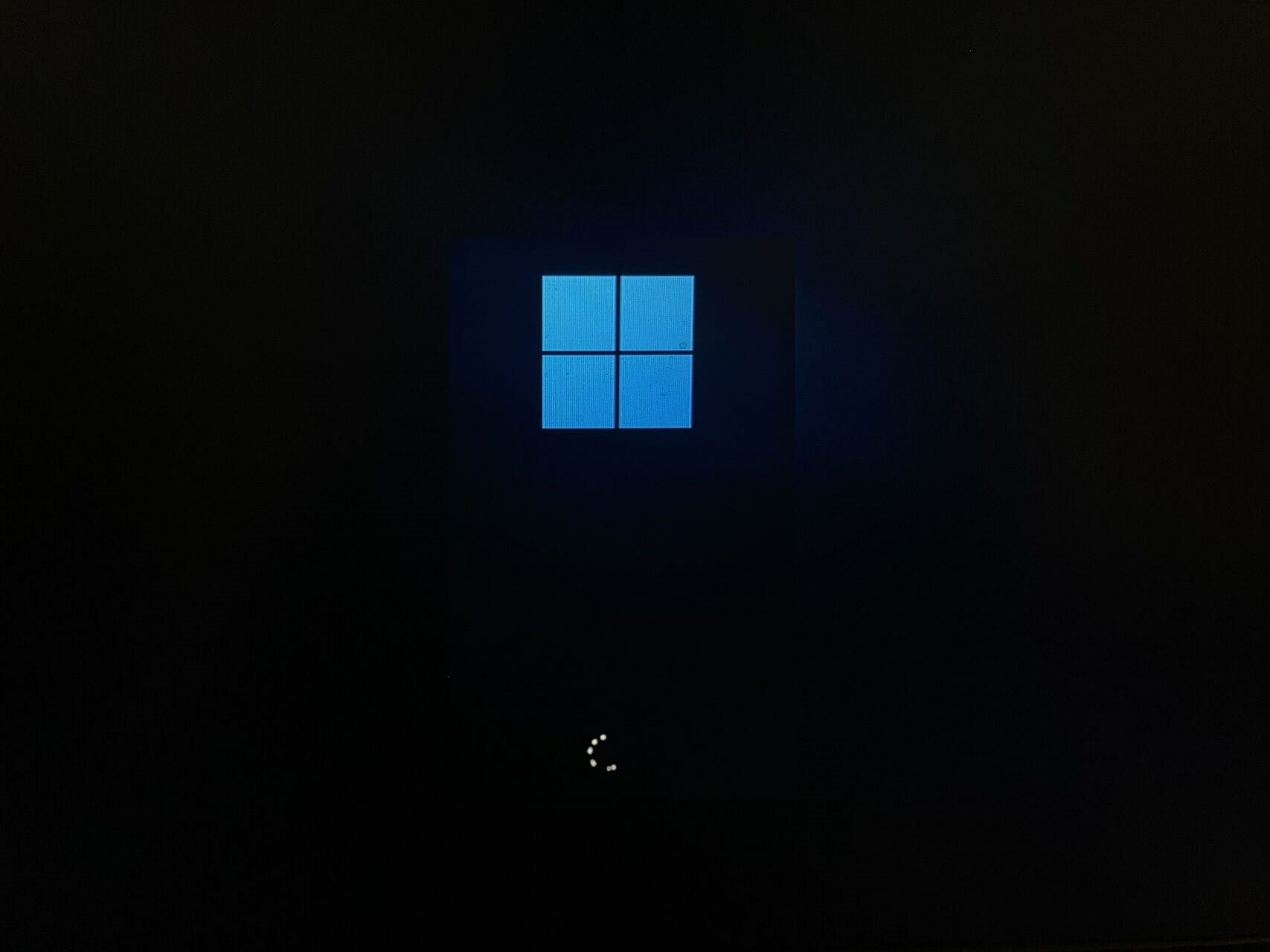
Microsoft explains how Bing maps helped with COVID-19 vaccines in the U.S.

Ever since COVID-19, there has been an influx of information, specifically about the shipment of vaccines and their availability. As such, Microsoft used this premise to come up with a platform where people could easily access credible information in one convenient location.

This is where Microsoft capitalized on the Bing Maps platform. They used it to create a “one-stop website” where individuals could easily get precise visualized information in regards to worldwide cases, vaccine distribution plans, and vaccination deliveries.

According to the blog post by Microsoft:

To tackle the challenge, Microsoft Bing leveraged the versatility of the Bing Maps Web control to power the Bing Maps COVID-19 Tracker. This comprehensive tracker was built around the philosophy of promoting action by democratizing information through sharing of the Bing Maps COVID Tracker Data set.

The COVID-19 tracker has provided insight on the virus’s case distribution and vaccination plans of multiple countries at a glance. The data provided here is sourced from credible entities such as the CDC and WHO. The tracker also relies on Location Intelligence resources like Location Recognition API and Spatial Data Service Geodata API to incorporate vital features. Bing Maps is effective and efficient, hence its extensive use when providing aggregated COVID-19 and vaccination information.

Bing Maps uses AnimatedTileLayer events to enhance the visualization of vaccine availability and the current predicament of each state. AnimatedTileLayer helps developers come up with map tiles that are updated at predetermined intervals. The tracker is integrated with Power BI and Excel which are helpful especially when it comes to the automation of data visualization and presenting real-time graphs for any region.

These facilities are still available for use and have proven to be quite effective when it comes to providing reliable information about the distribution of vaccines and has also helped people isolate in regions with a high infection rate.


Play Call of the Sea, Overcooked! All You Can Eat and Sid Meier’s Civilization VI this weekend with Xbox Free Play Days

Three more Xbox games will be available for Xbox Game Pass and Xbox Live Gold members to install and play this weekend from Thursday, May 5 to Sunday, May 8 as part of the Xbox Free Play Days feature.

Call of the Sea

In Call of the Sea, you’ll take on the role of a young woman named Norah as she explores a beautiful tropical island in search of her missing husband. Along the way you will encounter remnants of a lost civilization and unravel a series of mysteries in this award winning first person puzzle adventure.

Sid Meier’s Civilization VI

The latest installment of this legendary turn-based strategy game series has you assuming the role of one of 24 different leaders from around the world including Cleopatra and the Roman Emperor Trajan. Discover new lands, build new technology, and build the greatest civilization ever known to man.

Overcooked! All You Can Eat

With the inclusion of 4K resolution, cooperative cooking has never looked so good. This follow-up to Overcooked 2 also introduces online functionality for its multiplayer aspect, for the first time in the series. All You Can Eat features new chefs to play as and all-new levels.

Xbox Free Play Days is another perk of having a subscription to Xbox Game Pass or Xbox Live Gold. New games are introduced each week for players to install and play. It is a great way to try out something new and maybe even find a new favorite.


[Video] Hands-on with the leaked “One Outlook” Windows 11 client: A glorified PWA?

It’s no secret that Microsoft is working on a new desktop version of the Outlook app on Windows 11, known as “One Outlook,” or the current internal code-name of Project Monarch. We’ve seen leaks in the past, and today, a fully working version of the app has shown up online (warning, direct download!) as shared by the folks at Windows Central. This working version of the app only supports work / school accounts at the moment, but it offers a great first look at what we can expect when Microsoft fully reveals the app when ready. Yet, is it just a glorified PWA? Let’s dive deeper with this hands-on look.

The interface & first boot

When you install the One Outlook Client on Windows 11, you’ll be guided to import your settings from the existing Outlook app on Windows. This could be a confirmation that One Outlook isn’t meant to replace anything, but rather live alongside the desktop app for the time being. Our theme settings, and density settings were just a few things that were imported from the existing Outlook app. Changing the theme in the One Outlook also changes it in the Outlook Web App too, so there seems to be some cloud syncing going on here.

Once you boot up into this One Outlook client you should notice that it is basically the same as Outlook.com. The only difference we noticed is a ribbon at the top, which looks more like Outlook desktop with a “View” and “Home” buttons. It also carries the theme color you choose. Additionally, the “Chat” button in the One Outlook doesn’t work just yet either and it doesn’t open Teams as it does on Outlook.com

In other areas of the interface, there are the usual theme settings, as well as notifications, To Do, and OneNote links at the top right side of the app. Settings has a toggle for dark mode, focused inbox, desktop notifications, conversation view, a reading pane, and everything you’d expect from the Outlook web experience. There’s nothing different there.

The performance and creation emails


One big difference between One Outlook and the regular Outlook.com experience is the way the app handles opening windows. Creating a new message in One Outlook opens it in a new window that you can float around. This is exactly like what would happen in the old and existing desktop app.

Overall, the One Outlook app does seem to boot a lot faster than the desktop app, too. This is because it is based on Edge. Deleting messages, and switching between various parts of the new app is snappy. Even creating messages is a quick task, with the window popping up right away. Otherwise, this does feel exactly like Outlook.com would. Some things are missing though, as we weren’t able to add a connected calendar.

A glorified PWA

Overall, this One Outlook experience is quite nice but is also very similar to the Outlook.com experience. That’s not a problem, either, as most people are familiar with Outlook.com as it is.

The ongoing rumor is that this app might eventually replace Mail & Calendar in Windows, and also ship on MacOS as well as Linux. Yet, it looks like that might still be well off in the future. There’s still some work to do, and Microsoft could announce this One Outlook experience at Build 2022, then give Office Insiders a chance to send in feedback on the app. Let us know what you think of this app in the comments below.