Tactical card battle game Deck of Ashes is set to release its most action-packed DLC as well as open up its gameplay to console users on April 21, 2022. Deck of Ashes has been available for a bit now on PCs via Steam, but on Thursday, April 21, 2022, console gamers will be able to play the turn-based card game on their couches via an Xbox, PlayStation, or Nintendo Switch for the first time.
For those who have played Darkest Dungeon, the art style and turn-based action may feel a bit resemblant, but the card-based abilities, attributes, and powers open up a wider range of first-combat opportunities that are more akin to Slay the Spire. Here’s a little more about the game, if you’re not familiar.
Lead a group of rugged antiheros through a hellish fantasy world decimated by the Ash Curse, a plague that unleashed monsters and other mutations upon the land. Deck management is key, and every choice a player makes can strengthen their odds in battle or make things significantly more tricky. Find resources and upgrade items to further bolster HP and attack power. Deck of Ashes’ roguelike element means it’s especially vital to keep an eye on health–if the player dies, only the help of dark magic can prevent permadeath.
In addition to the game’s first launch on consoles, gamers across the board will also be able to try out the latest DLC titled Tome of Dimensions. Tome of Dimensions introduces the game to a new character named Sibly who also brings with her two new battle assists in the form of Fear and Hysteria. Sibly mission is to resurrect her race and is aided by her Deadly Shot ability which can deal critical hits using various arrowheads at her disposal as well her ability to bring fallen enemies back to life (sort of) in the form of skeletons to strengthen her powers.
For anyone who hasn’t already been playing Deck of Ashes, the game is currently on PC via Steam for $19.99 for the base game and $39.97 for the Deluxe Edition that includes a Digital Artbook and unique character skins. For $24.99 console gamers can snag the base game plus the latest DLC while Tome of Dimensions retails for $4.99 as a stand-alone addition. All gamers are eligible for a 10 percent launch discount but the developer YA Games hasn’t detailed how long.
Trezor One is one of the best available hardware wallets to store cryptocurrencies. It’s secure, quick, and supports hundreds of tokens. However, several users reported that Trezor one could not be recognized after connecting to the computer.
This generally happens if there is a problem with the connection or the device has not been properly set up. Also, for some users, it’s a corrupt driver that causes the problem.
If this is your first time using the device, try setting it up properly. You can find the steps in the manual that came along with it. But, if you have been using Trezor one for a while and it is not being recognized suddenly, try the methods here.
What can I do if Trezor one is not recognized on my computer?
1. Check the connections
The first thing you should look for it is if the connections are in order. More often than not, it’s an improper connection. Make sure that the cable is plugged in properly at both ends. If you have another cable, try using that.
Also, do not use a USB hub or another similar device, instead directly connect Trezor one to the computer. If it still doesn’t work, try connecting it to another port on the same computer.
In case Trezor one is still not recognized, connect it to another computer to verify if the problem lies with the device itself or the PC it was previously connected to. If it works on the new computer, try the methods listed here on the PC that did not recognize Trezor one.
2. Install the latest Trezor Bridge version
Go to the Trezor Bridge Download page, select the operating system from the dropdown menu, and click on the Download latest bridge button.
Once downloaded, go to the location where it’s stored, and double-click on the file to launch the installer.
Click Yes on the UAC (User Account Control) prompt that pops up.
Choose the destination folder for the program, and then click on Install at the bottom to start the installation process.
After the installation is complete, verify if the Trezord process appears in the Task Manager.
Once you have made these changes, Trezor one should now be recognized. In case it’s not, head to the next method.
Press Windows + S to launch the Search menu, enter Device Manager in the text field at the top, and click on the relevant search result.
Now, double-click on the Other devices entry.
Right-click on Trezor Interface, and select Uninstall device from the context menu.
Click Uninstall in the confirmation prompt that pops up.
Once done, restart the computer and Windows will automatically install a fresh driver for Trezor one.
If you find a warning sign at the corner of Trezor one icon in the Device Manager, it signifies that the relevant driver is corrupt. And in this case, the simplest fix is to reinstall the driver. Once done with the process, check if Trezor one not recognized issue is resolved.
To keep your drivers in check and don’t experience this type of issue in the future, we recommend you use an automated utility such as Outbyte Driver Updater. It uses its own driver database to detect outdated or corrupt drivers and automatically replaces them with new, functional ones.
In some cases, the built-in Windows Defender Firewall, similar third-party apps or antiviruses, or some cryptocurrency apps may conflict with the functioning Trezor one and will not be recognized as a result. As a result, you may encounter something like error authenticating with Venmo, preventing access.
To fix the issue, it’s best that you disable all these types of apps installed on your computer. But, make sure not to disable the Firewall or antivirus for long since it leaves your computer exposed to threats.
These are all the ways you can fix issues that lead to Trezor one being not recognized on the computer. Also, find out the best cryptocurrency wallets for PC to keep your holdings secure.
Tell us which fix worked and your experience with Trezor one, in the comments section below.
The PL2303 cable is one of the most popular ones to connect serial devices to USB ports. But as is the case with any other, it too requires a functional driver to work effectively. However, several users have reported that the PL2303 driver is not working in Windows 11.
An issue with the driver is likely due to four reasons, corrupt state, outdated, incompatible, or there’s a bug in it. And, these problems can be easily eliminated with two quick and simple fixes.
Though if there’s an issue that triggers these, you will have to follow a different approach, as discussed in the last method.
Some users also reported seeing This is not Prolific PL2303. Please contact your supplier, but we have it covered as well in this guide.
So, let’s find out what you can do if the PL2303 driver is not working in Windows 11.
What can I do if the PL2303 driver is not working in Windows 11?
After the ZIP(.zip format) file is downloaded, go to the folder where it’s stored, right-click on it, and select Extract All.
Now, click on Browse.
Choose a location for the extracted files and click on Select folder at the bottom.
Click on Extract at the bottom and wait for the process to complete.
Double-click on the installer to launch it.
If you see the following screen, click on More info.
Next, click on Run anyway.
Once the UAC (User Account Control) prompt pops up, click on Yes.
Now, follow the on-screen instructions to complete the installation process.
If you realised, we haven’t installed the latest version of the PL2303 driver but an old one, since it is compatible with Windows 11 and works perfectly fine without throwing any errors.
You can try installing the latest version but if that doesn’t work, go ahead with this one as it has worked for most of the users facing the PL2303 driver not working issue in Windows 11.
Or you could simply use a specialized driver updating software. A dedicated tool will automatically locate and install the best available driver for every device connected to the system.
2. Roll back driver update
Press Windows + S to launch the Search menu, enter Device Manager in the text field at the top, and click on the relevant search result that appears.
Double-click on the Ports (COM & LPT) entry here.
Now, right-click on the PL2303 USB-to-Serial device, and select Properties from the context menu.
Navigate to the Driver tab, and click on the Roll Back Driver button.
Select a reason for rolling back the update, and then click on Yes.
If the PL2303 driver stopped working in Windows 11 after an update, could be both manual and an automatic one via Windows Update, reinstalling the previous version would help fix the problem.
If the PL2303 driver is not working in Windows 11 after following the steps here or stops working within a short while, something might be triggering the issue. To fix that, all you have to do is perform a system restore.
This is a quick way of getting the system back to a healthy state, otherwise, you would spend a lot of time identifying and eliminating the underlying cause.
By the time you reach this part, one of the methods listed here must have fixed the Pl2303 driver not working problem in Windows 11.
The popularity of VPNs has soared in recent years, owing to cyber threats and regional restrictions on accessing websites. Many users who went with the OpenVPN client reported that it’s not working in Windows 11.
This particularly happens when an installed third-party antivirus is blocking the VPN connection, or it could be the Windows Defender Firewall. Other than that, there are some critical services to be run in order to have a stable connection, so make sure these are running.
Now that you have a basic understanding of the underlying causes, let’s walk you through the most effective fixes for OpenVPN not working issue in Windows 11.
What do I do if OpenVPN is not working in Windows 11?
1. Add an exception to the firewall
Press Windows + S to launch the Search menu, enter Allow an app through Windows Firewall in the text field, and then click on the relevant search result that appears.
Click on the Change settings button near the top-right corner in the Allowed apps window.
Next, click on Allow another app at the bottom.
Click Browse.
Go to the folder where OpenVPN is stored, select it, and then click on Open.
Now, click on Add at the bottom.
Once OpenVPN is added to the list of allowed apps, make sure the checkboxes for both Private and Public networks are checked, and then click on OK at the bottom.
After making the changes, restart the computer and check if OpenVPN now starts working in Windows 11.
Press Windows + R to launch the Run command dialog box, enter services.msc in the text field, and click on OK to launch the Services app.
Now, locate the DHCPClient service, right-click on it, and select Properties from the context menu.
Click on the Startup type dropdown menu, and select Automatic from the list of options.
Next, if the service is not running, click the Start button under Service status, and click on OK at the bottom to save the changes.
3. Use a reliable VPN client
If the methods listed above have not worked, you may consider switching to another VPN client. And, if you do, we recommend going with PIA (Private Internet Access). It’s a fast and secure VPN with over 3000 servers in 78 countries.
Also, you can access up to 10 devices with the same account. The best part, PIA does not store any browsing history and offers the feature to block ads and trackers for a safe browsing experience.
Press Windows + I to launch Settings, and then select Apps from the tabs listed in the navigation pane on the left.
Click on Apps & features on the right.
Locate the third-party antivirus, click on the ellipsis next to it, and then select Uninstall from the menu.
Again, click Uninstall in the prompt that pops up.
Once done, you can restart the computer, and OpenVPN should now be working in Windows 11. Also, the built-in Windows Security is more than capable of keeping your PC secure, so you should worry about that aspect.
If you have another system running the previous iteration, learn what to do if OpenVPN is not working in Windows 10. Also, if you plan to go with another one, check out the 5 best VPNs as per experts after 3 months of usage.
Tell us which fix worked, and your experience with the OpenVPN client, in the comments section below.
VPNs have become an important part of our lives, be it to access other networks or to mask the identity. But oftentimes, we face a slow Internet speed over VPN in Windows 11.
This could be due to a bunch of reasons, but the most common one is using an unreliable and ineffective VPN. Other than that, misconfigured settings, firewall or third-party apps affecting the connection, or problems with the Internet itself could lead to issues.
As is the case with any other error, there’s always a solution for it. So, let’s walk you through the most effective fixes for a slow VPN in Windows 11.
How do I fix a slow VPN in Windows 11?
1. Some basic checks
The first thing that you have to check is whether it’s the VPN that’s actually causing the problem or is it the Internet connection. In some cases, users later realized that they were not receiving the speed as per the chosen Internet plan and were blaming the VPN all this while.
So, a simple way to check the Internet speed is to use a platform like Speedtest. Check the speed once while you are connected to the VPN and once without it.
If there’s a major drop, say 50% or more, it’s likely that the VPN is at fault, and you may want to consider switching. But before you do that, make sure to try the other methods below and if the VPN remains slow in Windows 11, proceed with it then.
Speed test results
In case the drop is minimal, check if you are receiving the speed as per your Internet plan. If not, contact your ISP (Internet Service Provider).
2. Change the server
Another common reason behind a slow VPN in Windows 11 is choosing the wrong server. The idea behind using a VPN is either to mask the identity or evade regional restrictions. In this process, many users end up selecting a server that’s far away.
So, if your VPN provider has a server that’s geographically close and meets your requirement, go ahead with that. Choosing a faraway server often strains the Internet speed.
Also, if your VPN shows the load on each server, make sure to select one that has a lower load. A higher load on the server is also a major reason behind a slow VPN in Windows 11.
3. Use a reliable VPN
Another quick way to fix the slow speed problem in Windows 11 is to switch to a reliable and dedicated VPN.
We recommend PIA (Private Internet Access), a quick VPN with over 3000 servers in 78 countries. So, you can now always find a server that is geographically close to you.
Also, it has been tuned for 10 Gbps connection speed, so no more buffering, stuttering, or freezing while browsing the web on a VPN from now on. Apart from that, it uses some of the safest protocols, which ensures security and privacy on the web.
4. Add an exception for the VPN in Windows Firewall
Press Windows + S to launch the Search menu, enter Allow an app through Windows Firewall in the text field at the top, and click on the relevant search result.
Click on the Change settings button.
Now, click on Allow another app near the bottom.
Click on Browse.
Navigate to the folder where the app is stored, select it, and then click on Open.
Next, click on Add at the bottom to let the app communicate through Windows Firewall.
Finally, make sure that the checkboxes for both Private and Public networks are ticked, and click on OK at the bottom to save the changes.
It’s highly likely that the Windows Defender Firewall or a similar third-party app might be lowering the Internet speed. The basic job of a firewall is to monitor the incoming and outgoing packets traffic, but in doing so, it may affect the functioning of the VPN.
The steps here would help you add an exception for the built-in Windows Firewall. In case you are using a third-party firewall, check the manufacturer’s website for the exact steps.
Press Windows + I to launch Settings, and select Apps from the tabs listed in the navigation pane on the left.
Next, click on Apps & features on the right.
Locate the conflicting app, click on the ellipsis next to it, and select Uninstall from the flyout menu.
Click Uninstall in the prompt that pops up.
Finally, restart the computer for the changes to fully come into effect.
There are various third-party apps, generally anti-viruses, that throttle the Internet speed and lead to a slow VPN in Windows 11. First, try disabling it, and if it works, uninstall the app.
To find out the problematic app, search the web and verify if the apps installed on your PC affect the speed over a VPN for other users as well. If that’s the case, others must have shared it.
6. Change the encryption protocol
A VPN protocol, as the name suggests, is basically the set of rules through which the VPN interacts with the server. There are various protocols available out there with each having a different encryption level. And, the higher the encryption level, the lower the Internet speed.
So, here you will have to create a perfect balance and choose the one that best meets your requirement. PPTP is probably the fastest of them all but is not as secure. SSTP offers a slightly lower speed but is more secure than PPTP.
For most users, we recommend sticking with OpenVPN, which is the default protocol for most and offers high security without affecting the Internet speed considerably.
The actual steps to change the encryption for every VPN would be different, but a quick glance over the FAQ section on the manufacturer’s website, and you should find the exact steps.
That’s it! By the time you reach this part of the article, the slow VPN problem in Windows 11 would be eliminated and you can now browse the web at a good Internet speed.
Some of our readers complain that the Edge pop-up blocker is not working despite being enabled. This problem can be due to reasons such as outdated browsers and malware, among other reasons.
First, make sure that the pop-up blocker is enabled in Edge. Enter the browser’s Settings and go to Cookies and site permissions. Then, select Pop-ups and redirects from the All permissions menu and turn on the Block toggle button. If the pop-up blocker still doesn’t work in Edge, apply the solutions below.
What can I do if the Edge pop-up blocker is not working?
1. Update Microsoft Edge
Click the menu button.
Select the Settings option.
Now, click the General option.
Scroll to the bottom of the page and check the About this app section. You will find updates here if they are available.
An outdated browser performs below standards and could be why the Microsoft Edge pop-up blocker is not working. In this case, you only need to update the browser, and the bugs causing the problem will be eliminated.
2. Scan for Malware
Viruses cause all manner of problems. They can be the reason your browser can’t block pop-ups.
Performing a full scan virus scan with Windows Defender should do the trick. You can try a more accomplished and all-rounder third-party software like the TotalAV app.
The TotalAV scans your PC thoroughly and removes the most hidden virus that would be otherwise downright impossible to remove. It does not wait for malware to cause problems before it swings to action.
Instead, it detects and blocks viruses before they get to your PC and keeps you protected online and offline. It just might be all you need to protect your PC from errors such as Microsoft Edge pop-up blocker not working.
Click the menu button and select the Settings option.
Now, select the Privacy & Security option.
Locate the Cookies dropdown box and click it.
Select the Block only third-party cookies option.
Cookies help to improve your browsing experience. They allow you to take full advantage of what a site offers.
However, this might become a problem if the cookies include allowing pop-ups to display. This will counter your pop-up blocker and might stop it from working. The only way around this is to disable the cookies and restart your browser.
For trusted sites that require pop-ups, follow this guide on how to allow pop-ups in Edge so you can permit them per site without turning off protections globally.
Click the menu button and select the Settings option.
Select the Privacy & security option on the left plane.
Go to the Clear browsing data section and click the Choose what to clear button.
Check the Cached data and files checkbox.
Finally, click the Clear button.
The cache holds data that helps to automate some of your activities online. However, it might contain data stopping the Microsoft Edge pop-up blocker from working. By clearing your cache, this data will be removed, and your browser will be back to normal again.
5. Switch to another browser
If all the fixes above do not work, you can disable Microsoft Edge and try Opera One for a change. It is a top-class browser with an ad blocker that does not just block ads but also keeps you protected when surfing the internet.
It is a real modern browser that packs lots of security and privacy features such as a built-in free VPN, and tracker blocker and native AI. What’s more, it is fast, efficient and has a friendly and sleek design. With Opera one, browser errors such as this will become history.
Pop-ups can be frustrating. Some of them might even contain malicious links that can harm your PC. This makes the pop-up blocker a good weapon to have in Microsoft Edge.
If the built-in pop-up blocker on Microsoft Edge is not working for you, this article contains simple yet effective solutions to solve the problem. If you are facing other problems aside from this one, you can check out our other detailed guides on Microsoft Edge.
We hope you find them useful and get back to enjoying your browsing experience. Feel free to discuss the solution that worked for you in the comments section below.
Microsoft-propelled Edge is coming out strong and the sync feature is one of its perks.
Whether we’re talking about the Enterprise version or the regular one, by signing into your Microsoft account via Edge, you can sync your data across all your devices.
From browsing data to tabs, passwords, bookmarks, and so on, everything is stored on the server and is easily accessible thanks to the built-in sync functionality.
But that does not mean Edge is exempt from errors, nor are its synchronization capabilities. Sometimes, Edge simply won’t open, but users reported more sync related issues:
Edge not syncing across devices
Edge sync isn’t available for this account
Edge not syncing work account (with Edge_auth_error followed by various numeric codes: 6 2 0, 3 15 caa2000b, 3 49 0)
Microsoft Edge tab sync not working
Sync is Paused, sign in again
Tip
Before we go any further, here’s an awesome tip you can try.
➡ Instead of wrestling with an Edge sync that refuses to work, you can switch to Opera One and get only the perks, without the hassle.
➡ Along with this new browser, you can import all your settings and preferences and make use of its neat sync feature that allows you to stay organized, focused, and up to date across all your devices while enjoying seamless integration with numerous services, including collaboration-focused apps.
The Edge_auth_error is one particular error that stands out and it’s usually related to the Edge Enterprise Sync feature and its dependency on AIP (Azure Information Protection).
How do I get Microsoft Edge to sync?
1. Reset Edge sync or force the browser to reset to defaults
Launch the Microsoft Edge browser.
Open the Settings menu and choose Profiles.
On the main page, select Sync to unfold the menu.
In the new window, press Turn off Sync and wait for a few minutes.
Then, turn synchronization back and scroll towards the bottom of the page.
Here, you will see the Reset sync section. Press the Reset sync button.
Make sure you uncheck the Resume sync on this device after resetting sync option and press Reset one more time.
Can you reset Microsoft Edge?
Open or stay on the Settings menu and scroll down to the bottom of the page.
From the left pane, select the Reset settings option.
Next, click on Restore settings to their default values.
In the new dialog window, press Reset one more time to confirm.
Alternatively, you can type the following in the URL address bar: edge://settings/resetProfileSettings
Make sure you sign back into your Microsoft account once the reset is complete.
2. Tweak the sync option in Azure Active Directory
Open Azure Active Directory and go to Device settings.
In the central panel, locate the User may sync settings and app dataacross devices option and set it to All.
Restart your PC and relaunch the synchronization feature from the Edge browser as shown above.
Edge_auth_error can be triggered by both identification and sync issues, so make sure the Azure AD settings are not blocking the synchronisation process with MS Edge.
Whitelist the Microsoft service account site in Edge’s cookies list
Tweak GPO profile settings to disable, respectively enable sync in MS Edge
Verify that your enterprise has a valid and supported AD subscription and that AIP is available
These are some essential Edge sync troubleshooting steps that could also help you solve pesky errors such as Edge_auth_error 6 2 0, 3 15 caa2000b, or 3 49 0.
If you need further help in diagnosing common sync issues with MS Edge and the Azure AD environment, don’t be shy to explore the Microsoft sync solutions repertoire as well.
The stylus Pen in Windows 11 is an excellent tool for taking quick notes and creating beautiful digital designs.
But sometimes, the Windows Pen menu shortcut on the taskbar will not show. This can frustrate the user, especially when he wants quick access.
Windows 11 Pen tool equips you to draw on a whiteboard or to create that beautiful design of yours without the hassle of going through the Windows Start Menu.
To access the Pen tool on your computer, use the Pen to tap the screen, and the Pen icon will appear at the corner of the taskbar.
However, there are cases where the Pen menu will not show on the taskbar. The Windows Pen menu is not the only Windows 11 widget that can’t function as expected. When that happens, what do you do?
What can I do if Windows 11’s Pen menu is not showing?
1. Pin Windows 11’s Pen menu on the taskbar
Press the Win + I keys to open the Settings app.
Select Personalization from the window’s left pane, then click Taskbar on the right side.
On the taskbar window, expand the Taskbar corner icons and toggle the Pen menu button to turn it on.
To turn off the Pen menu from showing on the taskbar, follow the above steps from 1 to 4, and toggle the Pen menu button to hide the Pen menu.
Microsoft doesn’t automatically pin the Pen menu on the corner of the taskbar. Most users want quick access to the Pen tool. This makes it essential to have the Pen menu on the taskbar.
2. Pair the Pen with your laptop
Press Win + I to open the Settings app.
Select Bluetooth & devices, then hit the + button to add a new device.
Select Bluetooth to pair with your Pen.
Hold down the shortcut button on your Pen for a few seconds to turn on pairing mode, then choose the Pen from the list.
Before you can use your stylus or Microsoft Surface Pen, you’d have to pair it with your computer using the Bluetooth connection on both devices.
Having a top-quality mouse will improve your job productivity and make it simpler to complete tasks efficiently.
Not only will you be able to complete your job more successfully, but it is a great tool for other things such as gaming, music creation, and online surfing. All of these activities are only enjoyable if you have purchased a high-quality mouse.
But the primary problem that you may have is that it’s never simple to get a mouse that not only performs well but also fits within your budget.
The good news is that you no longer need to be concerned since this article has been written to offer you fast access to the most dependable and sophisticated mice for Logic Pro X. So, whether you have to work in the office or from home, you will be able to complete tasks quickly.
What should I look out for when purchasing a mouse for Logic Pro X?
Before you go out and purchase a mouse for Logic Pro X, think about the following elements:
Performance: Your mouse should perform smoothly and quickly to eliminate the majority of your work-related troubles and allow you to function more efficiently.
Ergonomics: Choosing a mouse with an ergonomic build would make it much easier for you to complete your tasks faster.
Design: In terms of design, you should choose a mouse with ergonomics since it will significantly improve your gaming performance. Not only will you be able to perform better, but it will also minimize hand fatigue and enable the user to operate more efficiently.
Price: It’s essential to get a mouse that fits your budget correctly so that it’s a decent investment that you’ll be able to enjoy for a long time.
Programmable buttons: A high-quality mouse always comes with extra buttons that give improved performance and make it simpler for you to complete tasks.
This mouse has six programmable buttons that are grouped in two rows.
One of the mouse’s outstanding characteristics is the wheel, which rotates easily and without resistance. It is made of a physical switch and a metal scroll. The wheel allows you to click in the center, left, and right directions.
There are a total of 15 programmable controllers included. The power button is on top, while the wireless control is at the bottom.
Another nice feature of this mouse is that it works with various connection choices. For example, the USB connection connects multiple devices to the mouse. Whether used for business or play, the Logitech G604 Mouse will not fail to amaze you; that is why it has remained in great demand.
The Logitech G604 comes with a solid handgrip that makes it a fantastic mouse for gaming. It is waterproof, so it will not slip out of your hand.
The Razer Lancehead Mouse is one of the highest-quality mice on the market.
The most attractive feature of this mouse is that it is wireless, making it simple to use, allowing you to do more tasks in less time.
A 16000DPI 5G laser is included with this mouse, and it can be used in both wireless and wired modes, allowing you to have a choice for convenience.
Aside from work, you’ll find it an excellent gaming mouse because of its smooth performance and quick movement. These characteristics make it an ideal option for you.
The Razer Lancehead Mouse’s most prominent feature is that it has all of the primary functions found in costlier mice, notably its nine configurable buttons that provide easy access to most of the mouse’s capabilities.
The Razer Atheris is packed with dual connectivity, signal stability, and long battery life, making it ideal for both work and pleasure.
You don’t want to bother about changing batteries while you’re always traveling for business or busy with a tight meeting schedule. As a result, this mouse is designed to provide you with over 300 hours of uninterrupted usage.
It boasts a 7,200 DPI optical sensor and allows you to work with headshots or spreadsheets with exceptional precision and control. Multiple monitors, as well as 4K and beyond, benefit from the increased resolution.
Thanks to Razer’s unique wireless technology, the Razer Atheris has top-of-the-shelf transmission stability. So your mouse retains a strong connection, whether at a café or in the office, where several wireless devices transmit different frequencies.
All of these functions are housed in a pocket-sized ergonomic body designed to maximize productivity and performance.
The Logitech G502 is another dependable, top-quality mouse that enables you to work for extended periods since it has a strong thumb rest that prevents your hand from being fatigued from working long hours.
This mouse has a 50 million click lifespan, making it suitable for long-term usage.
It has 11 programmable buttons that may be conveniently customized. These buttons give you quick access to all of the mouse’s features.
The mouse is available in various colors, which is great for aesthetics. It also has a DPI sensor of 16000, which gives you more professional and accurate performance. In addition, the RGB lighting on the programmable buttons may be altered, and the colors can be changed.
Its pro-grade wireless technology for swift performance and reliable connection lets you concentrate on nothing but winning during gameplay.
Pro X Superlight is a technological innovation that weighs less than 63 grams, making it roughly 25% lighter than your basic PRO Wireless mouse.
It comes with Logitech G’s HERO 25K sensor, enabling unsurpassed speed, accuracy, and consistency. Pro X Superlight provides high precision and ultra-fine control for total confidence, particularly during tournament play’s frantic, split-second moments.
Its broad, zero-additive PTFE feet slide effortlessly, providing a pure, fluid connection with the game.
Because it is a 100% carbon neutral product, Pro X Superlight satisfies the highest sustainability criteria.
Before purchasing a mouse for Logic Pro X, it is critical to do thorough research and all due diligence. This article has been written to satisfy this need.
We have listed our favorite mice in no particular order and expect that after you have gone through our list, your final decision will come down to your personal preferences.
As usual, we look forward to hearing from you. Let us know in the comments which of these mice you will rather have.
The gaming world is an extremely unpredictable environment, where any game or extension can get you headaches.
Of course, this also applies to the newly released Dying Light 2 masterpiece, as many worldwide users already reported facing related bugs on both PC and console versions.
Even if Internet forums are generally listing favorable reviews, critics have condemned a slew of bugs and issues present in the final game.
It seems like these are pretty various and common, so if you’re also encountering some of them, do not panic! You’re not the only one.
Fortunately, any issue can be easily solved by following certain steps and we’re going to highlight all of them.
How can I fix the most common Dying Light 2 bugs?
1. Install/launch issues and poor performance on Xbox/PlayStation/PC
1.1 For Windows PC
1.1.1 Update your graphics drivers
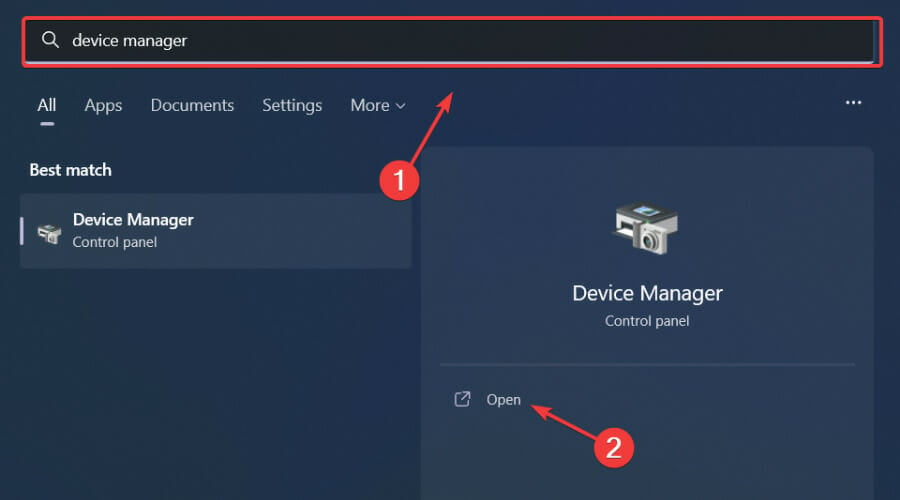
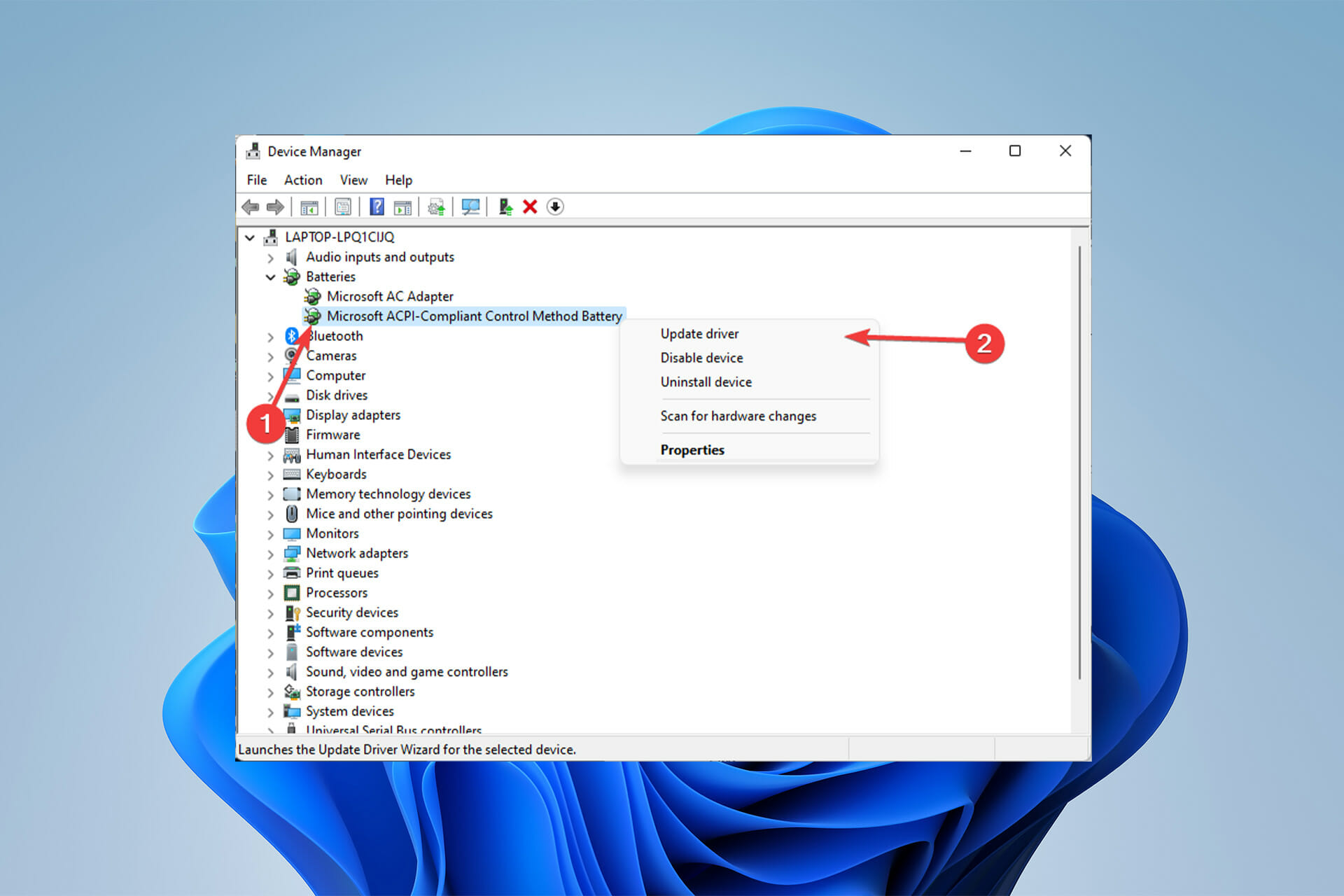
Hit the Windows keys, type Device Manager, and open the first result.
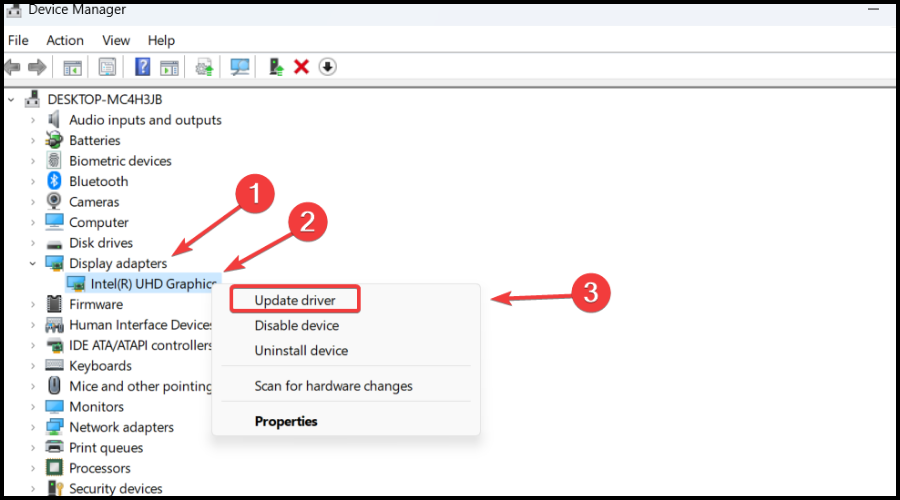
Expand the Display adapters section, right-click on the desired component, then choose to Update driver.
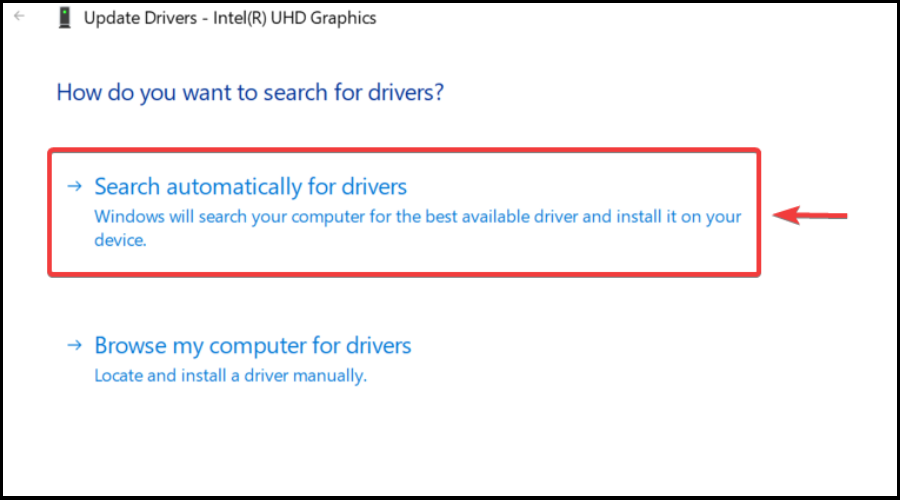
Now, select to Search automatically for drivers.
Wait until your system will scan and recommend any available options.
In case there are no reliable solutions to get, you’ll be notified accordingly.
Keep in mind that up-to-date drivers allow you to work and play your favorite games on a healthy operating system. In this manner, it is important to constantly check for related updates.
Because the above steps can consume time if performed weekly, we decided to come up with a more efficient solution.
Outbyte Driver Updater will automatically take care of all of your outdated, missing, or corrupted drivers, regardless of their type.
1.1.2 Ensure your system meets the minimum/recommended game specifications
For the PC version, you’ll only have to navigate to the Device specifications, located in Windows Settings (Windows + I keyboard shortcut).
If you’re not sure what requirements your OS and hardware should meet, make sure you take a look at the minimum ones listed below:
CPU: Intel Core i3-9100 / AMD Ryzen 3 2300X
RAM: 8 GB
OS: Windows® 7
Video Card: NVIDIA® GeForce® GTX 1050 Ti / AMD Radeon™ RX 560 (4GB VRAM)
Pixel Shader: 5.1
Vertex Shader: 5.1
Free Disk Space: 60 GB
Dedicated video RAM: 4096 MB
Even if your system meets the game’s minim requirements, it is better to have something better. That’s why we’ve also compiled a list of our recommendations:
CPU: Intel i5-8600K or newer/AMD Ryzen 5 3600X
RAM: 16 GB
OS: Windows® 10
Video Card: NVIDIA® GeForce RTX™ 2060 6GB or AMD RX Vega 56 8GB or newer
Pixel Shader: 5.1
Vertex Shader: 5.1
Free Disk Space: 60 GB
Dedicated Video RAM: 6 GB (AMD 8GB)
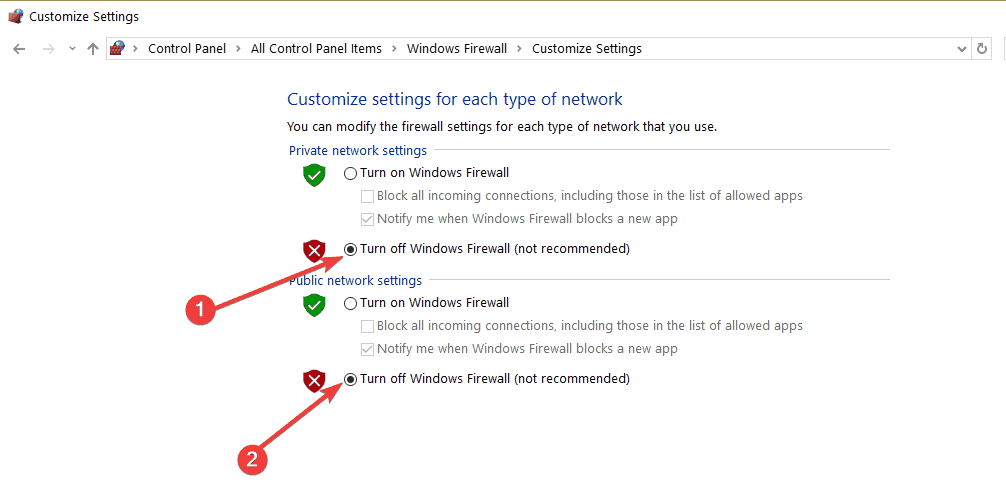
1.1.3 Temporarily disable your antivirus software
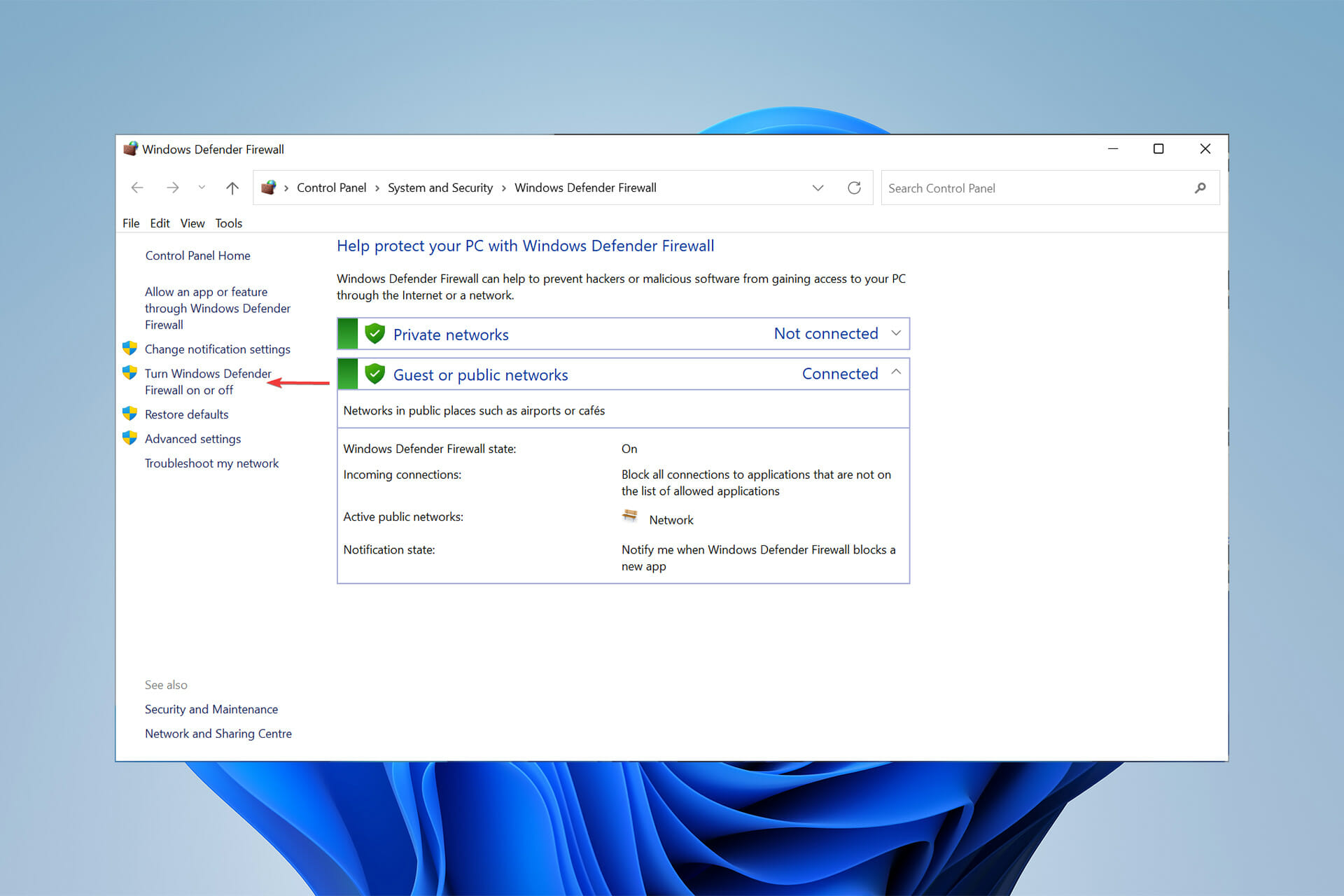
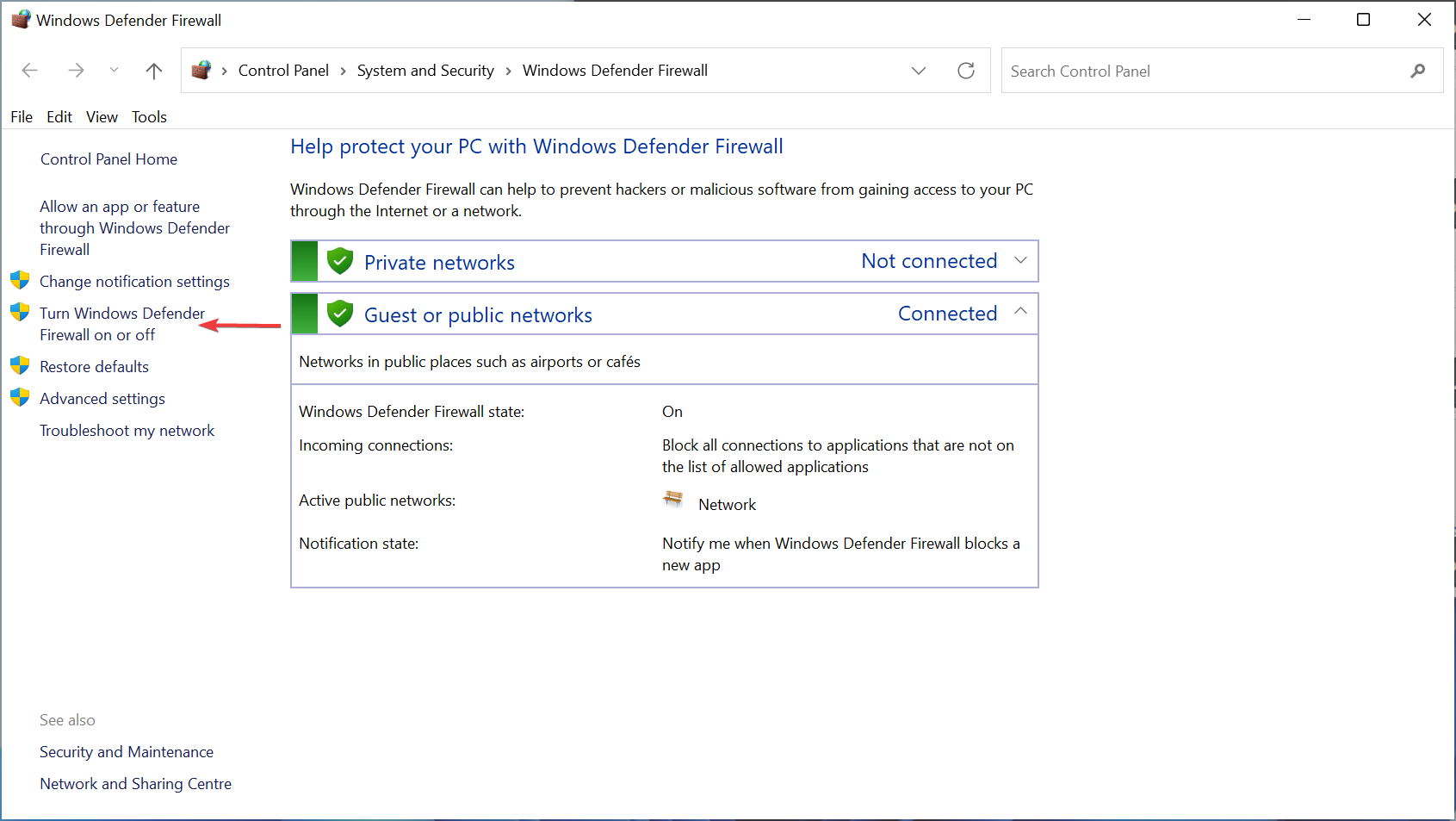
Press on the Windows key, type Control Panel, then click on the first result.
Navigate to System and Security.
Click on Windows Defender Firewall.
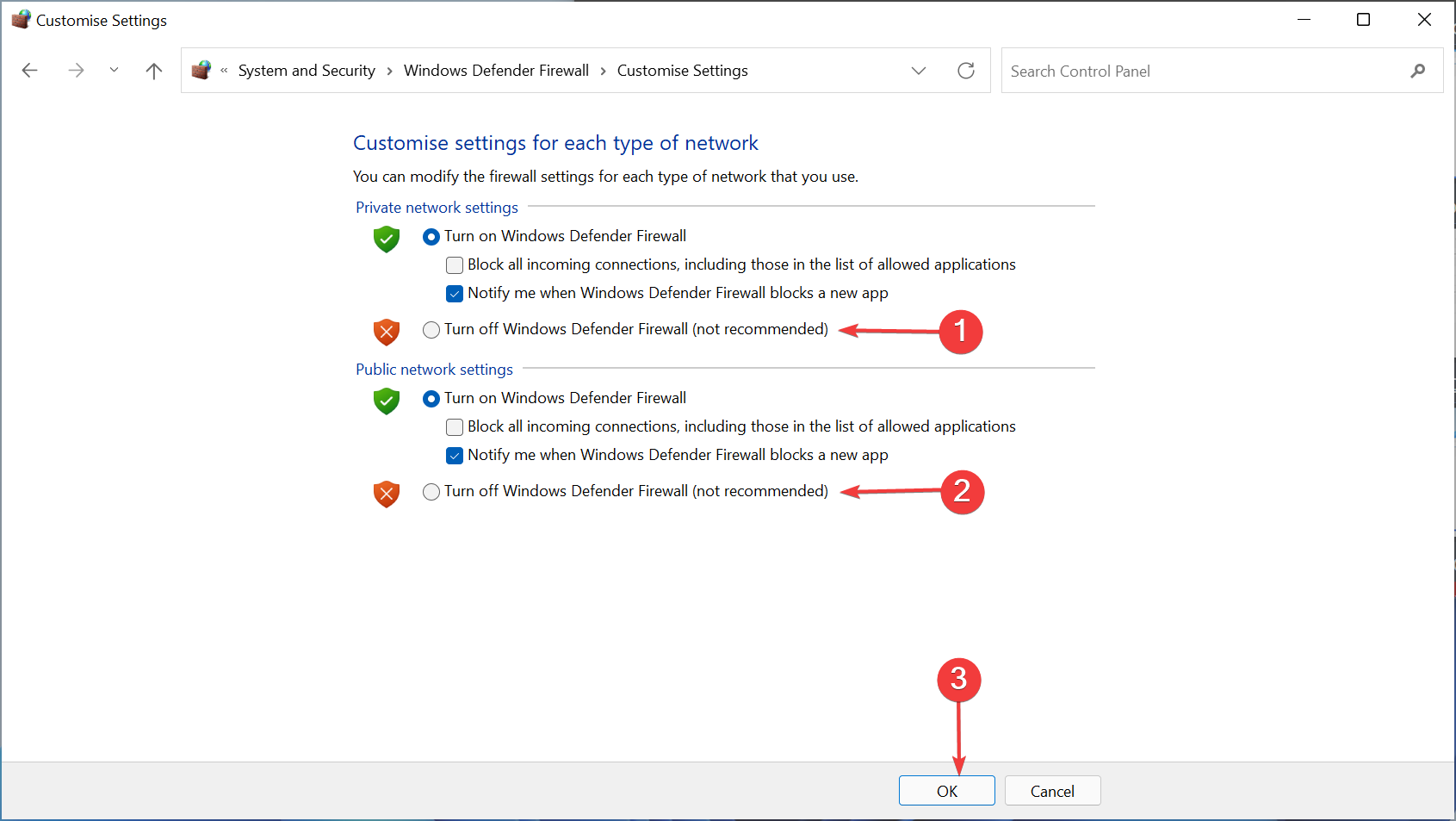
From the left window pane, choose to Turn Windows Defender Firewall on or off.
Now, make sure you checkmark the two sections shown directly below.
1.2 For console
1.1.1 Update your console
For Xbox consoles:
Press the Home button on the Xbox console to open the Dashboard menu.
Now, select Settings from the bottom of the menu.
Choose All Settings.
Go to System.
Select Updates.
Choose to Update Console (if available).
Follow the on-screen prompts to complete the update process.
Once done, make sure to restart the console to apply changes.
For PS4 consoles:
Make sure that the connection between your PS4 and the Internet is stable.
Now, navigate to PS4 Settings.
Click on System Software Update.
Press the X button.
You’ll get a message that informs you if the latest version of your system console has already been installed.
Otherwise, the message will let you know that you should upgrade your system. To install it, click on Upgrade now.
For PS5 consoles:
Open Settings.
Go to System.
In the System Software section, click on System Software Updates and Settings.
Choose the type of update you want to perform.
Click on the Update button, then wait until your console is updated and restarted.
1.1.2 Free up some disk space
For Xbox consoles:
Press the Xbox button on your controller to open the guide.
SelectProfile & system.
Go toSettings.
ChooseSystem.
Navigate toStorage.
On theManage storage devicesscreen, select:Clear local saved games.
This deletes games saved to your hard drive, but they’ll still be saved to the cloud.
For PS4 consoles:
Open yourPlayStation 4Settings.
Scroll down to System Storage Management.
Now, you’ll be able to view the disk space distribution and how much free space you have.
In case it doesn’t seem like having enough space, make sure you clear some saved data from your controller.
To do so, go back to your Settings menu, and choose the Application Saved Data Management section.
Choose what you want to clear.
Click on Delete.
For PS5 consoles:
OpenPS5Settings.
Navigate to Storage.
There, you’ll be able to view both the Console Storage and the Extended Storage.
Click on each of them and check the free disk space.
If you don’t have enough, make sure you delete other saved data.
To do so, go back to your PS5 Settings, and navigate to Saved Data and Game/App Settings.
Choose from Saved Data (PS5) or Saved Data (PS4).
Select Console Storage.
Click on Delete.
Tick the box next to the files you want to delete and select Delete.
1.1.3 Reset the controller and rebuild its database
For Xbox consoles:
Hold the power button until it turns off.
Turn it on by holding the power button and wait for two quick beeps.
Release the button and you will be automatically redirected to the Recovery menu.
From here, you canrestore the file system or rebuild the database.
For PS4 and PS5 consoles:
Power off your controller then press and hold thepowerbutton.
Release the button after you hear the second beep.
ForPS4, you’ll need to connect your controller viaUSB, then choose to Rebuild Database.
ForPS5, you’ll now boot into Safe Mode. Plug your controller in with the cable, then go down and select Clear Cache and Rebuild Database.
After that, click on Rebuild Database, then on OK.
According to worldwide declarations, display issues appear to be among the most widespread impacting Dying Light 2 players at launch.
Usually, they manifest as black screens and flickering present, especially on console editions. As many gamers claimed, it seems like PS5 versions are the worst impacted, letting users unable to play the game at all.
In this case, until developers come up with some new dedicated fixes, you should try updating your console, as we showed you when presenting the previous Dying Light 2 bug.
If it’s happening to encounter this issue on a PC, for now, you should definitely try updating your graphics drivers, as outdated or corrupted ones are the main reason why you might experience screen issues.
As mentioned before Outbyte Driver Updater is the best tool that can automatically perform this process in a matter of time.
3. Can’t connect to online friends
Dying Light 2 provides cooperative multiplayer, as gamers are allowed to bring friends into a shared adventure open world.
Unfortunately, it seems like server issues didn’t wait to arise right in the early hours after the release.
While your mileage may vary, don’t be surprised if online connectivity isn’t slick. Many users reported this as being one of the most annoying Dying Light 2 bugs.
Techland advises players to complete the Prologue, demanding around two hours of playtime, before attempting to play through friends.
The company’s support page states gamers must reach the Markers of Plague quest, which unlocks multiplayer support.
4. Preorder items missing
Last, but not least, keep in mind that some Dying Light 2 users claimed that their preorder items are unavailable after the game’s launch.
Engineers have acknowledged issues with items, which seemingly include preorder cosmetics and supplementary content, with an official fix assumedly on the way.
So, these are the most common known Dying Light 2 bugs. As you can see, there are simple solutions you can follow to fix most of them.
In case you’re aware of other problems or solutions, make sure you leave a comment in the dedicated section below.
If you are into gaming, you already know that RAM is one of the most significant components in a gaming PC. It makes a big difference in how fast your computer operates and responds when it comes to gaming.
It facilitates faster input and writing, allowing you to focus on the game rather than waiting for things to load or quit freezing up, thus ensuring a better gaming experience.
Acer Predator Helios 300 is a gaming laptop, and it has a lot of potential. It can support up to 2x 16GB DDR4 memory modules, which adds up to 32GB RAM.
If you think your Helios 300 is running slow because of games like Overwatch or Fortnite, you can upgrade your RAM by opening up the back of your computer and switching out one of the current RAM sticks with a new and upgraded one.
How can I upgrade the RAM on my Acer Predator Helios 300?
1. Remove back panel
Remove the screws holding your computer case together.
Remove the back panel.
2. Locate RAM slots
From there, locate where your RAM slots are stored—they should be between two M.2 SSD slots of the motherboard.
Depending on your configuration, the setup might be different, but using the laptop’s manual is the best way to go about changing your RAM.
Now, grasp the sides of your current RAM stick and gently pull it straight out. You may need to give it a little tug to get it out. But if you find yourself struggling too much, double-check that you are pulling on the correct part.
Line up the notch on your new stick with the pin on the slot sides, and gently slide it into the slot. Replace your case and screw it back together.
4. Verify RAM upgrade
Start your computer and go to System from the Start menu.
Look for the field Installed RAM under the Device Specifications to ensure that upgrade is successful.
You will feel the improvements in your computer performance right away. If your computer is still not using the upgraded RAM, read our article on how to increase usable RAM.
The Acer Swift 7 is one of the thinnest and lightest laptops out there. Partly because it has an internal battery, unlike older Acer models.
However, users have reported receiving the error battery not detected on their Acer Swift 7 despite having not made any changes to the battery or power settings.
Battery issues can be frustrating as it prevents you from doing anything on your laptop. Before you purchase a new battery, try the solutions listed below to save you time and money.
How do I fix the error battery not detected on Acer Swift 7?
1. Check for updates
Click on Start and open Settings (or press Windows + I)
Select Windows Update.
Click Install Now to install any available updates.
A battery error could be due to an outdated system. Make sure you’re using the most updated version of Windows for optimal performance.
2. Double check Volt and AMP rating
Close your laptop and flip it over.
Locate the sticker on the back cover and find the Volt and AMP rating.
Double-check that the Volt and AMP rating matches the information on the AC adapter.
If you are using the charger that came with your Acer Swift 7, then you can skip this solution. However, if you have a different charger than the original, the Volt and AMP ratings must match exactly, or you will run into issues with your battery.
If the charger Volt and AMP rating do not match what your PC requires, you can purchase the correct charger from the Acer website.
Click on Start and open Settings (or press Windows + I)
Scroll down to Troubleshoot.
Select Other troubleshooters.
Find Power and click Run.
Examine issues found.
Running the power troubleshooter will locate any problems with the battery on your Acer Swift 7.
4. Perform a power reset
Shut down your device.
Unplug the charger and external cables/devices from your Acer Swift 7.
Turn the laptop over and remove the screws from the back. Carefully remove the battery.
Turn your device back over and hold down the power button for 30 seconds then release.
Carefully replace the battery and ensure that there is no debris or dust, then reattach the back cover.
Plugin your charger and turn on the laptop.
This solution requires a small screwdriver to remove the tiny screws on the back cover of your laptop to access the battery. Make sure you’re working in a clean, dry space to avoid internal damage.
Performing a power reset gets rid of any built-up power and resets the battery. You can find a disassembly tutorial for Acer Swift 7 online which will show you how to properly remove the internal battery.
5. Replace the battery
If all else fails and you’ve tried everything, it may be time to get a new battery. You can purchase a new battery for your Acer model on the Acer website.
The Acer website allows users to input their device’s serial number, SNID, or model number to find the correct battery or accessory.
Hopefully, the above solutions helped solve the error message battery not detected. If not, it may be time to replace the battery, luckily, the Acer website makes it easy to get the correct one.
A lot of the workforce has moved to remote work, companies need to keep their employee’s data protected.
Using a client VPN is the best way for businesses to protect their data. Companies need a VPN that can handle hundreds of users and offer a fast and secure connection for Windows 11.
Barracuda SSL VPN is made for companies that need to keep their employee’s PCs secure. This VPN client is easy-to-use and set up and provides security for travelers and remote employees.
Why should businesses use Barracuda VPN?
Barracuda VPN provides a secure connection for those who work from home with their device. It provides security for those traveling with company laptops.
The VPN is accessed through CudaLaunch, which is an app that gives users secure access to their business or company.
This app is available for Windows, macOS, Android, and iOS so users can access Barracuda VPN from both their PC and mobile device.
Zero Touch Provisioning makes Barracuda VPN easy to use and hassle-free. This feature makes it easy to manage all Barracuda services from the CudaLaunch portal. It also reduces costs for support and administration.
The transport-independent network architecture (TINA) protocol improves network connection and reliability. This feature gives users a high-speed VPN connection while on the go and switching from network to network.
Pricing for Barracuda VPN varies depending on the size of the company and what security features they want. Barracuda also offers several other services, including app and cloud security and email protection.
Barracuda VPN is perfect for businesses and companies that have employees who travel, work from home, or use their own devices. The VPN has a simple interface and can handle a large number of connections without jeopardizing security.
With a central management portal and Zero Touch Provisioning, clients can easily manage and access all of their Barracuda services from one central location.
For more information on this type of VPN, we offer an in-depth look at how corporate VPNs work and how they are different from individual VPNs.
It is common to have issues with Microsoft Excel becoming stuck while opening, Word becoming unresponsive while opening, or Outlook displaying an error message. Now users are reporting that they are unable to create new documents in Office 365 as well.
While Windows 11 is free to download and install on eligible PCs, customers must separately purchase a subscription to the Microsoft 365 Family or Personal plan in order to gain access to popular applications such as Word, Excel, and Powerpoint (on a desktop or in the cloud) and other features.
Microsoft 365, formerly known as Office 365, is a popular office suite that is used by many people. Although not as frequently as other applications, the office suite is prone to crashes, hangs, and other errors.
With the all-new Windows 11 operating system, which includes numerous new settings and changes to existing features, it has proven difficult for users to find a solution to the problem.
Follow along as we will show you how to solve the unable to create new documents in Office 365 error, right after we see what the latest build offers for you.
What does the 15028.20160 build offer?
Subscribers to Office 365 (Microsoft 365) receive more frequent software updates than those who have purchased Office without a subscription. Ensuring that they have access to the latest features, security patches, and bug fixes, as well as the most recent versions of the product.
Excel’s navigation pane, which allows you to see the layout of your workbook at a glance and navigate through its elements more quickly, is one of the new features included in this build.
The build also fixes a slew of bugs, including one in Excel in which using custom command bars could cause it to crash. Another one in Outlook in which the Index out of date message was displayed too frequently.
Furthermore, another issue from Word was fixed in which opening documents with thousands of track changes caused a performance issue.
And lastly, the problem across the entire Office suite in which contact cards were displayed incorrectly was fixed.
What can I do if I’m unable to create documents in Office 365?
1. Repair the app
Open Settings and navigate to Apps followed by Apps & features.
Search for Office in the search bar and click on the three-dot menu to choose Advanced options.
Here, scroll down until you see the Repair button and press it in order to fix the unable to create new documents in Office 365 error.
When you repair an app, it must first check and replace all of the files in the program’s folder. It may also need to check and replace entries in the Registry Editor. Furthermore, it re-runs the program’s installation process, but it makes an effort to preserve any customizations you’ve made.
2. Reset the app
Access the Settings app and navigate to Apps and Apps & features.
Enter Office in the search bar and go to Advanced options after you click on the three-dot menu.
Find the Reset button and click on it to reinstall the app quickly.
When you reset an app in Windows 11, it means that it will be restored to its original state and settings, and will behave exactly as it did when it was first installed on your computer.
Inside your Settings app, navigate to the Windows Update section from the left-side menu.
Here, click on the blue button that either says Install now or Check for updates, depending on your case. Make sure to do this regularly to ensure your computer’s functionality.
Installing software updates is also important in the long run, not only for accessing new features but also for staying on the safe side in the event that security loopholes are discovered in out-of-date programs.
4. Use alternative software
Almost everyone is familiar with Microsoft’s Office suite and understands how useful it is. However, not everyone has the financial means to purchase it, let alone maintain a continuous subscription to the most recent version year after year.
Fortunately, there is a less expensive alternative, which goes by the name of WPS Office. It includes three programs that are fully functional: a text editor, a presentation creator, and a spreadsheet.
Once you have purchased the premium version, you will have access to the same features as if you had purchased Microsoft Word, PowerPoint, and Microsoft Excel, and their file formats are even cross-compatible with one another.
WPS Office comes with a large collection of templates that can be used for a wide range of documents and presentations, from educational materials to social media plans and recipe books, and more.
Users have been asking what Windows Control Panel is; answering it is our goal today. To put it briefly, it is a collection of applets, or little programs, that allow you to adjust different components of the Windows operating system.
Even though it has been available since Windows 1.0, it is a little more challenging to locate these days.
This is because much of its functionality has been transferred to the modern Settings menu, which is why you may be having problems finding the Windows 11 legacy Control Panel or questioning if the OS has one.
Even while the feature is still present, it is not prominently displayed, and you must reach it using the search function or Command Prompt.
Microsoft has announced that Windows 11’s Control Panel will be phased out soon as a number of modifications were made to the Settings app to include some of the former’s functionality.
Follow along as today we will show you how to open and use Control Panel, as well as address some of your most asked questions about it.
Does Windows 11 have a Control Panel?
Microsoft introduced the Settings menu in Windows 8 but did not remove the Control Panel from the operating system entirely.
The majority of its functionality has been consolidated into the Settings menu, which duplicates rather than replaces the functionality of applets in the process.
In addition, the Control Panel is still present in Windows 11, indicating that the migration of functionality has been slower than Microsoft perhaps wanted it to be.
Examples include being able to manage your apps from two different locations: the Apps & Features section of the Settings app, or from the Uninstall or change a program section of the Programs and Features applet accessed through Control Panel.
The Apps & Features menu follows the design structure of Windows 11, whereas the Programs and Features applet appears to resemble the one that appeared in Windows 8 & 10.
Since we are on the topic, users have been asking what Immersive Control Panel is in Windows 10. When you use it on your computer, it may save excess temporary data, which can eat up valuable hard drive space.
Although Settings has not entirely replaced Control Panel, Microsoft is encouraging users to switch to this interface instead.
How can I use Control Panel to tweak Windows 11′ system settings?
1. Use Windows Search
Press on the magnifying glass icon from your Taskbar to open the Windows Search function then type in Control Panel and click on the top result.
It is still fairly easy to find it, although Microsoft’s desire for people to start using the Settings app can be felt as the feature will also appear in this search.
When utilizing your computer, Windows Search is an extremely useful feature. It works by using your preferred indexing options to assist you in locating what you are looking for.
The indexing process operates in the background, essentially creating a table of contents for all of the files that you have stored on your computer, without interrupting your work.
Hold the Windows + R keys simultaneously to open a Run box, then type in control.
The Control Panel window will be immediately displayed after you press Enter, showing you all the applets categories.
Alternatively, open a new Run window and type in cmd.
Inside the Command Prompt tab, type in control and then hit Enter.
The Run command on an operating system such as Microsoft Windows or Unix-like systems is used to open a program or document that has a known path by opening it straight from the command line.
7 things to know about the Windows Control Panel feature
Control Panel is still the heart of Windows and may be used to handle virtually every aspect of your operating system. It has access to everything, whether it’s keyword or mouse settings, password and user records, or playing with the sound and other hardware tweaks.
Here are seven things you should know about the Windows Control Panel feature before we completely forget that it even existed:
The initial release date is 1985 – Since Windows 1.0, Control Panel has been a part of Microsoft’s OS, with each subsequent version introducing new applets.
It is a special folder – Since Windows 95, it has been implemented as a special folder, which does not physically exist but only contains shortcuts to various applets such as Internet Options.
When System and Security (Windows 11) was added – Security Center (Windows 7), Action Center (Windows 8), or Security & Maintenance (Windows 10) was first included in Windows XP. It provides access to built-in security features and information on existing antivirus software.
It can include third-party applets – Third-party applets, such as audio and video drivers, VPN utilities, input devices, and networking tools, are available. Microsoft has disabled any shortcuts or third-party software that could have been used to access the defunct System page.
Efficient search function – When browsing Control Panel by icons, type the initial letter of the item’s name in the search bar at the top, to easily locate it in the list.
Storage spaces were moved to Settings – Storage Spaces allows you to construct a Pool of several disks of varying sizes and interfaces. The feature used to be available in Control Panel, but it was later moved to the Settings app.
It will probably become obsolete – Microsoft is slowly improving the Settings interface and migrating features into it, thus ending the legacy Control Panel after more than 30 years of existence and usage.
You often open up the Settings application when you want to make a configuration change in Windows 11. On the other hand, the dependable Control Panel continues to play a vital part during numerous configuration operations.
Webcam has become an integral part of our work-life owing to the amount of time spent in virtual meetings. And this is why it must work effectively. But, several Lenovo IdeaPad 5 users have reported that the camera is not working.
It could be something as simple as a closed shutter, or the slightly complex ones like misconfigured settings and driver issues behind the problem.
But, no matter what’s causing it, the troubleshooting part shouldn’t take more than a few minutes, provided that the camera is not defunct.
Here are the most effective ways to eliminate the Lenovo IdeaPad 5 camera not working issue.
What do I do if the camera is not working on Lenovo IdeaPad 5?
1. Some basic checks
The first thing you have to make sure of is that the camera shutter is not closed. Just move the physical slider near the camera to the other side and check if it now starts working.
Also, make sure that nothing is blocking the camera. In case you have a new laptop, there could be a sticker pasted on the camera to protect it from scratches but it might lead to hazy picture quality. If you find one, remove it.
If everything seems fine here, it’s likely a software issue, so head to the fixes listed next.
2. Make sure that the camera is not disabled
Press Windows + R to launch the Run command, enter devmgmt.msc in the text field, and then either click OK or hit Enter to launch the Device Manager.
Double-click on the Cameras entry here.
Now, right-click on the problematic camera, and if there’s an Enable device option, click on it.
After making the changes, check if the Lenovo IdeaPad camera not working issue is fixed.
3. Update the camera drivers
Press Windows + S to launch the Search menu, enter Device Manager in the text field at the top, and then click on the relevant search result.
Now, double-click on Cameras to expand and view the devices under it.
Right-click on the camera that’s not working, and then select Update driver from the context menu.
Next, select Search automatically for drivers from the two options in the Update Drivers window.
A driver is a critical piece of software that helps in the functioning of a device. If there’s a problem with it, the camera on your Lenovo IdeaPad 5 may stop working. In most cases, it’s an outdated driver to be blamed, and updating it should do the trick.
Or, to steer clear of the trouble, you can use Outbyte Driver Updater, a dedicated tool that will automatically update all the drivers installed on your system. After downloading the app, you don’t have to worry about updating drivers ever again.
Press Windows + I to launch the Settings app, and then select Privacy& security from the tabs listed in the navigation pane on the left.
Next, scroll down and then click on Camera under App permissions on the right.
Now make sure that the Let apps access your camera option is enabled. Also, verify the app you are having trouble with has access to the camera from the list underneath.
If you are having problems with a particular app, it’s likely that the app does not have access to the camera. So, just verify that and provide the necessary permissions to fix the Lenovo IdeaPad 5 camera not working issue.
Press Windows + R to launch the Run command, type appwiz.cpl in the text field, and then either hit Enter or click OK to launch the Programs and Features window.
Locate the Lenovo Settings Dependency Package, select it, and then click on the Uninstall button at the top.
Click Yes in the confirmation prompt that pops up.
If none of the methods listed here have worked, you can try uninstalling the Lenovo Settings Dependency Package and the problem should now be eliminated.
Though highly unlikely, if you still haven’t gotten the Lenovo IdeaPad 5 camera working, check some general troubleshooting to fix webcam issues in Windows 11.
The VPN market is slowly becoming saturated. This makes most of the VPNs available today not up to the task.
They are faced with issues like speed throttling, unreliable connections, intermittent disconnections, DNS leaks, and a lack of privacy protection.
Mozilla’s free Firefox Private Network offers a secure connection for your browser traffic with none of these problems. It’s also an excellent way to get started with VPN services since it’s free!
Do I need Mozilla VPN for Windows 11?
There are many VPN services in the market so why go for Mozilla VPN? Below are some compelling reasons:
You benefit from high-level device encryption to keep your personal information private, so you can safely access the internet at home, work, or anywhere else.
Mozilla VPN encrypts your connection on up to 5 devices so you can take full control of your privacy and location, no matter where you are.
No matter where you are in the world, Mozilla VPN gives you access to servers in 30+ countries around the world. You can connect to services that would otherwise be blocked by geo-restrictions.
Mozilla VPN doesn’t throttle your speed so you can enjoy streaming in high definition and download large files without having to wait.
You can rest assured that Mozilla VPN will not collect or share your personal information, browsing history, or online activity – including your location – so you can browse with confidence. No activity logs. No connection logs. Just peace of mind wherever you go on the web.
Select Already a subscriber on the top right corner.
Click Download VPN for Windows 10/11.
Feel free to check out our other dedicated articles to help you manoeuver around any VPN issues you may be facing. For instance, if your VPN is blocked, we have an excellent guide to fix the issue.
Lost Ark is a top-down 2.5D fantasy massively multiplayer online action role-playing game that seems to be at the center of worldwide players’ attention. Sadly, the gameplay experience is reduced by errors like g0x9-spelpwp1p2nt. Let us explore its possible causes and solutions.
What causes Lost Ark g0x9-spelpwp1p2nt error?
We have investigated the problem and can confirm that serval elements may trigger the problem, including the following:
Network connectivity issues – This may be the case for most users with weak or unstable internet connections.
Server issues often arise due to server maintenance or any other downtime.
File corruption– This is a huge factor, especially if the corrupted files are essential game files for Lost Ark.
Firewall issues – This revolves around restrictions from your antivirus. In some cases, conflicts may cause a firewall to treat your legitimate files as harmful content.
Inadequate resources – Most games like Lost Ark are resource intensive. Hence you may expect errors if you do not have enough system resources to handle the game.
We will now explore solutions that should work regardless of the triggers.
How can I fix Lost Ark g0x9-spelpwp1p2nt error?
Before proceeding with any of our suggested solutions, please try the following workarounds:
Restart your computer – Something as easy as a reboot can reset some processes and fix minor networking issues.
Check your internet connection – Since a bad network often triggers the error, you should consider switching networks as it may save you the time of complex troubleshooting.
Wait out the problem – If the problem is triggered by server issues or downtime, you cannot help it. You may check the server status before trying any fixes.
Verify your system meets the minimum requirements – Below, we have listed the system requirements; if your system falls short, you will need an upgrade before playing the game.
Requires a 64-bit processor and operating system
OS: Windows 10 (64-bit only)
Processor: Intel i3 or AMD Ryzen 3
Memory: 8 GB RAM
Graphics: NVIDIA GeForce GTX 460 / AMD HD6850
DirectX: Version 9.0c
Network: Broadband Internet connection
Storage: 50 GB available space
1. Use a VPN
Of course, to improve your overall gaming experience, you can try a reliable VPN solution that will help you avoid server-related errors, such as the g0x9-spelpwp1p2nt Lost Ark error, and will decrease latency instances.
Private Internet Access is the best option you can go for. Regarding its Tunnel Network, remember that you can choose from over 3000 VPN and Proxy servers spread across more than 40 countries worldwide.
Private Internet Access has VPN servers optimized for gaming, and it also comes with OpenVPN, WireGuard, Shadowsocks, SOCKS5, split tunneling, and a kill switch.
Plus, if you’re a beginner, do not forget that PIA provides a straightforward and intuitive user interface, and the software is easy to set up.
Manufacturers allow you to create ten simultaneous connections to share a secure gaming experience with your close ones.
Take a look at the most impressive key features of Private Internet Access:
AES-256 bit encryption
Powerful protocols like OpenVPN or WireGuard
Thousands of servers in more than 40 locations
10 simultaneous connections
Private Internet Access
If you want to prevent server and network game-related issues, PIA is a trustworthy solution.
Open Windows Settings by using the following keyboard shortcut: Windows + I.
Navigate to Update & Security.
If there are any available updates, the Check for updates button will appear on the right side of the window.
Click on it, then wait until your system scans for updates.
Download the recommended ones.
After the process, restart your PC and check if the G0X9-SPELPWP1P2NT Lost Ark error persists.
3. Update your graphics drivers
Hit the Windows key, type Device Manager, and click on the first result.
Expand the Display adapters section, right-click on the needed element, and choose to Update driver.
Select Search automatically for drivers.
Your OS will now scan for any available options and notify you accordingly.
The above steps are the easiest to update your graphics drivers manually, but they still might consume much more time than an automatic solution.
There is software that can greatly simplify this task. A specialized driver updater will be able to scan your system, identify broken or out-of-date drivers, and automatically download new ones or update them to their newer versions.
Press on the Windows key, type Control Panel and open the first result.
Navigate to System and Security.
Click on Windows Defender Firewall.
From the left window pane, choose Turn Windows Defender Firewall on or off.
Checkmark the two options shown directly below.
So, as you can see, even if developers didn’t announce any specific workaround that could help gamers with the G0X9-SPELPWP1P2NT Lost Ark error, several solutions might solve it.
Lastly, if you face any additional related questions or misunderstandings, share them with us by leaving a comment in the section below.
Many users are using smart TVs, and they are wondering if it’s possible to install Opera for Samsung TV. In today’s guide, we’re going to answer this question.
How can I install Opera on my Samsung Smart TV?
Download it from third-party source and sideload it
Access the current browser installed on your Samsung Smart TV and search for Opera One TV browser. Note that the browser will work on Android TVs, excluding the ones that run on Web OS.
Look for the APKmirror website and enter it.
Scroll down to the download button and click on it to start the process.
Once the file is downloaded, you need to enable sideloading on your device, if it supports it, to install the APK.
Keep in mind that Opera doesn’t have a version for smart TVs anymore, so this version is likely outdated, unsafe, and incompatible with your smart TV. And since it comes from a third-party source, it might not be safe to use.
Can I install another browser on Samsung TV?
No, it’s not possible to install another browser on Samsung TV, so you’re forced to use the built-in browser.
Opera used to be available on certain smart TVs in the past, but not anymore, and the company isn’t maintaining or releasing new versions for smart TVs.
If you’re on Android TV, we have a great guide on how to download and install Opera on Android TV, so don’t miss it.
We also have a guide on how to install the Opera browser for Roku, so you might want to check it out.
Was this guide useful for you? Leave us a comment in the section below and tell us what you think. Thanks for reading!
HubSpot is a popular service, and just like many other services, it comes with a browser extension that you can use to quickly access it.
However, many reported that the HubSpot Chrome extension is not working on their PC, and this can be a problem since you won’t have quick access to the service anymore.
Luckily, there are a couple of methods that you can use to fix this problem, and in today’s guide, we’re going to show you how to do it properly.
Why doesn’t my HubSpot extension work in Chrome?
It’s possible that there’s an issue with your cache, so clearing it is the best way to solve the problem. This service is heavily reliant on cookies, so you need to make sure that they are enabled.
There are also reports that certain extensions can interfere with it, therefore it might be necessary for you to find and remove those extensions.
What can I do if the HubSpot Chrome extension isn’t working?
1. Add cookies exception
Open Chrome.
Click the Menu icon in the top right corner and select Settings.
Select Security and Privacyand in the Sites that can always use cookies section select Add.
Now enter the name of the site, check Including third-party cookies on this site, and click on Add.
Make sure to add these three websites: [*.]getsidekick.com [*.]hsappstatic.net [*.]hubspot.com
Many users reported that this method worked for them, so you might want to try it out.
2. Try using a different browser
If you’re having this issue in Chrome, perhaps you might want to consider switching to a different browser, such as Opera One.
The browser is based on Chromium, so all your extensions should work in Opera One as well. Regarding the differences, Opera One has a built-in feature for tab management allowing you to create workspaces for your tabs.
There’s also a built-in ad blocker, VPN, AI, social network and messenger integration, so if you need a reliable and productivity-oriented alternative, Opera One might be perfect for you.
Click your profile icon in the top right corner and select the gear icon.
Now select three dots next to your profile and pick Delete.
Click on Delete once again to confirm.
Do this for all available profiles.
Click on Add and then follow the instructions on the screen.
5. Uninstall the extension and clear the cache
Click the menu icon and navigate to Tools. Now select Extensions.
Locate the HubSpot extension and click on Remove.
Click on Remove again to confirm.
Now press Ctrl + Shift + Del.
Set the Time range to All time and then click on Clear data.
After clearing the cache, install the extension again and check if that solves the problem.
Many reported that this solution worked after removing the problematic profile, so be sure to try that as well.
How does the HubSpot Chrome extension work?
The HubSpot extension allows you to easily keep track and log emails that were sent from Gmail. In addition, it allows HubSpot tools to work in your inbox.
Lastly, it provides your inbox with HotSpot contact database, allowing you to easily find the desired contact and start communicating with them.
These are just some of the solutions that might help you if your HubSpot Chrome extension isn’t working properly. In most cases, the issue is caused by cache or cookies.
We found the best Black Friday & Cyber Monday antivirus deals for 2024, going up to 80% off. So if you want to boost your device security without breaking the bank, stay with us.
We’ll walk you through the best offers and give you quick overviews of the products to help you pick out the best option. Let’s protect your device from malware, hackers, and data theft.
Top antivirus with Black Friday & Cyber Monday deals
Total AV – Save 80% on all-in-one internet security protection
Total AV is an award-winning antivirus tool capable of entirely detecting and removing malware for multiple devices.
With a 1-year plan available for just $19 (was $99), this deal gives you 80% off. It’s a great option for those who want a comprehensive, user-friendly security solution that covers all your devices.
Key features of Total AV include:
Schedule smart scan at any time
Secure 3 devices with one account
Shield for unlimited ads
Data breach tracking
Complete browsing solution
Highly compatible with Windows, Mac, Android, or iOS.
Total AV
Take advantage of this trustful antivirus software that guards you against all types of viruses out there.
Bitdefender – Save 55% and protect all your devices
Bitdefender will protect your PC against the latest cyber threats. It has multi-layered ransomware protection, advanced malware detection, and a secure VPN shield.
In addition, this antivirus includes a vulnerability assessment that will scan your system for vulnerabilities and check different software to cover security gaps.
Key features:
Anti-phishing, anti-fraud and anti-theft protection
Bitdefender Autopilot – it automatically takes care of your real-time protection
Game, movie, and work modes so you won’t get disturbed by notifications
VPN for extra privacy
Full webcam protection
Safe online banking
Social platform protection
Password manager
Bitdefender
Unlock top notch security at fraction of the price with this exclusive deal!
ESET HOME Security Essential has top-level antivirus technology with multi-layer protection against all threats. It ensures safe and private browsing with top-level anti-phishing tools.
This powerful antivirus takes care of you with an advanced firewall and Network Inspector functionality.
It also protects payment data, has a ransomware shield, prevents host-based intrusion and protesct yous webcam and microphone from spying. Furthermore, it has built in parental controls.
Key features of ESET HOME Security Essential include:
Advanced machine learning
Up-to-date ransomware shield
Scans files as they download
Host-based intrusion prevention
Gamer mode
Parental Controls
Security reports
Webcam protection
Antispam support
ESET HOME Security Essential
Get full device protection at less than half the regular price or take advantage of the group discounts.
Panda Antivirus – Save 60% on essential antivirus protection for one device
Panda Antivirus is another option of powerful antivirus software that has a deal on Black Friday & Cyber Monday. It comes in four different versions, each suitable for your particular cybersecurity needs.
Choosing this security solution guarantees ransomware and advanced threats protection for multiple devices. You will benefit from a secure Wi-Fi connection and defend your PC from different hacking attempts that may steal your information.
Some of Panda’s top features include:
Customizable and attractive interface
Moderate system impact
3 levels of overlapping protection
Sends suspicious signatures to Panda online lab for analysis
Wifi network protection
Parental controls
Data Shield for data encryption
Password manager
Cleanup tools that speed up your device performance
Panda Dome
You don’t have to pay a premium price for protection. Take advantage of this fantastic deal of panda Dome today.
Norton Security – Save 50% on trusted, essential antivirus protection
Using this highly trusted antivirus offers real-time protection from advanced malware and secures your sensitive financial data every time you require it.
You have firewall support for multiple operating systems like Windows or Mac devices. Thus, you’re covered against malicious software from unsecured websites at any time.
Avast Antivirus – Save 50% on premium protection for your devices
This antivirus software from Avast is another great option that covers all your online security needs.
If you need comprehensive antivirus security, you can monitor all your applications and defend the system against advanced malware or phishing attacks.
Avast Antivirus key features include:
Blocks all webcam hacking
Ransomware protection
Automatic software updater
File shredder
Sandbox capabilities
Firewall
Anti-spam
Browser clean-up
Wi-fi inspector
Game mode
Avast Antivirus
This ultra-powerful antivirus tool also comes with a webcam protection feature called Webcam Shield to further ensure your privacy.
Webroot – Save 25% on fast, lightweight antivirus protection
Webroot is another viable option of antivirus software that is on offer for Black Friday & Cyeber Monday. This program is a cloud-based antivirus which makes it very small (only 15MB).
The fact that is cloud-based makes it very fast when scanning your Windows 10 PC without affecting your computer’s performance.
Other notable features of this cloud-based antivirus include:
Real-time threat monitoring
Ransomware protection
Anti-phishing filter
Firewall
Fast scanning
Webcam protection
System optimizer
Webroot Antivirus
Webroot is a very reliable anti-malware tool, so why not get it now while the price is at an all-time low?
McAfee – Save 55% on all-in-one security for your devices
McAfee is another software that will be on offer on Black Friday & Cyber Monday. This software can easily block viruses, malware, ransomware, spyware, unwanted programs, and more.
McAfee key features:
Easy to manage your devices with True Key Identity Manager
Protection for your home and family networks
Security console and support
Can be used on PC, smartphones, and tablet devices
Firewall
Anti-spam
Parental controls
PC optimization tools
Network Manager
McAfee Antivirus
Premium cyber protection is worth every penny, but if you could spend fewer pennies, why not take the deal?
In this article, we listed the best antivirus software released in 2023 that are available as New year deals. This list includes both free and paid software with strong security capabilities to give you peace of mind while browsing the internet on your Windows 10 PC.
So, which antivirus software are you going to purchase this year? Let us know in the comments below.
In an increasingly visual world, user interfaces have become all the more critical. New users won’t even try your program unless they are met with a beautiful design that will pull them in.
In order for this to happen, developers and web designers altogether should think about visual elements, menus, or functionalities to make the best GUI builder out there.
So, we’ve compiled a list of the best GUI designers. They will make prototyping and building a beautiful UI just a matter of a few clicks.
Technology is moving forward faster and fast as days get by, and if you want your product or services to stand out in any way, you have to make it look good.
For example, in the case of software, sometimes having a great-looking interface can bring you more clients than a program that does a better job. That is why creating a program and giving it special effects can be crucial.
For those kinds of situations, a graphics designing program such as Adobe After Effects can make the difference between a program that looks plain and a program that will catch the eye of any would-be customer.
Adobe After Effects is specialized in creating video content, which in the case of programs can be used for the professional design of GUI animations and special effects.
If you are talking about a game or a multimedia-related product, this may be just what you need in order to make it look more sleek, modern, and powerful.
The interface is quite intricate, but the program comes with extensive documentation. In fact, once you’ve mastered Adobe After Effects, you can pretty much use any other similar product with ease.
Other key features of Adobe After Effects include:
UI animation support for mobile and desktop apps
Plenty of presets and effects
Duration and frame rate adjustments
All things considered, if professional eye-catching designs are what you are looking to create, you need to look no further than this product.
Adobe After Effects
Design beautiful and useful software UIs with Adobe After Effects!
Webflow is a great graphic user interface (GUI) design tool to help you build amazing user experiences without coding.
You can use it to create sketches and mockups and you can continue after by realizing a complete website GUI project.
Users of this tool get a simple drag-and-drop experience that lets them customize and adjust the interface smoothly, easily, and visually.
If you are or plan to become a more advanced user in the GUI domain and do business out of it, Webflow helps you build different database types with dynamic content for online stores.
You can continue customizing the interaction on your interface by continuously experimenting with the visual elements.
The tool lets you connect multiple team members and work together for astonishing final results.
Other key features of Webflow include:
Website builder
eCommerce integrations
Productivity and customer engagement tools
Webflow has a free version as well as subscription-based versions that include additional benefits.
Webflow
Create professional GUI designs and connect with your team with this easy drag-and-drop GUI designer.
Balsamiq is a rapid wireframing tool. It will help you visualize your ideas with its unique style and a rich set of tools that cover most if not all of the typical software usages.
With its help, you’ll be to weed out the ideas that won’t work and quickly double down on the ideas that show promise. It’s used by more than 500,000 companies such as Apple, Adobe, and Sony.
Balsamiq is available on the Cloud, Windows, Mac, and even Google Drive. That means you can use it almost everywhere.
Balsamiq also gives you access to a resourceful learning platform that teaches you how to wireframe.
The tool also lets you collaborate and create development teams with UX designers, product managers, and developers.
Other key features of Balsamiq include:
Built-in UI controls and icons
Drag-and-drop
Export to PNG or PDF
Not only that, but it begins with a reasonable subscription price, and if you are a teacher or working for a non-profit, you can get it for free.
Axure RP is an industrial-grade wireframing, rapid prototyping, documentation, and specification tool that is a great choice for all kinds of users.
With Axure RP you don’t only create your design, but you can also describe and specify the usage of every element.
With its support of animations, conditional flow, math functions, and dynamic content you not only can create an interface but you can also see its function and perform live.
Axure RP while being fully capable of designing because it is not an exclusive tool for only that, its toolkit is not on a par with software targeted specifically to designers (such as Sketch).
With this tool, you can create many different types of UIs, including mobile-friendly applications.
Axure RP offers professional solutions that help the users of your application have an easy and pleasant experience.
These include working text fields, droplists, buttons, multi-state containers, data-driven interfaces, and adaptive views for desktop tablets and phones.
Other key features of Axure RP include:
Flow diagrams
Collaboration tools
Easy to share prototypes
It has a bigger monthly subscription price than other options on the market, but the toolset provided justifies the price and makes the investment worth it.
Most design programs are targeted toward mobile developers, but Altia Design is a different beast. If you are building a UI for an embedded device then this is your program.
Not only will it integrate with Photoshop and provide you with toolkits to build a GUI directly in it, it will also help you export your GUI to C code and run it directly on the embedded device.
That’s right, Altia Design will even generate the code for you, so you don’t need to pay extra for the developers to bring your UI to life.
With its support for animation, its optimized code generation, and extensive toolkit, it is the choice of many embedded software engineers.
Users of this tool are not required to hand-code anything as Altia is able to generate professional-looking prototypes starting from designs made in Photoshop, Illustrator, Maya, and other similar tools.
You can use both 2D and 3D integrated content, implement feedback with fast iterations, prepare the user interface, and more.
Other key features of Alita include:
WYIWYG GUI editor
Design assets optimized for code generation
Comprehensive library of GUI components
Validator to fix errors
Sadly, Altia Design is only for embedded devices. While the program has no set price, you can contact them here, and they’ll provide the price after they get some information about your project.
Of course, no list would be complete without free software. This is one of those rare free programs that actually works and works so well you’d not believe you have it for free.
With a set of features that not only lets you design GUIs but also create illustrations and edit them, featurewise, it doesn’t bow down to its competitors.
With Android and IOS versions of the program coming out soon, you can practically use it on every device. It already supports Windows, Mac, Linux, and even ChromeOS.
Not to mention that you can also use the online version that doesn’t lack any offline version features.
Gravit is suitable for advanced and beginner users alike. The tool has a simple and intuitive interface and users can get access to resourceful tutorials and guides.
Professionals will enjoy the complete control offered by this software as it lets you thoroughly tweak and edit every little detail of your design.
For users that need inspiration or want to save time, Gravit offers a comprehensive library of premade design templates. These can help you get started and design a complete product in fewer steps.
Other key features of Corel Vector include:
Compatible with mobile devices as well as pen devices
Vector based engine
Cloud integration
Autosave feature
Garvit offers a free solution to get started with, but it also has a premium version for those who need a more advanced set of features.
We gave you a run-down of the best GUI designers out there. We tried to make a varied list that includes programs utilized for different kinds of situations.
Therefore, there is a suitable program whether you are creating complex Windows programs, mobile apps, or embedded software. We hope you enjoyed the article.
You can tell us in the comments section about your experience using these programs. Did we neglect to mention an amazing program? We are more than happy to read your opinions.
An in-browser map maker can be needed for several reasons. Whether you need to create a real-world map, a fantasy map for a story or DnD campaign, or a mind map, we have some recommendations for you.
Most of the maps on this list have a pro or premium version, but they all have free versions for users to try out. Keep reading to find the best in-browser map maker for your needs.
Which browser is best for map makers?
We recommend Opera One browser because of its optimal productivity and multitasking features. With workspaces and tab islands, users can group relevant tabs together in their own separate spaces to help users stay focused on their tasks.
The built-in functions such as social media, messaging apps and AI are just one click away, in the sidebar of the browser, so you don’t ever need to leave your work to access them.
Opera One
Take advantage of Opera’s features for optimal productivity.
Canva might be a surprise to see on this list for map makers, and while you can’t create traditional or fantasy maps, it’s perfect for making mind maps. Mind maps allow users to visually organize information or ideas in a diagram.
Canva is free to use and offers templates from their library to help users get started. Canva has an extensive library of elements and royalty-free images for users to play around with. While there is a pro version of Canva, the free version still offers a ton of features.
This map maker is perfect for creating fantasy maps for dungeon masters or authors. The interface is simple and easy to use while also offering a lot of customization options.
Users can choose from a selection of styles to help them get started. There is also a catalog of stamps, textures, and brushes that users can use to make their fantasy maps.
Inkarnate does offer a free version, but it has a limited amount of features that users have access to. There is a wider selection of features offered to Pro users.
This is one of the easiest and quickest ways to make a fantasy map for free. Azgaar generates a whole fantasy continent depending on your preferences. While it lacks the ability to edit details and has fewer features, it’s a great tool for creating a general map layout.
Azgaar is free to use and doesn’t require signing up. Users can export their map as an SVG, png, jpeg, or tiles. For more advanced map makers, Azgaar offers the option to export maps to GeoJON for GIS compatibility or to JSON as an API replacement.
Dungeon Fog is another great in-browser DnD or RPG map maker; however, it is for maps of indoor spaces. Users can great buildings and customize rooms and features within those structures. This is perfect for DnD campaigns, tabletop games, or stories taking place in an elaborate structure.
This map maker also has a public map library that allows users to map made by others. Users can even copy these maps and use them as a template for their own creations.
While users can access and export their creations for free, Dungeon Fog offers a premium version that gives users access to several exclusive features.
Google My Maps is perfect for users needing to customize a real map. Users can add markers, create routes, and measure distances.
When creating routes, users can adjust between driving, biking, or walking. The measurement tool can also be used to calculate area by making a polygon.
However, this map maker lacks customization options. It’s great if users need to make a route in a specific city quickly, but it doesn’t offer many features beyond that.
We hope this list helped you pick a map maker for your ideas. Whether you’re creating a fictional land or needing to organize your thoughts in a mind map, this list offers the best map makers to get the job done straight from your browser.
Many users complained about constantly receiving the LastPass does not recognize this device or you are at a new location. Please check your email to grant access to your new device or location error.
It just seems that you first need to authorize the device when logging in from a new IP.
Things get complicated when you try to find that email you’re eagerly waiting for. You’ve probably looked everywhere, including spam. There’s literally no received email to help you follow any further instructions.
The even stranger thing is that others see this warning even though they’re at the same location, on the same computer. LastPass also shows ridiculous locations, and it continues to prompt users with such messages.
Are you in a dilemma about how to tackle this issue too? If you would like some help, see the easy solutions below.
Quick tip
It’s recommended you don’t use the same password or variations of the same password on all your accounts. In case one of your accounts is compromised, all your other passwords are still secure.
You can use a dedicated tool like RoboForm to generate highly secure and unique passwords and store them in a digital vault with next-gen encryption.
RoboForm
Protect your accounts against data breaches with this powerful password management tool.
What can I do if LastPass does not recognize this device?
1. Check your security email address
Many users prefer to safeguard their accounts by adding a secondary security email address. Security notifications are directed there in case your primary account email address is compromised.
Therefore, if you have added a security email address to your account, you should better check that inbox first. If you don’t have such an email, all notifications should go to your primary address.
2. Add LastPass to your email filter’s whitelist
It often happens that emails are being blocked or sent to the Junk folder. Blame LastPass for their spammy-looking content emails for as long as you’d like. This will serve you no good.
To ensure it doesn’t keep on happening to you, just add [email protected] and [email protected] as contacts. Also, add them to your email’s filter whitelist. After that, prompt LastPass again to send you a new email.
3. Try to disable the email loop confirmation
Go to My Vault > Account Settings > General (tab).
Click Show Advanced > Security section.
Disable the option that says Email Verification: Skip email verification of unknown devices and locations.
In case of find it already checked, uncheck it.
Try again to log in.
You might now see the same error, but go on and check it again.
Switching back and forth between the inbox and spam folders for hours is ridiculous. The email verification is often delayed, yet it does eventually arrive for some.
If you’re still in the unfortunate situation of not getting it, try to disable email loop confirmation when logging in from a new device or new location. Follow the path described above.
This clearly doesn’t address the fact that the Email Verification feature is broken. Call it a bug, a glitch, or just poor programming, this is a major problem against comfortably using LastPass.
Verifying the access to your LastPass account by clicking a verification link that is sent to your email address, should be a very easy step to do.
For any more questions or suggestions, don’t hesitate to reach for the comments section below.
Take a look at our Password Manager Hub for many other helpful guides and articles on this topic.
Check out our detailed LastPass pagefor other useful information.
Dying Light 2 Stay Human surely rises to the expectation of highly critical fans, as the title proved to be the sequel everyone was waiting for.
People that bought the game appreciate everything from the story to the visuals. And Dying Light 2 was made specifically to delight the eye and provide an unbelievable experience.
Ever since Techland announced the title, true gamers have been asking the same thing over and over again: Will ray tracing be available?
The answer is yes, the graphics feature has been available for quite some time now, for both the console and the PC version of Dying Light 2.
However, if you are thinking about using such high graphics settings, you better make sure you have a good GPU, as well as a solid processor.
Using ray tracing depends on your device meeting some requirements, so don’t expect it to be available on outdated hardware.
Dying Light 2 really looks amazing on a visual level, and it allows for a ton of helpful graphical options for PC players, with a variety of settings that will allow them to customize their experience.
The game features both Deep Learning Super Sampling (DLSS) and FidelityFX Super Resolution (FSR), in case you were wondering.
We also have to mention that DLSS and FSR serve the same purpose, but for different products. With an Nvidia graphics card, you use DLSS, while with an AMD GPU you use FSR
Dying Light 2 minimum ray tracing PC specs (1080p, 30fps)
CPU – Intel Core i5-8600K / AMD Ryzen 5 3600X
RAM – 16GB
GPU – Nvidia GeForce RTX 2070
OS – Windows 10 or later
Storage space – 60GB SSD
Dying Light 2 recommended ray tracing PC specs (1080p 60fps)
CPU – Intel Core i5-8600K or AMD Ryzen 7 3700X
RAM – 16 GB
GPU – Nvidia GeForce RTX 3080
OS – Windows 10 or later
Storage – 60GB SDD
How do I enable ray tracing for Dying Light 2 on PC?
It’s not a difficult process but, as we said, it all depends if you meet the requirements for ray tracing to even work on your device.
Before we begin, keep in mind that you need to turn on the DirectX 12 Ultimate. Thus, if you don’t have it, you will need to look into it.
1. Update your graphics driver
Press theWindowskey, search for Device Manager and click on Open.
Expand Display Adapters, right-click on your GPU and select Update driver.
Select Search automatically for drivers.
Gaming can be enjoyed without any crashes, lags, or freezes by keeping all drivers up to date and error-free easily.
Sometimes, manual checks are hard to perform, that’s why we recommend using an automated assistant that will scan for fresh driver versions daily.
In case you’re a beginner, you don’t have to worry! Outbyte Driver Updater is smart, simple, engaging and its user interface was built to make your life easier.
Scroll down to Upscaler Mode and activate DLSS and FSR.
Press ESC, then Enter to save settings and check the performance and FPS.
That is what you have to do if you want to enjoy the full visual experience that Dying Light 2 Stay Huan has to offer to everyone who purchases the title.
Remember that the core of all these visual goodies are the hardware and requirements necessary for such features to work in the first place.
Was this guide helpful to you? Be sure to let us know in the dedicated comments section below.
When monitoring a Windows machine, whether it’s a server or workstation, the key is to avoid installing third-party software on that system.
Everybody knows how to do that by installing an agent and then controlling it remotely from a different station but without it, it’s a lot more difficult.
That’s where WMIC comes into play, a white-hat hacker tool that can become very useful in managing remote Windows systems.
What is WMIC and how does it help?
WMIC or Windows Management Instrumentation Command-line is a tool that uses the Windows Management Instrumentation (WMI) for Windows machines management.
Essentially, it’s how Microsoft combined the Web-Based Enterprise Management (WBEM) and the Common Information Model (CIM) standards.
For short, it’s a tool that will allow you to control and manage Windows systems remotely by using command lines.
It was designed for Windows and it works perfectly in command-line tools but here, we will show you how to install it on a Linux machine.
The Linux client is not as powerful as its Windows iteration because it is limited to a list of possible requests but it can be really handy if you don’t want to start your Windows VM.
Once installed, WMIC provides information about the status of local or remote computer systems.
But you can also perform actions on remote systems like configuring the security settings, changing the system properties, changing permissions for authorized users and user groups, and a lot more.
How do I install WMIC for Linux?
Use the following set of commands to install WMIC for Linux:
$ sudo aptitude install autoconf

$ cd /data/tools/
$ wget https://www.openvas.org/download/wmi/wmi-1.3.14.tar.bz2
$ bzip2 -cd wmi-1.3.14.tar.bz2 | tar xf -
$ cd wmi-1.3.14/
$ sudo make "CPP=gcc -E -ffreestanding"
$ sudo cp Samba/source/bin/wmic /usr/local/bin/
To use WMIC, input this general command: wmic -U user%password //host "query"
Here are the most important WMIC list of options:
Variable
Effect
-?, –help
Show this help message
-A, –authentication-file=FILE
Get the credentials from a file
–delimiter=STRING
Delimiter to use when querying multiple values, default to ‘|’
-d, –debuglevel=DEBUGLEVEL
Set debug level
–debug-stderr
Send debug output to STDERR
-i, –scope=SCOPE
Use this Netbios scope
-k, –kerberos=STRING
Use Kerberos
-l, –log-basename=LOGFILEBASE
Basename for log/debug files
–leak-report
Enable talloc leak reporting on exit
–leak-report-full
Enable full talloc leak reporting on exit
-m, –maxprotocol=MAXPROTOCOL
Set max protocol level
–namespace=STRING
WMI namespace, default to root\cimv2
-N, –no-pass
Don’t ask for a password
-n, –netbiosname=NETBIOSNAME
Primary netbios name
–option=name=value
Set smb.conf option from command line
-O, –socket-options=SOCKETOPTIONS
Socket options to use
–password=STRING
Password
-P, –machine-pass
Use stored machine account password (implies -k)
–realm=REALM
Set the realm name
-R, –name-resolve=NAME-RESOLVE-ORDER
Use these name resolution services only
–simple-bind-dn=STRING
DN to use for a simple bind
-S, –signing=on|off|required
Set the client signing state
-s, –configfile=CONFIGFILE
Use alternative configuration file
–usage
Display brief usage message
–use-security-mechanisms=STRING
Restricted list of authentication mechanisms available for use with this authentication
Several users report that they can’t wake their PC from sleep with a keyboard and mice. Others have experienced the same issue with their laptop touchpad.
Sleep mode is a power management option for a Windows operating system computer. It saves the computer’s current state to RAM and draws less power from its battery or power supply. When a PC enters sleep mode, most of its electrical components are turned off. The display is typically turned off, and some devices, such as hard and optical disc drives, may also be powered down.
There are several reasons Windows won’t wake from sleep with a mouse and keyboard, including a defective keyboard or mouse, outdated drivers, and issues with the USB ports. If you are experiencing the same issue, this guide will surely help you.
How to Wake Windows 11 from sleep with a keyboard or mouse?
To wake up your PC, a specific option from the Device Manager needs to be activated for both your keyboard and mouse.
Follow the steps below to activate this setting for both your peripherals:
Press the Win + X key combination to open the Start menu (or right-click the Start button).
Choose Device Manager from the list that pops up.
Toggle the Keyboards drop-down menu by clicking the arrow next to it.
Double-click the first entry in the Keyboards section and select the Power Management tab.
Ensure that the Allow this device to wake the computer option is activated.
Repeat steps 4, 5, and 6 for the rest of the elements found in the Keyboards section.
The same method can be applied to your mouse, with the only difference being that you will need to click the Mice and other pointing devices drop-down instead of the Keyboards one.
After all these steps are covered, your PC will surely be able to wake up from sleep whenever moving the mouse or press a key on your keyboard. Don’t hesitate to find out even more by checking our guide on how to restart a laptop from keyboard.
What causes Windows 11 to stop responding after sleep?
The issue might occur for several reasons. Here are some of the most likely ones:
Problems with the hardware: Hardware issues like a loose or broken wire could be to blame
Compatibility issues: Try replacing old drivers with new ones.
Corrupt or outdated drivers: Try updating drivers
Misconfigured settings: You must have these configured adequately for a trouble-free experience
After knowing the causes, it’s time to fix the issue. Apply all the fixes listed below until you finally rid yourself of the error.
What can I do if Windows 11 won’t wake from sleep with a mouse and keyboard?
1. Reconnect the device
If you have trouble waking your computer from sleep with a mouse and keyboard, you can try a few things to help get it working again.
If the issue is hardware-related, it will typically recover after being unplugged and reconnected. Second, check the batteries in your mouse and keyboard.
2. Update mouse and keyboard drivers
Press Windows + R and type devmgmt.msc into the Runwindow.
Click OK, and this will open up the Device Manager window.
In the Device Manager, expand the Mice and other pointing devices option.
Right-click the device that may be causing the problem.
Select UpdateDriver.
Similarly, expand the Keyboards option to view the devices. Then, update the outdated keyboard byright-clickingit and selecting Update Driver.
Select Search automatically for driver and click OK.
Once done, restart your PC and check if the issue is resolved.
The goal of installing these updates is to fix any bugs or glitches the old driver version may have caused.
However, if Windows doesn’t find a newer or updated version, it will notify you that the Best drivers for your device are already installed.
You can also update drivers for your mice and keyboard with a specialized tool. It will scan your computer for outdated drivers and provide an option to update them.
Repeat the same steps mentioned above to open Device Manager.
Expand the Mice and other pointing devices option.
Right-click the device that is not responding.
Select Uninstall Device.
Follow the same procedure and expand the Keyboards option.
Right-click the faulty malfunctioning driver and select Uninstall Device.
Windows 11 is a stable operating system, but some users find it hard to wake the computer from sleep mode using the keyboard and mouse. This is either due to faulty drivers or an update causing the problem.
To fix it, try removing the recently installed updates and check whether the issue persists.
4. Uncheck the Allow the computer to turn off this device to save power option
Follow the same procedure mentioned above to open Device Manager.
Right-click the Mice and other pointing devices option.
Select Properties and go to the Power Managementtab.
Uncheck the Allow the computer to turn off this device to save power and click OK.
Similarly, right-click the Keyboards option for the keyboard and expand the Power Management tab.
Uncheck the Allow the computer to turn off this device to save power option and click OK.
5. Run the hardware and devices troubleshooter using Command Prompt
Press Windows + R simultaneously to open the Run dialog window.
Next, type CMD into the Run window and click OK.
In the Command Prompt window, copy and paste the following and hit Enter: msdt.exe -id DeviceDiagnostic
Then, run the Hardware and Devices troubleshooter by clicking Next.
Once the detecting process is complete, the faulty devices will be repaired. Finally, reboot your PC and check if the issue is resolved.
NOTE
If your device is not having problems, the troubleshooter will report back with a confirmation, and you can exit the window.
How is sleep mode different from hibernation mode?
Sleep mode is when a computer is powered on but not actively running software. It’s when your computer goes blank and appears to be off.
It saves energy by putting your computer into a low-power usage state, making it perfect for when you need a few minutes off.
Hibernation mode is the state in which a computer’s volatile memory (RAM) contents are copied to the hard disk drive (HDD) so that the operating system can be shut down safely without corrupting data.
Many Windows users have recently complained that they encountered an Internet Explorer crash ntdll.dll issue. This error occurs for a variety of reasons from compatibility issues to bugs inside the Internet Explorer app.
In Windows, the ntdll.dll file is a Dynamic Link Library type. In most cases, it’s built automatically during the installation of the OS and it is required for the proper operation of it because it provides NT kernel functionality.
Follow along as we will walk you through a comprehensive list of solutions that you can apply to fix the Internet Explorer crash ntdll.dll. And note that even though we will be using Microsoft Edge to depict the steps involved, you can perform them on your browser.
How can I fix the Internet Explorer crash ntdll.dll issue?
1. Run the compatibility troubleshooter
Right-click on the Internet Explorer icon, now known as Microsoft Edge, and select Properties.
Navigate to the Compatibility tab and click on Run compatibility troubleshooter.
The compatibility problem exists on an application for which a compatible version is expected to be released soon.
2. Use a third-party tool
Dynamic Link Library files, also known as DLLs, can become corrupted or simply deleted in a variety of circumstances. Software failures, memory crashes, and even corrupted registry files are examples of such cases.
Even though DLLs are vulnerable to damage, they are critical components of your system. Having a tool that can detect problems before they affect your system can vastly improve your PC experience.
This time, the large number of updated DLL files in a database’s specific tool will come to the rescue, replacing all of the files that need to be updated.
3. Update your OS and drivers
Open Settings and navigate to Windows Update. Here click on the blue button that either says Update now, Restart now or Check for new updates, depending on your case.
Next, navigate to Advanced options under the same section.
Lastly, click on Optional updates to find all the driver updates available. Make sure to checkmark the boxes next to them and then click on the Download and install button.
Note that instead of manually updating your drivers, you can opt for an automatic way that saves you time in the present and future.
Outbyte solution is a lightweight software program that automatically updates, fixes, and replaces all of your device drivers. It doesn’t need your attendance, and it will help you avoid future crashes such as the Internet Explorer ntdll.dll crash.
Open the Windows Search function and type cmd. Right-click on the top result and choose Run asadministrator.
Here, type or paste the following command and press Enter: sfc /scannow
System file check is a utility that is incorporated into the operating system that checks for system file corruption and reports the results.
It is possible to replace erroneous, corrupted, altered, or damaged versions of files with proper versions using the command mentioned.
6. Run the DISM tool
Click on the magnifying glass icon from your Taskbar to open the Windows Search function and type in cmd. Right-click on the topmost result and choose Run as administrator.
Next, type or copy-paste the following command and press Enter after it in order to run: Dism /Online /Cleanup-Image /CheckHealth
If you have used Microsoft servers, chances are you have faced the Remote Desktop Gateway server is a temporarily unavailable error.
Remote Desktop Gateway is necessary to make RemoteApp programs available from the Internet.
It acts as the gateway that RDP connections from an external network used to connect to a remote desktop server (Terminal Server) which is on a corporate/private network.
This article shows you what to do if the Remote Desktop Gateway server is temporarily unavailable.
What is a Remote Desktop Gateway?
Remote Desktop Gateway (RDG or RD Gateway) is a role in Windows Server that establishes a connection to the server encrypted with SSL via Remote Desktop Protocol (RDP).
Microsoft Remote Desktop Protocol (RDP) enables remote desktops to connect to computers. RDP is a widely implemented, easy-to-understand protocol and is a built-in service of most versions of Windows.
However, faulty encryption mechanisms in older versions of RDP and lack of access controls made RDP vulnerable and an easy entry point for malware.
This is why Remote Desktop Gateway improves control by eliminating all remote user access to the system. RDG replaces this access with point-to-point protocol (PPP) for remote desktop connection.
If you do not set everything up appropriately, you might face errors such as the Remote Desktop Gateway server being temporarily unavailable.
What can I do if the Remote Desktop Gateway Server is temporarily unavailable?
1. Turn of Windows Firewall
Click on the Start menu, search for Settings then, select the Open option.
From the left-side panel, choose Network & Internet then click on Proxy.
Make sure all settings are disabled.
Click on the Start menu, search for Firewall then, click on Windows Defender Firewall.
Following that, click on Turn Windows Defender Firewall on or off.
Finally, choose the Turn off Windows Defender Firewall option after that click on the OK button.
Proxy settings, firewall, routing, or DNS issues can block proper communication between client and Remote Desktop Gateway.
Make sure your client and Remote Desktop Gateway can connect effortlessly to avoid facing the Remote Desktop Gateway Server is temporarily unavailable error.
2. Verify that the Remote Desktop Gateway Server’s FDQN resolves to the correct IP
Create the same Internet FQDN in your local DNS record. This way, users can access RemoteApp via the same rdweb internally and externally.
It is also important to keep TCP port 443 and UDP port 3391 open. The packets from the client computer in the other domain must make it to the Remote Desktop Gateway.
Verify that the FQDN for the Remote Desktop Gateway server resolves to the proper IP address for the Remote Desktop Gateway when accessed from another domain.
Run a wireshark or netmon capture on the Remote Desktop Gateway server when you want to connect.
You can also create a forward lookup zone for the Remote Desktop Services (RDS) domain over your domain, and then create the DNS records that are necessary for the FQDN.
The Remote Desktop Gateway server is temporarily unavailable error can be because your server name defaults to a local computer name.
The computer trying to connect must be able to resolve the public name of the RDG server. This may not be the hostname of the server.
3. Check the SSL certificate
RDG uses SSL to securely encrypt the connection. Configurations of your host (Cloudflare, etc.) can mess your SSL certificate up.
Check your SSL certificate and also make sure it is not expired. Sometimes, the Remote Desktop Gateway server is temporarily unavailable error is caused by a faulty SSL certificate.
4. Check for multiple Site Bindings to port 443 in IIS on the Remote Desktop Gateway server
Open IIS Manager.
Head over to the Default Web Site then open Site Bindings on the right-hand menu.
Remove the invalid binding.
How secure is a VPN compared to a Remote Desktop Gateway?
Once set up properly, Remote Desktop Gateway enables remote users to connect to internal network resources outside of your firm. This means that there is no need for a Virtual Private Network (VPN).
Using a VPN connection adds another layer of protection to your RDP connections.
If a criminal penetrates a midway Internet Exchange Point (IXP) and watches every piece of data coming through, all they can access is the encrypted version of the data.
Whilst enhancing security, there are drawbacks of using VPN without any additional access controls.
If an attacker steals a user’s login credentials, they will be able to breach the VPN and then gain access to all the data.
Also, VPNs open up access to a large group of users all at once. However, in practice, IT teams often need to tailor permissions to an individual user. VPNs are not a way of offering granular access control.
If you’re looking for a reliable VPN, check out this article.
The Remote Desktop Gateway server is temporarily unavailable error is one of the errors you might face while using Windows servers.
You might face other errors such as Your computer can’t connect to the remote computer because an error occurred on the remote computer that you want to connect to.
Properly installing and setting up the Remote Desktop Gateway is not something you want to overlook.
If you were able to resolve the Remote Desktop Gateway Server is temporarily unavailable issue, please let us know in the comments section below.
Battery not charging is a typical problem with laptops, and the LG Gram is no exception. While this laptop is famous for its long battery life, users have reported struggling to charge its power storing device.
In this detailed guide, we will show you how to restore normalcy to your PC battery and get it working normally again.
Why is my LG Gram battery not charging?
There are various potential causes of the LG Gram battery not charging issue. Below are some of the notable ones:
Device not plugged in: In some cases, the LG laptop battery might not be charging because the device is not plugged in. The solution is to check if the charger is properly plugged in and working.
Outdated drivers: Sometimes, this issue can be due to an outdated or faulty battery driver. In this case, you need to update your driver to fix this issue.
What can I do if the LG Gram battery is not charging?
1. Make sure the charger is plugged in
Before you do anything, double-check that your laptop’s charger is connected
Double-check that the outlet where you plugged in your charger is operating properly.
If you’re in a hurry, you can make this error, which might generate unnecessary tension.
2. Remove the battery
Unplug or detach the power cable if your laptop is plugged in.
Turn your laptop over and make sure the bottom of your laptop is facing up.
On the bottom of the laptop, look for the battery latch.
Slide the latch switch to the other side and keep it open until the battery is released.
Close the laptop up and press and hold the power button for 15 seconds.
Plug in your laptop’s power cable and turn LG Gram on, then check the battery charging status.
If your device struggles to start up, then the problem is your power adapter and not the battery itself.
First, click on the Start menu, type device manager, then select Device Manager.
Select Batteries.
Following that, go to Microsoft AC Adapter, right-click it, and select Update driver from the context menu. Then follow the on-screen instructions.
Right-click on Microsoft ACPI-Compliant Control Method Battery and select Update driver from the context menu when you right-click on it. Then follow the on-screen instructions.
Reboot the laptop.
If you don’t want to do it manually, we recommend installing an application that updates computer drivers automatically.
We offer Outbyte Driver Updater for this reason, which, after installation, performs a deep scan, identifies missing and outdated drivers, and updates them, potentially resolving numerous issues.
First, click on the Start menu, enter the Control panel, then select Control panel.
After that, select Hardware and Sounds.
Select Power Options.
There, select Change plan settings and then see to it that the right settings are applied.
After applying any changes in the settings, click Save changes.
While there are various reasons for the LG Gram battery problem, power surges are often the first to cause damage.
The LG Gram battery not charging issue can be due to power surge problems. This attacks your charger and sometimes your battery. So, check your charger first and your battery.
When accessing a website, it’s fairly uncommon to get an access denied message, and hotels.com is no different.
Finding the ideal hotel for a vacation may be a snap when you have access to hotels.com, but not when you don’t.
A running VPN, proxy, or a busy server could be the source of the access denied message. This guide will show you how to fix it.
What services does Hotels.com offer?
Hotels.com is a premier supplier of hotel accommodations across the world, with a network of localized websites where customers can book rooms.
This website offers one of the most comprehensive selections of lodging on the Internet, with major chain hotels available in hundreds of thousands of locations throughout the world.
How can I fix hotels.com access denied error?
1. Turn off Proxy
Using Internet Settings:
To run Internet Settings, use Windows + R keys, type inetcpl.cpl, and click OK.
On Internet Options, select the Connections tab, then LAN settings.
Make sure that Use a proxy for your LAN is unchecked in the settings, click OK to dismiss the Internet properties window.
Using the Settings app:
First, select Settings after pressing Windows + X keys.
Then, click on Network and Internet, then Proxy.
Toggle the off option next to Automatically detect settings under Automatic proxy setup.
Now click Set up on theUse a proxy serversetting and toggle off the slider.
Some countries may be denied access to the website’s services due to its policy; thus your proxy connection might be the source of the problem.
Because a proxy server can mask your IP address, the web server has no idea where you are physically located, perhaps leading to access denied errors.
Now check to see if the hotels.com access denied issue has been fixed. If not, proceed to the next solution.
2. Turn off VPN
Click on Settings after pressing Windows + X keys.
Select Network and Internet, then VPN.
If you have any connected VPNs connected, the services should be visible in this window. Select the VPN connection you want to disable, and click Disconnect.
If you need more details regarding how to turn off VPN on Windows 10/11 temporarily or for good, there is a full guide that could help.
To fix hotels.com access denied issue in Chrome, press F12 to bring up the Developer Tools window on the right side of the screen. The Developer Tools should not be used.
Right-click the refresh circular arrow wheel next to the URL bar and select Empty Cache and Hard Reload.
Firefox:
Press F5 while holding down the Ctrl key or press R while holding down the Ctrl and Shift keys.
Internet Explorer:
Press the F5 key while holding down the Ctrl key.
If the hard reload option wasn’t capable of fixing the hotels.com access denied issue, move on to the next method.
4. Install the Opera browser
Many browsers now come with built-in anti-phishing protection, RSS feeds, and email clients. Opera was the first to bring these features to the market.
In order to access the internet, Opera won’t use a lot of your computer’s resources.
Even on slower connections, it downloads swiftly and doesn’t slow down your computer’s performance because it doesn’t eat up memory or hard drive space.
In this scenario, the problem is not your device but the website’s server capacity, which has a limit on how many people can be active on it at the same time.
Try visiting the website later or on the days when it might be less visited.
Are there any hotels.com alternatives?
There are a million other websites from which you can rent rooms or gather information about the hotels of a location or country.
However, Kayak.com is the best alternative website out of all which you can use to compare hotels and choose the best depending on your situation.
Many websites suffer from inferior servers which are not capable of handling too much traffic on the website; thus busy servers are a somewhat normal phenomenon for popular websites.
Users assume that if there is a problem, it is their fault, but the reality is that websites like this go through maintenance on a regular basis.
Given that websites that are undergoing maintenance become unavailable to users, perhaps the best answer is to wait a while.
However, keep in mind that if you use a VPN or proxy on a regular basis, they could be the root of the hotels.com access denied issue.
When it comes to securing multiple passwords, LastPass is among the best password managers due to its ease of use, security, and freemium plan that’s tough to beat against the competition.
That being said, many LastPass users have been encountering this error message: An error has occurred while contacting the LastPass server. Please try again later.
Now, while there hasn’t been an official solution released yet, we’ve listed a set of troubleshooting tips below that you can use to try and resolve this issue on your own.
Quick tip:
Before going into more depth with fixing this issue, if you keep having trouble with LastPass, then it may be the moment that you try using a different password manager tool.
After carefully analyzing the current tools, we’d recommend that you use NordPass as an alternative password and vault manager, developed by the trustworthy NordVPN.
All data stored in your vault is already encrypted, and only you have access to the contents of your NordPass manager. Your master password, encryption keys, and decryption keys are never sent to the servers, to avoid server fatigue and privacy concerns.
This is the primary reason NordPass does not offer automatic master password recovery through email. Your master password may be retrieved from the password reset screen using the recovery code obtained on the initial sign-in.
NordPass
NordPass safeguards and preserves passwords in a secure digital vault utilizing the most advanced encryption technologies and secure servers.
The error LastPass couldn’t contact the server has been reported in Chrome, Firefox, and Edge as one of LastPass users states:
I get the same red banner with the unable to contact the server message. One of my passwords has expired and I need to update LastPass with the new password, but it can’t get through.
The regular functionality of it filling in existing passwords is working fine, it’s only the password update that is having an issue. I even tried logging into the LastPass website and updating the password there, and I still get the same message on Chrome, Firefox, and Edge.
These error messages are not uncommon, and when having these issues on multiple browsers, there is a clear situation that maybe it’s not actually from the internet connection.
Follow these troubleshooting steps below and you’ll fix the error LastPass couldn’t contact the server as you say LastPass.
How can I fix the LastPass server connection error?
Next, click Advanced and click on Privacy and security.
Choose Site Settings and select Cookies.
Next to Block, Clear on exit, or Allow, select Add to add LastPass as an exception.
Enter the web address: LastPass.com.
To create an exception for an entire domain, insert [*.] before the domain name ([*.]lastpass.com)
Click Add
Exception
Follow Exception steps 1-4.
Instead of step 5, change Allow sites to save and read cookie data to On.
Firefox
To add an exception Open Firefox.
Click the Shieldicon and select Protection settings.
Next, click Privacy and security.
Scroll down to Cookies and Site Data and selectManage Permissions.
Enter the web address Lastpass.com.
Click Allow.
Exception
Follow Exception steps 1-2.
Instead of step 3, under Enhanced Tracking Protection select Custom.
Deselect the Cookiescheckbox.
Internet Explorer
To add an exception open Internet Explorer.
Click Tools and select Internet options.
Select the Privacy tab and selectSites.
Enter the web address LastPass.com.
Click Allow.
Exception
Follow Exception steps 1-2.
Select the Privacy tab and go to Advanced.
Under Third-party cookies select Accept.
3. Disable Extensions
Chrome
Open Chrome.
Click the menu icon and select More Tools.
Next, go to Extensions.
To disable an active extension, click the blue slider icon.
Firefox
Open Firefox.
Click the menu icon and select Add-ons.
ClickExtensions select More icon and Disable.
Internet Explorer
Open Internet Explorer.
Click Tools and select Manage add-ons.
Under Show, click All add-ons.
Click to an extension to highlight it, and then click Disable.
4. Check Date and Time settings
For LastPass to function properly, check your machine’s date and time settings and make sure that they are accurate.
5. Whitelist LastPass in the firewall
Click on Start and select Control Panel.
In the System and Security go toWindows Firewall.
Click Turn Windows Firewall on or off.
Select the Turn off Windows Firewall option.
6. Clear LastPass local cache
Log in to LastPass, and click the active LastPass icon in your toolbar.
Go to Tools and select Advanced Tools.
Next, choose Clear Local Cache.
Once cleared, log out and log back in.
7. Change where your mobile data is stored
Your LastPass vault data (e.g., URLs, usernames and site passwords, secure notes, form fill items) is kept locally on your device, and the location depends on your operating system and web browser.
If you’re logging on to LastPass via mobile device or tablet, please ensure that the application data is stored in the device’s internal memory and not on external storage such as a MicroSD card.
When you log in to your LastPass account via desktop or mobile device while connected to the Internet, you are producing a locally cached version of your encrypted data on your local storage. When you log in to LastPass while offline, this is the info that LastPass loads.
Tip
You can find more related articles that will help protect your online privacy on our dedicated VPN Hub. Make sure to bookmark our Software Hub for more related articles and guides.
Surprisingly, server connection difficulties are among the most prevalent issues encountered by LastPass clients.
According to other users, it takes time to complete these troubleshooting steps, including time spent going through each step and contacting LastPass if required.
Best of luck, and do let us know whether you were able to address your issue using the information in this article.
If you’re still experiencing the same error and/or you want to share your opinions with us then reach out to us in the comments section below.
If your Dell XPS 13 won’t shut down, you are not alone. This issue has been on for years and it seems Dell has not done anything significant to permanently fix the problem.
Many users across forums especially Dell’s own website bitterly complained about the issue but for an unknown reason, the company usually request users to private chat its support for a guide on how to fix it.
How do I turn off my Dell XPS 13?
1. Disable the fast startup option
Open Windows search by pressing Windows key + Q.
Type control panel. Select Control Panel in the list of results. Click Open to launch.
Type Power in the Search Box. Next, select Change what the power buttons do.
Tick Turn on fast startup (recommended) if not yet selected. After that, Save changes.
2. Turn off Wake on LAN
Open Control Panel by pressing Windows key + R. Then type Control and next, press Enter.
Type network connections. Then click on View network connections.
Right-click on the current network, usually WiFi. Next, right-click on Properties.
With Networking selected, click on the Configure button.
Select Power Management. Make sure the Allow the computer to turn off this device to save power option is ticked. After this, click on OK.
3. Perform a hard reset
Unplug all connected peripherals such as a mouse, keyboard, etc.
If the power plug is connected, unplug it from the unit.
Shut down the computer by holding the Power Button until off. Hold more for 30 seconds to drain any residual power from the motherboard.
Boot system with the Power Button.
Wait until the boot is complete, then try shutting down normally to check if the Dell XPS 13 won’t shut down.
Open Windows Search by pressing the Windows key + Q.
Type troubleshooter settings in the Search Box. Next, select Open.
If no Recommended troubleshooter preferences are displayed, select Other troubleshooters.
Select Run for Windows Update.
5. Tweak the registry
Open Run by pressing Windows key + R. type regedit.
Type the folder below or copy and paste it into the Address Box: HKEY_LOCAL_MACHINE
Click on the small arrow beside the HKEY_LOCAL MACHINE folder. Next, do the same for the SOFTWARE folder.
Find and locate the Microsoft folder. Expand it, and scroll to locate the Windows NT folder. Expand the folder to locate CurrentVersion.
Scroll to find and locate Winlogon. Expand it and at the same time, click on it. This will display new files in the panel on the right.
Check if PowerdownAfterShutdown is listed in the panel.
If not, right-click on an empty space. Choose New. Next, select DWORD. Rename the DWORD as PowerdownAfterShutdown. Double click on the newly created file. Next, type 0 for the Data value.
Exit the Registry.
Restart your system.
By this time, using any of the methods we have taken you through above, the issue with your Dell XPS 13 should have been solved. The system can now be shut down successfully without using the power button to force it.
Those who are experiencing Dell XPS 15 shutdown issues can read our guide to fix it, in case the solutions discussed in this article don’t work for you.
Don’t hesitate to share in the comment section if you are able to solve this problem using another method.
LastPass is a great password manager, but some users reported issues with LastPass and Safari, and it can be quite a nuisance.
According to them, LastPass isn’t working in Safari at all. This can be a major problem, but there’s a way to fix that.
If you check your extensions and notice a warning indicating that the LastPass extension not showing in Safari, it might be due to a recent web browser version upgrade or incompatibility.
An anti-virus tool, security suite, or system maintenance application may prevent LastPass from being seen or from working properly.
It’s okay to include LastPass as a trusted source in your security tool maintenance settings so that it may be accessed at any time without disruption.
Why LastPass Safari extension not showing up?
Why doesn’t LastPass work on Safari or not showing up is a problem that many have faced lately?
You may receive errors while attempting to access your LastPass vault, which might be due to the extension not being enabled.
Quitting Safari and then relaunching the browser to reach the preferences in the menu bar saves you time when checking the extensions tab to see whether it is operating well and displaying your other extensions as well.
In the left navigation bar, there is a little check box for the LastPass option that you may toggle to return the password manager to the light.
It’s important to go over this simply to make sure the password manager extension isn’t deactivated from the start, so you can go on to the next troubleshooting steps.
If you installed the LastPass browser extension and are having problems with it suddenly vanishing or being corrupted, please follow the troubleshooting instructions listed below.
What can I do if LastPass is not working in Safari?
1. Download the latest version of LastPass
Go to the Safari menu.
Choose Safari Extensions.
Locate the LastPass Password Manager.
Download the latest version.
If you previously installed a version of the Safari app extension and are asked that the LastPass.app already exists in the Applications folder, click Replace.
2. Add LastPass to the Login items list
Go to the System Preferences and select Users & Groups.
Next, go to Your user name.
Now select the Login Items tab and click the Plus.
Now add the app to the list. You can find it here:
Most password managers in the top rankings offer relatively comparable quality, but compatibility issues may arise sometimes. If you cannot resolve the issue with LastPass, we recommend that you use RoboForm as an alternative.
You can capture and save passwords while you’re browsing the internet without being required to perform additional steps.
RoboForm keeps your passwords backed up and in sync, covering all your browsers and devices, thanks to its secure cloud.
Furthermore, you can store and classify your passwords in easily-manageable folders and pin your preferred Logins for simple access.
RoboForm guarantees powerful security because it has strong encryption algorithms, such as AES-256-bit with PBKDF2 SHA256.
RoboForm
Security is the main priority for RoboForm when it comes to keeping passwords safe.
Check for updates and install the latest that is compatible with your Mac PC following these steps:
Exit Safari.
Choose the LastPass Menu Bar icon then select Check for updates.
Choose Install Update.
Relaunch the LastPass Safari app extension.
To allow LastPass to update automatically when a new version is available, check the box for the Automatically download and install updates in the future option.
While the Safari Legacy Extension will continue to work on Mac OS X 10.11 El Capitan and older, Apple restrictions will prevent it from receiving updates.
The Safari app extension is compatible with the two most recent major macOS releases, and a 64-bit CPU is necessary.
Go to //Users//yourAccountName//Library//LaunchAgents//com.lastpass.LastPassHelper.plist.
In plist > dict > key[Program] > string replace the REPLACE_HOME token with an absolute path to your home folder, for example, //Users//yourAccountName.
Next, save the changes.
Log out and log back into your Mac OS and the issue should be resolved.
6. Check if LastPass is hidden
The web browser extension icon may be hidden if you have upgraded LastPass and confirmed that it is enabled. Follow these steps to make it visible again:
Go to View
Click on Customize Toolbar
Drag and drop the LastPass icon into your toolbar.
7. Uninstall and reinstall the LastPass extension
To uninstall LastPass from Safari do the following:
Exit Safari.
Close the LastPass Safari app extension.
Go to your Applications folder.
Click and drag the LastPass App icon into Trash.
To reinstall the LastPass Safari browser extension navigate to the LastPass downloads page and select download for Safari, or Quick Install. Click the inactive LastPass icon in the Safari toolbar, enter your email address and master password, and then click log in.
Tip
On our dedicated VPN Hub you can find more related articles that will help protect your online privacy. Make sure to bookmark our Software Hub for more useful articles and guides.
There you go, these are some solutions that might help if LastPass isn’t working in Safari. If you found this article helpful, let us know in the comments section below.
Are you getting the error-saving wireless profile message?
Some Windows users reported getting this error message most especially when trying to see the wireless properties of their network connection.
The error message indicates that: Windows has encountered an error saving the wireless profile. Specific error: the system cannot find the file specified.
However, the reasons for this error message are diverse and include:
Meanwhile, we have come up with a working solution to solve the error-saving wireless profile problem on your PC.
Steps to fix wireless profile save issues
1. Run a full system scan
Go to Start > type ‘defender’ > double click Windows Defender to launch the tool.
In the left-hand pane, select the shield icon.
In the new window, click the “Advanced scan” option.
Check the full scan option to launch a full system malware scan.
Viruses and malware can cause errors in saving wireless profile problems. This malware infects your system file resulting in the error.
Hence, run a full system scan on your PC to remove every possible virus corruption. You can also use Windows’ built-in antivirus, Windows Defender. Here’s how to do this:
Note: There are several third-parties antivirus software around that you may use to run a full system scan. However, if you are done scanning your PC, it is advisable that you remove all detected viruses; the option may be “clean” or “delete” depending on the Antivirus that you are using.
Antivirus software is a memory-resident program. They monitor what is going on in the system, even through a wireless connection.
If malicious activity is detected, you will be notified so that you can remove the virus as soon as possible.
A reliable antivirus solution for prevention, alerts, and removal is essential for trouble-free online activities.
2. Update Network adapter drivers
Press the Windows key + R, type devmgmt.msc, and then hit Enter. (Alternatively you can right-click on Windows key and select Device Manager).
In the Device Manager window, expand Network adapters section.
Then, right-click on your Intel Network Adapter and select Update Driver Software.
Click Search automatically for updated driver software
Once the steps are complete, click Close. After installing the updated driver, click Start > Power > Restart
Some Windows users reported that they were able to fix Windows error-saving wireless profile errors simply by updating their network adapter drivers. Hence, you can update your network adapter to fix the problem.
Here’s how to do this:
Note: If Windows doesn’t find a new driver, visit the device’s manufacturer’s website and download the latest network adapter driver from there. If your computer cannot connect to the internet, download a driver from a different computer, save it to a USB flash drive, then manually install it on your own computer.
Alternatively, you can also uninstall and then reinstall your network adapter device drivers if updating the driver does not fix the issue.
To avoid any further complications with your network adapter drivers, make sure you’re running the most recent versions of your drivers.
There are third-party apps that can perform this automatically and find the best solution for you.
You may rely on Fortect Driver Updater to make such enhancements to ensure a proper update with the most recent network adapter drivers.
A registry cleaner is a utility program that can fix corrupt system files. You can download one of these utilities on your Windows PC and use it to scan, fix, and clean bad system files especially corrupted files responsible for this error.
Keep in mind that a registry cleaner is not used on a daily basis, it’s when you need to make necessary cleaning for a corrupted file, folder, or program.
For more information on the best registry cleaners to install, find the best utility that suits your PC to restore, clean, and optimize it.
4. Repair Windows Registry
Go to Start > type cmd > right-click Command Prompt > select Run as Administrator.
Now, type the sfc /scannow command.
Wait for the scanning process to complete and then restart your computer. All corrupted files will be replaced on reboot.
The simplest way to repair your Windows registry is to use Microsoft’s System File Checker to check for system file corruption.
The utility program verifies the integrity of all system files and repairs files with problems when possible. Here’s how to run an SFC scan on all Windows’ versions:
5. Remove all listed wireless networks
Go to Start > Control Panel
Click on Network and Sharing Center
Open Manage Wireless Networks
Hence, remove all listed wireless networks on the list
Restart your PC, and then reconnect to the wireless network.
Another way of fixing error saving wireless profile problem is to remove all listed wireless networks, and then connect to the desired network afresh. Here’s how to do this:
6. Install Windows Update
Go to Start>type “update” in the search box and then click on “Windows Update” to proceed.
In the Windows Update window, check for updates and install the available updates.
After the update is complete, restart your Windows PC.
Ultimately, you can run Windows Update to fix the error problem. Microsoft constantly releases Windows updates so as to improve the system’s stability and fix various issues and errors on your Windows PC. Here’s how to do this:
We hope that the solutions listed above helped you to fix the error-saving wireless profile problem issue. Comment below if you have any questions.


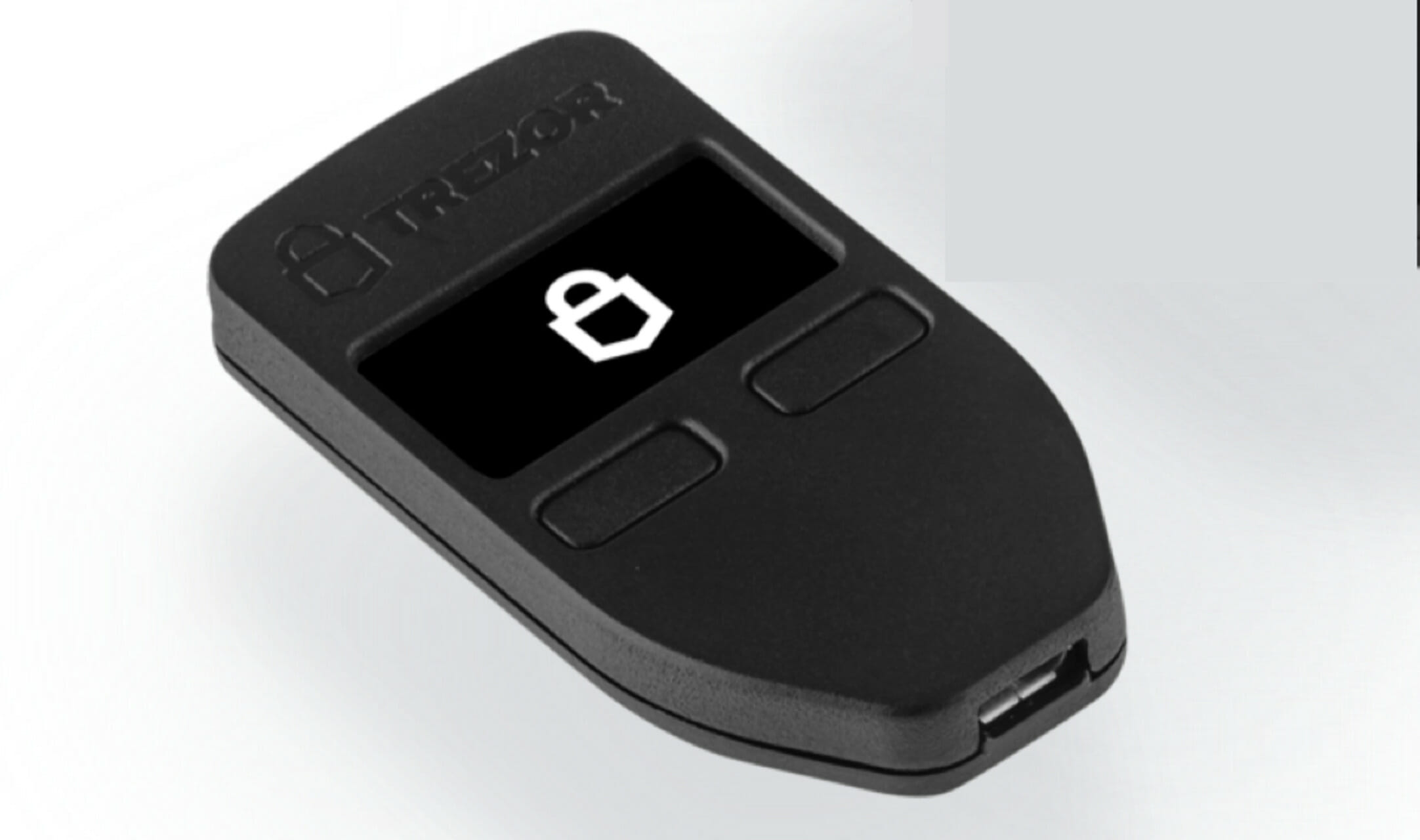
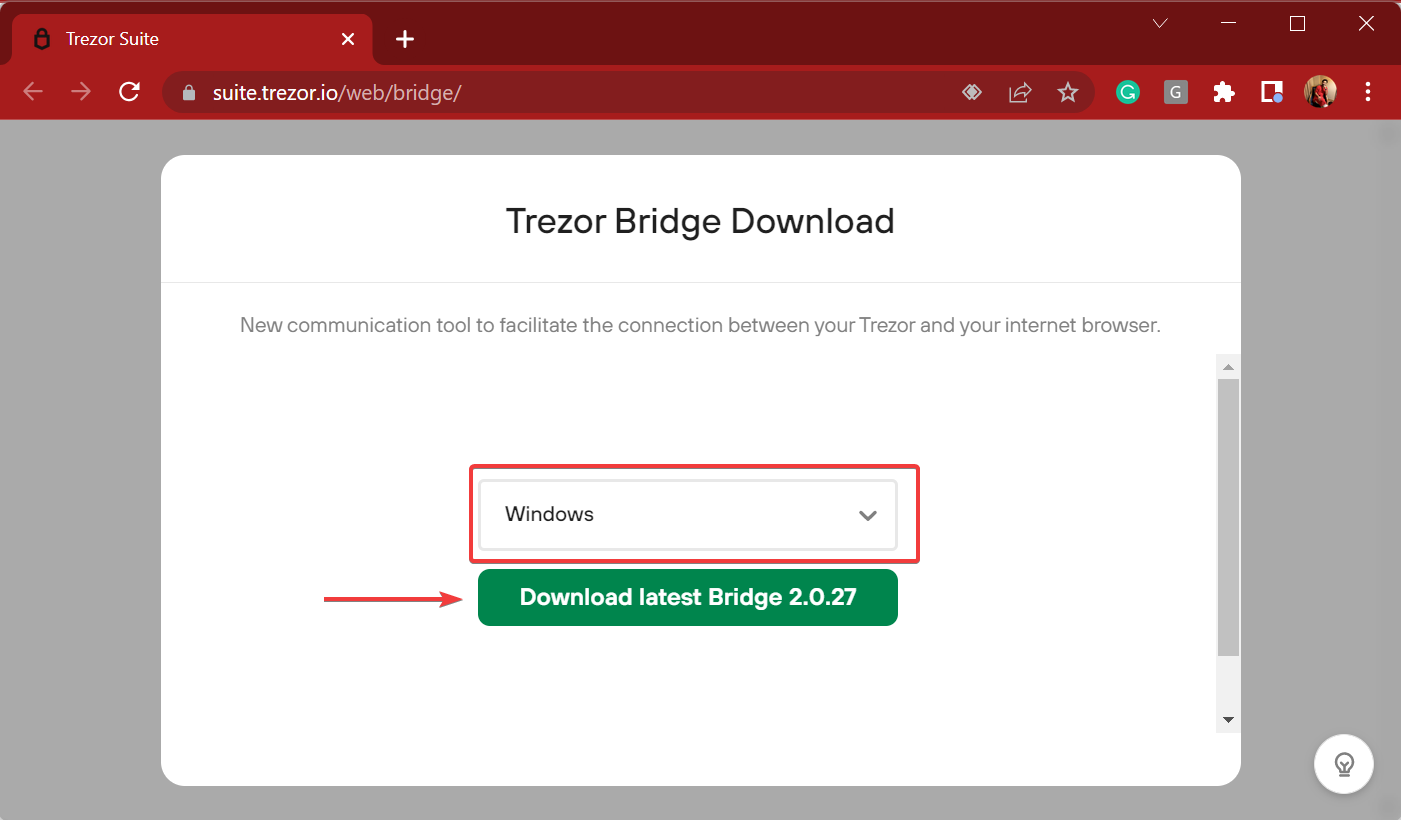
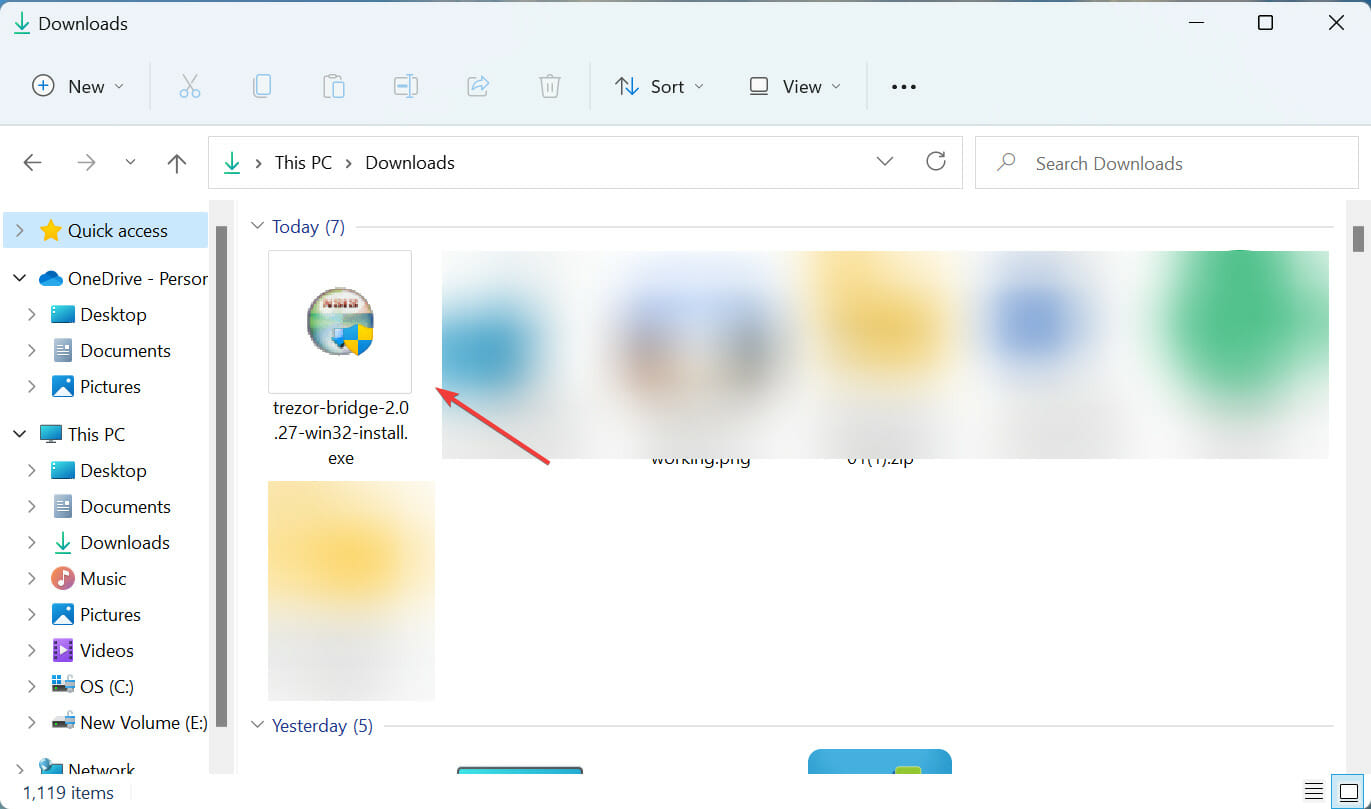
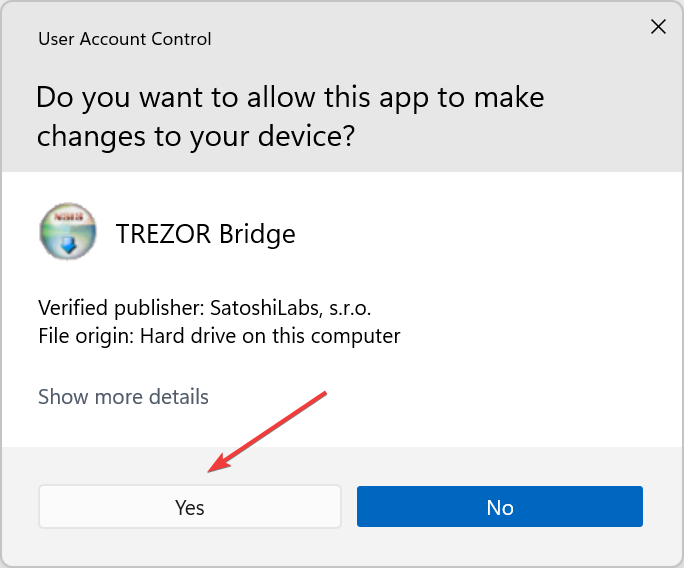
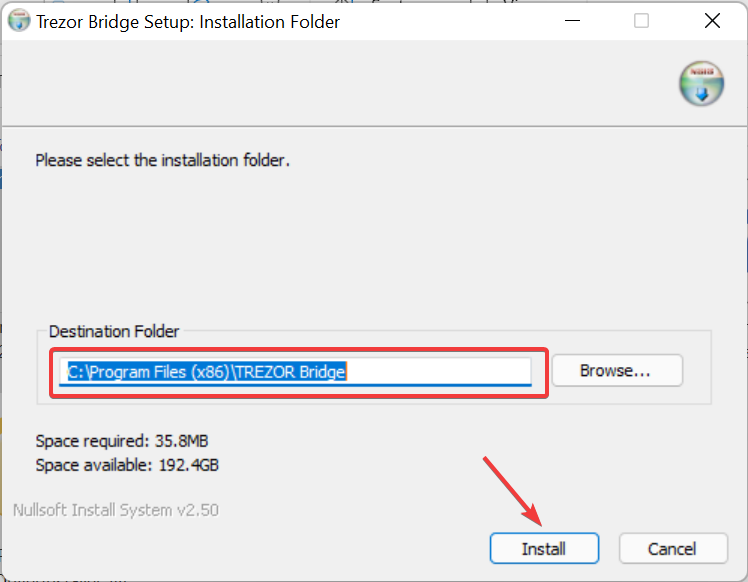
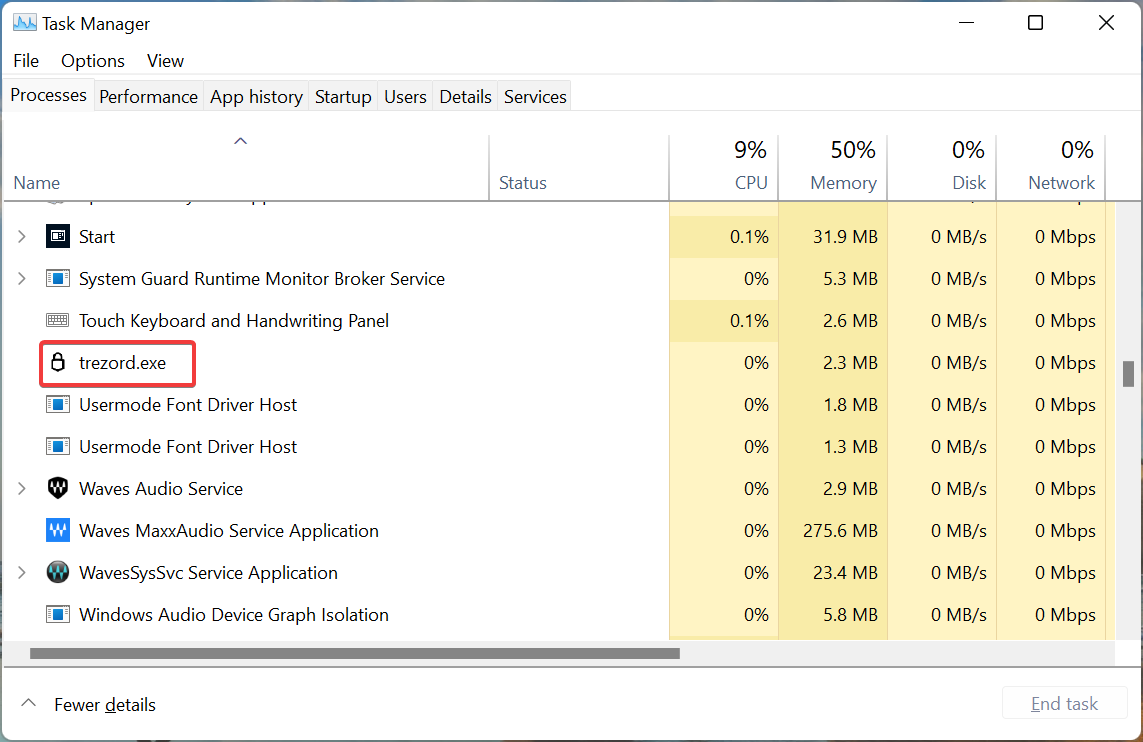
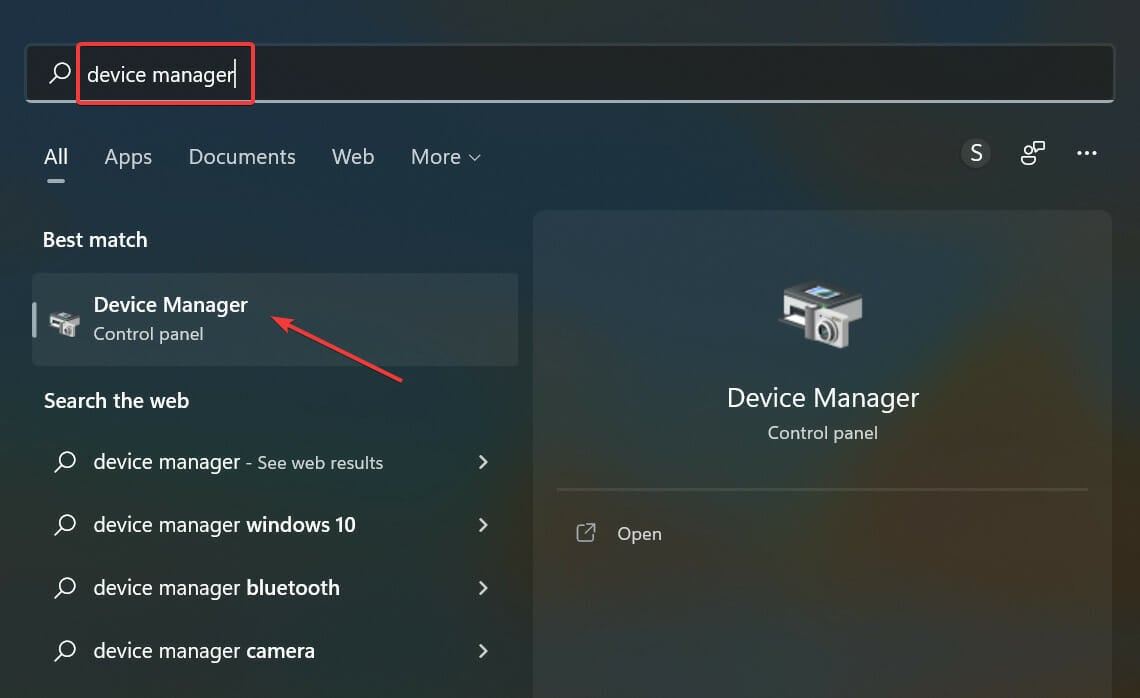
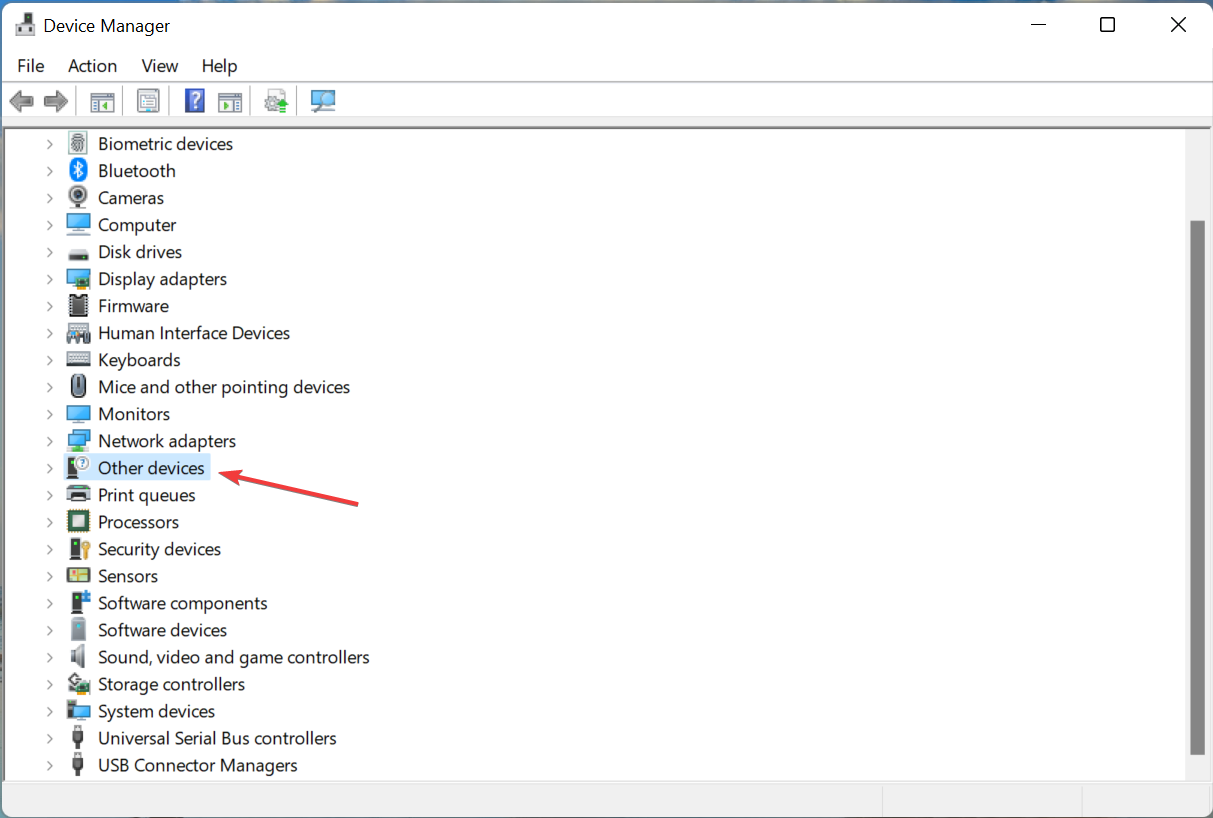
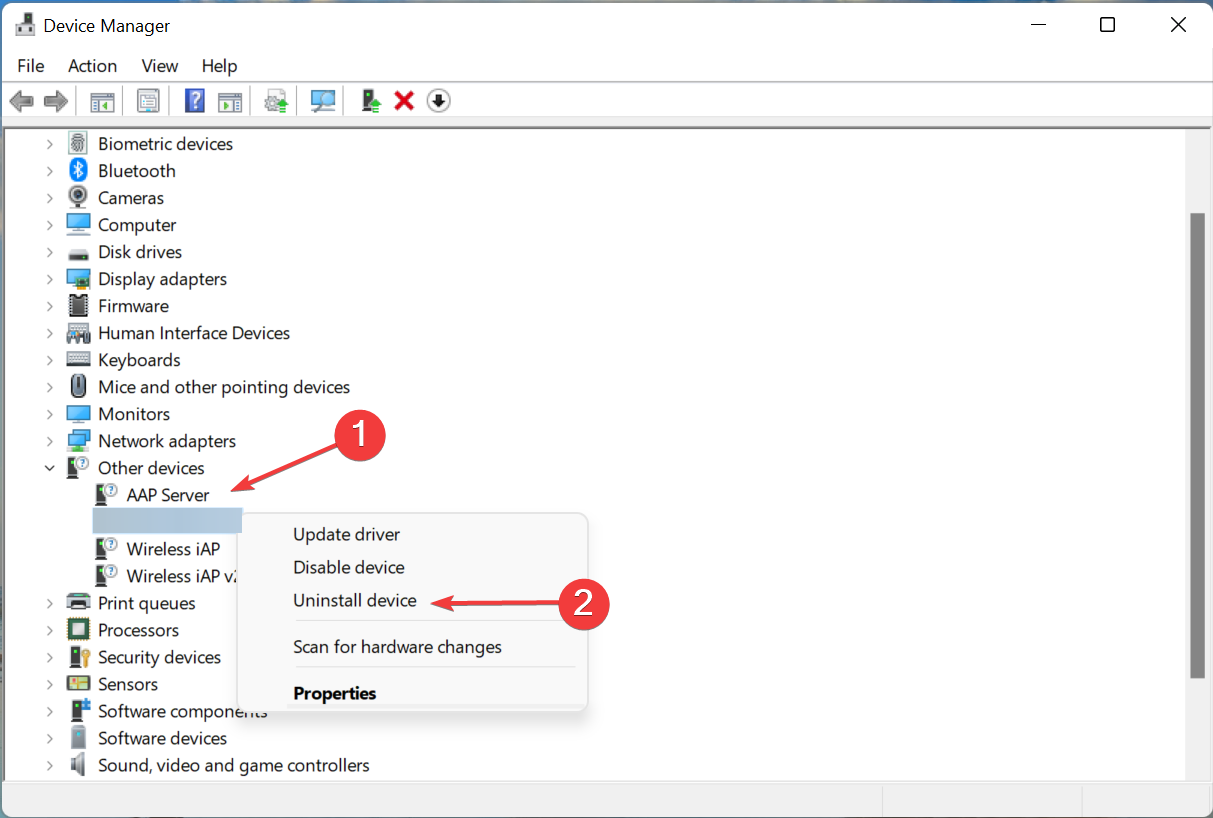
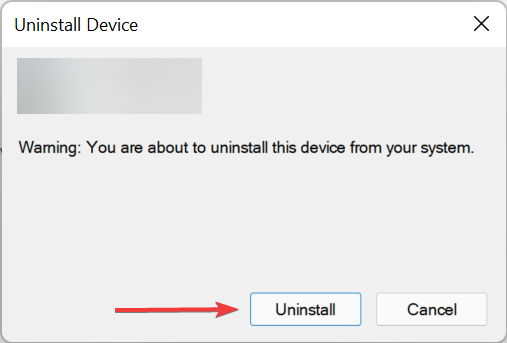
![PL2303 Driver on Windows 11 is Not Working [3 Fixes]](https://windowsreport.com/wp-content/uploads/2022/04/pl2303-driver-windows-11-not-working.jpg)
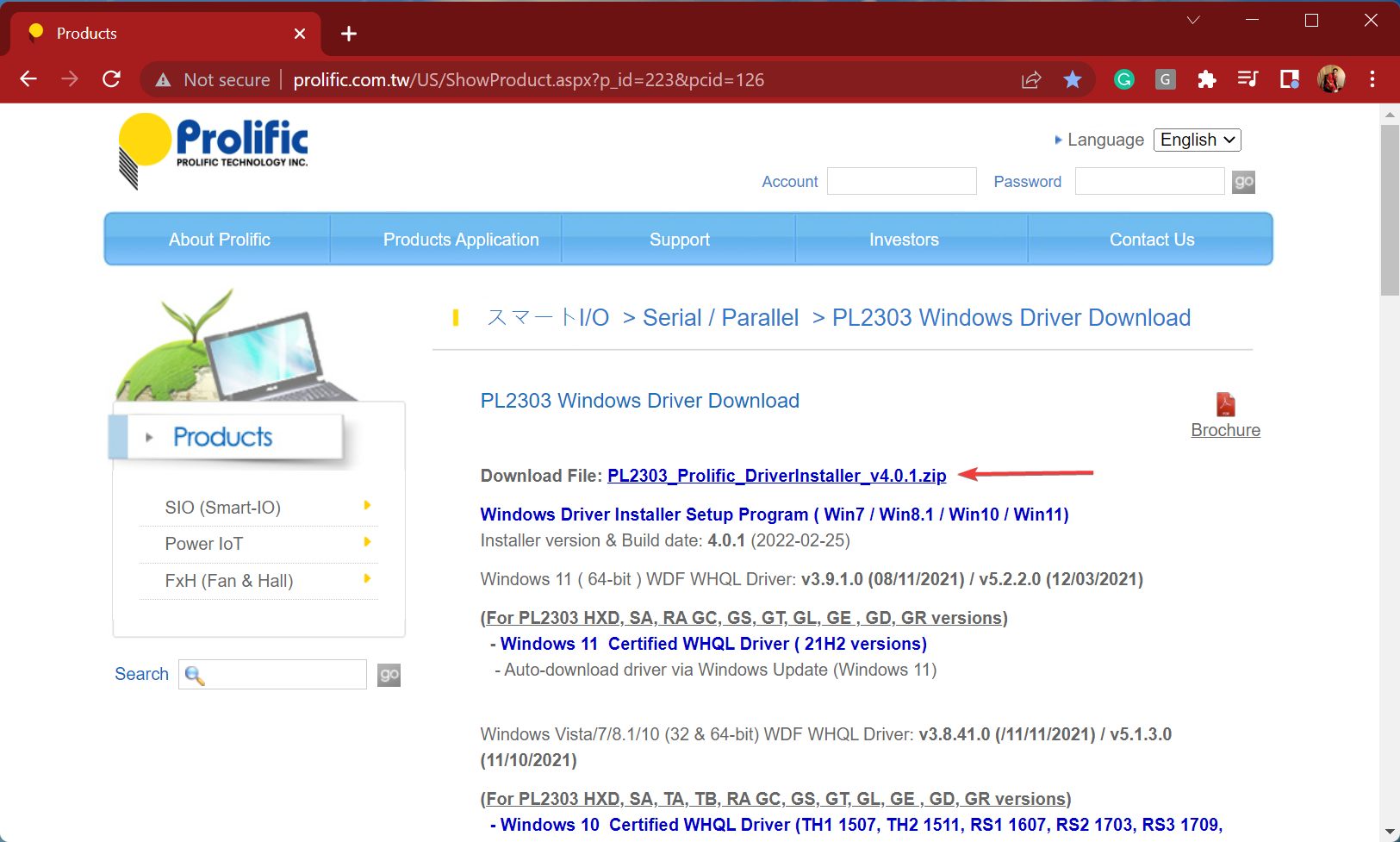
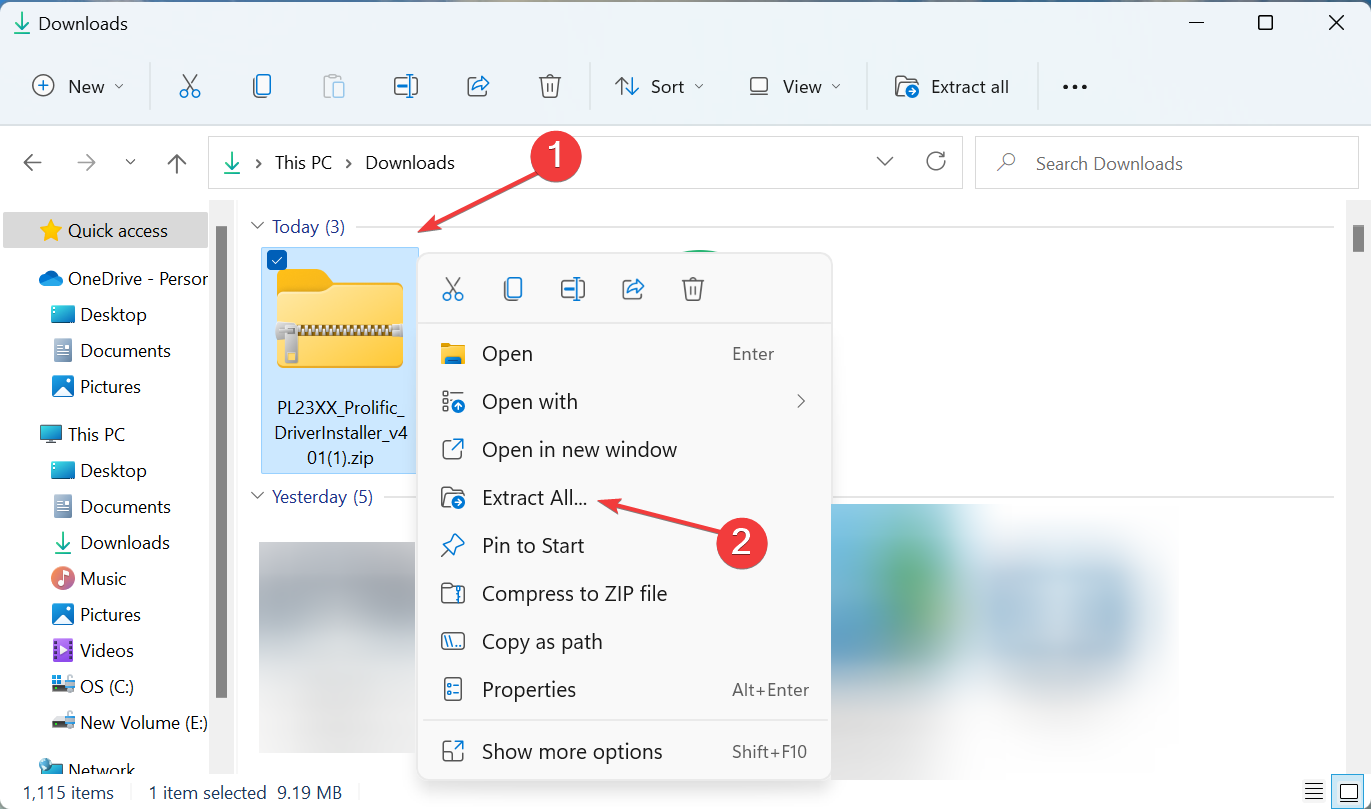
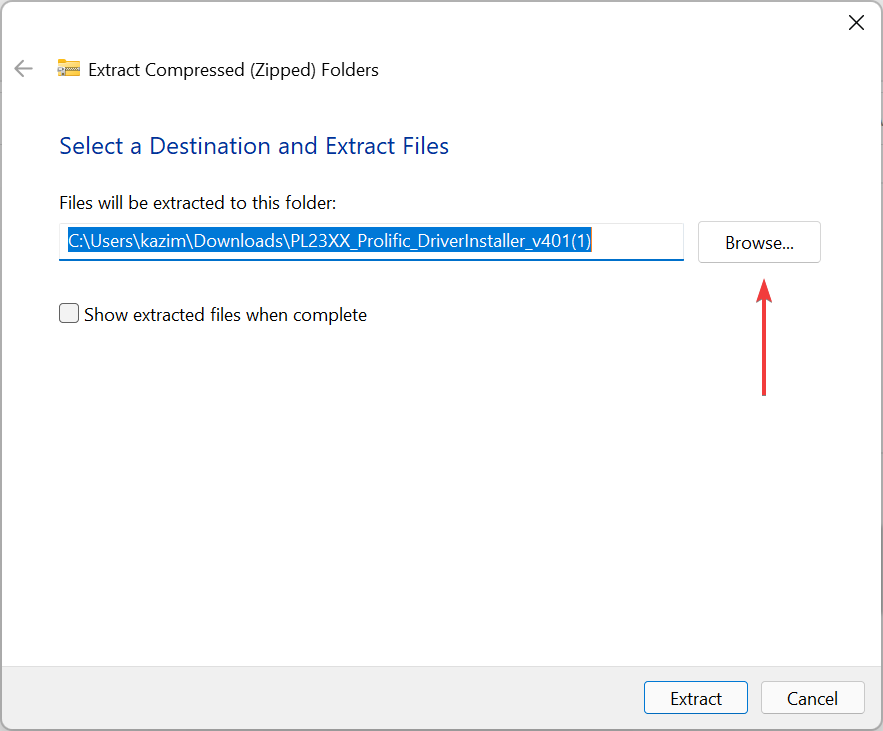
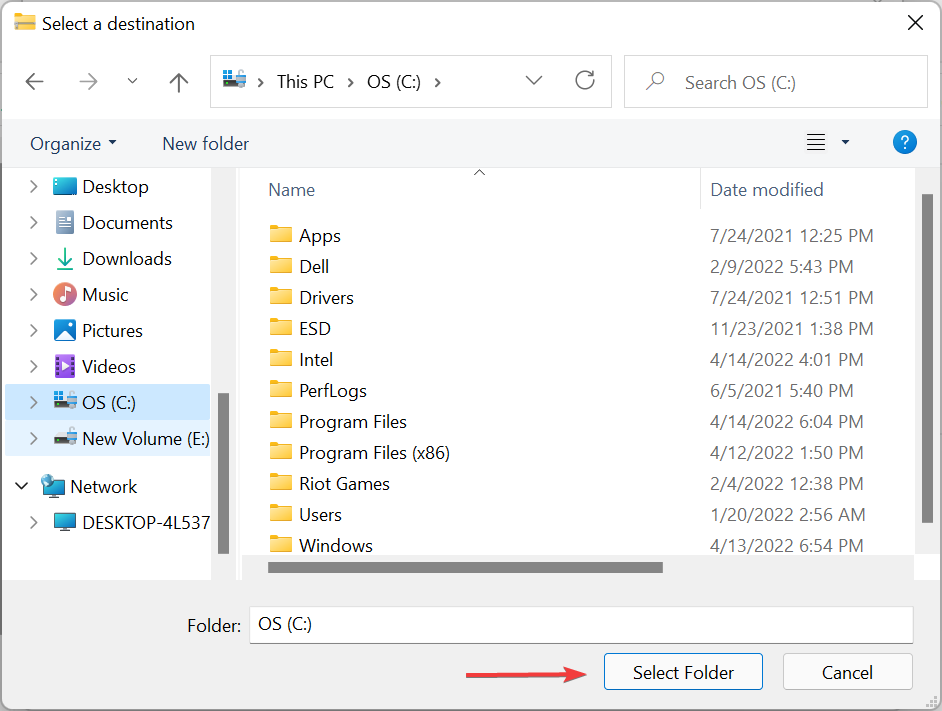
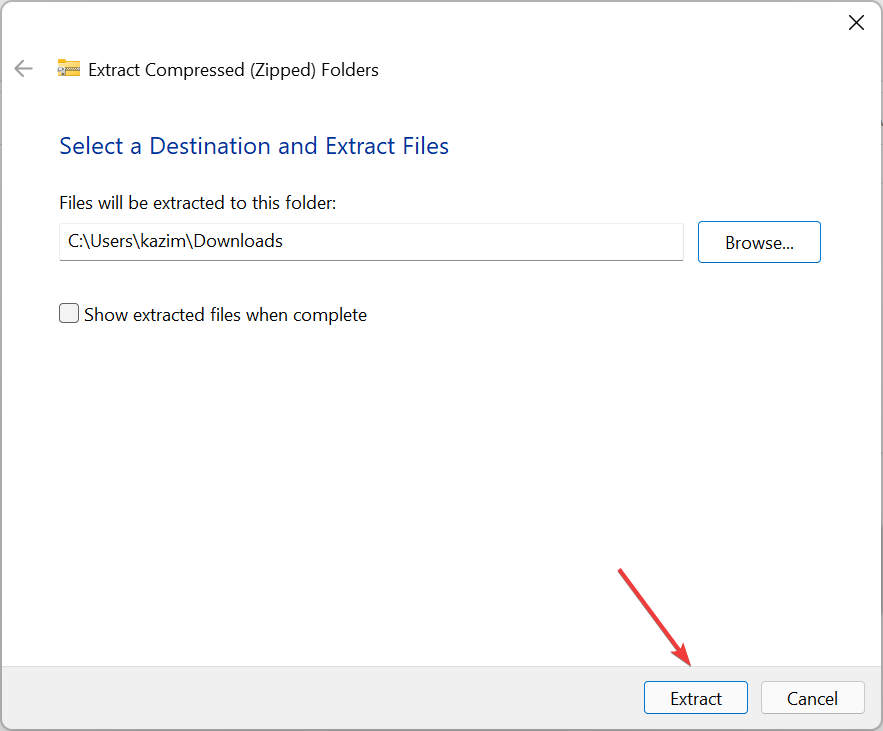
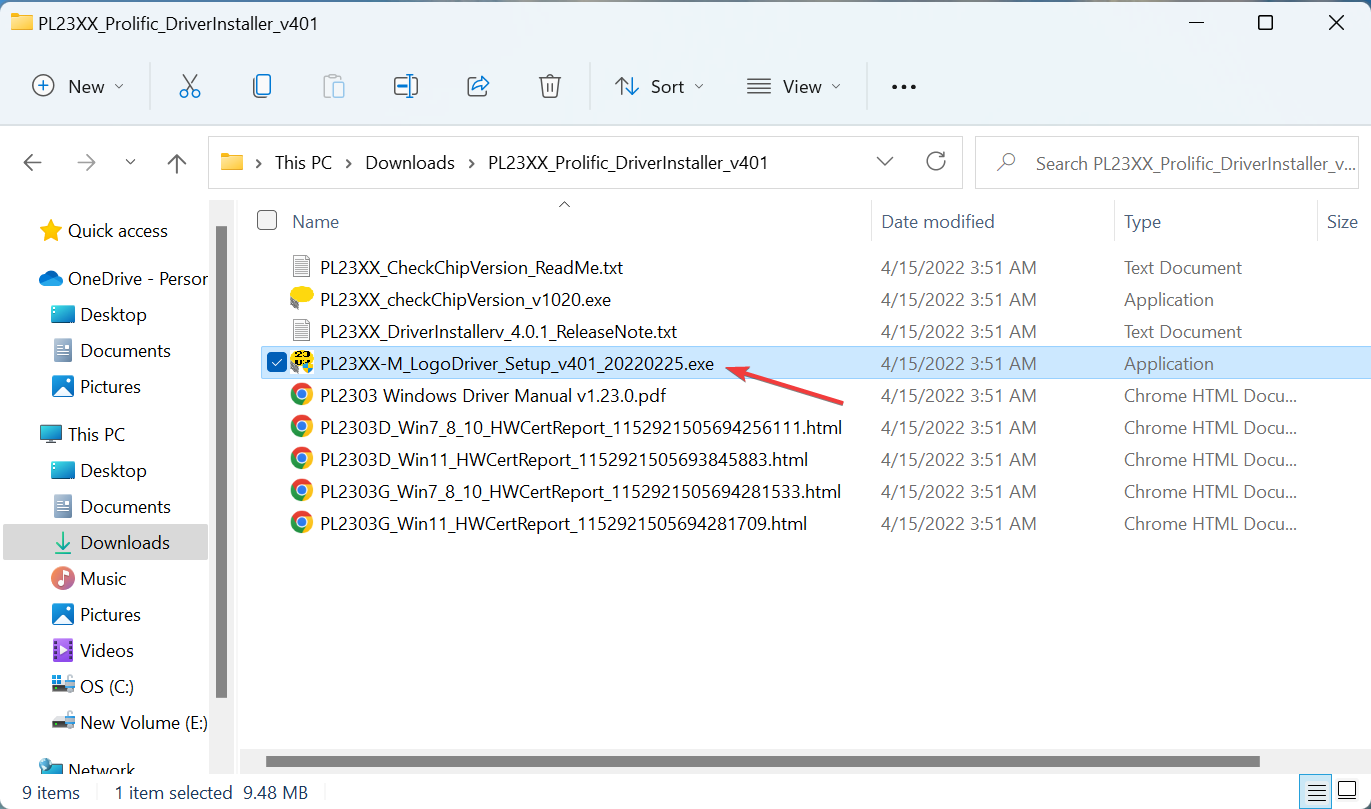
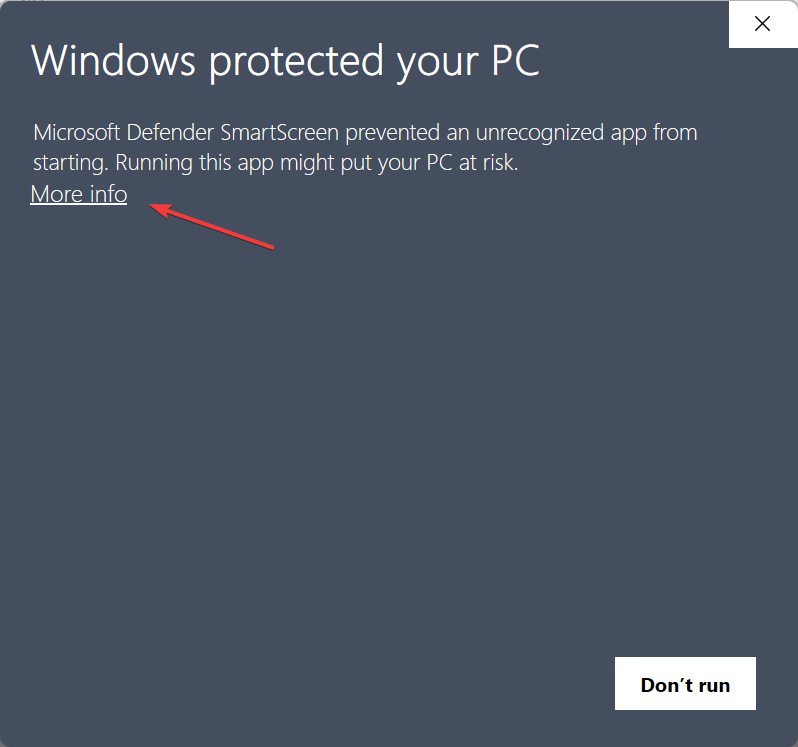
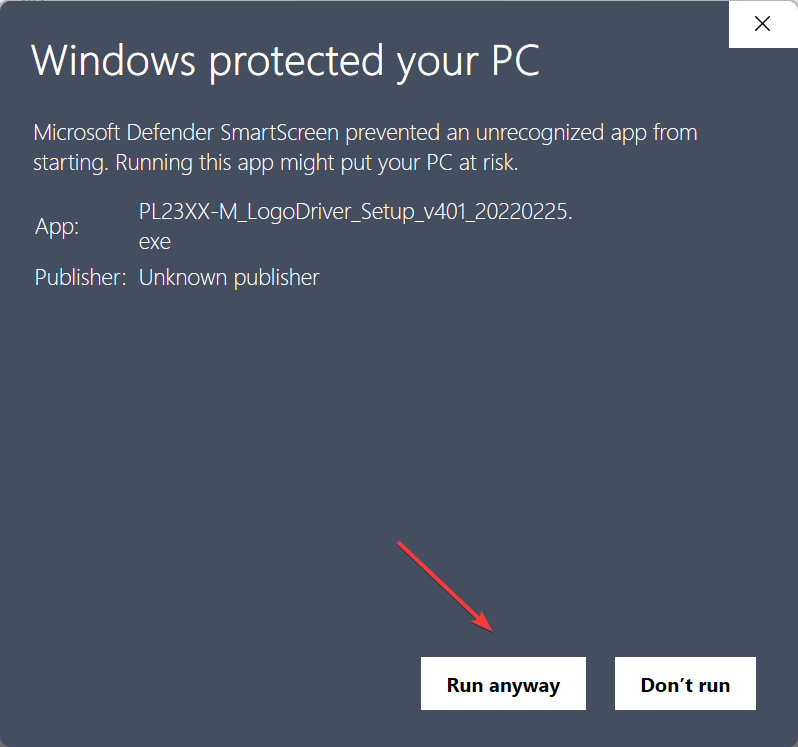
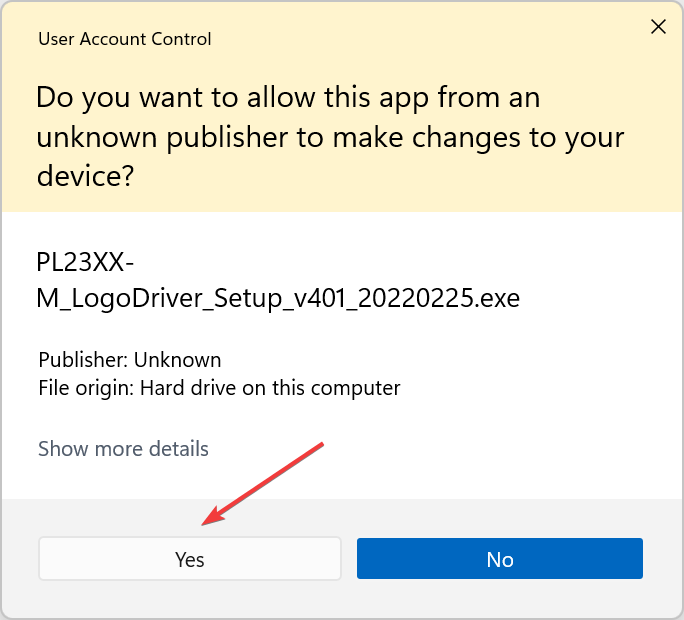
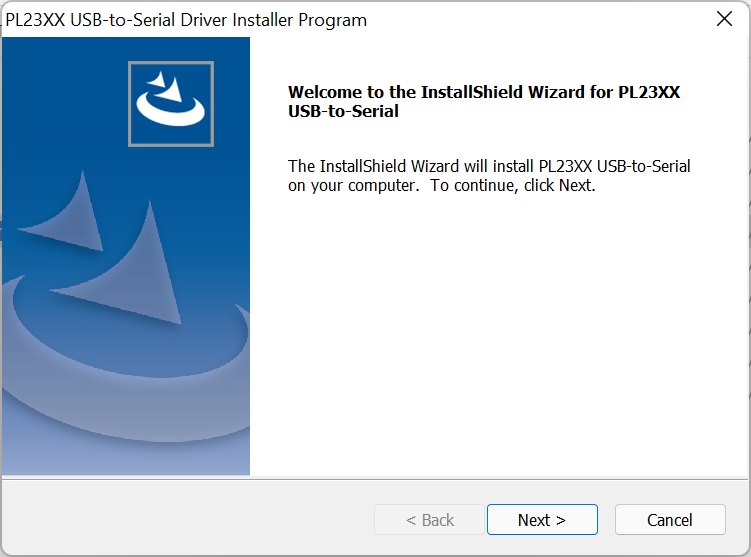
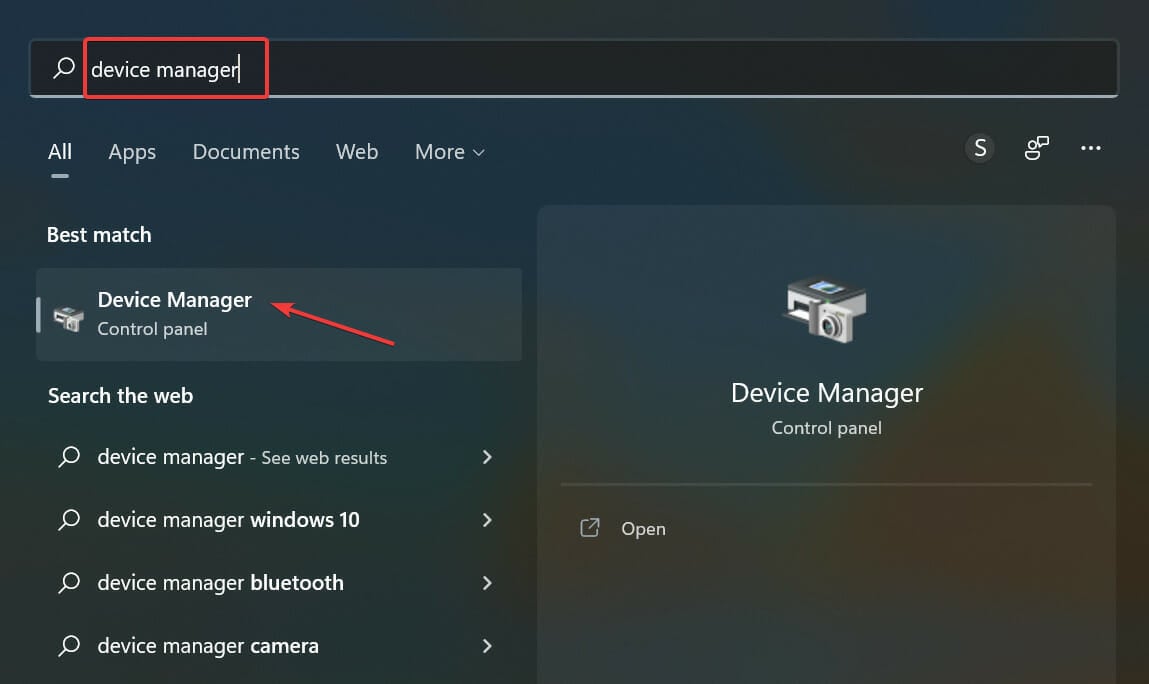
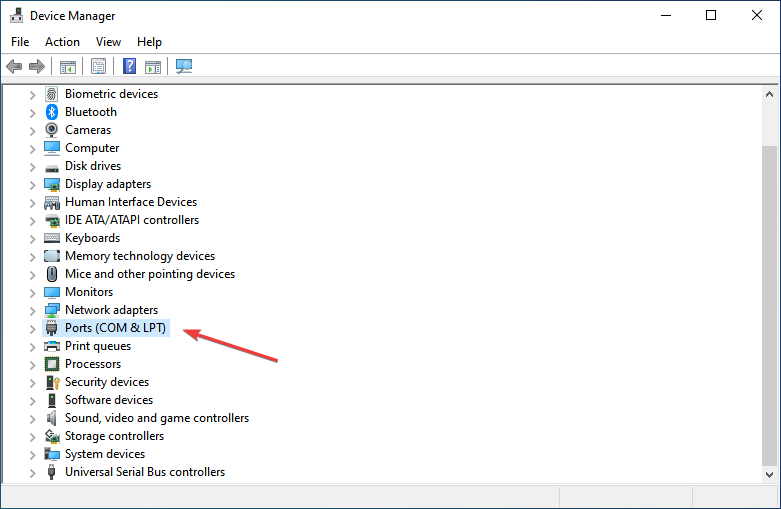
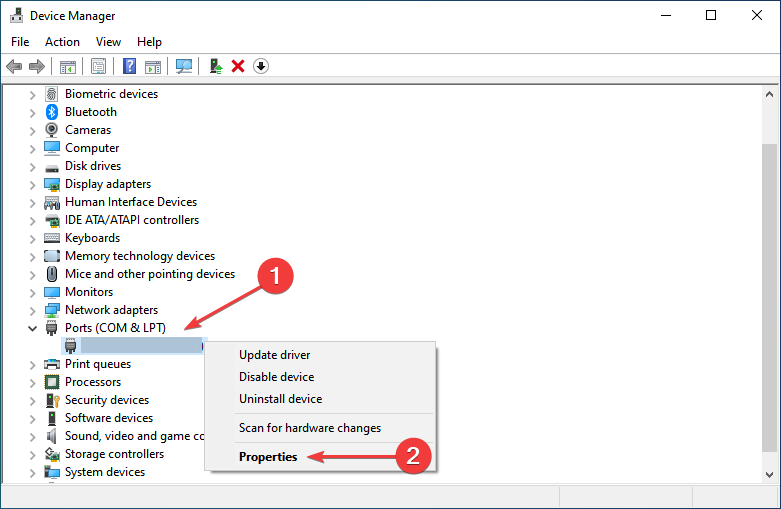
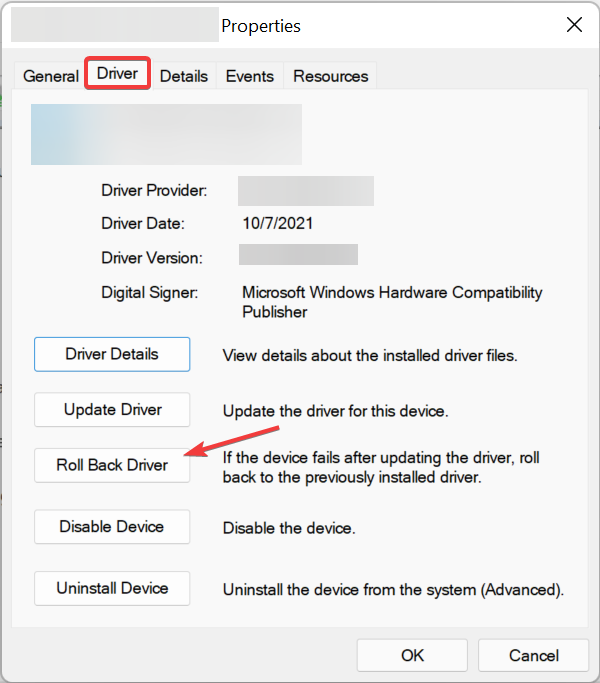
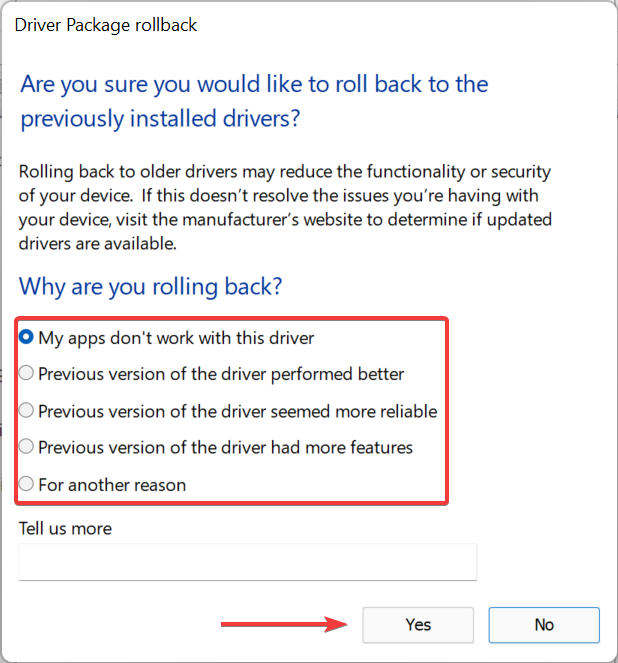
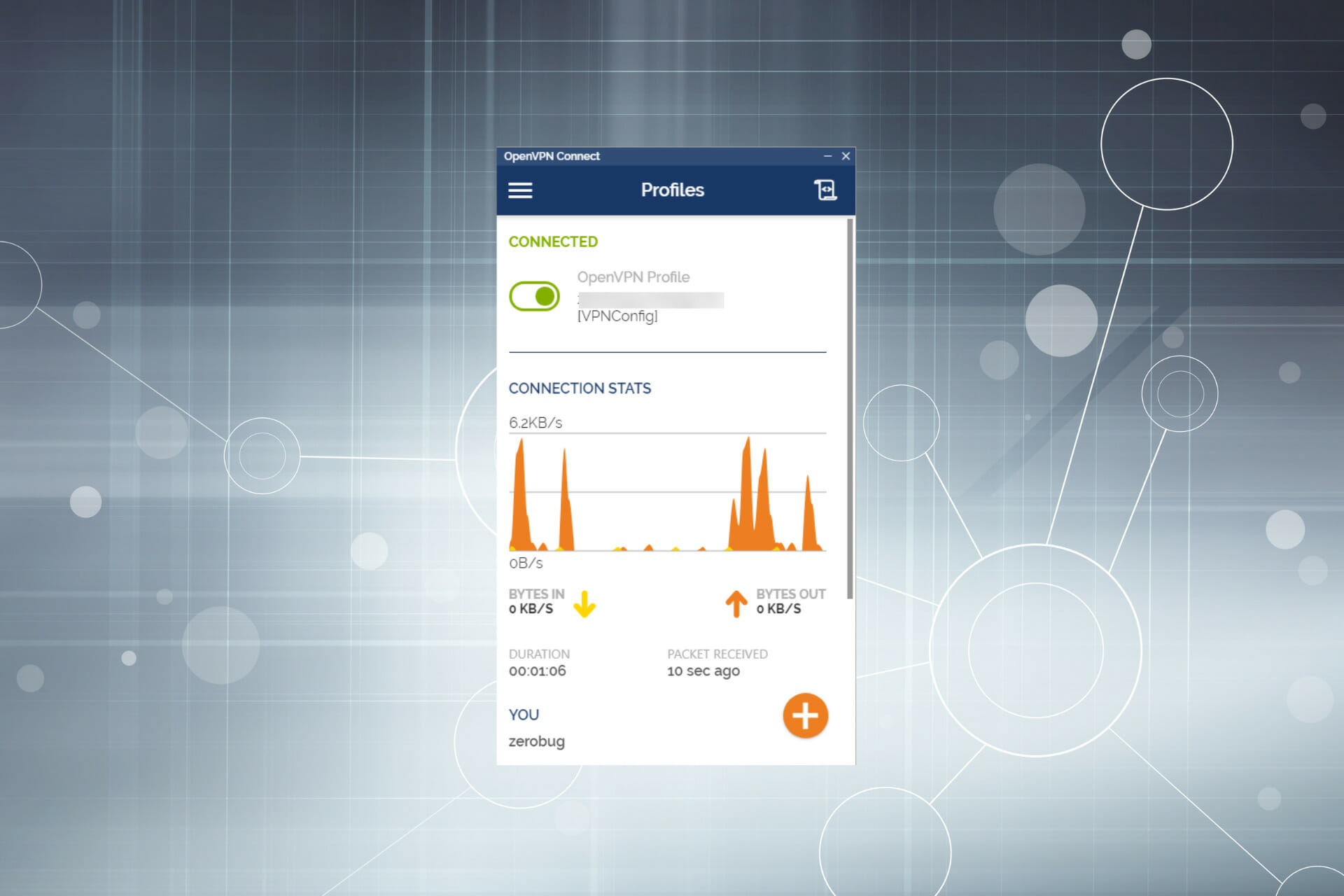
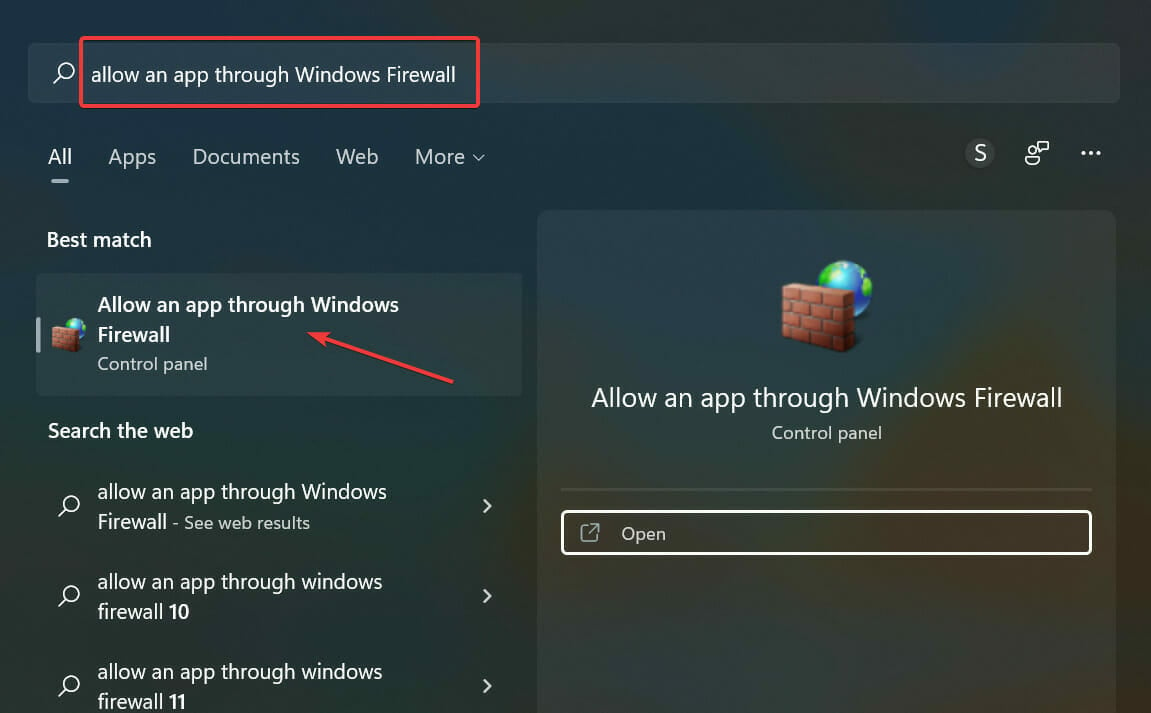
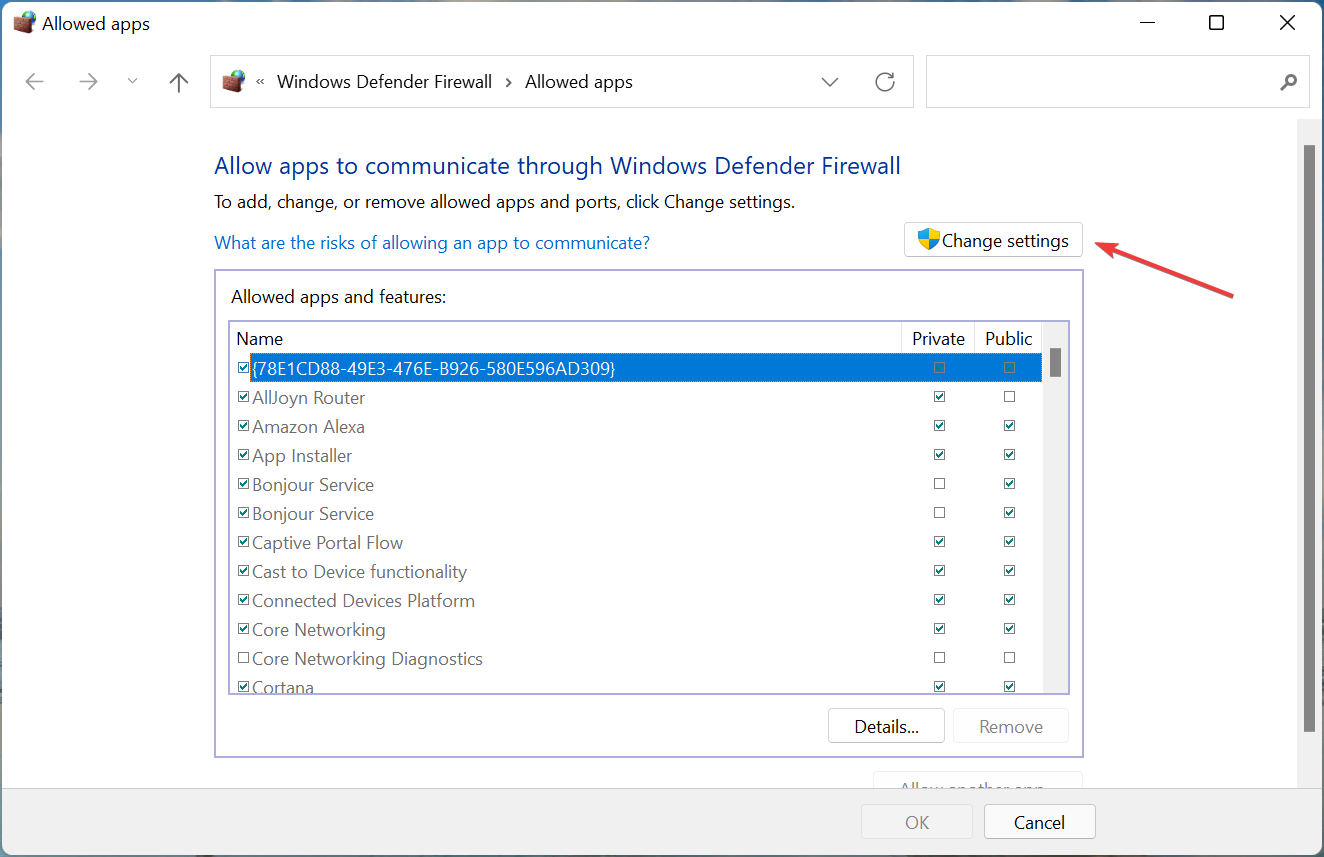
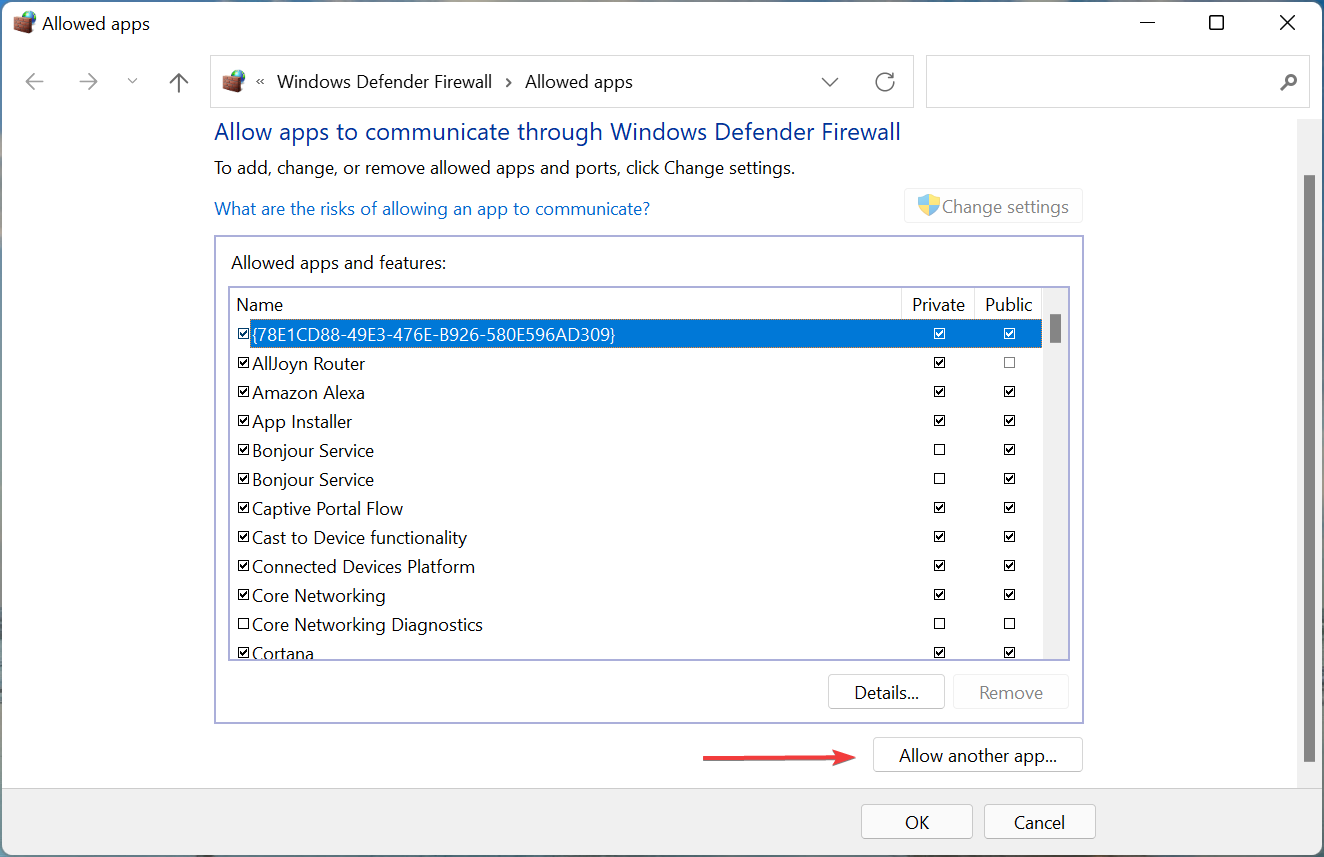
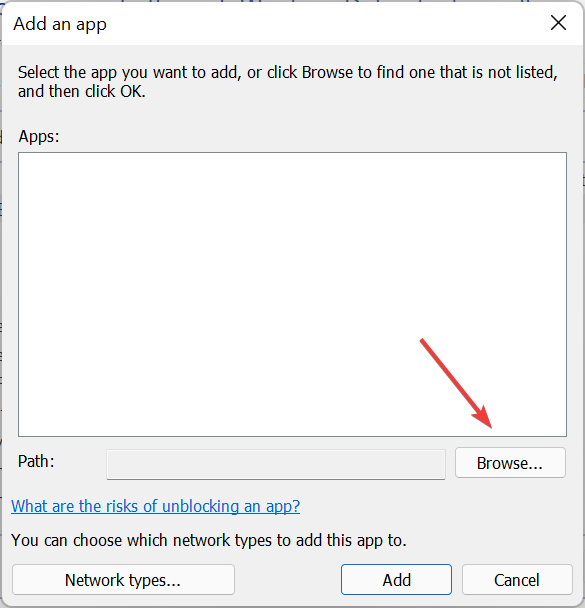
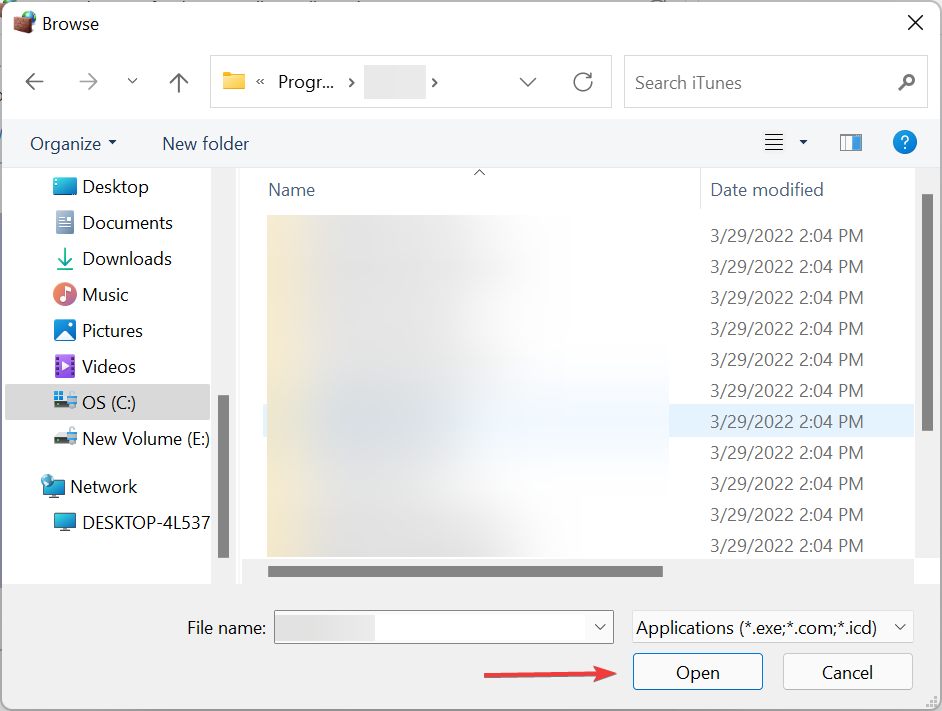
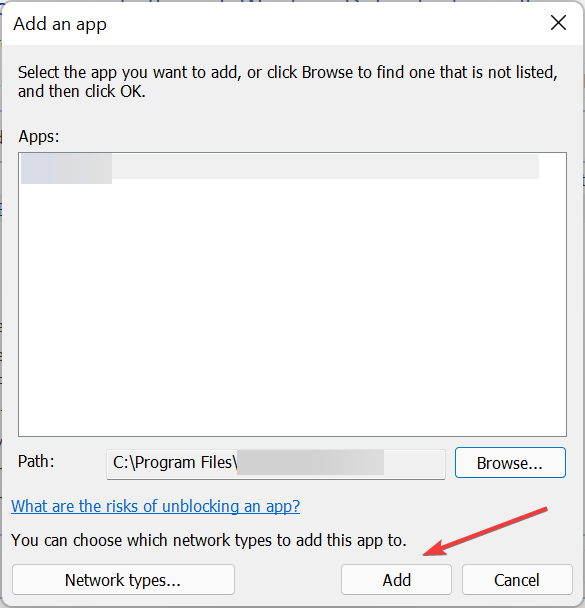
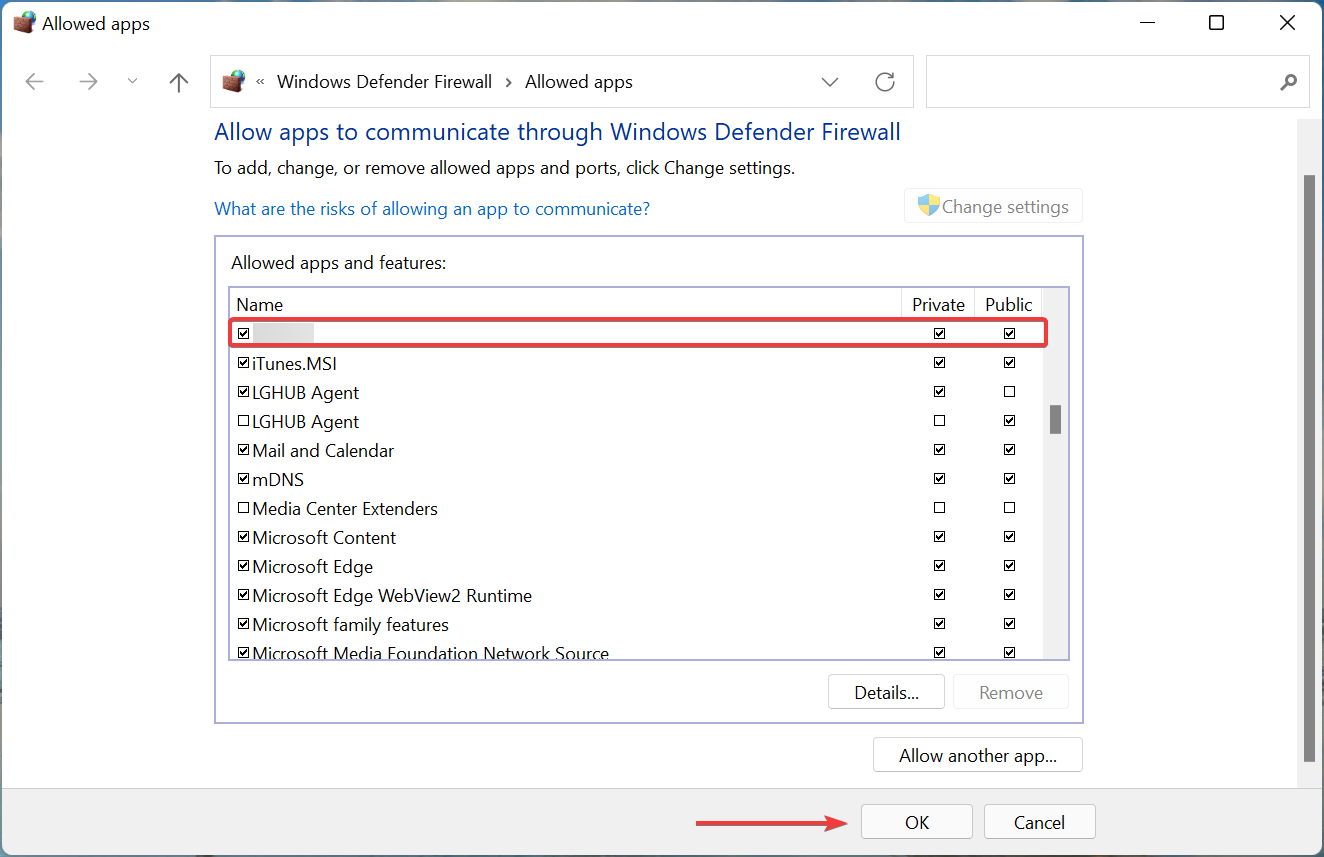
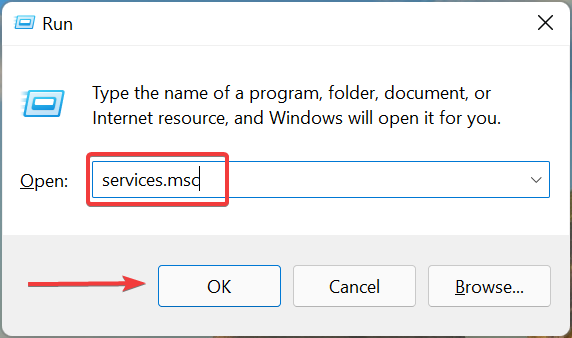
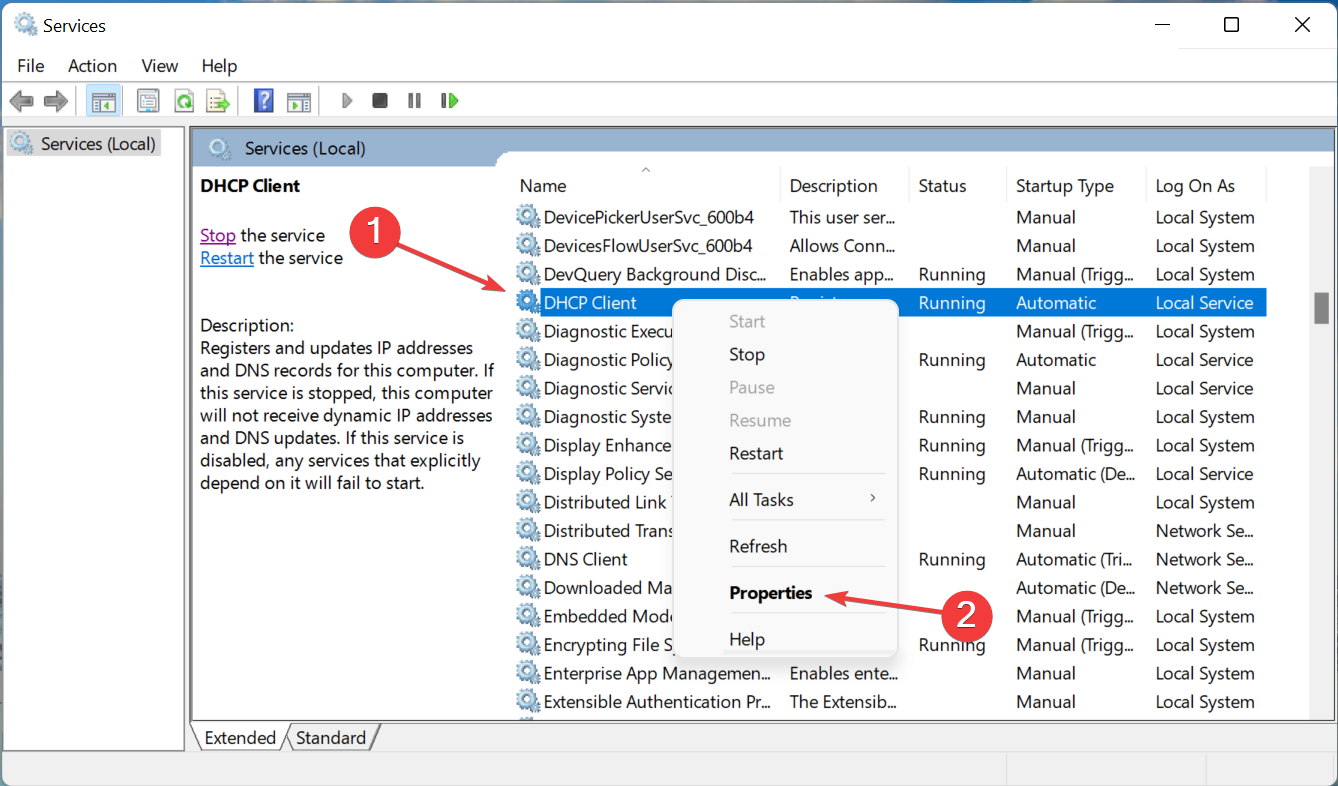
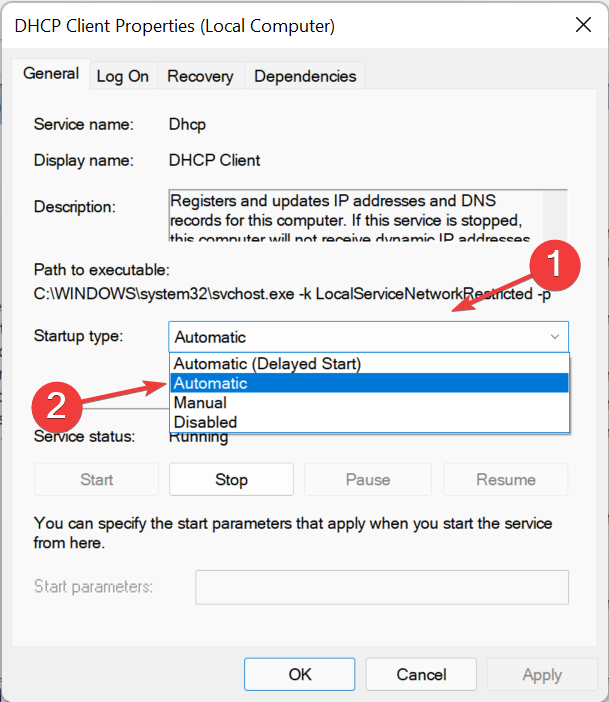
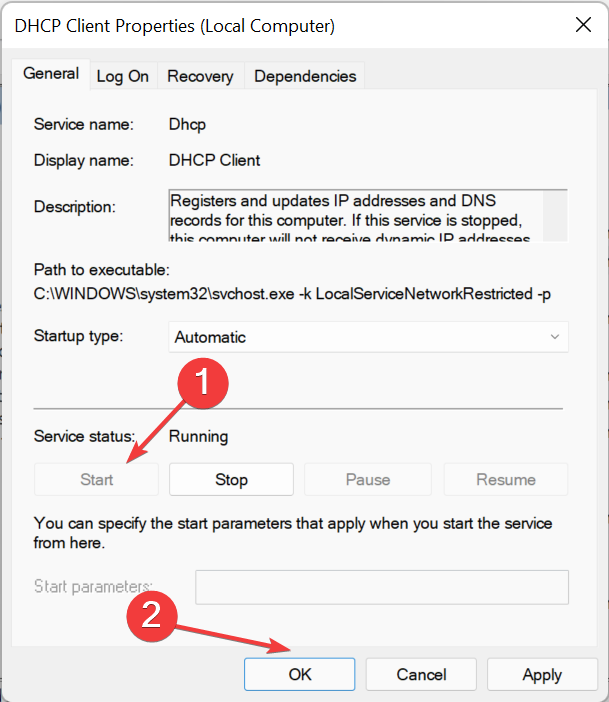
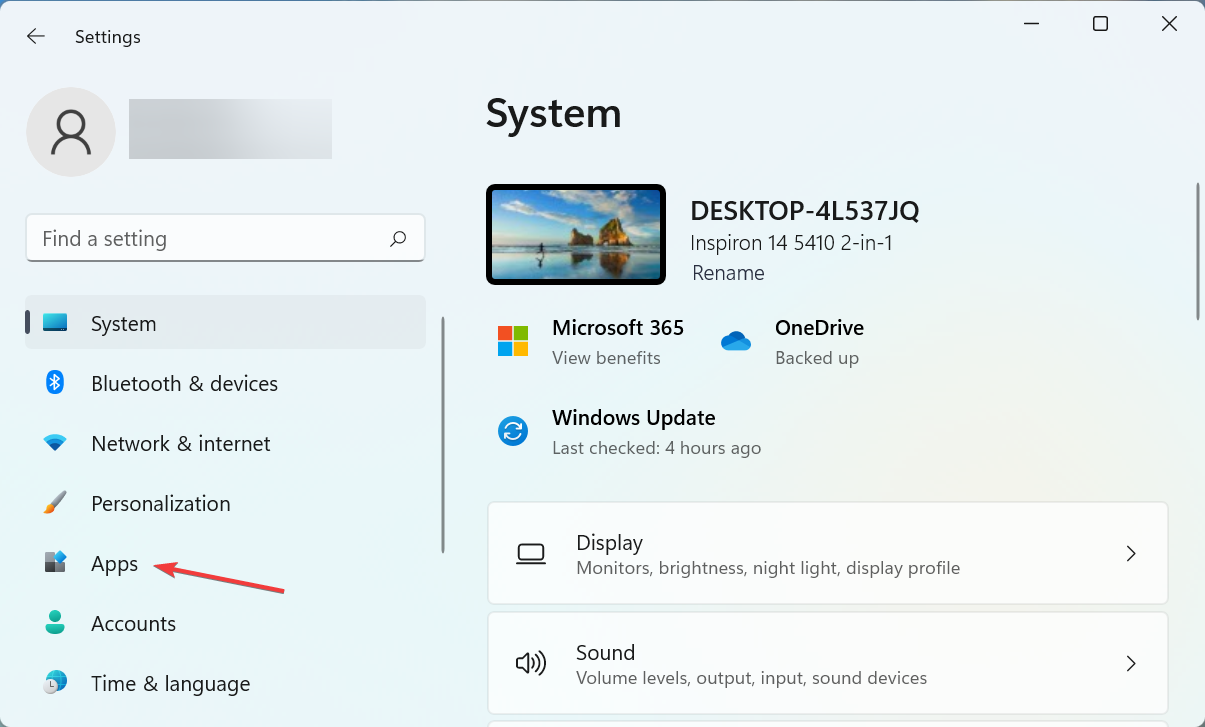
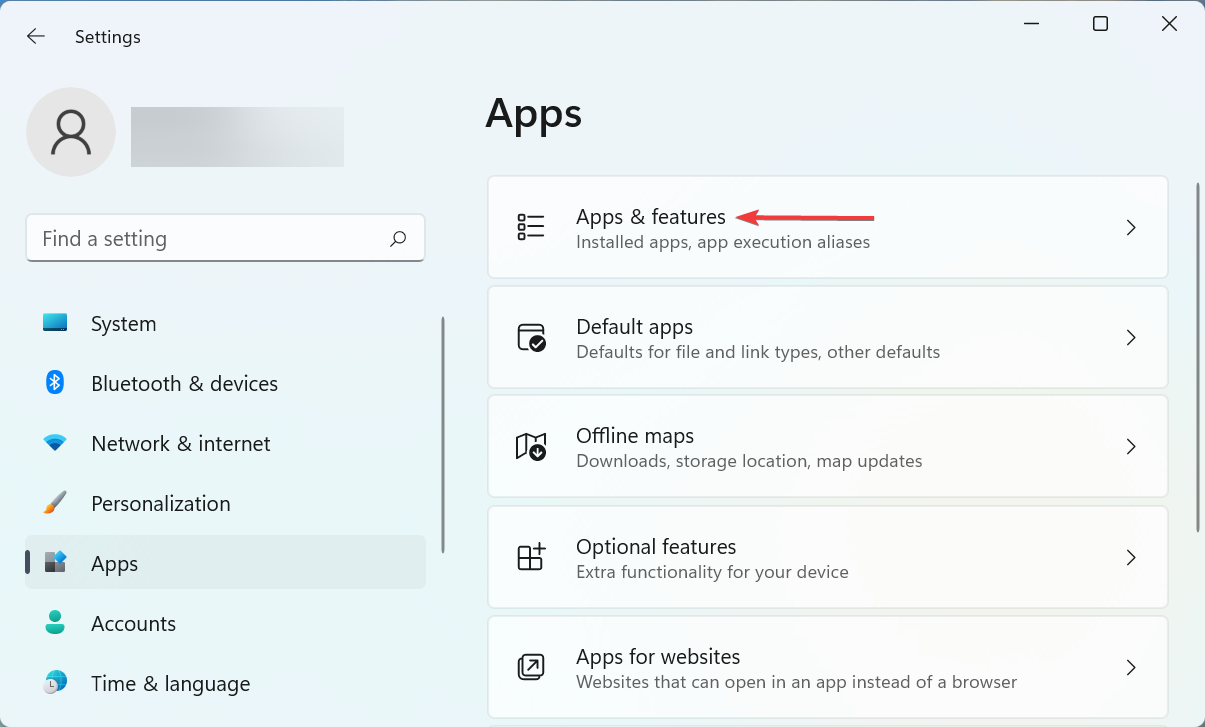
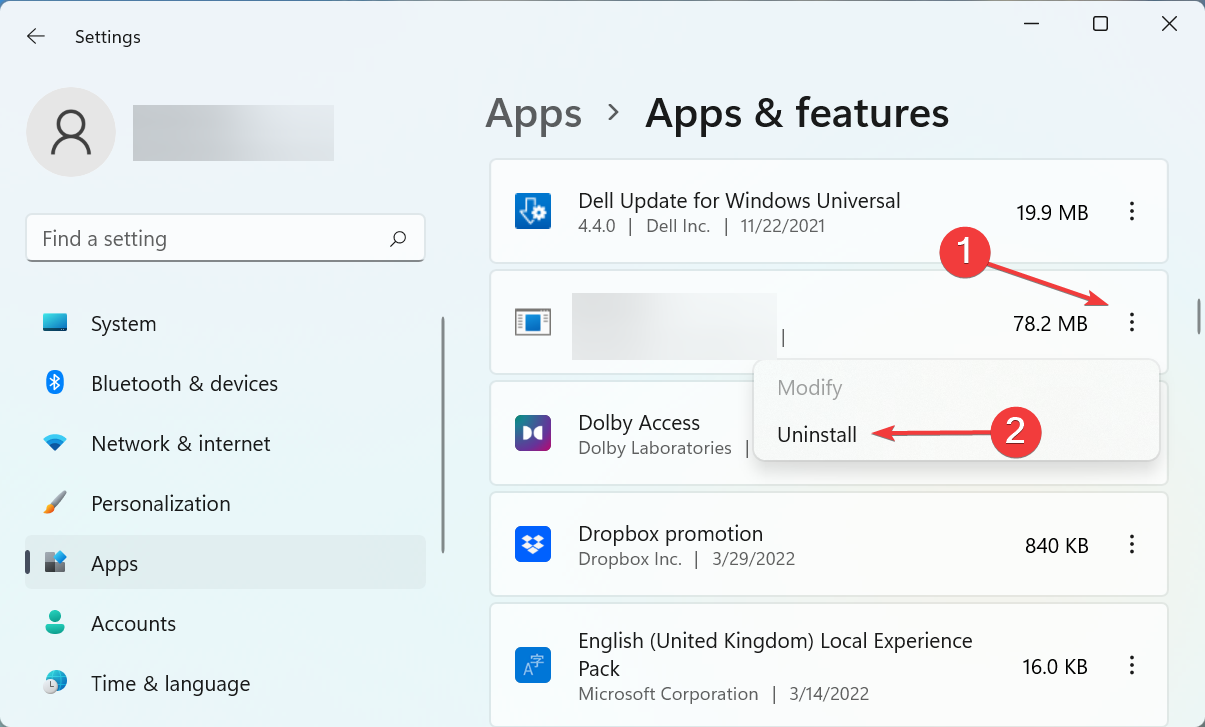
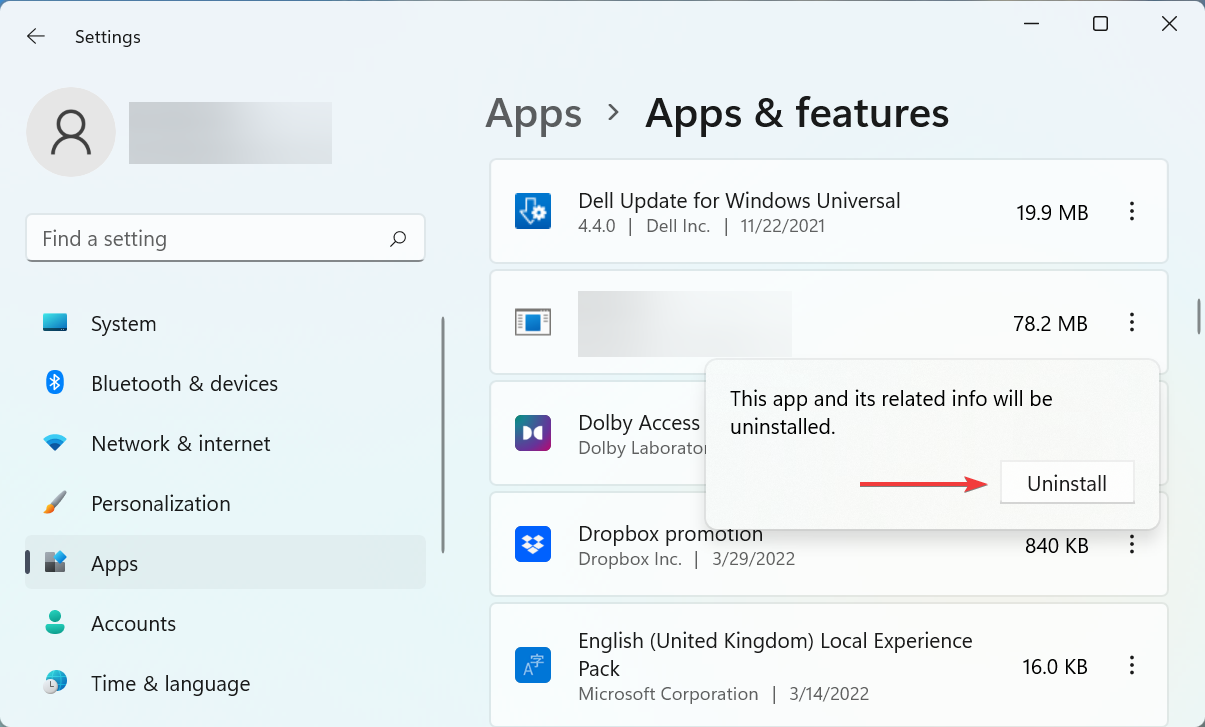
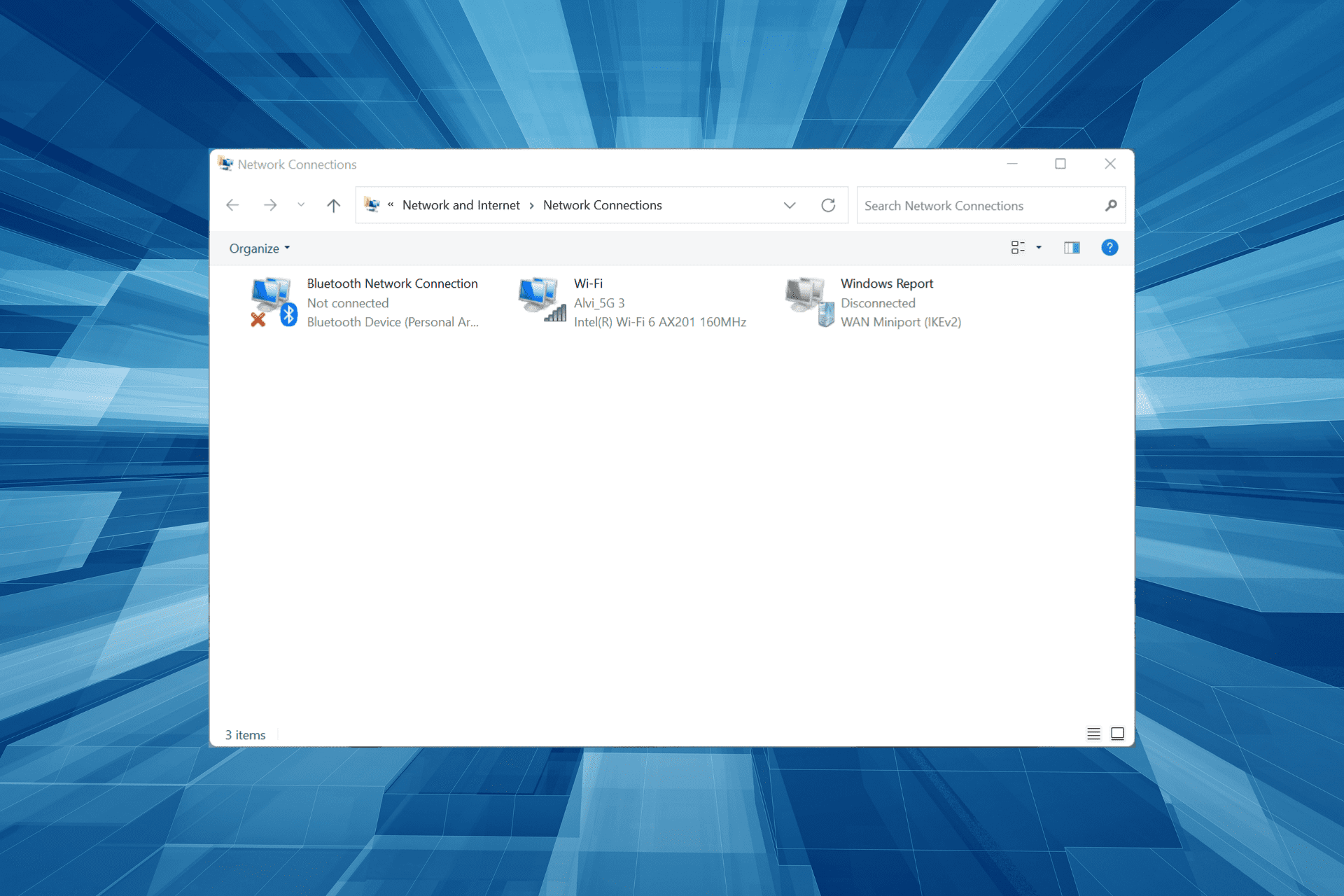
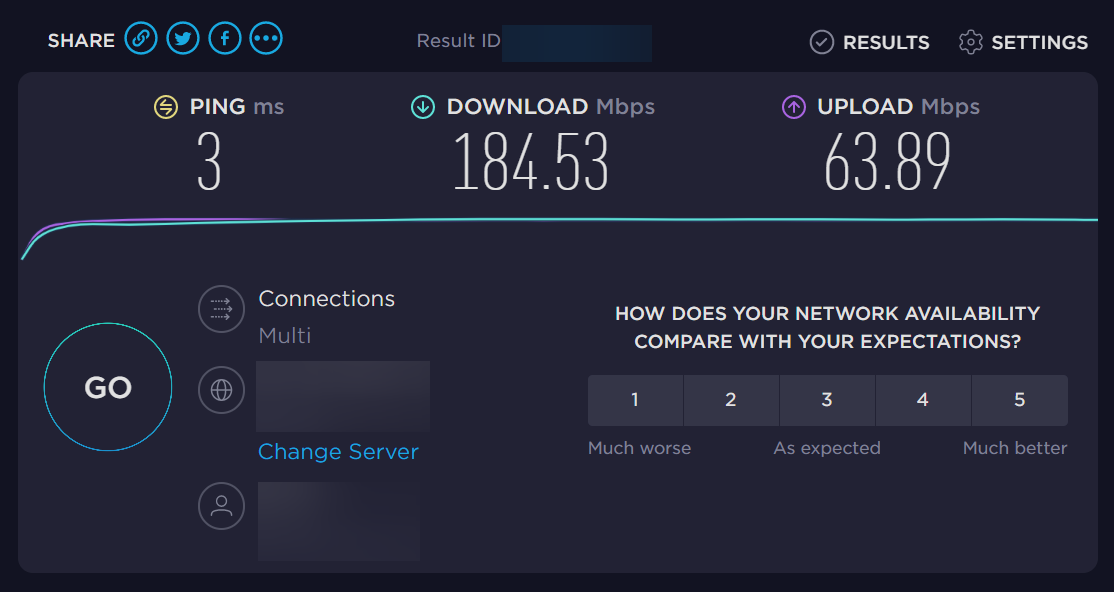
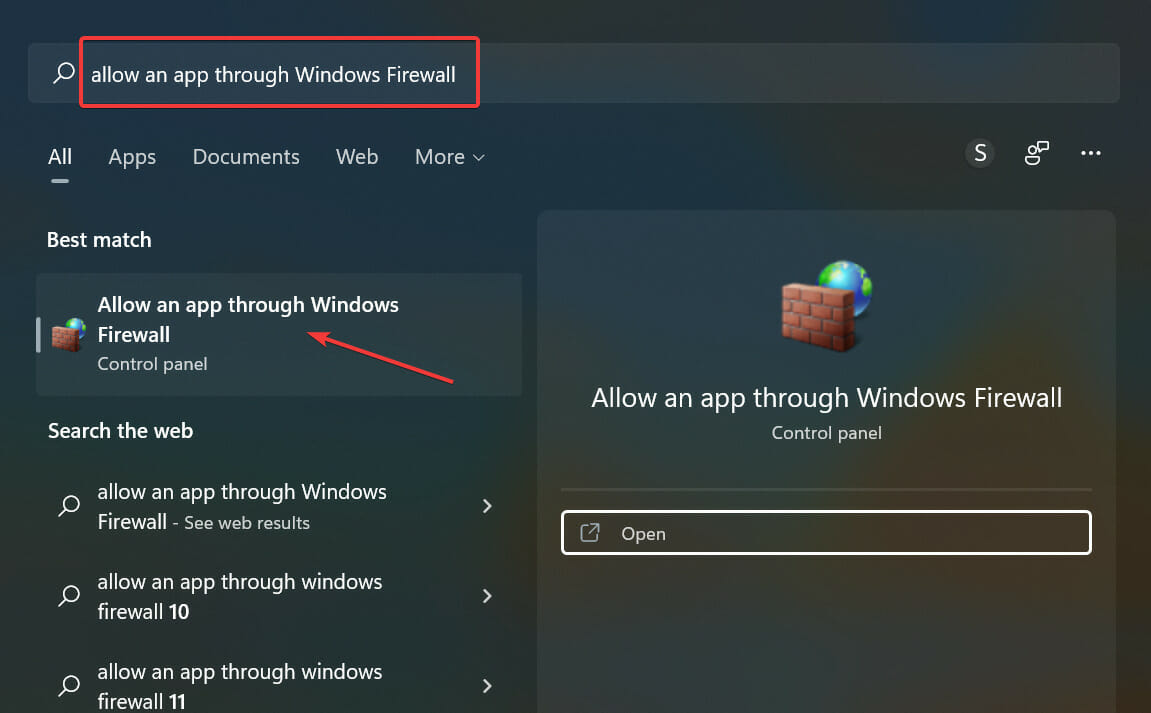
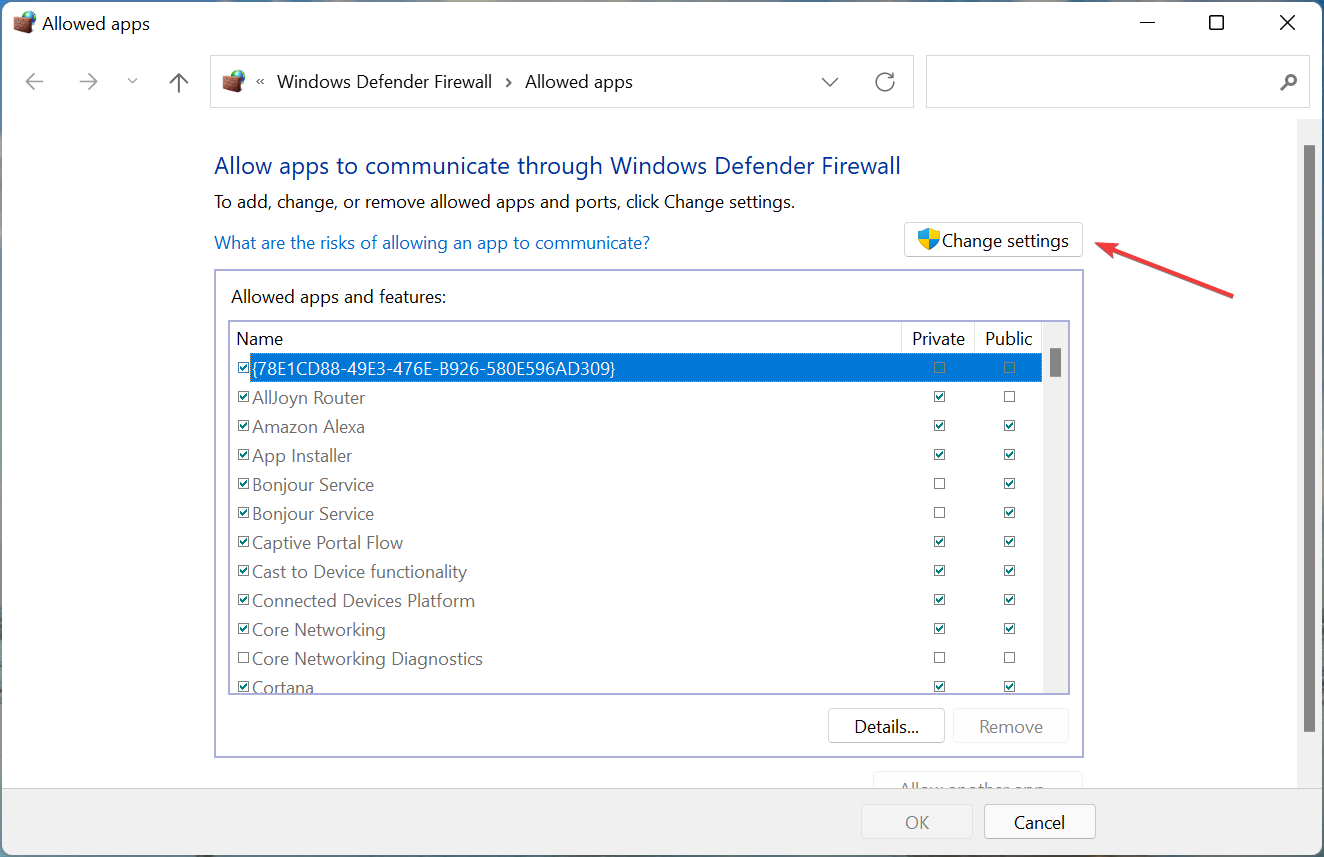
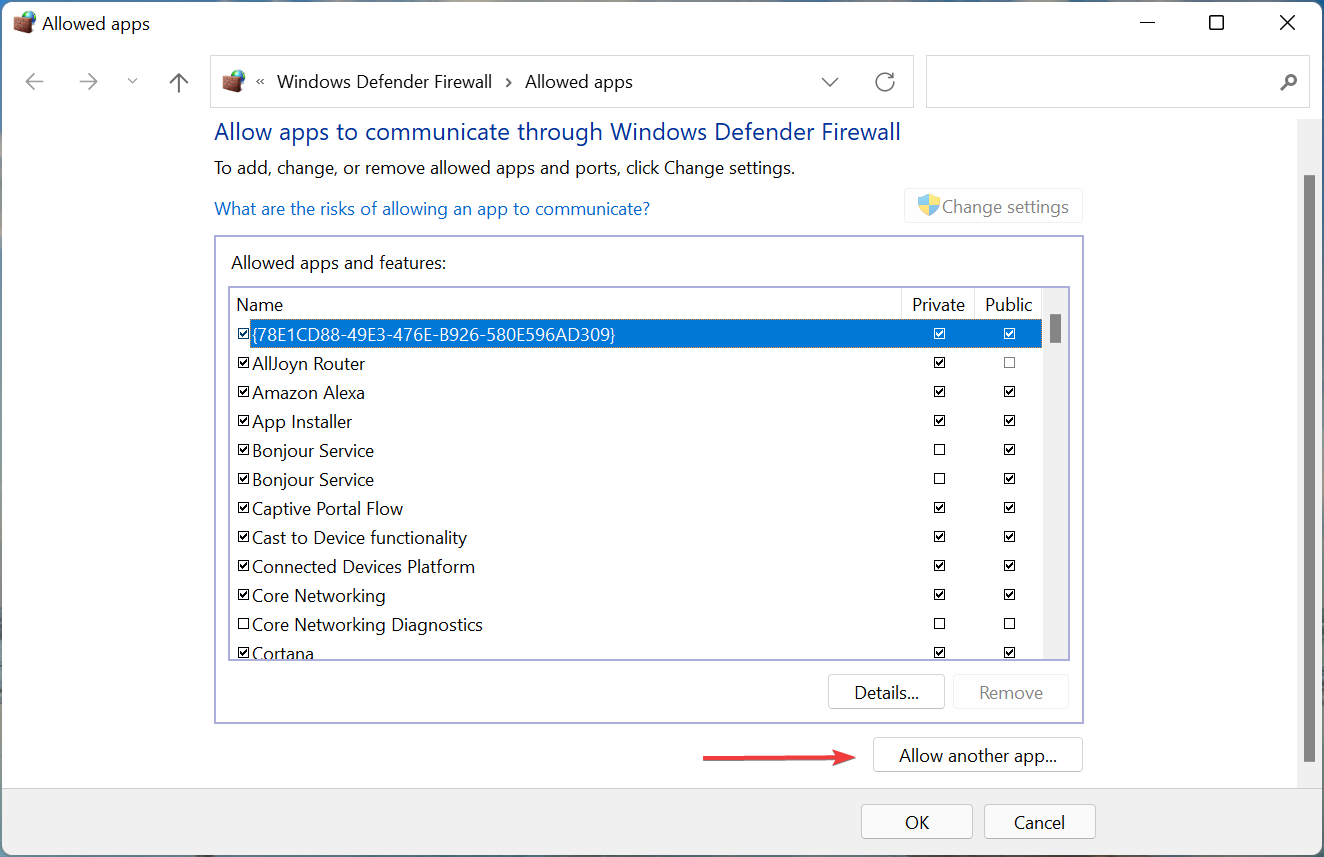
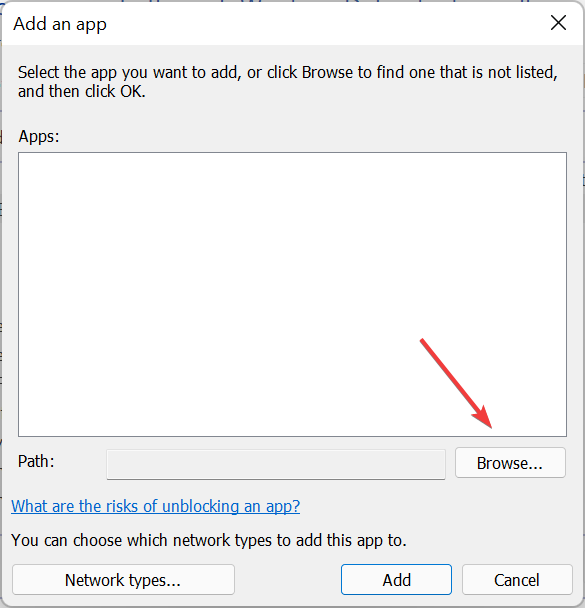
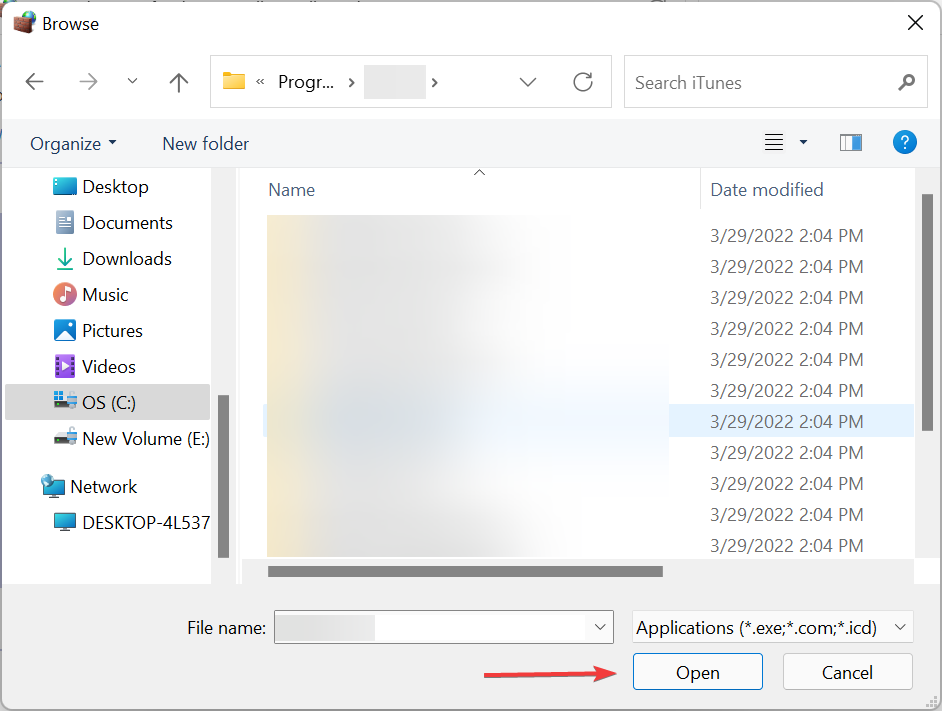
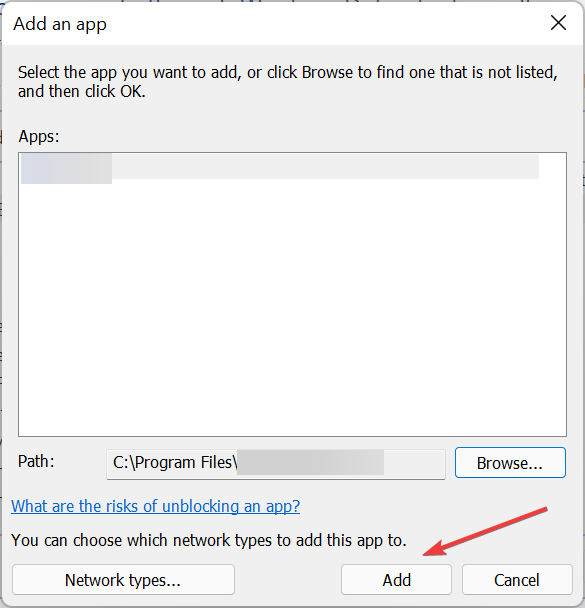
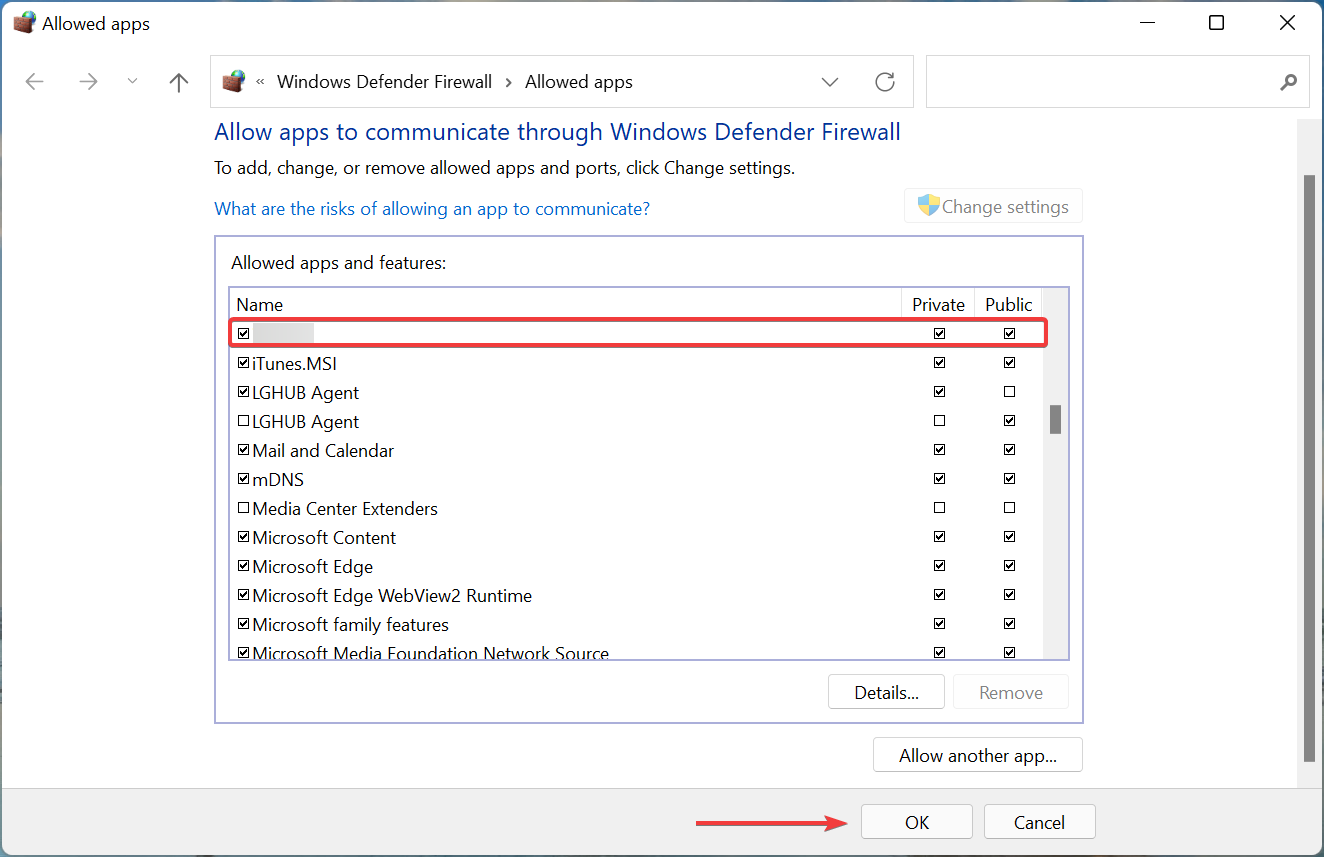
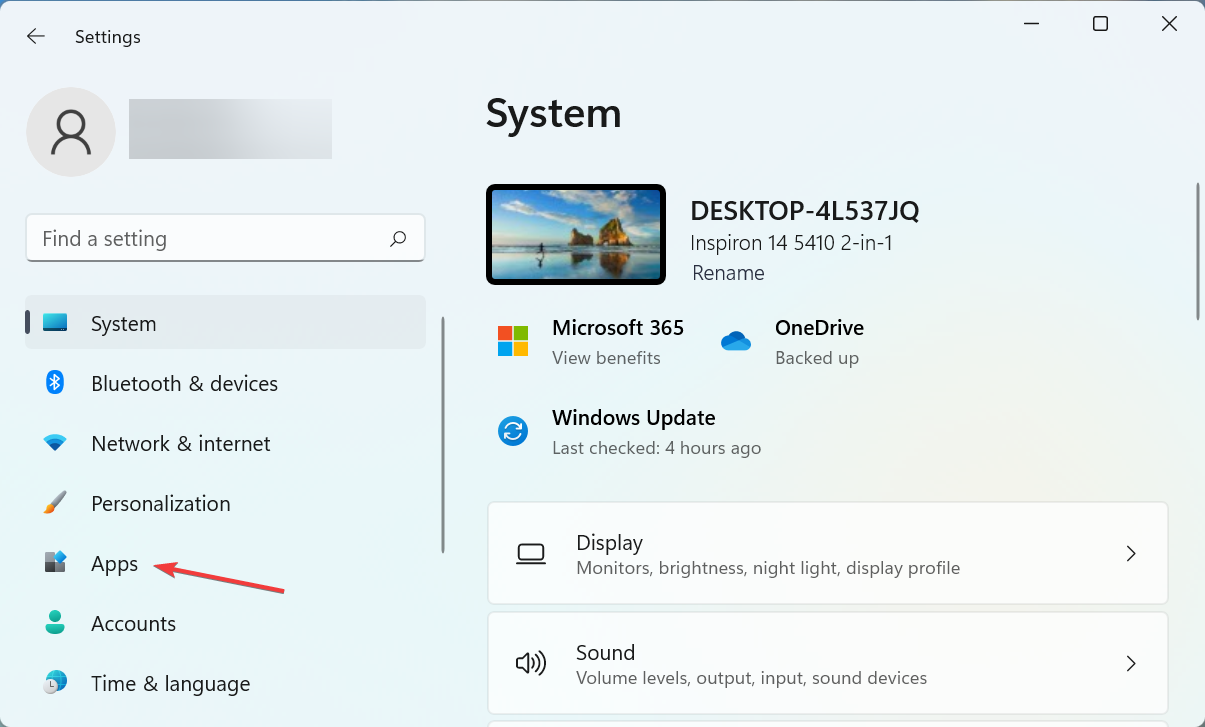
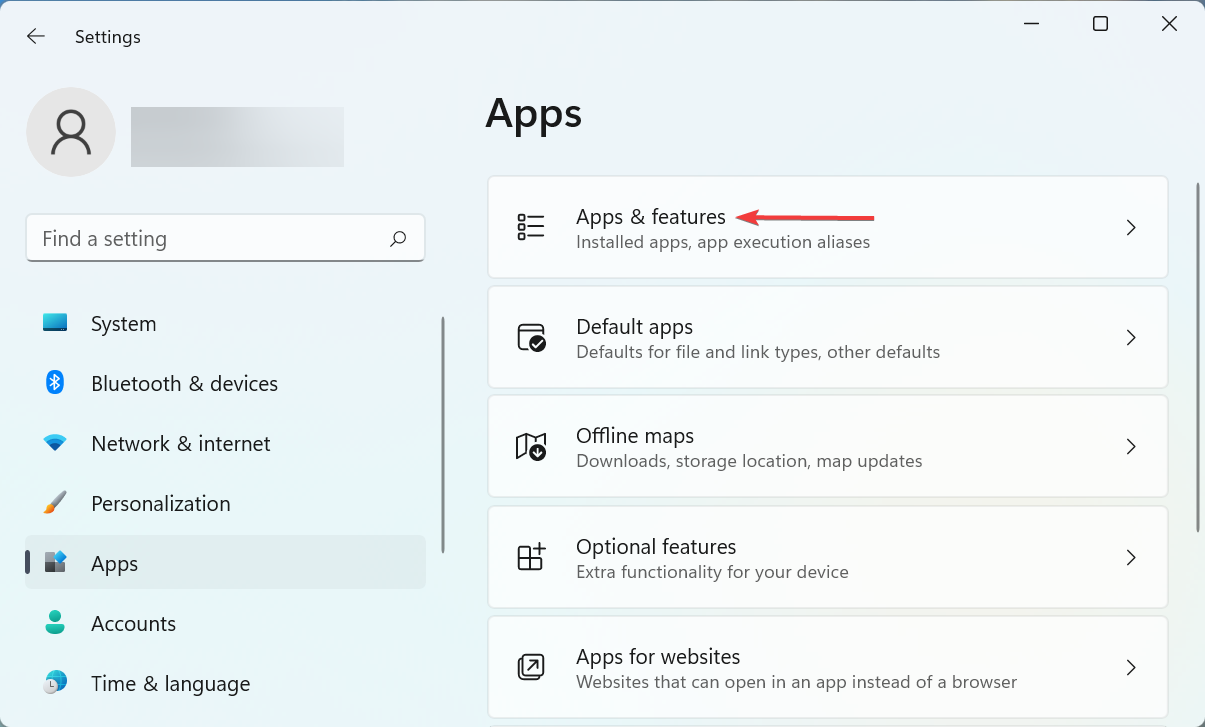
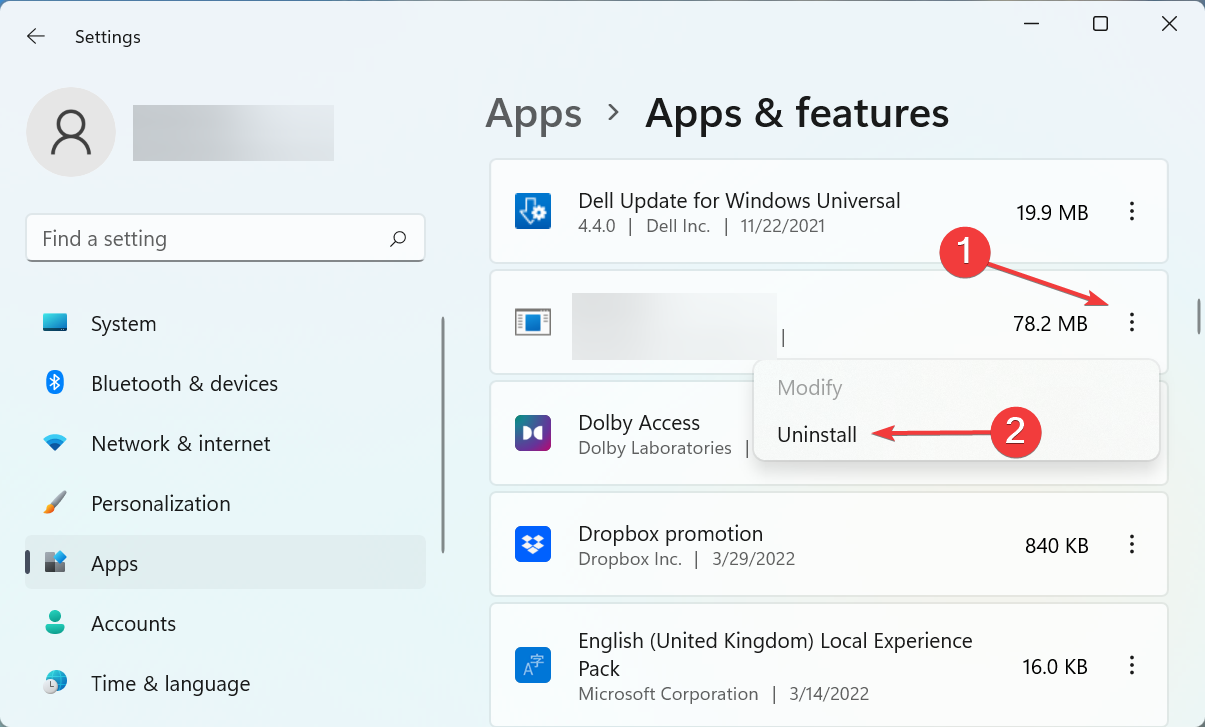
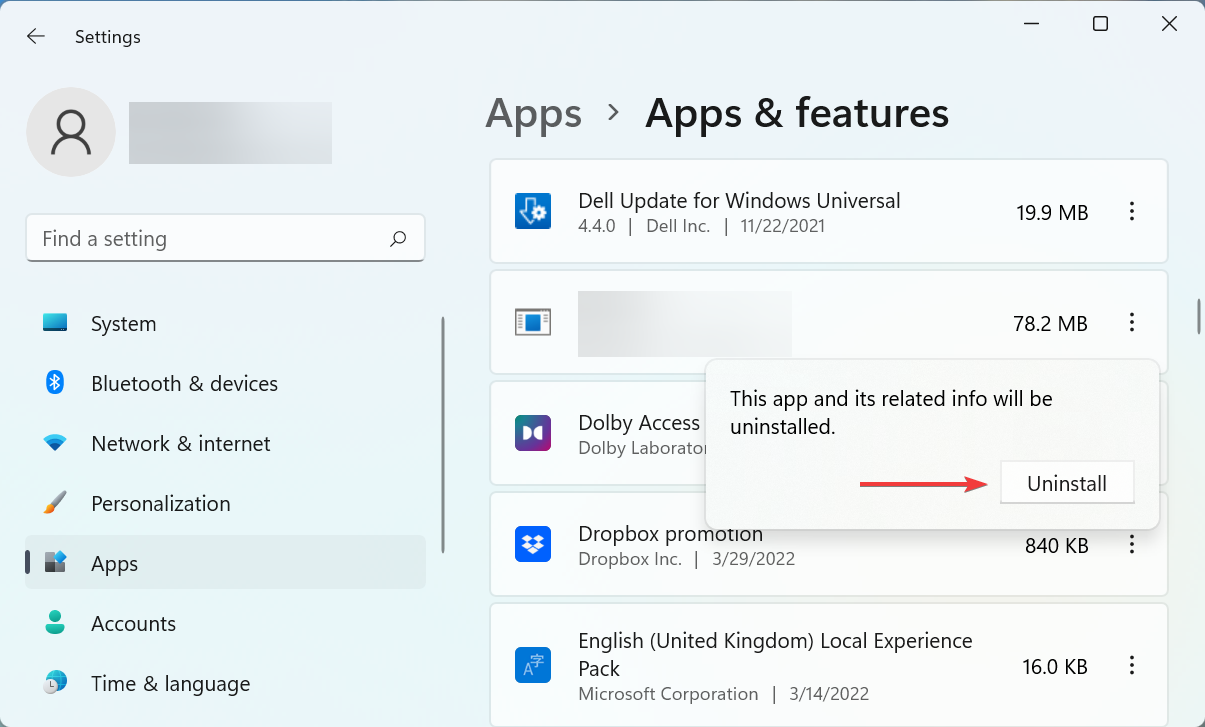

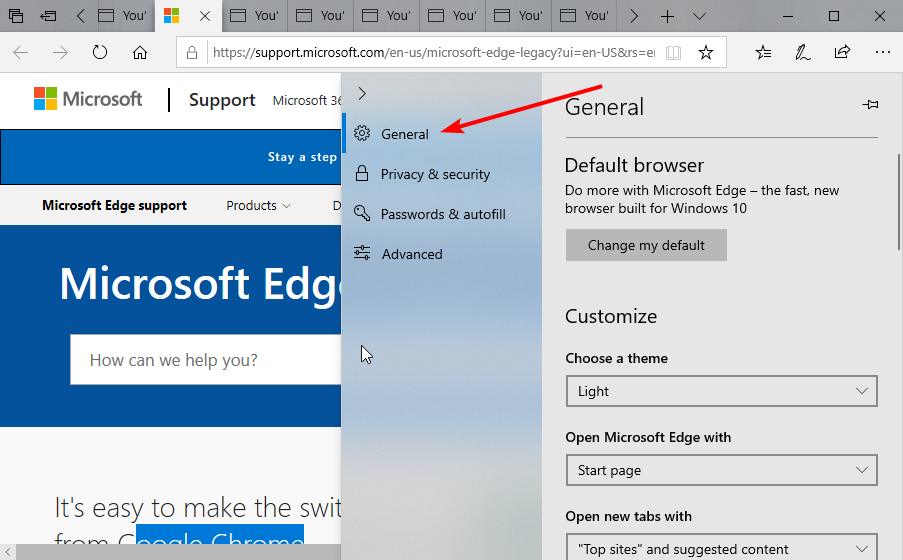
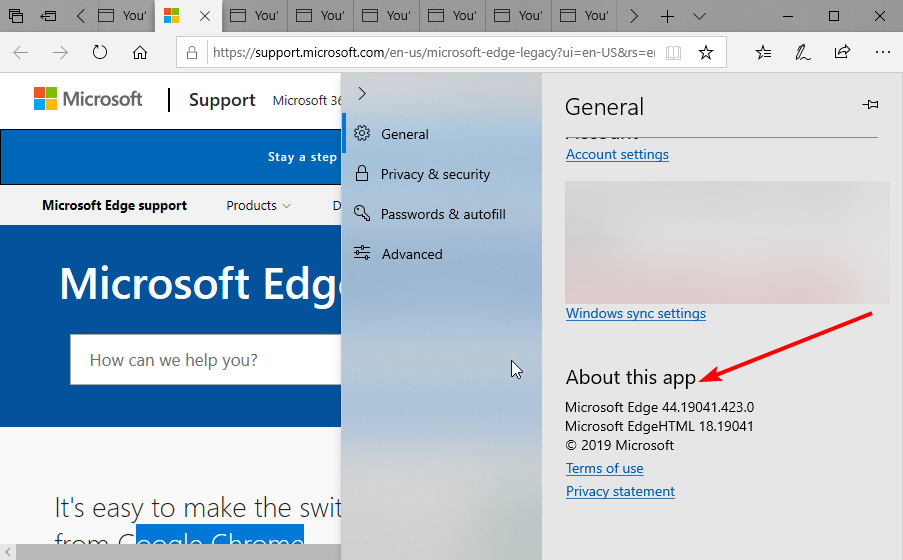
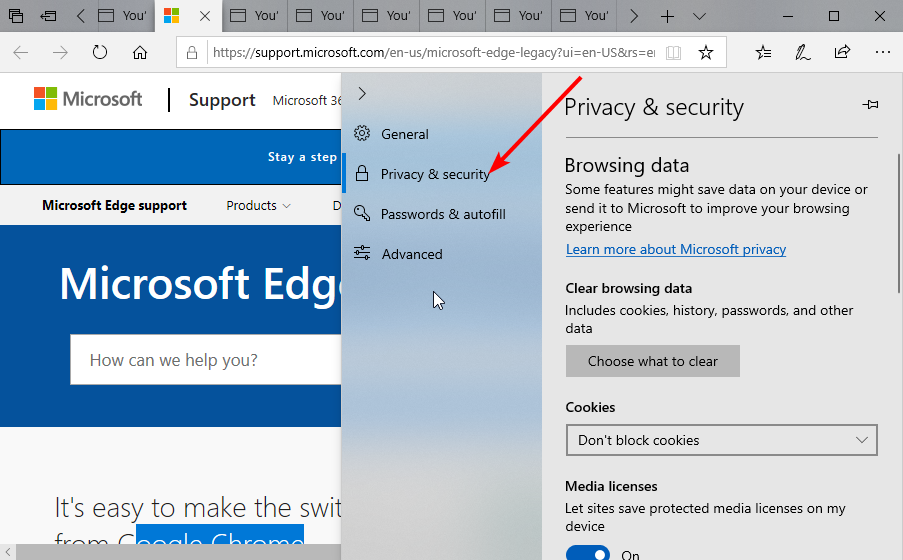
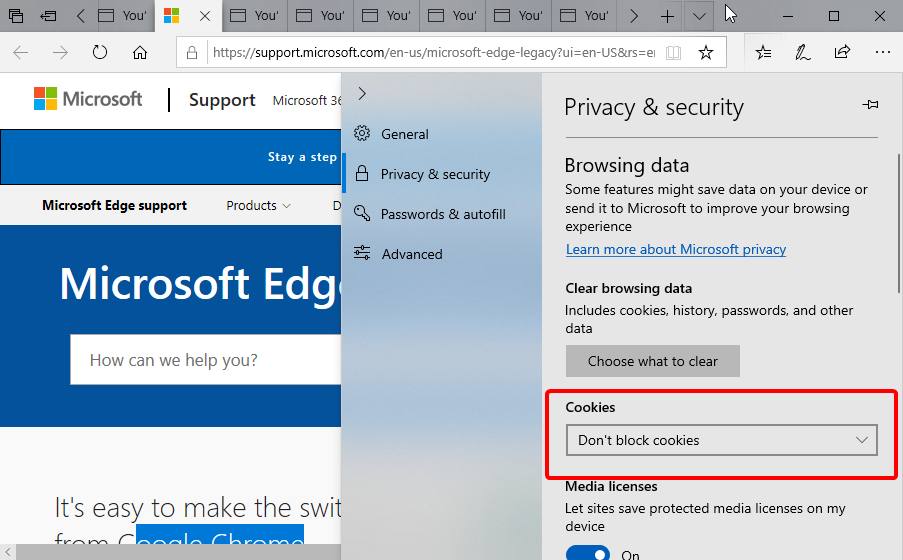
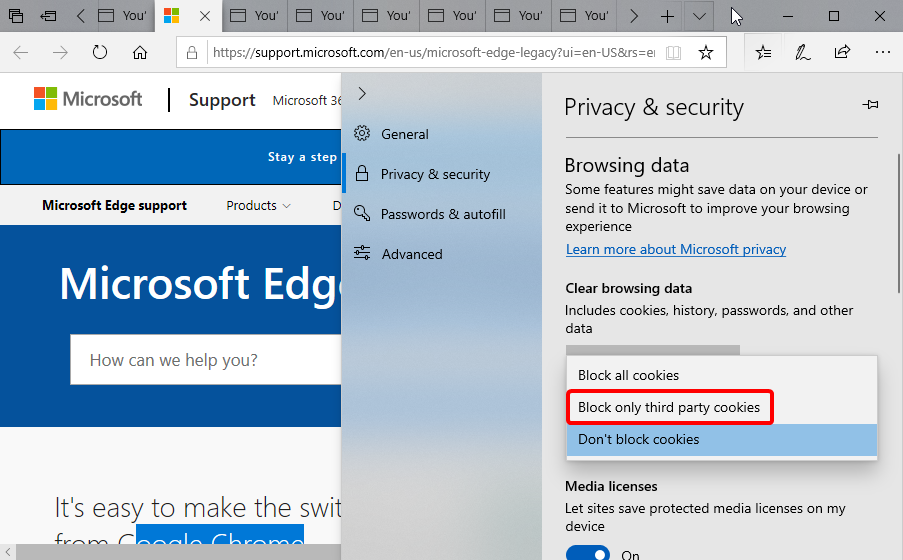
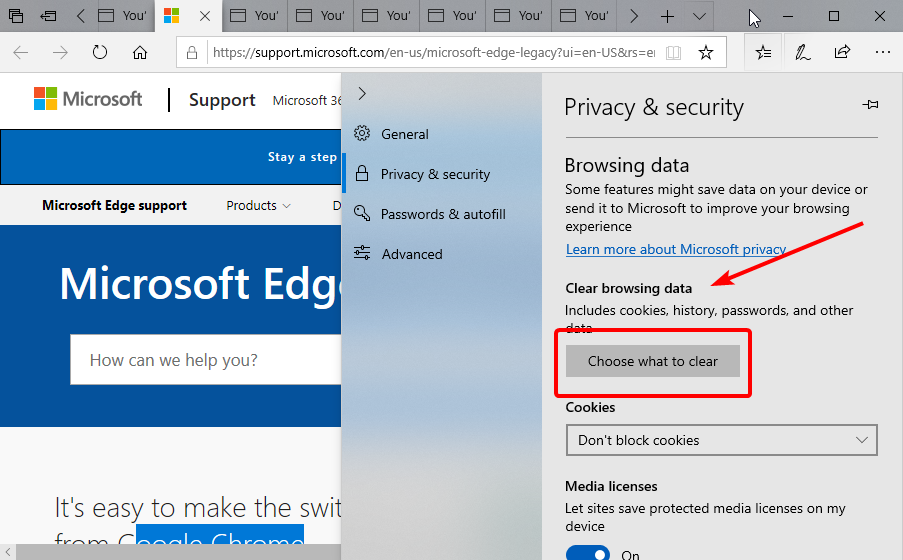
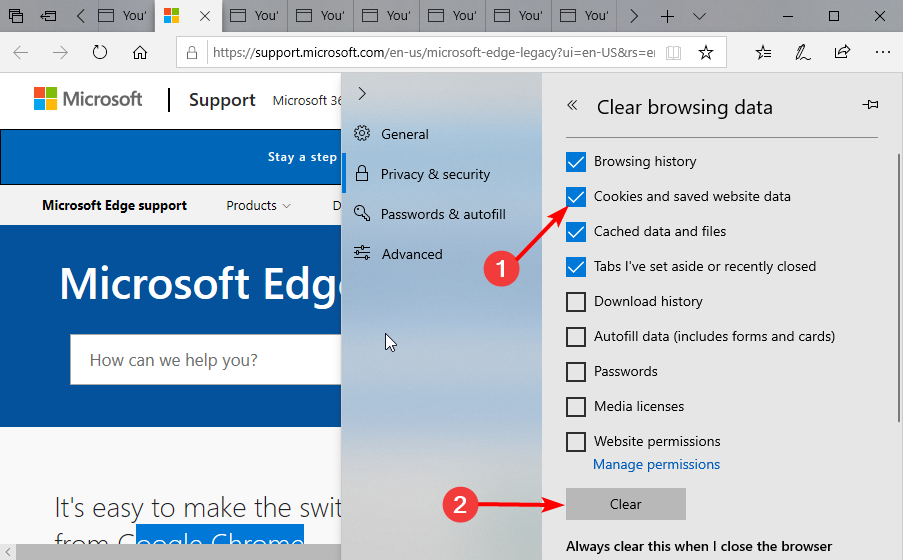
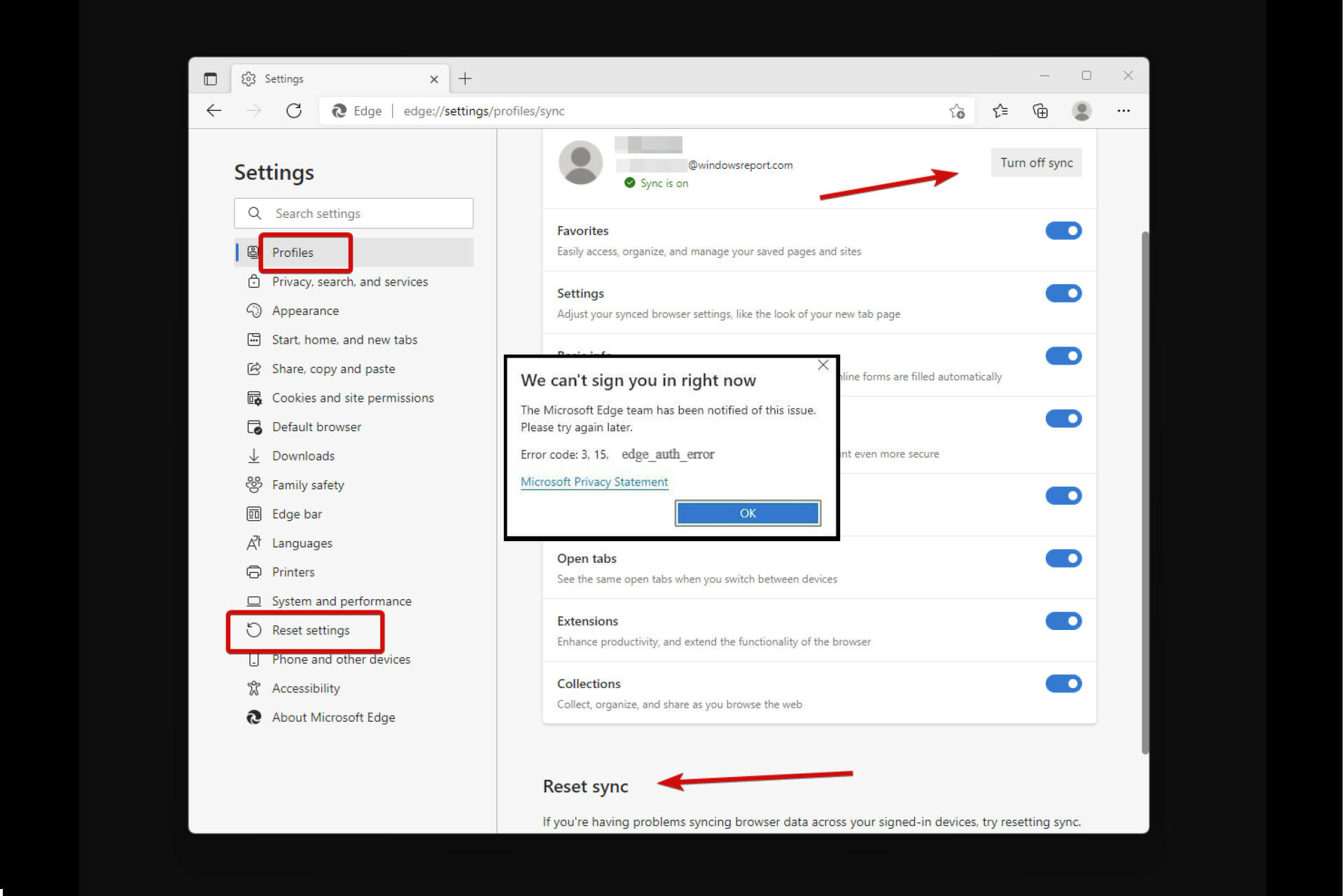

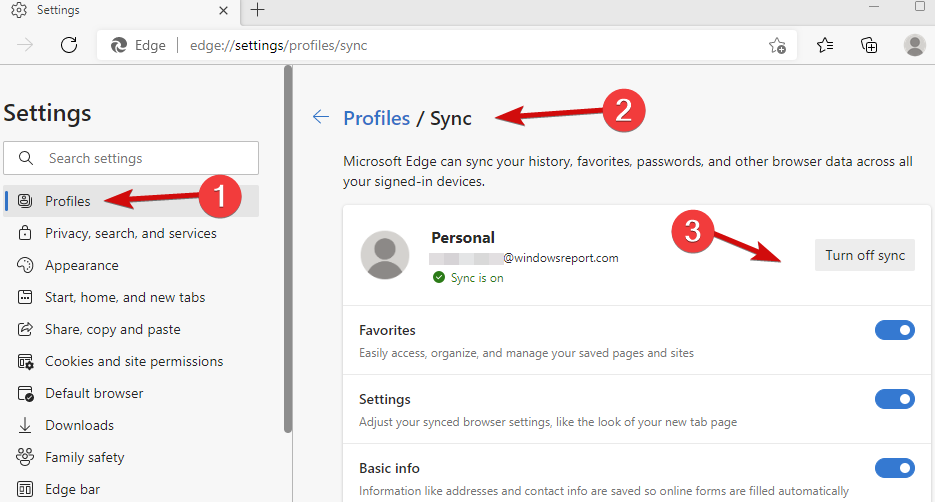
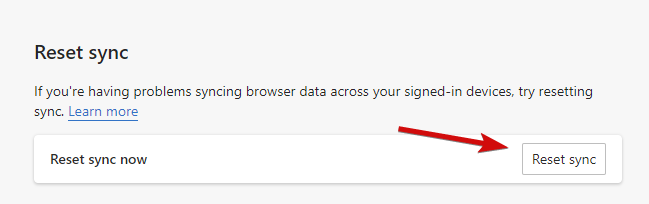
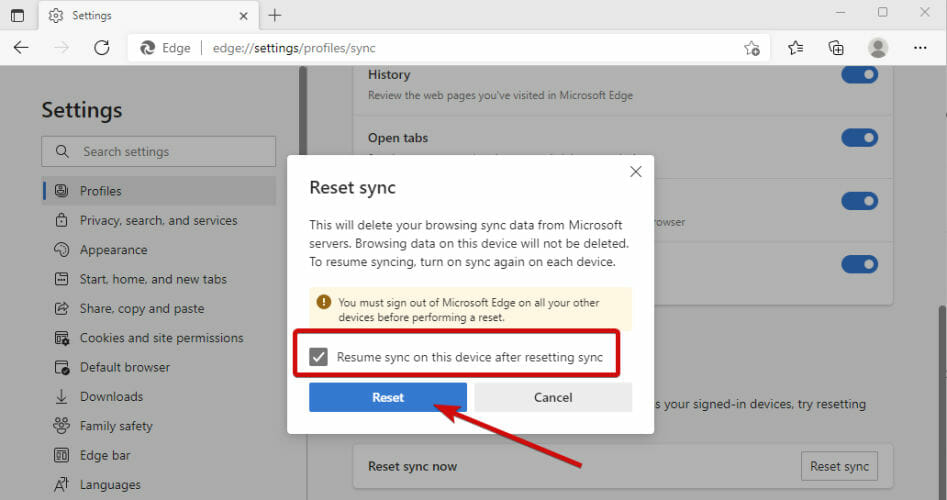
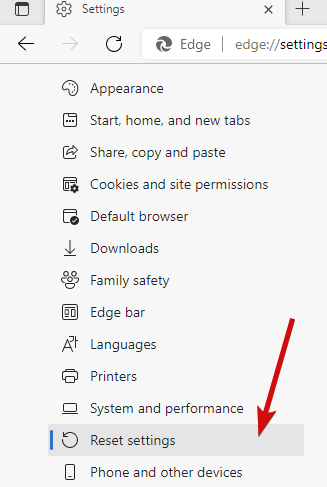
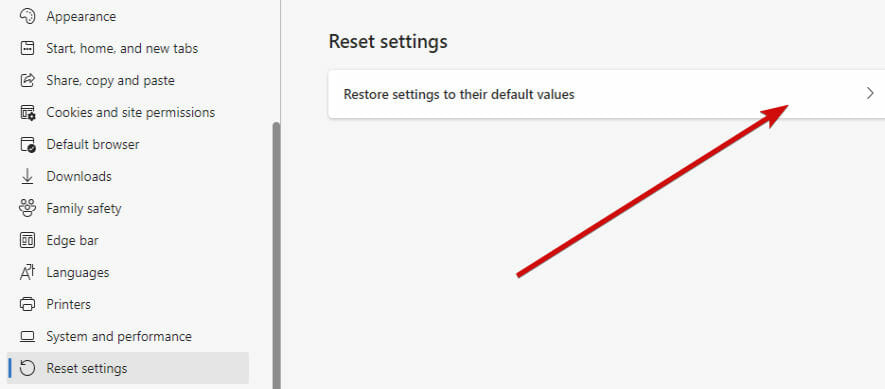
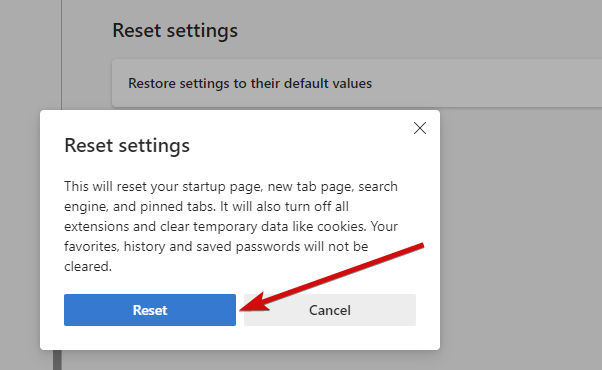
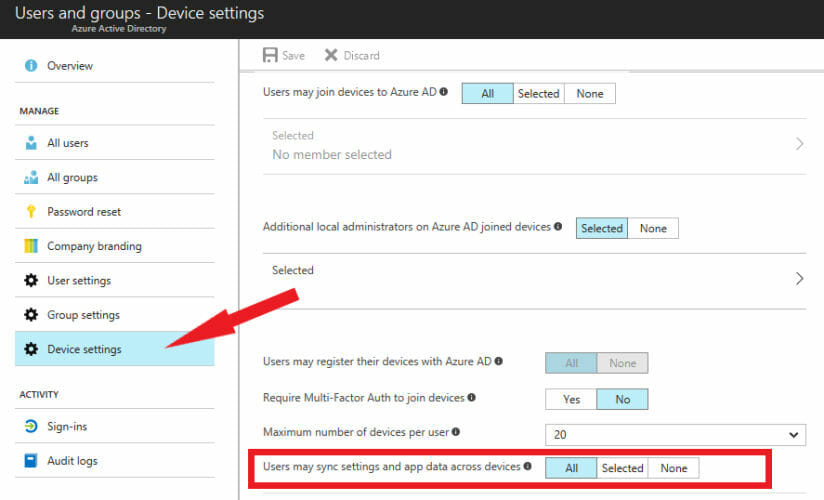
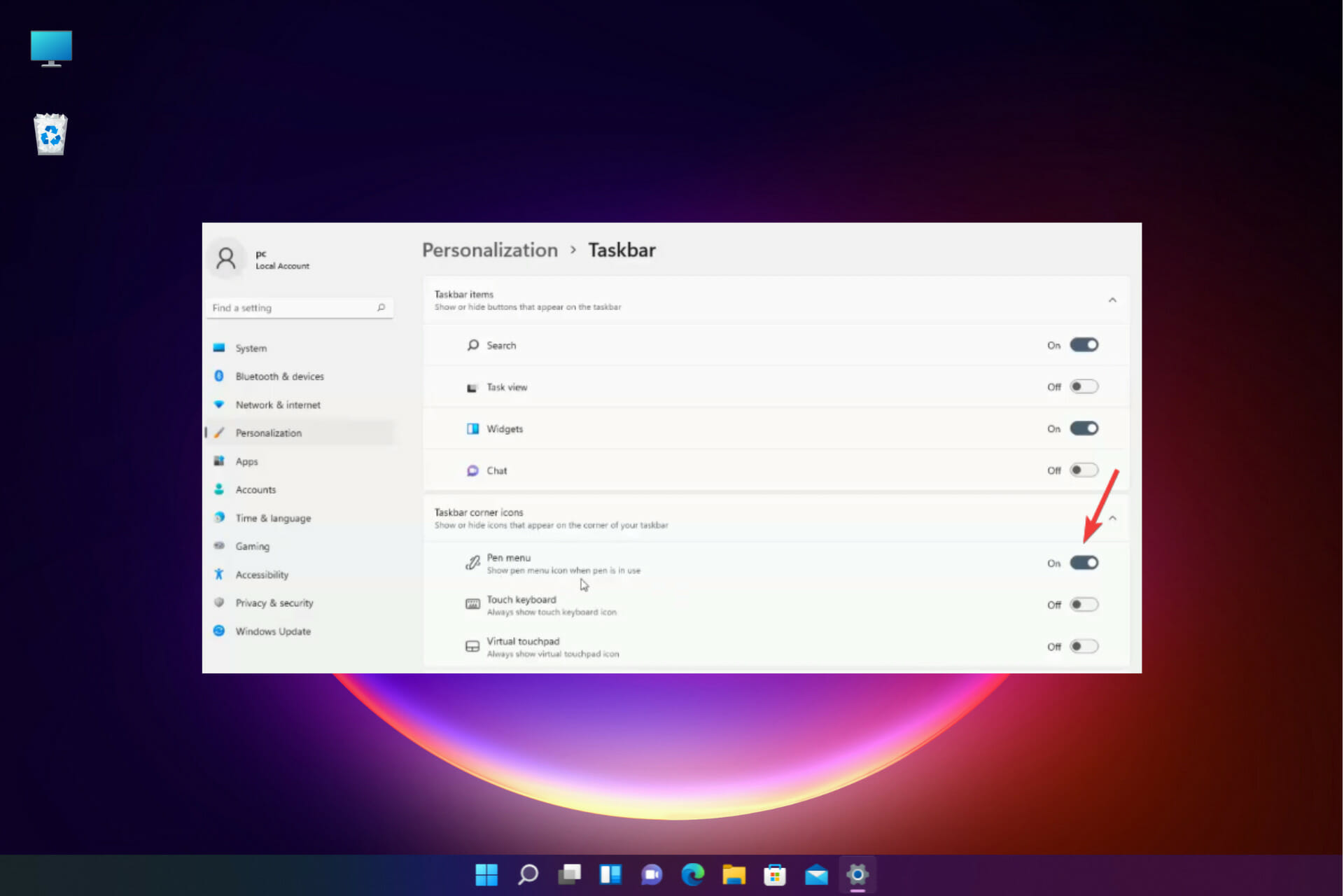
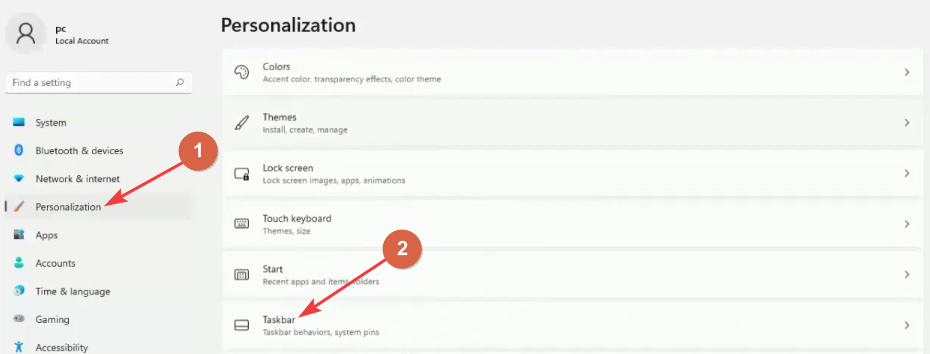

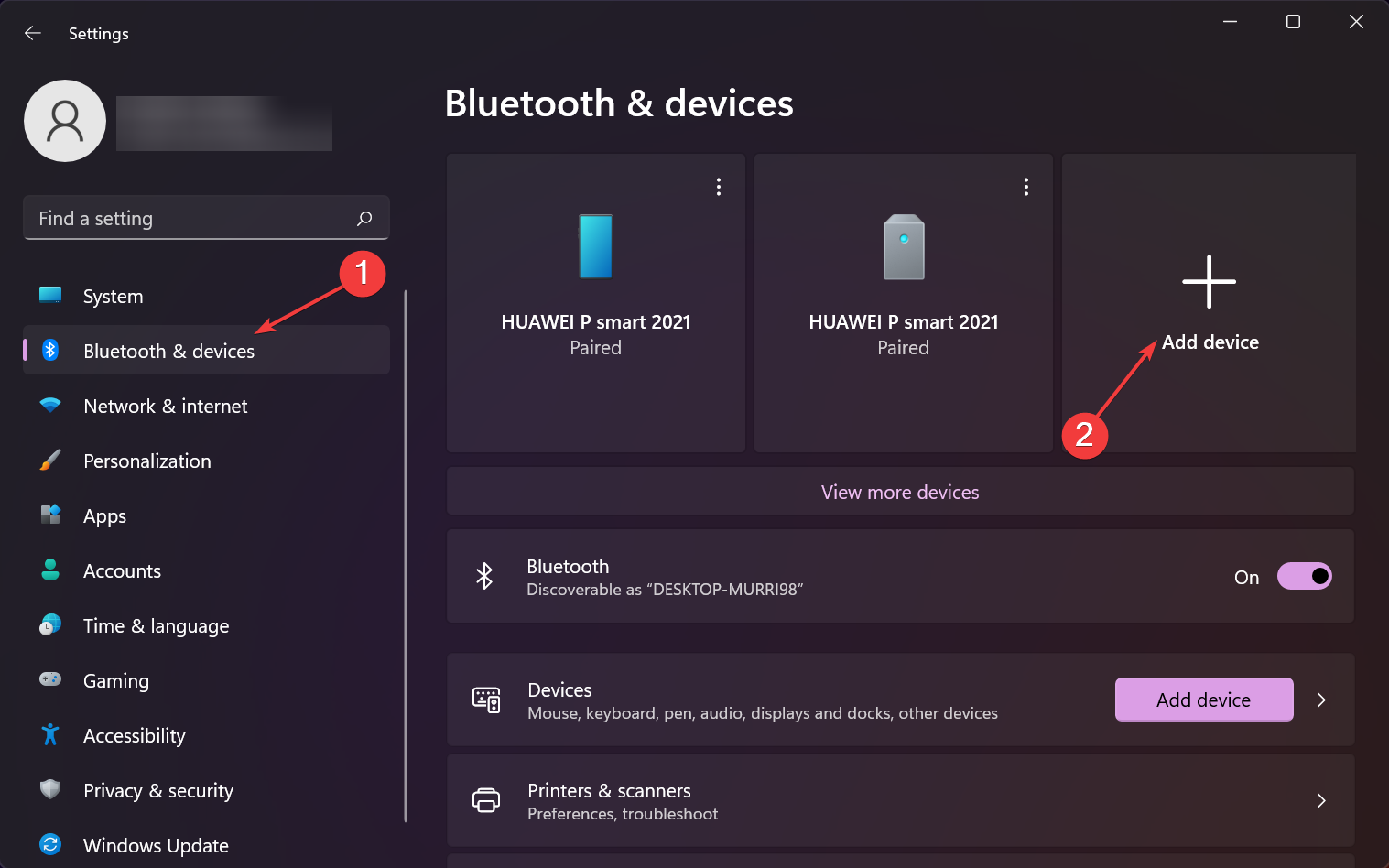
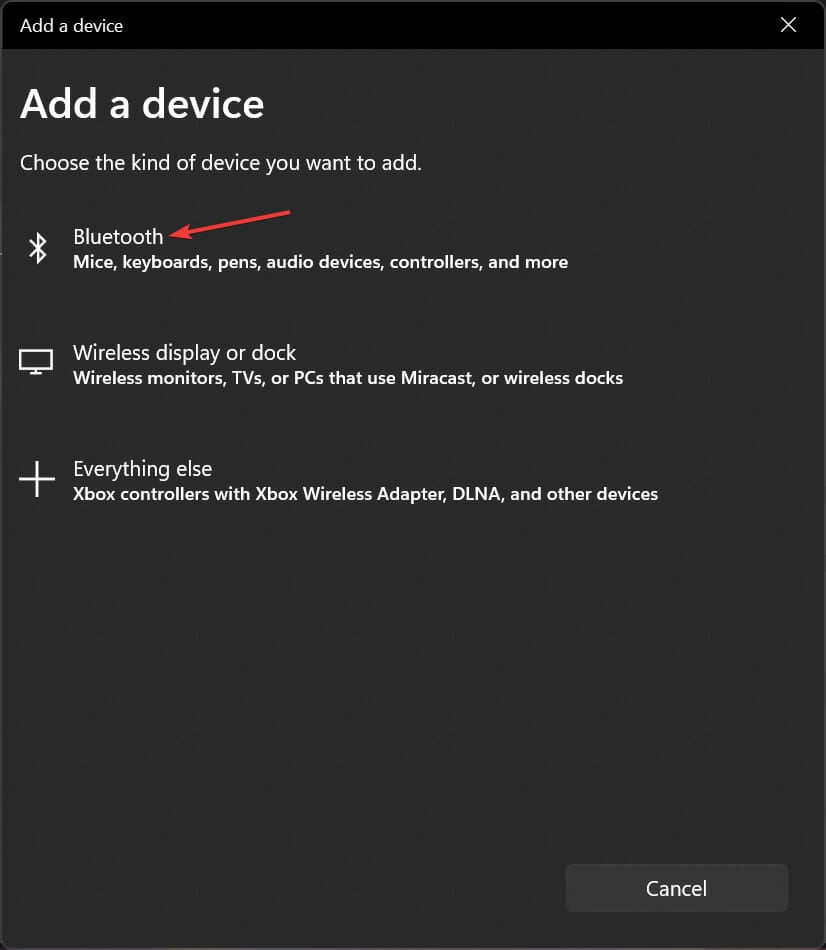





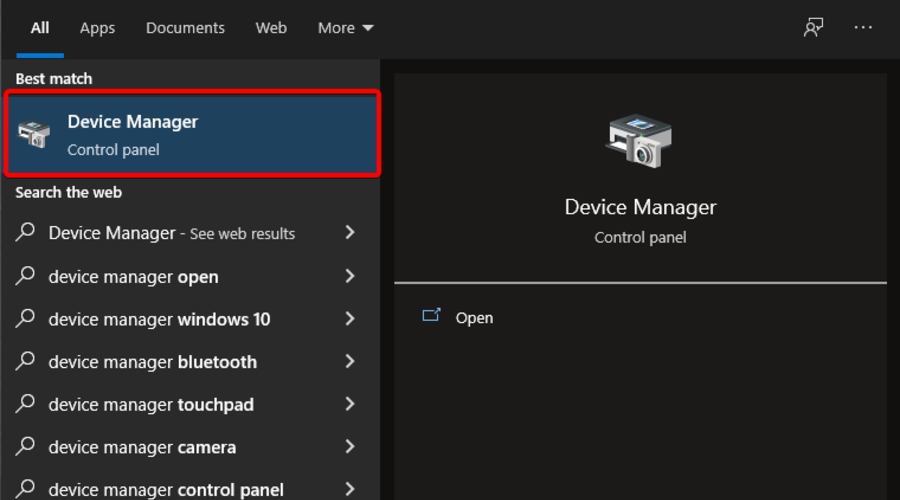
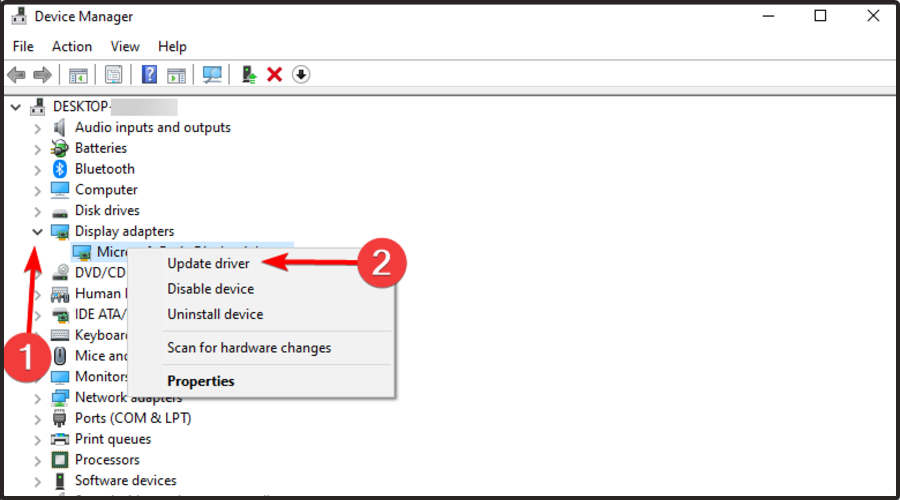
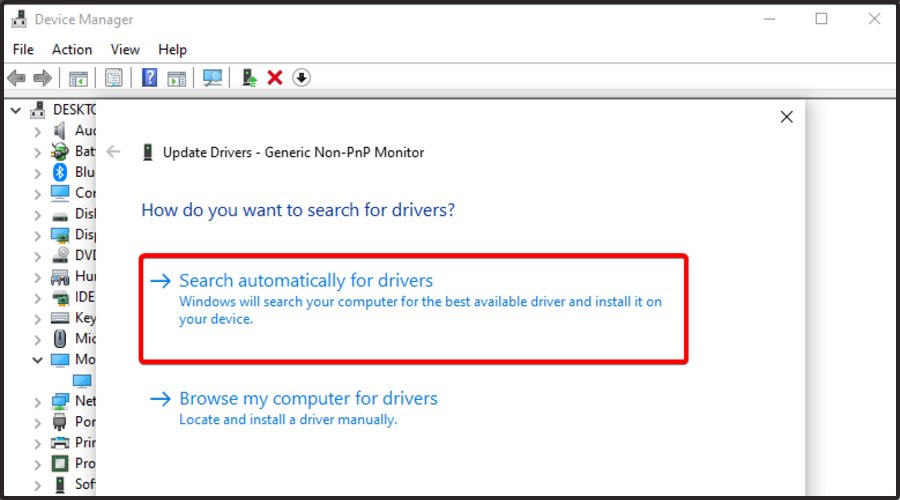
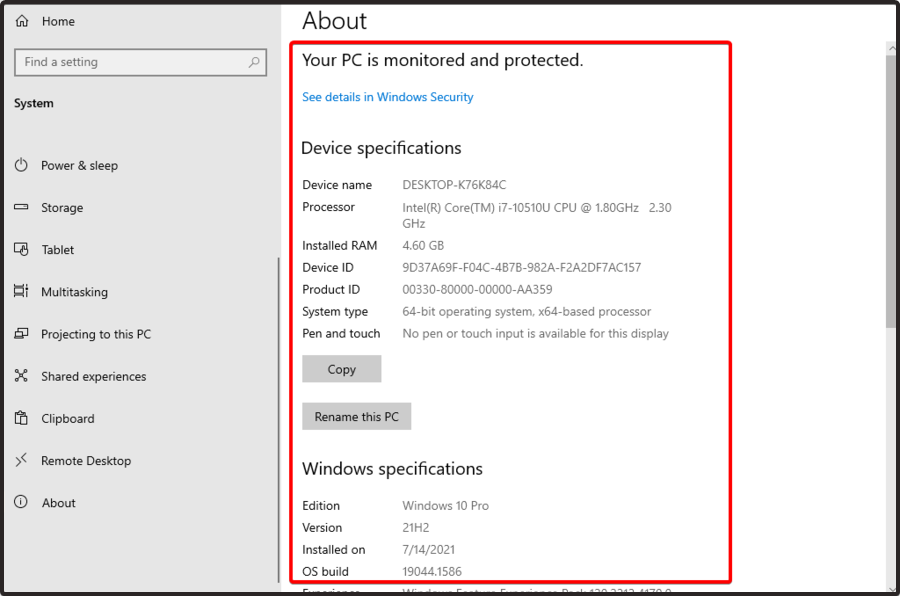
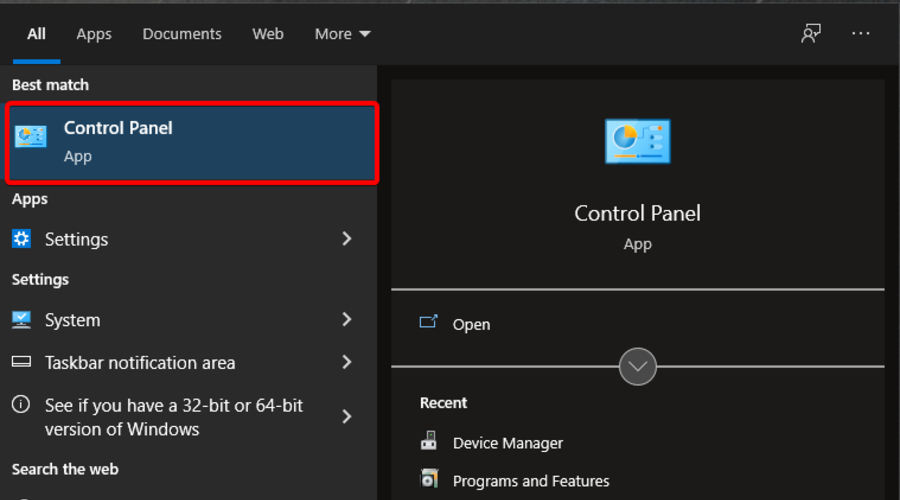
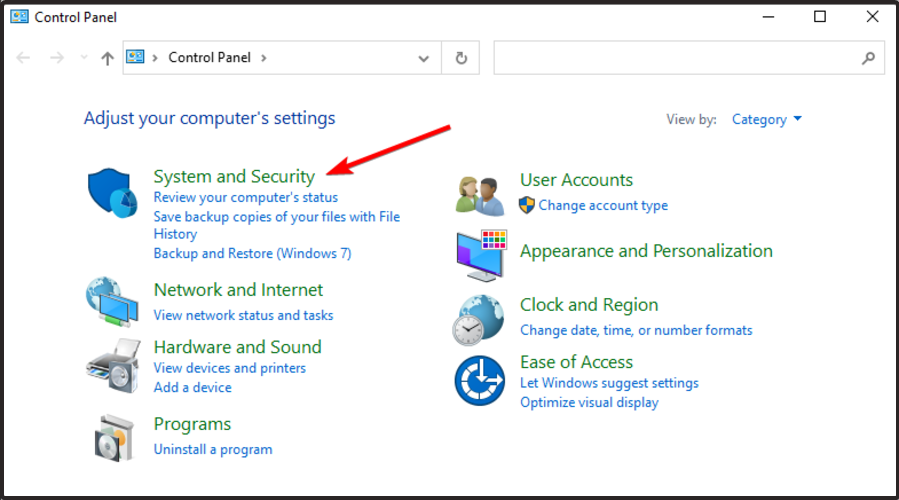
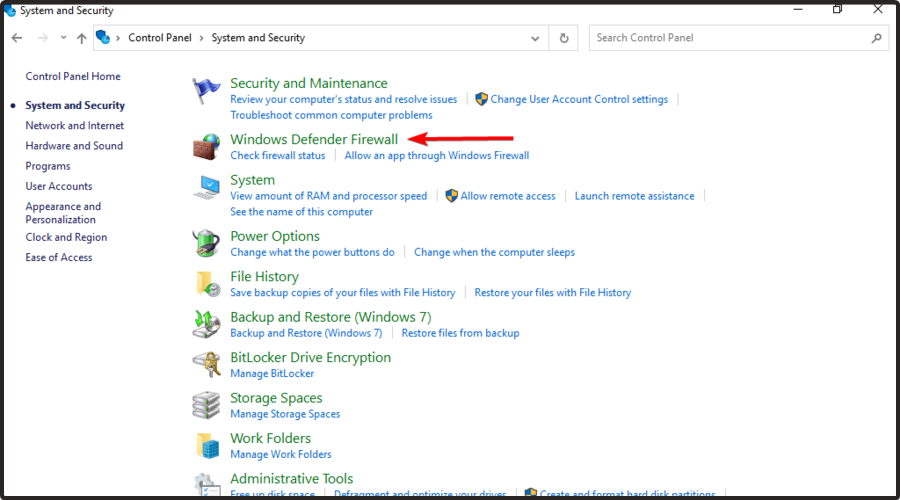
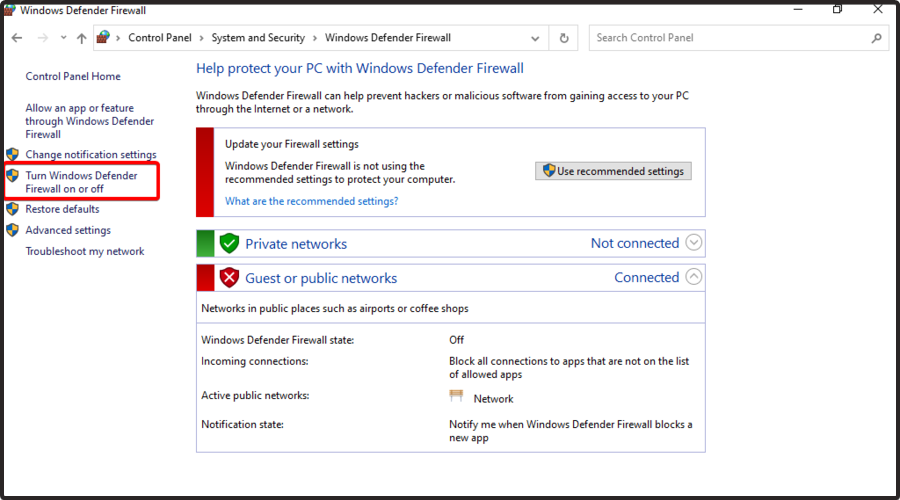
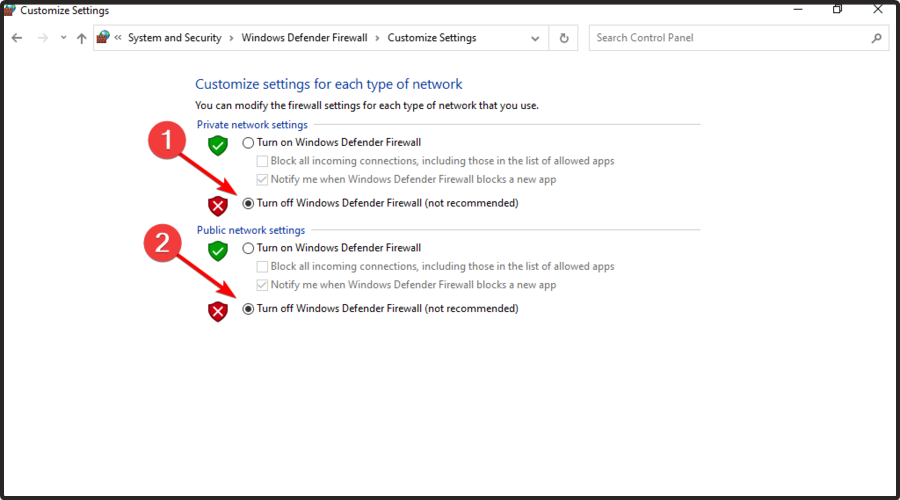
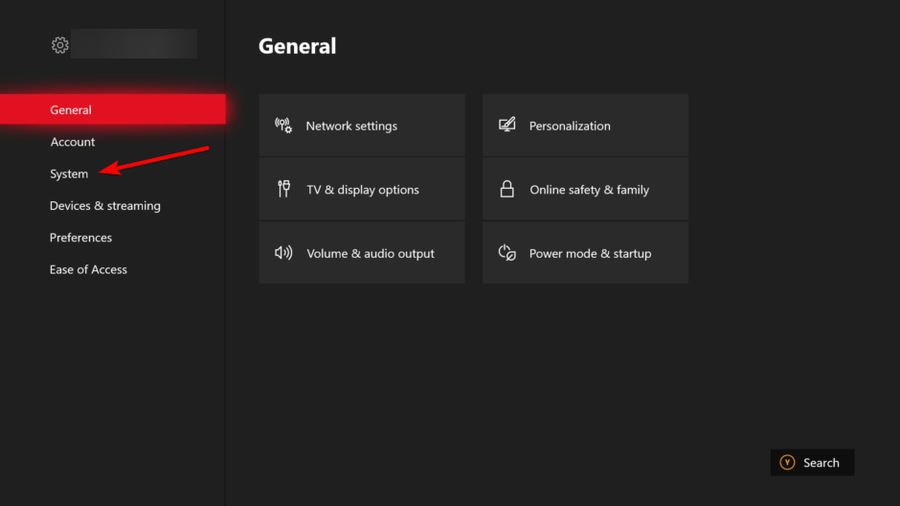
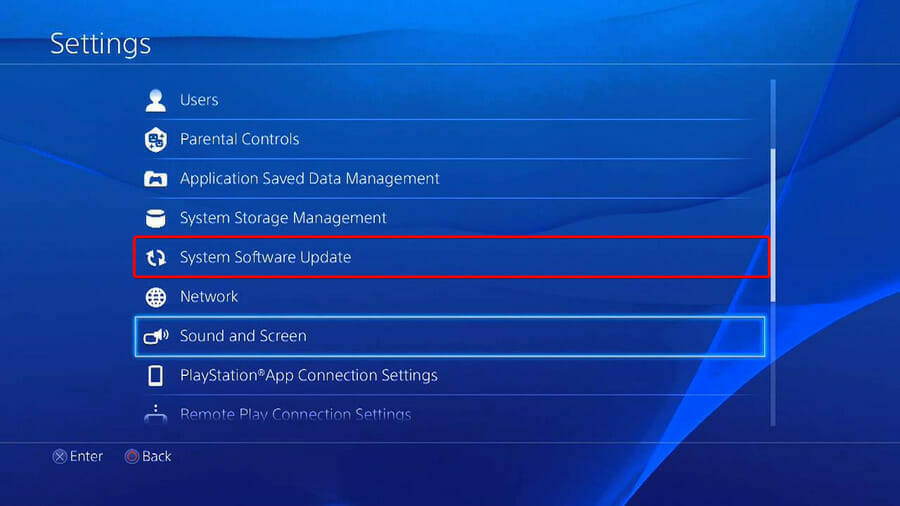

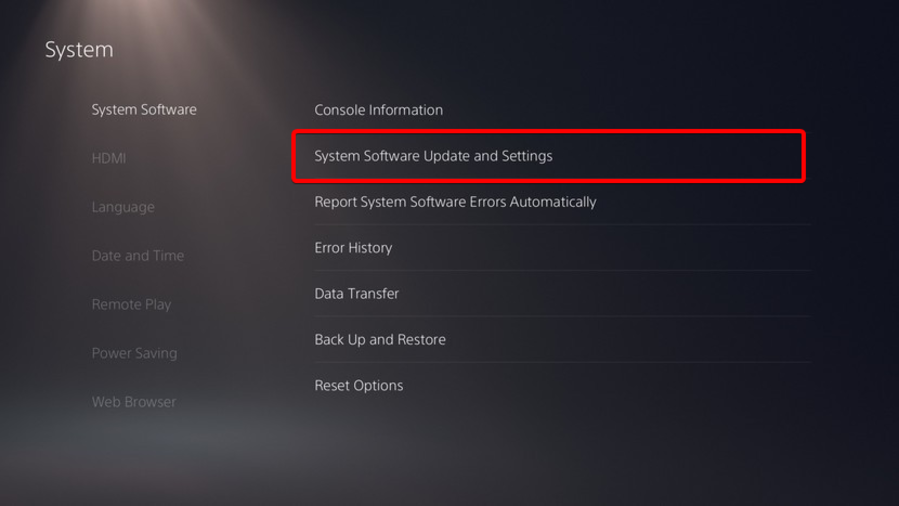
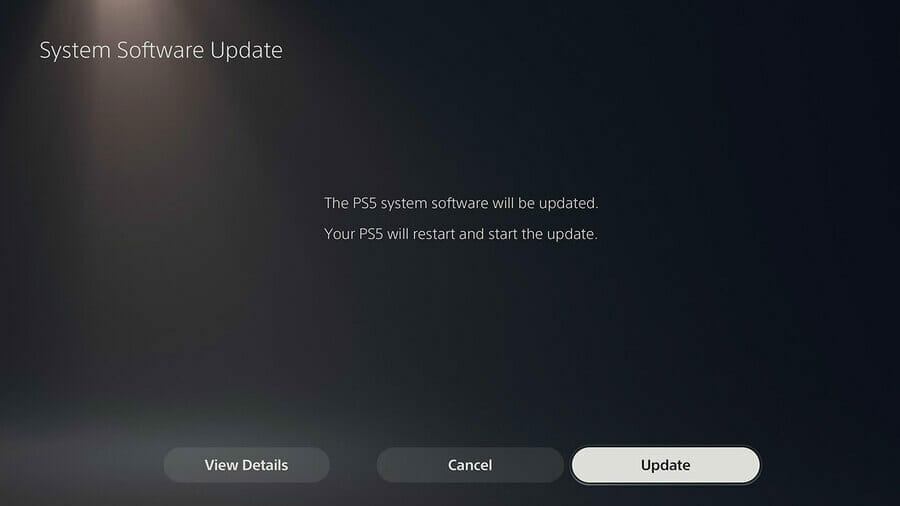
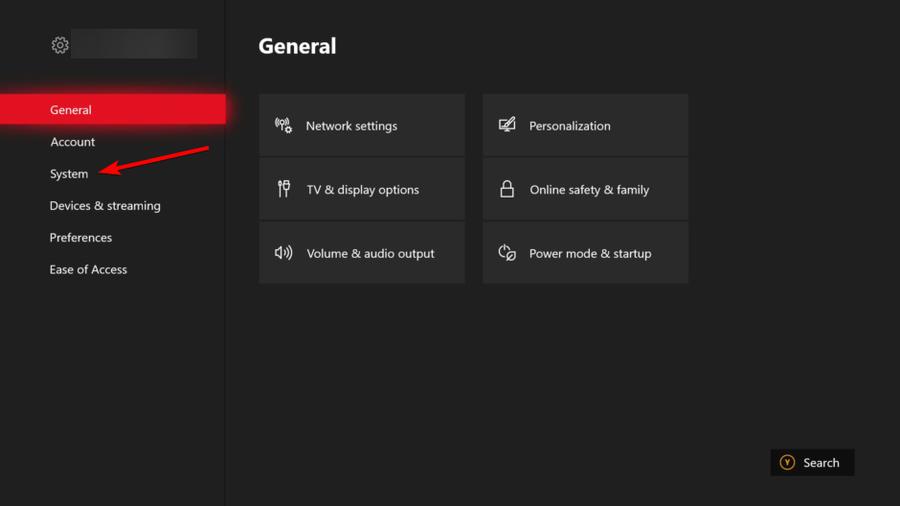


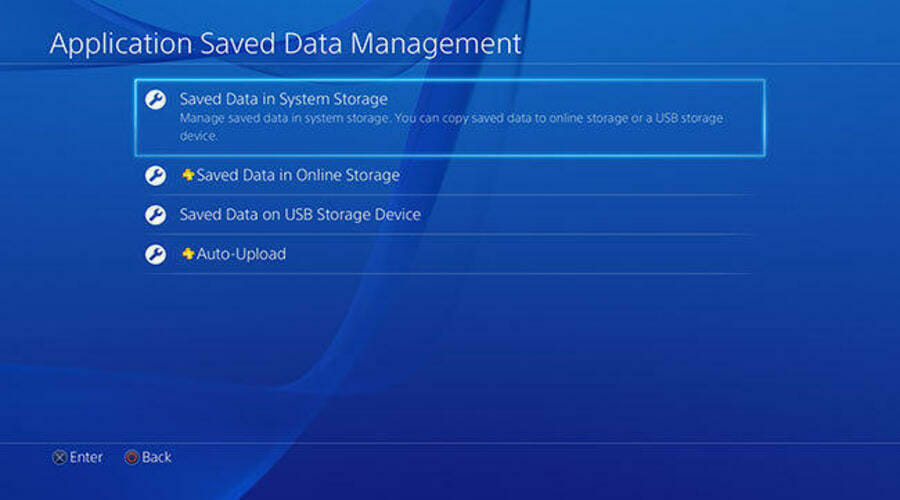
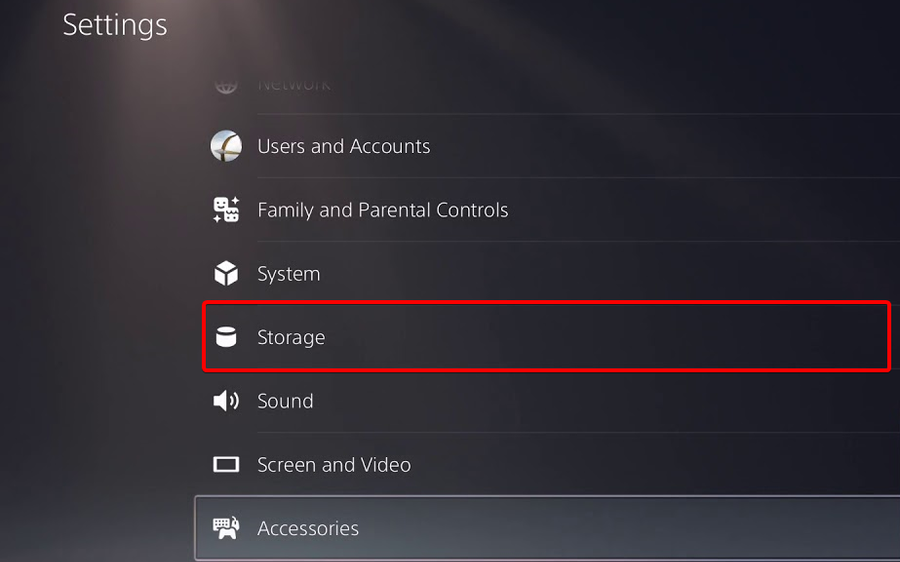

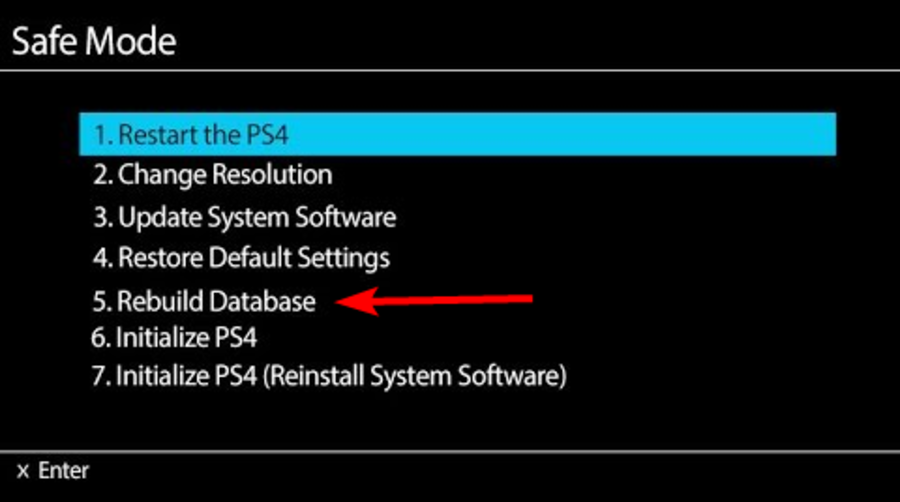
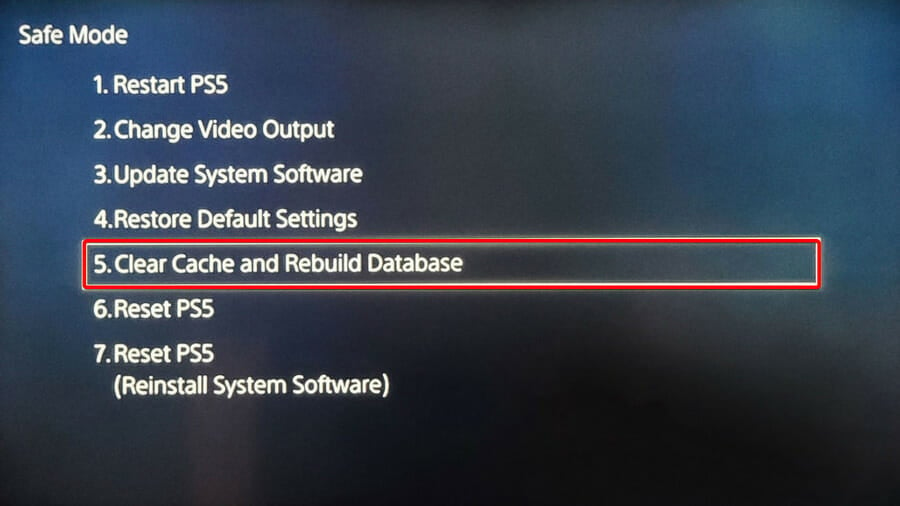
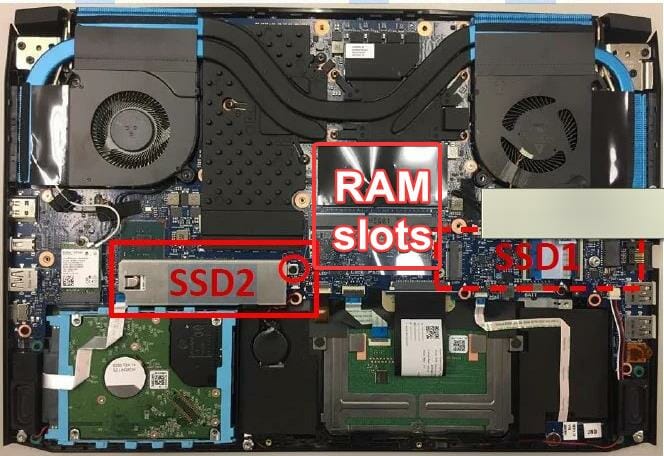
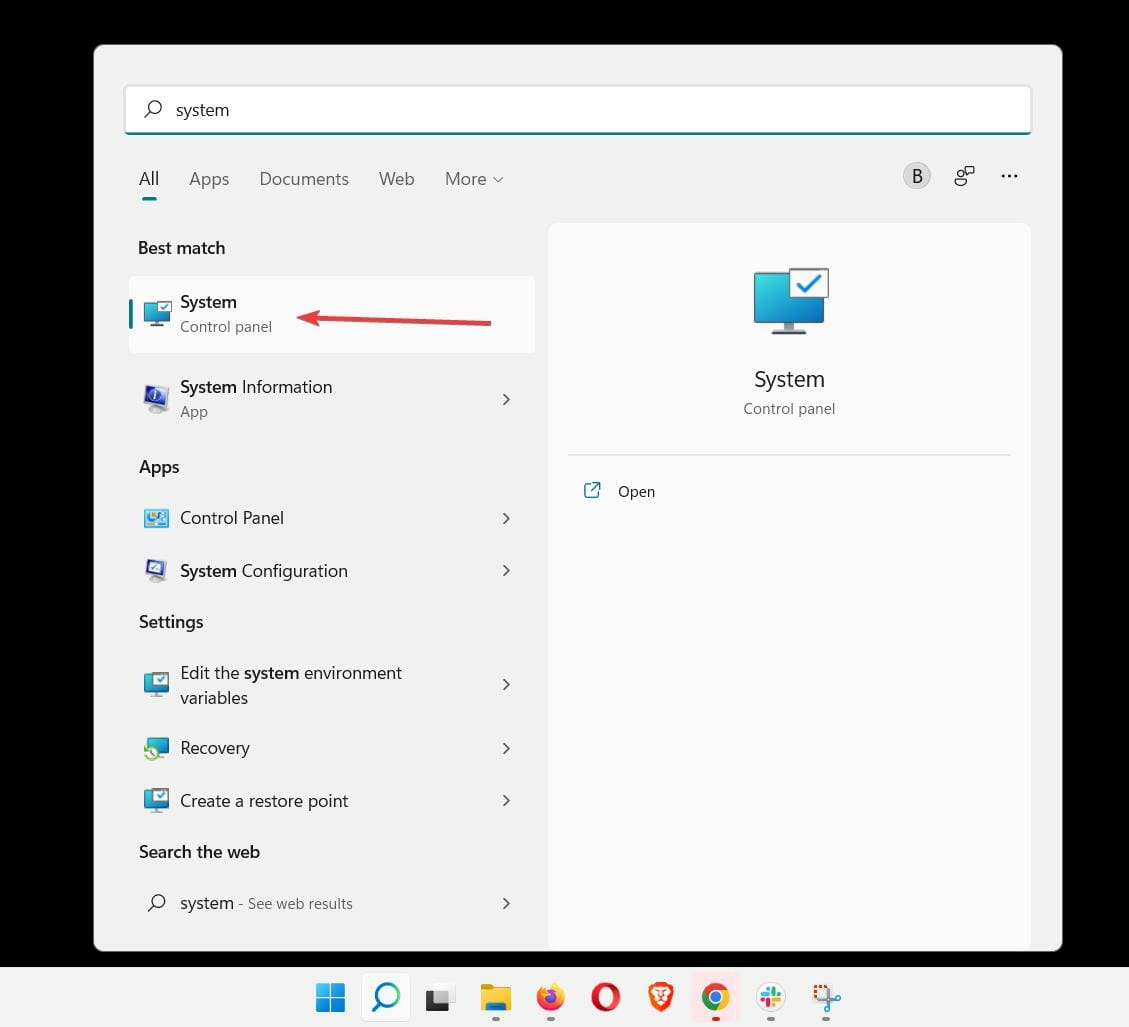
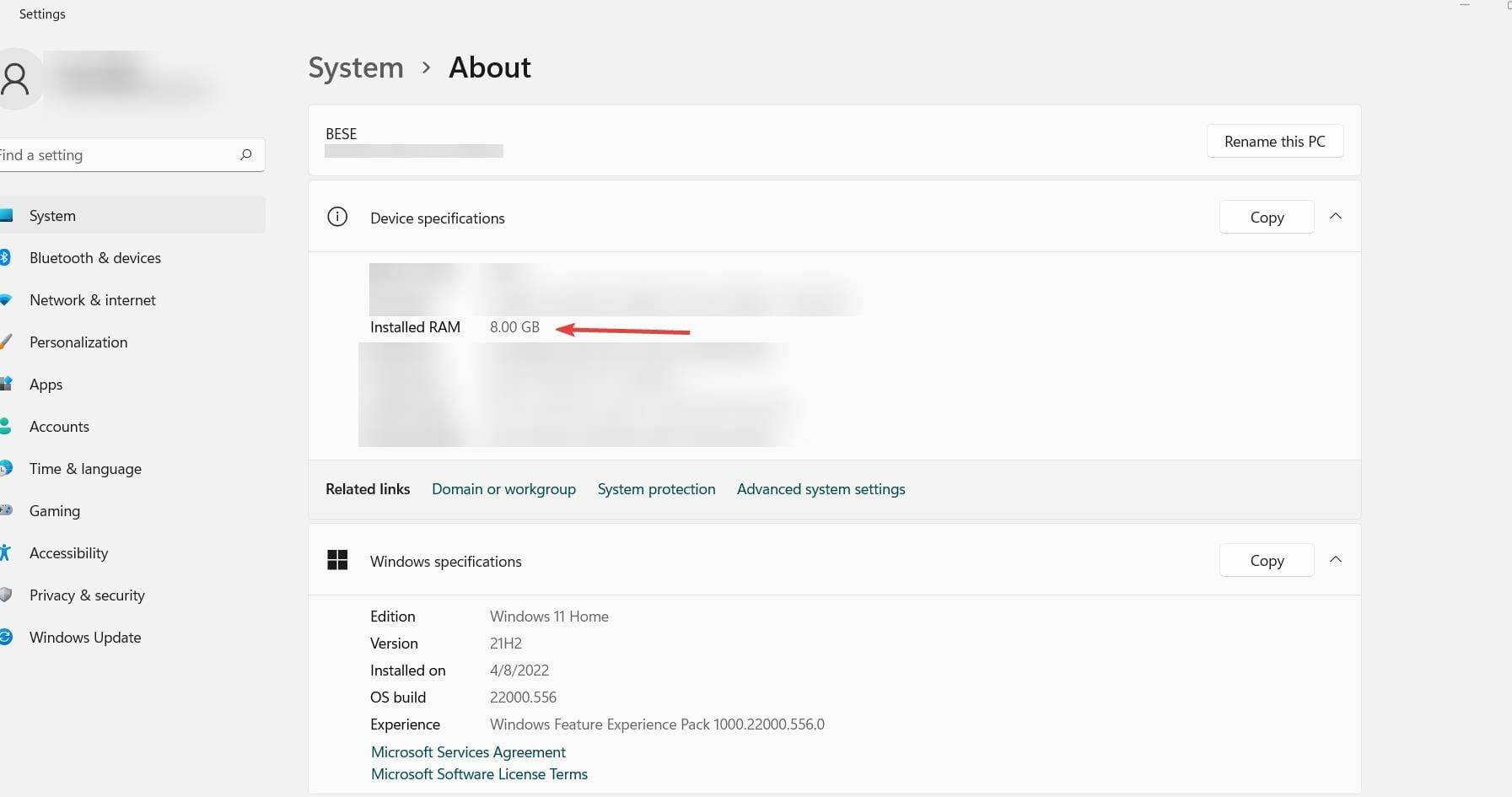
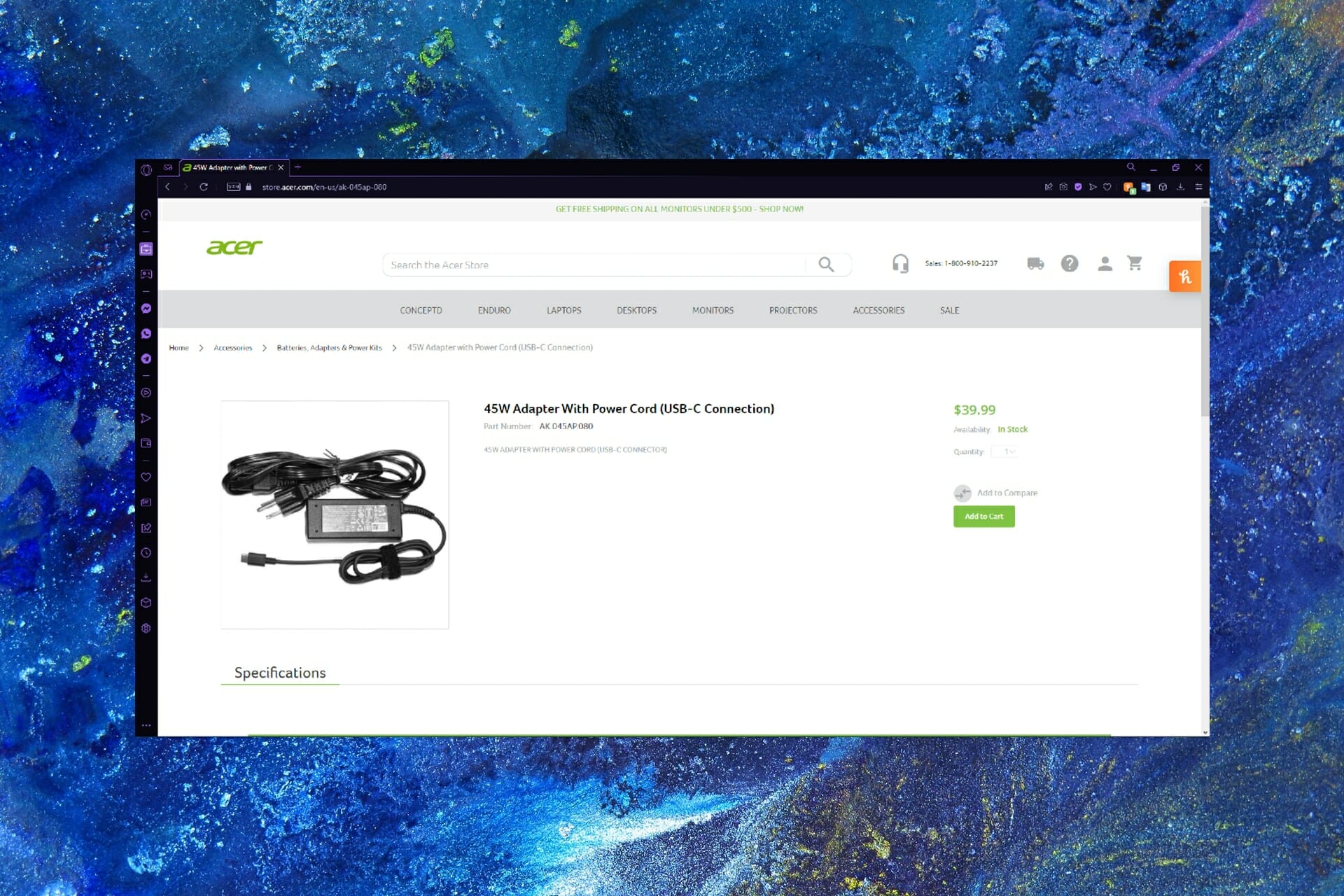
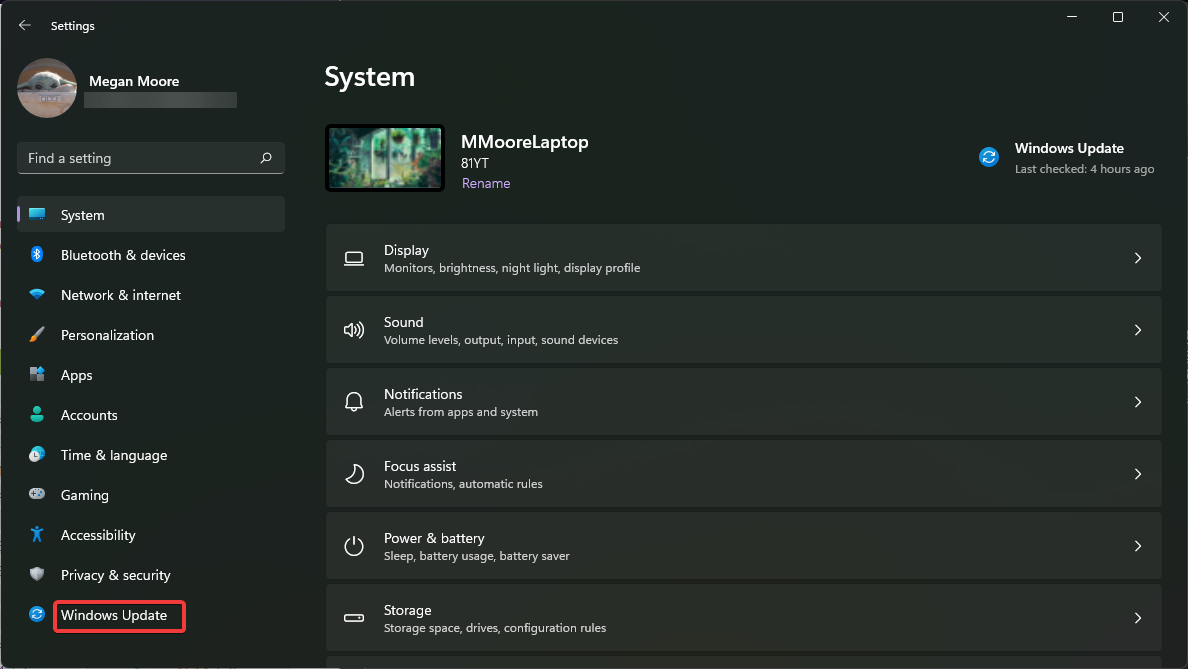
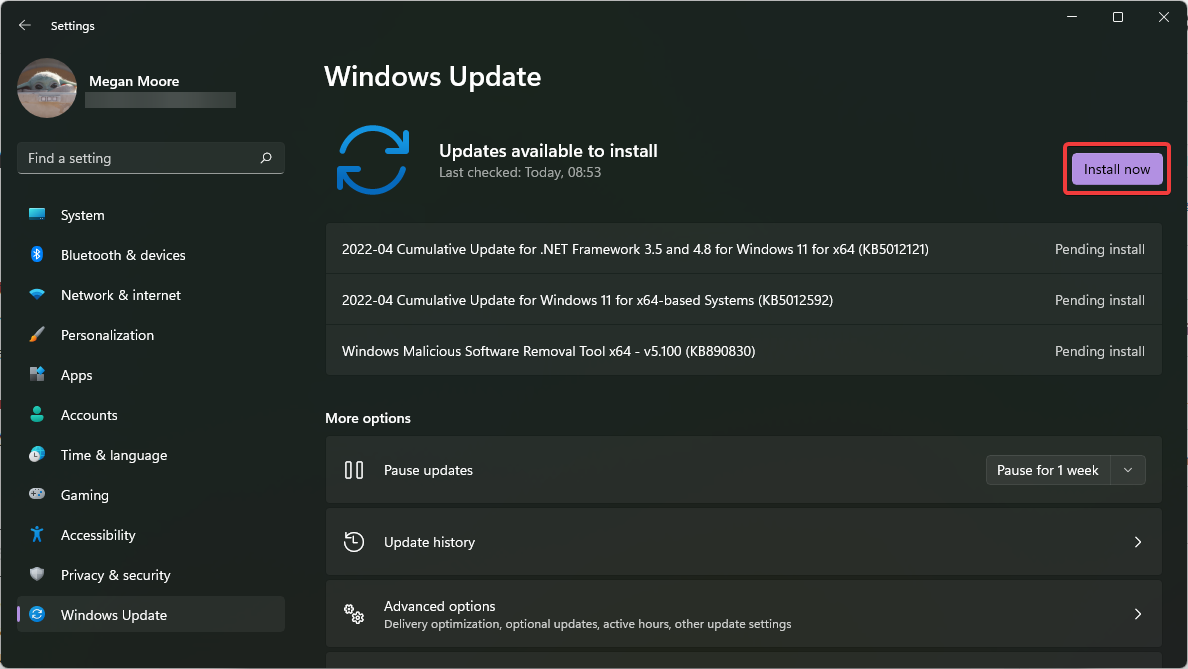
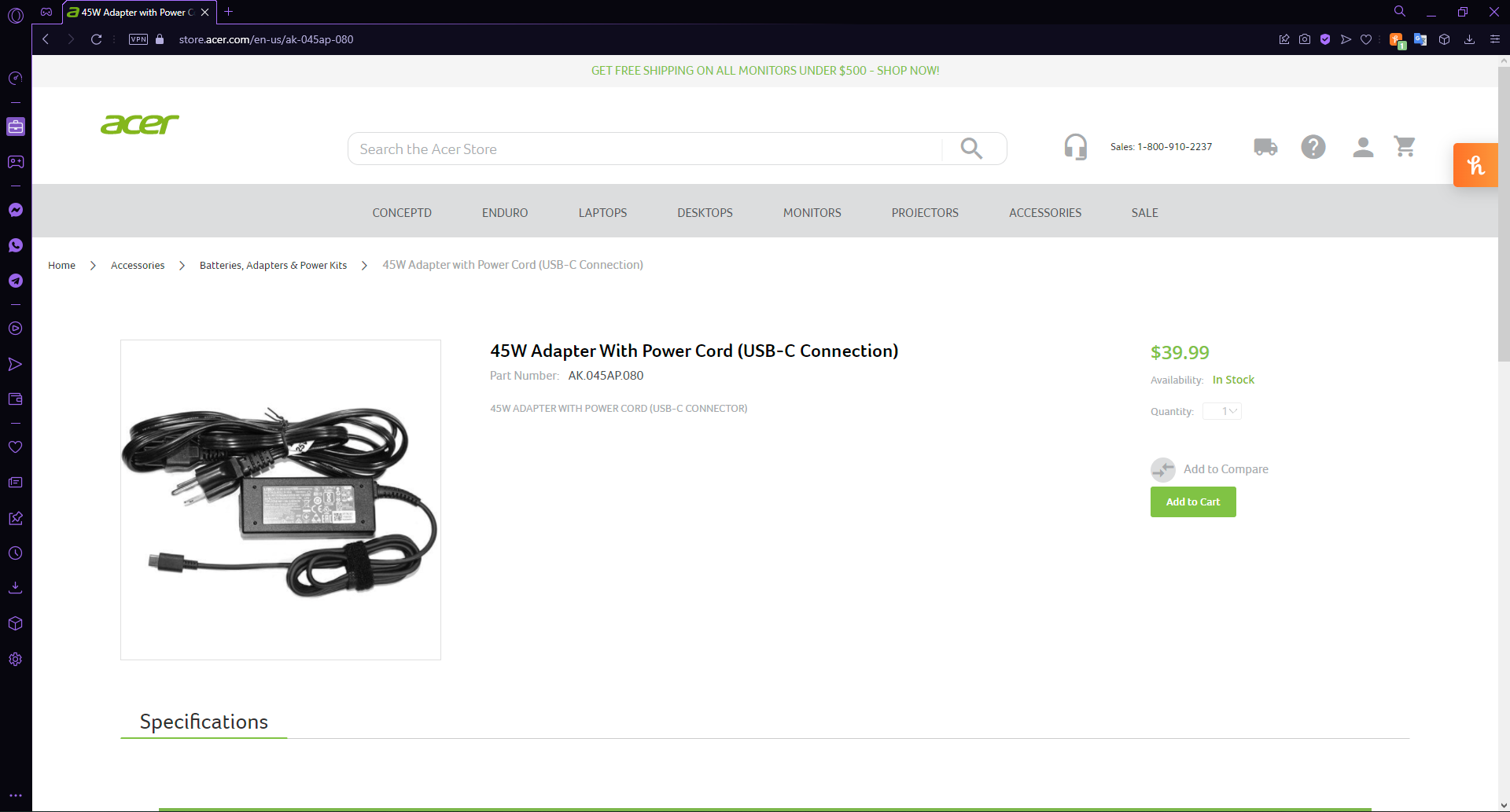
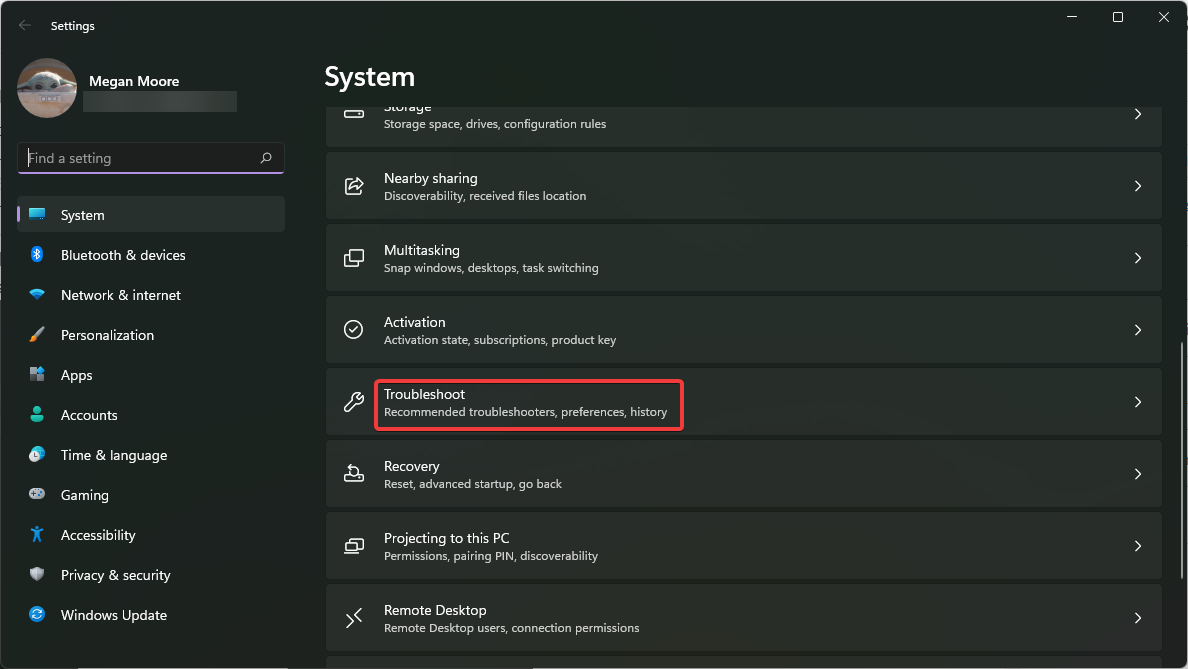
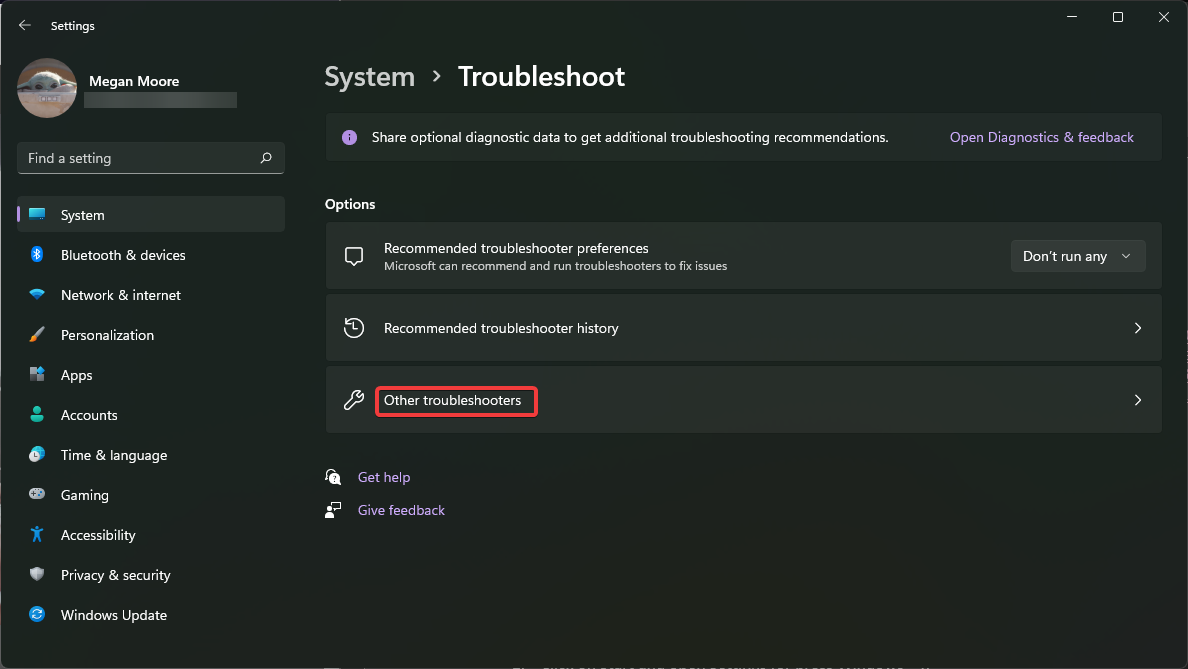
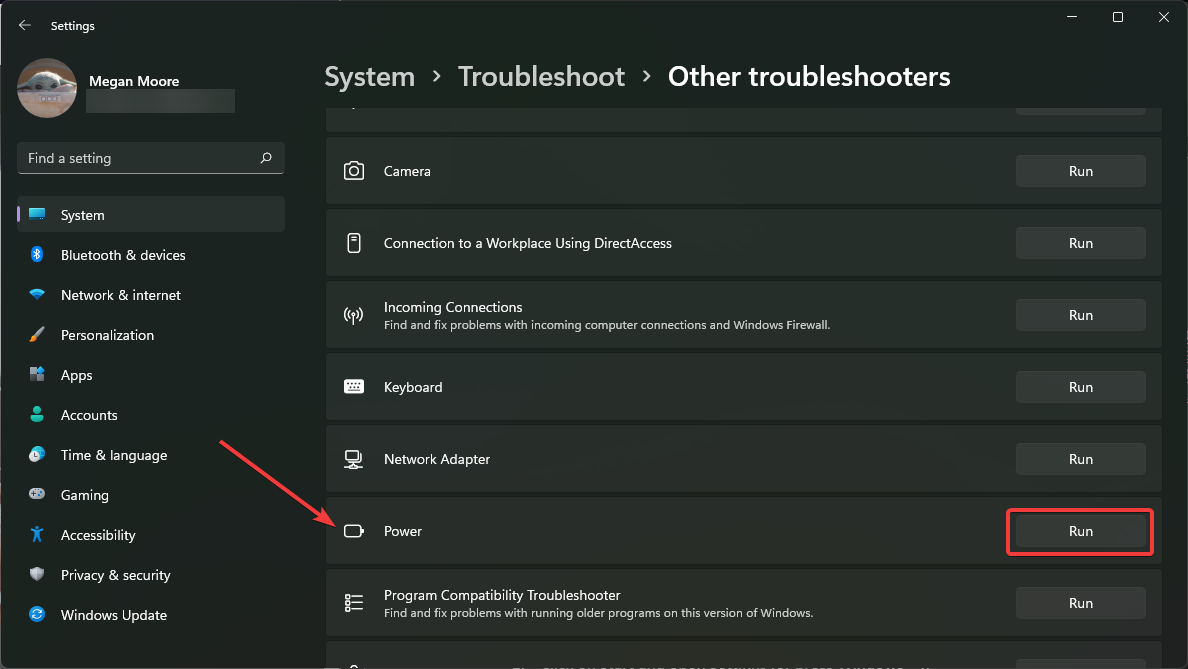
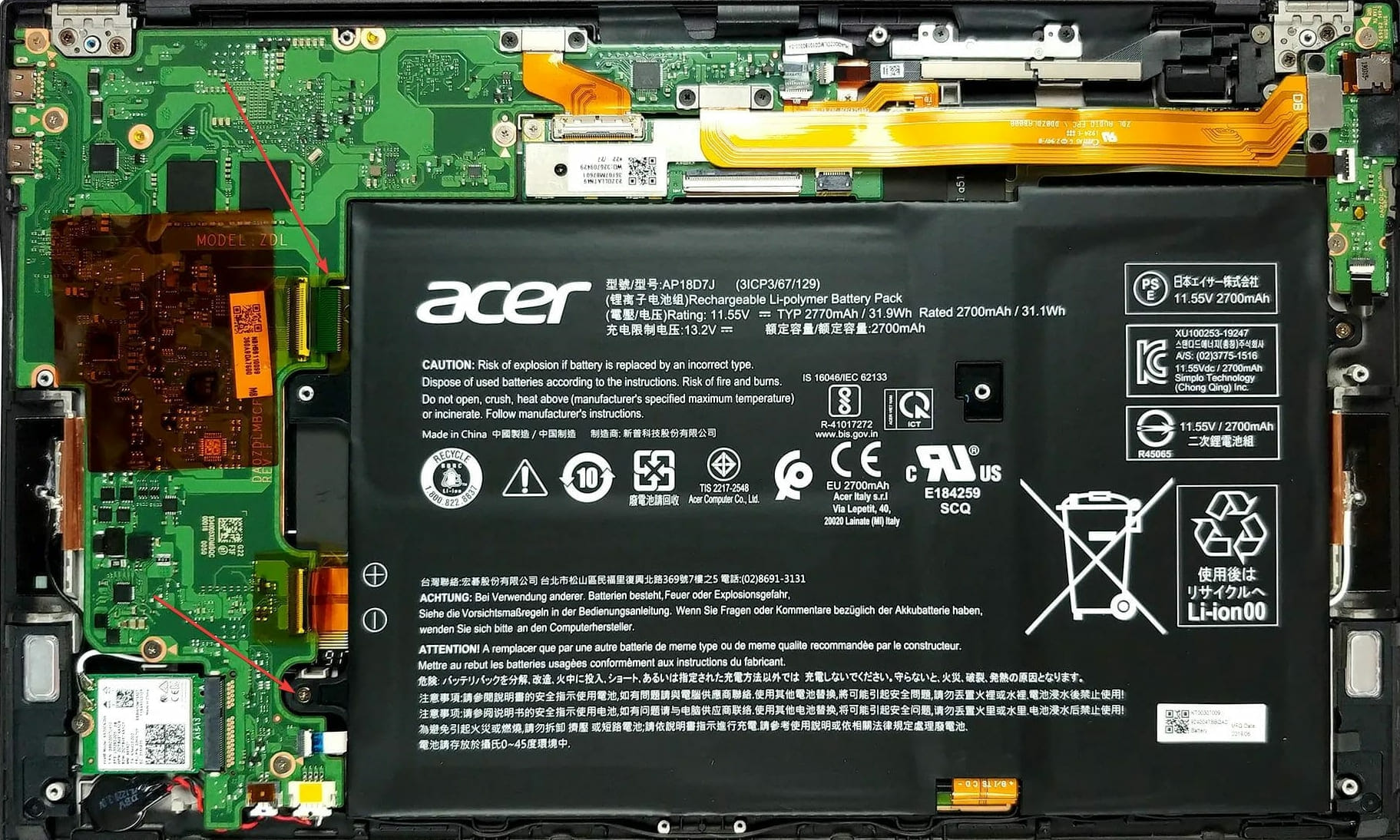
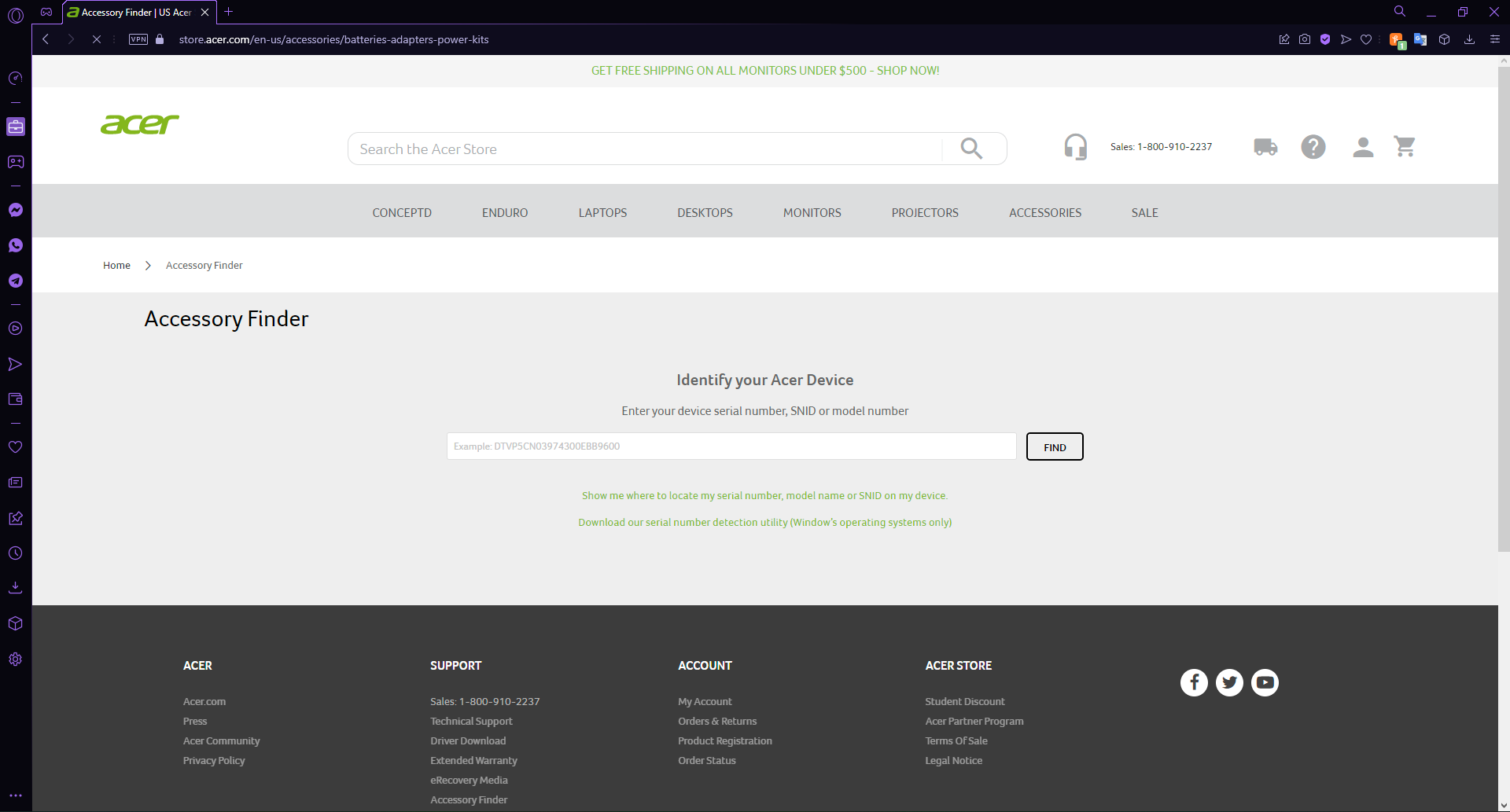
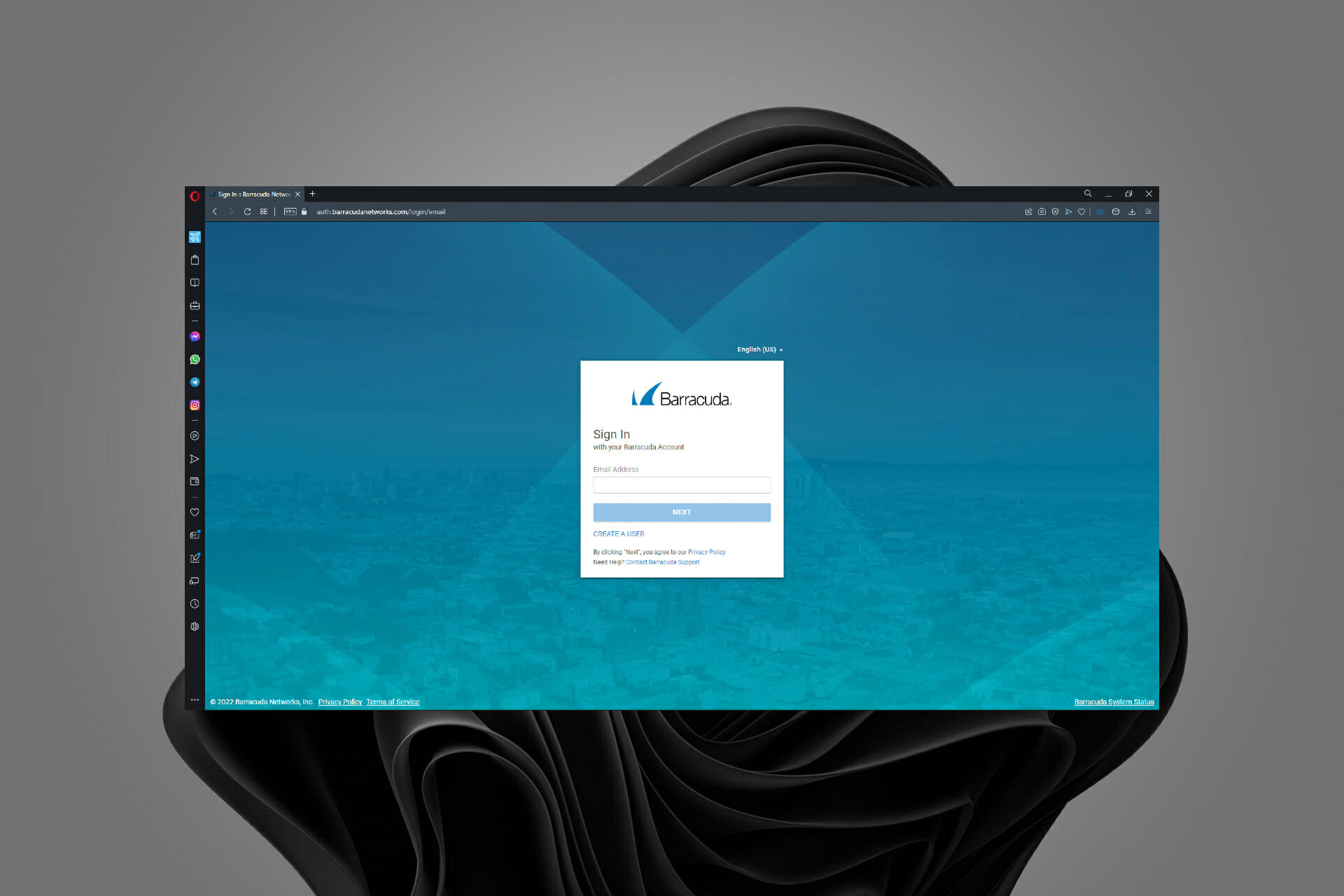
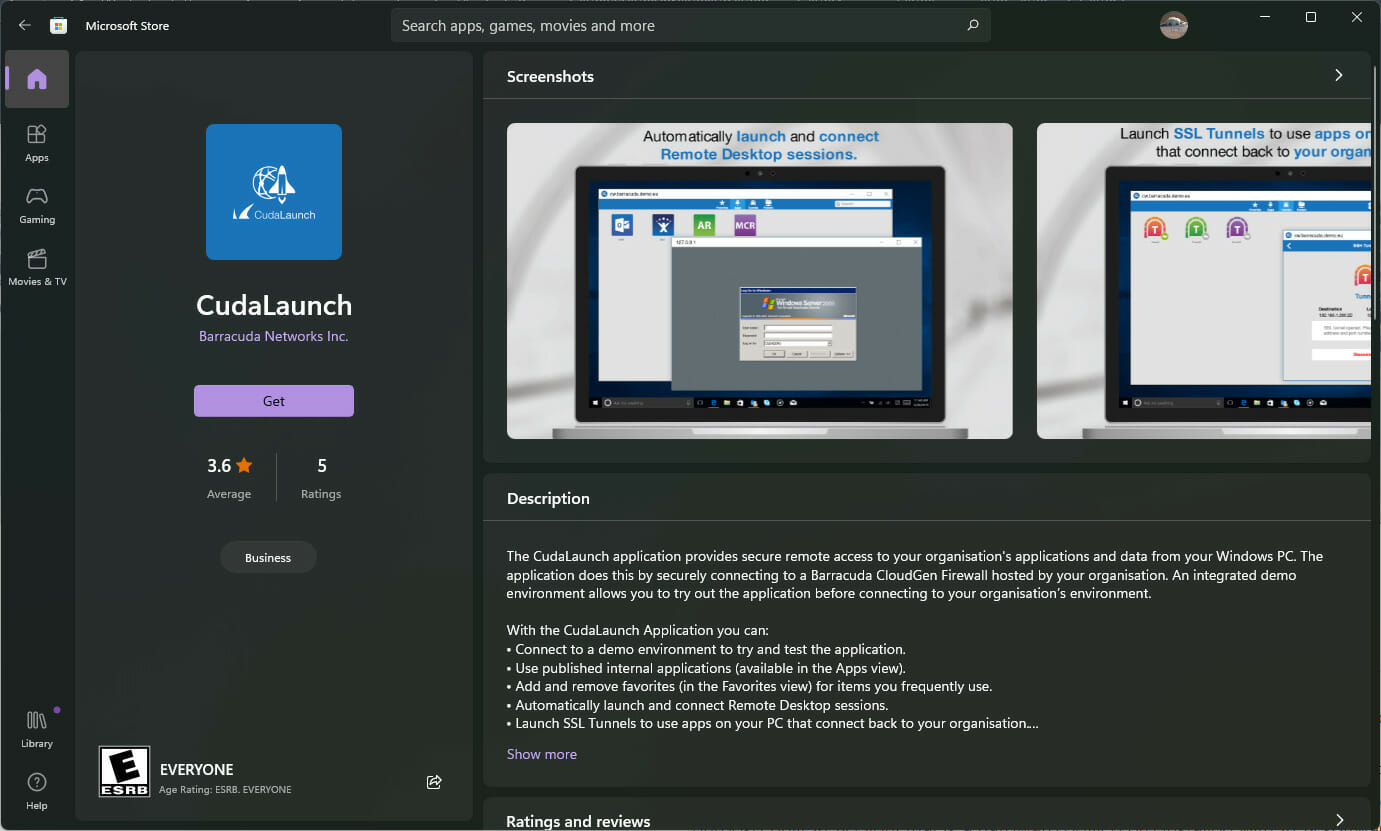

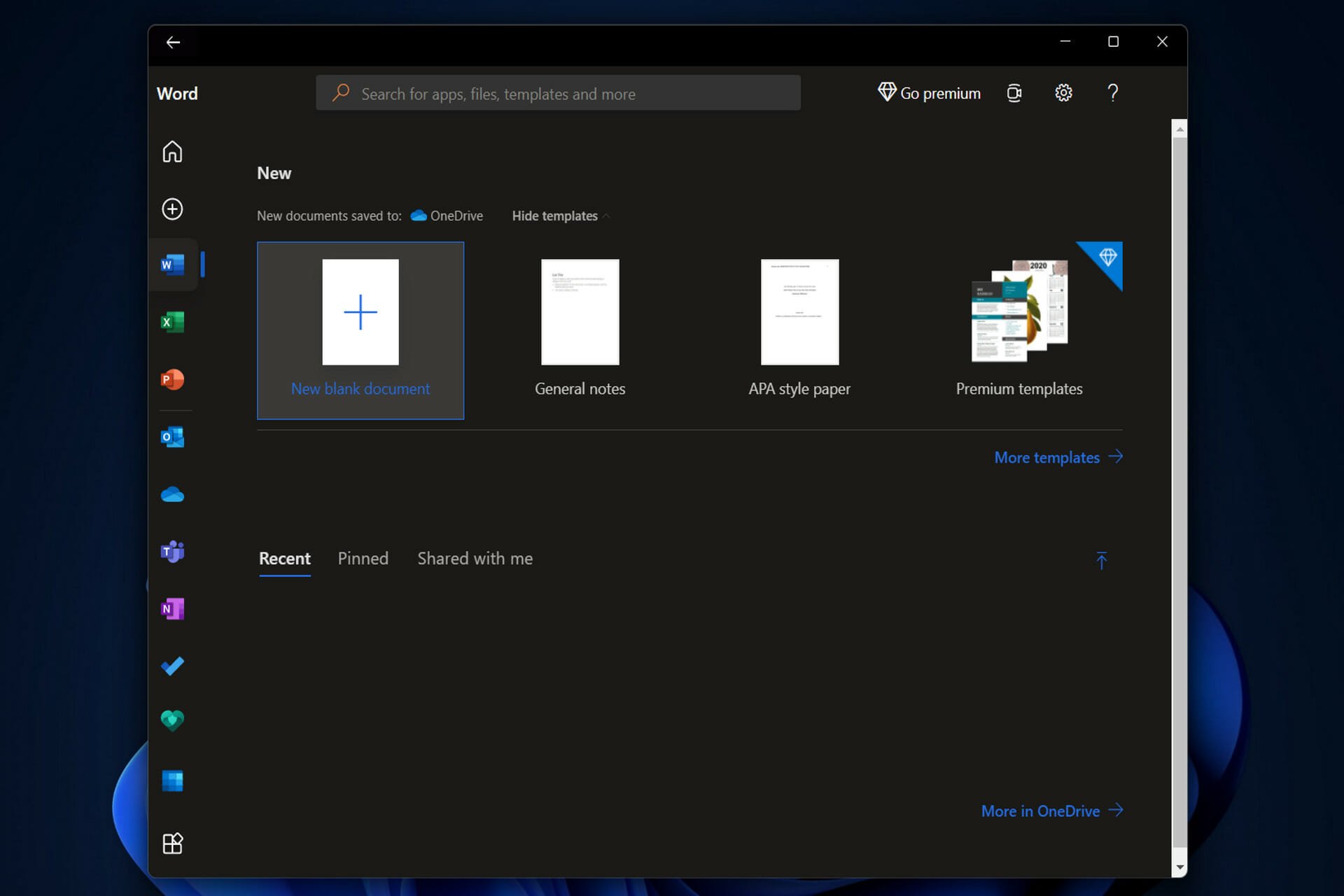
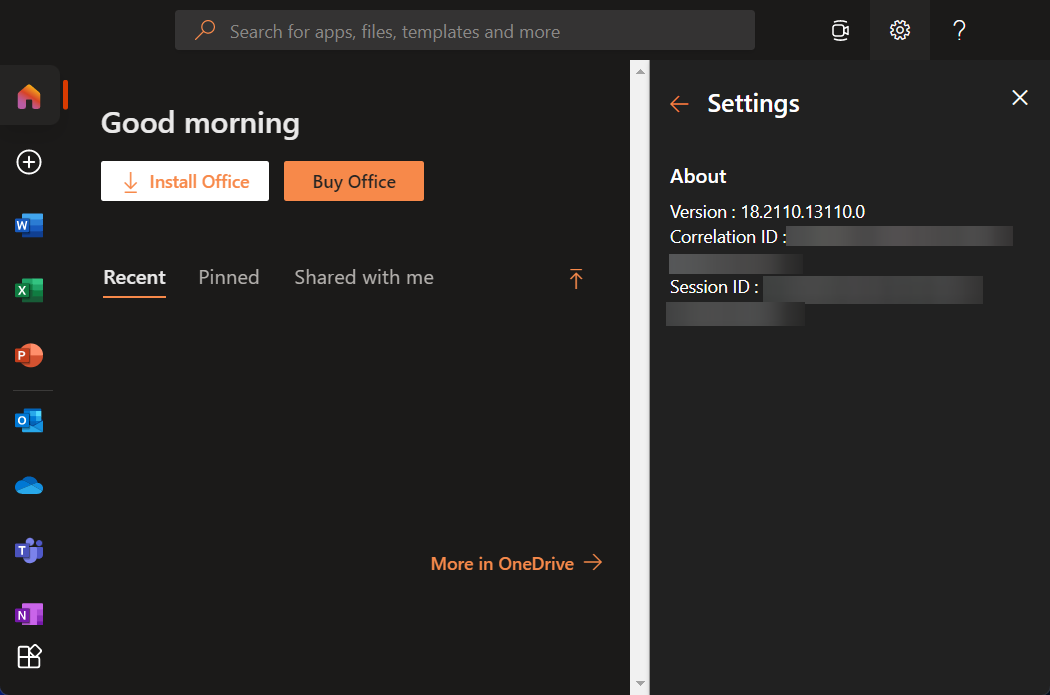


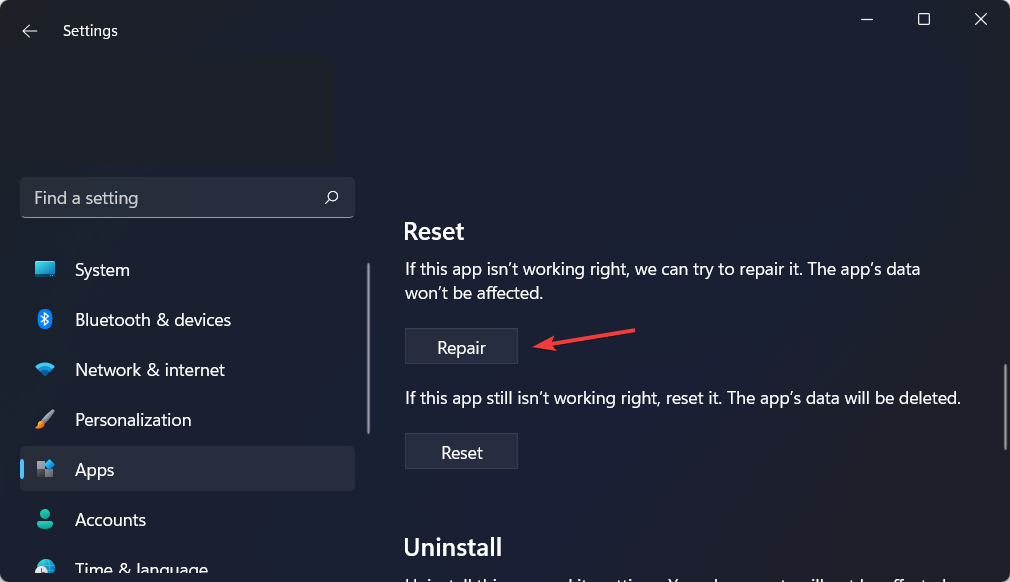


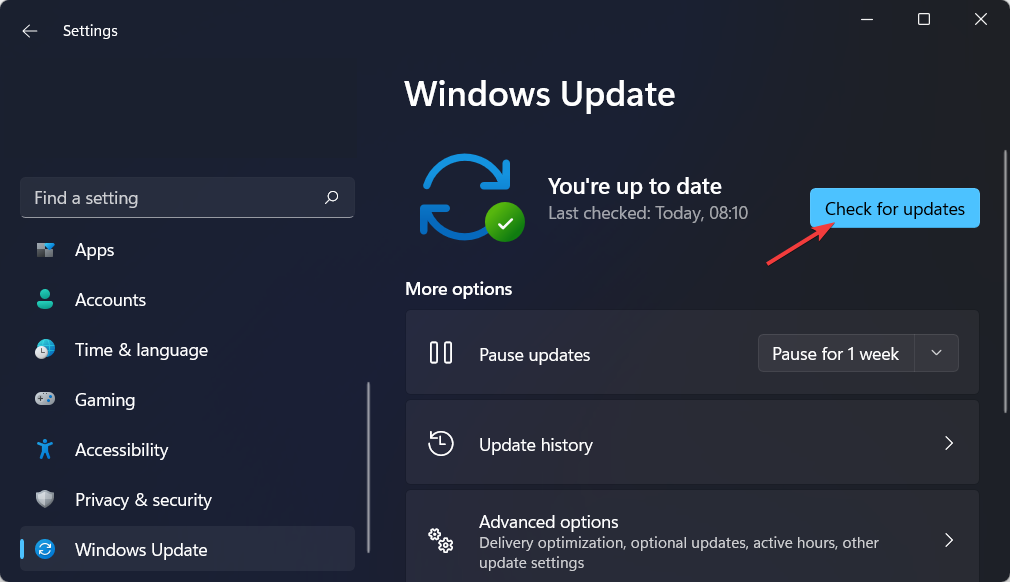
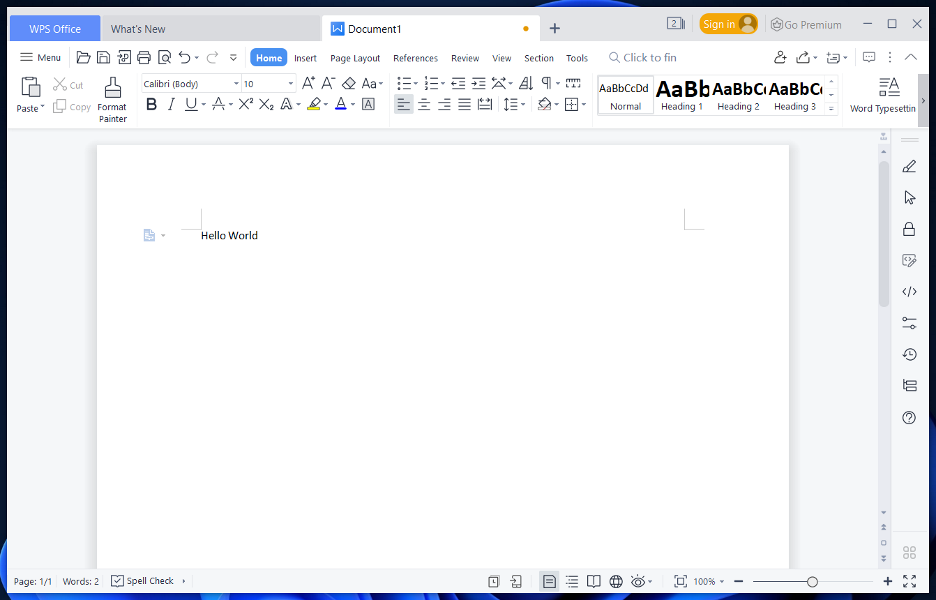
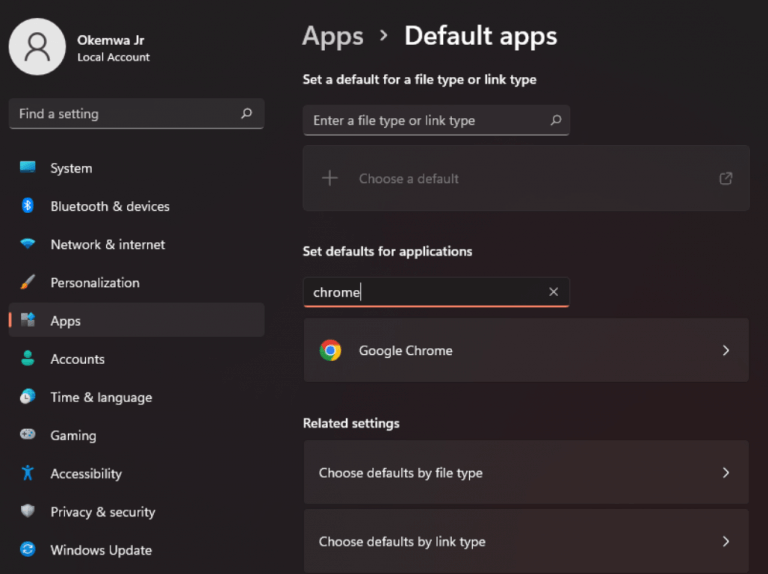
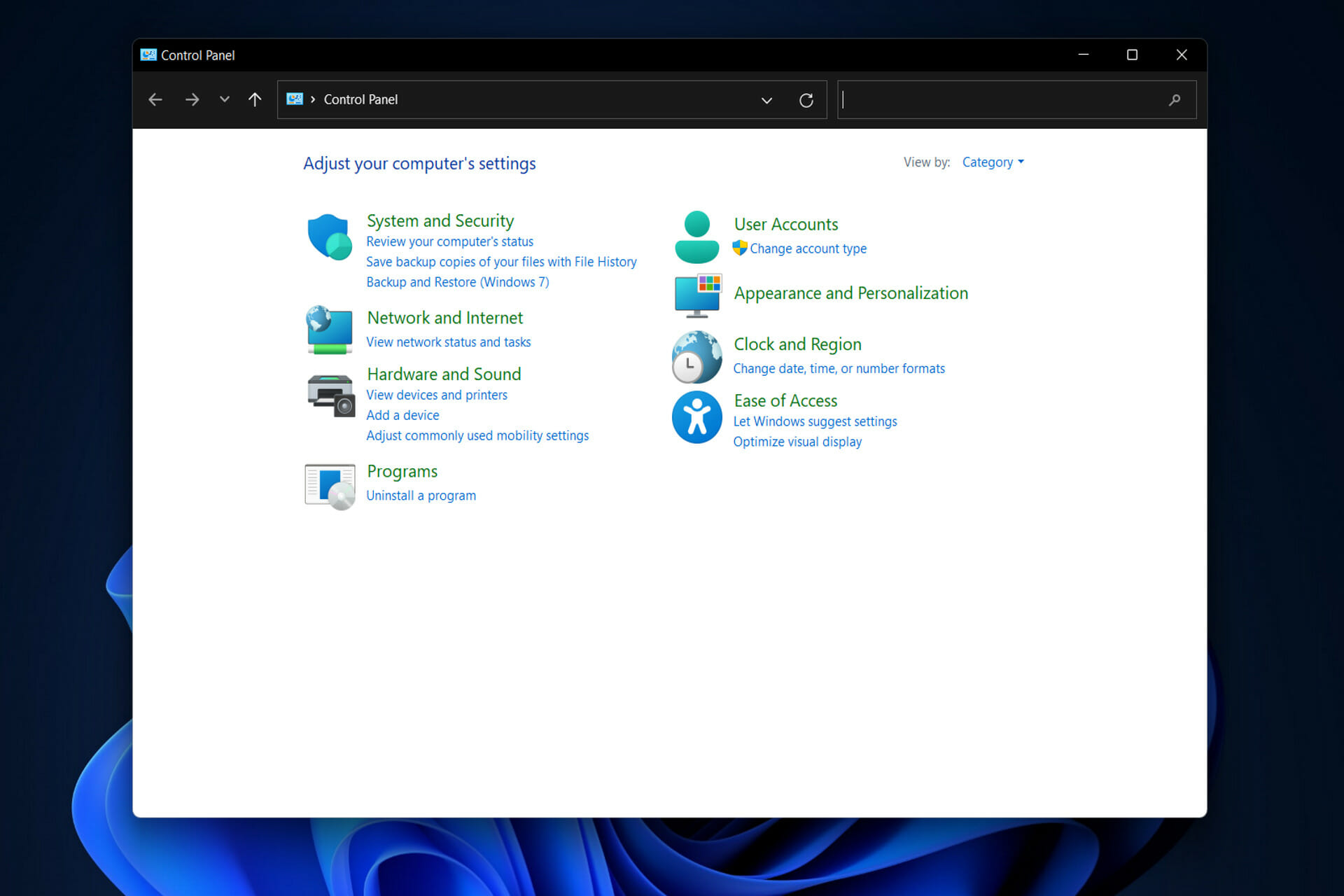
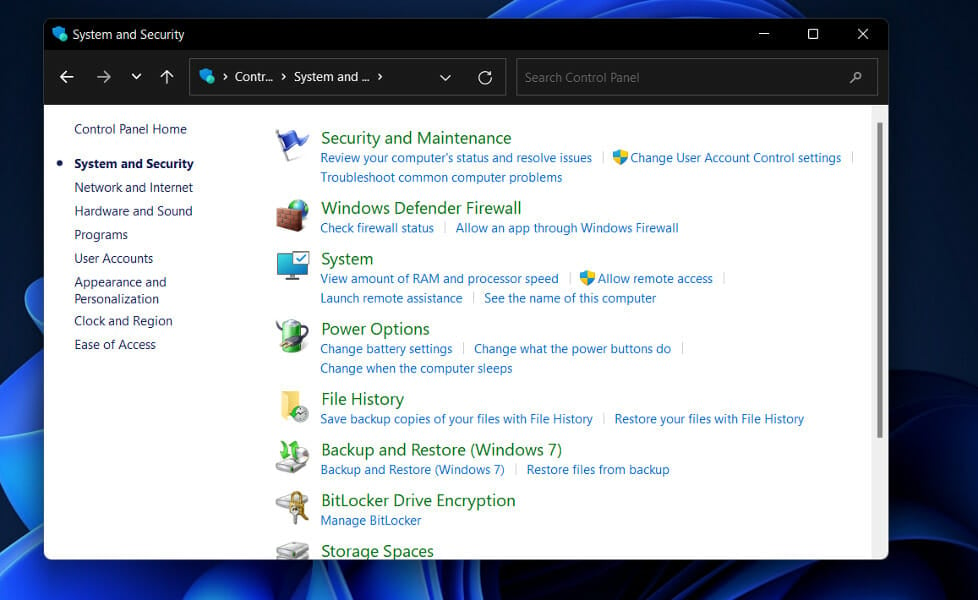


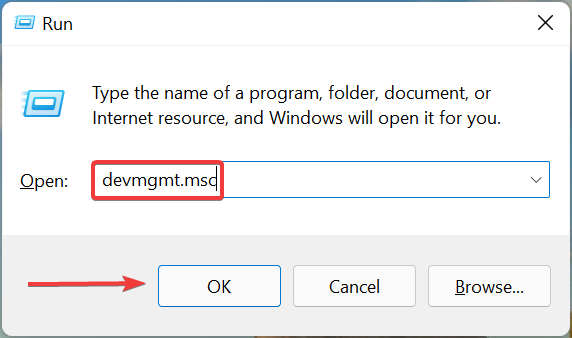
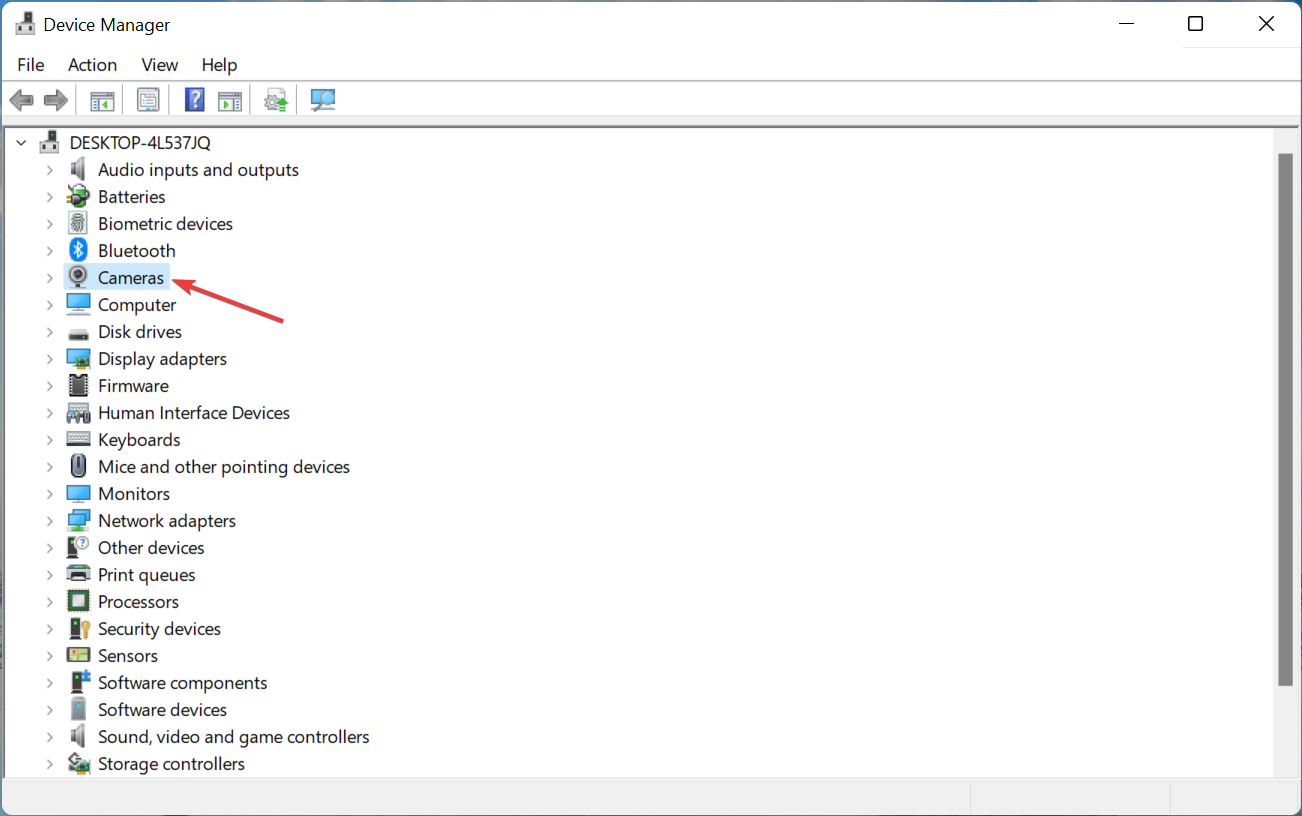
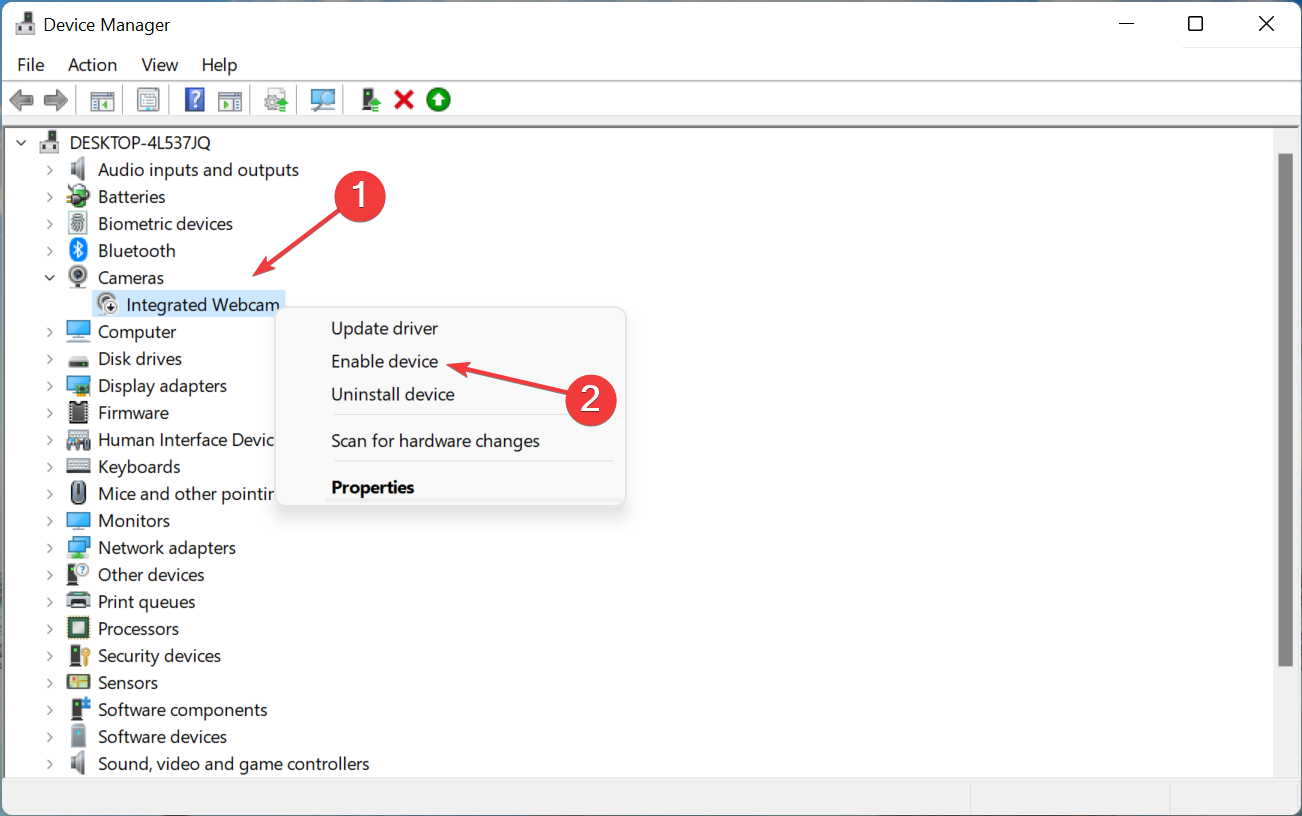
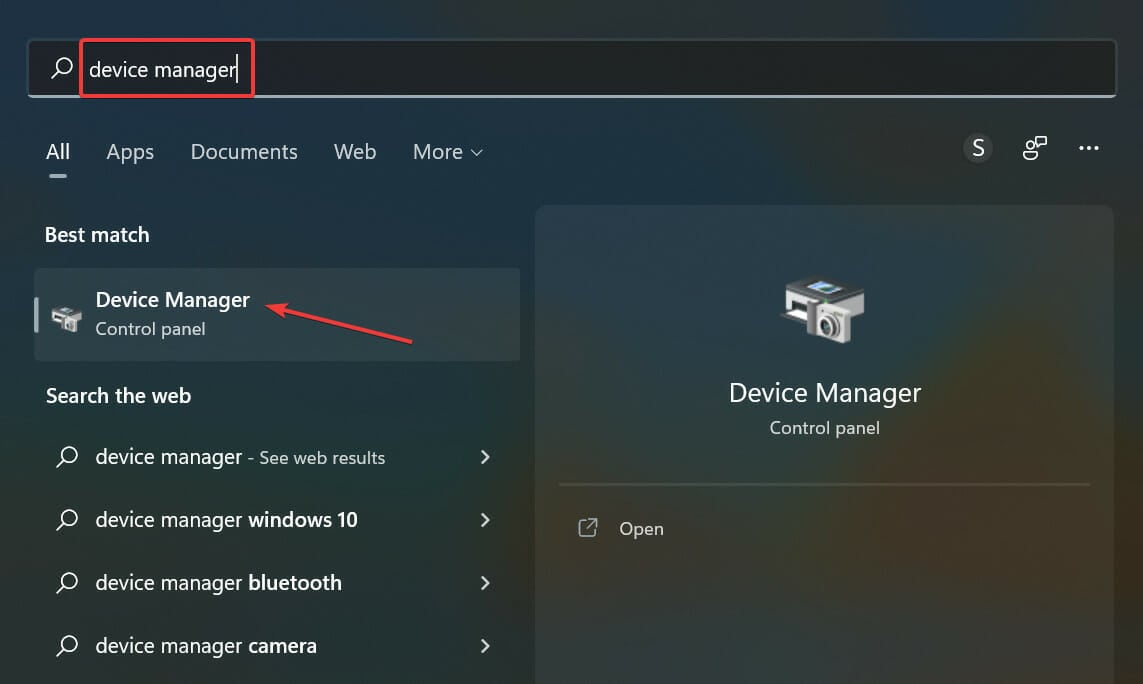
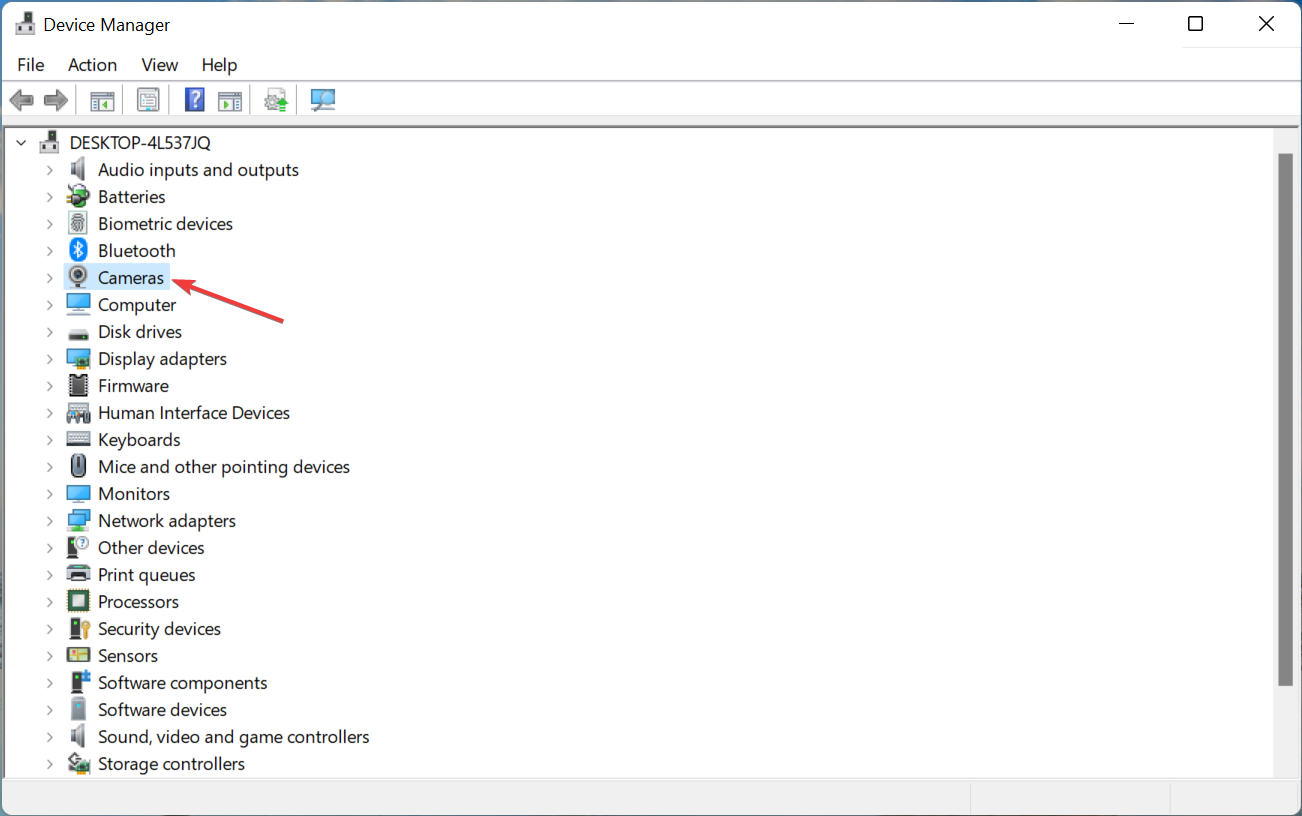
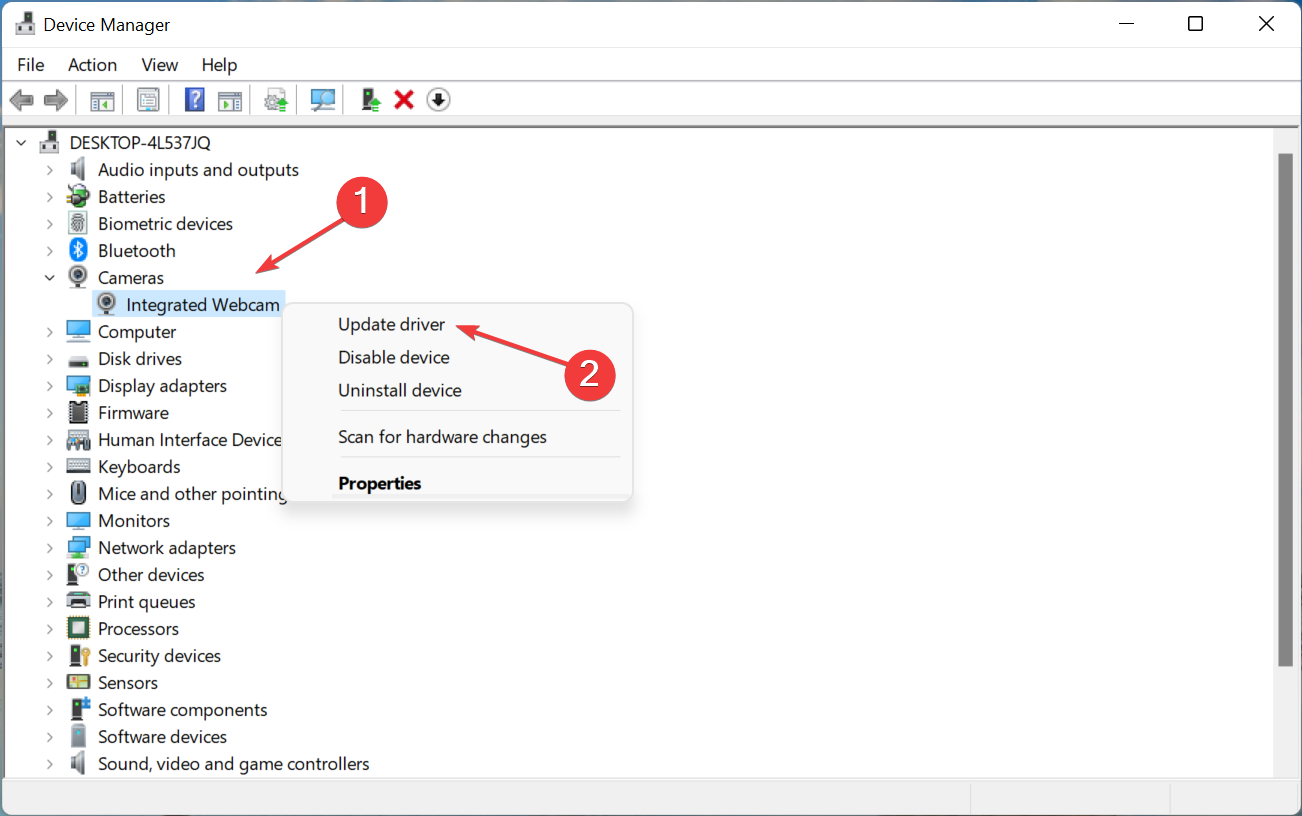
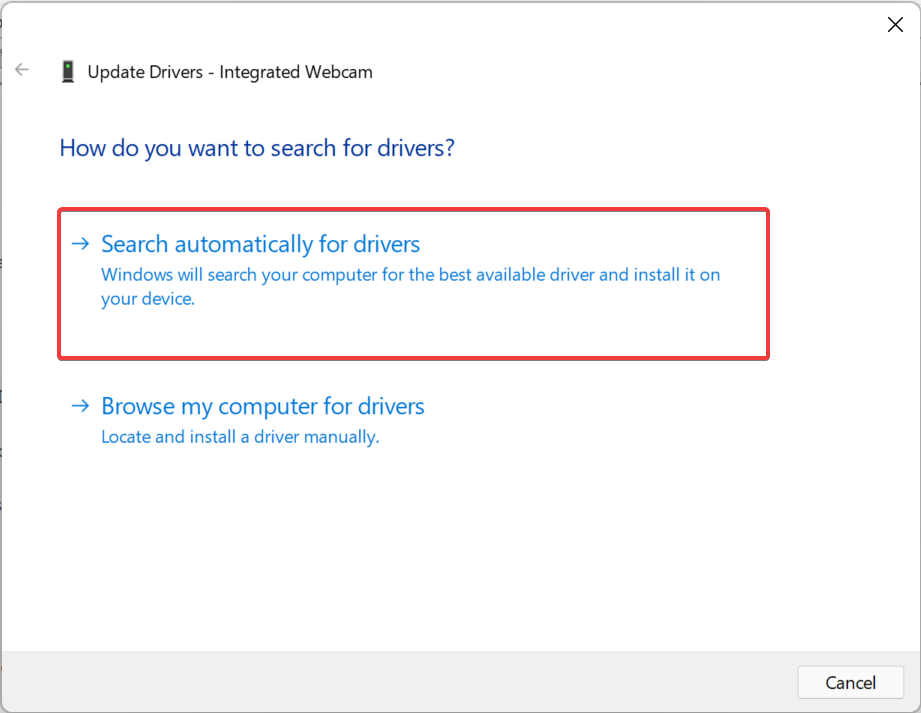
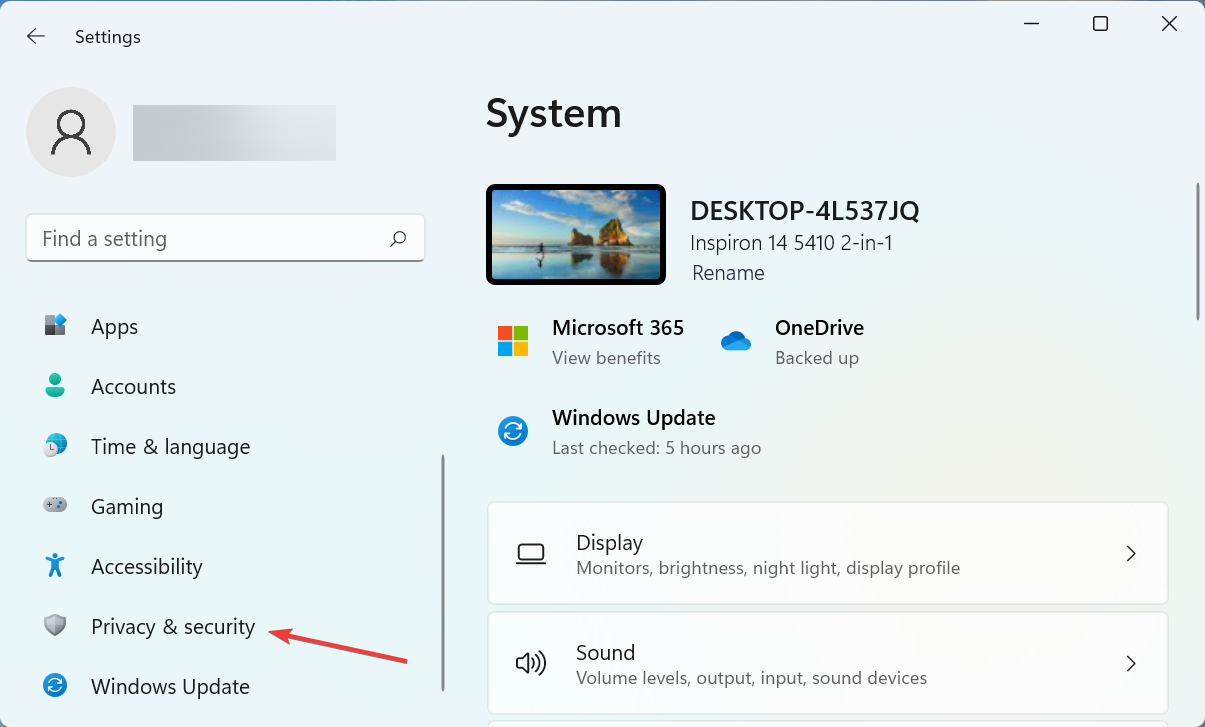
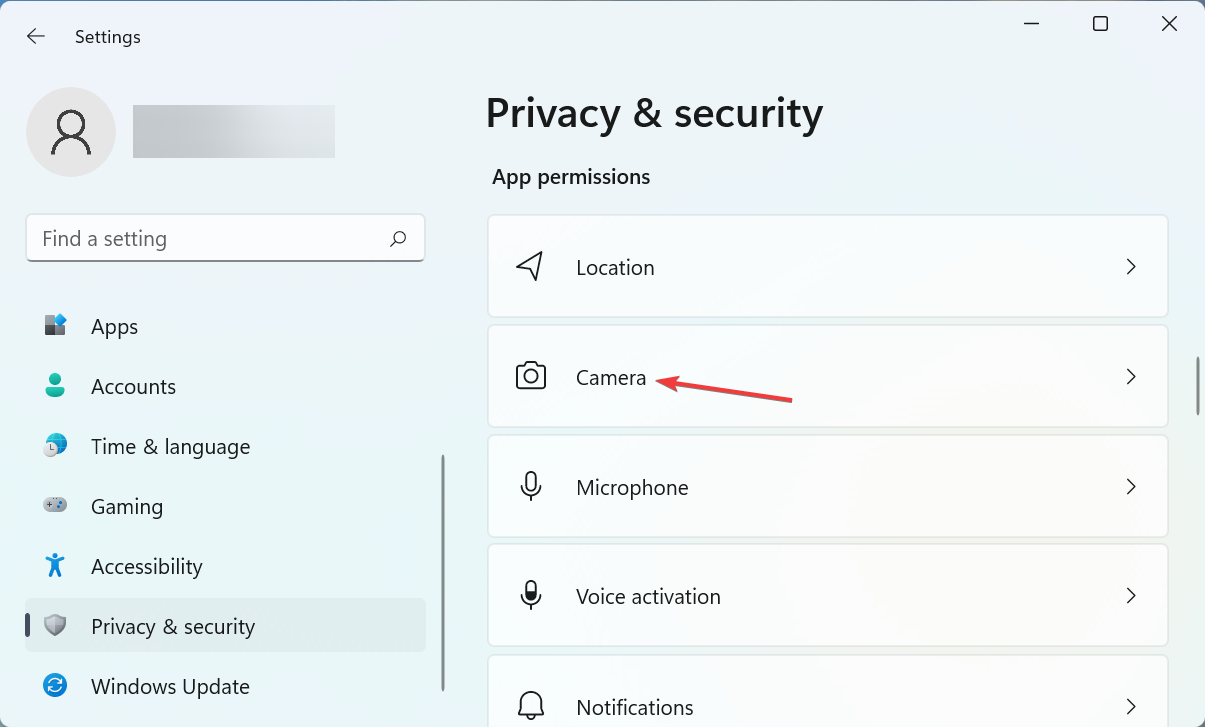
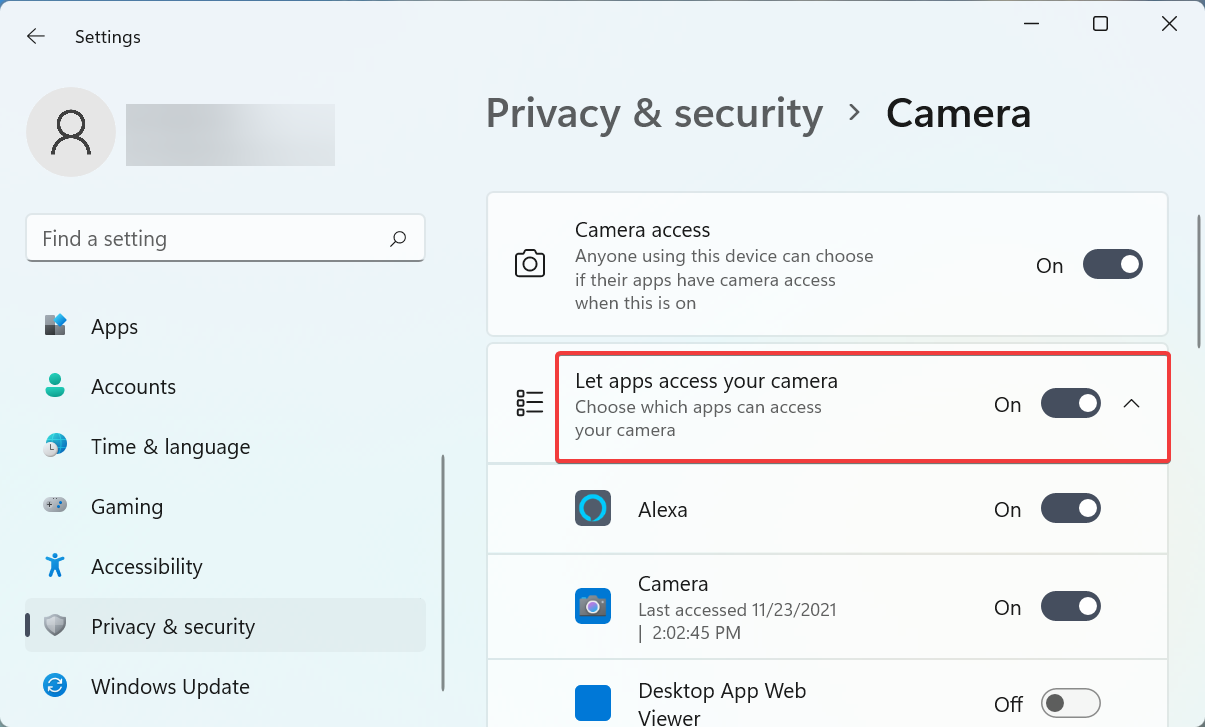
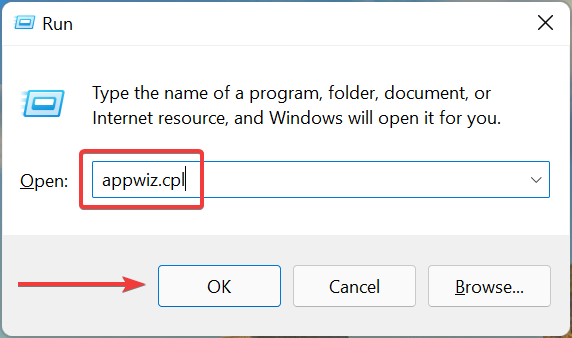
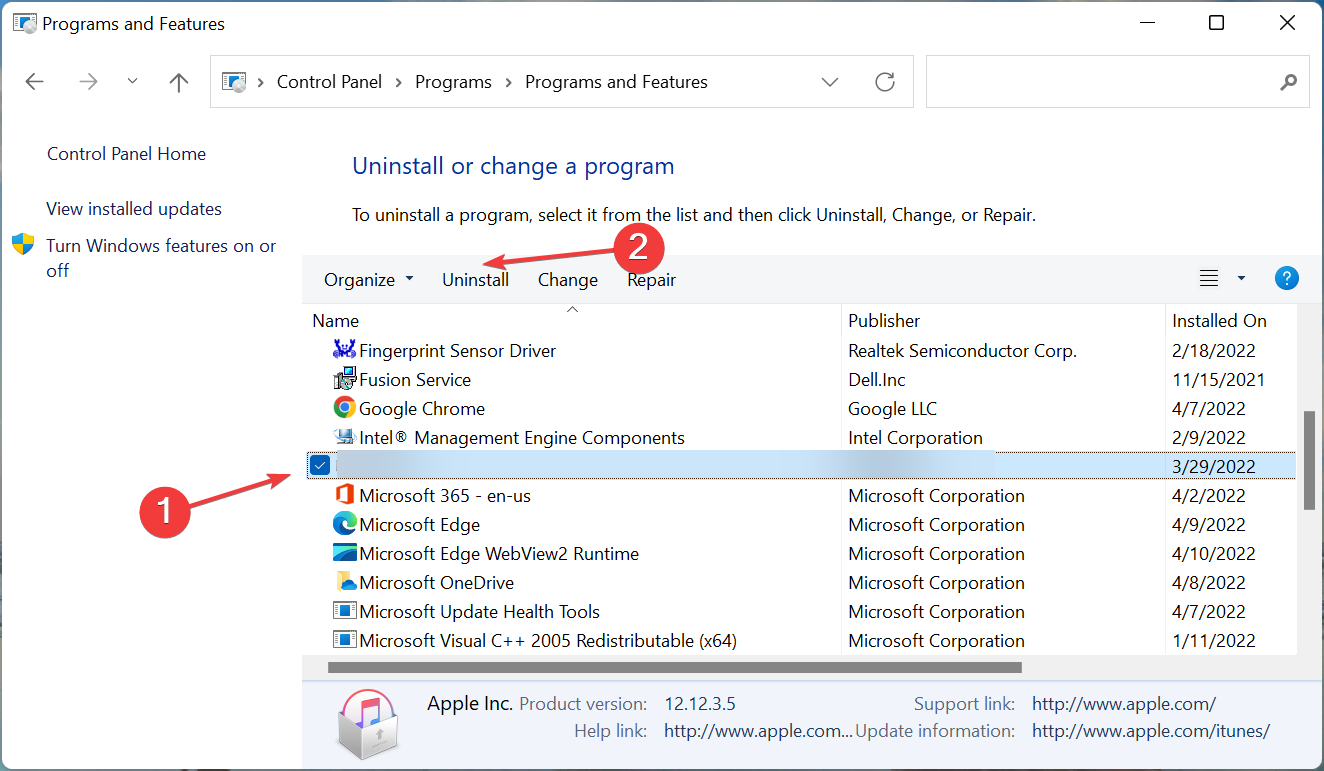
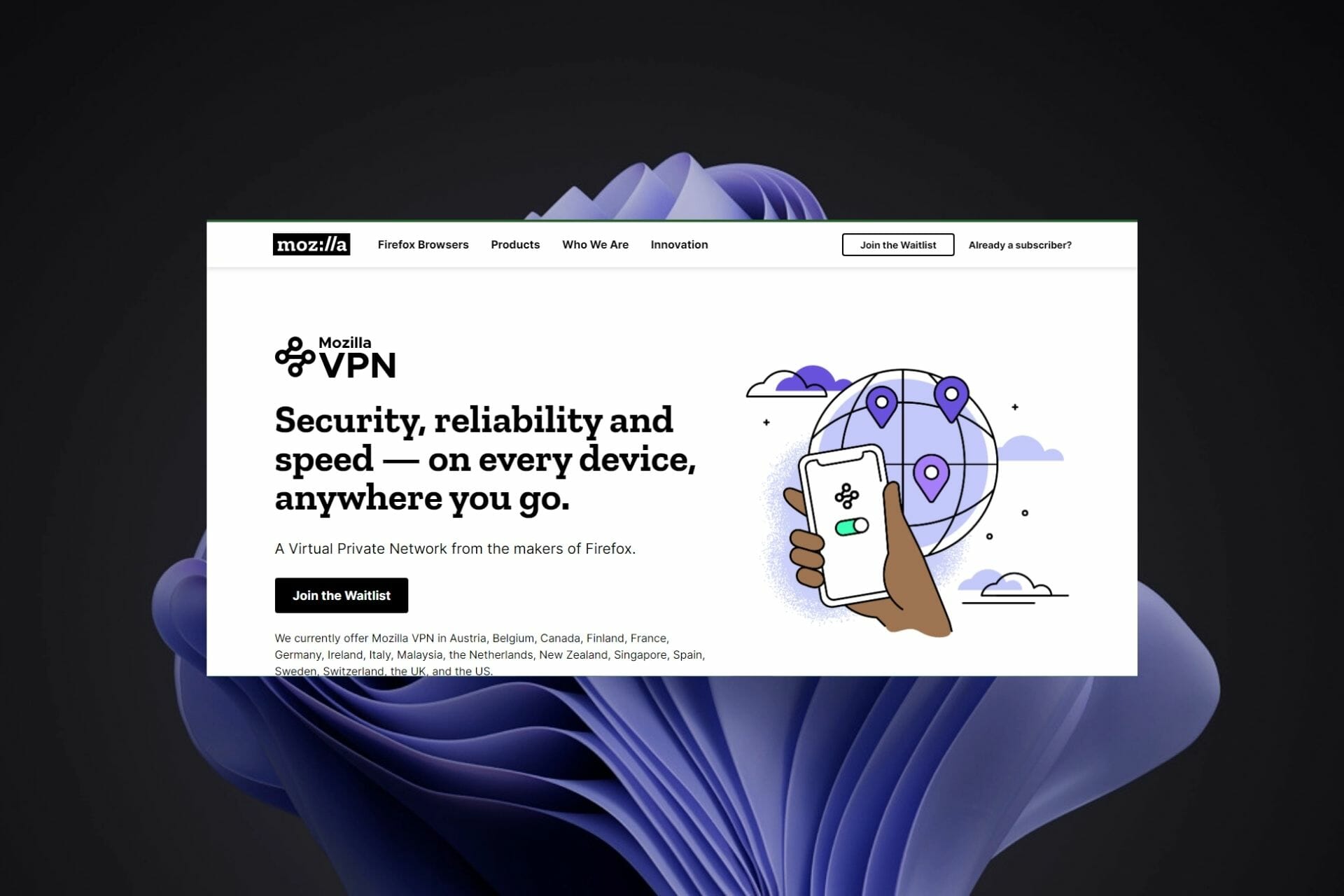


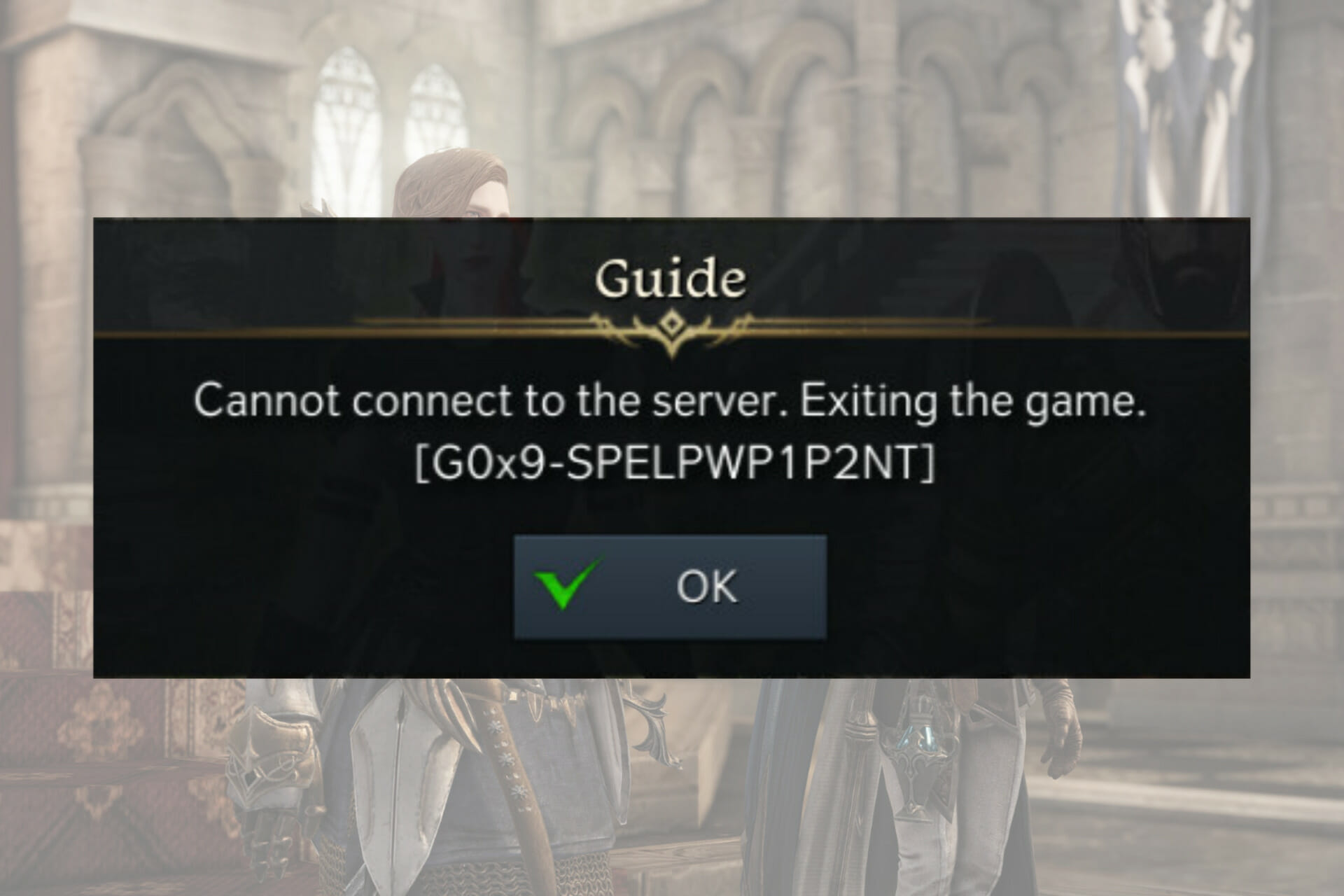

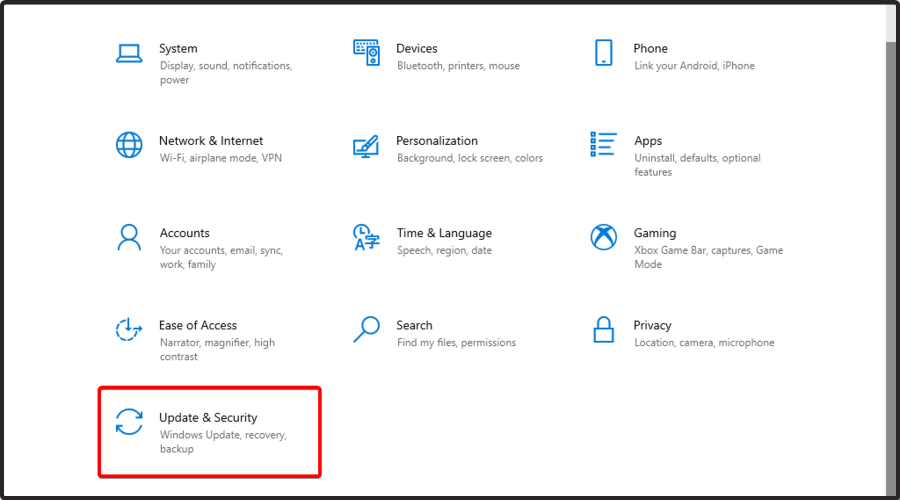
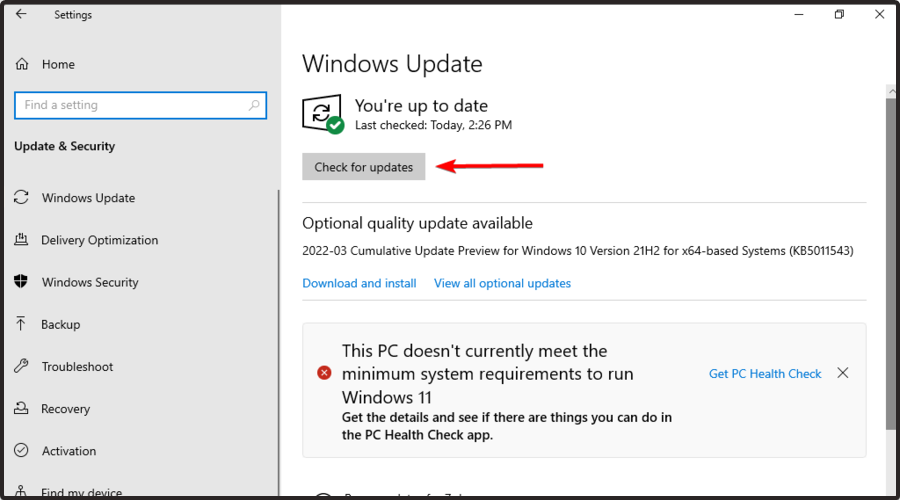


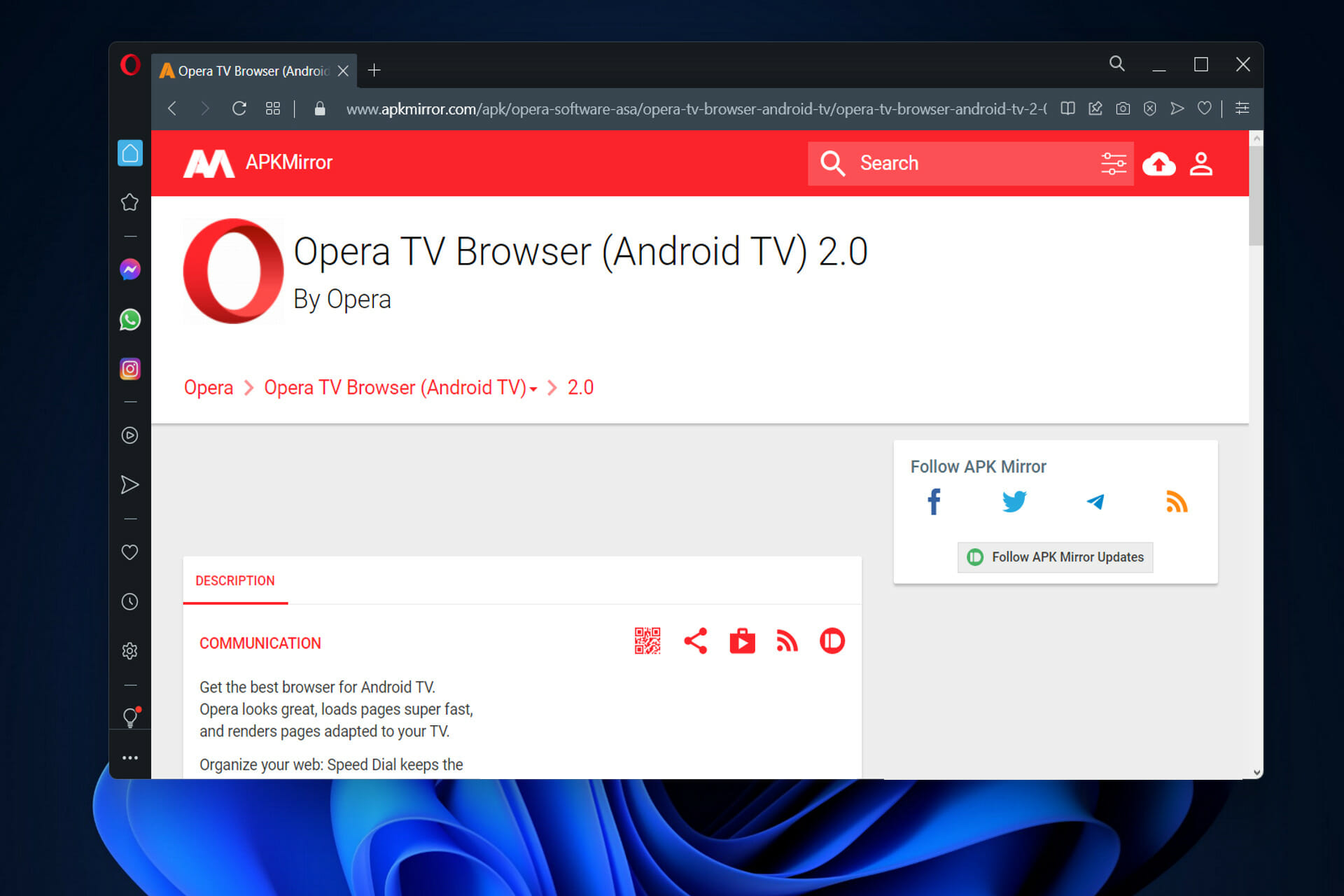


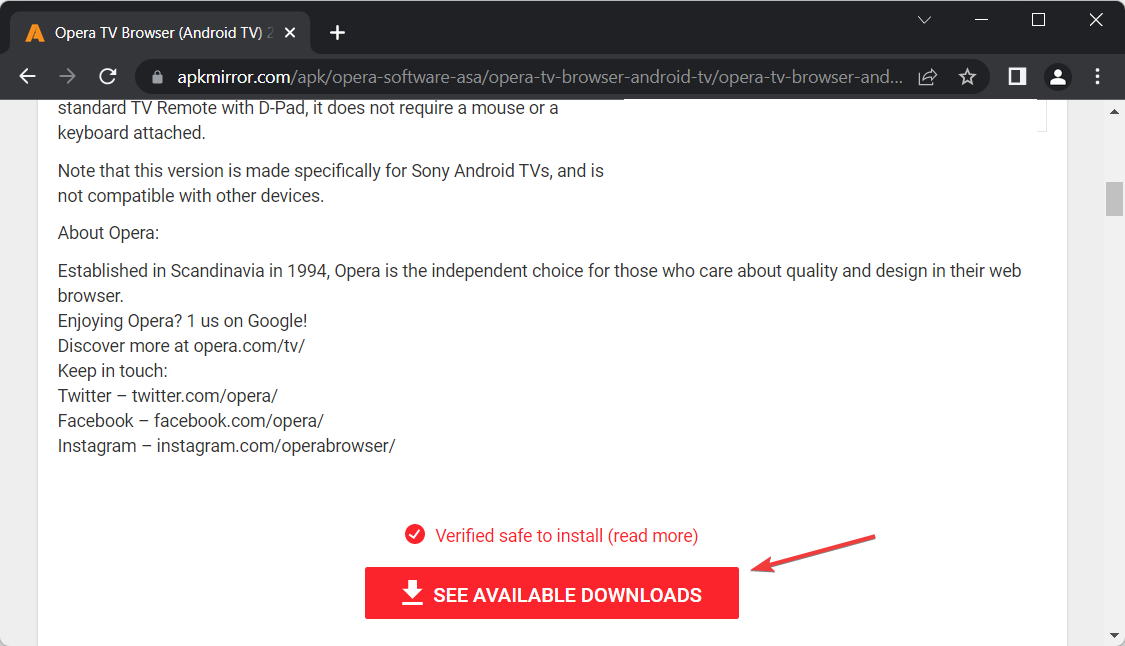
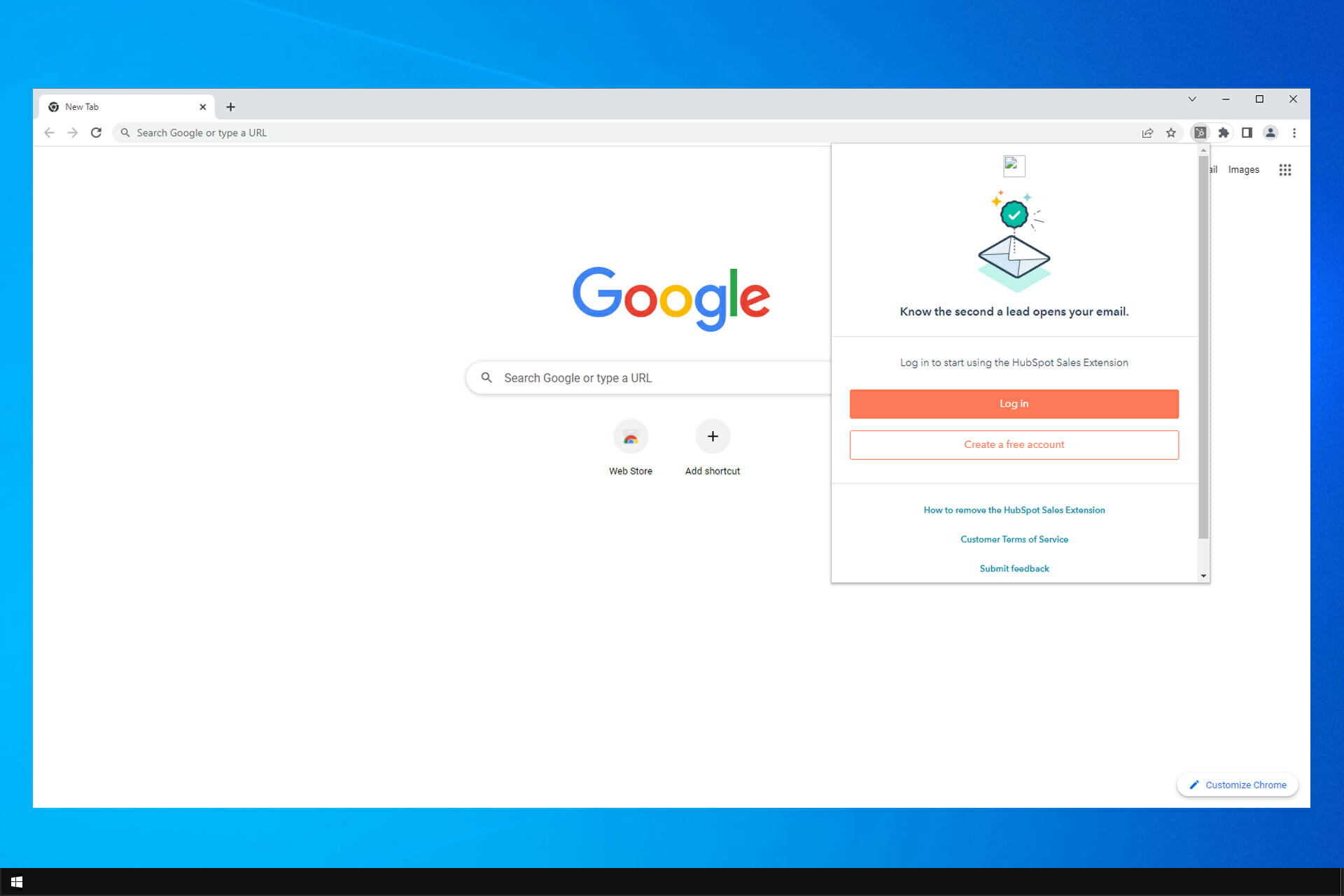



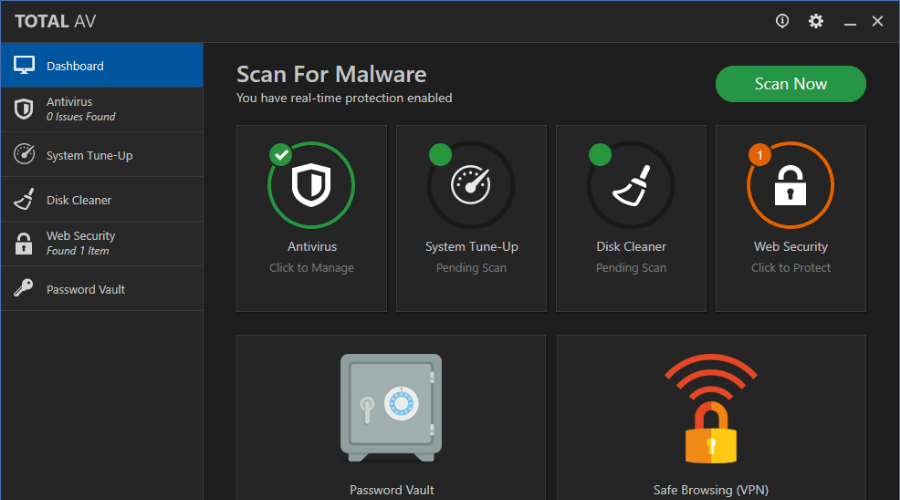

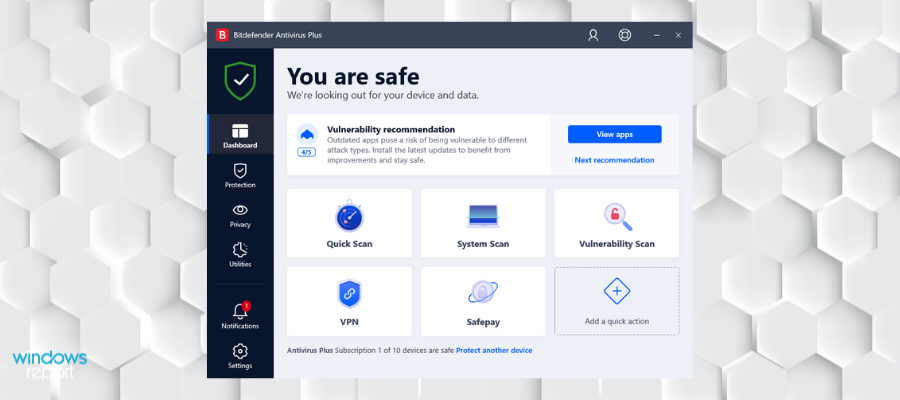

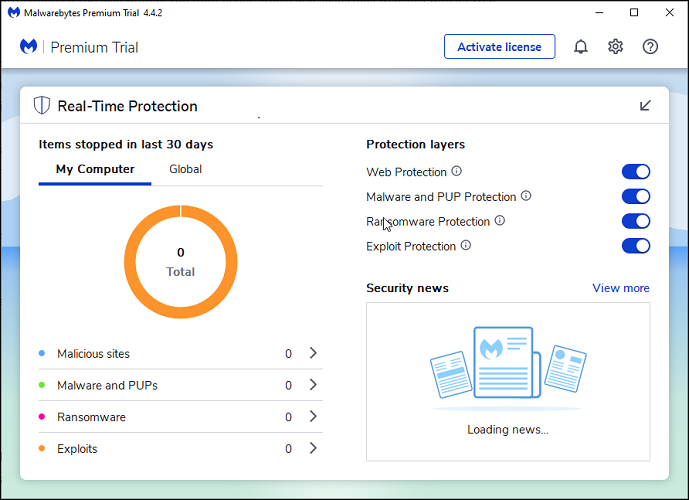

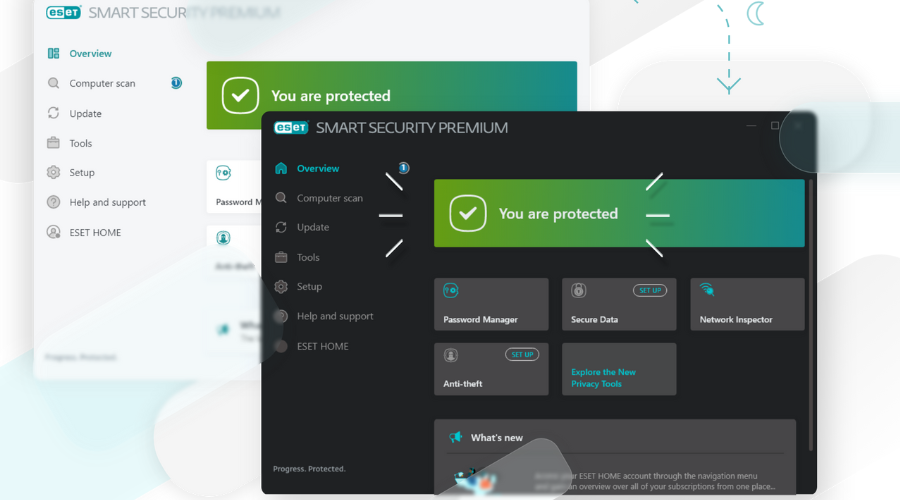

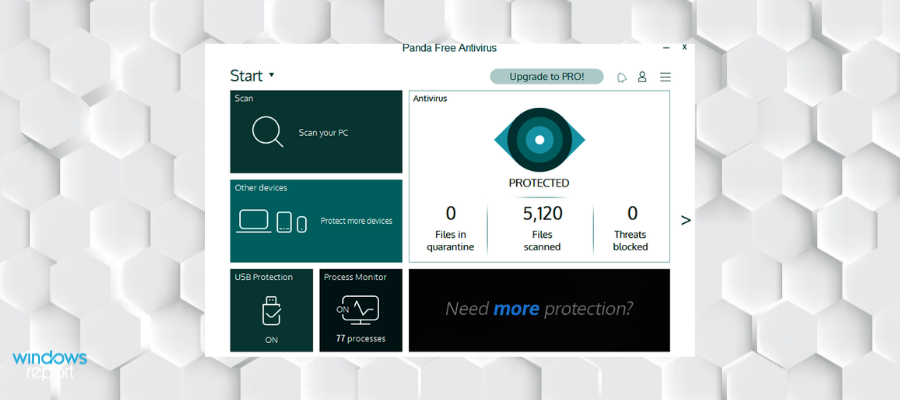

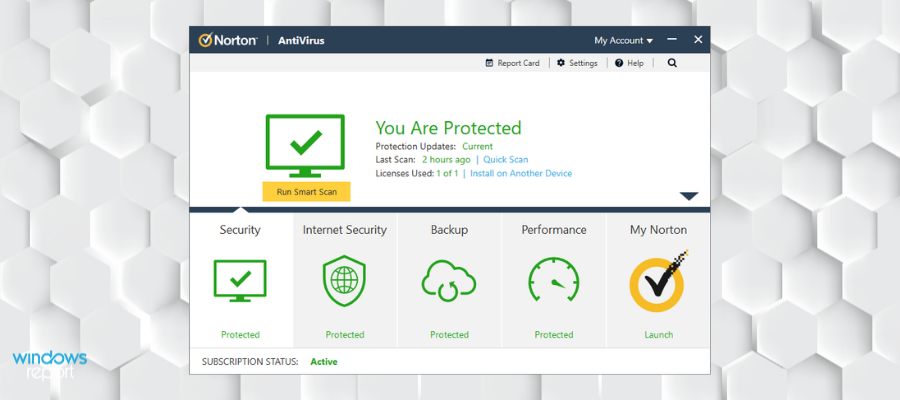








![5 Best Fantasy Map Makers [Beginner-Friendly]](https://windowsreport.com/wp-content/uploads/2022/04/feature-image-in-browser-map-maker.jpg)